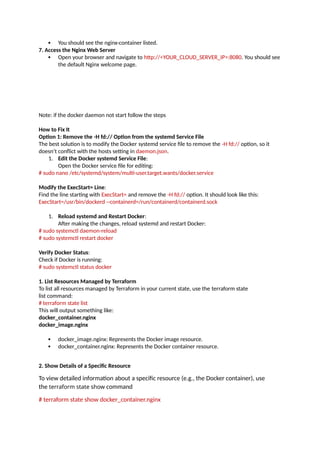
Linux
Package manager
# wget-O - https://apt.releases.hashicorp.com/gpg | sudo gpg --dearmor -o
/usr/share/keyrings/hashicorp-archive-keyring.gpg
# echo "deb [arch=$(dpkg --print-architecture) signed-by=/usr/share/keyrings/hashicorp-archive-
keyring.gpg] https://apt.releases.hashicorp.com $(lsb_release -cs) main" | sudo tee
/etc/apt/sources.list.d/hashicorp.list
# sudo apt update && sudo apt install terraform
Verify the Installation
Check if Terraform is installed correctly:
# terraform --version
Terraform has a Docker provider that allows you to manage Docker containers, images, and
networks. Since you already have Docker installed on your cloud server, you can use Terraform to
define and manage Docker resources.
Below, I’ll guide you through the steps to create a Docker container on your cloud server using
Terraform and how to specify your cloud server's IP address.
Steps to Create a Docker Container Using Terraform
1. Install Terraform on Your Local Machine
If you haven’t already installed Terraform on your local machine, follow the same steps as
you did for your Ubuntu server.
2. Create a Terraform Configuration File
Create a directory for your Terraform project:
# mkdir terraform-docker
# cd terraform-docker
Create a main.tf file:
# nano main.tf
3. Define the Docker Provider and Resources
Add the following configuration to main.tf to define the Docker provider and create a
container:
terraform {
required_providers {
docker = {
source = "kreuzwerker/docker"
version = "~> 3.0" # Use the latest stable version (3.x as of now)
}
2.
}
}
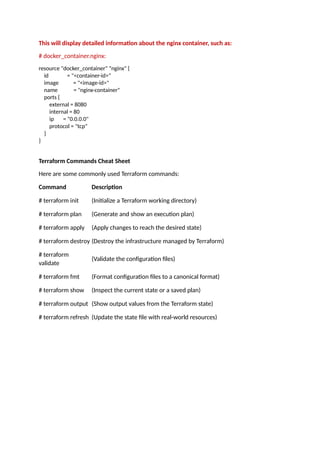
provider "docker" {
host= "tcp://192.168.101.40:2375/" # Docker daemon endpoint
}
resource "docker_image" "nginx" {
name = "nginx:latest" # Pulls the latest Nginx image
keep_locally = false # Remove the image after container removal
}
resource "docker_container" "nginx" {
name = "nginx-container" # Name of the container
image = docker_image.nginx.image_id # Use the image ID from the docker_image resource
ports {
internal = 80 # Internal container port
external = 8080 # External host port
}
}
Replace <YOUR_CLOUD_SERVER_IP> with the public or private IP address of your cloud
server.
4. Configure Docker to Accept Remote Connections
By default, Docker listens on a Unix socket. To allow Terraform to connect to Docker
remotely, you need to configure Docker to listen on a TCP port.
On your cloud server, edit the Docker daemon configuration file:
# sudo nano /etc/docker/daemon.json
Add the following configuration to allow Docker to listen on port 2375:
{
"hosts": ["tcp://0.0.0.0:2375", "unix:///var/run/docker.sock"]
}
Restart the Docker service:
# systemctl daemon-reload
# systemctl restart docker
Note: Exposing Docker on 0.0.0.0:2375 is not secure. For production environments, use SSH
or TLS to secure the connection.
5. Initialize and Apply the Terraform Configuration
Initialize Terraform:
# terraform init
Apply the configuration to create the Docker container:
# terraform apply
Terraform will download the nginx image and create a container named nginx-container with
port 80 mapped to 8080 on your cloud server.
6. Verify the Container
SSH into your cloud server and check if the container is running:
# docker ps
3.
You shouldsee the nginx-container listed.
7. Access the Nginx Web Server
Open your browser and navigate to http://<YOUR_CLOUD_SERVER_IP>:8080. You should see
the default Nginx welcome page.
Note: if the docker daemon not start follow the steps
How to Fix It
Option 1: Remove the -H fd:// Option from the systemd Service File
The best solution is to modify the Docker systemd service file to remove the -H fd:// option, so it
doesn’t conflict with the hosts setting in daemon.json.
1. Edit the Docker systemd Service File:
Open the Docker service file for editing:
# sudo nano /etc/systemd/system/multi-user.target.wants/docker.service
Modify the ExecStart= Line:
Find the line starting with ExecStart= and remove the -H fd:// option. It should look like this:
ExecStart=/usr/bin/dockerd --containerd=/run/containerd/containerd.sock
1. Reload systemd and Restart Docker:
After making the changes, reload systemd and restart Docker:
# sudo systemctl daemon-reload
# sudo systemctl restart docker
Verify Docker Status:
Check if Docker is running:
# sudo systemctl status docker
1. List Resources Managed by Terraform
To list all resources managed by Terraform in your current state, use the terraform state
list command:
# terraform state list
This will output something like:
docker_container.nginx
docker_image.nginx
docker_image.nginx: Represents the Docker image resource.
docker_container.nginx: Represents the Docker container resource.
2. Show Details of a Specific Resource
To view detailed information about a specific resource (e.g., the Docker container), use
the terraform state show command
# terraform state show docker_container.nginx
4.
This will displaydetailed information about the nginx container, such as:
# docker_container.nginx:
resource "docker_container" "nginx" {
id = "<container-id>"
image = "<image-id>"
name = "nginx-container"
ports {
external = 8080
internal = 80
ip = "0.0.0.0"
protocol = "tcp"
}
}
Terraform Commands Cheat Sheet
Here are some commonly used Terraform commands:
Command Description
# terraform init (Initialize a Terraform working directory)
# terraform plan (Generate and show an execution plan)
# terraform apply (Apply changes to reach the desired state)
# terraform destroy (Destroy the infrastructure managed by Terraform)
# terraform
validate
(Validate the configuration files)
# terraform fmt (Format configuration files to a canonical format)
# terraform show (Inspect the current state or a saved plan)
# terraform output (Show output values from the Terraform state)
# terraform refresh (Update the state file with real-world resources)
![Linux
Package manager
# wget -O - https://apt.releases.hashicorp.com/gpg | sudo gpg --dearmor -o
/usr/share/keyrings/hashicorp-archive-keyring.gpg
# echo "deb [arch=$(dpkg --print-architecture) signed-by=/usr/share/keyrings/hashicorp-archive-
keyring.gpg] https://apt.releases.hashicorp.com $(lsb_release -cs) main" | sudo tee
/etc/apt/sources.list.d/hashicorp.list
# sudo apt update && sudo apt install terraform
Verify the Installation
Check if Terraform is installed correctly:
# terraform --version
Terraform has a Docker provider that allows you to manage Docker containers, images, and
networks. Since you already have Docker installed on your cloud server, you can use Terraform to
define and manage Docker resources.
Below, I’ll guide you through the steps to create a Docker container on your cloud server using
Terraform and how to specify your cloud server's IP address.
Steps to Create a Docker Container Using Terraform
1. Install Terraform on Your Local Machine
If you haven’t already installed Terraform on your local machine, follow the same steps as
you did for your Ubuntu server.
2. Create a Terraform Configuration File
Create a directory for your Terraform project:
# mkdir terraform-docker
# cd terraform-docker
Create a main.tf file:
# nano main.tf
3. Define the Docker Provider and Resources
Add the following configuration to main.tf to define the Docker provider and create a
container:
terraform {
required_providers {
docker = {
source = "kreuzwerker/docker"
version = "~> 3.0" # Use the latest stable version (3.x as of now)
}](https://image.slidesharecdn.com/terraformdocument-250308003913-9a8918a1/85/terraform_document-installation-on-linux-1-320.jpg)
![}
}
provider "docker" {
host = "tcp://192.168.101.40:2375/" # Docker daemon endpoint
}
resource "docker_image" "nginx" {
name = "nginx:latest" # Pulls the latest Nginx image
keep_locally = false # Remove the image after container removal
}
resource "docker_container" "nginx" {
name = "nginx-container" # Name of the container
image = docker_image.nginx.image_id # Use the image ID from the docker_image resource
ports {
internal = 80 # Internal container port
external = 8080 # External host port
}
}
Replace <YOUR_CLOUD_SERVER_IP> with the public or private IP address of your cloud
server.
4. Configure Docker to Accept Remote Connections
By default, Docker listens on a Unix socket. To allow Terraform to connect to Docker
remotely, you need to configure Docker to listen on a TCP port.
On your cloud server, edit the Docker daemon configuration file:
# sudo nano /etc/docker/daemon.json
Add the following configuration to allow Docker to listen on port 2375:
{
"hosts": ["tcp://0.0.0.0:2375", "unix:///var/run/docker.sock"]
}
Restart the Docker service:
# systemctl daemon-reload
# systemctl restart docker
Note: Exposing Docker on 0.0.0.0:2375 is not secure. For production environments, use SSH
or TLS to secure the connection.
5. Initialize and Apply the Terraform Configuration
Initialize Terraform:
# terraform init
Apply the configuration to create the Docker container:
# terraform apply
Terraform will download the nginx image and create a container named nginx-container with
port 80 mapped to 8080 on your cloud server.
6. Verify the Container
SSH into your cloud server and check if the container is running:
# docker ps](https://image.slidesharecdn.com/terraformdocument-250308003913-9a8918a1/85/terraform_document-installation-on-linux-2-320.jpg)