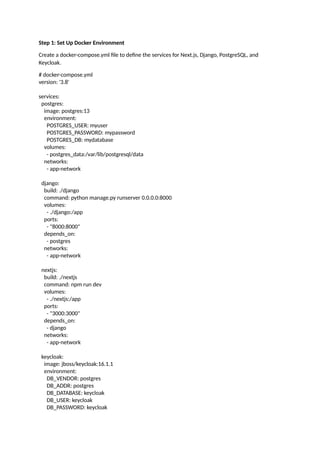
KEYCLOAK_USER: admin
KEYCLOAK_PASSWORD: admin
ports:
-"8080:8080"
depends_on:
- postgres
networks:
- app-network
volumes:
postgres_data:
networks:
app-network:
driver: bridge
Step 2: Configure Keycloak
1. Access Keycloak at http://localhost:8080.
2. Log in with the admin credentials (admin/admin).
3. Create a new realm (e.g., myrealm).
4. Set up a client for your Next.js application:
o Go to Clients > Create.
o Set Client ID to nextjs-app.
o Set Client Protocol to openid-connect.
o Set Root URL to http://localhost:3000.
5. Configure the client:
o Set Valid Redirect URIs to http://localhost:3000/*.
o Set Web Origins to http://localhost:3000.
6. Add a mapper for user roles:
o Go to Mappers > Create.
o Set Name to roles.
o Set Mapper Type to User Role.
o Set Token Claim Name to roles.
Step 3: Integrate Keycloak with Active Directory
1. In Keycloak, go to User Federation.
2. Add a new LDAP provider:
o Set Vendor to Active Directory.
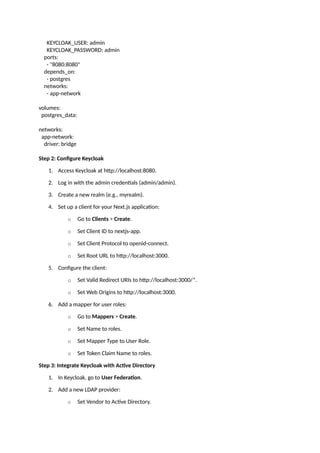
3.
o Set ConnectionURL to your AD server (e.g., ldap://ad.example.com:389).
o Set Users DN to the base DN for users (e.g., cn=Users,dc=example,dc=com).
o Set Bind Type to simple.
o Set Bind DN to the admin user DN (e.g., cn=admin,cn=Users,dc=example,dc=com).
o Set Bind Credentials to the admin password.
3. Sync users from AD to Keycloak.
Step 4: Integrate Keycloak with Next.js
1. Install the required packages in your Next.js app:
# npm install @react-keycloak/keycloak keycloak-js
2. Create a Keycloak configuration file (keycloak.js):
import Keycloak from 'keycloak-js';
const keycloak = new Keycloak({
url: 'http://localhost:8080/auth',
realm: 'myrealm',
clientId: 'nextjs-app',
});
export default keycloak;
3. Wrap your Next.js app with the Keycloak provider:
import { ReactKeycloakProvider } from '@react-keycloak/keycloak';
import keycloak from './keycloak';
function MyApp({ Component, pageProps }) {
return (
<ReactKeycloakProvider authClient={keycloak}>
<Component {...pageProps} />
</ReactKeycloakProvider>
);
}
export default MyApp;
Step 5: Integrate Keycloak with Django
1. Install the required packages:
# pip install django-keycloak
2. Add django_keycloak to your INSTALLED_APPS in settings.py:
INSTALLED_APPS = [
...
'django_keycloak',
]
4.
3. Configure Keycloakin settings.py:
KEYCLOAK_CONFIG = {
'SERVER_URL': 'http://localhost:8080/auth',
'REALM': 'myrealm',
'CLIENT_ID': 'django-app',
'CLIENT_SECRET_KEY': 'your-client-secret',
}
4. Use Keycloak authentication in your views:
from django_keycloak.auth import KeycloakAuthentication
class MyView(APIView):
authentication_classes = [KeycloakAuthentication]
permission_classes = [IsAuthenticated]
def get(self, request):
return Response("Authenticated!")
Step 6: Run the Docker Containers
1. Build and start the containers:
# docker-compose up –build
2. Access the applications:
o Next.js: http://localhost:3000
o Django: http://localhost:8000
o Keycloak: http://localhost:8080
Step 7: Test the Integration
1. Log in to the Next.js app using AD credentials via Keycloak.
2. Verify that the Django app authenticates users via Keycloak.
![o Set Connection URL to your AD server (e.g., ldap://ad.example.com:389).
o Set Users DN to the base DN for users (e.g., cn=Users,dc=example,dc=com).
o Set Bind Type to simple.
o Set Bind DN to the admin user DN (e.g., cn=admin,cn=Users,dc=example,dc=com).
o Set Bind Credentials to the admin password.
3. Sync users from AD to Keycloak.
Step 4: Integrate Keycloak with Next.js
1. Install the required packages in your Next.js app:
# npm install @react-keycloak/keycloak keycloak-js
2. Create a Keycloak configuration file (keycloak.js):
import Keycloak from 'keycloak-js';
const keycloak = new Keycloak({
url: 'http://localhost:8080/auth',
realm: 'myrealm',
clientId: 'nextjs-app',
});
export default keycloak;
3. Wrap your Next.js app with the Keycloak provider:
import { ReactKeycloakProvider } from '@react-keycloak/keycloak';
import keycloak from './keycloak';
function MyApp({ Component, pageProps }) {
return (
<ReactKeycloakProvider authClient={keycloak}>
<Component {...pageProps} />
</ReactKeycloakProvider>
);
}
export default MyApp;
Step 5: Integrate Keycloak with Django
1. Install the required packages:
# pip install django-keycloak
2. Add django_keycloak to your INSTALLED_APPS in settings.py:
INSTALLED_APPS = [
...
'django_keycloak',
]](https://image.slidesharecdn.com/tointegrateactivedirectory1-250308003913-424d4427/85/To-integrate-Active-Directory-with-keyclock-3-320.jpg)
![3. Configure Keycloak in settings.py:
KEYCLOAK_CONFIG = {
'SERVER_URL': 'http://localhost:8080/auth',
'REALM': 'myrealm',
'CLIENT_ID': 'django-app',
'CLIENT_SECRET_KEY': 'your-client-secret',
}
4. Use Keycloak authentication in your views:
from django_keycloak.auth import KeycloakAuthentication
class MyView(APIView):
authentication_classes = [KeycloakAuthentication]
permission_classes = [IsAuthenticated]
def get(self, request):
return Response("Authenticated!")
Step 6: Run the Docker Containers
1. Build and start the containers:
# docker-compose up –build
2. Access the applications:
o Next.js: http://localhost:3000
o Django: http://localhost:8000
o Keycloak: http://localhost:8080
Step 7: Test the Integration
1. Log in to the Next.js app using AD credentials via Keycloak.
2. Verify that the Django app authenticates users via Keycloak.](https://image.slidesharecdn.com/tointegrateactivedirectory1-250308003913-424d4427/85/To-integrate-Active-Directory-with-keyclock-4-320.jpg)


![5G Explained! A High Level Overview [Introduction]](https://cdn.slidesharecdn.com/ss_thumbnails/5gexplainedahighleveloverview-260119165306-cc137a3e-thumbnail.jpg?width=640&height=640&fit=bounds)


