Hier beginnt deinePräsentation
Working with Shapes
WORKING WITH SHAPES
WORKING WITH SHAPES
SHAPE
in
MS
Publisher
Working
with
Shapes
TASK IN
WIE SICH
MS
COMMON
PUBLISHER
WORKING WITH SHAPES
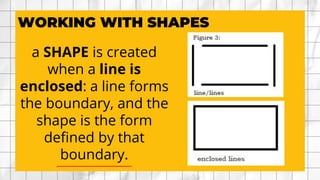
aSHAPE is created
when a line is
enclosed: a line forms
the boundary, and the
shape is the form
defined by that
boundary.
4.
To insert SHAPEin MS
Publisher:
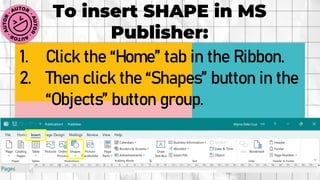
1. Click the “Home” tab in the Ribbon.
2. Then click the “Shapes” button in the
“Objects” button group.
5.
To insert SHAPEin MS
Publisher:
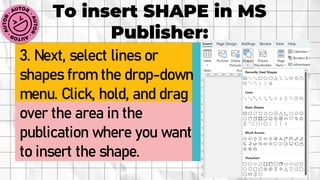
3. Next, select lines or
shapes from the drop-down
menu. Click, hold, and drag
over the area in the
publication where you want
to insert the shape.
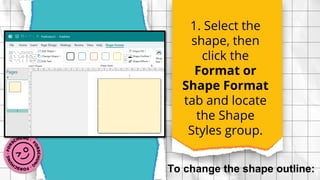
6.
A. To changethe shape fill
color:
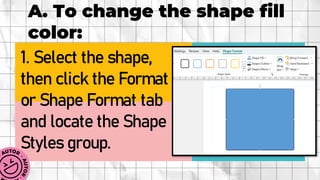
1. Select the shape,
then click the Format
or Shape Format tab
and locate the Shape
Styles group.
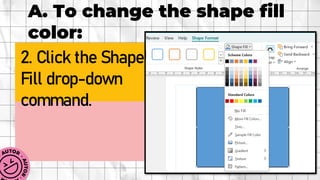
7.
A. To changethe shape fill
color:
2. Click the Shape
Fill drop-down
command.
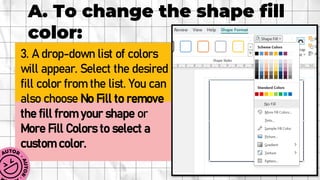
8.
A. To changethe shape fill
color:
3. A drop-down list of colors
will appear. Select the desired
fill color from the list. You can
also choose No Fill to remove
the fill from your shape or
More Fill Colors to select a
custom color.
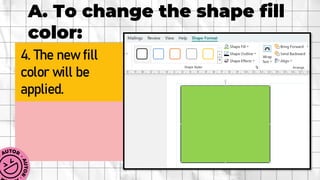
9.
A. To changethe shape fill
color:
4. The new fill
color will be
applied.
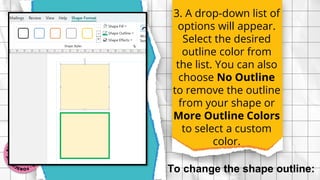
3. A drop-downlist of
options will appear.
Select the desired
outline color from
the list. You can also
choose No Outline
to remove the outline
from your shape or
More Outline Colors
to select a custom
color.
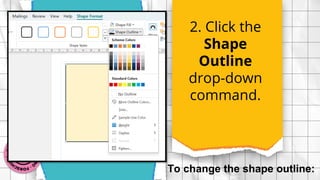
To change the shape outline:
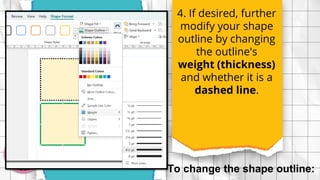
14.
4. If desired,further
modify your shape
outline by changing
the outline's
weight (thickness)
and whether it is a
dashed line.
To change the shape outline:
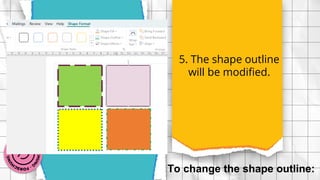
15.
5. The shapeoutline
will be modified.
To change the shape outline: