SVN
Rahul Tripathi
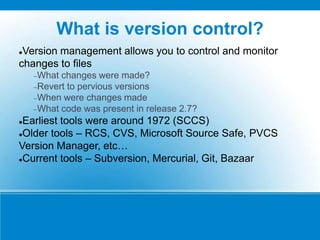
What is version control?
Version management allows you to control and monitor
changes to files
What changes were made?
Revert to pervious versions
When were changes made
What code was present in release 2.7?
Earliest tools were around 1972 (SCCS)
Older tools – RCS, CVS, Microsoft Source Safe, PVCS
Version Manager, etc…
Current tools – Subversion, Mercurial, Git, Bazaar
We will use subversion (svn)
Why?

Because it’s popular
It’s well supported
IDEs - Netbeans, Eclipse
Numerous GUI tools
Command line
XP Dev has support for it (you will use this for your semester
projects)
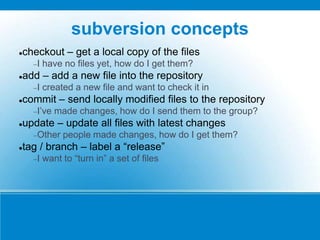
subversion concepts
checkout – get a local copy of the files
I have no files yet, how do I get them?
add – add a new file into the repository
I created a new file and want to check it in
commit – send locally modified files to the repository
I’ve made changes, how do I send them to the group?
update – update all files with latest changes
Other people made changes, how do I get them?
tag / branch – label a “release”
I want to “turn in” a set of files
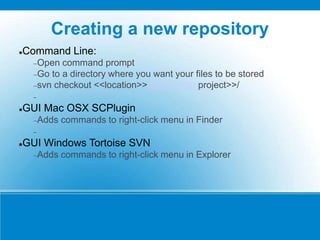
Creating a new repository
Command Line:
Open command prompt
Go to a directory where you want your files to be stored
svn checkout <<location>>/svn/<<your project>>/

GUI Mac OSX SCPlugin
Adds commands to right-click menu in Finder

GUI Windows Tortoise SVN
Adds commands to right-click menu in Explorer
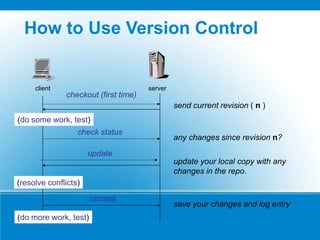
How to Use Version Control
checkout (first time)
(do some work, test)
update
commit
(do more work, test)
serverclient
send current revision ( n )
update your local copy with any
changes in the repo.
save your changes and log entry
check status
any changes since revision n?
(resolve conflicts)
tags
branches
trunk
Project 1
Root
Project 2
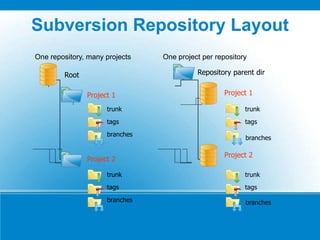
Subversion Repository Layout
tags
branches
trunk
tags
trunk
Project 1
Repository parent dir
Project 2
tags
trunk
One repository, many projects One project per repository
branches
branches
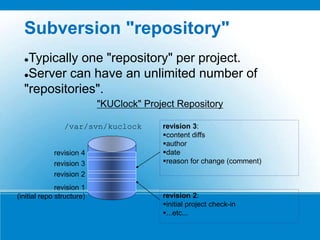
Subversion "repository"
Typically one "repository" per project.
Server can have an unlimited number of
"repositories".
/var/svn/kuclock
revision 1
(initial repo structure)
revision 2
revision 3
revision 3:
content diffs
author
date
reason for change (comment)
revision 4
"KUClock" Project Repository
revision 2:
initial project check-in
...etc...
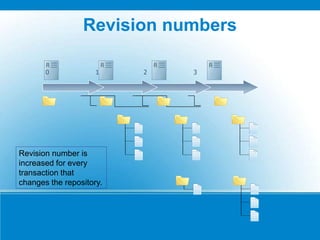
Revision numbers
0 1 2 3
Revision number is
increased for every
transaction that
changes the repository.
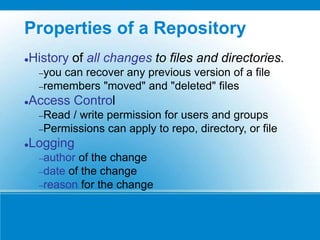
Properties of a Repository
History of all changes to files and directories.
you can recover any previous version of a file
remembers "moved" and "deleted" files
Access Control
Read / write permission for users and groups
Permissions can apply to repo, directory, or file
Logging
author of the change
date of the change
reason for the change
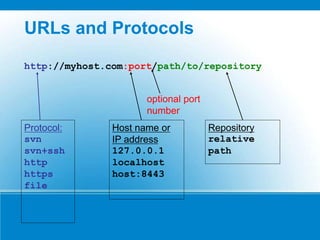
URLs and Protocols
http://myhost.com:port/path/to/repository
Protocol:
svn
svn+ssh
http
https
file
Host name or
IP address
127.0.0.1
localhost
host:8443
optional port
number
Repository
relative
path
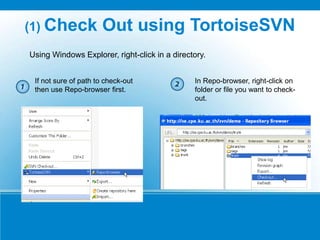
(1) Check Out using TortoiseSVN
Using Windows Explorer, right-click in a directory.
If not sure of path to check-out
then use Repo-browser first.
In Repo-browser, right-click on
folder or file you want to check-
out.
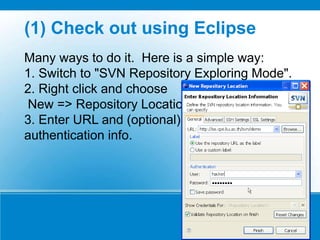
(1) Check out using Eclipse
Many ways to do it. Here is a simple way:
1. Switch to "SVN Repository Exploring Mode".
2. Right click and choose
New => Repository Location
3. Enter URL and (optional)
authentication info.
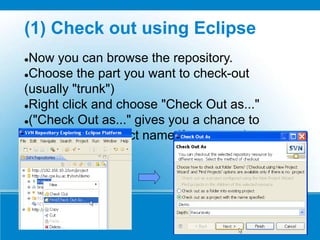
(1) Check out using Eclipse
Now you can browse the repository.
Choose the part you want to check-out
(usually "trunk")
Right click and choose "Check Out as..."
("Check Out as..." gives you a chance to
change local project name if you want.)
Merging
Merging from a Branch
Merge Tracking
Best Practices
Merging From a Branch
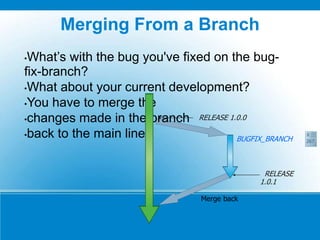
•What’s with the bug you've fixed on the bug-
fix-branch?
•What about your current development?
•You have to merge the
•changes made in the branch
•back to the main line.
RELEASE 1.0.0
BUGFIX_BRANCH
Merge back
267
RELEASE
1.0.1
Merge From a Branch via CLI
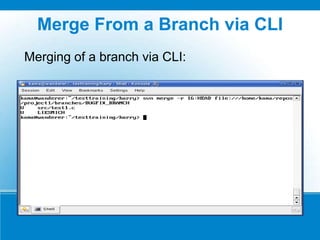
You can merge the changes from the branch
into your current working copy with the
following command:
svn merge -r 267:HEAD branchname
1)The Subversion “merge”-command.
2)The revision in which we created the branch (267) and HEAD
3) for the complete branch.
4)The branch-name you like to merge into your current
5) working copy.
Merge From a Branch via CLI
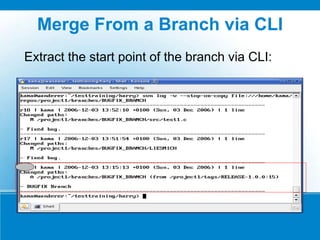
You can find the revision number when the
branch was created using the command:
svn log --verbose --stop-on-copy branchname
1) The Subversion “log”-command.
2) Print out much information (verbose).
3) Stop the log-output at the revision the branch was copied.
4) The branch-name you like to merge into your current
5) working copy.
Merge From a Branch via CLI
Extract the start point of the branch via CLI:
Merge From a Branch via CLI
Merging of a branch via CLI:
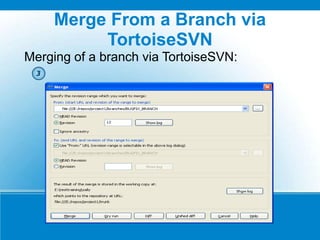
Merge From a Branch via
TortoiseSVN
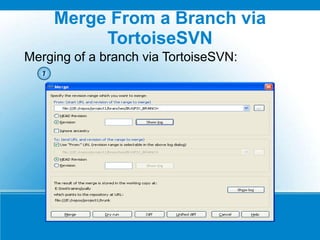
Merging of a branch via TortoiseSVN:
Merge From a Branch via
TortoiseSVN
Merging of a branch via TortoiseSVN:
Merge From a Branch via
TortoiseSVN
Merging of a branch via TortoiseSVN:
Merge Tracking
Merge tracking:
•Subversion does not have any function to
track merges that have already been done,
•i.e., to prevent you to merge a branch a
second time.
•You have to do it yourself!
•Example: after merging, create a README-
merged file in the branch stating that it was merged
into trunk revision r99.
From the technical view branch and tag are the
same.
BUT:
•The intention of a tag is that it should be used as
read-only area whereas a branch is used to
continue development (interim code, bug-fixing,
release candidate etc.).
•Technically you can use a tag to continue
development and check in etc. but you shouldn’t
do it.
•So in other words the difference between a tag
and a branch is just an agreement.
Merge Warning
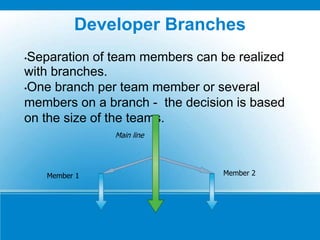
Developer Branches
•Separation of team members can be realized
with branches.
•One branch per team member or several
members on a branch - the decision is based
on the size of the teams.
Member 2
Main line
Member 1
Developer Branches
•Advantages using branches for team work:
•No changes during development on the main line
needed => Code stability.
•Every team member can work in its own environment.
•
•Disadvantages:
•Sometimes the mainline and the branch will diverge if
the branch lives too long.
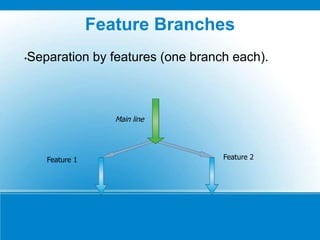
Feature Branches
•Separation by features (one branch each).
Feature 2
Main line
Feature 1
Thank You

SVN Information

  • 1.
  • 2.
    What is versioncontrol? Version management allows you to control and monitor changes to files What changes were made? Revert to pervious versions When were changes made What code was present in release 2.7? Earliest tools were around 1972 (SCCS) Older tools – RCS, CVS, Microsoft Source Safe, PVCS Version Manager, etc… Current tools – Subversion, Mercurial, Git, Bazaar
  • 3.
    We will usesubversion (svn) Why?  Because it’s popular It’s well supported IDEs - Netbeans, Eclipse Numerous GUI tools Command line XP Dev has support for it (you will use this for your semester projects)
  • 4.
    subversion concepts checkout –get a local copy of the files I have no files yet, how do I get them? add – add a new file into the repository I created a new file and want to check it in commit – send locally modified files to the repository I’ve made changes, how do I send them to the group? update – update all files with latest changes Other people made changes, how do I get them? tag / branch – label a “release” I want to “turn in” a set of files
  • 5.
    Creating a newrepository Command Line: Open command prompt Go to a directory where you want your files to be stored svn checkout <<location>>/svn/<<your project>>/  GUI Mac OSX SCPlugin Adds commands to right-click menu in Finder  GUI Windows Tortoise SVN Adds commands to right-click menu in Explorer
  • 6.
    How to UseVersion Control checkout (first time) (do some work, test) update commit (do more work, test) serverclient send current revision ( n ) update your local copy with any changes in the repo. save your changes and log entry check status any changes since revision n? (resolve conflicts)
  • 7.
    tags branches trunk Project 1 Root Project 2 SubversionRepository Layout tags branches trunk tags trunk Project 1 Repository parent dir Project 2 tags trunk One repository, many projects One project per repository branches branches
  • 8.
    Subversion "repository" Typically one"repository" per project. Server can have an unlimited number of "repositories". /var/svn/kuclock revision 1 (initial repo structure) revision 2 revision 3 revision 3: content diffs author date reason for change (comment) revision 4 "KUClock" Project Repository revision 2: initial project check-in ...etc...
  • 9.
    Revision numbers 0 12 3 Revision number is increased for every transaction that changes the repository.
  • 10.
    Properties of aRepository History of all changes to files and directories. you can recover any previous version of a file remembers "moved" and "deleted" files Access Control Read / write permission for users and groups Permissions can apply to repo, directory, or file Logging author of the change date of the change reason for the change
  • 11.
    URLs and Protocols http://myhost.com:port/path/to/repository Protocol: svn svn+ssh http https file Hostname or IP address 127.0.0.1 localhost host:8443 optional port number Repository relative path
  • 12.
    (1) Check Outusing TortoiseSVN Using Windows Explorer, right-click in a directory. If not sure of path to check-out then use Repo-browser first. In Repo-browser, right-click on folder or file you want to check- out.
  • 13.
    (1) Check outusing Eclipse Many ways to do it. Here is a simple way: 1. Switch to "SVN Repository Exploring Mode". 2. Right click and choose New => Repository Location 3. Enter URL and (optional) authentication info.
  • 14.
    (1) Check outusing Eclipse Now you can browse the repository. Choose the part you want to check-out (usually "trunk") Right click and choose "Check Out as..." ("Check Out as..." gives you a chance to change local project name if you want.)
  • 15.
    Merging Merging from aBranch Merge Tracking Best Practices
  • 16.
    Merging From aBranch •What’s with the bug you've fixed on the bug- fix-branch? •What about your current development? •You have to merge the •changes made in the branch •back to the main line. RELEASE 1.0.0 BUGFIX_BRANCH Merge back 267 RELEASE 1.0.1
  • 17.
    Merge From aBranch via CLI You can merge the changes from the branch into your current working copy with the following command: svn merge -r 267:HEAD branchname 1)The Subversion “merge”-command. 2)The revision in which we created the branch (267) and HEAD 3) for the complete branch. 4)The branch-name you like to merge into your current 5) working copy.
  • 18.
    Merge From aBranch via CLI You can find the revision number when the branch was created using the command: svn log --verbose --stop-on-copy branchname 1) The Subversion “log”-command. 2) Print out much information (verbose). 3) Stop the log-output at the revision the branch was copied. 4) The branch-name you like to merge into your current 5) working copy.
  • 19.
    Merge From aBranch via CLI Extract the start point of the branch via CLI:
  • 20.
    Merge From aBranch via CLI Merging of a branch via CLI:
  • 21.
    Merge From aBranch via TortoiseSVN Merging of a branch via TortoiseSVN:
  • 22.
    Merge From aBranch via TortoiseSVN Merging of a branch via TortoiseSVN:
  • 23.
    Merge From aBranch via TortoiseSVN Merging of a branch via TortoiseSVN:
  • 24.
    Merge Tracking Merge tracking: •Subversiondoes not have any function to track merges that have already been done, •i.e., to prevent you to merge a branch a second time. •You have to do it yourself! •Example: after merging, create a README- merged file in the branch stating that it was merged into trunk revision r99.
  • 25.
    From the technicalview branch and tag are the same. BUT: •The intention of a tag is that it should be used as read-only area whereas a branch is used to continue development (interim code, bug-fixing, release candidate etc.). •Technically you can use a tag to continue development and check in etc. but you shouldn’t do it. •So in other words the difference between a tag and a branch is just an agreement. Merge Warning
  • 26.
    Developer Branches •Separation ofteam members can be realized with branches. •One branch per team member or several members on a branch - the decision is based on the size of the teams. Member 2 Main line Member 1
  • 27.
    Developer Branches •Advantages usingbranches for team work: •No changes during development on the main line needed => Code stability. •Every team member can work in its own environment. • •Disadvantages: •Sometimes the mainline and the branch will diverge if the branch lives too long.
  • 28.
    Feature Branches •Separation byfeatures (one branch each). Feature 2 Main line Feature 1
  • 29.