Source Code Repository
Sometimes we find ourselves in situation where knowing or unknowingly an update has been made live
which is either not been tested thoroughly or release is not completely uploaded.
What is the next step you do? Start searching local computer to locate backup files which in most of
cases is not there as we are not used to.
This results in a havoc and huge hue and cry in the organisation.
To overcome the loss of time, energy and hard work developer have put in to develop an application/
software, Indigo have decided to use subversion.
Why Use Subversion?
The primary benefit of using subversion is, it automatically maintains a history on all aspects of
modifications to files, including who made changes, when they were made, and what the changes
were. Because this oversight exists with subversion, it allows one to revert to previous versions of files,
merge changes from one selection (branch) of files into another selection of files, check for differences
among various file revisions, and see a detailed log about how files have evolved in their development.
You might seriously consider using subversion when your project will
undergo multiple revisions in a foreseeable time-frame (ie, is an evolving project)
be based on the interaction of multiple files (ie, is a complex project)
include changes made by other developers (ie, is a shared project)
potentially seed the generation of other projects (ie, is a resource project)
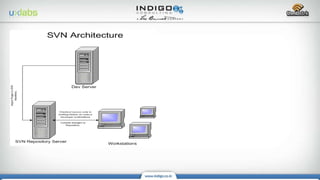
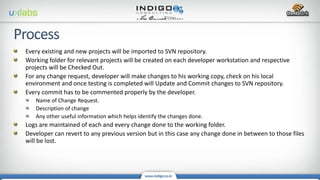
Every existing and new projects will be imported to SVN repository.
Working folder for relevant projects will be created on each developer workstation and respective
projects will be Checked Out.
For any change request, developer will make changes to his working copy, check on his local
environment and once testing is completed will Update and Commit changes to SVN repository.
Every commit has to be commented properly by the developer.
Name of Change Request.
Description of change
Any other useful information which helps identify the changes done.
Logs are maintained of each and every change done to the working folder.
Developer can revert to any previous version but in this case any change done in between to those files
will be lost.
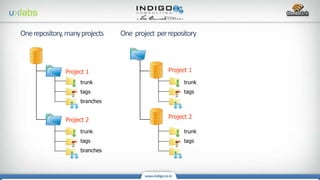
tags
branches
trunk
Project 1
Root
Project 2
tags
branches
trunk
tags
trunk
Project 1
Repository parent dir
Project 2
tags
trunk
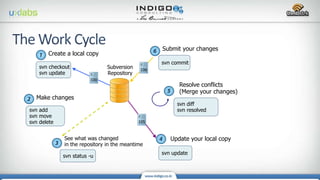
svn checkout
svn update
Create a local copy
svn add
svn move
svn delete
Make changes
svn status -u
See what was changed
in the repository in the meantime
svn update
Update your local copy
svn diff
svn resolved
Resolve conflicts
(Merge your changes)
svn commit
Submit your changes
105
100
106
Subversion
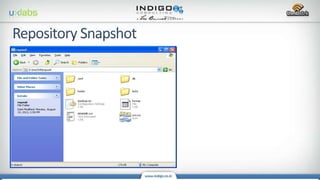
Repository
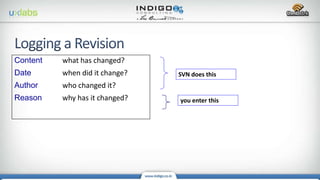
Content what has changed?
Date when did it change?
Author who changed it?
Reason why has it changed?
SVN does this
you enter this
Don't check-out the entire repository!
Only check out the part that you need.
For developers, this is usually "/repo/project"
For documenters, maybe "/repo/doc”
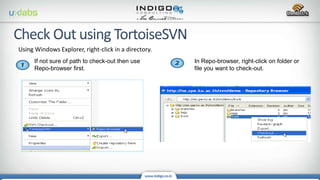
Using Windows Explorer, right-click in a directory.
If not sure of path to check-out then use
Repo-browser first.
In Repo-browser, right-click on folder or
file you want to check-out.
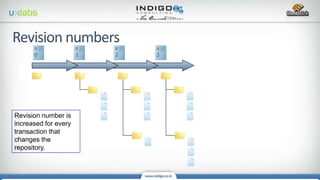
0 1 2 3
Revision number is
increased for every
transaction that
changes the
repository.
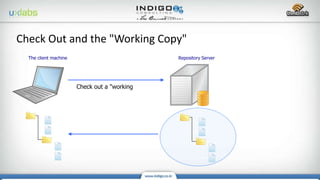
Repository ServerThe client machine
Check out a "working copy"
Check Out and the "Working Copy"
• Edit files using anything you like.
• Test Your Work.
• Don't commit buggy code to the repository.
Work Cycle: Edit Files
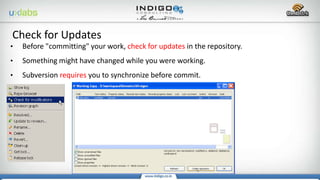
• Before "committing" your work, check for updates in the repository.
• Something might have changed while you were working.
• Subversion requires you to synchronize before commit.
Check for Updates
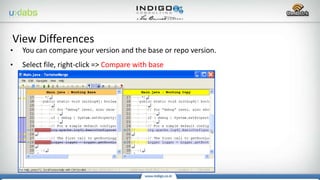
• You can compare your version and the base or repo version.
• Select file, right-click => Compare with base
View Differences
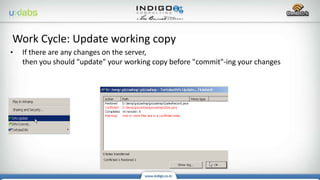
• If there are any changes on the server,
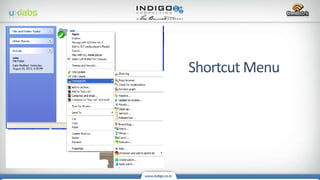
then you should "update" your working copy before "commit"-ing your changes
Work Cycle: Update working copy
• "Conflict" means you have made changes to a file, and the version in the repository
has been changed, too.
• So there is a "conflict" between your work and work already in the repository.
Resolve Conflicts
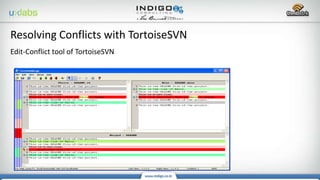
Edit-Conflict tool of TortoiseSVN
Resolving Conflicts with TortoiseSVN
The choices are:
(1) merge local & remote changes into one file.
(2) accept remote, discard your local changes.
(3) override remote, use your local changes.
After resolving all conflicts, mark the file as "resolved".
Subversion will delete the extra 3 copies
Resolving Conflicts
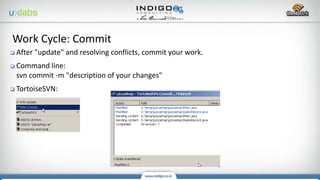
 After "update" and resolving conflicts, commit your work.
 Command line:
svn commit -m "description of your changes"
 TortoiseSVN:
Work Cycle: Commit
Commenting version
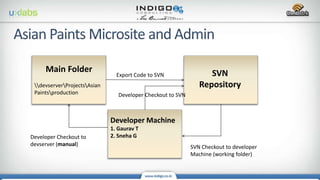
Main Folder
devserverProjectsAsian
Paintsproduction
SVN
Repository
Developer Machine
1. Gaurav T
2. Sneha G
Export Code to SVN
SVN Checkout to developer
Machine (working folder)
Developer Checkout to
devserver (manual)
Developer Checkout to SVN
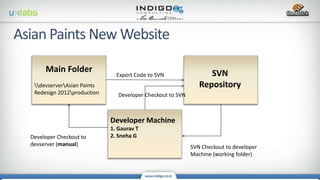
Main Folder
devserverAsian Paints
Redesign 2012production
SVN
Repository
Developer Machine
1. Gaurav T
2. Sneha G
Export Code to SVN
SVN Checkout to developer
Machine (working folder)
Developer Checkout to
devserver (manual)
Developer Checkout to SVN
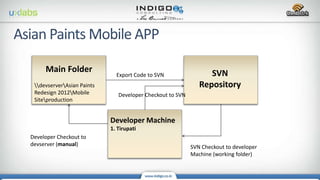
Main Folder
devserverAsian Paints
Redesign 2012Mobile
Siteproduction
SVN
Repository
Developer Machine
1. Tirupati
Export Code to SVN
SVN Checkout to developer
Machine (working folder)
Developer Checkout to
devserver (manual)
Developer Checkout to SVN
Subversion

Subversion

  • 1.
  • 2.
    Sometimes we findourselves in situation where knowing or unknowingly an update has been made live which is either not been tested thoroughly or release is not completely uploaded. What is the next step you do? Start searching local computer to locate backup files which in most of cases is not there as we are not used to. This results in a havoc and huge hue and cry in the organisation. To overcome the loss of time, energy and hard work developer have put in to develop an application/ software, Indigo have decided to use subversion.
  • 3.
    Why Use Subversion? Theprimary benefit of using subversion is, it automatically maintains a history on all aspects of modifications to files, including who made changes, when they were made, and what the changes were. Because this oversight exists with subversion, it allows one to revert to previous versions of files, merge changes from one selection (branch) of files into another selection of files, check for differences among various file revisions, and see a detailed log about how files have evolved in their development. You might seriously consider using subversion when your project will undergo multiple revisions in a foreseeable time-frame (ie, is an evolving project) be based on the interaction of multiple files (ie, is a complex project) include changes made by other developers (ie, is a shared project) potentially seed the generation of other projects (ie, is a resource project)
  • 5.
    Every existing andnew projects will be imported to SVN repository. Working folder for relevant projects will be created on each developer workstation and respective projects will be Checked Out. For any change request, developer will make changes to his working copy, check on his local environment and once testing is completed will Update and Commit changes to SVN repository. Every commit has to be commented properly by the developer. Name of Change Request. Description of change Any other useful information which helps identify the changes done. Logs are maintained of each and every change done to the working folder. Developer can revert to any previous version but in this case any change done in between to those files will be lost.
  • 6.
  • 7.
    svn checkout svn update Createa local copy svn add svn move svn delete Make changes svn status -u See what was changed in the repository in the meantime svn update Update your local copy svn diff svn resolved Resolve conflicts (Merge your changes) svn commit Submit your changes 105 100 106 Subversion Repository
  • 8.
    Content what haschanged? Date when did it change? Author who changed it? Reason why has it changed? SVN does this you enter this
  • 9.
    Don't check-out theentire repository! Only check out the part that you need. For developers, this is usually "/repo/project" For documenters, maybe "/repo/doc”
  • 10.
    Using Windows Explorer,right-click in a directory. If not sure of path to check-out then use Repo-browser first. In Repo-browser, right-click on folder or file you want to check-out.
  • 11.
    0 1 23 Revision number is increased for every transaction that changes the repository.
  • 12.
    Repository ServerThe clientmachine Check out a "working copy" Check Out and the "Working Copy"
  • 13.
    • Edit filesusing anything you like. • Test Your Work. • Don't commit buggy code to the repository. Work Cycle: Edit Files

  • 14.
    • Before "committing"your work, check for updates in the repository. • Something might have changed while you were working. • Subversion requires you to synchronize before commit. Check for Updates

  • 15.
    • You cancompare your version and the base or repo version. • Select file, right-click => Compare with base View Differences
  • 16.
    • If thereare any changes on the server, then you should "update" your working copy before "commit"-ing your changes Work Cycle: Update working copy
  • 17.
    • "Conflict" meansyou have made changes to a file, and the version in the repository has been changed, too. • So there is a "conflict" between your work and work already in the repository. Resolve Conflicts
  • 18.
    Edit-Conflict tool ofTortoiseSVN Resolving Conflicts with TortoiseSVN
  • 19.
    The choices are: (1)merge local & remote changes into one file. (2) accept remote, discard your local changes. (3) override remote, use your local changes. After resolving all conflicts, mark the file as "resolved". Subversion will delete the extra 3 copies Resolving Conflicts
  • 20.
     After "update"and resolving conflicts, commit your work.  Command line: svn commit -m "description of your changes"  TortoiseSVN: Work Cycle: Commit
  • 24.
  • 26.
    Main Folder devserverProjectsAsian Paintsproduction SVN Repository Developer Machine 1.Gaurav T 2. Sneha G Export Code to SVN SVN Checkout to developer Machine (working folder) Developer Checkout to devserver (manual) Developer Checkout to SVN
  • 27.
    Main Folder devserverAsian Paints Redesign2012production SVN Repository Developer Machine 1. Gaurav T 2. Sneha G Export Code to SVN SVN Checkout to developer Machine (working folder) Developer Checkout to devserver (manual) Developer Checkout to SVN
  • 28.
    Main Folder devserverAsian Paints Redesign2012Mobile Siteproduction SVN Repository Developer Machine 1. Tirupati Export Code to SVN SVN Checkout to developer Machine (working folder) Developer Checkout to devserver (manual) Developer Checkout to SVN