Italy VMUG UserCon – 14 November 2017
Plan a successful vCenter
Server upgrade
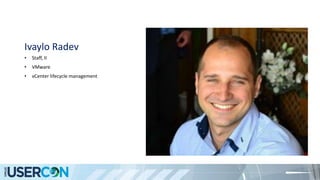
Ivaylo Radev
• Staff, II
• VMware
• vCenter lifecycle management
Who am I?
• Master degree in computer science
• 13+ years of experience
• 7+ years within Vmware
• 5+ years in upgrade framework team
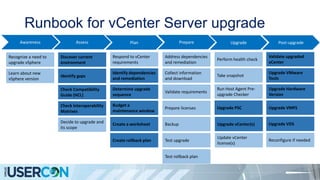
Runbook for vCenter Server upgrade
Awareness Assess Plan Prepare Upgrade Post-upgrade
Learn about new
vSphere version
Recognize a need to
upgrade vSphere
Identify gaps
Discover current
environment
Check Compatibility
Guide (HCL)
Check Interoperability
Matrixes
Decide to upgrade and
its scope
Respond to vCenter
requirements
Determine upgrade
sequence
Identify dependencies
and remediation
Budget a
maintenance window
Create a worksheet
Create rollback plan
Upgrade VMFS
Upgrade Hardware
Version
Upgrade VMware
Tools
Upgrade VDS
Reconfigure if needed
Address dependencies
and remediation
Collect information
and download
Validate requirements
Prepare licenses
Test rollback plan
Backup
Test upgrade
Take snapshot
Perform health check
Run Host Agent Pre-
upgrade Checker
Upgrade PSC
Upgrade vCenter(s)
Update vCenter
license(s)
Validate upgraded
vCenter
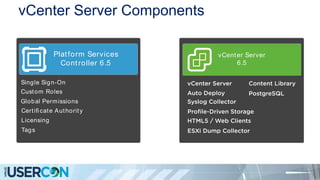
vCenter Server Components
vCenter Server
Platform Services
Controller
vCenter Server Server Appliance 6.5
Virtual Machine
Platform Services
Controller 6.5
Single Sign-On
Custom Roles
Licensing
Global Permissions
Certifi cate Authority
Tags
vCenter Server
6.5
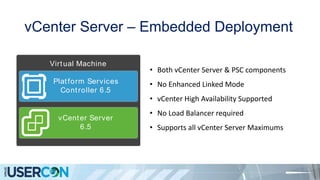
vCenter Server – Embedded Deployment
• Both vCenter Server & PSC components
• No Enhanced Linked Mode
• vCenter High Availability Supported
• No Load Balancer required
• Supports all vCenter Server Maximums
Virtual Machine
Platform Services
Controller 6.5
vCenter Server
6.5
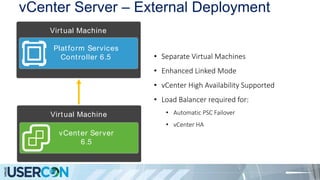
vCenter Server – External Deployment
• Separate Virtual Machines
• Enhanced Linked Mode
• vCenter High Availability Supported
• Load Balancer required for:
• Automatic PSC Failover
• vCenter HA
Virtual Machine
Platform Services
Controller 6.5
Virtual Machine
vCenter Server
6.5
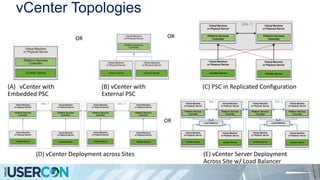
vCenter Topologies
(A) vCenter with
Embedded PSC
(B) vCenter with
External PSC
(C) PSC in Replicated Configuration
OR OR
(D) vCenter Deployment across Sites (E) vCenter Server Deployment
Across Site w/ Load Balancer
OR
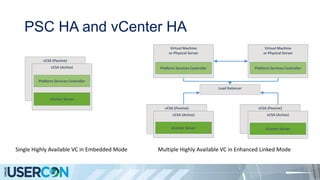
PSC HA and vCenter HA
vCSA (Passive)
Virtual Machine
or Physical Server
vCSA (Passive)
Platform Services Controller
Virtual Machine
or Physical Server
Platform Services Controller
vCSA (Active)
vCenter Server
vCSA (Active)
vCenter Server
Load Balancer
vCSA (Passive)
vCSA (Active)
vCenter Server
Platform Services Controller
Single Highly Available VC in Embedded Mode Multiple Highly Available VC in Enhanced Linked Mode
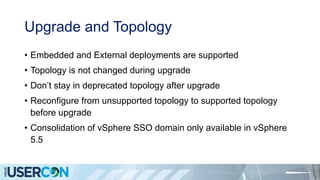
Upgrade and Topology
• Embedded and External deployments are supported
• Topology is not changed during upgrade
• Don’t stay in deprecated topology after upgrade
• Reconfigure from unsupported topology to supported topology
before upgrade
• Consolidation of vSphere SSO domain only available in vSphere
5.5
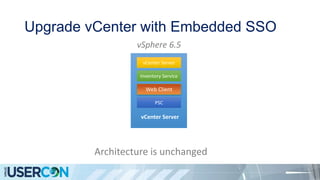
Upgrade vCenter with Embedded SSO
Architecture is unchanged
vSphere 5.5
vCenter Server
vCenter Server
Web Client
Inventory Service
SSO
vSphere 6.5
vCenter Server
vCenter Server
Web Client
Inventory Service
PSC
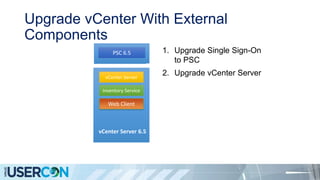
Upgrade vCenter With External
Components
1. Upgrade Single Sign-On
to PSC
2. Upgrade vCenter Server
SSO 5.x
vCenter Server
Inventory Service
Web Client
PSC 6.5
vCenter Server 6.5
vCenter Server
Web Client
Inventory Service
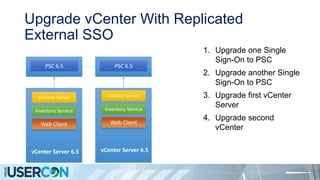
Upgrade vCenter With Replicated
External SSO
1. Upgrade one Single
Sign-On to PSC
2. Upgrade another Single
Sign-On to PSC
3. Upgrade first vCenter
Server
4. Upgrade second
vCenter
SSO 5.xPSC 6.5
vCenter Server 5.x
vCenter Server
Web Client
Inventory Service
SSO 5.x
vCenter Server 5.x
vCenter Server
Web Client
Inventory Service
PSC 6.5
vCenter Server 6.5
vCenter Server
Web Client
Inventory Service
vCenter Server 6.5
vCenter Server
Web Client
Inventory Service
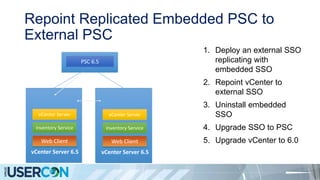
Repoint Replicated Embedded PSC to
External PSC
1. Deploy an external SSO
replicating with
embedded SSO
2. Repoint vCenter to
external SSO
3. Uninstall embedded
SSO
4. Upgrade SSO to PSC
5. Upgrade vCenter to 6.0
SSO 5.x
vCenter Server
vCenter Server
Web Client
Inventory Service
vCenter Server 5.x
vCenter Server
Web Client
Inventory Service
SSO
vCenter Server
vCenter Server
Web Client
Inventory Service
vCenter Server 5.x
vCenter Server
Web Client
Inventory Service
SSO
vCenter Server
vCenter Server
Web Client
Inventory Service
vCenter Server 6.5
vCenter Server
Web Client
Inventory Service
vCenter Server
vCenter Server
Web Client
Inventory Service
vCenter Server 6.5
vCenter Server
Web Client
Inventory Service
PSC 6.5
Preserved data on upgrade
• The identity of upgraded vCenter/PSC is preserved (UUID, IP,
FQDN, Certs, etc)
• AD membership
• Inventory & Configuration is migrated by default
• Historical & Performance(SET) data migration is optional
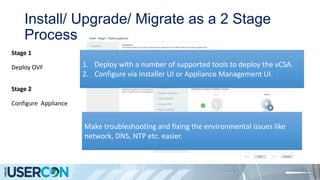
Install/ Upgrade/ Migrate as a 2 Stage
Process
Stage 1
Deploy OVF
Stage 2
Configure Appliance
Make troubleshooting and fixing the environmental issues like
network, DNS, NTP etc. easier.
1. Deploy with a number of supported tools to deploy the vCSA.
2. Configure via Installer UI or Appliance Management UI.
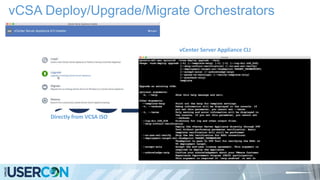
vCSA Deploy/Upgrade/Migrate Orchestrators
Directly from VCSA ISO
vCenter Server Appliance CLI
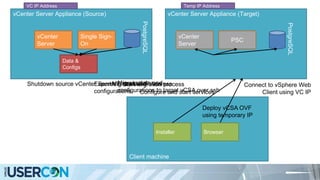
Migrate VC IP Address
vCenter Server Appliance (Source)
vCenter
Server
Single Sign-
On
Client machine
Installer
vCenter Server Appliance (Target)
PSC
vCenter
Server
Deploy vCSA OVF
using temporary IP
Shutdown source vCenter Server Start migration processExport VC data and
configurations
Migrate data and
configurations to target vCSA over sshConfigure and start services
Data &
Configs
Data &
Configs
Temp IP Address
PostgreSQL
Connect to vSphere Web
Client using VC IP
Browser
VC IP Address
PostgreSQL
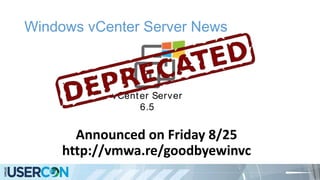
Windows vCenter Server News
Announced on Friday 8/25
http://vmwa.re/goodbyewinvc
vCenter Server
6.5
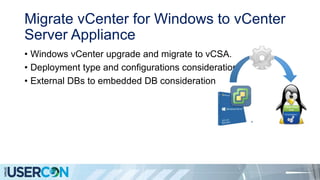
Migrate vCenter for Windows to vCenter
Server Appliance
• Windows vCenter upgrade and migrate to vCSA.
• Deployment type and configurations consideration
• External DBs to embedded DB consideration
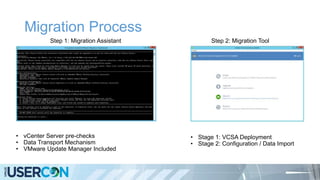
Migration Process
Step 1: Migration Assistant
• vCenter Server pre-checks
• Data Transport Mechanism
• VMware Update Manager Included
Step 2: Migration Tool
• Stage 1: VCSA Deployment
• Stage 2: Configuration / Data Import
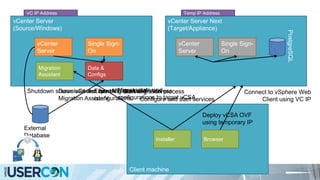
vCenter Server
(Source/Windows)
vCenter
Server
Single Sign-
On
Client machine
Installer
Migration
Assistant
vCenter Server Next
(Target/Appliance)
Single Sign-
On
vCenter
Server
Download and run
Migration Assistant
Deploy vCSA OVF
using temporary IP
Shutdown source vCenter Server Start migration processExport VC data and
configurations
Migrate data and
configurations to target vCSAConfigure and start services
External
Database
Data &
Configs
Data &
Configs
Temp IP Address
PostgreSQL
Migrate VC IP Address Connect to vSphere Web
Client using VC IP
Browser
VC IP Address
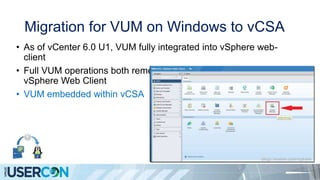
Migration for VUM on Windows to vCSA
• As of vCenter 6.0 U1, VUM fully integrated into vSphere web-
client
• Full VUM operations both remediate/scan available via the
vSphere Web Client
• VUM embedded within vCSA
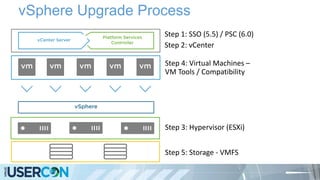
vSphere Upgrade Process
Step 1: SSO (5.5) / PSC (6.0)
Step 2: vCenter
Step 3: Hypervisor (ESXi)
Step 4: Virtual Machines –
VM Tools / Compatibility
Step 5: Storage - VMFS
Budget a maintenance window
• How long does the migration process take?
• Estimating vCenter Server 5.5 to vCenter Server Appliance 6.0
migration time KB 2146420
• Estimating vCenter Server 5.5 or 6.0 to vCenter Server Appliance 6.5
migration time KB 2147711
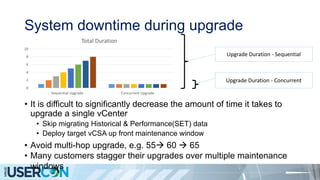
System downtime during upgrade
• It is difficult to significantly decrease the amount of time it takes to
upgrade a single vCenter
• Skip migrating Historical & Performance(SET) data
• Deploy target vCSA up front maintenance window
• Avoid multi-hop upgrade, e.g. 55 60  65
• Many customers stagger their upgrades over multiple maintenance
windows
0
2
4
6
8
10
Sequential Upgrade Concurrent Upgrade
Total Duration
Upgrade Duration - Sequential
Upgrade Duration - Concurrent
The most frequently seen environment
errors
• Certificates management
• Networking misconfigurations
• AD permission issues
• The products on top of vCenter Server stop working after
vCenter Server upgrade – products compatibility
• Unsupported version compatibility, e.g. 60u3 -> 65GA
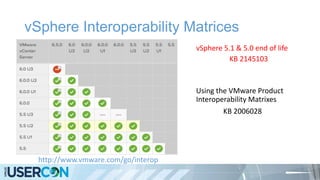
vSphere Interoperability Matrices
vSphere 5.1 & 5.0 end of life
http://www.vmware.com/go/interop
KB 2145103
Using the VMware Product
Interoperability Matrixes
KB 2006028
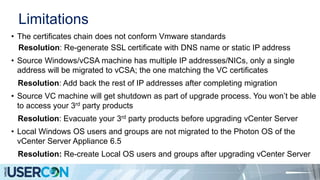
Limitations
• The certificates chain does not conform Vmware standards
Resolution: Re-generate SSL certificate with DNS name or static IP address
• Source Windows/vCSA machine has multiple IP addresses/NICs, only a single
address will be migrated to vCSA; the one matching the VC certificates
Resolution: Add back the rest of IP addresses after completing migration
• Source VC machine will get shutdown as part of upgrade process. You won’t be able
to access your 3rd party products
Resolution: Evacuate your 3rd party products before upgrading vCenter Server
• Local Windows OS users and groups are not migrated to the Photon OS of the
vCenter Server Appliance 6.5
Resolution: Re-create Local OS users and groups after upgrading vCenter Server
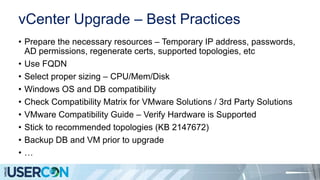
vCenter Upgrade – Best Practices
• Prepare the necessary resources – Temporary IP address, passwords,
AD permissions, regenerate certs, supported topologies, etc
• Use FQDN
• Select proper sizing – CPU/Mem/Disk
• Windows OS and DB compatibility
• Check Compatibility Matrix for VMware Solutions / 3rd Party Solutions
• VMware Compatibility Guide – Verify Hardware is Supported
• Stick to recommended topologies (KB 2147672)
• Backup DB and VM prior to upgrade
• …
vCenter Upgrade – Best Practices (2)
• …
• Have rollback plan
• Network
• Ensure proper forward and reverse DNS records for static IP
address configuration
• Ensure proper routing between VC/PSC or PSC/PSC when different
VLAN/Portgroups are used
• If using VDS, portgroup must be Ephemeral when using ESXi as a
deployment target
• Time synchronization
• Ensure proper time synchronization
vCenter Upgrade – Best Practices
Check after Upgrade
• Network settings are correctly migrated
• AD registration is correct
• Domain is correct
• Certificates are valid
• Login to vCenter to check data are migrated
• Inventory data
• Users, permissions, and roles
• Event history
• Performance charts
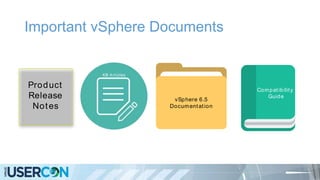
Important vSphere Documents
vSphere 6.5
Documentation
Compatibility
Guide
Product
Release
Notes
KB Articles
vSphere
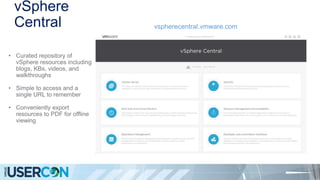
Central vspherecentral.vmware.com
• Curated repository of
vSphere resources including
blogs, KBs, videos, and
walkthroughs
• Simple to access and a
single URL to remember
• Conveniently export
resources to PDF for offline
viewing
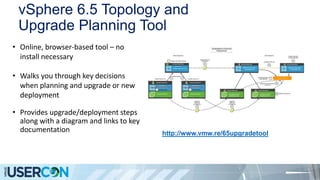
vSphere 6.5 Topology and
Upgrade Planning Tool
http://www.vmw.re/65upgradetool
• Online, browser-based tool – no
install necessary
• Walks you through key decisions
when planning and upgrade or new
deployment
• Provides upgrade/deployment steps
along with a diagram and links to key
documentation
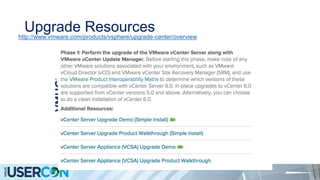
Upgrade Resourceshttp://www.vmware.com/products/vsphere/upgrade-center/overview
vSphere 6.5 Upgrade Documents
Knowledge Base Articles
• Information before upgrading to vSphere 6.5 (2147548)
• VMware vSphere Upgrade Policies (2149713)
• Update Sequence for vSphere 6.5 and its compatible VMware products (2147289)
• Best Practices for upgrading to vCenter Server 6.5 (2147686)
• Revert a failed upgrade/migration (2146453)
• Supported and Deprecated Topologies for VMware vSphere 6.5 (2147672)
• vCenter Single Sign-on and Platform Services Controller High Availability Compatibility Matrix (2112736)
• Supported Upgrade paths for vSAN 6.6 (2149840)
• Migrating VMFS 5 datastore to VMFS 6 datastore (2147824)
Documentation
• VMware vSphere 6 Documentation
• Release Notes
• Compatibility and Configuration Limits
• Product documentation including vSphere Upgrade Guide
• Guest Operating System Installation Guide
• VMware Compatibility Guide
 Automate the upgrade preparation
 Make the upgrade process even more resilient
 Simplifying Install/Upgrade User Experience
 Decrease vCenter Server Downtime during upgrade
Future plans
Thank You!
Backup slides
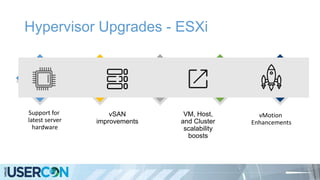
Hypervisor Upgrades - ESXi
Support for
latest server
hardware
VM, Host,
and Cluster
scalability
boosts
vSAN
improvements
vMotion
Enhancements
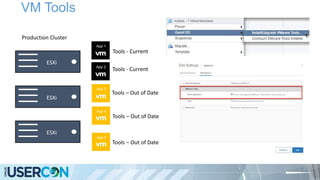
VM Tools
Production Cluster
ESXi
ESXi
ESXi
App 1
Tools - Current
Tools – Out of Date
Tools – Out of Date
Tools – Out of Date
App 2
Tools - Current
App 3
App 4
App 5
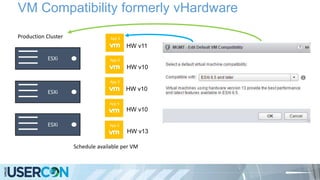
VM Compatibility formerly vHardware
Production Cluster
HW v10
HW v10
HW v13
ESXi
ESXi
ESXi
Schedule available per VM
App 5
App 4
App 3
App 5
App 5
HW v10
HW v11
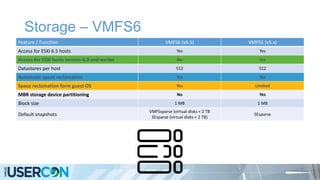
Storage – VMFS6
Feature / Function VMFS6 (v6.5) VMFS5 (v5.x)
Access for ESXi 6.5 hosts Yes Yes
Access for ESXi hosts version 6.0 and earlier No Yes
Datastores per host 512 512
Automatic space reclamation Yes No
Space reclamation form guest OS Yes Limited
MBR storage device partitioning No Yes
Block size 1 MB 1 MB
Default snapshots
VMFSsparse (virtual disks < 2 TB
SEsparse (virtual disks > 2 TB)
SEsparse

Ivaylo Radev - usercon vmugit

  • 1.
    Italy VMUG UserCon– 14 November 2017
  • 3.
    Plan a successfulvCenter Server upgrade
  • 4.
    Ivaylo Radev • Staff,II • VMware • vCenter lifecycle management
  • 5.
    Who am I? •Master degree in computer science • 13+ years of experience • 7+ years within Vmware • 5+ years in upgrade framework team
  • 6.
    Runbook for vCenterServer upgrade Awareness Assess Plan Prepare Upgrade Post-upgrade Learn about new vSphere version Recognize a need to upgrade vSphere Identify gaps Discover current environment Check Compatibility Guide (HCL) Check Interoperability Matrixes Decide to upgrade and its scope Respond to vCenter requirements Determine upgrade sequence Identify dependencies and remediation Budget a maintenance window Create a worksheet Create rollback plan Upgrade VMFS Upgrade Hardware Version Upgrade VMware Tools Upgrade VDS Reconfigure if needed Address dependencies and remediation Collect information and download Validate requirements Prepare licenses Test rollback plan Backup Test upgrade Take snapshot Perform health check Run Host Agent Pre- upgrade Checker Upgrade PSC Upgrade vCenter(s) Update vCenter license(s) Validate upgraded vCenter
  • 7.
    vCenter Server Components vCenterServer Platform Services Controller vCenter Server Server Appliance 6.5 Virtual Machine Platform Services Controller 6.5 Single Sign-On Custom Roles Licensing Global Permissions Certifi cate Authority Tags vCenter Server 6.5
  • 8.
    vCenter Server –Embedded Deployment • Both vCenter Server & PSC components • No Enhanced Linked Mode • vCenter High Availability Supported • No Load Balancer required • Supports all vCenter Server Maximums Virtual Machine Platform Services Controller 6.5 vCenter Server 6.5
  • 9.
    vCenter Server –External Deployment • Separate Virtual Machines • Enhanced Linked Mode • vCenter High Availability Supported • Load Balancer required for: • Automatic PSC Failover • vCenter HA Virtual Machine Platform Services Controller 6.5 Virtual Machine vCenter Server 6.5
  • 10.
    vCenter Topologies (A) vCenterwith Embedded PSC (B) vCenter with External PSC (C) PSC in Replicated Configuration OR OR (D) vCenter Deployment across Sites (E) vCenter Server Deployment Across Site w/ Load Balancer OR
  • 11.
    PSC HA andvCenter HA vCSA (Passive) Virtual Machine or Physical Server vCSA (Passive) Platform Services Controller Virtual Machine or Physical Server Platform Services Controller vCSA (Active) vCenter Server vCSA (Active) vCenter Server Load Balancer vCSA (Passive) vCSA (Active) vCenter Server Platform Services Controller Single Highly Available VC in Embedded Mode Multiple Highly Available VC in Enhanced Linked Mode
  • 12.
    Upgrade and Topology •Embedded and External deployments are supported • Topology is not changed during upgrade • Don’t stay in deprecated topology after upgrade • Reconfigure from unsupported topology to supported topology before upgrade • Consolidation of vSphere SSO domain only available in vSphere 5.5
  • 13.
    Upgrade vCenter withEmbedded SSO Architecture is unchanged vSphere 5.5 vCenter Server vCenter Server Web Client Inventory Service SSO vSphere 6.5 vCenter Server vCenter Server Web Client Inventory Service PSC
  • 14.
    Upgrade vCenter WithExternal Components 1. Upgrade Single Sign-On to PSC 2. Upgrade vCenter Server SSO 5.x vCenter Server Inventory Service Web Client PSC 6.5 vCenter Server 6.5 vCenter Server Web Client Inventory Service
  • 15.
    Upgrade vCenter WithReplicated External SSO 1. Upgrade one Single Sign-On to PSC 2. Upgrade another Single Sign-On to PSC 3. Upgrade first vCenter Server 4. Upgrade second vCenter SSO 5.xPSC 6.5 vCenter Server 5.x vCenter Server Web Client Inventory Service SSO 5.x vCenter Server 5.x vCenter Server Web Client Inventory Service PSC 6.5 vCenter Server 6.5 vCenter Server Web Client Inventory Service vCenter Server 6.5 vCenter Server Web Client Inventory Service
  • 16.
    Repoint Replicated EmbeddedPSC to External PSC 1. Deploy an external SSO replicating with embedded SSO 2. Repoint vCenter to external SSO 3. Uninstall embedded SSO 4. Upgrade SSO to PSC 5. Upgrade vCenter to 6.0 SSO 5.x vCenter Server vCenter Server Web Client Inventory Service vCenter Server 5.x vCenter Server Web Client Inventory Service SSO vCenter Server vCenter Server Web Client Inventory Service vCenter Server 5.x vCenter Server Web Client Inventory Service SSO vCenter Server vCenter Server Web Client Inventory Service vCenter Server 6.5 vCenter Server Web Client Inventory Service vCenter Server vCenter Server Web Client Inventory Service vCenter Server 6.5 vCenter Server Web Client Inventory Service PSC 6.5
  • 17.
    Preserved data onupgrade • The identity of upgraded vCenter/PSC is preserved (UUID, IP, FQDN, Certs, etc) • AD membership • Inventory & Configuration is migrated by default • Historical & Performance(SET) data migration is optional
  • 18.
    Install/ Upgrade/ Migrateas a 2 Stage Process Stage 1 Deploy OVF Stage 2 Configure Appliance Make troubleshooting and fixing the environmental issues like network, DNS, NTP etc. easier. 1. Deploy with a number of supported tools to deploy the vCSA. 2. Configure via Installer UI or Appliance Management UI.
  • 19.
    vCSA Deploy/Upgrade/Migrate Orchestrators Directlyfrom VCSA ISO vCenter Server Appliance CLI
  • 20.
    Migrate VC IPAddress vCenter Server Appliance (Source) vCenter Server Single Sign- On Client machine Installer vCenter Server Appliance (Target) PSC vCenter Server Deploy vCSA OVF using temporary IP Shutdown source vCenter Server Start migration processExport VC data and configurations Migrate data and configurations to target vCSA over sshConfigure and start services Data & Configs Data & Configs Temp IP Address PostgreSQL Connect to vSphere Web Client using VC IP Browser VC IP Address PostgreSQL
  • 21.
    Windows vCenter ServerNews Announced on Friday 8/25 http://vmwa.re/goodbyewinvc vCenter Server 6.5
  • 22.
    Migrate vCenter forWindows to vCenter Server Appliance • Windows vCenter upgrade and migrate to vCSA. • Deployment type and configurations consideration • External DBs to embedded DB consideration
  • 23.
    Migration Process Step 1:Migration Assistant • vCenter Server pre-checks • Data Transport Mechanism • VMware Update Manager Included Step 2: Migration Tool • Stage 1: VCSA Deployment • Stage 2: Configuration / Data Import
  • 24.
    vCenter Server (Source/Windows) vCenter Server Single Sign- On Clientmachine Installer Migration Assistant vCenter Server Next (Target/Appliance) Single Sign- On vCenter Server Download and run Migration Assistant Deploy vCSA OVF using temporary IP Shutdown source vCenter Server Start migration processExport VC data and configurations Migrate data and configurations to target vCSAConfigure and start services External Database Data & Configs Data & Configs Temp IP Address PostgreSQL Migrate VC IP Address Connect to vSphere Web Client using VC IP Browser VC IP Address
  • 25.
    Migration for VUMon Windows to vCSA • As of vCenter 6.0 U1, VUM fully integrated into vSphere web- client • Full VUM operations both remediate/scan available via the vSphere Web Client • VUM embedded within vCSA
  • 26.
    vSphere Upgrade Process Step1: SSO (5.5) / PSC (6.0) Step 2: vCenter Step 3: Hypervisor (ESXi) Step 4: Virtual Machines – VM Tools / Compatibility Step 5: Storage - VMFS
  • 27.
    Budget a maintenancewindow • How long does the migration process take? • Estimating vCenter Server 5.5 to vCenter Server Appliance 6.0 migration time KB 2146420 • Estimating vCenter Server 5.5 or 6.0 to vCenter Server Appliance 6.5 migration time KB 2147711
  • 28.
    System downtime duringupgrade • It is difficult to significantly decrease the amount of time it takes to upgrade a single vCenter • Skip migrating Historical & Performance(SET) data • Deploy target vCSA up front maintenance window • Avoid multi-hop upgrade, e.g. 55 60  65 • Many customers stagger their upgrades over multiple maintenance windows 0 2 4 6 8 10 Sequential Upgrade Concurrent Upgrade Total Duration Upgrade Duration - Sequential Upgrade Duration - Concurrent
  • 29.
    The most frequentlyseen environment errors • Certificates management • Networking misconfigurations • AD permission issues • The products on top of vCenter Server stop working after vCenter Server upgrade – products compatibility • Unsupported version compatibility, e.g. 60u3 -> 65GA
  • 30.
    vSphere Interoperability Matrices vSphere5.1 & 5.0 end of life http://www.vmware.com/go/interop KB 2145103 Using the VMware Product Interoperability Matrixes KB 2006028
  • 31.
    Limitations • The certificateschain does not conform Vmware standards Resolution: Re-generate SSL certificate with DNS name or static IP address • Source Windows/vCSA machine has multiple IP addresses/NICs, only a single address will be migrated to vCSA; the one matching the VC certificates Resolution: Add back the rest of IP addresses after completing migration • Source VC machine will get shutdown as part of upgrade process. You won’t be able to access your 3rd party products Resolution: Evacuate your 3rd party products before upgrading vCenter Server • Local Windows OS users and groups are not migrated to the Photon OS of the vCenter Server Appliance 6.5 Resolution: Re-create Local OS users and groups after upgrading vCenter Server
  • 32.
    vCenter Upgrade –Best Practices • Prepare the necessary resources – Temporary IP address, passwords, AD permissions, regenerate certs, supported topologies, etc • Use FQDN • Select proper sizing – CPU/Mem/Disk • Windows OS and DB compatibility • Check Compatibility Matrix for VMware Solutions / 3rd Party Solutions • VMware Compatibility Guide – Verify Hardware is Supported • Stick to recommended topologies (KB 2147672) • Backup DB and VM prior to upgrade • …
  • 33.
    vCenter Upgrade –Best Practices (2) • … • Have rollback plan • Network • Ensure proper forward and reverse DNS records for static IP address configuration • Ensure proper routing between VC/PSC or PSC/PSC when different VLAN/Portgroups are used • If using VDS, portgroup must be Ephemeral when using ESXi as a deployment target • Time synchronization • Ensure proper time synchronization
  • 34.
    vCenter Upgrade –Best Practices Check after Upgrade • Network settings are correctly migrated • AD registration is correct • Domain is correct • Certificates are valid • Login to vCenter to check data are migrated • Inventory data • Users, permissions, and roles • Event history • Performance charts
  • 35.
    Important vSphere Documents vSphere6.5 Documentation Compatibility Guide Product Release Notes KB Articles
  • 36.
    vSphere Central vspherecentral.vmware.com • Curatedrepository of vSphere resources including blogs, KBs, videos, and walkthroughs • Simple to access and a single URL to remember • Conveniently export resources to PDF for offline viewing
  • 37.
    vSphere 6.5 Topologyand Upgrade Planning Tool http://www.vmw.re/65upgradetool • Online, browser-based tool – no install necessary • Walks you through key decisions when planning and upgrade or new deployment • Provides upgrade/deployment steps along with a diagram and links to key documentation
  • 38.
  • 39.
    vSphere 6.5 UpgradeDocuments Knowledge Base Articles • Information before upgrading to vSphere 6.5 (2147548) • VMware vSphere Upgrade Policies (2149713) • Update Sequence for vSphere 6.5 and its compatible VMware products (2147289) • Best Practices for upgrading to vCenter Server 6.5 (2147686) • Revert a failed upgrade/migration (2146453) • Supported and Deprecated Topologies for VMware vSphere 6.5 (2147672) • vCenter Single Sign-on and Platform Services Controller High Availability Compatibility Matrix (2112736) • Supported Upgrade paths for vSAN 6.6 (2149840) • Migrating VMFS 5 datastore to VMFS 6 datastore (2147824) Documentation • VMware vSphere 6 Documentation • Release Notes • Compatibility and Configuration Limits • Product documentation including vSphere Upgrade Guide • Guest Operating System Installation Guide • VMware Compatibility Guide
  • 40.
     Automate theupgrade preparation  Make the upgrade process even more resilient  Simplifying Install/Upgrade User Experience  Decrease vCenter Server Downtime during upgrade Future plans
  • 41.
  • 42.
  • 43.
    Hypervisor Upgrades -ESXi Support for latest server hardware VM, Host, and Cluster scalability boosts vSAN improvements vMotion Enhancements
  • 44.
    VM Tools Production Cluster ESXi ESXi ESXi App1 Tools - Current Tools – Out of Date Tools – Out of Date Tools – Out of Date App 2 Tools - Current App 3 App 4 App 5
  • 45.
    VM Compatibility formerlyvHardware Production Cluster HW v10 HW v10 HW v13 ESXi ESXi ESXi Schedule available per VM App 5 App 4 App 3 App 5 App 5 HW v10 HW v11
  • 46.
    Storage – VMFS6 Feature/ Function VMFS6 (v6.5) VMFS5 (v5.x) Access for ESXi 6.5 hosts Yes Yes Access for ESXi hosts version 6.0 and earlier No Yes Datastores per host 512 512 Automatic space reclamation Yes No Space reclamation form guest OS Yes Limited MBR storage device partitioning No Yes Block size 1 MB 1 MB Default snapshots VMFSsparse (virtual disks < 2 TB SEsparse (virtual disks > 2 TB) SEsparse

Editor's Notes

  • #11 vCenter with Embedded PSC Easy of use (B) vCenter with External PSC Single Physical Datacenter Enhanced Linked Mode (C) PSC in Replicated Configuration Single Physical Datacenter Higher PSC resilience Enhanced Linked Mode (D) vCenter Deployment across Sites Multiple physical datacenter Higher PSC resilience Enhanced Linked Mode (E) vCenter Server Deployment Across Site w/ Load Balancer Multiple physical datacenter Higher PSC resilience Enhanced Linked Mode
  • #17 Keep the repointing.
  • #22 Next numbered release