Database Mirroring


                1
Preparation
• Minimum of two SQL servers
• Principal database/Mirror database
• “Witness” server (used for automatic
  failover)
• Will be done using SQL Server 2005 SP2


                               2
Types of mirroring
• High availability:
   – Synchronized writes on principal and mirror
   – Automated failover
   – Requires witness server
• High Protection:
   – Synchronized writes on principal and mirror
   – Manual failover
   – No witness server required
• High performance:
   – Not synchronized (assumed writes will be completed on both
     principal and mirror)
   – Forced failover only
   – Witness not required
                                                   3
Implementation
• Will be using high availability method
• Requires at least three separate instances of SQL Server 2005 SP1
  (Principal, Mirror, Witness)
• Ensure BlackBerry services on all machines are stopped
• Ensure the login credentials for all the SQL servers are the same
• Run the errors.sql script on all SQL servers before proceeding (the
  errors.sql script can be found in the BES installation folder). You can
  also get rid of the final line in the script (the USE database line) as it
  may produce errors. -this is now an obsolete step. Running
  errors.sql is no longer required for DB mirroring.
• It does not matter which servers you use for which purpose (i.e. M1
  can be principal, M2 can be mirror and M3 can be witness for DB1
  while M3 can be principal, M1 can be mirror and M2 can be witness
  for DB2.)


                                                         4
Implementation contd…
• Login to the SQL Server where your DB
  exists
• Right-click->Properties->Options page
• Select “Full” option under recovery model


                                 5
6
Implementation contd…
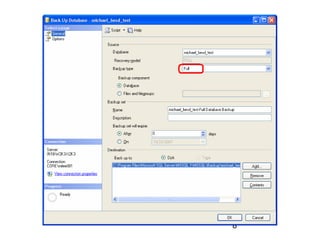
• Backup the database
  – Right-click->Tasks->Backup
  – Ensure the backup type is “Full”
  – On the options screen select “Overwrite all
    existing backup sets” to ensure you are not
    appending the backup set to an existing set
  – Optionally you can also check “Verify backup
    when finished” or “Perform checksum before
    writing to media” for verification of data
                                     7
8
9
Implementation contd…
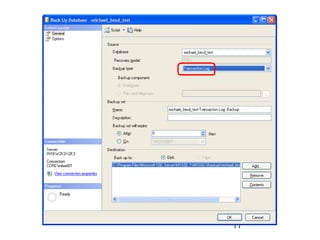
• Backup the transaction log
   – Right-click->Tasks->Backup
   – Ensure the backup type is “Transaction log”. When restoring on
     the mirrored server, it may complain that no transaction log was
     found and may fail the database restoration on the mirrored
     server so this step is performed as a precaution
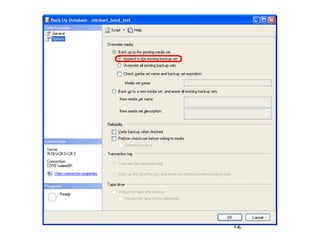
   – On the options screen ensure that “Append to the existing
     backup set” is checked. This will add the transaction log to your
     previous full backup of the database so you only require to copy
     the one .bak file to the mirrored server
   – Optionally you can also check “Verify backup when finished” or
     “Perform checksum before writing to media” for verification of
     data


                                                     10
11
12
Implementation contd…
• Copy the backups to another SQL Server
• Requires access to the SQL Server itself
  (through remote desktop or VMware
  console). What you want to do is copy the
  backed up file you created in the previous
  steps to the SQL server where you want
  the database to be mirrored
• Where you place the backup files on the
  second SQL Server does not matter
                                 13
Implementation contd…
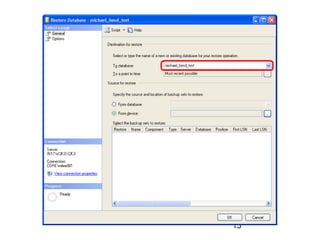
• Restore the database on second SQL
  Server
  – Login to the SQL Server where your DB was
    copied to
  – Right-click on Database folder->Restore
    backup
  – Type the same name as the original database
    on the first SQL Server in the “To database”
    field

                                    14
15
Implementation contd…
• Select “From device” and click the “…”
  button
• Click the add button and find the backup
  file of the database
  – Select the backed up database that you
    copied from the principal SQL server


                                    16
17
Implementation contd…
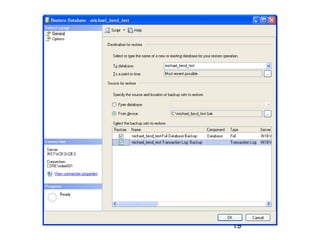
• The two backups will appear in the
  window
• Checkmark both backups


                                 18
19
Implementation contd…
• Select the options page
• At the bottom under “Recovery state”
  select the second option (RESTORE
  WITH NORECOVERY)


                                 20
21
Implementation contd…
• Your database should
  now be listed in the
  database folder on the
  second SQL server and it
  should be in the
  “Restoring…” state
• *Note*: The “Restoring…”
  state is indefinite for the
  mirrored database. You
  will not be able to access
  a database while it is in
  the restoring state.

                                22
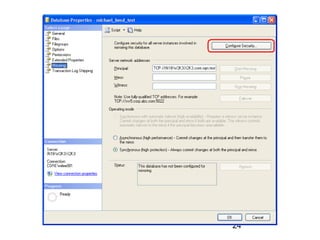
Setting up the mirroring
• Login to the first SQL Server:
  – Select the Principal database
  – Right-click->Properties
  – Select the “Mirroring page”
  – Click on “Configure security”


                                    23
24
25
Setting up the mirroring contd…
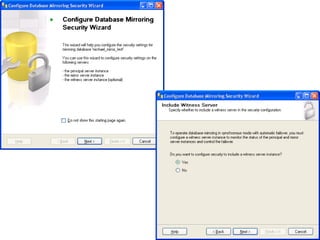
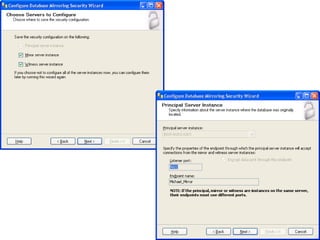
• On the Principal, Mirror and Witness
  Server Instance screens, settings may be
  grayed out due to the endpoint being
  setup already for use. If this is the case
  just select the appropriate server to
  connect to and use the default settings. If
  the endpoint has not been created yet,
  you can create a new endpoint that will be
  used for all database mirroring.
                                  26
27
Setting up the mirroring contd…
• If creating a new endpoint, use the default
  port of 5022 and enter any name for the
  endpoint. Use the same name on the
  following servers for consistency although
  using different names does not affect the
  mirroring in any way.


                                  28
Setting up the mirroring contd…
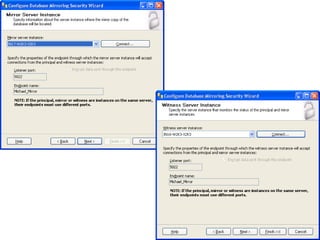
• When selecting the Mirror and Witness
  Server Instances, you may be required to
  connect to these servers using some form
  of authentication before you are able to
  continue. For consistency use the same
  logins for all servers.


                                29
30
Setting up the mirroring contd…
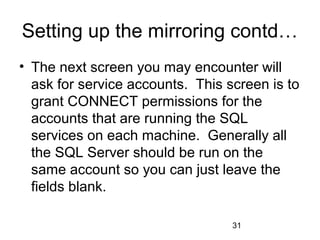
• The next screen you may encounter will
  ask for service accounts. This screen is to
  grant CONNECT permissions for the
  accounts that are running the SQL
  services on each machine. Generally all
  the SQL Server should be run on the
  same account so you can just leave the
  fields blank.

                                  31
32
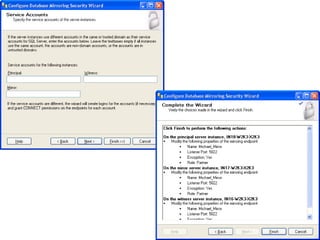
• Click finish and
  the database
  mirroring should
  be setup
  successfully.


                     33
34
Setting up the mirroring contd…
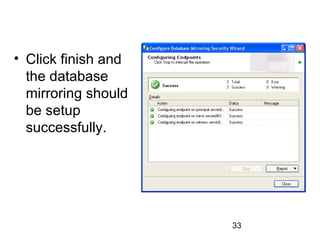
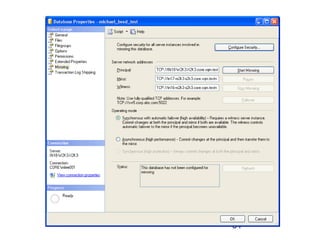
• Ensure the settings are correct in the
  Mirroring window
• Synchronous operating mode should be
  selected
• Click on start mirroring
• Status should show the database is now
  mirrored correctly


                                35
Setting up the mirroring contd…
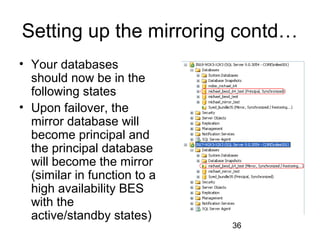
• Your databases
  should now be in the
  following states
• Upon failover, the
  mirror database will
  become principal and
  the principal database
  will become the mirror
  (similar in function to a
  high availability BES
  with the
  active/standby states)
                              36

SQL Database Mirroring setup

  • 1.
  • 2.
    Preparation • Minimum oftwo SQL servers • Principal database/Mirror database • “Witness” server (used for automatic failover) • Will be done using SQL Server 2005 SP2 2
  • 3.
    Types of mirroring •High availability: – Synchronized writes on principal and mirror – Automated failover – Requires witness server • High Protection: – Synchronized writes on principal and mirror – Manual failover – No witness server required • High performance: – Not synchronized (assumed writes will be completed on both principal and mirror) – Forced failover only – Witness not required 3
  • 4.
    Implementation • Will beusing high availability method • Requires at least three separate instances of SQL Server 2005 SP1 (Principal, Mirror, Witness) • Ensure BlackBerry services on all machines are stopped • Ensure the login credentials for all the SQL servers are the same • Run the errors.sql script on all SQL servers before proceeding (the errors.sql script can be found in the BES installation folder). You can also get rid of the final line in the script (the USE database line) as it may produce errors. -this is now an obsolete step. Running errors.sql is no longer required for DB mirroring. • It does not matter which servers you use for which purpose (i.e. M1 can be principal, M2 can be mirror and M3 can be witness for DB1 while M3 can be principal, M1 can be mirror and M2 can be witness for DB2.) 4
  • 5.
    Implementation contd… • Loginto the SQL Server where your DB exists • Right-click->Properties->Options page • Select “Full” option under recovery model 5
  • 6.
  • 7.
    Implementation contd… • Backupthe database – Right-click->Tasks->Backup – Ensure the backup type is “Full” – On the options screen select “Overwrite all existing backup sets” to ensure you are not appending the backup set to an existing set – Optionally you can also check “Verify backup when finished” or “Perform checksum before writing to media” for verification of data 7
  • 8.
  • 9.
  • 10.
    Implementation contd… • Backupthe transaction log – Right-click->Tasks->Backup – Ensure the backup type is “Transaction log”. When restoring on the mirrored server, it may complain that no transaction log was found and may fail the database restoration on the mirrored server so this step is performed as a precaution – On the options screen ensure that “Append to the existing backup set” is checked. This will add the transaction log to your previous full backup of the database so you only require to copy the one .bak file to the mirrored server – Optionally you can also check “Verify backup when finished” or “Perform checksum before writing to media” for verification of data 10
  • 11.
  • 12.
  • 13.
    Implementation contd… • Copythe backups to another SQL Server • Requires access to the SQL Server itself (through remote desktop or VMware console). What you want to do is copy the backed up file you created in the previous steps to the SQL server where you want the database to be mirrored • Where you place the backup files on the second SQL Server does not matter 13
  • 14.
    Implementation contd… • Restorethe database on second SQL Server – Login to the SQL Server where your DB was copied to – Right-click on Database folder->Restore backup – Type the same name as the original database on the first SQL Server in the “To database” field 14
  • 15.
  • 16.
    Implementation contd… • Select“From device” and click the “…” button • Click the add button and find the backup file of the database – Select the backed up database that you copied from the principal SQL server 16
  • 17.
  • 18.
    Implementation contd… • Thetwo backups will appear in the window • Checkmark both backups 18
  • 19.
  • 20.
    Implementation contd… • Selectthe options page • At the bottom under “Recovery state” select the second option (RESTORE WITH NORECOVERY) 20
  • 21.
  • 22.
    Implementation contd… • Yourdatabase should now be listed in the database folder on the second SQL server and it should be in the “Restoring…” state • *Note*: The “Restoring…” state is indefinite for the mirrored database. You will not be able to access a database while it is in the restoring state. 22
  • 23.
    Setting up themirroring • Login to the first SQL Server: – Select the Principal database – Right-click->Properties – Select the “Mirroring page” – Click on “Configure security” 23
  • 24.
  • 25.
  • 26.
    Setting up themirroring contd… • On the Principal, Mirror and Witness Server Instance screens, settings may be grayed out due to the endpoint being setup already for use. If this is the case just select the appropriate server to connect to and use the default settings. If the endpoint has not been created yet, you can create a new endpoint that will be used for all database mirroring. 26
  • 27.
  • 28.
    Setting up themirroring contd… • If creating a new endpoint, use the default port of 5022 and enter any name for the endpoint. Use the same name on the following servers for consistency although using different names does not affect the mirroring in any way. 28
  • 29.
    Setting up themirroring contd… • When selecting the Mirror and Witness Server Instances, you may be required to connect to these servers using some form of authentication before you are able to continue. For consistency use the same logins for all servers. 29
  • 30.
  • 31.
    Setting up themirroring contd… • The next screen you may encounter will ask for service accounts. This screen is to grant CONNECT permissions for the accounts that are running the SQL services on each machine. Generally all the SQL Server should be run on the same account so you can just leave the fields blank. 31
  • 32.
  • 33.
    • Click finishand the database mirroring should be setup successfully. 33
  • 34.
  • 35.
    Setting up themirroring contd… • Ensure the settings are correct in the Mirroring window • Synchronous operating mode should be selected • Click on start mirroring • Status should show the database is now mirrored correctly 35
  • 36.
    Setting up themirroring contd… • Your databases should now be in the following states • Upon failover, the mirror database will become principal and the principal database will become the mirror (similar in function to a high availability BES with the active/standby states) 36