Section 5
Spreadsheet
Spreadsheet Fundamentals
What is a Spreadsheet
• A spreadsheet is a table consisting of cells (rows, column locations) that hold accounting or financial data
and simulates the traditional physical spreadsheet; it captures displays and manipulates data Row, column,
cell, cell address, label, value, formula, function, worksheet, template, range, title, window, record.
• A spreadsheet is a digital document used to organize, analyze, and store data in a grid of rows and columns.
Each intersection of a row and a column is called a cell, and each cell can hold text, numbers, or formulas.
Spreadsheets are commonly used for tasks like financial calculations, data analysis, and inventory
management.
Some common spreadsheet applications are Microsoft Excel and Google
Terms in spreadsheet
• Cell - is the basic unit in a spreadsheet where data is entered. It is the intersection point of a row and a column. Cells can contain text, numbers, or formulas. For
example, in Microsoft Excel or Google Sheets, cells are the building blocks of your spreadsheet.
• Row - A row is a horizontal line of cells in a spreadsheet. Rows are usually numbered (1, 2, 3, etc.), and each number represents the row's position within the sheet.
• Column - is a vertical line of cells in a spreadsheet. Columns are usually labeled with letters (A, B, C, etc.) to represent their position. Columns help categorize and
organize data vertically.
• Cell Address- also called a cell reference identifies a specific cell in the spreadsheet by combining the column letter and row number. For example, the cell at the
intersection of column A and row 1 is referred to as A1. This helps in referencing cells when creating formulas or looking for data.
• Labels - are descriptive text entries (such as headings or titles) that explain what the data in the cells represent. Labels usually describe the content in a particular row or
column, making it easier to understand the data. For example, "Sales," "Product Name," and "Date" can be used as labels for a column and cannot be calculated.
• Values - are the actual data entered into a cell. This can be numerical data (like prices, quantities, or percentages), dates, or text-based entries (like names or categories).
Values are used in calculations and analysis within the spreadsheet.
• Worksheet – is where rows and columns are displayed, where calculations is done.
• Workbook – contain one or more worksheet or chart sheet.
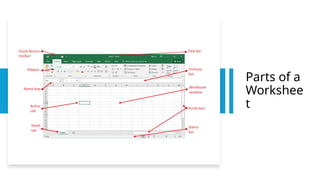
Parts of a
Workshee
t
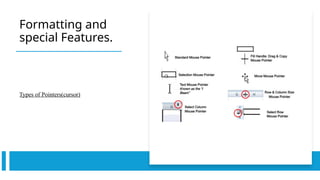
Formatting and
special Features.
Types of Pointers(cursor)
Text Features
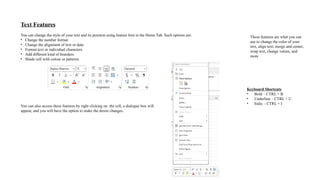
You can change the style of your text and its position using feature font in the Home Tab. Such options are:
• Change the number format
• Change the alignment of text or data
• Format text or individual characters
• Add different kind of boarders
• Shade cell with colour or patterns
You can also access these features by right clicking on the cell, a dialogue box will
appear, and you will have the option to make the desire changes.
These features are what you can
use to change the color of your
text, align text, merge and center,
wrap text, change values, and
more
Keyboard Shortcuts
• Bold – CTRL + B
• Underline – CTRL + U
• Italic – CTRL + I
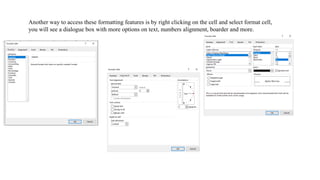
Another way to access these formatting features is by right clicking on the cell and select format cell,
you will see a dialogue box with more options on text, numbers alignment, boarder and more.
Cut, Copying and Paste
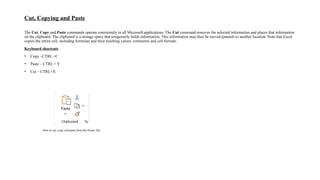
The Cut, Copy and Paste commands operate consistently in all Microsoft applications. The Cut command removes the selected information and places that information
on the clipboard. The clipboard is a storage space that temporarily holds information. This information may then be moved (pasted) to another location. Note that Excel
copies the entire cell, including formulae and their resulting values, comments and cell formats.
Keyboard shortcuts
• Copy –CTRL +C
• Paste – CTRL + V
• Cut – CTRL+X
How to cut, copy and paste form the Home Tab.
•Column and Row
•By default, all columns in Excel are 8.43 spaces wide, but can contain a width of
up to 255 characters. If a column has a width of 0 (zero), then the column is
hidden. Rows are typically 12.75 points high (approximately 1/6 inch or 0.4 cm),
which is just the right size to fit the default font. A row can be as high as 409
points (almost 6 inches), but a height of 0 (zero) will hide the row. You will often
need to change column widths and row heights. If a value is too big for a cell,
your data will be displayed as '#####'. If your text is too long and the next cell
also contains data, then only the first few letters of your text will be visible.
Merge and Center
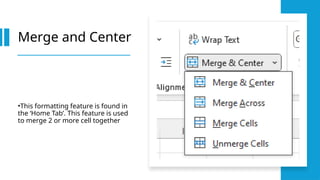
•This formatting feature is found in
the ‘Home Tab’. This feature is used
to merge 2 or more cell together
Renaming Worksheet
•To rename a worksheet, you simply right
click on the worksheet, click rename on the
popup, menu and the option will appear.
•Or double click on the worksheet.
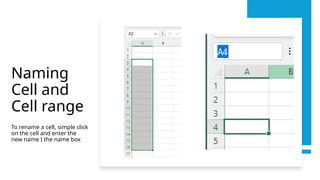
Naming
Cell and
Cell range
To rename a cell, simple click
on the cell and enter the
new name I the name box
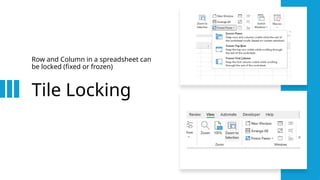
Tile Locking
Row and Column in a spreadsheet can
be locked (fixed or frozen)
Workbook view
• To change the view of your workbook.
Manipulating rows and columns
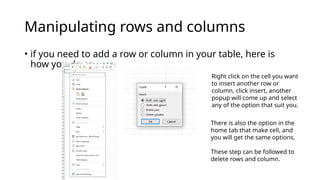
• if you need to add a row or column in your table, here is
how you do so.
Right click on the cell you want
to insert another row or
column, click insert, another
popup will come up and select
any of the option that suit you.
There is also the option in the
home tab that make cell, and
you will get the same options.
These step can be followed to
delete rows and column.
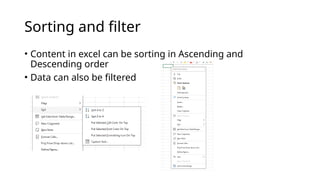
Sorting and filter
• Content in excel can be sorting in Ascending and
Descending order
• Data can also be filtered
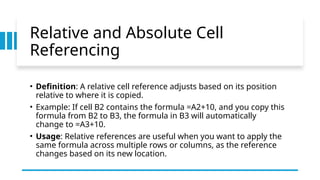
Relative and Absolute Cell
Referencing
• Definition: A relative cell reference adjusts based on its position
relative to where it is copied.
• Example: If cell B2 contains the formula =A2+10, and you copy this
formula from B2 to B3, the formula in B3 will automatically
change to =A3+10.
• Usage: Relative references are useful when you want to apply the
same formula across multiple rows or columns, as the reference
changes based on its new location.
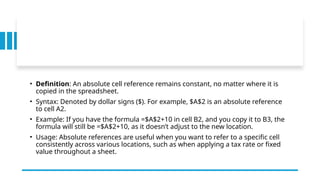
• Definition: An absolute cell reference remains constant, no matter where it is
copied in the spreadsheet.
• Syntax: Denoted by dollar signs ($). For example, $A$2 is an absolute reference
to cell A2.
• Example: If you have the formula =$A$2+10 in cell B2, and you copy it to B3, the
formula will still be =$A$2+10, as it doesn’t adjust to the new location.
• Usage: Absolute references are useful when you want to refer to a specific cell
consistently across various locations, such as when applying a tax rate or fixed
value throughout a sheet.

Information Technology CSEC: Spreadsheet

  • 1.
  • 2.
    What is aSpreadsheet • A spreadsheet is a table consisting of cells (rows, column locations) that hold accounting or financial data and simulates the traditional physical spreadsheet; it captures displays and manipulates data Row, column, cell, cell address, label, value, formula, function, worksheet, template, range, title, window, record. • A spreadsheet is a digital document used to organize, analyze, and store data in a grid of rows and columns. Each intersection of a row and a column is called a cell, and each cell can hold text, numbers, or formulas. Spreadsheets are commonly used for tasks like financial calculations, data analysis, and inventory management. Some common spreadsheet applications are Microsoft Excel and Google
  • 3.
    Terms in spreadsheet •Cell - is the basic unit in a spreadsheet where data is entered. It is the intersection point of a row and a column. Cells can contain text, numbers, or formulas. For example, in Microsoft Excel or Google Sheets, cells are the building blocks of your spreadsheet. • Row - A row is a horizontal line of cells in a spreadsheet. Rows are usually numbered (1, 2, 3, etc.), and each number represents the row's position within the sheet. • Column - is a vertical line of cells in a spreadsheet. Columns are usually labeled with letters (A, B, C, etc.) to represent their position. Columns help categorize and organize data vertically. • Cell Address- also called a cell reference identifies a specific cell in the spreadsheet by combining the column letter and row number. For example, the cell at the intersection of column A and row 1 is referred to as A1. This helps in referencing cells when creating formulas or looking for data. • Labels - are descriptive text entries (such as headings or titles) that explain what the data in the cells represent. Labels usually describe the content in a particular row or column, making it easier to understand the data. For example, "Sales," "Product Name," and "Date" can be used as labels for a column and cannot be calculated. • Values - are the actual data entered into a cell. This can be numerical data (like prices, quantities, or percentages), dates, or text-based entries (like names or categories). Values are used in calculations and analysis within the spreadsheet. • Worksheet – is where rows and columns are displayed, where calculations is done. • Workbook – contain one or more worksheet or chart sheet.
  • 4.
  • 5.
  • 6.
    Text Features You canchange the style of your text and its position using feature font in the Home Tab. Such options are: • Change the number format • Change the alignment of text or data • Format text or individual characters • Add different kind of boarders • Shade cell with colour or patterns You can also access these features by right clicking on the cell, a dialogue box will appear, and you will have the option to make the desire changes. These features are what you can use to change the color of your text, align text, merge and center, wrap text, change values, and more Keyboard Shortcuts • Bold – CTRL + B • Underline – CTRL + U • Italic – CTRL + I
  • 7.
    Another way toaccess these formatting features is by right clicking on the cell and select format cell, you will see a dialogue box with more options on text, numbers alignment, boarder and more.
  • 8.
    Cut, Copying andPaste The Cut, Copy and Paste commands operate consistently in all Microsoft applications. The Cut command removes the selected information and places that information on the clipboard. The clipboard is a storage space that temporarily holds information. This information may then be moved (pasted) to another location. Note that Excel copies the entire cell, including formulae and their resulting values, comments and cell formats. Keyboard shortcuts • Copy –CTRL +C • Paste – CTRL + V • Cut – CTRL+X How to cut, copy and paste form the Home Tab.
  • 9.
    •Column and Row •Bydefault, all columns in Excel are 8.43 spaces wide, but can contain a width of up to 255 characters. If a column has a width of 0 (zero), then the column is hidden. Rows are typically 12.75 points high (approximately 1/6 inch or 0.4 cm), which is just the right size to fit the default font. A row can be as high as 409 points (almost 6 inches), but a height of 0 (zero) will hide the row. You will often need to change column widths and row heights. If a value is too big for a cell, your data will be displayed as '#####'. If your text is too long and the next cell also contains data, then only the first few letters of your text will be visible.
  • 10.
    Merge and Center •Thisformatting feature is found in the ‘Home Tab’. This feature is used to merge 2 or more cell together
  • 11.
    Renaming Worksheet •To renamea worksheet, you simply right click on the worksheet, click rename on the popup, menu and the option will appear. •Or double click on the worksheet.
  • 12.
    Naming Cell and Cell range Torename a cell, simple click on the cell and enter the new name I the name box
  • 13.
    Tile Locking Row andColumn in a spreadsheet can be locked (fixed or frozen)
  • 14.
    Workbook view • Tochange the view of your workbook.
  • 15.
    Manipulating rows andcolumns • if you need to add a row or column in your table, here is how you do so. Right click on the cell you want to insert another row or column, click insert, another popup will come up and select any of the option that suit you. There is also the option in the home tab that make cell, and you will get the same options. These step can be followed to delete rows and column.
  • 16.
    Sorting and filter •Content in excel can be sorting in Ascending and Descending order • Data can also be filtered
  • 17.
    Relative and AbsoluteCell Referencing • Definition: A relative cell reference adjusts based on its position relative to where it is copied. • Example: If cell B2 contains the formula =A2+10, and you copy this formula from B2 to B3, the formula in B3 will automatically change to =A3+10. • Usage: Relative references are useful when you want to apply the same formula across multiple rows or columns, as the reference changes based on its new location.
  • 18.
    • Definition: Anabsolute cell reference remains constant, no matter where it is copied in the spreadsheet. • Syntax: Denoted by dollar signs ($). For example, $A$2 is an absolute reference to cell A2. • Example: If you have the formula =$A$2+10 in cell B2, and you copy it to B3, the formula will still be =$A$2+10, as it doesn’t adjust to the new location. • Usage: Absolute references are useful when you want to refer to a specific cell consistently across various locations, such as when applying a tax rate or fixed value throughout a sheet.