Solution Manager
Technical Monitoring
SAP BusinessObjects Business Intelligence platform 4.0
Monitoring Setup
Part 2 of 3
Auto configure using AC tool
By OZSoft Consulting for ITConductor.com
Linh Nguyen ITConductor.com 1
• Latest up to date information for SAP BOE 4.0 is available in SAP
Note 1653689 - SolMan 7.1: Managed Sys Setup - BI Platform
4.0
• Latest up to date information for SAP BOE 4.1 is available in SAP
Note 1975394 - SolMan 7.1: Managed Sys Setup - BI Platform
4.1
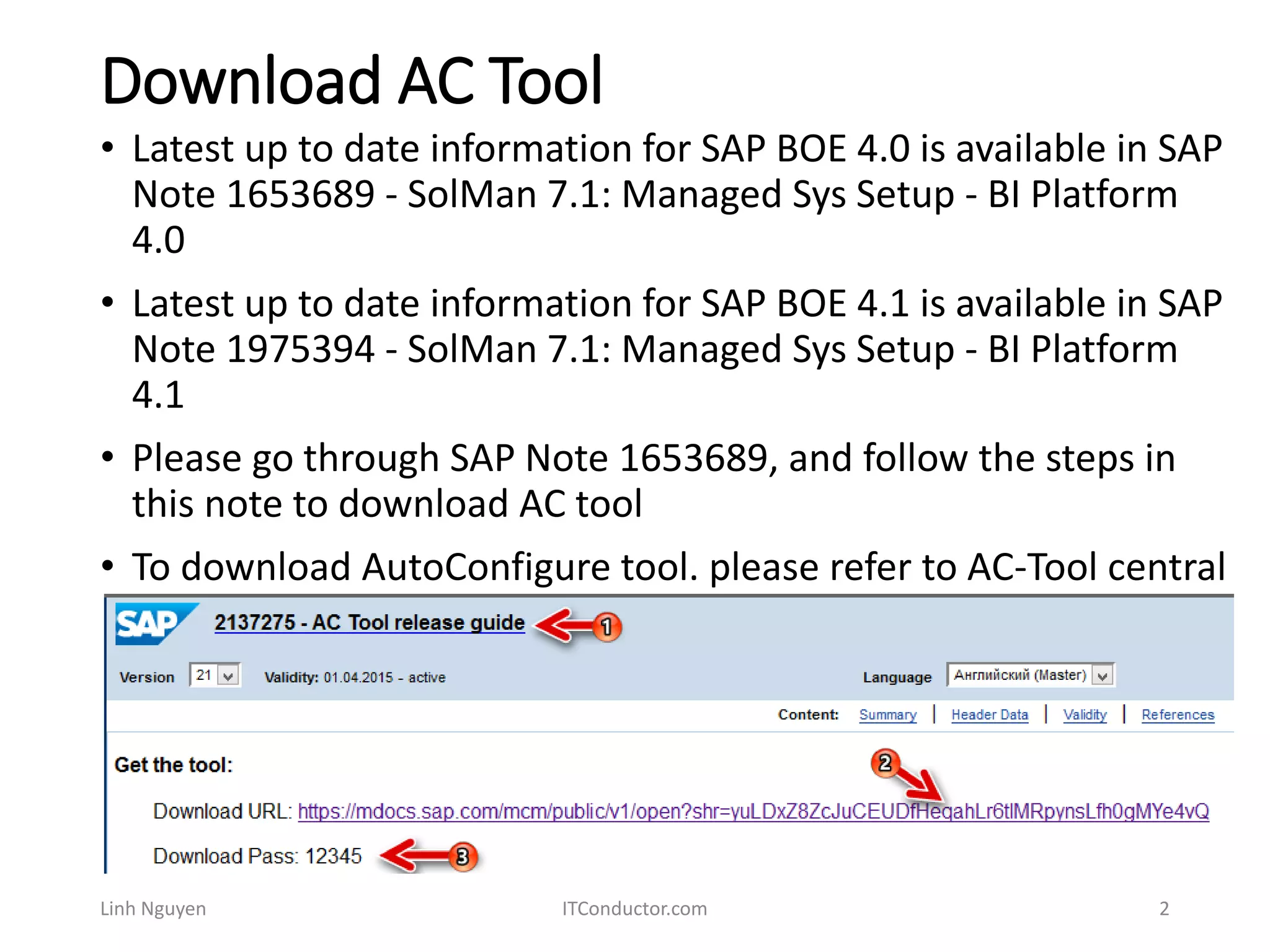
• Please go through SAP Note 1653689, and follow the steps in
this note to download AC tool
• To download AutoConfigure tool. please refer to AC-Tool central
note 2137275.
Linh Nguyen ITConductor.com 2
Download AC Tool
Download AC Tool
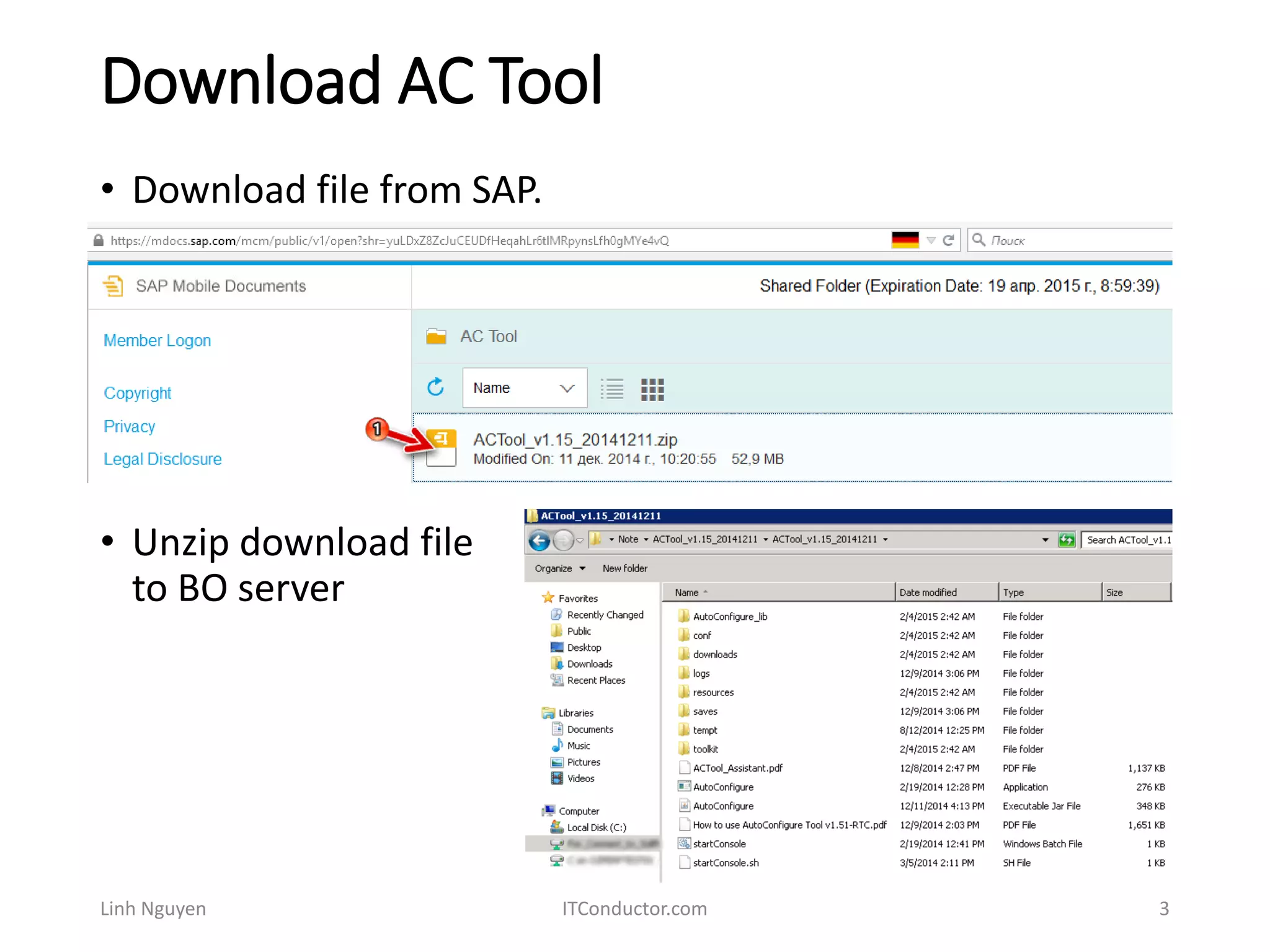
• Unzip download file
to BO server
Linh Nguyen ITConductor.com 3
• Download file from SAP.
Run AutoConfigure.exe
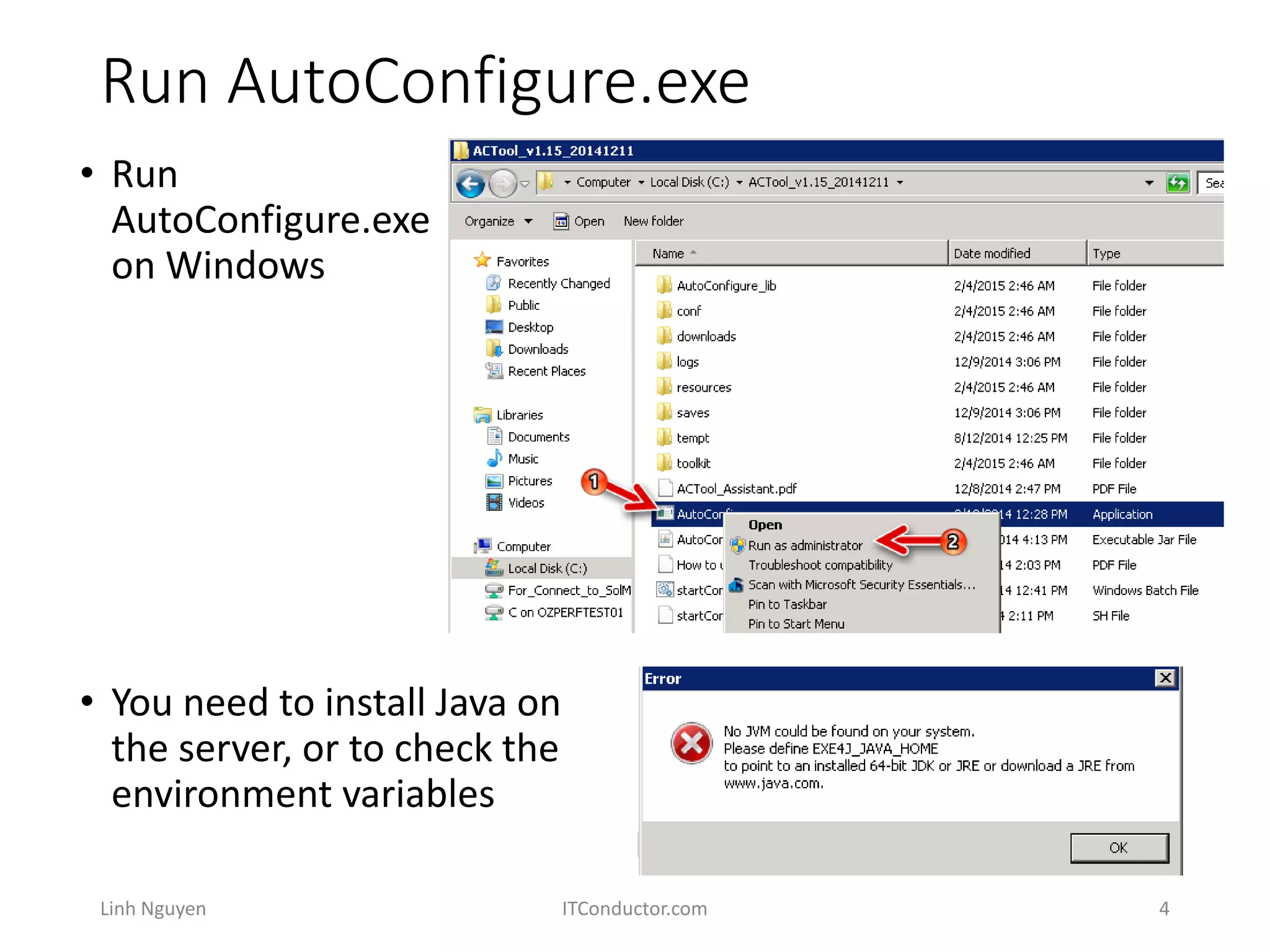
• Run
AutoConfigure.exe
on Windows
Linh Nguyen ITConductor.com 4
• You need to install Java on
the server, or to check the
environment variables
Run AutoConfigure.exe
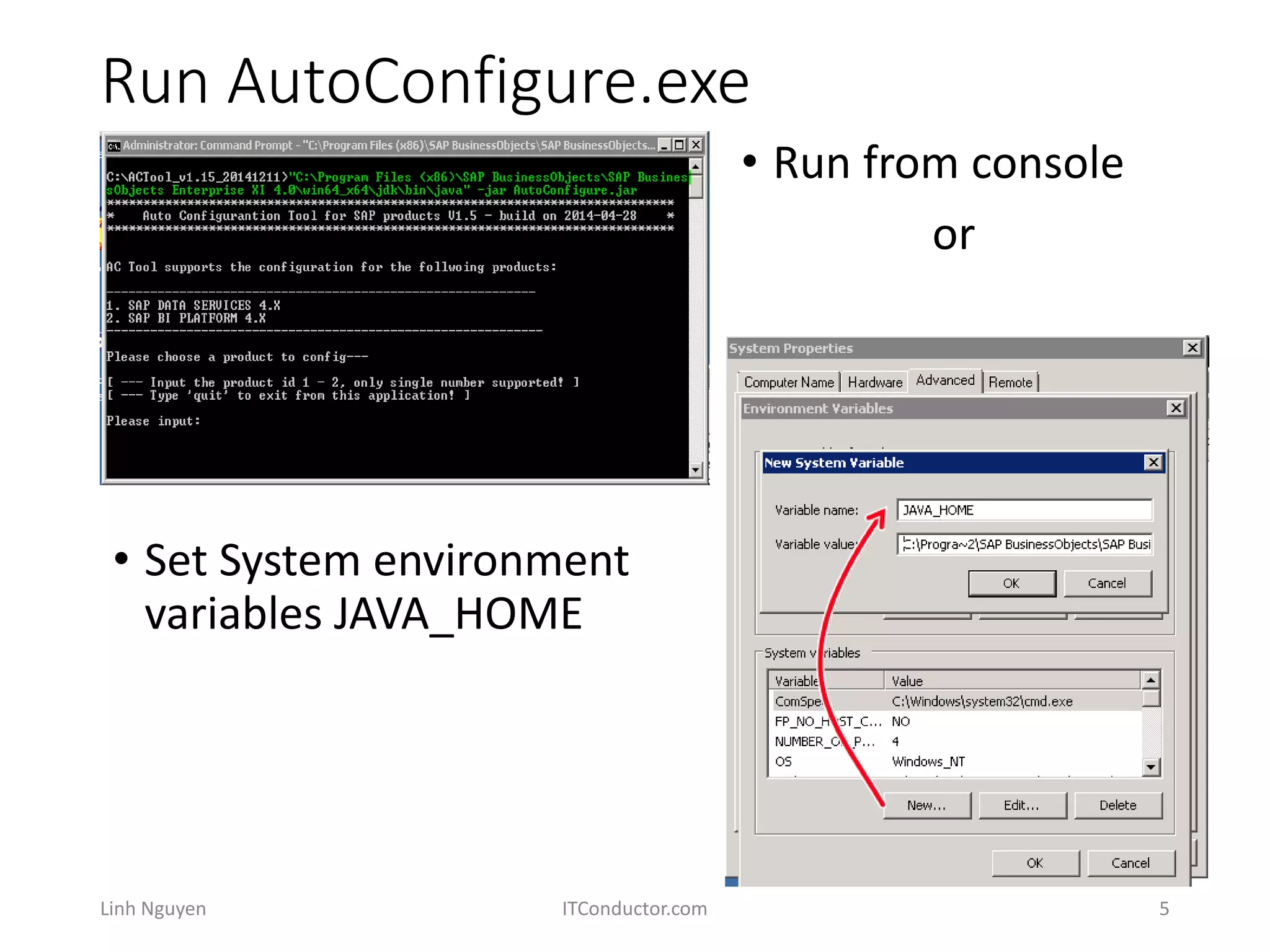
• Set System environment
variables JAVA_HOME
Linh Nguyen ITConductor.com 5
• Run from console
or
Started AutoConfigure.exe
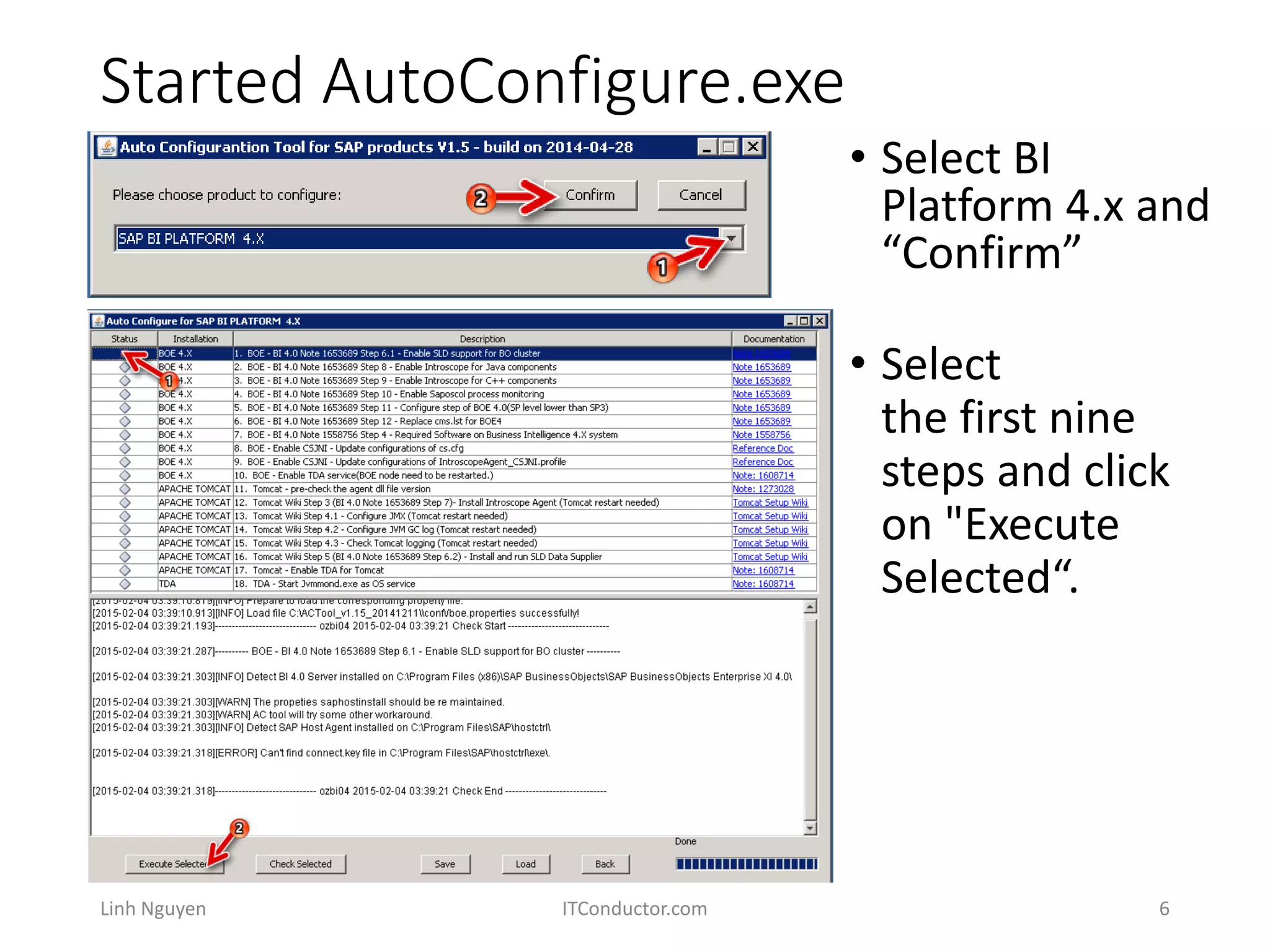
• Select
the first nine
steps and click
on "Execute
Selected“.
Linh Nguyen ITConductor.com 6
• Select BI
Platform 4.x and
“Confirm”
Enable SLD support for BO cluster
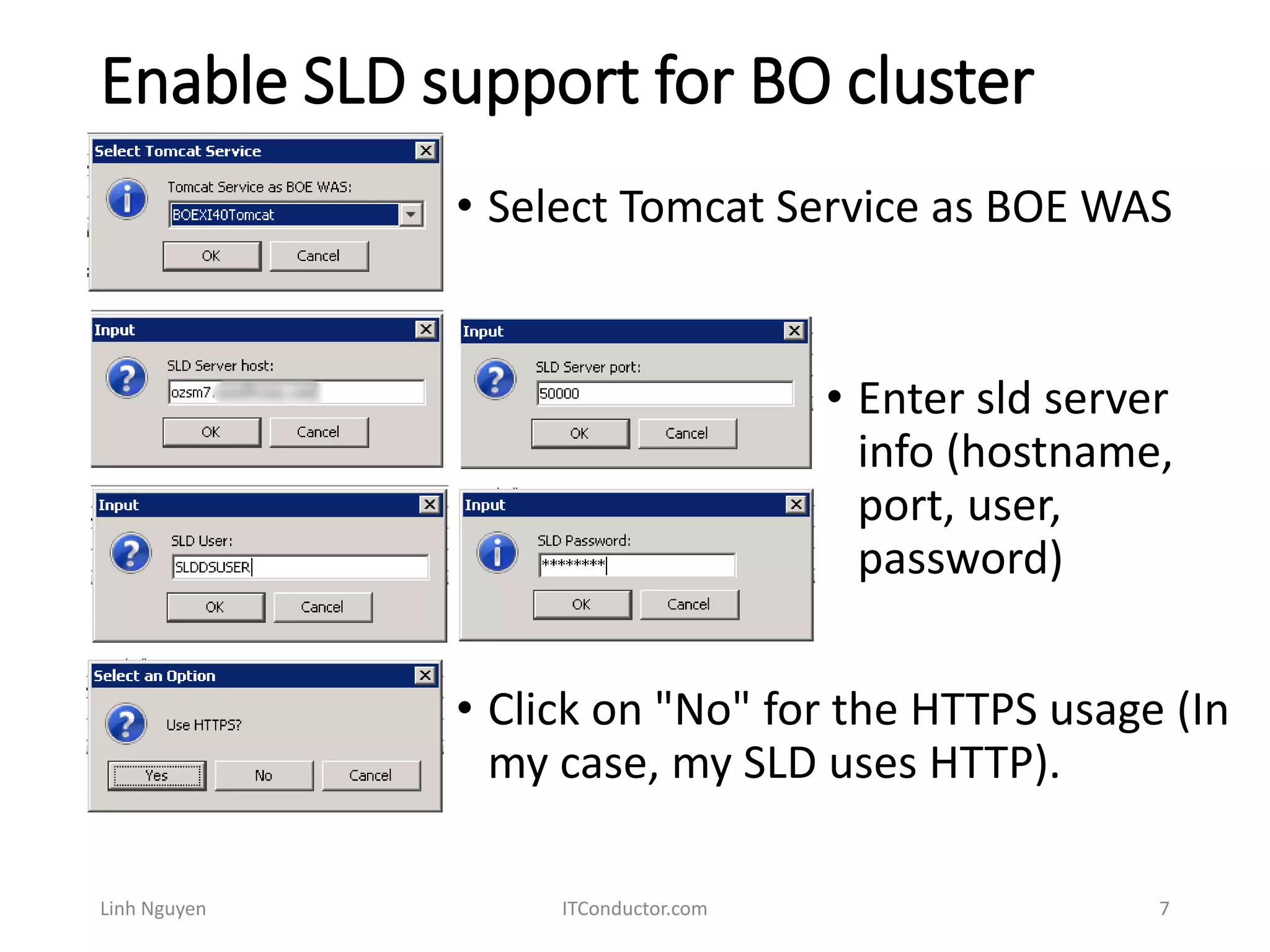
• Enter sld server
info (hostname,
port, user,
password)
Linh Nguyen ITConductor.com 7
• Select Tomcat Service as BOE WAS
• Click on "No" for the HTTPS usage (In
my case, my SLD uses HTTP).
Enable SLD support for BO cluster
Linh Nguyen ITConductor.com 8
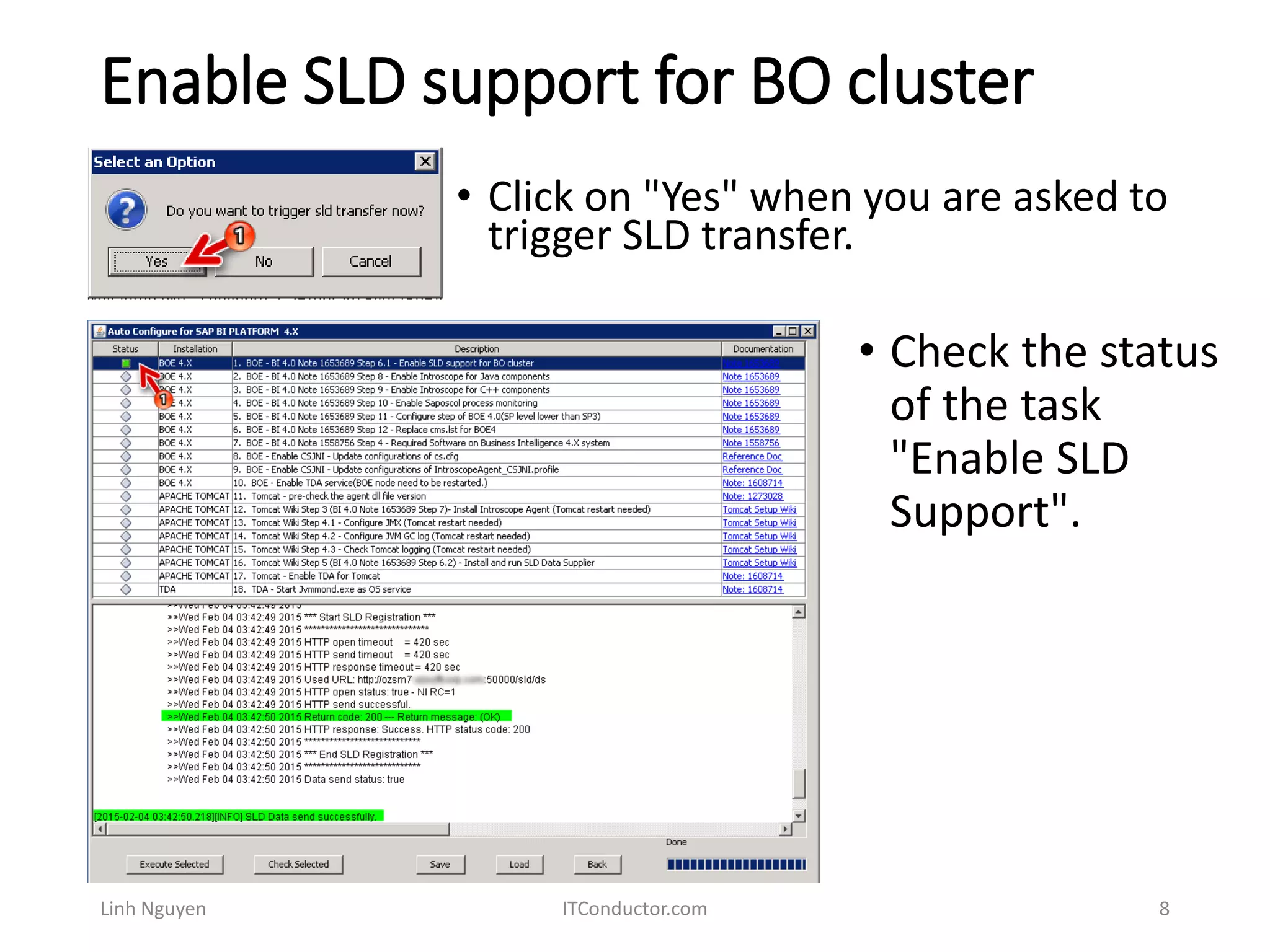
• Click on "Yes" when you are asked to
trigger SLD transfer.
• Check the status
of the task
"Enable SLD
Support".
Enable Introscope for Java components
Linh Nguyen ITConductor.com 9
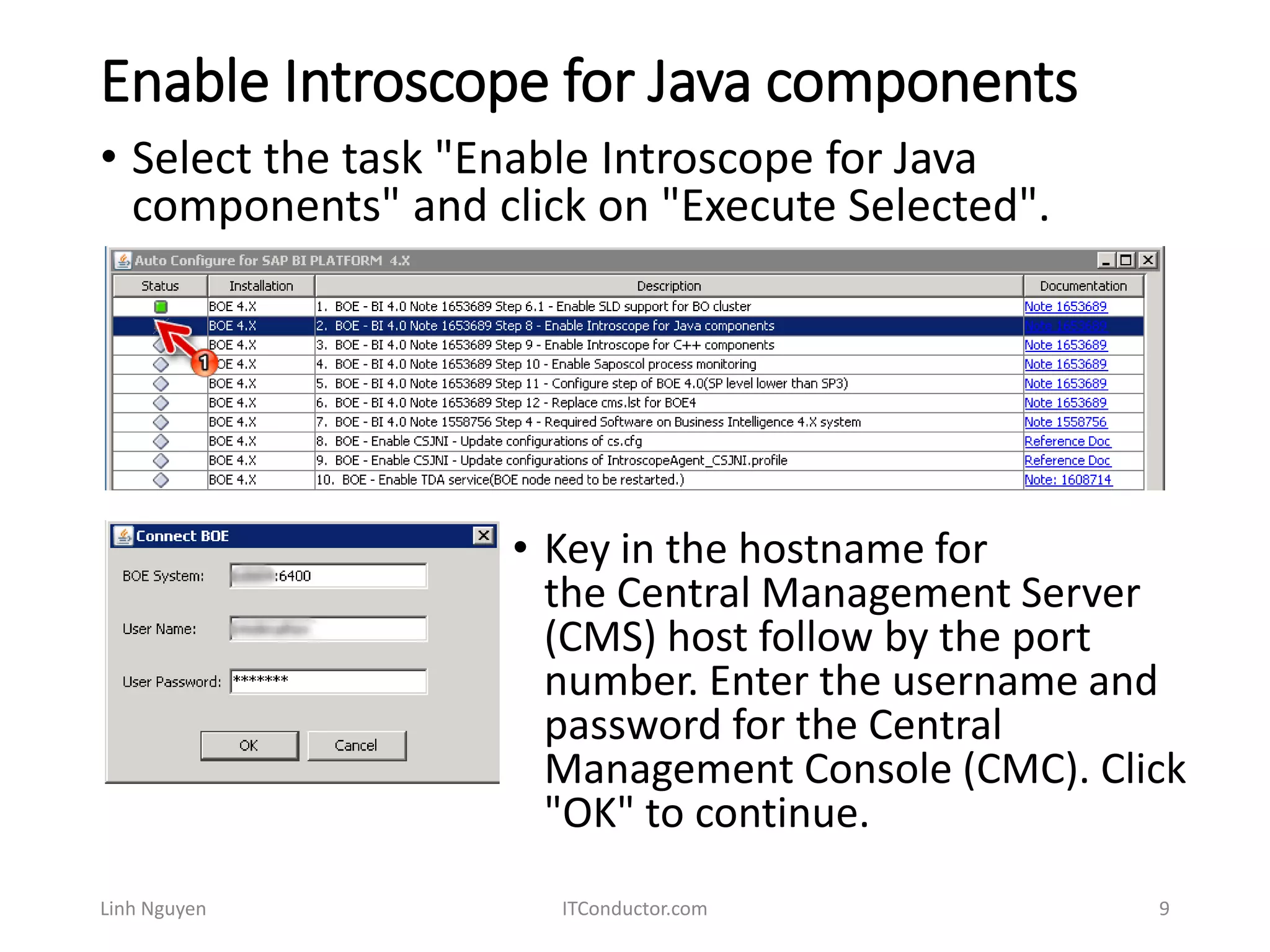
• Select the task "Enable Introscope for Java
components" and click on "Execute Selected".
• Key in the hostname for
the Central Management Server
(CMS) host follow by the port
number. Enter the username and
password for the Central
Management Console (CMC). Click
"OK" to continue.
Enable Introscope for Java components
Linh Nguyen ITConductor.com 10
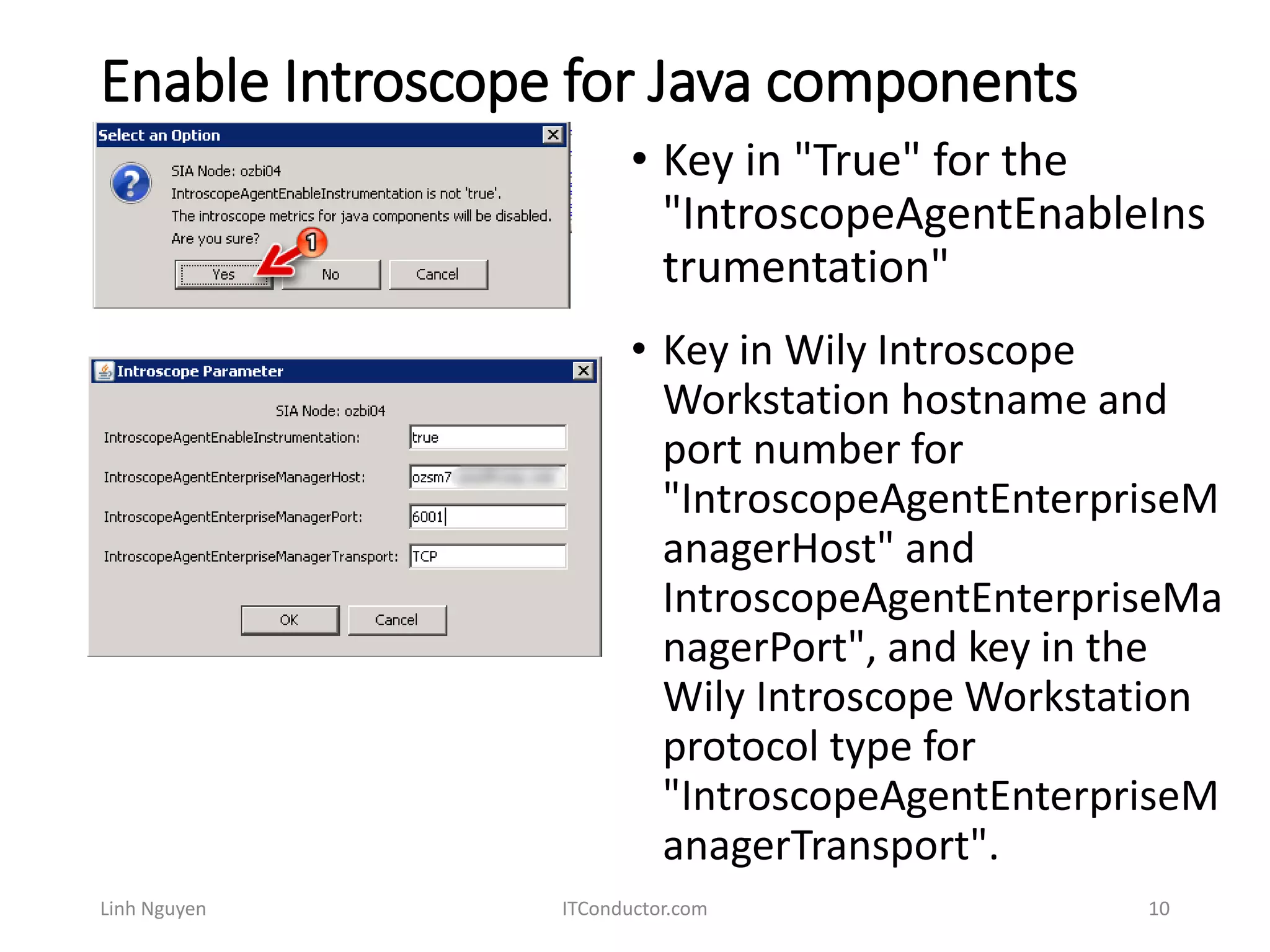
• Key in "True" for the
"IntroscopeAgentEnableIns
trumentation"
• Key in Wily Introscope
Workstation hostname and
port number for
"IntroscopeAgentEnterpriseM
anagerHost" and
IntroscopeAgentEnterpriseMa
nagerPort", and key in the
Wily Introscope Workstation
protocol type for
"IntroscopeAgentEnterpriseM
anagerTransport".
Enable Introscope for Java components
Linh Nguyen ITConductor.com 11
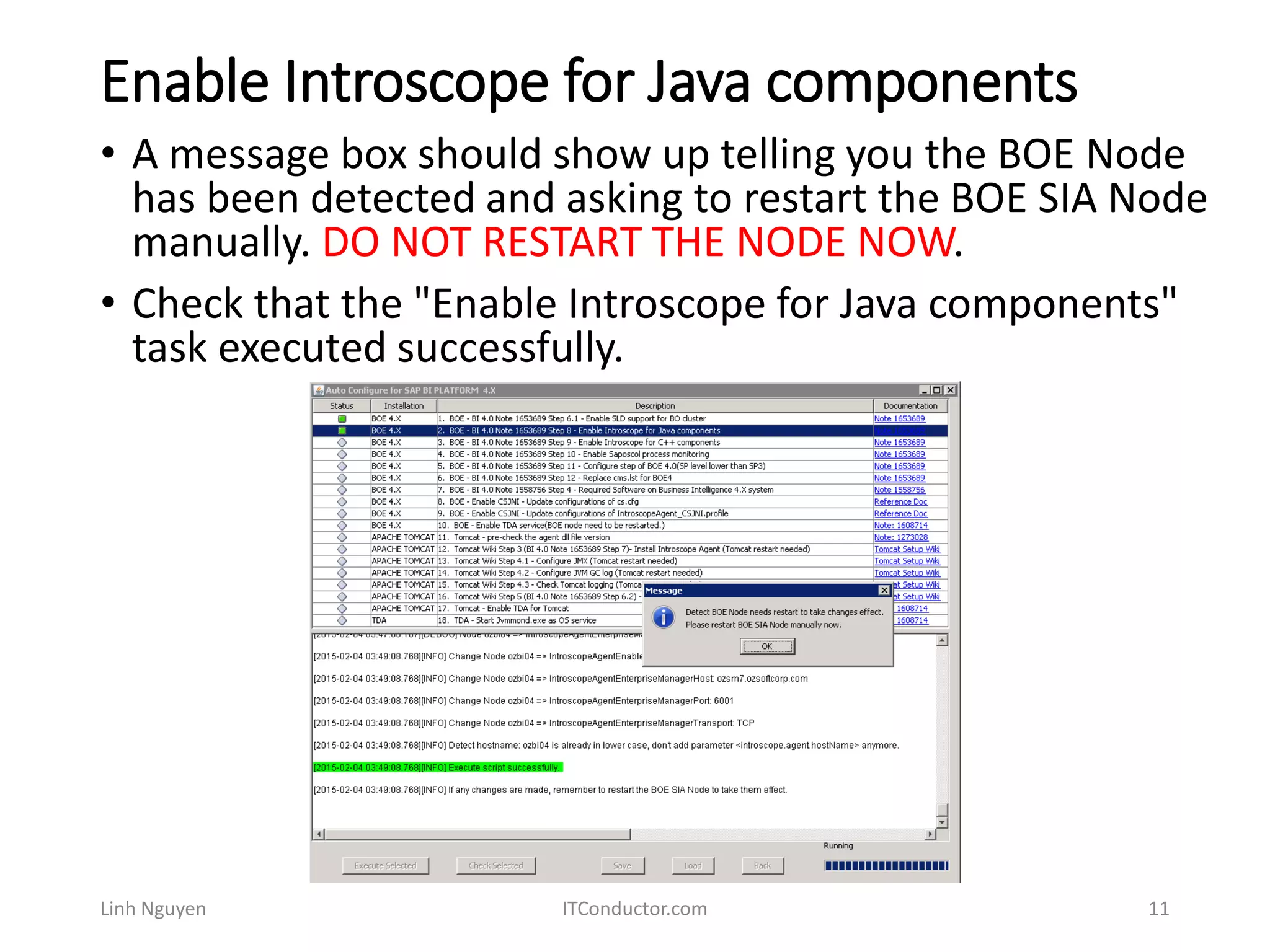
• A message box should show up telling you the BOE Node
has been detected and asking to restart the BOE SIA Node
manually. DO NOT RESTART THE NODE NOW.
• Check that the "Enable Introscope for Java components"
task executed successfully.
Enable Introscope for C++ components
Linh Nguyen ITConductor.com 12
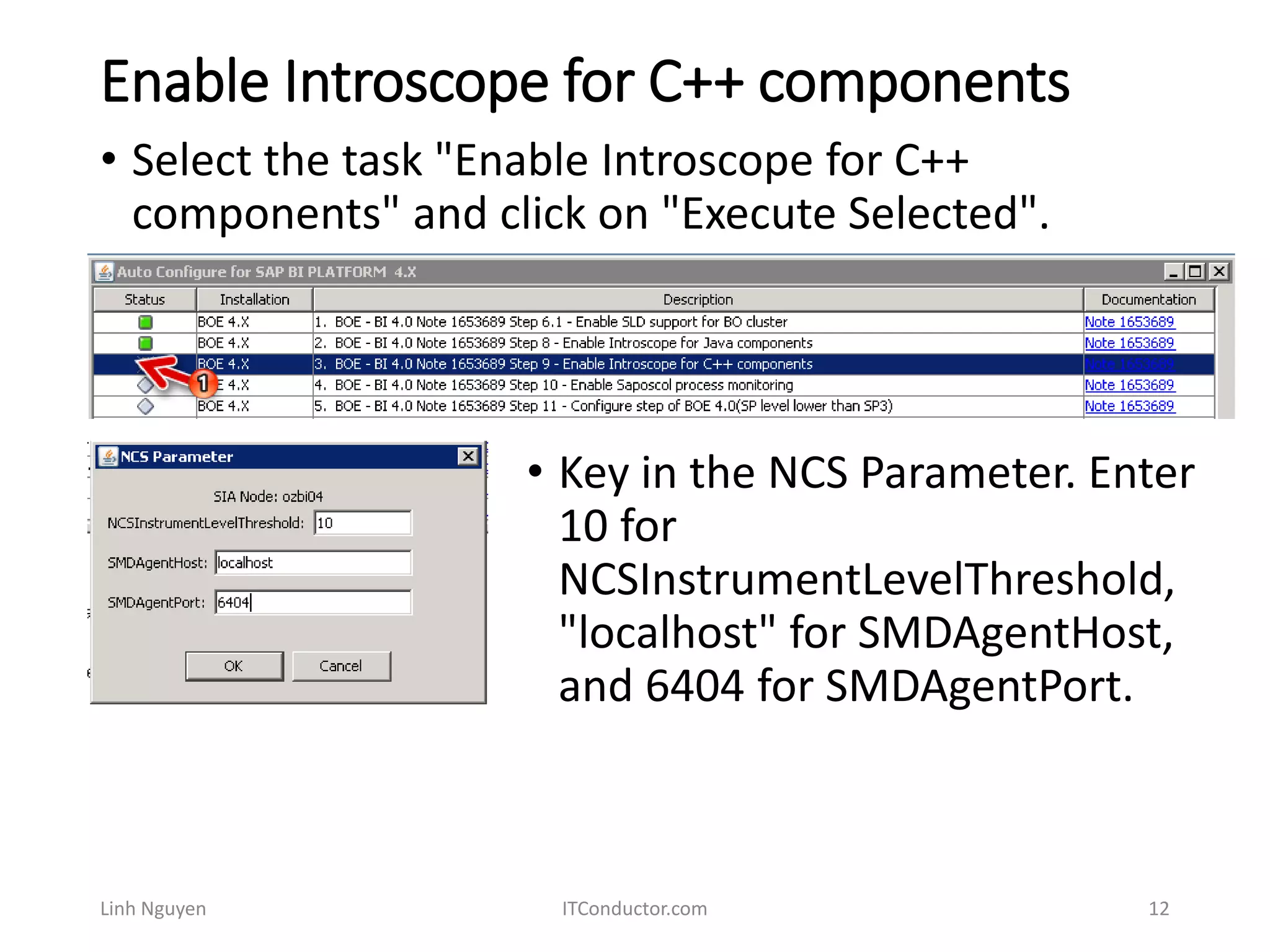
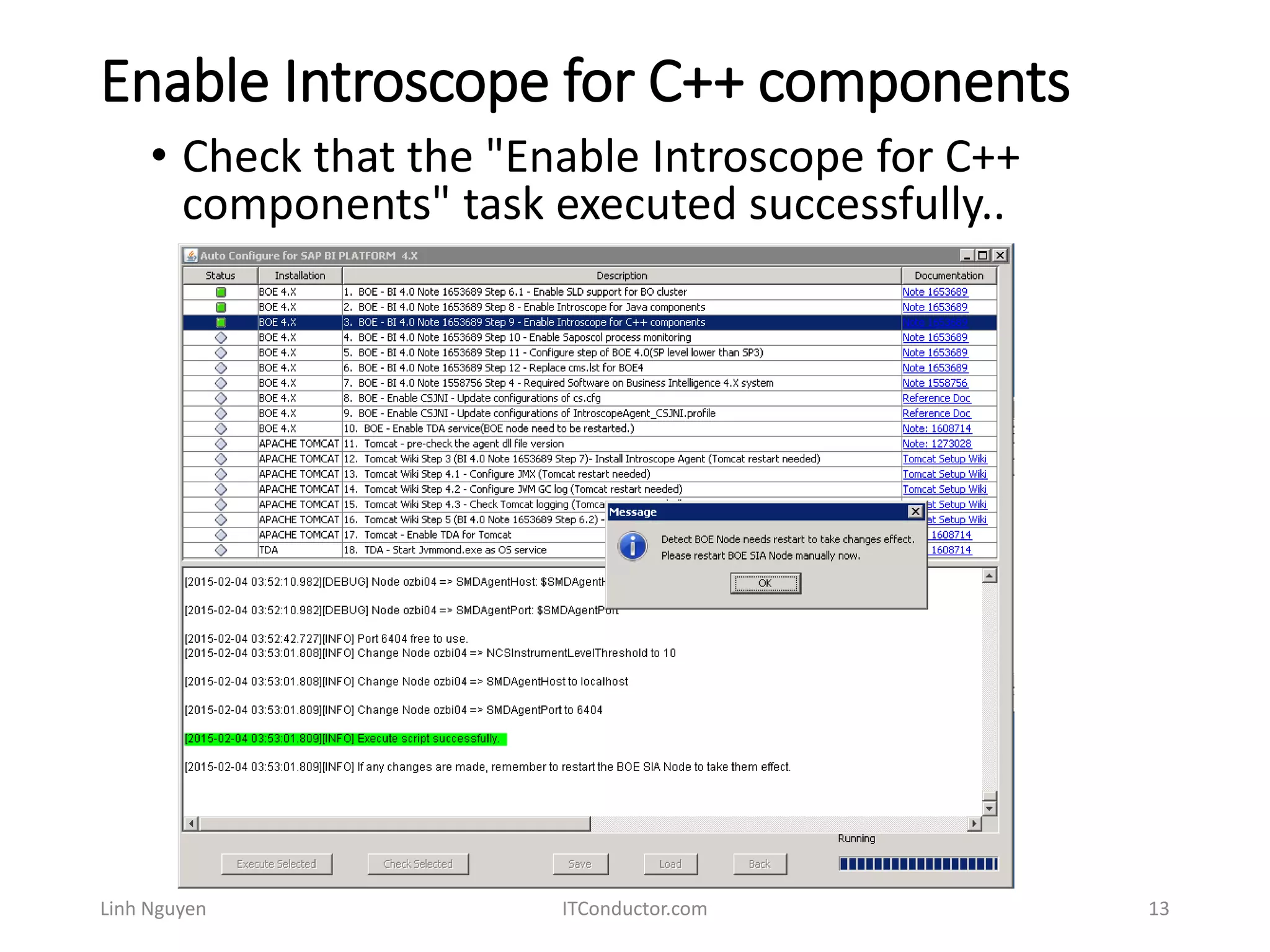
• Select the task "Enable Introscope for C++
components" and click on "Execute Selected".
• Key in the NCS Parameter. Enter
10 for
NCSInstrumentLevelThreshold,
"localhost" for SMDAgentHost,
and 6404 for SMDAgentPort.
Enable Introscope for C++ components
Linh Nguyen ITConductor.com 13
• Check that the "Enable Introscope for C++
components" task executed successfully..
Enable Saposcol process monitoring
Linh Nguyen ITConductor.com 14
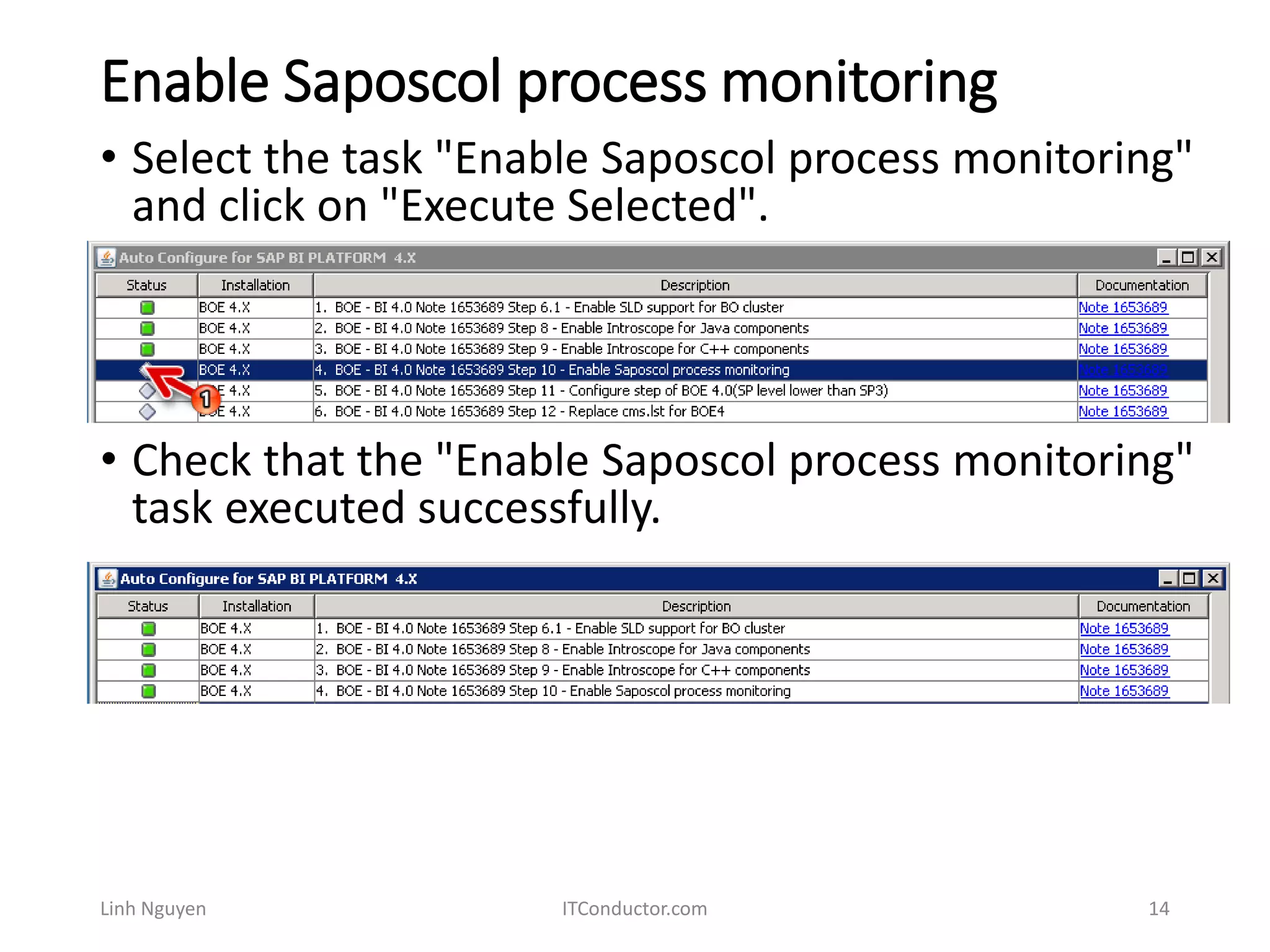
• Select the task "Enable Saposcol process monitoring"
and click on "Execute Selected".
• Check that the "Enable Saposcol process monitoring"
task executed successfully.
Configure step of BOE 4.0(SP level lower than SP3)
Linh Nguyen ITConductor.com 15
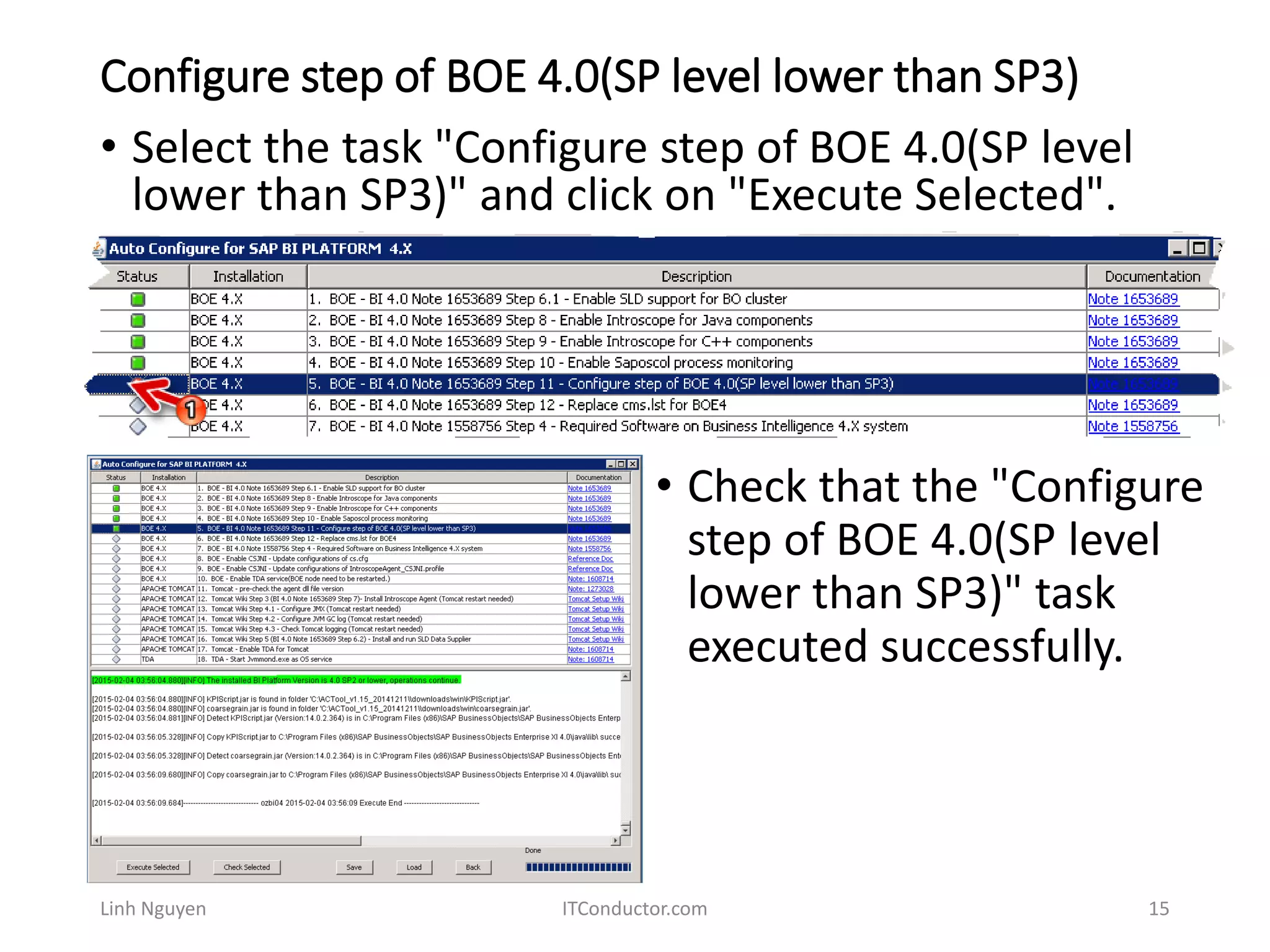
• Select the task "Configure step of BOE 4.0(SP level
lower than SP3)" and click on "Execute Selected".
• Check that the "Configure
step of BOE 4.0(SP level
lower than SP3)" task
executed successfully.
Replace cms.lst for BOE4
Linh Nguyen ITConductor.com 16
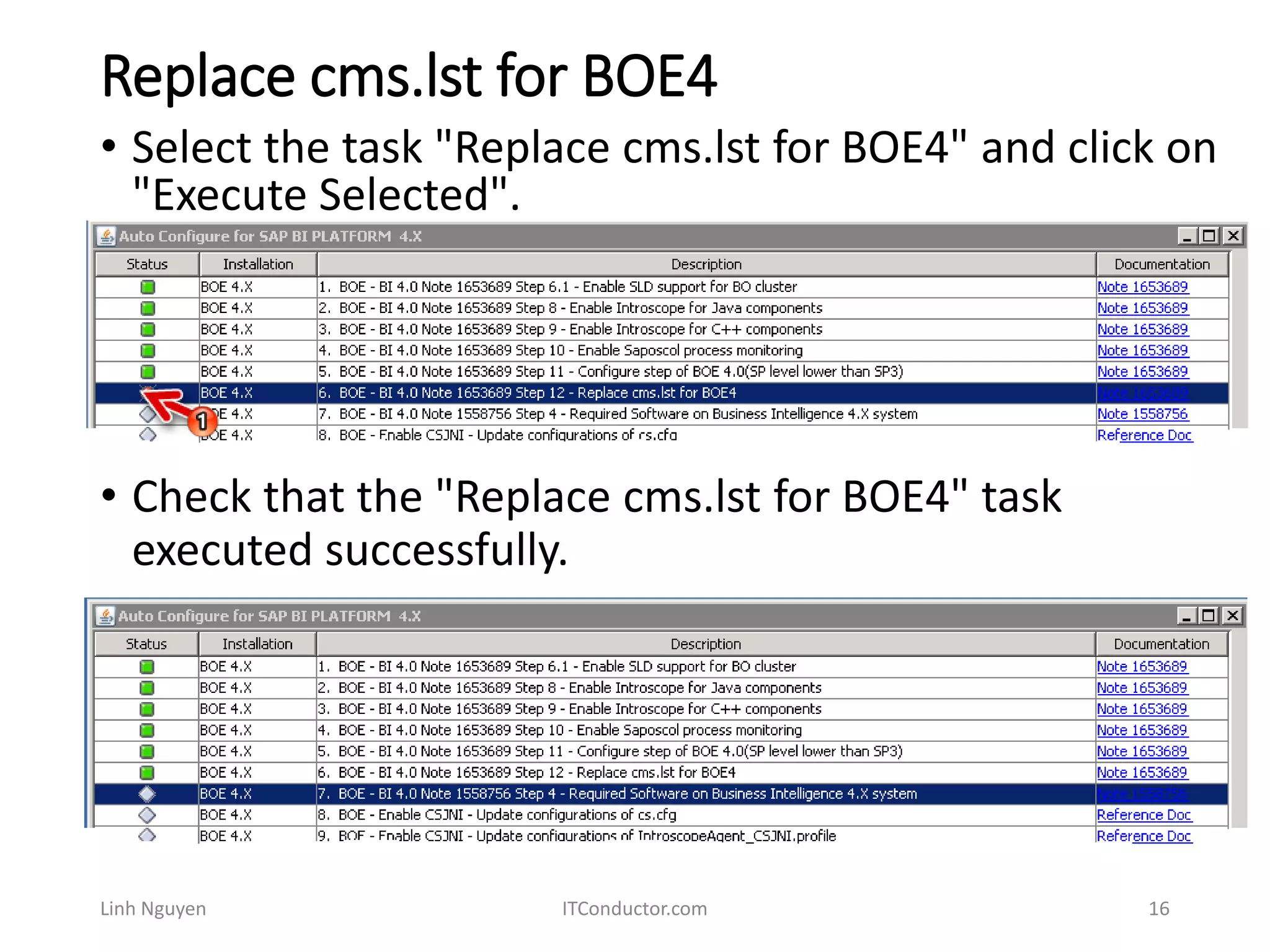
• Select the task "Replace cms.lst for BOE4" and click on
"Execute Selected".
• Check that the "Replace cms.lst for BOE4" task
executed successfully.
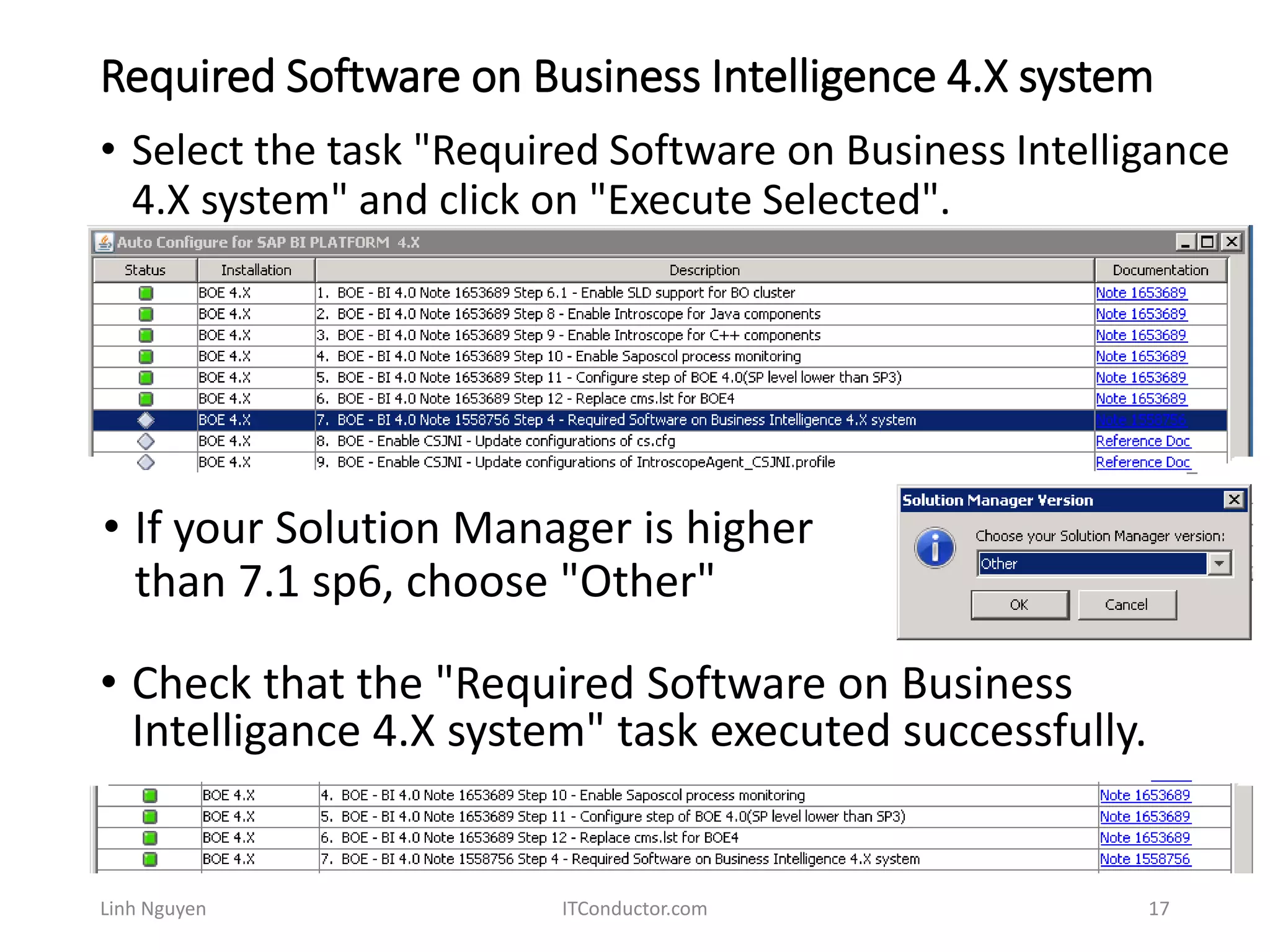
Required Software on Business Intelligence 4.X system
Linh Nguyen ITConductor.com 17
• Select the task "Required Software on Business Intelligance
4.X system" and click on "Execute Selected".
• If your Solution Manager is higher
than 7.1 sp6, choose "Other"
• Check that the "Required Software on Business
Intelligance 4.X system" task executed successfully.
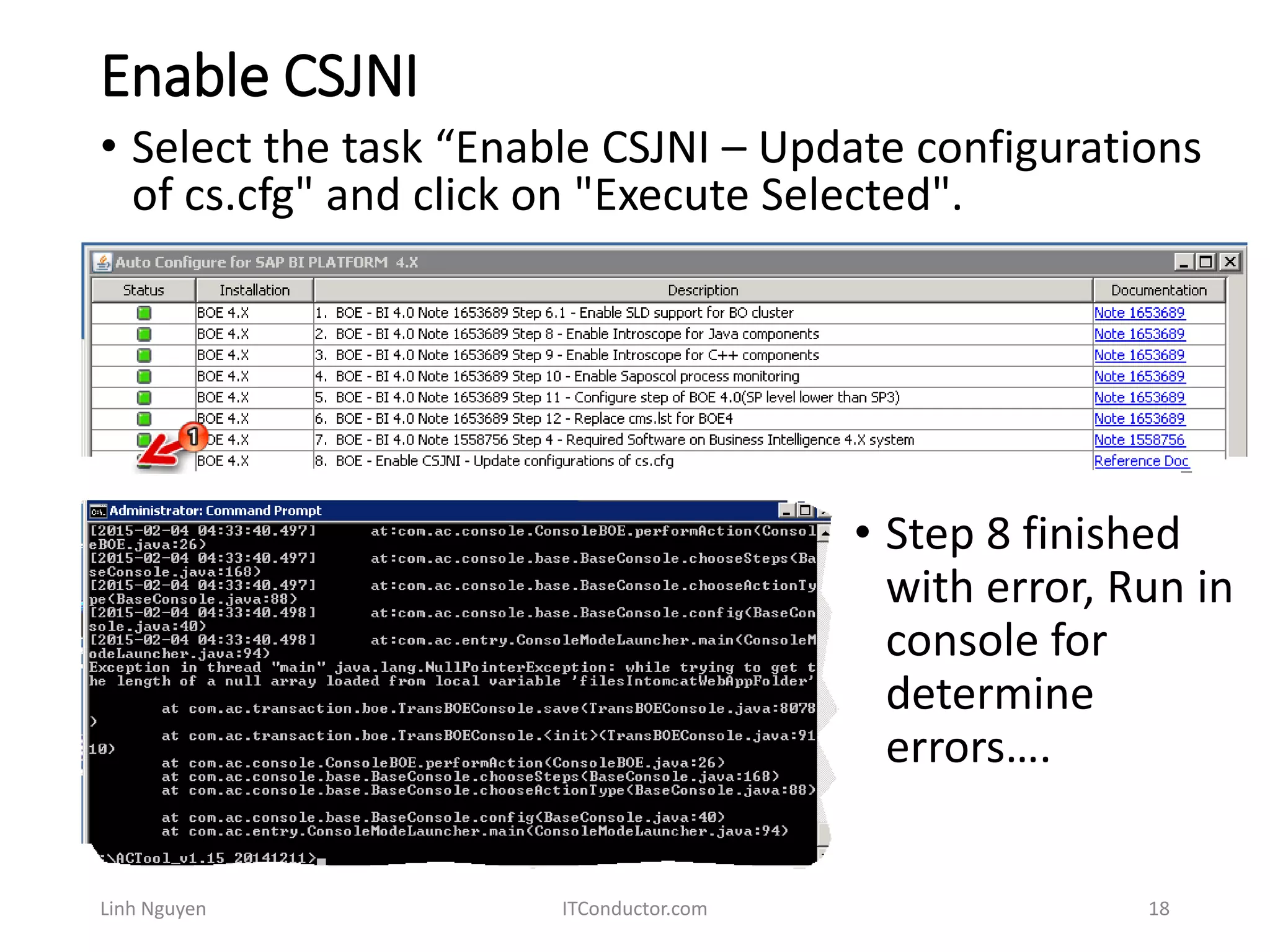
Enable CSJNI
Linh Nguyen ITConductor.com 18
• Select the task “Enable CSJNI – Update configurations
of cs.cfg" and click on "Execute Selected".
• Step 8 finished
with error, Run in
console for
determine
errors….
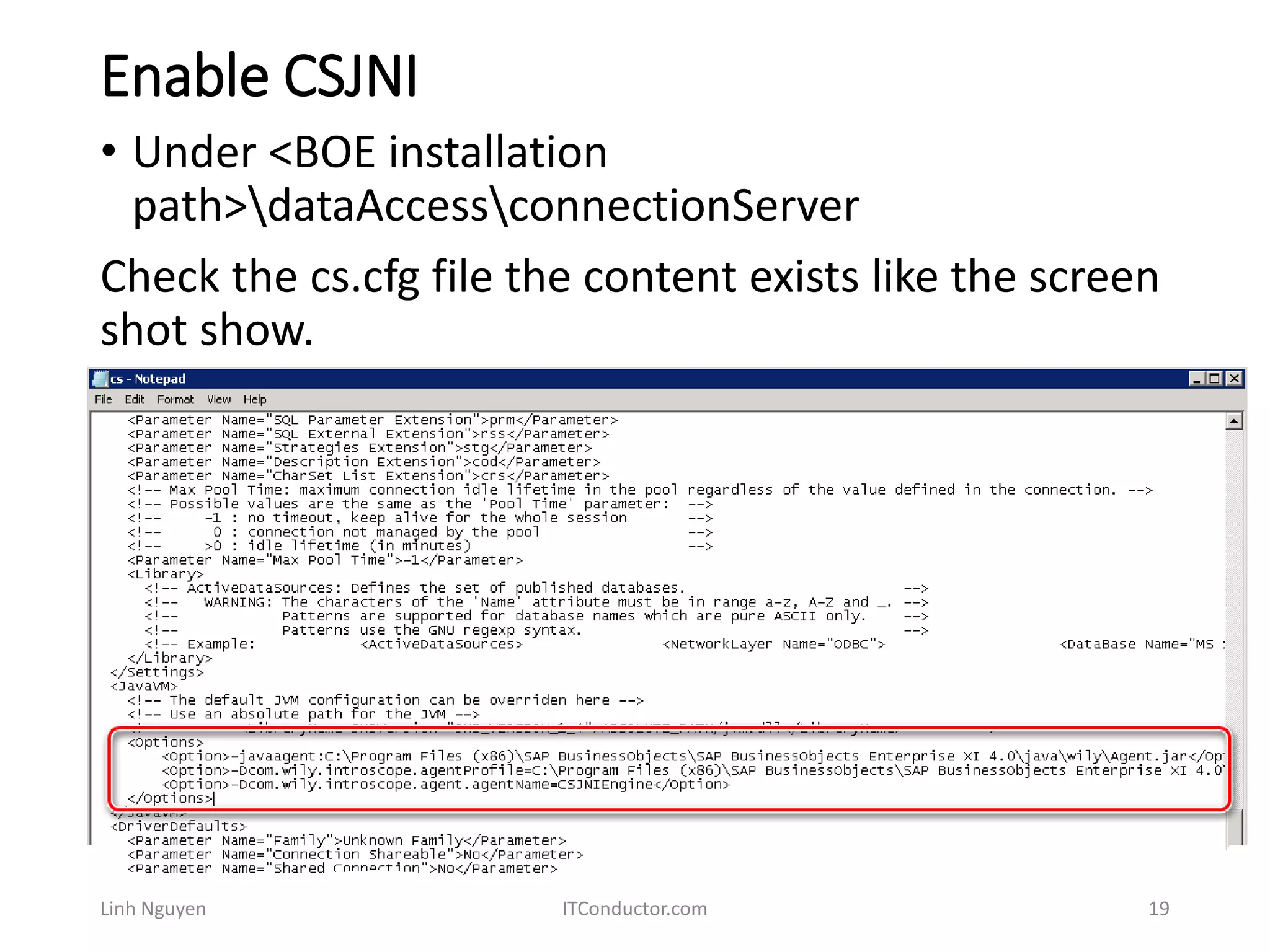
Enable CSJNI
Linh Nguyen ITConductor.com 19
• Under <BOE installation
path>dataAccessconnectionServer
Check the cs.cfg file the content exists like the screen
shot show.
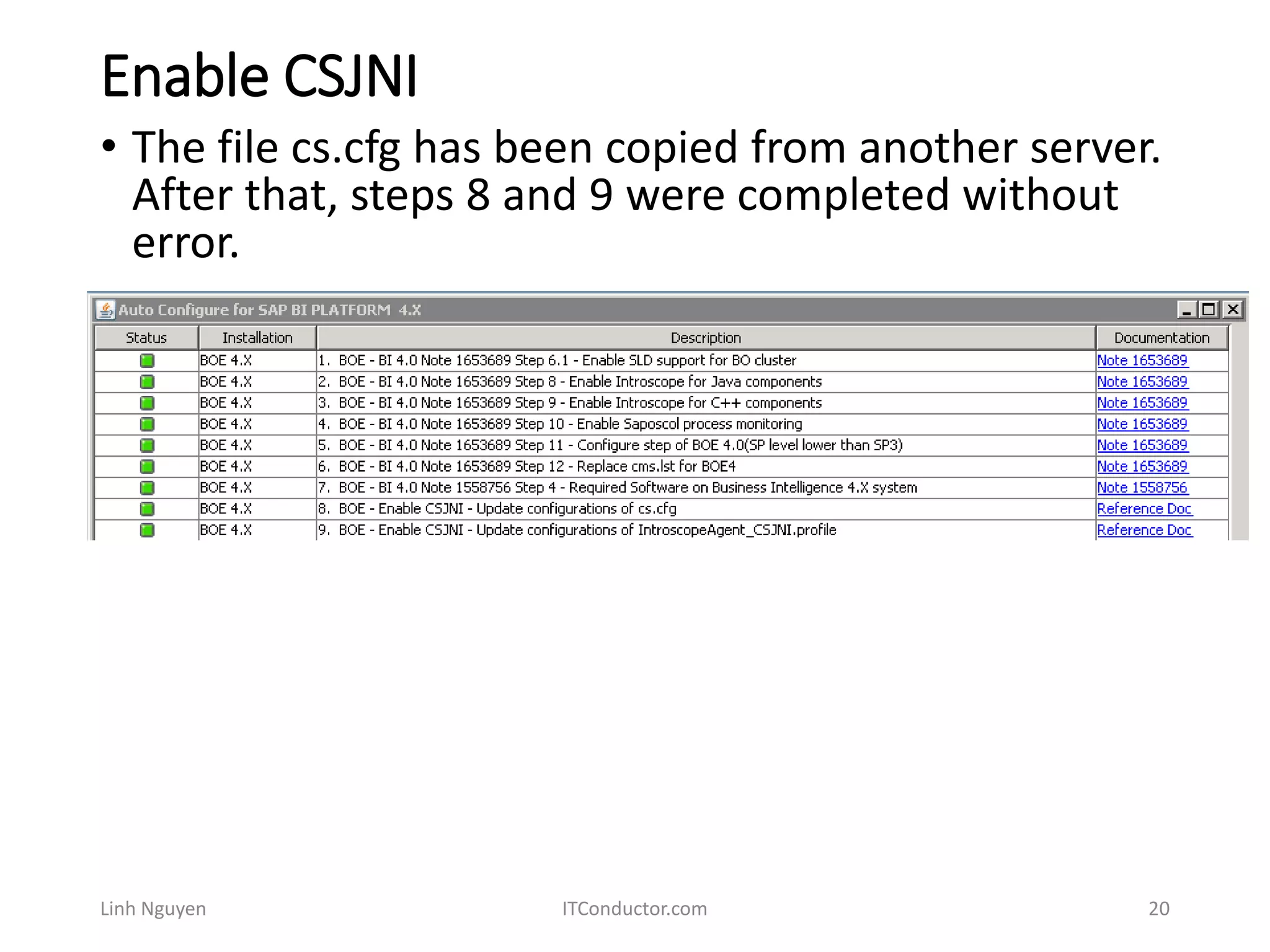
Enable CSJNI
Linh Nguyen ITConductor.com 20
• The file cs.cfg has been copied from another server.
After that, steps 8 and 9 were completed without
error.
Enable TDA Service
Linh Nguyen ITConductor.com 21
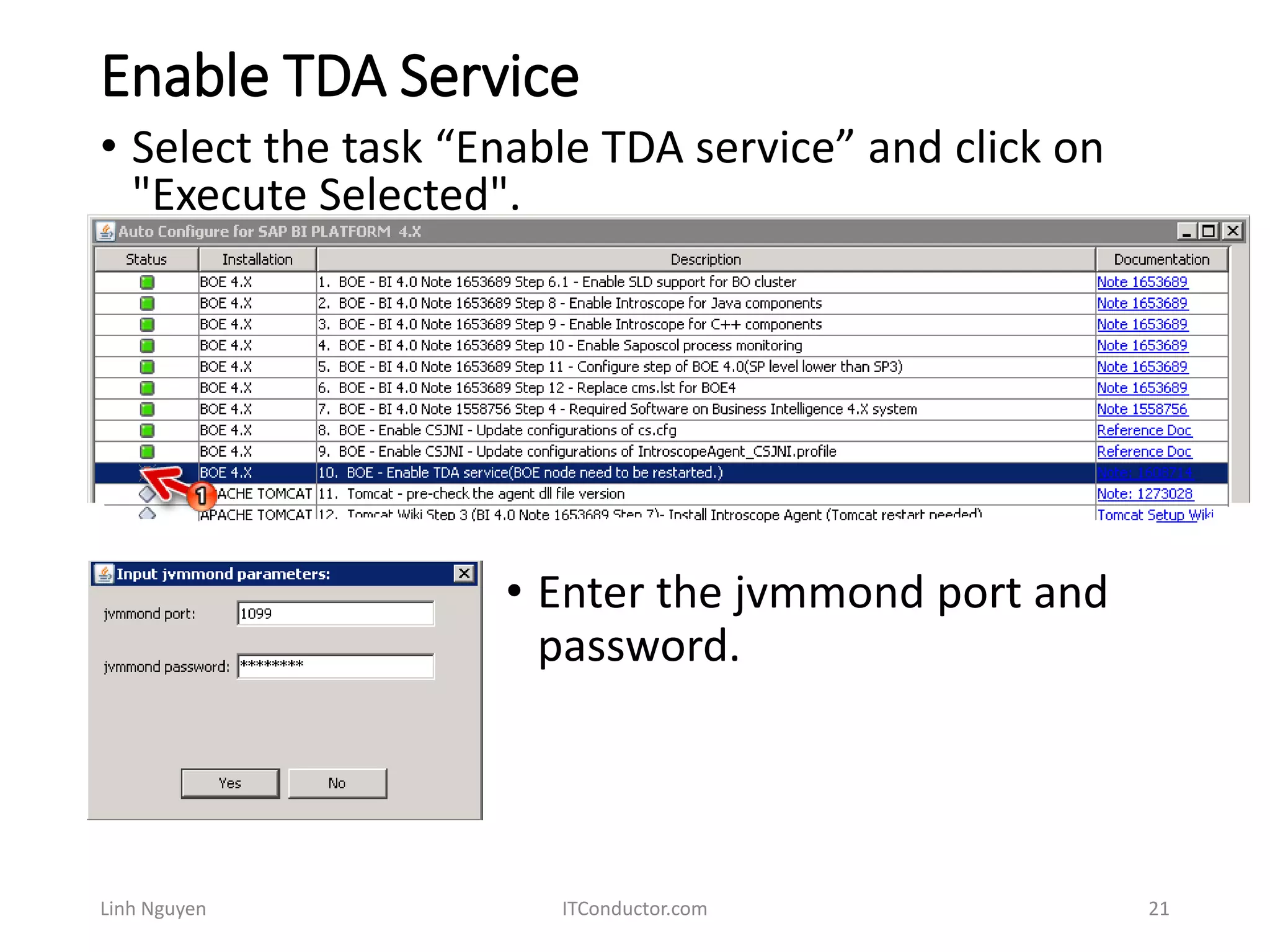
• Select the task “Enable TDA service” and click on
"Execute Selected".
• Enter the jvmmond port and
password.
Enable TDA Service
Linh Nguyen ITConductor.com 22
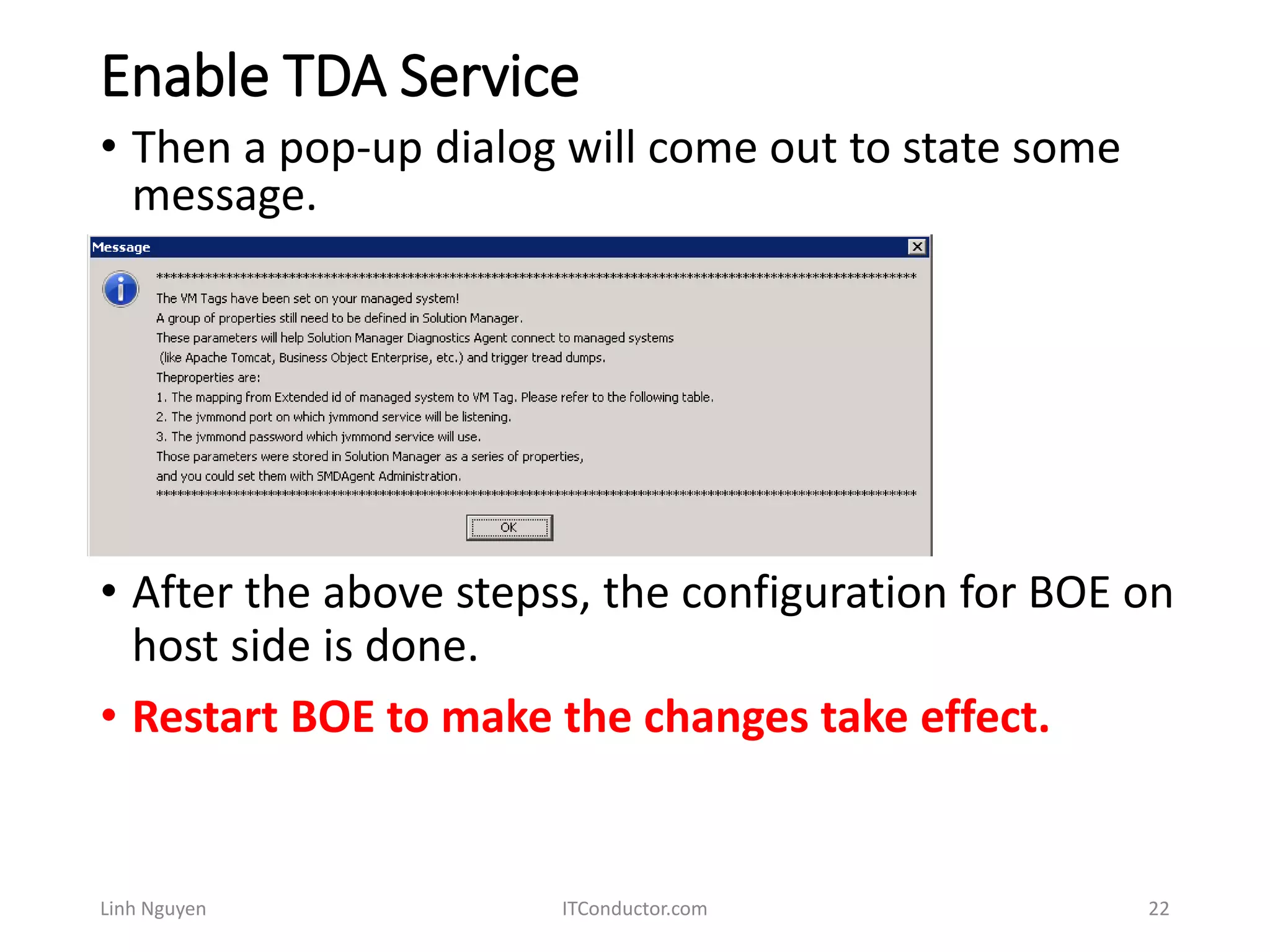
• Then a pop-up dialog will come out to state some
message.
• After the above stepss, the configuration for BOE on
host side is done.
• Restart BOE to make the changes take effect.
Enable TDA Service
Linh Nguyen ITConductor.com 23
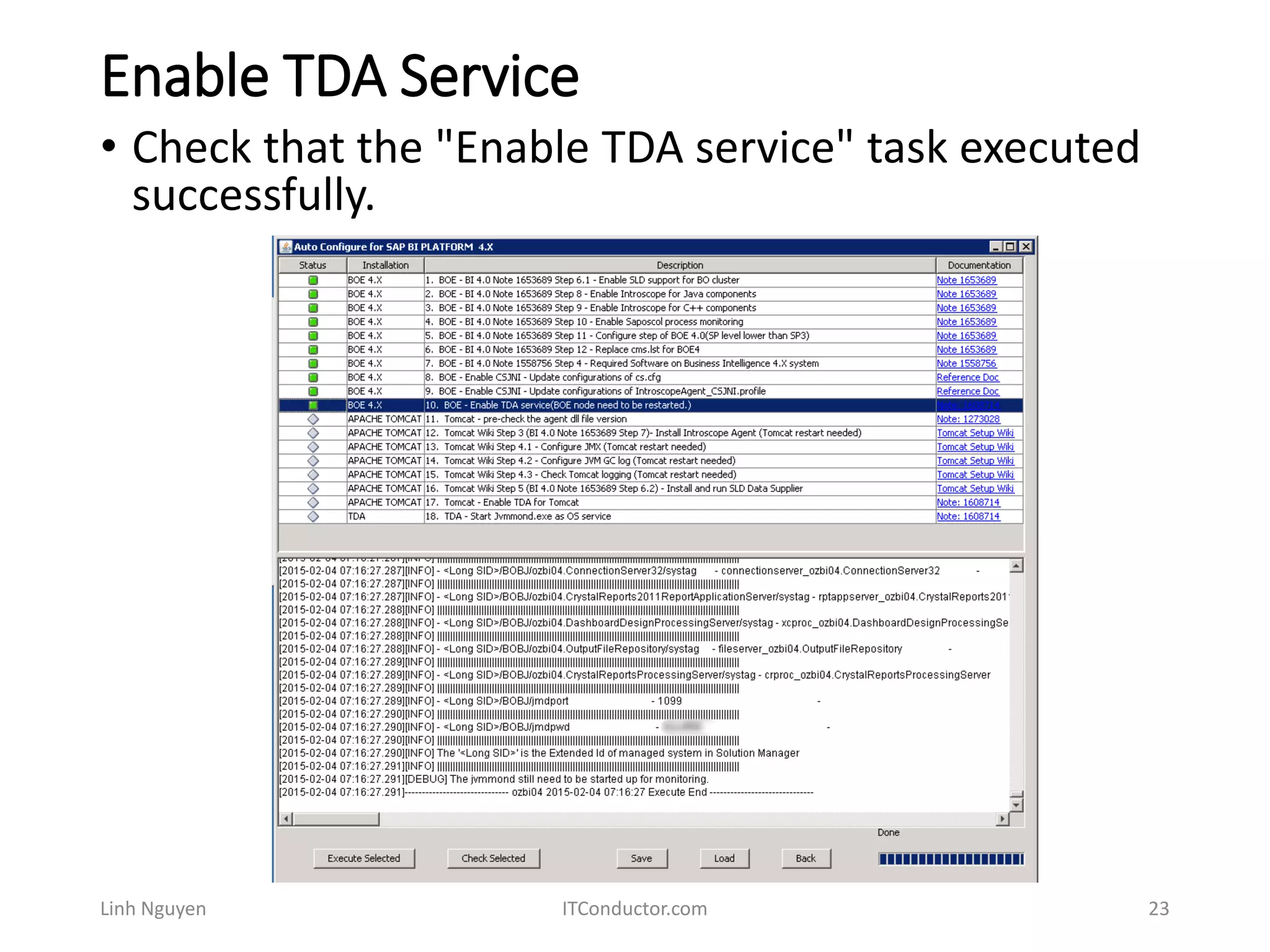
• Check that the "Enable TDA service" task executed
successfully.
Tomcat – pre-check the agent dll file version
Linh Nguyen ITConductor.com 24
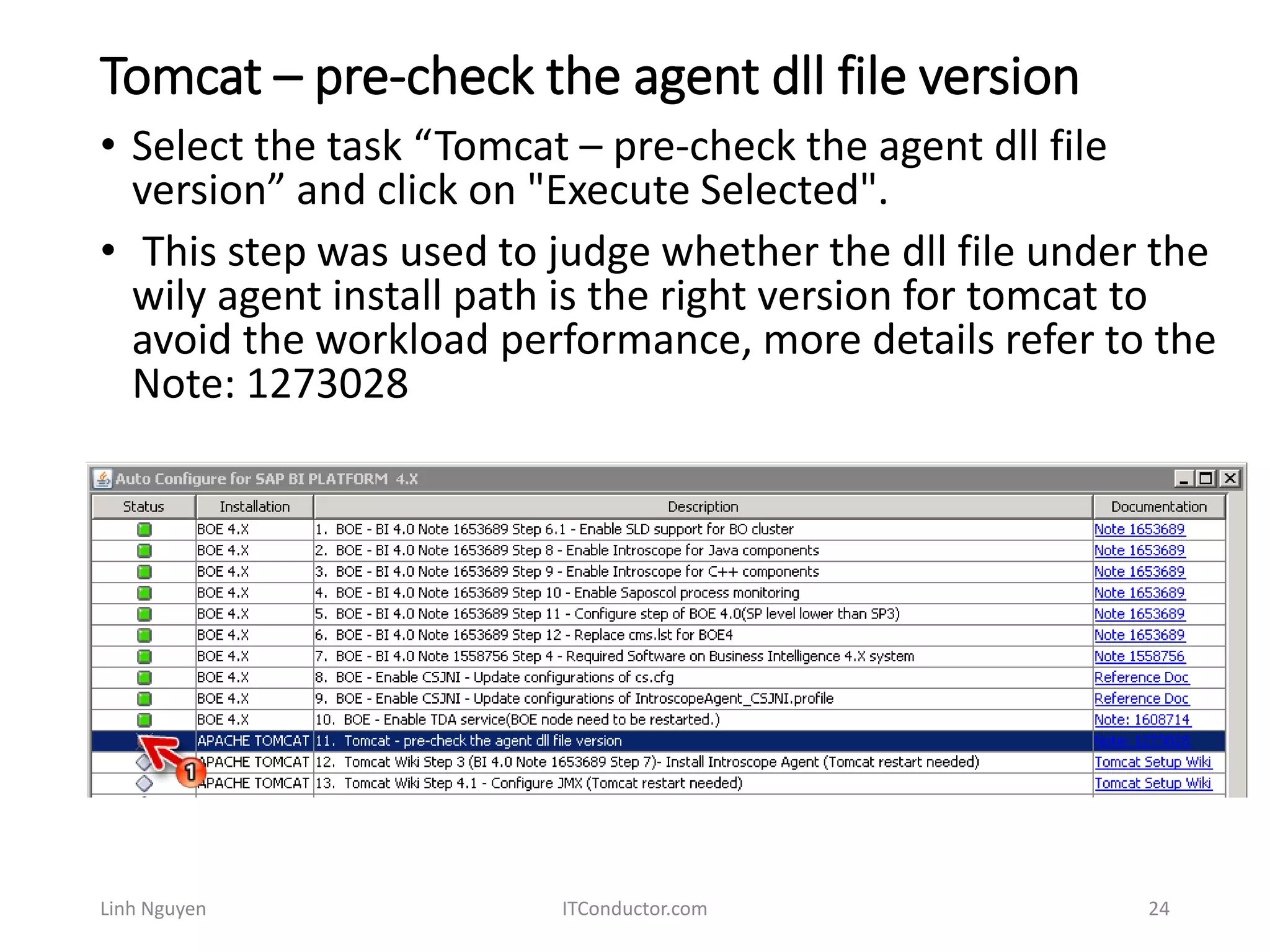
• Select the task “Tomcat – pre-check the agent dll file
version” and click on "Execute Selected".
• This step was used to judge whether the dll file under the
wily agent install path is the right version for tomcat to
avoid the workload performance, more details refer to the
Note: 1273028
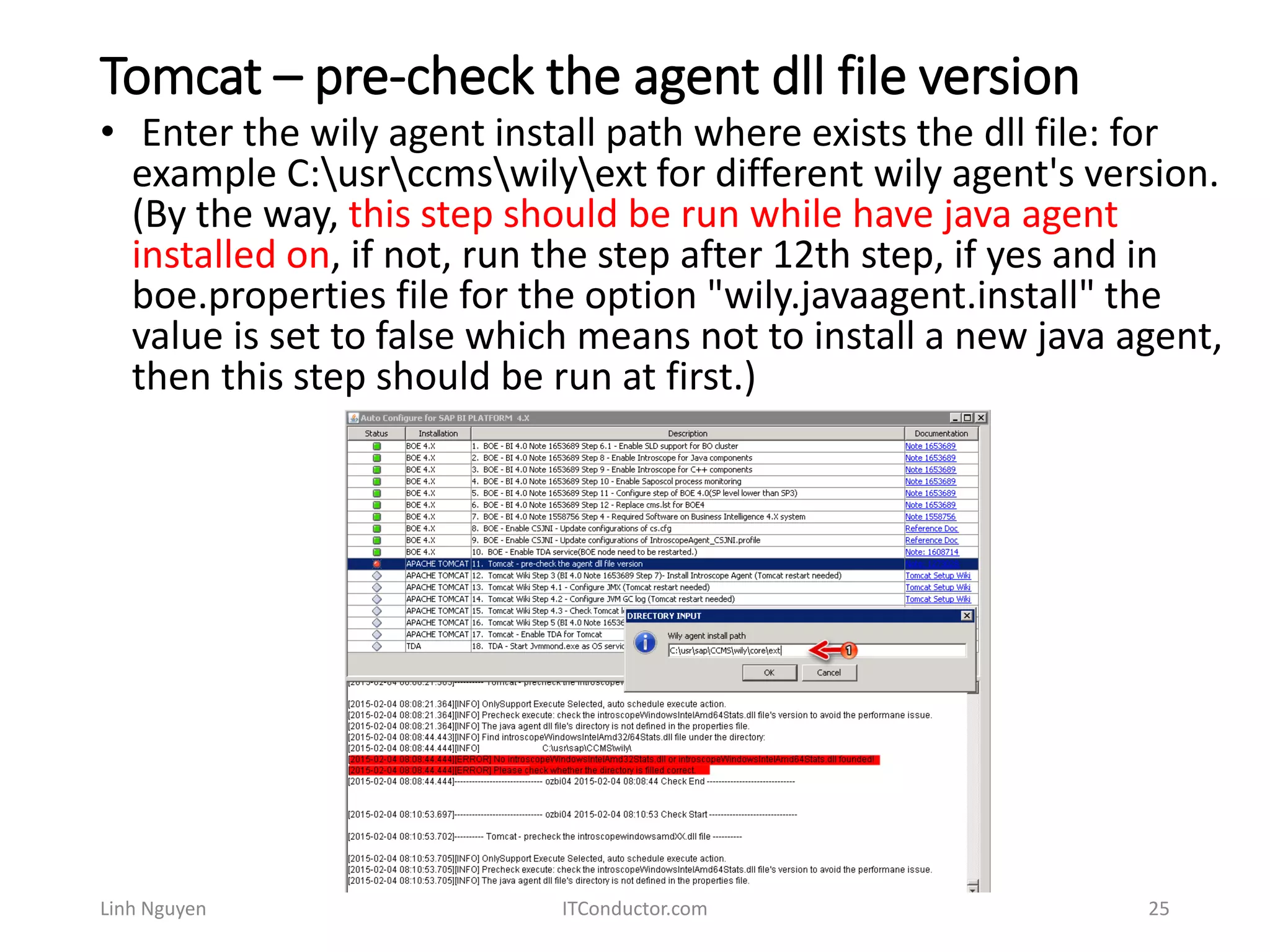
Tomcat – pre-check the agent dll file version
Linh Nguyen ITConductor.com 25
• Enter the wily agent install path where exists the dll file: for
example C:usrccmswilyext for different wily agent's version.
(By the way, this step should be run while have java agent
installed on, if not, run the step after 12th step, if yes and in
boe.properties file for the option "wily.javaagent.install" the
value is set to false which means not to install a new java agent,
then this step should be run at first.)
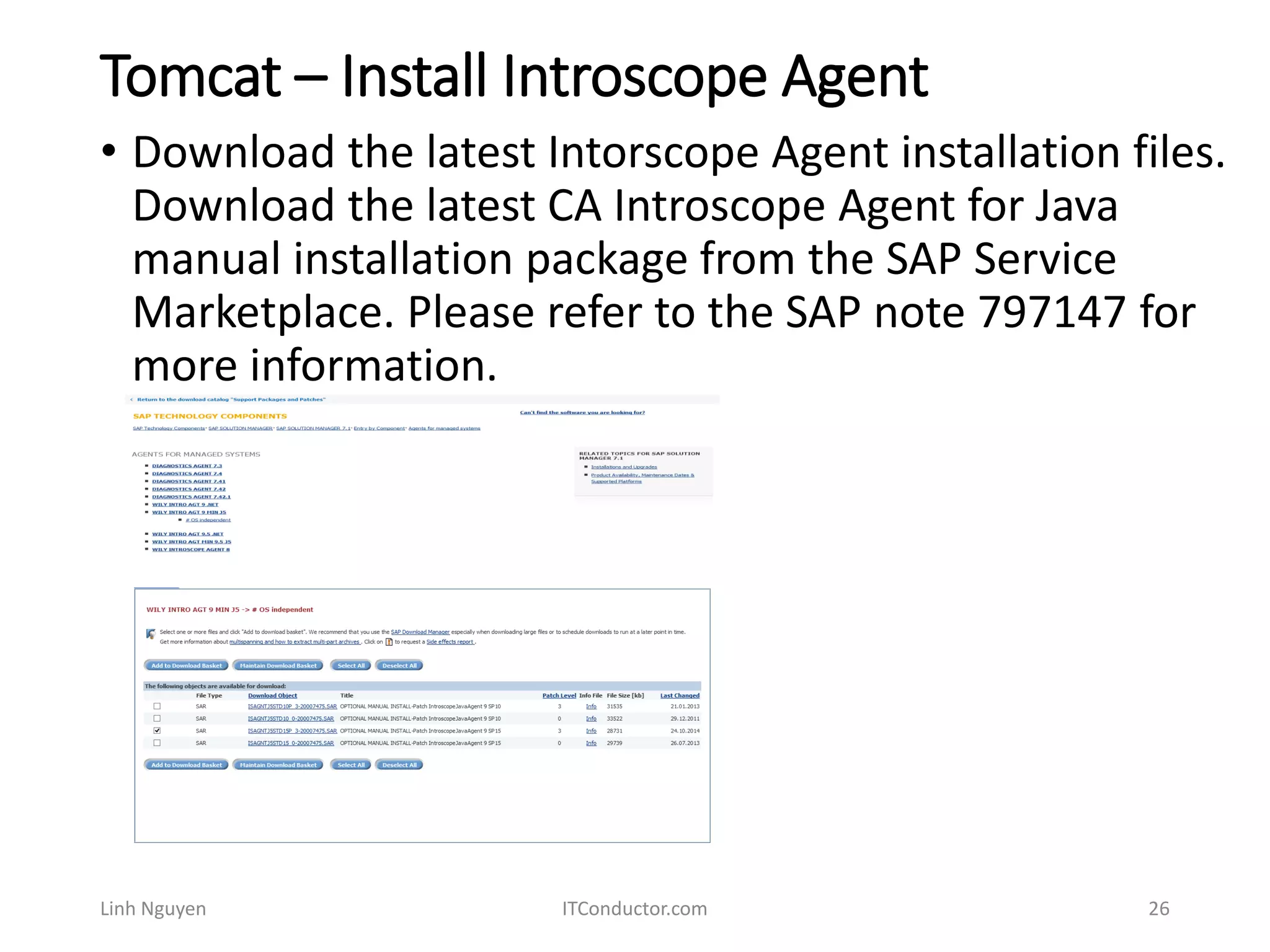
Tomcat – Install Introscope Agent
Linh Nguyen ITConductor.com 26
• Download the latest Intorscope Agent installation files.
Download the latest CA Introscope Agent for Java
manual installation package from the SAP Service
Marketplace. Please refer to the SAP note 797147 for
more information.
Tomcat – Install Introscope Agent
Linh Nguyen ITConductor.com 27
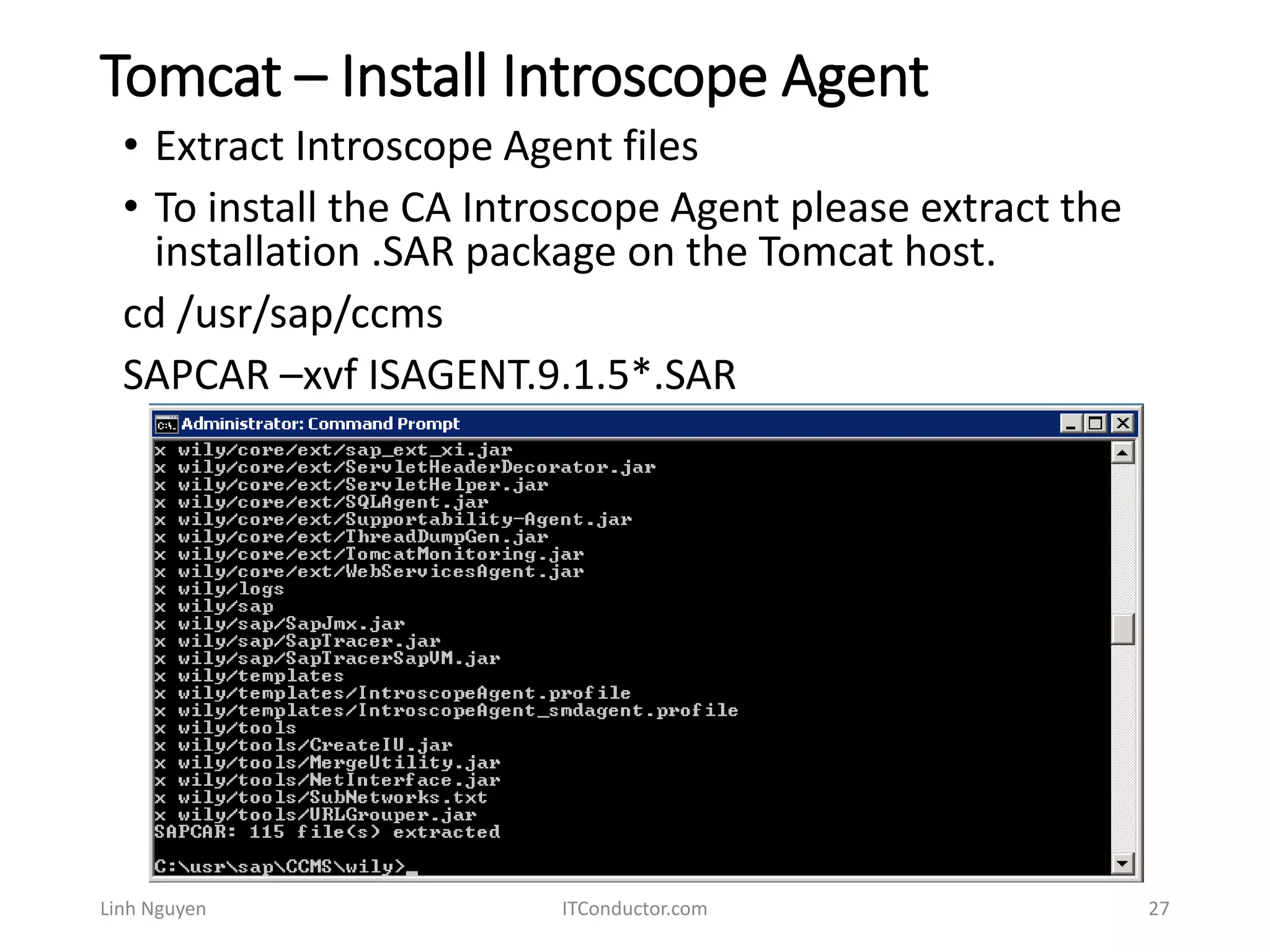
• Extract Introscope Agent files
• To install the CA Introscope Agent please extract the
installation .SAR package on the Tomcat host.
cd /usr/sap/ccms
SAPCAR –xvf ISAGENT.9.1.5*.SAR
Tomcat – Install Introscope Agent
Linh Nguyen ITConductor.com 28
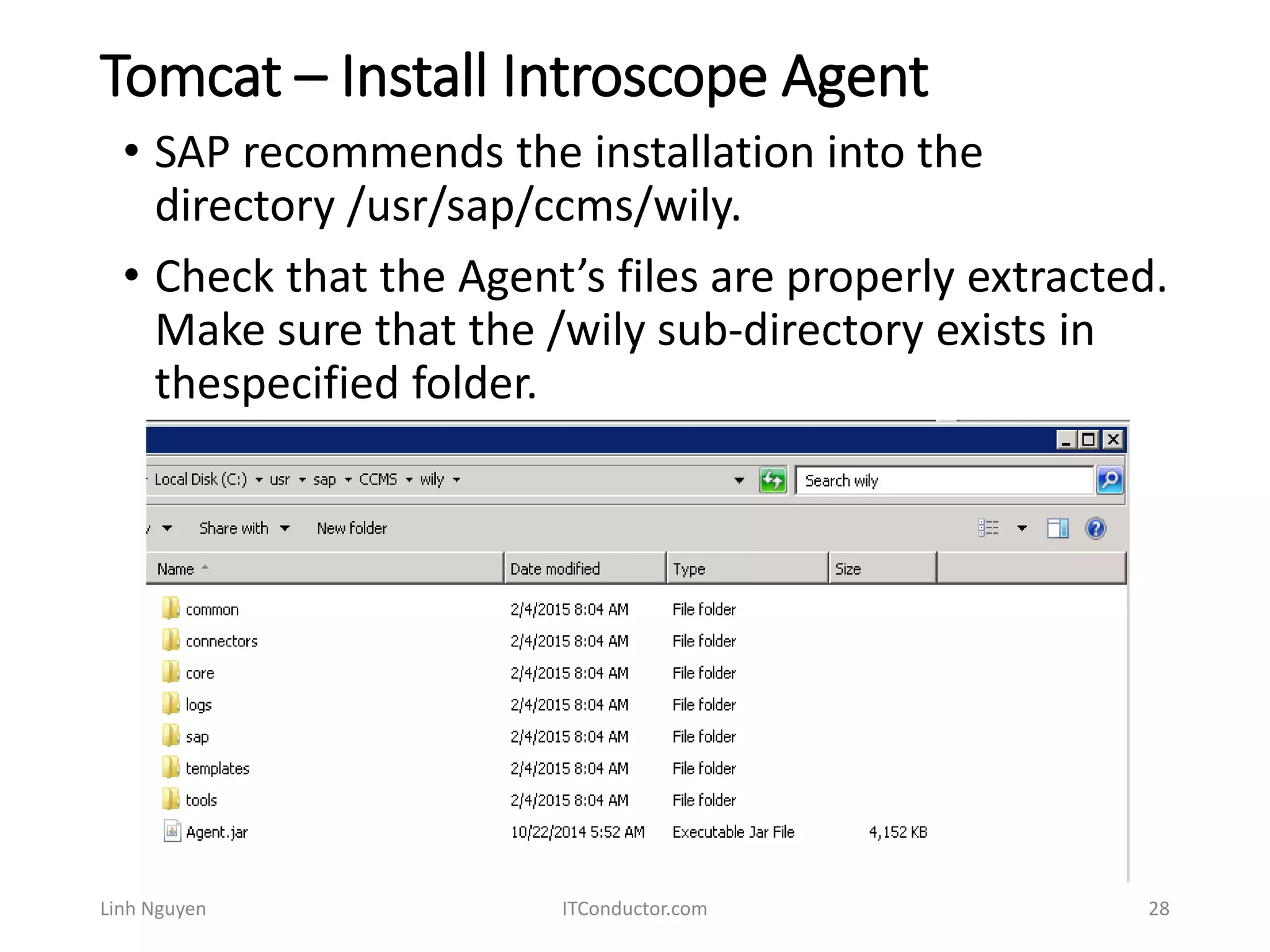
• SAP recommends the installation into the
directory /usr/sap/ccms/wily.
• Check that the Agent’s files are properly extracted.
Make sure that the /wily sub-directory exists in
thespecified folder.
Tomcat – Install Introscope Agent
Linh Nguyen ITConductor.com 29
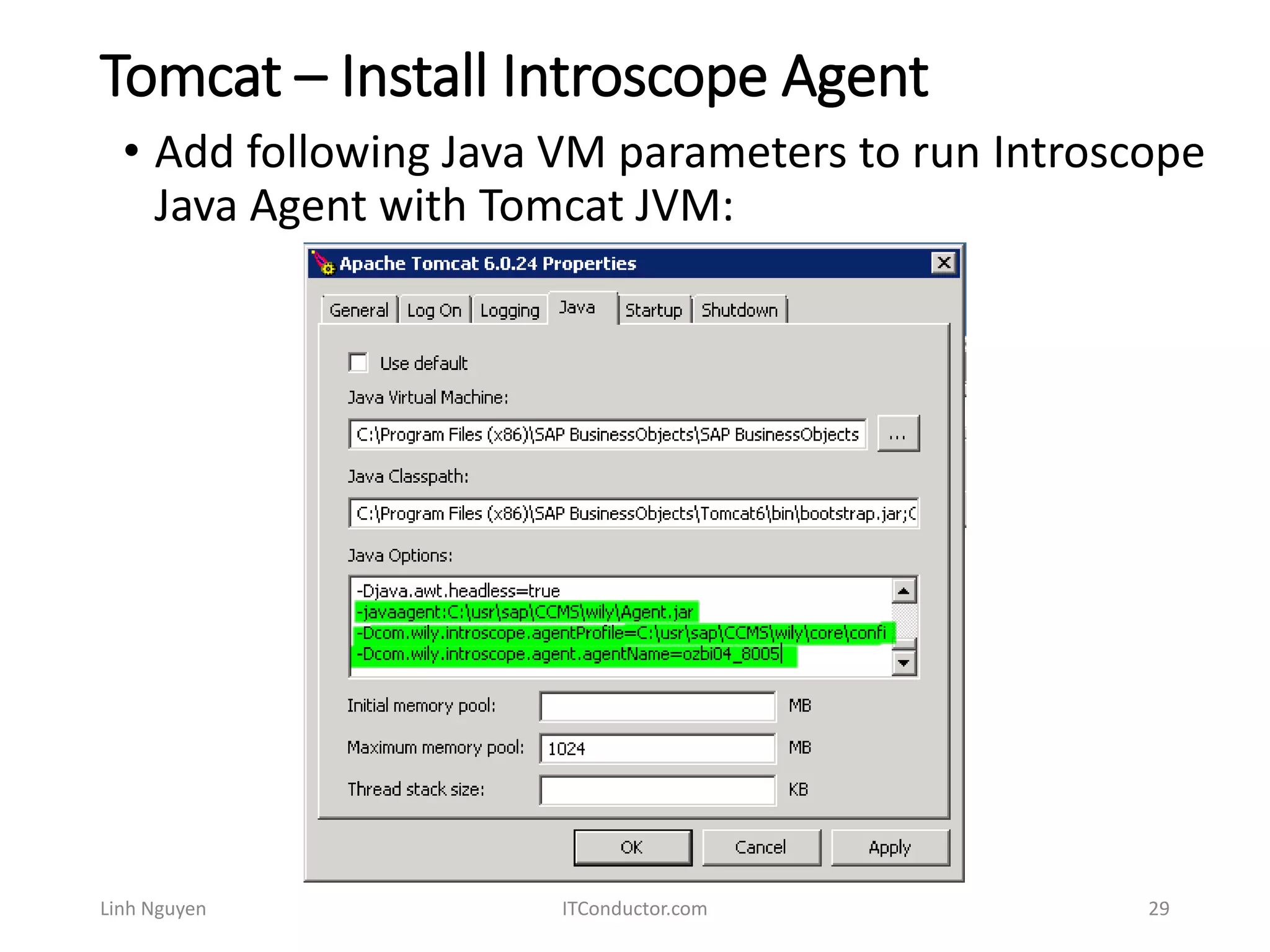
• Add following Java VM parameters to run Introscope
Java Agent with Tomcat JVM:
Tomcat – Install Introscope Agent
Linh Nguyen ITConductor.com 30
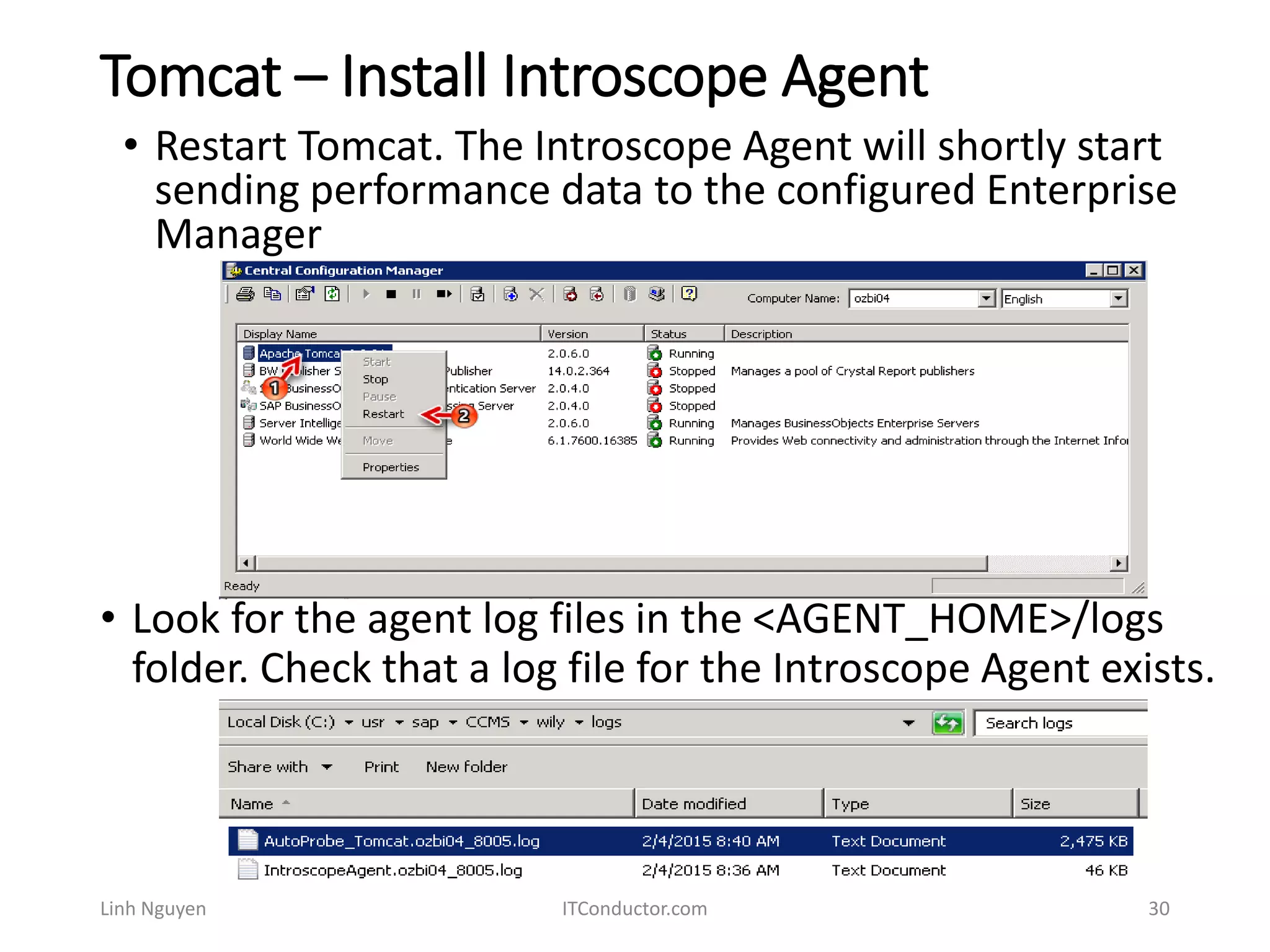
• Restart Tomcat. The Introscope Agent will shortly start
sending performance data to the configured Enterprise
Manager
• Look for the agent log files in the <AGENT_HOME>/logs
folder. Check that a log file for the Introscope Agent exists.
Tomcat – Install Introscope Agent
Linh Nguyen ITConductor.com 31
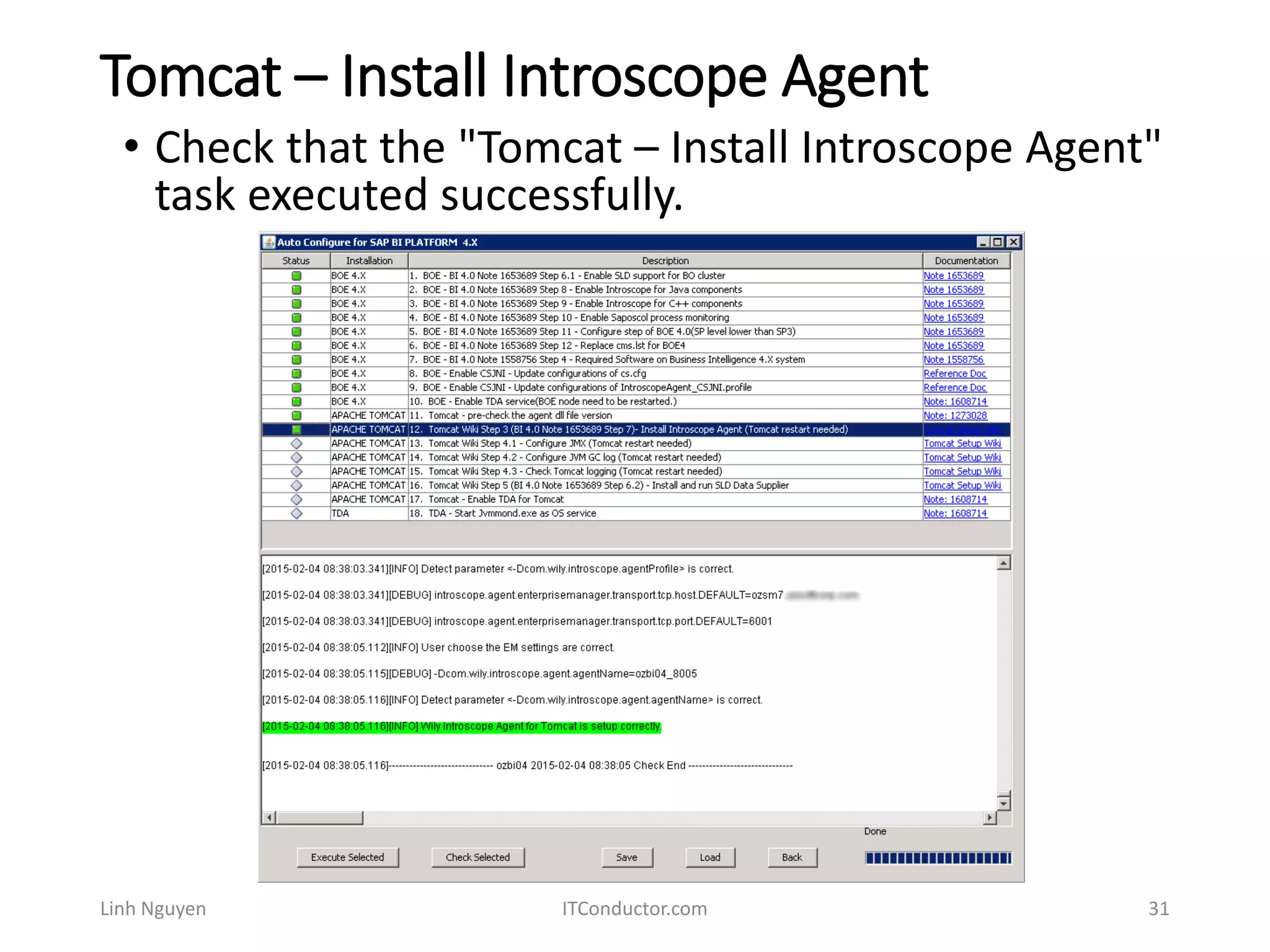
• Check that the "Tomcat – Install Introscope Agent"
task executed successfully.
Configure JVM GC log
Linh Nguyen ITConductor.com 32
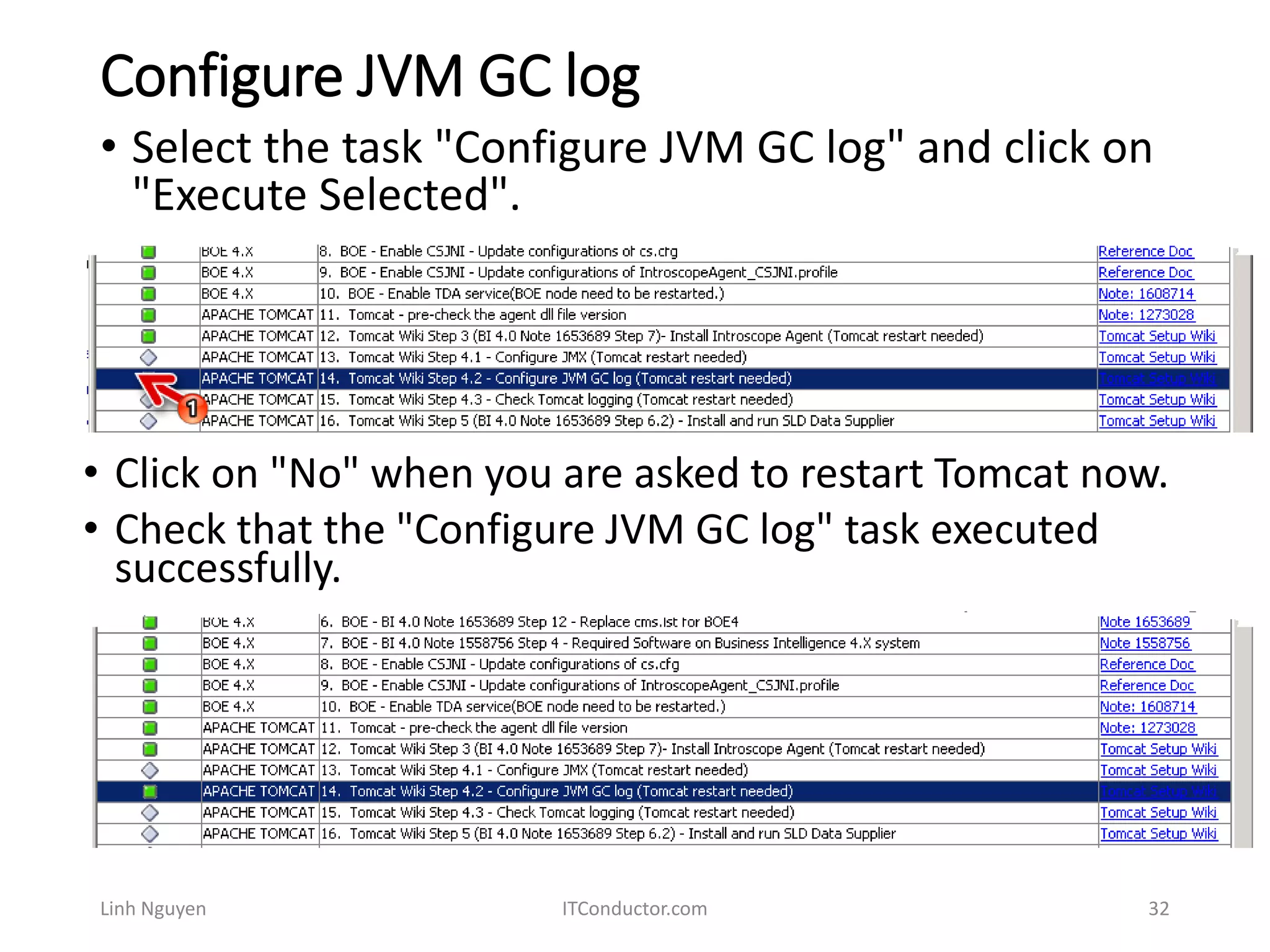
• Select the task "Configure JVM GC log" and click on
"Execute Selected".
• Click on "No" when you are asked to restart Tomcat now.
• Check that the "Configure JVM GC log" task executed
successfully.
Check Tomcat logging
Linh Nguyen ITConductor.com 33
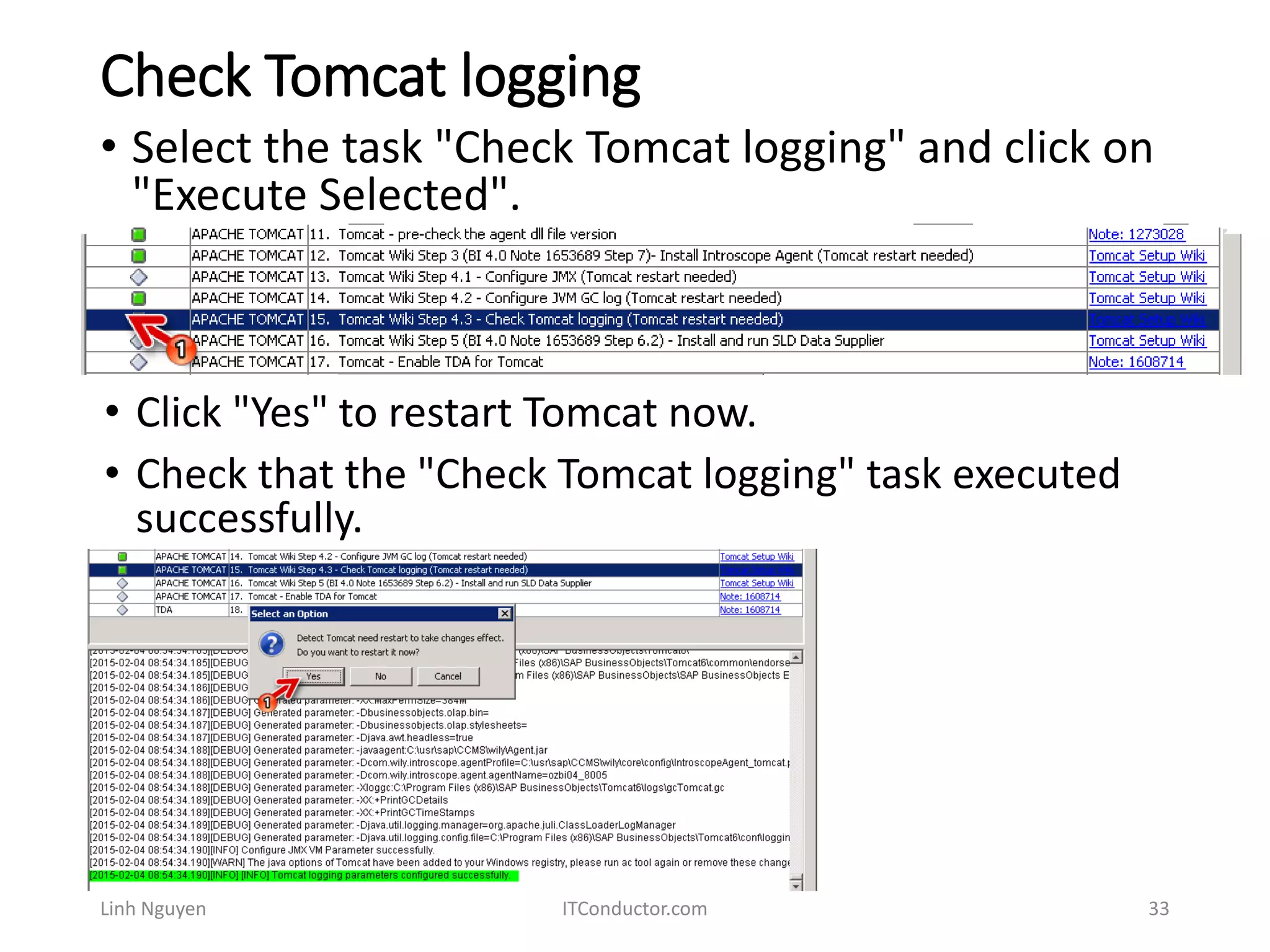
• Select the task "Check Tomcat logging" and click on
"Execute Selected".
• Click "Yes" to restart Tomcat now.
• Check that the "Check Tomcat logging" task executed
successfully.
Install and run SLD Data Supplier
Linh Nguyen ITConductor.com 34
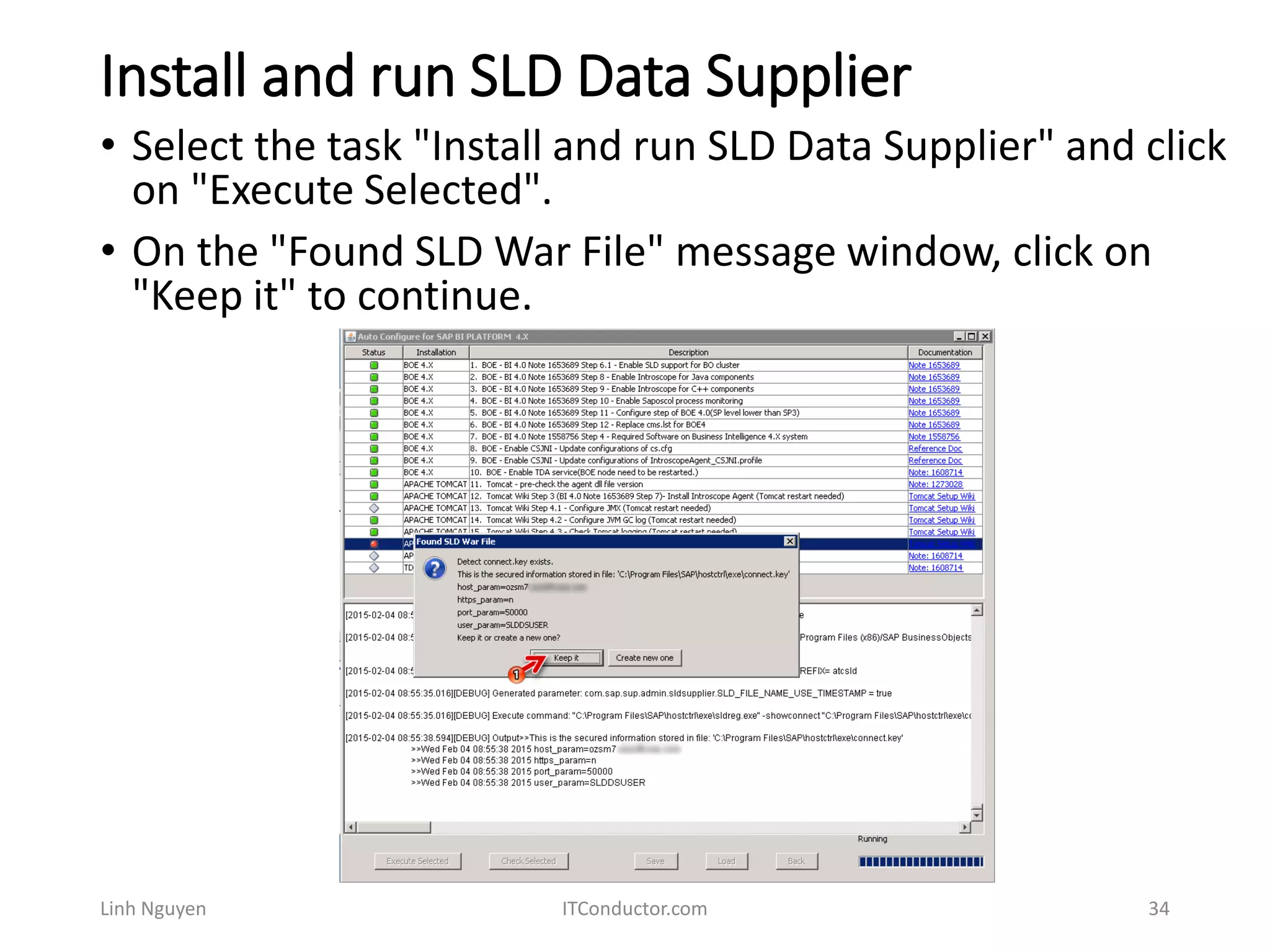
• Select the task "Install and run SLD Data Supplier" and click
on "Execute Selected".
• On the "Found SLD War File" message window, click on
"Keep it" to continue.
Install and run SLD Data Supplier
Linh Nguyen ITConductor.com 35
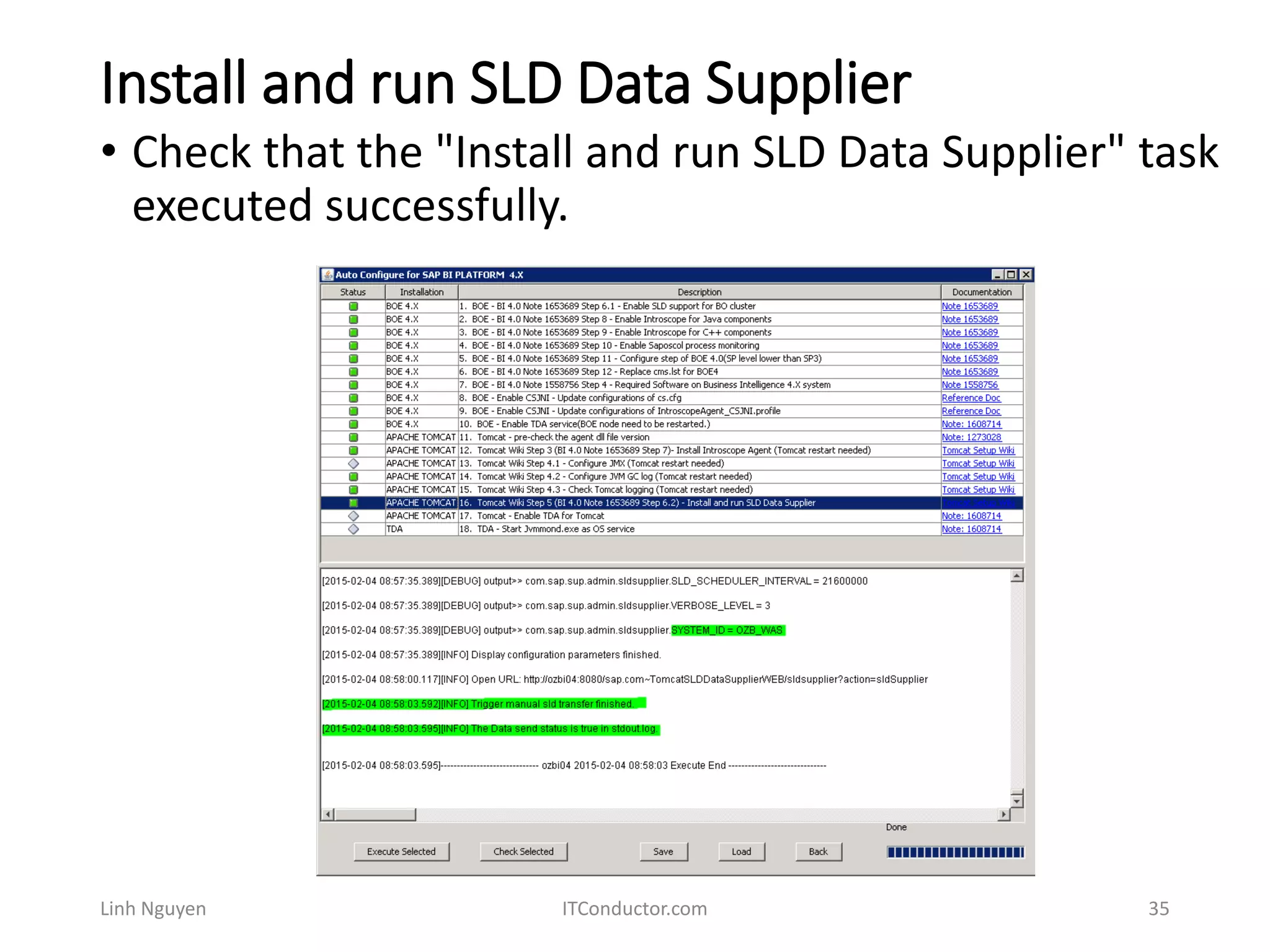
• Check that the "Install and run SLD Data Supplier" task
executed successfully.
Enable TDA for Tomcat
Linh Nguyen ITConductor.com 36
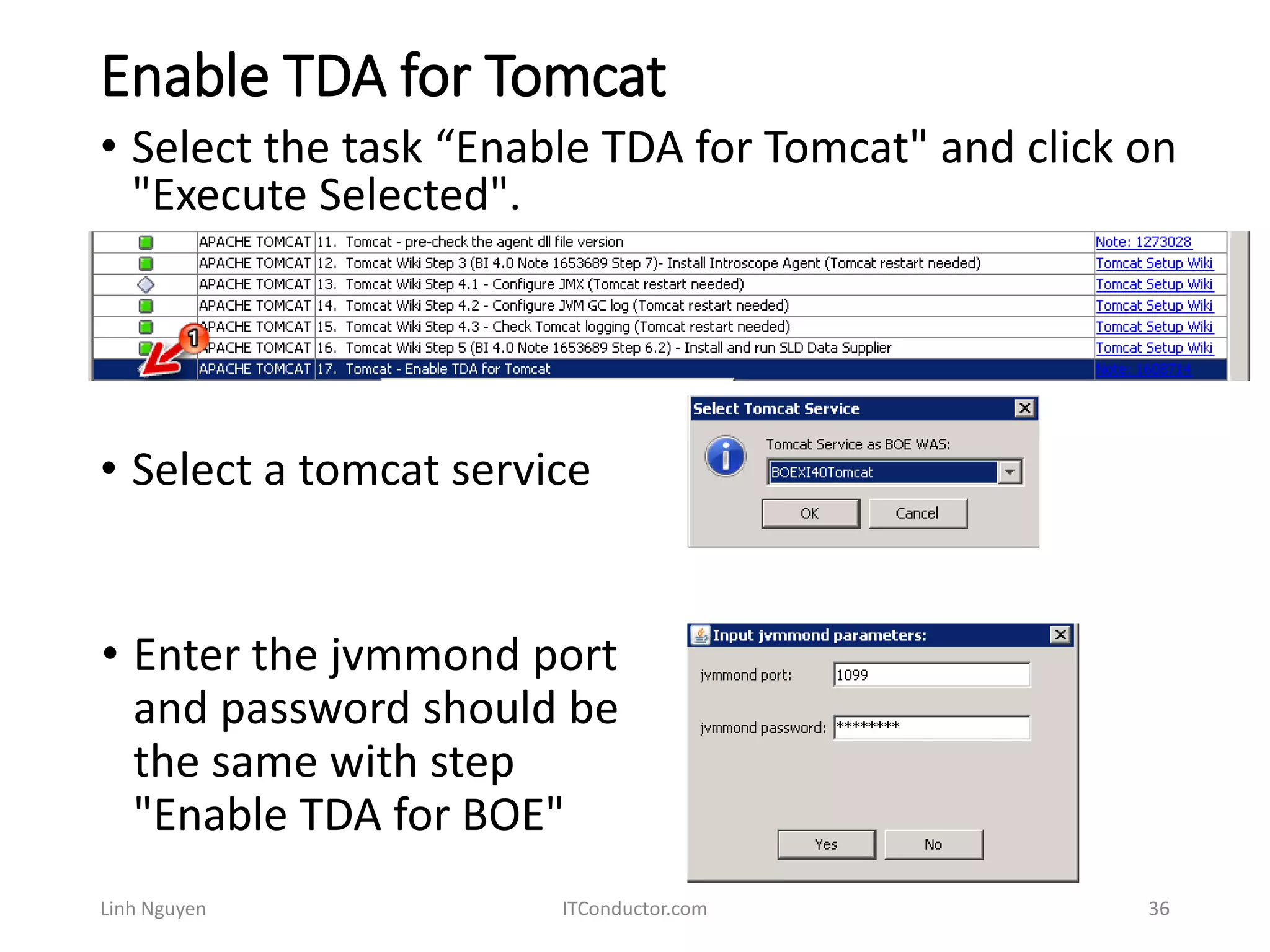
• Select the task “Enable TDA for Tomcat" and click on
"Execute Selected".
• Select a tomcat service
• Enter the jvmmond port
and password should be
the same with step
"Enable TDA for BOE"
Enable TDA for Tomcat
Linh Nguyen ITConductor.com 37
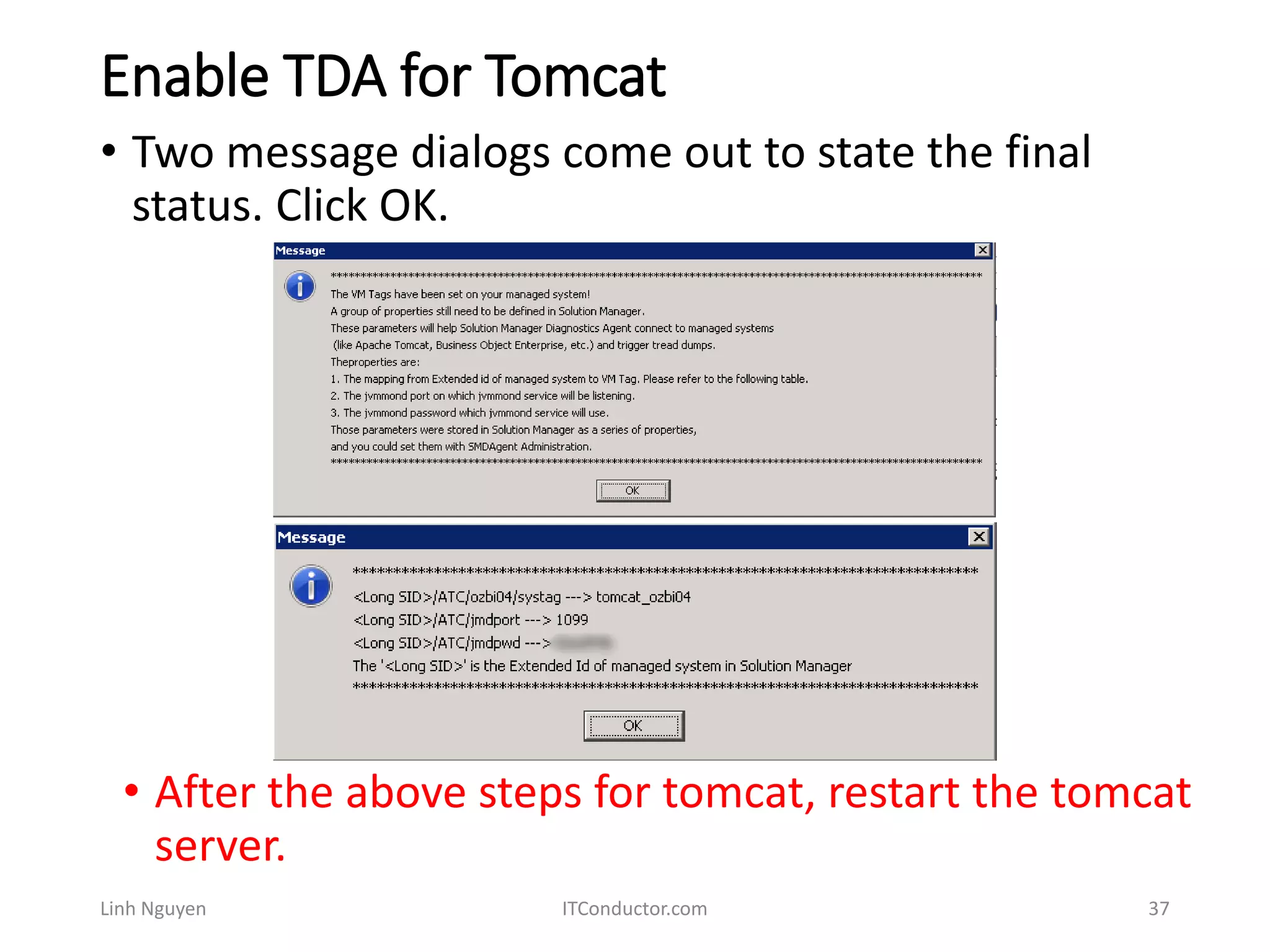
• Two message dialogs come out to state the final
status. Click OK.
• After the above steps for tomcat, restart the tomcat
server.
Start Jvmmond.exe as OS service
Linh Nguyen ITConductor.com 38
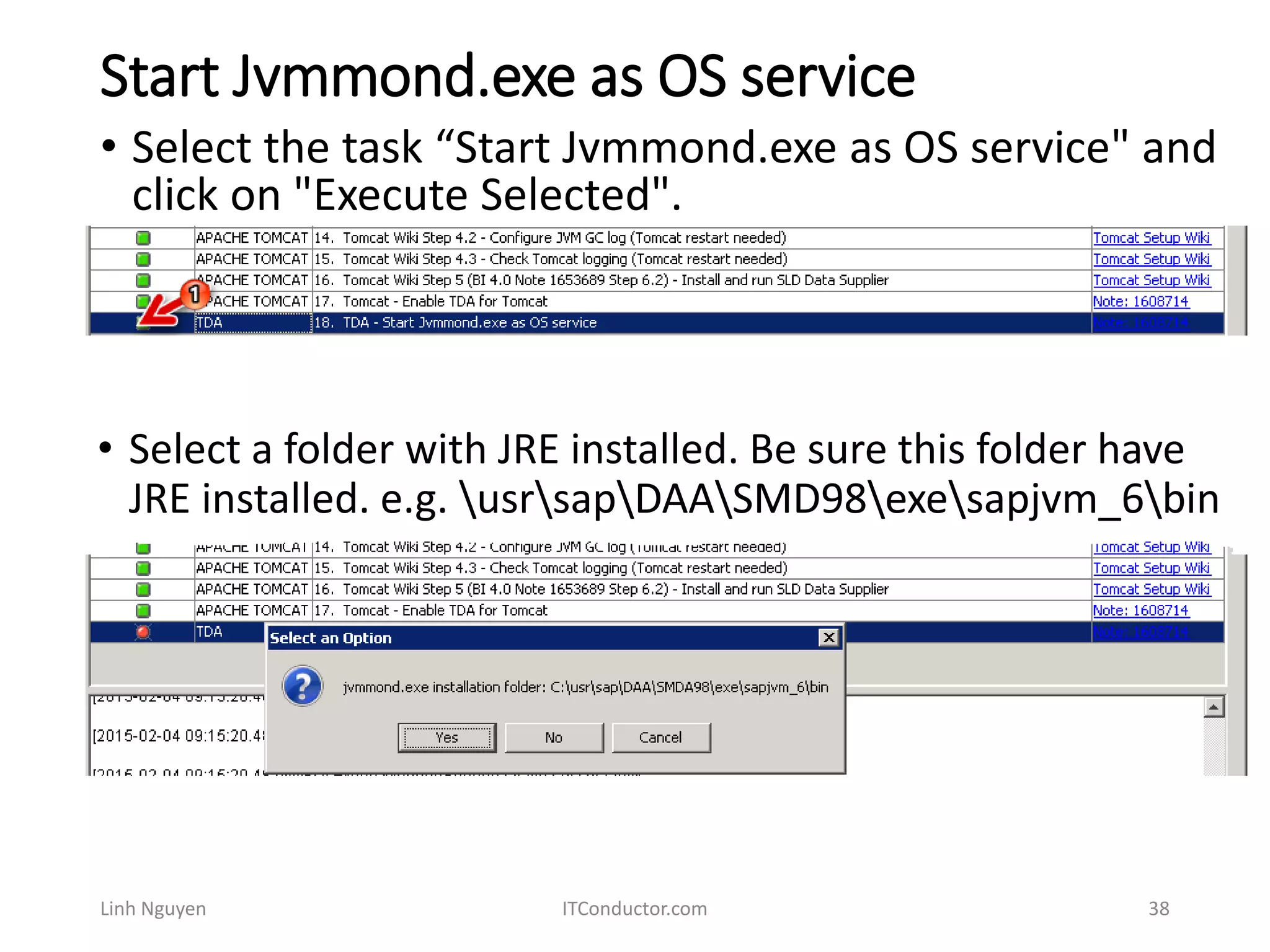
• Select the task “Start Jvmmond.exe as OS service" and
click on "Execute Selected".
• Select a folder with JRE installed. Be sure this folder have
JRE installed. e.g. usrsapDAASMD98exesapjvm_6bin
Start Jvmmond.exe as OS service
Linh Nguyen ITConductor.com 39
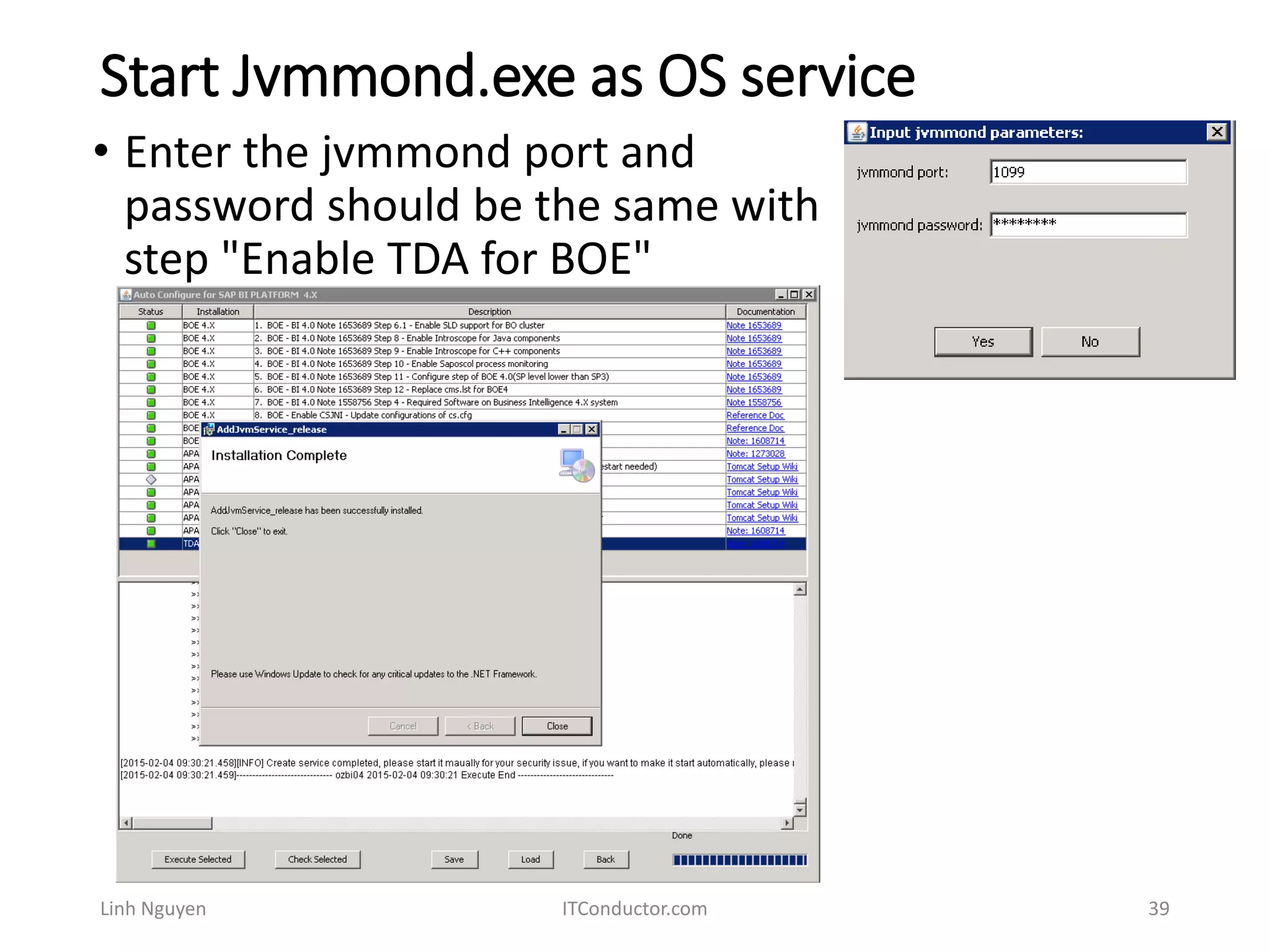
• Enter the jvmmond port and
password should be the same with
step "Enable TDA for BOE"
Start Jvmmond.exe as OS service
Linh Nguyen ITConductor.com 40
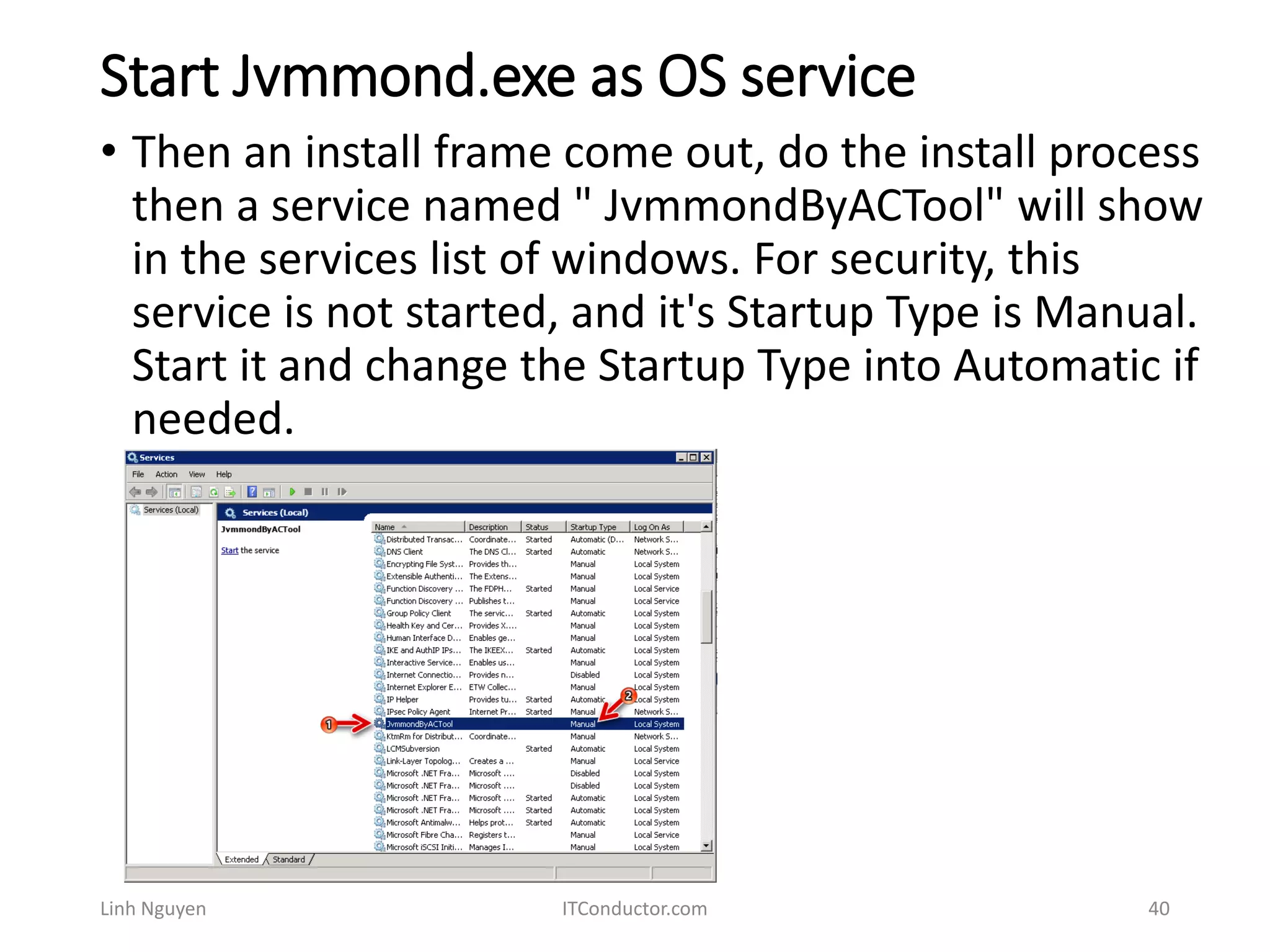
• Then an install frame come out, do the install process
then a service named " JvmmondByACTool" will show
in the services list of windows. For security, this
service is not started, and it's Startup Type is Manual.
Start it and change the Startup Type into Automatic if
needed.
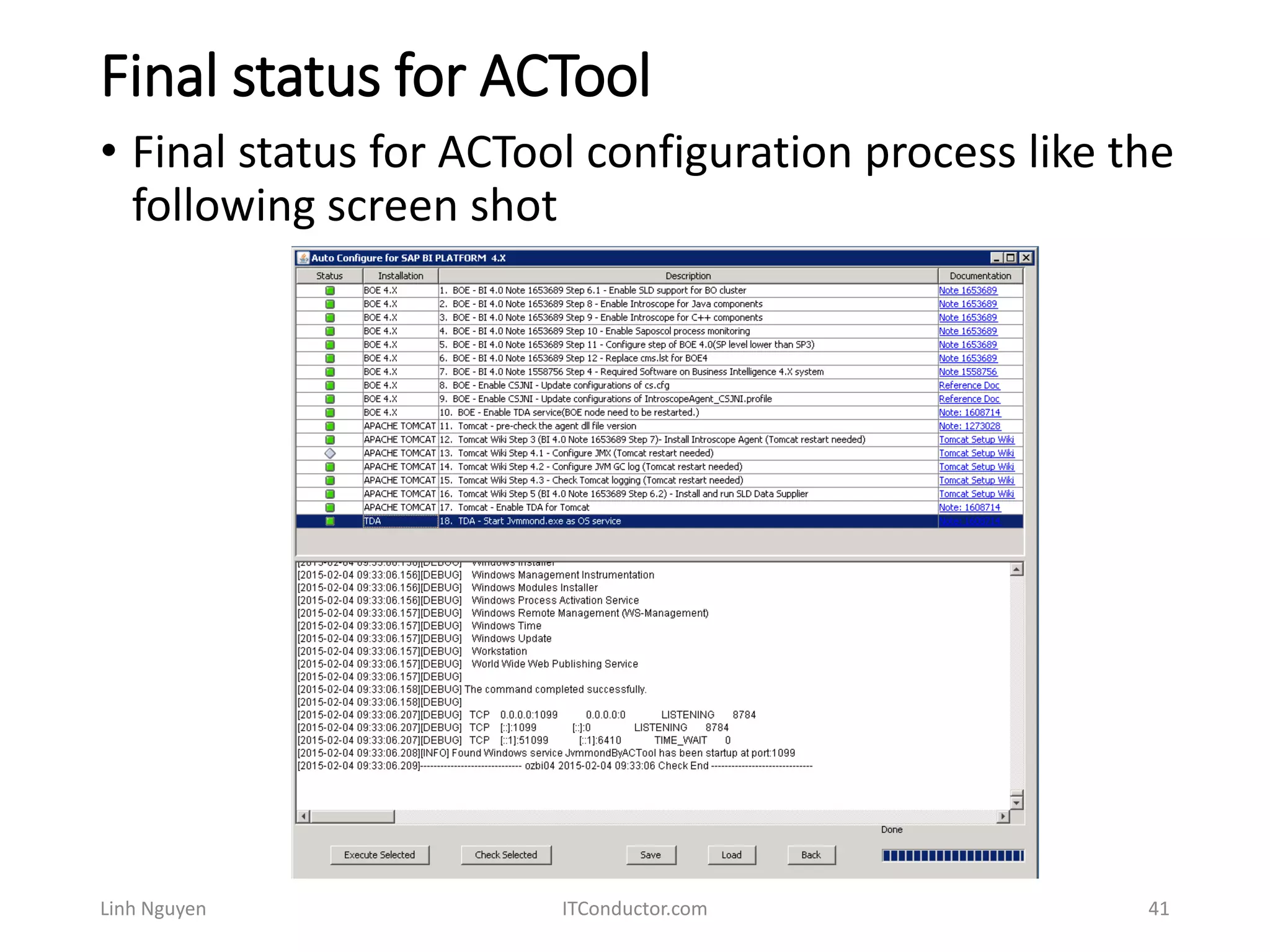
Final status for ACTool
Linh Nguyen ITConductor.com 41
• Final status for ACTool configuration process like the
following screen shot
Next – Managed System Setup of BOE
4.0 system in Solman 7.1
• Now that we have performed configuration on SAP
BusinessObjects Business Intelligence platform 4.0
for connection to Solution Manager, next we will
configure Solution Manager to monitor the
scenario
Linh Nguyen ITConductor.com 42

Solution Manager Technical Monitoring - BOBJ (Part 2 of 3 - Auto-Configure)

  • 1.
    Solution Manager Technical Monitoring SAPBusinessObjects Business Intelligence platform 4.0 Monitoring Setup Part 2 of 3 Auto configure using AC tool By OZSoft Consulting for ITConductor.com Linh Nguyen ITConductor.com 1
  • 2.
    • Latest upto date information for SAP BOE 4.0 is available in SAP Note 1653689 - SolMan 7.1: Managed Sys Setup - BI Platform 4.0 • Latest up to date information for SAP BOE 4.1 is available in SAP Note 1975394 - SolMan 7.1: Managed Sys Setup - BI Platform 4.1 • Please go through SAP Note 1653689, and follow the steps in this note to download AC tool • To download AutoConfigure tool. please refer to AC-Tool central note 2137275. Linh Nguyen ITConductor.com 2 Download AC Tool
  • 3.
    Download AC Tool •Unzip download file to BO server Linh Nguyen ITConductor.com 3 • Download file from SAP.
  • 4.
    Run AutoConfigure.exe • Run AutoConfigure.exe onWindows Linh Nguyen ITConductor.com 4 • You need to install Java on the server, or to check the environment variables
  • 5.
    Run AutoConfigure.exe • SetSystem environment variables JAVA_HOME Linh Nguyen ITConductor.com 5 • Run from console or
  • 6.
    Started AutoConfigure.exe • Select thefirst nine steps and click on "Execute Selected“. Linh Nguyen ITConductor.com 6 • Select BI Platform 4.x and “Confirm”
  • 7.
    Enable SLD supportfor BO cluster • Enter sld server info (hostname, port, user, password) Linh Nguyen ITConductor.com 7 • Select Tomcat Service as BOE WAS • Click on "No" for the HTTPS usage (In my case, my SLD uses HTTP).
  • 8.
    Enable SLD supportfor BO cluster Linh Nguyen ITConductor.com 8 • Click on "Yes" when you are asked to trigger SLD transfer. • Check the status of the task "Enable SLD Support".
  • 9.
    Enable Introscope forJava components Linh Nguyen ITConductor.com 9 • Select the task "Enable Introscope for Java components" and click on "Execute Selected". • Key in the hostname for the Central Management Server (CMS) host follow by the port number. Enter the username and password for the Central Management Console (CMC). Click "OK" to continue.
  • 10.
    Enable Introscope forJava components Linh Nguyen ITConductor.com 10 • Key in "True" for the "IntroscopeAgentEnableIns trumentation" • Key in Wily Introscope Workstation hostname and port number for "IntroscopeAgentEnterpriseM anagerHost" and IntroscopeAgentEnterpriseMa nagerPort", and key in the Wily Introscope Workstation protocol type for "IntroscopeAgentEnterpriseM anagerTransport".
  • 11.
    Enable Introscope forJava components Linh Nguyen ITConductor.com 11 • A message box should show up telling you the BOE Node has been detected and asking to restart the BOE SIA Node manually. DO NOT RESTART THE NODE NOW. • Check that the "Enable Introscope for Java components" task executed successfully.
  • 12.
    Enable Introscope forC++ components Linh Nguyen ITConductor.com 12 • Select the task "Enable Introscope for C++ components" and click on "Execute Selected". • Key in the NCS Parameter. Enter 10 for NCSInstrumentLevelThreshold, "localhost" for SMDAgentHost, and 6404 for SMDAgentPort.
  • 13.
    Enable Introscope forC++ components Linh Nguyen ITConductor.com 13 • Check that the "Enable Introscope for C++ components" task executed successfully..
  • 14.
    Enable Saposcol processmonitoring Linh Nguyen ITConductor.com 14 • Select the task "Enable Saposcol process monitoring" and click on "Execute Selected". • Check that the "Enable Saposcol process monitoring" task executed successfully.
  • 15.
    Configure step ofBOE 4.0(SP level lower than SP3) Linh Nguyen ITConductor.com 15 • Select the task "Configure step of BOE 4.0(SP level lower than SP3)" and click on "Execute Selected". • Check that the "Configure step of BOE 4.0(SP level lower than SP3)" task executed successfully.
  • 16.
    Replace cms.lst forBOE4 Linh Nguyen ITConductor.com 16 • Select the task "Replace cms.lst for BOE4" and click on "Execute Selected". • Check that the "Replace cms.lst for BOE4" task executed successfully.
  • 17.
    Required Software onBusiness Intelligence 4.X system Linh Nguyen ITConductor.com 17 • Select the task "Required Software on Business Intelligance 4.X system" and click on "Execute Selected". • If your Solution Manager is higher than 7.1 sp6, choose "Other" • Check that the "Required Software on Business Intelligance 4.X system" task executed successfully.
  • 18.
    Enable CSJNI Linh NguyenITConductor.com 18 • Select the task “Enable CSJNI – Update configurations of cs.cfg" and click on "Execute Selected". • Step 8 finished with error, Run in console for determine errors….
  • 19.
    Enable CSJNI Linh NguyenITConductor.com 19 • Under <BOE installation path>dataAccessconnectionServer Check the cs.cfg file the content exists like the screen shot show.
  • 20.
    Enable CSJNI Linh NguyenITConductor.com 20 • The file cs.cfg has been copied from another server. After that, steps 8 and 9 were completed without error.
  • 21.
    Enable TDA Service LinhNguyen ITConductor.com 21 • Select the task “Enable TDA service” and click on "Execute Selected". • Enter the jvmmond port and password.
  • 22.
    Enable TDA Service LinhNguyen ITConductor.com 22 • Then a pop-up dialog will come out to state some message. • After the above stepss, the configuration for BOE on host side is done. • Restart BOE to make the changes take effect.
  • 23.
    Enable TDA Service LinhNguyen ITConductor.com 23 • Check that the "Enable TDA service" task executed successfully.
  • 24.
    Tomcat – pre-checkthe agent dll file version Linh Nguyen ITConductor.com 24 • Select the task “Tomcat – pre-check the agent dll file version” and click on "Execute Selected". • This step was used to judge whether the dll file under the wily agent install path is the right version for tomcat to avoid the workload performance, more details refer to the Note: 1273028
  • 25.
    Tomcat – pre-checkthe agent dll file version Linh Nguyen ITConductor.com 25 • Enter the wily agent install path where exists the dll file: for example C:usrccmswilyext for different wily agent's version. (By the way, this step should be run while have java agent installed on, if not, run the step after 12th step, if yes and in boe.properties file for the option "wily.javaagent.install" the value is set to false which means not to install a new java agent, then this step should be run at first.)
  • 26.
    Tomcat – InstallIntroscope Agent Linh Nguyen ITConductor.com 26 • Download the latest Intorscope Agent installation files. Download the latest CA Introscope Agent for Java manual installation package from the SAP Service Marketplace. Please refer to the SAP note 797147 for more information.
  • 27.
    Tomcat – InstallIntroscope Agent Linh Nguyen ITConductor.com 27 • Extract Introscope Agent files • To install the CA Introscope Agent please extract the installation .SAR package on the Tomcat host. cd /usr/sap/ccms SAPCAR –xvf ISAGENT.9.1.5*.SAR
  • 28.
    Tomcat – InstallIntroscope Agent Linh Nguyen ITConductor.com 28 • SAP recommends the installation into the directory /usr/sap/ccms/wily. • Check that the Agent’s files are properly extracted. Make sure that the /wily sub-directory exists in thespecified folder.
  • 29.
    Tomcat – InstallIntroscope Agent Linh Nguyen ITConductor.com 29 • Add following Java VM parameters to run Introscope Java Agent with Tomcat JVM:
  • 30.
    Tomcat – InstallIntroscope Agent Linh Nguyen ITConductor.com 30 • Restart Tomcat. The Introscope Agent will shortly start sending performance data to the configured Enterprise Manager • Look for the agent log files in the <AGENT_HOME>/logs folder. Check that a log file for the Introscope Agent exists.
  • 31.
    Tomcat – InstallIntroscope Agent Linh Nguyen ITConductor.com 31 • Check that the "Tomcat – Install Introscope Agent" task executed successfully.
  • 32.
    Configure JVM GClog Linh Nguyen ITConductor.com 32 • Select the task "Configure JVM GC log" and click on "Execute Selected". • Click on "No" when you are asked to restart Tomcat now. • Check that the "Configure JVM GC log" task executed successfully.
  • 33.
    Check Tomcat logging LinhNguyen ITConductor.com 33 • Select the task "Check Tomcat logging" and click on "Execute Selected". • Click "Yes" to restart Tomcat now. • Check that the "Check Tomcat logging" task executed successfully.
  • 34.
    Install and runSLD Data Supplier Linh Nguyen ITConductor.com 34 • Select the task "Install and run SLD Data Supplier" and click on "Execute Selected". • On the "Found SLD War File" message window, click on "Keep it" to continue.
  • 35.
    Install and runSLD Data Supplier Linh Nguyen ITConductor.com 35 • Check that the "Install and run SLD Data Supplier" task executed successfully.
  • 36.
    Enable TDA forTomcat Linh Nguyen ITConductor.com 36 • Select the task “Enable TDA for Tomcat" and click on "Execute Selected". • Select a tomcat service • Enter the jvmmond port and password should be the same with step "Enable TDA for BOE"
  • 37.
    Enable TDA forTomcat Linh Nguyen ITConductor.com 37 • Two message dialogs come out to state the final status. Click OK. • After the above steps for tomcat, restart the tomcat server.
  • 38.
    Start Jvmmond.exe asOS service Linh Nguyen ITConductor.com 38 • Select the task “Start Jvmmond.exe as OS service" and click on "Execute Selected". • Select a folder with JRE installed. Be sure this folder have JRE installed. e.g. usrsapDAASMD98exesapjvm_6bin
  • 39.
    Start Jvmmond.exe asOS service Linh Nguyen ITConductor.com 39 • Enter the jvmmond port and password should be the same with step "Enable TDA for BOE"
  • 40.
    Start Jvmmond.exe asOS service Linh Nguyen ITConductor.com 40 • Then an install frame come out, do the install process then a service named " JvmmondByACTool" will show in the services list of windows. For security, this service is not started, and it's Startup Type is Manual. Start it and change the Startup Type into Automatic if needed.
  • 41.
    Final status forACTool Linh Nguyen ITConductor.com 41 • Final status for ACTool configuration process like the following screen shot
  • 42.
    Next – ManagedSystem Setup of BOE 4.0 system in Solman 7.1 • Now that we have performed configuration on SAP BusinessObjects Business Intelligence platform 4.0 for connection to Solution Manager, next we will configure Solution Manager to monitor the scenario Linh Nguyen ITConductor.com 42