ChaRM Process flow
Prepared By : Aditya Shivhare
RBEI/BSG
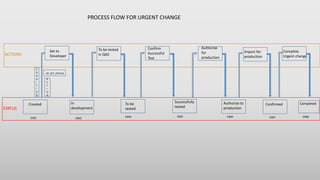
Set to
Developer
To be tested
in QAS
Confirm
Successful
Test
Authorize
for
production
Created In
development
To be
tested
Successfully
testedSTATUS
Authorize to
production
ACTIONS
Complete
Urgent change
Import for
production
Confirmed Completed
E001 E002 E004 E005 E009 E007 E008
C
O
N
D
I
T
I
O
N
HF_SET_STATUS
A
C
T
I
O
N
PROCESS FLOW FOR URGENT CHANGE
Set to
Developer
To be tested
in QAS
Confirm
Successful
Test
Authorize
for
production
Created In
development
To be
tested
Successfully
testedSTATUS
Authorize to
production
ACTIONS
Complete
Urgent change
Import for
production
Confirmed Completed
E001 E002 E004 E005 E009 E007 E008
C
O
N
D
I
T
I
O
N
HF_SET_STATUS
A
C
T
I
O
N
UAT
Authorization
test
UAT Test
PROCESS FLOW FOR URGENT CHANGE WITH CUSTOMIZATION
E0011
CUSTOMIZING STEP TO CREATE AN OWN STATUS
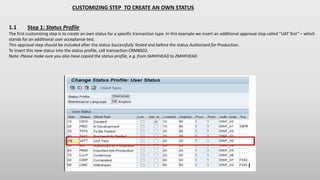
1.1 Step 1: Status Profile
The first customizing step is to create an own status for a specific transaction type. In this example we insert an additional approval step called “UAT Test” – which
stands for an additional user acceptance test.
This approval step should be included after the status Successfully Tested and before the status Authorized for Production.
To insert this new status into the status profile, call transaction CRMBS02.
Note: Please make sure you also have copied the status-profile, e.g. from SMHFHEAD to ZMHFHEAD
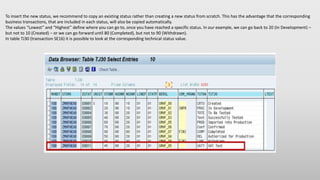
To insert the new status, we recommend to copy an existing status rather than creating a new status from scratch. This has the advantage that the corresponding
business transactions, that are included in each status, will also be copied automatically.
The values “Lowest” and “Highest” define where you can go to, once you have reached a specific status. In our example, we can go back to 20 (In Development) –
but not to 10 (Created) – or we can go forward until 80 (Completed), but not to 90 (Withdrawn).
In table TJ30 (transaction SE16) it is possible to look at the corresponding technical status value.
1.2 Step 2: Actions
The next step is to assign the corresponding ChaRM Actions & Conditions.
The Post Processing Framework (PPF) provides SAP applications with a uniform interface for the condition-dependent generation of actions. The actions are
generated if specific conditions occur for an application document - they are processed then either directly or later.
We will start with the action definition; you can reach it via the following path in transaction SPRO:
IMG →SAP Solution Manager →Capabilities (Optional) → Change Management → Standard Configuration → Transaction Types → Action Profile → Define
Action Profiles and Actions
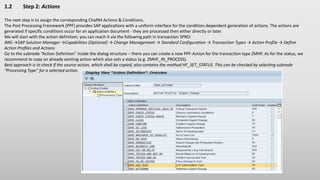
Go to the subnode “Action Definition” inside the dialog structure – there you can create a new PPF-Action for the transaction type ZMHF. As for the status, we
recommend to copy an already existing action which also sets a status (e.g. ZMHF_IN_PROCESS).
Best approach is to check if the source action, which shall be copied, also contains the method HF_SET_STATUS. This can be checked by selecting subnode
“Processing Type” for a selected action.
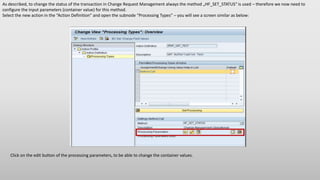
As described, to change the status of the transaction in Change Request Management always the method „HF_SET_STATUS“ is used – therefore we now need to
configure the input parameters (container value) for this method.
Select the new action in the “Action Definition” and open the subnode “Processing Types” – you will see a screen similar as below:
Click on the edit button of the processing parameters, to be able to change the container values.
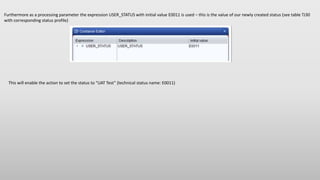
Furthermore as a processing parameter the expression USER_STATUS with initial value E0011 is used – this is the value of our newly created status (see table TJ30
with corresponding status profile)
This will enable the action to set the status to “UAT Test” (technical status name: E0011)
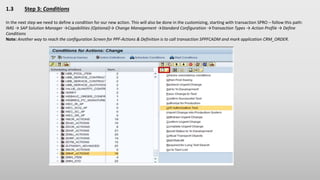
1.3 Step 3: Conditions
In the next step we need to define a condition for our new action. This will also be done in the customizing, starting with transaction SPRO – follow this path:
IMG → SAP Solution Manager →Capabilities (Optional)→ Change Management →Standard Configuration →Transaction Types → Action Profile → Define
Conditions
Note: Another way to reach the configuration Screen for PPF-Actions & Definition is to call transaction SPPFCADM and mark application CRM_ORDER.
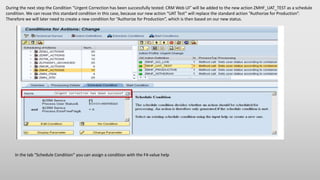
During the next step the Condition “Urgent Correction has been successfully tested: CRM Web UI” will be added to the new action ZMHF_UAT_TEST as a schedule
condition. We can reuse this standard condition in this case, because our new action “UAT Test” will replace the standard action “Authorize for Production”.
Therefore we will later need to create a new condition for “Authorize for Production”, which is then based on our new status.
In the tab “Schedule Condition” you can assign a condition with the F4-value help
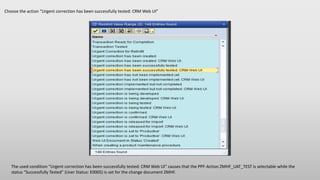
Choose the action “Urgent correction has been successfully tested: CRM Web UI”
The used condition “Urgent correction has been successfully tested: CRM Web UI” causes that the PPF-Action ZMHF_UAT_TEST is selectable while the
status “Successfully Tested” (User Status: E0005) is set for the change document ZMHF.
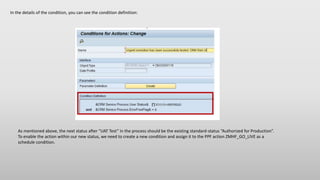
In the details of the condition, you can see the condition definition:
As mentioned above, the next status after “UAT Test” in the process should be the existing standard-status “Authorized for Production”.
To enable the action within our new status, we need to create a new condition and assign it to the PPF action ZMHF_GO_LIVE as a
schedule condition.
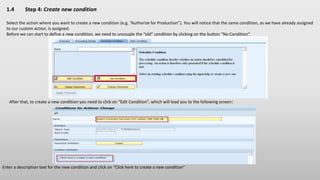
1.4 Step 4: Create new condition
Select the action where you want to create a new condition (e.g. “Authorize for Production”). You will notice that the same condition, as we have already assigned
to our custom action, is assigned.
Before we can start to define a new condition, we need to uncouple the “old” condition by clicking on the button “No Condition”.
After that, to create a new condition you need to click on “Edit Condition”, which will lead you to the following screen:
Enter a description text for the new condition and click on “Click here to create a new condition”
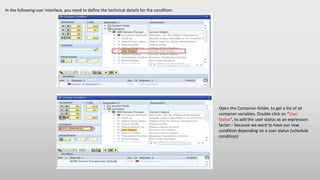
In the following user interface, you need to define the technical details for the condition:
Open the Container-folder, to get a list of all
container variables. Double click on “User
Status”, to add the user status as an expression
factor – because we want to have our new
condition depending on a user status (schedule
condition)
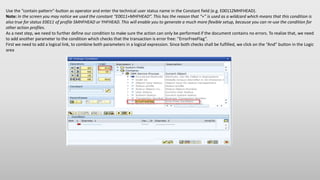
Use the “contain pattern”-button as operator and enter the technical user status name in the Constant field (e.g. E0011ZMHFHEAD).
Note: In the screen you may notice we used the constant “E0011+MHFHEAD”. This has the reason that “+” is used as a wildcard which means that this condition is
also true for status E0011 of profile SMHFHEAD or YHFHEAD. This will enable you to generate a much more flexible setup, because you can re-use the condition for
other action profiles.
As a next step, we need to further define our condition to make sure the action can only be performed if the document contains no errors. To realize that, we need
to add another parameter to the condition which checks that the transaction is error free: “ErrorFreeFlag”.
First we need to add a logical link, to combine both parameters in a logical expression. Since both checks shall be fulfilled, we click on the “And” button in the Logic
area
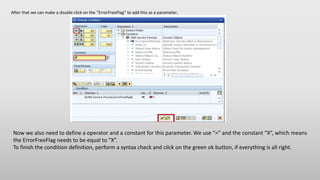
After that we can make a double click on the “ErrorFreeFlag” to add this as a parameter.
Now we also need to define a operator and a constant for this parameter. We use “=” and the constant “X”, which means
the ErrorFreeFlag needs to be equal to “X”.
To finish the condition definition, perform a syntax check and click on the green ok button, if everything is all right.
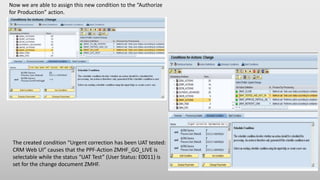
Now we are able to assign this new condition to the “Authorize
for Production” action.
The created condition “Urgent correction has been UAT tested:
CRM Web UI” causes that the PPF-Action ZMHF_GO_LIVE is
selectable while the status “UAT Test” (User Status: E0011) is
set for the change document ZMHF.
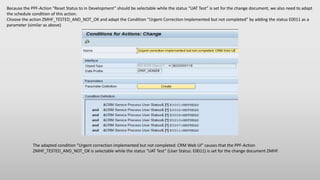
Because the PPF-Action “Reset Status to in Development” should be selectable while the status “UAT Test” is set for the change document, we also need to adapt
the schedule condition of this action.
Choose the action ZMHF_TESTED_AND_NOT_OK and adapt the Condition “Urgent Correction Implemented but not completed” by adding the status E0011 as a
parameter (similar as above)
The adapted condition “Urgent correction implemented but not completed: CRM Web UI” causes that the PPF-Action
ZMHF_TESTED_AND_NOT_OK is selectable while the status “UAT Test” (User Status: E0011) is set for the change document ZMHF.
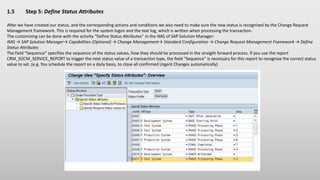
1.5 Step 5: Define Status Attributes
After we have created our status, and the corresponding actions and conditions we also need to make sure the new status is recognized by the Change Request
Management framework. This is required for the system logon and the text log, which is written when processing the transaction.
The customizing can be done with the activity “Define Status Attributes” in the IMG of SAP Solution Manager:
IMG → SAP Solution Manager→ Capabilities (Optional) → Change Management→ Standard Configuration → Change Request Management Framework → Define
Status Attributes
The field “Sequence” specifies the sequence of the status values, how they should be processed in the straight forward process. If you use the report
CRM_SOCM_SERVICE_REPORT to trigger the next status value of a transaction type, the field “Sequence” is necessary for this report to recognize the correct status
value to set. (e.g. You schedule the report on a daily basis, to close all confirmed Urgent Changes automatically)
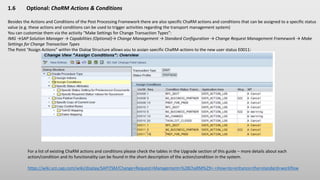
1.6 Optional: ChaRM Actions & Conditions
Besides the Actions and Conditions of the Post Processing Framework there are also specific ChaRM actions and conditions that can be assigned to a specific status
value (e.g. these actions and conditions can be used to trigger activities regarding the transport management system)
You can customize them via the activity “Make Settings for Change Transaction Types”:
IMG →SAP Solution Manager → Capabilities (Optional)→ Change Management → Standard Configuration → Change Request Management Framework → Make
Settings for Change Transaction Types
The Point “Assign Actions” within the Dialog Structure allows you to assign specific ChaRM-actions to the new user status E0011:
For a list of existing ChaRM actions and conditions please check the tables in the Upgrade section of this guide – more details about each
action/condition and its functionality can be found in the short description of the action/condition in the system.
https://wiki.scn.sap.com/wiki/display/SAPITSM/Change+Request+Management+%28ChaRM%29+-+How+to+enhance+the+standard+workflow
THANK YOU.

Charm workflow for urgent changes while adding node

  • 1.
    ChaRM Process flow PreparedBy : Aditya Shivhare RBEI/BSG
  • 2.
    Set to Developer To betested in QAS Confirm Successful Test Authorize for production Created In development To be tested Successfully testedSTATUS Authorize to production ACTIONS Complete Urgent change Import for production Confirmed Completed E001 E002 E004 E005 E009 E007 E008 C O N D I T I O N HF_SET_STATUS A C T I O N PROCESS FLOW FOR URGENT CHANGE
  • 3.
    Set to Developer To betested in QAS Confirm Successful Test Authorize for production Created In development To be tested Successfully testedSTATUS Authorize to production ACTIONS Complete Urgent change Import for production Confirmed Completed E001 E002 E004 E005 E009 E007 E008 C O N D I T I O N HF_SET_STATUS A C T I O N UAT Authorization test UAT Test PROCESS FLOW FOR URGENT CHANGE WITH CUSTOMIZATION E0011
  • 4.
    CUSTOMIZING STEP TOCREATE AN OWN STATUS 1.1 Step 1: Status Profile The first customizing step is to create an own status for a specific transaction type. In this example we insert an additional approval step called “UAT Test” – which stands for an additional user acceptance test. This approval step should be included after the status Successfully Tested and before the status Authorized for Production. To insert this new status into the status profile, call transaction CRMBS02. Note: Please make sure you also have copied the status-profile, e.g. from SMHFHEAD to ZMHFHEAD
  • 5.
    To insert thenew status, we recommend to copy an existing status rather than creating a new status from scratch. This has the advantage that the corresponding business transactions, that are included in each status, will also be copied automatically. The values “Lowest” and “Highest” define where you can go to, once you have reached a specific status. In our example, we can go back to 20 (In Development) – but not to 10 (Created) – or we can go forward until 80 (Completed), but not to 90 (Withdrawn). In table TJ30 (transaction SE16) it is possible to look at the corresponding technical status value.
  • 6.
    1.2 Step 2:Actions The next step is to assign the corresponding ChaRM Actions & Conditions. The Post Processing Framework (PPF) provides SAP applications with a uniform interface for the condition-dependent generation of actions. The actions are generated if specific conditions occur for an application document - they are processed then either directly or later. We will start with the action definition; you can reach it via the following path in transaction SPRO: IMG →SAP Solution Manager →Capabilities (Optional) → Change Management → Standard Configuration → Transaction Types → Action Profile → Define Action Profiles and Actions Go to the subnode “Action Definition” inside the dialog structure – there you can create a new PPF-Action for the transaction type ZMHF. As for the status, we recommend to copy an already existing action which also sets a status (e.g. ZMHF_IN_PROCESS). Best approach is to check if the source action, which shall be copied, also contains the method HF_SET_STATUS. This can be checked by selecting subnode “Processing Type” for a selected action.
  • 7.
    As described, tochange the status of the transaction in Change Request Management always the method „HF_SET_STATUS“ is used – therefore we now need to configure the input parameters (container value) for this method. Select the new action in the “Action Definition” and open the subnode “Processing Types” – you will see a screen similar as below: Click on the edit button of the processing parameters, to be able to change the container values.
  • 8.
    Furthermore as aprocessing parameter the expression USER_STATUS with initial value E0011 is used – this is the value of our newly created status (see table TJ30 with corresponding status profile) This will enable the action to set the status to “UAT Test” (technical status name: E0011)
  • 9.
    1.3 Step 3:Conditions In the next step we need to define a condition for our new action. This will also be done in the customizing, starting with transaction SPRO – follow this path: IMG → SAP Solution Manager →Capabilities (Optional)→ Change Management →Standard Configuration →Transaction Types → Action Profile → Define Conditions Note: Another way to reach the configuration Screen for PPF-Actions & Definition is to call transaction SPPFCADM and mark application CRM_ORDER.
  • 10.
    During the nextstep the Condition “Urgent Correction has been successfully tested: CRM Web UI” will be added to the new action ZMHF_UAT_TEST as a schedule condition. We can reuse this standard condition in this case, because our new action “UAT Test” will replace the standard action “Authorize for Production”. Therefore we will later need to create a new condition for “Authorize for Production”, which is then based on our new status. In the tab “Schedule Condition” you can assign a condition with the F4-value help
  • 11.
    Choose the action“Urgent correction has been successfully tested: CRM Web UI” The used condition “Urgent correction has been successfully tested: CRM Web UI” causes that the PPF-Action ZMHF_UAT_TEST is selectable while the status “Successfully Tested” (User Status: E0005) is set for the change document ZMHF.
  • 12.
    In the detailsof the condition, you can see the condition definition: As mentioned above, the next status after “UAT Test” in the process should be the existing standard-status “Authorized for Production”. To enable the action within our new status, we need to create a new condition and assign it to the PPF action ZMHF_GO_LIVE as a schedule condition.
  • 13.
    1.4 Step 4:Create new condition Select the action where you want to create a new condition (e.g. “Authorize for Production”). You will notice that the same condition, as we have already assigned to our custom action, is assigned. Before we can start to define a new condition, we need to uncouple the “old” condition by clicking on the button “No Condition”. After that, to create a new condition you need to click on “Edit Condition”, which will lead you to the following screen: Enter a description text for the new condition and click on “Click here to create a new condition”
  • 14.
    In the followinguser interface, you need to define the technical details for the condition: Open the Container-folder, to get a list of all container variables. Double click on “User Status”, to add the user status as an expression factor – because we want to have our new condition depending on a user status (schedule condition)
  • 15.
    Use the “containpattern”-button as operator and enter the technical user status name in the Constant field (e.g. E0011ZMHFHEAD). Note: In the screen you may notice we used the constant “E0011+MHFHEAD”. This has the reason that “+” is used as a wildcard which means that this condition is also true for status E0011 of profile SMHFHEAD or YHFHEAD. This will enable you to generate a much more flexible setup, because you can re-use the condition for other action profiles. As a next step, we need to further define our condition to make sure the action can only be performed if the document contains no errors. To realize that, we need to add another parameter to the condition which checks that the transaction is error free: “ErrorFreeFlag”. First we need to add a logical link, to combine both parameters in a logical expression. Since both checks shall be fulfilled, we click on the “And” button in the Logic area
  • 16.
    After that wecan make a double click on the “ErrorFreeFlag” to add this as a parameter. Now we also need to define a operator and a constant for this parameter. We use “=” and the constant “X”, which means the ErrorFreeFlag needs to be equal to “X”. To finish the condition definition, perform a syntax check and click on the green ok button, if everything is all right.
  • 17.
    Now we areable to assign this new condition to the “Authorize for Production” action. The created condition “Urgent correction has been UAT tested: CRM Web UI” causes that the PPF-Action ZMHF_GO_LIVE is selectable while the status “UAT Test” (User Status: E0011) is set for the change document ZMHF.
  • 18.
    Because the PPF-Action“Reset Status to in Development” should be selectable while the status “UAT Test” is set for the change document, we also need to adapt the schedule condition of this action. Choose the action ZMHF_TESTED_AND_NOT_OK and adapt the Condition “Urgent Correction Implemented but not completed” by adding the status E0011 as a parameter (similar as above) The adapted condition “Urgent correction implemented but not completed: CRM Web UI” causes that the PPF-Action ZMHF_TESTED_AND_NOT_OK is selectable while the status “UAT Test” (User Status: E0011) is set for the change document ZMHF.
  • 19.
    1.5 Step 5:Define Status Attributes After we have created our status, and the corresponding actions and conditions we also need to make sure the new status is recognized by the Change Request Management framework. This is required for the system logon and the text log, which is written when processing the transaction. The customizing can be done with the activity “Define Status Attributes” in the IMG of SAP Solution Manager: IMG → SAP Solution Manager→ Capabilities (Optional) → Change Management→ Standard Configuration → Change Request Management Framework → Define Status Attributes The field “Sequence” specifies the sequence of the status values, how they should be processed in the straight forward process. If you use the report CRM_SOCM_SERVICE_REPORT to trigger the next status value of a transaction type, the field “Sequence” is necessary for this report to recognize the correct status value to set. (e.g. You schedule the report on a daily basis, to close all confirmed Urgent Changes automatically)
  • 20.
    1.6 Optional: ChaRMActions & Conditions Besides the Actions and Conditions of the Post Processing Framework there are also specific ChaRM actions and conditions that can be assigned to a specific status value (e.g. these actions and conditions can be used to trigger activities regarding the transport management system) You can customize them via the activity “Make Settings for Change Transaction Types”: IMG →SAP Solution Manager → Capabilities (Optional)→ Change Management → Standard Configuration → Change Request Management Framework → Make Settings for Change Transaction Types The Point “Assign Actions” within the Dialog Structure allows you to assign specific ChaRM-actions to the new user status E0011: For a list of existing ChaRM actions and conditions please check the tables in the Upgrade section of this guide – more details about each action/condition and its functionality can be found in the short description of the action/condition in the system. https://wiki.scn.sap.com/wiki/display/SAPITSM/Change+Request+Management+%28ChaRM%29+-+How+to+enhance+the+standard+workflow
  • 21.