


Creating a Standard Link ListA common list that many sites have created is the link list, which can be used to share web pages links with other users to the site.To create the link list, follow these steps.
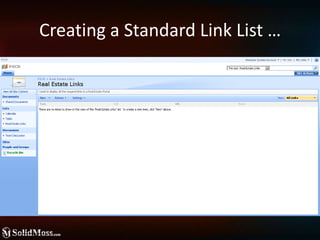
Creating a Standard Link List … Click site settings and then createOn create page click Links under the tracking heading. Use name and description field to define your link list.Required field is Name and description is will help users to know that the list is about.The option to play the link list in the quick launch bar is set Yes by default.Click on the create button to create the link list.
Creating a Standard Link List …
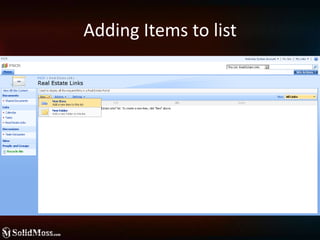
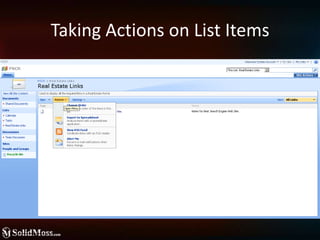
Managing ListsLists are one of the central concepts of SharePoint and how data is stores within SharePoint.Common actions that you can perform on lists are adding items, removing items and modifying list settings.These actions can be performed wither through the web user interface, through the object model, or through the web services.
Adding Items to list
Taking Actions on List Items
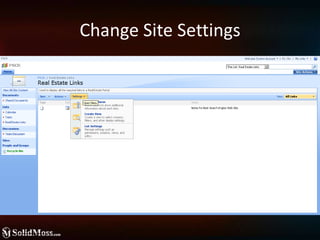
Change Site Settings
Creating Custom ListsClick the Create Link from Site SettingsSelect Custom List, and then give the new list a name and a descriptionClick on create and a new list is created, you will need to add your own columns to the list.
Creating a Standard Document LibraryOne common type of list is a document  library. A document library is a common type of file where you can store documents.Once created you can perform searches within the documents.
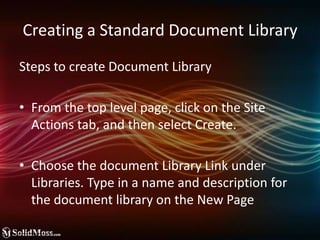
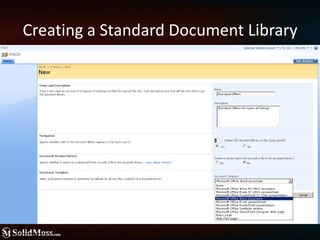
Steps to create Document LibraryFrom the top level page, click on the Site Actions tab, and then select Create.Choose the document Library Link under Libraries. Type in a name and description for the document library on the New PageCreating a Standard Document Library
Creating a Standard Document Library
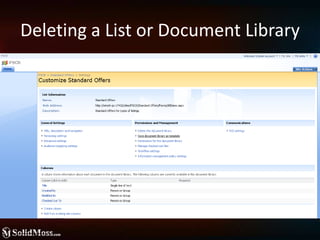
Deleting a List or Document Library
Using the Recycle Bin
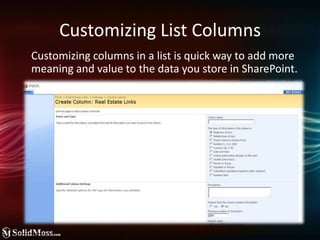
Customizing List Columns	Customizing columns in a list is quick way to add more meaning and value to the data you store in SharePoint.
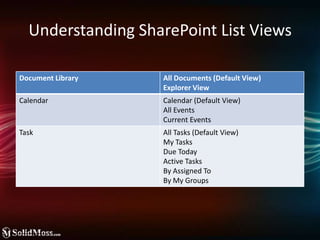
Understanding SharePoint List Views
Choosing a View FormatStandard View: Shows data on a basic web page that can be customizedCalendar View: Shows information in a daily, weekly, or monthly calendar format.Datasheet View: Gives the ability to view the data in a spreadsheet that can be edited. This allows for easy editing of large amounts of data and also for quick and easy customizing.Gantt View: It is visual presentation of the data in a graph view. It is used to show how a team’s tasks relate over time.
Selecting the audience for the ViewPersonal View:  Allows the view to be viewed only by the owner of the site.Public View: Can be used by anyone using the site.
Content Management ImprovementsCustomizing the Home Page.Site NavigationVersioningRequired Check Out.
Improved Storage with ListsUsing folders on All Lists OptionsIndexing ListsUsing Cross List Queries (CAML Queries)To perform the query, the SPWeb object is used with a method called GetSiteDatathat passes in the SPSiteDataQueryobject and returns a DataTablewith the list items selected
SharePoint Lists and Document Libraries Configuration and Learning

SharePoint Lists and Document Libraries Configuration and Learning

  • 2.
    Creating a StandardLink ListA common list that many sites have created is the link list, which can be used to share web pages links with other users to the site.To create the link list, follow these steps.
  • 3.
    Creating a StandardLink List … Click site settings and then createOn create page click Links under the tracking heading. Use name and description field to define your link list.Required field is Name and description is will help users to know that the list is about.The option to play the link list in the quick launch bar is set Yes by default.Click on the create button to create the link list.
  • 4.
    Creating a StandardLink List …
  • 5.
    Managing ListsLists areone of the central concepts of SharePoint and how data is stores within SharePoint.Common actions that you can perform on lists are adding items, removing items and modifying list settings.These actions can be performed wither through the web user interface, through the object model, or through the web services.
  • 6.
  • 7.
  • 8.
  • 9.
    Creating Custom ListsClickthe Create Link from Site SettingsSelect Custom List, and then give the new list a name and a descriptionClick on create and a new list is created, you will need to add your own columns to the list.
  • 10.
    Creating a StandardDocument LibraryOne common type of list is a document library. A document library is a common type of file where you can store documents.Once created you can perform searches within the documents.
  • 11.
    Steps to createDocument LibraryFrom the top level page, click on the Site Actions tab, and then select Create.Choose the document Library Link under Libraries. Type in a name and description for the document library on the New PageCreating a Standard Document Library
  • 12.
    Creating a StandardDocument Library
  • 13.
    Deleting a Listor Document Library
  • 14.
  • 15.
    Customizing List Columns Customizingcolumns in a list is quick way to add more meaning and value to the data you store in SharePoint.
  • 16.
  • 17.
    Choosing a ViewFormatStandard View: Shows data on a basic web page that can be customizedCalendar View: Shows information in a daily, weekly, or monthly calendar format.Datasheet View: Gives the ability to view the data in a spreadsheet that can be edited. This allows for easy editing of large amounts of data and also for quick and easy customizing.Gantt View: It is visual presentation of the data in a graph view. It is used to show how a team’s tasks relate over time.
  • 18.
    Selecting the audiencefor the ViewPersonal View: Allows the view to be viewed only by the owner of the site.Public View: Can be used by anyone using the site.
  • 19.
    Content Management ImprovementsCustomizingthe Home Page.Site NavigationVersioningRequired Check Out.
  • 20.
    Improved Storage withListsUsing folders on All Lists OptionsIndexing ListsUsing Cross List Queries (CAML Queries)To perform the query, the SPWeb object is used with a method called GetSiteDatathat passes in the SPSiteDataQueryobject and returns a DataTablewith the list items selected