Editing Participedia

            Robert Richards
           November 8, 2012
Participedia

   Participedia is a Wiki (similar to Wikipedia) for
    democratic deliberation and participation

   Web Address: http://www.participedia.net
Help


 If you don’t find your answer in the “Help”
 pages, email the Participedia help staff at
 info@participedia.net
Step 1: Register as a User on Participedia

   1. Click Help
   2. Follow the instructions on the Help screen:
Step 2: Log-in to Participedia
Step 3: Determine the Type of the
Resource that You Want to Add to
or Edit on Participedia

   On your list of Participedia resources to work on,
    determine whether the resource you want to edit or
    add to Participedia is:
       A Case (an event or activity)
       A Method (a procedure for carrying out a Case)
       An Organization (a group that puts on or contributes to
        the putting on of Cases)
Step 4: Determine Whether the
Resource You Are Working on Needs to
be Added to Participedia, or Just Edited
   A. Check your list: if the resource you are working on
    has a Participedia web address listed, then you’ll be
    editing the Participedia page for the resource

   B. If, on your list, the resource you are working on
    contains no Participedia web address, search
    Participedia to see whether someone has recently
    created a Participedia page for the resource
Searching Participedia


   To search Participedia, use the Search Box on the
    top right corner of the screen
Step 4 (continued)
   If the resource you want to work on is NOT listed in
    Participedia, then we’ll ADD a new page for the
    resource to Participedia.
   If the resource you want to work on IS LISTED in
    Participedia, copy the web address of the page into
    a document that you can save. We’ll then examine
    the Participedia page of the resource, to see whether
    it needs to be EDITED.
Step 5: Adding a New Page in Participedia

   A. Note whether the resource you want to add is a
    Case, Method, or Organization

   B. On the top of the screen, click “Create Content”:
Step 5 (continued)
   On the “Create Content” page, select the appropriate
    type of resource:
Step 5 (continued)
   A. Assume you’re adding a Case. On the “Create
    Case” page, type in the “Name of project” (that
    means the title of the page), choose the language of
    your page, and in the “Summary” field, write a short
    summary of the Case.
Step 5 (continued)
   Save your work often: scroll to the bottom of the
    page and on the left, click “Save.”
   To see how your page looks to the public, click
    “Preview”
Step 5 (continued)
   Scroll to the top of the page. Just below the
    “Summary” box, set “Completeness” to “partial”, and
    in the “Tags” field, add keywords that describe the
    Case:
Step 5 (continued)
   Fill out each section of the “Overview” tab, in the
    window called “Article Body”
Step 5 (continued)
   Use the editing icons to format the text and add
    links:
Step 5 (continued)
   When linking to sources OUTSIDE of
    Participedia, don’t link directly in the text;
    instead, add links in the “Secondary Sources” and
    “External Links” sections:
Step 5 (continued)
   When linking to sources IN Participedia, link to them
    directly in the text, using the “Link” editing icon:
Step 5 (continued)
   To edit the source code, scroll down to “Text
    Format,” and choose “Plain Text”:
Step 5 (continued)
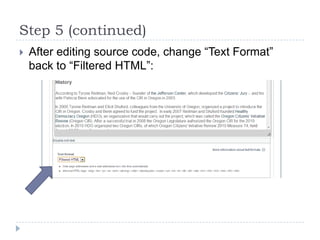
   After editing source code, change “Text Format”
    back to “Filtered HTML”:
Step 5 (continued)
   Fill out the information in the other tabs, and add an
    image using the “Images” tab:
Step 5 (continued)
   In the public display, the information in the tabs is
    shown in the “Case Data” box on the right screen:
Step 6: Editing an Existing Page
   A. Be sure you are logged in
   B. Display the page
   C. On the top left screen, click the “Edit” tab:
Questions?

   Check the Participedia “Help” section
   Email the Participedia help staff at
    info@participedia.net
   Contact: Robert Richards, rcr5122@psu.edu

Editing Participedia

  • 1.
    Editing Participedia Robert Richards November 8, 2012
  • 2.
    Participedia  Participedia is a Wiki (similar to Wikipedia) for democratic deliberation and participation  Web Address: http://www.participedia.net
  • 3.
    Help If youdon’t find your answer in the “Help” pages, email the Participedia help staff at info@participedia.net
  • 4.
    Step 1: Registeras a User on Participedia  1. Click Help  2. Follow the instructions on the Help screen:
  • 5.
    Step 2: Log-into Participedia
  • 6.
    Step 3: Determinethe Type of the Resource that You Want to Add to or Edit on Participedia  On your list of Participedia resources to work on, determine whether the resource you want to edit or add to Participedia is:  A Case (an event or activity)  A Method (a procedure for carrying out a Case)  An Organization (a group that puts on or contributes to the putting on of Cases)
  • 7.
    Step 4: DetermineWhether the Resource You Are Working on Needs to be Added to Participedia, or Just Edited  A. Check your list: if the resource you are working on has a Participedia web address listed, then you’ll be editing the Participedia page for the resource  B. If, on your list, the resource you are working on contains no Participedia web address, search Participedia to see whether someone has recently created a Participedia page for the resource
  • 8.
    Searching Participedia  To search Participedia, use the Search Box on the top right corner of the screen
  • 9.
    Step 4 (continued)  If the resource you want to work on is NOT listed in Participedia, then we’ll ADD a new page for the resource to Participedia.  If the resource you want to work on IS LISTED in Participedia, copy the web address of the page into a document that you can save. We’ll then examine the Participedia page of the resource, to see whether it needs to be EDITED.
  • 10.
    Step 5: Addinga New Page in Participedia  A. Note whether the resource you want to add is a Case, Method, or Organization  B. On the top of the screen, click “Create Content”:
  • 11.
    Step 5 (continued)  On the “Create Content” page, select the appropriate type of resource:
  • 12.
    Step 5 (continued)  A. Assume you’re adding a Case. On the “Create Case” page, type in the “Name of project” (that means the title of the page), choose the language of your page, and in the “Summary” field, write a short summary of the Case.
  • 13.
    Step 5 (continued)  Save your work often: scroll to the bottom of the page and on the left, click “Save.”  To see how your page looks to the public, click “Preview”
  • 14.
    Step 5 (continued)  Scroll to the top of the page. Just below the “Summary” box, set “Completeness” to “partial”, and in the “Tags” field, add keywords that describe the Case:
  • 15.
    Step 5 (continued)  Fill out each section of the “Overview” tab, in the window called “Article Body”
  • 16.
    Step 5 (continued)  Use the editing icons to format the text and add links:
  • 17.
    Step 5 (continued)  When linking to sources OUTSIDE of Participedia, don’t link directly in the text; instead, add links in the “Secondary Sources” and “External Links” sections:
  • 18.
    Step 5 (continued)  When linking to sources IN Participedia, link to them directly in the text, using the “Link” editing icon:
  • 19.
    Step 5 (continued)  To edit the source code, scroll down to “Text Format,” and choose “Plain Text”:
  • 20.
    Step 5 (continued)  After editing source code, change “Text Format” back to “Filtered HTML”:
  • 21.
    Step 5 (continued)  Fill out the information in the other tabs, and add an image using the “Images” tab:
  • 22.
    Step 5 (continued)  In the public display, the information in the tabs is shown in the “Case Data” box on the right screen:
  • 23.
    Step 6: Editingan Existing Page  A. Be sure you are logged in  B. Display the page  C. On the top left screen, click the “Edit” tab:
  • 24.
    Questions?  Check the Participedia “Help” section  Email the Participedia help staff at info@participedia.net  Contact: Robert Richards, rcr5122@psu.edu