ORGANIZE
and
PRIORITIZE
with
Part 2: Basics
Editing
Boards and
Lists
WELCOME
BACK !!
In Part 1 of our
Trello tutorial,
we learned about
the 3 main
elements – Boards,
Lists and Cards.
In this tutorial, we
will know how
to edit Boards
and Lists to
customize it
according to our
need and
preference.
Let’s start off
right away…
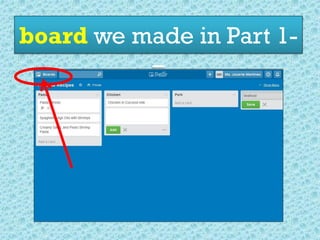
First, let’s go
back to the
board we made in Part 1-
–
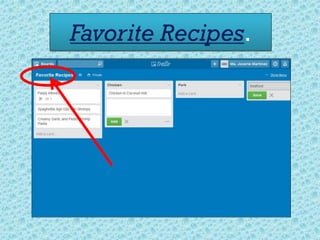
Favorite Recipes.
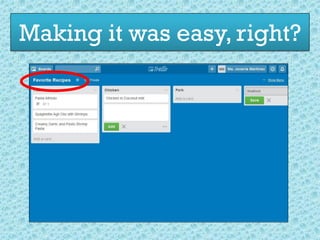
Making it was easy, right?
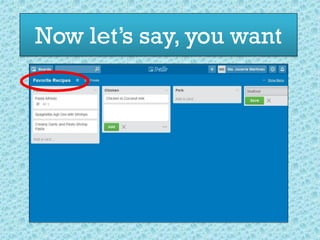
Now let’s say, you want
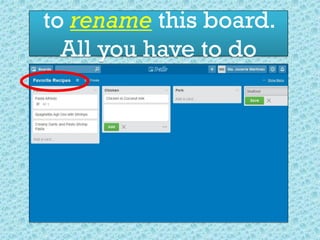
to rename this board.
All you have to do
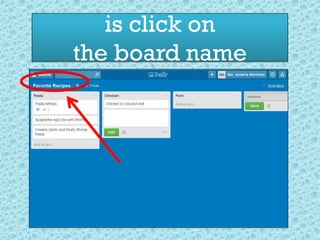
is click on
the board name
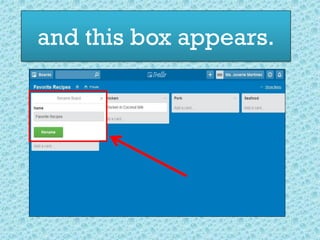
and this box appears.
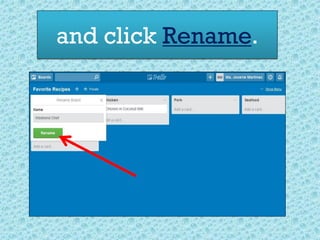
Type in the
new board name
and click Rename.
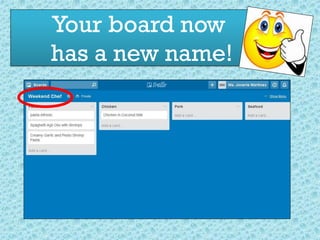
Your board now
has a new name!
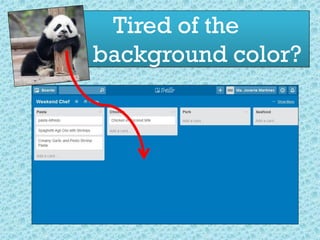
Tired of the
background color?
Don’t feel blue…
Let’s change it!!!
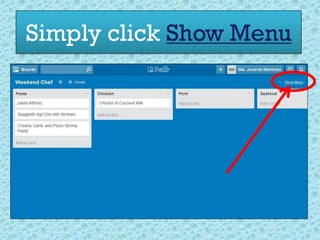
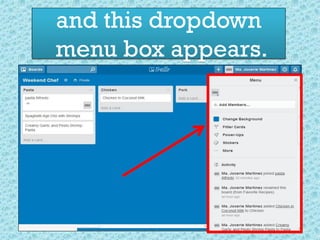
Simply click Show Menu
and this dropdown
menu box appears.
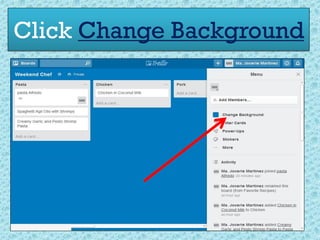
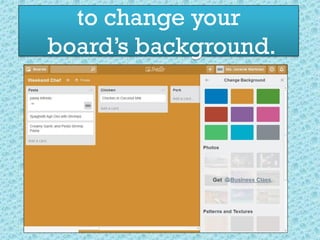
Click Change Background
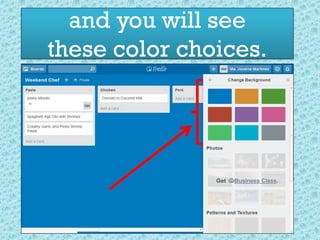
and you will see
these color choices.
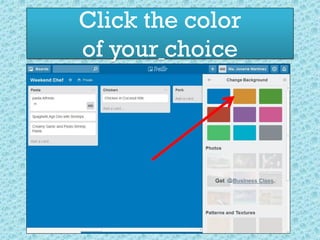
Click the color
of your choice
to change your
board’s background.
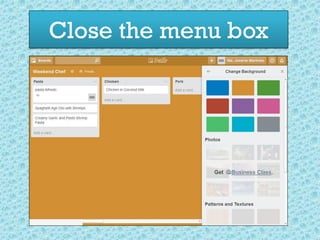
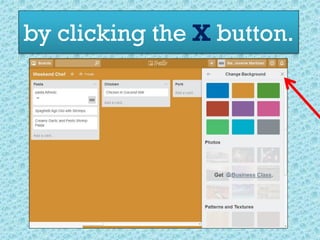
Close the menu box
C
by clicking the X button.
C
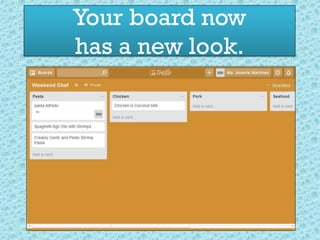
Your board now
has a new look.
C
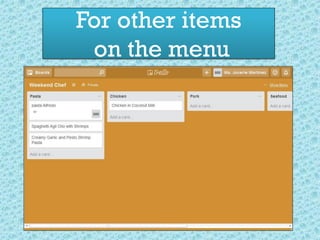
For other items
on the menu
C
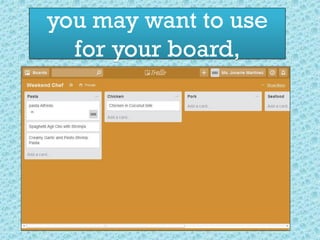
you may want to use
for your board,
C
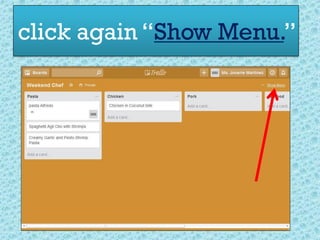
click again “Show Menu.”
C
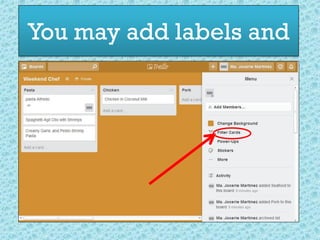
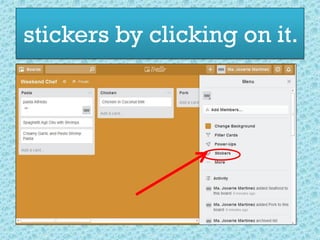
You may add labels and
You may add
stickers by clicking on it.
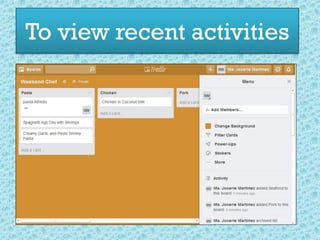
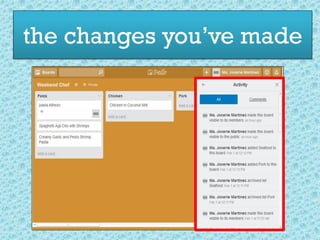
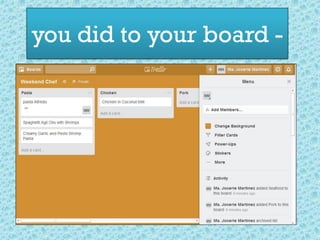
To view recent activities
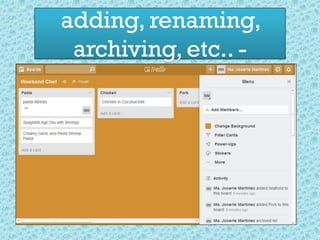
you did to your board -
adding, renaming,
archiving, etc.. -
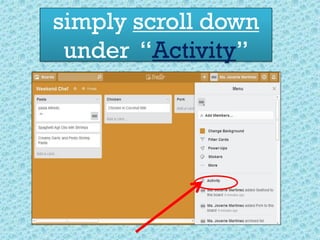
simply scroll down
under “Activity”
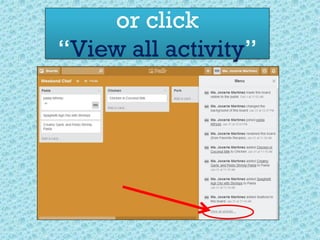
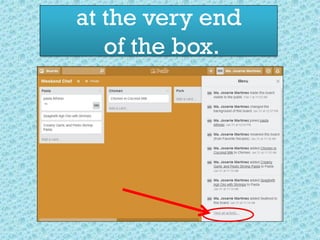
or click
“View all activity”
at the very end
of the box.
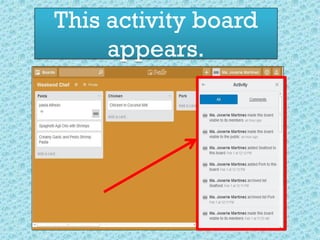
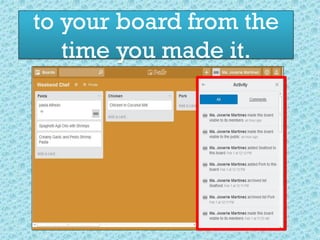
This activity board
appears.
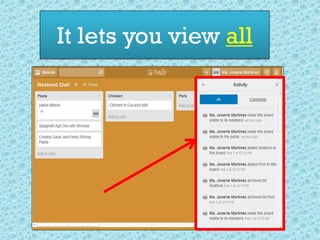
It lets you view all
the changes you’ve made
to your board from the
time you made it.
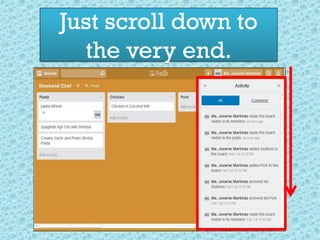
Just scroll down to
the very end.
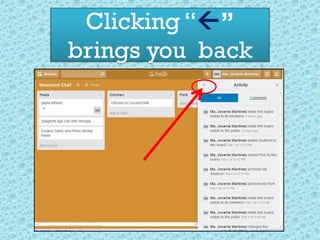
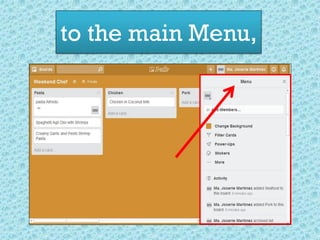
Clicking “”
brings you back
to the main Menu,
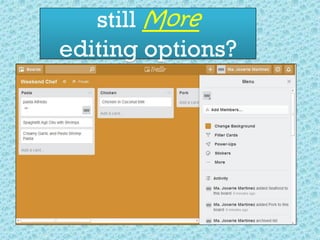
still More
editing options?
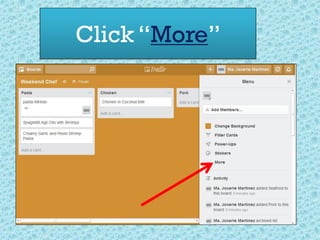
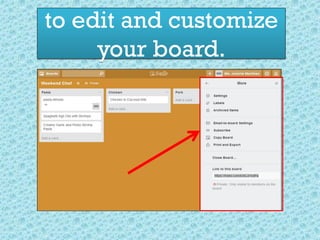
Click “More”
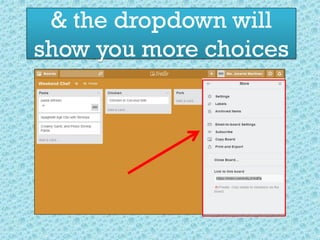
& the dropdown will
show you more choices
to edit and customize
your board.
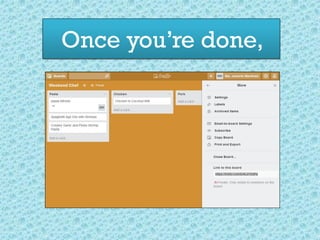
Once you’re done,
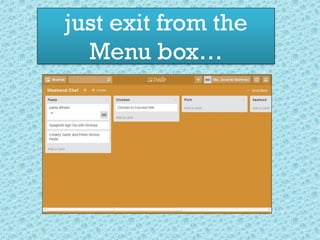
just exit from the
Menu box…
.
Now let’s take
a look at
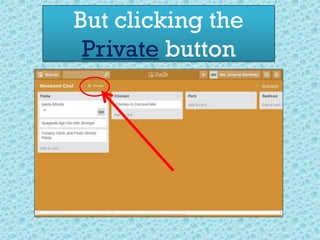
Privacy Settings.
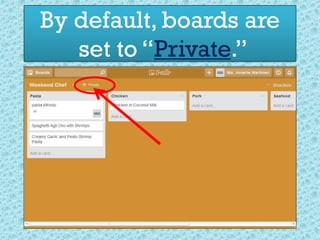
By default, boards are
set to “Private.”
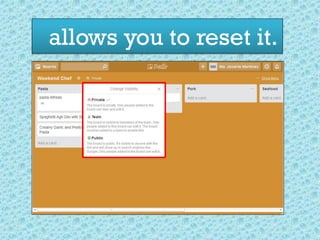
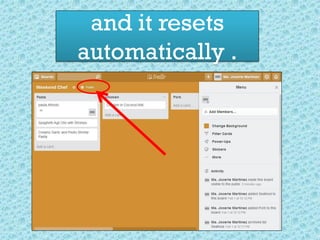
But clicking the
Private button
allows you to reset it.
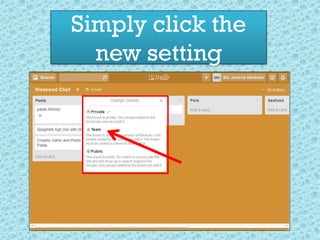
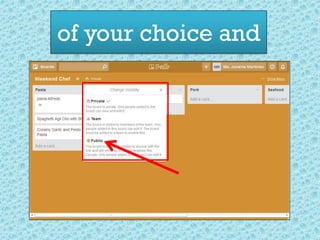
Simply click the
new setting
of your choice and
and it resets
automatically .
Whew!!
That was a lot
of learning!!
.
and
THAT’S
just for
editing the
Boards
Next stop ??!
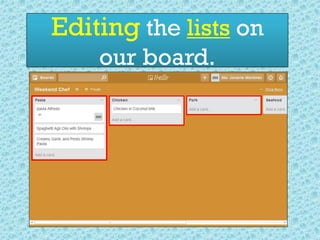
Editing the lists on
our board.
.
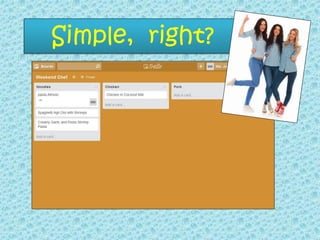
1. Renaming lists
.
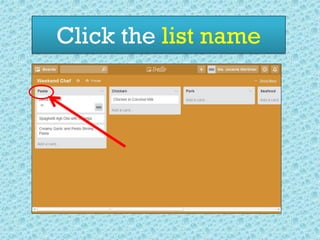
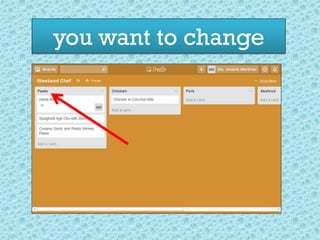
Click the list name
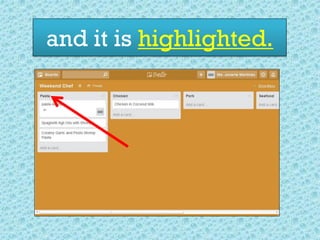
you want to change
and it is highlighted.
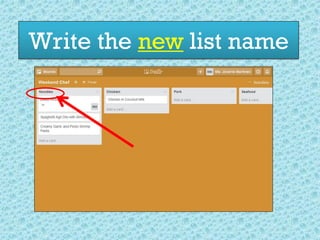
Write the new list name
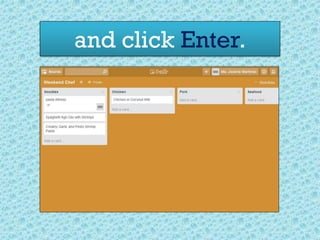
and click Enter.
Simple, right?
Next…
2. Moving lists
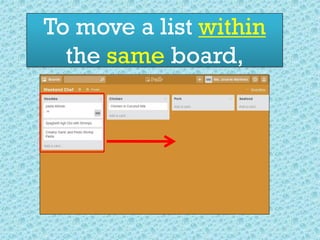
You can move lists
within a board
or move it to a
different board.
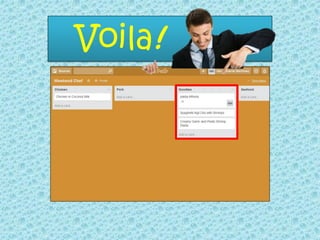
To move a list within
the same board,
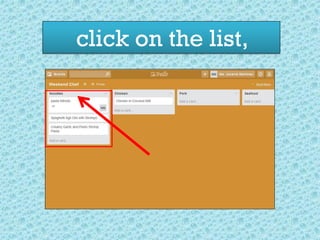
click on the list,
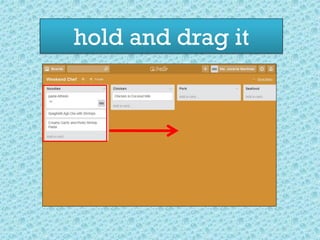
hold and drag it
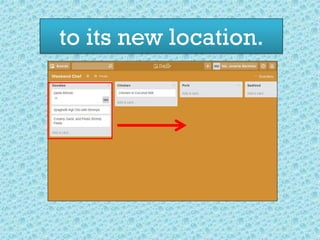
to its new location.
Voila!
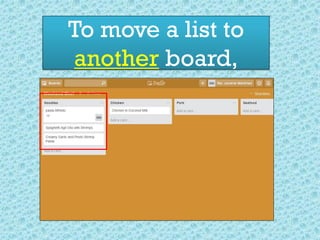
To move a list to
another board,
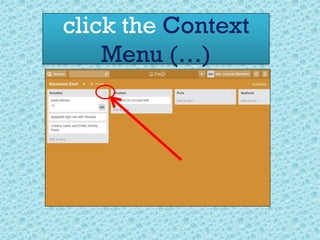
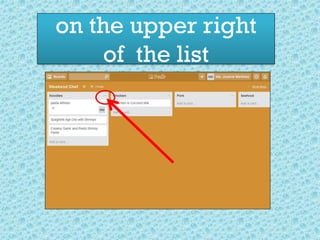
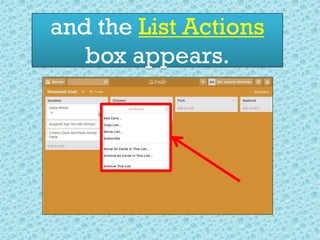
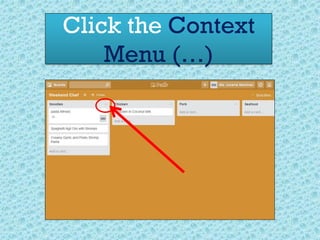
click the Context
Menu (…)
on the upper right
of the list
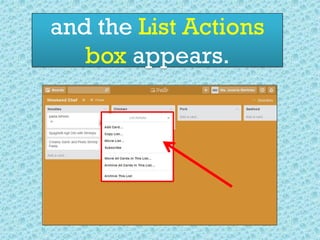
and the List Actions
box appears.
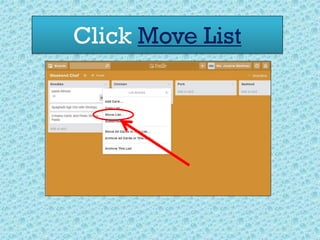
Click Move List
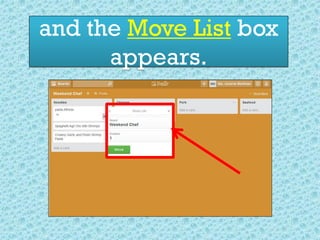
and the Move List box
appears.
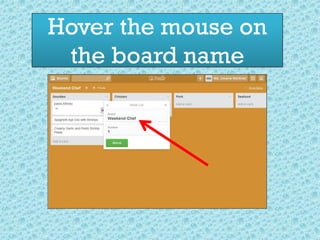
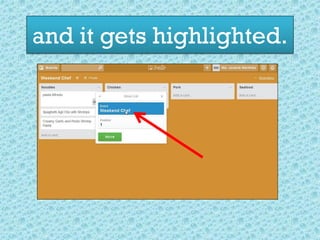
Hover the mouse on
the board name
and it gets highlighted.
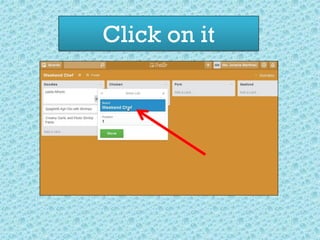
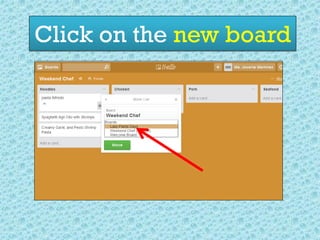
Click on it
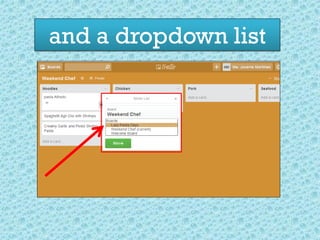
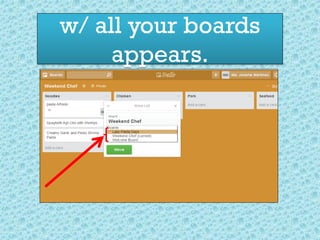
and a dropdown list
w/ all your boards
appears.
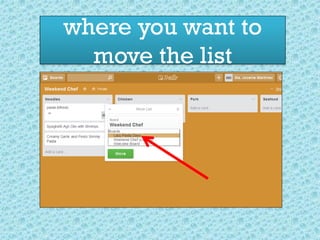
Click on the new board
where you want to
move the list
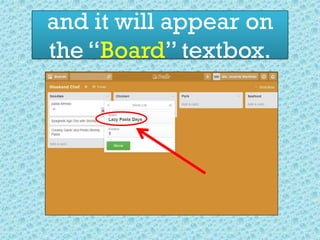
and it will appear on
the “Board” textbox.
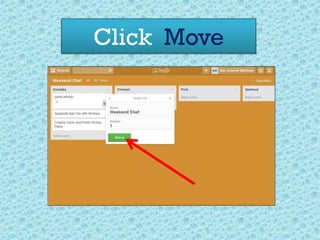
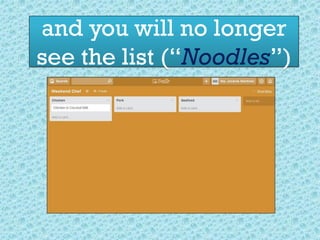
Click Move
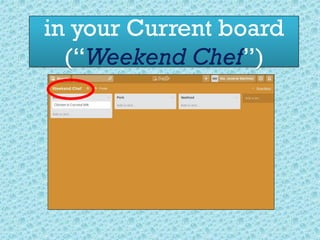
and you will no longer
see the list (“Noodles”)
in your Current board
(“Weekend Chef”)
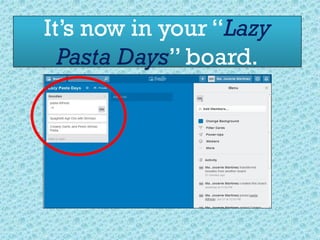
It’s now in your “Lazy
Pasta Days” board.
REALLY ??!
Let’s check it out.
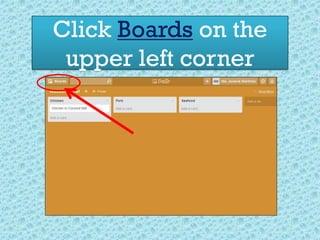
Click Boards on the
upper left corner
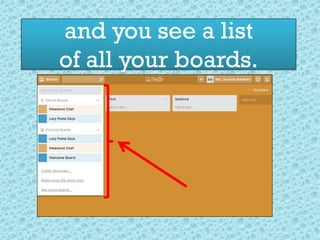
and you see a list
of all your boards.
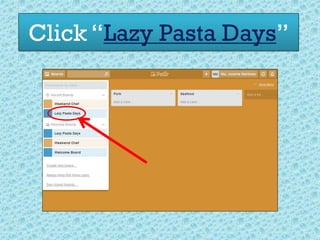
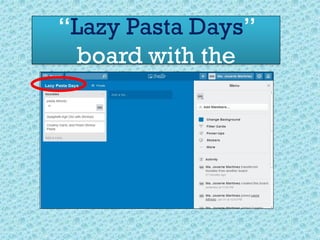
Click “Lazy Pasta Days”
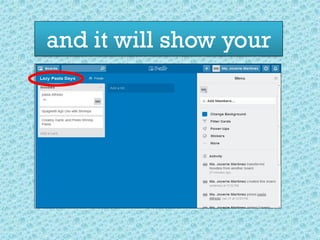
and it will show your
“Lazy Pasta Days”
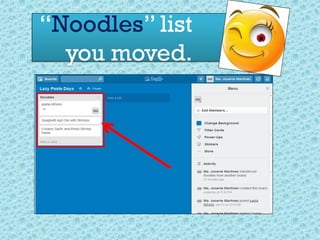
board with the
“Noodles” list
you moved.
Editing at the
click of a finger!!
Naahhh! – at the
click of a mouse, yes
On to the next...
3. Copying lists
Copying a list will
copy all of the
cards on that list
into a new list,
including the
checklists,
attachments,
and comments from
the original cards.
Let’s give it
a try…
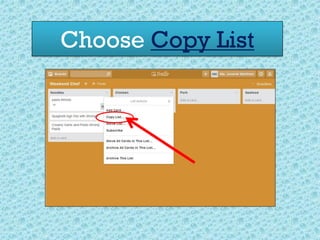
Click the Context
Menu (…)
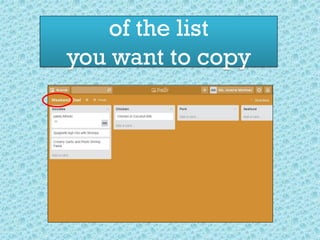
of the list
you want to copy
and the List Actions
box appears.
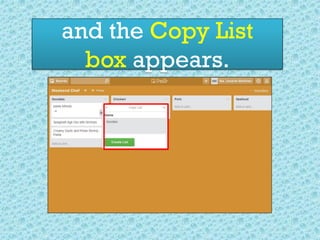
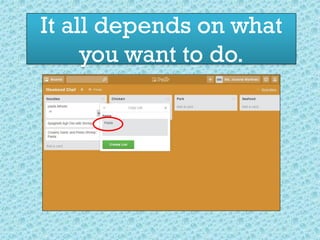
Choose Copy List
and the Copy List
box appears.
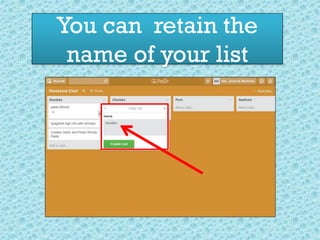
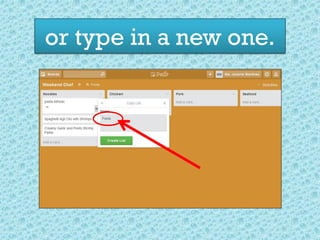
You can retain the
name of your list
or type in a new one.
It all depends on what
you want to do.
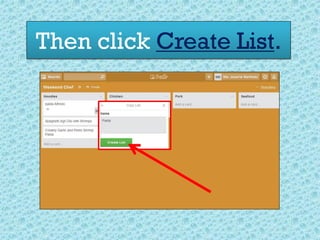
Then click Create List.
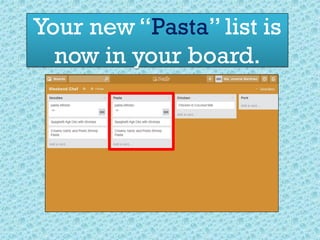
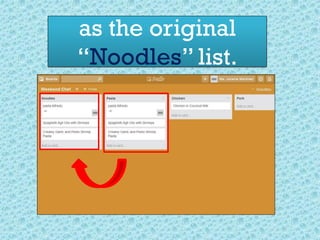
Your new “Pasta” list is
now in your board.
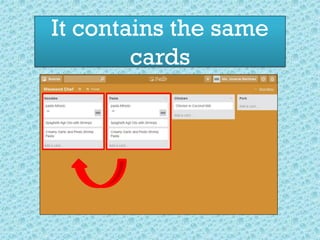
It contains the same
cards
as the original
“Noodles” list.
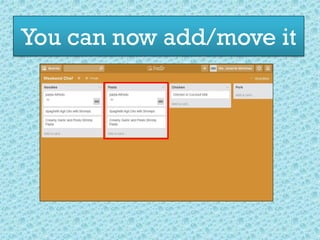
You can now add/move it
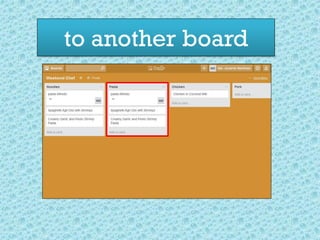
to another board
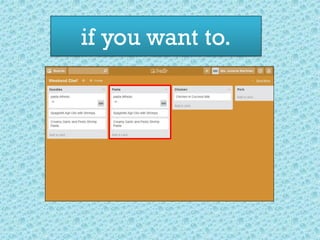
if you want to.
There!!!
We’ve covered
the editing basics
for Boards & Lists.
Do stick around
for the
continuation of
editing basics in
Part 3
But first…
Take a
break!

Trello tutorial for Beginners - part 2