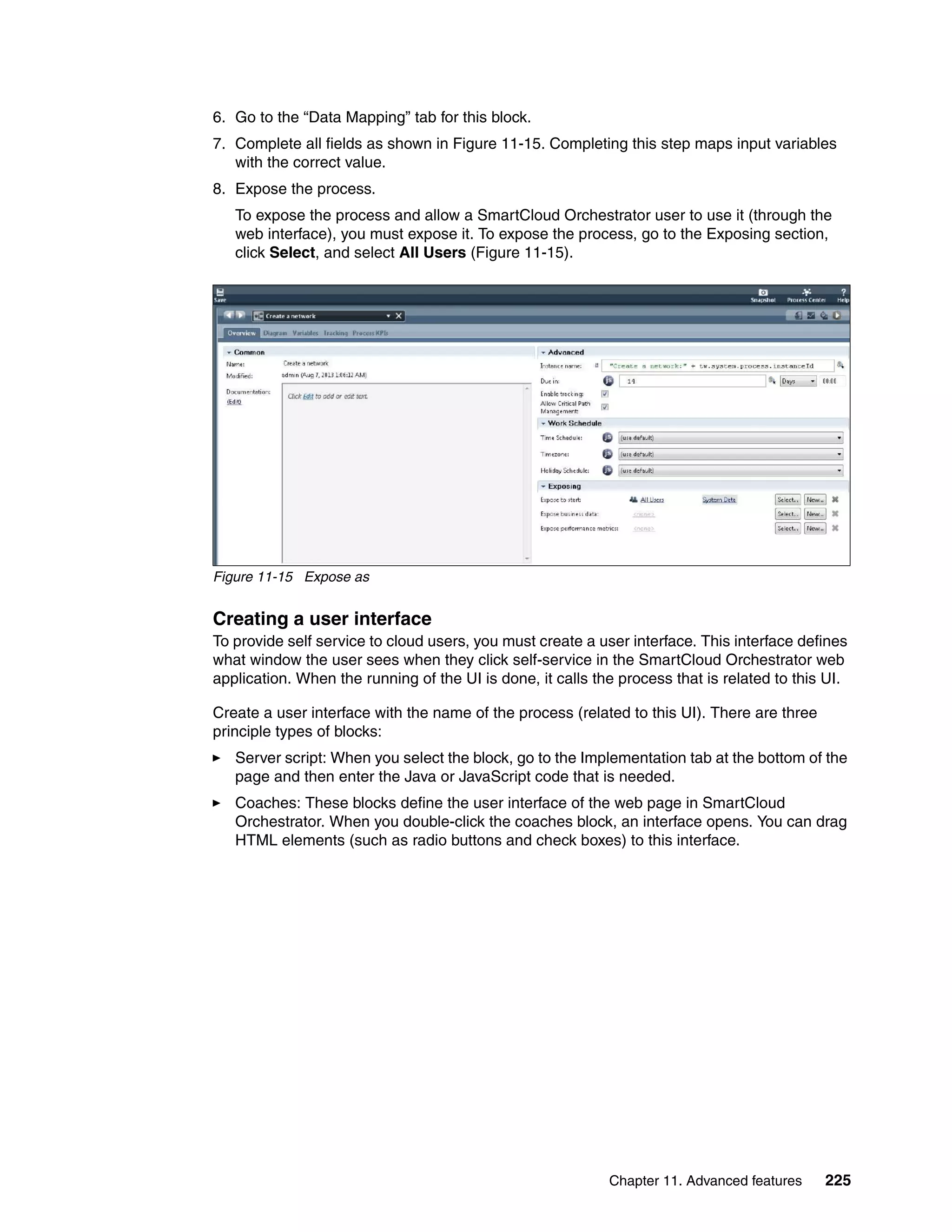
ibm.com/redbooks
Front cover
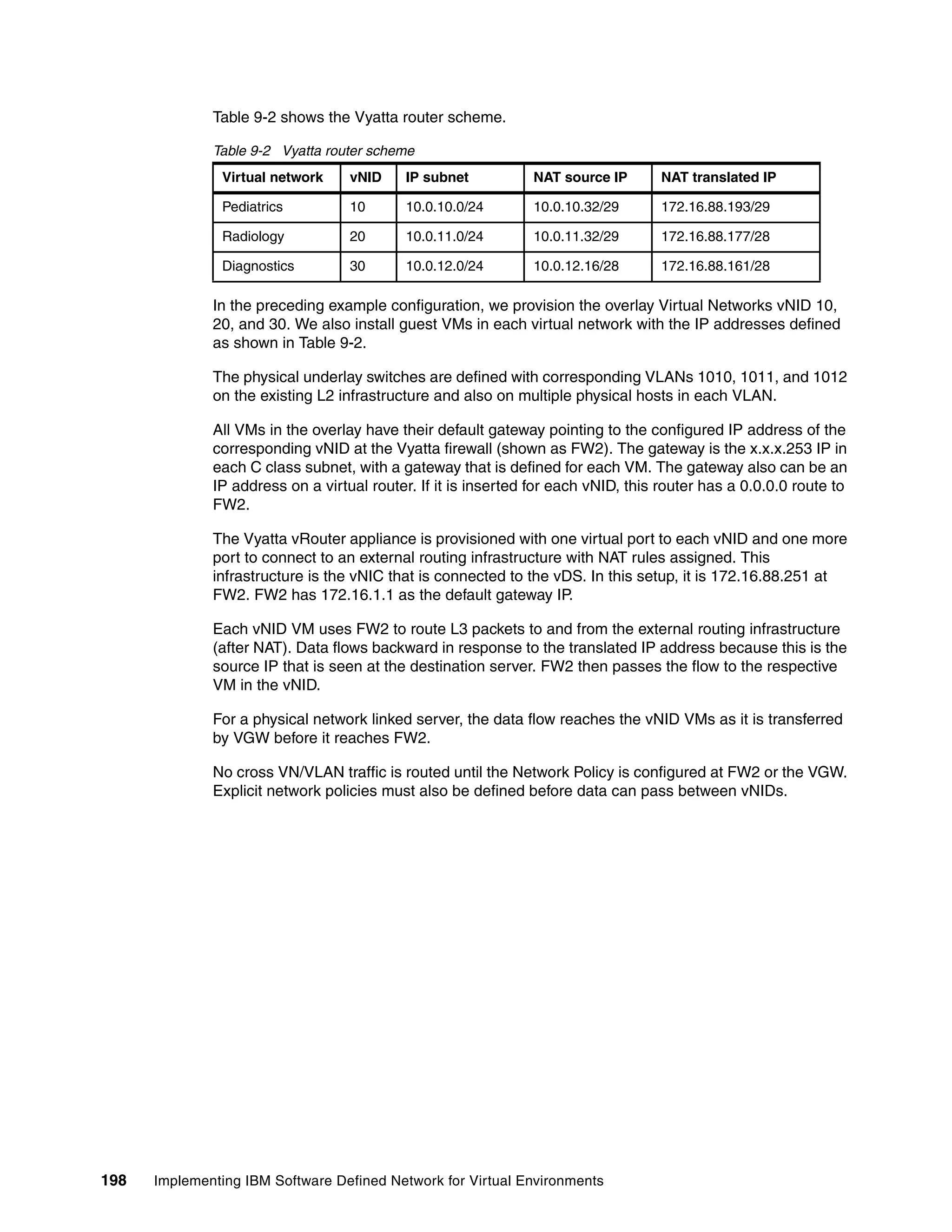
Implementing IBM
Software Defined Network
for Virtual Environments
Sangam Racherla
David Cain
Scott Irwin
Per Ljungstrøm
Pushkar Patil
Alessio M. Tarenzio
Learn how to install and implement
SDN VE in your data center
Understand the product’s design
and architecture
See real-life scenarios and
troubleshooting techniques
International Technical Support Organization
Implementing IBM Software Defined Network for Virtual
Environments
September 2014
SG24-8203-00
© Copyright International Business Machines Corporation 2014. All rights reserved.
Note to U.S. Government Users Restricted Rights -- Use, duplication or disclosure restricted by GSA ADP Schedule
Contract with IBM Corp.
First Edition (September 2014)
This edition applies to:
Unified Controller V1.0.0
DOVE Management Console (DMC) V1.1.0
Distributed Services Appliance (DSA) V1.1.0
KVM Agent V1.0.0
IBM SDN VE 5000V V1.1.1 (for vSphere 5.0 and 5.1) and V2.0.0 (for vSphere 5.5)
5000V Host Module V1.1.2 (for vSphere 5.0 and 5.1) and V2.0.0 (for vSphere 5.5)
Note: Before using this information and the product it supports, read the information in “Notices” on
page ix.
© Copyright IBM Corp. 2014. All rights reserved. iii
Contents
Notices . . . . . . . . . . . . . . . . . . . . . . . . . . . . . . . . . . . . . . . . . . . . . . . . . . . . . . . . . . . . . . . . . ix
Trademarks . . . . . . . . . . . . . . . . . . . . . . . . . . . . . . . . . . . . . . . . . . . . . . . . . . . . . . . . . . . . . . .x
Preface . . . . . . . . . . . . . . . . . . . . . . . . . . . . . . . . . . . . . . . . . . . . . . . . . . . . . . . . . . . . . . . . . xi
Authors. . . . . . . . . . . . . . . . . . . . . . . . . . . . . . . . . . . . . . . . . . . . . . . . . . . . . . . . . . . . . . . . . . xi
Now you can become a published author, too! . . . . . . . . . . . . . . . . . . . . . . . . . . . . . . . . . . xiii
Comments welcome. . . . . . . . . . . . . . . . . . . . . . . . . . . . . . . . . . . . . . . . . . . . . . . . . . . . . . . xiii
Stay connected to IBM Redbooks . . . . . . . . . . . . . . . . . . . . . . . . . . . . . . . . . . . . . . . . . . . . xiv
Chapter 1. Introducing Software Defined Environments and Software Defined
Networking . . . . . . . . . . . . . . . . . . . . . . . . . . . . . . . . . . . . . . . . . . . . . . . . . . . . 1
1.1 Software Defined Environments . . . . . . . . . . . . . . . . . . . . . . . . . . . . . . . . . . . . . . . . . . . 2
1.1.1 IBM SmartCloud Orchestrator. . . . . . . . . . . . . . . . . . . . . . . . . . . . . . . . . . . . . . . . . 3
1.2 Introducing Software Defined Networking. . . . . . . . . . . . . . . . . . . . . . . . . . . . . . . . . . . . 4
1.2.1 Benefits of Software Defined Networking . . . . . . . . . . . . . . . . . . . . . . . . . . . . . . . . 5
1.3 The relationship between Software Defined Environments and Software Defined
Networking . . . . . . . . . . . . . . . . . . . . . . . . . . . . . . . . . . . . . . . . . . . . . . . . . . . . . . . . . . . 5
1.3.1 Overlay (DOVE) . . . . . . . . . . . . . . . . . . . . . . . . . . . . . . . . . . . . . . . . . . . . . . . . . . . 7
1.3.2 OpenFlow . . . . . . . . . . . . . . . . . . . . . . . . . . . . . . . . . . . . . . . . . . . . . . . . . . . . . . . . 7
1.4 Points of concern and how Software Defined Networking helps. . . . . . . . . . . . . . . . . . . 7
1.5 OpenDaylight project and IBM contributions. . . . . . . . . . . . . . . . . . . . . . . . . . . . . . . . . . 9
1.6 Conclusion . . . . . . . . . . . . . . . . . . . . . . . . . . . . . . . . . . . . . . . . . . . . . . . . . . . . . . . . . . . 9
Chapter 2. Introducing IBM System Networking Software Defined Network for Virtual
Environments . . . . . . . . . . . . . . . . . . . . . . . . . . . . . . . . . . . . . . . . . . . . . . . . . 11
2.1 Introduction to IBM SDN VE . . . . . . . . . . . . . . . . . . . . . . . . . . . . . . . . . . . . . . . . . . . . . 12
2.1.1 Product versions . . . . . . . . . . . . . . . . . . . . . . . . . . . . . . . . . . . . . . . . . . . . . . . . . . 13
2.2 Elements of the IBM SDN VE solution . . . . . . . . . . . . . . . . . . . . . . . . . . . . . . . . . . . . . 14
2.3 IBM SDN VE components. . . . . . . . . . . . . . . . . . . . . . . . . . . . . . . . . . . . . . . . . . . . . . . 15
2.3.1 DOVE Management Console . . . . . . . . . . . . . . . . . . . . . . . . . . . . . . . . . . . . . . . . 16
2.3.2 Distributed Connectivity Service . . . . . . . . . . . . . . . . . . . . . . . . . . . . . . . . . . . . . . 16
2.3.3 DOVE Gateways. . . . . . . . . . . . . . . . . . . . . . . . . . . . . . . . . . . . . . . . . . . . . . . . . . 16
2.3.4 5000V Host Module . . . . . . . . . . . . . . . . . . . . . . . . . . . . . . . . . . . . . . . . . . . . . . . 16
2.4 IBM SDN VE 5000V Distributed vSwitch for VMware vSphere. . . . . . . . . . . . . . . . . . . 17
2.5 Prerequisites and system requirements . . . . . . . . . . . . . . . . . . . . . . . . . . . . . . . . . . . . 17
2.5.1 IBM SDN VE VMware Edition . . . . . . . . . . . . . . . . . . . . . . . . . . . . . . . . . . . . . . . . 17
2.5.2 IBM SDN VE KVM Edition. . . . . . . . . . . . . . . . . . . . . . . . . . . . . . . . . . . . . . . . . . . 19
2.6 Supported component capacity limits for IBM SDN VE. . . . . . . . . . . . . . . . . . . . . . . . . 19
2.7 IBM SDN VE solution advantages . . . . . . . . . . . . . . . . . . . . . . . . . . . . . . . . . . . . . . . . 21
2.8 Unified Controller . . . . . . . . . . . . . . . . . . . . . . . . . . . . . . . . . . . . . . . . . . . . . . . . . . . . . 23
2.9 Introduction to overlay network protocols . . . . . . . . . . . . . . . . . . . . . . . . . . . . . . . . . . . 24
2.9.1 Existing segmentation and associated challenges . . . . . . . . . . . . . . . . . . . . . . . . 25
2.10 VXLAN, NVGRE, and STT . . . . . . . . . . . . . . . . . . . . . . . . . . . . . . . . . . . . . . . . . . . . . 27
2.10.1 Virtual Extensible Local Area Network . . . . . . . . . . . . . . . . . . . . . . . . . . . . . . . . 27
Chapter 3. Introduction to IBM Software Defined Network for Virtual Environments
components . . . . . . . . . . . . . . . . . . . . . . . . . . . . . . . . . . . . . . . . . . . . . . . . . . 31
3.1 DOVE Management Console . . . . . . . . . . . . . . . . . . . . . . . . . . . . . . . . . . . . . . . . . . . . 32
3.1.1 Functions of the DMC . . . . . . . . . . . . . . . . . . . . . . . . . . . . . . . . . . . . . . . . . . . . . . 32
iv Implementing IBM Software Defined Network for Virtual Environments
3.1.2 DMC architecture . . . . . . . . . . . . . . . . . . . . . . . . . . . . . . . . . . . . . . . . . . . . . . . . . 36
3.1.3 CLI mode . . . . . . . . . . . . . . . . . . . . . . . . . . . . . . . . . . . . . . . . . . . . . . . . . . . . . . . 36
3.1.4 Web administration . . . . . . . . . . . . . . . . . . . . . . . . . . . . . . . . . . . . . . . . . . . . . . . . 39
3.1.5 Northbound API . . . . . . . . . . . . . . . . . . . . . . . . . . . . . . . . . . . . . . . . . . . . . . . . . . 41
3.1.6 High availability . . . . . . . . . . . . . . . . . . . . . . . . . . . . . . . . . . . . . . . . . . . . . . . . . . . 41
3.2 Distributed Services Appliance . . . . . . . . . . . . . . . . . . . . . . . . . . . . . . . . . . . . . . . . . . . 44
3.3 Distributed Connectivity Service . . . . . . . . . . . . . . . . . . . . . . . . . . . . . . . . . . . . . . . . . . 45
3.3.1 Distributed Connectivity Service cluster formation . . . . . . . . . . . . . . . . . . . . . . . . 46
3.3.2 DCS replication factor . . . . . . . . . . . . . . . . . . . . . . . . . . . . . . . . . . . . . . . . . . . . . . 49
3.3.3 DCS node failure example . . . . . . . . . . . . . . . . . . . . . . . . . . . . . . . . . . . . . . . . . . 49
3.3.4 DCS Connectivity Services . . . . . . . . . . . . . . . . . . . . . . . . . . . . . . . . . . . . . . . . . . 51
3.3.5 DCS configured version . . . . . . . . . . . . . . . . . . . . . . . . . . . . . . . . . . . . . . . . . . . . 55
3.4 Distributed Gateway components . . . . . . . . . . . . . . . . . . . . . . . . . . . . . . . . . . . . . . . . . 56
3.5 Distributed External Gateway . . . . . . . . . . . . . . . . . . . . . . . . . . . . . . . . . . . . . . . . . . . . 61
3.6 DGW as Distributed VLAN Gateway. . . . . . . . . . . . . . . . . . . . . . . . . . . . . . . . . . . . . . . 64
3.6.1 Special gateway rules . . . . . . . . . . . . . . . . . . . . . . . . . . . . . . . . . . . . . . . . . . . . . . 66
3.7 IBM SDN VE vSwitch . . . . . . . . . . . . . . . . . . . . . . . . . . . . . . . . . . . . . . . . . . . . . . . . . . 67
3.7.1 IBM SDN VE vSwitch software . . . . . . . . . . . . . . . . . . . . . . . . . . . . . . . . . . . . . . . 68
3.7.2 IBM SDN VE vSwitch kernel module . . . . . . . . . . . . . . . . . . . . . . . . . . . . . . . . . . 68
3.7.3 IBM SDN VE vSwitch user module . . . . . . . . . . . . . . . . . . . . . . . . . . . . . . . . . . . . 69
3.7.4 Encapsulation . . . . . . . . . . . . . . . . . . . . . . . . . . . . . . . . . . . . . . . . . . . . . . . . . . . . 69
3.7.5 Supported protocols . . . . . . . . . . . . . . . . . . . . . . . . . . . . . . . . . . . . . . . . . . . . . . . 69
3.7.6 Communication with other modules . . . . . . . . . . . . . . . . . . . . . . . . . . . . . . . . . . . 69
3.8 IBM Distributed Virtual Switch 5000V for VMware vSphere and 5000V Host Module . 70
3.9 KVM SDN VE vSwitch and the DOVE agent . . . . . . . . . . . . . . . . . . . . . . . . . . . . . . . . 72
Chapter 4. Installing and configuring IBM Software Defined Networking for Virtual
Environments VMware Edition . . . . . . . . . . . . . . . . . . . . . . . . . . . . . . . . . . . 75
4.1 Obtaining the IBM SDN VE VMware Edition software . . . . . . . . . . . . . . . . . . . . . . . . . 76
4.1.1 Passport Advantage software download. . . . . . . . . . . . . . . . . . . . . . . . . . . . . . . . 76
4.1.2 PartnerWorld Access for trials and evaluations . . . . . . . . . . . . . . . . . . . . . . . . . . 77
4.2 Understanding the different layers . . . . . . . . . . . . . . . . . . . . . . . . . . . . . . . . . . . . . . . . 80
4.2.1 Management network . . . . . . . . . . . . . . . . . . . . . . . . . . . . . . . . . . . . . . . . . . . . . . 81
4.2.2 Tunnel endpoint network. . . . . . . . . . . . . . . . . . . . . . . . . . . . . . . . . . . . . . . . . . . . 82
4.2.3 Overlay network . . . . . . . . . . . . . . . . . . . . . . . . . . . . . . . . . . . . . . . . . . . . . . . . . . 83
4.3 Hardware components . . . . . . . . . . . . . . . . . . . . . . . . . . . . . . . . . . . . . . . . . . . . . . . . . 84
4.4 Installation of IBM SDN VE for VMware . . . . . . . . . . . . . . . . . . . . . . . . . . . . . . . . . . . . 84
4.4.1 Summary of the installation procedures . . . . . . . . . . . . . . . . . . . . . . . . . . . . . . . . 84
4.4.2 IBM SDN VE VMware Edition IP checklist . . . . . . . . . . . . . . . . . . . . . . . . . . . . . . 85
4.4.3 Deploying the DOVE Management Console. . . . . . . . . . . . . . . . . . . . . . . . . . . . . 86
4.4.4 Deploying the Distributed Services Appliance and pointing it to the DMC cluster IP
address. . . . . . . . . . . . . . . . . . . . . . . . . . . . . . . . . . . . . . . . . . . . . . . . . . . . . . . . . 88
4.4.5 Deploying the 5000V Distributed Overlay Virtual Ethernet vSwitch . . . . . . . . . . . 88
4.4.6 DOVE Management Console . . . . . . . . . . . . . . . . . . . . . . . . . . . . . . . . . . . . . . . . 90
4.4.7 5000V Host Module installation . . . . . . . . . . . . . . . . . . . . . . . . . . . . . . . . . . . . . . 94
4.4.8 Attaching hosts to the vDS uplinks . . . . . . . . . . . . . . . . . . . . . . . . . . . . . . . . . . . . 95
4.4.9 Defining the underlay networks. . . . . . . . . . . . . . . . . . . . . . . . . . . . . . . . . . . . . . . 96
4.4.10 Attaching VMs to the overlay networks and port groups. . . . . . . . . . . . . . . . . . . 97
4.4.11 Defining a Distributed VLAN Gateway . . . . . . . . . . . . . . . . . . . . . . . . . . . . . . . . 98
4.4.12 Redundant VGW. . . . . . . . . . . . . . . . . . . . . . . . . . . . . . . . . . . . . . . . . . . . . . . . 104
4.4.13 Defining an EGW . . . . . . . . . . . . . . . . . . . . . . . . . . . . . . . . . . . . . . . . . . . . . . . 104
4.4.14 Redundant IP external gateway . . . . . . . . . . . . . . . . . . . . . . . . . . . . . . . . . . . . 109
Contents v
Chapter 5. Installing IBM Software Defined Networking for Virtual Environments in a
KVM environment . . . . . . . . . . . . . . . . . . . . . . . . . . . . . . . . . . . . . . . . . . . . . 111
5.1 Virtualization on KVM . . . . . . . . . . . . . . . . . . . . . . . . . . . . . . . . . . . . . . . . . . . . . . . . . 112
5.1.1 Software and hardware requirements. . . . . . . . . . . . . . . . . . . . . . . . . . . . . . . . . 112
5.1.2 Installing KVM on the host system . . . . . . . . . . . . . . . . . . . . . . . . . . . . . . . . . . . 112
5.2 Recommended network configuration for IBM SDN VE . . . . . . . . . . . . . . . . . . . . . . . 114
5.2.1 Management network . . . . . . . . . . . . . . . . . . . . . . . . . . . . . . . . . . . . . . . . . . . . . 114
5.2.2 Data network. . . . . . . . . . . . . . . . . . . . . . . . . . . . . . . . . . . . . . . . . . . . . . . . . . . . 115
5.2.3 EXT network . . . . . . . . . . . . . . . . . . . . . . . . . . . . . . . . . . . . . . . . . . . . . . . . . . . . 115
5.3 Installation of the Unified Controller . . . . . . . . . . . . . . . . . . . . . . . . . . . . . . . . . . . . . . 115
5.3.1 Images for the Unified Controller . . . . . . . . . . . . . . . . . . . . . . . . . . . . . . . . . . . . 115
5.3.2 Configuration file that is used to create a virtual machine. . . . . . . . . . . . . . . . . . 115
5.3.3 Defining the controller by using virsh . . . . . . . . . . . . . . . . . . . . . . . . . . . . . . . . . 117
5.3.4 Starting the Unified Controller. . . . . . . . . . . . . . . . . . . . . . . . . . . . . . . . . . . . . . . 119
5.3.5 Configuration. . . . . . . . . . . . . . . . . . . . . . . . . . . . . . . . . . . . . . . . . . . . . . . . . . . . 123
5.4 License . . . . . . . . . . . . . . . . . . . . . . . . . . . . . . . . . . . . . . . . . . . . . . . . . . . . . . . . . . . . 123
5.4.1 License mechanism . . . . . . . . . . . . . . . . . . . . . . . . . . . . . . . . . . . . . . . . . . . . . . 123
5.4.2 Installing the license . . . . . . . . . . . . . . . . . . . . . . . . . . . . . . . . . . . . . . . . . . . . . . 123
5.5 Installation of Distributed Services Appliances . . . . . . . . . . . . . . . . . . . . . . . . . . . . . . 125
5.5.1 Images for the Distributed Services Appliance . . . . . . . . . . . . . . . . . . . . . . . . . . 125
5.5.2 Configuration files . . . . . . . . . . . . . . . . . . . . . . . . . . . . . . . . . . . . . . . . . . . . . . . . 126
5.5.3 Defining the domain using virsh . . . . . . . . . . . . . . . . . . . . . . . . . . . . . . . . . . . . . 127
5.5.4 Starting the IBM DSA . . . . . . . . . . . . . . . . . . . . . . . . . . . . . . . . . . . . . . . . . . . . . 128
5.5.5 Configuration. . . . . . . . . . . . . . . . . . . . . . . . . . . . . . . . . . . . . . . . . . . . . . . . . . . . 131
5.6 Installation of the Dove Agent . . . . . . . . . . . . . . . . . . . . . . . . . . . . . . . . . . . . . . . . . . . 131
5.6.1 Starting the agent on the host. . . . . . . . . . . . . . . . . . . . . . . . . . . . . . . . . . . . . . . 131
5.7 Exporting the network from the DMC . . . . . . . . . . . . . . . . . . . . . . . . . . . . . . . . . . . . . 132
5.8 Creating the guest VM and assigning it to the correct network. . . . . . . . . . . . . . . . . . 134
5.9 Example of a Distributed VLAN Gateway and Distributed External Gateway. . . . . . . 142
Chapter 6. IBM Software Defined Networking for Virtual Environments architecture and
design . . . . . . . . . . . . . . . . . . . . . . . . . . . . . . . . . . . . . . . . . . . . . . . . . . . . . . 145
6.1 IBM SDN VE architecture introduction . . . . . . . . . . . . . . . . . . . . . . . . . . . . . . . . . . . . 146
6.1.1 Availability . . . . . . . . . . . . . . . . . . . . . . . . . . . . . . . . . . . . . . . . . . . . . . . . . . . . . . 147
6.1.2 Capacity estimates and planning . . . . . . . . . . . . . . . . . . . . . . . . . . . . . . . . . . . . 148
6.1.3 Performance . . . . . . . . . . . . . . . . . . . . . . . . . . . . . . . . . . . . . . . . . . . . . . . . . . . . 148
6.1.4 Scalability . . . . . . . . . . . . . . . . . . . . . . . . . . . . . . . . . . . . . . . . . . . . . . . . . . . . . . 150
6.1.5 Reliability. . . . . . . . . . . . . . . . . . . . . . . . . . . . . . . . . . . . . . . . . . . . . . . . . . . . . . . 150
6.1.6 Service-level agreement . . . . . . . . . . . . . . . . . . . . . . . . . . . . . . . . . . . . . . . . . . . 150
6.1.7 System management . . . . . . . . . . . . . . . . . . . . . . . . . . . . . . . . . . . . . . . . . . . . . 151
6.1.8 Security . . . . . . . . . . . . . . . . . . . . . . . . . . . . . . . . . . . . . . . . . . . . . . . . . . . . . . . . 152
6.1.9 Standards . . . . . . . . . . . . . . . . . . . . . . . . . . . . . . . . . . . . . . . . . . . . . . . . . . . . . . 152
6.1.10 Serviceability. . . . . . . . . . . . . . . . . . . . . . . . . . . . . . . . . . . . . . . . . . . . . . . . . . . 152
6.1.11 Backup and recovery . . . . . . . . . . . . . . . . . . . . . . . . . . . . . . . . . . . . . . . . . . . . 152
6.1.12 External regulations . . . . . . . . . . . . . . . . . . . . . . . . . . . . . . . . . . . . . . . . . . . . . 154
6.2 System context . . . . . . . . . . . . . . . . . . . . . . . . . . . . . . . . . . . . . . . . . . . . . . . . . . . . . . 154
6.2.1 Underlay switching infrastructure . . . . . . . . . . . . . . . . . . . . . . . . . . . . . . . . . . . . 155
6.2.2 Underlay IP infrastructure . . . . . . . . . . . . . . . . . . . . . . . . . . . . . . . . . . . . . . . . . . 155
6.2.3 Storage infrastructure . . . . . . . . . . . . . . . . . . . . . . . . . . . . . . . . . . . . . . . . . . . . . 155
6.2.4 Network services. . . . . . . . . . . . . . . . . . . . . . . . . . . . . . . . . . . . . . . . . . . . . . . . . 156
6.2.5 Business continuity services . . . . . . . . . . . . . . . . . . . . . . . . . . . . . . . . . . . . . . . . 156
6.2.6 Backup and restore services. . . . . . . . . . . . . . . . . . . . . . . . . . . . . . . . . . . . . . . . 156
6.2.7 Authentication services . . . . . . . . . . . . . . . . . . . . . . . . . . . . . . . . . . . . . . . . . . . . 156
vi Implementing IBM Software Defined Network for Virtual Environments
6.2.8 Management services. . . . . . . . . . . . . . . . . . . . . . . . . . . . . . . . . . . . . . . . . . . . . 156
6.2.9 Usage and accounting services . . . . . . . . . . . . . . . . . . . . . . . . . . . . . . . . . . . . . 157
6.3 Architectural decisions . . . . . . . . . . . . . . . . . . . . . . . . . . . . . . . . . . . . . . . . . . . . . . . . 157
6.4 Solution design . . . . . . . . . . . . . . . . . . . . . . . . . . . . . . . . . . . . . . . . . . . . . . . . . . . . . . 159
6.4.1 Initial considerations . . . . . . . . . . . . . . . . . . . . . . . . . . . . . . . . . . . . . . . . . . . . . . 160
6.4.2 The path to design the solution. . . . . . . . . . . . . . . . . . . . . . . . . . . . . . . . . . . . . . 161
6.4.3 Functional and non-functional requirements. . . . . . . . . . . . . . . . . . . . . . . . . . . . 163
6.4.4 Logical design . . . . . . . . . . . . . . . . . . . . . . . . . . . . . . . . . . . . . . . . . . . . . . . . . . . 164
6.4.5 Detailed design . . . . . . . . . . . . . . . . . . . . . . . . . . . . . . . . . . . . . . . . . . . . . . . . . . 165
6.4.6 Implementation . . . . . . . . . . . . . . . . . . . . . . . . . . . . . . . . . . . . . . . . . . . . . . . . . . 166
Chapter 7. Use case 1: VM mobility and relocation . . . . . . . . . . . . . . . . . . . . . . . . . . . 167
7.1 Description and synopsis . . . . . . . . . . . . . . . . . . . . . . . . . . . . . . . . . . . . . . . . . . . . . . 168
7.1.1 Points to consider for VM mobility. . . . . . . . . . . . . . . . . . . . . . . . . . . . . . . . . . . . 168
7.2 Advantages of an IBM SDN VE environment . . . . . . . . . . . . . . . . . . . . . . . . . . . . . . . 169
7.3 Lab environment overview . . . . . . . . . . . . . . . . . . . . . . . . . . . . . . . . . . . . . . . . . . . . . 170
7.3.1 Environment components and diagram . . . . . . . . . . . . . . . . . . . . . . . . . . . . . . . 170
7.4 Setup and configuration . . . . . . . . . . . . . . . . . . . . . . . . . . . . . . . . . . . . . . . . . . . . . . . 172
7.4.1 VM output . . . . . . . . . . . . . . . . . . . . . . . . . . . . . . . . . . . . . . . . . . . . . . . . . . . . . . 172
7.4.2 VMware vCenter output . . . . . . . . . . . . . . . . . . . . . . . . . . . . . . . . . . . . . . . . . . . 174
7.4.3 DOVE Management Console output. . . . . . . . . . . . . . . . . . . . . . . . . . . . . . . . . . 174
7.4.4 IBM SDN VE 5000V output. . . . . . . . . . . . . . . . . . . . . . . . . . . . . . . . . . . . . . . . . 176
7.4.5 Communication output . . . . . . . . . . . . . . . . . . . . . . . . . . . . . . . . . . . . . . . . . . . . 176
7.4.6 Physical data center network output . . . . . . . . . . . . . . . . . . . . . . . . . . . . . . . . . . 178
7.5 Use case post-implementation evidence . . . . . . . . . . . . . . . . . . . . . . . . . . . . . . . . . . 178
7.5.1 Lab environment diagram . . . . . . . . . . . . . . . . . . . . . . . . . . . . . . . . . . . . . . . . . . 179
7.5.2 DMC output. . . . . . . . . . . . . . . . . . . . . . . . . . . . . . . . . . . . . . . . . . . . . . . . . . . . . 180
7.5.3 VMware vCenter output . . . . . . . . . . . . . . . . . . . . . . . . . . . . . . . . . . . . . . . . . . . 181
7.5.4 IBM SDN VE 5000V output. . . . . . . . . . . . . . . . . . . . . . . . . . . . . . . . . . . . . . . . . 181
7.5.5 Communication output . . . . . . . . . . . . . . . . . . . . . . . . . . . . . . . . . . . . . . . . . . . . 182
7.5.6 Physical data center network output . . . . . . . . . . . . . . . . . . . . . . . . . . . . . . . . . . 183
7.6 Conclusion . . . . . . . . . . . . . . . . . . . . . . . . . . . . . . . . . . . . . . . . . . . . . . . . . . . . . . . . . 183
Chapter 8. Use case 2: Data center virtualization to virtualization . . . . . . . . . . . . . . 185
8.1 IBM SDN VE simultaneous integration . . . . . . . . . . . . . . . . . . . . . . . . . . . . . . . . . . . . 186
8.1.1 Important advantage . . . . . . . . . . . . . . . . . . . . . . . . . . . . . . . . . . . . . . . . . . . . . . 186
8.1.2 Combined solution . . . . . . . . . . . . . . . . . . . . . . . . . . . . . . . . . . . . . . . . . . . . . . . 186
8.1.3 Separated solution . . . . . . . . . . . . . . . . . . . . . . . . . . . . . . . . . . . . . . . . . . . . . . . 188
Chapter 9. Use case 3: Firewall and DNS in multidomains. . . . . . . . . . . . . . . . . . . . . 191
9.1 Description and synopsis . . . . . . . . . . . . . . . . . . . . . . . . . . . . . . . . . . . . . . . . . . . . . . 192
9.2 Considerations before integration . . . . . . . . . . . . . . . . . . . . . . . . . . . . . . . . . . . . . . . . 192
9.2.1 Prerequisites . . . . . . . . . . . . . . . . . . . . . . . . . . . . . . . . . . . . . . . . . . . . . . . . . . . . 193
9.3 An IBM SDN VE environment with a EGW as the routing point . . . . . . . . . . . . . . . . . 193
9.4 Data flow in IBM SDN VE gateways per tenant . . . . . . . . . . . . . . . . . . . . . . . . . . . . . 196
9.5 Data flow in IBM SDN VE gateways and firewalls for each tenant . . . . . . . . . . . . . . . 197
9.6 Multidomain IP communication on the same IP subnet . . . . . . . . . . . . . . . . . . . . . . . 200
9.6.1 Same IP subnet communication . . . . . . . . . . . . . . . . . . . . . . . . . . . . . . . . . . . . . 200
Chapter 10. Use case 4: Multitenancy. . . . . . . . . . . . . . . . . . . . . . . . . . . . . . . . . . . . . . 203
10.1 Multitenancy for software defined networking . . . . . . . . . . . . . . . . . . . . . . . . . . . . . . 204
10.1.1 Multitenancy within the same domain . . . . . . . . . . . . . . . . . . . . . . . . . . . . . . . . 204
10.1.2 Multitenancy within different domains . . . . . . . . . . . . . . . . . . . . . . . . . . . . . . . . 206
10.1.3 Multitenancy and shared resources . . . . . . . . . . . . . . . . . . . . . . . . . . . . . . . . . 208
Contents vii
Chapter 11. Advanced features . . . . . . . . . . . . . . . . . . . . . . . . . . . . . . . . . . . . . . . . . . . 211
11.1 Capacity management . . . . . . . . . . . . . . . . . . . . . . . . . . . . . . . . . . . . . . . . . . . . . . . 212
11.1.1 Factors that affect network performance. . . . . . . . . . . . . . . . . . . . . . . . . . . . . . 212
11.1.2 Network performance management tasks . . . . . . . . . . . . . . . . . . . . . . . . . . . . 213
11.1.3 Conclusion . . . . . . . . . . . . . . . . . . . . . . . . . . . . . . . . . . . . . . . . . . . . . . . . . . . . 213
11.2 IBM SDN VE Northbound API. . . . . . . . . . . . . . . . . . . . . . . . . . . . . . . . . . . . . . . . . . 213
11.2.1 Introduction . . . . . . . . . . . . . . . . . . . . . . . . . . . . . . . . . . . . . . . . . . . . . . . . . . . . 213
11.2.2 Encryption . . . . . . . . . . . . . . . . . . . . . . . . . . . . . . . . . . . . . . . . . . . . . . . . . . . . . 213
11.2.3 Request/Response types . . . . . . . . . . . . . . . . . . . . . . . . . . . . . . . . . . . . . . . . . 214
11.2.4 Filtering and column selection. . . . . . . . . . . . . . . . . . . . . . . . . . . . . . . . . . . . . . 214
11.2.5 Examples . . . . . . . . . . . . . . . . . . . . . . . . . . . . . . . . . . . . . . . . . . . . . . . . . . . . . 214
11.3 IBM SDN VE and OpenStack . . . . . . . . . . . . . . . . . . . . . . . . . . . . . . . . . . . . . . . . . . 216
11.4 IBM SDN VE and IBM SmartCloud Orchestrator integration . . . . . . . . . . . . . . . . . . 219
11.4.1 Creating a self-service offering in SmartCloud Orchestrator. . . . . . . . . . . . . . . 221
11.4.2 Shared overlay appliances and security . . . . . . . . . . . . . . . . . . . . . . . . . . . . . . 229
Chapter 12. Troubleshooting and maintenance . . . . . . . . . . . . . . . . . . . . . . . . . . . . . . 231
12.1 Troubleshooting an IBM SDN VE VMware Edition installation during the installation
process. . . . . . . . . . . . . . . . . . . . . . . . . . . . . . . . . . . . . . . . . . . . . . . . . . . . . . . . . . . . 232
12.1.1 Identifying a problem. . . . . . . . . . . . . . . . . . . . . . . . . . . . . . . . . . . . . . . . . . . . . 232
12.1.2 Troubleshooting the underlay network . . . . . . . . . . . . . . . . . . . . . . . . . . . . . . . 232
12.1.3 Troubleshooting the overlay network . . . . . . . . . . . . . . . . . . . . . . . . . . . . . . . . 232
12.2 Troubleshooting an IBM SDN VE VMware Edition installation postinstallation. . . . . 234
12.2.1 Removing a network and port group from the Networks tab. . . . . . . . . . . . . . . 234
12.2.2 Show command examples . . . . . . . . . . . . . . . . . . . . . . . . . . . . . . . . . . . . . . . . 235
12.3 Limitations . . . . . . . . . . . . . . . . . . . . . . . . . . . . . . . . . . . . . . . . . . . . . . . . . . . . . . . . . 249
12.4 Upgrading components in a running VMware vSphere 5.0 or 5.1 environment . . . . 250
12.4.1 Understanding what must be updated . . . . . . . . . . . . . . . . . . . . . . . . . . . . . . . 250
12.4.2 Upgrading the Distributed Management Console . . . . . . . . . . . . . . . . . . . . . . . 250
12.4.3 Upgrading the Distributed Connectivity Service . . . . . . . . . . . . . . . . . . . . . . . . 252
12.4.4 Upgrading the Distributed Gateway . . . . . . . . . . . . . . . . . . . . . . . . . . . . . . . . . 254
12.4.5 Upgrading the Distributed Overlay Virtual Ethernet vSwitch. . . . . . . . . . . . . . . 254
12.4.6 Updating the IBM SDN VE 5000V Host Module . . . . . . . . . . . . . . . . . . . . . . . . 256
12.5 Components requiring updates after upgrading to VMware vSphere 5.5 . . . . . . . . . 257
12.5.1 Updating the IBM SDN VE 5000V Host Module . . . . . . . . . . . . . . . . . . . . . . . . 257
Appendix A. Overlay protocols in depth. . . . . . . . . . . . . . . . . . . . . . . . . . . . . . . . . . . . 259
Stateless Transport Tunnels . . . . . . . . . . . . . . . . . . . . . . . . . . . . . . . . . . . . . . . . . . . . . . . 260
Network Virtualization using Generic Routing Encapsulation . . . . . . . . . . . . . . . . . . . . . . 261
Related publications . . . . . . . . . . . . . . . . . . . . . . . . . . . . . . . . . . . . . . . . . . . . . . . . . . . . 263
Online resources . . . . . . . . . . . . . . . . . . . . . . . . . . . . . . . . . . . . . . . . . . . . . . . . . . . . . . . . 263
Help from IBM . . . . . . . . . . . . . . . . . . . . . . . . . . . . . . . . . . . . . . . . . . . . . . . . . . . . . . . . . . 263
viii Implementing IBM Software Defined Network for Virtual Environments
© Copyright IBM Corp. 2014. All rights reserved. ix
Notices
This information was developed for products and services offered in the U.S.A.
IBM may not offer the products, services, or features discussed in this document in other countries. Consult
your local IBM representative for information on the products and services currently available in your area. Any
reference to an IBM product, program, or service is not intended to state or imply that only that IBM product,
program, or service may be used. Any functionally equivalent product, program, or service that does not
infringe any IBM intellectual property right may be used instead. However, it is the user's responsibility to
evaluate and verify the operation of any non-IBM product, program, or service.
IBM may have patents or pending patent applications covering subject matter described in this document. The
furnishing of this document does not grant you any license to these patents. You can send license inquiries, in
writing, to:
IBM Director of Licensing, IBM Corporation, North Castle Drive, Armonk, NY 10504-1785 U.S.A.
The following paragraph does not apply to the United Kingdom or any other country where such
provisions are inconsistent with local law: INTERNATIONAL BUSINESS MACHINES CORPORATION
PROVIDES THIS PUBLICATION "AS IS" WITHOUT WARRANTY OF ANY KIND, EITHER EXPRESS OR
IMPLIED, INCLUDING, BUT NOT LIMITED TO, THE IMPLIED WARRANTIES OF NON-INFRINGEMENT,
MERCHANTABILITY OR FITNESS FOR A PARTICULAR PURPOSE. Some states do not allow disclaimer of
express or implied warranties in certain transactions, therefore, this statement may not apply to you.
This information could include technical inaccuracies or typographical errors. Changes are periodically made
to the information herein; these changes will be incorporated in new editions of the publication. IBM may make
improvements and/or changes in the product(s) and/or the program(s) described in this publication at any time
without notice.
Any references in this information to non-IBM websites are provided for convenience only and do not in any
manner serve as an endorsement of those websites. The materials at those websites are not part of the
materials for this IBM product and use of those websites is at your own risk.
IBM may use or distribute any of the information you supply in any way it believes appropriate without incurring
any obligation to you.
Any performance data contained herein was determined in a controlled environment. Therefore, the results
obtained in other operating environments may vary significantly. Some measurements may have been made
on development-level systems and there is no guarantee that these measurements will be the same on
generally available systems. Furthermore, some measurements may have been estimated through
extrapolation. Actual results may vary. Users of this document should verify the applicable data for their
specific environment.
Information concerning non-IBM products was obtained from the suppliers of those products, their published
announcements or other publicly available sources. IBM has not tested those products and cannot confirm the
accuracy of performance, compatibility or any other claims related to non-IBM products. Questions on the
capabilities of non-IBM products should be addressed to the suppliers of those products.
This information contains examples of data and reports used in daily business operations. To illustrate them
as completely as possible, the examples include the names of individuals, companies, brands, and products.
All of these names are fictitious and any similarity to the names and addresses used by an actual business
enterprise is entirely coincidental.
COPYRIGHT LICENSE:
This information contains sample application programs in source language, which illustrate programming
techniques on various operating platforms. You may copy, modify, and distribute these sample programs in
any form without payment to IBM, for the purposes of developing, using, marketing or distributing application
programs conforming to the application programming interface for the operating platform for which the sample
programs are written. These examples have not been thoroughly tested under all conditions. IBM, therefore,
cannot guarantee or imply reliability, serviceability, or function of these programs.
x Implementing IBM Software Defined Network for Virtual Environments
Trademarks
IBM, the IBM logo, and ibm.com are trademarks or registered trademarks of International Business Machines
Corporation in the United States, other countries, or both. These and other IBM trademarked terms are
marked on their first occurrence in this information with the appropriate symbol (® or ™), indicating US
registered or common law trademarks owned by IBM at the time this information was published. Such
trademarks may also be registered or common law trademarks in other countries. A current list of IBM
trademarks is available on the Web at http://www.ibm.com/legal/copytrade.shtml
The following terms are trademarks of the International Business Machines Corporation in the United States,
other countries, or both:
AIX®
Blade Network Technologies®
BNT®
Extreme Blue®
IBM Flex System®
IBM SmartCloud®
IBM®
PartnerWorld®
Passport Advantage®
PowerVM®
RackSwitch™
Redbooks®
Redbooks (logo) ®
System p®
System x®
The following terms are trademarks of other companies:
Intel, Intel logo, Intel Inside logo, and Intel Centrino logo are trademarks or registered trademarks of Intel
Corporation or its subsidiaries in the United States and other countries.
ITIL is a registered trademark, and a registered community trademark of The Minister for the Cabinet Office,
and is registered in the U.S. Patent and Trademark Office.
Linux is a trademark of Linus Torvalds in the United States, other countries, or both.
Microsoft, Windows, and the Windows logo are trademarks of Microsoft Corporation in the United States,
other countries, or both.
Java, and all Java-based trademarks and logos are trademarks or registered trademarks of Oracle and/or its
affiliates.
UNIX is a registered trademark of The Open Group in the United States and other countries.
Other company, product, or service names may be trademarks or service marks of others.
© Copyright IBM Corp. 2014. All rights reserved. xi
Preface
This IBM® Redbooks® publication shows how to integrate IBM Software Defined Network
for Virtual Environments (IBM SDN VE) seamlessly within a new or existing data center.
This book is aimed at pre- and post-sales support, targeting network administrators and other
technical professionals that want to get an overview of this new and exciting technology, and
see how it fits into the overall vision of a truly Software Defined Environment. It shows you all
of the steps that are required to design, install, maintain, and troubleshoot the IBM SDN VE
product. It also highlights specific, real-world examples that showcase the power and
flexibility that IBM SDN VE has over traditional solutions with a legacy network infrastructure
that is applied to virtual systems.
This book assumes that you have a general familiarity with networking and virtualization. It
does not assume an in-depth understanding of KVM or VMware. It is written for
administrators who want to get a quick start with IBM SDN VE in their respective virtualized
infrastructure, and to get some virtual machines up and running by using the rich features of
the product in a short amount of time (days, not week, or months).
Authors
Sangam Racherla is an IT Specialist. He holds a degree in
Electronics and Communication Engineering and has 11 years
of experience in the IT field. His areas of expertise include
Microsoft Windows, Linux, IBM AIX®, IBM System x®, and IBM
System p® servers, and various SAN and storage products
David Cain is a Network and Systems Engineer. He has over
10 years of experience in the data center, with expertise in
Ethernet switching, storage, SAN, security, virtualization, IBM
System x, and Linux system infrastructure. Dave holds a
Bachelor of Science degree in Computer Science from North
Carolina State University, and has co-authored two patents and
invention disclosures in the networking field. He joined IBM
full-time in the year 2006 after gaining valuable experience on
various internships with IBM while a student, including an IBM
Extreme Blue® internship in the year 2005.
xii Implementing IBM Software Defined Network for Virtual Environments
Scott Irwin joined IBM in November of 2010 as a Consulting
Systems Engineer (CSE) as part of the IBM Blade Network
Technologies® (BNT®) acquisition. His networking background
spans well over 16 years as both a Customer Support
Escalation Engineer and a Customer facing Field Systems
Engineer. In May of 2007, he was promoted to Consulting
Systems Engineer with a focus on deep customer
troubleshooting. His responsibilities are to support customer
Proof of Concepts, assist with paid installations and training,
and provide support for both pre- and post-Sales that focuses
on all verticals (Public Sector, High Frequency Trading, Service
Provider, Midmarket, and Enterprise).
Per Ljungstrøm is a Network Systems Engineer for IBM in the
Nordic countries, focusing on presales, architect designs,
education, and network proof-of-concepts. He has 27 years of
experience in Ethernet, WAN, and fiber communications,
networking, VPN, firewall security, and data center design. He
is certified and has experience with products such as
Checkpoint, Cisco, BlueCoat, and F5. Per holds a Bachelor of
Electronic Engineering degree from the Technical University of
Denmark, and a second Bachelor of Information Technology
degree from Niels Brock Copenhagen Business College. He is
one of the inventors of the IBM BlueExpert community in IBM
Europe, and has several inventions in the telephone and
computer science field. He has also served for ten years as
censor for graduating Bachelor of Information Technology
students at different colleges and military schools in Denmark.
Pushkar Patil was a Technical Sales Engineer for System
Networking in the System and Technology Group at IBM. In this
role, he consulted for many Fortune 500 customers about their
data center and cloud network infrastructures. Pushkar also
served as Technical Marketing Engineer for System
Networking in the Systems & Technology Group at IBM.
Pushkar was responsible for the adaptation of advanced
networking technologies for IBM System Networking, where he
implemented early prototypes in the lab and teaches Software
Defined Networking (SDN), including IBM SDN VE, OpenFlow
product offerings, and Network Virtualization, Cloud
Networking, and Data Center Convergence products. Pushkar
also worked on various competitive lab testing and was
responsible for producing reports for Sales, which are
generated either in the System Networking Labs or with
third-party vendors (Tolly, Lippis, and so on). He has over 10
years of experience in Sales, Technical Marketing, research,
and the design and development of networks and systems. At
BLADE Network Technologies (BNT), which was acquired by
IBM in 2010, Pushkar served as Software Engineer for various
blade products.
Preface xiii
Thanks to the following people for their contributions to this project:
Benoit Raymond
IBM France
Srinivasa N Thimalapur
IBM India
Pierluigi Buratti
IBM Italy
Stephan Benny, Rex Yaojen Chang, Sisir Chowdhury, Rachappa B Goni, Sam Mita, Ryan
Moats, Uday Shankar Nagaraj, Sridhar Samudrala, Vishal Shukla
IBM US
Now you can become a published author, too!
Here’s an opportunity to spotlight your skills, grow your career, and become a published
author—all at the same time! Join an ITSO residency project and help write a book in your
area of expertise, while honing your experience using leading-edge technologies. Your efforts
will help to increase product acceptance and customer satisfaction, as you expand your
network of technical contacts and relationships. Residencies run from two to six weeks in
length, and you can participate either in person or as a remote resident working from your
home base.
Find out more about the residency program, browse the residency index, and apply online at:
ibm.com/redbooks/residencies.html
Comments welcome
Your comments are important to us!
We want our books to be as helpful as possible. Send us your comments about this book or
other IBM Redbooks publications in one of the following ways:
Use the online Contact us review Redbooks form found at:
ibm.com/redbooks
Send your comments in an email to:
redbooks@us.ibm.com
Alessio M. Tarenzio is a technical pre-Sales IT Architect
working for IBM Italy. He has extensive experience in blending
IT architecture techniques with a deep understanding of
specific industry and technology trends. Working in the IT area
for over 18 years, Alessio designs and implements
sophisticated data center networking projects that can sustain
business requirements.
xiv Implementing IBM Software Defined Network for Virtual Environments
Mail your comments to:
IBM Corporation, International Technical Support Organization
Dept. HYTD Mail Station P099
2455 South Road
Poughkeepsie, NY 12601-5400
Stay connected to IBM Redbooks
Find us on Facebook:
http://www.facebook.com/IBMRedbooks
Follow us on Twitter:
http://twitter.com/ibmredbooks
Look for us on LinkedIn:
http://www.linkedin.com/groups?home=&gid=2130806
Explore new Redbooks publications, residencies, and workshops with the IBM Redbooks
weekly newsletter:
https://www.redbooks.ibm.com/Redbooks.nsf/subscribe?OpenForm
Stay current on recent Redbooks publications with RSS Feeds:
http://www.redbooks.ibm.com/rss.html
© Copyright IBM Corp. 2014. All rights reserved. 1
Chapter 1. Introducing Software Defined
Environments and Software
Defined Networking
This chapter provides an overview of Software Defined Environments (SDE) and how
Software Defined Networking (SDN) plays a role in the holistic view of the software defined
information technology (IT) infrastructure.
This chapter covers the following topics:
SDEs
SDN and its relationship to SDE
Points of concern
– Cost reductions
– Data center administrator skill set
– Organizational challenges
In addition, a quick introduction to the OpenDaylight project is provided.
1
2 Implementing IBM Software Defined Network for Virtual Environments
1.1 Software Defined Environments
Investments in enterprise virtualization, centralized administration, and hardware with
enhanced management and optimization function have laid the groundwork for a new era in
business responsiveness. The technical capabilities now exist to enable a fully programmable
IT infrastructure that can sense and respond to workload demands automatically. IBM calls
this idea an SDE. It is a new approach for holistic, simplified IT management in which
software provisions and configures entire infrastructures that are based on real-time workload
needs.
An SDE optimizes the entire computing infrastructure (compute, storage, and network
resources) so that it can adapt to the type of work that is required. In today's environment,
resources are assigned manually to workloads; that happens automatically in a SDE. In a
SDE, workloads are dynamically assigned to IT resources based on application
characteristics, security and service-level policies, and the best-available resources to deliver
continuous, dynamic optimization and reconfiguration to address infrastructure issues in a
rapid and responsive manner. Continuous optimization to instantly address infrastructure
issues and improve response to business needs and proactive management of IT resources
to improve efficiency and control costs of service delivery are other drivers that make this
approach so powerful. Underlying all of this infrastructure are policy-based compliance
checks and updates, which are leveraged by open standards-based application programming
interfaces (APIs) and protocols in a centrally managed environment.
In an SDE, workloads do not depend on specific systems, which is a major strength of the
approach; everything runs on the most appropriate combination of hardware assets, whatever
that might be. Thanks to open standards, the enterprise may choose any infrastructure that
meets its needs. Investments are protected, and there is no need to “lock in” to any one
vendor’s technology. In addition, responsiveness to new demands is enhanced greatly
because assets can readily be repurposed. The infrastructure adapts to business needs,
instead of the other way around.
Other benefits of SDE include the following ones:
Programmatic access to the environment as a whole. Key to unleashing the benefits of
SDE, workloads can be dynamically deployed on resources (for example, network,
compute, and storage) based on the unique characteristics of the applications.
Selecting the best available resources. This approach helps not only to provide the best
service-level agreements to the client, but also to optimize the overall cost in providing
those services.
Security. Analytics-based compliance checking reduces security exposure and business
risk.
Chapter 1. Introducing Software Defined Environments and Software Defined Networking 3
Figure 1-1 shows the relationship between a business and a software-defined IT
infrastructure.
Figure 1-1 SDE-enabled IT infrastructure
Figure 1-1 shows how the business dictates what the IT department must support. For
example, one of the following projects might be assigned for implementation:
Deploying a new Human Resources application
Testing a new help and support ticketing system
Setting up a pre-production environment for a test and development group
The IT department must translate the business requirements that are associated with these
projects into tangible goals and associated metrics. Each project must be available and
reliable for its total duration, with minimal system downtime. All of the resources that are
needed for each respective project (workload, computing power, connectivity needs, and
staffing requirements) must be discussed and documented before project implementation.
The SDE layer takes these requirements and uses resource abstraction and optimization,
which then adapts and transforms the IT infrastructure to serve the business need. This is
achieved by using different sections of the IT infrastructure that meet the agreed-upon
requirements.
1.1.1 IBM SmartCloud Orchestrator
IBM offers a SDE solution that is called IBM SmartCloud® Orchestrator (SmartCloud
Orchestrator). SmartCloud Orchestrator integrates compute, storage, management, and
networking systems to satisfy a growing demand for efficiency in data centers. It also provides
an open and extensible cloud management platform for managing heterogeneous, hybrid
environments. SmartCloud Orchestrator integrates provisioning, metering, usage,
accounting, and monitoring and capacity management of cloud services for clients.
Software Defined Environments
Software Defined
Network
Service Delivery
Operational Level
Agreement
Software Defined
Computing
Software Defined
Storage
Workload
Definition, Orchestration, and Optimization
Business Need
4 Implementing IBM Software Defined Network for Virtual Environments
Some other benefits of SmartCloud Orchestrator include the following ones:
Standardization and automation of cloud services through a flexible orchestration engine
and a self-service portal
Reusable workload patterns to enable dynamic cloud service delivery
Construction on open standards, including OpenStack, for unparalleled interoperability
For more information about SmartCloud Orchestrator, contact your IBM Account
Representative.
1.2 Introducing Software Defined Networking
SDN is a new network paradigm that separates each network service from its point of
attachment to the network, creating a far more dynamic, flexible, automated, and manageable
architecture. Administrators can easily move virtual resources throughout the network, create
private virtual networks that meet specific performance and security needs, and use a host of
other high-value applications.
The key to SDN is an innovative approach to controlling how data flows through a network. In
a traditional network, data flow is controlled by switches and routers. Each switch and router
contains the following basic elements:
Data plane: Physically carries data packets from one port to another by following rules that
are programmed into the device hardware. The data forwarding plane operates at the
speed of the network (wire speed).
Control plane: Contains the logic that the device uses to program the data plane, so
packets are forwarded correctly throughout the network.
Management plane: Lets an administrator log in to the device and configure it for basic
activities. Most devices can be configured locally or through a network management tool.
Vendors use control plane software to optimize data flow to achieve high performance and a
competitive advantage. The switch-based control plane paradigm gives network
administrators little opportunity to increase data flow efficiency across the network as a
whole.
SDN abstracts flow control from individual devices to the network level. Similar to server
virtualization where virtual machines are de-coupled from the physical server, network-wide
virtualization gives administrators the power to define network flows that meet the
connectivity requirements of end stations and address the specific needs of discrete user
communities.
The Ethernet and IP aspects of networking are not described in this book. The Open Systems
Interconnection Reference Model (OSI model) that was developed by the International
Organization for Standardization (ISO/OSI) is not described either. This OSI approach has
provided IT professionals with a structured, layered model that is applied to serve the
applications. Instead, this book compares and contrasts the monolithic approach of
networking devices versus the principles of SDN. The networking devices approach is
monolithic in the sense that there is no modularity, structure, or layered model in networking
devices. The intelligence is kept inside each networking device (for example, routers and
switches) and, therefore, each device needs to “think” autonomously and apply networking
features independently.
Chapter 1. Introducing Software Defined Environments and Software Defined Networking 5
SDN pulls the intelligence away from the hardware while still implementing the rich feature set
that the networking industry has had. Access Control List (ACL) and spanning tree are
examples of a few areas that SDN can help rethink. Imagine a new evolution of how the
network itself can serve the applications. This evolution uses a modular approach that is
structured and layered to provide the same functions as a traditional network device, yet in a
centralized and highly available fashion. This controller provides a level of abstraction that lets
networking embrace this technological shift to start enabling businesses on the same pace
that Software Defined Computing and Software Defined Storage are already delivering in
existing data centers.
1.2.1 Benefits of Software Defined Networking
The immediate advantage is simplicity. A good example that illustrates the benefits of SDN is
provisioning and de-provisioning. You know that workflows can automate networking.
Examples of working deployments are everywhere.
People and tools are required to automate the provisioning and de-provisioning of traditional
networking resources.
You need people, that is, skilled personnel that know how to program “scripts” and manage
tools. You need tools that can run “scripts” that access every networking device part of the
workflow and configure it by using a set of commands that are vendor-dependent. If you
consider an intrusion detection system (IDS) from vendor A, a firewall from vendor B, and a
switch from vendor C, these devices combined can make the workflow complex to plan,
implement, and manage. This is true even if you choose the same vendor.
SDN can simplify automation by using the abstraction of the structured layered model. You
still need skilled personnel to know what result is needed. These skilled personnel do not
need to know the complexity to obtain the result. The same is true for an SDN-enabled
network: the administrator can pass data to the controller, and the controller handles the
complexity.
Provisioning (or de-provisioning) is just an example of what SDN can do for the client, that is,
think about the complexity of handling multitier systems that require complex interaction
between server, storage, and network resources. When the client manages multitenant
resources, the ability to bring new customers (or services) online is expected by CIOs that
report back to the business. Imagine a simpler way to handle merges and acquisitions where
you must make overlapping IP subnets and VLAN Tag IDs on the same physical
infrastructure.
SDEs that are paired with SDNs can positively impact how you build data centers today.
1.3 The relationship between Software Defined Environments
and Software Defined Networking
This section details how SDN relates to SDE.
6 Implementing IBM Software Defined Network for Virtual Environments
Figure 1-2 shows how SDN relates to SDE and to the physical infrastructure.
Figure 1-2 Software Defined Networking in the new software defined enabled IT infrastructure
The relationship between the business, workload, SDE, and SDN from a top-down
perspective was described. This section focuses on the layers below the SDN platform. With
a single control point (SDN Unified Controller), you can abstract the resources and use them
in two ways:
Overlay (DOVE)
OpenFlow
The following sections describe at a high level the differences and interactions between the
two methods.
Server
Virtual Switches
SDN
Platform
Open Flow enabled
Infrastructure
Software Defined Environments
Software Defined Network Unified Controller
Multiplatform
(for example, VMware and KVM)
OpenFlowOverlay (DOVE)
Traditional
Infrastructure
Workload
Definition, Orchestration, and Optimization
Chapter 1. Introducing Software Defined Environments and Software Defined Networking 7
1.3.1 Overlay (DOVE)
Overlay networks enable the design of services in which the communication section is
de-coupled from the underlaying physical networking infrastructure (for example, switches
and routers). Basic network connectivity and (future) network services (security,
compression, acceleration, and QoS) can benefit from this abstraction by simplifying how
networking serves the IT infrastructure. For more information, see Designing Modular Overlay
Solutions for Network Virtualization, found at:
http://domino.research.ibm.com/library/cyberdig.nsf/papers/F59140F39B4A09E285257A7
50043F4A6/$File/h-0316.pdf
Overlay (DOVE) provides overlay technology that is used on a multiplatform environment that
is contained in the edge of the network, which is inside the hypervisor virtual switches in this
case. This book explains that the overlay has special components at the edge that make it
possible to interact with both traditional and OpenFlow enabled networks for data
communications between overlay-enabled endpoints and also to communicate with traditional
physical appliances that are not overlay capable (for example, a physical firewall or an
internet service provider physical terminating device).
1.3.2 OpenFlow
SDN with OpenFlow is a compelling way to build fast, agile, and intelligent networks. Data
flow control is abstracted from static individual switches to dynamic programmable
network-level control. Administrators can quickly create and control virtual networks for each
application environment or network service. They can scale highly virtualized application
infrastructures, or multitenant networks on public or private clouds.
The Unified Controller provides an OpenFlow-based fabric with centralized control of network
flows. The Unified Controller continuously manages and optimizes the OpenFlow network
topology and makes it possible for traffic flows to use an OpenFlow-based data center
network environment.
1.4 Points of concern and how Software Defined Networking
helps
This section describes possible points of concern, and potential solutions. In fact, the new
possibilities that are presented in the previous sections alleviate some of today’s data center
network challenges at the expense of raising new issues that must be faced by IT personnel.
These issues are not just technology-related; they can be broadly categorized in to three
main areas: technology, business, and organization.
The consolidation and virtualization of server platforms and network resources must be
carefully balanced to adapt to established security policies. The trade-off between
resource efficiency and ensuring secure isolation is a significant point of concern when
collapsing services with different security requirements on the same physical resources.
SDN addresses this situation in a holistic way by making it possible for security control
points to be placed exactly where it makes logical sense in terms of computing needs and
network flows.
Note: These points of concerns are taken from IBM Data Center Networking: Planning for
Virtualization and Cloud Computing, SG24-7928.
8 Implementing IBM Software Defined Network for Virtual Environments
The cost reduction imperative that is driven by the global economy has put much stress on
enterprise IT budgets, so much so that projects and initiatives that cannot clearly
demonstrate the value for the business have little chance of being approved and funded by
decision makers. In this context, network and IT managers are struggling to obtain tools
and methodologies that can show clear return on investment (ROI) to their business
executives.
Key to SDN is to demonstrate the value of the following items:
– Decreasing time to market: Responsiveness in provisioning (and de-provisioning)
workloads as expected by the business.
– Reducing capital expenditure: Shifting costs from intelligent devices in the edge to a
centralized, yet distributed, high availability controller.
– Reducing operational expenses: Having the complete picture of what is running on the
infrastructure is beneficial for the problem source identification phase. This in turn
helps the time to resolution and has an immediate benefit in the value that the IT
delivers to the business.
The ability to navigate through vendor-specific alternatives in the data center network
solution space is a challenging task. These solutions are solving some concrete
challenges that available standards are not ready to overcome. This situation poises a
serious threat to the interoperability of Ethernet networks, which has been a key
characteristic over the years to minimize vendor transition cost and ensure seamless
interoperability.
SDN makes the data center network LAN shift towards a model where the functionally
lowest common denominator is high enough to make multivendor networks an attractive
solution for clients.
The data center professional must know hypervisors, storage, and security. New skills
must be sought after both from a technological standpoint and from a communication and
teamworking point of view. Network virtualization, especially in the example of overlay
networks, can be seen as potential risk for a traditional engineer. Network capacity and
deterministic paths are among the aspects that make network engineers skeptical.
Here the shift is even less radical: overlay networks (for example, IPSec Virtual Private
Networks and DataLink Switching (DLSw)) have been deployed for years. Special
attention must be placed on the aspects that make the infrastructure reliable and perform
well (among other aspects). In its overall goal to simplify IT, SDN works with the status of
the infrastructure and knows which resource is better to be used.
IT organizations can no longer be grouped into independent silos. The interdependencies
between different teams managing and developing new solutions for the data center are
too numerous to rely on the traditional organizational model. For example:
– Application characteristics cannot be ignored by network architects and managers.
– Virtual switch management boundaries blur between network and virtualization teams.
– Storage and data converged network project responsibilities must be carefully
balanced between the storage and the network teams.
SDN works to help enable communication and collaboration among organizational teams.
Chapter 1. Introducing Software Defined Environments and Software Defined Networking 9
1.5 OpenDaylight project and IBM contributions
OpenDaylight is an open source project under the Linux Foundation that was formed with the
mutual goal of furthering the adoption and innovation of SDN through the creation of a more
open, transparent, and industry-supported framework.
OpenDaylight is key to an SDE. As data centers struggle to meet the demands of today's
business, there is an increasing need for an SDE that brings together the trends in computing,
storage, and networking into a common set of infrastructure attributes. IBM intends to build on
the OpenDaylight platform to offer a complete solution for SDN, which is a key building block
of the IBM SDE strategy.
For a list of the members of the OpenDaylight Project, visit the following website:
http://www.opendaylight.org/project/members
IBM co-developed the technical blueprint (Dixon-Erickson Proposal) for the SDN base
controller project based on code from multiple contributors. This is now the plan of record for
the controller architecture.
IBM has contributed the following items to OpenDaylight:
Open DOVE, which is an open source version of IBM SDN VE network virtualization
OpenFlow Load Balancing, which is integrated with the base controller
Controller enhancements for performance, scalability, and improved routing and
forwarding services
1.6 Conclusion
You have seen how networking is shifting. This publication provides real-life examples of the
reality of SDN. SDN can foster the power of virtual teams by using open technologies that
provide flexibility for controlling how the network behaves and reacts to business demands.
This book also shows what IBM Software Defined Network for Virtual Environments (IBM
SDN VE) can provide.
The journey towards enterprise simplification is a recurring objective in the IT industry. SDN
combined with SDE can help create shared resource pools that can be used to provision new
services dynamically in today’s heterogeneous, scattered, and highly customized IT
environment.
10 Implementing IBM Software Defined Network for Virtual Environments
© Copyright IBM Corp. 2014. All rights reserved. 11
Chapter 2. Introducing IBM System
Networking Software Defined
Network for Virtual Environments
This chapter introduces and describes the IBM System Networking Software Defined
Network for Virtual Environments (IBM SDN VE) product suite.
This chapter covers the following topics:
Introduction and product versions
Overview of elements that make up the IBM SDN VE solution
Prerequisites, system requirements, licensing, and capacities
Advantages of using IBM SDN VE
Unified Controller
Overlay Network protocols: Virtual Extensible Local Area Network (VXLAN), Network
Virtualization using Generic Routing Encapsulation (NVGRE), and Stateless Transport
Tunnels (STT)
2
12 Implementing IBM Software Defined Network for Virtual Environments
2.1 Introduction to IBM SDN VE
The IBM SDN VE product supplies a complete implementation framework for network
virtualization. IBM SDN VE is a distributed overlay virtual network software solution suite that
provides a virtualized form of a physical network without requiring any changes to the real
physical network. The IBM SDN VE architecture abstracts the underlying network for the
virtual environment and presents it as a service or as an infrastructure in the form of an
overlay network. IBM SDN VE components provide network virtualization within the IBM SDN
platform regardless of the physical network.
IBM SDN VE creates a more flexible network by creating a virtualized network for virtual
machines, without requiring any type of multicast to be enabled on the physical network. This
virtual network is de-coupled and isolated from the physical network much like a virtual
machine is de-coupled and isolated from its host server hardware. IBM SDN VE takes a
host-based overlay approach, which achieves advanced network abstraction that enables
application-level network services in large-scale multitenant environments. It provides a
multi-hypervisor, server-centric solution that is composed of multiple components that overlay
virtual networks onto any physical network that provides IP connectivity.
Figure 2-1 shows a high-level overview of the various components in the IBM SDN VE
solution. These components are explained further in this chapter, and in more detail in
Chapter 3, “Introduction to IBM Software Defined Network for Virtual Environments
components” on page 31.
Figure 2-1 High-level overview of IBM SDN VE
Chapter 2. Introducing IBM System Networking Software Defined Network for Virtual Environments 13
2.1.1 Product versions
The IBM SDN VE product suite is composed of the following versions:
IBM Software Defined Network for Virtual Environments VMware Edition
This package represents the first release of the IBM SDN VE solution, announced on 26
March 2013. As the name implies, this version is targeted at running with the vSphere
hypervisor that is published by VMware, Inc.
VMware vSphere is a closed-source, commercial, and highly proliferated x86 hypervisor
platform that enjoys worldwide industry adaptation, and is the market leader in the x86
virtualization space at the time of this writing.
IBM Software Defined Network for Virtual Environments KVM Edition
This product version represents the adaptation of the IBM SDN VE VMware Edition
components (minus the IBM SDN VE 5000V Distributed vSwitch for VMware vSphere
(IBM SDN VE 5000V), as shown in Figure 2-2 on page 15) for the Kernel-based Virtual
Machine (KVM) hypervisor.
KVM is an open source hypervisor that provides enterprise-class performance, scalability,
and security to run Windows and Linux workloads. KVM provides organizations a
cost-effective alternative to other x86 hypervisors, and enables a lower cost, more
scalable, and open cloud.
IBM Software Defined Network for Virtual Environments OpenFlow Edition
This product version is focused on providing Unified Controller integration with support for
Version 1.0 of the OpenFlow communications protocol.
OpenFlow is an emerging industry standard protocol that moves the network control plane
into software running on an attached server. The flow of network traffic can then be
controlled dynamically, without the need to rewire the data center network. OpenFlow also
offers a global view of the network, including traffic statistics, and is fully compatible with
existing Layer 2 and 3 protocols. In contrast to a traditional switch, which provides a
separate management/control plane for each switch element in the network, OpenFlow
extracts the control plane from the network. Some of the benefits of this approach include
better scalability, larger layer 2 domains and virtual devices, faster convergence, and
better scalability.
Version comparison matrix
Table 2-1 compares the version and included components of IBM SDN VE.
Table 2-1 Comparing versions and included components of IBM SDN VE
IBM SDN VE
VMware
Edition
KVM
Edition
OpenFlow
Edition
Components
Unified Controller Direction Yes Yes
IBM SDN VE 5000V Yes No No
IBM SDN VE vSwitch Yesa Yes No
OpenFlow 1.0 No No Yes
DOVE Management Console Yes Yes Yes
14 Implementing IBM Software Defined Network for Virtual Environments
2.2 Elements of the IBM SDN VE solution
IBM SDN VE implements the principles and vision of SDN through several discrete entities
that are henceforth referred to as the components. These components emulate the traditional
control and data forwarding planes of standard physical switches for the virtual network
overlay environment, and are critical pieces of the overall solution.
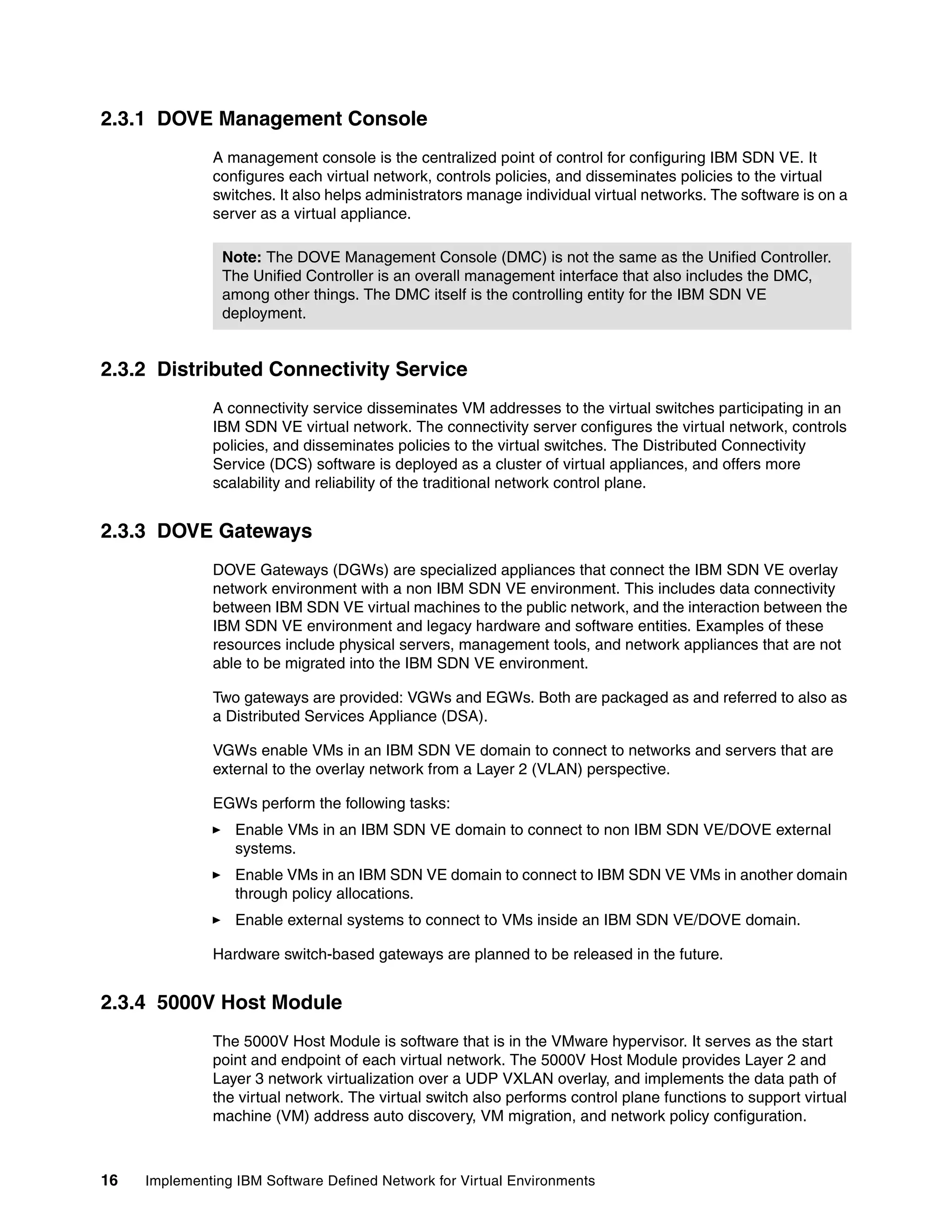
Figure 2-2 on page 15 shows a logical representation of the IBM SDN VE components and
how they fit into the existing data center physical network, referred to as the Underlay
Network. The DOVE Overlay network that is represented in the center of the picture is the
cornerstone of the product, and is used throughout this book to showcase the capabilities and
benefits of using IBM SDN VE. This virtual network transparently permits VM to VM
communication throughout the infrastructure, and requires no changes to the existing
underlay network that it rides over.
Distributed Services Appliances
(Distributed External Gateway (EGW) and
Distributed VLAN Gateway (VGW))
Yes Yes No
Licensed on a Per Populated Socket basis Yes No No
Licensed on a Per Managed Switch basis No Yes Yes
a. This is referred to as the 5000V Host Module in VMware.
IBM SDN VE
VMware
Edition
KVM
Edition
OpenFlow
Edition
Components
Chapter 2. Introducing IBM System Networking Software Defined Network for Virtual Environments 15
Figure 2-2 IBM SDN VE components diagram
IBM SDN VE uses the industry-standard Virtual Extensible Local Area Network (VXLAN)
frame format. The control plane for a virtual network implementation is not yet standardized,
so IBM SDN VE has a proprietary control plane as the core of DOVE technology.
2.3 IBM SDN VE components
Regardless of the hypervisor platform that is used by the customer, the IBM SDN VE
components represent one of the building blocks of the virtualized network environment.
These components provide similar functions in both VMware and KVM, with a few exceptions
where noted.
The IBM SDN VE solution is made up of four software components that work in combination
to provide effective host-based network virtualization.
16 Implementing IBM Software Defined Network for Virtual Environments
2.3.1 DOVE Management Console
A management console is the centralized point of control for configuring IBM SDN VE. It
configures each virtual network, controls policies, and disseminates policies to the virtual
switches. It also helps administrators manage individual virtual networks. The software is on a
server as a virtual appliance.
2.3.2 Distributed Connectivity Service
A connectivity service disseminates VM addresses to the virtual switches participating in an
IBM SDN VE virtual network. The connectivity server configures the virtual network, controls
policies, and disseminates policies to the virtual switches. The Distributed Connectivity
Service (DCS) software is deployed as a cluster of virtual appliances, and offers more
scalability and reliability of the traditional network control plane.
2.3.3 DOVE Gateways
DOVE Gateways (DGWs) are specialized appliances that connect the IBM SDN VE overlay
network environment with a non IBM SDN VE environment. This includes data connectivity
between IBM SDN VE virtual machines to the public network, and the interaction between the
IBM SDN VE environment and legacy hardware and software entities. Examples of these
resources include physical servers, management tools, and network appliances that are not
able to be migrated into the IBM SDN VE environment.
Two gateways are provided: VGWs and EGWs. Both are packaged as and referred to also as
a Distributed Services Appliance (DSA).
VGWs enable VMs in an IBM SDN VE domain to connect to networks and servers that are
external to the overlay network from a Layer 2 (VLAN) perspective.
EGWs perform the following tasks:
Enable VMs in an IBM SDN VE domain to connect to non IBM SDN VE/DOVE external
systems.
Enable VMs in an IBM SDN VE domain to connect to IBM SDN VE VMs in another domain
through policy allocations.
Enable external systems to connect to VMs inside an IBM SDN VE/DOVE domain.
Hardware switch-based gateways are planned to be released in the future.
2.3.4 5000V Host Module
The 5000V Host Module is software that is in the VMware hypervisor. It serves as the start
point and endpoint of each virtual network. The 5000V Host Module provides Layer 2 and
Layer 3 network virtualization over a UDP VXLAN overlay, and implements the data path of
the virtual network. The virtual switch also performs control plane functions to support virtual
machine (VM) address auto discovery, VM migration, and network policy configuration.
Note: The DOVE Management Console (DMC) is not the same as the Unified Controller.
The Unified Controller is an overall management interface that also includes the DMC,
among other things. The DMC itself is the controlling entity for the IBM SDN VE
deployment.
Chapter 2. Introducing IBM System Networking Software Defined Network for Virtual Environments 17
KVM does not use the 5000V Host Module, but rather a DOVE agent process that runs on
each individual hypervisor and listens for direction from the Distributed Connectivity Service.
The DOVE agents are also responsible for creating the individual bridged interfaces that
ultimately show up in the Virtual Machine Manager or virt-manager.
2.4 IBM SDN VE 5000V Distributed vSwitch for VMware vSphere
For VMware, the IBM SDN VE 5000V virtual appliance is used to aggregate the individual
5000V Host Modules and serves as the responsible entity for communication with the
VMware vSphere vCenter server.
KVM does not use a distributed vSwitch Controller component as a part of its software suite,
but instead uses the DOVE agents that are installed on the hypervisor to communicate with
the connectivity services directly through its own vSwitch, named the IBM SDN VE vSwitch.
2.5 Prerequisites and system requirements
Although the IBM SDN VE solution itself is software-based, it is important to ensure that all
the prerequisite hardware and software requirements are met.
It is assumed that the intended deployment environment (whether test or eventual production)
is already set up before you attempt the installation of IBM SDN VE. Setting up the physical
servers, network and storage infrastructure, and base hypervisor operating system
installation particulars are all out of scope for this publication.
2.5.1 IBM SDN VE VMware Edition
IBM SDN VE VMware Edition has the following prerequisites:
VMware vCenter Server must be installed and functioning on your network.
All hypervisor servers that participate in the IBM SDN VE solution must be installed and
operational, and include the following items:
– Each host must have a minimum of one 1 Gbps or one 10 Gbps physical NIC. It is
recommended that two physical NICs going to different physical switches be used on
each hypervisor for redundancy purposes.
– Each hypervisor must have bidirectional network connectivity to the vCenter Server
and all other hypervisor servers that participate in their respective virtual network
domain.
– There should be more than one hypervisor for vMotion.
Note: A successful deployment is much more difficult (if not impossible) to achieve if the
following guidelines are not strictly adhered to before the installation of any of the
respective products that are listed below.
18 Implementing IBM Software Defined Network for Virtual Environments
In addition to the general hypervisor requirements, you must meet the following requirements:
Each hypervisor server that hosts a DMC, DSA, or IBM SDN VE 5000V must have ESX
5.0, 5.1, or 5.5 installed and operational.
It is highly recommended that the hypervisor server that hosts the IBM SDN VE 5000V
implement VMware High Availability and VMware Fault Tolerance features to protect the
virtual switch against potential downtime or data loss.
Each hypervisor server that includes a 5000V Host Module must also have a valid
VMware Enterprise Plus license that is installed and active.
Virtual machines for the DMC, DCS, and DGW service appliances must include the following
items:
For a DMC, two VMs on different ESX hypervisors are required.
For a DCS, two VMs on different ESX hypervisors are required. Three are recommended.
For a DGW, two VMs on different ESX hypervisors are required.
For the IBM SDN VE 5000V, one VM is required.
Software packages
The Open Virtual Appliance (OVA) files that are shown in Table 2-2 are distributed with IBM
SDN VE VMware Edition. DOVE Connectivity Service (DCS) and the DOVE Gateway (DGW)
functions are packaged together in a single OVA because they are service appliances, and
are toggled for whichever function is wanted (DCS or DGW) through the DMC.
Table 2-2 Software packages that are included with IBM SDN VE VMware edition
In addition to these OVA files, several readme files and PDFs are also included to aid the
reader with the installation of the product.
Note: The files that are listed in Table 2-2 are shown only to familiarize the reader with
which components are contained in each respective file. Use the latest available versions
of the IBM SDN VE product in your deployments whenever possible.
Component Included in file
DOVE
Management
Console (DMC)
SDN_VE_MGT_CNSL_V1.0.0_VM_EN.ova
Distributed
Connectivity
Service (DCS)
SDN_VE_SVC_APP_V1.0.0_VM_EN.ova
DOVE Gateways
(DGW)
SDN_VE_SVC_APP_V1.0.0_VM_EN.ova
5000V Host
Module
SDNVEDVS_5KV_V1.1.1_CTRL_VS_5.0_5.1.ova
IBM SDN VE
5000V
Distributed
vSwitch for
VMware vSphere
(IBM SDN VE
5000V)
IBM-ESX-5000V.vib
Chapter 2. Introducing IBM System Networking Software Defined Network for Virtual Environments 19
2.5.2 IBM SDN VE KVM Edition
IBM SDN VE KVM Edition has the following recommended system requirements:
Red Hat Enterprise Linux 6.5.
One processor core or hyper-thread for the maximum number of virtualized processors in
a guest virtual machine and one for the host.
2 GB of RAM plus additional RAM for virtual machines.
6 GB of disk space for the host, plus the required disk space for each virtual machine.
Most guest operating systems require at least 6 GB of disk space, but the additional
storage space that is required for each guest depends on its image format.
Software packages
The following Red Hat Package Manager (RPM) and Kernelized Virtual Machine (KVM) files
are distributed with IBM SDN VE KVM Edition, as shown in Table 2-3. DCS and the DGW
functions are packaged together in a single KVM because they are service appliances, and
are toggled for whichever function is wanted (DCS or DGW) through the DMC.
Table 2-3 Software packages that are included with IBM SDN VE KVM edition
2.6 Supported component capacity limits for IBM SDN VE
For Version 1.0 of IBM SDN VE, the capacity limits are shown in Table 2-4.
Table 2-4 Capacity limits of IBM SDN VE Version 1.0
Note: Use the latest available versions of the IBM SDN VE product in your deployments,
whenever possible.
Component Included in file
Unified Controller SDNVE_UnifiedController_GA1_Dpc2_010.k
vm
DOVE Agent DoveAgent-1.0-1.x86_64.rpm
DCS ibmDOVEsvc.kvm
DGW ibmDOVEsvc.kvm
Component Feature Maximum supported
Domains Per IBM SDN VE installation 4,000
Replication Factor (number
of DCS nodes that hold
information)
3 recommended
4 maximum
20 Implementing IBM Software Defined Network for Virtual Environments
Networks Per IBM SDN VE installation 16,000
Subnets per domain 32
Subnets per VLAN Network
Identifier (vNID)
8
Per single IBM SDN VE
5000V (one hypervisor host
attaching to IBM SDN VE)
128
Policies Per IBM SDN VE installation 100,000 allowed
Per domain 32 allowed
DCS Per IBM SDN VE installation 20
DCS nodes that can
accommodate a single
domain
4
Customer Virtual Machines
(VMs)
VMs that a single DCS can
manage
100,000
Per IBM SDN VE installation 128,000
Per single DOVE vSwitch 128
DGW VGW Appliances per IBM
SDN VE installation
80
vNID mapping per IBM SDN
VE installation
4,094
vNIDS per VLAN Gateway 4,094
EGW appliances per vNID 16
VGW appliances per vNID 2
Distributed IP Gateway
appliances per IBM SDN VE
installation
80
Distributed VLAN and
EGWs (combined) per IBM
SDN VE installation
160
NAT IP addresses per EGW 200
Hypervisors Per VMware cluster 32
Number of tunnel end points
(TEPs) per hypervisor
1
Per IBM SDN VE 5000V 500
Per IBM SDN VE installation 4,000
Component Feature Maximum supported
Chapter 2. Introducing IBM System Networking Software Defined Network for Virtual Environments 21
2.7 IBM SDN VE solution advantages
IBM SDN VE offers IT administrators advanced functions by allowing them to expand
services, shorten implementation time, and control costs in their respective virtualized
environments. These value propositions are described in detail so that you can understand

how IBM SDN VE can help provide additional value in the data center.
IBM SDN VE 5000) IBM SDN VE profiles per
IBM SDN VE 5000V
256
vNIC profile and IBM SDN
VE profile on IBM SDN VE
5000V
256
Number of IBM SDN VE
5000V 5000V virtual
appliances per IBM SDN VE
installation
8
Number of VMKernel NICs
on a hypervisor that can be
added to portgroup
“DS-IP-ADDR-PROF”
1
Ports per IBM SDN VE
5000V
60,000
Ports per IBM SDN VE Port
Group
256
MTU Size Uplink port on IBM SDN VE
vSwitch
9,000
Access port on IBM SDN VE
vSwitch
9,000
DOVE Gateways 1,500
Component Feature Maximum supported
22 Implementing IBM Software Defined Network for Virtual Environments
Table 2-5 lists the overall objectives that are common across all IT departments, and how IBM
SDN VE can help the administrator address those challenges.
Table 2-5 Objectives and key features
Aside from the objectives that are listed in Table 2-5, there are many benefits of IBM SDN VE
that we frame from the perspective of the various components to highlight their own
respective advantages in the overall solution itself. These components are described in detail
later in the book.
Table 2-6 on page 23 lists the individual IBM SDN VE components and their value proposition
for the IT administrator in the data center.
Objectives Key features
Faster time to value Deploy applications and network
connectivity services faster.
Create networks on demand and as
quickly as virtual servers through
automation by using provided APIs.
Self-provisioning of data center network
resources.
Reduced operating expenses Centralized network creation versus
hundreds of physical switches.
No changes are needed to the existing
physical infrastructure.
Automates VM movement along with
policies and configurations.
Simplifies data center consolidation by
accommodating existing customer
address schemes.
High scalability, availability, and flexibility Distributed and clustered components.
Permits automatic load balancing for
enhanced performance.
Supports up to 16,000 virtual networks
and 128,000 VMs. The product is
designed to support 16 million virtual
networks.
Create and deconstruct networks as
needed.
Highly distributed and federated
address learning and dissemination.
Allows for large-scale sharing of
network infrastructure.
Enhanced security Eliminates error prone, manual
configuration steps when moving and
configuring VMs from a network
perspective.
Distinct, logical virtual networks for
multitenancy separation and isolation.
Multicast support is not required on the
existing physical network.
Chapter 2. Introducing IBM System Networking Software Defined Network for Virtual Environments 23
Table 2-6 IBM SDN VE component benefits
2.8 Unified Controller
The Unified Controller is a Network Orchestration Platform that provides applications with an
abstracted view of the entire network. The goal of this abstracted view is to achieve
software-based network manageability and other services.
The Unified Controller provides the following services:
Visibility and access into the administrative user interface (DMC)
Static DOVE configuration (Domains, virtual networks, policies, and so on)
Northbound APIs
Gateway configuration and management
External interfaces to enable communication between the controller and third-party
management software, and between the controller and IBM SDN VE components
In today’s cloud-enabled data centers, more and more service providers depend on network
topology, state, policies, and the hypervisor software that is deployed on the physical servers.
Data center administrators must define mobility, security policies, location abstraction, and
many other complex schemas in a multitenant, scaled-out, and high-density infrastructure.
They need services that can assist them in quickly deploying new network functions and
control in such an environment.
Component Benefits
DMC Easy-to-use GUI Interface.
Integrates with VMware vCenter.
Supports a comprehensive set of CLIs.
DCS Connectivity server and gateway are
stateless, enabling runtime scalability
as directed by usage requirements.
User configuration is done once and
automatically dispersed to the virtual
network’s components through
asynchronous configuration.
VGW Extend virtual network to physical
infrastructure through VXLAN-VLAN
gateway.
Virtual network users can access
non-virtualized services.
EGW Virtual end stations within the IBM SDN
VE virtual network can communicate to
non-virtualized IP networks and the
internet.
Managed Layer 2/3 distributed virtual
switch
IBM SDN VE provides all the features
of IBM SDN VE 5000V.
IBM SDN VE can be used as an
advanced Layer 2 virtual switch or as a
L2/L3 virtual network solution.
24 Implementing IBM Software Defined Network for Virtual Environments
The goal of the Unified Controller in IBM SDN VE is to create a unified Network Orchestration
Platform and a rich set of APIs to access its services, with the aim of supporting multiple
hypervisors across different hardware architectures. This can lead to rapid deployment of
solutions that target each customer’s specific requirements. It allows for operators to build
and deploy the IBM SDN VE product suite once and have a common architecture to deal with
a myriad of different hypervisors, network infrastructure, management policies, and
vendor-dependent features when deploying added services to their respective environments.
A high-level diagram of the Unified Controller is shown in Figure 2-3.
Figure 2-3 High-level overview of the Unified Controller
The Unified Controller is the focal point for logging, statistical, and operational status
information within the IBM SDN VE deployment. The Unified Controller receives log and
statistical information from each IBM SDN VE vSwitch, DCS, and DOVE Gateway.
As the IBM SDN VE environment is a large distributed system, the Unified Controller is a
central point for the virtualization administrator to retrieve statistical information about the
entire system. Such counters include standard packet and error counters, as you would
expect to find with a physical switch. The protocol is a variant of the one that is used between
the 5000V Host Module and the IBM SDN VE 5000V. Log and event information is transferred
to the Unified Controller in real time. As the Unified Controller stores this information, it can be
used in a wide variety of statistical analysis applications.
2.9 Introduction to overlay network protocols
The following section gives you a brief introduction to overlay protocols by explaining the
relationship and differences between the tunneling protocols that are used in existing Network
Virtualization solutions: VXLAN, NVGRE, and STT.
Chapter 2. Introducing IBM System Networking Software Defined Network for Virtual Environments 25
In legacy networks, the virtual edge is the physical connection between the hypervisor and
physical data center switch. Today, the edge of the network is virtual, terminating in the
hypervisor itself. The legacy network edge is still in place, but is secondary in nature,
responsible for transporting packets from and to the virtual environment only when the VMs
must communicate with resources outside of the overlay network. Network and server
administration roles are coming together over time, with the goal of secure and scalable
segmentation on the horizon. As the industry begins to embrace overlay network
infrastructures, administrators must have a basic understanding of how the overlay works on
the physical wire.
2.9.1 Existing segmentation and associated challenges
In most cases, the Layer 2 (L2) network is carved into smaller-sized IP subnets, typically one
IP subnet per VLAN, which are known as demilitarized zones (DMZ).
The DMZs are carved from each other by reading the 802.1q VLAN tags, which are
configured on the Layer 2 switches that are connected to servers hosting DMZ services.
Security-wise, this implementation has a huge OPEX impact because either the physical
edge link must carry all VLANs in the environment, or the network administrator must add and
remove every entry that they need on a port-by-port basis, based on need. Often, each host
uplink covers all VLANs to ensure that a VM migration does not fall in between two
hypervisors. In this situation, the network infrastructure is insecure.
Also in the existing data center network, a limit of 4096 (4K) VLANs exists in most setups
running today. The 4K VLAN limit is no longer sufficient in a shared infrastructure that
services multiple tenants, such as MSP or cloud services.
To achieve efficiency in an overlay network, you must assign location-independent addressing
in a single L2 network. Workloads at any location should be able to be migrated without
reconfiguring the network. Extending VLANs across the entire data center is error-prone and
has a high OPEX impact and a high hardware cost. Massive tables must be supported in core
switches, adding a higher hardware cost, OPEX, and complexity. Overlay networks bring
relief as they de-couple the need for reconfiguring the network whenever a VM migration
occurs. There are several objectives that you want to secure within an overlay infrastructure:
Ability to scale L2 and L3 no matter what the existing data center network is compose of
Ability to reduce the exposure of MAC addresses in the underlay network
Ability to migrate across data centers using L3 with no dependencies on the existing
underlay L2 network
Ability to migrate workloads to any location and retain the physical addressing scheme,
even when overlapping schemes are used
Ability to retain broadcast isolation within each DMZ
Ability to retain an open standard integration not depending on any underlay vendor
hardware
26 Implementing IBM Software Defined Network for Virtual Environments
Figure 2-4 shows the overlay mapping between the underlay network, hypervisor, and VMs.
Figure 2-4 Overlay mapping view
VMs can be moved across servers seamlessly with no impact on the ongoing data flow, but
they must stay within the same IP subnet post-migration. Moving VMs across different IP
subnets is not possible in today’s infrastructure, which limits the flexibility in data centers that
are provided by Managed Service Provider (MSP) and Cloud Service Providers (CSP).
Figure 2-5 illustrates the L2 versus L3 vMotion challenge.
Figure 2-5 Layer 2 versus Layer 3 virtual machine migration challenge
In Figure 2-5, a vMotion is possible within the same L2 network, as shown in DC1. However, a
seamless vMotion is not possible when VMs are part of a different IP subnet. The solution in
Figure 2-5 is only possible if L2 is extended over the link between DC1 and DC2.
Chapter 2. Introducing IBM System Networking Software Defined Network for Virtual Environments 27
MSP and CSP environments are built up among a multitenancy network layout, with each
tenant given its own security isolation. Isolation is built around VLANs, but the 12-bit reserved
field in the Ethernet frame gives up to only 4096 VLANs total. Each tenant is divided up
among different IP subnets within corresponding VLAN zones. Overlapping L3 networks is
either not possible or enforces further isolation and creates additional complexity around each
tenant.
Overlay protocols that are used in network virtualization should address some of these
shortcomings.
2.10 VXLAN, NVGRE, and STT
VXLAN, NVGRE, and STT are different encapsulation formats that are used in network
virtualization. Their main purpose is to create encapsulation of network traffic, tunnel traffic
between hypervisors, and de-encapsulate the traffic before it hits the destination VM.
VXLAN and NVGRE are Layer 2 overlays running over Layer 3 networks that allow a VM to
exit and enter hypervisors over a router as though the VM was just hopping from one server
rack to another through a data center switch. VXLAN and NVGRE are supposed to be
multivendor protocols, and they likely converge into a common standard. The latest VXLAN
drafts can be found at the following website:
http://tools.ietf.org/html/draft-mahalingam-dutt-dcops-vxlan-05
STT uses TCP segmentation offload (TSO) features in network interface cards to create an IP
tunnel between hypervisors, but it works only if you have the STT NICs everywhere. IBM SDN
VE is built on VXLAN. For more information about STT and NVGRE, see “Stateless Transport
Tunnels” on page 260 and “Network Virtualization using Generic Routing Encapsulation” on
page 261.
2.10.1 Virtual Extensible Local Area Network
In nearly all virtualized data center deployments, most of the traffic flows from VM to VM,
called East-West traffic, in which case the tunnels are terminated in local vSwitches. Flows
that stay within local vSwitches support East-West traffic. It is rare for those vSwitches to be
from different vendors, so VXLAN delivers multivendor support for the tunnel encapsulation.
One important thing to notice here is that traffic does not always flow East-West, but
oftentimes needs to go North-South as well. This is especially true in those situations where
VMs are not on the same hypervisor and a Load Balancer (LB) or firewall connection to the
legacy network is needed. Hence, there is a need for a common, stable, and straightforward
approach to tunneling among all those devices. However, it is essential that tunneling does
not cause too much impact in terms of processor load and network throughput.
The benefit of the VXLAN is that it runs over an existing infrastructure. It extends the L2
network, but across L3 networks. When it is seen from an L3 level, VXLAN is an overlay
scheme over an L3 routed network.
VXLAN contains two other technologies, which are called Virtual Network Identifier (VNI) and
VXLAN Tunnel End Point (VTEP).
28 Implementing IBM Software Defined Network for Virtual Environments
Virtual Network Identifier
VNI is the VXLAN identifier and made up of 24 bits. Compared to the original VLAN amounts
(12 bits = 4096), VXLAN can support up to a maximum of 16 million. When a VM sends a
frame, VNI encapsulates this frame and VXLAN now can create a tunnel across L3, carrying
this extended frame. A legacy network can now carry this traffic across a traditional L3
network, but first you must add the VTEP function.
VXLAN Tunnel End Point
VTEP and VNI are combined. Consider VTEP to be a virtual NIC with an IP address. As a
tunnel function creates a link between two endpoints, VTEP to VTEP is the tunnel endpoints,
which are identified by each VNI. VTEPs have a task of encapsulating and de-encapsulating
the frames that are sent and received by each VM. The VM is not aware of the VNI and VTEP
relationship. There are some restrictions in the VXLAN because segments (DMZ) cannot
share a MAC address, but different segments can have duplicated MACs if the segments are
not linked. In the IBM SDN VE solution, there are restrictions for now because duplicated
MAC addresses cannot always be among different gateways.
Packet flow in VXLAN
VMs are unaware of VXLAN, VNI, and VTEP. Whenever a VM tries to reach another VM, it
sends out a broadcast. If the destination VM is on another hypervisor, it sends its MAC frame
format to the target. Each physical hypervisor has its own associated VTEP and the VTEP
now looks up the VNI to which the VM destination is associated. It then determines whether
the destination MAC is on the same network segment or not. If this is true, an outer header is
defined, including an outer MAC, an outer IP address, and VLAN header are now
encapsulated around the front of the original MAC frame. The final packet is transmitted out to
the destination, which is the VTEP IP address at the destination host housing the destination
VM. The VXLAN outer header is then de-encapsulated, and the VM destination MAC that is
represented in the header now reaches its intended destination.
VXLAN format
In the preceding scenario, the source VM did not know the destination MAC address and the
ARP packet were then transferred by VTEP by using a multicast packet. This requires a
mapping in between VXLAN VNI and the IP multi-cast group that is used for this particular
transfer. VTEP mapping uses IGMP membership information to the upstream physical switch
or L3 router to either join or leave the VXLAN reference IP multicast group. Based on this
structure, the leaf nodes can be pruned if the member is not available on the host for the
specific multicast group.
Chapter 2. Introducing IBM System Networking Software Defined Network for Virtual Environments 29
Figure 2-6 shows a standard VXLAN frame format and how it is linked to the overlay and
underlay.
Figure 2-6 Standard VXLAN with inner and outer frame format
Here is a description of the fields in Figure 2-6:
The VXLAN header “I” flag must be set. The rest of “R” fields are padded with zeros.
The 24-bit field is the VNI where VMs are communicating on their IP subnet.
Reserved fields are padded with zeros.
The outer UDP header (blue) has a VTEP source port and a vendor-specific destination
port. De-encapsulation is accepted if the UDP checksum is zero.
The outer IP header contains a VTEP IP.
The outer Ethernet header contains the source MAC of the source VTEP. The Outer
destination MAC address can be the target VTEP or the intermediate L3 router.
The inner Ethernet frame (green) is the native Ethernet packet and contains the VM guest
MAC address. This is what is encapsulated in the VXLAN frame.
VXLAN source destination discovery methods
In the example in “VXLAN format” on page 28, the destination is unknown. Broadcast and
multicast were using multicast traffic for this service discovery. However, the dataplane
information flow can supply the relationship based on the source association of a VM's MAC
and the VTEP. This information can then be stored for future lookups, preventing the multicast
process from starting. When stored, the repository can be centrally placed in a directory
format that all hosts can read and share.
VXLAN and IBM SDN VE
The IBM SDN VE solution is not based on multicast traffic. It supports multicast, much like VM
or VNI (refer to vNID) do, but multicast is not part of the VXLAN routing process. This central
repository format is part of the solution, but you do not store each time that a change occurs.
Instead, you use a special method to discover the new or changed VM relationship whenever
needed.
30 Implementing IBM Software Defined Network for Virtual Environments
Figure 2-7 shows the IBM SDN VE VXLAN frame format and how it is linked to the overlay
and underlay.
Figure 2-7 VXLAN with inner and outer frame as used in the IBM SDN VE solution
Here is the description of the fields in Figure 2-7:
The VXLAN reflects an IBM SDN VE vNID and the “I” flag must be set. The rest of the “R”
fields are padded with zeros.
The 24-bit field is the IBM SDN VE vNID where VMs are communicating on their IP
subnet.
Reserved fields are padded with zeros.
The outer UDP header (blue) has a VTEP source port and a vendor-specific destination
port. De-encapsulation is accepted if the UDP checksum is zero.
The outer IP header contains the VTEP IP.
The outer Ethernet header contains the source MAC of the source VTEP. The Outer
destination MAC address is the target VTEP.
The Inner Ethernet frame (green) is the native Ethernet packet and contains a VM guest
MAC address and the VM IP source and destination address. This is what is encapsulated
in the VXLAN frame.
© Copyright IBM Corp. 2014. All rights reserved. 31
Chapter 3. Introduction to IBM Software
Defined Network for Virtual
Environments components
This chapter provides detailed information about IBM Software Defined Network for Virtual
Environments (IBM SDN VE) components and their functions. It also describes the internal
architecture of the following individual components:
DOVE Management Console (DMC)
Distributed Services Appliance (DSA)
Distributed Connectivity Service (DCS)
Distributed Gateway components (DGW)
Distributed External Gateway (EGW)
Distributed VLAN Gateway (VGW)
IBM SDN VE vSwitch
IBM SDN VE 5000V Distributed vSwitch for VMware vSphere (IBM SDN VE 5000V) and
5000V Host Module
KVM SDN VE vSwitch and DOVE agent
3
Note: DOVE stands for Distributed Overlay Virtual Ethernet. To learn more about it, go to
the following website:
http://wiki.opendaylight.org/images/5/5a/Open_DOVE_for_OpenDaylight_tech_v2.pdf
32 Implementing IBM Software Defined Network for Virtual Environments
3.1 DOVE Management Console
This section describes functions of the DMC, its architecture, configuration options (CLI and
WebUI), Northbound API, and high availability architecture.
3.1.1 Functions of the DMC
The DMC provides management services for:
IBM SDN VE vSwitches
DCS
DGW components
Virtualization/Hypervisor managers (ESXi Vcenter and libvirtd)
The component-level view of the IBM SDN VE solution is shown in Figure 3-1.
Figure 3-1 Component-level view
The broad functions of the DMC are listed here:
Communication
Provisioning
Configuration
Monitoring
Reporting
Chapter 3. Introduction to IBM Software Defined Network for Virtual Environments components 33
Storage
API
UI
Security
Interactions with the IBM SDN VE vSwitch
The interaction between DMC and other entities in the network is based on the UDP protocol.
Unlike TCP/IP, the UDP protocol is connectionless and does not have a built-in
acknowledgment function. To provide reliable interactions, there must be timeout and
acknowledgment mechanisms. The reliability mechanism works as follows:
The side that initiates interaction (client or server) starts the timer when it sends the first
packet. If no reply is received before the timeout expiration, the request is sent again and
the timer is restarted. If no reply is received after n tries, the request initiator gives up.
The controller notifies the IBM SDN VE vSwitch whether a domain is deleted. The IBM
SDN VE vSwitch notifies the DMC after processing the domain deletion messages.
The IBM SDN VE switches also register and unregister with the DMC. When the IBM SDN
VE vSwitch comes online, it informs the DMC, which responds with the DCS it needs to
connect. This process is called DCS location query. The DMC responds with the DCS
location reply.
The DMC does not do any provisioning for IBM SDN VE switches. IBM SDN VE switches
are created by the administrator.
DMC does not configure the IBM SDN VE switches.
When data from an IBM SDN VE vSwitch is received by the controller, that information is
stored in the local database. The controller maintains a database table with the last-seen
time stamp for a specific IBM SDN VE vSwitch that is communicating with it.
The DMC receives log and event information from the IBM SDN VE vSwitch. The IBM
SDN VE vSwitch Statistics message is sent to the DMC from the IBM SDN VE vSwitch. To
clear statistics on the IBM SDN VE vSwitch, the “Statistics clear” message is sent from the
DMC to the IBM SDN VE vSwitch.
This information is stored in the database and is used by the reporting module for GUI
alerts and console alerts in the SYSLOG type format (severity, message, and component).
Interactions with DCS
The communication between the controller and the DCS is done by using the REST protocol.
For more information about the REST protocol, see 11.2, “IBM SDN VE Northbound API” on
page 213.
The configuration on the DMC is used to generate a database file with basic startup
information. This information is used by the DCS.
The DMC is responsible for adding and removing the DCS. When the DCS is pointed to the
DMC, it registers it to the DMC and the role for is it set by the DMC.
When the link is established, the controller communicates the configuration along with the list
of other DCS nodes in the cluster. This communication channel is also used by the DCS node
to send out periodic heartbeat packets.
When a new node is provisioned, the controller informs the existing nodes in the cluster of this
new node so that the existing nodes can include the new node in the cluster. If an existing
node goes down, the controller updates this information in its database.
34 Implementing IBM Software Defined Network for Virtual Environments
The DCS cluster leader that is elected informs the controller that it is the leader so that the
controller contacts the leader node when a Domain is added. The leader node then selects
nodes and informs them of their new domain responsibility. When these nodes respond, the
leader returns success to the controller. Each DCS node communicates its Domain
responsibilities to the controller.
When the controller communicates a configuration to a DCS node, the DCS node checks
whether it is handling that Domain and sends a response to the controller.
If the controller contacts a DCS node that no longer handles the Domain, the DCS node
responds with the correct DCS node according to its view.
The DMC also does some monitoring of the DCS:
Monitoring of system-level performance of the IBM SDN VE Service virtual machine (VM)
(disk, processor load, memory, and so on)
Detection of IBM SDN VE Service VM failure
Detection of DCS failure
The DMC also reports information about the DCS. The DCS pushes log and event
information in a SYSLOG type format (severity, message, and component) directly to the DCS
API module by using the REST interface.
Interactions with Distributed Gateways
The Unified Controller communicates with the DGW by using the REST interface.
The configuration on the DMC is used to generate a database file with basic start information.
This information is used by DGW when it comes up (after a failure or maintenance).
The user defines the Domain ID, Gateway VLAN Network Identifier (vNID), Interface, and
DOVEtunnel by using DMC, as described in the following list:
Domain IDs
One or more Domain IDs that the gateway belongs to. It is used by the gateway data path
module to match the Domain ID in the OVERLAY header (packets from the IBM SDN VE
network).
Possible modes are one gateway serving a single domain or one gateway serving multiple
domains.
Distributed Gateway vNID
The DMC assigns a gateway to network and this information is user configurable. The
gateway can be assigned one or more vNIDs.
Interface name and number
Used in configuring the interface that connects to OVERLAY network.
End Locator Physical IP address (DOVEtunnel)
This IP address is used to register the Gateway END-LOCATION with the DCS. This IP
address is assigned to the interface.
Gateway NAT interface name
Used in configuring the interface that connects to the NON-OVERLAY network.
Gateway NAT interface IP address
This IP is used as the NAT interface IP address.
Chapter 3. Introduction to IBM Software Defined Network for Virtual Environments components 35
Figure 3-2 shows a configuration from the DMC. More configuration is described in the
installation tasks. For more information about gateway configuration, see Chapter 4,
“Installing and configuring IBM Software Defined Networking for Virtual Environments
VMware Edition” on page 75.
Figure 3-2 Gateway configuration from DMC
Here are some of the monitoring functions of the DMC:
Distributed Services Appliance health status (through REST requests)
Distributed Gateway interfaces, which are active (through REST requests)
Changes in DGW statistics
The Distributed Gateway service appliance reports log and event information in a SYSLOG
type format (severity, message, and component) directly to the DGW API module by using the
REST interface.
Virtualization and Hypervisor Managers
The DMC provides an API for the Virtualization Manager to pull domain data from the
controller. The DMC does not do any provisioning for the Virtualization Manager.
Configuration of the virtualization managers
The DMC must export and unexport network information to Virtualization Manager. For ESXi,
it sends information to IBM DVS 5000V, and for KVM it interacts with the DOVE Agent (libvirt)
to pass on the information.
Periodically, Virtualization Manager communicates with the DMC to synchronize vNIDs.
Export of vNIDs to Virtualization Manager is a one time transaction. It is not stored in the
DMC database. When needed, you can redo the export.
The Virtualization Manager must be kept synchronized with the DMC for the state of vNIDs
that are exported to it.
Reporting for Virtualization Managers
Log and statistic information is reported directly to the DMC through the IBM SDN VE
switches.
36 Implementing IBM Software Defined Network for Virtual Environments
3.1.2 DMC architecture
The DMC acts as a management plane for the various components in the deployment. The
DMC provides the user interface to manage, configure, and monitor the environment.
The high-level architecture is shown in Figure 3-3.
Figure 3-3 High-level architecture of DMC
The DMC consists of the database, which stores information for configuration and
provisioning, and an API agent, which is responsible for parsing the input and sending it to the
appropriate elements. The DMC communicates with the DCS, gateways, and IBM SDN VE
switches by using REST APIS.
3.1.3 CLI mode
The DMC commands are organized in a hierarchical command mode structure. The
command modes are listed here.
Chapter 3. Introduction to IBM Software Defined Network for Virtual Environments components 37
When the user logs in to the DMC, the default mode is used, as shown in Figure 3-4.
Figure 3-4 Default mode
To change the default mode to the enable mode, enter the following command:
enable
This enables enable mode, as shown in Figure 3-5.
Figure 3-5 Enable mode
In the enable mode, run the following command:
configure terminal (shortcut: conf t)
This enables the configuration mode, as shown in Figure 3-6.
Figure 3-6 Global configuration mode
In the configuration mode, run the following commands:
domain set name <name>
38 Implementing IBM Software Defined Network for Virtual Environments
This enables the domain context, as shown in Figure 3-7.
Figure 3-7 Domain context
In the domain context type, run the following command:
network set <id>
This enables the network context, as shown in Figure 3-8.
Figure 3-8 Network context
Run exit to exit from the current mode and go back to the previous mode, as shown in
Figure 3-9.
Figure 3-9 Exiting context
To configure gateway services from the configuration terminal, run the following command:
service gateway set id <id>
Chapter 3. Introduction to IBM Software Defined Network for Virtual Environments components 39
This enables the gateway services, as shown in Figure 3-10.
Figure 3-10 Gateway services
There are other commands, such as show commands, syslog-related configuration,
system-related configuration, subnet configuration for the Underlay network, change terminal
length, export a network, unexport a network, and global commands (exit, quit, find, ping,
and show).
For more information about these commands and detailed information about installing IBM
SDN VE with the command-line interface (CLI), see the CLI guide that is found at the
following website:
http://www.ibm.com/support/docview.wss?uid=isg3T7000627
3.1.4 Web administration
This section describes using the web interface for configuration.
Basic information and layout
This section describes the address and layout of the web interface.
Uniform Resource Locator
The URL for the web interface is:
https://<DMC IP Address>/webui
Figure 3-11 shows the URL information.
Figure 3-11 URL information
40 Implementing IBM Software Defined Network for Virtual Environments
Layout
The basic layout for web administration is shown in Figure 3-12.
Figure 3-12 Layout of WebUI
The layout is divided into four sections. These sections are:
Header (Figure 3-13)
Figure 3-13 Header
The header is the banner of the WebUI and displays:
– A link to the “IBM System Networking” page on the web.
– A link to log out (“Logout”) of the application.
Navigation Bar (Figure 3-14)
Figure 3-14 Navigation Bar
The main navigation section of the WebUI has the following tabs:
– Domains
View and configure everything regarding a Domain.
– Networks
View and configure everything regarding a Network.
– Endpoints
View details about the Endpoints and IBM SDN VE Switches that are configured.
Chapter 3. Introduction to IBM Software Defined Network for Virtual Environments components 41
– Appliances
View and configure everything regarding IBM SDN VE appliances.
– Underlay
View and configure everything regarding Underlay networks.
– Statistics
View statistical details regarding different entities of IBM SDN VE such as the gateway
and switches.
– Events
View various Event Logs that are being generated in the IBM SDN VE environment.
– System
View and configure everything regarding the System.
– Content Pane
The Content Pane displays information about the relevant tab when clicked.
– Footer
The footer displays the Copyright and DMC version information, as shown Figure 3-15
Figure 3-15 Copyright information
Detailed information about configuration using the WebUI interface can be found in
Chapter 4, “Installing and configuring IBM Software Defined Networking for Virtual
Environments VMware Edition” on page 75.
3.1.5 Northbound API
The Northbound API is a RESTful web service that supports both HTTP and HTTPS
protocols. It uses all aspects of RFC 2616, including methods, media types, and response
codes.
Some of the function and a snapshot of the Northbound API are shown in 11.2, “IBM SDN VE
Northbound API” on page 213.
3.1.6 High availability
The high availability (HA) feature of the IBM SDN VE allows two DMC nodes to function
cooperatively to increase the availability of the management plane connection between the
DMC and southbound devices.
42 Implementing IBM Software Defined Network for Virtual Environments
Cluster architecture
A DMC HA cluster consists of two DMC nodes that share a single external IP address that is
used by external systems (both northbound and southbound) to access the cluster.
Figure 3-16 shows the design of the cluster, including terminology that is used throughout this
book.
Figure 3-16 External IP address
Each node is considered a “peer” of the other node in the cluster for data replication and
sharing of the external IP address. Nodes are referred to by their current role in the cluster
(usually either “primary/secondary” or “master/backup”).
When HA is running, the “primary” or “master” node is responsible for answering all traffic that
is sent to the cluster’s external IP address and holds a read/write copy of the configuration
data. Meanwhile, the “secondary” or “backup” node operates as a standby, with a read-only
copy of the configuration data, which is kept up to date with the primary’s copy. The
secondary node monitors the state of the external IP. If the “secondary” node determines that
the primary node is no longer answering the external IP, it triggers a failover changing its
mode to that of “primary” or “master” node. It assumes the responsibility for answering the
external IP and changes its copy of configuration data to be read/write. If the old primary
re-establishes connectivity, there is an automatic recovery process trigger to convert the old
primary to “secondary” status so that configuration changes that are made during the failover
period are not lost.
Virtual Router Redundancy Protocol
The cluster’s external IP address is managed by the Virtual Router Redundancy Protocol
(VRRP).
Chapter 3. Introduction to IBM Software Defined Network for Virtual Environments components 43
CLI commands and web GUI
CLI commands and WebUI instructions for configuring HA are covered in Chapter 4,
“Installing and configuring IBM Software Defined Networking for Virtual Environments
VMware Edition” on page 75.
API operations and URL
Some of the REST API commands to manage the DMC in a cluster are shown in Table 3-1.
Table 3-1 API URL and responses
The System API agent first makes a series of checks on the incoming requests, returning a
400 error code if any of these checks fail. It then validates the provided network mask and
checks the external address to make sure that it is not either a network or broadcast address
(a 409 error code is returned if these checks fail). The requested address also must not be a
loopback, multicast, or in a reserved address space, must not be the same as the node’s IP
address or the next hop address that is configured for the node, but it must be in the same
subnet as these two addresses (if set). Again, a 409 error code is returned if any of these
checks fail. Lastly, to ensure proper state transition, the external address cannot be modified
if HA is already running or if a value for the peer address is still present in the configuration
database. If all of these checks pass, the proper configuration name-value pair is added or
updated in the database and a 200 response code is returned.
URL JSON bodies
Managing the cluster external API
PUT /api/DOVE/sys/ha/external Request: {"external": "%s", "mask": "%s"}
Response: None
GET /api/DOVE/sys/ha/external Request: None
Response: {"external": "%s"}
DELETE /api/DOVE/sys/ha/external Request: None
Response: None
PUT /api/DOVE/sys/ha/convert Request: {"external": "%s", "mask": "%s"}
Response: None
Starting/Stopping HA
PUT /api/DOVE/sys/ha Request: {"start": "yes"}
Response: None
GET /api/DOVE/sys/ha Request: None
Response: {"peerIP": "%s", "nodeType":
"%s", "connectionStatus": "%s",
"externalIP": "%s", "vrrpState": "%s"}
DELETE /api/DOVE/sys/ha Request: None
Response: None
HA synchronization
PUT /api/DOVE/sys/ha/sync Request: {"dataSync": "yes"}
Response: None
GET /api/DOVE/sys/ha/sync Request: None
Response: {"dataSync": "%s"}
44 Implementing IBM Software Defined Network for Virtual Environments
3.2 Distributed Services Appliance
The DSA has various user-defined roles in the IBM SDN VE environment. The DSA can have
either a role of DCS or DGW. The DSA is delivered as a virtual appliance for both ESXi and
VMWare environments.
The DSA does not have any predefined roles. After the installation of the DSA module, the
role is defined as either DCS or DGW.
Figure 3-17 shows an overview of the DSA in the VMware environment when it is deployed.
Figure 3-17 The DSA module is assigned four vNICs by default
Consider the following items:
A DCS tracks each VM's relationship within its vNID relationship, Gateway, and IBM SDN
VE vSwitch. Domain information is synchronized among partner DCS modules to provide
distributed virtual networking capabilities.
A DGW can be given different roles depending on the service it must provide to each of
the VMs in its vNID. The DCS and DGW roles are mutually exclusive, which means that if
the DSA is assigned a role of DGW, it cannot be a DCS at the same time.
DGWs defined as External Distributed External Gateway (EGW) are associated with a
specific Tunnel End Point (TEP) IP address that serves a L3 connectivity to the destination
out of the overlay network structure.
DGWs defined as Distributed VLAN Gateways (VGW) are associated with legacy VLAN
broadcast domains that are a traditional virtual network domain or a legacy network
domain on the physical network layer.
Chapter 3. Introduction to IBM Software Defined Network for Virtual Environments components 45
Figure 3-18 shows each of the components.
Figure 3-18 IBM SDN VE components diagram
3.3 Distributed Connectivity Service
A connectivity service disseminates VM addresses to the virtual switches participating in an
IBM SDN VE virtual network. The connectivity server configures the virtual network, controls
policies, and disseminates policies to the virtual switches. The DCS software should be
deployed as a cluster of virtual appliances.
After the installation of DSA modules, the DCS is configured with an IP address and pointed
to a DMC. After it is connected to a DMC, it is assigned a role by the user with either a DMC
CLI or web interface. For more information about the installation, see Chapter 4, “Installing
and configuring IBM Software Defined Networking for Virtual Environments VMware Edition”
on page 75.
46 Implementing IBM Software Defined Network for Virtual Environments
Figure 3-19 shows DCS roles that are assigned for IP addresses 9.70.42.161 - 163.
Figure 3-19 A configuration with three DCSs
The following section explains how the DCS functions as a cluster and how replication works.
It also explains how the DCS controls policies and how it disseminates policies and the
purpose of the field config version in Figure 3-19.
3.3.1 Distributed Connectivity Service cluster formation
This section describes how a DCS cluster is formed. Initially, the DMC’s database is not
populated with DCS information and the DMC has no information about the DCS and its
members. DMC just has registration of DSA and its capabilities (for example, DCS or DGW).
All DSAs have a “CS Role Assigned [N] “from initial setup or start of the setup, as shown in
Figure 3-19.
When the DCS is defined in the DMC as “CS Role Assigned [Y]”, it is synchronized by the
DMC and the database is populated with this information. The DCS member that is recently
assigned for connectivity service requests information from other DCSs in the system from
the DMC. The message exchange is shown in Figure 3-20 on page 47. This is how all DCSs
discover other DCS members in the system.
Chapter 3. Introduction to IBM Software Defined Network for Virtual Environments components 47
Figure 3-20 DMC uses RESTful UDP port 1888 for control exchange
When the discovery is complete, the DCSs use an internal algorithm to elect the leader of the
cluster. When the leader is elected, the cluster formation is completed. Any new DCS that is
added to the system follows the same process and becomes part of the cluster.
The leader is an important component of the cluster. Leader election is transparent to the
system administrator.
The DCS leader in the system has the following roles:
The cluster leader is synchronized with all DCS members for the version number they are
running. This information is used by the leader to be synchronized with the DMC.
The cluster leader is responsible for querying the DMC for any updates.
The cluster leader keeps telling its members that it is the leader.
The cluster leader monitors the load of each DCS node. This is important for load
balancing in the cluster.
The cluster leader monitors whether the replication factors of domains are being met.
The cluster leader moves domain data from a highly loaded node (above threshold) to a
lower-loaded node.
There should be at least one DCS present always to provide connectivity services to VMs in
the virtual network. In the entire DCS cluster, the last DCS cannot be deleted because it must
provide connectivity services.
48 Implementing IBM Software Defined Network for Virtual Environments
Each DCS maintains a periodic heartbeat with the DMC. Figure 3-21 shows the output of the
show service-appliance command. The role of “Y” in the DCS Service Appliances section
tells us that this is a DCS appliance. The keep alive timer is maintained and shown in the
AGE_TIME parameter. The syntax of the command is as follows:
DMC#show service-appliance
Figure 3-21 shows the CLI output of the DSA roles that are defined and their specifications.
Figure 3-21 DMC#show service-appliance
You can also use the WebUI Appliance tab instead of the CLI.
Figure 3-22 shows the AGE_TIME status that is taken immediately after the keep alive AGE_TIME
change.
Figure 3-22 shows the CLI output of the DSA roles that are defined and their specifications.
Figure 3-22 DMC#show service-appliance immediately after the keep alive AGE_TIME change
Chapter 3. Introduction to IBM Software Defined Network for Virtual Environments components 49
3.3.2 DCS replication factor
The replication factor setting is the number of DCS nodes on which the system attempts to
copy the domain configuration. A system administrator can configure the replication factor
setting from DMC through the CLI or a web interface. At least two DCSs on different hosts are
required for HA resilience. A replication factor of 3 is recommended and requires three DCSs.
Having three DCSs provides additional redundancy during the upgrade process because you
still have two DCSs in HA mode.
Another reason for choosing three DCSs is that whenever one of the DCS in the cluster fails
the domain relationship for the failed or manually interrupted DCS, it must be replicated to
other DCS members in the cluster. If there are only two DCSs in the cluster, then one DCS
must replicate all domains and work as a single connectivity instance. With three DCSs in the
cluster, the load share is even better.
The replication factor can be found by running the command that is shown in Example 3-1,
which shows a replication factor of 2.
Example 3-1 Replication factor
DMC(config)#show replication-factor domain Hospital
DOMAIN_NAME : Hospital
Replication Factor : 2
The DCS leader ensures that the replication factor for a domain is maintained.
Table 3-2 shows example replication of two vNIDs with a replication factor of 3 and four DCS
servers in the cluster. The process is invisible to the user.
Table 3-2 Example of replication
3.3.3 DCS node failure example
Figure 3-20 on page 47 shows a list of active DCSs in the environment. When the DCS
cluster is formed, keepalive messages are exchanged among cluster members. DCSs send
messages with a list of DCSs from which they receive heartbeat messages, as shown in
Figure 3-20 on page 47 for DCS1 = 2,3,4; DCS2 =1,3,4; and so on.
Domain vNID Active DCS Backup DCS
Hospital 200 4 1, 2, and 3
University 201 3 1, 2, and 4
50 Implementing IBM Software Defined Network for Virtual Environments
Now, what happens when one DCS is forced down? For example, when DCS 4 goes down,
the keep alive list is updated and shows that CS4 is no longer part of the cluster, as shown in
Figure 3-23.
Figure 3-23 DCS4 is no longer part of the cluster
The backup DCS in the cluster chain takes responsibility for the domain data that is handled
by DCS4. The keepalive messages from all DCSs inform the DCS leader with load
information, such as domains, the data in each domain, processor, and memory information.
Load sharing is now spread across the remaining DCSs 1, 2, and 3 in the cluster, which is
based on a recalculation of how the load can be divided in the entire cluster. During the
period of data distribution, any unknown data path in the hypervisor overlay switch that is
linked to this particular DCS is delayed until a new DCS is ready to handle the request. A
restore cycle when a DCS is taken down is tested to be around 35 seconds, depending on the
number of domains and VMs.
DCS synchronization on boot
If an update occurs or if the DCS is forced down, no static information data is in the DCS.
When the DCS boots, it pulls the configuration information by synchronizing with the DMC
and the other DCSs in the cluster.
Chapter 3. Introduction to IBM Software Defined Network for Virtual Environments components 51
3.3.4 DCS Connectivity Services
Each DCS contains network information pertaining to nearby VMs, gateways, and virtual
switches in the IBM SDN VE system. Domain information is synchronized among partner
modules to provide distributed virtual networking capabilities. The DCS role tracks each VM's
request to find and deliver the information to reach a destination service, which can be finding
another VM in the overlay or a destination in the underlay network. As there are several
solutions in the overlay to find the VM's request, the DCS tracks the connections to each
service. DCS connectivity services take care of the IBM SDN VE vSwitch modules and the
gateways.
DCS connectivity services with the IBM SDN VE vSwitch
The IBM SDN VE vSwitch is the distributed switch that is on the host with the hypervisor
installed. Figure 3-24 shows the connection sequence of the IBM SDN VE vSwitch.
The DOVE Agent informs the DMC that it is present.
The DMC registers the IBM SDN VE vSwitch and responds with the active DCS (seed
DCS) to use.
Figure 3-24 shows the connection sequence for the IBM SDN VE vSwitch to the DCS.
Figure 3-24 IBM SDN VE vSwitch connects to DMC
In Figure 3-24, consider DCS4 as the seed node. When the first VM is powered on and
connected to the IBM SDN VE vSwitch, it must register to the correct DCS because the VM
was not seen before in the connectivity process.
The registration process is shown in Figure 3-24:
1. VM(y) is powered on and connects to the IBM SDN VE vSwitch, as shown by (3).
2. The DOVE Agent sends the VM VSI information to DCS4, including the vNID relationship
to vNID200.
3. DCS4 looks up whether it is handling vNID200.
4. If DCS4 handles vNID200, it works as-is and the connectivity service can start:
a. If DCS4 does not handle vNID200, DCS4 forwards the information to the correct
DCS(id) handling vNID200.
b. DCS(id) now responds to the IBM SDN VE vSwitch instead, and the connectivity
service can start.
52 Implementing IBM Software Defined Network for Virtual Environments
When the IBM SDN VE vSwitch is connected to a specific DCS, consider what happens if this
DCS and its backup DCS go down. Look at Figure 3-24 on page 51, where DCS4 is the
connectivity service to the IBM SDN VE vSwitch. DCS4 has at least one backup if it is in a HA
environment. In Figure 3-25, DCS2 is backing up DCS4 and holds VM x, z, y and vNID 200,
201. We mark this with “B” to follow the flow. DCS1 and DCS3 hold VMs a, b, and c, and
vNIDs 100 and101, perhaps from another domain.
Figure 3-25 shows the IBM SDN VE vSwitch DMC and DCS connectivity services flow.
Figure 3-25 IBM SDN VE vSwitch DMC and DCS connectivity services flow when a failover occurs
If DCS4 and DCS2 have a failure or are forced down (1), the following sequence occurs:
1. The DCS leader transfers responsibility to either DCS1 or 3 to handle all domains of DCS2
and DCS4.
2. DCS1 or 3 asks the DMC to send information about the new domain that they are
assigned. They receive information about the domain (network, subnet, policy) from the
DMC.
3. DCS1 or 3 now asks the DMC to ask all IBM SDN VE switches in those domains to
re-register. ‘
4. DOVE Switches upon re-registration to the DMC are given a new seed DCS (either DCS1
or DCS3).
5. DCS1 or DCS3 now receives all information from DOVEswitches in the domain and it has
all information that is needed to resume connectivity services.
6. DCS1 or DCS3 receives (B) VM x, y, z and vNID200, 201. RESTful sync is used to start
the replication process if the replication factor was set to 2.
DCS connectivity services with gateways
When DSAs are assigned IP addresses and pointed to the DMC, the DMC has registration of
only the DSA and its capabilities (for example, DCS or DGW). The system administrator can
assign DGW roles by using either the CLI or the web interface. Once assigned, DGW roles
can be viewed, as shown in Figure 3-21 on page 48. Under the Gateway Service Appliance,
the role-assigned column is “Y”.
When the Gateway role is assigned, the DMC provides the seed DCS node to it.
Chapter 3. Introduction to IBM Software Defined Network for Virtual Environments components 53
Figure 3-26 shows the connectivity flow between the DMC and the DGW based on the REST
interface. The DMC provides information about DCS1 to the DGW, and the DGW connects
with DCS1. DCS1 and DCS2 now are synchronized with the DGW.
Figure 3-26 A DGW has its own DCS service
Gateway failover and load balancing
IBM SDN VE gateways also support redundancy, allowing failover in the event of an outage.
In these ways, IBM SDN VE is a high-performance, high-availability solution.
A minimum of two DGWs per vNID must be defined to support gateway failover. When a
second DGW is defined for a vNID in a domain, the DCS decides which DGW to use for a
session. For more information about the role of the DGW and how it works, see 3.4,
“Distributed Gateway components” on page 56.
With two VGWs defined to support failover, when egress traffic out from the overlay towards
the underlay network is in progress, the IBM SDN VE vSwitch selects a VGW out of the two
defined. What VGW to use is decided based on a hash calculation. The DCS is responsible
for providing appropriate gateway information to the IBM SDN VE vSwitch. The session table
remains static so that the response back from the underlay is handled by the correct VGW. If
the selected VGW fails, all sessions are gone and the session must be reinitiated.
The load share on the EGW is not the same as on the VGW. Up to 16 EGWs can be defined
per vNID, and the load share is based on a hash of {SMAC, DMAC, SIP, DIP, SPORT, DPORT}.
An ingress initiated flow (Distributed External Gateway Fwd-Rules) is a session starting from
the underlay towards the overlay. If load share is needed, the user must define two IPv4
mapping rules. When mapping rules are created in the DMC and delivered to the DCS
information table, the DCS must balance the traffic that is based on the external destination
IPv4 address. If load share is required in this way, an external IPv4 load balancer or DNS load
balancer is required.
54 Implementing IBM Software Defined Network for Virtual Environments
Figure 3-27 shows how defined Distributed External Gateway Fwd-Rules looks in redundant
mode. We are using two different EGWs, indexes 5 and 7, to handle the process. The external
IPv4 address is different.
Figure 3-27 Distributed External Gateway Fwd-Rules in balanced mode
The following examples are two different EGWs that can receive traffic from outside and
inside the VM with IP address 10.10.1.2. To support redundant function, two EGWs are used
instead of one. Both gateways can path the traffic received on port 80, at either IP 9.70.42.53
or 9.70.42.54, to VM IP 10.10.1.2. Two EGWs are required because neither EGW can
synchronize its IP state tables. To balance before the external IP addresses, the user can add
a load balancer.
config:(domain)Hospital:(network)1#external-gateway fwd-add-rule dgw_index 5
extip 9.70.42.53 protocol 6 port 80 overlayip 10.10.1.2 overlayport 80
config:(domain)Hospital:(network)1#external-gateway fwd-add-rule dgw_index 7
extip 9.70.42.54 protocol 6 port 80 overlayip 10.10.1.2 overlayport 80
Figure 3-28 shows the result from an outside connection in the underlay network towards the
overlay network. The figures show port 80 access from 9.145.121.136 towards 9.70.42.53
and 9.70.42.54, balanced on DNS services. Six HTTP requests are sent from the client,
balanced twice per EGW.
Figure 3-28 Result of DNS load balancing
Here are some special considerations for EGW:
Failover is not triggered when connectivity with the next-hop or IBM SDN VE vSwitch is
disrupted. Also, when EGW failover occurs, existing NAT sessions are not restored and a
newly initiated flow process must start again. The stateful NAT database that is present in
the EGW cannot be inherited by another EGW, and the EGW database does not survive a
restart.
The user cannot ping the NAT IPv4 address, but MAC address lookup can be used as a
checkpoint.
DCS NIC interface and protocol used
Each DCS needs a minimum of one vNIC interface. Figure 3-17 on page 44 shows a DSA
module in VMware that is installed with one VM Management vNIC. The other three vNICs
are not connected, but can be used for SSH management access or monitoring if the default
management vNIC must be separate. In this book, the connected vNIC is used as a
management and synchronization interface for DMC and DOVE Agent modules.
Chapter 3. Introduction to IBM Software Defined Network for Virtual Environments components 55
The following protocols are used:
Sync and keep alive  REST, RAW, HTTPS, UDP
GUI Management  HTTP
CLI access SSH2
3.3.5 DCS configured version
The connectivity service policy is defined in the DMC, either through the GUI or CLI.
Whenever a new policy is defined, the DCS cluster must synchronize with the new policy.
Look at the synchronization scheme that is running in the cluster when a new network allow
rule is defined. Before you run the new policy in the CLI, note that all DCS appliances in
Figure 3-29 have Config Version 237 distributed just before you change the policy. The DCS
cluster leader has the minimum version that is by all DCS nodes in the cluster. Each DGW
also maintains its own version number.
From the CLI command, run the command to delete an already “allowed rule from network
ID1 <-> ID2 in the domain “Hospital” to see the process:
config:(domain)Hospital#policy add peers 1:2 traffic-type unicast action drop
In a predefined cluster sequence cycle, the DCS leader checks the DMC to see whether there
is a new version update in the policy table. Whenever this is true, the DCS leader pulls the
latest version database information until the version table is equal. Compared to the overload
of using the push method, a policy pull update sequence makes more sense because policy
updates here are even faster than normal switch policy configuration.
Figure 3-29 shows Config Version 237 as synchronized before any changes. However, after
the new policy rule is defined, the version field changes to 346.
Figure 3-29 Config Version flow is shown by sequence numbers
56 Implementing IBM Software Defined Network for Virtual Environments
Figure 3-30 shows that two out of three DCSs have synchronized. This picture is taken
approximately two seconds after the policy change. The DCS on IP 9.70.42.162 is still waiting
for an update, but the Age timers indicate that it is updated one second later.
Figure 3-30 Config Version flow after the policy change
After a full synchronization sequence is fulfilled, the Config Version table shows all DCSs
responding 100% to the new policy that is defined. This way, the user can also follow and
track any DCS synchronization problems. If the version table does not update within a certain
time, then DCS or DGW is in a bad state.
While the DMC is updated with a new policy and the DCS cluster is synchronized, the IBM
SDN VE 5000V controller and hypervisor IBM SDN VE vSwitch are also synchronized. DMC
exports new policies to the controller, which updates the vCenter again if VMware is used.
The push method is used for the IBM SDN VE 5000V controller, and the pull sequence
updates the hypervisor intermediary by comparing the policy database.
3.4 Distributed Gateway components
Gateways are used in various architectures, depending on what must be achieved. The goal
can be to connect an overlay network to a traditional network or to interconnect two different
overlay network domains.
There are two types of gateways: those that connect a virtual overlay network to a local
legacy VLAN environment by linking the VLANs together, and those that connect a virtual
overlay network to external hosts based on IP, including the internet. A particular DSA
assigned a role as a DGW can function only as one “type” of gateway, but up to 160 DGWs
can be installed in each virtual data center.
The DGW uses a TEP IP address that serves as L3 connectivity to the destination out of or
across the overlay network structure. This section provides a detailed description of each type
of DGW and how they combine overlay and underlay communication. Here are the
abbreviations that are used in this section:
DCS Distributed Connectivity Service
DGW Distributed Gateway
EGW Distributed External Gateway
VGW Distributed VLAN Gateway
TEP Tunnel End Point
vNID Virtual network ID in the overlay structure
Chapter 3. Introduction to IBM Software Defined Network for Virtual Environments components 57
Before you learn about the details of the DGW types, you must understand the following
concepts:
The address resolution in the overlay environment
The DGW interface to the overlay and underlay
Address resolution in the overlay
Figure 3-31 shows details about the Address Resolution Protocol (ARP) process.
Figure 3-31 IBM SDN VE vSwitch ARP process with proxy module
Here is the process step-by-step:
1. The VM sends the ARP request.
2. The IBM SDN VE vSwitch forwards the ARP request to the proxy ARP module that is in
the IBM SDN VE vSwitch.
3. If the MAC address is already known, the proxy ARP module sends a reply to the source
VM.
4. If it is not present on the proxy, the IBM SDN VE vSwitch asks the DCS for resolution. The
reply is then sent to the VM.
This process shows that the DCS is required every time the PROXY engine inside the IBM
SDN VE vSwitch does not have a local cached copy.
Note: The reason that the cache cannot keep a volatile local copy for all new entries and
for all time is the limited memory space that is available in the hypervisor.
58 Implementing IBM Software Defined Network for Virtual Environments
The IBM SDN VE vSwitch cache copy exists while the communication process continues
(after it is first resolved). An ARP timeout of 2 minutes releases memory space for new ARP
entries. If there is a failed or interrupted DCS cluster infrastructure where no new connectivity
information can be given (entire cluster is down), only cached ARP entries in IBM SDN VE
vSwitch can continue to process. Whenever the DCS cluster is up again, new entries arrive
from the DCS.
DGW interface to the overlay
The TEP IP address serves as L3 connectivity to the destination out or across the overlay
network structure. It binds the L2 communication together across L3 boundaries.
Figure 3-32 shows TEP integration in DGW and per physical hypervisor host.
Figure 3-32 TEPs are based on IPv4 addresses and must be routable IP schemes in the underlay
One way to understand a TEP is to compare it to a vRouter. A router generally has multiple
interfaces. Each TEP has an IPv4 address defined. The TEP is the overlay tunnel endpoint
interconnecting the overlay communication. Like a vNID, a TEP has an implicit default
gateway. The TEP address space (subnet) must be routable in the underlay network as TEP
to TEP communication traverses the underlay network boundary.
Figure 3-32 shows a brown TEP that is connected to the VM guest. Whenever a VM guest in
one physical hypervisor host must communicate with another VM guest on another
hypervisor host, both VM guests are in the same vNID. They communicate through the brown
TEP, which is the tunnel between each VM guest in the same vNID. In a traditional virtual
environment, this communication is done across a L2 boundary, but this method uses L3 to
route the L2 frame.
In Figure 3-32, the blue TEP is the DGW TEP that reaches external destinations in the
underlay. Whether the DGW is defined as EGW or VGW, the TEP is the link from the overlay
to the underlay. The brown TEP links communications to the blue TEP, which is the tunnel
endpoint in the overlay vNID towards the interface at the DGW. When the flow must reach the
underlay through a DGW, the second vNIC in the DGW forms the link to the physical switch.
Chapter 3. Introduction to IBM Software Defined Network for Virtual Environments components 59
vNICs to be used
The NICs that are used in Figure 3-32 on page 58 to connect to the underlay physical switch
can connect to ordinary vSwitches in hypervisor or IBM SDN VE vSwitch stand-alone ports.
Often, it makes sense to use the IBM SDN VE vSwitch, not the vSwitch, for this traffic. One
important thing is that the vNICs that are used must be able to link to the underlay directly, not
as part of the overlay IBM SDN VE vSwitch. In the IBM SDN VE vSwitch, they are called
stand-alone ports in VMware. In the KVM, they are called TAP ports.
In VMware, these ports are ports 1 - 100 (by default). It is possible to extend the numbers to
follow the first preset port pool, such as 1 - 300, if necessary. This is part of planning the
architecture from the beginning if you want the ports to follow in order.
Figure 3-33 shows that the first stand-alone port uses interface 1 in the IBM SDN VE vSwitch.
This is used for the Distributed VLAN Gateway (VGW), as described in 3.6, “DGW as
Distributed VLAN Gateway” on page 64.
Figure 3-33 IBM SDN VE vSwitch network ports scheme in VMware vCenter
Figure 3-34 shows that the last default stand-alone port number is 100. The next number,
101, is the ESXi kernel NIC for host 9.70.42.195. This can be extended if necessary.
Figure 3-34 IBM SDN VE vSwitch network ports scheme in VMware vCenter
60 Implementing IBM Software Defined Network for Virtual Environments
Figure 3-35 describes the DGW components.
Figure 3-35 The DGW is built of several components
Figure 3-35 shows that the Gateway module DGW consists of an IBM SDN VE vSwitch and
Translation-Module and has two interfaces. One interface is connected to the domain overlay
(green) and the other interface is connected to the external network (legacy physical switch).
These interfaces are assigned Physical Network IP addresses. The functions are as follows:
1. The IBM SDN VE vSwitch does an ENCAP-DECAP operation in the VXLAN.
2. Packets that ingress on the interface are decapsulated and passed to the NAT module.
3. Packets that are received from the NAT module are encapsulated and egress from the
interface.
4. The Translation-Module does SNAT, DNAT, and Reverse-NAT operations.
5. Based on the configuration, the following operations are performed.
– Source NAT
– Destination NAT
6. A session table is maintained to perform Reverse-NAT.
When packets ingress on the interface and enter the DGW, it contains the VXLAN frame
format. As the DGW handles the translation before going to a “non-overlay” destination, it
must decapsulate the frame header. The DGW maintains the session table to perform the
reverse function when the packet returns. Packets that are received from the NAT module are
packages coming from outside without a VXLAN header and are encapsulated before going
out from the interface TEP IPv4 address towards the overlay TEP. There are three different
types of NAT here:
Source NAT (SNAT): Many IPv4 to one IPv4 hide NAT
Destination NAT (DNAT): One IPv4 NAT to one IPv4 NAT (like static NAT)
Port NAT (PNAT): Port NAT in the data flow
These NAT functions can use specific ports or a pool of ports. For more information, see the
IBM SDN VE User Guide, found at:
http://www.ibm.com/support/docview.wss?uid=isg3T7000627
If a DGW is forced down, tables are not mirrored to the failover DGW. Tables are not cached
and cannot sustain a reboot. Sessions must be restarted.
Chapter 3. Introduction to IBM Software Defined Network for Virtual Environments components 61
3.5 Distributed External Gateway
A DGW that is defined as an EGW enables VMs in the overlay network to connect to a
non-overlay network (legacy external network), which can be a host or shared appliance
serving a function on which the VM depends. Some physical devices cannot be virtualized,
but might be a part of the VM domain. The EGW is also used to connect to the internet or
even used in special cases where an overlay domain must communicate with another overlay
domain. The last part cannot be defined as an allowed policy rule in the overlay, but the EGW
can combine this flow between two different domains.
For more information, see 9.6, “Multidomain IP communication on the same IP subnet” on
page 200.
The maximum number of EGWs per vNID is 16.
Figure 3-36 shows the VM to EGW connection using the DCS to serve as the connection,
which is based on the policy rules.
Figure 3-36 When a VM uses the EGW to connect to an external IPv4 address or the reverse, it uses
the NAT function inside the EGW
62 Implementing IBM Software Defined Network for Virtual Environments
Figure 3-37 shows VMs in the overlay connecting to an underlay and external systems. SNAT
is used in this example.
Figure 3-37 SNAT flow in EGW
In Figure 3-37:
VM IPv4 192.168.100.20 must reach the external IP.
The VM Gateway MAC is DMAC, which is the MAC matching the implicit IPv4 Gateway
address in the vNID. Here, it is defined as 192.168.100.254/24.
The External IP is discovered to not be part of the domain vNID; it must be external. The
IBM SDN VE vSwitch encapsulates the frame in a new header.
The TEP for the IBM SDN VE vSwitch is defined in the DMC policy to be 172.31.215.20.
(This is the kernel TEP that is defined for the hypervisor host.) This IPv4 address is now
the new SIP.
The DCS gives the TEP IPv4 address 172.31.215.100 for the EGW. SMAC is now the IBM
SDN VE vSwitch and DMAC matches the DIP. The TEP has the implicit 172.31.215.254 IP
address as well.
When the packet reaches the IBM SDN VE vSwitch module inside the EGW, it marks the
packet in the session table, decapsulates the VXLAN header, and then passes the packet
to the NAT module.
The NAT module inserts the IPv4 address 67.201.12.10 as SIP. The External IPv4
address is still maintained. The SMAC is given and the DMAC field is the one that is
related to next hop IPv4 address (the gateway IP in the 67.201.12.10/subnet mask).
Chapter 3. Introduction to IBM Software Defined Network for Virtual Environments components 63
Figure 3-38 shows external systems connecting to the VM in the overlay. DNAT is used here
(static NAT).
Figure 3-38 DNAT is used to connect from outside to inside on a one to one IPv4 map policy
In Figure 3-38:
A session is initiated from outside to a DNS recorded IPv4 address. This address can be a
web server service.
The external IP finds IPv4 address 67.201.12.10 as its destination point from the internet.
The port is based on destination port 80 (HTTP).
DMAC is the IP listener for IP address 67.201.12.10 in the EGW.
The NAT table policy (described as forwarding rules in IBM SDN VE) is defined so that IP
address 67.201.12.10:80 is mapped to overlay IP address 192.168.100.21 on port 8080.
You see here that a port-to-port (PNAT) map is possible as well. The mapping looks like
this:
{DIP-67.201.12.10, SIP-External IP} -> {Domain-ID, SIP-External IP,
DIP-192.168.100.21}
The encapsulation of the VXLAN header is now filled with TEP SIP 172.31.215.100 for the
EGW SDN VE vSwitch and the destination is now the TEP for the IBM SDN VE vSwitch to
the overlay in the domain ID, 172.31.215.20. Session tables are updated in the EGW
cache.
Finally, when the packet reaches the endpoint, it is decapsulated from the VXLAN header
and the VM receives the packet.
For more information about “shared” and “dedicated” network modes, see “Shared mode
versus dedicated mode” on page 66.
64 Implementing IBM Software Defined Network for Virtual Environments
3.6 DGW as Distributed VLAN Gateway
A DSA that is defined as a VGW enables VMs in the overlay network to connect to a
non-overlay VLAN network (legacy external VLAN network). VGWs are associated with
legacy VLAN broadcast domains. The features in the overlay vNID are expanded to the
underlay VLAN as well. It is like expanding the vNID to become part of the underlay VLAN
where hosts are isolated in that particular VLAN.
Figure 3-39 shows the VM to VGW connection using the IBM SDN VE vSwitch in the module
as the overlay connection and external vNIC connection to the underlay. The physical
server/host in the underlay presents its MAC address to the DCS in the overlay as the VGW
translation module receives ARP information and VGW passes the information to the DCS.
Figure 3-39 Distributed VLAN Gateway - provision overlay features for legacy servers in an external
VLAN
Mapping is a one-to-one mapping: An isolated VLAN in the underlay can be mapped with a
vNID only once. The VGW listens to the ARP broadcast on the vNIC interface that is
connected to the underlay and updates the DCS with the source location updates. The VGW
NIC port (external interface port) is always tagged to the underlay switch to handle the VLAN
that is defined in the policy.
Chapter 3. Introduction to IBM Software Defined Network for Virtual Environments components 65
Figure 3-40 shows the VM connection to an external VLAN 220 through the VGW.
Figure 3-40 VGW processing VM outbound flow
The VM with IP address 192.168.100.20 must send a flow towards a destination IPv4 address
in VLAN220, linking them as a broadcast domain and not as an EGW (IP NAT gateway)
process:
VM IPv4 address 192.168.100.20 must reach IPv4 address 192.168.100.240 in VLAN
220.
The VM Gateway MAC is the DMAC, which is the MAC address matching the implicit IPv4
Gateway address in the vNID. Here that is defined as 192.168.100.254/24.
The 192.168.100.240 IP address is determined to not be part of the domain vNID (subnet
192.168.100.0/24), and must pass the packet through a VGW.
The TEP for the IBM SDN VE vSwitch is defined in the DMC policy to be 172.31.215.20
(this is the kernel TEP that is defined for the hypervisor host). This IPv4 address is now the
new SIP.
The DCS gives the TEP IPv4 address 172.31.215.100 for the VGW (in this example, we
use the same IP as for EGW in Figure 3-37 on page 62. In the real world, the IPs are
different because the same TEP IP cannot be used for different DGWs). SMAC is now the
IBM SDN VE vSwitch and DMAC matches the DIP address 172.31.215.100. The TEP
also has the implicit IPv4 gateway 172.31.215.254.
When the packet reaches the IBM SDN VE vSwitch module inside the VGW, it marks the
packet in the session table, de-capsulates the VXLAN header, and then passes the packet
to the Translation module in the VGW.
The Translation module link is the vNIC to the underlay network. The broadcast for
192.168.100.240/24 is in progress.
The final packet that is seen on host 192.168.100.240 is the SMAC equal to VGW MAC.
DMAC resolves ARP for 192.168.100.240 (DCS is aware in the broadcast discover
process), C-TAG is inserted with VLAN 220, and the IPv4 source from the overlay is SIP.
66 Implementing IBM Software Defined Network for Virtual Environments
Figure 3-41 shows the physical legacy server connection to the overlay VM destination.
Figure 3-41 VLAN tagged legacy source IPv4 to overlay VM
On the way back from ingress to the overlay, the legacy source sends the packet to the
Translation vNIC on the VGW.
The VGW de-tags the VLAN C-TAG 220 from the frame and encapsulates the VXLAN frame
based on the policy. In this release of IBM SDN VE, there can be only one VLAN C-TAG per
vNID in the overlay (one-to-one mapping). The packet that is received matches the session
information, as described in Figure 3-40 on page 65 because it is a packet reply. The flow and
packet field information is reversed.
A newly initiated connection starts ingressing to the overlay where the legacy source sends a
broadcast for 192.168.100.240. The VGW now forwards the broadcast to the overlay. The
DCS handles the packet, resolves the request, and then informs the VGW. The destination
that is known as the VGW can process the packet to the overlay. The final destination VM
IPv4 192.168.100.21 receives the packet without knowing that it came from VLAN 220 in the
underlay network.
3.6.1 Special gateway rules
You have seen how the overlay can connect to the underlay and the reverse (that is, both
directions from which the packet can be initiated). There are many combinations of how the
modules work. We cover some of them in Chapter 9, “Use case 3: Firewall and DNS in
multidomains” on page 191, but first the user must know the difference between shared and
dedicated mode.
Shared mode versus dedicated mode
When a network in a domain is defined, the user must indicate whether the subnet is a
“dedicated” or “shared” network. Each specific network can be associated with only one type
at a time.
Chapter 3. Introduction to IBM Software Defined Network for Virtual Environments components 67
Dedicated
Dedicated mode has the following characteristics:
The network is dedicated to the domain and can be reused again in another domain.
The network can also be reused in special circumstances in the same domain, but there
are limits on some ARP functions if you bind the networks together with the “allow policy”
between the networks.
Before an EGW session starts, a vNID lookup controls whether the mode is dedicated or
shared.
When a packet flow passes from overlay towards the underlay, the EGW performs IPv4
NAT.
Shared
Shared mode has the following characteristics:
The network is shared with the underlay and cannot be reused anywhere.
Before an EGW session starts, a vNID lockup controls whether the mode is dedicated or
shared.
When packet flow is passing from the overlay to the underlay, the EGW does not perform
any NAT.
In Figure 3-42, you can see that all subnets are marked (D) for Dedicated.
Figure 3-42 Subnets that are marked (D) for Dedicated
3.7 IBM SDN VE vSwitch
The IBM SDN VE vSwitch is the component that is responsible for connecting VMs to the
environment. In particular, an IBM SDN VE vSwitch is associated with one or more physical
hosts, serving the VMs that are on these hosts. An additional responsibility for IBM SDN VE
switches is to aid in collecting and maintaining information about VM locations and about the
virtual addresses that are assigned to VMs.
config:(domain)Hospital#show subnet
ID SUBNET(TYPE) MASK NEXTHOP NETWORKS
========================================================================
7 10.10.1.0(D) 255.255.255.0 10.10.1.254 1
10 10.10.2.0(D) 255.255.255.0 10.10.2.254 2
11 10.10.3.0(D) 255.255.255.0 10.10.3.254 3
(S) ====> Shared Subnet
(D) ====> Dedicated Subnet
68 Implementing IBM Software Defined Network for Virtual Environments
Figure 3-43 shows the internal components of an IBM SDN VE switch.
Figure 3-43 IBM SDN VE vSwitch internals
3.7.1 IBM SDN VE vSwitch software
The IBM SDN VE vSwitch is a kernel and user module software that is installed on the host. It
plays the role of data plane and control plane in the IBM SDN VE environment. It must be
installed on every host that is part of the IBM SDN VE vSwitch and near the end points (VMs
that connect to the IBM SDN VE vSwitch).
3.7.2 IBM SDN VE vSwitch kernel module
The kernel module handles data path activities, such as lookup for destination, rule
application for type of traffic, tunnel encapsulation and decapsulation, and forwarding of the
packets. The kernel module is also responsible for handling certain critical services, such as
internal gateway and ARP processing. This module has a local database to store policies,
multicast database, location information, and so on.
Chapter 3. Introduction to IBM Software Defined Network for Virtual Environments components 69
3.7.3 IBM SDN VE vSwitch user module
This module is responsible for IBM SDN VE vSwitch communications between external
agents, such as DMC, DCS, and the IBM SDN VE vSwitch kernel module. The user module
has a local database to store policies, multicast database, location information, and other
information. When the kernel module misses a lookup for data that is handled by its database,
it queries the user module database for the resolution. The database is populated by
interacting with DCS. It supports REST- and TLV-based protocols.
3.7.4 Encapsulation
The IBM SDN VE vSwitch is deployed near endpoints, so it can intercept traffic that originates
in these endpoints and deliver it to them. Because the IBM SDN VE environment spans the IP
network, it uses tunnel encapsulation for packets to send the packets over the IP network.
This encapsulation consists of an IP header and a UDP header followed by a VxLAN header.
3.7.5 Supported protocols
The IBM SDN VE vSwitch supports ARP, DHCP, ICMP, and IGMP. Any other packet is
dropped on receipt.
It supports IGMPv2, ICMP processing, ping processing, and ARP processing.
3.7.6 Communication with other modules
The IBM SDN VE vSwitch communicates with two external entities: the DCS and the DMC.
Host module communication with the DCS is mainly for policy resolution, Multicast Group
Information, Location Information, and so on, and is orchestrated through the DOVE Agent.
DPA communicates with the DMC to get configuration information, send logging information,
and so on.
The IBM SDN VE vSwitch communicates with the DMC to accomplish the following tasks:
Provides VM and port statistics information periodically, and demand-based information to
the controller
Provides log information on demand to the controller
Gets DPS server configuration information from the controller
The IBM SDN VE vSwitch communicates with the DCS to accomplish the following tasks:
Endpoint location query
Policy lookup
Endpoint update [add/invalidate]
Gateway/ARP resolution
The IBM SDN VE vSwitch communicates with the 5000V to accomplish the following tasks:
Provides VM/port statistics information periodically, and provides demand-based
information to the controller
Provide log information on demand to the controller
70 Implementing IBM Software Defined Network for Virtual Environments
3.8 IBM Distributed Virtual Switch 5000V for VMware vSphere
and 5000V Host Module
This section talks about the IBM Distributed Virtual Switch 5000V (DVS 5000V) product and
the host module, which is installed on ESXi.
DVS 5000V Controller
The DVS 5000V Controller is packaged as a VM appliance, and is distributed as an OVA file
from IBM. It works with the VMware vCenter and ESXi hypervisors to unify all IBM SDN VE
Virtual Distributed Switch (vDS) host modules into a single management controller interface.
Through the VMware vSphere client or Telnet or SSH, it provides a full Industry-Standard
Command-Line Interface (ISCLI) for switch configuration, operation, and the collection of
switch information and statistics. All traffic to and from the controller is consolidated into a
single virtual NIC.
This traffic includes the following items:
Management traffic for applications, such as Telnet, SSH, and SNMP
vSphere API traffic between the vSphere Client and the VMware vCenter
Traffic between the controller and the virtual switch elements on the ESXi hosts
The DVS 5000V Controller works with VMware vSphere and ESXi 5.0 to provide an IBM
Networking OS management plane and advanced Layer 2 features in the control and data
planes:
The management plane that is embedded in the DVS 5000V Controller VM includes an
ISCLI that runs as a VMware VM appliance.
The control/data plane is implemented as a software module that runs inside each
participating ESXi hypervisor. It is packaged as a vSphere Installation Bundle (VIB) file.
Using this VMware vDS model, the network administrator can define the DVS 5000V at the
data center level within the VMware vCenter. When ESXi hosts in the data center join the
DVS 5000V, a virtual switch instance, or portset, is created on the host. Portsets inherit their
properties from the global virtual switch. The VMware vDS infrastructure synchronizes all the
portsets and manages state migration during vMotion, which is the movement of VMs within
and among ESXi hypervisors, as shown in Figure 3-44.
Figure 3-44 DVS 5000V controller representation
Chapter 3. Introduction to IBM Software Defined Network for Virtual Environments components 71
The DVS 5000V Controller is basically a massive switch that is composed of access ports
(connected to virtual Ethernet NICs on VMs) and uplink ports (connected to physical NICs,
generally for the purpose of connection to the greater network).
Initially, all the ports in the DVS 5000V are defined as “undeployed.” However, as hosts and
VMs are connected, uplink ports are deployed as connections to pNICs, which are attached
to the vDS host module in an ESXi host. The access ports are deployed as connections to
VM network adapters. Each access port has a unique port number in the DVS 5000V
Controller interface, and another in the vCenter interface. Configuration operations that are
performed on ports through the controller CLI should use the DVS 5000V Controller port
number for the port, while operations performed on ports through the vCenter (such as
attaching a port to a VM) should use the VMware vDS Port number.
Uplinks, however, do not have a port number at the DVS 5000V Controller; instead, the
controller provisions one or more “uplink profiles” for use in each ESXi host. The system
administrator chooses an appropriate uplink profile for each ESXi host that is added to the
global DVS 5000V vDS. All uplinks that are connected to the same vDS within an ESXi host
are treated as a single aggregated link. Packets are never switched directly between the
uplink ports of a given vDS, so the vDS ports can never introduce a loop in the network.
Therefore, STP is not required or supported on the DVS 5000V.
ESXi Host Module
Functions of the ESXi vSwitch include handling the data path traffic to and from the locally
hosted VMs, and reporting VM location and IP addresses to DCS.
For IP unicast and for ARP request packets, the vSwitch extracts enough packet data to
retrieve the packet forwarding rule, or policy, which is the three-tuple of the Domain ID of the
source VM, the IP address of the source VM, and the IP address of the destination. The
vSwitch then uses the retrieved packet data to obtain the policy, either from the vSwitch cache
or from the DCS.
As described in 3.7, “IBM SDN VE vSwitch” on page 67, the ESXi Host has a kernel module
and a user module.
Kernel module
The kernel module handles three communication channels:
1. Management: Setting up the configuration for the whole portset and the attached ports.
2. Data: Handles data packets that are generated by and destined to the locally hosted VMs,
intercepts the locally hosted VMs' traffic, encapsulates outgoing data according to
retrieved policy and forwards it to external interfaces, decapsulates incoming traffic, and
forwards it to hosted VM interfaces.
3. Control: Retrieves policies for VM traffic, discovers the IP address of the local VM, and
reports it to the DCS.
User module agent
The main responsibility of the vSwitch agent is to relay the vSwitch communications between
the DPS and the vSwitch kernel module.
The installation of the host module is described in 4.4.7, “5000V Host Module installation” on
page 94.
72 Implementing IBM Software Defined Network for Virtual Environments
3.9 KVM SDN VE vSwitch and the DOVE agent
The IBM SDN VE vSwitch implementation on Linux is based on VXLAN. It is automatically
loaded when the first VXLAN tunnel endpoint is created. DOVE KVM enhancements are
implemented as extensions to the VXLAN by using a set of flags that are passed to the Linux
kernel.
Figure 3-45 shows the DOVE KVM with VXLAN tunnel, DOVE bridge, and Tap device.
Figure 3-45 DOVE KVM
The DOVE bridges and DOVE TEPs are created by the DOVE Agent when a network is
exported to the Host from DMC. The brctl command is used to create a bridge and attach a
DOVE interface to the bridge, as shown in Example 3-2.
Example 3-2 Example of the brctl command
brctl addbr DOVEbr_5
ip link set DOVEbr_5 up
ip link add link DOVE_5 type vxlan id 5 nolearning proxy rsc l2miss l3miss
ip link set DOVE_5up
brctl addif DOVEbr_5 DOVE_5
The ip command is used when you create a VXLAN tunnel:
proxy provides ARP reduction.
rsc provides route short circuiting.
l2miss provides L2 switch miss notifications.
Chapter 3. Introduction to IBM Software Defined Network for Virtual Environments components 73
l3miss provides L3 switch miss notifications.
nolearning disables learning by snooping incoming packets.
Example 3-3 shows an example of the ip command.
Example 3-3 Example of the ip command
ip link add link DOVE_5 type vxlan id 5 nolearning proxy rsc l2miss l3miss
On each server hosting VMs, one bridge (DOVEbr_<vnid>) is created for each vNID and all the
VMs belonging to this vNID are attached to this bridge through a TAP device. A DOVE tunnel
endpoint (DTEP) is attached to this bridge and acts as an uplink for all remote VMs. The
DTEP is named by using the DOVE_<vnid> syntax, as shown in Figure 3-46.
Figure 3-46 DOVE Bridge, VXLAN tunnel, and TAP device
74 Implementing IBM Software Defined Network for Virtual Environments
The creation of the DOVE Bridge and TEPs is shown in Figure 3-47 after the network is
exported from the DMC.
Figure 3-47 Creation of the DOVE Bridge and tunnel endpoints
© Copyright IBM Corp. 2014. All rights reserved. 75
Chapter 4. Installing and configuring IBM
Software Defined Networking for
Virtual Environments VMware
Edition
This chapter describes how to configure and use IBM Software Defined Networking for Virtual
Environments (IBM SDN VE) VMware Edition V1.0 to provide virtualization of the physical
network within a VMware-enhanced data center using IBM Distributed Overlay Virtual
Ethernet (DOVE) technology.
This chapter covers the basic installation of all IBM SDN VE components, the configuration of
the underlay, tunnel endpoints (TEPs), and the SDN overlay. It also covers how to configure a
Distributed VLAN Gateway (VGW) and a Distributed External Gateway (EGW) for access to
the legacy network.
The IBM SDN VE VMware Edition installation in this book is used as a template for the IBM
SDN VE VMware Edition use cases that are described later in this book.
The installation process (when possible) focuses on using the Web User Interface (WebUI)
because it focuses on system administration guidance.
This chapter covers the following topics:
Obtaining the IBM SDN VE VMware Edition software
Understanding the different layers
Hardware components
Installation of IBM SDN VE for VMware
4
Note: For information about installing IBM SDN VE VMware Edition with the command
line-interface (CLI), go to the following URL:
http://www.ibm.com/support/docview.wss?uid=isg3T7000627
76 Implementing IBM Software Defined Network for Virtual Environments
4.1 Obtaining the IBM SDN VE VMware Edition software
This section describes how to obtain the Open Virtual Appliance (OVA) files that are required
to deploy the components of the IBM SDN VE VMware Edition.
4.1.1 Passport Advantage software download
To begin, go to the following website and complete the IBM Passport Advantage® Enrollment
Form:
http://www.ibm.com/software/lotus/passportadvantage/paenrollments.html
When you are registered, complete the following steps to obtain the software:
1. Log on to the following website:
http://www.ibm.com/software/passportadvantage
2. Click Customer sign in (Figure 4-1) and enter your IBM ID and password.
Figure 4-1 IBM Passport Advantage Customer sign-in
3. Click Software download and media access, as shown in Figure 4-2.
Figure 4-2 Software and services online
Chapter 4. Installing and configuring IBM Software Defined Networking for Virtual Environments VMware Edition 77
4. Click Download finder, as shown in Figure 4-3.
Figure 4-3 Download finder
5. Click View all my downloads, select IBM Sys Networking SW Define Network for
Virtual Environments VMware Edition, and download it, as shown in Figure 4-4.
Figure 4-4 View all my downloads
4.1.2 PartnerWorld Access for trials and evaluations
To obtain IBM PartnerWorld® Access for trials and evaluations, first go to the following
website:
http://www.ibm.com/partnerworld/wps/servlet/ContentHandler/pw_home_pub_index
78 Implementing IBM Software Defined Network for Virtual Environments
Find Member sign-in and click Products  Software  Downloads.
To download the software, complete the following steps:
1. Click Products, as shown in Figure 4-5.
Figure 4-5 Products
2. Click the Downloads link under the Software category, as shown in Figure 4-6.
Figure 4-6 Downloads
3. Select Evaluation Software Center for ISVs, as shown in Figure 4-7.
Figure 4-7 Evaluation Software Center for ISVs
Chapter 4. Installing and configuring IBM Software Defined Networking for Virtual Environments VMware Edition 79
4. Select Evaluation Software Center for ISVs again. The window that is shown in
Figure 4-8 opens.
Figure 4-8 Privacy Statement
5. Update the Privacy Statement selections as wanted, and click Submit, as shown in
Figure 4-9.
Figure 4-9 Privacy Statement
6. Read and accept the IBM PartnerWorld agreement, as shown in Figure 4-10.
Figure 4-10 PartnerWorld agreement
80 Implementing IBM Software Defined Network for Virtual Environments
7. Enter the search term “Network” and click Search, as shown in Figure 4-11.
Figure 4-11 Enter “Network” in the Search field
8. Expand Other Software, as shown in Figure 4-12.
Figure 4-12 Other Software
9. Expand the second-level twistie under the product name to display the available files for
download and download them.
4.2 Understanding the different layers
IBM SDN VE VMware Edition has three fundamental layers that can best be described as
abstract layers. These three layers include the management network, the TEP network, and
the IBM SDN VE layer.
Chapter 4. Installing and configuring IBM Software Defined Networking for Virtual Environments VMware Edition 81
4.2.1 Management network
The first of the three layers is the ESX and IBM SDN VE Component Management Layer. All
management between ESX hosts (including vCenter) and the IBM SDN VE components ride
this layer of abstraction onto a physical management network.
The only difference in the management of this layer versus the other two layers is that the
management layer must be in its own vSwitch within each ESX host, which means that there
is a separate physical uplink to the physical environment. Think of this layer as an
independent layer from the TEP and Overlay data networks.
Figure 4-13 shows the ESX and IBM SDN VE Component Management network high-level
overview.
Figure 4-13 ESX and VE management network
All IBM SDN VE components are either type OVA or type vSphere Installation Bundle (VIB)
files that can be easily deployed into an existing data center or a new green field data center.
The following components are managed by the management network:
VMware ESXi host and vCenter Console
DOVE Management Console (DMC)
82 Implementing IBM Software Defined Network for Virtual Environments
Distributed Services Appliance (DSA)
– Distributed Connectivity Service (DCS)
– VGW
– EGW
IBM SDN VE 5000V
4.2.2 Tunnel endpoint network
The TEP network is the middle layer that is between the overlay and the underlay and is used
as a tunnel between the two layers of abstraction. It involves adding a layer of header
information, including VXLAN, IP, and MAC information, to move between physical hosts and
to and from the VGWs.
Figure 4-14 shows the TEP network high-level overview.
Figure 4-14 Tunnel endpoint network
TEPs are on ESX hosts as a vKernel within the IBM SDN VE 5000V vSwitch configuration in
the Network Properties in vCenter. Each host requires an IP address in its local vKernel to
communicate on the TEP network.
The TEP network requires a separate routed VLAN if it is spanning between data centers. It is
also possible to use vMotion between Layer 3 TEP networks if the same VLAN Network
Identifier (vNID) within the overlay spans between data centers.
For both the external IP and VGWs, the TEP address for each is assigned within the DMC.
Chapter 4. Installing and configuring IBM Software Defined Networking for Virtual Environments VMware Edition 83
4.2.3 Overlay network
The overlay network is the abstract layer that is in a virtual environment. For each vNID, also
known as vNIDs within a virtual domain, you can have multiple IP subnets. VLANs are
non-existent and are secured by the usage of security policies between vNIDs.
Figure 4-15 shows the IBM SDN VE overlay network high-level overview.
Figure 4-15 IBM SDN VE overlay network
Each ESX host has a dotted line to the virtual environment overlay network through the IBM
SDN VE 5000V vSwitch. Decisions are made by the usage of the DCS tables that are
maintained and managed by the DMC.
All data traffic, whether it is in the TEP network or the overlay network, exists in the IBM SDN
VE 5000V vSwitch.
For hosts to communicate with other hosts across vNIDs, they use their explicit gateways,
which are defined in the DMC configuration.
Note: In this example, the TEP network uses /24 (that is, 255.255.255.0), which allows for
only 254 hosts, including gateways. It is probably best to increase this value to at least a
/22 (that is, 255.255.252.0) to allow room for growth.
84 Implementing IBM Software Defined Network for Virtual Environments
For VMs to communicate across domains, they must exit the overlay and be routed within the
underlay (physical network) through the usage of an EGW.
4.3 Hardware components
Hardware components that are included within the underlay (physical network) must be set
up before you can install the TEP or overlay environment. This section describes the physical
environment that is used to deploy the installation of the virtual environment.
Figure 4-16 shows the physical separation between the management network and the data
network.
Figure 4-16 Physical network separation
4.4 Installation of IBM SDN VE for VMware
Section 4.4.1, “Summary of the installation procedures” on page 84 provides a summary of
procedures that can be used as a deployment guide. These procedures use the web interface
as much as possible to simplify deployment and management. It focuses on system
administrators for ease of deployment and management.
4.4.1 Summary of the installation procedures
This section is a summary of the installation procedure. Detailed instructions are provided
later in this chapter.
Chapter 4. Installing and configuring IBM Software Defined Networking for Virtual Environments VMware Edition 85
To accomplish a successful deployment, ensure that the following steps are complete:
1. Deploy both DOVE Management Consoles (this is an Open Virtual Appliance (OVA) file)
and establish an HA cluster.
2. Deploy the Service Consoles (this is an Open Virtual Appliance (OVA) file) and point to the
DMC cluster IP address.
3. Deploy the 5000V DOVE (IBM SDN VE 5000V) vSwitch:
a. Connect the IBM SDN VE 5000V vSwitch to vCenter.
b. Deploy the “iSwitch” domain to create the Virtual Distributed Switch (vDS) in vCenter.
c. Connect the IBM SDN VE 5000V vSwitch to the DMC cluster IP address.
4. Configure the DOVE Management Console (DMC):
a. Create domains.
b. Create networks within each domain.
c. Create IP subnets and link to the networks.
d. Define policies.
e. Export the networks to the IBM SDN VE 5000V vSwitch.
5. Install the 5000V Host Module (by using the VIB file) and reboot the ESX servers.
6. Attach the hosts and uplinks to the DVS.
7. Configure the vKernel TEP address on each ESX server.
8. Define the underlay networks in the DMC.
9. Configure the VGW in the DMC:
a. Create a vNIC in the VM VGW appliance and add it to the IBM SDN VE 5000V vSwitch
stand-alone port for the TEP network (VLANs are defined in the IBM SDN VE 5000V
vSwitch).
b. Create a vNIC in the VM VGW appliance and add it to the IBM SDN VE 5000V vSwitch
stand-alone port to be used for the VLAN GW network (VLANs are defined in the IBM
SDN VE 5000V vSwitch).
10.Configure an EGW in the DMC:
a. Create a vNIC in the VM EGW appliance and add it to the IBM SDN VE 5000V vSwitch
stand-alone port for the TEP network (VLANs are defined in the vDS switch).
b. Create a vNIC in the VM EGW appliance and add it to the IBM SDN VE 5000V vSwitch
stand-alone port for the EGW network (VLANs are defined in the IBM SDN VE 5000V
vSwitch).
11.On each of the virtual machine guests, change the port group to the appropriate port
groups.
4.4.2 IBM SDN VE VMware Edition IP checklist
This section provides an example of an IP checklist that can be printed and used as a guide
to assist with deploying a successful installation.
86 Implementing IBM Software Defined Network for Virtual Environments
Table 4-1 displays an example of a table that can be used to track an IBM SDN VE VMware
Edition component list.
Table 4-1 Component IP checklist
Figure 4-2 on page 76 displays an example of a table that can be used to track an IBM SDN
VE VGW component list.
Table 4-2 VGW IP checklist
Table 4-3 displays an example of a table that can be used to track an IBM SDN VE EGW
component list.
Table 4-3 EGW IP checklist
4.4.3 Deploying the DOVE Management Console
To deploy the DMC, complete the following steps:
1. Deploy two DMC appliance OVA files in vCenter to create a high availability (HA) cluster IP
address.
2. Configure both the DMC1 and DMC2 (cluster) IP addresses, masks, and gateways on the
Console tab of vCenter. Example 4-1 on page 87 shows the commands that you run to
accomplish this task on the CLI.
Component IP address Subnet mask Default gateway Virtual IP
DMC Master
DMC Backup
DCS 1
DCS 2
DCS X (if
needed)
IBM SDN VE
5000V
vNID GW IP address VGW
vNID GW IP address IP NAT range L4 port NAT range
Chapter 4. Installing and configuring IBM Software Defined Networking for Virtual Environments VMware Edition 87
Example 4-1 DMC initial configuration
DMC#configure terminal
DMC(config)#system ipmgmt set ip addr 192.168.0.21 mask 255.255.255.0
DMC(config)#system nexthop set ip ip 192.168.0.1 mask 255.255.255.0
3. Log in to both DMCs through the Browser Based Interface (BBI) with user name admin
and password admin. Set the Add HA Peer and Add HA External addresses, as shown in
Figure 4-17.
Figure 4-17 System HA configuration
4. Make sure to set one of the Set HA/Node Type fields to Primary and the other to
Secondary. Then, click Start HA and Start HA/Sync on both the primary and secondary
nodes.
Note: The database (DB) connection state remains down until both the primary and
secondary nodes are configured successfully to point to one another and the cluster
address is added to both.
88 Implementing IBM Software Defined Network for Virtual Environments
4.4.4 Deploying the Distributed Services Appliance and pointing it to the DMC
cluster IP address
To deploy the DSA and point it to the DMC cluster IP address, complete the following steps:
1. Deploy a minimum of three DSA OVA files in vCenter. DSAs should be distributed
throughout the data center for best results.
2. Configure the DSA IP address, mask, and gateway in the Console tab of vCenter and
point the DMC IP to the DMC Cluster Address. Example 4-2 shows the commands that
you run to accomplish this task on the CLI.
Example 4-2 DSA initial configuration
DOVE-SVC#configure terminal
DOVE-SVC(config)#ipmgmt set ip addr 192.168.0.23 mask 255.255.255.0
DOVE-SVC(config)#ipmgmt set nexthop ip 192.168.0.1
DOVE-SVC(config)#dmc set ip addr 192.168.0.20
3. Log in to the DMC cluster address and set all of the DSA roles to Y for Yes to give them a
DCS Role, as shown in Figure 4-18.
Figure 4-18 DSA appliance selection
4.4.5 Deploying the 5000V Distributed Overlay Virtual Ethernet vSwitch
To deploy the 5000V Distributed Overlay Virtual Ethernet (IBM SDN VE 5000V) vSwitch,
complete the following steps:
1. Log in to vCenter and deploy the IBM SDN VE 5000V vSwitch through the OVA process.
When it is complete and started, log in with admin as the password through the vCenter
Console tab.
2. Configure the IBM SDN VE 5000V vSwitch IP address, mask, and gateway and enable
Secure Shell (SSH) by running the commands that are shown in Example 4-3 on page 89.
Chapter 4. Installing and configuring IBM Software Defined Networking for Virtual Environments VMware Edition 89
Example 4-3 IBM SDN VE 5000V vSwitch initial configuration
5000V# configure terminal
5000V(config)# interface ip-mgmt address 192.168.0.28 255.255.255.0 192.168.0.1
5000V(config)# interface ip-mgmt gateway enable
5000V(config)# ssh enable
3. Connect the IBM SDN VE 5000V vSwitch to vCenter and create the vDS vSwitch. Point
the IBM SDN VE 5000V vSwitch to the DMC cluster address and save the configuration.
Example 4-4 shows the commands that you run to accomplish these tasks.
Example 4-4 IBM SDN VE 5000V vSwitch connectivity to vCenter and DMC
5000V# configure terminal
5000V(config)# iswitch vcenter 192.168.0.100 root [press the enter key]
5000V(config)# iswitch vds VDS_5000v HomeOffice
5000V(config)# iswitch dmc 192.168.0.20
5000V(config)# copy run start
Figure 4-19 shows vCenter networking after the VDS_5000v switch is deployed to vCenter.
Figure 4-19 vCenter networking
The following port groups are created in vCenter:
~Standard-Ports
~Uplink-Defaults
~DS-IP-ADDR-PROF
Note: No other configuration of the VDS 5000V switch is necessary until later in this
chapter (that is, defining the VLAN and EGWs).
90 Implementing IBM Software Defined Network for Virtual Environments
vCenter hosts and clusters
The vCenter hosts and clusters should look similar to the image that is shown in Figure 4-20.
Figure 4-20 vCenter hosts and clusters
4.4.6 DOVE Management Console
Log in to the DMC and set the parameters by completing the following steps:
1. Using the settings that are shown in Figure 4-21, configure the domains, also known as
tenants.
Figure 4-21 Domains
Chapter 4. Installing and configuring IBM Software Defined Networking for Virtual Environments VMware Edition 91
2. Using the settings that are shown in Figure 4-22, configure the networks for each domain.
Figure 4-22 Domain networks
92 Implementing IBM Software Defined Network for Virtual Environments
3. Using the settings that are shown in Figure 4-23, define the subnets within each of the
domains and set the type to dedicated.
Figure 4-23 Subnets
Chapter 4. Installing and configuring IBM Software Defined Networking for Virtual Environments VMware Edition 93
4. Using the settings that are shown in Figure 4-24, add the previously added subnets to the
individual networks.
Figure 4-24 Adding subnets to networks
5. Using the settings that are shown in Figure 4-25, define the policies for access between
networks within the same domain on the Domains tab.
Figure 4-25 Defining policies
94 Implementing IBM Software Defined Network for Virtual Environments
6. Using the settings that are shown in Figure 4-26, export the networks. On the DMC
Networks tab (near the bottom of the page), export the port group to the IBM SDN VE
5000V vSwitch (this automatically creates port groups within vCenter networking).
Figure 4-26 Exporting networks to the IBM SDN VE 5000V vSwitch and vCenter
After successfully exporting the networks to the IBM SDN VE 5000V vSwitch, you should see
the newly created Port Groups within vCenter Networking (Figure 4-27).
Figure 4-27 DMC exported networks to IBM SDN VE 5000V vSwitch and vCenter networking
4.4.7 5000V Host Module installation
There are multiple ways to install the 5000V Host Module (in the VIB file) to each ESX host.
This section focuses on retrieving the VIB file from an NFS share and running the installation
process.
To install the 5000V Host Module, complete the following steps:
1. Upload the 5000V Host Module to the NFS share.
2. Run the command that is shown in Example 4-5 to retrieve and install the VIB file from
each ESX host. Use SSH when you run the command (SSH must be enabled in each
host’s Configuration tab security profile).
Example 4-5 shows how to retrieve the VIB 5000V Host Module and run the installation.
Example 4-5 VIB retrieval and installation
esxcli software vib install --viburl=/vmfs/volumes/datastore/ibm-esx-5000v.vib
Chapter 4. Installing and configuring IBM Software Defined Networking for Virtual Environments VMware Edition 95
3. Reboot all ESXi hosts.
4.4.8 Attaching hosts to the vDS uplinks
To attach hosts to the vDS uplinks, complete the following steps:
1. Right-click the vDS 5000 vSwitch and select Add Hosts. Then, select the ports that you
want to be dedicated to the vDS 5000V uplinks, as shown in Figure 4-28.
Figure 4-28 Adding hosts to the vDS 5000V vSwitch
2. Configure a vKernel for the TEPs on each ESX Host, as shown in Figure 4-29.
Figure 4-29 Tunnel endpoint vKernel
3. If you plan to use the vDS 5000V vSwitch to run vMotion, select
VDS_NAME-DS-IP-ADDR_PROF in the drop-down menu and select the Use this virtual
adapter for vMotion check box.
96 Implementing IBM Software Defined Network for Virtual Environments
4. Define the IP address and subnet for the vKernel network, as shown in Figure 4-30.
Figure 4-30 vKernel IP and subnet
4.4.9 Defining the underlay networks
To define the underlay networks, complete the following steps:
1. On the DMC Underlay tab, define the TEP networks.
2. Using the settings that are shown in Figure 4-31, define the TEP networks that are routed
in the underlay (physical network).
Figure 4-31 Defining the underlay networks
Note: This might be a single IP subnet or several IP subnets, depending on the size of the
network.
Chapter 4. Installing and configuring IBM Software Defined Networking for Virtual Environments VMware Edition 97
4.4.10 Attaching VMs to the overlay networks and port groups
Using the settings that are shown in Figure 4-32, set each VM guest network label to its
appropriate vNID port group.
Figure 4-32 Defining the network for each VM guest
98 Implementing IBM Software Defined Network for Virtual Environments
Testing the overlay for connectivity within and across vNIDs between
guests
To test the overlay for connectivity within and across vNIDs between guests, complete the
following steps:
1. Power on some virtual machines and test connectivity between guests.
2. Ping attempts to the implicit gateway do not receive responses. However, after issuing a
ping attempt to the implicit gateway, an arp -a command should return a learned dynamic
MAC address. With two VMs that are defined in different vNIDs (for example, Pediatrics
(PED) and Radiology (RAD)), you can see that the ping attempt completes successfully
between vNIDs in the vCenter Console tab, as shown in Figure 4-33.
Figure 4-33 Testing implicit gateway and ping attempts between vNIDs
4.4.11 Defining a Distributed VLAN Gateway
The purpose of a VGW is for vNIDs to get access to shared resources that exist on the
underlay network (for example, a DNS or IP storage appliance). Each vNID supports up to
two VGWs.
Chapter 4. Installing and configuring IBM Software Defined Networking for Virtual Environments VMware Edition 99
Figure 4-34 shows adding a new “VLAN4_Shared” vNID that can be set to allow or deny
access to and from each individual vNID in the same domain.
Figure 4-34 Adding a shared VLAN
When the newly created vNID is created, export the vNID (“Export List”) to the IBM SDN VE
5000V vSwitch to create the port group in vCenter. See Figure 4-26 on page 94 for an
example of how to export a vNID.
Note: This is only one of two methods. The other method is to add a VGW to each
individual vNID. This method requires a separate VGW for each vNID.
100 Implementing IBM Software Defined Network for Virtual Environments
Figure 4-35 shows deploying a DSA that is used as the VGW appliance in the vCenter
Console tab in our example.
Figure 4-35 Adding a VGW appliance
Figure 4-36 shows adding both network adapter 2 (vKernel) and network adapter 3 (VGW) to
the vDS Standalone port group. Take note of the Port ID for each adapter because they will
be used to define the VLAN ID in the IBM SDN VE 5000V vSwitch later in this section.
Figure 4-36 Adding two network adapters to the VGW and assigning both to the IBM SDN VE 5000V
vSwitch Standalone port group
Chapter 4. Installing and configuring IBM Software Defined Networking for Virtual Environments VMware Edition 101
Where:
Network adapter 2 (vPort 0) is used for the TEP network. vPort 2 in the IBM SDN VE
5000V vSwitch does not need to be assigned a VLAN because it uses the native VLAN 1
in this example.
Network adapter 3 (vPort 1) is used for the VLAN GW network. vPort 3 in the IBM SDN VE
5000V vSwitch must be assigned a VLAN and tagged to the DMC. The VLAN is defined
within the vNID when creating the VGW.
In this example (after we use SSH to log in to our IBM SDN VE 5000V vSwitch), we show how
to identify which vDS vPort to which the vNIC is connected, as shown in Example 4-6.
Example 4-6 How to find the IBM SDN VE 5000V vSwitch Port ID of the VGW vNIC
5000V# show iswitch ports connected
Port vDs-Port Profile Connectee Host Mac-Address Status
================================================================================
1 0 STANDALONE SDN VE VLA.. 192.168.0.113 00:50:56:be:0c:24 Enabled
2 1 STANDALONE SDN VE VLA.. 192.168.0.113 00:50:56:be:00:32 Enabled
101 113 VDS_5000v-.. vmk1 192.168.0.111 00:50:56:60:f4:f4 Enabled
102 114 VDS_5000v-.. vmk1 192.168.0.112 00:50:56:61:25:72 Enabled
103 115 VDS_5000v-.. vmk1 192.168.0.114 00:50:56:68:79:b2 Enabled
104 116 VDS_5000v-.. vmk1 192.168.0.113 00:50:56:64:60:23 Enabled
141 173 Hospital.P.. PED-1.11 192.168.0.111 00:50:56:ad:04:b4 Enabled
151 183 Hospital.R.. RAD-2.13 192.168.0.111 00:50:56:a0:cf:12 Enabled
Where:
Port 1 (vDS Port 0) is used as the TEP network (untagged).
Port 2 (vDS Port 1) is used as the VGW network (802.1q tagged).
Create the VLAN ID, enable the VLAN, and add the vPort as a member. Then, enable tagging
and tag the NATIVE VLAN ID with tag-pvid, as shown in Example 4-7.
Example 4-7 VLAN creation and port assignment
5000V# configure terminal
5000V(config)# vlan 4
5000V(config-vlan)# enable
5000V(config-vlan)# member 2
5000V(config-vlan)# exit
5000V(config)# interface port 2
5000V(config-if)# tagging
5000V(config-if)# tag-pvid
Note: The “vDS-Port” port ID that is displayed in Example 4-6 is the VMware port ID. The
“Port” port ID is the virtual port that you must assign to the VGW ID.
Note: By default, the uplink ports automatically tag and trunk all VLANs (except VLAN 1)
that are defined in the IBM SDN VE 5000V vSwitch that connects to the underlay network
switch. The vPort is set as access-only by default. You must change this setting to tag the
VLAN ID because all vNID external VLANs that are defined in the DMC are tagged to the
IBM SDN VE 5000V vSwitch.
102 Implementing IBM Software Defined Network for Virtual Environments
5000V(config-if)# exit
5000V(config)# copy run start
In the DMC, select the Appliance tab. Locate the newly added DSA and select Y under the
DGW section to give the DSA a gateway role, as shown in Figure 4-37.
Figure 4-37 Assigning the newly added DSA a gateway role
Select the IP address link (192.168.0.26), as shown in Figure 4-37, to go into the Gateway
Index, where you assign an IPv4 address.
Figure 4-38 shows how to define a network type as a “dovetunnel” for access to the TEP
network. This newly added address should now be pingable by the underlay TEP network.
Figure 4-38 Defining a VGW TEP address
Note: If you do not plan to add more than a single VLAN ID to this gateway index, you can
leave the VLAN blank when defining your TEP IP address.
Chapter 4. Installing and configuring IBM Software Defined Networking for Virtual Environments VMware Edition 103
Figure 4-39 shows how to add a VGW to the VLAN4_Shared network.
Figure 4-39 Adding a VLAN GW to a network
Figure 4-40 shows how to set a network policy for the vNIDs in order for them to gain access
to the VLAN4_Shared VLAN GW.
Figure 4-40 Defining network policies for the vNIDs to access the VLAN GW
104 Implementing IBM Software Defined Network for Virtual Environments
4.4.12 Redundant VGW
A redundant VGW can be configured for each VGW that is created and is used if there is a
VGW failure. If the primary gateway fails, the redundant gateway becomes the primary.
Redundant gateways should be on different Hosts to maximize redundancy.
Figure 4-41 shows vNID 4, which is the shared VGW vNID, but now with two different VGWs
that are defined. The setup of the secondary gateway is identical to that of the primary.
Figure 4-41 Redundant VGWs
4.4.13 Defining an EGW
The purpose of an EGW is for vNIDs to get access to shared resources that exist on or
outside the underlay (for example, the intranet (local resources) or internet). Each vNID can
support up to 16 EGWs.
Note: The following list helps identify the vNIDs in Figure 4-40:
1 = Pediatrics
2 = Radiology
3 = Diagnostics
4 = VLAN4_Shared
Chapter 4. Installing and configuring IBM Software Defined Networking for Virtual Environments VMware Edition 105
Figure 4-42 shows a DSA that is used as an EGW appliance on the vCenter Console tab.
Figure 4-42 Adding an EGW appliance
Figure 4-43 shows adding both network adapter 2 (vKernel network) and network adapter 3
(EGW network) to the vDS Standalone port group. Take note of the Port ID for each item
because they will be used to define the VLAN ID in the IBM SDN VE 5000V vSwitch later in
this section.
Figure 4-43 Enabling two additional vNICs for the EGW
106 Implementing IBM Software Defined Network for Virtual Environments
Where:
Network adapter 2 (vPort 2) is used for the TEP network. vPort 2 in the IBM SDN VE
5000V vSwitch does not have to be assigned a VLAN because it uses the native VLAN 1
in this example.
Network adapter 3 (vPort 3) is used for the EGW network. vPort 3 within the IBM SDN VE
5000V vSwitch must be assigned a VLAN ID and assigned as an Access Port
UNTAGGED VLAN.
Example 4-8 (after using SSH to connect to the IBM SDN VE 5000V vSwitch) shows how to
identify which vDS vPort to which the vNIC is connected.
Example 4-8 How to find the vDS Port ID of the IP GW vNIC
5000V# show iswitch ports connected
Port vDs-Port Profile Connectee Host Mac-Address Status
================================================================================
1 0 STANDALONE SDN VE VLA.. 192.168.0.113 00:50:56:be:0c:24 Enabled
2 1 STANDALONE SDN VE VLA.. 192.168.0.113 00:50:56:be:00:32 Enabled
3 2 STANDALONE SDN VE IPGW 192.168.0.113 00:50:56:be:6e:70 Enabled
4 3 STANDALONE SDN VE IPGW 192.168.0.113 00:50:56:be:92:6f Enabled
101 113 VDS_5000v-.. vmk1 192.168.0.111 00:50:56:60:f4:f4 Enabled
102 114 VDS_5000v-.. vmk1 192.168.0.112 00:50:56:61:25:72 Enabled
103 115 VDS_5000v-.. vmk1 192.168.0.114 00:50:56:68:79:b2 Enabled
104 116 VDS_5000v-.. vmk1 192.168.0.113 00:50:56:64:60:23 Enabled
141 173 Hospital.P.. PED-1.11 192.168.0.111 00:50:56:ad:04:b4 Enabled
151 183 Hospital.R.. RAD-2.13 192.168.0.111 00:50:56:a0:cf:12 Enabled
Where:
Port 3 (vDS Port 2) is used as the TEP network (UNTAGGED).
Port 4 (vDS Port 3) is used as the EGW network (UNTAGGED).
Create the VLAN ID (2501 in this example), enable the VLAN, and add the “vPort” as a
member, as shown in Example 4-9.
Example 4-9 VLAN creation and port assignment
5000V# configure terminal
5000V(config)# vlan 2501
5000V(config-vlan)# enable
5000V(config-vlan)# member 4
5000V(config-if)# exit
5000V(config)# copy run start
Note: The “vDS-Port” that is displayed below is the VMware port ID, and the “Port” is the
Virtual Port that you must assign to the VLAN ID.
Note: By default, the uplink ports automatically tag and trunk all VLANs (except VLAN 1)
that are defined within the IBM SDN VE 5000V vSwitch that connect to the “Underlay”
network Switch.
Chapter 4. Installing and configuring IBM Software Defined Networking for Virtual Environments VMware Edition 107
Log in to the DMC and select the Appliances tab. Identify the newly added DSA and select Y
under the DGW section to give the DSA a gateway role, as shown in Figure 4-44.
Figure 4-44 Assigning the newly added DSA a gateway role
Select the newly added GW (192.168.0.27), as shown in Figure 4-45. This Gateway Index
window opens, where you complete the following steps:
1. Assign an IPv4 address in the Underlay TEP network and define the type as a
“dovetunnel”. This newly added address should now be pingable by the underlay TEP
network.
2. Add another IPv4 Interface. Add an address onto the EGW network and define the type as
“external”. This newly added address should now be pingable by the underlay EGW
network.
Figure 4-45 Defining a TEP and external IPv4 address.
The last step in the process of allowing vNIDs access to the external network is to create a
range of IPs (within the EGW IP range) and a range of Layer 4 ports to be used (outside the
range of well-known Layer 4 ports is recommended).
Note: If you do not plan to add more than a single EGW to this Gateway Index, you can
leave the VLAN ID blank when defining your TEP IP address.
108 Implementing IBM Software Defined Network for Virtual Environments
Figure 4-46 shows how to define an IP and Port Range within our vNID. Complete the
following steps:
1. In the DMC Web Console, click the Networks tab and select the wanted vNID.
2. Click Add External Gateway and enter the required information. Click Submit when the
information is complete.
Figure 4-46 Adding an EGW to a vNID
Repeat the process for each vNID that requires external access by using this same EGW. Be
careful to use a different IP and port range for each vNID.
Figure 4-47 on page 109 shows a successful ping to a host within the EGW network. In this
example, we show that 192.168.25.100 is on the EGW network and pingable by a host inside
vNID 1 on the vCenter Console tab.
Chapter 4. Installing and configuring IBM Software Defined Networking for Virtual Environments VMware Edition 109
Figure 4-47 Successful ping attempt to a host in the EGW network
4.4.14 Redundant IP external gateway
A redundant EGW can be configured for each EGW created and is used if there is an EGW
failure. If the primary gateway fails, the redundant gateway becomes the primary. Redundant
gateways should be on different hosts to maximize redundancy.
Figure 4-48 shows the redundant EGW with two different EGWs defined. The setup of the
secondary gateway is identical to that of the primary except for the IP and port ranges.
Figure 4-48 Redundant EGW
110 Implementing IBM Software Defined Network for Virtual Environments
© Copyright IBM Corp. 2014. All rights reserved. 111
Chapter 5. Installing IBM Software Defined
Networking for Virtual
Environments in a KVM
environment
This chapter introduces the setup of IBM Software Defined Networking for Virtual
Environments (IBM SDN VE) in a KVM environment.
This chapter covers the following topics:
Virtualization in KVM
Installation of libvirt libraries
Creation of separate networks
Installation of the Unified Controller in KVM
Licensing IBM SDN VE by using the Unified Controller
Installation of the Distributed Services Appliance (DSA) in KVM
Installation of the DOVE Agent Unified Controller
5
112 Implementing IBM Software Defined Network for Virtual Environments
5.1 Virtualization on KVM
This section describes the software and hardware requirements and the procedure to install
KVM on the host system.
5.1.1 Software and hardware requirements
This section covers software and hardware requirements for IBM SDN VE.
Required Red Hat Enterprise Linux release
Install the Red Hat Enterprise Linux (RHEL) 6.5 release for the IBM SDN VE product in the
KVM environment.
Hardware requirements
The host machines must use either Intel VT or AMD-V chipsets that support
hardware-assisted virtualization.
When the RHEL 6.5 operating system is installed on the system, you can also determine
whether your system processor supports KVM by running the command that is shown in
Example 5-1.
Example 5-1 Command to check your processor’s chipset
grep -E 'vmx|svm' /proc/cpuinfo
If this command returns output, the system supports KVM. The vmx processor feature flag
represents the Intel VT chipset and the svm flag represents AMD-V. Note which KVM flag was
returned because it is useful for loading the correct module later.
5.1.2 Installing KVM on the host system
After Red Hat Enterprise Linux 6.5 is installed on the host system, you can install the
KVM-related packages.
Install the KVM software by running yum, as shown in Example 5-2.
Example 5-2 Command to install KVM
yum install kvm
Install the virtual library and tools by running the command that shown in Example 5-3.
Example 5-3 Command to install virtual library and tools
yum install virt-manager libvirt libvirt-python python-virtinst
Verification of a successful KVM installation
This section describes how to verify that KVM is installed successfully.
Chapter 5. Installing IBM Software Defined Networking for Virtual Environments in a KVM environment 113
Loading the KVM module
After the installation of the KVM-related packages, load the KVM modules by running the
following command:
modprobe kvm
Insert the chip-specific KVM modules by running the following commands:
modprobe kvm-intel
modprove kvm-amd
Verify that the module is inserted by running the following command:
lsmod | grep kvm
The output is shown in Example 5-4.
Example 5-4 Command to check whether the module is loaded
[root@sdn-kvm-1 ~]# lsmod | grep kvm
kvm_intel 54157 18
kvm 332884 1 kvm_intel
Starting the libvirt daemon
Run the following command to start the libvirtd daemon:
service libvirtd start
Example 5-5 shows an example of the output of this command.
Example 5-5 Output of libvirtd start
[root@sdn-kvm-1 ~]# service libvirtd start
Starting libvirtd daemon: [ OK ]
Verifying the default network
To verify that the virtual default network is created, run the following command:
ifconfig virbr0
This default virtual network comes with an isolated virtual bridge device, virbr0, which is set to
the 192.168.122.x subnet by default. The host is assigned the 192.168.122.1 address. You
can assign an address to your guest VM from this subnet by manually setting up your network
during or after operating system installation. This device is shown in Example 5-6.
Example 5-6 Output of ifconfig virbr0
[root@sdn-kvm-1 ~]# ifconfig virbr0
virbr0 Link encap:Ethernet HWaddr 52:54:00:34:9A:58
inet addr:192.168.122.1 Bcast:192.168.122.255 Mask:255.255.255.0
UP BROADCAST RUNNING MULTICAST MTU:1500 Metric:1
RX packets:0 errors:0 dropped:0 overruns:0 frame:0
TX packets:0 errors:0 dropped:0 overruns:0 carrier:0
collisions:0 txqueuelen:0
RX bytes:0 (0.0 b) TX bytes:0 (0.0 b)
When all the preceding steps are verified, the KVM-related software is ready to be used.
114 Implementing IBM Software Defined Network for Virtual Environments
Verification of the Virtual Manager installation
When the KVM-related verification is complete, ensure that Virtual Manager is installed.
Figure 5-1 shows the system tools before the installation of the KVM-related software.
Figure 5-1 Before the installation of the KVM tools
Figure 5-2 shows the system tools after the installation of the KVM-related software.
Figure 5-2 After the installation of the KVM tools
5.2 Recommended network configuration for IBM SDN VE
This section describes the recommended network configuration of the IBM SDN VE.
5.2.1 Management network
The management network is used to connect all the components of IBM SDN VE for
management. For more information, see 4.2.1, “Management network” on page 81.
Chapter 5. Installing IBM Software Defined Networking for Virtual Environments in a KVM environment 115
5.2.2 Data network
The data network is used to configure the tunnel endpoint, which is used to connect host
modules and gateways. For more information, see 4.2.2, “Tunnel endpoint network” on
page 82.
5.2.3 EXT network
This is the network that is used to connect to the outside network using network address
translation (NAT) functions, and so on. For more information, see 4.2.3, “Overlay network” on
page 83.
5.3 Installation of the Unified Controller
This section covers installation of the Unified Controller.
5.3.1 Images for the Unified Controller
Download the image, which is in the .kvm format, from the IBM website. The image has a
name similar to SDNVE_UnifiedController_GA1_Dpc2_001.kvm.
The software can be downloaded from Passport Advantage. For more information, see 4.1,
“Obtaining the IBM SDN VE VMware Edition software” on page 76.
Extract the image and store the contents on the host where you want to deploy the DMC in
the /var/lib/libvirt/images path. The commands to extract the image and copy it are
shown in Example 5-7.
Example 5-7 Commands to extract and copy
[root@sdn-kvm-1 Desktop]# tar -xvf SDNVE_UnifiedController_GA1_Dpc2_010.kvm
ibmDOVE-disk1.qcow2
ibmDOVE-disk2.qcow2
[root@sdn-kvm-1 Desktop]# cp ibmDOVE-disk* /var/lib/libvirt/images/
5.3.2 Configuration file that is used to create a virtual machine
Create a configuration file in the /etc/libvirt/qemu directory. An example configuration file is
shown in Example 5-8.
Example 5-8 Example configuration file
<!--
WARNING: THIS IS AN AUTO-GENERATED FILE. CHANGES TO IT ARE LIKELY TO BE
OVERWRITTEN AND LOST. Changes to this xml configuration should be made using:
Note: The file name/image name might change. It is delivered as a file name with the .kvm
extension.
Note: The file name/image name might change at the time of general availability. It is
delivered as a file name with the .qcow2 extension.
116 Implementing IBM Software Defined Network for Virtual Environments
virsh edit dmc-3
or other application using the libvirt API.
-->
<domain type='kvm'>
<name>dmc-3</name>
<uuid>591721c0-ddaf-a8cf-7e5d-6fb1ae7a15fa</uuid>
<memory unit='KiB'>2097152</memory>
<currentMemory unit='KiB'>2097152</currentMemory>
<vcpu placement='static'>1</vcpu>
<os>
<type arch='x86_64' machine='rhel6.4.0'>hvm</type>
<boot dev='hd'/>
</os>
<features>
<acpi/>
<apic/>
<pae/>
</features>
<clock offset='utc'/>
<on_poweroff>destroy</on_poweroff>
<on_reboot>restart</on_reboot>
<on_crash>restart</on_crash>
<devices>
<emulator>/usr/libexec/qemu-kvm</emulator>
<disk type='file' device='disk'>
<driver name='qemu' type='qcow2' cache='none'/>
<source file='/var/lib/libvirt/images/dmc-3/ibmDOVE-disk1.qcow2'/>
<target dev='vda' bus='virtio'/>
<address type='pci' domain='0x0000' bus='0x00' slot='0x05' function='0x0'/>
</disk>
<disk type='file' device='disk'>
<driver name='qemu' type='qcow2' cache='none'/>
<source file='/var/lib/libvirt/images/dmc-3/ibmDOVE-disk2.qcow2'/>
<target dev='vdb' bus='virtio'/>
<address type='pci' domain='0x0000' bus='0x00' slot='0x06' function='0x0'/>
</disk>
<controller type='usb' index='0'>
<address type='pci' domain='0x0000' bus='0x00' slot='0x01' function='0x2'/>
</controller>
<interface type='network'>
<mac address='52:54:00:45:ce:fa'/>
<source network='dove_mgmt'/>
<model type='virtio'/>
<address type='pci' domain='0x0000' bus='0x00' slot='0x03' function='0x0'/>
</interface>
<serial type='pty'>
<target port='0'/>
</serial>
<console type='pty'>
<target type='serial' port='0'/>
</console>
<input type='tablet' bus='usb'/>
<input type='mouse' bus='ps2'/>
<graphics type='vnc' port='-1' autoport='yes'/>
Chapter 5. Installing IBM Software Defined Networking for Virtual Environments in a KVM environment 117
<sound model='ich6'>
<address type='pci' domain='0x0000' bus='0x00' slot='0x04' function='0x0'/>
</sound>
<video>
<model type='cirrus' vram='9216' heads='1'/>
<address type='pci' domain='0x0000' bus='0x00' slot='0x02' function='0x0'/>
</video>
<memballoon model='virtio'>
<address type='pci' domain='0x0000' bus='0x00' slot='0x07' function='0x0'/>
</memballoon>
</devices>
</domain>
In Example 5-8 on page 115, refer to the bold attributes to make sure that network points to
the management network.
5.3.3 Defining the controller by using virsh
When the configuration file is edited as shown in Example 5-8 on page 115, define the
domain by running the following command:
virsh define dmc.xml
Figure 5-3 shows the virtual manager before the command is run.
Figure 5-3 Virtual manager and virsh on a terminal
118 Implementing IBM Software Defined Network for Virtual Environments
Figure 5-4 shows the definition of the domain by running the virsh command. DMC3 is
defined in the red box at the lower left.
Figure 5-4 Creating domain dmc-3 using virsh
Chapter 5. Installing IBM Software Defined Networking for Virtual Environments in a KVM environment 119
5.3.4 Starting the Unified Controller
When the domain is defined as shown in Figure 5-4 on page 118, use virtual manager to start
the controller, as shown in Figure 5-5.
Figure 5-5 Starting the Unified Controller by using the virtual manager
120 Implementing IBM Software Defined Network for Virtual Environments
Figure 5-6 shows the Unified Controller booting.
Figure 5-6 Booting the Unified Controller
Chapter 5. Installing IBM Software Defined Networking for Virtual Environments in a KVM environment 121
Select the language for the IBM SDN VE for the Software License Agreement (Figure 5-7).
Figure 5-7 Language for Software License Agreement
122 Implementing IBM Software Defined Network for Virtual Environments
Accept the international program license agreement, as shown in Figure 5-8.
Figure 5-8 International Program License Agreement
Chapter 5. Installing IBM Software Defined Networking for Virtual Environments in a KVM environment 123
Assign the IP address and nexthop information, as shown in Figure 5-9.
Figure 5-9 Assign management IP address
5.3.5 Configuration
Ensure that the tasks in 5.3.4, “Starting the Unified Controller” on page 119 are complete and
that the information that is shown in Figure 5-9 is defined.
For information about HA configuration, see 4.4.3, “Deploying the DOVE Management
Console” on page 86.
5.4 License
This section describes the license mechanism and the installation procedure.
5.4.1 License mechanism
Licensing for IBM SDN VE for the KVM environment is on a per-switch basis, unlike IBM SDN
VE for ESX, where the license is based on the processor sockets on the hypervisor.
5.4.2 Installing the license
After the controller is installed, open a browser and enter the following URL:
https://<Unified Controller ip>:8443/pinnacles/html/Pinnacles.html
124 Implementing IBM Software Defined Network for Virtual Environments
The window that is shown in Figure 5-10 opens.
Figure 5-10 License page for IBM SDN VE
Click OK and enter the license key, as shown in Figure 5-11.
Figure 5-11 Installing the license
Chapter 5. Installing IBM Software Defined Networking for Virtual Environments in a KVM environment 125
After the license is accepted and installed properly, your license information can be viewed by
clicking Administration  System tools. The successful installation is shown in
Figure 5-12.
Figure 5-12 License acceptance
5.5 Installation of Distributed Services Appliances
This section explains the installation of DSAs.
5.5.1 Images for the Distributed Services Appliance
Download the image, which is in .kvm format, from the IBM website. The image has a name
such as SDNVE_ibmdovesvc.kvm.
Extract the image and store it on the host where you want to deploy the DSA in to the
/var/lib/libvirt/images path. The command to extract the image and copy it are shown in
Example 5-9.
Example 5-9 Extracting the .kvm file and copying its contents
[root@SDN-KVM-2 Desktop]# tar -xvf ibmDOVEsvc.kvm
ibmDOVEsvc-disk1.qcow2
ibmDOVEsvc-disk2.qcow2
[root@SDN-KVM-2 Desktop]# cp ibmDOVEsvc-disk* /var/lib/libvirt/images/
Note: The file name or image name might change. However, it has a file name with the
.kvm extension.
126 Implementing IBM Software Defined Network for Virtual Environments
5.5.2 Configuration files
Create a configuration file in the /etc/libvirt/qemu directory. An example configuration file is
shown in Example 5-10.
Example 5-10 Configuration file for DSA
<!--
WARNING: THIS IS AN AUTO-GENERATED FILE. CHANGES TO IT ARE LIKELY TO BE
OVERWRITTEN AND LOST. Changes to this xml configuration should be made using:
virsh edit DCS-5
or other application using the libvirt API.
-->
<domain type='kvm'>
<name>DCS-5</name>
<uuid>cd1fe134-fae2-09a7-8bb4-86ee984ca5ca</uuid>
<memory unit='KiB'>1048576</memory>
<currentMemory unit='KiB'>1048576</currentMemory>
<vcpu placement='static'>1</vcpu>
<os>
<type arch='x86_64' machine='rhel6.4.0'>hvm</type>
<boot dev='hd'/>
</os>
<features>
<acpi/>
<apic/>
<pae/>
</features>
<clock offset='utc'/>
<on_poweroff>destroy</on_poweroff>
<on_reboot>restart</on_reboot>
<on_crash>restart</on_crash>
<devices>
<emulator>/usr/libexec/qemu-kvm</emulator>
<disk type='file' device='disk'>
<driver name='qemu' type='qcow2' cache='none'/>
<source file='/var/lib/libvirt/images/dcs-5/ibmDOVEsvc-disk1.qcow2'/>
<target dev='vda' bus='virtio'/>
<address type='pci' domain='0x0000' bus='0x00' slot='0x05' function='0x0'/>
</disk>
<disk type='file' device='disk'>
<driver name='qemu' type='qcow2' cache='none'/>
<source file='/var/lib/libvirt/images/dcs-5/ibmDOVEsvc-disk2.qcow2'/>
<target dev='vdb' bus='virtio'/>
<address type='pci' domain='0x0000' bus='0x00' slot='0x06' function='0x0'/>
</disk>
<controller type='usb' index='0'>
<address type='pci' domain='0x0000' bus='0x00' slot='0x01' function='0x2'/>
</controller>
<interface type='network'>
<mac address='52:54:00:48:aa:55'/>
<source network='dove_mgmt'/>
<model type='virtio'/>
<address type='pci' domain='0x0000' bus='0x00' slot='0x03' function='0x0'/>
</interface>
Chapter 5. Installing IBM Software Defined Networking for Virtual Environments in a KVM environment 127
<serial type='pty'>
<target port='0'/>
</serial>
<console type='pty'>
<target type='serial' port='0'/>
</console>
<input type='tablet' bus='usb'/>
<input type='mouse' bus='ps2'/>
<graphics type='vnc' port='-1' autoport='yes'/>
<sound model='ich6'>
<address type='pci' domain='0x0000' bus='0x00' slot='0x04' function='0x0'/>
</sound>
<video>
<model type='cirrus' vram='9216' heads='1'/>
<address type='pci' domain='0x0000' bus='0x00' slot='0x02' function='0x0'/>
</video>
<memballoon model='virtio'>
<address type='pci' domain='0x0000' bus='0x00' slot='0x07' function='0x0'/>
</memballoon>
In Example 5-10 on page 126, refer to the bold attributes to ensure that the network points to
the management network and the images point to appropriate disks.
5.5.3 Defining the domain using virsh
When the configuration file is edited as shown in Example 5-10 on page 126, define the
domain by running the following command:
virsh define dsa.xml
Figure 5-13 shows virtual manager before the command is run.
Figure 5-13 Defining the DSA by using an XML file
128 Implementing IBM Software Defined Network for Virtual Environments
Figure 5-14 shows the domain that is created after running the command.
Figure 5-14 Domain creation after the command
5.5.4 Starting the IBM DSA
When the domain is defined as shown in Figure 5-14, start the VM by using the virtual
manager, as shown in Figure 5-15.
Figure 5-15 Starting the virtual machine
Chapter 5. Installing IBM Software Defined Networking for Virtual Environments in a KVM environment 129
After the VM is powered on, SDN DSA boots. Figure 5-16 shows the boot message of the
DSA VM.
Figure 5-16 Boot up message for the DSA VM
Select the language for the IBM SDN VE software license agreement, as shown in
Figure 5-17.
Figure 5-17 Language selection
130 Implementing IBM Software Defined Network for Virtual Environments
Accept the international program license agreement, as shown in Figure 5-18.
Figure 5-18 International Program License Agreement
After the boot is complete, log in to the DSA console and assign the IP address and nexthop
information, as shown in Figure 5-19.
Figure 5-19 IP address assignment
Chapter 5. Installing IBM Software Defined Networking for Virtual Environments in a KVM environment 131
5.5.5 Configuration
Ensure that you complete the configuration that is described in 5.5.4, “Starting the IBM DSA”
on page 128. For information about configuring the DSA, see 4.4.4, “Deploying the
Distributed Services Appliance and pointing it to the DMC cluster IP address” on page 88.
5.6 Installation of the Dove Agent
When the RHEL 6.5 operating system and KVM-related tools are installed, download the
DoveAgent-1.0-1.x86_64.rpm RPM from the IBM website (the link is provided with your
purchase).
5.6.1 Starting the agent on the host
To start the agent on the host, complete the following steps:
1. Copy the sample DOVE configuration file to /etc/dove.xml by running the following
command:
# cp /etc/dove.xml.sample /etc/dove.xml
2. Edit the /etc/dove.xml configuration file so that the appropriate entries match the
environment. Specifically, update dmc ip and data ip.
Example 5-11 shows the configuration file details.
Example 5-11 Configuration file details
<dove loglevel="1">
<agent ip="127.0.0.1" port="12340" path="/tmp/doveagent" maxtunnels="10"
maxgws="10"
maxips="10" maxpolicies="10"/>
<cmd>iptables -t filter --flush</cmd>
<cmd>ip route add blackhole 172.16.15.1/32</cmd>
<blackhole ip="172.16.15.1"/>
<router mac="00:18:b1:aa:aa:00"/>
<gateway mac="00:18:b1:aa:aa:01"/>
<dmc ip="192.168.122.82" request_port="80" response_port="1999"/> <data
ip="172.24.255.255"/>
<!-- cmd> ip link set ethX mtu 1600 </cmd -->
<periodics secs="60"/>
<nbtreduction state="off"/>
<openstack support="no"/>
</dove>
Here are the items that are described in Example 5-11:
– Element dove:
• loglevel: Controls the verbosity of the agent. 0 - 3 corresponds to error only -
detailed debug message.
• coldstart: Controls whether the vxlan module is unloaded and loaded again at agent
start time.
Note: This component is available through a YUM installation. The command to install the
RPM is similar to yum install DOVEAgent.
132 Implementing IBM Software Defined Network for Virtual Environments
– Element agent:
• ip: 127.0.0.1 was used for TCP communication. It is obsolete.
• port: The UDP port is used for DCS communication.
• path: The UNIX socket is used for dactl.py.
• maxtunnels: Maximum number of tunnels that are supported for DCS messages.
• maxgws: Maximum number of gateways that are supported for DCS messages.
• maxips: Maximum number of IPs that are supported for DCS messages.
• maxpolicies: Maximum number of POLICIES that is supported for DCS messages.
– Element cmd: Allows commands to be run at agent start time. It can be repeated.
– Element dmc:
• ip: IP address of the DMC.
• request_port: Port of the DMC for agent to DMC communication.
• response_port: Port of the agent for DMC to agent communication.
– Element data: ip: Controls the IP address, the agent reports as tunnel IP address to the
DCS. If not specified, the host IP is used as the tunnel IP. The IP address can be
masked with 255 to allow one config file for multiple hosts.
– Element periodics: attribute secs: Controls how often periodic functions, such as
reregistering the agent at the DMC, are run. 0 switches off this feature.
3. Start the DOVE Agent. To start the DOVE agent on the RHEL Host, run the command that
is shown in Example 5-12.
Example 5-12 Command to start the agent
service doved start
If you must stop the agent, run the command that is shown in Example 5-13.
Example 5-13 Command to stop the agent
service doved stop
5.7 Exporting the network from the DMC
For information about creating the domain, network, and subnets, see 4.4.6, “DOVE
Management Console” on page 90.
After the network is created, run the export command in the DMC or the web interface to
export a network.
Figure 5-20 on page 133 shows configuration information before the network is exported and
Figure 5-22 on page 134 shows configuration information after the network is exported.
To create a network with network ID 5, complete the following steps:
1. On the DMC, under the Network tab, scroll all the way down to Export.
Chapter 5. Installing IBM Software Defined Networking for Virtual Environments in a KVM environment 133
2. Click Export Network, as shown in Figure 5-20.
Figure 5-20 Exporting the network
3. Select the host to export the network, as shown in Figure 5-21.
Figure 5-21 Selecting a host for exporting the network
4. After you successfully export the network, run the following command to verify the export:
ifconfig | grep dove*
134 Implementing IBM Software Defined Network for Virtual Environments
As shown in Figure 5-22, a new virtual bridge corresponding to the network ID is created.
The created bridge is highlighted in the figure.
Figure 5-22 Creation of a bridge
5.8 Creating the guest VM and assigning it to the correct
network
This section describes the creation of a guest VM by using the virt-manager library on the
host. There are many ways to create guests in KVM. This section describes the most
common method.
Chapter 5. Installing IBM Software Defined Networking for Virtual Environments in a KVM environment 135
Complete the following steps:
1. After opening virt-manager, click Create a New Virtual Machine, as shown in
Figure 5-23.
Figure 5-23 Creating a virtual machine
136 Implementing IBM Software Defined Network for Virtual Environments
2. Select the domain name for the virtual machine, as shown in Figure 5-24.
Figure 5-24 Name for the virtual machine
Chapter 5. Installing IBM Software Defined Networking for Virtual Environments in a KVM environment 137
3. Select the appropriate local media for installing the operating system, as shown in
Figure 5-25.
Figure 5-25 Selection of the OS image
138 Implementing IBM Software Defined Network for Virtual Environments
4. Choose the memory and processor settings for the guest VM, as shown in Figure 5-26.
Figure 5-26 Memory and processor settings
Chapter 5. Installing IBM Software Defined Networking for Virtual Environments in a KVM environment 139
5. Select the storage for the guest VM, as shown in Figure 5-27.
Figure 5-27 Storage for the guest VM
140 Implementing IBM Software Defined Network for Virtual Environments
6. Select the appropriate network for the VM. As shown in Figure 5-28, we select dovebr_1,
which belongs to network ID 1.
Figure 5-28 Selection of the network
Chapter 5. Installing IBM Software Defined Networking for Virtual Environments in a KVM environment 141
7. The NIC adapter change to virtio mode, as shown in Figure 5-29.
Figure 5-29 NIC type virtio
142 Implementing IBM Software Defined Network for Virtual Environments
8. Begin the installation of the virtual machine, as shown in Figure 5-30.
Figure 5-30 Starting the guest installation
5.9 Example of a Distributed VLAN Gateway and Distributed
External Gateway
Section 4.2, “Understanding the different layers” on page 80 describes the environment and
shows a network diagram. Also, see 4.4.11, “Defining a Distributed VLAN Gateway” on
page 98 and 4.4.13, “Defining an EGW” on page 104.
Figure 5-31 on page 143 shows a virtual machine in the pediatrics domain pinging a legacy
device in VLAN 2501 by using the VLAN Gateway.
Chapter 5. Installing IBM Software Defined Networking for Virtual Environments in a KVM environment 143
Figure 5-31 Access to a legacy device at VLAN 2501 IP address 10.10.1.69
Figure 5-32 shows a virtual machine in the Pediatrics domain pinging the external IP address
7.70.42.150 by using the external IP gateway.
Figure 5-32 Pinging an external IP address using an external gateway
144 Implementing IBM Software Defined Network for Virtual Environments
© Copyright IBM Corp. 2014. All rights reserved. 145
Chapter 6. IBM Software Defined
Networking for Virtual
Environments architecture and
design
This chapter provides information about how to design IBM Software Defined Network for
Virtual Environments (IBM SDN VE) solutions.
This chapter covers the following topics:
Requirements
System context
Architectural decisions
Solution design
In general, one of the purposes of a reference architecture is to support the solution design
process. The advantage of a correct solution design approach is that planning before
implementation might shorten the time of delivery, reduce risk, and ensure that future needs
are not constrained by the implemented solution. This chapter focuses on the process of
designing a solution.
6
146 Implementing IBM Software Defined Network for Virtual Environments
6.1 IBM SDN VE architecture introduction
This section describes the contents of the reference architecture for IBM SDN VE solutions.
Documenting a network architecture is not always easy. Typically, there are several different
documents that an IT professional must create to document the solution fully. These
documents differ by their content and the purpose and type of initiative.
An important and preliminary document that should be created is the initiative definition.
This document is specific to each situation and, basically, it addresses the data center
network problem that must be solved. It can include answers to the following questions:
Why is IBM SDN VE the correct solution to address the business problems that you are
trying to solve?
What are the key functions that are needed and how do they relate to the rest of the IT
environment?
What is the scope of services inside the data center that IBM SDN VE addresses?
What are the success criteria and how do you measure them?
When it is expected to be delivered?
How it is expected to be supported?
Who are the key participants in the different phases (for example, planning,
implementation, and operations)?
The wanted outcome of this document is a comprehensive understanding of and clarity about
key aspects of the initiative, functional requirements, and the high-level scope for the IBM
SDN VE solution.
Here are other aspects that you should take into account when approaching an IBM SDN VE
solution:
Requirements The Requirements section describes the nonfunctional
requirements (NFRs) of an overlay network infrastructure. The
NFRs are the quality requirements or constraints of the overlay
system that must be satisfied. These requirements address major
operational and functional areas of the system to ensure its
robustness. The overlay paradigm shift does not change the
number of NFRs, but it does affect their priorities, the way they are
met, and their inter-relationships.
System context The system context represents the entire system as a single object
and highlights important characteristics of the system and how it
relates to them: external systems, batch inputs and outputs, and
external devices.
Architectural Decision This section of the reference architecture focuses on providing you
with design options so that you can make educated decisions
about how to design the solution to fit your environment. This is
done by exposing the problem that must be solved and the
available options with their advantages and disadvantages.
Note: Sections of this chapter were taken from IBM Data Center Networking: Planning for
Virtualization and Cloud Computing, SG24-7928 and Architecting Portal Solutions,
SG24-7011.
Chapter 6. IBM Software Defined Networking for Virtual Environments architecture and design 147
Solution design This paragraph describes the process to create a complete Bill Of
Material that is based on a flow that we recommend you to follow to
design an IBM SDN VE solution for your specific environment.
There are also other aspects to be considered when documenting an IBM SDN VE solution.
These aspects are included in this book, but not in this specific chapter:
Component model: See Chapter 3, “Introduction to IBM Software Defined Network for
Virtual Environments components” on page 31.
Implementation guide: See Chapter 4, “Installing and configuring IBM Software Defined
Networking for Virtual Environments VMware Edition” on page 75 and Chapter 5,
“Installing IBM Software Defined Networking for Virtual Environments in a KVM
environment” on page 111.
Operational guide: See Chapter 12, “Troubleshooting and maintenance” on page 231.
This section describes the most common NFRs of an IBM SDN VE system.
6.1.1 Availability
Availability means that data or information is accessible and usable upon demand by an
authorized role in the architecture (person or system). Network availability is affected by
failure of a component, such as a link or a service appliance (for example, the Distributed
Connectivity Service (DCS)). The overall availability of the overlay network is inevitably
dependent on the underlay network availability. If two tunnel endpoints are linked with a single
wire over a single switch and that switch fails, the overlay network fails because it cannot
communicate.
Two factors that allow improved availability are redundancy of components and convergence
if there is a failure:
Redundancy Redundant components depend on the requirements for backup and
recovery, resilience, and disaster recovery.
Convergence Convergence is the time that is required for a redundant component to
recover from a failure and resume traffic forwarding.
DOVE Management Console
The DOVE Management Console (DMC) uses a Virtual Router Redundancy Protocol (VRRP)
Master and Backup mechanism to provide availability. Both VRRP Master and Backup VMs
have their own IP address on the management network. The VRRP is used between the two
VMs to provide redundancy. The convergence time is the time that VRRP takes to declare the
Master node down and take over with the Backup node with full functionality.
Distributed Connectivity Service
A maximum of 20 DCSs can be present in a single IBM SDN VE installation. You can assign
up to four DCSs for a single VLAN Network Identifier (vNID). The default is two DCSs. The
vNID to DCS peering selection is done automatically by the IBM SDN VE solution. This
selection process is dynamic and based on the load that the DCSs communicate in their
management plane. As shown in 3.3, “Distributed Connectivity Service” on page 45, there is
an election process inside the DCS cluster to define the master. The master DCS tracks the
availability of the components and keeps the cluster functioning when disconnections or
failures happen. If a master DCS fails, a new master is elected.
148 Implementing IBM Software Defined Network for Virtual Environments
IBM SDN VE 5000V Distributed vSwitch for VMware vSphere and 5000V
Host Module
For redundancy and convergence guidelines, see the IBM System Networking Distributed
Switch 5000V User Guide, found at:
http://www.ibm.com/support/docview.wss?uid=isg3T7000628
Distributed gateways
Distributed gateways include both the Distributed VLAN Gateway (VGW) and the Distributed
External Gateway (EGW). You can configure multiple gateways for the same vNID. For
redundancy and load sharing, you can have a maximum of two VGWs per vNID to VLAN
mapping. You can have a maximum of 16 EGWs per vNID. The selection of which gateway to
use is based on the parameters of the packet. When one of the gateways that is handling
traffic fails, the traffic must be restored at another gateway. The gateways track the status of
the other gateways, but they do not keep session information for the other gateways.
Underlay network
The availability of the underlay network is key for a successful IBM SDN VE solution. If the
underlay network is not available as required by the Operational Level Agreement (OLA), the
IBM SDN VE might not be available as required. The IBM SDN VE solution relies on the
underlay network that carries management traffic: If the traffic that goes, for example, from
the 5000V Host Module to the DCS is disrupted, the result might be delays or session
disruption in the overall service. Likewise, the redundancy and convergence time when, for
example, a failure on a physical network interface card (NIC) happens on an 8 1 Gbps
connectivity to the underlay network (two different top of racks switches, for example) is the
design consideration that must be taken into account for a successful communication
between tunnel endpoints. This is also true for the external connectivity of distributed
gateways and also for the routing devices that must route management traffic if you decide to
have your management components in different subnets.
6.1.2 Capacity estimates and planning
Network capacity is defined in two dimensions: vertical and horizontal capacity.
Vertical capacity
Vertical capacity relates to the forwarding and processing capacity. In this case, it is a matrix,
such as bandwidth, packet rate, and concurrent sessions.
Horizontal capacity
Horizontal capacity involves the breadth and reach of the network. In this case, it is a matrix,
such as virtual machine (VM) port counts and external connectivity bandwidth.
For more information, see Chapter 2, “Introducing IBM System Networking Software Defined
Network for Virtual Environments” on page 11 and Chapter 3, “Introduction to IBM Software
Defined Network for Virtual Environments components” on page 31.
6.1.3 Performance
Overlay network performance is defined by the following terms.
Chapter 6. IBM Software Defined Networking for Virtual Environments architecture and design 149
Capacity
Capacity refers to the amount of data that can be carried in the network at any time. A
network architecture should take into account anticipated minimum, average, and peak usage
of traffic patterns. Capacity also refers to the number of queries per second to the DCS
cluster, or the number of VMs that a single IBM SDN VE solution can handle without
performance degradation. In addition to this, translation tables, for example, the Network
Address Translator (NAT) table inside the EGW, might also be parameters that must be taken
into account because they heavily depend on the virtualized resources (for example,
memory) that you assign to the EGW VM itself.
This aspect of IBM SDN VE capacity also depends on the underlay capacity and physical
connectivity of the hosts where the guests are. Careful planning must be considered,
especially during the migration processes where physical links and traffic paths within the
underlay network might not be evenly shared between the overlay migrated section of the
data center and the section that is still in the underlay or remains in the underlay. This is true
if physical links are, for example, on different virtual switches (for example, the 5000V Host
Module and the VMware Virtual Standard Switch).
Throughput
Throughput is related to capacity, but focuses on the speed of data transfer between session
pairs versus the usage of links.
As shown in 6.1.3, “Performance” on page 148, VXLAN adds processing impact to each
packet frame compared to the traditional mode where VMs are connected to the underlay
network through, for example, a VMware virtual standard switch.
Delay
Delay, also known as “lag” or “latency,” is defined as a measurement of end-to-end
propagation times. This requirement is primarily related to isochronous traffic, such as voice
and video services.
The introduction of the overlay technology in the traffic flows makes delay dependent on the
underlay network. There is additional processing that is needed to encapsulate and
decapsulate packets at the DOVE host module, but this can be, in most cases, not relevant in
the data center. Section 3.3, “Distributed Connectivity Service” on page 45 shows how VMs
are inside the overlay network and by querying the DCS cluster. This mechanism to locate
VMs takes some time over the management network. However, remember that, for example,
Address Resolution Protocol (ARP) requests and replies are suppressed by the overlay
network. Suppressed means that an ARP request does not have to be switched by all devices
that carry the VLAN where the ARP was issued. This helps the overlay location discovery
mechanism to become simple and efficient.
Jitter
Jitter is the variation in the time between packets arriving and is caused by network
congestion, timing drift, or route changes. It is typically associated with telephony and
video-based traffic. You must understand whether jitter is relevant for the application that runs
on your virtualized environments because packets at the receiver end might be received at
different paces because of the nature of IP routing (and ultimately L2 switching) in the
underlay infrastructure of the traffic between tunnel endpoints and the load balancing
mechanism that is configured on the sending 5000V Host Module.
150 Implementing IBM Software Defined Network for Virtual Environments
Quality of service
Quality of service (QoS) requirements include the separation of traffic into predefined
priorities. QoS helps to arbitrate temporary resource contention. It also provides an adequate
service level for business-critical administrative functions, and for delay-sensitive applications,
such as voice, video, and high-volume research applications.
IBM is investing in providing IBM SDN VE overlay networks with support for QoS.
6.1.4 Scalability
In IBM SDN VE terms, scalability is the ability of the overlay network to grow incrementally in
a controlled manner. For enterprises that are constantly adding servers, you can use the IBM
SDN VE flexible, modular-based system. This system allows you to scale out horizontally in
the sense that you can add additional service components when the current situation requires
it. For example, when an EGW reaches its capacity limits, you can add an EGW to share the
system load. Similarly, when your needs decrease, you can remove the EGW to optimize
resources. The load distribution is done automatically by the IBM SDN VE solution and does
not need manual user intervention.
Constraints that might affect scalability, such as oversubscription of the services in the
virtualized environments, follows the same rules and preferred practices that should be
followed in traditional designs.
Another advantage of the IBM SDN VE solution is that IP addressing segments are hidden
from the underlay network so the switches (and routers) in the underlay network do not need
sophisticated MAC/IP/VLAN table entries and handle large spanning tree domains. This is
true for the overlay part of the network design.
6.1.5 Reliability
Reliability is the ability of the IBM SDN VE system to perform a given function, under given
conditions, for a given time interval.
There is a difference between availability and reliability. A system can be unavailable but not
considered unreliable because this system is not in use at the given time. An example is a
maintenance window where the system is shut down for an upgrade and restarted. During
this window, you know that the system is not available, but the reliability is not affected.
Because today’s data center houses critical applications and services for the enterprise,
outages are becoming less and less tolerable. Reliability is expressed in terms of the
percentage of time a network is available. For example, a 99.99% reliability means that the
total downtime is 8 seconds per day or 4 minutes and 22 seconds per month, or 52 minutes
and 32 seconds per year.
The solution design must take care of the requirements that comes from the business in
various forms (for example, always on or one hour a month).
6.1.6 Service-level agreement
A service-level agreement (SLA) is an agreement or commitment by a service provider to
provide reliable and high-quality service to its clients. An SLA depends on accurate baselines
and performance measurements. Baselines provide the standard for collecting service-level
data, which is used to verify whether negotiated service levels are being met.
Chapter 6. IBM Software Defined Networking for Virtual Environments architecture and design 151
SLAs can apply to all parts of the data center, including the overlay network. In the overlay
network, SLAs are supported by various means, such as availability and performance. IT can
also negotiate OLAs with the business units to ensure an end-to-end service level to the final
users.
IBM SmartCloud Orchestrator is a good example of a solution that can support the provision
of data to verify the agreed-on SLAs or OLAs.
6.1.7 System management
When you approach an IBM SDN VE solution, you should consider inputs from the
management aspect. Here are some key management processes that you might consider:
Network discovery and topology visualization Includes the discovery of network
devices, network topology, and the
presentation of graphical data in an
easily understood format.
Availability management Provides for the monitoring of network
device connectivity.
Event management Provides for the receipt, analysis, and
correlation of network events.
Asset management Facilitates the discovery, reporting, and
maintenance of the network overlay
infrastructure, which is important to
optimize the infrastructure, for example,
for licensing purposes.
Performance management Provides for monitoring and reporting
network traffic levels and device usage.
Incident management The goal of incident management is to
recover standard service operation as
quickly as possible. The incident
management process is used by many
functional groups to manage an
individual incident. The process includes
minimizing the impact of incidents that
affect the availability, performance, or
both, which is accomplished through
analysis, tracking, and solving of
incidents that have impact on managed
IT resources.
Problem management Includes identifying problems through
analysis of incidents that have the same
symptoms, then finding the root cause
and fixing it to prevent malfunction
reoccurrence.
User and account management Responsible for ensuring that only
authorized users and accounts can
access the needed resources.
Security management Provides secure connections to
managed devices and management of
security provisions in device
configurations.
152 Implementing IBM Software Defined Network for Virtual Environments
6.1.8 Security
Security in a network is the definition of permission to access devices, services, or data within
the network. The following components of a security system can be considered when you
must design IBM SDN VE solutions:
Security policy Security policies define how, where, and when a
network can be accessed. An enterprise normally
develops security policies that are related to
networking as a requirement.
Network segmentation Network segmentation divides a network into
multiple zones. Common zones include various
degrees of trusted and semi-trusted regions of the
network. IBM SDN VE solutions can use a y
simple and intuitive set of allow and deny rules that
can be defined in the DMC or through more
sophisticated solutions, such as IBM SmartCloud
Orchestrator.
Firewalls and inter-zone connectivity Security zones are typically connected with some
form of security boundary, often firewalls. This
might take the form of either physical or logical
segmentation.
Access controls Access controls are used to secure network
access to the IBM SDN VE solution. There should
be no anonymous or generic logins.
6.1.9 Standards
Network standards are key to the ongoing viability of any network infrastructure, including
overlays.
You must conform to standards such as the following ones:
Naming convention
Port assignment
VM attachment
Protocol
IP addressing
6.1.10 Serviceability
Serviceability refers to the ability to service the equipment. Several factors can influence
serviceability, such as configurations or requirements of regular maintenance (for example, a
software code upgrade).
6.1.11 Backup and recovery
Although the ability to recover from a server device failure is beyond the scope of network
architecture NFRs, with overlay networks, potential failures such as the failure of a server NIC
must be considered. If the server has a redundant NIC, then the overlay network must be
allowed to redirect traffic to the secondary network as needed.
Chapter 6. IBM Software Defined Networking for Virtual Environments architecture and design 153
For virtual network switches, the backup and recovery ability requires the use of diverse
physical routes and redundant controllers (as seen in the HA mechanism of the IBM SDN VE
5000V Distributed vSwitch for VMware vSphere (IBM SDN VE 5000V)). It also requires
defined processes and procedures for ensuring that current backups exist in case of firmware
and configuration failures. This is specific to the environment where you want to benefit from
the IBM SDN VE solution.
Configuration management
Configuration management covers the identification, recording, and reporting of IT/network
components, including their versions, constituent components, states, and relationships to
other network components. Configuration items (CIs) that should be under the control of
configuration management include hardware, software, services, and associated
documentation. These items also include activities that are associated with change
management policies and procedures, administration, and the implementation of new
installations and equipment moves, additions, or changes.
The goal of configuration management is to ensure that a current backup of each IBM SDN
VE component’s configuration exists in a format that can be quickly restored in case of failure.
Also, a trail of the changes that are made to the different components might be needed for
auditing purposes. For the overlay, this depends on the entity that implements the solution.
Disaster recovery
The requirement for disaster recovery is the ability to resume functional operations following a
catastrophic failure. The definition of functional operations depends upon the depth and
scope of an enterprise’s operational requirements and its business continuity and recovery
plans.
Multi-data center environments that provide a hot standby solution are one example of a
disaster recovery plan. For the IBM overlay solution, a cold standby approach might be a
viable option.
Environment
There are environmental factors, such as availability of power or air conditioning and
maximum floor loading that influence the average data center today. The network architecture
of an overlay network does not take these factors into consideration. Again, it is the
underlayer network environment that directly influences the overlay network.
Extensibility and flexibility
The network architecture must allow the infrastructure to expand as needed to accommodate
new services and applications. The virtualization that IBM SDN VE solution uses has these
NFRs as one of the greatest values. The IBM SDN VE solution can easily expand and shrink
based on capacity needs with the ease of creating VMs inside a virtualized environment.
Failure management
All failures must be documented and tracked. The root cause of failures must be
systematically determined and proactive measures must be taken to prevent a repeat of the
failure. Failure management processes and procedures are fully documented in a
well-architected overlay environment.
154 Implementing IBM Software Defined Network for Virtual Environments
6.1.12 External regulations
External regulations often play a role in network architecture and design because of
compliance policies such as Sarbanes-Oxley (SOX), Payment Card Industry Standards (PCI),
the Health Insurance Portability and Accountability Act (HIPAA), and various other industry
and non-industry-specific regulatory compliance requirements.
This is specific to the environment that you are designing with the IBM SDN VE.
6.2 System context
This section describes the system context as it relates to the IBM SDN VE solution. The
purpose of the system context document is to clarify and confirm the environment in which
the system must operate to verify that the information flows between the solution are installed
and external entities are in agreement with any business process or context diagrams.
This section describes the possible interactions between IBM SDN VE and the rest of the IT
infrastructure. It tries to answer these two questions:
How does an IBM SDN VE infrastructure integrate into an existing IT environment?
What external IT services does your solution interface with and which one will it depend
on?
Figure 6-1 contains a graphical representation of the system context in which an IBM SDN VE
infrastructure can be deployed.
Figure 6-1 System context example
This section does not include the details of providing the creation of the relevant technical
specification because this is specific to the environment. The aim of this section is to provide
guidance to build the system context document.
Chapter 6. IBM Software Defined Networking for Virtual Environments architecture and design 155
A system context document normally includes actors. Actors are people that interact with the
IBM SDN VE solution. Some of these people support the solution, and others are users of the
solution. There can also be people who might demand particular requirements of the solution
(the business side of IT) and in this case they do not have a direct interaction with the IBM
SDN VE infrastructure. This section does not describe actors because they are specific to
each solution and environment.
The IBM SDN VE solution depends on the components that are described in the following
sections for the IBM SDN VE solution to function. These components are based on a
combination of hardware devices and firmware or software components.
6.2.1 Underlay switching infrastructure
The switching infrastructure is made of cables and switches that depend on the environment
(for example, core, distribution, and access approach). The switching infrastructure is used by
the IBM SDN VE to access other systems on the local area network (LAN) and to provide
access to its guests to the enterprise network. A special configuration is required on physical
network equipment for the IBM SDN VE 5000V Host Module to work correctly. Although
typical physical servers are connected to the access or aggregate layer with ports in access
mode, the 5000V Host Module can also connect to 802.1Q trunk ports that carry multiple
VLANs. Also, the VGW heavily depends on the switching infrastructure because it operates at
layer 2 when interfacing the underlay. Additionally, IBM System Networking switches can use
enhanced features such as 802.1Qbg. These types of standards require attention in the
design and collaboration between the virtualization administrator and the network
administrator.
6.2.2 Underlay IP infrastructure
The IP infrastructure is made of all the features, functions, and devices that, again, depend on
the environment (for example, routers and firewalls). The IP infrastructure is used by the IBM
SDN VE solution to communicate with both the control and management plane and to send
production traffic both between 5000V Host Modules (for VM to VM flows) and, for example,
between 5000V Host Modules and Distributed Gateways (for flows between VMs and the
outside world). All the communication relies on IP (including, for example, VRRP on the
DMC).
6.2.3 Storage infrastructure
This infrastructure is used by the IBM SDN VE solution to store significant data (examples are
installation files, guest virtual disks, or the fault-tolerant related files for the high availability
requirements of the IBM SDN VE 5000V).
This section reviews the components where the IBM SDN VE solution might need to provide
essential services for the overlay infrastructure to operate as expected. This section shows
that the concept that the IBM SDN VE solution does not depend on these components and
might function correctly even without them. They are referenced to help you decide whether
these components are needed in your environment and, if they are, to plan for this interaction.
For example, if you must measure an OLA, you might want to consider “management
services” and how the IBM SDN VE interacts with an existing environment.
156 Implementing IBM Software Defined Network for Virtual Environments
6.2.4 Network services
There is no network service that is mandatory for the operation of the IBM SDN VE
infrastructure. Here are some examples of the services with which the IBM SDN VE solution
can interact:
Name resolution services, such as DNS services
Remote access to the virtual infrastructure (for example, remote desktop services to
access the VMware infrastructure)
DHCP servers that are used for optional service appliance IP address provisioning
6.2.5 Business continuity services
Some environments might require the IBM SDN VE solution to be recovered at an alternative
site. The business continuity server plan is based on a recovery time objective (RTO), a
recovery point objective (RPO), or both.
6.2.6 Backup and restore services
A plan might be needed if an IBM SDN VE component becomes unavailable or must be
recovered after a change management activity (for example, a software upgrade).
6.2.7 Authentication services
Local authentication is supported for the system administrators to manage the IBM SDN VE
components. External authentication, such as RADIUS, can be used on the IBM SDN VE
5000V. With external authentication, features such as a password format or time-based
password change, can be enforced.
6.2.8 Management services
As described in 6.1.7, “System management” on page 151, the management services can
include several distinct domains. In general, Software Defined Environment (SDE) solutions
might complement these management services for the IBM SDN VE infrastructure.
Performance
This service might be a wanted external service. SDEs can provide this service to the IBM
SDN VE infrastructure. Store performance data and integration with the overall performance
management reporting are only a few aspects that you might want to consider. For example,
although the DMC provides performance counters, it provides only raw data that must be
analyzed and integrated in reports so that it can be used or presented.
Capacity planning
The virtual infrastructure relies on capacity planning services to determine whether there are
enough resources to meet the demand.
Although the IBM SDN VE solution has mechanisms in place to ensure the availability and
performance of its managed workloads, the solution cannot predict the future needs of the
business. Again, SDEs can provide this service to the IBM SDN VE infrastructure.
Chapter 6. IBM Software Defined Networking for Virtual Environments architecture and design 157
Security compliance
Security compliance depends on the security policies and guidelines that are in place in the
environment. SDE can be used to continuously check the IBM SDN VE infrastructure for
compliance with technical security policies. Without it, the infrastructure might become
exposed to known security flaws and susceptible to denial of service or other security threats.
In addition, security compliance services might require additional services, such as log
collection services (for example, from the DMC) and user account management (see 6.2.7,
“Authentication services” on page 156).
Asset management
Asset management can collect information from the IBM SDN VE infrastructure that is put
into the configuration management database or any other repository. The components can
move, increase, or decrease (for example, Distributed Gateways) inside the dynamic
virtualized infrastructure. It is important that asset information is collected periodically so that
automated mechanisms can be used. A comprehensive SDE strategy can also support this
service.
Event management
The event management services monitor the health of the IBM SDN VE infrastructure, alert
you when components are not functioning correctly or when performance metrics are
breached, and sometimes even take automated action to try to remediate the condition
without human intervention.
6.2.9 Usage and accounting services
Usage and accounting services might need to generate reports for the IBM SDN VE resource
usage. They can also be used to collect and correlate information, for example, per tenant or
per department. For IBM SDN VE, these services can also be included in a broader SDE
solution.
6.3 Architectural decisions
After explaining the IBM SDN VE system context, we now describe architectural decisions.
We do that by doing the following tasks:
Stating the issue or problem,
Describing the motivation that forces you to find a solution
Listing alternatives when they are of value
We do not recommend any alternative as the optimal solution because the optimal solution
depends on the environment and the system context in which you are acting.
158 Implementing IBM Software Defined Network for Virtual Environments
Figure 6-2 shows the two major domains in the architectural decision step.
Figure 6-2 Architectural decision scope
Hardware platform
Issue or problem statement: Which hardware platform should be used to run IBM SDN VE
components?
Motivation: Reduce the hardware footprint to minimize cost while managing the risk of
consolidation and having a scalable infrastructure.
Alternatives: Given the independence of the IBM SDN VE infrastructure on the underlay
infrastructure, the alternatives vary and are related to a proper VMware or KVM infrastructure
design.
Management and control plane
Issue or problem statement: Define a separate management plane and control plane network.
Motivation: Identify the optimal design for the solution.
Alternatives:
Combined management and control plane: This is a simpler approach. Troubleshooting
can be more difficult in the Problem Source Identification phase.
Separated: This is a more sophisticated approach, but can speed up the problem source
identification phase and problem determination phase if you consider the more discrete
section of the architecture. You can define different service levels inside the underlay
network of the management plane (DMC-related flows) compared to the control plane (for
example, 5000V Host Module to DCS flows).
Chapter 6. IBM Software Defined Networking for Virtual Environments architecture and design 159
Replication factor
Issue or problem statement: Select the correct replication factor.
Motivation: Optimize resources.
Alternatives:
The replication factor is 2. This is the minimum possible and the default. Less compute
resources are involved.
The replication factor is 3. This is the recommended value. It is recommended because
during service upgrades, you have a better confidence factor in keeping production active
when you experience issues.
The replication factor is 4. This is the maximum value. A more sophisticated DCS cluster is
created and more compute resources are needed and more control messages are
generated. The advantage is a more resilient DCS service for the specific vNID.
Component location
Issue or problem statement: Location of the IBM SDN VE components DMC, DCS, and
Distributed Gateways.
Motivation: Optimize resources while meeting availability requirements.
Alternatives:
Specialize servers to host components: This alternative can be helpful in the problem
source identification phase because it can help you quickly identify the location of the
service that might experience issues. However, it can create suboptimal flows and
performance bottlenecks.
Mix components on the compute layer: This might be more sophisticated, especially to
troubleshoot, but uses the workload mobility that is appropriate for the IBM SDN VE
solution. It is important to monitor capacity.
6.4 Solution design
This section contains guidelines about which software elements make up a solution. It does
not include any cost, labor, or hosting elements. The purpose of these guidelines is to provide
you with information to think about and prepare a comprehensive solution. The
comprehensive solution depends on your requirements, so this section describes the most
common solution design pattern.
160 Implementing IBM Software Defined Network for Virtual Environments
Figure 6-3 shows the process of solution design from a high-level perspective.
Figure 6-3 Solution design high-level perspective
6.4.1 Initial considerations
Although an IBM SDN VE solution can simplify your environment, it might require a
sophisticated solution design approach to use the underlay infrastructure correctly and avoid
risks of not meeting the original requirements.
The suggested approach is to include all pillars in the design:
Compute: When dealing with the compute pillar, the requirements are mainly about sizing
and availability, which implies a correct distribution of all the IBM SDN VE components,
including the Distributed Gateways, to avoid too much oversubscription or the availability
of the service (for example, placing the two DMCs on the same physical server might not
meet the needs for availability).
Network: The design of the network pillar is pivotal to a successful IBM SDN VE design
and deployment. It mostly depends on the estimated traffic flow and the servers and links
in the compute pillar. This pillar might have dependencies on the storage solution, but this
aspect is out of scope.
Chapter 6. IBM Software Defined Networking for Virtual Environments architecture and design 161
In an overlay environment, the following classifications of traffic types can be useful to help
you start your design:
Production traffic Production traffic refers to application traffic that the VM and the
application use, such as the web application front-end or database
access.
Service traffic Service traffic refers to traffic carrying management and control
traffic that is specific to IBM SDN VE environments. Another type of
service traffic is, for example, VM mobility.
Storage: The storage pillar is not described here because, as described in 6.2.3, “Storage
infrastructure” on page 155, the solution depends on it especially for the IBM SDN VE
5000V redundancy mechanism. The IBM SDN VE solution expects these requirements to
be met by the storage pillar, which selects the appropriate storage solution for the
expected restore point objective (RPO) and restore time objective (RTO) in addition to
specific performance requirements.
System management: The system management pillar is sometimes not included in the
solution design, but in some situations it can become critical in terms of sizing the total
cost of ownership (TCO) and to meet the service level objectives. This document includes
pointers to the features that are described in Chapter 11, “Advanced features” on
page 211 and Chapter 12, “Troubleshooting and maintenance” on page 231 for elements
within this pillar, such as monitoring or backup, but it omits any integration with processes
and support structures, which are highly dependent on the context in which IBM SDN VE
is integrated.
6.4.2 The path to design the solution
You see how the overall solution process is to understand what the requirements are, identify
for each pillar which components are required based on those requirements without
underestimating the operational model, and then size each pillar accordingly.
This section describes the solution design process in detail and shows a possible design
pattern that can be followed to complete a solution design initiative for an IBM SDN VE
solution.
162 Implementing IBM Software Defined Network for Virtual Environments
Figure 6-4 shows a possible solution design path.
Figure 6-4 IBM SDN VE solution design flowchart
You must specify that an architecture that translates business requirements into a solution is
assumed to be ready to use. This architecture encompasses different domains (for example,
compute, storage and infrastructure management). This process defines two main domains.
One is functional and addresses the business functions of the solution. The second is
operational and describes the system organization (such as hardware platforms, connections,
locations, and topology), the NFRs (such as performance, availability, and security), and
system management (capacity planning, software distribution, and backup and recovery).
Chapter 6. IBM Software Defined Networking for Virtual Environments architecture and design 163
This is for the overall solution. It is not specifically for the IBM SDN VE solution, which must be
harmonized with the overall architecture.
When this work is done, and before you start from the top of the diagram and follow the
proposed workflow, you must specify that formulating and detailing an overall IBM SDN VE
solution plan is always recommended. This plan should clearly link to the overall IT
architecture and initiatives. For example, using an IBM SDN VE solution plays into a
company's overall IT strategy for supporting an accelerated go-to market of a new company’s
web service.
Documenting this plan is also important because it helps determine high-level functional
requirements, which in turn can help you set the scope of the project and make good
architectural decisions. As part of this process, you should investigate the IT vision
statements along with future business goals (for example, providing scalability of a tenant’s
network beyond 4,000 VLANs or optimizing compute resources by placing the workload
anywhere in the data center).
To aid the overall IBM SDN VE solution design, here we summarize the major steps in the
workflow:
Establish IBM SDN VE requirements through defined functional requirements. Here you
must address what the solution must perform inside more generic use cases. In general, a
use case describes the flow or sequence of events when an actor (for example, a class of
users, or other systems) interacts with the IBM SDN VE solution and is used to establish
the most important scenarios for using the solution under consideration.
Design a solution that meets these requirements. This is the topic of this section.
Transform the logical design into an operational physical design by defining the
components that make up the IBM SDN VE solution and the physical infrastructure (for
example, servers, hypervisors, and underlay networking) that these components run on.
This step is not detailed in this book, but the information to correctly deploy the solution
can be found in Chapter 3, “Introduction to IBM Software Defined Network for Virtual
Environments components” on page 31 and Chapter 11, “Advanced features” on
page 211.
Start with the solution design workflow. Part of the process is to identify the workloads that
benefit from the advantages of being served by an IBM SDN VE solution. These steps
also list the current problems and the direction in which IT sees itself moving. It also
describes what is to be accomplished and identifies the high-level functions that must be
taken into account by the solution. Account for possible evolutions of the initial resulting
workload list because you always must consider, medium- to long-term functional
requirements and relative workloads.
6.4.3 Functional and non-functional requirements
NFRs are those technically oriented requirements against an IT infrastructure that are
necessary to support the business-oriented requirements, but oriented to the IT community
only. NFRs demand IT infrastructure function as opposed to application function, and define
what the system must do from an infrastructure viewpoint. Because they frequently define key
features, characteristics, and constraints on the proposed IT system, NFRs are among the
most important requirements affecting the ultimate architectural decisions. NFRs are used as
a basis for early solution sizing and cost estimates of the proposed IBM SDN VE solution and
to define requirements and constraints upon it.
164 Implementing IBM Software Defined Network for Virtual Environments
Clear requirements are necessary for a successful project because they define the project's
goals, clarifying what is needed in the end solution. They also drive the design of the
operational models, architectural decisions (because they frequently define key features,
characteristics, and constraints on the proposed system), and component design. Many
system constraints that have significant impacts on the ultimate system architecture are
uncovered while discovering the NFRs. Constraints might include the use of specific
hardware or software, which in themselves might have associated constraints, such as
operating system prerequisites or release levels. There might be physical constraints, such as
the physical location of hardware, technology or standards constraints, or operational
constraints. NFRs are frequently the most important determining factor of the architecture.
Two solutions with the same use cases but with different NFRs might need different
architectures.
The purpose of this step is to define the solution requirements (functional and non-functional)
and to assess their complexity and scope. This step is highly recommended. The most
common NFRs are described in 6.1, “IBM SDN VE architecture introduction” on page 146.
One of the requirements can be TCO. This element that can vary in size and can also vary
over time, even in a single entity that is designing a single solution.
When you are approaching requirements, a possible way to address each section is to
answer the following questions:
Security: What are the security levels of this workload? How are they met with the overlay
solution? Is more equipment needed to secure the flow?
Performance: How many external users are expected to connect to the workload at peak
time? What is the expected throughput? Does the workload have latency targets that the
network component cannot exceed?
Availability: What is the expectation in terms of time that the workload must be up and
running in the network?
After you describe all of the requirements, you might want to validate them with the users of
the systems.
6.4.4 Logical design
Now, you can start to develop the logical design. The logical design is driven by the
architecture overview, which is described in detail in Chapter 2, “Introducing IBM System
Networking Software Defined Network for Virtual Environments” on page 11 and Chapter 3,
“Introduction to IBM Software Defined Network for Virtual Environments components” on
page 31. This design takes into account the NFRs, the system context, and architectural
decisions. For more information, see 6.1, “IBM SDN VE architecture introduction” on
page 146. Now, we continue the formulation of the logical solution by creating the logical
design in two stages:
1. Analyze the main components first (DMC and DCSs).
2. Address the underlay connectivity requirements (Distributed Gateways).
A diagram with a simple, yet informative, graphical representation of the main components
that illustrates the basic ideas of the proposed architecture is recommended at this stage.
Typically, the diagram evolves with a greater level of detail as the architecture is better
understood. The diagram serves as means of confirming an architectural understanding
between the various IT departments. It also serves as a basis for more detailed view of the
infrastructure, flows, and component model.
Chapter 6. IBM Software Defined Networking for Virtual Environments architecture and design 165
At the highest level, the component model identifies the components (for example, DMC,
hypervisors, DCS, and firewalls) that make up the solution and shows how they interact.
There might be a description of each of the components that are involved. Relationship
diagrams show how the functions work together, and sequence diagrams exhibit what
happens when, so that the process or data flow can be established.
When you have defined stage 1 on page 164, you can analyze the underlay needs. View this
aspect from two different dimensions:
Functional Know the expected interaction between overlay and the traditional
underlay networks. (For example, does the VM in the overlay need to
reach a server in the underlay? If yes, what is the expected flow?)
Non-functional Know the requirements for performance, capacity, security, availability,
and so on.
These needs make up the definition of the expected impacts that the overlay solution has on
the underlay. An important aspect is the identification of the underlay requirements in terms of
the following items:
VLAN gateway
External gateway
Management and control plane
For both versions of the Distributed Gateway (VLAN and External), you must consider the
expected performances and the location of these services inside the data center. The
advantage of the virtualized design of the Distributed Gateways helps in this location process.
So, although the benefits of this mobility inside the data center are important, the availability
of the Distributed Gateway must be respected. Avoid situations where, for example, both
VLAN gateways are configured for the same vNID and are served by the same hypervisor on
the same host. In most cases, you should deploy gateways in different hosts for the same
served vNID, but this depends on the service levels that the architecture must respect.
It is important to predict the flows that the VXLAN frames take on the existing underlay. To do
this task, you might start from Layer 3/4 (IP/UDP), but you should consider other layers where
techniques such as Link Aggregation Control Protocol (LACP) can be used to meet the
agreed performance needs of the overlay. An example of this process is to identify whether
you are considering new workloads or migrating existing workloads, or when you also
consider the overall migration path in terms of capacity of host physical links to be dedicated
to the overlay.
6.4.5 Detailed design
This analysis determines the possible interventions for which you need to plan:
Hardware
Software
Maintenance agreement (MA)
Services
As you can see from the preceding list, it is a matter of estimating the hardware and software
costs (for example, licenses and critical computing resources) and the associated
maintenance agreement to verify that the expected service levels are met, especially on the
availability side. The other important aspects of this process are the evaluation and estimation
of the technical effort, calculating the project schedule, and then calculating resource costs
that are based on overall schedule and effort. All these estimates should be documented.
166 Implementing IBM Software Defined Network for Virtual Environments
Derived from the system context, the scope must be extended to include all the system
context part numbers and components (for example, services from a system integrator) that
are needed to implement the overall solution and not just the IBM SDN VE part.
6.4.6 Implementation
By now, you have gathered requirements, issues, and future goals. You have analyzed the
current IT infrastructure and business model to gain an understanding of how the business
operates today, and you have documented a solution architecture and created the related
diagrams and associated documents. Now, if needed, it is time to obtain approval of the
solution. This is the Implement phase, and it is here that you review the solution to make
refinements and resolve any concerns that are still outstanding. The usual preferred practices
can be applied here, from piloting to pre-production with extensive testing and monitoring
involved. You can also go back to the initial requirements that were documented and see
whether they are being met. This is how success can be measured. Ensure that the original
use cases are satisfied by the solution. When this process is complete, it is time to gather
assets and make them available for future initiatives of the same type.
© Copyright IBM Corp. 2014. All rights reserved. 167
Chapter 7. Use case 1: VM mobility and
relocation
This chapter shows two virtual machines (VMs) migrating between two different hosts with
tunnel endpoints (TEPs) that are on different subnets.
This chapter covers the following topics:
Driving factors for VM migration and associated requirements
Points to consider for VM mobility
Advantages of using IBM Software Defined Network for Virtualized Environments (IBM
SDN VE)
Lab environment overview and diagram
Demonstration and evidence of successful VM mobility using IBM SDN VE
7
168 Implementing IBM Software Defined Network for Virtual Environments
7.1 Description and synopsis
VM mobility is a way for running VMs to migrate seamlessly across the data center to different
physical hypervisors. This migration can occur either automatically or manually because of
intervention and administration by the virtualization administrator.
Manual VM mobility can occur because of the following reasons:
Physical upgrades to the hypervisor host, such as adding memory, processors, and hard
disks
Physical hypervisor host problems, such as processors, memory, power supply, or other
hardware failures
Software updates and patches on the physical hypervisor host
Data center cooling issues
Automatic VM mobility can occur because of the following reasons:
Physical machine failure when an automatic failover technique is in place
Poor performance or high usage on the physical hypervisor host
Network or cabling failure on the physical hypervisor host
7.1.1 Points to consider for VM mobility
In a traditional environment, consider the network requirements that are described in this
section.
VLANs
Consider the following requirements for VLANs:
The Layer 2 VLAN that is associated with the VM before the migration must also be
available on the access switch to which the destination hypervisor (new home for the VM)
connects.
Also on the hypervisor, this VLAN must be present in the vSwitch and must be used by the
VM after the move.
The same Layer 2 VLAN must be available in the complete switching infrastructure, which
includes all the links that transport multiple VLANs across switches through 802.1Q
tagged ports back to the Layer 3 device that serves as the router for the Layer 2 subnet.
To emphasize, an extended Layer 2 domain is required for the VM to move from one
access switch to another.
MAC addresses
The MAC address of the VM’s vNIC must be the same on the new physical hypervisor to
provide fast mobility with limited downtime and minimized service degradation. The number of
MAC address entries in the physical network can expand as the environment grows, which
can potentially mean thousands of entries.
Chapter 7. Use case 1: VM mobility and relocation 169
IP addresses
The IP address of the VM’s vNIC must be the same on the new physical hypervisor to provide
fast mobility without any service interruption and with minimal impact on the Layer 3
equipment.
It is possible that these tasks are owned by separate teams in the IT organization. Together
with the automation and provisioning mechanism, the organizational workflow must be
understood and clearly communicated between the teams for successful migrations.
For more information about data center network requirements, see IBM Data Center
Networking: Planning for Virtualization and Cloud Computing, SG24-7928.
7.2 Advantages of an IBM SDN VE environment
When compared and contrasted with the points illustrated in 7.1.1, “Points to consider for VM
mobility” on page 168, IBM SDN VE provides value in its implementation and orchestration of
Software Defined Networking (SDN).
If the IBM SDN VE solution is deployed in the client’s data center, VM migration is simple.
VLANs
VLANs have the following considerations:
With overlay networks in IBM SDN VE, the VLAN that the VM connects to does not need
to exist on the physical data center network (also known as the underlay).
Overlays use a concept that is known as VLAN Network Identifier (vNID). The VM is
attached to a vNID and not to a traditional VLAN.
The client does not have to extend their Layer 2 VLAN across the entire switching
infrastructure. The client must make sure that it is available on the destination hypervisor
hosts that receive the VM after migration, which reduces the number of VLANs that the
client’s switching infrastructure must manage.
MAC addresses
MAC addresses have the following considerations:
MAC addresses of VMs that must be moved in an IBM SDN VE environment are not
present in the MAC address tables of your switching infrastructure because the
communication to this VM is made in the overlay that is created by the DOVE tunnels that
ride over the underlay network.
The switches in the underlay do not see the VM MAC address because the MAC address
is encapsulated in the VXLAN frame.
The switches in the underlay see only the TEP MAC addresses, which minimize the
number of MAC addresses of which the underlay network must be aware.
170 Implementing IBM Software Defined Network for Virtual Environments
IP addresses
IP addresses have the following considerations:
The underlay infrastructure does not need to learn and maintain every IP to MAC mapping
inside the data center with IBM SDN VE.
All this complexity is hidden by the overlay network because the switches in the underlay
do not see the original packet. The IBM SDN VE creates a level of abstraction by
encapsulating the original packet in a VXLAN frame. The underlay network knows about
only the TEP IP addresses.
In general, the storage, network, and server teams might not necessarily work together
seamlessly to accomplish this migration as compared to a traditional deployment. This
speeds up migration and makes it quick and effortless in an IBM SDN VE environment,
regardless of organizational structure.
If configured and sized properly, the underlay network requires no changes because of a VM
migration.
7.3 Lab environment overview
The following physical equipment was used in this use case:
One IBM Flex System® Enterprise Chassis
Two IBM Flex System x220 Compute Nodes
– Latest available system firmware from IBM
– IBM Flex System EN4054 10 Gb Virtual Fabric Adapter
– VMware ESXi 5.1.0
One IBM RackSwitch™ G8264CS for external connectivity outside the chassis
– Functional and working physical data center networks (underlay)
• Management network for hypervisor management (9.70.42.0/24)
• Data networks for TEPs (172.16.1.0/24 and 172.16.2.0/24)
7.3.1 Environment components and diagram
Figure 7-1 on page 171 shows the lab environment.
Note: Detailed information about the underlay network is not important for showing VM
mobility in an IBM SDN VE environment.
Chapter 7. Use case 1: VM mobility and relocation 171
Figure 7-1 Lab environment diagram
To better understand this use case and environment, several components in the diagram
need more explanation.
The hypervisor hosts are represented as “HOST #1” and “HOST #2”. These hypervisors are
the two IBM Flex System x220 Compute Nodes. VMware ESXi 5.1.0 is installed and active on
them.
Each host has the 5000V Host Module, which is deployed and active.
The IPv4 address that is represented for the DOVE agent management process is the
same address that is used by vCenter to communicate with the hypervisor host directly.
5000V-REDBOOKS-DS-IP-ADDR-PROF
Hospital.Pediatrics.5000V-REDBOOKS
Physical NIC 1 Physical NIC 1
Physical
NIC 2
Physical
NIC 2
TEP
172.16.1.1/24
L2/3 Existing Physical Network (underlay)
Guest VM 1
PED1
10.10.1.1/24
MAC 00:50:56:9e:94:48
HOST #1 HOST #2
Management/Control Network
Guest VM 2
PED2
10.10.1.2/24
MAC 00:50:56:9e:02:81
5000V
HOST#1
Module
5000V
HOST#2
Module
TEP
172.16.2.100/24
DOVE Agent
9.70.42.222/24
DOVE Agent
9.70.42.221/24
VMware Virtual Standard Switch 0 VMware Virtual Standard Switch 0
172 Implementing IBM Software Defined Network for Virtual Environments
Physical NIC one connects to the management network and uses a VMware standard
switch, vSwitch0.
Physical NIC two connects to the data network and uses the IBM SDN VE 5000V
Distributed vSwitch for VMware vSphere (IBM SDN VE 5000V).
TEP vKernel modules are deployed and active on both hosts. Both TEPs can communicate
with each other through a Layer 3 device (because they are on different subnets) that is
hosted outside of the Flex System Enterprise Chassis.
HOST #1 has an active TEP on the data network with an IPv4 address of 172.16.1.1/24.
HOST #2 has an active TEP on the data network with an IPv4 address of
172.16.2.100/24.
One domain was created in the DOVE Management Console titled “Hospital”. One tenant
was created under the Hospital domain called “Pediatrics”. Two VMs were created and
attached to the exported IBM SDN VE 5000V distributed port group
“Hospital.Pediatrics.5000V-REDBOOKS”.
VM1, PED1 has an IPv4 address of 10.10.1.1/24 and a MAC address of
00:50:56:9e:94:48.
VM2, PED2 has an IPv4 address of 10.10.1.2/24 and a MAC address of
00:50:56:9e:02:81.
The Hospital.Pediatrics.5000V-REDBOOKS distributed port group to which the VMs attach,
as shown in Figure 7-1 on page 171, represents the overlay network. VMs that are attached
to this port group can communicate with each other when the TEPs can communicate with
each other on the underlay network.
Section 7.4, “Setup and configuration” on page 172 shows that PED1 can communicate with
PED2, and that both VMs are on the same physical hypervisor host.
7.4 Setup and configuration
This section shows screen captures, diagrams, and command-line interface (CLI) output to
demonstrate the conditions of the environment before VM mobility takes place.
7.4.1 VM output
PED1 and PED2 are in the network and are attached to the IBM SDN VE 5000V distributed
port group “Hospital.Pediatrics.5000V-REDBOOKS”.
Chapter 7. Use case 1: VM mobility and relocation 173
Figure 7-2 shows the network configuration output for PED1.
Figure 7-2 PED1 ifconfig output
Figure 7-3 shows the network configuration output for PED2. Both hosts conform to the
environment diagram that is shown in Figure 7-3.
Figure 7-3 PED2 ifconfig output
174 Implementing IBM Software Defined Network for Virtual Environments
7.4.2 VMware vCenter output
Figure 7-4 shows output from VMware vCenter Server to show that both of the VMs (PED1
and PED2) are on the same physical hypervisor host.
Figure 7-4 vCenter output showing that the VMs are on the same host
7.4.3 DOVE Management Console output
In the DOVE Management Console (DMC), Figure 7-5 shows the Domains tab, which shows
that the domain named “Hospital” is clearly listed.
When Domains, Networks, and Endpoints are shown in the DMC, both VMs appear under the
same endpoints (TEPs).
Figure 7-5 Domains tab in the DMC showing Hospital
Chapter 7. Use case 1: VM mobility and relocation 175
Clicking the Hospital domain shows the networks that are associated with that particular
domain, as shown in Figure 7-6. In this case, there are three networks: Pediatrics, Radiology,
and Diagnostics.
Figure 7-6 Hospital Domain in the DMC showing networks
As shown in Figure 7-7, clicking the Networks tab in the DMC shows that the dedicated
subnet of 10.10.1.0/24 is associated with the Pediatrics Network and is assigned and active.
Figure 7-7 Pediatrics network in the DMC showing the assigned subnets
Finally, Figure 7-8 on page 176 shows the Endpoints tab in the DMC. TEPs show which VMs
use which vKernel tunnel interfaces. The VMs PED1 and PED2 are highlighted with a red
rectangular box for clarity.
176 Implementing IBM Software Defined Network for Virtual Environments
Both VMs are using the same TEP, which again conforms to the environment diagram that is
shown in Figure 7-1 on page 171.
Figure 7-8 Endpoints in the DMC showing PED1 and PED2 using the TEP on HOST #1
7.4.4 IBM SDN VE 5000V output
From the perspective of the IBM SDN VE 5000V, both VMs are on the same physical host,
which is ESX #1. Figure 7-9 shows the command output from the IBM SDN VE 5000V, which
shows which virtual port the VMs are using, and which port group to which they are attached,
on which host they are housed, and the MAC addresses of the VMs.
Figure 7-9 5000V output showing that PED1 and PED2 are on HOST #1
7.4.5 Communication output
Communication between PED1 and PED2 is shown in Figure 7-10 on page 177 and
Figure 7-11 on page 177.
Chapter 7. Use case 1: VM mobility and relocation 177
As expected, none of these ICMP packets leave the 5000V Host Module that is installed in
HOST #1. No VXLAN encapsulation/de-encapsulation occurs because both VMs are on the
same hypervisor. Both VMs can ping each other.
Figure 7-10 Communication output showing that PED1 can ping PED2
Figure 7-11 Communication output showing that PED2 can ping PED1
178 Implementing IBM Software Defined Network for Virtual Environments
7.4.6 Physical data center network output
Using the information in “MAC addresses” on page 169 as a starting point, you should not
see the VM MAC addresses in the real, physical data center network. Figure 7-12 shows the
attempts to search the Layer 2 mac-address table (or forwarding database (FDB)) on the
Layer 3 physical network device for the VM MAC addresses. As expected, they are absent.
Figure 7-12 Physical network (underlay) switch output
7.5 Use case post-implementation evidence
Now that the environment and diagram are explained in depth in the preceding sections, we
demonstrate VM mobility across hosts with TEPs on different Layer 3 subnets.
Host PED2 was migrated to hypervisor HOST #2 by the data center administrator. Next, you
determine how this migration affects communications and if the migration is seamless to the
client.
Chapter 7. Use case 1: VM mobility and relocation 179
7.5.1 Lab environment diagram
Figure 7-13 shows the result of this migration on the lab environment. PED2 is now on HOST
#2, which has a TEP on a different subnet. The rest of the environment is the same.
Figure 7-13 Lab environment diagram - post-VM migration
Essentially, this is a vMotion across a Layer 3 boundary.
5000V-REDBOOKS-DS-IP-ADDR-PROF
Hospital.Pediatrics.5000V-REDBOOKS
Physical NIC 1 Physical NIC 1
Physical
NIC 2
Physical
NIC 2
VMware Virtual Standard Switch 0
L2/3 Existing Physical Network (underlay)
Guest VM 1
PED1
10.10.1.1/24
MAC 00:50:56:9e:94:48
HOST #1 HOST #2
Management/Control Network
Guest VM 2
PED2
10.10.1.2/24
MAC 00:50:56:9e:02:81
5000V
HOST#1
Module
DOVE Agent
9.70.42.221/24
DOVE Agent
9.70.42.222/24
TEP
172.16.1.1/24
TEP
172.16.2.100/24
5000V
HOST#2
Module
VMware Virtual Standard Switch 0
180 Implementing IBM Software Defined Network for Virtual Environments
7.5.2 DMC output
Figure 7-14 shows that there are two different TEP networks that are defined in the system,
172.16.1.0/24 and 172.16.2.0/24. “NextHop” represents a real physical gateway address for
the respective subnet, which are router interfaces on the existing data center network or
underlay. These are different subnets again.
Figure 7-14 DMC output showing the Underlay tab and TEP networks
If you view the DMC Endpoints window after the migration of PED2, you see that PED2 is on
a different host and has a different TEP now, as illustrated in Figure 7-15.
172.16.2.100 corresponds with the TEP address on HOST #2.
9.70.42.222 corresponds with the management address/5000V Host Module agent
address on HOST #2.
The VM MAC and VM IP is the same. No changes were made here.
Figure 7-15 DMC output showing the Endpoints tab and updated VM information post-migration
Chapter 7. Use case 1: VM mobility and relocation 181
7.5.3 VMware vCenter output
PED2 is also on a different hypervisor host, as shown in the vCenter server output in
Figure 7-16.
Figure 7-16 vCenter output showing PED2’s migration
7.5.4 IBM SDN VE 5000V output
Figure 7-17 shows the updated information from the IBM SDN VE 5000V that PED2’s MAC
address is now on a different physical host.
The port information in columns one and two, the port group, VM name, and MAC address
have all remained the same.
Figure 7-17 IBM SDN VE 5000V output showing PED2’s migration
182 Implementing IBM Software Defined Network for Virtual Environments
7.5.5 Communication output
Even on different hosts, PED1 and PED2 can still communicate with each other, as shown in
Figure 7-18 and Figure 7-19.
Figure 7-18 PED1 communication post-migration to PED2
Figure 7-19 PED2 communication post-migration to PED1
Because these VMs are no longer on the same physical hypervisor machine, their
communication must traverse the physical data center network, or underlay. Packets are
encapsulated in VXLAN frames before being sent out to the physical network to be delivered
to the other VM through the TEP devices and the corresponding underlay network. When the
packet enters the other hypervisor’s 5000V Host Module, it de-encapsulates the VXLAN
frame and delivers the packet to the destination VM seamlessly.
This action is transparent to the VM and the existing underlay network.
Chapter 7. Use case 1: VM mobility and relocation 183
7.5.6 Physical data center network output
As shown in Figure 7-20, the VM MAC addresses are absent from the underlay network
infrastructure devices after VM mobility. IBM SDN VE handles address dissemination and
tracking in the overlay.
Figure 7-20 Physical network (underlay) switch output post-migration
7.6 Conclusion
IBM SDN VE allows VM migrations to scale larger than ever before. The problems of
constantly creating VLANs on the underlay network for clients, seeing many new MAC
addresses and ARP entries in the physical underlay network infrastructure for the VMs, and
worrying about coordination between network, storage, and server teams are alleviated with
IBM SDN VE.
VMs can migrate throughout the infrastructure and maintain Layer 2 adjacency with other
VMs in the same network and IP subnet, regardless of the underlying physical network when
the TEP infrastructure is working correctly.
184 Implementing IBM Software Defined Network for Virtual Environments
© Copyright IBM Corp. 2014. All rights reserved. 185
Chapter 8. Use case 2: Data center
virtualization to virtualization
This chapter describes how to integrate the IBM Software Defined Network for Virtualized
Environments (IBM SDN VE) solution in parallel with a legacy virtualized production
environment. The chapter contains explanations of preferred practices to consolidate an
existing environment into an overlay environment, but at the same time still is able to integrate
into a legacy installation.
The main part of this chapter refers to the virtualization to virtualization (V2V) process, which
should not be confused with legacy consolidation. In the case of server consolidation, many
small physical servers are replaced by one larger physical server to increase the usage of
costly hardware resources, such as processors. Although hardware is consolidated, typically
operating systems (OSes) are not. The large server can host many such guest virtual
machines. This process is known as Physical-to-Virtual (P2V) transformation. This process
can still be part of a solution to integrate the overlay structure in parallel with existing legacy
virtualization environment, and even in parallel with legacy network functions, linking the
physical server hardware into the overlay.
8
186 Implementing IBM Software Defined Network for Virtual Environments
8.1 IBM SDN VE simultaneous integration
The IBM SDN VE vSwitch can coexist within the existing hypervisor kernel switch layer, as
opposed to other products where only one particular solution is supported. For this reason, it
is possible to combine the IBM SDN VE vSwitch solution with standard hypervisor switches,
such as the built-in vSwitch or enterprise distributed vSwitches like vSphere Virtual
Distributed Switch (vDS)
The following examples mention only VMware ESX. The same ideas can be used to integrate
or consolidate KVM installations or any legacy production setup. Look at the IBM SDN VE
setup as a separated setup where the user wants to adopt the overlay within any other
existing and running server and network environment.
Consider the following items:
When the term consolidation is used, hardware is consolidated, but OSes are not.
Instead, each OS running on a physical server becomes converted to a distinct OS
running inside a virtual machine.
When the term integration is used, it refers to existing virtualized servers, which are linked
into the overlay in different ways.
8.1.1 Important advantage
Regardless of whether you use a combined or a separated solution, IBM SDN VE has one
significant advantage. After the overlay integration, the user does not depend on any Layer 2
(L2) functions in the underlay network, but only the tunnel endpoint (TEP) VLAN. All VM to
VM L2 communication now runs across Layer 3 (L3) through TEP. For that reason, the user
can limit the number of VLANs defined per data center interlink fibers. This is not the case
where there are still dependencies of old legacy server functions, spanned across several
data center sites.
8.1.2 Combined solution
A combined solution is where a legacy virtualized server environment (such as a standard
VMware installation) is combined with the IBM SDN VE solution in the same ESX server’s
hypervisor. The legacy physical server and network relationship for each VLAN can also be
integrated.
A combined solution has the following advantages:
You can minimize the amount of required hardware equipment that is needed.
There is no need for vMotion.
vNIC linking is the only task that is required.
There is a fallback method.
A combined solution has the following disadvantages:
A service window is required for all VMs that are covered by that server, unless Motion is
processed first.
The ESX server must be rebooted after the installation of the IBM SDN VE vSwitch (IBM
SDN VE 5000V) to finalize the kernel integration.
There are service-level agreements (SLAs) and higher operating expenses (OPEX).
Configuration verification is needed before integration to ensure 100% functionality. This
can be complex or require higher OPEX because testing in production time is mandatory.
Chapter 8. Use case 2: Data center virtualization to virtualization 187
If vMotion is not done within the integration process, then a Distributed VLAN Gateway
(VGW) is the most convenient solution and therefore is required.
There is higher risk.
An extra pNIC is required for each ESX server.
Figure 8-1 shows a combination IBM SDN VE and legacy ESX server installation. Virtual
switches can coexist.
Figure 8-1 Change only the vNIC for each VM to a virtual switch to move into the overlay
In a combined setup, the IBM SDN VE 5000V Distributed vSwitch for VMware vSphere (IBM
SDN VE 5000V) is installed on the same hypervisor. Each virtual switch requires its own
separated pNIC to the physical switch level. Figure 8-1 shows the following process:
1. The green VM (1) sends data flow toward the orange VM (2).
2. Because the orange VM is still not a member of the overlay, the flow passes the VGW that
is defined within vNID10 and bound to VLAN 1010. The orange VM responds because it is
part of the VLAN1010 port group.
3. Change the orange vNIC to the port group that is related to vNID10.
4. When the orange VM vNIC is changed to the vNIC in the port group that is related to
vNID10, it starts using the overlay part of the IBM SDN VE.
5. The blue VM (5) can use vSwitch1 and communicate in VLAN1010, with both VMs in the
overlay. Legacy servers can communicate with the green (3) and orange VMs because the
VGW is still defined.
6. If there are any problems, a fallback is easy to do. Change the vNIC port group
relationship to the original setting.
188 Implementing IBM Software Defined Network for Virtual Environments
8.1.3 Separated solution
A separated solution is where legacy virtualized server environments (such as a standard
VMware installation) are combined with the IBM SDN VE solution in different ESX servers’
hypervisors. This solution is preferred because IBM SDN VE can be installed whenever it fits
in the OPEX schedules, and without any intervention in production. The legacy physical
server and network relationship for each VLAN can also be integrated.
A separated solution has the following advantages:
A minimal service window is required, and only for each VM.
Integration can be scheduled for each VM or for each VLAN.
There is an easy fallback method.
There is lower risk.
There is a smooth planning process.
A separated solution has the following disadvantages:
vMotion is required.
If a vMotion is not done within the integration process, the VGW is the most convenient
solution and therefore is required.
More hardware is required.
Figure 8-2 shows the separation of IBM SDN VE and the legacy ESX server installation.
Virtual switches can coexist, but the risk and OPEX are reduced.
Figure 8-2 A vMotion and change for each VM vNIC are required
Chapter 8. Use case 2: Data center virtualization to virtualization 189
In a separated setup, the IBM SDN VE 5000V is installed on different ESX or KVM servers
than the legacy virtualized environment. Each virtual switch requires its own separated pNIC
to the physical switch level. Figure 8-2 on page 188 shows the following process:
1. The green VM (1) sends data flow toward the orange VM (2).
2. Because the orange VM is still not a member of the overlay, the flow passes the VGW that
is defined in vNID10 and bound to VLAN 1010. The orange VM responds because it is
part of the VLAN1010 port group in vSwitch1.
3. Do a vMotion of the orange VM, towards ESX host1. Change the orange vNIC to the port
group that is related to vNID10 (it is linked to the IBM SDN VE 5000V).
4. When the orange VM vNIC is changed to the vNIC in the port group that is related to
vNID10, it starts using the overlay part of the IBM SDN VE.
5. The blue VM still can use vSwitch1 and communicate in VLAN1010, with both VMs in the
overlay. Legacy servers still can communicate with green and orange VMs because the
VGW is still defined (2).
If there are any problems, a fallback is easy to do. Do the vMotion and change the vNIC port
group relationship to the original setting.
190 Implementing IBM Software Defined Network for Virtual Environments
© Copyright IBM Corp. 2014. All rights reserved. 191
Chapter 9. Use case 3: Firewall and DNS in
multidomains
This chapter describes different ways to design the IBM Software Defined Network for
Virtualized Environments (IBM SDN VE) design, either by combining it with third-party vendor
products such as firewalls and load balancers in the overlay (as a virtual appliance), in the
underlay as a gateway path, or a combination of both solutions. The first part of the chapter
contains architecture for network designs and explains how the flow works between overlay
and underlay functions, including firewall routing. The second part of the chapter describes
the integration of DNS to service overlapped IP schemes in between domains.
Single-tenancy is an architecture in which a single instance of a software application and
supporting infrastructure serves one customer. In the Software-as-a-Service (SaaS) delivery
model, a customer is called a tenant. In a single-tenancy architecture, the tenant purchases
their own copy of the software and the software can be customized to meet the specific and
needs of that customer. In contrast to single tenancy, multitenancy is an architecture in which
a single instance of a software application serves multiple customers. Descriptions here
support both configurations because the individual vendor products have their own
installation and management tools.
This chapter covers the following topics:
Description and synopsis
Considerations before integration
An IBM SDN VE environment with a EGW as the routing point
Data flow in IBM SDN VE gateways per tenant
Data flow in IBM SDN VE gateways and firewalls for each tenant
Multidomain IP communication on the same IP subnet
9
192 Implementing IBM Software Defined Network for Virtual Environments
9.1 Description and synopsis
Integration of central or shared components in the overlay becomes more relevant because
one major benefit of overlay technology is the way the data flow goes. You want to keep the
traffic as central as possible to the client entry point in the overlay, whenever possible. The
last action should be sending the traffic to the underlay.
In an external shared appliance in the underlay:
Firewalls are often used because they are physical devices and serve as security per
VLAN crossing. The firewall is treated as a general component per VLAN, and as a
physical device it can handle a heavy traffic load.
Load balance is often used as a physical device because of the cost or because it was first
available as a virtual appliance and not used as a general component per VLAN. Often
seen in special front-end sectors for balance, an external shared appliance uses ingress
traffic, such as web server access.
Virus per data flow pass checking is often used in a physical device because you do not
want unwanted external traffic to path the infrastructure if it is not valuable.
In a shared appliance in the overlay:
Virtual firewalls are more often used as a virtual security and routing device and serve as
security for a crossing data flow per VLAN in the hypervisor. Firewall inspection is treated
as a general component for each VLAN, even in the overlay, but only when aggregation
does not overload the performance of the entire hypervisor system.
Virtual load balance is often used as a virtual device to reduce cost, but is still not used as
a general component for each VLAN. It is often seen in special front-end sectors to
balance web server traffic, where web servers are already virtualized. The initial
investment is reduced to per virtual server whenever needed, instead of per physical
appliance.
Virtual virus server innovation seems to be more integrated per hypervisor shared
memory instead of per server or per VLAN. For this reason, there are limited requests for
them to run as part of the overlay.
9.2 Considerations before integration
Architecture considerations must be taken before implementation. If the implementation is not
designed correctly, vital central functions can cause an outage of the entire network function.
Consider the following items:
Virtual products, such as firewalls and load balancers, can be fragile in the environment,
and high availability must be covered by the virtual component cluster function. Each
virtual appliance cluster must be installed across a different physical host with its
respective hypervisor.
When virtual router functions are installed in the IBM SDN VE overlay, implicit gateway
functions are reduced. For example, the Distributed External Gateway (EGW) is bypassed
because the router flow is now handled by the virtual router and firewall.
The Distributed VLAN Gateway (VGW) still can combine the overlay with underlay
relations because Layer 2 (L2) is not part of the Layer 3 (L3) process. Combinations can
also be defined.
Chapter 9. Use case 3: Firewall and DNS in multidomains 193
Operation management for the virtual environment must understand the impact of
integration. Network and firewall security can still be divided across operation
departments, but changing virtual component settings can have a unrecoverable impact
on all of the tenants.
Virtual appliances that are used as multitenant services must be handled carefully in the
design phase and later. Calculation of load impact per tenant must be done before any
modifications are made. Look at the physical device as a shared device where you cannot
repeal the laws of physics.
Do not use complex test installations such as VMware Nested mode. It is not supported by
VMware and makes the whole construct even more complex to troubleshoot.
9.2.1 Prerequisites
The reader must meet the following requirements:
Read Chapter 3, “Introduction to IBM Software Defined Network for Virtual Environments
components” on page 31 and understand the overlay flow.
Have working knowledge of how the IBM SDN VE product works, such as installing the
product more than once.
Know how firewalls, routers, and load balancers work.
Here are the software products that are used in this chapter:
VMware ESXi 5.1
IBM SDN VE 1.0
IBM SDN VE VGW
IBM SDN VE EGW
Vyatta vRouter and Firewall
Citrix virtual LB
Here are the hardware products that are used in this chapter:
Four physical ESX servers
Two physical switches in the underlay, one for L2 and one for L3 support
A minimum of two 10 G pNICs to connect the virtual switches to the underlay physical
network switches
A second external router for internet access
9.3 An IBM SDN VE environment with a EGW as the routing
point
Before describing how to combine second vendor solutions with IBM SDN VE, you must
understand the whole IBM SDN VE default solution, including the overlay function and the
gateways.
Note: The products in this chapter are not supported as a whole solution from IBM, but
should be seen as a way to work with different products in a similar way. We have tested
the examples and found them all in working order. IBM is not responsible for any working
solutions within this chapter and cannot be responsible for any specific non-working
scenarios. However, you can create a support case to request a solution.
194 Implementing IBM Software Defined Network for Virtual Environments
Figure 9-1 on page 195 shows a network diagram where there are four ESXi servers that are
installed as follows:
ESXi host 1:
– Runs all VMguest clients in the overlay
– Has an installed IBM SDN VE 5000V Distributed vSwitch for VMware vSphere (IBM
SDN VE 5000V) switch controlling the overlay for each VLAN Network Identifier (vNID)
– ESX management through vSwitch0
ESXi host 2:
– Runs all VMguest clients in the overlay
– Has an installed IBM SDN VE 5000V switch controlling the overlay for each vNID
– ESX management through vSwitch0
ESXi host 3:
– Runs all virtual appliances (DOVE Management Console (DMC), 5000V Host Module,
Distributed Connectivity Service (DCS), VGW, and EGW)
– VMware Virtual Distributed Switch (vDS)
– ESX management by using vSwitch0
ESXi host 4:
– Runs all virtual appliances (DMC, 5000V Host Module, DCS, VGW, and EGW)
– VMware vDS for underlay link access
– ESX management by using vSwitch0
The preceding configuration is only one design out of many different ways to do it. For
example, you can use the IBM SDN VE 5000V switch on all ESX hosts and then use IBM
SDN VE 5000V switch stand-alone ports to run all underlay connections.
Figure 9-1 on page 195 shows the IBM SDN VE infrastructure using a standard EGW and
VGW, including an overlay tunnel mode for VXLAN handling.
Chapter 9. Use case 3: Firewall and DNS in multidomains 195
Figure 9-1 An IBM SDN VE infrastructure before adding third-party vendor overlay components in the
design
Table 9-1 shows the Hospital virtual network domain.
Table 9-1 Virtual network domain - Hospital
In the preceding configuration, we provision the overlay virtual networks vNID 10, 20, and 30.
We also install guest VMs in each virtual network with IP addresses that are defined in
Table 9-1.
The physical underlay switches are defined with corresponding VLANs 1010, 1011, and 1012
on the existing L2 infrastructure and also multiple physical hosts in each VLAN.
All VMs in the overlay have their default gateway pointing to the configured IP address of
corresponding vNID at the EGW. That gateway is the x.x.x.254 IP in each C class subnet, a
so-called implicit gateway IP.
Each vNID VM uses the EGW to route L3 packets to and from the external routing
infrastructure (after network address translation (NAT)). Data flow backward responds to the
translated IP address because it is the source IP that is seen at the destination server. The
EGW then passes the flow to the respective VM in the vNID.
A physical network linked server reaches the vNID VMs because it is transferred by the VGW
before it reaches the EGW.
No cross VM and VLAN traffic is routed until the network policy is configured at the EGW or
VGW. Explicit network policies must also be defined before data can pass in between vNIDs.
Virtual network vNID IP subnet VLAN TAG NAT IP pool
Pediatrics 10 10.0.10.0/24 1010 172.16.88.100-105/16
Radiology 20 10.0.11.0/24 1011 172.16.88.110-115/16
Diagnostics 30 10.0.12.0/24 1012 172.16.88.120-125/16
196 Implementing IBM Software Defined Network for Virtual Environments
9.4 Data flow in IBM SDN VE gateways per tenant
Figure 9-2 shows an IBM SDN VE infrastructure data flow using a standard EGW and VGW,
including overlay tunnel mode for VXLAN handling.
Figure 9-2 Detailed picture of flows in the SND VE solution
The VM external routing process is as follows:
1. The VM sends a packet to IP address 8.8.8.8. The DCS determines that this is not part of
vNID 10, that it must go external, and sends the packets to the implicit gateway for vNID
10, which is 10.0.10.254.
2. The hypervisor tunnel endpoint (TEP) IP sends the packet to the EGW TEP IP. The packet
is decapsulated.
3. The EGW translates the packets with a combined source network address translation
(SNAT) and port address translation (PAT). This is defined in the policy for each vNID. For
example, consider 172.16.88.100 and port 4000. The EGW has its default gateway set to
172.16.1.1, so the packet enters the final router destination before ending up in the firewall
towards the internet service provider (ISP). That packet might go through NAT again.
When 8.8.8.8 responds, the reverse process starts and the EGW hands over the reply to the
respective VM starting the session.
The VM vNID to legacy VLAN process is as follows:
1. The VM sends the packet to destination server 10.0.10.200. DCS discovers the underlay
MAC address relationship in the IBM SDN VE 5000V switch proxy.
2. The hypervisor TEP IP sends the packet to the VGW TEP IP 60.60.60.62. The packet is
encapsulated and the VGW adds the 802.1Q TAG for VLAN 1010 when going towards the
underlay.
Chapter 9. Use case 3: Firewall and DNS in multidomains 197
3. The physical switch sees the packet in VLAN 1010, and the MAC is changed to the VGW
MAC and sends the packet to the destination server MAC and IP address at 10.0.10.200.
4. When the server receives the packet, it returns the answer to the source IP address
10.0.10.30, but the MAC is the VGW MAC address.
When 10.0.10.200 responds, the VGW proxies the packet and changes the MAC and IP
header information so TEPs pass the flow backwards (see 3.6, “DGW as Distributed VLAN
Gateway” on page 64). When the hypervisor IBM SDN VE 5000V switch receives the packet
back, it is decapsulated and VM 10.0.10.30 receives the reply.
9.5 Data flow in IBM SDN VE gateways and firewalls for each
tenant
Referring to Figure 9-1 on page 195, combine the IBM SDN VE with third-party vendor
firewall solutions. The combination can be either virtual or physical. It is a question of routing
in between, and nothing else. The firewall policy and L2 and L3 settings must be set within the
vendor’s solution.
Figure 9-3 shows the IBM SDN VE infrastructure using virtual firewalls and a VGW, including
overlay tunnel mode for VXLAN handling.
Figure 9-3 Virtual firewall routing can exchange the EGW relationship
The EGW is exchanged with the virtual firewall for each vNID instead. The firewall that is used
in this lab test is Vyatta, which includes a virtual router function. The Vyatta firewall is in the
virtual environment as a VMGuest and has a vNIC mounted for each vNID. It has an underlay
routing point inside a VLAN, which is mounted in the vDS, but you also can use an ordinary
virtual switch. The final destination is 172.16.1.1.
198 Implementing IBM Software Defined Network for Virtual Environments
Table 9-2 shows the Vyatta router scheme.
Table 9-2 Vyatta router scheme
In the preceding example configuration, we provision the overlay Virtual Networks vNID 10,
20, and 30. We also install guest VMs in each virtual network with the IP addresses defined
as shown in Table 9-2.
The physical underlay switches are defined with corresponding VLANs 1010, 1011, and 1012
on the existing L2 infrastructure and also on multiple physical hosts in each VLAN.
All VMs in the overlay have their default gateway pointing to the configured IP address of the
corresponding vNID at the Vyatta firewall (shown as FW2). The gateway is the x.x.x.253 IP in
each C class subnet, with a gateway that is defined for each VM. The gateway also can be an
IP address on a virtual router. If it is inserted for each vNID, this router has a 0.0.0.0 route to
FW2.
The Vyatta vRouter appliance is provisioned with one virtual port to each vNID and one more
port to connect to an external routing infrastructure with NAT rules assigned. This
infrastructure is the vNIC that is connected to the vDS. In this setup, it is 172.16.88.251 at
FW2. FW2 has 172.16.1.1 as the default gateway IP.
Each vNID VM uses FW2 to route L3 packets to and from the external routing infrastructure
(after NAT). Data flows backward in response to the translated IP address because this is the
source IP that is seen at the destination server. FW2 then passes the flow to the respective
VM in the vNID.
For a physical network linked server, the data flow reaches the vNID VMs as it is transferred
by VGW before it reaches FW2.
No cross VN/VLAN traffic is routed until the Network Policy is configured at FW2 or the VGW.
Explicit network policies must also be defined before data can pass between vNIDs.
Virtual network vNID IP subnet NAT source IP NAT translated IP
Pediatrics 10 10.0.10.0/24 10.0.10.32/29 172.16.88.193/29
Radiology 20 10.0.11.0/24 10.0.11.32/29 172.16.88.177/28
Diagnostics 30 10.0.12.0/24 10.0.12.16/28 172.16.88.161/28
Chapter 9. Use case 3: Firewall and DNS in multidomains 199
Figure 9-4 shows the IBM SDN VE infrastructure flow using virtual firewalls and a VGW,
including overlay tunnel mode for VXLAN handling.
Figure 9-4 Flows from VMs towards the vNIDs for the domain or to external IP subnets and internet or
legacy VLANs
The flow has the following steps:
1. VM 10.0.10.36 pings 10.0.11.46. The default gateway for 10.0.10.36 is the FW2 with IP
10.0.10.253 in vNID 10.
2. FW2 receives the packet and starts policy inspection. If allowed, FW2 sends the packet to
10.0.11.46. The flow is then going backwards as a stateful session ID in FW2 covers the
flow.
3. VM 10.0.10.36 pings 8.8.8.8. The default gateway for 10.0.10.36 is FW2 with IP
10.0.10.253 in vNID 10. FW2 receives the packet and starts policy inspection. If allowed,
FW2 sends the packet to its default gateway, 172.16.1.1. Before that, it updates its session
table by changing the source NAT and translated NAT IP for that session. You can do only
the translation, but there are benefits to using specific source NAT IPs because the IP C
class scheme can be used in different domains.
4. The packet is now transferred to the underlay default router gateway at 172.16.1.1.
5. If this environment is behind a central management point or added with a IBM SmartCloud
Orchestrator (SmartCloud Orchestrator) tool, each VM and vNID must be secured from
each other. The SmartCloud Orchestrator server can reach all VMs in each connected
vNID, but not the other way around. The Vyatta firewalls can be used as central security
points in the overlay infrastructure. It is also from here that the vYatta router has its own
management point for to install the policy for each vNID.
VM vNID to legacy VLAN progress is the same as described in 9.4, “Data flow in IBM SDN VE
gateways per tenant” on page 196. You combine both solutions by bypassing the EGW and
using an explicit firewall for handling the security and L3 flow.
200 Implementing IBM Software Defined Network for Virtual Environments
9.6 Multidomain IP communication on the same IP subnet
In a multitenant scenario where two domains must communicate between some of the vNIDs,
you must configure explicit functions. To understand the flow in Figure 9-5, you must
understand the following rules:
1. Communication between VMs on the same IP subnet in a vNID is allowed by default.
2. Communication between two IP subnets in the same vNID is allowed by default through a
built-in IP gateway.
3. Within the same domain, communication between VM subnets in two different vNIDs
needs explicit rules. The administrator of the DMC must define the rules that allow or deny
VMs in one vNID to communicate with other VMs in another vNID.
4. Within different domains, communication between VM subnets in vNIDs must use the
EGW or another gateway, as described in 9.5, “Data flow in IBM SDN VE gateways and
firewalls for each tenant” on page 197. If the EGW is used, the administrator of the DMC
must define the EGW rules first. In that case, the TEP is used, and VMs are hidden behind
routable IP addresses in the underlay. For that reason, packet flows in this case always
pass through the underlay network, even when domains are in the same hypervisor.
Figure 9-5 shows that communication between different domains is not allowed or
possible by default.
Figure 9-5 There is no default connection between domains but multiple domains can simultaneously
have the same subnet
9.6.1 Same IP subnet communication
In multitenant environments, two domains can have the same IP address in two different
vNIDs.
If so, it is not possible, for example, for a VM in the Hospital domain 10.0.10.30/24 to ping the
same address in the University domain. You must have a new identifier to accomplish that
task.
Chapter 9. Use case 3: Firewall and DNS in multidomains 201
Figure 9-6 shows the communication between different domains by using the EGW, even
when the IP subnets are the same.
Figure 9-6 There is no connection by default between different domains
There is no connection by default between domains, but EGW can be used as a gateway.
DNS is the identifier for each VM when using the same IP subnet for the vNID. For example,
this communication can use one of the IP addresses in the hide pool as source (outbound),
and a static IP address for sessions initiated (inbound). Static inbound is defined in the
Fwd-Rules at the DMC console.
Table 9-3 shows the IP hide NAT table for Figure 9-6.
Table 9-3 IP hide NAT table for Figure 9-6
Table 9-4 shows the external gateway forwarding table (static NAT inbound from outside).
Table 9-4 External gateway forwarding table (static NAT inbound from outside)
Virtual network vNID IP subnet Domain NAT IP pool (hide NAT)
Pediatrics 10 10.0.10.0/24 Hospital 172.16.88.100-105/24
Engineering 20 10.0.10.0/24 University 172.16.89.195-200/24
Domain Static IP vNID Real IP NAT IP pool (hide NAT)
Hospital 172.16.88.106 10 10.0.10.30 172.16.88.100-105/24
University 172.16.89.201 20 10.0.10.30 172.16.89.195-200/24
202 Implementing IBM Software Defined Network for Virtual Environments
The process is as follows:
1. The Hospital domain IP address 10.0.10.30 must look up the host.network.domain name
to get the IP address for 10.0.10.30 in the University domain. Using the IP address directly
results in local MAC address resolution.
2. The Hospital domain uses either the vDNS server that is defined for each vNID (1) or an
external DNS server ((2) and (3)) in a shared legacy VLAN. The last one is accessed by
using the VGW. For example:
http://VM30.Engineering.University
3. The DNS server, here in the legacy network (3), responds with domain “University vNID
Engineering’s” EGW forwarding address (static NAT address external on the EGW)
mapped to the IP address 10.0.10.30 in Engineering.University. For example:
nslookup: VM30.Engineering.University = 172.16.89.201
4. The flows at EGW (4) at Pediatrics.Hospital in the underlay looks like:
{realip.source,realip.destination,port},{translated.source,translated.dest,
port}
{10.0.10.30.Pediatrics.Hospital,VM30.Engineering.University,80},{172.16.88.105,
172.16.89.201,80}
5. The packets flow in the underlay towards the EGW on domain University (5). The EGW for
VM30.Engineering.University at that point uses the forwarding policy(Fwd-Rules) that is
defined for that specific 172.16.89.201 address and sends the packet to 10.0.10.30 in the
Engineering vNID.
6. VM30.Engineering.University sees the source 172.16.88.105 and responds to that
address (6).
When the EGW at Pediatrics.Hospital receives the reply packet, it translates the
destination 172.16.88.105 to the real IP VM30.Pediatrics.Hospital because this entry is in
the hide NAT table:
Example at EGW at Pediatrics.Hospital on reply packet received:
{realip.source,translated.dest,port},{realip.source,realip.dest,port}
{172.16.89.201,172.16.88.105,80},{172.16.89.201,10.0.30.0.Pediatrics.Hospital,80
The preceding example describes only the flow in one direction. The same thing happens if
the session is initiated from VM30.Engineering.University to VM30.Pediatrics.Hospital, but
use the specific IP addresses for that flow instead.
© Copyright IBM Corp. 2014. All rights reserved. 203
Chapter 10. Use case 4: Multitenancy
This chapter describes how administrators can isolate domains and tenants securely so that
they can coexist on the same hosts without requiring a cloud or enterprise data center. This
method can reduce overall capital expense (CapEx) and simplify the overall environment.
This chapter covers the following topics:
Multitenancy within the same domain
Multitenancy within different domains
Multitenancy and shared resources
10
204 Implementing IBM Software Defined Network for Virtual Environments
10.1 Multitenancy for software defined networking
Multitenancy in a Software Defined Network (SDN) allows administrators to deploy networks
(for example, departments) within a domain and tenant and create allow and drop policies to
secure networks within that domain. For networks to communicate between domains, all
communication must exit the overlay and be routed. This allows multiple domains to be
defined within a single instance of IBM Software Defined Network for Virtualized
Environments (IBM SDN VE) and take advantage of the same hardware to use the full
potential of today’s server technology.
10.1.1 Multitenancy within the same domain
The IBM SDN VE communication between networks within a single domain can be controlled
by the use of forwarding rules, or “policies”, which are applied to the implicit gateway. This
allows for the system administrator to control communication between networks, as shown in
Figure 10-1 on page 205.
Chapter 10. Use case 4: Multitenancy 205
Figure 10-1 Multitenancy between networks
In Figure 10-1, there are three networks that are defined, which are all set to either allow or
drop access between each network.
Note: A “drop” rule is implied by default between networks.
206 Implementing IBM Software Defined Network for Virtual Environments
Figure 10-2 shows allow rules between Source Virtual Network IDs (SRC_vNIDs) and
Destination Virtual Network IDs (DST_vNIDs). A VLAN Network Identifier (vNID) is defined
when the network is created initially.
Figure 10-2 Example of network policies between vNIDs
Networks within the same domain can do the following tasks:
Allow communication between networks by using implicit gateways and forwarding rules.
Deny communication between networks by using implicit gateways and forwarding rules.
Share Distributed VLAN Gateway (VGW) resources.
Communicate to the intranet or internet through the IP and external gateway.
10.1.2 Multitenancy within different domains
Figure 10-3 on page 207 shows two separate domains (or tenants). Each has its own set of
networks (or departments) defined.
The Hospital domain has three separate networks defined (Pediatrics, Radiology, and
Diagnostics). In the University domain, there are also three separate networks (Engineering,
Architecture, and Business). Even though these domains and networks have no relationship
with one another, both can coexist within the same ESXi hosts and remain isolated from one
another because the domains are not allowed to communicate.
Note: The preceding rules apply only to bidirectional traffic.
Chapter 10. Use case 4: Multitenancy 207
Figure 10-3 Multitenancy between domains
Networks within different domains can do the following tasks:
Communicate within their own network.
Communicate across domains through an IP and external gateway. Although networks are
allowed to communicate with one another through the implicit gateway, networks within
different domains can communicate only through an external gateway appliance, such as
a Layer 3 router appliance or a VM virtual appliance acting as an IP and external router.
This can also be a virtual firewall appliance with Layer 3 capabilities.
Share VGW resources local to their domain.
Communicate to the intranet and internet through the IP and external gateway.
Note: For communication between separate domains to access the same shared VLAN
resources, separate VGW appliances must be defined for each.
208 Implementing IBM Software Defined Network for Virtual Environments
10.1.3 Multitenancy and shared resources
Shared VLANs are required by networks to gain access to external resources that exist within
the underlay. These resources can be anything from storage appliances to application servers
to existing VMs that are still waiting to be migrated into an SDN environment.
There are two methods of creating shared VLANs:
Dedicating VLANs to individual networks
When dedicating a VLAN to an individual network, only that one network has access to
that shared VLAN. The configuration for that shared VLAN is done in the network that
requires access to that shared VLAN.
In Figure 10-4, Pediatrics, Radiology, and Diagnostics have access only to their own VGW
resources. Other networks cannot gain access to the other VLANs because they are
dedicated to their own network.
Figure 10-4 Dedicated VLAN gateways
Chapter 10. Use case 4: Multitenancy 209
Shared VLANs to some or all networks within a domain
When sharing a VLAN with multiple networks, all networks can have access to that
shared VLAN based on the policies that are set in the DMC. The configuration for that
shared VLAN begins with creating a separate network that acts as a fourth network, for
example, called “Shared_VLAN#”, where # can be the VLAN ID that is assigned to the
underlay.
In Figure 10-5, both Pediatrics and Radiology have access to shared VLAN 100.
Diagnostics was not given access, as shown in red. The ability to allow or deny access
can be provided by the system administrator through the DMC controller.
Figure 10-5 Shared VLANs
210 Implementing IBM Software Defined Network for Virtual Environments
© Copyright IBM Corp. 2014. All rights reserved. 211
Chapter 11. Advanced features
This chapter covers the following topics:
Capacity management
IBM SDN VE Northbound API
IBM SDN VE and OpenStack
IBM SDN VE and IBM SmartCloud Orchestrator integration
11
212 Implementing IBM Software Defined Network for Virtual Environments
11.1 Capacity management
Capacity management is a process that is used to manage information technology (IT). Its
primary goal is to ensure that IT capacity meets current and future business requirements in a
cost-effective manner. One common interpretation of capacity management is described in
the Information Technology Infrastructure Library (ITIL) framework. ITIL Version 3 views
capacity management as composed of three subprocesses: business capacity management,
service capacity management, and component capacity management (known as resource
capacity management in ITIL Version 2).
As the usage of IT services changes and functions evolve, the amount of processing power,
memory, and so on also changes. If it is possible to understand the demands being made
currently, and how they can change over time, this approach proposes that planning for IT
service growth becomes easier and less reactive. If there are spikes in, for example,
processing power at a particular time of the day, it proposes analyzing what is happening then
and make changes to maximize the existing infrastructure. For example, consider tuning the
application or moving a batch cycle to a quieter period.
These activities are intended to optimize performance and efficiency, and to plan for and
justify financial investments. Capacity management is concerned with the following items:
Monitoring the performance and throughput or load on a server, server farm, or property
Performance analysis of measurement data, including analysis of the impact of new
releases on capacity
Performance tuning of activities to ensure the most efficient usage of an existing
infrastructure
Understanding the demands on the service and plans for workload growth (or shrinkage)
Influences on demand for computing resources
Capacity planning and developing a plan for the service
11.1.1 Factors that affect network performance
Not all networks are the same. As data is broken into component parts (often known as
frames, packets, or segments) for transmission, several factors can affect their delivery:
Delay: It can take a long time for a packet to be delivered across intervening networks. In
reliable protocols where a receiver acknowledges delivery of each chunk of data, it is
possible to measure this as round-trip time.
Packet loss: In some cases, intermediate devices in a network lose packets. This might be
because of errors, to overloading of the intermediate network, or to intentional discarding
of traffic to enforce a particular service level.
Retransmission: When packets are lost in a reliable network, they are retransmitted. This
incurs two delays: first, the delay from resending the data, and second, the delay resulting
from waiting until the data is received in the correct order before forwarding it up the
protocol stack.
Throughput: The amount of traffic a network can carry is measured as throughput, usually
in terms such as kilobits per second. Throughput is analogous to the number of lanes on a
highway, and latency is analogous to its speed limit.
Chapter 11. Advanced features 213
11.1.2 Network performance management tasks
Network managers perform many tasks, including performance measurement, forensic
analysis, capacity planning, and load-testing or load generation. They also work closely with
application developers and IT departments, who rely on them to deliver underlying network
services. Consider the following list of tasks:
Performance measurement: Operators typically measure the performance of their
networks at different levels. They either use per-port metrics (how much traffic on port 80
flowed between a client and a server and how long did it take) or they rely on user metrics
(how fast the login page loaded for “USERx”).
– Per-port metrics are collected using flow-based monitoring and protocols, such as
Netflow (now standardized as IPFIX) or RMON.
– User metrics are collected through web logs, synthetic monitoring, or real user
monitoring. An example is application response time (ART), which provides end to end
statistics that measure Quality of Experience.
Forensic analysis: Operators often rely on sniffers that break down the transactions by
their protocols and can locate problems such as retransmissions or protocol negotiations.
Capacity planning: Modeling tools such as NetFlow or sFlow Analyzer, which project the
impact of new applications or increased usage, are invaluable.
Load generation: Load generation helps you understand the breaking point. Operators can
use software or appliances that generate scripted traffic. Some hosted service providers
also offer pay-as-you-go traffic generation for sites that face the public internet.
11.1.3 Conclusion
The IBM Software Defined Network for Virtualized Environments (IBM SDN VE) solution does
not include packet monitoring. There are no sFlow daemons to collect the flow tables and
send them to an sFlow Analyzer. IBM is working on solutions to follow and monitor the overlay
flows. External tools measuring user metrics such as ART can be used by third-party tools.
These tools do not depend on the IBM SDN VE solution; they can be used as they are
typically used in the underlay network.
11.2 IBM SDN VE Northbound API
This section describes the SDN VE Northbound API.
11.2.1 Introduction
The IBM SDN VE Northbound API is a RESTful web service that supports both HTTP and
HTTPS protocols. It uses all aspects of RFC 2616, including methods, media types, and
response codes.
11.2.2 Encryption
The IBM SDN VE Northbound API relies on server-side certificates for encrypting the HTTP
protocol.
214 Implementing IBM Software Defined Network for Virtual Environments
11.2.3 Request/Response types
The IBM SDN VE Northbound API uses the JavaScript Object Notation (JSON) data
serialization format. All requests to the Northbound API that include data specify the
“application/json” media type. Responses from the Northbound API that include data also
specify this media type.
11.2.4 Filtering and column selection
The IBM SDN VE Northbound API allows for filtering based on all simple-type attributes of a
resource (that is, attributes whose type is either “integer” or “string”). These filters are
applicable to any list request. When multiple filters are specified, the API returns only objects
that meet all filtering criteria (that is, there is an implicit AND condition joining the individual
filters). If the attribute is not part of the element definition, a 400 status code is returned. For
example:
GET /domains?name=Pediatrics
By default, the IBM SDN VE Northbound API returns all attributes for any show or list call.
The returned attributes can be controlled by usage of a fields query parameter. The fields
query parameter can be repeated to return more than one attribute of an entry. If an attribute
is not part of the element definition, a 400 status code is returned. For example:
GET /domains?fields=name
11.2.5 Examples
This section provides examples of using the REST API.
Listing all domains
Figure 11-1 shows the REST API, which is listing all the domains.
Figure 11-1 REST API listing all domains
Chapter 11. Advanced features 215
Listing all networks in a domain
Figure 11-2 shows an example of listing all networks in a domain.
Figure 11-2 Listing all networks in a domain
Creating a network in a domain
Figure 11-3 shows creating a network in a domain.
Figure 11-3 Creating the “test” network with the REST API
216 Implementing IBM Software Defined Network for Virtual Environments
11.3 IBM SDN VE and OpenStack
The OpenStack project is an open source cloud computing platform for all types of clouds,
which aims to be simple to implement, massively scalable, and feature rich. Developers and
cloud computing technologists from around the world create the OpenStack project.
OpenStack provides an Infrastructure as a Service (IaaS) solution through a set of
interrelated services. Each service offers an application programming interface (API) that
facilitates this integration. Depending on your needs, the user can install some or all services.
OpenStack Networking also introduces the concept of a plug-in, which is a pluggable
back-end implementation of the OpenStack Networking API. A plug-in can use various
technologies to implement the logical API requests.
The IBM SDN VE (network as a service) plug-in works with the Havana release of
OpenStack. It is integrated with the Neutron component of OpenStack. For more information
about these architecture concepts, go to the following website:
http://docs.openstack.org/havana/install-guide/install/yum/content/ch_overview.html
The IBM SDN VE integration with OpenStack provides a comprehensive and extensible
networking service to the cloud. Some features include, but are not limited to, the ability for
instances to reach an external network outside of the cloud, and the ability for each user of
the cloud to create multiple internal subnets of their own.
Figure 11-4 shows the integration of the IBM SDN VE plug-in in an OpenStack environment.
Figure 11-4 OpenStack integration
The OpenStack Control node is typically the OpenStack dashboard (horizon). The IBM
plug-in is installed on this node. The compute node also runs DOVEAgent and the dove_vif
driver, which interacts with the control node. In this example, we configure the control node to
point to the IBM SDN controller. The path to configuration is provided in the plug-in.
The network and compute node have a DoveAgent (Virtual Bridging + Agent) with tunneling.
The DHCP Server (DHCP Agent) and Virtual Routing (L3 Agent) are disabled.
The following software is provided for OpenStack integration:
Pinnacle-Neutron plug-in
dove_vif driver
Table 11-1 on page 217 shows mapping of DOVE components to OpenStack network
(Neutron) components.
Chapter 11. Advanced features 217
Table 11-1 DOVE to Neutron mapping
Figure 11-5 shows network creation from the OpenStack Dashboard. In this example, we
create a network that is named ibm-dove-openstack-network and assign it a subnet. It is
created under the project named Dove.
Figure 11-5 Creation of a network using OpenStack
Neutron objects DOVE objects
Tenant Domain.
Network (router:external = false, dedicated) Create Virtual Network.
Export Network.
Network (router:external = true, dedicated)
Network (shared) Create Virtual Network (Provide control switch
and Create Shared Domain if needed).
Export Network.
Subnet (scoping Network r:e = false, dedicated) Create Dedicated Subnet.
Associate Subnet with Network.
Subnet (scoping Network r:e = true, dedicated)
Subnet (scoping Network shared) Create Dedicated Subnet.
Associate Subnet with Network.
Port Assign VM to the correct port group.
Router
Attach Interface to Router (internal network) Look up VLAN Network Identifier (vNID) for new
internal network.
Add policies to other internal networks on the
router.
If an external network is attached to the router,
configure the Distributed External Gateway
(EGW) to carry traffic for new internal network
(use delayed binding information).
Attach Interface to Router (external network) Configure EGW to carry traffic for each internal
network that is attached to a router (use delayed
binding information).
Add Floating IP Add External Forwarding Rule to EGW.
218 Implementing IBM Software Defined Network for Virtual Environments
Figure 11-6 shows a network with subnet information.
Figure 11-6 Subnet information with IDs
Figure 11-7 shows the DMC network tab when we create a network from OpenStack
DashBoard.
Figure 11-7 DMC output shows that a network is created
Chapter 11. Advanced features 219
Figure 11-8 shows a network that is created on a compute node.
Figure 11-8 Dove Bridge with a network is created in KVM
In conclusion, the IBM SDN VE plug-in is provided for customers who are OpenStack users
and need to add the rich functions of IBM SDN VE to their deployment.
11.4 IBM SDN VE and IBM SmartCloud Orchestrator integration
SmartCloud Orchestrator provides an open and extensible cloud management platform for
managing heterogeneous hybrid environments. The software integrates provisioning,
metering, usage, and accounting, and monitoring and capacity management of cloud
services. SmartCloud Orchestrator provides the following features and benefits:
Standardization and automation of cloud services through a flexible orchestration engine
and a self-service portal
Reusable workload patterns to enable dynamic cloud service delivery
Built on open standards, including OpenStack, for unparalleled interoperability
This section refers to an IBM SDN VE setup at IBM Montpellier in France. The SmartCloud
Orchestrator development team used this setup as the first offering for IBM SDN VE. This
section describes a specially developed setup to show that SmartCloud Orchestrator and
virtual appliances can interact with IBM SDN VE. The IBM SDN VE toolkit is available in the
ISM Cloud Marketplace at the following website:
https://www.ibm.com/software/brandcatalog/ismlibrary/cloudmarketplace
In SmartCloud Orchestrator, the first networking offering services that match IBM SDN VE
are developed. These services include creating networks, creating subnets, and assigning
subnets. In this example, we use the RESTful interface of IBM SDN VE from SmartCloud
Orchestrator to apply commands. This section does not include SmartCloud Orchestrator
auto provisioning of gateways, but it provides information about the concepts.
220 Implementing IBM Software Defined Network for Virtual Environments
Figure 11-9 shows the lab architecture for the test setup.
Figure 11-9 The lab setup has all items installed and includes an EGW and VGW to access the legacy
network
Using SmartCloud Orchestrator, we show you how to do the following tasks:
1. Create the domain.
2. Create the networks.
3. Create the subnets.
4. Associate subnets, networks, and gateways.
This section does not cover the following items:
Management:
– Creation of the MGT network of the domain
– Deployment of the Vyatta virtual machine (VM) (firewall) that is connected to the
shared MGT and this new MGT network
– Configuration through a script of the virutal fire (vFW), providing access and security
for SmartCloud Orchestrator to the MGT of the new domain
Deployment of VMs:
– Deployment of VMs (web, Fedora, Vyatta, Alteon, and so on) with one vNIC in the
MGT/domain
– Validation of the perfect deployment through the MGT network
– Configurations of vNICs in good networks and domains
– Configuration of the VM through scripts, if required
Chapter 11. Advanced features 221
11.4.1 Creating a self-service offering in SmartCloud Orchestrator
This section provides simple and basic information about the IBM Business Process Manager
(IBM BPM) so that it can be used to create a business process and a self-service offering in
the SmartCloud Orchestrator portal. It lists what is written in the SmartCloud
Orchestrator-SDN demonstration block contents to bind the processes.
The IBM BPM environment
Figure 11-10 shows the IBM BPM environment.
Figure 11-10 The IBM BPM environment
To create a process, you must open the IBM BPM and complete the following steps:
1. Enter your login and password.
2. Open the process application called SmartCloud Orchestrator-SDN Demo assets
(SCOSDN) in Designer. It contains all processes that are related to the SDN
demonstration in a cloud environment.
222 Implementing IBM Software Defined Network for Virtual Environments
Figure 11-11 shows BPM-ProcessApps.
Figure 11-11 BPM-ProcessApp
On the left bar, you can see Processes, User Interface, and Data. The Processes field
contains all processes that are created in the designer that are related to the
demonstration. The User Interface field contains all User Interfaces that are created in the
designer that are related to the demonstration. A User Interface is the page that is
displayed by SmartCloud Orchestrator when a user clicks a self-service offering. The Data
field contains all Business Objects that are created in the project. These Business Objects
represent a data structure that is used by the designer to represent data.
3. To create a process, click the plus sign and select Business Process Definition. Choose
a name for your process and click Finish. The window that is shown in Figure 11-12
opens, which shows a process.
Figure 11-12 A process
Chapter 11. Advanced features 223
There are two parts in this window. The upper part, called Participant, is related to human
actions (when a step requires a manual action, for example, an approval of a request). The
second part, called System, is related to automatic actions of SmartCloud Orchestrator.
To build your process, you must put blocks in these two areas and link them in the order
you want to build the correct process. There are mainly two types of block:
– Script block: The script block allows writing Java code inside a block.
– Linked process: Call external toolkits that are written in the designer. The process can
be a generic task like “send an email”, “run a Linux command on a remote system” or
processes that you already wrote in your application.
On the Variables tab, you can add input, output, and private variables. If you want to
expose the process as a Self-Service, the input and output variable might respect a
specific schema. These variables can be used by using “tw.local.name_of_the_variable” in
every block of the application if required.
In this demonstration, SmartCloud Orchestrator can interact with the DOVE Management
Console (DMC) of IBM SDN VE to expose network offerings in the SmartCloud Orchestrator
self-service catalog. The interaction can be done by using the following items:
REST API: Information about the SDN-VE REST API can be found in SDN VE
Northbound API Guide (SDN_VE_API_GUIDE_V1.0_VMWARE_EN.pdf). The pdf file is a file that
is within the SDN VE compressed file. There is a generic process called “generic rest call”.
External scripting: SmartCloud Orchestrator sends the order to an intermediate Linux
system to run the script. This Linux system then runs the script and sends commands to
the DMC (by using the expect script mechanism).
To provide your process as self-service in SmartCloud Orchestrator, complete these steps:
1. Create and assign variables that are called Context IP and inputParameterObject.
224 Implementing IBM Software Defined Network for Virtual Environments
2. In the Variable tab, create two input variables (see Figure 11-13):
a. inputParameterObject (The type is free, so choose the Business Object that is
needed.)
b. operationContext (type=OperationContext)
3. Create a block to extract this data. Call it “Get parameters”.
Figure 11-13 shows inputParameterObject and operationContext.
Figure 11-13 inputParameterObject and operationContext objects
Figure 11-14 shows a screen capture of the Get parameters block.
Figure 11-14 Get parameters block
4. Click the Get parameters block. In the Implementation tab, click Select.
5. Click System Task.
Chapter 11. Advanced features 225
6. Go to the “Data Mapping” tab for this block.
7. Complete all fields as shown in Figure 11-15. Completing this step maps input variables
with the correct value.
8. Expose the process.
To expose the process and allow a SmartCloud Orchestrator user to use it (through the
web interface), you must expose it. To expose the process, go to the Exposing section,
click Select, and select All Users (Figure 11-15).
Figure 11-15 Expose as
Creating a user interface
To provide self service to cloud users, you must create a user interface. This interface defines
what window the user sees when they click self-service in the SmartCloud Orchestrator web
application. When the running of the UI is done, it calls the process that is related to this UI.
Create a user interface with the name of the process (related to this UI). There are three
principle types of blocks:
Server script: When you select the block, go to the Implementation tab at the bottom of the
page and then enter the Java or JavaScript code that is needed.
Coaches: These blocks define the user interface of the web page in SmartCloud
Orchestrator. When you double-click the coaches block, an interface opens. You can drag
HTML elements (such as radio buttons and check boxes) to this interface.
226 Implementing IBM Software Defined Network for Virtual Environments
Figure 11-16 shows how to define coaches.
Figure 11-16 Defining a coach
Nested service: This is a service that can be run in a user interface process.
– When you click the block, go to the Implementation tab and select the nested service
that is related to the action you want.
– If you want to provide the UI as a self-service, you must create two blocks at the
beginning and the end that are called the getContext and Return parameters.
Figure 11-17 shows a coach parameter.
Figure 11-17 Coach parameter
Chapter 11. Advanced features 227
In Figure 11-17 on page 226:
The getContext block stores the operationContextId.
The Return parameters block stores the operationContextId and outputParameterObject
variables.
Exposing the process and the user interface
To expose the process, go to the process window and click the Overview tab. In the Exposing
section, click Select and then Expose, as shown in Figure 11-18.
Figure 11-18 Starting the expose process
To enable the self-service in the SmartCloud Orchestrator web interface, perform the
following steps to expose the UI:
1. In the “Exposed to” field, select All Users.
2. In the “Expose as” field, select URL.
SDN/SmartCloud Orchestrator environment preparations
The environment that was used at the IBM lab for this setup was prepared to match the
requirements in SmartCloud Orchestrator. The IBM BPM objects that were defined and the
interface for SmartCloud Orchestrator and IBM BPM is presented here. Here is the
environment:
The SmartCloud Orchestrator web portal is http://10.3.91.142.
IBM BPM is run on Windows 7 with IPv4 or Windows 2008 R2 with IPv4.
Here are the login and MDP operators:
The global tenant admin was used (on the web, SmartCloud Orchestrator cannot run
self-services that are related to the network because the global tenant is not an IBM SDN
VE domain admin).
In addition to the admin user, an IBM SDN VE admin, the Evian tenant admin, was
created. This is already done in IBM BPM.
Business objects
The configuration has the following business objects:
Network (represents a network element)
Domain
228 Implementing IBM Software Defined Network for Virtual Environments
Subnet
Policy
User interface
Here are the user interfaces:
Create network:
– Block Get context: To get the tenant name.
– Block prepare output: URL variable.
– Block Get domain_id: The block to get the domain_id, depending on the tenant name.
– Block Get networks of the domain: REST call to obtain the list of networks.
– Block process REST return: Parse the JSON object to list the networks of the domain
ID and store them in a variable.
– Block coach UI: UI and fields.
– Block prepare test existing networks: Test whether the name or network_id that is
entered by the user exists.
– Block return parameter: Prepare parameters for the Create network process.
Create subnet (this interface works only with IPv4/24 subnets):
– Bock Get context: To get the tenant name.
– Block prepare output: Prepare HTML selects and variables for the UI.
– Block get_domain_id: The block to get the domain_id, depending on the tenant name.
– Block get subnets of the domain: REST call to IBM SDN VE.
– Block process JSON: Process the result to place existing subnets of the domain ID in
to a variable.
– Block get networks of the domain: REST call to IBM SDN VE.
– Block process REST return: Process the result to place existing networks of the
domain ID in to a variable and fill the HTML selection with existing networks.
– Block coach UI.
– Block prepare output 2: Store the selected value in the HTML selection, fill mask, and
nexthop fields in a variable.
– Block return parameter: Prepare parameters for the Create network process.
Assign subnet: List all subnets for the HTML selection and store the network_id.
Export network: Not exposed to the web interface
Process to create an SDN and SmartCloud Orchestrator environment
1. Create a network: Get parameters from the UI, call the REST API (create a network
block), and export the network.
2. Create a subnet: Get parameters from the UI and create a subnet with the REST API.
Create the block store ID, extract the network_id to associate the subnet, and call the
Assign subnet to this network process.
3. Create a policy: Allow or not allow the routing of a packet from one network to another
network.
4. Export a network: Get parameters from the UI and run a script on a remote Linux system,
which sends commands to the DMC.
5. Modify a policy.
Chapter 11. Advanced features 229
6. Assign subnet: Get parameters from the UI, get all the network_ids of the domain (by
using a REST API call to the DMC), and generate the request (add the network_id to the
list of network_ids of this subnet). In the request, you must pass all networks that are
associated to this subnet, so you must extract all previous network_ids that are associated
with this subnet and then add the new network_id (which is stored in
inputParameterObject.network.network_id).
11.4.2 Shared overlay appliances and security
Cloud implementation often covers more than one network. Many different functions must be
served, such as data load balance, antivirus, front-end web services, and firewalls. Data flow
is seen from the client stalls in the front end, and proxy functions behind the front end take
care of the flow. (A client stall is like a point of delivery (POD) with front-end services. It is the
front-end termination point per client link access.) Before the end of service is reached, the
flow is processed through several service appliances, without the client noticing. This flow is
based only on services in the overlay, not legacy functions or redirection of the flow. In this
setup, IBM SDN VE is combined with a virtual firewall, including vRouters. Firewall functions
are third-party products and are not supported by IBM. IBM SDN VE does not depend on
integrated overlay firewall functions, and it can work with third-party tools. Management of
these firewalls is separate from the DMC console.
Figure 11-19 shows the chain process from a client web request to the final end of service,
passing antivirus, load balance (LB), web server, firewalls, and DB pinning in the end. The
client packet is a proxy that is cached in the LB. Traffic on the other site of the LB is a local
process, and is still secured. All component functions are part of the overlay network, similar
to the Open Virtual Appliance (OVA) format.
Figure 11-19 Chain process from a client web request to the final end of service
230 Implementing IBM Software Defined Network for Virtual Environments
Shared services in the cloud must be secured between each domain. No domain crossing is
allowed. Each domain must have its own security border around every shared service
function, including the SmartCloud Orchestrator platform because it has a connection into
each overlay network. SmartCloud Orchestrator must be able to service and monitor each
VM that is installed, and even be able to push and pull new automated processes.
Figure 11-20 shows the security around the cloud infrastructure. Shared functions must not
be allowed to pass any DMZ boundaries.
Figure 11-20 SmartCloud Orchestrator security shield around the infrastructure
© Copyright IBM Corp. 2014. All rights reserved. 231
Chapter 12. Troubleshooting and
maintenance
This chapter describes how to troubleshoot an installation of IBM Software Defined
Networking Virtual Environment (IBM SDN VE) VMware Edition and maintain it with the most
up-to-date software.
This chapter covers the following topics:
Troubleshooting an IBM SDN VE VMware Edition installation during the installation
process
Troubleshooting an IBM SDN VE VMware Edition installation postinstallation
Upgrading components in a running VMware vSphere 5.0 or 5.1 environment
Components requiring updates after upgrading to VMware vSphere 5.5
12
232 Implementing IBM Software Defined Network for Virtual Environments
12.1 Troubleshooting an IBM SDN VE VMware Edition
installation during the installation process
This section focuses on the steps that are taken in Chapter 4, “Installing and configuring IBM
Software Defined Networking for Virtual Environments VMware Edition” on page 75.
Understanding how to troubleshoot an installation is the first step in understanding how the
components work together in building a successful IBM SDN VE VMware Installation.
12.1.1 Identifying a problem
The first step in troubleshooting any problem is identifying where the problem exists. In doing
so, you must look at the following items:
The underlay
The overlay
The management network
12.1.2 Troubleshooting the underlay network
The underlay is related to the tunnel endpoint (TEP) network. Ensuring that the TEP network
is successfully deployed lays the groundwork for the overlay.
After applying each TEP address, make sure that it can ping on the physical network. If it
cannot ping, complete the following steps:
1. Check that the access/trunk port that is directly connected to the ESXi hosts is in the
correct VLAN and TAGGING is enabled. The only VLAN that should be untagged is VLAN
1, if it is being used by the IBM SDN VE 5000V Distributed vSwitch for VMware vSphere
(IBM SDN VE 5000V).
2. Check that the IBM SDN VE 5000V is correctly configured and identify whether the VLAN
ID is required to be TAGGED or UNTAGGED on the vPort.
12.1.3 Troubleshooting the overlay network
The overlay is related to the virtual environment where the VMs are. Here is a list of things to
look for in the overlay network when you troubleshoot either a new installation or an existing
environment:
Management network
Guest OS implicit gateway
Communication between a network and a Distributed VLAN Gateway (VGW)
Communication between a network and a Distributed External Gateway (EGW)
Troubleshooting the management network
To troubleshoot the management network, complete the following steps:
1. Look at the DOVE Management Console (DMC) and ensure that all DMCs, Distributed
Connectivity Services (DCSs), and gateways are properly configured.
a. The DMC System tab HA status should show stable and synchronized between each
of the DMCs that are deployed.
b. The DMC underlay should display the underlay IP subnet.
Chapter 12. Troubleshooting and maintenance 233
c. DMC appliances should show the correct configuration version numbers under both
sections.
d. DMC endpoints display only results if there is something current in the network using
those endpoints. The ESXi Tunnel IP addresses (ESXi vKernel IP address) are being
displayed under the Switch information.
e. The DMC Domains tab displays DCSs that have been chosen automatically by the
DMC.
Troubleshooting a guest OS implicit gateway
After deploying a test virtual machine (VM) and assigning it to a network profile, ensure that it
can see the MAC address of its implicit gateway, as described in 4.4.10, “Attaching VMs to the
overlay networks and port groups” on page 97. If it cannot see the address, complete the
following steps:
1. Check that the network in the DMC is exported and that both the Virtual Distributed Switch
(vDS) and VMware see the exported network.
2. Check to ensure that an IP subnet, mask, and NextHop are all defined and assigned to the
correct network.
3. Under the Appliances tab within the DMC, make sure that all DCS configuration version
numbers match on both sides of the / (forward slash). For example, 258/258 is a good
number. 0/258 is not. We are referring only to any of the DSAs that are converted to
DCSs, as noted under the Role Assigned column.
Communication between a network and a Distributed VLAN Gateway
The biggest problem when troubleshooting a VGW is making sure that tagging is correctly
configured on both the external switch port connecting to the Physical Host and the IBM SDN
VE 5000V vPorts. To troubleshoot the communication between a network and a VGW,
complete the following steps:
1. Consult the network administration team to ensure that the correct VLAN assignment is
completed on the edge switch port that connects to the ESXi host.
2. Look at vCenter and ensure that the VGW Appliance is set up correctly, as described in
4.4.11, “Defining a Distributed VLAN Gateway” on page 98.
3. Look at the IBM SDN VE 5000V and ensure the VLANs are correctly configured with
tagging on the vPort, as described in 4.4.11, “Defining a Distributed VLAN Gateway” on
page 98.
Communication between a network and a Distributed External Gateway
The biggest problem when troubleshooting an EGW is making sure that tagging has been
correctly configured on both the external switch port connecting to the physical host and the
IBM SDN VE 5000V vPorts. To troubleshoot the communication between a network and an
EGW, complete the following steps:
1. Consult the network administration team to ensure that the correct VLAN assignment is
completed on the edge switch port that connects to the ESXi host.
2. Looking at vCenter, ensure that the IP external gateway appliance is set up correctly, as
described in 4.4.13, “Defining an EGW” on page 104.
3. Looking at the IBM SDN VE 5000V, ensure the VLANs have TAGGING on the vPort
configured correctly, as described in 4.4.13, “Defining an EGW” on page 104.
234 Implementing IBM Software Defined Network for Virtual Environments
12.2 Troubleshooting an IBM SDN VE VMware Edition
installation postinstallation
This section focuses on the steps that are taken after the steps in Chapter 4, “Installing and
configuring IBM Software Defined Networking for Virtual Environments VMware Edition” on
page 75 are completed. Understanding how to troubleshoot a postinstallation is the next step
in understanding how the components work together in maintaining a successful and stable
IBM SDN VE VMware installation.
12.2.1 Removing a network and port group from the Networks tab
When you remove a network from the Networks tab, you must complete the following steps:
1. Ensure that no VMs are associated with the Port Group within vCenter, as shown in
Figure 12-1.
Figure 12-1 Associated virtual machines with a selected port group
2. Within the DMC, on the Networks tab, click Delete for the network that you want to select
for deletion. Figure 12-2 shows how to select a network to be marked for deletion.
Figure 12-2 Marking a network for deletion
3. To remove the Port Group from the vDS, select the network that is marked for deletion.
Near the bottom of the page within the Export List, click Delete. The network is removed
from the DMC and removed from both the IBM SDN VE 5000V and the vCenter vDS Port
Group.
Figure 12-3 shows where to remove the network from both the DMC and vPort Group.
Figure 12-3 Completion of network removal
Chapter 12. Troubleshooting and maintenance 235
12.2.2 Show command examples
This section contains the following examples of show commands that are run from the DMC
CLI with SSH:
Showing the length of time before the CLI times out
Showing the current DMC configuration
Showing whether a DB upgrade is needed
Showing a list of DCSs for a specific domain
Showing the DMC version
Showing the name server addresses
Showing all domains
Showing endpoints on a network
Showing external-gateway forward rules
Showing the external gateway configuration
Showing external gateway NAT session information
Showing the gateway IP interface configuration
Showing gateway statistics
Showing a summary of HA information
Showing HA DMC cluster external addresses
Showing an HA DMC peer’s address
Showing a cluster’s status
Showing an HA node’s status
Showing DMC IP address and netmask information
Showing all networks in all domains
Showing the DMC gateway address
Showing the policy between networks
Showing service appliances
Showing all subnets in a domain
Showing all subnets in a network
Showing IBM SDN VE 5000V switches that are registered with a DMC
Showing IBM SDN VE 5000V switch statistics
Showing a DMC syslog for each module
Showing system licensing information
Showing the number of lines per screen
Showing technical dump information
Showing the configured networks to which TEPs connect
Showing Distributed VLAN Gateway information
Showing the length of time before the CLI times out
Example 12-1 shows how to show the length of time before the CLI times out.
Example 12-1 Showing the length of time before the CLI times out
DMC#show cli-timeout
CLI TIMEOUT 5 min
Showing the current DMC configuration
Example 12-2 shows how to show the DMC configuration.
Example 12-2 Showing the DMC configuration
DMC#sh config
Current DMC Configuration
Certauth Configuration
236 Implementing IBM Software Defined Network for Virtual Environments
----------------------------------------------------------
DMC Version
Version: 1.0.0.130606 Thu Jun 6 13:43:19 PDT 2013
----------------------------------------------------------
Ipmgmt Configuration
Manage IP Info
==========================================================
Method: Static
IP: 192.168.0.21
MASK: 255.255.255.0
NEXTHOP: 192.168.0.1
----------------------------------------------------------
Service Appliance Configuration
DCS Service Appliances:
ID IP SERVICE ROLE AGE_TIME CONFIG BUILT
CAPABILITY ASSIGNED VERSION VERSION
=============================================================================
3 192.168.0.23 CS Y 10 s 92/ 92 1.0.0.130612
4 192.168.0.24 CS Y 12 s 92/ 92 1.0.0.130612
5 192.168.0.25 CS Y 4 s 92/ 92 1.0.0.130612
6 192.168.0.26 CS N 4 s 0/ 92 1.0.0.130612
7 192.168.0.27 CS N 11 s 0/ 92 1.0.0.130612
GW Service Appliances:
ID IP SERVICE ROLE AGE_TIME CONFIG BUILT
CAPABILITY ASSIGNED VERSION VERSION
=====================================================================
1 192.168.0.23 GW N 8 s 0/ 91 1.0.0.130612
2 192.168.0.24 GW N 11 s 0/ 91 1.0.0.130612
3 192.168.0.25 GW N 8 s 0/ 91 1.0.0.130612
4 192.168.0.26 GW Y 9 s 91/ 91 1.0.0.130612
5 192.168.0.27 GW Y unknown 91/ 91 1.0.0.130612
----------------------------------------------------------
Domain Configuration
Active/Total
Domain_IDDomain_Name Networks Status
==========================================================
1 Hospital 4/4 Active
2 University 3/3 Active
----------------------------------------------------------
Network Configuration
Network_ID Network_Name Domain_Name Status
==================================================================
1 Pediatrics Hospital Active
2 Radiology Hospital Active
3 Diagnostics Hospital Active
4 VLAN4_Shared Hospital Active
101 Engineering University Active
Chapter 12. Troubleshooting and maintenance 237
102 Agriculture University Active
103 Business University Active
----------------------------------------------------------
Policy Configuration
DOMAIN - Hospital:
SRC NETWORK DST NETWORK TRAFFIC_TYPEACTION
====================================================================
1 2 unicast allow
2 1 unicast allow
1 4 unicast allow
4 1 unicast allow
2 4 unicast allow
4 2 unicast allow
3 4 unicast allow
4 3 unicast allow
DOMAIN - University:
----------------------------------------------------------
Subnet Configuration
ID SUBNET(TYPE) MASK NEXTHOP NETWORKS
========================================================================
1 10.10.1.0(D) 255.255.255.0 10.10.1.254 1
2 10.10.2.0(D) 255.255.255.0 10.10.2.254 2
3 10.10.3.0(D) 255.255.255.0 10.10.3.254 3
4 20.20.1.0(D) 255.255.255.0 20.20.1.254 101
5 20.20.2.0(D) 255.255.255.0 20.20.2.254 102
6 20.20.3.0(D) 255.255.255.0 20.20.3.254 103
7 10.10.4.0(D) 255.255.255.0 10.10.4.254 4
----------------------------------------------------------
External-gateway Configuration
NETWORK_ID: 1 DOMAIN: Hospital
ID MIN_IP MAX_IP PORT-Range
====================================================
5 192.168.25.31 192.168.25.40 8000-8050
----------------------------------------------------
----------------------------------------------------------
External-gateway fwd rule
----------------------------------------------------------
Vlan-gateway Configuration
ID VLAN_ID NETWORK_ID DOMAIN
======================================
4 4 4 Hospital
----------------------------------------------------------
238 Implementing IBM Software Defined Network for Virtual Environments
Ha Configuration
HA STATUS========================================
CLUSTER PEER IP: 192.168.0.22
DB NODE TYPE: Primary
DB CONNECTION STATE: Connected
CLUSTER EXTERNAL IP: 192.168.0.20
NODE OWNS EXTERNAL ADDR: Yes
----------------------------------------------------------
Ha Synchronization
HA SYNCHRONIZATION STATUS:Synchronized
----------------------------------------------------------
Underlay-network Configuration
ID NET MASK NEXTHOP
====================================================
1 172.16.0.0 255.255.255.0 172.16.0.254
2 172.16.1.0 255.255.255.0 172.16.1.254
----------------------------------------------------------
Syslog Configuration
Syslog settings
==============================================
module-name log-level state
----------------------------------------------
sys_api warning disabled
dgw_api warning disabled
dsw_api warning disabled
dps_api warning disabled
vrmgr_api warning disabled
raw_proto emergency disabled
dove-cli warning disabled
Showing whether a DB upgrade is needed
Example 12-3 shows how to show whether a DB upgrade is needed.
Example 12-3 Showing whether a DB upgrade is needed
DMC#show db-upgrade
DMC DB UPGRADE REQUIRED: No
PEER DB UPGRADE REQUIRED: No
Showing a list of DCSs for a specific domain
Example 12-4 shows how to show a list of DCSs for a specific domain.
Example 12-4 Showing a list of DCSs for a specific domain
DMC#show dcslist domain Hospital
DOMAIN_NAME DCS NODE IP
===========================================================
Hospital 192.168.0.24
Hospital 192.168.0.23
Chapter 12. Troubleshooting and maintenance 239
Showing the DMC version
Example 12-5 shows how to show the DMC version.
Example 12-5 Showing the DMC version
DMC#show dmc-version
Version: 1.0.0.130606 Thu Jun 6 13:43:19 PDT 2013
Showing the name server addresses
Example 12-6 shows how to show the name server addresses.
Example 12-6 Showing the name server addresses
DMC(config)#show dns
IndexIP
============================
1192.168.0.1
Showing all domains
Example 12-7 shows how to show all domains.
Example 12-7 Showing all domains
DMC(config)#show domain
Active/Total
Domain_IDDomain_Name Networks Status
==========================================================
1 Hospital 4/4 Active
2 University 3/3 Active
Showing endpoints on a network
Example 12-8 shows how to show endpoints on a network.
Example 12-8 Showing endpoints on network
DMC#show endpoints network id 1
INDEX HOST IP VM MAC VM IP TUNNEL IP
============================================================================
1 192.168.0.114 00:50:56:be:2c:c9 10.10.1.13 172.16.0.114
Showing external-gateway forward rules
Example 12-9 shows how to show external-gateway forward rules.
Example 12-9 Showing external-gateway forward rules
DMC#show external-gateway fwd-rule
Showing the external gateway configuration
Example 12-10 shows how to show the external gateway configuration.
Example 12-10 Showing the external gateway configuration
DMC#show external-gateway list
NETWORK_ID: 1 DOMAIN: Hospital
240 Implementing IBM Software Defined Network for Virtual Environments
ID MIN_IP MAX_IP PORT-Range
====================================================
5 192.168.25.31 192.168.25.40 8000-8050
----------------------------------------------------
Showing external gateway NAT session information
Example 12-11 shows how to show external gateway NAT session information.
Example 12-11 Showing external gateway NAT session information
show external-gateway sessions gwindex 1 type outbound
show external-gateway sessions gwindex 1 type svcfwd
show external-gateway sessions gwindex 1 type dynamic
Showing the gateway IP interface configuration
Example 12-12 shows how to show the gateway IP interface configuration.
Example 12-12 Showing the gateway IP interface configuration
show gateway info gwindex 1 type ipv4
Showing gateway statistics
Example 12-13 shows how to show the gateway statistics.
Example 12-13 Showing the gateway statistics
show gateway info gwindex 1 type stats
Showing a summary of HA information
Example 12-14 shows how to show a summary of HA information.
Example 12-14 Showing a summary of HA information
DMC#sh ha
HA STATUS========================================
CLUSTER PEER IP: 192.168.0.22
DB NODE TYPE: Primary
DB CONNECTION STATE: Connected
CLUSTER EXTERNAL IP: 192.168.0.20
NODE OWNS EXTERNAL ADDR:Yes
Showing HA DMC cluster external addresses
Example 12-15 shows how to show HA DMC cluster external addresses.
Example 12-15 Showing HA DMC cluster external addresses
DMC#show ha-external
EXTERNAL ADDRESS 192.168.0.20
Showing an HA DMC peer’s address
Example 12-16 on page 241 shows how to show an HA DMC peer’s address.
Chapter 12. Troubleshooting and maintenance 241
Example 12-16 Showing an HA DMC peer’s address
DMC#show ha-peer
PEER ADDRESS 192.168.0.22
Showing a cluster’s status
Example 12-17 shows how to show a cluster’s status.
Example 12-17 Showing a cluster’s status
DMC#show ha-synchronization
HA SYNCHRONIZATION STATUS:Synchronized
Showing an HA node’s status
Example 12-18 shows how to show an HA node’s status.
Example 12-18 Showing an HA node’s status
DMC#show ha-type
TYPE Primary
Showing DMC IP address and netmask information
Example 12-19 shows how to show DMC IP address and netmask information.
Example 12-19 Showing DMC IP address and netmask information
DMC#show ipmgmt
Manage IP Info
==========================================================
Method: Static
IP: 192.168.0.21
MASK: 255.255.255.0
NEXTHOP: 192.168.0.1
DNS: 192.168.0.1
Showing all networks in all domains
Example 12-20 shows how to show all networks in all domains.
Example 12-20 Showing all networks in all domains
DMC#show network
Network_ID Network_Name Domain_Name Status
==================================================================
1 Pediatrics Hospital Active
2 Radiology Hospital Active
3 Diagnostics Hospital Active
4 VLAN4_Shared Hospital Active
101 Engineering University Active
102 Agriculture University Active
103 Business University Active
242 Implementing IBM Software Defined Network for Virtual Environments
Showing the DMC gateway address
Example 12-21 shows how to show the DMC gateway address.
Example 12-21 Showing the DMC gateway address
DMC#show nexthop
DMC NEXTHOP IP: 192.168.0.1
Showing the policy between networks
Example 12-22 shows how to show the policy between networks.
Example 12-22 Showing the policy between networks
DMC(config)#domain set Hospital
config:(domain)Hospital#show policy
SRC NETWORK DST NETWORK TRAFFIC_TYPEACTION
====================================================================
1 2 unicast allow
2 1 unicast allow
1 4 unicast allow
4 1 unicast allow
2 4 unicast allow
4 2 unicast allow
3 4 unicast allow
4 3 unicast allow
Showing service appliances
Example 12-23 shows how to show service appliances.
Example 12-23 Showing service appliances
DMC(config)#show service-appliance
DCS Service Appliances:
ID IP SERVICE ROLE AGE_TIME CONFIG BUILT
CAPABILITY ASSIGNED VERSION VERSION
=============================================================================
3 192.168.0.23 CS Y 6 s 92/ 92 1.0.0.130612
4 192.168.0.24 CS Y 7 s 92/ 92 1.0.0.130612
5 192.168.0.25 CS Y 14 s 92/ 92 1.0.0.130612
6 192.168.0.26 CS N 15 s 0/ 92 1.0.0.130612
7 192.168.0.27 CS N 7 s 0/ 92 1.0.0.130612
GW Service Appliances:
ID IP SERVICE ROLE AGE_TIME CONFIG BUILT
CAPABILITY ASSIGNED VERSION VERSION
=====================================================================
1 192.168.0.23 GW N 5 s 0/ 91 1.0.0.130612
2 192.168.0.24 GW N 5 s 0/ 91 1.0.0.130612
3 192.168.0.25 GW N 5 s 0/ 91 1.0.0.130612
4 192.168.0.26 GW Y 2 s 91/ 91 1.0.0.130612
5 192.168.0.27 GW Y 12 s 91/ 91 1.0.0.130612
Chapter 12. Troubleshooting and maintenance 243
Showing all subnets in a domain
Example 12-24 shows how to show all subnets in a domain.
Example 12-24 Showing all subnets in a domain
DMC#show subnet domain name Hospital
ID SUBNET(TYPE) MASK NEXTHOP NETWORKS
========================================================================
1 10.10.1.0(D) 255.255.255.0 10.10.1.254 1
2 10.10.2.0(D) 255.255.255.0 10.10.2.254 2
3 10.10.3.0(D) 255.255.255.0 10.10.3.254 3
7 10.10.4.0(D) 255.255.255.0 10.10.4.254 4
(S) ====> Shared Subnet
(D) ====> Dedicated Subnet
Showing all subnets in a network
Example 12-25 shows how to show all subnets in a network.
Example 12-25 Showing all subnets in a network
DMC(config)#domain set Hospital
config:(domain)Hospital#show subnet network id 1
ID SUBNET(TYPE) MASK NEXTHOP NETWORK
========================================================================
1 10.10.1.0(D) 255.255.255.0 10.10.1.254 1
(S) ====> Shared Subnet
(D) ====> Dedicated Subnet
Showing IBM SDN VE 5000V switches that are registered with a DMC
Example 12-26 shows how to show IBM SDN VE 5000V switches that are registered with a
DMC.
Example 12-26 Showing IBM SDN VE 5000V switches that are registered with a DMC
DMC(config)#show switch-info
Dove-Tunnel-Endpoint-IP
=========================
172.16.0.114
172.16.0.112
172.16.0.113
172.16.0.111
Showing IBM SDN VE 5000V switch statistics
Example 12-27 shows how to show IBM SDN VE 5000V switch statistics.
Example 12-27 Showing IBM SDN VE 5000V switch statistics
DMC(config)#show switch-stats network-id 1 host-ip 192.168.0.114
====================================================================
Statistics for vnid 1
In counters Out counters
244 Implementing IBM Software Defined Network for Virtual Environments
--------------------------------------------------------------------
Bytes 10442 414
UcastPkts 84 5
BroadcastPkts 18 0
MulticastPkts 0 0
DiscardPkts 0 0
ErrorPkts 0 0
Ingress Discard reasons for vnid 1
UnknownProtosPkts 0
VlanDiscards 0
ACLDiscards 0
EmptyEgress 0
Showing a DMC syslog for each module
Example 12-28 shows how to show a DMC syslog for each module.
Example 12-28 Showing a DMC syslog for each module
DMC(config)#show syslog
Syslog settings
==============================================
module-name log-level state
----------------------------------------------
sys_api warning disabled
dgw_api warning disabled
dsw_api warning disabled
dps_api warning disabled
vrmgr_api warning disabled
raw_proto emergency disabled
dove-cli warning disabled
Showing system licensing information
Example 12-29 shows how to show system licensing information.
Example 12-29 Showing system licensing information
DMC#show system acknowledgment
Licenses and Attributions Document
For: bladeos_dove_72-x86_64-Beta-2013-05-08-203804
Created: Thu May 9 10:57:47 CDT 2013
----------------------------------------------------------------------
Section 1:
This product contains certain code packages that are licensed pursuant to the
terms of the GNU General Public License ("GPL") and/or the GNU Lesser General
Public License ("LGPL"). Those terms are reproduced below for your reference.
The code packages that are licensed under the GPL or LGPL version 2 include:
ConsoleKit, MAKEDEV, acl, attr, audit, augeas, avahi, bash, binutils,
bridge-utils, busyb
ox, chkconfig, coreutils, cracklib, cryptsetup-luks, cvs, dbus, dbus-glib,
dmidecode, dns
Chapter 12. Troubleshooting and maintenance 245
masq, dracut, e2fsprogs, ebtables, eggdbus, elfutils, ethtool, filesystem, gamin,
gawk, g
db, gdbm, gettext, glib2, glibc, grep, groff, grubby, gzip, hwdata, initscripts,
iproute,
iptables, iscsi-initiator-utils, kbd, kernel, keyutils, libaio, libcap-ng,
libcgroup, li
bgcrypt, libgpg-error, libidn, libnih, libnl, libsepol, libusb, libutempter,
libvirt, log
rotate, lvm2, lzo, lzop, mingetty, module-init-tools, mtools, net-tools, netcf,
nfs-utils
, numactl, numad, pam, parted, pciutils, pkgconfig, plymouth, pm-utils, polkit,
procps, p
smisc, qemu-kvm, readline, rpm, sed, shadow-utils, syslinux, sysvinit, texinfo,
udev, ups
tart, util-linux-ng, vconfig, vim, xz
Note: Source code to any of the above-listed packages is available upon
written request to the following address:
IBM Corporation
Linux Technology Center, Dept. 7UDA
11501 Burnet Road
Austin, TX 78758
The code packages that are licensed under the GPL or LGPL version 3 include:
cpio, findutils, gcc, gmp, gnutls, less, libtasn1, rsync, tar, which
Note: Source code to any of the above-listed GPLv3 packages are available
online:
----- Press any key to continue (q to quit) -----
Showing the number of lines per screen
Example 12-30 shows how to show the number of lines per screen.
Example 12-30 Showing the number of lines per screen
DMC#show terminal-length
38 lines per screen
Showing technical dump information
Example 12-31 shows how to show technical dump information.
Example 12-31 Showing technical dump information
DMC#show tech-dump
Updating technical support dump
Current DMC Configuration
Certauth Configuration
----------------------------------------------------------
DMC Version
Version: 1.0.0.130606 Thu Jun 6 13:43:19 PDT 2013
246 Implementing IBM Software Defined Network for Virtual Environments
----------------------------------------------------------
Ipmgmt Configuration
Manage IP Info
==========================================================
Method: Static
IP: 192.168.0.21
MASK: 255.255.255.0
NEXTHOP: 192.168.0.1
DNS: 192.168.0.1
----------------------------------------------------------
Service Appliance Configuration
DCS Service Appliances:
ID IP SERVICE ROLE AGE_TIME CONFIG BUILT
CAPABILITY ASSIGNED VERSION VERSION
=============================================================================
3 192.168.0.23 CS Y 3 s 92/ 92 1.0.0.130612
4 192.168.0.24 CS Y 4 s 92/ 92 1.0.0.130612
5 192.168.0.25 CS Y 10 s 92/ 92 1.0.0.130612
6 192.168.0.26 CS N 12 s 0/ 92 1.0.0.130612
7 192.168.0.27 CS N 4 s 0/ 92 1.0.0.130612
GW Service Appliances:
ID IP SERVICE ROLE AGE_TIME CONFIG BUILT
CAPABILITY ASSIGNED VERSION VERSION
=====================================================================
1 192.168.0.23 GW N 14 s 0/ 91 1.0.0.130612
2 192.168.0.24 GW N 8 s 0/ 91 1.0.0.130612
3 192.168.0.25 GW N 6 s 0/ 91 1.0.0.130612
4 192.168.0.26 GW Y 15 s 91/ 91 1.0.0.130612
5 192.168.0.27 GW Y 13 s 91/ 91 1.0.0.130612
----------------------------------------------------------
Domain Configuration
Active/Total
Domain_IDDomain_Name Networks Status
==========================================================
1 Hospital 4/4 Active
2 University 3/3 Active
----------------------------------------------------------
Network Configuration
Network_ID Network_Name Domain_Name Status
==================================================================
1 Pediatrics Hospital Active
2 Radiology Hospital Active
3 Diagnostics Hospital Active
4 VLAN4_Shared Hospital Active
101 Engineering University Active
102 Agriculture University Active
103 Business University Active
----------------------------------------------------------
Chapter 12. Troubleshooting and maintenance 247
Policy Configuration
DOMAIN - Hospital:
SRC NETWORK DST NETWORK TRAFFIC_TYPEACTION
====================================================================
1 2 unicast allow
2 1 unicast allow
1 4 unicast allow
4 1 unicast allow
2 4 unicast allow
4 2 unicast allow
3 4 unicast allow
4 3 unicast allow
DOMAIN - University:
----------------------------------------------------------
Subnet Configuration
ID SUBNET(TYPE) MASK NEXTHOP NETWORKS
========================================================================
1 10.10.1.0(D) 255.255.255.0 10.10.1.254 1
2 10.10.2.0(D) 255.255.255.0 10.10.2.254 2
3 10.10.3.0(D) 255.255.255.0 10.10.3.254 3
4 20.20.1.0(D) 255.255.255.0 20.20.1.254 101
5 20.20.2.0(D) 255.255.255.0 20.20.2.254 102
6 20.20.3.0(D) 255.255.255.0 20.20.3.254 103
7 10.10.4.0(D) 255.255.255.0 10.10.4.254 4
----------------------------------------------------------
External-gateway Configuration
NETWORK_ID: 1 DOMAIN: Hospital
ID MIN_IP MAX_IP PORT-Range
====================================================
5 192.168.25.31 192.168.25.40 8000-8050
----------------------------------------------------
----------------------------------------------------------
External-gateway fwd rule
----------------------------------------------------------
Vlan-gateway Configuration
ID VLAN_ID NETWORK_ID DOMAIN
======================================
4 4 4 Hospital
----------------------------------------------------------
Ha Configuration
HA STATUS========================================
CLUSTER PEER IP: 192.168.0.22
DB NODE TYPE: Primary
248 Implementing IBM Software Defined Network for Virtual Environments
DB CONNECTION STATE: Connected
CLUSTER EXTERNAL IP: 192.168.0.20
NODE OWNS EXTERNAL ADDR:Yes
----------------------------------------------------------
Ha Synchronization
HA SYNCHRONIZATION STATUS:Synchronized
----------------------------------------------------------
Underlay-network Configuration
ID NET MASK NEXTHOP
====================================================
1 172.16.0.0 255.255.255.0 172.16.0.254
2 172.16.1.0 255.255.255.0 172.16.1.254
----------------------------------------------------------
Syslog Configuration
Syslog settings
==============================================
module-name log-level state
----------------------------------------------
sys_api warning disabled
dgw_api warning disabled
dsw_api warning disabled
dps_api warning disabled
vrmgr_api warning disabled
raw_proto emergency disabled
dove-cli warning disabled
Showing the configured networks to which TEPs connect
Example 12-32 shows how to show the configured networks to which TEPs connect.
Example 12-32 Showing the configured networks to which TEPs connect
DMC#show underlay-network
ID NET MASK NEXTHOP
====================================================
1 172.16.0.0 255.255.255.0 172.16.0.254
2 172.16.1.0 255.255.255.0 172.16.1.254
Showing Distributed VLAN Gateway information
Example 12-33 shows how to show VGW information.
Example 12-33 Showing Distributed VLAN Gateway information
DMC#show vlan-gateway
ID VLAN_ID NETWORK_ID DOMAIN
======================================
4 4 4 Hospital
Chapter 12. Troubleshooting and maintenance 249
12.3 Limitations
The following items are IBM SDN VE VMware 1.0 limitations:
Inter-domain communication is possible only through external gateways (traffic must exit
the source domain through an external gateway interface, then enter the destination
domain through another external gateway interface).
A VM cannot belong to multiple domains.
Multihoming of IBM SDN VE 5000V switches (that is, multiple IP interfaces to the IBM
SDN VE IP cloud) is not supported.
Controller and IBM SDN VE services appliances do not run as IBM PowerVM® VMs. The
focus of the first release is x86. Running on PowerVM requires development and test
resources that are not available.
IBM SDN VE policies do not support traffic engineering (to route packets through
appliances) in the first phase.
Northbound APIs do not adhere to industry specifications and standards like OpenStack
Quantum.
End Station VLANs are not supported. VLAN tagged packets are dropped by IBM SDN VE
5000V switches.
A self-service model (where tenants can manage their own virtual networks) is not
supported because the model requires developing a complicated multitenant
management solution. It is not clear that self-service at the networking level is that useful
to customers, who might prefer a self-service model at a higher level of abstraction that
includes compute, storage, and networking.
There is support for IPv6 data traffic in L3 mode (traffic between VMs).
There is no support for an IPv6 physical network (where IBM SDN VE 5000V switches
have IPv6 interfaces).
There is no support for IPv6 addressing of the Controller.
There is no support for migration of workloads between data centers and private/public
clouds. Although IBM SDN VE can be deployed as is across multiple data centers, the
best case scenario is when IBM SDN VE services can be deployed locally at each data
center, which brings in the question of synchronization and other concerns.
There is no Hyper-V support (VMware, KVM, and PowerVM SDN VE switches release on
different schedules).
Hardware-based gateways are not supported at the first release.
IBM SDN VE for VMware has an IBM SDN VE 5000V Controller dependency that might
not be ideal.
The IBM SDN VE infrastructure does not provide DHCP, DNS, NTP, and similar services,
although these services are enabled and supported when deployed within the
environment.
Services such as NTP that do not need to be multitenant aware can be outside the IBM
SDN VE infrastructure and service multiple domains through external gateways.
Services such as DHCP that must be domain-specific or multitenant aware must be either
made IBM SDN VE aware or deployed within a domain (as a VM in the domain, or as a
legacy machine in a VLAN mapped to the domain through a Distributed VLAN gateway).
250 Implementing IBM Software Defined Network for Virtual Environments
12.4 Upgrading components in a running VMware vSphere 5.0
or 5.1 environment
This section focuses on upgrading a postinstallation to the latest software provided by IBM to
run in an installation of VMware vSphere V5.0 or V5.1.
12.4.1 Understanding what must be updated
When upgrading from any previous release, it is important to plan for the migration and
perform upgrades and updates only during off hours or maintenance windows. The following
components should be updated in the following order:
1. DMC
2. DCS
3. Distributed Gateway (DGW)
4. IBM SDN VE 5000V
5. vDS ESX 5000V Host Module (VIB)
12.4.2 Upgrading the Distributed Management Console
These steps are designed to allow DMCs to be upgraded under the constraints of maintaining
both data integrity and minimizing “dark time” (the period where IBM SDN VE components
south of the DMC cannot reach the DMC).
The procedure for upgrading a high availability (HA) cluster involves the following steps:
1. Stop the HA cluster and power off the old secondary.
2. Deploy the new DMC node.
3. Rebuild HA with the new node as the secondary.
4. Power off the old primary node.
5. Deploy the second new DMC node.
6. Rebuild HA with the second new DMC as the secondary.
7. Check whether an internal DB upgrade is necessary.
8. If necessary, upgrade the internal DB and verify the configuration.
This procedure works best if both of the old DMCs’ node addresses were statically assigned.
If the old DMCs’ addresses were dynamic, then extra steps are necessary when rebuilding
the HA clusters to ensure that the clusters are rebuilt correctly.
Step 1: Stopping the HA cluster and powering off the old secondary
DMC
Complete the following steps:
1. At both nodes, run show ipmgmt and note the IP address and the type of addressing.
2. At the primary node, run system ha stop to halt the HA cluster.
3. Power off the old secondary DMC.
Chapter 12. Troubleshooting and maintenance 251
Step 2: Deploying the new DMC node
Complete the following steps:
1. Use ovftool or vCenter to deploy a fresh, new version of the DMC. At the DMC console,
accept the license terms and log in to the DMC console.
2. If the old secondary DMC’s network address was dynamically assigned, run show ipmgmt
and note the new DMC’s address.
3. If the old secondary DMC’s network address was statically assigned, run system ipmgmt
set to set the DMC’s address to be the same as the old secondary DMC.
Step 3: Rebuilding HA with the new node as the secondary
Complete the following steps:
1. If the old secondary DMC’s network address was statically assigned, run system ha
external set and system ha peer set on the new DMC to point it at the old primary.
2. If the old secondary DMC’s network address was dynamically assigned, run system ha
peer delete and system ha peer set on the old primary DMC to point it at the new node.
3. Explicitly ensure proper configuration and synchronization by running system ha type set
primary on the old primary. Verify the synchronization status by running show
ha-synchronization.
4. Restart HA by running system ha start and verify that HA has started.
The old secondary VM can now be deleted from the hypervisor.
Step 4: Powering off the old primary
Complete the following steps:
1. Power off the old primary at the hypervisor and verify that the new secondary has
assumed the role of primary.
2. At the new primary, stop HA by running system ha stop.
Step 5: Deploying the second new DMC node
Complete the following steps:
1. Use ovftool or vCenter to deploy a fresh, new version of the DMC. At the DMC console,
accept the license terms and log in to the DMC console.
2. If the old primary DMC’s network address was dynamically assigned, run show ipmgmt and
note the new DMC’s address.
3. If the old primary DMC’s network address was statically assigned, run system ipmgmt set
to set the DMC’s address to be the same as the old primary DMC.
Step 6: Rebuilding HA with the second new node as the secondary
Complete the following steps:
1. If the old primary DMC’s network address was statically assigned, run system ha
external set and system ha peer set on the new DMC to point it at the new primary.
2. If the old primary DMC’s network address was dynamically assigned, run system ha peer
delete and system ha peer set on the new primary DMC to point it at the new node.
3. Explicitly ensure proper configuration and synchronization by running system ha type set
primary on the new primary. Verify the synchronization status by running show
ha-synchronization.
252 Implementing IBM Software Defined Network for Virtual Environments
4. Restart HA by running system ha start and verify that HA has started.
5. The old primary VM can now be deleted from the hypervisor.
Step 7: Checking whether an internal DB upgrade is necessary
Run show db-upgrade to see whether the internal DB must be upgraded.
Step 8: Upgrading the internal DB and verifying the upgrade (If
necessary)
Complete the following steps:
1. Run system db-upgrade to upgrade the internal DB.
2. Verify the upgrade by running show db-upgrade.
12.4.3 Upgrading the Distributed Connectivity Service
The DCS cluster is composed of a set of service appliance nodes that operate in a similar
fashion to distributed databases. It provides connectivity services to endpoints that are
deployed on the overlay networks. Hence, any downtime in the DCS cluster (for example,
during an upgrade) might cause connectivity loss and inconsistent behavior if the
recommended upgrade sequence is not followed.
DCS cluster data storage overview
The individual nodes of the DCS cluster hold a subset of the entire data set that is required for
connectivity services. The data is stored only in memory and not in storage. After a restart of
a DCS node, all previous data is lost. Individual pieces of data are replicated between DCS
nodes to prevent loss of connectivity if a single node goes down. The default replication factor
is 2.
If there is a single node failure, other nodes that hold the data (lost in the down DCS node)
continue to provide connectivity services. Additionally, the cluster tries to assign other data
nodes to host the “lost” data set. Because parts of this “lost” data set still should be available
in other DCS nodes that are running, the cluster tries to copy the data to additional nodes to
meet the replication factor. This assignment and copy of data takes take time.
During this time, if another node (hold non-replicated data) goes down, that data is lost from
the cluster. Although the DCS cluster recovers from such a scenario and reacquires the data
over time, the recovery process is not instantaneous and might take around 10 - 20 minutes,
depending on the size and scale of the environment.
So, an administrator should take the necessary precautions to avoid a scenario where the
runtime replication factor for a data subset becomes 0 because of down nodes. A similar
recommendation is applicable during the upgrade procedure.
Note: If the recommended upgrade sequence for the DCS cluster is not followed, there is a
high probability of connectivity loss (among the endpoints) during and after the upgrade. In
such cases, the connectivity services should recover within 10 - 20 minutes when the
cluster is up and running after the upgrade.
Chapter 12. Troubleshooting and maintenance 253
Upgrading the DCS cluster nodes
Here are the steps for upgrading a node in a DCS cluster. The following command shows the
listing of all service appliances that are registered with the DMC:
DMC(config)#show service-appliance
1. Try to reset the role of the DCS (DSA) node (Y to N).1
If the operation is successful, go to
step 2. If the node holds a subset of data that is not held by any other node in the DCS
cluster, the reset operation fails. If there is at least one more node in the cluster, the reset
operation succeeds eventually. Try the reset “role” operation every 10 minutes until it
succeeds. Figure 12-4 shows the error message that is displayed if the role cannot be
reset.
Figure 12-4 Error message that is displayed if the role cannot be reset
2. There are two options:
a. Deploy the new DSA to take over the function. To use this method, the following steps
must be completed:
i. Power off the old DSA.
ii. Delete the old DSA from the DMC appliance list by running the following command.
For more information, see Figure 12-2 on page 234.
DMC(config)#service delete-dcs id #
iii. Power on the new DSA.
iv. Accept the license terms.
v. Set the IP address of the DSA. Both DHCP and static configuration are available
from the DSA console, as shown in Figure 12-5.
Figure 12-5 Setting the IP address of the DSA
1 If the DCS node is unset, that is, the role is “N”, this step is not needed.
DMC(config)#service reset-dcs-role id 1#
409 Cannot reset DCS
DCS node may be holding active domains not hosted by other DCS nodes.
Please follow the reset DCS guidelines provided in the documentation
Execution Failed
...
WAIT 5 minutes
...
DMC(config)#service reset-dcs-role id #
DMC(config)#
DOVE-SVC(config)#ipmgmt set ?
ipmgmt set cidr
ipmgmt set dhcp
ipmgmt set ip
ipmgmt set nexthop
DOVE-SVC(config)#ipmgmt set dhcp
DOVE-SVC(config)#
254 Implementing IBM Software Defined Network for Virtual Environments
vi. Register the new DSA with the DMC by running the following commands:
DOVE-SVC(config)#dmc set ?
dmc set ip <addr>
DOVE-SVC(config)#dmc set ip addr 192.168.0.20
Now, the DMC should see the new DSA in the DMC UI.
vii. Set the DCS role on the DSA by running the following command:
DMC(config)#service set-dcs-role ids #
b. Continue using the same DSA, but upgrade the DSA to the newer image. To use this
method, the following steps must be completed:
i. Upgrade the DSA with the image by running the following command:
DOVE-SVC(config)#dsa-upgrade url <URL>
ii. The DSA should reboot automatically after the upgrade.
iii. When the DSA is back up, the DMC UI with a heartbeat (AGE_TIME) of less than
15 seconds.
iv. Set the DCS role on the DSA by running the following command:
DMC(config)#service set-dcs-role ids #
3. After setting the DCS role on the new (or upgraded) DSA, wait a couple of minutes before
trying to upgrade another DCS node. Restart with step 1 on page 253 for each node that
must be upgraded.
12.4.4 Upgrading the Distributed Gateway
The Service DGW Appliance is another DSA type role much like the DCS. However, unlike
the DCS, the DGW does not have a redundant option, so upgrading the DGW is fairly straight
forward.
Before you remove the appliance from vCenter, complete the following steps:
1. Remove all network associations from the DGW that is being upgraded by running the
following commands:
vlan-gateway del dgw_index #
2. Within vCenter, shut down and delete the selected DGW Appliance.
3. To install a new DGW Appliance, follow the steps that are described in 4.4.11, “Defining a
Distributed VLAN Gateway” on page 98.
12.4.5 Upgrading the Distributed Overlay Virtual Ethernet vSwitch
Upgrading the IBM SDN VE 5000V is a relatively straightforward process. However, caution
should be taken to upgrade only during maintenance windows.
Note: Depending on the size and scale of the deployment and that endpoints that are
connected to the overlay networks, the time that is taken for step 1 on page 253 for every
DCS node might vary from a few minutes to 30 minutes, depending on the runtime data
resident on that node.
Chapter 12. Troubleshooting and maintenance 255
To upgrade the IBM SDN VE 5000V, complete the following steps:
1. Update the switch software image.
The switch software image is the executable code running on the IBM vDS 5000V. As new
versions of the image are released, you can upgrade the software.
Click software updates. Run the following command to determine the current software
version:
show boot
Upgrading the software image on your switch requires the following actions:
– Loading the new image on to an SCP or TFTP server on your network
– Transferring the new image from the SCP or TFTP server to your switch
– Selecting the new software image to be loaded into switch memory the next time the
switch is reset
2. Load new software on to your switch.
The switch can store up to two different software images, called image1 and image2, and
boot software, called boot. When you load new software, you must specify where it should
be placed, either in to image1, image2, or boot.
For example, if your active image is loaded in to image1, you probably must load the new
image software into image2. This action allows you to test the new software and reload the
original active image (stored in image1), if needed.
To load a new software image to your switch, you need the following items:
– The image or boot software that is loaded on a TFTP/SCP server on your network
– The host name or IP address of the TFTP/SCP server
– The name of the new software image or boot file
When the preceding requirements are met, download the new software to your switch by
completing the following steps:
a. In Privileged EXEC mode, run the following command:
5000V# copy {tftp|scp} {image1|image2}
b. Enter the host name or IP address of the SCP or TFTP server:
Address or name of remote host: <IP address or hostname>
c. Enter the name of the new software file on the server:
Source file name: <filename>
The exact form of the name varies by server. However, the file location is normally
relative to the SCP or TFTP directory (it is usually tftpboot).
d. Enter your user name and password for the server, if applicable:
User name: {<username>|<Enter>}
The system prompts you to confirm your request.
Note: The DNS parameters must be configured if you are specifying host names.
256 Implementing IBM Software Defined Network for Virtual Environments
3. Select a software image to run.
You can select which software image (image1 or image2) you want to run in switch
memory for the next reboot.
a. In Global Configuration mode, enter the following command:
5000V(config)# boot image {image1|image2}
b. Enter the name of the image you want the switch to use upon the next boot. The
system informs you of which image set will be loaded at the next reset:
Next boot will use switch software image1 instead of image2.
4. Select a configuration block.
When you make configuration changes to the IBM SDN 5000V, you must save the
changes so that they are retained beyond the next time the switch is reset. When you
perform a save operation (copy running-config startup-config), your new configuration
changes are placed in the active configuration block. The previous configuration is copied
in to the backup configuration block.
There is also a factory configuration block, which has the default configuration that is set
by the factory when your IBM SDN 5000V was manufactured. Under certain
circumstances, it might be preferred to reset the switch configuration to the default. This
action can be useful when a custom-configured IBM SDN 5000V is moved to a network
environment where it is reconfigured for a different purpose.
In Global Configuration mode, run the following command to set which configuration block
you want the switch to load the next time it is reset:
5000V(config)# boot configuration-block {active|backup|factory}
5. Reset the switch.
You can reset the switch to make your software image file and configuration block changes
occur.
Run the following command to reset (reload) the switch:
5000V# reload
You are prompted to confirm your request:
Reset will use software "image2" and the active config block. >> Note that this
will RESTART the Spanning Tree,
>> which will likely cause an interruption in network service. Confirm reload
(y/n) ?
12.4.6 Updating the IBM SDN VE 5000V Host Module
To understand how to update the IBM SDN VE 5000V Host Module, see 4.4.7, “5000V Host
Module installation” on page 94.
When the vDS 5000V Host Module update is complete, the ESX host machine must be
rebooted to activate the newly installed VIB file installation.
Note: Resetting the switch causes the Spanning Tree Group to restart. This process
can be lengthy, depending on the topology of your network.
Chapter 12. Troubleshooting and maintenance 257
12.5 Components requiring updates after upgrading to VMware
vSphere 5.5
This section focuses on the required IBM SDN VE VMware Edition components that must be
updated to interoperate with VMware vSphere 5.5.
12.5.1 Updating the IBM SDN VE 5000V Host Module
The vDS vSwitch 5000V Host Module is the only component within the IBM SDN VE portfolio
that must be updated to work with vSphere 5.5. When the ESX host is updated to version 5.5,
it is critical to update the vDS vSwitch before placing the ESX host back into production.
Previous versions of the 5000V Host Module are not supported by vSphere 5.5.
To understand how to update the IBM SDN VE 5000V Host Module, see 4.4.7, “5000V Host
Module installation” on page 94. When the 5000V Host Module upgrade is complete, the ESX
Host machine must be rebooted to activate the newly installed VIB file installation.
258 Implementing IBM Software Defined Network for Virtual Environments
© Copyright IBM Corp. 2014. All rights reserved. 259
Appendix A. Overlay protocols in depth
This appendix describes Stateless Transport Tunnels (STT) and Network Virtualization using
Generic Routing Encapsulation (NVGRE).
This appendix covers the following topics:
Stateless Transport Tunnels
Network Virtualization using Generic Routing Encapsulation
A
260 Implementing IBM Software Defined Network for Virtual Environments
Stateless Transport Tunnels
STT was invented by Nicira and is supported by NIC cards that support TCP Segmentation
Offload (TSO) for packets that are being transmitted by using the TCP protocol. Overlay
networks encapsulate Layer 2 (L2) over Layer 3 (L3), so the packet size is increased and
fragmentation must take place. At the destination, the reassembly process is
processor-resource intensive. NIC manufacturers support this process by making NIC cards
that support TSO for packets that are being transmitted using TCP protocol. The cards offload
the reassembly process from the processor down to the NIC ASIC and everything is fast
again.
STT works by encapsulating the payload with an STT FRAME header, and then
encapsulating that with a “TCP replacement” header in to an IP datagram. The “TCP
replacement” header is a segment header that is syntactically identical to the TCP header
and also uses the ack and the sequence numbers.
Figure A-1 shows the STT frame format where a TCP-like header is inserted to support the
tunnel link.
Figure A-1 STT frame fragments and encapsulation
STT is a workable solution and has its own merits compared to VXLAN and NVGRE. There
are no limits for the STT regarding running in parallel with VXLAN because many NICs can
support other tunnel encapsulations without disabling TSO. However, network overlays do not
use TCP and so cannot use the NIC’s ability to use TSO for VXLAN and NVGRE. STT is fast,
but it still must be supported in both NIC edge connections to the overlay network. This
dependency on hardware to support the tunnel in between hypervisors makes the solution
inflexible.
Appendix A. Overlay protocols in depth 261
Network Virtualization using Generic Routing Encapsulation
NVGRE is a network virtualization technology that attempts to alleviate the scalability
problems that are associated with large cloud computing deployments, such as VXLAN.
However, NVGRE uses Generic Routing Encapsulation (GRE) to tunnel L2 packets over L3
networks. Microsoft started the principles of NVGRE. It has been further developed by
different switch vendors.
NVGRE is similar to VXLAN. It uses GRE as a method to tunnel L2 packets across an IP
fabric, and uses 24 bits of the GRE key as a logical network discriminator (a tenant network
ID (TNI)). By logical, it indicates which logical network a particular packet is part of. Also, like
ordinary VXLAN, logical broadcast is achieved through physical multicast (the IBM Software
Defined Networking Virtual Environment (IBM SDN VE) solution does not need multicast, but
it supports multicast).
If a packet is being sent from a virtual machine (VM) to another VM, the vSwitch, on receiving
a packet from a vNIC, does two lookups. First, it uses the destination MAC address to
determine which tunnel to send the packet to. Second, it uses the ingress vNIC to determine
the TNI. If the MAC in the first step is known, the vSwitch crams the packet into the
associated point-to-point GRE tunnel, setting the GRE key to the TNI. If it is not known, it
tunnels the packet to the multicast address that is associated with that TNI.
Architecturally, NVGRE is similar to VXLAN. However, there are some differences that have
practical implications. GRE encapsulation as specified in RFC 2784 and RFC 2890 is used
for communication between NVGRE endpoints. The Key extension to GRE that is specified in
RFC 2890 is used to carry the TNI. NVGRE usage of GRE eases the compatibility
requirement for existing hardware and software stacks. It is likely to be much easier to switch
chips that support GRE to these environments than to a non-supported tunneling format.
However, VXLAN does not depend on any of these functions and does not have these
dependencies for switching chips.
For more information about NVGRE, see the following website:
http://tools.ietf.org/html/draft-sridharan-virtualization-nvgre-00
262 Implementing IBM Software Defined Network for Virtual Environments
© Copyright IBM Corp. 2014. All rights reserved. 263
Related publications
The publications that are listed in this section are considered suitable for a more detailed
description of the topics that are covered in this book.
Online resources
These websites are relevant as further information sources:
OpenDaylight: A Linux Foundation Collaborative Project
http://www.opendaylight.org/
VXLAN: A Framework for Overlaying Virtualized Layer 2 Networks over Layer 3 Networks
http://tools.ietf.org/html/draft-mahalingam-dutt-dcops-vxlan-05
IBM SDN VE User Guide (1.0/VMware)
http://www.ibm.com/support/docview.wss?uid=isg3T7000627
Help from IBM
IBM Support and downloads
ibm.com/support
IBM Global Services
ibm.com/services
264 Implementing IBM Software Defined Network for Virtual Environments
(0.5”spine)
0.475”<->0.873”
250<->459pages
ImplementingIBMSoftwareDefinedNetworkforVirtualEnvironments
ImplementingIBMSoftwareDefined
NetworkforVirtualEnvironments
ImplementingIBMSoftware
DefinedNetworkforVirtual
Environments
ImplementingIBMSoftwareDefinedNetworkforVirtualEnvironments
ImplementingIBMSoftware
DefinedNetworkforVirtual
Environments
ImplementingIBMSoftware
DefinedNetworkforVirtual
Environments
®
SG24-8203-00 ISBN 0738439657
INTERNATIONAL
TECHNICAL
SUPPORT
ORGANIZATION
BUILDING TECHNICAL
INFORMATION BASED ON
PRACTICAL EXPERIENCE
IBM Redbooks are developed
by the IBM International
Technical Support
Organization. Experts from
IBM, Customers and Partners
from around the world create
timely technical information
based on realistic scenarios.
Specific recommendations
are provided to help you
implement IT solutions more
effectively in your
environment.
For more information:
ibm.com/redbooks
®
Implementing IBM
Software Defined Network
for Virtual Environments
Learn how to install
and implement SDN
VE in your data center
Understand the
product’s design and
architecture
See real-life
scenarios and
troubleshooting
techniques
This IBM Redbooks publication shows how to integrate IBM Software
Defined Network for Virtual Environments (IBM SDN VE) seamlessly
within a new or existing data center.
This book is aimed at pre- and post-sales support, targeting network
administrators and other technical professionals that want to get an
overview of this new and exciting technology, and see how it fits into
the overall vision of a truly Software Defined Environment. It shows you
all of the steps that are required to design, install, maintain, and
troubleshoot the IBM SDN VE product. It also highlights specific,
real-world examples that showcase the power and flexibility that IBM
SDN VE has over traditional solutions with a legacy network
infrastructure that is applied to virtual systems.
This book assumes that you have a general familiarity with networking
and virtualization. It does not assume an in-depth understanding of
KVM or VMware. It is written for administrators who want to get a quick
start with IBM SDN VE in their respective virtualized infrastructure, and
to get some virtual machines up and running by using the rich features
of the product in a short amount of time (days, not week, or months).
Back cover

Sg248203

  • 1.
    ibm.com/redbooks Front cover Implementing IBM SoftwareDefined Network for Virtual Environments Sangam Racherla David Cain Scott Irwin Per Ljungstrøm Pushkar Patil Alessio M. Tarenzio Learn how to install and implement SDN VE in your data center Understand the product’s design and architecture See real-life scenarios and troubleshooting techniques
  • 3.
    International Technical SupportOrganization Implementing IBM Software Defined Network for Virtual Environments September 2014 SG24-8203-00
  • 4.
    © Copyright InternationalBusiness Machines Corporation 2014. All rights reserved. Note to U.S. Government Users Restricted Rights -- Use, duplication or disclosure restricted by GSA ADP Schedule Contract with IBM Corp. First Edition (September 2014) This edition applies to: Unified Controller V1.0.0 DOVE Management Console (DMC) V1.1.0 Distributed Services Appliance (DSA) V1.1.0 KVM Agent V1.0.0 IBM SDN VE 5000V V1.1.1 (for vSphere 5.0 and 5.1) and V2.0.0 (for vSphere 5.5) 5000V Host Module V1.1.2 (for vSphere 5.0 and 5.1) and V2.0.0 (for vSphere 5.5) Note: Before using this information and the product it supports, read the information in “Notices” on page ix.
  • 5.
    © Copyright IBMCorp. 2014. All rights reserved. iii Contents Notices . . . . . . . . . . . . . . . . . . . . . . . . . . . . . . . . . . . . . . . . . . . . . . . . . . . . . . . . . . . . . . . . . ix Trademarks . . . . . . . . . . . . . . . . . . . . . . . . . . . . . . . . . . . . . . . . . . . . . . . . . . . . . . . . . . . . . . .x Preface . . . . . . . . . . . . . . . . . . . . . . . . . . . . . . . . . . . . . . . . . . . . . . . . . . . . . . . . . . . . . . . . . xi Authors. . . . . . . . . . . . . . . . . . . . . . . . . . . . . . . . . . . . . . . . . . . . . . . . . . . . . . . . . . . . . . . . . . xi Now you can become a published author, too! . . . . . . . . . . . . . . . . . . . . . . . . . . . . . . . . . . xiii Comments welcome. . . . . . . . . . . . . . . . . . . . . . . . . . . . . . . . . . . . . . . . . . . . . . . . . . . . . . . xiii Stay connected to IBM Redbooks . . . . . . . . . . . . . . . . . . . . . . . . . . . . . . . . . . . . . . . . . . . . xiv Chapter 1. Introducing Software Defined Environments and Software Defined Networking . . . . . . . . . . . . . . . . . . . . . . . . . . . . . . . . . . . . . . . . . . . . . . . . . . . . 1 1.1 Software Defined Environments . . . . . . . . . . . . . . . . . . . . . . . . . . . . . . . . . . . . . . . . . . . 2 1.1.1 IBM SmartCloud Orchestrator. . . . . . . . . . . . . . . . . . . . . . . . . . . . . . . . . . . . . . . . . 3 1.2 Introducing Software Defined Networking. . . . . . . . . . . . . . . . . . . . . . . . . . . . . . . . . . . . 4 1.2.1 Benefits of Software Defined Networking . . . . . . . . . . . . . . . . . . . . . . . . . . . . . . . . 5 1.3 The relationship between Software Defined Environments and Software Defined Networking . . . . . . . . . . . . . . . . . . . . . . . . . . . . . . . . . . . . . . . . . . . . . . . . . . . . . . . . . . . 5 1.3.1 Overlay (DOVE) . . . . . . . . . . . . . . . . . . . . . . . . . . . . . . . . . . . . . . . . . . . . . . . . . . . 7 1.3.2 OpenFlow . . . . . . . . . . . . . . . . . . . . . . . . . . . . . . . . . . . . . . . . . . . . . . . . . . . . . . . . 7 1.4 Points of concern and how Software Defined Networking helps. . . . . . . . . . . . . . . . . . . 7 1.5 OpenDaylight project and IBM contributions. . . . . . . . . . . . . . . . . . . . . . . . . . . . . . . . . . 9 1.6 Conclusion . . . . . . . . . . . . . . . . . . . . . . . . . . . . . . . . . . . . . . . . . . . . . . . . . . . . . . . . . . . 9 Chapter 2. Introducing IBM System Networking Software Defined Network for Virtual Environments . . . . . . . . . . . . . . . . . . . . . . . . . . . . . . . . . . . . . . . . . . . . . . . . . 11 2.1 Introduction to IBM SDN VE . . . . . . . . . . . . . . . . . . . . . . . . . . . . . . . . . . . . . . . . . . . . . 12 2.1.1 Product versions . . . . . . . . . . . . . . . . . . . . . . . . . . . . . . . . . . . . . . . . . . . . . . . . . . 13 2.2 Elements of the IBM SDN VE solution . . . . . . . . . . . . . . . . . . . . . . . . . . . . . . . . . . . . . 14 2.3 IBM SDN VE components. . . . . . . . . . . . . . . . . . . . . . . . . . . . . . . . . . . . . . . . . . . . . . . 15 2.3.1 DOVE Management Console . . . . . . . . . . . . . . . . . . . . . . . . . . . . . . . . . . . . . . . . 16 2.3.2 Distributed Connectivity Service . . . . . . . . . . . . . . . . . . . . . . . . . . . . . . . . . . . . . . 16 2.3.3 DOVE Gateways. . . . . . . . . . . . . . . . . . . . . . . . . . . . . . . . . . . . . . . . . . . . . . . . . . 16 2.3.4 5000V Host Module . . . . . . . . . . . . . . . . . . . . . . . . . . . . . . . . . . . . . . . . . . . . . . . 16 2.4 IBM SDN VE 5000V Distributed vSwitch for VMware vSphere. . . . . . . . . . . . . . . . . . . 17 2.5 Prerequisites and system requirements . . . . . . . . . . . . . . . . . . . . . . . . . . . . . . . . . . . . 17 2.5.1 IBM SDN VE VMware Edition . . . . . . . . . . . . . . . . . . . . . . . . . . . . . . . . . . . . . . . . 17 2.5.2 IBM SDN VE KVM Edition. . . . . . . . . . . . . . . . . . . . . . . . . . . . . . . . . . . . . . . . . . . 19 2.6 Supported component capacity limits for IBM SDN VE. . . . . . . . . . . . . . . . . . . . . . . . . 19 2.7 IBM SDN VE solution advantages . . . . . . . . . . . . . . . . . . . . . . . . . . . . . . . . . . . . . . . . 21 2.8 Unified Controller . . . . . . . . . . . . . . . . . . . . . . . . . . . . . . . . . . . . . . . . . . . . . . . . . . . . . 23 2.9 Introduction to overlay network protocols . . . . . . . . . . . . . . . . . . . . . . . . . . . . . . . . . . . 24 2.9.1 Existing segmentation and associated challenges . . . . . . . . . . . . . . . . . . . . . . . . 25 2.10 VXLAN, NVGRE, and STT . . . . . . . . . . . . . . . . . . . . . . . . . . . . . . . . . . . . . . . . . . . . . 27 2.10.1 Virtual Extensible Local Area Network . . . . . . . . . . . . . . . . . . . . . . . . . . . . . . . . 27 Chapter 3. Introduction to IBM Software Defined Network for Virtual Environments components . . . . . . . . . . . . . . . . . . . . . . . . . . . . . . . . . . . . . . . . . . . . . . . . . . 31 3.1 DOVE Management Console . . . . . . . . . . . . . . . . . . . . . . . . . . . . . . . . . . . . . . . . . . . . 32 3.1.1 Functions of the DMC . . . . . . . . . . . . . . . . . . . . . . . . . . . . . . . . . . . . . . . . . . . . . . 32
  • 6.
    iv Implementing IBMSoftware Defined Network for Virtual Environments 3.1.2 DMC architecture . . . . . . . . . . . . . . . . . . . . . . . . . . . . . . . . . . . . . . . . . . . . . . . . . 36 3.1.3 CLI mode . . . . . . . . . . . . . . . . . . . . . . . . . . . . . . . . . . . . . . . . . . . . . . . . . . . . . . . 36 3.1.4 Web administration . . . . . . . . . . . . . . . . . . . . . . . . . . . . . . . . . . . . . . . . . . . . . . . . 39 3.1.5 Northbound API . . . . . . . . . . . . . . . . . . . . . . . . . . . . . . . . . . . . . . . . . . . . . . . . . . 41 3.1.6 High availability . . . . . . . . . . . . . . . . . . . . . . . . . . . . . . . . . . . . . . . . . . . . . . . . . . . 41 3.2 Distributed Services Appliance . . . . . . . . . . . . . . . . . . . . . . . . . . . . . . . . . . . . . . . . . . . 44 3.3 Distributed Connectivity Service . . . . . . . . . . . . . . . . . . . . . . . . . . . . . . . . . . . . . . . . . . 45 3.3.1 Distributed Connectivity Service cluster formation . . . . . . . . . . . . . . . . . . . . . . . . 46 3.3.2 DCS replication factor . . . . . . . . . . . . . . . . . . . . . . . . . . . . . . . . . . . . . . . . . . . . . . 49 3.3.3 DCS node failure example . . . . . . . . . . . . . . . . . . . . . . . . . . . . . . . . . . . . . . . . . . 49 3.3.4 DCS Connectivity Services . . . . . . . . . . . . . . . . . . . . . . . . . . . . . . . . . . . . . . . . . . 51 3.3.5 DCS configured version . . . . . . . . . . . . . . . . . . . . . . . . . . . . . . . . . . . . . . . . . . . . 55 3.4 Distributed Gateway components . . . . . . . . . . . . . . . . . . . . . . . . . . . . . . . . . . . . . . . . . 56 3.5 Distributed External Gateway . . . . . . . . . . . . . . . . . . . . . . . . . . . . . . . . . . . . . . . . . . . . 61 3.6 DGW as Distributed VLAN Gateway. . . . . . . . . . . . . . . . . . . . . . . . . . . . . . . . . . . . . . . 64 3.6.1 Special gateway rules . . . . . . . . . . . . . . . . . . . . . . . . . . . . . . . . . . . . . . . . . . . . . . 66 3.7 IBM SDN VE vSwitch . . . . . . . . . . . . . . . . . . . . . . . . . . . . . . . . . . . . . . . . . . . . . . . . . . 67 3.7.1 IBM SDN VE vSwitch software . . . . . . . . . . . . . . . . . . . . . . . . . . . . . . . . . . . . . . . 68 3.7.2 IBM SDN VE vSwitch kernel module . . . . . . . . . . . . . . . . . . . . . . . . . . . . . . . . . . 68 3.7.3 IBM SDN VE vSwitch user module . . . . . . . . . . . . . . . . . . . . . . . . . . . . . . . . . . . . 69 3.7.4 Encapsulation . . . . . . . . . . . . . . . . . . . . . . . . . . . . . . . . . . . . . . . . . . . . . . . . . . . . 69 3.7.5 Supported protocols . . . . . . . . . . . . . . . . . . . . . . . . . . . . . . . . . . . . . . . . . . . . . . . 69 3.7.6 Communication with other modules . . . . . . . . . . . . . . . . . . . . . . . . . . . . . . . . . . . 69 3.8 IBM Distributed Virtual Switch 5000V for VMware vSphere and 5000V Host Module . 70 3.9 KVM SDN VE vSwitch and the DOVE agent . . . . . . . . . . . . . . . . . . . . . . . . . . . . . . . . 72 Chapter 4. Installing and configuring IBM Software Defined Networking for Virtual Environments VMware Edition . . . . . . . . . . . . . . . . . . . . . . . . . . . . . . . . . . . 75 4.1 Obtaining the IBM SDN VE VMware Edition software . . . . . . . . . . . . . . . . . . . . . . . . . 76 4.1.1 Passport Advantage software download. . . . . . . . . . . . . . . . . . . . . . . . . . . . . . . . 76 4.1.2 PartnerWorld Access for trials and evaluations . . . . . . . . . . . . . . . . . . . . . . . . . . 77 4.2 Understanding the different layers . . . . . . . . . . . . . . . . . . . . . . . . . . . . . . . . . . . . . . . . 80 4.2.1 Management network . . . . . . . . . . . . . . . . . . . . . . . . . . . . . . . . . . . . . . . . . . . . . . 81 4.2.2 Tunnel endpoint network. . . . . . . . . . . . . . . . . . . . . . . . . . . . . . . . . . . . . . . . . . . . 82 4.2.3 Overlay network . . . . . . . . . . . . . . . . . . . . . . . . . . . . . . . . . . . . . . . . . . . . . . . . . . 83 4.3 Hardware components . . . . . . . . . . . . . . . . . . . . . . . . . . . . . . . . . . . . . . . . . . . . . . . . . 84 4.4 Installation of IBM SDN VE for VMware . . . . . . . . . . . . . . . . . . . . . . . . . . . . . . . . . . . . 84 4.4.1 Summary of the installation procedures . . . . . . . . . . . . . . . . . . . . . . . . . . . . . . . . 84 4.4.2 IBM SDN VE VMware Edition IP checklist . . . . . . . . . . . . . . . . . . . . . . . . . . . . . . 85 4.4.3 Deploying the DOVE Management Console. . . . . . . . . . . . . . . . . . . . . . . . . . . . . 86 4.4.4 Deploying the Distributed Services Appliance and pointing it to the DMC cluster IP address. . . . . . . . . . . . . . . . . . . . . . . . . . . . . . . . . . . . . . . . . . . . . . . . . . . . . . . . . 88 4.4.5 Deploying the 5000V Distributed Overlay Virtual Ethernet vSwitch . . . . . . . . . . . 88 4.4.6 DOVE Management Console . . . . . . . . . . . . . . . . . . . . . . . . . . . . . . . . . . . . . . . . 90 4.4.7 5000V Host Module installation . . . . . . . . . . . . . . . . . . . . . . . . . . . . . . . . . . . . . . 94 4.4.8 Attaching hosts to the vDS uplinks . . . . . . . . . . . . . . . . . . . . . . . . . . . . . . . . . . . . 95 4.4.9 Defining the underlay networks. . . . . . . . . . . . . . . . . . . . . . . . . . . . . . . . . . . . . . . 96 4.4.10 Attaching VMs to the overlay networks and port groups. . . . . . . . . . . . . . . . . . . 97 4.4.11 Defining a Distributed VLAN Gateway . . . . . . . . . . . . . . . . . . . . . . . . . . . . . . . . 98 4.4.12 Redundant VGW. . . . . . . . . . . . . . . . . . . . . . . . . . . . . . . . . . . . . . . . . . . . . . . . 104 4.4.13 Defining an EGW . . . . . . . . . . . . . . . . . . . . . . . . . . . . . . . . . . . . . . . . . . . . . . . 104 4.4.14 Redundant IP external gateway . . . . . . . . . . . . . . . . . . . . . . . . . . . . . . . . . . . . 109
  • 7.
    Contents v Chapter 5.Installing IBM Software Defined Networking for Virtual Environments in a KVM environment . . . . . . . . . . . . . . . . . . . . . . . . . . . . . . . . . . . . . . . . . . . . . 111 5.1 Virtualization on KVM . . . . . . . . . . . . . . . . . . . . . . . . . . . . . . . . . . . . . . . . . . . . . . . . . 112 5.1.1 Software and hardware requirements. . . . . . . . . . . . . . . . . . . . . . . . . . . . . . . . . 112 5.1.2 Installing KVM on the host system . . . . . . . . . . . . . . . . . . . . . . . . . . . . . . . . . . . 112 5.2 Recommended network configuration for IBM SDN VE . . . . . . . . . . . . . . . . . . . . . . . 114 5.2.1 Management network . . . . . . . . . . . . . . . . . . . . . . . . . . . . . . . . . . . . . . . . . . . . . 114 5.2.2 Data network. . . . . . . . . . . . . . . . . . . . . . . . . . . . . . . . . . . . . . . . . . . . . . . . . . . . 115 5.2.3 EXT network . . . . . . . . . . . . . . . . . . . . . . . . . . . . . . . . . . . . . . . . . . . . . . . . . . . . 115 5.3 Installation of the Unified Controller . . . . . . . . . . . . . . . . . . . . . . . . . . . . . . . . . . . . . . 115 5.3.1 Images for the Unified Controller . . . . . . . . . . . . . . . . . . . . . . . . . . . . . . . . . . . . 115 5.3.2 Configuration file that is used to create a virtual machine. . . . . . . . . . . . . . . . . . 115 5.3.3 Defining the controller by using virsh . . . . . . . . . . . . . . . . . . . . . . . . . . . . . . . . . 117 5.3.4 Starting the Unified Controller. . . . . . . . . . . . . . . . . . . . . . . . . . . . . . . . . . . . . . . 119 5.3.5 Configuration. . . . . . . . . . . . . . . . . . . . . . . . . . . . . . . . . . . . . . . . . . . . . . . . . . . . 123 5.4 License . . . . . . . . . . . . . . . . . . . . . . . . . . . . . . . . . . . . . . . . . . . . . . . . . . . . . . . . . . . . 123 5.4.1 License mechanism . . . . . . . . . . . . . . . . . . . . . . . . . . . . . . . . . . . . . . . . . . . . . . 123 5.4.2 Installing the license . . . . . . . . . . . . . . . . . . . . . . . . . . . . . . . . . . . . . . . . . . . . . . 123 5.5 Installation of Distributed Services Appliances . . . . . . . . . . . . . . . . . . . . . . . . . . . . . . 125 5.5.1 Images for the Distributed Services Appliance . . . . . . . . . . . . . . . . . . . . . . . . . . 125 5.5.2 Configuration files . . . . . . . . . . . . . . . . . . . . . . . . . . . . . . . . . . . . . . . . . . . . . . . . 126 5.5.3 Defining the domain using virsh . . . . . . . . . . . . . . . . . . . . . . . . . . . . . . . . . . . . . 127 5.5.4 Starting the IBM DSA . . . . . . . . . . . . . . . . . . . . . . . . . . . . . . . . . . . . . . . . . . . . . 128 5.5.5 Configuration. . . . . . . . . . . . . . . . . . . . . . . . . . . . . . . . . . . . . . . . . . . . . . . . . . . . 131 5.6 Installation of the Dove Agent . . . . . . . . . . . . . . . . . . . . . . . . . . . . . . . . . . . . . . . . . . . 131 5.6.1 Starting the agent on the host. . . . . . . . . . . . . . . . . . . . . . . . . . . . . . . . . . . . . . . 131 5.7 Exporting the network from the DMC . . . . . . . . . . . . . . . . . . . . . . . . . . . . . . . . . . . . . 132 5.8 Creating the guest VM and assigning it to the correct network. . . . . . . . . . . . . . . . . . 134 5.9 Example of a Distributed VLAN Gateway and Distributed External Gateway. . . . . . . 142 Chapter 6. IBM Software Defined Networking for Virtual Environments architecture and design . . . . . . . . . . . . . . . . . . . . . . . . . . . . . . . . . . . . . . . . . . . . . . . . . . . . . . 145 6.1 IBM SDN VE architecture introduction . . . . . . . . . . . . . . . . . . . . . . . . . . . . . . . . . . . . 146 6.1.1 Availability . . . . . . . . . . . . . . . . . . . . . . . . . . . . . . . . . . . . . . . . . . . . . . . . . . . . . . 147 6.1.2 Capacity estimates and planning . . . . . . . . . . . . . . . . . . . . . . . . . . . . . . . . . . . . 148 6.1.3 Performance . . . . . . . . . . . . . . . . . . . . . . . . . . . . . . . . . . . . . . . . . . . . . . . . . . . . 148 6.1.4 Scalability . . . . . . . . . . . . . . . . . . . . . . . . . . . . . . . . . . . . . . . . . . . . . . . . . . . . . . 150 6.1.5 Reliability. . . . . . . . . . . . . . . . . . . . . . . . . . . . . . . . . . . . . . . . . . . . . . . . . . . . . . . 150 6.1.6 Service-level agreement . . . . . . . . . . . . . . . . . . . . . . . . . . . . . . . . . . . . . . . . . . . 150 6.1.7 System management . . . . . . . . . . . . . . . . . . . . . . . . . . . . . . . . . . . . . . . . . . . . . 151 6.1.8 Security . . . . . . . . . . . . . . . . . . . . . . . . . . . . . . . . . . . . . . . . . . . . . . . . . . . . . . . . 152 6.1.9 Standards . . . . . . . . . . . . . . . . . . . . . . . . . . . . . . . . . . . . . . . . . . . . . . . . . . . . . . 152 6.1.10 Serviceability. . . . . . . . . . . . . . . . . . . . . . . . . . . . . . . . . . . . . . . . . . . . . . . . . . . 152 6.1.11 Backup and recovery . . . . . . . . . . . . . . . . . . . . . . . . . . . . . . . . . . . . . . . . . . . . 152 6.1.12 External regulations . . . . . . . . . . . . . . . . . . . . . . . . . . . . . . . . . . . . . . . . . . . . . 154 6.2 System context . . . . . . . . . . . . . . . . . . . . . . . . . . . . . . . . . . . . . . . . . . . . . . . . . . . . . . 154 6.2.1 Underlay switching infrastructure . . . . . . . . . . . . . . . . . . . . . . . . . . . . . . . . . . . . 155 6.2.2 Underlay IP infrastructure . . . . . . . . . . . . . . . . . . . . . . . . . . . . . . . . . . . . . . . . . . 155 6.2.3 Storage infrastructure . . . . . . . . . . . . . . . . . . . . . . . . . . . . . . . . . . . . . . . . . . . . . 155 6.2.4 Network services. . . . . . . . . . . . . . . . . . . . . . . . . . . . . . . . . . . . . . . . . . . . . . . . . 156 6.2.5 Business continuity services . . . . . . . . . . . . . . . . . . . . . . . . . . . . . . . . . . . . . . . . 156 6.2.6 Backup and restore services. . . . . . . . . . . . . . . . . . . . . . . . . . . . . . . . . . . . . . . . 156 6.2.7 Authentication services . . . . . . . . . . . . . . . . . . . . . . . . . . . . . . . . . . . . . . . . . . . . 156
  • 8.
    vi Implementing IBMSoftware Defined Network for Virtual Environments 6.2.8 Management services. . . . . . . . . . . . . . . . . . . . . . . . . . . . . . . . . . . . . . . . . . . . . 156 6.2.9 Usage and accounting services . . . . . . . . . . . . . . . . . . . . . . . . . . . . . . . . . . . . . 157 6.3 Architectural decisions . . . . . . . . . . . . . . . . . . . . . . . . . . . . . . . . . . . . . . . . . . . . . . . . 157 6.4 Solution design . . . . . . . . . . . . . . . . . . . . . . . . . . . . . . . . . . . . . . . . . . . . . . . . . . . . . . 159 6.4.1 Initial considerations . . . . . . . . . . . . . . . . . . . . . . . . . . . . . . . . . . . . . . . . . . . . . . 160 6.4.2 The path to design the solution. . . . . . . . . . . . . . . . . . . . . . . . . . . . . . . . . . . . . . 161 6.4.3 Functional and non-functional requirements. . . . . . . . . . . . . . . . . . . . . . . . . . . . 163 6.4.4 Logical design . . . . . . . . . . . . . . . . . . . . . . . . . . . . . . . . . . . . . . . . . . . . . . . . . . . 164 6.4.5 Detailed design . . . . . . . . . . . . . . . . . . . . . . . . . . . . . . . . . . . . . . . . . . . . . . . . . . 165 6.4.6 Implementation . . . . . . . . . . . . . . . . . . . . . . . . . . . . . . . . . . . . . . . . . . . . . . . . . . 166 Chapter 7. Use case 1: VM mobility and relocation . . . . . . . . . . . . . . . . . . . . . . . . . . . 167 7.1 Description and synopsis . . . . . . . . . . . . . . . . . . . . . . . . . . . . . . . . . . . . . . . . . . . . . . 168 7.1.1 Points to consider for VM mobility. . . . . . . . . . . . . . . . . . . . . . . . . . . . . . . . . . . . 168 7.2 Advantages of an IBM SDN VE environment . . . . . . . . . . . . . . . . . . . . . . . . . . . . . . . 169 7.3 Lab environment overview . . . . . . . . . . . . . . . . . . . . . . . . . . . . . . . . . . . . . . . . . . . . . 170 7.3.1 Environment components and diagram . . . . . . . . . . . . . . . . . . . . . . . . . . . . . . . 170 7.4 Setup and configuration . . . . . . . . . . . . . . . . . . . . . . . . . . . . . . . . . . . . . . . . . . . . . . . 172 7.4.1 VM output . . . . . . . . . . . . . . . . . . . . . . . . . . . . . . . . . . . . . . . . . . . . . . . . . . . . . . 172 7.4.2 VMware vCenter output . . . . . . . . . . . . . . . . . . . . . . . . . . . . . . . . . . . . . . . . . . . 174 7.4.3 DOVE Management Console output. . . . . . . . . . . . . . . . . . . . . . . . . . . . . . . . . . 174 7.4.4 IBM SDN VE 5000V output. . . . . . . . . . . . . . . . . . . . . . . . . . . . . . . . . . . . . . . . . 176 7.4.5 Communication output . . . . . . . . . . . . . . . . . . . . . . . . . . . . . . . . . . . . . . . . . . . . 176 7.4.6 Physical data center network output . . . . . . . . . . . . . . . . . . . . . . . . . . . . . . . . . . 178 7.5 Use case post-implementation evidence . . . . . . . . . . . . . . . . . . . . . . . . . . . . . . . . . . 178 7.5.1 Lab environment diagram . . . . . . . . . . . . . . . . . . . . . . . . . . . . . . . . . . . . . . . . . . 179 7.5.2 DMC output. . . . . . . . . . . . . . . . . . . . . . . . . . . . . . . . . . . . . . . . . . . . . . . . . . . . . 180 7.5.3 VMware vCenter output . . . . . . . . . . . . . . . . . . . . . . . . . . . . . . . . . . . . . . . . . . . 181 7.5.4 IBM SDN VE 5000V output. . . . . . . . . . . . . . . . . . . . . . . . . . . . . . . . . . . . . . . . . 181 7.5.5 Communication output . . . . . . . . . . . . . . . . . . . . . . . . . . . . . . . . . . . . . . . . . . . . 182 7.5.6 Physical data center network output . . . . . . . . . . . . . . . . . . . . . . . . . . . . . . . . . . 183 7.6 Conclusion . . . . . . . . . . . . . . . . . . . . . . . . . . . . . . . . . . . . . . . . . . . . . . . . . . . . . . . . . 183 Chapter 8. Use case 2: Data center virtualization to virtualization . . . . . . . . . . . . . . 185 8.1 IBM SDN VE simultaneous integration . . . . . . . . . . . . . . . . . . . . . . . . . . . . . . . . . . . . 186 8.1.1 Important advantage . . . . . . . . . . . . . . . . . . . . . . . . . . . . . . . . . . . . . . . . . . . . . . 186 8.1.2 Combined solution . . . . . . . . . . . . . . . . . . . . . . . . . . . . . . . . . . . . . . . . . . . . . . . 186 8.1.3 Separated solution . . . . . . . . . . . . . . . . . . . . . . . . . . . . . . . . . . . . . . . . . . . . . . . 188 Chapter 9. Use case 3: Firewall and DNS in multidomains. . . . . . . . . . . . . . . . . . . . . 191 9.1 Description and synopsis . . . . . . . . . . . . . . . . . . . . . . . . . . . . . . . . . . . . . . . . . . . . . . 192 9.2 Considerations before integration . . . . . . . . . . . . . . . . . . . . . . . . . . . . . . . . . . . . . . . . 192 9.2.1 Prerequisites . . . . . . . . . . . . . . . . . . . . . . . . . . . . . . . . . . . . . . . . . . . . . . . . . . . . 193 9.3 An IBM SDN VE environment with a EGW as the routing point . . . . . . . . . . . . . . . . . 193 9.4 Data flow in IBM SDN VE gateways per tenant . . . . . . . . . . . . . . . . . . . . . . . . . . . . . 196 9.5 Data flow in IBM SDN VE gateways and firewalls for each tenant . . . . . . . . . . . . . . . 197 9.6 Multidomain IP communication on the same IP subnet . . . . . . . . . . . . . . . . . . . . . . . 200 9.6.1 Same IP subnet communication . . . . . . . . . . . . . . . . . . . . . . . . . . . . . . . . . . . . . 200 Chapter 10. Use case 4: Multitenancy. . . . . . . . . . . . . . . . . . . . . . . . . . . . . . . . . . . . . . 203 10.1 Multitenancy for software defined networking . . . . . . . . . . . . . . . . . . . . . . . . . . . . . . 204 10.1.1 Multitenancy within the same domain . . . . . . . . . . . . . . . . . . . . . . . . . . . . . . . . 204 10.1.2 Multitenancy within different domains . . . . . . . . . . . . . . . . . . . . . . . . . . . . . . . . 206 10.1.3 Multitenancy and shared resources . . . . . . . . . . . . . . . . . . . . . . . . . . . . . . . . . 208
  • 9.
    Contents vii Chapter 11.Advanced features . . . . . . . . . . . . . . . . . . . . . . . . . . . . . . . . . . . . . . . . . . . 211 11.1 Capacity management . . . . . . . . . . . . . . . . . . . . . . . . . . . . . . . . . . . . . . . . . . . . . . . 212 11.1.1 Factors that affect network performance. . . . . . . . . . . . . . . . . . . . . . . . . . . . . . 212 11.1.2 Network performance management tasks . . . . . . . . . . . . . . . . . . . . . . . . . . . . 213 11.1.3 Conclusion . . . . . . . . . . . . . . . . . . . . . . . . . . . . . . . . . . . . . . . . . . . . . . . . . . . . 213 11.2 IBM SDN VE Northbound API. . . . . . . . . . . . . . . . . . . . . . . . . . . . . . . . . . . . . . . . . . 213 11.2.1 Introduction . . . . . . . . . . . . . . . . . . . . . . . . . . . . . . . . . . . . . . . . . . . . . . . . . . . . 213 11.2.2 Encryption . . . . . . . . . . . . . . . . . . . . . . . . . . . . . . . . . . . . . . . . . . . . . . . . . . . . . 213 11.2.3 Request/Response types . . . . . . . . . . . . . . . . . . . . . . . . . . . . . . . . . . . . . . . . . 214 11.2.4 Filtering and column selection. . . . . . . . . . . . . . . . . . . . . . . . . . . . . . . . . . . . . . 214 11.2.5 Examples . . . . . . . . . . . . . . . . . . . . . . . . . . . . . . . . . . . . . . . . . . . . . . . . . . . . . 214 11.3 IBM SDN VE and OpenStack . . . . . . . . . . . . . . . . . . . . . . . . . . . . . . . . . . . . . . . . . . 216 11.4 IBM SDN VE and IBM SmartCloud Orchestrator integration . . . . . . . . . . . . . . . . . . 219 11.4.1 Creating a self-service offering in SmartCloud Orchestrator. . . . . . . . . . . . . . . 221 11.4.2 Shared overlay appliances and security . . . . . . . . . . . . . . . . . . . . . . . . . . . . . . 229 Chapter 12. Troubleshooting and maintenance . . . . . . . . . . . . . . . . . . . . . . . . . . . . . . 231 12.1 Troubleshooting an IBM SDN VE VMware Edition installation during the installation process. . . . . . . . . . . . . . . . . . . . . . . . . . . . . . . . . . . . . . . . . . . . . . . . . . . . . . . . . . . . 232 12.1.1 Identifying a problem. . . . . . . . . . . . . . . . . . . . . . . . . . . . . . . . . . . . . . . . . . . . . 232 12.1.2 Troubleshooting the underlay network . . . . . . . . . . . . . . . . . . . . . . . . . . . . . . . 232 12.1.3 Troubleshooting the overlay network . . . . . . . . . . . . . . . . . . . . . . . . . . . . . . . . 232 12.2 Troubleshooting an IBM SDN VE VMware Edition installation postinstallation. . . . . 234 12.2.1 Removing a network and port group from the Networks tab. . . . . . . . . . . . . . . 234 12.2.2 Show command examples . . . . . . . . . . . . . . . . . . . . . . . . . . . . . . . . . . . . . . . . 235 12.3 Limitations . . . . . . . . . . . . . . . . . . . . . . . . . . . . . . . . . . . . . . . . . . . . . . . . . . . . . . . . . 249 12.4 Upgrading components in a running VMware vSphere 5.0 or 5.1 environment . . . . 250 12.4.1 Understanding what must be updated . . . . . . . . . . . . . . . . . . . . . . . . . . . . . . . 250 12.4.2 Upgrading the Distributed Management Console . . . . . . . . . . . . . . . . . . . . . . . 250 12.4.3 Upgrading the Distributed Connectivity Service . . . . . . . . . . . . . . . . . . . . . . . . 252 12.4.4 Upgrading the Distributed Gateway . . . . . . . . . . . . . . . . . . . . . . . . . . . . . . . . . 254 12.4.5 Upgrading the Distributed Overlay Virtual Ethernet vSwitch. . . . . . . . . . . . . . . 254 12.4.6 Updating the IBM SDN VE 5000V Host Module . . . . . . . . . . . . . . . . . . . . . . . . 256 12.5 Components requiring updates after upgrading to VMware vSphere 5.5 . . . . . . . . . 257 12.5.1 Updating the IBM SDN VE 5000V Host Module . . . . . . . . . . . . . . . . . . . . . . . . 257 Appendix A. Overlay protocols in depth. . . . . . . . . . . . . . . . . . . . . . . . . . . . . . . . . . . . 259 Stateless Transport Tunnels . . . . . . . . . . . . . . . . . . . . . . . . . . . . . . . . . . . . . . . . . . . . . . . 260 Network Virtualization using Generic Routing Encapsulation . . . . . . . . . . . . . . . . . . . . . . 261 Related publications . . . . . . . . . . . . . . . . . . . . . . . . . . . . . . . . . . . . . . . . . . . . . . . . . . . . 263 Online resources . . . . . . . . . . . . . . . . . . . . . . . . . . . . . . . . . . . . . . . . . . . . . . . . . . . . . . . . 263 Help from IBM . . . . . . . . . . . . . . . . . . . . . . . . . . . . . . . . . . . . . . . . . . . . . . . . . . . . . . . . . . 263
  • 10.
    viii Implementing IBMSoftware Defined Network for Virtual Environments
  • 11.
    © Copyright IBMCorp. 2014. All rights reserved. ix Notices This information was developed for products and services offered in the U.S.A. IBM may not offer the products, services, or features discussed in this document in other countries. Consult your local IBM representative for information on the products and services currently available in your area. Any reference to an IBM product, program, or service is not intended to state or imply that only that IBM product, program, or service may be used. Any functionally equivalent product, program, or service that does not infringe any IBM intellectual property right may be used instead. However, it is the user's responsibility to evaluate and verify the operation of any non-IBM product, program, or service. IBM may have patents or pending patent applications covering subject matter described in this document. The furnishing of this document does not grant you any license to these patents. You can send license inquiries, in writing, to: IBM Director of Licensing, IBM Corporation, North Castle Drive, Armonk, NY 10504-1785 U.S.A. The following paragraph does not apply to the United Kingdom or any other country where such provisions are inconsistent with local law: INTERNATIONAL BUSINESS MACHINES CORPORATION PROVIDES THIS PUBLICATION "AS IS" WITHOUT WARRANTY OF ANY KIND, EITHER EXPRESS OR IMPLIED, INCLUDING, BUT NOT LIMITED TO, THE IMPLIED WARRANTIES OF NON-INFRINGEMENT, MERCHANTABILITY OR FITNESS FOR A PARTICULAR PURPOSE. Some states do not allow disclaimer of express or implied warranties in certain transactions, therefore, this statement may not apply to you. This information could include technical inaccuracies or typographical errors. Changes are periodically made to the information herein; these changes will be incorporated in new editions of the publication. IBM may make improvements and/or changes in the product(s) and/or the program(s) described in this publication at any time without notice. Any references in this information to non-IBM websites are provided for convenience only and do not in any manner serve as an endorsement of those websites. The materials at those websites are not part of the materials for this IBM product and use of those websites is at your own risk. IBM may use or distribute any of the information you supply in any way it believes appropriate without incurring any obligation to you. Any performance data contained herein was determined in a controlled environment. Therefore, the results obtained in other operating environments may vary significantly. Some measurements may have been made on development-level systems and there is no guarantee that these measurements will be the same on generally available systems. Furthermore, some measurements may have been estimated through extrapolation. Actual results may vary. Users of this document should verify the applicable data for their specific environment. Information concerning non-IBM products was obtained from the suppliers of those products, their published announcements or other publicly available sources. IBM has not tested those products and cannot confirm the accuracy of performance, compatibility or any other claims related to non-IBM products. Questions on the capabilities of non-IBM products should be addressed to the suppliers of those products. This information contains examples of data and reports used in daily business operations. To illustrate them as completely as possible, the examples include the names of individuals, companies, brands, and products. All of these names are fictitious and any similarity to the names and addresses used by an actual business enterprise is entirely coincidental. COPYRIGHT LICENSE: This information contains sample application programs in source language, which illustrate programming techniques on various operating platforms. You may copy, modify, and distribute these sample programs in any form without payment to IBM, for the purposes of developing, using, marketing or distributing application programs conforming to the application programming interface for the operating platform for which the sample programs are written. These examples have not been thoroughly tested under all conditions. IBM, therefore, cannot guarantee or imply reliability, serviceability, or function of these programs.
  • 12.
    x Implementing IBMSoftware Defined Network for Virtual Environments Trademarks IBM, the IBM logo, and ibm.com are trademarks or registered trademarks of International Business Machines Corporation in the United States, other countries, or both. These and other IBM trademarked terms are marked on their first occurrence in this information with the appropriate symbol (® or ™), indicating US registered or common law trademarks owned by IBM at the time this information was published. Such trademarks may also be registered or common law trademarks in other countries. A current list of IBM trademarks is available on the Web at http://www.ibm.com/legal/copytrade.shtml The following terms are trademarks of the International Business Machines Corporation in the United States, other countries, or both: AIX® Blade Network Technologies® BNT® Extreme Blue® IBM Flex System® IBM SmartCloud® IBM® PartnerWorld® Passport Advantage® PowerVM® RackSwitch™ Redbooks® Redbooks (logo) ® System p® System x® The following terms are trademarks of other companies: Intel, Intel logo, Intel Inside logo, and Intel Centrino logo are trademarks or registered trademarks of Intel Corporation or its subsidiaries in the United States and other countries. ITIL is a registered trademark, and a registered community trademark of The Minister for the Cabinet Office, and is registered in the U.S. Patent and Trademark Office. Linux is a trademark of Linus Torvalds in the United States, other countries, or both. Microsoft, Windows, and the Windows logo are trademarks of Microsoft Corporation in the United States, other countries, or both. Java, and all Java-based trademarks and logos are trademarks or registered trademarks of Oracle and/or its affiliates. UNIX is a registered trademark of The Open Group in the United States and other countries. Other company, product, or service names may be trademarks or service marks of others.
  • 13.
    © Copyright IBMCorp. 2014. All rights reserved. xi Preface This IBM® Redbooks® publication shows how to integrate IBM Software Defined Network for Virtual Environments (IBM SDN VE) seamlessly within a new or existing data center. This book is aimed at pre- and post-sales support, targeting network administrators and other technical professionals that want to get an overview of this new and exciting technology, and see how it fits into the overall vision of a truly Software Defined Environment. It shows you all of the steps that are required to design, install, maintain, and troubleshoot the IBM SDN VE product. It also highlights specific, real-world examples that showcase the power and flexibility that IBM SDN VE has over traditional solutions with a legacy network infrastructure that is applied to virtual systems. This book assumes that you have a general familiarity with networking and virtualization. It does not assume an in-depth understanding of KVM or VMware. It is written for administrators who want to get a quick start with IBM SDN VE in their respective virtualized infrastructure, and to get some virtual machines up and running by using the rich features of the product in a short amount of time (days, not week, or months). Authors Sangam Racherla is an IT Specialist. He holds a degree in Electronics and Communication Engineering and has 11 years of experience in the IT field. His areas of expertise include Microsoft Windows, Linux, IBM AIX®, IBM System x®, and IBM System p® servers, and various SAN and storage products David Cain is a Network and Systems Engineer. He has over 10 years of experience in the data center, with expertise in Ethernet switching, storage, SAN, security, virtualization, IBM System x, and Linux system infrastructure. Dave holds a Bachelor of Science degree in Computer Science from North Carolina State University, and has co-authored two patents and invention disclosures in the networking field. He joined IBM full-time in the year 2006 after gaining valuable experience on various internships with IBM while a student, including an IBM Extreme Blue® internship in the year 2005.
  • 14.
    xii Implementing IBMSoftware Defined Network for Virtual Environments Scott Irwin joined IBM in November of 2010 as a Consulting Systems Engineer (CSE) as part of the IBM Blade Network Technologies® (BNT®) acquisition. His networking background spans well over 16 years as both a Customer Support Escalation Engineer and a Customer facing Field Systems Engineer. In May of 2007, he was promoted to Consulting Systems Engineer with a focus on deep customer troubleshooting. His responsibilities are to support customer Proof of Concepts, assist with paid installations and training, and provide support for both pre- and post-Sales that focuses on all verticals (Public Sector, High Frequency Trading, Service Provider, Midmarket, and Enterprise). Per Ljungstrøm is a Network Systems Engineer for IBM in the Nordic countries, focusing on presales, architect designs, education, and network proof-of-concepts. He has 27 years of experience in Ethernet, WAN, and fiber communications, networking, VPN, firewall security, and data center design. He is certified and has experience with products such as Checkpoint, Cisco, BlueCoat, and F5. Per holds a Bachelor of Electronic Engineering degree from the Technical University of Denmark, and a second Bachelor of Information Technology degree from Niels Brock Copenhagen Business College. He is one of the inventors of the IBM BlueExpert community in IBM Europe, and has several inventions in the telephone and computer science field. He has also served for ten years as censor for graduating Bachelor of Information Technology students at different colleges and military schools in Denmark. Pushkar Patil was a Technical Sales Engineer for System Networking in the System and Technology Group at IBM. In this role, he consulted for many Fortune 500 customers about their data center and cloud network infrastructures. Pushkar also served as Technical Marketing Engineer for System Networking in the Systems & Technology Group at IBM. Pushkar was responsible for the adaptation of advanced networking technologies for IBM System Networking, where he implemented early prototypes in the lab and teaches Software Defined Networking (SDN), including IBM SDN VE, OpenFlow product offerings, and Network Virtualization, Cloud Networking, and Data Center Convergence products. Pushkar also worked on various competitive lab testing and was responsible for producing reports for Sales, which are generated either in the System Networking Labs or with third-party vendors (Tolly, Lippis, and so on). He has over 10 years of experience in Sales, Technical Marketing, research, and the design and development of networks and systems. At BLADE Network Technologies (BNT), which was acquired by IBM in 2010, Pushkar served as Software Engineer for various blade products.
  • 15.
    Preface xiii Thanks tothe following people for their contributions to this project: Benoit Raymond IBM France Srinivasa N Thimalapur IBM India Pierluigi Buratti IBM Italy Stephan Benny, Rex Yaojen Chang, Sisir Chowdhury, Rachappa B Goni, Sam Mita, Ryan Moats, Uday Shankar Nagaraj, Sridhar Samudrala, Vishal Shukla IBM US Now you can become a published author, too! Here’s an opportunity to spotlight your skills, grow your career, and become a published author—all at the same time! Join an ITSO residency project and help write a book in your area of expertise, while honing your experience using leading-edge technologies. Your efforts will help to increase product acceptance and customer satisfaction, as you expand your network of technical contacts and relationships. Residencies run from two to six weeks in length, and you can participate either in person or as a remote resident working from your home base. Find out more about the residency program, browse the residency index, and apply online at: ibm.com/redbooks/residencies.html Comments welcome Your comments are important to us! We want our books to be as helpful as possible. Send us your comments about this book or other IBM Redbooks publications in one of the following ways: Use the online Contact us review Redbooks form found at: ibm.com/redbooks Send your comments in an email to: redbooks@us.ibm.com Alessio M. Tarenzio is a technical pre-Sales IT Architect working for IBM Italy. He has extensive experience in blending IT architecture techniques with a deep understanding of specific industry and technology trends. Working in the IT area for over 18 years, Alessio designs and implements sophisticated data center networking projects that can sustain business requirements.
  • 16.
    xiv Implementing IBMSoftware Defined Network for Virtual Environments Mail your comments to: IBM Corporation, International Technical Support Organization Dept. HYTD Mail Station P099 2455 South Road Poughkeepsie, NY 12601-5400 Stay connected to IBM Redbooks Find us on Facebook: http://www.facebook.com/IBMRedbooks Follow us on Twitter: http://twitter.com/ibmredbooks Look for us on LinkedIn: http://www.linkedin.com/groups?home=&gid=2130806 Explore new Redbooks publications, residencies, and workshops with the IBM Redbooks weekly newsletter: https://www.redbooks.ibm.com/Redbooks.nsf/subscribe?OpenForm Stay current on recent Redbooks publications with RSS Feeds: http://www.redbooks.ibm.com/rss.html
  • 17.
    © Copyright IBMCorp. 2014. All rights reserved. 1 Chapter 1. Introducing Software Defined Environments and Software Defined Networking This chapter provides an overview of Software Defined Environments (SDE) and how Software Defined Networking (SDN) plays a role in the holistic view of the software defined information technology (IT) infrastructure. This chapter covers the following topics: SDEs SDN and its relationship to SDE Points of concern – Cost reductions – Data center administrator skill set – Organizational challenges In addition, a quick introduction to the OpenDaylight project is provided. 1
  • 18.
    2 Implementing IBMSoftware Defined Network for Virtual Environments 1.1 Software Defined Environments Investments in enterprise virtualization, centralized administration, and hardware with enhanced management and optimization function have laid the groundwork for a new era in business responsiveness. The technical capabilities now exist to enable a fully programmable IT infrastructure that can sense and respond to workload demands automatically. IBM calls this idea an SDE. It is a new approach for holistic, simplified IT management in which software provisions and configures entire infrastructures that are based on real-time workload needs. An SDE optimizes the entire computing infrastructure (compute, storage, and network resources) so that it can adapt to the type of work that is required. In today's environment, resources are assigned manually to workloads; that happens automatically in a SDE. In a SDE, workloads are dynamically assigned to IT resources based on application characteristics, security and service-level policies, and the best-available resources to deliver continuous, dynamic optimization and reconfiguration to address infrastructure issues in a rapid and responsive manner. Continuous optimization to instantly address infrastructure issues and improve response to business needs and proactive management of IT resources to improve efficiency and control costs of service delivery are other drivers that make this approach so powerful. Underlying all of this infrastructure are policy-based compliance checks and updates, which are leveraged by open standards-based application programming interfaces (APIs) and protocols in a centrally managed environment. In an SDE, workloads do not depend on specific systems, which is a major strength of the approach; everything runs on the most appropriate combination of hardware assets, whatever that might be. Thanks to open standards, the enterprise may choose any infrastructure that meets its needs. Investments are protected, and there is no need to “lock in” to any one vendor’s technology. In addition, responsiveness to new demands is enhanced greatly because assets can readily be repurposed. The infrastructure adapts to business needs, instead of the other way around. Other benefits of SDE include the following ones: Programmatic access to the environment as a whole. Key to unleashing the benefits of SDE, workloads can be dynamically deployed on resources (for example, network, compute, and storage) based on the unique characteristics of the applications. Selecting the best available resources. This approach helps not only to provide the best service-level agreements to the client, but also to optimize the overall cost in providing those services. Security. Analytics-based compliance checking reduces security exposure and business risk.
  • 19.
    Chapter 1. IntroducingSoftware Defined Environments and Software Defined Networking 3 Figure 1-1 shows the relationship between a business and a software-defined IT infrastructure. Figure 1-1 SDE-enabled IT infrastructure Figure 1-1 shows how the business dictates what the IT department must support. For example, one of the following projects might be assigned for implementation: Deploying a new Human Resources application Testing a new help and support ticketing system Setting up a pre-production environment for a test and development group The IT department must translate the business requirements that are associated with these projects into tangible goals and associated metrics. Each project must be available and reliable for its total duration, with minimal system downtime. All of the resources that are needed for each respective project (workload, computing power, connectivity needs, and staffing requirements) must be discussed and documented before project implementation. The SDE layer takes these requirements and uses resource abstraction and optimization, which then adapts and transforms the IT infrastructure to serve the business need. This is achieved by using different sections of the IT infrastructure that meet the agreed-upon requirements. 1.1.1 IBM SmartCloud Orchestrator IBM offers a SDE solution that is called IBM SmartCloud® Orchestrator (SmartCloud Orchestrator). SmartCloud Orchestrator integrates compute, storage, management, and networking systems to satisfy a growing demand for efficiency in data centers. It also provides an open and extensible cloud management platform for managing heterogeneous, hybrid environments. SmartCloud Orchestrator integrates provisioning, metering, usage, accounting, and monitoring and capacity management of cloud services for clients. Software Defined Environments Software Defined Network Service Delivery Operational Level Agreement Software Defined Computing Software Defined Storage Workload Definition, Orchestration, and Optimization Business Need
  • 20.
    4 Implementing IBMSoftware Defined Network for Virtual Environments Some other benefits of SmartCloud Orchestrator include the following ones: Standardization and automation of cloud services through a flexible orchestration engine and a self-service portal Reusable workload patterns to enable dynamic cloud service delivery Construction on open standards, including OpenStack, for unparalleled interoperability For more information about SmartCloud Orchestrator, contact your IBM Account Representative. 1.2 Introducing Software Defined Networking SDN is a new network paradigm that separates each network service from its point of attachment to the network, creating a far more dynamic, flexible, automated, and manageable architecture. Administrators can easily move virtual resources throughout the network, create private virtual networks that meet specific performance and security needs, and use a host of other high-value applications. The key to SDN is an innovative approach to controlling how data flows through a network. In a traditional network, data flow is controlled by switches and routers. Each switch and router contains the following basic elements: Data plane: Physically carries data packets from one port to another by following rules that are programmed into the device hardware. The data forwarding plane operates at the speed of the network (wire speed). Control plane: Contains the logic that the device uses to program the data plane, so packets are forwarded correctly throughout the network. Management plane: Lets an administrator log in to the device and configure it for basic activities. Most devices can be configured locally or through a network management tool. Vendors use control plane software to optimize data flow to achieve high performance and a competitive advantage. The switch-based control plane paradigm gives network administrators little opportunity to increase data flow efficiency across the network as a whole. SDN abstracts flow control from individual devices to the network level. Similar to server virtualization where virtual machines are de-coupled from the physical server, network-wide virtualization gives administrators the power to define network flows that meet the connectivity requirements of end stations and address the specific needs of discrete user communities. The Ethernet and IP aspects of networking are not described in this book. The Open Systems Interconnection Reference Model (OSI model) that was developed by the International Organization for Standardization (ISO/OSI) is not described either. This OSI approach has provided IT professionals with a structured, layered model that is applied to serve the applications. Instead, this book compares and contrasts the monolithic approach of networking devices versus the principles of SDN. The networking devices approach is monolithic in the sense that there is no modularity, structure, or layered model in networking devices. The intelligence is kept inside each networking device (for example, routers and switches) and, therefore, each device needs to “think” autonomously and apply networking features independently.
  • 21.
    Chapter 1. IntroducingSoftware Defined Environments and Software Defined Networking 5 SDN pulls the intelligence away from the hardware while still implementing the rich feature set that the networking industry has had. Access Control List (ACL) and spanning tree are examples of a few areas that SDN can help rethink. Imagine a new evolution of how the network itself can serve the applications. This evolution uses a modular approach that is structured and layered to provide the same functions as a traditional network device, yet in a centralized and highly available fashion. This controller provides a level of abstraction that lets networking embrace this technological shift to start enabling businesses on the same pace that Software Defined Computing and Software Defined Storage are already delivering in existing data centers. 1.2.1 Benefits of Software Defined Networking The immediate advantage is simplicity. A good example that illustrates the benefits of SDN is provisioning and de-provisioning. You know that workflows can automate networking. Examples of working deployments are everywhere. People and tools are required to automate the provisioning and de-provisioning of traditional networking resources. You need people, that is, skilled personnel that know how to program “scripts” and manage tools. You need tools that can run “scripts” that access every networking device part of the workflow and configure it by using a set of commands that are vendor-dependent. If you consider an intrusion detection system (IDS) from vendor A, a firewall from vendor B, and a switch from vendor C, these devices combined can make the workflow complex to plan, implement, and manage. This is true even if you choose the same vendor. SDN can simplify automation by using the abstraction of the structured layered model. You still need skilled personnel to know what result is needed. These skilled personnel do not need to know the complexity to obtain the result. The same is true for an SDN-enabled network: the administrator can pass data to the controller, and the controller handles the complexity. Provisioning (or de-provisioning) is just an example of what SDN can do for the client, that is, think about the complexity of handling multitier systems that require complex interaction between server, storage, and network resources. When the client manages multitenant resources, the ability to bring new customers (or services) online is expected by CIOs that report back to the business. Imagine a simpler way to handle merges and acquisitions where you must make overlapping IP subnets and VLAN Tag IDs on the same physical infrastructure. SDEs that are paired with SDNs can positively impact how you build data centers today. 1.3 The relationship between Software Defined Environments and Software Defined Networking This section details how SDN relates to SDE.
  • 22.
    6 Implementing IBMSoftware Defined Network for Virtual Environments Figure 1-2 shows how SDN relates to SDE and to the physical infrastructure. Figure 1-2 Software Defined Networking in the new software defined enabled IT infrastructure The relationship between the business, workload, SDE, and SDN from a top-down perspective was described. This section focuses on the layers below the SDN platform. With a single control point (SDN Unified Controller), you can abstract the resources and use them in two ways: Overlay (DOVE) OpenFlow The following sections describe at a high level the differences and interactions between the two methods. Server Virtual Switches SDN Platform Open Flow enabled Infrastructure Software Defined Environments Software Defined Network Unified Controller Multiplatform (for example, VMware and KVM) OpenFlowOverlay (DOVE) Traditional Infrastructure Workload Definition, Orchestration, and Optimization
  • 23.
    Chapter 1. IntroducingSoftware Defined Environments and Software Defined Networking 7 1.3.1 Overlay (DOVE) Overlay networks enable the design of services in which the communication section is de-coupled from the underlaying physical networking infrastructure (for example, switches and routers). Basic network connectivity and (future) network services (security, compression, acceleration, and QoS) can benefit from this abstraction by simplifying how networking serves the IT infrastructure. For more information, see Designing Modular Overlay Solutions for Network Virtualization, found at: http://domino.research.ibm.com/library/cyberdig.nsf/papers/F59140F39B4A09E285257A7 50043F4A6/$File/h-0316.pdf Overlay (DOVE) provides overlay technology that is used on a multiplatform environment that is contained in the edge of the network, which is inside the hypervisor virtual switches in this case. This book explains that the overlay has special components at the edge that make it possible to interact with both traditional and OpenFlow enabled networks for data communications between overlay-enabled endpoints and also to communicate with traditional physical appliances that are not overlay capable (for example, a physical firewall or an internet service provider physical terminating device). 1.3.2 OpenFlow SDN with OpenFlow is a compelling way to build fast, agile, and intelligent networks. Data flow control is abstracted from static individual switches to dynamic programmable network-level control. Administrators can quickly create and control virtual networks for each application environment or network service. They can scale highly virtualized application infrastructures, or multitenant networks on public or private clouds. The Unified Controller provides an OpenFlow-based fabric with centralized control of network flows. The Unified Controller continuously manages and optimizes the OpenFlow network topology and makes it possible for traffic flows to use an OpenFlow-based data center network environment. 1.4 Points of concern and how Software Defined Networking helps This section describes possible points of concern, and potential solutions. In fact, the new possibilities that are presented in the previous sections alleviate some of today’s data center network challenges at the expense of raising new issues that must be faced by IT personnel. These issues are not just technology-related; they can be broadly categorized in to three main areas: technology, business, and organization. The consolidation and virtualization of server platforms and network resources must be carefully balanced to adapt to established security policies. The trade-off between resource efficiency and ensuring secure isolation is a significant point of concern when collapsing services with different security requirements on the same physical resources. SDN addresses this situation in a holistic way by making it possible for security control points to be placed exactly where it makes logical sense in terms of computing needs and network flows. Note: These points of concerns are taken from IBM Data Center Networking: Planning for Virtualization and Cloud Computing, SG24-7928.
  • 24.
    8 Implementing IBMSoftware Defined Network for Virtual Environments The cost reduction imperative that is driven by the global economy has put much stress on enterprise IT budgets, so much so that projects and initiatives that cannot clearly demonstrate the value for the business have little chance of being approved and funded by decision makers. In this context, network and IT managers are struggling to obtain tools and methodologies that can show clear return on investment (ROI) to their business executives. Key to SDN is to demonstrate the value of the following items: – Decreasing time to market: Responsiveness in provisioning (and de-provisioning) workloads as expected by the business. – Reducing capital expenditure: Shifting costs from intelligent devices in the edge to a centralized, yet distributed, high availability controller. – Reducing operational expenses: Having the complete picture of what is running on the infrastructure is beneficial for the problem source identification phase. This in turn helps the time to resolution and has an immediate benefit in the value that the IT delivers to the business. The ability to navigate through vendor-specific alternatives in the data center network solution space is a challenging task. These solutions are solving some concrete challenges that available standards are not ready to overcome. This situation poises a serious threat to the interoperability of Ethernet networks, which has been a key characteristic over the years to minimize vendor transition cost and ensure seamless interoperability. SDN makes the data center network LAN shift towards a model where the functionally lowest common denominator is high enough to make multivendor networks an attractive solution for clients. The data center professional must know hypervisors, storage, and security. New skills must be sought after both from a technological standpoint and from a communication and teamworking point of view. Network virtualization, especially in the example of overlay networks, can be seen as potential risk for a traditional engineer. Network capacity and deterministic paths are among the aspects that make network engineers skeptical. Here the shift is even less radical: overlay networks (for example, IPSec Virtual Private Networks and DataLink Switching (DLSw)) have been deployed for years. Special attention must be placed on the aspects that make the infrastructure reliable and perform well (among other aspects). In its overall goal to simplify IT, SDN works with the status of the infrastructure and knows which resource is better to be used. IT organizations can no longer be grouped into independent silos. The interdependencies between different teams managing and developing new solutions for the data center are too numerous to rely on the traditional organizational model. For example: – Application characteristics cannot be ignored by network architects and managers. – Virtual switch management boundaries blur between network and virtualization teams. – Storage and data converged network project responsibilities must be carefully balanced between the storage and the network teams. SDN works to help enable communication and collaboration among organizational teams.
  • 25.
    Chapter 1. IntroducingSoftware Defined Environments and Software Defined Networking 9 1.5 OpenDaylight project and IBM contributions OpenDaylight is an open source project under the Linux Foundation that was formed with the mutual goal of furthering the adoption and innovation of SDN through the creation of a more open, transparent, and industry-supported framework. OpenDaylight is key to an SDE. As data centers struggle to meet the demands of today's business, there is an increasing need for an SDE that brings together the trends in computing, storage, and networking into a common set of infrastructure attributes. IBM intends to build on the OpenDaylight platform to offer a complete solution for SDN, which is a key building block of the IBM SDE strategy. For a list of the members of the OpenDaylight Project, visit the following website: http://www.opendaylight.org/project/members IBM co-developed the technical blueprint (Dixon-Erickson Proposal) for the SDN base controller project based on code from multiple contributors. This is now the plan of record for the controller architecture. IBM has contributed the following items to OpenDaylight: Open DOVE, which is an open source version of IBM SDN VE network virtualization OpenFlow Load Balancing, which is integrated with the base controller Controller enhancements for performance, scalability, and improved routing and forwarding services 1.6 Conclusion You have seen how networking is shifting. This publication provides real-life examples of the reality of SDN. SDN can foster the power of virtual teams by using open technologies that provide flexibility for controlling how the network behaves and reacts to business demands. This book also shows what IBM Software Defined Network for Virtual Environments (IBM SDN VE) can provide. The journey towards enterprise simplification is a recurring objective in the IT industry. SDN combined with SDE can help create shared resource pools that can be used to provision new services dynamically in today’s heterogeneous, scattered, and highly customized IT environment.
  • 26.
    10 Implementing IBMSoftware Defined Network for Virtual Environments
  • 27.
    © Copyright IBMCorp. 2014. All rights reserved. 11 Chapter 2. Introducing IBM System Networking Software Defined Network for Virtual Environments This chapter introduces and describes the IBM System Networking Software Defined Network for Virtual Environments (IBM SDN VE) product suite. This chapter covers the following topics: Introduction and product versions Overview of elements that make up the IBM SDN VE solution Prerequisites, system requirements, licensing, and capacities Advantages of using IBM SDN VE Unified Controller Overlay Network protocols: Virtual Extensible Local Area Network (VXLAN), Network Virtualization using Generic Routing Encapsulation (NVGRE), and Stateless Transport Tunnels (STT) 2
  • 28.
    12 Implementing IBMSoftware Defined Network for Virtual Environments 2.1 Introduction to IBM SDN VE The IBM SDN VE product supplies a complete implementation framework for network virtualization. IBM SDN VE is a distributed overlay virtual network software solution suite that provides a virtualized form of a physical network without requiring any changes to the real physical network. The IBM SDN VE architecture abstracts the underlying network for the virtual environment and presents it as a service or as an infrastructure in the form of an overlay network. IBM SDN VE components provide network virtualization within the IBM SDN platform regardless of the physical network. IBM SDN VE creates a more flexible network by creating a virtualized network for virtual machines, without requiring any type of multicast to be enabled on the physical network. This virtual network is de-coupled and isolated from the physical network much like a virtual machine is de-coupled and isolated from its host server hardware. IBM SDN VE takes a host-based overlay approach, which achieves advanced network abstraction that enables application-level network services in large-scale multitenant environments. It provides a multi-hypervisor, server-centric solution that is composed of multiple components that overlay virtual networks onto any physical network that provides IP connectivity. Figure 2-1 shows a high-level overview of the various components in the IBM SDN VE solution. These components are explained further in this chapter, and in more detail in Chapter 3, “Introduction to IBM Software Defined Network for Virtual Environments components” on page 31. Figure 2-1 High-level overview of IBM SDN VE
  • 29.
    Chapter 2. IntroducingIBM System Networking Software Defined Network for Virtual Environments 13 2.1.1 Product versions The IBM SDN VE product suite is composed of the following versions: IBM Software Defined Network for Virtual Environments VMware Edition This package represents the first release of the IBM SDN VE solution, announced on 26 March 2013. As the name implies, this version is targeted at running with the vSphere hypervisor that is published by VMware, Inc. VMware vSphere is a closed-source, commercial, and highly proliferated x86 hypervisor platform that enjoys worldwide industry adaptation, and is the market leader in the x86 virtualization space at the time of this writing. IBM Software Defined Network for Virtual Environments KVM Edition This product version represents the adaptation of the IBM SDN VE VMware Edition components (minus the IBM SDN VE 5000V Distributed vSwitch for VMware vSphere (IBM SDN VE 5000V), as shown in Figure 2-2 on page 15) for the Kernel-based Virtual Machine (KVM) hypervisor. KVM is an open source hypervisor that provides enterprise-class performance, scalability, and security to run Windows and Linux workloads. KVM provides organizations a cost-effective alternative to other x86 hypervisors, and enables a lower cost, more scalable, and open cloud. IBM Software Defined Network for Virtual Environments OpenFlow Edition This product version is focused on providing Unified Controller integration with support for Version 1.0 of the OpenFlow communications protocol. OpenFlow is an emerging industry standard protocol that moves the network control plane into software running on an attached server. The flow of network traffic can then be controlled dynamically, without the need to rewire the data center network. OpenFlow also offers a global view of the network, including traffic statistics, and is fully compatible with existing Layer 2 and 3 protocols. In contrast to a traditional switch, which provides a separate management/control plane for each switch element in the network, OpenFlow extracts the control plane from the network. Some of the benefits of this approach include better scalability, larger layer 2 domains and virtual devices, faster convergence, and better scalability. Version comparison matrix Table 2-1 compares the version and included components of IBM SDN VE. Table 2-1 Comparing versions and included components of IBM SDN VE IBM SDN VE VMware Edition KVM Edition OpenFlow Edition Components Unified Controller Direction Yes Yes IBM SDN VE 5000V Yes No No IBM SDN VE vSwitch Yesa Yes No OpenFlow 1.0 No No Yes DOVE Management Console Yes Yes Yes
  • 30.
    14 Implementing IBMSoftware Defined Network for Virtual Environments 2.2 Elements of the IBM SDN VE solution IBM SDN VE implements the principles and vision of SDN through several discrete entities that are henceforth referred to as the components. These components emulate the traditional control and data forwarding planes of standard physical switches for the virtual network overlay environment, and are critical pieces of the overall solution. Figure 2-2 on page 15 shows a logical representation of the IBM SDN VE components and how they fit into the existing data center physical network, referred to as the Underlay Network. The DOVE Overlay network that is represented in the center of the picture is the cornerstone of the product, and is used throughout this book to showcase the capabilities and benefits of using IBM SDN VE. This virtual network transparently permits VM to VM communication throughout the infrastructure, and requires no changes to the existing underlay network that it rides over. Distributed Services Appliances (Distributed External Gateway (EGW) and Distributed VLAN Gateway (VGW)) Yes Yes No Licensed on a Per Populated Socket basis Yes No No Licensed on a Per Managed Switch basis No Yes Yes a. This is referred to as the 5000V Host Module in VMware. IBM SDN VE VMware Edition KVM Edition OpenFlow Edition Components
  • 31.
    Chapter 2. IntroducingIBM System Networking Software Defined Network for Virtual Environments 15 Figure 2-2 IBM SDN VE components diagram IBM SDN VE uses the industry-standard Virtual Extensible Local Area Network (VXLAN) frame format. The control plane for a virtual network implementation is not yet standardized, so IBM SDN VE has a proprietary control plane as the core of DOVE technology. 2.3 IBM SDN VE components Regardless of the hypervisor platform that is used by the customer, the IBM SDN VE components represent one of the building blocks of the virtualized network environment. These components provide similar functions in both VMware and KVM, with a few exceptions where noted. The IBM SDN VE solution is made up of four software components that work in combination to provide effective host-based network virtualization.
  • 32.
    16 Implementing IBMSoftware Defined Network for Virtual Environments 2.3.1 DOVE Management Console A management console is the centralized point of control for configuring IBM SDN VE. It configures each virtual network, controls policies, and disseminates policies to the virtual switches. It also helps administrators manage individual virtual networks. The software is on a server as a virtual appliance. 2.3.2 Distributed Connectivity Service A connectivity service disseminates VM addresses to the virtual switches participating in an IBM SDN VE virtual network. The connectivity server configures the virtual network, controls policies, and disseminates policies to the virtual switches. The Distributed Connectivity Service (DCS) software is deployed as a cluster of virtual appliances, and offers more scalability and reliability of the traditional network control plane. 2.3.3 DOVE Gateways DOVE Gateways (DGWs) are specialized appliances that connect the IBM SDN VE overlay network environment with a non IBM SDN VE environment. This includes data connectivity between IBM SDN VE virtual machines to the public network, and the interaction between the IBM SDN VE environment and legacy hardware and software entities. Examples of these resources include physical servers, management tools, and network appliances that are not able to be migrated into the IBM SDN VE environment. Two gateways are provided: VGWs and EGWs. Both are packaged as and referred to also as a Distributed Services Appliance (DSA). VGWs enable VMs in an IBM SDN VE domain to connect to networks and servers that are external to the overlay network from a Layer 2 (VLAN) perspective. EGWs perform the following tasks: Enable VMs in an IBM SDN VE domain to connect to non IBM SDN VE/DOVE external systems. Enable VMs in an IBM SDN VE domain to connect to IBM SDN VE VMs in another domain through policy allocations. Enable external systems to connect to VMs inside an IBM SDN VE/DOVE domain. Hardware switch-based gateways are planned to be released in the future. 2.3.4 5000V Host Module The 5000V Host Module is software that is in the VMware hypervisor. It serves as the start point and endpoint of each virtual network. The 5000V Host Module provides Layer 2 and Layer 3 network virtualization over a UDP VXLAN overlay, and implements the data path of the virtual network. The virtual switch also performs control plane functions to support virtual machine (VM) address auto discovery, VM migration, and network policy configuration. Note: The DOVE Management Console (DMC) is not the same as the Unified Controller. The Unified Controller is an overall management interface that also includes the DMC, among other things. The DMC itself is the controlling entity for the IBM SDN VE deployment.
  • 33.
    Chapter 2. IntroducingIBM System Networking Software Defined Network for Virtual Environments 17 KVM does not use the 5000V Host Module, but rather a DOVE agent process that runs on each individual hypervisor and listens for direction from the Distributed Connectivity Service. The DOVE agents are also responsible for creating the individual bridged interfaces that ultimately show up in the Virtual Machine Manager or virt-manager. 2.4 IBM SDN VE 5000V Distributed vSwitch for VMware vSphere For VMware, the IBM SDN VE 5000V virtual appliance is used to aggregate the individual 5000V Host Modules and serves as the responsible entity for communication with the VMware vSphere vCenter server. KVM does not use a distributed vSwitch Controller component as a part of its software suite, but instead uses the DOVE agents that are installed on the hypervisor to communicate with the connectivity services directly through its own vSwitch, named the IBM SDN VE vSwitch. 2.5 Prerequisites and system requirements Although the IBM SDN VE solution itself is software-based, it is important to ensure that all the prerequisite hardware and software requirements are met. It is assumed that the intended deployment environment (whether test or eventual production) is already set up before you attempt the installation of IBM SDN VE. Setting up the physical servers, network and storage infrastructure, and base hypervisor operating system installation particulars are all out of scope for this publication. 2.5.1 IBM SDN VE VMware Edition IBM SDN VE VMware Edition has the following prerequisites: VMware vCenter Server must be installed and functioning on your network. All hypervisor servers that participate in the IBM SDN VE solution must be installed and operational, and include the following items: – Each host must have a minimum of one 1 Gbps or one 10 Gbps physical NIC. It is recommended that two physical NICs going to different physical switches be used on each hypervisor for redundancy purposes. – Each hypervisor must have bidirectional network connectivity to the vCenter Server and all other hypervisor servers that participate in their respective virtual network domain. – There should be more than one hypervisor for vMotion. Note: A successful deployment is much more difficult (if not impossible) to achieve if the following guidelines are not strictly adhered to before the installation of any of the respective products that are listed below.
  • 34.
    18 Implementing IBMSoftware Defined Network for Virtual Environments In addition to the general hypervisor requirements, you must meet the following requirements: Each hypervisor server that hosts a DMC, DSA, or IBM SDN VE 5000V must have ESX 5.0, 5.1, or 5.5 installed and operational. It is highly recommended that the hypervisor server that hosts the IBM SDN VE 5000V implement VMware High Availability and VMware Fault Tolerance features to protect the virtual switch against potential downtime or data loss. Each hypervisor server that includes a 5000V Host Module must also have a valid VMware Enterprise Plus license that is installed and active. Virtual machines for the DMC, DCS, and DGW service appliances must include the following items: For a DMC, two VMs on different ESX hypervisors are required. For a DCS, two VMs on different ESX hypervisors are required. Three are recommended. For a DGW, two VMs on different ESX hypervisors are required. For the IBM SDN VE 5000V, one VM is required. Software packages The Open Virtual Appliance (OVA) files that are shown in Table 2-2 are distributed with IBM SDN VE VMware Edition. DOVE Connectivity Service (DCS) and the DOVE Gateway (DGW) functions are packaged together in a single OVA because they are service appliances, and are toggled for whichever function is wanted (DCS or DGW) through the DMC. Table 2-2 Software packages that are included with IBM SDN VE VMware edition In addition to these OVA files, several readme files and PDFs are also included to aid the reader with the installation of the product. Note: The files that are listed in Table 2-2 are shown only to familiarize the reader with which components are contained in each respective file. Use the latest available versions of the IBM SDN VE product in your deployments whenever possible. Component Included in file DOVE Management Console (DMC) SDN_VE_MGT_CNSL_V1.0.0_VM_EN.ova Distributed Connectivity Service (DCS) SDN_VE_SVC_APP_V1.0.0_VM_EN.ova DOVE Gateways (DGW) SDN_VE_SVC_APP_V1.0.0_VM_EN.ova 5000V Host Module SDNVEDVS_5KV_V1.1.1_CTRL_VS_5.0_5.1.ova IBM SDN VE 5000V Distributed vSwitch for VMware vSphere (IBM SDN VE 5000V) IBM-ESX-5000V.vib
  • 35.
    Chapter 2. IntroducingIBM System Networking Software Defined Network for Virtual Environments 19 2.5.2 IBM SDN VE KVM Edition IBM SDN VE KVM Edition has the following recommended system requirements: Red Hat Enterprise Linux 6.5. One processor core or hyper-thread for the maximum number of virtualized processors in a guest virtual machine and one for the host. 2 GB of RAM plus additional RAM for virtual machines. 6 GB of disk space for the host, plus the required disk space for each virtual machine. Most guest operating systems require at least 6 GB of disk space, but the additional storage space that is required for each guest depends on its image format. Software packages The following Red Hat Package Manager (RPM) and Kernelized Virtual Machine (KVM) files are distributed with IBM SDN VE KVM Edition, as shown in Table 2-3. DCS and the DGW functions are packaged together in a single KVM because they are service appliances, and are toggled for whichever function is wanted (DCS or DGW) through the DMC. Table 2-3 Software packages that are included with IBM SDN VE KVM edition 2.6 Supported component capacity limits for IBM SDN VE For Version 1.0 of IBM SDN VE, the capacity limits are shown in Table 2-4. Table 2-4 Capacity limits of IBM SDN VE Version 1.0 Note: Use the latest available versions of the IBM SDN VE product in your deployments, whenever possible. Component Included in file Unified Controller SDNVE_UnifiedController_GA1_Dpc2_010.k vm DOVE Agent DoveAgent-1.0-1.x86_64.rpm DCS ibmDOVEsvc.kvm DGW ibmDOVEsvc.kvm Component Feature Maximum supported Domains Per IBM SDN VE installation 4,000 Replication Factor (number of DCS nodes that hold information) 3 recommended 4 maximum
  • 36.
    20 Implementing IBMSoftware Defined Network for Virtual Environments Networks Per IBM SDN VE installation 16,000 Subnets per domain 32 Subnets per VLAN Network Identifier (vNID) 8 Per single IBM SDN VE 5000V (one hypervisor host attaching to IBM SDN VE) 128 Policies Per IBM SDN VE installation 100,000 allowed Per domain 32 allowed DCS Per IBM SDN VE installation 20 DCS nodes that can accommodate a single domain 4 Customer Virtual Machines (VMs) VMs that a single DCS can manage 100,000 Per IBM SDN VE installation 128,000 Per single DOVE vSwitch 128 DGW VGW Appliances per IBM SDN VE installation 80 vNID mapping per IBM SDN VE installation 4,094 vNIDS per VLAN Gateway 4,094 EGW appliances per vNID 16 VGW appliances per vNID 2 Distributed IP Gateway appliances per IBM SDN VE installation 80 Distributed VLAN and EGWs (combined) per IBM SDN VE installation 160 NAT IP addresses per EGW 200 Hypervisors Per VMware cluster 32 Number of tunnel end points (TEPs) per hypervisor 1 Per IBM SDN VE 5000V 500 Per IBM SDN VE installation 4,000 Component Feature Maximum supported
  • 37.
    Chapter 2. IntroducingIBM System Networking Software Defined Network for Virtual Environments 21 2.7 IBM SDN VE solution advantages IBM SDN VE offers IT administrators advanced functions by allowing them to expand services, shorten implementation time, and control costs in their respective virtualized environments. These value propositions are described in detail so that you can understand how IBM SDN VE can help provide additional value in the data center. IBM SDN VE 5000) IBM SDN VE profiles per IBM SDN VE 5000V 256 vNIC profile and IBM SDN VE profile on IBM SDN VE 5000V 256 Number of IBM SDN VE 5000V 5000V virtual appliances per IBM SDN VE installation 8 Number of VMKernel NICs on a hypervisor that can be added to portgroup “DS-IP-ADDR-PROF” 1 Ports per IBM SDN VE 5000V 60,000 Ports per IBM SDN VE Port Group 256 MTU Size Uplink port on IBM SDN VE vSwitch 9,000 Access port on IBM SDN VE vSwitch 9,000 DOVE Gateways 1,500 Component Feature Maximum supported
  • 38.
    22 Implementing IBMSoftware Defined Network for Virtual Environments Table 2-5 lists the overall objectives that are common across all IT departments, and how IBM SDN VE can help the administrator address those challenges. Table 2-5 Objectives and key features Aside from the objectives that are listed in Table 2-5, there are many benefits of IBM SDN VE that we frame from the perspective of the various components to highlight their own respective advantages in the overall solution itself. These components are described in detail later in the book. Table 2-6 on page 23 lists the individual IBM SDN VE components and their value proposition for the IT administrator in the data center. Objectives Key features Faster time to value Deploy applications and network connectivity services faster. Create networks on demand and as quickly as virtual servers through automation by using provided APIs. Self-provisioning of data center network resources. Reduced operating expenses Centralized network creation versus hundreds of physical switches. No changes are needed to the existing physical infrastructure. Automates VM movement along with policies and configurations. Simplifies data center consolidation by accommodating existing customer address schemes. High scalability, availability, and flexibility Distributed and clustered components. Permits automatic load balancing for enhanced performance. Supports up to 16,000 virtual networks and 128,000 VMs. The product is designed to support 16 million virtual networks. Create and deconstruct networks as needed. Highly distributed and federated address learning and dissemination. Allows for large-scale sharing of network infrastructure. Enhanced security Eliminates error prone, manual configuration steps when moving and configuring VMs from a network perspective. Distinct, logical virtual networks for multitenancy separation and isolation. Multicast support is not required on the existing physical network.
  • 39.
    Chapter 2. IntroducingIBM System Networking Software Defined Network for Virtual Environments 23 Table 2-6 IBM SDN VE component benefits 2.8 Unified Controller The Unified Controller is a Network Orchestration Platform that provides applications with an abstracted view of the entire network. The goal of this abstracted view is to achieve software-based network manageability and other services. The Unified Controller provides the following services: Visibility and access into the administrative user interface (DMC) Static DOVE configuration (Domains, virtual networks, policies, and so on) Northbound APIs Gateway configuration and management External interfaces to enable communication between the controller and third-party management software, and between the controller and IBM SDN VE components In today’s cloud-enabled data centers, more and more service providers depend on network topology, state, policies, and the hypervisor software that is deployed on the physical servers. Data center administrators must define mobility, security policies, location abstraction, and many other complex schemas in a multitenant, scaled-out, and high-density infrastructure. They need services that can assist them in quickly deploying new network functions and control in such an environment. Component Benefits DMC Easy-to-use GUI Interface. Integrates with VMware vCenter. Supports a comprehensive set of CLIs. DCS Connectivity server and gateway are stateless, enabling runtime scalability as directed by usage requirements. User configuration is done once and automatically dispersed to the virtual network’s components through asynchronous configuration. VGW Extend virtual network to physical infrastructure through VXLAN-VLAN gateway. Virtual network users can access non-virtualized services. EGW Virtual end stations within the IBM SDN VE virtual network can communicate to non-virtualized IP networks and the internet. Managed Layer 2/3 distributed virtual switch IBM SDN VE provides all the features of IBM SDN VE 5000V. IBM SDN VE can be used as an advanced Layer 2 virtual switch or as a L2/L3 virtual network solution.
  • 40.
    24 Implementing IBMSoftware Defined Network for Virtual Environments The goal of the Unified Controller in IBM SDN VE is to create a unified Network Orchestration Platform and a rich set of APIs to access its services, with the aim of supporting multiple hypervisors across different hardware architectures. This can lead to rapid deployment of solutions that target each customer’s specific requirements. It allows for operators to build and deploy the IBM SDN VE product suite once and have a common architecture to deal with a myriad of different hypervisors, network infrastructure, management policies, and vendor-dependent features when deploying added services to their respective environments. A high-level diagram of the Unified Controller is shown in Figure 2-3. Figure 2-3 High-level overview of the Unified Controller The Unified Controller is the focal point for logging, statistical, and operational status information within the IBM SDN VE deployment. The Unified Controller receives log and statistical information from each IBM SDN VE vSwitch, DCS, and DOVE Gateway. As the IBM SDN VE environment is a large distributed system, the Unified Controller is a central point for the virtualization administrator to retrieve statistical information about the entire system. Such counters include standard packet and error counters, as you would expect to find with a physical switch. The protocol is a variant of the one that is used between the 5000V Host Module and the IBM SDN VE 5000V. Log and event information is transferred to the Unified Controller in real time. As the Unified Controller stores this information, it can be used in a wide variety of statistical analysis applications. 2.9 Introduction to overlay network protocols The following section gives you a brief introduction to overlay protocols by explaining the relationship and differences between the tunneling protocols that are used in existing Network Virtualization solutions: VXLAN, NVGRE, and STT.
  • 41.
    Chapter 2. IntroducingIBM System Networking Software Defined Network for Virtual Environments 25 In legacy networks, the virtual edge is the physical connection between the hypervisor and physical data center switch. Today, the edge of the network is virtual, terminating in the hypervisor itself. The legacy network edge is still in place, but is secondary in nature, responsible for transporting packets from and to the virtual environment only when the VMs must communicate with resources outside of the overlay network. Network and server administration roles are coming together over time, with the goal of secure and scalable segmentation on the horizon. As the industry begins to embrace overlay network infrastructures, administrators must have a basic understanding of how the overlay works on the physical wire. 2.9.1 Existing segmentation and associated challenges In most cases, the Layer 2 (L2) network is carved into smaller-sized IP subnets, typically one IP subnet per VLAN, which are known as demilitarized zones (DMZ). The DMZs are carved from each other by reading the 802.1q VLAN tags, which are configured on the Layer 2 switches that are connected to servers hosting DMZ services. Security-wise, this implementation has a huge OPEX impact because either the physical edge link must carry all VLANs in the environment, or the network administrator must add and remove every entry that they need on a port-by-port basis, based on need. Often, each host uplink covers all VLANs to ensure that a VM migration does not fall in between two hypervisors. In this situation, the network infrastructure is insecure. Also in the existing data center network, a limit of 4096 (4K) VLANs exists in most setups running today. The 4K VLAN limit is no longer sufficient in a shared infrastructure that services multiple tenants, such as MSP or cloud services. To achieve efficiency in an overlay network, you must assign location-independent addressing in a single L2 network. Workloads at any location should be able to be migrated without reconfiguring the network. Extending VLANs across the entire data center is error-prone and has a high OPEX impact and a high hardware cost. Massive tables must be supported in core switches, adding a higher hardware cost, OPEX, and complexity. Overlay networks bring relief as they de-couple the need for reconfiguring the network whenever a VM migration occurs. There are several objectives that you want to secure within an overlay infrastructure: Ability to scale L2 and L3 no matter what the existing data center network is compose of Ability to reduce the exposure of MAC addresses in the underlay network Ability to migrate across data centers using L3 with no dependencies on the existing underlay L2 network Ability to migrate workloads to any location and retain the physical addressing scheme, even when overlapping schemes are used Ability to retain broadcast isolation within each DMZ Ability to retain an open standard integration not depending on any underlay vendor hardware
  • 42.
    26 Implementing IBMSoftware Defined Network for Virtual Environments Figure 2-4 shows the overlay mapping between the underlay network, hypervisor, and VMs. Figure 2-4 Overlay mapping view VMs can be moved across servers seamlessly with no impact on the ongoing data flow, but they must stay within the same IP subnet post-migration. Moving VMs across different IP subnets is not possible in today’s infrastructure, which limits the flexibility in data centers that are provided by Managed Service Provider (MSP) and Cloud Service Providers (CSP). Figure 2-5 illustrates the L2 versus L3 vMotion challenge. Figure 2-5 Layer 2 versus Layer 3 virtual machine migration challenge In Figure 2-5, a vMotion is possible within the same L2 network, as shown in DC1. However, a seamless vMotion is not possible when VMs are part of a different IP subnet. The solution in Figure 2-5 is only possible if L2 is extended over the link between DC1 and DC2.
  • 43.
    Chapter 2. IntroducingIBM System Networking Software Defined Network for Virtual Environments 27 MSP and CSP environments are built up among a multitenancy network layout, with each tenant given its own security isolation. Isolation is built around VLANs, but the 12-bit reserved field in the Ethernet frame gives up to only 4096 VLANs total. Each tenant is divided up among different IP subnets within corresponding VLAN zones. Overlapping L3 networks is either not possible or enforces further isolation and creates additional complexity around each tenant. Overlay protocols that are used in network virtualization should address some of these shortcomings. 2.10 VXLAN, NVGRE, and STT VXLAN, NVGRE, and STT are different encapsulation formats that are used in network virtualization. Their main purpose is to create encapsulation of network traffic, tunnel traffic between hypervisors, and de-encapsulate the traffic before it hits the destination VM. VXLAN and NVGRE are Layer 2 overlays running over Layer 3 networks that allow a VM to exit and enter hypervisors over a router as though the VM was just hopping from one server rack to another through a data center switch. VXLAN and NVGRE are supposed to be multivendor protocols, and they likely converge into a common standard. The latest VXLAN drafts can be found at the following website: http://tools.ietf.org/html/draft-mahalingam-dutt-dcops-vxlan-05 STT uses TCP segmentation offload (TSO) features in network interface cards to create an IP tunnel between hypervisors, but it works only if you have the STT NICs everywhere. IBM SDN VE is built on VXLAN. For more information about STT and NVGRE, see “Stateless Transport Tunnels” on page 260 and “Network Virtualization using Generic Routing Encapsulation” on page 261. 2.10.1 Virtual Extensible Local Area Network In nearly all virtualized data center deployments, most of the traffic flows from VM to VM, called East-West traffic, in which case the tunnels are terminated in local vSwitches. Flows that stay within local vSwitches support East-West traffic. It is rare for those vSwitches to be from different vendors, so VXLAN delivers multivendor support for the tunnel encapsulation. One important thing to notice here is that traffic does not always flow East-West, but oftentimes needs to go North-South as well. This is especially true in those situations where VMs are not on the same hypervisor and a Load Balancer (LB) or firewall connection to the legacy network is needed. Hence, there is a need for a common, stable, and straightforward approach to tunneling among all those devices. However, it is essential that tunneling does not cause too much impact in terms of processor load and network throughput. The benefit of the VXLAN is that it runs over an existing infrastructure. It extends the L2 network, but across L3 networks. When it is seen from an L3 level, VXLAN is an overlay scheme over an L3 routed network. VXLAN contains two other technologies, which are called Virtual Network Identifier (VNI) and VXLAN Tunnel End Point (VTEP).
  • 44.
    28 Implementing IBMSoftware Defined Network for Virtual Environments Virtual Network Identifier VNI is the VXLAN identifier and made up of 24 bits. Compared to the original VLAN amounts (12 bits = 4096), VXLAN can support up to a maximum of 16 million. When a VM sends a frame, VNI encapsulates this frame and VXLAN now can create a tunnel across L3, carrying this extended frame. A legacy network can now carry this traffic across a traditional L3 network, but first you must add the VTEP function. VXLAN Tunnel End Point VTEP and VNI are combined. Consider VTEP to be a virtual NIC with an IP address. As a tunnel function creates a link between two endpoints, VTEP to VTEP is the tunnel endpoints, which are identified by each VNI. VTEPs have a task of encapsulating and de-encapsulating the frames that are sent and received by each VM. The VM is not aware of the VNI and VTEP relationship. There are some restrictions in the VXLAN because segments (DMZ) cannot share a MAC address, but different segments can have duplicated MACs if the segments are not linked. In the IBM SDN VE solution, there are restrictions for now because duplicated MAC addresses cannot always be among different gateways. Packet flow in VXLAN VMs are unaware of VXLAN, VNI, and VTEP. Whenever a VM tries to reach another VM, it sends out a broadcast. If the destination VM is on another hypervisor, it sends its MAC frame format to the target. Each physical hypervisor has its own associated VTEP and the VTEP now looks up the VNI to which the VM destination is associated. It then determines whether the destination MAC is on the same network segment or not. If this is true, an outer header is defined, including an outer MAC, an outer IP address, and VLAN header are now encapsulated around the front of the original MAC frame. The final packet is transmitted out to the destination, which is the VTEP IP address at the destination host housing the destination VM. The VXLAN outer header is then de-encapsulated, and the VM destination MAC that is represented in the header now reaches its intended destination. VXLAN format In the preceding scenario, the source VM did not know the destination MAC address and the ARP packet were then transferred by VTEP by using a multicast packet. This requires a mapping in between VXLAN VNI and the IP multi-cast group that is used for this particular transfer. VTEP mapping uses IGMP membership information to the upstream physical switch or L3 router to either join or leave the VXLAN reference IP multicast group. Based on this structure, the leaf nodes can be pruned if the member is not available on the host for the specific multicast group.
  • 45.
    Chapter 2. IntroducingIBM System Networking Software Defined Network for Virtual Environments 29 Figure 2-6 shows a standard VXLAN frame format and how it is linked to the overlay and underlay. Figure 2-6 Standard VXLAN with inner and outer frame format Here is a description of the fields in Figure 2-6: The VXLAN header “I” flag must be set. The rest of “R” fields are padded with zeros. The 24-bit field is the VNI where VMs are communicating on their IP subnet. Reserved fields are padded with zeros. The outer UDP header (blue) has a VTEP source port and a vendor-specific destination port. De-encapsulation is accepted if the UDP checksum is zero. The outer IP header contains a VTEP IP. The outer Ethernet header contains the source MAC of the source VTEP. The Outer destination MAC address can be the target VTEP or the intermediate L3 router. The inner Ethernet frame (green) is the native Ethernet packet and contains the VM guest MAC address. This is what is encapsulated in the VXLAN frame. VXLAN source destination discovery methods In the example in “VXLAN format” on page 28, the destination is unknown. Broadcast and multicast were using multicast traffic for this service discovery. However, the dataplane information flow can supply the relationship based on the source association of a VM's MAC and the VTEP. This information can then be stored for future lookups, preventing the multicast process from starting. When stored, the repository can be centrally placed in a directory format that all hosts can read and share. VXLAN and IBM SDN VE The IBM SDN VE solution is not based on multicast traffic. It supports multicast, much like VM or VNI (refer to vNID) do, but multicast is not part of the VXLAN routing process. This central repository format is part of the solution, but you do not store each time that a change occurs. Instead, you use a special method to discover the new or changed VM relationship whenever needed.
  • 46.
    30 Implementing IBMSoftware Defined Network for Virtual Environments Figure 2-7 shows the IBM SDN VE VXLAN frame format and how it is linked to the overlay and underlay. Figure 2-7 VXLAN with inner and outer frame as used in the IBM SDN VE solution Here is the description of the fields in Figure 2-7: The VXLAN reflects an IBM SDN VE vNID and the “I” flag must be set. The rest of the “R” fields are padded with zeros. The 24-bit field is the IBM SDN VE vNID where VMs are communicating on their IP subnet. Reserved fields are padded with zeros. The outer UDP header (blue) has a VTEP source port and a vendor-specific destination port. De-encapsulation is accepted if the UDP checksum is zero. The outer IP header contains the VTEP IP. The outer Ethernet header contains the source MAC of the source VTEP. The Outer destination MAC address is the target VTEP. The Inner Ethernet frame (green) is the native Ethernet packet and contains a VM guest MAC address and the VM IP source and destination address. This is what is encapsulated in the VXLAN frame.
  • 47.
    © Copyright IBMCorp. 2014. All rights reserved. 31 Chapter 3. Introduction to IBM Software Defined Network for Virtual Environments components This chapter provides detailed information about IBM Software Defined Network for Virtual Environments (IBM SDN VE) components and their functions. It also describes the internal architecture of the following individual components: DOVE Management Console (DMC) Distributed Services Appliance (DSA) Distributed Connectivity Service (DCS) Distributed Gateway components (DGW) Distributed External Gateway (EGW) Distributed VLAN Gateway (VGW) IBM SDN VE vSwitch IBM SDN VE 5000V Distributed vSwitch for VMware vSphere (IBM SDN VE 5000V) and 5000V Host Module KVM SDN VE vSwitch and DOVE agent 3 Note: DOVE stands for Distributed Overlay Virtual Ethernet. To learn more about it, go to the following website: http://wiki.opendaylight.org/images/5/5a/Open_DOVE_for_OpenDaylight_tech_v2.pdf
  • 48.
    32 Implementing IBMSoftware Defined Network for Virtual Environments 3.1 DOVE Management Console This section describes functions of the DMC, its architecture, configuration options (CLI and WebUI), Northbound API, and high availability architecture. 3.1.1 Functions of the DMC The DMC provides management services for: IBM SDN VE vSwitches DCS DGW components Virtualization/Hypervisor managers (ESXi Vcenter and libvirtd) The component-level view of the IBM SDN VE solution is shown in Figure 3-1. Figure 3-1 Component-level view The broad functions of the DMC are listed here: Communication Provisioning Configuration Monitoring Reporting
  • 49.
    Chapter 3. Introductionto IBM Software Defined Network for Virtual Environments components 33 Storage API UI Security Interactions with the IBM SDN VE vSwitch The interaction between DMC and other entities in the network is based on the UDP protocol. Unlike TCP/IP, the UDP protocol is connectionless and does not have a built-in acknowledgment function. To provide reliable interactions, there must be timeout and acknowledgment mechanisms. The reliability mechanism works as follows: The side that initiates interaction (client or server) starts the timer when it sends the first packet. If no reply is received before the timeout expiration, the request is sent again and the timer is restarted. If no reply is received after n tries, the request initiator gives up. The controller notifies the IBM SDN VE vSwitch whether a domain is deleted. The IBM SDN VE vSwitch notifies the DMC after processing the domain deletion messages. The IBM SDN VE switches also register and unregister with the DMC. When the IBM SDN VE vSwitch comes online, it informs the DMC, which responds with the DCS it needs to connect. This process is called DCS location query. The DMC responds with the DCS location reply. The DMC does not do any provisioning for IBM SDN VE switches. IBM SDN VE switches are created by the administrator. DMC does not configure the IBM SDN VE switches. When data from an IBM SDN VE vSwitch is received by the controller, that information is stored in the local database. The controller maintains a database table with the last-seen time stamp for a specific IBM SDN VE vSwitch that is communicating with it. The DMC receives log and event information from the IBM SDN VE vSwitch. The IBM SDN VE vSwitch Statistics message is sent to the DMC from the IBM SDN VE vSwitch. To clear statistics on the IBM SDN VE vSwitch, the “Statistics clear” message is sent from the DMC to the IBM SDN VE vSwitch. This information is stored in the database and is used by the reporting module for GUI alerts and console alerts in the SYSLOG type format (severity, message, and component). Interactions with DCS The communication between the controller and the DCS is done by using the REST protocol. For more information about the REST protocol, see 11.2, “IBM SDN VE Northbound API” on page 213. The configuration on the DMC is used to generate a database file with basic startup information. This information is used by the DCS. The DMC is responsible for adding and removing the DCS. When the DCS is pointed to the DMC, it registers it to the DMC and the role for is it set by the DMC. When the link is established, the controller communicates the configuration along with the list of other DCS nodes in the cluster. This communication channel is also used by the DCS node to send out periodic heartbeat packets. When a new node is provisioned, the controller informs the existing nodes in the cluster of this new node so that the existing nodes can include the new node in the cluster. If an existing node goes down, the controller updates this information in its database.
  • 50.
    34 Implementing IBMSoftware Defined Network for Virtual Environments The DCS cluster leader that is elected informs the controller that it is the leader so that the controller contacts the leader node when a Domain is added. The leader node then selects nodes and informs them of their new domain responsibility. When these nodes respond, the leader returns success to the controller. Each DCS node communicates its Domain responsibilities to the controller. When the controller communicates a configuration to a DCS node, the DCS node checks whether it is handling that Domain and sends a response to the controller. If the controller contacts a DCS node that no longer handles the Domain, the DCS node responds with the correct DCS node according to its view. The DMC also does some monitoring of the DCS: Monitoring of system-level performance of the IBM SDN VE Service virtual machine (VM) (disk, processor load, memory, and so on) Detection of IBM SDN VE Service VM failure Detection of DCS failure The DMC also reports information about the DCS. The DCS pushes log and event information in a SYSLOG type format (severity, message, and component) directly to the DCS API module by using the REST interface. Interactions with Distributed Gateways The Unified Controller communicates with the DGW by using the REST interface. The configuration on the DMC is used to generate a database file with basic start information. This information is used by DGW when it comes up (after a failure or maintenance). The user defines the Domain ID, Gateway VLAN Network Identifier (vNID), Interface, and DOVEtunnel by using DMC, as described in the following list: Domain IDs One or more Domain IDs that the gateway belongs to. It is used by the gateway data path module to match the Domain ID in the OVERLAY header (packets from the IBM SDN VE network). Possible modes are one gateway serving a single domain or one gateway serving multiple domains. Distributed Gateway vNID The DMC assigns a gateway to network and this information is user configurable. The gateway can be assigned one or more vNIDs. Interface name and number Used in configuring the interface that connects to OVERLAY network. End Locator Physical IP address (DOVEtunnel) This IP address is used to register the Gateway END-LOCATION with the DCS. This IP address is assigned to the interface. Gateway NAT interface name Used in configuring the interface that connects to the NON-OVERLAY network. Gateway NAT interface IP address This IP is used as the NAT interface IP address.
  • 51.
    Chapter 3. Introductionto IBM Software Defined Network for Virtual Environments components 35 Figure 3-2 shows a configuration from the DMC. More configuration is described in the installation tasks. For more information about gateway configuration, see Chapter 4, “Installing and configuring IBM Software Defined Networking for Virtual Environments VMware Edition” on page 75. Figure 3-2 Gateway configuration from DMC Here are some of the monitoring functions of the DMC: Distributed Services Appliance health status (through REST requests) Distributed Gateway interfaces, which are active (through REST requests) Changes in DGW statistics The Distributed Gateway service appliance reports log and event information in a SYSLOG type format (severity, message, and component) directly to the DGW API module by using the REST interface. Virtualization and Hypervisor Managers The DMC provides an API for the Virtualization Manager to pull domain data from the controller. The DMC does not do any provisioning for the Virtualization Manager. Configuration of the virtualization managers The DMC must export and unexport network information to Virtualization Manager. For ESXi, it sends information to IBM DVS 5000V, and for KVM it interacts with the DOVE Agent (libvirt) to pass on the information. Periodically, Virtualization Manager communicates with the DMC to synchronize vNIDs. Export of vNIDs to Virtualization Manager is a one time transaction. It is not stored in the DMC database. When needed, you can redo the export. The Virtualization Manager must be kept synchronized with the DMC for the state of vNIDs that are exported to it. Reporting for Virtualization Managers Log and statistic information is reported directly to the DMC through the IBM SDN VE switches.
  • 52.
    36 Implementing IBMSoftware Defined Network for Virtual Environments 3.1.2 DMC architecture The DMC acts as a management plane for the various components in the deployment. The DMC provides the user interface to manage, configure, and monitor the environment. The high-level architecture is shown in Figure 3-3. Figure 3-3 High-level architecture of DMC The DMC consists of the database, which stores information for configuration and provisioning, and an API agent, which is responsible for parsing the input and sending it to the appropriate elements. The DMC communicates with the DCS, gateways, and IBM SDN VE switches by using REST APIS. 3.1.3 CLI mode The DMC commands are organized in a hierarchical command mode structure. The command modes are listed here.
  • 53.
    Chapter 3. Introductionto IBM Software Defined Network for Virtual Environments components 37 When the user logs in to the DMC, the default mode is used, as shown in Figure 3-4. Figure 3-4 Default mode To change the default mode to the enable mode, enter the following command: enable This enables enable mode, as shown in Figure 3-5. Figure 3-5 Enable mode In the enable mode, run the following command: configure terminal (shortcut: conf t) This enables the configuration mode, as shown in Figure 3-6. Figure 3-6 Global configuration mode In the configuration mode, run the following commands: domain set name <name>
  • 54.
    38 Implementing IBMSoftware Defined Network for Virtual Environments This enables the domain context, as shown in Figure 3-7. Figure 3-7 Domain context In the domain context type, run the following command: network set <id> This enables the network context, as shown in Figure 3-8. Figure 3-8 Network context Run exit to exit from the current mode and go back to the previous mode, as shown in Figure 3-9. Figure 3-9 Exiting context To configure gateway services from the configuration terminal, run the following command: service gateway set id <id>
  • 55.
    Chapter 3. Introductionto IBM Software Defined Network for Virtual Environments components 39 This enables the gateway services, as shown in Figure 3-10. Figure 3-10 Gateway services There are other commands, such as show commands, syslog-related configuration, system-related configuration, subnet configuration for the Underlay network, change terminal length, export a network, unexport a network, and global commands (exit, quit, find, ping, and show). For more information about these commands and detailed information about installing IBM SDN VE with the command-line interface (CLI), see the CLI guide that is found at the following website: http://www.ibm.com/support/docview.wss?uid=isg3T7000627 3.1.4 Web administration This section describes using the web interface for configuration. Basic information and layout This section describes the address and layout of the web interface. Uniform Resource Locator The URL for the web interface is: https://<DMC IP Address>/webui Figure 3-11 shows the URL information. Figure 3-11 URL information
  • 56.
    40 Implementing IBMSoftware Defined Network for Virtual Environments Layout The basic layout for web administration is shown in Figure 3-12. Figure 3-12 Layout of WebUI The layout is divided into four sections. These sections are: Header (Figure 3-13) Figure 3-13 Header The header is the banner of the WebUI and displays: – A link to the “IBM System Networking” page on the web. – A link to log out (“Logout”) of the application. Navigation Bar (Figure 3-14) Figure 3-14 Navigation Bar The main navigation section of the WebUI has the following tabs: – Domains View and configure everything regarding a Domain. – Networks View and configure everything regarding a Network. – Endpoints View details about the Endpoints and IBM SDN VE Switches that are configured.
  • 57.
    Chapter 3. Introductionto IBM Software Defined Network for Virtual Environments components 41 – Appliances View and configure everything regarding IBM SDN VE appliances. – Underlay View and configure everything regarding Underlay networks. – Statistics View statistical details regarding different entities of IBM SDN VE such as the gateway and switches. – Events View various Event Logs that are being generated in the IBM SDN VE environment. – System View and configure everything regarding the System. – Content Pane The Content Pane displays information about the relevant tab when clicked. – Footer The footer displays the Copyright and DMC version information, as shown Figure 3-15 Figure 3-15 Copyright information Detailed information about configuration using the WebUI interface can be found in Chapter 4, “Installing and configuring IBM Software Defined Networking for Virtual Environments VMware Edition” on page 75. 3.1.5 Northbound API The Northbound API is a RESTful web service that supports both HTTP and HTTPS protocols. It uses all aspects of RFC 2616, including methods, media types, and response codes. Some of the function and a snapshot of the Northbound API are shown in 11.2, “IBM SDN VE Northbound API” on page 213. 3.1.6 High availability The high availability (HA) feature of the IBM SDN VE allows two DMC nodes to function cooperatively to increase the availability of the management plane connection between the DMC and southbound devices.
  • 58.
    42 Implementing IBMSoftware Defined Network for Virtual Environments Cluster architecture A DMC HA cluster consists of two DMC nodes that share a single external IP address that is used by external systems (both northbound and southbound) to access the cluster. Figure 3-16 shows the design of the cluster, including terminology that is used throughout this book. Figure 3-16 External IP address Each node is considered a “peer” of the other node in the cluster for data replication and sharing of the external IP address. Nodes are referred to by their current role in the cluster (usually either “primary/secondary” or “master/backup”). When HA is running, the “primary” or “master” node is responsible for answering all traffic that is sent to the cluster’s external IP address and holds a read/write copy of the configuration data. Meanwhile, the “secondary” or “backup” node operates as a standby, with a read-only copy of the configuration data, which is kept up to date with the primary’s copy. The secondary node monitors the state of the external IP. If the “secondary” node determines that the primary node is no longer answering the external IP, it triggers a failover changing its mode to that of “primary” or “master” node. It assumes the responsibility for answering the external IP and changes its copy of configuration data to be read/write. If the old primary re-establishes connectivity, there is an automatic recovery process trigger to convert the old primary to “secondary” status so that configuration changes that are made during the failover period are not lost. Virtual Router Redundancy Protocol The cluster’s external IP address is managed by the Virtual Router Redundancy Protocol (VRRP).
  • 59.
    Chapter 3. Introductionto IBM Software Defined Network for Virtual Environments components 43 CLI commands and web GUI CLI commands and WebUI instructions for configuring HA are covered in Chapter 4, “Installing and configuring IBM Software Defined Networking for Virtual Environments VMware Edition” on page 75. API operations and URL Some of the REST API commands to manage the DMC in a cluster are shown in Table 3-1. Table 3-1 API URL and responses The System API agent first makes a series of checks on the incoming requests, returning a 400 error code if any of these checks fail. It then validates the provided network mask and checks the external address to make sure that it is not either a network or broadcast address (a 409 error code is returned if these checks fail). The requested address also must not be a loopback, multicast, or in a reserved address space, must not be the same as the node’s IP address or the next hop address that is configured for the node, but it must be in the same subnet as these two addresses (if set). Again, a 409 error code is returned if any of these checks fail. Lastly, to ensure proper state transition, the external address cannot be modified if HA is already running or if a value for the peer address is still present in the configuration database. If all of these checks pass, the proper configuration name-value pair is added or updated in the database and a 200 response code is returned. URL JSON bodies Managing the cluster external API PUT /api/DOVE/sys/ha/external Request: {"external": "%s", "mask": "%s"} Response: None GET /api/DOVE/sys/ha/external Request: None Response: {"external": "%s"} DELETE /api/DOVE/sys/ha/external Request: None Response: None PUT /api/DOVE/sys/ha/convert Request: {"external": "%s", "mask": "%s"} Response: None Starting/Stopping HA PUT /api/DOVE/sys/ha Request: {"start": "yes"} Response: None GET /api/DOVE/sys/ha Request: None Response: {"peerIP": "%s", "nodeType": "%s", "connectionStatus": "%s", "externalIP": "%s", "vrrpState": "%s"} DELETE /api/DOVE/sys/ha Request: None Response: None HA synchronization PUT /api/DOVE/sys/ha/sync Request: {"dataSync": "yes"} Response: None GET /api/DOVE/sys/ha/sync Request: None Response: {"dataSync": "%s"}
  • 60.
    44 Implementing IBMSoftware Defined Network for Virtual Environments 3.2 Distributed Services Appliance The DSA has various user-defined roles in the IBM SDN VE environment. The DSA can have either a role of DCS or DGW. The DSA is delivered as a virtual appliance for both ESXi and VMWare environments. The DSA does not have any predefined roles. After the installation of the DSA module, the role is defined as either DCS or DGW. Figure 3-17 shows an overview of the DSA in the VMware environment when it is deployed. Figure 3-17 The DSA module is assigned four vNICs by default Consider the following items: A DCS tracks each VM's relationship within its vNID relationship, Gateway, and IBM SDN VE vSwitch. Domain information is synchronized among partner DCS modules to provide distributed virtual networking capabilities. A DGW can be given different roles depending on the service it must provide to each of the VMs in its vNID. The DCS and DGW roles are mutually exclusive, which means that if the DSA is assigned a role of DGW, it cannot be a DCS at the same time. DGWs defined as External Distributed External Gateway (EGW) are associated with a specific Tunnel End Point (TEP) IP address that serves a L3 connectivity to the destination out of the overlay network structure. DGWs defined as Distributed VLAN Gateways (VGW) are associated with legacy VLAN broadcast domains that are a traditional virtual network domain or a legacy network domain on the physical network layer.
  • 61.
    Chapter 3. Introductionto IBM Software Defined Network for Virtual Environments components 45 Figure 3-18 shows each of the components. Figure 3-18 IBM SDN VE components diagram 3.3 Distributed Connectivity Service A connectivity service disseminates VM addresses to the virtual switches participating in an IBM SDN VE virtual network. The connectivity server configures the virtual network, controls policies, and disseminates policies to the virtual switches. The DCS software should be deployed as a cluster of virtual appliances. After the installation of DSA modules, the DCS is configured with an IP address and pointed to a DMC. After it is connected to a DMC, it is assigned a role by the user with either a DMC CLI or web interface. For more information about the installation, see Chapter 4, “Installing and configuring IBM Software Defined Networking for Virtual Environments VMware Edition” on page 75.
  • 62.
    46 Implementing IBMSoftware Defined Network for Virtual Environments Figure 3-19 shows DCS roles that are assigned for IP addresses 9.70.42.161 - 163. Figure 3-19 A configuration with three DCSs The following section explains how the DCS functions as a cluster and how replication works. It also explains how the DCS controls policies and how it disseminates policies and the purpose of the field config version in Figure 3-19. 3.3.1 Distributed Connectivity Service cluster formation This section describes how a DCS cluster is formed. Initially, the DMC’s database is not populated with DCS information and the DMC has no information about the DCS and its members. DMC just has registration of DSA and its capabilities (for example, DCS or DGW). All DSAs have a “CS Role Assigned [N] “from initial setup or start of the setup, as shown in Figure 3-19. When the DCS is defined in the DMC as “CS Role Assigned [Y]”, it is synchronized by the DMC and the database is populated with this information. The DCS member that is recently assigned for connectivity service requests information from other DCSs in the system from the DMC. The message exchange is shown in Figure 3-20 on page 47. This is how all DCSs discover other DCS members in the system.
  • 63.
    Chapter 3. Introductionto IBM Software Defined Network for Virtual Environments components 47 Figure 3-20 DMC uses RESTful UDP port 1888 for control exchange When the discovery is complete, the DCSs use an internal algorithm to elect the leader of the cluster. When the leader is elected, the cluster formation is completed. Any new DCS that is added to the system follows the same process and becomes part of the cluster. The leader is an important component of the cluster. Leader election is transparent to the system administrator. The DCS leader in the system has the following roles: The cluster leader is synchronized with all DCS members for the version number they are running. This information is used by the leader to be synchronized with the DMC. The cluster leader is responsible for querying the DMC for any updates. The cluster leader keeps telling its members that it is the leader. The cluster leader monitors the load of each DCS node. This is important for load balancing in the cluster. The cluster leader monitors whether the replication factors of domains are being met. The cluster leader moves domain data from a highly loaded node (above threshold) to a lower-loaded node. There should be at least one DCS present always to provide connectivity services to VMs in the virtual network. In the entire DCS cluster, the last DCS cannot be deleted because it must provide connectivity services.
  • 64.
    48 Implementing IBMSoftware Defined Network for Virtual Environments Each DCS maintains a periodic heartbeat with the DMC. Figure 3-21 shows the output of the show service-appliance command. The role of “Y” in the DCS Service Appliances section tells us that this is a DCS appliance. The keep alive timer is maintained and shown in the AGE_TIME parameter. The syntax of the command is as follows: DMC#show service-appliance Figure 3-21 shows the CLI output of the DSA roles that are defined and their specifications. Figure 3-21 DMC#show service-appliance You can also use the WebUI Appliance tab instead of the CLI. Figure 3-22 shows the AGE_TIME status that is taken immediately after the keep alive AGE_TIME change. Figure 3-22 shows the CLI output of the DSA roles that are defined and their specifications. Figure 3-22 DMC#show service-appliance immediately after the keep alive AGE_TIME change
  • 65.
    Chapter 3. Introductionto IBM Software Defined Network for Virtual Environments components 49 3.3.2 DCS replication factor The replication factor setting is the number of DCS nodes on which the system attempts to copy the domain configuration. A system administrator can configure the replication factor setting from DMC through the CLI or a web interface. At least two DCSs on different hosts are required for HA resilience. A replication factor of 3 is recommended and requires three DCSs. Having three DCSs provides additional redundancy during the upgrade process because you still have two DCSs in HA mode. Another reason for choosing three DCSs is that whenever one of the DCS in the cluster fails the domain relationship for the failed or manually interrupted DCS, it must be replicated to other DCS members in the cluster. If there are only two DCSs in the cluster, then one DCS must replicate all domains and work as a single connectivity instance. With three DCSs in the cluster, the load share is even better. The replication factor can be found by running the command that is shown in Example 3-1, which shows a replication factor of 2. Example 3-1 Replication factor DMC(config)#show replication-factor domain Hospital DOMAIN_NAME : Hospital Replication Factor : 2 The DCS leader ensures that the replication factor for a domain is maintained. Table 3-2 shows example replication of two vNIDs with a replication factor of 3 and four DCS servers in the cluster. The process is invisible to the user. Table 3-2 Example of replication 3.3.3 DCS node failure example Figure 3-20 on page 47 shows a list of active DCSs in the environment. When the DCS cluster is formed, keepalive messages are exchanged among cluster members. DCSs send messages with a list of DCSs from which they receive heartbeat messages, as shown in Figure 3-20 on page 47 for DCS1 = 2,3,4; DCS2 =1,3,4; and so on. Domain vNID Active DCS Backup DCS Hospital 200 4 1, 2, and 3 University 201 3 1, 2, and 4
  • 66.
    50 Implementing IBMSoftware Defined Network for Virtual Environments Now, what happens when one DCS is forced down? For example, when DCS 4 goes down, the keep alive list is updated and shows that CS4 is no longer part of the cluster, as shown in Figure 3-23. Figure 3-23 DCS4 is no longer part of the cluster The backup DCS in the cluster chain takes responsibility for the domain data that is handled by DCS4. The keepalive messages from all DCSs inform the DCS leader with load information, such as domains, the data in each domain, processor, and memory information. Load sharing is now spread across the remaining DCSs 1, 2, and 3 in the cluster, which is based on a recalculation of how the load can be divided in the entire cluster. During the period of data distribution, any unknown data path in the hypervisor overlay switch that is linked to this particular DCS is delayed until a new DCS is ready to handle the request. A restore cycle when a DCS is taken down is tested to be around 35 seconds, depending on the number of domains and VMs. DCS synchronization on boot If an update occurs or if the DCS is forced down, no static information data is in the DCS. When the DCS boots, it pulls the configuration information by synchronizing with the DMC and the other DCSs in the cluster.
  • 67.
    Chapter 3. Introductionto IBM Software Defined Network for Virtual Environments components 51 3.3.4 DCS Connectivity Services Each DCS contains network information pertaining to nearby VMs, gateways, and virtual switches in the IBM SDN VE system. Domain information is synchronized among partner modules to provide distributed virtual networking capabilities. The DCS role tracks each VM's request to find and deliver the information to reach a destination service, which can be finding another VM in the overlay or a destination in the underlay network. As there are several solutions in the overlay to find the VM's request, the DCS tracks the connections to each service. DCS connectivity services take care of the IBM SDN VE vSwitch modules and the gateways. DCS connectivity services with the IBM SDN VE vSwitch The IBM SDN VE vSwitch is the distributed switch that is on the host with the hypervisor installed. Figure 3-24 shows the connection sequence of the IBM SDN VE vSwitch. The DOVE Agent informs the DMC that it is present. The DMC registers the IBM SDN VE vSwitch and responds with the active DCS (seed DCS) to use. Figure 3-24 shows the connection sequence for the IBM SDN VE vSwitch to the DCS. Figure 3-24 IBM SDN VE vSwitch connects to DMC In Figure 3-24, consider DCS4 as the seed node. When the first VM is powered on and connected to the IBM SDN VE vSwitch, it must register to the correct DCS because the VM was not seen before in the connectivity process. The registration process is shown in Figure 3-24: 1. VM(y) is powered on and connects to the IBM SDN VE vSwitch, as shown by (3). 2. The DOVE Agent sends the VM VSI information to DCS4, including the vNID relationship to vNID200. 3. DCS4 looks up whether it is handling vNID200. 4. If DCS4 handles vNID200, it works as-is and the connectivity service can start: a. If DCS4 does not handle vNID200, DCS4 forwards the information to the correct DCS(id) handling vNID200. b. DCS(id) now responds to the IBM SDN VE vSwitch instead, and the connectivity service can start.
  • 68.
    52 Implementing IBMSoftware Defined Network for Virtual Environments When the IBM SDN VE vSwitch is connected to a specific DCS, consider what happens if this DCS and its backup DCS go down. Look at Figure 3-24 on page 51, where DCS4 is the connectivity service to the IBM SDN VE vSwitch. DCS4 has at least one backup if it is in a HA environment. In Figure 3-25, DCS2 is backing up DCS4 and holds VM x, z, y and vNID 200, 201. We mark this with “B” to follow the flow. DCS1 and DCS3 hold VMs a, b, and c, and vNIDs 100 and101, perhaps from another domain. Figure 3-25 shows the IBM SDN VE vSwitch DMC and DCS connectivity services flow. Figure 3-25 IBM SDN VE vSwitch DMC and DCS connectivity services flow when a failover occurs If DCS4 and DCS2 have a failure or are forced down (1), the following sequence occurs: 1. The DCS leader transfers responsibility to either DCS1 or 3 to handle all domains of DCS2 and DCS4. 2. DCS1 or 3 asks the DMC to send information about the new domain that they are assigned. They receive information about the domain (network, subnet, policy) from the DMC. 3. DCS1 or 3 now asks the DMC to ask all IBM SDN VE switches in those domains to re-register. ‘ 4. DOVE Switches upon re-registration to the DMC are given a new seed DCS (either DCS1 or DCS3). 5. DCS1 or DCS3 now receives all information from DOVEswitches in the domain and it has all information that is needed to resume connectivity services. 6. DCS1 or DCS3 receives (B) VM x, y, z and vNID200, 201. RESTful sync is used to start the replication process if the replication factor was set to 2. DCS connectivity services with gateways When DSAs are assigned IP addresses and pointed to the DMC, the DMC has registration of only the DSA and its capabilities (for example, DCS or DGW). The system administrator can assign DGW roles by using either the CLI or the web interface. Once assigned, DGW roles can be viewed, as shown in Figure 3-21 on page 48. Under the Gateway Service Appliance, the role-assigned column is “Y”. When the Gateway role is assigned, the DMC provides the seed DCS node to it.
  • 69.
    Chapter 3. Introductionto IBM Software Defined Network for Virtual Environments components 53 Figure 3-26 shows the connectivity flow between the DMC and the DGW based on the REST interface. The DMC provides information about DCS1 to the DGW, and the DGW connects with DCS1. DCS1 and DCS2 now are synchronized with the DGW. Figure 3-26 A DGW has its own DCS service Gateway failover and load balancing IBM SDN VE gateways also support redundancy, allowing failover in the event of an outage. In these ways, IBM SDN VE is a high-performance, high-availability solution. A minimum of two DGWs per vNID must be defined to support gateway failover. When a second DGW is defined for a vNID in a domain, the DCS decides which DGW to use for a session. For more information about the role of the DGW and how it works, see 3.4, “Distributed Gateway components” on page 56. With two VGWs defined to support failover, when egress traffic out from the overlay towards the underlay network is in progress, the IBM SDN VE vSwitch selects a VGW out of the two defined. What VGW to use is decided based on a hash calculation. The DCS is responsible for providing appropriate gateway information to the IBM SDN VE vSwitch. The session table remains static so that the response back from the underlay is handled by the correct VGW. If the selected VGW fails, all sessions are gone and the session must be reinitiated. The load share on the EGW is not the same as on the VGW. Up to 16 EGWs can be defined per vNID, and the load share is based on a hash of {SMAC, DMAC, SIP, DIP, SPORT, DPORT}. An ingress initiated flow (Distributed External Gateway Fwd-Rules) is a session starting from the underlay towards the overlay. If load share is needed, the user must define two IPv4 mapping rules. When mapping rules are created in the DMC and delivered to the DCS information table, the DCS must balance the traffic that is based on the external destination IPv4 address. If load share is required in this way, an external IPv4 load balancer or DNS load balancer is required.
  • 70.
    54 Implementing IBMSoftware Defined Network for Virtual Environments Figure 3-27 shows how defined Distributed External Gateway Fwd-Rules looks in redundant mode. We are using two different EGWs, indexes 5 and 7, to handle the process. The external IPv4 address is different. Figure 3-27 Distributed External Gateway Fwd-Rules in balanced mode The following examples are two different EGWs that can receive traffic from outside and inside the VM with IP address 10.10.1.2. To support redundant function, two EGWs are used instead of one. Both gateways can path the traffic received on port 80, at either IP 9.70.42.53 or 9.70.42.54, to VM IP 10.10.1.2. Two EGWs are required because neither EGW can synchronize its IP state tables. To balance before the external IP addresses, the user can add a load balancer. config:(domain)Hospital:(network)1#external-gateway fwd-add-rule dgw_index 5 extip 9.70.42.53 protocol 6 port 80 overlayip 10.10.1.2 overlayport 80 config:(domain)Hospital:(network)1#external-gateway fwd-add-rule dgw_index 7 extip 9.70.42.54 protocol 6 port 80 overlayip 10.10.1.2 overlayport 80 Figure 3-28 shows the result from an outside connection in the underlay network towards the overlay network. The figures show port 80 access from 9.145.121.136 towards 9.70.42.53 and 9.70.42.54, balanced on DNS services. Six HTTP requests are sent from the client, balanced twice per EGW. Figure 3-28 Result of DNS load balancing Here are some special considerations for EGW: Failover is not triggered when connectivity with the next-hop or IBM SDN VE vSwitch is disrupted. Also, when EGW failover occurs, existing NAT sessions are not restored and a newly initiated flow process must start again. The stateful NAT database that is present in the EGW cannot be inherited by another EGW, and the EGW database does not survive a restart. The user cannot ping the NAT IPv4 address, but MAC address lookup can be used as a checkpoint. DCS NIC interface and protocol used Each DCS needs a minimum of one vNIC interface. Figure 3-17 on page 44 shows a DSA module in VMware that is installed with one VM Management vNIC. The other three vNICs are not connected, but can be used for SSH management access or monitoring if the default management vNIC must be separate. In this book, the connected vNIC is used as a management and synchronization interface for DMC and DOVE Agent modules.
  • 71.
    Chapter 3. Introductionto IBM Software Defined Network for Virtual Environments components 55 The following protocols are used: Sync and keep alive  REST, RAW, HTTPS, UDP GUI Management  HTTP CLI access SSH2 3.3.5 DCS configured version The connectivity service policy is defined in the DMC, either through the GUI or CLI. Whenever a new policy is defined, the DCS cluster must synchronize with the new policy. Look at the synchronization scheme that is running in the cluster when a new network allow rule is defined. Before you run the new policy in the CLI, note that all DCS appliances in Figure 3-29 have Config Version 237 distributed just before you change the policy. The DCS cluster leader has the minimum version that is by all DCS nodes in the cluster. Each DGW also maintains its own version number. From the CLI command, run the command to delete an already “allowed rule from network ID1 <-> ID2 in the domain “Hospital” to see the process: config:(domain)Hospital#policy add peers 1:2 traffic-type unicast action drop In a predefined cluster sequence cycle, the DCS leader checks the DMC to see whether there is a new version update in the policy table. Whenever this is true, the DCS leader pulls the latest version database information until the version table is equal. Compared to the overload of using the push method, a policy pull update sequence makes more sense because policy updates here are even faster than normal switch policy configuration. Figure 3-29 shows Config Version 237 as synchronized before any changes. However, after the new policy rule is defined, the version field changes to 346. Figure 3-29 Config Version flow is shown by sequence numbers
  • 72.
    56 Implementing IBMSoftware Defined Network for Virtual Environments Figure 3-30 shows that two out of three DCSs have synchronized. This picture is taken approximately two seconds after the policy change. The DCS on IP 9.70.42.162 is still waiting for an update, but the Age timers indicate that it is updated one second later. Figure 3-30 Config Version flow after the policy change After a full synchronization sequence is fulfilled, the Config Version table shows all DCSs responding 100% to the new policy that is defined. This way, the user can also follow and track any DCS synchronization problems. If the version table does not update within a certain time, then DCS or DGW is in a bad state. While the DMC is updated with a new policy and the DCS cluster is synchronized, the IBM SDN VE 5000V controller and hypervisor IBM SDN VE vSwitch are also synchronized. DMC exports new policies to the controller, which updates the vCenter again if VMware is used. The push method is used for the IBM SDN VE 5000V controller, and the pull sequence updates the hypervisor intermediary by comparing the policy database. 3.4 Distributed Gateway components Gateways are used in various architectures, depending on what must be achieved. The goal can be to connect an overlay network to a traditional network or to interconnect two different overlay network domains. There are two types of gateways: those that connect a virtual overlay network to a local legacy VLAN environment by linking the VLANs together, and those that connect a virtual overlay network to external hosts based on IP, including the internet. A particular DSA assigned a role as a DGW can function only as one “type” of gateway, but up to 160 DGWs can be installed in each virtual data center. The DGW uses a TEP IP address that serves as L3 connectivity to the destination out of or across the overlay network structure. This section provides a detailed description of each type of DGW and how they combine overlay and underlay communication. Here are the abbreviations that are used in this section: DCS Distributed Connectivity Service DGW Distributed Gateway EGW Distributed External Gateway VGW Distributed VLAN Gateway TEP Tunnel End Point vNID Virtual network ID in the overlay structure
  • 73.
    Chapter 3. Introductionto IBM Software Defined Network for Virtual Environments components 57 Before you learn about the details of the DGW types, you must understand the following concepts: The address resolution in the overlay environment The DGW interface to the overlay and underlay Address resolution in the overlay Figure 3-31 shows details about the Address Resolution Protocol (ARP) process. Figure 3-31 IBM SDN VE vSwitch ARP process with proxy module Here is the process step-by-step: 1. The VM sends the ARP request. 2. The IBM SDN VE vSwitch forwards the ARP request to the proxy ARP module that is in the IBM SDN VE vSwitch. 3. If the MAC address is already known, the proxy ARP module sends a reply to the source VM. 4. If it is not present on the proxy, the IBM SDN VE vSwitch asks the DCS for resolution. The reply is then sent to the VM. This process shows that the DCS is required every time the PROXY engine inside the IBM SDN VE vSwitch does not have a local cached copy. Note: The reason that the cache cannot keep a volatile local copy for all new entries and for all time is the limited memory space that is available in the hypervisor.
  • 74.
    58 Implementing IBMSoftware Defined Network for Virtual Environments The IBM SDN VE vSwitch cache copy exists while the communication process continues (after it is first resolved). An ARP timeout of 2 minutes releases memory space for new ARP entries. If there is a failed or interrupted DCS cluster infrastructure where no new connectivity information can be given (entire cluster is down), only cached ARP entries in IBM SDN VE vSwitch can continue to process. Whenever the DCS cluster is up again, new entries arrive from the DCS. DGW interface to the overlay The TEP IP address serves as L3 connectivity to the destination out or across the overlay network structure. It binds the L2 communication together across L3 boundaries. Figure 3-32 shows TEP integration in DGW and per physical hypervisor host. Figure 3-32 TEPs are based on IPv4 addresses and must be routable IP schemes in the underlay One way to understand a TEP is to compare it to a vRouter. A router generally has multiple interfaces. Each TEP has an IPv4 address defined. The TEP is the overlay tunnel endpoint interconnecting the overlay communication. Like a vNID, a TEP has an implicit default gateway. The TEP address space (subnet) must be routable in the underlay network as TEP to TEP communication traverses the underlay network boundary. Figure 3-32 shows a brown TEP that is connected to the VM guest. Whenever a VM guest in one physical hypervisor host must communicate with another VM guest on another hypervisor host, both VM guests are in the same vNID. They communicate through the brown TEP, which is the tunnel between each VM guest in the same vNID. In a traditional virtual environment, this communication is done across a L2 boundary, but this method uses L3 to route the L2 frame. In Figure 3-32, the blue TEP is the DGW TEP that reaches external destinations in the underlay. Whether the DGW is defined as EGW or VGW, the TEP is the link from the overlay to the underlay. The brown TEP links communications to the blue TEP, which is the tunnel endpoint in the overlay vNID towards the interface at the DGW. When the flow must reach the underlay through a DGW, the second vNIC in the DGW forms the link to the physical switch.
  • 75.
    Chapter 3. Introductionto IBM Software Defined Network for Virtual Environments components 59 vNICs to be used The NICs that are used in Figure 3-32 on page 58 to connect to the underlay physical switch can connect to ordinary vSwitches in hypervisor or IBM SDN VE vSwitch stand-alone ports. Often, it makes sense to use the IBM SDN VE vSwitch, not the vSwitch, for this traffic. One important thing is that the vNICs that are used must be able to link to the underlay directly, not as part of the overlay IBM SDN VE vSwitch. In the IBM SDN VE vSwitch, they are called stand-alone ports in VMware. In the KVM, they are called TAP ports. In VMware, these ports are ports 1 - 100 (by default). It is possible to extend the numbers to follow the first preset port pool, such as 1 - 300, if necessary. This is part of planning the architecture from the beginning if you want the ports to follow in order. Figure 3-33 shows that the first stand-alone port uses interface 1 in the IBM SDN VE vSwitch. This is used for the Distributed VLAN Gateway (VGW), as described in 3.6, “DGW as Distributed VLAN Gateway” on page 64. Figure 3-33 IBM SDN VE vSwitch network ports scheme in VMware vCenter Figure 3-34 shows that the last default stand-alone port number is 100. The next number, 101, is the ESXi kernel NIC for host 9.70.42.195. This can be extended if necessary. Figure 3-34 IBM SDN VE vSwitch network ports scheme in VMware vCenter
  • 76.
    60 Implementing IBMSoftware Defined Network for Virtual Environments Figure 3-35 describes the DGW components. Figure 3-35 The DGW is built of several components Figure 3-35 shows that the Gateway module DGW consists of an IBM SDN VE vSwitch and Translation-Module and has two interfaces. One interface is connected to the domain overlay (green) and the other interface is connected to the external network (legacy physical switch). These interfaces are assigned Physical Network IP addresses. The functions are as follows: 1. The IBM SDN VE vSwitch does an ENCAP-DECAP operation in the VXLAN. 2. Packets that ingress on the interface are decapsulated and passed to the NAT module. 3. Packets that are received from the NAT module are encapsulated and egress from the interface. 4. The Translation-Module does SNAT, DNAT, and Reverse-NAT operations. 5. Based on the configuration, the following operations are performed. – Source NAT – Destination NAT 6. A session table is maintained to perform Reverse-NAT. When packets ingress on the interface and enter the DGW, it contains the VXLAN frame format. As the DGW handles the translation before going to a “non-overlay” destination, it must decapsulate the frame header. The DGW maintains the session table to perform the reverse function when the packet returns. Packets that are received from the NAT module are packages coming from outside without a VXLAN header and are encapsulated before going out from the interface TEP IPv4 address towards the overlay TEP. There are three different types of NAT here: Source NAT (SNAT): Many IPv4 to one IPv4 hide NAT Destination NAT (DNAT): One IPv4 NAT to one IPv4 NAT (like static NAT) Port NAT (PNAT): Port NAT in the data flow These NAT functions can use specific ports or a pool of ports. For more information, see the IBM SDN VE User Guide, found at: http://www.ibm.com/support/docview.wss?uid=isg3T7000627 If a DGW is forced down, tables are not mirrored to the failover DGW. Tables are not cached and cannot sustain a reboot. Sessions must be restarted.
  • 77.
    Chapter 3. Introductionto IBM Software Defined Network for Virtual Environments components 61 3.5 Distributed External Gateway A DGW that is defined as an EGW enables VMs in the overlay network to connect to a non-overlay network (legacy external network), which can be a host or shared appliance serving a function on which the VM depends. Some physical devices cannot be virtualized, but might be a part of the VM domain. The EGW is also used to connect to the internet or even used in special cases where an overlay domain must communicate with another overlay domain. The last part cannot be defined as an allowed policy rule in the overlay, but the EGW can combine this flow between two different domains. For more information, see 9.6, “Multidomain IP communication on the same IP subnet” on page 200. The maximum number of EGWs per vNID is 16. Figure 3-36 shows the VM to EGW connection using the DCS to serve as the connection, which is based on the policy rules. Figure 3-36 When a VM uses the EGW to connect to an external IPv4 address or the reverse, it uses the NAT function inside the EGW
  • 78.
    62 Implementing IBMSoftware Defined Network for Virtual Environments Figure 3-37 shows VMs in the overlay connecting to an underlay and external systems. SNAT is used in this example. Figure 3-37 SNAT flow in EGW In Figure 3-37: VM IPv4 192.168.100.20 must reach the external IP. The VM Gateway MAC is DMAC, which is the MAC matching the implicit IPv4 Gateway address in the vNID. Here, it is defined as 192.168.100.254/24. The External IP is discovered to not be part of the domain vNID; it must be external. The IBM SDN VE vSwitch encapsulates the frame in a new header. The TEP for the IBM SDN VE vSwitch is defined in the DMC policy to be 172.31.215.20. (This is the kernel TEP that is defined for the hypervisor host.) This IPv4 address is now the new SIP. The DCS gives the TEP IPv4 address 172.31.215.100 for the EGW. SMAC is now the IBM SDN VE vSwitch and DMAC matches the DIP. The TEP has the implicit 172.31.215.254 IP address as well. When the packet reaches the IBM SDN VE vSwitch module inside the EGW, it marks the packet in the session table, decapsulates the VXLAN header, and then passes the packet to the NAT module. The NAT module inserts the IPv4 address 67.201.12.10 as SIP. The External IPv4 address is still maintained. The SMAC is given and the DMAC field is the one that is related to next hop IPv4 address (the gateway IP in the 67.201.12.10/subnet mask).
  • 79.
    Chapter 3. Introductionto IBM Software Defined Network for Virtual Environments components 63 Figure 3-38 shows external systems connecting to the VM in the overlay. DNAT is used here (static NAT). Figure 3-38 DNAT is used to connect from outside to inside on a one to one IPv4 map policy In Figure 3-38: A session is initiated from outside to a DNS recorded IPv4 address. This address can be a web server service. The external IP finds IPv4 address 67.201.12.10 as its destination point from the internet. The port is based on destination port 80 (HTTP). DMAC is the IP listener for IP address 67.201.12.10 in the EGW. The NAT table policy (described as forwarding rules in IBM SDN VE) is defined so that IP address 67.201.12.10:80 is mapped to overlay IP address 192.168.100.21 on port 8080. You see here that a port-to-port (PNAT) map is possible as well. The mapping looks like this: {DIP-67.201.12.10, SIP-External IP} -> {Domain-ID, SIP-External IP, DIP-192.168.100.21} The encapsulation of the VXLAN header is now filled with TEP SIP 172.31.215.100 for the EGW SDN VE vSwitch and the destination is now the TEP for the IBM SDN VE vSwitch to the overlay in the domain ID, 172.31.215.20. Session tables are updated in the EGW cache. Finally, when the packet reaches the endpoint, it is decapsulated from the VXLAN header and the VM receives the packet. For more information about “shared” and “dedicated” network modes, see “Shared mode versus dedicated mode” on page 66.
  • 80.
    64 Implementing IBMSoftware Defined Network for Virtual Environments 3.6 DGW as Distributed VLAN Gateway A DSA that is defined as a VGW enables VMs in the overlay network to connect to a non-overlay VLAN network (legacy external VLAN network). VGWs are associated with legacy VLAN broadcast domains. The features in the overlay vNID are expanded to the underlay VLAN as well. It is like expanding the vNID to become part of the underlay VLAN where hosts are isolated in that particular VLAN. Figure 3-39 shows the VM to VGW connection using the IBM SDN VE vSwitch in the module as the overlay connection and external vNIC connection to the underlay. The physical server/host in the underlay presents its MAC address to the DCS in the overlay as the VGW translation module receives ARP information and VGW passes the information to the DCS. Figure 3-39 Distributed VLAN Gateway - provision overlay features for legacy servers in an external VLAN Mapping is a one-to-one mapping: An isolated VLAN in the underlay can be mapped with a vNID only once. The VGW listens to the ARP broadcast on the vNIC interface that is connected to the underlay and updates the DCS with the source location updates. The VGW NIC port (external interface port) is always tagged to the underlay switch to handle the VLAN that is defined in the policy.
  • 81.
    Chapter 3. Introductionto IBM Software Defined Network for Virtual Environments components 65 Figure 3-40 shows the VM connection to an external VLAN 220 through the VGW. Figure 3-40 VGW processing VM outbound flow The VM with IP address 192.168.100.20 must send a flow towards a destination IPv4 address in VLAN220, linking them as a broadcast domain and not as an EGW (IP NAT gateway) process: VM IPv4 address 192.168.100.20 must reach IPv4 address 192.168.100.240 in VLAN 220. The VM Gateway MAC is the DMAC, which is the MAC address matching the implicit IPv4 Gateway address in the vNID. Here that is defined as 192.168.100.254/24. The 192.168.100.240 IP address is determined to not be part of the domain vNID (subnet 192.168.100.0/24), and must pass the packet through a VGW. The TEP for the IBM SDN VE vSwitch is defined in the DMC policy to be 172.31.215.20 (this is the kernel TEP that is defined for the hypervisor host). This IPv4 address is now the new SIP. The DCS gives the TEP IPv4 address 172.31.215.100 for the VGW (in this example, we use the same IP as for EGW in Figure 3-37 on page 62. In the real world, the IPs are different because the same TEP IP cannot be used for different DGWs). SMAC is now the IBM SDN VE vSwitch and DMAC matches the DIP address 172.31.215.100. The TEP also has the implicit IPv4 gateway 172.31.215.254. When the packet reaches the IBM SDN VE vSwitch module inside the VGW, it marks the packet in the session table, de-capsulates the VXLAN header, and then passes the packet to the Translation module in the VGW. The Translation module link is the vNIC to the underlay network. The broadcast for 192.168.100.240/24 is in progress. The final packet that is seen on host 192.168.100.240 is the SMAC equal to VGW MAC. DMAC resolves ARP for 192.168.100.240 (DCS is aware in the broadcast discover process), C-TAG is inserted with VLAN 220, and the IPv4 source from the overlay is SIP.
  • 82.
    66 Implementing IBMSoftware Defined Network for Virtual Environments Figure 3-41 shows the physical legacy server connection to the overlay VM destination. Figure 3-41 VLAN tagged legacy source IPv4 to overlay VM On the way back from ingress to the overlay, the legacy source sends the packet to the Translation vNIC on the VGW. The VGW de-tags the VLAN C-TAG 220 from the frame and encapsulates the VXLAN frame based on the policy. In this release of IBM SDN VE, there can be only one VLAN C-TAG per vNID in the overlay (one-to-one mapping). The packet that is received matches the session information, as described in Figure 3-40 on page 65 because it is a packet reply. The flow and packet field information is reversed. A newly initiated connection starts ingressing to the overlay where the legacy source sends a broadcast for 192.168.100.240. The VGW now forwards the broadcast to the overlay. The DCS handles the packet, resolves the request, and then informs the VGW. The destination that is known as the VGW can process the packet to the overlay. The final destination VM IPv4 192.168.100.21 receives the packet without knowing that it came from VLAN 220 in the underlay network. 3.6.1 Special gateway rules You have seen how the overlay can connect to the underlay and the reverse (that is, both directions from which the packet can be initiated). There are many combinations of how the modules work. We cover some of them in Chapter 9, “Use case 3: Firewall and DNS in multidomains” on page 191, but first the user must know the difference between shared and dedicated mode. Shared mode versus dedicated mode When a network in a domain is defined, the user must indicate whether the subnet is a “dedicated” or “shared” network. Each specific network can be associated with only one type at a time.
  • 83.
    Chapter 3. Introductionto IBM Software Defined Network for Virtual Environments components 67 Dedicated Dedicated mode has the following characteristics: The network is dedicated to the domain and can be reused again in another domain. The network can also be reused in special circumstances in the same domain, but there are limits on some ARP functions if you bind the networks together with the “allow policy” between the networks. Before an EGW session starts, a vNID lookup controls whether the mode is dedicated or shared. When a packet flow passes from overlay towards the underlay, the EGW performs IPv4 NAT. Shared Shared mode has the following characteristics: The network is shared with the underlay and cannot be reused anywhere. Before an EGW session starts, a vNID lockup controls whether the mode is dedicated or shared. When packet flow is passing from the overlay to the underlay, the EGW does not perform any NAT. In Figure 3-42, you can see that all subnets are marked (D) for Dedicated. Figure 3-42 Subnets that are marked (D) for Dedicated 3.7 IBM SDN VE vSwitch The IBM SDN VE vSwitch is the component that is responsible for connecting VMs to the environment. In particular, an IBM SDN VE vSwitch is associated with one or more physical hosts, serving the VMs that are on these hosts. An additional responsibility for IBM SDN VE switches is to aid in collecting and maintaining information about VM locations and about the virtual addresses that are assigned to VMs. config:(domain)Hospital#show subnet ID SUBNET(TYPE) MASK NEXTHOP NETWORKS ======================================================================== 7 10.10.1.0(D) 255.255.255.0 10.10.1.254 1 10 10.10.2.0(D) 255.255.255.0 10.10.2.254 2 11 10.10.3.0(D) 255.255.255.0 10.10.3.254 3 (S) ====> Shared Subnet (D) ====> Dedicated Subnet
  • 84.
    68 Implementing IBMSoftware Defined Network for Virtual Environments Figure 3-43 shows the internal components of an IBM SDN VE switch. Figure 3-43 IBM SDN VE vSwitch internals 3.7.1 IBM SDN VE vSwitch software The IBM SDN VE vSwitch is a kernel and user module software that is installed on the host. It plays the role of data plane and control plane in the IBM SDN VE environment. It must be installed on every host that is part of the IBM SDN VE vSwitch and near the end points (VMs that connect to the IBM SDN VE vSwitch). 3.7.2 IBM SDN VE vSwitch kernel module The kernel module handles data path activities, such as lookup for destination, rule application for type of traffic, tunnel encapsulation and decapsulation, and forwarding of the packets. The kernel module is also responsible for handling certain critical services, such as internal gateway and ARP processing. This module has a local database to store policies, multicast database, location information, and so on.
  • 85.
    Chapter 3. Introductionto IBM Software Defined Network for Virtual Environments components 69 3.7.3 IBM SDN VE vSwitch user module This module is responsible for IBM SDN VE vSwitch communications between external agents, such as DMC, DCS, and the IBM SDN VE vSwitch kernel module. The user module has a local database to store policies, multicast database, location information, and other information. When the kernel module misses a lookup for data that is handled by its database, it queries the user module database for the resolution. The database is populated by interacting with DCS. It supports REST- and TLV-based protocols. 3.7.4 Encapsulation The IBM SDN VE vSwitch is deployed near endpoints, so it can intercept traffic that originates in these endpoints and deliver it to them. Because the IBM SDN VE environment spans the IP network, it uses tunnel encapsulation for packets to send the packets over the IP network. This encapsulation consists of an IP header and a UDP header followed by a VxLAN header. 3.7.5 Supported protocols The IBM SDN VE vSwitch supports ARP, DHCP, ICMP, and IGMP. Any other packet is dropped on receipt. It supports IGMPv2, ICMP processing, ping processing, and ARP processing. 3.7.6 Communication with other modules The IBM SDN VE vSwitch communicates with two external entities: the DCS and the DMC. Host module communication with the DCS is mainly for policy resolution, Multicast Group Information, Location Information, and so on, and is orchestrated through the DOVE Agent. DPA communicates with the DMC to get configuration information, send logging information, and so on. The IBM SDN VE vSwitch communicates with the DMC to accomplish the following tasks: Provides VM and port statistics information periodically, and demand-based information to the controller Provides log information on demand to the controller Gets DPS server configuration information from the controller The IBM SDN VE vSwitch communicates with the DCS to accomplish the following tasks: Endpoint location query Policy lookup Endpoint update [add/invalidate] Gateway/ARP resolution The IBM SDN VE vSwitch communicates with the 5000V to accomplish the following tasks: Provides VM/port statistics information periodically, and provides demand-based information to the controller Provide log information on demand to the controller
  • 86.
    70 Implementing IBMSoftware Defined Network for Virtual Environments 3.8 IBM Distributed Virtual Switch 5000V for VMware vSphere and 5000V Host Module This section talks about the IBM Distributed Virtual Switch 5000V (DVS 5000V) product and the host module, which is installed on ESXi. DVS 5000V Controller The DVS 5000V Controller is packaged as a VM appliance, and is distributed as an OVA file from IBM. It works with the VMware vCenter and ESXi hypervisors to unify all IBM SDN VE Virtual Distributed Switch (vDS) host modules into a single management controller interface. Through the VMware vSphere client or Telnet or SSH, it provides a full Industry-Standard Command-Line Interface (ISCLI) for switch configuration, operation, and the collection of switch information and statistics. All traffic to and from the controller is consolidated into a single virtual NIC. This traffic includes the following items: Management traffic for applications, such as Telnet, SSH, and SNMP vSphere API traffic between the vSphere Client and the VMware vCenter Traffic between the controller and the virtual switch elements on the ESXi hosts The DVS 5000V Controller works with VMware vSphere and ESXi 5.0 to provide an IBM Networking OS management plane and advanced Layer 2 features in the control and data planes: The management plane that is embedded in the DVS 5000V Controller VM includes an ISCLI that runs as a VMware VM appliance. The control/data plane is implemented as a software module that runs inside each participating ESXi hypervisor. It is packaged as a vSphere Installation Bundle (VIB) file. Using this VMware vDS model, the network administrator can define the DVS 5000V at the data center level within the VMware vCenter. When ESXi hosts in the data center join the DVS 5000V, a virtual switch instance, or portset, is created on the host. Portsets inherit their properties from the global virtual switch. The VMware vDS infrastructure synchronizes all the portsets and manages state migration during vMotion, which is the movement of VMs within and among ESXi hypervisors, as shown in Figure 3-44. Figure 3-44 DVS 5000V controller representation
  • 87.
    Chapter 3. Introductionto IBM Software Defined Network for Virtual Environments components 71 The DVS 5000V Controller is basically a massive switch that is composed of access ports (connected to virtual Ethernet NICs on VMs) and uplink ports (connected to physical NICs, generally for the purpose of connection to the greater network). Initially, all the ports in the DVS 5000V are defined as “undeployed.” However, as hosts and VMs are connected, uplink ports are deployed as connections to pNICs, which are attached to the vDS host module in an ESXi host. The access ports are deployed as connections to VM network adapters. Each access port has a unique port number in the DVS 5000V Controller interface, and another in the vCenter interface. Configuration operations that are performed on ports through the controller CLI should use the DVS 5000V Controller port number for the port, while operations performed on ports through the vCenter (such as attaching a port to a VM) should use the VMware vDS Port number. Uplinks, however, do not have a port number at the DVS 5000V Controller; instead, the controller provisions one or more “uplink profiles” for use in each ESXi host. The system administrator chooses an appropriate uplink profile for each ESXi host that is added to the global DVS 5000V vDS. All uplinks that are connected to the same vDS within an ESXi host are treated as a single aggregated link. Packets are never switched directly between the uplink ports of a given vDS, so the vDS ports can never introduce a loop in the network. Therefore, STP is not required or supported on the DVS 5000V. ESXi Host Module Functions of the ESXi vSwitch include handling the data path traffic to and from the locally hosted VMs, and reporting VM location and IP addresses to DCS. For IP unicast and for ARP request packets, the vSwitch extracts enough packet data to retrieve the packet forwarding rule, or policy, which is the three-tuple of the Domain ID of the source VM, the IP address of the source VM, and the IP address of the destination. The vSwitch then uses the retrieved packet data to obtain the policy, either from the vSwitch cache or from the DCS. As described in 3.7, “IBM SDN VE vSwitch” on page 67, the ESXi Host has a kernel module and a user module. Kernel module The kernel module handles three communication channels: 1. Management: Setting up the configuration for the whole portset and the attached ports. 2. Data: Handles data packets that are generated by and destined to the locally hosted VMs, intercepts the locally hosted VMs' traffic, encapsulates outgoing data according to retrieved policy and forwards it to external interfaces, decapsulates incoming traffic, and forwards it to hosted VM interfaces. 3. Control: Retrieves policies for VM traffic, discovers the IP address of the local VM, and reports it to the DCS. User module agent The main responsibility of the vSwitch agent is to relay the vSwitch communications between the DPS and the vSwitch kernel module. The installation of the host module is described in 4.4.7, “5000V Host Module installation” on page 94.
  • 88.
    72 Implementing IBMSoftware Defined Network for Virtual Environments 3.9 KVM SDN VE vSwitch and the DOVE agent The IBM SDN VE vSwitch implementation on Linux is based on VXLAN. It is automatically loaded when the first VXLAN tunnel endpoint is created. DOVE KVM enhancements are implemented as extensions to the VXLAN by using a set of flags that are passed to the Linux kernel. Figure 3-45 shows the DOVE KVM with VXLAN tunnel, DOVE bridge, and Tap device. Figure 3-45 DOVE KVM The DOVE bridges and DOVE TEPs are created by the DOVE Agent when a network is exported to the Host from DMC. The brctl command is used to create a bridge and attach a DOVE interface to the bridge, as shown in Example 3-2. Example 3-2 Example of the brctl command brctl addbr DOVEbr_5 ip link set DOVEbr_5 up ip link add link DOVE_5 type vxlan id 5 nolearning proxy rsc l2miss l3miss ip link set DOVE_5up brctl addif DOVEbr_5 DOVE_5 The ip command is used when you create a VXLAN tunnel: proxy provides ARP reduction. rsc provides route short circuiting. l2miss provides L2 switch miss notifications.
  • 89.
    Chapter 3. Introductionto IBM Software Defined Network for Virtual Environments components 73 l3miss provides L3 switch miss notifications. nolearning disables learning by snooping incoming packets. Example 3-3 shows an example of the ip command. Example 3-3 Example of the ip command ip link add link DOVE_5 type vxlan id 5 nolearning proxy rsc l2miss l3miss On each server hosting VMs, one bridge (DOVEbr_<vnid>) is created for each vNID and all the VMs belonging to this vNID are attached to this bridge through a TAP device. A DOVE tunnel endpoint (DTEP) is attached to this bridge and acts as an uplink for all remote VMs. The DTEP is named by using the DOVE_<vnid> syntax, as shown in Figure 3-46. Figure 3-46 DOVE Bridge, VXLAN tunnel, and TAP device
  • 90.
    74 Implementing IBMSoftware Defined Network for Virtual Environments The creation of the DOVE Bridge and TEPs is shown in Figure 3-47 after the network is exported from the DMC. Figure 3-47 Creation of the DOVE Bridge and tunnel endpoints
  • 91.
    © Copyright IBMCorp. 2014. All rights reserved. 75 Chapter 4. Installing and configuring IBM Software Defined Networking for Virtual Environments VMware Edition This chapter describes how to configure and use IBM Software Defined Networking for Virtual Environments (IBM SDN VE) VMware Edition V1.0 to provide virtualization of the physical network within a VMware-enhanced data center using IBM Distributed Overlay Virtual Ethernet (DOVE) technology. This chapter covers the basic installation of all IBM SDN VE components, the configuration of the underlay, tunnel endpoints (TEPs), and the SDN overlay. It also covers how to configure a Distributed VLAN Gateway (VGW) and a Distributed External Gateway (EGW) for access to the legacy network. The IBM SDN VE VMware Edition installation in this book is used as a template for the IBM SDN VE VMware Edition use cases that are described later in this book. The installation process (when possible) focuses on using the Web User Interface (WebUI) because it focuses on system administration guidance. This chapter covers the following topics: Obtaining the IBM SDN VE VMware Edition software Understanding the different layers Hardware components Installation of IBM SDN VE for VMware 4 Note: For information about installing IBM SDN VE VMware Edition with the command line-interface (CLI), go to the following URL: http://www.ibm.com/support/docview.wss?uid=isg3T7000627
  • 92.
    76 Implementing IBMSoftware Defined Network for Virtual Environments 4.1 Obtaining the IBM SDN VE VMware Edition software This section describes how to obtain the Open Virtual Appliance (OVA) files that are required to deploy the components of the IBM SDN VE VMware Edition. 4.1.1 Passport Advantage software download To begin, go to the following website and complete the IBM Passport Advantage® Enrollment Form: http://www.ibm.com/software/lotus/passportadvantage/paenrollments.html When you are registered, complete the following steps to obtain the software: 1. Log on to the following website: http://www.ibm.com/software/passportadvantage 2. Click Customer sign in (Figure 4-1) and enter your IBM ID and password. Figure 4-1 IBM Passport Advantage Customer sign-in 3. Click Software download and media access, as shown in Figure 4-2. Figure 4-2 Software and services online
  • 93.
    Chapter 4. Installingand configuring IBM Software Defined Networking for Virtual Environments VMware Edition 77 4. Click Download finder, as shown in Figure 4-3. Figure 4-3 Download finder 5. Click View all my downloads, select IBM Sys Networking SW Define Network for Virtual Environments VMware Edition, and download it, as shown in Figure 4-4. Figure 4-4 View all my downloads 4.1.2 PartnerWorld Access for trials and evaluations To obtain IBM PartnerWorld® Access for trials and evaluations, first go to the following website: http://www.ibm.com/partnerworld/wps/servlet/ContentHandler/pw_home_pub_index
  • 94.
    78 Implementing IBMSoftware Defined Network for Virtual Environments Find Member sign-in and click Products  Software  Downloads. To download the software, complete the following steps: 1. Click Products, as shown in Figure 4-5. Figure 4-5 Products 2. Click the Downloads link under the Software category, as shown in Figure 4-6. Figure 4-6 Downloads 3. Select Evaluation Software Center for ISVs, as shown in Figure 4-7. Figure 4-7 Evaluation Software Center for ISVs
  • 95.
    Chapter 4. Installingand configuring IBM Software Defined Networking for Virtual Environments VMware Edition 79 4. Select Evaluation Software Center for ISVs again. The window that is shown in Figure 4-8 opens. Figure 4-8 Privacy Statement 5. Update the Privacy Statement selections as wanted, and click Submit, as shown in Figure 4-9. Figure 4-9 Privacy Statement 6. Read and accept the IBM PartnerWorld agreement, as shown in Figure 4-10. Figure 4-10 PartnerWorld agreement
  • 96.
    80 Implementing IBMSoftware Defined Network for Virtual Environments 7. Enter the search term “Network” and click Search, as shown in Figure 4-11. Figure 4-11 Enter “Network” in the Search field 8. Expand Other Software, as shown in Figure 4-12. Figure 4-12 Other Software 9. Expand the second-level twistie under the product name to display the available files for download and download them. 4.2 Understanding the different layers IBM SDN VE VMware Edition has three fundamental layers that can best be described as abstract layers. These three layers include the management network, the TEP network, and the IBM SDN VE layer.
  • 97.
    Chapter 4. Installingand configuring IBM Software Defined Networking for Virtual Environments VMware Edition 81 4.2.1 Management network The first of the three layers is the ESX and IBM SDN VE Component Management Layer. All management between ESX hosts (including vCenter) and the IBM SDN VE components ride this layer of abstraction onto a physical management network. The only difference in the management of this layer versus the other two layers is that the management layer must be in its own vSwitch within each ESX host, which means that there is a separate physical uplink to the physical environment. Think of this layer as an independent layer from the TEP and Overlay data networks. Figure 4-13 shows the ESX and IBM SDN VE Component Management network high-level overview. Figure 4-13 ESX and VE management network All IBM SDN VE components are either type OVA or type vSphere Installation Bundle (VIB) files that can be easily deployed into an existing data center or a new green field data center. The following components are managed by the management network: VMware ESXi host and vCenter Console DOVE Management Console (DMC)
  • 98.
    82 Implementing IBMSoftware Defined Network for Virtual Environments Distributed Services Appliance (DSA) – Distributed Connectivity Service (DCS) – VGW – EGW IBM SDN VE 5000V 4.2.2 Tunnel endpoint network The TEP network is the middle layer that is between the overlay and the underlay and is used as a tunnel between the two layers of abstraction. It involves adding a layer of header information, including VXLAN, IP, and MAC information, to move between physical hosts and to and from the VGWs. Figure 4-14 shows the TEP network high-level overview. Figure 4-14 Tunnel endpoint network TEPs are on ESX hosts as a vKernel within the IBM SDN VE 5000V vSwitch configuration in the Network Properties in vCenter. Each host requires an IP address in its local vKernel to communicate on the TEP network. The TEP network requires a separate routed VLAN if it is spanning between data centers. It is also possible to use vMotion between Layer 3 TEP networks if the same VLAN Network Identifier (vNID) within the overlay spans between data centers. For both the external IP and VGWs, the TEP address for each is assigned within the DMC.
  • 99.
    Chapter 4. Installingand configuring IBM Software Defined Networking for Virtual Environments VMware Edition 83 4.2.3 Overlay network The overlay network is the abstract layer that is in a virtual environment. For each vNID, also known as vNIDs within a virtual domain, you can have multiple IP subnets. VLANs are non-existent and are secured by the usage of security policies between vNIDs. Figure 4-15 shows the IBM SDN VE overlay network high-level overview. Figure 4-15 IBM SDN VE overlay network Each ESX host has a dotted line to the virtual environment overlay network through the IBM SDN VE 5000V vSwitch. Decisions are made by the usage of the DCS tables that are maintained and managed by the DMC. All data traffic, whether it is in the TEP network or the overlay network, exists in the IBM SDN VE 5000V vSwitch. For hosts to communicate with other hosts across vNIDs, they use their explicit gateways, which are defined in the DMC configuration. Note: In this example, the TEP network uses /24 (that is, 255.255.255.0), which allows for only 254 hosts, including gateways. It is probably best to increase this value to at least a /22 (that is, 255.255.252.0) to allow room for growth.
  • 100.
    84 Implementing IBMSoftware Defined Network for Virtual Environments For VMs to communicate across domains, they must exit the overlay and be routed within the underlay (physical network) through the usage of an EGW. 4.3 Hardware components Hardware components that are included within the underlay (physical network) must be set up before you can install the TEP or overlay environment. This section describes the physical environment that is used to deploy the installation of the virtual environment. Figure 4-16 shows the physical separation between the management network and the data network. Figure 4-16 Physical network separation 4.4 Installation of IBM SDN VE for VMware Section 4.4.1, “Summary of the installation procedures” on page 84 provides a summary of procedures that can be used as a deployment guide. These procedures use the web interface as much as possible to simplify deployment and management. It focuses on system administrators for ease of deployment and management. 4.4.1 Summary of the installation procedures This section is a summary of the installation procedure. Detailed instructions are provided later in this chapter.
  • 101.
    Chapter 4. Installingand configuring IBM Software Defined Networking for Virtual Environments VMware Edition 85 To accomplish a successful deployment, ensure that the following steps are complete: 1. Deploy both DOVE Management Consoles (this is an Open Virtual Appliance (OVA) file) and establish an HA cluster. 2. Deploy the Service Consoles (this is an Open Virtual Appliance (OVA) file) and point to the DMC cluster IP address. 3. Deploy the 5000V DOVE (IBM SDN VE 5000V) vSwitch: a. Connect the IBM SDN VE 5000V vSwitch to vCenter. b. Deploy the “iSwitch” domain to create the Virtual Distributed Switch (vDS) in vCenter. c. Connect the IBM SDN VE 5000V vSwitch to the DMC cluster IP address. 4. Configure the DOVE Management Console (DMC): a. Create domains. b. Create networks within each domain. c. Create IP subnets and link to the networks. d. Define policies. e. Export the networks to the IBM SDN VE 5000V vSwitch. 5. Install the 5000V Host Module (by using the VIB file) and reboot the ESX servers. 6. Attach the hosts and uplinks to the DVS. 7. Configure the vKernel TEP address on each ESX server. 8. Define the underlay networks in the DMC. 9. Configure the VGW in the DMC: a. Create a vNIC in the VM VGW appliance and add it to the IBM SDN VE 5000V vSwitch stand-alone port for the TEP network (VLANs are defined in the IBM SDN VE 5000V vSwitch). b. Create a vNIC in the VM VGW appliance and add it to the IBM SDN VE 5000V vSwitch stand-alone port to be used for the VLAN GW network (VLANs are defined in the IBM SDN VE 5000V vSwitch). 10.Configure an EGW in the DMC: a. Create a vNIC in the VM EGW appliance and add it to the IBM SDN VE 5000V vSwitch stand-alone port for the TEP network (VLANs are defined in the vDS switch). b. Create a vNIC in the VM EGW appliance and add it to the IBM SDN VE 5000V vSwitch stand-alone port for the EGW network (VLANs are defined in the IBM SDN VE 5000V vSwitch). 11.On each of the virtual machine guests, change the port group to the appropriate port groups. 4.4.2 IBM SDN VE VMware Edition IP checklist This section provides an example of an IP checklist that can be printed and used as a guide to assist with deploying a successful installation.
  • 102.
    86 Implementing IBMSoftware Defined Network for Virtual Environments Table 4-1 displays an example of a table that can be used to track an IBM SDN VE VMware Edition component list. Table 4-1 Component IP checklist Figure 4-2 on page 76 displays an example of a table that can be used to track an IBM SDN VE VGW component list. Table 4-2 VGW IP checklist Table 4-3 displays an example of a table that can be used to track an IBM SDN VE EGW component list. Table 4-3 EGW IP checklist 4.4.3 Deploying the DOVE Management Console To deploy the DMC, complete the following steps: 1. Deploy two DMC appliance OVA files in vCenter to create a high availability (HA) cluster IP address. 2. Configure both the DMC1 and DMC2 (cluster) IP addresses, masks, and gateways on the Console tab of vCenter. Example 4-1 on page 87 shows the commands that you run to accomplish this task on the CLI. Component IP address Subnet mask Default gateway Virtual IP DMC Master DMC Backup DCS 1 DCS 2 DCS X (if needed) IBM SDN VE 5000V vNID GW IP address VGW vNID GW IP address IP NAT range L4 port NAT range
  • 103.
    Chapter 4. Installingand configuring IBM Software Defined Networking for Virtual Environments VMware Edition 87 Example 4-1 DMC initial configuration DMC#configure terminal DMC(config)#system ipmgmt set ip addr 192.168.0.21 mask 255.255.255.0 DMC(config)#system nexthop set ip ip 192.168.0.1 mask 255.255.255.0 3. Log in to both DMCs through the Browser Based Interface (BBI) with user name admin and password admin. Set the Add HA Peer and Add HA External addresses, as shown in Figure 4-17. Figure 4-17 System HA configuration 4. Make sure to set one of the Set HA/Node Type fields to Primary and the other to Secondary. Then, click Start HA and Start HA/Sync on both the primary and secondary nodes. Note: The database (DB) connection state remains down until both the primary and secondary nodes are configured successfully to point to one another and the cluster address is added to both.
  • 104.
    88 Implementing IBMSoftware Defined Network for Virtual Environments 4.4.4 Deploying the Distributed Services Appliance and pointing it to the DMC cluster IP address To deploy the DSA and point it to the DMC cluster IP address, complete the following steps: 1. Deploy a minimum of three DSA OVA files in vCenter. DSAs should be distributed throughout the data center for best results. 2. Configure the DSA IP address, mask, and gateway in the Console tab of vCenter and point the DMC IP to the DMC Cluster Address. Example 4-2 shows the commands that you run to accomplish this task on the CLI. Example 4-2 DSA initial configuration DOVE-SVC#configure terminal DOVE-SVC(config)#ipmgmt set ip addr 192.168.0.23 mask 255.255.255.0 DOVE-SVC(config)#ipmgmt set nexthop ip 192.168.0.1 DOVE-SVC(config)#dmc set ip addr 192.168.0.20 3. Log in to the DMC cluster address and set all of the DSA roles to Y for Yes to give them a DCS Role, as shown in Figure 4-18. Figure 4-18 DSA appliance selection 4.4.5 Deploying the 5000V Distributed Overlay Virtual Ethernet vSwitch To deploy the 5000V Distributed Overlay Virtual Ethernet (IBM SDN VE 5000V) vSwitch, complete the following steps: 1. Log in to vCenter and deploy the IBM SDN VE 5000V vSwitch through the OVA process. When it is complete and started, log in with admin as the password through the vCenter Console tab. 2. Configure the IBM SDN VE 5000V vSwitch IP address, mask, and gateway and enable Secure Shell (SSH) by running the commands that are shown in Example 4-3 on page 89.
  • 105.
    Chapter 4. Installingand configuring IBM Software Defined Networking for Virtual Environments VMware Edition 89 Example 4-3 IBM SDN VE 5000V vSwitch initial configuration 5000V# configure terminal 5000V(config)# interface ip-mgmt address 192.168.0.28 255.255.255.0 192.168.0.1 5000V(config)# interface ip-mgmt gateway enable 5000V(config)# ssh enable 3. Connect the IBM SDN VE 5000V vSwitch to vCenter and create the vDS vSwitch. Point the IBM SDN VE 5000V vSwitch to the DMC cluster address and save the configuration. Example 4-4 shows the commands that you run to accomplish these tasks. Example 4-4 IBM SDN VE 5000V vSwitch connectivity to vCenter and DMC 5000V# configure terminal 5000V(config)# iswitch vcenter 192.168.0.100 root [press the enter key] 5000V(config)# iswitch vds VDS_5000v HomeOffice 5000V(config)# iswitch dmc 192.168.0.20 5000V(config)# copy run start Figure 4-19 shows vCenter networking after the VDS_5000v switch is deployed to vCenter. Figure 4-19 vCenter networking The following port groups are created in vCenter: ~Standard-Ports ~Uplink-Defaults ~DS-IP-ADDR-PROF Note: No other configuration of the VDS 5000V switch is necessary until later in this chapter (that is, defining the VLAN and EGWs).
  • 106.
    90 Implementing IBMSoftware Defined Network for Virtual Environments vCenter hosts and clusters The vCenter hosts and clusters should look similar to the image that is shown in Figure 4-20. Figure 4-20 vCenter hosts and clusters 4.4.6 DOVE Management Console Log in to the DMC and set the parameters by completing the following steps: 1. Using the settings that are shown in Figure 4-21, configure the domains, also known as tenants. Figure 4-21 Domains
  • 107.
    Chapter 4. Installingand configuring IBM Software Defined Networking for Virtual Environments VMware Edition 91 2. Using the settings that are shown in Figure 4-22, configure the networks for each domain. Figure 4-22 Domain networks
  • 108.
    92 Implementing IBMSoftware Defined Network for Virtual Environments 3. Using the settings that are shown in Figure 4-23, define the subnets within each of the domains and set the type to dedicated. Figure 4-23 Subnets
  • 109.
    Chapter 4. Installingand configuring IBM Software Defined Networking for Virtual Environments VMware Edition 93 4. Using the settings that are shown in Figure 4-24, add the previously added subnets to the individual networks. Figure 4-24 Adding subnets to networks 5. Using the settings that are shown in Figure 4-25, define the policies for access between networks within the same domain on the Domains tab. Figure 4-25 Defining policies
  • 110.
    94 Implementing IBMSoftware Defined Network for Virtual Environments 6. Using the settings that are shown in Figure 4-26, export the networks. On the DMC Networks tab (near the bottom of the page), export the port group to the IBM SDN VE 5000V vSwitch (this automatically creates port groups within vCenter networking). Figure 4-26 Exporting networks to the IBM SDN VE 5000V vSwitch and vCenter After successfully exporting the networks to the IBM SDN VE 5000V vSwitch, you should see the newly created Port Groups within vCenter Networking (Figure 4-27). Figure 4-27 DMC exported networks to IBM SDN VE 5000V vSwitch and vCenter networking 4.4.7 5000V Host Module installation There are multiple ways to install the 5000V Host Module (in the VIB file) to each ESX host. This section focuses on retrieving the VIB file from an NFS share and running the installation process. To install the 5000V Host Module, complete the following steps: 1. Upload the 5000V Host Module to the NFS share. 2. Run the command that is shown in Example 4-5 to retrieve and install the VIB file from each ESX host. Use SSH when you run the command (SSH must be enabled in each host’s Configuration tab security profile). Example 4-5 shows how to retrieve the VIB 5000V Host Module and run the installation. Example 4-5 VIB retrieval and installation esxcli software vib install --viburl=/vmfs/volumes/datastore/ibm-esx-5000v.vib
  • 111.
    Chapter 4. Installingand configuring IBM Software Defined Networking for Virtual Environments VMware Edition 95 3. Reboot all ESXi hosts. 4.4.8 Attaching hosts to the vDS uplinks To attach hosts to the vDS uplinks, complete the following steps: 1. Right-click the vDS 5000 vSwitch and select Add Hosts. Then, select the ports that you want to be dedicated to the vDS 5000V uplinks, as shown in Figure 4-28. Figure 4-28 Adding hosts to the vDS 5000V vSwitch 2. Configure a vKernel for the TEPs on each ESX Host, as shown in Figure 4-29. Figure 4-29 Tunnel endpoint vKernel 3. If you plan to use the vDS 5000V vSwitch to run vMotion, select VDS_NAME-DS-IP-ADDR_PROF in the drop-down menu and select the Use this virtual adapter for vMotion check box.
  • 112.
    96 Implementing IBMSoftware Defined Network for Virtual Environments 4. Define the IP address and subnet for the vKernel network, as shown in Figure 4-30. Figure 4-30 vKernel IP and subnet 4.4.9 Defining the underlay networks To define the underlay networks, complete the following steps: 1. On the DMC Underlay tab, define the TEP networks. 2. Using the settings that are shown in Figure 4-31, define the TEP networks that are routed in the underlay (physical network). Figure 4-31 Defining the underlay networks Note: This might be a single IP subnet or several IP subnets, depending on the size of the network.
  • 113.
    Chapter 4. Installingand configuring IBM Software Defined Networking for Virtual Environments VMware Edition 97 4.4.10 Attaching VMs to the overlay networks and port groups Using the settings that are shown in Figure 4-32, set each VM guest network label to its appropriate vNID port group. Figure 4-32 Defining the network for each VM guest
  • 114.
    98 Implementing IBMSoftware Defined Network for Virtual Environments Testing the overlay for connectivity within and across vNIDs between guests To test the overlay for connectivity within and across vNIDs between guests, complete the following steps: 1. Power on some virtual machines and test connectivity between guests. 2. Ping attempts to the implicit gateway do not receive responses. However, after issuing a ping attempt to the implicit gateway, an arp -a command should return a learned dynamic MAC address. With two VMs that are defined in different vNIDs (for example, Pediatrics (PED) and Radiology (RAD)), you can see that the ping attempt completes successfully between vNIDs in the vCenter Console tab, as shown in Figure 4-33. Figure 4-33 Testing implicit gateway and ping attempts between vNIDs 4.4.11 Defining a Distributed VLAN Gateway The purpose of a VGW is for vNIDs to get access to shared resources that exist on the underlay network (for example, a DNS or IP storage appliance). Each vNID supports up to two VGWs.
  • 115.
    Chapter 4. Installingand configuring IBM Software Defined Networking for Virtual Environments VMware Edition 99 Figure 4-34 shows adding a new “VLAN4_Shared” vNID that can be set to allow or deny access to and from each individual vNID in the same domain. Figure 4-34 Adding a shared VLAN When the newly created vNID is created, export the vNID (“Export List”) to the IBM SDN VE 5000V vSwitch to create the port group in vCenter. See Figure 4-26 on page 94 for an example of how to export a vNID. Note: This is only one of two methods. The other method is to add a VGW to each individual vNID. This method requires a separate VGW for each vNID.
  • 116.
    100 Implementing IBMSoftware Defined Network for Virtual Environments Figure 4-35 shows deploying a DSA that is used as the VGW appliance in the vCenter Console tab in our example. Figure 4-35 Adding a VGW appliance Figure 4-36 shows adding both network adapter 2 (vKernel) and network adapter 3 (VGW) to the vDS Standalone port group. Take note of the Port ID for each adapter because they will be used to define the VLAN ID in the IBM SDN VE 5000V vSwitch later in this section. Figure 4-36 Adding two network adapters to the VGW and assigning both to the IBM SDN VE 5000V vSwitch Standalone port group
  • 117.
    Chapter 4. Installingand configuring IBM Software Defined Networking for Virtual Environments VMware Edition 101 Where: Network adapter 2 (vPort 0) is used for the TEP network. vPort 2 in the IBM SDN VE 5000V vSwitch does not need to be assigned a VLAN because it uses the native VLAN 1 in this example. Network adapter 3 (vPort 1) is used for the VLAN GW network. vPort 3 in the IBM SDN VE 5000V vSwitch must be assigned a VLAN and tagged to the DMC. The VLAN is defined within the vNID when creating the VGW. In this example (after we use SSH to log in to our IBM SDN VE 5000V vSwitch), we show how to identify which vDS vPort to which the vNIC is connected, as shown in Example 4-6. Example 4-6 How to find the IBM SDN VE 5000V vSwitch Port ID of the VGW vNIC 5000V# show iswitch ports connected Port vDs-Port Profile Connectee Host Mac-Address Status ================================================================================ 1 0 STANDALONE SDN VE VLA.. 192.168.0.113 00:50:56:be:0c:24 Enabled 2 1 STANDALONE SDN VE VLA.. 192.168.0.113 00:50:56:be:00:32 Enabled 101 113 VDS_5000v-.. vmk1 192.168.0.111 00:50:56:60:f4:f4 Enabled 102 114 VDS_5000v-.. vmk1 192.168.0.112 00:50:56:61:25:72 Enabled 103 115 VDS_5000v-.. vmk1 192.168.0.114 00:50:56:68:79:b2 Enabled 104 116 VDS_5000v-.. vmk1 192.168.0.113 00:50:56:64:60:23 Enabled 141 173 Hospital.P.. PED-1.11 192.168.0.111 00:50:56:ad:04:b4 Enabled 151 183 Hospital.R.. RAD-2.13 192.168.0.111 00:50:56:a0:cf:12 Enabled Where: Port 1 (vDS Port 0) is used as the TEP network (untagged). Port 2 (vDS Port 1) is used as the VGW network (802.1q tagged). Create the VLAN ID, enable the VLAN, and add the vPort as a member. Then, enable tagging and tag the NATIVE VLAN ID with tag-pvid, as shown in Example 4-7. Example 4-7 VLAN creation and port assignment 5000V# configure terminal 5000V(config)# vlan 4 5000V(config-vlan)# enable 5000V(config-vlan)# member 2 5000V(config-vlan)# exit 5000V(config)# interface port 2 5000V(config-if)# tagging 5000V(config-if)# tag-pvid Note: The “vDS-Port” port ID that is displayed in Example 4-6 is the VMware port ID. The “Port” port ID is the virtual port that you must assign to the VGW ID. Note: By default, the uplink ports automatically tag and trunk all VLANs (except VLAN 1) that are defined in the IBM SDN VE 5000V vSwitch that connects to the underlay network switch. The vPort is set as access-only by default. You must change this setting to tag the VLAN ID because all vNID external VLANs that are defined in the DMC are tagged to the IBM SDN VE 5000V vSwitch.
  • 118.
    102 Implementing IBMSoftware Defined Network for Virtual Environments 5000V(config-if)# exit 5000V(config)# copy run start In the DMC, select the Appliance tab. Locate the newly added DSA and select Y under the DGW section to give the DSA a gateway role, as shown in Figure 4-37. Figure 4-37 Assigning the newly added DSA a gateway role Select the IP address link (192.168.0.26), as shown in Figure 4-37, to go into the Gateway Index, where you assign an IPv4 address. Figure 4-38 shows how to define a network type as a “dovetunnel” for access to the TEP network. This newly added address should now be pingable by the underlay TEP network. Figure 4-38 Defining a VGW TEP address Note: If you do not plan to add more than a single VLAN ID to this gateway index, you can leave the VLAN blank when defining your TEP IP address.
  • 119.
    Chapter 4. Installingand configuring IBM Software Defined Networking for Virtual Environments VMware Edition 103 Figure 4-39 shows how to add a VGW to the VLAN4_Shared network. Figure 4-39 Adding a VLAN GW to a network Figure 4-40 shows how to set a network policy for the vNIDs in order for them to gain access to the VLAN4_Shared VLAN GW. Figure 4-40 Defining network policies for the vNIDs to access the VLAN GW
  • 120.
    104 Implementing IBMSoftware Defined Network for Virtual Environments 4.4.12 Redundant VGW A redundant VGW can be configured for each VGW that is created and is used if there is a VGW failure. If the primary gateway fails, the redundant gateway becomes the primary. Redundant gateways should be on different Hosts to maximize redundancy. Figure 4-41 shows vNID 4, which is the shared VGW vNID, but now with two different VGWs that are defined. The setup of the secondary gateway is identical to that of the primary. Figure 4-41 Redundant VGWs 4.4.13 Defining an EGW The purpose of an EGW is for vNIDs to get access to shared resources that exist on or outside the underlay (for example, the intranet (local resources) or internet). Each vNID can support up to 16 EGWs. Note: The following list helps identify the vNIDs in Figure 4-40: 1 = Pediatrics 2 = Radiology 3 = Diagnostics 4 = VLAN4_Shared
  • 121.
    Chapter 4. Installingand configuring IBM Software Defined Networking for Virtual Environments VMware Edition 105 Figure 4-42 shows a DSA that is used as an EGW appliance on the vCenter Console tab. Figure 4-42 Adding an EGW appliance Figure 4-43 shows adding both network adapter 2 (vKernel network) and network adapter 3 (EGW network) to the vDS Standalone port group. Take note of the Port ID for each item because they will be used to define the VLAN ID in the IBM SDN VE 5000V vSwitch later in this section. Figure 4-43 Enabling two additional vNICs for the EGW
  • 122.
    106 Implementing IBMSoftware Defined Network for Virtual Environments Where: Network adapter 2 (vPort 2) is used for the TEP network. vPort 2 in the IBM SDN VE 5000V vSwitch does not have to be assigned a VLAN because it uses the native VLAN 1 in this example. Network adapter 3 (vPort 3) is used for the EGW network. vPort 3 within the IBM SDN VE 5000V vSwitch must be assigned a VLAN ID and assigned as an Access Port UNTAGGED VLAN. Example 4-8 (after using SSH to connect to the IBM SDN VE 5000V vSwitch) shows how to identify which vDS vPort to which the vNIC is connected. Example 4-8 How to find the vDS Port ID of the IP GW vNIC 5000V# show iswitch ports connected Port vDs-Port Profile Connectee Host Mac-Address Status ================================================================================ 1 0 STANDALONE SDN VE VLA.. 192.168.0.113 00:50:56:be:0c:24 Enabled 2 1 STANDALONE SDN VE VLA.. 192.168.0.113 00:50:56:be:00:32 Enabled 3 2 STANDALONE SDN VE IPGW 192.168.0.113 00:50:56:be:6e:70 Enabled 4 3 STANDALONE SDN VE IPGW 192.168.0.113 00:50:56:be:92:6f Enabled 101 113 VDS_5000v-.. vmk1 192.168.0.111 00:50:56:60:f4:f4 Enabled 102 114 VDS_5000v-.. vmk1 192.168.0.112 00:50:56:61:25:72 Enabled 103 115 VDS_5000v-.. vmk1 192.168.0.114 00:50:56:68:79:b2 Enabled 104 116 VDS_5000v-.. vmk1 192.168.0.113 00:50:56:64:60:23 Enabled 141 173 Hospital.P.. PED-1.11 192.168.0.111 00:50:56:ad:04:b4 Enabled 151 183 Hospital.R.. RAD-2.13 192.168.0.111 00:50:56:a0:cf:12 Enabled Where: Port 3 (vDS Port 2) is used as the TEP network (UNTAGGED). Port 4 (vDS Port 3) is used as the EGW network (UNTAGGED). Create the VLAN ID (2501 in this example), enable the VLAN, and add the “vPort” as a member, as shown in Example 4-9. Example 4-9 VLAN creation and port assignment 5000V# configure terminal 5000V(config)# vlan 2501 5000V(config-vlan)# enable 5000V(config-vlan)# member 4 5000V(config-if)# exit 5000V(config)# copy run start Note: The “vDS-Port” that is displayed below is the VMware port ID, and the “Port” is the Virtual Port that you must assign to the VLAN ID. Note: By default, the uplink ports automatically tag and trunk all VLANs (except VLAN 1) that are defined within the IBM SDN VE 5000V vSwitch that connect to the “Underlay” network Switch.
  • 123.
    Chapter 4. Installingand configuring IBM Software Defined Networking for Virtual Environments VMware Edition 107 Log in to the DMC and select the Appliances tab. Identify the newly added DSA and select Y under the DGW section to give the DSA a gateway role, as shown in Figure 4-44. Figure 4-44 Assigning the newly added DSA a gateway role Select the newly added GW (192.168.0.27), as shown in Figure 4-45. This Gateway Index window opens, where you complete the following steps: 1. Assign an IPv4 address in the Underlay TEP network and define the type as a “dovetunnel”. This newly added address should now be pingable by the underlay TEP network. 2. Add another IPv4 Interface. Add an address onto the EGW network and define the type as “external”. This newly added address should now be pingable by the underlay EGW network. Figure 4-45 Defining a TEP and external IPv4 address. The last step in the process of allowing vNIDs access to the external network is to create a range of IPs (within the EGW IP range) and a range of Layer 4 ports to be used (outside the range of well-known Layer 4 ports is recommended). Note: If you do not plan to add more than a single EGW to this Gateway Index, you can leave the VLAN ID blank when defining your TEP IP address.
  • 124.
    108 Implementing IBMSoftware Defined Network for Virtual Environments Figure 4-46 shows how to define an IP and Port Range within our vNID. Complete the following steps: 1. In the DMC Web Console, click the Networks tab and select the wanted vNID. 2. Click Add External Gateway and enter the required information. Click Submit when the information is complete. Figure 4-46 Adding an EGW to a vNID Repeat the process for each vNID that requires external access by using this same EGW. Be careful to use a different IP and port range for each vNID. Figure 4-47 on page 109 shows a successful ping to a host within the EGW network. In this example, we show that 192.168.25.100 is on the EGW network and pingable by a host inside vNID 1 on the vCenter Console tab.
  • 125.
    Chapter 4. Installingand configuring IBM Software Defined Networking for Virtual Environments VMware Edition 109 Figure 4-47 Successful ping attempt to a host in the EGW network 4.4.14 Redundant IP external gateway A redundant EGW can be configured for each EGW created and is used if there is an EGW failure. If the primary gateway fails, the redundant gateway becomes the primary. Redundant gateways should be on different hosts to maximize redundancy. Figure 4-48 shows the redundant EGW with two different EGWs defined. The setup of the secondary gateway is identical to that of the primary except for the IP and port ranges. Figure 4-48 Redundant EGW
  • 126.
    110 Implementing IBMSoftware Defined Network for Virtual Environments
  • 127.
    © Copyright IBMCorp. 2014. All rights reserved. 111 Chapter 5. Installing IBM Software Defined Networking for Virtual Environments in a KVM environment This chapter introduces the setup of IBM Software Defined Networking for Virtual Environments (IBM SDN VE) in a KVM environment. This chapter covers the following topics: Virtualization in KVM Installation of libvirt libraries Creation of separate networks Installation of the Unified Controller in KVM Licensing IBM SDN VE by using the Unified Controller Installation of the Distributed Services Appliance (DSA) in KVM Installation of the DOVE Agent Unified Controller 5
  • 128.
    112 Implementing IBMSoftware Defined Network for Virtual Environments 5.1 Virtualization on KVM This section describes the software and hardware requirements and the procedure to install KVM on the host system. 5.1.1 Software and hardware requirements This section covers software and hardware requirements for IBM SDN VE. Required Red Hat Enterprise Linux release Install the Red Hat Enterprise Linux (RHEL) 6.5 release for the IBM SDN VE product in the KVM environment. Hardware requirements The host machines must use either Intel VT or AMD-V chipsets that support hardware-assisted virtualization. When the RHEL 6.5 operating system is installed on the system, you can also determine whether your system processor supports KVM by running the command that is shown in Example 5-1. Example 5-1 Command to check your processor’s chipset grep -E 'vmx|svm' /proc/cpuinfo If this command returns output, the system supports KVM. The vmx processor feature flag represents the Intel VT chipset and the svm flag represents AMD-V. Note which KVM flag was returned because it is useful for loading the correct module later. 5.1.2 Installing KVM on the host system After Red Hat Enterprise Linux 6.5 is installed on the host system, you can install the KVM-related packages. Install the KVM software by running yum, as shown in Example 5-2. Example 5-2 Command to install KVM yum install kvm Install the virtual library and tools by running the command that shown in Example 5-3. Example 5-3 Command to install virtual library and tools yum install virt-manager libvirt libvirt-python python-virtinst Verification of a successful KVM installation This section describes how to verify that KVM is installed successfully.
  • 129.
    Chapter 5. InstallingIBM Software Defined Networking for Virtual Environments in a KVM environment 113 Loading the KVM module After the installation of the KVM-related packages, load the KVM modules by running the following command: modprobe kvm Insert the chip-specific KVM modules by running the following commands: modprobe kvm-intel modprove kvm-amd Verify that the module is inserted by running the following command: lsmod | grep kvm The output is shown in Example 5-4. Example 5-4 Command to check whether the module is loaded [root@sdn-kvm-1 ~]# lsmod | grep kvm kvm_intel 54157 18 kvm 332884 1 kvm_intel Starting the libvirt daemon Run the following command to start the libvirtd daemon: service libvirtd start Example 5-5 shows an example of the output of this command. Example 5-5 Output of libvirtd start [root@sdn-kvm-1 ~]# service libvirtd start Starting libvirtd daemon: [ OK ] Verifying the default network To verify that the virtual default network is created, run the following command: ifconfig virbr0 This default virtual network comes with an isolated virtual bridge device, virbr0, which is set to the 192.168.122.x subnet by default. The host is assigned the 192.168.122.1 address. You can assign an address to your guest VM from this subnet by manually setting up your network during or after operating system installation. This device is shown in Example 5-6. Example 5-6 Output of ifconfig virbr0 [root@sdn-kvm-1 ~]# ifconfig virbr0 virbr0 Link encap:Ethernet HWaddr 52:54:00:34:9A:58 inet addr:192.168.122.1 Bcast:192.168.122.255 Mask:255.255.255.0 UP BROADCAST RUNNING MULTICAST MTU:1500 Metric:1 RX packets:0 errors:0 dropped:0 overruns:0 frame:0 TX packets:0 errors:0 dropped:0 overruns:0 carrier:0 collisions:0 txqueuelen:0 RX bytes:0 (0.0 b) TX bytes:0 (0.0 b) When all the preceding steps are verified, the KVM-related software is ready to be used.
  • 130.
    114 Implementing IBMSoftware Defined Network for Virtual Environments Verification of the Virtual Manager installation When the KVM-related verification is complete, ensure that Virtual Manager is installed. Figure 5-1 shows the system tools before the installation of the KVM-related software. Figure 5-1 Before the installation of the KVM tools Figure 5-2 shows the system tools after the installation of the KVM-related software. Figure 5-2 After the installation of the KVM tools 5.2 Recommended network configuration for IBM SDN VE This section describes the recommended network configuration of the IBM SDN VE. 5.2.1 Management network The management network is used to connect all the components of IBM SDN VE for management. For more information, see 4.2.1, “Management network” on page 81.
  • 131.
    Chapter 5. InstallingIBM Software Defined Networking for Virtual Environments in a KVM environment 115 5.2.2 Data network The data network is used to configure the tunnel endpoint, which is used to connect host modules and gateways. For more information, see 4.2.2, “Tunnel endpoint network” on page 82. 5.2.3 EXT network This is the network that is used to connect to the outside network using network address translation (NAT) functions, and so on. For more information, see 4.2.3, “Overlay network” on page 83. 5.3 Installation of the Unified Controller This section covers installation of the Unified Controller. 5.3.1 Images for the Unified Controller Download the image, which is in the .kvm format, from the IBM website. The image has a name similar to SDNVE_UnifiedController_GA1_Dpc2_001.kvm. The software can be downloaded from Passport Advantage. For more information, see 4.1, “Obtaining the IBM SDN VE VMware Edition software” on page 76. Extract the image and store the contents on the host where you want to deploy the DMC in the /var/lib/libvirt/images path. The commands to extract the image and copy it are shown in Example 5-7. Example 5-7 Commands to extract and copy [root@sdn-kvm-1 Desktop]# tar -xvf SDNVE_UnifiedController_GA1_Dpc2_010.kvm ibmDOVE-disk1.qcow2 ibmDOVE-disk2.qcow2 [root@sdn-kvm-1 Desktop]# cp ibmDOVE-disk* /var/lib/libvirt/images/ 5.3.2 Configuration file that is used to create a virtual machine Create a configuration file in the /etc/libvirt/qemu directory. An example configuration file is shown in Example 5-8. Example 5-8 Example configuration file <!-- WARNING: THIS IS AN AUTO-GENERATED FILE. CHANGES TO IT ARE LIKELY TO BE OVERWRITTEN AND LOST. Changes to this xml configuration should be made using: Note: The file name/image name might change. It is delivered as a file name with the .kvm extension. Note: The file name/image name might change at the time of general availability. It is delivered as a file name with the .qcow2 extension.
  • 132.
    116 Implementing IBMSoftware Defined Network for Virtual Environments virsh edit dmc-3 or other application using the libvirt API. --> <domain type='kvm'> <name>dmc-3</name> <uuid>591721c0-ddaf-a8cf-7e5d-6fb1ae7a15fa</uuid> <memory unit='KiB'>2097152</memory> <currentMemory unit='KiB'>2097152</currentMemory> <vcpu placement='static'>1</vcpu> <os> <type arch='x86_64' machine='rhel6.4.0'>hvm</type> <boot dev='hd'/> </os> <features> <acpi/> <apic/> <pae/> </features> <clock offset='utc'/> <on_poweroff>destroy</on_poweroff> <on_reboot>restart</on_reboot> <on_crash>restart</on_crash> <devices> <emulator>/usr/libexec/qemu-kvm</emulator> <disk type='file' device='disk'> <driver name='qemu' type='qcow2' cache='none'/> <source file='/var/lib/libvirt/images/dmc-3/ibmDOVE-disk1.qcow2'/> <target dev='vda' bus='virtio'/> <address type='pci' domain='0x0000' bus='0x00' slot='0x05' function='0x0'/> </disk> <disk type='file' device='disk'> <driver name='qemu' type='qcow2' cache='none'/> <source file='/var/lib/libvirt/images/dmc-3/ibmDOVE-disk2.qcow2'/> <target dev='vdb' bus='virtio'/> <address type='pci' domain='0x0000' bus='0x00' slot='0x06' function='0x0'/> </disk> <controller type='usb' index='0'> <address type='pci' domain='0x0000' bus='0x00' slot='0x01' function='0x2'/> </controller> <interface type='network'> <mac address='52:54:00:45:ce:fa'/> <source network='dove_mgmt'/> <model type='virtio'/> <address type='pci' domain='0x0000' bus='0x00' slot='0x03' function='0x0'/> </interface> <serial type='pty'> <target port='0'/> </serial> <console type='pty'> <target type='serial' port='0'/> </console> <input type='tablet' bus='usb'/> <input type='mouse' bus='ps2'/> <graphics type='vnc' port='-1' autoport='yes'/>
  • 133.
    Chapter 5. InstallingIBM Software Defined Networking for Virtual Environments in a KVM environment 117 <sound model='ich6'> <address type='pci' domain='0x0000' bus='0x00' slot='0x04' function='0x0'/> </sound> <video> <model type='cirrus' vram='9216' heads='1'/> <address type='pci' domain='0x0000' bus='0x00' slot='0x02' function='0x0'/> </video> <memballoon model='virtio'> <address type='pci' domain='0x0000' bus='0x00' slot='0x07' function='0x0'/> </memballoon> </devices> </domain> In Example 5-8 on page 115, refer to the bold attributes to make sure that network points to the management network. 5.3.3 Defining the controller by using virsh When the configuration file is edited as shown in Example 5-8 on page 115, define the domain by running the following command: virsh define dmc.xml Figure 5-3 shows the virtual manager before the command is run. Figure 5-3 Virtual manager and virsh on a terminal
  • 134.
    118 Implementing IBMSoftware Defined Network for Virtual Environments Figure 5-4 shows the definition of the domain by running the virsh command. DMC3 is defined in the red box at the lower left. Figure 5-4 Creating domain dmc-3 using virsh
  • 135.
    Chapter 5. InstallingIBM Software Defined Networking for Virtual Environments in a KVM environment 119 5.3.4 Starting the Unified Controller When the domain is defined as shown in Figure 5-4 on page 118, use virtual manager to start the controller, as shown in Figure 5-5. Figure 5-5 Starting the Unified Controller by using the virtual manager
  • 136.
    120 Implementing IBMSoftware Defined Network for Virtual Environments Figure 5-6 shows the Unified Controller booting. Figure 5-6 Booting the Unified Controller
  • 137.
    Chapter 5. InstallingIBM Software Defined Networking for Virtual Environments in a KVM environment 121 Select the language for the IBM SDN VE for the Software License Agreement (Figure 5-7). Figure 5-7 Language for Software License Agreement
  • 138.
    122 Implementing IBMSoftware Defined Network for Virtual Environments Accept the international program license agreement, as shown in Figure 5-8. Figure 5-8 International Program License Agreement
  • 139.
    Chapter 5. InstallingIBM Software Defined Networking for Virtual Environments in a KVM environment 123 Assign the IP address and nexthop information, as shown in Figure 5-9. Figure 5-9 Assign management IP address 5.3.5 Configuration Ensure that the tasks in 5.3.4, “Starting the Unified Controller” on page 119 are complete and that the information that is shown in Figure 5-9 is defined. For information about HA configuration, see 4.4.3, “Deploying the DOVE Management Console” on page 86. 5.4 License This section describes the license mechanism and the installation procedure. 5.4.1 License mechanism Licensing for IBM SDN VE for the KVM environment is on a per-switch basis, unlike IBM SDN VE for ESX, where the license is based on the processor sockets on the hypervisor. 5.4.2 Installing the license After the controller is installed, open a browser and enter the following URL: https://<Unified Controller ip>:8443/pinnacles/html/Pinnacles.html
  • 140.
    124 Implementing IBMSoftware Defined Network for Virtual Environments The window that is shown in Figure 5-10 opens. Figure 5-10 License page for IBM SDN VE Click OK and enter the license key, as shown in Figure 5-11. Figure 5-11 Installing the license
  • 141.
    Chapter 5. InstallingIBM Software Defined Networking for Virtual Environments in a KVM environment 125 After the license is accepted and installed properly, your license information can be viewed by clicking Administration  System tools. The successful installation is shown in Figure 5-12. Figure 5-12 License acceptance 5.5 Installation of Distributed Services Appliances This section explains the installation of DSAs. 5.5.1 Images for the Distributed Services Appliance Download the image, which is in .kvm format, from the IBM website. The image has a name such as SDNVE_ibmdovesvc.kvm. Extract the image and store it on the host where you want to deploy the DSA in to the /var/lib/libvirt/images path. The command to extract the image and copy it are shown in Example 5-9. Example 5-9 Extracting the .kvm file and copying its contents [root@SDN-KVM-2 Desktop]# tar -xvf ibmDOVEsvc.kvm ibmDOVEsvc-disk1.qcow2 ibmDOVEsvc-disk2.qcow2 [root@SDN-KVM-2 Desktop]# cp ibmDOVEsvc-disk* /var/lib/libvirt/images/ Note: The file name or image name might change. However, it has a file name with the .kvm extension.
  • 142.
    126 Implementing IBMSoftware Defined Network for Virtual Environments 5.5.2 Configuration files Create a configuration file in the /etc/libvirt/qemu directory. An example configuration file is shown in Example 5-10. Example 5-10 Configuration file for DSA <!-- WARNING: THIS IS AN AUTO-GENERATED FILE. CHANGES TO IT ARE LIKELY TO BE OVERWRITTEN AND LOST. Changes to this xml configuration should be made using: virsh edit DCS-5 or other application using the libvirt API. --> <domain type='kvm'> <name>DCS-5</name> <uuid>cd1fe134-fae2-09a7-8bb4-86ee984ca5ca</uuid> <memory unit='KiB'>1048576</memory> <currentMemory unit='KiB'>1048576</currentMemory> <vcpu placement='static'>1</vcpu> <os> <type arch='x86_64' machine='rhel6.4.0'>hvm</type> <boot dev='hd'/> </os> <features> <acpi/> <apic/> <pae/> </features> <clock offset='utc'/> <on_poweroff>destroy</on_poweroff> <on_reboot>restart</on_reboot> <on_crash>restart</on_crash> <devices> <emulator>/usr/libexec/qemu-kvm</emulator> <disk type='file' device='disk'> <driver name='qemu' type='qcow2' cache='none'/> <source file='/var/lib/libvirt/images/dcs-5/ibmDOVEsvc-disk1.qcow2'/> <target dev='vda' bus='virtio'/> <address type='pci' domain='0x0000' bus='0x00' slot='0x05' function='0x0'/> </disk> <disk type='file' device='disk'> <driver name='qemu' type='qcow2' cache='none'/> <source file='/var/lib/libvirt/images/dcs-5/ibmDOVEsvc-disk2.qcow2'/> <target dev='vdb' bus='virtio'/> <address type='pci' domain='0x0000' bus='0x00' slot='0x06' function='0x0'/> </disk> <controller type='usb' index='0'> <address type='pci' domain='0x0000' bus='0x00' slot='0x01' function='0x2'/> </controller> <interface type='network'> <mac address='52:54:00:48:aa:55'/> <source network='dove_mgmt'/> <model type='virtio'/> <address type='pci' domain='0x0000' bus='0x00' slot='0x03' function='0x0'/> </interface>
  • 143.
    Chapter 5. InstallingIBM Software Defined Networking for Virtual Environments in a KVM environment 127 <serial type='pty'> <target port='0'/> </serial> <console type='pty'> <target type='serial' port='0'/> </console> <input type='tablet' bus='usb'/> <input type='mouse' bus='ps2'/> <graphics type='vnc' port='-1' autoport='yes'/> <sound model='ich6'> <address type='pci' domain='0x0000' bus='0x00' slot='0x04' function='0x0'/> </sound> <video> <model type='cirrus' vram='9216' heads='1'/> <address type='pci' domain='0x0000' bus='0x00' slot='0x02' function='0x0'/> </video> <memballoon model='virtio'> <address type='pci' domain='0x0000' bus='0x00' slot='0x07' function='0x0'/> </memballoon> In Example 5-10 on page 126, refer to the bold attributes to ensure that the network points to the management network and the images point to appropriate disks. 5.5.3 Defining the domain using virsh When the configuration file is edited as shown in Example 5-10 on page 126, define the domain by running the following command: virsh define dsa.xml Figure 5-13 shows virtual manager before the command is run. Figure 5-13 Defining the DSA by using an XML file
  • 144.
    128 Implementing IBMSoftware Defined Network for Virtual Environments Figure 5-14 shows the domain that is created after running the command. Figure 5-14 Domain creation after the command 5.5.4 Starting the IBM DSA When the domain is defined as shown in Figure 5-14, start the VM by using the virtual manager, as shown in Figure 5-15. Figure 5-15 Starting the virtual machine
  • 145.
    Chapter 5. InstallingIBM Software Defined Networking for Virtual Environments in a KVM environment 129 After the VM is powered on, SDN DSA boots. Figure 5-16 shows the boot message of the DSA VM. Figure 5-16 Boot up message for the DSA VM Select the language for the IBM SDN VE software license agreement, as shown in Figure 5-17. Figure 5-17 Language selection
  • 146.
    130 Implementing IBMSoftware Defined Network for Virtual Environments Accept the international program license agreement, as shown in Figure 5-18. Figure 5-18 International Program License Agreement After the boot is complete, log in to the DSA console and assign the IP address and nexthop information, as shown in Figure 5-19. Figure 5-19 IP address assignment
  • 147.
    Chapter 5. InstallingIBM Software Defined Networking for Virtual Environments in a KVM environment 131 5.5.5 Configuration Ensure that you complete the configuration that is described in 5.5.4, “Starting the IBM DSA” on page 128. For information about configuring the DSA, see 4.4.4, “Deploying the Distributed Services Appliance and pointing it to the DMC cluster IP address” on page 88. 5.6 Installation of the Dove Agent When the RHEL 6.5 operating system and KVM-related tools are installed, download the DoveAgent-1.0-1.x86_64.rpm RPM from the IBM website (the link is provided with your purchase). 5.6.1 Starting the agent on the host To start the agent on the host, complete the following steps: 1. Copy the sample DOVE configuration file to /etc/dove.xml by running the following command: # cp /etc/dove.xml.sample /etc/dove.xml 2. Edit the /etc/dove.xml configuration file so that the appropriate entries match the environment. Specifically, update dmc ip and data ip. Example 5-11 shows the configuration file details. Example 5-11 Configuration file details <dove loglevel="1"> <agent ip="127.0.0.1" port="12340" path="/tmp/doveagent" maxtunnels="10" maxgws="10" maxips="10" maxpolicies="10"/> <cmd>iptables -t filter --flush</cmd> <cmd>ip route add blackhole 172.16.15.1/32</cmd> <blackhole ip="172.16.15.1"/> <router mac="00:18:b1:aa:aa:00"/> <gateway mac="00:18:b1:aa:aa:01"/> <dmc ip="192.168.122.82" request_port="80" response_port="1999"/> <data ip="172.24.255.255"/> <!-- cmd> ip link set ethX mtu 1600 </cmd --> <periodics secs="60"/> <nbtreduction state="off"/> <openstack support="no"/> </dove> Here are the items that are described in Example 5-11: – Element dove: • loglevel: Controls the verbosity of the agent. 0 - 3 corresponds to error only - detailed debug message. • coldstart: Controls whether the vxlan module is unloaded and loaded again at agent start time. Note: This component is available through a YUM installation. The command to install the RPM is similar to yum install DOVEAgent.
  • 148.
    132 Implementing IBMSoftware Defined Network for Virtual Environments – Element agent: • ip: 127.0.0.1 was used for TCP communication. It is obsolete. • port: The UDP port is used for DCS communication. • path: The UNIX socket is used for dactl.py. • maxtunnels: Maximum number of tunnels that are supported for DCS messages. • maxgws: Maximum number of gateways that are supported for DCS messages. • maxips: Maximum number of IPs that are supported for DCS messages. • maxpolicies: Maximum number of POLICIES that is supported for DCS messages. – Element cmd: Allows commands to be run at agent start time. It can be repeated. – Element dmc: • ip: IP address of the DMC. • request_port: Port of the DMC for agent to DMC communication. • response_port: Port of the agent for DMC to agent communication. – Element data: ip: Controls the IP address, the agent reports as tunnel IP address to the DCS. If not specified, the host IP is used as the tunnel IP. The IP address can be masked with 255 to allow one config file for multiple hosts. – Element periodics: attribute secs: Controls how often periodic functions, such as reregistering the agent at the DMC, are run. 0 switches off this feature. 3. Start the DOVE Agent. To start the DOVE agent on the RHEL Host, run the command that is shown in Example 5-12. Example 5-12 Command to start the agent service doved start If you must stop the agent, run the command that is shown in Example 5-13. Example 5-13 Command to stop the agent service doved stop 5.7 Exporting the network from the DMC For information about creating the domain, network, and subnets, see 4.4.6, “DOVE Management Console” on page 90. After the network is created, run the export command in the DMC or the web interface to export a network. Figure 5-20 on page 133 shows configuration information before the network is exported and Figure 5-22 on page 134 shows configuration information after the network is exported. To create a network with network ID 5, complete the following steps: 1. On the DMC, under the Network tab, scroll all the way down to Export.
  • 149.
    Chapter 5. InstallingIBM Software Defined Networking for Virtual Environments in a KVM environment 133 2. Click Export Network, as shown in Figure 5-20. Figure 5-20 Exporting the network 3. Select the host to export the network, as shown in Figure 5-21. Figure 5-21 Selecting a host for exporting the network 4. After you successfully export the network, run the following command to verify the export: ifconfig | grep dove*
  • 150.
    134 Implementing IBMSoftware Defined Network for Virtual Environments As shown in Figure 5-22, a new virtual bridge corresponding to the network ID is created. The created bridge is highlighted in the figure. Figure 5-22 Creation of a bridge 5.8 Creating the guest VM and assigning it to the correct network This section describes the creation of a guest VM by using the virt-manager library on the host. There are many ways to create guests in KVM. This section describes the most common method.
  • 151.
    Chapter 5. InstallingIBM Software Defined Networking for Virtual Environments in a KVM environment 135 Complete the following steps: 1. After opening virt-manager, click Create a New Virtual Machine, as shown in Figure 5-23. Figure 5-23 Creating a virtual machine
  • 152.
    136 Implementing IBMSoftware Defined Network for Virtual Environments 2. Select the domain name for the virtual machine, as shown in Figure 5-24. Figure 5-24 Name for the virtual machine
  • 153.
    Chapter 5. InstallingIBM Software Defined Networking for Virtual Environments in a KVM environment 137 3. Select the appropriate local media for installing the operating system, as shown in Figure 5-25. Figure 5-25 Selection of the OS image
  • 154.
    138 Implementing IBMSoftware Defined Network for Virtual Environments 4. Choose the memory and processor settings for the guest VM, as shown in Figure 5-26. Figure 5-26 Memory and processor settings
  • 155.
    Chapter 5. InstallingIBM Software Defined Networking for Virtual Environments in a KVM environment 139 5. Select the storage for the guest VM, as shown in Figure 5-27. Figure 5-27 Storage for the guest VM
  • 156.
    140 Implementing IBMSoftware Defined Network for Virtual Environments 6. Select the appropriate network for the VM. As shown in Figure 5-28, we select dovebr_1, which belongs to network ID 1. Figure 5-28 Selection of the network
  • 157.
    Chapter 5. InstallingIBM Software Defined Networking for Virtual Environments in a KVM environment 141 7. The NIC adapter change to virtio mode, as shown in Figure 5-29. Figure 5-29 NIC type virtio
  • 158.
    142 Implementing IBMSoftware Defined Network for Virtual Environments 8. Begin the installation of the virtual machine, as shown in Figure 5-30. Figure 5-30 Starting the guest installation 5.9 Example of a Distributed VLAN Gateway and Distributed External Gateway Section 4.2, “Understanding the different layers” on page 80 describes the environment and shows a network diagram. Also, see 4.4.11, “Defining a Distributed VLAN Gateway” on page 98 and 4.4.13, “Defining an EGW” on page 104. Figure 5-31 on page 143 shows a virtual machine in the pediatrics domain pinging a legacy device in VLAN 2501 by using the VLAN Gateway.
  • 159.
    Chapter 5. InstallingIBM Software Defined Networking for Virtual Environments in a KVM environment 143 Figure 5-31 Access to a legacy device at VLAN 2501 IP address 10.10.1.69 Figure 5-32 shows a virtual machine in the Pediatrics domain pinging the external IP address 7.70.42.150 by using the external IP gateway. Figure 5-32 Pinging an external IP address using an external gateway
  • 160.
    144 Implementing IBMSoftware Defined Network for Virtual Environments
  • 161.
    © Copyright IBMCorp. 2014. All rights reserved. 145 Chapter 6. IBM Software Defined Networking for Virtual Environments architecture and design This chapter provides information about how to design IBM Software Defined Network for Virtual Environments (IBM SDN VE) solutions. This chapter covers the following topics: Requirements System context Architectural decisions Solution design In general, one of the purposes of a reference architecture is to support the solution design process. The advantage of a correct solution design approach is that planning before implementation might shorten the time of delivery, reduce risk, and ensure that future needs are not constrained by the implemented solution. This chapter focuses on the process of designing a solution. 6
  • 162.
    146 Implementing IBMSoftware Defined Network for Virtual Environments 6.1 IBM SDN VE architecture introduction This section describes the contents of the reference architecture for IBM SDN VE solutions. Documenting a network architecture is not always easy. Typically, there are several different documents that an IT professional must create to document the solution fully. These documents differ by their content and the purpose and type of initiative. An important and preliminary document that should be created is the initiative definition. This document is specific to each situation and, basically, it addresses the data center network problem that must be solved. It can include answers to the following questions: Why is IBM SDN VE the correct solution to address the business problems that you are trying to solve? What are the key functions that are needed and how do they relate to the rest of the IT environment? What is the scope of services inside the data center that IBM SDN VE addresses? What are the success criteria and how do you measure them? When it is expected to be delivered? How it is expected to be supported? Who are the key participants in the different phases (for example, planning, implementation, and operations)? The wanted outcome of this document is a comprehensive understanding of and clarity about key aspects of the initiative, functional requirements, and the high-level scope for the IBM SDN VE solution. Here are other aspects that you should take into account when approaching an IBM SDN VE solution: Requirements The Requirements section describes the nonfunctional requirements (NFRs) of an overlay network infrastructure. The NFRs are the quality requirements or constraints of the overlay system that must be satisfied. These requirements address major operational and functional areas of the system to ensure its robustness. The overlay paradigm shift does not change the number of NFRs, but it does affect their priorities, the way they are met, and their inter-relationships. System context The system context represents the entire system as a single object and highlights important characteristics of the system and how it relates to them: external systems, batch inputs and outputs, and external devices. Architectural Decision This section of the reference architecture focuses on providing you with design options so that you can make educated decisions about how to design the solution to fit your environment. This is done by exposing the problem that must be solved and the available options with their advantages and disadvantages. Note: Sections of this chapter were taken from IBM Data Center Networking: Planning for Virtualization and Cloud Computing, SG24-7928 and Architecting Portal Solutions, SG24-7011.
  • 163.
    Chapter 6. IBMSoftware Defined Networking for Virtual Environments architecture and design 147 Solution design This paragraph describes the process to create a complete Bill Of Material that is based on a flow that we recommend you to follow to design an IBM SDN VE solution for your specific environment. There are also other aspects to be considered when documenting an IBM SDN VE solution. These aspects are included in this book, but not in this specific chapter: Component model: See Chapter 3, “Introduction to IBM Software Defined Network for Virtual Environments components” on page 31. Implementation guide: See Chapter 4, “Installing and configuring IBM Software Defined Networking for Virtual Environments VMware Edition” on page 75 and Chapter 5, “Installing IBM Software Defined Networking for Virtual Environments in a KVM environment” on page 111. Operational guide: See Chapter 12, “Troubleshooting and maintenance” on page 231. This section describes the most common NFRs of an IBM SDN VE system. 6.1.1 Availability Availability means that data or information is accessible and usable upon demand by an authorized role in the architecture (person or system). Network availability is affected by failure of a component, such as a link or a service appliance (for example, the Distributed Connectivity Service (DCS)). The overall availability of the overlay network is inevitably dependent on the underlay network availability. If two tunnel endpoints are linked with a single wire over a single switch and that switch fails, the overlay network fails because it cannot communicate. Two factors that allow improved availability are redundancy of components and convergence if there is a failure: Redundancy Redundant components depend on the requirements for backup and recovery, resilience, and disaster recovery. Convergence Convergence is the time that is required for a redundant component to recover from a failure and resume traffic forwarding. DOVE Management Console The DOVE Management Console (DMC) uses a Virtual Router Redundancy Protocol (VRRP) Master and Backup mechanism to provide availability. Both VRRP Master and Backup VMs have their own IP address on the management network. The VRRP is used between the two VMs to provide redundancy. The convergence time is the time that VRRP takes to declare the Master node down and take over with the Backup node with full functionality. Distributed Connectivity Service A maximum of 20 DCSs can be present in a single IBM SDN VE installation. You can assign up to four DCSs for a single VLAN Network Identifier (vNID). The default is two DCSs. The vNID to DCS peering selection is done automatically by the IBM SDN VE solution. This selection process is dynamic and based on the load that the DCSs communicate in their management plane. As shown in 3.3, “Distributed Connectivity Service” on page 45, there is an election process inside the DCS cluster to define the master. The master DCS tracks the availability of the components and keeps the cluster functioning when disconnections or failures happen. If a master DCS fails, a new master is elected.
  • 164.
    148 Implementing IBMSoftware Defined Network for Virtual Environments IBM SDN VE 5000V Distributed vSwitch for VMware vSphere and 5000V Host Module For redundancy and convergence guidelines, see the IBM System Networking Distributed Switch 5000V User Guide, found at: http://www.ibm.com/support/docview.wss?uid=isg3T7000628 Distributed gateways Distributed gateways include both the Distributed VLAN Gateway (VGW) and the Distributed External Gateway (EGW). You can configure multiple gateways for the same vNID. For redundancy and load sharing, you can have a maximum of two VGWs per vNID to VLAN mapping. You can have a maximum of 16 EGWs per vNID. The selection of which gateway to use is based on the parameters of the packet. When one of the gateways that is handling traffic fails, the traffic must be restored at another gateway. The gateways track the status of the other gateways, but they do not keep session information for the other gateways. Underlay network The availability of the underlay network is key for a successful IBM SDN VE solution. If the underlay network is not available as required by the Operational Level Agreement (OLA), the IBM SDN VE might not be available as required. The IBM SDN VE solution relies on the underlay network that carries management traffic: If the traffic that goes, for example, from the 5000V Host Module to the DCS is disrupted, the result might be delays or session disruption in the overall service. Likewise, the redundancy and convergence time when, for example, a failure on a physical network interface card (NIC) happens on an 8 1 Gbps connectivity to the underlay network (two different top of racks switches, for example) is the design consideration that must be taken into account for a successful communication between tunnel endpoints. This is also true for the external connectivity of distributed gateways and also for the routing devices that must route management traffic if you decide to have your management components in different subnets. 6.1.2 Capacity estimates and planning Network capacity is defined in two dimensions: vertical and horizontal capacity. Vertical capacity Vertical capacity relates to the forwarding and processing capacity. In this case, it is a matrix, such as bandwidth, packet rate, and concurrent sessions. Horizontal capacity Horizontal capacity involves the breadth and reach of the network. In this case, it is a matrix, such as virtual machine (VM) port counts and external connectivity bandwidth. For more information, see Chapter 2, “Introducing IBM System Networking Software Defined Network for Virtual Environments” on page 11 and Chapter 3, “Introduction to IBM Software Defined Network for Virtual Environments components” on page 31. 6.1.3 Performance Overlay network performance is defined by the following terms.
  • 165.
    Chapter 6. IBMSoftware Defined Networking for Virtual Environments architecture and design 149 Capacity Capacity refers to the amount of data that can be carried in the network at any time. A network architecture should take into account anticipated minimum, average, and peak usage of traffic patterns. Capacity also refers to the number of queries per second to the DCS cluster, or the number of VMs that a single IBM SDN VE solution can handle without performance degradation. In addition to this, translation tables, for example, the Network Address Translator (NAT) table inside the EGW, might also be parameters that must be taken into account because they heavily depend on the virtualized resources (for example, memory) that you assign to the EGW VM itself. This aspect of IBM SDN VE capacity also depends on the underlay capacity and physical connectivity of the hosts where the guests are. Careful planning must be considered, especially during the migration processes where physical links and traffic paths within the underlay network might not be evenly shared between the overlay migrated section of the data center and the section that is still in the underlay or remains in the underlay. This is true if physical links are, for example, on different virtual switches (for example, the 5000V Host Module and the VMware Virtual Standard Switch). Throughput Throughput is related to capacity, but focuses on the speed of data transfer between session pairs versus the usage of links. As shown in 6.1.3, “Performance” on page 148, VXLAN adds processing impact to each packet frame compared to the traditional mode where VMs are connected to the underlay network through, for example, a VMware virtual standard switch. Delay Delay, also known as “lag” or “latency,” is defined as a measurement of end-to-end propagation times. This requirement is primarily related to isochronous traffic, such as voice and video services. The introduction of the overlay technology in the traffic flows makes delay dependent on the underlay network. There is additional processing that is needed to encapsulate and decapsulate packets at the DOVE host module, but this can be, in most cases, not relevant in the data center. Section 3.3, “Distributed Connectivity Service” on page 45 shows how VMs are inside the overlay network and by querying the DCS cluster. This mechanism to locate VMs takes some time over the management network. However, remember that, for example, Address Resolution Protocol (ARP) requests and replies are suppressed by the overlay network. Suppressed means that an ARP request does not have to be switched by all devices that carry the VLAN where the ARP was issued. This helps the overlay location discovery mechanism to become simple and efficient. Jitter Jitter is the variation in the time between packets arriving and is caused by network congestion, timing drift, or route changes. It is typically associated with telephony and video-based traffic. You must understand whether jitter is relevant for the application that runs on your virtualized environments because packets at the receiver end might be received at different paces because of the nature of IP routing (and ultimately L2 switching) in the underlay infrastructure of the traffic between tunnel endpoints and the load balancing mechanism that is configured on the sending 5000V Host Module.
  • 166.
    150 Implementing IBMSoftware Defined Network for Virtual Environments Quality of service Quality of service (QoS) requirements include the separation of traffic into predefined priorities. QoS helps to arbitrate temporary resource contention. It also provides an adequate service level for business-critical administrative functions, and for delay-sensitive applications, such as voice, video, and high-volume research applications. IBM is investing in providing IBM SDN VE overlay networks with support for QoS. 6.1.4 Scalability In IBM SDN VE terms, scalability is the ability of the overlay network to grow incrementally in a controlled manner. For enterprises that are constantly adding servers, you can use the IBM SDN VE flexible, modular-based system. This system allows you to scale out horizontally in the sense that you can add additional service components when the current situation requires it. For example, when an EGW reaches its capacity limits, you can add an EGW to share the system load. Similarly, when your needs decrease, you can remove the EGW to optimize resources. The load distribution is done automatically by the IBM SDN VE solution and does not need manual user intervention. Constraints that might affect scalability, such as oversubscription of the services in the virtualized environments, follows the same rules and preferred practices that should be followed in traditional designs. Another advantage of the IBM SDN VE solution is that IP addressing segments are hidden from the underlay network so the switches (and routers) in the underlay network do not need sophisticated MAC/IP/VLAN table entries and handle large spanning tree domains. This is true for the overlay part of the network design. 6.1.5 Reliability Reliability is the ability of the IBM SDN VE system to perform a given function, under given conditions, for a given time interval. There is a difference between availability and reliability. A system can be unavailable but not considered unreliable because this system is not in use at the given time. An example is a maintenance window where the system is shut down for an upgrade and restarted. During this window, you know that the system is not available, but the reliability is not affected. Because today’s data center houses critical applications and services for the enterprise, outages are becoming less and less tolerable. Reliability is expressed in terms of the percentage of time a network is available. For example, a 99.99% reliability means that the total downtime is 8 seconds per day or 4 minutes and 22 seconds per month, or 52 minutes and 32 seconds per year. The solution design must take care of the requirements that comes from the business in various forms (for example, always on or one hour a month). 6.1.6 Service-level agreement A service-level agreement (SLA) is an agreement or commitment by a service provider to provide reliable and high-quality service to its clients. An SLA depends on accurate baselines and performance measurements. Baselines provide the standard for collecting service-level data, which is used to verify whether negotiated service levels are being met.
  • 167.
    Chapter 6. IBMSoftware Defined Networking for Virtual Environments architecture and design 151 SLAs can apply to all parts of the data center, including the overlay network. In the overlay network, SLAs are supported by various means, such as availability and performance. IT can also negotiate OLAs with the business units to ensure an end-to-end service level to the final users. IBM SmartCloud Orchestrator is a good example of a solution that can support the provision of data to verify the agreed-on SLAs or OLAs. 6.1.7 System management When you approach an IBM SDN VE solution, you should consider inputs from the management aspect. Here are some key management processes that you might consider: Network discovery and topology visualization Includes the discovery of network devices, network topology, and the presentation of graphical data in an easily understood format. Availability management Provides for the monitoring of network device connectivity. Event management Provides for the receipt, analysis, and correlation of network events. Asset management Facilitates the discovery, reporting, and maintenance of the network overlay infrastructure, which is important to optimize the infrastructure, for example, for licensing purposes. Performance management Provides for monitoring and reporting network traffic levels and device usage. Incident management The goal of incident management is to recover standard service operation as quickly as possible. The incident management process is used by many functional groups to manage an individual incident. The process includes minimizing the impact of incidents that affect the availability, performance, or both, which is accomplished through analysis, tracking, and solving of incidents that have impact on managed IT resources. Problem management Includes identifying problems through analysis of incidents that have the same symptoms, then finding the root cause and fixing it to prevent malfunction reoccurrence. User and account management Responsible for ensuring that only authorized users and accounts can access the needed resources. Security management Provides secure connections to managed devices and management of security provisions in device configurations.
  • 168.
    152 Implementing IBMSoftware Defined Network for Virtual Environments 6.1.8 Security Security in a network is the definition of permission to access devices, services, or data within the network. The following components of a security system can be considered when you must design IBM SDN VE solutions: Security policy Security policies define how, where, and when a network can be accessed. An enterprise normally develops security policies that are related to networking as a requirement. Network segmentation Network segmentation divides a network into multiple zones. Common zones include various degrees of trusted and semi-trusted regions of the network. IBM SDN VE solutions can use a y simple and intuitive set of allow and deny rules that can be defined in the DMC or through more sophisticated solutions, such as IBM SmartCloud Orchestrator. Firewalls and inter-zone connectivity Security zones are typically connected with some form of security boundary, often firewalls. This might take the form of either physical or logical segmentation. Access controls Access controls are used to secure network access to the IBM SDN VE solution. There should be no anonymous or generic logins. 6.1.9 Standards Network standards are key to the ongoing viability of any network infrastructure, including overlays. You must conform to standards such as the following ones: Naming convention Port assignment VM attachment Protocol IP addressing 6.1.10 Serviceability Serviceability refers to the ability to service the equipment. Several factors can influence serviceability, such as configurations or requirements of regular maintenance (for example, a software code upgrade). 6.1.11 Backup and recovery Although the ability to recover from a server device failure is beyond the scope of network architecture NFRs, with overlay networks, potential failures such as the failure of a server NIC must be considered. If the server has a redundant NIC, then the overlay network must be allowed to redirect traffic to the secondary network as needed.
  • 169.
    Chapter 6. IBMSoftware Defined Networking for Virtual Environments architecture and design 153 For virtual network switches, the backup and recovery ability requires the use of diverse physical routes and redundant controllers (as seen in the HA mechanism of the IBM SDN VE 5000V Distributed vSwitch for VMware vSphere (IBM SDN VE 5000V)). It also requires defined processes and procedures for ensuring that current backups exist in case of firmware and configuration failures. This is specific to the environment where you want to benefit from the IBM SDN VE solution. Configuration management Configuration management covers the identification, recording, and reporting of IT/network components, including their versions, constituent components, states, and relationships to other network components. Configuration items (CIs) that should be under the control of configuration management include hardware, software, services, and associated documentation. These items also include activities that are associated with change management policies and procedures, administration, and the implementation of new installations and equipment moves, additions, or changes. The goal of configuration management is to ensure that a current backup of each IBM SDN VE component’s configuration exists in a format that can be quickly restored in case of failure. Also, a trail of the changes that are made to the different components might be needed for auditing purposes. For the overlay, this depends on the entity that implements the solution. Disaster recovery The requirement for disaster recovery is the ability to resume functional operations following a catastrophic failure. The definition of functional operations depends upon the depth and scope of an enterprise’s operational requirements and its business continuity and recovery plans. Multi-data center environments that provide a hot standby solution are one example of a disaster recovery plan. For the IBM overlay solution, a cold standby approach might be a viable option. Environment There are environmental factors, such as availability of power or air conditioning and maximum floor loading that influence the average data center today. The network architecture of an overlay network does not take these factors into consideration. Again, it is the underlayer network environment that directly influences the overlay network. Extensibility and flexibility The network architecture must allow the infrastructure to expand as needed to accommodate new services and applications. The virtualization that IBM SDN VE solution uses has these NFRs as one of the greatest values. The IBM SDN VE solution can easily expand and shrink based on capacity needs with the ease of creating VMs inside a virtualized environment. Failure management All failures must be documented and tracked. The root cause of failures must be systematically determined and proactive measures must be taken to prevent a repeat of the failure. Failure management processes and procedures are fully documented in a well-architected overlay environment.
  • 170.
    154 Implementing IBMSoftware Defined Network for Virtual Environments 6.1.12 External regulations External regulations often play a role in network architecture and design because of compliance policies such as Sarbanes-Oxley (SOX), Payment Card Industry Standards (PCI), the Health Insurance Portability and Accountability Act (HIPAA), and various other industry and non-industry-specific regulatory compliance requirements. This is specific to the environment that you are designing with the IBM SDN VE. 6.2 System context This section describes the system context as it relates to the IBM SDN VE solution. The purpose of the system context document is to clarify and confirm the environment in which the system must operate to verify that the information flows between the solution are installed and external entities are in agreement with any business process or context diagrams. This section describes the possible interactions between IBM SDN VE and the rest of the IT infrastructure. It tries to answer these two questions: How does an IBM SDN VE infrastructure integrate into an existing IT environment? What external IT services does your solution interface with and which one will it depend on? Figure 6-1 contains a graphical representation of the system context in which an IBM SDN VE infrastructure can be deployed. Figure 6-1 System context example This section does not include the details of providing the creation of the relevant technical specification because this is specific to the environment. The aim of this section is to provide guidance to build the system context document.
  • 171.
    Chapter 6. IBMSoftware Defined Networking for Virtual Environments architecture and design 155 A system context document normally includes actors. Actors are people that interact with the IBM SDN VE solution. Some of these people support the solution, and others are users of the solution. There can also be people who might demand particular requirements of the solution (the business side of IT) and in this case they do not have a direct interaction with the IBM SDN VE infrastructure. This section does not describe actors because they are specific to each solution and environment. The IBM SDN VE solution depends on the components that are described in the following sections for the IBM SDN VE solution to function. These components are based on a combination of hardware devices and firmware or software components. 6.2.1 Underlay switching infrastructure The switching infrastructure is made of cables and switches that depend on the environment (for example, core, distribution, and access approach). The switching infrastructure is used by the IBM SDN VE to access other systems on the local area network (LAN) and to provide access to its guests to the enterprise network. A special configuration is required on physical network equipment for the IBM SDN VE 5000V Host Module to work correctly. Although typical physical servers are connected to the access or aggregate layer with ports in access mode, the 5000V Host Module can also connect to 802.1Q trunk ports that carry multiple VLANs. Also, the VGW heavily depends on the switching infrastructure because it operates at layer 2 when interfacing the underlay. Additionally, IBM System Networking switches can use enhanced features such as 802.1Qbg. These types of standards require attention in the design and collaboration between the virtualization administrator and the network administrator. 6.2.2 Underlay IP infrastructure The IP infrastructure is made of all the features, functions, and devices that, again, depend on the environment (for example, routers and firewalls). The IP infrastructure is used by the IBM SDN VE solution to communicate with both the control and management plane and to send production traffic both between 5000V Host Modules (for VM to VM flows) and, for example, between 5000V Host Modules and Distributed Gateways (for flows between VMs and the outside world). All the communication relies on IP (including, for example, VRRP on the DMC). 6.2.3 Storage infrastructure This infrastructure is used by the IBM SDN VE solution to store significant data (examples are installation files, guest virtual disks, or the fault-tolerant related files for the high availability requirements of the IBM SDN VE 5000V). This section reviews the components where the IBM SDN VE solution might need to provide essential services for the overlay infrastructure to operate as expected. This section shows that the concept that the IBM SDN VE solution does not depend on these components and might function correctly even without them. They are referenced to help you decide whether these components are needed in your environment and, if they are, to plan for this interaction. For example, if you must measure an OLA, you might want to consider “management services” and how the IBM SDN VE interacts with an existing environment.
  • 172.
    156 Implementing IBMSoftware Defined Network for Virtual Environments 6.2.4 Network services There is no network service that is mandatory for the operation of the IBM SDN VE infrastructure. Here are some examples of the services with which the IBM SDN VE solution can interact: Name resolution services, such as DNS services Remote access to the virtual infrastructure (for example, remote desktop services to access the VMware infrastructure) DHCP servers that are used for optional service appliance IP address provisioning 6.2.5 Business continuity services Some environments might require the IBM SDN VE solution to be recovered at an alternative site. The business continuity server plan is based on a recovery time objective (RTO), a recovery point objective (RPO), or both. 6.2.6 Backup and restore services A plan might be needed if an IBM SDN VE component becomes unavailable or must be recovered after a change management activity (for example, a software upgrade). 6.2.7 Authentication services Local authentication is supported for the system administrators to manage the IBM SDN VE components. External authentication, such as RADIUS, can be used on the IBM SDN VE 5000V. With external authentication, features such as a password format or time-based password change, can be enforced. 6.2.8 Management services As described in 6.1.7, “System management” on page 151, the management services can include several distinct domains. In general, Software Defined Environment (SDE) solutions might complement these management services for the IBM SDN VE infrastructure. Performance This service might be a wanted external service. SDEs can provide this service to the IBM SDN VE infrastructure. Store performance data and integration with the overall performance management reporting are only a few aspects that you might want to consider. For example, although the DMC provides performance counters, it provides only raw data that must be analyzed and integrated in reports so that it can be used or presented. Capacity planning The virtual infrastructure relies on capacity planning services to determine whether there are enough resources to meet the demand. Although the IBM SDN VE solution has mechanisms in place to ensure the availability and performance of its managed workloads, the solution cannot predict the future needs of the business. Again, SDEs can provide this service to the IBM SDN VE infrastructure.
  • 173.
    Chapter 6. IBMSoftware Defined Networking for Virtual Environments architecture and design 157 Security compliance Security compliance depends on the security policies and guidelines that are in place in the environment. SDE can be used to continuously check the IBM SDN VE infrastructure for compliance with technical security policies. Without it, the infrastructure might become exposed to known security flaws and susceptible to denial of service or other security threats. In addition, security compliance services might require additional services, such as log collection services (for example, from the DMC) and user account management (see 6.2.7, “Authentication services” on page 156). Asset management Asset management can collect information from the IBM SDN VE infrastructure that is put into the configuration management database or any other repository. The components can move, increase, or decrease (for example, Distributed Gateways) inside the dynamic virtualized infrastructure. It is important that asset information is collected periodically so that automated mechanisms can be used. A comprehensive SDE strategy can also support this service. Event management The event management services monitor the health of the IBM SDN VE infrastructure, alert you when components are not functioning correctly or when performance metrics are breached, and sometimes even take automated action to try to remediate the condition without human intervention. 6.2.9 Usage and accounting services Usage and accounting services might need to generate reports for the IBM SDN VE resource usage. They can also be used to collect and correlate information, for example, per tenant or per department. For IBM SDN VE, these services can also be included in a broader SDE solution. 6.3 Architectural decisions After explaining the IBM SDN VE system context, we now describe architectural decisions. We do that by doing the following tasks: Stating the issue or problem, Describing the motivation that forces you to find a solution Listing alternatives when they are of value We do not recommend any alternative as the optimal solution because the optimal solution depends on the environment and the system context in which you are acting.
  • 174.
    158 Implementing IBMSoftware Defined Network for Virtual Environments Figure 6-2 shows the two major domains in the architectural decision step. Figure 6-2 Architectural decision scope Hardware platform Issue or problem statement: Which hardware platform should be used to run IBM SDN VE components? Motivation: Reduce the hardware footprint to minimize cost while managing the risk of consolidation and having a scalable infrastructure. Alternatives: Given the independence of the IBM SDN VE infrastructure on the underlay infrastructure, the alternatives vary and are related to a proper VMware or KVM infrastructure design. Management and control plane Issue or problem statement: Define a separate management plane and control plane network. Motivation: Identify the optimal design for the solution. Alternatives: Combined management and control plane: This is a simpler approach. Troubleshooting can be more difficult in the Problem Source Identification phase. Separated: This is a more sophisticated approach, but can speed up the problem source identification phase and problem determination phase if you consider the more discrete section of the architecture. You can define different service levels inside the underlay network of the management plane (DMC-related flows) compared to the control plane (for example, 5000V Host Module to DCS flows).
  • 175.
    Chapter 6. IBMSoftware Defined Networking for Virtual Environments architecture and design 159 Replication factor Issue or problem statement: Select the correct replication factor. Motivation: Optimize resources. Alternatives: The replication factor is 2. This is the minimum possible and the default. Less compute resources are involved. The replication factor is 3. This is the recommended value. It is recommended because during service upgrades, you have a better confidence factor in keeping production active when you experience issues. The replication factor is 4. This is the maximum value. A more sophisticated DCS cluster is created and more compute resources are needed and more control messages are generated. The advantage is a more resilient DCS service for the specific vNID. Component location Issue or problem statement: Location of the IBM SDN VE components DMC, DCS, and Distributed Gateways. Motivation: Optimize resources while meeting availability requirements. Alternatives: Specialize servers to host components: This alternative can be helpful in the problem source identification phase because it can help you quickly identify the location of the service that might experience issues. However, it can create suboptimal flows and performance bottlenecks. Mix components on the compute layer: This might be more sophisticated, especially to troubleshoot, but uses the workload mobility that is appropriate for the IBM SDN VE solution. It is important to monitor capacity. 6.4 Solution design This section contains guidelines about which software elements make up a solution. It does not include any cost, labor, or hosting elements. The purpose of these guidelines is to provide you with information to think about and prepare a comprehensive solution. The comprehensive solution depends on your requirements, so this section describes the most common solution design pattern.
  • 176.
    160 Implementing IBMSoftware Defined Network for Virtual Environments Figure 6-3 shows the process of solution design from a high-level perspective. Figure 6-3 Solution design high-level perspective 6.4.1 Initial considerations Although an IBM SDN VE solution can simplify your environment, it might require a sophisticated solution design approach to use the underlay infrastructure correctly and avoid risks of not meeting the original requirements. The suggested approach is to include all pillars in the design: Compute: When dealing with the compute pillar, the requirements are mainly about sizing and availability, which implies a correct distribution of all the IBM SDN VE components, including the Distributed Gateways, to avoid too much oversubscription or the availability of the service (for example, placing the two DMCs on the same physical server might not meet the needs for availability). Network: The design of the network pillar is pivotal to a successful IBM SDN VE design and deployment. It mostly depends on the estimated traffic flow and the servers and links in the compute pillar. This pillar might have dependencies on the storage solution, but this aspect is out of scope.
  • 177.
    Chapter 6. IBMSoftware Defined Networking for Virtual Environments architecture and design 161 In an overlay environment, the following classifications of traffic types can be useful to help you start your design: Production traffic Production traffic refers to application traffic that the VM and the application use, such as the web application front-end or database access. Service traffic Service traffic refers to traffic carrying management and control traffic that is specific to IBM SDN VE environments. Another type of service traffic is, for example, VM mobility. Storage: The storage pillar is not described here because, as described in 6.2.3, “Storage infrastructure” on page 155, the solution depends on it especially for the IBM SDN VE 5000V redundancy mechanism. The IBM SDN VE solution expects these requirements to be met by the storage pillar, which selects the appropriate storage solution for the expected restore point objective (RPO) and restore time objective (RTO) in addition to specific performance requirements. System management: The system management pillar is sometimes not included in the solution design, but in some situations it can become critical in terms of sizing the total cost of ownership (TCO) and to meet the service level objectives. This document includes pointers to the features that are described in Chapter 11, “Advanced features” on page 211 and Chapter 12, “Troubleshooting and maintenance” on page 231 for elements within this pillar, such as monitoring or backup, but it omits any integration with processes and support structures, which are highly dependent on the context in which IBM SDN VE is integrated. 6.4.2 The path to design the solution You see how the overall solution process is to understand what the requirements are, identify for each pillar which components are required based on those requirements without underestimating the operational model, and then size each pillar accordingly. This section describes the solution design process in detail and shows a possible design pattern that can be followed to complete a solution design initiative for an IBM SDN VE solution.
  • 178.
    162 Implementing IBMSoftware Defined Network for Virtual Environments Figure 6-4 shows a possible solution design path. Figure 6-4 IBM SDN VE solution design flowchart You must specify that an architecture that translates business requirements into a solution is assumed to be ready to use. This architecture encompasses different domains (for example, compute, storage and infrastructure management). This process defines two main domains. One is functional and addresses the business functions of the solution. The second is operational and describes the system organization (such as hardware platforms, connections, locations, and topology), the NFRs (such as performance, availability, and security), and system management (capacity planning, software distribution, and backup and recovery).
  • 179.
    Chapter 6. IBMSoftware Defined Networking for Virtual Environments architecture and design 163 This is for the overall solution. It is not specifically for the IBM SDN VE solution, which must be harmonized with the overall architecture. When this work is done, and before you start from the top of the diagram and follow the proposed workflow, you must specify that formulating and detailing an overall IBM SDN VE solution plan is always recommended. This plan should clearly link to the overall IT architecture and initiatives. For example, using an IBM SDN VE solution plays into a company's overall IT strategy for supporting an accelerated go-to market of a new company’s web service. Documenting this plan is also important because it helps determine high-level functional requirements, which in turn can help you set the scope of the project and make good architectural decisions. As part of this process, you should investigate the IT vision statements along with future business goals (for example, providing scalability of a tenant’s network beyond 4,000 VLANs or optimizing compute resources by placing the workload anywhere in the data center). To aid the overall IBM SDN VE solution design, here we summarize the major steps in the workflow: Establish IBM SDN VE requirements through defined functional requirements. Here you must address what the solution must perform inside more generic use cases. In general, a use case describes the flow or sequence of events when an actor (for example, a class of users, or other systems) interacts with the IBM SDN VE solution and is used to establish the most important scenarios for using the solution under consideration. Design a solution that meets these requirements. This is the topic of this section. Transform the logical design into an operational physical design by defining the components that make up the IBM SDN VE solution and the physical infrastructure (for example, servers, hypervisors, and underlay networking) that these components run on. This step is not detailed in this book, but the information to correctly deploy the solution can be found in Chapter 3, “Introduction to IBM Software Defined Network for Virtual Environments components” on page 31 and Chapter 11, “Advanced features” on page 211. Start with the solution design workflow. Part of the process is to identify the workloads that benefit from the advantages of being served by an IBM SDN VE solution. These steps also list the current problems and the direction in which IT sees itself moving. It also describes what is to be accomplished and identifies the high-level functions that must be taken into account by the solution. Account for possible evolutions of the initial resulting workload list because you always must consider, medium- to long-term functional requirements and relative workloads. 6.4.3 Functional and non-functional requirements NFRs are those technically oriented requirements against an IT infrastructure that are necessary to support the business-oriented requirements, but oriented to the IT community only. NFRs demand IT infrastructure function as opposed to application function, and define what the system must do from an infrastructure viewpoint. Because they frequently define key features, characteristics, and constraints on the proposed IT system, NFRs are among the most important requirements affecting the ultimate architectural decisions. NFRs are used as a basis for early solution sizing and cost estimates of the proposed IBM SDN VE solution and to define requirements and constraints upon it.
  • 180.
    164 Implementing IBMSoftware Defined Network for Virtual Environments Clear requirements are necessary for a successful project because they define the project's goals, clarifying what is needed in the end solution. They also drive the design of the operational models, architectural decisions (because they frequently define key features, characteristics, and constraints on the proposed system), and component design. Many system constraints that have significant impacts on the ultimate system architecture are uncovered while discovering the NFRs. Constraints might include the use of specific hardware or software, which in themselves might have associated constraints, such as operating system prerequisites or release levels. There might be physical constraints, such as the physical location of hardware, technology or standards constraints, or operational constraints. NFRs are frequently the most important determining factor of the architecture. Two solutions with the same use cases but with different NFRs might need different architectures. The purpose of this step is to define the solution requirements (functional and non-functional) and to assess their complexity and scope. This step is highly recommended. The most common NFRs are described in 6.1, “IBM SDN VE architecture introduction” on page 146. One of the requirements can be TCO. This element that can vary in size and can also vary over time, even in a single entity that is designing a single solution. When you are approaching requirements, a possible way to address each section is to answer the following questions: Security: What are the security levels of this workload? How are they met with the overlay solution? Is more equipment needed to secure the flow? Performance: How many external users are expected to connect to the workload at peak time? What is the expected throughput? Does the workload have latency targets that the network component cannot exceed? Availability: What is the expectation in terms of time that the workload must be up and running in the network? After you describe all of the requirements, you might want to validate them with the users of the systems. 6.4.4 Logical design Now, you can start to develop the logical design. The logical design is driven by the architecture overview, which is described in detail in Chapter 2, “Introducing IBM System Networking Software Defined Network for Virtual Environments” on page 11 and Chapter 3, “Introduction to IBM Software Defined Network for Virtual Environments components” on page 31. This design takes into account the NFRs, the system context, and architectural decisions. For more information, see 6.1, “IBM SDN VE architecture introduction” on page 146. Now, we continue the formulation of the logical solution by creating the logical design in two stages: 1. Analyze the main components first (DMC and DCSs). 2. Address the underlay connectivity requirements (Distributed Gateways). A diagram with a simple, yet informative, graphical representation of the main components that illustrates the basic ideas of the proposed architecture is recommended at this stage. Typically, the diagram evolves with a greater level of detail as the architecture is better understood. The diagram serves as means of confirming an architectural understanding between the various IT departments. It also serves as a basis for more detailed view of the infrastructure, flows, and component model.
  • 181.
    Chapter 6. IBMSoftware Defined Networking for Virtual Environments architecture and design 165 At the highest level, the component model identifies the components (for example, DMC, hypervisors, DCS, and firewalls) that make up the solution and shows how they interact. There might be a description of each of the components that are involved. Relationship diagrams show how the functions work together, and sequence diagrams exhibit what happens when, so that the process or data flow can be established. When you have defined stage 1 on page 164, you can analyze the underlay needs. View this aspect from two different dimensions: Functional Know the expected interaction between overlay and the traditional underlay networks. (For example, does the VM in the overlay need to reach a server in the underlay? If yes, what is the expected flow?) Non-functional Know the requirements for performance, capacity, security, availability, and so on. These needs make up the definition of the expected impacts that the overlay solution has on the underlay. An important aspect is the identification of the underlay requirements in terms of the following items: VLAN gateway External gateway Management and control plane For both versions of the Distributed Gateway (VLAN and External), you must consider the expected performances and the location of these services inside the data center. The advantage of the virtualized design of the Distributed Gateways helps in this location process. So, although the benefits of this mobility inside the data center are important, the availability of the Distributed Gateway must be respected. Avoid situations where, for example, both VLAN gateways are configured for the same vNID and are served by the same hypervisor on the same host. In most cases, you should deploy gateways in different hosts for the same served vNID, but this depends on the service levels that the architecture must respect. It is important to predict the flows that the VXLAN frames take on the existing underlay. To do this task, you might start from Layer 3/4 (IP/UDP), but you should consider other layers where techniques such as Link Aggregation Control Protocol (LACP) can be used to meet the agreed performance needs of the overlay. An example of this process is to identify whether you are considering new workloads or migrating existing workloads, or when you also consider the overall migration path in terms of capacity of host physical links to be dedicated to the overlay. 6.4.5 Detailed design This analysis determines the possible interventions for which you need to plan: Hardware Software Maintenance agreement (MA) Services As you can see from the preceding list, it is a matter of estimating the hardware and software costs (for example, licenses and critical computing resources) and the associated maintenance agreement to verify that the expected service levels are met, especially on the availability side. The other important aspects of this process are the evaluation and estimation of the technical effort, calculating the project schedule, and then calculating resource costs that are based on overall schedule and effort. All these estimates should be documented.
  • 182.
    166 Implementing IBMSoftware Defined Network for Virtual Environments Derived from the system context, the scope must be extended to include all the system context part numbers and components (for example, services from a system integrator) that are needed to implement the overall solution and not just the IBM SDN VE part. 6.4.6 Implementation By now, you have gathered requirements, issues, and future goals. You have analyzed the current IT infrastructure and business model to gain an understanding of how the business operates today, and you have documented a solution architecture and created the related diagrams and associated documents. Now, if needed, it is time to obtain approval of the solution. This is the Implement phase, and it is here that you review the solution to make refinements and resolve any concerns that are still outstanding. The usual preferred practices can be applied here, from piloting to pre-production with extensive testing and monitoring involved. You can also go back to the initial requirements that were documented and see whether they are being met. This is how success can be measured. Ensure that the original use cases are satisfied by the solution. When this process is complete, it is time to gather assets and make them available for future initiatives of the same type.
  • 183.
    © Copyright IBMCorp. 2014. All rights reserved. 167 Chapter 7. Use case 1: VM mobility and relocation This chapter shows two virtual machines (VMs) migrating between two different hosts with tunnel endpoints (TEPs) that are on different subnets. This chapter covers the following topics: Driving factors for VM migration and associated requirements Points to consider for VM mobility Advantages of using IBM Software Defined Network for Virtualized Environments (IBM SDN VE) Lab environment overview and diagram Demonstration and evidence of successful VM mobility using IBM SDN VE 7
  • 184.
    168 Implementing IBMSoftware Defined Network for Virtual Environments 7.1 Description and synopsis VM mobility is a way for running VMs to migrate seamlessly across the data center to different physical hypervisors. This migration can occur either automatically or manually because of intervention and administration by the virtualization administrator. Manual VM mobility can occur because of the following reasons: Physical upgrades to the hypervisor host, such as adding memory, processors, and hard disks Physical hypervisor host problems, such as processors, memory, power supply, or other hardware failures Software updates and patches on the physical hypervisor host Data center cooling issues Automatic VM mobility can occur because of the following reasons: Physical machine failure when an automatic failover technique is in place Poor performance or high usage on the physical hypervisor host Network or cabling failure on the physical hypervisor host 7.1.1 Points to consider for VM mobility In a traditional environment, consider the network requirements that are described in this section. VLANs Consider the following requirements for VLANs: The Layer 2 VLAN that is associated with the VM before the migration must also be available on the access switch to which the destination hypervisor (new home for the VM) connects. Also on the hypervisor, this VLAN must be present in the vSwitch and must be used by the VM after the move. The same Layer 2 VLAN must be available in the complete switching infrastructure, which includes all the links that transport multiple VLANs across switches through 802.1Q tagged ports back to the Layer 3 device that serves as the router for the Layer 2 subnet. To emphasize, an extended Layer 2 domain is required for the VM to move from one access switch to another. MAC addresses The MAC address of the VM’s vNIC must be the same on the new physical hypervisor to provide fast mobility with limited downtime and minimized service degradation. The number of MAC address entries in the physical network can expand as the environment grows, which can potentially mean thousands of entries.
  • 185.
    Chapter 7. Usecase 1: VM mobility and relocation 169 IP addresses The IP address of the VM’s vNIC must be the same on the new physical hypervisor to provide fast mobility without any service interruption and with minimal impact on the Layer 3 equipment. It is possible that these tasks are owned by separate teams in the IT organization. Together with the automation and provisioning mechanism, the organizational workflow must be understood and clearly communicated between the teams for successful migrations. For more information about data center network requirements, see IBM Data Center Networking: Planning for Virtualization and Cloud Computing, SG24-7928. 7.2 Advantages of an IBM SDN VE environment When compared and contrasted with the points illustrated in 7.1.1, “Points to consider for VM mobility” on page 168, IBM SDN VE provides value in its implementation and orchestration of Software Defined Networking (SDN). If the IBM SDN VE solution is deployed in the client’s data center, VM migration is simple. VLANs VLANs have the following considerations: With overlay networks in IBM SDN VE, the VLAN that the VM connects to does not need to exist on the physical data center network (also known as the underlay). Overlays use a concept that is known as VLAN Network Identifier (vNID). The VM is attached to a vNID and not to a traditional VLAN. The client does not have to extend their Layer 2 VLAN across the entire switching infrastructure. The client must make sure that it is available on the destination hypervisor hosts that receive the VM after migration, which reduces the number of VLANs that the client’s switching infrastructure must manage. MAC addresses MAC addresses have the following considerations: MAC addresses of VMs that must be moved in an IBM SDN VE environment are not present in the MAC address tables of your switching infrastructure because the communication to this VM is made in the overlay that is created by the DOVE tunnels that ride over the underlay network. The switches in the underlay do not see the VM MAC address because the MAC address is encapsulated in the VXLAN frame. The switches in the underlay see only the TEP MAC addresses, which minimize the number of MAC addresses of which the underlay network must be aware.
  • 186.
    170 Implementing IBMSoftware Defined Network for Virtual Environments IP addresses IP addresses have the following considerations: The underlay infrastructure does not need to learn and maintain every IP to MAC mapping inside the data center with IBM SDN VE. All this complexity is hidden by the overlay network because the switches in the underlay do not see the original packet. The IBM SDN VE creates a level of abstraction by encapsulating the original packet in a VXLAN frame. The underlay network knows about only the TEP IP addresses. In general, the storage, network, and server teams might not necessarily work together seamlessly to accomplish this migration as compared to a traditional deployment. This speeds up migration and makes it quick and effortless in an IBM SDN VE environment, regardless of organizational structure. If configured and sized properly, the underlay network requires no changes because of a VM migration. 7.3 Lab environment overview The following physical equipment was used in this use case: One IBM Flex System® Enterprise Chassis Two IBM Flex System x220 Compute Nodes – Latest available system firmware from IBM – IBM Flex System EN4054 10 Gb Virtual Fabric Adapter – VMware ESXi 5.1.0 One IBM RackSwitch™ G8264CS for external connectivity outside the chassis – Functional and working physical data center networks (underlay) • Management network for hypervisor management (9.70.42.0/24) • Data networks for TEPs (172.16.1.0/24 and 172.16.2.0/24) 7.3.1 Environment components and diagram Figure 7-1 on page 171 shows the lab environment. Note: Detailed information about the underlay network is not important for showing VM mobility in an IBM SDN VE environment.
  • 187.
    Chapter 7. Usecase 1: VM mobility and relocation 171 Figure 7-1 Lab environment diagram To better understand this use case and environment, several components in the diagram need more explanation. The hypervisor hosts are represented as “HOST #1” and “HOST #2”. These hypervisors are the two IBM Flex System x220 Compute Nodes. VMware ESXi 5.1.0 is installed and active on them. Each host has the 5000V Host Module, which is deployed and active. The IPv4 address that is represented for the DOVE agent management process is the same address that is used by vCenter to communicate with the hypervisor host directly. 5000V-REDBOOKS-DS-IP-ADDR-PROF Hospital.Pediatrics.5000V-REDBOOKS Physical NIC 1 Physical NIC 1 Physical NIC 2 Physical NIC 2 TEP 172.16.1.1/24 L2/3 Existing Physical Network (underlay) Guest VM 1 PED1 10.10.1.1/24 MAC 00:50:56:9e:94:48 HOST #1 HOST #2 Management/Control Network Guest VM 2 PED2 10.10.1.2/24 MAC 00:50:56:9e:02:81 5000V HOST#1 Module 5000V HOST#2 Module TEP 172.16.2.100/24 DOVE Agent 9.70.42.222/24 DOVE Agent 9.70.42.221/24 VMware Virtual Standard Switch 0 VMware Virtual Standard Switch 0
  • 188.
    172 Implementing IBMSoftware Defined Network for Virtual Environments Physical NIC one connects to the management network and uses a VMware standard switch, vSwitch0. Physical NIC two connects to the data network and uses the IBM SDN VE 5000V Distributed vSwitch for VMware vSphere (IBM SDN VE 5000V). TEP vKernel modules are deployed and active on both hosts. Both TEPs can communicate with each other through a Layer 3 device (because they are on different subnets) that is hosted outside of the Flex System Enterprise Chassis. HOST #1 has an active TEP on the data network with an IPv4 address of 172.16.1.1/24. HOST #2 has an active TEP on the data network with an IPv4 address of 172.16.2.100/24. One domain was created in the DOVE Management Console titled “Hospital”. One tenant was created under the Hospital domain called “Pediatrics”. Two VMs were created and attached to the exported IBM SDN VE 5000V distributed port group “Hospital.Pediatrics.5000V-REDBOOKS”. VM1, PED1 has an IPv4 address of 10.10.1.1/24 and a MAC address of 00:50:56:9e:94:48. VM2, PED2 has an IPv4 address of 10.10.1.2/24 and a MAC address of 00:50:56:9e:02:81. The Hospital.Pediatrics.5000V-REDBOOKS distributed port group to which the VMs attach, as shown in Figure 7-1 on page 171, represents the overlay network. VMs that are attached to this port group can communicate with each other when the TEPs can communicate with each other on the underlay network. Section 7.4, “Setup and configuration” on page 172 shows that PED1 can communicate with PED2, and that both VMs are on the same physical hypervisor host. 7.4 Setup and configuration This section shows screen captures, diagrams, and command-line interface (CLI) output to demonstrate the conditions of the environment before VM mobility takes place. 7.4.1 VM output PED1 and PED2 are in the network and are attached to the IBM SDN VE 5000V distributed port group “Hospital.Pediatrics.5000V-REDBOOKS”.
  • 189.
    Chapter 7. Usecase 1: VM mobility and relocation 173 Figure 7-2 shows the network configuration output for PED1. Figure 7-2 PED1 ifconfig output Figure 7-3 shows the network configuration output for PED2. Both hosts conform to the environment diagram that is shown in Figure 7-3. Figure 7-3 PED2 ifconfig output
  • 190.
    174 Implementing IBMSoftware Defined Network for Virtual Environments 7.4.2 VMware vCenter output Figure 7-4 shows output from VMware vCenter Server to show that both of the VMs (PED1 and PED2) are on the same physical hypervisor host. Figure 7-4 vCenter output showing that the VMs are on the same host 7.4.3 DOVE Management Console output In the DOVE Management Console (DMC), Figure 7-5 shows the Domains tab, which shows that the domain named “Hospital” is clearly listed. When Domains, Networks, and Endpoints are shown in the DMC, both VMs appear under the same endpoints (TEPs). Figure 7-5 Domains tab in the DMC showing Hospital
  • 191.
    Chapter 7. Usecase 1: VM mobility and relocation 175 Clicking the Hospital domain shows the networks that are associated with that particular domain, as shown in Figure 7-6. In this case, there are three networks: Pediatrics, Radiology, and Diagnostics. Figure 7-6 Hospital Domain in the DMC showing networks As shown in Figure 7-7, clicking the Networks tab in the DMC shows that the dedicated subnet of 10.10.1.0/24 is associated with the Pediatrics Network and is assigned and active. Figure 7-7 Pediatrics network in the DMC showing the assigned subnets Finally, Figure 7-8 on page 176 shows the Endpoints tab in the DMC. TEPs show which VMs use which vKernel tunnel interfaces. The VMs PED1 and PED2 are highlighted with a red rectangular box for clarity.
  • 192.
    176 Implementing IBMSoftware Defined Network for Virtual Environments Both VMs are using the same TEP, which again conforms to the environment diagram that is shown in Figure 7-1 on page 171. Figure 7-8 Endpoints in the DMC showing PED1 and PED2 using the TEP on HOST #1 7.4.4 IBM SDN VE 5000V output From the perspective of the IBM SDN VE 5000V, both VMs are on the same physical host, which is ESX #1. Figure 7-9 shows the command output from the IBM SDN VE 5000V, which shows which virtual port the VMs are using, and which port group to which they are attached, on which host they are housed, and the MAC addresses of the VMs. Figure 7-9 5000V output showing that PED1 and PED2 are on HOST #1 7.4.5 Communication output Communication between PED1 and PED2 is shown in Figure 7-10 on page 177 and Figure 7-11 on page 177.
  • 193.
    Chapter 7. Usecase 1: VM mobility and relocation 177 As expected, none of these ICMP packets leave the 5000V Host Module that is installed in HOST #1. No VXLAN encapsulation/de-encapsulation occurs because both VMs are on the same hypervisor. Both VMs can ping each other. Figure 7-10 Communication output showing that PED1 can ping PED2 Figure 7-11 Communication output showing that PED2 can ping PED1
  • 194.
    178 Implementing IBMSoftware Defined Network for Virtual Environments 7.4.6 Physical data center network output Using the information in “MAC addresses” on page 169 as a starting point, you should not see the VM MAC addresses in the real, physical data center network. Figure 7-12 shows the attempts to search the Layer 2 mac-address table (or forwarding database (FDB)) on the Layer 3 physical network device for the VM MAC addresses. As expected, they are absent. Figure 7-12 Physical network (underlay) switch output 7.5 Use case post-implementation evidence Now that the environment and diagram are explained in depth in the preceding sections, we demonstrate VM mobility across hosts with TEPs on different Layer 3 subnets. Host PED2 was migrated to hypervisor HOST #2 by the data center administrator. Next, you determine how this migration affects communications and if the migration is seamless to the client.
  • 195.
    Chapter 7. Usecase 1: VM mobility and relocation 179 7.5.1 Lab environment diagram Figure 7-13 shows the result of this migration on the lab environment. PED2 is now on HOST #2, which has a TEP on a different subnet. The rest of the environment is the same. Figure 7-13 Lab environment diagram - post-VM migration Essentially, this is a vMotion across a Layer 3 boundary. 5000V-REDBOOKS-DS-IP-ADDR-PROF Hospital.Pediatrics.5000V-REDBOOKS Physical NIC 1 Physical NIC 1 Physical NIC 2 Physical NIC 2 VMware Virtual Standard Switch 0 L2/3 Existing Physical Network (underlay) Guest VM 1 PED1 10.10.1.1/24 MAC 00:50:56:9e:94:48 HOST #1 HOST #2 Management/Control Network Guest VM 2 PED2 10.10.1.2/24 MAC 00:50:56:9e:02:81 5000V HOST#1 Module DOVE Agent 9.70.42.221/24 DOVE Agent 9.70.42.222/24 TEP 172.16.1.1/24 TEP 172.16.2.100/24 5000V HOST#2 Module VMware Virtual Standard Switch 0
  • 196.
    180 Implementing IBMSoftware Defined Network for Virtual Environments 7.5.2 DMC output Figure 7-14 shows that there are two different TEP networks that are defined in the system, 172.16.1.0/24 and 172.16.2.0/24. “NextHop” represents a real physical gateway address for the respective subnet, which are router interfaces on the existing data center network or underlay. These are different subnets again. Figure 7-14 DMC output showing the Underlay tab and TEP networks If you view the DMC Endpoints window after the migration of PED2, you see that PED2 is on a different host and has a different TEP now, as illustrated in Figure 7-15. 172.16.2.100 corresponds with the TEP address on HOST #2. 9.70.42.222 corresponds with the management address/5000V Host Module agent address on HOST #2. The VM MAC and VM IP is the same. No changes were made here. Figure 7-15 DMC output showing the Endpoints tab and updated VM information post-migration
  • 197.
    Chapter 7. Usecase 1: VM mobility and relocation 181 7.5.3 VMware vCenter output PED2 is also on a different hypervisor host, as shown in the vCenter server output in Figure 7-16. Figure 7-16 vCenter output showing PED2’s migration 7.5.4 IBM SDN VE 5000V output Figure 7-17 shows the updated information from the IBM SDN VE 5000V that PED2’s MAC address is now on a different physical host. The port information in columns one and two, the port group, VM name, and MAC address have all remained the same. Figure 7-17 IBM SDN VE 5000V output showing PED2’s migration
  • 198.
    182 Implementing IBMSoftware Defined Network for Virtual Environments 7.5.5 Communication output Even on different hosts, PED1 and PED2 can still communicate with each other, as shown in Figure 7-18 and Figure 7-19. Figure 7-18 PED1 communication post-migration to PED2 Figure 7-19 PED2 communication post-migration to PED1 Because these VMs are no longer on the same physical hypervisor machine, their communication must traverse the physical data center network, or underlay. Packets are encapsulated in VXLAN frames before being sent out to the physical network to be delivered to the other VM through the TEP devices and the corresponding underlay network. When the packet enters the other hypervisor’s 5000V Host Module, it de-encapsulates the VXLAN frame and delivers the packet to the destination VM seamlessly. This action is transparent to the VM and the existing underlay network.
  • 199.
    Chapter 7. Usecase 1: VM mobility and relocation 183 7.5.6 Physical data center network output As shown in Figure 7-20, the VM MAC addresses are absent from the underlay network infrastructure devices after VM mobility. IBM SDN VE handles address dissemination and tracking in the overlay. Figure 7-20 Physical network (underlay) switch output post-migration 7.6 Conclusion IBM SDN VE allows VM migrations to scale larger than ever before. The problems of constantly creating VLANs on the underlay network for clients, seeing many new MAC addresses and ARP entries in the physical underlay network infrastructure for the VMs, and worrying about coordination between network, storage, and server teams are alleviated with IBM SDN VE. VMs can migrate throughout the infrastructure and maintain Layer 2 adjacency with other VMs in the same network and IP subnet, regardless of the underlying physical network when the TEP infrastructure is working correctly.
  • 200.
    184 Implementing IBMSoftware Defined Network for Virtual Environments
  • 201.
    © Copyright IBMCorp. 2014. All rights reserved. 185 Chapter 8. Use case 2: Data center virtualization to virtualization This chapter describes how to integrate the IBM Software Defined Network for Virtualized Environments (IBM SDN VE) solution in parallel with a legacy virtualized production environment. The chapter contains explanations of preferred practices to consolidate an existing environment into an overlay environment, but at the same time still is able to integrate into a legacy installation. The main part of this chapter refers to the virtualization to virtualization (V2V) process, which should not be confused with legacy consolidation. In the case of server consolidation, many small physical servers are replaced by one larger physical server to increase the usage of costly hardware resources, such as processors. Although hardware is consolidated, typically operating systems (OSes) are not. The large server can host many such guest virtual machines. This process is known as Physical-to-Virtual (P2V) transformation. This process can still be part of a solution to integrate the overlay structure in parallel with existing legacy virtualization environment, and even in parallel with legacy network functions, linking the physical server hardware into the overlay. 8
  • 202.
    186 Implementing IBMSoftware Defined Network for Virtual Environments 8.1 IBM SDN VE simultaneous integration The IBM SDN VE vSwitch can coexist within the existing hypervisor kernel switch layer, as opposed to other products where only one particular solution is supported. For this reason, it is possible to combine the IBM SDN VE vSwitch solution with standard hypervisor switches, such as the built-in vSwitch or enterprise distributed vSwitches like vSphere Virtual Distributed Switch (vDS) The following examples mention only VMware ESX. The same ideas can be used to integrate or consolidate KVM installations or any legacy production setup. Look at the IBM SDN VE setup as a separated setup where the user wants to adopt the overlay within any other existing and running server and network environment. Consider the following items: When the term consolidation is used, hardware is consolidated, but OSes are not. Instead, each OS running on a physical server becomes converted to a distinct OS running inside a virtual machine. When the term integration is used, it refers to existing virtualized servers, which are linked into the overlay in different ways. 8.1.1 Important advantage Regardless of whether you use a combined or a separated solution, IBM SDN VE has one significant advantage. After the overlay integration, the user does not depend on any Layer 2 (L2) functions in the underlay network, but only the tunnel endpoint (TEP) VLAN. All VM to VM L2 communication now runs across Layer 3 (L3) through TEP. For that reason, the user can limit the number of VLANs defined per data center interlink fibers. This is not the case where there are still dependencies of old legacy server functions, spanned across several data center sites. 8.1.2 Combined solution A combined solution is where a legacy virtualized server environment (such as a standard VMware installation) is combined with the IBM SDN VE solution in the same ESX server’s hypervisor. The legacy physical server and network relationship for each VLAN can also be integrated. A combined solution has the following advantages: You can minimize the amount of required hardware equipment that is needed. There is no need for vMotion. vNIC linking is the only task that is required. There is a fallback method. A combined solution has the following disadvantages: A service window is required for all VMs that are covered by that server, unless Motion is processed first. The ESX server must be rebooted after the installation of the IBM SDN VE vSwitch (IBM SDN VE 5000V) to finalize the kernel integration. There are service-level agreements (SLAs) and higher operating expenses (OPEX). Configuration verification is needed before integration to ensure 100% functionality. This can be complex or require higher OPEX because testing in production time is mandatory.
  • 203.
    Chapter 8. Usecase 2: Data center virtualization to virtualization 187 If vMotion is not done within the integration process, then a Distributed VLAN Gateway (VGW) is the most convenient solution and therefore is required. There is higher risk. An extra pNIC is required for each ESX server. Figure 8-1 shows a combination IBM SDN VE and legacy ESX server installation. Virtual switches can coexist. Figure 8-1 Change only the vNIC for each VM to a virtual switch to move into the overlay In a combined setup, the IBM SDN VE 5000V Distributed vSwitch for VMware vSphere (IBM SDN VE 5000V) is installed on the same hypervisor. Each virtual switch requires its own separated pNIC to the physical switch level. Figure 8-1 shows the following process: 1. The green VM (1) sends data flow toward the orange VM (2). 2. Because the orange VM is still not a member of the overlay, the flow passes the VGW that is defined within vNID10 and bound to VLAN 1010. The orange VM responds because it is part of the VLAN1010 port group. 3. Change the orange vNIC to the port group that is related to vNID10. 4. When the orange VM vNIC is changed to the vNIC in the port group that is related to vNID10, it starts using the overlay part of the IBM SDN VE. 5. The blue VM (5) can use vSwitch1 and communicate in VLAN1010, with both VMs in the overlay. Legacy servers can communicate with the green (3) and orange VMs because the VGW is still defined. 6. If there are any problems, a fallback is easy to do. Change the vNIC port group relationship to the original setting.
  • 204.
    188 Implementing IBMSoftware Defined Network for Virtual Environments 8.1.3 Separated solution A separated solution is where legacy virtualized server environments (such as a standard VMware installation) are combined with the IBM SDN VE solution in different ESX servers’ hypervisors. This solution is preferred because IBM SDN VE can be installed whenever it fits in the OPEX schedules, and without any intervention in production. The legacy physical server and network relationship for each VLAN can also be integrated. A separated solution has the following advantages: A minimal service window is required, and only for each VM. Integration can be scheduled for each VM or for each VLAN. There is an easy fallback method. There is lower risk. There is a smooth planning process. A separated solution has the following disadvantages: vMotion is required. If a vMotion is not done within the integration process, the VGW is the most convenient solution and therefore is required. More hardware is required. Figure 8-2 shows the separation of IBM SDN VE and the legacy ESX server installation. Virtual switches can coexist, but the risk and OPEX are reduced. Figure 8-2 A vMotion and change for each VM vNIC are required
  • 205.
    Chapter 8. Usecase 2: Data center virtualization to virtualization 189 In a separated setup, the IBM SDN VE 5000V is installed on different ESX or KVM servers than the legacy virtualized environment. Each virtual switch requires its own separated pNIC to the physical switch level. Figure 8-2 on page 188 shows the following process: 1. The green VM (1) sends data flow toward the orange VM (2). 2. Because the orange VM is still not a member of the overlay, the flow passes the VGW that is defined in vNID10 and bound to VLAN 1010. The orange VM responds because it is part of the VLAN1010 port group in vSwitch1. 3. Do a vMotion of the orange VM, towards ESX host1. Change the orange vNIC to the port group that is related to vNID10 (it is linked to the IBM SDN VE 5000V). 4. When the orange VM vNIC is changed to the vNIC in the port group that is related to vNID10, it starts using the overlay part of the IBM SDN VE. 5. The blue VM still can use vSwitch1 and communicate in VLAN1010, with both VMs in the overlay. Legacy servers still can communicate with green and orange VMs because the VGW is still defined (2). If there are any problems, a fallback is easy to do. Do the vMotion and change the vNIC port group relationship to the original setting.
  • 206.
    190 Implementing IBMSoftware Defined Network for Virtual Environments
  • 207.
    © Copyright IBMCorp. 2014. All rights reserved. 191 Chapter 9. Use case 3: Firewall and DNS in multidomains This chapter describes different ways to design the IBM Software Defined Network for Virtualized Environments (IBM SDN VE) design, either by combining it with third-party vendor products such as firewalls and load balancers in the overlay (as a virtual appliance), in the underlay as a gateway path, or a combination of both solutions. The first part of the chapter contains architecture for network designs and explains how the flow works between overlay and underlay functions, including firewall routing. The second part of the chapter describes the integration of DNS to service overlapped IP schemes in between domains. Single-tenancy is an architecture in which a single instance of a software application and supporting infrastructure serves one customer. In the Software-as-a-Service (SaaS) delivery model, a customer is called a tenant. In a single-tenancy architecture, the tenant purchases their own copy of the software and the software can be customized to meet the specific and needs of that customer. In contrast to single tenancy, multitenancy is an architecture in which a single instance of a software application serves multiple customers. Descriptions here support both configurations because the individual vendor products have their own installation and management tools. This chapter covers the following topics: Description and synopsis Considerations before integration An IBM SDN VE environment with a EGW as the routing point Data flow in IBM SDN VE gateways per tenant Data flow in IBM SDN VE gateways and firewalls for each tenant Multidomain IP communication on the same IP subnet 9
  • 208.
    192 Implementing IBMSoftware Defined Network for Virtual Environments 9.1 Description and synopsis Integration of central or shared components in the overlay becomes more relevant because one major benefit of overlay technology is the way the data flow goes. You want to keep the traffic as central as possible to the client entry point in the overlay, whenever possible. The last action should be sending the traffic to the underlay. In an external shared appliance in the underlay: Firewalls are often used because they are physical devices and serve as security per VLAN crossing. The firewall is treated as a general component per VLAN, and as a physical device it can handle a heavy traffic load. Load balance is often used as a physical device because of the cost or because it was first available as a virtual appliance and not used as a general component per VLAN. Often seen in special front-end sectors for balance, an external shared appliance uses ingress traffic, such as web server access. Virus per data flow pass checking is often used in a physical device because you do not want unwanted external traffic to path the infrastructure if it is not valuable. In a shared appliance in the overlay: Virtual firewalls are more often used as a virtual security and routing device and serve as security for a crossing data flow per VLAN in the hypervisor. Firewall inspection is treated as a general component for each VLAN, even in the overlay, but only when aggregation does not overload the performance of the entire hypervisor system. Virtual load balance is often used as a virtual device to reduce cost, but is still not used as a general component for each VLAN. It is often seen in special front-end sectors to balance web server traffic, where web servers are already virtualized. The initial investment is reduced to per virtual server whenever needed, instead of per physical appliance. Virtual virus server innovation seems to be more integrated per hypervisor shared memory instead of per server or per VLAN. For this reason, there are limited requests for them to run as part of the overlay. 9.2 Considerations before integration Architecture considerations must be taken before implementation. If the implementation is not designed correctly, vital central functions can cause an outage of the entire network function. Consider the following items: Virtual products, such as firewalls and load balancers, can be fragile in the environment, and high availability must be covered by the virtual component cluster function. Each virtual appliance cluster must be installed across a different physical host with its respective hypervisor. When virtual router functions are installed in the IBM SDN VE overlay, implicit gateway functions are reduced. For example, the Distributed External Gateway (EGW) is bypassed because the router flow is now handled by the virtual router and firewall. The Distributed VLAN Gateway (VGW) still can combine the overlay with underlay relations because Layer 2 (L2) is not part of the Layer 3 (L3) process. Combinations can also be defined.
  • 209.
    Chapter 9. Usecase 3: Firewall and DNS in multidomains 193 Operation management for the virtual environment must understand the impact of integration. Network and firewall security can still be divided across operation departments, but changing virtual component settings can have a unrecoverable impact on all of the tenants. Virtual appliances that are used as multitenant services must be handled carefully in the design phase and later. Calculation of load impact per tenant must be done before any modifications are made. Look at the physical device as a shared device where you cannot repeal the laws of physics. Do not use complex test installations such as VMware Nested mode. It is not supported by VMware and makes the whole construct even more complex to troubleshoot. 9.2.1 Prerequisites The reader must meet the following requirements: Read Chapter 3, “Introduction to IBM Software Defined Network for Virtual Environments components” on page 31 and understand the overlay flow. Have working knowledge of how the IBM SDN VE product works, such as installing the product more than once. Know how firewalls, routers, and load balancers work. Here are the software products that are used in this chapter: VMware ESXi 5.1 IBM SDN VE 1.0 IBM SDN VE VGW IBM SDN VE EGW Vyatta vRouter and Firewall Citrix virtual LB Here are the hardware products that are used in this chapter: Four physical ESX servers Two physical switches in the underlay, one for L2 and one for L3 support A minimum of two 10 G pNICs to connect the virtual switches to the underlay physical network switches A second external router for internet access 9.3 An IBM SDN VE environment with a EGW as the routing point Before describing how to combine second vendor solutions with IBM SDN VE, you must understand the whole IBM SDN VE default solution, including the overlay function and the gateways. Note: The products in this chapter are not supported as a whole solution from IBM, but should be seen as a way to work with different products in a similar way. We have tested the examples and found them all in working order. IBM is not responsible for any working solutions within this chapter and cannot be responsible for any specific non-working scenarios. However, you can create a support case to request a solution.
  • 210.
    194 Implementing IBMSoftware Defined Network for Virtual Environments Figure 9-1 on page 195 shows a network diagram where there are four ESXi servers that are installed as follows: ESXi host 1: – Runs all VMguest clients in the overlay – Has an installed IBM SDN VE 5000V Distributed vSwitch for VMware vSphere (IBM SDN VE 5000V) switch controlling the overlay for each VLAN Network Identifier (vNID) – ESX management through vSwitch0 ESXi host 2: – Runs all VMguest clients in the overlay – Has an installed IBM SDN VE 5000V switch controlling the overlay for each vNID – ESX management through vSwitch0 ESXi host 3: – Runs all virtual appliances (DOVE Management Console (DMC), 5000V Host Module, Distributed Connectivity Service (DCS), VGW, and EGW) – VMware Virtual Distributed Switch (vDS) – ESX management by using vSwitch0 ESXi host 4: – Runs all virtual appliances (DMC, 5000V Host Module, DCS, VGW, and EGW) – VMware vDS for underlay link access – ESX management by using vSwitch0 The preceding configuration is only one design out of many different ways to do it. For example, you can use the IBM SDN VE 5000V switch on all ESX hosts and then use IBM SDN VE 5000V switch stand-alone ports to run all underlay connections. Figure 9-1 on page 195 shows the IBM SDN VE infrastructure using a standard EGW and VGW, including an overlay tunnel mode for VXLAN handling.
  • 211.
    Chapter 9. Usecase 3: Firewall and DNS in multidomains 195 Figure 9-1 An IBM SDN VE infrastructure before adding third-party vendor overlay components in the design Table 9-1 shows the Hospital virtual network domain. Table 9-1 Virtual network domain - Hospital In the preceding configuration, we provision the overlay virtual networks vNID 10, 20, and 30. We also install guest VMs in each virtual network with IP addresses that are defined in Table 9-1. The physical underlay switches are defined with corresponding VLANs 1010, 1011, and 1012 on the existing L2 infrastructure and also multiple physical hosts in each VLAN. All VMs in the overlay have their default gateway pointing to the configured IP address of corresponding vNID at the EGW. That gateway is the x.x.x.254 IP in each C class subnet, a so-called implicit gateway IP. Each vNID VM uses the EGW to route L3 packets to and from the external routing infrastructure (after network address translation (NAT)). Data flow backward responds to the translated IP address because it is the source IP that is seen at the destination server. The EGW then passes the flow to the respective VM in the vNID. A physical network linked server reaches the vNID VMs because it is transferred by the VGW before it reaches the EGW. No cross VM and VLAN traffic is routed until the network policy is configured at the EGW or VGW. Explicit network policies must also be defined before data can pass in between vNIDs. Virtual network vNID IP subnet VLAN TAG NAT IP pool Pediatrics 10 10.0.10.0/24 1010 172.16.88.100-105/16 Radiology 20 10.0.11.0/24 1011 172.16.88.110-115/16 Diagnostics 30 10.0.12.0/24 1012 172.16.88.120-125/16
  • 212.
    196 Implementing IBMSoftware Defined Network for Virtual Environments 9.4 Data flow in IBM SDN VE gateways per tenant Figure 9-2 shows an IBM SDN VE infrastructure data flow using a standard EGW and VGW, including overlay tunnel mode for VXLAN handling. Figure 9-2 Detailed picture of flows in the SND VE solution The VM external routing process is as follows: 1. The VM sends a packet to IP address 8.8.8.8. The DCS determines that this is not part of vNID 10, that it must go external, and sends the packets to the implicit gateway for vNID 10, which is 10.0.10.254. 2. The hypervisor tunnel endpoint (TEP) IP sends the packet to the EGW TEP IP. The packet is decapsulated. 3. The EGW translates the packets with a combined source network address translation (SNAT) and port address translation (PAT). This is defined in the policy for each vNID. For example, consider 172.16.88.100 and port 4000. The EGW has its default gateway set to 172.16.1.1, so the packet enters the final router destination before ending up in the firewall towards the internet service provider (ISP). That packet might go through NAT again. When 8.8.8.8 responds, the reverse process starts and the EGW hands over the reply to the respective VM starting the session. The VM vNID to legacy VLAN process is as follows: 1. The VM sends the packet to destination server 10.0.10.200. DCS discovers the underlay MAC address relationship in the IBM SDN VE 5000V switch proxy. 2. The hypervisor TEP IP sends the packet to the VGW TEP IP 60.60.60.62. The packet is encapsulated and the VGW adds the 802.1Q TAG for VLAN 1010 when going towards the underlay.
  • 213.
    Chapter 9. Usecase 3: Firewall and DNS in multidomains 197 3. The physical switch sees the packet in VLAN 1010, and the MAC is changed to the VGW MAC and sends the packet to the destination server MAC and IP address at 10.0.10.200. 4. When the server receives the packet, it returns the answer to the source IP address 10.0.10.30, but the MAC is the VGW MAC address. When 10.0.10.200 responds, the VGW proxies the packet and changes the MAC and IP header information so TEPs pass the flow backwards (see 3.6, “DGW as Distributed VLAN Gateway” on page 64). When the hypervisor IBM SDN VE 5000V switch receives the packet back, it is decapsulated and VM 10.0.10.30 receives the reply. 9.5 Data flow in IBM SDN VE gateways and firewalls for each tenant Referring to Figure 9-1 on page 195, combine the IBM SDN VE with third-party vendor firewall solutions. The combination can be either virtual or physical. It is a question of routing in between, and nothing else. The firewall policy and L2 and L3 settings must be set within the vendor’s solution. Figure 9-3 shows the IBM SDN VE infrastructure using virtual firewalls and a VGW, including overlay tunnel mode for VXLAN handling. Figure 9-3 Virtual firewall routing can exchange the EGW relationship The EGW is exchanged with the virtual firewall for each vNID instead. The firewall that is used in this lab test is Vyatta, which includes a virtual router function. The Vyatta firewall is in the virtual environment as a VMGuest and has a vNIC mounted for each vNID. It has an underlay routing point inside a VLAN, which is mounted in the vDS, but you also can use an ordinary virtual switch. The final destination is 172.16.1.1.
  • 214.
    198 Implementing IBMSoftware Defined Network for Virtual Environments Table 9-2 shows the Vyatta router scheme. Table 9-2 Vyatta router scheme In the preceding example configuration, we provision the overlay Virtual Networks vNID 10, 20, and 30. We also install guest VMs in each virtual network with the IP addresses defined as shown in Table 9-2. The physical underlay switches are defined with corresponding VLANs 1010, 1011, and 1012 on the existing L2 infrastructure and also on multiple physical hosts in each VLAN. All VMs in the overlay have their default gateway pointing to the configured IP address of the corresponding vNID at the Vyatta firewall (shown as FW2). The gateway is the x.x.x.253 IP in each C class subnet, with a gateway that is defined for each VM. The gateway also can be an IP address on a virtual router. If it is inserted for each vNID, this router has a 0.0.0.0 route to FW2. The Vyatta vRouter appliance is provisioned with one virtual port to each vNID and one more port to connect to an external routing infrastructure with NAT rules assigned. This infrastructure is the vNIC that is connected to the vDS. In this setup, it is 172.16.88.251 at FW2. FW2 has 172.16.1.1 as the default gateway IP. Each vNID VM uses FW2 to route L3 packets to and from the external routing infrastructure (after NAT). Data flows backward in response to the translated IP address because this is the source IP that is seen at the destination server. FW2 then passes the flow to the respective VM in the vNID. For a physical network linked server, the data flow reaches the vNID VMs as it is transferred by VGW before it reaches FW2. No cross VN/VLAN traffic is routed until the Network Policy is configured at FW2 or the VGW. Explicit network policies must also be defined before data can pass between vNIDs. Virtual network vNID IP subnet NAT source IP NAT translated IP Pediatrics 10 10.0.10.0/24 10.0.10.32/29 172.16.88.193/29 Radiology 20 10.0.11.0/24 10.0.11.32/29 172.16.88.177/28 Diagnostics 30 10.0.12.0/24 10.0.12.16/28 172.16.88.161/28
  • 215.
    Chapter 9. Usecase 3: Firewall and DNS in multidomains 199 Figure 9-4 shows the IBM SDN VE infrastructure flow using virtual firewalls and a VGW, including overlay tunnel mode for VXLAN handling. Figure 9-4 Flows from VMs towards the vNIDs for the domain or to external IP subnets and internet or legacy VLANs The flow has the following steps: 1. VM 10.0.10.36 pings 10.0.11.46. The default gateway for 10.0.10.36 is the FW2 with IP 10.0.10.253 in vNID 10. 2. FW2 receives the packet and starts policy inspection. If allowed, FW2 sends the packet to 10.0.11.46. The flow is then going backwards as a stateful session ID in FW2 covers the flow. 3. VM 10.0.10.36 pings 8.8.8.8. The default gateway for 10.0.10.36 is FW2 with IP 10.0.10.253 in vNID 10. FW2 receives the packet and starts policy inspection. If allowed, FW2 sends the packet to its default gateway, 172.16.1.1. Before that, it updates its session table by changing the source NAT and translated NAT IP for that session. You can do only the translation, but there are benefits to using specific source NAT IPs because the IP C class scheme can be used in different domains. 4. The packet is now transferred to the underlay default router gateway at 172.16.1.1. 5. If this environment is behind a central management point or added with a IBM SmartCloud Orchestrator (SmartCloud Orchestrator) tool, each VM and vNID must be secured from each other. The SmartCloud Orchestrator server can reach all VMs in each connected vNID, but not the other way around. The Vyatta firewalls can be used as central security points in the overlay infrastructure. It is also from here that the vYatta router has its own management point for to install the policy for each vNID. VM vNID to legacy VLAN progress is the same as described in 9.4, “Data flow in IBM SDN VE gateways per tenant” on page 196. You combine both solutions by bypassing the EGW and using an explicit firewall for handling the security and L3 flow.
  • 216.
    200 Implementing IBMSoftware Defined Network for Virtual Environments 9.6 Multidomain IP communication on the same IP subnet In a multitenant scenario where two domains must communicate between some of the vNIDs, you must configure explicit functions. To understand the flow in Figure 9-5, you must understand the following rules: 1. Communication between VMs on the same IP subnet in a vNID is allowed by default. 2. Communication between two IP subnets in the same vNID is allowed by default through a built-in IP gateway. 3. Within the same domain, communication between VM subnets in two different vNIDs needs explicit rules. The administrator of the DMC must define the rules that allow or deny VMs in one vNID to communicate with other VMs in another vNID. 4. Within different domains, communication between VM subnets in vNIDs must use the EGW or another gateway, as described in 9.5, “Data flow in IBM SDN VE gateways and firewalls for each tenant” on page 197. If the EGW is used, the administrator of the DMC must define the EGW rules first. In that case, the TEP is used, and VMs are hidden behind routable IP addresses in the underlay. For that reason, packet flows in this case always pass through the underlay network, even when domains are in the same hypervisor. Figure 9-5 shows that communication between different domains is not allowed or possible by default. Figure 9-5 There is no default connection between domains but multiple domains can simultaneously have the same subnet 9.6.1 Same IP subnet communication In multitenant environments, two domains can have the same IP address in two different vNIDs. If so, it is not possible, for example, for a VM in the Hospital domain 10.0.10.30/24 to ping the same address in the University domain. You must have a new identifier to accomplish that task.
  • 217.
    Chapter 9. Usecase 3: Firewall and DNS in multidomains 201 Figure 9-6 shows the communication between different domains by using the EGW, even when the IP subnets are the same. Figure 9-6 There is no connection by default between different domains There is no connection by default between domains, but EGW can be used as a gateway. DNS is the identifier for each VM when using the same IP subnet for the vNID. For example, this communication can use one of the IP addresses in the hide pool as source (outbound), and a static IP address for sessions initiated (inbound). Static inbound is defined in the Fwd-Rules at the DMC console. Table 9-3 shows the IP hide NAT table for Figure 9-6. Table 9-3 IP hide NAT table for Figure 9-6 Table 9-4 shows the external gateway forwarding table (static NAT inbound from outside). Table 9-4 External gateway forwarding table (static NAT inbound from outside) Virtual network vNID IP subnet Domain NAT IP pool (hide NAT) Pediatrics 10 10.0.10.0/24 Hospital 172.16.88.100-105/24 Engineering 20 10.0.10.0/24 University 172.16.89.195-200/24 Domain Static IP vNID Real IP NAT IP pool (hide NAT) Hospital 172.16.88.106 10 10.0.10.30 172.16.88.100-105/24 University 172.16.89.201 20 10.0.10.30 172.16.89.195-200/24
  • 218.
    202 Implementing IBMSoftware Defined Network for Virtual Environments The process is as follows: 1. The Hospital domain IP address 10.0.10.30 must look up the host.network.domain name to get the IP address for 10.0.10.30 in the University domain. Using the IP address directly results in local MAC address resolution. 2. The Hospital domain uses either the vDNS server that is defined for each vNID (1) or an external DNS server ((2) and (3)) in a shared legacy VLAN. The last one is accessed by using the VGW. For example: http://VM30.Engineering.University 3. The DNS server, here in the legacy network (3), responds with domain “University vNID Engineering’s” EGW forwarding address (static NAT address external on the EGW) mapped to the IP address 10.0.10.30 in Engineering.University. For example: nslookup: VM30.Engineering.University = 172.16.89.201 4. The flows at EGW (4) at Pediatrics.Hospital in the underlay looks like: {realip.source,realip.destination,port},{translated.source,translated.dest, port} {10.0.10.30.Pediatrics.Hospital,VM30.Engineering.University,80},{172.16.88.105, 172.16.89.201,80} 5. The packets flow in the underlay towards the EGW on domain University (5). The EGW for VM30.Engineering.University at that point uses the forwarding policy(Fwd-Rules) that is defined for that specific 172.16.89.201 address and sends the packet to 10.0.10.30 in the Engineering vNID. 6. VM30.Engineering.University sees the source 172.16.88.105 and responds to that address (6). When the EGW at Pediatrics.Hospital receives the reply packet, it translates the destination 172.16.88.105 to the real IP VM30.Pediatrics.Hospital because this entry is in the hide NAT table: Example at EGW at Pediatrics.Hospital on reply packet received: {realip.source,translated.dest,port},{realip.source,realip.dest,port} {172.16.89.201,172.16.88.105,80},{172.16.89.201,10.0.30.0.Pediatrics.Hospital,80 The preceding example describes only the flow in one direction. The same thing happens if the session is initiated from VM30.Engineering.University to VM30.Pediatrics.Hospital, but use the specific IP addresses for that flow instead.
  • 219.
    © Copyright IBMCorp. 2014. All rights reserved. 203 Chapter 10. Use case 4: Multitenancy This chapter describes how administrators can isolate domains and tenants securely so that they can coexist on the same hosts without requiring a cloud or enterprise data center. This method can reduce overall capital expense (CapEx) and simplify the overall environment. This chapter covers the following topics: Multitenancy within the same domain Multitenancy within different domains Multitenancy and shared resources 10
  • 220.
    204 Implementing IBMSoftware Defined Network for Virtual Environments 10.1 Multitenancy for software defined networking Multitenancy in a Software Defined Network (SDN) allows administrators to deploy networks (for example, departments) within a domain and tenant and create allow and drop policies to secure networks within that domain. For networks to communicate between domains, all communication must exit the overlay and be routed. This allows multiple domains to be defined within a single instance of IBM Software Defined Network for Virtualized Environments (IBM SDN VE) and take advantage of the same hardware to use the full potential of today’s server technology. 10.1.1 Multitenancy within the same domain The IBM SDN VE communication between networks within a single domain can be controlled by the use of forwarding rules, or “policies”, which are applied to the implicit gateway. This allows for the system administrator to control communication between networks, as shown in Figure 10-1 on page 205.
  • 221.
    Chapter 10. Usecase 4: Multitenancy 205 Figure 10-1 Multitenancy between networks In Figure 10-1, there are three networks that are defined, which are all set to either allow or drop access between each network. Note: A “drop” rule is implied by default between networks.
  • 222.
    206 Implementing IBMSoftware Defined Network for Virtual Environments Figure 10-2 shows allow rules between Source Virtual Network IDs (SRC_vNIDs) and Destination Virtual Network IDs (DST_vNIDs). A VLAN Network Identifier (vNID) is defined when the network is created initially. Figure 10-2 Example of network policies between vNIDs Networks within the same domain can do the following tasks: Allow communication between networks by using implicit gateways and forwarding rules. Deny communication between networks by using implicit gateways and forwarding rules. Share Distributed VLAN Gateway (VGW) resources. Communicate to the intranet or internet through the IP and external gateway. 10.1.2 Multitenancy within different domains Figure 10-3 on page 207 shows two separate domains (or tenants). Each has its own set of networks (or departments) defined. The Hospital domain has three separate networks defined (Pediatrics, Radiology, and Diagnostics). In the University domain, there are also three separate networks (Engineering, Architecture, and Business). Even though these domains and networks have no relationship with one another, both can coexist within the same ESXi hosts and remain isolated from one another because the domains are not allowed to communicate. Note: The preceding rules apply only to bidirectional traffic.
  • 223.
    Chapter 10. Usecase 4: Multitenancy 207 Figure 10-3 Multitenancy between domains Networks within different domains can do the following tasks: Communicate within their own network. Communicate across domains through an IP and external gateway. Although networks are allowed to communicate with one another through the implicit gateway, networks within different domains can communicate only through an external gateway appliance, such as a Layer 3 router appliance or a VM virtual appliance acting as an IP and external router. This can also be a virtual firewall appliance with Layer 3 capabilities. Share VGW resources local to their domain. Communicate to the intranet and internet through the IP and external gateway. Note: For communication between separate domains to access the same shared VLAN resources, separate VGW appliances must be defined for each.
  • 224.
    208 Implementing IBMSoftware Defined Network for Virtual Environments 10.1.3 Multitenancy and shared resources Shared VLANs are required by networks to gain access to external resources that exist within the underlay. These resources can be anything from storage appliances to application servers to existing VMs that are still waiting to be migrated into an SDN environment. There are two methods of creating shared VLANs: Dedicating VLANs to individual networks When dedicating a VLAN to an individual network, only that one network has access to that shared VLAN. The configuration for that shared VLAN is done in the network that requires access to that shared VLAN. In Figure 10-4, Pediatrics, Radiology, and Diagnostics have access only to their own VGW resources. Other networks cannot gain access to the other VLANs because they are dedicated to their own network. Figure 10-4 Dedicated VLAN gateways
  • 225.
    Chapter 10. Usecase 4: Multitenancy 209 Shared VLANs to some or all networks within a domain When sharing a VLAN with multiple networks, all networks can have access to that shared VLAN based on the policies that are set in the DMC. The configuration for that shared VLAN begins with creating a separate network that acts as a fourth network, for example, called “Shared_VLAN#”, where # can be the VLAN ID that is assigned to the underlay. In Figure 10-5, both Pediatrics and Radiology have access to shared VLAN 100. Diagnostics was not given access, as shown in red. The ability to allow or deny access can be provided by the system administrator through the DMC controller. Figure 10-5 Shared VLANs
  • 226.
    210 Implementing IBMSoftware Defined Network for Virtual Environments
  • 227.
    © Copyright IBMCorp. 2014. All rights reserved. 211 Chapter 11. Advanced features This chapter covers the following topics: Capacity management IBM SDN VE Northbound API IBM SDN VE and OpenStack IBM SDN VE and IBM SmartCloud Orchestrator integration 11
  • 228.
    212 Implementing IBMSoftware Defined Network for Virtual Environments 11.1 Capacity management Capacity management is a process that is used to manage information technology (IT). Its primary goal is to ensure that IT capacity meets current and future business requirements in a cost-effective manner. One common interpretation of capacity management is described in the Information Technology Infrastructure Library (ITIL) framework. ITIL Version 3 views capacity management as composed of three subprocesses: business capacity management, service capacity management, and component capacity management (known as resource capacity management in ITIL Version 2). As the usage of IT services changes and functions evolve, the amount of processing power, memory, and so on also changes. If it is possible to understand the demands being made currently, and how they can change over time, this approach proposes that planning for IT service growth becomes easier and less reactive. If there are spikes in, for example, processing power at a particular time of the day, it proposes analyzing what is happening then and make changes to maximize the existing infrastructure. For example, consider tuning the application or moving a batch cycle to a quieter period. These activities are intended to optimize performance and efficiency, and to plan for and justify financial investments. Capacity management is concerned with the following items: Monitoring the performance and throughput or load on a server, server farm, or property Performance analysis of measurement data, including analysis of the impact of new releases on capacity Performance tuning of activities to ensure the most efficient usage of an existing infrastructure Understanding the demands on the service and plans for workload growth (or shrinkage) Influences on demand for computing resources Capacity planning and developing a plan for the service 11.1.1 Factors that affect network performance Not all networks are the same. As data is broken into component parts (often known as frames, packets, or segments) for transmission, several factors can affect their delivery: Delay: It can take a long time for a packet to be delivered across intervening networks. In reliable protocols where a receiver acknowledges delivery of each chunk of data, it is possible to measure this as round-trip time. Packet loss: In some cases, intermediate devices in a network lose packets. This might be because of errors, to overloading of the intermediate network, or to intentional discarding of traffic to enforce a particular service level. Retransmission: When packets are lost in a reliable network, they are retransmitted. This incurs two delays: first, the delay from resending the data, and second, the delay resulting from waiting until the data is received in the correct order before forwarding it up the protocol stack. Throughput: The amount of traffic a network can carry is measured as throughput, usually in terms such as kilobits per second. Throughput is analogous to the number of lanes on a highway, and latency is analogous to its speed limit.
  • 229.
    Chapter 11. Advancedfeatures 213 11.1.2 Network performance management tasks Network managers perform many tasks, including performance measurement, forensic analysis, capacity planning, and load-testing or load generation. They also work closely with application developers and IT departments, who rely on them to deliver underlying network services. Consider the following list of tasks: Performance measurement: Operators typically measure the performance of their networks at different levels. They either use per-port metrics (how much traffic on port 80 flowed between a client and a server and how long did it take) or they rely on user metrics (how fast the login page loaded for “USERx”). – Per-port metrics are collected using flow-based monitoring and protocols, such as Netflow (now standardized as IPFIX) or RMON. – User metrics are collected through web logs, synthetic monitoring, or real user monitoring. An example is application response time (ART), which provides end to end statistics that measure Quality of Experience. Forensic analysis: Operators often rely on sniffers that break down the transactions by their protocols and can locate problems such as retransmissions or protocol negotiations. Capacity planning: Modeling tools such as NetFlow or sFlow Analyzer, which project the impact of new applications or increased usage, are invaluable. Load generation: Load generation helps you understand the breaking point. Operators can use software or appliances that generate scripted traffic. Some hosted service providers also offer pay-as-you-go traffic generation for sites that face the public internet. 11.1.3 Conclusion The IBM Software Defined Network for Virtualized Environments (IBM SDN VE) solution does not include packet monitoring. There are no sFlow daemons to collect the flow tables and send them to an sFlow Analyzer. IBM is working on solutions to follow and monitor the overlay flows. External tools measuring user metrics such as ART can be used by third-party tools. These tools do not depend on the IBM SDN VE solution; they can be used as they are typically used in the underlay network. 11.2 IBM SDN VE Northbound API This section describes the SDN VE Northbound API. 11.2.1 Introduction The IBM SDN VE Northbound API is a RESTful web service that supports both HTTP and HTTPS protocols. It uses all aspects of RFC 2616, including methods, media types, and response codes. 11.2.2 Encryption The IBM SDN VE Northbound API relies on server-side certificates for encrypting the HTTP protocol.
  • 230.
    214 Implementing IBMSoftware Defined Network for Virtual Environments 11.2.3 Request/Response types The IBM SDN VE Northbound API uses the JavaScript Object Notation (JSON) data serialization format. All requests to the Northbound API that include data specify the “application/json” media type. Responses from the Northbound API that include data also specify this media type. 11.2.4 Filtering and column selection The IBM SDN VE Northbound API allows for filtering based on all simple-type attributes of a resource (that is, attributes whose type is either “integer” or “string”). These filters are applicable to any list request. When multiple filters are specified, the API returns only objects that meet all filtering criteria (that is, there is an implicit AND condition joining the individual filters). If the attribute is not part of the element definition, a 400 status code is returned. For example: GET /domains?name=Pediatrics By default, the IBM SDN VE Northbound API returns all attributes for any show or list call. The returned attributes can be controlled by usage of a fields query parameter. The fields query parameter can be repeated to return more than one attribute of an entry. If an attribute is not part of the element definition, a 400 status code is returned. For example: GET /domains?fields=name 11.2.5 Examples This section provides examples of using the REST API. Listing all domains Figure 11-1 shows the REST API, which is listing all the domains. Figure 11-1 REST API listing all domains
  • 231.
    Chapter 11. Advancedfeatures 215 Listing all networks in a domain Figure 11-2 shows an example of listing all networks in a domain. Figure 11-2 Listing all networks in a domain Creating a network in a domain Figure 11-3 shows creating a network in a domain. Figure 11-3 Creating the “test” network with the REST API
  • 232.
    216 Implementing IBMSoftware Defined Network for Virtual Environments 11.3 IBM SDN VE and OpenStack The OpenStack project is an open source cloud computing platform for all types of clouds, which aims to be simple to implement, massively scalable, and feature rich. Developers and cloud computing technologists from around the world create the OpenStack project. OpenStack provides an Infrastructure as a Service (IaaS) solution through a set of interrelated services. Each service offers an application programming interface (API) that facilitates this integration. Depending on your needs, the user can install some or all services. OpenStack Networking also introduces the concept of a plug-in, which is a pluggable back-end implementation of the OpenStack Networking API. A plug-in can use various technologies to implement the logical API requests. The IBM SDN VE (network as a service) plug-in works with the Havana release of OpenStack. It is integrated with the Neutron component of OpenStack. For more information about these architecture concepts, go to the following website: http://docs.openstack.org/havana/install-guide/install/yum/content/ch_overview.html The IBM SDN VE integration with OpenStack provides a comprehensive and extensible networking service to the cloud. Some features include, but are not limited to, the ability for instances to reach an external network outside of the cloud, and the ability for each user of the cloud to create multiple internal subnets of their own. Figure 11-4 shows the integration of the IBM SDN VE plug-in in an OpenStack environment. Figure 11-4 OpenStack integration The OpenStack Control node is typically the OpenStack dashboard (horizon). The IBM plug-in is installed on this node. The compute node also runs DOVEAgent and the dove_vif driver, which interacts with the control node. In this example, we configure the control node to point to the IBM SDN controller. The path to configuration is provided in the plug-in. The network and compute node have a DoveAgent (Virtual Bridging + Agent) with tunneling. The DHCP Server (DHCP Agent) and Virtual Routing (L3 Agent) are disabled. The following software is provided for OpenStack integration: Pinnacle-Neutron plug-in dove_vif driver Table 11-1 on page 217 shows mapping of DOVE components to OpenStack network (Neutron) components.
  • 233.
    Chapter 11. Advancedfeatures 217 Table 11-1 DOVE to Neutron mapping Figure 11-5 shows network creation from the OpenStack Dashboard. In this example, we create a network that is named ibm-dove-openstack-network and assign it a subnet. It is created under the project named Dove. Figure 11-5 Creation of a network using OpenStack Neutron objects DOVE objects Tenant Domain. Network (router:external = false, dedicated) Create Virtual Network. Export Network. Network (router:external = true, dedicated) Network (shared) Create Virtual Network (Provide control switch and Create Shared Domain if needed). Export Network. Subnet (scoping Network r:e = false, dedicated) Create Dedicated Subnet. Associate Subnet with Network. Subnet (scoping Network r:e = true, dedicated) Subnet (scoping Network shared) Create Dedicated Subnet. Associate Subnet with Network. Port Assign VM to the correct port group. Router Attach Interface to Router (internal network) Look up VLAN Network Identifier (vNID) for new internal network. Add policies to other internal networks on the router. If an external network is attached to the router, configure the Distributed External Gateway (EGW) to carry traffic for new internal network (use delayed binding information). Attach Interface to Router (external network) Configure EGW to carry traffic for each internal network that is attached to a router (use delayed binding information). Add Floating IP Add External Forwarding Rule to EGW.
  • 234.
    218 Implementing IBMSoftware Defined Network for Virtual Environments Figure 11-6 shows a network with subnet information. Figure 11-6 Subnet information with IDs Figure 11-7 shows the DMC network tab when we create a network from OpenStack DashBoard. Figure 11-7 DMC output shows that a network is created
  • 235.
    Chapter 11. Advancedfeatures 219 Figure 11-8 shows a network that is created on a compute node. Figure 11-8 Dove Bridge with a network is created in KVM In conclusion, the IBM SDN VE plug-in is provided for customers who are OpenStack users and need to add the rich functions of IBM SDN VE to their deployment. 11.4 IBM SDN VE and IBM SmartCloud Orchestrator integration SmartCloud Orchestrator provides an open and extensible cloud management platform for managing heterogeneous hybrid environments. The software integrates provisioning, metering, usage, and accounting, and monitoring and capacity management of cloud services. SmartCloud Orchestrator provides the following features and benefits: Standardization and automation of cloud services through a flexible orchestration engine and a self-service portal Reusable workload patterns to enable dynamic cloud service delivery Built on open standards, including OpenStack, for unparalleled interoperability This section refers to an IBM SDN VE setup at IBM Montpellier in France. The SmartCloud Orchestrator development team used this setup as the first offering for IBM SDN VE. This section describes a specially developed setup to show that SmartCloud Orchestrator and virtual appliances can interact with IBM SDN VE. The IBM SDN VE toolkit is available in the ISM Cloud Marketplace at the following website: https://www.ibm.com/software/brandcatalog/ismlibrary/cloudmarketplace In SmartCloud Orchestrator, the first networking offering services that match IBM SDN VE are developed. These services include creating networks, creating subnets, and assigning subnets. In this example, we use the RESTful interface of IBM SDN VE from SmartCloud Orchestrator to apply commands. This section does not include SmartCloud Orchestrator auto provisioning of gateways, but it provides information about the concepts.
  • 236.
    220 Implementing IBMSoftware Defined Network for Virtual Environments Figure 11-9 shows the lab architecture for the test setup. Figure 11-9 The lab setup has all items installed and includes an EGW and VGW to access the legacy network Using SmartCloud Orchestrator, we show you how to do the following tasks: 1. Create the domain. 2. Create the networks. 3. Create the subnets. 4. Associate subnets, networks, and gateways. This section does not cover the following items: Management: – Creation of the MGT network of the domain – Deployment of the Vyatta virtual machine (VM) (firewall) that is connected to the shared MGT and this new MGT network – Configuration through a script of the virutal fire (vFW), providing access and security for SmartCloud Orchestrator to the MGT of the new domain Deployment of VMs: – Deployment of VMs (web, Fedora, Vyatta, Alteon, and so on) with one vNIC in the MGT/domain – Validation of the perfect deployment through the MGT network – Configurations of vNICs in good networks and domains – Configuration of the VM through scripts, if required
  • 237.
    Chapter 11. Advancedfeatures 221 11.4.1 Creating a self-service offering in SmartCloud Orchestrator This section provides simple and basic information about the IBM Business Process Manager (IBM BPM) so that it can be used to create a business process and a self-service offering in the SmartCloud Orchestrator portal. It lists what is written in the SmartCloud Orchestrator-SDN demonstration block contents to bind the processes. The IBM BPM environment Figure 11-10 shows the IBM BPM environment. Figure 11-10 The IBM BPM environment To create a process, you must open the IBM BPM and complete the following steps: 1. Enter your login and password. 2. Open the process application called SmartCloud Orchestrator-SDN Demo assets (SCOSDN) in Designer. It contains all processes that are related to the SDN demonstration in a cloud environment.
  • 238.
    222 Implementing IBMSoftware Defined Network for Virtual Environments Figure 11-11 shows BPM-ProcessApps. Figure 11-11 BPM-ProcessApp On the left bar, you can see Processes, User Interface, and Data. The Processes field contains all processes that are created in the designer that are related to the demonstration. The User Interface field contains all User Interfaces that are created in the designer that are related to the demonstration. A User Interface is the page that is displayed by SmartCloud Orchestrator when a user clicks a self-service offering. The Data field contains all Business Objects that are created in the project. These Business Objects represent a data structure that is used by the designer to represent data. 3. To create a process, click the plus sign and select Business Process Definition. Choose a name for your process and click Finish. The window that is shown in Figure 11-12 opens, which shows a process. Figure 11-12 A process
  • 239.
    Chapter 11. Advancedfeatures 223 There are two parts in this window. The upper part, called Participant, is related to human actions (when a step requires a manual action, for example, an approval of a request). The second part, called System, is related to automatic actions of SmartCloud Orchestrator. To build your process, you must put blocks in these two areas and link them in the order you want to build the correct process. There are mainly two types of block: – Script block: The script block allows writing Java code inside a block. – Linked process: Call external toolkits that are written in the designer. The process can be a generic task like “send an email”, “run a Linux command on a remote system” or processes that you already wrote in your application. On the Variables tab, you can add input, output, and private variables. If you want to expose the process as a Self-Service, the input and output variable might respect a specific schema. These variables can be used by using “tw.local.name_of_the_variable” in every block of the application if required. In this demonstration, SmartCloud Orchestrator can interact with the DOVE Management Console (DMC) of IBM SDN VE to expose network offerings in the SmartCloud Orchestrator self-service catalog. The interaction can be done by using the following items: REST API: Information about the SDN-VE REST API can be found in SDN VE Northbound API Guide (SDN_VE_API_GUIDE_V1.0_VMWARE_EN.pdf). The pdf file is a file that is within the SDN VE compressed file. There is a generic process called “generic rest call”. External scripting: SmartCloud Orchestrator sends the order to an intermediate Linux system to run the script. This Linux system then runs the script and sends commands to the DMC (by using the expect script mechanism). To provide your process as self-service in SmartCloud Orchestrator, complete these steps: 1. Create and assign variables that are called Context IP and inputParameterObject.
  • 240.
    224 Implementing IBMSoftware Defined Network for Virtual Environments 2. In the Variable tab, create two input variables (see Figure 11-13): a. inputParameterObject (The type is free, so choose the Business Object that is needed.) b. operationContext (type=OperationContext) 3. Create a block to extract this data. Call it “Get parameters”. Figure 11-13 shows inputParameterObject and operationContext. Figure 11-13 inputParameterObject and operationContext objects Figure 11-14 shows a screen capture of the Get parameters block. Figure 11-14 Get parameters block 4. Click the Get parameters block. In the Implementation tab, click Select. 5. Click System Task.
  • 241.
    Chapter 11. Advancedfeatures 225 6. Go to the “Data Mapping” tab for this block. 7. Complete all fields as shown in Figure 11-15. Completing this step maps input variables with the correct value. 8. Expose the process. To expose the process and allow a SmartCloud Orchestrator user to use it (through the web interface), you must expose it. To expose the process, go to the Exposing section, click Select, and select All Users (Figure 11-15). Figure 11-15 Expose as Creating a user interface To provide self service to cloud users, you must create a user interface. This interface defines what window the user sees when they click self-service in the SmartCloud Orchestrator web application. When the running of the UI is done, it calls the process that is related to this UI. Create a user interface with the name of the process (related to this UI). There are three principle types of blocks: Server script: When you select the block, go to the Implementation tab at the bottom of the page and then enter the Java or JavaScript code that is needed. Coaches: These blocks define the user interface of the web page in SmartCloud Orchestrator. When you double-click the coaches block, an interface opens. You can drag HTML elements (such as radio buttons and check boxes) to this interface.
  • 242.
    226 Implementing IBMSoftware Defined Network for Virtual Environments Figure 11-16 shows how to define coaches. Figure 11-16 Defining a coach Nested service: This is a service that can be run in a user interface process. – When you click the block, go to the Implementation tab and select the nested service that is related to the action you want. – If you want to provide the UI as a self-service, you must create two blocks at the beginning and the end that are called the getContext and Return parameters. Figure 11-17 shows a coach parameter. Figure 11-17 Coach parameter
  • 243.
    Chapter 11. Advancedfeatures 227 In Figure 11-17 on page 226: The getContext block stores the operationContextId. The Return parameters block stores the operationContextId and outputParameterObject variables. Exposing the process and the user interface To expose the process, go to the process window and click the Overview tab. In the Exposing section, click Select and then Expose, as shown in Figure 11-18. Figure 11-18 Starting the expose process To enable the self-service in the SmartCloud Orchestrator web interface, perform the following steps to expose the UI: 1. In the “Exposed to” field, select All Users. 2. In the “Expose as” field, select URL. SDN/SmartCloud Orchestrator environment preparations The environment that was used at the IBM lab for this setup was prepared to match the requirements in SmartCloud Orchestrator. The IBM BPM objects that were defined and the interface for SmartCloud Orchestrator and IBM BPM is presented here. Here is the environment: The SmartCloud Orchestrator web portal is http://10.3.91.142. IBM BPM is run on Windows 7 with IPv4 or Windows 2008 R2 with IPv4. Here are the login and MDP operators: The global tenant admin was used (on the web, SmartCloud Orchestrator cannot run self-services that are related to the network because the global tenant is not an IBM SDN VE domain admin). In addition to the admin user, an IBM SDN VE admin, the Evian tenant admin, was created. This is already done in IBM BPM. Business objects The configuration has the following business objects: Network (represents a network element) Domain
  • 244.
    228 Implementing IBMSoftware Defined Network for Virtual Environments Subnet Policy User interface Here are the user interfaces: Create network: – Block Get context: To get the tenant name. – Block prepare output: URL variable. – Block Get domain_id: The block to get the domain_id, depending on the tenant name. – Block Get networks of the domain: REST call to obtain the list of networks. – Block process REST return: Parse the JSON object to list the networks of the domain ID and store them in a variable. – Block coach UI: UI and fields. – Block prepare test existing networks: Test whether the name or network_id that is entered by the user exists. – Block return parameter: Prepare parameters for the Create network process. Create subnet (this interface works only with IPv4/24 subnets): – Bock Get context: To get the tenant name. – Block prepare output: Prepare HTML selects and variables for the UI. – Block get_domain_id: The block to get the domain_id, depending on the tenant name. – Block get subnets of the domain: REST call to IBM SDN VE. – Block process JSON: Process the result to place existing subnets of the domain ID in to a variable. – Block get networks of the domain: REST call to IBM SDN VE. – Block process REST return: Process the result to place existing networks of the domain ID in to a variable and fill the HTML selection with existing networks. – Block coach UI. – Block prepare output 2: Store the selected value in the HTML selection, fill mask, and nexthop fields in a variable. – Block return parameter: Prepare parameters for the Create network process. Assign subnet: List all subnets for the HTML selection and store the network_id. Export network: Not exposed to the web interface Process to create an SDN and SmartCloud Orchestrator environment 1. Create a network: Get parameters from the UI, call the REST API (create a network block), and export the network. 2. Create a subnet: Get parameters from the UI and create a subnet with the REST API. Create the block store ID, extract the network_id to associate the subnet, and call the Assign subnet to this network process. 3. Create a policy: Allow or not allow the routing of a packet from one network to another network. 4. Export a network: Get parameters from the UI and run a script on a remote Linux system, which sends commands to the DMC. 5. Modify a policy.
  • 245.
    Chapter 11. Advancedfeatures 229 6. Assign subnet: Get parameters from the UI, get all the network_ids of the domain (by using a REST API call to the DMC), and generate the request (add the network_id to the list of network_ids of this subnet). In the request, you must pass all networks that are associated to this subnet, so you must extract all previous network_ids that are associated with this subnet and then add the new network_id (which is stored in inputParameterObject.network.network_id). 11.4.2 Shared overlay appliances and security Cloud implementation often covers more than one network. Many different functions must be served, such as data load balance, antivirus, front-end web services, and firewalls. Data flow is seen from the client stalls in the front end, and proxy functions behind the front end take care of the flow. (A client stall is like a point of delivery (POD) with front-end services. It is the front-end termination point per client link access.) Before the end of service is reached, the flow is processed through several service appliances, without the client noticing. This flow is based only on services in the overlay, not legacy functions or redirection of the flow. In this setup, IBM SDN VE is combined with a virtual firewall, including vRouters. Firewall functions are third-party products and are not supported by IBM. IBM SDN VE does not depend on integrated overlay firewall functions, and it can work with third-party tools. Management of these firewalls is separate from the DMC console. Figure 11-19 shows the chain process from a client web request to the final end of service, passing antivirus, load balance (LB), web server, firewalls, and DB pinning in the end. The client packet is a proxy that is cached in the LB. Traffic on the other site of the LB is a local process, and is still secured. All component functions are part of the overlay network, similar to the Open Virtual Appliance (OVA) format. Figure 11-19 Chain process from a client web request to the final end of service
  • 246.
    230 Implementing IBMSoftware Defined Network for Virtual Environments Shared services in the cloud must be secured between each domain. No domain crossing is allowed. Each domain must have its own security border around every shared service function, including the SmartCloud Orchestrator platform because it has a connection into each overlay network. SmartCloud Orchestrator must be able to service and monitor each VM that is installed, and even be able to push and pull new automated processes. Figure 11-20 shows the security around the cloud infrastructure. Shared functions must not be allowed to pass any DMZ boundaries. Figure 11-20 SmartCloud Orchestrator security shield around the infrastructure
  • 247.
    © Copyright IBMCorp. 2014. All rights reserved. 231 Chapter 12. Troubleshooting and maintenance This chapter describes how to troubleshoot an installation of IBM Software Defined Networking Virtual Environment (IBM SDN VE) VMware Edition and maintain it with the most up-to-date software. This chapter covers the following topics: Troubleshooting an IBM SDN VE VMware Edition installation during the installation process Troubleshooting an IBM SDN VE VMware Edition installation postinstallation Upgrading components in a running VMware vSphere 5.0 or 5.1 environment Components requiring updates after upgrading to VMware vSphere 5.5 12
  • 248.
    232 Implementing IBMSoftware Defined Network for Virtual Environments 12.1 Troubleshooting an IBM SDN VE VMware Edition installation during the installation process This section focuses on the steps that are taken in Chapter 4, “Installing and configuring IBM Software Defined Networking for Virtual Environments VMware Edition” on page 75. Understanding how to troubleshoot an installation is the first step in understanding how the components work together in building a successful IBM SDN VE VMware Installation. 12.1.1 Identifying a problem The first step in troubleshooting any problem is identifying where the problem exists. In doing so, you must look at the following items: The underlay The overlay The management network 12.1.2 Troubleshooting the underlay network The underlay is related to the tunnel endpoint (TEP) network. Ensuring that the TEP network is successfully deployed lays the groundwork for the overlay. After applying each TEP address, make sure that it can ping on the physical network. If it cannot ping, complete the following steps: 1. Check that the access/trunk port that is directly connected to the ESXi hosts is in the correct VLAN and TAGGING is enabled. The only VLAN that should be untagged is VLAN 1, if it is being used by the IBM SDN VE 5000V Distributed vSwitch for VMware vSphere (IBM SDN VE 5000V). 2. Check that the IBM SDN VE 5000V is correctly configured and identify whether the VLAN ID is required to be TAGGED or UNTAGGED on the vPort. 12.1.3 Troubleshooting the overlay network The overlay is related to the virtual environment where the VMs are. Here is a list of things to look for in the overlay network when you troubleshoot either a new installation or an existing environment: Management network Guest OS implicit gateway Communication between a network and a Distributed VLAN Gateway (VGW) Communication between a network and a Distributed External Gateway (EGW) Troubleshooting the management network To troubleshoot the management network, complete the following steps: 1. Look at the DOVE Management Console (DMC) and ensure that all DMCs, Distributed Connectivity Services (DCSs), and gateways are properly configured. a. The DMC System tab HA status should show stable and synchronized between each of the DMCs that are deployed. b. The DMC underlay should display the underlay IP subnet.
  • 249.
    Chapter 12. Troubleshootingand maintenance 233 c. DMC appliances should show the correct configuration version numbers under both sections. d. DMC endpoints display only results if there is something current in the network using those endpoints. The ESXi Tunnel IP addresses (ESXi vKernel IP address) are being displayed under the Switch information. e. The DMC Domains tab displays DCSs that have been chosen automatically by the DMC. Troubleshooting a guest OS implicit gateway After deploying a test virtual machine (VM) and assigning it to a network profile, ensure that it can see the MAC address of its implicit gateway, as described in 4.4.10, “Attaching VMs to the overlay networks and port groups” on page 97. If it cannot see the address, complete the following steps: 1. Check that the network in the DMC is exported and that both the Virtual Distributed Switch (vDS) and VMware see the exported network. 2. Check to ensure that an IP subnet, mask, and NextHop are all defined and assigned to the correct network. 3. Under the Appliances tab within the DMC, make sure that all DCS configuration version numbers match on both sides of the / (forward slash). For example, 258/258 is a good number. 0/258 is not. We are referring only to any of the DSAs that are converted to DCSs, as noted under the Role Assigned column. Communication between a network and a Distributed VLAN Gateway The biggest problem when troubleshooting a VGW is making sure that tagging is correctly configured on both the external switch port connecting to the Physical Host and the IBM SDN VE 5000V vPorts. To troubleshoot the communication between a network and a VGW, complete the following steps: 1. Consult the network administration team to ensure that the correct VLAN assignment is completed on the edge switch port that connects to the ESXi host. 2. Look at vCenter and ensure that the VGW Appliance is set up correctly, as described in 4.4.11, “Defining a Distributed VLAN Gateway” on page 98. 3. Look at the IBM SDN VE 5000V and ensure the VLANs are correctly configured with tagging on the vPort, as described in 4.4.11, “Defining a Distributed VLAN Gateway” on page 98. Communication between a network and a Distributed External Gateway The biggest problem when troubleshooting an EGW is making sure that tagging has been correctly configured on both the external switch port connecting to the physical host and the IBM SDN VE 5000V vPorts. To troubleshoot the communication between a network and an EGW, complete the following steps: 1. Consult the network administration team to ensure that the correct VLAN assignment is completed on the edge switch port that connects to the ESXi host. 2. Looking at vCenter, ensure that the IP external gateway appliance is set up correctly, as described in 4.4.13, “Defining an EGW” on page 104. 3. Looking at the IBM SDN VE 5000V, ensure the VLANs have TAGGING on the vPort configured correctly, as described in 4.4.13, “Defining an EGW” on page 104.
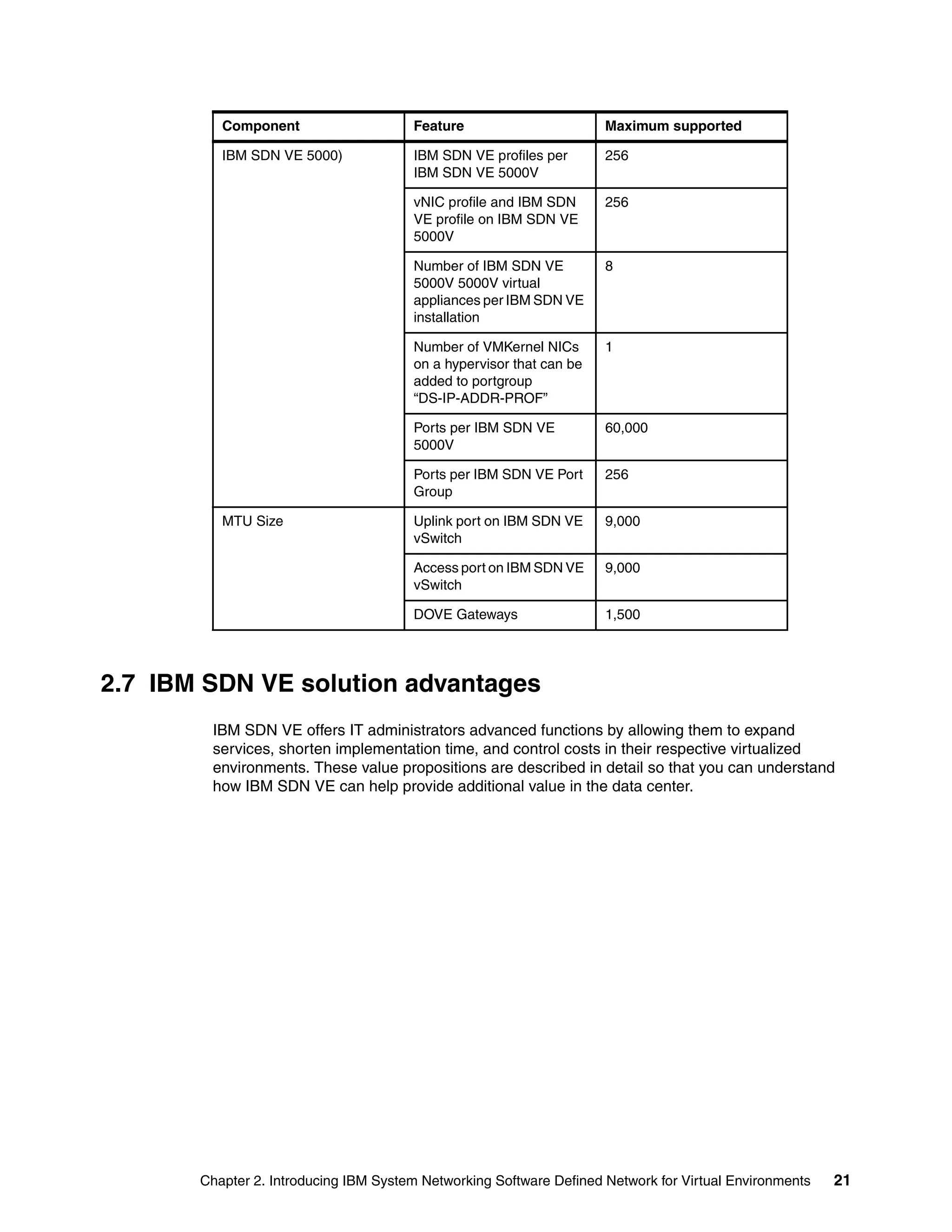
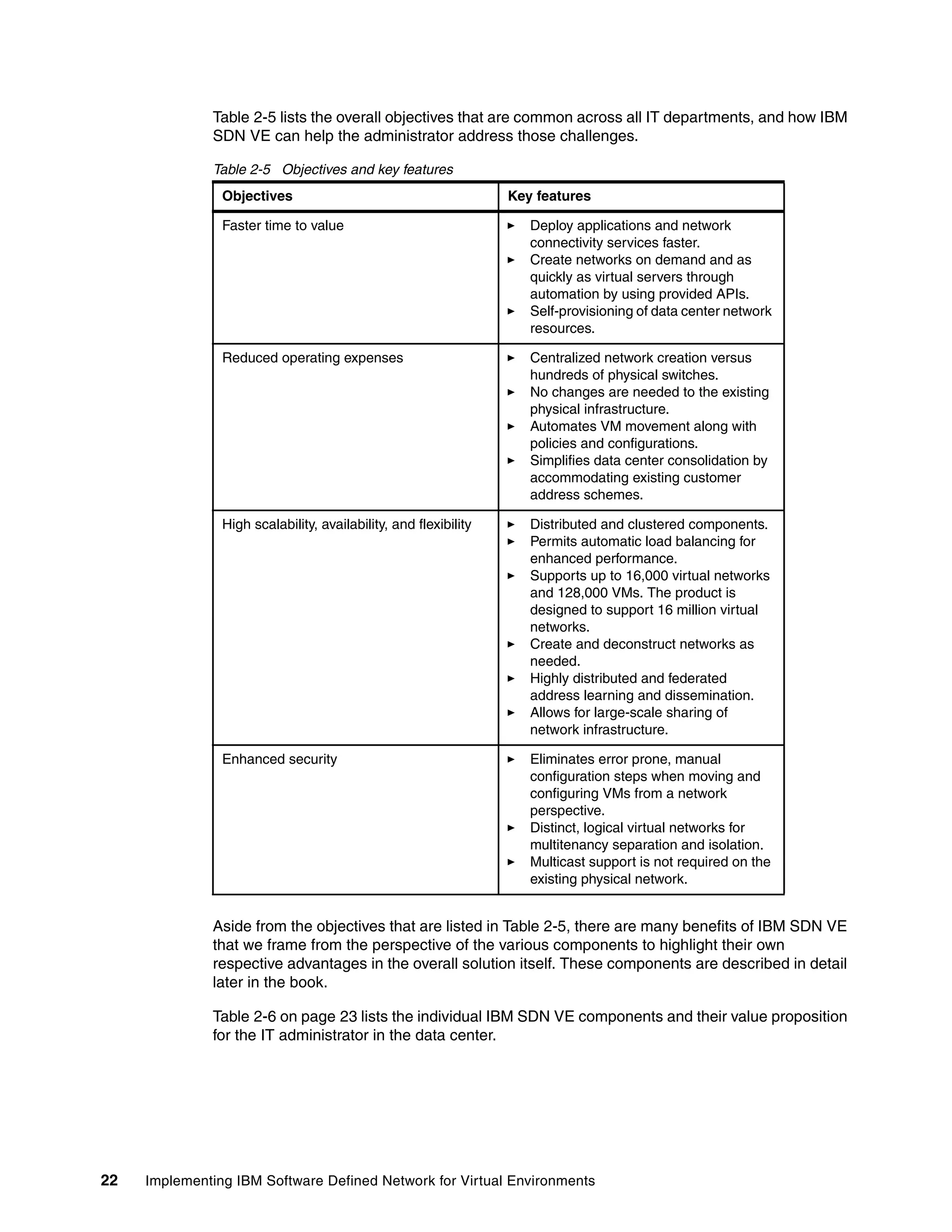
  • 250.
    234 Implementing IBMSoftware Defined Network for Virtual Environments 12.2 Troubleshooting an IBM SDN VE VMware Edition installation postinstallation This section focuses on the steps that are taken after the steps in Chapter 4, “Installing and configuring IBM Software Defined Networking for Virtual Environments VMware Edition” on page 75 are completed. Understanding how to troubleshoot a postinstallation is the next step in understanding how the components work together in maintaining a successful and stable IBM SDN VE VMware installation. 12.2.1 Removing a network and port group from the Networks tab When you remove a network from the Networks tab, you must complete the following steps: 1. Ensure that no VMs are associated with the Port Group within vCenter, as shown in Figure 12-1. Figure 12-1 Associated virtual machines with a selected port group 2. Within the DMC, on the Networks tab, click Delete for the network that you want to select for deletion. Figure 12-2 shows how to select a network to be marked for deletion. Figure 12-2 Marking a network for deletion 3. To remove the Port Group from the vDS, select the network that is marked for deletion. Near the bottom of the page within the Export List, click Delete. The network is removed from the DMC and removed from both the IBM SDN VE 5000V and the vCenter vDS Port Group. Figure 12-3 shows where to remove the network from both the DMC and vPort Group. Figure 12-3 Completion of network removal
  • 251.
    Chapter 12. Troubleshootingand maintenance 235 12.2.2 Show command examples This section contains the following examples of show commands that are run from the DMC CLI with SSH: Showing the length of time before the CLI times out Showing the current DMC configuration Showing whether a DB upgrade is needed Showing a list of DCSs for a specific domain Showing the DMC version Showing the name server addresses Showing all domains Showing endpoints on a network Showing external-gateway forward rules Showing the external gateway configuration Showing external gateway NAT session information Showing the gateway IP interface configuration Showing gateway statistics Showing a summary of HA information Showing HA DMC cluster external addresses Showing an HA DMC peer’s address Showing a cluster’s status Showing an HA node’s status Showing DMC IP address and netmask information Showing all networks in all domains Showing the DMC gateway address Showing the policy between networks Showing service appliances Showing all subnets in a domain Showing all subnets in a network Showing IBM SDN VE 5000V switches that are registered with a DMC Showing IBM SDN VE 5000V switch statistics Showing a DMC syslog for each module Showing system licensing information Showing the number of lines per screen Showing technical dump information Showing the configured networks to which TEPs connect Showing Distributed VLAN Gateway information Showing the length of time before the CLI times out Example 12-1 shows how to show the length of time before the CLI times out. Example 12-1 Showing the length of time before the CLI times out DMC#show cli-timeout CLI TIMEOUT 5 min Showing the current DMC configuration Example 12-2 shows how to show the DMC configuration. Example 12-2 Showing the DMC configuration DMC#sh config Current DMC Configuration Certauth Configuration
  • 252.
    236 Implementing IBMSoftware Defined Network for Virtual Environments ---------------------------------------------------------- DMC Version Version: 1.0.0.130606 Thu Jun 6 13:43:19 PDT 2013 ---------------------------------------------------------- Ipmgmt Configuration Manage IP Info ========================================================== Method: Static IP: 192.168.0.21 MASK: 255.255.255.0 NEXTHOP: 192.168.0.1 ---------------------------------------------------------- Service Appliance Configuration DCS Service Appliances: ID IP SERVICE ROLE AGE_TIME CONFIG BUILT CAPABILITY ASSIGNED VERSION VERSION ============================================================================= 3 192.168.0.23 CS Y 10 s 92/ 92 1.0.0.130612 4 192.168.0.24 CS Y 12 s 92/ 92 1.0.0.130612 5 192.168.0.25 CS Y 4 s 92/ 92 1.0.0.130612 6 192.168.0.26 CS N 4 s 0/ 92 1.0.0.130612 7 192.168.0.27 CS N 11 s 0/ 92 1.0.0.130612 GW Service Appliances: ID IP SERVICE ROLE AGE_TIME CONFIG BUILT CAPABILITY ASSIGNED VERSION VERSION ===================================================================== 1 192.168.0.23 GW N 8 s 0/ 91 1.0.0.130612 2 192.168.0.24 GW N 11 s 0/ 91 1.0.0.130612 3 192.168.0.25 GW N 8 s 0/ 91 1.0.0.130612 4 192.168.0.26 GW Y 9 s 91/ 91 1.0.0.130612 5 192.168.0.27 GW Y unknown 91/ 91 1.0.0.130612 ---------------------------------------------------------- Domain Configuration Active/Total Domain_IDDomain_Name Networks Status ========================================================== 1 Hospital 4/4 Active 2 University 3/3 Active ---------------------------------------------------------- Network Configuration Network_ID Network_Name Domain_Name Status ================================================================== 1 Pediatrics Hospital Active 2 Radiology Hospital Active 3 Diagnostics Hospital Active 4 VLAN4_Shared Hospital Active 101 Engineering University Active
  • 253.
    Chapter 12. Troubleshootingand maintenance 237 102 Agriculture University Active 103 Business University Active ---------------------------------------------------------- Policy Configuration DOMAIN - Hospital: SRC NETWORK DST NETWORK TRAFFIC_TYPEACTION ==================================================================== 1 2 unicast allow 2 1 unicast allow 1 4 unicast allow 4 1 unicast allow 2 4 unicast allow 4 2 unicast allow 3 4 unicast allow 4 3 unicast allow DOMAIN - University: ---------------------------------------------------------- Subnet Configuration ID SUBNET(TYPE) MASK NEXTHOP NETWORKS ======================================================================== 1 10.10.1.0(D) 255.255.255.0 10.10.1.254 1 2 10.10.2.0(D) 255.255.255.0 10.10.2.254 2 3 10.10.3.0(D) 255.255.255.0 10.10.3.254 3 4 20.20.1.0(D) 255.255.255.0 20.20.1.254 101 5 20.20.2.0(D) 255.255.255.0 20.20.2.254 102 6 20.20.3.0(D) 255.255.255.0 20.20.3.254 103 7 10.10.4.0(D) 255.255.255.0 10.10.4.254 4 ---------------------------------------------------------- External-gateway Configuration NETWORK_ID: 1 DOMAIN: Hospital ID MIN_IP MAX_IP PORT-Range ==================================================== 5 192.168.25.31 192.168.25.40 8000-8050 ---------------------------------------------------- ---------------------------------------------------------- External-gateway fwd rule ---------------------------------------------------------- Vlan-gateway Configuration ID VLAN_ID NETWORK_ID DOMAIN ====================================== 4 4 4 Hospital ----------------------------------------------------------

  • 254.
    238 Implementing IBMSoftware Defined Network for Virtual Environments Ha Configuration HA STATUS======================================== CLUSTER PEER IP: 192.168.0.22 DB NODE TYPE: Primary DB CONNECTION STATE: Connected CLUSTER EXTERNAL IP: 192.168.0.20 NODE OWNS EXTERNAL ADDR: Yes ---------------------------------------------------------- Ha Synchronization HA SYNCHRONIZATION STATUS:Synchronized ---------------------------------------------------------- Underlay-network Configuration ID NET MASK NEXTHOP ==================================================== 1 172.16.0.0 255.255.255.0 172.16.0.254 2 172.16.1.0 255.255.255.0 172.16.1.254 ---------------------------------------------------------- Syslog Configuration Syslog settings ============================================== module-name log-level state ---------------------------------------------- sys_api warning disabled dgw_api warning disabled dsw_api warning disabled dps_api warning disabled vrmgr_api warning disabled raw_proto emergency disabled dove-cli warning disabled Showing whether a DB upgrade is needed Example 12-3 shows how to show whether a DB upgrade is needed. Example 12-3 Showing whether a DB upgrade is needed DMC#show db-upgrade DMC DB UPGRADE REQUIRED: No PEER DB UPGRADE REQUIRED: No Showing a list of DCSs for a specific domain Example 12-4 shows how to show a list of DCSs for a specific domain. Example 12-4 Showing a list of DCSs for a specific domain DMC#show dcslist domain Hospital DOMAIN_NAME DCS NODE IP =========================================================== Hospital 192.168.0.24 Hospital 192.168.0.23
  • 255.
    Chapter 12. Troubleshootingand maintenance 239 Showing the DMC version Example 12-5 shows how to show the DMC version. Example 12-5 Showing the DMC version DMC#show dmc-version Version: 1.0.0.130606 Thu Jun 6 13:43:19 PDT 2013 Showing the name server addresses Example 12-6 shows how to show the name server addresses. Example 12-6 Showing the name server addresses DMC(config)#show dns IndexIP ============================ 1192.168.0.1 Showing all domains Example 12-7 shows how to show all domains. Example 12-7 Showing all domains DMC(config)#show domain Active/Total Domain_IDDomain_Name Networks Status ========================================================== 1 Hospital 4/4 Active 2 University 3/3 Active Showing endpoints on a network Example 12-8 shows how to show endpoints on a network. Example 12-8 Showing endpoints on network DMC#show endpoints network id 1 INDEX HOST IP VM MAC VM IP TUNNEL IP ============================================================================ 1 192.168.0.114 00:50:56:be:2c:c9 10.10.1.13 172.16.0.114 Showing external-gateway forward rules Example 12-9 shows how to show external-gateway forward rules. Example 12-9 Showing external-gateway forward rules DMC#show external-gateway fwd-rule Showing the external gateway configuration Example 12-10 shows how to show the external gateway configuration. Example 12-10 Showing the external gateway configuration DMC#show external-gateway list NETWORK_ID: 1 DOMAIN: Hospital
  • 256.
    240 Implementing IBMSoftware Defined Network for Virtual Environments ID MIN_IP MAX_IP PORT-Range ==================================================== 5 192.168.25.31 192.168.25.40 8000-8050 ---------------------------------------------------- Showing external gateway NAT session information Example 12-11 shows how to show external gateway NAT session information. Example 12-11 Showing external gateway NAT session information show external-gateway sessions gwindex 1 type outbound show external-gateway sessions gwindex 1 type svcfwd show external-gateway sessions gwindex 1 type dynamic Showing the gateway IP interface configuration Example 12-12 shows how to show the gateway IP interface configuration. Example 12-12 Showing the gateway IP interface configuration show gateway info gwindex 1 type ipv4 Showing gateway statistics Example 12-13 shows how to show the gateway statistics. Example 12-13 Showing the gateway statistics show gateway info gwindex 1 type stats Showing a summary of HA information Example 12-14 shows how to show a summary of HA information. Example 12-14 Showing a summary of HA information DMC#sh ha HA STATUS======================================== CLUSTER PEER IP: 192.168.0.22 DB NODE TYPE: Primary DB CONNECTION STATE: Connected CLUSTER EXTERNAL IP: 192.168.0.20 NODE OWNS EXTERNAL ADDR:Yes Showing HA DMC cluster external addresses Example 12-15 shows how to show HA DMC cluster external addresses. Example 12-15 Showing HA DMC cluster external addresses DMC#show ha-external EXTERNAL ADDRESS 192.168.0.20 Showing an HA DMC peer’s address Example 12-16 on page 241 shows how to show an HA DMC peer’s address.
  • 257.
    Chapter 12. Troubleshootingand maintenance 241 Example 12-16 Showing an HA DMC peer’s address DMC#show ha-peer PEER ADDRESS 192.168.0.22 Showing a cluster’s status Example 12-17 shows how to show a cluster’s status. Example 12-17 Showing a cluster’s status DMC#show ha-synchronization HA SYNCHRONIZATION STATUS:Synchronized Showing an HA node’s status Example 12-18 shows how to show an HA node’s status. Example 12-18 Showing an HA node’s status DMC#show ha-type TYPE Primary Showing DMC IP address and netmask information Example 12-19 shows how to show DMC IP address and netmask information. Example 12-19 Showing DMC IP address and netmask information DMC#show ipmgmt Manage IP Info ========================================================== Method: Static IP: 192.168.0.21 MASK: 255.255.255.0 NEXTHOP: 192.168.0.1 DNS: 192.168.0.1 Showing all networks in all domains Example 12-20 shows how to show all networks in all domains. Example 12-20 Showing all networks in all domains DMC#show network Network_ID Network_Name Domain_Name Status ================================================================== 1 Pediatrics Hospital Active 2 Radiology Hospital Active 3 Diagnostics Hospital Active 4 VLAN4_Shared Hospital Active 101 Engineering University Active 102 Agriculture University Active 103 Business University Active
  • 258.
    242 Implementing IBMSoftware Defined Network for Virtual Environments Showing the DMC gateway address Example 12-21 shows how to show the DMC gateway address. Example 12-21 Showing the DMC gateway address DMC#show nexthop DMC NEXTHOP IP: 192.168.0.1 Showing the policy between networks Example 12-22 shows how to show the policy between networks. Example 12-22 Showing the policy between networks DMC(config)#domain set Hospital config:(domain)Hospital#show policy SRC NETWORK DST NETWORK TRAFFIC_TYPEACTION ==================================================================== 1 2 unicast allow 2 1 unicast allow 1 4 unicast allow 4 1 unicast allow 2 4 unicast allow 4 2 unicast allow 3 4 unicast allow 4 3 unicast allow Showing service appliances Example 12-23 shows how to show service appliances. Example 12-23 Showing service appliances DMC(config)#show service-appliance DCS Service Appliances: ID IP SERVICE ROLE AGE_TIME CONFIG BUILT CAPABILITY ASSIGNED VERSION VERSION ============================================================================= 3 192.168.0.23 CS Y 6 s 92/ 92 1.0.0.130612 4 192.168.0.24 CS Y 7 s 92/ 92 1.0.0.130612 5 192.168.0.25 CS Y 14 s 92/ 92 1.0.0.130612 6 192.168.0.26 CS N 15 s 0/ 92 1.0.0.130612 7 192.168.0.27 CS N 7 s 0/ 92 1.0.0.130612 GW Service Appliances: ID IP SERVICE ROLE AGE_TIME CONFIG BUILT CAPABILITY ASSIGNED VERSION VERSION ===================================================================== 1 192.168.0.23 GW N 5 s 0/ 91 1.0.0.130612 2 192.168.0.24 GW N 5 s 0/ 91 1.0.0.130612 3 192.168.0.25 GW N 5 s 0/ 91 1.0.0.130612 4 192.168.0.26 GW Y 2 s 91/ 91 1.0.0.130612 5 192.168.0.27 GW Y 12 s 91/ 91 1.0.0.130612
  • 259.
    Chapter 12. Troubleshootingand maintenance 243 Showing all subnets in a domain Example 12-24 shows how to show all subnets in a domain. Example 12-24 Showing all subnets in a domain DMC#show subnet domain name Hospital ID SUBNET(TYPE) MASK NEXTHOP NETWORKS ======================================================================== 1 10.10.1.0(D) 255.255.255.0 10.10.1.254 1 2 10.10.2.0(D) 255.255.255.0 10.10.2.254 2 3 10.10.3.0(D) 255.255.255.0 10.10.3.254 3 7 10.10.4.0(D) 255.255.255.0 10.10.4.254 4 (S) ====> Shared Subnet (D) ====> Dedicated Subnet Showing all subnets in a network Example 12-25 shows how to show all subnets in a network. Example 12-25 Showing all subnets in a network DMC(config)#domain set Hospital config:(domain)Hospital#show subnet network id 1 ID SUBNET(TYPE) MASK NEXTHOP NETWORK ======================================================================== 1 10.10.1.0(D) 255.255.255.0 10.10.1.254 1 (S) ====> Shared Subnet (D) ====> Dedicated Subnet Showing IBM SDN VE 5000V switches that are registered with a DMC Example 12-26 shows how to show IBM SDN VE 5000V switches that are registered with a DMC. Example 12-26 Showing IBM SDN VE 5000V switches that are registered with a DMC DMC(config)#show switch-info Dove-Tunnel-Endpoint-IP ========================= 172.16.0.114 172.16.0.112 172.16.0.113 172.16.0.111 Showing IBM SDN VE 5000V switch statistics Example 12-27 shows how to show IBM SDN VE 5000V switch statistics. Example 12-27 Showing IBM SDN VE 5000V switch statistics DMC(config)#show switch-stats network-id 1 host-ip 192.168.0.114 ==================================================================== Statistics for vnid 1 In counters Out counters
  • 260.
    244 Implementing IBMSoftware Defined Network for Virtual Environments -------------------------------------------------------------------- Bytes 10442 414 UcastPkts 84 5 BroadcastPkts 18 0 MulticastPkts 0 0 DiscardPkts 0 0 ErrorPkts 0 0 Ingress Discard reasons for vnid 1 UnknownProtosPkts 0 VlanDiscards 0 ACLDiscards 0 EmptyEgress 0 Showing a DMC syslog for each module Example 12-28 shows how to show a DMC syslog for each module. Example 12-28 Showing a DMC syslog for each module DMC(config)#show syslog Syslog settings ============================================== module-name log-level state ---------------------------------------------- sys_api warning disabled dgw_api warning disabled dsw_api warning disabled dps_api warning disabled vrmgr_api warning disabled raw_proto emergency disabled dove-cli warning disabled Showing system licensing information Example 12-29 shows how to show system licensing information. Example 12-29 Showing system licensing information DMC#show system acknowledgment Licenses and Attributions Document For: bladeos_dove_72-x86_64-Beta-2013-05-08-203804 Created: Thu May 9 10:57:47 CDT 2013 ---------------------------------------------------------------------- Section 1: This product contains certain code packages that are licensed pursuant to the terms of the GNU General Public License ("GPL") and/or the GNU Lesser General Public License ("LGPL"). Those terms are reproduced below for your reference. The code packages that are licensed under the GPL or LGPL version 2 include: ConsoleKit, MAKEDEV, acl, attr, audit, augeas, avahi, bash, binutils, bridge-utils, busyb ox, chkconfig, coreutils, cracklib, cryptsetup-luks, cvs, dbus, dbus-glib, dmidecode, dns
  • 261.
    Chapter 12. Troubleshootingand maintenance 245 masq, dracut, e2fsprogs, ebtables, eggdbus, elfutils, ethtool, filesystem, gamin, gawk, g db, gdbm, gettext, glib2, glibc, grep, groff, grubby, gzip, hwdata, initscripts, iproute, iptables, iscsi-initiator-utils, kbd, kernel, keyutils, libaio, libcap-ng, libcgroup, li bgcrypt, libgpg-error, libidn, libnih, libnl, libsepol, libusb, libutempter, libvirt, log rotate, lvm2, lzo, lzop, mingetty, module-init-tools, mtools, net-tools, netcf, nfs-utils , numactl, numad, pam, parted, pciutils, pkgconfig, plymouth, pm-utils, polkit, procps, p smisc, qemu-kvm, readline, rpm, sed, shadow-utils, syslinux, sysvinit, texinfo, udev, ups tart, util-linux-ng, vconfig, vim, xz Note: Source code to any of the above-listed packages is available upon written request to the following address: IBM Corporation Linux Technology Center, Dept. 7UDA 11501 Burnet Road Austin, TX 78758 The code packages that are licensed under the GPL or LGPL version 3 include: cpio, findutils, gcc, gmp, gnutls, less, libtasn1, rsync, tar, which Note: Source code to any of the above-listed GPLv3 packages are available online: ----- Press any key to continue (q to quit) ----- Showing the number of lines per screen Example 12-30 shows how to show the number of lines per screen. Example 12-30 Showing the number of lines per screen DMC#show terminal-length 38 lines per screen Showing technical dump information Example 12-31 shows how to show technical dump information. Example 12-31 Showing technical dump information DMC#show tech-dump Updating technical support dump Current DMC Configuration Certauth Configuration ---------------------------------------------------------- DMC Version Version: 1.0.0.130606 Thu Jun 6 13:43:19 PDT 2013
  • 262.
    246 Implementing IBMSoftware Defined Network for Virtual Environments ---------------------------------------------------------- Ipmgmt Configuration Manage IP Info ========================================================== Method: Static IP: 192.168.0.21 MASK: 255.255.255.0 NEXTHOP: 192.168.0.1 DNS: 192.168.0.1 ---------------------------------------------------------- Service Appliance Configuration DCS Service Appliances: ID IP SERVICE ROLE AGE_TIME CONFIG BUILT CAPABILITY ASSIGNED VERSION VERSION ============================================================================= 3 192.168.0.23 CS Y 3 s 92/ 92 1.0.0.130612 4 192.168.0.24 CS Y 4 s 92/ 92 1.0.0.130612 5 192.168.0.25 CS Y 10 s 92/ 92 1.0.0.130612 6 192.168.0.26 CS N 12 s 0/ 92 1.0.0.130612 7 192.168.0.27 CS N 4 s 0/ 92 1.0.0.130612 GW Service Appliances: ID IP SERVICE ROLE AGE_TIME CONFIG BUILT CAPABILITY ASSIGNED VERSION VERSION ===================================================================== 1 192.168.0.23 GW N 14 s 0/ 91 1.0.0.130612 2 192.168.0.24 GW N 8 s 0/ 91 1.0.0.130612 3 192.168.0.25 GW N 6 s 0/ 91 1.0.0.130612 4 192.168.0.26 GW Y 15 s 91/ 91 1.0.0.130612 5 192.168.0.27 GW Y 13 s 91/ 91 1.0.0.130612 ---------------------------------------------------------- Domain Configuration Active/Total Domain_IDDomain_Name Networks Status ========================================================== 1 Hospital 4/4 Active 2 University 3/3 Active ---------------------------------------------------------- Network Configuration Network_ID Network_Name Domain_Name Status ================================================================== 1 Pediatrics Hospital Active 2 Radiology Hospital Active 3 Diagnostics Hospital Active 4 VLAN4_Shared Hospital Active 101 Engineering University Active 102 Agriculture University Active 103 Business University Active ----------------------------------------------------------
  • 263.
    Chapter 12. Troubleshootingand maintenance 247 Policy Configuration DOMAIN - Hospital: SRC NETWORK DST NETWORK TRAFFIC_TYPEACTION ==================================================================== 1 2 unicast allow 2 1 unicast allow 1 4 unicast allow 4 1 unicast allow 2 4 unicast allow 4 2 unicast allow 3 4 unicast allow 4 3 unicast allow DOMAIN - University: ---------------------------------------------------------- Subnet Configuration ID SUBNET(TYPE) MASK NEXTHOP NETWORKS ======================================================================== 1 10.10.1.0(D) 255.255.255.0 10.10.1.254 1 2 10.10.2.0(D) 255.255.255.0 10.10.2.254 2 3 10.10.3.0(D) 255.255.255.0 10.10.3.254 3 4 20.20.1.0(D) 255.255.255.0 20.20.1.254 101 5 20.20.2.0(D) 255.255.255.0 20.20.2.254 102 6 20.20.3.0(D) 255.255.255.0 20.20.3.254 103 7 10.10.4.0(D) 255.255.255.0 10.10.4.254 4 ---------------------------------------------------------- External-gateway Configuration NETWORK_ID: 1 DOMAIN: Hospital ID MIN_IP MAX_IP PORT-Range ==================================================== 5 192.168.25.31 192.168.25.40 8000-8050 ---------------------------------------------------- ---------------------------------------------------------- External-gateway fwd rule ---------------------------------------------------------- Vlan-gateway Configuration ID VLAN_ID NETWORK_ID DOMAIN ====================================== 4 4 4 Hospital ---------------------------------------------------------- Ha Configuration HA STATUS======================================== CLUSTER PEER IP: 192.168.0.22 DB NODE TYPE: Primary
  • 264.
    248 Implementing IBMSoftware Defined Network for Virtual Environments DB CONNECTION STATE: Connected CLUSTER EXTERNAL IP: 192.168.0.20 NODE OWNS EXTERNAL ADDR:Yes ---------------------------------------------------------- Ha Synchronization HA SYNCHRONIZATION STATUS:Synchronized ---------------------------------------------------------- Underlay-network Configuration ID NET MASK NEXTHOP ==================================================== 1 172.16.0.0 255.255.255.0 172.16.0.254 2 172.16.1.0 255.255.255.0 172.16.1.254 ---------------------------------------------------------- Syslog Configuration Syslog settings ============================================== module-name log-level state ---------------------------------------------- sys_api warning disabled dgw_api warning disabled dsw_api warning disabled dps_api warning disabled vrmgr_api warning disabled raw_proto emergency disabled dove-cli warning disabled Showing the configured networks to which TEPs connect Example 12-32 shows how to show the configured networks to which TEPs connect. Example 12-32 Showing the configured networks to which TEPs connect DMC#show underlay-network ID NET MASK NEXTHOP ==================================================== 1 172.16.0.0 255.255.255.0 172.16.0.254 2 172.16.1.0 255.255.255.0 172.16.1.254 Showing Distributed VLAN Gateway information Example 12-33 shows how to show VGW information. Example 12-33 Showing Distributed VLAN Gateway information DMC#show vlan-gateway ID VLAN_ID NETWORK_ID DOMAIN ====================================== 4 4 4 Hospital
  • 265.
    Chapter 12. Troubleshootingand maintenance 249 12.3 Limitations The following items are IBM SDN VE VMware 1.0 limitations: Inter-domain communication is possible only through external gateways (traffic must exit the source domain through an external gateway interface, then enter the destination domain through another external gateway interface). A VM cannot belong to multiple domains. Multihoming of IBM SDN VE 5000V switches (that is, multiple IP interfaces to the IBM SDN VE IP cloud) is not supported. Controller and IBM SDN VE services appliances do not run as IBM PowerVM® VMs. The focus of the first release is x86. Running on PowerVM requires development and test resources that are not available. IBM SDN VE policies do not support traffic engineering (to route packets through appliances) in the first phase. Northbound APIs do not adhere to industry specifications and standards like OpenStack Quantum. End Station VLANs are not supported. VLAN tagged packets are dropped by IBM SDN VE 5000V switches. A self-service model (where tenants can manage their own virtual networks) is not supported because the model requires developing a complicated multitenant management solution. It is not clear that self-service at the networking level is that useful to customers, who might prefer a self-service model at a higher level of abstraction that includes compute, storage, and networking. There is support for IPv6 data traffic in L3 mode (traffic between VMs). There is no support for an IPv6 physical network (where IBM SDN VE 5000V switches have IPv6 interfaces). There is no support for IPv6 addressing of the Controller. There is no support for migration of workloads between data centers and private/public clouds. Although IBM SDN VE can be deployed as is across multiple data centers, the best case scenario is when IBM SDN VE services can be deployed locally at each data center, which brings in the question of synchronization and other concerns. There is no Hyper-V support (VMware, KVM, and PowerVM SDN VE switches release on different schedules). Hardware-based gateways are not supported at the first release. IBM SDN VE for VMware has an IBM SDN VE 5000V Controller dependency that might not be ideal. The IBM SDN VE infrastructure does not provide DHCP, DNS, NTP, and similar services, although these services are enabled and supported when deployed within the environment. Services such as NTP that do not need to be multitenant aware can be outside the IBM SDN VE infrastructure and service multiple domains through external gateways. Services such as DHCP that must be domain-specific or multitenant aware must be either made IBM SDN VE aware or deployed within a domain (as a VM in the domain, or as a legacy machine in a VLAN mapped to the domain through a Distributed VLAN gateway).
  • 266.
    250 Implementing IBMSoftware Defined Network for Virtual Environments 12.4 Upgrading components in a running VMware vSphere 5.0 or 5.1 environment This section focuses on upgrading a postinstallation to the latest software provided by IBM to run in an installation of VMware vSphere V5.0 or V5.1. 12.4.1 Understanding what must be updated When upgrading from any previous release, it is important to plan for the migration and perform upgrades and updates only during off hours or maintenance windows. The following components should be updated in the following order: 1. DMC 2. DCS 3. Distributed Gateway (DGW) 4. IBM SDN VE 5000V 5. vDS ESX 5000V Host Module (VIB) 12.4.2 Upgrading the Distributed Management Console These steps are designed to allow DMCs to be upgraded under the constraints of maintaining both data integrity and minimizing “dark time” (the period where IBM SDN VE components south of the DMC cannot reach the DMC). The procedure for upgrading a high availability (HA) cluster involves the following steps: 1. Stop the HA cluster and power off the old secondary. 2. Deploy the new DMC node. 3. Rebuild HA with the new node as the secondary. 4. Power off the old primary node. 5. Deploy the second new DMC node. 6. Rebuild HA with the second new DMC as the secondary. 7. Check whether an internal DB upgrade is necessary. 8. If necessary, upgrade the internal DB and verify the configuration. This procedure works best if both of the old DMCs’ node addresses were statically assigned. If the old DMCs’ addresses were dynamic, then extra steps are necessary when rebuilding the HA clusters to ensure that the clusters are rebuilt correctly. Step 1: Stopping the HA cluster and powering off the old secondary DMC Complete the following steps: 1. At both nodes, run show ipmgmt and note the IP address and the type of addressing. 2. At the primary node, run system ha stop to halt the HA cluster. 3. Power off the old secondary DMC.
  • 267.
    Chapter 12. Troubleshootingand maintenance 251 Step 2: Deploying the new DMC node Complete the following steps: 1. Use ovftool or vCenter to deploy a fresh, new version of the DMC. At the DMC console, accept the license terms and log in to the DMC console. 2. If the old secondary DMC’s network address was dynamically assigned, run show ipmgmt and note the new DMC’s address. 3. If the old secondary DMC’s network address was statically assigned, run system ipmgmt set to set the DMC’s address to be the same as the old secondary DMC. Step 3: Rebuilding HA with the new node as the secondary Complete the following steps: 1. If the old secondary DMC’s network address was statically assigned, run system ha external set and system ha peer set on the new DMC to point it at the old primary. 2. If the old secondary DMC’s network address was dynamically assigned, run system ha peer delete and system ha peer set on the old primary DMC to point it at the new node. 3. Explicitly ensure proper configuration and synchronization by running system ha type set primary on the old primary. Verify the synchronization status by running show ha-synchronization. 4. Restart HA by running system ha start and verify that HA has started. The old secondary VM can now be deleted from the hypervisor. Step 4: Powering off the old primary Complete the following steps: 1. Power off the old primary at the hypervisor and verify that the new secondary has assumed the role of primary. 2. At the new primary, stop HA by running system ha stop. Step 5: Deploying the second new DMC node Complete the following steps: 1. Use ovftool or vCenter to deploy a fresh, new version of the DMC. At the DMC console, accept the license terms and log in to the DMC console. 2. If the old primary DMC’s network address was dynamically assigned, run show ipmgmt and note the new DMC’s address. 3. If the old primary DMC’s network address was statically assigned, run system ipmgmt set to set the DMC’s address to be the same as the old primary DMC. Step 6: Rebuilding HA with the second new node as the secondary Complete the following steps: 1. If the old primary DMC’s network address was statically assigned, run system ha external set and system ha peer set on the new DMC to point it at the new primary. 2. If the old primary DMC’s network address was dynamically assigned, run system ha peer delete and system ha peer set on the new primary DMC to point it at the new node. 3. Explicitly ensure proper configuration and synchronization by running system ha type set primary on the new primary. Verify the synchronization status by running show ha-synchronization.
  • 268.
    252 Implementing IBMSoftware Defined Network for Virtual Environments 4. Restart HA by running system ha start and verify that HA has started. 5. The old primary VM can now be deleted from the hypervisor. Step 7: Checking whether an internal DB upgrade is necessary Run show db-upgrade to see whether the internal DB must be upgraded. Step 8: Upgrading the internal DB and verifying the upgrade (If necessary) Complete the following steps: 1. Run system db-upgrade to upgrade the internal DB. 2. Verify the upgrade by running show db-upgrade. 12.4.3 Upgrading the Distributed Connectivity Service The DCS cluster is composed of a set of service appliance nodes that operate in a similar fashion to distributed databases. It provides connectivity services to endpoints that are deployed on the overlay networks. Hence, any downtime in the DCS cluster (for example, during an upgrade) might cause connectivity loss and inconsistent behavior if the recommended upgrade sequence is not followed. DCS cluster data storage overview The individual nodes of the DCS cluster hold a subset of the entire data set that is required for connectivity services. The data is stored only in memory and not in storage. After a restart of a DCS node, all previous data is lost. Individual pieces of data are replicated between DCS nodes to prevent loss of connectivity if a single node goes down. The default replication factor is 2. If there is a single node failure, other nodes that hold the data (lost in the down DCS node) continue to provide connectivity services. Additionally, the cluster tries to assign other data nodes to host the “lost” data set. Because parts of this “lost” data set still should be available in other DCS nodes that are running, the cluster tries to copy the data to additional nodes to meet the replication factor. This assignment and copy of data takes take time. During this time, if another node (hold non-replicated data) goes down, that data is lost from the cluster. Although the DCS cluster recovers from such a scenario and reacquires the data over time, the recovery process is not instantaneous and might take around 10 - 20 minutes, depending on the size and scale of the environment. So, an administrator should take the necessary precautions to avoid a scenario where the runtime replication factor for a data subset becomes 0 because of down nodes. A similar recommendation is applicable during the upgrade procedure. Note: If the recommended upgrade sequence for the DCS cluster is not followed, there is a high probability of connectivity loss (among the endpoints) during and after the upgrade. In such cases, the connectivity services should recover within 10 - 20 minutes when the cluster is up and running after the upgrade.
  • 269.
    Chapter 12. Troubleshootingand maintenance 253 Upgrading the DCS cluster nodes Here are the steps for upgrading a node in a DCS cluster. The following command shows the listing of all service appliances that are registered with the DMC: DMC(config)#show service-appliance 1. Try to reset the role of the DCS (DSA) node (Y to N).1 If the operation is successful, go to step 2. If the node holds a subset of data that is not held by any other node in the DCS cluster, the reset operation fails. If there is at least one more node in the cluster, the reset operation succeeds eventually. Try the reset “role” operation every 10 minutes until it succeeds. Figure 12-4 shows the error message that is displayed if the role cannot be reset. Figure 12-4 Error message that is displayed if the role cannot be reset 2. There are two options: a. Deploy the new DSA to take over the function. To use this method, the following steps must be completed: i. Power off the old DSA. ii. Delete the old DSA from the DMC appliance list by running the following command. For more information, see Figure 12-2 on page 234. DMC(config)#service delete-dcs id # iii. Power on the new DSA. iv. Accept the license terms. v. Set the IP address of the DSA. Both DHCP and static configuration are available from the DSA console, as shown in Figure 12-5. Figure 12-5 Setting the IP address of the DSA 1 If the DCS node is unset, that is, the role is “N”, this step is not needed. DMC(config)#service reset-dcs-role id 1# 409 Cannot reset DCS DCS node may be holding active domains not hosted by other DCS nodes. Please follow the reset DCS guidelines provided in the documentation Execution Failed ... WAIT 5 minutes ... DMC(config)#service reset-dcs-role id # DMC(config)# DOVE-SVC(config)#ipmgmt set ? ipmgmt set cidr ipmgmt set dhcp ipmgmt set ip ipmgmt set nexthop DOVE-SVC(config)#ipmgmt set dhcp DOVE-SVC(config)#
  • 270.
    254 Implementing IBMSoftware Defined Network for Virtual Environments vi. Register the new DSA with the DMC by running the following commands: DOVE-SVC(config)#dmc set ? dmc set ip <addr> DOVE-SVC(config)#dmc set ip addr 192.168.0.20 Now, the DMC should see the new DSA in the DMC UI. vii. Set the DCS role on the DSA by running the following command: DMC(config)#service set-dcs-role ids # b. Continue using the same DSA, but upgrade the DSA to the newer image. To use this method, the following steps must be completed: i. Upgrade the DSA with the image by running the following command: DOVE-SVC(config)#dsa-upgrade url <URL> ii. The DSA should reboot automatically after the upgrade. iii. When the DSA is back up, the DMC UI with a heartbeat (AGE_TIME) of less than 15 seconds. iv. Set the DCS role on the DSA by running the following command: DMC(config)#service set-dcs-role ids # 3. After setting the DCS role on the new (or upgraded) DSA, wait a couple of minutes before trying to upgrade another DCS node. Restart with step 1 on page 253 for each node that must be upgraded. 12.4.4 Upgrading the Distributed Gateway The Service DGW Appliance is another DSA type role much like the DCS. However, unlike the DCS, the DGW does not have a redundant option, so upgrading the DGW is fairly straight forward. Before you remove the appliance from vCenter, complete the following steps: 1. Remove all network associations from the DGW that is being upgraded by running the following commands: vlan-gateway del dgw_index # 2. Within vCenter, shut down and delete the selected DGW Appliance. 3. To install a new DGW Appliance, follow the steps that are described in 4.4.11, “Defining a Distributed VLAN Gateway” on page 98. 12.4.5 Upgrading the Distributed Overlay Virtual Ethernet vSwitch Upgrading the IBM SDN VE 5000V is a relatively straightforward process. However, caution should be taken to upgrade only during maintenance windows. Note: Depending on the size and scale of the deployment and that endpoints that are connected to the overlay networks, the time that is taken for step 1 on page 253 for every DCS node might vary from a few minutes to 30 minutes, depending on the runtime data resident on that node.
  • 271.
    Chapter 12. Troubleshootingand maintenance 255 To upgrade the IBM SDN VE 5000V, complete the following steps: 1. Update the switch software image. The switch software image is the executable code running on the IBM vDS 5000V. As new versions of the image are released, you can upgrade the software. Click software updates. Run the following command to determine the current software version: show boot Upgrading the software image on your switch requires the following actions: – Loading the new image on to an SCP or TFTP server on your network – Transferring the new image from the SCP or TFTP server to your switch – Selecting the new software image to be loaded into switch memory the next time the switch is reset 2. Load new software on to your switch. The switch can store up to two different software images, called image1 and image2, and boot software, called boot. When you load new software, you must specify where it should be placed, either in to image1, image2, or boot. For example, if your active image is loaded in to image1, you probably must load the new image software into image2. This action allows you to test the new software and reload the original active image (stored in image1), if needed. To load a new software image to your switch, you need the following items: – The image or boot software that is loaded on a TFTP/SCP server on your network – The host name or IP address of the TFTP/SCP server – The name of the new software image or boot file When the preceding requirements are met, download the new software to your switch by completing the following steps: a. In Privileged EXEC mode, run the following command: 5000V# copy {tftp|scp} {image1|image2} b. Enter the host name or IP address of the SCP or TFTP server: Address or name of remote host: <IP address or hostname> c. Enter the name of the new software file on the server: Source file name: <filename> The exact form of the name varies by server. However, the file location is normally relative to the SCP or TFTP directory (it is usually tftpboot). d. Enter your user name and password for the server, if applicable: User name: {<username>|<Enter>} The system prompts you to confirm your request. Note: The DNS parameters must be configured if you are specifying host names.
  • 272.
    256 Implementing IBMSoftware Defined Network for Virtual Environments 3. Select a software image to run. You can select which software image (image1 or image2) you want to run in switch memory for the next reboot. a. In Global Configuration mode, enter the following command: 5000V(config)# boot image {image1|image2} b. Enter the name of the image you want the switch to use upon the next boot. The system informs you of which image set will be loaded at the next reset: Next boot will use switch software image1 instead of image2. 4. Select a configuration block. When you make configuration changes to the IBM SDN 5000V, you must save the changes so that they are retained beyond the next time the switch is reset. When you perform a save operation (copy running-config startup-config), your new configuration changes are placed in the active configuration block. The previous configuration is copied in to the backup configuration block. There is also a factory configuration block, which has the default configuration that is set by the factory when your IBM SDN 5000V was manufactured. Under certain circumstances, it might be preferred to reset the switch configuration to the default. This action can be useful when a custom-configured IBM SDN 5000V is moved to a network environment where it is reconfigured for a different purpose. In Global Configuration mode, run the following command to set which configuration block you want the switch to load the next time it is reset: 5000V(config)# boot configuration-block {active|backup|factory} 5. Reset the switch. You can reset the switch to make your software image file and configuration block changes occur. Run the following command to reset (reload) the switch: 5000V# reload You are prompted to confirm your request: Reset will use software "image2" and the active config block. >> Note that this will RESTART the Spanning Tree, >> which will likely cause an interruption in network service. Confirm reload (y/n) ? 12.4.6 Updating the IBM SDN VE 5000V Host Module To understand how to update the IBM SDN VE 5000V Host Module, see 4.4.7, “5000V Host Module installation” on page 94. When the vDS 5000V Host Module update is complete, the ESX host machine must be rebooted to activate the newly installed VIB file installation. Note: Resetting the switch causes the Spanning Tree Group to restart. This process can be lengthy, depending on the topology of your network.
  • 273.
    Chapter 12. Troubleshootingand maintenance 257 12.5 Components requiring updates after upgrading to VMware vSphere 5.5 This section focuses on the required IBM SDN VE VMware Edition components that must be updated to interoperate with VMware vSphere 5.5. 12.5.1 Updating the IBM SDN VE 5000V Host Module The vDS vSwitch 5000V Host Module is the only component within the IBM SDN VE portfolio that must be updated to work with vSphere 5.5. When the ESX host is updated to version 5.5, it is critical to update the vDS vSwitch before placing the ESX host back into production. Previous versions of the 5000V Host Module are not supported by vSphere 5.5. To understand how to update the IBM SDN VE 5000V Host Module, see 4.4.7, “5000V Host Module installation” on page 94. When the 5000V Host Module upgrade is complete, the ESX Host machine must be rebooted to activate the newly installed VIB file installation.
  • 274.
    258 Implementing IBMSoftware Defined Network for Virtual Environments
  • 275.
    © Copyright IBMCorp. 2014. All rights reserved. 259 Appendix A. Overlay protocols in depth This appendix describes Stateless Transport Tunnels (STT) and Network Virtualization using Generic Routing Encapsulation (NVGRE). This appendix covers the following topics: Stateless Transport Tunnels Network Virtualization using Generic Routing Encapsulation A
  • 276.
    260 Implementing IBMSoftware Defined Network for Virtual Environments Stateless Transport Tunnels STT was invented by Nicira and is supported by NIC cards that support TCP Segmentation Offload (TSO) for packets that are being transmitted by using the TCP protocol. Overlay networks encapsulate Layer 2 (L2) over Layer 3 (L3), so the packet size is increased and fragmentation must take place. At the destination, the reassembly process is processor-resource intensive. NIC manufacturers support this process by making NIC cards that support TSO for packets that are being transmitted using TCP protocol. The cards offload the reassembly process from the processor down to the NIC ASIC and everything is fast again. STT works by encapsulating the payload with an STT FRAME header, and then encapsulating that with a “TCP replacement” header in to an IP datagram. The “TCP replacement” header is a segment header that is syntactically identical to the TCP header and also uses the ack and the sequence numbers. Figure A-1 shows the STT frame format where a TCP-like header is inserted to support the tunnel link. Figure A-1 STT frame fragments and encapsulation STT is a workable solution and has its own merits compared to VXLAN and NVGRE. There are no limits for the STT regarding running in parallel with VXLAN because many NICs can support other tunnel encapsulations without disabling TSO. However, network overlays do not use TCP and so cannot use the NIC’s ability to use TSO for VXLAN and NVGRE. STT is fast, but it still must be supported in both NIC edge connections to the overlay network. This dependency on hardware to support the tunnel in between hypervisors makes the solution inflexible.
  • 277.
    Appendix A. Overlayprotocols in depth 261 Network Virtualization using Generic Routing Encapsulation NVGRE is a network virtualization technology that attempts to alleviate the scalability problems that are associated with large cloud computing deployments, such as VXLAN. However, NVGRE uses Generic Routing Encapsulation (GRE) to tunnel L2 packets over L3 networks. Microsoft started the principles of NVGRE. It has been further developed by different switch vendors. NVGRE is similar to VXLAN. It uses GRE as a method to tunnel L2 packets across an IP fabric, and uses 24 bits of the GRE key as a logical network discriminator (a tenant network ID (TNI)). By logical, it indicates which logical network a particular packet is part of. Also, like ordinary VXLAN, logical broadcast is achieved through physical multicast (the IBM Software Defined Networking Virtual Environment (IBM SDN VE) solution does not need multicast, but it supports multicast). If a packet is being sent from a virtual machine (VM) to another VM, the vSwitch, on receiving a packet from a vNIC, does two lookups. First, it uses the destination MAC address to determine which tunnel to send the packet to. Second, it uses the ingress vNIC to determine the TNI. If the MAC in the first step is known, the vSwitch crams the packet into the associated point-to-point GRE tunnel, setting the GRE key to the TNI. If it is not known, it tunnels the packet to the multicast address that is associated with that TNI. Architecturally, NVGRE is similar to VXLAN. However, there are some differences that have practical implications. GRE encapsulation as specified in RFC 2784 and RFC 2890 is used for communication between NVGRE endpoints. The Key extension to GRE that is specified in RFC 2890 is used to carry the TNI. NVGRE usage of GRE eases the compatibility requirement for existing hardware and software stacks. It is likely to be much easier to switch chips that support GRE to these environments than to a non-supported tunneling format. However, VXLAN does not depend on any of these functions and does not have these dependencies for switching chips. For more information about NVGRE, see the following website: http://tools.ietf.org/html/draft-sridharan-virtualization-nvgre-00
  • 278.
    262 Implementing IBMSoftware Defined Network for Virtual Environments
  • 279.
    © Copyright IBMCorp. 2014. All rights reserved. 263 Related publications The publications that are listed in this section are considered suitable for a more detailed description of the topics that are covered in this book. Online resources These websites are relevant as further information sources: OpenDaylight: A Linux Foundation Collaborative Project http://www.opendaylight.org/ VXLAN: A Framework for Overlaying Virtualized Layer 2 Networks over Layer 3 Networks http://tools.ietf.org/html/draft-mahalingam-dutt-dcops-vxlan-05 IBM SDN VE User Guide (1.0/VMware) http://www.ibm.com/support/docview.wss?uid=isg3T7000627 Help from IBM IBM Support and downloads ibm.com/support IBM Global Services ibm.com/services
  • 280.
    264 Implementing IBMSoftware Defined Network for Virtual Environments
  • 281.
  • 282.
  • 284.
    ® SG24-8203-00 ISBN 0738439657 INTERNATIONAL TECHNICAL SUPPORT ORGANIZATION BUILDINGTECHNICAL INFORMATION BASED ON PRACTICAL EXPERIENCE IBM Redbooks are developed by the IBM International Technical Support Organization. Experts from IBM, Customers and Partners from around the world create timely technical information based on realistic scenarios. Specific recommendations are provided to help you implement IT solutions more effectively in your environment. For more information: ibm.com/redbooks ® Implementing IBM Software Defined Network for Virtual Environments Learn how to install and implement SDN VE in your data center Understand the product’s design and architecture See real-life scenarios and troubleshooting techniques This IBM Redbooks publication shows how to integrate IBM Software Defined Network for Virtual Environments (IBM SDN VE) seamlessly within a new or existing data center. This book is aimed at pre- and post-sales support, targeting network administrators and other technical professionals that want to get an overview of this new and exciting technology, and see how it fits into the overall vision of a truly Software Defined Environment. It shows you all of the steps that are required to design, install, maintain, and troubleshoot the IBM SDN VE product. It also highlights specific, real-world examples that showcase the power and flexibility that IBM SDN VE has over traditional solutions with a legacy network infrastructure that is applied to virtual systems. This book assumes that you have a general familiarity with networking and virtualization. It does not assume an in-depth understanding of KVM or VMware. It is written for administrators who want to get a quick start with IBM SDN VE in their respective virtualized infrastructure, and to get some virtual machines up and running by using the rich features of the product in a short amount of time (days, not week, or months). Back cover