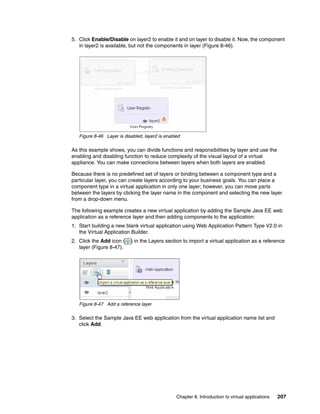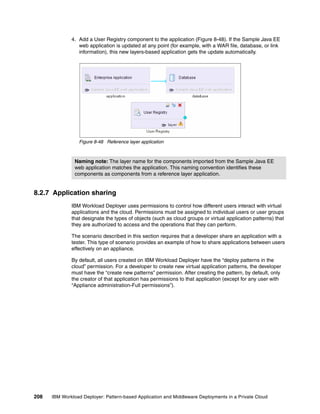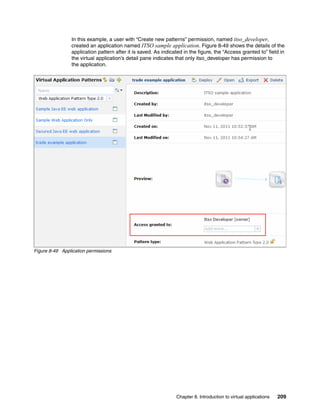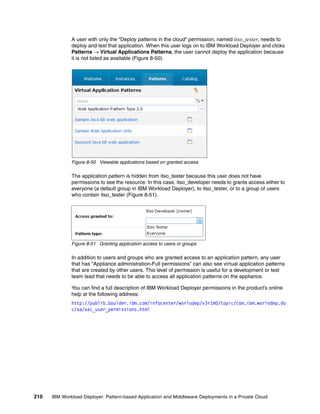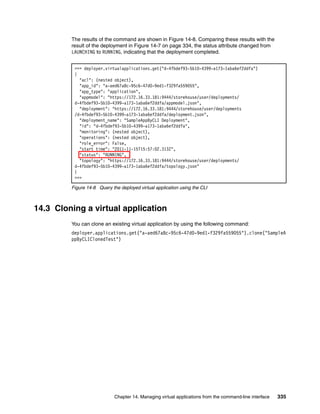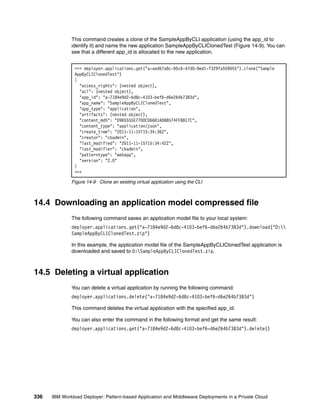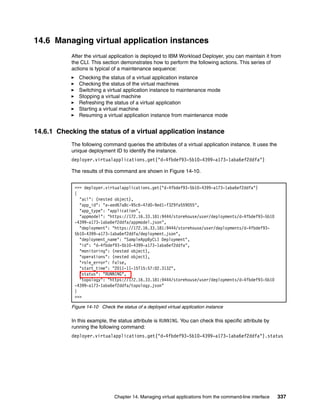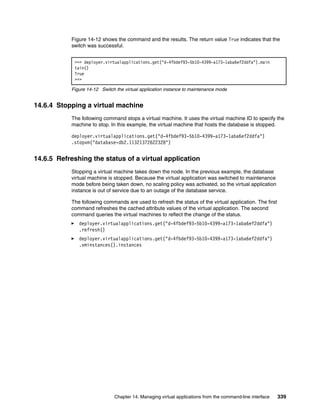















IBM ® WebSphere ®                    Front cover


IBM Workload Deployer
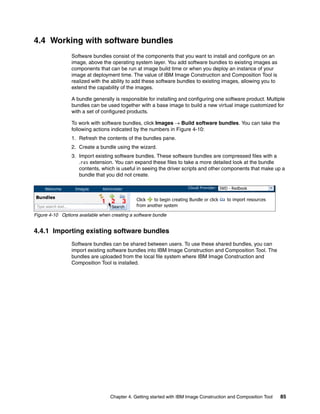
Pattern-based Application and Middleware
Deployments in a Private Cloud


Use IBM Image Construction and
Composition Tool for customization

Deploy customized virtual
applications to a private cloud

Deploy customized virtual
systems to a private cloud


                                                           Zhi Xian Chen
                                                       Seiichiro Imazeki
                                                          Matthew Kelm
                                                   Simon Kofkin-Hansen
                                                           Zhi Qiang Kou
                                                      Bobby McChesney
                                                            Carla Sadtler


ibm.com/redbooks
International Technical Support Organization

IBM Workload Deployer: Pattern-based Application
and Middleware Deployments in a Private Cloud

March 2012


                                               SG24-8011-00
Note: Before using this information and the product it supports, read the information in “Notices” on
 page xi.


First Edition (March 2012)

This edition applies to IBM Workload Deployer Version 3.1 and IBM Image Construction and Composition
Tool Version 1.1.


© Copyright International Business Machines Corporation 2012. All rights reserved.
Note to U.S. Government Users Restricted Rights -- Use, duplication or disclosure restricted by GSA ADP Schedule
Contract with IBM Corp.
Contact an IBM Software Services Sales Specialist


        Start SMALL,             Start BIG, ... JUST START
        architectural knowledge, skills, research and development . . .
        that's IBM Software Services for WebSphere.
        Our highly skilled consultants make it easy for you to design, build, test and deploy solutions, helping
        you build a smarter and more efficient business. Our worldwide network of services specialists wants you
        to have it all! Implementation, migration, architecture and design services: IBM Software Services has
        the right fit for you. We also deliver just-in-time, customized workshops and education tailored for your
        business needs. You have the knowledge, now reach out to the experts who can help you extend and
        realize the value.


        For a WebSphere services solution that fits your needs, contact an IBM Software Services Sales Specialist:
        ibm.com/developerworks/websphere/services/contacts.html


                                                                  Contact an IBM Software Services Sales Specialist   iii
iv   IBM Workload Deployer: Pattern-based Application and Middleware Deployments in a Private Cloud
Contents

                     Contact an IBM Software Services Sales Specialist. . . . . . . . . . . . . . . . . . . . . . . . . . . . . iii

                     Notices . . . . . . . . . . . . . . . . . . . . . . . . . . . . . . . . . . . . . . . . . . . . . . . . . . . . . . . . . . . . . . . . . xi
                     Trademarks . . . . . . . . . . . . . . . . . . . . . . . . . . . . . . . . . . . . . . . . . . . . . . . . . . . . . . . . . . . . . . xii

                     Preface . . . . . . . . . . . . . . . . . . . . . . . . . . . . . . . . . . . . . . . . . . . . . . . . . . . . . . . . . . . . . . . . xiii
                     The team who wrote this book . . . . . . . . . . . . . . . . . . . . . . . . . . . . . . . . . . . . . . . . . . . . . . . xiii
                     Now you can become a published author, too! . . . . . . . . . . . . . . . . . . . . . . . . . . . . . . . . . . . xv
                     Comments welcome. . . . . . . . . . . . . . . . . . . . . . . . . . . . . . . . . . . . . . . . . . . . . . . . . . . . . . . xvi
                     Stay connected to IBM Redbooks . . . . . . . . . . . . . . . . . . . . . . . . . . . . . . . . . . . . . . . . . . . . xvi

Part 1. IBM Workload Deployer . . . . . . . . . . . . . . . . . . . . . . . . . . . . . . . . . . . . . . . . . . . . . . . . . . . . . . . . . . 1

                     Chapter 1. IBM Workload Deployer overview . . . . . . . . . . . . . . . . . . . . . . . . . . . . . . . . . . 3
                     1.1 IBM Workload Deployer V3.1 . . . . . . . . . . . . . . . . . . . . . . . . . . . . . . . . . . . . . . . . . . . . . 4
                        1.1.1 Solution elements . . . . . . . . . . . . . . . . . . . . . . . . . . . . . . . . . . . . . . . . . . . . . . . . . . 4
                        1.1.2 The hardware . . . . . . . . . . . . . . . . . . . . . . . . . . . . . . . . . . . . . . . . . . . . . . . . . . . . . 5
                        1.1.3 What is new in IBM Workload Deployer Version 3.1. . . . . . . . . . . . . . . . . . . . . . . . 6
                     1.2 IBM Workload Deployer patterns . . . . . . . . . . . . . . . . . . . . . . . . . . . . . . . . . . . . . . . . . . 6
                        1.2.1 Virtual system patterns . . . . . . . . . . . . . . . . . . . . . . . . . . . . . . . . . . . . . . . . . . . . . . 7
                        1.2.2 Virtual application patterns . . . . . . . . . . . . . . . . . . . . . . . . . . . . . . . . . . . . . . . . . . . 8
                        1.2.3 Pattern elements . . . . . . . . . . . . . . . . . . . . . . . . . . . . . . . . . . . . . . . . . . . . . . . . . . . 9
                     1.3 The cloud . . . . . . . . . . . . . . . . . . . . . . . . . . . . . . . . . . . . . . . . . . . . . . . . . . . . . . . . . . . 12
                        1.3.1 Hypervisors . . . . . . . . . . . . . . . . . . . . . . . . . . . . . . . . . . . . . . . . . . . . . . . . . . . . . . 13
                        1.3.2 IP groups. . . . . . . . . . . . . . . . . . . . . . . . . . . . . . . . . . . . . . . . . . . . . . . . . . . . . . . . 14
                        1.3.3 Cloud groups. . . . . . . . . . . . . . . . . . . . . . . . . . . . . . . . . . . . . . . . . . . . . . . . . . . . . 14
                        1.3.4 Environment profiles . . . . . . . . . . . . . . . . . . . . . . . . . . . . . . . . . . . . . . . . . . . . . . . 14
                     1.4 Administrative interfaces . . . . . . . . . . . . . . . . . . . . . . . . . . . . . . . . . . . . . . . . . . . . . . . . 14
                        1.4.1 Web-based user interface . . . . . . . . . . . . . . . . . . . . . . . . . . . . . . . . . . . . . . . . . . . 15
                        1.4.2 Command-line interface . . . . . . . . . . . . . . . . . . . . . . . . . . . . . . . . . . . . . . . . . . . . 15
                        1.4.3 Representational State Transfer API . . . . . . . . . . . . . . . . . . . . . . . . . . . . . . . . . . 16
                     1.5 Appliance settings . . . . . . . . . . . . . . . . . . . . . . . . . . . . . . . . . . . . . . . . . . . . . . . . . . . . . 16
                     1.6 Tools for building custom assets . . . . . . . . . . . . . . . . . . . . . . . . . . . . . . . . . . . . . . . . . . 17
                        1.6.1 IBM Image Construction and Composition Tool . . . . . . . . . . . . . . . . . . . . . . . . . . 18
                        1.6.2 Plug-in Development Kit . . . . . . . . . . . . . . . . . . . . . . . . . . . . . . . . . . . . . . . . . . . . 21

                     Chapter 2. Configuring the IBM Workload Deployer . . . . . . . . . . . . . . . . . . . . . . . . . . .                                  23
                     2.1 Logging on to the appliance user interface . . . . . . . . . . . . . . . . . . . . . . . . . . . . . . . . . .                      24
                     2.2 Setting up the user IDs . . . . . . . . . . . . . . . . . . . . . . . . . . . . . . . . . . . . . . . . . . . . . . . . .           25
                        2.2.1 Creating the user groups . . . . . . . . . . . . . . . . . . . . . . . . . . . . . . . . . . . . . . . . . . .                 26
                        2.2.2 Creating the user IDs . . . . . . . . . . . . . . . . . . . . . . . . . . . . . . . . . . . . . . . . . . . . . .              28
                     2.3 Setting up the cloud . . . . . . . . . . . . . . . . . . . . . . . . . . . . . . . . . . . . . . . . . . . . . . . . . . .          31
                        2.3.1 Creating the IP groups and adding IP addresses . . . . . . . . . . . . . . . . . . . . . . . . .                               31
                        2.3.2 Adding the hypervisors . . . . . . . . . . . . . . . . . . . . . . . . . . . . . . . . . . . . . . . . . . . . .               35
                        2.3.3 Creating the cloud groups . . . . . . . . . . . . . . . . . . . . . . . . . . . . . . . . . . . . . . . . . . .                39

Part 2. Virtual systems and IBM Image Construction and Composition Tool. . . . . . . . . . . . . . . . . . . . 43

                     Chapter 3. Introduction to virtual systems . . . . . . . . . . . . . . . . . . . . . . . . . . . . . . . . . . . 45
                     3.1 Working with virtual systems in IBM Workload Deployer . . . . . . . . . . . . . . . . . . . . . . . 46

© Copyright IBM Corp. 2012. All rights reserved.                                                                                                               v
3.2 Working with pre-loaded images and patterns . . . . . . . . . . . . . . . . . . . . . . . . . . . . . . .                     48
                  3.2.1 IBM Workload Deployer pre-loaded virtual images. . . . . . . . . . . . . . . . . . . . . . . .                           48
                  3.2.2 IBM Workload Deployer pre-loaded virtual system patterns . . . . . . . . . . . . . . . . .                               50
                  3.2.3 Deploying patterns . . . . . . . . . . . . . . . . . . . . . . . . . . . . . . . . . . . . . . . . . . . . . . . .       52
               3.3 Customizing patterns and images . . . . . . . . . . . . . . . . . . . . . . . . . . . . . . . . . . . . . . . . .             59
                  3.3.1 Customizing virtual system patterns . . . . . . . . . . . . . . . . . . . . . . . . . . . . . . . . . . .                59
                  3.3.2 Custom images using clone and extend . . . . . . . . . . . . . . . . . . . . . . . . . . . . . . . .                     69

               Chapter 4. Getting started with IBM Image Construction and Composition Tool. . . . 73
               4.1 Product overview. . . . . . . . . . . . . . . . . . . . . . . . . . . . . . . . . . . . . . . . . . . . . . . . . . . . . . 74
                  4.1.1 User roles . . . . . . . . . . . . . . . . . . . . . . . . . . . . . . . . . . . . . . . . . . . . . . . . . . . . . . . 74
                  4.1.2 Building blocks . . . . . . . . . . . . . . . . . . . . . . . . . . . . . . . . . . . . . . . . . . . . . . . . . . . 74
                  4.1.3 Tool interface . . . . . . . . . . . . . . . . . . . . . . . . . . . . . . . . . . . . . . . . . . . . . . . . . . . . 75
               4.2 Performing administrative tasks . . . . . . . . . . . . . . . . . . . . . . . . . . . . . . . . . . . . . . . . . . 78
                  4.2.1 Creating a cloud provider . . . . . . . . . . . . . . . . . . . . . . . . . . . . . . . . . . . . . . . . . . . 78
                  4.2.2 Changing the user password . . . . . . . . . . . . . . . . . . . . . . . . . . . . . . . . . . . . . . . . 79
                  4.2.3 Downloading log files . . . . . . . . . . . . . . . . . . . . . . . . . . . . . . . . . . . . . . . . . . . . . . 80
               4.3 Working with images . . . . . . . . . . . . . . . . . . . . . . . . . . . . . . . . . . . . . . . . . . . . . . . . . . . 80
                  4.3.1 Getting the base images . . . . . . . . . . . . . . . . . . . . . . . . . . . . . . . . . . . . . . . . . . . . 82
                  4.3.2 Extending, synchronizing, and capturing virtual images . . . . . . . . . . . . . . . . . . . . 82
               4.4 Working with software bundles . . . . . . . . . . . . . . . . . . . . . . . . . . . . . . . . . . . . . . . . . . . 85
                  4.4.1 Importing existing software bundles . . . . . . . . . . . . . . . . . . . . . . . . . . . . . . . . . . . 85
                  4.4.2 Creating bundles . . . . . . . . . . . . . . . . . . . . . . . . . . . . . . . . . . . . . . . . . . . . . . . . . . 86
                  4.4.3 Publishing a bundle and cloning bundles . . . . . . . . . . . . . . . . . . . . . . . . . . . . . . . 97
               4.5 Installing and configuring IBM Image Construction and Composition Tool . . . . . . . . . . 98
                  4.5.1 Downloading the software. . . . . . . . . . . . . . . . . . . . . . . . . . . . . . . . . . . . . . . . . . . 98
                  4.5.2 Preparing your Linux host for installation . . . . . . . . . . . . . . . . . . . . . . . . . . . . . . . 99
                  4.5.3 Installing the software silently . . . . . . . . . . . . . . . . . . . . . . . . . . . . . . . . . . . . . . . 100
                  4.5.4 Starting and stopping IBM Image Construction and Composition Tool. . . . . . . . 102
                  4.5.5 Logging in for the first time and creating a cloud provider . . . . . . . . . . . . . . . . . 103

               Chapter 5. Scenario overview and prerequisites . . . . . . . . . . . . . . . . . . . . . . . . . . . . .                         107
               5.1 Scenario overview . . . . . . . . . . . . . . . . . . . . . . . . . . . . . . . . . . . . . . . . . . . . . . . . . . . .    108
                  5.1.1 Scenario: Bring your own operating system . . . . . . . . . . . . . . . . . . . . . . . . . . . .                       108
                  5.1.2 Scenario: Customizing with third-party software . . . . . . . . . . . . . . . . . . . . . . . . .                       108
               5.2 Scenario prerequisites . . . . . . . . . . . . . . . . . . . . . . . . . . . . . . . . . . . . . . . . . . . . . . . .       109

               Chapter 6. Scenario 1: Bring your own operating system . . . . . . . . . . . . . . . . . . . . .                                 111
               6.1 Business value . . . . . . . . . . . . . . . . . . . . . . . . . . . . . . . . . . . . . . . . . . . . . . . . . . . . . .   112
               6.2 Scenario overview . . . . . . . . . . . . . . . . . . . . . . . . . . . . . . . . . . . . . . . . . . . . . . . . . . . .    112
               6.3 Scenario prerequisites . . . . . . . . . . . . . . . . . . . . . . . . . . . . . . . . . . . . . . . . . . . . . . . .       113
                  6.3.1 Base operating system virtual machine requirements . . . . . . . . . . . . . . . . . . . .                              114
                  6.3.2 VMware hypervisor requirements . . . . . . . . . . . . . . . . . . . . . . . . . . . . . . . . . . . .                  114
               6.4 Scenario steps . . . . . . . . . . . . . . . . . . . . . . . . . . . . . . . . . . . . . . . . . . . . . . . . . . . . . .   114
               6.5 Defining the VMware ESX cloud provider . . . . . . . . . . . . . . . . . . . . . . . . . . . . . . . . . .                   115
               6.6 Creating an image from a running virtual machine . . . . . . . . . . . . . . . . . . . . . . . . . . .                       119
               6.7 Exporting the image as an OVA file . . . . . . . . . . . . . . . . . . . . . . . . . . . . . . . . . . . . . .               123
               6.8 Importing the OVA file into IBM Workload Deployer . . . . . . . . . . . . . . . . . . . . . . . . . .                        125
               6.9 Creating a virtual system pattern with the new image. . . . . . . . . . . . . . . . . . . . . . . . .                        127
               6.10 Deploying the virtual system pattern . . . . . . . . . . . . . . . . . . . . . . . . . . . . . . . . . . . . .              131
               6.11 Verifying the virtual image deployment . . . . . . . . . . . . . . . . . . . . . . . . . . . . . . . . . . .                134

               Chapter 7. Scenario 2: Creating images with third-party software . . . . . . . . . . . . . . 137
               7.1 Business value . . . . . . . . . . . . . . . . . . . . . . . . . . . . . . . . . . . . . . . . . . . . . . . . . . . . . . 138


vi   IBM Workload Deployer: Pattern-based Application and Middleware Deployments in a Private Cloud
7.2 Scenario overview . . . . . . . . . . . . . . . . . . . . . . . . . . . . . . . . . . . . . . . . . . . . . . . . . . . .        138
                      7.3 Scenario prerequisites and skills that are required . . . . . . . . . . . . . . . . . . . . . . . . . . .                        139
                      7.4 Scenario steps . . . . . . . . . . . . . . . . . . . . . . . . . . . . . . . . . . . . . . . . . . . . . . . . . . . . . .       140
                      7.5 Designing the software bundles . . . . . . . . . . . . . . . . . . . . . . . . . . . . . . . . . . . . . . . . .                 140
                         7.5.1 Determining the system requirements for the software. . . . . . . . . . . . . . . . . . . .                                 140
                         7.5.2 Determining the base image to use . . . . . . . . . . . . . . . . . . . . . . . . . . . . . . . . . .                       140
                         7.5.3 Determining the tasks that need to be executed at each stage . . . . . . . . . . . . .                                      141
                      7.6 Creating the scripts . . . . . . . . . . . . . . . . . . . . . . . . . . . . . . . . . . . . . . . . . . . . . . . . . . .       141
                      7.7 Creating the software bundles . . . . . . . . . . . . . . . . . . . . . . . . . . . . . . . . . . . . . . . . . .                142
                         7.7.1 Creating a software bundle . . . . . . . . . . . . . . . . . . . . . . . . . . . . . . . . . . . . . . . . .                142
                         7.7.2 Specifying the products in the bundle . . . . . . . . . . . . . . . . . . . . . . . . . . . . . . . . .                     144
                         7.7.3 Adding bundle requirements . . . . . . . . . . . . . . . . . . . . . . . . . . . . . . . . . . . . . . . .                  145
                         7.7.4 Specifying how to install the software content (installation tasks). . . . . . . . . . . .                                  145
                         7.7.5 Specifying how to activate at deployment (activation tasks) . . . . . . . . . . . . . . . .                                 147
                         7.7.6 Specifying the clean tasks (Reset tasks) . . . . . . . . . . . . . . . . . . . . . . . . . . . . . .                        148
                         7.7.7 Publishing the software bundle . . . . . . . . . . . . . . . . . . . . . . . . . . . . . . . . . . . . . .                  149
                      7.8 Importing the base image from IBM Workload Deployer. . . . . . . . . . . . . . . . . . . . . . .                                 150
                      7.9 Extending and customizing the image . . . . . . . . . . . . . . . . . . . . . . . . . . . . . . . . . . . .                      152
                      7.10 Synchronizing the customized image . . . . . . . . . . . . . . . . . . . . . . . . . . . . . . . . . . . .                      155
                      7.11 Verifying that the image is dispensed to the cloud . . . . . . . . . . . . . . . . . . . . . . . . . .                          156
                      7.12 Capturing the customized image. . . . . . . . . . . . . . . . . . . . . . . . . . . . . . . . . . . . . . . .                   159
                      7.13 Deploying the customized image with IBM Workload Deployer . . . . . . . . . . . . . . . .                                       160

Part 3. Virtual applications. . . . . . . . . . . . . . . . . . . . . . . . . . . . . . . . . . . . . . . . . . . . . . . . . . . . . . . . . . . . 165

                      Chapter 8. Introduction to virtual applications. . . . . . . . . . . . . . . . . . . . . . . . . . . . . . .                         167
                      8.1 Concepts . . . . . . . . . . . . . . . . . . . . . . . . . . . . . . . . . . . . . . . . . . . . . . . . . . . . . . . . . . .   168
                      8.2 Building virtual application patterns. . . . . . . . . . . . . . . . . . . . . . . . . . . . . . . . . . . . . . .               168
                         8.2.1 IBM Workload Deployer virtual images . . . . . . . . . . . . . . . . . . . . . . . . . . . . . . . .                        169
                         8.2.2 Setting the default deployment settings . . . . . . . . . . . . . . . . . . . . . . . . . . . . . . .                       171
                         8.2.3 IBM Workload Deployer pattern types . . . . . . . . . . . . . . . . . . . . . . . . . . . . . . . .                         172
                         8.2.4 Virtual Application Builder overview . . . . . . . . . . . . . . . . . . . . . . . . . . . . . . . . . .                    184
                         8.2.5 Policies . . . . . . . . . . . . . . . . . . . . . . . . . . . . . . . . . . . . . . . . . . . . . . . . . . . . . . . .    199
                         8.2.6 Reference layering . . . . . . . . . . . . . . . . . . . . . . . . . . . . . . . . . . . . . . . . . . . . . . .            205
                         8.2.7 Application sharing . . . . . . . . . . . . . . . . . . . . . . . . . . . . . . . . . . . . . . . . . . . . . . .           208
                      8.3 Shared services . . . . . . . . . . . . . . . . . . . . . . . . . . . . . . . . . . . . . . . . . . . . . . . . . . . . .        211
                         8.3.1 Caching Service V2.0 . . . . . . . . . . . . . . . . . . . . . . . . . . . . . . . . . . . . . . . . . . . . .              211
                         8.3.2 Caching Service (External) V2.0 . . . . . . . . . . . . . . . . . . . . . . . . . . . . . . . . . . . . .                   216
                         8.3.3 ELB proxy service . . . . . . . . . . . . . . . . . . . . . . . . . . . . . . . . . . . . . . . . . . . . . . . .           216
                         8.3.4 Monitoring . . . . . . . . . . . . . . . . . . . . . . . . . . . . . . . . . . . . . . . . . . . . . . . . . . . . . .      218
                      8.4 Virtual application deployment . . . . . . . . . . . . . . . . . . . . . . . . . . . . . . . . . . . . . . . . . .               219
                         8.4.1 The deployment process. . . . . . . . . . . . . . . . . . . . . . . . . . . . . . . . . . . . . . . . . . .                 222
                         8.4.2 Applications instances and maintenance . . . . . . . . . . . . . . . . . . . . . . . . . . . . . .                          226
                         8.4.3 IBM Workload Deployer recovery rules. . . . . . . . . . . . . . . . . . . . . . . . . . . . . . . .                         229

                      Chapter 9. Virtual application pattern example: Web services. . . . . . . . . . . . . . . . . .                                      231
                      9.1 Scenario overview . . . . . . . . . . . . . . . . . . . . . . . . . . . . . . . . . . . . . . . . . . . . . . . . . . . .        232
                      9.2 Scenario prerequisites . . . . . . . . . . . . . . . . . . . . . . . . . . . . . . . . . . . . . . . . . . . . . . . .           232
                      9.3 Configuring a web service client and a new web service . . . . . . . . . . . . . . . . . . . . . .                               232
                         9.3.1 Configuring the application . . . . . . . . . . . . . . . . . . . . . . . . . . . . . . . . . . . . . . . . .               232
                         9.3.2 Attaching policy sets . . . . . . . . . . . . . . . . . . . . . . . . . . . . . . . . . . . . . . . . . . . . . .           237
                         9.3.3 Deploying the JaxWSService application . . . . . . . . . . . . . . . . . . . . . . . . . . . . . .                          240
                         9.3.4 Using the application. . . . . . . . . . . . . . . . . . . . . . . . . . . . . . . . . . . . . . . . . . . . . .            242
                      9.4 Configuring an Existing Web Service Provider Endpoint . . . . . . . . . . . . . . . . . . . . . .                                243

                                                                                                                                          Contents          vii
9.4.1 Configuring the application . . . . . . . . . . . . . . . . . . . . . . . . . . . . . . . . . . . . . . . . . 243
                    9.4.2 Deploying and running the application . . . . . . . . . . . . . . . . . . . . . . . . . . . . . . . . 245

                Chapter 10. Virtual application pattern example: OSGi. . . . . . . . . . . . . . . . . . . . . . . .                           247
                10.1 Scenario overview . . . . . . . . . . . . . . . . . . . . . . . . . . . . . . . . . . . . . . . . . . . . . . . . . . .   248
                10.2 Scenario prerequisites . . . . . . . . . . . . . . . . . . . . . . . . . . . . . . . . . . . . . . . . . . . . . . .      249
                10.3 Configuring the OSGi application . . . . . . . . . . . . . . . . . . . . . . . . . . . . . . . . . . . . . . .            250
                10.4 Deploying the OSGi application . . . . . . . . . . . . . . . . . . . . . . . . . . . . . . . . . . . . . . . .            257

                Chapter 11. Database patterns and Data Studio web console example . . . . . . . . . .                                          261
                11.1 Scenario overview . . . . . . . . . . . . . . . . . . . . . . . . . . . . . . . . . . . . . . . . . . . . . . . . . . .   262
                11.2 Creating and configuring the Data Studio web console . . . . . . . . . . . . . . . . . . . . . .                          263
                   11.2.1 Creating the virtual application pattern . . . . . . . . . . . . . . . . . . . . . . . . . . . . . . .               263
                   11.2.2 Deploying the pattern to the cloud . . . . . . . . . . . . . . . . . . . . . . . . . . . . . . . . . .               265
                   11.2.3 Logging on to the Data Studio web console . . . . . . . . . . . . . . . . . . . . . . . . . . .                      266
                11.3 Creating the Data Studio repository database . . . . . . . . . . . . . . . . . . . . . . . . . . . . .                    268
                   11.3.1 Creating and deploying the database pattern . . . . . . . . . . . . . . . . . . . . . . . . . .                      269
                   11.3.2 Changing the password for the sysadm user . . . . . . . . . . . . . . . . . . . . . . . . . .                        271
                   11.3.3 Configuring Data Studio web console to use the repository database . . . . . . .                                     274
                11.4 Monitoring a database using Data Studio web console . . . . . . . . . . . . . . . . . . . . . .                           276
                   11.4.1 Adding a database to monitor . . . . . . . . . . . . . . . . . . . . . . . . . . . . . . . . . . . . . .             276
                   11.4.2 Viewing database health at a glance . . . . . . . . . . . . . . . . . . . . . . . . . . . . . . . .                  279
                   11.4.3 Browsing the alert history . . . . . . . . . . . . . . . . . . . . . . . . . . . . . . . . . . . . . . . . .         282
                   11.4.4 Configuring email alert notification . . . . . . . . . . . . . . . . . . . . . . . . . . . . . . . . . .             283

                Chapter 12. Custom plug-ins for virtual application patterns. . . . . . . . . . . . . . . . . . .                              287
                12.1 Technology overview of plug-ins and pattern types . . . . . . . . . . . . . . . . . . . . . . . . .                       288
                12.2 Scenario overview . . . . . . . . . . . . . . . . . . . . . . . . . . . . . . . . . . . . . . . . . . . . . . . . . . .   289
                12.3 Installing a custom pattern type . . . . . . . . . . . . . . . . . . . . . . . . . . . . . . . . . . . . . . . .          292
                12.4 Configuring a custom virtual application pattern . . . . . . . . . . . . . . . . . . . . . . . . . . . .                  295
                12.5 Deploying a custom application pattern . . . . . . . . . . . . . . . . . . . . . . . . . . . . . . . . . .                298
                12.6 Viewing the deployed application . . . . . . . . . . . . . . . . . . . . . . . . . . . . . . . . . . . . . . .            300

                Chapter 13. Managing virtual applications . . . . . . . . . . . . . . . . . . . . . . . . . . . . . . . . . .                  303
                13.1 Starting the Virtual Application Console . . . . . . . . . . . . . . . . . . . . . . . . . . . . . . . . . .              304
                13.2 Monitoring the virtual machines . . . . . . . . . . . . . . . . . . . . . . . . . . . . . . . . . . . . . . . .           304
                13.3 Monitoring the middleware . . . . . . . . . . . . . . . . . . . . . . . . . . . . . . . . . . . . . . . . . . . .         306
                13.4 Viewing the virtual machine logs . . . . . . . . . . . . . . . . . . . . . . . . . . . . . . . . . . . . . . . .          309
                13.5 Performing maintenance operations . . . . . . . . . . . . . . . . . . . . . . . . . . . . . . . . . . . . .               311
                   13.5.1 Setting the trace level for an agent process . . . . . . . . . . . . . . . . . . . . . . . . . . .                   311
                   13.5.2 Updating a database access configuration . . . . . . . . . . . . . . . . . . . . . . . . . . . .                     312
                   13.5.3 Updating a WebSphere Application Server configuration . . . . . . . . . . . . . . . . .                              314
                   13.5.4 Collecting trace logs for WebSphere Application Server troubleshooting. . . . .                                      315
                   13.5.5 Installing an interim fix to WebSphere Application Server . . . . . . . . . . . . . . . .                            317
                   13.5.6 Adding, updating, or removing a virtual machine SSH public key. . . . . . . . . . .                                  321

                Chapter 14. Managing virtual applications from the command-line interface . . . . .                                            325
                14.1 Starting the command-line interface . . . . . . . . . . . . . . . . . . . . . . . . . . . . . . . . . . . . .             326
                14.2 Creating and deploying a virtual application . . . . . . . . . . . . . . . . . . . . . . . . . . . . . . .                329
                   14.2.1 Application model . . . . . . . . . . . . . . . . . . . . . . . . . . . . . . . . . . . . . . . . . . . . . . .      329
                   14.2.2 Application model layout . . . . . . . . . . . . . . . . . . . . . . . . . . . . . . . . . . . . . . . . . .         331
                   14.2.3 Packaging the application . . . . . . . . . . . . . . . . . . . . . . . . . . . . . . . . . . . . . . . . .          331
                   14.2.4 Creating the virtual application . . . . . . . . . . . . . . . . . . . . . . . . . . . . . . . . . . . . .           331
                   14.2.5 Deploying a virtual application . . . . . . . . . . . . . . . . . . . . . . . . . . . . . . . . . . . . .            333


viii   IBM Workload Deployer: Pattern-based Application and Middleware Deployments in a Private Cloud
14.3 Cloning a virtual application . . . . . . . . . . . . . . . . . . . . . . . . . . . . . . . . . . . . . . . . . . .                335
                      14.4 Downloading an application model compressed file . . . . . . . . . . . . . . . . . . . . . . . . .                                 336
                      14.5 Deleting a virtual application . . . . . . . . . . . . . . . . . . . . . . . . . . . . . . . . . . . . . . . . . . .               336
                      14.6 Managing virtual application instances . . . . . . . . . . . . . . . . . . . . . . . . . . . . . . . . . . .                       337
                         14.6.1 Checking the status of a virtual application instance . . . . . . . . . . . . . . . . . . . .                                 337
                         14.6.2 Checking the status of the virtual machines . . . . . . . . . . . . . . . . . . . . . . . . . . .                             338
                         14.6.3 Switching a virtual application instance to maintenance mode . . . . . . . . . . . . .                                        338
                         14.6.4 Stopping a virtual machine . . . . . . . . . . . . . . . . . . . . . . . . . . . . . . . . . . . . . . . .                    339
                         14.6.5 Refreshing the status of a virtual application . . . . . . . . . . . . . . . . . . . . . . . . . .                            339
                         14.6.6 Starting a virtual machine . . . . . . . . . . . . . . . . . . . . . . . . . . . . . . . . . . . . . . . . .                  341
                         14.6.7 Resuming a virtual application instance from maintenance mode . . . . . . . . . .                                             341
                      14.7 Monitoring a virtual application . . . . . . . . . . . . . . . . . . . . . . . . . . . . . . . . . . . . . . . . .                 341
                      14.8 Downloading middleware log files . . . . . . . . . . . . . . . . . . . . . . . . . . . . . . . . . . . . . . .                     342
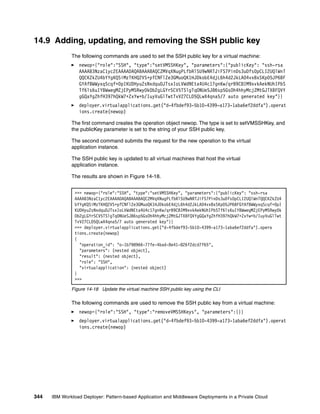
                      14.9 Adding, updating, and removing the SSH public key . . . . . . . . . . . . . . . . . . . . . . . .                                  344
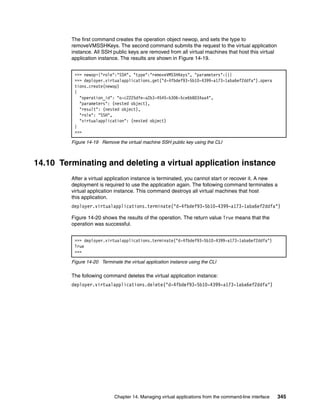
                      14.10 Terminating and deleting a virtual application instance . . . . . . . . . . . . . . . . . . . . .                                 345

Part 4. Troubleshooting . . . . . . . . . . . . . . . . . . . . . . . . . . . . . . . . . . . . . . . . . . . . . . . . . . . . . . . . . . . . . . 347

                      Chapter 15. Troubleshooting . . . . . . . . . . . . . . . . . . . . . . . . . . . . . . . . . . . . . . . . . . . . .                   349
                      15.1 Troubleshooting IBM Image Construction and Composition Tool . . . . . . . . . . . . . . .                                          350
                         15.1.1 Collecting IBM Image Construction and Composition Tool logs . . . . . . . . . . . .                                           350
                         15.1.2 Resolving issues in IBM Image Construction and Composition Tool . . . . . . . .                                               351
                      15.2 Troubleshooting IBM Workload Deployer . . . . . . . . . . . . . . . . . . . . . . . . . . . . . . . . .                            361
                         15.2.1 Collecting data for troubleshooting . . . . . . . . . . . . . . . . . . . . . . . . . . . . . . . . . .                       361
                         15.2.2 Receiving event notifications . . . . . . . . . . . . . . . . . . . . . . . . . . . . . . . . . . . . . .                     364
                         15.2.3 Troubleshooting virtual applications . . . . . . . . . . . . . . . . . . . . . . . . . . . . . . . . .                        366
                         15.2.4 Problem: No output when using the command-line interface . . . . . . . . . . . . . .                                          380

                      Appendix A. Sample scripts. . . . . . . . . . . . . . . . . . . . . . . . . . . . . . . . . . . . . . . . . . . . . .                   381
                      WebSphere Application Server Community Edition scripts . . . . . . . . . . . . . . . . . . . . . . . .                                  382
                         installWASCE.sh . . . . . . . . . . . . . . . . . . . . . . . . . . . . . . . . . . . . . . . . . . . . . . . . . . . . . .          382
                         ConfigWASCE.sh . . . . . . . . . . . . . . . . . . . . . . . . . . . . . . . . . . . . . . . . . . . . . . . . . . . . .             384
                      Scripts for Apache Tomcat installation . . . . . . . . . . . . . . . . . . . . . . . . . . . . . . . . . . . . . . . .                  386
                         install.sh . . . . . . . . . . . . . . . . . . . . . . . . . . . . . . . . . . . . . . . . . . . . . . . . . . . . . . . . . . . .   386
                         startup.sh . . . . . . . . . . . . . . . . . . . . . . . . . . . . . . . . . . . . . . . . . . . . . . . . . . . . . . . . . . .     391
                         reset.sh . . . . . . . . . . . . . . . . . . . . . . . . . . . . . . . . . . . . . . . . . . . . . . . . . . . . . . . . . . . . .   392
                      Plugin Development Kit Hello Center example . . . . . . . . . . . . . . . . . . . . . . . . . . . . . . . . .                           394
                         HCenter plug-in scripts . . . . . . . . . . . . . . . . . . . . . . . . . . . . . . . . . . . . . . . . . . . . . . . . .            394
                         Hello plug-in scripts. . . . . . . . . . . . . . . . . . . . . . . . . . . . . . . . . . . . . . . . . . . . . . . . . . . .         397
                         HClink plug-in scripts . . . . . . . . . . . . . . . . . . . . . . . . . . . . . . . . . . . . . . . . . . . . . . . . . .           397

                      Related publications . . . . . . . . . . . . . . . . . . . . . . . . . . . . . . . . . . . . . . . . . . . . . . . . . . . .            401
                      IBM Redbooks . . . . . . . . . . . . . . . . . . . . . . . . . . . . . . . . . . . . . . . . . . . . . . . . . . . . . . . . . .        401
                      Other publications . . . . . . . . . . . . . . . . . . . . . . . . . . . . . . . . . . . . . . . . . . . . . . . . . . . . . . .        401
                      Online resources . . . . . . . . . . . . . . . . . . . . . . . . . . . . . . . . . . . . . . . . . . . . . . . . . . . . . . . .        401
                      Help from IBM . . . . . . . . . . . . . . . . . . . . . . . . . . . . . . . . . . . . . . . . . . . . . . . . . . . . . . . . . .       402


                                                                                                                                              Contents         ix
x   IBM Workload Deployer: Pattern-based Application and Middleware Deployments in a Private Cloud
Notices

This information was developed for products and services offered in the U.S.A.

IBM may not offer the products, services, or features discussed in this document in other countries. Consult
your local IBM representative for information on the products and services currently available in your area.
Any reference to an IBM product, program, or service is not intended to state or imply that only that IBM
product, program, or service may be used. Any functionally equivalent product, program, or service that does
not infringe any IBM intellectual property right may be used instead. However, it is the user's responsibility to
evaluate and verify the operation of any non-IBM product, program, or service.

IBM may have patents or pending patent applications covering subject matter described in this document. The
furnishing of this document does not give you any license to these patents. You can send license inquiries, in
writing, to:
IBM Director of Licensing, IBM Corporation, North Castle Drive, Armonk, NY 10504-1785 U.S.A.

The following paragraph does not apply to the United Kingdom or any other country where such
provisions are inconsistent with local law: INTERNATIONAL BUSINESS MACHINES CORPORATION
PROVIDES THIS PUBLICATION "AS IS" WITHOUT WARRANTY OF ANY KIND, EITHER EXPRESS OR
IMPLIED, INCLUDING, BUT NOT LIMITED TO, THE IMPLIED WARRANTIES OF NON-INFRINGEMENT,
MERCHANTABILITY OR FITNESS FOR A PARTICULAR PURPOSE. Some states do not allow disclaimer of
express or implied warranties in certain transactions, therefore, this statement may not apply to you.

This information could include technical inaccuracies or typographical errors. Changes are periodically made
to the information herein; these changes will be incorporated in new editions of the publication. IBM may make
improvements and/or changes in the product(s) and/or the program(s) described in this publication at any time
without notice.

Any references in this information to non-IBM websites are provided for convenience only and do not in any
manner serve as an endorsement of those websites. The materials at those websites are not part of the
materials for this IBM product and use of those websites is at your own risk.

IBM may use or distribute any of the information you supply in any way it believes appropriate without
incurring any obligation to you.

Information concerning non-IBM products was obtained from the suppliers of those products, their published
announcements or other publicly available sources. IBM has not tested those products and cannot confirm the
accuracy of performance, compatibility or any other claims related to non-IBM products. Questions on the
capabilities of non-IBM products should be addressed to the suppliers of those products.

This information contains examples of data and reports used in daily business operations. To illustrate them
as completely as possible, the examples include the names of individuals, companies, brands, and products.
All of these names are fictitious and any similarity to the names and addresses used by an actual business
enterprise is entirely coincidental.

COPYRIGHT LICENSE:

This information contains sample application programs in source language, which illustrate programming
techniques on various operating platforms. You may copy, modify, and distribute these sample programs in
any form without payment to IBM, for the purposes of developing, using, marketing or distributing application
programs conforming to the application programming interface for the operating platform for which the sample
programs are written. These examples have not been thoroughly tested under all conditions. IBM, therefore,
cannot guarantee or imply reliability, serviceability, or function of these programs.


© Copyright IBM Corp. 2012. All rights reserved.                                                               xi
Trademarks
IBM, the IBM logo, and ibm.com are trademarks or registered trademarks of International Business Machines
Corporation in the United States, other countries, or both. These and other IBM trademarked terms are
marked on their first occurrence in this information with the appropriate symbol (® or ™), indicating US
registered or common law trademarks owned by IBM at the time this information was published. Such
trademarks may also be registered or common law trademarks in other countries. A current list of IBM
trademarks is available on the Web at http://www.ibm.com/legal/copytrade.shtml

The following terms are trademarks of the International Business Machines Corporation in the United States,
other countries, or both:
  AIX®                                    Informix®                                System z®
  CICS®                                   MVS™                                     Systems Director VMControl™
  CloudBurst®                             Optim™                                   Tivoli Enterprise Console®
  DataPower®                              Passport Advantage®                      Tivoli®
  DB2®                                    Power Systems™                           WebSphere®
  developerWorks®                         PowerVM®                                 z/OS®
  IBM SmartCloud™                         Rational®                                z/VM®
  IBM®                                    Redbooks®
  IMS™                                    Redbooks (logo)   ®

The following terms are trademarks of other companies:

Microsoft, Windows, and the Windows logo are trademarks of Microsoft Corporation in the United States,
other countries, or both.

Java, and all Java-based trademarks and logos are trademarks or registered trademarks of Oracle and/or its
affiliates.

UNIX is a registered trademark of The Open Group in the United States and other countries.

Intel, Intel logo, Intel Inside, Intel Inside logo, Intel Centrino, Intel Centrino logo, Celeron, Intel Xeon, Intel
SpeedStep, Itanium, and Pentium are trademarks or registered trademarks of Intel Corporation or its
subsidiaries in the United States and other countries.

Linux is a trademark of Linus Torvalds in the United States, other countries, or both.

Other company, product, or service names may be trademarks or service marks of others.


xii    IBM Workload Deployer: Pattern-based Application and Middleware Deployments in a Private Cloud
Preface

                 IBM® Workload Deployer provides a solution to creating, deploying, and managing workloads
                 in an on-premise or private cloud. It is rich in features that allow you to quickly build and
                 deploy virtual systems from base images, to extend those images, and to customize them for
                 future use as repeatable deployable units. IBM Workload Deployer also provides an
                 application-centric capability enabling rapid deployment of business applications. By using
                 either of these deployment models, an organization can quickly instantiate a complete
                 application platform for development, test, or production.

                 The IBM Workload Deployer uses the concept of patterns to describe the logical configuration
                 of both the physical and virtual assets that comprise a particular solution. The use of patterns
                 allows an organization to construct a deployable solution one time, and then dispense the
                 final product on demand. Virtual system patterns are composed of an operating system and
                 IBM software solutions, such as IBM WebSphere® Application Server and IBM WebSphere
                 Virtual Enterprise. Virtual application patterns are constructed to support a single application
                 workload. The IBM Workload Deployer is shipped with a set of pre-loaded virtual images and
                 virtual patterns. These images and patterns can be used as is to create comprehensive and
                 flexible middleware solutions. They can also be cloned and customized to suit your
                 specific needs.

                 This IBM Redbooks® publication looks at two different aspects of customizing virtual systems
                 for deployment into the cloud. First, it explores the capabilities of IBM Image Construction and
                 Composition Tool to build and provide highly customized virtual images for use in virtual
                 system patterns on the IBM Workload Deployer. Next, it looks at the virtual application
                 capabilities of the IBM Workload Deployer, including those capabilities that allow you to
                 deploy enterprise applications and database services to the cloud. It also introduces the IBM
                 Workload Deployer Plugin Development Kit, which allows you to further extend the
                 capabilities of the virtual application patterns.


The team who wrote this book
                 This book was produced by a team of specialists from around the world working at the
                 International Technical Support Organization, Raleigh Center.


© Copyright IBM Corp. 2012. All rights reserved.                                                              xiii
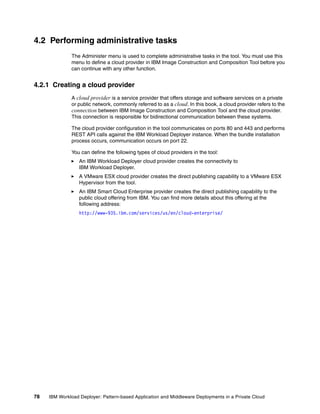
Figure 1 Left to right: Zhi Xian Chen, Bobby McChesney, Carla Sadtler, Matthew Kelm, Simon
               Kofkin-Hansen, Seiichiro Imazeki

               Zhi Xian Chen is a member of the system integration test team for WebSphere Application
               Server. She specializes in middleware and web services. Her area of expertise includes
               several WebSphere products, including IBM DB2® and IBM Rational® Application Server.
               Zhi Xian is also a volunteer lecturer for Web Application Development in colleges and has a
               number of publications on IBM developerWorks® in China. Zhi Xian has a joint Master of
               Science degree from the University of Reading (UK), the Aristotle University of Thessaloniki
               (Greece), and the University Carlos III Madrid (Spain), and a Bachelor’s degree from Zhejiang
               University in China.

               Seiichiro Imazeki is an IT Engineer at IBM Japan Systems Engineering Co., Ltd. He has two
               years of experience in the IT field. He received his Bachelor of Science and Master of
               Science degrees in Mathematics from Waseda University, Japan. His areas of expertise
               include web-related technology. He currently provides technical support for WebSphere
               Application Server and IBM Workload Deployer.

               Matthew Kelm is an Advisory Software Engineer for the IBM Software Group Application and
               Integration Middleware Division at Rochester, MN. His current focus is on delivering
               middleware solutions on IBM Cloud Platforms, such as IBM Workload Deployer. His
               experience includes technical roles on the WebSphere Application Server and Business
               Process Management product development teams. He holds a Bachelor of Science degree in
               MIS from North Dakota State University and Master of Science degree in Software
               Engineering from Southern Methodist University.

               Simon Kofkin-Hansen is from IBM Australia and is the Global Technology lead at IBM for
               GTS Rapid Deployment Services. Simon has dealt with automation within the middleware
               space for over eight years and specifically within the cloud computing space for the last two
               years. Simon continues to drive automation within this space in the creation of software
               bundles and automation assets that can be used within both physical and
               virtual environments.


xiv   IBM Workload Deployer: Pattern-based Application and Middleware Deployments in a Private Cloud
Zhi Qiang Kou works at IBM China as a team lead for level 3 product support. His focus is on
        WebSphere Application Server installation technology. He holds a degree in Computer
        Science from Tianjin University, China. Before joining IBM CSDL in 2009, he had 9 years of
        experience in the IT / Telecom field and holds several professional certifications.

        Bobby McChesney is an Advisory Software Engineer at IBM Software Group in the
        Application and Integration Middleware Division with 23 years of experience at IBM. He
        graduated with a Bachelor of Science in Computer Engineering from the University of Puerto
        Rico at Mayaguez and a Master of Science in Computer Engineering from Syracuse
        University. He is an IBM certified application developer and co-author of the Advanced Java
        EE Development for Rational Application Developer 7.5: Developers' Guidebook, by
        McChesney, et al. He currently works on the IBM Workload Deployer product development
        team in WebSphere Cloud Initiatives. He lives in Austin, Texas.

        Carla Sadtler is a Consulting IT Specialist at the ITSO, Raleigh Center. She writes
        extensively about WebSphere products and solutions. Before joining the ITSO in 1985, Carla
        worked in the Raleigh branch office as a Program Support Representative, supporting IBM
        MVS™ customers. She has a degree in Mathematics from the University of North Carolina at
        Greensboro.

        Thanks to the following people for their contributions to this project:

        Amit Acharya, Marc Haberkorn, Jerry Kiernan, Ted Kirby, James Kochuba, Joseph
        Loewengruber, Jose Luis Lopez, Ruth Willenborg
        IBM US

        Yi Wen Huang, Jing Jing Pan, Jiang Tan, Xi Wang, David Yao, Mark L Yi
        IBM China

        Shari Deiana, Margaret Ticknor, Debbie Willmschen
        International Technical Support Organization, Raleigh Center


Now you can become a published author, too!
        Here’s an opportunity to spotlight your skills, grow your career, and become a published
        author—all at the same time! Join an ITSO residency project and help write a book in your
        area of expertise, while honing your experience using leading-edge technologies. Your efforts
        will help to increase product acceptance and customer satisfaction, as you expand your
        network of technical contacts and relationships. Residencies run from two to six weeks in
        length, and you can participate either in person or as a remote resident working from your
        home base.

        Find out more about the residency program, browse the residency index, and apply online at:
        ibm.com/redbooks/residencies.html


                                                                                        Preface    xv
Comments welcome
               Your comments are important to us!

               We want our books to be as helpful as possible. Send us your comments about this book or
               other IBM Redbooks publications in one of the following ways:
                  Use the online Contact us review Redbooks form found at:
                  ibm.com/redbooks
                  Send your comments in an email to:
                  redbooks@us.ibm.com
                  Mail your comments to:
                  IBM Corporation, International Technical Support Organization
                  Dept. HYTD Mail Station P099
                  2455 South Road
                  Poughkeepsie, NY 12601-5400


Stay connected to IBM Redbooks
                  Find us on Facebook:
                  http://www.facebook.com/IBMRedbooks
                  Follow us on Twitter:
                  http://twitter.com/ibmredbooks
                  Look for us on LinkedIn:
                  http://www.linkedin.com/groups?home=&gid=2130806
                  Explore new Redbooks publications, residencies, and workshops with the IBM Redbooks
                  weekly newsletter:
                  https://www.redbooks.ibm.com/Redbooks.nsf/subscribe?OpenForm
                  Stay current on recent Redbooks publications with RSS Feeds:
                  http://www.redbooks.ibm.com/rss.html


xvi   IBM Workload Deployer: Pattern-based Application and Middleware Deployments in a Private Cloud
Part 1


Part       1     IBM Workload Deployer
                 This part introduces the IBM Workload Deployer and the tools available with it to create
                 customized virtual images and patterns. It provides an architectural overview and then shows
                 the core setup of the appliance.

                 This part contains the following chapters:
                     Chapter 1, “IBM Workload Deployer overview” on page 3
                     Chapter 2, “Configuring the IBM Workload Deployer” on page 23


© Copyright IBM Corp. 2012. All rights reserved.                                                            1
2   IBM Workload Deployer: Pattern-based Application and Middleware Deployments in a Private Cloud
1


    Chapter 1.   IBM Workload Deployer overview
                 IBM Workload Deployer is one of the foundational elements of the IBM private cloud strategy.
                 This appliance provides rapid adoption and deployment of both Infrastructure and Platform as
                 Service offerings. It provides a proven path to better use existing IT resources by improving
                 the efficiency and flexibility of these infrastructures. IBM Workload Deployer is the right
                 solution for organizations seeking agility in response to a dynamic business environment.

                 This chapter introduces the IBM Workload Deployer and its capabilities. In addition, it
                 describes the primary tools available to create custom content to be provisioned and
                 managed by the appliance.

                 This chapter contains the following topics:
                     IBM Workload Deployer V3.1
                     IBM Workload Deployer patterns
                     The cloud
                     Administrative interfaces
                     Appliance settings
                     Tools for building custom assets


© Copyright IBM Corp. 2012. All rights reserved.                                                             3
1.1 IBM Workload Deployer V3.1
               IBM Workload Deployer provides a solution to creating, deploying, and managing workloads
               in an on-premise or private cloud. It is rich in features that allow you to quickly build and
               deploy virtual systems from base images, to extend those images, and to customize them for
               future use as repeatable deployable units. IBM Workload Deployer also provides an
               application-centric capability that provides rapid deployment of business applications. By
               using either of these deployment models, an organization can quickly instantiate a complete
               application platform for development, test, or production.


1.1.1 Solution elements
               The IBM Workload Deployer provisions both standard and customized middleware virtual
               images and patterns to the cloud. These virtual images come from “Hypervisor Editions”,
               pre-loaded on the appliance to help organizations to develop, test, and deploy business
               applications easily and quickly.

               IBM Workload Deployer can receive and act upon operational data from the resource pools
               (IBM PowerVM®, IBM z/VM®, or VMware hypervisors) that make up the private cloud. It can
               also monitor application workload demand conditions and adjust resource allocation or
               prioritization as required to achieve established service level agreements.

               When the virtual environment is no longer needed, the resources are returned to the shared
               resource pool automatically for future use and are logged for internal charge-back purposes.
               The appliance manages individual user and group access to resources, providing IT
               managers with the control needed to optimize efficiency at a fine-grained level.

               IBM Workload Deployer integrates seamlessly with development and service management
               tools from IBM Rational and IBM Tivoli® for architectural, design, development, management,
               and monitoring purposes.

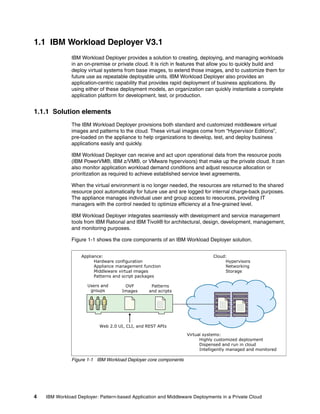
               Figure 1-1 shows the core components of an IBM Workload Deployer solution.


                   Appliance:                                                 Cloud:
                         Hardware configuration                                    Hypervisors
                         Appliance management function                             Networking
                         Middleware virtual images                                 Storage
                         Patterns and script packages

                      Users and       OVF         Patterns
                       groups        Images      and scripts
                                                                               ………..   ………..
                                                                               ………..   ………..
                                                                               ………..   ………..
                                                                               ………..   ………..
                                                                               ………..   ………..
                                                                               ………..   ………..

                           Web 2.0 UI, CLI, and REST APIs

                                                                  Virtual systems:
                                                                        Highly customized deployment
                                                                        Dispensed and run in cloud
                                                                        Intelligently managed and monitored

               Figure 1-1 IBM Workload Deployer core components


4   IBM Workload Deployer: Pattern-based Application and Middleware Deployments in a Private Cloud
First, you have the physical appliance with its hardware configuration and management
          application firmware, pre-loaded and customizable middleware virtual images, configurable
          patterns, script packages, and administration interfaces.

          Next, you have the on-premise or private cloud environment on which the virtual systems and
          applications run. The cloud environment consists of the hypervisors, networking
          infrastructure, and storage devices that are allocated to the appliance.

          Finally, you have the instances of virtual systems and virtual applications that are deployed
          by the appliance into the cloud. These systems are dispensed into the cloud using the
          intelligent placement capabilities of IBM Workload Deployer, which guarantee efficient cloud
          resource usage coupled with high availability.


1.1.2 The hardware
          IBM Workload Deployer is a 2U rack-mountable appliance based on the IBM DataPower®
          7199 / 9005 product family. This appliance offering provides several benefits:
             Consumability
             After the initial setup of the appliance and accepting the user license agreement, the
             appliance console is immediately available. No extra installation steps are necessary, and
             you can start building private clouds in minutes.
             Security
             IBM Workload Deployer manages a shared and multi-tenant environment, where isolation
             and security are of utmost importance. The secure nature of the appliance is rooted in a
             self-disabling switch, which is triggered if the appliance cover is removed. This physical
             security allows IBM Workload Deployer to serve as a secure vault for credentials, which
             can be tied to virtual images throughout their entire lifecycle (in storage, being dispensed,
             running in the cloud, or being removed from the cloud).
             Storage
             IBM Workload Deployer contains a storage driver that streamlines the storage of image
             customizations. When an image is loaded on to the appliance, it is “shredded” into parts
             by the storage driver. When an image is later customized and reloaded on to the
             appliance, it is similarly shredded in a consistent and deterministic way. These collections
             of shredded images are then compared and only the new or modified ones are transmitted
             and stored.
             IBM Workload Deployer serves as a dedicated store for both the pre-loaded and
             customized middleware virtual images and patterns. The appliance includes advanced
             compression and storage techniques that allow a significant number of these sizeable
             virtual images to be stored. The appliance is backed up by the DataPower processing
             power that is needed to manage and provision these images to the cloud.
             Cost
             The total cost of ownership (TCO) that is associated with a physical appliance is low. With
             a single appliance, the expensive process of building, customizing, provisioning, and
             managing systems and applications to a cloud is streamlined and simplified, reducing the
             cost of operations and the skill level required. Hardware costs are also lowered through
             better utilization of existing systems. Support costs are reduced through repeatable and
             consistent deployments.


                                                            Chapter 1. IBM Workload Deployer overview     5
1.1.3 What is new in IBM Workload Deployer Version 3.1
               IBM Workload Deployer V3.1 provides the following enhancements to Version 3.0:
                  Support for custom images created by the IBM Image Construction and Composition Tool
                  for deployment into cloud environments.
                  The IBM Image Construction and Composition Tool is designed to provide efficient reuse
                  and management of images and software in a cloud environment. It provides the
                  capability to build and share images that are customizable and easily managed.
                  Embedded IBM Workload Plugin Development Kit (PDK).
                  IBM Workload Plugin Development Kit and detailed documentation is used by the
                  developer to build custom virtual application plug-ins to extend virtual application patterns
                  or create patterns, so that an administrator can import them and make available for
                  other users.
                  High availability and failover of the IBM Workload Deployer appliance.
                  In IBM Workload Deployer V3.1, new active / passive failover capability is supported to
                  use two IBM Workload Deployer appliances. One appliance is configured as the master
                  while the second appliance as a slave. The slave has a replicated database and data so
                  that it is ready to take over on failure of the master. Eventually, the administrator can
                  restart replication between the two appliances where the slave becomes the master and a
                  new appliance becomes the slave.
                  Support for broader programming models with IBM WebSphere Application Server
                  Hypervisor Edition V8.0.
                  These programming models include Enterprise Edition (Java EE) 6, Open Services
                  Gateway initiative (OSGi) applications, Web 2.0 and Mobile, Java Batch, XML, Dynamic
                  Scripting, Service Component Architecture (SCA), Communication Enabled Application
                  (CEA), and Session Initiation Protocol (SIP).
                  Support for virtual applications running on IBM AIX®.
                  There is support for deploying virtual applications on AIX, providing the flexibility for
                  platform of choice and using the virtualization benefits offered by IBM PowerVM
                  technology using IBM Power Systems™.
                  Security enhancements.
                  To prevent the abuse of a single and all-powerful user account, such as cbadmin, IBM
                  Workload Deployer V3.1 separates administration, auditing, and operation responsibilities
                  and their associated privileges. Each role is defined for responsibilities, such as auditing,
                  hardware administration, software administration, and operations.


1.2 IBM Workload Deployer patterns
               IBM Workload Deployer bases its ability to provision virtual systems, applications, and
               databases to the cloud on the concept of patterns. Patterns are logical descriptions of both
               the physical and virtual assets that comprise a particular solution. The use of patterns allows
               an organization to construct an individual element or integrated solution one time, and then
               dispense the final product on demand.


6   IBM Workload Deployer: Pattern-based Application and Middleware Deployments in a Private Cloud
IBM Workload Deployer provides two types of patterns to assist with the rapid deployment
                  and integration of private cloud capabilities: virtual system and virtual application patterns.
                  The appliance ships with preinstalled patterns of each type that represent varying degrees of
                  automation and customization and are optimized with the most appropriate configurations
                  and settings for the solutions that they support. The preinstalled patterns are based on
                  industry-recommended practices.

                  You can also create your own patterns using a supplied pattern as a template, or create a
                  pattern from scratch. After a pattern is created on the appliance, the pattern can be reused
                  over and over to create multiple identical instances in the cloud. Custom patterns are stored
                  on the appliance and can be reused as needed to ensure consistent and repeatable
                  deployment environments.


1.2.1 Virtual system patterns
                  Virtual system patterns represent repeatable topology definitions based on various
                  middleware virtual images and runtime configurations. Virtual system patterns provide
                  flexibility and control over the middleware topology to be deployed.

                  A virtual system pattern typically consists of an operating system and additional IBM software
                  solutions. An example of a virtual system pattern is one that contains Linux operating
                  systems with WebSphere Application Server installed. The pattern might include a
                  deployment manager, several custom nodes, a DB2 database, and an IBM HTTP Server.

                  Using a virtual system pattern gives you more control over the middleware topology but also
                  requires that you configure the middleware. Script packages can be added to the pattern to
                  automate the customization of the virtual system topology after it is up and running. For
                  example, to create WebSphere resources and to install an application.

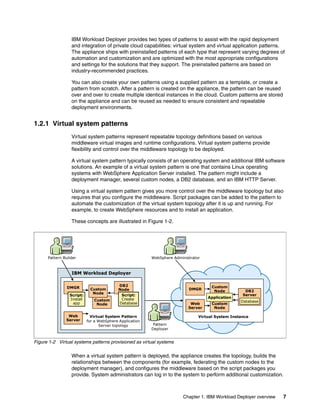
                  These concepts are illustrated in Figure 1-2.


      Pattern Builder                                    WebSphere Administrator


                  IBM Workload Deployer

                                           DB2                                       Custom
                DMGR        Custom                                        DMGR
                                           Node                                       Node          DB2
                             Node                                                                  Server
                 Script:                    Script:
                 Install                    Create                                 Application
                              Custom                                                              Database
                  app          Node        Database                        Web       Custom
                                                                          Server      Node

                Web          Virtual System Pattern                            Virtual System Instance
               Server      for a WebSphere Application
                                 Server topology          Pattern
                                                         Deployer


Figure 1-2 Virtual systems patterns provisioned as virtual systems

                  When a virtual system pattern is deployed, the appliance creates the topology, builds the
                  relationships between the components (for example, federating the custom nodes to the
                  deployment manager), and configures the middleware based on the script packages you
                  provide. System administrators can log in to the system to perform additional customization.


                                                                        Chapter 1. IBM Workload Deployer overview   7
1.2.2 Virtual application patterns
                      While virtual system patterns focus on the topology, virtual application patterns (as the name
                      implies) take an application-centric approach. With virtual system patterns, you describe a
                      middleware topology and IBM Workload Deployer builds that topology in the cloud. With
                      virtual application patterns, you describe an application and IBM Workload Deployer builds
                      the appropriate infrastructure and deploys the application to it. IBM Workload Deployer
                      includes a set of pre-loaded web application and database patterns. You can also create your
                      own patterns, from scratch or by using a supplied pattern as a template.

                      Virtual application patterns are highly optimized and are constructed solely for supporting a
                      singular workload. This pattern requires the least amount of customization during deployment
                      and provides the most direct method for obtaining a rapid return on investment. Virtual
                      application patterns are application-centric. You provide the application files and describe the
                      characteristics of how the application should be run and managed using policies. The
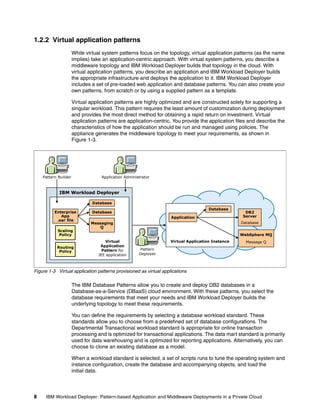
                      appliance generates the middleware topology to meet your requirements, as shown in
                      Figure 1-3.


    Pattern Builder                Application Administrator


            IBM Workload Deployer

                               Database
                                                                                     Database
          Enterprise           Database                                                             DB2
             App                                                   Application                     Server
           .ear file
                              Messaging                                                           Database
                                 Q
           Scaling
            Policy                                                                                WebSphere MQ
                                      Virtual                      Virtual Application Instance     Message Q
           Routing                 Application
                                    Pattern for        Pattern
            Policy
                                  JEE application     Deployer


Figure 1-3 Virtual application patterns provisioned as virtual applications

                      The IBM Database Patterns allow you to create and deploy DB2 databases in a
                      Database-as-a-Service (DBaaS) cloud environment. With these patterns, you select the
                      database requirements that meet your needs and IBM Workload Deployer builds the
                      underlying topology to meet these requirements.

                      You can define the requirements by selecting a database workload standard. These
                      standards allow you to choose from a predefined set of database configurations. The
                      Departmental Transactional workload standard is appropriate for online transaction
                      processing and is optimized for transactional applications. The data mart standard is primarily
                      used for data warehousing and is optimized for reporting applications. Alternatively, you can
                      choose to clone an existing database as a model.

                      When a workload standard is selected, a set of scripts runs to tune the operating system and
                      instance configuration, create the database and accompanying objects, and load the
                      initial data.


8    IBM Workload Deployer: Pattern-based Application and Middleware Deployments in a Private Cloud
1.2.3 Pattern elements
                 You construct patterns by combining one or more elements together, and then performing a
                 degree of integration. The integration activities can be as simple as standardizing the default
                 location for software installation or as complex as automatic node federation within a
                 WebSphere cell.

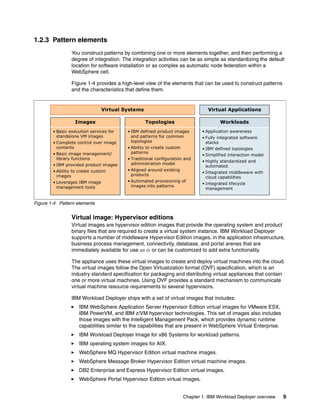
                 Figure 1-4 provides a high-level view of the elements that can be used to construct patterns
                 and the characteristics that define them.


                                Virtual Systems                                   Virtual Applications

                  Images                          Topologies                            Workloads
        • Basic execution services for    • IBM defined product images         • Application awareness
          standalone VM images              and patterns for common            • Fully integrated software
        • Complete control over image       topologies                           stacks
          contents                        • Ability to create custom           • IBM defined topologies
        • Basic image management/           patterns
                                                                               • Simplified interaction model
          library functions               • Traditional configuration and
                                                                               • Highly standardized and
        • IBM provided product images       administration model
                                                                                 automated
        • Ability to create custom        • Aligned around existing
                                                                               • Integrated middleware with
          images                            products
                                                                                 cloud capabilities
        • Leverages IBM image             • Automated provisioning of
                                                                               • Integrated lifecycle
          management tools                  images into patterns
                                                                                 management


Figure 1-4 Pattern elements


                 Virtual image: Hypervisor editions
                 Virtual images are hypervisor edition images that provide the operating system and product
                 binary files that are required to create a virtual system instance. IBM Workload Deployer
                 supports a number of middleware Hypervisor Edition images, in the application infrastructure,
                 business process management, connectivity, database, and portal arenas that are
                 immediately available for use as is or can be customized to add extra functionality.

                 The appliance uses these virtual images to create and deploy virtual machines into the cloud.
                 The virtual images follow the Open Virtualization format (OVF) specification, which is an
                 industry standard specification for packaging and distributing virtual appliances that contain
                 one or more virtual machines. Using OVF provides a standard mechanism to communicate
                 virtual machine resource requirements to several hypervisors.

                 IBM Workload Deployer ships with a set of virtual images that includes:
                    IBM WebSphere Application Server Hypervisor Edition virtual images for VMware ESX,
                    IBM PowerVM, and IBM z/VM hypervisor technologies. This set of images also includes
                    those images with the Intelligent Management Pack, which provides dynamic runtime
                    capabilities similar to the capabilities that are present in WebSphere Virtual Enterprise.
                    IBM Workload Deployer Image for x86 Systems for workload patterns.
                    IBM operating system images for AIX.
                    WebSphere MQ Hypervisor Edition virtual machine images.
                    WebSphere Message Broker Hypervisor Edition virtual machine images.
                    DB2 Enterprise and Express Hypervisor Edition virtual images.
                    WebSphere Portal Hypervisor Edition virtual images.


                                                                       Chapter 1. IBM Workload Deployer overview   9
In addition to this list, you can add your own custom virtual images. You can clone an existing
                 image, deploy it to the cloud, update it, and recapture the new image. You can also create
                 new virtual images based on your own operating systems using the IBM Image Construction
                 and Composition Tool.

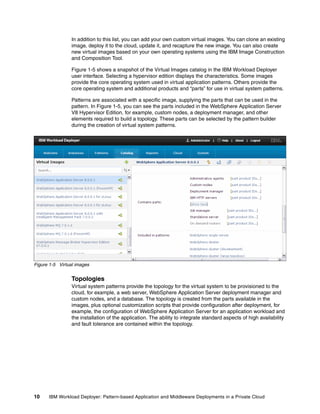
                 Figure 1-5 shows a snapshot of the Virtual Images catalog in the IBM Workload Deployer
                 user interface. Selecting a hypervisor edition displays the characteristics. Some images
                 provide the core operating system used in virtual application patterns. Others provide the
                 core operating system and additional products and “parts” for use in virtual system patterns.

                 Patterns are associated with a specific image, supplying the parts that can be used in the
                 pattern. In Figure 1-5, you can see the parts included in the WebSphere Application Server
                 V8 Hypervisor Edition, for example, custom nodes, a deployment manager, and other
                 elements required to build a topology. These parts can be selected by the pattern builder
                 during the creation of virtual system patterns.


Figure 1-5 Virtual images


                 Topologies
                 Virtual system patterns provide the topology for the virtual system to be provisioned to the
                 cloud, for example, a web server, WebSphere Application Server deployment manager and
                 custom nodes, and a database. The topology is created from the parts available in the
                 images, plus optional customization scripts that provide configuration after deployment, for
                 example, the configuration of WebSphere Application Server for an application workload and
                 the installation of the application. The ability to integrate standard aspects of high availability
                 and fault tolerance are contained within the topology.


10    IBM Workload Deployer: Pattern-based Application and Middleware Deployments in a Private Cloud
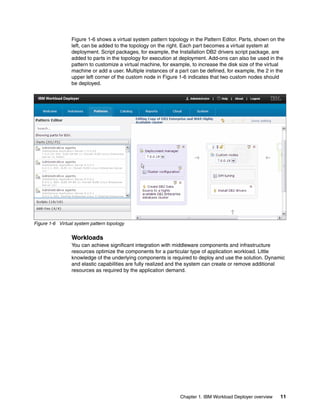
Figure 1-6 shows a virtual system pattern topology in the Pattern Editor. Parts, shown on the
                 left, can be added to the topology on the right. Each part becomes a virtual system at
                 deployment. Script packages, for example, the Installation DB2 drivers script package, are
                 added to parts in the topology for execution at deployment. Add-ons can also be used in the
                 pattern to customize a virtual machine, for example, to increase the disk size of the virtual
                 machine or add a user. Multiple instances of a part can be defined, for example, the 2 in the
                 upper left corner of the custom node in Figure 1-6 indicates that two custom nodes should
                 be deployed.


Figure 1-6 Virtual system pattern topology


                 Workloads
                 You can achieve significant integration with middleware components and infrastructure
                 resources optimize the components for a particular type of application workload. Little
                 knowledge of the underlying components is required to deploy and use the solution. Dynamic
                 and elastic capabilities are fully realized and the system can create or remove additional
                 resources as required by the application demand.


                                                                Chapter 1. IBM Workload Deployer overview   11
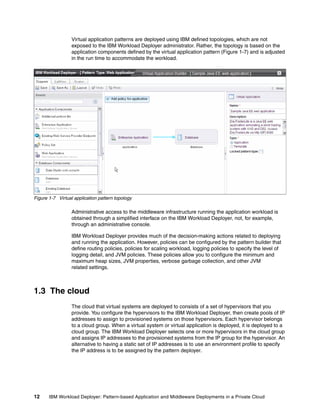
Virtual application patterns are deployed using IBM defined topologies, which are not
                  exposed to the IBM Workload Deployer administrator. Rather, the topology is based on the
                  application components defined by the virtual application pattern (Figure 1-7) and is adjusted
                  in the run time to accommodate the workload.


Figure 1-7 Virtual application pattern topology

                  Administrative access to the middleware infrastructure running the application workload is
                  obtained through a simplified interface on the IBM Workload Deployer, not, for example,
                  through an administrative console.

                  IBM Workload Deployer provides much of the decision-making actions related to deploying
                  and running the application. However, policies can be configured by the pattern builder that
                  define routing policies, policies for scaling workload, logging policies to specify the level of
                  logging detail, and JVM policies. These policies allow you to configure the minimum and
                  maximum heap sizes, JVM properties, verbose garbage collection, and other JVM
                  related settings.


1.3 The cloud
                  The cloud that virtual systems are deployed to consists of a set of hypervisors that you
                  provide. You configure the hypervisors to the IBM Workload Deployer, then create pools of IP
                  addresses to assign to provisioned systems on those hypervisors. Each hypervisor belongs
                  to a cloud group. When a virtual system or virtual application is deployed, it is deployed to a
                  cloud group. The IBM Workload Deployer selects one or more hypervisors in the cloud group
                  and assigns IP addresses to the provisioned systems from the IP group for the hypervisor. An
                  alternative to having a static set of IP addresses is to use an environment profile to specify
                  the IP address is to be assigned by the pattern deployer.


12     IBM Workload Deployer: Pattern-based Application and Middleware Deployments in a Private Cloud
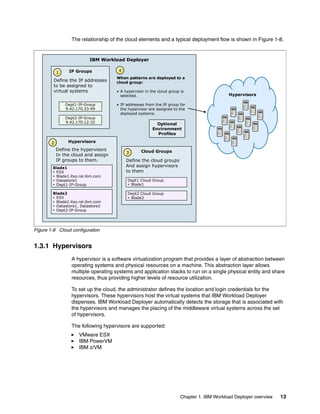
The relationship of the cloud elements and a typical deployment flow is shown in Figure 1-8.


                           IBM Workload Deployer

                 IP Groups             4
            1
                                      When patterns are deployed to a
         Define the IP addresses      cloud group:
         to be assigned to
         virtual systems              • A hypervisor in the cloud group is
                                        selected.                                            Hypervisors

                Dept1-IP-Group        • IP addresses from the IP group for
                9.42.170.33-99          the hypervisor are assigned to the
                                        deployed systems.
                Dept2-IP-Group
                9.42.170.12-32                             Optional
                                                         Environment
                                                           Profiles

        2        Hypervisors
            Define the hypervisors                 Cloud Groups
                                           3
            In the cloud and assign
            IP groups to them.             Define the cloud groups
        Blade1
                                           And assign hypervisors
         ESX                              to them
         Blade1.itso.ral.ibm.com
         Datastore1                       Dept1 Cloud Group
         Dept1-IP-Group                    Blade1

        Blade2                             Dept2 Cloud Group
         ESX                               Blade2
         Blade2.itso.ral.ibm.com
         Datastore1, Datastore2
         Dept2-IP-Group


Figure 1-8 Cloud configuration


1.3.1 Hypervisors
                  A hypervisor is a software virtualization program that provides a layer of abstraction between
                  operating systems and physical resources on a machine. This abstraction layer allows
                  multiple operating systems and application stacks to run on a single physical entity and share
                  resources, thus providing higher levels of resource utilization.

                  To set up the cloud, the administrator defines the location and login credentials for the
                  hypervisors. These hypervisors host the virtual systems that IBM Workload Deployer
                  dispenses. IBM Workload Deployer automatically detects the storage that is associated with
                  the hypervisors and manages the placing of the middleware virtual systems across the set
                  of hypervisors.

                  The following hypervisors are supported:
                      VMware ESX
                      IBM PowerVM
                      IBM z/VM


                                                                        Chapter 1. IBM Workload Deployer overview   13
1.3.2 IP groups
              Pools of IP addresses, known as IP groups, are configured for use by the deployed virtual
              machines. The administrator defines this pool of IP addresses, and when new virtual
              machines are created, the appliance takes care of assigning each machine a unique value. IP
              addresses can then be added to and removed from the pre-configured pool as needed.


1.3.3 Cloud groups
              A cloud group is a collection of related hypervisors. When deploying patterns to create virtual
              systems, you use a cloud group as the deployment target. One or more hypervisors of the
              same type make up a cloud group, for example, you can group all of your ESX hypervisors
              together or all of your high-end PowerVM hypervisors together. You can manage resource
              allocation thresholds, such as processor or memory usage, and also verify the runtime status
              of your configured hypervisors.


1.3.4 Environment profiles
              Environment profiles group related deployment configurations, such as virtual machine
              names, IP address assignment, and cloud groups. Deploying patterns with environment
              profiles provide deployments across tiers from a single pattern.

              In IBM Workload Deployer, environment profiles provide the functionality to:
                  Define the operational environments, such as development, test, or quality assurance
                  Define virtual machine naming conventions within the operational environment
                  Specify whether the IP group or a pattern deployer provides the IP address on
                  the deployment
                  Segment the clouds, and IP groups within the clouds, to specific environments
                  Assign aliases to the cloud resources, such as clouds and IP groups
                  Assign sections within the clouds to specific users or groups
                  Define limitations on the number of virtual processors, virtual memory, and storage

              With environment profiles, you can also group multiple clouds to be used in the deployment.
              You can deploy a pattern to multiple cloud groups of the same hypervisor type. You might
              deploy a pattern to multiple PowerVM cloud groups, for example. However, you cannot
              deploy a single pattern to a z/VM cloud group and to a PowerVM cloud group. Environment
              profiles are platform-specific, so IBM Workload Deployer filters out the appropriate clouds.


1.4 Administrative interfaces
              There are three ways to interact with IBM Workload Deployer:
                  Web-based user interface
                  Command-line interface
                  Representational State Transfer API


14   IBM Workload Deployer: Pattern-based Application and Middleware Deployments in a Private Cloud
1.4.1 Web-based user interface
                The primary administrative access to the IBM Workload Deployer appliance is through the
                web-based user interface (Figure 1-9). This management console is enabled when the
                appliance is first initialized through the serial console.


Figure 1-9 IBM Workload Deployer user interface

                The Welcome window provides wizards for you to configure the core functionality of IBM
                Workload Deployer in a step-by-step approach. There are also drop-down menus, highlighted
                in Figure 1-9, that accomplish the same results in a more granular way. The menu items are
                grouped by category. For example, the appliance settings are under the Appliance menu item,
                and the cloud management options for the hypervisors, and cloud and IP groups, are under
                Cloud, and so on.


1.4.2 Command-line interface
                The IBM Workload Deployer command-line interface (CLI) provides a scripting environment
                based on Jython, the Java-based implementation of Python. In addition to commands that are
                specific to Workload Deployer, you can issue Python commands at the command prompt.

                The CLI allows you to manage a Workload Deployer appliance remotely. It communicates
                with the Workload Deployer appliance over an HTTPS session. The Workload Deployer CLI
                can run in both interactive and batch modes.

                                                              Chapter 1. IBM Workload Deployer overview   15
The CLI can be downloaded from the IBM Workload Deployer user interface to a Windows or
              Linux system.


1.4.3 Representational State Transfer API
              The IBM Workload Deployer appliance exposes a subset of its function using a
              Representational State Transfer (REST) API. The API is available on the same IP address or
              host name used to access the appliance user interface and CLI.

              The REST API provides a means to interact with the appliance that is both language neutral
              and programming model neutral. When using the REST API, you interact with the resources
              of the appliance, such as the hypervisors, patterns, script packages, and so on, just by using
              well-defined HTTP URLs and associated HTTP verbs (GET, POST, PUT, and DELETE).

              Unlike the UI, the REST API is only supported over the HTTPS protocol. The appliance uses
              a self-signed certificate for its SSL sessions. The same certificate is used for the UI, CLI, and
              REST API sessions. You must configure your HTTPS client to either accept or ignore this
              certificate during the SSL handshake. You must use an HTTPS client that allows you to set
              the HTTP headers for each request.

              Finally, the REST API supports only the sending and receiving of UTF-8 encoded data.
              Ensure that your HTTP client is appropriately set to encode and decode character data,
              including JSON data.


1.5 Appliance settings
              After installation, the IBM Workload Deployer appliance settings can be performed through
              the administrative interfaces. This section provides a high-level overview of the administrative
              settings on the Workload Deployer appliance, covering networking, security, and basic
              appliance maintenance.

              Networking
              Networking settings can be configured for the appliance, including the Domain Name System
              (DNS), Network Time Protocol (NTP), and Simple Mail Transfer Protocol (SMTP) settings for
              the appliance. Although only a single Ethernet interface is required to be configured on the
              appliance for it to be functional, multiple Ethernet interfaces can be enabled. The most
              common reason for doing so is to add a level of redundancy to your environment. Another
              reason multiple Ethernet interfaces are used is to allow the appliance to separate the virtual
              machines network from the administrative one.

              Security
              IBM Workload Deployer is designed with key features that establish and manage trust across
              the cloud. In addition to ready for use security on the appliance, you can also use a
              Lightweight Directory Access Protocol (LDAP) to authenticate users with the Workload
              Deployer appliance.

              Appliance maintenance
              Using the backup and restore process, you can capture a complete Workload Deployer
              environment at any point. You can then either restore that environment on the appliance from
              which it was taken or restore it on another appliance.


16   IBM Workload Deployer: Pattern-based Application and Middleware Deployments in a Private Cloud
Upgrades to the Workload Deployer appliance are done using firmware updates. New
         firmware versions can be downloaded from the IBM Fix Central website and used to update
         your appliance. A firmware upgrade changes only the appliance application and does not
         affect the Hypervisor Edition virtual images on the appliance.

         Power restart
         Finally, the appliance can be restarted or powered down from the user interface.

         Users and groups
         Users and user groups are configurable so that you can manage the level of access for each
         individual to your Workload Deployer appliance.

         User permissions are defined to determine which panels are viewable for each user and to
         determine a user's access to a particular object. Permissions provide the granularity to define
         the access and roles for each user. You specify access to patterns, virtual system instances,
         and catalog content at the object level.

         The permissions assigned to users define which administrative tasks for Workload Deployer
         the users can perform. In addition to determining which of the administrative pages are
         shown, the content of the Welcome page is dynamically generated by the appliance to
         display distinct content for users that are assigned dissimilar levels of access. For example,
         you can define the following role-based groups to control user access to resources on the
         appliance:
            Pattern deployers: This group has permission to deploy patterns. Typically, these users
            have less middleware administration expertise and probably want to deploy constructed
            and configured environments.
            Pattern authors and catalog managers: This group has permission to create patterns,
            upload script packages, and create custom images. These users are typically seasoned
            middleware administrators who can build and configure application environments. They
            map their existing configuration knowledge to the various customization approaches in
            IBM Workload Deployer.
            Cloud and appliance administrators: This group has permission to administer the cloud
            infrastructure and the appliance. These users are familiar with the configuration and
            administration of the hardware components within the cloud. In addition, they have the
            skills necessary to manage and maintain the appliance.


1.6 Tools for building custom assets
         When the pre-loaded images, plug-ins, and patterns do not meet all the requirements for your
         business workload, you can easily customize them using IBM Workload Deployer
         customization tools. The Pattern Editor in the IBM Workload Deployer user interface is used
         to create and customize virtual system patterns. You can customize virtual application
         patterns by using the Virtual Application Builder in the user interface. Both tools are available
         in the IBM Workload Deployer user interface.

         In addition, two new tools for creating custom content are available and can be downloaded
         from the IBM Workload Deployer user interface Welcome window (see Figure 1-9 on
         page 15).
            The IBM Image Construction and Composition Tool is used to create virtual images to be
            used in virtual system patterns.
            The Plug-in Development Kit is used to create custom virtual application patterns.


                                                          Chapter 1. IBM Workload Deployer overview    17
1.6.1 IBM Image Construction and Composition Tool
              IBM Workload Deployer includes IBM software product images with preinstalled middleware,
              such as WebSphere Application Server. Provisioning these pre-loaded images to your private
              cloud allows you to quickly build the virtual systems required to run your applications.

              Reality, however, is never that simple. It is likely that the images provided with the IBM
              Workload Deployer require modification before deployment. For example, most organizations
              have corporate standards for security compliance across hardware and software platforms.
              The images deployed to the cloud must be updated to contain the software required to
              comply to those standards. Another example is the requirement for the installation of agents
              used by monitoring software. Finally, consider the case where third-party products are
              required to be installed on the system. These changes could be made after deployment, but
              would need to be performed after every deployment, making that option impractical. As the
              number of virtual systems in the cloud grow, more time and effort is required to keep these
              systems in compliance.

              A better solution is to customize the images before they are deployed. The IBM Workload
              Deployer provides a “clone and extend” feature that allows you to deploy an image, update it,
              and then capture it as an image for future deployments. Although this feature has its
              advantages, you can take this concept one step further with IBM Image Construction and
              Composition Tool. With IBM Image Construction and Composition Tool, you prepare a
              software bundle that includes the information required to install and configure new software
              on a selected base image automatically at deployment time. These software bundles can be
              reused in IBM Image Construction and Composition Tool to create additional customized
              images by mixing and matching bundles with base operating system images.

              These customized images can be provisioned to a cloud using IBM Workload Deployer, IBM
              SmartCloud™ Enterprise, IBM SmartCloud Provisioning, or VMware ESX. A direct integration
              process is now available between IBM Workload Deployer V3.1 and IBM Image Construction
              and Composition Tool V1.1.

              Integration with IBM Workload Deployer
              The new, tighter integration between IBM Workload Deployer and IBM Image Construction
              and Composition Tool takes place over a cloud provider connection defined in the tool
              interface. This link allows images in the IBM Workload Deployer image catalog to be viewable
              from the tool.

              Images from the appliance can be “imported” into the tool, effectively creating a
              representation of the image in the tool. The actual image stays on the appliance. With the
              image now in the tool, it can be extended by adding software bundles. When an image is
              extended, a new image description is generated using the imported image as a template, and
              the software bundles are added to the new image.

              Then the new image is synchronized. During the synchronization process, the tool requests
              that IBM Workload Deployer create a clone of the image and provision that clone to the cloud.
              Once provisioned, the tool communicates with the cloud image instance and performs the
              installation and configuration tasks defined by the software bundles. At completion of the
              software bundle execution, the synchronization is complete and the new virtual image can be
              tested. The last step is to use the tool to capture the extended image. The capture process
              cleans up the image to leave it in a state that is appropriate for redeployment. The captured
              image is defined in the tool, and is added to the catalog of virtual images in
              IBM Workload Deployer.


18   IBM Workload Deployer: Pattern-based Application and Middleware Deployments in a Private Cloud
Figure 1-10 illustrates this process.


                                                                                                  Pattern builder
                              Image
                         Construction and
                         Composition Tool                                 IBM Workload
                                                                            Deployer
                                                1 Import image
                               Base
                                                                             Base Image
                             operating
  Operating system         system image
     specialist
                                                3 Create virtual image

                                                                                                     Virtual
                             Software
                  2                                                                                  Image
                              bundle            4 Capture image
    Software
                                        New                                     New
    specialist
                                       Image        Image builder              Image
                                                                                              5      Virtual
                                                                                                     System
                                                                           Virtual System
                                                                               Pattern


Figure 1-10 Customizing IBM Workload Deployer images

                 The steps shown in Figure 1-10 show the process to use IBM Image Construction and
                 Composition Tool to build deployable images to IBM Workload Deployer. The steps are
                 explained as follows:
                 1. An operating system specialist using IBM Image Construction and Composition Tool
                    imports a base image directly from IBM Workload Deployer. The base image remains on
                    IBM Workload Deployer and a description of the image is stored in IBM Image
                    Construction and Composition Tool.
                 2. A software specialist defines the software bundles to be installed and configured on the
                    base image. The software bundles contain installation and configuration parameters that
                    define the middleware software to install to the virtual image:
                      – Installation
                         The installation parameters define how the IBM Image Construction and Composition
                         Tool installs software into the virtual image. The parameters are stored as a script that
                         is run by the IBM Image Construction and Composition Tool after the image is built.
                         The installation of software occurs one time, and the software then becomes a
                         permanent part of the image.
                      – Configuration
                         The configuration parameters contain a set of activation tasks that the IBM Image
                         Construction and Composition Tool must perform to the installed software at
                         deployment time.
                 3. The image builder creates a virtual image by specifying a base image to use and selecting
                    the bundles to install. The image builder customizes the installation and configuration
                    (deploy) parameters for the bundles as needed.
                      When this new image is saved, the IBM Image Construction and Composition Tool
                      instructs IBM Workload Deployer to create a copy of the base image, install the bundles,
                      and perform the configuration.


                                                                    Chapter 1. IBM Workload Deployer overview       19
4. The image builder verifies the new system, and then resets (cleans up) and captures
                      the image.
                   5. The image is now available in the IBM Workload Deployer image catalog and can be
                      included in virtual system patterns and deployed to the cloud.

                   Adding new images to IBM Workload Deployer
                   Figure 1-11 illustrates a second scenario for using IBM Image Construction and Composition
                   Tool with IBM Workload Deployer to increase the flexibility of the process of building virtual
                   systems for deployment to the cloud. In this case, the base image is not taken from an
                   existing IBM Workload Deployer image. Instead, the base image is a virtual system that
                   exists outside of the IBM Workload Deployer domain.


     1 Import image
                                                                                                Pattern builder
                               Image
                          Construction and                               IBM Workload
                          Composition Tool                                 Deployer
                                                2 Export OVA file
                                Base
                                                3 Import OVA file          Base Image
                              operating
  Operating system          system image
     specialist                                     Re-import image
                                                4
                                                    via cloud provider

                                                5 Extend virtual image
                                                                                                   Virtual
                              Software
                   2                                                                               Image
                               bundle
                                                6 Capture image
      Software                                                                 New
      specialist                      New
                                                     Image builder            Image
                                     Image
                                                                                            7      Virtual
                                                                                                   System
                                                                          Virtual System
                                                                              Pattern


Figure 1-11 Building deployable images with IBM Image Construction and Composition Tool

                   The steps shown in Figure 1-11 show the process to add new images to the IBM Workload
                   Deployer image catalog using IBM Image Construction and Composition Tool. The steps are
                   explained as follows:
                   1. The operating system specialist defines the base operating system image to the IBM
                      Image Construction and Composition Tool. In this case, the image is obtained from one of
                      the following sources:
                       – An existing virtual image (OVA file) with an operating system already installed is
                         imported into IBM Image Construction and Composition Tool (Red Hat Enterprise
                         Linux or SUSE Linux Enterprise Server only).
                       – A running VMware virtual machine is captured into IBM Image Construction and
                         Composition Tool.
                   2. The image builder then exports the new image for use with the IBM Workload Deployer.
                      The export process creates an OVA package that contains the metadata necessary for
                      importing the image into and deploying the image from the IBM Workload Deployer.
                   3. The IBM Workload Deployer administrator imports the image into the appliance.
                   4. The image builder reimports the image into IBM Image Construction and Composition
                      Tool from the IBM Workload Deployer cloud provider. This action provides a new base
                      image that can be extended.


20     IBM Workload Deployer: Pattern-based Application and Middleware Deployments in a Private Cloud
5. A software specialist defines the software bundles to be installed and configured on the
              base image. The image builder creates a new virtual image by specifying the base image
              and selecting the bundles to install. The image builder customizes the installation and
              configuration (deploy) parameters for the bundles as needed. When this new image is
              saved, the IBM Image Construction and Composition Tool starts a copy of the base
              image, installs the bundles, and performs the configuration.
           6. The image builder verifies the new system, and then captures the image.
           7. The image is now available on the IBM Workload Deployer for inclusion in virtual
              system patterns.


1.6.2 Plug-in Development Kit
           Virtual application patterns take a decidedly application-centric approach for building,
           deploying, and managing middleware application environments in a cloud. By supplying your
           application and specifying both functional and non-functional requirements for that
           application, IBM Workload Deployer transforms the input from you into a installed, configured,
           and integrated middleware application environment (Figure 1-12).


                                                                         Virtual application pattern


                                                            QoS policy                 Database

                    Application, characteristics
                                                   Existing user                        Existing
                    Functional requirements                           Application
                                                     registry                          Database
                    Non-functional requirements


                                                                                         Monitoring
                                     WebSphere                     DB2                   life cycle
                                     Application                                        management
                                       Server
                  Shared proxy
                     server                                        DB2
                                     WebSphere
                                     Application
                                       Server                      LDAP
                  Shared proxy
                     server
                                     WebSphere
                                     Application
                                       Server
                                                       Shared proxy        Shared proxy
                                                          server              server


           Figure 1-12 IBM Workload Deployer Virtual application approach


                                                            Chapter 1. IBM Workload Deployer overview   21
A deployer of virtual application patterns does not need to know how to install, configure, or
              integrate the middleware and applications because the pattern encapsulates all that
              knowledge in plug-ins. The plug-ins of each pattern type define components, links, and
              policies and their functionality in the virtual application pattern (Figure 1-13).


                                                           Components


                                 Enterprise application

                                                                               Database
                                      Scaling policy

                                                               Links

                                 Policies

              Figure 1-13 IBM Workload Deployer example virtual application pattern

              In a virtual application pattern:
                  Components represent functional profiles for a workload, such as enterprise application
                  and database.
                  Links express a connection point between components in a virtual application pattern. In
                  the pattern shown in Figure 1-13, a link specifies that the Enterprise Application has a
                  dependency on the Database component in the pattern.
                  Policies like the Scaling Policy shown in Figure 1-13 allow you to specify functional and
                  non-functional requirements for your application environment.

              By using IBM Workload Plugin Development Kit, user can create custom plug-ins (such as
              components, policies, and links) to extend an existing pattern or create a pattern type.


22   IBM Workload Deployer: Pattern-based Application and Middleware Deployments in a Private Cloud
2


    Chapter 2.   Configuring the IBM Workload
                 Deployer
                 In this chapter, we describe the steps needed to set up and configure IBM Workload
                 Deployer. This chapter describes the IBM Workload Deployer user interface and the steps
                 required to define the private cloud to the IBM Workload Deployer.

                 This chapter contains the following topics:
                     Logging on to the appliance user interface
                     Setting up the user IDs
                     Setting up the cloud


© Copyright IBM Corp. 2012. All rights reserved.                                                           23
2.1 Logging on to the appliance user interface
              The configuration of the appliance is done with the user interface, which you must log on to
              first. To log on to the interface, complete the following steps:
              1. Open a web browser, and enter the URL of the user interface:
                  https://appliance_hostname/login
              2. Log on to the IBM Workload Deployer user interface as an appliance administrator
                 (Figure 2-1). Initially, use cbadmin, the default administrative user that comes with the
                 appliance. The password for cbadmin is set during the installation of the appliance.


                  Figure 2-1 IBM Workload Deployer login window


24   IBM Workload Deployer: Pattern-based Application and Middleware Deployments in a Private Cloud
3. When you first log on to the IBM Workload Deployer with an administrator user ID, the
                  Welcome window is displayed (Figure 2-2). The window has four expandable sections.
                  Expand Setting up your private cloud if it is not already expanded.


Figure 2-2 IBM Workload Deployer Welcome window


2.2 Setting up the user IDs
               The cbadmin user ID is used in the scenarios in this chapter, which is acceptable in a lab
               environment. In most environments, however, additional user IDs are defined to restrict the
               activities of those users logging on to the appliance to specific activities.

               Consider the roles that the users of the appliance have in your environment and create a
               group for each role. Set the permissions for the group and then add the appropriate user IDs
               to each group.


                                                        Chapter 2. Configuring the IBM Workload Deployer   25
For example, consider the following roles and corresponding groups:
                     The Admins group has the administrator role. Users who are assigned to this group can
                     extend images and add content to the catalog. This group provides the Operations users
                     all the basic components that they need to create a topology. The users in this group can
                     lock some options of the basic virtual images, such as locking the operating system
                     root password.
                     The Operations group has the operator role. This group is the WebSphere administrator
                     group. Users from this group can define topologies and environment profiles. Users from
                     this group can also install additional software during the extension process of
                     virtual images.
                     The Deployers group has a basic user role. It has the default authority to deploy patterns
                     to the cloud.
                     The Auditors group has the authority to view and change auditing settings and download
                     audit data.

                 User passwords can be defined directly in the IBM Workload Deployer. Alternatively, you can
                 use a Lightweight Directory Access Protocol (LDAP) directory to authenticate users within the
                 appliance. This directory server can be used only to authenticate, not to authorize, users and
                 user groups. You can find further details about how to configure a directory server in IBM
                 Workload Deployer at the following address:

                 http://publib.boulder.ibm.com/infocenter/worlodep/v3r1m0/topic/com.ibm.worlodep.do
                 c/aa/aat_sec_ldap.html


2.2.1 Creating the user groups
                 You must create the user groups that correspond to these roles. To create these groups,
                 complete the following steps:
                 1. In the user interface, click System  User Groups. The group Everyone is provided by
                    default (Figure 2-3).


Figure 2-3 Listing the user groups

                 2. Click New (the      icon).


26    IBM Workload Deployer: Pattern-based Application and Middleware Deployments in a Private Cloud
3. In the dialog box that opens (Figure 2-4), enter Admins as the group’s name, and add a
   description. Click OK.


   Figure 2-4 Define the Admins user group

4. The new group is added to the list, and a configuration page opens. Give this group the full
   set of permissions, except for the Audit permission, by checking each box in the
   Permissions section and selecting Full permissions in the Cloud administration and
   Appliance administration sections. This configuration is shown in Figure 2-5. You do not
   need to save your changes because they are automatically saved.


   Figure 2-5 Providing full permissions to the Admins user group


                                             Chapter 2. Configuring the IBM Workload Deployer   27
Auditing permissions: IBM Workload Deployer provides an auditing function that
                   tracks configuration changes, user authentication attempts to access objects that are
                   secured by object-level access control, and more. To prevent abuse of user power in
                   your environment, isolate the assignment of auditing permissions to one or more users
                   who do not have other powerful administrative capabilities, such as the appliance or
                   cloud administration permissions.

              5. Repeat steps 2 on page 26 through 5 to define the Operations group, but select only the
                 following permissions:
                  – Deploy patterns in the cloud
                  – Create new patterns
                  – Create new environment profiles
              6. Repeat steps 2 on page 26 through 5 to define the Deployers group, but this time define
                 only the default permission to deploy patterns in the cloud.
              7. Define the Auditors group with full auditing permissions.


2.2.2 Creating the user IDs
              With the groups in place, define the users and assign them to the appropriate group. In this
              step, the user IDs in Table 2-1 are defined.

              Table 2-1 User IDs
                User name                         Full name                       Group

                ITSOadm1                          Administrator2                  Admins

                ITSOopt1                          Operator1                       Operations

                ITSOdep1                          Deployer1                       Deployers

                ITSOauditor1                      Auditor1                        Auditors


              These user IDs are created with basic permissions, but inherit the full range of their
              permissions from the group they are assigned to. When a user logs on to the user interface,
              the options in the console menu are an indication of the permissions for this user ID.

              To define the ITSOadm1 user, complete the following steps:
              1. In the user interface, click System  Users.
              2. A list of user names for the appliance is displayed. Initially, there is one user called
                 Administrator that is the cbadmin user ID. The green symbol (          ) next to the user ID
                 means that the user is logged in.
                  To create a user, click New (      ) (Figure 2-6).


                  Figure 2-6 Add a user


28   IBM Workload Deployer: Pattern-based Application and Middleware Deployments in a Private Cloud
3. In the dialog box that opens, enter the required information for the ITSOadm1 user ID
   (Figure 2-7) and click OK. The user ID used to log in with is entered in the User name
   field. The Full name field contains the name of the user.


   Figure 2-7 Define the ITSOadm1 user

   The new user ID is added to the list, and a configuration page is displayed.


                                         Chapter 2. Configuring the IBM Workload Deployer   29
4. Click in the Add more.. field for User groups and select the Admins group. Adding the
                 user to the group automatically sets the permissions to the permissions inherited from the
                 group (Figure 2-8).


                  Figure 2-8 User defined and default permissions

              5. Repeat steps 2 on page 28 - 4 for the ITSOopt1, ITSOdep1, and ITSOaudit1 users and
                 add them to the appropriate group. The resulting list of users looks like Figure 2-9.


                  Figure 2-9 Final list of users


30   IBM Workload Deployer: Pattern-based Application and Middleware Deployments in a Private Cloud
2.3 Setting up the cloud
           The next step is to configure the cloud environment to the IBM Workload Deployer. In this
           section, the resources of the cloud are defined. These resources include the hypervisors that
           host the deployed images, the pool of IP addresses used to assign to the images, and the
           cloud groups specified at deployment time.

           When a pattern is deployed, the deployer selects a cloud group to deploy to. The cloud group
           is a set of hypervisors. In turn, the hypervisors are assigned IP groups. When a virtual
           machine is deployed to the hypervisor, an IP address is selected from the IP group assigned
           to the hypervisor. Alternatively, you can assign IP addresses manually at deployment time
           using an environment profile.


2.3.1 Creating the IP groups and adding IP addresses
           In this scenario, one IP group is defined with a list of host names. The IBM Workload
           Deployer must be able to resolve the host names to their corresponding IP address. The IP
           group is called “Default ESX IP Group”.

            Before you begin: You need the following information (related to the cloud) to define the
            IP groups:
               Subnet address
               Netmask
               Gateway
               Primary DNS

           To create the IP group, complete the following steps:
           1. Log on to the appliance as an administrative user.
           2. Click Cloud  IP Groups.
           3. Click New (    ) to add an IP group.


                                                     Chapter 2. Configuring the IBM Workload Deployer   31
4. Add the information requested in the dialog box (Figure 2-10) and click Create.


                  Figure 2-10 IP group Testbed2-IP-Group definition


32   IBM Workload Deployer: Pattern-based Application and Middleware Deployments in a Private Cloud
Your console should now look similar to Figure 2-11.


Figure 2-11 Default ESX IP Group definition


                                                         Chapter 2. Configuring the IBM Workload Deployer   33
5. Add the IP addresses to the IP group either by entering ranges of IP addresses or by
                 entering a list of host names. In this case, a list of host names is entered, separated by a
                 space (not a new line) (Figure 2-12). When the names are entered, click Add Host
                 Names.


                  Figure 2-12 Default ESX IP Group with host names


                   Tip: When you add an IP address or host name, the IBM Workload Deployer attempts
                   to look it up in the domain name server. If there are problems with this lookup, check
                   your appliance settings to ensure that the Ethernet Interfaces are defined correctly,
                   including the mask and that the domain name server is defined.


34   IBM Workload Deployer: Pattern-based Application and Middleware Deployments in a Private Cloud
The results look like Figure 2-13.


              Figure 2-13 Completed IP group


2.3.2 Adding the hypervisors
           Add the hypervisors in the cloud by completing the following steps:
           1. Click Cloud  Hypervisors.
           2. Add a hypervisor by clicking New (    ).


                                                    Chapter 2. Configuring the IBM Workload Deployer   35
3. Insert the information required in the window that opens and click OK. In Figure 2-14, a
                 hypervisor called blade9 is added to the cloud.


                  Figure 2-14 Adding blade9

              4. After a few seconds, another window opens. This window contains the hypervisor’s
                 certificate. Click Accept. You must accept the certificate so that IBM Workload Deployer
                 can deploy to the hypervisor.


                  Figure 2-15 Accepting the hypervisor’s certificate


36   IBM Workload Deployer: Pattern-based Application and Middleware Deployments in a Private Cloud
5. The new hypervisor is displayed in the list (Figure 2-16). Click the Refresh icon until you
                    see the blade in maintenance mode.


Figure 2-16 The hypervisor is added to the cloud


                                                           Chapter 2. Configuring the IBM Workload Deployer   37
6. The blade is in maintenance mode because you have not associated any IP groups to the
                 hypervisors and you have not selected the storage devices on the hypervisor to use. To
                 correct this situation, complete the following steps:
                  a. Expand the Storage devices section and select the data store you want to make
                     available for virtual images.
                  b. Expand the Networks section and select VM Network. Select the Default ESX IP
                     Group in the IP group field.
                  See Figure 2-17 for an overview.


                  Figure 2-17 Assign the data store, network, and IP group to the hypervisor


38   IBM Workload Deployer: Pattern-based Application and Middleware Deployments in a Private Cloud
7. Add the rest of the hypervisors in the cloud. In this case, the same IP group is used for all
              of the hypervisors. The result is a list of the hypervisors in maintenance mode. The
              hypervisors stay in maintenance mode until they are added to a cloud group and started.
              The final list of hypervisors for this example is shown in Figure 2-18.


              Figure 2-18 Hypervisors list


2.3.3 Creating the cloud groups
           Now that you have defined the hypervisors, you must pool them in cloud groups.

           In this example, use the cloud group called Default ESX Group. This cloud group is
           predefined in IBM Workload Deployer. In a lab environment with a small group of users, using
           one cloud group is probably adequate. Often though, multiple cloud groups are used to
           manage the hypervisors available to different groups of users. For example, you could assign
           one cloud group to each department or test group to prevent one group from
           monopolizing resources.

           When determining how to define the groups, keep in mind the following rules:
              A cloud group can contain only one type (ESX, PowerVM, or z/VM) of hypervisor.
              A cloud group can contain one or more hypervisors, but a hypervisor can belong to only
              one cloud group.

           A cloud group can be one of the following types:
              Custom cloud groups consisting of z/VM or VMware ESX hypervisors. Custom cloud
              groups are populated manually with hypervisors you defined in the
              IBM Workload Deployer.
              Managed cloud groups that represent sets of hypervisors managed by IBM Systems
              Director VMControl™ for IBM PowerVM hypervisors or VMware Virtual Center for VMware
              ESX hypervisors. Hypervisors in the managed cloud group are discovered when you add
              the cloud group or reset the connections for a cloud group. They cannot be added
              separately from the cloud group.

           More information can be found by seeing “About cloud groups” in the IBM Workload Deployer
           Information Center found at the following address:
           http://publib.boulder.ibm.com/infocenter/worlodep/v3r1m0/topic/com.ibm.worlodep.do
           c/sr/cg/cgr_cloudgro.html


                                                     Chapter 2. Configuring the IBM Workload Deployer    39
To create a cloud group, click Cloud  Cloud Groups and click New (         ). Enter the name,
              description, hypervisor type, and select the group type (Figure 2-19). Click Create and
              complete the configuration by adding the hypervisors (if you created a custom cloud group).


              Figure 2-19 Cloud Group definition

              In this example, the existing Default ESX Group cloud group is used, so these instructions
              pick up with the configuration:
              1. To add a hypervisor to the cloud group, click the Hypervisors input field (the Add more...
                 box). This actions opens a list of the hypervisors. Select the hypervisor to add, in this
                 example, Blade2. Repeat this action until you have added all the blades for the cloud
                 group (Figure 2-20).


                  Figure 2-20 Hypervisors in Default ESX Group


40   IBM Workload Deployer: Pattern-based Application and Middleware Deployments in a Private Cloud
2. There is a warning in the Current status field indicating that the hypervisor has not started
   because the hypervisors are still in maintenance mode (Figure 2-21).


   Figure 2-21 Warning indicator that no hypervisors have started

   Each hypervisor in the list is a hot link to the configuration page for that hypervisor. Click
   the link for the first hypervisor, Blade2. This action opens the list of hypervisors and the
   configuration page for that hypervisor. You can now start the hypervisor. Click Start
   (Figure 2-22).


   Figure 2-22 Start the hypervisor

3. Select the remaining hypervisors from the list, one at a time, and start them.

You now have the resources you need to deploy a pattern to the cloud.


                                           Chapter 2. Configuring the IBM Workload Deployer     41
42   IBM Workload Deployer: Pattern-based Application and Middleware Deployments in a Private Cloud
Part 2


Part       2     Virtual systems and
                 IBM Image
                 Construction and
                 Composition Tool
                 This part introduces the concepts associated with virtual system patterns in IBM Workload
                 Deployer. It then describes how IBM Image Construction and Composition Tool can be used
                 to create customized virtual images for use in the virtual system patterns. It provides two
                 simple typical scenarios for using IBM Image Construction and Composition Tool with IBM
                 Workload Deployer.

                 This part contains the following chapters:
                     Chapter 3, “Introduction to virtual systems” on page 45
                     Chapter 4, “Getting started with IBM Image Construction and Composition Tool” on
                     page 73
                     Chapter 5, “Scenario overview and prerequisites” on page 107
                     Chapter 6, “Scenario 1: Bring your own operating system” on page 111
                     Chapter 7, “Scenario 2: Creating images with third-party software” on page 137


© Copyright IBM Corp. 2012. All rights reserved.                                                          43
44   IBM Workload Deployer: Pattern-based Application and Middleware Deployments in a Private Cloud
3


    Chapter 3.   Introduction to virtual systems
                 This chapter introduces the concepts in IBM Workload Deployer related to virtual systems.

                 This chapter contains the following topics:
                     Working with virtual systems in IBM Workload Deployer
                     Working with pre-loaded images and patterns
                     Customizing patterns and images


© Copyright IBM Corp. 2012. All rights reserved.                                                             45
3.1 Working with virtual systems in IBM Workload Deployer
                 Virtual systems of one or more virtual images are a foundational deployment model of
                 IBM Workload Deployer.

                 A virtual system is defined in IBM Workload Deployer through a virtual system pattern, which
                 is a provisionable unit of one or more virtual images to be installed, configured, and integrated
                 together to implement a topology. Virtual system patterns can be as simple as a single server
                 product instance or as complex as a multiproduct and multinode deployment. IBM supplies
                 virtual system patterns that come pre-loaded on the appliance. After a virtual system pattern
                 is provisioned from IBM Workload Deployer, it is referred to as a virtual system instance.

                 Virtual system patterns can be customized or new patterns can be created using the Pattern
                 Editor in the IBM Workload Deployer user interface. Customization in the Pattern Editor is
                 achieved through the use of parts, script packages, and add-ons.

                 These concepts are illustrated in Figure 3-1.


     IBM Workload Deployer
         user interface
         Pattern Editor


                 IBM Workload Deployer


                 Part: Dmgr               Part:
                                      Custom Node
                                                                      Linux OS +
                  Script 1:                                                             Linux OS +
                                                                      Deployment
               Configure JDBC                                                              Node
                                          Part:                          Mgr
                 Resource                              Deployed
                                      Custom Node                         Installed
                   Script:                                               Application    Linux OS +
                 Install App                                                               Node
                                      Virtual System
                                          Pattern                        Virtual System Instance
               Add-ons
               • Additional user ID
               • Additional risk
                                            Catalog
                                             Virtual
                                            Images


Figure 3-1 Virtual system pattern concepts

                 The IBM Workload Deployer comes with a set of Hypervisor Edition virtual images in the
                 virtual image catalog. These virtual images consist of parts that can be added to virtual
                 system patterns. For example, the WebSphere Application Server V8.0.0.1 virtual image
                 consists of the following parts:
                     Administrative agents
                     Custom nodes
                     Deployment manager
                     IBM HTTP Server
                     Job manager
                     Stand-alone server
                     On-demand routers


46    IBM Workload Deployer: Pattern-based Application and Middleware Deployments in a Private Cloud
When you create a pattern, the parts of the virtual images in the catalog are available for you
to add to the pattern.

Some patterns have advanced options, for example, a virtual system pattern that includes
parts for WebSphere Application Server deployment manager and custom nodes provides
advanced options to define clusters, enable the default messaging provider, configure
session persistence, and enable global security. Patterns also allow you to define the start
order for parts and script packages.

A script package is a compressed (.zip) file that contains artifacts that you want to be run
and artifacts that you want to be run upon. The code included in the script package can be as
simple as a .war file or as complex as a complete product. During deployment, script
packages are transferred to the target virtual machines at a file location you specify in the
configuration. After they transfer, they are extracted in that same location. When the virtual
machines successfully start, script packages are then extracted and the scripts are run using
the supplied command line. The goal behind using script packages is so you can customize
your middleware environment beyond the customization provisions that are standard with
Workload Deployer. A typical scenario might be to install a WebSphere Application Server
application and configure the required JDBC resources into a server or cluster environment
rendered by Workload Deployer. IBM Workload Deployer provides a catalog of script
packages that perform customization tasks. You can clone and then tailor these packages for
your use, or you can create new script packages.

Add-ons available for parts in the pattern include the capability to add a new virtual disk to the
virtual machine (formatted or unformatted), add and configure virtual NICs, and add an user
ID to the virtual machine.

With the release of IBM Workload Deployer V3.1, you also have access to IBM Image
Construction and Composition Tool to build customized virtual images that can then be
deployed in a virtual system pattern (Figure 3-2).


    IBM Workload Deployer
        user interface
        Pattern Editor


                   IBM Workload Deployer

                            Virtual System
                                Pattern
                                                       Deployed               Virtual System
                                                                                 Instance

                               Catalog
                               Virtual
                               Images


                                   New customized virtual image


         IBM Image
       Construction and
       Composition Tool

Figure 3-2 IBM Image Construction and Composition Tool and IBM Workload Deployer integration


                                                            Chapter 3. Introduction to virtual systems   47
3.2 Working with pre-loaded images and patterns
                 As was true with the IBM WebSphere CloudBurst® Appliance, a set of virtual images and
                 virtual system patterns come pre-loaded on the IBM Workload Deployer appliance. After the
                 appliance is configured to manage existing private cloud resources, immediate savings are
                 realized by deploying these pre-loaded topologies. This section describes how to access
                 virtual images and virtual system patterns. This section identifies the images and patterns
                 that are pre-loaded on IBM Workload Deployer V3.1. In addition, this section provides an
                 example of a pattern deployment that can be done with one of these available topologies.

                  Hypervisor Editions: Some Hypervisor Editions versions supported on IBM Workload
                  Deployer are not pre-loaded on the appliance. It is acceptable to download the Hypervisor
                  Edition OVA from the IBM Passport Advantage® website and import it into the virtual
                  image catalog. Some products might have additional tools to assist in the process of
                  importing the image into the catalog or creating virtual system patterns.


3.2.1 IBM Workload Deployer pre-loaded virtual images
                 Virtual images used by IBM Workload Deployer are Open Virtualization Format (OVF)
                 compliant images with special activation logic to help in deployment. There are a growing
                 number of these virtual images for IBM software products that have been named Hypervisor
                 Editions.

                 IBM Workload Deployer V3.1 comes with Hypervisor Editions for DB2 Enterprise, DB2
                 Express, WebSphere MQ, WebSphere Message Broker, WebSphere Portal, and WebSphere
                 Application Server.

                 To view virtual images on IBM Workload Deployer user interface, click Catalog  virtual
                 images (Figure 3-3).


Figure 3-3 Navigate to virtual images


48    IBM Workload Deployer: Pattern-based Application and Middleware Deployments in a Private Cloud
Selecting this option displays the virtual images in the IBM Workload Deployer catalog
                 (Figure 3-4).


Figure 3-4 IBM Workload Deployer V3.1 pre-loaded virtual images

                 The first step in using a virtual image is to accept the licenses, then use the image as is, or
                 use the clone and extend feature to create a customized image.

                 To accept the licenses of a virtual image, click the image in the list, and then click Accept in
                 the License agreement field (Figure 3-5).


Figure 3-5 Accept the license of each virtual image


                                                                     Chapter 3. Introduction to virtual systems   49
A window opens and lists each license that you must accept to use the image. Click each link,
                 accept the license, and then click OK when all the licenses have been accepted. Figure 3-6
                 shows that all the licenses have a check mark to the left, indicating they are accepted.


                 Figure 3-6 Accept each license


3.2.2 IBM Workload Deployer pre-loaded virtual system patterns
                 Virtual system patterns provided by IBM represent hardened topologies of IBM middeware
                 that can be provisioned immediately. In addition, custom virtual system patterns can be
                 created by cloning existing patterns or by creating a pattern.

                 To view virtual system patterns, click Patterns  Virtual Systems (Figure 3-7).


Figure 3-7 Navigate to Virtual Systems


50    IBM Workload Deployer: Pattern-based Application and Middleware Deployments in a Private Cloud
Selecting this option displays the virtual system patterns (Figure 3-8).


Figure 3-8 IBM Workload Deployer V3.1 pre-loaded virtual system patterns


                                                                     Chapter 3. Introduction to virtual systems   51
Pre-loaded patterns are included for IBM DB2, WebSphere MQ, WebSphere Message
                Broker, WebSphere Portal, and WebSphere Application Server. An example of an
                application-ready topology that comes pre-loaded on the IBM Workload Deployer appliance is
                the DB2 Enterprise and WAS Highly Available cluster virtual system pattern shown in
                Figure 3-9.


Figure 3-9 DB2 Enterprise and WAS Highly Available cluster window


3.2.3 Deploying patterns
                Virtual system patterns are deployed to the cloud to build complex and application-ready
                middleware topologies. Weeks of assembling hardware and software can be replaced by
                specifying a few parameters in the IBM Workload Deployer pattern deployment wizard. The
                complex pattern shown in Figure 3-9 can be deployed through an easy to follow wizard that
                has the following steps:
                1. Click Patterns  Virtual Systems.


52    IBM Workload Deployer: Pattern-based Application and Middleware Deployments in a Private Cloud
2. Click DB2 Enterprise and WAS Highly Available cluster in the list of patterns and click
                    the Deploy in the cloud icon (Figure 3-10).


Figure 3-10 Deploy the virtual system pattern

                 3. A window opens with links to each configurable category. Each link in the window can be
                    selected to view or configure the options. In Figure 3-11, the check mark to the left of the
                    Choose Environment and Schedule deployment links indicates that they need no
                    further configuration.


                     Figure 3-11 Deployment configuration

                     Enter a name for the virtual system, in this example, Complex Pre-loaded
                     Pattern Deployment.


                                                                    Chapter 3. Introduction to virtual systems   53
Click Configure virtual parts to expand that section.
              4. Click Deployment manager. You see a number of settings you can modify to customize
                 the deployment manager (Figure 3-12). At minimum, enter the passwords for the root
                 user, the WebSphere administrator, and the database administrator.


                  Figure 3-12 Settings for the deployment manager

                  The list of parameters that you can configure is extensive, which provides optimal
                  flexibility for customizing the environment. In this example, the list includes:
                  –   Virtual CPUs
                  –   Memory size
                  –   Reserve physical CPUs
                  –   Reserve physical memory
                  –   Cell and node names
                  –   Feature packs to install
                  –   Passwords for root
                  –   User ID and password for the WebSphere administrator
                  –   Data source name and JNDI name
                  –   Database settings including the database name, user ID and password, host and port
                  –   Web cluster prefix, number of clusters, and number of servers per node
                  Click OK.

              5. Expand Custom nodes and enter the passwords for the root and WebSphere
                 administrative users. Click OK.
              6. Expand IBM HTTP servers and enter the passwords for the root and WebSphere
                 administrative users. Click OK.
              7. Expand DB2 Enterprise HADR Primary and enter the passwords for the database user
                 IDs (db2inst1, db2fenc1, and dasusr1), root ID, and the virtuser user IDs. Click OK.
              8. Expand DB2 Enterprise HADR Standby and enter the passwords for the database user
                 IDs (db2inst1, db2fenc1, and dasusr1), the root ID, and the virtuser user IDs. Click OK.


54   IBM Workload Deployer: Pattern-based Application and Middleware Deployments in a Private Cloud
9. Click OK to deploy the virtual system (Figure 3-13).


   Figure 3-13 Deployment wizard completed


                                                  Chapter 3. Introduction to virtual systems   55
10.The user interface opens the new virtual system instance (Figure 3-14).
                    – The Current status section shows the current state of the virtual system instance.
                    – The History section has a log with information about the transfer of the files to the
                      system. Click the Refresh button occasionally to follow the progress of
                      the deployment.


Figure 3-14 Pattern status


56    IBM Workload Deployer: Pattern-based Application and Middleware Deployments in a Private Cloud
– The virtual machines created for the instance are listed in the Virtual machines section
  (Figure 3-15).


   Figure 3-15 Virtual machines

– You can expand each virtual machine to find additional information, including the
  status of the machine, the hypervisor where it is deployed, and so on. Figure 3-16 on
  page 58 shows the virtual machine for the deployment manager. The systems are
  operational and the middleware is configured and started.
   This window shows information about the deployment manager configuration. It
   provides links to log on to the console or to the system using VMC. You can review the
   output of the script packages.


                                               Chapter 3. Introduction to virtual systems   57
Figure 3-16 Virtual machine details


58   IBM Workload Deployer: Pattern-based Application and Middleware Deployments in a Private Cloud
3.3 Customizing patterns and images
                 When the pre-loaded content does not meet the needs of an enterprise, IBM Workload
                 Deployer provides many powerful options for customization. These customization options
                 allow additional flexibility to satisfy a wide variety of requirements. Customization can occur in
                 virtual system patterns and in virtual images. The following sections describe the key
                 customization features available for each pattern and image.


3.3.1 Customizing virtual system patterns
                 When building custom virtual system patterns, you can start fresh with a new pattern, or you
                 can clone an existing pattern as a starting point. After you have your initial pattern, use the
                 Pattern Editor to build and modify the pattern.

                 The following sections describe the key virtual system pattern concepts using the DB2
                 Enterprise and WAS Highly Available cluster pattern to highlight these concepts. The DB2
                 Enterprise and WAS Highly Available cluster pattern is a provisionable topology combining
                 highly available configurations for both DB2 and WebSphere Application Server. The pattern
                 supplies a primary and standby database server for a high availability database solution
                 integrated with a WebSphere Application Server multiple node topology for larger scale
                 development or production environments. IBM HTTP server is also provided on a dedicated
                 virtual machine.

                 To view the pre-loaded pattern in the IBM Workload Deployer user interface, click
                 Patterns  Virtual systems and click DB2 Enterprise and WAS Highly Available cluster
                 to view the pattern (Figure 3-17).


                                                                                                             2.


                                                                              1.


                                                                              4.

                                                                              3.

Figure 3-17 DB2 Enterprise and WAS Highly Available cluster pattern

                 The fields to note in Figure 3-17 are:
                 1. By default, pre-loaded patterns are set to Read-only.
                 2. All users are given the ability to “Deploy patterns in the cloud”.


                                                                      Chapter 3. Introduction to virtual systems   59
3. Although all users can deploy patterns in the cloud, permission needs to be granted to the
                     specific patterns the user is authorized to deploy. By default, pre-loaded patterns grant
                     read access to the Everyone user group. The owner of the pattern is the
                     Administrator user.
                  4. Actively deployed instances of the pattern are listed in the “In the cloud now” field. For
                     example, this particular IBM Workload Deployer deployed an instance of the DB2
                     Enterprise and WAS Highly Available cluster pattern called Complex Pre-loaded Pattern
                     Deployment into the cloud.

                   Tips:
                       To clone, edit, or create patterns, an administrator must grant your user ID the “Create
                       new patterns” permission.
                       To clone a pre-loaded pattern, you must accept the license for all the virtual images in
                       the topology. Hover the mouse over each part in the topology and a window displays
                       the virtual image the node requires. Then go to the list of virtual images and ensure that
                       you accept the license. Until you do this action, the clone option is not available for that
                       virtual system pattern.

                  To create a custom pattern, click the New button to create a blank canvas or click the Clone
                  button from a selected pattern to use that pattern as a starting point. These buttons are
                  shown in Figure 3-18.


                                       1.                                                         2.


Figure 3-18 Icons for creating new patterns or cloning the current pattern

                  In this example, a clone of the DB2 Enterprise and WAS Highly Available cluster pattern is
                  created by completing the following steps:
                  1. Select DB2 Enterprise and WAS Highly Available cluster in the list of patterns.
                  2. Click the Clone button.


60     IBM Workload Deployer: Pattern-based Application and Middleware Deployments in a Private Cloud
3. Enter the following name for the new pattern (Figure 3-19):
                    DB2 Enterprise and WAS Highly Available cluster (CLONE)


                    Figure 3-19 Describe the pattern

                4. A new pattern called DB2 Enterprise and WAS Highly Available cluster (CLONE) is
                   created and the status is Draft. Without modification, this pattern remains an exact copy of
                   the original pattern.


Figure 3-20 Pattern clone


                Pattern Editor
                Customization of virtual system patterns is done by using the Pattern Editor. The Pattern
                Editor is accessed by clicking the Edit button on a virtual system pattern in Draft status
                (Figure 3-21).


Figure 3-21 Open Pattern Editor


                                                                   Chapter 3. Introduction to virtual systems   61
When building or customizing virtual system patterns in the Pattern Editor, parts, scripts, and
                 add-ons are dragged from the palette (1) onto the Pattern Editor canvas (2), as shown in
                 Figure 3-22.


                                                              2.
                 1.
Figure 3-22 Pattern Editor


                 Parts
                 Metadata describing a unique configuration of a virtual image is represented in a virtual
                 system pattern as a part. Parts give more flexibility in virtual images and are unique to IBM
                 Workload Deployer virtual images. A part is the basic building block in a virtual
                 system pattern.

                 Parts make it possible to represent different configurations achievable with a single virtual
                 image. In essence, virtual images have the potential to take on multiple personalities. In
                 Figure 3-22, you see a list of parts to the left. Each part in the list includes the name of the
                 virtual image it is taken from.


62    IBM Workload Deployer: Pattern-based Application and Middleware Deployments in a Private Cloud
Figure 3-23 shows three different personalities that the WebSphere Application Server virtual
                image can take on. These three personalities are represented by the Deployment manager,
                Custom nodes, and IBM HTTP servers parts. When this pattern is deployed, four instances of
                the WebSphere Application Server virtual image are started. On one instance, scripts are run
                to configure a deployment manager based on the properties provided with the Deployment
                manager part. On two instances, scripts run to configure Custom nodes agents. The fourth
                instance runs scripts to configure an IBM HTTP server.

                When the pattern is deployed, each part is running on its own virtual machine.


Figure 3-23 Example parts from a single WebSphere virtual image

                The Custom nodes and IBM HTTP servers parts have a badge or spinner in the upper left
                corner. Changing the number value in this box indicates the number of instances of that
                specific part to be created. This tool is a powerful mechanism to grow the deployment size of
                a topology. The lock seen to the right of the number allows the pattern editor to choose
                whether to allow the deployer to modify the number of instances for a particular part at
                deployment time.

                In addition, parts have properties accessed from the icon in the upper right of the part. Values
                for properties are required at the time of deployment. Setting these properties in the Pattern
                Editor allows for default values to be available at deployment time. Locking the value allows
                the pattern editor to hide or disable configuration options from the pattern deployer.


                                                                   Chapter 3. Introduction to virtual systems   63
Using the Custom nodes part as an example, Figure 3-24 shows some of the properties that
              you can set, including the passwords, node name, and more. These values can be locked by
              the pattern builder or left unlocked, allowing the pattern deployer to modify the values.


              Figure 3-24 Custom node properties


              Script packages
              Script packages allow configuration beyond what is done already in the virtual image.
              Common usage includes creating a script package to install an application or to configure
              integration with another image upon pattern deployment.

              Script packages are simple containers for artifacts necessary to run a script. The script
              package is a directory compressed into a single file that is uploaded to the IBM Workload
              Deployer catalog and then associated with patterns. These packages normally are set to run
              at deployment, but also can be run manually or upon deletion. Script Packages are displayed
              in the part box on the pattern (Figure 3-25.)


              Figure 3-25 Script package in the topology


64   IBM Workload Deployer: Pattern-based Application and Middleware Deployments in a Private Cloud
In the DB2 Enterprise and WAS Highly Available cluster pattern shown in Figure 3-9 on
page 52, the script package named “Install DB2 drivers” runs on the custom nodes because
the application servers that run on the custom nodes need the JDBC driver to work with DB2.
The script package named “Create DB2 Data Source to a highly available DB2 Enterprise
database cluster” runs on the deployment manager node to define the data source for the
cluster.

Relationships
A key value proposition of IBM Workload Deployer is the ability to deploy a pattern of
integrated images as a single unit. Integration is achieved by known relationships between
images. There are two methods that allow for cross-configuration.

A virtual image part can contain an IBM predefined relationship with another part. A
predefined relationship is represented by an arrow between parts on the canvas. When these
virtual image parts are included in the same virtual system pattern, IBM Workload Deployer
recognizes this relationship and cross-configuration occurs. For example, when a custom
node and a deployment manager are placed in the same virtual system pattern, they are
automatically cross-configured. This action results in the custom node being federated to the
deployment manager and the relationship between the deployment manager node and the
custom node represented as the arrow shown in Figure 3-26.


Figure 3-26 Relationship between a deployment manager and custom nodes

For relationships not pre-determined by IBM, script packages are an equally useful method to
wire images together in a pattern. This scenario requires that integration be configurable from
a command line for scripting. The “Create DB2 Data Source to a highly available DB2
Enterprise database cluster” is a good example of using a script package to cross-configure
images in a pattern. To create a data source in the application server, the database host
name must be known by the configuration script, which runs in the script package. Because
the host name is not known to the user before deployment time, a special syntax is used to
allow IBM Workload Deployer to inject the appropriate value. The host name can be seen in
the DATABASE_HOST field in Figure 3-27.


Figure 3-27 Cross-configuration syntax

The full syntax is:

${DB2_ESE_Primary.hostname}.${DB2_ESE_Primary.domain}


                                                   Chapter 3. Introduction to virtual systems   65
At deployment time, this line populates the DATABASE_HOST parameter value with the fully
              qualified host name of the database virtual machine.

              Taking a closer look at the syntax:
                  DB2_ESE_Primary is a unique name assigned to the DB2 primary part in the pattern.
                  Each part in the pattern is assigned a unique name.
                  hostname and domain are the properties from the part that resolve at deployment time.

              Some properties are specific to the product image. The following networking and locale
              values are available for all images:
                  hostname
                  domain
                  ipaddr
                  netmask
                  gateway
                  pri_dns
                  sec_dns
                  language
                  country
                  encoding

              In addition, any parameters defined by script packages can be exchanged between parts in
              this way.

              Add-ons
              Add-ons provide a mechanism to accomplish operating system and virtual hardware-related
              tasks. Add-ons are run at deployment time before script packages. The default add-ons are
              viewable in the Pattern Editor (Figure 3-28). Add-ons can be used by dragging and dropping
              the wanted add-ons on to the part that requires image modification.


              Figure 3-28 Add-ons


66   IBM Workload Deployer: Pattern-based Application and Middleware Deployments in a Private Cloud
Advanced options
When you edit the WebSphere Application Server topology of a virtual system pattern, you
can configure advanced function for the virtual system pattern by using advanced options.
The options that are available depend on the topology of the virtual system pattern you are
editing. The predefined virtual system patterns provided by IBM Workload Deployer are of
two basic types of topologies: single server virtual system patterns and cluster virtual
system patterns.

In the case of cluster virtual system patterns, such as the DB2 Enterprise and WAS Highly
Available cluster pattern, you can enable messaging, session persistence, and global security
(Figure 3-29). If you choose the single server virtual system pattern, you cannot enable
messaging and memory-memory implemented session persistence.


Figure 3-29 Advanced options


Ordering
Ordering is a feature that determines the specific sequence parts and scripts that run at
deployment. This coordination is critical to support pre-integration of virtual images. When
you create a virtual system pattern, you can change the order in which parts and scripts run
with the user interface.


                                                  Chapter 3. Introduction to virtual systems   67
Figure 3-30 shows the order of the parts. You can order the parts to deploy by group. Groups
              of parts are numbered and labeled with the clock icon. In the case of the DB2 Enterprise and
              WAS Highly Available cluster pattern, the deployment manager node instance and DB2
              Enterprise HADR Standby is deployed to the cloud first. Then two custom node instances, an
              IBM HTTP Server and DB2 Enterprise HADR Primary, are deployed after all instances of the
              previous group are created.


              Figure 3-30 Part ordering

              In a similar way, you can order the script packages. In this case, Figure 3-31 shows two script
              packages that belong to the same group, so they run concurrently after deploying
              all instances.


              Figure 3-31 Script ordering

              With the ordering capability, almost any pattern can be designed with virtual images and
              script packages in a virtual system pattern.


68   IBM Workload Deployer: Pattern-based Application and Middleware Deployments in a Private Cloud
3.3.2 Custom images using clone and extend
                 Virtual images can also be customized. This book focuses on customizing virtual images with
                 IBM Image Construction and Composition Tool, but be aware that there is a process in IBM
                 Workload Deployer called clone and extend that also allows you to customize a virtual
                 system. More information about using this technique can be found in Virtualization with IBM
                 Workload Deployer: Designing and Deploying Virtual Systems, SG24-7967.

                 With clone and extend, you clone an existing virtual image, which is then deployed to the
                 cloud. You log on to the virtual image and manually customize the image. The last step is to
                 capture the customized image.

                 The clone and extend operation is largely manual and is done once to create a virtual image
                 to use in patterns.

                 To use clone and extend, complete the following steps:
                 1. Click Catalog  Virtual images and select the image you want to clone and customize.
                 2. Click the Clone and extend button (Figure 3-32).


Figure 3-32 Start the clone and extend process

                 3. Complete the deployment information required by clicking each link and completing the
                    required fields (Figure 3-33). When complete, click OK.


                    Figure 3-33 Complete the information required to deploy the image


                                                                     Chapter 3. Introduction to virtual systems   69
4. The new clone of the image is deployed. When you see the link for the virtual system
                    instance become active in the “In the cloud now” field, click the link to continue monitoring
                    the deployment (Figure 3-34).


Figure 3-34 The image is in the process of being deployed

                 5. Continue to monitor the status of the image by clicking the Refresh button for the virtual
                    system instance.
                 6. Log on to the virtual system to complete the customization, for example, installing and
                    configuring software, customizing system settings, creating user IDs, and so on. You can
                    access the system from the hypervisor, for example, using a VMware vSphere client, or
                    through a console link provided at the bottom of the information window for the virtual
                    machine in the virtual system instance (Figure 3-35).


                    Figure 3-35 Accessing the new image using VNC


70    IBM Workload Deployer: Pattern-based Application and Middleware Deployments in a Private Cloud
7. After you complete your customization, in the IBM WebSphere Deployer user interface,
   select the virtual image in the list (click Catalog  Virtual Images) and click the Capture
   button (Figure 3-36).


   Figure 3-36 Capture the new image


                                                  Chapter 3. Introduction to virtual systems   71
72   IBM Workload Deployer: Pattern-based Application and Middleware Deployments in a Private Cloud
4


    Chapter 4.   Getting started with IBM Image
                 Construction and Composition
                 Tool
                 This chapter introduces IBM Image Construction and Composition Tool and defines how it
                 works with IBM Workload Deployer. It explains the components in the web interface that
                 make up the tool and the relevance of each component when constructing virtual images or
                 virtual system patterns for deployment.

                 This chapter contains the following topics:
                     Product overview
                     Performing administrative tasks
                     Working with images
                     Working with software bundles
                     Installing and configuring IBM Image Construction and Composition Tool


© Copyright IBM Corp. 2012. All rights reserved.                                                        73
4.1 Product overview
              IBM Image Construction and Composition Tool is a web-based application that simplifies the
              construction and creation of virtual images through a number of wizards. It also aids in the
              packaging of automation scripts that can be used to extend (customize) existing virtual
              images and to deploy software on these images.

              You can install IBM Image Construction and Composition Tool on either physical or virtual
              operating systems on the Linux platform. The following platforms are supported:
                  SUSE Linux Enterprise server 11 SP1, 32-bit or 64-bit
                  Red Hat Linux Enterprise Server 5.6, 32-bit or 64-bit


4.1.1 User roles
              There are a number of roles that are identified to describe a user’s responsibilities regarding
              IBM Image Construction and Composition Tool:
                  Operating system specialists can use the tool to specify and create base operating system
                  virtual images for organizational use.
                  Software specialists can use the tool to specify and create software bundles that
                  encapsulate software content.
                  Image builders can use the tool to build virtual images for deployment by selecting the
                  operating system and software.
                  Cloud administrators can provide users of their cloud with virtual machines with
                  preinstalled software.

              These roles are conceptual in nature, meaning you do not see them on the IBM Image
              Construction and Composition Tool interface. The roles are used in this book to help you
              understand the nature of the tasks being performed.


4.1.2 Building blocks
              IBM Image Construction and Composition Tool can create self-describing virtual images for
              deployment into cloud environments. Virtual image contents can be imported, defined, or built
              in the tool as building blocks. The building blocks are standardized, configurable, and
              reusable. They can be summarized as follows:
                  Base image
                  The foundation image upon which other virtual images in the tool are built. It is a virtual
                  image that contains a virtual machine descriptor and virtual disks. The virtual disks contain
                  at least an operating system. A base image might exist in a cloud environment;
                  alternatively, it can be imported statically into the tool or from a running virtual machine.
                  Software bundle
                  A container for one or more software products or components to be included in a virtual
                  image. An Image Builder builds a new virtual image by extending a base image with one
                  or more software bundles. Software specialists design and implement a software bundle
                  to describe its software contents, requirements, installation, configuration, and activation
                  methods. The software bundle also describes deployment parameters that can be
                  inherited by the consuming image.


74   IBM Workload Deployer: Pattern-based Application and Middleware Deployments in a Private Cloud
When software specialists create a software bundle, they must provide metadata about
              the bundled software and implementation instructions for three basic tasks: Install, Reset,
              and Configure.
              Software bundle metadata refers to the basic data for the software bundle, such as the
              software name, the manufacturer, version, requirements, and so on. Software bundle
              implementation instructions refer to the scripts with their parameters that are run for each
              basic task, which in turn map to phases in the create and deployment processes.
              Virtual Image
              A virtual machine template, which is the output of IBM Image Construction and
              Composition Tool. Every virtual image produced by the tool has a base image and one or
              more software bundles. A virtual image can be used to create one or more virtual
              machines with the same content.
              The virtual images of the tool are base images by definition; therefore, virtual images that
              are produced by the tool can re-enter the virtual image creation process and be the basis
              for new virtual images. A virtual image inherits the capabilities of its base image.
              IBM Virtual System Activation Engine (VSAE)
              The software that activates and configures the virtual image and its embedded products at
              deployment time. The tool uses the Virtual System Activation Engine to run scripts that
              configure the bundled software.
              Enablement Bundles
              A special software bundle used by the IBM Image Construction and Composition Tool.
              There is one enablement bundle for each cloud environment that the tool supports.
              Enablement bundles ensure that target virtual machines have a common configuration
              environment, ensuring that the Virtual System Activation Engine is installed on the virtual
              image. The tool automatically selects the appropriate enablement bundle.

           Creating virtual images in IBM Image Construction and Composition Tool involves selecting a
           base image, adding one or more software bundles, and specifying installation and
           configuration requirements. The tool creates virtual images by using a build environment.
           While these virtual images can be deployed by the build environment, they can also be
           deployed by using other environments, such as VMware ESX, IBM SmartCloud Provisioning,
           and IBM Workload Deployer.


4.1.3 Tool interface
           The tool is accessed from a web browser. When you log on to the tool, the Welcome window
           opens and displays a navigation bar at the top. The wizards accessed from the main window
           highlight the functions of the tool.


                              Chapter 4. Getting started with IBM Image Construction and Composition Tool   75
Figure 4-1 shows the Welcome window.


                                                                                                        Select Cloud Provider


               Welcome to Image Construction and Composition Tools!
               IBM Image Construction and Composition Tools is an application that simplifies and automates creation of virtual
               images.


                  Build virtual images

                                 Build and Manage Images
                                 Create new images or extend existing ones. Build software stack
                                 by composing software bundles.


                                 Build and Manage Software Bundles
                                 Software bundles are building blocks for image construction. Make
                                 your software product available for cloud environment.

                  Configure and administrate the tool

                                 Manage cloud providers
                                 Specify where to deploy a virtual machine for image construction.


                                 Change password
                                 Change application password.


                                 Download logs
                                 Download logs from the server.


              Figure 4-1 The IBM Image Construction and Composition Tool Welcome window

              At the top of the IBM Image Construction and Composition Tool window, there are three main
              menu items: Welcome, Images, and Administrator. You also see a field where you can select
              the cloud provider to work with.

              Images menu
              The Images menu (Figure 4-2) is the menu you use most often in this tool.


                                                                                                        Select Cloud Provider


                 IBM Image Construction and Composition Tools is an application that simplifies and automates creation of virtual
                 images.

              Figure 4-2 The Images menus


76   IBM Workload Deployer: Pattern-based Application and Middleware Deployments in a Private Cloud
From this menu, you can build images or software bundles:
   Build images
   The Build images menu is used to create, capture, extend, or customize base operating
   system images. You can customize a base image by extending it to include software
   bundles. Operating system specialists and image builders most often perform these tasks.
   Build software bundles
   Software specialists use the Build software bundles menu to create reusable software
   bundles by including scripts that can be used to extend a base operating system image
   through software installation or software configuration.

Administer menu
The Administer menu (Figure 4-3) allows you to complete basic administrative tasks in
the tool.


                                                                                         Select Cloud Provider


  IBM Image Construction and Composition Tools is an application that simplifies and automates creation of virtual
  images.

Figure 4-3 The Administer menu and submenus

The Administer menu submenus include:
   Manage cloud providers
   You can add, delete, and edit connections to cloud providers, for example,
   IBM Workload Deployer.
   Change password
   You can change the administrative password for the tool console.
   Download logs
   You can download the log files for IBM Image Construction and Composition Tool. Log
   files can be useful when troubleshooting an issue or when you need to provide the log files
   to IBM Support.

Cloud Provider selection menu
The Cloud Provider menu (Figure 4-4) is used to select the cloud provider you work with.
Selecting a cloud provider filters the lists of images and bundles you see in the tool interface.


                                                                                          All Cloud Providers
                                                                                          IWD-Scenario Instance


  IBM Image Construction and Composition Tools is an application that simplifies and automates creation of virtual
  images.

Figure 4-4 The Cloud Provider submenus


                     Chapter 4. Getting started with IBM Image Construction and Composition Tool                     77
4.2 Performing administrative tasks
              The Administer menu is used to complete administrative tasks in the tool. You must use this
              menu to define a cloud provider in IBM Image Construction and Composition Tool before you
              can continue with any other function.


4.2.1 Creating a cloud provider
              A cloud provider is a service provider that offers storage and software services on a private
              or public network, commonly referred to as a cloud. In this book, a cloud provider refers to the
              connection between IBM Image Construction and Composition Tool and the cloud provider.
              This connection is responsible for bidirectional communication between these systems.

              The cloud provider configuration in the tool communicates on ports 80 and 443 and performs
              REST API calls against the IBM Workload Deployer instance. When the bundle installation
              process occurs, communication occurs on port 22.

              You can define the following types of cloud providers in the tool:
                  An IBM Workload Deployer cloud provider creates the connectivity to
                  IBM Workload Deployer.
                  A VMware ESX cloud provider creates the direct publishing capability to a VMware ESX
                  Hypervisor from the tool.
                  An IBM Smart Cloud Enterprise provider creates the direct publishing capability to the
                  public cloud offering from IBM. You can find more details about this offering at the
                  following address:
                  http://www-935.ibm.com/services/us/en/cloud-enterprise/


78   IBM Workload Deployer: Pattern-based Application and Middleware Deployments in a Private Cloud
Cloud provider configurations can be viewed and created by clicking Administer  Manage
                cloud providers (Figure 4-5). A cloud provider configuration contains the credentials and
                network information required to access the provider.


Figure 4-5 Cloud providers

                Two cloud providers are used in this book:
                    An IBM Workload Deployer. This cloud provider is defined in 4.5.5, “Logging in for the first
                    time and creating a cloud provider” on page 103
                    A VMware ESX Hypervisor. This cloud provider is defined in 6.5, “Defining the VMware
                    ESX cloud provider” on page 115.


4.2.2 Changing the user password
                There is one user ID associated with an instance of the tool. You can change the password of
                this user by clicking Administer  Change password.

                Password strength in the tool requires that you have at least one uppercase letter, one
                lowercase letter, and one number in the password string. Passwords must be between 8 and
                20 characters in length.


                                 Chapter 4. Getting started with IBM Image Construction and Composition Tool   79
Enter and verify the new password, and then click OK (Figure 4-6).

               Change password

                Change current user's password


                New password:        •••••••••••
                                     •••••••••••
                Verify password:     •••••••••••|


                                                       OK    Cancel

              Figure 4-6 Changing the password


4.2.3 Downloading log files
              To download log files, click Administer  Download logs. This function automatically
              compresses the logs for the tool instance and prompts you for a location to save the
              compressed file. This process works the same way when you download a file from your
              browser. Select Save, and the logs are downloaded to your browser’s download area in a
              .zip file format.


4.3 Working with images
              There are a number of ways to get base images into IBM Image Construction and
              Composition Tool. You can import images from cloud providers, for example, you can import
              existing base images from IBM Workload Deployer. These imported images can be used as
              base images, and can also be used as templates for new images that you create.


80   IBM Workload Deployer: Pattern-based Application and Middleware Deployments in a Private Cloud
To view and work with images in the tool, click Images  Build images. The Images window
                 that opens has two sections (Figure 4-7):
                    The left pane lists the identifiers for the images available to the image build tool.
                    The right pane is the details pane, where, when an image is selected, provides details
                    about the image.


Figure 4-7 List of images

                 At the top of the list of images at the left are the following icons that allow you to work with the
                 images in the list:
                        : The Refresh icon refreshes the Images list.
                       : The New Image icon starts the wizard for creating an image. This icon is only
                    available if you select a cloud provider in the Cloud Provider menu. In Figure 4-7, All is
                    selected in this field and the New Image icon is not available.
                      : The Import icon allows you to import an OVA file. It is available only when you have a
                    VMware ESX cloud provider configured and selected in the Cloud Provider menu.
                       : The Import from Cloud Provider menu opens a window that allows you to select and
                    import existing images from your configured cloud provider.


                                   Chapter 4. Getting started with IBM Image Construction and Composition Tool    81
At the top the window at the right are icons that allow you to work with the selected image.
              These icons vary depending on the state of the image and whether you are in edit mode.
              Among these icons are:
                     : The Start Editing icon allows you to make changes to the image.
                     : The Extend icon copies the image so that you can open the image for edit.
                     : The Refresh icon refreshes the content in the window.
                     : The Synchronize icon creates a virtual image from the image and bundles defined.
                     : The save icon is used to save your updates.
                     : The done editing icon closes the image for edit.


4.3.1 Getting the base images
              This book shows how to use IBM Image Construction and Composition Tool to send
              customized images to the IBM Workload Deployer. The base images used are taken from a
              VMWare ESX and from IBM Workload Deployer. There are options to create or build images
              for both cloud provider types:
                  When the base image you want to use is a VMWare ESX image you have the
                  following options:
                  – Create a virtual machine, then create an OVA file of that machine to import into IBM
                    Image Construction and Composition Tool.
                  – Capture a running VMWare system as a new image. You see an example of this
                    method in Chapter 6, “Scenario 1: Bring your own operating system” on page 111.
                  In both cases, the image is stored directly in the IBM Image Construction and Composition
                  Tool repository.
                  When the base image you want to use exists on an IBM Workload Deployer, you import
                  the image directly from the appliance.
                  – When you import images from IBM Workload Deployer, image identifiers representing
                    available images on Workload Deployer are created in the tool. These identifiers
                    represent physical images in the IBM Workload Deployer instance that you can extend
                    with software bundles, using scripts to perform software installations, software
                    configurations, and operating system customizations. You see an example of this
                    method in Chapter 7, “Scenario 2: Creating images with third-party software” on
                    page 137.

              When you import an image from a cloud provider, it becomes a base image. Although you
              cannot update an imported image, you can clone it and then customize (extend) the new
              clone. An example of cloning an image and then extending it can be found in Chapter 7,
              “Scenario 2: Creating images with third-party software” on page 137. You can also create an
              image using any existing image as a template and applying that template to a base image.


4.3.2 Extending, synchronizing, and capturing virtual images
              Extending images is a primary feature of IBM Image Construction and Composition Tool.
              Extending an image means that you take a base image and edit it to add bundles and specify
              the installation and configuration requirements. The bundles consist of software installation
              information that is used to create an image with the additional software. The bundles also
              contain configuration information that is used to customize the image each time it is deployed.


82   IBM Workload Deployer: Pattern-based Application and Middleware Deployments in a Private Cloud
After the bundles are added to the base image, the image is synchronized with the cloud
                    provider. The synchronization process creates a running, deployed virtual machine from the
                    base image and then runs the software bundle tasks.

                    After a new image is synchronized, and tested, it can be captured. For images on a VMware
                    ESX cloud provider, the capture process creates a new updated physical image in the IBM
                    Image Construction and Composition Tool repository. For images on an IBM Workload
                    Deployer cloud provider, the capture process creates an image on IBM Workload Deployer
                    and updates IBM Image Construction and Composition Tool with the information about the
                    image.

                    Figure 4-8 shows the typical process for extending a base image for use with a
                    cloud provider.


                                                 1

                                               • Select base OS image to copy                 Cloud Provider
                                   Image       • Extend image (add bundles)
                                   Builder
                                                                                                      ESX

                                   IBM Image Construction
                  Create base       and Composition Tools
                   OS image                                         2
                                                                        Synchronize image

      OS                                                            3
    Specialist                                                            Capture image
                                                                                                 IBM rkload
                                                                                                  Wo Workload
                                                                                                  Workload
                                                                                                  Worklo d
                                                                                                      klo
                                                                                                  DDeployer
                                                                                                  Deployer
                                                                                                  Deployer
                                                                                                   eployer
                 Create bundle

                                                                                                    IBM
    Software
                                                                                                 Smart Cloud
    Specialist
                                          Bundle         Ima
                                                         Im
                                                          mage
                                                         Image
                                         Repository    Repository
                                                                                                 IBM Tivoli
                                                            Export                              Provisioning
                                                            OVA image                             Manager


                                                                                                IBM Workload
                                                                                                  Deployer
                                                                         Import OVA image


Figure 4-8 Working with virtual images


                                    Chapter 4. Getting started with IBM Image Construction and Composition Tool   83
To edit an image in IBM Image Construction and Composition Tool, click Images  Build
              images. Select the image and then click the Start Editing icon. You can extend the image by
              updating the sections shown in Figure 4-9.

                  Software Bundles:

                                                                         Sort: Alphabetically By install order
                              Add bundle

                                Red Hat Enterprise Linux (RHEL) [5.7]


                  Products:


                         Red Hat Enterprise Linux                                 Red Hat Enterprise Linux
                                                                  5.7
                         (RHEL)                                                   (RHEL)


                  Hardware:

                       Minimum memory (MB)
                       2048
                       Minimum vCPUs
                       1


                  Virtual System:
                       No Virtual System is active at this time


                  License:

                              Add License

              Figure 4-9 Using the edit option on your virtual image

              In Figure 4-9:
                  Click Add bundle, and select the software bundles to add.
                  The Products section shows the products that are associated with this image.
                  You can adjust the minimum memory and the amount of virtual processors that are
                  associated with this image in this window. When you adjust these values, it is assumed
                  that sufficient resources are available on the hypervisor where an instance of this image
                  is deployed.
                  The license allows you to copy and paste software product licenses that might be required
                  for your virtual image. These license files are deployed with the instance that is created
                  from this image.
                  When an image is deployed for synchronization, a virtual system is created on the cloud
                  provider. The Virtual System section provides information about the virtual system,
                  including the IP address.


84   IBM Workload Deployer: Pattern-based Application and Middleware Deployments in a Private Cloud
4.4 Working with software bundles
                       Software bundles consist of the components that you want to install and configure on an
                       image, above the operating system layer. You add software bundles to existing images as
                       components that can be run at image build time or when you deploy an instance of your
                       image at deployment time. The value of IBM Image Construction and Composition Tool is
                       realized with the ability to add these software bundles to existing images, allowing you to
                       extend the capability of the images.

                       A bundle generally is responsible for installing and configuring one software product. Multiple
                       bundles can be used together with a base image to build a new virtual image customized for
                       with a set of configured products.

                       To work with software bundles, click Images  Build software bundles. You can take the
                       following actions indicated by the numbers in Figure 4-10:
                       1. Refresh the contents of the bundles pane.
                       2. Create a bundle using the wizard.
                       3. Import existing software bundles. These software bundles are compressed files with a
                          .ras extension. You can expand these files to take a more detailed look at the bundle
                          contents, which is useful in seeing the driver scripts and other components that make up a
                          bundle that you did not create.

                                                                                                IWD - Redbook


                                    1 2      3      Click   to begin creating Bundle or click      to import resources
 Type search text...                                from another system

Figure 4-10 Options available when creating a software bundle


4.4.1 Importing existing software bundles
                       Software bundles can be shared between users. To use these shared bundles, you can
                       import existing software bundles into IBM Image Construction and Composition Tool. The
                       bundles are uploaded from the local file system where IBM Image Construction and
                       Composition Tool is installed.


                                        Chapter 4. Getting started with IBM Image Construction and Composition Tool      85
To import software bundles, complete the following steps:
              1. Click Import. Complete the following information, as shown in Figure 4-11:
                  – Specify the file location and name of the bundle that you want to import. This file must
                    be present on the host on which the tool is installed and is not relative to your
                    local workstation.
                  – Specify a user name and password. Verify the password. These fields are the details
                    of the host from which you want to import the bundle.
                  – Enter a Storage Location where the bundle will be stored. The default of local means
                    that the bundle is created in the file systems represented by the tool’s installation.
                  – Specify a Community. This option is available for users who have an IBM SmartCloud
                    account. For details about this public cloud offering from IBM, go to the
                    following address:
                     http://www.ibm.com/cloud
                     This option allows you to store software bundles in the IBM SmartCloud account and
                     specify who has permissions to use the account in the IBM SmartCloud.


                     Figure 4-11 Import a bundle

              2. Click OK.


4.4.2 Creating bundles
              Clicking the New bundle icon starts the New Bundle Creation wizard. This wizard allows you
              to add pre-existing software installation scripts and turn them into software bundles.

              This activity is normally performed by a software specialist who has deep knowledge and
              understanding of how the software is implemented. This activity allows the specialist to
              capture intellectual capital around product installation and configuration and share it with
              other practitioners in the organization.

              The creation of software bundles involves defining the product parameters that are exposed
              when the image is deployed to customize the deployed software. When creating new
              bundles, the recommendation is that generic or time-intensive tasks, such as installing
              product binary files, take place as part of the bundle installation. Tasks that are defined at
              bundle installation time run only once.

86   IBM Workload Deployer: Pattern-based Application and Middleware Deployments in a Private Cloud
The software bundle also allows runtime configuration tasks to be performed. These tasks
allow the per instance customization capability of the bundles at their time of deployment.
With this runtime configuration capability, the number of images that is required to satisfy an
organization’s software deployment capability is reduced.

 Writing scripts: When you develop software bundles and their underlying scripts, these
 scripts must be written with the target platform in mind. Write the scripts in a scripting
 language, for example, bash shell for UNIX or .bat files for Windows operating systems,
 which the target platform can translate and run correctly. IBM Image Creation and
 Composition Tool makes the assumption that these executable scripts have the required
 software to run correctly on the target host.


Planning considerations for bundles
Before you begin creating bundles, consider the following guidelines:
   Ensure that you have the methodology of your software deployment worked out.
   – Where is the software binary to be installed going to be located? Will the binary files be
     included in the bundle or will the software be stored on a centralized host in the cloud
     environment?
      If your software binary is over 100 MB, do not include this binary file in your software
      bundle. Doing so can cause significant traffic in the network when it comes to
      deployment time of the instance with the associated bundle. You can get binary files to
      the target host using the wget command to download the software binary from a
      centralized HTTP server in your environment where the software binary files are
      hosted.
   – What variability will be built into the software bundle?
      Map out the variables that need to be exposed and configured at deployment so that
      different configurations of the software on the images can be instantiated.
   – Is there a specific order in which this software should be deployed?
      With the orchestration of software bundles, it is important to understand the integration
      and product dependencies of what is being installed and configured. This orchestration
      is necessary to ensure that automated deployment runs smoothly. Remember that with
      automated deployments of software with little or no human interaction, orchestration
      (ordering of software product deployment) is important. If there are dependencies on
      certain pieces of software being installed before others, understand these
      dependencies and account for them in your scripts and bundles.
   Ensure that operating system dependencies for the product are accounted for in the
   scripts or in the image that you want to extend with the bundle.
   – Do your scripts have to create the users and group under which it is necessary for the
     software to run?
      In traditional non-virtual environments, the job of creating users and groups falls to the
      subject matter expert (SME) who is responsible for the operating system administration
      and maintenance. In the virtualized world, these dependencies can be provided for
      using one of the following methods:
      •   All required users and groups exist on the base default operating system image,
          which is used as a template for any image instance that is created in
          the environment.
      •   Users and groups are created with scripts in the software bundles.


                 Chapter 4. Getting started with IBM Image Construction and Composition Tool   87
There is no hard and fast rule over which mechanism to use. Decide by talking to the
                     image builders and the architects who control the virtualization standards for your
                     particular environment.
                  – What file systems are required for the software deployment?
                     Again, in many enterprise environments, this task is a task traditionally left to the
                     operating system administrators. In the cloud, these requirements must be accounted
                     for in the base operating system image and fall outside of the scope of software
                     bundle creators.
                     The reasoning behind this setup is that disk allocation, volume group setup, and file
                     system allocation are difficult tasks to automate through scripting. The easiest and
                     least error prone mechanism is to have these disk allocations and file systems created
                     and supplied on the base image on which you want to do the software
                     bundle installation.
                  Ensure that the scripts that do the software implementation are created and tested before
                  building the bundle.
                  For the software specialist, most of the time taken when creating software bundles is the
                  creation and testing of the underlying scripts. It is a good idea to test these scripts before
                  adding the abstraction layer that the bundle creates. This action helps when it comes to
                  troubleshooting errors in the bundle so that you can determine where the issue with the
                  bundle lies.

              Building software bundles
              Software bundles are created by software specialists. The bundles contain general
              information about the contents of the bundle and the requirements of the bundle, but at the
              core of the bundle are the scripts that install and configure the software on the base image.
              To illustrate the concept, we build a bundle to install and configure WebSphere Application
              Server Community Edition. It contains a script that installs the software and a script to create
              and start an application server.


88   IBM Workload Deployer: Pattern-based Application and Middleware Deployments in a Private Cloud
A new software bundle is created by clicking the New bundle icon (+). The Create a New
Bundle window opens (Figure 4-12).


Figure 4-12 Creating a software bundle

The window contains the following fields:
   Name: Enter a descriptive name that identifies the bundle.
   Universal ID: The tool uses this ID, which is a mandatory field, to generate the internal
   system name for the bundle. This ID uses the following format:
   <text>.<text>.<text>
   Version: This field is also a mandatory field that is used by the tool to generate the internal
   system name for the bundle. This version number uses the following format:
   <number>.<number>.<number>
   Description: Enter a description of the bundle and its purpose that is meaningful to all who
   want to use the bundle.
   Storage Location: The storage location should be set to local. The only time this value
   would be something other than local is if you are working with IBM SmartCloud. Then, you
   can store your bundles in the cloud.
   Community: This field allows you to store your bundles in a specific IBM SmartCloud
   community. This field becomes available only if you signed up for the
   IBM SmartCloud offering.
   Uses IBM Installation Manager: This option allows you to create a bundle using IBM
   Installation Manager. An additional window opens that allows you to upload a specific IBM
   Installation Manager response file along with details around the user who is performing
   the IBM Installation Manager installation.

Clicking Create adds the new bundle to the tool. In this example, a new bundle is created to
install and configure WebSphere Application Server Community Edition.


                 Chapter 4. Getting started with IBM Image Construction and Composition Tool   89
Several menu options, which correspond to the numbers shown in Figure 4-13, are shown in
                the upper right of the bundle options window.


                                                                        1         2   3    4    5      6   7


Figure 4-13 Bundle menu options and tabs

                1. The Draft indicator shows that the software bundle is in draft format and can be edited.
                2. The Refresh icon refreshes the right pane of the window.
                3. The Save button saves your progress. This button is disabled in the figure because no
                   changes have been made that need to be saved.
                4. The Publish to Cloud Provider icon publishes the bundle to the cloud provider and enables
                   other users to share and use it.
                5. The Export icon allows you to export the bundle to share across IBM Image Construction
                   and Composition Tool installations.
                6. The Clone Bundle icon allows you to clone an existing bundle, using the existing bundle
                   as a template for other bundle creations.
                7. The Delete icon allows you to delete the bundle.

                There are six tabs that are used to define the bundle. To build the bundle, open each tab from
                left to right and complete the relevant information. Then save the bundle, and optionally,
                publish it.


90    IBM Workload Deployer: Pattern-based Application and Middleware Deployments in a Private Cloud
The General tab
The General tab (Figure 4-14) shows the information entered for the bundle when you created
it. The “Products in this bundle” section has an Add icon (+), allowing you to document the
products that are installed by the bundle.


Figure 4-14 The General tab of the software bundle window


                 Chapter 4. Getting started with IBM Image Construction and Composition Tool   91
The Requirements tab
              The Requirements tab (Figure 4-15) provides details about the requirements for the software
              bundle, including supported operating systems, which defines the target platforms for the
              bundle:
                  The Supported Operating Systems section allows you to indicate that a specific operating
                  system is required for the bundle. By default, an Any entry is included in this section,
                  indicating that the bundle can be used on any supported operating system. You can delete
                  or add entries in this section. Each operating system entry includes:
                  – Type: Linux or AIX.
                  – Distribution: A supported operating system of the operating system type. Options for
                    Linux include Red Hat Enterprise Linux and SUSE Linux Enterprise Server. The only
                    option for AIX is AIX Server.
                  – Architecture: x86-32, x86-34, IA64, Power System, and IBM System z®.
                  – Version: The operating system version.
                  This information is used later when you add this bundle to an image. The image must be
                  compatible with this information or the bundle is not added.
                  The Required Software section documents the required software components for the
                  bundle. This information is not validated against installed software when you add the
                  bundle to an image.
                  The Required Bundles section contains a list of existing bundles to add with this bundle
                  and enables these bundles to run before the scripts in this bundle.


                  Figure 4-15 Requirements tab of the software bundle window


92   IBM Workload Deployer: Pattern-based Application and Middleware Deployments in a Private Cloud
The Install tab
                  The Install tab provides options that run when the image is extended with the software
                  bundle. The task in the Install tab is run when the bundle is synchronized with the cloud
                  provider, not when an instance of the image with this software bundle attached is created on
                  the cloud provider. Tasks on the Install tab are referred to as Image build time tasks. These
                  tasks typically include the following types:
                     Copying binary files to your image
                     Installation only of base software binary files
                     Image customization tasks

                  Figure 4-16 displays the options available on the Install tab.


Figure 4-16 Script options available when inputting arguments for scripts at build time

                  The Files to Copy section contains scripts and files that are run when the virtual image is
                  synchronized with the cloud provider. Executable scripts can be fed parameters that can be
                  customized before script execution. Click the plus sign (+) to upload a new file. If the file is an
                  executable script, select the Make executable option, and click Upload. In this example, a
                  script to install WebSphere Application Server Community Edition, called installWASCE.sh, is
                  added to the Files to Copy section. The contents of the script can be seen in
                  “installWASCE.sh” on page 382.

                   Script return code: All scripts that you use to install software in the Install tab must have a
                   return code of zero. If the installation scripts return a value greater than zero, the tool
                   interprets this action as a failure and the image synchronization fails.


                                     Chapter 4. Getting started with IBM Image Construction and Composition Tool   93
In the Command section, you enter the command to run the script uploaded in the Files to
              Copy section. From the Run Command menu, select the executable script, then complete
              the Run as and Arguments fields. The command to run the script is installWASCE.sh.

              The script takes several parameters so each of these arguments is entered in the Arguments
              section with the value to use. The up and down arrows to the right of the arguments are used
              to position them in the order the script expects them. As the arguments are entered, the
              command that is run is updated with the arguments in the preview section located
              immediately below the Run Command line.

                Script arguments: The script must be written to accept arguments in the short form format
                as follows:
                scriptname -argument1 <argument1 value> -argument2 <argument2 value>

              Enter the arguments in the Name, Label, Value, and Is Password fields as follows:
                  Name: Defines the name by which the script identifies the parameter. This name is the
                  parameter name in the executable script.
                  Label: Identifies the parameter in the tool.
                  Value: Allows you to specify a default parameter for this value. You can change this value
                  when the image is synchronized with the cloud provider by editing the bundles options at
                  synchronization time.
                  Is Password: Obfuscates the password value that you specify. As with the other fields, you
                  can change this value at virtual image synchronization time.

              The Run as field contains the user ID that you want the script to run as. Typically, this user ID
              is root or the administrative user of the system.

              The Configuration tab
              The Configuration tab is set up similar to the Install tab with some additional options. For
              example, you can add multiple configuration operations. The distinction between this tab and
              the Install tab is that the scripts and files that are uploaded in this tab become part of the
              images activation framework and run each time an instance from the virtual image is created
              on the hypervisor. Thus, when the image is deployed, the scripts uploaded in this section run.

              The Configuration tab scripts pass their parameters and their values in an OVF environment
              document, which ensures execution at deployment time.

              A typical usage scenario for this tab is as follows:
                  Post Installation configuration of the products installed
                  Application deployments


94   IBM Workload Deployer: Pattern-based Application and Middleware Deployments in a Private Cloud
Click the Add icon (+) in the left column to add a Configuration task in the right pane
                 (Figure 4-17).


Figure 4-17 The Files to Copy section in the Configuration tab

                 The Files to Copy, Run Command, and Arguments sections are populated in the same
                 manner as they are in the Install tab: The difference here is that these options are run only
                 when the image is deployed as an instance.

                 There is an additional window called Dependencies that allows you to add or enable specific
                 services on the virtual image that you might need when an instance of the image is created.


                                    Chapter 4. Getting started with IBM Image Construction and Composition Tool   95
The Firewall tab

                Applicability: The Firewall tab function is only applicable to images on
                IBM Smart Cloud Enterprise.

              On the Firewall tab, you specify port numbers that must be open on the firewall service of the
              deployed operating systems. You can specify fixed single ports and port ranges or ports or
              port ranges that are specified using configuration parameters. These ports are opened when
              the instance is created at deployment time. Either enter network port numbers or use the
              menu to select configuration parameter values to use.

              Figure 4-18 shows the Firewall tab options.


              Figure 4-18 The Firewall tab options


96   IBM Workload Deployer: Pattern-based Application and Middleware Deployments in a Private Cloud
The Reset tab
           You can specify a reset script on the Reset tab. The reset script cleans up any state relative
           to the software bundle before image capture. It can be used to delete temporary files left from
           an installation or reset a configuration to an initial or known state. Similar to the Configuration
           tab, files uploaded in this tab become part of the images activation framework, but run each
           time an instance containing this bundle is captured. The reset tasks that are defined on this
           tab follow the same format for adding a script that are followed on both the Install tab and the
           Configuration tab.

           Figure 4-19 displays the Reset tab options.


           Figure 4-19 The Reset tab options


4.4.3 Publishing a bundle and cloning bundles
           When the software bundle creation process is complete, you can publish the bundle using the
           Publish icon ( )so that others can use it. Publication is optional; the bundle can be used in
           extending images while still in edit mode.

           If you choose to publish the software bundle, you can no longer edit the software bundle or
           change it, but you can clone it. Cloning is the operation of taking this existing software
           bundle, duplicating it with all its settings, and then placing it in edit mode. Cloning allows you
           to use an existing published software bundle as a base template and change the options in
           the various tabs as needed. To use the clone function, click the Clone icon ( ).


                            Chapter 4. Getting started with IBM Image Construction and Composition Tool    97
4.5 Installing and configuring IBM Image Construction and
Composition Tool
              We created a quick start guide to get started with IBM Image Construction and Composition
              Tool. Installation using the command line is faster than using the graphical user interface,
              (GUI), so we outline and describe the steps for installation using commands.

              The following list itemizes the basic requirements for installing IBM Image Construction and
              Composition Tool:
                  An IBM Workload Deployer appliance with the cloud configured.
                  Red Hat Linux Enterprise Server Edition 64-bit V5 operating system to host IBM Image
                  Construction and Composition Tool.
                  A terminal client on your local workstation to use SSH to access the Linux host where you
                  install the IBM Image Construction and Composition Tool software.
                  Root access to the Linux host on which you are deploying the software. Throughout our
                  scenarios, we make the assumption that root access has been granted and all our
                  commands reflect this situation.

              Table 4-1 shows the information required for the target host.

              Table 4-1 Variables required for the commands
                Variable description           Variable value

                Target host user name          root

                Target host password           password

                Target host IP address         9.42.171.114


4.5.1 Downloading the software
              IBM Image Construction and Composition Tool is obtained by downloading it from IBM. The
              link for the download is on the Welcome window of the IBM Workload Deployer
              user interface.
              1. Log on to the IBM Workload Deployer appliance.
              2. Enable the Foundation Pattern type by clicking Cloud  Pattern Types  Select
                 Foundation Pattern Type 2.0.0.0. Click Enable. This action is a requirement for IBM
                 Image Construction and Composition Tool.


98   IBM Workload Deployer: Pattern-based Application and Middleware Deployments in a Private Cloud
3. Select the Welcome tab (Figure 4-20) and then select the Download IBM Image
                    Construction and Composition Tool option.


Figure 4-20 Highlights the option to download IBM Image Construction and Composition Tool

                 4. Accept the License agreement and save the ICON_install_Linux_<version number>.zip
                    file into a local folder on your hard disk drive.


4.5.2 Preparing your Linux host for installation
                 The following steps are necessary to prepare your Linux host for installation:
                 1. Open the terminal client on your workstation and use Secure Shell (SSH) to connect to the
                    Linux host on which you want to deploy the software:
                    ssh root@target_host
                 2. You are prompted for the password for the user name. Enter the password and
                    press Enter.
                 3. Change the directory to root and make a working software directory where you copy the
                    necessary installation files into:
                    cd /
                    mkdir software
                 4. Open a new terminal session on your workstation and browse to the local directory on
                    your workstation that holds the compressed file for the IBM Image Construction and
                    Composition Tool software.


                                  Chapter 4. Getting started with IBM Image Construction and Composition Tool   99
Substitute for the value shown in the example the full path and directory to where you
                 have the software located locally. Perform a directory listing to ensure that the directory
                 contains the file similar to the one listed in Table 4-2:
                 cd /ICON_ImageCreation/downloadedImage/
                 ls
                 Table 4-2 Software installation files
                   Software file name                      Software description

                   ICON_Install_Linux_release.zip          Compressed file containing the IBM Image
                                                           Construction and Composition Tool installation
                                                           files. This compressed file also contains the
                                                           necessary media to perform a GUI installation.
                                                           Release refers to the release number of the
                                                           software.


              5. Next, run scp or ftp to download the files to your target host. In this example, we issue a
                 scp command to copy the file in the downloadedImage directory into the target host’s
                 software directory. You are prompted for your password on the target host. Enter the
                 password and press Enter.
                 When the file copy completes, issue the ls command on the target host to confirm you
                 have the necessary file”:
                 ls
                 scp ICON_Install_Linux_1.1.0.836.zip root@target_host:/software
              6. Create a temporary directory under /software called icon. This directory is where you
                 expand the IBM Image Construction and Composition Tool binary file in preparation for
                 the installation. Run the following commands to accomplish this task:
                 ls
                 mkdir icon
              7. Run the following command to extract the IBM Installation Manager and IBM Image
                 Construction and Composition Tool installation repositories. Run both these commands
                 from within the /software directory.
                 unzip ICON_Install_Linux_1.1.0.836.zip -d icon


4.5.3 Installing the software silently
              The next step is to install IBM Installation Manager and then IBM Image Construction and
              Composition Tool.
              1. Install IBM Installation manager by completing the following steps:
                 a. Use the vi text editor from the command line to edit the IBM Installation Manager
                    response file, install.xml. Run the following steps:
                     cd icon
                     vi install.xml
                 b. Remove the following lines:
                     <repository location=’icon’/>
                     <offering id=’com.ibm.cloud.icon’/>
                 c. Save and quit:
                     :q!


100   IBM Workload Deployer: Pattern-based Application and Middleware Deployments in a Private Cloud
d. Issue the install command:
      ./installc -acceptLicense
   e. After the software installs successfully, you are returned to the same directory. Look for
      the output message that indicates the location of IBM Installation Manager. This
      message signifies a successful installation.
2. Next, use the vi text editor to prepare the XML response file for IBM Image Construction
   and Composition Tool.
   a. Open the file for edit by running the following commands:
      cd /software/icon/icon
      vi icon_silent_install_response_file.xml
   b. Edit the icon_silent_install_response_file.xml by replacing the values outlined in
      Table 4-3.
   For the scenarios in this book, you need to only change the repository location and the
   product installation location. For the rest of the response file, keep the default values.
   Optionally, you can change the default user name and password. After you change the
   password, you must re-encrypt it again. Details about these field values and the steps to
   perform these tasks can be found within the product’s readme file, which is shipped with
   the installation media.

   Table 4-3 Values to be replaced within the silent installation XML response file
    XML element                       Value                            Description

    <repository                       /software/icon/icon              Path to the extracted IBM
    location="/path/to/icon_im                                         Image Construction and
    _repository" />                                                    Composition Tool Installation
                                                                       Manager repository location.

    <profile id="Image                /opt/IBM/icon                    Path to the product installation
    Construction and                                                   location.
    Composition Tools"
    installLocation="/opt/IBM/
    icon">


                Chapter 4. Getting started with IBM Image Construction and Composition Tool         101
Figure 4-21 shows the updated file.


Figure 4-21 Copy of edited icon_silent_install_response_file.xml file with changes highlighted in red

                  3. After the icon_silent_install_response_file.xml file is edited and saved, run the
                     following IBM Installation Manager command to perform the installation of the IBM Image
                     Construction and Composition Tool software:
                     /opt/IBM/InstallationManager/eclipse/tools/imcl input
                     /software/icon/icon/icon_silent_install_response_file.xml -acceptLicense
                     When specifying the path to the response file, ensure that the full absolute path is
                     specified and not just the path from the directory in which you are running the installation.
                     We also specify the full path to the IBM Installation Manager installer.
                     Figure 4-22 shows the command and the response.


 [root@rcc-pok-idg-2210 tools]# /opt/IBM/InstallationManager/eclipse/tools/imcl input /software/iconrepository
 /icon_silent_install_response_file.xml -acceptLicense
 Installed com.ibm.cloud.icon_1.1.0.30 to the /opt/IBM/icon directory.
 [root@rcc-pok-idg-2210 tools]#

Figure 4-22 Output from the successful completion of the silent installation


4.5.4 Starting and stopping IBM Image Construction and Composition Tool
                  Starting and stopping the tool is performed by scripted commands issued from the command
                  line. This mechanism is the only way to start or stop the software.


102     IBM Workload Deployer: Pattern-based Application and Middleware Deployments in a Private Cloud
Complete the following steps:
                 1. Open a terminal window to the host on which you deployed the software.
                 2. Change to the root directory into which the software was installed by running the
                    following command:
                    cd /opt/IBM/icon
                 3. The start.sh and stop.sh scripts are used to start and stop the tool. Issue the start
                    command to validate that the tool can start and is operational:
                    ./start.sh
                    Figure 4-23 shows the command issued to start the tool


 [root@rcc-pok-idg-2210 /]# cd /opt/IBM/icon
 [root@rcc-pok-idg-2210 icon]# ls
 configICON.sh ibm-java-i386-60 icn.app installICON.sh license setupICON.sh start.sh stop.sh
 [root@rcc-pok-idg-2210 icon]# ./start.sh
 Application started and servicing requests at http://localhost:8080/ https://localhost:443/
 CWPZT0600I: Command start was successful
 Done start.sh
 [root@rcc-pok-idg-2210 icon]# ./stop.sh
 Application status is STOPPED
 CWPZT0600I: Command stop was successful
 Done stop.sh
 [root@rcc-pok-idg-2210 icon]# ./start.sh
 Application started and servicing requests at http://localhost:8080/ https://localhost:443/
 Done start.sh
 [root@rcc-pok-idg-2210 icon]#

Figure 4-23 Output of commands showing the successful start and shutdown of the tool


4.5.5 Logging in for the first time and creating a cloud provider
                 After the tool is running, you access it using a web browser. The optimum screen resolution
                 for viewing the tool browser interface is 1024 by 768. The supported browser types are:
                    Mozilla Firefox 3.6 and above (in our scenario, we used V7.0.1)
                    Microsoft Internet Explorer v7.x and v8.x

                 To log in and create a cloud provider, complete the following steps:
                 1. To access the tool interface, enter the following URL in your browser using the IP address
                    of the host on which you installed the tool:
                    https://host/icn/ui


                                 Chapter 4. Getting started with IBM Image Construction and Composition Tool   103
2. You might be prompted to accept the certificate depending on the browser you are using
                 and the browser’s security settings. Accept all the certificates and you are presented with
                 the tool login window (Figure 4-24).


                 Figure 4-24 Tool login window

              3. At the User name: and Password: prompts, enter the default values shown in Table 4-4.
                 Table 4-4 User name and Password values for the tool console
                   Field label                        Value

                   User name:                         admin

                   Password:                          password


                 If this time is the first time you access the tool instance, you see a Create new cloud
                 provider welcome window (Figure 4-25). This window is the start of a wizard that guides
                 you through the setup of your cloud provider.

                   Create new cloud provider

                     Welcome > General > Credentials > Cloud details > Summary


                            This wizard will walk you through the process of defining a new cloud provider.

                            Press 'Next' to move to the next step.


                                                                                    Previous   Next   Cancel

                 Figure 4-25 Create new cloud provider wizard Welcome window


104   IBM Workload Deployer: Pattern-based Application and Middleware Deployments in a Private Cloud
Table 4-5 lists the values you need to complete the cloud provider setup. Click Next to
   begin the cloud provider creation.

   Table 4-5 Values required to complete the cloud provider setup
    Field label                       Value in the ITSO lab           Description

    Name                              IWD-Scenario Instance           Descriptive name for the cloud
                                                                      provider. This name can be
                                                                      any custom name.

    Description                       This item is the IWD instance   Detailed description of the
                                      used for the scenarios.         cloud provider type.

    Cloud Provider Type               IBM Workload Deployer           The cloud provider you are
                                                                      going to connect to.

    Hostname                          iwd.itso.ral.ibm.com            Host name or IP address of
                                                                      the IBM Workload Deployer.

    Username                          cbadmin                         User name to log in with on the
                                                                      IBM Workload Deployer.

    Password                          password                        Password for the user.


4. In the Create new cloud provider - General window (Figure 4-26), use the values from
   Table 4-5 to complete the Name and Description fields. Select IBM Workload Deployer
   as the Cloud provider type. Click Next.


   Figure 4-26 General settings for the new cloud provider type


                  Chapter 4. Getting started with IBM Image Construction and Composition Tool       105
5. On the next window (Figure 4-27) complete the Host name, Web UI User Name, and Web
                 UI Password fields using the value from Table 4-5 on page 105.


                 Figure 4-27 General tab for the cloud provider

              6. Click the Save button in the upper right of this window to save these details. It is at this
                 stage that your IBM Image Construction and Composition Tool creates a connection to the
                 IBM Workload Deployer instance. A validation check against the provider is performed,
                 validating the credential information that was provided.
              7. After the connection to your cloud provider is saved and validated, you see the newly
                 created cloud provider IWD-Scenario Instance in the Cloud Providers pane on the
                 left side.


106   IBM Workload Deployer: Pattern-based Application and Middleware Deployments in a Private Cloud
5


    Chapter 5.   Scenario overview and
                 prerequisites
                 This book illustrates two common scenarios for the use of IBM Image Construction and
                 Composition Tool and IBM Workload Deployer. This chapter provides an overview of these
                 scenarios and the base prerequistes common to both.

                 This chapter contains the following topics:
                     Scenario overview
                     Scenario prerequisites


© Copyright IBM Corp. 2012. All rights reserved.                                                      107
5.1 Scenario overview
              This book uses two simple and representative scenarios to illustrate the power of using IBM
              Image Construction and Composition Tool to create custom virtual images for use with
              IBM Workload Deployer.

              The scenarios combine existing images with custom content created using IBM Image
              Construction and Composition Tool. In one scenario, the existing image is a customized
              VMware virtual machine on a VMware ESX Hypervisor external to the cloud. In the second
              scenario, an image from IBM Workload Deployer is used as the starting point. In both cases,
              the resulting custom image is incorporated into a virtual system pattern in the IBM Workload
              Deployer and deployed to the cloud to create a highly customized virtual system. The virtual
              system pattern can then be repeatedly provisioned in a self-service manner, cutting operating
              costs while improving time to value.

              These examples show the process for customizing images. You can take this process and
              modify it for your own use.


5.1.1 Scenario: Bring your own operating system
              In most organizations, a corporate standard exists for security compliance across hardware
              and software platforms. This requirement is often non-negotiable, so although IBM Workload
              Deployer comes with a base operating system image and pre-built Hypervisor Editions, these
              assets do not meet unique corporate standards. With the release of IBM Workload Deployer
              V3.1 and IBM Image Construction and Composition Tool, it is now easy to capture existing
              corporate approved images and deploy them with IBM Workload Deployer.

              This scenario illustrates the process to import customized images as deployable images by
              IBM Workload Deployer. This scenario imports a corporate approved image from a VMware
              ESX Hypervisor into IBM Image Construction and Composition Tool and exports it for use in
              the IBM Workload Deployer.


5.1.2 Scenario: Customizing with third-party software
              IBM Workload Deployer does not include third-party product images as pre-loaded images by
              default. However, with IBM Image Construction and Composition Tool, you can create a
              bundle to customize an image with additional software and configuration tasks. The image
              can then be sent to IBM Workload Deployer to use in virtual system patterns.

              This scenario illustrates the process of packaging non-IBM software (Apache Tomcat in this
              case) with a base operating system image to create a customized deployable image for use
              by IBM Workload Deployer.

              Installing and customizing software products can present challenges when designing custom
              images for repeated deployment. For example, consider a product that requires
              server-specific parameters, such as a host name, to be configured with each deployment into
              the cloud. This scenario shows how IBM Image Construction and Composition Tool is used to
              set these configuration parameters.


108   IBM Workload Deployer: Pattern-based Application and Middleware Deployments in a Private Cloud
5.2 Scenario prerequisites
         The prerequisites outlined here are required for all scenarios and are assumed to be in place
         before beginning the scenarios. Additional requirements specific to each scenario are
         covered in the appropriate scenario chapter.

         The following list itemizes the basic requirements for the scenarios:
            An IBM Workload Deployer appliance with the cloud configured.
            Red Hat Linux Enterprise Server Edition 64-bit V5 operating system with IBM Image
            Construction and Composition Tool installed.
            Scripts for the installation and configuration tasks that you upload into the IBM Image
            Construction and Composition Tool


                                                     Chapter 5. Scenario overview and prerequisites   109
110   IBM Workload Deployer: Pattern-based Application and Middleware Deployments in a Private Cloud
6


    Chapter 6.   Scenario 1: Bring your own
                 operating system
                 This chapter outlines the steps to establish an operating system image for use in IBM
                 Workload Deployer virtual system patterns that meets corporate objectives and standards.

                 This chapter contains the following topics:
                     Business value
                     Scenario overview
                     Scenario prerequisites
                     Scenario steps


© Copyright IBM Corp. 2012. All rights reserved.                                                        111
6.1 Business value
                 Corporate governance of operating systems is a non-negotiable requirement for enterprise.
                 Security exposures created enormous costs for the enterprise. Although IBM ships base
                 operating system images on the IBM Workload Deployer appliance, these images might not
                 meet the specific requirements of some enterprises. The combination of IBM Image
                 Construction and Composition Tool and IBM Workload Deployer provides a path to create a
                 base operating system image that meets corporate standards. This situation ensures that all
                 the systems that support the business are based on this corporate standard image.


6.2 Scenario overview
                 This scenario illustrates the process to capture a base operating system image with IBM
                 Image Construction and Composition Tool. Red Hat Enterprise Linux V5 is the base
                 operating system used in this example. After the image is captured, it is exported from IBM
                 Image Construction and Composition Tool in OVF-compliant format, which can then be
                 imported into the IBM Workload Deployer virtual image catalog. The image is deployed in a
                 virtual system pattern to validate that the image has gone end to end through the process.

                 The process for capturing an existing virtual machine to use in an IBM Workload Deployer
                 virtual system pattern is shown in Figure 6-1.


      IBM Image Construction
       and Composition Tools
                                                             5     Create the pattern                   Verify
                                                                                                    7


                                                IBM Workload Deployer                      Cloud Group


                                                                      Image
                                            4   Import the image      Catalog
         Bundle          Image
        Repository     Repository   3   Export the base image                   6   Deploy the image to the cloud


           2   Capture (import) the base virtual machine


           1   Build a customized base virtual machine


Figure 6-1 Capturing an existing base image for deployment


112     IBM Workload Deployer: Pattern-based Application and Middleware Deployments in a Private Cloud
The steps are:
         1. Create a certified base virtual machine.
            Create a VMware virtual machine with the enterprise certified operating
            system installation.
         2. Capture the running virtual machine.
            Capture a running instance of the virtual machine from VMware into IBM Image
            Construction and Composition Tool.
         3. Export the image as an OVA file.
            Export the captured base image as an OVA file formatted for IBM Workload Deployer
            V3.1.
         4. Import the OVA file.
            Import the OVA file into the IBM Workload Deployer V3.1 virtual image catalog.
         5. Create the virtual system pattern using the imported image.
         6. Deploy the virtual system pattern from IBM Workload Deployer to the cloud.
         7. Verify the virtual image deployment.


6.3 Scenario prerequisites
         This scenario requires the following prerequisites:
          Base operating system:
            – VMware virtual machine.
               This item is the virtual machine that is captured as an image. See 6.3.1, “Base
               operating system virtual machine requirements” on page 114 for more details.
            – A VMware Hypervisor that hosts the VMWare virtual machine.
               See 6.3.2, “VMware hypervisor requirements” on page 114 for more details.
          A Linux system with the following software installed:
            – IBM Image Construction and Composition Tool.
               The tool is used to capture the base operating system image and convert it to an IBM
               Workload Deployer compliant OVA. For installation information, see 4.5, “Installing and
               configuring IBM Image Construction and Composition Tool” on page 98.
            – IBM Workload Deployer CLI.
               See Chapter 14, “Managing virtual applications from the command-line interface” on
               page 325 for instructions about downloading and installing this interface.
            – Java 1.6 (a prerequisite for the CLI)
          IBM Workload Deployer V3.1
            A cloud group, called Default ESX Group, is used for deploying the virtual system. You
            must be able to log on to the IBM Workload Deployer appliance with the appropriate
            access level to import images, and to create and deploy patterns.
          IBM Workload Deployer Cloud Provider defined in the IBM Image Construction and
           Composition Tool


                                             Chapter 6. Scenario 1: Bring your own operating system   113
6.3.1 Base operating system virtual machine requirements
              It is common for organizations to have an established process for building base operating
              system images that meet enterprise guidelines. You can import these images into IBM Image
              Construction and Composition Tool if they meet the following criteria:
               Uses one of the following tested operating systems:
                  – Red Hat Enterprise Linux V5.4, V5.5, V6.0, or V6.1
                  – SUSE Linux Enterprise Server V11.1
               Network Manager is disabled or uninstalled.
               SELINUX is set to permissive or disable.
               VMware tools are installed on the virtual machine.
               SSH is enabled.
               A SCSI disk type is used. (IDE disk type is not supported.)
               A single network interface is defined. (Multiple network interfaces are not supported.)
               The virtual machine must not contain snapshots.
               The virtual machine must not contain delta disks.
               Has DISK_NAME_MUST_NOT_CONTAIN_SPACES.vmdk.
               The file system type must not be ext4.


6.3.2 VMware hypervisor requirements
              A VMware hypervisor is required to host the initial running instance of the base operating
              system image and during the validation of the deployment from IBM Workload Deployer. For
              this scenario, it is acceptable for the hypervisor to serve both purposes.

              For detailed system requirements, see the available product documentation. IBM Workload
              Deployer system requirements can be found at the following address:
              http://www.ibm.com/software/webservers/workload-deployer/requirements/index.html

              VMware ESX V4.0 and V4.1 are supported by both IBM Image Construction and Composition
              Tool and IBM Workload Deployer.


6.4 Scenario steps
              In this scenario, a custom virtual machine is captured in IBM Image Construction and
              Composition Tool and then exported for use in virtual system patterns built in the IBM
              Workload Deployer. The scenario involves the following steps:
                 Defining the VMware ESX cloud provider
                 Creating an image from a running virtual machine
                 Exporting the image as an OVA file
                 Importing the OVA file into IBM Workload Deployer
                 Creating a virtual system pattern with the new image
                 Deploying the virtual system pattern
                 Verifying the virtual image deployment


114   IBM Workload Deployer: Pattern-based Application and Middleware Deployments in a Private Cloud
6.5 Defining the VMware ESX cloud provider
        The IBM Image Construction and Composition Tool needs to have network access to the
        supported VMware hypervisor where the base operating system is running.

         Before you begin: You need the following information (related to the cloud) to define the
         VMware ESX Cloud Provider:
            ESX root Password: <ESX_ROOT_PASSWORD>
            ESX server address: <ESX_ADDRESS>
            Subnet address: <ESX_SUBNET>
            Netmask: <ESX_NETMASK>
            Gateway: <ESX_GATEWAY>
            Primary DNS: <ESX_P_DNS>
            Secondary DNS (Optional): <ESX_S_DNS>
            Static IP (Minimum of 1): <IP>

        To define the ESX cloud provider in IBM Image Construction and Composition Tool, complete
        the following steps:
        1. Click Administer  Manage Cloud Providers. Then click + to create a cloud provider
           (Figure 6-2). This action starts the Create new cloud provider wizard.


           Figure 6-2 New cloud provider

        2. In the Welcome window, click Next.


                                           Chapter 6. Scenario 1: Bring your own operating system   115
3. In the General setting window, enter the following values (Figure 6-3) and then click Next:
                  – Name: VMware Hypervisor.
                  – Cloud Provider Type: VMware ESX.


                     Figure 6-3 Cloud Provider wizard - Step 2

              4. In the Credentials window, enter the following values (Figure 6-4) and click Next:
                  – User Name: root.
                  – Password: <ESX_ROOT_PASSWORD>.
                  – ESX server address: <ESX_ADDRESS>.


                     Figure 6-4 Cloud Provider wizard - Step 3


116   IBM Workload Deployer: Pattern-based Application and Middleware Deployments in a Private Cloud
5. In the Cloud details window, enter the information required to access the hypervisor with
   the running operating system and click Next.
   – Deployment network name: Select the appropriate Network from the menu, in this
     case, VM Network.
   – Data store: Select the data store with the running operating system image.
   – Subnet address: <ESX_SUBNET>.
   – Netmask: <ESX_NETMASK>.
   – Gateway Address: <ESX_GATEWAY>.
   – Primary DNS: <ESX_P_DNS>.
   – Secondary DNS: <ESX_S_DNS>.
   – IP Addresses: <IP>.

       IP addresses: Although it is not actively used for this scenario, the IBM Image
       Construction and Composition Tool requires at least one IP address to define an
       ESX Cloud Provider, as shown in Figure 6-5.


      Figure 6-5 IP address requirement


                                   Chapter 6. Scenario 1: Bring your own operating system   117
In this scenario, the values shown in Figure 6-6 are entered.


                 Figure 6-6 Cloud Provider wizard - Step 4


118   IBM Workload Deployer: Pattern-based Application and Middleware Deployments in a Private Cloud
6. The Summary window (Figure 6-7) provides a review of the values you entered in the
            wizard. Click Done.


            Figure 6-7 Cloud Provider wizard - Step 5

            As a result of the wizard, the VMware Hypervisor is successfully added and can be seen
            in the list of cloud providers (Figure 6-8).


            Figure 6-8 Cloud Provider defined


6.6 Creating an image from a running virtual machine
         Begin by starting the base operating system virtual machine described in the scenario
         prerequisites on the VMware hypervisor.

          Base operating system consideration: If problems occur in the image capture process,
          the base operating system VMware virtual machine in VMware ESX should not be the
          original, but instead an exact copy. If you choose to use the original, proceed at your
          own risk.


                                                Chapter 6. Scenario 1: Bring your own operating system   119
For the next step, note the following base operating system VMware attributes:
                 Virtual machine address <VM_ADDRESS>
                 Virtual machine root password <VM_PASSWORD>

              The next step is to capture the running virtual machine into IBM Image Construction and
              Composition Tool. Complete the following steps:
              1. Click VMware Hypervisor in the Cloud Provider drop-down menu (Figure 6-9).


                 Figure 6-9 Select Cloud Provider

              2. From the menu bar, click Images  Build images (Figure 6-10).


                 Figure 6-10 Browse to the image build menu

              3. Click the + icon to start the Create a new image wizard.
              4. Click Create Image from running VM  Proceed (Figure 6-11).


                 Figure 6-11 Create an image from a running VM


120   IBM Workload Deployer: Pattern-based Application and Middleware Deployments in a Private Cloud
5. Enter the following values (Figure 6-12) and click Create:
   –   Name: Enterprise_Certified_RHEL_5_x8664_25GB
   –   Universal ID: com.enterprise.certified.rhel.5.x8664.25gb
   –   Version: 1.0.0
   –   Description: Enterprise certified image.
   –   IP Address: <VM_ADDRESS>
   –   User ID: root
   –   Password: <VM_PASSWORD>


       Figure 6-12 Information needed to access the running VMWare image


                                    Chapter 6. Scenario 1: Bring your own operating system   121
6. The image is copied to the IBM Image Construction and Composition Tool repository. The
                    time it takes to import the image varies by image size and network. Check the image
                    status to monitor the progress (Figure 6-13).


Figure 6-13 Import in progress


                  Reset of the virtual machine instance: The running virtual machine instance is reset
                  shortly after Import begins. This action can be seen when monitoring the Console through
                  a VMware vSphere Client (Figure 6-14).


                 Figure 6-14 VMware vSphere Client panel


122     IBM Workload Deployer: Pattern-based Application and Middleware Deployments in a Private Cloud
When the status is “Completed”, the image is captured successfully (Figure 6-15).


Figure 6-15 Import has completed


6.7 Exporting the image as an OVA file
                To export the captured base image as an OVA formatted file for IBM Workload Deployer
                V3.1, complete the following steps:
                1. Click the Export as OVA button (Figure 6-16).


                   Figure 6-16 Export the image as an OVA file


                                                    Chapter 6. Scenario 1: Bring your own operating system   123
2. Enter the following information to describe where the image should be exported to and
                 click OK (Figure 6-17):
                  – Remote host: Use a system with enough storage to hold the file. The host must support
                    Secure Copy (SCF).
                     In this example, the file is exported to the Linux operating system that is hosting IBM
                     Image Construction and Composition Tool.
                  – Destination folder: The folder to store the file in.
                  – Authentication Method: Select the method used to authenticate with the host storing
                    the file. In this case, Password is selected, and the User name and Password fields are
                    activated to hold the authentication information.
                  – User name: The User ID used to access the system storing the file.
                  – Password and Verify password: Password for the user ID.
                  – OVA file format: Click IBM Workload Deployer 3.1 (or higher), VMWare Virtual
                    Center from the drop-down menu.


                     Figure 6-17 Enter the information required to store the OVA file


124   IBM Workload Deployer: Pattern-based Application and Middleware Deployments in a Private Cloud
3. Click Open the export status (Figure 6-18).


            Figure 6-18 Export image status

         4. Click Refresh to view the updated status (Figure 6-19).


            Figure 6-19 Updated status

         5. The image is exported successfully as an OVA when the Status field is “Ready”.


6.8 Importing the OVA file into IBM Workload Deployer
         To import the OVA into the IBM Workload Deployer V3.1 virtual image catalog, complete the
         following steps. The import is done using the IBM Workload Deployer CLI from the system
         where the exported OVA file was stored.
         1. Open a command prompt.
         2. If Java 1.6 is not set on the system PATH, run export PATH before running the deployer
            commands. For example:
            export
            PATH=/opt/ibm/java-x86_64-60/bin/java:/opt/ibm/java-x86_64-60/jre/bin/:$PATH
         3. Change to the directory where you extracted the IBM Workload Deployer Command
            Line Tool:
            cd deployer.cli/bin


                                              Chapter 6. Scenario 1: Bring your own operating system   125
4. Start the CLI to connect to IBM Workload Deployer at IP address 9.42.170.220
                 (Figure 6-20). The command must specify a user ID and password that are defined at IBM
                 Workload Deployer.
                 ./deployer -h 9.42.170.220 -u icctuser -p password


                 Figure 6-20 Start the CLI for IBM Workload Deployer

              5. Run the following command to import the OVA:
                 deployer.virtualimages.create(‘/drouter/com_enterprise_certified_rhel_5_x8664_2
                 5gb_1_0_0.ova’)
                 The command and results are shown in Figure 6-21.


                 Figure 6-21 Import the OVA file to IBM Workload Deployer

              6. Log on to the IBM Workload Deployer user interface.


126   IBM Workload Deployer: Pattern-based Application and Middleware Deployments in a Private Cloud
7. From the menu, click Catalog  Virtual Images. Upon successful import, the image is
                    seen in the Virtual Image Catalog (Figure 6-22).


Figure 6-22 The new image is listed in the virtual image catalog


6.9 Creating a virtual system pattern with the new image
                 Images are deployed as part of a virtual system pattern. In this step, create a pattern using
                 the new image by completing the following steps:
                 1. Click Patterns  Virtual Systems (Figure 6-23).


                     Figure 6-23 Display the virtual system patterns


                                                        Chapter 6. Scenario 1: Bring your own operating system   127
2. Click + to create a pattern (Figure 6-24).


                     Figure 6-24 Create a pattern

                 3. Enter the following information to describe the pattern (Figure 6-25) and click OK.
                     – Name: Test Enterprise Certified Image.
                     – Description: Pattern to verify the enterprise certified image.


                        Figure 6-25 Describe the pattern

                 4. Click the Edit icon to open the pattern for editing (Figure 6-26).


Figure 6-26 Edit the pattern


128     IBM Workload Deployer: Pattern-based Application and Middleware Deployments in a Private Cloud
5. Navigate through the Parts list to find the part that represents the new image
                    (Figure 6-27):
                     OS Part
                     Enterprise_Certified_RHEL_5_x8664-25GB


Figure 6-27 Find the part that represents the image


                                                      Chapter 6. Scenario 1: Bring your own operating system   129
6. Drag the OS Part to the canvas (Figure 6-28).


                 Figure 6-28 Add the new image part to the pattern

              7. Click Done editing (Figure 6-29).


                 Figure 6-29 Complete the edit


130   IBM Workload Deployer: Pattern-based Application and Middleware Deployments in a Private Cloud
6.10 Deploying the virtual system pattern
                 The last step is to deploy the virtual system pattern to the cloud. Complete the
                 following steps:
                 1. Click the Deploy in the Cloud... button (Figure 6-30).


Figure 6-30 Deploy the pattern to the cloud

                 2. Enter a name for the new virtual system (Figure 6-31):
                     Test Enterprise Certified Image Deployment


                     Figure 6-31 Name the new virtual system


                                                     Chapter 6. Scenario 1: Bring your own operating system   131
3. Select the environment for deployment. Expand the Choose Environment section. Select
                 the IP version and select Choose cloud in cloud group. From the drop-down menu,
                 select the cloud group to deploy the virtual system to (Figure 6-32).


                 Figure 6-32 Select the cloud group

              4. Expand Configure virtual parts (Figure 6-33).


                 Figure 6-33 Configure the virtual parts


132   IBM Workload Deployer: Pattern-based Application and Middleware Deployments in a Private Cloud
5. This section contains values used to configure the virtual system. These values include
   the option for the number of virtual processors the system can use, the memory size
   available to the virtual system, and the passwords for the root and virtuser user IDs. Use
   the defaults for virtual processors (1) and the memory size (2048) and enter the
   passwords (Figure 6-34). Click OK.
   –   Password (root): <password>
   –   Verify password: <password>
   –   Password (virtuser): <password>
   –   Verify password: <password>


       Figure 6-34 Enter the values for the virtual system part

6. Click OK to deploy the virtual system (Figure 6-35).


   Figure 6-35 Deploy the virtual system


                                      Chapter 6. Scenario 1: Bring your own operating system   133
6.11 Verifying the virtual image deployment
              Deploying a virtual system can take time. The amount of time depends on many variables,
              including network speed, traffic in the network, the amount of data you are transferring, and
              so on.

              To verify the virtual image deployment, complete the following steps:
              1. From the IBM Workload Deployer dashboard menu, click Instances  Virtual Systems
                 (Figure 6-36).


                 Figure 6-36 Show a list of virtual system instances


134   IBM Workload Deployer: Pattern-based Application and Middleware Deployments in a Private Cloud
2. Select the virtual system instance Test Enterprise Certified Image Deployment
                    (Figure 6-37). The Current status field shows the state of the deployment. Monitor the
                    status (occasionally clicking the Refresh icon).


Figure 6-37 Monitor the deployment status


                                                    Chapter 6. Scenario 1: Bring your own operating system   135
When the image is deployed successfully, the status indicates “The virtual system has
                   been deployed and is ready to use (Figure 6-38).


Figure 6-38 The deployment is complete


136    IBM Workload Deployer: Pattern-based Application and Middleware Deployments in a Private Cloud
7


    Chapter 7.   Scenario 2: Creating images with
                 third-party software
                 This chapter shows how to create images that contain custom software, in this case,
                 third-party software, with IBM Image Construction and Composition Tool. It then shows how
                 to send these images to the IBM Workload Deployer for use in virtual system patterns.

                 This chapter contains the following topics:
                     Business value
                     Scenario overview
                     Scenario prerequisites and skills that are required
                     Designing the software bundles
                     Creating the software bundles
                     Importing the base image from IBM Workload Deployer
                     Extending and customizing the image
                     Synchronizing the customized image
                     Verifying that the image is dispensed to the cloud
                     Capturing the customized image
                     Deploying the customized image with IBM Workload Deployer


© Copyright IBM Corp. 2012. All rights reserved.                                                       137
7.1 Business value
                  IBM Workload Deployer provides a set of virtual images for use in virtual system patterns.
                  However, it is possible that you need images that contain more than the default set of
                  preinstalled software. For example, you might require non-IBM software to support existing
                  applications, such as database, security, or web server software.

                  You can resolve this issue by creating deployable images with the additional software
                  installed. You can create the image with IBM Image Construction and Composition Tool and
                  then send it to IBM Workload Deployer for use in virtual system patterns, providing you the
                  same rapid deployment features that are available using preinstalled images.


7.2 Scenario overview
                  This scenario illustrates the process to package images with non-IBM software as deployable
                  images by IBM Workload Deployer. It uses Apache Tomcat as the example for non-IBM
                  software. Figure 7-1 shows the steps to create these images.


      IBM Image Construction
       and Composition Tools                                                  Verify the image configuration


                                           Synchronize the customized image                  Cloud Group


                                                                   Image
                                                                   Catalog
          Bundle           Image                 IBM Workload
         Repository      Repository                Deployer                              6    Capture the image
                                                                              New!!


                            3   Extend and customize the image

              2   Create a software bundle of Apache Tomcat

                                                                                  New!!
                  1   Plan to create software bundles

                                                                              7   Deploy the customized image
                                                                                  with IBM Workload Deployer

Figure 7-1 Third-party software with Apache Tomcat

                  This scenario includes the following steps:
                  1. Design the software bundles and create the scripts.
                  2. Create the bundles with IBM Image Construction and Composition Tool.
                  3. Extend and customize the base image with the software bundles using IBM Image
                     Construction and Composition Tool.


138     IBM Workload Deployer: Pattern-based Application and Middleware Deployments in a Private Cloud
4. Synchronize the customized image using IBM Workload Deployer as the cloud provider.
            The synchronization builds a virtual instance that becomes the prototype of the
            master image.
         5. Verify that the image is dispensed to the cloud, and verify that the installation tasks ran on
            the customized image.
         6. Capture the customized image.
         7. Deploy the new image from IBM Workload Deployer into the cloud, and verify the
            activation tasks.


7.3 Scenario prerequisites and skills that are required
         This section lists the prerequisites and skills that are required to run this scenario
         successfully.
          IBM Workload Deployer V3.1.
            The base image is imported from IBM Workload Deployer. You must be able to log on to
            the IBM Workload Deployer appliance with the appropriate access level to import images
            and to create and deploy patterns.
          A Linux system with IBM Image Construction and Composition Tool installed:
            IBM Image Construction and Composition Tool is used to create the Apache Tomcat
            bundle and to build the Apache Tomcat image. IBM Workload Deployer must be defined
            as the cloud provider in IBM Image Construction and Composition Tool.
            For installation information, see 4.5, “Installing and configuring IBM Image Construction
            and Composition Tool” on page 98.
          Software binary files needed to install the products used to customize the base image:
            – The Apache Tomcat binary file in compressed form
            – The IBM Java SDK 1.6 SR9 FP2 binary file

         To complete this scenario successfully requires the following skills:
            Knowledge about software bundles
            You need to understand the concept of software bundles, how to create them, and the
            difference between installation and activation tasks.
            Linux and UNIX experience and scripting
            Although IBM Image Construction and Composition Tool simplifies the overall virtual
            image creation process, you must write bash scripts for the software bundles.
            Operating skills of virtual environments
            You need knowledge of the virtual technologies that are managed by IBM Workload
            Deployer. At a minimum, you need to understand how to use snapshots (a copy of the
            virtual machine disk file at a certain point in time to recover easily).
            Operating skills of IBM Workload Deployer
            You need to know how to provide customized images to the cloud using
            IBM Workload Deployer.


                                      Chapter 7. Scenario 2: Creating images with third-party software   139
7.4 Scenario steps
              The scenario has the following steps:
              1.   Designing the software bundles
              2.   Creating the scripts
              3.   Creating the software bundles
              4.   Importing the base image from IBM Workload Deployer
              5.   Extending and customizing the image
              6.   Synchronizing the customized image
              7.   Verifying that the image is dispensed to the cloud
              8.   Capturing the customized image
              9.   Deploying the customized image with IBM Workload Deployer


7.5 Designing the software bundles
              First, determine how you install and configure the software by completing the following steps:
              1. Determine the system requirements for the software that you are installing.
              2. Determine the base image to use.
              3. Determine the tasks that need to be executed at each stage, including the installation,
                 reset, and activation tasks.


7.5.1 Determining the system requirements for the software
              The first step in planning for bundle creation is to determine the system requirements for the
              software that you include in the software bundles. The following list shows the software and
              prerequisites for this scenario:
                   Apache Tomcat Version 7.0.22.
                   IBM Java SDK 1.6 (6.0) SR9 FP2
                   Red Hat Enterprise Linux V5.x
                   GNU C library V2.3 (glibc) and libstdc++.so.5. (Both libraries are already installed in the
                   IBM Workload Deployer Image for x86 Systems base image.)


7.5.2 Determining the base image to use
              You must ensure that you have the correct operating system base images are available to
              import from IBM Workload Deployer. This scenario uses the base image named IBM
              Workload Deployer Image for x86 Systems, which is Red Hat Enterprise Linux (RHEL) V5.7
              (64-bit).


140   IBM Workload Deployer: Pattern-based Application and Middleware Deployments in a Private Cloud
7.5.3 Determining the tasks that need to be executed at each stage
           Next, decide what tasks need to be performed and at what stage (install, reset, or activation)
           the tasks need to be executed. In this scenario, the plan to install Apache Tomcat includes
           the following tasks:
           1. Installation tasks
              a. Install IBM Java SDK.
                 Apache Tomcat runs on the Java environment, so the IBM Java SDK installation task
                 must be run before the Apache Tomcat installation task. In this task, run the binary file
                 to install.
              b. Install Apache Tomcat.
                 Extract the Apache Tomcat files.
              c. Configure Tomcat (create the RunAs user, enable SSL, and so on).
                 This scenario assumes that Apache Tomcat runs as a non-root user. It also assumes
                 that it is necessary to enable SSL.
                 In this task, create TomcatUser to be specified as the RunAs user for Tomcat. Change
                 the file ownership to run Apache Tomcat as a non-root user, and configure <Apache
                 Tomcat Home>/server.xml. In addition, generate a self-signed certificate (SSL
                 certificate) to enable SSL.
           2. Reset tasks
              a. Delete temporary files that are created during the installation tasks, and clean up the
                 Apache Tomcat log files because these files are unnecessary for a future deployment.
              b. Delete the temporal SSL certificate that is generated during the installation tasks.
           3. Activation tasks
              a. Change the host name information in server.xml.
                 Tomcat keeps host name information in <Apache Tomcat Home>/server.xml.
              b. Generate a new SSL certificate (self-signed certificate)
                 The host name is included in the common name (CN) field of the SSL certificate.
                 Because the SSL certificate is generated during the installation tasks, a host name
                 collision occurs at deployment time because the host name set at deployment is
                 different from the host name used during the installation tasks. The host name collision
                 has no impact on HTTPS services, but the certificate is regenerated to avoid
                 the collision.
              c. Start Apache Tomcat.


7.6 Creating the scripts
           The next step is to write the scripts to create software bundles. The scripts for this scenario
           are as follows:
              Installation tasks: install.sh
              – Usage: This script installs the Apache Tomcat binary files. The full script can be seen
                in “install.sh” on page 386.
                 install.sh -JDK_PATH ${JDK_PATH} -JDK_FILE ${JDK_FILE} -TOM_PATH ${TOM_PATH}
                 -TOM_FILE ${TOM_FILE} -RUNAS_USER ${RUNAS_USER}


                                        Chapter 7. Scenario 2: Creating images with third-party software   141
– Arguments:
                     •   JDK_PATH: The installation path of IBM Java SDK
                     •   JDK_FILE: The name of the binary file of IBM Java SDK
                     •   TOM_PATH: The installation path of Apache Tomcat
                     •   TOM_FILE: The name of the binary file of Apache Tomcat
                     •   RUNAS_USER: The user name which operates Apache Tomcat
                 Activation Tasks: startup.sh
                  – Usage: This script performs post-installation tasks. The full script can be seen in
                    “startup.sh” on page 391.
                     startup.sh -JDK_PATH ${JDK_PATH} -TOM_PATH ${TOM_PATH}
                  – Arguments:
                     •   JDK_PATH: The installation path of IBM Java SDK
                     •   TOM_PATH: The installation path of Apache Tomcat
                 Reset tasks: reset.sh
                  – Usage: This script performs clean up tasks to prepare the image for capture. The full
                    script can be seen in “reset.sh” on page 392.
                     reset.sh -TOM_PATH ${TOM_PATH}
                  – Arguments:
                     •   TOM_PATH: The installation path of Apache Tomcat


7.7 Creating the software bundles
              This section describes how to create software bundles to install Apache Tomcat.


7.7.1 Creating a software bundle
              First, create the instance of the software bundle by completing the following steps:
              1. From the Welcome window, click Images  Build software bundles. Click the New
                 Bundle icon (Figure 7-2).


                 Figure 7-2 Click New Bundle icon


142   IBM Workload Deployer: Pattern-based Application and Middleware Deployments in a Private Cloud
2. Enter the following values, as shown in Figure 7-3, and click Create:
                    – Name: Tomcat 7.0.22 with IBM Java SDK 1.6 SR9.
                    – Universal ID: icon.bundle.apache.tomcat.7.0.22.linux.x86-64.
                    – Version: 1.0.0.
                    – Description: This is a Tomcat 7.0.22 bundle.
                    – Storage Location: local.
                    – Community: Leave blank.
                    – Uses IBM Installation Manager: Leave this option clear.


                       Figure 7-3 Enter the values to create a software bundle instance

                3. The new bundle instance then appears in the list of bundles. Click the bundle to show the
                   configuration and to access the tabs used to build the bundle (Figure 7-4).


Figure 7-4 Software Bundle tabs


                                              Chapter 7. Scenario 2: Creating images with third-party software   143
7.7.2 Specifying the products in the bundle
              To specify the products in the bundle, complete the following steps:
              1. Go to the General tab and enter the details for the publisher and the products to
                 be installed.
              2. In this scenario, Apache Tomcat 7.0.22 and IBM Java SDK 1.6 SR9 are installed. Click the
                 plus sign in the Products in the bundle area to enter the values shown in Table 7-1.

                 Table 7-1 The values you enter in to the Products in the Bundle field
                   Product name                    Version                          Vendor

                   IBM Java SDK                    1.6 SR9                          IBM

                   Tomcat                          7.0.22                           Apache Foundation


                 This information can confirm what software products the software bundle installed.
              3. Enter ITSO in the Publisher field (Figure 7-5).


                 Figure 7-5 General tab of the software bundle

              4. Click the Save icon.


144   IBM Workload Deployer: Pattern-based Application and Middleware Deployments in a Private Cloud
7.7.3 Adding bundle requirements
            Enter the requirements of the software bundle:
            1. Select the Requirements tab.
            2. In the Supported Operating Systems field, click Expand All.
            3. Select the requirements for operating systems.
               In this scenario, we assume that you have the binary files for IBM Java SDK 1.6 SR9 for a
               Linux x86-64 system and Apache Tomcat for a Linux system. Therefore, the requirement
               of this software bundle is specified as the Linux operating system with x86-64 architecture.
               There are no requirements for distribution and version.
               Select the following values (Figure 7-6):
               –   Type: Linux
               –   Distribution: (none)
               –   Architecture: x86-64
               –   Version: (none)


                   Figure 7-6 Select Supported Operating Systems

            4. Click the Save icon.


7.7.4 Specifying how to install the software content (installation tasks)
            On the Install tab, upload the scripts and the associated files to install the software, and
            specify how to run scripts by completing the following steps:
            1. Select the Install tab.
            2. Upload the install.sh script and the binary files of IBM Java SDK and Apache Tomcat
               from the local machine.
               a. In the Files to Copy section, click the Add icon.


                                          Chapter 7. Scenario 2: Creating images with third-party software   145
b. Select the files that you want to copy to the target. You can upload files from your local
                    system or from a remote system. In this scenario, select the Local option, click
                    Browse, and the select the install.sh file from the local machine (Figure 7-7). The
                    install.sh file is run, so enable the Make executable option.


                     Figure 7-7 Upload the install.sh script from the local machine

                 c. Click Upload.
                 d. Repeat the process to upload the binary files of IBM Java SDK and Apache Tomcat.
                    Do not select the Make executable option for these files.
              3. In the Run Command field, select install.sh as the command to run.
              4. In the Run As field, enter root as the user ID. Specify the user ID under which the
                 installation tasks run.
              5. Define the parameters that the installation scripts can access. The install.sh command
                 requires the arguments shown in Table 7-2 to pass to the script. Click the Add icon in the
                 Arguments area and enter the appropriate values from the table.
                 Table 7-2 Arguments that the install.sh script requires
                   Name                Label               Value                      Is password

                   JDK_PATH            JDK_PATH            /usr/java                  Not selected

                   JDK_FILE            JDK_FILE            ibm-java-x86_64-sdk-6.     Not selected
                                                           0-9.2.bin

                   TOM_PATH            TOM_PATH            /home/tomcat               Not selected

                   TOM_FILE            TOM_FILE            apache-tomcat-7.0.22.z     Not selected
                                                           ip

                   RUNAS_USER          RUNAS_USER          TomcatUser                 Not selected


146   IBM Workload Deployer: Pattern-based Application and Middleware Deployments in a Private Cloud
6. Click the Save icon. The completed Install tab looks like Figure 7-8.


              Figure 7-8 Install tab


7.7.5 Specifying how to activate at deployment (activation tasks)
           On the Configure tab, define how to run the scripts at deployment time. This scenario uses
           the startup.sh script.

           To specify the activation tasks, complete the following steps:
           1. Select the Configuration tab.
           2. Click the Add Operation icon in the Config Operations column (Figure 7-9).


              Figure 7-9 Add operation

           3. Enter activation.startupTomcat as the Operation name.
           4. In the File to Copy section, upload the startup.sh script as the file and select the Make
              executable option.
           5. In the Run Command field, select startup.sh as the command to run at deployment.
           6. In the Run As field, specify root as the user ID under which the Activation Tasks run.


                                         Chapter 7. Scenario 2: Creating images with third-party software   147
7. The startup.sh script requires the arguments shown in Table 7-3. Click the Add icon in
                 the Arguments area to enter each argument.
                 Table 7-3 Arguments that the startup.sh script requires
                   Name                   Label                    Value              Is password

                   JDK_PATH               JDK_PATH                 /usr/java          Not selected

                   TOM_PATH               TOM_PATH                 /home/tomcat       Not selected


              8. Click the Save icon. Figure 7-10 shows the completed Configuration tab.


                 Figure 7-10 Configuration tab


7.7.6 Specifying the clean tasks (Reset tasks)
              The Reset tab defines scripts that are run before capturing images.

              To specify the clean tasks, complete the following steps:
              1. Select the Reset tab.
              2. In the File to Copy section, upload the reset.sh script. Select the Make executable
                 option.
              3. In the Run Command field, select reset.sh.


148   IBM Workload Deployer: Pattern-based Application and Middleware Deployments in a Private Cloud
4. Specify root as the user under which the reset tasks run.
           5. Enter the values shown in Table 7-4 in to the Arguments field.
              Table 7-4 The argument reset.sh requires
               Name                 Label                Value             Is password

               TOM_PATH             TOM_PATH             /home/tomcat      Not selected


           6. Click the Save icon (Figure 7-11).


              Figure 7-11 Reset tab


7.7.7 Publishing the software bundle
           This task is optional.

           You can publish the software bundle, but after the bundle is published, you can no longer edit
           it. The bundle should be thoroughly tested before publication.

           To publish the software bundle, complete the following steps:
           1. Click the Publish icon (Figure 7-12).


              Figure 7-12 The Publish icon


                                        Chapter 7. Scenario 2: Creating images with third-party software   149
2. Verify that the status of the software bundle is Published (Figure 7-13).


                 Figure 7-13 Status of the bundle is turned into Published


7.8 Importing the base image from IBM Workload Deployer
              The next step in the scenario is to import the base image from the IBM Workload Deployer
              into IBM Image Construction and Composition Tool.

              Complete the following steps:
              1. Select the IBM Workload Deployer cloud provider (IWD-Scenario Instance) as the cloud
                 provider.
              2. Click Images  Build images in the task bar at the top of your window.
              3. Click the Import from Cloud Provider button to start the image import process from the
                 IBM Workload Deployer cloud provider (Figure 7-14).


                 Figure 7-14 Import from Cloud Provider button for image import


150   IBM Workload Deployer: Pattern-based Application and Middleware Deployments in a Private Cloud
4. Select the IBM Workload Deployer Image for x86 image in the Available column and
                   click the Add button to move it to the “Images to import” column. (You can select multiple
                   images.) Click the Import button at the bottom of the window (Figure 7-15).


Figure 7-15 Import an image from the IBM Workload Deployer

                5. After the image is imported, it is added to the list of images (Figure 7-16). Click the image
                   name to show the configuration on the right.


Figure 7-16 List of images from IBM Workload Deployer


                                             Chapter 7. Scenario 2: Creating images with third-party software   151
7.9 Extending and customizing the image
              To extend and customize the image, create an image instance from the base image by
              completing the following steps:
              1. With the image selected, as shown in Figure 7-16 on page 151, click the Extend icon
                 (Figure 7-17).


                 Figure 7-17 Click Extend icon

              2. Enter the following values to identify the new image instance (Figure 7-18) and
                 click Create:
                  –   Name: Tomcat 7.0.22 with IBM Java SDK 1.6 SR9.
                  –   Universal ID: icon.image.apache.tomcat.7.0.22.linux.redhat.x86-64.
                  –   Version: 1.0.0.
                  –   Description: This is a Tomcat 7.0.22 image.


                      Figure 7-18 Enter the information to identify the new image instance


152   IBM Workload Deployer: Pattern-based Application and Middleware Deployments in a Private Cloud
3. The new image is added to the list of images. Next, customize the new image instance by
                  adding the Apache Tomcat bundle to it. Select the new image instance and click the Start
                  Editing icon (Figure 7-19).


Figure 7-19 New image

               4. Expand the Software Bundles field and click Add bundle (Figure 7-20).


                  Figure 7-20 Click the Add bundle button in the Software Bundles field


                                            Chapter 7. Scenario 2: Creating images with third-party software   153
5. Select the Tomcat 7.0.22 with IBM Java SDK 1.6 SR9 bundle and click Add
                 (Figure 7-21).


                 Figure 7-21 Select software bundles you want to add

              6. Confirm that the Tomcat bundle is in the list of bundles to install on the image
                 (Figure 7-22).


                 Figure 7-22 Tomcat bundle is added to the list of software bundles

              7. Click the Save icon and then click the Done editing icon.


154   IBM Workload Deployer: Pattern-based Application and Middleware Deployments in a Private Cloud
7.10 Synchronizing the customized image
                 The next step is to synchronize the image to the cloud. To accomplish this task, complete the
                 following steps:
                 1. Select the customized image and click the Synchronize icon in the Images window
                    (Figure 7-23).


                     Figure 7-23 Click the Synchronize icon

                 2. Select the cloud group in IBM Workload Deployer (in this case, Default ESX Group) to
                    which to deploy the image, and enter a password to use for the root user (Figure 7-24).
                    Click Done.


Figure 7-24 Select the cloud provider and enter the password of the root user


                                                Chapter 7. Scenario 2: Creating images with third-party software   155
3. The image status now shows as Synchronizing. To monitor the progress of the
                 synchronization, click the Refresh icon (Figure 7-25), and check the Image Status field on
                 the Images window periodically.


                 Figure 7-25 Check the progress of synchronization


                   Tip If you log on to IBM Workload Deployer and click Instances  Virtual Systems,
                   you should see an instance named ICON cloned vm XX, where XX is a unique number.
                   You can also follow the progress of the synchronization by checking the History field on
                   the Virtual System Instances window periodically.

              4. When the synchronization is finished, the image status should be Synchronized
                 (Figure 7-26).


                 Figure 7-26 Image status becomes Synchronized


7.11 Verifying that the image is dispensed to the cloud
              Verify that the software installation completed successfully by completing the following steps:
              1. To verify that the image was successfully extended, log on to the deployed image.
                 To find the IP address of the image, open the Images page on Image Construction and
                 Composition Tools, select the customized image, and extend the Virtual System field.
                 (Figure 7-27). Log on to the virtual machine instance.


                 Figure 7-27 Host name and IP address information about the Virtual System field


156   IBM Workload Deployer: Pattern-based Application and Middleware Deployments in a Private Cloud
2. Verify that the software installations were successful. You can confirm the installation
   using various methods, depending on the software. In general, check the following items:
   –   Verify that the installation directory for the product is populated.
   –   Review installation logs that might be generated.
   –   Verify the existence of any RunAs user IDs that you specified.
   –   Check the operation of the product.
   In this scenario, first check the result of the IBM Java SDK installation (Figure 7-28).
   a. Run ls /usr/java to verify that the installation directory is populated.
   b. Run java -version and verify that the results are what you expect.


       Figure 7-28 Check the result of IBM Java SDK

3. Check the result of the Apache Tomcat installation and the existence of TomcatUser
   (Figure 7-29):
   a. Run ls -al /home/tomcat to verify that the installation directory is populated.


       Figure 7-29 Check the installation directory of Apache Tomcat and the existence of
       TomcatUser


                              Chapter 7. Scenario 2: Creating images with third-party software   157
b. Start Tomcat, and run the following command to verify that Tomcat is running
                    (Figure 7-30):
                     ps -ef | grep java | grep -v grep
                     netstat -an |grep 8080
                     netstat -an |grep 8443


                     Figure 7-30 Check if Apache Tomcat runs successfully or not

                 c. Access Tomcat from a web browser (use http://<hostname>:8080/) and confirm that
                    you reach the Apache Tomcat index page. Then access Tomcat using SSL (use
                    https://<hostname>:8443/).
              4. Check the activation scripts.
                 If you added activation tasks for the software bundle, check the following items:
                  – That your activation scripts are in the /opt/IBM/AE/AS/<Universal ID of the software
                    bundle>_<Version of the software bundle>/activation directory
                  – That your activation service is registered
                 In this scenario, you upload startup.sh as a script for activation. The universal ID of the
                 Tomcat bundle is icon.image.apache.tomcat.7.0.22.linux.redhat.x86-64, and the
                 version is 1.0.0 (from Figure 7-3 on page 143). So, confirm that the startup.sh script is in
                 the following directory (Figure 7-31):
                 /opt/IBM/AE/AS/icon.image.apache.tomcat.7.0.22.linux.redhat.x86-64_1.0.0/activa
                 tion


                 Figure 7-31 Check the existence of scripts for activation


158   IBM Workload Deployer: Pattern-based Application and Middleware Deployments in a Private Cloud
5. Confirm that activation.startupTomcat was registered as a service. Note that
           activation.startupTomcat is the operation name that you set on the Configure tab for the
           Tomcat bundle. To confirm that activation.startupTomcat is registered, run
           chkconfig --list. If you cannot find the service, the startup.sh script is not run at
           deployment. See Figure 7-32.


           Figure 7-32 Check that the service is already registered

        6. Check the reset script. Verify that the reset.sh script is in the following directory:
           /opt/IBM/AE/AS/<Universal ID of the software bundle>_<Version of the software
           bundle>/reset/<Universal ID of the software bundle>_<version>_resetOperation_1
           See Figure 7-33.


           Figure 7-33 Verify the reset.sh script


7.12 Capturing the customized image
        If you are satisfied with the new customized image, save the image into the virtual image
        catalog of IBM Workload Deployer by completing the following steps:
        1. From the Images page in the IBM Image Construction and Composition Tool, select the
           customized image, and click the Capture icon (Figure 7-34).


           Figure 7-34 Click the Capture icon

           The image status now shows as Capturing (Figure 7-35).


           Figure 7-35 Image Status becomes Capturing

        2. To follow the progress of the capture, click the Refresh icon, and check the Image Status
           field on the Images Page periodically.


                                      Chapter 7. Scenario 2: Creating images with third-party software   159
When the capture completes, the image status shows as Completed (Figure 7-36).


                 Figure 7-36 Image Status is Completed

              3. Log on to IBM Workload Deployer. You can confirm the customized image is registered in
                 the Virtual Image Catalog and ready to use (Figure 7-37).


                 Figure 7-37 Tomcat image is registered in Virtual Images Catalog


7.13 Deploying the customized image with IBM Workload
Deployer
              The next step is to use the customized image to build a virtual system in IBM Workload
              Deployer and to verify that the activation tasks complete successfully.

              Complete the following steps:
              1. Log on to IBM Workload Deployer.
              2. From the Welcome page, click Patterns  Virtual Systems (Figure 7-38).


                 Figure 7-38 Open the Virtual Systems Patterns window


160   IBM Workload Deployer: Pattern-based Application and Middleware Deployments in a Private Cloud
3. Click the New icon (Figure 7-39).


   Figure 7-39 Click the New icon

4. Enter the following values for the new pattern (Figure 7-40) and click OK:
   – Name: Tomcat 7.0.22 Standalone
   – Description: 1 Tomcat Server Topology


   Figure 7-40 Enter the Pattern Name

   The new pattern appears in the list of virtual system patterns (Figure 7-41).


   Figure 7-41 The New pattern opens

5. Click the Edit icon to go to the edit window (Figure 7-42).


   Figure 7-42 Click the Edit icon and go to the Edit window


                             Chapter 7. Scenario 2: Creating images with third-party software   161
6. Drag the customized image to the Edit window. In this scenario, drag the Tomcat 7.0.22
                   with IBM Java SDK 1.6 SR9 image (Figure 7-43).


Figure 7-43 Drag the customized image

                7. Click the Done editing button (Figure 7-44).


                   Figure 7-44 Click the Done editing button

                8. Click the Deploy icon (Figure 7-45).


                   Figure 7-45 Click the Deploy icon

                9. Enter the following values to be assigned to the new virtual system and click OK:
                   – Virtual system name: Tomcat 7.0.22 Standalone
                   – Password (root): password
                   – Password (virtuser): password


162    IBM Workload Deployer: Pattern-based Application and Middleware Deployments in a Private Cloud
See Figure 7-46.


   Figure 7-46 Enter the Virtual system name

   The new virtual system using your customized image is provisioned to the cloud.
10.Verify the virtual instance.
   When the provisioning is complete, log on to the virtual machine and verify that the
   activation tasks were completed successfully.
   The following activation task logs are in the /opt/IBM/AE/AR directory:
   – Standard out log: Service Name.out
   – Error log: Service Name.err
   In this scenario, the activation.startupTomcat service is registered and starts the Tomcat
   instance. You can confirm the task was run by looking at the
   activation.startupTomcat.out and activation.startupTomcat.err logs.


   Figure 7-47 activation.startupTomcat has no error

   To verify that Tomcat started correctly, access it using a web browser, first with HTTP
   (http://<Hostname>:8080/) and then with SSL (https://<Hostname>:8443/).
   If you can access Tomcat, you have successfully created a virtual system using your new
   customized image.


                             Chapter 7. Scenario 2: Creating images with third-party software   163
164   IBM Workload Deployer: Pattern-based Application and Middleware Deployments in a Private Cloud
Part 3


Part       3     Virtual applications
                 This part introduces the concepts associated with virtual application patterns in IBM Workload
                 Deployer. It then describes how to create, deploy, and manage virtual application instances. It
                 provides three simple yet typical scenarios for the usage of application patterns with
                 IBM Workload Deployer.

                 This part contains the following chapters:
                     Chapter 8, “Introduction to virtual applications” on page 167
                     Chapter 9, “Virtual application pattern example: Web services” on page 231
                     Chapter 10, “Virtual application pattern example: OSGi” on page 247
                     Chapter 11, “Database patterns and Data Studio web console example” on page 261
                     Chapter 12, “Custom plug-ins for virtual application patterns” on page 287
                     Chapter 13, “Managing virtual applications” on page 303
                     Chapter 14, “Managing virtual applications from the command-line interface” on page 325


© Copyright IBM Corp. 2012. All rights reserved.                                                            165
166   IBM Workload Deployer: Pattern-based Application and Middleware Deployments in a Private Cloud
8


    Chapter 8.   Introduction to virtual
                 applications
                 IBM Workload Deployer is the successor to IBM WebSphere CloudBurst Appliance. The
                 previous product focused on the creation, deployment, and maintenance of virtual systems
                 that eased the effort involved in successfully reproducing systems in which to deploy
                 enterprise applications.

                 This chapter describes the features that make the addition of the virtual application
                 capabilities an important addition to the cloud-computing environment on IBM Workload
                 Deployer.

                 This chapter contains the following topics:
                     Concepts
                     Building virtual application patterns
                     Shared services
                     Virtual application deployment


© Copyright IBM Corp. 2012. All rights reserved.                                                         167
8.1 Concepts
              The virtual application capabilities in the IBM Workload Deployer are based on the concept of
              standardized application-centric pattern solutions. The use of standard patterns allows
              developers of applications in cloud environments to focus on the application and its
              requirements instead of the middleware infrastructure and the often complex configuration of
              the middleware products needed to deploy them.

              Virtual application patterns define the resources required to support virtual applications,
              including web applications, databases, user registries, and more. These patterns are the
              deployment unit for a virtual application.

              The underlying structure for virtual application patterns is pattern types. Pattern types are the
              containers of solution-specific and topology-specific resources that are required for different
              types of virtual applications. The pattern types also provide shared services that incorporate
              runtime services, such as caching service and elastic load balancing.

              Pattern types contain plug-ins that provide the parts of the application and the lifecycle
              management of the parts (installation, configuration, start, stop, failure and recovery, and so
              on). The plug-ins contribute the components, links, and policies used to assemble virtual
              applications. Before building a virtual application using a virtual application pattern, you must
              enable the pattern types that are needed to provide the components of the pattern.

              The pattern types fall into the following primary categories:
                 Web Application Pattern types
                 Database pattern types
                 Foundation Pattern type


8.2 Building virtual application patterns
              When you initially set up IBM Workload Deployer, you need to complete a series of steps that
              make the virtual application features usable and functional in the appliance. This chapter
              assumes that the cloud (the IP groups, hypervisors, and cloud groups) was configured as part
              of the initial appliance setup and focuses on topics that are specific to virtual applications.

              This section includes the following topics:
                 IBM Workload Deployer virtual images
                 Setting the default deployment settings
                 IBM Workload Deployer pattern types
                 Virtual Application Builder overview
                 Policies
                 Reference layering
                 Application sharing

               User permissions: Because this chapter takes you through the configuration of the virtual
               application settings, it assumes that your user ID has full administrative permissions to the
               IBM Workload Deployer appliance. To view these settings, you must have at least cloud
               administration and appliance administration read-only permissions to the cloud and
               appliance resources. To change the settings requires full administrative permissions.


168   IBM Workload Deployer: Pattern-based Application and Middleware Deployments in a Private Cloud
8.2.1 IBM Workload Deployer virtual images
                 The IBM Workload Deployer appliance ships with the following images that are the foundation
                 for the database and web application patterns:
                     IBM OS image for AIX Systems (for customers using PowerVM hypervisors)
                     IBM Workload Deployer Image for x86 Systems (for customers using VMware ESX
                     hypervisors)

                 These images provide the functional environment that enables the virtual application patterns
                 to deploy, run, and be managed by the appliance. This environment contains an activation
                 code that sets up communication with the appliance during the different stages of the
                 deployment boot process and management of the virtual applications. These images also
                 contain a code that is required by the appliance to support all patterns for shared services,
                 such as load balancing and caching.

                 These images are available in the appliance by clicking Catalog  Virtual Images
                 (Figure 8-1).


Figure 8-1 Virtual images in the appliance

                 IBM OS image for AIX Systems ships in various sizes to cover various hardware
                 requirements for virtual application deployments. The image supplied does not support
                 external storage. You can view the different disk sizes that are included in the image by
                 clicking the image name and then expanding the hardware section of the image details pane
                 on the right.


                                                              Chapter 8. Introduction to virtual applications   169
The disk sizes vary between 30.88 GB and 1535 GB. When enabling the AIX images, it is
              important to verify the disk storage size requirements of your application. If multiple IBM OS
              image for AIX Systems image size licenses are accepted, the virtual application code
              calculates the system requirements from the pattern and uses the smallest image that meets
              the pattern’s requirements (Figure 8-2).


              Figure 8-2 IBM OS image for AIX Systems hardware disk size

              If you extend and capture a new image to incorporate a disk size that is not included in the
              appliance (for example, 2 TB), you need to add the image to the catalog. Click the New ( )
              icon, and provide the URL to the Open Virtualization Format Archive (OVA) file that contains
              the new image.

              You need to enable the license for an image for your specific hypervisor type or types to
              deploy a virtual application. To enable the IBM Workload Deployer Image for x86 Systems,
              complete the following steps:
              1. Click Catalog  Virtual Images. Click IBM Workload Deployer Image for x86
                 Systems. The right pane displays the details for the image.


170   IBM Workload Deployer: Pattern-based Application and Middleware Deployments in a Private Cloud
2. On the license agreement line, click Accept. A license agreement window opens
              (Figure 8-3). Select each of the following license links in the window:
              – VMware Tools
              – Red Hat Enterprise Linux
              – IBM Workload Deployer Image for x86 Systems
              Click OK.


              Figure 8-3 Accepting the IBM Workload Deployer Image for x86 Systems license

              After you accept the licenses, the image license status icon changes from the “License not
              accepted” state to the “Read-only” accepted state (Figure 8-4).


              Figure 8-4 Accepted license


8.2.2 Setting the default deployment settings
           After you accept the IBM Workload Virtual image license, you then need to verify the default
           deployment settings:
           1. Click Cloud  Default Deploy Settings. On this window, you can set up the ESX
              Hypervisor default image and the PowerVM images that can be used for
              workload deployments.


                                                         Chapter 8. Introduction to virtual applications   171
2. By default, IBM Workload Deployer Image for x86 Systems, for which you accepted the
                    license, is listed under the Hypervisor Type:ESX section of the window. If it is not, click
                    Change to add it. Verify that you have the correct images selected as your default
                    deployment setting.
                 3. If you are loading a new IBM Workload Deployer Image or an error occurs during the load,
                    verify that the correct image is listed and accepted (Figure 8-5).


Figure 8-5 Default deploymrnt settings

                 4. In the Setting for Default Deploy window shown in Figure 8-5, IBM Workload Deployer
                    Image for x86 is used for ESX deployments and IBM OS Image for AIX Systems-Small is
                    used for virtual application deployments. You can have multiple image licenses accepted
                    for PowerVM. If at any point you add images to the image catalog page (by clicking
                    Catalog  Virtual Images) and want to add the image here, click the Add or Change
                    buttons.


8.2.3 IBM Workload Deployer pattern types
                 To create and deploy virtual application patterns, you must enable the appropriate IBM
                 Workload Deployer pattern types. Enabling the pattern types includes both the task of
                 accepting the license and of enabling the pattern type.

                 The pattern types can be located by clicking Cloud  Pattern Types. To view the plug-ins
                 that are included in a pattern type, select the pattern type, and then click the Show me all
                 Plug-ins in this pattern type link in the details window.


172     IBM Workload Deployer: Pattern-based Application and Middleware Deployments in a Private Cloud
Web Application Pattern
The Web Application Pattern is an IBM Workload Deployer extension that you can use to
build online web-application style virtual applications. It provides a set of components that are
typical for web applications, such as Java Enterprise Edition (Java EE), DB2 provisioning,
database JDBC connectivity, Lightweight Directory Access Protocol (LDAP) user registries,
and Java messaging.

The Web Application Pattern includes plug-ins for WebSphere Application Server to run web
archives (WAR files), enterprise archives (EAR files), and enterprise bundle archive
applications and plug-ins (OSGi EBA). These files configure connections from applications
that are hosted in WebSphere Application Server to existing resources, such as databases,
web services, WebSphere MQ, IBM CICS®, IBM IMS™, or LDAP servers. The pattern also
includes policies for configuring dynamically scaled server provisioning, load balancing, and
caching. The dynamic scaling policy can be based on processor consumption metrics or
response time, and the caching is a distributed in-memory cache.

WebApp Pattern Type 1.0 uses a WebSphere Application Server V7.0.0.19 image for
deployments. Web Application Pattern Type 2.0 type uses a WebSphere Application Server
V8.0.0.1 image for deployments. IBM Workload Deployer V3.1.0.0 includes combinations of
license agreements for each of these Web Application Pattern types, listed under the pattern
types as V1.0.0.3 and V2.0.0.0 in Figure 8-6.


Figure 8-6 Web Application Patterns

Web Application Patterns include the following support:
   Artifacts:
   –   Java Platform, Enterprise Edition EAR files
   –   Java Platform, Enterprise Edition WAR files
   –   Archives (compressed files)
   –   Enterprise bundle archive (EBA) files
   –   Web service policy sets
   –   LDAP Data Interchange Format (LDIF) files
   For Java Platform, Enterprise Edition EAR and WAR files, there is a default configuration
   for resource-env-references, ejb-references, init-parameters for servlets, JSP
   configuration, and url-references that is not currently exposed for configuration by the
   user.
   Programming Models:
   –   Java Platform, Enterprise Edition 5
   –   J2EE v1.4
   –   J2EE v1.3
   –   J2EE v1.2
   –   OSGi


                                               Chapter 8. Introduction to virtual applications   173
–   JPA
                  –   JAX-RPC
                  –   JAX-WS
                  –   JAX-RS
                 Protocols: Inbound HTTP and HTTPS
                 EJBs:
                  – Local EJB reference
                  – Resource Adapter Archive (RAR) files embedded in the same EAR
                  – Message-driven beans embedded in the same EAR file (and accessed locally)
                 Connectivity:
                  –   Generic outbound targets
                  –   DB2 (Linux, UNIX, and Windows and IBM z/OS®)
                  –   Oracle
                  –   IBM Informix®
                  –   Existing WebSphere MQ queues and topics
                  –   Existing CICS and IMS systems
                  –   Existing Tivoli Directory Server
                  –   Existing Microsoft Active Directory Server
                  –   Web services endpoints
                 Load balancing: HTTP and HTTPS traffic
                 Session persistence: Session replication with WebSphere eXtreme Scale
                 Monitoring:
                  – Integrated monitoring using IBM Tivoli Monitoring operating system agent
                  – Virtual machine monitoring metrics role up to an IBM Tivoli Enterprise Monitoring
                    Server server (operating system and application
                 Logging: Integrated logging and synchronization to an external server

              Most of the supported web application function is represented by components that are
              displayed in Virtual Application Builder when you build an application.

              Before you configure the Web Application Pattern, verify that your system meets the IBM
              Workload Deployer prerequisites listed at the following address:
              http://publib.boulder.ibm.com/infocenter/worlodep/v3r1m0/topic/com.ibm.webapp.doc/
              ap/apc_prodreqs.html

              Aside from the hardware and software requirements, IBM Workload Deployer also has port
              requirements that must be met for virtual application deployment to function correctly. Go to
              the following address for those requirements:
              http://publib.boulder.ibm.com/infocenter/worlodep/v3r1m0/topic/com.ibm.webapp.doc/
              ap/riwd_ports.html

              For more information about the included product versions in the pattern type, go to the
              following address:
              http://publib.boulder.ibm.com/infocenter/worlodep/v3r1m0/topic/com.ibm.webapp.doc/
              ap/apgst_license.html

              Enabling the Web Application Pattern
              You must enable the Web Application Pattern to use the Virtual Application Builder and to
              create and deploy virtual web applications in IBM Workload Deployer.


174   IBM Workload Deployer: Pattern-based Application and Middleware Deployments in a Private Cloud
To enable a Web Application Pattern, complete the following steps:
                1. Click Cloud  Pattern types and select Web Application Pattern V2.0.0.0 in the list.
                2. Click the Enable All link in the details pane on the right (Figure 8-7).


Figure 8-7 Pattern Types window

                   The license acceptance window opens (Figure 8-8). Select Web Application Pattern
                   Type 2.0.0.0.


                   Figure 8-8 Required Web Application Pattern Type license


                                                               Chapter 8. Introduction to virtual applications   175
3. In the license acceptance window, read the license and then accept it by clicking Accept.
              4. After you accept the license agreement, the Enable All process is complete. Click Done
                 (Figure 8-9).


                 Figure 8-9 Completing the Web Application Pattern Type license

              After completing this process, the pattern types list is updated to display the pattern types that
              you enabled. Because the Foundation Pattern is required for the Web Application Pattern,
              both the Foundation Pattern and Web Application Pattern are enabled.


176   IBM Workload Deployer: Pattern-based Application and Middleware Deployments in a Private Cloud
After you accept the pattern type, the pattern’s detail window includes a list of the plug-ins
that are included that are currently disabled. For convenience, the plug-ins that are listed are
links. If you click a disabled plug-in link, the configuration window for that plug-in opens
(Figure 8-10). You can also access this page by clicking Cloud  System Plug-ins.


Figure 8-10 Viewing the disabled plug-ins in the Web Application Pattern Type

If you need to use the plug-ins that are disabled, a user with administrative privilege must
configure and then enable them. In this example, the following plug-ins might
require configuration:
   The CICS Transaction Gateway plug-in (wasctg), which is used to configure the Java
   Connector Architecture or JCA connector between WebSphere and
   CICS Transaction Gateway
   The Oracle plug-in (wasoracle), which is used to configure a JDBC connection between
   WebSphere and an existing external Oracle database

IBM Database Patterns V1.1
IBM Database Pattern allows you to create and deploy databases in a
Database-as-a-Service (DBaaS) cloud environment. If you are hosting a DB2 database using
IBM Workload Deployer or want to run the sample Java EE web application or secured Java
EE web application, you must enable IBM Database Patterns.

IBM Database Patterns manage the DB2 deployment in IBM Workload Deployer. The DB2
plug-ins support the deployment, management, and automation of the DB2 patterns. The
topology configuration for the DB2 instance or instances in IBM Workload Deployer is
determined by the options that you configure when creating the DB2 pattern.


                                                 Chapter 8. Introduction to virtual applications   177
Figure 8-11 illustrates the IBM Database Patterns workflow.


                                                                                 Load
                                                                                 data


                                                                       Database
                                                                       instance catalog


                                                                              Database instance
                       Database pattern                                       (live database)
                       (saved provisioning options)        Provision


                       New pattern
                       (new provisioning options)                          Operations

                                                                           • Automated standards
                                                                           • Hibernate/wakeup
                                                                           • Upgrade
                                                                           • User management
                           Provisioning                                    • Optim tooling
                           • Standardization                               • Create image
                           • Workload optimization                           (backup/restore)


                                                                           Create image (database backup)

                                                                       Database
                                                                       image catalog


                                                                                  Database
                                                                                  image


              Figure 8-11 IBM Database Patterns workflow

              IBM Database Patterns have the following main functional patterns:
                 IBM Data Mart Pattern V1.1
                 IBM Transactional Database Pattern V1.1

              Both functional patterns have IBM Database Pattern V1.1 as a prerequisite pattern type. IBM
              Database Pattern V1.1 contains the DB2 plug-in, the IBM Tivoli Storage Manager plug-in, and
              the IBM Data Studio Web Console plug-in. You must configure the Tivoli Storage Manager
              plug-in for the database patterns instances to perform automated backup and recovery.

              IBM Data Mart Pattern provides capabilities that are essential to the provisioning and
              management of data used in applications that are tuned for I/O throughput. These
              applications are common to workloads in the layer, which is used to get data from the data
              warehouse to the users and analysts who need it. These capabilities commonly include data
              customization, data compression, and SQL Warehousing. You must configure the data mart
              plug-in to use this pattern.

              IBM Transactional Database Pattern is designed to support departmental OLTP applications
              that do not require high levels of data customization. This pattern offers a cost effective
              approach to delivering transactional database infrastructure for information-centric
              applications. You must configure the OLTP plug-in to use this pattern.


178   IBM Workload Deployer: Pattern-based Application and Middleware Deployments in a Private Cloud
Database patterns include the following support:
                    Programming models:
                    – Remote application
                    – SQL stored procedure
                    SQL compatibility:
                    – DB2 for Linux, UNIX, and Windows
                    – Native Oracle compatibility
                    Protocols: All standard DB2 protocols for JDBC type 4 (See
                    http://publib.boulder.ibm.com/infocenter/db2luw/v9r7/index.jsp?topic=%2Fcom.ibm
                    .swg.im.dbclient.install.doc%2Fdoc%2Fc0022612.html for more information.)
                    Workloads:
                    – Development and test
                    – Online transaction procession (OLTP)
                    – Data mart
                    Monitoring: IBM Optim™ Performance Manager
                    Backup: Tivoli Storage Manager

                Enabling the database pattern types
                You can enable IBM Database Patterns V1.1 by itself or as a prerequisite pattern type when
                you click any of the other database pattern type’s Enable All link.

                To enable IBM Transactional Database Pattern V1.1, complete the following steps:
                1. Click Cloud  Pattern Types and select IBM Transactional Database Pattern 1.1.0.0.
                2. On the detail pane displayed on the right, select the Enable All link (Figure 8-12).


Figure 8-12 IBM Transactional Database Pattern V1.1.0.0

                3. A window for license acceptance opens. Click the IBM Transactional Database Pattern
                   1.1.0.0 link to display and accept the license.


                                                              Chapter 8. Introduction to virtual applications   179
4. After you accept the license agreement, a confirmation window opens. Click Done. The
                 page refreshes, and both the IBM Transactional Database Pattern V1.1 and the IBM
                 Database Patterns V1.1 pattern types are now in the accepted state.
                 The oltp/1.1.0.0 plug-in is listed in the Disabled plug-ins that are required for
                 configuration list (Figure 8-13).


                 Figure 8-13 Viewing the IBM Transactional Database Pattern disabled plug-ins

              5. To complete the enablement of IBM Transactional Database Pattern V1.1, you need to
                 configure the OLTP plug-in. Either click the oltp/1.1.0.0 link or click Cloud  System
                 Plug-ins.
                 In this example, click Cloud  System Plug-ins and select IBM Transactional
                 Database Pattern 1.1 in the System Plug-ins drop-down menu.


180   IBM Workload Deployer: Pattern-based Application and Middleware Deployments in a Private Cloud
6. Find the oltp (1.1.0.0) plug-in in the list. The plug-in status has a warning symbol with an
   exclamation mark (Figure 8-14), which indicates that you need to configure the plug-in.


   Figure 8-14 IBM Transactional Database Pattern plug-ins

7. To configure the plug-in, click the oltp (1.1.0.0) plug-in in the list. Then, click Configure in
   the upper right of the details pane (Figure 8-15).


   Figure 8-15 Configuring the OLTP plug-in

8. The environment configuration window includes a drop-down menu where the
   administrator has the following licensing options:
   – Leave the plug-in unconfigured (None).
   – Enable the transactional database pattern for production environment (Only IBM
     Transactional Database Pattern).


                                                Chapter 8. Introduction to virtual applications   181
– Enable the non-production environment of the transactional database (Only IBM
                       Transactional Database Pattern for Non-Production Environment).
                     – Enable both the production and non-production environments (Both).
                     This example enables both production and non-production options (Figure 8-16). When
                     done, click OK.


Figure 8-16 Selecting Configuration for the OLTP plug-in

                 9. Click Cloud  Pattern Types, and select the IBM Data Mart Pattern 1.1.0.0 entry. On the
                    detail pane, select the Enable All link (Figure 8-17).


Figure 8-17 Enabling the Data Mart Pattern

                 10.In the Data Mart Pattern license window, click the IBM Data Mart Pattern 1.1.0.0 link.
                    Then, click Accept to accept the license. Click Done to close the window. The Pattern
                    Types window refreshes, and the accepted patterns now display the correct status.
                 11.To use the Data Mart pattern type, you must configure the data mart system plug-in. Click
                    datamart/1.1.0.0 in the Plug-ins section, listed under disabled plug-ins required for
                    configuration. This action opens the System Plug-ins with the Data Mart plug-in selected.


182     IBM Workload Deployer: Pattern-based Application and Middleware Deployments in a Private Cloud
12.Click Configure (Figure 8-18).


   Figure 8-18 Data Mart System Plug-in details

13.The environment configuration window contains a drop-down menu where the
   administrator has the following licensing options:
   – Leave the plug-in unconfigured (None).
   – Enable the Data Mart pattern for production environment
     (Only IBM Data Mart Pattern).
   – Enable the non-production environment of the data mart pattern (Only IBM Data Mart
     Pattern for Non-Production Environment).
   – Enable both the production and non-production environments (Both).
   This example enables both (Figure 8-19). Click OK.


   Figure 8-19 Configuring the Data Mart system plug-in

With the pattern types enabled, you can now use Virtual Application Builder to build any of the
virtual application patterns.

IBM Foundation Pattern
IBM Foundation Pattern is a prerequisite to all the other pattern types that are included in IBM
Workload Deployer. This pattern type’s license agreement is already accepted by default, but
you still need to enable it. Sometimes this pattern is referred to as the shared services pattern
type, because it contains plug-ins on which the other pattern types rely for basic and shared
functions, such as caching, elastic load balancing, SSH, firewall, deployed VM agent,
and activation.

When you select each pattern type, its status and prerequisite pattern types are listed in the
pattern’s detail pane on the right. The Foundation Pattern does not have a prerequisite
pattern type. You can enable the Foundation Pattern by itself or as a prerequisite pattern type
when you click any other pattern type’s Enable All ink.


                                                  Chapter 8. Introduction to virtual applications   183
8.2.4 Virtual Application Builder overview
              The Virtual Application Builder in the IBM Workload Deployer user interface supports the
              application-centric approach for deploying applications to the cloud by providing the means of
              creating virtual application patterns.

              A virtual application pattern consists of a combination of application components, links, and
              policies. The application component represents the middleware (such as WebSphere
              Application Server) to run the application instance. Links represent connections (such as
              JDBC), and policies represent the middleware configuration or quality of service.

              To access Virtual Application Builder, you must have at least the “Create new patterns”
              permission.

              Click Patterns  Virtual Applications. By default, IBM Workload Deployer includes the
              following sample applications in the Virtual Application Patterns list (Figure 8-20):
                 Sample Java EE web application
                 Sample Web Application Only
                 Secured Java EE web application

              These samples demonstrate the capabilities of IBM Workload Deployer virtual application
              pattern support.


              Figure 8-20 Virtual Application Patterns sample applications

              The icons that display above the list of patterns (Figure 8-20) depend on the level of
              permissions that the user has to the resources. From left to right, the buttons are as follows:
                 The Refresh icon (      ) refreshes the page.
                 The Import icon (      ) imports a virtual application pattern.
                 The New icon (      ) creates a virtual application pattern.

              Select Secured Java EE web application in the Virtual Application Patterns to open the
              pattern and view its contents. The details pane provides information about the application, its
              application identifier, a preview of its contents, and the access that is granted to
              the application.


184   IBM Workload Deployer: Pattern-based Application and Middleware Deployments in a Private Cloud
The access that is granted is important. If you create an application and want others to be
                 able to open or deploy it, select the appropriate access from the drop-down menu. By default,
                 the samples are accessible by everyone (Figure 8-21).


Figure 8-21 Sample application security permissions

                 The following icons are available on the detail page:
                    The Deploy icon (              ) deploys the application to the cloud.
                    The Open icon (             ) allows you to open and edit the virtual application.
                    The Export icon (              ) exports the virtual application.
                    The Delete icon (             ) deletes the virtual application.
                    The Clone icon (             ) creates a copy of the virtual application.

                 Click the Open icon to edit the Secured Java EE web application. A new tab or browser
                 window opens, depending on your browser preference settings.

                 When you open a virtual application pattern or upload an application component (such as an
                 EAR, WAR, EBA, SQL, or DDL file), the file is scanned to inspect and gather information
                 about the artifact and its dependencies. The scanning status messages show across the top
                 of the Virtual Application Builder canvas when you open the Secured Java EE web
                 application (Figure 8-22).


                 Figure 8-22 Resource inspection in Virtual Application Builder


                                                                  Chapter 8. Introduction to virtual applications   185
Virtual application resource scanning looks for registered extensions to scan resources when
                  they are uploaded or opened in Virtual Application Builder. The resources’ input streams
                  (such as EAR, WAR, or EBA files) are parsed and searched for modules, deployment
                  descriptors, extensions, and bindings. When classes are found, they are scanned for
                  annotations. The results are combined, and the application builder uses these results for error
                  checking, to display warnings about missing information, and to display options on the
                  components for links.

                  Diagram view
                  Figure 8-23 shows the Virtual Application Builder open to the Diagram tab. The view opens
                  with this tab selected, which is the graphical user interface that is provided to create virtual
                  application patterns.


Figure 8-23 Virtual Application Builder layout

                  The Assets section in the left pane lists expandable components (or drawers) in the
                  following categories:
                     Application Components
                     Database Components
                     Messaging Components
                     OSGi Components
                     Transaction Processing Components
                     User Registry Components
                     Other Components

                  Each drawer contains components that you can drag to the canvas and then configure.

                  The middle pane of the window is the canvas. This area is the work area where you can drag
                  components and link them to create virtual applications.

                  The right pane of the window displays properties for the currently selected component in the
                  canvas or displays properties of the application if nothing is selected.


186     IBM Workload Deployer: Pattern-based Application and Middleware Deployments in a Private Cloud
The component categories include the following content:
   Application Components
   – Additional archive file: Specify an archive file that contains additional files that are
     needed by an EAR or WAR file.
   – Enterprise Application: Deploy an EAR file to WebSphere Application Server in
     the cloud.
   – Existing Web Service Provider Endpoint: Use an IP and port to connect to an existing
     web service.
   – Policy Set: Associate a policy set and binding to a service provider or client.
   – Web Application: Deploy a WAR file to WebSphere Application Server in the cloud.
   Database Components
   The contents in this section varies depending on whether the Database Patterns
   are accepted.
   – Data Studio Web Console: A database tool for monitoring databases; available after
     enabling IBM Database Patterns.
   – Database DB2: Deploy a DB2 server to the cloud; available after enabling either IBM
     Data Mart Pattern or IBM Transactional Database Pattern.
   – Three Existing Database Components to configure a JDBC or JCA connection
     between the WebSphere Application Server and an existing database.
      •    Existing Database DB2: Connect to an existing DB2 database; if connecting to DB2
           for z/OS, consult the requirements listed at the following address:
           http://publib.boulder.ibm.com/infocenter/worlodep/v3r1m0/topic/com.ibm.we
           bapp.doc/ap/apc_prodreqs.html
      •    Existing Database Informix: Connect to an existing Informix database.
      •    Existing Database Oracle: Connect to an existing Oracle database.
           The Existing Oracle Database Component requires the Oracle 11.2.0.1 (or higher)
           Thin JDBC driver and a configured Oracle system plug-in.
      The DB2 and Informix Existing Database Components use the IBM Data Server Driver
      for JDBC (JCC) Package to create the JDBC connection.
   – Existing IMS Database: Connect to an existing IMS database.
      To use the existing IMS Database Component, you must have the IMS Universal DB
      Resource Adapter-JDBC XA Transaction resource archive (RAR file) that is required to
      connect to the version of IMS database that you are using.

          Connect to an existing resource: Connecting to an existing resource means
          configuring a connection between the application and the existing resource, which
          usually means a JDBC connection or a JCA connection.

   Messaging Components
   – Existing Messaging Service: Connect to an existing WebSphere MQ
     messaging service.
   – Existing Queue: Connect to a queue on an existing WebSphere MQ
     messaging service.
   – Existing Topic: Connect to a publish / subscribe topic on an existing WebSphere MQ
     messaging service.


                                               Chapter 8. Introduction to virtual applications   187
OSGi Components
                  – Existing OSGi Bundle Repository: Provide a URL to an existing OSGi
                    bundle repository.
                  – OSGi Application: Deploy an OSGi EBA file to WebSphere Application Server in
                    the cloud.
                 Transaction Processing Components
                  – Existing CICS Transaction Gateway: Connect to an existing CICS Transaction
                    Gateway instance.
                     To use this component, you must have the CICS Java EE ECI Resource Adapter that
                     is required to connect to the Transaction Gateway, and you must configure the wasctg
                     system plug-in.
                  – Existing IMS TM: Connect to an existing IMS transaction manager.
                     To use this component, you must have the required IBM Transaction Manager
                     resource archive (RAR file) to connect to your system.
                 User Registry Components
                  – Existing User Registry IBM Tivoli Directory Server: Connect to an existing IBM Tivoli
                    Directory Server LDAP service that provides a user registry for container
                    managed security.
                  – Existing User Registry Microsoft Active Directory: Connect to an existing Microsoft
                    Active Directory server that provides a user registry for container managed security.
                  – User Registry Tivoli Directory Server: Deploy an IBM Tivoli Directory Server LDAP user
                    registry to the cloud to provide container-managed security.
                 Other Components
                  – Generic Target: Use to open outbound TCP connections from an application to a
                    specified host and port.

              The Diagram view has the following menu buttons in the upper left:
                 Save: Saves the pattern to the current name or prompts for a name.
                 Save As: Saves the pattern to a different name.
                 Layout: Snaps the components on the canvas to a grid layout.
                 Undo: Undoes the last action, such as moves or deletes.
                 Redo: Redoes the last action undone.

              On the far right, there is a Hints wizard that displays information about steps to be performed
              on the builder.


188   IBM Workload Deployer: Pattern-based Application and Middleware Deployments in a Private Cloud
ListView tab
Click the ListView tab (Figure 8-24). This view removes the graphical layout and presents
each component and connection as an expandable section. Each section contains the current
property values for each of the components or links.


Figure 8-24 Virtual Application Builder ListView

Both the ListView and the Diagram view allow you to enter or change values of the properties
(assuming that the user has the “Create new patterns” permission). Both views contain
validation logic for entries when appropriate.


                                                   Chapter 8. Introduction to virtual applications   189
Source view
              The third view is the Source view (Figure 8-25), and it formats and displays the
              appmodel.json file. This file is the main file that is created when you use Virtual Application
              Builder. The Source view is read-only.


              Figure 8-25 Virtual Application Builder Source


              Components
              After exploring the views, switch back to the Diagram view. The canvas is the work area for
              the Virtual Application Builder Diagram view. You should still have the Secured Java EE web
              application open for the following discussion (Figure 8-22 on page 185).


190   IBM Workload Deployer: Pattern-based Application and Middleware Deployments in a Private Cloud
This example uses Virtual Application Builder extensively. Click the Enterprise Application
component in the canvas. The Properties pane on the right is populated with the properties
for the component. If you hover your cursor over a field label in the Properties pane, help
content is displayed to explain the field’s purpose. Any property with a red asterisk next to the
label is a required entry. See Figure 8-26.


Figure 8-26 Enterprise Application Properties pane

This window displays the following properties specific to the
Enterprise Application component:
   Name: Part identifier for the component in the virtual application.
   EAR File: Currently contains the HitCountApp.ear application file. Use the Browse and
   Delete buttons to manage the file that is currently selected for the component. The file is
   validated for type (EAR file) and then scanned when it is uploaded to the
   appliance storehouse.

    Storehouse note: The storehouse is the location to which resources that are contained
    by applications are uploaded in the appliance. Other files stored in the storehouse are
    JSON configuration files that are created by Virtual Application Builder or that are
    created during application deployment, pattern plug-in files, and files that are uploaded
    to configure plug-ins.

   The properties listed under the EAR File entry configure the WebSphere Application
   Server that is deployed to run the application. Most properties contain default values.
   Total transaction lifetime timeout (sec): Specifies the default maximum time, in seconds,
   that is allowed for a transaction that is started on the server.
   Async response timeout (sec): Specifies the amount of time, in seconds, that the server
   waits for responses to Web Services Atomic Transaction (WS-AT) protocol messages.


                                                Chapter 8. Introduction to virtual applications   191
Client inactivity timeout (sec): Specifies the maximum duration, in seconds, between
                 transactional requests from a remote client. Any period of client inactivity that exceeds this
                 timeout results in the transaction being rolled back in this server.
                 Maximum transaction timeout (sec): Specifies, in seconds, the upper limit of the
                 transaction timeout for transactions that run in this server. This value should be greater
                 than or equal to the value that is specified for the total transaction timeout.
                 Interim fixes URL: Specifies the location or URL of selected interim fixes to be applied to
                 the deployed server. This URL is used by WebSphere Application Server VM to download
                 interim fixes. You configure these URLs by clicking Catalog  Emergency Fixes 
                 Select. You must have at least “Create new catalog content” permissions.

              If you have any component selected in the canvas, n click the question mark (?) icon in the
              upper right of the Properties window to obtain information about the component, its
              properties, and the links and policies that are associated to it. For example, aside from these
              properties, the Enterprise Application component Help menu has information about incoming
              and outgoing connections that can be made.

              The icons across the upper right of the Enterprise Application component are available on
              components when applicable (for example, on the Web Application component) (Figure 8-27).
              The right side displays a connector dot for creating links.


              Figure 8-27 Component menu options

              From left to right, these icons provide the following actions:
                 Switch to mini view (     )
                 Switches the component to a smaller scale layout on the canvas to save space. Toggles
                 to the Switch to standard view icon.
                 Switch to standard view (       )
                 Switches the component to the larger scale layout on the canvas. Toggles to the Switch
                 to mini view icon.
                 Add a component policy (        )
                 Based on the type of component, allows you to add policies, such as Routing Policy, Log
                 Policy, JVM Policy, and Scaling Policy.


192   IBM Workload Deployer: Pattern-based Application and Middleware Deployments in a Private Cloud
Add to my palette (     )
   Saves the component as a reusable component. The configured component (with the
   configured properties) can be reused when using the Virtual Application Builder. The
   component type (enterprise application, for example) has additional artifacts to choose
   from that are selectable from a marker to the right side of the palette component
   (Figure 8-28).


   Figure 8-28 Component saved as a reusable component

   Remove component (          )
   Removes the component from the canvas.

Incoming and outgoing connections
Figure 8-29 shows the enterprise application component has an incoming connection from
the web application and the web application has an outgoing connection to the
enterprise application.


Figure 8-29 Link incoming and outgoing connections

The following incoming connectable components are available for the
Enterprise Application component:
   Enterprise Application: An enterprise application (WebSphere Application Server) cloud
   component represents an execution service for Java EE enterprise applications
   (EAR files).
   Web Application: A web application cloud component represents an execution service for
   Java EE Web applications (WAR files).

The following outgoing connectable components are available for the Enterprise Application
component:
   Existing Topic: An existing topic represents a message destination on an external
   WebSphere MQ messaging service through which messages are published
   and subscribed.
   Additional archive file: An additional archive file component for your primary archive
   Existing Messaging Service: An existing messaging service represents a connection to an
   external messaging system (WebSphere MQ).


                                               Chapter 8. Introduction to virtual applications   193
Existing Database: An existing Oracle Database component represents a connection to
                 an existing Oracle database instance running remotely outside of the cloud. The
                 configuration properties allow a connection to be made to the remote Oracle database.
                 Policy Set: A component used to define quality of service policies.
                 Generic target: A component used to open the firewall for outbound TCP connections from
                 a web or enterprise application to a specified host and port.
                 Database: A Database (DB2) component represents a pattern-deployed
                 database service.
                 Existing Database DB2: An existing DB2 database component represents a connection to
                 a remote DB2 database instance running remotely outside of the cloud. The configuration
                 properties allow a connection to be made to the remote DB2 database.
                 Existing Database (Informix): An existing Informix database component represents a
                 connection to a remote Informix database instance running remotely outside of the cloud.
                 The configuration properties allow a connection to be made to the remote
                 Informix database.
                 Existing CICS Transaction Gateway: An existing CICS transaction gateway component
                 represents a connection to an existing CICS transaction gateway instance running
                 remotely outside of the cloud. The configuration properties allow a connection to be made
                 to the CICS transaction gateway.
                 Existing IMS Database: An existing IMS database system.
                 Existing User Registry (IBM Tivoli Directory Server): An existing user registry (LDAP)
                 cloud component represents an existing LDAP service that can be attached to a web
                 application component or an enterprise application component. The LDAP service
                 provides a user registry for container-managed security.
                 Existing User Registry (Microsoft Active Directory): An existing user registry (LDAP) cloud
                 component represents an existing LDAP service that can be attached to a web application
                 component or an enterprise application component. The LDAP service provides a user
                 registry for container-managed security.
                 User Registry: A user registry (Tivoli Directory Server) cloud component represents a
                 pattern-deployed LDAP service that can be deployed by itself or attached to a web
                 application component or an enterprise application component. The LDAP service
                 provides a user registry for container-managed security.
                 Existing IMS TM: An existing IMS transaction manager.
                 Enterprise Application: An enterprise application (WebSphere Application Server) cloud
                 component represents an execution service for Java EE enterprise applications
                 (EAR files).
                 Web Application: A web application (WebSphere Application Server) cloud component
                 represents an execution service for Java EE web applications (WAR files).
                 Existing Web Service Provider Endpoint: A web service provider provided by a
                 remote server.
                 Existing Queue (WebSphere MQ): A message queue on an external WebSphere MQ
                 messaging service through which messages are sent and received.


194   IBM Workload Deployer: Pattern-based Application and Middleware Deployments in a Private Cloud
Database Component properties
Select the Database Component on the canvas so that the properties are displayed on the
right pane (Figure 8-30).


Figure 8-30 DB2 Database Component properties

This window displays the following Database Component properties:
   Name: Specifies the identifier for this component.
   Database Name: Specifies the database name that you want to create and deploy.
   Database Description: Describes the database.
   Purpose: Chooses the license type to use.
   Source: Chooses one of the following options:
   – The “Clone from database image” option displays the available database images that
     you can use to deploy a cloned database.
   – The “Apply a database workload standard” option requires the following
     additional information:
      •   Maximum User Data Space (GB): Specifies the maximum size of user data space
          in the database that you want to deploy.
      •   Database Workload standards: Specifies either a Transactional Database or Data
          Mart.


                                             Chapter 8. Introduction to virtual applications   195
•   Database Compatibility Mode: Specifies a default DB2 configuration or
                         Oracle-compatibility for the database that you want to deploy. See Oracle to DB2
                         Conversion Guide: Compatibility Made Easy, SG24-7736 for information about
                         Oracle compatibility in DB2 9.7.
                     •   Schema File: Specifies the schema file (*.ddl or *.sql) that defines the
                         database schema.

              Click the link between the enterprise application and database components (Figure 8-31).


              Figure 8-31 Selecting component links

              The link turns orange when it is selected and an Edit and Delete icon appears next to it.

              The Web, Enterprise, and OSGi Application to Database links represent a connection
              between a web, Java EE, or OSGi application running on WebSphere Application Server and
              the database instance. Use this link to specify data source properties, such as a JNDI name
              or names.

              The uploaded application component is scanned for existing resource references, so the
              JNDI name entry is available for the developer to provide additional required link information.
              If resource references are found, they are available by clicking the Select button.

              The properties for the link are in the right pane (Figure 8-32).


              Figure 8-32 JDBC link properties


196   IBM Workload Deployer: Pattern-based Application and Middleware Deployments in a Private Cloud
The properties for the link include:
   JNDI Name of Data Source: Specifies the JNDI name of your data source.
   Resource References of Data Source: Specifies resource references of your data source.
   Non-Transactional Data Source: Indicates whether this data source is used for
   non-transactional access to the data source. A non-transactional data source is typically
   required by applications using JPA where it is needed in addition to a standard
   transactional Data Source.
   Maximum Connections: Specifies the total maximum number of connections to
   a database.
   Connection timeout: Specifies the number of seconds that a connection request
   remains active.

Continue exploring the additional components available in the builder by dragging each one
to the canvas, viewing their properties, and using the Help menu to assist in their usage.

Saving and locking the virtual application (and creating a template)
When saving an application, you can choose to save it as a template, and you can lock the
pattern type (Figure 8-33).


Figure 8-33 Virtual application properties

To save as a template, select Template. If you have multiple components configured in a
manner that you can reuse, saving the application as a template makes reusing them easy.
The virtual application template is a predefined set of components and a configuration that is
used to simplify and standardize the creation of virtual application patterns. A virtual
application template can be selected when building a virtual application pattern in the Virtual
Application Builder. You can create templates or use existing virtual application templates
that are shipped with the product.


                                              Chapter 8. Introduction to virtual applications   197
After you save an application as a template, you can access the template by clicking
                 Catalog  Virtual Application Templates. Figure 8-34 shows My Trade Template, a
                 template that was created from a web application component and a database component,
                 and saved as a template.


                 Figure 8-34 Virtual Application Templates

                 You can deploy, edit, export, clone, and delete application templates from this window
                 (Figure 8-35), just like regular applications. Templates are also available as a pattern template
                 when you create an application from Virtual Application Builder.


Figure 8-35 Create application template options

                 Select Locked pattern type (Figure 8-33 on page 197) if you want to lock the pattern type
                 and plug-in versions that are associated with the application (for example the Web Application
                 Pattern V2.0.0.0 contains the WebSphere Application Server plug-in V2.0.0.0).


198     IBM Workload Deployer: Pattern-based Application and Middleware Deployments in a Private Cloud
If the pattern type version is upgraded on the appliance, some of the plug-ins used by the
           application might be upgraded. If you lock the pattern type in an application, the current
           plug-ins versions are recorded. Even if the pattern type is upgraded on the appliance, the
           application continues to use the previous version of plug-ins. This setup can be helpful if
           application development and testing were performed on a specific version pattern type before
           release to production and you want to strictly control when newer version plug-ins might
           be used.


8.2.5 Policies
           Policies that are associated with the virtual application typically influence how cloud
           infrastructure resources and virtual application pattern components are allocated for a
           given deployment.

           For example, a single virtual machine running the web application is provisioned when a web
           application component is deployed by itself. A scaling policy that is associated with a web
           application results in multiple virtual machines, equal to the cluster size that you specify for
           the scaling policy, and a set of caching service components that facilitate session replication
           across the cluster of web applications. A routing policy provisioned in addition to the scaling
           policy sets up an elastic load balancer cloud component that is used for routing requests
           dynamically across the cluster.

            Combined policies: Combine the routing policy with a scaling policy to provide elastic
            load balancing across the cluster.

           You can add the following types of policies either to an application or to a component:
                 Routing Policy
                 Log Policy
                 JVM Policy
                 Scaling Policy

           Application policies are added using the “Add policy for application” option on the Virtual
           Application Builder canvas. When you add a policy to an application, it displays as a new part
           on the canvas, and you must configure it. The policies that are available for the application
           depend on the components that are currently on the canvas (Figure 8-36). If the canvas is
           empty, there is no content in the Add Policies drop-down menu.


           Figure 8-36 Application policies


                                                          Chapter 8. Introduction to virtual applications   199
Component policies are added using the Add a component policy icon (            ) on the
                 individual components (Figure 8-37).


                 Figure 8-37 Component policies

                 Individual components have policies available that are relevant to the component type. When
                 you add a policy to a component, it displays inside the component on the canvas and requires
                 configuration. When you select the component policy (for example, the Routing Policy shown
                 in Figure 8-38), the properties for the policy display in the Properties pane to the right. The
                 warning symbol in Figure 8-38 shows that the virtual host name for the application is missing
                 (such as www.ibm.com).


Figure 8-38 Component policy and its properties


                 Routing policies
                 Consider the example of a routing policy that is a client policy for the proxy shared service. It
                 provides routing and load balancing to multiple deployed web applications and supports both
                 HTTP and HTTPS requests. To enable an application to use the Elastic Load Balancing
                 (ELB) shared service, you must add a routing policy to provide a virtual host name and a
                 request protocol for the application.


200     IBM Workload Deployer: Pattern-based Application and Middleware Deployments in a Private Cloud
ELB Proxy Service: The ELB Proxy Service must be running in the cloud group to which
 you are deploying the application. For more information, see 8.3.3, “ELB proxy service” on
 page 216.

Web archive (WAR files), enterprise archive (EAR files), and OSGi applications are
supported components for the routing policy. You also need to specify a scaling policy to
declare how many application servers are used to host the application, so that ELB can
balance incoming requests to the application servers.

Add a routing policy to your application by clicking the Add policy icon ( ) on the
component (that is the WAR file, EAR file, or OSGi application) and selecting Routing
Policy. Then, complete the properties for the Routing Policy (Figure 8-39).


Figure 8-39 Routing Policy properties


Scaling policies
Scaling provides the runtime capability to scale the application platform as the load changes.
A scaling policy component defines this capability and the conditions under which scaling
activities are performed for your application. You add a scaling policy to your application by
clicking the Add policy icon ( ) on the component (that is, the WAR file, EAR file, or
OSGi application).

 Caching Shared service: The Caching Shared service must be running in the cloud
 group to which you are deploying the application if you have a scaling policy that has the
 “Enable Session Caching” option enabled (the default).

When added, the component details contain an additional section (Figure 8-40).


Figure 8-40 Scaling policy properties


                                               Chapter 8. Introduction to virtual applications   201
The following properties display in this window:
                 Enable session caching: Specifies whether to use the session caching function in your
                 application. If this option is enabled, the shared caching service is used for session
                 storage, providing failover support.
                 Scaling Type: You can select from the following scaling types:
                  –   Static
                  –   CPU based
                  –   Response Time Based
                  –   Web to DB
                 Number of instances: Specifies the number of cluster members that are hosting the web
                 application. The default value is 2. Acceptable values are 2 - 10.

              The following properties are required for each scaling type:
                 Static
                 Indicates that multiple instances are created and that the number of instances remains
                 static. New instances are not started and existing instances are not removed at
                 run time.
                 CPU Based
                 Indicates that the action of adding or removing instances is triggered by average
                 processor usage of existing instances. Set the following options:
                  – Scaling in/out when CPU usage is out of threshold range (%)
                      Specifies the processor threshold condition to start scaling activity. When the average
                      processor utilization of your application platform is out of this threshold range, your
                      platform is scaled in or out. The default value is 20% - 80%. Acceptable values are
                      0% - 100%.
                  – Instance number range of scaling in/out
                      Specifies the scaling range for the instances, for example, the cluster members that
                      host the web application. Acceptable values are 1 - 50.
                  – Minimum time (sec) to trigger add/remove
                      Specifies the time duration to start scaling activity. The default value is 120 seconds.
                      Acceptable values are 30 - 1800.
                 Response Time Based
                 Indicates that the action of adding or removing instances are triggered by average web
                 application response time of existing instances. Set the following options:
                  – Scaling in/out when Web response time is out of threshold range (ms)
                      Specifies the web application response time condition to start scaling activity. When
                      the response time of your web application is out of this threshold range, your platform
                      is scaled in or out as appropriate. The acceptable values are 0 - 1000 ms.
                  – Instance number range of scaling in/out
                      Specifies the scaling range for instances, for example, the cluster members that are
                      hosting the web application. Acceptable values are 1 - 50.
                  – Minimum time (sec) to trigger add/remove
                      Specifies the time duration condition to start scaling activity. The default value is 120
                      seconds. Acceptable values are 30 - 1800.


202   IBM Workload Deployer: Pattern-based Application and Middleware Deployments in a Private Cloud
Web to DB
   Indicates that the action of adding or removing instances is triggered by the connection of
   multiple performance metrics, including average web application response time, JDBC
   connection wait time, and JDBC connection use existing instances. The scaling action is
   triggered when one of the metrics is out of threshold ranges. Set the following options:
   – Scaling in/out when Web response time is out of threshold range (ms)
      Specifies the web application response time condition to start scaling activity. When
      the response time of your web application is out of this threshold range, your platform
      is scaled in or out as appropriate. The acceptable values range from
      0 ms - 1000 ms.
   – When JDBC connections wait time is out of the threshold range (ms)
      Specifies JDBC connection wait state to start scaling activity. When the wait time of
      JDBC connections is out of this threshold range, your platform is scaled in or out. The
      acceptable values are 0 - 10000 ms.
   – When JDBC connection pools usage is out of the threshold range(%)
      Specifies the JDBC connection pool usage to start scaling activity. When the JDBC
      connection usage is out of this threshold range, your platform is scaled. The
      acceptable values range from 0% - 100%.
   – Instance number range of scaling in/out
      Specifies the scaling range for instances, for example, the cluster members that are
      hosting the web application. Acceptable values are 1 - 50.
   – Minimum time (sec) to trigger add/remove
      Specifies the time duration condition to start scaling activity. The default value is 120
      seconds. Acceptable values are 30 - 1800.

Log policy
The log policy specifies the configuration for log records. Add a logging policy to an
application by clicking the Add policy icon ( ) on the component (that is, a WAR file, EAR
file, or OSGi application).

Use log details levels (Figure 8-41) to control which events are processed by Java logging.


Figure 8-41 Log policy properties

Learn more about WebSphere Application Server log level settings at the following address:
http://publib.boulder.ibm.com/infocenter/wasinfo/v8r0/index.jsp?topic=/com.ibm.web
sphere.express.doc/info/exp/ae/utrb_loglevel.html


                                               Chapter 8. Introduction to virtual applications   203
JVM Policy
              The JVM Policy (Figure 8-42) allows you to control the underlying Java virtual machine.


              Figure 8-42 JVM policy properties

              The following properties are in this window:
                 Enable debug: Start the JVM in debug mode.
                 Debug port: The port the JVM listens on for remote connections.
                 Client (IP or IP/netmask): Optional IP address of the debug client.
                 Enable Verbose Garbage Collection: Specifies whether to use verbose debug output for
                 garbage collection.
                 Generic JVM arguments: Specifies additional command-line arguments for the JVM.
                 Set minimum and maximum JVM heap size (in MB): Defines the minimum and maximum
                 JVM heap size using the slide rule.


204   IBM Workload Deployer: Pattern-based Application and Middleware Deployments in a Private Cloud
8.2.6 Reference layering
           You can use the Virtual Application Builder to create virtual application layers that provide a
           way for you to control the complexity of your virtual application and to reuse virtual
           applications. The layering function in Virtual Application Builder is at the bottom of the
           diagram view’s Assets pane, under the components (Figure 8-43). It is collapsed by default.


           Figure 8-43 Layers capability in the Virtual Application Builder

           The following layering options are available:
              The Create a new layer icon (         ) creates a new empty layer.
              Use the Add icon (       ) to import a virtual application as a new separate layer called a
              reference layer. If the referred application is updated, other applications that refer to it are
              updated automatically.
              The Delete icon (      ) deletes all components in the layer and the layer itself.
              The Enable or disable this layer icon ( ) is a toggle icon that enables or disables the
              selected layer. The disabled layer is unavailable and cannot be modified. Click the icon
              again to enable the selected layer.

           The layer is a generic container in a virtual application for a collection of components. It helps
           you to control the complexity in the application diagram by disabling or enabling layers and
           also to reuse the application by importing an existing application as a reference layer. By
           default, a virtual application consists of one layer when you first create it. When you use
           application layering, you can modify an existing virtual application by adding separate layers.

           A virtual application can contain multiple layers. A layer can contain component types of the
           virtual application, or the layer can reference another virtual application, which is called a
           reference layer.


                                                              Chapter 8. Introduction to virtual applications   205
The following simple example can help clarify the layering process:
              1. Drag a web application component and an existing database (DB2) component to the
                 Virtual Application Builder canvas. If you want, you can configure these components with
                 values. You can use any WAR file and IP and port number because you do not deploy it.
              2. Click Create a new layer. The two components on the canvas are added automatically to
                 the first layer (“layer”) and a second layer (“layer2”) is created.
              3. Drag a User Registry (Tivoli Directory Server) to the canvas. It is added automatically to
                 layer2 (Figure 8-44).


                 Figure 8-44 Two layers in the virtual application

              4. Click Enable/Disable on layer2. As shown in Figure 8-45, layer2 is disabled and the User
                 Registry component in layer2 is now disabled for updating. The “layer” components are
                 still visible.


                 Figure 8-45 Layer2 is disabled


206   IBM Workload Deployer: Pattern-based Application and Middleware Deployments in a Private Cloud
5. Click Enable/Disable on layer2 to enable it and on layer to disable it. Now, the component
   in layer2 is available, but not the components in layer (Figure 8-46).


   Figure 8-46 Layer is disabled, layer2 is enabled

As this example shows, you can divide functions and responsibilities by layer and use the
enabling and disabling function to reduce complexity of the visual layout of a virtual
appliance. You can make connections between layers when both layers are enabled.

Because there is no predefined set of layers or binding between a component type and a
particular layer, you can create layers according to your business goals. You can place a
component type in a virtual application in only one layer; however, you can move parts
between the layers by clicking the layer name in the component and selecting the new layer
from a drop-down menu.

The following example creates a new virtual application by adding the Sample Java EE web
application as a reference layer and then adding components to the application:
1. Start building a new blank virtual application using Web Application Pattern Type V2.0 in
   the Virtual Application Builder.
2. Click the Add icon (    ) in the Layers section to import a virtual application as a reference
   layer (Figure 8-47).


   Figure 8-47 Add a reference layer

3. Select the Sample Java EE web application from the virtual application name list and
   click Add.


                                                 Chapter 8. Introduction to virtual applications   207
4. Add a User Registry component to the application (Figure 8-48). If the Sample Java EE
                 web application is updated at any point (for example, with a WAR file, database, or link
                 information), this new layers-based application gets the update automatically.


                 Figure 8-48 Reference layer application


               Naming note: The layer name for the components imported from the Sample Java EE
               web application matches the application. This naming convention identifies these
               components as components from a reference layer application.


8.2.7 Application sharing
              IBM Workload Deployer uses permissions to control how different users interact with virtual
              applications and the cloud. Permissions must be assigned to individual users or user groups
              that designate the types of objects (such as cloud groups or virtual application patterns) that
              they are authorized to access and the operations that they can perform.

              The scenario described in this section requires that a developer share an application with a
              tester. This type of scenario provides an example of how to share applications between users
              effectively on an appliance.

              By default, all users created on IBM Workload Deployer have the “deploy patterns in the
              cloud” permission. For a developer to create new virtual application patterns, the developer
              must have the “create new patterns” permission. After creating the pattern, by default, only
              the creator of that application has permissions to that application (except for any user with
              “Appliance administration-Full permissions”).


208   IBM Workload Deployer: Pattern-based Application and Middleware Deployments in a Private Cloud
In this example, a user with “Create new patterns” permission, named itso_developer,
                 created an application named ITSO sample application. Figure 8-49 shows the details of the
                 application pattern after it is saved. As indicated in the figure, the “Access granted to” field in
                 the virtual application’s detail pane indicates that only itso_developer has permission to
                 the application.


Figure 8-49 Application permissions


                                                                 Chapter 8. Introduction to virtual applications   209
A user with only the “Deploy patterns in the cloud” permission, named itso_tester, needs to
              deploy and test that application. When this user logs on to IBM Workload Deployer and clicks
              Patterns  Virtual Applications Patterns, the user cannot deploy the application because
              it is not listed as available (Figure 8-50).


              Figure 8-50 Viewable applications based on granted access

              The application pattern is hidden from itso_tester because this user does not have
              permissions to see the resource. In this case, itso_developer needs to grants access either to
              everyone (a default group in IBM Workload Deployer), to itso_tester, or to a group of users
              who contain itso_tester (Figure 8-51).


              Figure 8-51 Granting application access to users or groups

              In addition to users and groups who are granted access to an application pattern, any user
              that has “Appliance administration-Full permissions” can also see virtual application patterns
              that are created by other users. This level of permission is useful for a development or test
              team lead that needs to be able to access all application patterns on the appliance.

              You can find a full description of IBM Workload Deployer permissions in the product’s online
              help at the following address:
              http://publib.boulder.ibm.com/infocenter/worlodep/v3r1m0/topic/com.ibm.worlodep.do
              c/aa/aac_user_permissions.html


210   IBM Workload Deployer: Pattern-based Application and Middleware Deployments in a Private Cloud
8.3 Shared services
           Shared services are predefined virtual application patterns that can be deployed and shared
           by multiple application deployments (virtual applications, virtual systems, and virtual
           appliances) in the cloud (Figure 8-52). They provide certain runtime services to multiple
           applications or services to users on behalf of multiple applications. Shared services create a
           simplified consumer (users / application deployments) and provider (implementation / shared
           service deployment) model. Shared services are typically installed as part of the
           Foundation Pattern.


                            Shared
                             proxy
                            service

                                                   WAS
                                                  (app1)

                              Proxy                WAS
                              Server              (app1)
                                                                                             Shared
                                                   WAS
                                                                                              cache
                                                  (app1)
                                                                                             service


                                                   WAS
                                                  (app2)

                              Proxy                WAS            Session Cache      Session Cache
                              Server              (app2)             Server             Server

                                                   WAS
                                                  (app2)


           Figure 8-52 Shared services overview

           The deployed instances of a shared service are associated to a cloud group. Only one
           instance of a shared service type can be deployed in a cloud group. Application deployments
           in a cloud group use the instance of the service deployed to that cloud group.

            Permissions to deploy shared services: A user must be a cloud administrator or
            appliance administrator with full permissions to deploy shared services. A cloud
            administrator with read-only view permissions can view but not create, edit, or deploy
            shared services. A user with appliance administrator read-only view permissions cannot
            view the shared services.


8.3.1 Caching Service V2.0
           The IBM Workload Deployer hosted caching service is a shared service that is deployed in
           the cloud to allow other deployments from Workload Deployer to use common cached
           information. It enables in-memory cached objects in virtual applications.


                                                           Chapter 8. Introduction to virtual applications   211
Virtual applications share the cache service in the cloud group to which they are deployed.
                Sharing the cache service function reduces the footprint of resources that are required for
                each virtual application, because they do not have to maintain their own memory to support
                the cache. Caching service also eliminates redundant virtual machines to support high
                availability.

                The caching service is not just for session replication. A virtual system can use the caching
                service for sessions, as a dynamic cache, or as a simple object grid. The caching service is
                based on WebSphere eXtreme Scale code and provides highly efficient caching. The caching
                service is self-managed and highly available, providing simple and quick usage.

                To deploy a caching service that is hosted as a shared service, complete the following steps:
                1. Click Cloud  Shared Services and click the Caching Service 2.0 entry (Figure 8-53).
                2. Click the Deploy icon.


Figure 8-53 Caching Service V2.0


212    IBM Workload Deployer: Pattern-based Application and Middleware Deployments in a Private Cloud
3. Specify the instance size, number of instances, maximum number of instances, and, if
   automatic scaling is enabled, the rules for auto-scaling (Figure 8-54). These settings
   determine the size and initial number of virtual machines in the cloud that are devoted to
   the caching service.


   Figure 8-54 Caching service properties

   The initial number of instances provides the minimum number of instances that share in
   session persistence and provide failover. For example, if you select an 8 GB size per
   instance and four initial instances, the caching service deploys with four virtual machines
   that can each handle 8 GB of caching information, for a total capacity of 32 GB. The
   information about each instance is replicated automatically to other caching
   virtual machines.

    Cache grid total: The estimated cache grid provides a total of 32 GB in this example,
    but the total virtual machine instance size is larger than 32 GB because of the
    administrative and OS memory requirement additions.

   When you select Enable Automatic Scaling, you must specify the following settings:
   – Automatic scaling threshold range percentage
      Defines the automatic scaling range, using the slide rule, when the capacity is outside
      the limits. The lower capacity limit is for scale down and upper capacity limit is for
      scale up.
   – Minimum time to trigger automatic scaling
      Specifies the minimum amount of time in seconds that the capacity must be outside
      the specified range to trigger automatic scaling.


                                              Chapter 8. Introduction to virtual applications   213
If you select Disable Automatic Scaling (Figure 8-55), the scaling properties are removed
                 form the deployment window and you must manually scale out and scale in the cache
                 instances from the Virtual Application Console up to the maximum number of instances.


                 Figure 8-55 Disabling automatic scaling in the caching service

              4. Complete the deployment by providing the cloud group information for the service and
                 click OK.
              5. You can view the new shared caching service virtual machines by clicking Instances 
                 Shared Services and then selecting the shared service instance. You can monitor the
                 deployment status in the Virtual machine perspective section. The Role Status is Caching
                 when the instance is running.

              In Figure 8-56, you see that the virtual machines have different functions as indicated by the
              name (catalog, master catalog, and container). Cached data is stored in the containers. The
              catalog service maintains topology information for the containers and controls balancing and
              routing for all clients. The last virtual machine to reach a running state is the master.


              Figure 8-56 Caching service virtual machines


214   IBM Workload Deployer: Pattern-based Application and Middleware Deployments in a Private Cloud
Managing the service
You can use the Virtual Application Console to manage the caching service. To open the
console, click Manage from the shared service instance. If automatic scaling is disabled, use
the scale out and scale in operations to increase and decrease the amount of cache
instances in the cloud. You cannot have automatic scaling enabled and also manually scale
out and scale in because these operations conflict with the automatic scaling rules.

You can also use the Virtual Application Console to manage grid caching directly. If you are
using a virtual application pattern with a scaling policy and shared services, the grid is
managed and configured for your WebSphere Application Server automatically.

If you are not using a virtual application pattern (that is, you are deploying a WebSphere
Application Server virtual system) and want to customize that installation for caching
manually or if you have an application that has direct WebSphere eXtreme Scale appliance
grid operations, you can manage the grid in the cloud yourself from the
Virtual Application Console (Figure 8-57).


Figure 8-57 Virtual Application Console grid operations

Grid caching maintains data that can be accessed from multiple clients, minimizing network
latency and reducing bandwidth. You can set the following options when you are using the
caching service to configure grid caching:
   Create grid: Creates a grid to maintain cached data. When creating a grid, you need to
   provide a name, specify the type of grid, and assign the grid an ID and password.
   List grid: Returns a list of all of the grids that currently exist in the caching service.
   List grid details: Returns the details of a specific grid.
   Delete grid: Deletes the specified grid. If you choose to delete a grid, all of the cached data
   on that grid is deleted. This action cannot be undone. Deleting a grid also deletes the user
   ID that is associated to the grid.


                                                 Chapter 8. Introduction to virtual applications   215
8.3.2 Caching Service (External) V2.0
              You can also connect to an external caching appliance collective with by clicking Cloud 
              Shared Services  Caching Service (External) 2.0. Clicking Deploy displays the required
              parameters for the external cache (Figure 8-58).


              Figure 8-58 Configuring an external caching service

              Here, you can point at an external WebSphere DataPower XC10 appliance. The following
              parameters are required:
                 External Caching Appliance Host Name
                 External Caching Appliance Administrative User Name
                 External Caching Appliance Administrative User Password
                 External Caching Appliance Public Certificate

              You can obtain the External Caching Appliance Public Certificate by using a browser to
              access the XC10 appliance and then download the public certificate.

              When you deploy an application with a scaling policy configured to a cloud with an external
              caching service, the application caches according to the configured external service settings.


8.3.3 ELB proxy service
              The primary benefit of enabling a proxy service is that the IP addresses used internally are
              not visible externally on the web. A typical environment has a first-tier, known host (such as
              www.ibm.com) that sprays requests to a second tier of internal servers that host the application
              and content (protected and secured). The IBM Workload Deployer ELB proxy service is on
              the second tier. The multiple ELB instances set up by the service are the internal IP
              addresses that the first tier sprays with requests.


216   IBM Workload Deployer: Pattern-based Application and Middleware Deployments in a Private Cloud
The ELB proxy service provides a front end to virtual applications in the cloud by balancing
the load across the instances of virtual applications. The ELB shared service is shared by
virtual applications that are deployed to the same cloud group, removing the redundant
component from each virtual application that is shared to improve cloud density. Requests
are routed to an application based on the protocol (HTTP and HTTPS) and the application’s
host name.

To enable the ELB proxy service, complete the following steps:
1. Click Cloud  Shared Services, select ELB Proxy Service 2.0, and then click the
   Deploy icon.
2. Configure the number of initial instances (Figure 8-59). The initial number of ELB
   instances value is how many ELB instances should be created initially. This number
   indicates the number of virtual machines that share in the responsibility of load balancing
   and provide failover. The default value is 2.


   Figure 8-59 Configuring the ELB proxy service

3. Click Instances  Shared Services and select the service to monitor the deployment.
   The Deploy Virtual Application window displays the target environment profile or target
   group (Figure 8-60). Wait for your ELB service to reach the Running state.


   Figure 8-60 ELB service virtual machines

   The ELB instance virtual machines are the actual load balancer virtual machines. The ELB
   manager is the virtual machine for all ELB-related operations and management.


                                               Chapter 8. Introduction to virtual applications   217
After the ELB proxy service is deployed, click Manage from the instance to open the Virtual
              Application Console (Figure 8-61).


              Figure 8-61 Management operations options

              For the ELB instances, you can export the server certificate or root signer certificate
              (Figure 8-62).


              Figure 8-62 Performing operations on the ELB service

              In the ELB management virtual machine, you can scale in or scale out the number of ELB
              instances you provisioned for the shared service (Figure 8-63).


              Figure 8-63 Manually scaling the ELB instances


8.3.4 Monitoring
              You can deploy the monitoring shared service for applications to provide a reference to an
              external Tivoli Monitoring installation running at Version 6.2.2 Fix Pack 5 or later. For the
              most up-to-date list of requirements, go to the following address:
              http://www.ibm.com/software/webservers/workload-deployer/library/


218   IBM Workload Deployer: Pattern-based Application and Middleware Deployments in a Private Cloud
To deploy a monitoring application service, complete the following steps:
         1. Click Cloud  Shared Services and select the Monitoring - Application (External) 1.0
            entry.
         2. Click Deploy.
         3. Configure the connection parameters for the external Tivoli Monitoring Server
            (Figure 8-64). When created, the UNIX or Linux OS monitoring agents and the workload
            monitoring agent that is provided in the virtual application workloads are connected
            automatically to the defined instance of a Tivoli server using the supplied primary and
            failover Tivoli Enterprise Management server, protocol, and port.


            Figure 8-64 Configuring the Monitoring service

            You can provide the URL for the Tivoli Enterprise Portal Webstart console, so that cloud
            administrators are presented with a monitoring link in the Workload and Deployment
            consoles to start to the IBM Tivoli Enterprise Console®.

         You must install the latest Application Support and Language Pack files for the workload
         monitoring agent on the Tivoli Enterprise Management server and Tivoli Enterprise Portal
         Server before creating the shared service and deploying patterns for Tivoli Monitoring to
         understand and display the new agents.


8.4 Virtual application deployment
         Virtual application deployment creates a running virtual application instance in a cloud
         infrastructure. After you create virtual application patterns and verify that you have the
         necessary resources (such as available Internet protocol addresses, cloud resources, and
         hypervisor resources), you can deploy an application to the cloud.

         The time it takes to deploy a virtual application depends on several factors. These factors
         inlcude the size of the virtual application pattern parts and the inter-dependencies of parts in
         the application definition, network usage, storage usage, and the provisioning speed of the
         virtual machine on the cloud infrastructure. Deployment time also depends on any policies
         that are applied to the virtual application pattern.


                                                        Chapter 8. Introduction to virtual applications   219
To deploy a virtual application, click Pattern  Virtual Application Patterns. The menu bar
              on the upper right side of the window contains the Deploy icon that is used for initiating
              application deployment (Figure 8-65).


              Figure 8-65 Virtual Application Patterns menu buttons

              The following example deploys one of the sample applications that is included in the IBM
              Workload Deployer pattern types. Select the Sample Java EE web application and click
              Deploy. The Deploy Virtual Application window opens. Use the scroll bar to view the
              Advanced option (Figure 8-66).


              Figure 8-66 Virtual Application deployment window

              The deployment code searches for valid environment profiles and cloud groups that are
              defined on the appliance and filters them based on Internet protocol type (for example, IPv4
              and IPv6), profile type, and profile name.

              If you select the Select target environment profile option, the deployment code filters on IP
              type, profile type, profile name, cloud group, and IP group. If you select the Select target
              cloud group option, it filters the IP type and cloud group.

              If the “Select target environment profile” option is disabled, no environment profiles
              are defined.


220   IBM Workload Deployer: Pattern-based Application and Middleware Deployments in a Private Cloud
The Advanced option allows you to add Secure Shell (SSH) key-based access to the
deployed workload virtual machine. If you do not want to enable SSH key-based access on
the deployed VM, click OK. Otherwise, complete these steps to add SSH key-based access.

 Tip: SSH access can be an important diagnostic aid.

1. Select the Advanced check box to add the SSH protocol key in the Deploy Virtual
   Application window (Figure 8-67).


   Figure 8-67 Adding the public SSH key

2. Enter your SSH public key in the SSH Key field. You can use a text editor to open your
   public key file, select all of the text, and then copy and paste the key into the SSH Key
   field. The key string must be in the public key format used in the OpenSSH
   authorized_keys file.

    Important: Do not copy the key from the console output of the Linux more command.
    Doing so can introduce line breaks into the key that might render it invalid.

   If you do not want to use an existing SSH public key, you can generate one by completing
   the following steps:
   a. Click Generate to generate the SSH key. The SSH public key is populated
      automatically in the SSH Key field.
   b. Select Click here to download the file that contains the corresponding private key.
   c. Save the private key file. Save the file to a secure location. The default file name is
      id_rsa, or on Windows systems it might be id_rsa.txt. You can rename the file to
      something you will not forget for this deployment.

        Important: The system does not keep a copy of the private key. If you do not
        download the private key, you cannot gain access to the virtual machine unless you
        configure a new public key through the Virtual Application Console (see 13.5.6,
        “Adding, updating, or removing a virtual machine SSH public key” on page 321).

        The generated key pair can be reused for subsequent deployments, which means
        that your SSH client does not have to be reconfigured with a new private key each
        time. Copy and save the generated public key from the SSH Key field, and paste it
        into the same field the next time you deploy a virtual application.

3. Click OK to continue to deploy your virtual application.


                                               Chapter 8. Introduction to virtual applications   221
A message displays at the top of the Virtual Application Builder confirming that the virtual
                application is in the deployment process (Figure 8-68). Use the hyperlink in the message to
                check the status of the deployment. The linked page can also be reached by clicking
                Instances  Virtual Applications.


Figure 8-68 Application deployment status message


8.4.1 The deployment process
                When a user initiates the deployment process, the IBM Workload Deployer kernel services
                are started to convert the virtual application’s model (its logical description) into a topology
                document (a physical description). The topology is based on the components, links, and
                policies in the virtual application, and the cloud group that is specified during deployment
                provides platform information.

                IBM Workload Deployer selects a workload image based upon a best fit of the topology. Part
                of this resolution includes choosing the best or supported OS, machine size (processor,
                memory, and disk), and architecture (32-bit versus 64-bit). The resolved topology is then
                passed to a provisioning phase, in which resources are provisioned from shared services (for
                example, to request a grid from the shared caching service). The required cloud resources
                are then started to start the virtual machines.

                Each workload image contains a startup script that is started after the virtual machine starts.
                That script is the hook point for workload behaviors on a virtual machine, such as installing a
                product, configuring the product, waiting for role dependencies to be configured and running,
                and verifying the status of each role in the application. The deployment process shows the
                application in various stages, such as Launching, Installing, Configuring, Starting, and
                Running. The striped progress bar shown in Figure 8-69 indicates that actions are being
                performed and are not yet complete.


                Figure 8-69 Application deployment progress

                Expanding the virtual machine perspective on the deploying application’s detail window
                shows that two statuses are being tracked. The virtual machine status is the status of the
                workload OS (Linux or AIX) and the role status is tracking the installation, configuration, and
                state of the product that is being deployed on the virtual machine (WebSphere Application
                Server, DB2, or Tivoli Directory Server).


222    IBM Workload Deployer: Pattern-based Application and Middleware Deployments in a Private Cloud
The virtual machine status starts first because you need a virtual machine with a working
operating system before you can install and configure products. The virtual machine status
reaches the Running state before the role status shows any information. After the virtual
machine status reaches the Running state, the role status displays configuration status
(Figure 8-70).


Figure 8-70 Application virtual machine perspective during startup

Table 8-1 lists the possible status values for virtual machines.

Table 8-1 Status values for virtual machines
 Status                            Icon                              Virtual machine description

 Launching                                                           The virtual machine is being
                                                                     provisioned on the
                                                                     infrastructure cloud.

 Failed                                                              The virtual machine did not start
                                                                     successfully.

 Registering                                                         Registering virtual system.

 Starting                                                            Starting virtual machines in
                                                                     virtual system.

 Transferring                                                        Transferring virtual images to
                                                                     hypervisors.

 Running                                                             Running and the health status
                                                                     is normal.

 Terminating                                                         The virtual machine is stopping.

 Terminated                                                          The virtual machine is stopped.

 Unknown                                                             Running and the health status
                                                                     is unknown.

 Critical                                                            Running and the health status
                                                                     is critical (processor usage >
                                                                     80%).

 Warning                                                             Running and the health status
                                                                     is warning (processor usage >
                                                                     60%).


                                                 Chapter 8. Introduction to virtual applications    223
Table 8-2 lists the status values for roles.

              Table 8-2 Status Values for roles
               Status                             Icon                             Role description

               Initial                                                             The role is being provisioned on
                                                                                   the infrastructure cloud.

               Installing                                                          The role is installing.

               Configuring                                                         The role is configuring.

               Error                                                               The role did not start
                                                                                   successfully.

               Starting                                                            The role is starting.

               Running                                                             Running and the health status
                                                                                   is normal.

               Terminating                                                         The role is stopping.

               Terminated                                                          The role is stopped.

               Unknown                                                             Running and the health status
                                                                                   is unknown.

               Critical                                                            Running and the health status
                                                                                   is critical.

               Warning                                                             Running and the health status
                                                                                   is warning.


              The History section contains status messages that pertain to the deployment process
              (“Deployment has been queued”, “Reserving cloud resources”, and so on). When the
              following message appears, the virtual machine status for the hosting OS is ready to initiate
              the role configuration:

              “The virtual system has been deployed and is ready to use.”

              The role refers to the software that is installed and configured on the virtual machine (for
              example, WebSphere Application Server, DB2, or Tivoli Directory Server), including
              configuring any JDBC connections or JCA connectors between the roles or to any external
              data sources.

              When all virtual machine status and role status indicators reach the Running state, the virtual
              application instance is ready to be used (Figure 8-71).


              Figure 8-71 Application virtual machine perspective in a running state


224   IBM Workload Deployer: Pattern-based Application and Middleware Deployments in a Private Cloud
The Log link opens a browser tab to the Log Viewer of the deployed virtual machine
(Figure 8-72). Logs are useful when verifying installation or debugging application issues. For
more information about the Log Viewer, see 13.4, “Viewing the virtual machine logs” on
page 309.


Figure 8-72 Application virtual machine Log Viewer

The Endpoint link provides information to view the endpoint for a role. For a deployment with
DB2, you can have more than one endpoint, for example, one endpoint for the application
developer and one endpoint for the database administrator (Figure 8-73). You can use this
information if you want to connect to the deployed database.


Figure 8-73 DB2 endpoint links

For Java EE applications, the Endpoint link provides the host name, port, and context root
that are defined in the virtual application. If the Java EE welcome file mechanism for the
application is set up correctly, clicking the endpoint starts the application (Figure 8-74).


Figure 8-74 Application virtual machine endpoint link


                                                 Chapter 8. Introduction to virtual applications   225
For the Sample Java EE web application, the endpoint starts the Trade6 WebSphere
              Performance Benchmark Sample. The home page documents its design and usage. If you
              want to run the application, complete the following steps:
              1.   Click Configuration, and then click Reset Trade (before each run).
              2.   Click Configuration, and then click (Re)-populate the Trade Database.
              3.   Click Configuration, and then click Test Trade Scenario.
              4.   Click the quotes button, exercise purchases, and explore the application.


8.4.2 Applications instances and maintenance
              Now that the Sample Java EE web application is running, you can explore what you can do
              with respect to the action buttons on the virtual application instance menu. Click Instances 
              Virtual Application Instances. Figure 8-75 shows the icons on this window.


              Figure 8-75 Application Instances menu buttons

              In Figure 8-75:
                   The Stop icon deletes the virtual application instance.

                    Important: There is no recovery or start option if you click Stop. After selecting the
                    Stop icon, if you want to run the virtual application again, you must start a
                    new deployment.

                   The Delete icon removes stopped application instances from the Virtual Application
                   Instances list.
                   The Manage icon opens the Virtual Application Console. For information about this
                   console, see Chapter 13, “Managing virtual applications” on page 303.
                   The Upgrade icon upgrades the application pattern type. It is enabled if you have a
                   pattern type installed that is higher than the pattern type in the current virtual application
                   instance. The Upgrade icon is also enabled if new plug-ins are added to the pattern type
                   (for example, third-party plug-ins). This upgrade type typically occurs between
                   maintenance and fix versions, not versions or releases. The version notations are in the
                   format version, release, maintenance, and fix (V.R.M.F).
                   For example, you can upgrade an application from Web Application Pattern V1.0.0.2 to
                   Version 1.0.0.3, but not from Version 1.0.0.2 to Version 2.0.0.0. If a fix pack becomes
                   available that contains a Web Application Pattern V1.0.0.4, you can upgrade from Version
                   1.0.0.2 or Version 1.0.0.3. to Version 1.0.0.4.


226   IBM Workload Deployer: Pattern-based Application and Middleware Deployments in a Private Cloud
The Maintain icon puts the application in maintenance mode. After an application is in
   maintenance mode, you can stop and start the individual role virtual machines within the
   application without the recovery or scaling policies being activated. When an application is
   placed in maintenance mode, an additional Action column is added on the virtual machine
   perspective detail section to stop and start the virtual machine. Click View in the Action
   column, and then select the Stop or Start icons (Figure 8-76).


   Figure 8-76 Stopping and starting an individual role virtual machine in maintenance mode

   The Resume icon resumes an application after maintenance mode is finished.

As an example, assume that you need to perform maintenance on the virtual machine that is
running the application server.

Continuing with the previous application example (which was left in the Running state), click
the Maintain icon. A toolset icon is added to the application status icon (Figure 8-77). The
Sample Java EE web application is now running in maintenance mode.


Figure 8-77 Virtual application placed in maintenance mode

Maintenance mode suspends the automatic recovery of the virtual machines and the scaling
policy so that the machine can be stopped and started. When an application is in
maintenance mode, an administrator can apply OS or middleware fixes to the virtual
machine, and then stop and start the virtual machine (sometimes fixes require OS reboots),
without IBM Workload Deployer attempting to start new virtual machines to replace it.

You might also use maintenance mode when you are in an application testing environment
and have many applications consuming resources. You can stop applications to free
resources and allow other test applications to run.

To start a virtual machine in stopped status, click the Resume icon, and the auto recovery
and scaling policies become active and start the missing virtual machine. When this situation
occurs, the virtual application reflects the status of an application being started
and configured.


                                                Chapter 8. Introduction to virtual applications   227
To extend the previous example, the Sample Java EE web application is now in maintenance
              mode. The administrator can use SSH to connect to the virtual machine and apply OS fixes or
              middleware patches. When the updates are complete, stop the application from the virtual
              machine perspective in the application’s details page. In the Action column, click View 
              Stop (Figure 8-78).


              Figure 8-78 Stopping a VM while in maintenance mode

              The virtual machine status for the application-was virtual machine changes to Stopping and
              then Stopped (Figure 8-79).


              Figure 8-79 A stopped VM in maintenance mode

              The status for the application changes to the Error state in maintenance mode, because the
              application is no longer ready to be used and one of its virtual machines is stopped
              (Figure 8-80).


              Figure 8-80 Virtual application maintenance mode indicator

              When the maintenance operations are completed, start the virtual machine by clicking
              View  Start in the Action column. The application-was virtual machine goes from Starting to
              Running state, and the virtual application instance leaves the Error state after the virtual
              machines recover. The user can now safely click the Resume icon to take the application
              instance out of maintenance mode.

              If instead of starting the application-was virtual machine after the maintenance operations the
              user clicks the Resume icon, recovery rules are triggered (due to the stopped virtual
              machine) and a second application-was virtual machine starts, leaving the original virtual
              machine in the Stopped state.


228   IBM Workload Deployer: Pattern-based Application and Middleware Deployments in a Private Cloud
8.4.3 IBM Workload Deployer recovery rules
           IBM Workload Deployer has default recovery rules to ensure the high availability and recovery
           of the virtual applications in case of failure. These rules apply in addition to any scaling
           policies that might be in force for the application instance. These rules are applied when
           virtual machines managed by the appliance are suddenly not available.

            Recovery in maintenance: Recovery rules do not apply when a virtual application
            instance is in maintenance mode.

           Persistent virtual machines are the deployed virtual machines that can contain stored
           information (or state) that must be used if a virtual machine recovery is attempted. These
           persistent virtual machines include the IBM DB2 and IBM Tivoli Directory Server role virtual
           machines and proxy and caching shared services.

           Persistent virtual machines use the following recovery rules:
              If the application is placed in maintenance mode and if the role virtual machine is stopped
              from the Virtual Application Instances Action column, no action is taken.
              If the role virtual machine is stopped outside of the IBM Workload Deployer user interface,
              for example, from VMware tools, try to restart the virtual machine one time. Make only one
              attempt to restart the virtual machine.

               Important: If you stop a virtual machine by clicking IBM Workload Deployer Cloud 
               Hypervisors rather than clicking Patterns  Virtual Application Instances, the
               recovery rules attempt a reboot.

              If the virtual machine is terminated (such as Power Off and Remove from Inventory using
              VMware Tools), no action is taken. The application instance enters an Error state.

           A non-persistent virtual machine does not have recoverable state information. A WebSphere
           Application Server instance is a non-persistent virtual machine. The rules for non-persistent
           virtual machines depend on the type of scaling policy that is applied. The following recovery
           rules are used for non-persistent virtual machines:
              No scaling policy or has a static scaling policy
              If a role virtual machine is stopped, a new instance is launched. For example, if you start
              with two virtual machines and you stop one of them, recovery creates a new virtual
              machine, and you now have three virtual machines (one stopped and two running). The
              stopped virtual machine is not deleted or replaced.
              If a stopped virtual machine is restarted, one of the two copies of the virtual machine is
              deleted at random. This removal ensures that the original number of virtual machines
              returns to the correct number of running virtual machines for the deployment.
              If the virtual machine is terminated (such as Power Off and Remove from Inventory using
              VMware Tools), a new virtual machine is launched to replace the terminated virtual
              machine. For example, if you start with two virtual machines and stop the application
              server virtual machine from VMware, IBM Workload Deployer detects that the virtual
              machine is gone and restarts a replacement virtual machine.
              Elastic scaling policy
              If a role virtual machine is stopped, a new instance is launched only if the number of
              running instances is below the minimum value for the scaling policy. Otherwise, do
              nothing. In either case, the stopped virtual machine is not deleted or replaced.


                                                          Chapter 8. Introduction to virtual applications   229
If a stopped role virtual machine is restarted by the user, one of the virtual machine copies
                 is deleted at random if the number of running instances is above the maximum value for
                 the scaling policy. Otherwise, no action is taken.
                 If the virtual machine is terminated (such as Power Off and Remove from Inventory using
                 VMware Tools), the same rule applies for the static scaling policy. A new virtual machine
                 is launched to replace the terminated virtual machine.


230   IBM Workload Deployer: Pattern-based Application and Middleware Deployments in a Private Cloud
9


    Chapter 9.   Virtual application pattern
                 example: Web services
                 This chapter provides an example to demonstrate how to configure an application containing
                 web services and some of the web service capabilities available in IBM Workload Deployer.

                 IBM Workload Deployer uses the capabilities in WebSphere Application Server to host web
                 services or connect to existing web services. When you deploy an application (EAR, WAR, or
                 OSGi), the application is installed on an instance of a WebSphere Application Server. The
                 Web Application Pattern type’s web service plug-in supports connecting the application to an
                 external web service, attaching web server policy sets, assigning bindings, and creating links
                 between a web service client and provider.

                 In the first part of this sample, we use the cloud to host a simple Jax-WS web service
                 provider. The example includes configuring a web service client, a provider, a policy set, and
                 a binding. In the second part, we use the Existing Web Service Provider Endpoint capability
                 to connect to an existing web service provider from a web service client.

                 This chapter contains the following topics:
                     Scenario overview
                     Configuring a web service client and a new web service
                     Configuring an Existing Web Service Provider Endpoint


© Copyright IBM Corp. 2012. All rights reserved.                                                           231
9.1 Scenario overview
                This scenario shows a web service provider application and a client application that starts the
                service on its endpoint. We first show the application setup, and then how to use an existing
                web service as a resource.

                This sample demonstrates how to configure an application that contains a web service client
                and provider using the Virtual Application Builder. The application contains Jax-WS service
                annotations that are used in IBM Workload Deployer to identify link requirements needed to
                run the application successfully.

                The usage of Jax-WS web service policy sets and bindings is also demonstrated in the
                example. IBM Workload Deployer can use policy sets and bindings that are configured and
                exported from a WebSphere Application Server server.


9.2 Scenario prerequisites
                To run this sample scenario:
                   IBM Workload Deployer must be configured with a cloud group, hypervisor, and IP group.
                   The Web Application Pattern Type V2.0 license must be accepted and it must be enabled.
                   The following assets are assumed to be available on the web browser system:
                    –   JaxWSServicesSample.ear
                    –   wssamplesei.war
                    –   JaxWSService_policy.zip
                    –   JaxWSService_binding.zip
                   You must have “Create new patterns” authority in IBM Workload Deployer.


9.3 Configuring a web service client and a new web service
                In this part of the web service sample, you build a virtual application consisting of a web
                service client and web service provider. You deploy and then access the virtual application.


9.3.1   Configuring the application
                You must be logged on to the IBM Workload Deployer user interface as a user with at least
                the “Create new patterns” permission to perform this sample. We start the scenario by
                configuring the service provider and client using the Virtual Application Builder:
                1. Open the Virtual Application Builder:
                   a. From the main menu, click Patterns  Virtual Applications.
                   b. Click New ( ). Select Web Application Pattern Type 2.0 in the Pattern Type
                      drop-down menu.


232     IBM Workload Deployer: Pattern-based Application and Middleware Deployments in a Private Cloud
c. Select Blank application and click Start Building (Figure 9-1).


Figure 9-1 Start building the virtual application


                                                    Chapter 9. Virtual application pattern example: Web services   233
2. Build the application using the Application Components section.
                     a. Drag an Enterprise Application and a Web Application component to the Virtual
                        Application Builder canvas (Figure 9-2).


Figure 9-2 Virtual Application Builder

                     In this scenario, the web application component represents a .war file that is the web
                     service client. The enterprise application component represents an .ear file that is a new
                     web service that is deployed with the virtual application.
                  3. Configure the wssamplesei.war web service client application.
                     a. Click the Web Application component in the canvas. This action adds the required
                        properties to the component in the right pane (Figure 9-3).


                         Figure 9-3 Web application settings


234     IBM Workload Deployer: Pattern-based Application and Middleware Deployments in a Private Cloud
b. Click the Browse button next to the WAR File field and select the wssamplesei.war file.
      The WAR file is scanned after it is uploaded for resource annotations or references it
      might contain.
   c. Leave the Context Root field empty. The Context Root field allows you to provide a
      context root for the web application. If left blank, the field defaults to the file name
      preceding the .war extension. In this case, wssamplesei is used.
   d. Leave the Interim fixes URL field blank because we do not have any WebSphere
      Application Server fixes to apply.
4. Configure the JaxWSServicesSamples.ear web service provider enterprise application.
   a. Click the Enterprise Application component in the canvas.
   b. Click the Browse button next to the EAR File window and select the
      JaxWSServicesSamples.ear file. The EAR file is scanned after it is uploaded for any
      annotation or resource references it might contain (Figure 9-4).


      Figure 9-4 Enterprise application settings

   The properties below the EAR File field configure the WebSphere Application Server
   instance in which the EAR file is deployed. Hover your cursor over each label to get a
   more detailed description of the label.
   – Total transaction lifetime timeout (sec)
      The default maximum time, in seconds, allowed for a transaction that is started on this
      server before the transaction service initiates timeout completion. Any transaction that
      does not begin completion processing before this timeout occurs is rolled back.
   – Async response timeout (sec)
      Specifies the amount of time, in seconds, that the server waits for responses to WS-AT
      protocol messages.


                                Chapter 9. Virtual application pattern example: Web services     235
– Client inactivity timeout (sec)
                     Specifies the maximum duration, in seconds, between transactional requests from a
                     remote client. Any period of client inactivity that exceeds this timeout results in the
                     transaction being rolled back in this application server.
                  – Maximum transaction timeout (sec)
                     Specifies, in seconds, the upper limit of the transaction timeout for transactions that run
                     in this server. This value should be greater than or equal to the value specified for the
                     total transaction timeout.
                  – Interim fixes URL:
                     Specifies the location or URL of selected interim fixes. This URL is used by the
                     WebSphere Application Server virtual machine to download interim fixes for update.
              5. Create the web service link between the client and the provider application.
                 a. Hover your mouse pointer over the right side of the Web Application component until
                    you see the link connector dot (Figure 9-5).


                     Figure 9-5 Link connector dot

                 b. Drag from the connector dot to the Enterprise Application component to create the link.
                    The components provide warnings of possible missing configuration information. In
                    this case, the link between the client and provider web service is missing the “Service
                    name” property. Hovering your cursor over the warning symbols provides more
                    information (Figure 9-6).


                     Figure 9-6 The web service client is linked to the web service

              6. Configure the web service link.
                 a. Click the link between the client and provider components to display the missing
                    properties for the connection. The WAR and EAR files contain web service annotations
                    that identify them as a web service client and a provider. As such, they require the
                    information in the link in the web service name.


236   IBM Workload Deployer: Pattern-based Application and Middleware Deployments in a Private Cloud
b. Enter PingService in the Service Name field (Figure 9-7). This setting specifies the
                 operation that the client starts on the provider on this link. If there were multiple client
                 operations, you create more links.


                 Figure 9-7 Service link properties


                   Service: The service name is found in the WSDL file for the service:
                   <wsdl:service name="PingService">
                      <wsdl:port binding="tns:PingSOAP" name="PingServicePort">
                         <soap:address
                            location="http://10.102.163.96:9080/WSSampleSei/PingService" />
                      </wsdl:port>
                   </wsdl:service>


9.3.2 Attaching policy sets
           Policy sets can be used to simplify your web service configuration by grouping security and
           other service settings into reusable components. Paired with bindings that contain application
           and platform-specific information, policy sets simplify specification of quality of services for a
           web service.

           IBM Workload Deployer allows the usage of policy sets and bindings through the usage of the
           Policy Set component. An application’s policy set and bindings can be exported from
           WebSphere Application Server after they are configured and tested, and then used in IBM
           Workload Deployer.


                                           Chapter 9. Virtual application pattern example: Web services   237
To attach policy sets, complete the following steps:
                 1. Configure a policy set and binding for the web service client.
                    a. Drag a Policy Set component onto the Virtual Application Builder canvas (Figure 9-8).


Figure 9-8 Add a policy set

                    b. Hover your cursor over the right side of the Web Application component to find the
                       connector dot, then drag it to the Policy Set component to create the Policy Set link
                       (Figure 9-9).


                        Figure 9-9 Create a link to the policy set


238     IBM Workload Deployer: Pattern-based Application and Middleware Deployments in a Private Cloud
c. Select the Policy Set component to display its properties, and click the Browse button
   to select the JaxWSService_policy.zip file (Figure 9-10).


   Figure 9-10 Select the policy set file

d. Click the Policy Set link to display its properties, and enter PingService as the
   Service Name.
e. Click the Browse button next to the Binding File field to select the
   JaxWSService_binding.zip file. Because this policy set and binding is associated to
   the service client, leave the Provider policy set binding check box clear
   (Figure 9-11).


   Figure 9-11 Policy set configuration


                              Chapter 9. Virtual application pattern example: Web services   239
2. Save the virtual application pattern.
                 a. Click the Save button and enter JaxWSService in the Name field and an optional
                    Description. Click OK (Figure 9-12).


                     Figure 9-12 Save the application

                 b. Close the Virtual Application Builder browser tab.


9.3.3 Deploying the JaxWSService application
              The next step is to deploy the virtual application to the cloud.

              Complete the following steps:
              1. Prepare for deployment.
                 a. Back on the Virtual Application Patterns page (click Patterns  Virtual Application
                    Patterns), verify that the JaxWSService application is selected and then click the
                    Deploy button (Figure 9-13).


                     Figure 9-13 Deploy the virtual application

                 b. The Deploy Virtual Application window opens. Select the appropriate values for your
                    target cloud group or environment profile. In this example, the virtual application is
                    deployed to the Default ESX group.
                     Selecting the Advanced check box allows you to either generate a public and private
                     RSA key pair or provide a public key (of an existing public and private key pair) to be
                     able to access the deployed VM through SSH. This option is not used in this scenario.


240   IBM Workload Deployer: Pattern-based Application and Middleware Deployments in a Private Cloud
After providing all the appropriate values, click OK (Figure 9-14).


      Figure 9-14 Select the deployment options

2. After deploying, you get a status message indicating that you can click the link to access
   the deployment instance (Figure 9-15). The same window can be reached by clicking
   Instances  Virtual Applications and selecting your application.


   Figure 9-15 Message indicating that the deployment is taking place

   Click the link to monitor the deployment progress.


                                Chapter 9. Virtual application pattern example: Web services   241
3. In the Virtual Application Instance window, expand the Virtual Machine section. The VM
                     Status and Role Status fields for each virtual machine changes to indicate the deployment
                     state of the virtual machines and the state of the application configuration and startup.
                     Wait until the application reaches the Running state indicated by the green arrow icons
                     under both VM and Role status (Figure 9-16).


Figure 9-16 Deployment status for the virtual application


                          Running status variations: The Running icons might have indicators in the upper
                          right that indicate different status of Running. The additional information might
                          indicate “Running and health status is unknown”, “Running and health status is
                          warning”, or “Running and health status is critical”. These additional states are
                          normal before the component finally achieves the Running state.

                  4. Click the Endpoint link to the right of the enterprise application to find the IP address and
                     port number used for the enterprise application. Write down the public IP address of the
                     enterprise application (in the example,172.16.39.233) and the port number (in the
                     example, 9080) to use later in 9.4, “Configuring an Existing Web Service Provider
                     Endpoint” on page 243.


9.3.4 Using the application
                  The last step is to access the deployed virtual application to ensure that it is working properly.

                  Complete the following steps:
                  1. In the example, the EAR file provides the service provider and the WAR file contains the
                     service client. After the application is running, click the Web_Application client’s Endpoint
                     link. The endpoint provides the URL and context root used to access the client application.
                     This example requires an additional path to run the application, so add /demo to the
                     browser URL after clicking it (Figure 9-17).


                     Figure 9-17 Access the web service client from a browser


242     IBM Workload Deployer: Pattern-based Application and Middleware Deployments in a Private Cloud
2. The application web page opens. There is a simple web service that issues a request with
              the exact text entered as input. Entering the text and clicking Send Message should
              produce the results shown in Figure 9-18.


              Figure 9-18 Example application input and results


9.4 Configuring an Existing Web Service Provider Endpoint
           In this part of the web service sample, use the service provider endpoint deployed in the
           previous example as an existing web service provider endpoint. This web service could be
           any existing function provided by an existing application or third-party service supplier.


9.4.1 Configuring the application
           To configure the application, complete the following steps:
           1. Open the Virtual Application Builder.
              a. From the main menu, click Patterns  Virtual Applications.
              b. Click New ( ). Select Web Application Pattern Type 2.0 in the Pattern Type
                 drop-down menu.
              c. Select Blank application and click Start Building.


                                           Chapter 9. Virtual application pattern example: Web services   243
2. Build the application using components in the Application Components section. Drag a
                 Web Application component and an Existing Web Service Provider Endpoint to the Virtual
                 Application Builder canvas (Figure 9-19).


                 Figure 9-19 Add the application components to the virtual application

              3. Configure the web service client.
                 a. Select the Web Application component in the canvas. This action allows you to add the
                    required properties to the component.
                 b. Click the Browse button next to the WAR File field and select the wssamplesei.war
                    file. The WAR file is scanned after it is uploaded for any notation or resource
                    references it might contain.
                 c. Leave the Context Root field empty or add wssamplesei.
              4. We access the service provider installed earlier using its IP address and port number
                 9080. The IP and port number were found on the running application instance provider’s
                 Endpoint link.
                 a. Select the Existing Web Service Provider component on the canvas.
                 a. Enter the Service provider’s Host IP address and Port number. In this example, the
                    Host IP is 172.16.39.233 and the port is 9080 (Figure 9-20).


                     Figure 9-20 Configure the existing web service provider


244   IBM Workload Deployer: Pattern-based Application and Middleware Deployments in a Private Cloud
5. Create and configure the link between the Web Application component and the Existing
              Web Service Provider Endpoint.
              a. Locate the connector dot on the Web Application component and drag it to the Existing
                 Web Service Provider Endpoint (Figure 9-21).


                 Figure 9-21 Create a link from the web application to the web service provider endpoint

              b. Click the link and enter PingService as the Service Name (Figure 9-22).


                 Figure 9-22 Configure the service name

              c. Save the application as Jax-WS Endpoint (Figure 9-23).


                 Figure 9-23 Save the virtual application


9.4.2 Deploying and running the application
           The next step is to deploy the virtual application with the web service client.

           Complete the following steps:
           1. Deploy the application and verify that the PingService works with the external endpoint.
              a. See 9.3.3, “Deploying the JaxWSService application” on page 240 for information
                 about deploying the virtual application.


                                           Chapter 9. Virtual application pattern example: Web services    245
b. In the Virtual Application Instances window, click the application’s Endpoint link after it
                    reaches the Running state.
                 c. Add /demo at the end of the URL in the browser address bar and start it (Figure 9-24).


                     Figure 9-24 Start the web service client

                 d. The One-Way Ping service should echo your message and indicate that a response
                    was generated (Figure 9-25).


                     Figure 9-25 Test the application


               Monitoring the virtual application: The IBM Workload Deployer user interface monitors
               aspects of the virtual application and the systems it runs on. For more information, see
               Chapter 13, “Managing virtual applications” on page 303.


246   IBM Workload Deployer: Pattern-based Application and Middleware Deployments in a Private Cloud
10


   Chapter 10.   Virtual application pattern
                 example: OSGi
                 This chapter shows how to create a virtual application pattern containing OSGi components
                 and how to deploy the pattern into your virtual machines. Much of this process is done
                 automatically by IBM Workload Deployer and hidden from the pattern developer, who simply
                 needs to design the virtual application pattern and deploy it.

                 This chapter contains the following topics:
                     Scenario overview
                     Scenario prerequisites
                     Configuring the OSGi application
                     Deploying the OSGi application


© Copyright IBM Corp. 2012. All rights reserved.                                                       247
10.1 Scenario overview
              The Feature Pack for OSGi Applications and JPA 2.0 provides support for OSGi based
              enterprise applications in WebSphere Application Server V7. In WebSphere Application
              Server V8, the OSGi applications capability is integrated into the application server base
              function, and is enhanced to support in-place update and extension of applications while they
              are still running. IBM Workload Deployer V3.1 also supports OSGi applications, adding two
              OSGi components for use as parts of virtual application patterns (Figure 10-1).


              Figure 10-1 IBM Workload Deployer OSGi Components

                 Existing OSGi Bundle Repository
                 This component represents an external OSGi bundle repository. The attributes for the
                 external OSGi bundle repository are:
                  – Name: Specifies the name of the existing OSGi bundle repository.
                  – Bundle repository URL: Specifies the location of the existing OSGi bundle repository.
                    This attribute is required.
                 OSGi Application
                 This component represents the OSGi application on WebSphere Application Server. The
                 attributes for the OSGi application component are:
                  – Name: Specifies the name of the OSGi application.
                  – EBA file: Specifies the OSGi application (*.eba) to be uploaded. This attribute
                    is required.

              In this scenario, the blog OSGi application shipped with WebSphere Application Server V8 is
              used to demonstrate how to build a virtual application with OSGi components. The application
              is a traditional blogging application used for publishing essay-length articles and allowing
              readers to add comments to them.


248   IBM Workload Deployer: Pattern-based Application and Middleware Deployments in a Private Cloud
Figure 10-2 shows the blog application.

         It has the following components:
         1. An API bundle.
         2. A web bundle, blog-web, containing the HTML, Cascading Style Sheets (CSS), and Java
            code that provide the user interface.
         3. A blueprint bundle, blog-biz, that encapsulates the business logic. The entry point is a
            Blogging Service that is accessed through JNDI by the web application.
         4. A persistence bundle, blog-persistence-jpa, containing a standard persistence.xml file
            and entities representing the persistent data.


                                                      blog-api
                blog.eba


                Web application
                   bundle

                                   JNDI                                                         EM

                 WEB-INF/web.xml     Blogging    OSGI-INF/blueprint/      Blog            META-INF/
                                      service      blueprint.xml                        persistence.xml
                                                                       persistence
                                                                         service
                                                                                      OSGI-INF/blueprint/
                                                                                        blueprint.xml

                    blog-web                          blog-biz                       blog-persistence-jpa


            Figure 10-2 Blog example

         The components of the blog example are packaged as an application.eba file. A file called
         createBlogDb.sql is the schema file used to build the associated database and tables
         required by the application.

         For information about OSGi, go to the following address:
         http://publib.boulder.ibm.com/infocenter/radhelp/v8/index.jsp?topic=/com.ibm.etool
         s.iwd.doc/topics/ciwdoverview.html


10.2 Scenario prerequisites
         To run this example scenario, you must have the following prerequisites in place:
            IBM Workload Deployer must be configured with a cloud group, hypervisor, and IP group.
            You must accept the Web Application Pattern Type V2.0 license and enable the pattern.
            You must accept the IBM Transactional Database Patterns V1.1.0.0 license and enable
            the pattern. You must also configure the oltp plug-in.
            You must have the following assets:
            – An application.eba file.
            – A createBlogDb.sql file.


                                                Chapter 10. Virtual application pattern example: OSGi       249
You must have “Create new patterns” authority in IBM Workload Deployer.
                    You must enable the pattern types required by this scenario:
                     – Enable Web Application Pattern Type V2.0 (see “Enabling the Web Application Pattern”
                       on page 174). (If you are using WebSphere Application Server V7, select WebApp
                       Pattern Type V1.0.0.3 instead.)
                     – Enable the database pattern types and configure the oltp plug-in (see “Enabling the
                       database pattern types” on page 179).


10.3 Configuring the OSGi application
                 Next, build the virtual application pattern in the Virtual Application Builder by completing the
                 following steps:
                 1. Click Patterns  Virtual Applications.
                 2. Click Add (     ) to create a pattern.
                    a. Select Web Application Pattern Type 2.0 in the Pattern type field.
                    b. Click Blank application, and then click Start Building (Figure 10-3).


Figure 10-3 IBM Workload Deployer Virtual Application Pattern Creation

                    The Virtual Application Builder opens in your browser, where you can drag the OSGi
                    components onto the canvas to build your own application pattern.
                 3. Build the application using the OSGi components.


250     IBM Workload Deployer: Pattern-based Application and Middleware Deployments in a Private Cloud
a. Expand the OSGi Components section in the Assets list on the left. Drag the OSGi
                      Application onto the canvas (Figure 10-4).


Figure 10-4 IBM Workload Deployer OSGi Application

                   b. In the right pane, enter the name of this application in the Name field, for example,
                      OSGi Application.
                   c. Click the Browse button next to the EBA File field. Select the .eba file with the
                      application, in this case application.eba, and click Open. The .eba file is uploaded
                      into IBM Workload Deployer (Figure 10-5).


                       Figure 10-5 IBM Workload Deployer OSGi Application attributes

                4. Create the data source.


                                                      Chapter 10. Virtual application pattern example: OSGi   251
a. Expand Database Components in the Assets list and drag the Database component
                      onto the canvas (Figure 10-6).


Figure 10-6 IBM Workload Deployer database


252    IBM Workload Deployer: Pattern-based Application and Middleware Deployments in a Private Cloud
b. In the right pane, enter the information required to create the database (Figure 10-7).
      •   Name: Database
      •   Database Name: mydb
      •   Database Description: Database for blog sample
      •   Purpose: Production
      •   Source: Apply a database workload standard
      •   Workload Type: Departmental Transactional
      •   Maximum User Data Space (GB): 10
      •   Database Compatibility Mode: DB2 (Default)


      Figure 10-7 Database component configuration

   c. In the Schema File field, upload the SQL file containing the commands that create the
      DB2 database and associated tables for the blog application. The file is uploaded as a
      Schema File into IBM Workload Deployer. The file in this example is
      createBlogDb.sql.
5. Create the link between the OSGi Application and Database components.


                                     Chapter 10. Virtual application pattern example: OSGi   253
a. Hover your cursor over the right side of the OSGi Application component until you see
                       the link connector dot (Figure 10-8).


                        Figure 10-8 IBM Workload Deployer OSGi Application Connection

                    b. Click the connection dot and draw a line from OSGi Application to the Database
                       component (Figure 10-9). The components provide warnings if there is missing
                       configuration information. Hovering your cursor over the warning symbols provides
                       more information.


                        Figure 10-9 IBM Workload Deployer link between OSGi Application and Database

                 6. Configure the link between the OSGi Application and Database components:
                    a. Click the link to open the configuration palette in the right pane (Figure 10-10).


Figure 10-10 IBM Workload Deployer link configuration


254     IBM Workload Deployer: Pattern-based Application and Middleware Deployments in a Private Cloud
b. Click Select under the Resource References box and select the JNDI name for this
                       blog application (Figure 10-11). After this step, the warning icon ( ) in the OSGi
                       Application component should disappear.


Figure 10-11 IBM Workload Deployer Link Configuration After selecting JNDI name

                    c. Select the Non-Transactional Data Source check box (Figure 10-11). Failure to select
                       this check box for the sample application causes an Error 500 when you try to create
                       new post in this blog application:
                       org.apache.aries.transaction.exception.TransactionRollbackException:
                       javax.transaction.RollbackException
                 7. The application uses a second JNDI name for the data source. Create another link
                    between the OSGi Application and Database components.
                    a. Enter jdbc/blogdbnojta in JNDI Name of Data Source.
                    b. Select the Non-Transactional Data Source check box.


                                                       Chapter 10. Virtual application pattern example: OSGi   255
The results are shown in Figure 10-12.


Figure 10-12 IBM Workload Deployer Link Configuration for another JNDI NameSave the virtual application pattern

                 8. Save the virtual application.
                    a. Click the Save button and enter OSGiEBA in the Name field and an optional
                       Description. Click OK.
                    b. After saving, close the Virtual Application Builder browser tab.


256     IBM Workload Deployer: Pattern-based Application and Middleware Deployments in a Private Cloud
10.4 Deploying the OSGi application
                The next step is to deploy the application.

                Complete the following steps:
                1. Back on the Virtual Application Patterns window, click the OSGiEBA pattern in the left
                   pane (Figure 10-13).


Figure 10-13 IBM Workload Deployer OSGi Application Pattern Review

                2. Deploy the OSGiEBA application.
                   a. Click            in Figure 10-13, and the Deploy Virtual Application window opens.


                                                      Chapter 10. Virtual application pattern example: OSGi   257
b. Select the appropriate values for your target cloud group or environment profile
                    (Figure 10-14).


                     Figure 10-14 IBM Workload Deployer Deploy Virtual Application

                 c. Click OK. A message opens at the top of the Virtual Application Builder confirming that
                    the virtual application is in the deployment process (Figure 10-15).


                     Figure 10-15 IBM Workload Deployer deployment status

              3. Check the OSGi instance information by completing the following steps:
                 a. Click Instances  Virtual Applications.
                 b. Click the OSGiEBA instance in the left pane.


258   IBM Workload Deployer: Pattern-based Application and Middleware Deployments in a Private Cloud
c. View the details of the deployed virtual application in the Virtual Application Instances
                       palette. The details include a list of virtual machines provisioned on the cloud
                       infrastructure for that deployment, the IP address, virtual machine status, and role
                       status (Figure 10-16).


Figure 10-16 IBM Workload Deployer virtual machines

                 4. Access the OSGi application.
                    a. Click the WAS Endpoint link (Figure 10-16) and the detailed Endpoint link information
                       for this OSGi application opens (Figure 10-17).


                       Figure 10-17 IBM Workload Deployer Endpoint Information

                    b. Click the http://172.16.39.225:9080/blog/ link, and another tab or browser opens to
                       access the OSGi application (Figure 10-18).


Figure 10-18 Blog application


                                                       Chapter 10. Virtual application pattern example: OSGi   259
Monitoring the virtual application: The IBM Workload Deployer user interface monitors
               aspects of the virtual application and the systems it runs on. For more information, see
               Chapter 13, “Managing virtual applications” on page 303.


260   IBM Workload Deployer: Pattern-based Application and Middleware Deployments in a Private Cloud
11


   Chapter 11.   Database patterns and Data
                 Studio web console example
                 This chapter describes how to create a database pattern, deploy the pattern, and deploy the
                 Data Studio web console component to monitor the database pattern for health
                 and availability.

                 This chapter contains the following topics:
                     Scenario overview
                     Creating and configuring the Data Studio web console
                     Creating the Data Studio repository database
                     Monitoring a database using Data Studio web console


© Copyright IBM Corp. 2012. All rights reserved.                                                         261
11.1 Scenario overview
              The Data Studio web console can be used for the following tasks:
                 View system health at a glance.
                 Drill down into alerts to understand problems.
                 Browse alert history.
                 View alert-related information to help solve the underlying problems.
                 Manage current application connections.
                 View the current state of the table spaces of your database.
                 View the status of utilities that are operating on your database.
                 Set up email or SNMP alert notification.
                 Manage user access to health monitoring across your databases.

              In this chapter, you create a virtual application pattern for the Data Studio web console and
              deploy it. You also create a virtual machine that hosts the repository database for the Data
              Studio web console. The repository database stores data, such as database connections and
              data server setup information, that the Data Studio web console uses to manage databases.
              Then you configure Data Studio web console with a connection to an existing database so
              that the database can be monitored. The high-level topology view is shown in Figure 11-1.


                                                                                      D B4Test
                     DataStudioW ebConsole4Test
                                                                                     Repository
                                                                                     D atabase

                            Data Studio         Configure repository database
                            web console                                         Database connection
                                                                                and data server setup
                                                                                     information


                                   Configure
                                   database
                                   connection


                          Existing database
                           to be monitored


              Figure 11-1 Data Studio web console and repository database


262   IBM Workload Deployer: Pattern-based Application and Middleware Deployments in a Private Cloud
11.2 Creating and configuring the Data Studio web console
                 The Data Studio web console is created using a virtual application pattern. This section
                 shows how to create that pattern.


11.2.1 Creating the virtual application pattern
                 In this section, you create a virtual application pattern to deploy the Data Studio web console.

                 Complete the following steps:
                 1. Click Patterns  Virtual Applications.
                 2. Click the New icon (    ) to create a pattern.
                 3. In the window that opens, select Web Application Pattern Type 2.0 in the Pattern Type
                    drop-down menu and click Blank application. Then click Start Building (Figure 11-2).


Figure 11-2 Create virtual application


                                         Chapter 11. Database patterns and Data Studio web console example   263
4. The Virtual Application Builder window opens. On the right side of the window, change the
                   Name of this virtual application. In this example, enter DataStudioWebConsole4Test
                   (Figure 11-3).


                   Figure 11-3 Rename the virtual application

                5. On the left side of the window, you have a list of components that can be used to create a
                   pattern. Expand the Database Components category and drag the Data Studio web
                   console component to the canvas (Figure 11-4).


Figure 11-4 Configure the Data Studio web console component

                6. Click the Data Studio web console component in the canvas to see its properties in the
                   right pane of the Virtual Application Builder window.
                    – The Name field contains a default value. You can change this name to a name of
                      your choice.


264    IBM Workload Deployer: Pattern-based Application and Middleware Deployments in a Private Cloud
– The Data Studio web console administrator user field is filled with a default value.
                Enter the user ID you want to use to access the console.
              – Enter the password to be assigned to the new user in the Data Studio web console
                administrator user password field.
           7. Click the Save icon ( ) to save the pattern, then click the Close icon (     ) to close the
              virtual application builder window.


11.2.2 Deploying the pattern to the cloud
           To deploy the virtual application pattern, complete the following steps:
           1. Click Patterns  Virtual Applications.
           2. Select DataStudioWebConsole4Test in the list of patterns.
           3. Click the Deploy icon in the right pane (Figure 11-5).


              Figure 11-5 Deploy the virtual application pattern


                                   Chapter 11. Database patterns and Data Studio web console example    265
4. Provide all the information requested in the window shown in Figure 11-6.
                 a. Enter DataStudioWebConsole4Test as the name of this virtual application.
                 b. Select an option for deployment. In this example, the application is deployed by
                    specifying a cloud group (the Select target cloud group option).
                 c. Click OK.


                     Figure 11-6 Deploy virtual application pattern parameters

              5. A message is displayed (Figure 11-7) and shows that the deployment is in progress.


                 Figure 11-7 Deployment message

              6. Click Instances  Virtual Applications (or click the clicking here link in the window).
              7. In this list of virtual application instances, click DataStudioWebConsole4Test. The status
                 of this application is displayed on the right side of your window. When the deployment is
                 finished, the Status field has a status of RUNNING.


11.2.3 Logging on to the Data Studio web console
              The next step is to log on to the web console.


266   IBM Workload Deployer: Pattern-based Application and Middleware Deployments in a Private Cloud
Complete the following steps:
1. From the virtual application instance, click the Endpoint link (Figure 11-8).


   Figure 11-8 Deployment complete

2. In the Endpoint information window, click the link (Figure 11-9).


   Figure 11-9 Endpoint information


                       Chapter 11. Database patterns and Data Studio web console example   267
3. The Data Studio web console login window opens (Figure 11-10). Enter the user name
                   and password you defined in step on page 264 and click Log In.


                   Figure 11-10 Sign in to Data Studio web console

                4. The Data Studio web console window opens (Figure 11-11).


Figure 11-11 Data Studio web console window


11.3 Creating the Data Studio repository database
                The Data Studio web console uses a database to store database connections, alert settings,
                and user authentication settings. This section creates and deploys a database to use as
                the repository.


268    IBM Workload Deployer: Pattern-based Application and Middleware Deployments in a Private Cloud
11.3.1 Creating and deploying the database pattern
                A database pattern is a pattern type that creates and deploy database in a
                Database-as-a-Service (DBaaS) cloud environment. In this section, a database pattern is
                created and deployed for use as the repository database of Data Studio web console.

                Complete the following steps:
                1. Click Patterns  Database Patterns.
                2. Click the New icon (    ) to create a database pattern.
                3. Provide all the information requested by the window shown in Figure 11-12:
                   a. Enter a unique name for Database pattern name (DB4Test in this example).
                   b. Select Production in the Purpose field.
                   c. From the Source list, select Apply a database workload standard (a new database is
                      created). Select Departmental Transactional as the workload pattern.
                   d. From the Database Compatibility list, ensure that DB2 (Default) is chosen.
                   e. Click the Save button.

                        Note: When using the database pattern, you can use a predefined script to initialize
                        the database by selecting it in the Schema File field. In this example, leave it blank,
                        because you want an empty database.


Figure 11-12 Database pattern parameters


                                       Chapter 11. Database patterns and Data Studio web console example     269
4. In the list of database patterns, click DB4Test. In the right pane of the window, click
                 Deploy (Figure 11-13).


                 Figure 11-13 Deploy database pattern

              5. Provide all the information requested by the window shown in Figure 11-14.
                 a. Enter name of the database. In this example, enter DB4Test.
                 b. Enter the deployment options. In this example, the database is deployed to a cloud
                    group (select Select target cloud group).
                 c. Click OK.


                 Figure 11-14 Deploy options for database pattern

              6. Click Instances  Databases.


270   IBM Workload Deployer: Pattern-based Application and Middleware Deployments in a Private Cloud
7. From the list of database instances, click DB4Test. The status of this instance is
             displayed in the right pane. When the deployment is complete, you see the access
             information shown in Figure 11-15.


             Figure 11-15 Database instance status

             Two user IDs are created: appdba and appuser. The passwords for these user IDs can be
             seen by clicking the Show button.


11.3.2 Changing the password for the sysadm user
          In this section, you configure the new database as the repository database for the Data
          Studio web console.

           SSH public/private keys required: The Data Studio web console needs to connect to the
           database as a user with sysadm privileges. The appdba and appuser IDs do not have
           sysadm privileges. There is another user called db2inst1 that is created by default in the
           database, but the password is not displayed on the IBM Workload Deployer user interface.
           In the next step, you connect to this database through SSH and replace the initial
           password for user db2inst1 manually.

           To complete this operation, you need to have one pair of SSH public and private keys
           available. You need them to connect to the database. You can use a public and private key
           pair generated at deployment, as described in 8.4, “Virtual application deployment” on
           page 219.


                                Chapter 11. Database patterns and Data Studio web console example   271
The next step is to configure the Data Studio web console to use the repository database.

                 Complete the following steps:
                 1. There is a toolbar displayed at the upper right of the Database Instance window
                    (Figure 11-15 on page 271). The buttons available are Start (start this database), Stop
                    (stop this database), Destroy (destroy this database), Delete (delete this database), and
                    Manage (start the database service console).
                    Click Manage to open the Database Service Console window (Figure 11-16).


Figure 11-16 Database Service console

                 2. In the Operations list, click SSH. In the right pane, expand Add or update VM SSH public
                    key.
                 3. Copy and paste your public key in to the Public Key box and then click Submit
                    (Figure 11-17).


Figure 11-17 Set your SSH public key to the database


272     IBM Workload Deployer: Pattern-based Application and Middleware Deployments in a Private Cloud
4. In the Confirm window, click Yes (Figure 11-18).


   Figure 11-18 Confirm SSH public key replacement

5. If the operation completes successfully, you see the result message in the Operation
   Execution Results table (Figure 11-19).


   Figure 11-19 SSH key replacement successfully

6. Connect to the database using SSH and your private key, and log in as the virtuser user
   (Figure 11-20).


    login as: virtuser
    Authenticating with public key “imported openssh key”
    -bash-3.2$ sudo su -
    -bash-3.2#

   Figure 11-20 Login

7. Run sudo su - and press Enter.
8. Run passwd db2inst1 and press Enter. You are prompted to enter a new password for the
   user and retype the password to confirm it (Figure 11-21).


    login as: virtuser
    Authenticating with public key “imported-openssh-key”
    -bash-3.2$ sudo su -
    -bash-3.2# passwd db2inst1
    Changing password for user db2inst1.
    New UNIX password:
    BAD PASSWORD: it is based on a dictionary word
    Retype new UNIX password:
    passwd: all authentication tokens updated successfully.
    -bash-3.2#

   Figure 11-21 Change the password for user db2inst1

9. Log out and close the SSH connection.

The database preparation is now complete. In the next section, we configure this database as
repository database for Data Studio web console.


                        Chapter 11. Database patterns and Data Studio web console example   273
11.3.3 Configuring Data Studio web console to use the repository database
              In this section, we configure the repository database for Data Studio web console and then
              configure the database connection.
              1. On the Data Studio web console, click Open  Configuration Repository
                 (Figure 11-22).


                 Figure 11-22 Open configuration repository tab

              2. On the Configuration Repository tab, click Select Repository Database (Figure 11-23).


                 Figure 11-23 Select repository database

              3. In the Edit Database Connection Profile window, enter all the required information
                 (Figure 11-24 on page 275).
                  – For Data server type, select DB2 for Linux, UNIX, and Windows.
                  – For the database name, host name, and port number, use the values from the
                    database instance (Figure 11-15 on page 271).
                  – For JDBC security, select Clear text password.


274   IBM Workload Deployer: Pattern-based Application and Middleware Deployments in a Private Cloud
– For User ID, enter db2inst1.
                    – For Password, enter the password you set in step 8 on page 273.


Figure 11-24 Database connection profile

                4. Click Test Connection. If everything is correct, you get the message shown in
                   Figure 11-25.


                    Figure 11-25 Test connection


                                           Chapter 11. Database patterns and Data Studio web console example   275
5. Click OK. The repository database configuration is shown in Figure 11-26.


                 Figure 11-26 Repository database is configured


11.4 Monitoring a database using Data Studio web console
              The Data Studio web console provides health and availability monitoring features for
              databases. You can use it to view alerts, applications, utilities, storage, and related
              information. This section shows how to view database health at a glance, browse alert
              history, and set up email alert notification.

              For more details about Data Studio web console, go to the Information Center found at the
              following address:
              http://publib.boulder.ibm.com/infocenter/dstudio/v3r1/topic/com.ibm.datatools.db.w
              eb.health.doc/topics/introducingdshm.html


11.4.1 Adding a database to monitor
              The last step is to add database connections and enable monitoring for them. Use an existing
              DB2 database in this process.


276   IBM Workload Deployer: Pattern-based Application and Middleware Deployments in a Private Cloud
Complete the following steps:
1. Click Open  Database in the Data Studio web console (Figure 11-27).


   Figure 11-27 Open database tab

2. On the Database tab, click Add (Figure 11-28).


   Figure 11-28 Click the Add button to add a database connection


                       Chapter 11. Database patterns and Data Studio web console example   277
3. Log on to a repository database. Because you have a defined repository database, the
                   Connect to the repository database DB4Test window is shown. Enter the db2inst1 user ID
                   and password, and then click Log In (Figure 11-29).


                   Figure 11-29 Log on to the repository database

                4. In the Add Database Connection window, enter all the required information (Figure 11-30).
                   In this example, we access an existing database.


Figure 11-30 Add a database connection


278    IBM Workload Deployer: Pattern-based Application and Middleware Deployments in a Private Cloud
5. Click Test Connection. If everything is correct, a Success message is displayed
              (Figure 11-31).


              Figure 11-31 Test connection successful

           6. Click OK. The database connection is saved in the configuration repository, and is shown
              in the table in the Database tab (Figure 11-32).


              Figure 11-32 Database connection is added


11.4.2 Viewing database health at a glance
           To view the health of the database in the console, complete the following steps:
           1. Click Open  Health Summary (Figure 11-33).


              Figure 11-33 Health Summary button


                                  Chapter 11. Database patterns and Data Studio web console example   279
2. The Health Summary tab opens (Figure 11-34). This tab shows provides a high-level view
                   on the health status of this database.


Figure 11-34 Heath Summary at a glance

                   – The number of Critical Alerts and Warning Alerts are displayed.
                   – The green diamond in the Data Server Status column indicates that the database
                     availability is at normal status.
                   – There are columns for system status and for database status. Click the setting icon
                     ( ) of each column to open the corresponding configuration window.


280    IBM Workload Deployer: Pattern-based Application and Middleware Deployments in a Private Cloud
3. As an example of setting the configuration for the status columns, click the setting icon for
   the Connections column, which opens the alert configuration window shown in
   Figure 11-35.


   Figure 11-35 Database Connections alert configuration

4. Click the Connections row in the table, then click Edit... to open the Edit Alert Parameters
   window shown in Figure 11-36.


   Figure 11-36 Edit Alert Parameters

5. Select the Enabled check box and click OK. Optionally, change the Critical threshold
   values and Warning threshold values.


                       Chapter 11. Database patterns and Data Studio web console example    281
6. Back in the Health Alerts Configuration window, click Close.


11.4.3 Browsing the alert history
                 To browse the history of alerts in the web console, complete the following steps:
                 1. Click Open  Alerts (Figure 11-37).


                     Figure 11-37 Alerts

                 2. The Alerts tab shown in Figure 11-38 opens. Select the Alert List tab to browse all
                    the alerts.
                 3. Click the specific row on the table to display the details of the current alert at the bottom of
                    the window, such as the severity level of the alert and a description. To the right are
                    suggested actions to take.


Figure 11-38 Alert List


282     IBM Workload Deployer: Pattern-based Application and Middleware Deployments in a Private Cloud
4. Click the Health Alerts Configuration tab to see all configured health alerts
                    (Figure 11-39). You can also browse to a specific health alert configuration and edit the
                    settings.


Figure 11-39 Health Alerts Configuration subtab


11.4.4 Configuring email alert notification
                 To use the alert notification feature, an SMTP server must be defined to the IBM Workload
                 Deployer. See the Information Center topic found at the following address if you have not set
                 up this notification:
                 http://publib.boulder.ibm.com/infocenter/worlodep/v3r1m0/topic/com.ibm.worlodep.do
                 c/aa/aat_maildeui.html


                                         Chapter 11. Database patterns and Data Studio web console example   283
To configure email notifications of alert conditions, complete the following steps:
                   1. Click the Alert Notification tab (Figure 11-40).


Figure 11-40 Alert notification list table

                   2. Click the My DB drop-down menu to select the target database connection (Figure 11-41).


                      Figure 11-41 Select database connection to be monitored

                   3. Click the database connection that you want to add the alert notification to (Figure 11-42).


                      Figure 11-42 Select Database

                   4. Click Add (Figure 11-43).


                      Figure 11-43 Click the Add button to create an alert notification


284      IBM Workload Deployer: Pattern-based Application and Middleware Deployments in a Private Cloud
5. In New Alert Notification window, select the type of alerts and the severity level you want
   to monitor. Add your email addresses and click OK (Figure 11-44).


   Figure 11-44 New alert notification

6. Alert notification is added for the list (Figure 11-45).


   Figure 11-45 Alert notification is added


                        Chapter 11. Database patterns and Data Studio web console example   285
286   IBM Workload Deployer: Pattern-based Application and Middleware Deployments in a Private Cloud
12


   Chapter 12.   Custom plug-ins for virtual
                 application patterns
                 This chapter introduces the use of custom plug-ins to extend your virtual application patterns
                 or to create pattern types in IBM Workload Deployer V3.1. Custom plug-ins are developed
                 with the IBM Workload Plugin Development Kit, shipped with the IBM Workload Deployer
                 V3.1. You can download the kit from the Welcome window of the IBM Workload Deployer
                 user interface.

                 Development of custom plug-ins is outside the scope of this book, but it is important to know
                 that this capability exists and to have an idea about how to use custom plug-ins. This chapter
                 provides an overview of plug-ins, and how custom plug-ins can be used to create
                 custom patterns.

                 To learn more about how to develop plug-ins, go to:
                 http://www14.software.ibm.com/webapp/iwm/web/preLogin.do?source=swg-plugindekit

                 For more information about IBM Workload Plugin Development Kit, go to:
                 http://www.ibm.com/developerWorks/cloud/library/cl-wdcloudpatterns/index.html

                 The chapter contains the following topics:
                     Technology overview of plug-ins and pattern types
                     Scenario overview
                     Installing a custom pattern type
                     Configuring a custom virtual application pattern
                     Deploying a custom application pattern
                     Viewing the deployed application


© Copyright IBM Corp. 2012. All rights reserved.                                                           287
12.1 Technology overview of plug-ins and pattern types
              The first step in understanding the concepts presented in this chapter is to distinguish the
              following two terms:
                 A plug-in is the basic unit of content for virtual application workloads. It is a collection of
                 files packaged as a .tgz archive that implements a specific capability, such as the
                 WebSphere Application Server plug-in, to host WAR, EAR, and EBA applications, or the
                 JVM policy plug-in, to specify functional and non-functional requirements for your
                 application environment.
                 A pattern type is a collection of plug-ins designed for a specific type of workload, such as
                 Web Applications Pattern Type V2.0 or IBM Database Patterns V1.1. A pattern type is
                 also a .tgz file that may contain several files, such as associated plug-ins, and license
                 and localized messages.

              Virtual application patterns are created from pattern types. Figure 12-1 is an example a
              virtual application pattern created from Web Application Pattern Type V2.0.


                                                  Component


                                                               Link
                 Polices
              Figure 12-1 IBM Workload Deployer web application example

              As you can see, a virtual application pattern consists of components, links, and policies:
                 Components represent functional profiles for a workload, such as web applications
                 and databases.
                 Links define a connection between components in the pattern. In Figure 12-1, a link
                 specifies that the Web Application component has a dependency on the Database
                 component.
                 Policies like the JVM Policy shown in Figure 12-1 allow you to specify functional and
                 non-functional requirements for your application environment.

              The plug-ins of the pattern type define these components, links, and policies and their
              functionality in the virtual application pattern, which means that you can select a pattern type
              (Web Application Pattern Type V2.0, IBM Transactional Database Pattern, or other custom
              pattern type) and use the associated plug-ins to design your own virtual application pattern.


288   IBM Workload Deployer: Pattern-based Application and Middleware Deployments in a Private Cloud
12.2 Scenario overview
        This scenario describes how to import a custom pattern type and use the custom plug-ins in
        this pattern type to design the virtual application pattern.

         Samples: For more information about the PDK sample, see the following topic in the IBM
         Workload Deployer Information Center:
         http://publib.boulder.ibm.com/infocenter/worlodep/v3r1m0/topic/com.ibm.worlodep
         .doc/plug/pgr_pdksample.html

         The scripts are also included in “Plugin Development Kit Hello Center example” on
         page 394.

        The custom pattern type example is packaged as a .tgz file (Figure 12-2).


        Figure 12-2 Custom pattern type example package structure

        This sample pattern type patterntypetest.basic includes three plug-ins (Figure 12-3).


        Figure 12-3 Sample plug-ins

           HCenter Plugin
           This plug-in provides a simple message center application that listens to client requests,
           and then generates and returns greeting messages. The plug-in has the following lifecycle
           scripts:
           – install.py: Downloads artifacts from a storehouse and installs the middleware.
           – configure.py: Downloads the artifacts uploaded by the plug-in and configures
             the middleware.
           – start.py: Starts the HelloCenter server.
           – stop.py: Stops the HelloCenter server.


                                         Chapter 12. Custom plug-ins for virtual application patterns   289
Figure 12-4 shows the directory structure for the scripts.


                 Figure 12-4 HCenter Plugin


290   IBM Workload Deployer: Pattern-based Application and Middleware Deployments in a Private Cloud
Hello Plugin
This plug-in is the client component of HelloCenter. It sends a request with the message
sender identity to the Hello Center and displays the returned greeting on the console. This
plug-in contains the following scripts (Figure 12-5):
– configure.py: Logs the sender information.
– start.py: Changes the role status to Running.


   Figure 12-5 Hello Plugin


                              Chapter 12. Custom plug-ins for virtual application patterns   291
HClink Plugin
                 This plug-in links Hello to HCenter and specifies the receiver name of the greeting
                 message. This plug-in contains the following scripts (Figure 12-6):
                  – changed.py: Checks to see whether the HelloCenter exists and reads the transferred
                    parameters from HelloCenter.


                     Figure 12-6 HClink Plugin


12.3 Installing a custom pattern type
              To use a custom pattern type, you must install it by completing the following steps:
              1. Log on to the IBM Workload Deployer as an administrator or as a user with permission to
                 create a pattern type.


292   IBM Workload Deployer: Pattern-based Application and Middleware Deployments in a Private Cloud
2. From the menus on the top of the page, click Cloud  Pattern Types (Figure 12-7).


                    Figure 12-7 IBM Workload Deployer Pattern Types

                 3. Click the Add icon (     ) to install a pattern type (Figure 12-8).


Figure 12-8 IBM Workload Deployer Pattern Types installation

                 4. Browse to the .tgz file. The upload starts automatically.
                    After uploading the file, the added pattern type patterntypetest.basic 1.1 is displayed
                    on the left side of the user interface.


                                                    Chapter 12. Custom plug-ins for virtual application patterns   293
5. Click patterntypetest.basic 1.1.0.0 to display the associated attributes in the right
                   portion of the user interface (Figure 12-9).


Figure 12-9 IBM Workload Deployer Custom pattern type

                6. Accept the custom pattern type license agreement.
                   a. In the License Agreement field, click Accept. The patterntypetest.basic 1.1.0.0
                      window opens.
                   b. After reading the license agreement, click Accept. The License Agreement changes
                      to Accepted.


294    IBM Workload Deployer: Pattern-based Application and Middleware Deployments in a Private Cloud
7. Click Enable to change the pattern type status to Available (Figure 12-10).


Figure 12-10 IBM Workload Deployer custom pattern type status: Available


12.4 Configuring a custom virtual application pattern
                 You can now use the custom pattern type patterntypetest.basic 1.1 and the associated
                 plug-ins to design your own virtual application pattern.

                 Complete the following steps:
                 1. Create a file on your local file system named sample_userlist.json. This file contains the
                    sample input for the plug-in. The contents of the file is one line:
                    ["Mike","Alice","Joe"]
                 2. In the IBM Workload Deployer user interface, click Patterns  Virtual Applications to
                    open the Virtual Application Builder.


                                                   Chapter 12. Custom plug-ins for virtual application patterns   295
3. Click the Add icon (     ) to create a new virtual application pattern.
                     a. Choose patterntypetest.basic 1.1 as the Pattern type, and then click Start Building
                        (Figure 12-11).


Figure 12-11 IBM Workload Deployer virtual application pattern creation

                     b. The Virtual Application Builder is opened in your browser, where you can drag the
                        associated components in this custom pattern type onto the canvas to build your own
                        application pattern (Figure 12-12).


Figure 12-12 IBM Workload Deployer Virtual Application Builder


296     IBM Workload Deployer: Pattern-based Application and Middleware Deployments in a Private Cloud
4. Create an application using the plug-ins of the custom pattern type.
                    a. Drag the Hello Plugin and Hello Center Plugin components in the left palette into the
                       middle section of the editor. Click the white space of the canvas and, in the right pane,
                       enter a name for the properties for the virtual application (Figure 12-13):
                        •   Name: Sample
                        •   Description: This is a custom virtual application
                        •   Type: Application
                        •   Locked pattern type: Not checked


Figure 12-13 IBM Workload Deployer custom virtual application design

                    b. Click the HelloCenter Plugin in the middle section of the editor. In the right attributes
                       view, type Hello Center in the Hello Center Name attribute field and upload the created
                       sample_userlist.json file in the Registered User List field (Figure 12-14).


                        Figure 12-14 Hello Center Plugin attributes

                    c. Click the Hello Plugin in the middle section of the editor. In the right attributes view,
                       type one of the following names:
                        •   Mike
                        •   Alice
                        •   Joe


                                                    Chapter 12. Custom plug-ins for virtual application patterns   297
For example, type Joe in the Sender Name field (Figure 12-15).


                     Figure 12-15 Hello Plugin attributes

                 d. Link Hello Plugin to Hello Center Plugin.
                     Click the link and type any name in the receiver of greeting message attribute field. For
                     example, type Sherry in the “The receiver of greeting message” field (Figure 12-16).


                     Figure 12-16 HCLink attributes

                 e. Save this application and return to the Virtual Application Patterns window.


12.5 Deploying a custom application pattern
              Now you can deploy the custom application pattern into the cloud by completing the
              following steps:
              1. Click Patterns  Virtual Applications.
              2. Deploy the custom application.
                 a. Click the Sample pattern on the left side of the palette.


298   IBM Workload Deployer: Pattern-based Application and Middleware Deployments in a Private Cloud
b. Click            in Figure 12-17, and the Deploy Virtual Application window opens.


Figure 12-17 IBM Workload Deployer custom application pattern review

                    c. Select the appropriate values for your target cloud group or environment profile
                       (Figure 12-18). If you want to be able to access the systems with SSH, be sure to click
                       the Advanced box and generate a key.


                       Figure 12-18 IBM Workload Deployer Deploy Virtual Application


                                                  Chapter 12. Custom plug-ins for virtual application patterns   299
d. Click OK. A message opens at the top of the Virtual Application Builder confirming that
                       the virtual application is in the deployment process (Figure 12-19).


                       Figure 12-19 IBM Workload Deployer deployment status


12.6 Viewing the deployed application
                When the deployment is complete, view the instance information in the user interface and
                then access the application by completing the following steps:
                1. Check the Sample instance information.
                    a. Click Instances  Virtual Applications.
                    b. Click Sample in the list of virtual application instances.
                    c. View the details of the deployed virtual application in the Virtual Application Instances
                       palette. The details include a list of middleware and virtual machines provisioned on
                       the cloud infrastructure for that deployment, and also the deployed history
                       (Figure 12-20).


Figure 12-20 IBM Workload Deployer sample instance information


300    IBM Workload Deployer: Pattern-based Application and Middleware Deployments in a Private Cloud
2. Check the results of the Sample instance.
                    a. In the right side of palette in Figure 12-20 on page 300, find the row containing
                       Hello_Plugin-HVM-number in the virtual machine list (Figure 12-21).


Figure 12-21 Virtual machine of the Sample instance

                    b. Click the Log link to the right of the “Running” status and a new tab opens
                       (Figure 12-22).


                       Figure 12-22 IBM Workload Deployer Log Viewer

                    c. In this log page, from the root, browse to the following entry (Figure 12-22).
                       IWD Agent > .../logs/Hello_Plugin-HVM.number.hello” > console.log
                    d. Click console.log to open the log. You should see the following messages indicating
                       that the communication between Hello Plugin and Hello Center Plugin was successful.
                       [2011-11-04 20:22:23,003] Hello/HCenter/changed.py 47035610148032 pid=17743
                       INFO Send the request to get a greeting message from Joe to Sherry
                       [2011-11-04 20:22:23,053] Hello/HCenter/changed.py 47035610148032 pid=17743
                       INFO Receive the meesage from hello center: Joe, a kind greeting message
                       from Sherry has been sent out.


                                                      Chapter 12. Custom plug-ins for virtual application patterns   301
302   IBM Workload Deployer: Pattern-based Application and Middleware Deployments in a Private Cloud
13


   Chapter 13.   Managing virtual applications
                 Each deployment of a virtual application pattern represents a running virtual application
                 instance in the cloud environment. You can monitor and manage deployed virtual application
                 instances from the Virtual Application Console. This chapter describes how to manage virtual
                 application instances from the Virtual Application Console.

                 This chapter contains the following topics:
                     Starting the Virtual Application Console
                     Monitoring the virtual machines
                     Monitoring the middleware
                     Viewing the virtual machine logs
                     Performing maintenance operations


© Copyright IBM Corp. 2012. All rights reserved.                                                         303
13.1 Starting the Virtual Application Console
                 Management tasks for a virtual application instance are performed from the Virtual
                 Application Console.

                 To start the console, complete the following steps:
                 1. Click Instances  Virtual Applications. A list with all running virtual application
                    instances are listed.
                 2. Select the instance you want to manage.
                 3. On the upper right of the window, click the Manage button (Figure 13-1).


                    Figure 13-1 Manage button

                 4. The Virtual Application Console window opens (Figure 13-2). There are three menus to
                    select operations from: Monitoring, Logging, and Operation.


Figure 13-2 Virtual Application Console window


13.2 Monitoring the virtual machines
                 The Virtual Machine Monitoring view is used to monitor the status and performance of the
                 virtual machines that hosts the virtual application. The Virtual Machine Monitoring view is
                 displayed by default. You can also open it by clicking Monitoring  Virtual Machine.

                 The virtual machines hosting the current virtual application are listed at the left side of the
                 window (Figure 13-3). In this example, the sample OSGi virtual application is selected for
                 management. There are two virtual machines listed, one that hosts the WebSphere
                 Application Server instance and a second that hosts the DB2 database instance.


                 Figure 13-3 Virtual machine instance list


304     IBM Workload Deployer: Pattern-based Application and Middleware Deployments in a Private Cloud
Click the virtual machine you want to monitor, and the following statistics are displayed as
diagrams on the right side of the window:
   Memory
   Network
   Processor
   Storage

The diagrams update to the most recent data automatically. Hovering your cursor over the
nodes on the diagram displays the detailed data numbers.

The Memory graph (Figure 13-4) shows the percentage of memory usage in the
virtual machine.


Figure 13-4 Virtual Machine Monitoring: Memory


The Network graph (Figure 13-5) shows network usage in terms of megabytes transmitted
and received per second.


Figure 13-5 Virtual Machine Monitoring: Network


                                                  Chapter 13. Managing virtual applications   305
The Processor graph (Figure 13-6) shows the percentage of processor in usage.


              Figure 13-6 Virtual Machine Monitoring: Processor

              The Storage graph (Figure 13-7) shows the number of blocks of data read and written
              per second.


              Figure 13-7 Virtual Machine Monitoring: Storage


13.3 Monitoring the middleware
              The Middleware Monitoring view is used to monitor the status and performance of the
              middleware layer that hosts the virtual application. To open the Middleware Monitoring view,
              click Monitoring  Middleware.


306   IBM Workload Deployer: Pattern-based Application and Middleware Deployments in a Private Cloud
The middleware instances for the current virtual application are listed at the left side of the
window (Figure 13-8). In this example, there is one WebSphere Application Server instance
that hosts the OSGi application.


Figure 13-8 Middleware instance list

Click the middleware instance you want to monitor to see the following statistics displayed as
diagrams on the right side of the window:
   WebApplications Request Count
   WebApplications Service Time
   Transaction Manager
   JDBC Connection Pools Wait Time
   JDBC Connection Pools Used
   JVM Runtime Heap Size
   JVM Used
   Enterprise Beans Method Response Time
   Enterprise Beans Pooled Count
   JCA Connection Pools Wait Time
   JCA Connection Pools Used

The diagrams update to the most recent data automatically. Hover your cursor over the
nodes on the diagram, and the detailed number is shown.

The WebApplications Request Count diagram (Figure 13-9) shows the number of requests
received for the web application.


Figure 13-9 Middleware monitoring: WebApplications Request Count


                                                  Chapter 13. Managing virtual applications   307
The WebApplications Service Time diagram (Figure 13-10) shows statistics on the service
              time for the web application.


              Figure 13-10 Middleware Monitoring: WebApplications Service Time

              The JVM Runtime Heap Size diagram (Figure 13-11) shows the JVM heap size and memory
              usage over a span of time.


              Figure 13-11 Middleware Monitoring: JVM Runtime Heap Size


308   IBM Workload Deployer: Pattern-based Application and Middleware Deployments in a Private Cloud
The JVM Used diagram (Figure 13-12) shows the amount of JVM heap used.


         Figure 13-12 Middleware Monitoring: JVM Used


13.4 Viewing the virtual machine logs
         Logging is important for determining system health and for troubleshooting. This section
         describes how to view and download log files in the Log Viewer of the Virtual
         Application Console.

         Complete the following steps:
         1. Select Logging at the top of the console.
         2. The logs are displayed as a navigation tree on the left side of the window (Figure 13-13).
            The logs are organized by virtual machine. In this example, there are two virtual machines
            for the virtual application.


            Figure 13-13 Virtual Application logging tree

         3. For each virtual machine, logs are organized in to three categories: OS (operation
            system), Middleware (database, application server, and so on), and IBM Workload
            Deployer Agent. Expand the navigation tree to get the full list of log files.


                                                            Chapter 13. Managing virtual applications   309
4. Click the log file you want to display and the log file content is retrieved from the virtual
                 machine and displayed on the right side of the window (Figure 13-14).


                 Figure 13-14 Virtual Application logging example

              5. Select the Auto-refresh check box (Figure 13-15) if you want the log file content
                 automatically refreshed.


                 Figure 13-15 Log automatically refreshed

              6. If you want to download all the log files in a single operation, click the Download All
                 button. Log files for each virtual machine are packaged into one compressed file. In this
                 example, Database-db2.11319809228593.zip and
                 OSGi_Application-was.11319809228583.zip are created.
                 If you want to download a single log file, hover your cursor over the file name and click the
                 Download icon ( ) (Figure 13-16).


                 Figure 13-16 Download a single log file


310   IBM Workload Deployer: Pattern-based Application and Middleware Deployments in a Private Cloud
For more information about troubleshooting, see Chapter 15, “Troubleshooting” on page 349.


13.5 Performing maintenance operations
           You can submit maintenance operations from the Virtual Application Console Operation
           menu, including:
              Setting the trace level for an IBM Workload Deployer agent process on the
              virtual machines
              Updating the database access configuration
              Updating parts of WebSphere Application Server configuration, collecting trace logs for
              troubleshooting, and installing interim fixes to WebSphere Application Server
              Adding, removing, or updating the SSH public key on virtual machines


13.5.1 Setting the trace level for an agent process
           You can set the runtime trace level in the Agent process running on the virtual machine. This
           setting is available for debugging purposes with the IBM Workload Deployer agent. To set the
           trace, complete the following steps:
           1. On Virtual Application Console, select Operation
           2. The Operations window opens. Select AGENT from the list.
           3. Expand Set the trace in the agent process on the virtual machine (Figure 13-17).


              Figure 13-17 Set the trace level in the agent process

           4. In the Trace string that is applied to the agent field, enter the trace level you want to
              change to.
              The trace levels in ascending order of severity are:
              –   FINEST
              –   FINER
              –   FINE
              –   INFO
              –   WARNING
              –   SEVERE
              You can also set the trace to OFF to stop the trace.
              In this example, enter FINEST.
           5. Click the Submit button.


                                                               Chapter 13. Managing virtual applications   311
The operation is submitted and executed. After it is complete, the results are shown at the
              bottom of window (Figure 13-18).


              Figure 13-18 Results of set trace level in an agent process

              The trace results can be seen in the log viewer.


13.5.2 Updating a database access configuration
              When a virtual database is deployed, two users are created by default: AppUser and
              AppDBA. Initial passwords are created randomly for these two users.

              Querying passwords
              The initial passwords for the default database user IDs can be queried in the following ways:
                 To see the passwords for a database created in a virtual application pattern, click
                 Instances  Virtual Application.
                 Select the virtual application instance and expand the Middleware perspective section or
                 the Virtual machine perspective section. Click Endpoint next to DB2, and the password
                 string is displayed (Figure 13-19).


                 Figure 13-19 Query user password for database in a virtual application


312   IBM Workload Deployer: Pattern-based Application and Middleware Deployments in a Private Cloud
To see the passwords for a database created in a database pattern, click Instances 
   Databases. Select the database instance, then on the right side of the window, you see
   the user IDs. Click Show next to the password you want to see (Figure 13-20).


   Figure 13-20 Query user password for a virtual database


Updating passwords
You can update the password for the default user IDs. To change a password, complete the
following steps:
1. Open the Virtual Application Console and click Operation
2. In the Operations window, select DB2.
3. Expand the Update configuration section (Figure 13-21).


   Figure 13-21 Update DB2 configuration

4. From this window, you can change the existing password, or update the SSH access
   configuration. When you are finished, click Submit.


                                                  Chapter 13. Managing virtual applications   313
The operation is submitted and executed. The results are shown at the bottom of the window
              (Figure 13-22).


              Figure 13-22 Update DB2 configuration result


13.5.3 Updating a WebSphere Application Server configuration
              There are several update options for the WebSphere Application Server instance that can be
              performed from the Virtual Application Console. To make the updates, complete the
              following steps:
              1. Open the Virtual Application Console for the virtual application instance and
                 click Operation
              2. In the Operations pane on the left of the window, select WAS.
              3. On the right side of the window, expand the Update configuration section
                 (Figure 13-23).


                 Figure 13-23 Update the WebSphere Application Server configuration

                 From this window, you can make the following configuration changes to WebSphere
                 Application Server:
                  – Update the WAR / EAR file deployed on this WebSphere Application Server instance.
                  – Set a new password for the WebSphere Application Server administrator.
                  – Enable or disable verbose garbage collection.
                  – Change the log level. This change is persistent and requires a server restart to
                    take effect.
                  – Set generic arguments to Java Virtual Machine.


314   IBM Workload Deployer: Pattern-based Application and Middleware Deployments in a Private Cloud
– Optimize performance by tuning transaction parameters.
              – Update database connection settings, such as maximum connections and
                connection timeout.
           4. Make the change and click Submit.

           The operation is submitted and executed. The results are shown at the bottom of the window
           (Figure 13-24).


           Figure 13-24 Update the WebSphere Application Server configuration result


13.5.4 Collecting trace logs for WebSphere Application Server
troubleshooting
           For troubleshooting purposes, you can enable a trace setting for WebSphere Application
           Server. This setting is enabled dynamically but does not survive a server restart. The output
           can be seen from the log viewer. To complete these actions, complete the following steps:
           1. Open the Virtual Application Console for the virtual application instance and
              click Operation
           2. In the Operations window, select WAS from the list.
           3. In the Trouble Shooting window, expand the Set WebSphere Application Server trace
              level dynamically section (Figure 13-25).


              Figure 13-25 Set the WebSphere Application Server trace level dynamically

           4. In the Trace String field, enter the trace string. In this example, we enter
              *=INFO:com.ibm.websphere.*=FINEST. Click Submit. The trace string is normally
              supplied by IBM Support.


                                                             Chapter 13. Managing virtual applications   315
The operation is run and the results are shown at the bottom of the window (Figure 13-26).


                 Figure 13-26 Set WebSphere Application Server result


                   Trace levels: The trace level you set takes effect dynamically and does not require a
                   server restart. If you want to change the trace server startup, see 13.5.3, “Updating a
                   WebSphere Application Server configuration” on page 314.

              5. To download WebSphere Application Server logs from the Trouble Shooting window,
                 expand the Get logs section and click Submit (Figure 13-27).


                 Figure 13-27 Get logs on WebSphere Application Server

                 The operation is executed and the results are shown at the bottom of window
                 (Figure 13-28).


                 Figure 13-28 Result of get logs on WebSphere Application Server

              6. In the Operation Execution Results window, in the Return Value column, click the
                 Download icon ( ) to download the log files.


316   IBM Workload Deployer: Pattern-based Application and Middleware Deployments in a Private Cloud
You can also generate other files to assist you in monitoring system performance and
           diagnosing problems:
              Generate javacore: This operation generates two Java core memory dumps of the
              WebSphere Application Server. The memory dumps are generated 1 minute apart to aid
              in troubleshooting.
              Generate a Heap Dump for memory analysis: Generate a Heap Dump for analysis of Out
              of Memory or other memory-related conditions.
              Generate a System Dump for detailed process analysis: Generate a system memory
              dump for analysis of the process.

           Complete the following steps to generate javacore files. The steps to generate heap memory
           dump and system memory dump are similar.
           1. From the Trouble Shooting window, expand the Generate javacore section, and click
              Submit (Figure 13-29).


              Figure 13-29 Generate javacore

           2. Figure 13-30 shows the results of the operation. In the Return Value column, click the
              Download icon ( ) to download the log files.


              Figure 13-30 Result of generate javacore


13.5.5 Installing an interim fix to WebSphere Application Server
           To apply an interim fix to WebSphere Application Server, download the interim fix from the
           IBM support site, upload the file to IBM Workload Deployer, and then apply it to the virtual
           machine instance. These instructions assume that you downloaded the emergency fix to your
           local server.


                                                           Chapter 13. Managing virtual applications   317
Complete the following steps:
              1. In the IBM Workload Deployer user interface, click Catalog  Emergency Fixes
                 (Figure 13-31).


                 Figure 13-31 Emergency fixes menu

              2. Click the New icon (    ) to add a new emergency fix (Figure 13-32).


                 Figure 13-32 Add new emergency fix

              3. In the dialog box that opens, enter a unique name in the Emergency fix name field. In this
                 example, 8.0.0.1-WS-WASND-IFPM45320 is entered as the name of the fix
                 (Figure 13-33).


                 Figure 13-33 Emergency fix dialog box


318   IBM Workload Deployer: Pattern-based Application and Middleware Deployments in a Private Cloud
4. Click OK to add the fix to the list.
                 5. Click the input field in the Emergency fix files section, browse to the fix file downloaded
                    from IBM support, and then click Upload (Figure 13-34).


Figure 13-34 Upload emergency fix file

                    When you see a message that the file was successfully uploaded, click the Refresh icon
                    ( ) to refresh the page. You see a message below the Upload button that indicates the
                    content of the fix package (Figure 13-35).


                    Figure 13-35 Fix file is ready for download


                                                                   Chapter 13. Managing virtual applications   319
6. Click in the Applicable to input field and a list of virtual images is displayed that you can
                 select from (Figure 13-36). You can also type in the field to filter out virtual images with
                 specific name.


                 Figure 13-36 Applicable to list

              7. Select the virtual images the emergency fix is installed to. In this example, IBM Workload
                 Deployer Image for x86 Systems, Red Hat Enterprise Linux 64-Bit (RHEL 5.7 X64) is
                 selected (Figure 13-37).


                 Figure 13-37 Select virtual image

              8. Open the Virtual Application Console for the virtual application image. Click Operation
                 and then select WAS from the list on the left.
              9. In the Trouble Shooting window, expand Install WebSphere Application Server
                 Updates (Figure 13-38).


                 Figure 13-38 Install WebSphere Application Server Updates


320   IBM Workload Deployer: Pattern-based Application and Middleware Deployments in a Private Cloud
10.Click the Select button and you see the interim fix in the list. Check the box to select it
              (Figure 13-39).


              Figure 13-39 Select the interim fix

           11.Click Submit. From the Operation Execution Results window, you see that the operation
              is submitted and in progress. It might take a while to apply the interim fix to WebSphere
              Application Server (Figure 13-40).


              Figure 13-40 Interim fix installation is in progress

           12.When the process is complete, you see a message in the Operation Execution Results
              window (Figure 13-41).


              Figure 13-41 Interim fix installation result


13.5.6 Adding, updating, or removing a virtual machine SSH public key
           You can connect to a virtual machine that hosts a virtual application using SSH. If there is no
           SSH key installed on the virtual machine at deployment time, or if you want to replace the
           current public key, complete the following steps:
           1. Open the Virtual Application Console for the instance.
           2. Select the Operation tab, and then select SSH from the list on the left.


                                                                     Chapter 13. Managing virtual applications   321
3. Expand Add or update VM SSH public key (Figure 13-42).


                 Figure 13-42 Add or update a VM SSH public key

              4. In the Public Key field, enter the string of your SSH public key and click Submit.
              5. A confirmation window opens and asks you to confirm the operation. Click Yes
                 (Figure 13-43).


                 Figure 13-43 Confirm adding / updating the SSH public key

              6. The operation is executed and the results are shown at the bottom of the window
                 (Figure 13-44).


                 Figure 13-44 Add / Update SSH public key result


                   Multiple virtual machines: If there are multiple virtual machines hosting this virtual
                   application, then the SSH public key is added / updated to all virtual machines. You see
                   the results for each virtual machine in the execution result window.

              7. You can connect to the virtual machine using your private key file. You can clear an SSH
                 public key from a virtual machine by completing the following steps.

                   Important: All installed SSH public keys are cleared from all virtual machines hosting
                   this virtual application.

              8. On Virtual Application Console, click Operationand select SSH from the list on the left.


322   IBM Workload Deployer: Pattern-based Application and Middleware Deployments in a Private Cloud
9. Expand Remove VM SSH public keys (Figure 13-45) and click Submit.


   Figure 13-45 Remove SSH public keys

10.A confirmation window opens and asks you to confirm the operation. Click Yes
   (Figure 13-46).


   Figure 13-46 Confirm removing the SSH public keys

   The operation is executed and the results are shown at the bottom of the window
   (Figure 13-47).


   Figure 13-47 Remove the SSH public key result


                                                   Chapter 13. Managing virtual applications   323
324   IBM Workload Deployer: Pattern-based Application and Middleware Deployments in a Private Cloud
14


   Chapter 14.   Managing virtual applications
                 from the command-line interface
                 IBM Workload Deployer supports a command-line interface (CLI) that provides an interpreted
                 Jython scripting environment, allowing you to manage the appliance from a remote machine.
                 This chapter describes how to use the CLI to create and manage virtual applications.

                 This chapter contains the following topics:
                     Starting the command-line interface
                     Creating and deploying a virtual application
                     Cloning a virtual application
                     Downloading an application model compressed file
                     Deleting a virtual application
                     Managing virtual application instances
                     Monitoring a virtual application
                     Downloading middleware log files
                     Adding, updating, and removing the SSH public key
                     Terminating and deleting a virtual application instance


© Copyright IBM Corp. 2012. All rights reserved.                                                       325
14.1 Starting the command-line interface
                To use the CLI, you must first download the tool from the IBM Workload Deployer web
                interface to a Windows or Linux operating system and install it. Then connect to the host
                where IBM Workload Deployer is running.

                Complete the following steps:
                1. On the IBM Workload Deployer web interface, click the Welcome tab.
                2. On the Welcome window, find the Download command line tool link (Figure 14-1).


Figure 14-1 Download the command-line tool

                   Click the link, and download and save the command-line tool on your Windows or Linux
                   operating system. In this example, it is saved as
                   D:deployer.cli-3.1.0.0-20111109092022.zip on a Windows system.
                3. Extract the compressed archive. In this example, extract it to the
                   D:deployer.cli-3.1.0.0 folder, which is referred as <CLI_ROOT> in following steps.
                4. Open a command-line window and go to <CLI_ROOT>deployer.clibin (Figure 14-2).


                     D:deployer.cli-3.1.0.0deployer.clibin>

                   Figure 14-2 Go to the extracted folder

                5. There are three ways to run a command using the IBM Workload Deployer CLI:
                   – Interactive mode:
                      deployer -h <HOST_NAME> -u <USER_ID> -p <PASSWORD>
                   – Immediate mode:
                      deployer -h <HOST_NAME> -u <USER_ID> -p <PASSWORD> -c <COMMAND>
                   – Script file mode:
                      deployer -h <HOST_NAME> -u <USER_ID> -p <PASSWORD> -f <JYTHON_SCRIPT_FILE>


326    IBM Workload Deployer: Pattern-based Application and Middleware Deployments in a Private Cloud
In this example, commands are run in interactive mode. The following command is used to
   start the CLI console shown in Figure 14-3:
   deployer -h 172.16.66.188 -u cbadmin -p cbadmin

    D:deployer.cli-3.1.0.0deployer.clibin> deployer -h 172.16.66.188 -u cbadmin -p
    cbadmin
    Welcome to the IBM Workload Deployer CLI. Enter 'help' if you
    need help getting started.
    >>>

   Figure 14-3 Start the CLI in interactive mode

6. If you are new to the CLI, run help to see the information in Figure 14-4.


    D:deployer.cli-3.1.0.0deployer.clibin> deployer -h 172.16.66.188 -u cbadmin -p
    cbadmin
    Welcome to the IBM Workload Deployer CLI. Enter 'help' if you
    need help getting started.
    >>> help
    The CLI provides an interpreted Jython scripting
    environment that enables you to manage the appliance from a
    remote machine.

    All of the interactive help information provided by the CLI is also
    available at:

    http://publib.boulder.ibm.com/infocenter/worlodep/v3r1m0/index.jsp

    The CLI assumes you have some familiarity with
    version 2.5.1 of the Python language. If not, there are many
    sources of information available in both printed form and on
    the web.

    The CLI can run in both interactive and batch modes.
    For more information on how to invoke the CLI, specify the --help
    parameter to the deployer or deployer.bat command. When run in
    interactive mode, the CLI supports command editing
    and command history using both the arrow keys and a subset of the
    standard emacs Unix shell key bindings.

    In addition to the standard Jython libraries, the
    CLI provides a rich set of functions and classes in the deployer
    package to help you manage your appliance. More extensive
    help is available for the deployer package by entering:

        >>> help(deployer)

    Note that help is a Jython function that accepts a single optional
    parameter. When it is invoked with no parameters, this help message
    is displayed. When passed a parameter as in the preceding example, help displays the
    help information for the specified object, method or
    property.

    >>>

   Figure 14-4 CLI help


                   Chapter 14. Managing virtual applications from the command-line interface   327
7. If you need more detailed help for a specific command, enter:
                 help(SPECIFIC_OBJECT)

              Some frequently used help commands are listed in Table 14-1.

              Table 14-1 Useful help commands
               Command                                  Description

               help(deployer)                           The deployer package provides functions and
                                                        objects to help you manage the appliance.

               help(deployer.hypervisor)                The Hypervisor object represents a particular
                                                        hypervisor defined on the appliance. Use the
                                                        Hypervisor object to query and manipulate the
                                                        hypervisor definition on the appliance.

               help(deployer.cloud)                     A Cloud object represents a particular cloud group
                                                        defined on the appliance. Use the Cloud object to
                                                        query and manipulate the cloud group definition on
                                                        the appliance.

               help(deployer.virtualmachine)            A VirtualMachine object represents a particular
                                                        virtual machine defined on the appliance. Use the
                                                        VirtualMachine object to query and manipulate the
                                                        virtual machine definition on the appliance.

               help(deployer.virtualsystem)             A VirtualSystem object represents a particular
                                                        virtual system defined on the appliance. Use the
                                                        VirtualSystem object to query and manipulate the
                                                        virtual system definition on the appliance.

               help(deployer.virtualapplication)        A VirtualApplication object represents a particular
                                                        virtual application instance defined on the
                                                        appliance. Use the VirtualApplication object to
                                                        query and manipulate the virtual application
                                                        instance definition.

               help(deployer.database)                  A Database object represents a particular database
                                                        instance defined on the appliance. Use the
                                                        Database object to query and manipulate the
                                                        database definition.

               help(deployer.pattern)                   A Pattern object represents a particular pattern
                                                        defined on the appliance. Use the Pattern object to
                                                        query and manipulate the pattern definition on the
                                                        appliance.

               help(deployer.application)               An ApplicationPattern object represents a particular
                                                        virtual application pattern defined on the appliance.
                                                        Use the ApplicationPattern object to query and
                                                        manipulate the virtual application pattern definition.

               help(deployer.plugin)                    A Plugin object represents a particular plug-in
                                                        defined on the appliance. Use the plug-in object to
                                                        query and manipulate the plug-in definition.

               help(deployer.patterntype)               A PatternType object represents a particular pattern
                                                        type defined on the appliance. Use the PatternType
                                                        object to query and manipulate the pattern type
                                                        definition.


328   IBM Workload Deployer: Pattern-based Application and Middleware Deployments in a Private Cloud
14.2 Creating and deploying a virtual application
           In this section, we create one Java EE web application from CLI. This application contains
           two components, an enterprise application component that hosts a Java EE web application,
           and a database component. The artifacts used for this example are:
              EAR file: tradelite.ear
              Database setup script: setup_db.sql

           The attributes of the virtual application are described in two JSON files:
              appmodel.json
              appmodel_layout.json


14.2.1 Application model
           The appmodel.json file describes the model and layer definition of the virtual application
           (Example 14-1).

           Example 14-1 appmodel.json
           {
           "layers":[{
               "nodes":["application","database"],
               "id":"layer_1",
               "name":"layer_1"
           }],
           "model":{
               "name":"SampleAppByCLI",
               "description": "Sample Java EE web application created from CLI.",
               "patterntype": "webapp",
               "version":"2.0",
               "app_type":"application",
               "nodes":[
               {
                   "id": "application",
                   "type": "EAR",
                   "attributes":{
                       "WAS_Version": "7.0",
                       "archive":"artifacts/tradelite.ear"
                   }
               },
               {
                   "id":"database",
                   "type":"DB2",
                   "attributes":{
                       "dataSizeForWorkload":1,
                       "sqlType":"DB2",
                       "dbname":"mydb",
                       "dbSQLFile":"artifacts/setup_db.sql",
                       "purpose":"production"
                   },
                   "groups":{
                       "cloneApproach":false,
                       "workloadStandardApproach":true
                   }

                              Chapter 14. Managing virtual applications from the command-line interface   329
}],
                   "links":[{
                       "id":"application.database",
                       "type":"WASDB2",
                       "source":"application",
                       "target":"database",
                       "annotation":"",
                       "attributes":{
                           "connectionTimeout":180,
                           "nontransactional":false,
                           "maxConnectionPool":10,
                           "resourceRefs":[
                               "tradelite.war#jdbc/TradeDataSource"
                           ]
                       }
                   }]
                  }
              }

                  In the layers section, you can see there is only one layer in this application. Both the
                  application and database nodes are on this layer. (Layers are described in 8.2.6,
                  “Reference layering” on page 205.)
                  The model section defines:
                  – The name of the application (SampleAppByCLI).
                  – The patterntype of the application (webapp).
                  – The version of pattern type (2.0).
                  A node is defined with an ID of application:
                  – The type of artifact is EAR.
                  – The archive of the artifact is artifacts/tradelite.ear.
                      The artifacts folder is created and the artifacts are stored in it when you package the
                      virtual application
                  A node is defined with an ID of database:
                  – The type of the artifact is DB2.
                  – The dbname field indicates that the name of the database is mydb.
                  – The dbSQLFile field indicates that the script used to set up the database is
                    artifacts/setup_db.sql.
                  – The sqlType field indicates that the type of the script is DB2.
                  The links section defines the link between the two components:
                  – The type of the link is WASDB2.
                  – The source of the link is the application node.
                  – The target of the link is the database node.
                  – The resourceRefs attribute indicates that this link is a resource reference with the
                    name tradelite.war#jdbc/TradeDataSource.


330   IBM Workload Deployer: Pattern-based Application and Middleware Deployments in a Private Cloud
14.2.2 Application model layout
           The appmodel_layout.json file describes the layout information when the components of the
           application are displayed in the Virtual Application Builder window (Example 14-2).

           The ID of the nodes in the model layout file must match the ID of nodes in appmodel.json.

           Example 14-2 appmodel_layout.json
           {
               "tooling":{
                  "nodes":[
                     {
                        "id":"application",
                        "location":{
                            "x": "10px",
                            "y": "150px"
                        }
                     },
                     {
                        "id":"database",
                        "location":{
                            "x":"300px",
                            "y":"150px"
                        }
                     }
                  ],
                  "links":[]
               }
           }


14.2.3 Packaging the application
           Place the two JSON files and all the artifacts in the folder structure shown in Example 14-3.

           Example 14-3 Folder structure of the application
               SampleAppByCLI
                 appmodel.json
                 appmodel_layout.json
                      artifacts
                       tradelite.ear
                       setup_db.sql

           Then compress the whole SampleAppByCLI folder into an archive and save it as
           D:SampleAppByCLI.zip.


14.2.4 Creating the virtual application
           Enter the following command in the CLI to create the virtual application:
           deployer.applications.create("D:SampleAppByCLI.zip")


                               Chapter 14. Managing virtual applications from the command-line interface   331
The attributes are returned (Figure 14-5).


               >>> deployer.applications.create("D:SampleAppByCLI.zip")
               {
                 "access_rights": (nested object),
                 "acl": (nested object),
                 "app_id": "a-aed67a8c-95c6-47d0-9ed1-f329fa559055",
                 "app_name": "SampleAppByCLI",
                 "app_type": "application",
                 "artifacts": (nested object),
                 "content_md5": "08AF308A5067023F1A91BBE801DE0AB4",
                 "content_type": "application/json",
                 "create_time": "2011-11-15T15:31:31Z",
                 "creator": "cbadmin",
                 "last_modified": "2011-11-15T15:31:43Z",
                 "last_modifier": "cbadmin",
                 "patterntype": "webapp",
                 "version": "2.0"
               }
               >>>

              Figure 14-5 Create virtual application from the CLI

              When the application is successfully created, an application ID (app_id) is available for the
              application. In Figure 14-5, you can see that the app_id is:

              a-aed67a8c-95c6-47d0-9ed1-f329fa559055

              The application object can be accessed using the app_id. For example, the following
              command returns the same information that you see in Figure 14-5:
              deployer.applications.get("a-aed67a8c-95c6-47d0-9ed1-f329fa559055")

              You can also access nested objects. For example, the following command retrieves
              information about the artifacts in the application:
              deployer.applications.get("a-aed67a8c-95c6-47d0-9ed1-f329fa559055").artifacts


332   IBM Workload Deployer: Pattern-based Application and Middleware Deployments in a Private Cloud
As you can see in Figure 14-6, the tradelite.ear and setup_db.sql artifacts were created
           correctly.


            >>> deployer.applications.get("a-aed67a8c-95c6-47d0-9ed1-f329fa559055").artifacts
            [
              {
                "access_rights": (nested object),
                "application": (nested object),
                "content_md5": "68C84965B52D8BC66D5DCB7CD0E2B774",
                "content_type": "application/octet-stream",
                "create_time": "2011-11-15T15:31:38Z",
                "creator": "cbadmin",
                "last_modified": "2011-11-15T15:31:38Z",
                "last_modifier": "cbadmin",
                "name": "setup_db.sql",
                "sharedservice": (nested object)
              },
              {
                "access_rights": (nested object),
                "application": (nested object),
                "content_md5": "9B67F070493B3DC30C314E355CD879B6",
                "content_type": "application/octet-stream",
                "create_time": "2011-11-15T15:31:40Z",
                "creator": "cbadmin",
                "last_modified": "2011-11-15T15:31:40Z",
                "last_modifier": "cbadmin",
                "name": "tradelite.ear",
                "sharedservice": (nested object)
              }
            ]
            >>>

           Figure 14-6 Get artifacts of a virtual application


14.2.5 Deploying a virtual application
           The following command deploys the virtual application:
           deployer.applications.get("a-aed67a8c-95c6-47d0-9ed1-f329fa559055").deploy("Sample
           AppByCLI Deployment", deployer.clouds[0],"D:sshPubKey.txt")

           In this example, the virtual application is deployed with the following parameters:
              Name of the virtual application instance: SampleAppByCLI Deployment
              Deploy to the first cloud group configured in this device: deployer.clouds[0]
              The prepared SSH public key for the virtual machines: D:sshPubKey.txt


                                Chapter 14. Managing virtual applications from the command-line interface   333
The attributes of the virtual application instance are returned (Figure 14-7).


               >>> deployer.applications.get("a-aed67a8c-95c6-47d0-9ed1-f329fa559055").deploy(
               "SampleAppByCLI Deployment",deployer.clouds[0],"D:sshPubKey. txt")
               {
                 "acl": (nested object),
                 "app_id": "a-aed67a8c-95c6-47d0-9ed1-f329fa559055",
                 "app_type": "application",
                 "appmodel": "https://172.16.33.181:9444/storehouse/user/deployments/
               d-4fbdef93-5b10-4399-a173-1aba6ef2ddfa/appmodel.json",
                 "deployment": "https://172.16.33.181:9444/storehouse/user/deployments
               /d-4fbdef93-5b10-4399-a173-1aba6ef2ddfa/deployment.json",
                 "deployment_name": "SampleAppByCLI Deployment",
                 "id": "d-4fbdef93-5b10-4399-a173-1aba6ef2ddfa",
                 "operations": (nested object),
                 "role_error": False,
                 "start_time": "2011-11-15T15:57:02.313Z",
                 "status": "LAUNCHING",
                 "topology": "https://172.16.33.181:9444/storehouse/user/deployments/
               d-4fbdef93-5b10-4399-a173-1aba6ef2ddfa/topology.json"
               }
               >>>

              Figure 14-7 Deploy a virtual application using the CLI

              When the application is deployed, the instance is given an ID that can be used to access the
              deployed virtual application object. In this example, the ID is:
              d-4fbdef93-5b10-4399-a173-1aba6ef2ddfa

              For example, the following command returns the attributes of the deployed virtual application:
              deployer.virtualapplications.get("d-4fbdef93-5b10-4399-a173-1aba6ef2ddfa")


334   IBM Workload Deployer: Pattern-based Application and Middleware Deployments in a Private Cloud
The results of the command are shown in Figure 14-8. Comparing these results with the
         result of the deployment in Figure 14-7 on page 334, the status attribute changed from
         LAUNCHING to RUNNING, indicating that the deployment completed.


          >>> deployer.virtualapplications.get("d-4fbdef93-5b10-4399-a173-1aba6ef2ddfa")
          {
            "acl": (nested object),
            "app_id": "a-aed67a8c-95c6-47d0-9ed1-f329fa559055",
            "app_type": "application",
            "appmodel": "https://172.16.33.181:9444/storehouse/user/deployments/
          d-4fbdef93-5b10-4399-a173-1aba6ef2ddfa/appmodel.json",
            "deployment": "https://172.16.33.181:9444/storehouse/user/deployments
          /d-4fbdef93-5b10-4399-a173-1aba6ef2ddfa/deployment.json",
            "deployment_name": "SampleAppByCLI Deployment",
            "id": "d-4fbdef93-5b10-4399-a173-1aba6ef2ddfa",
            "monitoring": (nested object),
            "operations": (nested object),
            "role_error": False,
            "start_time": "2011-11-15T15:57:02.313Z",
            "status": "RUNNING",
            "topology": "https://172.16.33.181:9444/storehouse/user/deployments/
          d-4fbdef93-5b10-4399-a173-1aba6ef2ddfa/topology.json"
          }
          >>>

         Figure 14-8 Query the deployed virtual application using the CLI


14.3 Cloning a virtual application
         You can clone an existing virtual application by using the following command:
         deployer.applications.get("a-aed67a8c-95c6-47d0-9ed1-f329fa559055").clone("SampleA
         ppByCLIClonedTest")


                             Chapter 14. Managing virtual applications from the command-line interface   335
This command creates a clone of the SampleAppByCLI application (using the app_id to
              identify it) and name the new application SampleAppByCLIClonedTest (Figure 14-9). You can
              see that a different app_id is allocated to the new application.


               >>> deployer.applications.get("a-aed67a8c-95c6-47d0-9ed1-f329fa559055").clone("Sample
               AppByCLIClonedTest")
               {
                 "access_rights": (nested object),
                 "acl": (nested object),
                 "app_id": "a-7184e9d2-6d8c-4103-bef6-d6e264b7383d",
                 "app_name": "SampleAppByCLIClonedTest",
                 "app_type": "application",
                 "artifacts": (nested object),
                 "content_md5": "D9B5555E7700CD6681AD88574FF8817C",
                 "content_type": "application/json",
                 "create_time": "2011-11-15T15:34:36Z",
                 "creator": "cbadmin",
                 "last_modified": "2011-11-15T15:34:42Z",
                 "last_modifier": "cbadmin",
                 "patterntype": "webapp",
                 "version": "2.0"
               }
               >>>

              Figure 14-9 Clone an existing virtual application using the CLI


14.4 Downloading an application model compressed file
              The following command saves an application model file to your local system:
              deployer.applications.get("a-7184e9d2-6d8c-4103-bef6-d6e264b7383d").download("D:
              SampleAppByCLIClonedTest.zip")

              In this example, the application model file of the SampleAppByCLIClonedTest application is
              downloaded and saved to D:SampleAppByCLIClonedTest.zip.


14.5 Deleting a virtual application
              You can delete a virtual application by running the following command:
              deployer.applications.delete("a-7184e9d2-6d8c-4103-bef6-d6e264b7383d")

              This command deletes the virtual application with the specified app_id.

              You can also enter the command in the following format and get the same result:
              deployer.applications.get("a-7184e9d2-6d8c-4103-bef6-d6e264b7383d").delete()


336   IBM Workload Deployer: Pattern-based Application and Middleware Deployments in a Private Cloud
14.6 Managing virtual application instances
           After the virtual application is deployed to IBM Workload Deployer, you can maintain it from
           the CLI. This section demonstrates how to perform the following actions. This series of
           actions is typical of a maintenance sequence:
              Checking the status of a virtual application instance
              Checking the status of the virtual machines
              Switching a virtual application instance to maintenance mode
              Stopping a virtual machine
              Refreshing the status of a virtual application
              Starting a virtual machine
              Resuming a virtual application instance from maintenance mode


14.6.1 Checking the status of a virtual application instance
           The following command queries the attributes of a virtual application instance. It uses the
           unique deployment ID to identify the instance.
           deployer.virtualapplications.get("d-4fbdef93-5b10-4399-a173-1aba6ef2ddfa")

           The results of this command are shown in Figure 14-10.


            >>> deployer.virtualapplications.get("d-4fbdef93-5b10-4399-a173-1aba6ef2ddfa")
            {
              "acl": (nested object),
              "app_id": "a-aed67a8c-95c6-47d0-9ed1-f329fa559055",
              "app_type": "application",
              "appmodel": "https://172.16.33.181:9444/storehouse/user/deployments/d-4fbdef93-5b10
            -4399-a173-1aba6ef2ddfa/appmodel.json",
              "deployment": "https://172.16.33.181:9444/storehouse/user/deployments/d-4fbdef93-
            5b10-4399-a173-1aba6ef2ddfa/deployment.json",
              "deployment_name": "SampleAppByCLI Deployment",
              "id": "d-4fbdef93-5b10-4399-a173-1aba6ef2ddfa",
              "monitoring": (nested object),
              "operations": (nested object),
              "role_error": False,
              "start_time": "2011-11-15T15:57:02.313Z",
              "status": "RUNNING",
              "topology": "https://172.16.33.181:9444/storehouse/user/deployments/d-4fbdef93-5b10
            -4399-a173-1aba6ef2ddfa/topology.json"
            }
            >>>

           Figure 14-10 Check the status of a deployed virtual application instance

           In this example, the status attribute is RUNNING. You can check this specific attribute by
           running the following command:
           deployer.virtualapplications.get("d-4fbdef93-5b10-4399-a173-1aba6ef2ddfa").status


                               Chapter 14. Managing virtual applications from the command-line interface   337
14.6.2 Checking the status of the virtual machines
              You can check the status of the virtual machines that host this virtual application instance by
              running the following command:
              deployer.virtualapplications.get("d-4fbdef93-5b10-4399-a173-1aba6ef2ddfa")
              .vminstances().instances

              In the results shown in Figure 14-11, the status of both virtual machines is RUNNING. For a
              detailed explanation of virtual machine status, see Table 8-1 on page 223


               >>> deployer.virtualapplications.get("d-4fbdef93-5b10-4399-a173-1aba6ef2ddfa").vmin
               stances().instances
               [{
                  "id": "application-was.11321372622318",
                  "last_update": "2011-11-15T16:02:10.131Z",
                  "logging": (nested object),
                  "master": True,
                  "name": "application-was.11321372622318",
                  "private_ip": "172.16.39.230",
                  "public_ip": "172.16.39.230",
                  "reboot_count": 0,
                  "roles": (nested object),
                  "start_time": "2011-11-15T15:57:26.368Z",
                  "status": "RUNNING",
                  "vmId": 12,
                  "volumes": (nested object)
               }, {
                  "id": "database-db2.11321372622328",
                  "last_update": "2011-11-15T16:02:10.131Z",
                  "logging": (nested object),
                  "name": "database-db2.11321372622328",
                  "private_ip": "172.16.39.229",
                  "public_ip": "172.16.39.229",
                  "reboot_count": 0,
                  "roles": (nested object),
                  "start_time": "2011-11-15T15:57:26.685Z",
                  "status": "RUNNING",
                  "vmId": 13,
                  "volumes": (nested object)
               }]
               >>>

              Figure 14-11 Check the virtual machine status using the CLI


14.6.3 Switching a virtual application instance to maintenance mode
              When a virtual application instance is in maintenance mode, you can stop and start the virtual
              machines without activating the scaling policies. Run the following command to switch a
              virtual application instance into maintenance mode.
              deployer.virtualapplications.get("d-4fbdef93-5b10-4399-a173-1aba6ef2ddfa")
              .maintain()


338   IBM Workload Deployer: Pattern-based Application and Middleware Deployments in a Private Cloud
Figure 14-12 shows the command and the results. The return value True indicates that the
            switch was successful.


             >>> deployer.virtualapplications.get("d-4fbdef93-5b10-4399-a173-1aba6ef2ddfa").main
             tain()
             True
             >>>

            Figure 14-12 Switch the virtual application instance to maintenance mode


14.6.4 Stopping a virtual machine
            The following command stops a virtual machine. It uses the virtual machine ID to specify the
            machine to stop. In this example, the virtual machine that hosts the database is stopped.

            deployer.virtualapplications.get("d-4fbdef93-5b10-4399-a173-1aba6ef2ddfa")
            .stopvm("database-db2.11321372622328")


14.6.5 Refreshing the status of a virtual application
            Stopping a virtual machine takes down the node. In the previous example, the database
            virtual machine is stopped. Because the virtual application was switched to maintenance
            mode before being taken down, no scaling policy was activated, so the virtual application
            instance is out of service due to an outage of the database service.

            The following commands are used to refresh the status of the virtual application. The first
            command refreshes the cached attribute values of the virtual application. The second
            command queries the virtual machines to reflect the change of the status.
               deployer.virtualapplications.get("d-4fbdef93-5b10-4399-a173-1aba6ef2ddfa")
               .refresh()
               deployer.virtualapplications.get("d-4fbdef93-5b10-4399-a173-1aba6ef2ddfa")
               .vminstances().instances


                               Chapter 14. Managing virtual applications from the command-line interface   339
The results of these commands, shown in Figure 14-13, show that the status of the virtual
              application instance has changed to ERROR and the status of the database virtual machine is
              changed to STOPPED.


               >>> deployer.virtualapplications.get("d-4fbdef93-5b10-4399-a173-1aba6ef2ddfa").refre
               sh()
               {
                  "acl": (nested object),
                  "app_id": "a-aed67a8c-95c6-47d0-9ed1-f329fa559055",
                  "app_type": "application",
                  "appmodel": "https://172.16.33.181:9444/storehouse/user/deployments/d-4fbdef93-5b10
               -4399-a173-1aba6ef2ddfa/appmodel.json",
                  "deployment": "https://172.16.33.181:9444/storehouse/user/deployments/d-4fbdef93
               -5b10-4399-a173-1aba6ef2ddfa/deployment.json",
                  "deployment_name": "SampleAppByCLI Deployment",
                  "id": "d-4fbdef93-5b10-4399-a173-1aba6ef2ddfa",
                  "operations": (nested object),
                  "role_error": False,
                  "start_time": "2011-11-15T15:57:02.313Z",
                  "status": "ERROR",
                  "topology": "https://172.16.33.181:9444/storehouse/user/deployments/d-4fbdef93-5b10
               -4399-a173-1aba6ef2ddfa/topology.json"
               }
               >>> deployer.virtualapplications.get("d-4fbdef93-5b10-4399-a173-1aba6ef2ddfa").vminst
               ances().instances
               [{
                  "id": "application-was.11321372622318",
                  "last_update": "2011-11-15T16:02:10.131Z",
                  "logging": (nested object),
                  "master": True,
                  "name": "application-was.11321372622318",
                  "private_ip": "172.16.39.230",
                  "public_ip": "172.16.39.230",
                  "reboot_count": 0,
                  "roles": (nested object),
                  "start_time": "2011-11-15T15:57:26.368Z",
                  "status": "RUNNING",
                  "vmId": 12,
                  "volumes": (nested object)
               }, {
                  "id": "database-db2.11321372622328",
                  "last_update": "2011-11-15T22:20:58.272Z",
                  "logging": (nested object),
                  "name": "database-db2.11321372622328",
                  "private_ip": "172.16.39.229",
                  "public_ip": "172.16.39.229",
                  "reboot_count": 0,
                  "start_time": "2011-11-15T15:57:26.685Z",
                  "status": "STOPPED",
                  "vmId": 13,
                  "volumes": (nested object)
               }]
               >>>

              Figure 14-13 Refresh status of the virtual application using the CLI


340   IBM Workload Deployer: Pattern-based Application and Middleware Deployments in a Private Cloud
14.6.6 Starting a virtual machine
           The following command is used to start a virtual machine. In this example, the virtual machine
           hosting the database is started.
           deployer.virtualapplications.get("d-4fbdef93-5b10-4399-a173-1aba6ef2ddfa")
           .startvm("database-db2.11321372622328")

           Query the status of the virtual machine until you see it change to Running (see 14.6.2,
           “Checking the status of the virtual machines” on page 338).


14.6.7 Resuming a virtual application instance from maintenance mode
           The following command resumes the virtual application instance from maintenance mode:
           deployer.virtualapplications.get("d-4fbdef93-5b10-4399-a173-1aba6ef2ddfa")
           .resume()

           Figure 14-14 shows the command and the results (True).


            >>> deployer.virtualapplications.get("d-4fbdef93-5b10-4399-a173-1aba6ef2ddfa").resum e()
            True
            >>>>>>

           Figure 14-14 Resume a virtual application instance from maintenance mode


14.7 Monitoring a virtual application
           The following command can be used to monitor the metrics data of a virtual machine:

           deployer.virtualapplications.get("d-4fbdef93-5b10-4399-a173-1aba6ef2ddfa").monitor
           ing.servers[0].getMetrics()

           The command returns the current metrics for the virtual machine (Figure 14-15).


            >>> deployer.virtualapplications.get("d-4fbdef93-5b10-4399-a173-1aba6ef2ddfa").monito
            ring.servers[0].getMetrics()
            {'NETWORK': {'time_stamp': 1321462157665L, 'megabytes_received_per_sec': 0.001,
            'megabytes_transmitted_per_sec': 0.001}, 'DISK': {'time_stamp': 1321462157665L,
            'blocks_reads_per_second': 0L, 'blocks_written_per_second': 6077L}, 'MEMORY':
            {'time_stamp': 1321462158651L, 'memory_used_percent': 9.0, 'memory_total': 2399L},
            'CPU': {'time_stamp': 1321462158651L, 'busy_cpu': 2.32}}
            >>>

           Figure 14-15 Monitor virtual machine metrics data

           If there are multiple virtual machines for the virtual application, you can monitor each of them
           with the same command but specifying a different server index (servers[0]).

           The following command can be used to monitor the metrics data for the middleware. The
           command uses the roles parameter to specify the middleware to retrieve data from.
           deployer.virtualapplications.get("d-4fbdef93-5b10-4399-a173-1aba6ef2ddfa").monitor
           ing.roles[1].getMetrics()


                              Chapter 14. Managing virtual applications from the command-line interface   341
This command returns WebSphere Application Server metrics data (Figure 14-16).


               >>> deployer.virtualapplications.get("d-4fbdef93-5b10-4399-a173-1aba6ef2ddfa").monito
               ring.roles[1].getMetrics()
               {'WAS_JVMRuntime': {'time_stamp': 1321462093667L, 'jvm_heap_used': 74.952965,
               'used_memory': 114744L, 'heap_size': 153088L}, 'WAS_TransactionManager': {'time_stamp':
               1321462093667L, 'committed_count': 12L, 'rolledback_count': 0L, 'active_count': 0L},
               'WAS_JDBCConnectionPools': {'min_wait_time': 0L, 'time_stamp': 1321462093667L,
               'wait_time': 0L, 'max_percent_used': 0L, 'min_percent_used': 0L, 'percent_used': 0L,
               'max_wait_time': 0L}, 'WAS_WebApplications': {'min_service_time': 0L, 'service_time':
               0L, 'time_stamp': 1321462093667L, 'request_count': 0L, 'max
               _service_time': 0L}}
               >>>

              Figure 14-16 Monitor WebSphere Application Server metrics data

              In this example, roles[1] specifies WebSphere Application Server. The following command
              is run to find which role object is WebSphere Application Server:
              deployer.virtualapplications.get("d-4fbdef93-5b10-4399-a173-1aba6ef2ddfa")
              .monitoring.roles


14.8 Downloading middleware log files
              The following command lists the logs available for download from a virtual machine:
              deployer.virtualapplications.get("d-4fbdef93-5b10-4399-a173-1aba6ef2ddfa")
              .vminstances().instances[0].logging.getLogs()


342   IBM Workload Deployer: Pattern-based Application and Middleware Deployments in a Private Cloud
In this example, the virtual machine hosts WebSphere Application Server, so the logs for
                  WebSphere Application Server are listed in the return message (Figure 14-17).


 >>> deployer.virtualapplications.get("d-4fbdef93-5b10-4399-a173-1aba6ef2ddfa").vminstances()
 .instances[0].logging.getLogs()
 {'IWD Agent': ['/opt/IBM/maestro/agent/usr/servers/application-was.11321372622318/logs/trace.log.4',
 '/opt/IBM/maestro/agent/usr/servers/application-was.11321372622318/logs/trace.log.5',
 '/opt/IBM/maestro/agent/usr/servers/application-was.11321372622318/logs/ffdc.log.0',
 '/opt/IBM/maestro/agent/usr/servers/application-was.11321372622318/logs/trace.log.2',
 '/opt/IBM/maestro/agent/usr/servers/application-was.11321372622318/logs/trace.log.1',
 '/opt/IBM/maestro/agent/usr/servers/application-was.11321372622318/logs/install/trace.log',
 '/opt/IBM/maestro/agent/usr/servers/application-was.11321372622318/logs/install/console.log',
 '/opt/IBM/maestro/agent/usr/servers/application-was.11321372622318/logs/trace.log.0',
 '/opt/IBM/maestro/agent/usr/servers/application-was.11321372622318/logs/application-
 was.11321372622318.MONITORING/trace.log',
 '/opt/IBM/maestro/agent/usr/servers/application-was.11321372622318/logs/application-was.11321372622318.M
 ONITORING/console.log',
 '/opt/IBM/maestro/agent/usr/servers/application-was.11321372622318/logs/console.log.0',
 '/opt/IBM/maestro/agent/usr/servers/application-was.11321372622318/logs/trace.log.8',
 '/opt/IBM/maestro/agent/usr/servers/application-was.11321372622318/logs/trace.log.7',
 '/opt/IBM/maestro/agent/usr/servers/application-was.11321372622318/logs/application-was.11321372622318.S
 SH/trace.log',
 '/opt/IBM/maestro/agent/usr/servers/application-was.11321372622318/logs/application-was.11321372622318.S
 SH/console.log', '/opt/IBM/maestro/agent/usr/servers/application-was.11321372622318/logs/trace.log.6',
 '/opt/IBM/maestro/agent/usr/servers/application-was.11321372622318/logs/application-was.11321372622318.W
 AS/trace.log', '/opt/IBM/maestro/agent/usr/servers/application-was.11321372622318/logs/application-w
 as.11321372622318.WAS/console.log',
 '/opt/IBM/maestro/agent/usr/servers/application-was.11321372622318/logs/trace.log.3',
 '/opt/IBM/maestro/agent/usr/servers/application-was.11321372622318/logs/application-was.11321372622318.A
 GENT/trace.log',
 '/opt/IBM/maestro/agent/usr/servers/application-was.11321372622318/logs/application-was.11321372622318.A
 GENT/console.log', '/0config/0config.log'], 'WAS':
 ['/opt/IBM/WebSphere/AppServer/profiles/AppSrv01/logs/server1/native_stderr.log','/opt/IBM/WebSphere/App
 Server/profiles/AppSrv01/logs/server1/SystemOut.log',
 '/opt/IBM/WebSphere/AppServer/profiles/AppSrv01/logs/server1/SystemErr.log',
 '/opt/IBM/WebSphere/AppServer/profiles/AppSrv01/logs/server1/native_stdout.log',
 '/opt/IBM/WebSphere/AppServer/profiles/AppSrv01/logs/ffdc/server1_exception.log',
 '/opt/IBM/WebSphere/AppServer/profiles/AppSrv01/logs/ffdc/server1_1e8db31f_11.11.15_16.14.59.29340938927
 35162140204.txt',
 '/opt/IBM/WebSphere/AppServer/profiles/AppSrv01/logs/ffdc/ffdc.9151162873764429136.txt',
 '/opt/IBM/WebSphere/AppServer/profiles/AppSrv01/logs/ffdc/FfdcSummary.txt',
 '/opt/IBM/WebSphere/AppServer/profiles/AppSrv01/logs/ffdc/ffdc.6089871315269192617.txt'], 'OS':
 ['/var/log/dmesg', '/var/log/maillog', '/var/log/secure','/var/log/boot.log', '/var/log/brcm-iscsi.log',
 '/var/log/spooler', '/var/log/messages', '/var/log/yum.log', '/var/log/cron',
 '/var/log/acpid','/var/log/wtmp']}
 >>>

Figure 14-17 List all available logs for downloading

                  The following commands are used to download a log file to your local system:
                     vm=deployer.virtualapplications.get("d-4fbdef93-5b10-4399-a173-1aba6ef2ddfa")
                     .vminstances().instances[0]
                     vm.logging.download("/opt/IBM/WebSphere/AppServer/profiles/AppSrv01/logs/
                     server1/SystemOut.log","D:SystemOut.log")

                  The first command returns the virtual machine object. The second command downloads the
                  log file for the virtual machine object to the local system by specifying the source and target
                  path names of the log file.

                                      Chapter 14. Managing virtual applications from the command-line interface   343
14.9 Adding, updating, and removing the SSH public key
              The following commands are used to set the SSH public key for a virtual machine:
                 newop={"role":"SSH", "type":"setVMSSHKey", "parameters":{"publicKey": "ssh-rsa
                 AAAAB3NzaC1yc2EAAAADAQABAAABAQCZMVqXNugPLfbRlSU9wNRTJiFS7PinDs3uDfs0pCLI2UQlWnT
                 QQCKZkZU4bYYgKQSiMzTKHQ2VS+pfCNFlZe3GMuoQK1HJDkobE4djL6h4d2JkLA04vxBxSKp05JP6BF
                 GYAfBWWyxqScqf+0pIKUDHyuZsNxdquDJTsxIoLVWdNEta4U4c17gnKw/qrB9C8IM9xvkAekNUhIPbS
                 Tf6ls6uIYBWwegMZjEPyMSRwy0kOb2gLGYrSCV5TSlgTqONUeSJ86sp5GsOh4hhyMcjZMtGJTXBFQVY
                 gGQaYgZhfH397hQkW7+ZxYw+b/IuyVuGlTwtTvV27CLD5QLwX4qna5/7 auto generated key"}}
                 deployer.virtualapplications.get("d-4fbdef93-5b10-4399-a173-1aba6ef2ddfa").operat
                 ions.create(newop)

              The first command creates the operation object newop. The type is set to setVMSSHKey, and
              the publicKey parameter is set to the string of your SSH public key.

              The second command submits the request for the new operation to the virtual
              application instance.

              The SSH public key is updated to all virtual machines that host the virtual
              application instance.

              The results are shown in Figure 14-18.


               >>> newop={"role":"SSH", "type":"setVMSSHKey", "parameters":{"publicKey": "ssh-rsa
               AAAAB3NzaC1yc2EAAAADAQABAAABAQCZMVqXNugPLfbRlSU9wNRTJiFS7PinDs3uDfs0pCLI2UQlWnTQQCKZkZU4
               bYYgKQSiMzTKHQ2VS+pfCNFlZe3GMuoQK1HJDkobE4djL6h4d2JkLA04vxBxSKp05JP6BFGYAfBWWyxqScqf+0pI
               KUDHyuZsNxdquDJTsxIoLVWdNEta4U4c17gnKw/qrB9C8IM9xvkAekNUhIPbSTf6ls6uIYBWwegMZjEPyMSRwy0k
               Ob2gLGYrSCV5TSlgTqONUeSJ86sp5GsOh4hhyMcjZMtGJTXBFQVYgGQaYgZhfH397hQkW7+ZxYw+b/IuyVuGlTwt
               TvV27CLD5QLwX4qna5/7 auto generated key"}}
               >>> deployer.virtualapplications.get("d-4fbdef93-5b10-4399-a173-1aba6ef2ddfa").opera
               tions.create(newop)
               {
                 "operation_id": "o-1b798966-77fe-4bad-8e41-826f2dcd7f65",
                 "parameters": (nested object),
                 "result": (nested object),
                 "role": "SSH",
                 "virtualapplication": (nested object)
               }
               >>>

              Figure 14-18 Update the virtual machine SSH public key using the CLI

              The following commands are used to remove the SSH public key from a virtual machine:
                 newop={"role":"SSH", "type":"removeVMSSHKeys", "parameters":{}}
                 deployer.virtualapplications.get("d-4fbdef93-5b10-4399-a173-1aba6ef2ddfa").operat
                 ions.create(newop)


344   IBM Workload Deployer: Pattern-based Application and Middleware Deployments in a Private Cloud
The first command creates the operation object newop, and sets the type to
         removeVMSSHKeys. The second command submits the request to the virtual application
         instance. All SSH public keys are removed from all virtual machines that host this virtual
         application instance. The results are shown in Figure 14-19.


          >>> newop={"role":"SSH", "type":"removeVMSSHKeys", "parameters":{}}
          >>> deployer.virtualapplications.get("d-4fbdef93-5b10-4399-a173-1aba6ef2ddfa").opera
          tions.create(newop)
          {
            "operation_id": "o-c2225dfe-a2b3-4545-b306-5ce6b8034aa4",
            "parameters": (nested object),
            "result": (nested object),
            "role": "SSH",
            "virtualapplication": (nested object)
          }
          >>>

         Figure 14-19 Remove the virtual machine SSH public key using the CLI


14.10 Terminating and deleting a virtual application instance
         After a virtual application instance is terminated, you cannot start or recover it. A new
         deployment is required to use the application again. The following command terminates a
         virtual application instance. This command destroys all virtual machines that host
         this application.
         deployer.virtualapplications.terminate("d-4fbdef93-5b10-4399-a173-1aba6ef2ddfa")

         Figure 14-20 shows the results of the operation. The return value True means that the
         operation was successful.


          >>> deployer.virtualapplications.terminate("d-4fbdef93-5b10-4399-a173-1aba6ef2ddfa")
          True
          >>>

         Figure 14-20 Terminate the virtual application instance using the CLI

         The following command deletes the virtual application instance:
         deployer.virtualapplications.delete("d-4fbdef93-5b10-4399-a173-1aba6ef2ddfa")


                             Chapter 14. Managing virtual applications from the command-line interface   345
346   IBM Workload Deployer: Pattern-based Application and Middleware Deployments in a Private Cloud
Part 4


Part       4     Troubleshooting
                 This part introduces techniques for resolving problems you might encounter when using IBM
                 Image Construction and Composition Tool and IBM Workload Deployer.

                 This part contains one chapter:
                     Chapter 15, “Troubleshooting” on page 349


© Copyright IBM Corp. 2012. All rights reserved.                                                       347
348   IBM Workload Deployer: Pattern-based Application and Middleware Deployments in a Private Cloud
15


   Chapter 15.   Troubleshooting
                 This chapter provides guidance about diagnosing and resolving issues that might arise while
                 working with IBM Workload Deployer and IBM Image Construction and Composition Tool.
                 Most of these issues are a result of incorrect usage and are things that we encountered. In
                 addition, the chapter talks about collecting diagnostic data, most likely in response to a
                 request from IBM Support. Additional troubleshooting tips can be found in the IBM Workload
                 Deployer Information Center at the following address:
                 http://publib.boulder.ibm.com/infocenter/worlodep/v3r1m0/topic/com.ibm.worlodep.do
                 c/ts/tst_trouble_overview.html

                 This chapter contains the following topics:
                     Troubleshooting IBM Image Construction and Composition Tool
                     Troubleshooting virtual applications


© Copyright IBM Corp. 2012. All rights reserved.                                                        349
15.1 Troubleshooting IBM Image Construction and
Composition Tool
              This section focuses on resolving issues that might arise during the usage of IBM Image
              Construction and Composition Tool to customize images for use with IBM Workload Deployer
              virtual systems. The advice in this section is meant to help you determine if you are
              experiencing a user error, and if not, how to collect information that must go to IBM Support.


15.1.1 Collecting IBM Image Construction and Composition Tool logs
              To access the IBM Image Construction and Composition Tool log files, click the Download
              logs link on the Welcome window. You can download a compressed file containing the most
              recent trace.log and error.log files.


              Figure 15-1 Download logs link on the Welcome window

              You can also access the log files by clicking Administer  Download logs.


              Figure 15-2 Download logs link


350   IBM Workload Deployer: Pattern-based Application and Middleware Deployments in a Private Cloud
You can also view the logs directly on the IBM Image Construction and Composition Tool
           server by opening the following directories:
              For the trace.log file, open:
              /drouter/ramdisk2/mnt/raid-volume/raid0/logs/trace/
              For the error.log file, open:
              /drouter/ramdisk2/mnt/raid-volume/raid0/logs/error/


15.1.2 Resolving issues in IBM Image Construction and Composition Tool
           In this section, we describe typical issues that might arise when using IBM Image
           Construction and Composition Tool with IBM Workload Deployer.

           Problem: Cannot install IBM Image Construction and Composition Tool
           The IBM Installation Manager comes with IBM Image Construction and Composition Tool.
           IBM Installation Manager is installed first, and then used to install IBM Image Construction
           and Composition Tool.

           If the installation of IBM Image Construction and Composition Tool fails (Figure 15-3), check
           the IBM Installation Manager logs in the /var/ibm/InstallationManager/logs directory.

           You should see messages indicating the problem. For example, if port 443 is being used by
           another program, the installation fails because IBM Image Construction and Composition
           Tool requires port 443.


           Figure 15-3 Installation failed


                                                                        Chapter 15. Troubleshooting   351
The logs are XML files and can be viewed in raw format, or you can view them from IBM
              Installation Manager in GUI mode. The GUI mode can be started by running
              installation_mgr_root/eclipse/launcher. For example:
              /opt/IBM/InstallationManager/eclipse/launcher

              The Installation Manager interface is shown in Figure 15-4.


              Figure 15-4 IBM Installation Manager


352   IBM Workload Deployer: Pattern-based Application and Middleware Deployments in a Private Cloud
Click File  View log to see a formatted version of the logs (Figure 15-5).


Figure 15-5 Log viewer of IBM Installation Manager


Problem: Cannot start the IBM Image Construction and Composition
Tool process
Figure 15-6 shows the start command for IBM Image Construction and Composition Tool
and a message indicating that the start failed.


 # /opt/IBM/icon/start.sh
 CWPZC8028E: An unknown ZSO error occurred.
 Launching of the ZSO failed with return code -1
 CWPZT0601E: Error: Command start failed
 Done start.sh
Figure 15-6 IBM Image Construction and Composition Tool failed to start with return code 1

Verify that port 443 is not already in use by other software. You can check if the port is being
used by running the following command:
netstat -anp |grep 443

The result of the command (Figure 15-7) shows that the httpd process is using port 443. Stop
the httpd process and start IBM Image Construction and Composition Tool.


 # netstat -anp lgrep 443
 tcp 0 0:::443 :::* LISTEN           7667/httpd
Figure 15-7 The httpd process is using port 443


                                                                 Chapter 15. Troubleshooting   353
If the port is not the problem, the following logs might have more information:
                 /var/log/message
                 The error.log in the /drouter/ramdisk2/mnt/raid-volume/raid0/logs/error/ directory

              Problem: Forgotten password forIBM Image Construction and
              Composition Tool
              If you forget the user name or password, you cannot reset them. Be sure to store the user
              name and password in a password storage facility.

              Problem: Cannot register IBM Workload Deployer as the cloud provider
              If you attempt to register IBM Workload Deployer as a cloud provider and get the error shown
              in Figure 15-8, see the IBM Image Construction and Composition Tool error.log.


              Figure 15-8 500 error

              You should see an error similar to the following exception in the error log:
              CloudProvider E com.ibm.cloud.icn.cloudprovider.CloudProvider
              getCloudProviderImplementation Unable to configure cloud
              provider.java.lang.reflect.InvocationTargetException

              If you see this error, there are two possible resolutions:
                 Check the network communication with IBM Workload Deployer.
                 If there is no response code recorded in the log, something is wrong with the network
                 connection. IBM Image Construction and Composition Tool tries to communicate with IBM
                 Workload Deployer using port 443. Test the network connection by running ping or
                 traceroute to verify the connection. Make sure that firewalls do not block port 443.
                 Verify the credentials used to access IBM Workload Deployer.
                 Verify the user credential information used in the cloud provider definition, especially if you
                 see the following errors:
                  – ClientRestHel I com.ibm.cloud.icn.core.rest.ClientRestHelper
                    executeRequestInternal Response code = 401
                  – ClientRestHel I com.ibm.cloud.icn.core.rest.ClientRestHelper
                    executeRequestInternal Message= Unauthorized
                 When either the user name or password is incorrect, IBM Image Construction and
                 Composition Tool cannot access IBM Workload Deployer.


354   IBM Workload Deployer: Pattern-based Application and Middleware Deployments in a Private Cloud
Problem: Cannot delete the entry to register IBM Workload Deployer
again
To change the user credentials used to access IBM Workload Deployer, delete the cloud
provider and register it again. To complete this task, delete all images for the cloud provider
first. If you do not delete all the images first, the error shown in Figure 15-9 occurs.


Figure 15-9 Cannot delete cloud provider


Problem: The Import icon on the Build Images page is not activated
Make sure that you select the correct cloud provider from the drop-down menu in the console
(Figure 15-10).


Figure 15-10 Select the correct cloud provider


                                                              Chapter 15. Troubleshooting    355
Problem: No images are available for import from IBM Workload
                Deployer
                If the image catalog from IBM Workload Deployer is not displayed in the left pane during an
                import (Figure 15-11), check the IBM Image Construction and Composition Tool error log.


Figure 15-11 Images are not shown

                Look for the following error:
                IWDCloudProvi E com.ibm.cloud.icn.cloudprovider.iwd.IWDCloudProviderImpl
                getCLoudBaseImages Unable to retrieve images from iwd.

                If you see this error, there are two possible resolutions:
                   Check the user credentials used to access IBM Workload Deployer.
                   If you see the following message in the error log, verify that the credentials defined in the
                   cloud provider match the credentials in IBM Workload Deployer. The mismatch sometimes
                   happens when you change the password.
                   – com.ibm.cloud.icn.core.rest.ClientRestHelper executeRequestInternal Response
                     code = 401
                   – ClientRestHel I com.ibm.cloud.icn.core.rest.ClientRestHelper
                     executeRequestInternal Message= Unauthorized
                   If the user credentials are incorrect, delete the cloud provider and register it again.
                   Check the network communication with IBM Workload Deployer.
                   If you cannot find the above Exception with HTTP response code 401 but find a message
                   that indicates a connection timeout, something is wrong with the network connection. Test
                   the network connection by running ping or traceroute and make sure port 443 is not
                   blocked by a firewall.


356    IBM Workload Deployer: Pattern-based Application and Middleware Deployments in a Private Cloud
Problem: Cannot find the image you want to import from IBM Workload
Deployer
IBM Image Construction and Composition Tool shows the Virtual Images Catalog from IBM
Workload Deployer. However, if you cannot find the image you want to import, log on to the
IBM Workload Deployer user interface as a user with at least the Cloud Administrator (Read)
role and verify the following items:
   Ensure that the License agreement for the image is accepted.
   Open the Virtual Image Catalog window on IBM Workload Deployer, select the image you
   want to import, and check the License agreement check box. If the license agreement is
   not accepted, the image cannot be shown.
   Make sure that the user is granted access to the image.
   If the Administrator is not granted the user ID access to the image, IBM Image
   Construction and Composition Tool cannot see it unless the user has the Cloud
   administration role. Log on to IBM Workload Deployer as the Administrator, open the
   Virtual Images Catalog window, select the image, and add the user name to the Access
   granted to field (Figure 15-12).


   Figure 15-12 Grant icctuser to access the image


Problem: Cannot import the image
If you find the image to import but experience the failure shown in Figure 15-13, look for errors
in the IBM Image Construction and Composition Tool error.log file.


Figure 15-13 500 error

If you find the following exception, verify that the user has the Create new patterns role in IBM
Workload Deployer:
java.io.IOException: Server returned HTTP response code: 403 for URL:
https://<hostname>/resources/patterns

If you find an exception related to the network connection, such as a connection timeout,
verify the network connection between IBM Image Construction and Composition Tool and
IBM Workload Deployer.

Problem: Cannot import a software bundle from a remote host
If you cannot import a software bundle into IBM Image Construction and Composition Tool,
ensure that you can access the software bundle manually first. Then check the
network connection.


                                                               Chapter 15. Troubleshooting   357
Problem: Cannot export a software bundle to the remote host
              The destination host must support scp, so make sure you can copy files from the IBM Image
              Construction and Composition Tool server to the target host manually using the scp
              command and using the user credentials you want to use.

              Problem: You cannot find the software bundle when extending an image
              If you cannot find the software bundle you want to add, the software bundle probably does not
              satisfy the system requirements. For example, if you extend an AIX image but the operating
              system requirements of the software bundle are for a Linux system, you cannot add the
              bundle to the image. Open the Bundles window, select the software bundle, and review the
              Supported Operating Systems field under the Requirements tab.

              Problem: Cannot select the cloud group during synchronization
              If the administrator is not granted the user ID connecting to the IBM Workload Deployer
              access to the cloud group, IBM Image Construction and Composition Tool cannot display the
              cloud group for selection. From the Welcome window on IBM Workload Deployer, click
              Cloud  Cloud Group, select the cloud group, and review the Access granted to field. If
              necessary, add the user to the field.

              Problem: Failure to synchronize
              If an image synchronization fails, determine whether the failure is one of the following
              two types:
                 The virtual instance creation failed.
                 The virtual machine instance was created but synchronization failed.

              If you start the synchronization but IBM Workload Deployer does not create the virtual
              instance, verify the following items:
                 Check whether the IP addresses in the IP group are depleted.
                 In IBM Workload Deployer, click Instances  Virtual systems and click the instance. If
                 all of the IP addresses in the IP group are active, IBM Workload Deployer cannot create
                 the virtual machine instance and you see a message similar to the one shown in
                 Figure 15-14 in the Current status field. Delete unnecessary virtual instances or add IP
                 addresses to the IP group.


                 Figure 15-14 Virtual machine instance cannot be created because the IP addresses are depleted

                 Check that the user has permission to create patterns.
                 If you see the following exception in the IBM Image Construction and Composition Tool
                 error log, ensure that the user has the Create new patterns role in IBM Workload
                 Deployer:
                 java.io.IOException: Server returned HTTP response code: 403 for URL:
                 https://<hostname>/resources/templates

358   IBM Workload Deployer: Pattern-based Application and Middleware Deployments in a Private Cloud
Check the network connection.
   If the request from IBM Image Construction and Composition Tool to create the virtual
   instance cannot reach IBM Workload Deployer, synchronization cannot be started.
   Ensure that the request reached the IBM Workload Deployer and was queued (click
   System  Task Queue in IBM Workload Deployer to verify this situation).
   If the task is not queued, verify the network connectivity and that port 443 is not blocked
   by firewalls.
   Check if the virtual image name is longer than 50 characters.
   The virtual image synchronization fails if the name you specified for your image exceeds
   50 characters. 50 characters is the limit for virtual image names.

If the virtual machine instance was successfully created but synchronization failed, check the
following items:
   Determine if the installation script finished with exit code 0.
   The virtual image synchronization fails if you use a script for the bundle installation that
   produces a return code value that is greater than zero. Make sure that the installation
   script is designed to return exit code 0 when it finishes successfully. Then check the result
   of the installation script.
   You can download the result files by completing the following steps:
   a. Click Images  Build images in IBM Image Construction and Composition Tool and
      expand the Virtual System field of the image that you were synchronizing.
   b. Click the Download logs link or icon (Figure 15-15).


       Figure 15-15 Click the download log icon

   You receive a compressed file containing the following logs:
   –   error.log
   –   trace.log
   –   err.log
   –   out.log
   The err.log and out.log files are the log files for the bundle installation during
   a synchronization.


                                                                Chapter 15. Troubleshooting   359
Check the out.log file for the output of the installation script. If you find a message with an
                 error, for example, ERROR: step execution failed: ICONXX” (Figure 15-16), your
                 installation task failed. Review the err.log file to find the cause of the error.


                   [2011-11-16 17:10:29,629] INFO: Created system services for activation.
                     EXIT step: activation.ConfigIcon
                    EXIT task: group
                    ENTER task: IconTask
                     ENTER step: ICON96963lo1m5tr48s83kbbi6ecrb1
                   This script always returns the exit code 1
                     ERROR: step execution failed: ICON96963lo1m5tr48s83kbbi6ecrb1
                 Figure 15-16 The out.log file shows the failure of the installation tasks

                 After resolving the issue, try to extend and synchronize the image again.
                 Check if a timeout error occurred.
                 IBM Workload Deployer can take a long time to create a virtual instance. The time varies
                 depending on network speed, size of the image, and other factors. An indication of a
                 timeout can be seen in the Image status field in IBM Image Construction and Composition
                 Tool.


                 Figure 15-17 Image Status is unable to connect to the virtual machine

                 IBM Image Construction and Composition Tool waits 3 hours for the virtual machine
                 instance to start and waits 6 hours for the Installation Tasks to finish running. If either
                 process exceeds the timeout, the synchronization is considered a failure.
                 You might experience this situation when you synchronize a large image for the first time
                 because IBM Workload Deployer must transfer the virtual image files to the
                 hypervisor cache.
                 If you experience this situation, try to extend and synchronize again. If the same issue
                 occurs, consider improving the network performance, scale up the capacity of the
                 hypervisor resource, change the cloud environment, and so on.

              Problem: Failure to capture an image
              If a capture from IBM Image Construction and Composition Tool for an image in IBM
              Workload Deployer fails, check the IBM Image Construction and Composition Tool error.log
              file for the following items:
                 If you see an HTTP response code 401 (unauthorized) error, verify the credentials of the
                 user accessing the cloud provider.
                 Log on to IBM Workload Deployer and ensure that the virtual instance is running. Check
                 the network connection.
                 If the request from IBM Image Construction and Composition Tool to create the virtual
                 instance cannot reach IBM Workload Deployer, the image capture cannot be started.
                 Ensure that there are not any problems with the network connection.


360   IBM Workload Deployer: Pattern-based Application and Middleware Deployments in a Private Cloud
Problem: Increase in unnecessary images and patterns
           The virtual images, virtual system patterns, and virtual instances named ICON cloned vm XX
           are created during the synchronization process and are deleted during the capture process. If
           the synchronize or capture process fails, old artifacts can be left behind. Remove them
           manually if necessary.

           Problem: A deployed image is not configured correctly
           If the virtual machine instance is not configured as you intended, review the activation task
           logs in /opt/IBM/AE/AR of the deployed image. This directory includes ovf-env.ar, <Service
           Name>.out, and <Service Name>.err, where <Service Name> is what you specified as the
           operation name on the Configuration Tab of the software bundle.

           The ovf-env.ar file has the results of all the tasks that the Activation Engine performed. For
           example, if you specified activation.test as the operation name of your activation task, you
           see the execution result shown in Figure 15-18 in ovf-env.ar. If the Execution status is
           Failed, your activation script failed.


            <ProductActivation class="activation.test">
               <Execution kind="self" status="Failed" status-detail="Return code: 1"/>
                  <Log file="/opt/ibm/ae/AR/activation.test.out"/>
                  <Log file="/opt/ibm/ae/AR/activation.test.err"/>
               <Properties/>
            </ProductActivation>
           Figure 15-18 ovf-env.ar shows execution of activation.task failed

           Review <Service Name>.out (standard out log) and <Service Name>.err (error log) to find
           the cause of the failure.


15.2 Troubleshooting IBM Workload Deployer
           This section describes issues that might occur while building and deploying patterns with
           IBM Workload Deployer.


15.2.1 Collecting data for troubleshooting
           Log files can contain important information when problems occur. The log files for IBM
           Workload Deployer are stored on the appliance and can be viewed directly from the
           appliance using the user interface or they can be downloaded to your local file system for
           review. Log on as a user with the Appliance administration role with full or read only
           permissions to complete these steps.


                                                                               Chapter 15. Troubleshooting   361
To access the IBM Workload Deployer log files, click System  Troubleshooting from the
              Welcome window on the IBM Workload Deployer user interface. The Troubleshooting window
              opens (Figure 15-19).


              Figure 15-19 Troubleshooting page

              The links on this page are:
                 Download log files: Download all the log files as a compressed file.
                 View current error file: Monitor the current error.log file on the web browser. Clicking the
                 link opens a new browser window with the error log file (Figure 15-20).


                 Figure 15-20 The error log viewer on the browser

                 View current trace file: Opens a new browser window with the current trace log file.
                 Kernel Service log file: Opens a browser window with the Kernel Service log


362   IBM Workload Deployer: Pattern-based Application and Middleware Deployments in a Private Cloud
Storehouse log file: Opens a browser window with the Storehouse log.
   Configure trace levels: View or modify the trace levels (Figure 15-21).


   Figure 15-21 Trace level settings

The option to configure the trace levels is also in this section. A set of default classes and
trace levels are defined as strings in this section. You can add or delete trace strings, or
change the trace level of a string. The trace levels provided are based on Java logging
convention and WebSphere Application Server levels. The trace levels in ascending order of
severity are:
   FINEST
   FINER
   FINE
   INFO
   WARNING
   SEVERE

You can also set the trace to OFF to stop the trace.

The setting can be changed by clicking the trace string and selecting the new trace level in the
drop-down menu. Click Save to commit the new trace level for the specified trace string
(Figure 15-22).


Figure 15-22 Modifying the trace settings

You can also add a trace string by clicking Add trace setting and entering a valid trace string
(Figure 15-22). The trace level for a new trace string is set to INFO by default.

                                                              Chapter 15. Troubleshooting   363
Click the remove icon (     ) next to a trace string to remove that trace string.


15.2.2 Receiving event notifications
              The mail delivery function on the IBM Workload Deployer is used to reset passwords and
              send event notifications.
                 Reset password
                 If an administrator forgets his password or he wants to update it with a new one, the mail
                 delivery function sends an email with his new password to the administrator. But if the
                 administrator forgets his password, and no other user has the Appliance administrator
                 permission, the appliance must be returned to IBM, and all the data on the appliance that
                 is not backed up is lost.
                 Mail notification
                 The mail function is also responsible for sending event notifications automatically, such as
                 the errors that occur when:
                  –   A virtual system instance is created.
                  –   A virtual system instance started successfully.
                  –   A virtual system instance failed to start successfully.
                  –   A virtual image is exported.
                  –   A virtual image is imported.

              To use the mail delivery function, a Simple Mail Transfer Protocol (SMTP) server must be
              configured for use with IBM Workload Deployer.

              Complete the following steps:
              1. Log on as an administrator.
              2. Click System  Settings.


364   IBM Workload Deployer: Pattern-based Application and Middleware Deployments in a Private Cloud
3. Expand Mail Delivery.
4. Enter the values for the following attributes (Figure 15-23):
   SMTP server: IP address or host name
   Reply-to address: An email address


   Figure 15-23 IBM Workload Deployer Mail Delivery setup

You can receive the following notifications:
   Deployment started
   Deploying a virtual application pattern generates the email shown in Example 15-1.

   Example 15-1 Deployment started notification
   Subject:
   [Workload Deployer] Deployment started: d-1c7ce179-ea5f-485d-afb7-0b15896e1dc2

   Body:
   Workload Deployer has started deploying your virtual system. You will be
   notified again when the system is ready for use.

   To login to the appliance, please visit
   https://esx-v4-033-181.purescale.raleigh.ibm.com.

   IP address in use
   The appliance runs ping to verify the available IP addresses in an IP group when you start
   a deployment and look for the next available IP address. If a response is received, an
   email stating that a device is running on that IP even though it is marked as inactive in IBM
   Workload Deployer is generated.


                                                              Chapter 15. Troubleshooting   365
The content of the email is shown in Example 15-2.

                 Example 15-2 IP address in use notification
                 Subject:
                 [Workload Deployer] IP addresses in use, but marked inactive

                 Body:
                 The following IP addresses are marked as inactive but can be pinged in the
                 network: 9.42.39.227 9.42.39.228

                 To login to the appliance, please visit https://esx-v4.itso.raleigh.ibm.com.

                 Deployment succeeded
                 If the deployment succeeds, an email is generated (Example 15-3).

                 Example 15-3 Deployment succeeded notification
                 Subject:
                 [Workload Deployer] Deployment succeeded: d-1c7ce179-ea5f-485d-afb7-0b15896e1dc2

                 Body:
                 Workload Deployer has completed deployment of your virtual system. All virtual machines
                 have been started and are ready for use.

                 To login to the appliance, please visit https://esx-v4.itso.raleigh.ibm.com.

                 Deployment failed
                 If the deployment fails, an email with the cause of the failure is generated (Example 15-4).

                 Example 15-4 Deployment failed notification
                 Subject:
                 [Workload Deployer] Deployment failed: d-94db7aea-e059-46f5-9dc8-c857f397dbb6

                 Body:
                 Workload Deployer could not complete deployment of your virtual system due
                 to the following error: Virtual machine could not be registered.


15.2.3 Troubleshooting virtual applications
              Virtual applications are application-centric. The infrastructure and virtual systems that the
              application run on are not immediately apparent to the IBM Workload Deployer administrator.
              This situation can present some challenges when things go wrong. This section provides
              troubleshooting tips for working with virtual applications in IBM Workload Deployer.


366   IBM Workload Deployer: Pattern-based Application and Middleware Deployments in a Private Cloud
Status values for a deployed virtual application
                 An unexpected status of a virtual machine or of a role in an instance is often the first
                 indication of a problem. You can view the status of the virtual machines and the roles of a
                 virtual application instance. A role is a unit of functionality that is performed by the virtual
                 application middleware on a virtual machine, such as WebSphere Application Server, DB2,
                 and so on. For each status, there is an associated icon (Figure 15-24). The status values for
                 virtual machines are listed in Table 8-1 on page 223. The status values for roles are listed in
                 Table 8-2 on page 224.


                Figure 15-24 IBM Workload Deployer icon


                 Using the Log Viewer
                 You can view the logs of the virtual application instances in the IBM Workload Deployer user
                 interface. The virtual application patterns must be deployed and all of the virtual machines
                 must be started.

                 To use the Log Viewer, complete the following steps:
                 1. Click Instances  Virtual Application Instances. The Virtual Application Instances
                    palette opens.
                 2. Select a virtual application instance, in this example, OSGiEBA. The information about
                    the instance is displayed (Figure 15-25).


Figure 15-25 IBM Workload Deployer Virtual Application Instance status


                                                                               Chapter 15. Troubleshooting    367
3. Find the virtual machine or middleware perspective that you want to view the log for, then
                 click Log in the VM Status column. The Log Viewer palette (Figure 15-26) opens. The
                 viewer organizes the logs by type, for example, operating system log, pattern type plug-in
                 log, and agent log.


                 Figure 15-26 IBM Workload Deployer Log Viewer

                 The log files include operating system (OS) logs, middleware logs, and the following IWD
                 agent logs:
                  – Plug-in logs: Multiple directories for the logs collected in the role’s lifecycle
                  – logs/install directory: Agent plug-in installation logs
                  – /0config/0config.log: Activator code log

              You can also use the Virtual Application Console to debug problems with virtual applications,
              for example:
                 You can change or fix the SSH certificate (see 13.5.6, “Adding, updating, or removing a
                 virtual machine SSH public key” on page 321).
                 You can view the logs for the middleware, operating system, and IWD agent in each
                 virtual machine in the deployment (see 13.4, “Viewing the virtual machine logs” on
                 page 309)
                 You can set WebSphere Application Server traces strings (see 13.5.4, “Collecting trace
                 logs for WebSphere Application Server troubleshooting” on page 315).


368   IBM Workload Deployer: Pattern-based Application and Middleware Deployments in a Private Cloud
Using SSH to access virtual application instances
                You can access the deployed virtual machines by adding the Secure Shell (SSH) key-based
                access when deploying the virtual application pattern. This access allows you to directly
                access the virtual machine where the application is running. This access can be critical in
                debugging problems on the virtual machine.

                To enable SSH during deployment, complete the following steps:
                1. Click Patterns  Virtual Applications. The Virtual Application Patterns palette opens.
                2. Select the virtual application pattern that you want to deploy. In this example, we select
                   OSGiEBA (Figure 15-27).


Figure 15-27 IBM Workload Deployer OSGi application pattern review


                                                                              Chapter 15. Troubleshooting   369
3. Click Deploy (           ), and the Deploy Virtual Application window opens
                 (Figure 15-28).


                 Figure 15-28 IBM Workload Deployer Deploy Virtual Application

              4. Complete the Target cloud group field.


370   IBM Workload Deployer: Pattern-based Application and Middleware Deployments in a Private Cloud
5. If you already have an SSH public and private key pair, use the public SSH key during the
   deployment operation.
   a. Select the Advanced check box to add the SSH protocol key in the SSH Key field
      (Figure 15-29).


      Figure 15-29 IBM Workload Deployer SSH key

   b. Enter an SSH public key in the SSH Key field. If you want to use a new SSH public key,
      you can generate one.

       Tip: Be careful when you copy and paste you public key to the box. If you
       accidentally add characters to the key, you are not able to access the virtual
       machine with your private key.

   If you do not have a public and private key pair you want to use, they can be generated
   during the deployment operation by completing the following steps:
   a. Select the Advanced check box.
   b. Click the Generate button to generate the key. The SSH key is automatically
      generated in the SSH Key field.


                                                             Chapter 15. Troubleshooting   371
c. Click Click here to download the file containing the private key (Figure 15-30).


                     Figure 15-30 IBM Workload Deployer deploys the SSH private key download

                 d. Save the private key file to a secure location. The default name is id_rsa.txt.

                      Private key copy: The system does not keep a copy of the private key, so make
                      sure that you download the key and store it in a safe place. Make sure that the
                      private key has the correct permissions by running chmod 0400 id_rsa.txt. By
                      default, the SSH client does not use a private key file with wide open permission.

              6. Click OK. A message appears at the top of the Virtual Application Builder confirming that
                 the virtual application is in the deployment process (Figure 15-31).


                 Figure 15-31 IBM Workload Deployer deployment status

              You can also add, update, and remove the SSH key for virtual machines after they are
              deployed (see 13.5.6, “Adding, updating, or removing a virtual machine SSH public key” on
              page 321).

               SSH availability: SSH is available for virtual application patterns, but not for database
               patterns or virtual system patterns.


372   IBM Workload Deployer: Pattern-based Application and Middleware Deployments in a Private Cloud
Accessing virtual machines with SSH
After deploying the virtual application pattern, you can use the IP address of the virtual
machines and the private key to gain access to the application artifacts. To do so, complete
the following steps:
1. To gain access to your virtual machine after deployment, run the following command:
   ssh -i id_rsa.txt virtuser@<your_workload_ip>
   Or you can use SCP to gain access, for example, by running:
   scp -i id_rsa.txt myfiles.txt
   virtuser@<your_workload_ip>:/[location]/myfile.txt
2. Log on to the virtual machine.
   To gain root access, run the following command:
   sudo su -
   Run a command with root access, for example:
   sudo /sbin/ifconfig

You can view and monitor statistics for your deployed virtual machines now.

Accessing virtual machines with the hypervisor
If something goes wrong when deploying a database pattern and the Manage button is
disabled for the instance (Figure 15-32), you cannot enable SSH to access the virtual
machine to check log files. You can use the VMware vSphere Client to log on to ESX
hypervisors, allowing you to access the machine.

Determine the IP address for the virtual machine by opening the window for the database
instance (Figure 15-32).


Figure 15-32 IBM Workload Deployer database instance information

Log on to the ESX hypervisor with the VMware vSphere Client and locate the virtual machine
with the same IP address. From there, you can locate log and configuration information for
the middleware, applications, and so on, and view them to determine the problem.


                                                              Chapter 15. Troubleshooting   373
For a PowerVM hypervisor, use the Systems Director Management Console (SDMC), the
              Hardware Management Console (HMC), or the Integrated Virtualization Manager (IVM) on
              entry-level Power Systems to manager the hypervisor. The SDMC is the more up-to-date
              method. For more information about SDMC, see IBM Systems Director Management
              Console: Introduction and Overview, SG24-7860.

              Problem: No virtual application patterns listed and no pattern types are
              available to create a pattern
              When you click Pattern  Virtual Applications, you can see the existing virtual application
              patterns. These patterns are grouped by pattern type, which you select at the top of the list
              from the Name drop-down menu. If there are no pattern types to select in the drop-down
              menu (Figure 15-33), then you have not enabled any pattern types. Another indication that
              you need to enable pattern types is when you click the New icon to create a pattern but have
              no pattern types to select.


               Figure 15-33 IBM Workload Deployer Virtual Application Patterns before Enable Pattern type

              Click Cloud  Pattern Types and verify that you enabled the pattern types you want to use.
              See 8.2.3, “IBM Workload Deployer pattern types” on page 172 for information about enabling
              pattern types.

              After the pattern types are enabled, you see them in the Name drop-down menu. For
              example, in Figure 15-34, Web Application Pattern Type 2.0 is selected and multiple
              patterns of that type are shown.


              Figure 15-34 IBM Workload Deployer Virtual Application Patterns after Enable Pattern type


374   IBM Workload Deployer: Pattern-based Application and Middleware Deployments in a Private Cloud
Problem: No options for the Purpose field for a DB2 component
When you try to select a value in the Purpose field for a Database DB2 component in the
Virtual Application Builder, you see an error (Figure 15-35).


Figure 15-35 IBM Workload Deployer Purpose attribute for a Database DB2 component


                                                             Chapter 15. Troubleshooting   375
To correct this error, enable the Online Transaction Processing Applications (OLTP) plug-in
              under the IBM Transactional Database Pattern 1.1.0.0 pattern type (see “Enabling the
              database pattern types” on page 179). The options you can select in the Purpose field
              depend on what you enable. In Figure 15-36, both the production and non-production
              environments for the plug-in are enabled, providing the Production and Non-Production
              options in the Purpose field.


              Figure 15-36 IBM Workload Deployer Purpose attributes for a Database DB2 component


376   IBM Workload Deployer: Pattern-based Application and Middleware Deployments in a Private Cloud
Problem: No cloud groups to deploy to
When you deploy a pattern, you are asked to specify a cloud group or environment profile. If
there are no cloud groups, or you do not have permission to access a cloud group (and no
environment profiles), you are not able to deploy the pattern (Figure 15-37).


Figure 15-37 IBM Workload Deployer cloud group in deployment

Click Cloud  Cloud Groups. Ensure that cloud groups are defined, that there are active
hypervisors in the cloud group, and that the user ID you are using has at least read
permission to a cloud group (see 2.3.3, “Creating the cloud groups” on page 39).

A cloud group must have active hypervisors before you can deploy to the cloud group. If there
are no active hypervisors, you see the warning “You must start at least one hypervisor to
create virtual systems” in the Current status field of the cloud group (Figure 15-38).


Figure 15-38 IBM Workload Deployer warning in cloud group


                                                               Chapter 15. Troubleshooting   377
Click Cloud  Hypervisors. Click the hypervisor you need to start and then click      at the
                upper right of the palette to start this hypervisor.

                Problem: The virtual image is not set or has an incorrect value
                If the error shown in Figure 15-39 occurs during deployment, see 8.2.2, “Setting the default
                deployment settings” on page 171 to enable the correct image for your virtual application
                pattern.


                Figure 15-39 IBM Workload Deployer virtual image not set


                Problem: No images defined during deployment
                If you try to deploy your virtual application pattern, but receive the error shown in
                Figure 15-40, you probably did not accept the virtual image licenses. Click Catalog  Virtual
                Images, and make sure that the license for the required image is accepted.


                Figure 15-40 IBM Workload Deployer virtual image not defined error

                Click Cloud  Default Deploy settings and verify that the image is listed for the hypervisor
                type you are using. If it is missing, click Add or Change to add the image for the hypervisor
                type (Figure 15-41). Redeploy your virtual application and the problem should be resolved.


Figure 15-41 IBM Workload Deployer Default Deploy setting


378     IBM Workload Deployer: Pattern-based Application and Middleware Deployments in a Private Cloud
Problem: Virtual application patterns are taking too long to deploy
If a virtual application pattern is taking too long to deploy, determine if the extra time is spent
transferring the virtual images to hypervisors by looking at the History section of the virtual
application instance. You find timestamped messages that provide a timeline for the transfer
of the images.

If the time seems extreme, check your network speed between the IBM Workload Deployer
and hypervisors or try to place them in to the same network segment. After you deploy a
pattern, the image used is cached on that hypervisor. Therefore, during the next deployment
to that hypervisor, the cached image is used without transferring it again.

 Tip: The cached images are saved in the hard disk of the hypervisor. They are not deleted
 even after you reboot the hypervisor. You need to delete them manually if you do not need
 to them anymore.

If you want to delete a cached image, click Cloud  Hypervisor and click the hypervisor
name (Figure 15-42). Click Storage devices. Click the cleanup link next to the device name
that you would like to clean.


Figure 15-42 IBM Workload Deployer hypervisor storage devices cleanup


                                                                Chapter 15. Troubleshooting    379
Problem: There are no scheduled tasks in the task queue while virtual
              application instances are deploying
              When deploying a pattern, you discover that there are no scheduled tasks shown in the Task
              Queue view (click System  Task Queue to open this view), even though the instance is still
              deploying. This situation occurs because the deployment of a virtual application includes both
              virtual system creation and role installation. The jobs shown in the task queue are only related
              to the deployment of the virtual system, which means that when the virtual machines are
              running the jobs are gone. Subsequent installation and configuration jobs are listed on the
              task queue. You can monitor the role status by clicking Instances  Virtual Applications.


15.2.4 Problem: No output when using the command-line interface
              You can use the CLI to run commands to manage an appliance remotely. However, if your
              system is using multibyte characters, you might run into a problem.

              For example, you connect to the appliance by running the following command:
              deployer -h iwd_host -u iwd_user -p iwd_password

              But when you run the deployer.applications.get command to get a single application with
              app_id, the command does not return any data (Figure 15-43).


               >>> deployer.applications.get(“a-fcb7e68e-3b48-44cc-a0c1-ede84c5509df”)
              Figure 15-43 IBM Workload Deployer CLI command

              In this case, go to the installation of the command line and browse to
              deployer.clilib3.1.0.0-number. Remove # from the following lines in the registry file.
              # python.console.encoding=iso-8859-1
              # deployer.console.encoding=gb2312

              Save the file and run the command again.


380   IBM Workload Deployer: Pattern-based Application and Middleware Deployments in a Private Cloud
A


  Appendix A.    Sample scripts
                 This appendix contains scripts that are referred to in Chapter 4, “Getting started with IBM
                 Image Construction and Composition Tool” on page 73, Chapter 7, “Scenario 2: Creating
                 images with third-party software” on page 137, and Chapter 12, “Custom plug-ins for virtual
                 application patterns” on page 287.

                 This appendix contains the following topics:
                     WebSphere Application Server Community Edition scripts
                     Scripts for Apache Tomcat installation
                     Plugin Development Kit Hello Center example


© Copyright IBM Corp. 2012. All rights reserved.                                                         381
WebSphere Application Server Community Edition scripts
              These scripts are used in the examples found in Chapter 4, “Getting started with IBM Image
              Construction and Composition Tool” on page 73.


installWASCE.sh
              Example A-1 contains the script used in a software bundle to install WebSphere Application
              Server Community Edition.

              Example A-1 installWASCE.sh
              #!/bin/sh
              #
              # Copyright IBM Corp. 2011
              # All Rights Reserved
              # This information contains sample code provided in source code form. You may
              copy, modify, and distribute these sample programs in any form without payment to
              IBM for the purposes of developing, using, marketing or distributing application
              programs conforming to the application programming interface for the operating
              platform for which the sample code is written. Notwithstanding anything to the
              contrary, IBM PROVIDES THE SAMPLE SOURCE CODE ON AN "AS IS" BASIS AND IBM
              DISCLAIMS ALL WARRANTIES, EXPRESS OR IMPLIED, INCLUDING, BUT NOT LIMITED TO, ANY
              IMPLIED WARRANTIES OR CONDITIONS OF MERCHANTABILITY, SATISFACTORY QUALITY, FITNESS
              FOR A PARTICULAR PURPOSE, TITLE, AND ANY WARRANTY OR CONDITION OF
              NON-INFRINGEMENT. IBM SHALL NOT BE LIABLE FOR ANY DIRECT, INDIRECT, INCIDENTAL,
              SPECIAL OR CONSEQUENTIAL DAMAGES ARISING OUT OF THE USE OR OPERATION OF THE SAMPLE
              SOURCE CODE. IBM HAS NO OBLIGATION TO PROVIDE MAINTENANCE, SUPPORT, UPDATES,
              ENHANCEMENTS OR MODIFICATIONS TO THE SAMPLE SOURCE CODE.

              mkdir /mytest
              mkdir /tmp/wasce
              env > /tmp/wasce/install.env

              NOT_SET="<NOT_SET>"
              WASCE_TAR_URL=$NOT_SET
              WASCE_TAR_NAME=wasce_ibm60sdk_setup-2.1.1.5-ia32linux.tar.bz2
              JAVA_RPM_NAME=ibm-java-i386-sdk-6.0-9.0.i386.rpm
              INSTALLED_JAVA_HOME=/opt/ibm/java-i386-60
              WASCE_TAR_URL_USER=$NOT_SET
              WASCE_TAR_URL_PASSWORD=$NOT_SET
              WASCE_INSTALL_EXEC=wasce_setup-2.1.1.5-unix.bin


              while [ $# -ne 0 ]
              do
                  case $1 in
                       -WASCE_INSTALL_PATH*)
                       WASCE_INSTALL_PATH=$2
                       ;;
                    -TAR_URL*)
                    WASCE_TAR_URL=$2
                    ;;
                    -TAR_NAME*)
                    WASCE_TAR_NAME=$2

382   IBM Workload Deployer: Pattern-based Application and Middleware Deployments in a Private Cloud
;;
        -INSTALL_EXEC*)
        WASCE_INSTALL_EXEC=$2
        ;;
        -URL_USERID*)
        WASCE_TAR_URL_USER=$2
        ;;
        -URL_PASSWORD*)
        WASCE_TAR_URL_PASSWORD=$2
        ;;
        -JAVA_RPM_NAME*)
        JAVA_RPM_NAME=$2
        ;;
        -JAVA_INSTALLED_HOME*)
        INSTALLED_JAVA_HOME=$2
        ;;

          *)
          ;;
    esac
    shift 1; shift 1

done

echo   "WASCE_INSTALL_PATH is set to: $WASCE_INSTALL_PATH"
echo   "TAR_URL is set to: $WASCE_TAR_URL"
echo   "TAR_NAME is set to: $WASCE_TAR_NAME"
echo   "INSTALL_EXEC is set to: $WASCE_INSTALL_EXEC"
echo   "URL_USERID is set to: $WASCE_TAR_URL_USER"
echo   "URL_PASSWORD is set to: $WASCE_TAR_URL_PASSWORD"
echo   "JAVA_RPM_NAME is set to: $JAVA_RPM_NAME" >> $logfile
echo   "JAVA_INSTALLED_HOME is set to: $INSTALLED_JAVA_HOME"


#Write the install path to a file so configuration script can share value
echo "$WASCE_INSTALL_PATH" >> /tmp/wasce/wasce_install_path

# Write the install path to a properties file we will use for silent install
echo "USER_INSTALL_DIR=$WASCE_INSTALL_PATH" >> /tmp/wasce/install.props
cd /tmp/wasce

# Retrieve the WebSphere Application Server Community Edition binaries and untar
if [ $WASCE_TAR_URL_PASSWORD = $NOT_SET ]
then
   echo "wget $WASCE_TAR_URL"
   wget $WASCE_TAR_URL
else
   echo "wget --user $WASCE_TAR_URL_USER --password $WASCE_TAR_URL_PASSWORD
--no-check-certificate $WASCE_TAR_URL"
   wget --user $WASCE_TAR_URL_USER --password $WASCE_TAR_URL_PASSWORD
--no-check-certificate $WASCE_TAR_URL
fi


if [ $? -eq 0 ]


                                                       Appendix A. Sample scripts   383
then
                 echo "WGET binary '$WASCE_TAR_URL' successful"
              else
                 echo "WGET binary '$WASCE_TAR_URL' failed!"
                 exit 100
              fi


              echo "tar -xvf $WASCE_TAR_NAME"
              tar -xvf $WASCE_TAR_NAME
              if [ $? -eq 0 ]
              then
                 echo "Untar source '$WASCE_TAR_NAME' successful"
              else
                 echo "Untar source '$WASCE_TAR_NAME' failed!"
                 exit 200
              fi


              # If the package contains a Java RPM, install it
              if [ "X$JAVA_RPM_NAME" != "X" ] ; then
                 echo "rpm -ivh $JAVA_RPM_NAME"
                 rpm -ivh $JAVA_RPM_NAME
              else
                 echo "Java already installed"
              fi

              # Make sure Java is in the path for installation
              export PATH=$PATH:$INSTALLED_JAVA_HOME/bin
              chmod 777 $WASCE_INSTALL_EXEC

              # Initiate the silent installation fo WebSphere Application Server Community
              Edition
              cat ./install.props
              echo "./$WASCE_INSTALL_EXEC -i silent -f ./install.props"
              ./$WASCE_INSTALL_EXEC -i silent -f ./install.props
              cd ../

              # Remove the temporary directory
              #rm -rf /tmp/wasce
              exit 0


ConfigWASCE.sh
              Example A-2 contains the script used in a software bundle to configure and start a
              WebSphere Application Server Community Edition server.

              Example A-2 ConfigWASCE.sh
              #!/bin/bash

              # Copyright IBM Corp. 2011

384   IBM Workload Deployer: Pattern-based Application and Middleware Deployments in a Private Cloud
# All Rights Reserved
# This information contains sample code provided in source code form. You may
copy, modify, and distribute these sample programs in any form without payment to
IBM for the purposes of developing, using, marketing or distributing application
programs conforming to the application programming interface for the operating
platform for which the sample code is written. Notwithstanding anything to the
contrary, IBM PROVIDES THE SAMPLE SOURCE CODE ON AN "AS IS" BASIS AND IBM
DISCLAIMS ALL WARRANTIES, EXPRESS OR IMPLIED, INCLUDING, BUT NOT LIMITED TO, ANY
IMPLIED WARRANTIES OR CONDITIONS OF MERCHANTABILITY, SATISFACTORY QUALITY, FITNESS
FOR A PARTICULAR PURPOSE, TITLE, AND ANY WARRANTY OR CONDITION OF
NON-INFRINGEMENT. IBM SHALL NOT BE LIABLE FOR ANY DIRECT, INDIRECT, INCIDENTAL,
SPECIAL OR CONSEQUENTIAL DAMAGES ARISING OUT OF THE USE OR OPERATION OF THE SAMPLE
SOURCE CODE. IBM HAS NO OBLIGATION TO PROVIDE MAINTENANCE, SUPPORT, UPDATES,
ENHANCEMENTS OR MODIFICATIONS TO THE SAMPLE SOURCE CODE.

HOSTNAME=`hostname -f`
echo "Configuring WAS CE with host $HOSTNAME"
if [ ! -n $HOSTNAME ]
then
   HOSTNAME=`cat /etc/HOSTNAME`
fi

#WASCE_HOME=/opt/IBM/WebSphere/AppServerCommunityEdition
num_servers=1
WASCE_ADMIN_USER="wasceadmin"
WASCE_ADMIN_PASSWORD="password"

while [ $# -ne 0 ]
do
    case $1 in
         -num_servers*)
         num_servers=$2
         ;;
   -WASCE_HOME*)
   WASCE_HOME=$2
   ;;
   -WASCE_ADMIN_USER*)
   WASCE_ADMIN_USER=$2
   ;;
   -WASCE_ADMIN_PASSWORD*)
   WASCE_ADMIN_PASSWORD=$2
   ;;
         *)
         ;;
    esac
    shift 1; shift 1

done

#Read WASCE install path from install script breadcrumb
if [ -f /tmp/wasce/wasce_install_path ]
then
   WASCE_HOME=$(echo /tmp/wasce/install_path)


                                                      Appendix A. Sample scripts   385
svr_ct=1

              sed -i s/"EndPointURI=http.*"/"EndPointURI=http://$HOSTNAME:8080"/g
              $WASCE_HOME/var/config/config-substitutions.properties
              sed -i s/"ServerHostname=0.0.0.0"/"ServerHostname=$HOSTNAME"/g
              $WASCE_HOME/var/config/config-substitutions.properties
              sed -i s/"RemoteDeployHostname=localhost"/"RemoteDeployHostname=$HOSTNAME"/g
              $WASCE_HOME/var/config/config-substitutions.properties
              sed -i
              s/"system=Simple}rO0ABXNyABlqYXZheC5jcnlwdG8uU2VhbGVkT2JqZWN0PjY9psO3VHACAARbAA1lb
              mNvZGVkUGFyYW1zdAACW0JbABBlbmNyeXB0ZWRDb250ZW50cQB+AAFMAAlwYXJhbXNBbGd0ABJMamF2YS9
              sYW5nL1N0cmluZztMAAdzZWFsQWxncQB+AAJ4cHB1cgACW0Ks8xf4BghU4AIAAHhwAAAAEHnh03EmiNu4V
              TuWH+xZiRBwdAADQUVT"/""/g $WASCE_HOME/var/security/users.properties
              echo "$WASCE_ADMIN_USER=$WASCE_ADMIN_PASSWORD" >>
              $WASCE_HOME/var/security/users.properties
              sed -i s/"admin=system"/"admin=$WASCE_ADMIN_USER"/g
              $WASCE_HOME/var/security/groups.properties

              $WASCE_HOME/bin/startup.sh

              echo "Configuring $num_servers server instance(s)"

              while [ $svr_ct -lt $num_servers ]
              do
                   let svr_ct++
                   instName="instance"$svr_ct
                   echo "Creating $instName instance"
                   mkdir $WASCE_HOME/$instName
                   cp -r $WASCE_HOME/var $WASCE_HOME/$instName
                   let y=$svr_ct-1
                   sed -i s/"PortOffset=0"/"PortOffset=$y"/g
              $WASCE_HOME/$instName/var/config/config-substitutions.properties
                   GERONIMO_OPTS=-Dorg.apache.geronimo.server.name=$instName
                   export GERONIMO_OPTS=$GERONIMO_OPTS
                   $WASCE_HOME/bin/geronimo.sh start
                   echo "Started $instName instance"
              done


Scripts for Apache Tomcat installation
              These scripts are used in Chapter 7, “Scenario 2: Creating images with third-party software”
              on page 137.


install.sh
              This script (Example A-3) installs the Apache Tomcat binary files.

              Example A-3 install.sh
              #!/bin/bash
              #
              # Copyright IBM Corp. 2011


386   IBM Workload Deployer: Pattern-based Application and Middleware Deployments in a Private Cloud
# All Rights Reserved
# This information contains sample code provided in source code form. You may
copy, modify, and distribute these sample programs in any form without payment to
IBM for the purposes of developing, using, marketing or distributing application
programs conforming to the application programming interface for the operating
platform for which the sample code is written. Notwithstanding anything to the
contrary, IBM PROVIDES THE SAMPLE SOURCE CODE ON AN "AS IS" BASIS AND IBM
DISCLAIMS ALL WARRANTIES, EXPRESS OR IMPLIED, INCLUDING, BUT NOT LIMITED TO, ANY
IMPLIED WARRANTIES OR CONDITIONS OF MERCHANTABILITY, SATISFACTORY QUALITY, FITNESS
FOR A PARTICULAR PURPOSE, TITLE, AND ANY WARRANTY OR CONDITION OF
NON-INFRINGEMENT. IBM SHALL NOT BE LIABLE FOR ANY DIRECT, INDIRECT, INCIDENTAL,
SPECIAL OR CONSEQUENTIAL DAMAGES ARISING OUT OF THE USE OR OPERATION OF THE SAMPLE
SOURCE CODE. IBM HAS NO OBLIGATION TO PROVIDE MAINTENANCE, SUPPORT, UPDATES,
ENHANCEMENTS OR MODIFICATIONS TO THE SAMPLE SOURCE CODE.
#
# ----------------------------------------------------------------

HOSTNAME=`hostname -f`
echo "Installing Tomcat with host $HOSTNAME"
if [ ! $HOSTNAME ]
then
   HOSTNAME=`cat /etc/HOSTNAME`
fi

WORK_DIR=`pwd`

while [ $# -ne 0 ]
do
    case $1 in
   -JDK_PATH*)
   JDK_PATH=$2
   echo "JDK_PATH=$JDK_PATH"
   ;;
   -JDK_FILE*)
   JDK_FILE=$2
   echo "JDK_FILE=$JDK_FILE"
   ;;
   -TOM_PATH*)
   TOM_PATH=$2
   echo $TOM_PATH
   echo "TOM_PATH=$TOM_PATH"
   ;;
   -TOM_FILE*)
   TOM_FILE=$2
   echo $TOM_FILE
   echo "TOM_FILE=$TOM_FILE"
   ;;
   -RUNAS_USER*)
   RUNAS_USER=$2
   echo "RUNAS_USER=$RUNAS_USER"
   ;;
       *)
       ;;
    esac
    shift 1; shift 1


                                                      Appendix A. Sample scripts   387
done

              # Check parameters
              if [ "X" == "X$JDK_PATH" ] ;then
                 JDK_PATH=/usr/java
                 echo "JDK_PATH=$JDK_PATH"
              fi

              if [ "X" == "X$JDK_FILE" ] ;then
                 JDK_FILE=ibm-java-sdk-6.0-9.2-linux-x86_64.bin
                 echo "JDK_FILE=$JDK_FILE"
              fi

              if [ "X" == "X$TOM_PATH" ] ;then
                 TOM_PATH=/home/tomcat
                 echo "TOM_PATH=$TOM_PATH"
              fi

              if [ "X" == "X$TOM_FILE" ] ;then
                 TOM_FILE=apache-tomcat-7.0.22.zip
                 echo "TOM_FILE=$TOM_FILE"
              fi

              if [ "X" == "X$RUNAS_USER" ] ;then
                 RUNAS_USER=TomcatUser
                 echo "RUNAS_USER=$RUNAS_USER"
              fi

              #-- Install JDK --#
              if [ -e ${WORK_DIR}/${JDK_FILE} ] ;then
               chmod +x ${WORK_DIR}/${JDK_FILE}
               mkdir -p /opt/ibm
               mv ${WORK_DIR}/${JDK_FILE} /opt/ibm/
               cd /opt/ibm/
               /opt/ibm/${JDK_FILE} -i silent

               if [ $? = 0 ] ;then
                 rm -f /opt/ibm/${JDK_FILE}
                 JDK_TEMP=`ls -d /opt/ibm/ibm*`
                 ln -s ${JDK_TEMP} ${JDK_PATH}
                 echo "Install JDK: OK" >> /opt/result
               else
                 echo "Install JDK: NG" >> /opt/result
                 exit 1
               fi
              fi

              alternatives --display java |grep gcj

              if [ $? != 0 ] ;then
               echo "GCJ: The GNU Compiler for Java is not installed."
              fi

               alternatives --install /usr/bin/java java ${JDK_PATH}/bin/java 2000 
               --slave /usr/lib/jvm/jre jre ${JDK_PATH}/jre 


388   IBM Workload Deployer: Pattern-based Application and Middleware Deployments in a Private Cloud
--slave   /usr/bin/javaws javaws ${JDK_PATH}/bin/javaws 
 --slave   /usr/bin/keytool keytool ${JDK_PATH}/bin/keytool 
 --slave   /usr/bin/rmiregistry rmiregistry ${JDK_PATH}/bin/rmiregistry 
 --slave   /usr/lib/jvm-exports/jre jre_exports ${JDK_PATH}/bin/jre

if [ $? = 0 ] ;then
 echo ""
 echo "Setup JDK: OK" >> /opt/result
else
 echo "Setup JDK: NG" >> /opt/result
 exit 1
fi

# End of Install JDK

cd ${WORK_DIR}

#-- Install Tomcat --#

# Add RunAsUser
cut -d: -f1 /etc/passwd |grep ${RUNAS_USER}

if [ $? != 0 ] ;then
/usr/sbin/useradd ${RUNAS_USER}
fi

# Verify RunAsUser
if [ $? = 0 ] ;then
 cut -d: -f1 /etc/passwd |grep ${RUNAS_USER}

 if [ $? = 0 ] ;then
   echo "Make RunAsUser: OK" >> /opt/result
 else
   echo "Make RunAsUser: NG" >> /opt/result
   exit 1
 fi
else
 echo "Make RunAsUser: NG" >> /opt/result
 exit 1
fi

# Install Tomcat #
if [ -e ${WORK_DIR}/${TOM_FILE} ];then
 mv ${WORK_DIR}/${TOM_FILE} /home/${RUNAS_USER}/
 cd /home/${RUNAS_USER}/
 unzip /home/${RUNAS_USER}/${TOM_FILE}

 if [ $? = 0 ] ;then
  echo "Tomcat: UNZIP OK" >> /opt/result
 else
  echo "Tomcat: UNZIP NG" >> /opt/result
  exit 1
 fi

 rm -f /home/${RUNAS_USER}/${TOM_FILE}


                                                       Appendix A. Sample scripts   389
TOM_TEMP=`echo ${TOM_FILE} |cut -d. -f1-3`
               ln -s /home/${RUNAS_USER}/${TOM_TEMP} ${TOM_PATH}

              fi

              # Enable SSL
              cp -p ${TOM_PATH}/conf/server.xml ${TOM_PATH}/conf/server.xml.org
              num1=`grep -n '<Connector port="8443"' ${TOM_PATH}/conf/server.xml |cut -d: -f1`
              (( num1 = num1 -1 ))
              sed -e ${num1}d ${TOM_PATH}/conf/server.xml > ${TOM_PATH}/conf/temp
              num2=`grep -n 'sslProtocol="TLS" />' ${TOM_PATH}/conf/temp |cut -d: -f1`
              (( num2 = num2 +1 ))
              sed -e ${num2}d ${TOM_PATH}/conf/temp > ${TOM_PATH}/conf/server.xml

              if [ $? = 0 ] ;then
               echo "Tomcat: SSL setting is completed." >> /opt/result
              else
               echo "Tomcat: SSL setting is incompleted." >> /opt/result
               exit 1
              fi

              # Generate SSL key
              sudo -u ${RUNAS_USER} keytool -genkey -dname "CN=`hostname -f`, OU=IBM Redbooks,
              O=IBM, L=Raleigh, S=North Carolina, C=US" -alias tomcat -keyalg RSA -keypass
              changeit -storepass changeit
              sudo -u ${RUNAS_USER} keytool -list -alias tomcat -storepass changeit

              if [ $? = 0 ] ;then
               echo "Getnerate SSL Certificate: OK" >> /opt/result
              else
               echo "Getnerate SSL Certificate: NG" >> /opt/result
               exit 1
              fi

              # Change Owner
              chown -R ${RUNAS_USER}:${RUNAS_USER} ${TOM_PATH}
              chown -R ${RUNAS_USER}:${RUNAS_USER} /home/${RUNAS_USER}/${TOM_TEMP}
              chmod 744 ${TOM_PATH}/bin/*.sh

              # Edit .bash_profile of RunAs User
              echo "export JRE_HOME=${JDK_PATH}" >> /home/${RUNAS_USER}/.bash_profile
              echo "export CATALINA_HOME=${TOM_PATH}" >> /home/${RUNAS_USER}/.bash_profile

              if [ $? = 0 ] ;then
               echo "Install Tomcat: OK" >> /opt/result
              else
               echo "Install Tomcat: NG" >> /opt/result
               exit 1
              fi

              # Restart firewall
              #/etc/rc.d/init.d/iptables restart
              #iptables -P OUTPUT ACCEPT
              #iptables-save > /etc/sysconfig/iptables


390   IBM Workload Deployer: Pattern-based Application and Middleware Deployments in a Private Cloud
startup.sh
             This script (Example A-4) starts Apache Tomcat.

             Example A-4 startup.sh
             #!/bin/bash
             #
             # Copyright IBM Corp. 2011
             # All Rights Reserved
             # This information contains sample code provided in source code form. You may
             copy, modify, and distribute these sample programs in any form without payment to
             IBM for the purposes of developing, using, marketing or distributing application
             programs conforming to the application programming interface for the operating
             platform for which the sample code is written. Notwithstanding anything to the
             contrary, IBM PROVIDES THE SAMPLE SOURCE CODE ON AN "AS IS" BASIS AND IBM
             DISCLAIMS ALL WARRANTIES, EXPRESS OR IMPLIED, INCLUDING, BUT NOT LIMITED TO, ANY
             IMPLIED WARRANTIES OR CONDITIONS OF MERCHANTABILITY, SATISFACTORY QUALITY, FITNESS
             FOR A PARTICULAR PURPOSE, TITLE, AND ANY WARRANTY OR CONDITION OF
             NON-INFRINGEMENT. IBM SHALL NOT BE LIABLE FOR ANY DIRECT, INDIRECT, INCIDENTAL,
             SPECIAL OR CONSEQUENTIAL DAMAGES ARISING OUT OF THE USE OR OPERATION OF THE SAMPLE
             SOURCE CODE. IBM HAS NO OBLIGATION TO PROVIDE MAINTENANCE, SUPPORT, UPDATES,
             ENHANCEMENTS OR MODIFICATIONS TO THE SAMPLE SOURCE CODE.
             #
             # ----------------------------------------------------------------


             while [ $# -ne 0 ]
             do
                  case $1 in
                -JDK_PATH*)
                JDK_PATH=$2
                echo "JDK_PATH=$JDK_PATH"
                ;;
                -TOM_PATH*)
                TOM_PATH=$2
                echo $TOM_PATH
                echo "TOM_PATH=$TOM_PATH"
                ;;
                     *)
                     ;;
                  esac
                  shift 1; shift 1
             done

             # Check parameters
             if [ "X" == "X$JDK_PATH" ] ;then
                JDK_PATH=/usr/java
                echo "JDK_PATH=$JDK_PATH"
             fi

             if [ "X" == "X$TOM_PATH" ] ;then
                TOM_PATH=/home/tomcat
                echo "TOM_PATH=$TOM_PATH"
             fi


                                                                   Appendix A. Sample scripts   391
RUNAS_USER=`ls -al ${TOM_PATH} |cut -d " " -f3`
              echo "RunAS User: ${RUNAS_USER}" >> /opt/result

              # Change hostname
              sudo -u ${RUNAS_USER} cp -p ${TOM_PATH}/conf/server.xml
              ${TOM_PATH}/conf/server.xml.org
              sudo -u ${RUNAS_USER} sed -e s/localhost/`hostname -f`/g
              ${TOM_PATH}/conf/server.xml.org > ${TOM_PATH}/conf/server.xml


              # Generate SSL key
              sudo -u ${RUNAS_USER} keytool -list -alias tomcat -storepass changeit

              if [ $? = 0 ] ;then
               echo "Old SSL Certificate: Remain" >> /opt/result
               sudo -u ${RUNAS_USER} keytool -delete -alias tomcat -storepass changeit
              fi

              sudo -u ${RUNAS_USER} keytool -genkey -dname "CN=`hostname -f`, OU=IBM Redbooks,
              O=IBM, L=Raleigh, S=North Carolina, C=US" -alias tomcat -keyalg RSA -keypass
              changeit -storepass changeit
              sudo -u ${RUNAS_USER} keytool -list -alias tomcat -storepass changeit

              if [ $? = 0 ] ;then
               echo "Getnerate SSL Certificate: OK"        >> /opt/result
              else
               echo "Getnerate SSL Certificate: NG"        >> /opt/result
               exit 1
              fi

              # Start Tomcat
              JRE_HOME=${JDK_PATH}/jre
              CATALINA_HOME=${TOM_PATH}

              sudo -u ${RUNAS_USER} ${TOM_PATH}/bin/startup.sh
              ps -ef |grep java |grep -v grep

              if [ $? = 0 ] ;then
               echo "START Tomcat: OK"      >> /opt/result
              else
               echo "START Tomcat: NG"      >> /opt/result
              fi

              # Restart firewall
              #mv /opt/iptables /etc/sysconfig/iptables
              #/etc/rc.d/init.d/iptables restart


reset.sh
              This script (Example A-5) performs tasks that clean up the image before capture.

              Example A-5 reset.sh
              #!/bin/bash
              #

392   IBM Workload Deployer: Pattern-based Application and Middleware Deployments in a Private Cloud
# Copyright IBM Corp. 2011
# All Rights Reserved
# This information contains sample code provided in source code form. You may
copy, modify, and distribute these sample programs in any form without payment to
IBM for the purposes of developing, using, marketing or distributing application
programs conforming to the application programming interface for the operating
platform for which the sample code is written. Notwithstanding anything to the
contrary, IBM PROVIDES THE SAMPLE SOURCE CODE ON AN "AS IS" BASIS AND IBM
DISCLAIMS ALL WARRANTIES, EXPRESS OR IMPLIED, INCLUDING, BUT NOT LIMITED TO, ANY
IMPLIED WARRANTIES OR CONDITIONS OF MERCHANTABILITY, SATISFACTORY QUALITY, FITNESS
FOR A PARTICULAR PURPOSE, TITLE, AND ANY WARRANTY OR CONDITION OF
NON-INFRINGEMENT. IBM SHALL NOT BE LIABLE FOR ANY DIRECT, INDIRECT, INCIDENTAL,
SPECIAL OR CONSEQUENTIAL DAMAGES ARISING OUT OF THE USE OR OPERATION OF THE SAMPLE
SOURCE CODE. IBM HAS NO OBLIGATION TO PROVIDE MAINTENANCE, SUPPORT, UPDATES,
ENHANCEMENTS OR MODIFICATIONS TO THE SAMPLE SOURCE CODE.
#
# ----------------------------------------------------------------

HOSTNAME=`hostname -f`
echo "RESET"
if [ ! $HOSTNAME ]
then
   HOSTNAME=`cat /etc/HOSTNAME`
fi

while [ $# -ne 0 ]
do
     case $1 in
   -TOM_PATH*)
   TOM_PATH=$2
   echo "TOM_PATH=$TOM_PATH"
   ;;
        *)
        ;;
     esac
     shift 1; shift 1
done

# Check parameters
if [ "X" == "X$TOM_PATH" ] ;then
   TOM_PATH=/home/tomcat
   echo "TOM_PATH=$TOM_PATH"
fi

RUNAS_USER=`ls -al ${TOM_PATH} |cut -d " " -f3`
#echo "RunAS User: ${RUNAS_USER}" >> /opt/result

# Remove unnecessary files of Apache Tomcat
rm -f ${TOM_PATH}/conf/temp
rm -f ${TOM_PATH}/logs/*

# Remove the temporary SSL certificate
sudo -u ${RUNAS_USER} keytool -delete -alias tomcat -storepass changeit

if [ $? = 0 ] ;then


                                                      Appendix A. Sample scripts   393
echo "Delete SSL Certificate: OK"       >> /opt/result
              else
               echo "Delete SSL Certificate: NG"       >> /opt/result
              fi

              #iptables-save > /opt/iptables

              if [ $? = 0 ] ;then
               echo "Copy Firewall Setting: OK"       >> /opt/result
              else
               echo "Copy Firewall Setting: NG"       >> /opt/result
              fi


Plugin Development Kit Hello Center example
              This section contains the contents of the scripts in the Hello Center example described in
              Chapter 12, “Custom plug-ins for virtual application patterns” on page 287.


HCenter plug-in scripts
              The HCenter plug-in contains the scripts shown in Example A-6 through Example A-9 on
              page 396.

              Example A-6 Install.py
              #
              #*===================================================================
              #*
              #* Licensed Materials - Property of IBM
              #* IBM Workload Deployer (7199-72X)
              #* Copyright IBM Corporation 2009, 2011. All Rights Reserved.
              #* US Government Users Restricted Rights - Use, duplication or disclosure
              #* restricted by GSA ADP Schedule Contract with IBM Corp.
              #*
              #*===================================================================
              #
              import maestro

              # Prepare (chmod +x, dos2unix) and copy scripts to the agent scriptdir
              maestro.install_scripts('scripts')

              Example A-7 Configure.py
              #
              #*===================================================================
              #*
              #* Licensed Materials - Property of IBM
              #* IBM Workload Deployer (7199-72X)
              #* Copyright IBM Corporation 2009, 2011. All Rights Reserved.
              #* US Government Users Restricted Rights - Use, duplication or disclosure
              #* restricted by GSA ADP Schedule Contract with IBM Corp.
              #*
              #*===================================================================


394   IBM Workload Deployer: Pattern-based Application and Middleware Deployments in a Private Cloud
#
import   maestro
import   json
import   os
import   sys
import   logging;
import   subprocess

PORT = 4000;

#import the hcenter utils module.
hcscriptspath = os.path.join(maestro.node['scriptdir'],'HCenter');
if not hcscriptspath in sys.path:
    sys.path.append(hcscriptspath)

from hcenterutils import sendCmd

logger = logging.getLogger("HCenter/configure.py")


installdir = maestro.node['parts']['HCenter']['installDir']
#start the server and open the port in firewall for Hello Center;
subprocess.Popen([os.path.join(installdir,"start.sh")]);

maestro.firewall.open_tcpin(src='private', dport=str(PORT));


tmpdir = maestro.role['tmpdir']
userfile = maestro.parms['User_File']
userfile_name = userfile.rsplit(os.sep)[-1]
userfile_path = os.path.join(tmpdir,userfile_name);
logger.debug( 'downloading the user registry file for hello center')
maestro.download(userfile, userfile_path)

with open(userfile_path, 'r') as f:
    userlist = json.load(f);

logger.debug("Configuring Hello Center Server");
logger.info("The registered user list: %s" % userlist);
sendCmd("config=%s" % json.dumps(userlist));
logger.debug("Completed to configure hello center server");

#export the paramters for the hello plugin.
maestro.export['Center_IP'] = maestro.node['instance']['private-ip'];

Example A-8 Start.py
#
#*===================================================================
#*
#* Licensed Materials - Property of IBM
#* IBM Workload Deployer (7199-72X)
#* Copyright IBM Corporation 2009, 2011. All Rights Reserved.
#* US Government Users Restricted Rights - Use, duplication or disclosure
#* restricted by GSA ADP Schedule Contract with IBM Corp.


                                                     Appendix A. Sample scripts   395
#*
              #*===================================================================
              #
              import os,sys;
              import maestro;
              import logging;

              logger = logging.getLogger("HCenter/start.py")

              #import the hcenter utils module.
              hcscriptspath = os.path.join(maestro.node['scriptdir'],'HCenter');
              if not hcscriptspath in sys.path:
                  sys.path.append(hcscriptspath)

              from hcenterutils import sendCmd

              logger.debug("Starting Hello center to accept the client requests");
              sendCmd("start");
              logger.debug("Hello Center has entered Running mode");

              maestro.role_status = 'RUNNING'

              Example A-9 Stop.py
              #
              #*===================================================================
              #*
              #* Licensed Materials - Property of IBM
              #* IBM Workload Deployer (7199-72X)
              #* Copyright IBM Corporation 2009, 2011. All Rights Reserved.
              #* US Government Users Restricted Rights - Use, duplication or disclosure
              #* restricted by GSA ADP Schedule Contract with IBM Corp.
              #*
              #*===================================================================
              #
              import os,sys;
              import maestro;
              import logging;

              logger = logging.getLogger("HCenter/stop.py")
              #import the hcenter utils module.
              hcscriptspath = os.path.join(maestro.node['scriptdir'],'HCenter');
              if not hcscriptspath in sys.path:
                  sys.path.append(hcscriptspath)

              from hcenterutils import sendCmd

              logger.debug("Stopping Hello center");
              sendCmd("stop");
              logger.debug("Hello center has been stopped");


396   IBM Workload Deployer: Pattern-based Application and Middleware Deployments in a Private Cloud
Hello plug-in scripts
            The Hello plug-in contains the scripts shown in Example A-10 and Example A-11.

            Example A-10 Configure.py
            #
            #*===================================================================
            #*
            #* Licensed Materials - Property of IBM
            #* IBM Workload Deployer (7199-72X)
            #* Copyright IBM Corporation 2009, 2011. All Rights Reserved.
            #* US Government Users Restricted Rights - Use, duplication or disclosure
            #* restricted by GSA ADP Schedule Contract with IBM Corp.
            #*
            #*===================================================================
            #
            import maestro
            import logging;
            import gettext;
            import os;

            logger = logging.getLogger("Hello/configure.py")
            sender = maestro.parms["Hello_Sender"];
            logger.debug("The sender name of greeting message is %s" % sender);

            Example A-11 Start.py
            #
            #*===================================================================
            #*
            #* Licensed Materials - Property of IBM
            #* IBM Workload Deployer (7199-72X)
            #* Copyright IBM Corporation 2009, 2011. All Rights Reserved.
            #* US Government Users Restricted Rights - Use, duplication or disclosure
            #* restricted by GSA ADP Schedule Contract with IBM Corp.
            #*
            #*===================================================================
            #
            import maestro

            maestro.role_status = 'RUNNING'


HClink plug-in scripts
            The HClink plug-in contains the script shown in Example A-12.

            Example A-12 Changed.py
            #
            #*===================================================================
            #*
            #* Licensed Materials - Property of IBM
            #* IBM Workload Deployer (7199-72X)
            #* Copyright IBM Corporation 2009, 2011. All Rights Reserved.


                                                                       Appendix A. Sample scripts   397
#* US Government Users Restricted Rights - Use, duplication or disclosure
              #* restricted by GSA ADP Schedule Contract with IBM Corp.
              #*
              #*===================================================================
              #
              import os
              import maestro
              import socket
              import logging
              import gettext

              logger = logging.getLogger("Hello/HCenter/changed.py")
              gettext.install('HClink_messages',os.path.join(maestro.node['scriptdir'],'locale')
              , unicode=True);

              PORT = 4000;
              #The initial value, which will be replaced by the actual hello center ip address.
              HOST = 'localhost';

              def sendCmd(cmd):
                  global PORT, HOST;
                  # create a socket
                  sck = socket.socket(socket.AF_INET, socket.SOCK_STREAM)

                   # server port
                   port = int(PORT)
                   # connect to server
                   sck.connect((HOST, port))

                   sck.send(cmd)

                   resp = sck.recv(1000);

                   sck.close();

                   return resp;


              deps = maestro.deps
              added = maestro.added
              parms = maestro.parms;
              xparms = maestro.xparms;

              inst_id = xparms['inst_id']

              if len(added) > 1:
                  logger.debug('Error:      Supports one Hello Center; found %d'%(len(added)));
                  sys.exit(1)

              elif len(added) == 1:
                  myrole = added[0]

                   logger.debug('Linking to Hello Center based on added role %s'%myrole);

                   HOST = deps[myrole]['Center_IP'];


398   IBM Workload Deployer: Pattern-based Application and Middleware Deployments in a Private Cloud
sender = parms["Hello_Sender"];
   receiver = xparms["HC_Receiver"]

   maestro.firewall.open_tcpout(dest=HOST, dport=str(PORT));

   request = "{"sender":"%s", "receiver":"%s"}" % (sender, receiver);

    logger.info(_("Send the request to get a greeting message from %s to %s") %
(sender, receiver));

   message = sendCmd(request);

   logger.info(_("Receive the meesage from hello center: %s") % message);

else:
    logger.debug('No Hello Center role added');


                                                     Appendix A. Sample scripts   399
400   IBM Workload Deployer: Pattern-based Application and Middleware Deployments in a Private Cloud
Related publications

                 The publications listed in this section are considered suitable for a more detailed discussion
                 of the topics covered in this book.


IBM Redbooks
                 The following IBM Redbooks publications provide additional information about the topic in this
                 document. Some publications referenced in this list might be available in softcopy only.
                     IBM Systems Director Management Console: Introduction and Overview, SG24-7860
                     Oracle to DB2 Conversion Guide: Compatibility Made Easy, SG24-7736
                     Virtualization with IBM Workload Deployer: Designing and Deploying Virtual Systems,
                     SG24-7967

                 You can search for, view, download, or order these documents and other Redbooks,
                 Redpapers, Web Docs, draft and additional materials, at the following website:
                 ibm.com/redbooks


Other publications
                 These publications are also relevant as further information sources:
                     Chesney, et al., Advanced Java EE Development for Rational Application Developer 7.5:
                     Developers' Guidebook, Mc Press, 2011, ISBN 1931182310


Online resources
                 These websites are also relevant as further information sources:
                     IBM Data Studio Information Center
                     http://publib.boulder.ibm.com/infocenter/dstudio/v3r1/index.jsp
                     IBM DB2 Database for Linux, UNIX, and Windows Information Center
                     http://publib.boulder.ibm.com/infocenter/db2luw/v9r7/index.jsp
                     IBM Rational Application Developer Information Center
                     http://publib.boulder.ibm.com/infocenter/radhelp/v8/index.jsp
                     IBM SmartCloud
                     http://www.ibm.com/cloud-computing/us/en/
                     IBM SmartCloud Enterprise
                     http://www-935.ibm.com/services/us/en/cloud-enterprise/
                     IBM WebSphere Application Server Information Center
                     http://publib.boulder.ibm.com/infocenter/wasinfo/v8r0/index.jsp


© Copyright IBM Corp. 2012. All rights reserved.                                                            401
IBM Workload Deployer Information Center
                 http://publib.boulder.ibm.com/infocenter/worlodep/v3r1m0/index.jsp
                 IBM Workload Deployer Library
                 http://www-01.ibm.com/software/webservers/workload-deployer/library/
                 IBM Workload Deployer System Requirements
                 http://www-01.ibm.com/software/webservers/workload-deployer/requirements/index.
                 html
                 IBM Workload Plugin Development Kit
                 http://www14.software.ibm.com/webapp/iwm/web/preLogin.do?source=swg-plugindekit


Help from IBM
              IBM Support and downloads
              ibm.com/support

              IBM Global Services
              ibm.com/services


402   IBM Workload Deployer: Pattern-based Application and Middleware Deployments in a Private Cloud
IBM Workload Deployer:
Pattern-based Application and
Middleware Deployments in a
IBM Workload Deployer:
Pattern-based Application and
IBM Workload Deployer: Pattern-based Application and Middleware Deployments in a Private Cloud
                                                                                                    (0.5” spine)
                                                                                                  0.475”<->0.873”
                                                                                                 250 <-> 459 pages
IBM Workload Deployer: Pattern-based Application and Middleware Deployments
IBM Workload Deployer:
Pattern-based Application and
Middleware Deployments in a
IBM Workload Deployer:
Pattern-based Application and
Middleware Deployments in a
Back cover                                                        ®


IBM Workload Deployer
Pattern-based Application and Middleware
Deployments in a Private Cloud

                                                                                                                                            ®


Use IBM Image             IBM Workload Deployer provides a solution to creating, deploying, and
                          managing workloads in an on-premise or private cloud. It is rich in features that      INTERNATIONAL
Construction and
                          allow you to quickly build and deploy virtual systems from base images, to             TECHNICAL
Composition Tool for      extend those images, and to customize them for future use as repeatable                SUPPORT
customization             deployable units. IBM Workload Deployer also provides an application-centric
                          capability enabling rapid deployment of business applications. By using either         ORGANIZATION
                          of these deployment models, an organization can quickly instantiate a complete
Deploy customized         application platform for development, test, or production.
virtual applications to
a private cloud           The IBM Workload Deployer uses the concept of patterns to describe the logical
                          configuration of both the physical and virtual assets that comprise a particular       BUILDING TECHNICAL
                          solution. The use of patterns allows an organization to construct a deployable         INFORMATION BASED ON
Deploy customized         solution one time, and then dispense the final product on demand. Virtual              PRACTICAL EXPERIENCE
virtual systems to a      system patterns are composed of an operating system and IBM software
private cloud             solutions, such as IBM WebSphere Application Server and IBM WebSphere
                                                                                                                 IBM Redbooks are developed
                          Virtual Enterprise. Virtual application patterns are constructed to support a
                                                                                                                 by the IBM International
                          single application workload. The IBM Workload Deployer is shipped with a set
                                                                                                                 Technical Support
                          of pre-loaded virtual images and virtual patterns. These images and patterns
                                                                                                                 Organization. Experts from
                          can be used as is to create comprehensive and flexible middleware solutions.
                                                                                                                 IBM, Customers and Partners
                          They can also be cloned and customized to suit your specific needs.
                                                                                                                 from around the world create
                                                                                                                 timely technical information
                          This IBM Redbooks publication looks at two different aspects of customizing
                                                                                                                 based on realistic scenarios.
                          virtual systems for deployment into the cloud. First, it explores the capabilities
                                                                                                                 Specific recommendations
                          of IBM Image Construction and Composition Tool to build and provide highly
                                                                                                                 are provided to help you
                          customized virtual images for use in virtual system patterns on the IBM
                                                                                                                 implement IT solutions more
                          Workload Deployer. Next, it looks at the virtual application capabilities of the IBM
                                                                                                                 effectively in your
                          Workload Deployer, including those capabilities that allow you to deploy
                                                                                                                 environment.
                          enterprise applications and database services to the cloud. It also introduces the
                          IBM Workload Deployer Plugin Development Kit, which allows you to further
                          extend the capabilities of the virtual application patterns.

                                                                                                                 For more information:
                                                                                                                 ibm.com/redbooks


                               SG24-8011-00                         ISBN 0738436550

IBM Workload Deployer

  • 1.
    IBM ® WebSphere® Front cover IBM Workload Deployer Pattern-based Application and Middleware Deployments in a Private Cloud Use IBM Image Construction and Composition Tool for customization Deploy customized virtual applications to a private cloud Deploy customized virtual systems to a private cloud Zhi Xian Chen Seiichiro Imazeki Matthew Kelm Simon Kofkin-Hansen Zhi Qiang Kou Bobby McChesney Carla Sadtler ibm.com/redbooks
  • 3.
    International Technical SupportOrganization IBM Workload Deployer: Pattern-based Application and Middleware Deployments in a Private Cloud March 2012 SG24-8011-00
  • 4.
    Note: Before usingthis information and the product it supports, read the information in “Notices” on page xi. First Edition (March 2012) This edition applies to IBM Workload Deployer Version 3.1 and IBM Image Construction and Composition Tool Version 1.1. © Copyright International Business Machines Corporation 2012. All rights reserved. Note to U.S. Government Users Restricted Rights -- Use, duplication or disclosure restricted by GSA ADP Schedule Contract with IBM Corp.
  • 5.
    Contact an IBMSoftware Services Sales Specialist Start SMALL, Start BIG, ... JUST START architectural knowledge, skills, research and development . . . that's IBM Software Services for WebSphere. Our highly skilled consultants make it easy for you to design, build, test and deploy solutions, helping you build a smarter and more efficient business. Our worldwide network of services specialists wants you to have it all! Implementation, migration, architecture and design services: IBM Software Services has the right fit for you. We also deliver just-in-time, customized workshops and education tailored for your business needs. You have the knowledge, now reach out to the experts who can help you extend and realize the value. For a WebSphere services solution that fits your needs, contact an IBM Software Services Sales Specialist: ibm.com/developerworks/websphere/services/contacts.html Contact an IBM Software Services Sales Specialist iii
  • 6.
    iv IBM Workload Deployer: Pattern-based Application and Middleware Deployments in a Private Cloud
  • 7.
    Contents Contact an IBM Software Services Sales Specialist. . . . . . . . . . . . . . . . . . . . . . . . . . . . . iii Notices . . . . . . . . . . . . . . . . . . . . . . . . . . . . . . . . . . . . . . . . . . . . . . . . . . . . . . . . . . . . . . . . . xi Trademarks . . . . . . . . . . . . . . . . . . . . . . . . . . . . . . . . . . . . . . . . . . . . . . . . . . . . . . . . . . . . . . xii Preface . . . . . . . . . . . . . . . . . . . . . . . . . . . . . . . . . . . . . . . . . . . . . . . . . . . . . . . . . . . . . . . . xiii The team who wrote this book . . . . . . . . . . . . . . . . . . . . . . . . . . . . . . . . . . . . . . . . . . . . . . . xiii Now you can become a published author, too! . . . . . . . . . . . . . . . . . . . . . . . . . . . . . . . . . . . xv Comments welcome. . . . . . . . . . . . . . . . . . . . . . . . . . . . . . . . . . . . . . . . . . . . . . . . . . . . . . . xvi Stay connected to IBM Redbooks . . . . . . . . . . . . . . . . . . . . . . . . . . . . . . . . . . . . . . . . . . . . xvi Part 1. IBM Workload Deployer . . . . . . . . . . . . . . . . . . . . . . . . . . . . . . . . . . . . . . . . . . . . . . . . . . . . . . . . . . 1 Chapter 1. IBM Workload Deployer overview . . . . . . . . . . . . . . . . . . . . . . . . . . . . . . . . . . 3 1.1 IBM Workload Deployer V3.1 . . . . . . . . . . . . . . . . . . . . . . . . . . . . . . . . . . . . . . . . . . . . . 4 1.1.1 Solution elements . . . . . . . . . . . . . . . . . . . . . . . . . . . . . . . . . . . . . . . . . . . . . . . . . . 4 1.1.2 The hardware . . . . . . . . . . . . . . . . . . . . . . . . . . . . . . . . . . . . . . . . . . . . . . . . . . . . . 5 1.1.3 What is new in IBM Workload Deployer Version 3.1. . . . . . . . . . . . . . . . . . . . . . . . 6 1.2 IBM Workload Deployer patterns . . . . . . . . . . . . . . . . . . . . . . . . . . . . . . . . . . . . . . . . . . 6 1.2.1 Virtual system patterns . . . . . . . . . . . . . . . . . . . . . . . . . . . . . . . . . . . . . . . . . . . . . . 7 1.2.2 Virtual application patterns . . . . . . . . . . . . . . . . . . . . . . . . . . . . . . . . . . . . . . . . . . . 8 1.2.3 Pattern elements . . . . . . . . . . . . . . . . . . . . . . . . . . . . . . . . . . . . . . . . . . . . . . . . . . . 9 1.3 The cloud . . . . . . . . . . . . . . . . . . . . . . . . . . . . . . . . . . . . . . . . . . . . . . . . . . . . . . . . . . . 12 1.3.1 Hypervisors . . . . . . . . . . . . . . . . . . . . . . . . . . . . . . . . . . . . . . . . . . . . . . . . . . . . . . 13 1.3.2 IP groups. . . . . . . . . . . . . . . . . . . . . . . . . . . . . . . . . . . . . . . . . . . . . . . . . . . . . . . . 14 1.3.3 Cloud groups. . . . . . . . . . . . . . . . . . . . . . . . . . . . . . . . . . . . . . . . . . . . . . . . . . . . . 14 1.3.4 Environment profiles . . . . . . . . . . . . . . . . . . . . . . . . . . . . . . . . . . . . . . . . . . . . . . . 14 1.4 Administrative interfaces . . . . . . . . . . . . . . . . . . . . . . . . . . . . . . . . . . . . . . . . . . . . . . . . 14 1.4.1 Web-based user interface . . . . . . . . . . . . . . . . . . . . . . . . . . . . . . . . . . . . . . . . . . . 15 1.4.2 Command-line interface . . . . . . . . . . . . . . . . . . . . . . . . . . . . . . . . . . . . . . . . . . . . 15 1.4.3 Representational State Transfer API . . . . . . . . . . . . . . . . . . . . . . . . . . . . . . . . . . 16 1.5 Appliance settings . . . . . . . . . . . . . . . . . . . . . . . . . . . . . . . . . . . . . . . . . . . . . . . . . . . . . 16 1.6 Tools for building custom assets . . . . . . . . . . . . . . . . . . . . . . . . . . . . . . . . . . . . . . . . . . 17 1.6.1 IBM Image Construction and Composition Tool . . . . . . . . . . . . . . . . . . . . . . . . . . 18 1.6.2 Plug-in Development Kit . . . . . . . . . . . . . . . . . . . . . . . . . . . . . . . . . . . . . . . . . . . . 21 Chapter 2. Configuring the IBM Workload Deployer . . . . . . . . . . . . . . . . . . . . . . . . . . . 23 2.1 Logging on to the appliance user interface . . . . . . . . . . . . . . . . . . . . . . . . . . . . . . . . . . 24 2.2 Setting up the user IDs . . . . . . . . . . . . . . . . . . . . . . . . . . . . . . . . . . . . . . . . . . . . . . . . . 25 2.2.1 Creating the user groups . . . . . . . . . . . . . . . . . . . . . . . . . . . . . . . . . . . . . . . . . . . 26 2.2.2 Creating the user IDs . . . . . . . . . . . . . . . . . . . . . . . . . . . . . . . . . . . . . . . . . . . . . . 28 2.3 Setting up the cloud . . . . . . . . . . . . . . . . . . . . . . . . . . . . . . . . . . . . . . . . . . . . . . . . . . . 31 2.3.1 Creating the IP groups and adding IP addresses . . . . . . . . . . . . . . . . . . . . . . . . . 31 2.3.2 Adding the hypervisors . . . . . . . . . . . . . . . . . . . . . . . . . . . . . . . . . . . . . . . . . . . . . 35 2.3.3 Creating the cloud groups . . . . . . . . . . . . . . . . . . . . . . . . . . . . . . . . . . . . . . . . . . . 39 Part 2. Virtual systems and IBM Image Construction and Composition Tool. . . . . . . . . . . . . . . . . . . . 43 Chapter 3. Introduction to virtual systems . . . . . . . . . . . . . . . . . . . . . . . . . . . . . . . . . . . 45 3.1 Working with virtual systems in IBM Workload Deployer . . . . . . . . . . . . . . . . . . . . . . . 46 © Copyright IBM Corp. 2012. All rights reserved. v
  • 8.
    3.2 Working withpre-loaded images and patterns . . . . . . . . . . . . . . . . . . . . . . . . . . . . . . . 48 3.2.1 IBM Workload Deployer pre-loaded virtual images. . . . . . . . . . . . . . . . . . . . . . . . 48 3.2.2 IBM Workload Deployer pre-loaded virtual system patterns . . . . . . . . . . . . . . . . . 50 3.2.3 Deploying patterns . . . . . . . . . . . . . . . . . . . . . . . . . . . . . . . . . . . . . . . . . . . . . . . . 52 3.3 Customizing patterns and images . . . . . . . . . . . . . . . . . . . . . . . . . . . . . . . . . . . . . . . . . 59 3.3.1 Customizing virtual system patterns . . . . . . . . . . . . . . . . . . . . . . . . . . . . . . . . . . . 59 3.3.2 Custom images using clone and extend . . . . . . . . . . . . . . . . . . . . . . . . . . . . . . . . 69 Chapter 4. Getting started with IBM Image Construction and Composition Tool. . . . 73 4.1 Product overview. . . . . . . . . . . . . . . . . . . . . . . . . . . . . . . . . . . . . . . . . . . . . . . . . . . . . . 74 4.1.1 User roles . . . . . . . . . . . . . . . . . . . . . . . . . . . . . . . . . . . . . . . . . . . . . . . . . . . . . . . 74 4.1.2 Building blocks . . . . . . . . . . . . . . . . . . . . . . . . . . . . . . . . . . . . . . . . . . . . . . . . . . . 74 4.1.3 Tool interface . . . . . . . . . . . . . . . . . . . . . . . . . . . . . . . . . . . . . . . . . . . . . . . . . . . . 75 4.2 Performing administrative tasks . . . . . . . . . . . . . . . . . . . . . . . . . . . . . . . . . . . . . . . . . . 78 4.2.1 Creating a cloud provider . . . . . . . . . . . . . . . . . . . . . . . . . . . . . . . . . . . . . . . . . . . 78 4.2.2 Changing the user password . . . . . . . . . . . . . . . . . . . . . . . . . . . . . . . . . . . . . . . . 79 4.2.3 Downloading log files . . . . . . . . . . . . . . . . . . . . . . . . . . . . . . . . . . . . . . . . . . . . . . 80 4.3 Working with images . . . . . . . . . . . . . . . . . . . . . . . . . . . . . . . . . . . . . . . . . . . . . . . . . . . 80 4.3.1 Getting the base images . . . . . . . . . . . . . . . . . . . . . . . . . . . . . . . . . . . . . . . . . . . . 82 4.3.2 Extending, synchronizing, and capturing virtual images . . . . . . . . . . . . . . . . . . . . 82 4.4 Working with software bundles . . . . . . . . . . . . . . . . . . . . . . . . . . . . . . . . . . . . . . . . . . . 85 4.4.1 Importing existing software bundles . . . . . . . . . . . . . . . . . . . . . . . . . . . . . . . . . . . 85 4.4.2 Creating bundles . . . . . . . . . . . . . . . . . . . . . . . . . . . . . . . . . . . . . . . . . . . . . . . . . . 86 4.4.3 Publishing a bundle and cloning bundles . . . . . . . . . . . . . . . . . . . . . . . . . . . . . . . 97 4.5 Installing and configuring IBM Image Construction and Composition Tool . . . . . . . . . . 98 4.5.1 Downloading the software. . . . . . . . . . . . . . . . . . . . . . . . . . . . . . . . . . . . . . . . . . . 98 4.5.2 Preparing your Linux host for installation . . . . . . . . . . . . . . . . . . . . . . . . . . . . . . . 99 4.5.3 Installing the software silently . . . . . . . . . . . . . . . . . . . . . . . . . . . . . . . . . . . . . . . 100 4.5.4 Starting and stopping IBM Image Construction and Composition Tool. . . . . . . . 102 4.5.5 Logging in for the first time and creating a cloud provider . . . . . . . . . . . . . . . . . 103 Chapter 5. Scenario overview and prerequisites . . . . . . . . . . . . . . . . . . . . . . . . . . . . . 107 5.1 Scenario overview . . . . . . . . . . . . . . . . . . . . . . . . . . . . . . . . . . . . . . . . . . . . . . . . . . . . 108 5.1.1 Scenario: Bring your own operating system . . . . . . . . . . . . . . . . . . . . . . . . . . . . 108 5.1.2 Scenario: Customizing with third-party software . . . . . . . . . . . . . . . . . . . . . . . . . 108 5.2 Scenario prerequisites . . . . . . . . . . . . . . . . . . . . . . . . . . . . . . . . . . . . . . . . . . . . . . . . 109 Chapter 6. Scenario 1: Bring your own operating system . . . . . . . . . . . . . . . . . . . . . 111 6.1 Business value . . . . . . . . . . . . . . . . . . . . . . . . . . . . . . . . . . . . . . . . . . . . . . . . . . . . . . 112 6.2 Scenario overview . . . . . . . . . . . . . . . . . . . . . . . . . . . . . . . . . . . . . . . . . . . . . . . . . . . . 112 6.3 Scenario prerequisites . . . . . . . . . . . . . . . . . . . . . . . . . . . . . . . . . . . . . . . . . . . . . . . . 113 6.3.1 Base operating system virtual machine requirements . . . . . . . . . . . . . . . . . . . . 114 6.3.2 VMware hypervisor requirements . . . . . . . . . . . . . . . . . . . . . . . . . . . . . . . . . . . . 114 6.4 Scenario steps . . . . . . . . . . . . . . . . . . . . . . . . . . . . . . . . . . . . . . . . . . . . . . . . . . . . . . 114 6.5 Defining the VMware ESX cloud provider . . . . . . . . . . . . . . . . . . . . . . . . . . . . . . . . . . 115 6.6 Creating an image from a running virtual machine . . . . . . . . . . . . . . . . . . . . . . . . . . . 119 6.7 Exporting the image as an OVA file . . . . . . . . . . . . . . . . . . . . . . . . . . . . . . . . . . . . . . 123 6.8 Importing the OVA file into IBM Workload Deployer . . . . . . . . . . . . . . . . . . . . . . . . . . 125 6.9 Creating a virtual system pattern with the new image. . . . . . . . . . . . . . . . . . . . . . . . . 127 6.10 Deploying the virtual system pattern . . . . . . . . . . . . . . . . . . . . . . . . . . . . . . . . . . . . . 131 6.11 Verifying the virtual image deployment . . . . . . . . . . . . . . . . . . . . . . . . . . . . . . . . . . . 134 Chapter 7. Scenario 2: Creating images with third-party software . . . . . . . . . . . . . . 137 7.1 Business value . . . . . . . . . . . . . . . . . . . . . . . . . . . . . . . . . . . . . . . . . . . . . . . . . . . . . . 138 vi IBM Workload Deployer: Pattern-based Application and Middleware Deployments in a Private Cloud
  • 9.
    7.2 Scenario overview. . . . . . . . . . . . . . . . . . . . . . . . . . . . . . . . . . . . . . . . . . . . . . . . . . . . 138 7.3 Scenario prerequisites and skills that are required . . . . . . . . . . . . . . . . . . . . . . . . . . . 139 7.4 Scenario steps . . . . . . . . . . . . . . . . . . . . . . . . . . . . . . . . . . . . . . . . . . . . . . . . . . . . . . 140 7.5 Designing the software bundles . . . . . . . . . . . . . . . . . . . . . . . . . . . . . . . . . . . . . . . . . 140 7.5.1 Determining the system requirements for the software. . . . . . . . . . . . . . . . . . . . 140 7.5.2 Determining the base image to use . . . . . . . . . . . . . . . . . . . . . . . . . . . . . . . . . . 140 7.5.3 Determining the tasks that need to be executed at each stage . . . . . . . . . . . . . 141 7.6 Creating the scripts . . . . . . . . . . . . . . . . . . . . . . . . . . . . . . . . . . . . . . . . . . . . . . . . . . . 141 7.7 Creating the software bundles . . . . . . . . . . . . . . . . . . . . . . . . . . . . . . . . . . . . . . . . . . 142 7.7.1 Creating a software bundle . . . . . . . . . . . . . . . . . . . . . . . . . . . . . . . . . . . . . . . . . 142 7.7.2 Specifying the products in the bundle . . . . . . . . . . . . . . . . . . . . . . . . . . . . . . . . . 144 7.7.3 Adding bundle requirements . . . . . . . . . . . . . . . . . . . . . . . . . . . . . . . . . . . . . . . . 145 7.7.4 Specifying how to install the software content (installation tasks). . . . . . . . . . . . 145 7.7.5 Specifying how to activate at deployment (activation tasks) . . . . . . . . . . . . . . . . 147 7.7.6 Specifying the clean tasks (Reset tasks) . . . . . . . . . . . . . . . . . . . . . . . . . . . . . . 148 7.7.7 Publishing the software bundle . . . . . . . . . . . . . . . . . . . . . . . . . . . . . . . . . . . . . . 149 7.8 Importing the base image from IBM Workload Deployer. . . . . . . . . . . . . . . . . . . . . . . 150 7.9 Extending and customizing the image . . . . . . . . . . . . . . . . . . . . . . . . . . . . . . . . . . . . 152 7.10 Synchronizing the customized image . . . . . . . . . . . . . . . . . . . . . . . . . . . . . . . . . . . . 155 7.11 Verifying that the image is dispensed to the cloud . . . . . . . . . . . . . . . . . . . . . . . . . . 156 7.12 Capturing the customized image. . . . . . . . . . . . . . . . . . . . . . . . . . . . . . . . . . . . . . . . 159 7.13 Deploying the customized image with IBM Workload Deployer . . . . . . . . . . . . . . . . 160 Part 3. Virtual applications. . . . . . . . . . . . . . . . . . . . . . . . . . . . . . . . . . . . . . . . . . . . . . . . . . . . . . . . . . . . 165 Chapter 8. Introduction to virtual applications. . . . . . . . . . . . . . . . . . . . . . . . . . . . . . . 167 8.1 Concepts . . . . . . . . . . . . . . . . . . . . . . . . . . . . . . . . . . . . . . . . . . . . . . . . . . . . . . . . . . . 168 8.2 Building virtual application patterns. . . . . . . . . . . . . . . . . . . . . . . . . . . . . . . . . . . . . . . 168 8.2.1 IBM Workload Deployer virtual images . . . . . . . . . . . . . . . . . . . . . . . . . . . . . . . . 169 8.2.2 Setting the default deployment settings . . . . . . . . . . . . . . . . . . . . . . . . . . . . . . . 171 8.2.3 IBM Workload Deployer pattern types . . . . . . . . . . . . . . . . . . . . . . . . . . . . . . . . 172 8.2.4 Virtual Application Builder overview . . . . . . . . . . . . . . . . . . . . . . . . . . . . . . . . . . 184 8.2.5 Policies . . . . . . . . . . . . . . . . . . . . . . . . . . . . . . . . . . . . . . . . . . . . . . . . . . . . . . . . 199 8.2.6 Reference layering . . . . . . . . . . . . . . . . . . . . . . . . . . . . . . . . . . . . . . . . . . . . . . . 205 8.2.7 Application sharing . . . . . . . . . . . . . . . . . . . . . . . . . . . . . . . . . . . . . . . . . . . . . . . 208 8.3 Shared services . . . . . . . . . . . . . . . . . . . . . . . . . . . . . . . . . . . . . . . . . . . . . . . . . . . . . 211 8.3.1 Caching Service V2.0 . . . . . . . . . . . . . . . . . . . . . . . . . . . . . . . . . . . . . . . . . . . . . 211 8.3.2 Caching Service (External) V2.0 . . . . . . . . . . . . . . . . . . . . . . . . . . . . . . . . . . . . . 216 8.3.3 ELB proxy service . . . . . . . . . . . . . . . . . . . . . . . . . . . . . . . . . . . . . . . . . . . . . . . . 216 8.3.4 Monitoring . . . . . . . . . . . . . . . . . . . . . . . . . . . . . . . . . . . . . . . . . . . . . . . . . . . . . . 218 8.4 Virtual application deployment . . . . . . . . . . . . . . . . . . . . . . . . . . . . . . . . . . . . . . . . . . 219 8.4.1 The deployment process. . . . . . . . . . . . . . . . . . . . . . . . . . . . . . . . . . . . . . . . . . . 222 8.4.2 Applications instances and maintenance . . . . . . . . . . . . . . . . . . . . . . . . . . . . . . 226 8.4.3 IBM Workload Deployer recovery rules. . . . . . . . . . . . . . . . . . . . . . . . . . . . . . . . 229 Chapter 9. Virtual application pattern example: Web services. . . . . . . . . . . . . . . . . . 231 9.1 Scenario overview . . . . . . . . . . . . . . . . . . . . . . . . . . . . . . . . . . . . . . . . . . . . . . . . . . . . 232 9.2 Scenario prerequisites . . . . . . . . . . . . . . . . . . . . . . . . . . . . . . . . . . . . . . . . . . . . . . . . 232 9.3 Configuring a web service client and a new web service . . . . . . . . . . . . . . . . . . . . . . 232 9.3.1 Configuring the application . . . . . . . . . . . . . . . . . . . . . . . . . . . . . . . . . . . . . . . . . 232 9.3.2 Attaching policy sets . . . . . . . . . . . . . . . . . . . . . . . . . . . . . . . . . . . . . . . . . . . . . . 237 9.3.3 Deploying the JaxWSService application . . . . . . . . . . . . . . . . . . . . . . . . . . . . . . 240 9.3.4 Using the application. . . . . . . . . . . . . . . . . . . . . . . . . . . . . . . . . . . . . . . . . . . . . . 242 9.4 Configuring an Existing Web Service Provider Endpoint . . . . . . . . . . . . . . . . . . . . . . 243 Contents vii
  • 10.
    9.4.1 Configuring theapplication . . . . . . . . . . . . . . . . . . . . . . . . . . . . . . . . . . . . . . . . . 243 9.4.2 Deploying and running the application . . . . . . . . . . . . . . . . . . . . . . . . . . . . . . . . 245 Chapter 10. Virtual application pattern example: OSGi. . . . . . . . . . . . . . . . . . . . . . . . 247 10.1 Scenario overview . . . . . . . . . . . . . . . . . . . . . . . . . . . . . . . . . . . . . . . . . . . . . . . . . . . 248 10.2 Scenario prerequisites . . . . . . . . . . . . . . . . . . . . . . . . . . . . . . . . . . . . . . . . . . . . . . . 249 10.3 Configuring the OSGi application . . . . . . . . . . . . . . . . . . . . . . . . . . . . . . . . . . . . . . . 250 10.4 Deploying the OSGi application . . . . . . . . . . . . . . . . . . . . . . . . . . . . . . . . . . . . . . . . 257 Chapter 11. Database patterns and Data Studio web console example . . . . . . . . . . 261 11.1 Scenario overview . . . . . . . . . . . . . . . . . . . . . . . . . . . . . . . . . . . . . . . . . . . . . . . . . . . 262 11.2 Creating and configuring the Data Studio web console . . . . . . . . . . . . . . . . . . . . . . 263 11.2.1 Creating the virtual application pattern . . . . . . . . . . . . . . . . . . . . . . . . . . . . . . . 263 11.2.2 Deploying the pattern to the cloud . . . . . . . . . . . . . . . . . . . . . . . . . . . . . . . . . . 265 11.2.3 Logging on to the Data Studio web console . . . . . . . . . . . . . . . . . . . . . . . . . . . 266 11.3 Creating the Data Studio repository database . . . . . . . . . . . . . . . . . . . . . . . . . . . . . 268 11.3.1 Creating and deploying the database pattern . . . . . . . . . . . . . . . . . . . . . . . . . . 269 11.3.2 Changing the password for the sysadm user . . . . . . . . . . . . . . . . . . . . . . . . . . 271 11.3.3 Configuring Data Studio web console to use the repository database . . . . . . . 274 11.4 Monitoring a database using Data Studio web console . . . . . . . . . . . . . . . . . . . . . . 276 11.4.1 Adding a database to monitor . . . . . . . . . . . . . . . . . . . . . . . . . . . . . . . . . . . . . . 276 11.4.2 Viewing database health at a glance . . . . . . . . . . . . . . . . . . . . . . . . . . . . . . . . 279 11.4.3 Browsing the alert history . . . . . . . . . . . . . . . . . . . . . . . . . . . . . . . . . . . . . . . . . 282 11.4.4 Configuring email alert notification . . . . . . . . . . . . . . . . . . . . . . . . . . . . . . . . . . 283 Chapter 12. Custom plug-ins for virtual application patterns. . . . . . . . . . . . . . . . . . . 287 12.1 Technology overview of plug-ins and pattern types . . . . . . . . . . . . . . . . . . . . . . . . . 288 12.2 Scenario overview . . . . . . . . . . . . . . . . . . . . . . . . . . . . . . . . . . . . . . . . . . . . . . . . . . . 289 12.3 Installing a custom pattern type . . . . . . . . . . . . . . . . . . . . . . . . . . . . . . . . . . . . . . . . 292 12.4 Configuring a custom virtual application pattern . . . . . . . . . . . . . . . . . . . . . . . . . . . . 295 12.5 Deploying a custom application pattern . . . . . . . . . . . . . . . . . . . . . . . . . . . . . . . . . . 298 12.6 Viewing the deployed application . . . . . . . . . . . . . . . . . . . . . . . . . . . . . . . . . . . . . . . 300 Chapter 13. Managing virtual applications . . . . . . . . . . . . . . . . . . . . . . . . . . . . . . . . . . 303 13.1 Starting the Virtual Application Console . . . . . . . . . . . . . . . . . . . . . . . . . . . . . . . . . . 304 13.2 Monitoring the virtual machines . . . . . . . . . . . . . . . . . . . . . . . . . . . . . . . . . . . . . . . . 304 13.3 Monitoring the middleware . . . . . . . . . . . . . . . . . . . . . . . . . . . . . . . . . . . . . . . . . . . . 306 13.4 Viewing the virtual machine logs . . . . . . . . . . . . . . . . . . . . . . . . . . . . . . . . . . . . . . . . 309 13.5 Performing maintenance operations . . . . . . . . . . . . . . . . . . . . . . . . . . . . . . . . . . . . . 311 13.5.1 Setting the trace level for an agent process . . . . . . . . . . . . . . . . . . . . . . . . . . . 311 13.5.2 Updating a database access configuration . . . . . . . . . . . . . . . . . . . . . . . . . . . . 312 13.5.3 Updating a WebSphere Application Server configuration . . . . . . . . . . . . . . . . . 314 13.5.4 Collecting trace logs for WebSphere Application Server troubleshooting. . . . . 315 13.5.5 Installing an interim fix to WebSphere Application Server . . . . . . . . . . . . . . . . 317 13.5.6 Adding, updating, or removing a virtual machine SSH public key. . . . . . . . . . . 321 Chapter 14. Managing virtual applications from the command-line interface . . . . . 325 14.1 Starting the command-line interface . . . . . . . . . . . . . . . . . . . . . . . . . . . . . . . . . . . . . 326 14.2 Creating and deploying a virtual application . . . . . . . . . . . . . . . . . . . . . . . . . . . . . . . 329 14.2.1 Application model . . . . . . . . . . . . . . . . . . . . . . . . . . . . . . . . . . . . . . . . . . . . . . . 329 14.2.2 Application model layout . . . . . . . . . . . . . . . . . . . . . . . . . . . . . . . . . . . . . . . . . . 331 14.2.3 Packaging the application . . . . . . . . . . . . . . . . . . . . . . . . . . . . . . . . . . . . . . . . . 331 14.2.4 Creating the virtual application . . . . . . . . . . . . . . . . . . . . . . . . . . . . . . . . . . . . . 331 14.2.5 Deploying a virtual application . . . . . . . . . . . . . . . . . . . . . . . . . . . . . . . . . . . . . 333 viii IBM Workload Deployer: Pattern-based Application and Middleware Deployments in a Private Cloud
  • 11.
    14.3 Cloning avirtual application . . . . . . . . . . . . . . . . . . . . . . . . . . . . . . . . . . . . . . . . . . . 335 14.4 Downloading an application model compressed file . . . . . . . . . . . . . . . . . . . . . . . . . 336 14.5 Deleting a virtual application . . . . . . . . . . . . . . . . . . . . . . . . . . . . . . . . . . . . . . . . . . . 336 14.6 Managing virtual application instances . . . . . . . . . . . . . . . . . . . . . . . . . . . . . . . . . . . 337 14.6.1 Checking the status of a virtual application instance . . . . . . . . . . . . . . . . . . . . 337 14.6.2 Checking the status of the virtual machines . . . . . . . . . . . . . . . . . . . . . . . . . . . 338 14.6.3 Switching a virtual application instance to maintenance mode . . . . . . . . . . . . . 338 14.6.4 Stopping a virtual machine . . . . . . . . . . . . . . . . . . . . . . . . . . . . . . . . . . . . . . . . 339 14.6.5 Refreshing the status of a virtual application . . . . . . . . . . . . . . . . . . . . . . . . . . 339 14.6.6 Starting a virtual machine . . . . . . . . . . . . . . . . . . . . . . . . . . . . . . . . . . . . . . . . . 341 14.6.7 Resuming a virtual application instance from maintenance mode . . . . . . . . . . 341 14.7 Monitoring a virtual application . . . . . . . . . . . . . . . . . . . . . . . . . . . . . . . . . . . . . . . . . 341 14.8 Downloading middleware log files . . . . . . . . . . . . . . . . . . . . . . . . . . . . . . . . . . . . . . . 342 14.9 Adding, updating, and removing the SSH public key . . . . . . . . . . . . . . . . . . . . . . . . 344 14.10 Terminating and deleting a virtual application instance . . . . . . . . . . . . . . . . . . . . . 345 Part 4. Troubleshooting . . . . . . . . . . . . . . . . . . . . . . . . . . . . . . . . . . . . . . . . . . . . . . . . . . . . . . . . . . . . . . 347 Chapter 15. Troubleshooting . . . . . . . . . . . . . . . . . . . . . . . . . . . . . . . . . . . . . . . . . . . . . 349 15.1 Troubleshooting IBM Image Construction and Composition Tool . . . . . . . . . . . . . . . 350 15.1.1 Collecting IBM Image Construction and Composition Tool logs . . . . . . . . . . . . 350 15.1.2 Resolving issues in IBM Image Construction and Composition Tool . . . . . . . . 351 15.2 Troubleshooting IBM Workload Deployer . . . . . . . . . . . . . . . . . . . . . . . . . . . . . . . . . 361 15.2.1 Collecting data for troubleshooting . . . . . . . . . . . . . . . . . . . . . . . . . . . . . . . . . . 361 15.2.2 Receiving event notifications . . . . . . . . . . . . . . . . . . . . . . . . . . . . . . . . . . . . . . 364 15.2.3 Troubleshooting virtual applications . . . . . . . . . . . . . . . . . . . . . . . . . . . . . . . . . 366 15.2.4 Problem: No output when using the command-line interface . . . . . . . . . . . . . . 380 Appendix A. Sample scripts. . . . . . . . . . . . . . . . . . . . . . . . . . . . . . . . . . . . . . . . . . . . . . 381 WebSphere Application Server Community Edition scripts . . . . . . . . . . . . . . . . . . . . . . . . 382 installWASCE.sh . . . . . . . . . . . . . . . . . . . . . . . . . . . . . . . . . . . . . . . . . . . . . . . . . . . . . . 382 ConfigWASCE.sh . . . . . . . . . . . . . . . . . . . . . . . . . . . . . . . . . . . . . . . . . . . . . . . . . . . . . 384 Scripts for Apache Tomcat installation . . . . . . . . . . . . . . . . . . . . . . . . . . . . . . . . . . . . . . . . 386 install.sh . . . . . . . . . . . . . . . . . . . . . . . . . . . . . . . . . . . . . . . . . . . . . . . . . . . . . . . . . . . . 386 startup.sh . . . . . . . . . . . . . . . . . . . . . . . . . . . . . . . . . . . . . . . . . . . . . . . . . . . . . . . . . . . 391 reset.sh . . . . . . . . . . . . . . . . . . . . . . . . . . . . . . . . . . . . . . . . . . . . . . . . . . . . . . . . . . . . . 392 Plugin Development Kit Hello Center example . . . . . . . . . . . . . . . . . . . . . . . . . . . . . . . . . 394 HCenter plug-in scripts . . . . . . . . . . . . . . . . . . . . . . . . . . . . . . . . . . . . . . . . . . . . . . . . . 394 Hello plug-in scripts. . . . . . . . . . . . . . . . . . . . . . . . . . . . . . . . . . . . . . . . . . . . . . . . . . . . 397 HClink plug-in scripts . . . . . . . . . . . . . . . . . . . . . . . . . . . . . . . . . . . . . . . . . . . . . . . . . . 397 Related publications . . . . . . . . . . . . . . . . . . . . . . . . . . . . . . . . . . . . . . . . . . . . . . . . . . . . 401 IBM Redbooks . . . . . . . . . . . . . . . . . . . . . . . . . . . . . . . . . . . . . . . . . . . . . . . . . . . . . . . . . . 401 Other publications . . . . . . . . . . . . . . . . . . . . . . . . . . . . . . . . . . . . . . . . . . . . . . . . . . . . . . . 401 Online resources . . . . . . . . . . . . . . . . . . . . . . . . . . . . . . . . . . . . . . . . . . . . . . . . . . . . . . . . 401 Help from IBM . . . . . . . . . . . . . . . . . . . . . . . . . . . . . . . . . . . . . . . . . . . . . . . . . . . . . . . . . . 402 Contents ix
  • 12.
    x IBM Workload Deployer: Pattern-based Application and Middleware Deployments in a Private Cloud
  • 13.
    Notices This information wasdeveloped for products and services offered in the U.S.A. IBM may not offer the products, services, or features discussed in this document in other countries. Consult your local IBM representative for information on the products and services currently available in your area. Any reference to an IBM product, program, or service is not intended to state or imply that only that IBM product, program, or service may be used. Any functionally equivalent product, program, or service that does not infringe any IBM intellectual property right may be used instead. However, it is the user's responsibility to evaluate and verify the operation of any non-IBM product, program, or service. IBM may have patents or pending patent applications covering subject matter described in this document. The furnishing of this document does not give you any license to these patents. You can send license inquiries, in writing, to: IBM Director of Licensing, IBM Corporation, North Castle Drive, Armonk, NY 10504-1785 U.S.A. The following paragraph does not apply to the United Kingdom or any other country where such provisions are inconsistent with local law: INTERNATIONAL BUSINESS MACHINES CORPORATION PROVIDES THIS PUBLICATION "AS IS" WITHOUT WARRANTY OF ANY KIND, EITHER EXPRESS OR IMPLIED, INCLUDING, BUT NOT LIMITED TO, THE IMPLIED WARRANTIES OF NON-INFRINGEMENT, MERCHANTABILITY OR FITNESS FOR A PARTICULAR PURPOSE. Some states do not allow disclaimer of express or implied warranties in certain transactions, therefore, this statement may not apply to you. This information could include technical inaccuracies or typographical errors. Changes are periodically made to the information herein; these changes will be incorporated in new editions of the publication. IBM may make improvements and/or changes in the product(s) and/or the program(s) described in this publication at any time without notice. Any references in this information to non-IBM websites are provided for convenience only and do not in any manner serve as an endorsement of those websites. The materials at those websites are not part of the materials for this IBM product and use of those websites is at your own risk. IBM may use or distribute any of the information you supply in any way it believes appropriate without incurring any obligation to you. Information concerning non-IBM products was obtained from the suppliers of those products, their published announcements or other publicly available sources. IBM has not tested those products and cannot confirm the accuracy of performance, compatibility or any other claims related to non-IBM products. Questions on the capabilities of non-IBM products should be addressed to the suppliers of those products. This information contains examples of data and reports used in daily business operations. To illustrate them as completely as possible, the examples include the names of individuals, companies, brands, and products. All of these names are fictitious and any similarity to the names and addresses used by an actual business enterprise is entirely coincidental. COPYRIGHT LICENSE: This information contains sample application programs in source language, which illustrate programming techniques on various operating platforms. You may copy, modify, and distribute these sample programs in any form without payment to IBM, for the purposes of developing, using, marketing or distributing application programs conforming to the application programming interface for the operating platform for which the sample programs are written. These examples have not been thoroughly tested under all conditions. IBM, therefore, cannot guarantee or imply reliability, serviceability, or function of these programs. © Copyright IBM Corp. 2012. All rights reserved. xi
  • 14.
    Trademarks IBM, the IBMlogo, and ibm.com are trademarks or registered trademarks of International Business Machines Corporation in the United States, other countries, or both. These and other IBM trademarked terms are marked on their first occurrence in this information with the appropriate symbol (® or ™), indicating US registered or common law trademarks owned by IBM at the time this information was published. Such trademarks may also be registered or common law trademarks in other countries. A current list of IBM trademarks is available on the Web at http://www.ibm.com/legal/copytrade.shtml The following terms are trademarks of the International Business Machines Corporation in the United States, other countries, or both: AIX® Informix® System z® CICS® MVS™ Systems Director VMControl™ CloudBurst® Optim™ Tivoli Enterprise Console® DataPower® Passport Advantage® Tivoli® DB2® Power Systems™ WebSphere® developerWorks® PowerVM® z/OS® IBM SmartCloud™ Rational® z/VM® IBM® Redbooks® IMS™ Redbooks (logo) ® The following terms are trademarks of other companies: Microsoft, Windows, and the Windows logo are trademarks of Microsoft Corporation in the United States, other countries, or both. Java, and all Java-based trademarks and logos are trademarks or registered trademarks of Oracle and/or its affiliates. UNIX is a registered trademark of The Open Group in the United States and other countries. Intel, Intel logo, Intel Inside, Intel Inside logo, Intel Centrino, Intel Centrino logo, Celeron, Intel Xeon, Intel SpeedStep, Itanium, and Pentium are trademarks or registered trademarks of Intel Corporation or its subsidiaries in the United States and other countries. Linux is a trademark of Linus Torvalds in the United States, other countries, or both. Other company, product, or service names may be trademarks or service marks of others. xii IBM Workload Deployer: Pattern-based Application and Middleware Deployments in a Private Cloud
  • 15.
    Preface IBM® Workload Deployer provides a solution to creating, deploying, and managing workloads in an on-premise or private cloud. It is rich in features that allow you to quickly build and deploy virtual systems from base images, to extend those images, and to customize them for future use as repeatable deployable units. IBM Workload Deployer also provides an application-centric capability enabling rapid deployment of business applications. By using either of these deployment models, an organization can quickly instantiate a complete application platform for development, test, or production. The IBM Workload Deployer uses the concept of patterns to describe the logical configuration of both the physical and virtual assets that comprise a particular solution. The use of patterns allows an organization to construct a deployable solution one time, and then dispense the final product on demand. Virtual system patterns are composed of an operating system and IBM software solutions, such as IBM WebSphere® Application Server and IBM WebSphere Virtual Enterprise. Virtual application patterns are constructed to support a single application workload. The IBM Workload Deployer is shipped with a set of pre-loaded virtual images and virtual patterns. These images and patterns can be used as is to create comprehensive and flexible middleware solutions. They can also be cloned and customized to suit your specific needs. This IBM Redbooks® publication looks at two different aspects of customizing virtual systems for deployment into the cloud. First, it explores the capabilities of IBM Image Construction and Composition Tool to build and provide highly customized virtual images for use in virtual system patterns on the IBM Workload Deployer. Next, it looks at the virtual application capabilities of the IBM Workload Deployer, including those capabilities that allow you to deploy enterprise applications and database services to the cloud. It also introduces the IBM Workload Deployer Plugin Development Kit, which allows you to further extend the capabilities of the virtual application patterns. The team who wrote this book This book was produced by a team of specialists from around the world working at the International Technical Support Organization, Raleigh Center. © Copyright IBM Corp. 2012. All rights reserved. xiii
  • 16.
    Figure 1 Leftto right: Zhi Xian Chen, Bobby McChesney, Carla Sadtler, Matthew Kelm, Simon Kofkin-Hansen, Seiichiro Imazeki Zhi Xian Chen is a member of the system integration test team for WebSphere Application Server. She specializes in middleware and web services. Her area of expertise includes several WebSphere products, including IBM DB2® and IBM Rational® Application Server. Zhi Xian is also a volunteer lecturer for Web Application Development in colleges and has a number of publications on IBM developerWorks® in China. Zhi Xian has a joint Master of Science degree from the University of Reading (UK), the Aristotle University of Thessaloniki (Greece), and the University Carlos III Madrid (Spain), and a Bachelor’s degree from Zhejiang University in China. Seiichiro Imazeki is an IT Engineer at IBM Japan Systems Engineering Co., Ltd. He has two years of experience in the IT field. He received his Bachelor of Science and Master of Science degrees in Mathematics from Waseda University, Japan. His areas of expertise include web-related technology. He currently provides technical support for WebSphere Application Server and IBM Workload Deployer. Matthew Kelm is an Advisory Software Engineer for the IBM Software Group Application and Integration Middleware Division at Rochester, MN. His current focus is on delivering middleware solutions on IBM Cloud Platforms, such as IBM Workload Deployer. His experience includes technical roles on the WebSphere Application Server and Business Process Management product development teams. He holds a Bachelor of Science degree in MIS from North Dakota State University and Master of Science degree in Software Engineering from Southern Methodist University. Simon Kofkin-Hansen is from IBM Australia and is the Global Technology lead at IBM for GTS Rapid Deployment Services. Simon has dealt with automation within the middleware space for over eight years and specifically within the cloud computing space for the last two years. Simon continues to drive automation within this space in the creation of software bundles and automation assets that can be used within both physical and virtual environments. xiv IBM Workload Deployer: Pattern-based Application and Middleware Deployments in a Private Cloud
  • 17.
    Zhi Qiang Kouworks at IBM China as a team lead for level 3 product support. His focus is on WebSphere Application Server installation technology. He holds a degree in Computer Science from Tianjin University, China. Before joining IBM CSDL in 2009, he had 9 years of experience in the IT / Telecom field and holds several professional certifications. Bobby McChesney is an Advisory Software Engineer at IBM Software Group in the Application and Integration Middleware Division with 23 years of experience at IBM. He graduated with a Bachelor of Science in Computer Engineering from the University of Puerto Rico at Mayaguez and a Master of Science in Computer Engineering from Syracuse University. He is an IBM certified application developer and co-author of the Advanced Java EE Development for Rational Application Developer 7.5: Developers' Guidebook, by McChesney, et al. He currently works on the IBM Workload Deployer product development team in WebSphere Cloud Initiatives. He lives in Austin, Texas. Carla Sadtler is a Consulting IT Specialist at the ITSO, Raleigh Center. She writes extensively about WebSphere products and solutions. Before joining the ITSO in 1985, Carla worked in the Raleigh branch office as a Program Support Representative, supporting IBM MVS™ customers. She has a degree in Mathematics from the University of North Carolina at Greensboro. Thanks to the following people for their contributions to this project: Amit Acharya, Marc Haberkorn, Jerry Kiernan, Ted Kirby, James Kochuba, Joseph Loewengruber, Jose Luis Lopez, Ruth Willenborg IBM US Yi Wen Huang, Jing Jing Pan, Jiang Tan, Xi Wang, David Yao, Mark L Yi IBM China Shari Deiana, Margaret Ticknor, Debbie Willmschen International Technical Support Organization, Raleigh Center Now you can become a published author, too! Here’s an opportunity to spotlight your skills, grow your career, and become a published author—all at the same time! Join an ITSO residency project and help write a book in your area of expertise, while honing your experience using leading-edge technologies. Your efforts will help to increase product acceptance and customer satisfaction, as you expand your network of technical contacts and relationships. Residencies run from two to six weeks in length, and you can participate either in person or as a remote resident working from your home base. Find out more about the residency program, browse the residency index, and apply online at: ibm.com/redbooks/residencies.html Preface xv
  • 18.
    Comments welcome Your comments are important to us! We want our books to be as helpful as possible. Send us your comments about this book or other IBM Redbooks publications in one of the following ways: Use the online Contact us review Redbooks form found at: ibm.com/redbooks Send your comments in an email to: redbooks@us.ibm.com Mail your comments to: IBM Corporation, International Technical Support Organization Dept. HYTD Mail Station P099 2455 South Road Poughkeepsie, NY 12601-5400 Stay connected to IBM Redbooks Find us on Facebook: http://www.facebook.com/IBMRedbooks Follow us on Twitter: http://twitter.com/ibmredbooks Look for us on LinkedIn: http://www.linkedin.com/groups?home=&gid=2130806 Explore new Redbooks publications, residencies, and workshops with the IBM Redbooks weekly newsletter: https://www.redbooks.ibm.com/Redbooks.nsf/subscribe?OpenForm Stay current on recent Redbooks publications with RSS Feeds: http://www.redbooks.ibm.com/rss.html xvi IBM Workload Deployer: Pattern-based Application and Middleware Deployments in a Private Cloud
  • 19.
    Part 1 Part 1 IBM Workload Deployer This part introduces the IBM Workload Deployer and the tools available with it to create customized virtual images and patterns. It provides an architectural overview and then shows the core setup of the appliance. This part contains the following chapters: Chapter 1, “IBM Workload Deployer overview” on page 3 Chapter 2, “Configuring the IBM Workload Deployer” on page 23 © Copyright IBM Corp. 2012. All rights reserved. 1
  • 20.
    2 IBM Workload Deployer: Pattern-based Application and Middleware Deployments in a Private Cloud
  • 21.
    1 Chapter 1. IBM Workload Deployer overview IBM Workload Deployer is one of the foundational elements of the IBM private cloud strategy. This appliance provides rapid adoption and deployment of both Infrastructure and Platform as Service offerings. It provides a proven path to better use existing IT resources by improving the efficiency and flexibility of these infrastructures. IBM Workload Deployer is the right solution for organizations seeking agility in response to a dynamic business environment. This chapter introduces the IBM Workload Deployer and its capabilities. In addition, it describes the primary tools available to create custom content to be provisioned and managed by the appliance. This chapter contains the following topics: IBM Workload Deployer V3.1 IBM Workload Deployer patterns The cloud Administrative interfaces Appliance settings Tools for building custom assets © Copyright IBM Corp. 2012. All rights reserved. 3
  • 22.
    1.1 IBM WorkloadDeployer V3.1 IBM Workload Deployer provides a solution to creating, deploying, and managing workloads in an on-premise or private cloud. It is rich in features that allow you to quickly build and deploy virtual systems from base images, to extend those images, and to customize them for future use as repeatable deployable units. IBM Workload Deployer also provides an application-centric capability that provides rapid deployment of business applications. By using either of these deployment models, an organization can quickly instantiate a complete application platform for development, test, or production. 1.1.1 Solution elements The IBM Workload Deployer provisions both standard and customized middleware virtual images and patterns to the cloud. These virtual images come from “Hypervisor Editions”, pre-loaded on the appliance to help organizations to develop, test, and deploy business applications easily and quickly. IBM Workload Deployer can receive and act upon operational data from the resource pools (IBM PowerVM®, IBM z/VM®, or VMware hypervisors) that make up the private cloud. It can also monitor application workload demand conditions and adjust resource allocation or prioritization as required to achieve established service level agreements. When the virtual environment is no longer needed, the resources are returned to the shared resource pool automatically for future use and are logged for internal charge-back purposes. The appliance manages individual user and group access to resources, providing IT managers with the control needed to optimize efficiency at a fine-grained level. IBM Workload Deployer integrates seamlessly with development and service management tools from IBM Rational and IBM Tivoli® for architectural, design, development, management, and monitoring purposes. Figure 1-1 shows the core components of an IBM Workload Deployer solution. Appliance: Cloud: Hardware configuration Hypervisors Appliance management function Networking Middleware virtual images Storage Patterns and script packages Users and OVF Patterns groups Images and scripts ……….. ……….. ……….. ……….. ……….. ……….. ……….. ……….. ……….. ……….. ……….. ……….. Web 2.0 UI, CLI, and REST APIs Virtual systems: Highly customized deployment Dispensed and run in cloud Intelligently managed and monitored Figure 1-1 IBM Workload Deployer core components 4 IBM Workload Deployer: Pattern-based Application and Middleware Deployments in a Private Cloud
  • 23.
    First, you havethe physical appliance with its hardware configuration and management application firmware, pre-loaded and customizable middleware virtual images, configurable patterns, script packages, and administration interfaces. Next, you have the on-premise or private cloud environment on which the virtual systems and applications run. The cloud environment consists of the hypervisors, networking infrastructure, and storage devices that are allocated to the appliance. Finally, you have the instances of virtual systems and virtual applications that are deployed by the appliance into the cloud. These systems are dispensed into the cloud using the intelligent placement capabilities of IBM Workload Deployer, which guarantee efficient cloud resource usage coupled with high availability. 1.1.2 The hardware IBM Workload Deployer is a 2U rack-mountable appliance based on the IBM DataPower® 7199 / 9005 product family. This appliance offering provides several benefits: Consumability After the initial setup of the appliance and accepting the user license agreement, the appliance console is immediately available. No extra installation steps are necessary, and you can start building private clouds in minutes. Security IBM Workload Deployer manages a shared and multi-tenant environment, where isolation and security are of utmost importance. The secure nature of the appliance is rooted in a self-disabling switch, which is triggered if the appliance cover is removed. This physical security allows IBM Workload Deployer to serve as a secure vault for credentials, which can be tied to virtual images throughout their entire lifecycle (in storage, being dispensed, running in the cloud, or being removed from the cloud). Storage IBM Workload Deployer contains a storage driver that streamlines the storage of image customizations. When an image is loaded on to the appliance, it is “shredded” into parts by the storage driver. When an image is later customized and reloaded on to the appliance, it is similarly shredded in a consistent and deterministic way. These collections of shredded images are then compared and only the new or modified ones are transmitted and stored. IBM Workload Deployer serves as a dedicated store for both the pre-loaded and customized middleware virtual images and patterns. The appliance includes advanced compression and storage techniques that allow a significant number of these sizeable virtual images to be stored. The appliance is backed up by the DataPower processing power that is needed to manage and provision these images to the cloud. Cost The total cost of ownership (TCO) that is associated with a physical appliance is low. With a single appliance, the expensive process of building, customizing, provisioning, and managing systems and applications to a cloud is streamlined and simplified, reducing the cost of operations and the skill level required. Hardware costs are also lowered through better utilization of existing systems. Support costs are reduced through repeatable and consistent deployments. Chapter 1. IBM Workload Deployer overview 5
  • 24.
    1.1.3 What isnew in IBM Workload Deployer Version 3.1 IBM Workload Deployer V3.1 provides the following enhancements to Version 3.0: Support for custom images created by the IBM Image Construction and Composition Tool for deployment into cloud environments. The IBM Image Construction and Composition Tool is designed to provide efficient reuse and management of images and software in a cloud environment. It provides the capability to build and share images that are customizable and easily managed. Embedded IBM Workload Plugin Development Kit (PDK). IBM Workload Plugin Development Kit and detailed documentation is used by the developer to build custom virtual application plug-ins to extend virtual application patterns or create patterns, so that an administrator can import them and make available for other users. High availability and failover of the IBM Workload Deployer appliance. In IBM Workload Deployer V3.1, new active / passive failover capability is supported to use two IBM Workload Deployer appliances. One appliance is configured as the master while the second appliance as a slave. The slave has a replicated database and data so that it is ready to take over on failure of the master. Eventually, the administrator can restart replication between the two appliances where the slave becomes the master and a new appliance becomes the slave. Support for broader programming models with IBM WebSphere Application Server Hypervisor Edition V8.0. These programming models include Enterprise Edition (Java EE) 6, Open Services Gateway initiative (OSGi) applications, Web 2.0 and Mobile, Java Batch, XML, Dynamic Scripting, Service Component Architecture (SCA), Communication Enabled Application (CEA), and Session Initiation Protocol (SIP). Support for virtual applications running on IBM AIX®. There is support for deploying virtual applications on AIX, providing the flexibility for platform of choice and using the virtualization benefits offered by IBM PowerVM technology using IBM Power Systems™. Security enhancements. To prevent the abuse of a single and all-powerful user account, such as cbadmin, IBM Workload Deployer V3.1 separates administration, auditing, and operation responsibilities and their associated privileges. Each role is defined for responsibilities, such as auditing, hardware administration, software administration, and operations. 1.2 IBM Workload Deployer patterns IBM Workload Deployer bases its ability to provision virtual systems, applications, and databases to the cloud on the concept of patterns. Patterns are logical descriptions of both the physical and virtual assets that comprise a particular solution. The use of patterns allows an organization to construct an individual element or integrated solution one time, and then dispense the final product on demand. 6 IBM Workload Deployer: Pattern-based Application and Middleware Deployments in a Private Cloud
  • 25.
    IBM Workload Deployerprovides two types of patterns to assist with the rapid deployment and integration of private cloud capabilities: virtual system and virtual application patterns. The appliance ships with preinstalled patterns of each type that represent varying degrees of automation and customization and are optimized with the most appropriate configurations and settings for the solutions that they support. The preinstalled patterns are based on industry-recommended practices. You can also create your own patterns using a supplied pattern as a template, or create a pattern from scratch. After a pattern is created on the appliance, the pattern can be reused over and over to create multiple identical instances in the cloud. Custom patterns are stored on the appliance and can be reused as needed to ensure consistent and repeatable deployment environments. 1.2.1 Virtual system patterns Virtual system patterns represent repeatable topology definitions based on various middleware virtual images and runtime configurations. Virtual system patterns provide flexibility and control over the middleware topology to be deployed. A virtual system pattern typically consists of an operating system and additional IBM software solutions. An example of a virtual system pattern is one that contains Linux operating systems with WebSphere Application Server installed. The pattern might include a deployment manager, several custom nodes, a DB2 database, and an IBM HTTP Server. Using a virtual system pattern gives you more control over the middleware topology but also requires that you configure the middleware. Script packages can be added to the pattern to automate the customization of the virtual system topology after it is up and running. For example, to create WebSphere resources and to install an application. These concepts are illustrated in Figure 1-2. Pattern Builder WebSphere Administrator IBM Workload Deployer DB2 Custom DMGR Custom DMGR Node Node DB2 Node Server Script: Script: Install Create Application Custom Database app Node Database Web Custom Server Node Web Virtual System Pattern Virtual System Instance Server for a WebSphere Application Server topology Pattern Deployer Figure 1-2 Virtual systems patterns provisioned as virtual systems When a virtual system pattern is deployed, the appliance creates the topology, builds the relationships between the components (for example, federating the custom nodes to the deployment manager), and configures the middleware based on the script packages you provide. System administrators can log in to the system to perform additional customization. Chapter 1. IBM Workload Deployer overview 7
  • 26.
    1.2.2 Virtual applicationpatterns While virtual system patterns focus on the topology, virtual application patterns (as the name implies) take an application-centric approach. With virtual system patterns, you describe a middleware topology and IBM Workload Deployer builds that topology in the cloud. With virtual application patterns, you describe an application and IBM Workload Deployer builds the appropriate infrastructure and deploys the application to it. IBM Workload Deployer includes a set of pre-loaded web application and database patterns. You can also create your own patterns, from scratch or by using a supplied pattern as a template. Virtual application patterns are highly optimized and are constructed solely for supporting a singular workload. This pattern requires the least amount of customization during deployment and provides the most direct method for obtaining a rapid return on investment. Virtual application patterns are application-centric. You provide the application files and describe the characteristics of how the application should be run and managed using policies. The appliance generates the middleware topology to meet your requirements, as shown in Figure 1-3. Pattern Builder Application Administrator IBM Workload Deployer Database Database Enterprise Database DB2 App Application Server .ear file Messaging Database Q Scaling Policy WebSphere MQ Virtual Virtual Application Instance Message Q Routing Application Pattern for Pattern Policy JEE application Deployer Figure 1-3 Virtual application patterns provisioned as virtual applications The IBM Database Patterns allow you to create and deploy DB2 databases in a Database-as-a-Service (DBaaS) cloud environment. With these patterns, you select the database requirements that meet your needs and IBM Workload Deployer builds the underlying topology to meet these requirements. You can define the requirements by selecting a database workload standard. These standards allow you to choose from a predefined set of database configurations. The Departmental Transactional workload standard is appropriate for online transaction processing and is optimized for transactional applications. The data mart standard is primarily used for data warehousing and is optimized for reporting applications. Alternatively, you can choose to clone an existing database as a model. When a workload standard is selected, a set of scripts runs to tune the operating system and instance configuration, create the database and accompanying objects, and load the initial data. 8 IBM Workload Deployer: Pattern-based Application and Middleware Deployments in a Private Cloud
  • 27.
    1.2.3 Pattern elements You construct patterns by combining one or more elements together, and then performing a degree of integration. The integration activities can be as simple as standardizing the default location for software installation or as complex as automatic node federation within a WebSphere cell. Figure 1-4 provides a high-level view of the elements that can be used to construct patterns and the characteristics that define them. Virtual Systems Virtual Applications Images Topologies Workloads • Basic execution services for • IBM defined product images • Application awareness standalone VM images and patterns for common • Fully integrated software • Complete control over image topologies stacks contents • Ability to create custom • IBM defined topologies • Basic image management/ patterns • Simplified interaction model library functions • Traditional configuration and • Highly standardized and • IBM provided product images administration model automated • Ability to create custom • Aligned around existing • Integrated middleware with images products cloud capabilities • Leverages IBM image • Automated provisioning of • Integrated lifecycle management tools images into patterns management Figure 1-4 Pattern elements Virtual image: Hypervisor editions Virtual images are hypervisor edition images that provide the operating system and product binary files that are required to create a virtual system instance. IBM Workload Deployer supports a number of middleware Hypervisor Edition images, in the application infrastructure, business process management, connectivity, database, and portal arenas that are immediately available for use as is or can be customized to add extra functionality. The appliance uses these virtual images to create and deploy virtual machines into the cloud. The virtual images follow the Open Virtualization format (OVF) specification, which is an industry standard specification for packaging and distributing virtual appliances that contain one or more virtual machines. Using OVF provides a standard mechanism to communicate virtual machine resource requirements to several hypervisors. IBM Workload Deployer ships with a set of virtual images that includes: IBM WebSphere Application Server Hypervisor Edition virtual images for VMware ESX, IBM PowerVM, and IBM z/VM hypervisor technologies. This set of images also includes those images with the Intelligent Management Pack, which provides dynamic runtime capabilities similar to the capabilities that are present in WebSphere Virtual Enterprise. IBM Workload Deployer Image for x86 Systems for workload patterns. IBM operating system images for AIX. WebSphere MQ Hypervisor Edition virtual machine images. WebSphere Message Broker Hypervisor Edition virtual machine images. DB2 Enterprise and Express Hypervisor Edition virtual images. WebSphere Portal Hypervisor Edition virtual images. Chapter 1. IBM Workload Deployer overview 9
  • 28.
    In addition tothis list, you can add your own custom virtual images. You can clone an existing image, deploy it to the cloud, update it, and recapture the new image. You can also create new virtual images based on your own operating systems using the IBM Image Construction and Composition Tool. Figure 1-5 shows a snapshot of the Virtual Images catalog in the IBM Workload Deployer user interface. Selecting a hypervisor edition displays the characteristics. Some images provide the core operating system used in virtual application patterns. Others provide the core operating system and additional products and “parts” for use in virtual system patterns. Patterns are associated with a specific image, supplying the parts that can be used in the pattern. In Figure 1-5, you can see the parts included in the WebSphere Application Server V8 Hypervisor Edition, for example, custom nodes, a deployment manager, and other elements required to build a topology. These parts can be selected by the pattern builder during the creation of virtual system patterns. Figure 1-5 Virtual images Topologies Virtual system patterns provide the topology for the virtual system to be provisioned to the cloud, for example, a web server, WebSphere Application Server deployment manager and custom nodes, and a database. The topology is created from the parts available in the images, plus optional customization scripts that provide configuration after deployment, for example, the configuration of WebSphere Application Server for an application workload and the installation of the application. The ability to integrate standard aspects of high availability and fault tolerance are contained within the topology. 10 IBM Workload Deployer: Pattern-based Application and Middleware Deployments in a Private Cloud
  • 29.
    Figure 1-6 showsa virtual system pattern topology in the Pattern Editor. Parts, shown on the left, can be added to the topology on the right. Each part becomes a virtual system at deployment. Script packages, for example, the Installation DB2 drivers script package, are added to parts in the topology for execution at deployment. Add-ons can also be used in the pattern to customize a virtual machine, for example, to increase the disk size of the virtual machine or add a user. Multiple instances of a part can be defined, for example, the 2 in the upper left corner of the custom node in Figure 1-6 indicates that two custom nodes should be deployed. Figure 1-6 Virtual system pattern topology Workloads You can achieve significant integration with middleware components and infrastructure resources optimize the components for a particular type of application workload. Little knowledge of the underlying components is required to deploy and use the solution. Dynamic and elastic capabilities are fully realized and the system can create or remove additional resources as required by the application demand. Chapter 1. IBM Workload Deployer overview 11
  • 30.
    Virtual application patternsare deployed using IBM defined topologies, which are not exposed to the IBM Workload Deployer administrator. Rather, the topology is based on the application components defined by the virtual application pattern (Figure 1-7) and is adjusted in the run time to accommodate the workload. Figure 1-7 Virtual application pattern topology Administrative access to the middleware infrastructure running the application workload is obtained through a simplified interface on the IBM Workload Deployer, not, for example, through an administrative console. IBM Workload Deployer provides much of the decision-making actions related to deploying and running the application. However, policies can be configured by the pattern builder that define routing policies, policies for scaling workload, logging policies to specify the level of logging detail, and JVM policies. These policies allow you to configure the minimum and maximum heap sizes, JVM properties, verbose garbage collection, and other JVM related settings. 1.3 The cloud The cloud that virtual systems are deployed to consists of a set of hypervisors that you provide. You configure the hypervisors to the IBM Workload Deployer, then create pools of IP addresses to assign to provisioned systems on those hypervisors. Each hypervisor belongs to a cloud group. When a virtual system or virtual application is deployed, it is deployed to a cloud group. The IBM Workload Deployer selects one or more hypervisors in the cloud group and assigns IP addresses to the provisioned systems from the IP group for the hypervisor. An alternative to having a static set of IP addresses is to use an environment profile to specify the IP address is to be assigned by the pattern deployer. 12 IBM Workload Deployer: Pattern-based Application and Middleware Deployments in a Private Cloud
  • 31.
    The relationship ofthe cloud elements and a typical deployment flow is shown in Figure 1-8. IBM Workload Deployer IP Groups 4 1 When patterns are deployed to a Define the IP addresses cloud group: to be assigned to virtual systems • A hypervisor in the cloud group is selected. Hypervisors Dept1-IP-Group • IP addresses from the IP group for 9.42.170.33-99 the hypervisor are assigned to the deployed systems. Dept2-IP-Group 9.42.170.12-32 Optional Environment Profiles 2 Hypervisors Define the hypervisors Cloud Groups 3 In the cloud and assign IP groups to them. Define the cloud groups Blade1 And assign hypervisors  ESX to them  Blade1.itso.ral.ibm.com  Datastore1 Dept1 Cloud Group  Dept1-IP-Group  Blade1 Blade2 Dept2 Cloud Group  ESX  Blade2  Blade2.itso.ral.ibm.com  Datastore1, Datastore2  Dept2-IP-Group Figure 1-8 Cloud configuration 1.3.1 Hypervisors A hypervisor is a software virtualization program that provides a layer of abstraction between operating systems and physical resources on a machine. This abstraction layer allows multiple operating systems and application stacks to run on a single physical entity and share resources, thus providing higher levels of resource utilization. To set up the cloud, the administrator defines the location and login credentials for the hypervisors. These hypervisors host the virtual systems that IBM Workload Deployer dispenses. IBM Workload Deployer automatically detects the storage that is associated with the hypervisors and manages the placing of the middleware virtual systems across the set of hypervisors. The following hypervisors are supported: VMware ESX IBM PowerVM IBM z/VM Chapter 1. IBM Workload Deployer overview 13
  • 32.
    1.3.2 IP groups Pools of IP addresses, known as IP groups, are configured for use by the deployed virtual machines. The administrator defines this pool of IP addresses, and when new virtual machines are created, the appliance takes care of assigning each machine a unique value. IP addresses can then be added to and removed from the pre-configured pool as needed. 1.3.3 Cloud groups A cloud group is a collection of related hypervisors. When deploying patterns to create virtual systems, you use a cloud group as the deployment target. One or more hypervisors of the same type make up a cloud group, for example, you can group all of your ESX hypervisors together or all of your high-end PowerVM hypervisors together. You can manage resource allocation thresholds, such as processor or memory usage, and also verify the runtime status of your configured hypervisors. 1.3.4 Environment profiles Environment profiles group related deployment configurations, such as virtual machine names, IP address assignment, and cloud groups. Deploying patterns with environment profiles provide deployments across tiers from a single pattern. In IBM Workload Deployer, environment profiles provide the functionality to: Define the operational environments, such as development, test, or quality assurance Define virtual machine naming conventions within the operational environment Specify whether the IP group or a pattern deployer provides the IP address on the deployment Segment the clouds, and IP groups within the clouds, to specific environments Assign aliases to the cloud resources, such as clouds and IP groups Assign sections within the clouds to specific users or groups Define limitations on the number of virtual processors, virtual memory, and storage With environment profiles, you can also group multiple clouds to be used in the deployment. You can deploy a pattern to multiple cloud groups of the same hypervisor type. You might deploy a pattern to multiple PowerVM cloud groups, for example. However, you cannot deploy a single pattern to a z/VM cloud group and to a PowerVM cloud group. Environment profiles are platform-specific, so IBM Workload Deployer filters out the appropriate clouds. 1.4 Administrative interfaces There are three ways to interact with IBM Workload Deployer: Web-based user interface Command-line interface Representational State Transfer API 14 IBM Workload Deployer: Pattern-based Application and Middleware Deployments in a Private Cloud
  • 33.
    1.4.1 Web-based userinterface The primary administrative access to the IBM Workload Deployer appliance is through the web-based user interface (Figure 1-9). This management console is enabled when the appliance is first initialized through the serial console. Figure 1-9 IBM Workload Deployer user interface The Welcome window provides wizards for you to configure the core functionality of IBM Workload Deployer in a step-by-step approach. There are also drop-down menus, highlighted in Figure 1-9, that accomplish the same results in a more granular way. The menu items are grouped by category. For example, the appliance settings are under the Appliance menu item, and the cloud management options for the hypervisors, and cloud and IP groups, are under Cloud, and so on. 1.4.2 Command-line interface The IBM Workload Deployer command-line interface (CLI) provides a scripting environment based on Jython, the Java-based implementation of Python. In addition to commands that are specific to Workload Deployer, you can issue Python commands at the command prompt. The CLI allows you to manage a Workload Deployer appliance remotely. It communicates with the Workload Deployer appliance over an HTTPS session. The Workload Deployer CLI can run in both interactive and batch modes. Chapter 1. IBM Workload Deployer overview 15
  • 34.
    The CLI canbe downloaded from the IBM Workload Deployer user interface to a Windows or Linux system. 1.4.3 Representational State Transfer API The IBM Workload Deployer appliance exposes a subset of its function using a Representational State Transfer (REST) API. The API is available on the same IP address or host name used to access the appliance user interface and CLI. The REST API provides a means to interact with the appliance that is both language neutral and programming model neutral. When using the REST API, you interact with the resources of the appliance, such as the hypervisors, patterns, script packages, and so on, just by using well-defined HTTP URLs and associated HTTP verbs (GET, POST, PUT, and DELETE). Unlike the UI, the REST API is only supported over the HTTPS protocol. The appliance uses a self-signed certificate for its SSL sessions. The same certificate is used for the UI, CLI, and REST API sessions. You must configure your HTTPS client to either accept or ignore this certificate during the SSL handshake. You must use an HTTPS client that allows you to set the HTTP headers for each request. Finally, the REST API supports only the sending and receiving of UTF-8 encoded data. Ensure that your HTTP client is appropriately set to encode and decode character data, including JSON data. 1.5 Appliance settings After installation, the IBM Workload Deployer appliance settings can be performed through the administrative interfaces. This section provides a high-level overview of the administrative settings on the Workload Deployer appliance, covering networking, security, and basic appliance maintenance. Networking Networking settings can be configured for the appliance, including the Domain Name System (DNS), Network Time Protocol (NTP), and Simple Mail Transfer Protocol (SMTP) settings for the appliance. Although only a single Ethernet interface is required to be configured on the appliance for it to be functional, multiple Ethernet interfaces can be enabled. The most common reason for doing so is to add a level of redundancy to your environment. Another reason multiple Ethernet interfaces are used is to allow the appliance to separate the virtual machines network from the administrative one. Security IBM Workload Deployer is designed with key features that establish and manage trust across the cloud. In addition to ready for use security on the appliance, you can also use a Lightweight Directory Access Protocol (LDAP) to authenticate users with the Workload Deployer appliance. Appliance maintenance Using the backup and restore process, you can capture a complete Workload Deployer environment at any point. You can then either restore that environment on the appliance from which it was taken or restore it on another appliance. 16 IBM Workload Deployer: Pattern-based Application and Middleware Deployments in a Private Cloud
  • 35.
    Upgrades to theWorkload Deployer appliance are done using firmware updates. New firmware versions can be downloaded from the IBM Fix Central website and used to update your appliance. A firmware upgrade changes only the appliance application and does not affect the Hypervisor Edition virtual images on the appliance. Power restart Finally, the appliance can be restarted or powered down from the user interface. Users and groups Users and user groups are configurable so that you can manage the level of access for each individual to your Workload Deployer appliance. User permissions are defined to determine which panels are viewable for each user and to determine a user's access to a particular object. Permissions provide the granularity to define the access and roles for each user. You specify access to patterns, virtual system instances, and catalog content at the object level. The permissions assigned to users define which administrative tasks for Workload Deployer the users can perform. In addition to determining which of the administrative pages are shown, the content of the Welcome page is dynamically generated by the appliance to display distinct content for users that are assigned dissimilar levels of access. For example, you can define the following role-based groups to control user access to resources on the appliance: Pattern deployers: This group has permission to deploy patterns. Typically, these users have less middleware administration expertise and probably want to deploy constructed and configured environments. Pattern authors and catalog managers: This group has permission to create patterns, upload script packages, and create custom images. These users are typically seasoned middleware administrators who can build and configure application environments. They map their existing configuration knowledge to the various customization approaches in IBM Workload Deployer. Cloud and appliance administrators: This group has permission to administer the cloud infrastructure and the appliance. These users are familiar with the configuration and administration of the hardware components within the cloud. In addition, they have the skills necessary to manage and maintain the appliance. 1.6 Tools for building custom assets When the pre-loaded images, plug-ins, and patterns do not meet all the requirements for your business workload, you can easily customize them using IBM Workload Deployer customization tools. The Pattern Editor in the IBM Workload Deployer user interface is used to create and customize virtual system patterns. You can customize virtual application patterns by using the Virtual Application Builder in the user interface. Both tools are available in the IBM Workload Deployer user interface. In addition, two new tools for creating custom content are available and can be downloaded from the IBM Workload Deployer user interface Welcome window (see Figure 1-9 on page 15). The IBM Image Construction and Composition Tool is used to create virtual images to be used in virtual system patterns. The Plug-in Development Kit is used to create custom virtual application patterns. Chapter 1. IBM Workload Deployer overview 17
  • 36.
    1.6.1 IBM ImageConstruction and Composition Tool IBM Workload Deployer includes IBM software product images with preinstalled middleware, such as WebSphere Application Server. Provisioning these pre-loaded images to your private cloud allows you to quickly build the virtual systems required to run your applications. Reality, however, is never that simple. It is likely that the images provided with the IBM Workload Deployer require modification before deployment. For example, most organizations have corporate standards for security compliance across hardware and software platforms. The images deployed to the cloud must be updated to contain the software required to comply to those standards. Another example is the requirement for the installation of agents used by monitoring software. Finally, consider the case where third-party products are required to be installed on the system. These changes could be made after deployment, but would need to be performed after every deployment, making that option impractical. As the number of virtual systems in the cloud grow, more time and effort is required to keep these systems in compliance. A better solution is to customize the images before they are deployed. The IBM Workload Deployer provides a “clone and extend” feature that allows you to deploy an image, update it, and then capture it as an image for future deployments. Although this feature has its advantages, you can take this concept one step further with IBM Image Construction and Composition Tool. With IBM Image Construction and Composition Tool, you prepare a software bundle that includes the information required to install and configure new software on a selected base image automatically at deployment time. These software bundles can be reused in IBM Image Construction and Composition Tool to create additional customized images by mixing and matching bundles with base operating system images. These customized images can be provisioned to a cloud using IBM Workload Deployer, IBM SmartCloud™ Enterprise, IBM SmartCloud Provisioning, or VMware ESX. A direct integration process is now available between IBM Workload Deployer V3.1 and IBM Image Construction and Composition Tool V1.1. Integration with IBM Workload Deployer The new, tighter integration between IBM Workload Deployer and IBM Image Construction and Composition Tool takes place over a cloud provider connection defined in the tool interface. This link allows images in the IBM Workload Deployer image catalog to be viewable from the tool. Images from the appliance can be “imported” into the tool, effectively creating a representation of the image in the tool. The actual image stays on the appliance. With the image now in the tool, it can be extended by adding software bundles. When an image is extended, a new image description is generated using the imported image as a template, and the software bundles are added to the new image. Then the new image is synchronized. During the synchronization process, the tool requests that IBM Workload Deployer create a clone of the image and provision that clone to the cloud. Once provisioned, the tool communicates with the cloud image instance and performs the installation and configuration tasks defined by the software bundles. At completion of the software bundle execution, the synchronization is complete and the new virtual image can be tested. The last step is to use the tool to capture the extended image. The capture process cleans up the image to leave it in a state that is appropriate for redeployment. The captured image is defined in the tool, and is added to the catalog of virtual images in IBM Workload Deployer. 18 IBM Workload Deployer: Pattern-based Application and Middleware Deployments in a Private Cloud
  • 37.
    Figure 1-10 illustratesthis process. Pattern builder Image Construction and Composition Tool IBM Workload Deployer 1 Import image Base Base Image operating Operating system system image specialist 3 Create virtual image Virtual Software 2 Image bundle 4 Capture image Software New New specialist Image Image builder Image 5 Virtual System Virtual System Pattern Figure 1-10 Customizing IBM Workload Deployer images The steps shown in Figure 1-10 show the process to use IBM Image Construction and Composition Tool to build deployable images to IBM Workload Deployer. The steps are explained as follows: 1. An operating system specialist using IBM Image Construction and Composition Tool imports a base image directly from IBM Workload Deployer. The base image remains on IBM Workload Deployer and a description of the image is stored in IBM Image Construction and Composition Tool. 2. A software specialist defines the software bundles to be installed and configured on the base image. The software bundles contain installation and configuration parameters that define the middleware software to install to the virtual image: – Installation The installation parameters define how the IBM Image Construction and Composition Tool installs software into the virtual image. The parameters are stored as a script that is run by the IBM Image Construction and Composition Tool after the image is built. The installation of software occurs one time, and the software then becomes a permanent part of the image. – Configuration The configuration parameters contain a set of activation tasks that the IBM Image Construction and Composition Tool must perform to the installed software at deployment time. 3. The image builder creates a virtual image by specifying a base image to use and selecting the bundles to install. The image builder customizes the installation and configuration (deploy) parameters for the bundles as needed. When this new image is saved, the IBM Image Construction and Composition Tool instructs IBM Workload Deployer to create a copy of the base image, install the bundles, and perform the configuration. Chapter 1. IBM Workload Deployer overview 19
  • 38.
    4. The imagebuilder verifies the new system, and then resets (cleans up) and captures the image. 5. The image is now available in the IBM Workload Deployer image catalog and can be included in virtual system patterns and deployed to the cloud. Adding new images to IBM Workload Deployer Figure 1-11 illustrates a second scenario for using IBM Image Construction and Composition Tool with IBM Workload Deployer to increase the flexibility of the process of building virtual systems for deployment to the cloud. In this case, the base image is not taken from an existing IBM Workload Deployer image. Instead, the base image is a virtual system that exists outside of the IBM Workload Deployer domain. 1 Import image Pattern builder Image Construction and IBM Workload Composition Tool Deployer 2 Export OVA file Base 3 Import OVA file Base Image operating Operating system system image specialist Re-import image 4 via cloud provider 5 Extend virtual image Virtual Software 2 Image bundle 6 Capture image Software New specialist New Image builder Image Image 7 Virtual System Virtual System Pattern Figure 1-11 Building deployable images with IBM Image Construction and Composition Tool The steps shown in Figure 1-11 show the process to add new images to the IBM Workload Deployer image catalog using IBM Image Construction and Composition Tool. The steps are explained as follows: 1. The operating system specialist defines the base operating system image to the IBM Image Construction and Composition Tool. In this case, the image is obtained from one of the following sources: – An existing virtual image (OVA file) with an operating system already installed is imported into IBM Image Construction and Composition Tool (Red Hat Enterprise Linux or SUSE Linux Enterprise Server only). – A running VMware virtual machine is captured into IBM Image Construction and Composition Tool. 2. The image builder then exports the new image for use with the IBM Workload Deployer. The export process creates an OVA package that contains the metadata necessary for importing the image into and deploying the image from the IBM Workload Deployer. 3. The IBM Workload Deployer administrator imports the image into the appliance. 4. The image builder reimports the image into IBM Image Construction and Composition Tool from the IBM Workload Deployer cloud provider. This action provides a new base image that can be extended. 20 IBM Workload Deployer: Pattern-based Application and Middleware Deployments in a Private Cloud
  • 39.
    5. A softwarespecialist defines the software bundles to be installed and configured on the base image. The image builder creates a new virtual image by specifying the base image and selecting the bundles to install. The image builder customizes the installation and configuration (deploy) parameters for the bundles as needed. When this new image is saved, the IBM Image Construction and Composition Tool starts a copy of the base image, installs the bundles, and performs the configuration. 6. The image builder verifies the new system, and then captures the image. 7. The image is now available on the IBM Workload Deployer for inclusion in virtual system patterns. 1.6.2 Plug-in Development Kit Virtual application patterns take a decidedly application-centric approach for building, deploying, and managing middleware application environments in a cloud. By supplying your application and specifying both functional and non-functional requirements for that application, IBM Workload Deployer transforms the input from you into a installed, configured, and integrated middleware application environment (Figure 1-12). Virtual application pattern QoS policy Database Application, characteristics Existing user Existing Functional requirements Application registry Database Non-functional requirements Monitoring WebSphere DB2 life cycle Application management Server Shared proxy server DB2 WebSphere Application Server LDAP Shared proxy server WebSphere Application Server Shared proxy Shared proxy server server Figure 1-12 IBM Workload Deployer Virtual application approach Chapter 1. IBM Workload Deployer overview 21
  • 40.
    A deployer ofvirtual application patterns does not need to know how to install, configure, or integrate the middleware and applications because the pattern encapsulates all that knowledge in plug-ins. The plug-ins of each pattern type define components, links, and policies and their functionality in the virtual application pattern (Figure 1-13). Components Enterprise application Database Scaling policy Links Policies Figure 1-13 IBM Workload Deployer example virtual application pattern In a virtual application pattern: Components represent functional profiles for a workload, such as enterprise application and database. Links express a connection point between components in a virtual application pattern. In the pattern shown in Figure 1-13, a link specifies that the Enterprise Application has a dependency on the Database component in the pattern. Policies like the Scaling Policy shown in Figure 1-13 allow you to specify functional and non-functional requirements for your application environment. By using IBM Workload Plugin Development Kit, user can create custom plug-ins (such as components, policies, and links) to extend an existing pattern or create a pattern type. 22 IBM Workload Deployer: Pattern-based Application and Middleware Deployments in a Private Cloud
  • 41.
    2 Chapter 2. Configuring the IBM Workload Deployer In this chapter, we describe the steps needed to set up and configure IBM Workload Deployer. This chapter describes the IBM Workload Deployer user interface and the steps required to define the private cloud to the IBM Workload Deployer. This chapter contains the following topics: Logging on to the appliance user interface Setting up the user IDs Setting up the cloud © Copyright IBM Corp. 2012. All rights reserved. 23
  • 42.
    2.1 Logging onto the appliance user interface The configuration of the appliance is done with the user interface, which you must log on to first. To log on to the interface, complete the following steps: 1. Open a web browser, and enter the URL of the user interface: https://appliance_hostname/login 2. Log on to the IBM Workload Deployer user interface as an appliance administrator (Figure 2-1). Initially, use cbadmin, the default administrative user that comes with the appliance. The password for cbadmin is set during the installation of the appliance. Figure 2-1 IBM Workload Deployer login window 24 IBM Workload Deployer: Pattern-based Application and Middleware Deployments in a Private Cloud
  • 43.
    3. When youfirst log on to the IBM Workload Deployer with an administrator user ID, the Welcome window is displayed (Figure 2-2). The window has four expandable sections. Expand Setting up your private cloud if it is not already expanded. Figure 2-2 IBM Workload Deployer Welcome window 2.2 Setting up the user IDs The cbadmin user ID is used in the scenarios in this chapter, which is acceptable in a lab environment. In most environments, however, additional user IDs are defined to restrict the activities of those users logging on to the appliance to specific activities. Consider the roles that the users of the appliance have in your environment and create a group for each role. Set the permissions for the group and then add the appropriate user IDs to each group. Chapter 2. Configuring the IBM Workload Deployer 25
  • 44.
    For example, considerthe following roles and corresponding groups: The Admins group has the administrator role. Users who are assigned to this group can extend images and add content to the catalog. This group provides the Operations users all the basic components that they need to create a topology. The users in this group can lock some options of the basic virtual images, such as locking the operating system root password. The Operations group has the operator role. This group is the WebSphere administrator group. Users from this group can define topologies and environment profiles. Users from this group can also install additional software during the extension process of virtual images. The Deployers group has a basic user role. It has the default authority to deploy patterns to the cloud. The Auditors group has the authority to view and change auditing settings and download audit data. User passwords can be defined directly in the IBM Workload Deployer. Alternatively, you can use a Lightweight Directory Access Protocol (LDAP) directory to authenticate users within the appliance. This directory server can be used only to authenticate, not to authorize, users and user groups. You can find further details about how to configure a directory server in IBM Workload Deployer at the following address: http://publib.boulder.ibm.com/infocenter/worlodep/v3r1m0/topic/com.ibm.worlodep.do c/aa/aat_sec_ldap.html 2.2.1 Creating the user groups You must create the user groups that correspond to these roles. To create these groups, complete the following steps: 1. In the user interface, click System  User Groups. The group Everyone is provided by default (Figure 2-3). Figure 2-3 Listing the user groups 2. Click New (the icon). 26 IBM Workload Deployer: Pattern-based Application and Middleware Deployments in a Private Cloud
  • 45.
    3. In thedialog box that opens (Figure 2-4), enter Admins as the group’s name, and add a description. Click OK. Figure 2-4 Define the Admins user group 4. The new group is added to the list, and a configuration page opens. Give this group the full set of permissions, except for the Audit permission, by checking each box in the Permissions section and selecting Full permissions in the Cloud administration and Appliance administration sections. This configuration is shown in Figure 2-5. You do not need to save your changes because they are automatically saved. Figure 2-5 Providing full permissions to the Admins user group Chapter 2. Configuring the IBM Workload Deployer 27
  • 46.
    Auditing permissions: IBMWorkload Deployer provides an auditing function that tracks configuration changes, user authentication attempts to access objects that are secured by object-level access control, and more. To prevent abuse of user power in your environment, isolate the assignment of auditing permissions to one or more users who do not have other powerful administrative capabilities, such as the appliance or cloud administration permissions. 5. Repeat steps 2 on page 26 through 5 to define the Operations group, but select only the following permissions: – Deploy patterns in the cloud – Create new patterns – Create new environment profiles 6. Repeat steps 2 on page 26 through 5 to define the Deployers group, but this time define only the default permission to deploy patterns in the cloud. 7. Define the Auditors group with full auditing permissions. 2.2.2 Creating the user IDs With the groups in place, define the users and assign them to the appropriate group. In this step, the user IDs in Table 2-1 are defined. Table 2-1 User IDs User name Full name Group ITSOadm1 Administrator2 Admins ITSOopt1 Operator1 Operations ITSOdep1 Deployer1 Deployers ITSOauditor1 Auditor1 Auditors These user IDs are created with basic permissions, but inherit the full range of their permissions from the group they are assigned to. When a user logs on to the user interface, the options in the console menu are an indication of the permissions for this user ID. To define the ITSOadm1 user, complete the following steps: 1. In the user interface, click System  Users. 2. A list of user names for the appliance is displayed. Initially, there is one user called Administrator that is the cbadmin user ID. The green symbol ( ) next to the user ID means that the user is logged in. To create a user, click New ( ) (Figure 2-6). Figure 2-6 Add a user 28 IBM Workload Deployer: Pattern-based Application and Middleware Deployments in a Private Cloud
  • 47.
    3. In thedialog box that opens, enter the required information for the ITSOadm1 user ID (Figure 2-7) and click OK. The user ID used to log in with is entered in the User name field. The Full name field contains the name of the user. Figure 2-7 Define the ITSOadm1 user The new user ID is added to the list, and a configuration page is displayed. Chapter 2. Configuring the IBM Workload Deployer 29
  • 48.
    4. Click inthe Add more.. field for User groups and select the Admins group. Adding the user to the group automatically sets the permissions to the permissions inherited from the group (Figure 2-8). Figure 2-8 User defined and default permissions 5. Repeat steps 2 on page 28 - 4 for the ITSOopt1, ITSOdep1, and ITSOaudit1 users and add them to the appropriate group. The resulting list of users looks like Figure 2-9. Figure 2-9 Final list of users 30 IBM Workload Deployer: Pattern-based Application and Middleware Deployments in a Private Cloud
  • 49.
    2.3 Setting upthe cloud The next step is to configure the cloud environment to the IBM Workload Deployer. In this section, the resources of the cloud are defined. These resources include the hypervisors that host the deployed images, the pool of IP addresses used to assign to the images, and the cloud groups specified at deployment time. When a pattern is deployed, the deployer selects a cloud group to deploy to. The cloud group is a set of hypervisors. In turn, the hypervisors are assigned IP groups. When a virtual machine is deployed to the hypervisor, an IP address is selected from the IP group assigned to the hypervisor. Alternatively, you can assign IP addresses manually at deployment time using an environment profile. 2.3.1 Creating the IP groups and adding IP addresses In this scenario, one IP group is defined with a list of host names. The IBM Workload Deployer must be able to resolve the host names to their corresponding IP address. The IP group is called “Default ESX IP Group”. Before you begin: You need the following information (related to the cloud) to define the IP groups: Subnet address Netmask Gateway Primary DNS To create the IP group, complete the following steps: 1. Log on to the appliance as an administrative user. 2. Click Cloud  IP Groups. 3. Click New ( ) to add an IP group. Chapter 2. Configuring the IBM Workload Deployer 31
  • 50.
    4. Add theinformation requested in the dialog box (Figure 2-10) and click Create. Figure 2-10 IP group Testbed2-IP-Group definition 32 IBM Workload Deployer: Pattern-based Application and Middleware Deployments in a Private Cloud
  • 51.
    Your console shouldnow look similar to Figure 2-11. Figure 2-11 Default ESX IP Group definition Chapter 2. Configuring the IBM Workload Deployer 33
  • 52.
    5. Add theIP addresses to the IP group either by entering ranges of IP addresses or by entering a list of host names. In this case, a list of host names is entered, separated by a space (not a new line) (Figure 2-12). When the names are entered, click Add Host Names. Figure 2-12 Default ESX IP Group with host names Tip: When you add an IP address or host name, the IBM Workload Deployer attempts to look it up in the domain name server. If there are problems with this lookup, check your appliance settings to ensure that the Ethernet Interfaces are defined correctly, including the mask and that the domain name server is defined. 34 IBM Workload Deployer: Pattern-based Application and Middleware Deployments in a Private Cloud
  • 53.
    The results looklike Figure 2-13. Figure 2-13 Completed IP group 2.3.2 Adding the hypervisors Add the hypervisors in the cloud by completing the following steps: 1. Click Cloud  Hypervisors. 2. Add a hypervisor by clicking New ( ). Chapter 2. Configuring the IBM Workload Deployer 35
  • 54.
    3. Insert theinformation required in the window that opens and click OK. In Figure 2-14, a hypervisor called blade9 is added to the cloud. Figure 2-14 Adding blade9 4. After a few seconds, another window opens. This window contains the hypervisor’s certificate. Click Accept. You must accept the certificate so that IBM Workload Deployer can deploy to the hypervisor. Figure 2-15 Accepting the hypervisor’s certificate 36 IBM Workload Deployer: Pattern-based Application and Middleware Deployments in a Private Cloud
  • 55.
    5. The newhypervisor is displayed in the list (Figure 2-16). Click the Refresh icon until you see the blade in maintenance mode. Figure 2-16 The hypervisor is added to the cloud Chapter 2. Configuring the IBM Workload Deployer 37
  • 56.
    6. The bladeis in maintenance mode because you have not associated any IP groups to the hypervisors and you have not selected the storage devices on the hypervisor to use. To correct this situation, complete the following steps: a. Expand the Storage devices section and select the data store you want to make available for virtual images. b. Expand the Networks section and select VM Network. Select the Default ESX IP Group in the IP group field. See Figure 2-17 for an overview. Figure 2-17 Assign the data store, network, and IP group to the hypervisor 38 IBM Workload Deployer: Pattern-based Application and Middleware Deployments in a Private Cloud
  • 57.
    7. Add therest of the hypervisors in the cloud. In this case, the same IP group is used for all of the hypervisors. The result is a list of the hypervisors in maintenance mode. The hypervisors stay in maintenance mode until they are added to a cloud group and started. The final list of hypervisors for this example is shown in Figure 2-18. Figure 2-18 Hypervisors list 2.3.3 Creating the cloud groups Now that you have defined the hypervisors, you must pool them in cloud groups. In this example, use the cloud group called Default ESX Group. This cloud group is predefined in IBM Workload Deployer. In a lab environment with a small group of users, using one cloud group is probably adequate. Often though, multiple cloud groups are used to manage the hypervisors available to different groups of users. For example, you could assign one cloud group to each department or test group to prevent one group from monopolizing resources. When determining how to define the groups, keep in mind the following rules: A cloud group can contain only one type (ESX, PowerVM, or z/VM) of hypervisor. A cloud group can contain one or more hypervisors, but a hypervisor can belong to only one cloud group. A cloud group can be one of the following types: Custom cloud groups consisting of z/VM or VMware ESX hypervisors. Custom cloud groups are populated manually with hypervisors you defined in the IBM Workload Deployer. Managed cloud groups that represent sets of hypervisors managed by IBM Systems Director VMControl™ for IBM PowerVM hypervisors or VMware Virtual Center for VMware ESX hypervisors. Hypervisors in the managed cloud group are discovered when you add the cloud group or reset the connections for a cloud group. They cannot be added separately from the cloud group. More information can be found by seeing “About cloud groups” in the IBM Workload Deployer Information Center found at the following address: http://publib.boulder.ibm.com/infocenter/worlodep/v3r1m0/topic/com.ibm.worlodep.do c/sr/cg/cgr_cloudgro.html Chapter 2. Configuring the IBM Workload Deployer 39
  • 58.
    To create acloud group, click Cloud  Cloud Groups and click New ( ). Enter the name, description, hypervisor type, and select the group type (Figure 2-19). Click Create and complete the configuration by adding the hypervisors (if you created a custom cloud group). Figure 2-19 Cloud Group definition In this example, the existing Default ESX Group cloud group is used, so these instructions pick up with the configuration: 1. To add a hypervisor to the cloud group, click the Hypervisors input field (the Add more... box). This actions opens a list of the hypervisors. Select the hypervisor to add, in this example, Blade2. Repeat this action until you have added all the blades for the cloud group (Figure 2-20). Figure 2-20 Hypervisors in Default ESX Group 40 IBM Workload Deployer: Pattern-based Application and Middleware Deployments in a Private Cloud
  • 59.
    2. There isa warning in the Current status field indicating that the hypervisor has not started because the hypervisors are still in maintenance mode (Figure 2-21). Figure 2-21 Warning indicator that no hypervisors have started Each hypervisor in the list is a hot link to the configuration page for that hypervisor. Click the link for the first hypervisor, Blade2. This action opens the list of hypervisors and the configuration page for that hypervisor. You can now start the hypervisor. Click Start (Figure 2-22). Figure 2-22 Start the hypervisor 3. Select the remaining hypervisors from the list, one at a time, and start them. You now have the resources you need to deploy a pattern to the cloud. Chapter 2. Configuring the IBM Workload Deployer 41
  • 60.
    42 IBM Workload Deployer: Pattern-based Application and Middleware Deployments in a Private Cloud
  • 61.
    Part 2 Part 2 Virtual systems and IBM Image Construction and Composition Tool This part introduces the concepts associated with virtual system patterns in IBM Workload Deployer. It then describes how IBM Image Construction and Composition Tool can be used to create customized virtual images for use in the virtual system patterns. It provides two simple typical scenarios for using IBM Image Construction and Composition Tool with IBM Workload Deployer. This part contains the following chapters: Chapter 3, “Introduction to virtual systems” on page 45 Chapter 4, “Getting started with IBM Image Construction and Composition Tool” on page 73 Chapter 5, “Scenario overview and prerequisites” on page 107 Chapter 6, “Scenario 1: Bring your own operating system” on page 111 Chapter 7, “Scenario 2: Creating images with third-party software” on page 137 © Copyright IBM Corp. 2012. All rights reserved. 43
  • 62.
    44 IBM Workload Deployer: Pattern-based Application and Middleware Deployments in a Private Cloud
  • 63.
    3 Chapter 3. Introduction to virtual systems This chapter introduces the concepts in IBM Workload Deployer related to virtual systems. This chapter contains the following topics: Working with virtual systems in IBM Workload Deployer Working with pre-loaded images and patterns Customizing patterns and images © Copyright IBM Corp. 2012. All rights reserved. 45
  • 64.
    3.1 Working withvirtual systems in IBM Workload Deployer Virtual systems of one or more virtual images are a foundational deployment model of IBM Workload Deployer. A virtual system is defined in IBM Workload Deployer through a virtual system pattern, which is a provisionable unit of one or more virtual images to be installed, configured, and integrated together to implement a topology. Virtual system patterns can be as simple as a single server product instance or as complex as a multiproduct and multinode deployment. IBM supplies virtual system patterns that come pre-loaded on the appliance. After a virtual system pattern is provisioned from IBM Workload Deployer, it is referred to as a virtual system instance. Virtual system patterns can be customized or new patterns can be created using the Pattern Editor in the IBM Workload Deployer user interface. Customization in the Pattern Editor is achieved through the use of parts, script packages, and add-ons. These concepts are illustrated in Figure 3-1. IBM Workload Deployer user interface Pattern Editor IBM Workload Deployer Part: Dmgr Part: Custom Node Linux OS + Script 1: Linux OS + Deployment Configure JDBC Node Part: Mgr Resource Deployed Custom Node Installed Script: Application Linux OS + Install App Node Virtual System Pattern Virtual System Instance Add-ons • Additional user ID • Additional risk Catalog Virtual Images Figure 3-1 Virtual system pattern concepts The IBM Workload Deployer comes with a set of Hypervisor Edition virtual images in the virtual image catalog. These virtual images consist of parts that can be added to virtual system patterns. For example, the WebSphere Application Server V8.0.0.1 virtual image consists of the following parts: Administrative agents Custom nodes Deployment manager IBM HTTP Server Job manager Stand-alone server On-demand routers 46 IBM Workload Deployer: Pattern-based Application and Middleware Deployments in a Private Cloud
  • 65.
    When you createa pattern, the parts of the virtual images in the catalog are available for you to add to the pattern. Some patterns have advanced options, for example, a virtual system pattern that includes parts for WebSphere Application Server deployment manager and custom nodes provides advanced options to define clusters, enable the default messaging provider, configure session persistence, and enable global security. Patterns also allow you to define the start order for parts and script packages. A script package is a compressed (.zip) file that contains artifacts that you want to be run and artifacts that you want to be run upon. The code included in the script package can be as simple as a .war file or as complex as a complete product. During deployment, script packages are transferred to the target virtual machines at a file location you specify in the configuration. After they transfer, they are extracted in that same location. When the virtual machines successfully start, script packages are then extracted and the scripts are run using the supplied command line. The goal behind using script packages is so you can customize your middleware environment beyond the customization provisions that are standard with Workload Deployer. A typical scenario might be to install a WebSphere Application Server application and configure the required JDBC resources into a server or cluster environment rendered by Workload Deployer. IBM Workload Deployer provides a catalog of script packages that perform customization tasks. You can clone and then tailor these packages for your use, or you can create new script packages. Add-ons available for parts in the pattern include the capability to add a new virtual disk to the virtual machine (formatted or unformatted), add and configure virtual NICs, and add an user ID to the virtual machine. With the release of IBM Workload Deployer V3.1, you also have access to IBM Image Construction and Composition Tool to build customized virtual images that can then be deployed in a virtual system pattern (Figure 3-2). IBM Workload Deployer user interface Pattern Editor IBM Workload Deployer Virtual System Pattern Deployed Virtual System Instance Catalog Virtual Images New customized virtual image IBM Image Construction and Composition Tool Figure 3-2 IBM Image Construction and Composition Tool and IBM Workload Deployer integration Chapter 3. Introduction to virtual systems 47
  • 66.
    3.2 Working withpre-loaded images and patterns As was true with the IBM WebSphere CloudBurst® Appliance, a set of virtual images and virtual system patterns come pre-loaded on the IBM Workload Deployer appliance. After the appliance is configured to manage existing private cloud resources, immediate savings are realized by deploying these pre-loaded topologies. This section describes how to access virtual images and virtual system patterns. This section identifies the images and patterns that are pre-loaded on IBM Workload Deployer V3.1. In addition, this section provides an example of a pattern deployment that can be done with one of these available topologies. Hypervisor Editions: Some Hypervisor Editions versions supported on IBM Workload Deployer are not pre-loaded on the appliance. It is acceptable to download the Hypervisor Edition OVA from the IBM Passport Advantage® website and import it into the virtual image catalog. Some products might have additional tools to assist in the process of importing the image into the catalog or creating virtual system patterns. 3.2.1 IBM Workload Deployer pre-loaded virtual images Virtual images used by IBM Workload Deployer are Open Virtualization Format (OVF) compliant images with special activation logic to help in deployment. There are a growing number of these virtual images for IBM software products that have been named Hypervisor Editions. IBM Workload Deployer V3.1 comes with Hypervisor Editions for DB2 Enterprise, DB2 Express, WebSphere MQ, WebSphere Message Broker, WebSphere Portal, and WebSphere Application Server. To view virtual images on IBM Workload Deployer user interface, click Catalog  virtual images (Figure 3-3). Figure 3-3 Navigate to virtual images 48 IBM Workload Deployer: Pattern-based Application and Middleware Deployments in a Private Cloud
  • 67.
    Selecting this optiondisplays the virtual images in the IBM Workload Deployer catalog (Figure 3-4). Figure 3-4 IBM Workload Deployer V3.1 pre-loaded virtual images The first step in using a virtual image is to accept the licenses, then use the image as is, or use the clone and extend feature to create a customized image. To accept the licenses of a virtual image, click the image in the list, and then click Accept in the License agreement field (Figure 3-5). Figure 3-5 Accept the license of each virtual image Chapter 3. Introduction to virtual systems 49
  • 68.
    A window opensand lists each license that you must accept to use the image. Click each link, accept the license, and then click OK when all the licenses have been accepted. Figure 3-6 shows that all the licenses have a check mark to the left, indicating they are accepted. Figure 3-6 Accept each license 3.2.2 IBM Workload Deployer pre-loaded virtual system patterns Virtual system patterns provided by IBM represent hardened topologies of IBM middeware that can be provisioned immediately. In addition, custom virtual system patterns can be created by cloning existing patterns or by creating a pattern. To view virtual system patterns, click Patterns  Virtual Systems (Figure 3-7). Figure 3-7 Navigate to Virtual Systems 50 IBM Workload Deployer: Pattern-based Application and Middleware Deployments in a Private Cloud
  • 69.
    Selecting this optiondisplays the virtual system patterns (Figure 3-8). Figure 3-8 IBM Workload Deployer V3.1 pre-loaded virtual system patterns Chapter 3. Introduction to virtual systems 51
  • 70.
    Pre-loaded patterns areincluded for IBM DB2, WebSphere MQ, WebSphere Message Broker, WebSphere Portal, and WebSphere Application Server. An example of an application-ready topology that comes pre-loaded on the IBM Workload Deployer appliance is the DB2 Enterprise and WAS Highly Available cluster virtual system pattern shown in Figure 3-9. Figure 3-9 DB2 Enterprise and WAS Highly Available cluster window 3.2.3 Deploying patterns Virtual system patterns are deployed to the cloud to build complex and application-ready middleware topologies. Weeks of assembling hardware and software can be replaced by specifying a few parameters in the IBM Workload Deployer pattern deployment wizard. The complex pattern shown in Figure 3-9 can be deployed through an easy to follow wizard that has the following steps: 1. Click Patterns  Virtual Systems. 52 IBM Workload Deployer: Pattern-based Application and Middleware Deployments in a Private Cloud
  • 71.
    2. Click DB2Enterprise and WAS Highly Available cluster in the list of patterns and click the Deploy in the cloud icon (Figure 3-10). Figure 3-10 Deploy the virtual system pattern 3. A window opens with links to each configurable category. Each link in the window can be selected to view or configure the options. In Figure 3-11, the check mark to the left of the Choose Environment and Schedule deployment links indicates that they need no further configuration. Figure 3-11 Deployment configuration Enter a name for the virtual system, in this example, Complex Pre-loaded Pattern Deployment. Chapter 3. Introduction to virtual systems 53
  • 72.
    Click Configure virtualparts to expand that section. 4. Click Deployment manager. You see a number of settings you can modify to customize the deployment manager (Figure 3-12). At minimum, enter the passwords for the root user, the WebSphere administrator, and the database administrator. Figure 3-12 Settings for the deployment manager The list of parameters that you can configure is extensive, which provides optimal flexibility for customizing the environment. In this example, the list includes: – Virtual CPUs – Memory size – Reserve physical CPUs – Reserve physical memory – Cell and node names – Feature packs to install – Passwords for root – User ID and password for the WebSphere administrator – Data source name and JNDI name – Database settings including the database name, user ID and password, host and port – Web cluster prefix, number of clusters, and number of servers per node Click OK. 5. Expand Custom nodes and enter the passwords for the root and WebSphere administrative users. Click OK. 6. Expand IBM HTTP servers and enter the passwords for the root and WebSphere administrative users. Click OK. 7. Expand DB2 Enterprise HADR Primary and enter the passwords for the database user IDs (db2inst1, db2fenc1, and dasusr1), root ID, and the virtuser user IDs. Click OK. 8. Expand DB2 Enterprise HADR Standby and enter the passwords for the database user IDs (db2inst1, db2fenc1, and dasusr1), the root ID, and the virtuser user IDs. Click OK. 54 IBM Workload Deployer: Pattern-based Application and Middleware Deployments in a Private Cloud
  • 73.
    9. Click OKto deploy the virtual system (Figure 3-13). Figure 3-13 Deployment wizard completed Chapter 3. Introduction to virtual systems 55
  • 74.
    10.The user interfaceopens the new virtual system instance (Figure 3-14). – The Current status section shows the current state of the virtual system instance. – The History section has a log with information about the transfer of the files to the system. Click the Refresh button occasionally to follow the progress of the deployment. Figure 3-14 Pattern status 56 IBM Workload Deployer: Pattern-based Application and Middleware Deployments in a Private Cloud
  • 75.
    – The virtualmachines created for the instance are listed in the Virtual machines section (Figure 3-15). Figure 3-15 Virtual machines – You can expand each virtual machine to find additional information, including the status of the machine, the hypervisor where it is deployed, and so on. Figure 3-16 on page 58 shows the virtual machine for the deployment manager. The systems are operational and the middleware is configured and started. This window shows information about the deployment manager configuration. It provides links to log on to the console or to the system using VMC. You can review the output of the script packages. Chapter 3. Introduction to virtual systems 57
  • 76.
    Figure 3-16 Virtualmachine details 58 IBM Workload Deployer: Pattern-based Application and Middleware Deployments in a Private Cloud
  • 77.
    3.3 Customizing patternsand images When the pre-loaded content does not meet the needs of an enterprise, IBM Workload Deployer provides many powerful options for customization. These customization options allow additional flexibility to satisfy a wide variety of requirements. Customization can occur in virtual system patterns and in virtual images. The following sections describe the key customization features available for each pattern and image. 3.3.1 Customizing virtual system patterns When building custom virtual system patterns, you can start fresh with a new pattern, or you can clone an existing pattern as a starting point. After you have your initial pattern, use the Pattern Editor to build and modify the pattern. The following sections describe the key virtual system pattern concepts using the DB2 Enterprise and WAS Highly Available cluster pattern to highlight these concepts. The DB2 Enterprise and WAS Highly Available cluster pattern is a provisionable topology combining highly available configurations for both DB2 and WebSphere Application Server. The pattern supplies a primary and standby database server for a high availability database solution integrated with a WebSphere Application Server multiple node topology for larger scale development or production environments. IBM HTTP server is also provided on a dedicated virtual machine. To view the pre-loaded pattern in the IBM Workload Deployer user interface, click Patterns  Virtual systems and click DB2 Enterprise and WAS Highly Available cluster to view the pattern (Figure 3-17). 2. 1. 4. 3. Figure 3-17 DB2 Enterprise and WAS Highly Available cluster pattern The fields to note in Figure 3-17 are: 1. By default, pre-loaded patterns are set to Read-only. 2. All users are given the ability to “Deploy patterns in the cloud”. Chapter 3. Introduction to virtual systems 59
  • 78.
    3. Although allusers can deploy patterns in the cloud, permission needs to be granted to the specific patterns the user is authorized to deploy. By default, pre-loaded patterns grant read access to the Everyone user group. The owner of the pattern is the Administrator user. 4. Actively deployed instances of the pattern are listed in the “In the cloud now” field. For example, this particular IBM Workload Deployer deployed an instance of the DB2 Enterprise and WAS Highly Available cluster pattern called Complex Pre-loaded Pattern Deployment into the cloud. Tips: To clone, edit, or create patterns, an administrator must grant your user ID the “Create new patterns” permission. To clone a pre-loaded pattern, you must accept the license for all the virtual images in the topology. Hover the mouse over each part in the topology and a window displays the virtual image the node requires. Then go to the list of virtual images and ensure that you accept the license. Until you do this action, the clone option is not available for that virtual system pattern. To create a custom pattern, click the New button to create a blank canvas or click the Clone button from a selected pattern to use that pattern as a starting point. These buttons are shown in Figure 3-18. 1. 2. Figure 3-18 Icons for creating new patterns or cloning the current pattern In this example, a clone of the DB2 Enterprise and WAS Highly Available cluster pattern is created by completing the following steps: 1. Select DB2 Enterprise and WAS Highly Available cluster in the list of patterns. 2. Click the Clone button. 60 IBM Workload Deployer: Pattern-based Application and Middleware Deployments in a Private Cloud
  • 79.
    3. Enter thefollowing name for the new pattern (Figure 3-19): DB2 Enterprise and WAS Highly Available cluster (CLONE) Figure 3-19 Describe the pattern 4. A new pattern called DB2 Enterprise and WAS Highly Available cluster (CLONE) is created and the status is Draft. Without modification, this pattern remains an exact copy of the original pattern. Figure 3-20 Pattern clone Pattern Editor Customization of virtual system patterns is done by using the Pattern Editor. The Pattern Editor is accessed by clicking the Edit button on a virtual system pattern in Draft status (Figure 3-21). Figure 3-21 Open Pattern Editor Chapter 3. Introduction to virtual systems 61
  • 80.
    When building orcustomizing virtual system patterns in the Pattern Editor, parts, scripts, and add-ons are dragged from the palette (1) onto the Pattern Editor canvas (2), as shown in Figure 3-22. 2. 1. Figure 3-22 Pattern Editor Parts Metadata describing a unique configuration of a virtual image is represented in a virtual system pattern as a part. Parts give more flexibility in virtual images and are unique to IBM Workload Deployer virtual images. A part is the basic building block in a virtual system pattern. Parts make it possible to represent different configurations achievable with a single virtual image. In essence, virtual images have the potential to take on multiple personalities. In Figure 3-22, you see a list of parts to the left. Each part in the list includes the name of the virtual image it is taken from. 62 IBM Workload Deployer: Pattern-based Application and Middleware Deployments in a Private Cloud
  • 81.
    Figure 3-23 showsthree different personalities that the WebSphere Application Server virtual image can take on. These three personalities are represented by the Deployment manager, Custom nodes, and IBM HTTP servers parts. When this pattern is deployed, four instances of the WebSphere Application Server virtual image are started. On one instance, scripts are run to configure a deployment manager based on the properties provided with the Deployment manager part. On two instances, scripts run to configure Custom nodes agents. The fourth instance runs scripts to configure an IBM HTTP server. When the pattern is deployed, each part is running on its own virtual machine. Figure 3-23 Example parts from a single WebSphere virtual image The Custom nodes and IBM HTTP servers parts have a badge or spinner in the upper left corner. Changing the number value in this box indicates the number of instances of that specific part to be created. This tool is a powerful mechanism to grow the deployment size of a topology. The lock seen to the right of the number allows the pattern editor to choose whether to allow the deployer to modify the number of instances for a particular part at deployment time. In addition, parts have properties accessed from the icon in the upper right of the part. Values for properties are required at the time of deployment. Setting these properties in the Pattern Editor allows for default values to be available at deployment time. Locking the value allows the pattern editor to hide or disable configuration options from the pattern deployer. Chapter 3. Introduction to virtual systems 63
  • 82.
    Using the Customnodes part as an example, Figure 3-24 shows some of the properties that you can set, including the passwords, node name, and more. These values can be locked by the pattern builder or left unlocked, allowing the pattern deployer to modify the values. Figure 3-24 Custom node properties Script packages Script packages allow configuration beyond what is done already in the virtual image. Common usage includes creating a script package to install an application or to configure integration with another image upon pattern deployment. Script packages are simple containers for artifacts necessary to run a script. The script package is a directory compressed into a single file that is uploaded to the IBM Workload Deployer catalog and then associated with patterns. These packages normally are set to run at deployment, but also can be run manually or upon deletion. Script Packages are displayed in the part box on the pattern (Figure 3-25.) Figure 3-25 Script package in the topology 64 IBM Workload Deployer: Pattern-based Application and Middleware Deployments in a Private Cloud
  • 83.
    In the DB2Enterprise and WAS Highly Available cluster pattern shown in Figure 3-9 on page 52, the script package named “Install DB2 drivers” runs on the custom nodes because the application servers that run on the custom nodes need the JDBC driver to work with DB2. The script package named “Create DB2 Data Source to a highly available DB2 Enterprise database cluster” runs on the deployment manager node to define the data source for the cluster. Relationships A key value proposition of IBM Workload Deployer is the ability to deploy a pattern of integrated images as a single unit. Integration is achieved by known relationships between images. There are two methods that allow for cross-configuration. A virtual image part can contain an IBM predefined relationship with another part. A predefined relationship is represented by an arrow between parts on the canvas. When these virtual image parts are included in the same virtual system pattern, IBM Workload Deployer recognizes this relationship and cross-configuration occurs. For example, when a custom node and a deployment manager are placed in the same virtual system pattern, they are automatically cross-configured. This action results in the custom node being federated to the deployment manager and the relationship between the deployment manager node and the custom node represented as the arrow shown in Figure 3-26. Figure 3-26 Relationship between a deployment manager and custom nodes For relationships not pre-determined by IBM, script packages are an equally useful method to wire images together in a pattern. This scenario requires that integration be configurable from a command line for scripting. The “Create DB2 Data Source to a highly available DB2 Enterprise database cluster” is a good example of using a script package to cross-configure images in a pattern. To create a data source in the application server, the database host name must be known by the configuration script, which runs in the script package. Because the host name is not known to the user before deployment time, a special syntax is used to allow IBM Workload Deployer to inject the appropriate value. The host name can be seen in the DATABASE_HOST field in Figure 3-27. Figure 3-27 Cross-configuration syntax The full syntax is: ${DB2_ESE_Primary.hostname}.${DB2_ESE_Primary.domain} Chapter 3. Introduction to virtual systems 65
  • 84.
    At deployment time,this line populates the DATABASE_HOST parameter value with the fully qualified host name of the database virtual machine. Taking a closer look at the syntax: DB2_ESE_Primary is a unique name assigned to the DB2 primary part in the pattern. Each part in the pattern is assigned a unique name. hostname and domain are the properties from the part that resolve at deployment time. Some properties are specific to the product image. The following networking and locale values are available for all images: hostname domain ipaddr netmask gateway pri_dns sec_dns language country encoding In addition, any parameters defined by script packages can be exchanged between parts in this way. Add-ons Add-ons provide a mechanism to accomplish operating system and virtual hardware-related tasks. Add-ons are run at deployment time before script packages. The default add-ons are viewable in the Pattern Editor (Figure 3-28). Add-ons can be used by dragging and dropping the wanted add-ons on to the part that requires image modification. Figure 3-28 Add-ons 66 IBM Workload Deployer: Pattern-based Application and Middleware Deployments in a Private Cloud
  • 85.
    Advanced options When youedit the WebSphere Application Server topology of a virtual system pattern, you can configure advanced function for the virtual system pattern by using advanced options. The options that are available depend on the topology of the virtual system pattern you are editing. The predefined virtual system patterns provided by IBM Workload Deployer are of two basic types of topologies: single server virtual system patterns and cluster virtual system patterns. In the case of cluster virtual system patterns, such as the DB2 Enterprise and WAS Highly Available cluster pattern, you can enable messaging, session persistence, and global security (Figure 3-29). If you choose the single server virtual system pattern, you cannot enable messaging and memory-memory implemented session persistence. Figure 3-29 Advanced options Ordering Ordering is a feature that determines the specific sequence parts and scripts that run at deployment. This coordination is critical to support pre-integration of virtual images. When you create a virtual system pattern, you can change the order in which parts and scripts run with the user interface. Chapter 3. Introduction to virtual systems 67
  • 86.
    Figure 3-30 showsthe order of the parts. You can order the parts to deploy by group. Groups of parts are numbered and labeled with the clock icon. In the case of the DB2 Enterprise and WAS Highly Available cluster pattern, the deployment manager node instance and DB2 Enterprise HADR Standby is deployed to the cloud first. Then two custom node instances, an IBM HTTP Server and DB2 Enterprise HADR Primary, are deployed after all instances of the previous group are created. Figure 3-30 Part ordering In a similar way, you can order the script packages. In this case, Figure 3-31 shows two script packages that belong to the same group, so they run concurrently after deploying all instances. Figure 3-31 Script ordering With the ordering capability, almost any pattern can be designed with virtual images and script packages in a virtual system pattern. 68 IBM Workload Deployer: Pattern-based Application and Middleware Deployments in a Private Cloud
  • 87.
    3.3.2 Custom imagesusing clone and extend Virtual images can also be customized. This book focuses on customizing virtual images with IBM Image Construction and Composition Tool, but be aware that there is a process in IBM Workload Deployer called clone and extend that also allows you to customize a virtual system. More information about using this technique can be found in Virtualization with IBM Workload Deployer: Designing and Deploying Virtual Systems, SG24-7967. With clone and extend, you clone an existing virtual image, which is then deployed to the cloud. You log on to the virtual image and manually customize the image. The last step is to capture the customized image. The clone and extend operation is largely manual and is done once to create a virtual image to use in patterns. To use clone and extend, complete the following steps: 1. Click Catalog  Virtual images and select the image you want to clone and customize. 2. Click the Clone and extend button (Figure 3-32). Figure 3-32 Start the clone and extend process 3. Complete the deployment information required by clicking each link and completing the required fields (Figure 3-33). When complete, click OK. Figure 3-33 Complete the information required to deploy the image Chapter 3. Introduction to virtual systems 69
  • 88.
    4. The newclone of the image is deployed. When you see the link for the virtual system instance become active in the “In the cloud now” field, click the link to continue monitoring the deployment (Figure 3-34). Figure 3-34 The image is in the process of being deployed 5. Continue to monitor the status of the image by clicking the Refresh button for the virtual system instance. 6. Log on to the virtual system to complete the customization, for example, installing and configuring software, customizing system settings, creating user IDs, and so on. You can access the system from the hypervisor, for example, using a VMware vSphere client, or through a console link provided at the bottom of the information window for the virtual machine in the virtual system instance (Figure 3-35). Figure 3-35 Accessing the new image using VNC 70 IBM Workload Deployer: Pattern-based Application and Middleware Deployments in a Private Cloud
  • 89.
    7. After youcomplete your customization, in the IBM WebSphere Deployer user interface, select the virtual image in the list (click Catalog  Virtual Images) and click the Capture button (Figure 3-36). Figure 3-36 Capture the new image Chapter 3. Introduction to virtual systems 71
  • 90.
    72 IBM Workload Deployer: Pattern-based Application and Middleware Deployments in a Private Cloud
  • 91.
    4 Chapter 4. Getting started with IBM Image Construction and Composition Tool This chapter introduces IBM Image Construction and Composition Tool and defines how it works with IBM Workload Deployer. It explains the components in the web interface that make up the tool and the relevance of each component when constructing virtual images or virtual system patterns for deployment. This chapter contains the following topics: Product overview Performing administrative tasks Working with images Working with software bundles Installing and configuring IBM Image Construction and Composition Tool © Copyright IBM Corp. 2012. All rights reserved. 73
  • 92.
    4.1 Product overview IBM Image Construction and Composition Tool is a web-based application that simplifies the construction and creation of virtual images through a number of wizards. It also aids in the packaging of automation scripts that can be used to extend (customize) existing virtual images and to deploy software on these images. You can install IBM Image Construction and Composition Tool on either physical or virtual operating systems on the Linux platform. The following platforms are supported: SUSE Linux Enterprise server 11 SP1, 32-bit or 64-bit Red Hat Linux Enterprise Server 5.6, 32-bit or 64-bit 4.1.1 User roles There are a number of roles that are identified to describe a user’s responsibilities regarding IBM Image Construction and Composition Tool: Operating system specialists can use the tool to specify and create base operating system virtual images for organizational use. Software specialists can use the tool to specify and create software bundles that encapsulate software content. Image builders can use the tool to build virtual images for deployment by selecting the operating system and software. Cloud administrators can provide users of their cloud with virtual machines with preinstalled software. These roles are conceptual in nature, meaning you do not see them on the IBM Image Construction and Composition Tool interface. The roles are used in this book to help you understand the nature of the tasks being performed. 4.1.2 Building blocks IBM Image Construction and Composition Tool can create self-describing virtual images for deployment into cloud environments. Virtual image contents can be imported, defined, or built in the tool as building blocks. The building blocks are standardized, configurable, and reusable. They can be summarized as follows: Base image The foundation image upon which other virtual images in the tool are built. It is a virtual image that contains a virtual machine descriptor and virtual disks. The virtual disks contain at least an operating system. A base image might exist in a cloud environment; alternatively, it can be imported statically into the tool or from a running virtual machine. Software bundle A container for one or more software products or components to be included in a virtual image. An Image Builder builds a new virtual image by extending a base image with one or more software bundles. Software specialists design and implement a software bundle to describe its software contents, requirements, installation, configuration, and activation methods. The software bundle also describes deployment parameters that can be inherited by the consuming image. 74 IBM Workload Deployer: Pattern-based Application and Middleware Deployments in a Private Cloud
  • 93.
    When software specialistscreate a software bundle, they must provide metadata about the bundled software and implementation instructions for three basic tasks: Install, Reset, and Configure. Software bundle metadata refers to the basic data for the software bundle, such as the software name, the manufacturer, version, requirements, and so on. Software bundle implementation instructions refer to the scripts with their parameters that are run for each basic task, which in turn map to phases in the create and deployment processes. Virtual Image A virtual machine template, which is the output of IBM Image Construction and Composition Tool. Every virtual image produced by the tool has a base image and one or more software bundles. A virtual image can be used to create one or more virtual machines with the same content. The virtual images of the tool are base images by definition; therefore, virtual images that are produced by the tool can re-enter the virtual image creation process and be the basis for new virtual images. A virtual image inherits the capabilities of its base image. IBM Virtual System Activation Engine (VSAE) The software that activates and configures the virtual image and its embedded products at deployment time. The tool uses the Virtual System Activation Engine to run scripts that configure the bundled software. Enablement Bundles A special software bundle used by the IBM Image Construction and Composition Tool. There is one enablement bundle for each cloud environment that the tool supports. Enablement bundles ensure that target virtual machines have a common configuration environment, ensuring that the Virtual System Activation Engine is installed on the virtual image. The tool automatically selects the appropriate enablement bundle. Creating virtual images in IBM Image Construction and Composition Tool involves selecting a base image, adding one or more software bundles, and specifying installation and configuration requirements. The tool creates virtual images by using a build environment. While these virtual images can be deployed by the build environment, they can also be deployed by using other environments, such as VMware ESX, IBM SmartCloud Provisioning, and IBM Workload Deployer. 4.1.3 Tool interface The tool is accessed from a web browser. When you log on to the tool, the Welcome window opens and displays a navigation bar at the top. The wizards accessed from the main window highlight the functions of the tool. Chapter 4. Getting started with IBM Image Construction and Composition Tool 75
  • 94.
    Figure 4-1 showsthe Welcome window. Select Cloud Provider Welcome to Image Construction and Composition Tools! IBM Image Construction and Composition Tools is an application that simplifies and automates creation of virtual images. Build virtual images Build and Manage Images Create new images or extend existing ones. Build software stack by composing software bundles. Build and Manage Software Bundles Software bundles are building blocks for image construction. Make your software product available for cloud environment. Configure and administrate the tool Manage cloud providers Specify where to deploy a virtual machine for image construction. Change password Change application password. Download logs Download logs from the server. Figure 4-1 The IBM Image Construction and Composition Tool Welcome window At the top of the IBM Image Construction and Composition Tool window, there are three main menu items: Welcome, Images, and Administrator. You also see a field where you can select the cloud provider to work with. Images menu The Images menu (Figure 4-2) is the menu you use most often in this tool. Select Cloud Provider IBM Image Construction and Composition Tools is an application that simplifies and automates creation of virtual images. Figure 4-2 The Images menus 76 IBM Workload Deployer: Pattern-based Application and Middleware Deployments in a Private Cloud
  • 95.
    From this menu,you can build images or software bundles: Build images The Build images menu is used to create, capture, extend, or customize base operating system images. You can customize a base image by extending it to include software bundles. Operating system specialists and image builders most often perform these tasks. Build software bundles Software specialists use the Build software bundles menu to create reusable software bundles by including scripts that can be used to extend a base operating system image through software installation or software configuration. Administer menu The Administer menu (Figure 4-3) allows you to complete basic administrative tasks in the tool. Select Cloud Provider IBM Image Construction and Composition Tools is an application that simplifies and automates creation of virtual images. Figure 4-3 The Administer menu and submenus The Administer menu submenus include: Manage cloud providers You can add, delete, and edit connections to cloud providers, for example, IBM Workload Deployer. Change password You can change the administrative password for the tool console. Download logs You can download the log files for IBM Image Construction and Composition Tool. Log files can be useful when troubleshooting an issue or when you need to provide the log files to IBM Support. Cloud Provider selection menu The Cloud Provider menu (Figure 4-4) is used to select the cloud provider you work with. Selecting a cloud provider filters the lists of images and bundles you see in the tool interface. All Cloud Providers IWD-Scenario Instance IBM Image Construction and Composition Tools is an application that simplifies and automates creation of virtual images. Figure 4-4 The Cloud Provider submenus Chapter 4. Getting started with IBM Image Construction and Composition Tool 77
  • 96.
    4.2 Performing administrativetasks The Administer menu is used to complete administrative tasks in the tool. You must use this menu to define a cloud provider in IBM Image Construction and Composition Tool before you can continue with any other function. 4.2.1 Creating a cloud provider A cloud provider is a service provider that offers storage and software services on a private or public network, commonly referred to as a cloud. In this book, a cloud provider refers to the connection between IBM Image Construction and Composition Tool and the cloud provider. This connection is responsible for bidirectional communication between these systems. The cloud provider configuration in the tool communicates on ports 80 and 443 and performs REST API calls against the IBM Workload Deployer instance. When the bundle installation process occurs, communication occurs on port 22. You can define the following types of cloud providers in the tool: An IBM Workload Deployer cloud provider creates the connectivity to IBM Workload Deployer. A VMware ESX cloud provider creates the direct publishing capability to a VMware ESX Hypervisor from the tool. An IBM Smart Cloud Enterprise provider creates the direct publishing capability to the public cloud offering from IBM. You can find more details about this offering at the following address: http://www-935.ibm.com/services/us/en/cloud-enterprise/ 78 IBM Workload Deployer: Pattern-based Application and Middleware Deployments in a Private Cloud
  • 97.
    Cloud provider configurationscan be viewed and created by clicking Administer  Manage cloud providers (Figure 4-5). A cloud provider configuration contains the credentials and network information required to access the provider. Figure 4-5 Cloud providers Two cloud providers are used in this book: An IBM Workload Deployer. This cloud provider is defined in 4.5.5, “Logging in for the first time and creating a cloud provider” on page 103 A VMware ESX Hypervisor. This cloud provider is defined in 6.5, “Defining the VMware ESX cloud provider” on page 115. 4.2.2 Changing the user password There is one user ID associated with an instance of the tool. You can change the password of this user by clicking Administer  Change password. Password strength in the tool requires that you have at least one uppercase letter, one lowercase letter, and one number in the password string. Passwords must be between 8 and 20 characters in length. Chapter 4. Getting started with IBM Image Construction and Composition Tool 79
  • 98.
    Enter and verifythe new password, and then click OK (Figure 4-6). Change password Change current user's password New password: ••••••••••• ••••••••••• Verify password: •••••••••••| OK Cancel Figure 4-6 Changing the password 4.2.3 Downloading log files To download log files, click Administer  Download logs. This function automatically compresses the logs for the tool instance and prompts you for a location to save the compressed file. This process works the same way when you download a file from your browser. Select Save, and the logs are downloaded to your browser’s download area in a .zip file format. 4.3 Working with images There are a number of ways to get base images into IBM Image Construction and Composition Tool. You can import images from cloud providers, for example, you can import existing base images from IBM Workload Deployer. These imported images can be used as base images, and can also be used as templates for new images that you create. 80 IBM Workload Deployer: Pattern-based Application and Middleware Deployments in a Private Cloud
  • 99.
    To view andwork with images in the tool, click Images  Build images. The Images window that opens has two sections (Figure 4-7): The left pane lists the identifiers for the images available to the image build tool. The right pane is the details pane, where, when an image is selected, provides details about the image. Figure 4-7 List of images At the top of the list of images at the left are the following icons that allow you to work with the images in the list: : The Refresh icon refreshes the Images list. : The New Image icon starts the wizard for creating an image. This icon is only available if you select a cloud provider in the Cloud Provider menu. In Figure 4-7, All is selected in this field and the New Image icon is not available. : The Import icon allows you to import an OVA file. It is available only when you have a VMware ESX cloud provider configured and selected in the Cloud Provider menu. : The Import from Cloud Provider menu opens a window that allows you to select and import existing images from your configured cloud provider. Chapter 4. Getting started with IBM Image Construction and Composition Tool 81
  • 100.
    At the topthe window at the right are icons that allow you to work with the selected image. These icons vary depending on the state of the image and whether you are in edit mode. Among these icons are: : The Start Editing icon allows you to make changes to the image. : The Extend icon copies the image so that you can open the image for edit. : The Refresh icon refreshes the content in the window. : The Synchronize icon creates a virtual image from the image and bundles defined. : The save icon is used to save your updates. : The done editing icon closes the image for edit. 4.3.1 Getting the base images This book shows how to use IBM Image Construction and Composition Tool to send customized images to the IBM Workload Deployer. The base images used are taken from a VMWare ESX and from IBM Workload Deployer. There are options to create or build images for both cloud provider types: When the base image you want to use is a VMWare ESX image you have the following options: – Create a virtual machine, then create an OVA file of that machine to import into IBM Image Construction and Composition Tool. – Capture a running VMWare system as a new image. You see an example of this method in Chapter 6, “Scenario 1: Bring your own operating system” on page 111. In both cases, the image is stored directly in the IBM Image Construction and Composition Tool repository. When the base image you want to use exists on an IBM Workload Deployer, you import the image directly from the appliance. – When you import images from IBM Workload Deployer, image identifiers representing available images on Workload Deployer are created in the tool. These identifiers represent physical images in the IBM Workload Deployer instance that you can extend with software bundles, using scripts to perform software installations, software configurations, and operating system customizations. You see an example of this method in Chapter 7, “Scenario 2: Creating images with third-party software” on page 137. When you import an image from a cloud provider, it becomes a base image. Although you cannot update an imported image, you can clone it and then customize (extend) the new clone. An example of cloning an image and then extending it can be found in Chapter 7, “Scenario 2: Creating images with third-party software” on page 137. You can also create an image using any existing image as a template and applying that template to a base image. 4.3.2 Extending, synchronizing, and capturing virtual images Extending images is a primary feature of IBM Image Construction and Composition Tool. Extending an image means that you take a base image and edit it to add bundles and specify the installation and configuration requirements. The bundles consist of software installation information that is used to create an image with the additional software. The bundles also contain configuration information that is used to customize the image each time it is deployed. 82 IBM Workload Deployer: Pattern-based Application and Middleware Deployments in a Private Cloud
  • 101.
    After the bundlesare added to the base image, the image is synchronized with the cloud provider. The synchronization process creates a running, deployed virtual machine from the base image and then runs the software bundle tasks. After a new image is synchronized, and tested, it can be captured. For images on a VMware ESX cloud provider, the capture process creates a new updated physical image in the IBM Image Construction and Composition Tool repository. For images on an IBM Workload Deployer cloud provider, the capture process creates an image on IBM Workload Deployer and updates IBM Image Construction and Composition Tool with the information about the image. Figure 4-8 shows the typical process for extending a base image for use with a cloud provider. 1 • Select base OS image to copy Cloud Provider Image • Extend image (add bundles) Builder ESX IBM Image Construction Create base and Composition Tools OS image 2 Synchronize image OS 3 Specialist Capture image IBM rkload Wo Workload Workload Worklo d klo DDeployer Deployer Deployer eployer Create bundle IBM Software Smart Cloud Specialist Bundle Ima Im mage Image Repository Repository IBM Tivoli Export Provisioning OVA image Manager IBM Workload Deployer Import OVA image Figure 4-8 Working with virtual images Chapter 4. Getting started with IBM Image Construction and Composition Tool 83
  • 102.
    To edit animage in IBM Image Construction and Composition Tool, click Images  Build images. Select the image and then click the Start Editing icon. You can extend the image by updating the sections shown in Figure 4-9. Software Bundles: Sort: Alphabetically By install order Add bundle Red Hat Enterprise Linux (RHEL) [5.7] Products: Red Hat Enterprise Linux Red Hat Enterprise Linux 5.7 (RHEL) (RHEL) Hardware: Minimum memory (MB) 2048 Minimum vCPUs 1 Virtual System: No Virtual System is active at this time License: Add License Figure 4-9 Using the edit option on your virtual image In Figure 4-9: Click Add bundle, and select the software bundles to add. The Products section shows the products that are associated with this image. You can adjust the minimum memory and the amount of virtual processors that are associated with this image in this window. When you adjust these values, it is assumed that sufficient resources are available on the hypervisor where an instance of this image is deployed. The license allows you to copy and paste software product licenses that might be required for your virtual image. These license files are deployed with the instance that is created from this image. When an image is deployed for synchronization, a virtual system is created on the cloud provider. The Virtual System section provides information about the virtual system, including the IP address. 84 IBM Workload Deployer: Pattern-based Application and Middleware Deployments in a Private Cloud
  • 103.
    4.4 Working withsoftware bundles Software bundles consist of the components that you want to install and configure on an image, above the operating system layer. You add software bundles to existing images as components that can be run at image build time or when you deploy an instance of your image at deployment time. The value of IBM Image Construction and Composition Tool is realized with the ability to add these software bundles to existing images, allowing you to extend the capability of the images. A bundle generally is responsible for installing and configuring one software product. Multiple bundles can be used together with a base image to build a new virtual image customized for with a set of configured products. To work with software bundles, click Images  Build software bundles. You can take the following actions indicated by the numbers in Figure 4-10: 1. Refresh the contents of the bundles pane. 2. Create a bundle using the wizard. 3. Import existing software bundles. These software bundles are compressed files with a .ras extension. You can expand these files to take a more detailed look at the bundle contents, which is useful in seeing the driver scripts and other components that make up a bundle that you did not create. IWD - Redbook 1 2 3 Click to begin creating Bundle or click to import resources Type search text... from another system Figure 4-10 Options available when creating a software bundle 4.4.1 Importing existing software bundles Software bundles can be shared between users. To use these shared bundles, you can import existing software bundles into IBM Image Construction and Composition Tool. The bundles are uploaded from the local file system where IBM Image Construction and Composition Tool is installed. Chapter 4. Getting started with IBM Image Construction and Composition Tool 85
  • 104.
    To import softwarebundles, complete the following steps: 1. Click Import. Complete the following information, as shown in Figure 4-11: – Specify the file location and name of the bundle that you want to import. This file must be present on the host on which the tool is installed and is not relative to your local workstation. – Specify a user name and password. Verify the password. These fields are the details of the host from which you want to import the bundle. – Enter a Storage Location where the bundle will be stored. The default of local means that the bundle is created in the file systems represented by the tool’s installation. – Specify a Community. This option is available for users who have an IBM SmartCloud account. For details about this public cloud offering from IBM, go to the following address: http://www.ibm.com/cloud This option allows you to store software bundles in the IBM SmartCloud account and specify who has permissions to use the account in the IBM SmartCloud. Figure 4-11 Import a bundle 2. Click OK. 4.4.2 Creating bundles Clicking the New bundle icon starts the New Bundle Creation wizard. This wizard allows you to add pre-existing software installation scripts and turn them into software bundles. This activity is normally performed by a software specialist who has deep knowledge and understanding of how the software is implemented. This activity allows the specialist to capture intellectual capital around product installation and configuration and share it with other practitioners in the organization. The creation of software bundles involves defining the product parameters that are exposed when the image is deployed to customize the deployed software. When creating new bundles, the recommendation is that generic or time-intensive tasks, such as installing product binary files, take place as part of the bundle installation. Tasks that are defined at bundle installation time run only once. 86 IBM Workload Deployer: Pattern-based Application and Middleware Deployments in a Private Cloud
  • 105.
    The software bundlealso allows runtime configuration tasks to be performed. These tasks allow the per instance customization capability of the bundles at their time of deployment. With this runtime configuration capability, the number of images that is required to satisfy an organization’s software deployment capability is reduced. Writing scripts: When you develop software bundles and their underlying scripts, these scripts must be written with the target platform in mind. Write the scripts in a scripting language, for example, bash shell for UNIX or .bat files for Windows operating systems, which the target platform can translate and run correctly. IBM Image Creation and Composition Tool makes the assumption that these executable scripts have the required software to run correctly on the target host. Planning considerations for bundles Before you begin creating bundles, consider the following guidelines: Ensure that you have the methodology of your software deployment worked out. – Where is the software binary to be installed going to be located? Will the binary files be included in the bundle or will the software be stored on a centralized host in the cloud environment? If your software binary is over 100 MB, do not include this binary file in your software bundle. Doing so can cause significant traffic in the network when it comes to deployment time of the instance with the associated bundle. You can get binary files to the target host using the wget command to download the software binary from a centralized HTTP server in your environment where the software binary files are hosted. – What variability will be built into the software bundle? Map out the variables that need to be exposed and configured at deployment so that different configurations of the software on the images can be instantiated. – Is there a specific order in which this software should be deployed? With the orchestration of software bundles, it is important to understand the integration and product dependencies of what is being installed and configured. This orchestration is necessary to ensure that automated deployment runs smoothly. Remember that with automated deployments of software with little or no human interaction, orchestration (ordering of software product deployment) is important. If there are dependencies on certain pieces of software being installed before others, understand these dependencies and account for them in your scripts and bundles. Ensure that operating system dependencies for the product are accounted for in the scripts or in the image that you want to extend with the bundle. – Do your scripts have to create the users and group under which it is necessary for the software to run? In traditional non-virtual environments, the job of creating users and groups falls to the subject matter expert (SME) who is responsible for the operating system administration and maintenance. In the virtualized world, these dependencies can be provided for using one of the following methods: • All required users and groups exist on the base default operating system image, which is used as a template for any image instance that is created in the environment. • Users and groups are created with scripts in the software bundles. Chapter 4. Getting started with IBM Image Construction and Composition Tool 87
  • 106.
    There is nohard and fast rule over which mechanism to use. Decide by talking to the image builders and the architects who control the virtualization standards for your particular environment. – What file systems are required for the software deployment? Again, in many enterprise environments, this task is a task traditionally left to the operating system administrators. In the cloud, these requirements must be accounted for in the base operating system image and fall outside of the scope of software bundle creators. The reasoning behind this setup is that disk allocation, volume group setup, and file system allocation are difficult tasks to automate through scripting. The easiest and least error prone mechanism is to have these disk allocations and file systems created and supplied on the base image on which you want to do the software bundle installation. Ensure that the scripts that do the software implementation are created and tested before building the bundle. For the software specialist, most of the time taken when creating software bundles is the creation and testing of the underlying scripts. It is a good idea to test these scripts before adding the abstraction layer that the bundle creates. This action helps when it comes to troubleshooting errors in the bundle so that you can determine where the issue with the bundle lies. Building software bundles Software bundles are created by software specialists. The bundles contain general information about the contents of the bundle and the requirements of the bundle, but at the core of the bundle are the scripts that install and configure the software on the base image. To illustrate the concept, we build a bundle to install and configure WebSphere Application Server Community Edition. It contains a script that installs the software and a script to create and start an application server. 88 IBM Workload Deployer: Pattern-based Application and Middleware Deployments in a Private Cloud
  • 107.
    A new softwarebundle is created by clicking the New bundle icon (+). The Create a New Bundle window opens (Figure 4-12). Figure 4-12 Creating a software bundle The window contains the following fields: Name: Enter a descriptive name that identifies the bundle. Universal ID: The tool uses this ID, which is a mandatory field, to generate the internal system name for the bundle. This ID uses the following format: <text>.<text>.<text> Version: This field is also a mandatory field that is used by the tool to generate the internal system name for the bundle. This version number uses the following format: <number>.<number>.<number> Description: Enter a description of the bundle and its purpose that is meaningful to all who want to use the bundle. Storage Location: The storage location should be set to local. The only time this value would be something other than local is if you are working with IBM SmartCloud. Then, you can store your bundles in the cloud. Community: This field allows you to store your bundles in a specific IBM SmartCloud community. This field becomes available only if you signed up for the IBM SmartCloud offering. Uses IBM Installation Manager: This option allows you to create a bundle using IBM Installation Manager. An additional window opens that allows you to upload a specific IBM Installation Manager response file along with details around the user who is performing the IBM Installation Manager installation. Clicking Create adds the new bundle to the tool. In this example, a new bundle is created to install and configure WebSphere Application Server Community Edition. Chapter 4. Getting started with IBM Image Construction and Composition Tool 89
  • 108.
    Several menu options,which correspond to the numbers shown in Figure 4-13, are shown in the upper right of the bundle options window. 1 2 3 4 5 6 7 Figure 4-13 Bundle menu options and tabs 1. The Draft indicator shows that the software bundle is in draft format and can be edited. 2. The Refresh icon refreshes the right pane of the window. 3. The Save button saves your progress. This button is disabled in the figure because no changes have been made that need to be saved. 4. The Publish to Cloud Provider icon publishes the bundle to the cloud provider and enables other users to share and use it. 5. The Export icon allows you to export the bundle to share across IBM Image Construction and Composition Tool installations. 6. The Clone Bundle icon allows you to clone an existing bundle, using the existing bundle as a template for other bundle creations. 7. The Delete icon allows you to delete the bundle. There are six tabs that are used to define the bundle. To build the bundle, open each tab from left to right and complete the relevant information. Then save the bundle, and optionally, publish it. 90 IBM Workload Deployer: Pattern-based Application and Middleware Deployments in a Private Cloud
  • 109.
    The General tab TheGeneral tab (Figure 4-14) shows the information entered for the bundle when you created it. The “Products in this bundle” section has an Add icon (+), allowing you to document the products that are installed by the bundle. Figure 4-14 The General tab of the software bundle window Chapter 4. Getting started with IBM Image Construction and Composition Tool 91
  • 110.
    The Requirements tab The Requirements tab (Figure 4-15) provides details about the requirements for the software bundle, including supported operating systems, which defines the target platforms for the bundle: The Supported Operating Systems section allows you to indicate that a specific operating system is required for the bundle. By default, an Any entry is included in this section, indicating that the bundle can be used on any supported operating system. You can delete or add entries in this section. Each operating system entry includes: – Type: Linux or AIX. – Distribution: A supported operating system of the operating system type. Options for Linux include Red Hat Enterprise Linux and SUSE Linux Enterprise Server. The only option for AIX is AIX Server. – Architecture: x86-32, x86-34, IA64, Power System, and IBM System z®. – Version: The operating system version. This information is used later when you add this bundle to an image. The image must be compatible with this information or the bundle is not added. The Required Software section documents the required software components for the bundle. This information is not validated against installed software when you add the bundle to an image. The Required Bundles section contains a list of existing bundles to add with this bundle and enables these bundles to run before the scripts in this bundle. Figure 4-15 Requirements tab of the software bundle window 92 IBM Workload Deployer: Pattern-based Application and Middleware Deployments in a Private Cloud
  • 111.
    The Install tab The Install tab provides options that run when the image is extended with the software bundle. The task in the Install tab is run when the bundle is synchronized with the cloud provider, not when an instance of the image with this software bundle attached is created on the cloud provider. Tasks on the Install tab are referred to as Image build time tasks. These tasks typically include the following types: Copying binary files to your image Installation only of base software binary files Image customization tasks Figure 4-16 displays the options available on the Install tab. Figure 4-16 Script options available when inputting arguments for scripts at build time The Files to Copy section contains scripts and files that are run when the virtual image is synchronized with the cloud provider. Executable scripts can be fed parameters that can be customized before script execution. Click the plus sign (+) to upload a new file. If the file is an executable script, select the Make executable option, and click Upload. In this example, a script to install WebSphere Application Server Community Edition, called installWASCE.sh, is added to the Files to Copy section. The contents of the script can be seen in “installWASCE.sh” on page 382. Script return code: All scripts that you use to install software in the Install tab must have a return code of zero. If the installation scripts return a value greater than zero, the tool interprets this action as a failure and the image synchronization fails. Chapter 4. Getting started with IBM Image Construction and Composition Tool 93
  • 112.
    In the Commandsection, you enter the command to run the script uploaded in the Files to Copy section. From the Run Command menu, select the executable script, then complete the Run as and Arguments fields. The command to run the script is installWASCE.sh. The script takes several parameters so each of these arguments is entered in the Arguments section with the value to use. The up and down arrows to the right of the arguments are used to position them in the order the script expects them. As the arguments are entered, the command that is run is updated with the arguments in the preview section located immediately below the Run Command line. Script arguments: The script must be written to accept arguments in the short form format as follows: scriptname -argument1 <argument1 value> -argument2 <argument2 value> Enter the arguments in the Name, Label, Value, and Is Password fields as follows: Name: Defines the name by which the script identifies the parameter. This name is the parameter name in the executable script. Label: Identifies the parameter in the tool. Value: Allows you to specify a default parameter for this value. You can change this value when the image is synchronized with the cloud provider by editing the bundles options at synchronization time. Is Password: Obfuscates the password value that you specify. As with the other fields, you can change this value at virtual image synchronization time. The Run as field contains the user ID that you want the script to run as. Typically, this user ID is root or the administrative user of the system. The Configuration tab The Configuration tab is set up similar to the Install tab with some additional options. For example, you can add multiple configuration operations. The distinction between this tab and the Install tab is that the scripts and files that are uploaded in this tab become part of the images activation framework and run each time an instance from the virtual image is created on the hypervisor. Thus, when the image is deployed, the scripts uploaded in this section run. The Configuration tab scripts pass their parameters and their values in an OVF environment document, which ensures execution at deployment time. A typical usage scenario for this tab is as follows: Post Installation configuration of the products installed Application deployments 94 IBM Workload Deployer: Pattern-based Application and Middleware Deployments in a Private Cloud
  • 113.
    Click the Addicon (+) in the left column to add a Configuration task in the right pane (Figure 4-17). Figure 4-17 The Files to Copy section in the Configuration tab The Files to Copy, Run Command, and Arguments sections are populated in the same manner as they are in the Install tab: The difference here is that these options are run only when the image is deployed as an instance. There is an additional window called Dependencies that allows you to add or enable specific services on the virtual image that you might need when an instance of the image is created. Chapter 4. Getting started with IBM Image Construction and Composition Tool 95
  • 114.
    The Firewall tab Applicability: The Firewall tab function is only applicable to images on IBM Smart Cloud Enterprise. On the Firewall tab, you specify port numbers that must be open on the firewall service of the deployed operating systems. You can specify fixed single ports and port ranges or ports or port ranges that are specified using configuration parameters. These ports are opened when the instance is created at deployment time. Either enter network port numbers or use the menu to select configuration parameter values to use. Figure 4-18 shows the Firewall tab options. Figure 4-18 The Firewall tab options 96 IBM Workload Deployer: Pattern-based Application and Middleware Deployments in a Private Cloud
  • 115.
    The Reset tab You can specify a reset script on the Reset tab. The reset script cleans up any state relative to the software bundle before image capture. It can be used to delete temporary files left from an installation or reset a configuration to an initial or known state. Similar to the Configuration tab, files uploaded in this tab become part of the images activation framework, but run each time an instance containing this bundle is captured. The reset tasks that are defined on this tab follow the same format for adding a script that are followed on both the Install tab and the Configuration tab. Figure 4-19 displays the Reset tab options. Figure 4-19 The Reset tab options 4.4.3 Publishing a bundle and cloning bundles When the software bundle creation process is complete, you can publish the bundle using the Publish icon ( )so that others can use it. Publication is optional; the bundle can be used in extending images while still in edit mode. If you choose to publish the software bundle, you can no longer edit the software bundle or change it, but you can clone it. Cloning is the operation of taking this existing software bundle, duplicating it with all its settings, and then placing it in edit mode. Cloning allows you to use an existing published software bundle as a base template and change the options in the various tabs as needed. To use the clone function, click the Clone icon ( ). Chapter 4. Getting started with IBM Image Construction and Composition Tool 97
  • 116.
    4.5 Installing andconfiguring IBM Image Construction and Composition Tool We created a quick start guide to get started with IBM Image Construction and Composition Tool. Installation using the command line is faster than using the graphical user interface, (GUI), so we outline and describe the steps for installation using commands. The following list itemizes the basic requirements for installing IBM Image Construction and Composition Tool: An IBM Workload Deployer appliance with the cloud configured. Red Hat Linux Enterprise Server Edition 64-bit V5 operating system to host IBM Image Construction and Composition Tool. A terminal client on your local workstation to use SSH to access the Linux host where you install the IBM Image Construction and Composition Tool software. Root access to the Linux host on which you are deploying the software. Throughout our scenarios, we make the assumption that root access has been granted and all our commands reflect this situation. Table 4-1 shows the information required for the target host. Table 4-1 Variables required for the commands Variable description Variable value Target host user name root Target host password password Target host IP address 9.42.171.114 4.5.1 Downloading the software IBM Image Construction and Composition Tool is obtained by downloading it from IBM. The link for the download is on the Welcome window of the IBM Workload Deployer user interface. 1. Log on to the IBM Workload Deployer appliance. 2. Enable the Foundation Pattern type by clicking Cloud  Pattern Types  Select Foundation Pattern Type 2.0.0.0. Click Enable. This action is a requirement for IBM Image Construction and Composition Tool. 98 IBM Workload Deployer: Pattern-based Application and Middleware Deployments in a Private Cloud
  • 117.
    3. Select theWelcome tab (Figure 4-20) and then select the Download IBM Image Construction and Composition Tool option. Figure 4-20 Highlights the option to download IBM Image Construction and Composition Tool 4. Accept the License agreement and save the ICON_install_Linux_<version number>.zip file into a local folder on your hard disk drive. 4.5.2 Preparing your Linux host for installation The following steps are necessary to prepare your Linux host for installation: 1. Open the terminal client on your workstation and use Secure Shell (SSH) to connect to the Linux host on which you want to deploy the software: ssh root@target_host 2. You are prompted for the password for the user name. Enter the password and press Enter. 3. Change the directory to root and make a working software directory where you copy the necessary installation files into: cd / mkdir software 4. Open a new terminal session on your workstation and browse to the local directory on your workstation that holds the compressed file for the IBM Image Construction and Composition Tool software. Chapter 4. Getting started with IBM Image Construction and Composition Tool 99
  • 118.
    Substitute for thevalue shown in the example the full path and directory to where you have the software located locally. Perform a directory listing to ensure that the directory contains the file similar to the one listed in Table 4-2: cd /ICON_ImageCreation/downloadedImage/ ls Table 4-2 Software installation files Software file name Software description ICON_Install_Linux_release.zip Compressed file containing the IBM Image Construction and Composition Tool installation files. This compressed file also contains the necessary media to perform a GUI installation. Release refers to the release number of the software. 5. Next, run scp or ftp to download the files to your target host. In this example, we issue a scp command to copy the file in the downloadedImage directory into the target host’s software directory. You are prompted for your password on the target host. Enter the password and press Enter. When the file copy completes, issue the ls command on the target host to confirm you have the necessary file”: ls scp ICON_Install_Linux_1.1.0.836.zip root@target_host:/software 6. Create a temporary directory under /software called icon. This directory is where you expand the IBM Image Construction and Composition Tool binary file in preparation for the installation. Run the following commands to accomplish this task: ls mkdir icon 7. Run the following command to extract the IBM Installation Manager and IBM Image Construction and Composition Tool installation repositories. Run both these commands from within the /software directory. unzip ICON_Install_Linux_1.1.0.836.zip -d icon 4.5.3 Installing the software silently The next step is to install IBM Installation Manager and then IBM Image Construction and Composition Tool. 1. Install IBM Installation manager by completing the following steps: a. Use the vi text editor from the command line to edit the IBM Installation Manager response file, install.xml. Run the following steps: cd icon vi install.xml b. Remove the following lines: <repository location=’icon’/> <offering id=’com.ibm.cloud.icon’/> c. Save and quit: :q! 100 IBM Workload Deployer: Pattern-based Application and Middleware Deployments in a Private Cloud
  • 119.
    d. Issue theinstall command: ./installc -acceptLicense e. After the software installs successfully, you are returned to the same directory. Look for the output message that indicates the location of IBM Installation Manager. This message signifies a successful installation. 2. Next, use the vi text editor to prepare the XML response file for IBM Image Construction and Composition Tool. a. Open the file for edit by running the following commands: cd /software/icon/icon vi icon_silent_install_response_file.xml b. Edit the icon_silent_install_response_file.xml by replacing the values outlined in Table 4-3. For the scenarios in this book, you need to only change the repository location and the product installation location. For the rest of the response file, keep the default values. Optionally, you can change the default user name and password. After you change the password, you must re-encrypt it again. Details about these field values and the steps to perform these tasks can be found within the product’s readme file, which is shipped with the installation media. Table 4-3 Values to be replaced within the silent installation XML response file XML element Value Description <repository /software/icon/icon Path to the extracted IBM location="/path/to/icon_im Image Construction and _repository" /> Composition Tool Installation Manager repository location. <profile id="Image /opt/IBM/icon Path to the product installation Construction and location. Composition Tools" installLocation="/opt/IBM/ icon"> Chapter 4. Getting started with IBM Image Construction and Composition Tool 101
  • 120.
    Figure 4-21 showsthe updated file. Figure 4-21 Copy of edited icon_silent_install_response_file.xml file with changes highlighted in red 3. After the icon_silent_install_response_file.xml file is edited and saved, run the following IBM Installation Manager command to perform the installation of the IBM Image Construction and Composition Tool software: /opt/IBM/InstallationManager/eclipse/tools/imcl input /software/icon/icon/icon_silent_install_response_file.xml -acceptLicense When specifying the path to the response file, ensure that the full absolute path is specified and not just the path from the directory in which you are running the installation. We also specify the full path to the IBM Installation Manager installer. Figure 4-22 shows the command and the response. [root@rcc-pok-idg-2210 tools]# /opt/IBM/InstallationManager/eclipse/tools/imcl input /software/iconrepository /icon_silent_install_response_file.xml -acceptLicense Installed com.ibm.cloud.icon_1.1.0.30 to the /opt/IBM/icon directory. [root@rcc-pok-idg-2210 tools]# Figure 4-22 Output from the successful completion of the silent installation 4.5.4 Starting and stopping IBM Image Construction and Composition Tool Starting and stopping the tool is performed by scripted commands issued from the command line. This mechanism is the only way to start or stop the software. 102 IBM Workload Deployer: Pattern-based Application and Middleware Deployments in a Private Cloud
  • 121.
    Complete the followingsteps: 1. Open a terminal window to the host on which you deployed the software. 2. Change to the root directory into which the software was installed by running the following command: cd /opt/IBM/icon 3. The start.sh and stop.sh scripts are used to start and stop the tool. Issue the start command to validate that the tool can start and is operational: ./start.sh Figure 4-23 shows the command issued to start the tool [root@rcc-pok-idg-2210 /]# cd /opt/IBM/icon [root@rcc-pok-idg-2210 icon]# ls configICON.sh ibm-java-i386-60 icn.app installICON.sh license setupICON.sh start.sh stop.sh [root@rcc-pok-idg-2210 icon]# ./start.sh Application started and servicing requests at http://localhost:8080/ https://localhost:443/ CWPZT0600I: Command start was successful Done start.sh [root@rcc-pok-idg-2210 icon]# ./stop.sh Application status is STOPPED CWPZT0600I: Command stop was successful Done stop.sh [root@rcc-pok-idg-2210 icon]# ./start.sh Application started and servicing requests at http://localhost:8080/ https://localhost:443/ Done start.sh [root@rcc-pok-idg-2210 icon]# Figure 4-23 Output of commands showing the successful start and shutdown of the tool 4.5.5 Logging in for the first time and creating a cloud provider After the tool is running, you access it using a web browser. The optimum screen resolution for viewing the tool browser interface is 1024 by 768. The supported browser types are: Mozilla Firefox 3.6 and above (in our scenario, we used V7.0.1) Microsoft Internet Explorer v7.x and v8.x To log in and create a cloud provider, complete the following steps: 1. To access the tool interface, enter the following URL in your browser using the IP address of the host on which you installed the tool: https://host/icn/ui Chapter 4. Getting started with IBM Image Construction and Composition Tool 103
  • 122.
    2. You mightbe prompted to accept the certificate depending on the browser you are using and the browser’s security settings. Accept all the certificates and you are presented with the tool login window (Figure 4-24). Figure 4-24 Tool login window 3. At the User name: and Password: prompts, enter the default values shown in Table 4-4. Table 4-4 User name and Password values for the tool console Field label Value User name: admin Password: password If this time is the first time you access the tool instance, you see a Create new cloud provider welcome window (Figure 4-25). This window is the start of a wizard that guides you through the setup of your cloud provider. Create new cloud provider Welcome > General > Credentials > Cloud details > Summary This wizard will walk you through the process of defining a new cloud provider. Press 'Next' to move to the next step. Previous Next Cancel Figure 4-25 Create new cloud provider wizard Welcome window 104 IBM Workload Deployer: Pattern-based Application and Middleware Deployments in a Private Cloud
  • 123.
    Table 4-5 liststhe values you need to complete the cloud provider setup. Click Next to begin the cloud provider creation. Table 4-5 Values required to complete the cloud provider setup Field label Value in the ITSO lab Description Name IWD-Scenario Instance Descriptive name for the cloud provider. This name can be any custom name. Description This item is the IWD instance Detailed description of the used for the scenarios. cloud provider type. Cloud Provider Type IBM Workload Deployer The cloud provider you are going to connect to. Hostname iwd.itso.ral.ibm.com Host name or IP address of the IBM Workload Deployer. Username cbadmin User name to log in with on the IBM Workload Deployer. Password password Password for the user. 4. In the Create new cloud provider - General window (Figure 4-26), use the values from Table 4-5 to complete the Name and Description fields. Select IBM Workload Deployer as the Cloud provider type. Click Next. Figure 4-26 General settings for the new cloud provider type Chapter 4. Getting started with IBM Image Construction and Composition Tool 105
  • 124.
    5. On thenext window (Figure 4-27) complete the Host name, Web UI User Name, and Web UI Password fields using the value from Table 4-5 on page 105. Figure 4-27 General tab for the cloud provider 6. Click the Save button in the upper right of this window to save these details. It is at this stage that your IBM Image Construction and Composition Tool creates a connection to the IBM Workload Deployer instance. A validation check against the provider is performed, validating the credential information that was provided. 7. After the connection to your cloud provider is saved and validated, you see the newly created cloud provider IWD-Scenario Instance in the Cloud Providers pane on the left side. 106 IBM Workload Deployer: Pattern-based Application and Middleware Deployments in a Private Cloud
  • 125.
    5 Chapter 5. Scenario overview and prerequisites This book illustrates two common scenarios for the use of IBM Image Construction and Composition Tool and IBM Workload Deployer. This chapter provides an overview of these scenarios and the base prerequistes common to both. This chapter contains the following topics: Scenario overview Scenario prerequisites © Copyright IBM Corp. 2012. All rights reserved. 107
  • 126.
    5.1 Scenario overview This book uses two simple and representative scenarios to illustrate the power of using IBM Image Construction and Composition Tool to create custom virtual images for use with IBM Workload Deployer. The scenarios combine existing images with custom content created using IBM Image Construction and Composition Tool. In one scenario, the existing image is a customized VMware virtual machine on a VMware ESX Hypervisor external to the cloud. In the second scenario, an image from IBM Workload Deployer is used as the starting point. In both cases, the resulting custom image is incorporated into a virtual system pattern in the IBM Workload Deployer and deployed to the cloud to create a highly customized virtual system. The virtual system pattern can then be repeatedly provisioned in a self-service manner, cutting operating costs while improving time to value. These examples show the process for customizing images. You can take this process and modify it for your own use. 5.1.1 Scenario: Bring your own operating system In most organizations, a corporate standard exists for security compliance across hardware and software platforms. This requirement is often non-negotiable, so although IBM Workload Deployer comes with a base operating system image and pre-built Hypervisor Editions, these assets do not meet unique corporate standards. With the release of IBM Workload Deployer V3.1 and IBM Image Construction and Composition Tool, it is now easy to capture existing corporate approved images and deploy them with IBM Workload Deployer. This scenario illustrates the process to import customized images as deployable images by IBM Workload Deployer. This scenario imports a corporate approved image from a VMware ESX Hypervisor into IBM Image Construction and Composition Tool and exports it for use in the IBM Workload Deployer. 5.1.2 Scenario: Customizing with third-party software IBM Workload Deployer does not include third-party product images as pre-loaded images by default. However, with IBM Image Construction and Composition Tool, you can create a bundle to customize an image with additional software and configuration tasks. The image can then be sent to IBM Workload Deployer to use in virtual system patterns. This scenario illustrates the process of packaging non-IBM software (Apache Tomcat in this case) with a base operating system image to create a customized deployable image for use by IBM Workload Deployer. Installing and customizing software products can present challenges when designing custom images for repeated deployment. For example, consider a product that requires server-specific parameters, such as a host name, to be configured with each deployment into the cloud. This scenario shows how IBM Image Construction and Composition Tool is used to set these configuration parameters. 108 IBM Workload Deployer: Pattern-based Application and Middleware Deployments in a Private Cloud
  • 127.
    5.2 Scenario prerequisites The prerequisites outlined here are required for all scenarios and are assumed to be in place before beginning the scenarios. Additional requirements specific to each scenario are covered in the appropriate scenario chapter. The following list itemizes the basic requirements for the scenarios: An IBM Workload Deployer appliance with the cloud configured. Red Hat Linux Enterprise Server Edition 64-bit V5 operating system with IBM Image Construction and Composition Tool installed. Scripts for the installation and configuration tasks that you upload into the IBM Image Construction and Composition Tool Chapter 5. Scenario overview and prerequisites 109
  • 128.
    110 IBM Workload Deployer: Pattern-based Application and Middleware Deployments in a Private Cloud
  • 129.
    6 Chapter 6. Scenario 1: Bring your own operating system This chapter outlines the steps to establish an operating system image for use in IBM Workload Deployer virtual system patterns that meets corporate objectives and standards. This chapter contains the following topics: Business value Scenario overview Scenario prerequisites Scenario steps © Copyright IBM Corp. 2012. All rights reserved. 111
  • 130.
    6.1 Business value Corporate governance of operating systems is a non-negotiable requirement for enterprise. Security exposures created enormous costs for the enterprise. Although IBM ships base operating system images on the IBM Workload Deployer appliance, these images might not meet the specific requirements of some enterprises. The combination of IBM Image Construction and Composition Tool and IBM Workload Deployer provides a path to create a base operating system image that meets corporate standards. This situation ensures that all the systems that support the business are based on this corporate standard image. 6.2 Scenario overview This scenario illustrates the process to capture a base operating system image with IBM Image Construction and Composition Tool. Red Hat Enterprise Linux V5 is the base operating system used in this example. After the image is captured, it is exported from IBM Image Construction and Composition Tool in OVF-compliant format, which can then be imported into the IBM Workload Deployer virtual image catalog. The image is deployed in a virtual system pattern to validate that the image has gone end to end through the process. The process for capturing an existing virtual machine to use in an IBM Workload Deployer virtual system pattern is shown in Figure 6-1. IBM Image Construction and Composition Tools 5 Create the pattern Verify 7 IBM Workload Deployer Cloud Group Image 4 Import the image Catalog Bundle Image Repository Repository 3 Export the base image 6 Deploy the image to the cloud 2 Capture (import) the base virtual machine 1 Build a customized base virtual machine Figure 6-1 Capturing an existing base image for deployment 112 IBM Workload Deployer: Pattern-based Application and Middleware Deployments in a Private Cloud
  • 131.
    The steps are: 1. Create a certified base virtual machine. Create a VMware virtual machine with the enterprise certified operating system installation. 2. Capture the running virtual machine. Capture a running instance of the virtual machine from VMware into IBM Image Construction and Composition Tool. 3. Export the image as an OVA file. Export the captured base image as an OVA file formatted for IBM Workload Deployer V3.1. 4. Import the OVA file. Import the OVA file into the IBM Workload Deployer V3.1 virtual image catalog. 5. Create the virtual system pattern using the imported image. 6. Deploy the virtual system pattern from IBM Workload Deployer to the cloud. 7. Verify the virtual image deployment. 6.3 Scenario prerequisites This scenario requires the following prerequisites:  Base operating system: – VMware virtual machine. This item is the virtual machine that is captured as an image. See 6.3.1, “Base operating system virtual machine requirements” on page 114 for more details. – A VMware Hypervisor that hosts the VMWare virtual machine. See 6.3.2, “VMware hypervisor requirements” on page 114 for more details.  A Linux system with the following software installed: – IBM Image Construction and Composition Tool. The tool is used to capture the base operating system image and convert it to an IBM Workload Deployer compliant OVA. For installation information, see 4.5, “Installing and configuring IBM Image Construction and Composition Tool” on page 98. – IBM Workload Deployer CLI. See Chapter 14, “Managing virtual applications from the command-line interface” on page 325 for instructions about downloading and installing this interface. – Java 1.6 (a prerequisite for the CLI)  IBM Workload Deployer V3.1 A cloud group, called Default ESX Group, is used for deploying the virtual system. You must be able to log on to the IBM Workload Deployer appliance with the appropriate access level to import images, and to create and deploy patterns.  IBM Workload Deployer Cloud Provider defined in the IBM Image Construction and Composition Tool Chapter 6. Scenario 1: Bring your own operating system 113
  • 132.
    6.3.1 Base operatingsystem virtual machine requirements It is common for organizations to have an established process for building base operating system images that meet enterprise guidelines. You can import these images into IBM Image Construction and Composition Tool if they meet the following criteria:  Uses one of the following tested operating systems: – Red Hat Enterprise Linux V5.4, V5.5, V6.0, or V6.1 – SUSE Linux Enterprise Server V11.1  Network Manager is disabled or uninstalled.  SELINUX is set to permissive or disable.  VMware tools are installed on the virtual machine.  SSH is enabled.  A SCSI disk type is used. (IDE disk type is not supported.)  A single network interface is defined. (Multiple network interfaces are not supported.)  The virtual machine must not contain snapshots.  The virtual machine must not contain delta disks.  Has DISK_NAME_MUST_NOT_CONTAIN_SPACES.vmdk.  The file system type must not be ext4. 6.3.2 VMware hypervisor requirements A VMware hypervisor is required to host the initial running instance of the base operating system image and during the validation of the deployment from IBM Workload Deployer. For this scenario, it is acceptable for the hypervisor to serve both purposes. For detailed system requirements, see the available product documentation. IBM Workload Deployer system requirements can be found at the following address: http://www.ibm.com/software/webservers/workload-deployer/requirements/index.html VMware ESX V4.0 and V4.1 are supported by both IBM Image Construction and Composition Tool and IBM Workload Deployer. 6.4 Scenario steps In this scenario, a custom virtual machine is captured in IBM Image Construction and Composition Tool and then exported for use in virtual system patterns built in the IBM Workload Deployer. The scenario involves the following steps: Defining the VMware ESX cloud provider Creating an image from a running virtual machine Exporting the image as an OVA file Importing the OVA file into IBM Workload Deployer Creating a virtual system pattern with the new image Deploying the virtual system pattern Verifying the virtual image deployment 114 IBM Workload Deployer: Pattern-based Application and Middleware Deployments in a Private Cloud
  • 133.
    6.5 Defining theVMware ESX cloud provider The IBM Image Construction and Composition Tool needs to have network access to the supported VMware hypervisor where the base operating system is running. Before you begin: You need the following information (related to the cloud) to define the VMware ESX Cloud Provider: ESX root Password: <ESX_ROOT_PASSWORD> ESX server address: <ESX_ADDRESS> Subnet address: <ESX_SUBNET> Netmask: <ESX_NETMASK> Gateway: <ESX_GATEWAY> Primary DNS: <ESX_P_DNS> Secondary DNS (Optional): <ESX_S_DNS> Static IP (Minimum of 1): <IP> To define the ESX cloud provider in IBM Image Construction and Composition Tool, complete the following steps: 1. Click Administer  Manage Cloud Providers. Then click + to create a cloud provider (Figure 6-2). This action starts the Create new cloud provider wizard. Figure 6-2 New cloud provider 2. In the Welcome window, click Next. Chapter 6. Scenario 1: Bring your own operating system 115
  • 134.
    3. In theGeneral setting window, enter the following values (Figure 6-3) and then click Next: – Name: VMware Hypervisor. – Cloud Provider Type: VMware ESX. Figure 6-3 Cloud Provider wizard - Step 2 4. In the Credentials window, enter the following values (Figure 6-4) and click Next: – User Name: root. – Password: <ESX_ROOT_PASSWORD>. – ESX server address: <ESX_ADDRESS>. Figure 6-4 Cloud Provider wizard - Step 3 116 IBM Workload Deployer: Pattern-based Application and Middleware Deployments in a Private Cloud
  • 135.
    5. In theCloud details window, enter the information required to access the hypervisor with the running operating system and click Next. – Deployment network name: Select the appropriate Network from the menu, in this case, VM Network. – Data store: Select the data store with the running operating system image. – Subnet address: <ESX_SUBNET>. – Netmask: <ESX_NETMASK>. – Gateway Address: <ESX_GATEWAY>. – Primary DNS: <ESX_P_DNS>. – Secondary DNS: <ESX_S_DNS>. – IP Addresses: <IP>. IP addresses: Although it is not actively used for this scenario, the IBM Image Construction and Composition Tool requires at least one IP address to define an ESX Cloud Provider, as shown in Figure 6-5. Figure 6-5 IP address requirement Chapter 6. Scenario 1: Bring your own operating system 117
  • 136.
    In this scenario,the values shown in Figure 6-6 are entered. Figure 6-6 Cloud Provider wizard - Step 4 118 IBM Workload Deployer: Pattern-based Application and Middleware Deployments in a Private Cloud
  • 137.
    6. The Summarywindow (Figure 6-7) provides a review of the values you entered in the wizard. Click Done. Figure 6-7 Cloud Provider wizard - Step 5 As a result of the wizard, the VMware Hypervisor is successfully added and can be seen in the list of cloud providers (Figure 6-8). Figure 6-8 Cloud Provider defined 6.6 Creating an image from a running virtual machine Begin by starting the base operating system virtual machine described in the scenario prerequisites on the VMware hypervisor. Base operating system consideration: If problems occur in the image capture process, the base operating system VMware virtual machine in VMware ESX should not be the original, but instead an exact copy. If you choose to use the original, proceed at your own risk. Chapter 6. Scenario 1: Bring your own operating system 119
  • 138.
    For the nextstep, note the following base operating system VMware attributes: Virtual machine address <VM_ADDRESS> Virtual machine root password <VM_PASSWORD> The next step is to capture the running virtual machine into IBM Image Construction and Composition Tool. Complete the following steps: 1. Click VMware Hypervisor in the Cloud Provider drop-down menu (Figure 6-9). Figure 6-9 Select Cloud Provider 2. From the menu bar, click Images  Build images (Figure 6-10). Figure 6-10 Browse to the image build menu 3. Click the + icon to start the Create a new image wizard. 4. Click Create Image from running VM  Proceed (Figure 6-11). Figure 6-11 Create an image from a running VM 120 IBM Workload Deployer: Pattern-based Application and Middleware Deployments in a Private Cloud
  • 139.
    5. Enter thefollowing values (Figure 6-12) and click Create: – Name: Enterprise_Certified_RHEL_5_x8664_25GB – Universal ID: com.enterprise.certified.rhel.5.x8664.25gb – Version: 1.0.0 – Description: Enterprise certified image. – IP Address: <VM_ADDRESS> – User ID: root – Password: <VM_PASSWORD> Figure 6-12 Information needed to access the running VMWare image Chapter 6. Scenario 1: Bring your own operating system 121
  • 140.
    6. The imageis copied to the IBM Image Construction and Composition Tool repository. The time it takes to import the image varies by image size and network. Check the image status to monitor the progress (Figure 6-13). Figure 6-13 Import in progress Reset of the virtual machine instance: The running virtual machine instance is reset shortly after Import begins. This action can be seen when monitoring the Console through a VMware vSphere Client (Figure 6-14). Figure 6-14 VMware vSphere Client panel 122 IBM Workload Deployer: Pattern-based Application and Middleware Deployments in a Private Cloud
  • 141.
    When the statusis “Completed”, the image is captured successfully (Figure 6-15). Figure 6-15 Import has completed 6.7 Exporting the image as an OVA file To export the captured base image as an OVA formatted file for IBM Workload Deployer V3.1, complete the following steps: 1. Click the Export as OVA button (Figure 6-16). Figure 6-16 Export the image as an OVA file Chapter 6. Scenario 1: Bring your own operating system 123
  • 142.
    2. Enter thefollowing information to describe where the image should be exported to and click OK (Figure 6-17): – Remote host: Use a system with enough storage to hold the file. The host must support Secure Copy (SCF). In this example, the file is exported to the Linux operating system that is hosting IBM Image Construction and Composition Tool. – Destination folder: The folder to store the file in. – Authentication Method: Select the method used to authenticate with the host storing the file. In this case, Password is selected, and the User name and Password fields are activated to hold the authentication information. – User name: The User ID used to access the system storing the file. – Password and Verify password: Password for the user ID. – OVA file format: Click IBM Workload Deployer 3.1 (or higher), VMWare Virtual Center from the drop-down menu. Figure 6-17 Enter the information required to store the OVA file 124 IBM Workload Deployer: Pattern-based Application and Middleware Deployments in a Private Cloud
  • 143.
    3. Click Openthe export status (Figure 6-18). Figure 6-18 Export image status 4. Click Refresh to view the updated status (Figure 6-19). Figure 6-19 Updated status 5. The image is exported successfully as an OVA when the Status field is “Ready”. 6.8 Importing the OVA file into IBM Workload Deployer To import the OVA into the IBM Workload Deployer V3.1 virtual image catalog, complete the following steps. The import is done using the IBM Workload Deployer CLI from the system where the exported OVA file was stored. 1. Open a command prompt. 2. If Java 1.6 is not set on the system PATH, run export PATH before running the deployer commands. For example: export PATH=/opt/ibm/java-x86_64-60/bin/java:/opt/ibm/java-x86_64-60/jre/bin/:$PATH 3. Change to the directory where you extracted the IBM Workload Deployer Command Line Tool: cd deployer.cli/bin Chapter 6. Scenario 1: Bring your own operating system 125
  • 144.
    4. Start theCLI to connect to IBM Workload Deployer at IP address 9.42.170.220 (Figure 6-20). The command must specify a user ID and password that are defined at IBM Workload Deployer. ./deployer -h 9.42.170.220 -u icctuser -p password Figure 6-20 Start the CLI for IBM Workload Deployer 5. Run the following command to import the OVA: deployer.virtualimages.create(‘/drouter/com_enterprise_certified_rhel_5_x8664_2 5gb_1_0_0.ova’) The command and results are shown in Figure 6-21. Figure 6-21 Import the OVA file to IBM Workload Deployer 6. Log on to the IBM Workload Deployer user interface. 126 IBM Workload Deployer: Pattern-based Application and Middleware Deployments in a Private Cloud
  • 145.
    7. From themenu, click Catalog  Virtual Images. Upon successful import, the image is seen in the Virtual Image Catalog (Figure 6-22). Figure 6-22 The new image is listed in the virtual image catalog 6.9 Creating a virtual system pattern with the new image Images are deployed as part of a virtual system pattern. In this step, create a pattern using the new image by completing the following steps: 1. Click Patterns  Virtual Systems (Figure 6-23). Figure 6-23 Display the virtual system patterns Chapter 6. Scenario 1: Bring your own operating system 127
  • 146.
    2. Click +to create a pattern (Figure 6-24). Figure 6-24 Create a pattern 3. Enter the following information to describe the pattern (Figure 6-25) and click OK. – Name: Test Enterprise Certified Image. – Description: Pattern to verify the enterprise certified image. Figure 6-25 Describe the pattern 4. Click the Edit icon to open the pattern for editing (Figure 6-26). Figure 6-26 Edit the pattern 128 IBM Workload Deployer: Pattern-based Application and Middleware Deployments in a Private Cloud
  • 147.
    5. Navigate throughthe Parts list to find the part that represents the new image (Figure 6-27): OS Part Enterprise_Certified_RHEL_5_x8664-25GB Figure 6-27 Find the part that represents the image Chapter 6. Scenario 1: Bring your own operating system 129
  • 148.
    6. Drag theOS Part to the canvas (Figure 6-28). Figure 6-28 Add the new image part to the pattern 7. Click Done editing (Figure 6-29). Figure 6-29 Complete the edit 130 IBM Workload Deployer: Pattern-based Application and Middleware Deployments in a Private Cloud
  • 149.
    6.10 Deploying thevirtual system pattern The last step is to deploy the virtual system pattern to the cloud. Complete the following steps: 1. Click the Deploy in the Cloud... button (Figure 6-30). Figure 6-30 Deploy the pattern to the cloud 2. Enter a name for the new virtual system (Figure 6-31): Test Enterprise Certified Image Deployment Figure 6-31 Name the new virtual system Chapter 6. Scenario 1: Bring your own operating system 131
  • 150.
    3. Select theenvironment for deployment. Expand the Choose Environment section. Select the IP version and select Choose cloud in cloud group. From the drop-down menu, select the cloud group to deploy the virtual system to (Figure 6-32). Figure 6-32 Select the cloud group 4. Expand Configure virtual parts (Figure 6-33). Figure 6-33 Configure the virtual parts 132 IBM Workload Deployer: Pattern-based Application and Middleware Deployments in a Private Cloud
  • 151.
    5. This sectioncontains values used to configure the virtual system. These values include the option for the number of virtual processors the system can use, the memory size available to the virtual system, and the passwords for the root and virtuser user IDs. Use the defaults for virtual processors (1) and the memory size (2048) and enter the passwords (Figure 6-34). Click OK. – Password (root): <password> – Verify password: <password> – Password (virtuser): <password> – Verify password: <password> Figure 6-34 Enter the values for the virtual system part 6. Click OK to deploy the virtual system (Figure 6-35). Figure 6-35 Deploy the virtual system Chapter 6. Scenario 1: Bring your own operating system 133
  • 152.
    6.11 Verifying thevirtual image deployment Deploying a virtual system can take time. The amount of time depends on many variables, including network speed, traffic in the network, the amount of data you are transferring, and so on. To verify the virtual image deployment, complete the following steps: 1. From the IBM Workload Deployer dashboard menu, click Instances  Virtual Systems (Figure 6-36). Figure 6-36 Show a list of virtual system instances 134 IBM Workload Deployer: Pattern-based Application and Middleware Deployments in a Private Cloud
  • 153.
    2. Select thevirtual system instance Test Enterprise Certified Image Deployment (Figure 6-37). The Current status field shows the state of the deployment. Monitor the status (occasionally clicking the Refresh icon). Figure 6-37 Monitor the deployment status Chapter 6. Scenario 1: Bring your own operating system 135
  • 154.
    When the imageis deployed successfully, the status indicates “The virtual system has been deployed and is ready to use (Figure 6-38). Figure 6-38 The deployment is complete 136 IBM Workload Deployer: Pattern-based Application and Middleware Deployments in a Private Cloud
  • 155.
    7 Chapter 7. Scenario 2: Creating images with third-party software This chapter shows how to create images that contain custom software, in this case, third-party software, with IBM Image Construction and Composition Tool. It then shows how to send these images to the IBM Workload Deployer for use in virtual system patterns. This chapter contains the following topics: Business value Scenario overview Scenario prerequisites and skills that are required Designing the software bundles Creating the software bundles Importing the base image from IBM Workload Deployer Extending and customizing the image Synchronizing the customized image Verifying that the image is dispensed to the cloud Capturing the customized image Deploying the customized image with IBM Workload Deployer © Copyright IBM Corp. 2012. All rights reserved. 137
  • 156.
    7.1 Business value IBM Workload Deployer provides a set of virtual images for use in virtual system patterns. However, it is possible that you need images that contain more than the default set of preinstalled software. For example, you might require non-IBM software to support existing applications, such as database, security, or web server software. You can resolve this issue by creating deployable images with the additional software installed. You can create the image with IBM Image Construction and Composition Tool and then send it to IBM Workload Deployer for use in virtual system patterns, providing you the same rapid deployment features that are available using preinstalled images. 7.2 Scenario overview This scenario illustrates the process to package images with non-IBM software as deployable images by IBM Workload Deployer. It uses Apache Tomcat as the example for non-IBM software. Figure 7-1 shows the steps to create these images. IBM Image Construction and Composition Tools Verify the image configuration Synchronize the customized image Cloud Group Image Catalog Bundle Image IBM Workload Repository Repository Deployer 6 Capture the image New!! 3 Extend and customize the image 2 Create a software bundle of Apache Tomcat New!! 1 Plan to create software bundles 7 Deploy the customized image with IBM Workload Deployer Figure 7-1 Third-party software with Apache Tomcat This scenario includes the following steps: 1. Design the software bundles and create the scripts. 2. Create the bundles with IBM Image Construction and Composition Tool. 3. Extend and customize the base image with the software bundles using IBM Image Construction and Composition Tool. 138 IBM Workload Deployer: Pattern-based Application and Middleware Deployments in a Private Cloud
  • 157.
    4. Synchronize thecustomized image using IBM Workload Deployer as the cloud provider. The synchronization builds a virtual instance that becomes the prototype of the master image. 5. Verify that the image is dispensed to the cloud, and verify that the installation tasks ran on the customized image. 6. Capture the customized image. 7. Deploy the new image from IBM Workload Deployer into the cloud, and verify the activation tasks. 7.3 Scenario prerequisites and skills that are required This section lists the prerequisites and skills that are required to run this scenario successfully.  IBM Workload Deployer V3.1. The base image is imported from IBM Workload Deployer. You must be able to log on to the IBM Workload Deployer appliance with the appropriate access level to import images and to create and deploy patterns.  A Linux system with IBM Image Construction and Composition Tool installed: IBM Image Construction and Composition Tool is used to create the Apache Tomcat bundle and to build the Apache Tomcat image. IBM Workload Deployer must be defined as the cloud provider in IBM Image Construction and Composition Tool. For installation information, see 4.5, “Installing and configuring IBM Image Construction and Composition Tool” on page 98.  Software binary files needed to install the products used to customize the base image: – The Apache Tomcat binary file in compressed form – The IBM Java SDK 1.6 SR9 FP2 binary file To complete this scenario successfully requires the following skills: Knowledge about software bundles You need to understand the concept of software bundles, how to create them, and the difference between installation and activation tasks. Linux and UNIX experience and scripting Although IBM Image Construction and Composition Tool simplifies the overall virtual image creation process, you must write bash scripts for the software bundles. Operating skills of virtual environments You need knowledge of the virtual technologies that are managed by IBM Workload Deployer. At a minimum, you need to understand how to use snapshots (a copy of the virtual machine disk file at a certain point in time to recover easily). Operating skills of IBM Workload Deployer You need to know how to provide customized images to the cloud using IBM Workload Deployer. Chapter 7. Scenario 2: Creating images with third-party software 139
  • 158.
    7.4 Scenario steps The scenario has the following steps: 1. Designing the software bundles 2. Creating the scripts 3. Creating the software bundles 4. Importing the base image from IBM Workload Deployer 5. Extending and customizing the image 6. Synchronizing the customized image 7. Verifying that the image is dispensed to the cloud 8. Capturing the customized image 9. Deploying the customized image with IBM Workload Deployer 7.5 Designing the software bundles First, determine how you install and configure the software by completing the following steps: 1. Determine the system requirements for the software that you are installing. 2. Determine the base image to use. 3. Determine the tasks that need to be executed at each stage, including the installation, reset, and activation tasks. 7.5.1 Determining the system requirements for the software The first step in planning for bundle creation is to determine the system requirements for the software that you include in the software bundles. The following list shows the software and prerequisites for this scenario: Apache Tomcat Version 7.0.22. IBM Java SDK 1.6 (6.0) SR9 FP2 Red Hat Enterprise Linux V5.x GNU C library V2.3 (glibc) and libstdc++.so.5. (Both libraries are already installed in the IBM Workload Deployer Image for x86 Systems base image.) 7.5.2 Determining the base image to use You must ensure that you have the correct operating system base images are available to import from IBM Workload Deployer. This scenario uses the base image named IBM Workload Deployer Image for x86 Systems, which is Red Hat Enterprise Linux (RHEL) V5.7 (64-bit). 140 IBM Workload Deployer: Pattern-based Application and Middleware Deployments in a Private Cloud
  • 159.
    7.5.3 Determining thetasks that need to be executed at each stage Next, decide what tasks need to be performed and at what stage (install, reset, or activation) the tasks need to be executed. In this scenario, the plan to install Apache Tomcat includes the following tasks: 1. Installation tasks a. Install IBM Java SDK. Apache Tomcat runs on the Java environment, so the IBM Java SDK installation task must be run before the Apache Tomcat installation task. In this task, run the binary file to install. b. Install Apache Tomcat. Extract the Apache Tomcat files. c. Configure Tomcat (create the RunAs user, enable SSL, and so on). This scenario assumes that Apache Tomcat runs as a non-root user. It also assumes that it is necessary to enable SSL. In this task, create TomcatUser to be specified as the RunAs user for Tomcat. Change the file ownership to run Apache Tomcat as a non-root user, and configure <Apache Tomcat Home>/server.xml. In addition, generate a self-signed certificate (SSL certificate) to enable SSL. 2. Reset tasks a. Delete temporary files that are created during the installation tasks, and clean up the Apache Tomcat log files because these files are unnecessary for a future deployment. b. Delete the temporal SSL certificate that is generated during the installation tasks. 3. Activation tasks a. Change the host name information in server.xml. Tomcat keeps host name information in <Apache Tomcat Home>/server.xml. b. Generate a new SSL certificate (self-signed certificate) The host name is included in the common name (CN) field of the SSL certificate. Because the SSL certificate is generated during the installation tasks, a host name collision occurs at deployment time because the host name set at deployment is different from the host name used during the installation tasks. The host name collision has no impact on HTTPS services, but the certificate is regenerated to avoid the collision. c. Start Apache Tomcat. 7.6 Creating the scripts The next step is to write the scripts to create software bundles. The scripts for this scenario are as follows: Installation tasks: install.sh – Usage: This script installs the Apache Tomcat binary files. The full script can be seen in “install.sh” on page 386. install.sh -JDK_PATH ${JDK_PATH} -JDK_FILE ${JDK_FILE} -TOM_PATH ${TOM_PATH} -TOM_FILE ${TOM_FILE} -RUNAS_USER ${RUNAS_USER} Chapter 7. Scenario 2: Creating images with third-party software 141
  • 160.
    – Arguments: • JDK_PATH: The installation path of IBM Java SDK • JDK_FILE: The name of the binary file of IBM Java SDK • TOM_PATH: The installation path of Apache Tomcat • TOM_FILE: The name of the binary file of Apache Tomcat • RUNAS_USER: The user name which operates Apache Tomcat Activation Tasks: startup.sh – Usage: This script performs post-installation tasks. The full script can be seen in “startup.sh” on page 391. startup.sh -JDK_PATH ${JDK_PATH} -TOM_PATH ${TOM_PATH} – Arguments: • JDK_PATH: The installation path of IBM Java SDK • TOM_PATH: The installation path of Apache Tomcat Reset tasks: reset.sh – Usage: This script performs clean up tasks to prepare the image for capture. The full script can be seen in “reset.sh” on page 392. reset.sh -TOM_PATH ${TOM_PATH} – Arguments: • TOM_PATH: The installation path of Apache Tomcat 7.7 Creating the software bundles This section describes how to create software bundles to install Apache Tomcat. 7.7.1 Creating a software bundle First, create the instance of the software bundle by completing the following steps: 1. From the Welcome window, click Images  Build software bundles. Click the New Bundle icon (Figure 7-2). Figure 7-2 Click New Bundle icon 142 IBM Workload Deployer: Pattern-based Application and Middleware Deployments in a Private Cloud
  • 161.
    2. Enter thefollowing values, as shown in Figure 7-3, and click Create: – Name: Tomcat 7.0.22 with IBM Java SDK 1.6 SR9. – Universal ID: icon.bundle.apache.tomcat.7.0.22.linux.x86-64. – Version: 1.0.0. – Description: This is a Tomcat 7.0.22 bundle. – Storage Location: local. – Community: Leave blank. – Uses IBM Installation Manager: Leave this option clear. Figure 7-3 Enter the values to create a software bundle instance 3. The new bundle instance then appears in the list of bundles. Click the bundle to show the configuration and to access the tabs used to build the bundle (Figure 7-4). Figure 7-4 Software Bundle tabs Chapter 7. Scenario 2: Creating images with third-party software 143
  • 162.
    7.7.2 Specifying theproducts in the bundle To specify the products in the bundle, complete the following steps: 1. Go to the General tab and enter the details for the publisher and the products to be installed. 2. In this scenario, Apache Tomcat 7.0.22 and IBM Java SDK 1.6 SR9 are installed. Click the plus sign in the Products in the bundle area to enter the values shown in Table 7-1. Table 7-1 The values you enter in to the Products in the Bundle field Product name Version Vendor IBM Java SDK 1.6 SR9 IBM Tomcat 7.0.22 Apache Foundation This information can confirm what software products the software bundle installed. 3. Enter ITSO in the Publisher field (Figure 7-5). Figure 7-5 General tab of the software bundle 4. Click the Save icon. 144 IBM Workload Deployer: Pattern-based Application and Middleware Deployments in a Private Cloud
  • 163.
    7.7.3 Adding bundlerequirements Enter the requirements of the software bundle: 1. Select the Requirements tab. 2. In the Supported Operating Systems field, click Expand All. 3. Select the requirements for operating systems. In this scenario, we assume that you have the binary files for IBM Java SDK 1.6 SR9 for a Linux x86-64 system and Apache Tomcat for a Linux system. Therefore, the requirement of this software bundle is specified as the Linux operating system with x86-64 architecture. There are no requirements for distribution and version. Select the following values (Figure 7-6): – Type: Linux – Distribution: (none) – Architecture: x86-64 – Version: (none) Figure 7-6 Select Supported Operating Systems 4. Click the Save icon. 7.7.4 Specifying how to install the software content (installation tasks) On the Install tab, upload the scripts and the associated files to install the software, and specify how to run scripts by completing the following steps: 1. Select the Install tab. 2. Upload the install.sh script and the binary files of IBM Java SDK and Apache Tomcat from the local machine. a. In the Files to Copy section, click the Add icon. Chapter 7. Scenario 2: Creating images with third-party software 145
  • 164.
    b. Select thefiles that you want to copy to the target. You can upload files from your local system or from a remote system. In this scenario, select the Local option, click Browse, and the select the install.sh file from the local machine (Figure 7-7). The install.sh file is run, so enable the Make executable option. Figure 7-7 Upload the install.sh script from the local machine c. Click Upload. d. Repeat the process to upload the binary files of IBM Java SDK and Apache Tomcat. Do not select the Make executable option for these files. 3. In the Run Command field, select install.sh as the command to run. 4. In the Run As field, enter root as the user ID. Specify the user ID under which the installation tasks run. 5. Define the parameters that the installation scripts can access. The install.sh command requires the arguments shown in Table 7-2 to pass to the script. Click the Add icon in the Arguments area and enter the appropriate values from the table. Table 7-2 Arguments that the install.sh script requires Name Label Value Is password JDK_PATH JDK_PATH /usr/java Not selected JDK_FILE JDK_FILE ibm-java-x86_64-sdk-6. Not selected 0-9.2.bin TOM_PATH TOM_PATH /home/tomcat Not selected TOM_FILE TOM_FILE apache-tomcat-7.0.22.z Not selected ip RUNAS_USER RUNAS_USER TomcatUser Not selected 146 IBM Workload Deployer: Pattern-based Application and Middleware Deployments in a Private Cloud
  • 165.
    6. Click theSave icon. The completed Install tab looks like Figure 7-8. Figure 7-8 Install tab 7.7.5 Specifying how to activate at deployment (activation tasks) On the Configure tab, define how to run the scripts at deployment time. This scenario uses the startup.sh script. To specify the activation tasks, complete the following steps: 1. Select the Configuration tab. 2. Click the Add Operation icon in the Config Operations column (Figure 7-9). Figure 7-9 Add operation 3. Enter activation.startupTomcat as the Operation name. 4. In the File to Copy section, upload the startup.sh script as the file and select the Make executable option. 5. In the Run Command field, select startup.sh as the command to run at deployment. 6. In the Run As field, specify root as the user ID under which the Activation Tasks run. Chapter 7. Scenario 2: Creating images with third-party software 147
  • 166.
    7. The startup.shscript requires the arguments shown in Table 7-3. Click the Add icon in the Arguments area to enter each argument. Table 7-3 Arguments that the startup.sh script requires Name Label Value Is password JDK_PATH JDK_PATH /usr/java Not selected TOM_PATH TOM_PATH /home/tomcat Not selected 8. Click the Save icon. Figure 7-10 shows the completed Configuration tab. Figure 7-10 Configuration tab 7.7.6 Specifying the clean tasks (Reset tasks) The Reset tab defines scripts that are run before capturing images. To specify the clean tasks, complete the following steps: 1. Select the Reset tab. 2. In the File to Copy section, upload the reset.sh script. Select the Make executable option. 3. In the Run Command field, select reset.sh. 148 IBM Workload Deployer: Pattern-based Application and Middleware Deployments in a Private Cloud
  • 167.
    4. Specify rootas the user under which the reset tasks run. 5. Enter the values shown in Table 7-4 in to the Arguments field. Table 7-4 The argument reset.sh requires Name Label Value Is password TOM_PATH TOM_PATH /home/tomcat Not selected 6. Click the Save icon (Figure 7-11). Figure 7-11 Reset tab 7.7.7 Publishing the software bundle This task is optional. You can publish the software bundle, but after the bundle is published, you can no longer edit it. The bundle should be thoroughly tested before publication. To publish the software bundle, complete the following steps: 1. Click the Publish icon (Figure 7-12). Figure 7-12 The Publish icon Chapter 7. Scenario 2: Creating images with third-party software 149
  • 168.
    2. Verify thatthe status of the software bundle is Published (Figure 7-13). Figure 7-13 Status of the bundle is turned into Published 7.8 Importing the base image from IBM Workload Deployer The next step in the scenario is to import the base image from the IBM Workload Deployer into IBM Image Construction and Composition Tool. Complete the following steps: 1. Select the IBM Workload Deployer cloud provider (IWD-Scenario Instance) as the cloud provider. 2. Click Images  Build images in the task bar at the top of your window. 3. Click the Import from Cloud Provider button to start the image import process from the IBM Workload Deployer cloud provider (Figure 7-14). Figure 7-14 Import from Cloud Provider button for image import 150 IBM Workload Deployer: Pattern-based Application and Middleware Deployments in a Private Cloud
  • 169.
    4. Select theIBM Workload Deployer Image for x86 image in the Available column and click the Add button to move it to the “Images to import” column. (You can select multiple images.) Click the Import button at the bottom of the window (Figure 7-15). Figure 7-15 Import an image from the IBM Workload Deployer 5. After the image is imported, it is added to the list of images (Figure 7-16). Click the image name to show the configuration on the right. Figure 7-16 List of images from IBM Workload Deployer Chapter 7. Scenario 2: Creating images with third-party software 151
  • 170.
    7.9 Extending andcustomizing the image To extend and customize the image, create an image instance from the base image by completing the following steps: 1. With the image selected, as shown in Figure 7-16 on page 151, click the Extend icon (Figure 7-17). Figure 7-17 Click Extend icon 2. Enter the following values to identify the new image instance (Figure 7-18) and click Create: – Name: Tomcat 7.0.22 with IBM Java SDK 1.6 SR9. – Universal ID: icon.image.apache.tomcat.7.0.22.linux.redhat.x86-64. – Version: 1.0.0. – Description: This is a Tomcat 7.0.22 image. Figure 7-18 Enter the information to identify the new image instance 152 IBM Workload Deployer: Pattern-based Application and Middleware Deployments in a Private Cloud
  • 171.
    3. The newimage is added to the list of images. Next, customize the new image instance by adding the Apache Tomcat bundle to it. Select the new image instance and click the Start Editing icon (Figure 7-19). Figure 7-19 New image 4. Expand the Software Bundles field and click Add bundle (Figure 7-20). Figure 7-20 Click the Add bundle button in the Software Bundles field Chapter 7. Scenario 2: Creating images with third-party software 153
  • 172.
    5. Select theTomcat 7.0.22 with IBM Java SDK 1.6 SR9 bundle and click Add (Figure 7-21). Figure 7-21 Select software bundles you want to add 6. Confirm that the Tomcat bundle is in the list of bundles to install on the image (Figure 7-22). Figure 7-22 Tomcat bundle is added to the list of software bundles 7. Click the Save icon and then click the Done editing icon. 154 IBM Workload Deployer: Pattern-based Application and Middleware Deployments in a Private Cloud
  • 173.
    7.10 Synchronizing thecustomized image The next step is to synchronize the image to the cloud. To accomplish this task, complete the following steps: 1. Select the customized image and click the Synchronize icon in the Images window (Figure 7-23). Figure 7-23 Click the Synchronize icon 2. Select the cloud group in IBM Workload Deployer (in this case, Default ESX Group) to which to deploy the image, and enter a password to use for the root user (Figure 7-24). Click Done. Figure 7-24 Select the cloud provider and enter the password of the root user Chapter 7. Scenario 2: Creating images with third-party software 155
  • 174.
    3. The imagestatus now shows as Synchronizing. To monitor the progress of the synchronization, click the Refresh icon (Figure 7-25), and check the Image Status field on the Images window periodically. Figure 7-25 Check the progress of synchronization Tip If you log on to IBM Workload Deployer and click Instances  Virtual Systems, you should see an instance named ICON cloned vm XX, where XX is a unique number. You can also follow the progress of the synchronization by checking the History field on the Virtual System Instances window periodically. 4. When the synchronization is finished, the image status should be Synchronized (Figure 7-26). Figure 7-26 Image status becomes Synchronized 7.11 Verifying that the image is dispensed to the cloud Verify that the software installation completed successfully by completing the following steps: 1. To verify that the image was successfully extended, log on to the deployed image. To find the IP address of the image, open the Images page on Image Construction and Composition Tools, select the customized image, and extend the Virtual System field. (Figure 7-27). Log on to the virtual machine instance. Figure 7-27 Host name and IP address information about the Virtual System field 156 IBM Workload Deployer: Pattern-based Application and Middleware Deployments in a Private Cloud
  • 175.
    2. Verify thatthe software installations were successful. You can confirm the installation using various methods, depending on the software. In general, check the following items: – Verify that the installation directory for the product is populated. – Review installation logs that might be generated. – Verify the existence of any RunAs user IDs that you specified. – Check the operation of the product. In this scenario, first check the result of the IBM Java SDK installation (Figure 7-28). a. Run ls /usr/java to verify that the installation directory is populated. b. Run java -version and verify that the results are what you expect. Figure 7-28 Check the result of IBM Java SDK 3. Check the result of the Apache Tomcat installation and the existence of TomcatUser (Figure 7-29): a. Run ls -al /home/tomcat to verify that the installation directory is populated. Figure 7-29 Check the installation directory of Apache Tomcat and the existence of TomcatUser Chapter 7. Scenario 2: Creating images with third-party software 157
  • 176.
    b. Start Tomcat,and run the following command to verify that Tomcat is running (Figure 7-30): ps -ef | grep java | grep -v grep netstat -an |grep 8080 netstat -an |grep 8443 Figure 7-30 Check if Apache Tomcat runs successfully or not c. Access Tomcat from a web browser (use http://<hostname>:8080/) and confirm that you reach the Apache Tomcat index page. Then access Tomcat using SSL (use https://<hostname>:8443/). 4. Check the activation scripts. If you added activation tasks for the software bundle, check the following items: – That your activation scripts are in the /opt/IBM/AE/AS/<Universal ID of the software bundle>_<Version of the software bundle>/activation directory – That your activation service is registered In this scenario, you upload startup.sh as a script for activation. The universal ID of the Tomcat bundle is icon.image.apache.tomcat.7.0.22.linux.redhat.x86-64, and the version is 1.0.0 (from Figure 7-3 on page 143). So, confirm that the startup.sh script is in the following directory (Figure 7-31): /opt/IBM/AE/AS/icon.image.apache.tomcat.7.0.22.linux.redhat.x86-64_1.0.0/activa tion Figure 7-31 Check the existence of scripts for activation 158 IBM Workload Deployer: Pattern-based Application and Middleware Deployments in a Private Cloud
  • 177.
    5. Confirm thatactivation.startupTomcat was registered as a service. Note that activation.startupTomcat is the operation name that you set on the Configure tab for the Tomcat bundle. To confirm that activation.startupTomcat is registered, run chkconfig --list. If you cannot find the service, the startup.sh script is not run at deployment. See Figure 7-32. Figure 7-32 Check that the service is already registered 6. Check the reset script. Verify that the reset.sh script is in the following directory: /opt/IBM/AE/AS/<Universal ID of the software bundle>_<Version of the software bundle>/reset/<Universal ID of the software bundle>_<version>_resetOperation_1 See Figure 7-33. Figure 7-33 Verify the reset.sh script 7.12 Capturing the customized image If you are satisfied with the new customized image, save the image into the virtual image catalog of IBM Workload Deployer by completing the following steps: 1. From the Images page in the IBM Image Construction and Composition Tool, select the customized image, and click the Capture icon (Figure 7-34). Figure 7-34 Click the Capture icon The image status now shows as Capturing (Figure 7-35). Figure 7-35 Image Status becomes Capturing 2. To follow the progress of the capture, click the Refresh icon, and check the Image Status field on the Images Page periodically. Chapter 7. Scenario 2: Creating images with third-party software 159
  • 178.
    When the capturecompletes, the image status shows as Completed (Figure 7-36). Figure 7-36 Image Status is Completed 3. Log on to IBM Workload Deployer. You can confirm the customized image is registered in the Virtual Image Catalog and ready to use (Figure 7-37). Figure 7-37 Tomcat image is registered in Virtual Images Catalog 7.13 Deploying the customized image with IBM Workload Deployer The next step is to use the customized image to build a virtual system in IBM Workload Deployer and to verify that the activation tasks complete successfully. Complete the following steps: 1. Log on to IBM Workload Deployer. 2. From the Welcome page, click Patterns  Virtual Systems (Figure 7-38). Figure 7-38 Open the Virtual Systems Patterns window 160 IBM Workload Deployer: Pattern-based Application and Middleware Deployments in a Private Cloud
  • 179.
    3. Click theNew icon (Figure 7-39). Figure 7-39 Click the New icon 4. Enter the following values for the new pattern (Figure 7-40) and click OK: – Name: Tomcat 7.0.22 Standalone – Description: 1 Tomcat Server Topology Figure 7-40 Enter the Pattern Name The new pattern appears in the list of virtual system patterns (Figure 7-41). Figure 7-41 The New pattern opens 5. Click the Edit icon to go to the edit window (Figure 7-42). Figure 7-42 Click the Edit icon and go to the Edit window Chapter 7. Scenario 2: Creating images with third-party software 161
  • 180.
    6. Drag thecustomized image to the Edit window. In this scenario, drag the Tomcat 7.0.22 with IBM Java SDK 1.6 SR9 image (Figure 7-43). Figure 7-43 Drag the customized image 7. Click the Done editing button (Figure 7-44). Figure 7-44 Click the Done editing button 8. Click the Deploy icon (Figure 7-45). Figure 7-45 Click the Deploy icon 9. Enter the following values to be assigned to the new virtual system and click OK: – Virtual system name: Tomcat 7.0.22 Standalone – Password (root): password – Password (virtuser): password 162 IBM Workload Deployer: Pattern-based Application and Middleware Deployments in a Private Cloud
  • 181.
    See Figure 7-46. Figure 7-46 Enter the Virtual system name The new virtual system using your customized image is provisioned to the cloud. 10.Verify the virtual instance. When the provisioning is complete, log on to the virtual machine and verify that the activation tasks were completed successfully. The following activation task logs are in the /opt/IBM/AE/AR directory: – Standard out log: Service Name.out – Error log: Service Name.err In this scenario, the activation.startupTomcat service is registered and starts the Tomcat instance. You can confirm the task was run by looking at the activation.startupTomcat.out and activation.startupTomcat.err logs. Figure 7-47 activation.startupTomcat has no error To verify that Tomcat started correctly, access it using a web browser, first with HTTP (http://<Hostname>:8080/) and then with SSL (https://<Hostname>:8443/). If you can access Tomcat, you have successfully created a virtual system using your new customized image. Chapter 7. Scenario 2: Creating images with third-party software 163
  • 182.
    164 IBM Workload Deployer: Pattern-based Application and Middleware Deployments in a Private Cloud
  • 183.
    Part 3 Part 3 Virtual applications This part introduces the concepts associated with virtual application patterns in IBM Workload Deployer. It then describes how to create, deploy, and manage virtual application instances. It provides three simple yet typical scenarios for the usage of application patterns with IBM Workload Deployer. This part contains the following chapters: Chapter 8, “Introduction to virtual applications” on page 167 Chapter 9, “Virtual application pattern example: Web services” on page 231 Chapter 10, “Virtual application pattern example: OSGi” on page 247 Chapter 11, “Database patterns and Data Studio web console example” on page 261 Chapter 12, “Custom plug-ins for virtual application patterns” on page 287 Chapter 13, “Managing virtual applications” on page 303 Chapter 14, “Managing virtual applications from the command-line interface” on page 325 © Copyright IBM Corp. 2012. All rights reserved. 165
  • 184.
    166 IBM Workload Deployer: Pattern-based Application and Middleware Deployments in a Private Cloud
  • 185.
    8 Chapter 8. Introduction to virtual applications IBM Workload Deployer is the successor to IBM WebSphere CloudBurst Appliance. The previous product focused on the creation, deployment, and maintenance of virtual systems that eased the effort involved in successfully reproducing systems in which to deploy enterprise applications. This chapter describes the features that make the addition of the virtual application capabilities an important addition to the cloud-computing environment on IBM Workload Deployer. This chapter contains the following topics: Concepts Building virtual application patterns Shared services Virtual application deployment © Copyright IBM Corp. 2012. All rights reserved. 167
  • 186.
    8.1 Concepts The virtual application capabilities in the IBM Workload Deployer are based on the concept of standardized application-centric pattern solutions. The use of standard patterns allows developers of applications in cloud environments to focus on the application and its requirements instead of the middleware infrastructure and the often complex configuration of the middleware products needed to deploy them. Virtual application patterns define the resources required to support virtual applications, including web applications, databases, user registries, and more. These patterns are the deployment unit for a virtual application. The underlying structure for virtual application patterns is pattern types. Pattern types are the containers of solution-specific and topology-specific resources that are required for different types of virtual applications. The pattern types also provide shared services that incorporate runtime services, such as caching service and elastic load balancing. Pattern types contain plug-ins that provide the parts of the application and the lifecycle management of the parts (installation, configuration, start, stop, failure and recovery, and so on). The plug-ins contribute the components, links, and policies used to assemble virtual applications. Before building a virtual application using a virtual application pattern, you must enable the pattern types that are needed to provide the components of the pattern. The pattern types fall into the following primary categories: Web Application Pattern types Database pattern types Foundation Pattern type 8.2 Building virtual application patterns When you initially set up IBM Workload Deployer, you need to complete a series of steps that make the virtual application features usable and functional in the appliance. This chapter assumes that the cloud (the IP groups, hypervisors, and cloud groups) was configured as part of the initial appliance setup and focuses on topics that are specific to virtual applications. This section includes the following topics: IBM Workload Deployer virtual images Setting the default deployment settings IBM Workload Deployer pattern types Virtual Application Builder overview Policies Reference layering Application sharing User permissions: Because this chapter takes you through the configuration of the virtual application settings, it assumes that your user ID has full administrative permissions to the IBM Workload Deployer appliance. To view these settings, you must have at least cloud administration and appliance administration read-only permissions to the cloud and appliance resources. To change the settings requires full administrative permissions. 168 IBM Workload Deployer: Pattern-based Application and Middleware Deployments in a Private Cloud
  • 187.
    8.2.1 IBM WorkloadDeployer virtual images The IBM Workload Deployer appliance ships with the following images that are the foundation for the database and web application patterns: IBM OS image for AIX Systems (for customers using PowerVM hypervisors) IBM Workload Deployer Image for x86 Systems (for customers using VMware ESX hypervisors) These images provide the functional environment that enables the virtual application patterns to deploy, run, and be managed by the appliance. This environment contains an activation code that sets up communication with the appliance during the different stages of the deployment boot process and management of the virtual applications. These images also contain a code that is required by the appliance to support all patterns for shared services, such as load balancing and caching. These images are available in the appliance by clicking Catalog  Virtual Images (Figure 8-1). Figure 8-1 Virtual images in the appliance IBM OS image for AIX Systems ships in various sizes to cover various hardware requirements for virtual application deployments. The image supplied does not support external storage. You can view the different disk sizes that are included in the image by clicking the image name and then expanding the hardware section of the image details pane on the right. Chapter 8. Introduction to virtual applications 169
  • 188.
    The disk sizesvary between 30.88 GB and 1535 GB. When enabling the AIX images, it is important to verify the disk storage size requirements of your application. If multiple IBM OS image for AIX Systems image size licenses are accepted, the virtual application code calculates the system requirements from the pattern and uses the smallest image that meets the pattern’s requirements (Figure 8-2). Figure 8-2 IBM OS image for AIX Systems hardware disk size If you extend and capture a new image to incorporate a disk size that is not included in the appliance (for example, 2 TB), you need to add the image to the catalog. Click the New ( ) icon, and provide the URL to the Open Virtualization Format Archive (OVA) file that contains the new image. You need to enable the license for an image for your specific hypervisor type or types to deploy a virtual application. To enable the IBM Workload Deployer Image for x86 Systems, complete the following steps: 1. Click Catalog  Virtual Images. Click IBM Workload Deployer Image for x86 Systems. The right pane displays the details for the image. 170 IBM Workload Deployer: Pattern-based Application and Middleware Deployments in a Private Cloud
  • 189.
    2. On thelicense agreement line, click Accept. A license agreement window opens (Figure 8-3). Select each of the following license links in the window: – VMware Tools – Red Hat Enterprise Linux – IBM Workload Deployer Image for x86 Systems Click OK. Figure 8-3 Accepting the IBM Workload Deployer Image for x86 Systems license After you accept the licenses, the image license status icon changes from the “License not accepted” state to the “Read-only” accepted state (Figure 8-4). Figure 8-4 Accepted license 8.2.2 Setting the default deployment settings After you accept the IBM Workload Virtual image license, you then need to verify the default deployment settings: 1. Click Cloud  Default Deploy Settings. On this window, you can set up the ESX Hypervisor default image and the PowerVM images that can be used for workload deployments. Chapter 8. Introduction to virtual applications 171
  • 190.
    2. By default,IBM Workload Deployer Image for x86 Systems, for which you accepted the license, is listed under the Hypervisor Type:ESX section of the window. If it is not, click Change to add it. Verify that you have the correct images selected as your default deployment setting. 3. If you are loading a new IBM Workload Deployer Image or an error occurs during the load, verify that the correct image is listed and accepted (Figure 8-5). Figure 8-5 Default deploymrnt settings 4. In the Setting for Default Deploy window shown in Figure 8-5, IBM Workload Deployer Image for x86 is used for ESX deployments and IBM OS Image for AIX Systems-Small is used for virtual application deployments. You can have multiple image licenses accepted for PowerVM. If at any point you add images to the image catalog page (by clicking Catalog  Virtual Images) and want to add the image here, click the Add or Change buttons. 8.2.3 IBM Workload Deployer pattern types To create and deploy virtual application patterns, you must enable the appropriate IBM Workload Deployer pattern types. Enabling the pattern types includes both the task of accepting the license and of enabling the pattern type. The pattern types can be located by clicking Cloud  Pattern Types. To view the plug-ins that are included in a pattern type, select the pattern type, and then click the Show me all Plug-ins in this pattern type link in the details window. 172 IBM Workload Deployer: Pattern-based Application and Middleware Deployments in a Private Cloud
  • 191.
    Web Application Pattern TheWeb Application Pattern is an IBM Workload Deployer extension that you can use to build online web-application style virtual applications. It provides a set of components that are typical for web applications, such as Java Enterprise Edition (Java EE), DB2 provisioning, database JDBC connectivity, Lightweight Directory Access Protocol (LDAP) user registries, and Java messaging. The Web Application Pattern includes plug-ins for WebSphere Application Server to run web archives (WAR files), enterprise archives (EAR files), and enterprise bundle archive applications and plug-ins (OSGi EBA). These files configure connections from applications that are hosted in WebSphere Application Server to existing resources, such as databases, web services, WebSphere MQ, IBM CICS®, IBM IMS™, or LDAP servers. The pattern also includes policies for configuring dynamically scaled server provisioning, load balancing, and caching. The dynamic scaling policy can be based on processor consumption metrics or response time, and the caching is a distributed in-memory cache. WebApp Pattern Type 1.0 uses a WebSphere Application Server V7.0.0.19 image for deployments. Web Application Pattern Type 2.0 type uses a WebSphere Application Server V8.0.0.1 image for deployments. IBM Workload Deployer V3.1.0.0 includes combinations of license agreements for each of these Web Application Pattern types, listed under the pattern types as V1.0.0.3 and V2.0.0.0 in Figure 8-6. Figure 8-6 Web Application Patterns Web Application Patterns include the following support: Artifacts: – Java Platform, Enterprise Edition EAR files – Java Platform, Enterprise Edition WAR files – Archives (compressed files) – Enterprise bundle archive (EBA) files – Web service policy sets – LDAP Data Interchange Format (LDIF) files For Java Platform, Enterprise Edition EAR and WAR files, there is a default configuration for resource-env-references, ejb-references, init-parameters for servlets, JSP configuration, and url-references that is not currently exposed for configuration by the user. Programming Models: – Java Platform, Enterprise Edition 5 – J2EE v1.4 – J2EE v1.3 – J2EE v1.2 – OSGi Chapter 8. Introduction to virtual applications 173
  • 192.
    JPA – JAX-RPC – JAX-WS – JAX-RS Protocols: Inbound HTTP and HTTPS EJBs: – Local EJB reference – Resource Adapter Archive (RAR) files embedded in the same EAR – Message-driven beans embedded in the same EAR file (and accessed locally) Connectivity: – Generic outbound targets – DB2 (Linux, UNIX, and Windows and IBM z/OS®) – Oracle – IBM Informix® – Existing WebSphere MQ queues and topics – Existing CICS and IMS systems – Existing Tivoli Directory Server – Existing Microsoft Active Directory Server – Web services endpoints Load balancing: HTTP and HTTPS traffic Session persistence: Session replication with WebSphere eXtreme Scale Monitoring: – Integrated monitoring using IBM Tivoli Monitoring operating system agent – Virtual machine monitoring metrics role up to an IBM Tivoli Enterprise Monitoring Server server (operating system and application Logging: Integrated logging and synchronization to an external server Most of the supported web application function is represented by components that are displayed in Virtual Application Builder when you build an application. Before you configure the Web Application Pattern, verify that your system meets the IBM Workload Deployer prerequisites listed at the following address: http://publib.boulder.ibm.com/infocenter/worlodep/v3r1m0/topic/com.ibm.webapp.doc/ ap/apc_prodreqs.html Aside from the hardware and software requirements, IBM Workload Deployer also has port requirements that must be met for virtual application deployment to function correctly. Go to the following address for those requirements: http://publib.boulder.ibm.com/infocenter/worlodep/v3r1m0/topic/com.ibm.webapp.doc/ ap/riwd_ports.html For more information about the included product versions in the pattern type, go to the following address: http://publib.boulder.ibm.com/infocenter/worlodep/v3r1m0/topic/com.ibm.webapp.doc/ ap/apgst_license.html Enabling the Web Application Pattern You must enable the Web Application Pattern to use the Virtual Application Builder and to create and deploy virtual web applications in IBM Workload Deployer. 174 IBM Workload Deployer: Pattern-based Application and Middleware Deployments in a Private Cloud
  • 193.
    To enable aWeb Application Pattern, complete the following steps: 1. Click Cloud  Pattern types and select Web Application Pattern V2.0.0.0 in the list. 2. Click the Enable All link in the details pane on the right (Figure 8-7). Figure 8-7 Pattern Types window The license acceptance window opens (Figure 8-8). Select Web Application Pattern Type 2.0.0.0. Figure 8-8 Required Web Application Pattern Type license Chapter 8. Introduction to virtual applications 175
  • 194.
    3. In thelicense acceptance window, read the license and then accept it by clicking Accept. 4. After you accept the license agreement, the Enable All process is complete. Click Done (Figure 8-9). Figure 8-9 Completing the Web Application Pattern Type license After completing this process, the pattern types list is updated to display the pattern types that you enabled. Because the Foundation Pattern is required for the Web Application Pattern, both the Foundation Pattern and Web Application Pattern are enabled. 176 IBM Workload Deployer: Pattern-based Application and Middleware Deployments in a Private Cloud
  • 195.
    After you acceptthe pattern type, the pattern’s detail window includes a list of the plug-ins that are included that are currently disabled. For convenience, the plug-ins that are listed are links. If you click a disabled plug-in link, the configuration window for that plug-in opens (Figure 8-10). You can also access this page by clicking Cloud  System Plug-ins. Figure 8-10 Viewing the disabled plug-ins in the Web Application Pattern Type If you need to use the plug-ins that are disabled, a user with administrative privilege must configure and then enable them. In this example, the following plug-ins might require configuration: The CICS Transaction Gateway plug-in (wasctg), which is used to configure the Java Connector Architecture or JCA connector between WebSphere and CICS Transaction Gateway The Oracle plug-in (wasoracle), which is used to configure a JDBC connection between WebSphere and an existing external Oracle database IBM Database Patterns V1.1 IBM Database Pattern allows you to create and deploy databases in a Database-as-a-Service (DBaaS) cloud environment. If you are hosting a DB2 database using IBM Workload Deployer or want to run the sample Java EE web application or secured Java EE web application, you must enable IBM Database Patterns. IBM Database Patterns manage the DB2 deployment in IBM Workload Deployer. The DB2 plug-ins support the deployment, management, and automation of the DB2 patterns. The topology configuration for the DB2 instance or instances in IBM Workload Deployer is determined by the options that you configure when creating the DB2 pattern. Chapter 8. Introduction to virtual applications 177
  • 196.
    Figure 8-11 illustratesthe IBM Database Patterns workflow. Load data Database instance catalog Database instance Database pattern (live database) (saved provisioning options) Provision New pattern (new provisioning options) Operations • Automated standards • Hibernate/wakeup • Upgrade • User management Provisioning • Optim tooling • Standardization • Create image • Workload optimization (backup/restore) Create image (database backup) Database image catalog Database image Figure 8-11 IBM Database Patterns workflow IBM Database Patterns have the following main functional patterns: IBM Data Mart Pattern V1.1 IBM Transactional Database Pattern V1.1 Both functional patterns have IBM Database Pattern V1.1 as a prerequisite pattern type. IBM Database Pattern V1.1 contains the DB2 plug-in, the IBM Tivoli Storage Manager plug-in, and the IBM Data Studio Web Console plug-in. You must configure the Tivoli Storage Manager plug-in for the database patterns instances to perform automated backup and recovery. IBM Data Mart Pattern provides capabilities that are essential to the provisioning and management of data used in applications that are tuned for I/O throughput. These applications are common to workloads in the layer, which is used to get data from the data warehouse to the users and analysts who need it. These capabilities commonly include data customization, data compression, and SQL Warehousing. You must configure the data mart plug-in to use this pattern. IBM Transactional Database Pattern is designed to support departmental OLTP applications that do not require high levels of data customization. This pattern offers a cost effective approach to delivering transactional database infrastructure for information-centric applications. You must configure the OLTP plug-in to use this pattern. 178 IBM Workload Deployer: Pattern-based Application and Middleware Deployments in a Private Cloud
  • 197.
    Database patterns includethe following support: Programming models: – Remote application – SQL stored procedure SQL compatibility: – DB2 for Linux, UNIX, and Windows – Native Oracle compatibility Protocols: All standard DB2 protocols for JDBC type 4 (See http://publib.boulder.ibm.com/infocenter/db2luw/v9r7/index.jsp?topic=%2Fcom.ibm .swg.im.dbclient.install.doc%2Fdoc%2Fc0022612.html for more information.) Workloads: – Development and test – Online transaction procession (OLTP) – Data mart Monitoring: IBM Optim™ Performance Manager Backup: Tivoli Storage Manager Enabling the database pattern types You can enable IBM Database Patterns V1.1 by itself or as a prerequisite pattern type when you click any of the other database pattern type’s Enable All link. To enable IBM Transactional Database Pattern V1.1, complete the following steps: 1. Click Cloud  Pattern Types and select IBM Transactional Database Pattern 1.1.0.0. 2. On the detail pane displayed on the right, select the Enable All link (Figure 8-12). Figure 8-12 IBM Transactional Database Pattern V1.1.0.0 3. A window for license acceptance opens. Click the IBM Transactional Database Pattern 1.1.0.0 link to display and accept the license. Chapter 8. Introduction to virtual applications 179
  • 198.
    4. After youaccept the license agreement, a confirmation window opens. Click Done. The page refreshes, and both the IBM Transactional Database Pattern V1.1 and the IBM Database Patterns V1.1 pattern types are now in the accepted state. The oltp/1.1.0.0 plug-in is listed in the Disabled plug-ins that are required for configuration list (Figure 8-13). Figure 8-13 Viewing the IBM Transactional Database Pattern disabled plug-ins 5. To complete the enablement of IBM Transactional Database Pattern V1.1, you need to configure the OLTP plug-in. Either click the oltp/1.1.0.0 link or click Cloud  System Plug-ins. In this example, click Cloud  System Plug-ins and select IBM Transactional Database Pattern 1.1 in the System Plug-ins drop-down menu. 180 IBM Workload Deployer: Pattern-based Application and Middleware Deployments in a Private Cloud
  • 199.
    6. Find theoltp (1.1.0.0) plug-in in the list. The plug-in status has a warning symbol with an exclamation mark (Figure 8-14), which indicates that you need to configure the plug-in. Figure 8-14 IBM Transactional Database Pattern plug-ins 7. To configure the plug-in, click the oltp (1.1.0.0) plug-in in the list. Then, click Configure in the upper right of the details pane (Figure 8-15). Figure 8-15 Configuring the OLTP plug-in 8. The environment configuration window includes a drop-down menu where the administrator has the following licensing options: – Leave the plug-in unconfigured (None). – Enable the transactional database pattern for production environment (Only IBM Transactional Database Pattern). Chapter 8. Introduction to virtual applications 181
  • 200.
    – Enable thenon-production environment of the transactional database (Only IBM Transactional Database Pattern for Non-Production Environment). – Enable both the production and non-production environments (Both). This example enables both production and non-production options (Figure 8-16). When done, click OK. Figure 8-16 Selecting Configuration for the OLTP plug-in 9. Click Cloud  Pattern Types, and select the IBM Data Mart Pattern 1.1.0.0 entry. On the detail pane, select the Enable All link (Figure 8-17). Figure 8-17 Enabling the Data Mart Pattern 10.In the Data Mart Pattern license window, click the IBM Data Mart Pattern 1.1.0.0 link. Then, click Accept to accept the license. Click Done to close the window. The Pattern Types window refreshes, and the accepted patterns now display the correct status. 11.To use the Data Mart pattern type, you must configure the data mart system plug-in. Click datamart/1.1.0.0 in the Plug-ins section, listed under disabled plug-ins required for configuration. This action opens the System Plug-ins with the Data Mart plug-in selected. 182 IBM Workload Deployer: Pattern-based Application and Middleware Deployments in a Private Cloud
  • 201.
    12.Click Configure (Figure8-18). Figure 8-18 Data Mart System Plug-in details 13.The environment configuration window contains a drop-down menu where the administrator has the following licensing options: – Leave the plug-in unconfigured (None). – Enable the Data Mart pattern for production environment (Only IBM Data Mart Pattern). – Enable the non-production environment of the data mart pattern (Only IBM Data Mart Pattern for Non-Production Environment). – Enable both the production and non-production environments (Both). This example enables both (Figure 8-19). Click OK. Figure 8-19 Configuring the Data Mart system plug-in With the pattern types enabled, you can now use Virtual Application Builder to build any of the virtual application patterns. IBM Foundation Pattern IBM Foundation Pattern is a prerequisite to all the other pattern types that are included in IBM Workload Deployer. This pattern type’s license agreement is already accepted by default, but you still need to enable it. Sometimes this pattern is referred to as the shared services pattern type, because it contains plug-ins on which the other pattern types rely for basic and shared functions, such as caching, elastic load balancing, SSH, firewall, deployed VM agent, and activation. When you select each pattern type, its status and prerequisite pattern types are listed in the pattern’s detail pane on the right. The Foundation Pattern does not have a prerequisite pattern type. You can enable the Foundation Pattern by itself or as a prerequisite pattern type when you click any other pattern type’s Enable All ink. Chapter 8. Introduction to virtual applications 183
  • 202.
    8.2.4 Virtual ApplicationBuilder overview The Virtual Application Builder in the IBM Workload Deployer user interface supports the application-centric approach for deploying applications to the cloud by providing the means of creating virtual application patterns. A virtual application pattern consists of a combination of application components, links, and policies. The application component represents the middleware (such as WebSphere Application Server) to run the application instance. Links represent connections (such as JDBC), and policies represent the middleware configuration or quality of service. To access Virtual Application Builder, you must have at least the “Create new patterns” permission. Click Patterns  Virtual Applications. By default, IBM Workload Deployer includes the following sample applications in the Virtual Application Patterns list (Figure 8-20): Sample Java EE web application Sample Web Application Only Secured Java EE web application These samples demonstrate the capabilities of IBM Workload Deployer virtual application pattern support. Figure 8-20 Virtual Application Patterns sample applications The icons that display above the list of patterns (Figure 8-20) depend on the level of permissions that the user has to the resources. From left to right, the buttons are as follows: The Refresh icon ( ) refreshes the page. The Import icon ( ) imports a virtual application pattern. The New icon ( ) creates a virtual application pattern. Select Secured Java EE web application in the Virtual Application Patterns to open the pattern and view its contents. The details pane provides information about the application, its application identifier, a preview of its contents, and the access that is granted to the application. 184 IBM Workload Deployer: Pattern-based Application and Middleware Deployments in a Private Cloud
  • 203.
    The access thatis granted is important. If you create an application and want others to be able to open or deploy it, select the appropriate access from the drop-down menu. By default, the samples are accessible by everyone (Figure 8-21). Figure 8-21 Sample application security permissions The following icons are available on the detail page: The Deploy icon ( ) deploys the application to the cloud. The Open icon ( ) allows you to open and edit the virtual application. The Export icon ( ) exports the virtual application. The Delete icon ( ) deletes the virtual application. The Clone icon ( ) creates a copy of the virtual application. Click the Open icon to edit the Secured Java EE web application. A new tab or browser window opens, depending on your browser preference settings. When you open a virtual application pattern or upload an application component (such as an EAR, WAR, EBA, SQL, or DDL file), the file is scanned to inspect and gather information about the artifact and its dependencies. The scanning status messages show across the top of the Virtual Application Builder canvas when you open the Secured Java EE web application (Figure 8-22). Figure 8-22 Resource inspection in Virtual Application Builder Chapter 8. Introduction to virtual applications 185
  • 204.
    Virtual application resourcescanning looks for registered extensions to scan resources when they are uploaded or opened in Virtual Application Builder. The resources’ input streams (such as EAR, WAR, or EBA files) are parsed and searched for modules, deployment descriptors, extensions, and bindings. When classes are found, they are scanned for annotations. The results are combined, and the application builder uses these results for error checking, to display warnings about missing information, and to display options on the components for links. Diagram view Figure 8-23 shows the Virtual Application Builder open to the Diagram tab. The view opens with this tab selected, which is the graphical user interface that is provided to create virtual application patterns. Figure 8-23 Virtual Application Builder layout The Assets section in the left pane lists expandable components (or drawers) in the following categories: Application Components Database Components Messaging Components OSGi Components Transaction Processing Components User Registry Components Other Components Each drawer contains components that you can drag to the canvas and then configure. The middle pane of the window is the canvas. This area is the work area where you can drag components and link them to create virtual applications. The right pane of the window displays properties for the currently selected component in the canvas or displays properties of the application if nothing is selected. 186 IBM Workload Deployer: Pattern-based Application and Middleware Deployments in a Private Cloud
  • 205.
    The component categoriesinclude the following content: Application Components – Additional archive file: Specify an archive file that contains additional files that are needed by an EAR or WAR file. – Enterprise Application: Deploy an EAR file to WebSphere Application Server in the cloud. – Existing Web Service Provider Endpoint: Use an IP and port to connect to an existing web service. – Policy Set: Associate a policy set and binding to a service provider or client. – Web Application: Deploy a WAR file to WebSphere Application Server in the cloud. Database Components The contents in this section varies depending on whether the Database Patterns are accepted. – Data Studio Web Console: A database tool for monitoring databases; available after enabling IBM Database Patterns. – Database DB2: Deploy a DB2 server to the cloud; available after enabling either IBM Data Mart Pattern or IBM Transactional Database Pattern. – Three Existing Database Components to configure a JDBC or JCA connection between the WebSphere Application Server and an existing database. • Existing Database DB2: Connect to an existing DB2 database; if connecting to DB2 for z/OS, consult the requirements listed at the following address: http://publib.boulder.ibm.com/infocenter/worlodep/v3r1m0/topic/com.ibm.we bapp.doc/ap/apc_prodreqs.html • Existing Database Informix: Connect to an existing Informix database. • Existing Database Oracle: Connect to an existing Oracle database. The Existing Oracle Database Component requires the Oracle 11.2.0.1 (or higher) Thin JDBC driver and a configured Oracle system plug-in. The DB2 and Informix Existing Database Components use the IBM Data Server Driver for JDBC (JCC) Package to create the JDBC connection. – Existing IMS Database: Connect to an existing IMS database. To use the existing IMS Database Component, you must have the IMS Universal DB Resource Adapter-JDBC XA Transaction resource archive (RAR file) that is required to connect to the version of IMS database that you are using. Connect to an existing resource: Connecting to an existing resource means configuring a connection between the application and the existing resource, which usually means a JDBC connection or a JCA connection. Messaging Components – Existing Messaging Service: Connect to an existing WebSphere MQ messaging service. – Existing Queue: Connect to a queue on an existing WebSphere MQ messaging service. – Existing Topic: Connect to a publish / subscribe topic on an existing WebSphere MQ messaging service. Chapter 8. Introduction to virtual applications 187
  • 206.
    OSGi Components – Existing OSGi Bundle Repository: Provide a URL to an existing OSGi bundle repository. – OSGi Application: Deploy an OSGi EBA file to WebSphere Application Server in the cloud. Transaction Processing Components – Existing CICS Transaction Gateway: Connect to an existing CICS Transaction Gateway instance. To use this component, you must have the CICS Java EE ECI Resource Adapter that is required to connect to the Transaction Gateway, and you must configure the wasctg system plug-in. – Existing IMS TM: Connect to an existing IMS transaction manager. To use this component, you must have the required IBM Transaction Manager resource archive (RAR file) to connect to your system. User Registry Components – Existing User Registry IBM Tivoli Directory Server: Connect to an existing IBM Tivoli Directory Server LDAP service that provides a user registry for container managed security. – Existing User Registry Microsoft Active Directory: Connect to an existing Microsoft Active Directory server that provides a user registry for container managed security. – User Registry Tivoli Directory Server: Deploy an IBM Tivoli Directory Server LDAP user registry to the cloud to provide container-managed security. Other Components – Generic Target: Use to open outbound TCP connections from an application to a specified host and port. The Diagram view has the following menu buttons in the upper left: Save: Saves the pattern to the current name or prompts for a name. Save As: Saves the pattern to a different name. Layout: Snaps the components on the canvas to a grid layout. Undo: Undoes the last action, such as moves or deletes. Redo: Redoes the last action undone. On the far right, there is a Hints wizard that displays information about steps to be performed on the builder. 188 IBM Workload Deployer: Pattern-based Application and Middleware Deployments in a Private Cloud
  • 207.
    ListView tab Click theListView tab (Figure 8-24). This view removes the graphical layout and presents each component and connection as an expandable section. Each section contains the current property values for each of the components or links. Figure 8-24 Virtual Application Builder ListView Both the ListView and the Diagram view allow you to enter or change values of the properties (assuming that the user has the “Create new patterns” permission). Both views contain validation logic for entries when appropriate. Chapter 8. Introduction to virtual applications 189
  • 208.
    Source view The third view is the Source view (Figure 8-25), and it formats and displays the appmodel.json file. This file is the main file that is created when you use Virtual Application Builder. The Source view is read-only. Figure 8-25 Virtual Application Builder Source Components After exploring the views, switch back to the Diagram view. The canvas is the work area for the Virtual Application Builder Diagram view. You should still have the Secured Java EE web application open for the following discussion (Figure 8-22 on page 185). 190 IBM Workload Deployer: Pattern-based Application and Middleware Deployments in a Private Cloud
  • 209.
    This example usesVirtual Application Builder extensively. Click the Enterprise Application component in the canvas. The Properties pane on the right is populated with the properties for the component. If you hover your cursor over a field label in the Properties pane, help content is displayed to explain the field’s purpose. Any property with a red asterisk next to the label is a required entry. See Figure 8-26. Figure 8-26 Enterprise Application Properties pane This window displays the following properties specific to the Enterprise Application component: Name: Part identifier for the component in the virtual application. EAR File: Currently contains the HitCountApp.ear application file. Use the Browse and Delete buttons to manage the file that is currently selected for the component. The file is validated for type (EAR file) and then scanned when it is uploaded to the appliance storehouse. Storehouse note: The storehouse is the location to which resources that are contained by applications are uploaded in the appliance. Other files stored in the storehouse are JSON configuration files that are created by Virtual Application Builder or that are created during application deployment, pattern plug-in files, and files that are uploaded to configure plug-ins. The properties listed under the EAR File entry configure the WebSphere Application Server that is deployed to run the application. Most properties contain default values. Total transaction lifetime timeout (sec): Specifies the default maximum time, in seconds, that is allowed for a transaction that is started on the server. Async response timeout (sec): Specifies the amount of time, in seconds, that the server waits for responses to Web Services Atomic Transaction (WS-AT) protocol messages. Chapter 8. Introduction to virtual applications 191
  • 210.
    Client inactivity timeout(sec): Specifies the maximum duration, in seconds, between transactional requests from a remote client. Any period of client inactivity that exceeds this timeout results in the transaction being rolled back in this server. Maximum transaction timeout (sec): Specifies, in seconds, the upper limit of the transaction timeout for transactions that run in this server. This value should be greater than or equal to the value that is specified for the total transaction timeout. Interim fixes URL: Specifies the location or URL of selected interim fixes to be applied to the deployed server. This URL is used by WebSphere Application Server VM to download interim fixes. You configure these URLs by clicking Catalog  Emergency Fixes  Select. You must have at least “Create new catalog content” permissions. If you have any component selected in the canvas, n click the question mark (?) icon in the upper right of the Properties window to obtain information about the component, its properties, and the links and policies that are associated to it. For example, aside from these properties, the Enterprise Application component Help menu has information about incoming and outgoing connections that can be made. The icons across the upper right of the Enterprise Application component are available on components when applicable (for example, on the Web Application component) (Figure 8-27). The right side displays a connector dot for creating links. Figure 8-27 Component menu options From left to right, these icons provide the following actions: Switch to mini view ( ) Switches the component to a smaller scale layout on the canvas to save space. Toggles to the Switch to standard view icon. Switch to standard view ( ) Switches the component to the larger scale layout on the canvas. Toggles to the Switch to mini view icon. Add a component policy ( ) Based on the type of component, allows you to add policies, such as Routing Policy, Log Policy, JVM Policy, and Scaling Policy. 192 IBM Workload Deployer: Pattern-based Application and Middleware Deployments in a Private Cloud
  • 211.
    Add to mypalette ( ) Saves the component as a reusable component. The configured component (with the configured properties) can be reused when using the Virtual Application Builder. The component type (enterprise application, for example) has additional artifacts to choose from that are selectable from a marker to the right side of the palette component (Figure 8-28). Figure 8-28 Component saved as a reusable component Remove component ( ) Removes the component from the canvas. Incoming and outgoing connections Figure 8-29 shows the enterprise application component has an incoming connection from the web application and the web application has an outgoing connection to the enterprise application. Figure 8-29 Link incoming and outgoing connections The following incoming connectable components are available for the Enterprise Application component: Enterprise Application: An enterprise application (WebSphere Application Server) cloud component represents an execution service for Java EE enterprise applications (EAR files). Web Application: A web application cloud component represents an execution service for Java EE Web applications (WAR files). The following outgoing connectable components are available for the Enterprise Application component: Existing Topic: An existing topic represents a message destination on an external WebSphere MQ messaging service through which messages are published and subscribed. Additional archive file: An additional archive file component for your primary archive Existing Messaging Service: An existing messaging service represents a connection to an external messaging system (WebSphere MQ). Chapter 8. Introduction to virtual applications 193
  • 212.
    Existing Database: Anexisting Oracle Database component represents a connection to an existing Oracle database instance running remotely outside of the cloud. The configuration properties allow a connection to be made to the remote Oracle database. Policy Set: A component used to define quality of service policies. Generic target: A component used to open the firewall for outbound TCP connections from a web or enterprise application to a specified host and port. Database: A Database (DB2) component represents a pattern-deployed database service. Existing Database DB2: An existing DB2 database component represents a connection to a remote DB2 database instance running remotely outside of the cloud. The configuration properties allow a connection to be made to the remote DB2 database. Existing Database (Informix): An existing Informix database component represents a connection to a remote Informix database instance running remotely outside of the cloud. The configuration properties allow a connection to be made to the remote Informix database. Existing CICS Transaction Gateway: An existing CICS transaction gateway component represents a connection to an existing CICS transaction gateway instance running remotely outside of the cloud. The configuration properties allow a connection to be made to the CICS transaction gateway. Existing IMS Database: An existing IMS database system. Existing User Registry (IBM Tivoli Directory Server): An existing user registry (LDAP) cloud component represents an existing LDAP service that can be attached to a web application component or an enterprise application component. The LDAP service provides a user registry for container-managed security. Existing User Registry (Microsoft Active Directory): An existing user registry (LDAP) cloud component represents an existing LDAP service that can be attached to a web application component or an enterprise application component. The LDAP service provides a user registry for container-managed security. User Registry: A user registry (Tivoli Directory Server) cloud component represents a pattern-deployed LDAP service that can be deployed by itself or attached to a web application component or an enterprise application component. The LDAP service provides a user registry for container-managed security. Existing IMS TM: An existing IMS transaction manager. Enterprise Application: An enterprise application (WebSphere Application Server) cloud component represents an execution service for Java EE enterprise applications (EAR files). Web Application: A web application (WebSphere Application Server) cloud component represents an execution service for Java EE web applications (WAR files). Existing Web Service Provider Endpoint: A web service provider provided by a remote server. Existing Queue (WebSphere MQ): A message queue on an external WebSphere MQ messaging service through which messages are sent and received. 194 IBM Workload Deployer: Pattern-based Application and Middleware Deployments in a Private Cloud
  • 213.
    Database Component properties Selectthe Database Component on the canvas so that the properties are displayed on the right pane (Figure 8-30). Figure 8-30 DB2 Database Component properties This window displays the following Database Component properties: Name: Specifies the identifier for this component. Database Name: Specifies the database name that you want to create and deploy. Database Description: Describes the database. Purpose: Chooses the license type to use. Source: Chooses one of the following options: – The “Clone from database image” option displays the available database images that you can use to deploy a cloned database. – The “Apply a database workload standard” option requires the following additional information: • Maximum User Data Space (GB): Specifies the maximum size of user data space in the database that you want to deploy. • Database Workload standards: Specifies either a Transactional Database or Data Mart. Chapter 8. Introduction to virtual applications 195
  • 214.
    Database Compatibility Mode: Specifies a default DB2 configuration or Oracle-compatibility for the database that you want to deploy. See Oracle to DB2 Conversion Guide: Compatibility Made Easy, SG24-7736 for information about Oracle compatibility in DB2 9.7. • Schema File: Specifies the schema file (*.ddl or *.sql) that defines the database schema. Click the link between the enterprise application and database components (Figure 8-31). Figure 8-31 Selecting component links The link turns orange when it is selected and an Edit and Delete icon appears next to it. The Web, Enterprise, and OSGi Application to Database links represent a connection between a web, Java EE, or OSGi application running on WebSphere Application Server and the database instance. Use this link to specify data source properties, such as a JNDI name or names. The uploaded application component is scanned for existing resource references, so the JNDI name entry is available for the developer to provide additional required link information. If resource references are found, they are available by clicking the Select button. The properties for the link are in the right pane (Figure 8-32). Figure 8-32 JDBC link properties 196 IBM Workload Deployer: Pattern-based Application and Middleware Deployments in a Private Cloud
  • 215.
    The properties forthe link include: JNDI Name of Data Source: Specifies the JNDI name of your data source. Resource References of Data Source: Specifies resource references of your data source. Non-Transactional Data Source: Indicates whether this data source is used for non-transactional access to the data source. A non-transactional data source is typically required by applications using JPA where it is needed in addition to a standard transactional Data Source. Maximum Connections: Specifies the total maximum number of connections to a database. Connection timeout: Specifies the number of seconds that a connection request remains active. Continue exploring the additional components available in the builder by dragging each one to the canvas, viewing their properties, and using the Help menu to assist in their usage. Saving and locking the virtual application (and creating a template) When saving an application, you can choose to save it as a template, and you can lock the pattern type (Figure 8-33). Figure 8-33 Virtual application properties To save as a template, select Template. If you have multiple components configured in a manner that you can reuse, saving the application as a template makes reusing them easy. The virtual application template is a predefined set of components and a configuration that is used to simplify and standardize the creation of virtual application patterns. A virtual application template can be selected when building a virtual application pattern in the Virtual Application Builder. You can create templates or use existing virtual application templates that are shipped with the product. Chapter 8. Introduction to virtual applications 197
  • 216.
    After you savean application as a template, you can access the template by clicking Catalog  Virtual Application Templates. Figure 8-34 shows My Trade Template, a template that was created from a web application component and a database component, and saved as a template. Figure 8-34 Virtual Application Templates You can deploy, edit, export, clone, and delete application templates from this window (Figure 8-35), just like regular applications. Templates are also available as a pattern template when you create an application from Virtual Application Builder. Figure 8-35 Create application template options Select Locked pattern type (Figure 8-33 on page 197) if you want to lock the pattern type and plug-in versions that are associated with the application (for example the Web Application Pattern V2.0.0.0 contains the WebSphere Application Server plug-in V2.0.0.0). 198 IBM Workload Deployer: Pattern-based Application and Middleware Deployments in a Private Cloud
  • 217.
    If the patterntype version is upgraded on the appliance, some of the plug-ins used by the application might be upgraded. If you lock the pattern type in an application, the current plug-ins versions are recorded. Even if the pattern type is upgraded on the appliance, the application continues to use the previous version of plug-ins. This setup can be helpful if application development and testing were performed on a specific version pattern type before release to production and you want to strictly control when newer version plug-ins might be used. 8.2.5 Policies Policies that are associated with the virtual application typically influence how cloud infrastructure resources and virtual application pattern components are allocated for a given deployment. For example, a single virtual machine running the web application is provisioned when a web application component is deployed by itself. A scaling policy that is associated with a web application results in multiple virtual machines, equal to the cluster size that you specify for the scaling policy, and a set of caching service components that facilitate session replication across the cluster of web applications. A routing policy provisioned in addition to the scaling policy sets up an elastic load balancer cloud component that is used for routing requests dynamically across the cluster. Combined policies: Combine the routing policy with a scaling policy to provide elastic load balancing across the cluster. You can add the following types of policies either to an application or to a component: Routing Policy Log Policy JVM Policy Scaling Policy Application policies are added using the “Add policy for application” option on the Virtual Application Builder canvas. When you add a policy to an application, it displays as a new part on the canvas, and you must configure it. The policies that are available for the application depend on the components that are currently on the canvas (Figure 8-36). If the canvas is empty, there is no content in the Add Policies drop-down menu. Figure 8-36 Application policies Chapter 8. Introduction to virtual applications 199
  • 218.
    Component policies areadded using the Add a component policy icon ( ) on the individual components (Figure 8-37). Figure 8-37 Component policies Individual components have policies available that are relevant to the component type. When you add a policy to a component, it displays inside the component on the canvas and requires configuration. When you select the component policy (for example, the Routing Policy shown in Figure 8-38), the properties for the policy display in the Properties pane to the right. The warning symbol in Figure 8-38 shows that the virtual host name for the application is missing (such as www.ibm.com). Figure 8-38 Component policy and its properties Routing policies Consider the example of a routing policy that is a client policy for the proxy shared service. It provides routing and load balancing to multiple deployed web applications and supports both HTTP and HTTPS requests. To enable an application to use the Elastic Load Balancing (ELB) shared service, you must add a routing policy to provide a virtual host name and a request protocol for the application. 200 IBM Workload Deployer: Pattern-based Application and Middleware Deployments in a Private Cloud
  • 219.
    ELB Proxy Service:The ELB Proxy Service must be running in the cloud group to which you are deploying the application. For more information, see 8.3.3, “ELB proxy service” on page 216. Web archive (WAR files), enterprise archive (EAR files), and OSGi applications are supported components for the routing policy. You also need to specify a scaling policy to declare how many application servers are used to host the application, so that ELB can balance incoming requests to the application servers. Add a routing policy to your application by clicking the Add policy icon ( ) on the component (that is the WAR file, EAR file, or OSGi application) and selecting Routing Policy. Then, complete the properties for the Routing Policy (Figure 8-39). Figure 8-39 Routing Policy properties Scaling policies Scaling provides the runtime capability to scale the application platform as the load changes. A scaling policy component defines this capability and the conditions under which scaling activities are performed for your application. You add a scaling policy to your application by clicking the Add policy icon ( ) on the component (that is, the WAR file, EAR file, or OSGi application). Caching Shared service: The Caching Shared service must be running in the cloud group to which you are deploying the application if you have a scaling policy that has the “Enable Session Caching” option enabled (the default). When added, the component details contain an additional section (Figure 8-40). Figure 8-40 Scaling policy properties Chapter 8. Introduction to virtual applications 201
  • 220.
    The following propertiesdisplay in this window: Enable session caching: Specifies whether to use the session caching function in your application. If this option is enabled, the shared caching service is used for session storage, providing failover support. Scaling Type: You can select from the following scaling types: – Static – CPU based – Response Time Based – Web to DB Number of instances: Specifies the number of cluster members that are hosting the web application. The default value is 2. Acceptable values are 2 - 10. The following properties are required for each scaling type: Static Indicates that multiple instances are created and that the number of instances remains static. New instances are not started and existing instances are not removed at run time. CPU Based Indicates that the action of adding or removing instances is triggered by average processor usage of existing instances. Set the following options: – Scaling in/out when CPU usage is out of threshold range (%) Specifies the processor threshold condition to start scaling activity. When the average processor utilization of your application platform is out of this threshold range, your platform is scaled in or out. The default value is 20% - 80%. Acceptable values are 0% - 100%. – Instance number range of scaling in/out Specifies the scaling range for the instances, for example, the cluster members that host the web application. Acceptable values are 1 - 50. – Minimum time (sec) to trigger add/remove Specifies the time duration to start scaling activity. The default value is 120 seconds. Acceptable values are 30 - 1800. Response Time Based Indicates that the action of adding or removing instances are triggered by average web application response time of existing instances. Set the following options: – Scaling in/out when Web response time is out of threshold range (ms) Specifies the web application response time condition to start scaling activity. When the response time of your web application is out of this threshold range, your platform is scaled in or out as appropriate. The acceptable values are 0 - 1000 ms. – Instance number range of scaling in/out Specifies the scaling range for instances, for example, the cluster members that are hosting the web application. Acceptable values are 1 - 50. – Minimum time (sec) to trigger add/remove Specifies the time duration condition to start scaling activity. The default value is 120 seconds. Acceptable values are 30 - 1800. 202 IBM Workload Deployer: Pattern-based Application and Middleware Deployments in a Private Cloud
  • 221.
    Web to DB Indicates that the action of adding or removing instances is triggered by the connection of multiple performance metrics, including average web application response time, JDBC connection wait time, and JDBC connection use existing instances. The scaling action is triggered when one of the metrics is out of threshold ranges. Set the following options: – Scaling in/out when Web response time is out of threshold range (ms) Specifies the web application response time condition to start scaling activity. When the response time of your web application is out of this threshold range, your platform is scaled in or out as appropriate. The acceptable values range from 0 ms - 1000 ms. – When JDBC connections wait time is out of the threshold range (ms) Specifies JDBC connection wait state to start scaling activity. When the wait time of JDBC connections is out of this threshold range, your platform is scaled in or out. The acceptable values are 0 - 10000 ms. – When JDBC connection pools usage is out of the threshold range(%) Specifies the JDBC connection pool usage to start scaling activity. When the JDBC connection usage is out of this threshold range, your platform is scaled. The acceptable values range from 0% - 100%. – Instance number range of scaling in/out Specifies the scaling range for instances, for example, the cluster members that are hosting the web application. Acceptable values are 1 - 50. – Minimum time (sec) to trigger add/remove Specifies the time duration condition to start scaling activity. The default value is 120 seconds. Acceptable values are 30 - 1800. Log policy The log policy specifies the configuration for log records. Add a logging policy to an application by clicking the Add policy icon ( ) on the component (that is, a WAR file, EAR file, or OSGi application). Use log details levels (Figure 8-41) to control which events are processed by Java logging. Figure 8-41 Log policy properties Learn more about WebSphere Application Server log level settings at the following address: http://publib.boulder.ibm.com/infocenter/wasinfo/v8r0/index.jsp?topic=/com.ibm.web sphere.express.doc/info/exp/ae/utrb_loglevel.html Chapter 8. Introduction to virtual applications 203
  • 222.
    JVM Policy The JVM Policy (Figure 8-42) allows you to control the underlying Java virtual machine. Figure 8-42 JVM policy properties The following properties are in this window: Enable debug: Start the JVM in debug mode. Debug port: The port the JVM listens on for remote connections. Client (IP or IP/netmask): Optional IP address of the debug client. Enable Verbose Garbage Collection: Specifies whether to use verbose debug output for garbage collection. Generic JVM arguments: Specifies additional command-line arguments for the JVM. Set minimum and maximum JVM heap size (in MB): Defines the minimum and maximum JVM heap size using the slide rule. 204 IBM Workload Deployer: Pattern-based Application and Middleware Deployments in a Private Cloud
  • 223.
    8.2.6 Reference layering You can use the Virtual Application Builder to create virtual application layers that provide a way for you to control the complexity of your virtual application and to reuse virtual applications. The layering function in Virtual Application Builder is at the bottom of the diagram view’s Assets pane, under the components (Figure 8-43). It is collapsed by default. Figure 8-43 Layers capability in the Virtual Application Builder The following layering options are available: The Create a new layer icon ( ) creates a new empty layer. Use the Add icon ( ) to import a virtual application as a new separate layer called a reference layer. If the referred application is updated, other applications that refer to it are updated automatically. The Delete icon ( ) deletes all components in the layer and the layer itself. The Enable or disable this layer icon ( ) is a toggle icon that enables or disables the selected layer. The disabled layer is unavailable and cannot be modified. Click the icon again to enable the selected layer. The layer is a generic container in a virtual application for a collection of components. It helps you to control the complexity in the application diagram by disabling or enabling layers and also to reuse the application by importing an existing application as a reference layer. By default, a virtual application consists of one layer when you first create it. When you use application layering, you can modify an existing virtual application by adding separate layers. A virtual application can contain multiple layers. A layer can contain component types of the virtual application, or the layer can reference another virtual application, which is called a reference layer. Chapter 8. Introduction to virtual applications 205
  • 224.
    The following simpleexample can help clarify the layering process: 1. Drag a web application component and an existing database (DB2) component to the Virtual Application Builder canvas. If you want, you can configure these components with values. You can use any WAR file and IP and port number because you do not deploy it. 2. Click Create a new layer. The two components on the canvas are added automatically to the first layer (“layer”) and a second layer (“layer2”) is created. 3. Drag a User Registry (Tivoli Directory Server) to the canvas. It is added automatically to layer2 (Figure 8-44). Figure 8-44 Two layers in the virtual application 4. Click Enable/Disable on layer2. As shown in Figure 8-45, layer2 is disabled and the User Registry component in layer2 is now disabled for updating. The “layer” components are still visible. Figure 8-45 Layer2 is disabled 206 IBM Workload Deployer: Pattern-based Application and Middleware Deployments in a Private Cloud
  • 225.
    5. Click Enable/Disableon layer2 to enable it and on layer to disable it. Now, the component in layer2 is available, but not the components in layer (Figure 8-46). Figure 8-46 Layer is disabled, layer2 is enabled As this example shows, you can divide functions and responsibilities by layer and use the enabling and disabling function to reduce complexity of the visual layout of a virtual appliance. You can make connections between layers when both layers are enabled. Because there is no predefined set of layers or binding between a component type and a particular layer, you can create layers according to your business goals. You can place a component type in a virtual application in only one layer; however, you can move parts between the layers by clicking the layer name in the component and selecting the new layer from a drop-down menu. The following example creates a new virtual application by adding the Sample Java EE web application as a reference layer and then adding components to the application: 1. Start building a new blank virtual application using Web Application Pattern Type V2.0 in the Virtual Application Builder. 2. Click the Add icon ( ) in the Layers section to import a virtual application as a reference layer (Figure 8-47). Figure 8-47 Add a reference layer 3. Select the Sample Java EE web application from the virtual application name list and click Add. Chapter 8. Introduction to virtual applications 207
  • 226.
    4. Add aUser Registry component to the application (Figure 8-48). If the Sample Java EE web application is updated at any point (for example, with a WAR file, database, or link information), this new layers-based application gets the update automatically. Figure 8-48 Reference layer application Naming note: The layer name for the components imported from the Sample Java EE web application matches the application. This naming convention identifies these components as components from a reference layer application. 8.2.7 Application sharing IBM Workload Deployer uses permissions to control how different users interact with virtual applications and the cloud. Permissions must be assigned to individual users or user groups that designate the types of objects (such as cloud groups or virtual application patterns) that they are authorized to access and the operations that they can perform. The scenario described in this section requires that a developer share an application with a tester. This type of scenario provides an example of how to share applications between users effectively on an appliance. By default, all users created on IBM Workload Deployer have the “deploy patterns in the cloud” permission. For a developer to create new virtual application patterns, the developer must have the “create new patterns” permission. After creating the pattern, by default, only the creator of that application has permissions to that application (except for any user with “Appliance administration-Full permissions”). 208 IBM Workload Deployer: Pattern-based Application and Middleware Deployments in a Private Cloud
  • 227.
    In this example,a user with “Create new patterns” permission, named itso_developer, created an application named ITSO sample application. Figure 8-49 shows the details of the application pattern after it is saved. As indicated in the figure, the “Access granted to” field in the virtual application’s detail pane indicates that only itso_developer has permission to the application. Figure 8-49 Application permissions Chapter 8. Introduction to virtual applications 209
  • 228.
    A user withonly the “Deploy patterns in the cloud” permission, named itso_tester, needs to deploy and test that application. When this user logs on to IBM Workload Deployer and clicks Patterns  Virtual Applications Patterns, the user cannot deploy the application because it is not listed as available (Figure 8-50). Figure 8-50 Viewable applications based on granted access The application pattern is hidden from itso_tester because this user does not have permissions to see the resource. In this case, itso_developer needs to grants access either to everyone (a default group in IBM Workload Deployer), to itso_tester, or to a group of users who contain itso_tester (Figure 8-51). Figure 8-51 Granting application access to users or groups In addition to users and groups who are granted access to an application pattern, any user that has “Appliance administration-Full permissions” can also see virtual application patterns that are created by other users. This level of permission is useful for a development or test team lead that needs to be able to access all application patterns on the appliance. You can find a full description of IBM Workload Deployer permissions in the product’s online help at the following address: http://publib.boulder.ibm.com/infocenter/worlodep/v3r1m0/topic/com.ibm.worlodep.do c/aa/aac_user_permissions.html 210 IBM Workload Deployer: Pattern-based Application and Middleware Deployments in a Private Cloud
  • 229.
    8.3 Shared services Shared services are predefined virtual application patterns that can be deployed and shared by multiple application deployments (virtual applications, virtual systems, and virtual appliances) in the cloud (Figure 8-52). They provide certain runtime services to multiple applications or services to users on behalf of multiple applications. Shared services create a simplified consumer (users / application deployments) and provider (implementation / shared service deployment) model. Shared services are typically installed as part of the Foundation Pattern. Shared proxy service WAS (app1) Proxy WAS Server (app1) Shared WAS cache (app1) service WAS (app2) Proxy WAS Session Cache Session Cache Server (app2) Server Server WAS (app2) Figure 8-52 Shared services overview The deployed instances of a shared service are associated to a cloud group. Only one instance of a shared service type can be deployed in a cloud group. Application deployments in a cloud group use the instance of the service deployed to that cloud group. Permissions to deploy shared services: A user must be a cloud administrator or appliance administrator with full permissions to deploy shared services. A cloud administrator with read-only view permissions can view but not create, edit, or deploy shared services. A user with appliance administrator read-only view permissions cannot view the shared services. 8.3.1 Caching Service V2.0 The IBM Workload Deployer hosted caching service is a shared service that is deployed in the cloud to allow other deployments from Workload Deployer to use common cached information. It enables in-memory cached objects in virtual applications. Chapter 8. Introduction to virtual applications 211
  • 230.
    Virtual applications sharethe cache service in the cloud group to which they are deployed. Sharing the cache service function reduces the footprint of resources that are required for each virtual application, because they do not have to maintain their own memory to support the cache. Caching service also eliminates redundant virtual machines to support high availability. The caching service is not just for session replication. A virtual system can use the caching service for sessions, as a dynamic cache, or as a simple object grid. The caching service is based on WebSphere eXtreme Scale code and provides highly efficient caching. The caching service is self-managed and highly available, providing simple and quick usage. To deploy a caching service that is hosted as a shared service, complete the following steps: 1. Click Cloud  Shared Services and click the Caching Service 2.0 entry (Figure 8-53). 2. Click the Deploy icon. Figure 8-53 Caching Service V2.0 212 IBM Workload Deployer: Pattern-based Application and Middleware Deployments in a Private Cloud
  • 231.
    3. Specify theinstance size, number of instances, maximum number of instances, and, if automatic scaling is enabled, the rules for auto-scaling (Figure 8-54). These settings determine the size and initial number of virtual machines in the cloud that are devoted to the caching service. Figure 8-54 Caching service properties The initial number of instances provides the minimum number of instances that share in session persistence and provide failover. For example, if you select an 8 GB size per instance and four initial instances, the caching service deploys with four virtual machines that can each handle 8 GB of caching information, for a total capacity of 32 GB. The information about each instance is replicated automatically to other caching virtual machines. Cache grid total: The estimated cache grid provides a total of 32 GB in this example, but the total virtual machine instance size is larger than 32 GB because of the administrative and OS memory requirement additions. When you select Enable Automatic Scaling, you must specify the following settings: – Automatic scaling threshold range percentage Defines the automatic scaling range, using the slide rule, when the capacity is outside the limits. The lower capacity limit is for scale down and upper capacity limit is for scale up. – Minimum time to trigger automatic scaling Specifies the minimum amount of time in seconds that the capacity must be outside the specified range to trigger automatic scaling. Chapter 8. Introduction to virtual applications 213
  • 232.
    If you selectDisable Automatic Scaling (Figure 8-55), the scaling properties are removed form the deployment window and you must manually scale out and scale in the cache instances from the Virtual Application Console up to the maximum number of instances. Figure 8-55 Disabling automatic scaling in the caching service 4. Complete the deployment by providing the cloud group information for the service and click OK. 5. You can view the new shared caching service virtual machines by clicking Instances  Shared Services and then selecting the shared service instance. You can monitor the deployment status in the Virtual machine perspective section. The Role Status is Caching when the instance is running. In Figure 8-56, you see that the virtual machines have different functions as indicated by the name (catalog, master catalog, and container). Cached data is stored in the containers. The catalog service maintains topology information for the containers and controls balancing and routing for all clients. The last virtual machine to reach a running state is the master. Figure 8-56 Caching service virtual machines 214 IBM Workload Deployer: Pattern-based Application and Middleware Deployments in a Private Cloud
  • 233.
    Managing the service Youcan use the Virtual Application Console to manage the caching service. To open the console, click Manage from the shared service instance. If automatic scaling is disabled, use the scale out and scale in operations to increase and decrease the amount of cache instances in the cloud. You cannot have automatic scaling enabled and also manually scale out and scale in because these operations conflict with the automatic scaling rules. You can also use the Virtual Application Console to manage grid caching directly. If you are using a virtual application pattern with a scaling policy and shared services, the grid is managed and configured for your WebSphere Application Server automatically. If you are not using a virtual application pattern (that is, you are deploying a WebSphere Application Server virtual system) and want to customize that installation for caching manually or if you have an application that has direct WebSphere eXtreme Scale appliance grid operations, you can manage the grid in the cloud yourself from the Virtual Application Console (Figure 8-57). Figure 8-57 Virtual Application Console grid operations Grid caching maintains data that can be accessed from multiple clients, minimizing network latency and reducing bandwidth. You can set the following options when you are using the caching service to configure grid caching: Create grid: Creates a grid to maintain cached data. When creating a grid, you need to provide a name, specify the type of grid, and assign the grid an ID and password. List grid: Returns a list of all of the grids that currently exist in the caching service. List grid details: Returns the details of a specific grid. Delete grid: Deletes the specified grid. If you choose to delete a grid, all of the cached data on that grid is deleted. This action cannot be undone. Deleting a grid also deletes the user ID that is associated to the grid. Chapter 8. Introduction to virtual applications 215
  • 234.
    8.3.2 Caching Service(External) V2.0 You can also connect to an external caching appliance collective with by clicking Cloud  Shared Services  Caching Service (External) 2.0. Clicking Deploy displays the required parameters for the external cache (Figure 8-58). Figure 8-58 Configuring an external caching service Here, you can point at an external WebSphere DataPower XC10 appliance. The following parameters are required: External Caching Appliance Host Name External Caching Appliance Administrative User Name External Caching Appliance Administrative User Password External Caching Appliance Public Certificate You can obtain the External Caching Appliance Public Certificate by using a browser to access the XC10 appliance and then download the public certificate. When you deploy an application with a scaling policy configured to a cloud with an external caching service, the application caches according to the configured external service settings. 8.3.3 ELB proxy service The primary benefit of enabling a proxy service is that the IP addresses used internally are not visible externally on the web. A typical environment has a first-tier, known host (such as www.ibm.com) that sprays requests to a second tier of internal servers that host the application and content (protected and secured). The IBM Workload Deployer ELB proxy service is on the second tier. The multiple ELB instances set up by the service are the internal IP addresses that the first tier sprays with requests. 216 IBM Workload Deployer: Pattern-based Application and Middleware Deployments in a Private Cloud
  • 235.
    The ELB proxyservice provides a front end to virtual applications in the cloud by balancing the load across the instances of virtual applications. The ELB shared service is shared by virtual applications that are deployed to the same cloud group, removing the redundant component from each virtual application that is shared to improve cloud density. Requests are routed to an application based on the protocol (HTTP and HTTPS) and the application’s host name. To enable the ELB proxy service, complete the following steps: 1. Click Cloud  Shared Services, select ELB Proxy Service 2.0, and then click the Deploy icon. 2. Configure the number of initial instances (Figure 8-59). The initial number of ELB instances value is how many ELB instances should be created initially. This number indicates the number of virtual machines that share in the responsibility of load balancing and provide failover. The default value is 2. Figure 8-59 Configuring the ELB proxy service 3. Click Instances  Shared Services and select the service to monitor the deployment. The Deploy Virtual Application window displays the target environment profile or target group (Figure 8-60). Wait for your ELB service to reach the Running state. Figure 8-60 ELB service virtual machines The ELB instance virtual machines are the actual load balancer virtual machines. The ELB manager is the virtual machine for all ELB-related operations and management. Chapter 8. Introduction to virtual applications 217
  • 236.
    After the ELBproxy service is deployed, click Manage from the instance to open the Virtual Application Console (Figure 8-61). Figure 8-61 Management operations options For the ELB instances, you can export the server certificate or root signer certificate (Figure 8-62). Figure 8-62 Performing operations on the ELB service In the ELB management virtual machine, you can scale in or scale out the number of ELB instances you provisioned for the shared service (Figure 8-63). Figure 8-63 Manually scaling the ELB instances 8.3.4 Monitoring You can deploy the monitoring shared service for applications to provide a reference to an external Tivoli Monitoring installation running at Version 6.2.2 Fix Pack 5 or later. For the most up-to-date list of requirements, go to the following address: http://www.ibm.com/software/webservers/workload-deployer/library/ 218 IBM Workload Deployer: Pattern-based Application and Middleware Deployments in a Private Cloud
  • 237.
    To deploy amonitoring application service, complete the following steps: 1. Click Cloud  Shared Services and select the Monitoring - Application (External) 1.0 entry. 2. Click Deploy. 3. Configure the connection parameters for the external Tivoli Monitoring Server (Figure 8-64). When created, the UNIX or Linux OS monitoring agents and the workload monitoring agent that is provided in the virtual application workloads are connected automatically to the defined instance of a Tivoli server using the supplied primary and failover Tivoli Enterprise Management server, protocol, and port. Figure 8-64 Configuring the Monitoring service You can provide the URL for the Tivoli Enterprise Portal Webstart console, so that cloud administrators are presented with a monitoring link in the Workload and Deployment consoles to start to the IBM Tivoli Enterprise Console®. You must install the latest Application Support and Language Pack files for the workload monitoring agent on the Tivoli Enterprise Management server and Tivoli Enterprise Portal Server before creating the shared service and deploying patterns for Tivoli Monitoring to understand and display the new agents. 8.4 Virtual application deployment Virtual application deployment creates a running virtual application instance in a cloud infrastructure. After you create virtual application patterns and verify that you have the necessary resources (such as available Internet protocol addresses, cloud resources, and hypervisor resources), you can deploy an application to the cloud. The time it takes to deploy a virtual application depends on several factors. These factors inlcude the size of the virtual application pattern parts and the inter-dependencies of parts in the application definition, network usage, storage usage, and the provisioning speed of the virtual machine on the cloud infrastructure. Deployment time also depends on any policies that are applied to the virtual application pattern. Chapter 8. Introduction to virtual applications 219
  • 238.
    To deploy avirtual application, click Pattern  Virtual Application Patterns. The menu bar on the upper right side of the window contains the Deploy icon that is used for initiating application deployment (Figure 8-65). Figure 8-65 Virtual Application Patterns menu buttons The following example deploys one of the sample applications that is included in the IBM Workload Deployer pattern types. Select the Sample Java EE web application and click Deploy. The Deploy Virtual Application window opens. Use the scroll bar to view the Advanced option (Figure 8-66). Figure 8-66 Virtual Application deployment window The deployment code searches for valid environment profiles and cloud groups that are defined on the appliance and filters them based on Internet protocol type (for example, IPv4 and IPv6), profile type, and profile name. If you select the Select target environment profile option, the deployment code filters on IP type, profile type, profile name, cloud group, and IP group. If you select the Select target cloud group option, it filters the IP type and cloud group. If the “Select target environment profile” option is disabled, no environment profiles are defined. 220 IBM Workload Deployer: Pattern-based Application and Middleware Deployments in a Private Cloud
  • 239.
    The Advanced optionallows you to add Secure Shell (SSH) key-based access to the deployed workload virtual machine. If you do not want to enable SSH key-based access on the deployed VM, click OK. Otherwise, complete these steps to add SSH key-based access. Tip: SSH access can be an important diagnostic aid. 1. Select the Advanced check box to add the SSH protocol key in the Deploy Virtual Application window (Figure 8-67). Figure 8-67 Adding the public SSH key 2. Enter your SSH public key in the SSH Key field. You can use a text editor to open your public key file, select all of the text, and then copy and paste the key into the SSH Key field. The key string must be in the public key format used in the OpenSSH authorized_keys file. Important: Do not copy the key from the console output of the Linux more command. Doing so can introduce line breaks into the key that might render it invalid. If you do not want to use an existing SSH public key, you can generate one by completing the following steps: a. Click Generate to generate the SSH key. The SSH public key is populated automatically in the SSH Key field. b. Select Click here to download the file that contains the corresponding private key. c. Save the private key file. Save the file to a secure location. The default file name is id_rsa, or on Windows systems it might be id_rsa.txt. You can rename the file to something you will not forget for this deployment. Important: The system does not keep a copy of the private key. If you do not download the private key, you cannot gain access to the virtual machine unless you configure a new public key through the Virtual Application Console (see 13.5.6, “Adding, updating, or removing a virtual machine SSH public key” on page 321). The generated key pair can be reused for subsequent deployments, which means that your SSH client does not have to be reconfigured with a new private key each time. Copy and save the generated public key from the SSH Key field, and paste it into the same field the next time you deploy a virtual application. 3. Click OK to continue to deploy your virtual application. Chapter 8. Introduction to virtual applications 221
  • 240.
    A message displaysat the top of the Virtual Application Builder confirming that the virtual application is in the deployment process (Figure 8-68). Use the hyperlink in the message to check the status of the deployment. The linked page can also be reached by clicking Instances  Virtual Applications. Figure 8-68 Application deployment status message 8.4.1 The deployment process When a user initiates the deployment process, the IBM Workload Deployer kernel services are started to convert the virtual application’s model (its logical description) into a topology document (a physical description). The topology is based on the components, links, and policies in the virtual application, and the cloud group that is specified during deployment provides platform information. IBM Workload Deployer selects a workload image based upon a best fit of the topology. Part of this resolution includes choosing the best or supported OS, machine size (processor, memory, and disk), and architecture (32-bit versus 64-bit). The resolved topology is then passed to a provisioning phase, in which resources are provisioned from shared services (for example, to request a grid from the shared caching service). The required cloud resources are then started to start the virtual machines. Each workload image contains a startup script that is started after the virtual machine starts. That script is the hook point for workload behaviors on a virtual machine, such as installing a product, configuring the product, waiting for role dependencies to be configured and running, and verifying the status of each role in the application. The deployment process shows the application in various stages, such as Launching, Installing, Configuring, Starting, and Running. The striped progress bar shown in Figure 8-69 indicates that actions are being performed and are not yet complete. Figure 8-69 Application deployment progress Expanding the virtual machine perspective on the deploying application’s detail window shows that two statuses are being tracked. The virtual machine status is the status of the workload OS (Linux or AIX) and the role status is tracking the installation, configuration, and state of the product that is being deployed on the virtual machine (WebSphere Application Server, DB2, or Tivoli Directory Server). 222 IBM Workload Deployer: Pattern-based Application and Middleware Deployments in a Private Cloud
  • 241.
    The virtual machinestatus starts first because you need a virtual machine with a working operating system before you can install and configure products. The virtual machine status reaches the Running state before the role status shows any information. After the virtual machine status reaches the Running state, the role status displays configuration status (Figure 8-70). Figure 8-70 Application virtual machine perspective during startup Table 8-1 lists the possible status values for virtual machines. Table 8-1 Status values for virtual machines Status Icon Virtual machine description Launching The virtual machine is being provisioned on the infrastructure cloud. Failed The virtual machine did not start successfully. Registering Registering virtual system. Starting Starting virtual machines in virtual system. Transferring Transferring virtual images to hypervisors. Running Running and the health status is normal. Terminating The virtual machine is stopping. Terminated The virtual machine is stopped. Unknown Running and the health status is unknown. Critical Running and the health status is critical (processor usage > 80%). Warning Running and the health status is warning (processor usage > 60%). Chapter 8. Introduction to virtual applications 223
  • 242.
    Table 8-2 liststhe status values for roles. Table 8-2 Status Values for roles Status Icon Role description Initial The role is being provisioned on the infrastructure cloud. Installing The role is installing. Configuring The role is configuring. Error The role did not start successfully. Starting The role is starting. Running Running and the health status is normal. Terminating The role is stopping. Terminated The role is stopped. Unknown Running and the health status is unknown. Critical Running and the health status is critical. Warning Running and the health status is warning. The History section contains status messages that pertain to the deployment process (“Deployment has been queued”, “Reserving cloud resources”, and so on). When the following message appears, the virtual machine status for the hosting OS is ready to initiate the role configuration: “The virtual system has been deployed and is ready to use.” The role refers to the software that is installed and configured on the virtual machine (for example, WebSphere Application Server, DB2, or Tivoli Directory Server), including configuring any JDBC connections or JCA connectors between the roles or to any external data sources. When all virtual machine status and role status indicators reach the Running state, the virtual application instance is ready to be used (Figure 8-71). Figure 8-71 Application virtual machine perspective in a running state 224 IBM Workload Deployer: Pattern-based Application and Middleware Deployments in a Private Cloud
  • 243.
    The Log linkopens a browser tab to the Log Viewer of the deployed virtual machine (Figure 8-72). Logs are useful when verifying installation or debugging application issues. For more information about the Log Viewer, see 13.4, “Viewing the virtual machine logs” on page 309. Figure 8-72 Application virtual machine Log Viewer The Endpoint link provides information to view the endpoint for a role. For a deployment with DB2, you can have more than one endpoint, for example, one endpoint for the application developer and one endpoint for the database administrator (Figure 8-73). You can use this information if you want to connect to the deployed database. Figure 8-73 DB2 endpoint links For Java EE applications, the Endpoint link provides the host name, port, and context root that are defined in the virtual application. If the Java EE welcome file mechanism for the application is set up correctly, clicking the endpoint starts the application (Figure 8-74). Figure 8-74 Application virtual machine endpoint link Chapter 8. Introduction to virtual applications 225
  • 244.
    For the SampleJava EE web application, the endpoint starts the Trade6 WebSphere Performance Benchmark Sample. The home page documents its design and usage. If you want to run the application, complete the following steps: 1. Click Configuration, and then click Reset Trade (before each run). 2. Click Configuration, and then click (Re)-populate the Trade Database. 3. Click Configuration, and then click Test Trade Scenario. 4. Click the quotes button, exercise purchases, and explore the application. 8.4.2 Applications instances and maintenance Now that the Sample Java EE web application is running, you can explore what you can do with respect to the action buttons on the virtual application instance menu. Click Instances  Virtual Application Instances. Figure 8-75 shows the icons on this window. Figure 8-75 Application Instances menu buttons In Figure 8-75: The Stop icon deletes the virtual application instance. Important: There is no recovery or start option if you click Stop. After selecting the Stop icon, if you want to run the virtual application again, you must start a new deployment. The Delete icon removes stopped application instances from the Virtual Application Instances list. The Manage icon opens the Virtual Application Console. For information about this console, see Chapter 13, “Managing virtual applications” on page 303. The Upgrade icon upgrades the application pattern type. It is enabled if you have a pattern type installed that is higher than the pattern type in the current virtual application instance. The Upgrade icon is also enabled if new plug-ins are added to the pattern type (for example, third-party plug-ins). This upgrade type typically occurs between maintenance and fix versions, not versions or releases. The version notations are in the format version, release, maintenance, and fix (V.R.M.F). For example, you can upgrade an application from Web Application Pattern V1.0.0.2 to Version 1.0.0.3, but not from Version 1.0.0.2 to Version 2.0.0.0. If a fix pack becomes available that contains a Web Application Pattern V1.0.0.4, you can upgrade from Version 1.0.0.2 or Version 1.0.0.3. to Version 1.0.0.4. 226 IBM Workload Deployer: Pattern-based Application and Middleware Deployments in a Private Cloud
  • 245.
    The Maintain iconputs the application in maintenance mode. After an application is in maintenance mode, you can stop and start the individual role virtual machines within the application without the recovery or scaling policies being activated. When an application is placed in maintenance mode, an additional Action column is added on the virtual machine perspective detail section to stop and start the virtual machine. Click View in the Action column, and then select the Stop or Start icons (Figure 8-76). Figure 8-76 Stopping and starting an individual role virtual machine in maintenance mode The Resume icon resumes an application after maintenance mode is finished. As an example, assume that you need to perform maintenance on the virtual machine that is running the application server. Continuing with the previous application example (which was left in the Running state), click the Maintain icon. A toolset icon is added to the application status icon (Figure 8-77). The Sample Java EE web application is now running in maintenance mode. Figure 8-77 Virtual application placed in maintenance mode Maintenance mode suspends the automatic recovery of the virtual machines and the scaling policy so that the machine can be stopped and started. When an application is in maintenance mode, an administrator can apply OS or middleware fixes to the virtual machine, and then stop and start the virtual machine (sometimes fixes require OS reboots), without IBM Workload Deployer attempting to start new virtual machines to replace it. You might also use maintenance mode when you are in an application testing environment and have many applications consuming resources. You can stop applications to free resources and allow other test applications to run. To start a virtual machine in stopped status, click the Resume icon, and the auto recovery and scaling policies become active and start the missing virtual machine. When this situation occurs, the virtual application reflects the status of an application being started and configured. Chapter 8. Introduction to virtual applications 227
  • 246.
    To extend theprevious example, the Sample Java EE web application is now in maintenance mode. The administrator can use SSH to connect to the virtual machine and apply OS fixes or middleware patches. When the updates are complete, stop the application from the virtual machine perspective in the application’s details page. In the Action column, click View  Stop (Figure 8-78). Figure 8-78 Stopping a VM while in maintenance mode The virtual machine status for the application-was virtual machine changes to Stopping and then Stopped (Figure 8-79). Figure 8-79 A stopped VM in maintenance mode The status for the application changes to the Error state in maintenance mode, because the application is no longer ready to be used and one of its virtual machines is stopped (Figure 8-80). Figure 8-80 Virtual application maintenance mode indicator When the maintenance operations are completed, start the virtual machine by clicking View  Start in the Action column. The application-was virtual machine goes from Starting to Running state, and the virtual application instance leaves the Error state after the virtual machines recover. The user can now safely click the Resume icon to take the application instance out of maintenance mode. If instead of starting the application-was virtual machine after the maintenance operations the user clicks the Resume icon, recovery rules are triggered (due to the stopped virtual machine) and a second application-was virtual machine starts, leaving the original virtual machine in the Stopped state. 228 IBM Workload Deployer: Pattern-based Application and Middleware Deployments in a Private Cloud
  • 247.
    8.4.3 IBM WorkloadDeployer recovery rules IBM Workload Deployer has default recovery rules to ensure the high availability and recovery of the virtual applications in case of failure. These rules apply in addition to any scaling policies that might be in force for the application instance. These rules are applied when virtual machines managed by the appliance are suddenly not available. Recovery in maintenance: Recovery rules do not apply when a virtual application instance is in maintenance mode. Persistent virtual machines are the deployed virtual machines that can contain stored information (or state) that must be used if a virtual machine recovery is attempted. These persistent virtual machines include the IBM DB2 and IBM Tivoli Directory Server role virtual machines and proxy and caching shared services. Persistent virtual machines use the following recovery rules: If the application is placed in maintenance mode and if the role virtual machine is stopped from the Virtual Application Instances Action column, no action is taken. If the role virtual machine is stopped outside of the IBM Workload Deployer user interface, for example, from VMware tools, try to restart the virtual machine one time. Make only one attempt to restart the virtual machine. Important: If you stop a virtual machine by clicking IBM Workload Deployer Cloud  Hypervisors rather than clicking Patterns  Virtual Application Instances, the recovery rules attempt a reboot. If the virtual machine is terminated (such as Power Off and Remove from Inventory using VMware Tools), no action is taken. The application instance enters an Error state. A non-persistent virtual machine does not have recoverable state information. A WebSphere Application Server instance is a non-persistent virtual machine. The rules for non-persistent virtual machines depend on the type of scaling policy that is applied. The following recovery rules are used for non-persistent virtual machines: No scaling policy or has a static scaling policy If a role virtual machine is stopped, a new instance is launched. For example, if you start with two virtual machines and you stop one of them, recovery creates a new virtual machine, and you now have three virtual machines (one stopped and two running). The stopped virtual machine is not deleted or replaced. If a stopped virtual machine is restarted, one of the two copies of the virtual machine is deleted at random. This removal ensures that the original number of virtual machines returns to the correct number of running virtual machines for the deployment. If the virtual machine is terminated (such as Power Off and Remove from Inventory using VMware Tools), a new virtual machine is launched to replace the terminated virtual machine. For example, if you start with two virtual machines and stop the application server virtual machine from VMware, IBM Workload Deployer detects that the virtual machine is gone and restarts a replacement virtual machine. Elastic scaling policy If a role virtual machine is stopped, a new instance is launched only if the number of running instances is below the minimum value for the scaling policy. Otherwise, do nothing. In either case, the stopped virtual machine is not deleted or replaced. Chapter 8. Introduction to virtual applications 229
  • 248.
    If a stoppedrole virtual machine is restarted by the user, one of the virtual machine copies is deleted at random if the number of running instances is above the maximum value for the scaling policy. Otherwise, no action is taken. If the virtual machine is terminated (such as Power Off and Remove from Inventory using VMware Tools), the same rule applies for the static scaling policy. A new virtual machine is launched to replace the terminated virtual machine. 230 IBM Workload Deployer: Pattern-based Application and Middleware Deployments in a Private Cloud
  • 249.
    9 Chapter 9. Virtual application pattern example: Web services This chapter provides an example to demonstrate how to configure an application containing web services and some of the web service capabilities available in IBM Workload Deployer. IBM Workload Deployer uses the capabilities in WebSphere Application Server to host web services or connect to existing web services. When you deploy an application (EAR, WAR, or OSGi), the application is installed on an instance of a WebSphere Application Server. The Web Application Pattern type’s web service plug-in supports connecting the application to an external web service, attaching web server policy sets, assigning bindings, and creating links between a web service client and provider. In the first part of this sample, we use the cloud to host a simple Jax-WS web service provider. The example includes configuring a web service client, a provider, a policy set, and a binding. In the second part, we use the Existing Web Service Provider Endpoint capability to connect to an existing web service provider from a web service client. This chapter contains the following topics: Scenario overview Configuring a web service client and a new web service Configuring an Existing Web Service Provider Endpoint © Copyright IBM Corp. 2012. All rights reserved. 231
  • 250.
    9.1 Scenario overview This scenario shows a web service provider application and a client application that starts the service on its endpoint. We first show the application setup, and then how to use an existing web service as a resource. This sample demonstrates how to configure an application that contains a web service client and provider using the Virtual Application Builder. The application contains Jax-WS service annotations that are used in IBM Workload Deployer to identify link requirements needed to run the application successfully. The usage of Jax-WS web service policy sets and bindings is also demonstrated in the example. IBM Workload Deployer can use policy sets and bindings that are configured and exported from a WebSphere Application Server server. 9.2 Scenario prerequisites To run this sample scenario: IBM Workload Deployer must be configured with a cloud group, hypervisor, and IP group. The Web Application Pattern Type V2.0 license must be accepted and it must be enabled. The following assets are assumed to be available on the web browser system: – JaxWSServicesSample.ear – wssamplesei.war – JaxWSService_policy.zip – JaxWSService_binding.zip You must have “Create new patterns” authority in IBM Workload Deployer. 9.3 Configuring a web service client and a new web service In this part of the web service sample, you build a virtual application consisting of a web service client and web service provider. You deploy and then access the virtual application. 9.3.1 Configuring the application You must be logged on to the IBM Workload Deployer user interface as a user with at least the “Create new patterns” permission to perform this sample. We start the scenario by configuring the service provider and client using the Virtual Application Builder: 1. Open the Virtual Application Builder: a. From the main menu, click Patterns  Virtual Applications. b. Click New ( ). Select Web Application Pattern Type 2.0 in the Pattern Type drop-down menu. 232 IBM Workload Deployer: Pattern-based Application and Middleware Deployments in a Private Cloud
  • 251.
    c. Select Blankapplication and click Start Building (Figure 9-1). Figure 9-1 Start building the virtual application Chapter 9. Virtual application pattern example: Web services 233
  • 252.
    2. Build theapplication using the Application Components section. a. Drag an Enterprise Application and a Web Application component to the Virtual Application Builder canvas (Figure 9-2). Figure 9-2 Virtual Application Builder In this scenario, the web application component represents a .war file that is the web service client. The enterprise application component represents an .ear file that is a new web service that is deployed with the virtual application. 3. Configure the wssamplesei.war web service client application. a. Click the Web Application component in the canvas. This action adds the required properties to the component in the right pane (Figure 9-3). Figure 9-3 Web application settings 234 IBM Workload Deployer: Pattern-based Application and Middleware Deployments in a Private Cloud
  • 253.
    b. Click theBrowse button next to the WAR File field and select the wssamplesei.war file. The WAR file is scanned after it is uploaded for resource annotations or references it might contain. c. Leave the Context Root field empty. The Context Root field allows you to provide a context root for the web application. If left blank, the field defaults to the file name preceding the .war extension. In this case, wssamplesei is used. d. Leave the Interim fixes URL field blank because we do not have any WebSphere Application Server fixes to apply. 4. Configure the JaxWSServicesSamples.ear web service provider enterprise application. a. Click the Enterprise Application component in the canvas. b. Click the Browse button next to the EAR File window and select the JaxWSServicesSamples.ear file. The EAR file is scanned after it is uploaded for any annotation or resource references it might contain (Figure 9-4). Figure 9-4 Enterprise application settings The properties below the EAR File field configure the WebSphere Application Server instance in which the EAR file is deployed. Hover your cursor over each label to get a more detailed description of the label. – Total transaction lifetime timeout (sec) The default maximum time, in seconds, allowed for a transaction that is started on this server before the transaction service initiates timeout completion. Any transaction that does not begin completion processing before this timeout occurs is rolled back. – Async response timeout (sec) Specifies the amount of time, in seconds, that the server waits for responses to WS-AT protocol messages. Chapter 9. Virtual application pattern example: Web services 235
  • 254.
    – Client inactivitytimeout (sec) Specifies the maximum duration, in seconds, between transactional requests from a remote client. Any period of client inactivity that exceeds this timeout results in the transaction being rolled back in this application server. – Maximum transaction timeout (sec) Specifies, in seconds, the upper limit of the transaction timeout for transactions that run in this server. This value should be greater than or equal to the value specified for the total transaction timeout. – Interim fixes URL: Specifies the location or URL of selected interim fixes. This URL is used by the WebSphere Application Server virtual machine to download interim fixes for update. 5. Create the web service link between the client and the provider application. a. Hover your mouse pointer over the right side of the Web Application component until you see the link connector dot (Figure 9-5). Figure 9-5 Link connector dot b. Drag from the connector dot to the Enterprise Application component to create the link. The components provide warnings of possible missing configuration information. In this case, the link between the client and provider web service is missing the “Service name” property. Hovering your cursor over the warning symbols provides more information (Figure 9-6). Figure 9-6 The web service client is linked to the web service 6. Configure the web service link. a. Click the link between the client and provider components to display the missing properties for the connection. The WAR and EAR files contain web service annotations that identify them as a web service client and a provider. As such, they require the information in the link in the web service name. 236 IBM Workload Deployer: Pattern-based Application and Middleware Deployments in a Private Cloud
  • 255.
    b. Enter PingServicein the Service Name field (Figure 9-7). This setting specifies the operation that the client starts on the provider on this link. If there were multiple client operations, you create more links. Figure 9-7 Service link properties Service: The service name is found in the WSDL file for the service: <wsdl:service name="PingService"> <wsdl:port binding="tns:PingSOAP" name="PingServicePort"> <soap:address location="http://10.102.163.96:9080/WSSampleSei/PingService" /> </wsdl:port> </wsdl:service> 9.3.2 Attaching policy sets Policy sets can be used to simplify your web service configuration by grouping security and other service settings into reusable components. Paired with bindings that contain application and platform-specific information, policy sets simplify specification of quality of services for a web service. IBM Workload Deployer allows the usage of policy sets and bindings through the usage of the Policy Set component. An application’s policy set and bindings can be exported from WebSphere Application Server after they are configured and tested, and then used in IBM Workload Deployer. Chapter 9. Virtual application pattern example: Web services 237
  • 256.
    To attach policysets, complete the following steps: 1. Configure a policy set and binding for the web service client. a. Drag a Policy Set component onto the Virtual Application Builder canvas (Figure 9-8). Figure 9-8 Add a policy set b. Hover your cursor over the right side of the Web Application component to find the connector dot, then drag it to the Policy Set component to create the Policy Set link (Figure 9-9). Figure 9-9 Create a link to the policy set 238 IBM Workload Deployer: Pattern-based Application and Middleware Deployments in a Private Cloud
  • 257.
    c. Select thePolicy Set component to display its properties, and click the Browse button to select the JaxWSService_policy.zip file (Figure 9-10). Figure 9-10 Select the policy set file d. Click the Policy Set link to display its properties, and enter PingService as the Service Name. e. Click the Browse button next to the Binding File field to select the JaxWSService_binding.zip file. Because this policy set and binding is associated to the service client, leave the Provider policy set binding check box clear (Figure 9-11). Figure 9-11 Policy set configuration Chapter 9. Virtual application pattern example: Web services 239
  • 258.
    2. Save thevirtual application pattern. a. Click the Save button and enter JaxWSService in the Name field and an optional Description. Click OK (Figure 9-12). Figure 9-12 Save the application b. Close the Virtual Application Builder browser tab. 9.3.3 Deploying the JaxWSService application The next step is to deploy the virtual application to the cloud. Complete the following steps: 1. Prepare for deployment. a. Back on the Virtual Application Patterns page (click Patterns  Virtual Application Patterns), verify that the JaxWSService application is selected and then click the Deploy button (Figure 9-13). Figure 9-13 Deploy the virtual application b. The Deploy Virtual Application window opens. Select the appropriate values for your target cloud group or environment profile. In this example, the virtual application is deployed to the Default ESX group. Selecting the Advanced check box allows you to either generate a public and private RSA key pair or provide a public key (of an existing public and private key pair) to be able to access the deployed VM through SSH. This option is not used in this scenario. 240 IBM Workload Deployer: Pattern-based Application and Middleware Deployments in a Private Cloud
  • 259.
    After providing allthe appropriate values, click OK (Figure 9-14). Figure 9-14 Select the deployment options 2. After deploying, you get a status message indicating that you can click the link to access the deployment instance (Figure 9-15). The same window can be reached by clicking Instances  Virtual Applications and selecting your application. Figure 9-15 Message indicating that the deployment is taking place Click the link to monitor the deployment progress. Chapter 9. Virtual application pattern example: Web services 241
  • 260.
    3. In theVirtual Application Instance window, expand the Virtual Machine section. The VM Status and Role Status fields for each virtual machine changes to indicate the deployment state of the virtual machines and the state of the application configuration and startup. Wait until the application reaches the Running state indicated by the green arrow icons under both VM and Role status (Figure 9-16). Figure 9-16 Deployment status for the virtual application Running status variations: The Running icons might have indicators in the upper right that indicate different status of Running. The additional information might indicate “Running and health status is unknown”, “Running and health status is warning”, or “Running and health status is critical”. These additional states are normal before the component finally achieves the Running state. 4. Click the Endpoint link to the right of the enterprise application to find the IP address and port number used for the enterprise application. Write down the public IP address of the enterprise application (in the example,172.16.39.233) and the port number (in the example, 9080) to use later in 9.4, “Configuring an Existing Web Service Provider Endpoint” on page 243. 9.3.4 Using the application The last step is to access the deployed virtual application to ensure that it is working properly. Complete the following steps: 1. In the example, the EAR file provides the service provider and the WAR file contains the service client. After the application is running, click the Web_Application client’s Endpoint link. The endpoint provides the URL and context root used to access the client application. This example requires an additional path to run the application, so add /demo to the browser URL after clicking it (Figure 9-17). Figure 9-17 Access the web service client from a browser 242 IBM Workload Deployer: Pattern-based Application and Middleware Deployments in a Private Cloud
  • 261.
    2. The applicationweb page opens. There is a simple web service that issues a request with the exact text entered as input. Entering the text and clicking Send Message should produce the results shown in Figure 9-18. Figure 9-18 Example application input and results 9.4 Configuring an Existing Web Service Provider Endpoint In this part of the web service sample, use the service provider endpoint deployed in the previous example as an existing web service provider endpoint. This web service could be any existing function provided by an existing application or third-party service supplier. 9.4.1 Configuring the application To configure the application, complete the following steps: 1. Open the Virtual Application Builder. a. From the main menu, click Patterns  Virtual Applications. b. Click New ( ). Select Web Application Pattern Type 2.0 in the Pattern Type drop-down menu. c. Select Blank application and click Start Building. Chapter 9. Virtual application pattern example: Web services 243
  • 262.
    2. Build theapplication using components in the Application Components section. Drag a Web Application component and an Existing Web Service Provider Endpoint to the Virtual Application Builder canvas (Figure 9-19). Figure 9-19 Add the application components to the virtual application 3. Configure the web service client. a. Select the Web Application component in the canvas. This action allows you to add the required properties to the component. b. Click the Browse button next to the WAR File field and select the wssamplesei.war file. The WAR file is scanned after it is uploaded for any notation or resource references it might contain. c. Leave the Context Root field empty or add wssamplesei. 4. We access the service provider installed earlier using its IP address and port number 9080. The IP and port number were found on the running application instance provider’s Endpoint link. a. Select the Existing Web Service Provider component on the canvas. a. Enter the Service provider’s Host IP address and Port number. In this example, the Host IP is 172.16.39.233 and the port is 9080 (Figure 9-20). Figure 9-20 Configure the existing web service provider 244 IBM Workload Deployer: Pattern-based Application and Middleware Deployments in a Private Cloud
  • 263.
    5. Create andconfigure the link between the Web Application component and the Existing Web Service Provider Endpoint. a. Locate the connector dot on the Web Application component and drag it to the Existing Web Service Provider Endpoint (Figure 9-21). Figure 9-21 Create a link from the web application to the web service provider endpoint b. Click the link and enter PingService as the Service Name (Figure 9-22). Figure 9-22 Configure the service name c. Save the application as Jax-WS Endpoint (Figure 9-23). Figure 9-23 Save the virtual application 9.4.2 Deploying and running the application The next step is to deploy the virtual application with the web service client. Complete the following steps: 1. Deploy the application and verify that the PingService works with the external endpoint. a. See 9.3.3, “Deploying the JaxWSService application” on page 240 for information about deploying the virtual application. Chapter 9. Virtual application pattern example: Web services 245
  • 264.
    b. In theVirtual Application Instances window, click the application’s Endpoint link after it reaches the Running state. c. Add /demo at the end of the URL in the browser address bar and start it (Figure 9-24). Figure 9-24 Start the web service client d. The One-Way Ping service should echo your message and indicate that a response was generated (Figure 9-25). Figure 9-25 Test the application Monitoring the virtual application: The IBM Workload Deployer user interface monitors aspects of the virtual application and the systems it runs on. For more information, see Chapter 13, “Managing virtual applications” on page 303. 246 IBM Workload Deployer: Pattern-based Application and Middleware Deployments in a Private Cloud
  • 265.
    10 Chapter 10. Virtual application pattern example: OSGi This chapter shows how to create a virtual application pattern containing OSGi components and how to deploy the pattern into your virtual machines. Much of this process is done automatically by IBM Workload Deployer and hidden from the pattern developer, who simply needs to design the virtual application pattern and deploy it. This chapter contains the following topics: Scenario overview Scenario prerequisites Configuring the OSGi application Deploying the OSGi application © Copyright IBM Corp. 2012. All rights reserved. 247
  • 266.
    10.1 Scenario overview The Feature Pack for OSGi Applications and JPA 2.0 provides support for OSGi based enterprise applications in WebSphere Application Server V7. In WebSphere Application Server V8, the OSGi applications capability is integrated into the application server base function, and is enhanced to support in-place update and extension of applications while they are still running. IBM Workload Deployer V3.1 also supports OSGi applications, adding two OSGi components for use as parts of virtual application patterns (Figure 10-1). Figure 10-1 IBM Workload Deployer OSGi Components Existing OSGi Bundle Repository This component represents an external OSGi bundle repository. The attributes for the external OSGi bundle repository are: – Name: Specifies the name of the existing OSGi bundle repository. – Bundle repository URL: Specifies the location of the existing OSGi bundle repository. This attribute is required. OSGi Application This component represents the OSGi application on WebSphere Application Server. The attributes for the OSGi application component are: – Name: Specifies the name of the OSGi application. – EBA file: Specifies the OSGi application (*.eba) to be uploaded. This attribute is required. In this scenario, the blog OSGi application shipped with WebSphere Application Server V8 is used to demonstrate how to build a virtual application with OSGi components. The application is a traditional blogging application used for publishing essay-length articles and allowing readers to add comments to them. 248 IBM Workload Deployer: Pattern-based Application and Middleware Deployments in a Private Cloud
  • 267.
    Figure 10-2 showsthe blog application. It has the following components: 1. An API bundle. 2. A web bundle, blog-web, containing the HTML, Cascading Style Sheets (CSS), and Java code that provide the user interface. 3. A blueprint bundle, blog-biz, that encapsulates the business logic. The entry point is a Blogging Service that is accessed through JNDI by the web application. 4. A persistence bundle, blog-persistence-jpa, containing a standard persistence.xml file and entities representing the persistent data. blog-api blog.eba Web application bundle JNDI EM WEB-INF/web.xml Blogging OSGI-INF/blueprint/ Blog META-INF/ service blueprint.xml persistence.xml persistence service OSGI-INF/blueprint/ blueprint.xml blog-web blog-biz blog-persistence-jpa Figure 10-2 Blog example The components of the blog example are packaged as an application.eba file. A file called createBlogDb.sql is the schema file used to build the associated database and tables required by the application. For information about OSGi, go to the following address: http://publib.boulder.ibm.com/infocenter/radhelp/v8/index.jsp?topic=/com.ibm.etool s.iwd.doc/topics/ciwdoverview.html 10.2 Scenario prerequisites To run this example scenario, you must have the following prerequisites in place: IBM Workload Deployer must be configured with a cloud group, hypervisor, and IP group. You must accept the Web Application Pattern Type V2.0 license and enable the pattern. You must accept the IBM Transactional Database Patterns V1.1.0.0 license and enable the pattern. You must also configure the oltp plug-in. You must have the following assets: – An application.eba file. – A createBlogDb.sql file. Chapter 10. Virtual application pattern example: OSGi 249
  • 268.
    You must have“Create new patterns” authority in IBM Workload Deployer. You must enable the pattern types required by this scenario: – Enable Web Application Pattern Type V2.0 (see “Enabling the Web Application Pattern” on page 174). (If you are using WebSphere Application Server V7, select WebApp Pattern Type V1.0.0.3 instead.) – Enable the database pattern types and configure the oltp plug-in (see “Enabling the database pattern types” on page 179). 10.3 Configuring the OSGi application Next, build the virtual application pattern in the Virtual Application Builder by completing the following steps: 1. Click Patterns  Virtual Applications. 2. Click Add ( ) to create a pattern. a. Select Web Application Pattern Type 2.0 in the Pattern type field. b. Click Blank application, and then click Start Building (Figure 10-3). Figure 10-3 IBM Workload Deployer Virtual Application Pattern Creation The Virtual Application Builder opens in your browser, where you can drag the OSGi components onto the canvas to build your own application pattern. 3. Build the application using the OSGi components. 250 IBM Workload Deployer: Pattern-based Application and Middleware Deployments in a Private Cloud
  • 269.
    a. Expand theOSGi Components section in the Assets list on the left. Drag the OSGi Application onto the canvas (Figure 10-4). Figure 10-4 IBM Workload Deployer OSGi Application b. In the right pane, enter the name of this application in the Name field, for example, OSGi Application. c. Click the Browse button next to the EBA File field. Select the .eba file with the application, in this case application.eba, and click Open. The .eba file is uploaded into IBM Workload Deployer (Figure 10-5). Figure 10-5 IBM Workload Deployer OSGi Application attributes 4. Create the data source. Chapter 10. Virtual application pattern example: OSGi 251
  • 270.
    a. Expand DatabaseComponents in the Assets list and drag the Database component onto the canvas (Figure 10-6). Figure 10-6 IBM Workload Deployer database 252 IBM Workload Deployer: Pattern-based Application and Middleware Deployments in a Private Cloud
  • 271.
    b. In theright pane, enter the information required to create the database (Figure 10-7). • Name: Database • Database Name: mydb • Database Description: Database for blog sample • Purpose: Production • Source: Apply a database workload standard • Workload Type: Departmental Transactional • Maximum User Data Space (GB): 10 • Database Compatibility Mode: DB2 (Default) Figure 10-7 Database component configuration c. In the Schema File field, upload the SQL file containing the commands that create the DB2 database and associated tables for the blog application. The file is uploaded as a Schema File into IBM Workload Deployer. The file in this example is createBlogDb.sql. 5. Create the link between the OSGi Application and Database components. Chapter 10. Virtual application pattern example: OSGi 253
  • 272.
    a. Hover yourcursor over the right side of the OSGi Application component until you see the link connector dot (Figure 10-8). Figure 10-8 IBM Workload Deployer OSGi Application Connection b. Click the connection dot and draw a line from OSGi Application to the Database component (Figure 10-9). The components provide warnings if there is missing configuration information. Hovering your cursor over the warning symbols provides more information. Figure 10-9 IBM Workload Deployer link between OSGi Application and Database 6. Configure the link between the OSGi Application and Database components: a. Click the link to open the configuration palette in the right pane (Figure 10-10). Figure 10-10 IBM Workload Deployer link configuration 254 IBM Workload Deployer: Pattern-based Application and Middleware Deployments in a Private Cloud
  • 273.
    b. Click Selectunder the Resource References box and select the JNDI name for this blog application (Figure 10-11). After this step, the warning icon ( ) in the OSGi Application component should disappear. Figure 10-11 IBM Workload Deployer Link Configuration After selecting JNDI name c. Select the Non-Transactional Data Source check box (Figure 10-11). Failure to select this check box for the sample application causes an Error 500 when you try to create new post in this blog application: org.apache.aries.transaction.exception.TransactionRollbackException: javax.transaction.RollbackException 7. The application uses a second JNDI name for the data source. Create another link between the OSGi Application and Database components. a. Enter jdbc/blogdbnojta in JNDI Name of Data Source. b. Select the Non-Transactional Data Source check box. Chapter 10. Virtual application pattern example: OSGi 255
  • 274.
    The results areshown in Figure 10-12. Figure 10-12 IBM Workload Deployer Link Configuration for another JNDI NameSave the virtual application pattern 8. Save the virtual application. a. Click the Save button and enter OSGiEBA in the Name field and an optional Description. Click OK. b. After saving, close the Virtual Application Builder browser tab. 256 IBM Workload Deployer: Pattern-based Application and Middleware Deployments in a Private Cloud
  • 275.
    10.4 Deploying theOSGi application The next step is to deploy the application. Complete the following steps: 1. Back on the Virtual Application Patterns window, click the OSGiEBA pattern in the left pane (Figure 10-13). Figure 10-13 IBM Workload Deployer OSGi Application Pattern Review 2. Deploy the OSGiEBA application. a. Click in Figure 10-13, and the Deploy Virtual Application window opens. Chapter 10. Virtual application pattern example: OSGi 257
  • 276.
    b. Select theappropriate values for your target cloud group or environment profile (Figure 10-14). Figure 10-14 IBM Workload Deployer Deploy Virtual Application c. Click OK. A message opens at the top of the Virtual Application Builder confirming that the virtual application is in the deployment process (Figure 10-15). Figure 10-15 IBM Workload Deployer deployment status 3. Check the OSGi instance information by completing the following steps: a. Click Instances  Virtual Applications. b. Click the OSGiEBA instance in the left pane. 258 IBM Workload Deployer: Pattern-based Application and Middleware Deployments in a Private Cloud
  • 277.
    c. View thedetails of the deployed virtual application in the Virtual Application Instances palette. The details include a list of virtual machines provisioned on the cloud infrastructure for that deployment, the IP address, virtual machine status, and role status (Figure 10-16). Figure 10-16 IBM Workload Deployer virtual machines 4. Access the OSGi application. a. Click the WAS Endpoint link (Figure 10-16) and the detailed Endpoint link information for this OSGi application opens (Figure 10-17). Figure 10-17 IBM Workload Deployer Endpoint Information b. Click the http://172.16.39.225:9080/blog/ link, and another tab or browser opens to access the OSGi application (Figure 10-18). Figure 10-18 Blog application Chapter 10. Virtual application pattern example: OSGi 259
  • 278.
    Monitoring the virtualapplication: The IBM Workload Deployer user interface monitors aspects of the virtual application and the systems it runs on. For more information, see Chapter 13, “Managing virtual applications” on page 303. 260 IBM Workload Deployer: Pattern-based Application and Middleware Deployments in a Private Cloud
  • 279.
    11 Chapter 11. Database patterns and Data Studio web console example This chapter describes how to create a database pattern, deploy the pattern, and deploy the Data Studio web console component to monitor the database pattern for health and availability. This chapter contains the following topics: Scenario overview Creating and configuring the Data Studio web console Creating the Data Studio repository database Monitoring a database using Data Studio web console © Copyright IBM Corp. 2012. All rights reserved. 261
  • 280.
    11.1 Scenario overview The Data Studio web console can be used for the following tasks: View system health at a glance. Drill down into alerts to understand problems. Browse alert history. View alert-related information to help solve the underlying problems. Manage current application connections. View the current state of the table spaces of your database. View the status of utilities that are operating on your database. Set up email or SNMP alert notification. Manage user access to health monitoring across your databases. In this chapter, you create a virtual application pattern for the Data Studio web console and deploy it. You also create a virtual machine that hosts the repository database for the Data Studio web console. The repository database stores data, such as database connections and data server setup information, that the Data Studio web console uses to manage databases. Then you configure Data Studio web console with a connection to an existing database so that the database can be monitored. The high-level topology view is shown in Figure 11-1. D B4Test DataStudioW ebConsole4Test Repository D atabase Data Studio Configure repository database web console Database connection and data server setup information Configure database connection Existing database to be monitored Figure 11-1 Data Studio web console and repository database 262 IBM Workload Deployer: Pattern-based Application and Middleware Deployments in a Private Cloud
  • 281.
    11.2 Creating andconfiguring the Data Studio web console The Data Studio web console is created using a virtual application pattern. This section shows how to create that pattern. 11.2.1 Creating the virtual application pattern In this section, you create a virtual application pattern to deploy the Data Studio web console. Complete the following steps: 1. Click Patterns  Virtual Applications. 2. Click the New icon ( ) to create a pattern. 3. In the window that opens, select Web Application Pattern Type 2.0 in the Pattern Type drop-down menu and click Blank application. Then click Start Building (Figure 11-2). Figure 11-2 Create virtual application Chapter 11. Database patterns and Data Studio web console example 263
  • 282.
    4. The VirtualApplication Builder window opens. On the right side of the window, change the Name of this virtual application. In this example, enter DataStudioWebConsole4Test (Figure 11-3). Figure 11-3 Rename the virtual application 5. On the left side of the window, you have a list of components that can be used to create a pattern. Expand the Database Components category and drag the Data Studio web console component to the canvas (Figure 11-4). Figure 11-4 Configure the Data Studio web console component 6. Click the Data Studio web console component in the canvas to see its properties in the right pane of the Virtual Application Builder window. – The Name field contains a default value. You can change this name to a name of your choice. 264 IBM Workload Deployer: Pattern-based Application and Middleware Deployments in a Private Cloud
  • 283.
    – The DataStudio web console administrator user field is filled with a default value. Enter the user ID you want to use to access the console. – Enter the password to be assigned to the new user in the Data Studio web console administrator user password field. 7. Click the Save icon ( ) to save the pattern, then click the Close icon ( ) to close the virtual application builder window. 11.2.2 Deploying the pattern to the cloud To deploy the virtual application pattern, complete the following steps: 1. Click Patterns  Virtual Applications. 2. Select DataStudioWebConsole4Test in the list of patterns. 3. Click the Deploy icon in the right pane (Figure 11-5). Figure 11-5 Deploy the virtual application pattern Chapter 11. Database patterns and Data Studio web console example 265
  • 284.
    4. Provide allthe information requested in the window shown in Figure 11-6. a. Enter DataStudioWebConsole4Test as the name of this virtual application. b. Select an option for deployment. In this example, the application is deployed by specifying a cloud group (the Select target cloud group option). c. Click OK. Figure 11-6 Deploy virtual application pattern parameters 5. A message is displayed (Figure 11-7) and shows that the deployment is in progress. Figure 11-7 Deployment message 6. Click Instances  Virtual Applications (or click the clicking here link in the window). 7. In this list of virtual application instances, click DataStudioWebConsole4Test. The status of this application is displayed on the right side of your window. When the deployment is finished, the Status field has a status of RUNNING. 11.2.3 Logging on to the Data Studio web console The next step is to log on to the web console. 266 IBM Workload Deployer: Pattern-based Application and Middleware Deployments in a Private Cloud
  • 285.
    Complete the followingsteps: 1. From the virtual application instance, click the Endpoint link (Figure 11-8). Figure 11-8 Deployment complete 2. In the Endpoint information window, click the link (Figure 11-9). Figure 11-9 Endpoint information Chapter 11. Database patterns and Data Studio web console example 267
  • 286.
    3. The DataStudio web console login window opens (Figure 11-10). Enter the user name and password you defined in step on page 264 and click Log In. Figure 11-10 Sign in to Data Studio web console 4. The Data Studio web console window opens (Figure 11-11). Figure 11-11 Data Studio web console window 11.3 Creating the Data Studio repository database The Data Studio web console uses a database to store database connections, alert settings, and user authentication settings. This section creates and deploys a database to use as the repository. 268 IBM Workload Deployer: Pattern-based Application and Middleware Deployments in a Private Cloud
  • 287.
    11.3.1 Creating anddeploying the database pattern A database pattern is a pattern type that creates and deploy database in a Database-as-a-Service (DBaaS) cloud environment. In this section, a database pattern is created and deployed for use as the repository database of Data Studio web console. Complete the following steps: 1. Click Patterns  Database Patterns. 2. Click the New icon ( ) to create a database pattern. 3. Provide all the information requested by the window shown in Figure 11-12: a. Enter a unique name for Database pattern name (DB4Test in this example). b. Select Production in the Purpose field. c. From the Source list, select Apply a database workload standard (a new database is created). Select Departmental Transactional as the workload pattern. d. From the Database Compatibility list, ensure that DB2 (Default) is chosen. e. Click the Save button. Note: When using the database pattern, you can use a predefined script to initialize the database by selecting it in the Schema File field. In this example, leave it blank, because you want an empty database. Figure 11-12 Database pattern parameters Chapter 11. Database patterns and Data Studio web console example 269
  • 288.
    4. In thelist of database patterns, click DB4Test. In the right pane of the window, click Deploy (Figure 11-13). Figure 11-13 Deploy database pattern 5. Provide all the information requested by the window shown in Figure 11-14. a. Enter name of the database. In this example, enter DB4Test. b. Enter the deployment options. In this example, the database is deployed to a cloud group (select Select target cloud group). c. Click OK. Figure 11-14 Deploy options for database pattern 6. Click Instances  Databases. 270 IBM Workload Deployer: Pattern-based Application and Middleware Deployments in a Private Cloud
  • 289.
    7. From thelist of database instances, click DB4Test. The status of this instance is displayed in the right pane. When the deployment is complete, you see the access information shown in Figure 11-15. Figure 11-15 Database instance status Two user IDs are created: appdba and appuser. The passwords for these user IDs can be seen by clicking the Show button. 11.3.2 Changing the password for the sysadm user In this section, you configure the new database as the repository database for the Data Studio web console. SSH public/private keys required: The Data Studio web console needs to connect to the database as a user with sysadm privileges. The appdba and appuser IDs do not have sysadm privileges. There is another user called db2inst1 that is created by default in the database, but the password is not displayed on the IBM Workload Deployer user interface. In the next step, you connect to this database through SSH and replace the initial password for user db2inst1 manually. To complete this operation, you need to have one pair of SSH public and private keys available. You need them to connect to the database. You can use a public and private key pair generated at deployment, as described in 8.4, “Virtual application deployment” on page 219. Chapter 11. Database patterns and Data Studio web console example 271
  • 290.
    The next stepis to configure the Data Studio web console to use the repository database. Complete the following steps: 1. There is a toolbar displayed at the upper right of the Database Instance window (Figure 11-15 on page 271). The buttons available are Start (start this database), Stop (stop this database), Destroy (destroy this database), Delete (delete this database), and Manage (start the database service console). Click Manage to open the Database Service Console window (Figure 11-16). Figure 11-16 Database Service console 2. In the Operations list, click SSH. In the right pane, expand Add or update VM SSH public key. 3. Copy and paste your public key in to the Public Key box and then click Submit (Figure 11-17). Figure 11-17 Set your SSH public key to the database 272 IBM Workload Deployer: Pattern-based Application and Middleware Deployments in a Private Cloud
  • 291.
    4. In theConfirm window, click Yes (Figure 11-18). Figure 11-18 Confirm SSH public key replacement 5. If the operation completes successfully, you see the result message in the Operation Execution Results table (Figure 11-19). Figure 11-19 SSH key replacement successfully 6. Connect to the database using SSH and your private key, and log in as the virtuser user (Figure 11-20). login as: virtuser Authenticating with public key “imported openssh key” -bash-3.2$ sudo su - -bash-3.2# Figure 11-20 Login 7. Run sudo su - and press Enter. 8. Run passwd db2inst1 and press Enter. You are prompted to enter a new password for the user and retype the password to confirm it (Figure 11-21). login as: virtuser Authenticating with public key “imported-openssh-key” -bash-3.2$ sudo su - -bash-3.2# passwd db2inst1 Changing password for user db2inst1. New UNIX password: BAD PASSWORD: it is based on a dictionary word Retype new UNIX password: passwd: all authentication tokens updated successfully. -bash-3.2# Figure 11-21 Change the password for user db2inst1 9. Log out and close the SSH connection. The database preparation is now complete. In the next section, we configure this database as repository database for Data Studio web console. Chapter 11. Database patterns and Data Studio web console example 273
  • 292.
    11.3.3 Configuring DataStudio web console to use the repository database In this section, we configure the repository database for Data Studio web console and then configure the database connection. 1. On the Data Studio web console, click Open  Configuration Repository (Figure 11-22). Figure 11-22 Open configuration repository tab 2. On the Configuration Repository tab, click Select Repository Database (Figure 11-23). Figure 11-23 Select repository database 3. In the Edit Database Connection Profile window, enter all the required information (Figure 11-24 on page 275). – For Data server type, select DB2 for Linux, UNIX, and Windows. – For the database name, host name, and port number, use the values from the database instance (Figure 11-15 on page 271). – For JDBC security, select Clear text password. 274 IBM Workload Deployer: Pattern-based Application and Middleware Deployments in a Private Cloud
  • 293.
    – For UserID, enter db2inst1. – For Password, enter the password you set in step 8 on page 273. Figure 11-24 Database connection profile 4. Click Test Connection. If everything is correct, you get the message shown in Figure 11-25. Figure 11-25 Test connection Chapter 11. Database patterns and Data Studio web console example 275
  • 294.
    5. Click OK.The repository database configuration is shown in Figure 11-26. Figure 11-26 Repository database is configured 11.4 Monitoring a database using Data Studio web console The Data Studio web console provides health and availability monitoring features for databases. You can use it to view alerts, applications, utilities, storage, and related information. This section shows how to view database health at a glance, browse alert history, and set up email alert notification. For more details about Data Studio web console, go to the Information Center found at the following address: http://publib.boulder.ibm.com/infocenter/dstudio/v3r1/topic/com.ibm.datatools.db.w eb.health.doc/topics/introducingdshm.html 11.4.1 Adding a database to monitor The last step is to add database connections and enable monitoring for them. Use an existing DB2 database in this process. 276 IBM Workload Deployer: Pattern-based Application and Middleware Deployments in a Private Cloud
  • 295.
    Complete the followingsteps: 1. Click Open  Database in the Data Studio web console (Figure 11-27). Figure 11-27 Open database tab 2. On the Database tab, click Add (Figure 11-28). Figure 11-28 Click the Add button to add a database connection Chapter 11. Database patterns and Data Studio web console example 277
  • 296.
    3. Log onto a repository database. Because you have a defined repository database, the Connect to the repository database DB4Test window is shown. Enter the db2inst1 user ID and password, and then click Log In (Figure 11-29). Figure 11-29 Log on to the repository database 4. In the Add Database Connection window, enter all the required information (Figure 11-30). In this example, we access an existing database. Figure 11-30 Add a database connection 278 IBM Workload Deployer: Pattern-based Application and Middleware Deployments in a Private Cloud
  • 297.
    5. Click TestConnection. If everything is correct, a Success message is displayed (Figure 11-31). Figure 11-31 Test connection successful 6. Click OK. The database connection is saved in the configuration repository, and is shown in the table in the Database tab (Figure 11-32). Figure 11-32 Database connection is added 11.4.2 Viewing database health at a glance To view the health of the database in the console, complete the following steps: 1. Click Open  Health Summary (Figure 11-33). Figure 11-33 Health Summary button Chapter 11. Database patterns and Data Studio web console example 279
  • 298.
    2. The HealthSummary tab opens (Figure 11-34). This tab shows provides a high-level view on the health status of this database. Figure 11-34 Heath Summary at a glance – The number of Critical Alerts and Warning Alerts are displayed. – The green diamond in the Data Server Status column indicates that the database availability is at normal status. – There are columns for system status and for database status. Click the setting icon ( ) of each column to open the corresponding configuration window. 280 IBM Workload Deployer: Pattern-based Application and Middleware Deployments in a Private Cloud
  • 299.
    3. As anexample of setting the configuration for the status columns, click the setting icon for the Connections column, which opens the alert configuration window shown in Figure 11-35. Figure 11-35 Database Connections alert configuration 4. Click the Connections row in the table, then click Edit... to open the Edit Alert Parameters window shown in Figure 11-36. Figure 11-36 Edit Alert Parameters 5. Select the Enabled check box and click OK. Optionally, change the Critical threshold values and Warning threshold values. Chapter 11. Database patterns and Data Studio web console example 281
  • 300.
    6. Back inthe Health Alerts Configuration window, click Close. 11.4.3 Browsing the alert history To browse the history of alerts in the web console, complete the following steps: 1. Click Open  Alerts (Figure 11-37). Figure 11-37 Alerts 2. The Alerts tab shown in Figure 11-38 opens. Select the Alert List tab to browse all the alerts. 3. Click the specific row on the table to display the details of the current alert at the bottom of the window, such as the severity level of the alert and a description. To the right are suggested actions to take. Figure 11-38 Alert List 282 IBM Workload Deployer: Pattern-based Application and Middleware Deployments in a Private Cloud
  • 301.
    4. Click theHealth Alerts Configuration tab to see all configured health alerts (Figure 11-39). You can also browse to a specific health alert configuration and edit the settings. Figure 11-39 Health Alerts Configuration subtab 11.4.4 Configuring email alert notification To use the alert notification feature, an SMTP server must be defined to the IBM Workload Deployer. See the Information Center topic found at the following address if you have not set up this notification: http://publib.boulder.ibm.com/infocenter/worlodep/v3r1m0/topic/com.ibm.worlodep.do c/aa/aat_maildeui.html Chapter 11. Database patterns and Data Studio web console example 283
  • 302.
    To configure emailnotifications of alert conditions, complete the following steps: 1. Click the Alert Notification tab (Figure 11-40). Figure 11-40 Alert notification list table 2. Click the My DB drop-down menu to select the target database connection (Figure 11-41). Figure 11-41 Select database connection to be monitored 3. Click the database connection that you want to add the alert notification to (Figure 11-42). Figure 11-42 Select Database 4. Click Add (Figure 11-43). Figure 11-43 Click the Add button to create an alert notification 284 IBM Workload Deployer: Pattern-based Application and Middleware Deployments in a Private Cloud
  • 303.
    5. In NewAlert Notification window, select the type of alerts and the severity level you want to monitor. Add your email addresses and click OK (Figure 11-44). Figure 11-44 New alert notification 6. Alert notification is added for the list (Figure 11-45). Figure 11-45 Alert notification is added Chapter 11. Database patterns and Data Studio web console example 285
  • 304.
    286 IBM Workload Deployer: Pattern-based Application and Middleware Deployments in a Private Cloud
  • 305.
    12 Chapter 12. Custom plug-ins for virtual application patterns This chapter introduces the use of custom plug-ins to extend your virtual application patterns or to create pattern types in IBM Workload Deployer V3.1. Custom plug-ins are developed with the IBM Workload Plugin Development Kit, shipped with the IBM Workload Deployer V3.1. You can download the kit from the Welcome window of the IBM Workload Deployer user interface. Development of custom plug-ins is outside the scope of this book, but it is important to know that this capability exists and to have an idea about how to use custom plug-ins. This chapter provides an overview of plug-ins, and how custom plug-ins can be used to create custom patterns. To learn more about how to develop plug-ins, go to: http://www14.software.ibm.com/webapp/iwm/web/preLogin.do?source=swg-plugindekit For more information about IBM Workload Plugin Development Kit, go to: http://www.ibm.com/developerWorks/cloud/library/cl-wdcloudpatterns/index.html The chapter contains the following topics: Technology overview of plug-ins and pattern types Scenario overview Installing a custom pattern type Configuring a custom virtual application pattern Deploying a custom application pattern Viewing the deployed application © Copyright IBM Corp. 2012. All rights reserved. 287
  • 306.
    12.1 Technology overviewof plug-ins and pattern types The first step in understanding the concepts presented in this chapter is to distinguish the following two terms: A plug-in is the basic unit of content for virtual application workloads. It is a collection of files packaged as a .tgz archive that implements a specific capability, such as the WebSphere Application Server plug-in, to host WAR, EAR, and EBA applications, or the JVM policy plug-in, to specify functional and non-functional requirements for your application environment. A pattern type is a collection of plug-ins designed for a specific type of workload, such as Web Applications Pattern Type V2.0 or IBM Database Patterns V1.1. A pattern type is also a .tgz file that may contain several files, such as associated plug-ins, and license and localized messages. Virtual application patterns are created from pattern types. Figure 12-1 is an example a virtual application pattern created from Web Application Pattern Type V2.0. Component Link Polices Figure 12-1 IBM Workload Deployer web application example As you can see, a virtual application pattern consists of components, links, and policies: Components represent functional profiles for a workload, such as web applications and databases. Links define a connection between components in the pattern. In Figure 12-1, a link specifies that the Web Application component has a dependency on the Database component. Policies like the JVM Policy shown in Figure 12-1 allow you to specify functional and non-functional requirements for your application environment. The plug-ins of the pattern type define these components, links, and policies and their functionality in the virtual application pattern, which means that you can select a pattern type (Web Application Pattern Type V2.0, IBM Transactional Database Pattern, or other custom pattern type) and use the associated plug-ins to design your own virtual application pattern. 288 IBM Workload Deployer: Pattern-based Application and Middleware Deployments in a Private Cloud
  • 307.
    12.2 Scenario overview This scenario describes how to import a custom pattern type and use the custom plug-ins in this pattern type to design the virtual application pattern. Samples: For more information about the PDK sample, see the following topic in the IBM Workload Deployer Information Center: http://publib.boulder.ibm.com/infocenter/worlodep/v3r1m0/topic/com.ibm.worlodep .doc/plug/pgr_pdksample.html The scripts are also included in “Plugin Development Kit Hello Center example” on page 394. The custom pattern type example is packaged as a .tgz file (Figure 12-2). Figure 12-2 Custom pattern type example package structure This sample pattern type patterntypetest.basic includes three plug-ins (Figure 12-3). Figure 12-3 Sample plug-ins HCenter Plugin This plug-in provides a simple message center application that listens to client requests, and then generates and returns greeting messages. The plug-in has the following lifecycle scripts: – install.py: Downloads artifacts from a storehouse and installs the middleware. – configure.py: Downloads the artifacts uploaded by the plug-in and configures the middleware. – start.py: Starts the HelloCenter server. – stop.py: Stops the HelloCenter server. Chapter 12. Custom plug-ins for virtual application patterns 289
  • 308.
    Figure 12-4 showsthe directory structure for the scripts. Figure 12-4 HCenter Plugin 290 IBM Workload Deployer: Pattern-based Application and Middleware Deployments in a Private Cloud
  • 309.
    Hello Plugin This plug-inis the client component of HelloCenter. It sends a request with the message sender identity to the Hello Center and displays the returned greeting on the console. This plug-in contains the following scripts (Figure 12-5): – configure.py: Logs the sender information. – start.py: Changes the role status to Running. Figure 12-5 Hello Plugin Chapter 12. Custom plug-ins for virtual application patterns 291
  • 310.
    HClink Plugin This plug-in links Hello to HCenter and specifies the receiver name of the greeting message. This plug-in contains the following scripts (Figure 12-6): – changed.py: Checks to see whether the HelloCenter exists and reads the transferred parameters from HelloCenter. Figure 12-6 HClink Plugin 12.3 Installing a custom pattern type To use a custom pattern type, you must install it by completing the following steps: 1. Log on to the IBM Workload Deployer as an administrator or as a user with permission to create a pattern type. 292 IBM Workload Deployer: Pattern-based Application and Middleware Deployments in a Private Cloud
  • 311.
    2. From themenus on the top of the page, click Cloud  Pattern Types (Figure 12-7). Figure 12-7 IBM Workload Deployer Pattern Types 3. Click the Add icon ( ) to install a pattern type (Figure 12-8). Figure 12-8 IBM Workload Deployer Pattern Types installation 4. Browse to the .tgz file. The upload starts automatically. After uploading the file, the added pattern type patterntypetest.basic 1.1 is displayed on the left side of the user interface. Chapter 12. Custom plug-ins for virtual application patterns 293
  • 312.
    5. Click patterntypetest.basic1.1.0.0 to display the associated attributes in the right portion of the user interface (Figure 12-9). Figure 12-9 IBM Workload Deployer Custom pattern type 6. Accept the custom pattern type license agreement. a. In the License Agreement field, click Accept. The patterntypetest.basic 1.1.0.0 window opens. b. After reading the license agreement, click Accept. The License Agreement changes to Accepted. 294 IBM Workload Deployer: Pattern-based Application and Middleware Deployments in a Private Cloud
  • 313.
    7. Click Enableto change the pattern type status to Available (Figure 12-10). Figure 12-10 IBM Workload Deployer custom pattern type status: Available 12.4 Configuring a custom virtual application pattern You can now use the custom pattern type patterntypetest.basic 1.1 and the associated plug-ins to design your own virtual application pattern. Complete the following steps: 1. Create a file on your local file system named sample_userlist.json. This file contains the sample input for the plug-in. The contents of the file is one line: ["Mike","Alice","Joe"] 2. In the IBM Workload Deployer user interface, click Patterns  Virtual Applications to open the Virtual Application Builder. Chapter 12. Custom plug-ins for virtual application patterns 295
  • 314.
    3. Click theAdd icon ( ) to create a new virtual application pattern. a. Choose patterntypetest.basic 1.1 as the Pattern type, and then click Start Building (Figure 12-11). Figure 12-11 IBM Workload Deployer virtual application pattern creation b. The Virtual Application Builder is opened in your browser, where you can drag the associated components in this custom pattern type onto the canvas to build your own application pattern (Figure 12-12). Figure 12-12 IBM Workload Deployer Virtual Application Builder 296 IBM Workload Deployer: Pattern-based Application and Middleware Deployments in a Private Cloud
  • 315.
    4. Create anapplication using the plug-ins of the custom pattern type. a. Drag the Hello Plugin and Hello Center Plugin components in the left palette into the middle section of the editor. Click the white space of the canvas and, in the right pane, enter a name for the properties for the virtual application (Figure 12-13): • Name: Sample • Description: This is a custom virtual application • Type: Application • Locked pattern type: Not checked Figure 12-13 IBM Workload Deployer custom virtual application design b. Click the HelloCenter Plugin in the middle section of the editor. In the right attributes view, type Hello Center in the Hello Center Name attribute field and upload the created sample_userlist.json file in the Registered User List field (Figure 12-14). Figure 12-14 Hello Center Plugin attributes c. Click the Hello Plugin in the middle section of the editor. In the right attributes view, type one of the following names: • Mike • Alice • Joe Chapter 12. Custom plug-ins for virtual application patterns 297
  • 316.
    For example, typeJoe in the Sender Name field (Figure 12-15). Figure 12-15 Hello Plugin attributes d. Link Hello Plugin to Hello Center Plugin. Click the link and type any name in the receiver of greeting message attribute field. For example, type Sherry in the “The receiver of greeting message” field (Figure 12-16). Figure 12-16 HCLink attributes e. Save this application and return to the Virtual Application Patterns window. 12.5 Deploying a custom application pattern Now you can deploy the custom application pattern into the cloud by completing the following steps: 1. Click Patterns  Virtual Applications. 2. Deploy the custom application. a. Click the Sample pattern on the left side of the palette. 298 IBM Workload Deployer: Pattern-based Application and Middleware Deployments in a Private Cloud
  • 317.
    b. Click in Figure 12-17, and the Deploy Virtual Application window opens. Figure 12-17 IBM Workload Deployer custom application pattern review c. Select the appropriate values for your target cloud group or environment profile (Figure 12-18). If you want to be able to access the systems with SSH, be sure to click the Advanced box and generate a key. Figure 12-18 IBM Workload Deployer Deploy Virtual Application Chapter 12. Custom plug-ins for virtual application patterns 299
  • 318.
    d. Click OK.A message opens at the top of the Virtual Application Builder confirming that the virtual application is in the deployment process (Figure 12-19). Figure 12-19 IBM Workload Deployer deployment status 12.6 Viewing the deployed application When the deployment is complete, view the instance information in the user interface and then access the application by completing the following steps: 1. Check the Sample instance information. a. Click Instances  Virtual Applications. b. Click Sample in the list of virtual application instances. c. View the details of the deployed virtual application in the Virtual Application Instances palette. The details include a list of middleware and virtual machines provisioned on the cloud infrastructure for that deployment, and also the deployed history (Figure 12-20). Figure 12-20 IBM Workload Deployer sample instance information 300 IBM Workload Deployer: Pattern-based Application and Middleware Deployments in a Private Cloud
  • 319.
    2. Check theresults of the Sample instance. a. In the right side of palette in Figure 12-20 on page 300, find the row containing Hello_Plugin-HVM-number in the virtual machine list (Figure 12-21). Figure 12-21 Virtual machine of the Sample instance b. Click the Log link to the right of the “Running” status and a new tab opens (Figure 12-22). Figure 12-22 IBM Workload Deployer Log Viewer c. In this log page, from the root, browse to the following entry (Figure 12-22). IWD Agent > .../logs/Hello_Plugin-HVM.number.hello” > console.log d. Click console.log to open the log. You should see the following messages indicating that the communication between Hello Plugin and Hello Center Plugin was successful. [2011-11-04 20:22:23,003] Hello/HCenter/changed.py 47035610148032 pid=17743 INFO Send the request to get a greeting message from Joe to Sherry [2011-11-04 20:22:23,053] Hello/HCenter/changed.py 47035610148032 pid=17743 INFO Receive the meesage from hello center: Joe, a kind greeting message from Sherry has been sent out. Chapter 12. Custom plug-ins for virtual application patterns 301
  • 320.
    302 IBM Workload Deployer: Pattern-based Application and Middleware Deployments in a Private Cloud
  • 321.
    13 Chapter 13. Managing virtual applications Each deployment of a virtual application pattern represents a running virtual application instance in the cloud environment. You can monitor and manage deployed virtual application instances from the Virtual Application Console. This chapter describes how to manage virtual application instances from the Virtual Application Console. This chapter contains the following topics: Starting the Virtual Application Console Monitoring the virtual machines Monitoring the middleware Viewing the virtual machine logs Performing maintenance operations © Copyright IBM Corp. 2012. All rights reserved. 303
  • 322.
    13.1 Starting theVirtual Application Console Management tasks for a virtual application instance are performed from the Virtual Application Console. To start the console, complete the following steps: 1. Click Instances  Virtual Applications. A list with all running virtual application instances are listed. 2. Select the instance you want to manage. 3. On the upper right of the window, click the Manage button (Figure 13-1). Figure 13-1 Manage button 4. The Virtual Application Console window opens (Figure 13-2). There are three menus to select operations from: Monitoring, Logging, and Operation. Figure 13-2 Virtual Application Console window 13.2 Monitoring the virtual machines The Virtual Machine Monitoring view is used to monitor the status and performance of the virtual machines that hosts the virtual application. The Virtual Machine Monitoring view is displayed by default. You can also open it by clicking Monitoring  Virtual Machine. The virtual machines hosting the current virtual application are listed at the left side of the window (Figure 13-3). In this example, the sample OSGi virtual application is selected for management. There are two virtual machines listed, one that hosts the WebSphere Application Server instance and a second that hosts the DB2 database instance. Figure 13-3 Virtual machine instance list 304 IBM Workload Deployer: Pattern-based Application and Middleware Deployments in a Private Cloud
  • 323.
    Click the virtualmachine you want to monitor, and the following statistics are displayed as diagrams on the right side of the window: Memory Network Processor Storage The diagrams update to the most recent data automatically. Hovering your cursor over the nodes on the diagram displays the detailed data numbers. The Memory graph (Figure 13-4) shows the percentage of memory usage in the virtual machine. Figure 13-4 Virtual Machine Monitoring: Memory The Network graph (Figure 13-5) shows network usage in terms of megabytes transmitted and received per second. Figure 13-5 Virtual Machine Monitoring: Network Chapter 13. Managing virtual applications 305
  • 324.
    The Processor graph(Figure 13-6) shows the percentage of processor in usage. Figure 13-6 Virtual Machine Monitoring: Processor The Storage graph (Figure 13-7) shows the number of blocks of data read and written per second. Figure 13-7 Virtual Machine Monitoring: Storage 13.3 Monitoring the middleware The Middleware Monitoring view is used to monitor the status and performance of the middleware layer that hosts the virtual application. To open the Middleware Monitoring view, click Monitoring  Middleware. 306 IBM Workload Deployer: Pattern-based Application and Middleware Deployments in a Private Cloud
  • 325.
    The middleware instancesfor the current virtual application are listed at the left side of the window (Figure 13-8). In this example, there is one WebSphere Application Server instance that hosts the OSGi application. Figure 13-8 Middleware instance list Click the middleware instance you want to monitor to see the following statistics displayed as diagrams on the right side of the window: WebApplications Request Count WebApplications Service Time Transaction Manager JDBC Connection Pools Wait Time JDBC Connection Pools Used JVM Runtime Heap Size JVM Used Enterprise Beans Method Response Time Enterprise Beans Pooled Count JCA Connection Pools Wait Time JCA Connection Pools Used The diagrams update to the most recent data automatically. Hover your cursor over the nodes on the diagram, and the detailed number is shown. The WebApplications Request Count diagram (Figure 13-9) shows the number of requests received for the web application. Figure 13-9 Middleware monitoring: WebApplications Request Count Chapter 13. Managing virtual applications 307
  • 326.
    The WebApplications ServiceTime diagram (Figure 13-10) shows statistics on the service time for the web application. Figure 13-10 Middleware Monitoring: WebApplications Service Time The JVM Runtime Heap Size diagram (Figure 13-11) shows the JVM heap size and memory usage over a span of time. Figure 13-11 Middleware Monitoring: JVM Runtime Heap Size 308 IBM Workload Deployer: Pattern-based Application and Middleware Deployments in a Private Cloud
  • 327.
    The JVM Useddiagram (Figure 13-12) shows the amount of JVM heap used. Figure 13-12 Middleware Monitoring: JVM Used 13.4 Viewing the virtual machine logs Logging is important for determining system health and for troubleshooting. This section describes how to view and download log files in the Log Viewer of the Virtual Application Console. Complete the following steps: 1. Select Logging at the top of the console. 2. The logs are displayed as a navigation tree on the left side of the window (Figure 13-13). The logs are organized by virtual machine. In this example, there are two virtual machines for the virtual application. Figure 13-13 Virtual Application logging tree 3. For each virtual machine, logs are organized in to three categories: OS (operation system), Middleware (database, application server, and so on), and IBM Workload Deployer Agent. Expand the navigation tree to get the full list of log files. Chapter 13. Managing virtual applications 309
  • 328.
    4. Click thelog file you want to display and the log file content is retrieved from the virtual machine and displayed on the right side of the window (Figure 13-14). Figure 13-14 Virtual Application logging example 5. Select the Auto-refresh check box (Figure 13-15) if you want the log file content automatically refreshed. Figure 13-15 Log automatically refreshed 6. If you want to download all the log files in a single operation, click the Download All button. Log files for each virtual machine are packaged into one compressed file. In this example, Database-db2.11319809228593.zip and OSGi_Application-was.11319809228583.zip are created. If you want to download a single log file, hover your cursor over the file name and click the Download icon ( ) (Figure 13-16). Figure 13-16 Download a single log file 310 IBM Workload Deployer: Pattern-based Application and Middleware Deployments in a Private Cloud
  • 329.
    For more informationabout troubleshooting, see Chapter 15, “Troubleshooting” on page 349. 13.5 Performing maintenance operations You can submit maintenance operations from the Virtual Application Console Operation menu, including: Setting the trace level for an IBM Workload Deployer agent process on the virtual machines Updating the database access configuration Updating parts of WebSphere Application Server configuration, collecting trace logs for troubleshooting, and installing interim fixes to WebSphere Application Server Adding, removing, or updating the SSH public key on virtual machines 13.5.1 Setting the trace level for an agent process You can set the runtime trace level in the Agent process running on the virtual machine. This setting is available for debugging purposes with the IBM Workload Deployer agent. To set the trace, complete the following steps: 1. On Virtual Application Console, select Operation 2. The Operations window opens. Select AGENT from the list. 3. Expand Set the trace in the agent process on the virtual machine (Figure 13-17). Figure 13-17 Set the trace level in the agent process 4. In the Trace string that is applied to the agent field, enter the trace level you want to change to. The trace levels in ascending order of severity are: – FINEST – FINER – FINE – INFO – WARNING – SEVERE You can also set the trace to OFF to stop the trace. In this example, enter FINEST. 5. Click the Submit button. Chapter 13. Managing virtual applications 311
  • 330.
    The operation issubmitted and executed. After it is complete, the results are shown at the bottom of window (Figure 13-18). Figure 13-18 Results of set trace level in an agent process The trace results can be seen in the log viewer. 13.5.2 Updating a database access configuration When a virtual database is deployed, two users are created by default: AppUser and AppDBA. Initial passwords are created randomly for these two users. Querying passwords The initial passwords for the default database user IDs can be queried in the following ways: To see the passwords for a database created in a virtual application pattern, click Instances  Virtual Application. Select the virtual application instance and expand the Middleware perspective section or the Virtual machine perspective section. Click Endpoint next to DB2, and the password string is displayed (Figure 13-19). Figure 13-19 Query user password for database in a virtual application 312 IBM Workload Deployer: Pattern-based Application and Middleware Deployments in a Private Cloud
  • 331.
    To see thepasswords for a database created in a database pattern, click Instances  Databases. Select the database instance, then on the right side of the window, you see the user IDs. Click Show next to the password you want to see (Figure 13-20). Figure 13-20 Query user password for a virtual database Updating passwords You can update the password for the default user IDs. To change a password, complete the following steps: 1. Open the Virtual Application Console and click Operation 2. In the Operations window, select DB2. 3. Expand the Update configuration section (Figure 13-21). Figure 13-21 Update DB2 configuration 4. From this window, you can change the existing password, or update the SSH access configuration. When you are finished, click Submit. Chapter 13. Managing virtual applications 313
  • 332.
    The operation issubmitted and executed. The results are shown at the bottom of the window (Figure 13-22). Figure 13-22 Update DB2 configuration result 13.5.3 Updating a WebSphere Application Server configuration There are several update options for the WebSphere Application Server instance that can be performed from the Virtual Application Console. To make the updates, complete the following steps: 1. Open the Virtual Application Console for the virtual application instance and click Operation 2. In the Operations pane on the left of the window, select WAS. 3. On the right side of the window, expand the Update configuration section (Figure 13-23). Figure 13-23 Update the WebSphere Application Server configuration From this window, you can make the following configuration changes to WebSphere Application Server: – Update the WAR / EAR file deployed on this WebSphere Application Server instance. – Set a new password for the WebSphere Application Server administrator. – Enable or disable verbose garbage collection. – Change the log level. This change is persistent and requires a server restart to take effect. – Set generic arguments to Java Virtual Machine. 314 IBM Workload Deployer: Pattern-based Application and Middleware Deployments in a Private Cloud
  • 333.
    – Optimize performanceby tuning transaction parameters. – Update database connection settings, such as maximum connections and connection timeout. 4. Make the change and click Submit. The operation is submitted and executed. The results are shown at the bottom of the window (Figure 13-24). Figure 13-24 Update the WebSphere Application Server configuration result 13.5.4 Collecting trace logs for WebSphere Application Server troubleshooting For troubleshooting purposes, you can enable a trace setting for WebSphere Application Server. This setting is enabled dynamically but does not survive a server restart. The output can be seen from the log viewer. To complete these actions, complete the following steps: 1. Open the Virtual Application Console for the virtual application instance and click Operation 2. In the Operations window, select WAS from the list. 3. In the Trouble Shooting window, expand the Set WebSphere Application Server trace level dynamically section (Figure 13-25). Figure 13-25 Set the WebSphere Application Server trace level dynamically 4. In the Trace String field, enter the trace string. In this example, we enter *=INFO:com.ibm.websphere.*=FINEST. Click Submit. The trace string is normally supplied by IBM Support. Chapter 13. Managing virtual applications 315
  • 334.
    The operation isrun and the results are shown at the bottom of the window (Figure 13-26). Figure 13-26 Set WebSphere Application Server result Trace levels: The trace level you set takes effect dynamically and does not require a server restart. If you want to change the trace server startup, see 13.5.3, “Updating a WebSphere Application Server configuration” on page 314. 5. To download WebSphere Application Server logs from the Trouble Shooting window, expand the Get logs section and click Submit (Figure 13-27). Figure 13-27 Get logs on WebSphere Application Server The operation is executed and the results are shown at the bottom of window (Figure 13-28). Figure 13-28 Result of get logs on WebSphere Application Server 6. In the Operation Execution Results window, in the Return Value column, click the Download icon ( ) to download the log files. 316 IBM Workload Deployer: Pattern-based Application and Middleware Deployments in a Private Cloud
  • 335.
    You can alsogenerate other files to assist you in monitoring system performance and diagnosing problems: Generate javacore: This operation generates two Java core memory dumps of the WebSphere Application Server. The memory dumps are generated 1 minute apart to aid in troubleshooting. Generate a Heap Dump for memory analysis: Generate a Heap Dump for analysis of Out of Memory or other memory-related conditions. Generate a System Dump for detailed process analysis: Generate a system memory dump for analysis of the process. Complete the following steps to generate javacore files. The steps to generate heap memory dump and system memory dump are similar. 1. From the Trouble Shooting window, expand the Generate javacore section, and click Submit (Figure 13-29). Figure 13-29 Generate javacore 2. Figure 13-30 shows the results of the operation. In the Return Value column, click the Download icon ( ) to download the log files. Figure 13-30 Result of generate javacore 13.5.5 Installing an interim fix to WebSphere Application Server To apply an interim fix to WebSphere Application Server, download the interim fix from the IBM support site, upload the file to IBM Workload Deployer, and then apply it to the virtual machine instance. These instructions assume that you downloaded the emergency fix to your local server. Chapter 13. Managing virtual applications 317
  • 336.
    Complete the followingsteps: 1. In the IBM Workload Deployer user interface, click Catalog  Emergency Fixes (Figure 13-31). Figure 13-31 Emergency fixes menu 2. Click the New icon ( ) to add a new emergency fix (Figure 13-32). Figure 13-32 Add new emergency fix 3. In the dialog box that opens, enter a unique name in the Emergency fix name field. In this example, 8.0.0.1-WS-WASND-IFPM45320 is entered as the name of the fix (Figure 13-33). Figure 13-33 Emergency fix dialog box 318 IBM Workload Deployer: Pattern-based Application and Middleware Deployments in a Private Cloud
  • 337.
    4. Click OKto add the fix to the list. 5. Click the input field in the Emergency fix files section, browse to the fix file downloaded from IBM support, and then click Upload (Figure 13-34). Figure 13-34 Upload emergency fix file When you see a message that the file was successfully uploaded, click the Refresh icon ( ) to refresh the page. You see a message below the Upload button that indicates the content of the fix package (Figure 13-35). Figure 13-35 Fix file is ready for download Chapter 13. Managing virtual applications 319
  • 338.
    6. Click inthe Applicable to input field and a list of virtual images is displayed that you can select from (Figure 13-36). You can also type in the field to filter out virtual images with specific name. Figure 13-36 Applicable to list 7. Select the virtual images the emergency fix is installed to. In this example, IBM Workload Deployer Image for x86 Systems, Red Hat Enterprise Linux 64-Bit (RHEL 5.7 X64) is selected (Figure 13-37). Figure 13-37 Select virtual image 8. Open the Virtual Application Console for the virtual application image. Click Operation and then select WAS from the list on the left. 9. In the Trouble Shooting window, expand Install WebSphere Application Server Updates (Figure 13-38). Figure 13-38 Install WebSphere Application Server Updates 320 IBM Workload Deployer: Pattern-based Application and Middleware Deployments in a Private Cloud
  • 339.
    10.Click the Selectbutton and you see the interim fix in the list. Check the box to select it (Figure 13-39). Figure 13-39 Select the interim fix 11.Click Submit. From the Operation Execution Results window, you see that the operation is submitted and in progress. It might take a while to apply the interim fix to WebSphere Application Server (Figure 13-40). Figure 13-40 Interim fix installation is in progress 12.When the process is complete, you see a message in the Operation Execution Results window (Figure 13-41). Figure 13-41 Interim fix installation result 13.5.6 Adding, updating, or removing a virtual machine SSH public key You can connect to a virtual machine that hosts a virtual application using SSH. If there is no SSH key installed on the virtual machine at deployment time, or if you want to replace the current public key, complete the following steps: 1. Open the Virtual Application Console for the instance. 2. Select the Operation tab, and then select SSH from the list on the left. Chapter 13. Managing virtual applications 321
  • 340.
    3. Expand Addor update VM SSH public key (Figure 13-42). Figure 13-42 Add or update a VM SSH public key 4. In the Public Key field, enter the string of your SSH public key and click Submit. 5. A confirmation window opens and asks you to confirm the operation. Click Yes (Figure 13-43). Figure 13-43 Confirm adding / updating the SSH public key 6. The operation is executed and the results are shown at the bottom of the window (Figure 13-44). Figure 13-44 Add / Update SSH public key result Multiple virtual machines: If there are multiple virtual machines hosting this virtual application, then the SSH public key is added / updated to all virtual machines. You see the results for each virtual machine in the execution result window. 7. You can connect to the virtual machine using your private key file. You can clear an SSH public key from a virtual machine by completing the following steps. Important: All installed SSH public keys are cleared from all virtual machines hosting this virtual application. 8. On Virtual Application Console, click Operationand select SSH from the list on the left. 322 IBM Workload Deployer: Pattern-based Application and Middleware Deployments in a Private Cloud
  • 341.
    9. Expand RemoveVM SSH public keys (Figure 13-45) and click Submit. Figure 13-45 Remove SSH public keys 10.A confirmation window opens and asks you to confirm the operation. Click Yes (Figure 13-46). Figure 13-46 Confirm removing the SSH public keys The operation is executed and the results are shown at the bottom of the window (Figure 13-47). Figure 13-47 Remove the SSH public key result Chapter 13. Managing virtual applications 323
  • 342.
    324 IBM Workload Deployer: Pattern-based Application and Middleware Deployments in a Private Cloud
  • 343.
    14 Chapter 14. Managing virtual applications from the command-line interface IBM Workload Deployer supports a command-line interface (CLI) that provides an interpreted Jython scripting environment, allowing you to manage the appliance from a remote machine. This chapter describes how to use the CLI to create and manage virtual applications. This chapter contains the following topics: Starting the command-line interface Creating and deploying a virtual application Cloning a virtual application Downloading an application model compressed file Deleting a virtual application Managing virtual application instances Monitoring a virtual application Downloading middleware log files Adding, updating, and removing the SSH public key Terminating and deleting a virtual application instance © Copyright IBM Corp. 2012. All rights reserved. 325
  • 344.
    14.1 Starting thecommand-line interface To use the CLI, you must first download the tool from the IBM Workload Deployer web interface to a Windows or Linux operating system and install it. Then connect to the host where IBM Workload Deployer is running. Complete the following steps: 1. On the IBM Workload Deployer web interface, click the Welcome tab. 2. On the Welcome window, find the Download command line tool link (Figure 14-1). Figure 14-1 Download the command-line tool Click the link, and download and save the command-line tool on your Windows or Linux operating system. In this example, it is saved as D:deployer.cli-3.1.0.0-20111109092022.zip on a Windows system. 3. Extract the compressed archive. In this example, extract it to the D:deployer.cli-3.1.0.0 folder, which is referred as <CLI_ROOT> in following steps. 4. Open a command-line window and go to <CLI_ROOT>deployer.clibin (Figure 14-2). D:deployer.cli-3.1.0.0deployer.clibin> Figure 14-2 Go to the extracted folder 5. There are three ways to run a command using the IBM Workload Deployer CLI: – Interactive mode: deployer -h <HOST_NAME> -u <USER_ID> -p <PASSWORD> – Immediate mode: deployer -h <HOST_NAME> -u <USER_ID> -p <PASSWORD> -c <COMMAND> – Script file mode: deployer -h <HOST_NAME> -u <USER_ID> -p <PASSWORD> -f <JYTHON_SCRIPT_FILE> 326 IBM Workload Deployer: Pattern-based Application and Middleware Deployments in a Private Cloud
  • 345.
    In this example,commands are run in interactive mode. The following command is used to start the CLI console shown in Figure 14-3: deployer -h 172.16.66.188 -u cbadmin -p cbadmin D:deployer.cli-3.1.0.0deployer.clibin> deployer -h 172.16.66.188 -u cbadmin -p cbadmin Welcome to the IBM Workload Deployer CLI. Enter 'help' if you need help getting started. >>> Figure 14-3 Start the CLI in interactive mode 6. If you are new to the CLI, run help to see the information in Figure 14-4. D:deployer.cli-3.1.0.0deployer.clibin> deployer -h 172.16.66.188 -u cbadmin -p cbadmin Welcome to the IBM Workload Deployer CLI. Enter 'help' if you need help getting started. >>> help The CLI provides an interpreted Jython scripting environment that enables you to manage the appliance from a remote machine. All of the interactive help information provided by the CLI is also available at: http://publib.boulder.ibm.com/infocenter/worlodep/v3r1m0/index.jsp The CLI assumes you have some familiarity with version 2.5.1 of the Python language. If not, there are many sources of information available in both printed form and on the web. The CLI can run in both interactive and batch modes. For more information on how to invoke the CLI, specify the --help parameter to the deployer or deployer.bat command. When run in interactive mode, the CLI supports command editing and command history using both the arrow keys and a subset of the standard emacs Unix shell key bindings. In addition to the standard Jython libraries, the CLI provides a rich set of functions and classes in the deployer package to help you manage your appliance. More extensive help is available for the deployer package by entering: >>> help(deployer) Note that help is a Jython function that accepts a single optional parameter. When it is invoked with no parameters, this help message is displayed. When passed a parameter as in the preceding example, help displays the help information for the specified object, method or property. >>> Figure 14-4 CLI help Chapter 14. Managing virtual applications from the command-line interface 327
  • 346.
    7. If youneed more detailed help for a specific command, enter: help(SPECIFIC_OBJECT) Some frequently used help commands are listed in Table 14-1. Table 14-1 Useful help commands Command Description help(deployer) The deployer package provides functions and objects to help you manage the appliance. help(deployer.hypervisor) The Hypervisor object represents a particular hypervisor defined on the appliance. Use the Hypervisor object to query and manipulate the hypervisor definition on the appliance. help(deployer.cloud) A Cloud object represents a particular cloud group defined on the appliance. Use the Cloud object to query and manipulate the cloud group definition on the appliance. help(deployer.virtualmachine) A VirtualMachine object represents a particular virtual machine defined on the appliance. Use the VirtualMachine object to query and manipulate the virtual machine definition on the appliance. help(deployer.virtualsystem) A VirtualSystem object represents a particular virtual system defined on the appliance. Use the VirtualSystem object to query and manipulate the virtual system definition on the appliance. help(deployer.virtualapplication) A VirtualApplication object represents a particular virtual application instance defined on the appliance. Use the VirtualApplication object to query and manipulate the virtual application instance definition. help(deployer.database) A Database object represents a particular database instance defined on the appliance. Use the Database object to query and manipulate the database definition. help(deployer.pattern) A Pattern object represents a particular pattern defined on the appliance. Use the Pattern object to query and manipulate the pattern definition on the appliance. help(deployer.application) An ApplicationPattern object represents a particular virtual application pattern defined on the appliance. Use the ApplicationPattern object to query and manipulate the virtual application pattern definition. help(deployer.plugin) A Plugin object represents a particular plug-in defined on the appliance. Use the plug-in object to query and manipulate the plug-in definition. help(deployer.patterntype) A PatternType object represents a particular pattern type defined on the appliance. Use the PatternType object to query and manipulate the pattern type definition. 328 IBM Workload Deployer: Pattern-based Application and Middleware Deployments in a Private Cloud
  • 347.
    14.2 Creating anddeploying a virtual application In this section, we create one Java EE web application from CLI. This application contains two components, an enterprise application component that hosts a Java EE web application, and a database component. The artifacts used for this example are: EAR file: tradelite.ear Database setup script: setup_db.sql The attributes of the virtual application are described in two JSON files: appmodel.json appmodel_layout.json 14.2.1 Application model The appmodel.json file describes the model and layer definition of the virtual application (Example 14-1). Example 14-1 appmodel.json { "layers":[{ "nodes":["application","database"], "id":"layer_1", "name":"layer_1" }], "model":{ "name":"SampleAppByCLI", "description": "Sample Java EE web application created from CLI.", "patterntype": "webapp", "version":"2.0", "app_type":"application", "nodes":[ { "id": "application", "type": "EAR", "attributes":{ "WAS_Version": "7.0", "archive":"artifacts/tradelite.ear" } }, { "id":"database", "type":"DB2", "attributes":{ "dataSizeForWorkload":1, "sqlType":"DB2", "dbname":"mydb", "dbSQLFile":"artifacts/setup_db.sql", "purpose":"production" }, "groups":{ "cloneApproach":false, "workloadStandardApproach":true } Chapter 14. Managing virtual applications from the command-line interface 329
  • 348.
    }], "links":[{ "id":"application.database", "type":"WASDB2", "source":"application", "target":"database", "annotation":"", "attributes":{ "connectionTimeout":180, "nontransactional":false, "maxConnectionPool":10, "resourceRefs":[ "tradelite.war#jdbc/TradeDataSource" ] } }] } } In the layers section, you can see there is only one layer in this application. Both the application and database nodes are on this layer. (Layers are described in 8.2.6, “Reference layering” on page 205.) The model section defines: – The name of the application (SampleAppByCLI). – The patterntype of the application (webapp). – The version of pattern type (2.0). A node is defined with an ID of application: – The type of artifact is EAR. – The archive of the artifact is artifacts/tradelite.ear. The artifacts folder is created and the artifacts are stored in it when you package the virtual application A node is defined with an ID of database: – The type of the artifact is DB2. – The dbname field indicates that the name of the database is mydb. – The dbSQLFile field indicates that the script used to set up the database is artifacts/setup_db.sql. – The sqlType field indicates that the type of the script is DB2. The links section defines the link between the two components: – The type of the link is WASDB2. – The source of the link is the application node. – The target of the link is the database node. – The resourceRefs attribute indicates that this link is a resource reference with the name tradelite.war#jdbc/TradeDataSource. 330 IBM Workload Deployer: Pattern-based Application and Middleware Deployments in a Private Cloud
  • 349.
    14.2.2 Application modellayout The appmodel_layout.json file describes the layout information when the components of the application are displayed in the Virtual Application Builder window (Example 14-2). The ID of the nodes in the model layout file must match the ID of nodes in appmodel.json. Example 14-2 appmodel_layout.json { "tooling":{ "nodes":[ { "id":"application", "location":{ "x": "10px", "y": "150px" } }, { "id":"database", "location":{ "x":"300px", "y":"150px" } } ], "links":[] } } 14.2.3 Packaging the application Place the two JSON files and all the artifacts in the folder structure shown in Example 14-3. Example 14-3 Folder structure of the application SampleAppByCLI appmodel.json appmodel_layout.json artifacts tradelite.ear setup_db.sql Then compress the whole SampleAppByCLI folder into an archive and save it as D:SampleAppByCLI.zip. 14.2.4 Creating the virtual application Enter the following command in the CLI to create the virtual application: deployer.applications.create("D:SampleAppByCLI.zip") Chapter 14. Managing virtual applications from the command-line interface 331
  • 350.
    The attributes arereturned (Figure 14-5). >>> deployer.applications.create("D:SampleAppByCLI.zip") { "access_rights": (nested object), "acl": (nested object), "app_id": "a-aed67a8c-95c6-47d0-9ed1-f329fa559055", "app_name": "SampleAppByCLI", "app_type": "application", "artifacts": (nested object), "content_md5": "08AF308A5067023F1A91BBE801DE0AB4", "content_type": "application/json", "create_time": "2011-11-15T15:31:31Z", "creator": "cbadmin", "last_modified": "2011-11-15T15:31:43Z", "last_modifier": "cbadmin", "patterntype": "webapp", "version": "2.0" } >>> Figure 14-5 Create virtual application from the CLI When the application is successfully created, an application ID (app_id) is available for the application. In Figure 14-5, you can see that the app_id is: a-aed67a8c-95c6-47d0-9ed1-f329fa559055 The application object can be accessed using the app_id. For example, the following command returns the same information that you see in Figure 14-5: deployer.applications.get("a-aed67a8c-95c6-47d0-9ed1-f329fa559055") You can also access nested objects. For example, the following command retrieves information about the artifacts in the application: deployer.applications.get("a-aed67a8c-95c6-47d0-9ed1-f329fa559055").artifacts 332 IBM Workload Deployer: Pattern-based Application and Middleware Deployments in a Private Cloud
  • 351.
    As you cansee in Figure 14-6, the tradelite.ear and setup_db.sql artifacts were created correctly. >>> deployer.applications.get("a-aed67a8c-95c6-47d0-9ed1-f329fa559055").artifacts [ { "access_rights": (nested object), "application": (nested object), "content_md5": "68C84965B52D8BC66D5DCB7CD0E2B774", "content_type": "application/octet-stream", "create_time": "2011-11-15T15:31:38Z", "creator": "cbadmin", "last_modified": "2011-11-15T15:31:38Z", "last_modifier": "cbadmin", "name": "setup_db.sql", "sharedservice": (nested object) }, { "access_rights": (nested object), "application": (nested object), "content_md5": "9B67F070493B3DC30C314E355CD879B6", "content_type": "application/octet-stream", "create_time": "2011-11-15T15:31:40Z", "creator": "cbadmin", "last_modified": "2011-11-15T15:31:40Z", "last_modifier": "cbadmin", "name": "tradelite.ear", "sharedservice": (nested object) } ] >>> Figure 14-6 Get artifacts of a virtual application 14.2.5 Deploying a virtual application The following command deploys the virtual application: deployer.applications.get("a-aed67a8c-95c6-47d0-9ed1-f329fa559055").deploy("Sample AppByCLI Deployment", deployer.clouds[0],"D:sshPubKey.txt") In this example, the virtual application is deployed with the following parameters: Name of the virtual application instance: SampleAppByCLI Deployment Deploy to the first cloud group configured in this device: deployer.clouds[0] The prepared SSH public key for the virtual machines: D:sshPubKey.txt Chapter 14. Managing virtual applications from the command-line interface 333
  • 352.
    The attributes ofthe virtual application instance are returned (Figure 14-7). >>> deployer.applications.get("a-aed67a8c-95c6-47d0-9ed1-f329fa559055").deploy( "SampleAppByCLI Deployment",deployer.clouds[0],"D:sshPubKey. txt") { "acl": (nested object), "app_id": "a-aed67a8c-95c6-47d0-9ed1-f329fa559055", "app_type": "application", "appmodel": "https://172.16.33.181:9444/storehouse/user/deployments/ d-4fbdef93-5b10-4399-a173-1aba6ef2ddfa/appmodel.json", "deployment": "https://172.16.33.181:9444/storehouse/user/deployments /d-4fbdef93-5b10-4399-a173-1aba6ef2ddfa/deployment.json", "deployment_name": "SampleAppByCLI Deployment", "id": "d-4fbdef93-5b10-4399-a173-1aba6ef2ddfa", "operations": (nested object), "role_error": False, "start_time": "2011-11-15T15:57:02.313Z", "status": "LAUNCHING", "topology": "https://172.16.33.181:9444/storehouse/user/deployments/ d-4fbdef93-5b10-4399-a173-1aba6ef2ddfa/topology.json" } >>> Figure 14-7 Deploy a virtual application using the CLI When the application is deployed, the instance is given an ID that can be used to access the deployed virtual application object. In this example, the ID is: d-4fbdef93-5b10-4399-a173-1aba6ef2ddfa For example, the following command returns the attributes of the deployed virtual application: deployer.virtualapplications.get("d-4fbdef93-5b10-4399-a173-1aba6ef2ddfa") 334 IBM Workload Deployer: Pattern-based Application and Middleware Deployments in a Private Cloud
  • 353.
    The results ofthe command are shown in Figure 14-8. Comparing these results with the result of the deployment in Figure 14-7 on page 334, the status attribute changed from LAUNCHING to RUNNING, indicating that the deployment completed. >>> deployer.virtualapplications.get("d-4fbdef93-5b10-4399-a173-1aba6ef2ddfa") { "acl": (nested object), "app_id": "a-aed67a8c-95c6-47d0-9ed1-f329fa559055", "app_type": "application", "appmodel": "https://172.16.33.181:9444/storehouse/user/deployments/ d-4fbdef93-5b10-4399-a173-1aba6ef2ddfa/appmodel.json", "deployment": "https://172.16.33.181:9444/storehouse/user/deployments /d-4fbdef93-5b10-4399-a173-1aba6ef2ddfa/deployment.json", "deployment_name": "SampleAppByCLI Deployment", "id": "d-4fbdef93-5b10-4399-a173-1aba6ef2ddfa", "monitoring": (nested object), "operations": (nested object), "role_error": False, "start_time": "2011-11-15T15:57:02.313Z", "status": "RUNNING", "topology": "https://172.16.33.181:9444/storehouse/user/deployments/ d-4fbdef93-5b10-4399-a173-1aba6ef2ddfa/topology.json" } >>> Figure 14-8 Query the deployed virtual application using the CLI 14.3 Cloning a virtual application You can clone an existing virtual application by using the following command: deployer.applications.get("a-aed67a8c-95c6-47d0-9ed1-f329fa559055").clone("SampleA ppByCLIClonedTest") Chapter 14. Managing virtual applications from the command-line interface 335
  • 354.
    This command createsa clone of the SampleAppByCLI application (using the app_id to identify it) and name the new application SampleAppByCLIClonedTest (Figure 14-9). You can see that a different app_id is allocated to the new application. >>> deployer.applications.get("a-aed67a8c-95c6-47d0-9ed1-f329fa559055").clone("Sample AppByCLIClonedTest") { "access_rights": (nested object), "acl": (nested object), "app_id": "a-7184e9d2-6d8c-4103-bef6-d6e264b7383d", "app_name": "SampleAppByCLIClonedTest", "app_type": "application", "artifacts": (nested object), "content_md5": "D9B5555E7700CD6681AD88574FF8817C", "content_type": "application/json", "create_time": "2011-11-15T15:34:36Z", "creator": "cbadmin", "last_modified": "2011-11-15T15:34:42Z", "last_modifier": "cbadmin", "patterntype": "webapp", "version": "2.0" } >>> Figure 14-9 Clone an existing virtual application using the CLI 14.4 Downloading an application model compressed file The following command saves an application model file to your local system: deployer.applications.get("a-7184e9d2-6d8c-4103-bef6-d6e264b7383d").download("D: SampleAppByCLIClonedTest.zip") In this example, the application model file of the SampleAppByCLIClonedTest application is downloaded and saved to D:SampleAppByCLIClonedTest.zip. 14.5 Deleting a virtual application You can delete a virtual application by running the following command: deployer.applications.delete("a-7184e9d2-6d8c-4103-bef6-d6e264b7383d") This command deletes the virtual application with the specified app_id. You can also enter the command in the following format and get the same result: deployer.applications.get("a-7184e9d2-6d8c-4103-bef6-d6e264b7383d").delete() 336 IBM Workload Deployer: Pattern-based Application and Middleware Deployments in a Private Cloud
  • 355.
    14.6 Managing virtualapplication instances After the virtual application is deployed to IBM Workload Deployer, you can maintain it from the CLI. This section demonstrates how to perform the following actions. This series of actions is typical of a maintenance sequence: Checking the status of a virtual application instance Checking the status of the virtual machines Switching a virtual application instance to maintenance mode Stopping a virtual machine Refreshing the status of a virtual application Starting a virtual machine Resuming a virtual application instance from maintenance mode 14.6.1 Checking the status of a virtual application instance The following command queries the attributes of a virtual application instance. It uses the unique deployment ID to identify the instance. deployer.virtualapplications.get("d-4fbdef93-5b10-4399-a173-1aba6ef2ddfa") The results of this command are shown in Figure 14-10. >>> deployer.virtualapplications.get("d-4fbdef93-5b10-4399-a173-1aba6ef2ddfa") { "acl": (nested object), "app_id": "a-aed67a8c-95c6-47d0-9ed1-f329fa559055", "app_type": "application", "appmodel": "https://172.16.33.181:9444/storehouse/user/deployments/d-4fbdef93-5b10 -4399-a173-1aba6ef2ddfa/appmodel.json", "deployment": "https://172.16.33.181:9444/storehouse/user/deployments/d-4fbdef93- 5b10-4399-a173-1aba6ef2ddfa/deployment.json", "deployment_name": "SampleAppByCLI Deployment", "id": "d-4fbdef93-5b10-4399-a173-1aba6ef2ddfa", "monitoring": (nested object), "operations": (nested object), "role_error": False, "start_time": "2011-11-15T15:57:02.313Z", "status": "RUNNING", "topology": "https://172.16.33.181:9444/storehouse/user/deployments/d-4fbdef93-5b10 -4399-a173-1aba6ef2ddfa/topology.json" } >>> Figure 14-10 Check the status of a deployed virtual application instance In this example, the status attribute is RUNNING. You can check this specific attribute by running the following command: deployer.virtualapplications.get("d-4fbdef93-5b10-4399-a173-1aba6ef2ddfa").status Chapter 14. Managing virtual applications from the command-line interface 337
  • 356.
    14.6.2 Checking thestatus of the virtual machines You can check the status of the virtual machines that host this virtual application instance by running the following command: deployer.virtualapplications.get("d-4fbdef93-5b10-4399-a173-1aba6ef2ddfa") .vminstances().instances In the results shown in Figure 14-11, the status of both virtual machines is RUNNING. For a detailed explanation of virtual machine status, see Table 8-1 on page 223 >>> deployer.virtualapplications.get("d-4fbdef93-5b10-4399-a173-1aba6ef2ddfa").vmin stances().instances [{ "id": "application-was.11321372622318", "last_update": "2011-11-15T16:02:10.131Z", "logging": (nested object), "master": True, "name": "application-was.11321372622318", "private_ip": "172.16.39.230", "public_ip": "172.16.39.230", "reboot_count": 0, "roles": (nested object), "start_time": "2011-11-15T15:57:26.368Z", "status": "RUNNING", "vmId": 12, "volumes": (nested object) }, { "id": "database-db2.11321372622328", "last_update": "2011-11-15T16:02:10.131Z", "logging": (nested object), "name": "database-db2.11321372622328", "private_ip": "172.16.39.229", "public_ip": "172.16.39.229", "reboot_count": 0, "roles": (nested object), "start_time": "2011-11-15T15:57:26.685Z", "status": "RUNNING", "vmId": 13, "volumes": (nested object) }] >>> Figure 14-11 Check the virtual machine status using the CLI 14.6.3 Switching a virtual application instance to maintenance mode When a virtual application instance is in maintenance mode, you can stop and start the virtual machines without activating the scaling policies. Run the following command to switch a virtual application instance into maintenance mode. deployer.virtualapplications.get("d-4fbdef93-5b10-4399-a173-1aba6ef2ddfa") .maintain() 338 IBM Workload Deployer: Pattern-based Application and Middleware Deployments in a Private Cloud
  • 357.
    Figure 14-12 showsthe command and the results. The return value True indicates that the switch was successful. >>> deployer.virtualapplications.get("d-4fbdef93-5b10-4399-a173-1aba6ef2ddfa").main tain() True >>> Figure 14-12 Switch the virtual application instance to maintenance mode 14.6.4 Stopping a virtual machine The following command stops a virtual machine. It uses the virtual machine ID to specify the machine to stop. In this example, the virtual machine that hosts the database is stopped. deployer.virtualapplications.get("d-4fbdef93-5b10-4399-a173-1aba6ef2ddfa") .stopvm("database-db2.11321372622328") 14.6.5 Refreshing the status of a virtual application Stopping a virtual machine takes down the node. In the previous example, the database virtual machine is stopped. Because the virtual application was switched to maintenance mode before being taken down, no scaling policy was activated, so the virtual application instance is out of service due to an outage of the database service. The following commands are used to refresh the status of the virtual application. The first command refreshes the cached attribute values of the virtual application. The second command queries the virtual machines to reflect the change of the status. deployer.virtualapplications.get("d-4fbdef93-5b10-4399-a173-1aba6ef2ddfa") .refresh() deployer.virtualapplications.get("d-4fbdef93-5b10-4399-a173-1aba6ef2ddfa") .vminstances().instances Chapter 14. Managing virtual applications from the command-line interface 339
  • 358.
    The results ofthese commands, shown in Figure 14-13, show that the status of the virtual application instance has changed to ERROR and the status of the database virtual machine is changed to STOPPED. >>> deployer.virtualapplications.get("d-4fbdef93-5b10-4399-a173-1aba6ef2ddfa").refre sh() { "acl": (nested object), "app_id": "a-aed67a8c-95c6-47d0-9ed1-f329fa559055", "app_type": "application", "appmodel": "https://172.16.33.181:9444/storehouse/user/deployments/d-4fbdef93-5b10 -4399-a173-1aba6ef2ddfa/appmodel.json", "deployment": "https://172.16.33.181:9444/storehouse/user/deployments/d-4fbdef93 -5b10-4399-a173-1aba6ef2ddfa/deployment.json", "deployment_name": "SampleAppByCLI Deployment", "id": "d-4fbdef93-5b10-4399-a173-1aba6ef2ddfa", "operations": (nested object), "role_error": False, "start_time": "2011-11-15T15:57:02.313Z", "status": "ERROR", "topology": "https://172.16.33.181:9444/storehouse/user/deployments/d-4fbdef93-5b10 -4399-a173-1aba6ef2ddfa/topology.json" } >>> deployer.virtualapplications.get("d-4fbdef93-5b10-4399-a173-1aba6ef2ddfa").vminst ances().instances [{ "id": "application-was.11321372622318", "last_update": "2011-11-15T16:02:10.131Z", "logging": (nested object), "master": True, "name": "application-was.11321372622318", "private_ip": "172.16.39.230", "public_ip": "172.16.39.230", "reboot_count": 0, "roles": (nested object), "start_time": "2011-11-15T15:57:26.368Z", "status": "RUNNING", "vmId": 12, "volumes": (nested object) }, { "id": "database-db2.11321372622328", "last_update": "2011-11-15T22:20:58.272Z", "logging": (nested object), "name": "database-db2.11321372622328", "private_ip": "172.16.39.229", "public_ip": "172.16.39.229", "reboot_count": 0, "start_time": "2011-11-15T15:57:26.685Z", "status": "STOPPED", "vmId": 13, "volumes": (nested object) }] >>> Figure 14-13 Refresh status of the virtual application using the CLI 340 IBM Workload Deployer: Pattern-based Application and Middleware Deployments in a Private Cloud
  • 359.
    14.6.6 Starting avirtual machine The following command is used to start a virtual machine. In this example, the virtual machine hosting the database is started. deployer.virtualapplications.get("d-4fbdef93-5b10-4399-a173-1aba6ef2ddfa") .startvm("database-db2.11321372622328") Query the status of the virtual machine until you see it change to Running (see 14.6.2, “Checking the status of the virtual machines” on page 338). 14.6.7 Resuming a virtual application instance from maintenance mode The following command resumes the virtual application instance from maintenance mode: deployer.virtualapplications.get("d-4fbdef93-5b10-4399-a173-1aba6ef2ddfa") .resume() Figure 14-14 shows the command and the results (True). >>> deployer.virtualapplications.get("d-4fbdef93-5b10-4399-a173-1aba6ef2ddfa").resum e() True >>>>>> Figure 14-14 Resume a virtual application instance from maintenance mode 14.7 Monitoring a virtual application The following command can be used to monitor the metrics data of a virtual machine: deployer.virtualapplications.get("d-4fbdef93-5b10-4399-a173-1aba6ef2ddfa").monitor ing.servers[0].getMetrics() The command returns the current metrics for the virtual machine (Figure 14-15). >>> deployer.virtualapplications.get("d-4fbdef93-5b10-4399-a173-1aba6ef2ddfa").monito ring.servers[0].getMetrics() {'NETWORK': {'time_stamp': 1321462157665L, 'megabytes_received_per_sec': 0.001, 'megabytes_transmitted_per_sec': 0.001}, 'DISK': {'time_stamp': 1321462157665L, 'blocks_reads_per_second': 0L, 'blocks_written_per_second': 6077L}, 'MEMORY': {'time_stamp': 1321462158651L, 'memory_used_percent': 9.0, 'memory_total': 2399L}, 'CPU': {'time_stamp': 1321462158651L, 'busy_cpu': 2.32}} >>> Figure 14-15 Monitor virtual machine metrics data If there are multiple virtual machines for the virtual application, you can monitor each of them with the same command but specifying a different server index (servers[0]). The following command can be used to monitor the metrics data for the middleware. The command uses the roles parameter to specify the middleware to retrieve data from. deployer.virtualapplications.get("d-4fbdef93-5b10-4399-a173-1aba6ef2ddfa").monitor ing.roles[1].getMetrics() Chapter 14. Managing virtual applications from the command-line interface 341
  • 360.
    This command returnsWebSphere Application Server metrics data (Figure 14-16). >>> deployer.virtualapplications.get("d-4fbdef93-5b10-4399-a173-1aba6ef2ddfa").monito ring.roles[1].getMetrics() {'WAS_JVMRuntime': {'time_stamp': 1321462093667L, 'jvm_heap_used': 74.952965, 'used_memory': 114744L, 'heap_size': 153088L}, 'WAS_TransactionManager': {'time_stamp': 1321462093667L, 'committed_count': 12L, 'rolledback_count': 0L, 'active_count': 0L}, 'WAS_JDBCConnectionPools': {'min_wait_time': 0L, 'time_stamp': 1321462093667L, 'wait_time': 0L, 'max_percent_used': 0L, 'min_percent_used': 0L, 'percent_used': 0L, 'max_wait_time': 0L}, 'WAS_WebApplications': {'min_service_time': 0L, 'service_time': 0L, 'time_stamp': 1321462093667L, 'request_count': 0L, 'max _service_time': 0L}} >>> Figure 14-16 Monitor WebSphere Application Server metrics data In this example, roles[1] specifies WebSphere Application Server. The following command is run to find which role object is WebSphere Application Server: deployer.virtualapplications.get("d-4fbdef93-5b10-4399-a173-1aba6ef2ddfa") .monitoring.roles 14.8 Downloading middleware log files The following command lists the logs available for download from a virtual machine: deployer.virtualapplications.get("d-4fbdef93-5b10-4399-a173-1aba6ef2ddfa") .vminstances().instances[0].logging.getLogs() 342 IBM Workload Deployer: Pattern-based Application and Middleware Deployments in a Private Cloud
  • 361.
    In this example,the virtual machine hosts WebSphere Application Server, so the logs for WebSphere Application Server are listed in the return message (Figure 14-17). >>> deployer.virtualapplications.get("d-4fbdef93-5b10-4399-a173-1aba6ef2ddfa").vminstances() .instances[0].logging.getLogs() {'IWD Agent': ['/opt/IBM/maestro/agent/usr/servers/application-was.11321372622318/logs/trace.log.4', '/opt/IBM/maestro/agent/usr/servers/application-was.11321372622318/logs/trace.log.5', '/opt/IBM/maestro/agent/usr/servers/application-was.11321372622318/logs/ffdc.log.0', '/opt/IBM/maestro/agent/usr/servers/application-was.11321372622318/logs/trace.log.2', '/opt/IBM/maestro/agent/usr/servers/application-was.11321372622318/logs/trace.log.1', '/opt/IBM/maestro/agent/usr/servers/application-was.11321372622318/logs/install/trace.log', '/opt/IBM/maestro/agent/usr/servers/application-was.11321372622318/logs/install/console.log', '/opt/IBM/maestro/agent/usr/servers/application-was.11321372622318/logs/trace.log.0', '/opt/IBM/maestro/agent/usr/servers/application-was.11321372622318/logs/application- was.11321372622318.MONITORING/trace.log', '/opt/IBM/maestro/agent/usr/servers/application-was.11321372622318/logs/application-was.11321372622318.M ONITORING/console.log', '/opt/IBM/maestro/agent/usr/servers/application-was.11321372622318/logs/console.log.0', '/opt/IBM/maestro/agent/usr/servers/application-was.11321372622318/logs/trace.log.8', '/opt/IBM/maestro/agent/usr/servers/application-was.11321372622318/logs/trace.log.7', '/opt/IBM/maestro/agent/usr/servers/application-was.11321372622318/logs/application-was.11321372622318.S SH/trace.log', '/opt/IBM/maestro/agent/usr/servers/application-was.11321372622318/logs/application-was.11321372622318.S SH/console.log', '/opt/IBM/maestro/agent/usr/servers/application-was.11321372622318/logs/trace.log.6', '/opt/IBM/maestro/agent/usr/servers/application-was.11321372622318/logs/application-was.11321372622318.W AS/trace.log', '/opt/IBM/maestro/agent/usr/servers/application-was.11321372622318/logs/application-w as.11321372622318.WAS/console.log', '/opt/IBM/maestro/agent/usr/servers/application-was.11321372622318/logs/trace.log.3', '/opt/IBM/maestro/agent/usr/servers/application-was.11321372622318/logs/application-was.11321372622318.A GENT/trace.log', '/opt/IBM/maestro/agent/usr/servers/application-was.11321372622318/logs/application-was.11321372622318.A GENT/console.log', '/0config/0config.log'], 'WAS': ['/opt/IBM/WebSphere/AppServer/profiles/AppSrv01/logs/server1/native_stderr.log','/opt/IBM/WebSphere/App Server/profiles/AppSrv01/logs/server1/SystemOut.log', '/opt/IBM/WebSphere/AppServer/profiles/AppSrv01/logs/server1/SystemErr.log', '/opt/IBM/WebSphere/AppServer/profiles/AppSrv01/logs/server1/native_stdout.log', '/opt/IBM/WebSphere/AppServer/profiles/AppSrv01/logs/ffdc/server1_exception.log', '/opt/IBM/WebSphere/AppServer/profiles/AppSrv01/logs/ffdc/server1_1e8db31f_11.11.15_16.14.59.29340938927 35162140204.txt', '/opt/IBM/WebSphere/AppServer/profiles/AppSrv01/logs/ffdc/ffdc.9151162873764429136.txt', '/opt/IBM/WebSphere/AppServer/profiles/AppSrv01/logs/ffdc/FfdcSummary.txt', '/opt/IBM/WebSphere/AppServer/profiles/AppSrv01/logs/ffdc/ffdc.6089871315269192617.txt'], 'OS': ['/var/log/dmesg', '/var/log/maillog', '/var/log/secure','/var/log/boot.log', '/var/log/brcm-iscsi.log', '/var/log/spooler', '/var/log/messages', '/var/log/yum.log', '/var/log/cron', '/var/log/acpid','/var/log/wtmp']} >>> Figure 14-17 List all available logs for downloading The following commands are used to download a log file to your local system: vm=deployer.virtualapplications.get("d-4fbdef93-5b10-4399-a173-1aba6ef2ddfa") .vminstances().instances[0] vm.logging.download("/opt/IBM/WebSphere/AppServer/profiles/AppSrv01/logs/ server1/SystemOut.log","D:SystemOut.log") The first command returns the virtual machine object. The second command downloads the log file for the virtual machine object to the local system by specifying the source and target path names of the log file. Chapter 14. Managing virtual applications from the command-line interface 343
  • 362.
    14.9 Adding, updating,and removing the SSH public key The following commands are used to set the SSH public key for a virtual machine: newop={"role":"SSH", "type":"setVMSSHKey", "parameters":{"publicKey": "ssh-rsa AAAAB3NzaC1yc2EAAAADAQABAAABAQCZMVqXNugPLfbRlSU9wNRTJiFS7PinDs3uDfs0pCLI2UQlWnT QQCKZkZU4bYYgKQSiMzTKHQ2VS+pfCNFlZe3GMuoQK1HJDkobE4djL6h4d2JkLA04vxBxSKp05JP6BF GYAfBWWyxqScqf+0pIKUDHyuZsNxdquDJTsxIoLVWdNEta4U4c17gnKw/qrB9C8IM9xvkAekNUhIPbS Tf6ls6uIYBWwegMZjEPyMSRwy0kOb2gLGYrSCV5TSlgTqONUeSJ86sp5GsOh4hhyMcjZMtGJTXBFQVY gGQaYgZhfH397hQkW7+ZxYw+b/IuyVuGlTwtTvV27CLD5QLwX4qna5/7 auto generated key"}} deployer.virtualapplications.get("d-4fbdef93-5b10-4399-a173-1aba6ef2ddfa").operat ions.create(newop) The first command creates the operation object newop. The type is set to setVMSSHKey, and the publicKey parameter is set to the string of your SSH public key. The second command submits the request for the new operation to the virtual application instance. The SSH public key is updated to all virtual machines that host the virtual application instance. The results are shown in Figure 14-18. >>> newop={"role":"SSH", "type":"setVMSSHKey", "parameters":{"publicKey": "ssh-rsa AAAAB3NzaC1yc2EAAAADAQABAAABAQCZMVqXNugPLfbRlSU9wNRTJiFS7PinDs3uDfs0pCLI2UQlWnTQQCKZkZU4 bYYgKQSiMzTKHQ2VS+pfCNFlZe3GMuoQK1HJDkobE4djL6h4d2JkLA04vxBxSKp05JP6BFGYAfBWWyxqScqf+0pI KUDHyuZsNxdquDJTsxIoLVWdNEta4U4c17gnKw/qrB9C8IM9xvkAekNUhIPbSTf6ls6uIYBWwegMZjEPyMSRwy0k Ob2gLGYrSCV5TSlgTqONUeSJ86sp5GsOh4hhyMcjZMtGJTXBFQVYgGQaYgZhfH397hQkW7+ZxYw+b/IuyVuGlTwt TvV27CLD5QLwX4qna5/7 auto generated key"}} >>> deployer.virtualapplications.get("d-4fbdef93-5b10-4399-a173-1aba6ef2ddfa").opera tions.create(newop) { "operation_id": "o-1b798966-77fe-4bad-8e41-826f2dcd7f65", "parameters": (nested object), "result": (nested object), "role": "SSH", "virtualapplication": (nested object) } >>> Figure 14-18 Update the virtual machine SSH public key using the CLI The following commands are used to remove the SSH public key from a virtual machine: newop={"role":"SSH", "type":"removeVMSSHKeys", "parameters":{}} deployer.virtualapplications.get("d-4fbdef93-5b10-4399-a173-1aba6ef2ddfa").operat ions.create(newop) 344 IBM Workload Deployer: Pattern-based Application and Middleware Deployments in a Private Cloud
  • 363.
    The first commandcreates the operation object newop, and sets the type to removeVMSSHKeys. The second command submits the request to the virtual application instance. All SSH public keys are removed from all virtual machines that host this virtual application instance. The results are shown in Figure 14-19. >>> newop={"role":"SSH", "type":"removeVMSSHKeys", "parameters":{}} >>> deployer.virtualapplications.get("d-4fbdef93-5b10-4399-a173-1aba6ef2ddfa").opera tions.create(newop) { "operation_id": "o-c2225dfe-a2b3-4545-b306-5ce6b8034aa4", "parameters": (nested object), "result": (nested object), "role": "SSH", "virtualapplication": (nested object) } >>> Figure 14-19 Remove the virtual machine SSH public key using the CLI 14.10 Terminating and deleting a virtual application instance After a virtual application instance is terminated, you cannot start or recover it. A new deployment is required to use the application again. The following command terminates a virtual application instance. This command destroys all virtual machines that host this application. deployer.virtualapplications.terminate("d-4fbdef93-5b10-4399-a173-1aba6ef2ddfa") Figure 14-20 shows the results of the operation. The return value True means that the operation was successful. >>> deployer.virtualapplications.terminate("d-4fbdef93-5b10-4399-a173-1aba6ef2ddfa") True >>> Figure 14-20 Terminate the virtual application instance using the CLI The following command deletes the virtual application instance: deployer.virtualapplications.delete("d-4fbdef93-5b10-4399-a173-1aba6ef2ddfa") Chapter 14. Managing virtual applications from the command-line interface 345
  • 364.
    346 IBM Workload Deployer: Pattern-based Application and Middleware Deployments in a Private Cloud
  • 365.
    Part 4 Part 4 Troubleshooting This part introduces techniques for resolving problems you might encounter when using IBM Image Construction and Composition Tool and IBM Workload Deployer. This part contains one chapter: Chapter 15, “Troubleshooting” on page 349 © Copyright IBM Corp. 2012. All rights reserved. 347
  • 366.
    348 IBM Workload Deployer: Pattern-based Application and Middleware Deployments in a Private Cloud
  • 367.
    15 Chapter 15. Troubleshooting This chapter provides guidance about diagnosing and resolving issues that might arise while working with IBM Workload Deployer and IBM Image Construction and Composition Tool. Most of these issues are a result of incorrect usage and are things that we encountered. In addition, the chapter talks about collecting diagnostic data, most likely in response to a request from IBM Support. Additional troubleshooting tips can be found in the IBM Workload Deployer Information Center at the following address: http://publib.boulder.ibm.com/infocenter/worlodep/v3r1m0/topic/com.ibm.worlodep.do c/ts/tst_trouble_overview.html This chapter contains the following topics: Troubleshooting IBM Image Construction and Composition Tool Troubleshooting virtual applications © Copyright IBM Corp. 2012. All rights reserved. 349
  • 368.
    15.1 Troubleshooting IBMImage Construction and Composition Tool This section focuses on resolving issues that might arise during the usage of IBM Image Construction and Composition Tool to customize images for use with IBM Workload Deployer virtual systems. The advice in this section is meant to help you determine if you are experiencing a user error, and if not, how to collect information that must go to IBM Support. 15.1.1 Collecting IBM Image Construction and Composition Tool logs To access the IBM Image Construction and Composition Tool log files, click the Download logs link on the Welcome window. You can download a compressed file containing the most recent trace.log and error.log files. Figure 15-1 Download logs link on the Welcome window You can also access the log files by clicking Administer  Download logs. Figure 15-2 Download logs link 350 IBM Workload Deployer: Pattern-based Application and Middleware Deployments in a Private Cloud
  • 369.
    You can alsoview the logs directly on the IBM Image Construction and Composition Tool server by opening the following directories: For the trace.log file, open: /drouter/ramdisk2/mnt/raid-volume/raid0/logs/trace/ For the error.log file, open: /drouter/ramdisk2/mnt/raid-volume/raid0/logs/error/ 15.1.2 Resolving issues in IBM Image Construction and Composition Tool In this section, we describe typical issues that might arise when using IBM Image Construction and Composition Tool with IBM Workload Deployer. Problem: Cannot install IBM Image Construction and Composition Tool The IBM Installation Manager comes with IBM Image Construction and Composition Tool. IBM Installation Manager is installed first, and then used to install IBM Image Construction and Composition Tool. If the installation of IBM Image Construction and Composition Tool fails (Figure 15-3), check the IBM Installation Manager logs in the /var/ibm/InstallationManager/logs directory. You should see messages indicating the problem. For example, if port 443 is being used by another program, the installation fails because IBM Image Construction and Composition Tool requires port 443. Figure 15-3 Installation failed Chapter 15. Troubleshooting 351
  • 370.
    The logs areXML files and can be viewed in raw format, or you can view them from IBM Installation Manager in GUI mode. The GUI mode can be started by running installation_mgr_root/eclipse/launcher. For example: /opt/IBM/InstallationManager/eclipse/launcher The Installation Manager interface is shown in Figure 15-4. Figure 15-4 IBM Installation Manager 352 IBM Workload Deployer: Pattern-based Application and Middleware Deployments in a Private Cloud
  • 371.
    Click File View log to see a formatted version of the logs (Figure 15-5). Figure 15-5 Log viewer of IBM Installation Manager Problem: Cannot start the IBM Image Construction and Composition Tool process Figure 15-6 shows the start command for IBM Image Construction and Composition Tool and a message indicating that the start failed. # /opt/IBM/icon/start.sh CWPZC8028E: An unknown ZSO error occurred. Launching of the ZSO failed with return code -1 CWPZT0601E: Error: Command start failed Done start.sh Figure 15-6 IBM Image Construction and Composition Tool failed to start with return code 1 Verify that port 443 is not already in use by other software. You can check if the port is being used by running the following command: netstat -anp |grep 443 The result of the command (Figure 15-7) shows that the httpd process is using port 443. Stop the httpd process and start IBM Image Construction and Composition Tool. # netstat -anp lgrep 443 tcp 0 0:::443 :::* LISTEN 7667/httpd Figure 15-7 The httpd process is using port 443 Chapter 15. Troubleshooting 353
  • 372.
    If the portis not the problem, the following logs might have more information: /var/log/message The error.log in the /drouter/ramdisk2/mnt/raid-volume/raid0/logs/error/ directory Problem: Forgotten password forIBM Image Construction and Composition Tool If you forget the user name or password, you cannot reset them. Be sure to store the user name and password in a password storage facility. Problem: Cannot register IBM Workload Deployer as the cloud provider If you attempt to register IBM Workload Deployer as a cloud provider and get the error shown in Figure 15-8, see the IBM Image Construction and Composition Tool error.log. Figure 15-8 500 error You should see an error similar to the following exception in the error log: CloudProvider E com.ibm.cloud.icn.cloudprovider.CloudProvider getCloudProviderImplementation Unable to configure cloud provider.java.lang.reflect.InvocationTargetException If you see this error, there are two possible resolutions: Check the network communication with IBM Workload Deployer. If there is no response code recorded in the log, something is wrong with the network connection. IBM Image Construction and Composition Tool tries to communicate with IBM Workload Deployer using port 443. Test the network connection by running ping or traceroute to verify the connection. Make sure that firewalls do not block port 443. Verify the credentials used to access IBM Workload Deployer. Verify the user credential information used in the cloud provider definition, especially if you see the following errors: – ClientRestHel I com.ibm.cloud.icn.core.rest.ClientRestHelper executeRequestInternal Response code = 401 – ClientRestHel I com.ibm.cloud.icn.core.rest.ClientRestHelper executeRequestInternal Message= Unauthorized When either the user name or password is incorrect, IBM Image Construction and Composition Tool cannot access IBM Workload Deployer. 354 IBM Workload Deployer: Pattern-based Application and Middleware Deployments in a Private Cloud
  • 373.
    Problem: Cannot deletethe entry to register IBM Workload Deployer again To change the user credentials used to access IBM Workload Deployer, delete the cloud provider and register it again. To complete this task, delete all images for the cloud provider first. If you do not delete all the images first, the error shown in Figure 15-9 occurs. Figure 15-9 Cannot delete cloud provider Problem: The Import icon on the Build Images page is not activated Make sure that you select the correct cloud provider from the drop-down menu in the console (Figure 15-10). Figure 15-10 Select the correct cloud provider Chapter 15. Troubleshooting 355
  • 374.
    Problem: No imagesare available for import from IBM Workload Deployer If the image catalog from IBM Workload Deployer is not displayed in the left pane during an import (Figure 15-11), check the IBM Image Construction and Composition Tool error log. Figure 15-11 Images are not shown Look for the following error: IWDCloudProvi E com.ibm.cloud.icn.cloudprovider.iwd.IWDCloudProviderImpl getCLoudBaseImages Unable to retrieve images from iwd. If you see this error, there are two possible resolutions: Check the user credentials used to access IBM Workload Deployer. If you see the following message in the error log, verify that the credentials defined in the cloud provider match the credentials in IBM Workload Deployer. The mismatch sometimes happens when you change the password. – com.ibm.cloud.icn.core.rest.ClientRestHelper executeRequestInternal Response code = 401 – ClientRestHel I com.ibm.cloud.icn.core.rest.ClientRestHelper executeRequestInternal Message= Unauthorized If the user credentials are incorrect, delete the cloud provider and register it again. Check the network communication with IBM Workload Deployer. If you cannot find the above Exception with HTTP response code 401 but find a message that indicates a connection timeout, something is wrong with the network connection. Test the network connection by running ping or traceroute and make sure port 443 is not blocked by a firewall. 356 IBM Workload Deployer: Pattern-based Application and Middleware Deployments in a Private Cloud
  • 375.
    Problem: Cannot findthe image you want to import from IBM Workload Deployer IBM Image Construction and Composition Tool shows the Virtual Images Catalog from IBM Workload Deployer. However, if you cannot find the image you want to import, log on to the IBM Workload Deployer user interface as a user with at least the Cloud Administrator (Read) role and verify the following items: Ensure that the License agreement for the image is accepted. Open the Virtual Image Catalog window on IBM Workload Deployer, select the image you want to import, and check the License agreement check box. If the license agreement is not accepted, the image cannot be shown. Make sure that the user is granted access to the image. If the Administrator is not granted the user ID access to the image, IBM Image Construction and Composition Tool cannot see it unless the user has the Cloud administration role. Log on to IBM Workload Deployer as the Administrator, open the Virtual Images Catalog window, select the image, and add the user name to the Access granted to field (Figure 15-12). Figure 15-12 Grant icctuser to access the image Problem: Cannot import the image If you find the image to import but experience the failure shown in Figure 15-13, look for errors in the IBM Image Construction and Composition Tool error.log file. Figure 15-13 500 error If you find the following exception, verify that the user has the Create new patterns role in IBM Workload Deployer: java.io.IOException: Server returned HTTP response code: 403 for URL: https://<hostname>/resources/patterns If you find an exception related to the network connection, such as a connection timeout, verify the network connection between IBM Image Construction and Composition Tool and IBM Workload Deployer. Problem: Cannot import a software bundle from a remote host If you cannot import a software bundle into IBM Image Construction and Composition Tool, ensure that you can access the software bundle manually first. Then check the network connection. Chapter 15. Troubleshooting 357
  • 376.
    Problem: Cannot exporta software bundle to the remote host The destination host must support scp, so make sure you can copy files from the IBM Image Construction and Composition Tool server to the target host manually using the scp command and using the user credentials you want to use. Problem: You cannot find the software bundle when extending an image If you cannot find the software bundle you want to add, the software bundle probably does not satisfy the system requirements. For example, if you extend an AIX image but the operating system requirements of the software bundle are for a Linux system, you cannot add the bundle to the image. Open the Bundles window, select the software bundle, and review the Supported Operating Systems field under the Requirements tab. Problem: Cannot select the cloud group during synchronization If the administrator is not granted the user ID connecting to the IBM Workload Deployer access to the cloud group, IBM Image Construction and Composition Tool cannot display the cloud group for selection. From the Welcome window on IBM Workload Deployer, click Cloud  Cloud Group, select the cloud group, and review the Access granted to field. If necessary, add the user to the field. Problem: Failure to synchronize If an image synchronization fails, determine whether the failure is one of the following two types: The virtual instance creation failed. The virtual machine instance was created but synchronization failed. If you start the synchronization but IBM Workload Deployer does not create the virtual instance, verify the following items: Check whether the IP addresses in the IP group are depleted. In IBM Workload Deployer, click Instances  Virtual systems and click the instance. If all of the IP addresses in the IP group are active, IBM Workload Deployer cannot create the virtual machine instance and you see a message similar to the one shown in Figure 15-14 in the Current status field. Delete unnecessary virtual instances or add IP addresses to the IP group. Figure 15-14 Virtual machine instance cannot be created because the IP addresses are depleted Check that the user has permission to create patterns. If you see the following exception in the IBM Image Construction and Composition Tool error log, ensure that the user has the Create new patterns role in IBM Workload Deployer: java.io.IOException: Server returned HTTP response code: 403 for URL: https://<hostname>/resources/templates 358 IBM Workload Deployer: Pattern-based Application and Middleware Deployments in a Private Cloud
  • 377.
    Check the networkconnection. If the request from IBM Image Construction and Composition Tool to create the virtual instance cannot reach IBM Workload Deployer, synchronization cannot be started. Ensure that the request reached the IBM Workload Deployer and was queued (click System  Task Queue in IBM Workload Deployer to verify this situation). If the task is not queued, verify the network connectivity and that port 443 is not blocked by firewalls. Check if the virtual image name is longer than 50 characters. The virtual image synchronization fails if the name you specified for your image exceeds 50 characters. 50 characters is the limit for virtual image names. If the virtual machine instance was successfully created but synchronization failed, check the following items: Determine if the installation script finished with exit code 0. The virtual image synchronization fails if you use a script for the bundle installation that produces a return code value that is greater than zero. Make sure that the installation script is designed to return exit code 0 when it finishes successfully. Then check the result of the installation script. You can download the result files by completing the following steps: a. Click Images  Build images in IBM Image Construction and Composition Tool and expand the Virtual System field of the image that you were synchronizing. b. Click the Download logs link or icon (Figure 15-15). Figure 15-15 Click the download log icon You receive a compressed file containing the following logs: – error.log – trace.log – err.log – out.log The err.log and out.log files are the log files for the bundle installation during a synchronization. Chapter 15. Troubleshooting 359
  • 378.
    Check the out.logfile for the output of the installation script. If you find a message with an error, for example, ERROR: step execution failed: ICONXX” (Figure 15-16), your installation task failed. Review the err.log file to find the cause of the error. [2011-11-16 17:10:29,629] INFO: Created system services for activation. EXIT step: activation.ConfigIcon EXIT task: group ENTER task: IconTask ENTER step: ICON96963lo1m5tr48s83kbbi6ecrb1 This script always returns the exit code 1 ERROR: step execution failed: ICON96963lo1m5tr48s83kbbi6ecrb1 Figure 15-16 The out.log file shows the failure of the installation tasks After resolving the issue, try to extend and synchronize the image again. Check if a timeout error occurred. IBM Workload Deployer can take a long time to create a virtual instance. The time varies depending on network speed, size of the image, and other factors. An indication of a timeout can be seen in the Image status field in IBM Image Construction and Composition Tool. Figure 15-17 Image Status is unable to connect to the virtual machine IBM Image Construction and Composition Tool waits 3 hours for the virtual machine instance to start and waits 6 hours for the Installation Tasks to finish running. If either process exceeds the timeout, the synchronization is considered a failure. You might experience this situation when you synchronize a large image for the first time because IBM Workload Deployer must transfer the virtual image files to the hypervisor cache. If you experience this situation, try to extend and synchronize again. If the same issue occurs, consider improving the network performance, scale up the capacity of the hypervisor resource, change the cloud environment, and so on. Problem: Failure to capture an image If a capture from IBM Image Construction and Composition Tool for an image in IBM Workload Deployer fails, check the IBM Image Construction and Composition Tool error.log file for the following items: If you see an HTTP response code 401 (unauthorized) error, verify the credentials of the user accessing the cloud provider. Log on to IBM Workload Deployer and ensure that the virtual instance is running. Check the network connection. If the request from IBM Image Construction and Composition Tool to create the virtual instance cannot reach IBM Workload Deployer, the image capture cannot be started. Ensure that there are not any problems with the network connection. 360 IBM Workload Deployer: Pattern-based Application and Middleware Deployments in a Private Cloud
  • 379.
    Problem: Increase inunnecessary images and patterns The virtual images, virtual system patterns, and virtual instances named ICON cloned vm XX are created during the synchronization process and are deleted during the capture process. If the synchronize or capture process fails, old artifacts can be left behind. Remove them manually if necessary. Problem: A deployed image is not configured correctly If the virtual machine instance is not configured as you intended, review the activation task logs in /opt/IBM/AE/AR of the deployed image. This directory includes ovf-env.ar, <Service Name>.out, and <Service Name>.err, where <Service Name> is what you specified as the operation name on the Configuration Tab of the software bundle. The ovf-env.ar file has the results of all the tasks that the Activation Engine performed. For example, if you specified activation.test as the operation name of your activation task, you see the execution result shown in Figure 15-18 in ovf-env.ar. If the Execution status is Failed, your activation script failed. <ProductActivation class="activation.test"> <Execution kind="self" status="Failed" status-detail="Return code: 1"/> <Log file="/opt/ibm/ae/AR/activation.test.out"/> <Log file="/opt/ibm/ae/AR/activation.test.err"/> <Properties/> </ProductActivation> Figure 15-18 ovf-env.ar shows execution of activation.task failed Review <Service Name>.out (standard out log) and <Service Name>.err (error log) to find the cause of the failure. 15.2 Troubleshooting IBM Workload Deployer This section describes issues that might occur while building and deploying patterns with IBM Workload Deployer. 15.2.1 Collecting data for troubleshooting Log files can contain important information when problems occur. The log files for IBM Workload Deployer are stored on the appliance and can be viewed directly from the appliance using the user interface or they can be downloaded to your local file system for review. Log on as a user with the Appliance administration role with full or read only permissions to complete these steps. Chapter 15. Troubleshooting 361
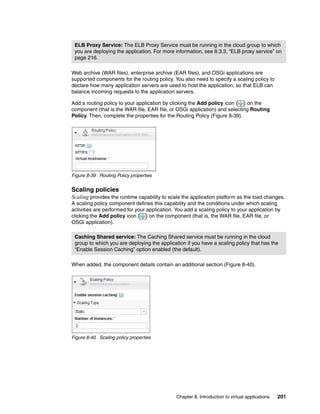
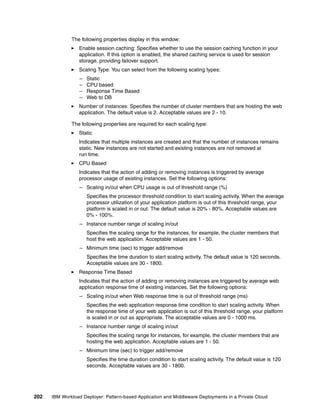
  • 380.
    To access theIBM Workload Deployer log files, click System  Troubleshooting from the Welcome window on the IBM Workload Deployer user interface. The Troubleshooting window opens (Figure 15-19). Figure 15-19 Troubleshooting page The links on this page are: Download log files: Download all the log files as a compressed file. View current error file: Monitor the current error.log file on the web browser. Clicking the link opens a new browser window with the error log file (Figure 15-20). Figure 15-20 The error log viewer on the browser View current trace file: Opens a new browser window with the current trace log file. Kernel Service log file: Opens a browser window with the Kernel Service log 362 IBM Workload Deployer: Pattern-based Application and Middleware Deployments in a Private Cloud
  • 381.
    Storehouse log file:Opens a browser window with the Storehouse log. Configure trace levels: View or modify the trace levels (Figure 15-21). Figure 15-21 Trace level settings The option to configure the trace levels is also in this section. A set of default classes and trace levels are defined as strings in this section. You can add or delete trace strings, or change the trace level of a string. The trace levels provided are based on Java logging convention and WebSphere Application Server levels. The trace levels in ascending order of severity are: FINEST FINER FINE INFO WARNING SEVERE You can also set the trace to OFF to stop the trace. The setting can be changed by clicking the trace string and selecting the new trace level in the drop-down menu. Click Save to commit the new trace level for the specified trace string (Figure 15-22). Figure 15-22 Modifying the trace settings You can also add a trace string by clicking Add trace setting and entering a valid trace string (Figure 15-22). The trace level for a new trace string is set to INFO by default. Chapter 15. Troubleshooting 363
  • 382.
    Click the removeicon ( ) next to a trace string to remove that trace string. 15.2.2 Receiving event notifications The mail delivery function on the IBM Workload Deployer is used to reset passwords and send event notifications. Reset password If an administrator forgets his password or he wants to update it with a new one, the mail delivery function sends an email with his new password to the administrator. But if the administrator forgets his password, and no other user has the Appliance administrator permission, the appliance must be returned to IBM, and all the data on the appliance that is not backed up is lost. Mail notification The mail function is also responsible for sending event notifications automatically, such as the errors that occur when: – A virtual system instance is created. – A virtual system instance started successfully. – A virtual system instance failed to start successfully. – A virtual image is exported. – A virtual image is imported. To use the mail delivery function, a Simple Mail Transfer Protocol (SMTP) server must be configured for use with IBM Workload Deployer. Complete the following steps: 1. Log on as an administrator. 2. Click System  Settings. 364 IBM Workload Deployer: Pattern-based Application and Middleware Deployments in a Private Cloud
  • 383.
    3. Expand MailDelivery. 4. Enter the values for the following attributes (Figure 15-23): SMTP server: IP address or host name Reply-to address: An email address Figure 15-23 IBM Workload Deployer Mail Delivery setup You can receive the following notifications: Deployment started Deploying a virtual application pattern generates the email shown in Example 15-1. Example 15-1 Deployment started notification Subject: [Workload Deployer] Deployment started: d-1c7ce179-ea5f-485d-afb7-0b15896e1dc2 Body: Workload Deployer has started deploying your virtual system. You will be notified again when the system is ready for use. To login to the appliance, please visit https://esx-v4-033-181.purescale.raleigh.ibm.com. IP address in use The appliance runs ping to verify the available IP addresses in an IP group when you start a deployment and look for the next available IP address. If a response is received, an email stating that a device is running on that IP even though it is marked as inactive in IBM Workload Deployer is generated. Chapter 15. Troubleshooting 365
  • 384.
    The content ofthe email is shown in Example 15-2. Example 15-2 IP address in use notification Subject: [Workload Deployer] IP addresses in use, but marked inactive Body: The following IP addresses are marked as inactive but can be pinged in the network: 9.42.39.227 9.42.39.228 To login to the appliance, please visit https://esx-v4.itso.raleigh.ibm.com. Deployment succeeded If the deployment succeeds, an email is generated (Example 15-3). Example 15-3 Deployment succeeded notification Subject: [Workload Deployer] Deployment succeeded: d-1c7ce179-ea5f-485d-afb7-0b15896e1dc2 Body: Workload Deployer has completed deployment of your virtual system. All virtual machines have been started and are ready for use. To login to the appliance, please visit https://esx-v4.itso.raleigh.ibm.com. Deployment failed If the deployment fails, an email with the cause of the failure is generated (Example 15-4). Example 15-4 Deployment failed notification Subject: [Workload Deployer] Deployment failed: d-94db7aea-e059-46f5-9dc8-c857f397dbb6 Body: Workload Deployer could not complete deployment of your virtual system due to the following error: Virtual machine could not be registered. 15.2.3 Troubleshooting virtual applications Virtual applications are application-centric. The infrastructure and virtual systems that the application run on are not immediately apparent to the IBM Workload Deployer administrator. This situation can present some challenges when things go wrong. This section provides troubleshooting tips for working with virtual applications in IBM Workload Deployer. 366 IBM Workload Deployer: Pattern-based Application and Middleware Deployments in a Private Cloud
  • 385.
    Status values fora deployed virtual application An unexpected status of a virtual machine or of a role in an instance is often the first indication of a problem. You can view the status of the virtual machines and the roles of a virtual application instance. A role is a unit of functionality that is performed by the virtual application middleware on a virtual machine, such as WebSphere Application Server, DB2, and so on. For each status, there is an associated icon (Figure 15-24). The status values for virtual machines are listed in Table 8-1 on page 223. The status values for roles are listed in Table 8-2 on page 224. Figure 15-24 IBM Workload Deployer icon Using the Log Viewer You can view the logs of the virtual application instances in the IBM Workload Deployer user interface. The virtual application patterns must be deployed and all of the virtual machines must be started. To use the Log Viewer, complete the following steps: 1. Click Instances  Virtual Application Instances. The Virtual Application Instances palette opens. 2. Select a virtual application instance, in this example, OSGiEBA. The information about the instance is displayed (Figure 15-25). Figure 15-25 IBM Workload Deployer Virtual Application Instance status Chapter 15. Troubleshooting 367
  • 386.
    3. Find thevirtual machine or middleware perspective that you want to view the log for, then click Log in the VM Status column. The Log Viewer palette (Figure 15-26) opens. The viewer organizes the logs by type, for example, operating system log, pattern type plug-in log, and agent log. Figure 15-26 IBM Workload Deployer Log Viewer The log files include operating system (OS) logs, middleware logs, and the following IWD agent logs: – Plug-in logs: Multiple directories for the logs collected in the role’s lifecycle – logs/install directory: Agent plug-in installation logs – /0config/0config.log: Activator code log You can also use the Virtual Application Console to debug problems with virtual applications, for example: You can change or fix the SSH certificate (see 13.5.6, “Adding, updating, or removing a virtual machine SSH public key” on page 321). You can view the logs for the middleware, operating system, and IWD agent in each virtual machine in the deployment (see 13.4, “Viewing the virtual machine logs” on page 309) You can set WebSphere Application Server traces strings (see 13.5.4, “Collecting trace logs for WebSphere Application Server troubleshooting” on page 315). 368 IBM Workload Deployer: Pattern-based Application and Middleware Deployments in a Private Cloud
  • 387.
    Using SSH toaccess virtual application instances You can access the deployed virtual machines by adding the Secure Shell (SSH) key-based access when deploying the virtual application pattern. This access allows you to directly access the virtual machine where the application is running. This access can be critical in debugging problems on the virtual machine. To enable SSH during deployment, complete the following steps: 1. Click Patterns  Virtual Applications. The Virtual Application Patterns palette opens. 2. Select the virtual application pattern that you want to deploy. In this example, we select OSGiEBA (Figure 15-27). Figure 15-27 IBM Workload Deployer OSGi application pattern review Chapter 15. Troubleshooting 369
  • 388.
    3. Click Deploy( ), and the Deploy Virtual Application window opens (Figure 15-28). Figure 15-28 IBM Workload Deployer Deploy Virtual Application 4. Complete the Target cloud group field. 370 IBM Workload Deployer: Pattern-based Application and Middleware Deployments in a Private Cloud
  • 389.
    5. If youalready have an SSH public and private key pair, use the public SSH key during the deployment operation. a. Select the Advanced check box to add the SSH protocol key in the SSH Key field (Figure 15-29). Figure 15-29 IBM Workload Deployer SSH key b. Enter an SSH public key in the SSH Key field. If you want to use a new SSH public key, you can generate one. Tip: Be careful when you copy and paste you public key to the box. If you accidentally add characters to the key, you are not able to access the virtual machine with your private key. If you do not have a public and private key pair you want to use, they can be generated during the deployment operation by completing the following steps: a. Select the Advanced check box. b. Click the Generate button to generate the key. The SSH key is automatically generated in the SSH Key field. Chapter 15. Troubleshooting 371
  • 390.
    c. Click Clickhere to download the file containing the private key (Figure 15-30). Figure 15-30 IBM Workload Deployer deploys the SSH private key download d. Save the private key file to a secure location. The default name is id_rsa.txt. Private key copy: The system does not keep a copy of the private key, so make sure that you download the key and store it in a safe place. Make sure that the private key has the correct permissions by running chmod 0400 id_rsa.txt. By default, the SSH client does not use a private key file with wide open permission. 6. Click OK. A message appears at the top of the Virtual Application Builder confirming that the virtual application is in the deployment process (Figure 15-31). Figure 15-31 IBM Workload Deployer deployment status You can also add, update, and remove the SSH key for virtual machines after they are deployed (see 13.5.6, “Adding, updating, or removing a virtual machine SSH public key” on page 321). SSH availability: SSH is available for virtual application patterns, but not for database patterns or virtual system patterns. 372 IBM Workload Deployer: Pattern-based Application and Middleware Deployments in a Private Cloud
  • 391.
    Accessing virtual machineswith SSH After deploying the virtual application pattern, you can use the IP address of the virtual machines and the private key to gain access to the application artifacts. To do so, complete the following steps: 1. To gain access to your virtual machine after deployment, run the following command: ssh -i id_rsa.txt virtuser@<your_workload_ip> Or you can use SCP to gain access, for example, by running: scp -i id_rsa.txt myfiles.txt virtuser@<your_workload_ip>:/[location]/myfile.txt 2. Log on to the virtual machine. To gain root access, run the following command: sudo su - Run a command with root access, for example: sudo /sbin/ifconfig You can view and monitor statistics for your deployed virtual machines now. Accessing virtual machines with the hypervisor If something goes wrong when deploying a database pattern and the Manage button is disabled for the instance (Figure 15-32), you cannot enable SSH to access the virtual machine to check log files. You can use the VMware vSphere Client to log on to ESX hypervisors, allowing you to access the machine. Determine the IP address for the virtual machine by opening the window for the database instance (Figure 15-32). Figure 15-32 IBM Workload Deployer database instance information Log on to the ESX hypervisor with the VMware vSphere Client and locate the virtual machine with the same IP address. From there, you can locate log and configuration information for the middleware, applications, and so on, and view them to determine the problem. Chapter 15. Troubleshooting 373
  • 392.
    For a PowerVMhypervisor, use the Systems Director Management Console (SDMC), the Hardware Management Console (HMC), or the Integrated Virtualization Manager (IVM) on entry-level Power Systems to manager the hypervisor. The SDMC is the more up-to-date method. For more information about SDMC, see IBM Systems Director Management Console: Introduction and Overview, SG24-7860. Problem: No virtual application patterns listed and no pattern types are available to create a pattern When you click Pattern  Virtual Applications, you can see the existing virtual application patterns. These patterns are grouped by pattern type, which you select at the top of the list from the Name drop-down menu. If there are no pattern types to select in the drop-down menu (Figure 15-33), then you have not enabled any pattern types. Another indication that you need to enable pattern types is when you click the New icon to create a pattern but have no pattern types to select. Figure 15-33 IBM Workload Deployer Virtual Application Patterns before Enable Pattern type Click Cloud  Pattern Types and verify that you enabled the pattern types you want to use. See 8.2.3, “IBM Workload Deployer pattern types” on page 172 for information about enabling pattern types. After the pattern types are enabled, you see them in the Name drop-down menu. For example, in Figure 15-34, Web Application Pattern Type 2.0 is selected and multiple patterns of that type are shown. Figure 15-34 IBM Workload Deployer Virtual Application Patterns after Enable Pattern type 374 IBM Workload Deployer: Pattern-based Application and Middleware Deployments in a Private Cloud
  • 393.
    Problem: No optionsfor the Purpose field for a DB2 component When you try to select a value in the Purpose field for a Database DB2 component in the Virtual Application Builder, you see an error (Figure 15-35). Figure 15-35 IBM Workload Deployer Purpose attribute for a Database DB2 component Chapter 15. Troubleshooting 375
  • 394.
    To correct thiserror, enable the Online Transaction Processing Applications (OLTP) plug-in under the IBM Transactional Database Pattern 1.1.0.0 pattern type (see “Enabling the database pattern types” on page 179). The options you can select in the Purpose field depend on what you enable. In Figure 15-36, both the production and non-production environments for the plug-in are enabled, providing the Production and Non-Production options in the Purpose field. Figure 15-36 IBM Workload Deployer Purpose attributes for a Database DB2 component 376 IBM Workload Deployer: Pattern-based Application and Middleware Deployments in a Private Cloud
  • 395.
    Problem: No cloudgroups to deploy to When you deploy a pattern, you are asked to specify a cloud group or environment profile. If there are no cloud groups, or you do not have permission to access a cloud group (and no environment profiles), you are not able to deploy the pattern (Figure 15-37). Figure 15-37 IBM Workload Deployer cloud group in deployment Click Cloud  Cloud Groups. Ensure that cloud groups are defined, that there are active hypervisors in the cloud group, and that the user ID you are using has at least read permission to a cloud group (see 2.3.3, “Creating the cloud groups” on page 39). A cloud group must have active hypervisors before you can deploy to the cloud group. If there are no active hypervisors, you see the warning “You must start at least one hypervisor to create virtual systems” in the Current status field of the cloud group (Figure 15-38). Figure 15-38 IBM Workload Deployer warning in cloud group Chapter 15. Troubleshooting 377
  • 396.
    Click Cloud Hypervisors. Click the hypervisor you need to start and then click at the upper right of the palette to start this hypervisor. Problem: The virtual image is not set or has an incorrect value If the error shown in Figure 15-39 occurs during deployment, see 8.2.2, “Setting the default deployment settings” on page 171 to enable the correct image for your virtual application pattern. Figure 15-39 IBM Workload Deployer virtual image not set Problem: No images defined during deployment If you try to deploy your virtual application pattern, but receive the error shown in Figure 15-40, you probably did not accept the virtual image licenses. Click Catalog  Virtual Images, and make sure that the license for the required image is accepted. Figure 15-40 IBM Workload Deployer virtual image not defined error Click Cloud  Default Deploy settings and verify that the image is listed for the hypervisor type you are using. If it is missing, click Add or Change to add the image for the hypervisor type (Figure 15-41). Redeploy your virtual application and the problem should be resolved. Figure 15-41 IBM Workload Deployer Default Deploy setting 378 IBM Workload Deployer: Pattern-based Application and Middleware Deployments in a Private Cloud
  • 397.
    Problem: Virtual applicationpatterns are taking too long to deploy If a virtual application pattern is taking too long to deploy, determine if the extra time is spent transferring the virtual images to hypervisors by looking at the History section of the virtual application instance. You find timestamped messages that provide a timeline for the transfer of the images. If the time seems extreme, check your network speed between the IBM Workload Deployer and hypervisors or try to place them in to the same network segment. After you deploy a pattern, the image used is cached on that hypervisor. Therefore, during the next deployment to that hypervisor, the cached image is used without transferring it again. Tip: The cached images are saved in the hard disk of the hypervisor. They are not deleted even after you reboot the hypervisor. You need to delete them manually if you do not need to them anymore. If you want to delete a cached image, click Cloud  Hypervisor and click the hypervisor name (Figure 15-42). Click Storage devices. Click the cleanup link next to the device name that you would like to clean. Figure 15-42 IBM Workload Deployer hypervisor storage devices cleanup Chapter 15. Troubleshooting 379
  • 398.
    Problem: There areno scheduled tasks in the task queue while virtual application instances are deploying When deploying a pattern, you discover that there are no scheduled tasks shown in the Task Queue view (click System  Task Queue to open this view), even though the instance is still deploying. This situation occurs because the deployment of a virtual application includes both virtual system creation and role installation. The jobs shown in the task queue are only related to the deployment of the virtual system, which means that when the virtual machines are running the jobs are gone. Subsequent installation and configuration jobs are listed on the task queue. You can monitor the role status by clicking Instances  Virtual Applications. 15.2.4 Problem: No output when using the command-line interface You can use the CLI to run commands to manage an appliance remotely. However, if your system is using multibyte characters, you might run into a problem. For example, you connect to the appliance by running the following command: deployer -h iwd_host -u iwd_user -p iwd_password But when you run the deployer.applications.get command to get a single application with app_id, the command does not return any data (Figure 15-43). >>> deployer.applications.get(“a-fcb7e68e-3b48-44cc-a0c1-ede84c5509df”) Figure 15-43 IBM Workload Deployer CLI command In this case, go to the installation of the command line and browse to deployer.clilib3.1.0.0-number. Remove # from the following lines in the registry file. # python.console.encoding=iso-8859-1 # deployer.console.encoding=gb2312 Save the file and run the command again. 380 IBM Workload Deployer: Pattern-based Application and Middleware Deployments in a Private Cloud
  • 399.
    A AppendixA. Sample scripts This appendix contains scripts that are referred to in Chapter 4, “Getting started with IBM Image Construction and Composition Tool” on page 73, Chapter 7, “Scenario 2: Creating images with third-party software” on page 137, and Chapter 12, “Custom plug-ins for virtual application patterns” on page 287. This appendix contains the following topics: WebSphere Application Server Community Edition scripts Scripts for Apache Tomcat installation Plugin Development Kit Hello Center example © Copyright IBM Corp. 2012. All rights reserved. 381
  • 400.
    WebSphere Application ServerCommunity Edition scripts These scripts are used in the examples found in Chapter 4, “Getting started with IBM Image Construction and Composition Tool” on page 73. installWASCE.sh Example A-1 contains the script used in a software bundle to install WebSphere Application Server Community Edition. Example A-1 installWASCE.sh #!/bin/sh # # Copyright IBM Corp. 2011 # All Rights Reserved # This information contains sample code provided in source code form. You may copy, modify, and distribute these sample programs in any form without payment to IBM for the purposes of developing, using, marketing or distributing application programs conforming to the application programming interface for the operating platform for which the sample code is written. Notwithstanding anything to the contrary, IBM PROVIDES THE SAMPLE SOURCE CODE ON AN "AS IS" BASIS AND IBM DISCLAIMS ALL WARRANTIES, EXPRESS OR IMPLIED, INCLUDING, BUT NOT LIMITED TO, ANY IMPLIED WARRANTIES OR CONDITIONS OF MERCHANTABILITY, SATISFACTORY QUALITY, FITNESS FOR A PARTICULAR PURPOSE, TITLE, AND ANY WARRANTY OR CONDITION OF NON-INFRINGEMENT. IBM SHALL NOT BE LIABLE FOR ANY DIRECT, INDIRECT, INCIDENTAL, SPECIAL OR CONSEQUENTIAL DAMAGES ARISING OUT OF THE USE OR OPERATION OF THE SAMPLE SOURCE CODE. IBM HAS NO OBLIGATION TO PROVIDE MAINTENANCE, SUPPORT, UPDATES, ENHANCEMENTS OR MODIFICATIONS TO THE SAMPLE SOURCE CODE. mkdir /mytest mkdir /tmp/wasce env > /tmp/wasce/install.env NOT_SET="<NOT_SET>" WASCE_TAR_URL=$NOT_SET WASCE_TAR_NAME=wasce_ibm60sdk_setup-2.1.1.5-ia32linux.tar.bz2 JAVA_RPM_NAME=ibm-java-i386-sdk-6.0-9.0.i386.rpm INSTALLED_JAVA_HOME=/opt/ibm/java-i386-60 WASCE_TAR_URL_USER=$NOT_SET WASCE_TAR_URL_PASSWORD=$NOT_SET WASCE_INSTALL_EXEC=wasce_setup-2.1.1.5-unix.bin while [ $# -ne 0 ] do case $1 in -WASCE_INSTALL_PATH*) WASCE_INSTALL_PATH=$2 ;; -TAR_URL*) WASCE_TAR_URL=$2 ;; -TAR_NAME*) WASCE_TAR_NAME=$2 382 IBM Workload Deployer: Pattern-based Application and Middleware Deployments in a Private Cloud
  • 401.
    ;; -INSTALL_EXEC*) WASCE_INSTALL_EXEC=$2 ;; -URL_USERID*) WASCE_TAR_URL_USER=$2 ;; -URL_PASSWORD*) WASCE_TAR_URL_PASSWORD=$2 ;; -JAVA_RPM_NAME*) JAVA_RPM_NAME=$2 ;; -JAVA_INSTALLED_HOME*) INSTALLED_JAVA_HOME=$2 ;; *) ;; esac shift 1; shift 1 done echo "WASCE_INSTALL_PATH is set to: $WASCE_INSTALL_PATH" echo "TAR_URL is set to: $WASCE_TAR_URL" echo "TAR_NAME is set to: $WASCE_TAR_NAME" echo "INSTALL_EXEC is set to: $WASCE_INSTALL_EXEC" echo "URL_USERID is set to: $WASCE_TAR_URL_USER" echo "URL_PASSWORD is set to: $WASCE_TAR_URL_PASSWORD" echo "JAVA_RPM_NAME is set to: $JAVA_RPM_NAME" >> $logfile echo "JAVA_INSTALLED_HOME is set to: $INSTALLED_JAVA_HOME" #Write the install path to a file so configuration script can share value echo "$WASCE_INSTALL_PATH" >> /tmp/wasce/wasce_install_path # Write the install path to a properties file we will use for silent install echo "USER_INSTALL_DIR=$WASCE_INSTALL_PATH" >> /tmp/wasce/install.props cd /tmp/wasce # Retrieve the WebSphere Application Server Community Edition binaries and untar if [ $WASCE_TAR_URL_PASSWORD = $NOT_SET ] then echo "wget $WASCE_TAR_URL" wget $WASCE_TAR_URL else echo "wget --user $WASCE_TAR_URL_USER --password $WASCE_TAR_URL_PASSWORD --no-check-certificate $WASCE_TAR_URL" wget --user $WASCE_TAR_URL_USER --password $WASCE_TAR_URL_PASSWORD --no-check-certificate $WASCE_TAR_URL fi if [ $? -eq 0 ] Appendix A. Sample scripts 383
  • 402.
    then echo "WGET binary '$WASCE_TAR_URL' successful" else echo "WGET binary '$WASCE_TAR_URL' failed!" exit 100 fi echo "tar -xvf $WASCE_TAR_NAME" tar -xvf $WASCE_TAR_NAME if [ $? -eq 0 ] then echo "Untar source '$WASCE_TAR_NAME' successful" else echo "Untar source '$WASCE_TAR_NAME' failed!" exit 200 fi # If the package contains a Java RPM, install it if [ "X$JAVA_RPM_NAME" != "X" ] ; then echo "rpm -ivh $JAVA_RPM_NAME" rpm -ivh $JAVA_RPM_NAME else echo "Java already installed" fi # Make sure Java is in the path for installation export PATH=$PATH:$INSTALLED_JAVA_HOME/bin chmod 777 $WASCE_INSTALL_EXEC # Initiate the silent installation fo WebSphere Application Server Community Edition cat ./install.props echo "./$WASCE_INSTALL_EXEC -i silent -f ./install.props" ./$WASCE_INSTALL_EXEC -i silent -f ./install.props cd ../ # Remove the temporary directory #rm -rf /tmp/wasce exit 0 ConfigWASCE.sh Example A-2 contains the script used in a software bundle to configure and start a WebSphere Application Server Community Edition server. Example A-2 ConfigWASCE.sh #!/bin/bash # Copyright IBM Corp. 2011 384 IBM Workload Deployer: Pattern-based Application and Middleware Deployments in a Private Cloud
  • 403.
    # All RightsReserved # This information contains sample code provided in source code form. You may copy, modify, and distribute these sample programs in any form without payment to IBM for the purposes of developing, using, marketing or distributing application programs conforming to the application programming interface for the operating platform for which the sample code is written. Notwithstanding anything to the contrary, IBM PROVIDES THE SAMPLE SOURCE CODE ON AN "AS IS" BASIS AND IBM DISCLAIMS ALL WARRANTIES, EXPRESS OR IMPLIED, INCLUDING, BUT NOT LIMITED TO, ANY IMPLIED WARRANTIES OR CONDITIONS OF MERCHANTABILITY, SATISFACTORY QUALITY, FITNESS FOR A PARTICULAR PURPOSE, TITLE, AND ANY WARRANTY OR CONDITION OF NON-INFRINGEMENT. IBM SHALL NOT BE LIABLE FOR ANY DIRECT, INDIRECT, INCIDENTAL, SPECIAL OR CONSEQUENTIAL DAMAGES ARISING OUT OF THE USE OR OPERATION OF THE SAMPLE SOURCE CODE. IBM HAS NO OBLIGATION TO PROVIDE MAINTENANCE, SUPPORT, UPDATES, ENHANCEMENTS OR MODIFICATIONS TO THE SAMPLE SOURCE CODE. HOSTNAME=`hostname -f` echo "Configuring WAS CE with host $HOSTNAME" if [ ! -n $HOSTNAME ] then HOSTNAME=`cat /etc/HOSTNAME` fi #WASCE_HOME=/opt/IBM/WebSphere/AppServerCommunityEdition num_servers=1 WASCE_ADMIN_USER="wasceadmin" WASCE_ADMIN_PASSWORD="password" while [ $# -ne 0 ] do case $1 in -num_servers*) num_servers=$2 ;; -WASCE_HOME*) WASCE_HOME=$2 ;; -WASCE_ADMIN_USER*) WASCE_ADMIN_USER=$2 ;; -WASCE_ADMIN_PASSWORD*) WASCE_ADMIN_PASSWORD=$2 ;; *) ;; esac shift 1; shift 1 done #Read WASCE install path from install script breadcrumb if [ -f /tmp/wasce/wasce_install_path ] then WASCE_HOME=$(echo /tmp/wasce/install_path) Appendix A. Sample scripts 385
  • 404.
    svr_ct=1 sed -i s/"EndPointURI=http.*"/"EndPointURI=http://$HOSTNAME:8080"/g $WASCE_HOME/var/config/config-substitutions.properties sed -i s/"ServerHostname=0.0.0.0"/"ServerHostname=$HOSTNAME"/g $WASCE_HOME/var/config/config-substitutions.properties sed -i s/"RemoteDeployHostname=localhost"/"RemoteDeployHostname=$HOSTNAME"/g $WASCE_HOME/var/config/config-substitutions.properties sed -i s/"system=Simple}rO0ABXNyABlqYXZheC5jcnlwdG8uU2VhbGVkT2JqZWN0PjY9psO3VHACAARbAA1lb mNvZGVkUGFyYW1zdAACW0JbABBlbmNyeXB0ZWRDb250ZW50cQB+AAFMAAlwYXJhbXNBbGd0ABJMamF2YS9 sYW5nL1N0cmluZztMAAdzZWFsQWxncQB+AAJ4cHB1cgACW0Ks8xf4BghU4AIAAHhwAAAAEHnh03EmiNu4V TuWH+xZiRBwdAADQUVT"/""/g $WASCE_HOME/var/security/users.properties echo "$WASCE_ADMIN_USER=$WASCE_ADMIN_PASSWORD" >> $WASCE_HOME/var/security/users.properties sed -i s/"admin=system"/"admin=$WASCE_ADMIN_USER"/g $WASCE_HOME/var/security/groups.properties $WASCE_HOME/bin/startup.sh echo "Configuring $num_servers server instance(s)" while [ $svr_ct -lt $num_servers ] do let svr_ct++ instName="instance"$svr_ct echo "Creating $instName instance" mkdir $WASCE_HOME/$instName cp -r $WASCE_HOME/var $WASCE_HOME/$instName let y=$svr_ct-1 sed -i s/"PortOffset=0"/"PortOffset=$y"/g $WASCE_HOME/$instName/var/config/config-substitutions.properties GERONIMO_OPTS=-Dorg.apache.geronimo.server.name=$instName export GERONIMO_OPTS=$GERONIMO_OPTS $WASCE_HOME/bin/geronimo.sh start echo "Started $instName instance" done Scripts for Apache Tomcat installation These scripts are used in Chapter 7, “Scenario 2: Creating images with third-party software” on page 137. install.sh This script (Example A-3) installs the Apache Tomcat binary files. Example A-3 install.sh #!/bin/bash # # Copyright IBM Corp. 2011 386 IBM Workload Deployer: Pattern-based Application and Middleware Deployments in a Private Cloud
  • 405.
    # All RightsReserved # This information contains sample code provided in source code form. You may copy, modify, and distribute these sample programs in any form without payment to IBM for the purposes of developing, using, marketing or distributing application programs conforming to the application programming interface for the operating platform for which the sample code is written. Notwithstanding anything to the contrary, IBM PROVIDES THE SAMPLE SOURCE CODE ON AN "AS IS" BASIS AND IBM DISCLAIMS ALL WARRANTIES, EXPRESS OR IMPLIED, INCLUDING, BUT NOT LIMITED TO, ANY IMPLIED WARRANTIES OR CONDITIONS OF MERCHANTABILITY, SATISFACTORY QUALITY, FITNESS FOR A PARTICULAR PURPOSE, TITLE, AND ANY WARRANTY OR CONDITION OF NON-INFRINGEMENT. IBM SHALL NOT BE LIABLE FOR ANY DIRECT, INDIRECT, INCIDENTAL, SPECIAL OR CONSEQUENTIAL DAMAGES ARISING OUT OF THE USE OR OPERATION OF THE SAMPLE SOURCE CODE. IBM HAS NO OBLIGATION TO PROVIDE MAINTENANCE, SUPPORT, UPDATES, ENHANCEMENTS OR MODIFICATIONS TO THE SAMPLE SOURCE CODE. # # ---------------------------------------------------------------- HOSTNAME=`hostname -f` echo "Installing Tomcat with host $HOSTNAME" if [ ! $HOSTNAME ] then HOSTNAME=`cat /etc/HOSTNAME` fi WORK_DIR=`pwd` while [ $# -ne 0 ] do case $1 in -JDK_PATH*) JDK_PATH=$2 echo "JDK_PATH=$JDK_PATH" ;; -JDK_FILE*) JDK_FILE=$2 echo "JDK_FILE=$JDK_FILE" ;; -TOM_PATH*) TOM_PATH=$2 echo $TOM_PATH echo "TOM_PATH=$TOM_PATH" ;; -TOM_FILE*) TOM_FILE=$2 echo $TOM_FILE echo "TOM_FILE=$TOM_FILE" ;; -RUNAS_USER*) RUNAS_USER=$2 echo "RUNAS_USER=$RUNAS_USER" ;; *) ;; esac shift 1; shift 1 Appendix A. Sample scripts 387
  • 406.
    done # Check parameters if [ "X" == "X$JDK_PATH" ] ;then JDK_PATH=/usr/java echo "JDK_PATH=$JDK_PATH" fi if [ "X" == "X$JDK_FILE" ] ;then JDK_FILE=ibm-java-sdk-6.0-9.2-linux-x86_64.bin echo "JDK_FILE=$JDK_FILE" fi if [ "X" == "X$TOM_PATH" ] ;then TOM_PATH=/home/tomcat echo "TOM_PATH=$TOM_PATH" fi if [ "X" == "X$TOM_FILE" ] ;then TOM_FILE=apache-tomcat-7.0.22.zip echo "TOM_FILE=$TOM_FILE" fi if [ "X" == "X$RUNAS_USER" ] ;then RUNAS_USER=TomcatUser echo "RUNAS_USER=$RUNAS_USER" fi #-- Install JDK --# if [ -e ${WORK_DIR}/${JDK_FILE} ] ;then chmod +x ${WORK_DIR}/${JDK_FILE} mkdir -p /opt/ibm mv ${WORK_DIR}/${JDK_FILE} /opt/ibm/ cd /opt/ibm/ /opt/ibm/${JDK_FILE} -i silent if [ $? = 0 ] ;then rm -f /opt/ibm/${JDK_FILE} JDK_TEMP=`ls -d /opt/ibm/ibm*` ln -s ${JDK_TEMP} ${JDK_PATH} echo "Install JDK: OK" >> /opt/result else echo "Install JDK: NG" >> /opt/result exit 1 fi fi alternatives --display java |grep gcj if [ $? != 0 ] ;then echo "GCJ: The GNU Compiler for Java is not installed." fi alternatives --install /usr/bin/java java ${JDK_PATH}/bin/java 2000 --slave /usr/lib/jvm/jre jre ${JDK_PATH}/jre 388 IBM Workload Deployer: Pattern-based Application and Middleware Deployments in a Private Cloud
  • 407.
    --slave /usr/bin/javaws javaws ${JDK_PATH}/bin/javaws --slave /usr/bin/keytool keytool ${JDK_PATH}/bin/keytool --slave /usr/bin/rmiregistry rmiregistry ${JDK_PATH}/bin/rmiregistry --slave /usr/lib/jvm-exports/jre jre_exports ${JDK_PATH}/bin/jre if [ $? = 0 ] ;then echo "" echo "Setup JDK: OK" >> /opt/result else echo "Setup JDK: NG" >> /opt/result exit 1 fi # End of Install JDK cd ${WORK_DIR} #-- Install Tomcat --# # Add RunAsUser cut -d: -f1 /etc/passwd |grep ${RUNAS_USER} if [ $? != 0 ] ;then /usr/sbin/useradd ${RUNAS_USER} fi # Verify RunAsUser if [ $? = 0 ] ;then cut -d: -f1 /etc/passwd |grep ${RUNAS_USER} if [ $? = 0 ] ;then echo "Make RunAsUser: OK" >> /opt/result else echo "Make RunAsUser: NG" >> /opt/result exit 1 fi else echo "Make RunAsUser: NG" >> /opt/result exit 1 fi # Install Tomcat # if [ -e ${WORK_DIR}/${TOM_FILE} ];then mv ${WORK_DIR}/${TOM_FILE} /home/${RUNAS_USER}/ cd /home/${RUNAS_USER}/ unzip /home/${RUNAS_USER}/${TOM_FILE} if [ $? = 0 ] ;then echo "Tomcat: UNZIP OK" >> /opt/result else echo "Tomcat: UNZIP NG" >> /opt/result exit 1 fi rm -f /home/${RUNAS_USER}/${TOM_FILE} Appendix A. Sample scripts 389
  • 408.
    TOM_TEMP=`echo ${TOM_FILE} |cut-d. -f1-3` ln -s /home/${RUNAS_USER}/${TOM_TEMP} ${TOM_PATH} fi # Enable SSL cp -p ${TOM_PATH}/conf/server.xml ${TOM_PATH}/conf/server.xml.org num1=`grep -n '<Connector port="8443"' ${TOM_PATH}/conf/server.xml |cut -d: -f1` (( num1 = num1 -1 )) sed -e ${num1}d ${TOM_PATH}/conf/server.xml > ${TOM_PATH}/conf/temp num2=`grep -n 'sslProtocol="TLS" />' ${TOM_PATH}/conf/temp |cut -d: -f1` (( num2 = num2 +1 )) sed -e ${num2}d ${TOM_PATH}/conf/temp > ${TOM_PATH}/conf/server.xml if [ $? = 0 ] ;then echo "Tomcat: SSL setting is completed." >> /opt/result else echo "Tomcat: SSL setting is incompleted." >> /opt/result exit 1 fi # Generate SSL key sudo -u ${RUNAS_USER} keytool -genkey -dname "CN=`hostname -f`, OU=IBM Redbooks, O=IBM, L=Raleigh, S=North Carolina, C=US" -alias tomcat -keyalg RSA -keypass changeit -storepass changeit sudo -u ${RUNAS_USER} keytool -list -alias tomcat -storepass changeit if [ $? = 0 ] ;then echo "Getnerate SSL Certificate: OK" >> /opt/result else echo "Getnerate SSL Certificate: NG" >> /opt/result exit 1 fi # Change Owner chown -R ${RUNAS_USER}:${RUNAS_USER} ${TOM_PATH} chown -R ${RUNAS_USER}:${RUNAS_USER} /home/${RUNAS_USER}/${TOM_TEMP} chmod 744 ${TOM_PATH}/bin/*.sh # Edit .bash_profile of RunAs User echo "export JRE_HOME=${JDK_PATH}" >> /home/${RUNAS_USER}/.bash_profile echo "export CATALINA_HOME=${TOM_PATH}" >> /home/${RUNAS_USER}/.bash_profile if [ $? = 0 ] ;then echo "Install Tomcat: OK" >> /opt/result else echo "Install Tomcat: NG" >> /opt/result exit 1 fi # Restart firewall #/etc/rc.d/init.d/iptables restart #iptables -P OUTPUT ACCEPT #iptables-save > /etc/sysconfig/iptables 390 IBM Workload Deployer: Pattern-based Application and Middleware Deployments in a Private Cloud
  • 409.
    startup.sh This script (Example A-4) starts Apache Tomcat. Example A-4 startup.sh #!/bin/bash # # Copyright IBM Corp. 2011 # All Rights Reserved # This information contains sample code provided in source code form. You may copy, modify, and distribute these sample programs in any form without payment to IBM for the purposes of developing, using, marketing or distributing application programs conforming to the application programming interface for the operating platform for which the sample code is written. Notwithstanding anything to the contrary, IBM PROVIDES THE SAMPLE SOURCE CODE ON AN "AS IS" BASIS AND IBM DISCLAIMS ALL WARRANTIES, EXPRESS OR IMPLIED, INCLUDING, BUT NOT LIMITED TO, ANY IMPLIED WARRANTIES OR CONDITIONS OF MERCHANTABILITY, SATISFACTORY QUALITY, FITNESS FOR A PARTICULAR PURPOSE, TITLE, AND ANY WARRANTY OR CONDITION OF NON-INFRINGEMENT. IBM SHALL NOT BE LIABLE FOR ANY DIRECT, INDIRECT, INCIDENTAL, SPECIAL OR CONSEQUENTIAL DAMAGES ARISING OUT OF THE USE OR OPERATION OF THE SAMPLE SOURCE CODE. IBM HAS NO OBLIGATION TO PROVIDE MAINTENANCE, SUPPORT, UPDATES, ENHANCEMENTS OR MODIFICATIONS TO THE SAMPLE SOURCE CODE. # # ---------------------------------------------------------------- while [ $# -ne 0 ] do case $1 in -JDK_PATH*) JDK_PATH=$2 echo "JDK_PATH=$JDK_PATH" ;; -TOM_PATH*) TOM_PATH=$2 echo $TOM_PATH echo "TOM_PATH=$TOM_PATH" ;; *) ;; esac shift 1; shift 1 done # Check parameters if [ "X" == "X$JDK_PATH" ] ;then JDK_PATH=/usr/java echo "JDK_PATH=$JDK_PATH" fi if [ "X" == "X$TOM_PATH" ] ;then TOM_PATH=/home/tomcat echo "TOM_PATH=$TOM_PATH" fi Appendix A. Sample scripts 391
  • 410.
    RUNAS_USER=`ls -al ${TOM_PATH}|cut -d " " -f3` echo "RunAS User: ${RUNAS_USER}" >> /opt/result # Change hostname sudo -u ${RUNAS_USER} cp -p ${TOM_PATH}/conf/server.xml ${TOM_PATH}/conf/server.xml.org sudo -u ${RUNAS_USER} sed -e s/localhost/`hostname -f`/g ${TOM_PATH}/conf/server.xml.org > ${TOM_PATH}/conf/server.xml # Generate SSL key sudo -u ${RUNAS_USER} keytool -list -alias tomcat -storepass changeit if [ $? = 0 ] ;then echo "Old SSL Certificate: Remain" >> /opt/result sudo -u ${RUNAS_USER} keytool -delete -alias tomcat -storepass changeit fi sudo -u ${RUNAS_USER} keytool -genkey -dname "CN=`hostname -f`, OU=IBM Redbooks, O=IBM, L=Raleigh, S=North Carolina, C=US" -alias tomcat -keyalg RSA -keypass changeit -storepass changeit sudo -u ${RUNAS_USER} keytool -list -alias tomcat -storepass changeit if [ $? = 0 ] ;then echo "Getnerate SSL Certificate: OK" >> /opt/result else echo "Getnerate SSL Certificate: NG" >> /opt/result exit 1 fi # Start Tomcat JRE_HOME=${JDK_PATH}/jre CATALINA_HOME=${TOM_PATH} sudo -u ${RUNAS_USER} ${TOM_PATH}/bin/startup.sh ps -ef |grep java |grep -v grep if [ $? = 0 ] ;then echo "START Tomcat: OK" >> /opt/result else echo "START Tomcat: NG" >> /opt/result fi # Restart firewall #mv /opt/iptables /etc/sysconfig/iptables #/etc/rc.d/init.d/iptables restart reset.sh This script (Example A-5) performs tasks that clean up the image before capture. Example A-5 reset.sh #!/bin/bash # 392 IBM Workload Deployer: Pattern-based Application and Middleware Deployments in a Private Cloud
  • 411.
    # Copyright IBMCorp. 2011 # All Rights Reserved # This information contains sample code provided in source code form. You may copy, modify, and distribute these sample programs in any form without payment to IBM for the purposes of developing, using, marketing or distributing application programs conforming to the application programming interface for the operating platform for which the sample code is written. Notwithstanding anything to the contrary, IBM PROVIDES THE SAMPLE SOURCE CODE ON AN "AS IS" BASIS AND IBM DISCLAIMS ALL WARRANTIES, EXPRESS OR IMPLIED, INCLUDING, BUT NOT LIMITED TO, ANY IMPLIED WARRANTIES OR CONDITIONS OF MERCHANTABILITY, SATISFACTORY QUALITY, FITNESS FOR A PARTICULAR PURPOSE, TITLE, AND ANY WARRANTY OR CONDITION OF NON-INFRINGEMENT. IBM SHALL NOT BE LIABLE FOR ANY DIRECT, INDIRECT, INCIDENTAL, SPECIAL OR CONSEQUENTIAL DAMAGES ARISING OUT OF THE USE OR OPERATION OF THE SAMPLE SOURCE CODE. IBM HAS NO OBLIGATION TO PROVIDE MAINTENANCE, SUPPORT, UPDATES, ENHANCEMENTS OR MODIFICATIONS TO THE SAMPLE SOURCE CODE. # # ---------------------------------------------------------------- HOSTNAME=`hostname -f` echo "RESET" if [ ! $HOSTNAME ] then HOSTNAME=`cat /etc/HOSTNAME` fi while [ $# -ne 0 ] do case $1 in -TOM_PATH*) TOM_PATH=$2 echo "TOM_PATH=$TOM_PATH" ;; *) ;; esac shift 1; shift 1 done # Check parameters if [ "X" == "X$TOM_PATH" ] ;then TOM_PATH=/home/tomcat echo "TOM_PATH=$TOM_PATH" fi RUNAS_USER=`ls -al ${TOM_PATH} |cut -d " " -f3` #echo "RunAS User: ${RUNAS_USER}" >> /opt/result # Remove unnecessary files of Apache Tomcat rm -f ${TOM_PATH}/conf/temp rm -f ${TOM_PATH}/logs/* # Remove the temporary SSL certificate sudo -u ${RUNAS_USER} keytool -delete -alias tomcat -storepass changeit if [ $? = 0 ] ;then Appendix A. Sample scripts 393
  • 412.
    echo "Delete SSLCertificate: OK" >> /opt/result else echo "Delete SSL Certificate: NG" >> /opt/result fi #iptables-save > /opt/iptables if [ $? = 0 ] ;then echo "Copy Firewall Setting: OK" >> /opt/result else echo "Copy Firewall Setting: NG" >> /opt/result fi Plugin Development Kit Hello Center example This section contains the contents of the scripts in the Hello Center example described in Chapter 12, “Custom plug-ins for virtual application patterns” on page 287. HCenter plug-in scripts The HCenter plug-in contains the scripts shown in Example A-6 through Example A-9 on page 396. Example A-6 Install.py # #*=================================================================== #* #* Licensed Materials - Property of IBM #* IBM Workload Deployer (7199-72X) #* Copyright IBM Corporation 2009, 2011. All Rights Reserved. #* US Government Users Restricted Rights - Use, duplication or disclosure #* restricted by GSA ADP Schedule Contract with IBM Corp. #* #*=================================================================== # import maestro # Prepare (chmod +x, dos2unix) and copy scripts to the agent scriptdir maestro.install_scripts('scripts') Example A-7 Configure.py # #*=================================================================== #* #* Licensed Materials - Property of IBM #* IBM Workload Deployer (7199-72X) #* Copyright IBM Corporation 2009, 2011. All Rights Reserved. #* US Government Users Restricted Rights - Use, duplication or disclosure #* restricted by GSA ADP Schedule Contract with IBM Corp. #* #*=================================================================== 394 IBM Workload Deployer: Pattern-based Application and Middleware Deployments in a Private Cloud
  • 413.
    # import maestro import json import os import sys import logging; import subprocess PORT = 4000; #import the hcenter utils module. hcscriptspath = os.path.join(maestro.node['scriptdir'],'HCenter'); if not hcscriptspath in sys.path: sys.path.append(hcscriptspath) from hcenterutils import sendCmd logger = logging.getLogger("HCenter/configure.py") installdir = maestro.node['parts']['HCenter']['installDir'] #start the server and open the port in firewall for Hello Center; subprocess.Popen([os.path.join(installdir,"start.sh")]); maestro.firewall.open_tcpin(src='private', dport=str(PORT)); tmpdir = maestro.role['tmpdir'] userfile = maestro.parms['User_File'] userfile_name = userfile.rsplit(os.sep)[-1] userfile_path = os.path.join(tmpdir,userfile_name); logger.debug( 'downloading the user registry file for hello center') maestro.download(userfile, userfile_path) with open(userfile_path, 'r') as f: userlist = json.load(f); logger.debug("Configuring Hello Center Server"); logger.info("The registered user list: %s" % userlist); sendCmd("config=%s" % json.dumps(userlist)); logger.debug("Completed to configure hello center server"); #export the paramters for the hello plugin. maestro.export['Center_IP'] = maestro.node['instance']['private-ip']; Example A-8 Start.py # #*=================================================================== #* #* Licensed Materials - Property of IBM #* IBM Workload Deployer (7199-72X) #* Copyright IBM Corporation 2009, 2011. All Rights Reserved. #* US Government Users Restricted Rights - Use, duplication or disclosure #* restricted by GSA ADP Schedule Contract with IBM Corp. Appendix A. Sample scripts 395
  • 414.
    #* #*=================================================================== # import os,sys; import maestro; import logging; logger = logging.getLogger("HCenter/start.py") #import the hcenter utils module. hcscriptspath = os.path.join(maestro.node['scriptdir'],'HCenter'); if not hcscriptspath in sys.path: sys.path.append(hcscriptspath) from hcenterutils import sendCmd logger.debug("Starting Hello center to accept the client requests"); sendCmd("start"); logger.debug("Hello Center has entered Running mode"); maestro.role_status = 'RUNNING' Example A-9 Stop.py # #*=================================================================== #* #* Licensed Materials - Property of IBM #* IBM Workload Deployer (7199-72X) #* Copyright IBM Corporation 2009, 2011. All Rights Reserved. #* US Government Users Restricted Rights - Use, duplication or disclosure #* restricted by GSA ADP Schedule Contract with IBM Corp. #* #*=================================================================== # import os,sys; import maestro; import logging; logger = logging.getLogger("HCenter/stop.py") #import the hcenter utils module. hcscriptspath = os.path.join(maestro.node['scriptdir'],'HCenter'); if not hcscriptspath in sys.path: sys.path.append(hcscriptspath) from hcenterutils import sendCmd logger.debug("Stopping Hello center"); sendCmd("stop"); logger.debug("Hello center has been stopped"); 396 IBM Workload Deployer: Pattern-based Application and Middleware Deployments in a Private Cloud
  • 415.
    Hello plug-in scripts The Hello plug-in contains the scripts shown in Example A-10 and Example A-11. Example A-10 Configure.py # #*=================================================================== #* #* Licensed Materials - Property of IBM #* IBM Workload Deployer (7199-72X) #* Copyright IBM Corporation 2009, 2011. All Rights Reserved. #* US Government Users Restricted Rights - Use, duplication or disclosure #* restricted by GSA ADP Schedule Contract with IBM Corp. #* #*=================================================================== # import maestro import logging; import gettext; import os; logger = logging.getLogger("Hello/configure.py") sender = maestro.parms["Hello_Sender"]; logger.debug("The sender name of greeting message is %s" % sender); Example A-11 Start.py # #*=================================================================== #* #* Licensed Materials - Property of IBM #* IBM Workload Deployer (7199-72X) #* Copyright IBM Corporation 2009, 2011. All Rights Reserved. #* US Government Users Restricted Rights - Use, duplication or disclosure #* restricted by GSA ADP Schedule Contract with IBM Corp. #* #*=================================================================== # import maestro maestro.role_status = 'RUNNING' HClink plug-in scripts The HClink plug-in contains the script shown in Example A-12. Example A-12 Changed.py # #*=================================================================== #* #* Licensed Materials - Property of IBM #* IBM Workload Deployer (7199-72X) #* Copyright IBM Corporation 2009, 2011. All Rights Reserved. Appendix A. Sample scripts 397
  • 416.
    #* US GovernmentUsers Restricted Rights - Use, duplication or disclosure #* restricted by GSA ADP Schedule Contract with IBM Corp. #* #*=================================================================== # import os import maestro import socket import logging import gettext logger = logging.getLogger("Hello/HCenter/changed.py") gettext.install('HClink_messages',os.path.join(maestro.node['scriptdir'],'locale') , unicode=True); PORT = 4000; #The initial value, which will be replaced by the actual hello center ip address. HOST = 'localhost'; def sendCmd(cmd): global PORT, HOST; # create a socket sck = socket.socket(socket.AF_INET, socket.SOCK_STREAM) # server port port = int(PORT) # connect to server sck.connect((HOST, port)) sck.send(cmd) resp = sck.recv(1000); sck.close(); return resp; deps = maestro.deps added = maestro.added parms = maestro.parms; xparms = maestro.xparms; inst_id = xparms['inst_id'] if len(added) > 1: logger.debug('Error: Supports one Hello Center; found %d'%(len(added))); sys.exit(1) elif len(added) == 1: myrole = added[0] logger.debug('Linking to Hello Center based on added role %s'%myrole); HOST = deps[myrole]['Center_IP']; 398 IBM Workload Deployer: Pattern-based Application and Middleware Deployments in a Private Cloud
  • 417.
    sender = parms["Hello_Sender"]; receiver = xparms["HC_Receiver"] maestro.firewall.open_tcpout(dest=HOST, dport=str(PORT)); request = "{"sender":"%s", "receiver":"%s"}" % (sender, receiver); logger.info(_("Send the request to get a greeting message from %s to %s") % (sender, receiver)); message = sendCmd(request); logger.info(_("Receive the meesage from hello center: %s") % message); else: logger.debug('No Hello Center role added'); Appendix A. Sample scripts 399
  • 418.
    400 IBM Workload Deployer: Pattern-based Application and Middleware Deployments in a Private Cloud
  • 419.
    Related publications The publications listed in this section are considered suitable for a more detailed discussion of the topics covered in this book. IBM Redbooks The following IBM Redbooks publications provide additional information about the topic in this document. Some publications referenced in this list might be available in softcopy only. IBM Systems Director Management Console: Introduction and Overview, SG24-7860 Oracle to DB2 Conversion Guide: Compatibility Made Easy, SG24-7736 Virtualization with IBM Workload Deployer: Designing and Deploying Virtual Systems, SG24-7967 You can search for, view, download, or order these documents and other Redbooks, Redpapers, Web Docs, draft and additional materials, at the following website: ibm.com/redbooks Other publications These publications are also relevant as further information sources: Chesney, et al., Advanced Java EE Development for Rational Application Developer 7.5: Developers' Guidebook, Mc Press, 2011, ISBN 1931182310 Online resources These websites are also relevant as further information sources: IBM Data Studio Information Center http://publib.boulder.ibm.com/infocenter/dstudio/v3r1/index.jsp IBM DB2 Database for Linux, UNIX, and Windows Information Center http://publib.boulder.ibm.com/infocenter/db2luw/v9r7/index.jsp IBM Rational Application Developer Information Center http://publib.boulder.ibm.com/infocenter/radhelp/v8/index.jsp IBM SmartCloud http://www.ibm.com/cloud-computing/us/en/ IBM SmartCloud Enterprise http://www-935.ibm.com/services/us/en/cloud-enterprise/ IBM WebSphere Application Server Information Center http://publib.boulder.ibm.com/infocenter/wasinfo/v8r0/index.jsp © Copyright IBM Corp. 2012. All rights reserved. 401
  • 420.
    IBM Workload DeployerInformation Center http://publib.boulder.ibm.com/infocenter/worlodep/v3r1m0/index.jsp IBM Workload Deployer Library http://www-01.ibm.com/software/webservers/workload-deployer/library/ IBM Workload Deployer System Requirements http://www-01.ibm.com/software/webservers/workload-deployer/requirements/index. html IBM Workload Plugin Development Kit http://www14.software.ibm.com/webapp/iwm/web/preLogin.do?source=swg-plugindekit Help from IBM IBM Support and downloads ibm.com/support IBM Global Services ibm.com/services 402 IBM Workload Deployer: Pattern-based Application and Middleware Deployments in a Private Cloud
  • 421.
    IBM Workload Deployer: Pattern-basedApplication and Middleware Deployments in a IBM Workload Deployer: Pattern-based Application and IBM Workload Deployer: Pattern-based Application and Middleware Deployments in a Private Cloud (0.5” spine) 0.475”<->0.873” 250 <-> 459 pages IBM Workload Deployer: Pattern-based Application and Middleware Deployments
  • 422.
    IBM Workload Deployer: Pattern-basedApplication and Middleware Deployments in a IBM Workload Deployer: Pattern-based Application and Middleware Deployments in a
  • 424.
    Back cover ® IBM Workload Deployer Pattern-based Application and Middleware Deployments in a Private Cloud ® Use IBM Image IBM Workload Deployer provides a solution to creating, deploying, and managing workloads in an on-premise or private cloud. It is rich in features that INTERNATIONAL Construction and allow you to quickly build and deploy virtual systems from base images, to TECHNICAL Composition Tool for extend those images, and to customize them for future use as repeatable SUPPORT customization deployable units. IBM Workload Deployer also provides an application-centric capability enabling rapid deployment of business applications. By using either ORGANIZATION of these deployment models, an organization can quickly instantiate a complete Deploy customized application platform for development, test, or production. virtual applications to a private cloud The IBM Workload Deployer uses the concept of patterns to describe the logical configuration of both the physical and virtual assets that comprise a particular BUILDING TECHNICAL solution. The use of patterns allows an organization to construct a deployable INFORMATION BASED ON Deploy customized solution one time, and then dispense the final product on demand. Virtual PRACTICAL EXPERIENCE virtual systems to a system patterns are composed of an operating system and IBM software private cloud solutions, such as IBM WebSphere Application Server and IBM WebSphere IBM Redbooks are developed Virtual Enterprise. Virtual application patterns are constructed to support a by the IBM International single application workload. The IBM Workload Deployer is shipped with a set Technical Support of pre-loaded virtual images and virtual patterns. These images and patterns Organization. Experts from can be used as is to create comprehensive and flexible middleware solutions. IBM, Customers and Partners They can also be cloned and customized to suit your specific needs. from around the world create timely technical information This IBM Redbooks publication looks at two different aspects of customizing based on realistic scenarios. virtual systems for deployment into the cloud. First, it explores the capabilities Specific recommendations of IBM Image Construction and Composition Tool to build and provide highly are provided to help you customized virtual images for use in virtual system patterns on the IBM implement IT solutions more Workload Deployer. Next, it looks at the virtual application capabilities of the IBM effectively in your Workload Deployer, including those capabilities that allow you to deploy environment. enterprise applications and database services to the cloud. It also introduces the IBM Workload Deployer Plugin Development Kit, which allows you to further extend the capabilities of the virtual application patterns. For more information: ibm.com/redbooks SG24-8011-00 ISBN 0738436550