


Zimbra Collaboration Server
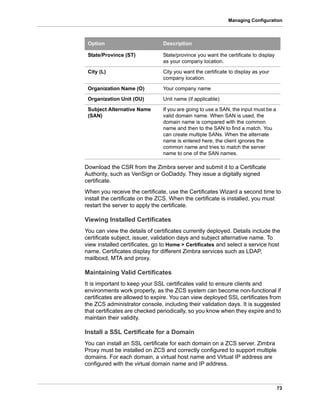
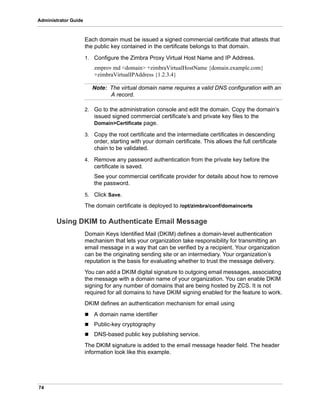
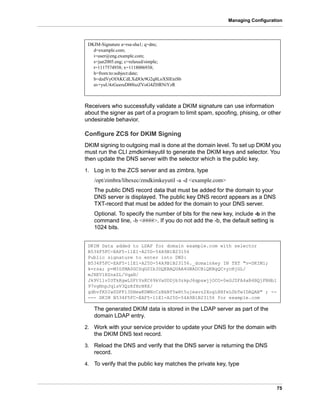
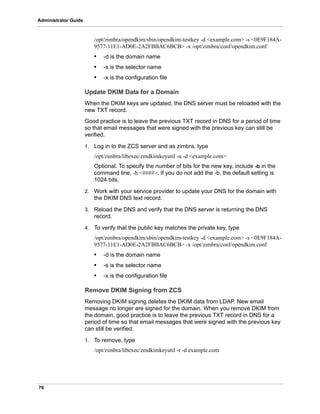
Administrator’s Guide
ZCS 8.0
Open Source Edition
August 2013
Legal Notices
Copyright ©2005-2013 Telligent Systems, Inc. All rights reserved. This product is protected by U.S. and
international copyright and intellectual property laws.
“Telligent” and “Zimbra” are registered trademarks or trademarks of Telligent Systems, Inc. in the United
States and other jurisdictions. All other marks and names mentioned herein may be trademarks of their
respective companies.
Telligent Systems, Inc. d/b/a Zimbra Software, LLC
www.zimbra.com
ZCS 8.0
November 2013
Rev 5 for 8.0.6
Zimbra Collaboration Server Open Source Edition 8.0 iii
Table of Contents
1 Introduction . . . . . . . . . . . . . . . . . . . . . . . . . . . . . . . . . . . . . . . . . . . . . . . . . 9
Audience . . . . . . . . . . . . . . . . . . . . . . . . . . . . . . . . . . . . . . . . . . . . . . . . . . . . 9
Third-Party Components . . . . . . . . . . . . . . . . . . . . . . . . . . . . . . . . . . . . . . . . 9
Support and Contact Information . . . . . . . . . . . . . . . . . . . . . . . . . . . . . . . . . . 9
2 Product Overview . . . . . . . . . . . . . . . . . . . . . . . . . . . . . . . . . . . . . . . . . . . 11
Core Email, Calendar and Collaboration Functionality . . . . . . . . . . . . . . . . 11
Zimbra Components . . . . . . . . . . . . . . . . . . . . . . . . . . . . . . . . . . . . . . . . . . 12
System Architecture . . . . . . . . . . . . . . . . . . . . . . . . . . . . . . . . . . . . . . . . . . . 12
Zimbra Application Packages . . . . . . . . . . . . . . . . . . . . . . . . . . . . . . . . . . . 14
Example of a Typical Multiserver Configuration . . . . . . . . . . . . . . . . . . . . . 15
Zimbra System Directory Tree . . . . . . . . . . . . . . . . . . . . . . . . . . . . . . . . . . . 17
Web Client Versions . . . . . . . . . . . . . . . . . . . . . . . . . . . . . . . . . . . . . . . . . . 18
3 Zimbra Mailbox Server . . . . . . . . . . . . . . . . . . . . . . . . . . . . . . . . . . . . . . . 21
Incoming Mail Routing . . . . . . . . . . . . . . . . . . . . . . . . . . . . . . . . . . . . . . . . . 21
Mailbox Server . . . . . . . . . . . . . . . . . . . . . . . . . . . . . . . . . . . . . . . . . . . . . . . 21
Message Store . . . . . . . . . . . . . . . . . . . . . . . . . . . . . . . . . . . . . . . . . . . . 21
Data Store. . . . . . . . . . . . . . . . . . . . . . . . . . . . . . . . . . . . . . . . . . . . . . . . 22
Index Store . . . . . . . . . . . . . . . . . . . . . . . . . . . . . . . . . . . . . . . . . . . . . . . 22
Mailbox Server Logs . . . . . . . . . . . . . . . . . . . . . . . . . . . . . . . . . . . . . . . . . . 23
4 Zimbra LDAP Service . . . . . . . . . . . . . . . . . . . . . . . . . . . . . . . . . . . . . . . . 25
LDAP Traffic Flow . . . . . . . . . . . . . . . . . . . . . . . . . . . . . . . . . . . . . . . . . . . . 25
LDAP Directory Hierarchy . . . . . . . . . . . . . . . . . . . . . . . . . . . . . . . . . . . . . . 26
ZCS LDAP Schema . . . . . . . . . . . . . . . . . . . . . . . . . . . . . . . . . . . . . . . . . . . 27
ZCS Objects . . . . . . . . . . . . . . . . . . . . . . . . . . . . . . . . . . . . . . . . . . . . . . 28
Account Authentication . . . . . . . . . . . . . . . . . . . . . . . . . . . . . . . . . . . . . . . . 30
Internal Authentication Mechanism. . . . . . . . . . . . . . . . . . . . . . . . . . . . . 30
External LDAP and External AD Authentication Mechanism . . . . . . . . . 30
Custom Authentication . . . . . . . . . . . . . . . . . . . . . . . . . . . . . . . . . . . . . . 31
Kerberos5 Authentication Mechanism . . . . . . . . . . . . . . . . . . . . . . . . . . 32
Global Address List . . . . . . . . . . . . . . . . . . . . . . . . . . . . . . . . . . . . . . . . . . . 33
Flushing LDAP Cache . . . . . . . . . . . . . . . . . . . . . . . . . . . . . . . . . . . . . . . . . 34
Flush the Cache for Themes and Locales . . . . . . . . . . . . . . . . . . . . . . . 35
Flush Accounts, Groups, COS, Domains, and Servers . . . . . . . . . . . . . 35
5 Zimbra Mail Transfer Agent . . . . . . . . . . . . . . . . . . . . . . . . . . . . . . . . . . . 37
Zimbra MTA Deployment . . . . . . . . . . . . . . . . . . . . . . . . . . . . . . . . . . . . . . . 37
Postfix Configuration Files . . . . . . . . . . . . . . . . . . . . . . . . . . . . . . . . . . . 38
SMTP Authentication . . . . . . . . . . . . . . . . . . . . . . . . . . . . . . . . . . . . . . . . . . 38
SMTP Restrictions . . . . . . . . . . . . . . . . . . . . . . . . . . . . . . . . . . . . . . . . . 39
Sending Non Local Mail to a Different Server. . . . . . . . . . . . . . . . . . . . . 39
Anti-Virus and Anti-Spam Protection . . . . . . . . . . . . . . . . . . . . . . . . . . . . . . 39
Anti-Virus Protection . . . . . . . . . . . . . . . . . . . . . . . . . . . . . . . . . . . . . . . . 39
iv Open Source Edition 8.0 Zimbra Collaboration Server
Administrator’s Guide
Anti-Spam Protection . . . . . . . . . . . . . . . . . . . . . . . . . . . . . . . . . . . . . . . 40
Receiving and Sending Mail . . . . . . . . . . . . . . . . . . . . . . . . . . . . . . . . . . . . 42
Message Queues . . . . . . . . . . . . . . . . . . . . . . . . . . . . . . . . . . . . . . . . . . 42
6 Zimbra Proxy Server . . . . . . . . . . . . . . . . . . . . . . . . . . . . . . . . . . . . . . . . . 45
Proxy Components . . . . . . . . . . . . . . . . . . . . . . . . . . . . . . . . . . . . . . . . . . . 45
Proxy Architecture and Flow . . . . . . . . . . . . . . . . . . . . . . . . . . . . . . . . . . . . 45
Change the Zimbra Proxy Configuration . . . . . . . . . . . . . . . . . . . . . . . . . . . 46
Zimbra IMAP/POP Proxy . . . . . . . . . . . . . . . . . . . . . . . . . . . . . . . . . . . . . . . 46
Zimbra Proxy Ports for POP and IMAP . . . . . . . . . . . . . . . . . . . . . . . . . 47
Setting Up IMAP and POP Proxy After HTTP Proxy Installation . . . . . . 47
Configure ZCS HTTP Proxy . . . . . . . . . . . . . . . . . . . . . . . . . . . . . . . . . . . . 49
Setting Up HTTP Proxy . . . . . . . . . . . . . . . . . . . . . . . . . . . . . . . . . . . . . 50
Set Proxy Trusted IP Addresses. . . . . . . . . . . . . . . . . . . . . . . . . . . . . . . 52
Configure Zimbra Proxy for Kerberos Authentication . . . . . . . . . . . . . . . . . 53
7 Using the Administration Console . . . . . . . . . . . . . . . . . . . . . . . . . . . . . 55
Administrator Accounts . . . . . . . . . . . . . . . . . . . . . . . . . . . . . . . . . . . . . . . . 55
Change Administrator Passwords . . . . . . . . . . . . . . . . . . . . . . . . . . . . . 55
Log in to the Administration Console . . . . . . . . . . . . . . . . . . . . . . . . . . . . . . 55
Managing Tasks . . . . . . . . . . . . . . . . . . . . . . . . . . . . . . . . . . . . . . . . . . . . . 56
Message of the Day for Administrators . . . . . . . . . . . . . . . . . . . . . . . . . . . . 56
Create a Message of the Day . . . . . . . . . . . . . . . . . . . . . . . . . . . . . . . . . 56
Remove a Message of the Day . . . . . . . . . . . . . . . . . . . . . . . . . . . . . . . 56
Zimbra Search . . . . . . . . . . . . . . . . . . . . . . . . . . . . . . . . . . . . . . . . . . . . . . . 57
8 Managing Configuration. . . . . . . . . . . . . . . . . . . . . . . . . . . . . . . . . . . . . . 59
Global Configuration . . . . . . . . . . . . . . . . . . . . . . . . . . . . . . . . . . . . . . . . . . 59
General Global Settings . . . . . . . . . . . . . . . . . . . . . . . . . . . . . . . . . . . . . 60
Setting Up Email Attachment Rules . . . . . . . . . . . . . . . . . . . . . . . . . . . . 61
Blocking Email Attachments by File Type. . . . . . . . . . . . . . . . . . . . . . . . 61
Global MTA Settings. . . . . . . . . . . . . . . . . . . . . . . . . . . . . . . . . . . . . . . . 61
Global IMAP and POP Settings . . . . . . . . . . . . . . . . . . . . . . . . . . . . . . . 63
Working With Domains . . . . . . . . . . . . . . . . . . . . . . . . . . . . . . . . . . . . . . . . 63
Domain General Information Settings. . . . . . . . . . . . . . . . . . . . . . . . . . . 64
Global Address List (GAL) Mode . . . . . . . . . . . . . . . . . . . . . . . . . . . . . . 65
Using GAL sync accounts for faster access to GAL . . . . . . . . . . . . . . . . 66
Authentication Modes . . . . . . . . . . . . . . . . . . . . . . . . . . . . . . . . . . . . . . . 67
Virtual Hosts . . . . . . . . . . . . . . . . . . . . . . . . . . . . . . . . . . . . . . . . . . . . . . 68
Renaming a Domain . . . . . . . . . . . . . . . . . . . . . . . . . . . . . . . . . . . . . . . . 68
Adding a Domain Alias . . . . . . . . . . . . . . . . . . . . . . . . . . . . . . . . . . . . . . 69
Zimlets on the Domain . . . . . . . . . . . . . . . . . . . . . . . . . . . . . . . . . . . . . . 69
Managing Server Settings . . . . . . . . . . . . . . . . . . . . . . . . . . . . . . . . . . . . . . 69
General Server Settings . . . . . . . . . . . . . . . . . . . . . . . . . . . . . . . . . . . . . 70
Change MTA Server Settings . . . . . . . . . . . . . . . . . . . . . . . . . . . . . . . . . 71
Setting Up IP Address Binding . . . . . . . . . . . . . . . . . . . . . . . . . . . . . . . . 71
Managing SSL Certificates for ZCS . . . . . . . . . . . . . . . . . . . . . . . . . . . . . . . 72
Installing Certificates. . . . . . . . . . . . . . . . . . . . . . . . . . . . . . . . . . . . . . . . 72
Viewing Installed Certificates . . . . . . . . . . . . . . . . . . . . . . . . . . . . . . . . . 73
Maintaining Valid Certificates . . . . . . . . . . . . . . . . . . . . . . . . . . . . . . . . . 73
Install a SSL Certificate for a Domain. . . . . . . . . . . . . . . . . . . . . . . . . . . 73
Using DKIM to Authenticate Email Message . . . . . . . . . . . . . . . . . . . . . . . . 74
v Open Source Edition 8.0 Zimbra Collaboration Server
Administrator’s Guide
Configure ZCS for DKIM Signing . . . . . . . . . . . . . . . . . . . . . . . . . . . . . . 75
Update DKIM Data for a Domain . . . . . . . . . . . . . . . . . . . . . . . . . . . . . . 76
Remove DKIM Signing from ZCS . . . . . . . . . . . . . . . . . . . . . . . . . . . . . . 76
Retrieve DKIM Data for a Domain . . . . . . . . . . . . . . . . . . . . . . . . . . . . . 77
Anti-spam Settings . . . . . . . . . . . . . . . . . . . . . . . . . . . . . . . . . . . . . . . . . . . . 77
Anti-virus Settings . . . . . . . . . . . . . . . . . . . . . . . . . . . . . . . . . . . . . . . . . . . . 81
Zimbra Free/Busy Calendar Scheduling . . . . . . . . . . . . . . . . . . . . . . . . . . . 81
Storage Management . . . . . . . . . . . . . . . . . . . . . . . . . . . . . . . . . . . . . . . . . 83
Email Retention Management . . . . . . . . . . . . . . . . . . . . . . . . . . . . . . . . . . . 83
Configure Email Lifetime Rules . . . . . . . . . . . . . . . . . . . . . . . . . . . . . . . 84
Configure Message Retention and Deletion Policies . . . . . . . . . . . . . . . 84
Managing the Dumpster . . . . . . . . . . . . . . . . . . . . . . . . . . . . . . . . . . . . . 85
Configure Legal Hold on an Account . . . . . . . . . . . . . . . . . . . . . . . . . . . 86
Customized Admin Extensions . . . . . . . . . . . . . . . . . . . . . . . . . . . . . . . . . . 86
Setting System-wide Signatures . . . . . . . . . . . . . . . . . . . . . . . . . . . . . . . . . 87
Backing Up the System . . . . . . . . . . . . . . . . . . . . . . . . . . . . . . . . . . . . . 87
9 Managing User Accounts . . . . . . . . . . . . . . . . . . . . . . . . . . . . . . . . . . . . . 89
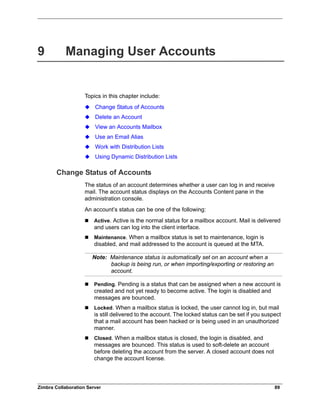
Change Status of Accounts . . . . . . . . . . . . . . . . . . . . . . . . . . . . . . . . . . . . 89
Delete an Account . . . . . . . . . . . . . . . . . . . . . . . . . . . . . . . . . . . . . . . . . . . . 90
View an Accounts Mailbox . . . . . . . . . . . . . . . . . . . . . . . . . . . . . . . . . . . . . . 90
Use an Email Alias . . . . . . . . . . . . . . . . . . . . . . . . . . . . . . . . . . . . . . . . . . . . 90
Work with Distribution Lists . . . . . . . . . . . . . . . . . . . . . . . . . . . . . . . . . . . . . 90
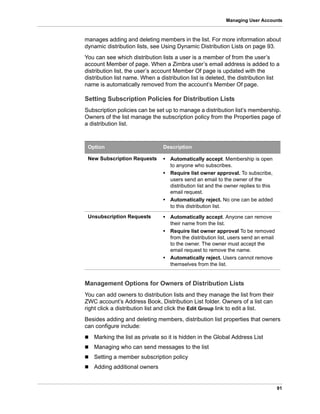
Setting Subscription Policies for Distribution Lists . . . . . . . . . . . . . . . . . 91
Management Options for Owners of Distribution Lists . . . . . . . . . . . . . . 91
Creating a Distribution List . . . . . . . . . . . . . . . . . . . . . . . . . . . . . . . . . . . 92
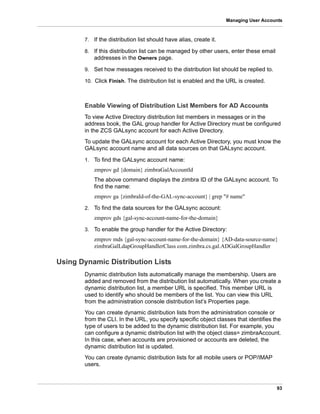
Enable Viewing of Distribution List Members for AD Accounts . . . . . . . 93
Using Dynamic Distribution Lists . . . . . . . . . . . . . . . . . . . . . . . . . . . . . . . . . 93
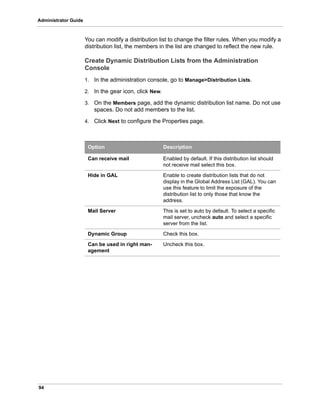
Create Dynamic Distribution Lists from the Administration Console . . . 94
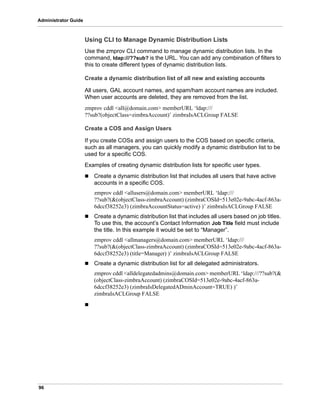
Using CLI to Manage Dynamic Distribution Lists . . . . . . . . . . . . . . . . . . 96
10 Customizing Accounts . . . . . . . . . . . . . . . . . . . . . . . . . . . . . . . . . . . . . . 97
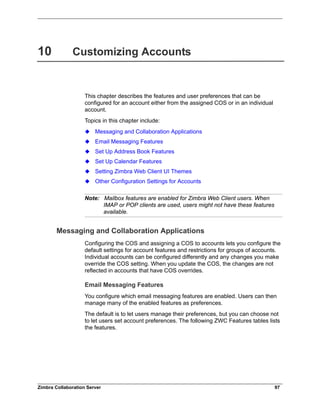
Messaging and Collaboration Applications . . . . . . . . . . . . . . . . . . . . . . . . . 97
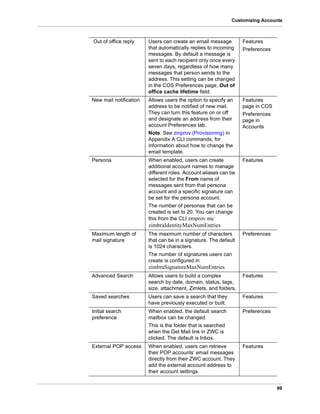
Email Messaging Features . . . . . . . . . . . . . . . . . . . . . . . . . . . . . . . . . . . 97
Set Up Address Book Features . . . . . . . . . . . . . . . . . . . . . . . . . . . . . . 103
Set Up Calendar Features . . . . . . . . . . . . . . . . . . . . . . . . . . . . . . . . . . 103
Set Up Zimbra Tasks . . . . . . . . . . . . . . . . . . . . . . . . . . . . . . . . . . . . . . 106
Setting Zimbra Web Client UI Themes . . . . . . . . . . . . . . . . . . . . . . . . . . . 107
Other Configuration Settings for Accounts . . . . . . . . . . . . . . . . . . . . . . . . 107
Enable Sharing . . . . . . . . . . . . . . . . . . . . . . . . . . . . . . . . . . . . . . . . . . . 107
Configure SMS Notification. . . . . . . . . . . . . . . . . . . . . . . . . . . . . . . . . . 107
Display a Warning When Users Try to Navigate Away. . . . . . . . . . . . . 108
Enabling the Check Box for the Web Client . . . . . . . . . . . . . . . . . . . . . 108
Preferences Import/Export . . . . . . . . . . . . . . . . . . . . . . . . . . . . . . . . . . 108
Add Words to Spell Dictionary . . . . . . . . . . . . . . . . . . . . . . . . . . . . . . . 108
11 Zimlets . . . . . . . . . . . . . . . . . . . . . . . . . . . . . . . . . . . . . . . . . . . . . . . . . . 109
Manage Zimlets from the Administration Console . . . . . . . . . . . . . . . . . . . 109
Deploy Custom Zimlets. . . . . . . . . . . . . . . . . . . . . . . . . . . . . . . . . . . . . 110
Enable, Disable, or Make Zimlets Mandatory . . . . . . . . . . . . . . . . . . . . 110
Undeploy a Zimlet. . . . . . . . . . . . . . . . . . . . . . . . . . . . . . . . . . . . . . . . . 110
Add Proxy-Allowed Domains to a Zimlet . . . . . . . . . . . . . . . . . . . . . . . 111
vi Open Source Edition 8.0 Zimbra Collaboration Server
Administrator’s Guide
Upgrading a Zimlet . . . . . . . . . . . . . . . . . . . . . . . . . . . . . . . . . . . . . . . . 111
Managing Zimlets from the Command Line Interface . . . . . . . . . . . . . . . . 111
Deploying Zimlets . . . . . . . . . . . . . . . . . . . . . . . . . . . . . . . . . . . . . . . . . 111
Add Proxy Allowed Domains to a Zimlet. . . . . . . . . . . . . . . . . . . . . . . . 112
Deploying a Zimlet and Granting Access to a COS . . . . . . . . . . . . . . . 112
Viewing Zimlet List . . . . . . . . . . . . . . . . . . . . . . . . . . . . . . . . . . . . . . . . 112
Changing Zimlet Configurations . . . . . . . . . . . . . . . . . . . . . . . . . . . . . . 112
Upgrading a Zimlet . . . . . . . . . . . . . . . . . . . . . . . . . . . . . . . . . . . . . . . . 113
Zimbra Gallery . . . . . . . . . . . . . . . . . . . . . . . . . . . . . . . . . . . . . . . . . . . 114
Customized Zimlets . . . . . . . . . . . . . . . . . . . . . . . . . . . . . . . . . . . . . . . 114
12 Monitoring ZCS Servers . . . . . . . . . . . . . . . . . . . . . . . . . . . . . . . . . . . . 115
Zimbra Logger . . . . . . . . . . . . . . . . . . . . . . . . . . . . . . . . . . . . . . . . . . . . . . 116
Enable Server Statistics . . . . . . . . . . . . . . . . . . . . . . . . . . . . . . . . . . . . 116
Review Server Status . . . . . . . . . . . . . . . . . . . . . . . . . . . . . . . . . . . . . . 116
Enable or Disable Server Services . . . . . . . . . . . . . . . . . . . . . . . . . . . . 117
Server Performance Statistics . . . . . . . . . . . . . . . . . . . . . . . . . . . . . . . 117
Configure Logger Mail Reports. . . . . . . . . . . . . . . . . . . . . . . . . . . . . . . 118
Configuring Disk Space Notifications . . . . . . . . . . . . . . . . . . . . . . . . . . . . . 118
Monitoring Servers . . . . . . . . . . . . . . . . . . . . . . . . . . . . . . . . . . . . . . . . . . . 118
Configuring Denial of Service Filter Parameters . . . . . . . . . . . . . . . . . . . . 119
Identifying False Positives . . . . . . . . . . . . . . . . . . . . . . . . . . . . . . . . . . 119
Customizing DoSFilter Configuration . . . . . . . . . . . . . . . . . . . . . . . . . . 120
Tuning Considerations for ZCS 8.0.3 and later . . . . . . . . . . . . . . . . . . 121
Working with Mail Queues . . . . . . . . . . . . . . . . . . . . . . . . . . . . . . . . . . . . . 121
View Mail Queues. . . . . . . . . . . . . . . . . . . . . . . . . . . . . . . . . . . . . . . . . 123
Flush Message Queues . . . . . . . . . . . . . . . . . . . . . . . . . . . . . . . . . . . . 123
Monitoring Mailbox Quotas . . . . . . . . . . . . . . . . . . . . . . . . . . . . . . . . . . . . 123
View Quota . . . . . . . . . . . . . . . . . . . . . . . . . . . . . . . . . . . . . . . . . . . . . . 124
Increase or Decrease Quota. . . . . . . . . . . . . . . . . . . . . . . . . . . . . . . . . 124
Viewing MobileSync Statistics . . . . . . . . . . . . . . . . . . . . . . . . . . . . . . . . . . 124
Monitoring Authentication Failures . . . . . . . . . . . . . . . . . . . . . . . . . . . . . . 124
Viewing Log Files . . . . . . . . . . . . . . . . . . . . . . . . . . . . . . . . . . . . . . . . . . . . 125
Syslog . . . . . . . . . . . . . . . . . . . . . . . . . . . . . . . . . . . . . . . . . . . . . . . . . . 126
Use log4j to Configure Logging . . . . . . . . . . . . . . . . . . . . . . . . . . . . . . 126
Logging Levels . . . . . . . . . . . . . . . . . . . . . . . . . . . . . . . . . . . . . . . . . . . 126
Protocol Trace . . . . . . . . . . . . . . . . . . . . . . . . . . . . . . . . . . . . . . . . . . . 128
Review mailbox.log Records . . . . . . . . . . . . . . . . . . . . . . . . . . . . . . . . 129
Reading a Message Header . . . . . . . . . . . . . . . . . . . . . . . . . . . . . . . . . . . 132
Fixing Corrupted Mailbox Index . . . . . . . . . . . . . . . . . . . . . . . . . . . . . . . . 133
Check if an Index is Corrupt . . . . . . . . . . . . . . . . . . . . . . . . . . . . . . . . . 133
Repair and Reindex a Corrupt Index . . . . . . . . . . . . . . . . . . . . . . . . . . 134
SNMP Monitoring and Configuration . . . . . . . . . . . . . . . . . . . . . . . . . . . . . 134
SNMP Monitoring Tools . . . . . . . . . . . . . . . . . . . . . . . . . . . . . . . . . . . . 134
SNMP Configuration . . . . . . . . . . . . . . . . . . . . . . . . . . . . . . . . . . . . . . . 134
Errors Generating SNMP Traps . . . . . . . . . . . . . . . . . . . . . . . . . . . . . . 134
Checking MySQL . . . . . . . . . . . . . . . . . . . . . . . . . . . . . . . . . . . . . . . . . . . . 134
Checking for ZCS Software Updates . . . . . . . . . . . . . . . . . . . . . . . . . . . . . 135
Updating Zimbra Connector for Microsoft Outlook . . . . . . . . . . . . . . . . . . 135
Types of Notifications and Alerts Sent by ZCS . . . . . . . . . . . . . . . . . . . . . 136
Service status change notification . . . . . . . . . . . . . . . . . . . . . . . . . . . . 136
Disk usage notification . . . . . . . . . . . . . . . . . . . . . . . . . . . . . . . . . . . . . 136
Duplicate mysqld processes running notification . . . . . . . . . . . . . . . . . 136
Zimbra Collaboration Server Open Source Edition 8.0 vii
SSL certificates expiration notification . . . . . . . . . . . . . . . . . . . . . . . . . 137
Daily report notification . . . . . . . . . . . . . . . . . . . . . . . . . . . . . . . . . . . . . 137
Database integrity check notification . . . . . . . . . . . . . . . . . . . . . . . . . . 137
Backup completion notification . . . . . . . . . . . . . . . . . . . . . . . . . . . . . . . 137
Appendix A Command-Line Utilities . . . . . . . . . . . . . . . . . . . . . . . . . . . . . . 139
General Tool Information . . . . . . . . . . . . . . . . . . . . . . . . . . . . . . . . . . . . . . 139
Zimbra CLI Commands . . . . . . . . . . . . . . . . . . . . . . . . . . . . . . . . . . . . . . . 140
Using non-ASCII Characters in CLIs . . . . . . . . . . . . . . . . . . . . . . . . . . 144
zmprov (Provisioning) . . . . . . . . . . . . . . . . . . . . . . . . . . . . . . . . . . . . . . . . 144
Configure Auto-Grouped Backup from the CLI . . . . . . . . . . . . . . . . . . 156
Changing Conversations Thread Default . . . . . . . . . . . . . . . . . . . . . . . 156
Detect Corrupted Indexes. . . . . . . . . . . . . . . . . . . . . . . . . . . . . . . . . . . 157
zmaccts . . . . . . . . . . . . . . . . . . . . . . . . . . . . . . . . . . . . . . . . . . . . . . . . . . . 158
zmcalchk . . . . . . . . . . . . . . . . . . . . . . . . . . . . . . . . . . . . . . . . . . . . . . . . . . 158
zmcontrol (Start/Stop/Restart Service) . . . . . . . . . . . . . . . . . . . . . . . . . . . 159
zmgsautil . . . . . . . . . . . . . . . . . . . . . . . . . . . . . . . . . . . . . . . . . . . . . . . . . . 160
zmldappasswd . . . . . . . . . . . . . . . . . . . . . . . . . . . . . . . . . . . . . . . . . . . . . . 161
zmlocalconfig . . . . . . . . . . . . . . . . . . . . . . . . . . . . . . . . . . . . . . . . . . . . . . . 162
zmmailbox . . . . . . . . . . . . . . . . . . . . . . . . . . . . . . . . . . . . . . . . . . . . . . . . . 163
zmtlsctl . . . . . . . . . . . . . . . . . . . . . . . . . . . . . . . . . . . . . . . . . . . . . . . . . . . . 166
zmmetadump . . . . . . . . . . . . . . . . . . . . . . . . . . . . . . . . . . . . . . . . . . . . . . . 167
zmmypasswd . . . . . . . . . . . . . . . . . . . . . . . . . . . . . . . . . . . . . . . . . . . . . . . 167
zmproxyconfgen . . . . . . . . . . . . . . . . . . . . . . . . . . . . . . . . . . . . . . . . . . . . 168
zmproxypurge . . . . . . . . . . . . . . . . . . . . . . . . . . . . . . . . . . . . . . . . . . . . . . 168
zmskindeploy . . . . . . . . . . . . . . . . . . . . . . . . . . . . . . . . . . . . . . . . . . . . . . . 169
zmsoap . . . . . . . . . . . . . . . . . . . . . . . . . . . . . . . . . . . . . . . . . . . . . . . . . . . 169
zmstat-chart . . . . . . . . . . . . . . . . . . . . . . . . . . . . . . . . . . . . . . . . . . . . . . . . 170
zmstat-chart-config . . . . . . . . . . . . . . . . . . . . . . . . . . . . . . . . . . . . . . . . . . 171
zmstatctl . . . . . . . . . . . . . . . . . . . . . . . . . . . . . . . . . . . . . . . . . . . . . . . . . . . 172
zmthrdump . . . . . . . . . . . . . . . . . . . . . . . . . . . . . . . . . . . . . . . . . . . . . . . . . 172
zmtrainsa . . . . . . . . . . . . . . . . . . . . . . . . . . . . . . . . . . . . . . . . . . . . . . . . . . 172
zmtzupdate . . . . . . . . . . . . . . . . . . . . . . . . . . . . . . . . . . . . . . . . . . . . . . . . 173
zmvolume . . . . . . . . . . . . . . . . . . . . . . . . . . . . . . . . . . . . . . . . . . . . . . . . . 173
zmzimletctl . . . . . . . . . . . . . . . . . . . . . . . . . . . . . . . . . . . . . . . . . . . . . . . . . 174
zmproxyconfig . . . . . . . . . . . . . . . . . . . . . . . . . . . . . . . . . . . . . . . . . . . . . . 175
zmsyncreverseproxy . . . . . . . . . . . . . . . . . . . . . . . . . . . . . . . . . . . . . . . . . 177
Appendix B Configuring SPNEGO Single Sign-On . . . . . . . . . . . . . . . . . . . 179
Configuration Process . . . . . . . . . . . . . . . . . . . . . . . . . . . . . . . . . . . . . . . . 179
Create the Kerberos Keytab File . . . . . . . . . . . . . . . . . . . . . . . . . . . . . . . . 180
Configure ZCS . . . . . . . . . . . . . . . . . . . . . . . . . . . . . . . . . . . . . . . . . . . . . . 182
Configure Your Browser . . . . . . . . . . . . . . . . . . . . . . . . . . . . . . . . . . . . . . 185
Test your setup . . . . . . . . . . . . . . . . . . . . . . . . . . . . . . . . . . . . . . . . . . . . . 185
Troubleshooting setup . . . . . . . . . . . . . . . . . . . . . . . . . . . . . . . . . . . . . . . . 186
Configure Kerberos Auth with SPNEGO Auth . . . . . . . . . . . . . . . . . . . . . . 187
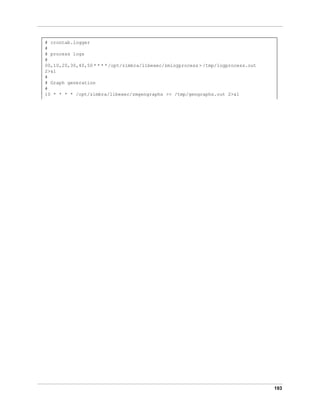
Appendix C ZCS Crontab Jobs . . . . . . . . . . . . . . . . . . . . . . . . . . . . . . . . . . . 189
How to read the crontab . . . . . . . . . . . . . . . . . . . . . . . . . . . . . . . . . . . . . . 189
ZCS Cron Jobs . . . . . . . . . . . . . . . . . . . . . . . . . . . . . . . . . . . . . . . . . . . . . 189
Jobs for crontab.store . . . . . . . . . . . . . . . . . . . . . . . . . . . . . . . . . . . . . . 190
viii Open Source Edition 8.0 Zimbra Collaboration Server
Administrator’s Guide
Jobs for crontab.logger . . . . . . . . . . . . . . . . . . . . . . . . . . . . . . . . . . . . . 190
Jobs for crontab.mta. . . . . . . . . . . . . . . . . . . . . . . . . . . . . . . . . . . . . . . 191
Single Server Crontab -l Example . . . . . . . . . . . . . . . . . . . . . . . . . . . . . . . 192
Appendix D Glossary . . . . . . . . . . . . . . . . . . . . . . . . . . . . . . . . . . . . . . . . . . 195
Index . . . . . . . . . . . . . . . . . . . . . . . . . . . . . . . . . . . . . . . . . . . . . . . . . . . . . . . . 201
Zimbra Collaboration Server Open Source Edition 8.0 9
1 Introduction
Zimbra Collaboration Server (ZCS) is a full-featured messaging and
collaboration solution that includes email, address book, calendaring, tasks,
and Web document authoring.
Topics in this chapter include:
Audience
Third-Party Components
Support and Contact Information
Audience
This guide is intended for system administrators responsible for installing,
maintaining, and supporting the server deployment of ZCS.
Readers of this guide should have the following recommended knowledge and
skill sets:
 Familiarity with the associated technologies and standards Linux operating
system, and open source concepts
 Industry practices for mail system management
Third-Party Components
Where possible, Zimbra adheres to existing industry standards and open
source implementations for backup management, user authentications,
operating platform, and database management. However, Zimbra only
supports the specific implementations described in the ZCS architecture
overview in the Product Overview chapter as officially tested and certified for
the ZCS. This document might occasionally note when other tools are
available in the marketplace, but such mention does not constitute an
endorsement or certification.
Support and Contact Information
Visit www.zimbra.com to join the community and to be a part of building the
best open source messaging solution. We appreciate your feedback and
suggestions.
 Contact sales@zimbra.com to purchase Zimbra Collaboration Server
10 Open Source Edition 8.0
Administrator Guide
 Explore the Zimbra Forums for answers to installation or configurations
problems
 Join the Zimbra Forums, to participate and learn more about the Zimbra
Collaboration Server
Let us know what you like about the product and what you would like to see in
the product. Post your ideas to the Zimbra Forum.
If you encounter problems with this software, go to http://bugzilla.Zimbra.com
to submit a bug report. Make sure to provide enough detail so that the bug can
be easily duplicated.
Zimbra Collaboration Server 11
2 Product Overview
The Zimbra Collaboration Server (ZCS) architecture is built with well-known
open source technologies and standards based protocols. The architecture
consists of client interfaces and server components that can be ran in a single
node configuration or deployed across multiple servers for high availability and
increased scalability.
Core Email, Calendar and Collaboration Functionality
Zimbra Components
System Architecture
Zimbra Application Packages
Example of a Typical Multiserver Configuration
Zimbra System Directory Tree
The architecture includes the following core advantages:
 Open source integrations. Linux®, Jetty, Postfix, MySQL®, OpenLDAP®.
 Uses industry standard open protocols. SMTP, LMTP, SOAP, XML,
IMAP, POP.
 Modern technology design. HTML5, Javascript, XML, and Java.
 Horizontal scalability. Each Zimbra mailbox server includes its own
mailbox accounts and associated message store and indexes. Zimbra has
the flexibility to scale both vertically by adding more system resources or
horizontally by adding more servers.
 Browser based client interface. Zimbra Web Client gives users easy
access to all the ZCS features.
 Browser based administration console.
Core Email, Calendar and Collaboration Functionality
ZCS is an innovative messaging and collaboration application that offers the
following state-of-the-art solutions that are accessed through a browser based
web client.
 Intuitive message management, search, tagging, and sharing.
 Personal, external, and shared calendar
12
Administrator Guide
 Personal and shared Address Books and Distribution Lists.
 Personal and Shared Task lists.
Zimbra Components
Zimbra architecture includes open-source integrations using industry standard
protocols. The third-party software listed below is bundled with Zimbra
software and installed as part of the installation process. These components
have been tested and configured to work with the software.
 Jetty, the web application server that Zimbra software runs in.
 Postfix, an open source mail transfer agent (MTA) that routes mail
messages to the appropriate Zimbra server
 OpenLDAP software, an open source implementation of the Lightweight
Directory Access Protocol (LDAP) that stores Zimbra system
configuration, the Zimbra Global Address List, and providers user
authentication. Zimbra can also work with GAL and authentication services
provided by external LDAP directories such as Active Directory
 MySQL database software
 Lucene, an open source full-featured text and search engine
 Anti-virus and anti-spam open source components including:
• ClamAV, an anti-virus scanner that protects against malicious files
• SpamAssassin, a mail filter that attempts to identify spam
• Amavisd-new interfaces between the MTA and one or more content
checkers
 James/Sieve filtering, used to create filters for email
System Architecture
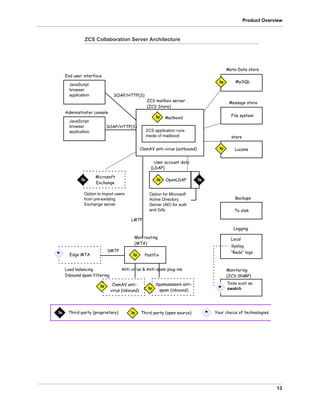
The ZCS architectural design is displayed in the ZCS Collaboration Server
Architecture figure. This shows the open-source software bundled with the
ZCS and other recommended third-party applications.
13
Product Overview
ZCS Collaboration Server Architecture
ZCS application runs
inside of mailboxd
Mailboxd
Backups
To disk
Meta-Data store
MySQL
File system
Message store
Lucene
store
OpenLDAP
User account data
Option for Microsoft
Active Directory
Server (AD) for auth
and GAL
End user interface
JavaScript
browser
application
Administrator console
JavaScript
browser
application
Postfix
Mail routing
Microsoft
Edge MTA
SOAP/HTTP(S)
SOAP/HTTP(S)
SMTP
LMTP
Exchange
Option to import users
from pre-existing
Exchange server
Logging
3p 3pThird-party (proprietary) Third-party (open source)
3p
* Your choice of technologies
*
3p
3p
3p 3p
3p
3p
Monitoring
Tools such as
swatch*
Load balancing
Inbound spam filtering
Anti-virus & Anti-spam plug-ins
ClamAV anti-virus (outbound)
ClamAV anti-
virus (inbound)
“Redo” logs
Local
Syslog
ZCS mailbox server
(ZCS Store)
(MTA)
(LDAP)
(ZCS SNMP)
Spamassassin anti-
spam (inbound)
3p
3p
14
Administrator Guide
Zimbra Application Packages
ZCS includes the following application packages.
Zimbra Core Includes the libraries, utilities, monitoring tools, and
basic configuration files.
zmconfigd is part of zimbra-core and is automatically
enabled and runs on all systems.
Zimbra LDAP ZCS uses the OpenLDAP software, an open source LDAP
directory server. User authentication, the Zimbra Global
Address List, and configuration attributes are services
provided through OpenLDAP. Note that the Zimbra GAL
and authentication services can be provided by an
external LDAP Directory such as Active Directory.
Zimbra MTA Postfix is the open source mail transfer agent (MTA) that
receives email via SMTP and routes each message to the
appropriate Zimbra mailbox server using Local Mail
Transfer Protocol (LMTP).
The Zimbra MTA also includes the anti-virus and anti-
spam components.
Zimbra store
(mailbox server)
The Zimbra store package installs the components for the
mailbox server, including Jetty, which is the servlet
container the Zimbra software runs within. Within ZCS, this
servlet container is called mailboxd.
Each account is configured on one mailbox server, and
this account is associated with a mailbox that contains all
the mail messages, file attachments, contacts, calendar,
and collaboration files for that mail account.
Each Zimbra server has its own standalone data store,
message store, and index store for the mailboxes on that
server.
As each email arrives, the Zimbra server schedules a
thread to have the message indexed (Index store).
Zimbra-SNMP Zimbra uses swatch to watch the syslog output to
generate SNMP traps.
Zimbra-Logger The Zimbra logger installs tools for syslog aggregation,
reporting. If the Logger is not installed, the server statistics
section of the administration console is not displayed.
Zimbra-Spell Aspell is the open source spell checker used on the
Zimbra Web Client. When zimbra-spell is installed, the
Zimbra-Apache package is also installed.
15
Product Overview
Example of a Typical Multiserver Configuration
The exact configuration for each deployment is highly dependent on variables
including the number of mailboxes, mailbox quotas, performance
requirements, existing network infrastructure, IT policies, security
requirements, spam filtering requirements, and so forth.
The figure below shows a typical configuration with incoming traffic and user
connection.
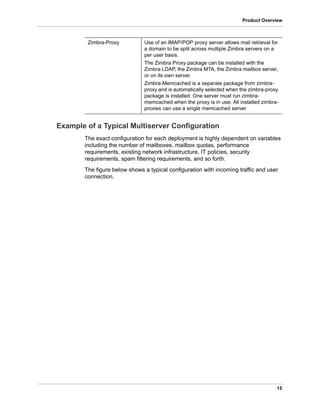
Zimbra-Proxy Use of an IMAP/POP proxy server allows mail retrieval for
a domain to be split across multiple Zimbra servers on a
per user basis.
The Zimbra Proxy package can be installed with the
Zimbra LDAP, the Zimbra MTA, the Zimbra mailbox server,
or on its own server.
Zimbra-Memcached is a separate package from zimbra-
proxy and is automatically selected when the zimbra-proxy
package is installed. One server must run zimbra-
memcached when the proxy is in use. All installed zimbra-
proxies can use a single memcached server
16
Administrator Guide
Typical Configuration with Incoming Traffic and User Connections
Zimbra LDAP
Mounted
Backup disk
Zimbra LDAP
Zimbra Mailbox
Edge MTA
spam filtering
Edge MTA
Load balancer
firewalls
external
end user
Internet mail
Load balancer
Zimbra MTA
Zimbra MTA
internal
end users &
administrator users
Internet mail (inbound)
External user connection
Internal user connection
Replication (optional)
Backup
LDAP directory traffic
master replica
virus and spam
1
23
4
5
6
7
8
filtering
Server
Zimbra mailbox
Server
1 Inbound Internet mail goes through a firewall and load balancing to the
edge MTA for spam filtering.
2 The filtered mail then goes through a second load balancer.
3 An external user connecting to the messaging server also goes through a
firewall to the second load balancer.
4 The inbound Internet mail goes to any of the Zimbra MTA servers and goes
through spam and virus filtering.
5 The designated Zimbra MTA server looks up the addressee’s directory
information from the Zimbra LDAP replica server.
17
Product Overview
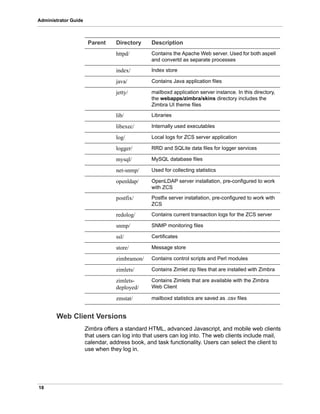
Zimbra System Directory Tree
The following table lists the main directories created by the Zimbra installation
packages.
The directory organization is the same for any server in the ZCS, installing
under /opt/zimbra.
Note: The directories not listed in this table are libraries used for building the
core Zimbra software or miscellaneous third-party tools.
6 After obtaining the user’s information from the Zimbra LDAP server, the
MTA server sends the mail to the appropriate Zimbra mailbox server.
7 Internal end-user connections are made directly to any Zimbra mailbox
server, which then obtains the user’s directory information from Zimbra
LDAP and redirects the user as needed.
8 Server backup can be processed to a mounted disk.
Parent Directory Description
/opt/
zimbra/
Created by all ZCS installation packages
bin/ ZCS application files, including the utilities described
in Appendix A, Command -Line Utilities
cdpolicyd Policy functions, throttling
clamav/ Clam AV application files for virus and spam controls
conf/ Configuration information
contrib/ Third-party scripts for conveyance
convertd/ Convert service
cyrus-sasl/ SASL AUTH daemon
data/ Includes data directories for LDAP, mailboxd, postfix,
amavisd, clamav
db/ Data Store
docs/ SOAP txt files and technical txt files
dspam/ DSPAM antivirus
extensions-
extra/
Server extensions for different authentication types
extensions-
network-
extra/
Server extensions for different network version
authentication types
18
Administrator Guide
Web Client Versions
Zimbra offers a standard HTML, advanced Javascript, and mobile web clients
that users can log into that users can log into. The web clients include mail,
calendar, address book, and task functionality. Users can select the client to
use when they log in.
httpd/ Contains the Apache Web server. Used for both aspell
and convertd as separate processes
index/ Index store
java/ Contains Java application files
jetty/ mailboxd application server instance. In this directory,
the webapps/zimbra/skins directory includes the
Zimbra UI theme files
lib/ Libraries
libexec/ Internally used executables
log/ Local logs for ZCS server application
logger/ RRD and SQLite data files for logger services
mysql/ MySQL database files
net-snmp/ Used for collecting statistics
openldap/ OpenLDAP server installation, pre-configured to work
with ZCS
postfix/ Postfix server installation, pre-configured to work with
ZCS
redolog/ Contains current transaction logs for the ZCS server
snmp/ SNMP monitoring files
ssl/ Certificates
store/ Message store
zimbramon/ Contains control scripts and Perl modules
zimlets/ Contains Zimlet zip files that are installed with Zimbra
zimlets-
deployed/
Contains Zimlets that are available with the Zimbra
Web Client
zmstat/ mailboxd statistics are saved as .csv files
Parent Directory Description
19
Product Overview
 Advanced web client includes Ajax capability and offers a full set of web
collaboration features. This web client works best with newer browsers
and fast Internet connections.
 Standard web client is a good option when Internet connections are slow
or users prefer HTML-based messaging for navigating within their mailbox.
 Mobile web client provides an experience optimized for smaller screen
formats available on mobile devices.
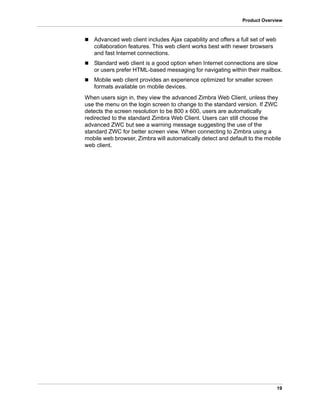
When users sign in, they view the advanced Zimbra Web Client, unless they
use the menu on the login screen to change to the standard version. If ZWC
detects the screen resolution to be 800 x 600, users are automatically
redirected to the standard Zimbra Web Client. Users can still choose the
advanced ZWC but see a warning message suggesting the use of the
standard ZWC for better screen view. When connecting to Zimbra using a
mobile web browser, Zimbra will automatically detect and default to the mobile
web client.
20
Administrator Guide
Zimbra Collaboration Server 21
3 Zimbra Mailbox Server
The Zimbra mailbox server is a dedicated server that manages all the mailbox
content, including messages, contacts, calendar, and attachments. In a ZCS
single-server environment, all services are on one server. In a ZCS multi-
server environment, the LDAP and MTA services can be installed on separate
servers.
The Zimbra mailbox server receives the messages from the Zimbra MTA
server and passes them through any filters that have been created. Messages
are then indexed and deposited into the correct mailbox.
Each Zimbra mailbox server can see only its own storage volumes. Zimbra
mailbox servers cannot see, read, or write to another server.
Incoming Mail Routing
The MTA server receives mail via SMTP and routes each mail message to the
appropriate ZCS mailbox server using LMTP. As each mail message arrives,
it’s content is indexed so that all elements can be searched.
Mailbox Server
Each account is configured on one mailbox server and this account is
associated with a mailbox that contains email messages, attachments,
calendar, contacts and collaboration files for that account. Each Zimbra
mailbox server has its own standalone message store, data store, and index
store for the mailboxes on that server.
Message Store
All email messages are stored in MIME format in the Message Store, including
the message body and file attachments.
The message store is located on each mailbox server under /opt/zimbra/store.
Each mailbox has its own directory named after its internal ZCS mailbox ID.
Mailbox IDs are unique per server, not system-wide.
Messages with multiple recipients are stored as a single-copy on the message
store. On UNIX systems, the mailbox directory for each user contains a hard
link to the actual file.
When ZCS is installed, one index volume and one message volume are
configured on each mailbox server. Each mailbox is assigned to a permanent
22
Administrator Guide
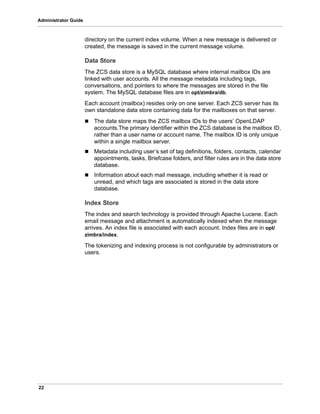
directory on the current index volume. When a new message is delivered or
created, the message is saved in the current message volume.
Data Store
The ZCS data store is a MySQL database where internal mailbox IDs are
linked with user accounts. All the message metadata including tags,
conversations, and pointers to where the messages are stored in the file
system. The MySQL database files are in opt/zimbra/db.
Each account (mailbox) resides only on one server. Each ZCS server has its
own standalone data store containing data for the mailboxes on that server.
 The data store maps the ZCS mailbox IDs to the users’ OpenLDAP
accounts.The primary identifier within the ZCS database is the mailbox ID,
rather than a user name or account name. The mailbox ID is only unique
within a single mailbox server.
 Metadata including user’s set of tag definitions, folders, contacts, calendar
appointments, tasks, Briefcase folders, and filter rules are in the data store
database.
 Information about each mail message, including whether it is read or
unread, and which tags are associated is stored in the data store
database.
Index Store
The index and search technology is provided through Apache Lucene. Each
email message and attachment is automatically indexed when the message
arrives. An index file is associated with each account. Index files are in opt/
zimbra/index.
The tokenizing and indexing process is not configurable by administrators or
users.
23
Zimbra Mailbox Server
Message Tokenization
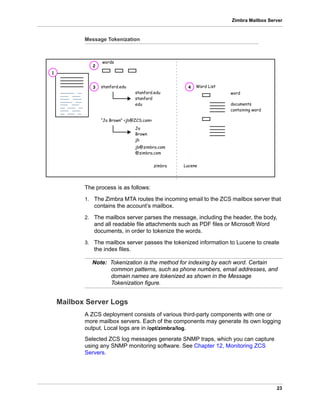
The process is as follows:
1. The Zimbra MTA routes the incoming email to the ZCS mailbox server that
contains the account’s mailbox.
2. The mailbox server parses the message, including the header, the body,
and all readable file attachments such as PDF files or Microsoft Word
documents, in order to tokenize the words.
3. The mailbox server passes the tokenized information to Lucene to create
the index files.
Note: Tokenization is the method for indexing by each word. Certain
common patterns, such as phone numbers, email addresses, and
domain names are tokenized as shown in the Message
Tokenization figure.
Mailbox Server Logs
A ZCS deployment consists of various third-party components with one or
more mailbox servers. Each of the components may generate its own logging
output. Local logs are in /opt/zimbra/log.
Selected ZCS log messages generate SNMP traps, which you can capture
using any SNMP monitoring software. See Chapter 12, Monitoring ZCS
Servers.
stanford.edu
stanford.edu
stanford
edu
Word List
documents
words
containing word
word
1
2
3 4
Lucene
“Jo Brown” <jb@ZCS.com>
Brown
jb@zimbra.com
@zimbra.com
zimbra
Jo
jb
24
Administrator Guide
Zimbra Collaboration Server 25
4 Zimbra LDAP Service
LDAP directory services provide a centralized repository for information about
users and devices that are authorized to use your Zimbra service. The central
repository used for Zimbra’s LDAP data is the OpenLDAP directory server.
Topics in this chapter include:
LDAP Traffic Flow
ZCS LDAP Schema
Account Authentication
ZCS Objects
Global Address List
Flushing LDAP Cache
The LDAP server is installed when ZCS is installed. Each server has its own
LDAP entry that includes attributes specifying operating parameters. In
addition, a global configuration object sets defaults for any server whose entry
does not specify every attribute.
A subset of these attributes can be modified through the Zimbra administration
console and others through the zmprov CLI utility.
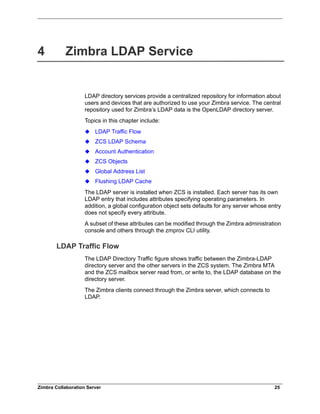
LDAP Traffic Flow
The LDAP Directory Traffic figure shows traffic between the Zimbra-LDAP
directory server and the other servers in the ZCS system. The Zimbra MTA
and the ZCS mailbox server read from, or write to, the LDAP database on the
directory server.
The Zimbra clients connect through the Zimbra server, which connects to
LDAP.
26
Administrator Guide
LDAP Directory Traffic
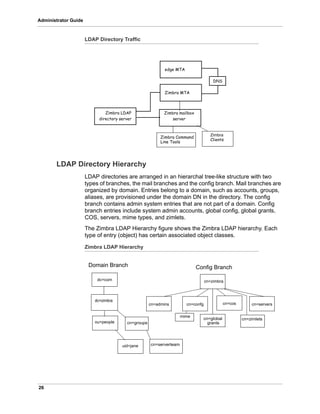
LDAP Directory Hierarchy
LDAP directories are arranged in an hierarchal tree-like structure with two
types of branches, the mail branches and the config branch. Mail branches are
organized by domain. Entries belong to a domain, such as accounts, groups,
aliases, are provisioned under the domain DN in the directory. The config
branch contains admin system entries that are not part of a domain. Config
branch entries include system admin accounts, global config, global grants,
COS, servers, mime types, and zimlets.
The Zimbra LDAP Hierarchy figure shows the Zimbra LDAP hierarchy. Each
type of entry (object) has certain associated object classes.
Zimbra LDAP Hierarchy
directory server
Zimbra mailboxZimbra LDAP
Zimbra MTA
edge MTA
DNS
server
Zimbra Command
Line Tools
Zimbra
Clients
cn=zimbra
cn=admins cn=confg cn=servers
dc=com
dc=zimbra
ou=people
uid=jane
Domain Branch Config Branch
cn=groups
cn=serverteam
cn=global
grants
cn=zimlets
cn=cos
mime
27
Zimbra LDAP Service
An LDAP directory entry consists of a collection of attributes and has a
globally unique distinguished name (dn). The attributes allowed for an entry
are determined by the object classes associated with that entry. The values of
the object class attributes determine the schema rules the entry must follow.
An entry’s object class that determines what kind of entry it is, is called a
structural object class and cannot be changed. Other object classes are called
auxiliary and may be added to or deleted from the entry.
Use of auxiliary object classes in LDAP allows for an object class to be
combined with an existing object class. For example, an entry with structural
object class inetOrgPerson, and auxiliary object class zimbraAccount, would
be an account. An entry with the structural object class zimbraServer would be
a server in the Zimbra system that has one or more Zimbra packages
installed.
ZCS LDAP Schema
At the core of every LDAP implementation is a database organized using a
schema.
The Zimbra LDAP schema extends the generic schema included with
OpenLDAP software. It is designed to coexist with existing directory
installations.
All attributes and object classes specifically created for ZCS are prefaced by
“zimbra.,” such as, zimbraAccount object class or zimbraAttachmentsBlocked
attribute.
The following schema files are included in the OpenLDAP implementation:
 core.schema
 cosine.schema
 inetorgperson.schema
 zimbra.schema
 amavisd.schema
 dyngroup.schema
 nis.schema
Note: You cannot modify the Zimbra schema.
28
Administrator Guide
ZCS Objects
Object Description Object class
Accounts Represents an account on the Zimbra
mailbox server that can be logged into.
Account entries are either
administrators or user accounts. The
object class name is zimbraAccount.
This object class extends the
zimbraMailRecipient object class.
All accounts have the following
properties:
A name in the format of
user@example.domain
A unique ID that never changes and is
never reused
A set of attributes, some of which are
user-modifiable (preferences) and
others that are only configurable by
administrators
All user accounts are associated with a
domain, so a domain must be created
before creating any accounts.
zimbraAccount
Class of
Service
(COS)
Defines the default attributes an
account has and what features are
allowed or denied. The COS controls
features, default preference settings,
mailbox quotas, message lifetime,
password restrictions, attachment
blocking, and server pools for creation
of new accounts.
zimbraCOS
Domains Represents an email domain such as
example.com or example.org. A
domain must exist before email
addressed to users in that domain can
be delivered.
zimbraDomain
Distribution
Lists
Also known as mailing lists, are used to
send mail to all members of a list by
sending a single email to the list
address.
zimbraDistributionList
29
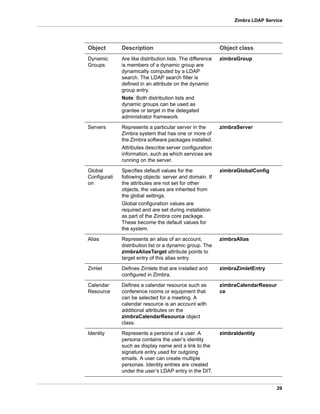
Zimbra LDAP Service
Dynamic
Groups
Are like distribution lists. The difference
is members of a dynamic group are
dynamically computed by a LDAP
search. The LDAP search filter is
defined in an attribute on the dynamic
group entry.
Note: Both distribution lists and
dynamic groups can be used as
grantee or target in the delegated
administrator framework.
zimbraGroup
Servers Represents a particular server in the
Zimbra system that has one or more of
the Zimbra software packages installed.
Attributes describe server configuration
information, such as which services are
running on the server.
zimbraServer
Global
Configurati
on
Specifies default values for the
following objects: server and domain. If
the attributes are not set for other
objects, the values are inherited from
the global settings.
Global configuration values are
required and are set during installation
as part of the Zimbra core package.
These become the default values for
the system.
zimbraGlobalConfig
Alias Represents an alias of an account,
distribution list or a dynamic group. The
zimbraAliasTarget attribute points to
target entry of this alias entry.
zimbraAlias
Zimlet Defines Zimlets that are installed and
configured in Zimbra.
zimbraZimletEntry
Calendar
Resource
Defines a calendar resource such as
conference rooms or equipment that
can be selected for a meeting. A
calendar resource is an account with
additional attributes on the
zimbraCalendarResource object
class.
zimbraCalendarResour
ce
Identity Represents a persona of a user. A
persona contains the user’s identity
such as display name and a link to the
signature entry used for outgoing
emails. A user can create multiple
personas. Identity entries are created
under the user’s LDAP entry in the DIT.
zimbraIdentity
Object Description Object class
30
Administrator Guide
Account Authentication
Supported authentication mechanisms are Internal, External LDAP, and
External Active Directory. The authentication method type is set on a per-
domain basis. If zimbraAuthMech attribute is not set, the default is to use
internal authentication.
The internal authentication method uses the Zimbra schema running on the
OpenLDAP server.
The zimbraAuthFallbackToLocal attribute can be enabled so that the system
falls back to the local authentication if external authentication fails. The default
is FALSE.
Internal Authentication Mechanism
The internal authentication method uses the Zimbra schema running on the
OpenLDAP directory server. For accounts stored in the OpenLDAP server, the
userPassword attribute stores a salted-SHA1 (SSHA) digest of the user’s
password. The user’s provided password is computed into the SSHA digest
and then compared to the stored value.
External LDAP and External AD Authentication Mechanism
External LDAP and external Active Directory authentication can be used if the
email environment uses another LDAP server or Microsoft Active Directory for
authentication and Zimbra-LDAP for all other ZCS-related transactions. This
requires that users exist in both OpenLDAP and in the external LDAP server.
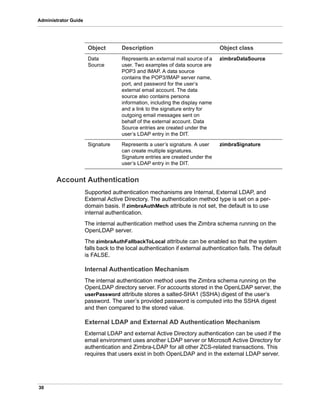
Data
Source
Represents an external mail source of a
user. Two examples of data source are
POP3 and IMAP. A data source
contains the POP3/IMAP server name,
port, and password for the user’s
external email account. The data
source also contains persona
information, including the display name
and a link to the signature entry for
outgoing email messages sent on
behalf of the external account. Data
Source entries are created under the
user’s LDAP entry in the DIT.
zimbraDataSource
Signature Represents a user’s signature. A user
can create multiple signatures.
Signature entries are created under the
user’s LDAP entry in the DIT.
zimbraSignature
Object Description Object class
31
Zimbra LDAP Service
The external authentication methods attempt to bind to the specified LDAP
server using the supplied user name and password. If this bind succeeds, the
connection is closed and the password is considered valid.
The zimbraAuthLdapURL and zimbraAuthLdapBindDn attributes are required
for external authentication.
 zimbraAuthLdapURL attribute ldap://ldapserver:port/ identifies the IP
address or host name of the external directory server, and port is the port
number. You can also use the fully qualified host name instead of the port
number.
For example:
ldap://server1:3268
ldap://exch1.acme.com
If it is an SSL connection, use ldaps: instead of ldap:. The SSL certificate
used by the server must be configured as a trusted certificate.
 zimbraAuthLdapBindDn attribute is a format string used to determine
which DN to use when binding to the external directory server.
During the authentication process, the user name starts out in the format:
user@domain.com
The user name might need to be transformed into a valid LDAP bind DN
(distinguished name) in the external directory. In the case of Active
Directory, that bind dn might be in a different domain.
Custom Authentication
You can implement a custom authentication to integrate external
authentication to your proprietary identity database. When an authentication
request comes in, Zimbra checks the designated auth mechanism for the
domain. If the auth mechanism is set to custom authentication, Zimbra
invokes the registered custom auth handler to authenticate the user.
To set up custom authentication, prepare the domain for the custom auth and
register the custom authentication handler.
Preparing a domain for custom auth
To enable a domain for custom auth, set the domain attribute, zimbraAuthMet
to custom:{registered-custom-auth-handler-name}.
In the following example, “sample” is the name that custom authentication is
registered under.
zmprov modifydomain {domain|id} zimbraAuthMech custom:sample.
Register a custom authentication handler.
To register a custom authentication handler, invoke
ZimbraCustomAuth.register [handlerName, handler] in the init method of the
32
Administrator Guide
extension.
 Class: com.zimbra.cs.account.ldap.ZimbraCustomAuth
 Method: public synchronized static void register [String handlerName,
ZimbraCustomAuth handler]
Definitions
• handlerName is the name under which this custom auth handler is
registered to Zimbra’s authentication infrastructure. This name is set in
the domain’s zimbraAuthMech attribute of the domain.
• handler is the object on which the authenticate method is invoked for
this custom auth handler. The object has to be an instance of
ZimbraCustomAuth (or subclasses of it).
Example
How Custom Authentication Works
When an authentication request comes in, if the domain is specified to use
custom auth, the authenticating framework invokes the authenticate method
on the ZimbraCustomAuth instance passed as the handler parameter to
ZimbraCustomAuth.register ().
The account object for the principal to be authenticated and the clear-text
password entered by the user are passed to ZimbraCustomAuth.authenticate
(). All attributes of the account can be retrieved from the account object.
Kerberos5 Authentication Mechanism
Kerberos5 Authentication Mechanism authenticates users against an external
Kerberos server.
1. Set the domain attribute zimbraAuthMech to kerberos5.
2. Set the domain attribute zimbraAuthKerberos5Realm to the Kerberos5
realm in which users in this domain are created in the Kerberos database.
public class SampleExtensionCustomAuth implements ZimbraExtension {
public void init() throws ServiceException {
/*
* Register to Zimbra's authentication infrastructure
*
* custom:sample should be set for domain attribute zimbraAuthMech
*/
ZimbraCustomAuth.register("sample", new SampleCustomAuth());
}
...
}
33
Zimbra LDAP Service
When users log in with an email password and the domain,
zimbraAuthMech is set to kerberos5, the server constructs the Kerberos5
principal by {localpart-of-the-email}@{value-of-
zimbraAuthKerberos5Realm} and uses that to authenticate to the
kerberos5 server.
To specify Kerberos5 for an individual account set the account’s
zimbraForeignPrincipal as kerberos5:{kerberos5-principal}. For example:
kerberos5:user1@MYREALM.COM.
Global Address List
The Global Address List (GAL) is a company directory of users, usually within
the organization itself, that is available to all users of the email system. ZCS
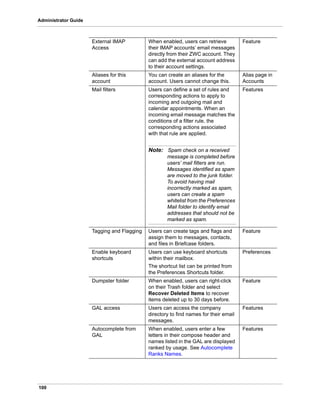
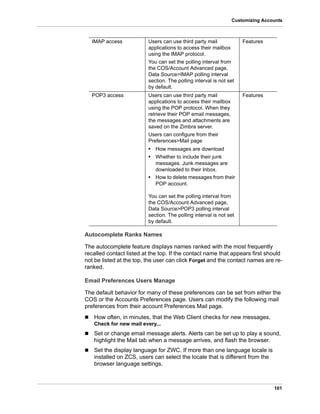
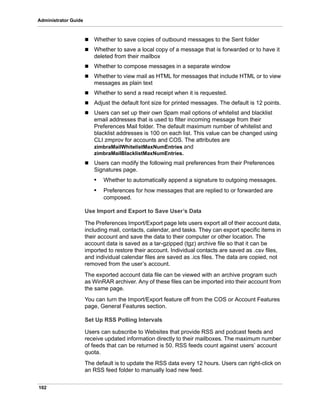
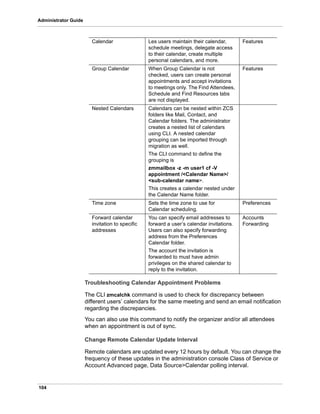
uses the company directory to look up user addresses from within the
company.
For each ZCS domain you can configure GAL to use:
 External LDAP server
 ZCS internal LDAP server
 Both external LDAP server and OpenLDAP in GAL searches
The ZCS Web Client can search the GAL. When the user searches for a
name, that name is turned into an LDAP search filter similar to the following
example, where the string %s is the name the user is searching for.
GAL Attributes in ZCS
The Attributes Mapped to ZCS Contact table maps generic GAL search
attributes to their ZCS contact fields.
LDAP attributes are mapped to GAL entry fields. For example, the LDAP
attribute displayName and cn can be mapped to GAL entry field fullName. The
mapping is configured in the zimbraGalLdapAttrMap attribute.
(|(cn = %s*)(sn=%s*)(gn=%s*)(mail=%s*))
(zimbraMailDeliveryAddress = %s*)
(zimbraMailAlias=%s*)
(zimbraMailAddress = %s*)
Table 1: Attributes Mapped to ZCS Contact
Standard LDAP Attribute ZCS Contact Field
co workCountry
company Company
givenName/gn firstName
sn lastName
34
Administrator Guide
ZCS GAL Search Parameters
GAL is configured on a per-domain basis. To configure the attributes, you can
run the GAL Configuration Wizard from the administration console.
Modifying Attributes
Additions, changes and deletions to the GAL attributes are made through the
Zimbra administration console or from the zmprov CLI utility.
Users can modify attributes for their account in the directory when users
change their options from the Zimbra Web Client, they also modify the
attributes when they change their preferences.
Flushing LDAP Cache
When you modify the following type of entries in the Zimbra LDAP server, you
might need to flush the LDAP cache to make the change available on the
server.
 Themes
 Locales
 Account
 Groups
 COS
cn fullName
initials initials
l workCity
street, streetaddress workStreet
postalCode workPostalCode
telephoneNumber workPhone
mobile mobile
pager pager
facisimileTelephoneNumber faxNumber
st workState
title jobTitle
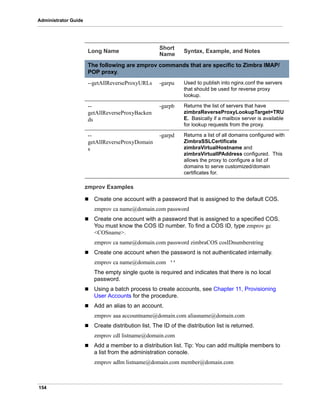
mail email
objectClass Not currently mapped
Table 1: Attributes Mapped to ZCS Contact
Standard LDAP Attribute ZCS Contact Field
35
Zimbra LDAP Service
 Domains
 Global configuration
 Server
 Zimlet configuration
Flush the Cache for Themes and Locales
When you add or change theme (skin) property files and locale resource files
for ZCS on a server, you must flush the cache to make the new content
available.
 To flush skins, type zmprov flushCache skin.
 To flush locales, type zmprov flushCache locale.
Flush Accounts, Groups, COS, Domains, and Servers
When you modify the account, COS, groups, domain, and server attributes,
the change is effective immediately on the server to which the modification is
done. On the other servers, the LDAP entries are automatically updated after
a period of time if the attributes are cached.
The default ZCS setting to update the server is 15 minutes. The caching
period is configured on local config key.
 To change the setting, type
zmlocalconfig ldap_cache_<object>_maxage.
 To make changes available immediately, type
zmprov flushCache [account|cos|domain|group|server] [name|id].
If you do not specify a name or ID along with the type, all entries in cache
for that type are flushed and the cache is reloaded.
Note: Some server attributes require a server restart even after the cache is
flushed. For example, settings like bind port or number of processing
threads.
Flush Global Attributes
When you modify global config attributes, the changes are effective
immediately on the server to which the modification is done. On other mailbox
servers, you must flush the cache to make the changes available or restart the
server. LDAP entries for global config attributes do not expire.
Some global config attributes are computed into internal representations only
once per server restart. For efficiency reasons, changes to those attributes are
not effective until after a server restart, even after the cache is flushed. Also,
some global configuration settings and server settings that are inherited from
global config are only read once at server startup, for example port or number
36
Administrator Guide
of processing threads. Modifying these types of attributes requires a server
restart.
To flush the cache for global config changes on all servers:
1. Modify the setting on the local server
zmprov mcf zimbraImapClearTextLoginEnabled TRUE
The change is only effective on the server
zimbra_zmprov_default_soap_server, port zimbra_admin-service_port.
2. Flush the global config cache on all other servers, zmprov flushCache
must be issued on all servers, one at a time. For example:
zmprov –s server-2 flushcache config
zmprov –s server-3 flushcache config
3. To determine if the action requires a restart
zmprov desc -a <attributename>.
The requiresRestart value is added to the output if a restart is required.
Zimbra Collaboration Server 37
5 Zimbra Mail Transfer Agent
The Zimbra MTA (Mail Transfer Agent) receives mail via SMTP and routes
each message using Local Mail Transfer Protocol (LMTP) to the appropriate
Zimbra mailbox server.
Topics in this chapter include:
Zimbra MTA Deployment
SMTP Authentication
Anti-Virus and Anti-Spam Protection
Receiving and Sending Mail
The Zimbra MTA server includes the following programs:
 Postfix MTA for mail routing, mail relay, and attachment blocking.
 Clam AntiVirus for scanning email messages and attachments in email
messages for viruses.
 SpamAssassin to identify unsolicited commercial email (spam).
 Amavisd-New used as an interface between Postfix and ClamAV /
SpamAssassin.
 Milter servers to filter email ReciptTo content for alias domains and to filter
restricted sender addresses for distribution lists.
In the ZCS configuration, mail transfer and delivery are distinct functions.
Postfix primarily acts as a MTA, and the Zimbra mail server acts as a Mail
Delivery Agent (MDA).
The MTA configuration is stored in LDAP. A configuration script polls the LDAP
directory every two minutes for modifications and updates the Postfix
configuration files with the changes.
Zimbra MTA Deployment
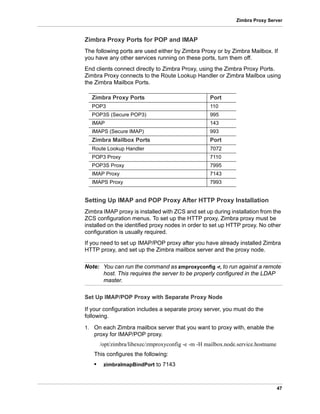
ZCS includes a precompiled version of Postfix to route and relay mail and
manage attachments. Postfix receives inbound messages via SMTP, performs
anti-virus and anti-spam filtering and hands off the mail messages to the ZCS
server via LMTP.
38
Administrator Guide
Postfix also plays a role in transferring outbound messages. Messages
composed from the Zimbra Web Client are sent by the Zimbra server through
Postfix, including messages sent to other users on the same server.
Postfix in a Zimbra Environment
*The Edge MTA can be any edge security solution for mail. You might already
deploy such solutions for functions such as filtering. Some filtering might be
duplicated between an edge MTA and the Zimbra MTA.
Postfix Configuration Files
Zimbra modified the following Postfix files specifically to work with ZCS:
 main.cf. Modified to include the LDAP tables. The configuration script in
the Zimbra MTA pulls data from the Zimbra LDAP and modifies the Postfix
configuration files.
 master.cf. Modified to use Amavisd-New.
Important: Do not modify the Postfix configuration files! Changes you make
will be overwritten.
SMTP Authentication
SMTP authentication allows authorized mail clients from external networks to
relay messages through the Zimbra MTA. The user ID and password is sent to
the MTA when the SMTP client sends mail so that the MTA can verify if the
user is allowed to relay mail.
Zimbra MTA
Zimbra mail server
SMTP
LMTP
Storage format
Edge MTA*
Spam and Virus filtering
Message blocking (some types)
Mail routing
Mail relay
Alias/list expansion
Directory services
Alias/list information
Routing to Zimbra hosts
Virus and Spam filtering
(Postfix)
(optional)
39
Zimbra Mail Transfer Agent
Note: User authentication is provided through the Zimbra LDAP directory
server, or if implemented, through the Microsoft Active Directory Sever.
SMTP Restrictions
You can enable restrictions so that messages are not accepted by Postfix
when non-standard or other disapproved behavior is exhibited by an incoming
SMTP client. These restrictions provide some protection against spam
senders. By default, clients that do not greet with a fully qualified domain
name are restricted. DNS based restrictions are also available.
Important: Understand the implications of these restrictions before you
implement them. You might have to compromise on these checks to
accommodate people outside of your system who have poorly implemented
mail systems.
Sending Non Local Mail to a Different Server
You can configure Postfix to send nonlocal mail to a different SMTP server,
commonly referred to as a relay or smart host.
A common use case for a relay host is when an ISP requires that all your
email be relayed through a designated host, or if you have filtering SMTP
proxy servers.
The relay host setting must not be confused with Web mail MTA setting. Relay
host is the MTA to which Postfix relays non-local email. Webmail MTA is used
by the Zimbra server for composed messages and must be the location of the
Postfix server in the Zimbra MTA package.
Configure Relay MTA for external delivery from the administration console,
Global Settings>MTA page.
Important: Use caution when setting the relay host to prevent mail loops.
Anti-Virus and Anti-Spam Protection
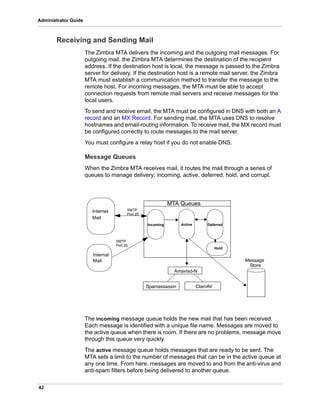
The Amavisd-New utility is the interface between the Zimbra MTA and Clam
AV and SpamAssassin scanners.
Anti-Virus Protection
Clam AntiVirus software is the virus protection engine enabled for each ZCS
server.
The anti-virus software is configured to put messages that have been
identified as having a virus to the virus quarantine mailbox. By default, the
Zimbra MTA checks every two hours for any new anti-virus updates from
ClamAV. You can change this from the administration console, Global
Settings>AS/AV page.
40
Administrator Guide
Note: Updates are obtained via HTTP from the ClamAV website.
Anti-Spam Protection
Zimbra uses SpamAssassin to identify unsolicited commercial email (spam)
with learned data stored in either the Berkeley DB database or a MySQL
database.
SpamAssassin uses predefined rules as well as a Bayes database to score
messages with a numerical range. Zimbra uses a percentage value to
determine "spaminess" based on a SpamAssassin score of 20 as 100%. Any
message tagged between 33%-75% is considered spam and delivered to the
user’s junk folder. Messages tagged above 75% are always considered spam
and discarded.
By default, Zimbra uses the Berkeley DB database for spam training. You can
also use a MySQL database.
 To use the MySQL method on the MTA servers, set
zmlocalconfig -e antispam_mysql_enabled=TRUE
When this is enabled, Berkeley DB database is not enabled.
Note: The DSPAM spam filter is also included with ZCS, but the default is to
not enable DSPAM. You can enable DSPAM by setting the localconfig
attribute amavis_dspam_enabled to TRUE on the MTA servers.
zmlocalconfig -e amavis_dspam_enabled=true
Training the Spam Filter
How well the anti-spam filter works depends on user input to recognize what is
considered spam or ham. The SpamAssassin filter learns from messages that
users specifically mark as spam by sending them to their junk folder or not
spam by removing them from their junk folder. A copy of these marked
messages is sent to the appropriate spam training mailbox.
At installation, a spam/ham cleanup filter is configured on only the first MTA.
The ZCS spam training tool, zmtrainsa, is configured to automatically retrieve
these messages and train the spam filter. The zmtrainsa script empties these
mailboxes each day.
Note: New installs of ZCS limit spam/ham training to the first MTA installed. If
you uninstall or move this MTA, you will need to enable spam/ham
training on another MTA, as one host should have this enabled to run
zmtrainsa --cleanup.
To set this on a new MTA server
zmlocalconfig -e zmtrainsa_cleanup_host=TRUE
41
Zimbra Mail Transfer Agent
Initially, you might want to train the spam filter manually to quickly build a
database of spam and non-spam tokens, words, or short character sequences
that are commonly found in spam or ham. To do this, you can manually
forward messages as message/rfc822 attachments to the spam and non-
spam mailboxes. When zmtrainsa runs, these messages are used to teach the
spam filter. Make sure you add a large enough sampling of messages to get
accurate scores. To determine whether to mark messages as spam at least
200 known spams and 200 known hams must be identified.
SpamAssassin’s sa-update tool is included with SpamAssassin. This tool
updates SpamAssassin rules from the SA organization. The tool is installed
into /opt/zimbra/zimbramon/bin.
Setting Up Trusted Networks
The ZCS configuration allows relaying only for the local network, but you can
configure trusted networks that are allowed to relay mail. You set the MTA
trusted networks as a global setting, but you can configure trusted networks as
a server setting. The server setting overrides the global setting.
This can be configured from the administration console.
To set up MTA trusted networks as a global setting, go to the Configure >
Global Settings > MTA page and in the MTA Trusted Networks field enter the
trusted network addresses.
To set up MTA trusted networks on a per server basis, make sure that MTA
trusted networks have been set up as global settings and then go the
Configure > Servers > MTA page and in the MTA Trusted Networks field enter
the trusted network addresses for the server.
Enter the network addresses separated by commas and/or a space. Continue
long lines by starting the next line with space.
Examples of how to type the addresses:
 127.0.0.0/8, 168.100.189.0/24
 No commas: 127.0.0.0/8 168.100.189.0/24 10.0.0.0/8 [::1]/128
[fe80::%eth0]/64
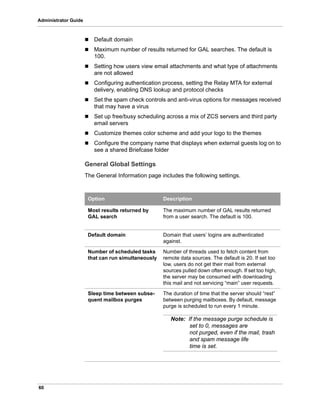
Enabling a Milter Server
Milter server can be enabled to run a Postfix SMTP Access Policy Daemon
that validates RCPT To: content specifically for alias domains to reduce the risk
of backscatter spam. This can be enabled globally or for specific servers from
the administration console.
To configure globally, enable the milter server from the Configure>Global
Settings>MTA page.
To enable milter server for a specific server, go to the Configure>Servers>
MTA page. You can set milter server bind addresses for individual servers.
42
Administrator Guide
Receiving and Sending Mail
The Zimbra MTA delivers the incoming and the outgoing mail messages. For
outgoing mail, the Zimbra MTA determines the destination of the recipient
address. If the destination host is local, the message is passed to the Zimbra
server for delivery. If the destination host is a remote mail server, the Zimbra
MTA must establish a communication method to transfer the message to the
remote host. For incoming messages, the MTA must be able to accept
connection requests from remote mail servers and receive messages for the
local users.
To send and receive email, the MTA must be configured in DNS with both an A
record and an MX Record. For sending mail, the MTA uses DNS to resolve
hostnames and email-routing information. To receive mail, the MX record must
be configured correctly to route messages to the mail server.
You must configure a relay host if you do not enable DNS.
Message Queues
When the Zimbra MTA receives mail, it routes the mail through a series of
queues to manage delivery; incoming, active, deferred, hold, and corrupt.
The incoming message queue holds the new mail that has been received.
Each message is identified with a unique file name. Messages are moved to
the active queue when there is room. If there are no problems, message move
through this queue very quickly.
The active message queue holds messages that are ready to be sent. The
MTA sets a limit to the number of messages that can be in the active queue at
any one time. From here, messages are moved to and from the anti-virus and
anti-spam filters before being delivered to another queue.
Internet
Active Deferred
Hold
Incoming
SMTP
Port 25
SMTP
Port 25
Internal
Mail
Mail
Spamassassin ClamAV
Amavisd-N
MTA Queues
Message
Store
43
Zimbra Mail Transfer Agent
Messages that cannot be delivered are placed in the deferred queue. The
reasons for the delivery failures are documented in a file in the deferred
queue. This queue is scanned frequently to resend the message. If the
message cannot be sent after the set number of delivery attempts, the
message fails and is bounced back to the original sender. You can choose to
send a notification to the sender that the message has been deferred.
The hold message queue keeps mail that could not be processed. Messages
stay in this queue until the administrator moves them. No periodic delivery
attempts are made for messages in the hold queue.
The corrupt queue stores damaged unreadable messages.
You can monitor the mail queues for delivery problems from the administration
console. See Chapter 12, Monitoring ZCS Servers.
44
Administrator Guide
Zimbra Collaboration Server 45
6 Zimbra Proxy Server
Zimbra Proxy is a high-performance proxy server that can be configured as a
POP and IMAP proxy server and for reverse proxy HTTP requests.
The Zimbra Proxy package is installed and configured during the ZCS
installation. You can install this package on a mailbox server, MTA server, or
on its own independent server. When the Zimbra Proxy package is installed,
the proxy feature is enabled. In most cases, no modification is necessary.
Topics in this chapter include:
Proxy Components
Proxy Architecture and Flow
Change the Zimbra Proxy Configuration
Zimbra IMAP/POP Proxy
Configure ZCS HTTP Proxy
Configure Zimbra Proxy for Kerberos Authentication
Proxy Components
Zimbra Proxy components include:
 Zimbra Nginx. An IMAP/POP3 proxy server that handles all incoming POP/
IMAP requests.
 Memached. A distributed memory object caching system. Route
information is cached for further use to increase performance.
 Zimbra Proxy Route Lookup Handler. Servlet that handles queries for the
user account route information.
Proxy Architecture and Flow
The following sequence describes the architecture and flow of Zimbra Proxy.
1. End clients connect to Zimbra Proxy using a POP or IMAP or HTTP
requests to a backend server. Nginx handles the incoming POP and IMAP
requests.
46
Administrator Guide
2. When Zimbra Proxy receives an incoming connection, Nginx sends an
HTTP request to the Route Lookup Handler, a servlet located on the
mailbox server. this servlet processes the server and port information of
the user account.
3. The Route Lookup Handler locates the route information for the account
and returns this information to Nginx.
4. The Memcached component stores the route information for a configured
period of time. By default, this time is one hour. Nginx uses this route
information until the time expires, instead of querying the Route Lookup
Handler.
5. Nginx uses the route information to connect to Zimbra Mailbox.
6. Zimbra Proxy connects to Zimbra Mailbox and initiates the mail proxy
session. The end client behaves as if it is connecting directly to Zimbra
Mailbox.
Change the Zimbra Proxy Configuration
When Zimbra proxy is configured, the Zimbra proxy config performs keyword
substitution as necessary with values from the ZCS LDAP configuration and
localconfig.
If changes are required after the Zimbra Proxy is set up, modify the Zimbra
LDAP attributes or localconfig values and run zmconfigd to generate the
updated Zimbra Proxy configuration. The Zimbra proxy configuration file is in /
opt/zimbra/conf/nginx.conf. The nginx.conf includes the main config,
memcache config, mail config, and web config files.
Common changes to Zimbra Proxy configuration are IMAP/POP configuration
changes from the original default setup
 HTTP reverse proxy configuration changes from the original default setup
 GSSAPI authentication for Kerberos. In this case you manually identify the
location of the Kerberos Keytab file, including Zimbra Proxy password
Zimbra IMAP/POP Proxy
Zimbra IMAP/POP Proxy allows end users to access their ZCS account using
end clients such as Microsoft Outlook, Mozilla Thunderbird, or other POP/
IMAP end-client software. End users can connect using POP3, IMAP, POP3S
(Secure POP3), or IMAPS (Secure IMAP).
For example, proxying allows users to enter imap.example.com as their IMAP
server. The proxy running on imap.example.com inspects their IMAP traffic,
does a lookup to determine which backend mailbox server a user’s mailbox
lives on and transparently proxies the connection from user’s IMAP client to
the correct mailbox server.
47
Zimbra Proxy Server
Zimbra Proxy Ports for POP and IMAP
The following ports are used either by Zimbra Proxy or by Zimbra Mailbox. If
you have any other services running on these ports, turn them off.
End clients connect directly to Zimbra Proxy, using the Zimbra Proxy Ports.
Zimbra Proxy connects to the Route Lookup Handler or Zimbra Mailbox using
the Zimbra Mailbox Ports.
Setting Up IMAP and POP Proxy After HTTP Proxy Installation
Zimbra IMAP proxy is installed with ZCS and set up during installation from the
ZCS configuration menus. To set up the HTTP proxy, Zimbra proxy must be
installed on the identified proxy nodes in order to set up HTTP proxy. No other
configuration is usually required.
If you need to set up IMAP/POP proxy after you have already installed Zimbra
HTTP proxy, and set up the Zimbra mailbox server and the proxy node.
Note: You can run the command as zmproxyconfig -r, to run against a remote
host. This requires the server to be properly configured in the LDAP
master.
Set Up IMAP/POP Proxy with Separate Proxy Node
If your configuration includes a separate proxy server, you must do the
following.
1. On each Zimbra mailbox server that you want to proxy with, enable the
proxy for IMAP/POP proxy.
/opt/zimbra/libexec/zmproxyconfig -e -m -H mailbox.node.service.hostname
This configures the following:
• zimbraImapBindPort to 7143
Zimbra Proxy Ports Port
POP3 110
POP3S (Secure POP3) 995
IMAP 143
IMAPS (Secure IMAP) 993
Zimbra Mailbox Ports Port
Route Lookup Handler 7072
POP3 Proxy 7110
POP3S Proxy 7995
IMAP Proxy 7143
IMAPS Proxy 7993
48
Administrator Guide
• zimbraImapProxyBindPort to 143
• zimbraImapSSLBindPort to 7993
• zimbraImapSSLProxyBindPort to 993
• zimbraPop3BindPort to 7110
• zimbraPop3ProxyBindPort to110
• zimbraPop3SSLBindPort to 7995
• zimbraPop3SSLProxyBindPort to 995
• zimbralmapCleartextLoginEnabled to TRUE
• zimbraReverseProxyLookupTarget to TRUE
• zimbraPop3CleartextLoginEnabled to TRUE
2. Restart services on the proxy and mailbox servers.
zmcontrol restart
Set Up Proxy Node
1. On each proxy node that has the proxy service installed, enable the proxy
for the web.
/opt/zimbra/libexec/zmproxyconfig -e -m -H proxy.node.service.hostname
This configures the following:
• zimbraImapBindPort to 7143
• zimbraImapProxyBindPort to 143
• zimbraImapSSLBindPort to 7993
• zimbraImapSSLProxyBindPort to 993
• zimbraPop3BindPort to 7110
• zimbraPop3ProxyBindPort to110
• zimbraPop3SSLBindPort to 7995
• zimbraPop3SSLProxyBindPort to 995
• zimbraReverseProxyMailEnabled to TRUE
Set Up a Single Node
If Zimbra proxy is installed with ZCS on the same server, do the following.
1. Enable the proxy for the web.
/opt/zimbra/libexec/zmproxyconfig -e -m -H mailbox.node.service.hostname
This configures the following:
• zimbraImapBindPort to 7143
49
Zimbra Proxy Server
• zimbraImapProxyBindPort to 143
• zimbraImapSSLBindPort to 7993
• zimbraImapSSLProxyBindPort to 993
• zimbraPop3BindPort to 7110
• zimbraPop3ProxyBindPort to110
• zimbraPop3SSLBindPort to 7995
• zimbraPop3SSLProxyBindPort to 995
• zimbraImapCleartextLoginEnabled to TRUE
• zimbraReverseProxyLookupTarget to TRUE
• zimbraPop3CleartextLoginEnabled to TRUE
• zimbraReverseProxyMailEnabled to TRUE
2. Restart services on the proxy and mailbox servers.
zmcontrol restart
Configure ZCS HTTP Proxy
Zimbra Proxy can reverse proxy HTTP requests to the right back-end server.
For example, users can use a web browser to connect to the proxy server at
http://mail.example.com. The connection from users whose mailboxes live on
mbs1. example.com is proxied to mbs1.example.com by the proxy running on
the mail.example.com server,. REST and CalDAV clients, Zimbra Connector
for Outlook, Zimbra Connector for BES, and Zimbra Mobile Sync devices are
also supported by the proxy.
Note: When ZCB is configured in ZCS, the proxy configuration must be
changed from the directions here. See the Zimbra wiki article
Installing Blackberry Enterprise Server in a Zimbra Proxy Environment
at http://wiki.zimbra.com/wiki/
Installing_Blackberry_Enterprise_Server_%28ZCB/
BES%29_in_a_Zimbra_Proxy_Environment.
HTTP reverse proxy routes requests as follows:
 If the requesting URL can be examined to determine the user name, then
the request is routed to the backend mailbox server of the user in the URL.
REST, CalDAV, and Zimbra Mobile Sync are supported through this
mechanism.
 If the request has an auth token cookie (ZM_AUTH_TOKEN), the request is
routed to the backend mailbox server of the authenticated user.
50
Administrator Guide
 If the above methods do not work, the IP hash method is used to load
balance the requests across the backend mailbox servers which are able
to handle the request or do any necessary internal proxying.
Setting Up HTTP Proxy
To set up HTTP proxy, Zimbra Proxy must be installed on the identified nodes.
Note: You can run the command as zmproxyconfig -r, to run against a remote
host. Note that this requires the server to be properly configured in the
LDAP master.
Set Up HTTP Proxy as a Separate Proxy Node
When your configuration includes a separate proxy server follow these steps.
1. On each Zimbra mailbox server that you want to proxy with, enable the
proxy for the web.
/opt/zimbra/libexec/zmproxyconfig -e -w -H mailbox.node.service.hostname
This configures the following:
• zimbraMailReferMode to reverse-proxied. See Note below.
• zimbraMailPort to 8080, to avoid port conflicts.
• zimbraMailSSLPort to 8443, to avoid port conflicts.
• zimbraReverseProxyLookupTarget to TRUE
• zimbraMailMode to http. This is the only supported mode.
2. Restart services on the proxy and mailbox servers.
zmcontrol restart
3. Configure each domain with the public service host name to be used for
REST URLs, email, and Briefcase folders.
zmprov modifyDomain <domain.com> zimbraPublicServiceHostname
<hostname.domain.com>
Set Up Proxy Node
1. On each proxy node that has the proxy service installed, enable the proxy
for the web.
/opt/zimbra/libexec/zmproxyconfig -e -w -H proxy.node.service.hostname
This configures the following:
• zimbraMailReferMode to reverse-proxied. See Note below.
• zimbraMailProxyPort to 80, to avoid port conflicts.
• zimbraMailSSLProxyPort to 443, to avoid port conflicts.
51
Zimbra Proxy Server
• zimbraReverseProxyHttpEnabled to TRUE to indicate that Web proxy is
enabled.
• zimbraReverseProxyMailMode defaults to HTTP.
To set the proxy server mail mode, add the -x option to the command with the
specific mode: http, https, both, redirect, mixed.
Set Up a Single Node for HTTP Proxy
If Zimbra proxy is installed along with ZCS on the same server, follow this
step.
1. On each zimbra mailbox server that you want to proxy with, enable the
proxy for the web.
/opt/zimbra/libexec/zmproxyconfig -e -w -H mailbox.node.service.hostname
This configures the following:
• zimbraMailReferMode to reverse-proxied. See Note below.
• zimbraMailPort to 8080, to avoid port conflicts.
• zimbraMailSSLPort to 8443, to avoid port conflicts.
• zimbraReverseProxyLookupTarget to TRUE
• zimbraMailMode to http. This is the only supported mode.
• zimbraMailProxyPort to 80, to avoid port conflicts.
• zimbraMailSSLProxyPort to 443, to avoid port conflicts.
• zimbraReverseProxyHttpEnabled to TRUE to indicate that Web proxy is
enabled.
• zimbraReverseProxyMailMode defaults to HTTP.
To set the proxy server mail mode, add the -x option to the command with
the specific mode: http, https, both, redirect, mixed.
2. Restart services on the proxy and mailbox servers.
zmcontrol restart
Configure each domain with the public service host name to be used for
REST URLs, email and Briefcase folders.
zmprov modifyDomain <domain.com> zimbraPublicServiceHostname
<hostname.domain.com>
REST URL Generation
For REST URL, you set the host name, service protocol, and services port
globally or for a specific domain from the following attributes.
• zimbraPublicServiceHostname
• zimbraPublicServiceProtocol
52
Administrator Guide
• zimbraPublicServicePort
When generating REST URL’s:
• If domain.zimbraPublicServiceHostname is set, use
zimbraPublicServiceProtocol + zimbraPublicServiceHostname +
zimbraPublicServicePort
• Otherwise it falls back to the server (account's home server) attributes:
- protocol is computed from server.zimbraMailMode
- hostname is server.zimbraServiceHostname
- port is computed from the protocol.
Note: Why use zimbraMailReferMode - In earlier versions, a local config
variable called zimbra_auth_always_send_refer determined which
action the back-end server took when a user’s mailbox did not reside
on the server that the user logged in to. The default value of FALSE
redirected the user if the user was logging in on the wrong backend
host.
On a multiserver ZCS, if a load balanced name was needed to create a
friendly landing page, a user would always have to be redirected. In that case,
zimbra_auth_always_send_refer was set to TRUE.
Now with a full-fledged reverse proxy, users do not need to be redirected. The
localconfig variable zimbraMailReferMode is used with nginx reverse proxy.
Set Proxy Trusted IP Addresses
When a proxy is configured with ZCS, each proxy server’s IP address must be
configured in LDAP attribute zimbraMailTrustedIP to identify the proxy
addresses as trusted when users log in through the proxy. The proxy IP
address is added to the X-Forwarded-For header information. The X-
Forwarded-For header is automatically added to the localconfig
zimbra_http_originating_ip_header attribute. When a user logs in, this IP
address and the user’s address are verified in the Zimbra mailbox log.
Set each proxy IP address in the attribute. For example, if you have two proxy
servers:
zmprov mcf +zimbraMailTrustedIP {IP of nginx-1} +zimbraMailTrustedIP {IP of
nginx-2}
Note: To verify that X-Forwarded-For was correctly added to the localconfig,
type zmlocalconfig | grep -i http. You should see zimbra_http
originating_ip_header = X-Forwarded-For.
53
Zimbra Proxy Server
Configure Zimbra Proxy for Kerberos Authentication
If you use the Kerberos5 authenticating mechanism, you can configure it for
the IMAP and POP proxy.
Note: Make sure that your Kerberos5 authentication mechanism is correctly
configured. See Chapter 4, Zimbra LDAP Service.
1. On each proxy node, set the zimbraReverseProxyDefaultRealm server
attribute to the realm name corresponding to the proxy server. For
example:
zmprov ms [DNS name.isp.net] zimbraReverseProxyDefaultRealm [ISP.NET]
2. Each proxy IP address where email clients connect must be configured for
GSSAPI authentication by the mail server. On each proxy node for each of
the proxy IP addresses:
zmprov mcf +zimbraReverseProxyAdminIPAddress [IP address]
3. On each proxy server:
zmprov ms [proxyexample.net] zimbraReverseProxyImapSaslGssapiEnabled
TRUE
zmprov ms proxyl.isp.net zimbraReverseProxyPop3SaslGssapiEnabled TRUE
4. Restart the proxy server
zmproxyctl restart
54
Administrator Guide
Zimbra Collaboration Server 55
7 Using the Administration Console
The Zimbra administration console is a browser-based user interface that
allows you to centrally manage Zimbra servers and user accounts.
Topics in this chapter include:
Administrator Accounts
Log in to the Administration Console
Message of the Day for Administrators
Zimbra Search
Administrator Accounts
When you installed ZCS, one global administrator account is created. Global
administrator can log into the administration console to manage accounts and
server configurations. Additional administrator accounts can be created. All
administrator accounts have equal privileges.
To give administrator privileges to an account, check the Global Administrator
box on the General Information page in the user’s account.
Change Administrator Passwords
The first global administrator password is created at installation. You can
change the password at any time.
 From the admin console Accounts, select the admin account and change
the password.
 From the CLI, type zmprov sp adminname@domain.com password
Log in to the Administration Console
1. To start the console in a typical installation, use the following URL pattern.
https://server.domain.com:7071/
Where server.domain.com is the current running Zimbra server name or IP
address and 7071 is the default HTTP listen port.
2. Enter the complete administrator address as admin@domain.com and the
password.The initial password is configured when ZCS is installed.
56
Administrator Guide
Managing Tasks
You can manage most of the ZCS tasks from the administration console, This
includes creating accounts, setting up COSs, monitoring server status, adding
and removing domains, scheduling backup sessions, and more.
When you are working in the administration console to configure or edit an
item, you can click on the text labels on the configuration pages to see which
zimbra attribute is associated with the field you are configuring.
There are some configuration and maintenance tasks that you cannot perform
from the administration console, such as starting and stopping services and
managing the local server configuration. You perform these tasks with the CLI.
Message of the Day for Administrators
Global administrators can create messages of the day (MOTD) that
administrators view when logging into the administration console.
Every time the administrator logs in the message displays at the top left of the
administration console. The message can be closed, replaced, or removed.
Example of a Message of the Day
Create a Message of the Day
 To create a message globally or for a specific domain (the quotes must be
used):
zmprov md domainexample.com zimbraAdminConsoleLoginMessage “message
to display”
 To create more than one message to display, run the command again to
create additional messages, but add a plus sign (+) before the attribute:
zmprov md domainexample.com +zimbraAdminConsoleLoginMessage “second
message to display”
Remove a Message of the Day
 To remove a specific message, type the attribute, adding a minus sign (-)
before the attribute and type the message:
zmprov md domainexample.com -zimbraAdminConsoleLoginMessage “message
to display”
57
Using the Administration Console
 To remove all messages, type the attribute and add a single quote at the
end:
zmprov md domainexample.com zimbraAdminConsoleLoginMessage ‘’
Zimbra Search
You can use the search field on the administration console header to search
for items by accounts, distribution lists, aliases, domains, or class of service or
you can search through all object types.
If you do not know the complete name, you can enter a partial name. Partial
names can result in a list that has the partial name string anywhere in the
information. You can also use the Zimbra mailbox ID number to search for an
account. To return a search from a mailbox ID, the complete ID string must be
entered in the search.
In the search options section of the Search>Navigation pane you can create a
more specific search The following search options open as individual search
panes to let you select the criteria for the search.
You can also use the unified search from the Help link drop-down to find
answers to common questions. When you use this search, the Zimbra wiki,
forums and documents are searched. The results are displayed in a new
window with links to the information.
Saved Searches section by default includes predefined common search
queries. You can also create and save your own queries. After you enter the
query syntax, click Save Search and give the search a name. The search is
added to the Saved Searches section.
Option Description
Basic Attributes Search for a user by first name, last name,
display name or account ID number. You can
search for administrators or delegated
administrators only.
Status Search for accounts by status: Active, closed
Locked, Lockout, Pending, Maintenance
Last Login Time Search for accounts by the last login time. You
can specify a data range to search.
External Email Address Search for an account with an external email
address.
COS Search for objects by COS or for objects that are
not assigned a COS.
Server Search for accounts on selected servers.
Domains Search for accounts on selected domains.
58
Administrator Guide
Zimbra Collaboration Server 59
8 Managing Configuration
The ZCS components are configured during the initial installation of the
software. After the installation, you can manage the following components
from either the administration console or using the CLI utility.
Topics in this chapter include:
Global Configuration
Working With Domains
Managing Server Settings
Managing SSL Certificates for ZCS
Using DKIM to Authenticate Email Message
Anti-spam Settings
Anti-virus Settings
Zimbra Free/Busy Calendar Scheduling
Storage Management
Email Retention Management
Customized Admin Extensions
Setting System-wide Signatures
Help is available from the administration console about how to perform tasks
from the administration console. If the task is only available from the CLI, see
Zimbra CLI Commands for a description of how to use the CLI utility.
Global Configuration
Global Settings apply to all accounts in the Zimbra servers. They are initially
set during installation. You can modify the settings from the administration
console.
Configurations set in Global Settings define inherited default values for the
following objects: server, account, COS, and domain. If these attributes are
set in the server, the server settings override the global settings.
To configure global settings, go to the administration console Configure >
Global Settings page.
Configured global settings include:
60
Administrator Guide
 Default domain
 Maximum number of results returned for GAL searches. The default is
100.
 Setting how users view email attachments and what type of attachments
are not allowed
 Configuring authentication process, setting the Relay MTA for external
delivery, enabling DNS lookup and protocol checks
 Set the spam check controls and anti-virus options for messages received
that may have a virus
 Set up free/busy scheduling across a mix of ZCS servers and third party
email servers
 Customize themes color scheme and add your logo to the themes
 Configure the company name that displays when external guests log on to
see a shared Briefcase folder
General Global Settings
The General Information page includes the following settings.
Option Description
Most results returned by
GAL search
The maximum number of GAL results returned
from a user search. The default is 100.
Default domain Domain that users’ logins are authenticated
against.
Number of scheduled tasks
that can run simultaneously
Number of threads used to fetch content from
remote data sources. The default is 20. If set too
low, users do not get their mail from external
sources pulled down often enough. If set too high,
the server may be consumed with downloading
this mail and not servicing “main” user requests.
Sleep time between subse-
quent mailbox purges
The duration of time that the server should “rest”
between purging mailboxes. By default, message
purge is scheduled to run every 1 minute.
Note: If the message purge schedule is
set to 0, messages are
not purged, even if the mail, trash
and spam message life
time is set.
61
Managing Configuration
Setting Up Email Attachment Rules
Global email attachment settings allow you to specify global rules for handling
attachments to an email message. You can also set rules by COS and for
individual accounts. When attachment settings are configured in Global
Settings, the global rule takes precedence over COS and Account settings.
The following attachment setting options can be configured from the Global
Settings Advanced page. To set by COS or account, go to their Advanced
page, Attachment Settings section.
Blocking Email Attachments by File Type
You can also reject messages with certain types of files attached. You select
which file types are unauthorized from the Common extensions list. You can
also add other extension types to the list. Messages with those type of files
attached are rejected. By default the recipient and the sender are notified that
the message was blocked. If you do not want to send a notification to the
recipient when messages are blocked, you can disable this option from the
Global Settings>Attachments page.
Global MTA Settings
The Global Settings>MTA page is used to enable or disable authentication
and configure a relay hostname, the maximum message size, enable DNS
lookup, protocol checks, and DNS checks.
Maximum size of an
uploaded file for Briefcase
files (kb)
The maximum size of a file that can be uploaded
into Briefcase. Note: the maximum message size
for an email message and attachments that can
be sent is configured in the Global Settings MTA
page
Admin help URL and Dele-
gated admin help URL
If you do not want to use the ZCS Help, you can
designate the URL that is linked from the
administration console Help
Option Description
Attachments cannot be
viewed regardless of COS
Users cannot view any attachments. This global
setting can be set to prevent a virus outbreak
from attachments, as no mail attachments can be
opened.
Attachments are viewed
according to COS
This global setting states the COS sets the rules
for how email attachments are viewed
Option Description
62
Administrator Guide
Authentication  Authentication should be enabled, to support mobile
SMTP authentication users so that their email client
can talk to the Zimbra MTA.
 TLS authentication only forces all SMTP auth to use
Transaction Level Security to avoid passing
passwords in the clear.
Network  Web mail MTA Host name and Web mail MTA Port. The
MTA that the web server connects to for sending
mail. The default port number is 25.
 The Relay MTA for external delivery is the relay host
name. This is the Zimbra MTA to which Postfix relays
non-local email.
 If your MX records point to a spam-relay or any other
external non-Zimbra server, enter the name of that
server in the Inbound SMTP host name field. This
check compares the domain MX setting against the
zimbraInboundSmtpHostname setting, if set. If this
attribute is not set, the domain MX setting is checked
against zimbraSmtpHostname.
 MTA Trusted Networks. Configure trusted networks
that are allowed to relay mail. Specify a list of network
addresses, separated by commas and/or a space.
 If Enable DNS lookups is checked, the Zimbra MTA
makes an explicit DNS query for the MX record of the
recipient domain. If this option is disabled, set a relay
host in the Relay MTA for external delivery.
 If Allow domain administrators to check MX records
from Admin Console is checked, domain
administrators can check the MX records for their
domain.
Milter Server  If Enable Milter Server is checked, the milter enforces
the rules that are set up for who can send email to a
distribution list.
Archiving
Configuration
 If you installed the Archiving feature, you can enable
it here.
Messages  Set the Maximum messages size for a message and
it’s attachments that can be sent. Note: To set the
maximum size of an uploaded file to Briefcase, go to
the General Information page.
 You can enable the X-Originating-IP header to
messages checkbox. The X-Originating-IP header
information specifies the original sending IP of the
email message the server is forwarding.
63
Managing Configuration
Global IMAP and POP Settings
IMAP and POP access can be enabled as a global setting on the Global
Settings>IMAP or POP pages or by editing a server’s IMAP or POP pages.
When you make changes to the IMAP or POP settings, you must restart ZCS
before the changes take effect.
IMAP and POP3 polling intervals can be set from the administration console
COS Advanced page. The default is to not set the polling interval.
Note: If IMAP/POP proxy is set up, making sure that the port
numbers are configured correctly.
With POP3, users can retrieve their mail stored on the Zimbra server and
download new mail to their computer. The user’s POP configuration in their
Preference>Mail page determines how their messages are downloaded and
saved.
Working With Domains
One domain is identified during the installation process. You can add domains
after installation. From the administration console you can manage the
following domain features.
 Global Address List
 Authentication
 Virtual hosts for the domain to establish a default domain for a user login
 Public service host name that is used for REST URLs, commonly used in
sharing.
 Maximum number of accounts that can be created on the domain
 Free/Busy Interop settings for use with Microsoft Exchange.
Policy Service
Checks
 Customize zimbraMtaRestriction (restrictions to reject
some suspect SMTP clients).
Protocol checks  To reject unsolicited commercial email (UCE), for
spam control.
DNS checks  To reject mail if the client’s IP address is unknown,
the hostname in the greeting is unknown, or if the
sender’s domain is unknown.
 Add other email recipient restrictions to the List of
RBLs field.
Note: RBL (Real time black-hole lists) can be turned on
or off from the Zimbra CLI.
64
Administrator Guide
 Domain SSL certificates
A domain can be renamed and all account, distribution list, alias and resource
addresses are changed to the new domain name. The CLI utility is used to
changing the domain name. See Renaming a Domain.
Note: Domain settings override global settings.
Domain General Information Settings
The Domain>General Information page includes the following options:
 The default time zone for the domain. If a time zone is configured in a COS
or for an account, the domain time zone setting is ignored.
 Public service host name. Enter the host name of the REST URL. This is
commonly used for sharing. See Setting up a Public Service Host Name.
 Inbound SMTP host name. If your MX records point to a spam-relay or any
other external non-Zimbra server, enter the name of the server here.
 Default Class of Service (COS) for the domain. This COS is automatically
assigned to accounts created on the domain if another COS is not set.
 Domain status. The domain status is active in the normal state. Users can
log in and mail is delivered. Changing the status can affect the status for
accounts on the domain also. The domain status is displayed on the
Domain>General page. Domain status can be set as follows:
• Active. Active is the normal status for domains. Accounts can be
created and mail can be delivered. Note: If an account has a different
status setting than the domain setting, the account status overrides the
domain status.
• Closed. When a domain status is marked as closed, Login for accounts
on the domain is disabled and messages are bounced. The closed
status overrides an individual account’s status setting.
• Locked. When a domain status is marked as locked, users cannot log
in to check their email, but email is still delivered to the accounts. If an
account’s status setting is marked as maintenance or closed, the
account’s status overrides the domain status setting.
• Maintenance. When the domain status is marked as maintenance,
users cannot log in and their email is queued at the MTA. If an account’
status setting is marked as closed, the account’s status overrides the
domain status setting.
• Suspended. When the domain status is marked as suspended, users
cannot log in, their email is queued at the MTA, and accounts and
distribution lists cannot be created, deleted, or modified. If an
account’s status setting is marked as closed, the account’s status
overrides the domain status setting.
65
Managing Configuration
Setting up a Public Service Host Name
You can configure each domain with the public service host name to be used
for REST URLs. This is the URL that is used when sharing email folders and
Briefcase folders, as well as sharing task lists, address books, and calendars.
When users share a ZCS folder, the default is to create the URL with the
Zimbra server hostname and the Zimbra service host name. This is displayed
as http://server.domain.com/service/home/username/sharedfolder. The
attributes are generated as follows:
 Hostname is server.zimbraServiceHostname
 Protocol is determined from server.zimbraMailMode
 Port is computed from the protocol
When you configure a public service host name, this name is used instead of
the server/service name, as http://publicservicename.domain.com/home/
username/sharedfolder. The attributes to be used are:
 zimbraPublicServiceHostname
 zimbraPublicServiceProtocol
 zimbraPublicServicePort
You can use another FQDN as long as the name has a proper DNS entry to
point at ‘server’ both internally and externally.
Global Address List (GAL) Mode
The Global Address List (GAL) is your company-wide listing of users that is
available to all users of the email system. GAL is configured on a per-domain
basis. The GAL mode setting for each domain determines where the GAL
lookup is performed.
The GAL Configuration Wizard in the administration console is used to
configure the GAL attributes. The three GAL modes that can be configured
include the following:
 Internal. The Zimbra LDAP server is used for directory lookups.
 External. External directory servers are used for GAL lookups. You can
configure multiple external LDAP hosts for GAL. All other directory
services use the Zimbra LDAP service (configuration, mail routing, etc.).
When you configure an external GAL, you can configure different search
settings and sync settings.You might want to configure different search
settings if your LDAP environment is set up to optimize LDAP searching by
setting up an LDAP cache server, but users also will need to be able to
sync to the GAL.
 Both. Internal and external directory servers are used for GAL lookups.
66
Administrator Guide
Using GAL sync accounts for faster access to GAL
A GAL sync account is created for the domain when an internal or external
GAL is created, and if you have more than one mailbox server, you can create
a GAL sync account for each mailbox server in the domain. Using the GAL
sync account gives users faster access to auto complete names from the
GAL.
When a GAL sync account is created on a server, GAL requests are directed
to the server’s GAL sync account instead of the domain’s GAL sync account.
The GalSyncResponse includes a token which encodes the GAL sync
account ID and current change number. The client stores this and then uses it
in the next GalSyncRequest. Users perform GAL sync with the GAL sync
account they initially sync with. If a GALsync account is not available for some
reason, the traditional LDAP-based search is run.
Note: The GAL sync accounts are system accounts and do not use a Zimbra
license.
When you configure the GAL sync account, you define the GAL datasource
and the contact data is syncd from the datasource to the GAL sync accounts’
address books. If the mode Both is selected, an address book is created in the
account for each LDAP data source.
The GAL polling interval for the GAL sync determines how often the GALsync
account syncs with the LDAP server. The sync intervals can be in x days,
hours, minutes, or seconds. The polling interval is set for each data source.
When the GAL sync account syncs to the LDAP directory, all GAL contacts
from the LDAP are added to the address book for that GAL. During the sync,
the address book is updated with new contact, modified contact and deleted
contact information. You should not modify the address book directly. When
the LDAP syncs the GAL to the address book, changes you made directly to
the address book are deleted.
You create GALsync accounts from the administration console. The CLI
associated with this feature is zmgsautil.
Creating Additional GALsync Accounts
When ZCS is configured with more than one server, you can add an additional
GAL sync account for each server.
1. In the administration console, select Configure>Domains.
2. Select the domain to add another GAL sync account.
3. In the gear box, select Configure GAL.
4. Click Add a GAL account.
5. In the GAL sync account name field, enter the name for this account. Do
not use the default name.
67
Managing Configuration
6. Select the mailbox server that this account will apply to.
7. Enter the GAL datasource name, If the GAL mode is BOTH, enter the data
source name for both the internal GAL and the external GAL.
8. Set the GAL polling interval to how often the GAL sync account should
sync with the LDAP server to update.
9. Click Finish.
Changing GAL sync account name.
The default name for the GAL sync account is galsync. When you configure
the GAL mode, you can specify another name. After the GAL sync account is
created, you cannot rename the account because syncing the data fails.
To change the account name delete the existing GAL sync account and
configure a new GAL for the domain.
1. In the administration console, select Configure>Domains.
2. Select the domain where you want to change the GAL sync account name.
3. In the gear box, select Configure GAL to open the configuration wizard and
change the GAL mode to internal. Do not configure any other fields. Click
Finish.
4. In the domain’s account Content pane, delete the domain’s galsync
account.
5. Select the domain again and select Configure GAL to reconfigure the GAL.
In the GAL sync account name field, enter the name for the account.
Complete the GAL configuration and click Finish. The new account is
displayed in the Accounts Content pane.
Authentication Modes
Authentication is the process of identifying a user or a server to the directory
server and granting access to legitimate users based on user name and
password information provided when users log in. ZCS offers the following
three authentication mechanisms:
 Internal. The Internal authentication uses the Zimbra directory server for
authentication on the domain. When you select Internal, no other
configuration is required.
 External LDAP. The user name and password is the authentication
information supplied in the bind operation to the directory server. You must
configure the LDAP URL, LDAP filter, and to use DN password to bind to
the external server.
 External Active Directory. The user name and password is the
authentication information supplied to the Active Directory server. You
identify the Active Directory domain name and URL.
68
Administrator Guide
The authentication method type is set on a per-domain basis. On the
administration console, you use an authentication wizard to configure the
authentication settings on your domain.
To configure authentication modes, go to the administration console
Configure>Domains, and in the gear box select, Configure Authentication.
Virtual Hosts
Virtual hosting allows you to host more than one domain name on a server.
The general domain configuration does not change. When you create a virtual
host, this becomes the default domain for a user login. Zimbra Web Client
users can log in without having to specify the domain name as part of their
user name.
Virtual hosts are entered on the administration console for a domain on the
Domains>Virtual Hosts page. The virtual host requires a valid DNS
configuration with an A record.
To open the Zimbra Web Client log in page, users enter the virtual host name
as the URL address. For example, https://mail.company.com.
When the Zimbra login screen displays, users enter only their user name and
password. The authentication request searches for a domain with that virtual
host name. When the virtual host is found, the authentication is completed
against that domain.
Renaming a Domain
When you rename a domain you are actually creating a new domain, moving
all accounts to the new domain and deleting the old domain. All account, alias,
distribution list, and resource addresses are changed to the new domain
name. The LDAP is updated to reflect the changes.
Before you rename a domain
 Make sure MX records in DNS are created for the new domain name
 Make sure you have a functioning and current full backup of the domain
After the domain has been renamed
 Update external references that you have set up for the old domain name
to the new domain name. This may include automatically generated
emails that were sent to the administrator’s mailbox such as backup
session notifications
 Immediately run a full backup of the new domain
Rename the domain
zmprov -l rd [olddomain.com] [newdomain.com]
69
Managing Configuration
Domain Rename Process
When you run this zmprov command, the domain renaming process goes
through the following steps:
1. The status of the old domain is changed to an internal status of shutdown,
and mail status of the domain is changed to suspended. Users cannot
login, their email is bounced by the MTA, and accounts, calendar
resources and distribution lists cannot be created, deleted or modified.
2. The new domain is created with the status of shutdown and the mail status
suspended.
3. Accounts, calendar resources, distribution lists, aliases, and resources are
all copied to the new domain.
4. The LDAP is updated to reflect the new domain address.
5. The old domain is deleted.
6. The status for the new domain is changed to active. The new domain can
start accepting email messages.
Adding a Domain Alias
A domain alias allows different domain names to direct to a single domain
address. For example, your domain is domain.com, but you want users to
have an address of example.com, you can create example.com as the alias
for the domain.com address. Sending mail to user@example.com is the same
as sending mail to user@domain.com.
Note: A domain alias is a domain name just like your primary domain name.
You must own the domain name and verify your ownership before you
can add it as an alias.
To add a domain alias, go to the administration console Configure>Domains,
and in the gear box select, Add a Domain Alias.
Zimlets on the Domain
All Zimlets that are deployed are displayed in the domain’s Zimlets page. If you
do not want all the deployed Zimlets made available for users on the domain,
select from the list the Zimlets that are available for the domain. This overrides
the Zimlet settings in the COS or for an account.
Managing Server Settings
A server is a machine that has one or more of the Zimbra service packages
installed. During the installation, the Zimbra server is automatically registered
on the LDAP server.
70
Administrator Guide
In the administration console, you can view the current status of all the servers
that are configured with Zimbra software, and you can edit or delete existing
server records. You cannot add servers directly to LDAP. The ZCS Installation
program must be used to add new servers because the installer packages are
designed to register the new host at the time of installation.
The server settings that can be viewed from the admin console, Configure
Servers link for a specific server include:
 General information about the service host name, and LMTP advertised
name and bind address, and the number of threads that can
simultaneously process data source imports.
 A list of enabled services. You can disable and enable the services.
 Authentication types enabled for the server, setting a Web mail MTA
hostname different from global. Setting relay MTA for external delivery,
and enabling DNS lookup if required. Enable the Milter Server and set the
bind address.
 Enabling POP and IMAP and setting the port numbers for a server. If
IMAP/POP proxy is set up, making sure that the port numbers are
configured correctly.
 Index and message volumes configuration.
 IP Address Bindings. If the server has multiple IP addresses, IP Address
binding allows you to specify which interface to bind to.
 Proxy settings if proxy is configured.
 Backup and Restore configuration for the server. When backup and
restore is configured for the server, this overrides the global backup and
restore setting.
Servers inherit global settings if those values are not set in the server
configuration. Settings that can be inherited from the Global configuration
include MTA, SMTP, IMAP, POP, anti-virus, and anti-spam configurations.
General Server Settings
The General Information page includes the following configuration information:
 Server display name and a description field
 Server hostname
 LMTP information including advertised name, bind address, and number
of threads that can simultaneously process data source imports. The
default is 20 threads.
 Purge setting. The server manages the message purge schedule. You
configure the duration of time that the server should “rest” between
purging mailboxes from the administration console, Global settings or
Server settings, General Information page. By default, message purge is
scheduled to run every 1 minute.
71
Managing Configuration
 When installing a reverse proxy the communication between the proxy
server and the backend mailbox server must be in plain text. Checking
This server is a reverse proxy lookup target automatically sets the
following:
• zimbraImapCleartextLoginEnabled=TRUE
• zimbraReverseProxyLookupTarget=TRUE
• zimbraPop3CleartextLoginEnabled=TRUE
The Notes text box can be used to record details you want to save.
Change MTA Server Settings
The MTA page shows the following settings:
 Authentication enabled. Enables SMTP client authentication, so users can
authenticate. Only authenticated users or users from trusted networks are
allowed to relay mail. TLS authentication when enabled, forces all SMTP
auth to use Transaction Level Security (similar to SSL) to avoid passing
passwords in the clear.
 Network settings, including Web mail MTA hostname, Web mail MTA
timeout, the relay MTA for external delivery, MTA trusted networks ID, and
the ability to enable DNS lookup for the server.
 Milter Server. If Enable Milter Server is checked, the milter enforces the
rules that are set up for who can send email to a distribution list on the
server.
Setting Up IP Address Binding
If the server has multiple IP addresses, you can use IP address binding to
specify which specific IP addresses you want a particular server to bind to.
You can configure the following from the administration console, Configure >
Servers, IP Address Binding page.
Option Description
Web Client Server IP
Address
Interface address on which the HTTP server
listens
Web Client Server SSL IP
Address
Interface address on which the HTTPS server
listens
Web Client Server SSL Cli-
ent Cert IP Address
Interface address on which HTTPS server
accepting the client certificates listen
Admin Console Server IP
Address
Administrator console Interface address on which
HTTPS server listens
72
Administrator Guide
Managing SSL Certificates for ZCS
A certificate is the digital identity used for secure communication between
different hosts or clients and servers. Certificates are used to certify that a site
is owned by you.
Two types of certificates can be used - self-signed and commercial
certificates.
 A self-signed certificate is an identity certificate that is signed by its own
creator.
You can use the Certificate Installation Wizard to generate a new self-
signed certificate. This is useful when you use a self-signed certificate and
want to change the expiration date. The default is 1825 days (5 years).
Self-signed certificates are normally used for testing.
 A commercial certificate is issued by a certificate authority (CA) that
attests that the public key contained in the certificate belongs to the
organization (servers) noted in the certificate.
When Zimbra Collaboration Server is installed, the self-signed certificate is
automatically installed and can be used for testing Zimbra Collaboration
Server. You should generate install the commercial certificate when Zimbra
Collaboration Server is used in your production environment.
Installing Certificates
To generate the CSR, you complete a form with details about the domain,
company, and country, and then generate a CSR with the RSA private key.
You save this file to your computer and submit it to your commercial certificate
authorizer.
To obtain a commercially signed certificate, use the Zimbra Certificates Wizard
in the administration console to generate the RSA Private Key and Certificate
Signing Request (CSR). Go to Home > Certificates and in the gear icon select
Install Certificates. The Certificate Installation Wizard dialog box displays.
You enter the following information in the wizard:
Option Description
Common Name (CN) Exact domain name that should be used to
access your Web site securely.
Are you going to use a wildcard common name?
If you want to manage multiple sub domains on a
single domain on the server with a single
certificate, check this box. An asterisk (*) is added
to the Common Name field.
Country Name (C) County name you want the certificate to display
as our company location
73
Managing Configuration
Download the CSR from the Zimbra server and submit it to a Certificate
Authority, such as VeriSign or GoDaddy. They issue a digitally signed
certificate.
When you receive the certificate, use the Certificates Wizard a second time to
install the certificate on the ZCS. When the certificate is installed, you must
restart the server to apply the certificate.
Viewing Installed Certificates
You can view the details of certificates currently deployed. Details include the
certificate subject, issuer, validation days and subject alternative name. To
view installed certificates, go to Home > Certificates and select a service host
name. Certificates display for different Zimbra services such as LDAP,
mailboxd, MTA and proxy.
Maintaining Valid Certificates
It is important to keep your SSL certificates valid to ensure clients and
environments work properly, as the ZCS system can become non-functional if
certificates are allowed to expire. You can view deployed SSL certificates from
the ZCS administrator console, including their validation days. It is suggested
that certificates are checked periodically, so you know when they expire and to
maintain their validity.
Install a SSL Certificate for a Domain
You can install an SSL certificate for each domain on a ZCS server. Zimbra
Proxy must be installed on ZCS and correctly configured to support multiple
domains. For each domain, a virtual host name and Virtual IP address are
configured with the virtual domain name and IP address.
State/Province (ST) State/province you want the certificate to display
as your company location.
City (L) City you want the certificate to display as your
company location.
Organization Name (O) Your company name
Organization Unit (OU) Unit name (if applicable)
Subject Alternative Name
(SAN)
If you are going to use a SAN, the input must be a
valid domain name. When SAN is used, the
domain name is compared with the common
name and then to the SAN to find a match. You
can create multiple SANs. When the alternate
name is entered here, the client ignores the
common name and tries to match the server
name to one of the SAN names.
Option Description
74
Administrator Guide
Each domain must be issued a signed commercial certificate that attests that
the public key contained in the certificate belongs to that domain.
1. Configure the Zimbra Proxy Virtual Host Name and IP Address.
zmprov md <domain> +zimbraVirtualHostName {domain.example.com}
+zimbraVirtualIPAddress {1.2.3.4}
Note: The virtual domain name requires a valid DNS configuration with an
A record.
2. Go to the administration console and edit the domain. Copy the domain’s
issued signed commercial certificate’s and private key files to the
Domain>Certificate page.
3. Copy the root certificate and the intermediate certificates in descending
order, starting with your domain certificate. This allows the full certificate
chain to be validated.
4. Remove any password authentication from the private key before the
certificate is saved.
See your commercial certificate provider for details about how to remove
the password.
5. Click Save.
The domain certificate is deployed to /opt/zimbra/conf/domaincerts
Using DKIM to Authenticate Email Message
Domain Keys Identified Mail (DKIM) defines a domain-level authentication
mechanism that lets your organization take responsibility for transmitting an
email message in a way that can be verified by a recipient. Your organization
can be the originating sending site or an intermediary. Your organization’s
reputation is the basis for evaluating whether to trust the message delivery.
You can add a DKIM digital signature to outgoing email messages, associating
the message with a domain name of your organization. You can enable DKIM
signing for any number of domains that are being hosted by ZCS. It is not
required for all domains to have DKIM signing enabled for the feature to work.
DKIM defines an authentication mechanism for email using
 A domain name identifier
 Public-key cryptography
 DNS-based public key publishing service.
The DKIM signature is added to the email message header field. The header
information look like this example.
75
Managing Configuration
Receivers who successfully validate a DKIM signature can use information
about the signer as part of a program to limit spam, spoofing, phising, or other
undesirable behavior.
Configure ZCS for DKIM Signing
DKIM signing to outgoing mail is done at the domain level. To set up DKIM you
must run the CLI zmdkimkeyutil to generate the DKIM keys and selector. You
then update the DNS server with the selector which is the public key.
1. Log in to the ZCS server and as zimbra, type
/opt/zimbra/libexec/zmdkimkeyutil -a -d <example.com>
The public DNS record data that must be added for the domain to your
DNS server is displayed. The public key DNS record appears as a DNS
TXT-record that must be added for the domain to your DNS server.
Optional. To specify the number of bits for the new key, include -b in the
command line, -b <####>. If you do not add the -b, the default setting is
1024 bits.
The generated DKIM data is stored in the LDAP server as part of the
domain LDAP entry.
2. Work with your service provider to update your DNS for the domain with
the DKIM DNS text record.
3. Reload the DNS and verify that the DNS server is returning the DNS
record.
4. To verify that the public key matches the private key, type
DKIM-Signature a=rsa-sha1; q=dns;
d=example.com;
i=user@eng.example.com;
s=jun2005.eng; c=relaxed/simple;
t=1117574938; x=1118006938;
h=from:to:subject:date;
b=dzdVyOfAKCdLXdJOc9G2q8LoXSlEniSb
av+yuU4zGeeruD00lszZVoG4ZHRNiYzR
DKIM Data added to LDAP for domain example.com with selector
B534F5FC-EAF5-11E1-A25D-54A9B1B23156
Public signature to enter into DNS:
B534F5FC-EAF5-11E1-A25D-54A9B1B23156._domainkey IN TXT "v=DKIM1;
k=rsa; p=MIGfMA0GCSqGSIb3DQEBAQUAA4GNADCBiQKBgQC+ycHjGL/
mJXEVlRZnxZL/VqaN/
Jk9VllvIOTkKgwLSFtVsKC69kVaUDDjb3zkpJ6qpswjjOCO+0eGJZFA4aB4BQjFBHbl
97vgNnpJq1sV3QzRfHrN8X/
gdhvfKSIwSDFFl3DHewKDWNcCzBkNf5wHt5ujeavz2XogL8HfeL0bTwIDAQAB" ; --
--- DKIM B534F5FC-EAF5-11E1-A25D-54A9B1B23156 for example.com
76
Administrator Guide
/opt/zimbra/opendkim/sbin/opendkim-testkey -d <example.com> -s <0E9F184A-
9577-11E1-AD0E-2A2FBBAC6BCB> -x /opt/zimbra/conf/opendkim.conf
• -d is the domain name
• -s is the selector name
• -x is the configuration file
Update DKIM Data for a Domain
When the DKIM keys are updated, the DNS server must be reloaded with the
new TXT record.
Good practice is to leave the previous TXT record in DNS for a period of time
so that email messages that were signed with the previous key can still be
verified.
1. Log in to the ZCS server and as zimbra, type
/opt/zimbra/libexec/zmdkimkeyutil -u -d <example.com>
Optional. To specify the number of bits for the new key, include -b in the
command line, -b <####>. If you do not add the -b, the default setting is
1024 bits.
2. Work with your service provider to update your DNS for the domain with
the DKIM DNS text record.
3. Reload the DNS and verify that the DNS server is returning the DNS
record.
4. To verify that the public key matches the private key, type
/opt/zimbra/opendkim/sbin/opendkim-testkey -d <example.com> -s <0E9F184A-
9577-11E1-AD0E-2A2FBBAC6BCB> -x /opt/zimbra/conf/opendkim.conf
• -d is the domain name
• -s is the selector name
• -x is the configuration file
Remove DKIM Signing from ZCS
Removing DKIM signing deletes the DKIM data from LDAP. New email
message no longer are signed for the domain. When you remove DKIM from
the domain, good practice is to leave the previous TXT record in DNS for a
period of time so that email messages that were signed with the previous key
can still be verified.
1. To remove, type
/opt/zimbra/libexec/zmdkimkeyutil -r -d example.com
77
Managing Configuration
Retrieve DKIM Data for a Domain
1. To see the stored DKIM information for the domain, selector, private key,
public signature and identity, type
/opt/zimbra/libexec/zmdkimkeyutil -q -d example.com
Anti-spam Settings
ZCS uses SpamAssassin to control spam. SpamAssassin uses predefined
rules as well as a Bayes database to score messages. Zimbra evaulates
spaminess based on percentage. Messages tagged between 33%-75% are
considered spam and delivered to the user’s junk folder. Messages tagged
above 75% are not sent to the user and are discarded.
You can change the anti-spam settings from the administration console Global
Settings>AS/AV page.
When a message is tagged as spam, the message is delivered to the
recipient’s junk folder. Users can view the number of unread messages that
are in their junk folder and can open the junk folder to review the messages
marked as spam. If you have the anti-spam training filters enabled, when
users add or remove messages in the junk folder, their action helps train the
spam filter. See Anti-Spam Protection.
RBL (Real time black-hole lists) can be turned on or off in SpamAssassin from
the Zimbra CLI.
Anti-Spam Training Filters
The automated spam training filter is enabled by default and two feedback
system mailboxes are created to receive mail notification.
 Spam Training User for mail that was not marked as spam but should be.
 Non-spam (referred to as ham) training user for mail that was marked as
spam but should not have been.
The mailbox quota and attachment indexing is disabled for these training
accounts. Disabling quotas prevents bouncing messages when the mailbox is
full.
How well the anti-spam filter works depends on recognizing what is
considered spam. The SpamAssassin filter learns from messages that users
specifically mark as spam by sending them to their junk folder or not spam by
removing them from their junk folder. A copy of these marked messages is
sent to the appropriate spam training mailbox.
When ZCS is installed, the spam/ham cleanup filter is configured on only the
first MTA. The ZCS spam training tool, zmtrainsa, is configured to
automatically retrieve these messages and train the spam filter. The zmtrainsa
script is enabled through a crontab job to feed mail to the SpamAssassin
application, allowing SpamAssassin to ‘learn’ what signs are likely to mean
spam or ham. The zmtrainsa script empties these mailboxes each day.
78
Administrator Guide
Note: New installs of ZCS limit spam/ham training to the first MTA installed. If
you uninstall or move this MTA, you will need to enable spam/ham
training on another MTA, as one host should have this enabled to run
zmtrainsa --cleanup.
To set this on a new MTA server
zmlocalconfig -e zmtrainsa_cleanup_host=TRUE
Disabling the Spam Training Mailboxes
The ZCS default is that all users can give feedback when they add or remove
items from their junk folder. If you do not want users to train the spam filter you
can disable this function.
1. Modify the global configuration attributes, ZimbraSpamIsSpamAccount and
ZimbraSpamIsNotSpamAccount
2. Remove the account addresses from the attributes.
zmprov mcf ZimbraSpamIsSpamAccount ‘’
zmprov mcf ZimbraSpamIsNotSpamAccount ‘’
When these attributes are modified, messages marked as spam or not spam
are not copied to the spam training mailboxes.
Manually Training Spam Filters
Initially, you might want to train the spam filter manually to quickly build a
database of spam and non-spam tokens, words, or short character sequences
that are commonly found in spam or ham. To do this, you can manually
forward messages as message/rfc822 attachments to the spam and non-
spam mailboxes.
When zmtrainsa runs, these messages are used to teach the spam filter. Make
sure you add a large enough sampling of messages to get accurate scores. To
determine whether to mark messages as spam at least 200 known spams and
200 known hams must be identified.
Protect Alias Domains from Backscatter Spam
To reduce the risk of backscatter spam, you can run a milter that runs a Postfix
SMTP Access Policy Daemon that validates RCPT To: content specifically for
alias domains.
Note: For information about creating domain aliases, see the Zimbra wiki
article at http://wiki.zimbra.com/index.php?title=ManagingDomains.
1. Set the Postfix LC key.
zmlocalconfig -e postfix_enable_smtpd_policyd=yes
79
Managing Configuration
2. Stop Postfix.
postfix stop
3. Type
zmprov mcf +zimbraMtaRestriction "check_policy_service unix:private/policy"
4. Restart Postfix.
postfix start
The postfix_policy_time_limit key is set because by default the Postfix spawn
(8) daemon kills its child process after 1000 seconds. This is too short for a
policy daemon that might run as long as an SMTP client is connected to an
SMTP process.
Disable Postfix Policy Daemon
1. Type zmlocalconfig -e postfix_enable_smtpd_policyd=no
2. Type zmprov mcf -zimbraMtaRestriction "check_policy_service unix:private/
policy"
3. Stop Postfix, type postfix stop.
4. Restart, type postfix start.
Set Email Recipient Restrictions
RBL (Realtime Blackhole Lists) can be turned on or off in the MTA from the
administration console Global Settings>MTA page.
For protocol checks, the following three RBLs can be enabled:
 Hostname in greeting violates RFC - reject_invalid_hostname
 Client must greet with a fully qualified hostname -
reject_non_fqdn_hostname
 Sender address must be fully qualified - reject_non_fqdn_sender
The following RBLs can also be set.
 reject_rbl_client cbl.abuseat.org
 reject_rbl_client bl.spamcop.net
 reject_rbl_client dnsbl.sorbs.net
 reject_rbl_client sbl.spamhaus.org
 reject_rbl_client relays.mail-abuse.org
As part of recipient restrictions, you can also use the reject_rbl_client <rbl
hostname> option.
To add RBLs from the administration console, go to the Global
Settings>MTA>DNS checks section, List of RBLs.
80
Administrator Guide
For a list of current RBL’s, see the Comparison of DNS blacklists article at
http://en.wikipedia.org/wiki/Comparison_of_DNS_blacklists.
Add RBLs Using the CLI
1. Log in to the server and go to the Zimbra directory. Type su -zimbra.
2. To view which RBLs are set, type
zmprov gacf | grep zimbraMtaRestriction
3. To add any new RBL types, you must list the existing RBLs and the new
RBLs all in one command.
zmprov mcf zimbraMtaRestriction [RBL type]
For example, to add all possible restrictions:
zmprov mcf zimbraMtaRestriction reject_invalid_hostname
zimbraMtaRestriction reject_non-fqdn_hostname zimbraMtaRestriction
reject_non_fqdn_sender zimbraMtaRestriction “reject_rbl_client cbl.abuseat.org”
zimbraMtaRestriction “reject_rbl_client bl.spamcop.net” zimbraMtaRestriction
“reject_rbl_client dnsbl.sorbs.net” zimbraMtaRestriction “reject_rbl_client
sbl.spamhaus.org” zimbraMtaRestriction “reject_rbl_client relays.mail-
abuse.org”
Note: Use quotes when typing RBL types that are two words.
Setting Global Rule for Messages Marked as Both Spam and Whitelist
When you use a third-party application to filter messages for spam before
messages are received by ZCS, the ZCS global rule is to send all messages
that are marked by the third-party as spam to the junk folder. This includes
messages that are identified as spam and also identified as whitelisted
If you do not want messages that are identified as whitelisted to be sent to the
junk folder, you can configure zimbraSpamWhitelistHeader and
zimbraSpamWhitelistHeaderValue to pass these messages to the user’s
mailbox. This global rule is not related to the Zimbra MTA spam filtering rules.
Messages are still passed through a user’s filter rules.
Procedure
1. To search the message for a whitelist header, type
zmprov mcf zimbraSpamWhitelistHeader <X-Whitelist-Flag>
2. To set the value, type
zmprov mcf zimbraSpamWhitelistHeaderValue <value_of_third-party_white-
lists_messages>
81
Managing Configuration
Anti-virus Settings
Anti-virus protection is enabled for each server when the Zimbra software is
installed. The anti-virus software is configured to send messages that have
been identified as having a virus to the virus quarantine mailbox.
An email notification is sent to recipients letting them know that a message
has been quarantined. The quarantine mailbox message lifetime is set to 7
days.
The global settings for the anti-virus protection is configured with these
options enabled:
 Block encrypted archives, such as password protected zipped files.
 Send notification to recipient to alert that a mail message had a virus
and was not delivered.
You can change the anti-spam settings from the administration console Global
Settings>AS/AV page.
During ZCS installation, the administrator notification address for anti-virus
alerts is configured. The default is to set up the admin account to receive the
notification. When a virus has been found, a notification is automatically sent
to that address.
By default, the Zimbra MTA checks every two hours for any new anti-virus
updates from ClamAV. The frequency can be set between 1 and 24 hours. You
can change this from the Global Settings>AS/AV page.
Note: Updates are obtained via HTTP from the ClamAV website.
Zimbra Free/Busy Calendar Scheduling
The Free/Busy feature allows users to view each other’s calendars for
efficiently scheduling meetings. You can set up free/busy scheduling across
ZCS and Microsoft Exchange servers.
ZCS can query the free/busy schedules of users on Microsoft Exchange 2003,
2007, or 2010 servers and also can propagate the free/busy schedules of ZCS
users to the Exchange servers.
To set free/busy interoperability, the Exchange systems must be set up as
described in the Exchange Setup Requirements section, and the ZCS Global
Config, Domain, COS and Account settings must be configured. The easiest
way to configure ZCS is from the administration console.
Exchange 2003/2007/2010 Setup Requirements.
The following is required to set up the free/busy feature:
 Either a single Active Directory (AD) must be in the system or the global
catalog must be available.
82
Administrator Guide
 The ZCS server must be able to access the HTTP(S) port of IIS on at least
one of the Exchange servers.
 Web interface to Exchange public folders needs to be available via IIS.
(http://server/public/)
 ZCS users must be provisioned as a contact on the AD using the same
administrative group for each mail domain. This is required only for ZCS to
Exchange free/busy replication.
 For ZCS to Exchange free/busy replication, the Exchange user email
address must be provisioned in the account attribute
zimbraForeignPrincipal for all ZCS users.
Configuring Free/Busy on ZCS
To set Free/Busy Interoperability up from the administration console, the
global config, Domain, COS and Account settings must be configured as
described here.
 Either globally or by domain configure the Exchange server settings.
• Microsoft Exchange Server URL. This is the Web interface to the
Exchange.
• Microsoft Exchange Authentication Scheme, either Basic or Form.
• Basic is authentication to Exchange via HTTP basic authentication.
• Form is authentication to Exchange as HTML form based
authentication.
• Microsoft Exchange Server Type, either WebDav or ews
• Select WebDAV to support free/busy with Exchange 2003 or
Exchange 2007.
• Select ews (Exchange Web Service) to support free/busy with
Exchange 2010, SP1.
 Include the Microsoft Exchange user name and password. This is the
name of the account in Active Directory and password that has access to
the public folders. These are used to authenticate against the Exchange
server on REST and WebDAV interfaces.
 Add the o and ou values that are configured in the legacyExchangeDN
attribute for Exchange on the Global Config Free/Busy Interop page, the
Domain Free/Busy Interop page or on the Class of Service (COS)
Advanced page. Set at the global level this applies to all accounts talking
to Exchange.
 In the Account’s Free/Busy Interop page, configure the foreign principal
email address for the account. This sets up a mapping from the ZCS
account to the corresponding object in the AD.
83
Managing Configuration
Note: To find these settings on the Exchange server, you can run the
Exchange ADSI Edit tool and search the legacyExchangeDN attribute
for the o= , ou= , and cn= settings.
Storage Management
Managing Storage Volumes
In the Volume page you manage storage volumes on the Zimbra Mailbox
server. When ZCS is installed, one index volume and one message volume
are configured on each mailbox server. You can add new volumes, set the
volume type, and set the compression threshold.
Note: If Compress Blobs is enabled (YES), the disk space used is
decreased, but memory requirements for the server increases.
Index Volumes
Each Zimbra mailbox server is configured with one current index volume.
Each mailbox is assigned to a permanent directory on the current index
volume. You cannot change which volume the account is assigned.
As volumes become full, you can create a new current index volume for new
accounts. You can add new volumes, set the volume type, and set the
compression threshold
Index volumes not marked current are still actively in use for the accounts
assigned to them. Any index volume that is referenced by a mailbox as its
index volume cannot be deleted.
Message Volumes
When a new message is delivered or created, the message is saved in the
current message volume. Message volumes can be created, but only one is
configured as the current volume where new messages are stored. When the
volume is full, you can configure a new current message volume. The current
message volume receives all new messages. New messages are never
stored in the previous volume.
A current volume cannot be deleted, and message volumes that have
messages referencing the volume cannot be deleted.
Email Retention Management
You can configure retention policies for user account’s email, trash, and junk
folders. The basic email retention policy is to set the email, trash and spam
message lifetime in the COS or for individual accounts.
84
Administrator Guide
You can set up specific retention policies that users can enable for the Inbox
and other email folders in their account. Users can also create their own
retention policies.
You can enable the dumpster feature to save messages that are deleted from
Trash. When an message lifetime has been reached based on email lifetime
rules or deletion policies, the message is moved to the dumpster if it is
enabled. Users can recover deleted items from the dumpster until the
threshold set in the Visibility lifetime in dumpster for end user setting. If
dumpster is not enabled, messages are purged from the server when the
email retention lifetime is reached.
You can also set up a legal hold on an account to prevent message from being
deleted.
Configure Email Lifetime Rules
You can configure when email messages should be deleted from an accounts
folders, and the trash and junk folders by COS or for individual accounts.
By default, the server purges email messages that have exceeded their
lifetime every minute.You can change the duration of time that the server
should “rest” between purging mailboxes in the administration console, Global
settings or Server settings, General Information page.
For example, the purge interval is set to 1 minute, after mailbox1 is purged of
messages that meet the message lifetime setting, the server waits 1 minute
before beginning to purge mailbox2.
If the message purge schedule is set to 0, messages are not purged even if
the mail, trash and spam message lifetime is set.
Note: Because users cannot see these message lifetime settings, if you set a
purge limit, make the purge policy known to your users.
Configure Message Retention and Deletion Policies
Retention and deletion policies can be configured as a global setting or as a
COS setting. Users can select these policies to apply to their message folders
Feature Name Description
Email message
lifetime
Number of days a message can remain in a folder
before it is purged. This includes data in RSS folders.
The default is 0; email messages are not deleted. The
minimum configuration for email message lifetime is
30 days.
Trashed message
lifetime
Number of days a message remains in the Trash
folder before it is purged. The default is 30 days.
Spam message
lifetime
Number of days a message can remain in the Junk
folder before it is purged. The default is 30 days.
85
Managing Configuration
in their account. They can also set up their own retention and deletion policies.
Users enable a policy you set up or create their own policies from their folders’
Edit Properties dialog box.
System wide retention and deletion policies can be managed from the
administration console.
 To configure global retention or deletion policies, go to the
Configure>Global Settings>Retention Policy page.
 To configure retention or deletion policies by COS, go to the
Configure>Class of Service><COS>, Retention Policy page. Make sure
Enable COS-level policies instead of inheriting from the policy defined in
Global Settings is enabled.
The retention policy is not automatically enforced on a folder. If users delete
an item in a folder that has not met the threshold of the retention policy, the
following message is displayed, You are deleting a message that is within its
folder’s retention period. Do you wish to delete the message?
When the threshold for the deletion policy is reached, items are deleted from
the account. They are not sent to the Trash folder. If the dumpster feature is
enabled, they are sent to the dumpster, if it is not enabled, they are purged
from the server.
How Lifetime and Retention/Deletion Policies Work Together
If the Email Message Lifetime is set to a value other than zero (0), this setting
applies in addition to the disposal or retention policy values applied to a folder.
For example:
Email Message Lifetime is set to 120 days
 Folder A has a policy with a disposal threshold of 360 days. Messages in
Folder a are disposed of in 120 days.
 Folder B has a policy with disposal threshold of 90 days. Messages in
Folder B are disposed of in 90 days.
 Folder C has a policy with retention range of 150 days. Messages in
Folder C are disposed of in 120 days.
Managing the Dumpster
When a message, trash or spam lifetime has been reached, the message is
moved to the dumpster if the feature is enabled. When users right-click on
Trash, they can click Recover deleted items to retrieve items from their trash
that has been deleted in the last x days. This threshold is based on the
Visibility lifetime in dumpster for end user setting.
The Retention lifetime in dumpster before purging setting sets retention lifetime
for items in dumpster. Items in dumpster older than the threshold are purged
and cannot be retrieved.
86
Administrator Guide
Administrators can access the individual dumpster’s content, including spam,
and they can delete data at any time before the message lifetime is reached.
To search for an item in the dumpster folder, type
zmmailbox --dumpster --types <message,contact,document> <search-field>
The search field can be a date range: 'before:mm/dd/yyyy and after:mm/dd/
yyyy' or emails from or to a particular person: 'from: Joe', etc.
To delete items in the dumpster folder, type
zmmailbox -z -m <user@example.com> -A dumpsterDeleteItem <item-ids>
The dumpster folder feature can be managed from the administration console.
1. To enable this feature, go to the Configure>Class of service>[COSname],
Features page, General Features section. Check Dumpster folder.
2. To set Visibility lifetime in dumpster for end user, go to the COS’s,
Advanced page, Timeout Policy section.
3. To set Retention lifetime in dumpster before purging, go to the COS’s
Advanced page, Email Retention Policy section.
Configure Legal Hold on an Account
If the dumpster folder feature is enabled, you can set up a legal hold to
preserve all items in user accounts.
When dumpster is enabled, Can purge dumpster folder is also enabled.
Disabling this feature turns off purging of items in the user’s dumpster. This
can be set by a COS or for individual accounts. When Can purge dumpster
folder is enabled, any deletion policies set up on the accounts’ folders are
ignored.
 To configure legal hold on an account from the administration console by
COS, go to Configure>Class of Service>Features page and deselect Can
purge dumpster folder.
 For individual accounts, go to Manage>Accounts and select the account.
Disable the feature on the Features page.
Customized Admin Extensions
You can create custom modules to add to the Zimbra administration console
user interface. The admin extension framework allows developers to add new
views to the administration console, manage new data objects in the
administration console, extend existing objects with new properties, and
customize existing views.
You upload and install your modules from the administration console
87
Managing Configuration
Go to the Zimbra Wiki, Extending Admin UI at http://wiki.zimbra.com/
index.php?title=Extending_Admin_UI for documentation about how to create
an extended admin UI module.
Setting System-wide Signatures
You can create system-wide signatures that are added to every message sent
out. These types of signatures can be used to set up company signatures,
legal notices, and company disclaimers. The global signature is not visible
when an email is composed, but displays in the recipient’s email message.
The following attributes are used to enable this feature:
 zimbraDomainMandatoryMailSignatureEnabled (TRUE/FALSE) TRUE
enables this feature.
 zimbraDomainMandatoryMailSignatureText. This creates the plain text
version.
 zimbraDomainMandatoryMailSignatureHTML. This creates the HTML
version.
1. Create a system-wide mandatory signature
zmprov mcf zimbraDomainMandatoryMailSignatureEnabled TRUE
zmprov mcf zimbraDomainMandatoryMailSignatureText <“some text”>
zmprov mcf zimbraDomainMandatoryMailSignatureHTML
"<html><body>some html text</body></html>”
2. Restart Amavis to apply the configuration and global signature files.
/opt/zimbra/bin/zmamavisdctl restart
Backing Up the System
Backing up the mailbox server on a regular basis can help you quickly restore
your email service if there is an unexpected crash. You should include backing
up the ZCS server in your system-wide backup process. Only full backups of
the ZCS data can be created.
Before backing up the ZCS data, all servers must be stopped. To stop the
servers, use the CLI command, zmcontrol stop. After the backup is complete,
to restart the servers, use zmcontrol start. See Appendix A, for more
information about these command.
To restore the ZCS data, you must delete the existing data and then restore
the backup files. The servers must be stopped before restoring the data.
88
Administrator Guide
Zimbra Collaboration Server 89
9 Managing User Accounts
Topics in this chapter include:
Change Status of Accounts
Delete an Account
View an Accounts Mailbox
Use an Email Alias
Work with Distribution Lists
Using Dynamic Distribution Lists
Change Status of Accounts
The status of an account determines whether a user can log in and receive
mail. The account status displays on the Accounts Content pane in the
administration console.
An account’s status can be one of the following:
 Active. Active is the normal status for a mailbox account. Mail is delivered
and users can log into the client interface.
 Maintenance. When a mailbox status is set to maintenance, login is
disabled, and mail addressed to the account is queued at the MTA.
Note: Maintenance status is automatically set on an account when a
backup is being run, or when importing/exporting or restoring an
account.
 Pending. Pending is a status that can be assigned when a new account is
created and not yet ready to become active. The login is disabled and
messages are bounced.
 Locked. When a mailbox status is locked, the user cannot log in, but mail
is still delivered to the account. The locked status can be set if you suspect
that a mail account has been hacked or is being used in an unauthorized
manner.
 Closed. When a mailbox status is closed, the login is disabled, and
messages are bounced. This status is used to soft-delete an account
before deleting the account from the server. A closed account does not
change the account license.
90
Administrator Guide
 LockOut. This is set automatically when users who try to log in do not enter
their correct password and are then locked out of their account. You
cannot set this status manually. You set up a login policy with a specified
number of consecutive failed login attempts that are allowed before they
are locked out. How long the account is locked out is set by COS or
account configuration, but you can remove the locked out status at any
time.
Delete an Account
You can delete accounts from the administration console. This removes the
account from the server, deletes the messages in the message store, and
changes the number of accounts used against your license.
Before you delete an account, run a full backup of that account to save the
account information. See the Backup and Restore chapter.
View an Accounts Mailbox
You can view a selected account’s mailbox content, including all folders,
calendar entries, and tags from the administration console. Select an account
and from the gear icon drop down menu select View Mail. The user’s ZWC
account opens in a new browser window.
This feature can be used to assist users who are having trouble with their mail
account as you and the account user can be logged on to the account at the
same time.
Any View Mail action to access an account is logged to the audit.log file.
Use an Email Alias
An email alias is an email address that redirects all mail to a specified mail
account. An alias is not an email account. Each account can have unlimited
numbers of aliases.
When you select Aliases from the Manage Aliases navigation pane, all aliases
that are configured are displayed in the content pane. You can created an
alias, view the account information for a specific alias, move the alias from one
account to another, and delete the alias.
Work with Distribution Lists
A distribution list is a group of email addresses contained in a list with a
common email address. When users send to a distribution list, they are
sending the message to everyone whose address is included in the list. The
address line displays the distribution list address; the individual recipient
addresses cannot be viewed.
You can create distribution lists that require an administrator to manage the
member list and you can create dynamic distribution lists that automatically
91
Managing User Accounts
manages adding and deleting members in the list. For more information about
dynamic distribution lists, see Using Dynamic Distribution Lists on page 93.
You can see which distribution lists a user is a member of from the user’s
account Member of page. When a Zimbra user’s email address is added to a
distribution list, the user’s account Member Of page is updated with the
distribution list name. When a distribution list is deleted, the distribution list
name is automatically removed from the account’s Member Of page.
Setting Subscription Policies for Distribution Lists
Subscription policies can be set up to manage a distribution list’s membership.
Owners of the list manage the subscription policy from the Properties page of
a distribution list.
Management Options for Owners of Distribution Lists
You can add owners to distribution lists and they manage the list from their
ZWC account’s Address Book, Distribution List folder. Owners of a list can
right click a distribution list and click the Edit Group link to edit a list.
Besides adding and deleting members, distribution list properties that owners
can configure include:
 Marking the list as private so it is hidden in the Global Address List
 Managing who can send messages to the list
 Setting a member subscription policy
 Adding additional owners
Option Description
New Subscription Requests • Automatically accept. Membership is open
to anyone who subscribes.
• Require list owner approval. To subscribe,
users send an email to the owner of the
distribution list and the owner replies to this
email request.
• Automatically reject. No one can be added
to this distribution list.
Unsubscription Requests • Automatically accept. Anyone can remove
their name from the list.
• Require list owner approval To be removed
from the distribution list, users send an email
to the owner. The owner must accept the
email request to remove the name.
• Automatically reject. Users cannot remove
themselves from the list.
92
Administrator Guide
Creating a Distribution List
1. In the administration console, go to Manage>Distribution Lists.
2. In the gear icon, click New.
3. On the Members page, add the distribution list name. Do not use spaces.
The other fields are optional.
4. Find members to add to the distribution list in the right column. Select the
members to add and click Add Selected. If you want to add all addresses
on the page, click Add This Page. If you want to add members that are not
in the company list, in the Or enter addresses below section, type a
complete mail address.
5. Click Next to configure the Properties page.
6. In the Members Of page, select distribution lists that should be direct or
indirect members of the list.
Option Description
Can receive mail Enabled by default. If this distribution list should
not receive mail select this box.
Hide in GAL Enable to create distribution lists that do not
display in the Global Address List (GAL). You can
use this feature to limit the exposure of the
distribution list to only those that know the
address.
Mail Server This is set to auto by default. To select a specific
mail server, uncheck auto and select a specific
server from the list.
Dynamic Group If you check this box, the Member URL field
displays and you create a dynamic distribution
list.
See Create Dynamic Distribution Lists from the
Administration Console on page 94.
New Subscription Requests Select from
• Automatically accept
• Require list owner approval
• Automatically reject
Unsubscription Requests Select from
• Automatically accept
• Require list owner approval
• Automatically reject.
93
Managing User Accounts
7. If the distribution list should have alias, create it.
8. If this distribution list can be managed by other users, enter these email
addresses in the Owners page.
9. Set how messages received to the distribution list should be replied to.
10. Click Finish. The distribution list is enabled and the URL is created.
Enable Viewing of Distribution List Members for AD Accounts
To view Active Directory distribution list members in messages or in the
address book, the GAL group handler for Active Directory must be configured
in the ZCS GALsync account for each Active Directory.
To update the GALsync account for each Active Directory, you must know the
GALsync account name and all data sources on that GALsync account.
1. To find the GALsync account name:
zmprov gd {domain} zimbraGalAccountId
The above command displays the zimbra ID of the GALsync account. To
find the name:
zmprov ga {zimbraId-of-the-GAL-sync-account} | grep "# name"
2. To find the data sources for the GALsync account:
zmprov gds {gal-sync-account-name-for-the-domain}
3. To enable the group handler for the Active Directory:
zmprov mds {gal-sync-account-name-for-the-domain} {AD-data-source-name}
zimbraGalLdapGroupHandlerClass com.zimbra.cs.gal.ADGalGroupHandler
Using Dynamic Distribution Lists
Dynamic distribution lists automatically manage the membership. Users are
added and removed from the distribution list automatically. When you create a
dynamic distribution list, a member URL is specified. This member URL is
used to identify who should be members of the list. You can view this URL
from the administration console distribution list’s Properties page.
You can create dynamic distribution lists from the administration console or
from the CLI. In the URL, you specify specific object classes that identifies the
type of users to be added to the dynamic distribution list. For example, you
can configure a dynamic distribution list with the object class= zimbraAccount.
In this case, when accounts are provisioned or accounts are deleted, the
dynamic distribution list is updated.
You can create dynamic distribution lists for all mobile users or POP/IMAP
users.
94
Administrator Guide
You can modify a distribution list to change the filter rules. When you modify a
distribution list, the members in the list are changed to reflect the new rule.
Create Dynamic Distribution Lists from the Administration
Console
1. In the administration console, go to Manage>Distribution Lists.
2. In the gear icon, click New.
3. On the Members page, add the dynamic distribution list name. Do not use
spaces. Do not add members to the list.
4. Click Next to configure the Properties page.
Option Description
Can receive mail Enabled by default. If this distribution list should
not receive mail select this box.
Hide in GAL Enable to create distribution lists that do not
display in the Global Address List (GAL). You can
use this feature to limit the exposure of the
distribution list to only those that know the
address.
Mail Server This is set to auto by default. To select a specific
mail server, uncheck auto and select a specific
server from the list.
Dynamic Group Check this box.
Can be used in right man-
agement
Uncheck this box.
95
Managing User Accounts
5. If the dynamic distribution list should have an alias, create it.
6. If this dynamic distribution list can be managed by other users, enter these
email addresses in the Owners page.
7. If you want to set up a reply to address, enter it here. Any replies to this
distribution list are sent to this address.
8. Click Finish. The dynamic distribution list is created.
Users are added automatically to the list based on the filter you specified. If
you add or delete users, the list is updated.
Note: If you use the CLI to modify a dynamic distribution list originally
created on the administration console, you must set
zimbraIsACLGroup FALSE for that dynamic distribution list.
Member URL The Member URL is the type of LDAP URL filter
that determine which type of users are added and
removed in the list.
Type the URL for this list. In the command, ldap:/
//??sub? is the URL. You can add any
combination of filters to this to create different
types of dynamic distribution lists.
Examples of type of URLs.
All users, GAL account names, and spam/ham
account list
ldap:///??sub?(objectClass=zimbraAccount)
Delegated administrators list
ldap:///
??sub?(&(objectClass=zimbraAccount)(zimbraIs
DelegatedAdminAccount=TRUE))
All active accounts
ldap:///
??sub?(&(objectClass=zimbraAccount)(ZimbraA
ccountStatus=active))
All users with the title manager. The title is
taken from the account’s Contact Information
Job Title field. In this example, this field would be
set to “Manager”.
ldap:///
??sub?(&(objectClass=zimbraAccount)(title=Ma
nager))
New Subscription Requests Select Automatically reject.
Unsubscription Requests Select Automatically reject.
Option Description
96
Administrator Guide
Using CLI to Manage Dynamic Distribution Lists
Use the zmprov CLI command to manage dynamic distribution lists. In the
command, ldap:///??sub? is the URL. You can add any combination of filters to
this to create different types of dynamic distribution lists.
Create a dynamic distribution list of all new and existing accounts
All users, GAL account names, and spam/ham account names are included.
When user accounts are deleted, they are removed from the list.
zmprov cddl <all@domain.com> memberURL ‘ldap:///
??sub?(objectClass=zimbraAccount)’ zimbraIsACLGroup FALSE
Create a COS and Assign Users
If you create COSs and assign users to the COS based on specific criteria,
such as all managers, you can quickly modify a dynamic distribution list to be
used for a specific COS.
Examples of creating dynamic distribution lists for specific user types.
 Create a dynamic distribution list that includes all users that have active
accounts in a specific COS.
zmprov cddl <allusers@domain.com> memberURL ‘ldap:///
??sub?(&(objectClass-zimbraAccount) (zimbraCOSId=513e02e-9abc-4acf-863a-
6dccf38252e3) (zimbraAccountStatus=active) )’ zimbraIsACLGroup FALSE
 Create a dynamic distribution list that includes all users based on job titles.
To use this, the account’s Contact Information Job Title field must include
the title. In this example it would be set to “Manager”.
zmprov cddl <allmanagers@domain.com> memberURL ‘ldap:///
??sub?(&(objectClass-zimbraAccount) (zimbraCOSId=513e02e-9abc-4acf-863a-
6dccf38252e3) (title=Manager) )’ zimbraIsACLGroup FALSE
 Create a dynamic distribution list for all delegated administrators.
zmprov cddl <alldelegatedadmins@domain.com> memberURL ‘ldap:///??sub?(&
(objectClass-zimbraAccount) (zimbraCOSId=513e02e-9abc-4acf-863a-
6dccf38252e3) (zimbraIsDelegatedADminAccount=TRUE) )’
zimbraIsACLGroup FALSE

Zimbra Collaboration Server 97
10 Customizing Accounts
This chapter describes the features and user preferences that can be
configured for an account either from the assigned COS or in an individual
account.
Topics in this chapter include:
Messaging and Collaboration Applications
Email Messaging Features
Set Up Address Book Features
Set Up Calendar Features
Setting Zimbra Web Client UI Themes
Other Configuration Settings for Accounts
Note: Mailbox features are enabled for Zimbra Web Client users. When
IMAP or POP clients are used, users might not have these features
available.
Messaging and Collaboration Applications
Configuring the COS and assigning a COS to accounts lets you configure the
default settings for account features and restrictions for groups of accounts.
Individual accounts can be configured differently and any changes you make
override the COS setting. When you update the COS, the changes are not
reflected in accounts that have COS overrides.
Email Messaging Features
You configure which email messaging features are enabled. Users can then
manage many of the enabled features as preferences.
The default is to let users manage their preferences, but you can choose not
to let users set account preferences. The following ZWC Features tables lists
the features.
98
Administrator Guide
Feature Description COS/
Account
Tabs
Mail Enables the email application.
Enabled by default.
Features
Conversations Messages can be grouped into
conversations by a common thread.
The default is to thread messages in a
conversation by the References
header. If there is no References
header, the Subject is used to
determine the conversation thread. To
change the default, update attribute
zimbraMailThreadingAlgorithm
from the COS or for individual
accounts. See zmprov (Provisioning).
If this feature is enabled, conversation
view is the default. You can change
the default on the COS Preferences
page.
Users can also change the default.
Features
HTML compose Users can compose email messages
with an HTML editor. They can specify
default font settings as a preference.
Features
Draft auto save
interval
Frequency of saving draft
messages.The default is every 30
seconds. Users cannot change the
frequency, but they can turn off the
save draft feature.
Preferences
Mail send later When enabled, users can choose
Send Later to send a message at a
later time. The user configures the
data and time for sending. Messages
are saved in the Draft folder.
Features
Message priority When enabled, users can set the
priority of the message. The recipient
viewing from ZWC sees the priority
flag if it is high or low.
Features
Allow the user to
specify a forwarding
address
You can specify a default forwarding
address that the user can use. Users
can change the forwarding address
from their account Preferences tab.
You can also specify forwarding
addresses that are hidden from the
user. A copy of a message sent to the
account is immediately forwarded to
the designated forwarding address.
Features
page in COS
Forwarding
page in
Accounts
99
Customizing Accounts
Out of office reply Users can create an email message
that automatically replies to incoming
messages. By default a message is
sent to each recipient only once every
seven days, regardless of how many
messages that person sends to the
address. This setting can be changed
in the COS Preferences page, Out of
office cache lifetime field.
Features
Preferences
New mail notification Allows users the option to specify an
address to be notified of new mail.
They can turn this feature on or off
and designate an address from their
account Preferences tab.
Note: See zmprov (Provisioning) in
Appendix A CLI commands, for
information about how to change the
email template.
Features
page in COS
Preferences
page in
Accounts
Persona When enabled, users can create
additional account names to manage
different roles. Account aliases can be
selected for the From name of
messages sent from that persona
account and a specific signature can
be set for the persona account.
The number of personas that can be
created is set to 20. You can change
this from the CLI zmprov mc
zimbraIdentityMaxNumEntries
Features
Maximum length of
mail signature
The maximum number of characters
that can be in a signature. The default
is 1024 characters.
The number of signatures users can
create is configured in
zimbraSignatureMaxNumEntries
Preferences
Advanced Search Allows users to build a complex
search by date, domain, status, tags,
size, attachment, Zimlets, and folders.
Features
Saved searches Users can save a search that they
have previously executed or built.
Features
Initial search
preference
When enabled, the default search
mailbox can be changed.
This is the folder that is searched
when the Get Mail link in ZWC is
clicked. The default is Inbox.
Preferences
External POP access When enabled, users can retrieve
their POP accounts’ email messages
directly from their ZWC account. They
add the external account address to
their account settings.
Features
100
Administrator Guide
External IMAP
Access
When enabled, users can retrieve
their IMAP accounts’ email messages
directly from their ZWC account. They
can add the external account address
to their account settings.
Feature
Aliases for this
account
You can create an aliases for the
account. Users cannot change this.
Alias page in
Accounts
Mail filters Users can define a set of rules and
corresponding actions to apply to
incoming and outgoing mail and
calendar appointments. When an
incoming email message matches the
conditions of a filter rule, the
corresponding actions associated
with that rule are applied.
Note: Spam check on a received
message is completed before
users’ mail filters are run.
Messages identified as spam
are moved to the junk folder.
To avoid having mail
incorrectly marked as spam,
users can create a spam
whitelist from the Preferences
Mail folder to identify email
addresses that should not be
marked as spam.
Features
Tagging and Flagging Users can create tags and flags and
assign them to messages, contacts,
and files in Briefcase folders.
Feature
Enable keyboard
shortcuts
Users can use keyboard shortcuts
within their mailbox.
The shortcut list can be printed from
the Preferences Shortcuts folder.
Preferences
Dumpster folder When enabled, users can right-click
on their Trash folder and select
Recover Deleted Items to recover
items deleted up to 30 days before.
Feature
GAL access Users can access the company
directory to find names for their email
messages.
Features
Autocomplete from
GAL
When enabled, users enter a few
letters in their compose header and
names listed in the GAL are displayed
ranked by usage. See Autocomplete
Ranks Names.
Features
101
Customizing Accounts
Autocomplete Ranks Names
The autocomplete feature displays names ranked with the most frequently
recalled contact listed at the top. If the contact name that appears first should
not be listed at the top, the user can click Forget and the contact names are re-
ranked.
Email Preferences Users Manage
The default behavior for many of these preferences can be set from either the
COS or the Accounts Preferences page. Users can modify the following mail
preferences from their account Preferences Mail page.
 How often, in minutes, that the Web Client checks for new messages,
Check for new mail every...
 Set or change email message alerts. Alerts can be set up to play a sound,
highlight the Mail tab when a message arrives, and flash the browser.
 Set the display language for ZWC. If more than one language locale is
installed on ZCS, users can select the locale that is different from the
browser language settings.
IMAP access Users can use third party mail
applications to access their mailbox
using the IMAP protocol.
You can set the polling interval from
the COS/Account Advanced page,
Data Source>IMAP polling interval
section. The polling interval is not set
by default.
Features
POP3 access Users can use third party mail
applications to access their mailbox
using the POP protocol. When they
retrieve their POP email messages,
the messages and attachments are
saved on the Zimbra server.
Users can configure from their
Preferences>Mail page
• How messages are download
• Whether to include their junk
messages. Junk messages are
downloaded to their Inbox.
• How to delete messages from their
POP account.
You can set the polling interval from
the COS/Account Advanced page,
Data Source>POP3 polling interval
section. The polling interval is not set
by default.
Features
102
Administrator Guide
 Whether to save copies of outbound messages to the Sent folder
 Whether to save a local copy of a message that is forwarded or to have it
deleted from their mailbox
 Whether to compose messages in a separate window
 Whether to view mail as HTML for messages that include HTML or to view
messages as plain text
 Whether to send a read receipt when it is requested.
 Adjust the default font size for printed messages. The default is 12 points.
 Users can set up their own Spam mail options of whitelist and blacklist
email addresses that is used to filter incoming message from their
Preferences Mail folder. The default maximum number of whitelist and
blacklist addresses is 100 on each list. This value can be changed using
CLI zmprov for accounts and COS. The attributes are
zimbraMailWhitelistMaxNumEntries and
zimbraMailBlacklistMaxNumEntries.
 Users can modify the following mail preferences from their Preferences
Signatures page.
• Whether to automatically append a signature to outgoing messages.
• Preferences for how messages that are replied to or forwarded are
composed.
Use Import and Export to Save User’s Data
The Preferences Import/Export page lets users export all of their account data,
including mail, contacts, calendar, and tasks. They can export specific items in
their account and save the data to their computer or other location. The
account data is saved as a tar-gzipped (tgz) archive file so that it can be
imported to restore their account. Individual contacts are saved as .csv files,
and individual calendar files are saved as .ics files. The data are copied, not
removed from the user’s account.
The exported account data file can be viewed with an archive program such
as WinRAR archiver. Any of these files can be imported into their account from
the same page.
You can turn the Import/Export feature off from the COS or Account Features
page, General Features section.
Set Up RSS Polling Intervals
Users can subscribe to Websites that provide RSS and podcast feeds and
receive updated information directly to their mailboxes. The maximum number
of feeds that can be returned is 50. RSS feeds count against users’ account
quota.
The default is to update the RSS data every 12 hours. Users can right-click on
an RSS feed folder to manually load new feed.
103
Customizing Accounts
You can change the polling interval from the administration console the Class
of Server or Account Advanced page, Data Source>RSS polling interval
section.
Set Up Address Book Features
Zimbra Address Book allows users to create multiple contact lists and add
contact names automatically when mail is received or sent. Users can import
contacts into their Address Book.
Important: To allow users to share their mail folders, address books, and
calendars, enable Sharing on the Features page.
Users can modify the following Address Book preferences from their account
Preferences Address Book page. The default behavior can be set from the
COS or Accounts>Preferences page.
 Enable auto adding of contacts to automatically add contacts to their
Emailed Contact list when they send an email to a new address.
 Enable the ability to use the Global Access List when using the contact
picker to look up names.
 Enable the options to include the GAL addresses and names in shared
address books when using autocomplete to address a message.
Set Up Calendar Features
Zimbra Calendar lets users schedule appointments and meetings, establish
recurring activities, create multiple calendars, share calendars with others,
and delegate manager access to their calendars. They can subscribe to
external calendars and view their calendar information from Zimbra Web
Client. They can also use search for appointments in their calendars.
Important: To allow users to share their calendars, address books, and
Briefcase files, enable Sharing in the Features page.
Feature Description COS/
Account
Tabs
Address Book Users can create personal contacts
lists. By default, a Contacts list and
Emailed Contacts list are created.
Features
Address book size
limit
Maximum number of contacts a user
can have in all address books. 0
means unlimited.
Advanced
Feature Description COS/
Account
Tabs
104
Administrator Guide
Troubleshooting Calendar Appointment Problems
The CLI zmcalchk command is used to check for discrepancy between
different users’ calendars for the same meeting and send an email notification
regarding the discrepancies.
You can also use this command to notify the organizer and/or all attendees
when an appointment is out of sync.
Change Remote Calendar Update Interval
Remote calendars are updated every 12 hours by default. You can change the
frequency of these updates in the administration console Class of Service or
Account Advanced page, Data Source>Calendar polling interval.
Calendar Les users maintain their calendar,
schedule meetings, delegate access
to their calendar, create multiple
personal calendars, and more.
Features
Group Calendar When Group Calendar is not
checked, users can create personal
appointments and accept invitations
to meetings only. The Find Attendees,
Schedule and Find Resources tabs
are not displayed.
Features
Nested Calendars Calendars can be nested within ZCS
folders like Mail, Contact, and
Calendar folders. The administrator
creates a nested list of calendars
using CLI. A nested calendar
grouping can be imported through
migration as well.
The CLI command to define the
grouping is
zmmailbox -z -m user1 cf -V
appointment /<Calendar Name>/
<sub-calendar name>.
This creates a calendar nested under
the Calendar Name folder.
Time zone Sets the time zone to use for
Calendar scheduling.
Preferences
Forward calendar
invitation to specific
addresses
You can specify email addresses to
forward a user’s calendar invitations.
Users can also specify forwarding
address from the Preferences
Calendar folder.
The account the invitation is
forwarded to must have admin
privileges on the shared calendar to
reply to the invitation.
Accounts
Forwarding
105
Customizing Accounts
Disable Attendee Edits to Appointments
Attendees can edit appointments in their calendars, but their changes do not
affect anyone else. If the appointment organizer makes changes, these
changes overwrite the attendees edits. You can modify the COS attribute
zimbraPrefCalendarApptAllowAtendeeEdit to prevent attendees from editing
appointments in their calendar.
zmprov mc <cosname> zimbraPrefCalendarApptAllowAtendeeEdit= FALSE
Other User Calendar Preferences
Users can modify the Calendar preferences listed in the Calendar Preference
table. You can set the default behavior in the COS or Accounts Preferences
page.
Time zone Time zone displayed in the user’s Preferences. See Set
Default Time Zone. If the time zone is configured in the
COS, the time zone configured in the domain is ignored.
Number of minutes
before an
appointment to
show reminder
Sets the minutes before the meeting to send a reminder
notice.
Initial calendar view Sets the default view. Options are Day, Work Week, 7-Day
Week, Month, List, or Schedule.
First day of the
week
Sets the default first day of a user’s work week.
Default
appointment
visibility
Options are Public or Private. Sets the default visibility
options on the new appointment page.
The default is Public, appointments details can be viewed
by others.
When the default is Private, all incoming calendar invites
are marked as private on the user’s calendar and details
are hidden.
Use iCal delegation
model for shared
calendars for
CalDAV interface.
Apple iCal can be configured to access users’ calendars
using the CalDAV protocol. When enabled, shared
calendars are displayed in users’ iCal account’s
Delegation tab and they can delegate access to their
calendars.
For automatic polling, the polling interval can be set up in
the COS/Account Advanced page, Data Source>CalDAV
polling interval field
Enable past due
reminders
Users log into the ZWC, the reminder notifications for the
last two weeks pop up for meeting reminders that were not
dismissed. When this is disabled, ZCS silently dismisses
the old reminders.
Enable toaster
notification for new
calendar events.
A popup displays in ZWC when new calendar events are
received
106
Administrator Guide
Set Up Zimbra Tasks
Zimbra Tasks lets users create to-do lists and manage tasks through to
completion.
Important: To allow users to share their Task lists, enable Sharing in the
Features page. Task lists can be shared with individuals, groups, and the
public.
Allow sending
cancellation email
to organizer.
When users receive an invitation they cannot attend at the
scheduled time, they have the option to click Propose
New Time and select another time. The meeting organizer
receives an email with the proposed time.
Automatically add
invites with
PUBLISH method.
A calendar invitation email should have
method=REQUEST in the calendar object but some third-
party email clients incorrectly set method=PUBLISH.
These emails are not processed as invitations by default.
You can relax the rules by enabling this option.
Automatically add
forwarded invites to
calendar
Invites that have been forward to users are automatically
added to the forwarded recipient’s calendar.
Flash browser title
on appointment
reminder.
When appointment reminders pop up, the browser flashes
until the user closes the pop-up.
Enable audible
appointment
notification.
When an appointment reminder pops up, users can be
notified by a beep on their computer. Users must have
either QuickTime or Windows Media installed.
Auto-decline invites
from users who are
denied from inviting
this user.
Users can configure who can send them calendar invites.
When enabled, an auto-reply message is sent to those
users to let them know they do not have permission to
invite the user.
Automatically add
appointments when
invited.
When enabled, appointments are automatically added to
user’s default calendar and declined appointments display
on the ZWC calendar in a faded view.
Note: When viewing appointments from mobile devices
users do not see the deleted invite information in a faded
view and they might not know that the invite was deleted.
Notify of changes
made via delegated
access
Users that delegated their calendar are notified of changes
made to an appointment by a delegated access grantee.
Always show the
mini-calendar.
The mini-calendar automatically displays in the Calendar
view.
Use the QuickAdd
dialog when
creating new
appointments.
When is enabled, the QuickAdd dialog displays when
users double-click or drag on the calendar.
Show time zone list
in appointment
view.
When enabled, a time zones list displays in their
appointment dialog, giving them the opportunity to change
time zones while making appointments.
107
Customizing Accounts
The Tasks feature is enabled from either the COS or the Accounts
Preferences page.
Setting Zimbra Web Client UI Themes
The appearance of the Zimbra Web Client user interface can be changed. A
number of Zimbra themes are included with ZCS, and you can create others.
You can select a theme to be the default and the themes that users can select
to customize their user experience. To develop themes, see Chapter 21,
Changing ZWC Theme Colors and Logo.
The following theme usage options can be configured either from COS or by
individual accounts.
 Limit users to one theme. On the Features page, remove the check mark
from Change UI Themes. The ZWC theme is the theme listed in Current UI
theme field on the Themes page.
 Let users access any of the installed Zimbra themes. If the Change UI
Themes is checked, users can access any of the themes that are listed in
the Available UI themes list.
Other Configuration Settings for Accounts
Enable Sharing
When the Sharing feature is enabled, users can share any of their folders,
including their mail folders, calendars, address books, task lists, and Briefcase
folders.
A users specifies the type of access permissions to give the grantee. A users
can share with internal users who can be given complete manager access,
external guests who must use a password to view the folder content, as well
as public access so that anyone who has the URL can view the folder’s
content.
When internal users share a mail folder, a copy of the shared folder is put in
the grantee’s folder list on the Overview pane. Users can manage their shared
folders from their ZWC Preferences Sharing page.
Configure SMS Notification
The ZWC Preferences>Notification page lets users configure an email
address or SMS alert to their mobile device to receive a reminder message for
a task or a meeting on their calendar. Notification by SMS is disabled by
default.
SMS notification can be configured by domain, COS or for individual accounts.
SMS notification set in a COS overrides SMS notifications set on a domain. In
the administration console, this is set on the domain, COS or account’s
Feature page.
108
Administrator Guide
Users select a region and a carrier when setting up their SMS alert. The list of
SMS/email gateways is in ZmSMS.properties. You can customize this list to
add SMS/email gateways that are not listed.
Display a Warning When Users Try to Navigate Away.
It is easy for users to click the Back and Forward arrows in the browser or
close their browser without logging out of their account. If this preference is
checked, users are asked if confirm that they want to navigate away from
there account. If this preference is not checked, the question is not asked.
Enabling the Check Box for the Web Client
If Show selection checkbox for selecting email, contact, voicemail items in a list
view for batch operations is enabled, when users view email messages,
contacts, and tasks lists in the Content pane, a check box displays for each
item. Users can select items and then perform an action such as mark as
read/unread, move to a specific folder, drag and drop to a folder, delete, and
tag for all those selected items.
Preferences Import/Export
The Preferences Import/Export page lets users export all of their account data,
including mail, contacts, calendar, tasks, and Briefcase folders. They can
export specific items in their account and save the data to their computer or
other location. The account data is saved as a tar-gzipped (tgz) archive file so
that it can be easily imported to restore their account. Individual contacts are
saved as .csv files, and individual calendar files are saved as .ics files. The
data are not removed from their accounts. The exported account data file can
be viewed with an archive program such as WinRAR archiver. Any of these
files can be imported into their account from the same page.
If you do not want users to the Import/Export capability, you can disable the
feature from the COS or Admin Features page.
Add Words to Spell Dictionary
If ZWC users frequently uses words, abbreviations or acronyms that are
marked as spelled incorrectly with the ZWC spell check, you can update the
COS or domain attribute zimbraPrefSpellIgnoreWord with the words that
should be ignored when spell check is run.
To configure words to ignore for a domain, type
zmprov md domainexample.com +zimbraPrefSpellIgnoreWord <word>
+zimbraPrefSpellIgnoreWord <word2>
Zimbra Collaboration Server 109
11 Zimlets
Zimlets are a mechanism to integrate ZCS with different third-party
applications to enhance the user experience from the Zimbra Web Client. With
Zimlets, users can look at information and interact with the third-party
application from within their email messages. Zimlets can be made available
from the Zimbra Web Client Overview Pane to users by modifying the Class of
Service (COS).
Topics in this chapter include:
Manage Zimlets from the Administration Console
Managing Zimlets from the Command Line Interface
ZCS includes several predefined Zimlets. You can also create Zimlets or
download them from the Zimlet Gallery located on the Zimbra Web site.
Predefined Zimlets when enabled let users preview the following:
 Mouse over a date or time and see what is in calendar.
 Mouse over a name or email address and see details from the address
book for this name.
 Right-click on a phone number to make a call with your soft-phone.
 Right-click on a date to schedule a meeting.
 Right-click on a name, address, or phone number to update address book
information.
For information about creating Zimlets, see the Zimlet Development section on
the Zimbra Wiki.
Manage Zimlets from the Administration Console
The following Zimlet management tasks are available from the Zimbra
administration console.
 Deploy a Zimlet, which creates the Zimlet entry in the LDAP server, installs
the Zimlet files on the server, enables the Zimlet and makes it available to
the members of the default COS.
 Make a Zimlet available or not available per COS or account.
 Make a Zimlet mandatory.
 Disable a Zimlet, which leaves it on the server, but the Zimlet is not used.
110
Administrator Guide
 Undeploy a Zimlet, which removes it from the COS listings and the Zimlets
list but does not uninstall the Zimlet from the server.
You cannot uninstall the Zimlet from the administration console.
Deploy Custom Zimlets
You can download and deploy custom Zimlets from the Zimlet Gallery located
on the Zimbra Web site. When a Zimlet is deployed, it is available immediately
to everyone in the default COS. If a Zimlet is not deployed to another COS
directly, the COS displays the Zimlets but they are not enabled.
1. From Configure > Zimlets gear icon menu select Deploy.
2. Browse to the Zimlet you want to deploy, and click Deploy.
The Zimlet deploys to the server. A dialog displays indicating the server
name where the Zimlet is deployed and the status of the deployment.
3. Click Finish.
Verify the Zimlet is enabled by viewing the Zimlets page.
Enable, Disable, or Make Zimlets Mandatory
You can enable or disable Zimlets, or make them mandatory. You can also use
the toggle feature to enable or disable an installed Zimlet.
On a class of service Zimlets page select the default Zimlets you want to
enable, disable, or make mandatory to users in the COS.
 Mandatory. Select mandatory if you want a Zimlet to always be enabled in
users’ accounts. Users do not see these Zimlets on their Zimlet page.
 Disabled. Disable the Zimlet if you do not want a Zimlet immediately
available to users in this COS.
 Enabled. All Zimlets that are deployed are enabled.
Note: Users can enable or disable Zimlets from their account’s Preferences
> Zimlets page, but only optional Zimlets. If you select a Zimlet as
mandatory, it cannot be disabled by the user.
Undeploy a Zimlet
When a Zimlet is undeployed, it is removed from all COSs and then removed
from the LDAP.
1. Go to Configure > Zimlets page and select the Zimlet to undeploy.
2. In the gear icon menu select Undeploy.
3. Click Yes to confirm.
111
Zimlets
Add Proxy-Allowed Domains to a Zimlet
Proxy Allowed Domains lets you configure which external domains can be
accessed through a Zimlet. For the Zimlets that are included in ZCS, proxy
allowed domains are already configured. If you download and deploy other
Zimlets, you can add additional proxy domain names.
1. Go to Configure > Class of Service, select the COS to edit.
2. In the Advanced page, scroll down to the Proxy Allowed Domains section.
3. Click Add Domain to add domains.
4. Click Save.
Upgrading a Zimlet
Use the same steps as deploying a new Zimlet to upgrade a customized
Zimlet.
The new Zimlet zip file should have the same name as the existing Zimlet zip
file.
1. From Configure > Zimlets gear icon menu select Deploy.
2. Check Flush Zimlet cache so the upgraded zimlet will be used.
3. Browse to the Zimlet you want to upgrade, and click Deploy.
4. Click Finish.
Managing Zimlets from the Command Line Interface
Deploying Zimlets
When a Zimlet is deployed, it is available immediately to everyone in the
default COS. If a Zimlet is not deployed to another COS directly, the COS
displays the Zimlets but they are not enabled.
Deploy a Zimlet using the CLI, including modifying the COS before deploying.
1. Select a Zimlet and copy the Zimlet zip file to /tmp folder on your Zimbra
server.
2. Login as the zimbra user
su - zimbra
3. Deploy the Zimlet
zmzimletctl deploy /tmp/<zimlet>.zip
112
Administrator Guide
Add Proxy Allowed Domains to a Zimlet
When deploying a Zimlet, the COS attributes, zimbraProxyAllowedDomains,
must be set for the domain address that the Zimlet might call to get
information.
1. To set this attribute, type:
zmprov mc <COSname> +zimbraProxyAllowedDomains <*.domain.com>
The * must be added before the domain.com.
This must be applied to all COSs that have your Zimlet enabled.
Deploying a Zimlet and Granting Access to a COS
To deploy a Zimlet to one or more COSs other than the default:
4. Login as zimbra user:
su – zimbra
5. Copy the Zimlet file from Gallery to /tmp folder.
6. Run zmzimletctl deploy <path-to-zimlet.zip>. For example:
zmzimletctl deploy /tmp/<zimlet>.zip
This installs the Zimlet just to the default COS.
7. To deploy the zimlet to additional COSs, run:
zmzimletctl acl <zimletname> <cosname1> grant
This will grant permission to cosname1. You can also grant access to more
than one COS on the same command line. Enter as:
zmzimletctl acl <zimletname> <cosname1> grant <cosname2> grant
8. To have this zimlet use the allowed proxy domains run the following on
each COS and add the allowed domains.
zmprov mc <COSname1> +zimbraProxyAllowedDomains <*. domain.com>
zmprov mc <COSname2> +zimbraProxyAllowedDomains <*. domain.com>
Viewing Zimlet List
At the CLI comment prompt, enter
zmzimletctl listZimlets all
This displays Zimlets installed on the server, installed in LDAP and available
by COS,
Changing Zimlet Configurations
Some Zimlets may require additional configuration after they are deployed.
113
Zimlets
The Zimlet configuration template allows you to make changes on the
configuration template and then install the new configuration file on the Zimbra
server.
See the Zimlet Development section on the Zimbra Wiki at http://
wiki.zimbra.com/index.php?title=Main_Page, including the Zimlet Developers
Guide at http://wiki.zimbra.com/wiki/
ZCS_6.0:Zimlet_Developers_Guide:Introduction for details about developing
and deploying Zimlets.
To change a Zimlet configuration:
1. Extract the configuration template
zmzimletctl getConfigTemplate <zimlet.zip>
2. Make the required changes in the template. Be careful to change only the
required areas. Save the file.
Note: If you have more than one custom Zimlet, rename the
config_template.xml file before updating the configuration in LDAP
so that files are not overwritten.
3. Type the following command to update the configuration in the LDAP.
If you changed the name of the configuration template, replace
config_template.xml with the new name.
zmzimletctl configure config_template.xml
Upgrading a Zimlet
Upgrading a customized Zimlet is performed by using the same steps as
deploying a new Zimlet.
1. The new Zimlet zip file should have the same name as the existing Zimlet
zip file.
2. Copy the Zimlet zip file to the /opt/zimbra/zimlets-extra directory, replacing
the older version.
3. Deploy the Zimlet
zmzimletctl deploy <zimlet.zip file name>
The Zimlet is copied to the /opt/zimbra/zimlets-deployed directory. If your
Zimlet included a .jsp file, the .jsp file is coped to the /opt/zimbra/jetty/
webapps/zimlet/<zimletnamefolder>.
4. In order for the newer version to be available, flush the cache
zmprov flushCache zimlet.
You do not enter the Zimlet name.
114
Administrator Guide
Zimbra Gallery
You can download and deploy Zimlets from the Zimlet Gallery located on the
Zimbra web site. Go to www.zimbra.com/downloads and scroll through the
Extensions from the Zimbra Gallery section or select View More to access the
Zimbra Gallery.
Customized Zimlets
To develop your own custom Zimlets, see the Zimlet Developers Guide on the
Zimbra Wiki at http://wiki.zimbra.com/index.php?title=Main_Page.
Zimbra Collaboration Server 115
12 Monitoring ZCS Servers
The Zimbra Collaboration Server (ZCS) includes the following to help you
monitor the Zimbra servers, usage, and mail flow:
 Zimbra Logger package to capture and display server statistics and server
status, and to create nightly reports
 Mailbox quota monitoring
 MTA mail queue monitoring
 Log files
Also, selected error messages generate SNMP traps, which can be monitored
using an SNMP tool.
Topics in this chapter include:
Zimbra Logger
Configuring Disk Space Notifications
Monitoring Servers
Working with Mail Queues
Monitoring Mailbox Quotas
Viewing MobileSync Statistics
Monitoring Authentication Failures
Viewing Log Files
Reading a Message Header
Fixing Corrupted Mailbox Index
SNMP Monitoring and Configuration
Checking MySQL
Checking for ZCS Software Updates
Types of Notifications and Alerts Sent by ZCS
Note: Checking the overall health of the system as a whole is beyond the
scope of this document.
116
Administrator Guide
Zimbra Logger
The Logger includes tools for syslog aggregation and reporting. Installing the
Logger is optional, but if you do not install it, server statistics and server status
information are not captured.
In environments with more than one ZCS server, Logger is enabled on one
mailbox server only. This server is designated as the monitor host. The ZCS
monitor host is responsible for checking the status of all the other ZCS servers
and presenting this information on the Zimbra administration console. Real-
time service status, MTA, spam, virus traffic and performance statistics can be
displayed. The Logger creates a daily report about mail activity, such as the
number of messages, average delivery delay, and errors generated.
Note: In a multi-server installation, you must set up the syslog configuration
files on each server to enable Logger to display the server statistics on
the administration console, and you must enable the Logger host. If
you did not configure this when you installed ZCS, do so now.
Enable Server Statistics
Enable server statistics to show both system-wide and server specific data
about the inbound message volume, inbound message count, anti-spam/
antivirus activity and disk usage for messages processed in the last 48 hours,
30 days, 60 days, and the last year.
1. On each server, as root, type /opt/zimbra/libexec/zmsyslogsetup. This
enables the server to display statistics.
2. On the logger monitor host, you must enable syslog to log statistics from
remote machines.
a. Edit the /etc/sysconfig/syslog file, add -r to the SYSLOGD_OPTIONS
setting, SYSLOGD_options=”-r -m 0”
b. Stop the syslog daemon. Type /etc/init.d/syslogd stop.
c. Start the syslog daemon. Type /etc/init.d/syslogd start.
Note: These steps are not necessary for a single-node installation.
Review Server Status
The Monitor>Server Status page lists all servers and services, their status, and
when the server status was last checked. The servers include the MTA, LDAP,
and mailbox server. The services include MTA, LDAP, Mailbox, SNMP, Anti-
Spam, Anti-Virus, Spell checker, and Logger.
To start a server if it is not running, use the zmcontrol CLI command. You can
stop and start services from the administration console,
117
Monitoring ZCS Servers
Enable or Disable Server Services
Server services are enabled or disabled from the Configure>Servers page.
Select Services in the Navigation pane and select to enable or disable
services.
Server Performance Statistics
If the Logger package is installed on a Zimbra mailbox server, Server Statistics
shows bar graphs of the message count, message volume, anti-spam, and
anti-virus activity. The information is displayed for the last 48 hours, and 30
days, 60 days, and 365 days.
When Server Statistics is selected in the Navigation pane, consolidated
statistics for all mailbox servers is displayed. Selecting a specific server in the
expanded view shows statistics for that server only. Server specific
information also includes disk usage, session information, and mailbox quota
details.
The following display system-wide information:
 Message Count counts message transactions. A transaction is defined as
either the SMTP receipt of a message per person (by Postfix) or a LMTP
delivery of it (by mailboxd) per person. For example, if a message is sent
to three people, six transactions are displayed. Three for SMTP to Postfix
and three for LMTP to mailboxd. The message count is increased by six.
 Message Volume displays the aggregate size in bytes of transactions sent
and received per hour and per day. Graphs show the total inbound data by
volume in bytes.
 Anti-Spam/Anti-Virus Activity displays the number of messages that were
checked for spam or viruses and the number of messages that were
tagged as spam or deemed to contain a virus. The AS/AV count is
increased by one per message scanned. One message sent to three
people counts as only one message processed by AS/AV.
The Message Count and the Anti-spam/Anti-virus Activity graphs display a
different message count because:
• Outbound messages may not go through the Amavisd filter, as the
system architecture might not require outbound messages to be
checked.
• Messages are received and checked by Amavisd for spam and viruses
before being delivered to all recipients in the message. The message
count shows the number of recipients who received messages.
Server-specific statistics also include the following:
 Disk for a selected server displays the disk used and the disk space
available. The information is displayed for the last hour, day, month, and
year.
118
Administrator Guide
 Session displays information about the active Web client, administrator
and IMAP sessions. You can see how many active sessions are opened,
who is logged on, when the session was created and the last time the
session was accessed.
 Mailbox Quota displays information about each account sorted by mailbox
size in descending order. See Monitoring Mailbox Quotas.
Configure Logger Mail Reports
The Logger generates a report about mail activity daily at 11:30 p.m. and
sends it to the administrator’s email address.
You can configure the number of accounts to include in the report. The default
is 25 sender and 25 recipient accounts.
 Change the number of recipients to add to the report:
zmlocalconfig -e zimbra_mtareport_max_recipients=<number>
 Change the number of senders to add to the report:
zmlocalconfig -e zimbra_mtareport_max_senders=<number>
Configuring Disk Space Notifications
You should regularly review your disk capacity and when disks are getting full,
take preventative measures to maintain service. A warning alert email
notification is sent to the administrator account when disk space is low. The
default is to send a warning alert when the threshold reaches 85% and a
critical alert when the threshold reaches 95%.
You can change these values. Use zmlocalconfig to configure the disk warning
thresholds.
 Warning alerts: zmdisklog_warn_threshold
 Critical alert: zmdisklog_critical_threshold
When starting services with zmcontrol, if the threshold is exceeded, a warning
is displayed before the services are started. You should clean up your disk to
free up space.
Monitoring Servers
The ZCS server collects many performance-related statistics that can help you
diagnose problems and load issues.
The Monitor>Advanced Statistics page includes advanced graphing options
that lets you generate various charts based on statistical information for the
CPU, IO, mailboxd, MTA queue, MySQL and other components.
To chart the graphics in Advanced Statistics, select one of these groups and
then select from the list of specific counters for the type of information to
display.
119
Monitoring ZCS Servers
The information covers a wide array of data:
 cpu.csv: CPU utilization. This group contains counters to keep track of
CPU usage (iowait, idle, system, user, time etc.). CPU information can be
tracked both at the server level and the process level.
 df.csv: Captures disk usage. Disk utilization is tracked for each disk
partition.
 fd.csv: file descriptor count. Keeps track of system file descriptor usage
over time. This is primarily used to track down “out-of-file descriptor”
errors.
 mailboxd.csv: ZCS server and JVM statistics. Mailboxd stores almost all of
its statistics here. Interesting numbers to keep track of are heap_used,
heap_free, imap_conn, soap_sessions, pop_conn, db_conn_count.
 mtaqueue.csv: Postfix queue. This measures the mail queue size in
number of messages and the size in bytes.
 proc.csv: Process statistics for Zimbra processes. For example mailboxd/
java, MySQL, OpenLDAP, etc.)
 soap.csv: SOAP request processing time.
 threads.csv: JVM thread counts. Counts the number of threads with a
common name prefix.
 vm.csv: Linux VM statistics (from the vmstat command).
 io-x.csv and io.csv store data from the iostat(1) command (io-x.csv with
iostat -x).
Configuring Denial of Service Filter Parameters
The denial-of-service filter (DoSFilter) limits exposure to requests flooding.
The DoSFilter throttles clients sending a large number of requests over a short
period of time.
The DoSFilter is enabled by default on ZCS and is applied to all requests. You
can modify the configuration to accommodate your specific environmental
needs. Disabling the DoSFilter is not recommended.
Identifying False Positives
Sometimes Zimbra Connector for Outlook (ZCO), mobile ActiveSync clients,
or running some zmprov commands trigger the DoSFilter. When this happens,
the Zimbra mailbox service is unavailable. You can review the following logs to
see if the DoSFilter was applied.
 /opt/zimbra/log/sync.log.
Example of a log entry showing the DoSFilter
120
Administrator Guide
 /opt/zimbra/log/zmmailboxd.out
Customizing DoSFilter Configuration
The following attributes are used with zmprov to configure the DoSFilter.
These attributes can be configured as global settings and as server settings. If
these attributes are set in the server, the server settings override the global
settings.
You can modify these settings, but the default configuration is recommended.
2013-01-15 15:52:20,426 WARN [qtp1635701107-91:https://x.x.x.x/
Microsoft-Server-
ActiveSync?User=zsupport2&DeviceId=Appl5ddddd3NR&DeviceType=iPhone&
Cmd=FolderSync][name=zsupport2@domain.com;mid=64;ip=71.194.89.54;Cm
d=FolderSync;DeviceID=Appl5K0113UN3NR;Version=12.1;] sync - Service
exception com.zimbra.common.service.ServiceException: error while
proxying request to target server: HTTP/1.1 503 Service Unavailable
ExceptionId:qtp1635701107-91:https://10.10.0.54:443/Microsoft-
Server-
ActiveSync?User=zsupport2&DeviceId=Appl5K0113UN3NR&DeviceType=iPhon
e&Cmd=FolderSync:1358286740426:c5ca7f36bb0a038f
Code:service.PROXY_ERROR Arg:(url, STR,"http://mail.domain.com:80/
service/soap/SyncRequest"
2013-01-15 15:57:32.537:WARN:oejs.DoSFilter:DOS
ALERT:ip=127.0.1.1,session=null,user=null
Attribute Description
DoSFilter Delay
zimbraHttpDosFilterDelayMillis
The delay given to all requests over the rate
limit before they are considered. The default is
-1.
 -1 = Reject request
 0 = No delay
 Any other value = Delay is in ms
Enter as
zmprov mcf zimbraHttpDosFilterDelayMillis
[x]
DoSFilter Maximum Requests
Per Second
zimbraHttpDosFilterMaxRequests
PerSec
The maximum number of requests from a
connection per second. Requests in excess of
this are throttled. The default is 30 and the
minimum is 1.
Enter as
zmprov mcf
zimbraHttpDosFilterMaxRequestsPerSec [X]
121
Monitoring ZCS Servers
A mailbox server restart is required after modifying these attributes. Type
zmmailboxdctl restart
Tuning Considerations for ZCS 8.0.3 and later
 ZCS Member Servers: ZCS servers under the control of a single master
LDAP server are automatically whitelisted by IP address. These hosts are
discovered using a GetAllServersRequest . Type as zmprov gas.
 External Provisioning Hosts/SOAP API: External provisioning hosts can be
added to the IP whitelist to ensure that the DoSFilter does not block some
requests. For example, a mailbox reindex might make several calls per
second that can trigger the DoSFilter.
Note: For ZCS servers at 8.0.0 to 8.0.2, see the Denial of Service
workaround located at http://www.zimbra.com/forums/announcements/
60397-zcs-dosfilter-workaround-zcs-8-0-1-8-0-2-a.html.
Working with Mail Queues
When the Zimbra MTA receives mail, it routes the mail through a series of
queues to manage delivery; incoming, active, deferred, held, and corrupt.
The incoming message queue holds the new mail that has been received.
Each message is identified with a unique file name. Messages are moved to
the active queue when there is room. If there are no problems, message move
through this queue very quickly.
The active message queue holds messages that are ready to be sent. The
MTA sets a limit to the number of messages that can be in the active queue at
any one time. From here, messages are moved to and from the anti-virus and
anti-spam filters before being delivered to another queue.
DoSFilter IP Addresses
Whitelist
zmprov mcf
zimbraHttpThrottleSafeIPs
[x.x.x.x,192.168.x.x]
IP addresses to ignore when applying the
DosFilter. This attribute does not have a
default value, however the following loopback
IPs are whitelisted by default.
• 127.0.0.1
• ::1
The IP addresses should be comma
separated.
Enter as
zmprov mcf zimbraHttpThrottleSafeIPs
[addresses]
Attribute Description
122
Administrator Guide
Messages that cannot be delivered are placed in the deferred queue. The
reasons for the delivery failures are documented in a file in the deferred
queue. This queue is scanned frequently to resend the message. If the
message cannot be sent after the set number of delivery attempts, the
message fails. The message is bounced back to the original sender. The
default for the bounce queue lifetime is five days.
The held message queue keeps mail that could not be processed. Messages
stay in this queue until the administrator moves them. No periodic delivery
attempts are made for messages in the held queue.
The corrupt queue stores damaged unreadable messages.
Change the Bounce Queue Lifetime
 The MTA server’s bounce queue lifetime is set for five days. To change the
default queue lifetime setting
zmlocalconfig -e bounce_queue_lifetime=[#]
 To permanently have messages bounced back to the sender, instead of
being sent to the deferred queue first
zmlocalconfig -e zimbraLmtpPermanentFailureWhenOverQuota=TRUE
Notify Senders of Bounced Messages
Before the bounce queue lifetime sends the message back to the sender,
senders can be notified that the message they sent is in the deferred queue
and has not been delivered.
Configure the following attributes to send a warning message to the sender.
 Configure the time after which the sender receives the message headers
of email that is still queued.
zmlocalconfig -c postfix_delay_warning_time=0h
 Configure the recipient of postmaster notifications with the message
headers of mail that the MTA did not deliver.
zmlocalconfig -c postfix_bounce_notice_recipient=postmaster
 Configure the list of error classes that are reported to the postmaster.
zmlocalconfig -c postfix_notify_classes=resource,software
Note: See Postfix documentation for details on the impact of changes to
these Postfix attributes.
You can monitor the mail queues for delivery problems from the administration
console.
123
Monitoring ZCS Servers
View Mail Queues
If you are having problems with mail delivery, you can view the mail queues
from the administration console Monitor>Mail Queues page to see if you can fix
the mail delivery problem. When you open mail queues, the content of the
deferred, incoming, active, hold, and corrupt queues at that point in time can
be viewed. You can view the number of messages and where they are coming
from and going to.
For each queue, the Summary pane shows a summary of messages by
receiver domain, origin IP, sender domain, receiver address, sender address,
and for the deferred queue, by error type. You can select any of the
summaries to see detailed envelope information by message in the Messages
pane.
The Messages pane displays individual message envelope information for
search filters selected from the Summary pane.
The following mailbox queue functions can be performed for all the messages
in a queue:
 Hold to select a set of messages that you want to hold. Incoming, active,
deferred, and corrupt messages can be moved to the Held queue.
Messages stay in this queue until the administrator moves them.
 Release to remove all message from the Held queue. Messages are
moved to the Deferred queue.
 Requeue all messages in the queue being viewed. Requeuing messages
can be used to send messages that were deferred because of a
configuration problem that has been fixed. Messages are re-evaluated and
earlier penalties are forgotten.
 Delete all messages in the queue being viewed.
The Zimbra MTA, Postfix queue file IDs are reused. If you requeue or delete a
message, note the message envelope information, not the queue ID. It is
possible that when you refresh the mail queues, the queue ID could be used
on a different message.
Flush Message Queues
You can flush the server of all messages. When you click Flush on the Mail
Queue toolbar, delivery is immediately attempted for all messages in the
Deferred, Incoming and Active queues.
Monitoring Mailbox Quotas
Mailbox quotas apply to email messages, attachments, calendar
appointments, and tasks in a user’s account. When an account quota is
reached, all mail messages are rejected. Users must delete mail from their
account to get below their quota limit - this includes emptying their Trash, or
you can increase their quota.
124
Administrator Guide
View Quota
You can check mailbox quotas for individual accounts from Server Statistics
on the administration console. Mailbox Quota gives you an instant view of the
following information for each account:
1. On the administrator console, go to the Monitor>Server Statistics page.
2. Select the server for which you want to view statistics.
3. In the Navigation pane, select Mailbox Quota. The Mailbox Quota page
displays with the following information:
• Quota column shows the mailbox quota allocated to the account.
Quotas are configured either in the COS or by account.
• Mailbox Size column shows the disk space used.
• Quota Used column shows what percentage of quota is used.
Increase or Decrease Quota
From a COS or Account, you can configure a quota threshold that, when
reached, sends a message alerting users that they are about to reach their
mailbox quota.
1. On the administrator console, go to the Configure>Class of
Service>Advanced page. Scroll down to the Quota section.
2. Modify the quota settings.
3. Click Save.
Viewing MobileSync Statistics
The MobileSync Statistics page in the Monitor section in the admin console
displays the number of currently connected ActiveSync devices that are on the
ZCS system.
Monitoring Authentication Failures
To protect against dictionary-based and distributed attacks, you can configure
the zmauditwatch. The script attempts to detect more advanced attacks by
looking at where the authentication failures are coming from and how
frequently they are happening for all accounts on a Zimbra mailbox server and
sends an email alert to the administrator’s mailbox.
The types of authentication failures checked include:
 IP/Account hash check. The default is to send an email alert if 10
authenticating failures from an IP/account combination occur within a 60
second window.
125
Monitoring ZCS Servers
 Account check. The default is to send an email alert if 15 authentication
failures from any IP address occur within a 60 second window. This check
attempts to detect a distributed hijack based attack on a single account.
 IP check. The default is to send an email alert if 20 authentication failures
to any account occur within a 60 second window. This check attempts to
detect a single host based attack across multiple accounts.
 Total authentication failure check. The default is to send an email alert if
1000 auth failures from any IP address to any account occurs within 60
seconds. The default should be modified to be 1% of the active accounts
on the mailbox server.
The default values that trigger an email alert are changed in the following
zmlocalconfig parameters:
 IP/Account value, change zimbra_swatch_ipacct_threshold
 Account check, change zimbra_swatch_acct_threshold
 IP check, change zimbra_swatch_ip_threshold
 Total authentication failure check, change zimbra_swatch_total_threshold
Configure zimbra_swatch_notice_user with the email address that should
receive the alerts.
Viewing Log Files
ZCS logs its activities and errors to a combination of system logs through the
syslog daemon as well as Zimbra specific logs on the local file system. The
logs described below are the primary logs that are used for analysis and
troubleshooting.
Local logs containing Zimbra activity are in the /opt/zimbra/log directory.
 audit.log. This log contains authentication activity of users and
administrators and login failures. In addition, it logs admin activity to be
able to track configuration changes.
 clamd.log. This log contains activity from the antivirus application clamd.
 freshclam.log. This log contains log information related to the updating of
the clamd virus definitions.
 mailbox.log. This log is a mailboxd log4j server log containing the logs
from the mailbox server. This includes the mailbox store, LMTP server,
IMAP and POP servers, and Index server.
 myslow.log. This slow query log consists of all SQL statements from the
mailbox server that took more then long_query_time seconds to execute.
Note: long_query_time is defined in /opt/zimbra/conf/my.cnf.
 spamtrain.log. This log contains output from zmtrainsa during regularly
scheduled executions from the cron.
 sync.log. This log contains information about ZCS mobile sync operations.
126
Administrator Guide
Other logs include:
 /opt/zimbra/jetty/logs/. This is where Jetty-specific activity is logged.
 /opt/zimbra/db/data. <hostname>.err. This is the message store database
error log.
 /opt/zimbra/logger/db/data. <hostname>.err. This is the Logger database
error log.
ZCS activity logged to System syslog
 /var/log/zimbra.log. The Zimbra syslog details the activities of the Zimbra
MTA (Postfix, amavisd, antispam, antivirus), Logger, Authentication
(cyrus-sasl), and Directory (OpenLDAP). By default LDAP activity is
logged to Zimbra.log.
Syslog
Zimbra modifies the systems syslog daemon to capture data from the mail and
local syslog facility to /var/log/zimbra.log. This allows syslogd to capture data
from several ZCS components including Postfix, Amavis, ClamAV, mailboxd,
zmconfigd, and logger. The SNMP module uses the data from the log file to
generate traps for critical errors. The zmlogger daemon also collects a subset
of the data in this file to provide statistics on the utilization of ZCS via the
administration console.
By default, mailboxd is configured to log its output to /opt/zimbra/log/
mailbox.log. You can enable mailboxd to take advantage of a centralized
syslogd infrastructure by enabling the following either globally or by server
zmprov mcf zimbraLogToSysLog True
Use log4j to Configure Logging
The ZCS server uses log4j, a Java logging package as the log manager. By
default, the ZCS server has log4j configured to log to the local file system. You
can configure log4j to direct output to another location. Go to the Log4j
website for information about using log4j.
ZCS does not check the log4j changes. To remove all account loggers and
reloads in /opt/zimbra/conf/log4j.properties, use the zmprov resetAllLoggers
command.
Logging Levels
The default logging level is set to include logs that are generated for INFO,
WARNING, ERROR and FATAL. When problems start to occur, you can turn
on the DEBUG or TRACE log levels.
To change the logging levels, edit the log4j properties, log4j properties,
log4j.logger.zimbra.
127
Monitoring ZCS Servers
When enabling DEBUG, you can specify a specific category to debug. For
example, to see debug details for POP activity, you would type
logger.zimbra.pop=DEBUG.
The following categories are predefined in log4j:
Changes to the log level take affect immediately.
zimbra.account Account operations
zimbra.acl ACL operations
zimbra.backup Backup and restore
zimbra.cache Inmemory cache operations
zimbra.calendar Calendar operations
zimbra.dav DAV operations
zimbra.dbconn Database connection tracing
zimbra.extensions Server extension loading
zimbra.filter Mail filtering
zimbra.gal GAL operations
zimbra.imap IMAP protocol operations
zimbra.index Index operations
zimbra.io Filesystem operations
zimbra.ldap LDAP operations
zimbra.lmtp LMTP operations (incoming mail)
zimbra.mailbox General mailbox operations
zimbra.misc Miscellaneous
zimbra.op Changes to mailbox state
zimbra.pop POP protocol operations
zimbra.redolog Redo log operations
zimbra.security Security events
zimbra.session User session tracking
zimbra.smtp SMTP operations (outgoing mail)
zimbra.soap SOAP protocol
zimbra.sqltrace SQL tracing
zimbra.store Mail store disk operations
zimbra.sync Sync client operations
zimbra.system Startup/shutdown and other system
messages
zimbra.wiki Wiki operations
zimbra.zimlet Zimlet operations
128
Administrator Guide
Logging Levels
Protocol Trace
Protocol trace is available in the following logging categories:
 zimbra.smtp
 zimbra.lmtp
 zimbra.soap
 zimbra.imap
 zimbra.imap-client
 zimbra.pop
 zimbra.pop-client
Table 2:
Level Local? Syslog
SNMP
Trap
When Used
FATAL Y Y Y Designates very severe error events
that the application to abort or impact
a large number of users. For example,
being unable to contact the MySQL
database.
ERROR Y Y N Designates error events that might
still allow the application to continue
running or impact a single user. For
example, a single mailbox having a
corrupt index or being unable to
delete a message from a mailbox.
WARN Y N N Designates potentially harmful
situations but are usually recoverable
or can be ignored. For example, user
log in failed.
INFO* Y N N * Designates information messages
that highlight the progress of the
application, basic transaction-level
logging. For example, server start-
ups, mailbox creation/deletion,
account creation.
DEBUG Y N N Events that would generally be useful
to help a customer debug problems.
* A few non-critical messages such, as service startup messages, will
generate traps.
129
Monitoring ZCS Servers
Review mailbox.log Records
The mailbox.log file contains every action taken on the mailbox server,
including authentication sessions, LMTP, POP3, and IMAP servers, and Index
server. Review the mailbox.log to find information about the health of your
server and to help identify problems.
Mailbox.log records valid and invalid login attempts, account activity such as
opening email, deleting items, creating items, indexing of new mail, server
activities including start and stop. The progress of an activity on the mail
server is logged as INFO. If the expected results of the activity fails and errors
occurs, an exception is written to the log.
You can set up logging options for a single account in order to trace account
activity for one user without filling up mailbox.log with log messages for
unrelated accounts. See Appendix A Command-Line Utilities, the zmprov
miscellaneous section.
Reading records in the log The example below is a record showing that on
June 25, 2007, the zimbra server with an IP address of 127.0.0.1 was in the
process of deleting backups that were created on Monday, June 18, 2007 at 8
seconds after midnight Pacific Daylight Time (PDT) or older than that date.
Note: Component thread number identifies which thread managed by
mailboxd is performing the action logged.
Handler Exceptions and Stack Traces
If an error occurs during the progress of an activity, a handler exception is
added to the end of the log record to notify you that an event occurred during
the execution of the process that disrupted the normal flow. This signals that
some type of error was detected.
130
Administrator Guide
Sometimes a stack trace is displayed after the exceptions notification. A stack
trace reports the threads and monitors in the zimbra’s mailboxd service. This
information aids in debugging, because the trace shows where the error
occurred. The last few entries in the stack often indicate the origin of the
problem. When the caused by descriptor is included in the log line, this is the
root of the error. In the example below, the error was caused by 501, bad
address syntax.
Mailbox log files
The mailbox.log files rotate daily. The mailbox log files are saved in /opt/
zimbra/log. Previous mailbox.log file names include the date the file was
made. The log without a date is the current log file. You can back up and
remove these files.
Troubleshoot Mail Problems
To review the mailbox.log for errors, search for the email address or the
service that is experiencing the problem. Also, search for WARN or ERROR
007-06-25 00:00:10,379 INFO [btpool0-1064] [name=nriers@example.com;
mid=228;ip=72.255.38.207;ua=zimbra Desktop/0.38;] SoapEngine - handler
exception
com.example.cs.mailbox.MailServiceException: Invalid address: Jon R
at com.example.cs.mailbox.MailServiceException.internal_SEND_FAILURE
(MailServiceException.java:412)
at com.example.cs.mailbox.MailServiceException.SEND_ABORTED_ADDRESS_
FAILURE MailServiceException.java:416)
.
.
.
at org.mortbay.thread.BoundedThreadPool$PoolThread.run(BoundedThread
Pool.java:442)
Caused by: com.example.cs.mailbox.MailSender$SafeSendFailedException
:501 Bad address syntax
; chained exception is:
com.sun.mail.smtp.SMTPAddressFailedException: 501 Bad address syntax
at com.sun.mail.smtp.SMTPTransport.rcptTo(SMTPTransport.java:1196)
at
com.sun.mail.smtp.SMTPTransport.sendMessage(SMTPTransport.java:584)
at javax.mail.Transport.send0(Transport.java:169)
at javax.mail.Transport.send(Transport.java:98)
at
com.example.cs.mailbox.MailSender.sendMessage(MailSender.java:409)
at
com.example.cs.mailbox.MailSender.sendMimeMessage(MailSender.java:26
2)
... 30 more
131
Monitoring ZCS Servers
log levels, read the text of the message. When you find the error, review the
records, tracing the events that happened before the problem was recorded.
System Crashing
When your system crashes, locate the startup message and then look for
errors before the startup message date. This example shows an out-of-
memory error on June 17, 2007.
Look for errors before the startup message.
Mail Delivery Problem
Locate the “LmtpServer” service. This example includes a stack trace report
with a caused by explanation that the recipient address was rejected as the
address must be a fully-qualified address.
2007-06-25 01:56:18,725 INFO [main] [] soap - Servlet SoapServlet
starting up
2007-06-17 20:11:34,194 FATAL [btpool0-3335]
[name=samd@example.com;aname=abcadmin@example.com;mid=142;ip=66.92.2
5.194;ua=zimbraConnectorForBES/5.0.207;] system - handler exception
java.lang.OutOfMemoryError: PermGen space
2007-06-25 10:47:43,008 INFO [LmtpServer-250]
[name=bigen@example.com;mid=30;msgid=<1291804360.35481182793659172.J
avaMail.root@dogfood.example.com>;] lmtp - rejecting message
bigen@example.com: exception occurred
com.zimbra.cs.mailbox.MailServiceException: redirect to too failed
at com.zimbra.cs.mailbox.MailServiceException.internal_SEND_FAILURE
(MailServiceException.java:412)
at com.zimbra.cs.mailbox.MailServiceException.SEND_FAILURE(MailServi
ceException.java:424)
at com.zimbra.cs.filter.zimbraMailAdapter.executeActions(zimbraMailA
dapter.java:286)
at org.apache.jsieve.SieveFactory.evaluate(SieveFactory.java:151)
at com.zimbra.cs.filter.RuleManager.applyRules(RuleManager.java:177)
at com.zimbra.cs.lmtpserver.zimbraLmtpBackend.deliverMessageToLocal
Mailboxes(zimbraLmtpBackend.java:325)
at com.zimbra.cs.lmtpserver.zimbraLmtpBackend.deliver(zimbraLmtpBack
end.java:140)
at com.zimbra.cs.lmtpserver.LmtpHandler.doDATA(LmtpHandler.java:441)
at com.zimbra.cs.lmtpserver.LmtpHandler.processCommand(LmtpHandler.
java:205)
at com.zimbra.cs.tcpserver.ProtocolHandler.processConnection(Protoc
olHandler.java:231)
at com.zimbra.cs.tcpserver.ProtocolHandler.run(ProtocolHandler.java
:198)
at EDU.oswego.cs.dl.util.concurrent.PooledExecutor$Worker.run(Unkn
own Source)
at java.lang.Thread.run(Thread.java:619)
132
Administrator Guide
Account Error- Log in error
Mailbox.log logs any successful or unsuccessful login attempts from IMAP,
POP3 or ZWC. When you are looking for a login error, start by looking for
“Auth.” This example shows that someone from IP address 10.10.131.10 was
trying to log in as admin on the Zimbra Web Client, using Firefox in a Windows
OS. Permission was denied because it was not an admin account.
Account Errors - IMAP or POP related
When you are looking for a log because of an IMAP or POP issue, look for
“ImapServer/Pop3Server.” This example shows a fatal IMAP server error
occurred while trying to connect siress@example.com.
Reading a Message Header
Each email message includes a header that shows the path of an email from
its origin to destination. This information is used to trace a message’s route
when there is a problem with the message. The Zimbra email message
header can be viewed from the Zimbra Web Client Message view. Right-click
on a message and select Show Original.
Caused by: com.zimbra.cs.mailbox.MailSender$SafeSendFailedException:
504 <too>: Recipient address rejected: need fully-qualified address
; chained exception is:
com.sun.mail.smtp.SMTPAddressFailedException: 504 <too>: Recipient
address rejected: need fully-qualified address
at com.sun.mail.smtp.SMTPTransport.rcptTo(SMTPTransport.java:1196)
at
com.sun.mail.smtp.SMTPTransport.sendMessage(SMTPTransport.java:584)
at javax.mail.Transport.send0(Transport.java:169)
at javax.mail.Transport.send(Transport.java:120)
at
com.zimbra.cs.filter.zimbraMailAdapter.executeActions(zimbraMailAdap
ter.java:281)
... 10 more
2007-06-25 09:16:11,483 INFO [btpool0-251]
[ip=10.10.131.10;ua=zimbraWebClient - FFX.X (Win);] SoapEngine -
handler exception
com.zimbra.common.service.ServiceException: permission denied: not
an admin account
at com.zimbra.common.service.ServiceException.PERM_DENIED(ServiceExc
eption.java:205)
at com.zimbra.cs.service.admin.Auth.handle(Auth.java:103)
mailbox.log.2007-06-19:2007-06-19 15:33:56,832 FATAL [ImapServer-
2444] [name=sires@example.com;ip=127.0.0.1;] system - Fatal error
occurred while handling connection
133
Monitoring ZCS Servers
The following lines are in the message header:
 Date - The date and time the message was sent. When you specify time,
you can specify range by adding start and stop time to search for
messages.
 From - The name of the sender and the email address
 To - The name of the recipient and the email address. Indicates primary
recipients.
 Message-ID - Unique number used for tracing mail routing
 In-Reply-To - Message ID of the message that is a reply to. Used to link
related messages together.
 Received: from - The name and IP address the message was sent from.
The header displays Received: from information from the MTA to the
LMTP and from the local host.
Fixing Corrupted Mailbox Index
Mail messages and attachments are automatically indexed before messages
are deposited in a mailbox. Each mailbox has an index file associated with it.
This index file is required to retrieve search results from the mailbox.
If a mailbox's index file becomes corrupt or is accidentally deleted, you can re-
index the messages in the mailbox from the administration console.
Text searches on an account might or might not fail with errors when the index
is corrupt. You cannot count on a user reporting a failed text search to identify
that the index is corrupt. You must monitor the index log for messages about
corrupt indexes. If the server detects a corrupt index, a message is logged to
the Zimbra mailbox.log at the WARN logging level. The message starts with
Possibly corrupt index. When this message is displayed, the administrator
must correct the problem. In many cases correcting the problem might mean
reindexing the mailbox.
Reindexing a mailbox's content can take some time, depending on the number
of messages in the mailbox. Users can still access their mailbox while
reindexing is running, but because searches cannot return results for
messages that are not indexed, searches may not find all results.
Check if an Index is Corrupt
Run a sanity check on a specific mailbox index using the command zmprov
verifyIndex.
To check if an index is corrupt, run
zmprov verifyIndex <user@example.com>
If problems are detected, a failure status is returned and a repair can be
performed on the index.
134
Administrator Guide
Repair and Reindex a Corrupt Index
To repair and reindex an index, run
zmprov reIndexMailbox <user@example.com> start
This returns a status of "started".
SNMP Monitoring and Configuration
SNMP Monitoring Tools
You will probably want to implement server monitoring software in order to
monitor system logs, CPU and disk usage, and other runtime information.
ZCS uses swatch to watch the syslog output to generate SNMP traps.
SNMP Configuration
ZCS includes an installer package with SNMP monitoring. This package
should be run on every server (ZCS, OpenLDAP, and Postfix) that is part of
the ZCS configuration.
The only SNMP configuration is the destination host to which traps should be
sent.
Errors Generating SNMP Traps
The ZCS error message generates SNMP traps when a service is stopped or
is started. You can capture these messages using third-party SNMP
monitoring software and direct selected messages to a pager or other alert
system.
Checking MySQL
The MySQL database is automatically checked weekly to verify the health of
the database. This check takes about an hour. If any errors are found, a report
is sent to the administrator’s account. The report name that runs the MySQL
check is zmbintegrityreport, and the crontab is automatically configured to run
this report once a week.
Note: When the MySQL database is checked, running this report can
consume a significant amount of I/O. This should not present a
problem, but if you find that running this report does affect your
operation, you can change the frequency with which zmbintegrityreport
is run. See Appendix C ZCS Contrab Jobs.
135
Monitoring ZCS Servers
Checking for ZCS Software Updates
When ZCS is installed, the ZCS software update utility is automatically
configured to check for the latest ZCS version once a day and if there is an
update, to send notification to the address that is configured in the
administration console’s Server Updates.
The dates and times ZCS checked for updates is saved to the Updates tab and
an email notification is sent out until you update the ZCS version. If you do not
want to receive an email notification of updates, disable Send notification
email when updates are available.
You can configure the following:
 Server that checks for updates. Available servers are listed and only one
server is configured. The selected server checks for updates and the result
of the update response from www.zimbra.com is stored in LDAP.
 Check for updates every x. The default is to check once a day. You can
change the frequency interval to check every x hours, minutes, or
seconds. A cron job is configured to check for new updates. If the
frequency interval is less than 2 hours, the crontab file must be modified.
 Updates URL. This address is the URL that the server connects to when
checking for updates. When a ZCS server checks for updates, it transmits
its version, platform, and build number to Zimbra. Normally, this URL is not
changed.
 To be notified of updates, check the Send notification email when updates
are available and enter the send to and send from addresses. The default
address is the administrator’s address.
 A generic email is created. The subject and content of the email can be
changed.
 When a server polls the URL specified, the response is displayed
Updating Zimbra Connector for Microsoft Outlook
The Zimbra Connector for Microsoft Outlook (ZCO) msi file is available from
the Zimbra Utilities Downloads page on the administration console. When a
newer version of ZCO is released before a new version of ZCS, you can
upload the newer ZCO msi file to the ZCS server from the administration
console. The file is uploaded to the /opt/zimbra/jetty/webapps/zimbra/
downloads directory.
1. Download the new ZCO file to a computer that you can access from the
administration console.
2. Go to Tools and Migration > Client Upload.
3. Click Browse to locate the ZCO file to upload.
4. Restart ZCS. From the command line, type zmcontrol restart.
136
Administrator Guide
The downloads/index.html file is updated with the latest ZCO client version.
This new file can be downloaded from the ZCO link on the administration
console Tools and Migration > Download page.
Note: If you do not restart the server, the ZCO download link on the Zimbra
Utilities Download page does not select the newer version to
download.
Types of Notifications and Alerts Sent by ZCS
The following is a list of notifications that are sent by ZCS.
Service status change notification
This notification is sent when service are stopped or restarted
Server Start Notification Message
Subject: Service <service_name> started on <zimbra_host>
Service status change: <zimbra_host> <service> changed from stopped to running
Server Stop Notification Message
Subject: Service <service_name> stopped on <zimbra_host>
Service status change: <zimbra_host> <service> changed from running to stopped
Disk usage notification
A warning alert email notification is sent to the admin account when disk
space is low. The default is to send a warning alert when the threshold
reaches 85% and a critical alert when the threshold reaches 95%
Subject: Disk <volume> at ##% on <zimbra_host>
Disk warning: <zimbra_host> <volume> on device <device_name> at ##%
Duplicate mysqld processes running notification
A script is executed to see if mysqld process is running to detect cases where
corruption is likely to be caused. An email is generated if it finds more than 1
mysqld process running.
Subject: ZCS: Duplicate mysqld processes detected!
PID:$pid PPID:$ppid PGRP:$pgrp
CMD: $cmdline
More then $maxcnt mysqld processes are running Parent processes include: $procs
This should be investigated immediately as it may lead to database corruption
137
Monitoring ZCS Servers
SSL certificates expiration notification
A report runs on the first of each month and warns of certificates expiring with
the next 30 days.
Subject: ZCS: SSL Certificates approaching expiration!
The Administration Console and CLI Certificate Tools guide provides instructions on
how to replace you self-signed or commercial certificate.
http://wiki.zimbra.com/
index.php?title=Administration_Console_and_CLI_Certificate_Tools SSL Certificate
expiration checked with $0 on <zimbra_host>.
Daily report notification
When the logger package is installed, a daily mail report is automatically
scheduled in the crontab. The report is sent daily to the administrator's
mailbox.
Subject: Daily mail report for <day>
<daily report data>
Database integrity check notification
The MySQL database can be checked by running the zmdbintegrityreport
automatically scheduled in the crontab to run on a weekly basis. A report is
sent to the administrator’s mailbox.
Subject: Database Integrity check report for <zimbra_host>
Generating report can't run $cmd: $!
Database errors found.
$cmd --password=XXXXXXXX
<cmd output>
No errors found
command failed $!
Backup completion notification
When configuring the type of backups that should be run, you can set up to
receive notification about the results of a backup session.
Subject: ZCS BackupReport:SUCCESS
Server: <server>
Type: incremental
Status: completed
138
Administrator Guide
Started: Fri, 2012/07/13 01:00:05.488 PDT
Ended: Fri, 2012/07/13 01:10:09.842 PDT
Redo log sequence range: 2 .. 2
Number of accounts: 500
Zimbra Collaboration Server 139
Appendix A Command-Line Utilities
Command Line Interface (CLI) can be used to create, modify and delete
certain features and functions of the ZCS. The administration console is the
main tool for maintaining the ZCS, but some functions can only be changed
from the CLI utility.
The CLI utility can be used for the following:
 Provisioning accounts*
 Backup and Restore
 Starting and stopping a service
 Move mailboxes
 Cross-mailbox searches
 Installing self-signed certificates
 Local configuration
*In general, provisioning and managing accounts should be performed from
the administration console.
General Tool Information
The ZCS command-line utilities follow standard UNIX command-line
conventions.
Follow these guidelines when using the commands
 CLI commands are run as the zimbra user, that is su - zimbra.
 The actual CLI commands are case-sensitive. You must type them in
lower case.
 Press ENTER after you type a command.
 Typing the CLI command and then - h displays the usage options for the
command. Example: zmprov - h lists all the options available for the
zmprov utility.
 Each operation is invoked through command-line options. Many have a
long name and a short name. For example, these two commands are
equivalent:
zmprov createAccount joe@domain.com test123
140
Administrator Guide
zmprov ca joe@domain.com test123
Syntax Conventions
When demonstrating the syntax of each tool, the following conventions
indicate required, optional, and alternate values:
 {attribute} in curly brackets is required information.
 [attribute] in square brackets are optional arguments or information.
 {a|b|c} or [a|b|c] options separated by the pipe character | means “a” OR “b”
OR “c”
 For attribute names that may contain spaces, surround the name with
double quotes.
Location of Command-Line Utilities
The command-line tools available for administrators are all located in the
/opt/zimbra/bin directory on the ZCS server.
Zimbra CLI Commands
The table below lists the CLI commands in /opt/zimbra/bin.
CLI Description
antispam-mysqladmin Send admin commands to anti=spam MySQL server
antispam-mysql Enters interactive command-line MySQL session with
the mailbox mysql
antispam-mysql.server Start, stop the SQL instance for the mailbox package
ldap Start, stop, or find the status of Zimbra LDAP
ldapsearch Perform a search on an LDAP server
logmysqladmin Send myslqadmin commands to the logger mysql
mysql Enters interactive command-line MySQL session with
the mailbox mysql
mysql.server Start, stop the SQL instance for the mailbox package
mysqladmin Send admin commands to MySQL
postconf Postfix command to view or modify the postfix
configuration
postfix Start, stop, reload, flush, check, upgrade-configuration
of postfix
qshape Examine postfix queue in relation to time and sender/
recipient domain
141
zmaccts Lists the accounts and gives the status of accounts on
the domain
zmamavisdctl Start, stop, restart, or find the status of the Amavis-D
New
zmantispamctl Start, stop, reload, status for anti-spam service
zmantivirusctl Start, stop, reload, status for the anti-virus service
zmantispamdbpasswd Changes anti-spam MySQL database password
zmapachectl Start, stop, reload, or check status of Apache service
(for spell check)
zmauditswatchctl Start, stop, restart, reload, status of the auditswatch
zmcalchk Check consistency of appointments and attendees in
the Zimbra calendar
zmcbpolicydctl Start, stop, and restart the cluebringer policyd service
if enabled
zmconfigdctl Start, stop, kill, restart status of the MTA configuration
daemon.
zmcertmgr Manage self-signed and commercial certificates
zmclamdctl Start, stop, or find the status of Clam AV
zmcleaniplanetics Clean iPlanet ICS calendar files
zmcontrol (Start/Stop/
Restart Service)
Start, stop, restart, status of the Zimbra servers. Also
can use to find the Zimbra version installed
zmconvertctl Start, stop, the conversion server or find the status of
the converted attachments conversion/indexing
zmdevicesstats Number of unique ActiveSync device IDs per server
zmgdcutil (get devices count) gives the total devices system
wide without the need of specifying individual servers.
zmdumpenv General information about the server environment is
displayed
zmgsautil Global Address Book (GAL) synchronization
command line utility.
Create, delete the GAL sync account and initiate
manual syncs.
zmhostname Find the hostname of the Zimbra server
zmitemdatafile Extracts and packs tgz files that ZCS uses for REST
import/export
CLI Description
142
Administrator Guide
zmjava Execute Java with Zimbra-specific environment
settings
zmjavaext Execute Java and Zimbra-specific environment
settings including extension based jars.
zmldappasswd Changes the LDAP password
zmlmtpinject Testing tool
zmlocalconfig Used to set or get the local configuration of a Zimbra
server
zmloggerctl Start, stop, reload, or find the status of the Zimbra
logger service
zmloggerhostmap Used to manually map a DNS hostname to a
zmhostname.
zmlogswatchctl Start, stop, status of the swatch that is monitoring
logging
zmmailbox Performs mailbox management tasks
zmmailboxdctl Start, stop, reload, or find the status of the mailbox
components (zmmailboxd, MySQL, convert)
zmmemcachedctl Start, stop, and restart
zmmetadump Support tool that dumps an item’s metadata in a
human-readable form
zmmilterctl Start, stop, and restart the zimbra milter server if
enabled
zmmtaconfigdctl Beginning in ZCS 7.0, this command is not used. Use
zmconfigdctl.
zmmtactl Start, stop, or find the status of the MTA
zmmypasswd Change MySQL passwords
zmmysqlstatus Status of mailbox SQL instance
zmnginxconf Command line utility to output the reverse proxy
configuration
zmnginxctl Start, stop, and restart the zimbra reverse proxy
zmprov (Provisioning) Performs all provisioning tasks in Zimbra LDAP,
including creating accounts, domains, distribution lists
and aliases
zmproxyconfgen Generates configuration for the nginx proxy
zmproxyctl Start, stop, restart, and find the status of the IMAP
proxy service
CLI Description
143
zmproxypurge Purges POP/IMAP routing information from one or
more memcached servers
zmpython Ability to write Python scripts that access Zimbra Java
libraries. It sets the ZCS class path and starts the
Jython interpreter.
zmsaslauthdctl Start, stop, or find the status of saslauthd
(authentication)
zmshutil Used for other zm scripts, do not use
zmskindeploy Deploy skins for accounts from the command line
zmsoap Print mail, account, and admin information in the
SOAP format
zmspellctl Start, stop, or find the status of the spell check server
zmsshkeygen Generate Zimbra’s SSH encryption keys
zmstat-chart Generate charts from zmstat data collected in a
directory
zmstat-chart-config Outputs an XML configuration that describes the
current state of the data gathered from zmstat-chart to
generate charts on the administration console.
zmstatctl Start, stop, check status, or rotate logs of zmstat data
collectors
zmstorectl Start, stop, or find the status of Zimbra store services
zmswatchctl Start, stop, or find the status of the Swatch process,
which is used in monitoring
zmsyncreverseproxy Decodes the sync request/responses and logs them
when verbose mode is turned on.
zmthrdump Initiate a thread dump and save the data to a file with a
timestamp
zmtlsctl Set the Web server mode to the communication
protocol options: HTTP, HTTPS or mixed
zmtrainsa Used to train the anti-spam filter to recognize what is
spam or ham
zmtzupdate Provides mechanism to process time zone changes
from the command line
zmupdateauthkeys Used to fetch the ssh encryption keys created by
zmsshkeygen
zmvolume Manage storage volumes on your Zimbra Mailbox
server
CLI Description
144
Administrator Guide
Using non-ASCII Characters in CLIs
If you use non-ASCII characters in the CLI, in order for the characters to
display correctly, you must change this setting to the desired UTF-8 before
running the CLI command. To change this, type
export LC_All=<UTF_locale>
Important: The default locale on the zimbra user system account is
LANG=C. This setting is necessary for starting ZCS services. Changing the
default LANG=C setting may cause performance issues with amavisd-new.
zmprov (Provisioning)
The zmprov tool performs all provisioning tasks in Zimbra LDAP, including
creating accounts, aliases, domains, COS, distribution lists, and calendar
resources. Each operation is invoked through command-line options, each of
which has a long name and a short name.
The syntax is zmprov [cmd] [argument].
The syntax for modify can include the prefix “+” or “-” so that you can make
changes to the attributes affected and do not need to reenter attributes that
are not changing.
 Use + to add a new instance of the specified attribute name without
changing any existing attributes.
 Use - to remove a particular instance of an attribute.
The following example would add the attribute zimbraZimletUserProperties
with the value “blue” to user 1 and would not change the value of any other
instances of that attribute.
zmprov ma user1 +zimbraZimletUserProperties
"com_company_testing:favoriteColor:blue"
The attributes for the tasks zmprov can be used with are listed when you type
zmprov -h. The task area divided into the following sections:
 Accounts
 Calendar
 Commands
 Config
 COS
zmzimletctl Deploy and configure Zimlets
CLI Description
145
 Domain
 Free/busy
 Distribution list
 Logging
 Miscellaneous commands
 Mailbox
 Search
 Server
 Share
The commands in the following table are divided into the tasks types.
Short Name Long Name Syntax, Example, and Notes
-h --help display usage
-f --file use file as input stream
-s --server {host}[:{port}] server hostname and
optional port
-l --ldap provision via LDAP instead of SOAP
-L --log property
file
log 4j property file, valid only with -l
-a --account
{name}
account name to auth as
-p --password
{pass}
password for account
-P --passfile
{file}
read password from file
-z --zadmin use Zimbra admin name/password from
localconfig for admin/password
-y --authtoken
(authtoken)
use auth token string (has to be in JSON
format) from command line
-Y --authtoken
(authtoken
file)
use auth token string (has to be in JSON
format) from command line
-v --verbose verbose mode (dumps full exception stack
trace)
-d/ --debug debug mode (dumps SOAP messages)
-m --master use LDAP master. This only valid with -l
-r --replace allow replacement of safe-guarded multi-
value attribute configured in localconfig
key zmprov_saveguarded_attrs
146
Administrator Guide
Long Name
Short
Name
Syntax, Example, and Notes
Account Provisioning Commands
addAccountAlias aaa {name@domain|id|adminName}
{alias@domain}
zmprov aaa joe@domain.com
joe.smith@engr.domain.com
checkPasswordStrength cps Syntax: {name@doman|id} {password}
Note: This command does not check the
password age or history.
zmprov cps joe@domain.com test123
createAccount ca Syntax:{name@domain} {password}
[attribute1 value1 etc]
Type on one line.
zmprov ca joe@domain.com test123
displayName JSmith
createDataSource cds {name@domain} {ds-type} {ds-name}
zimbraDataSourceEnabled {TRUE|FALSE}
zimbraDataSourceFolderId {folder-id} [attr1
value1 [attr2 value2...]]
createIdentity cid {name@domain} {identity-name} [attr1
value1 [attr2 value2...]]
createSignature csig {name@domain} {signature-name} [attr1
value1 [attr2 value2...]]
deleteAccount da Syntax:{name@domain|id|adminName}
zmprov da joe@domain.com
deleteDataSource dds {name@domain|id} {ds-name|ds-id}
deleteIdentity did {name@domain|id} {identity-name}
deleteSignature dsig {name@domain|id} {signature-name}
getAccount ga Syntax:{name@domain|id|adminName}
zmprov ga joe@domain.com
getAccountMembership gam {name@domain|id}
getAllAccounts gaa Must include -l/--ldap
Syntax: [-v] [{domain}]
zmprov -l gaa
zmprov -l gaa -v domain.com
147
getAllAdminAccounts gaaa Syntax: gaaa
zmprov gaaa
getDataSources gds {name@domain | id} [arg 1 [arg 2...]]
getIdentities gid {name@domain | id} [arg 1 [arg 2...]]
getSignatures gsig {name@domain | id} [arg 1 [arg 2...]]
modifyAccount ma {name@domain|id|adminName} [attribute1
value1 etc]
zmprov ma joe@domain.com
zimbraAccountStatus maintenance
modifyDataSource mds {name@domain | id} {ds-name |ds-id} [attr 1
value 1 [attr2 value 2...]]
modifyIdentity mid {name@domain |id} {identity-name} [attr 1
value 1 [attr 2 value 2...]]
modifySignature msig {name@domain |id} {signature-name |
signature-id} [attr 1 value 1 [attr 2 value 2...]]
removeAccountAlias raa {name@domain|id|adminName}
{alias@domain}
zmprov raa joe@domain.com
joe.smith@engr.domain.com
renameAccount ra {name@domain|id} {newname@domain}
zmprov ra joe@domain.com
joe23@domain.com
setAccountCOS sac {name@domain|id|adminName} {cos-
name|cos-id}
zmprov sac joe@domain.com
FieldTechnician
setPassword sp {name@domain|id|adminName} {password}
Note: Passwords cannot included accented
characters in the string. Example of
accented characters that cannot be used: ã,
é, í, ú, ü, ñ.
zmprov sp joe@domain.com test321
Calendar Resource Provisioning Commands
createCalendarResource ccr {name@domain} [attr1 value1 [attr2
value2...]]
deleteCalendarResource dcr {name@domain|id}
Long Name
Short
Name
Syntax, Example, and Notes
148
Administrator Guide
getAllCalendarResources gacr [-v] [{domain}]
getCalendarResource gcr {name@domain|id}
modifyCalendarResource mcr {name@domain|id} [attr1 value1 {attr2
value2...]]
purgeAccountCalendarCach
e
pacc {name@domainid} [...]
renameCalendarResource rcr {name@domain|id} {newName@domain}
Free Busy Commands
getAllFbp gafbp [-v]
getFreebusyQueueInfo gfbqi [{provider-name}]
pushFreebusy pfb {domain | account-id} [account-id...]
pushFreebusyDomain pfbd {domain}
purgeFreebusyQueue pfbg [{provider-name}]
Domain Provisioning Commands
countAccount cta {domain|id}
This lists each COS, the COS ID and the
number of accounts assigned to each COS
createAliasDomain cad {alias-domain-name} {local-domain-
name|id} [attr1 value1 [attr2 value2...]]
createDomain cd {domain} [attribute1 value1 etc]
zmprov cd mktng.domain.com
zimbraAuthMech zimbra
deleteDomain dd {domain|id}
zmprov dd mktng.domain.com
getDomain gd {domain|id}
zmprov gd mktng.domain.com
getDomainInfo gdi name|id|virtualHostname {value} [attr1
[attr2...]]
getAllDomains gad [-v]
Long Name
Short
Name
Syntax, Example, and Notes
149
modifyDomain md {domain|id} [attribute1 value1 etc]
zmprov md domain.com
zimbraGalMaxResults 500
Note: Do not modify
zimbraDomainRenameInfo
manually. This is automatically
updated when a domain is
renamed.
renameDomain rd {domain|id} {newDomain}
Note: renameDomain can only be
used with “zmprov -l/--ldap”
COS Provisioning Commands
copyCos cpc {src-cos-name|id} {dest-cos-name}
createCos cc {name} [attribute1 value1 etc]
zmprov cc Executive
zimbraAttachmentsBlocked FALSE
zimbraAuthTokenLifetime 60m
zimbraMailQuota 100M
zimbraMailMessageLifetime 0
deleteCos dc {name|id}
zmprov dc Executive
getCos gc {name|id}
zmprov gc Executive
getAllCos gac [-v]
zmprov gac -v
modifyCos mc {name|id} [attribute1 value1 etc]
zmprov mc Executive
zimbraAttachmentsBlocked TRUE
renameCos rc {name|id} {newName}
zmprov rc Executive Business
Server Provisioning Commands
createServer cs {name} [attribute1 value1 etc]
Long Name
Short
Name
Syntax, Example, and Notes
150
Administrator Guide
deleteServer ds {name|id}
zmprov ds domain.com
getServer gs {name|id}
zmprov gs domain.com
getAllServers gas [-v]
zmprov gas
modifyServer ms {name|id} [attribute1 value1 etc]
zmprov ms domain.com
zimbraVirusDefinitionsUpdateFrequency
2h
getAllMtaAuthURLs gamau Used to publish into saslauthd.conf what
servers should be used for saslauthd.conf
MTA auth
getAllMemcachedServers gamcs Used to list memcached servers (for nginix
use).
Config Provisioning Commands
getAllConfig gacf [-v]
All LDAP settings are displayed
getConfig gcf {name}
modifyConfig mcf attr1 value1
Modifies the LDAP settings.
createXMPPComponent cxc {short-name} {domain} {server} {classname}
{category} {type} [attr value1 [attr2
value2...]]
deleteXMPPComponent dxc {xmpp-component-name}
getXMPPComponent gxc {name@domain} [attr1 [attr2 value2]]
modifyXMPPComponent mxc {name@domain} [attr1 [attr2 value2]]
Distribution List Provisioning Commands
createDistributionList cdl {list@domain}
zmprov cdl needlepoint-list@domain.com
addDistributionListMember adlm {list@domain|id} {member@domain}
zmprov adlm needlepoint-list@domain.com
singer23@mail.free.net
Long Name
Short
Name
Syntax, Example, and Notes
151
removeDistributionListMe
mber
rdlm {list@domain|id}
zmprov rdlm needlepoint-list@domain.com
singer23@mail.free.net
getAlldistributionLists gadl [-v]
get
DistributionListmembership
gdlm {name@domain|id}
Note: gdlm can not be used for gynamic
groups, as dynamic groups cannot be
nested.
getDistributionList gdl {list@domain|id}
zmprov gdl list@domain.com
modifyDistributionList mdl {list@domain|id} attr1 value1 {attr2
value2...}
zmprov md list@domain.com
deleteDistributionList ddl (list@domain|id}
addDistributionListAlias adla {list@domain|id} {alias@domain}
removeDistributionListAlias rdla {list@domain|id} {alias@domain}
renameDistributionList rdl {list@domain|id} {newName@domain}
Mailbox Commands
getMailboxInfo--- gmi {account}
getQuotaUsage--- gqu {server}
reIndexMailbox rim {name@domain|id} {start|status|cancel}
[{reindex-by} {value1} [value2...]]
RecalculateMailboxCounts rmc {name@domain|id}
When unread message count and quota
usage are out of sync with the data in the
mailbox, use this command to immediately
recalculate the mailbox quota usage and
unread messages count.
Important: Recalculating mailbox
quota usage and message count should
be schedule to run in off peak hours and
used on one mailbox at a time.
reIndexMailbox rim {start|status|cancel} [{types|ids} {type or id}
[,type or id...]]
Long Name
Short
Name
Syntax, Example, and Notes
152
Administrator Guide
compactIndexMailbox cim {name@domain|id} {start|status}
verifyIndex vi {name@domain|id}
getIndexStats gis {name@domain|id}
selectMailbox sm {account-name} [{zmmailbox commands}]
Logs
addAccount Logger aal {name@domain|id} {logging-category}
{debug|info|warn|error}
Creates custom logging for a single account
getAccountLoggers gal [-s/--server hostname] {name@domain|id}
{logging-category} {debug|info|warn|error}
getAllAccountLoggers gaal [-s/--server hostname]
Shows all individual custom logger account
removeAccountLogger ral [-s/ --server hostname] {name@domain|id}
{logging-category}
When name@domain is specified, removes
the custom logger created for the account
otherwise removes all accounts all account
loggers from the system.
resetAllLoggers rlog This command removes all account loggers
and reloads /opt/zimbra/conf/
log4j.properties.
[-s/--server hostname]
See the zmprov Log Categories for a list of logging categories.
Search
searchGAL sg {domain} {name}
zmprov sg joe
autoCompleteGal acg {domain} {name}
searchAccounts sa [-v] {ldap-query} [limit] [offset] [sortBy
{attribute} [sortAscending 0|1] [domain
{domain}]
searchCalendarResources scr [-v] domain attr op value {attr op value...]
Share Provisioning Commands
getShareInfo gsi {owner-name|owner-id}
Long Name
Short
Name
Syntax, Example, and Notes
153
Miscellaneous Provisioning Commands
countObjects cto {type} [-d {domain|id}].
countObjects can only be used with zmprov
-l/--ldap
createBulkAccounts cabulk {domain} {namemask} {number of accounts
to create}
describe desc [[-v] [-ni] [{entry-type}]] | [-a {attribute-name}]
Prints all attribute names (account, domain,
COS, servers, etc.).
flushCache fc [-a]
{acl|locale|skin|uistrings|license|all|account|
config|globalgrant|
cos|domain|galgroup|group|mime|server|zi
mlet|<extension-cache-type>} [name1|id1
[name2|i d2...]]
Flush cached LDAP entries for a type. See
Chapter 4, Zimbra LDAP Service
generateDomainPreAuthKey gdpak {domain|id}
Generates a pre-authentication key to
enable a trusted third party to authenticate
to allow for single-sign on. Used in
conjunction with GenerateDomainPreAuth.
generateDomainPreAuth gdpa {domain|id} {name}
{name|id|foreignPrincipal} {timestamp|0}
{expires|0}
Generates preAuth values for comparison.
syncGal syg {domain} [{token}]
getAccountLogger gal [-s /--server hostname] {name@domain | id}
UnfiedCommunication Service Commands
createUCService cucs {name} [attr1 value1 [attr2 value2...]]
deleteUCService ducs {name|id}
getAllUCServices gaucs [-v]
getUCService gucs [-e] {name|id} [attr1 [attr2...]]
modifyUCService mucs {name|id} [attr1 value1 [attr2 value2...]]
renameUCService rucs {name|id} {newName}
Long Name
Short
Name
Syntax, Example, and Notes
154
Administrator Guide
zmprov Examples
 Create one account with a password that is assigned to the default COS.
zmprov ca name@domain.com password
 Create one account with a password that is assigned to a specified COS.
You must know the COS ID number. To find a COS ID, type zmprov gc
<COSname>.
zmprov ca name@domain.com password zimbraCOS cosIDnumberstring
 Create one account when the password is not authenticated internally.
zmprov ca name@domain.com ‘’
The empty single quote is required and indicates that there is no local
password.
 Using a batch process to create accounts, see Chapter 11, Provisioning
User Accounts for the procedure.
 Add an alias to an account.
zmprov aaa accountname@domain.com aliasname@domain.com
 Create distribution list. The ID of the distribution list is returned.
zmprov cdl listname@domain.com
 Add a member to a distribution list. Tip: You can add multiple members to
a list from the administration console.
zmprov adlm listname@domain.com member@domain.com
The following are zmprov commands that are specific to Zimbra IMAP/
POP proxy.
--getAllReverseProxyURLs -garpu Used to publish into nginx.conf the servers
that should be used for reverse proxy
lookup.
--
getAllReverseProxyBacken
ds
-garpb Returns the list of servers that have
zimbraReverseProxyLookupTarget=TRU
E. Basically if a mailbox server is available
for lookup requests from the proxy.
--
getAllReverseProxyDomain
s
-garpd Returns a list of all domains configured with
ZimbraSSLCertificate
zimbraVirtualHostname and
zimbraVirtualIPAddress configured. This
allows the proxy to configure a list of
domains to serve customized/domain
certificates for.
Long Name
Short
Name
Syntax, Example, and Notes
155
 Change the administrator’s password. Use this command to change any
password. Enter the address of the password to be changed.
zmprov sp admin@domain.com password
 Create a domain that authenticates against zimbra OpenLDAP.
zmprov cd marketing.domain.com zimbraAuthMech zimbra
 Set the default domain.
zmprov mcf zimbraDefaultDomain domain1.com
 To list all COSs and their attribute values.
zmprov gac -v
 To list all user accounts in a domain (domain.com)
zmprov gaa domain.com
 To list all user accounts and their configurations
zmprov gaa -v domain.com
 To enable logger on a single server
zmprov ms server.com +zimbraServiceEnabled logger
Then type zmloggerctl start, to start the logger.
 To query if a value is set for a multi-valued attribute.
zmprov gs server.com attribute=value
For example, zmprov gs example.com zimbraServiceEnabled=ldap to find
out if the ldap service is enabled.
 To modify the purge interval, set zimbraMailPurgeSleepInterval to the
duration of time that the server should “sleep” between every two
mailboxes. Type:
zmprov ms server.com zimbraMailPurgeSleepInterval <Xm>
X is the duration of time between mailbox purges; m represents minutes.
You could also set <xh> for hours.
 Modify zimbraNewMailNotification to customize the notification email
template. A default email is sent from Postmaster notifying users that they
have received mail in another mailbox. To change the template, you
modify the receiving mailbox account. The variables are
• ${SENDER_ADDRESS}
• ${RECIPIENT_ADDRESS}
• ${RECIPIENT_DOMAIN}
• ${NOTIFICATION_ADDRESSS}
• ${SUBJECT}
• ${NEWLINE}
156
Administrator Guide
You can specify which of the above variables appear in the Subject, From,
or Body of the email. The following example is changing the appearance of
the message in the body of the notification email that is received at
name@domain.com. You can also change the template in a class of
service, use zmprov mc. The command is written on one line.
zmprov ma name@domain.com zimbraNewMailNotificationBody ‘Important
message from ${SENDER_ADDRESS}.${NEWLINE}Subject:${SUBJECT}’
 Enable the SMS notification by COS, account or domain
• zmprov mc <default>
zimbraFeatureCalendarReminderDeviceEmailEnabled TRUE
• zmprov ma <user1>
zimbraFeatureCalendarReminderDeviceEmailEnabled TRUE
• zmprov md <domain>
zimbraFeatureCalendarReminderDeviceEmailEnabled TRUE
 Enable the Activity Stream feature for a COS or set of users
• zmprov mc <default>
zimbraFeaturePriorityInboxEnabled TRUE
• zmprov ma <user1>
zimbraFeaturePriorityInboxEnabled TRUE
Configure Auto-Grouped Backup from the CLI
Set the backup method in the global configuration, and you can override the
configuration on a per server basis if you do not want a server to use the auto-
grouped backup method.
To set up auto-grouped backup, you modify LDAP attributes using the zmprov
CLI. Type the command as
zmprov mcf <ldap_attribute> <arg>
You can also set the attributes at the server level using zmprov ms.
The following LDAP attributes are modified:
 zimbraBackupMode. Set it to be Auto-Grouped. The default is Standard.
 zimbraBackupAutoGroupedInterval. Set this to the interval in either days or
weeks that backup sessions should run for a group. The default is 1d.
Backup intervals can be 1 or more days, entered as xd (1d); or 1 or more
weeks, entered as xw (1w).
 zimbraBackupAutoGroupedNumGroups. This the number of groups to
spread mailboxes over. The default is 7 groups.
Changing Conversations Thread Default
Messages can be grouped into conversations by a common thread. The
default is to thread messages in a conversation by the References header. If
there is no References header, the Subject is used to determine the
157
conversation thread. The default options can be changed from the COS or for
individual accounts.
zmprov mc [cosname] zimbraMailThreadingAlgorithm [type]
The types include:
 none. no conversation threading is performed.
 subject. the message will be threaded based solely on its normalized
subject.
 strict. only the threading message headers (References, In-Reply-To,
Message-ID, and Resent-Message-ID) are used to correlate messages.
No checking of normalized subjects is performed.
 references. the same logic as "strict" with the constraints slightly altered so
that the non-standard Thread-Index header is considered when threading
messages and that a reply message lacking References and In-Reply-To
headers will fall back to using subject-based threading.
 subjrefs. the same logic as "references" with the further caveat that
changes in the normalized subject will break a thread in two.
Detect Corrupted Indexes
Run zmprov verifyIndex as a sanity check for the specified mailbox index.
Diagnostic information is written to stdout. If problems are detected, a failure
status is returned.
VerifyIndex locks the index while it's running, and checks every byte in the
index. Therefore, it's not recommended to run this on a regular basis such as
in a cron job. The zmprov verifyIndex command should be used only when
you need to make a diagnosis.
zmprov verifyIndex <user@example.com>
If VerifyIndex reports that the index is corrupted, you can repair the mailbox
index by running reIndexMailbox (rim).
zmprov rim <user@example.com> start
zmprov Log Categories
zimbra.account Account operations
zimbra.acl ACL operations
zimbra.backup Backup and restore
zimbra.cache Inmemory cache operations
zimbra.calendar Calendar operations
zimbra.dav DAV operations
zimbra.dbconn Database connection tracing
158
Administrator Guide
zmaccts
This command runs a report that lists all the accounts, their status, when they
were created and the last time anyone logged on. The domain summary
shows the total number of accounts and their status.
Syntax
zmaccts
zmcalchk
This command checks the consistency of appointments on the Zimbra
calendar and sends an email notification regarding inconsistencies. For
example, it checks if all attendees and organizers of an event on the calendar
agree on start/stop times and occurrences of a meeting.
zimbra.extensions Server extension loading
zimbra.filter Mail filtering
zimbra.gal GAL operations
zimbra.imap IMAP protocol operations
zimbra.index Index operations
zimbra.io Filesystem operations
zimbra.ldap LDAP operations
zimbra.lmtp LMTP operations (incoming mail)
zimbra.mailbox General mailbox operations
zimbra.misc Miscellaneous
zimbra.op Changes to mailbox state
zimbra.pop POP protocol operations
zimbra.redolog Redo log operations
zimbra.security Security events
zimbra.session User session tracking
zimbra.smtp SMTP operations (outgoing mail)
zimbra.soap SOAP protocol
zimbra.sqltrace SQL tracing
zimbra.store Mail store disk operations
zimbra.sync Sync client operations
zimbra.system Startup/shutdown and other system
messages
zimbra.wiki Wiki operations
zimbra.zimlet Zimlet operations
159
See the output of zmmailbox help appointment for details on time-specs.
Syntax
zmcalchk [-d] [-n <type>] <user> <start-time-spec> <end-time-spec>
Description
zmcontrol (Start/Stop/Restart Service)
This command is run to start, to stop, or to restart services. You can also find
which version of the ZCS is installed.
Syntax
zmcontrol [ -v -h ] command [args]
Description
Short
Name
Description
-d Debugs verbose details
-m Allows the user to specify the maximum number of
attendees to check. The default value is 50.
-n -n none |user |organizer |attendee |all
Send email notifications to selected users if they are
out of sync for an appointment
Long Name
Short
Name
Description
-v Displays ZCS software version.
-h Displays the usage options for this
command.
-H Host name (localhost).
Command in...
maintenance Toggle maintenance mode.
restart Restarts all services and manager on this
host.
shutdown Shutdown all services and manager on
this host. When the manager is shutdown,
you cannot query that status.
start Startup manager and all services on this
host.
startup Startup manager and all services on this
host.
160
Administrator Guide
zmgsautil
The CLI command zmgsautil can be used to create or delete the GAL sync
account and to force syncing of the LDAP data to the GAL sync account.
A GAL sync account is created when the GAL is configured on a domain. This
account is created and the polling interval for performing a full sync is
managed from the administration console.
To see attributes and settings for a GAL sync account, run zmprov gds
against the account.
status Returns services information for the
named host.
stop Stop all services but leaves the manager
running.
Long Name
Short
Name
Description
Long Name Description
createAccount Creates the GAL sync account. This should be
done from the administration console.
The parameter “server” is required.
-a {account-name} -n {datasource-name} --
domain {domain-name} -t zimbra|ldap -s {server}
[-f {folder-name}] [-p {polling-interval}]
addDataSource When configuring a datasource for a server,
specify a folder name other than /Contacts. The
datasource folder name must be unique.
-a {account-name} -n {datasource-name} --
domain {domain-name} -t zimbra|ldap [-f {folder-
name}] [-p {polling-interval}]
deleteAccount Deletes the GAL sync account and the references
to the LDAP server. The account can also be
deleted from the administration console.
deleteAccount [-a {galsynceaccountname}|-i
{account-id}]
trickleSync This syncs new and updated contact data only.
[-a {galsynceaccountname}|-i {account-id}] [-d
{datasource-id}] [-n {datsource-name}]
The datasource ID the LDAP datasource ID. The
datasource name is the name of the address book
(folder) in the GAL account created to sync LDAP
to.
A cron job can be set up to run trickleSync.
161
zmldappasswd
The CLI command zmldappasswd changes the LDAP password on the local
server. In multi node environments, this command must be run on the LDAP
master server only.
This CLI command used with options changes other passwords.
For better security and audit trails the following passwords are generated in
ZCS:
 LDAP Admin password. This is the master LDAP password.
 LDAP Root password. This is used for internal LDAP operations.
 LDAP Postfix password. This is the password used by the postfix user to
identify itself to the LDAP serve and must be configured on the MTA server
to be the same as the password on the LDAP master server.
 LDAP Amavis password. This is the password used by the amavis user
to identify itself to the LDAP server and must be configured on the MTA
server to be the same as the password on the LDAP server.
 LDAP Replication password. This is the password used by the LDAP
replication user to identify itself to the LDAP master and must be the same
as the password on the LDAP master server.
Syntax
opt/zimbra/bin/zmldappasswd [-h] [-r] [-p] [-l] new password
Description
fullSync This syncs all LDAP contact data. You can also set
this from the administration console.
[-a {galsynceaccountname}|-i {account-id}] [-d
{datasource-id}] [-n {datsource-name}]
forceSync This should be used to reload the entire GAL if
there is change in the filter, attribute mapping or
LDAP server parameters.
[-a {galsynceaccountname}|-i {account-id}] [-d
{datasource-id}] [-n {datsource-name}]
Long Name Description
Name Syntax, Example, Notes
-h Displays the help
-a Changes ldap_amavis-password
-b change ldap_bes_searcher_password
-l Changes ldap_replication_password
162
Administrator Guide
zmlocalconfig
This command is used to set or get the local configuration for a zimbra server.
Use zmlocalconfig -i to see a list of supported properties that can be configured
by an administrator.
Syntax
zmlocalconfig [options]
To see the local config type zmlocalconfig
Description
-p Changes ldap_postfix_password
-n change ldap_nginx_password
-r Changes ldap_root_passwd
-c Updates the password in the config database on
replicas. Must be used with -1 and must be run on
a replica after changing the password on the
master
Only one of a, l, p, or r can be specified. If options are not included,
the zimbra_ldap_password is changed.
Name Syntax, Example, Notes
Long Name
Short
Name
Description
--config -c <arg> File in which the configuration is
stored
--default -d Show default values for keys listed in
[args]
--edit -e Edit the configuration file, change keys
and values specified. The [args] is in the
key=value form.
--force -f Edit the keys whose change is known to
be potentially dangerous
--help -h Shows the help for the usage options for
this tool
--info -i Shows the list of supported properties.
--format -m <arg> Shows the values in one of these
formats: plain (default), xml, shell, nokey.
--changed -n Shows the values for only those keys
listed in the [args] that have been
changed from their defaults
--path -p Shows which configuration file will be
used
163
zmmailbox
The zmmailbox tool is used for mailbox management. The command can help
administrators provision new mailboxes along with accounts, debug issues
with a mailbox, and help with migrations.
You can invoke the zmmailbox command from within the zmprov command.
You enter selectMailbox within zmprov to access the zmmailbox command
connected to that specified mailbox. You can then enter zmmailbox
commands until you type exit. Exit returns you to zmprov. This is useful when
you want to create accounts and also pre-create some folders, tags, or saved
searches at the same time.
Syntax
zmmailbox [args] [cmd] [cmd-args ...]
Description
--quiet -q Suppress logging
--random -r This option is used with the edit option.
Specified key is set to a random password
string.
--show -s Forces the display of the password strings
--unset -u Remove a configuration key. If this is a
key with compiled-in defaults, set its value
to the empty string.
--expand -x Expand values
Long Name
Short
Name
Description
Short
Name
Long Name Syntax, Example, and Notes
-h --help display usage
-f --file use file as input stream
-u --url http[s]://{host}[:{port}] server hostname
and optional port. Must use admin port
with -z/-a
-a --account {name} account name to auth as
-z --zadmin use zimbra admin name/password from
localconfig for admin/password
-y --authtoken
(authtoken)
use authtoken string (has to be in JSON
format) from command line
-Y --authtoken
(authtoken file)
use authtoken string (has be in JSON
format) from command line
164
Administrator Guide
Specific CLI tools are available for the different components of a mailbox.
Usage is described in the CLI help for the following.
Examples
 When you create an account, you may want to pre-create some tags and
folders. You can invoke zmmailbox inside of zmprov by using
“selectMailbox(sm)”
-m --mailbox {name} mailbox to open. Can be used as both
authenticated and targeted unless other
options are specified.
--auth {name} account name to authorize as. Defaults to
--mailbox unless --admin-priv is used
-A --admin-priv execute requests with admin privilege
-p --password {pass} password for admin account and or
mailbox
-P --passfile {file} read password from file
-t --timeout timeout (in seconds)
-v --verbose verbose mode (dumps full exception stack
trace)
-d --debug debug mode (dumps SOAP messages)
zmmailbox help admin help on admin-related commands
zmmailbox help commands help on all commands
zmmailbox help appointment help on appointment-related commands
zmmailbox help commands help on all zmmailbox commands
zmmailbox help contact help on contact-related commands
(address book)
zmmailbox help conversation help on conversation-related commands
zmmailbox help filter help on filter-related commands
zmmailbox help folder help on folder-related commands
zmmailbox help item help on item-related commands
zmmailbox help message help on message-related commands
zmmailbox help misc help on miscellaneous commands
zmmailbox help right help on right commands
zmmailbox help search help on search-related commands
zmmailbox help tag help on tag-related commands
Short
Name
Long Name Syntax, Example, and Notes
165
 To find the mailbox size for an account
 To send requests to a mailbox using the admin auth token. This is required
when using the command emptyDumpster. Use --admin-priv to skip
delegated auth as the target mailbox.
 Use --admin-priv with select Mailbox command
 To authenticate as a delegated admin user. This lets one user login to
another user's mailbox. The authenticating user must be a delegated
admin account and must have adminLoginAs right on the target mailbox.
This auth option uses a non-admin auth token. Use the --auth option to
specify the authenticating account. To login as user bar and open mailbox
foo:
 To find the mailbox size for an account
 When you use zmmailbox to backup individual mailboxes, you can save
the file as either a zip file or a tgz file. The default settings for the
information that is saved in these formats is different.
domain.example.com$ /opt/zimbra/bin/zmprov
prov> ca user10@domain.example.com test123
9a993516-aa49-4fa5-bc0d-f740a474f7a8
prov> sm user10@domain.example.com
mailbox: user10@domain.example.com, size: 0 B, messages: 0,
unread: 0
mbox user10@domain.example.com> createFolder /Archive
257
mbox user10@domain.example.com> createTag TODO
64
mbox user10@domain.example.com> createSearchFolder /unread
"is:unread"
258
mbox user10@domain.example.com> exit
prov>
zmmailbox -z-m user@example.com gms
zmmailbox -z --admin-priv -m foo@example.com emptyDumpster
zmmailbox -z mbox> sm --admin-priv foo@domain.com
$ zmmailbox --auth bar@example.com -p password -m foo@example.com
zmmailbox -z-m user@example.com gms
File TGZ ZIP
Briefcase X X
Calendar X
166
Administrator Guide
To include all the mailbox content in a zip file, you must enable the meta
data. Type as
zmtlsctl
This command is used to set the Web server zimbraMailMode to the
communication protocol options: HTTP, HTTPS, Mixed, Both and Redirect.
 HTTP. HTTP only, the user would browse to http://zimbra.domain.com.
 HTTPS. HTTPS only, the user would browse to https:/zimbra.domain.com.
http:// is denied.
 Mixed If the user goes to http:// it will switch to https:// for the login only,
then will revert to http:// for normal session traffic. If the user browses to
https://, then the user will stay https://
 Both A user can go to http:// or https:// and will keep that mode for the
entire session.
 Redirect Like mixed if the user goes to http:// it will switch to https:// but
they will stay https:// for their entire session.
All modes use SSL encryption for back-end administrative traffic.
Important: Only zimbraMailMode HTTPS can ensure that no listener will be
available on HTTP/port 80, that no client application will try to auth over HTTP,
and that all data exchanged with the client application will be encrypted.
Mailboxd has to be stopped and restarted for the change to take effect.
Note: If you switch to HTTPS, you use the self-signed certificate generated
during ZCS installation, in /opt/zimbra/ssl/zimbra/server/server.crt.
Syntax
zmtlsctl [mode]
Conversations X
Contacts X X
Deleted Messages X X
Emailed Contacts X
Inbox X X
Sent X X
Sent Messages X X
Tasks X
zmmailbox -z-m user@example.com gru "?fmt=zip&meta=1" > /
<filename.zip>
167
mode = http, https, mixed, both, redirect
Steps to run
1. Type zmtlsctl [mode] and press ENTER.
2. Type zmmailboxdctl stop and press ENTER.
3. When mailboxd is stopped, type zmmailboxdctl start and press ENTER.
Limitations When Using Redirect
 Many client applications send an auth request in the initial HTTP request
to the Server (“blind auth”). The implications of this are that this auth
request is sent in the clear/unencrypted prior to any possible opportunity to
redirect the client application to HTTPS.
 Redirect mode allows for the possibility of a man-in-the-middle attack,
international/unintentional redirection to a non-valid server, or the
possibility that a user will mis type the server name and not have
certificate-based validity of the server.
 In many client applications, it is impossible for users to tell if they have
been redirected (for example, ActiveSync), and therefore the users
continue to use HTTP even if the auth request is being sent unencrypted.
zmmetadump
This command is a support tool that dumps the contents of an item’s metadata
in a human readable form.
Syntax
zmmetadump -m <mailbox id/email> -i <item id>
or zmmetadump -f <file containing encoded metadata>
zmmypasswd
This command is used to change zimbra_mysql_password. If the --root option
is specified, the mysql_root_passwd is changed. In both cases, MySQL is
updated with the new passwords. Refer to the MySQL documentation to see
how you can start the MySQL server temporarily to skip grant tables, to
override the root password. This requires a restart for the change to take
effect.
Syntax
zmmypasswd [--root] <new_password>.
168
Administrator Guide
zmproxyconfgen
This command generates the nginx proxy configuration files. It reads LDAP
settings to replace template variables and generates the final nginx
configuration.
Syntax
ProxyConfGen [options]
Description
zmproxypurge
This command purges POP/IMAP proxy routing information from one or more
memcached servers. Available memcached servers are discovered by the
Long Name
Short
Name
Description
--config -c <arg> Overrides a config variable. The
<arg> format should be name=value. To
see a list of names, use -d or -D
--defaults -d Prints the default variable map
--definitions -D Prints the Definitions variable map after
loading LDAP configuration and
processing overrides
--help -h Displays help information
--include-dir -i <arg> Displays the directory path (relative
to $workdir/conf), where included
configuration files are written
--dry-run -n Specifies not to write configuration and
only display the files that would be written
--prefix -p <arg> Displays the config file prefix. The
default value is nginx.conf
--template-prefix -P <arg> Displays the template file prefix.
The default value is $prefix
--server -s <arg> Specifies a valid server object.
Configuration is generated based on the
specified server’s attributes. The default is
to generate configuration based on global
configuration values
--templatedir -t <arg>Specifies the proxy template
directory. The default value is $workdir/
conf/nginx/templates
--verbose -v Displays verbose data
--workdir -w <arg> Specifies the proxy working
directory. The default value is /opt/zimbra
169
zmprov gamcs function. Others can be specified if necessary using the server
port.
Syntax
ProxyPurgeUtil [-v] [-i] -a account [-L accountlist] [cache1 [cache2...]]
Description
zmskindeploy
This command simplifies the process of deploying skins in ZWC. This tool
processes the skin deployment, enables the skin for all users of the ZWC
deployment, and restarts the web server so that it recognizes the new skin.
For more information about this tool, see http://wiki.zimbra.com/
index.php?title=About_Creating_ZCS_Themes
Syntax
zmskindeploy <path/to/skin/dir/or/zipfile>
zmsoap
Prints mail, account, and admin information in the SOAP format.
Long Name
Short
Name
Description
--help -h Shows the help for the usage options for
this tool.
--verbose -v Displays verbose data
--info -i Displays account routing information
--account -a Displays account name
--list -L Displays file containing list of accounts,
one per line
--output -o Specifies the format to be used for printing
routing information with information. The
fields that display by default are
• cache server
• account name
• route information
cacheN (optional command) Specifies additional
memcache server in the form of
server:port
170
Administrator Guide
Syntax
zmsoap [options] <path1 [<path2>...]
Description
zmstat-chart
This command is used to collect statistical information for the CPU, IO,
mailboxd, MTAqueue, MySQL, and other components and to run a script on
the csv files to display the usage details in various charts. These csv files are
saved to /opt/zimbra/zmstat/.
You must enable zmstat to collect the performance charts data.
Long Name
Short
Name
Description
--help -h Prints usage information
--mailbox -m <name> Displays mailbox account name.
Mail and account requests are sent to this
account.
This attribute is also used for
authentication if -a and -z are not
specified
--target <name>Displays the target account name
to which the requests are sent. Used only
for non-admin sessions
--admin name -a <name>Displays the admin account name
to authenticate as
--zadmin -z Displays the Zimbra admin name and
password to authenticate as
--password -p <pass>Displays account password
--passfile -P <path> Reads password from a file
--element -e <path> Displays the root element path. If
specified, all path arguments that do not
start with a slash (/) are relative to this
element
--type -t <type> Displays the SOAP request type.
Can either be mail, account, or admin
--url -u <http[s]://...> Displays the server
hostname and optional port value
--verbose -v Prints the SOAP request and other status
information
path <[path...]> Displays the element or
attribute path and value. Roughly follows
the XPath syntax as:
[/]element1[/element2][/@attr][=value]
171
To enable zmstat for charting on each server
1. Enter zmprov ms {hostname} zimbraServerEnable : stats.
2. Restart the server, enter
zmcontrol stop
zmcontrol start
Syntax
zmstat-chart -s <arg> -d <arg> [options]
Description
zmstat-chart-config
This command generates an xml file /opt/zimbra/conf/zmstat-chart.xml from a
template, taking into account the server setup including the LDAP node and
the processes run, among other specifications.
Long Name
Short
Name
Description
--aggregate-end-at <arg> If this is specified, the aggregate
computation ends at this timestamp.
Usage is MM/dd/yyyy HH:mm:ss.
--aggregate-start-at <arg> If this is specified, the aggregate
computation starts at this timestamp.
Usage is MM/dd/yyyy HH:mm:ss.
--end-at <arg> If this is specified, all samples after
the specified timestamp are ignored.
Usage is MM/dd/yyyy HH:mm:ss.
--start-at <arg> If this is specified, all samples
before this timestamp are ignored.
--title <arg> This gives the chart a title that
displays. Defaults to the last directory
name of srcdir.
--no-summary Summary data generation is not included.
--conf -c <arg> Chart the configuration xml files.
--destdir -d <arg> The directory where the generated
chart files are saved.
--srcdir One or more directories where the csv
files are located. The csv files are moved
to directories listed by date under zmstat/.
172
Administrator Guide
zmstatctl
This is a control script for checking zmstat data collectors. It starts or stops
monitoring processes, checks status or rotates logs.
Syntax
zmstatctl start|stop|status|rotate
zmthrdump
This command invokes a thread dump in the ZCS server process and prints
the output file. It also gives the option of saving the thread dump to a file and
inserts a timestamp on the logfile.
Syntax
zmthrdump [-h] [-i] [-t <timeout seconds>] [-p <pid file>] [-f <file>] [-o <out-file>]
Description
zmtrainsa
This command is used to train the anti-spam filter. This command is run
automatically every night to train the SpamAssasin filter from messages users
mark as “junk” “not junk” from their mailbox. See SpamAssassin’s sa-update
tool is included with SpamAssassin. This tool updates SpamAssassin rules
from the SA organization. The tool is installed into /opt/zimbra/zimbramon/bin.
The zmtrainsa command can be run manually to forward any folder from any
mailbox to the spam training mailboxes. If you do not enter a folder name
Short
Name
Description
-h Displays help messages
-i Appends the timestamp to the LOGFILE
before invoking SIGQUIT
-p Returns the PID to send SIGQUIT. The
default value can be found in
zmmailboxd_java.pid
-f Specifies the LOGFILE to save the thread
dump output in. The default value is
zmmailbox.out
-o Specifies the output file of the thread
dump. The default value is stdout
-t Specifies the timeout value (in seconds) to
exit if the process becomes unresponsive.
The default value is 30 seconds.
173
when you manually run zmtrainsa for an account, for spam, the default folder
is Junk. For ham, the default folder is Inbox.
Syntax
zmtrainsa <user> spam|ham [folder]
zmtzupdate
This command is used to update time zone changes in existing appointments
for specific users or all users. A .ics rule file should first be created to run with
this command. A rule file lists a series of rules to match a time zone and the
replacement time zone definitions. More information about this command can
be found at http://wiki.zimbra.com
index.php?title=Changing_ZCS_Time_Zones
Syntax
zmtzupdate --rulefile <rule file> -a <“all” or list of specific email addresses> [--sync]
[--after <date/time stamp>]
Description
zmvolume
This command can be used to manage storage volumes from the CLI.
Volumes can be easily managed from the administration console, Server>
Volumes page.
Long Name
Short
Name
Description
--account -a <arg> account email addresses separated
by a white space. Use “all” for all accounts
to be updated
--after <arg> Appointments occurring after the
specified date/time in this field are
updated. The default cut off time is
January 1st, 2008
--help -h Displays help information
--rulefile Specifies the .ics XML file that should be
used to update time zone definitions
--server -s <arg> Specifies the mail server hostname.
The default value is localhost
--sync If specified, this option causes the
zmtzupdate command to block till the
server processes all requested accounts.
The default value is no.
174
Administrator Guide
Syntax
zmvolume {-a|-d|-l|-e|-dc|-sc} [options]
Description
zmzimletctl
This command is used to manage Zimlets and to list all zimlets on the server.
See Chapter 11, Zimlets. Most Zimlet deployment can be competed from the
zimbra administration console.
Syntax
zmzimletctl {-l} {command} <zimlet.zip|config.xml|zimlet>
Long Name
Short
Name
Description
--add -a Adds a volume
--compress -c <arg> Compress BLOBs; “true” or “false”
--
compressionThres
hold
-ct Compression threshold; default 4KB
--delete -d Deletes a volume
--displayCurrent -dc Displays the current volume
--edit -e Edits a volume
--help -h Shows the help for the usage options for
this tool.
--id -id <arg> Volume ID
--list -l Lists volumes
--name -n <arg> Volume name
--path -p <arg> Root path
--server -s <arg> Mail server hostname. Default is
localhost.
--setCurrent -sc Sets the current volume
--type -t <arg> Volume type (primaryMessage,
secondaryMessage, or index)
--turnOffSecondary -ts Turns off the current secondary message
volume
175
Description
zmproxyconfig
This command is used to manage Zimbra proxy and should only be used
when you have to make changes to Zimbra proxy after it has been installed.
See Chapter 6, Zimbra Proxy Server.
Note: Previous to ZCS 6.0, this command was called zmproxyinit.
Syntax
./zmproxyconfig [-h] [-o] [-m] [-w] [-d [-r] [-s] [-a w1:w2:w3:w4] [-i p1:p2:p3:p4] [-p
p1:p2:p3:p4] [-x mailmode]] [-e [-a w1:w2:w3:w4] [-i p1:p2:p3:p4] [-p p1:p2:p3:p4]
[-x mailmode]] [-f] -H hostname
Long Name
Short
Name
Description
deploy <zimlet.zip> Creates the Zimlet entry in
the LDAP server, installs the zimlet files
on the Server, grants, access to the
members of the default COS, and turns on
the Zimlet
undeploy <zimlet> Uninstall a zimlet from the
zimbra server
install <zimlet.zip> Installs the Zimlet files on the
host
ldapDeploy <zimlet> Adds the Zimlet entry to the
LDAP
enable <zimlet> Enables the Zimlet
disable <zimlet> Disables the Zimlet
acl <zimlet> <cos1> {grant|deny} [<cos2>
{grant|deny}...] Sets the access control,
grant|deny, to a COS
listAcls <zimlet> Lists the ACLs for the Zimlets
listZimlets View details about all Zimlets on the
server
getConfigTemplat
e
<zimlet.zip> Extracts the configuration
template from the Zimlet.zip file
configure <config.xml>Installs the configuration
listPriority Shows the current Zimlet priorities (0 is
high, 9 is low)
setPriority <zimlet> Sets the Zimlet priority
176
Administrator Guide
Description
Short
Name
Description
-h Displays help messages
-H Hostname of the server on which enable/disable proxy
functionality
-a Colon separated list of Web ports to use. Format: HTTP-
STORE:HTTP-PROXY:HTTPS-STORE:HTTPS-PROXY
(Ex: 8080:80:8443:443)
-d Disable proxy
-e Enable proxy
-f Full reset on memcached port and search queries and
POP/IMAP throttling
-i Colon separated list of IMAP ports to use. Format: IMAP-
STORE:IMAP-PROXY:IMAPS-STORE:IMAPS-PROXY
(Ex: 7143:143:7993:993)
-m Toggle mail proxy portions
-o Override enabled checks
-p Colon separated list of POP ports to use. Format: POP-
STORE:POP-PROXY:POPS-STORE:POPS-PROXY
(Ex: 7110:110:7995:995)
-r Run against a remote host. Note that this requires the
server to be properly configured in the LDAP master
-s Set Cleartext to FALSE (secure mode) on disable
-t Disable reverse proxy lookup target for the store server.
Only valid with -d. Make sure that you intend for all proxy
functions for the server to be disabled.
-w Toggle Web proxy portions
177
zmsyncreverseproxy
The CLI command zmsyncreverseproxy is used to reserve proxies mobile
sync HTTP traffic between the source and forwarding server and port.
Decodes the sync requests/responses and logs them when verbose mode is
turned on.
Syntax
zmsyncreverseproxy [-v] [-d] [-L log4j.properties] -p <port number> -fs <fwd server>
-fp <fwd port> [-sv syncversions]
Description
-x zimbraMailMode to use on disable (Default is HTTP)
hostname is the value of the zimbra_server_hostname LC key for
the server being modified.
Required options are -f by itself, or -f with -d or -e
Note that
 -d or -e require one or both of -m and -w.
 -i or -p require -m.
 -a requires -w.
 -x requires -w and -d for store.
 -x requires -w for proxy.
The following are the defaults for -a, -i, -p, and -x if they are not
supplied as options.
-a default on enable: 8080:80:8443:443
-a default on disable: 80:0:443:0
-i default on enable: 7143:143:7993:993
-i default on disable: 143:7143:993:7993
-p default on enable: 7110:110:7995:995
-p default on disable: 110:7110:995:7995
-x default on store disable: http
-x default on proxy enable/disable: http
Short
Name
Description
Long Name
Short
Name
Description
--help -h Displays help
--verbose -v Verbose mode, dumps full exception stack
trace.
178
Administrator Guide
--debug -d Debug mode, dumps decoded sync
messages
--port -p The port this service listens on
--forwardserver -fs The server host to forward requests to
--forwardport -fp The server port to forward requests to
--syncversions -sv Active sync versions supported
--logpropertyfile -L log4j property file, valid only with -l
Long Name
Short
Name
Description
Zimbra Collaboration Server 179
Appendix B Configuring SPNEGO Single Sign-On
The SPNEGO protocol mechanism can be configured on ZCS for single sign-
on authentication to the Zimbra Web Client.
From ZWC, when users log on to their Intranet through Active Directory, they
can enter their ZWC mailbox without having to re-authenticate to Zimbra.
The ZCS server is configured to redirect users attempting to log on to ZWC to
a URL under SPNEGO protection. The server asks for authentication with
Kerberos through SPNEGO and users are redirected to their ZWC mailbox.
When users log out, they are redirected to a logout URL that displays a
Launch button. When users click Launch, they are directed to the ZWC entry
page.
Note: When users log on to their ZWC accounts from the Internet, the ZWC
log in page displays and they must enter their ZWC password to log
on.
Important: If SPNEGO SSO is enabled on a domain, the browsers must be
configured correctly. See Configure Your Browser. Improperly configured
browsers may pop up a user/pass dialog and if a user enters his correct AD
domain username/password, he can still log into the Zimbra mailbox, and
some browsers may display a “401 Unauthorized” error.
Configuration Process
1. Create the Kerberos keytab file.
• Create an Active Directory service account. This account is used to
generate the Kerberos keytab file.
• Add the service Principal Names (SPN) directory property for an Active
Directory service account.
• Create the keytab file.
2. Enable and configure the SPNEGO protocol on the ZCS server.
3. Configure browsers
180
Administrator Guide
Create the Kerberos Keytab File
An Active Directory service account is created in Domain for each ZCS
mailstore server.
1. Create an Active Directory service account. This is the account used to
generate the Kerberos keytab file that is added to the Zimbra server.
a. Go to the Active Directory Start> Programs>Administrative
Tools>Active Directory Users and Computers console.
b. To create the service account, click the AD Domain name and from the
expanded content right-click Users and select New >User. Complete
the New Object – User dialog.
• Full name: Enter the user display name for the AC service account.
Recommend that the full name be the ZCS mailbox server name.
Example: mail1
• User Logon Name: This name is the value that is set for the
zimbraSpnegoAuthTargetName server attribute in LDAP. Write it
down. Example: HTTP/mail1.example.com
• User Logon Name (pre-Windows2000): This name is used for the –
mapUser parameter in the setspn and ktpass commands.
Example: mail1.
• Click Next.
c. Enter and confirm the password. This password is used for the –pass
{AD-user-password} parameter in the ktpass command, configured
below.
d. Check Password never expires and User cannot change password, and
click Next.
e. Click Finish to create the user. The service account name displays in
the Users directory.
2. Use the setspn command to map the mailbox server name as the service
Principal Names (SPN) to the user account. The SPN is used in the
process of mutual authentication between the client and the server hosting
a particular service.
a. From the command prompt, type setspn –a {userlogonname}
{serviceaccountname}
Example
b. To verify that the SPN is registered, type
C:>setspn –l {accountname}
A list of registered SPNs is displayed.
3. Create the keytab file used when signing into the Kerberos domain. Use
the ktpass tool from the Windows Server toolkit to create the Kerberos
keytab.
setspn –a HTTP/mail1.example.com mail1
181
Note: A Kerberos keytab file contains a list of keys that are analogous to
user passwords. Restrict and monitor permissions on any keytab
files you create.
The command to type follows:
ktpass -out {keytab-file-to-produce} -princ {Service-Principal-Name}@{the-
kerberos-realm} -mapUser {AD-user} -mapOp set -pass {AD-user-password} -
crypto RC4-HMAC-NT -pType KRB5_NT_PRINCIPAL
Example:
The command is confirmed with something similar to the example below.
Ktpass -out The key is written to this output file.
Enter the directory location and keytab file name. The
keytab file name is jetty.keytab.
For example, C: Tempspnegojetty.keytab
-princ This is the principal name.
Enter the service Principal Name as used in Step 2 in
Setting up the Microsoft Windows Active Directory Domain
Controller section. For example, HTTP/
mail1.example.com@COMPANY.COM
-mapUser This maps –princ value to this user account.
Enter the AD service account user name entered in the
User Logon Name (pre-Windows2000) set in Step 1.b in
Setting up the Microsoft Windows Active Directory Domain
Controller section.
-mapOp This sets the mapping. The value for this parameter is
set
-pass This is the password to use.
Enter the password entered in the User Logon Name (pre-
Windows2000) set in Step 1.c in Setting up the Microsoft
Windows Active Directory Domain Controller section.
-crypto This is the cryptosystem to use.
Enter RC4-HMAC-NT
-pType Enter
KRB5_NT_PRINCIPAL
To avoid warning messages from the toolkit enter this
value.
ktpass -out C: Tempspnegojetty.keytab -princ HTTP/
mail1.example.com@COMPANY.COM -mapUser mail1 -mapOp set -pass
password123 -crypto RC4-HMAC-NT -pType KRB5_NT_PRINCIPAL
182
Administrator Guide
4. Transfer the keytab file (jetty.keytab) to the Zimbra server. Copy the file
created in step 3 to the following Zimbra server location: /opt/zimbra/data/
mailboxd/spnego/jetty.keytab.
Important: Do not rename the jetty.keytab file. This file name is referenced
from various configuration files.
Repeat steps 1 to 4 to create an create the keytab file (jetty.keytab) for each
Zimbra mailstore server.
Configure ZCS
SPNEGO attributes in Global Config and on each Zimbra server are
configured and pre-authentication is set up for the domain. Use the zmprov
CLI to modify the Zimbra server.
Note: Only one Kerberos REALM is supported per ZCS installation
1. Modify the following global config attributes, with the zmprov mcf
command.
To modify the global config attributes, type:
a. zmprov mcf zimbraSpnegoAuthEnabled TRUE
b. zmprov mcf zimbraSpnegoAuthErrorURL '/zimbra/?ignoreLoginURL=1’
Targeting domain controller: …
Using legacy password setting method
Successfully mapped HTTP/mail1.example.com to mail1.
Key created.
Output keytab to c:Tempspnegojetty.keytab:
Keytab version: 0x502
keysize 71 HTTP HTTP/mail1.example.com@COMPANY.COM
ptype 1 (KRB5_NT_PRINCIPAL) vno3 etype 0x17 (RC4-HMAC)
keylength 16 (0xc383f6a25f1e195d5aef495c980c2bfe)
zimbraSpnegoAuthEnabled Set to TRUE.
zimbraSpnegoAuthErrorURL This is the URL users are redirected to when
spnego auth fails. Setting it to /zimbra/
?ignoreLoginURL=1 will redirect user to the
regular Zimbra login page, where user will be
prompted for their zimbra user name and
password.
zimbraSpnegoAuthRealm The Kerberos realm in the domain controller
This is the domain name in the Active Directory.
(COMPANY.COM)
183
c. zmprov mcf zimbraSpnegoAuthRealm <COMPANY.COM>
2. On each Zimbra server, modify the following global config attributes with
the zmprov ms command.
To modify the server global config attributes, type:
a. zmprov ms mail1.example.com zimbraSpnegoAuthTargetName HTTP/
mail1.example.com
b. zmprov ms mail1.example.com zimbraSpnegoAuthPrincipal HTTP/
mail1.example.com@COMPANY.COM
3. The following is set up on the domain.
• Kerberos Realm
• Virtual host
• Web client login URL and UAs
• Web client logout URL and UAs
a. Set up Kerberos Realm for the domain. This is the same realm set in
the global config attribute zimbraSpnegoAuthRealm . Type zmprov md
{domain} zimbraAuthKerberos5Realm {kerberosrealm}
b. Set up the virtual hosts for the domain. Virtual-hostname-* are the
hostnames you can browse to for the Zimbra Web Client UI. Type
zmprov md {domain} +zimbraVirtualHostname {virtual-hostname-1}
+zimbraVirtualHostname {virtual-hostname-2} ...
c. Setup the web client log in URL and UAs allowed for the login URL on
the domain.
• Set the login URL. The login URL is the URL to redirect users to
when the Zimbra auth token is expired. Zmprov md {domain}
zimbraWebClientLoginURL '../service/spnego’
• Honor only supported platforms and browsers.
zimbraWebClientLoginURLAllowedUA is a multi-valued attribute,
values are regex. If this is not set, all UAs are allowed. If multiple
values are set, an UA is allowed as long as it matches any one of the
zimbraSpnegoAuthTargetName This is the user logon name from Step 1 B ,
User Logon Name.
zimbraSpnegoAuthPrincipal Enter the user logon name set in
zimbraSpnegoAuthTargetName and the
address set in global config
zimbraSpnegoAuthRealm
Type as
zimbraSpnegoAuthTargetName@zimbraSpn
egoAuthRealm
For example,
HTTP/mail1.example.com@COMPANY.COM
184
Administrator Guide
values. zmprov md {domain}
+zimbraWebClientLoginURLAllowedUA {UA-regex-1}
+zimbraWebClientLoginURLAllowedUA {UA-regex-2} ...
For example, to honor zimbraWebClientLoginURL only for Firefox,
Internet Explorer, Chrome, and Safari on computers running Windows,
and Safari on Apple Mac computers, type the following commands.
• zmprov md {domain} +zimbraWebClientLoginURLAllowedUA
'.*Windows.*Firefox/3.*'
• zmprov md {domain} +zimbraWebClientLoginURLAllowedUA
'.*MSIE.*Windows.*'
• zmprov md {domain} +zimbraWebClientLoginURLAllowedUA
'.*Windows.*Chrome.*'
• zmprov md {domain} +zimbraWebClientLoginURLAllowedUA
'.*Windows.*Safari.*'
• zmprov md {domain} +zimbraWebClientLoginURLAllowedUA
'.*Macintosh.*Safari.*'
d. Setup the web client logout URL and UAs allowed for the logout URL
on the domain.
• Set the logout URL. The logout URL is the URL to redirect users to
when users click Logout. Zmprov md {domain}
zimbraWebClientLogoutURL '../?sso=1’
• Honor only supported platforms and browsers.
zimbraWebClientLogoutURLAllowedUA is a multi-valued attribute,
values are regex. If this is not set, all UAs are allowed. If multiple
values are set, an UA is allowed as long as it matches any one of the
values. zmprov md {domain} +zimbraWebClientLogoutURLAllowedUA
{UA-regex-1} +zimbraWebClientLogoutURLAllowedUA {UA-regex-2}
...
For example, to honor zimbraWebClientLogoutURL only for Firefox,
Internet Explorer, Chrome, and Safari on computers running Windows,
and Safari on Apple Mac computers, type the following commands.
• zmprov md {domain} +zimbraWebClientLogoutURLAllowedUA
'.*Windows.*Firefox/3.*'
• zmprov md {domain} +zimbraWebClientLogoutURLAllowedUA
'.*MSIE.*Windows.*'
• zmprov md {domain} +zimbraWebClientLogoutURLAllowedUA
'.*Windows.*Chrome.*'
• zmprov md {domain} +zimbraWebClientLogoutURLAllowedUA
'.*Windows.*Safari.*'
185
Configure Your Browser
When the SPNEGO SSO feature is enabled on your domain, user’s browsers
must be configured properly. Improperly configured browsers will behave
differently depending on the browser.
The following browsers are supported:
 For computers running Windows: Internet Explorer 6.0 or later, Firefox 3.0
or later, Chrome, Safari
 Apple Mac computer: Safari
1. Firefox browser for computers running Windows
a. In Firefox browse to about:config. In the Firefox browser address field,
type about:config. The This might void your warrant warning displays.
b. Click I’ll be careful, I promise!
c. Search in Filters, type network.n. Enter a comma-delimited list of
trusted domains or URLs.
Double-click network.negotiate-auth.delegation-uris. Enter http://,https://
Double-click network.negotiate-auth.trusted-uris. Enter http://,https://
Or, to set specific URLs,
Double-click network.negotiate-auth.delegation-uris. Enter the domain
addresses. For example, http://mail1.example.com,https://
mail2.example.com
Double-click network.negotiate-auth.trusted-uris. Enter the domain
addresses. For example, http://mail1.example.com,https://
mail2.example.com
2. Internet Explorer, Chrome, and Safari for computers running Windows
a. In these browsers, go to Tools>Internet Options>Security > Local
Intranet>Sites. On the Sites dialog make sure all items are checked.
b. Select Advanced. Add the domain server (hostname) URL, both http://
and https://
c. Click OK to close the file.
d. Go to Tools > Options > Advanced > Security. Locate and check Enable
Integrated Windows Authentication.
e. Click OK and close the browser.
3. Safari for Apple Mac computers. No configuration is necessary.
Test your setup
1. On a Windows computer or an Apple Mac computer, log in to the computer
as a domain user.
186
Administrator Guide
Your ticket as a domain user will be saved on the computer. The token will
be picked up by the spnego-aware browser and sent in the Authorization
header to the Zimbra server.
2. Browse to the Zimbra Web Client log on page. You should be redirected to
your ZWC inbox without being prompted for user name and password.
If spnego auth fails, the user is redirected to an error URL.
Troubleshooting setup
Make sure the following are true.
• The browser is in the Intranet zone.
• The user is accessing the server using a Hostname rather than IP
address.
• Integrated Windows authentication in Internet Explorer is enabled, and
the host is trusted in Firefox.
• The server is not local to the browser.
• The client’s Kerberos system is authenticated to a domain controller.
 If the browser display the "401 Unauthorized", it's most likely that the
browser either did not send another request with Authorization in
response to the 401, or had sent an Authorization which is not using the
GSS-API/SPNEGO scheme.
Check your browser settings, and make sure it is one of the supported
browsers/platforms
 If you are redirected to the error URL specified in
zimbraSpnegoAuthErrorURL, that means The SPNEGO authentication
sequence does not work.
Take a network trace, make sure the browser sends Authorization header
in response to the 401. Make sure the Negotiate is using GSS-API/
SPNEGO, not NTLM (use a network packet decoder like Wireshark) .
After verifying that the browser is sending the correct Negotiate, if it still
does not work, turn on the following debug and check Zimbra logs:
• ADD "-DDEBUG=true -Dsun.security.spnego.debug=all" (note, not
replace) to localconfig key spnego_java_options
• Add log4j.logger.org.mortbay.log=DEBUG in log4j
Then restart the mailbox server.
Browse to the debug snoop page: http://{server}:{port}/spnego/snoop.jsp.
See if you can access the snoop.jsp
Check zmmailboxd.out and mailox.log for debug output.
187
* One of the errors at this stage could be because of clock skew on the
jetty server. If this is the case, it should be shown in zmmailboxd.out. Fix
the clock skew and try again.
Configure Kerberos Auth with SPNEGO Auth
Kerberos auth and SPNEGO can co-exists on a domain. Use case is using
Kerberos as the mechanism for verifying user principal/password against a
KDC, instead of the native Zimbra LDAP, when user cannot get in by
SPNEGO.
When SPNEGO auth fails, users are redirected to the Zimbra sign in page if
the browser is configured properly. Users can enter their Zimbra username
and password on the sign in page to sign in manually. The Domain attribute
zimbraAuthMech controls the mechanism for verifying passwords. If
zimbraAuthMech is set to "kerberos5", The user name the user enters is used
to first identify a valid Zimbra user (users must be provisioned in the Zimbra
LDAP), then from Zimbra user is mapped to a Kerberos principal, the
Kerberos principal + password is then validated against a KDC. This KDC
could be different from, or the same as, the KDC that the Active Directory
domain controller (for SPNEGO auth) is running as.
Note: Every Microsoft Active Directory domain controller acts as Kerberos
KDC. For SPNEGO auth, KDC is not contacted from the mailbox
server. The Kerberos token sent from the Authorization http header
along with jetty's keytab file can identify/authenticate the user.
For kerberos auth (zimbraAuthMech="kerberos5"), the mailbox server needs
to contact KDC to validate principal+password. For the java kerberos client
(i.e. Zimbra mailbox server), the default realm and KDC for the realm is
specify in a Kerberos config file. The location of this config file can be
specified in JVM argument java.security.krb5.conf. If it is not specified, the
default is /etc/krb5.conf. When SPNEGO is enabled in Zimbra,
java.security.krb5.conf for the mailbox server is set to /opt/zimbra/jetty/etc/
krb5.ini. Therefore, that is the effective file for configuring kerberos auth.
/opt/zimbra/jetty/etc/krb5.ini is rewritten from /opt/zimbra/jetty/etc/krb5.ini.in
each time when the mailbox server restarts. To configure, you need to modify
the /opt/zimbra/jetty/etc/krb5.ini.in file, not /opt/zimbra/jetty/etc/krb5.ini.
Under [realms] section, kdc and admin_server are not set for SPNEGO auth,
but they are required for kerberos auth.
To configure:
1. Edit /opt/zimbra/jetty/etc/krb5.ini.in
2. Change:
[realms]
%%zimbraSpnegoAuthRealm%% = {
188
Administrator Guide
default_domain = %%zimbraSpnegoAuthRealm%%
}
to:
%%zimbraSpnegoAuthRealm%% = {
kdc = YOUR-KDC
admin_server = YOUR-ADMIN-SERVER
default_domain = %%zimbraSpnegoAuthRealm%%
}
3. Replace YOUR-KDC and YOUR-ADMIN-SERVER to the hostname on
which the kdc/admin_server for kerberos auth is running.
4. Save the file and restart mailbox server.
The restriction is the realm for SPNEGO and Kerberos auth must be the
same. For SPNEGO auth, the Kerberos principal in the Authorization header
is mapped to a unique Zimbra account. For Kerberos auth, the Zimbra
account is mapped to a unique Kerberos principal. The mapping (by domain
attribute zimbraAuthKerberos5Realm) is the same for both.
Zimbra Collaboration Server 189
Appendix C ZCS Crontab Jobs
The crontab is used to schedule commands to be executed periodically on the
Zimbra servers.
How to read the crontab
Each entry in a crontab file consists of six fields, specified in the following
order
minute hour day month weekday command
The fields are separated by blank spaces or tabs.
When an asterisk (*) is displayed, it means all possible values for the field. For
example, an asterisk in the hour time field would be equivalent to “every hour”
ZCS Cron Jobs
You can view the ZCS crontab by logging on as zimbra and typing crontab -l.
The following cron jobs are scheduled to run for ZCS
Log pruning
The log pruning deletes logs from /opt/zimbra/log that are over eight days old.
The job runs at 2:30 a.m.
Table 3:
Field Description
• minute 0 through 59
• hour 0 through 23
• day of month 1 through 31
• month 1 through 12
• day of week 0 through 7 (0 or 7 is Sunday, 1 is Monday,
etc., or use names)
• command This is the complete sequence of commands
to be executed for the job
190
Administrator Guide
Status logging
zmstatuslog calls zmcontrol status and outputs it data into syslog.
This is primarily so that logger can read the data and keep the administration
console status up-to-date.
Status logging job runs every 2 minutes.
Jobs for crontab.store
Log pruning
The log pruning deletes logs from /opt/zimbra/mailboxd/logs that are over eight
days old. The job runs at 2:30 a.m.
Clean up the quarantine dir
Mail identified with a virus or spam are not dropped immediately, but are put in
quarantine. Messages older than seven days are deleted at 1:00 a.m daily.
Table maintenance
The ANALYZE TABLE statement is run on all tables in the database to update the
statistics for all indexes. This is done to make sure that the MySQL query opti-
mizer picks the correct es when executing SQL statements. This script is run 1:30
a.m.on Sunday.
Report on any database inconsistencies
zmdbintegrityreport is run weekly to check the MySQL database for corruption
and will notify the administrator if any corruption is found. When this is run, it may
consume a significant amount of I/O. If you find that it is an issue, you may want to
change the frequency with which zmdbintegrityreport is run by editing the ZCS
crontab entry. This report runs at 11:00 p.m. Sundays.
Large sites may opt to disable this by setting zmlocalconfig -e zmdbintegrityre-
port_disabled=TRUE.
If you choose to disable this, it is recommended that the integrity report be run by
hand during the normal maintenance windows and prior to running any ZCS
upgrades.
Monitor for multiple mysqld tp prevent corruption
A script is executed to see if mysqld process is running to detect cases where cor-
ruption is likely to be caused. An email is generated if it finds more than 1 mysqld
process running. The script runs every 5 minutes.
Jobs for crontab.logger
process logs
zmlogprocess runs every 10 minutes to parse logs and produce MTA metrics
(as/av, volume, count, etc).
Daily reports
When the logger package is installed, a daily mail report is automatically sched-
uled in the crontab. The report runs every morning at 11:30 and is sent to the
administrator’s email address.
191
Jobs for crontab.mta
Queue logging
The zmqueue report status via the syslog is reviewed. This is logger data. The
status is updated every 10 minutes.
Spam training
The zmtrainsa script is enabled to feed mail that has been classified as spam or a
non-spam to the SpamAssassin application. SpamAssassin learns what signs are
likely to mean spam or ham. This job should run only on one Zimbra MTA. The job
runs at 11:00 p.m.
Spam training cleanup
zmtrainsa empties the spam and ham mailboxes each day. The job runs at 11:45
p.m.
DSPAM cleanup
This job does not run at this time.
Spam Bayes auto-expiry
Spam bayes auto-expiry maintains the spam-assassin Bayes database.
This keeps the database to manageable size ensuring spam processing
remains as quick as possible. This runs every day at 11:20 p.m.
Clean up amavisd/tmp
This job is used to clean up the amavisd temp files. It runs at 5:15 a.m. and at 8:15
p.m.
192
Administrator Guide
Single Server Crontab -l Example
[zimbra@example ~]$ crontab -l
# ZIMBRASTART -- DO NOT EDIT ANYTHING BETWEEN THIS LINE AND ZIMBRAEND
#
# Log pruning
#
30 2 * * * find /opt/zimbra/log/ -type f -name *.log* -mtime +8 -exec rm {} ;
> /dev/null 2>&1
35 2 * * * find /opt/zimbra/log/ -type f -name *.out.???????????? -mtime +8 -ex
ec rm {} ; > /dev/null 2>&1
#
# Status logging
#
*/2 * * * * /opt/zimbra/libexec/zmstatuslog
#
# Backups
#
# BACKUP BEGIN
0 1 * * 6 /opt/zimbra/bin/zmbackup -f -a all
0 1 * * 0-5 /opt/zimbra/bin/zmbackup -i
0 0 * * * /opt/zimbra/bin/zmbackup -del 1m
# BACKUP END
#
# crontab.ldap
#
#
#
# crontab.store
#
# Log pruning
#
30 2 * * * find /opt/zimbra/mailboxd/logs/ -type f -name *log* -mtime +8 -exec
rm {} ; > /dev/null 2>&1
30 2 * * * find /opt/zimbra/log/ -type f -name stacktrace.* -mtime +8 -exec rm
{} ; > /dev/null 2>&1
#
# Table maintenance
#
30 1 * * 7 /opt/zimbra/libexec/zmmaintaintables >> /dev/null 2>&1
#
# # Report on any database inconsistencies
#
0 23 * * 7 /opt/zimbra/libexec/zmdbintegrityreport -m
#
# Monitor for multiple mysqld to prevent corruption
#
*/5 * * * * /opt/zimbra/libexec/zmcheckduplicatemysqld -e > /dev/null 2>&1
#
193
# crontab.logger
#
# process logs
#
00,10,20,30,40,50 * * * * /opt/zimbra/libexec/zmlogprocess > /tmp/logprocess.out
2>&1
#
# Graph generation
#
10 * * * * /opt/zimbra/libexec/zmgengraphs >> /tmp/gengraphs.out 2>&1
194
Administrator Guide
#
# Daily reports
#
10 1 * * * /opt/zimbra/libexec/zmdailyreport -m
#
#
crontab.mta
#
#
# Queue logging
#
0,10,20,30,40,50 * * * * /opt/zimbra/libexec/zmqueuelog
#
# Spam training
#
0 23 * * * /opt/zimbra/bin/zmtrainsa >> /opt/zimbra/log/spamtrain.log 2>&1
#
# Spam training cleanup
#
45 23 * * * /opt/zimbra/bin/zmtrainsa --cleanup >> /opt/zimbra/log/spamtrain.log
2>&1
#
# Dspam cleanup
#
0 1 * * * [ -d /opt/zimbra/data/dspam/data/z/i/zimbra/zimbra.sig ] && find /opt/
zimbra/dspam/var/dspam/data/z/i/zimbra/zimbra.sig/ -type f -name *sig -mtime +7
-exec rm {} ; > /dev/null 2>&1
8 4 * * * [ -f /opt/zimbra/data/dspam/system.log ] && /opt/zimbra/dspam/bin/dspa
m_logrotate -a 60 -l /opt/zimbra/data/dspam/system.log
8 8 * * * [ -f /opt/zimbra/data/dspam/data/z/i/zimbra/zimbra.log ] && /opt/zimbra
a/dspam/bin/dspam_logrotate-a60-l/opt/zimbra/data/dspam/data/z/i/zimbra/zimb
ra.log
#
# Spam Bayes auto-expiry
#
20 23 * * * /opt/zimbra/libexec/sa-learn -p /opt/zimbra/conf/salocal.cf --dbpath
/opt/zimbra/data/amavisd/.spamassassin--siteconfigpath/opt/zimbra/conf/spamas
sassin --force-expire --sync > /dev/null 2>&1
#
# Clean up amavisd/tmp
#
15 5,20 * * * find /opt/zimbra/data/amavisd/tmp -maxdepth 1 -type d -name 'amavi
s-*' -mtime +1 -exec rm -rf {} ; > /dev/null 2>&1
#
# Clean up the quarantine dir
#
0 1 * * * find /opt/zimbra/data/amavisd/quarantine -type f -mtime +7 -exec rm -f
{} ; > /dev/null 2>&1
# ZIMBRAEND -- DO NOT EDIT ANYTHING BETWEEN THIS LINE AND ZIMBRASTART
[zimbra@example ~]$
Zimbra Collaboration Server 195
Appendix D Glossary
The Glossary lists terms and acronyms used in this document, and includes
both industry terms and application-specific terms. If a general industry
concept or practice has been implemented in a specific way within the
product, that is noted as well.
A record
A (Address) records map the hostname to the numeric IP address. For zimbra,
the A record is the IP address for the zimbra server.
Account Policy
Class of Service as exposed in Zimbra administration console.
AD
Microsoft Active Directory Server. Used in ZCS as an optional choice for authenti-
cation and GAL, along with OpenLDAP for all other ZCS functions.
Alias
An “also known as” email address, which should be routed to a user at a different
email address.
Attribute
Contains object-related data for directory server entries. Attributes store informa-
tion such as a server host name or email forwarding address.
Authentication
Process by which user-supplied login information is used to validate that user’s
authority to enter a system.
Blacklist
Anti-spam term, indicates a known bad IP address. This could be one that has
been hijacked by spammers, or also one from a poorly maintained but legitimate
site that allows mail relaying from unauthorized parties.
BLOB
Binary Large Object.
Class of Service (COS)
Describes an object in the ZCS LDAP data schema, which contains settings for
things like user mail quotas. Each ZCS account includes a COS, and the account
inherits all the settings from the selected COS.
196
Administrator Guide
CLI
Command-Line Interface. Used to refer to the collective set of ZCS command-line
tools, such as zmprov.
Cluster
A type of network configuration for high availability, using clusters of servers
(nodes). If one server fails or drops off the network, a spare takes over.
Contacts
Within ZCS, Contacts are a user-interface feature listing that user’s personal col-
lection of address and contact information.
Conversation
Within ZCS, Conversations are a user-interface feature that presents email
threads (emails sharing the same subject line) as a single Conversation listing.
Users can expand the Conversation to view all emails within it.
DHTML
Dynamic HTML. A technology employed in the Zimbra Web Client.
DNS
Domain Name System is an Internet directory service. DNS is how domain names
are translated into IP addresses and DNS also controls email delivery. Correctly
configured DNS is required for Postfix to route messages to remote destinations
Edge MTA
Generic term used to refer to any mail transfer agent that is the first line of
defense in handling incoming email traffic. Functions that may occur on the Edge
MTA include spam filtering.
Entry
An item in the directory server, such as an account or mail host.
Failover
Takeover process where a spare server machine detects that a main server is
unavailable, and the spare takes over processing for that server.
FQDN
Fully qualified domain name. The hostname and the path to the host. For exam-
ple, www.Zimbra.com is a fully qualified domain name. www is the host, Zimbra is
the second-level domain, and .com is the top level domain.
GAL
Global Address List, the Outlook version of a company directory. Lists contact
information, including email addresses, for all employees within an organization.
Global Configuration
A ZCS object containing default settings for servers and Class of Service.
197
High Availability
Abbreviated as HA, high availability refers to the availability of resources in a com-
puter system in the wake of component failures in the system.
HTTP
HyperText Transfer Protocol, used along with SOAP for UI integration.
IMAP
Internet Message Access Protocol is a method of accessing mail from a remote
message store as if the users were local.
Store
Within ZCS, a directory area that stores all the indexing information for mail mes-
sages on a particular mailbox server.
Indexing
The process of parsing incoming email messages for search words.
Java
Java is an industry standard object-oriented programming language. Used for the
core ZCS application server.
JavaScript
Scripting largely developed by Netscape that can interact with HTML source code.
Technology used in the Zimbra Web Client.
LDAP
Lightweight Directory Access Protocol, an industry standard protocol used for
authentication.
Zimbra administration console
The ZCS administrator interface.
Zimbra Web Client
The ZCS end-user interface.
LMTP
Local Mail Transfer Protocol, used for transferring messages from Postfix MTA to
the ZCS server for final delivery.
Mailbox Server
Alternative term for ZCS server.
MAPI
Messaging Application Programming Interface. A system built into Microsoft Win-
dows to enable different email applications to work together.
Message Store
Within ZCS, a directory area that stores the mail messages on a particular mail-
box server.
198
Administrator Guide
MDA
Mail Delivery Agent, sometimes known as a mail host. The ZCS server functions
as an MDA.
Metadata
Data that describes other data, rather than actual content. Within ZCS, metadata
consists of user folders, threads, message titles and tags, and pointers.
MIME
Multipurpose Internet Mail Extensions, a specification for formatting non-ASCII
Internet message content such as image files. Format used to store messages in
Message Store.
MTA
Message Transfer Agent. MTA is a program that delivers mail and transports it
between machines. A ZCS deployment assumes both the Postfix MTA and an
edge MTA.
MX Record
Mail eXchange. An MX record is an entry in a domain name database that identi-
fies the mail server that is responsible for handling emails for that domain name.
The email system relies on DNS MX records to transmit emails between domains.
When mail is processed, the MX record is checked before the A record for the
destination address.
OOTO
Common shorthand for “out of the office”, used when sending vacation messages.
Open Source
Refers to software created by groups of users for non-commercial distribution,
where source code is published rather than proprietary.
OS
Operating system, such as Linux, UNIX, or Microsoft Windows.
POP
Post Office Protocol is used to retrieve email from a remote server over TCP/IP
and save it to the local computer.
Provisioning
The process of creating accounts or other data, usually in batch or automated
fashion.
RBH
Real-time black hole. Usually refers to web sites that, as a public service, provide
lists of known bad IP addresses from which mail should be blocked, because the
servers are either known to be spammers, or are unsecured and exploited by
spammers.
Redo Logs
Detailed transaction log for the . server, used for replay and replication.
199
SAN
Storage Array Network. A high-availability data storage area.
Schema
Describes the data structures in use for by directory services at a particular orga-
nizational site.
SMTP
Simple Mail Transfer Protocol. Used in ZCS deployments between the Edge MTA
and the Postfix MTA.
SNMP
Simple Network Monitoring Protocol. Used by monitoring software to pick up criti-
cal errors from system logs.
SOAP
Simple Object Access Protocol, an XML-based messaging protocol used for
sending requests for Web services. The ZCS servers use SOAP for receiving and
processing requests, which can come from ZCS command-line tools or ZCS user
interfaces.
Spam
Unsolicited commercial email. Spammers refer to their output as “bulk business
email”.
SQL
Structured Query Language, used to look up messages in the Message Store.
SSL
Secure Sockets Layer.
Tags
A Zimbra Web Client feature. Users can define tags and apply them to mail mes-
sages for searching.
TCO
Total Cost of Ownership. ZCS reduces total cost of ownership (TCO) by reducing
requirements for server hardware, OS licensing fees, supporting application
license fees, disk storage requirements, and personnel (IT, help desk, consulting).
TLS
Transport Layer Security.
UCE
Unsolicited commercial email, also known as spam.
Virtual Alias
A type of mail alias recognized in the Postfix MTA.
200
Administrator Guide
Whitelist
Anti-spam term for a known good mail or IP address. Mail coming from such an
address may be “automatically trusted”.
XML
eXtended Markup Language.
Zimbra Collaboration Server 201
A
account
deleting 90
account authentication 30
account provisioning, zmprov 146
account quota and MTA 39
account status 89
account, provision with zmprov 154
accounts object 33
accounts, changing status 89
accounts, list all 155
Active Directory Accounts, using with distribu-
tion lists 93
active status 89
address book size limit, configuring 103
address book, features 103
addresses, search for 57
admin password, change 155
administrator message of the day 135
administrator password, change 55
alias 90
alias, add with zmprov CLI 154
anti-spam component 12
anti-spam protection 40
anti-spam settings 63
anti-spam statistics 117
anti-spam training filter 77
anti-virus component 12
anti-virus protection 39
anti-virus statistics 117
anti-virus updates 39, 81
application packages, Zimbra 14
appointment reminder 106
appointment reminder popup,
Yahoo!BrowserPlus 106
appointments, disabling editing of 105
audit log 125
authenticate email with DKIM 74
authenticate, DKIM 74
authentication 30
authentication modes 67
authentication, custom 31
autocomplete, name ranking 101
autoCompleteGal, zmprov 152
automatic purge of messages, setting up 84
C
calendar preferences 105
calendar resource provisioning, zmprov 147
calendar sync, zmcalchk 104
calendar, enabling personal appointments
only 104
calendar, nested 104
calender, features 103
certificate
commercial 72
self-signed 72
SSL 72
changing account status 89
Clam AntiVirus software 39
clamd.log 125
clean up amavisd/tmp cron job 191
clean up the quarantine dir cron job 190
CLI auto-grouped backup 156
CLI commands,provisioning 144
CLI commands,start/stop service 159
CLI utilities 139
closed status 89
company directory 33
component thread number 129
components, Zimbra 12
config provisioning, zmprov 150
configuration, typical example 15
contact 9
contact lists 103
corrupt index 133
corrupted mailbox index 133
COS provisioning, zmprov 149
COS, list all 155
COS, search 57
create distribution lists 92
crontab jobs 189
crontab store jobs 190
crontab, how to read 189
crontab.logger cron jobs 190
crontab.mta jobs 191
custom authentication 31
Index
202 ZimbraCollaborationServer
D
data store 22
about 22
file location 17
deleting accounts 90
dictionary, adding words to ignore in 108
directory structure 17
disk full alerts 118
distribution list
creating 92
enable viewing for Active Directory 93
managed by owners 91
overview 90
subscription policy 91
distribution list provisioning, zmprov 150
distribution list, create with zmprov CLI 154
DKIM 74
DKIM, configure 75
DKIM, configure signing 75
DKIM, remove signing 76
DKIM, removing 76
DKIM, retrieve data 77
DKIM, update data 76
DKIM, update domain 76
domain keys identified mail, using 74
domain provisioning, zmprov 148
domain rename process 69
domain renaming 68
domain status 64
domain, after domain is renamed 68
domain, create with zmprov CLI 155
domain, set default with zmprov CLI 155
domain, SSL certificates 73
domains
authentication modes 67
virtual hosts 68
domains, global address list mode 65
dynamic distribution list
create from admin console 94
create from CLI 96
member url 95
dynamic distribution lists overview 93
E
edge MTA 38
email alias 90
email messaging, features 97
F
forwarding address, hidden 98
free/busy, zmprov 148
G
GAL 33
LDAP search filter used 33
search parameter settings 34
GAL access for COS 100
GAL attributes 33
GAL mode 65
GALsync accounts, create 66
generateDomainPreAuth, zmprov 153
global settings
anti-spam 63
MTA 61
POP and IMAP 63
group calendar, enabling 104
H
ham mailbox 77
handler exceptions in mailbox log 129
hidden forwarding address 98
horizontal scalability 11
HTTP proxy 49
http proxy 49
http proxy, setting up 50
I
IMAP access 101
IMAP global settings 63
IMAP proxy, setting up 47
incoming mail routing 21
index 133
index messages 14
index store 22
file location 18
index volume 83
index, corrupted 133
index, repair 134
index/search
back-end technologies used 22
indexing 23
internal authentication mechanism 30
K
Kerberos proxy set up 53
keyboard shortcuts, enable 100
L
LDAP
directory traffic 26
hierarchy 26
Zimbra Collaboration Server 203
overview 25
LDAP schema 27
local configuration, CLI 162
localconfig list of properties 162
lockout status 90
log files 23
log files, description of 125
log pruning cron job 189
log, how to read mailbox.log records 129
log4j pre-defined zimbra categories 127
log4j, reload config 126
log4j, used to configure logging 126
logger 116
logger_myslow.log 125
loggers, remove 126
logging levels 126
Lucene 22
M
mail filters 100
mail filters, working with spam check 100
mail identities 99
mail notification 99
mail report, change 118
mailbox log records 129
mailbox log, how to read 129
mailbox quotas, monitoring 123
mailbox server
overview 21
mailbox, reindexing 133
mailbox, view from admin console 90
mailbox, zmprov 151
mailbox.log 125
main.cf file 38
maintenance status 89
mandatory signatures 87
master.cf file 38
message header information 132
message lifetime 84
message of the day for administrators 135
message store 21
file location 18
message volume 83, 117
messages, authenticae with DKIM 74
modes, set with zmtlsctl CLI 166
Monitor for multiple mysqld tp prevent corruption
cron job 190
monitoring quotas 123
monitoring server status 116
monitoring tool 116
MTA settings, how to configure 61
MySQL, database check 134
N
nested calendars 104
Notification preference 107
O
open source components 12
out of office reply 99
over quota delivery options 122
P
password, admin change 155
password, changing admin 55
pending status 89
performance charts 170
performance statistics 117
persona 99
POP 63
POP proxy, setting up 47
POP3, external access 99
ports, proxy 47
Postfix configuration files 38
process logs cron job 190
product overview 11
protocol, set with CLI 166
provisioning, CLI commands 144
proxy architecture 45
proxy ports 47
proxy, http 49
proxy, Kerberos 53
proxy,http 49
public service host name 63
public service host name, setting up 65
purge messages 84
purge, setting up 84
Q
queue logging cron job 191
quota out of sync 151
quotas, delivery options 122
quotas, monitoring 123
R
recalculate mailbox count command 151
reindex 133
reindexing a mailbox 133
relay host settings 39
rename a domain 68
repair index 134
report on any database inconsistencies cron
job 190
204 ZimbraCollaborationServer
report, database inconsistencies 190
reports, MySQL 134
REST URL 63
S
schema, LDAP 27
search 57
search for accounts by COS 57
searchGAL, zmprov 152
server
volume settings 83
server mode, changing 166
server provisioning, zmprov 149
server statistics 117
message count 117
message volume 117
server status 116
service,start/stop 159
signatures, maximum length 99
signatures, system-wide 87
single sign-on using SPNEGO 179
smart host 39
SMS, enable 107
SMTP authentication 38
SMTP restrictions 39
SNMP monitoring 134
SNMP traps, error 134
spam bayes auto-expiry cron job 191
spam mailbox 77
spam message lifetime 84
spam training cleanup cron job 191
spam training cron tab 191
spam training filter 77
spam training, CLI 172
spam white list, for mail filters 100
spam, turning on/off training attributes 78
spamtrain .log 125
spell, adding words to ignore 108
stack traces in mailbox log 129
start service 159
statistics
anti-spam 117
status
active 89
closed 89
locked 89
lockout 90
maintenance 89
pending 89
status logging cron job 190
status, domain 64
stop service 159
subscripton policies for distributio list 91
support 9
sync.log 125
syncGAL, zmprov 153
system architecture 12
system architecture graphic 13
system-wide signatures 87
T
Table maintenance cron job 190
tasks feature 106
tgz file, zmmailbox 165
third-party software bundled with 12
time zone, enabling for Calendar 104
training filter for spam 77
trashed message lifetime 84
U
unread message count out of sync 151
updating anti-virus software 39, 81
URL for dynamic distribution list 95
user warning message, navigation from ZCS 108
V
vacation message 99
view mailbox from admin console 90
virtual host 68
volume settings 83
volumes, managing with CLI 173
Z
Zimbra applications 97
zimbra cron jobs 189
Zimbra logger 116
Zimbra monitor host 116
Zimbra MTA 37
Zimbra objects
ldap 28
Zimbra Schema 27
zimbraMailReferMode, use with proxy 52
zimlet gallery 114
zimlets, listing all 175
zimlets, upgrading 111, 113
zip file, zmmailbox 165
zmconfigd 14
zmdbintegrityreport 190
zmdbintegrityreport disable 190
zmmailbox tgz 165
zmmailbox zip 165
zmprov CLI 144
zmstat-chart 170
Zimbra Collaboration Server 205
zmtrainsa CLI command for spam training 77
zmtrainsa spam training tool 40, 77
206 Zimbra Collaboration Server
Administrator’s Guide

Zimbra guide admin_anglais_uniquement

  • 1.
    Zimbra Collaboration Server Administrator’sGuide ZCS 8.0 Open Source Edition August 2013
  • 2.
    Legal Notices Copyright ©2005-2013Telligent Systems, Inc. All rights reserved. This product is protected by U.S. and international copyright and intellectual property laws. “Telligent” and “Zimbra” are registered trademarks or trademarks of Telligent Systems, Inc. in the United States and other jurisdictions. All other marks and names mentioned herein may be trademarks of their respective companies. Telligent Systems, Inc. d/b/a Zimbra Software, LLC www.zimbra.com ZCS 8.0 November 2013 Rev 5 for 8.0.6
  • 3.
    Zimbra Collaboration ServerOpen Source Edition 8.0 iii Table of Contents 1 Introduction . . . . . . . . . . . . . . . . . . . . . . . . . . . . . . . . . . . . . . . . . . . . . . . . . 9 Audience . . . . . . . . . . . . . . . . . . . . . . . . . . . . . . . . . . . . . . . . . . . . . . . . . . . . 9 Third-Party Components . . . . . . . . . . . . . . . . . . . . . . . . . . . . . . . . . . . . . . . . 9 Support and Contact Information . . . . . . . . . . . . . . . . . . . . . . . . . . . . . . . . . . 9 2 Product Overview . . . . . . . . . . . . . . . . . . . . . . . . . . . . . . . . . . . . . . . . . . . 11 Core Email, Calendar and Collaboration Functionality . . . . . . . . . . . . . . . . 11 Zimbra Components . . . . . . . . . . . . . . . . . . . . . . . . . . . . . . . . . . . . . . . . . . 12 System Architecture . . . . . . . . . . . . . . . . . . . . . . . . . . . . . . . . . . . . . . . . . . . 12 Zimbra Application Packages . . . . . . . . . . . . . . . . . . . . . . . . . . . . . . . . . . . 14 Example of a Typical Multiserver Configuration . . . . . . . . . . . . . . . . . . . . . 15 Zimbra System Directory Tree . . . . . . . . . . . . . . . . . . . . . . . . . . . . . . . . . . . 17 Web Client Versions . . . . . . . . . . . . . . . . . . . . . . . . . . . . . . . . . . . . . . . . . . 18 3 Zimbra Mailbox Server . . . . . . . . . . . . . . . . . . . . . . . . . . . . . . . . . . . . . . . 21 Incoming Mail Routing . . . . . . . . . . . . . . . . . . . . . . . . . . . . . . . . . . . . . . . . . 21 Mailbox Server . . . . . . . . . . . . . . . . . . . . . . . . . . . . . . . . . . . . . . . . . . . . . . . 21 Message Store . . . . . . . . . . . . . . . . . . . . . . . . . . . . . . . . . . . . . . . . . . . . 21 Data Store. . . . . . . . . . . . . . . . . . . . . . . . . . . . . . . . . . . . . . . . . . . . . . . . 22 Index Store . . . . . . . . . . . . . . . . . . . . . . . . . . . . . . . . . . . . . . . . . . . . . . . 22 Mailbox Server Logs . . . . . . . . . . . . . . . . . . . . . . . . . . . . . . . . . . . . . . . . . . 23 4 Zimbra LDAP Service . . . . . . . . . . . . . . . . . . . . . . . . . . . . . . . . . . . . . . . . 25 LDAP Traffic Flow . . . . . . . . . . . . . . . . . . . . . . . . . . . . . . . . . . . . . . . . . . . . 25 LDAP Directory Hierarchy . . . . . . . . . . . . . . . . . . . . . . . . . . . . . . . . . . . . . . 26 ZCS LDAP Schema . . . . . . . . . . . . . . . . . . . . . . . . . . . . . . . . . . . . . . . . . . . 27 ZCS Objects . . . . . . . . . . . . . . . . . . . . . . . . . . . . . . . . . . . . . . . . . . . . . . 28 Account Authentication . . . . . . . . . . . . . . . . . . . . . . . . . . . . . . . . . . . . . . . . 30 Internal Authentication Mechanism. . . . . . . . . . . . . . . . . . . . . . . . . . . . . 30 External LDAP and External AD Authentication Mechanism . . . . . . . . . 30 Custom Authentication . . . . . . . . . . . . . . . . . . . . . . . . . . . . . . . . . . . . . . 31 Kerberos5 Authentication Mechanism . . . . . . . . . . . . . . . . . . . . . . . . . . 32 Global Address List . . . . . . . . . . . . . . . . . . . . . . . . . . . . . . . . . . . . . . . . . . . 33 Flushing LDAP Cache . . . . . . . . . . . . . . . . . . . . . . . . . . . . . . . . . . . . . . . . . 34 Flush the Cache for Themes and Locales . . . . . . . . . . . . . . . . . . . . . . . 35 Flush Accounts, Groups, COS, Domains, and Servers . . . . . . . . . . . . . 35 5 Zimbra Mail Transfer Agent . . . . . . . . . . . . . . . . . . . . . . . . . . . . . . . . . . . 37 Zimbra MTA Deployment . . . . . . . . . . . . . . . . . . . . . . . . . . . . . . . . . . . . . . . 37 Postfix Configuration Files . . . . . . . . . . . . . . . . . . . . . . . . . . . . . . . . . . . 38 SMTP Authentication . . . . . . . . . . . . . . . . . . . . . . . . . . . . . . . . . . . . . . . . . . 38 SMTP Restrictions . . . . . . . . . . . . . . . . . . . . . . . . . . . . . . . . . . . . . . . . . 39 Sending Non Local Mail to a Different Server. . . . . . . . . . . . . . . . . . . . . 39 Anti-Virus and Anti-Spam Protection . . . . . . . . . . . . . . . . . . . . . . . . . . . . . . 39 Anti-Virus Protection . . . . . . . . . . . . . . . . . . . . . . . . . . . . . . . . . . . . . . . . 39
  • 4.
    iv Open SourceEdition 8.0 Zimbra Collaboration Server Administrator’s Guide Anti-Spam Protection . . . . . . . . . . . . . . . . . . . . . . . . . . . . . . . . . . . . . . . 40 Receiving and Sending Mail . . . . . . . . . . . . . . . . . . . . . . . . . . . . . . . . . . . . 42 Message Queues . . . . . . . . . . . . . . . . . . . . . . . . . . . . . . . . . . . . . . . . . . 42 6 Zimbra Proxy Server . . . . . . . . . . . . . . . . . . . . . . . . . . . . . . . . . . . . . . . . . 45 Proxy Components . . . . . . . . . . . . . . . . . . . . . . . . . . . . . . . . . . . . . . . . . . . 45 Proxy Architecture and Flow . . . . . . . . . . . . . . . . . . . . . . . . . . . . . . . . . . . . 45 Change the Zimbra Proxy Configuration . . . . . . . . . . . . . . . . . . . . . . . . . . . 46 Zimbra IMAP/POP Proxy . . . . . . . . . . . . . . . . . . . . . . . . . . . . . . . . . . . . . . . 46 Zimbra Proxy Ports for POP and IMAP . . . . . . . . . . . . . . . . . . . . . . . . . 47 Setting Up IMAP and POP Proxy After HTTP Proxy Installation . . . . . . 47 Configure ZCS HTTP Proxy . . . . . . . . . . . . . . . . . . . . . . . . . . . . . . . . . . . . 49 Setting Up HTTP Proxy . . . . . . . . . . . . . . . . . . . . . . . . . . . . . . . . . . . . . 50 Set Proxy Trusted IP Addresses. . . . . . . . . . . . . . . . . . . . . . . . . . . . . . . 52 Configure Zimbra Proxy for Kerberos Authentication . . . . . . . . . . . . . . . . . 53 7 Using the Administration Console . . . . . . . . . . . . . . . . . . . . . . . . . . . . . 55 Administrator Accounts . . . . . . . . . . . . . . . . . . . . . . . . . . . . . . . . . . . . . . . . 55 Change Administrator Passwords . . . . . . . . . . . . . . . . . . . . . . . . . . . . . 55 Log in to the Administration Console . . . . . . . . . . . . . . . . . . . . . . . . . . . . . . 55 Managing Tasks . . . . . . . . . . . . . . . . . . . . . . . . . . . . . . . . . . . . . . . . . . . . . 56 Message of the Day for Administrators . . . . . . . . . . . . . . . . . . . . . . . . . . . . 56 Create a Message of the Day . . . . . . . . . . . . . . . . . . . . . . . . . . . . . . . . . 56 Remove a Message of the Day . . . . . . . . . . . . . . . . . . . . . . . . . . . . . . . 56 Zimbra Search . . . . . . . . . . . . . . . . . . . . . . . . . . . . . . . . . . . . . . . . . . . . . . . 57 8 Managing Configuration. . . . . . . . . . . . . . . . . . . . . . . . . . . . . . . . . . . . . . 59 Global Configuration . . . . . . . . . . . . . . . . . . . . . . . . . . . . . . . . . . . . . . . . . . 59 General Global Settings . . . . . . . . . . . . . . . . . . . . . . . . . . . . . . . . . . . . . 60 Setting Up Email Attachment Rules . . . . . . . . . . . . . . . . . . . . . . . . . . . . 61 Blocking Email Attachments by File Type. . . . . . . . . . . . . . . . . . . . . . . . 61 Global MTA Settings. . . . . . . . . . . . . . . . . . . . . . . . . . . . . . . . . . . . . . . . 61 Global IMAP and POP Settings . . . . . . . . . . . . . . . . . . . . . . . . . . . . . . . 63 Working With Domains . . . . . . . . . . . . . . . . . . . . . . . . . . . . . . . . . . . . . . . . 63 Domain General Information Settings. . . . . . . . . . . . . . . . . . . . . . . . . . . 64 Global Address List (GAL) Mode . . . . . . . . . . . . . . . . . . . . . . . . . . . . . . 65 Using GAL sync accounts for faster access to GAL . . . . . . . . . . . . . . . . 66 Authentication Modes . . . . . . . . . . . . . . . . . . . . . . . . . . . . . . . . . . . . . . . 67 Virtual Hosts . . . . . . . . . . . . . . . . . . . . . . . . . . . . . . . . . . . . . . . . . . . . . . 68 Renaming a Domain . . . . . . . . . . . . . . . . . . . . . . . . . . . . . . . . . . . . . . . . 68 Adding a Domain Alias . . . . . . . . . . . . . . . . . . . . . . . . . . . . . . . . . . . . . . 69 Zimlets on the Domain . . . . . . . . . . . . . . . . . . . . . . . . . . . . . . . . . . . . . . 69 Managing Server Settings . . . . . . . . . . . . . . . . . . . . . . . . . . . . . . . . . . . . . . 69 General Server Settings . . . . . . . . . . . . . . . . . . . . . . . . . . . . . . . . . . . . . 70 Change MTA Server Settings . . . . . . . . . . . . . . . . . . . . . . . . . . . . . . . . . 71 Setting Up IP Address Binding . . . . . . . . . . . . . . . . . . . . . . . . . . . . . . . . 71 Managing SSL Certificates for ZCS . . . . . . . . . . . . . . . . . . . . . . . . . . . . . . . 72 Installing Certificates. . . . . . . . . . . . . . . . . . . . . . . . . . . . . . . . . . . . . . . . 72 Viewing Installed Certificates . . . . . . . . . . . . . . . . . . . . . . . . . . . . . . . . . 73 Maintaining Valid Certificates . . . . . . . . . . . . . . . . . . . . . . . . . . . . . . . . . 73 Install a SSL Certificate for a Domain. . . . . . . . . . . . . . . . . . . . . . . . . . . 73 Using DKIM to Authenticate Email Message . . . . . . . . . . . . . . . . . . . . . . . . 74
  • 5.
    v Open SourceEdition 8.0 Zimbra Collaboration Server Administrator’s Guide Configure ZCS for DKIM Signing . . . . . . . . . . . . . . . . . . . . . . . . . . . . . . 75 Update DKIM Data for a Domain . . . . . . . . . . . . . . . . . . . . . . . . . . . . . . 76 Remove DKIM Signing from ZCS . . . . . . . . . . . . . . . . . . . . . . . . . . . . . . 76 Retrieve DKIM Data for a Domain . . . . . . . . . . . . . . . . . . . . . . . . . . . . . 77 Anti-spam Settings . . . . . . . . . . . . . . . . . . . . . . . . . . . . . . . . . . . . . . . . . . . . 77 Anti-virus Settings . . . . . . . . . . . . . . . . . . . . . . . . . . . . . . . . . . . . . . . . . . . . 81 Zimbra Free/Busy Calendar Scheduling . . . . . . . . . . . . . . . . . . . . . . . . . . . 81 Storage Management . . . . . . . . . . . . . . . . . . . . . . . . . . . . . . . . . . . . . . . . . 83 Email Retention Management . . . . . . . . . . . . . . . . . . . . . . . . . . . . . . . . . . . 83 Configure Email Lifetime Rules . . . . . . . . . . . . . . . . . . . . . . . . . . . . . . . 84 Configure Message Retention and Deletion Policies . . . . . . . . . . . . . . . 84 Managing the Dumpster . . . . . . . . . . . . . . . . . . . . . . . . . . . . . . . . . . . . . 85 Configure Legal Hold on an Account . . . . . . . . . . . . . . . . . . . . . . . . . . . 86 Customized Admin Extensions . . . . . . . . . . . . . . . . . . . . . . . . . . . . . . . . . . 86 Setting System-wide Signatures . . . . . . . . . . . . . . . . . . . . . . . . . . . . . . . . . 87 Backing Up the System . . . . . . . . . . . . . . . . . . . . . . . . . . . . . . . . . . . . . 87 9 Managing User Accounts . . . . . . . . . . . . . . . . . . . . . . . . . . . . . . . . . . . . . 89 Change Status of Accounts . . . . . . . . . . . . . . . . . . . . . . . . . . . . . . . . . . . . 89 Delete an Account . . . . . . . . . . . . . . . . . . . . . . . . . . . . . . . . . . . . . . . . . . . . 90 View an Accounts Mailbox . . . . . . . . . . . . . . . . . . . . . . . . . . . . . . . . . . . . . . 90 Use an Email Alias . . . . . . . . . . . . . . . . . . . . . . . . . . . . . . . . . . . . . . . . . . . . 90 Work with Distribution Lists . . . . . . . . . . . . . . . . . . . . . . . . . . . . . . . . . . . . . 90 Setting Subscription Policies for Distribution Lists . . . . . . . . . . . . . . . . . 91 Management Options for Owners of Distribution Lists . . . . . . . . . . . . . . 91 Creating a Distribution List . . . . . . . . . . . . . . . . . . . . . . . . . . . . . . . . . . . 92 Enable Viewing of Distribution List Members for AD Accounts . . . . . . . 93 Using Dynamic Distribution Lists . . . . . . . . . . . . . . . . . . . . . . . . . . . . . . . . . 93 Create Dynamic Distribution Lists from the Administration Console . . . 94 Using CLI to Manage Dynamic Distribution Lists . . . . . . . . . . . . . . . . . . 96 10 Customizing Accounts . . . . . . . . . . . . . . . . . . . . . . . . . . . . . . . . . . . . . . 97 Messaging and Collaboration Applications . . . . . . . . . . . . . . . . . . . . . . . . . 97 Email Messaging Features . . . . . . . . . . . . . . . . . . . . . . . . . . . . . . . . . . . 97 Set Up Address Book Features . . . . . . . . . . . . . . . . . . . . . . . . . . . . . . 103 Set Up Calendar Features . . . . . . . . . . . . . . . . . . . . . . . . . . . . . . . . . . 103 Set Up Zimbra Tasks . . . . . . . . . . . . . . . . . . . . . . . . . . . . . . . . . . . . . . 106 Setting Zimbra Web Client UI Themes . . . . . . . . . . . . . . . . . . . . . . . . . . . 107 Other Configuration Settings for Accounts . . . . . . . . . . . . . . . . . . . . . . . . 107 Enable Sharing . . . . . . . . . . . . . . . . . . . . . . . . . . . . . . . . . . . . . . . . . . . 107 Configure SMS Notification. . . . . . . . . . . . . . . . . . . . . . . . . . . . . . . . . . 107 Display a Warning When Users Try to Navigate Away. . . . . . . . . . . . . 108 Enabling the Check Box for the Web Client . . . . . . . . . . . . . . . . . . . . . 108 Preferences Import/Export . . . . . . . . . . . . . . . . . . . . . . . . . . . . . . . . . . 108 Add Words to Spell Dictionary . . . . . . . . . . . . . . . . . . . . . . . . . . . . . . . 108 11 Zimlets . . . . . . . . . . . . . . . . . . . . . . . . . . . . . . . . . . . . . . . . . . . . . . . . . . 109 Manage Zimlets from the Administration Console . . . . . . . . . . . . . . . . . . . 109 Deploy Custom Zimlets. . . . . . . . . . . . . . . . . . . . . . . . . . . . . . . . . . . . . 110 Enable, Disable, or Make Zimlets Mandatory . . . . . . . . . . . . . . . . . . . . 110 Undeploy a Zimlet. . . . . . . . . . . . . . . . . . . . . . . . . . . . . . . . . . . . . . . . . 110 Add Proxy-Allowed Domains to a Zimlet . . . . . . . . . . . . . . . . . . . . . . . 111
  • 6.
    vi Open SourceEdition 8.0 Zimbra Collaboration Server Administrator’s Guide Upgrading a Zimlet . . . . . . . . . . . . . . . . . . . . . . . . . . . . . . . . . . . . . . . . 111 Managing Zimlets from the Command Line Interface . . . . . . . . . . . . . . . . 111 Deploying Zimlets . . . . . . . . . . . . . . . . . . . . . . . . . . . . . . . . . . . . . . . . . 111 Add Proxy Allowed Domains to a Zimlet. . . . . . . . . . . . . . . . . . . . . . . . 112 Deploying a Zimlet and Granting Access to a COS . . . . . . . . . . . . . . . 112 Viewing Zimlet List . . . . . . . . . . . . . . . . . . . . . . . . . . . . . . . . . . . . . . . . 112 Changing Zimlet Configurations . . . . . . . . . . . . . . . . . . . . . . . . . . . . . . 112 Upgrading a Zimlet . . . . . . . . . . . . . . . . . . . . . . . . . . . . . . . . . . . . . . . . 113 Zimbra Gallery . . . . . . . . . . . . . . . . . . . . . . . . . . . . . . . . . . . . . . . . . . . 114 Customized Zimlets . . . . . . . . . . . . . . . . . . . . . . . . . . . . . . . . . . . . . . . 114 12 Monitoring ZCS Servers . . . . . . . . . . . . . . . . . . . . . . . . . . . . . . . . . . . . 115 Zimbra Logger . . . . . . . . . . . . . . . . . . . . . . . . . . . . . . . . . . . . . . . . . . . . . . 116 Enable Server Statistics . . . . . . . . . . . . . . . . . . . . . . . . . . . . . . . . . . . . 116 Review Server Status . . . . . . . . . . . . . . . . . . . . . . . . . . . . . . . . . . . . . . 116 Enable or Disable Server Services . . . . . . . . . . . . . . . . . . . . . . . . . . . . 117 Server Performance Statistics . . . . . . . . . . . . . . . . . . . . . . . . . . . . . . . 117 Configure Logger Mail Reports. . . . . . . . . . . . . . . . . . . . . . . . . . . . . . . 118 Configuring Disk Space Notifications . . . . . . . . . . . . . . . . . . . . . . . . . . . . . 118 Monitoring Servers . . . . . . . . . . . . . . . . . . . . . . . . . . . . . . . . . . . . . . . . . . . 118 Configuring Denial of Service Filter Parameters . . . . . . . . . . . . . . . . . . . . 119 Identifying False Positives . . . . . . . . . . . . . . . . . . . . . . . . . . . . . . . . . . 119 Customizing DoSFilter Configuration . . . . . . . . . . . . . . . . . . . . . . . . . . 120 Tuning Considerations for ZCS 8.0.3 and later . . . . . . . . . . . . . . . . . . 121 Working with Mail Queues . . . . . . . . . . . . . . . . . . . . . . . . . . . . . . . . . . . . . 121 View Mail Queues. . . . . . . . . . . . . . . . . . . . . . . . . . . . . . . . . . . . . . . . . 123 Flush Message Queues . . . . . . . . . . . . . . . . . . . . . . . . . . . . . . . . . . . . 123 Monitoring Mailbox Quotas . . . . . . . . . . . . . . . . . . . . . . . . . . . . . . . . . . . . 123 View Quota . . . . . . . . . . . . . . . . . . . . . . . . . . . . . . . . . . . . . . . . . . . . . . 124 Increase or Decrease Quota. . . . . . . . . . . . . . . . . . . . . . . . . . . . . . . . . 124 Viewing MobileSync Statistics . . . . . . . . . . . . . . . . . . . . . . . . . . . . . . . . . . 124 Monitoring Authentication Failures . . . . . . . . . . . . . . . . . . . . . . . . . . . . . . 124 Viewing Log Files . . . . . . . . . . . . . . . . . . . . . . . . . . . . . . . . . . . . . . . . . . . . 125 Syslog . . . . . . . . . . . . . . . . . . . . . . . . . . . . . . . . . . . . . . . . . . . . . . . . . . 126 Use log4j to Configure Logging . . . . . . . . . . . . . . . . . . . . . . . . . . . . . . 126 Logging Levels . . . . . . . . . . . . . . . . . . . . . . . . . . . . . . . . . . . . . . . . . . . 126 Protocol Trace . . . . . . . . . . . . . . . . . . . . . . . . . . . . . . . . . . . . . . . . . . . 128 Review mailbox.log Records . . . . . . . . . . . . . . . . . . . . . . . . . . . . . . . . 129 Reading a Message Header . . . . . . . . . . . . . . . . . . . . . . . . . . . . . . . . . . . 132 Fixing Corrupted Mailbox Index . . . . . . . . . . . . . . . . . . . . . . . . . . . . . . . . 133 Check if an Index is Corrupt . . . . . . . . . . . . . . . . . . . . . . . . . . . . . . . . . 133 Repair and Reindex a Corrupt Index . . . . . . . . . . . . . . . . . . . . . . . . . . 134 SNMP Monitoring and Configuration . . . . . . . . . . . . . . . . . . . . . . . . . . . . . 134 SNMP Monitoring Tools . . . . . . . . . . . . . . . . . . . . . . . . . . . . . . . . . . . . 134 SNMP Configuration . . . . . . . . . . . . . . . . . . . . . . . . . . . . . . . . . . . . . . . 134 Errors Generating SNMP Traps . . . . . . . . . . . . . . . . . . . . . . . . . . . . . . 134 Checking MySQL . . . . . . . . . . . . . . . . . . . . . . . . . . . . . . . . . . . . . . . . . . . . 134 Checking for ZCS Software Updates . . . . . . . . . . . . . . . . . . . . . . . . . . . . . 135 Updating Zimbra Connector for Microsoft Outlook . . . . . . . . . . . . . . . . . . 135 Types of Notifications and Alerts Sent by ZCS . . . . . . . . . . . . . . . . . . . . . 136 Service status change notification . . . . . . . . . . . . . . . . . . . . . . . . . . . . 136 Disk usage notification . . . . . . . . . . . . . . . . . . . . . . . . . . . . . . . . . . . . . 136 Duplicate mysqld processes running notification . . . . . . . . . . . . . . . . . 136
  • 7.
    Zimbra Collaboration ServerOpen Source Edition 8.0 vii SSL certificates expiration notification . . . . . . . . . . . . . . . . . . . . . . . . . 137 Daily report notification . . . . . . . . . . . . . . . . . . . . . . . . . . . . . . . . . . . . . 137 Database integrity check notification . . . . . . . . . . . . . . . . . . . . . . . . . . 137 Backup completion notification . . . . . . . . . . . . . . . . . . . . . . . . . . . . . . . 137 Appendix A Command-Line Utilities . . . . . . . . . . . . . . . . . . . . . . . . . . . . . . 139 General Tool Information . . . . . . . . . . . . . . . . . . . . . . . . . . . . . . . . . . . . . . 139 Zimbra CLI Commands . . . . . . . . . . . . . . . . . . . . . . . . . . . . . . . . . . . . . . . 140 Using non-ASCII Characters in CLIs . . . . . . . . . . . . . . . . . . . . . . . . . . 144 zmprov (Provisioning) . . . . . . . . . . . . . . . . . . . . . . . . . . . . . . . . . . . . . . . . 144 Configure Auto-Grouped Backup from the CLI . . . . . . . . . . . . . . . . . . 156 Changing Conversations Thread Default . . . . . . . . . . . . . . . . . . . . . . . 156 Detect Corrupted Indexes. . . . . . . . . . . . . . . . . . . . . . . . . . . . . . . . . . . 157 zmaccts . . . . . . . . . . . . . . . . . . . . . . . . . . . . . . . . . . . . . . . . . . . . . . . . . . . 158 zmcalchk . . . . . . . . . . . . . . . . . . . . . . . . . . . . . . . . . . . . . . . . . . . . . . . . . . 158 zmcontrol (Start/Stop/Restart Service) . . . . . . . . . . . . . . . . . . . . . . . . . . . 159 zmgsautil . . . . . . . . . . . . . . . . . . . . . . . . . . . . . . . . . . . . . . . . . . . . . . . . . . 160 zmldappasswd . . . . . . . . . . . . . . . . . . . . . . . . . . . . . . . . . . . . . . . . . . . . . . 161 zmlocalconfig . . . . . . . . . . . . . . . . . . . . . . . . . . . . . . . . . . . . . . . . . . . . . . . 162 zmmailbox . . . . . . . . . . . . . . . . . . . . . . . . . . . . . . . . . . . . . . . . . . . . . . . . . 163 zmtlsctl . . . . . . . . . . . . . . . . . . . . . . . . . . . . . . . . . . . . . . . . . . . . . . . . . . . . 166 zmmetadump . . . . . . . . . . . . . . . . . . . . . . . . . . . . . . . . . . . . . . . . . . . . . . . 167 zmmypasswd . . . . . . . . . . . . . . . . . . . . . . . . . . . . . . . . . . . . . . . . . . . . . . . 167 zmproxyconfgen . . . . . . . . . . . . . . . . . . . . . . . . . . . . . . . . . . . . . . . . . . . . 168 zmproxypurge . . . . . . . . . . . . . . . . . . . . . . . . . . . . . . . . . . . . . . . . . . . . . . 168 zmskindeploy . . . . . . . . . . . . . . . . . . . . . . . . . . . . . . . . . . . . . . . . . . . . . . . 169 zmsoap . . . . . . . . . . . . . . . . . . . . . . . . . . . . . . . . . . . . . . . . . . . . . . . . . . . 169 zmstat-chart . . . . . . . . . . . . . . . . . . . . . . . . . . . . . . . . . . . . . . . . . . . . . . . . 170 zmstat-chart-config . . . . . . . . . . . . . . . . . . . . . . . . . . . . . . . . . . . . . . . . . . 171 zmstatctl . . . . . . . . . . . . . . . . . . . . . . . . . . . . . . . . . . . . . . . . . . . . . . . . . . . 172 zmthrdump . . . . . . . . . . . . . . . . . . . . . . . . . . . . . . . . . . . . . . . . . . . . . . . . . 172 zmtrainsa . . . . . . . . . . . . . . . . . . . . . . . . . . . . . . . . . . . . . . . . . . . . . . . . . . 172 zmtzupdate . . . . . . . . . . . . . . . . . . . . . . . . . . . . . . . . . . . . . . . . . . . . . . . . 173 zmvolume . . . . . . . . . . . . . . . . . . . . . . . . . . . . . . . . . . . . . . . . . . . . . . . . . 173 zmzimletctl . . . . . . . . . . . . . . . . . . . . . . . . . . . . . . . . . . . . . . . . . . . . . . . . . 174 zmproxyconfig . . . . . . . . . . . . . . . . . . . . . . . . . . . . . . . . . . . . . . . . . . . . . . 175 zmsyncreverseproxy . . . . . . . . . . . . . . . . . . . . . . . . . . . . . . . . . . . . . . . . . 177 Appendix B Configuring SPNEGO Single Sign-On . . . . . . . . . . . . . . . . . . . 179 Configuration Process . . . . . . . . . . . . . . . . . . . . . . . . . . . . . . . . . . . . . . . . 179 Create the Kerberos Keytab File . . . . . . . . . . . . . . . . . . . . . . . . . . . . . . . . 180 Configure ZCS . . . . . . . . . . . . . . . . . . . . . . . . . . . . . . . . . . . . . . . . . . . . . . 182 Configure Your Browser . . . . . . . . . . . . . . . . . . . . . . . . . . . . . . . . . . . . . . 185 Test your setup . . . . . . . . . . . . . . . . . . . . . . . . . . . . . . . . . . . . . . . . . . . . . 185 Troubleshooting setup . . . . . . . . . . . . . . . . . . . . . . . . . . . . . . . . . . . . . . . . 186 Configure Kerberos Auth with SPNEGO Auth . . . . . . . . . . . . . . . . . . . . . . 187 Appendix C ZCS Crontab Jobs . . . . . . . . . . . . . . . . . . . . . . . . . . . . . . . . . . . 189 How to read the crontab . . . . . . . . . . . . . . . . . . . . . . . . . . . . . . . . . . . . . . 189 ZCS Cron Jobs . . . . . . . . . . . . . . . . . . . . . . . . . . . . . . . . . . . . . . . . . . . . . 189 Jobs for crontab.store . . . . . . . . . . . . . . . . . . . . . . . . . . . . . . . . . . . . . . 190
  • 8.
    viii Open SourceEdition 8.0 Zimbra Collaboration Server Administrator’s Guide Jobs for crontab.logger . . . . . . . . . . . . . . . . . . . . . . . . . . . . . . . . . . . . . 190 Jobs for crontab.mta. . . . . . . . . . . . . . . . . . . . . . . . . . . . . . . . . . . . . . . 191 Single Server Crontab -l Example . . . . . . . . . . . . . . . . . . . . . . . . . . . . . . . 192 Appendix D Glossary . . . . . . . . . . . . . . . . . . . . . . . . . . . . . . . . . . . . . . . . . . 195 Index . . . . . . . . . . . . . . . . . . . . . . . . . . . . . . . . . . . . . . . . . . . . . . . . . . . . . . . . 201
  • 9.
    Zimbra Collaboration ServerOpen Source Edition 8.0 9 1 Introduction Zimbra Collaboration Server (ZCS) is a full-featured messaging and collaboration solution that includes email, address book, calendaring, tasks, and Web document authoring. Topics in this chapter include: Audience Third-Party Components Support and Contact Information Audience This guide is intended for system administrators responsible for installing, maintaining, and supporting the server deployment of ZCS. Readers of this guide should have the following recommended knowledge and skill sets:  Familiarity with the associated technologies and standards Linux operating system, and open source concepts  Industry practices for mail system management Third-Party Components Where possible, Zimbra adheres to existing industry standards and open source implementations for backup management, user authentications, operating platform, and database management. However, Zimbra only supports the specific implementations described in the ZCS architecture overview in the Product Overview chapter as officially tested and certified for the ZCS. This document might occasionally note when other tools are available in the marketplace, but such mention does not constitute an endorsement or certification. Support and Contact Information Visit www.zimbra.com to join the community and to be a part of building the best open source messaging solution. We appreciate your feedback and suggestions.  Contact sales@zimbra.com to purchase Zimbra Collaboration Server
  • 10.
    10 Open SourceEdition 8.0 Administrator Guide  Explore the Zimbra Forums for answers to installation or configurations problems  Join the Zimbra Forums, to participate and learn more about the Zimbra Collaboration Server Let us know what you like about the product and what you would like to see in the product. Post your ideas to the Zimbra Forum. If you encounter problems with this software, go to http://bugzilla.Zimbra.com to submit a bug report. Make sure to provide enough detail so that the bug can be easily duplicated.
  • 11.
    Zimbra Collaboration Server11 2 Product Overview The Zimbra Collaboration Server (ZCS) architecture is built with well-known open source technologies and standards based protocols. The architecture consists of client interfaces and server components that can be ran in a single node configuration or deployed across multiple servers for high availability and increased scalability. Core Email, Calendar and Collaboration Functionality Zimbra Components System Architecture Zimbra Application Packages Example of a Typical Multiserver Configuration Zimbra System Directory Tree The architecture includes the following core advantages:  Open source integrations. Linux®, Jetty, Postfix, MySQL®, OpenLDAP®.  Uses industry standard open protocols. SMTP, LMTP, SOAP, XML, IMAP, POP.  Modern technology design. HTML5, Javascript, XML, and Java.  Horizontal scalability. Each Zimbra mailbox server includes its own mailbox accounts and associated message store and indexes. Zimbra has the flexibility to scale both vertically by adding more system resources or horizontally by adding more servers.  Browser based client interface. Zimbra Web Client gives users easy access to all the ZCS features.  Browser based administration console. Core Email, Calendar and Collaboration Functionality ZCS is an innovative messaging and collaboration application that offers the following state-of-the-art solutions that are accessed through a browser based web client.  Intuitive message management, search, tagging, and sharing.  Personal, external, and shared calendar
  • 12.
    12 Administrator Guide  Personaland shared Address Books and Distribution Lists.  Personal and Shared Task lists. Zimbra Components Zimbra architecture includes open-source integrations using industry standard protocols. The third-party software listed below is bundled with Zimbra software and installed as part of the installation process. These components have been tested and configured to work with the software.  Jetty, the web application server that Zimbra software runs in.  Postfix, an open source mail transfer agent (MTA) that routes mail messages to the appropriate Zimbra server  OpenLDAP software, an open source implementation of the Lightweight Directory Access Protocol (LDAP) that stores Zimbra system configuration, the Zimbra Global Address List, and providers user authentication. Zimbra can also work with GAL and authentication services provided by external LDAP directories such as Active Directory  MySQL database software  Lucene, an open source full-featured text and search engine  Anti-virus and anti-spam open source components including: • ClamAV, an anti-virus scanner that protects against malicious files • SpamAssassin, a mail filter that attempts to identify spam • Amavisd-new interfaces between the MTA and one or more content checkers  James/Sieve filtering, used to create filters for email System Architecture The ZCS architectural design is displayed in the ZCS Collaboration Server Architecture figure. This shows the open-source software bundled with the ZCS and other recommended third-party applications.
  • 13.
    13 Product Overview ZCS CollaborationServer Architecture ZCS application runs inside of mailboxd Mailboxd Backups To disk Meta-Data store MySQL File system Message store Lucene store OpenLDAP User account data Option for Microsoft Active Directory Server (AD) for auth and GAL End user interface JavaScript browser application Administrator console JavaScript browser application Postfix Mail routing Microsoft Edge MTA SOAP/HTTP(S) SOAP/HTTP(S) SMTP LMTP Exchange Option to import users from pre-existing Exchange server Logging 3p 3pThird-party (proprietary) Third-party (open source) 3p * Your choice of technologies * 3p 3p 3p 3p 3p 3p Monitoring Tools such as swatch* Load balancing Inbound spam filtering Anti-virus & Anti-spam plug-ins ClamAV anti-virus (outbound) ClamAV anti- virus (inbound) “Redo” logs Local Syslog ZCS mailbox server (ZCS Store) (MTA) (LDAP) (ZCS SNMP) Spamassassin anti- spam (inbound) 3p 3p
  • 14.
    14 Administrator Guide Zimbra ApplicationPackages ZCS includes the following application packages. Zimbra Core Includes the libraries, utilities, monitoring tools, and basic configuration files. zmconfigd is part of zimbra-core and is automatically enabled and runs on all systems. Zimbra LDAP ZCS uses the OpenLDAP software, an open source LDAP directory server. User authentication, the Zimbra Global Address List, and configuration attributes are services provided through OpenLDAP. Note that the Zimbra GAL and authentication services can be provided by an external LDAP Directory such as Active Directory. Zimbra MTA Postfix is the open source mail transfer agent (MTA) that receives email via SMTP and routes each message to the appropriate Zimbra mailbox server using Local Mail Transfer Protocol (LMTP). The Zimbra MTA also includes the anti-virus and anti- spam components. Zimbra store (mailbox server) The Zimbra store package installs the components for the mailbox server, including Jetty, which is the servlet container the Zimbra software runs within. Within ZCS, this servlet container is called mailboxd. Each account is configured on one mailbox server, and this account is associated with a mailbox that contains all the mail messages, file attachments, contacts, calendar, and collaboration files for that mail account. Each Zimbra server has its own standalone data store, message store, and index store for the mailboxes on that server. As each email arrives, the Zimbra server schedules a thread to have the message indexed (Index store). Zimbra-SNMP Zimbra uses swatch to watch the syslog output to generate SNMP traps. Zimbra-Logger The Zimbra logger installs tools for syslog aggregation, reporting. If the Logger is not installed, the server statistics section of the administration console is not displayed. Zimbra-Spell Aspell is the open source spell checker used on the Zimbra Web Client. When zimbra-spell is installed, the Zimbra-Apache package is also installed.
  • 15.
    15 Product Overview Example ofa Typical Multiserver Configuration The exact configuration for each deployment is highly dependent on variables including the number of mailboxes, mailbox quotas, performance requirements, existing network infrastructure, IT policies, security requirements, spam filtering requirements, and so forth. The figure below shows a typical configuration with incoming traffic and user connection. Zimbra-Proxy Use of an IMAP/POP proxy server allows mail retrieval for a domain to be split across multiple Zimbra servers on a per user basis. The Zimbra Proxy package can be installed with the Zimbra LDAP, the Zimbra MTA, the Zimbra mailbox server, or on its own server. Zimbra-Memcached is a separate package from zimbra- proxy and is automatically selected when the zimbra-proxy package is installed. One server must run zimbra- memcached when the proxy is in use. All installed zimbra- proxies can use a single memcached server
  • 16.
    16 Administrator Guide Typical Configurationwith Incoming Traffic and User Connections Zimbra LDAP Mounted Backup disk Zimbra LDAP Zimbra Mailbox Edge MTA spam filtering Edge MTA Load balancer firewalls external end user Internet mail Load balancer Zimbra MTA Zimbra MTA internal end users & administrator users Internet mail (inbound) External user connection Internal user connection Replication (optional) Backup LDAP directory traffic master replica virus and spam 1 23 4 5 6 7 8 filtering Server Zimbra mailbox Server 1 Inbound Internet mail goes through a firewall and load balancing to the edge MTA for spam filtering. 2 The filtered mail then goes through a second load balancer. 3 An external user connecting to the messaging server also goes through a firewall to the second load balancer. 4 The inbound Internet mail goes to any of the Zimbra MTA servers and goes through spam and virus filtering. 5 The designated Zimbra MTA server looks up the addressee’s directory information from the Zimbra LDAP replica server.
  • 17.
    17 Product Overview Zimbra SystemDirectory Tree The following table lists the main directories created by the Zimbra installation packages. The directory organization is the same for any server in the ZCS, installing under /opt/zimbra. Note: The directories not listed in this table are libraries used for building the core Zimbra software or miscellaneous third-party tools. 6 After obtaining the user’s information from the Zimbra LDAP server, the MTA server sends the mail to the appropriate Zimbra mailbox server. 7 Internal end-user connections are made directly to any Zimbra mailbox server, which then obtains the user’s directory information from Zimbra LDAP and redirects the user as needed. 8 Server backup can be processed to a mounted disk. Parent Directory Description /opt/ zimbra/ Created by all ZCS installation packages bin/ ZCS application files, including the utilities described in Appendix A, Command -Line Utilities cdpolicyd Policy functions, throttling clamav/ Clam AV application files for virus and spam controls conf/ Configuration information contrib/ Third-party scripts for conveyance convertd/ Convert service cyrus-sasl/ SASL AUTH daemon data/ Includes data directories for LDAP, mailboxd, postfix, amavisd, clamav db/ Data Store docs/ SOAP txt files and technical txt files dspam/ DSPAM antivirus extensions- extra/ Server extensions for different authentication types extensions- network- extra/ Server extensions for different network version authentication types
  • 18.
    18 Administrator Guide Web ClientVersions Zimbra offers a standard HTML, advanced Javascript, and mobile web clients that users can log into that users can log into. The web clients include mail, calendar, address book, and task functionality. Users can select the client to use when they log in. httpd/ Contains the Apache Web server. Used for both aspell and convertd as separate processes index/ Index store java/ Contains Java application files jetty/ mailboxd application server instance. In this directory, the webapps/zimbra/skins directory includes the Zimbra UI theme files lib/ Libraries libexec/ Internally used executables log/ Local logs for ZCS server application logger/ RRD and SQLite data files for logger services mysql/ MySQL database files net-snmp/ Used for collecting statistics openldap/ OpenLDAP server installation, pre-configured to work with ZCS postfix/ Postfix server installation, pre-configured to work with ZCS redolog/ Contains current transaction logs for the ZCS server snmp/ SNMP monitoring files ssl/ Certificates store/ Message store zimbramon/ Contains control scripts and Perl modules zimlets/ Contains Zimlet zip files that are installed with Zimbra zimlets- deployed/ Contains Zimlets that are available with the Zimbra Web Client zmstat/ mailboxd statistics are saved as .csv files Parent Directory Description
  • 19.
    19 Product Overview  Advancedweb client includes Ajax capability and offers a full set of web collaboration features. This web client works best with newer browsers and fast Internet connections.  Standard web client is a good option when Internet connections are slow or users prefer HTML-based messaging for navigating within their mailbox.  Mobile web client provides an experience optimized for smaller screen formats available on mobile devices. When users sign in, they view the advanced Zimbra Web Client, unless they use the menu on the login screen to change to the standard version. If ZWC detects the screen resolution to be 800 x 600, users are automatically redirected to the standard Zimbra Web Client. Users can still choose the advanced ZWC but see a warning message suggesting the use of the standard ZWC for better screen view. When connecting to Zimbra using a mobile web browser, Zimbra will automatically detect and default to the mobile web client.
  • 20.
  • 21.
    Zimbra Collaboration Server21 3 Zimbra Mailbox Server The Zimbra mailbox server is a dedicated server that manages all the mailbox content, including messages, contacts, calendar, and attachments. In a ZCS single-server environment, all services are on one server. In a ZCS multi- server environment, the LDAP and MTA services can be installed on separate servers. The Zimbra mailbox server receives the messages from the Zimbra MTA server and passes them through any filters that have been created. Messages are then indexed and deposited into the correct mailbox. Each Zimbra mailbox server can see only its own storage volumes. Zimbra mailbox servers cannot see, read, or write to another server. Incoming Mail Routing The MTA server receives mail via SMTP and routes each mail message to the appropriate ZCS mailbox server using LMTP. As each mail message arrives, it’s content is indexed so that all elements can be searched. Mailbox Server Each account is configured on one mailbox server and this account is associated with a mailbox that contains email messages, attachments, calendar, contacts and collaboration files for that account. Each Zimbra mailbox server has its own standalone message store, data store, and index store for the mailboxes on that server. Message Store All email messages are stored in MIME format in the Message Store, including the message body and file attachments. The message store is located on each mailbox server under /opt/zimbra/store. Each mailbox has its own directory named after its internal ZCS mailbox ID. Mailbox IDs are unique per server, not system-wide. Messages with multiple recipients are stored as a single-copy on the message store. On UNIX systems, the mailbox directory for each user contains a hard link to the actual file. When ZCS is installed, one index volume and one message volume are configured on each mailbox server. Each mailbox is assigned to a permanent
  • 22.
    22 Administrator Guide directory onthe current index volume. When a new message is delivered or created, the message is saved in the current message volume. Data Store The ZCS data store is a MySQL database where internal mailbox IDs are linked with user accounts. All the message metadata including tags, conversations, and pointers to where the messages are stored in the file system. The MySQL database files are in opt/zimbra/db. Each account (mailbox) resides only on one server. Each ZCS server has its own standalone data store containing data for the mailboxes on that server.  The data store maps the ZCS mailbox IDs to the users’ OpenLDAP accounts.The primary identifier within the ZCS database is the mailbox ID, rather than a user name or account name. The mailbox ID is only unique within a single mailbox server.  Metadata including user’s set of tag definitions, folders, contacts, calendar appointments, tasks, Briefcase folders, and filter rules are in the data store database.  Information about each mail message, including whether it is read or unread, and which tags are associated is stored in the data store database. Index Store The index and search technology is provided through Apache Lucene. Each email message and attachment is automatically indexed when the message arrives. An index file is associated with each account. Index files are in opt/ zimbra/index. The tokenizing and indexing process is not configurable by administrators or users.
  • 23.
    23 Zimbra Mailbox Server MessageTokenization The process is as follows: 1. The Zimbra MTA routes the incoming email to the ZCS mailbox server that contains the account’s mailbox. 2. The mailbox server parses the message, including the header, the body, and all readable file attachments such as PDF files or Microsoft Word documents, in order to tokenize the words. 3. The mailbox server passes the tokenized information to Lucene to create the index files. Note: Tokenization is the method for indexing by each word. Certain common patterns, such as phone numbers, email addresses, and domain names are tokenized as shown in the Message Tokenization figure. Mailbox Server Logs A ZCS deployment consists of various third-party components with one or more mailbox servers. Each of the components may generate its own logging output. Local logs are in /opt/zimbra/log. Selected ZCS log messages generate SNMP traps, which you can capture using any SNMP monitoring software. See Chapter 12, Monitoring ZCS Servers. stanford.edu stanford.edu stanford edu Word List documents words containing word word 1 2 3 4 Lucene “Jo Brown” <jb@ZCS.com> Brown jb@zimbra.com @zimbra.com zimbra Jo jb
  • 24.
  • 25.
    Zimbra Collaboration Server25 4 Zimbra LDAP Service LDAP directory services provide a centralized repository for information about users and devices that are authorized to use your Zimbra service. The central repository used for Zimbra’s LDAP data is the OpenLDAP directory server. Topics in this chapter include: LDAP Traffic Flow ZCS LDAP Schema Account Authentication ZCS Objects Global Address List Flushing LDAP Cache The LDAP server is installed when ZCS is installed. Each server has its own LDAP entry that includes attributes specifying operating parameters. In addition, a global configuration object sets defaults for any server whose entry does not specify every attribute. A subset of these attributes can be modified through the Zimbra administration console and others through the zmprov CLI utility. LDAP Traffic Flow The LDAP Directory Traffic figure shows traffic between the Zimbra-LDAP directory server and the other servers in the ZCS system. The Zimbra MTA and the ZCS mailbox server read from, or write to, the LDAP database on the directory server. The Zimbra clients connect through the Zimbra server, which connects to LDAP.
  • 26.
    26 Administrator Guide LDAP DirectoryTraffic LDAP Directory Hierarchy LDAP directories are arranged in an hierarchal tree-like structure with two types of branches, the mail branches and the config branch. Mail branches are organized by domain. Entries belong to a domain, such as accounts, groups, aliases, are provisioned under the domain DN in the directory. The config branch contains admin system entries that are not part of a domain. Config branch entries include system admin accounts, global config, global grants, COS, servers, mime types, and zimlets. The Zimbra LDAP Hierarchy figure shows the Zimbra LDAP hierarchy. Each type of entry (object) has certain associated object classes. Zimbra LDAP Hierarchy directory server Zimbra mailboxZimbra LDAP Zimbra MTA edge MTA DNS server Zimbra Command Line Tools Zimbra Clients cn=zimbra cn=admins cn=confg cn=servers dc=com dc=zimbra ou=people uid=jane Domain Branch Config Branch cn=groups cn=serverteam cn=global grants cn=zimlets cn=cos mime
  • 27.
    27 Zimbra LDAP Service AnLDAP directory entry consists of a collection of attributes and has a globally unique distinguished name (dn). The attributes allowed for an entry are determined by the object classes associated with that entry. The values of the object class attributes determine the schema rules the entry must follow. An entry’s object class that determines what kind of entry it is, is called a structural object class and cannot be changed. Other object classes are called auxiliary and may be added to or deleted from the entry. Use of auxiliary object classes in LDAP allows for an object class to be combined with an existing object class. For example, an entry with structural object class inetOrgPerson, and auxiliary object class zimbraAccount, would be an account. An entry with the structural object class zimbraServer would be a server in the Zimbra system that has one or more Zimbra packages installed. ZCS LDAP Schema At the core of every LDAP implementation is a database organized using a schema. The Zimbra LDAP schema extends the generic schema included with OpenLDAP software. It is designed to coexist with existing directory installations. All attributes and object classes specifically created for ZCS are prefaced by “zimbra.,” such as, zimbraAccount object class or zimbraAttachmentsBlocked attribute. The following schema files are included in the OpenLDAP implementation:  core.schema  cosine.schema  inetorgperson.schema  zimbra.schema  amavisd.schema  dyngroup.schema  nis.schema Note: You cannot modify the Zimbra schema.
  • 28.
    28 Administrator Guide ZCS Objects ObjectDescription Object class Accounts Represents an account on the Zimbra mailbox server that can be logged into. Account entries are either administrators or user accounts. The object class name is zimbraAccount. This object class extends the zimbraMailRecipient object class. All accounts have the following properties: A name in the format of user@example.domain A unique ID that never changes and is never reused A set of attributes, some of which are user-modifiable (preferences) and others that are only configurable by administrators All user accounts are associated with a domain, so a domain must be created before creating any accounts. zimbraAccount Class of Service (COS) Defines the default attributes an account has and what features are allowed or denied. The COS controls features, default preference settings, mailbox quotas, message lifetime, password restrictions, attachment blocking, and server pools for creation of new accounts. zimbraCOS Domains Represents an email domain such as example.com or example.org. A domain must exist before email addressed to users in that domain can be delivered. zimbraDomain Distribution Lists Also known as mailing lists, are used to send mail to all members of a list by sending a single email to the list address. zimbraDistributionList
  • 29.
    29 Zimbra LDAP Service Dynamic Groups Arelike distribution lists. The difference is members of a dynamic group are dynamically computed by a LDAP search. The LDAP search filter is defined in an attribute on the dynamic group entry. Note: Both distribution lists and dynamic groups can be used as grantee or target in the delegated administrator framework. zimbraGroup Servers Represents a particular server in the Zimbra system that has one or more of the Zimbra software packages installed. Attributes describe server configuration information, such as which services are running on the server. zimbraServer Global Configurati on Specifies default values for the following objects: server and domain. If the attributes are not set for other objects, the values are inherited from the global settings. Global configuration values are required and are set during installation as part of the Zimbra core package. These become the default values for the system. zimbraGlobalConfig Alias Represents an alias of an account, distribution list or a dynamic group. The zimbraAliasTarget attribute points to target entry of this alias entry. zimbraAlias Zimlet Defines Zimlets that are installed and configured in Zimbra. zimbraZimletEntry Calendar Resource Defines a calendar resource such as conference rooms or equipment that can be selected for a meeting. A calendar resource is an account with additional attributes on the zimbraCalendarResource object class. zimbraCalendarResour ce Identity Represents a persona of a user. A persona contains the user’s identity such as display name and a link to the signature entry used for outgoing emails. A user can create multiple personas. Identity entries are created under the user’s LDAP entry in the DIT. zimbraIdentity Object Description Object class
  • 30.
    30 Administrator Guide Account Authentication Supportedauthentication mechanisms are Internal, External LDAP, and External Active Directory. The authentication method type is set on a per- domain basis. If zimbraAuthMech attribute is not set, the default is to use internal authentication. The internal authentication method uses the Zimbra schema running on the OpenLDAP server. The zimbraAuthFallbackToLocal attribute can be enabled so that the system falls back to the local authentication if external authentication fails. The default is FALSE. Internal Authentication Mechanism The internal authentication method uses the Zimbra schema running on the OpenLDAP directory server. For accounts stored in the OpenLDAP server, the userPassword attribute stores a salted-SHA1 (SSHA) digest of the user’s password. The user’s provided password is computed into the SSHA digest and then compared to the stored value. External LDAP and External AD Authentication Mechanism External LDAP and external Active Directory authentication can be used if the email environment uses another LDAP server or Microsoft Active Directory for authentication and Zimbra-LDAP for all other ZCS-related transactions. This requires that users exist in both OpenLDAP and in the external LDAP server. Data Source Represents an external mail source of a user. Two examples of data source are POP3 and IMAP. A data source contains the POP3/IMAP server name, port, and password for the user’s external email account. The data source also contains persona information, including the display name and a link to the signature entry for outgoing email messages sent on behalf of the external account. Data Source entries are created under the user’s LDAP entry in the DIT. zimbraDataSource Signature Represents a user’s signature. A user can create multiple signatures. Signature entries are created under the user’s LDAP entry in the DIT. zimbraSignature Object Description Object class
  • 31.
    31 Zimbra LDAP Service Theexternal authentication methods attempt to bind to the specified LDAP server using the supplied user name and password. If this bind succeeds, the connection is closed and the password is considered valid. The zimbraAuthLdapURL and zimbraAuthLdapBindDn attributes are required for external authentication.  zimbraAuthLdapURL attribute ldap://ldapserver:port/ identifies the IP address or host name of the external directory server, and port is the port number. You can also use the fully qualified host name instead of the port number. For example: ldap://server1:3268 ldap://exch1.acme.com If it is an SSL connection, use ldaps: instead of ldap:. The SSL certificate used by the server must be configured as a trusted certificate.  zimbraAuthLdapBindDn attribute is a format string used to determine which DN to use when binding to the external directory server. During the authentication process, the user name starts out in the format: user@domain.com The user name might need to be transformed into a valid LDAP bind DN (distinguished name) in the external directory. In the case of Active Directory, that bind dn might be in a different domain. Custom Authentication You can implement a custom authentication to integrate external authentication to your proprietary identity database. When an authentication request comes in, Zimbra checks the designated auth mechanism for the domain. If the auth mechanism is set to custom authentication, Zimbra invokes the registered custom auth handler to authenticate the user. To set up custom authentication, prepare the domain for the custom auth and register the custom authentication handler. Preparing a domain for custom auth To enable a domain for custom auth, set the domain attribute, zimbraAuthMet to custom:{registered-custom-auth-handler-name}. In the following example, “sample” is the name that custom authentication is registered under. zmprov modifydomain {domain|id} zimbraAuthMech custom:sample. Register a custom authentication handler. To register a custom authentication handler, invoke ZimbraCustomAuth.register [handlerName, handler] in the init method of the
  • 32.
    32 Administrator Guide extension.  Class:com.zimbra.cs.account.ldap.ZimbraCustomAuth  Method: public synchronized static void register [String handlerName, ZimbraCustomAuth handler] Definitions • handlerName is the name under which this custom auth handler is registered to Zimbra’s authentication infrastructure. This name is set in the domain’s zimbraAuthMech attribute of the domain. • handler is the object on which the authenticate method is invoked for this custom auth handler. The object has to be an instance of ZimbraCustomAuth (or subclasses of it). Example How Custom Authentication Works When an authentication request comes in, if the domain is specified to use custom auth, the authenticating framework invokes the authenticate method on the ZimbraCustomAuth instance passed as the handler parameter to ZimbraCustomAuth.register (). The account object for the principal to be authenticated and the clear-text password entered by the user are passed to ZimbraCustomAuth.authenticate (). All attributes of the account can be retrieved from the account object. Kerberos5 Authentication Mechanism Kerberos5 Authentication Mechanism authenticates users against an external Kerberos server. 1. Set the domain attribute zimbraAuthMech to kerberos5. 2. Set the domain attribute zimbraAuthKerberos5Realm to the Kerberos5 realm in which users in this domain are created in the Kerberos database. public class SampleExtensionCustomAuth implements ZimbraExtension { public void init() throws ServiceException { /* * Register to Zimbra's authentication infrastructure * * custom:sample should be set for domain attribute zimbraAuthMech */ ZimbraCustomAuth.register("sample", new SampleCustomAuth()); } ... }
  • 33.
    33 Zimbra LDAP Service Whenusers log in with an email password and the domain, zimbraAuthMech is set to kerberos5, the server constructs the Kerberos5 principal by {localpart-of-the-email}@{value-of- zimbraAuthKerberos5Realm} and uses that to authenticate to the kerberos5 server. To specify Kerberos5 for an individual account set the account’s zimbraForeignPrincipal as kerberos5:{kerberos5-principal}. For example: kerberos5:user1@MYREALM.COM. Global Address List The Global Address List (GAL) is a company directory of users, usually within the organization itself, that is available to all users of the email system. ZCS uses the company directory to look up user addresses from within the company. For each ZCS domain you can configure GAL to use:  External LDAP server  ZCS internal LDAP server  Both external LDAP server and OpenLDAP in GAL searches The ZCS Web Client can search the GAL. When the user searches for a name, that name is turned into an LDAP search filter similar to the following example, where the string %s is the name the user is searching for. GAL Attributes in ZCS The Attributes Mapped to ZCS Contact table maps generic GAL search attributes to their ZCS contact fields. LDAP attributes are mapped to GAL entry fields. For example, the LDAP attribute displayName and cn can be mapped to GAL entry field fullName. The mapping is configured in the zimbraGalLdapAttrMap attribute. (|(cn = %s*)(sn=%s*)(gn=%s*)(mail=%s*)) (zimbraMailDeliveryAddress = %s*) (zimbraMailAlias=%s*) (zimbraMailAddress = %s*) Table 1: Attributes Mapped to ZCS Contact Standard LDAP Attribute ZCS Contact Field co workCountry company Company givenName/gn firstName sn lastName
  • 34.
    34 Administrator Guide ZCS GALSearch Parameters GAL is configured on a per-domain basis. To configure the attributes, you can run the GAL Configuration Wizard from the administration console. Modifying Attributes Additions, changes and deletions to the GAL attributes are made through the Zimbra administration console or from the zmprov CLI utility. Users can modify attributes for their account in the directory when users change their options from the Zimbra Web Client, they also modify the attributes when they change their preferences. Flushing LDAP Cache When you modify the following type of entries in the Zimbra LDAP server, you might need to flush the LDAP cache to make the change available on the server.  Themes  Locales  Account  Groups  COS cn fullName initials initials l workCity street, streetaddress workStreet postalCode workPostalCode telephoneNumber workPhone mobile mobile pager pager facisimileTelephoneNumber faxNumber st workState title jobTitle mail email objectClass Not currently mapped Table 1: Attributes Mapped to ZCS Contact Standard LDAP Attribute ZCS Contact Field
  • 35.
    35 Zimbra LDAP Service Domains  Global configuration  Server  Zimlet configuration Flush the Cache for Themes and Locales When you add or change theme (skin) property files and locale resource files for ZCS on a server, you must flush the cache to make the new content available.  To flush skins, type zmprov flushCache skin.  To flush locales, type zmprov flushCache locale. Flush Accounts, Groups, COS, Domains, and Servers When you modify the account, COS, groups, domain, and server attributes, the change is effective immediately on the server to which the modification is done. On the other servers, the LDAP entries are automatically updated after a period of time if the attributes are cached. The default ZCS setting to update the server is 15 minutes. The caching period is configured on local config key.  To change the setting, type zmlocalconfig ldap_cache_<object>_maxage.  To make changes available immediately, type zmprov flushCache [account|cos|domain|group|server] [name|id]. If you do not specify a name or ID along with the type, all entries in cache for that type are flushed and the cache is reloaded. Note: Some server attributes require a server restart even after the cache is flushed. For example, settings like bind port or number of processing threads. Flush Global Attributes When you modify global config attributes, the changes are effective immediately on the server to which the modification is done. On other mailbox servers, you must flush the cache to make the changes available or restart the server. LDAP entries for global config attributes do not expire. Some global config attributes are computed into internal representations only once per server restart. For efficiency reasons, changes to those attributes are not effective until after a server restart, even after the cache is flushed. Also, some global configuration settings and server settings that are inherited from global config are only read once at server startup, for example port or number
  • 36.
    36 Administrator Guide of processingthreads. Modifying these types of attributes requires a server restart. To flush the cache for global config changes on all servers: 1. Modify the setting on the local server zmprov mcf zimbraImapClearTextLoginEnabled TRUE The change is only effective on the server zimbra_zmprov_default_soap_server, port zimbra_admin-service_port. 2. Flush the global config cache on all other servers, zmprov flushCache must be issued on all servers, one at a time. For example: zmprov –s server-2 flushcache config zmprov –s server-3 flushcache config 3. To determine if the action requires a restart zmprov desc -a <attributename>. The requiresRestart value is added to the output if a restart is required.
  • 37.
    Zimbra Collaboration Server37 5 Zimbra Mail Transfer Agent The Zimbra MTA (Mail Transfer Agent) receives mail via SMTP and routes each message using Local Mail Transfer Protocol (LMTP) to the appropriate Zimbra mailbox server. Topics in this chapter include: Zimbra MTA Deployment SMTP Authentication Anti-Virus and Anti-Spam Protection Receiving and Sending Mail The Zimbra MTA server includes the following programs:  Postfix MTA for mail routing, mail relay, and attachment blocking.  Clam AntiVirus for scanning email messages and attachments in email messages for viruses.  SpamAssassin to identify unsolicited commercial email (spam).  Amavisd-New used as an interface between Postfix and ClamAV / SpamAssassin.  Milter servers to filter email ReciptTo content for alias domains and to filter restricted sender addresses for distribution lists. In the ZCS configuration, mail transfer and delivery are distinct functions. Postfix primarily acts as a MTA, and the Zimbra mail server acts as a Mail Delivery Agent (MDA). The MTA configuration is stored in LDAP. A configuration script polls the LDAP directory every two minutes for modifications and updates the Postfix configuration files with the changes. Zimbra MTA Deployment ZCS includes a precompiled version of Postfix to route and relay mail and manage attachments. Postfix receives inbound messages via SMTP, performs anti-virus and anti-spam filtering and hands off the mail messages to the ZCS server via LMTP.
  • 38.
    38 Administrator Guide Postfix alsoplays a role in transferring outbound messages. Messages composed from the Zimbra Web Client are sent by the Zimbra server through Postfix, including messages sent to other users on the same server. Postfix in a Zimbra Environment *The Edge MTA can be any edge security solution for mail. You might already deploy such solutions for functions such as filtering. Some filtering might be duplicated between an edge MTA and the Zimbra MTA. Postfix Configuration Files Zimbra modified the following Postfix files specifically to work with ZCS:  main.cf. Modified to include the LDAP tables. The configuration script in the Zimbra MTA pulls data from the Zimbra LDAP and modifies the Postfix configuration files.  master.cf. Modified to use Amavisd-New. Important: Do not modify the Postfix configuration files! Changes you make will be overwritten. SMTP Authentication SMTP authentication allows authorized mail clients from external networks to relay messages through the Zimbra MTA. The user ID and password is sent to the MTA when the SMTP client sends mail so that the MTA can verify if the user is allowed to relay mail. Zimbra MTA Zimbra mail server SMTP LMTP Storage format Edge MTA* Spam and Virus filtering Message blocking (some types) Mail routing Mail relay Alias/list expansion Directory services Alias/list information Routing to Zimbra hosts Virus and Spam filtering (Postfix) (optional)
  • 39.
    39 Zimbra Mail TransferAgent Note: User authentication is provided through the Zimbra LDAP directory server, or if implemented, through the Microsoft Active Directory Sever. SMTP Restrictions You can enable restrictions so that messages are not accepted by Postfix when non-standard or other disapproved behavior is exhibited by an incoming SMTP client. These restrictions provide some protection against spam senders. By default, clients that do not greet with a fully qualified domain name are restricted. DNS based restrictions are also available. Important: Understand the implications of these restrictions before you implement them. You might have to compromise on these checks to accommodate people outside of your system who have poorly implemented mail systems. Sending Non Local Mail to a Different Server You can configure Postfix to send nonlocal mail to a different SMTP server, commonly referred to as a relay or smart host. A common use case for a relay host is when an ISP requires that all your email be relayed through a designated host, or if you have filtering SMTP proxy servers. The relay host setting must not be confused with Web mail MTA setting. Relay host is the MTA to which Postfix relays non-local email. Webmail MTA is used by the Zimbra server for composed messages and must be the location of the Postfix server in the Zimbra MTA package. Configure Relay MTA for external delivery from the administration console, Global Settings>MTA page. Important: Use caution when setting the relay host to prevent mail loops. Anti-Virus and Anti-Spam Protection The Amavisd-New utility is the interface between the Zimbra MTA and Clam AV and SpamAssassin scanners. Anti-Virus Protection Clam AntiVirus software is the virus protection engine enabled for each ZCS server. The anti-virus software is configured to put messages that have been identified as having a virus to the virus quarantine mailbox. By default, the Zimbra MTA checks every two hours for any new anti-virus updates from ClamAV. You can change this from the administration console, Global Settings>AS/AV page.
  • 40.
    40 Administrator Guide Note: Updatesare obtained via HTTP from the ClamAV website. Anti-Spam Protection Zimbra uses SpamAssassin to identify unsolicited commercial email (spam) with learned data stored in either the Berkeley DB database or a MySQL database. SpamAssassin uses predefined rules as well as a Bayes database to score messages with a numerical range. Zimbra uses a percentage value to determine "spaminess" based on a SpamAssassin score of 20 as 100%. Any message tagged between 33%-75% is considered spam and delivered to the user’s junk folder. Messages tagged above 75% are always considered spam and discarded. By default, Zimbra uses the Berkeley DB database for spam training. You can also use a MySQL database.  To use the MySQL method on the MTA servers, set zmlocalconfig -e antispam_mysql_enabled=TRUE When this is enabled, Berkeley DB database is not enabled. Note: The DSPAM spam filter is also included with ZCS, but the default is to not enable DSPAM. You can enable DSPAM by setting the localconfig attribute amavis_dspam_enabled to TRUE on the MTA servers. zmlocalconfig -e amavis_dspam_enabled=true Training the Spam Filter How well the anti-spam filter works depends on user input to recognize what is considered spam or ham. The SpamAssassin filter learns from messages that users specifically mark as spam by sending them to their junk folder or not spam by removing them from their junk folder. A copy of these marked messages is sent to the appropriate spam training mailbox. At installation, a spam/ham cleanup filter is configured on only the first MTA. The ZCS spam training tool, zmtrainsa, is configured to automatically retrieve these messages and train the spam filter. The zmtrainsa script empties these mailboxes each day. Note: New installs of ZCS limit spam/ham training to the first MTA installed. If you uninstall or move this MTA, you will need to enable spam/ham training on another MTA, as one host should have this enabled to run zmtrainsa --cleanup. To set this on a new MTA server zmlocalconfig -e zmtrainsa_cleanup_host=TRUE
  • 41.
    41 Zimbra Mail TransferAgent Initially, you might want to train the spam filter manually to quickly build a database of spam and non-spam tokens, words, or short character sequences that are commonly found in spam or ham. To do this, you can manually forward messages as message/rfc822 attachments to the spam and non- spam mailboxes. When zmtrainsa runs, these messages are used to teach the spam filter. Make sure you add a large enough sampling of messages to get accurate scores. To determine whether to mark messages as spam at least 200 known spams and 200 known hams must be identified. SpamAssassin’s sa-update tool is included with SpamAssassin. This tool updates SpamAssassin rules from the SA organization. The tool is installed into /opt/zimbra/zimbramon/bin. Setting Up Trusted Networks The ZCS configuration allows relaying only for the local network, but you can configure trusted networks that are allowed to relay mail. You set the MTA trusted networks as a global setting, but you can configure trusted networks as a server setting. The server setting overrides the global setting. This can be configured from the administration console. To set up MTA trusted networks as a global setting, go to the Configure > Global Settings > MTA page and in the MTA Trusted Networks field enter the trusted network addresses. To set up MTA trusted networks on a per server basis, make sure that MTA trusted networks have been set up as global settings and then go the Configure > Servers > MTA page and in the MTA Trusted Networks field enter the trusted network addresses for the server. Enter the network addresses separated by commas and/or a space. Continue long lines by starting the next line with space. Examples of how to type the addresses:  127.0.0.0/8, 168.100.189.0/24  No commas: 127.0.0.0/8 168.100.189.0/24 10.0.0.0/8 [::1]/128 [fe80::%eth0]/64 Enabling a Milter Server Milter server can be enabled to run a Postfix SMTP Access Policy Daemon that validates RCPT To: content specifically for alias domains to reduce the risk of backscatter spam. This can be enabled globally or for specific servers from the administration console. To configure globally, enable the milter server from the Configure>Global Settings>MTA page. To enable milter server for a specific server, go to the Configure>Servers> MTA page. You can set milter server bind addresses for individual servers.
  • 42.
    42 Administrator Guide Receiving andSending Mail The Zimbra MTA delivers the incoming and the outgoing mail messages. For outgoing mail, the Zimbra MTA determines the destination of the recipient address. If the destination host is local, the message is passed to the Zimbra server for delivery. If the destination host is a remote mail server, the Zimbra MTA must establish a communication method to transfer the message to the remote host. For incoming messages, the MTA must be able to accept connection requests from remote mail servers and receive messages for the local users. To send and receive email, the MTA must be configured in DNS with both an A record and an MX Record. For sending mail, the MTA uses DNS to resolve hostnames and email-routing information. To receive mail, the MX record must be configured correctly to route messages to the mail server. You must configure a relay host if you do not enable DNS. Message Queues When the Zimbra MTA receives mail, it routes the mail through a series of queues to manage delivery; incoming, active, deferred, hold, and corrupt. The incoming message queue holds the new mail that has been received. Each message is identified with a unique file name. Messages are moved to the active queue when there is room. If there are no problems, message move through this queue very quickly. The active message queue holds messages that are ready to be sent. The MTA sets a limit to the number of messages that can be in the active queue at any one time. From here, messages are moved to and from the anti-virus and anti-spam filters before being delivered to another queue. Internet Active Deferred Hold Incoming SMTP Port 25 SMTP Port 25 Internal Mail Mail Spamassassin ClamAV Amavisd-N MTA Queues Message Store
  • 43.
    43 Zimbra Mail TransferAgent Messages that cannot be delivered are placed in the deferred queue. The reasons for the delivery failures are documented in a file in the deferred queue. This queue is scanned frequently to resend the message. If the message cannot be sent after the set number of delivery attempts, the message fails and is bounced back to the original sender. You can choose to send a notification to the sender that the message has been deferred. The hold message queue keeps mail that could not be processed. Messages stay in this queue until the administrator moves them. No periodic delivery attempts are made for messages in the hold queue. The corrupt queue stores damaged unreadable messages. You can monitor the mail queues for delivery problems from the administration console. See Chapter 12, Monitoring ZCS Servers.
  • 44.
  • 45.
    Zimbra Collaboration Server45 6 Zimbra Proxy Server Zimbra Proxy is a high-performance proxy server that can be configured as a POP and IMAP proxy server and for reverse proxy HTTP requests. The Zimbra Proxy package is installed and configured during the ZCS installation. You can install this package on a mailbox server, MTA server, or on its own independent server. When the Zimbra Proxy package is installed, the proxy feature is enabled. In most cases, no modification is necessary. Topics in this chapter include: Proxy Components Proxy Architecture and Flow Change the Zimbra Proxy Configuration Zimbra IMAP/POP Proxy Configure ZCS HTTP Proxy Configure Zimbra Proxy for Kerberos Authentication Proxy Components Zimbra Proxy components include:  Zimbra Nginx. An IMAP/POP3 proxy server that handles all incoming POP/ IMAP requests.  Memached. A distributed memory object caching system. Route information is cached for further use to increase performance.  Zimbra Proxy Route Lookup Handler. Servlet that handles queries for the user account route information. Proxy Architecture and Flow The following sequence describes the architecture and flow of Zimbra Proxy. 1. End clients connect to Zimbra Proxy using a POP or IMAP or HTTP requests to a backend server. Nginx handles the incoming POP and IMAP requests.
  • 46.
    46 Administrator Guide 2. WhenZimbra Proxy receives an incoming connection, Nginx sends an HTTP request to the Route Lookup Handler, a servlet located on the mailbox server. this servlet processes the server and port information of the user account. 3. The Route Lookup Handler locates the route information for the account and returns this information to Nginx. 4. The Memcached component stores the route information for a configured period of time. By default, this time is one hour. Nginx uses this route information until the time expires, instead of querying the Route Lookup Handler. 5. Nginx uses the route information to connect to Zimbra Mailbox. 6. Zimbra Proxy connects to Zimbra Mailbox and initiates the mail proxy session. The end client behaves as if it is connecting directly to Zimbra Mailbox. Change the Zimbra Proxy Configuration When Zimbra proxy is configured, the Zimbra proxy config performs keyword substitution as necessary with values from the ZCS LDAP configuration and localconfig. If changes are required after the Zimbra Proxy is set up, modify the Zimbra LDAP attributes or localconfig values and run zmconfigd to generate the updated Zimbra Proxy configuration. The Zimbra proxy configuration file is in / opt/zimbra/conf/nginx.conf. The nginx.conf includes the main config, memcache config, mail config, and web config files. Common changes to Zimbra Proxy configuration are IMAP/POP configuration changes from the original default setup  HTTP reverse proxy configuration changes from the original default setup  GSSAPI authentication for Kerberos. In this case you manually identify the location of the Kerberos Keytab file, including Zimbra Proxy password Zimbra IMAP/POP Proxy Zimbra IMAP/POP Proxy allows end users to access their ZCS account using end clients such as Microsoft Outlook, Mozilla Thunderbird, or other POP/ IMAP end-client software. End users can connect using POP3, IMAP, POP3S (Secure POP3), or IMAPS (Secure IMAP). For example, proxying allows users to enter imap.example.com as their IMAP server. The proxy running on imap.example.com inspects their IMAP traffic, does a lookup to determine which backend mailbox server a user’s mailbox lives on and transparently proxies the connection from user’s IMAP client to the correct mailbox server.
  • 47.
    47 Zimbra Proxy Server ZimbraProxy Ports for POP and IMAP The following ports are used either by Zimbra Proxy or by Zimbra Mailbox. If you have any other services running on these ports, turn them off. End clients connect directly to Zimbra Proxy, using the Zimbra Proxy Ports. Zimbra Proxy connects to the Route Lookup Handler or Zimbra Mailbox using the Zimbra Mailbox Ports. Setting Up IMAP and POP Proxy After HTTP Proxy Installation Zimbra IMAP proxy is installed with ZCS and set up during installation from the ZCS configuration menus. To set up the HTTP proxy, Zimbra proxy must be installed on the identified proxy nodes in order to set up HTTP proxy. No other configuration is usually required. If you need to set up IMAP/POP proxy after you have already installed Zimbra HTTP proxy, and set up the Zimbra mailbox server and the proxy node. Note: You can run the command as zmproxyconfig -r, to run against a remote host. This requires the server to be properly configured in the LDAP master. Set Up IMAP/POP Proxy with Separate Proxy Node If your configuration includes a separate proxy server, you must do the following. 1. On each Zimbra mailbox server that you want to proxy with, enable the proxy for IMAP/POP proxy. /opt/zimbra/libexec/zmproxyconfig -e -m -H mailbox.node.service.hostname This configures the following: • zimbraImapBindPort to 7143 Zimbra Proxy Ports Port POP3 110 POP3S (Secure POP3) 995 IMAP 143 IMAPS (Secure IMAP) 993 Zimbra Mailbox Ports Port Route Lookup Handler 7072 POP3 Proxy 7110 POP3S Proxy 7995 IMAP Proxy 7143 IMAPS Proxy 7993
  • 48.
    48 Administrator Guide • zimbraImapProxyBindPortto 143 • zimbraImapSSLBindPort to 7993 • zimbraImapSSLProxyBindPort to 993 • zimbraPop3BindPort to 7110 • zimbraPop3ProxyBindPort to110 • zimbraPop3SSLBindPort to 7995 • zimbraPop3SSLProxyBindPort to 995 • zimbralmapCleartextLoginEnabled to TRUE • zimbraReverseProxyLookupTarget to TRUE • zimbraPop3CleartextLoginEnabled to TRUE 2. Restart services on the proxy and mailbox servers. zmcontrol restart Set Up Proxy Node 1. On each proxy node that has the proxy service installed, enable the proxy for the web. /opt/zimbra/libexec/zmproxyconfig -e -m -H proxy.node.service.hostname This configures the following: • zimbraImapBindPort to 7143 • zimbraImapProxyBindPort to 143 • zimbraImapSSLBindPort to 7993 • zimbraImapSSLProxyBindPort to 993 • zimbraPop3BindPort to 7110 • zimbraPop3ProxyBindPort to110 • zimbraPop3SSLBindPort to 7995 • zimbraPop3SSLProxyBindPort to 995 • zimbraReverseProxyMailEnabled to TRUE Set Up a Single Node If Zimbra proxy is installed with ZCS on the same server, do the following. 1. Enable the proxy for the web. /opt/zimbra/libexec/zmproxyconfig -e -m -H mailbox.node.service.hostname This configures the following: • zimbraImapBindPort to 7143
  • 49.
    49 Zimbra Proxy Server •zimbraImapProxyBindPort to 143 • zimbraImapSSLBindPort to 7993 • zimbraImapSSLProxyBindPort to 993 • zimbraPop3BindPort to 7110 • zimbraPop3ProxyBindPort to110 • zimbraPop3SSLBindPort to 7995 • zimbraPop3SSLProxyBindPort to 995 • zimbraImapCleartextLoginEnabled to TRUE • zimbraReverseProxyLookupTarget to TRUE • zimbraPop3CleartextLoginEnabled to TRUE • zimbraReverseProxyMailEnabled to TRUE 2. Restart services on the proxy and mailbox servers. zmcontrol restart Configure ZCS HTTP Proxy Zimbra Proxy can reverse proxy HTTP requests to the right back-end server. For example, users can use a web browser to connect to the proxy server at http://mail.example.com. The connection from users whose mailboxes live on mbs1. example.com is proxied to mbs1.example.com by the proxy running on the mail.example.com server,. REST and CalDAV clients, Zimbra Connector for Outlook, Zimbra Connector for BES, and Zimbra Mobile Sync devices are also supported by the proxy. Note: When ZCB is configured in ZCS, the proxy configuration must be changed from the directions here. See the Zimbra wiki article Installing Blackberry Enterprise Server in a Zimbra Proxy Environment at http://wiki.zimbra.com/wiki/ Installing_Blackberry_Enterprise_Server_%28ZCB/ BES%29_in_a_Zimbra_Proxy_Environment. HTTP reverse proxy routes requests as follows:  If the requesting URL can be examined to determine the user name, then the request is routed to the backend mailbox server of the user in the URL. REST, CalDAV, and Zimbra Mobile Sync are supported through this mechanism.  If the request has an auth token cookie (ZM_AUTH_TOKEN), the request is routed to the backend mailbox server of the authenticated user.
  • 50.
    50 Administrator Guide  Ifthe above methods do not work, the IP hash method is used to load balance the requests across the backend mailbox servers which are able to handle the request or do any necessary internal proxying. Setting Up HTTP Proxy To set up HTTP proxy, Zimbra Proxy must be installed on the identified nodes. Note: You can run the command as zmproxyconfig -r, to run against a remote host. Note that this requires the server to be properly configured in the LDAP master. Set Up HTTP Proxy as a Separate Proxy Node When your configuration includes a separate proxy server follow these steps. 1. On each Zimbra mailbox server that you want to proxy with, enable the proxy for the web. /opt/zimbra/libexec/zmproxyconfig -e -w -H mailbox.node.service.hostname This configures the following: • zimbraMailReferMode to reverse-proxied. See Note below. • zimbraMailPort to 8080, to avoid port conflicts. • zimbraMailSSLPort to 8443, to avoid port conflicts. • zimbraReverseProxyLookupTarget to TRUE • zimbraMailMode to http. This is the only supported mode. 2. Restart services on the proxy and mailbox servers. zmcontrol restart 3. Configure each domain with the public service host name to be used for REST URLs, email, and Briefcase folders. zmprov modifyDomain <domain.com> zimbraPublicServiceHostname <hostname.domain.com> Set Up Proxy Node 1. On each proxy node that has the proxy service installed, enable the proxy for the web. /opt/zimbra/libexec/zmproxyconfig -e -w -H proxy.node.service.hostname This configures the following: • zimbraMailReferMode to reverse-proxied. See Note below. • zimbraMailProxyPort to 80, to avoid port conflicts. • zimbraMailSSLProxyPort to 443, to avoid port conflicts.
  • 51.
    51 Zimbra Proxy Server •zimbraReverseProxyHttpEnabled to TRUE to indicate that Web proxy is enabled. • zimbraReverseProxyMailMode defaults to HTTP. To set the proxy server mail mode, add the -x option to the command with the specific mode: http, https, both, redirect, mixed. Set Up a Single Node for HTTP Proxy If Zimbra proxy is installed along with ZCS on the same server, follow this step. 1. On each zimbra mailbox server that you want to proxy with, enable the proxy for the web. /opt/zimbra/libexec/zmproxyconfig -e -w -H mailbox.node.service.hostname This configures the following: • zimbraMailReferMode to reverse-proxied. See Note below. • zimbraMailPort to 8080, to avoid port conflicts. • zimbraMailSSLPort to 8443, to avoid port conflicts. • zimbraReverseProxyLookupTarget to TRUE • zimbraMailMode to http. This is the only supported mode. • zimbraMailProxyPort to 80, to avoid port conflicts. • zimbraMailSSLProxyPort to 443, to avoid port conflicts. • zimbraReverseProxyHttpEnabled to TRUE to indicate that Web proxy is enabled. • zimbraReverseProxyMailMode defaults to HTTP. To set the proxy server mail mode, add the -x option to the command with the specific mode: http, https, both, redirect, mixed. 2. Restart services on the proxy and mailbox servers. zmcontrol restart Configure each domain with the public service host name to be used for REST URLs, email and Briefcase folders. zmprov modifyDomain <domain.com> zimbraPublicServiceHostname <hostname.domain.com> REST URL Generation For REST URL, you set the host name, service protocol, and services port globally or for a specific domain from the following attributes. • zimbraPublicServiceHostname • zimbraPublicServiceProtocol
  • 52.
    52 Administrator Guide • zimbraPublicServicePort Whengenerating REST URL’s: • If domain.zimbraPublicServiceHostname is set, use zimbraPublicServiceProtocol + zimbraPublicServiceHostname + zimbraPublicServicePort • Otherwise it falls back to the server (account's home server) attributes: - protocol is computed from server.zimbraMailMode - hostname is server.zimbraServiceHostname - port is computed from the protocol. Note: Why use zimbraMailReferMode - In earlier versions, a local config variable called zimbra_auth_always_send_refer determined which action the back-end server took when a user’s mailbox did not reside on the server that the user logged in to. The default value of FALSE redirected the user if the user was logging in on the wrong backend host. On a multiserver ZCS, if a load balanced name was needed to create a friendly landing page, a user would always have to be redirected. In that case, zimbra_auth_always_send_refer was set to TRUE. Now with a full-fledged reverse proxy, users do not need to be redirected. The localconfig variable zimbraMailReferMode is used with nginx reverse proxy. Set Proxy Trusted IP Addresses When a proxy is configured with ZCS, each proxy server’s IP address must be configured in LDAP attribute zimbraMailTrustedIP to identify the proxy addresses as trusted when users log in through the proxy. The proxy IP address is added to the X-Forwarded-For header information. The X- Forwarded-For header is automatically added to the localconfig zimbra_http_originating_ip_header attribute. When a user logs in, this IP address and the user’s address are verified in the Zimbra mailbox log. Set each proxy IP address in the attribute. For example, if you have two proxy servers: zmprov mcf +zimbraMailTrustedIP {IP of nginx-1} +zimbraMailTrustedIP {IP of nginx-2} Note: To verify that X-Forwarded-For was correctly added to the localconfig, type zmlocalconfig | grep -i http. You should see zimbra_http originating_ip_header = X-Forwarded-For.
  • 53.
    53 Zimbra Proxy Server ConfigureZimbra Proxy for Kerberos Authentication If you use the Kerberos5 authenticating mechanism, you can configure it for the IMAP and POP proxy. Note: Make sure that your Kerberos5 authentication mechanism is correctly configured. See Chapter 4, Zimbra LDAP Service. 1. On each proxy node, set the zimbraReverseProxyDefaultRealm server attribute to the realm name corresponding to the proxy server. For example: zmprov ms [DNS name.isp.net] zimbraReverseProxyDefaultRealm [ISP.NET] 2. Each proxy IP address where email clients connect must be configured for GSSAPI authentication by the mail server. On each proxy node for each of the proxy IP addresses: zmprov mcf +zimbraReverseProxyAdminIPAddress [IP address] 3. On each proxy server: zmprov ms [proxyexample.net] zimbraReverseProxyImapSaslGssapiEnabled TRUE zmprov ms proxyl.isp.net zimbraReverseProxyPop3SaslGssapiEnabled TRUE 4. Restart the proxy server zmproxyctl restart
  • 54.
  • 55.
    Zimbra Collaboration Server55 7 Using the Administration Console The Zimbra administration console is a browser-based user interface that allows you to centrally manage Zimbra servers and user accounts. Topics in this chapter include: Administrator Accounts Log in to the Administration Console Message of the Day for Administrators Zimbra Search Administrator Accounts When you installed ZCS, one global administrator account is created. Global administrator can log into the administration console to manage accounts and server configurations. Additional administrator accounts can be created. All administrator accounts have equal privileges. To give administrator privileges to an account, check the Global Administrator box on the General Information page in the user’s account. Change Administrator Passwords The first global administrator password is created at installation. You can change the password at any time.  From the admin console Accounts, select the admin account and change the password.  From the CLI, type zmprov sp adminname@domain.com password Log in to the Administration Console 1. To start the console in a typical installation, use the following URL pattern. https://server.domain.com:7071/ Where server.domain.com is the current running Zimbra server name or IP address and 7071 is the default HTTP listen port. 2. Enter the complete administrator address as admin@domain.com and the password.The initial password is configured when ZCS is installed.
  • 56.
    56 Administrator Guide Managing Tasks Youcan manage most of the ZCS tasks from the administration console, This includes creating accounts, setting up COSs, monitoring server status, adding and removing domains, scheduling backup sessions, and more. When you are working in the administration console to configure or edit an item, you can click on the text labels on the configuration pages to see which zimbra attribute is associated with the field you are configuring. There are some configuration and maintenance tasks that you cannot perform from the administration console, such as starting and stopping services and managing the local server configuration. You perform these tasks with the CLI. Message of the Day for Administrators Global administrators can create messages of the day (MOTD) that administrators view when logging into the administration console. Every time the administrator logs in the message displays at the top left of the administration console. The message can be closed, replaced, or removed. Example of a Message of the Day Create a Message of the Day  To create a message globally or for a specific domain (the quotes must be used): zmprov md domainexample.com zimbraAdminConsoleLoginMessage “message to display”  To create more than one message to display, run the command again to create additional messages, but add a plus sign (+) before the attribute: zmprov md domainexample.com +zimbraAdminConsoleLoginMessage “second message to display” Remove a Message of the Day  To remove a specific message, type the attribute, adding a minus sign (-) before the attribute and type the message: zmprov md domainexample.com -zimbraAdminConsoleLoginMessage “message to display”
  • 57.
    57 Using the AdministrationConsole  To remove all messages, type the attribute and add a single quote at the end: zmprov md domainexample.com zimbraAdminConsoleLoginMessage ‘’ Zimbra Search You can use the search field on the administration console header to search for items by accounts, distribution lists, aliases, domains, or class of service or you can search through all object types. If you do not know the complete name, you can enter a partial name. Partial names can result in a list that has the partial name string anywhere in the information. You can also use the Zimbra mailbox ID number to search for an account. To return a search from a mailbox ID, the complete ID string must be entered in the search. In the search options section of the Search>Navigation pane you can create a more specific search The following search options open as individual search panes to let you select the criteria for the search. You can also use the unified search from the Help link drop-down to find answers to common questions. When you use this search, the Zimbra wiki, forums and documents are searched. The results are displayed in a new window with links to the information. Saved Searches section by default includes predefined common search queries. You can also create and save your own queries. After you enter the query syntax, click Save Search and give the search a name. The search is added to the Saved Searches section. Option Description Basic Attributes Search for a user by first name, last name, display name or account ID number. You can search for administrators or delegated administrators only. Status Search for accounts by status: Active, closed Locked, Lockout, Pending, Maintenance Last Login Time Search for accounts by the last login time. You can specify a data range to search. External Email Address Search for an account with an external email address. COS Search for objects by COS or for objects that are not assigned a COS. Server Search for accounts on selected servers. Domains Search for accounts on selected domains.
  • 58.
  • 59.
    Zimbra Collaboration Server59 8 Managing Configuration The ZCS components are configured during the initial installation of the software. After the installation, you can manage the following components from either the administration console or using the CLI utility. Topics in this chapter include: Global Configuration Working With Domains Managing Server Settings Managing SSL Certificates for ZCS Using DKIM to Authenticate Email Message Anti-spam Settings Anti-virus Settings Zimbra Free/Busy Calendar Scheduling Storage Management Email Retention Management Customized Admin Extensions Setting System-wide Signatures Help is available from the administration console about how to perform tasks from the administration console. If the task is only available from the CLI, see Zimbra CLI Commands for a description of how to use the CLI utility. Global Configuration Global Settings apply to all accounts in the Zimbra servers. They are initially set during installation. You can modify the settings from the administration console. Configurations set in Global Settings define inherited default values for the following objects: server, account, COS, and domain. If these attributes are set in the server, the server settings override the global settings. To configure global settings, go to the administration console Configure > Global Settings page. Configured global settings include:
  • 60.
    60 Administrator Guide  Defaultdomain  Maximum number of results returned for GAL searches. The default is 100.  Setting how users view email attachments and what type of attachments are not allowed  Configuring authentication process, setting the Relay MTA for external delivery, enabling DNS lookup and protocol checks  Set the spam check controls and anti-virus options for messages received that may have a virus  Set up free/busy scheduling across a mix of ZCS servers and third party email servers  Customize themes color scheme and add your logo to the themes  Configure the company name that displays when external guests log on to see a shared Briefcase folder General Global Settings The General Information page includes the following settings. Option Description Most results returned by GAL search The maximum number of GAL results returned from a user search. The default is 100. Default domain Domain that users’ logins are authenticated against. Number of scheduled tasks that can run simultaneously Number of threads used to fetch content from remote data sources. The default is 20. If set too low, users do not get their mail from external sources pulled down often enough. If set too high, the server may be consumed with downloading this mail and not servicing “main” user requests. Sleep time between subse- quent mailbox purges The duration of time that the server should “rest” between purging mailboxes. By default, message purge is scheduled to run every 1 minute. Note: If the message purge schedule is set to 0, messages are not purged, even if the mail, trash and spam message life time is set.
  • 61.
    61 Managing Configuration Setting UpEmail Attachment Rules Global email attachment settings allow you to specify global rules for handling attachments to an email message. You can also set rules by COS and for individual accounts. When attachment settings are configured in Global Settings, the global rule takes precedence over COS and Account settings. The following attachment setting options can be configured from the Global Settings Advanced page. To set by COS or account, go to their Advanced page, Attachment Settings section. Blocking Email Attachments by File Type You can also reject messages with certain types of files attached. You select which file types are unauthorized from the Common extensions list. You can also add other extension types to the list. Messages with those type of files attached are rejected. By default the recipient and the sender are notified that the message was blocked. If you do not want to send a notification to the recipient when messages are blocked, you can disable this option from the Global Settings>Attachments page. Global MTA Settings The Global Settings>MTA page is used to enable or disable authentication and configure a relay hostname, the maximum message size, enable DNS lookup, protocol checks, and DNS checks. Maximum size of an uploaded file for Briefcase files (kb) The maximum size of a file that can be uploaded into Briefcase. Note: the maximum message size for an email message and attachments that can be sent is configured in the Global Settings MTA page Admin help URL and Dele- gated admin help URL If you do not want to use the ZCS Help, you can designate the URL that is linked from the administration console Help Option Description Attachments cannot be viewed regardless of COS Users cannot view any attachments. This global setting can be set to prevent a virus outbreak from attachments, as no mail attachments can be opened. Attachments are viewed according to COS This global setting states the COS sets the rules for how email attachments are viewed Option Description
  • 62.
    62 Administrator Guide Authentication Authentication should be enabled, to support mobile SMTP authentication users so that their email client can talk to the Zimbra MTA.  TLS authentication only forces all SMTP auth to use Transaction Level Security to avoid passing passwords in the clear. Network  Web mail MTA Host name and Web mail MTA Port. The MTA that the web server connects to for sending mail. The default port number is 25.  The Relay MTA for external delivery is the relay host name. This is the Zimbra MTA to which Postfix relays non-local email.  If your MX records point to a spam-relay or any other external non-Zimbra server, enter the name of that server in the Inbound SMTP host name field. This check compares the domain MX setting against the zimbraInboundSmtpHostname setting, if set. If this attribute is not set, the domain MX setting is checked against zimbraSmtpHostname.  MTA Trusted Networks. Configure trusted networks that are allowed to relay mail. Specify a list of network addresses, separated by commas and/or a space.  If Enable DNS lookups is checked, the Zimbra MTA makes an explicit DNS query for the MX record of the recipient domain. If this option is disabled, set a relay host in the Relay MTA for external delivery.  If Allow domain administrators to check MX records from Admin Console is checked, domain administrators can check the MX records for their domain. Milter Server  If Enable Milter Server is checked, the milter enforces the rules that are set up for who can send email to a distribution list. Archiving Configuration  If you installed the Archiving feature, you can enable it here. Messages  Set the Maximum messages size for a message and it’s attachments that can be sent. Note: To set the maximum size of an uploaded file to Briefcase, go to the General Information page.  You can enable the X-Originating-IP header to messages checkbox. The X-Originating-IP header information specifies the original sending IP of the email message the server is forwarding.
  • 63.
    63 Managing Configuration Global IMAPand POP Settings IMAP and POP access can be enabled as a global setting on the Global Settings>IMAP or POP pages or by editing a server’s IMAP or POP pages. When you make changes to the IMAP or POP settings, you must restart ZCS before the changes take effect. IMAP and POP3 polling intervals can be set from the administration console COS Advanced page. The default is to not set the polling interval. Note: If IMAP/POP proxy is set up, making sure that the port numbers are configured correctly. With POP3, users can retrieve their mail stored on the Zimbra server and download new mail to their computer. The user’s POP configuration in their Preference>Mail page determines how their messages are downloaded and saved. Working With Domains One domain is identified during the installation process. You can add domains after installation. From the administration console you can manage the following domain features.  Global Address List  Authentication  Virtual hosts for the domain to establish a default domain for a user login  Public service host name that is used for REST URLs, commonly used in sharing.  Maximum number of accounts that can be created on the domain  Free/Busy Interop settings for use with Microsoft Exchange. Policy Service Checks  Customize zimbraMtaRestriction (restrictions to reject some suspect SMTP clients). Protocol checks  To reject unsolicited commercial email (UCE), for spam control. DNS checks  To reject mail if the client’s IP address is unknown, the hostname in the greeting is unknown, or if the sender’s domain is unknown.  Add other email recipient restrictions to the List of RBLs field. Note: RBL (Real time black-hole lists) can be turned on or off from the Zimbra CLI.
  • 64.
    64 Administrator Guide  DomainSSL certificates A domain can be renamed and all account, distribution list, alias and resource addresses are changed to the new domain name. The CLI utility is used to changing the domain name. See Renaming a Domain. Note: Domain settings override global settings. Domain General Information Settings The Domain>General Information page includes the following options:  The default time zone for the domain. If a time zone is configured in a COS or for an account, the domain time zone setting is ignored.  Public service host name. Enter the host name of the REST URL. This is commonly used for sharing. See Setting up a Public Service Host Name.  Inbound SMTP host name. If your MX records point to a spam-relay or any other external non-Zimbra server, enter the name of the server here.  Default Class of Service (COS) for the domain. This COS is automatically assigned to accounts created on the domain if another COS is not set.  Domain status. The domain status is active in the normal state. Users can log in and mail is delivered. Changing the status can affect the status for accounts on the domain also. The domain status is displayed on the Domain>General page. Domain status can be set as follows: • Active. Active is the normal status for domains. Accounts can be created and mail can be delivered. Note: If an account has a different status setting than the domain setting, the account status overrides the domain status. • Closed. When a domain status is marked as closed, Login for accounts on the domain is disabled and messages are bounced. The closed status overrides an individual account’s status setting. • Locked. When a domain status is marked as locked, users cannot log in to check their email, but email is still delivered to the accounts. If an account’s status setting is marked as maintenance or closed, the account’s status overrides the domain status setting. • Maintenance. When the domain status is marked as maintenance, users cannot log in and their email is queued at the MTA. If an account’ status setting is marked as closed, the account’s status overrides the domain status setting. • Suspended. When the domain status is marked as suspended, users cannot log in, their email is queued at the MTA, and accounts and distribution lists cannot be created, deleted, or modified. If an account’s status setting is marked as closed, the account’s status overrides the domain status setting.
  • 65.
    65 Managing Configuration Setting upa Public Service Host Name You can configure each domain with the public service host name to be used for REST URLs. This is the URL that is used when sharing email folders and Briefcase folders, as well as sharing task lists, address books, and calendars. When users share a ZCS folder, the default is to create the URL with the Zimbra server hostname and the Zimbra service host name. This is displayed as http://server.domain.com/service/home/username/sharedfolder. The attributes are generated as follows:  Hostname is server.zimbraServiceHostname  Protocol is determined from server.zimbraMailMode  Port is computed from the protocol When you configure a public service host name, this name is used instead of the server/service name, as http://publicservicename.domain.com/home/ username/sharedfolder. The attributes to be used are:  zimbraPublicServiceHostname  zimbraPublicServiceProtocol  zimbraPublicServicePort You can use another FQDN as long as the name has a proper DNS entry to point at ‘server’ both internally and externally. Global Address List (GAL) Mode The Global Address List (GAL) is your company-wide listing of users that is available to all users of the email system. GAL is configured on a per-domain basis. The GAL mode setting for each domain determines where the GAL lookup is performed. The GAL Configuration Wizard in the administration console is used to configure the GAL attributes. The three GAL modes that can be configured include the following:  Internal. The Zimbra LDAP server is used for directory lookups.  External. External directory servers are used for GAL lookups. You can configure multiple external LDAP hosts for GAL. All other directory services use the Zimbra LDAP service (configuration, mail routing, etc.). When you configure an external GAL, you can configure different search settings and sync settings.You might want to configure different search settings if your LDAP environment is set up to optimize LDAP searching by setting up an LDAP cache server, but users also will need to be able to sync to the GAL.  Both. Internal and external directory servers are used for GAL lookups.
  • 66.
    66 Administrator Guide Using GALsync accounts for faster access to GAL A GAL sync account is created for the domain when an internal or external GAL is created, and if you have more than one mailbox server, you can create a GAL sync account for each mailbox server in the domain. Using the GAL sync account gives users faster access to auto complete names from the GAL. When a GAL sync account is created on a server, GAL requests are directed to the server’s GAL sync account instead of the domain’s GAL sync account. The GalSyncResponse includes a token which encodes the GAL sync account ID and current change number. The client stores this and then uses it in the next GalSyncRequest. Users perform GAL sync with the GAL sync account they initially sync with. If a GALsync account is not available for some reason, the traditional LDAP-based search is run. Note: The GAL sync accounts are system accounts and do not use a Zimbra license. When you configure the GAL sync account, you define the GAL datasource and the contact data is syncd from the datasource to the GAL sync accounts’ address books. If the mode Both is selected, an address book is created in the account for each LDAP data source. The GAL polling interval for the GAL sync determines how often the GALsync account syncs with the LDAP server. The sync intervals can be in x days, hours, minutes, or seconds. The polling interval is set for each data source. When the GAL sync account syncs to the LDAP directory, all GAL contacts from the LDAP are added to the address book for that GAL. During the sync, the address book is updated with new contact, modified contact and deleted contact information. You should not modify the address book directly. When the LDAP syncs the GAL to the address book, changes you made directly to the address book are deleted. You create GALsync accounts from the administration console. The CLI associated with this feature is zmgsautil. Creating Additional GALsync Accounts When ZCS is configured with more than one server, you can add an additional GAL sync account for each server. 1. In the administration console, select Configure>Domains. 2. Select the domain to add another GAL sync account. 3. In the gear box, select Configure GAL. 4. Click Add a GAL account. 5. In the GAL sync account name field, enter the name for this account. Do not use the default name.
  • 67.
    67 Managing Configuration 6. Selectthe mailbox server that this account will apply to. 7. Enter the GAL datasource name, If the GAL mode is BOTH, enter the data source name for both the internal GAL and the external GAL. 8. Set the GAL polling interval to how often the GAL sync account should sync with the LDAP server to update. 9. Click Finish. Changing GAL sync account name. The default name for the GAL sync account is galsync. When you configure the GAL mode, you can specify another name. After the GAL sync account is created, you cannot rename the account because syncing the data fails. To change the account name delete the existing GAL sync account and configure a new GAL for the domain. 1. In the administration console, select Configure>Domains. 2. Select the domain where you want to change the GAL sync account name. 3. In the gear box, select Configure GAL to open the configuration wizard and change the GAL mode to internal. Do not configure any other fields. Click Finish. 4. In the domain’s account Content pane, delete the domain’s galsync account. 5. Select the domain again and select Configure GAL to reconfigure the GAL. In the GAL sync account name field, enter the name for the account. Complete the GAL configuration and click Finish. The new account is displayed in the Accounts Content pane. Authentication Modes Authentication is the process of identifying a user or a server to the directory server and granting access to legitimate users based on user name and password information provided when users log in. ZCS offers the following three authentication mechanisms:  Internal. The Internal authentication uses the Zimbra directory server for authentication on the domain. When you select Internal, no other configuration is required.  External LDAP. The user name and password is the authentication information supplied in the bind operation to the directory server. You must configure the LDAP URL, LDAP filter, and to use DN password to bind to the external server.  External Active Directory. The user name and password is the authentication information supplied to the Active Directory server. You identify the Active Directory domain name and URL.
  • 68.
    68 Administrator Guide The authenticationmethod type is set on a per-domain basis. On the administration console, you use an authentication wizard to configure the authentication settings on your domain. To configure authentication modes, go to the administration console Configure>Domains, and in the gear box select, Configure Authentication. Virtual Hosts Virtual hosting allows you to host more than one domain name on a server. The general domain configuration does not change. When you create a virtual host, this becomes the default domain for a user login. Zimbra Web Client users can log in without having to specify the domain name as part of their user name. Virtual hosts are entered on the administration console for a domain on the Domains>Virtual Hosts page. The virtual host requires a valid DNS configuration with an A record. To open the Zimbra Web Client log in page, users enter the virtual host name as the URL address. For example, https://mail.company.com. When the Zimbra login screen displays, users enter only their user name and password. The authentication request searches for a domain with that virtual host name. When the virtual host is found, the authentication is completed against that domain. Renaming a Domain When you rename a domain you are actually creating a new domain, moving all accounts to the new domain and deleting the old domain. All account, alias, distribution list, and resource addresses are changed to the new domain name. The LDAP is updated to reflect the changes. Before you rename a domain  Make sure MX records in DNS are created for the new domain name  Make sure you have a functioning and current full backup of the domain After the domain has been renamed  Update external references that you have set up for the old domain name to the new domain name. This may include automatically generated emails that were sent to the administrator’s mailbox such as backup session notifications  Immediately run a full backup of the new domain Rename the domain zmprov -l rd [olddomain.com] [newdomain.com]
  • 69.
    69 Managing Configuration Domain RenameProcess When you run this zmprov command, the domain renaming process goes through the following steps: 1. The status of the old domain is changed to an internal status of shutdown, and mail status of the domain is changed to suspended. Users cannot login, their email is bounced by the MTA, and accounts, calendar resources and distribution lists cannot be created, deleted or modified. 2. The new domain is created with the status of shutdown and the mail status suspended. 3. Accounts, calendar resources, distribution lists, aliases, and resources are all copied to the new domain. 4. The LDAP is updated to reflect the new domain address. 5. The old domain is deleted. 6. The status for the new domain is changed to active. The new domain can start accepting email messages. Adding a Domain Alias A domain alias allows different domain names to direct to a single domain address. For example, your domain is domain.com, but you want users to have an address of example.com, you can create example.com as the alias for the domain.com address. Sending mail to user@example.com is the same as sending mail to user@domain.com. Note: A domain alias is a domain name just like your primary domain name. You must own the domain name and verify your ownership before you can add it as an alias. To add a domain alias, go to the administration console Configure>Domains, and in the gear box select, Add a Domain Alias. Zimlets on the Domain All Zimlets that are deployed are displayed in the domain’s Zimlets page. If you do not want all the deployed Zimlets made available for users on the domain, select from the list the Zimlets that are available for the domain. This overrides the Zimlet settings in the COS or for an account. Managing Server Settings A server is a machine that has one or more of the Zimbra service packages installed. During the installation, the Zimbra server is automatically registered on the LDAP server.
  • 70.
    70 Administrator Guide In theadministration console, you can view the current status of all the servers that are configured with Zimbra software, and you can edit or delete existing server records. You cannot add servers directly to LDAP. The ZCS Installation program must be used to add new servers because the installer packages are designed to register the new host at the time of installation. The server settings that can be viewed from the admin console, Configure Servers link for a specific server include:  General information about the service host name, and LMTP advertised name and bind address, and the number of threads that can simultaneously process data source imports.  A list of enabled services. You can disable and enable the services.  Authentication types enabled for the server, setting a Web mail MTA hostname different from global. Setting relay MTA for external delivery, and enabling DNS lookup if required. Enable the Milter Server and set the bind address.  Enabling POP and IMAP and setting the port numbers for a server. If IMAP/POP proxy is set up, making sure that the port numbers are configured correctly.  Index and message volumes configuration.  IP Address Bindings. If the server has multiple IP addresses, IP Address binding allows you to specify which interface to bind to.  Proxy settings if proxy is configured.  Backup and Restore configuration for the server. When backup and restore is configured for the server, this overrides the global backup and restore setting. Servers inherit global settings if those values are not set in the server configuration. Settings that can be inherited from the Global configuration include MTA, SMTP, IMAP, POP, anti-virus, and anti-spam configurations. General Server Settings The General Information page includes the following configuration information:  Server display name and a description field  Server hostname  LMTP information including advertised name, bind address, and number of threads that can simultaneously process data source imports. The default is 20 threads.  Purge setting. The server manages the message purge schedule. You configure the duration of time that the server should “rest” between purging mailboxes from the administration console, Global settings or Server settings, General Information page. By default, message purge is scheduled to run every 1 minute.
  • 71.
    71 Managing Configuration  Wheninstalling a reverse proxy the communication between the proxy server and the backend mailbox server must be in plain text. Checking This server is a reverse proxy lookup target automatically sets the following: • zimbraImapCleartextLoginEnabled=TRUE • zimbraReverseProxyLookupTarget=TRUE • zimbraPop3CleartextLoginEnabled=TRUE The Notes text box can be used to record details you want to save. Change MTA Server Settings The MTA page shows the following settings:  Authentication enabled. Enables SMTP client authentication, so users can authenticate. Only authenticated users or users from trusted networks are allowed to relay mail. TLS authentication when enabled, forces all SMTP auth to use Transaction Level Security (similar to SSL) to avoid passing passwords in the clear.  Network settings, including Web mail MTA hostname, Web mail MTA timeout, the relay MTA for external delivery, MTA trusted networks ID, and the ability to enable DNS lookup for the server.  Milter Server. If Enable Milter Server is checked, the milter enforces the rules that are set up for who can send email to a distribution list on the server. Setting Up IP Address Binding If the server has multiple IP addresses, you can use IP address binding to specify which specific IP addresses you want a particular server to bind to. You can configure the following from the administration console, Configure > Servers, IP Address Binding page. Option Description Web Client Server IP Address Interface address on which the HTTP server listens Web Client Server SSL IP Address Interface address on which the HTTPS server listens Web Client Server SSL Cli- ent Cert IP Address Interface address on which HTTPS server accepting the client certificates listen Admin Console Server IP Address Administrator console Interface address on which HTTPS server listens
  • 72.
    72 Administrator Guide Managing SSLCertificates for ZCS A certificate is the digital identity used for secure communication between different hosts or clients and servers. Certificates are used to certify that a site is owned by you. Two types of certificates can be used - self-signed and commercial certificates.  A self-signed certificate is an identity certificate that is signed by its own creator. You can use the Certificate Installation Wizard to generate a new self- signed certificate. This is useful when you use a self-signed certificate and want to change the expiration date. The default is 1825 days (5 years). Self-signed certificates are normally used for testing.  A commercial certificate is issued by a certificate authority (CA) that attests that the public key contained in the certificate belongs to the organization (servers) noted in the certificate. When Zimbra Collaboration Server is installed, the self-signed certificate is automatically installed and can be used for testing Zimbra Collaboration Server. You should generate install the commercial certificate when Zimbra Collaboration Server is used in your production environment. Installing Certificates To generate the CSR, you complete a form with details about the domain, company, and country, and then generate a CSR with the RSA private key. You save this file to your computer and submit it to your commercial certificate authorizer. To obtain a commercially signed certificate, use the Zimbra Certificates Wizard in the administration console to generate the RSA Private Key and Certificate Signing Request (CSR). Go to Home > Certificates and in the gear icon select Install Certificates. The Certificate Installation Wizard dialog box displays. You enter the following information in the wizard: Option Description Common Name (CN) Exact domain name that should be used to access your Web site securely. Are you going to use a wildcard common name? If you want to manage multiple sub domains on a single domain on the server with a single certificate, check this box. An asterisk (*) is added to the Common Name field. Country Name (C) County name you want the certificate to display as our company location
  • 73.
    73 Managing Configuration Download theCSR from the Zimbra server and submit it to a Certificate Authority, such as VeriSign or GoDaddy. They issue a digitally signed certificate. When you receive the certificate, use the Certificates Wizard a second time to install the certificate on the ZCS. When the certificate is installed, you must restart the server to apply the certificate. Viewing Installed Certificates You can view the details of certificates currently deployed. Details include the certificate subject, issuer, validation days and subject alternative name. To view installed certificates, go to Home > Certificates and select a service host name. Certificates display for different Zimbra services such as LDAP, mailboxd, MTA and proxy. Maintaining Valid Certificates It is important to keep your SSL certificates valid to ensure clients and environments work properly, as the ZCS system can become non-functional if certificates are allowed to expire. You can view deployed SSL certificates from the ZCS administrator console, including their validation days. It is suggested that certificates are checked periodically, so you know when they expire and to maintain their validity. Install a SSL Certificate for a Domain You can install an SSL certificate for each domain on a ZCS server. Zimbra Proxy must be installed on ZCS and correctly configured to support multiple domains. For each domain, a virtual host name and Virtual IP address are configured with the virtual domain name and IP address. State/Province (ST) State/province you want the certificate to display as your company location. City (L) City you want the certificate to display as your company location. Organization Name (O) Your company name Organization Unit (OU) Unit name (if applicable) Subject Alternative Name (SAN) If you are going to use a SAN, the input must be a valid domain name. When SAN is used, the domain name is compared with the common name and then to the SAN to find a match. You can create multiple SANs. When the alternate name is entered here, the client ignores the common name and tries to match the server name to one of the SAN names. Option Description
  • 74.
    74 Administrator Guide Each domainmust be issued a signed commercial certificate that attests that the public key contained in the certificate belongs to that domain. 1. Configure the Zimbra Proxy Virtual Host Name and IP Address. zmprov md <domain> +zimbraVirtualHostName {domain.example.com} +zimbraVirtualIPAddress {1.2.3.4} Note: The virtual domain name requires a valid DNS configuration with an A record. 2. Go to the administration console and edit the domain. Copy the domain’s issued signed commercial certificate’s and private key files to the Domain>Certificate page. 3. Copy the root certificate and the intermediate certificates in descending order, starting with your domain certificate. This allows the full certificate chain to be validated. 4. Remove any password authentication from the private key before the certificate is saved. See your commercial certificate provider for details about how to remove the password. 5. Click Save. The domain certificate is deployed to /opt/zimbra/conf/domaincerts Using DKIM to Authenticate Email Message Domain Keys Identified Mail (DKIM) defines a domain-level authentication mechanism that lets your organization take responsibility for transmitting an email message in a way that can be verified by a recipient. Your organization can be the originating sending site or an intermediary. Your organization’s reputation is the basis for evaluating whether to trust the message delivery. You can add a DKIM digital signature to outgoing email messages, associating the message with a domain name of your organization. You can enable DKIM signing for any number of domains that are being hosted by ZCS. It is not required for all domains to have DKIM signing enabled for the feature to work. DKIM defines an authentication mechanism for email using  A domain name identifier  Public-key cryptography  DNS-based public key publishing service. The DKIM signature is added to the email message header field. The header information look like this example.
  • 75.
    75 Managing Configuration Receivers whosuccessfully validate a DKIM signature can use information about the signer as part of a program to limit spam, spoofing, phising, or other undesirable behavior. Configure ZCS for DKIM Signing DKIM signing to outgoing mail is done at the domain level. To set up DKIM you must run the CLI zmdkimkeyutil to generate the DKIM keys and selector. You then update the DNS server with the selector which is the public key. 1. Log in to the ZCS server and as zimbra, type /opt/zimbra/libexec/zmdkimkeyutil -a -d <example.com> The public DNS record data that must be added for the domain to your DNS server is displayed. The public key DNS record appears as a DNS TXT-record that must be added for the domain to your DNS server. Optional. To specify the number of bits for the new key, include -b in the command line, -b <####>. If you do not add the -b, the default setting is 1024 bits. The generated DKIM data is stored in the LDAP server as part of the domain LDAP entry. 2. Work with your service provider to update your DNS for the domain with the DKIM DNS text record. 3. Reload the DNS and verify that the DNS server is returning the DNS record. 4. To verify that the public key matches the private key, type DKIM-Signature a=rsa-sha1; q=dns; d=example.com; i=user@eng.example.com; s=jun2005.eng; c=relaxed/simple; t=1117574938; x=1118006938; h=from:to:subject:date; b=dzdVyOfAKCdLXdJOc9G2q8LoXSlEniSb av+yuU4zGeeruD00lszZVoG4ZHRNiYzR DKIM Data added to LDAP for domain example.com with selector B534F5FC-EAF5-11E1-A25D-54A9B1B23156 Public signature to enter into DNS: B534F5FC-EAF5-11E1-A25D-54A9B1B23156._domainkey IN TXT "v=DKIM1; k=rsa; p=MIGfMA0GCSqGSIb3DQEBAQUAA4GNADCBiQKBgQC+ycHjGL/ mJXEVlRZnxZL/VqaN/ Jk9VllvIOTkKgwLSFtVsKC69kVaUDDjb3zkpJ6qpswjjOCO+0eGJZFA4aB4BQjFBHbl 97vgNnpJq1sV3QzRfHrN8X/ gdhvfKSIwSDFFl3DHewKDWNcCzBkNf5wHt5ujeavz2XogL8HfeL0bTwIDAQAB" ; -- --- DKIM B534F5FC-EAF5-11E1-A25D-54A9B1B23156 for example.com
  • 76.
    76 Administrator Guide /opt/zimbra/opendkim/sbin/opendkim-testkey -d<example.com> -s <0E9F184A- 9577-11E1-AD0E-2A2FBBAC6BCB> -x /opt/zimbra/conf/opendkim.conf • -d is the domain name • -s is the selector name • -x is the configuration file Update DKIM Data for a Domain When the DKIM keys are updated, the DNS server must be reloaded with the new TXT record. Good practice is to leave the previous TXT record in DNS for a period of time so that email messages that were signed with the previous key can still be verified. 1. Log in to the ZCS server and as zimbra, type /opt/zimbra/libexec/zmdkimkeyutil -u -d <example.com> Optional. To specify the number of bits for the new key, include -b in the command line, -b <####>. If you do not add the -b, the default setting is 1024 bits. 2. Work with your service provider to update your DNS for the domain with the DKIM DNS text record. 3. Reload the DNS and verify that the DNS server is returning the DNS record. 4. To verify that the public key matches the private key, type /opt/zimbra/opendkim/sbin/opendkim-testkey -d <example.com> -s <0E9F184A- 9577-11E1-AD0E-2A2FBBAC6BCB> -x /opt/zimbra/conf/opendkim.conf • -d is the domain name • -s is the selector name • -x is the configuration file Remove DKIM Signing from ZCS Removing DKIM signing deletes the DKIM data from LDAP. New email message no longer are signed for the domain. When you remove DKIM from the domain, good practice is to leave the previous TXT record in DNS for a period of time so that email messages that were signed with the previous key can still be verified. 1. To remove, type /opt/zimbra/libexec/zmdkimkeyutil -r -d example.com
  • 77.
    77 Managing Configuration Retrieve DKIMData for a Domain 1. To see the stored DKIM information for the domain, selector, private key, public signature and identity, type /opt/zimbra/libexec/zmdkimkeyutil -q -d example.com Anti-spam Settings ZCS uses SpamAssassin to control spam. SpamAssassin uses predefined rules as well as a Bayes database to score messages. Zimbra evaulates spaminess based on percentage. Messages tagged between 33%-75% are considered spam and delivered to the user’s junk folder. Messages tagged above 75% are not sent to the user and are discarded. You can change the anti-spam settings from the administration console Global Settings>AS/AV page. When a message is tagged as spam, the message is delivered to the recipient’s junk folder. Users can view the number of unread messages that are in their junk folder and can open the junk folder to review the messages marked as spam. If you have the anti-spam training filters enabled, when users add or remove messages in the junk folder, their action helps train the spam filter. See Anti-Spam Protection. RBL (Real time black-hole lists) can be turned on or off in SpamAssassin from the Zimbra CLI. Anti-Spam Training Filters The automated spam training filter is enabled by default and two feedback system mailboxes are created to receive mail notification.  Spam Training User for mail that was not marked as spam but should be.  Non-spam (referred to as ham) training user for mail that was marked as spam but should not have been. The mailbox quota and attachment indexing is disabled for these training accounts. Disabling quotas prevents bouncing messages when the mailbox is full. How well the anti-spam filter works depends on recognizing what is considered spam. The SpamAssassin filter learns from messages that users specifically mark as spam by sending them to their junk folder or not spam by removing them from their junk folder. A copy of these marked messages is sent to the appropriate spam training mailbox. When ZCS is installed, the spam/ham cleanup filter is configured on only the first MTA. The ZCS spam training tool, zmtrainsa, is configured to automatically retrieve these messages and train the spam filter. The zmtrainsa script is enabled through a crontab job to feed mail to the SpamAssassin application, allowing SpamAssassin to ‘learn’ what signs are likely to mean spam or ham. The zmtrainsa script empties these mailboxes each day.
  • 78.
    78 Administrator Guide Note: Newinstalls of ZCS limit spam/ham training to the first MTA installed. If you uninstall or move this MTA, you will need to enable spam/ham training on another MTA, as one host should have this enabled to run zmtrainsa --cleanup. To set this on a new MTA server zmlocalconfig -e zmtrainsa_cleanup_host=TRUE Disabling the Spam Training Mailboxes The ZCS default is that all users can give feedback when they add or remove items from their junk folder. If you do not want users to train the spam filter you can disable this function. 1. Modify the global configuration attributes, ZimbraSpamIsSpamAccount and ZimbraSpamIsNotSpamAccount 2. Remove the account addresses from the attributes. zmprov mcf ZimbraSpamIsSpamAccount ‘’ zmprov mcf ZimbraSpamIsNotSpamAccount ‘’ When these attributes are modified, messages marked as spam or not spam are not copied to the spam training mailboxes. Manually Training Spam Filters Initially, you might want to train the spam filter manually to quickly build a database of spam and non-spam tokens, words, or short character sequences that are commonly found in spam or ham. To do this, you can manually forward messages as message/rfc822 attachments to the spam and non- spam mailboxes. When zmtrainsa runs, these messages are used to teach the spam filter. Make sure you add a large enough sampling of messages to get accurate scores. To determine whether to mark messages as spam at least 200 known spams and 200 known hams must be identified. Protect Alias Domains from Backscatter Spam To reduce the risk of backscatter spam, you can run a milter that runs a Postfix SMTP Access Policy Daemon that validates RCPT To: content specifically for alias domains. Note: For information about creating domain aliases, see the Zimbra wiki article at http://wiki.zimbra.com/index.php?title=ManagingDomains. 1. Set the Postfix LC key. zmlocalconfig -e postfix_enable_smtpd_policyd=yes
  • 79.
    79 Managing Configuration 2. StopPostfix. postfix stop 3. Type zmprov mcf +zimbraMtaRestriction "check_policy_service unix:private/policy" 4. Restart Postfix. postfix start The postfix_policy_time_limit key is set because by default the Postfix spawn (8) daemon kills its child process after 1000 seconds. This is too short for a policy daemon that might run as long as an SMTP client is connected to an SMTP process. Disable Postfix Policy Daemon 1. Type zmlocalconfig -e postfix_enable_smtpd_policyd=no 2. Type zmprov mcf -zimbraMtaRestriction "check_policy_service unix:private/ policy" 3. Stop Postfix, type postfix stop. 4. Restart, type postfix start. Set Email Recipient Restrictions RBL (Realtime Blackhole Lists) can be turned on or off in the MTA from the administration console Global Settings>MTA page. For protocol checks, the following three RBLs can be enabled:  Hostname in greeting violates RFC - reject_invalid_hostname  Client must greet with a fully qualified hostname - reject_non_fqdn_hostname  Sender address must be fully qualified - reject_non_fqdn_sender The following RBLs can also be set.  reject_rbl_client cbl.abuseat.org  reject_rbl_client bl.spamcop.net  reject_rbl_client dnsbl.sorbs.net  reject_rbl_client sbl.spamhaus.org  reject_rbl_client relays.mail-abuse.org As part of recipient restrictions, you can also use the reject_rbl_client <rbl hostname> option. To add RBLs from the administration console, go to the Global Settings>MTA>DNS checks section, List of RBLs.
  • 80.
    80 Administrator Guide For alist of current RBL’s, see the Comparison of DNS blacklists article at http://en.wikipedia.org/wiki/Comparison_of_DNS_blacklists. Add RBLs Using the CLI 1. Log in to the server and go to the Zimbra directory. Type su -zimbra. 2. To view which RBLs are set, type zmprov gacf | grep zimbraMtaRestriction 3. To add any new RBL types, you must list the existing RBLs and the new RBLs all in one command. zmprov mcf zimbraMtaRestriction [RBL type] For example, to add all possible restrictions: zmprov mcf zimbraMtaRestriction reject_invalid_hostname zimbraMtaRestriction reject_non-fqdn_hostname zimbraMtaRestriction reject_non_fqdn_sender zimbraMtaRestriction “reject_rbl_client cbl.abuseat.org” zimbraMtaRestriction “reject_rbl_client bl.spamcop.net” zimbraMtaRestriction “reject_rbl_client dnsbl.sorbs.net” zimbraMtaRestriction “reject_rbl_client sbl.spamhaus.org” zimbraMtaRestriction “reject_rbl_client relays.mail- abuse.org” Note: Use quotes when typing RBL types that are two words. Setting Global Rule for Messages Marked as Both Spam and Whitelist When you use a third-party application to filter messages for spam before messages are received by ZCS, the ZCS global rule is to send all messages that are marked by the third-party as spam to the junk folder. This includes messages that are identified as spam and also identified as whitelisted If you do not want messages that are identified as whitelisted to be sent to the junk folder, you can configure zimbraSpamWhitelistHeader and zimbraSpamWhitelistHeaderValue to pass these messages to the user’s mailbox. This global rule is not related to the Zimbra MTA spam filtering rules. Messages are still passed through a user’s filter rules. Procedure 1. To search the message for a whitelist header, type zmprov mcf zimbraSpamWhitelistHeader <X-Whitelist-Flag> 2. To set the value, type zmprov mcf zimbraSpamWhitelistHeaderValue <value_of_third-party_white- lists_messages>
  • 81.
    81 Managing Configuration Anti-virus Settings Anti-virusprotection is enabled for each server when the Zimbra software is installed. The anti-virus software is configured to send messages that have been identified as having a virus to the virus quarantine mailbox. An email notification is sent to recipients letting them know that a message has been quarantined. The quarantine mailbox message lifetime is set to 7 days. The global settings for the anti-virus protection is configured with these options enabled:  Block encrypted archives, such as password protected zipped files.  Send notification to recipient to alert that a mail message had a virus and was not delivered. You can change the anti-spam settings from the administration console Global Settings>AS/AV page. During ZCS installation, the administrator notification address for anti-virus alerts is configured. The default is to set up the admin account to receive the notification. When a virus has been found, a notification is automatically sent to that address. By default, the Zimbra MTA checks every two hours for any new anti-virus updates from ClamAV. The frequency can be set between 1 and 24 hours. You can change this from the Global Settings>AS/AV page. Note: Updates are obtained via HTTP from the ClamAV website. Zimbra Free/Busy Calendar Scheduling The Free/Busy feature allows users to view each other’s calendars for efficiently scheduling meetings. You can set up free/busy scheduling across ZCS and Microsoft Exchange servers. ZCS can query the free/busy schedules of users on Microsoft Exchange 2003, 2007, or 2010 servers and also can propagate the free/busy schedules of ZCS users to the Exchange servers. To set free/busy interoperability, the Exchange systems must be set up as described in the Exchange Setup Requirements section, and the ZCS Global Config, Domain, COS and Account settings must be configured. The easiest way to configure ZCS is from the administration console. Exchange 2003/2007/2010 Setup Requirements. The following is required to set up the free/busy feature:  Either a single Active Directory (AD) must be in the system or the global catalog must be available.
  • 82.
    82 Administrator Guide  TheZCS server must be able to access the HTTP(S) port of IIS on at least one of the Exchange servers.  Web interface to Exchange public folders needs to be available via IIS. (http://server/public/)  ZCS users must be provisioned as a contact on the AD using the same administrative group for each mail domain. This is required only for ZCS to Exchange free/busy replication.  For ZCS to Exchange free/busy replication, the Exchange user email address must be provisioned in the account attribute zimbraForeignPrincipal for all ZCS users. Configuring Free/Busy on ZCS To set Free/Busy Interoperability up from the administration console, the global config, Domain, COS and Account settings must be configured as described here.  Either globally or by domain configure the Exchange server settings. • Microsoft Exchange Server URL. This is the Web interface to the Exchange. • Microsoft Exchange Authentication Scheme, either Basic or Form. • Basic is authentication to Exchange via HTTP basic authentication. • Form is authentication to Exchange as HTML form based authentication. • Microsoft Exchange Server Type, either WebDav or ews • Select WebDAV to support free/busy with Exchange 2003 or Exchange 2007. • Select ews (Exchange Web Service) to support free/busy with Exchange 2010, SP1.  Include the Microsoft Exchange user name and password. This is the name of the account in Active Directory and password that has access to the public folders. These are used to authenticate against the Exchange server on REST and WebDAV interfaces.  Add the o and ou values that are configured in the legacyExchangeDN attribute for Exchange on the Global Config Free/Busy Interop page, the Domain Free/Busy Interop page or on the Class of Service (COS) Advanced page. Set at the global level this applies to all accounts talking to Exchange.  In the Account’s Free/Busy Interop page, configure the foreign principal email address for the account. This sets up a mapping from the ZCS account to the corresponding object in the AD.
  • 83.
    83 Managing Configuration Note: Tofind these settings on the Exchange server, you can run the Exchange ADSI Edit tool and search the legacyExchangeDN attribute for the o= , ou= , and cn= settings. Storage Management Managing Storage Volumes In the Volume page you manage storage volumes on the Zimbra Mailbox server. When ZCS is installed, one index volume and one message volume are configured on each mailbox server. You can add new volumes, set the volume type, and set the compression threshold. Note: If Compress Blobs is enabled (YES), the disk space used is decreased, but memory requirements for the server increases. Index Volumes Each Zimbra mailbox server is configured with one current index volume. Each mailbox is assigned to a permanent directory on the current index volume. You cannot change which volume the account is assigned. As volumes become full, you can create a new current index volume for new accounts. You can add new volumes, set the volume type, and set the compression threshold Index volumes not marked current are still actively in use for the accounts assigned to them. Any index volume that is referenced by a mailbox as its index volume cannot be deleted. Message Volumes When a new message is delivered or created, the message is saved in the current message volume. Message volumes can be created, but only one is configured as the current volume where new messages are stored. When the volume is full, you can configure a new current message volume. The current message volume receives all new messages. New messages are never stored in the previous volume. A current volume cannot be deleted, and message volumes that have messages referencing the volume cannot be deleted. Email Retention Management You can configure retention policies for user account’s email, trash, and junk folders. The basic email retention policy is to set the email, trash and spam message lifetime in the COS or for individual accounts.
  • 84.
    84 Administrator Guide You canset up specific retention policies that users can enable for the Inbox and other email folders in their account. Users can also create their own retention policies. You can enable the dumpster feature to save messages that are deleted from Trash. When an message lifetime has been reached based on email lifetime rules or deletion policies, the message is moved to the dumpster if it is enabled. Users can recover deleted items from the dumpster until the threshold set in the Visibility lifetime in dumpster for end user setting. If dumpster is not enabled, messages are purged from the server when the email retention lifetime is reached. You can also set up a legal hold on an account to prevent message from being deleted. Configure Email Lifetime Rules You can configure when email messages should be deleted from an accounts folders, and the trash and junk folders by COS or for individual accounts. By default, the server purges email messages that have exceeded their lifetime every minute.You can change the duration of time that the server should “rest” between purging mailboxes in the administration console, Global settings or Server settings, General Information page. For example, the purge interval is set to 1 minute, after mailbox1 is purged of messages that meet the message lifetime setting, the server waits 1 minute before beginning to purge mailbox2. If the message purge schedule is set to 0, messages are not purged even if the mail, trash and spam message lifetime is set. Note: Because users cannot see these message lifetime settings, if you set a purge limit, make the purge policy known to your users. Configure Message Retention and Deletion Policies Retention and deletion policies can be configured as a global setting or as a COS setting. Users can select these policies to apply to their message folders Feature Name Description Email message lifetime Number of days a message can remain in a folder before it is purged. This includes data in RSS folders. The default is 0; email messages are not deleted. The minimum configuration for email message lifetime is 30 days. Trashed message lifetime Number of days a message remains in the Trash folder before it is purged. The default is 30 days. Spam message lifetime Number of days a message can remain in the Junk folder before it is purged. The default is 30 days.
  • 85.
    85 Managing Configuration in theiraccount. They can also set up their own retention and deletion policies. Users enable a policy you set up or create their own policies from their folders’ Edit Properties dialog box. System wide retention and deletion policies can be managed from the administration console.  To configure global retention or deletion policies, go to the Configure>Global Settings>Retention Policy page.  To configure retention or deletion policies by COS, go to the Configure>Class of Service><COS>, Retention Policy page. Make sure Enable COS-level policies instead of inheriting from the policy defined in Global Settings is enabled. The retention policy is not automatically enforced on a folder. If users delete an item in a folder that has not met the threshold of the retention policy, the following message is displayed, You are deleting a message that is within its folder’s retention period. Do you wish to delete the message? When the threshold for the deletion policy is reached, items are deleted from the account. They are not sent to the Trash folder. If the dumpster feature is enabled, they are sent to the dumpster, if it is not enabled, they are purged from the server. How Lifetime and Retention/Deletion Policies Work Together If the Email Message Lifetime is set to a value other than zero (0), this setting applies in addition to the disposal or retention policy values applied to a folder. For example: Email Message Lifetime is set to 120 days  Folder A has a policy with a disposal threshold of 360 days. Messages in Folder a are disposed of in 120 days.  Folder B has a policy with disposal threshold of 90 days. Messages in Folder B are disposed of in 90 days.  Folder C has a policy with retention range of 150 days. Messages in Folder C are disposed of in 120 days. Managing the Dumpster When a message, trash or spam lifetime has been reached, the message is moved to the dumpster if the feature is enabled. When users right-click on Trash, they can click Recover deleted items to retrieve items from their trash that has been deleted in the last x days. This threshold is based on the Visibility lifetime in dumpster for end user setting. The Retention lifetime in dumpster before purging setting sets retention lifetime for items in dumpster. Items in dumpster older than the threshold are purged and cannot be retrieved.
  • 86.
    86 Administrator Guide Administrators canaccess the individual dumpster’s content, including spam, and they can delete data at any time before the message lifetime is reached. To search for an item in the dumpster folder, type zmmailbox --dumpster --types <message,contact,document> <search-field> The search field can be a date range: 'before:mm/dd/yyyy and after:mm/dd/ yyyy' or emails from or to a particular person: 'from: Joe', etc. To delete items in the dumpster folder, type zmmailbox -z -m <user@example.com> -A dumpsterDeleteItem <item-ids> The dumpster folder feature can be managed from the administration console. 1. To enable this feature, go to the Configure>Class of service>[COSname], Features page, General Features section. Check Dumpster folder. 2. To set Visibility lifetime in dumpster for end user, go to the COS’s, Advanced page, Timeout Policy section. 3. To set Retention lifetime in dumpster before purging, go to the COS’s Advanced page, Email Retention Policy section. Configure Legal Hold on an Account If the dumpster folder feature is enabled, you can set up a legal hold to preserve all items in user accounts. When dumpster is enabled, Can purge dumpster folder is also enabled. Disabling this feature turns off purging of items in the user’s dumpster. This can be set by a COS or for individual accounts. When Can purge dumpster folder is enabled, any deletion policies set up on the accounts’ folders are ignored.  To configure legal hold on an account from the administration console by COS, go to Configure>Class of Service>Features page and deselect Can purge dumpster folder.  For individual accounts, go to Manage>Accounts and select the account. Disable the feature on the Features page. Customized Admin Extensions You can create custom modules to add to the Zimbra administration console user interface. The admin extension framework allows developers to add new views to the administration console, manage new data objects in the administration console, extend existing objects with new properties, and customize existing views. You upload and install your modules from the administration console
  • 87.
    87 Managing Configuration Go tothe Zimbra Wiki, Extending Admin UI at http://wiki.zimbra.com/ index.php?title=Extending_Admin_UI for documentation about how to create an extended admin UI module. Setting System-wide Signatures You can create system-wide signatures that are added to every message sent out. These types of signatures can be used to set up company signatures, legal notices, and company disclaimers. The global signature is not visible when an email is composed, but displays in the recipient’s email message. The following attributes are used to enable this feature:  zimbraDomainMandatoryMailSignatureEnabled (TRUE/FALSE) TRUE enables this feature.  zimbraDomainMandatoryMailSignatureText. This creates the plain text version.  zimbraDomainMandatoryMailSignatureHTML. This creates the HTML version. 1. Create a system-wide mandatory signature zmprov mcf zimbraDomainMandatoryMailSignatureEnabled TRUE zmprov mcf zimbraDomainMandatoryMailSignatureText <“some text”> zmprov mcf zimbraDomainMandatoryMailSignatureHTML "<html><body>some html text</body></html>” 2. Restart Amavis to apply the configuration and global signature files. /opt/zimbra/bin/zmamavisdctl restart Backing Up the System Backing up the mailbox server on a regular basis can help you quickly restore your email service if there is an unexpected crash. You should include backing up the ZCS server in your system-wide backup process. Only full backups of the ZCS data can be created. Before backing up the ZCS data, all servers must be stopped. To stop the servers, use the CLI command, zmcontrol stop. After the backup is complete, to restart the servers, use zmcontrol start. See Appendix A, for more information about these command. To restore the ZCS data, you must delete the existing data and then restore the backup files. The servers must be stopped before restoring the data.
  • 88.
  • 89.
    Zimbra Collaboration Server89 9 Managing User Accounts Topics in this chapter include: Change Status of Accounts Delete an Account View an Accounts Mailbox Use an Email Alias Work with Distribution Lists Using Dynamic Distribution Lists Change Status of Accounts The status of an account determines whether a user can log in and receive mail. The account status displays on the Accounts Content pane in the administration console. An account’s status can be one of the following:  Active. Active is the normal status for a mailbox account. Mail is delivered and users can log into the client interface.  Maintenance. When a mailbox status is set to maintenance, login is disabled, and mail addressed to the account is queued at the MTA. Note: Maintenance status is automatically set on an account when a backup is being run, or when importing/exporting or restoring an account.  Pending. Pending is a status that can be assigned when a new account is created and not yet ready to become active. The login is disabled and messages are bounced.  Locked. When a mailbox status is locked, the user cannot log in, but mail is still delivered to the account. The locked status can be set if you suspect that a mail account has been hacked or is being used in an unauthorized manner.  Closed. When a mailbox status is closed, the login is disabled, and messages are bounced. This status is used to soft-delete an account before deleting the account from the server. A closed account does not change the account license.
  • 90.
    90 Administrator Guide  LockOut.This is set automatically when users who try to log in do not enter their correct password and are then locked out of their account. You cannot set this status manually. You set up a login policy with a specified number of consecutive failed login attempts that are allowed before they are locked out. How long the account is locked out is set by COS or account configuration, but you can remove the locked out status at any time. Delete an Account You can delete accounts from the administration console. This removes the account from the server, deletes the messages in the message store, and changes the number of accounts used against your license. Before you delete an account, run a full backup of that account to save the account information. See the Backup and Restore chapter. View an Accounts Mailbox You can view a selected account’s mailbox content, including all folders, calendar entries, and tags from the administration console. Select an account and from the gear icon drop down menu select View Mail. The user’s ZWC account opens in a new browser window. This feature can be used to assist users who are having trouble with their mail account as you and the account user can be logged on to the account at the same time. Any View Mail action to access an account is logged to the audit.log file. Use an Email Alias An email alias is an email address that redirects all mail to a specified mail account. An alias is not an email account. Each account can have unlimited numbers of aliases. When you select Aliases from the Manage Aliases navigation pane, all aliases that are configured are displayed in the content pane. You can created an alias, view the account information for a specific alias, move the alias from one account to another, and delete the alias. Work with Distribution Lists A distribution list is a group of email addresses contained in a list with a common email address. When users send to a distribution list, they are sending the message to everyone whose address is included in the list. The address line displays the distribution list address; the individual recipient addresses cannot be viewed. You can create distribution lists that require an administrator to manage the member list and you can create dynamic distribution lists that automatically
  • 91.
    91 Managing User Accounts managesadding and deleting members in the list. For more information about dynamic distribution lists, see Using Dynamic Distribution Lists on page 93. You can see which distribution lists a user is a member of from the user’s account Member of page. When a Zimbra user’s email address is added to a distribution list, the user’s account Member Of page is updated with the distribution list name. When a distribution list is deleted, the distribution list name is automatically removed from the account’s Member Of page. Setting Subscription Policies for Distribution Lists Subscription policies can be set up to manage a distribution list’s membership. Owners of the list manage the subscription policy from the Properties page of a distribution list. Management Options for Owners of Distribution Lists You can add owners to distribution lists and they manage the list from their ZWC account’s Address Book, Distribution List folder. Owners of a list can right click a distribution list and click the Edit Group link to edit a list. Besides adding and deleting members, distribution list properties that owners can configure include:  Marking the list as private so it is hidden in the Global Address List  Managing who can send messages to the list  Setting a member subscription policy  Adding additional owners Option Description New Subscription Requests • Automatically accept. Membership is open to anyone who subscribes. • Require list owner approval. To subscribe, users send an email to the owner of the distribution list and the owner replies to this email request. • Automatically reject. No one can be added to this distribution list. Unsubscription Requests • Automatically accept. Anyone can remove their name from the list. • Require list owner approval To be removed from the distribution list, users send an email to the owner. The owner must accept the email request to remove the name. • Automatically reject. Users cannot remove themselves from the list.
  • 92.
    92 Administrator Guide Creating aDistribution List 1. In the administration console, go to Manage>Distribution Lists. 2. In the gear icon, click New. 3. On the Members page, add the distribution list name. Do not use spaces. The other fields are optional. 4. Find members to add to the distribution list in the right column. Select the members to add and click Add Selected. If you want to add all addresses on the page, click Add This Page. If you want to add members that are not in the company list, in the Or enter addresses below section, type a complete mail address. 5. Click Next to configure the Properties page. 6. In the Members Of page, select distribution lists that should be direct or indirect members of the list. Option Description Can receive mail Enabled by default. If this distribution list should not receive mail select this box. Hide in GAL Enable to create distribution lists that do not display in the Global Address List (GAL). You can use this feature to limit the exposure of the distribution list to only those that know the address. Mail Server This is set to auto by default. To select a specific mail server, uncheck auto and select a specific server from the list. Dynamic Group If you check this box, the Member URL field displays and you create a dynamic distribution list. See Create Dynamic Distribution Lists from the Administration Console on page 94. New Subscription Requests Select from • Automatically accept • Require list owner approval • Automatically reject Unsubscription Requests Select from • Automatically accept • Require list owner approval • Automatically reject.
  • 93.
    93 Managing User Accounts 7.If the distribution list should have alias, create it. 8. If this distribution list can be managed by other users, enter these email addresses in the Owners page. 9. Set how messages received to the distribution list should be replied to. 10. Click Finish. The distribution list is enabled and the URL is created. Enable Viewing of Distribution List Members for AD Accounts To view Active Directory distribution list members in messages or in the address book, the GAL group handler for Active Directory must be configured in the ZCS GALsync account for each Active Directory. To update the GALsync account for each Active Directory, you must know the GALsync account name and all data sources on that GALsync account. 1. To find the GALsync account name: zmprov gd {domain} zimbraGalAccountId The above command displays the zimbra ID of the GALsync account. To find the name: zmprov ga {zimbraId-of-the-GAL-sync-account} | grep "# name" 2. To find the data sources for the GALsync account: zmprov gds {gal-sync-account-name-for-the-domain} 3. To enable the group handler for the Active Directory: zmprov mds {gal-sync-account-name-for-the-domain} {AD-data-source-name} zimbraGalLdapGroupHandlerClass com.zimbra.cs.gal.ADGalGroupHandler Using Dynamic Distribution Lists Dynamic distribution lists automatically manage the membership. Users are added and removed from the distribution list automatically. When you create a dynamic distribution list, a member URL is specified. This member URL is used to identify who should be members of the list. You can view this URL from the administration console distribution list’s Properties page. You can create dynamic distribution lists from the administration console or from the CLI. In the URL, you specify specific object classes that identifies the type of users to be added to the dynamic distribution list. For example, you can configure a dynamic distribution list with the object class= zimbraAccount. In this case, when accounts are provisioned or accounts are deleted, the dynamic distribution list is updated. You can create dynamic distribution lists for all mobile users or POP/IMAP users.
  • 94.
    94 Administrator Guide You canmodify a distribution list to change the filter rules. When you modify a distribution list, the members in the list are changed to reflect the new rule. Create Dynamic Distribution Lists from the Administration Console 1. In the administration console, go to Manage>Distribution Lists. 2. In the gear icon, click New. 3. On the Members page, add the dynamic distribution list name. Do not use spaces. Do not add members to the list. 4. Click Next to configure the Properties page. Option Description Can receive mail Enabled by default. If this distribution list should not receive mail select this box. Hide in GAL Enable to create distribution lists that do not display in the Global Address List (GAL). You can use this feature to limit the exposure of the distribution list to only those that know the address. Mail Server This is set to auto by default. To select a specific mail server, uncheck auto and select a specific server from the list. Dynamic Group Check this box. Can be used in right man- agement Uncheck this box.
  • 95.
    95 Managing User Accounts 5.If the dynamic distribution list should have an alias, create it. 6. If this dynamic distribution list can be managed by other users, enter these email addresses in the Owners page. 7. If you want to set up a reply to address, enter it here. Any replies to this distribution list are sent to this address. 8. Click Finish. The dynamic distribution list is created. Users are added automatically to the list based on the filter you specified. If you add or delete users, the list is updated. Note: If you use the CLI to modify a dynamic distribution list originally created on the administration console, you must set zimbraIsACLGroup FALSE for that dynamic distribution list. Member URL The Member URL is the type of LDAP URL filter that determine which type of users are added and removed in the list. Type the URL for this list. In the command, ldap:/ //??sub? is the URL. You can add any combination of filters to this to create different types of dynamic distribution lists. Examples of type of URLs. All users, GAL account names, and spam/ham account list ldap:///??sub?(objectClass=zimbraAccount) Delegated administrators list ldap:/// ??sub?(&(objectClass=zimbraAccount)(zimbraIs DelegatedAdminAccount=TRUE)) All active accounts ldap:/// ??sub?(&(objectClass=zimbraAccount)(ZimbraA ccountStatus=active)) All users with the title manager. The title is taken from the account’s Contact Information Job Title field. In this example, this field would be set to “Manager”. ldap:/// ??sub?(&(objectClass=zimbraAccount)(title=Ma nager)) New Subscription Requests Select Automatically reject. Unsubscription Requests Select Automatically reject. Option Description
  • 96.
    96 Administrator Guide Using CLIto Manage Dynamic Distribution Lists Use the zmprov CLI command to manage dynamic distribution lists. In the command, ldap:///??sub? is the URL. You can add any combination of filters to this to create different types of dynamic distribution lists. Create a dynamic distribution list of all new and existing accounts All users, GAL account names, and spam/ham account names are included. When user accounts are deleted, they are removed from the list. zmprov cddl <all@domain.com> memberURL ‘ldap:/// ??sub?(objectClass=zimbraAccount)’ zimbraIsACLGroup FALSE Create a COS and Assign Users If you create COSs and assign users to the COS based on specific criteria, such as all managers, you can quickly modify a dynamic distribution list to be used for a specific COS. Examples of creating dynamic distribution lists for specific user types.  Create a dynamic distribution list that includes all users that have active accounts in a specific COS. zmprov cddl <allusers@domain.com> memberURL ‘ldap:/// ??sub?(&(objectClass-zimbraAccount) (zimbraCOSId=513e02e-9abc-4acf-863a- 6dccf38252e3) (zimbraAccountStatus=active) )’ zimbraIsACLGroup FALSE  Create a dynamic distribution list that includes all users based on job titles. To use this, the account’s Contact Information Job Title field must include the title. In this example it would be set to “Manager”. zmprov cddl <allmanagers@domain.com> memberURL ‘ldap:/// ??sub?(&(objectClass-zimbraAccount) (zimbraCOSId=513e02e-9abc-4acf-863a- 6dccf38252e3) (title=Manager) )’ zimbraIsACLGroup FALSE  Create a dynamic distribution list for all delegated administrators. zmprov cddl <alldelegatedadmins@domain.com> memberURL ‘ldap:///??sub?(& (objectClass-zimbraAccount) (zimbraCOSId=513e02e-9abc-4acf-863a- 6dccf38252e3) (zimbraIsDelegatedADminAccount=TRUE) )’ zimbraIsACLGroup FALSE 
  • 97.
    Zimbra Collaboration Server97 10 Customizing Accounts This chapter describes the features and user preferences that can be configured for an account either from the assigned COS or in an individual account. Topics in this chapter include: Messaging and Collaboration Applications Email Messaging Features Set Up Address Book Features Set Up Calendar Features Setting Zimbra Web Client UI Themes Other Configuration Settings for Accounts Note: Mailbox features are enabled for Zimbra Web Client users. When IMAP or POP clients are used, users might not have these features available. Messaging and Collaboration Applications Configuring the COS and assigning a COS to accounts lets you configure the default settings for account features and restrictions for groups of accounts. Individual accounts can be configured differently and any changes you make override the COS setting. When you update the COS, the changes are not reflected in accounts that have COS overrides. Email Messaging Features You configure which email messaging features are enabled. Users can then manage many of the enabled features as preferences. The default is to let users manage their preferences, but you can choose not to let users set account preferences. The following ZWC Features tables lists the features.
  • 98.
    98 Administrator Guide Feature DescriptionCOS/ Account Tabs Mail Enables the email application. Enabled by default. Features Conversations Messages can be grouped into conversations by a common thread. The default is to thread messages in a conversation by the References header. If there is no References header, the Subject is used to determine the conversation thread. To change the default, update attribute zimbraMailThreadingAlgorithm from the COS or for individual accounts. See zmprov (Provisioning). If this feature is enabled, conversation view is the default. You can change the default on the COS Preferences page. Users can also change the default. Features HTML compose Users can compose email messages with an HTML editor. They can specify default font settings as a preference. Features Draft auto save interval Frequency of saving draft messages.The default is every 30 seconds. Users cannot change the frequency, but they can turn off the save draft feature. Preferences Mail send later When enabled, users can choose Send Later to send a message at a later time. The user configures the data and time for sending. Messages are saved in the Draft folder. Features Message priority When enabled, users can set the priority of the message. The recipient viewing from ZWC sees the priority flag if it is high or low. Features Allow the user to specify a forwarding address You can specify a default forwarding address that the user can use. Users can change the forwarding address from their account Preferences tab. You can also specify forwarding addresses that are hidden from the user. A copy of a message sent to the account is immediately forwarded to the designated forwarding address. Features page in COS Forwarding page in Accounts
  • 99.
    99 Customizing Accounts Out ofoffice reply Users can create an email message that automatically replies to incoming messages. By default a message is sent to each recipient only once every seven days, regardless of how many messages that person sends to the address. This setting can be changed in the COS Preferences page, Out of office cache lifetime field. Features Preferences New mail notification Allows users the option to specify an address to be notified of new mail. They can turn this feature on or off and designate an address from their account Preferences tab. Note: See zmprov (Provisioning) in Appendix A CLI commands, for information about how to change the email template. Features page in COS Preferences page in Accounts Persona When enabled, users can create additional account names to manage different roles. Account aliases can be selected for the From name of messages sent from that persona account and a specific signature can be set for the persona account. The number of personas that can be created is set to 20. You can change this from the CLI zmprov mc zimbraIdentityMaxNumEntries Features Maximum length of mail signature The maximum number of characters that can be in a signature. The default is 1024 characters. The number of signatures users can create is configured in zimbraSignatureMaxNumEntries Preferences Advanced Search Allows users to build a complex search by date, domain, status, tags, size, attachment, Zimlets, and folders. Features Saved searches Users can save a search that they have previously executed or built. Features Initial search preference When enabled, the default search mailbox can be changed. This is the folder that is searched when the Get Mail link in ZWC is clicked. The default is Inbox. Preferences External POP access When enabled, users can retrieve their POP accounts’ email messages directly from their ZWC account. They add the external account address to their account settings. Features
  • 100.
    100 Administrator Guide External IMAP Access Whenenabled, users can retrieve their IMAP accounts’ email messages directly from their ZWC account. They can add the external account address to their account settings. Feature Aliases for this account You can create an aliases for the account. Users cannot change this. Alias page in Accounts Mail filters Users can define a set of rules and corresponding actions to apply to incoming and outgoing mail and calendar appointments. When an incoming email message matches the conditions of a filter rule, the corresponding actions associated with that rule are applied. Note: Spam check on a received message is completed before users’ mail filters are run. Messages identified as spam are moved to the junk folder. To avoid having mail incorrectly marked as spam, users can create a spam whitelist from the Preferences Mail folder to identify email addresses that should not be marked as spam. Features Tagging and Flagging Users can create tags and flags and assign them to messages, contacts, and files in Briefcase folders. Feature Enable keyboard shortcuts Users can use keyboard shortcuts within their mailbox. The shortcut list can be printed from the Preferences Shortcuts folder. Preferences Dumpster folder When enabled, users can right-click on their Trash folder and select Recover Deleted Items to recover items deleted up to 30 days before. Feature GAL access Users can access the company directory to find names for their email messages. Features Autocomplete from GAL When enabled, users enter a few letters in their compose header and names listed in the GAL are displayed ranked by usage. See Autocomplete Ranks Names. Features
  • 101.
    101 Customizing Accounts Autocomplete RanksNames The autocomplete feature displays names ranked with the most frequently recalled contact listed at the top. If the contact name that appears first should not be listed at the top, the user can click Forget and the contact names are re- ranked. Email Preferences Users Manage The default behavior for many of these preferences can be set from either the COS or the Accounts Preferences page. Users can modify the following mail preferences from their account Preferences Mail page.  How often, in minutes, that the Web Client checks for new messages, Check for new mail every...  Set or change email message alerts. Alerts can be set up to play a sound, highlight the Mail tab when a message arrives, and flash the browser.  Set the display language for ZWC. If more than one language locale is installed on ZCS, users can select the locale that is different from the browser language settings. IMAP access Users can use third party mail applications to access their mailbox using the IMAP protocol. You can set the polling interval from the COS/Account Advanced page, Data Source>IMAP polling interval section. The polling interval is not set by default. Features POP3 access Users can use third party mail applications to access their mailbox using the POP protocol. When they retrieve their POP email messages, the messages and attachments are saved on the Zimbra server. Users can configure from their Preferences>Mail page • How messages are download • Whether to include their junk messages. Junk messages are downloaded to their Inbox. • How to delete messages from their POP account. You can set the polling interval from the COS/Account Advanced page, Data Source>POP3 polling interval section. The polling interval is not set by default. Features
  • 102.
    102 Administrator Guide  Whetherto save copies of outbound messages to the Sent folder  Whether to save a local copy of a message that is forwarded or to have it deleted from their mailbox  Whether to compose messages in a separate window  Whether to view mail as HTML for messages that include HTML or to view messages as plain text  Whether to send a read receipt when it is requested.  Adjust the default font size for printed messages. The default is 12 points.  Users can set up their own Spam mail options of whitelist and blacklist email addresses that is used to filter incoming message from their Preferences Mail folder. The default maximum number of whitelist and blacklist addresses is 100 on each list. This value can be changed using CLI zmprov for accounts and COS. The attributes are zimbraMailWhitelistMaxNumEntries and zimbraMailBlacklistMaxNumEntries.  Users can modify the following mail preferences from their Preferences Signatures page. • Whether to automatically append a signature to outgoing messages. • Preferences for how messages that are replied to or forwarded are composed. Use Import and Export to Save User’s Data The Preferences Import/Export page lets users export all of their account data, including mail, contacts, calendar, and tasks. They can export specific items in their account and save the data to their computer or other location. The account data is saved as a tar-gzipped (tgz) archive file so that it can be imported to restore their account. Individual contacts are saved as .csv files, and individual calendar files are saved as .ics files. The data are copied, not removed from the user’s account. The exported account data file can be viewed with an archive program such as WinRAR archiver. Any of these files can be imported into their account from the same page. You can turn the Import/Export feature off from the COS or Account Features page, General Features section. Set Up RSS Polling Intervals Users can subscribe to Websites that provide RSS and podcast feeds and receive updated information directly to their mailboxes. The maximum number of feeds that can be returned is 50. RSS feeds count against users’ account quota. The default is to update the RSS data every 12 hours. Users can right-click on an RSS feed folder to manually load new feed.
  • 103.
    103 Customizing Accounts You canchange the polling interval from the administration console the Class of Server or Account Advanced page, Data Source>RSS polling interval section. Set Up Address Book Features Zimbra Address Book allows users to create multiple contact lists and add contact names automatically when mail is received or sent. Users can import contacts into their Address Book. Important: To allow users to share their mail folders, address books, and calendars, enable Sharing on the Features page. Users can modify the following Address Book preferences from their account Preferences Address Book page. The default behavior can be set from the COS or Accounts>Preferences page.  Enable auto adding of contacts to automatically add contacts to their Emailed Contact list when they send an email to a new address.  Enable the ability to use the Global Access List when using the contact picker to look up names.  Enable the options to include the GAL addresses and names in shared address books when using autocomplete to address a message. Set Up Calendar Features Zimbra Calendar lets users schedule appointments and meetings, establish recurring activities, create multiple calendars, share calendars with others, and delegate manager access to their calendars. They can subscribe to external calendars and view their calendar information from Zimbra Web Client. They can also use search for appointments in their calendars. Important: To allow users to share their calendars, address books, and Briefcase files, enable Sharing in the Features page. Feature Description COS/ Account Tabs Address Book Users can create personal contacts lists. By default, a Contacts list and Emailed Contacts list are created. Features Address book size limit Maximum number of contacts a user can have in all address books. 0 means unlimited. Advanced Feature Description COS/ Account Tabs
  • 104.
    104 Administrator Guide Troubleshooting CalendarAppointment Problems The CLI zmcalchk command is used to check for discrepancy between different users’ calendars for the same meeting and send an email notification regarding the discrepancies. You can also use this command to notify the organizer and/or all attendees when an appointment is out of sync. Change Remote Calendar Update Interval Remote calendars are updated every 12 hours by default. You can change the frequency of these updates in the administration console Class of Service or Account Advanced page, Data Source>Calendar polling interval. Calendar Les users maintain their calendar, schedule meetings, delegate access to their calendar, create multiple personal calendars, and more. Features Group Calendar When Group Calendar is not checked, users can create personal appointments and accept invitations to meetings only. The Find Attendees, Schedule and Find Resources tabs are not displayed. Features Nested Calendars Calendars can be nested within ZCS folders like Mail, Contact, and Calendar folders. The administrator creates a nested list of calendars using CLI. A nested calendar grouping can be imported through migration as well. The CLI command to define the grouping is zmmailbox -z -m user1 cf -V appointment /<Calendar Name>/ <sub-calendar name>. This creates a calendar nested under the Calendar Name folder. Time zone Sets the time zone to use for Calendar scheduling. Preferences Forward calendar invitation to specific addresses You can specify email addresses to forward a user’s calendar invitations. Users can also specify forwarding address from the Preferences Calendar folder. The account the invitation is forwarded to must have admin privileges on the shared calendar to reply to the invitation. Accounts Forwarding
  • 105.
    105 Customizing Accounts Disable AttendeeEdits to Appointments Attendees can edit appointments in their calendars, but their changes do not affect anyone else. If the appointment organizer makes changes, these changes overwrite the attendees edits. You can modify the COS attribute zimbraPrefCalendarApptAllowAtendeeEdit to prevent attendees from editing appointments in their calendar. zmprov mc <cosname> zimbraPrefCalendarApptAllowAtendeeEdit= FALSE Other User Calendar Preferences Users can modify the Calendar preferences listed in the Calendar Preference table. You can set the default behavior in the COS or Accounts Preferences page. Time zone Time zone displayed in the user’s Preferences. See Set Default Time Zone. If the time zone is configured in the COS, the time zone configured in the domain is ignored. Number of minutes before an appointment to show reminder Sets the minutes before the meeting to send a reminder notice. Initial calendar view Sets the default view. Options are Day, Work Week, 7-Day Week, Month, List, or Schedule. First day of the week Sets the default first day of a user’s work week. Default appointment visibility Options are Public or Private. Sets the default visibility options on the new appointment page. The default is Public, appointments details can be viewed by others. When the default is Private, all incoming calendar invites are marked as private on the user’s calendar and details are hidden. Use iCal delegation model for shared calendars for CalDAV interface. Apple iCal can be configured to access users’ calendars using the CalDAV protocol. When enabled, shared calendars are displayed in users’ iCal account’s Delegation tab and they can delegate access to their calendars. For automatic polling, the polling interval can be set up in the COS/Account Advanced page, Data Source>CalDAV polling interval field Enable past due reminders Users log into the ZWC, the reminder notifications for the last two weeks pop up for meeting reminders that were not dismissed. When this is disabled, ZCS silently dismisses the old reminders. Enable toaster notification for new calendar events. A popup displays in ZWC when new calendar events are received
  • 106.
    106 Administrator Guide Set UpZimbra Tasks Zimbra Tasks lets users create to-do lists and manage tasks through to completion. Important: To allow users to share their Task lists, enable Sharing in the Features page. Task lists can be shared with individuals, groups, and the public. Allow sending cancellation email to organizer. When users receive an invitation they cannot attend at the scheduled time, they have the option to click Propose New Time and select another time. The meeting organizer receives an email with the proposed time. Automatically add invites with PUBLISH method. A calendar invitation email should have method=REQUEST in the calendar object but some third- party email clients incorrectly set method=PUBLISH. These emails are not processed as invitations by default. You can relax the rules by enabling this option. Automatically add forwarded invites to calendar Invites that have been forward to users are automatically added to the forwarded recipient’s calendar. Flash browser title on appointment reminder. When appointment reminders pop up, the browser flashes until the user closes the pop-up. Enable audible appointment notification. When an appointment reminder pops up, users can be notified by a beep on their computer. Users must have either QuickTime or Windows Media installed. Auto-decline invites from users who are denied from inviting this user. Users can configure who can send them calendar invites. When enabled, an auto-reply message is sent to those users to let them know they do not have permission to invite the user. Automatically add appointments when invited. When enabled, appointments are automatically added to user’s default calendar and declined appointments display on the ZWC calendar in a faded view. Note: When viewing appointments from mobile devices users do not see the deleted invite information in a faded view and they might not know that the invite was deleted. Notify of changes made via delegated access Users that delegated their calendar are notified of changes made to an appointment by a delegated access grantee. Always show the mini-calendar. The mini-calendar automatically displays in the Calendar view. Use the QuickAdd dialog when creating new appointments. When is enabled, the QuickAdd dialog displays when users double-click or drag on the calendar. Show time zone list in appointment view. When enabled, a time zones list displays in their appointment dialog, giving them the opportunity to change time zones while making appointments.
  • 107.
    107 Customizing Accounts The Tasksfeature is enabled from either the COS or the Accounts Preferences page. Setting Zimbra Web Client UI Themes The appearance of the Zimbra Web Client user interface can be changed. A number of Zimbra themes are included with ZCS, and you can create others. You can select a theme to be the default and the themes that users can select to customize their user experience. To develop themes, see Chapter 21, Changing ZWC Theme Colors and Logo. The following theme usage options can be configured either from COS or by individual accounts.  Limit users to one theme. On the Features page, remove the check mark from Change UI Themes. The ZWC theme is the theme listed in Current UI theme field on the Themes page.  Let users access any of the installed Zimbra themes. If the Change UI Themes is checked, users can access any of the themes that are listed in the Available UI themes list. Other Configuration Settings for Accounts Enable Sharing When the Sharing feature is enabled, users can share any of their folders, including their mail folders, calendars, address books, task lists, and Briefcase folders. A users specifies the type of access permissions to give the grantee. A users can share with internal users who can be given complete manager access, external guests who must use a password to view the folder content, as well as public access so that anyone who has the URL can view the folder’s content. When internal users share a mail folder, a copy of the shared folder is put in the grantee’s folder list on the Overview pane. Users can manage their shared folders from their ZWC Preferences Sharing page. Configure SMS Notification The ZWC Preferences>Notification page lets users configure an email address or SMS alert to their mobile device to receive a reminder message for a task or a meeting on their calendar. Notification by SMS is disabled by default. SMS notification can be configured by domain, COS or for individual accounts. SMS notification set in a COS overrides SMS notifications set on a domain. In the administration console, this is set on the domain, COS or account’s Feature page.
  • 108.
    108 Administrator Guide Users selecta region and a carrier when setting up their SMS alert. The list of SMS/email gateways is in ZmSMS.properties. You can customize this list to add SMS/email gateways that are not listed. Display a Warning When Users Try to Navigate Away. It is easy for users to click the Back and Forward arrows in the browser or close their browser without logging out of their account. If this preference is checked, users are asked if confirm that they want to navigate away from there account. If this preference is not checked, the question is not asked. Enabling the Check Box for the Web Client If Show selection checkbox for selecting email, contact, voicemail items in a list view for batch operations is enabled, when users view email messages, contacts, and tasks lists in the Content pane, a check box displays for each item. Users can select items and then perform an action such as mark as read/unread, move to a specific folder, drag and drop to a folder, delete, and tag for all those selected items. Preferences Import/Export The Preferences Import/Export page lets users export all of their account data, including mail, contacts, calendar, tasks, and Briefcase folders. They can export specific items in their account and save the data to their computer or other location. The account data is saved as a tar-gzipped (tgz) archive file so that it can be easily imported to restore their account. Individual contacts are saved as .csv files, and individual calendar files are saved as .ics files. The data are not removed from their accounts. The exported account data file can be viewed with an archive program such as WinRAR archiver. Any of these files can be imported into their account from the same page. If you do not want users to the Import/Export capability, you can disable the feature from the COS or Admin Features page. Add Words to Spell Dictionary If ZWC users frequently uses words, abbreviations or acronyms that are marked as spelled incorrectly with the ZWC spell check, you can update the COS or domain attribute zimbraPrefSpellIgnoreWord with the words that should be ignored when spell check is run. To configure words to ignore for a domain, type zmprov md domainexample.com +zimbraPrefSpellIgnoreWord <word> +zimbraPrefSpellIgnoreWord <word2>
  • 109.
    Zimbra Collaboration Server109 11 Zimlets Zimlets are a mechanism to integrate ZCS with different third-party applications to enhance the user experience from the Zimbra Web Client. With Zimlets, users can look at information and interact with the third-party application from within their email messages. Zimlets can be made available from the Zimbra Web Client Overview Pane to users by modifying the Class of Service (COS). Topics in this chapter include: Manage Zimlets from the Administration Console Managing Zimlets from the Command Line Interface ZCS includes several predefined Zimlets. You can also create Zimlets or download them from the Zimlet Gallery located on the Zimbra Web site. Predefined Zimlets when enabled let users preview the following:  Mouse over a date or time and see what is in calendar.  Mouse over a name or email address and see details from the address book for this name.  Right-click on a phone number to make a call with your soft-phone.  Right-click on a date to schedule a meeting.  Right-click on a name, address, or phone number to update address book information. For information about creating Zimlets, see the Zimlet Development section on the Zimbra Wiki. Manage Zimlets from the Administration Console The following Zimlet management tasks are available from the Zimbra administration console.  Deploy a Zimlet, which creates the Zimlet entry in the LDAP server, installs the Zimlet files on the server, enables the Zimlet and makes it available to the members of the default COS.  Make a Zimlet available or not available per COS or account.  Make a Zimlet mandatory.  Disable a Zimlet, which leaves it on the server, but the Zimlet is not used.
  • 110.
    110 Administrator Guide  Undeploya Zimlet, which removes it from the COS listings and the Zimlets list but does not uninstall the Zimlet from the server. You cannot uninstall the Zimlet from the administration console. Deploy Custom Zimlets You can download and deploy custom Zimlets from the Zimlet Gallery located on the Zimbra Web site. When a Zimlet is deployed, it is available immediately to everyone in the default COS. If a Zimlet is not deployed to another COS directly, the COS displays the Zimlets but they are not enabled. 1. From Configure > Zimlets gear icon menu select Deploy. 2. Browse to the Zimlet you want to deploy, and click Deploy. The Zimlet deploys to the server. A dialog displays indicating the server name where the Zimlet is deployed and the status of the deployment. 3. Click Finish. Verify the Zimlet is enabled by viewing the Zimlets page. Enable, Disable, or Make Zimlets Mandatory You can enable or disable Zimlets, or make them mandatory. You can also use the toggle feature to enable or disable an installed Zimlet. On a class of service Zimlets page select the default Zimlets you want to enable, disable, or make mandatory to users in the COS.  Mandatory. Select mandatory if you want a Zimlet to always be enabled in users’ accounts. Users do not see these Zimlets on their Zimlet page.  Disabled. Disable the Zimlet if you do not want a Zimlet immediately available to users in this COS.  Enabled. All Zimlets that are deployed are enabled. Note: Users can enable or disable Zimlets from their account’s Preferences > Zimlets page, but only optional Zimlets. If you select a Zimlet as mandatory, it cannot be disabled by the user. Undeploy a Zimlet When a Zimlet is undeployed, it is removed from all COSs and then removed from the LDAP. 1. Go to Configure > Zimlets page and select the Zimlet to undeploy. 2. In the gear icon menu select Undeploy. 3. Click Yes to confirm.
  • 111.
    111 Zimlets Add Proxy-Allowed Domainsto a Zimlet Proxy Allowed Domains lets you configure which external domains can be accessed through a Zimlet. For the Zimlets that are included in ZCS, proxy allowed domains are already configured. If you download and deploy other Zimlets, you can add additional proxy domain names. 1. Go to Configure > Class of Service, select the COS to edit. 2. In the Advanced page, scroll down to the Proxy Allowed Domains section. 3. Click Add Domain to add domains. 4. Click Save. Upgrading a Zimlet Use the same steps as deploying a new Zimlet to upgrade a customized Zimlet. The new Zimlet zip file should have the same name as the existing Zimlet zip file. 1. From Configure > Zimlets gear icon menu select Deploy. 2. Check Flush Zimlet cache so the upgraded zimlet will be used. 3. Browse to the Zimlet you want to upgrade, and click Deploy. 4. Click Finish. Managing Zimlets from the Command Line Interface Deploying Zimlets When a Zimlet is deployed, it is available immediately to everyone in the default COS. If a Zimlet is not deployed to another COS directly, the COS displays the Zimlets but they are not enabled. Deploy a Zimlet using the CLI, including modifying the COS before deploying. 1. Select a Zimlet and copy the Zimlet zip file to /tmp folder on your Zimbra server. 2. Login as the zimbra user su - zimbra 3. Deploy the Zimlet zmzimletctl deploy /tmp/<zimlet>.zip
  • 112.
    112 Administrator Guide Add ProxyAllowed Domains to a Zimlet When deploying a Zimlet, the COS attributes, zimbraProxyAllowedDomains, must be set for the domain address that the Zimlet might call to get information. 1. To set this attribute, type: zmprov mc <COSname> +zimbraProxyAllowedDomains <*.domain.com> The * must be added before the domain.com. This must be applied to all COSs that have your Zimlet enabled. Deploying a Zimlet and Granting Access to a COS To deploy a Zimlet to one or more COSs other than the default: 4. Login as zimbra user: su – zimbra 5. Copy the Zimlet file from Gallery to /tmp folder. 6. Run zmzimletctl deploy <path-to-zimlet.zip>. For example: zmzimletctl deploy /tmp/<zimlet>.zip This installs the Zimlet just to the default COS. 7. To deploy the zimlet to additional COSs, run: zmzimletctl acl <zimletname> <cosname1> grant This will grant permission to cosname1. You can also grant access to more than one COS on the same command line. Enter as: zmzimletctl acl <zimletname> <cosname1> grant <cosname2> grant 8. To have this zimlet use the allowed proxy domains run the following on each COS and add the allowed domains. zmprov mc <COSname1> +zimbraProxyAllowedDomains <*. domain.com> zmprov mc <COSname2> +zimbraProxyAllowedDomains <*. domain.com> Viewing Zimlet List At the CLI comment prompt, enter zmzimletctl listZimlets all This displays Zimlets installed on the server, installed in LDAP and available by COS, Changing Zimlet Configurations Some Zimlets may require additional configuration after they are deployed.
  • 113.
    113 Zimlets The Zimlet configurationtemplate allows you to make changes on the configuration template and then install the new configuration file on the Zimbra server. See the Zimlet Development section on the Zimbra Wiki at http:// wiki.zimbra.com/index.php?title=Main_Page, including the Zimlet Developers Guide at http://wiki.zimbra.com/wiki/ ZCS_6.0:Zimlet_Developers_Guide:Introduction for details about developing and deploying Zimlets. To change a Zimlet configuration: 1. Extract the configuration template zmzimletctl getConfigTemplate <zimlet.zip> 2. Make the required changes in the template. Be careful to change only the required areas. Save the file. Note: If you have more than one custom Zimlet, rename the config_template.xml file before updating the configuration in LDAP so that files are not overwritten. 3. Type the following command to update the configuration in the LDAP. If you changed the name of the configuration template, replace config_template.xml with the new name. zmzimletctl configure config_template.xml Upgrading a Zimlet Upgrading a customized Zimlet is performed by using the same steps as deploying a new Zimlet. 1. The new Zimlet zip file should have the same name as the existing Zimlet zip file. 2. Copy the Zimlet zip file to the /opt/zimbra/zimlets-extra directory, replacing the older version. 3. Deploy the Zimlet zmzimletctl deploy <zimlet.zip file name> The Zimlet is copied to the /opt/zimbra/zimlets-deployed directory. If your Zimlet included a .jsp file, the .jsp file is coped to the /opt/zimbra/jetty/ webapps/zimlet/<zimletnamefolder>. 4. In order for the newer version to be available, flush the cache zmprov flushCache zimlet. You do not enter the Zimlet name.
  • 114.
    114 Administrator Guide Zimbra Gallery Youcan download and deploy Zimlets from the Zimlet Gallery located on the Zimbra web site. Go to www.zimbra.com/downloads and scroll through the Extensions from the Zimbra Gallery section or select View More to access the Zimbra Gallery. Customized Zimlets To develop your own custom Zimlets, see the Zimlet Developers Guide on the Zimbra Wiki at http://wiki.zimbra.com/index.php?title=Main_Page.
  • 115.
    Zimbra Collaboration Server115 12 Monitoring ZCS Servers The Zimbra Collaboration Server (ZCS) includes the following to help you monitor the Zimbra servers, usage, and mail flow:  Zimbra Logger package to capture and display server statistics and server status, and to create nightly reports  Mailbox quota monitoring  MTA mail queue monitoring  Log files Also, selected error messages generate SNMP traps, which can be monitored using an SNMP tool. Topics in this chapter include: Zimbra Logger Configuring Disk Space Notifications Monitoring Servers Working with Mail Queues Monitoring Mailbox Quotas Viewing MobileSync Statistics Monitoring Authentication Failures Viewing Log Files Reading a Message Header Fixing Corrupted Mailbox Index SNMP Monitoring and Configuration Checking MySQL Checking for ZCS Software Updates Types of Notifications and Alerts Sent by ZCS Note: Checking the overall health of the system as a whole is beyond the scope of this document.
  • 116.
    116 Administrator Guide Zimbra Logger TheLogger includes tools for syslog aggregation and reporting. Installing the Logger is optional, but if you do not install it, server statistics and server status information are not captured. In environments with more than one ZCS server, Logger is enabled on one mailbox server only. This server is designated as the monitor host. The ZCS monitor host is responsible for checking the status of all the other ZCS servers and presenting this information on the Zimbra administration console. Real- time service status, MTA, spam, virus traffic and performance statistics can be displayed. The Logger creates a daily report about mail activity, such as the number of messages, average delivery delay, and errors generated. Note: In a multi-server installation, you must set up the syslog configuration files on each server to enable Logger to display the server statistics on the administration console, and you must enable the Logger host. If you did not configure this when you installed ZCS, do so now. Enable Server Statistics Enable server statistics to show both system-wide and server specific data about the inbound message volume, inbound message count, anti-spam/ antivirus activity and disk usage for messages processed in the last 48 hours, 30 days, 60 days, and the last year. 1. On each server, as root, type /opt/zimbra/libexec/zmsyslogsetup. This enables the server to display statistics. 2. On the logger monitor host, you must enable syslog to log statistics from remote machines. a. Edit the /etc/sysconfig/syslog file, add -r to the SYSLOGD_OPTIONS setting, SYSLOGD_options=”-r -m 0” b. Stop the syslog daemon. Type /etc/init.d/syslogd stop. c. Start the syslog daemon. Type /etc/init.d/syslogd start. Note: These steps are not necessary for a single-node installation. Review Server Status The Monitor>Server Status page lists all servers and services, their status, and when the server status was last checked. The servers include the MTA, LDAP, and mailbox server. The services include MTA, LDAP, Mailbox, SNMP, Anti- Spam, Anti-Virus, Spell checker, and Logger. To start a server if it is not running, use the zmcontrol CLI command. You can stop and start services from the administration console,
  • 117.
    117 Monitoring ZCS Servers Enableor Disable Server Services Server services are enabled or disabled from the Configure>Servers page. Select Services in the Navigation pane and select to enable or disable services. Server Performance Statistics If the Logger package is installed on a Zimbra mailbox server, Server Statistics shows bar graphs of the message count, message volume, anti-spam, and anti-virus activity. The information is displayed for the last 48 hours, and 30 days, 60 days, and 365 days. When Server Statistics is selected in the Navigation pane, consolidated statistics for all mailbox servers is displayed. Selecting a specific server in the expanded view shows statistics for that server only. Server specific information also includes disk usage, session information, and mailbox quota details. The following display system-wide information:  Message Count counts message transactions. A transaction is defined as either the SMTP receipt of a message per person (by Postfix) or a LMTP delivery of it (by mailboxd) per person. For example, if a message is sent to three people, six transactions are displayed. Three for SMTP to Postfix and three for LMTP to mailboxd. The message count is increased by six.  Message Volume displays the aggregate size in bytes of transactions sent and received per hour and per day. Graphs show the total inbound data by volume in bytes.  Anti-Spam/Anti-Virus Activity displays the number of messages that were checked for spam or viruses and the number of messages that were tagged as spam or deemed to contain a virus. The AS/AV count is increased by one per message scanned. One message sent to three people counts as only one message processed by AS/AV. The Message Count and the Anti-spam/Anti-virus Activity graphs display a different message count because: • Outbound messages may not go through the Amavisd filter, as the system architecture might not require outbound messages to be checked. • Messages are received and checked by Amavisd for spam and viruses before being delivered to all recipients in the message. The message count shows the number of recipients who received messages. Server-specific statistics also include the following:  Disk for a selected server displays the disk used and the disk space available. The information is displayed for the last hour, day, month, and year.
  • 118.
    118 Administrator Guide  Sessiondisplays information about the active Web client, administrator and IMAP sessions. You can see how many active sessions are opened, who is logged on, when the session was created and the last time the session was accessed.  Mailbox Quota displays information about each account sorted by mailbox size in descending order. See Monitoring Mailbox Quotas. Configure Logger Mail Reports The Logger generates a report about mail activity daily at 11:30 p.m. and sends it to the administrator’s email address. You can configure the number of accounts to include in the report. The default is 25 sender and 25 recipient accounts.  Change the number of recipients to add to the report: zmlocalconfig -e zimbra_mtareport_max_recipients=<number>  Change the number of senders to add to the report: zmlocalconfig -e zimbra_mtareport_max_senders=<number> Configuring Disk Space Notifications You should regularly review your disk capacity and when disks are getting full, take preventative measures to maintain service. A warning alert email notification is sent to the administrator account when disk space is low. The default is to send a warning alert when the threshold reaches 85% and a critical alert when the threshold reaches 95%. You can change these values. Use zmlocalconfig to configure the disk warning thresholds.  Warning alerts: zmdisklog_warn_threshold  Critical alert: zmdisklog_critical_threshold When starting services with zmcontrol, if the threshold is exceeded, a warning is displayed before the services are started. You should clean up your disk to free up space. Monitoring Servers The ZCS server collects many performance-related statistics that can help you diagnose problems and load issues. The Monitor>Advanced Statistics page includes advanced graphing options that lets you generate various charts based on statistical information for the CPU, IO, mailboxd, MTA queue, MySQL and other components. To chart the graphics in Advanced Statistics, select one of these groups and then select from the list of specific counters for the type of information to display.
  • 119.
    119 Monitoring ZCS Servers Theinformation covers a wide array of data:  cpu.csv: CPU utilization. This group contains counters to keep track of CPU usage (iowait, idle, system, user, time etc.). CPU information can be tracked both at the server level and the process level.  df.csv: Captures disk usage. Disk utilization is tracked for each disk partition.  fd.csv: file descriptor count. Keeps track of system file descriptor usage over time. This is primarily used to track down “out-of-file descriptor” errors.  mailboxd.csv: ZCS server and JVM statistics. Mailboxd stores almost all of its statistics here. Interesting numbers to keep track of are heap_used, heap_free, imap_conn, soap_sessions, pop_conn, db_conn_count.  mtaqueue.csv: Postfix queue. This measures the mail queue size in number of messages and the size in bytes.  proc.csv: Process statistics for Zimbra processes. For example mailboxd/ java, MySQL, OpenLDAP, etc.)  soap.csv: SOAP request processing time.  threads.csv: JVM thread counts. Counts the number of threads with a common name prefix.  vm.csv: Linux VM statistics (from the vmstat command).  io-x.csv and io.csv store data from the iostat(1) command (io-x.csv with iostat -x). Configuring Denial of Service Filter Parameters The denial-of-service filter (DoSFilter) limits exposure to requests flooding. The DoSFilter throttles clients sending a large number of requests over a short period of time. The DoSFilter is enabled by default on ZCS and is applied to all requests. You can modify the configuration to accommodate your specific environmental needs. Disabling the DoSFilter is not recommended. Identifying False Positives Sometimes Zimbra Connector for Outlook (ZCO), mobile ActiveSync clients, or running some zmprov commands trigger the DoSFilter. When this happens, the Zimbra mailbox service is unavailable. You can review the following logs to see if the DoSFilter was applied.  /opt/zimbra/log/sync.log. Example of a log entry showing the DoSFilter
  • 120.
    120 Administrator Guide  /opt/zimbra/log/zmmailboxd.out CustomizingDoSFilter Configuration The following attributes are used with zmprov to configure the DoSFilter. These attributes can be configured as global settings and as server settings. If these attributes are set in the server, the server settings override the global settings. You can modify these settings, but the default configuration is recommended. 2013-01-15 15:52:20,426 WARN [qtp1635701107-91:https://x.x.x.x/ Microsoft-Server- ActiveSync?User=zsupport2&DeviceId=Appl5ddddd3NR&DeviceType=iPhone& Cmd=FolderSync][name=zsupport2@domain.com;mid=64;ip=71.194.89.54;Cm d=FolderSync;DeviceID=Appl5K0113UN3NR;Version=12.1;] sync - Service exception com.zimbra.common.service.ServiceException: error while proxying request to target server: HTTP/1.1 503 Service Unavailable ExceptionId:qtp1635701107-91:https://10.10.0.54:443/Microsoft- Server- ActiveSync?User=zsupport2&DeviceId=Appl5K0113UN3NR&DeviceType=iPhon e&Cmd=FolderSync:1358286740426:c5ca7f36bb0a038f Code:service.PROXY_ERROR Arg:(url, STR,"http://mail.domain.com:80/ service/soap/SyncRequest" 2013-01-15 15:57:32.537:WARN:oejs.DoSFilter:DOS ALERT:ip=127.0.1.1,session=null,user=null Attribute Description DoSFilter Delay zimbraHttpDosFilterDelayMillis The delay given to all requests over the rate limit before they are considered. The default is -1.  -1 = Reject request  0 = No delay  Any other value = Delay is in ms Enter as zmprov mcf zimbraHttpDosFilterDelayMillis [x] DoSFilter Maximum Requests Per Second zimbraHttpDosFilterMaxRequests PerSec The maximum number of requests from a connection per second. Requests in excess of this are throttled. The default is 30 and the minimum is 1. Enter as zmprov mcf zimbraHttpDosFilterMaxRequestsPerSec [X]
  • 121.
    121 Monitoring ZCS Servers Amailbox server restart is required after modifying these attributes. Type zmmailboxdctl restart Tuning Considerations for ZCS 8.0.3 and later  ZCS Member Servers: ZCS servers under the control of a single master LDAP server are automatically whitelisted by IP address. These hosts are discovered using a GetAllServersRequest . Type as zmprov gas.  External Provisioning Hosts/SOAP API: External provisioning hosts can be added to the IP whitelist to ensure that the DoSFilter does not block some requests. For example, a mailbox reindex might make several calls per second that can trigger the DoSFilter. Note: For ZCS servers at 8.0.0 to 8.0.2, see the Denial of Service workaround located at http://www.zimbra.com/forums/announcements/ 60397-zcs-dosfilter-workaround-zcs-8-0-1-8-0-2-a.html. Working with Mail Queues When the Zimbra MTA receives mail, it routes the mail through a series of queues to manage delivery; incoming, active, deferred, held, and corrupt. The incoming message queue holds the new mail that has been received. Each message is identified with a unique file name. Messages are moved to the active queue when there is room. If there are no problems, message move through this queue very quickly. The active message queue holds messages that are ready to be sent. The MTA sets a limit to the number of messages that can be in the active queue at any one time. From here, messages are moved to and from the anti-virus and anti-spam filters before being delivered to another queue. DoSFilter IP Addresses Whitelist zmprov mcf zimbraHttpThrottleSafeIPs [x.x.x.x,192.168.x.x] IP addresses to ignore when applying the DosFilter. This attribute does not have a default value, however the following loopback IPs are whitelisted by default. • 127.0.0.1 • ::1 The IP addresses should be comma separated. Enter as zmprov mcf zimbraHttpThrottleSafeIPs [addresses] Attribute Description
  • 122.
    122 Administrator Guide Messages thatcannot be delivered are placed in the deferred queue. The reasons for the delivery failures are documented in a file in the deferred queue. This queue is scanned frequently to resend the message. If the message cannot be sent after the set number of delivery attempts, the message fails. The message is bounced back to the original sender. The default for the bounce queue lifetime is five days. The held message queue keeps mail that could not be processed. Messages stay in this queue until the administrator moves them. No periodic delivery attempts are made for messages in the held queue. The corrupt queue stores damaged unreadable messages. Change the Bounce Queue Lifetime  The MTA server’s bounce queue lifetime is set for five days. To change the default queue lifetime setting zmlocalconfig -e bounce_queue_lifetime=[#]  To permanently have messages bounced back to the sender, instead of being sent to the deferred queue first zmlocalconfig -e zimbraLmtpPermanentFailureWhenOverQuota=TRUE Notify Senders of Bounced Messages Before the bounce queue lifetime sends the message back to the sender, senders can be notified that the message they sent is in the deferred queue and has not been delivered. Configure the following attributes to send a warning message to the sender.  Configure the time after which the sender receives the message headers of email that is still queued. zmlocalconfig -c postfix_delay_warning_time=0h  Configure the recipient of postmaster notifications with the message headers of mail that the MTA did not deliver. zmlocalconfig -c postfix_bounce_notice_recipient=postmaster  Configure the list of error classes that are reported to the postmaster. zmlocalconfig -c postfix_notify_classes=resource,software Note: See Postfix documentation for details on the impact of changes to these Postfix attributes. You can monitor the mail queues for delivery problems from the administration console.
  • 123.
    123 Monitoring ZCS Servers ViewMail Queues If you are having problems with mail delivery, you can view the mail queues from the administration console Monitor>Mail Queues page to see if you can fix the mail delivery problem. When you open mail queues, the content of the deferred, incoming, active, hold, and corrupt queues at that point in time can be viewed. You can view the number of messages and where they are coming from and going to. For each queue, the Summary pane shows a summary of messages by receiver domain, origin IP, sender domain, receiver address, sender address, and for the deferred queue, by error type. You can select any of the summaries to see detailed envelope information by message in the Messages pane. The Messages pane displays individual message envelope information for search filters selected from the Summary pane. The following mailbox queue functions can be performed for all the messages in a queue:  Hold to select a set of messages that you want to hold. Incoming, active, deferred, and corrupt messages can be moved to the Held queue. Messages stay in this queue until the administrator moves them.  Release to remove all message from the Held queue. Messages are moved to the Deferred queue.  Requeue all messages in the queue being viewed. Requeuing messages can be used to send messages that were deferred because of a configuration problem that has been fixed. Messages are re-evaluated and earlier penalties are forgotten.  Delete all messages in the queue being viewed. The Zimbra MTA, Postfix queue file IDs are reused. If you requeue or delete a message, note the message envelope information, not the queue ID. It is possible that when you refresh the mail queues, the queue ID could be used on a different message. Flush Message Queues You can flush the server of all messages. When you click Flush on the Mail Queue toolbar, delivery is immediately attempted for all messages in the Deferred, Incoming and Active queues. Monitoring Mailbox Quotas Mailbox quotas apply to email messages, attachments, calendar appointments, and tasks in a user’s account. When an account quota is reached, all mail messages are rejected. Users must delete mail from their account to get below their quota limit - this includes emptying their Trash, or you can increase their quota.
  • 124.
    124 Administrator Guide View Quota Youcan check mailbox quotas for individual accounts from Server Statistics on the administration console. Mailbox Quota gives you an instant view of the following information for each account: 1. On the administrator console, go to the Monitor>Server Statistics page. 2. Select the server for which you want to view statistics. 3. In the Navigation pane, select Mailbox Quota. The Mailbox Quota page displays with the following information: • Quota column shows the mailbox quota allocated to the account. Quotas are configured either in the COS or by account. • Mailbox Size column shows the disk space used. • Quota Used column shows what percentage of quota is used. Increase or Decrease Quota From a COS or Account, you can configure a quota threshold that, when reached, sends a message alerting users that they are about to reach their mailbox quota. 1. On the administrator console, go to the Configure>Class of Service>Advanced page. Scroll down to the Quota section. 2. Modify the quota settings. 3. Click Save. Viewing MobileSync Statistics The MobileSync Statistics page in the Monitor section in the admin console displays the number of currently connected ActiveSync devices that are on the ZCS system. Monitoring Authentication Failures To protect against dictionary-based and distributed attacks, you can configure the zmauditwatch. The script attempts to detect more advanced attacks by looking at where the authentication failures are coming from and how frequently they are happening for all accounts on a Zimbra mailbox server and sends an email alert to the administrator’s mailbox. The types of authentication failures checked include:  IP/Account hash check. The default is to send an email alert if 10 authenticating failures from an IP/account combination occur within a 60 second window.
  • 125.
    125 Monitoring ZCS Servers Account check. The default is to send an email alert if 15 authentication failures from any IP address occur within a 60 second window. This check attempts to detect a distributed hijack based attack on a single account.  IP check. The default is to send an email alert if 20 authentication failures to any account occur within a 60 second window. This check attempts to detect a single host based attack across multiple accounts.  Total authentication failure check. The default is to send an email alert if 1000 auth failures from any IP address to any account occurs within 60 seconds. The default should be modified to be 1% of the active accounts on the mailbox server. The default values that trigger an email alert are changed in the following zmlocalconfig parameters:  IP/Account value, change zimbra_swatch_ipacct_threshold  Account check, change zimbra_swatch_acct_threshold  IP check, change zimbra_swatch_ip_threshold  Total authentication failure check, change zimbra_swatch_total_threshold Configure zimbra_swatch_notice_user with the email address that should receive the alerts. Viewing Log Files ZCS logs its activities and errors to a combination of system logs through the syslog daemon as well as Zimbra specific logs on the local file system. The logs described below are the primary logs that are used for analysis and troubleshooting. Local logs containing Zimbra activity are in the /opt/zimbra/log directory.  audit.log. This log contains authentication activity of users and administrators and login failures. In addition, it logs admin activity to be able to track configuration changes.  clamd.log. This log contains activity from the antivirus application clamd.  freshclam.log. This log contains log information related to the updating of the clamd virus definitions.  mailbox.log. This log is a mailboxd log4j server log containing the logs from the mailbox server. This includes the mailbox store, LMTP server, IMAP and POP servers, and Index server.  myslow.log. This slow query log consists of all SQL statements from the mailbox server that took more then long_query_time seconds to execute. Note: long_query_time is defined in /opt/zimbra/conf/my.cnf.  spamtrain.log. This log contains output from zmtrainsa during regularly scheduled executions from the cron.  sync.log. This log contains information about ZCS mobile sync operations.
  • 126.
    126 Administrator Guide Other logsinclude:  /opt/zimbra/jetty/logs/. This is where Jetty-specific activity is logged.  /opt/zimbra/db/data. <hostname>.err. This is the message store database error log.  /opt/zimbra/logger/db/data. <hostname>.err. This is the Logger database error log. ZCS activity logged to System syslog  /var/log/zimbra.log. The Zimbra syslog details the activities of the Zimbra MTA (Postfix, amavisd, antispam, antivirus), Logger, Authentication (cyrus-sasl), and Directory (OpenLDAP). By default LDAP activity is logged to Zimbra.log. Syslog Zimbra modifies the systems syslog daemon to capture data from the mail and local syslog facility to /var/log/zimbra.log. This allows syslogd to capture data from several ZCS components including Postfix, Amavis, ClamAV, mailboxd, zmconfigd, and logger. The SNMP module uses the data from the log file to generate traps for critical errors. The zmlogger daemon also collects a subset of the data in this file to provide statistics on the utilization of ZCS via the administration console. By default, mailboxd is configured to log its output to /opt/zimbra/log/ mailbox.log. You can enable mailboxd to take advantage of a centralized syslogd infrastructure by enabling the following either globally or by server zmprov mcf zimbraLogToSysLog True Use log4j to Configure Logging The ZCS server uses log4j, a Java logging package as the log manager. By default, the ZCS server has log4j configured to log to the local file system. You can configure log4j to direct output to another location. Go to the Log4j website for information about using log4j. ZCS does not check the log4j changes. To remove all account loggers and reloads in /opt/zimbra/conf/log4j.properties, use the zmprov resetAllLoggers command. Logging Levels The default logging level is set to include logs that are generated for INFO, WARNING, ERROR and FATAL. When problems start to occur, you can turn on the DEBUG or TRACE log levels. To change the logging levels, edit the log4j properties, log4j properties, log4j.logger.zimbra.
  • 127.
    127 Monitoring ZCS Servers Whenenabling DEBUG, you can specify a specific category to debug. For example, to see debug details for POP activity, you would type logger.zimbra.pop=DEBUG. The following categories are predefined in log4j: Changes to the log level take affect immediately. zimbra.account Account operations zimbra.acl ACL operations zimbra.backup Backup and restore zimbra.cache Inmemory cache operations zimbra.calendar Calendar operations zimbra.dav DAV operations zimbra.dbconn Database connection tracing zimbra.extensions Server extension loading zimbra.filter Mail filtering zimbra.gal GAL operations zimbra.imap IMAP protocol operations zimbra.index Index operations zimbra.io Filesystem operations zimbra.ldap LDAP operations zimbra.lmtp LMTP operations (incoming mail) zimbra.mailbox General mailbox operations zimbra.misc Miscellaneous zimbra.op Changes to mailbox state zimbra.pop POP protocol operations zimbra.redolog Redo log operations zimbra.security Security events zimbra.session User session tracking zimbra.smtp SMTP operations (outgoing mail) zimbra.soap SOAP protocol zimbra.sqltrace SQL tracing zimbra.store Mail store disk operations zimbra.sync Sync client operations zimbra.system Startup/shutdown and other system messages zimbra.wiki Wiki operations zimbra.zimlet Zimlet operations
  • 128.
    128 Administrator Guide Logging Levels ProtocolTrace Protocol trace is available in the following logging categories:  zimbra.smtp  zimbra.lmtp  zimbra.soap  zimbra.imap  zimbra.imap-client  zimbra.pop  zimbra.pop-client Table 2: Level Local? Syslog SNMP Trap When Used FATAL Y Y Y Designates very severe error events that the application to abort or impact a large number of users. For example, being unable to contact the MySQL database. ERROR Y Y N Designates error events that might still allow the application to continue running or impact a single user. For example, a single mailbox having a corrupt index or being unable to delete a message from a mailbox. WARN Y N N Designates potentially harmful situations but are usually recoverable or can be ignored. For example, user log in failed. INFO* Y N N * Designates information messages that highlight the progress of the application, basic transaction-level logging. For example, server start- ups, mailbox creation/deletion, account creation. DEBUG Y N N Events that would generally be useful to help a customer debug problems. * A few non-critical messages such, as service startup messages, will generate traps.
  • 129.
    129 Monitoring ZCS Servers Reviewmailbox.log Records The mailbox.log file contains every action taken on the mailbox server, including authentication sessions, LMTP, POP3, and IMAP servers, and Index server. Review the mailbox.log to find information about the health of your server and to help identify problems. Mailbox.log records valid and invalid login attempts, account activity such as opening email, deleting items, creating items, indexing of new mail, server activities including start and stop. The progress of an activity on the mail server is logged as INFO. If the expected results of the activity fails and errors occurs, an exception is written to the log. You can set up logging options for a single account in order to trace account activity for one user without filling up mailbox.log with log messages for unrelated accounts. See Appendix A Command-Line Utilities, the zmprov miscellaneous section. Reading records in the log The example below is a record showing that on June 25, 2007, the zimbra server with an IP address of 127.0.0.1 was in the process of deleting backups that were created on Monday, June 18, 2007 at 8 seconds after midnight Pacific Daylight Time (PDT) or older than that date. Note: Component thread number identifies which thread managed by mailboxd is performing the action logged. Handler Exceptions and Stack Traces If an error occurs during the progress of an activity, a handler exception is added to the end of the log record to notify you that an event occurred during the execution of the process that disrupted the normal flow. This signals that some type of error was detected.
  • 130.
    130 Administrator Guide Sometimes astack trace is displayed after the exceptions notification. A stack trace reports the threads and monitors in the zimbra’s mailboxd service. This information aids in debugging, because the trace shows where the error occurred. The last few entries in the stack often indicate the origin of the problem. When the caused by descriptor is included in the log line, this is the root of the error. In the example below, the error was caused by 501, bad address syntax. Mailbox log files The mailbox.log files rotate daily. The mailbox log files are saved in /opt/ zimbra/log. Previous mailbox.log file names include the date the file was made. The log without a date is the current log file. You can back up and remove these files. Troubleshoot Mail Problems To review the mailbox.log for errors, search for the email address or the service that is experiencing the problem. Also, search for WARN or ERROR 007-06-25 00:00:10,379 INFO [btpool0-1064] [name=nriers@example.com; mid=228;ip=72.255.38.207;ua=zimbra Desktop/0.38;] SoapEngine - handler exception com.example.cs.mailbox.MailServiceException: Invalid address: Jon R at com.example.cs.mailbox.MailServiceException.internal_SEND_FAILURE (MailServiceException.java:412) at com.example.cs.mailbox.MailServiceException.SEND_ABORTED_ADDRESS_ FAILURE MailServiceException.java:416) . . . at org.mortbay.thread.BoundedThreadPool$PoolThread.run(BoundedThread Pool.java:442) Caused by: com.example.cs.mailbox.MailSender$SafeSendFailedException :501 Bad address syntax ; chained exception is: com.sun.mail.smtp.SMTPAddressFailedException: 501 Bad address syntax at com.sun.mail.smtp.SMTPTransport.rcptTo(SMTPTransport.java:1196) at com.sun.mail.smtp.SMTPTransport.sendMessage(SMTPTransport.java:584) at javax.mail.Transport.send0(Transport.java:169) at javax.mail.Transport.send(Transport.java:98) at com.example.cs.mailbox.MailSender.sendMessage(MailSender.java:409) at com.example.cs.mailbox.MailSender.sendMimeMessage(MailSender.java:26 2) ... 30 more
  • 131.
    131 Monitoring ZCS Servers loglevels, read the text of the message. When you find the error, review the records, tracing the events that happened before the problem was recorded. System Crashing When your system crashes, locate the startup message and then look for errors before the startup message date. This example shows an out-of- memory error on June 17, 2007. Look for errors before the startup message. Mail Delivery Problem Locate the “LmtpServer” service. This example includes a stack trace report with a caused by explanation that the recipient address was rejected as the address must be a fully-qualified address. 2007-06-25 01:56:18,725 INFO [main] [] soap - Servlet SoapServlet starting up 2007-06-17 20:11:34,194 FATAL [btpool0-3335] [name=samd@example.com;aname=abcadmin@example.com;mid=142;ip=66.92.2 5.194;ua=zimbraConnectorForBES/5.0.207;] system - handler exception java.lang.OutOfMemoryError: PermGen space 2007-06-25 10:47:43,008 INFO [LmtpServer-250] [name=bigen@example.com;mid=30;msgid=<1291804360.35481182793659172.J avaMail.root@dogfood.example.com>;] lmtp - rejecting message bigen@example.com: exception occurred com.zimbra.cs.mailbox.MailServiceException: redirect to too failed at com.zimbra.cs.mailbox.MailServiceException.internal_SEND_FAILURE (MailServiceException.java:412) at com.zimbra.cs.mailbox.MailServiceException.SEND_FAILURE(MailServi ceException.java:424) at com.zimbra.cs.filter.zimbraMailAdapter.executeActions(zimbraMailA dapter.java:286) at org.apache.jsieve.SieveFactory.evaluate(SieveFactory.java:151) at com.zimbra.cs.filter.RuleManager.applyRules(RuleManager.java:177) at com.zimbra.cs.lmtpserver.zimbraLmtpBackend.deliverMessageToLocal Mailboxes(zimbraLmtpBackend.java:325) at com.zimbra.cs.lmtpserver.zimbraLmtpBackend.deliver(zimbraLmtpBack end.java:140) at com.zimbra.cs.lmtpserver.LmtpHandler.doDATA(LmtpHandler.java:441) at com.zimbra.cs.lmtpserver.LmtpHandler.processCommand(LmtpHandler. java:205) at com.zimbra.cs.tcpserver.ProtocolHandler.processConnection(Protoc olHandler.java:231) at com.zimbra.cs.tcpserver.ProtocolHandler.run(ProtocolHandler.java :198) at EDU.oswego.cs.dl.util.concurrent.PooledExecutor$Worker.run(Unkn own Source) at java.lang.Thread.run(Thread.java:619)
  • 132.
    132 Administrator Guide Account Error-Log in error Mailbox.log logs any successful or unsuccessful login attempts from IMAP, POP3 or ZWC. When you are looking for a login error, start by looking for “Auth.” This example shows that someone from IP address 10.10.131.10 was trying to log in as admin on the Zimbra Web Client, using Firefox in a Windows OS. Permission was denied because it was not an admin account. Account Errors - IMAP or POP related When you are looking for a log because of an IMAP or POP issue, look for “ImapServer/Pop3Server.” This example shows a fatal IMAP server error occurred while trying to connect siress@example.com. Reading a Message Header Each email message includes a header that shows the path of an email from its origin to destination. This information is used to trace a message’s route when there is a problem with the message. The Zimbra email message header can be viewed from the Zimbra Web Client Message view. Right-click on a message and select Show Original. Caused by: com.zimbra.cs.mailbox.MailSender$SafeSendFailedException: 504 <too>: Recipient address rejected: need fully-qualified address ; chained exception is: com.sun.mail.smtp.SMTPAddressFailedException: 504 <too>: Recipient address rejected: need fully-qualified address at com.sun.mail.smtp.SMTPTransport.rcptTo(SMTPTransport.java:1196) at com.sun.mail.smtp.SMTPTransport.sendMessage(SMTPTransport.java:584) at javax.mail.Transport.send0(Transport.java:169) at javax.mail.Transport.send(Transport.java:120) at com.zimbra.cs.filter.zimbraMailAdapter.executeActions(zimbraMailAdap ter.java:281) ... 10 more 2007-06-25 09:16:11,483 INFO [btpool0-251] [ip=10.10.131.10;ua=zimbraWebClient - FFX.X (Win);] SoapEngine - handler exception com.zimbra.common.service.ServiceException: permission denied: not an admin account at com.zimbra.common.service.ServiceException.PERM_DENIED(ServiceExc eption.java:205) at com.zimbra.cs.service.admin.Auth.handle(Auth.java:103) mailbox.log.2007-06-19:2007-06-19 15:33:56,832 FATAL [ImapServer- 2444] [name=sires@example.com;ip=127.0.0.1;] system - Fatal error occurred while handling connection
  • 133.
    133 Monitoring ZCS Servers Thefollowing lines are in the message header:  Date - The date and time the message was sent. When you specify time, you can specify range by adding start and stop time to search for messages.  From - The name of the sender and the email address  To - The name of the recipient and the email address. Indicates primary recipients.  Message-ID - Unique number used for tracing mail routing  In-Reply-To - Message ID of the message that is a reply to. Used to link related messages together.  Received: from - The name and IP address the message was sent from. The header displays Received: from information from the MTA to the LMTP and from the local host. Fixing Corrupted Mailbox Index Mail messages and attachments are automatically indexed before messages are deposited in a mailbox. Each mailbox has an index file associated with it. This index file is required to retrieve search results from the mailbox. If a mailbox's index file becomes corrupt or is accidentally deleted, you can re- index the messages in the mailbox from the administration console. Text searches on an account might or might not fail with errors when the index is corrupt. You cannot count on a user reporting a failed text search to identify that the index is corrupt. You must monitor the index log for messages about corrupt indexes. If the server detects a corrupt index, a message is logged to the Zimbra mailbox.log at the WARN logging level. The message starts with Possibly corrupt index. When this message is displayed, the administrator must correct the problem. In many cases correcting the problem might mean reindexing the mailbox. Reindexing a mailbox's content can take some time, depending on the number of messages in the mailbox. Users can still access their mailbox while reindexing is running, but because searches cannot return results for messages that are not indexed, searches may not find all results. Check if an Index is Corrupt Run a sanity check on a specific mailbox index using the command zmprov verifyIndex. To check if an index is corrupt, run zmprov verifyIndex <user@example.com> If problems are detected, a failure status is returned and a repair can be performed on the index.
  • 134.
    134 Administrator Guide Repair andReindex a Corrupt Index To repair and reindex an index, run zmprov reIndexMailbox <user@example.com> start This returns a status of "started". SNMP Monitoring and Configuration SNMP Monitoring Tools You will probably want to implement server monitoring software in order to monitor system logs, CPU and disk usage, and other runtime information. ZCS uses swatch to watch the syslog output to generate SNMP traps. SNMP Configuration ZCS includes an installer package with SNMP monitoring. This package should be run on every server (ZCS, OpenLDAP, and Postfix) that is part of the ZCS configuration. The only SNMP configuration is the destination host to which traps should be sent. Errors Generating SNMP Traps The ZCS error message generates SNMP traps when a service is stopped or is started. You can capture these messages using third-party SNMP monitoring software and direct selected messages to a pager or other alert system. Checking MySQL The MySQL database is automatically checked weekly to verify the health of the database. This check takes about an hour. If any errors are found, a report is sent to the administrator’s account. The report name that runs the MySQL check is zmbintegrityreport, and the crontab is automatically configured to run this report once a week. Note: When the MySQL database is checked, running this report can consume a significant amount of I/O. This should not present a problem, but if you find that running this report does affect your operation, you can change the frequency with which zmbintegrityreport is run. See Appendix C ZCS Contrab Jobs.
  • 135.
    135 Monitoring ZCS Servers Checkingfor ZCS Software Updates When ZCS is installed, the ZCS software update utility is automatically configured to check for the latest ZCS version once a day and if there is an update, to send notification to the address that is configured in the administration console’s Server Updates. The dates and times ZCS checked for updates is saved to the Updates tab and an email notification is sent out until you update the ZCS version. If you do not want to receive an email notification of updates, disable Send notification email when updates are available. You can configure the following:  Server that checks for updates. Available servers are listed and only one server is configured. The selected server checks for updates and the result of the update response from www.zimbra.com is stored in LDAP.  Check for updates every x. The default is to check once a day. You can change the frequency interval to check every x hours, minutes, or seconds. A cron job is configured to check for new updates. If the frequency interval is less than 2 hours, the crontab file must be modified.  Updates URL. This address is the URL that the server connects to when checking for updates. When a ZCS server checks for updates, it transmits its version, platform, and build number to Zimbra. Normally, this URL is not changed.  To be notified of updates, check the Send notification email when updates are available and enter the send to and send from addresses. The default address is the administrator’s address.  A generic email is created. The subject and content of the email can be changed.  When a server polls the URL specified, the response is displayed Updating Zimbra Connector for Microsoft Outlook The Zimbra Connector for Microsoft Outlook (ZCO) msi file is available from the Zimbra Utilities Downloads page on the administration console. When a newer version of ZCO is released before a new version of ZCS, you can upload the newer ZCO msi file to the ZCS server from the administration console. The file is uploaded to the /opt/zimbra/jetty/webapps/zimbra/ downloads directory. 1. Download the new ZCO file to a computer that you can access from the administration console. 2. Go to Tools and Migration > Client Upload. 3. Click Browse to locate the ZCO file to upload. 4. Restart ZCS. From the command line, type zmcontrol restart.
  • 136.
    136 Administrator Guide The downloads/index.htmlfile is updated with the latest ZCO client version. This new file can be downloaded from the ZCO link on the administration console Tools and Migration > Download page. Note: If you do not restart the server, the ZCO download link on the Zimbra Utilities Download page does not select the newer version to download. Types of Notifications and Alerts Sent by ZCS The following is a list of notifications that are sent by ZCS. Service status change notification This notification is sent when service are stopped or restarted Server Start Notification Message Subject: Service <service_name> started on <zimbra_host> Service status change: <zimbra_host> <service> changed from stopped to running Server Stop Notification Message Subject: Service <service_name> stopped on <zimbra_host> Service status change: <zimbra_host> <service> changed from running to stopped Disk usage notification A warning alert email notification is sent to the admin account when disk space is low. The default is to send a warning alert when the threshold reaches 85% and a critical alert when the threshold reaches 95% Subject: Disk <volume> at ##% on <zimbra_host> Disk warning: <zimbra_host> <volume> on device <device_name> at ##% Duplicate mysqld processes running notification A script is executed to see if mysqld process is running to detect cases where corruption is likely to be caused. An email is generated if it finds more than 1 mysqld process running. Subject: ZCS: Duplicate mysqld processes detected! PID:$pid PPID:$ppid PGRP:$pgrp CMD: $cmdline More then $maxcnt mysqld processes are running Parent processes include: $procs This should be investigated immediately as it may lead to database corruption
  • 137.
    137 Monitoring ZCS Servers SSLcertificates expiration notification A report runs on the first of each month and warns of certificates expiring with the next 30 days. Subject: ZCS: SSL Certificates approaching expiration! The Administration Console and CLI Certificate Tools guide provides instructions on how to replace you self-signed or commercial certificate. http://wiki.zimbra.com/ index.php?title=Administration_Console_and_CLI_Certificate_Tools SSL Certificate expiration checked with $0 on <zimbra_host>. Daily report notification When the logger package is installed, a daily mail report is automatically scheduled in the crontab. The report is sent daily to the administrator's mailbox. Subject: Daily mail report for <day> <daily report data> Database integrity check notification The MySQL database can be checked by running the zmdbintegrityreport automatically scheduled in the crontab to run on a weekly basis. A report is sent to the administrator’s mailbox. Subject: Database Integrity check report for <zimbra_host> Generating report can't run $cmd: $! Database errors found. $cmd --password=XXXXXXXX <cmd output> No errors found command failed $! Backup completion notification When configuring the type of backups that should be run, you can set up to receive notification about the results of a backup session. Subject: ZCS BackupReport:SUCCESS Server: <server> Type: incremental Status: completed
  • 138.
    138 Administrator Guide Started: Fri,2012/07/13 01:00:05.488 PDT Ended: Fri, 2012/07/13 01:10:09.842 PDT Redo log sequence range: 2 .. 2 Number of accounts: 500
  • 139.
    Zimbra Collaboration Server139 Appendix A Command-Line Utilities Command Line Interface (CLI) can be used to create, modify and delete certain features and functions of the ZCS. The administration console is the main tool for maintaining the ZCS, but some functions can only be changed from the CLI utility. The CLI utility can be used for the following:  Provisioning accounts*  Backup and Restore  Starting and stopping a service  Move mailboxes  Cross-mailbox searches  Installing self-signed certificates  Local configuration *In general, provisioning and managing accounts should be performed from the administration console. General Tool Information The ZCS command-line utilities follow standard UNIX command-line conventions. Follow these guidelines when using the commands  CLI commands are run as the zimbra user, that is su - zimbra.  The actual CLI commands are case-sensitive. You must type them in lower case.  Press ENTER after you type a command.  Typing the CLI command and then - h displays the usage options for the command. Example: zmprov - h lists all the options available for the zmprov utility.  Each operation is invoked through command-line options. Many have a long name and a short name. For example, these two commands are equivalent: zmprov createAccount joe@domain.com test123
  • 140.
    140 Administrator Guide zmprov cajoe@domain.com test123 Syntax Conventions When demonstrating the syntax of each tool, the following conventions indicate required, optional, and alternate values:  {attribute} in curly brackets is required information.  [attribute] in square brackets are optional arguments or information.  {a|b|c} or [a|b|c] options separated by the pipe character | means “a” OR “b” OR “c”  For attribute names that may contain spaces, surround the name with double quotes. Location of Command-Line Utilities The command-line tools available for administrators are all located in the /opt/zimbra/bin directory on the ZCS server. Zimbra CLI Commands The table below lists the CLI commands in /opt/zimbra/bin. CLI Description antispam-mysqladmin Send admin commands to anti=spam MySQL server antispam-mysql Enters interactive command-line MySQL session with the mailbox mysql antispam-mysql.server Start, stop the SQL instance for the mailbox package ldap Start, stop, or find the status of Zimbra LDAP ldapsearch Perform a search on an LDAP server logmysqladmin Send myslqadmin commands to the logger mysql mysql Enters interactive command-line MySQL session with the mailbox mysql mysql.server Start, stop the SQL instance for the mailbox package mysqladmin Send admin commands to MySQL postconf Postfix command to view or modify the postfix configuration postfix Start, stop, reload, flush, check, upgrade-configuration of postfix qshape Examine postfix queue in relation to time and sender/ recipient domain
  • 141.
    141 zmaccts Lists theaccounts and gives the status of accounts on the domain zmamavisdctl Start, stop, restart, or find the status of the Amavis-D New zmantispamctl Start, stop, reload, status for anti-spam service zmantivirusctl Start, stop, reload, status for the anti-virus service zmantispamdbpasswd Changes anti-spam MySQL database password zmapachectl Start, stop, reload, or check status of Apache service (for spell check) zmauditswatchctl Start, stop, restart, reload, status of the auditswatch zmcalchk Check consistency of appointments and attendees in the Zimbra calendar zmcbpolicydctl Start, stop, and restart the cluebringer policyd service if enabled zmconfigdctl Start, stop, kill, restart status of the MTA configuration daemon. zmcertmgr Manage self-signed and commercial certificates zmclamdctl Start, stop, or find the status of Clam AV zmcleaniplanetics Clean iPlanet ICS calendar files zmcontrol (Start/Stop/ Restart Service) Start, stop, restart, status of the Zimbra servers. Also can use to find the Zimbra version installed zmconvertctl Start, stop, the conversion server or find the status of the converted attachments conversion/indexing zmdevicesstats Number of unique ActiveSync device IDs per server zmgdcutil (get devices count) gives the total devices system wide without the need of specifying individual servers. zmdumpenv General information about the server environment is displayed zmgsautil Global Address Book (GAL) synchronization command line utility. Create, delete the GAL sync account and initiate manual syncs. zmhostname Find the hostname of the Zimbra server zmitemdatafile Extracts and packs tgz files that ZCS uses for REST import/export CLI Description
  • 142.
    142 Administrator Guide zmjava ExecuteJava with Zimbra-specific environment settings zmjavaext Execute Java and Zimbra-specific environment settings including extension based jars. zmldappasswd Changes the LDAP password zmlmtpinject Testing tool zmlocalconfig Used to set or get the local configuration of a Zimbra server zmloggerctl Start, stop, reload, or find the status of the Zimbra logger service zmloggerhostmap Used to manually map a DNS hostname to a zmhostname. zmlogswatchctl Start, stop, status of the swatch that is monitoring logging zmmailbox Performs mailbox management tasks zmmailboxdctl Start, stop, reload, or find the status of the mailbox components (zmmailboxd, MySQL, convert) zmmemcachedctl Start, stop, and restart zmmetadump Support tool that dumps an item’s metadata in a human-readable form zmmilterctl Start, stop, and restart the zimbra milter server if enabled zmmtaconfigdctl Beginning in ZCS 7.0, this command is not used. Use zmconfigdctl. zmmtactl Start, stop, or find the status of the MTA zmmypasswd Change MySQL passwords zmmysqlstatus Status of mailbox SQL instance zmnginxconf Command line utility to output the reverse proxy configuration zmnginxctl Start, stop, and restart the zimbra reverse proxy zmprov (Provisioning) Performs all provisioning tasks in Zimbra LDAP, including creating accounts, domains, distribution lists and aliases zmproxyconfgen Generates configuration for the nginx proxy zmproxyctl Start, stop, restart, and find the status of the IMAP proxy service CLI Description
  • 143.
    143 zmproxypurge Purges POP/IMAProuting information from one or more memcached servers zmpython Ability to write Python scripts that access Zimbra Java libraries. It sets the ZCS class path and starts the Jython interpreter. zmsaslauthdctl Start, stop, or find the status of saslauthd (authentication) zmshutil Used for other zm scripts, do not use zmskindeploy Deploy skins for accounts from the command line zmsoap Print mail, account, and admin information in the SOAP format zmspellctl Start, stop, or find the status of the spell check server zmsshkeygen Generate Zimbra’s SSH encryption keys zmstat-chart Generate charts from zmstat data collected in a directory zmstat-chart-config Outputs an XML configuration that describes the current state of the data gathered from zmstat-chart to generate charts on the administration console. zmstatctl Start, stop, check status, or rotate logs of zmstat data collectors zmstorectl Start, stop, or find the status of Zimbra store services zmswatchctl Start, stop, or find the status of the Swatch process, which is used in monitoring zmsyncreverseproxy Decodes the sync request/responses and logs them when verbose mode is turned on. zmthrdump Initiate a thread dump and save the data to a file with a timestamp zmtlsctl Set the Web server mode to the communication protocol options: HTTP, HTTPS or mixed zmtrainsa Used to train the anti-spam filter to recognize what is spam or ham zmtzupdate Provides mechanism to process time zone changes from the command line zmupdateauthkeys Used to fetch the ssh encryption keys created by zmsshkeygen zmvolume Manage storage volumes on your Zimbra Mailbox server CLI Description
  • 144.
    144 Administrator Guide Using non-ASCIICharacters in CLIs If you use non-ASCII characters in the CLI, in order for the characters to display correctly, you must change this setting to the desired UTF-8 before running the CLI command. To change this, type export LC_All=<UTF_locale> Important: The default locale on the zimbra user system account is LANG=C. This setting is necessary for starting ZCS services. Changing the default LANG=C setting may cause performance issues with amavisd-new. zmprov (Provisioning) The zmprov tool performs all provisioning tasks in Zimbra LDAP, including creating accounts, aliases, domains, COS, distribution lists, and calendar resources. Each operation is invoked through command-line options, each of which has a long name and a short name. The syntax is zmprov [cmd] [argument]. The syntax for modify can include the prefix “+” or “-” so that you can make changes to the attributes affected and do not need to reenter attributes that are not changing.  Use + to add a new instance of the specified attribute name without changing any existing attributes.  Use - to remove a particular instance of an attribute. The following example would add the attribute zimbraZimletUserProperties with the value “blue” to user 1 and would not change the value of any other instances of that attribute. zmprov ma user1 +zimbraZimletUserProperties "com_company_testing:favoriteColor:blue" The attributes for the tasks zmprov can be used with are listed when you type zmprov -h. The task area divided into the following sections:  Accounts  Calendar  Commands  Config  COS zmzimletctl Deploy and configure Zimlets CLI Description
  • 145.
    145  Domain  Free/busy Distribution list  Logging  Miscellaneous commands  Mailbox  Search  Server  Share The commands in the following table are divided into the tasks types. Short Name Long Name Syntax, Example, and Notes -h --help display usage -f --file use file as input stream -s --server {host}[:{port}] server hostname and optional port -l --ldap provision via LDAP instead of SOAP -L --log property file log 4j property file, valid only with -l -a --account {name} account name to auth as -p --password {pass} password for account -P --passfile {file} read password from file -z --zadmin use Zimbra admin name/password from localconfig for admin/password -y --authtoken (authtoken) use auth token string (has to be in JSON format) from command line -Y --authtoken (authtoken file) use auth token string (has to be in JSON format) from command line -v --verbose verbose mode (dumps full exception stack trace) -d/ --debug debug mode (dumps SOAP messages) -m --master use LDAP master. This only valid with -l -r --replace allow replacement of safe-guarded multi- value attribute configured in localconfig key zmprov_saveguarded_attrs
  • 146.
    146 Administrator Guide Long Name Short Name Syntax,Example, and Notes Account Provisioning Commands addAccountAlias aaa {name@domain|id|adminName} {alias@domain} zmprov aaa joe@domain.com joe.smith@engr.domain.com checkPasswordStrength cps Syntax: {name@doman|id} {password} Note: This command does not check the password age or history. zmprov cps joe@domain.com test123 createAccount ca Syntax:{name@domain} {password} [attribute1 value1 etc] Type on one line. zmprov ca joe@domain.com test123 displayName JSmith createDataSource cds {name@domain} {ds-type} {ds-name} zimbraDataSourceEnabled {TRUE|FALSE} zimbraDataSourceFolderId {folder-id} [attr1 value1 [attr2 value2...]] createIdentity cid {name@domain} {identity-name} [attr1 value1 [attr2 value2...]] createSignature csig {name@domain} {signature-name} [attr1 value1 [attr2 value2...]] deleteAccount da Syntax:{name@domain|id|adminName} zmprov da joe@domain.com deleteDataSource dds {name@domain|id} {ds-name|ds-id} deleteIdentity did {name@domain|id} {identity-name} deleteSignature dsig {name@domain|id} {signature-name} getAccount ga Syntax:{name@domain|id|adminName} zmprov ga joe@domain.com getAccountMembership gam {name@domain|id} getAllAccounts gaa Must include -l/--ldap Syntax: [-v] [{domain}] zmprov -l gaa zmprov -l gaa -v domain.com
  • 147.
    147 getAllAdminAccounts gaaa Syntax:gaaa zmprov gaaa getDataSources gds {name@domain | id} [arg 1 [arg 2...]] getIdentities gid {name@domain | id} [arg 1 [arg 2...]] getSignatures gsig {name@domain | id} [arg 1 [arg 2...]] modifyAccount ma {name@domain|id|adminName} [attribute1 value1 etc] zmprov ma joe@domain.com zimbraAccountStatus maintenance modifyDataSource mds {name@domain | id} {ds-name |ds-id} [attr 1 value 1 [attr2 value 2...]] modifyIdentity mid {name@domain |id} {identity-name} [attr 1 value 1 [attr 2 value 2...]] modifySignature msig {name@domain |id} {signature-name | signature-id} [attr 1 value 1 [attr 2 value 2...]] removeAccountAlias raa {name@domain|id|adminName} {alias@domain} zmprov raa joe@domain.com joe.smith@engr.domain.com renameAccount ra {name@domain|id} {newname@domain} zmprov ra joe@domain.com joe23@domain.com setAccountCOS sac {name@domain|id|adminName} {cos- name|cos-id} zmprov sac joe@domain.com FieldTechnician setPassword sp {name@domain|id|adminName} {password} Note: Passwords cannot included accented characters in the string. Example of accented characters that cannot be used: ã, é, í, ú, ü, ñ. zmprov sp joe@domain.com test321 Calendar Resource Provisioning Commands createCalendarResource ccr {name@domain} [attr1 value1 [attr2 value2...]] deleteCalendarResource dcr {name@domain|id} Long Name Short Name Syntax, Example, and Notes
  • 148.
    148 Administrator Guide getAllCalendarResources gacr[-v] [{domain}] getCalendarResource gcr {name@domain|id} modifyCalendarResource mcr {name@domain|id} [attr1 value1 {attr2 value2...]] purgeAccountCalendarCach e pacc {name@domainid} [...] renameCalendarResource rcr {name@domain|id} {newName@domain} Free Busy Commands getAllFbp gafbp [-v] getFreebusyQueueInfo gfbqi [{provider-name}] pushFreebusy pfb {domain | account-id} [account-id...] pushFreebusyDomain pfbd {domain} purgeFreebusyQueue pfbg [{provider-name}] Domain Provisioning Commands countAccount cta {domain|id} This lists each COS, the COS ID and the number of accounts assigned to each COS createAliasDomain cad {alias-domain-name} {local-domain- name|id} [attr1 value1 [attr2 value2...]] createDomain cd {domain} [attribute1 value1 etc] zmprov cd mktng.domain.com zimbraAuthMech zimbra deleteDomain dd {domain|id} zmprov dd mktng.domain.com getDomain gd {domain|id} zmprov gd mktng.domain.com getDomainInfo gdi name|id|virtualHostname {value} [attr1 [attr2...]] getAllDomains gad [-v] Long Name Short Name Syntax, Example, and Notes
  • 149.
    149 modifyDomain md {domain|id}[attribute1 value1 etc] zmprov md domain.com zimbraGalMaxResults 500 Note: Do not modify zimbraDomainRenameInfo manually. This is automatically updated when a domain is renamed. renameDomain rd {domain|id} {newDomain} Note: renameDomain can only be used with “zmprov -l/--ldap” COS Provisioning Commands copyCos cpc {src-cos-name|id} {dest-cos-name} createCos cc {name} [attribute1 value1 etc] zmprov cc Executive zimbraAttachmentsBlocked FALSE zimbraAuthTokenLifetime 60m zimbraMailQuota 100M zimbraMailMessageLifetime 0 deleteCos dc {name|id} zmprov dc Executive getCos gc {name|id} zmprov gc Executive getAllCos gac [-v] zmprov gac -v modifyCos mc {name|id} [attribute1 value1 etc] zmprov mc Executive zimbraAttachmentsBlocked TRUE renameCos rc {name|id} {newName} zmprov rc Executive Business Server Provisioning Commands createServer cs {name} [attribute1 value1 etc] Long Name Short Name Syntax, Example, and Notes
  • 150.
    150 Administrator Guide deleteServer ds{name|id} zmprov ds domain.com getServer gs {name|id} zmprov gs domain.com getAllServers gas [-v] zmprov gas modifyServer ms {name|id} [attribute1 value1 etc] zmprov ms domain.com zimbraVirusDefinitionsUpdateFrequency 2h getAllMtaAuthURLs gamau Used to publish into saslauthd.conf what servers should be used for saslauthd.conf MTA auth getAllMemcachedServers gamcs Used to list memcached servers (for nginix use). Config Provisioning Commands getAllConfig gacf [-v] All LDAP settings are displayed getConfig gcf {name} modifyConfig mcf attr1 value1 Modifies the LDAP settings. createXMPPComponent cxc {short-name} {domain} {server} {classname} {category} {type} [attr value1 [attr2 value2...]] deleteXMPPComponent dxc {xmpp-component-name} getXMPPComponent gxc {name@domain} [attr1 [attr2 value2]] modifyXMPPComponent mxc {name@domain} [attr1 [attr2 value2]] Distribution List Provisioning Commands createDistributionList cdl {list@domain} zmprov cdl needlepoint-list@domain.com addDistributionListMember adlm {list@domain|id} {member@domain} zmprov adlm needlepoint-list@domain.com singer23@mail.free.net Long Name Short Name Syntax, Example, and Notes
  • 151.
    151 removeDistributionListMe mber rdlm {list@domain|id} zmprov rdlmneedlepoint-list@domain.com singer23@mail.free.net getAlldistributionLists gadl [-v] get DistributionListmembership gdlm {name@domain|id} Note: gdlm can not be used for gynamic groups, as dynamic groups cannot be nested. getDistributionList gdl {list@domain|id} zmprov gdl list@domain.com modifyDistributionList mdl {list@domain|id} attr1 value1 {attr2 value2...} zmprov md list@domain.com deleteDistributionList ddl (list@domain|id} addDistributionListAlias adla {list@domain|id} {alias@domain} removeDistributionListAlias rdla {list@domain|id} {alias@domain} renameDistributionList rdl {list@domain|id} {newName@domain} Mailbox Commands getMailboxInfo--- gmi {account} getQuotaUsage--- gqu {server} reIndexMailbox rim {name@domain|id} {start|status|cancel} [{reindex-by} {value1} [value2...]] RecalculateMailboxCounts rmc {name@domain|id} When unread message count and quota usage are out of sync with the data in the mailbox, use this command to immediately recalculate the mailbox quota usage and unread messages count. Important: Recalculating mailbox quota usage and message count should be schedule to run in off peak hours and used on one mailbox at a time. reIndexMailbox rim {start|status|cancel} [{types|ids} {type or id} [,type or id...]] Long Name Short Name Syntax, Example, and Notes
  • 152.
    152 Administrator Guide compactIndexMailbox cim{name@domain|id} {start|status} verifyIndex vi {name@domain|id} getIndexStats gis {name@domain|id} selectMailbox sm {account-name} [{zmmailbox commands}] Logs addAccount Logger aal {name@domain|id} {logging-category} {debug|info|warn|error} Creates custom logging for a single account getAccountLoggers gal [-s/--server hostname] {name@domain|id} {logging-category} {debug|info|warn|error} getAllAccountLoggers gaal [-s/--server hostname] Shows all individual custom logger account removeAccountLogger ral [-s/ --server hostname] {name@domain|id} {logging-category} When name@domain is specified, removes the custom logger created for the account otherwise removes all accounts all account loggers from the system. resetAllLoggers rlog This command removes all account loggers and reloads /opt/zimbra/conf/ log4j.properties. [-s/--server hostname] See the zmprov Log Categories for a list of logging categories. Search searchGAL sg {domain} {name} zmprov sg joe autoCompleteGal acg {domain} {name} searchAccounts sa [-v] {ldap-query} [limit] [offset] [sortBy {attribute} [sortAscending 0|1] [domain {domain}] searchCalendarResources scr [-v] domain attr op value {attr op value...] Share Provisioning Commands getShareInfo gsi {owner-name|owner-id} Long Name Short Name Syntax, Example, and Notes
  • 153.
    153 Miscellaneous Provisioning Commands countObjectscto {type} [-d {domain|id}]. countObjects can only be used with zmprov -l/--ldap createBulkAccounts cabulk {domain} {namemask} {number of accounts to create} describe desc [[-v] [-ni] [{entry-type}]] | [-a {attribute-name}] Prints all attribute names (account, domain, COS, servers, etc.). flushCache fc [-a] {acl|locale|skin|uistrings|license|all|account| config|globalgrant| cos|domain|galgroup|group|mime|server|zi mlet|<extension-cache-type>} [name1|id1 [name2|i d2...]] Flush cached LDAP entries for a type. See Chapter 4, Zimbra LDAP Service generateDomainPreAuthKey gdpak {domain|id} Generates a pre-authentication key to enable a trusted third party to authenticate to allow for single-sign on. Used in conjunction with GenerateDomainPreAuth. generateDomainPreAuth gdpa {domain|id} {name} {name|id|foreignPrincipal} {timestamp|0} {expires|0} Generates preAuth values for comparison. syncGal syg {domain} [{token}] getAccountLogger gal [-s /--server hostname] {name@domain | id} UnfiedCommunication Service Commands createUCService cucs {name} [attr1 value1 [attr2 value2...]] deleteUCService ducs {name|id} getAllUCServices gaucs [-v] getUCService gucs [-e] {name|id} [attr1 [attr2...]] modifyUCService mucs {name|id} [attr1 value1 [attr2 value2...]] renameUCService rucs {name|id} {newName} Long Name Short Name Syntax, Example, and Notes
  • 154.
    154 Administrator Guide zmprov Examples Create one account with a password that is assigned to the default COS. zmprov ca name@domain.com password  Create one account with a password that is assigned to a specified COS. You must know the COS ID number. To find a COS ID, type zmprov gc <COSname>. zmprov ca name@domain.com password zimbraCOS cosIDnumberstring  Create one account when the password is not authenticated internally. zmprov ca name@domain.com ‘’ The empty single quote is required and indicates that there is no local password.  Using a batch process to create accounts, see Chapter 11, Provisioning User Accounts for the procedure.  Add an alias to an account. zmprov aaa accountname@domain.com aliasname@domain.com  Create distribution list. The ID of the distribution list is returned. zmprov cdl listname@domain.com  Add a member to a distribution list. Tip: You can add multiple members to a list from the administration console. zmprov adlm listname@domain.com member@domain.com The following are zmprov commands that are specific to Zimbra IMAP/ POP proxy. --getAllReverseProxyURLs -garpu Used to publish into nginx.conf the servers that should be used for reverse proxy lookup. -- getAllReverseProxyBacken ds -garpb Returns the list of servers that have zimbraReverseProxyLookupTarget=TRU E. Basically if a mailbox server is available for lookup requests from the proxy. -- getAllReverseProxyDomain s -garpd Returns a list of all domains configured with ZimbraSSLCertificate zimbraVirtualHostname and zimbraVirtualIPAddress configured. This allows the proxy to configure a list of domains to serve customized/domain certificates for. Long Name Short Name Syntax, Example, and Notes
  • 155.
    155  Change theadministrator’s password. Use this command to change any password. Enter the address of the password to be changed. zmprov sp admin@domain.com password  Create a domain that authenticates against zimbra OpenLDAP. zmprov cd marketing.domain.com zimbraAuthMech zimbra  Set the default domain. zmprov mcf zimbraDefaultDomain domain1.com  To list all COSs and their attribute values. zmprov gac -v  To list all user accounts in a domain (domain.com) zmprov gaa domain.com  To list all user accounts and their configurations zmprov gaa -v domain.com  To enable logger on a single server zmprov ms server.com +zimbraServiceEnabled logger Then type zmloggerctl start, to start the logger.  To query if a value is set for a multi-valued attribute. zmprov gs server.com attribute=value For example, zmprov gs example.com zimbraServiceEnabled=ldap to find out if the ldap service is enabled.  To modify the purge interval, set zimbraMailPurgeSleepInterval to the duration of time that the server should “sleep” between every two mailboxes. Type: zmprov ms server.com zimbraMailPurgeSleepInterval <Xm> X is the duration of time between mailbox purges; m represents minutes. You could also set <xh> for hours.  Modify zimbraNewMailNotification to customize the notification email template. A default email is sent from Postmaster notifying users that they have received mail in another mailbox. To change the template, you modify the receiving mailbox account. The variables are • ${SENDER_ADDRESS} • ${RECIPIENT_ADDRESS} • ${RECIPIENT_DOMAIN} • ${NOTIFICATION_ADDRESSS} • ${SUBJECT} • ${NEWLINE}
  • 156.
    156 Administrator Guide You canspecify which of the above variables appear in the Subject, From, or Body of the email. The following example is changing the appearance of the message in the body of the notification email that is received at name@domain.com. You can also change the template in a class of service, use zmprov mc. The command is written on one line. zmprov ma name@domain.com zimbraNewMailNotificationBody ‘Important message from ${SENDER_ADDRESS}.${NEWLINE}Subject:${SUBJECT}’  Enable the SMS notification by COS, account or domain • zmprov mc <default> zimbraFeatureCalendarReminderDeviceEmailEnabled TRUE • zmprov ma <user1> zimbraFeatureCalendarReminderDeviceEmailEnabled TRUE • zmprov md <domain> zimbraFeatureCalendarReminderDeviceEmailEnabled TRUE  Enable the Activity Stream feature for a COS or set of users • zmprov mc <default> zimbraFeaturePriorityInboxEnabled TRUE • zmprov ma <user1> zimbraFeaturePriorityInboxEnabled TRUE Configure Auto-Grouped Backup from the CLI Set the backup method in the global configuration, and you can override the configuration on a per server basis if you do not want a server to use the auto- grouped backup method. To set up auto-grouped backup, you modify LDAP attributes using the zmprov CLI. Type the command as zmprov mcf <ldap_attribute> <arg> You can also set the attributes at the server level using zmprov ms. The following LDAP attributes are modified:  zimbraBackupMode. Set it to be Auto-Grouped. The default is Standard.  zimbraBackupAutoGroupedInterval. Set this to the interval in either days or weeks that backup sessions should run for a group. The default is 1d. Backup intervals can be 1 or more days, entered as xd (1d); or 1 or more weeks, entered as xw (1w).  zimbraBackupAutoGroupedNumGroups. This the number of groups to spread mailboxes over. The default is 7 groups. Changing Conversations Thread Default Messages can be grouped into conversations by a common thread. The default is to thread messages in a conversation by the References header. If there is no References header, the Subject is used to determine the
  • 157.
    157 conversation thread. Thedefault options can be changed from the COS or for individual accounts. zmprov mc [cosname] zimbraMailThreadingAlgorithm [type] The types include:  none. no conversation threading is performed.  subject. the message will be threaded based solely on its normalized subject.  strict. only the threading message headers (References, In-Reply-To, Message-ID, and Resent-Message-ID) are used to correlate messages. No checking of normalized subjects is performed.  references. the same logic as "strict" with the constraints slightly altered so that the non-standard Thread-Index header is considered when threading messages and that a reply message lacking References and In-Reply-To headers will fall back to using subject-based threading.  subjrefs. the same logic as "references" with the further caveat that changes in the normalized subject will break a thread in two. Detect Corrupted Indexes Run zmprov verifyIndex as a sanity check for the specified mailbox index. Diagnostic information is written to stdout. If problems are detected, a failure status is returned. VerifyIndex locks the index while it's running, and checks every byte in the index. Therefore, it's not recommended to run this on a regular basis such as in a cron job. The zmprov verifyIndex command should be used only when you need to make a diagnosis. zmprov verifyIndex <user@example.com> If VerifyIndex reports that the index is corrupted, you can repair the mailbox index by running reIndexMailbox (rim). zmprov rim <user@example.com> start zmprov Log Categories zimbra.account Account operations zimbra.acl ACL operations zimbra.backup Backup and restore zimbra.cache Inmemory cache operations zimbra.calendar Calendar operations zimbra.dav DAV operations zimbra.dbconn Database connection tracing
  • 158.
    158 Administrator Guide zmaccts This commandruns a report that lists all the accounts, their status, when they were created and the last time anyone logged on. The domain summary shows the total number of accounts and their status. Syntax zmaccts zmcalchk This command checks the consistency of appointments on the Zimbra calendar and sends an email notification regarding inconsistencies. For example, it checks if all attendees and organizers of an event on the calendar agree on start/stop times and occurrences of a meeting. zimbra.extensions Server extension loading zimbra.filter Mail filtering zimbra.gal GAL operations zimbra.imap IMAP protocol operations zimbra.index Index operations zimbra.io Filesystem operations zimbra.ldap LDAP operations zimbra.lmtp LMTP operations (incoming mail) zimbra.mailbox General mailbox operations zimbra.misc Miscellaneous zimbra.op Changes to mailbox state zimbra.pop POP protocol operations zimbra.redolog Redo log operations zimbra.security Security events zimbra.session User session tracking zimbra.smtp SMTP operations (outgoing mail) zimbra.soap SOAP protocol zimbra.sqltrace SQL tracing zimbra.store Mail store disk operations zimbra.sync Sync client operations zimbra.system Startup/shutdown and other system messages zimbra.wiki Wiki operations zimbra.zimlet Zimlet operations
  • 159.
    159 See the outputof zmmailbox help appointment for details on time-specs. Syntax zmcalchk [-d] [-n <type>] <user> <start-time-spec> <end-time-spec> Description zmcontrol (Start/Stop/Restart Service) This command is run to start, to stop, or to restart services. You can also find which version of the ZCS is installed. Syntax zmcontrol [ -v -h ] command [args] Description Short Name Description -d Debugs verbose details -m Allows the user to specify the maximum number of attendees to check. The default value is 50. -n -n none |user |organizer |attendee |all Send email notifications to selected users if they are out of sync for an appointment Long Name Short Name Description -v Displays ZCS software version. -h Displays the usage options for this command. -H Host name (localhost). Command in... maintenance Toggle maintenance mode. restart Restarts all services and manager on this host. shutdown Shutdown all services and manager on this host. When the manager is shutdown, you cannot query that status. start Startup manager and all services on this host. startup Startup manager and all services on this host.
  • 160.
    160 Administrator Guide zmgsautil The CLIcommand zmgsautil can be used to create or delete the GAL sync account and to force syncing of the LDAP data to the GAL sync account. A GAL sync account is created when the GAL is configured on a domain. This account is created and the polling interval for performing a full sync is managed from the administration console. To see attributes and settings for a GAL sync account, run zmprov gds against the account. status Returns services information for the named host. stop Stop all services but leaves the manager running. Long Name Short Name Description Long Name Description createAccount Creates the GAL sync account. This should be done from the administration console. The parameter “server” is required. -a {account-name} -n {datasource-name} -- domain {domain-name} -t zimbra|ldap -s {server} [-f {folder-name}] [-p {polling-interval}] addDataSource When configuring a datasource for a server, specify a folder name other than /Contacts. The datasource folder name must be unique. -a {account-name} -n {datasource-name} -- domain {domain-name} -t zimbra|ldap [-f {folder- name}] [-p {polling-interval}] deleteAccount Deletes the GAL sync account and the references to the LDAP server. The account can also be deleted from the administration console. deleteAccount [-a {galsynceaccountname}|-i {account-id}] trickleSync This syncs new and updated contact data only. [-a {galsynceaccountname}|-i {account-id}] [-d {datasource-id}] [-n {datsource-name}] The datasource ID the LDAP datasource ID. The datasource name is the name of the address book (folder) in the GAL account created to sync LDAP to. A cron job can be set up to run trickleSync.
  • 161.
    161 zmldappasswd The CLI commandzmldappasswd changes the LDAP password on the local server. In multi node environments, this command must be run on the LDAP master server only. This CLI command used with options changes other passwords. For better security and audit trails the following passwords are generated in ZCS:  LDAP Admin password. This is the master LDAP password.  LDAP Root password. This is used for internal LDAP operations.  LDAP Postfix password. This is the password used by the postfix user to identify itself to the LDAP serve and must be configured on the MTA server to be the same as the password on the LDAP master server.  LDAP Amavis password. This is the password used by the amavis user to identify itself to the LDAP server and must be configured on the MTA server to be the same as the password on the LDAP server.  LDAP Replication password. This is the password used by the LDAP replication user to identify itself to the LDAP master and must be the same as the password on the LDAP master server. Syntax opt/zimbra/bin/zmldappasswd [-h] [-r] [-p] [-l] new password Description fullSync This syncs all LDAP contact data. You can also set this from the administration console. [-a {galsynceaccountname}|-i {account-id}] [-d {datasource-id}] [-n {datsource-name}] forceSync This should be used to reload the entire GAL if there is change in the filter, attribute mapping or LDAP server parameters. [-a {galsynceaccountname}|-i {account-id}] [-d {datasource-id}] [-n {datsource-name}] Long Name Description Name Syntax, Example, Notes -h Displays the help -a Changes ldap_amavis-password -b change ldap_bes_searcher_password -l Changes ldap_replication_password
  • 162.
    162 Administrator Guide zmlocalconfig This commandis used to set or get the local configuration for a zimbra server. Use zmlocalconfig -i to see a list of supported properties that can be configured by an administrator. Syntax zmlocalconfig [options] To see the local config type zmlocalconfig Description -p Changes ldap_postfix_password -n change ldap_nginx_password -r Changes ldap_root_passwd -c Updates the password in the config database on replicas. Must be used with -1 and must be run on a replica after changing the password on the master Only one of a, l, p, or r can be specified. If options are not included, the zimbra_ldap_password is changed. Name Syntax, Example, Notes Long Name Short Name Description --config -c <arg> File in which the configuration is stored --default -d Show default values for keys listed in [args] --edit -e Edit the configuration file, change keys and values specified. The [args] is in the key=value form. --force -f Edit the keys whose change is known to be potentially dangerous --help -h Shows the help for the usage options for this tool --info -i Shows the list of supported properties. --format -m <arg> Shows the values in one of these formats: plain (default), xml, shell, nokey. --changed -n Shows the values for only those keys listed in the [args] that have been changed from their defaults --path -p Shows which configuration file will be used
  • 163.
    163 zmmailbox The zmmailbox toolis used for mailbox management. The command can help administrators provision new mailboxes along with accounts, debug issues with a mailbox, and help with migrations. You can invoke the zmmailbox command from within the zmprov command. You enter selectMailbox within zmprov to access the zmmailbox command connected to that specified mailbox. You can then enter zmmailbox commands until you type exit. Exit returns you to zmprov. This is useful when you want to create accounts and also pre-create some folders, tags, or saved searches at the same time. Syntax zmmailbox [args] [cmd] [cmd-args ...] Description --quiet -q Suppress logging --random -r This option is used with the edit option. Specified key is set to a random password string. --show -s Forces the display of the password strings --unset -u Remove a configuration key. If this is a key with compiled-in defaults, set its value to the empty string. --expand -x Expand values Long Name Short Name Description Short Name Long Name Syntax, Example, and Notes -h --help display usage -f --file use file as input stream -u --url http[s]://{host}[:{port}] server hostname and optional port. Must use admin port with -z/-a -a --account {name} account name to auth as -z --zadmin use zimbra admin name/password from localconfig for admin/password -y --authtoken (authtoken) use authtoken string (has to be in JSON format) from command line -Y --authtoken (authtoken file) use authtoken string (has be in JSON format) from command line
  • 164.
    164 Administrator Guide Specific CLItools are available for the different components of a mailbox. Usage is described in the CLI help for the following. Examples  When you create an account, you may want to pre-create some tags and folders. You can invoke zmmailbox inside of zmprov by using “selectMailbox(sm)” -m --mailbox {name} mailbox to open. Can be used as both authenticated and targeted unless other options are specified. --auth {name} account name to authorize as. Defaults to --mailbox unless --admin-priv is used -A --admin-priv execute requests with admin privilege -p --password {pass} password for admin account and or mailbox -P --passfile {file} read password from file -t --timeout timeout (in seconds) -v --verbose verbose mode (dumps full exception stack trace) -d --debug debug mode (dumps SOAP messages) zmmailbox help admin help on admin-related commands zmmailbox help commands help on all commands zmmailbox help appointment help on appointment-related commands zmmailbox help commands help on all zmmailbox commands zmmailbox help contact help on contact-related commands (address book) zmmailbox help conversation help on conversation-related commands zmmailbox help filter help on filter-related commands zmmailbox help folder help on folder-related commands zmmailbox help item help on item-related commands zmmailbox help message help on message-related commands zmmailbox help misc help on miscellaneous commands zmmailbox help right help on right commands zmmailbox help search help on search-related commands zmmailbox help tag help on tag-related commands Short Name Long Name Syntax, Example, and Notes
  • 165.
    165  To findthe mailbox size for an account  To send requests to a mailbox using the admin auth token. This is required when using the command emptyDumpster. Use --admin-priv to skip delegated auth as the target mailbox.  Use --admin-priv with select Mailbox command  To authenticate as a delegated admin user. This lets one user login to another user's mailbox. The authenticating user must be a delegated admin account and must have adminLoginAs right on the target mailbox. This auth option uses a non-admin auth token. Use the --auth option to specify the authenticating account. To login as user bar and open mailbox foo:  To find the mailbox size for an account  To find the mailbox size for an account  When you use zmmailbox to backup individual mailboxes, you can save the file as either a zip file or a tgz file. The default settings for the information that is saved in these formats is different. domain.example.com$ /opt/zimbra/bin/zmprov prov> ca user10@domain.example.com test123 9a993516-aa49-4fa5-bc0d-f740a474f7a8 prov> sm user10@domain.example.com mailbox: user10@domain.example.com, size: 0 B, messages: 0, unread: 0 mbox user10@domain.example.com> createFolder /Archive 257 mbox user10@domain.example.com> createTag TODO 64 mbox user10@domain.example.com> createSearchFolder /unread "is:unread" 258 mbox user10@domain.example.com> exit prov> zmmailbox -z-m user@example.com gms zmmailbox -z --admin-priv -m foo@example.com emptyDumpster zmmailbox -z mbox> sm --admin-priv foo@domain.com $ zmmailbox --auth bar@example.com -p password -m foo@example.com zmmailbox -z-m user@example.com gms zmmailbox -z-m user@example.com gms File TGZ ZIP Briefcase X X Calendar X
  • 166.
    166 Administrator Guide To includeall the mailbox content in a zip file, you must enable the meta data. Type as zmtlsctl This command is used to set the Web server zimbraMailMode to the communication protocol options: HTTP, HTTPS, Mixed, Both and Redirect.  HTTP. HTTP only, the user would browse to http://zimbra.domain.com.  HTTPS. HTTPS only, the user would browse to https:/zimbra.domain.com. http:// is denied.  Mixed If the user goes to http:// it will switch to https:// for the login only, then will revert to http:// for normal session traffic. If the user browses to https://, then the user will stay https://  Both A user can go to http:// or https:// and will keep that mode for the entire session.  Redirect Like mixed if the user goes to http:// it will switch to https:// but they will stay https:// for their entire session. All modes use SSL encryption for back-end administrative traffic. Important: Only zimbraMailMode HTTPS can ensure that no listener will be available on HTTP/port 80, that no client application will try to auth over HTTP, and that all data exchanged with the client application will be encrypted. Mailboxd has to be stopped and restarted for the change to take effect. Note: If you switch to HTTPS, you use the self-signed certificate generated during ZCS installation, in /opt/zimbra/ssl/zimbra/server/server.crt. Syntax zmtlsctl [mode] Conversations X Contacts X X Deleted Messages X X Emailed Contacts X Inbox X X Sent X X Sent Messages X X Tasks X zmmailbox -z-m user@example.com gru "?fmt=zip&meta=1" > / <filename.zip>
  • 167.
    167 mode = http,https, mixed, both, redirect Steps to run 1. Type zmtlsctl [mode] and press ENTER. 2. Type zmmailboxdctl stop and press ENTER. 3. When mailboxd is stopped, type zmmailboxdctl start and press ENTER. Limitations When Using Redirect  Many client applications send an auth request in the initial HTTP request to the Server (“blind auth”). The implications of this are that this auth request is sent in the clear/unencrypted prior to any possible opportunity to redirect the client application to HTTPS.  Redirect mode allows for the possibility of a man-in-the-middle attack, international/unintentional redirection to a non-valid server, or the possibility that a user will mis type the server name and not have certificate-based validity of the server.  In many client applications, it is impossible for users to tell if they have been redirected (for example, ActiveSync), and therefore the users continue to use HTTP even if the auth request is being sent unencrypted. zmmetadump This command is a support tool that dumps the contents of an item’s metadata in a human readable form. Syntax zmmetadump -m <mailbox id/email> -i <item id> or zmmetadump -f <file containing encoded metadata> zmmypasswd This command is used to change zimbra_mysql_password. If the --root option is specified, the mysql_root_passwd is changed. In both cases, MySQL is updated with the new passwords. Refer to the MySQL documentation to see how you can start the MySQL server temporarily to skip grant tables, to override the root password. This requires a restart for the change to take effect. Syntax zmmypasswd [--root] <new_password>.
  • 168.
    168 Administrator Guide zmproxyconfgen This commandgenerates the nginx proxy configuration files. It reads LDAP settings to replace template variables and generates the final nginx configuration. Syntax ProxyConfGen [options] Description zmproxypurge This command purges POP/IMAP proxy routing information from one or more memcached servers. Available memcached servers are discovered by the Long Name Short Name Description --config -c <arg> Overrides a config variable. The <arg> format should be name=value. To see a list of names, use -d or -D --defaults -d Prints the default variable map --definitions -D Prints the Definitions variable map after loading LDAP configuration and processing overrides --help -h Displays help information --include-dir -i <arg> Displays the directory path (relative to $workdir/conf), where included configuration files are written --dry-run -n Specifies not to write configuration and only display the files that would be written --prefix -p <arg> Displays the config file prefix. The default value is nginx.conf --template-prefix -P <arg> Displays the template file prefix. The default value is $prefix --server -s <arg> Specifies a valid server object. Configuration is generated based on the specified server’s attributes. The default is to generate configuration based on global configuration values --templatedir -t <arg>Specifies the proxy template directory. The default value is $workdir/ conf/nginx/templates --verbose -v Displays verbose data --workdir -w <arg> Specifies the proxy working directory. The default value is /opt/zimbra
  • 169.
    169 zmprov gamcs function.Others can be specified if necessary using the server port. Syntax ProxyPurgeUtil [-v] [-i] -a account [-L accountlist] [cache1 [cache2...]] Description zmskindeploy This command simplifies the process of deploying skins in ZWC. This tool processes the skin deployment, enables the skin for all users of the ZWC deployment, and restarts the web server so that it recognizes the new skin. For more information about this tool, see http://wiki.zimbra.com/ index.php?title=About_Creating_ZCS_Themes Syntax zmskindeploy <path/to/skin/dir/or/zipfile> zmsoap Prints mail, account, and admin information in the SOAP format. Long Name Short Name Description --help -h Shows the help for the usage options for this tool. --verbose -v Displays verbose data --info -i Displays account routing information --account -a Displays account name --list -L Displays file containing list of accounts, one per line --output -o Specifies the format to be used for printing routing information with information. The fields that display by default are • cache server • account name • route information cacheN (optional command) Specifies additional memcache server in the form of server:port
  • 170.
    170 Administrator Guide Syntax zmsoap [options]<path1 [<path2>...] Description zmstat-chart This command is used to collect statistical information for the CPU, IO, mailboxd, MTAqueue, MySQL, and other components and to run a script on the csv files to display the usage details in various charts. These csv files are saved to /opt/zimbra/zmstat/. You must enable zmstat to collect the performance charts data. Long Name Short Name Description --help -h Prints usage information --mailbox -m <name> Displays mailbox account name. Mail and account requests are sent to this account. This attribute is also used for authentication if -a and -z are not specified --target <name>Displays the target account name to which the requests are sent. Used only for non-admin sessions --admin name -a <name>Displays the admin account name to authenticate as --zadmin -z Displays the Zimbra admin name and password to authenticate as --password -p <pass>Displays account password --passfile -P <path> Reads password from a file --element -e <path> Displays the root element path. If specified, all path arguments that do not start with a slash (/) are relative to this element --type -t <type> Displays the SOAP request type. Can either be mail, account, or admin --url -u <http[s]://...> Displays the server hostname and optional port value --verbose -v Prints the SOAP request and other status information path <[path...]> Displays the element or attribute path and value. Roughly follows the XPath syntax as: [/]element1[/element2][/@attr][=value]
  • 171.
    171 To enable zmstatfor charting on each server 1. Enter zmprov ms {hostname} zimbraServerEnable : stats. 2. Restart the server, enter zmcontrol stop zmcontrol start Syntax zmstat-chart -s <arg> -d <arg> [options] Description zmstat-chart-config This command generates an xml file /opt/zimbra/conf/zmstat-chart.xml from a template, taking into account the server setup including the LDAP node and the processes run, among other specifications. Long Name Short Name Description --aggregate-end-at <arg> If this is specified, the aggregate computation ends at this timestamp. Usage is MM/dd/yyyy HH:mm:ss. --aggregate-start-at <arg> If this is specified, the aggregate computation starts at this timestamp. Usage is MM/dd/yyyy HH:mm:ss. --end-at <arg> If this is specified, all samples after the specified timestamp are ignored. Usage is MM/dd/yyyy HH:mm:ss. --start-at <arg> If this is specified, all samples before this timestamp are ignored. --title <arg> This gives the chart a title that displays. Defaults to the last directory name of srcdir. --no-summary Summary data generation is not included. --conf -c <arg> Chart the configuration xml files. --destdir -d <arg> The directory where the generated chart files are saved. --srcdir One or more directories where the csv files are located. The csv files are moved to directories listed by date under zmstat/.
  • 172.
    172 Administrator Guide zmstatctl This isa control script for checking zmstat data collectors. It starts or stops monitoring processes, checks status or rotates logs. Syntax zmstatctl start|stop|status|rotate zmthrdump This command invokes a thread dump in the ZCS server process and prints the output file. It also gives the option of saving the thread dump to a file and inserts a timestamp on the logfile. Syntax zmthrdump [-h] [-i] [-t <timeout seconds>] [-p <pid file>] [-f <file>] [-o <out-file>] Description zmtrainsa This command is used to train the anti-spam filter. This command is run automatically every night to train the SpamAssasin filter from messages users mark as “junk” “not junk” from their mailbox. See SpamAssassin’s sa-update tool is included with SpamAssassin. This tool updates SpamAssassin rules from the SA organization. The tool is installed into /opt/zimbra/zimbramon/bin. The zmtrainsa command can be run manually to forward any folder from any mailbox to the spam training mailboxes. If you do not enter a folder name Short Name Description -h Displays help messages -i Appends the timestamp to the LOGFILE before invoking SIGQUIT -p Returns the PID to send SIGQUIT. The default value can be found in zmmailboxd_java.pid -f Specifies the LOGFILE to save the thread dump output in. The default value is zmmailbox.out -o Specifies the output file of the thread dump. The default value is stdout -t Specifies the timeout value (in seconds) to exit if the process becomes unresponsive. The default value is 30 seconds.
  • 173.
    173 when you manuallyrun zmtrainsa for an account, for spam, the default folder is Junk. For ham, the default folder is Inbox. Syntax zmtrainsa <user> spam|ham [folder] zmtzupdate This command is used to update time zone changes in existing appointments for specific users or all users. A .ics rule file should first be created to run with this command. A rule file lists a series of rules to match a time zone and the replacement time zone definitions. More information about this command can be found at http://wiki.zimbra.com index.php?title=Changing_ZCS_Time_Zones Syntax zmtzupdate --rulefile <rule file> -a <“all” or list of specific email addresses> [--sync] [--after <date/time stamp>] Description zmvolume This command can be used to manage storage volumes from the CLI. Volumes can be easily managed from the administration console, Server> Volumes page. Long Name Short Name Description --account -a <arg> account email addresses separated by a white space. Use “all” for all accounts to be updated --after <arg> Appointments occurring after the specified date/time in this field are updated. The default cut off time is January 1st, 2008 --help -h Displays help information --rulefile Specifies the .ics XML file that should be used to update time zone definitions --server -s <arg> Specifies the mail server hostname. The default value is localhost --sync If specified, this option causes the zmtzupdate command to block till the server processes all requested accounts. The default value is no.
  • 174.
    174 Administrator Guide Syntax zmvolume {-a|-d|-l|-e|-dc|-sc}[options] Description zmzimletctl This command is used to manage Zimlets and to list all zimlets on the server. See Chapter 11, Zimlets. Most Zimlet deployment can be competed from the zimbra administration console. Syntax zmzimletctl {-l} {command} <zimlet.zip|config.xml|zimlet> Long Name Short Name Description --add -a Adds a volume --compress -c <arg> Compress BLOBs; “true” or “false” -- compressionThres hold -ct Compression threshold; default 4KB --delete -d Deletes a volume --displayCurrent -dc Displays the current volume --edit -e Edits a volume --help -h Shows the help for the usage options for this tool. --id -id <arg> Volume ID --list -l Lists volumes --name -n <arg> Volume name --path -p <arg> Root path --server -s <arg> Mail server hostname. Default is localhost. --setCurrent -sc Sets the current volume --type -t <arg> Volume type (primaryMessage, secondaryMessage, or index) --turnOffSecondary -ts Turns off the current secondary message volume
  • 175.
    175 Description zmproxyconfig This command isused to manage Zimbra proxy and should only be used when you have to make changes to Zimbra proxy after it has been installed. See Chapter 6, Zimbra Proxy Server. Note: Previous to ZCS 6.0, this command was called zmproxyinit. Syntax ./zmproxyconfig [-h] [-o] [-m] [-w] [-d [-r] [-s] [-a w1:w2:w3:w4] [-i p1:p2:p3:p4] [-p p1:p2:p3:p4] [-x mailmode]] [-e [-a w1:w2:w3:w4] [-i p1:p2:p3:p4] [-p p1:p2:p3:p4] [-x mailmode]] [-f] -H hostname Long Name Short Name Description deploy <zimlet.zip> Creates the Zimlet entry in the LDAP server, installs the zimlet files on the Server, grants, access to the members of the default COS, and turns on the Zimlet undeploy <zimlet> Uninstall a zimlet from the zimbra server install <zimlet.zip> Installs the Zimlet files on the host ldapDeploy <zimlet> Adds the Zimlet entry to the LDAP enable <zimlet> Enables the Zimlet disable <zimlet> Disables the Zimlet acl <zimlet> <cos1> {grant|deny} [<cos2> {grant|deny}...] Sets the access control, grant|deny, to a COS listAcls <zimlet> Lists the ACLs for the Zimlets listZimlets View details about all Zimlets on the server getConfigTemplat e <zimlet.zip> Extracts the configuration template from the Zimlet.zip file configure <config.xml>Installs the configuration listPriority Shows the current Zimlet priorities (0 is high, 9 is low) setPriority <zimlet> Sets the Zimlet priority
  • 176.
    176 Administrator Guide Description Short Name Description -h Displayshelp messages -H Hostname of the server on which enable/disable proxy functionality -a Colon separated list of Web ports to use. Format: HTTP- STORE:HTTP-PROXY:HTTPS-STORE:HTTPS-PROXY (Ex: 8080:80:8443:443) -d Disable proxy -e Enable proxy -f Full reset on memcached port and search queries and POP/IMAP throttling -i Colon separated list of IMAP ports to use. Format: IMAP- STORE:IMAP-PROXY:IMAPS-STORE:IMAPS-PROXY (Ex: 7143:143:7993:993) -m Toggle mail proxy portions -o Override enabled checks -p Colon separated list of POP ports to use. Format: POP- STORE:POP-PROXY:POPS-STORE:POPS-PROXY (Ex: 7110:110:7995:995) -r Run against a remote host. Note that this requires the server to be properly configured in the LDAP master -s Set Cleartext to FALSE (secure mode) on disable -t Disable reverse proxy lookup target for the store server. Only valid with -d. Make sure that you intend for all proxy functions for the server to be disabled. -w Toggle Web proxy portions
  • 177.
    177 zmsyncreverseproxy The CLI commandzmsyncreverseproxy is used to reserve proxies mobile sync HTTP traffic between the source and forwarding server and port. Decodes the sync requests/responses and logs them when verbose mode is turned on. Syntax zmsyncreverseproxy [-v] [-d] [-L log4j.properties] -p <port number> -fs <fwd server> -fp <fwd port> [-sv syncversions] Description -x zimbraMailMode to use on disable (Default is HTTP) hostname is the value of the zimbra_server_hostname LC key for the server being modified. Required options are -f by itself, or -f with -d or -e Note that  -d or -e require one or both of -m and -w.  -i or -p require -m.  -a requires -w.  -x requires -w and -d for store.  -x requires -w for proxy. The following are the defaults for -a, -i, -p, and -x if they are not supplied as options. -a default on enable: 8080:80:8443:443 -a default on disable: 80:0:443:0 -i default on enable: 7143:143:7993:993 -i default on disable: 143:7143:993:7993 -p default on enable: 7110:110:7995:995 -p default on disable: 110:7110:995:7995 -x default on store disable: http -x default on proxy enable/disable: http Short Name Description Long Name Short Name Description --help -h Displays help --verbose -v Verbose mode, dumps full exception stack trace.
  • 178.
    178 Administrator Guide --debug -dDebug mode, dumps decoded sync messages --port -p The port this service listens on --forwardserver -fs The server host to forward requests to --forwardport -fp The server port to forward requests to --syncversions -sv Active sync versions supported --logpropertyfile -L log4j property file, valid only with -l Long Name Short Name Description
  • 179.
    Zimbra Collaboration Server179 Appendix B Configuring SPNEGO Single Sign-On The SPNEGO protocol mechanism can be configured on ZCS for single sign- on authentication to the Zimbra Web Client. From ZWC, when users log on to their Intranet through Active Directory, they can enter their ZWC mailbox without having to re-authenticate to Zimbra. The ZCS server is configured to redirect users attempting to log on to ZWC to a URL under SPNEGO protection. The server asks for authentication with Kerberos through SPNEGO and users are redirected to their ZWC mailbox. When users log out, they are redirected to a logout URL that displays a Launch button. When users click Launch, they are directed to the ZWC entry page. Note: When users log on to their ZWC accounts from the Internet, the ZWC log in page displays and they must enter their ZWC password to log on. Important: If SPNEGO SSO is enabled on a domain, the browsers must be configured correctly. See Configure Your Browser. Improperly configured browsers may pop up a user/pass dialog and if a user enters his correct AD domain username/password, he can still log into the Zimbra mailbox, and some browsers may display a “401 Unauthorized” error. Configuration Process 1. Create the Kerberos keytab file. • Create an Active Directory service account. This account is used to generate the Kerberos keytab file. • Add the service Principal Names (SPN) directory property for an Active Directory service account. • Create the keytab file. 2. Enable and configure the SPNEGO protocol on the ZCS server. 3. Configure browsers
  • 180.
    180 Administrator Guide Create theKerberos Keytab File An Active Directory service account is created in Domain for each ZCS mailstore server. 1. Create an Active Directory service account. This is the account used to generate the Kerberos keytab file that is added to the Zimbra server. a. Go to the Active Directory Start> Programs>Administrative Tools>Active Directory Users and Computers console. b. To create the service account, click the AD Domain name and from the expanded content right-click Users and select New >User. Complete the New Object – User dialog. • Full name: Enter the user display name for the AC service account. Recommend that the full name be the ZCS mailbox server name. Example: mail1 • User Logon Name: This name is the value that is set for the zimbraSpnegoAuthTargetName server attribute in LDAP. Write it down. Example: HTTP/mail1.example.com • User Logon Name (pre-Windows2000): This name is used for the – mapUser parameter in the setspn and ktpass commands. Example: mail1. • Click Next. c. Enter and confirm the password. This password is used for the –pass {AD-user-password} parameter in the ktpass command, configured below. d. Check Password never expires and User cannot change password, and click Next. e. Click Finish to create the user. The service account name displays in the Users directory. 2. Use the setspn command to map the mailbox server name as the service Principal Names (SPN) to the user account. The SPN is used in the process of mutual authentication between the client and the server hosting a particular service. a. From the command prompt, type setspn –a {userlogonname} {serviceaccountname} Example b. To verify that the SPN is registered, type C:>setspn –l {accountname} A list of registered SPNs is displayed. 3. Create the keytab file used when signing into the Kerberos domain. Use the ktpass tool from the Windows Server toolkit to create the Kerberos keytab. setspn –a HTTP/mail1.example.com mail1
  • 181.
    181 Note: A Kerberoskeytab file contains a list of keys that are analogous to user passwords. Restrict and monitor permissions on any keytab files you create. The command to type follows: ktpass -out {keytab-file-to-produce} -princ {Service-Principal-Name}@{the- kerberos-realm} -mapUser {AD-user} -mapOp set -pass {AD-user-password} - crypto RC4-HMAC-NT -pType KRB5_NT_PRINCIPAL Example: The command is confirmed with something similar to the example below. Ktpass -out The key is written to this output file. Enter the directory location and keytab file name. The keytab file name is jetty.keytab. For example, C: Tempspnegojetty.keytab -princ This is the principal name. Enter the service Principal Name as used in Step 2 in Setting up the Microsoft Windows Active Directory Domain Controller section. For example, HTTP/ mail1.example.com@COMPANY.COM -mapUser This maps –princ value to this user account. Enter the AD service account user name entered in the User Logon Name (pre-Windows2000) set in Step 1.b in Setting up the Microsoft Windows Active Directory Domain Controller section. -mapOp This sets the mapping. The value for this parameter is set -pass This is the password to use. Enter the password entered in the User Logon Name (pre- Windows2000) set in Step 1.c in Setting up the Microsoft Windows Active Directory Domain Controller section. -crypto This is the cryptosystem to use. Enter RC4-HMAC-NT -pType Enter KRB5_NT_PRINCIPAL To avoid warning messages from the toolkit enter this value. ktpass -out C: Tempspnegojetty.keytab -princ HTTP/ mail1.example.com@COMPANY.COM -mapUser mail1 -mapOp set -pass password123 -crypto RC4-HMAC-NT -pType KRB5_NT_PRINCIPAL
  • 182.
    182 Administrator Guide 4. Transferthe keytab file (jetty.keytab) to the Zimbra server. Copy the file created in step 3 to the following Zimbra server location: /opt/zimbra/data/ mailboxd/spnego/jetty.keytab. Important: Do not rename the jetty.keytab file. This file name is referenced from various configuration files. Repeat steps 1 to 4 to create an create the keytab file (jetty.keytab) for each Zimbra mailstore server. Configure ZCS SPNEGO attributes in Global Config and on each Zimbra server are configured and pre-authentication is set up for the domain. Use the zmprov CLI to modify the Zimbra server. Note: Only one Kerberos REALM is supported per ZCS installation 1. Modify the following global config attributes, with the zmprov mcf command. To modify the global config attributes, type: a. zmprov mcf zimbraSpnegoAuthEnabled TRUE b. zmprov mcf zimbraSpnegoAuthErrorURL '/zimbra/?ignoreLoginURL=1’ Targeting domain controller: … Using legacy password setting method Successfully mapped HTTP/mail1.example.com to mail1. Key created. Output keytab to c:Tempspnegojetty.keytab: Keytab version: 0x502 keysize 71 HTTP HTTP/mail1.example.com@COMPANY.COM ptype 1 (KRB5_NT_PRINCIPAL) vno3 etype 0x17 (RC4-HMAC) keylength 16 (0xc383f6a25f1e195d5aef495c980c2bfe) zimbraSpnegoAuthEnabled Set to TRUE. zimbraSpnegoAuthErrorURL This is the URL users are redirected to when spnego auth fails. Setting it to /zimbra/ ?ignoreLoginURL=1 will redirect user to the regular Zimbra login page, where user will be prompted for their zimbra user name and password. zimbraSpnegoAuthRealm The Kerberos realm in the domain controller This is the domain name in the Active Directory. (COMPANY.COM)
  • 183.
    183 c. zmprov mcfzimbraSpnegoAuthRealm <COMPANY.COM> 2. On each Zimbra server, modify the following global config attributes with the zmprov ms command. To modify the server global config attributes, type: a. zmprov ms mail1.example.com zimbraSpnegoAuthTargetName HTTP/ mail1.example.com b. zmprov ms mail1.example.com zimbraSpnegoAuthPrincipal HTTP/ mail1.example.com@COMPANY.COM 3. The following is set up on the domain. • Kerberos Realm • Virtual host • Web client login URL and UAs • Web client logout URL and UAs a. Set up Kerberos Realm for the domain. This is the same realm set in the global config attribute zimbraSpnegoAuthRealm . Type zmprov md {domain} zimbraAuthKerberos5Realm {kerberosrealm} b. Set up the virtual hosts for the domain. Virtual-hostname-* are the hostnames you can browse to for the Zimbra Web Client UI. Type zmprov md {domain} +zimbraVirtualHostname {virtual-hostname-1} +zimbraVirtualHostname {virtual-hostname-2} ... c. Setup the web client log in URL and UAs allowed for the login URL on the domain. • Set the login URL. The login URL is the URL to redirect users to when the Zimbra auth token is expired. Zmprov md {domain} zimbraWebClientLoginURL '../service/spnego’ • Honor only supported platforms and browsers. zimbraWebClientLoginURLAllowedUA is a multi-valued attribute, values are regex. If this is not set, all UAs are allowed. If multiple values are set, an UA is allowed as long as it matches any one of the zimbraSpnegoAuthTargetName This is the user logon name from Step 1 B , User Logon Name. zimbraSpnegoAuthPrincipal Enter the user logon name set in zimbraSpnegoAuthTargetName and the address set in global config zimbraSpnegoAuthRealm Type as zimbraSpnegoAuthTargetName@zimbraSpn egoAuthRealm For example, HTTP/mail1.example.com@COMPANY.COM
  • 184.
    184 Administrator Guide values. zmprovmd {domain} +zimbraWebClientLoginURLAllowedUA {UA-regex-1} +zimbraWebClientLoginURLAllowedUA {UA-regex-2} ... For example, to honor zimbraWebClientLoginURL only for Firefox, Internet Explorer, Chrome, and Safari on computers running Windows, and Safari on Apple Mac computers, type the following commands. • zmprov md {domain} +zimbraWebClientLoginURLAllowedUA '.*Windows.*Firefox/3.*' • zmprov md {domain} +zimbraWebClientLoginURLAllowedUA '.*MSIE.*Windows.*' • zmprov md {domain} +zimbraWebClientLoginURLAllowedUA '.*Windows.*Chrome.*' • zmprov md {domain} +zimbraWebClientLoginURLAllowedUA '.*Windows.*Safari.*' • zmprov md {domain} +zimbraWebClientLoginURLAllowedUA '.*Macintosh.*Safari.*' d. Setup the web client logout URL and UAs allowed for the logout URL on the domain. • Set the logout URL. The logout URL is the URL to redirect users to when users click Logout. Zmprov md {domain} zimbraWebClientLogoutURL '../?sso=1’ • Honor only supported platforms and browsers. zimbraWebClientLogoutURLAllowedUA is a multi-valued attribute, values are regex. If this is not set, all UAs are allowed. If multiple values are set, an UA is allowed as long as it matches any one of the values. zmprov md {domain} +zimbraWebClientLogoutURLAllowedUA {UA-regex-1} +zimbraWebClientLogoutURLAllowedUA {UA-regex-2} ... For example, to honor zimbraWebClientLogoutURL only for Firefox, Internet Explorer, Chrome, and Safari on computers running Windows, and Safari on Apple Mac computers, type the following commands. • zmprov md {domain} +zimbraWebClientLogoutURLAllowedUA '.*Windows.*Firefox/3.*' • zmprov md {domain} +zimbraWebClientLogoutURLAllowedUA '.*MSIE.*Windows.*' • zmprov md {domain} +zimbraWebClientLogoutURLAllowedUA '.*Windows.*Chrome.*' • zmprov md {domain} +zimbraWebClientLogoutURLAllowedUA '.*Windows.*Safari.*'
  • 185.
    185 Configure Your Browser Whenthe SPNEGO SSO feature is enabled on your domain, user’s browsers must be configured properly. Improperly configured browsers will behave differently depending on the browser. The following browsers are supported:  For computers running Windows: Internet Explorer 6.0 or later, Firefox 3.0 or later, Chrome, Safari  Apple Mac computer: Safari 1. Firefox browser for computers running Windows a. In Firefox browse to about:config. In the Firefox browser address field, type about:config. The This might void your warrant warning displays. b. Click I’ll be careful, I promise! c. Search in Filters, type network.n. Enter a comma-delimited list of trusted domains or URLs. Double-click network.negotiate-auth.delegation-uris. Enter http://,https:// Double-click network.negotiate-auth.trusted-uris. Enter http://,https:// Or, to set specific URLs, Double-click network.negotiate-auth.delegation-uris. Enter the domain addresses. For example, http://mail1.example.com,https:// mail2.example.com Double-click network.negotiate-auth.trusted-uris. Enter the domain addresses. For example, http://mail1.example.com,https:// mail2.example.com 2. Internet Explorer, Chrome, and Safari for computers running Windows a. In these browsers, go to Tools>Internet Options>Security > Local Intranet>Sites. On the Sites dialog make sure all items are checked. b. Select Advanced. Add the domain server (hostname) URL, both http:// and https:// c. Click OK to close the file. d. Go to Tools > Options > Advanced > Security. Locate and check Enable Integrated Windows Authentication. e. Click OK and close the browser. 3. Safari for Apple Mac computers. No configuration is necessary. Test your setup 1. On a Windows computer or an Apple Mac computer, log in to the computer as a domain user.
  • 186.
    186 Administrator Guide Your ticketas a domain user will be saved on the computer. The token will be picked up by the spnego-aware browser and sent in the Authorization header to the Zimbra server. 2. Browse to the Zimbra Web Client log on page. You should be redirected to your ZWC inbox without being prompted for user name and password. If spnego auth fails, the user is redirected to an error URL. Troubleshooting setup Make sure the following are true. • The browser is in the Intranet zone. • The user is accessing the server using a Hostname rather than IP address. • Integrated Windows authentication in Internet Explorer is enabled, and the host is trusted in Firefox. • The server is not local to the browser. • The client’s Kerberos system is authenticated to a domain controller.  If the browser display the "401 Unauthorized", it's most likely that the browser either did not send another request with Authorization in response to the 401, or had sent an Authorization which is not using the GSS-API/SPNEGO scheme. Check your browser settings, and make sure it is one of the supported browsers/platforms  If you are redirected to the error URL specified in zimbraSpnegoAuthErrorURL, that means The SPNEGO authentication sequence does not work. Take a network trace, make sure the browser sends Authorization header in response to the 401. Make sure the Negotiate is using GSS-API/ SPNEGO, not NTLM (use a network packet decoder like Wireshark) . After verifying that the browser is sending the correct Negotiate, if it still does not work, turn on the following debug and check Zimbra logs: • ADD "-DDEBUG=true -Dsun.security.spnego.debug=all" (note, not replace) to localconfig key spnego_java_options • Add log4j.logger.org.mortbay.log=DEBUG in log4j Then restart the mailbox server. Browse to the debug snoop page: http://{server}:{port}/spnego/snoop.jsp. See if you can access the snoop.jsp Check zmmailboxd.out and mailox.log for debug output.
  • 187.
    187 * One ofthe errors at this stage could be because of clock skew on the jetty server. If this is the case, it should be shown in zmmailboxd.out. Fix the clock skew and try again. Configure Kerberos Auth with SPNEGO Auth Kerberos auth and SPNEGO can co-exists on a domain. Use case is using Kerberos as the mechanism for verifying user principal/password against a KDC, instead of the native Zimbra LDAP, when user cannot get in by SPNEGO. When SPNEGO auth fails, users are redirected to the Zimbra sign in page if the browser is configured properly. Users can enter their Zimbra username and password on the sign in page to sign in manually. The Domain attribute zimbraAuthMech controls the mechanism for verifying passwords. If zimbraAuthMech is set to "kerberos5", The user name the user enters is used to first identify a valid Zimbra user (users must be provisioned in the Zimbra LDAP), then from Zimbra user is mapped to a Kerberos principal, the Kerberos principal + password is then validated against a KDC. This KDC could be different from, or the same as, the KDC that the Active Directory domain controller (for SPNEGO auth) is running as. Note: Every Microsoft Active Directory domain controller acts as Kerberos KDC. For SPNEGO auth, KDC is not contacted from the mailbox server. The Kerberos token sent from the Authorization http header along with jetty's keytab file can identify/authenticate the user. For kerberos auth (zimbraAuthMech="kerberos5"), the mailbox server needs to contact KDC to validate principal+password. For the java kerberos client (i.e. Zimbra mailbox server), the default realm and KDC for the realm is specify in a Kerberos config file. The location of this config file can be specified in JVM argument java.security.krb5.conf. If it is not specified, the default is /etc/krb5.conf. When SPNEGO is enabled in Zimbra, java.security.krb5.conf for the mailbox server is set to /opt/zimbra/jetty/etc/ krb5.ini. Therefore, that is the effective file for configuring kerberos auth. /opt/zimbra/jetty/etc/krb5.ini is rewritten from /opt/zimbra/jetty/etc/krb5.ini.in each time when the mailbox server restarts. To configure, you need to modify the /opt/zimbra/jetty/etc/krb5.ini.in file, not /opt/zimbra/jetty/etc/krb5.ini. Under [realms] section, kdc and admin_server are not set for SPNEGO auth, but they are required for kerberos auth. To configure: 1. Edit /opt/zimbra/jetty/etc/krb5.ini.in 2. Change: [realms] %%zimbraSpnegoAuthRealm%% = {
  • 188.
    188 Administrator Guide default_domain =%%zimbraSpnegoAuthRealm%% } to: %%zimbraSpnegoAuthRealm%% = { kdc = YOUR-KDC admin_server = YOUR-ADMIN-SERVER default_domain = %%zimbraSpnegoAuthRealm%% } 3. Replace YOUR-KDC and YOUR-ADMIN-SERVER to the hostname on which the kdc/admin_server for kerberos auth is running. 4. Save the file and restart mailbox server. The restriction is the realm for SPNEGO and Kerberos auth must be the same. For SPNEGO auth, the Kerberos principal in the Authorization header is mapped to a unique Zimbra account. For Kerberos auth, the Zimbra account is mapped to a unique Kerberos principal. The mapping (by domain attribute zimbraAuthKerberos5Realm) is the same for both.
  • 189.
    Zimbra Collaboration Server189 Appendix C ZCS Crontab Jobs The crontab is used to schedule commands to be executed periodically on the Zimbra servers. How to read the crontab Each entry in a crontab file consists of six fields, specified in the following order minute hour day month weekday command The fields are separated by blank spaces or tabs. When an asterisk (*) is displayed, it means all possible values for the field. For example, an asterisk in the hour time field would be equivalent to “every hour” ZCS Cron Jobs You can view the ZCS crontab by logging on as zimbra and typing crontab -l. The following cron jobs are scheduled to run for ZCS Log pruning The log pruning deletes logs from /opt/zimbra/log that are over eight days old. The job runs at 2:30 a.m. Table 3: Field Description • minute 0 through 59 • hour 0 through 23 • day of month 1 through 31 • month 1 through 12 • day of week 0 through 7 (0 or 7 is Sunday, 1 is Monday, etc., or use names) • command This is the complete sequence of commands to be executed for the job
  • 190.
    190 Administrator Guide Status logging zmstatuslogcalls zmcontrol status and outputs it data into syslog. This is primarily so that logger can read the data and keep the administration console status up-to-date. Status logging job runs every 2 minutes. Jobs for crontab.store Log pruning The log pruning deletes logs from /opt/zimbra/mailboxd/logs that are over eight days old. The job runs at 2:30 a.m. Clean up the quarantine dir Mail identified with a virus or spam are not dropped immediately, but are put in quarantine. Messages older than seven days are deleted at 1:00 a.m daily. Table maintenance The ANALYZE TABLE statement is run on all tables in the database to update the statistics for all indexes. This is done to make sure that the MySQL query opti- mizer picks the correct es when executing SQL statements. This script is run 1:30 a.m.on Sunday. Report on any database inconsistencies zmdbintegrityreport is run weekly to check the MySQL database for corruption and will notify the administrator if any corruption is found. When this is run, it may consume a significant amount of I/O. If you find that it is an issue, you may want to change the frequency with which zmdbintegrityreport is run by editing the ZCS crontab entry. This report runs at 11:00 p.m. Sundays. Large sites may opt to disable this by setting zmlocalconfig -e zmdbintegrityre- port_disabled=TRUE. If you choose to disable this, it is recommended that the integrity report be run by hand during the normal maintenance windows and prior to running any ZCS upgrades. Monitor for multiple mysqld tp prevent corruption A script is executed to see if mysqld process is running to detect cases where cor- ruption is likely to be caused. An email is generated if it finds more than 1 mysqld process running. The script runs every 5 minutes. Jobs for crontab.logger process logs zmlogprocess runs every 10 minutes to parse logs and produce MTA metrics (as/av, volume, count, etc). Daily reports When the logger package is installed, a daily mail report is automatically sched- uled in the crontab. The report runs every morning at 11:30 and is sent to the administrator’s email address.
  • 191.
    191 Jobs for crontab.mta Queuelogging The zmqueue report status via the syslog is reviewed. This is logger data. The status is updated every 10 minutes. Spam training The zmtrainsa script is enabled to feed mail that has been classified as spam or a non-spam to the SpamAssassin application. SpamAssassin learns what signs are likely to mean spam or ham. This job should run only on one Zimbra MTA. The job runs at 11:00 p.m. Spam training cleanup zmtrainsa empties the spam and ham mailboxes each day. The job runs at 11:45 p.m. DSPAM cleanup This job does not run at this time. Spam Bayes auto-expiry Spam bayes auto-expiry maintains the spam-assassin Bayes database. This keeps the database to manageable size ensuring spam processing remains as quick as possible. This runs every day at 11:20 p.m. Clean up amavisd/tmp This job is used to clean up the amavisd temp files. It runs at 5:15 a.m. and at 8:15 p.m.
  • 192.
    192 Administrator Guide Single ServerCrontab -l Example [zimbra@example ~]$ crontab -l # ZIMBRASTART -- DO NOT EDIT ANYTHING BETWEEN THIS LINE AND ZIMBRAEND # # Log pruning # 30 2 * * * find /opt/zimbra/log/ -type f -name *.log* -mtime +8 -exec rm {} ; > /dev/null 2>&1 35 2 * * * find /opt/zimbra/log/ -type f -name *.out.???????????? -mtime +8 -ex ec rm {} ; > /dev/null 2>&1 # # Status logging # */2 * * * * /opt/zimbra/libexec/zmstatuslog # # Backups # # BACKUP BEGIN 0 1 * * 6 /opt/zimbra/bin/zmbackup -f -a all 0 1 * * 0-5 /opt/zimbra/bin/zmbackup -i 0 0 * * * /opt/zimbra/bin/zmbackup -del 1m # BACKUP END # # crontab.ldap # # # # crontab.store # # Log pruning # 30 2 * * * find /opt/zimbra/mailboxd/logs/ -type f -name *log* -mtime +8 -exec rm {} ; > /dev/null 2>&1 30 2 * * * find /opt/zimbra/log/ -type f -name stacktrace.* -mtime +8 -exec rm {} ; > /dev/null 2>&1 # # Table maintenance # 30 1 * * 7 /opt/zimbra/libexec/zmmaintaintables >> /dev/null 2>&1 # # # Report on any database inconsistencies # 0 23 * * 7 /opt/zimbra/libexec/zmdbintegrityreport -m # # Monitor for multiple mysqld to prevent corruption # */5 * * * * /opt/zimbra/libexec/zmcheckduplicatemysqld -e > /dev/null 2>&1 #
  • 193.
    193 # crontab.logger # # processlogs # 00,10,20,30,40,50 * * * * /opt/zimbra/libexec/zmlogprocess > /tmp/logprocess.out 2>&1 # # Graph generation # 10 * * * * /opt/zimbra/libexec/zmgengraphs >> /tmp/gengraphs.out 2>&1
  • 194.
    194 Administrator Guide # # Dailyreports # 10 1 * * * /opt/zimbra/libexec/zmdailyreport -m # # crontab.mta # # # Queue logging # 0,10,20,30,40,50 * * * * /opt/zimbra/libexec/zmqueuelog # # Spam training # 0 23 * * * /opt/zimbra/bin/zmtrainsa >> /opt/zimbra/log/spamtrain.log 2>&1 # # Spam training cleanup # 45 23 * * * /opt/zimbra/bin/zmtrainsa --cleanup >> /opt/zimbra/log/spamtrain.log 2>&1 # # Dspam cleanup # 0 1 * * * [ -d /opt/zimbra/data/dspam/data/z/i/zimbra/zimbra.sig ] && find /opt/ zimbra/dspam/var/dspam/data/z/i/zimbra/zimbra.sig/ -type f -name *sig -mtime +7 -exec rm {} ; > /dev/null 2>&1 8 4 * * * [ -f /opt/zimbra/data/dspam/system.log ] && /opt/zimbra/dspam/bin/dspa m_logrotate -a 60 -l /opt/zimbra/data/dspam/system.log 8 8 * * * [ -f /opt/zimbra/data/dspam/data/z/i/zimbra/zimbra.log ] && /opt/zimbra a/dspam/bin/dspam_logrotate-a60-l/opt/zimbra/data/dspam/data/z/i/zimbra/zimb ra.log # # Spam Bayes auto-expiry # 20 23 * * * /opt/zimbra/libexec/sa-learn -p /opt/zimbra/conf/salocal.cf --dbpath /opt/zimbra/data/amavisd/.spamassassin--siteconfigpath/opt/zimbra/conf/spamas sassin --force-expire --sync > /dev/null 2>&1 # # Clean up amavisd/tmp # 15 5,20 * * * find /opt/zimbra/data/amavisd/tmp -maxdepth 1 -type d -name 'amavi s-*' -mtime +1 -exec rm -rf {} ; > /dev/null 2>&1 # # Clean up the quarantine dir # 0 1 * * * find /opt/zimbra/data/amavisd/quarantine -type f -mtime +7 -exec rm -f {} ; > /dev/null 2>&1 # ZIMBRAEND -- DO NOT EDIT ANYTHING BETWEEN THIS LINE AND ZIMBRASTART [zimbra@example ~]$
  • 195.
    Zimbra Collaboration Server195 Appendix D Glossary The Glossary lists terms and acronyms used in this document, and includes both industry terms and application-specific terms. If a general industry concept or practice has been implemented in a specific way within the product, that is noted as well. A record A (Address) records map the hostname to the numeric IP address. For zimbra, the A record is the IP address for the zimbra server. Account Policy Class of Service as exposed in Zimbra administration console. AD Microsoft Active Directory Server. Used in ZCS as an optional choice for authenti- cation and GAL, along with OpenLDAP for all other ZCS functions. Alias An “also known as” email address, which should be routed to a user at a different email address. Attribute Contains object-related data for directory server entries. Attributes store informa- tion such as a server host name or email forwarding address. Authentication Process by which user-supplied login information is used to validate that user’s authority to enter a system. Blacklist Anti-spam term, indicates a known bad IP address. This could be one that has been hijacked by spammers, or also one from a poorly maintained but legitimate site that allows mail relaying from unauthorized parties. BLOB Binary Large Object. Class of Service (COS) Describes an object in the ZCS LDAP data schema, which contains settings for things like user mail quotas. Each ZCS account includes a COS, and the account inherits all the settings from the selected COS.
  • 196.
    196 Administrator Guide CLI Command-Line Interface.Used to refer to the collective set of ZCS command-line tools, such as zmprov. Cluster A type of network configuration for high availability, using clusters of servers (nodes). If one server fails or drops off the network, a spare takes over. Contacts Within ZCS, Contacts are a user-interface feature listing that user’s personal col- lection of address and contact information. Conversation Within ZCS, Conversations are a user-interface feature that presents email threads (emails sharing the same subject line) as a single Conversation listing. Users can expand the Conversation to view all emails within it. DHTML Dynamic HTML. A technology employed in the Zimbra Web Client. DNS Domain Name System is an Internet directory service. DNS is how domain names are translated into IP addresses and DNS also controls email delivery. Correctly configured DNS is required for Postfix to route messages to remote destinations Edge MTA Generic term used to refer to any mail transfer agent that is the first line of defense in handling incoming email traffic. Functions that may occur on the Edge MTA include spam filtering. Entry An item in the directory server, such as an account or mail host. Failover Takeover process where a spare server machine detects that a main server is unavailable, and the spare takes over processing for that server. FQDN Fully qualified domain name. The hostname and the path to the host. For exam- ple, www.Zimbra.com is a fully qualified domain name. www is the host, Zimbra is the second-level domain, and .com is the top level domain. GAL Global Address List, the Outlook version of a company directory. Lists contact information, including email addresses, for all employees within an organization. Global Configuration A ZCS object containing default settings for servers and Class of Service.
  • 197.
    197 High Availability Abbreviated asHA, high availability refers to the availability of resources in a com- puter system in the wake of component failures in the system. HTTP HyperText Transfer Protocol, used along with SOAP for UI integration. IMAP Internet Message Access Protocol is a method of accessing mail from a remote message store as if the users were local. Store Within ZCS, a directory area that stores all the indexing information for mail mes- sages on a particular mailbox server. Indexing The process of parsing incoming email messages for search words. Java Java is an industry standard object-oriented programming language. Used for the core ZCS application server. JavaScript Scripting largely developed by Netscape that can interact with HTML source code. Technology used in the Zimbra Web Client. LDAP Lightweight Directory Access Protocol, an industry standard protocol used for authentication. Zimbra administration console The ZCS administrator interface. Zimbra Web Client The ZCS end-user interface. LMTP Local Mail Transfer Protocol, used for transferring messages from Postfix MTA to the ZCS server for final delivery. Mailbox Server Alternative term for ZCS server. MAPI Messaging Application Programming Interface. A system built into Microsoft Win- dows to enable different email applications to work together. Message Store Within ZCS, a directory area that stores the mail messages on a particular mail- box server.
  • 198.
    198 Administrator Guide MDA Mail DeliveryAgent, sometimes known as a mail host. The ZCS server functions as an MDA. Metadata Data that describes other data, rather than actual content. Within ZCS, metadata consists of user folders, threads, message titles and tags, and pointers. MIME Multipurpose Internet Mail Extensions, a specification for formatting non-ASCII Internet message content such as image files. Format used to store messages in Message Store. MTA Message Transfer Agent. MTA is a program that delivers mail and transports it between machines. A ZCS deployment assumes both the Postfix MTA and an edge MTA. MX Record Mail eXchange. An MX record is an entry in a domain name database that identi- fies the mail server that is responsible for handling emails for that domain name. The email system relies on DNS MX records to transmit emails between domains. When mail is processed, the MX record is checked before the A record for the destination address. OOTO Common shorthand for “out of the office”, used when sending vacation messages. Open Source Refers to software created by groups of users for non-commercial distribution, where source code is published rather than proprietary. OS Operating system, such as Linux, UNIX, or Microsoft Windows. POP Post Office Protocol is used to retrieve email from a remote server over TCP/IP and save it to the local computer. Provisioning The process of creating accounts or other data, usually in batch or automated fashion. RBH Real-time black hole. Usually refers to web sites that, as a public service, provide lists of known bad IP addresses from which mail should be blocked, because the servers are either known to be spammers, or are unsecured and exploited by spammers. Redo Logs Detailed transaction log for the . server, used for replay and replication.
  • 199.
    199 SAN Storage Array Network.A high-availability data storage area. Schema Describes the data structures in use for by directory services at a particular orga- nizational site. SMTP Simple Mail Transfer Protocol. Used in ZCS deployments between the Edge MTA and the Postfix MTA. SNMP Simple Network Monitoring Protocol. Used by monitoring software to pick up criti- cal errors from system logs. SOAP Simple Object Access Protocol, an XML-based messaging protocol used for sending requests for Web services. The ZCS servers use SOAP for receiving and processing requests, which can come from ZCS command-line tools or ZCS user interfaces. Spam Unsolicited commercial email. Spammers refer to their output as “bulk business email”. SQL Structured Query Language, used to look up messages in the Message Store. SSL Secure Sockets Layer. Tags A Zimbra Web Client feature. Users can define tags and apply them to mail mes- sages for searching. TCO Total Cost of Ownership. ZCS reduces total cost of ownership (TCO) by reducing requirements for server hardware, OS licensing fees, supporting application license fees, disk storage requirements, and personnel (IT, help desk, consulting). TLS Transport Layer Security. UCE Unsolicited commercial email, also known as spam. Virtual Alias A type of mail alias recognized in the Postfix MTA.
  • 200.
    200 Administrator Guide Whitelist Anti-spam termfor a known good mail or IP address. Mail coming from such an address may be “automatically trusted”. XML eXtended Markup Language.
  • 201.
    Zimbra Collaboration Server201 A account deleting 90 account authentication 30 account provisioning, zmprov 146 account quota and MTA 39 account status 89 account, provision with zmprov 154 accounts object 33 accounts, changing status 89 accounts, list all 155 Active Directory Accounts, using with distribu- tion lists 93 active status 89 address book size limit, configuring 103 address book, features 103 addresses, search for 57 admin password, change 155 administrator message of the day 135 administrator password, change 55 alias 90 alias, add with zmprov CLI 154 anti-spam component 12 anti-spam protection 40 anti-spam settings 63 anti-spam statistics 117 anti-spam training filter 77 anti-virus component 12 anti-virus protection 39 anti-virus statistics 117 anti-virus updates 39, 81 application packages, Zimbra 14 appointment reminder 106 appointment reminder popup, Yahoo!BrowserPlus 106 appointments, disabling editing of 105 audit log 125 authenticate email with DKIM 74 authenticate, DKIM 74 authentication 30 authentication modes 67 authentication, custom 31 autocomplete, name ranking 101 autoCompleteGal, zmprov 152 automatic purge of messages, setting up 84 C calendar preferences 105 calendar resource provisioning, zmprov 147 calendar sync, zmcalchk 104 calendar, enabling personal appointments only 104 calendar, nested 104 calender, features 103 certificate commercial 72 self-signed 72 SSL 72 changing account status 89 Clam AntiVirus software 39 clamd.log 125 clean up amavisd/tmp cron job 191 clean up the quarantine dir cron job 190 CLI auto-grouped backup 156 CLI commands,provisioning 144 CLI commands,start/stop service 159 CLI utilities 139 closed status 89 company directory 33 component thread number 129 components, Zimbra 12 config provisioning, zmprov 150 configuration, typical example 15 contact 9 contact lists 103 corrupt index 133 corrupted mailbox index 133 COS provisioning, zmprov 149 COS, list all 155 COS, search 57 create distribution lists 92 crontab jobs 189 crontab store jobs 190 crontab, how to read 189 crontab.logger cron jobs 190 crontab.mta jobs 191 custom authentication 31 Index
  • 202.
    202 ZimbraCollaborationServer D data store22 about 22 file location 17 deleting accounts 90 dictionary, adding words to ignore in 108 directory structure 17 disk full alerts 118 distribution list creating 92 enable viewing for Active Directory 93 managed by owners 91 overview 90 subscription policy 91 distribution list provisioning, zmprov 150 distribution list, create with zmprov CLI 154 DKIM 74 DKIM, configure 75 DKIM, configure signing 75 DKIM, remove signing 76 DKIM, removing 76 DKIM, retrieve data 77 DKIM, update data 76 DKIM, update domain 76 domain keys identified mail, using 74 domain provisioning, zmprov 148 domain rename process 69 domain renaming 68 domain status 64 domain, after domain is renamed 68 domain, create with zmprov CLI 155 domain, set default with zmprov CLI 155 domain, SSL certificates 73 domains authentication modes 67 virtual hosts 68 domains, global address list mode 65 dynamic distribution list create from admin console 94 create from CLI 96 member url 95 dynamic distribution lists overview 93 E edge MTA 38 email alias 90 email messaging, features 97 F forwarding address, hidden 98 free/busy, zmprov 148 G GAL 33 LDAP search filter used 33 search parameter settings 34 GAL access for COS 100 GAL attributes 33 GAL mode 65 GALsync accounts, create 66 generateDomainPreAuth, zmprov 153 global settings anti-spam 63 MTA 61 POP and IMAP 63 group calendar, enabling 104 H ham mailbox 77 handler exceptions in mailbox log 129 hidden forwarding address 98 horizontal scalability 11 HTTP proxy 49 http proxy 49 http proxy, setting up 50 I IMAP access 101 IMAP global settings 63 IMAP proxy, setting up 47 incoming mail routing 21 index 133 index messages 14 index store 22 file location 18 index volume 83 index, corrupted 133 index, repair 134 index/search back-end technologies used 22 indexing 23 internal authentication mechanism 30 K Kerberos proxy set up 53 keyboard shortcuts, enable 100 L LDAP directory traffic 26 hierarchy 26
  • 203.
    Zimbra Collaboration Server203 overview 25 LDAP schema 27 local configuration, CLI 162 localconfig list of properties 162 lockout status 90 log files 23 log files, description of 125 log pruning cron job 189 log, how to read mailbox.log records 129 log4j pre-defined zimbra categories 127 log4j, reload config 126 log4j, used to configure logging 126 logger 116 logger_myslow.log 125 loggers, remove 126 logging levels 126 Lucene 22 M mail filters 100 mail filters, working with spam check 100 mail identities 99 mail notification 99 mail report, change 118 mailbox log records 129 mailbox log, how to read 129 mailbox quotas, monitoring 123 mailbox server overview 21 mailbox, reindexing 133 mailbox, view from admin console 90 mailbox, zmprov 151 mailbox.log 125 main.cf file 38 maintenance status 89 mandatory signatures 87 master.cf file 38 message header information 132 message lifetime 84 message of the day for administrators 135 message store 21 file location 18 message volume 83, 117 messages, authenticae with DKIM 74 modes, set with zmtlsctl CLI 166 Monitor for multiple mysqld tp prevent corruption cron job 190 monitoring quotas 123 monitoring server status 116 monitoring tool 116 MTA settings, how to configure 61 MySQL, database check 134 N nested calendars 104 Notification preference 107 O open source components 12 out of office reply 99 over quota delivery options 122 P password, admin change 155 password, changing admin 55 pending status 89 performance charts 170 performance statistics 117 persona 99 POP 63 POP proxy, setting up 47 POP3, external access 99 ports, proxy 47 Postfix configuration files 38 process logs cron job 190 product overview 11 protocol, set with CLI 166 provisioning, CLI commands 144 proxy architecture 45 proxy ports 47 proxy, http 49 proxy, Kerberos 53 proxy,http 49 public service host name 63 public service host name, setting up 65 purge messages 84 purge, setting up 84 Q queue logging cron job 191 quota out of sync 151 quotas, delivery options 122 quotas, monitoring 123 R recalculate mailbox count command 151 reindex 133 reindexing a mailbox 133 relay host settings 39 rename a domain 68 repair index 134 report on any database inconsistencies cron job 190
  • 204.
    204 ZimbraCollaborationServer report, databaseinconsistencies 190 reports, MySQL 134 REST URL 63 S schema, LDAP 27 search 57 search for accounts by COS 57 searchGAL, zmprov 152 server volume settings 83 server mode, changing 166 server provisioning, zmprov 149 server statistics 117 message count 117 message volume 117 server status 116 service,start/stop 159 signatures, maximum length 99 signatures, system-wide 87 single sign-on using SPNEGO 179 smart host 39 SMS, enable 107 SMTP authentication 38 SMTP restrictions 39 SNMP monitoring 134 SNMP traps, error 134 spam bayes auto-expiry cron job 191 spam mailbox 77 spam message lifetime 84 spam training cleanup cron job 191 spam training cron tab 191 spam training filter 77 spam training, CLI 172 spam white list, for mail filters 100 spam, turning on/off training attributes 78 spamtrain .log 125 spell, adding words to ignore 108 stack traces in mailbox log 129 start service 159 statistics anti-spam 117 status active 89 closed 89 locked 89 lockout 90 maintenance 89 pending 89 status logging cron job 190 status, domain 64 stop service 159 subscripton policies for distributio list 91 support 9 sync.log 125 syncGAL, zmprov 153 system architecture 12 system architecture graphic 13 system-wide signatures 87 T Table maintenance cron job 190 tasks feature 106 tgz file, zmmailbox 165 third-party software bundled with 12 time zone, enabling for Calendar 104 training filter for spam 77 trashed message lifetime 84 U unread message count out of sync 151 updating anti-virus software 39, 81 URL for dynamic distribution list 95 user warning message, navigation from ZCS 108 V vacation message 99 view mailbox from admin console 90 virtual host 68 volume settings 83 volumes, managing with CLI 173 Z Zimbra applications 97 zimbra cron jobs 189 Zimbra logger 116 Zimbra monitor host 116 Zimbra MTA 37 Zimbra objects ldap 28 Zimbra Schema 27 zimbraMailReferMode, use with proxy 52 zimlet gallery 114 zimlets, listing all 175 zimlets, upgrading 111, 113 zip file, zmmailbox 165 zmconfigd 14 zmdbintegrityreport 190 zmdbintegrityreport disable 190 zmmailbox tgz 165 zmmailbox zip 165 zmprov CLI 144 zmstat-chart 170
  • 205.
    Zimbra Collaboration Server205 zmtrainsa CLI command for spam training 77 zmtrainsa spam training tool 40, 77
  • 206.
    206 Zimbra CollaborationServer Administrator’s Guide