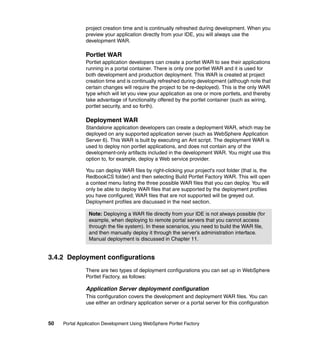
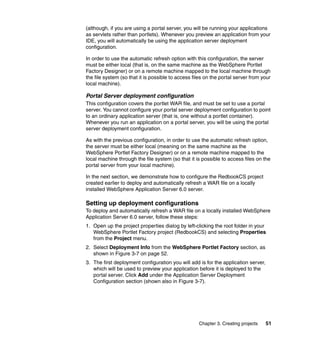
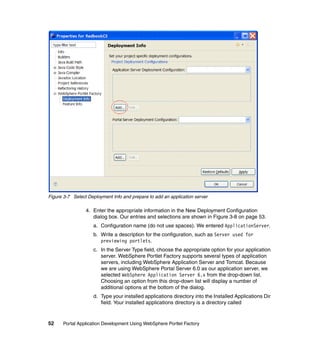
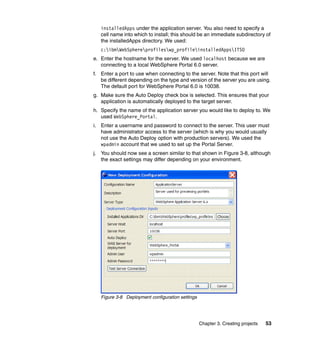
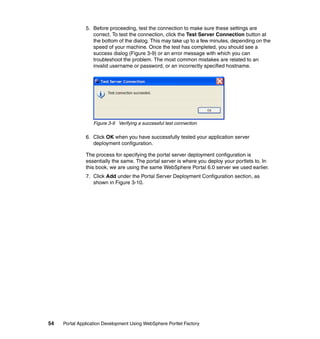
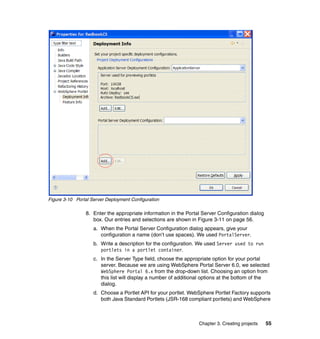
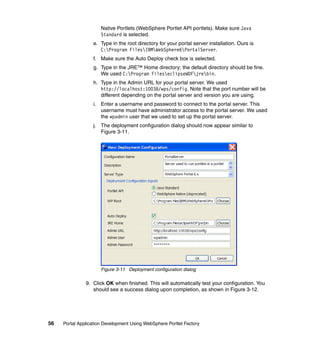
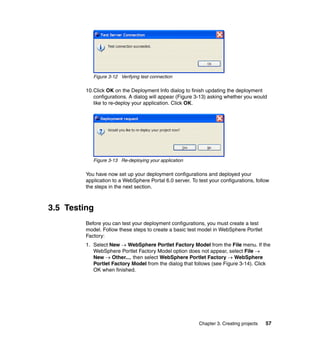
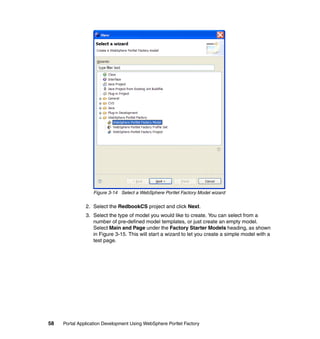
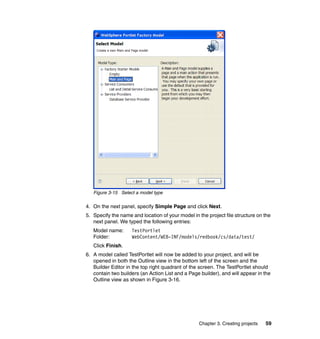
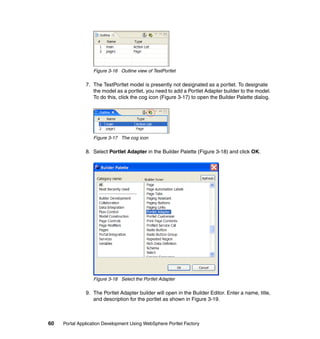
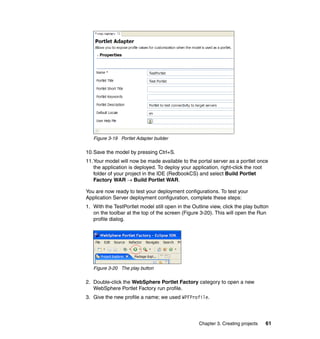
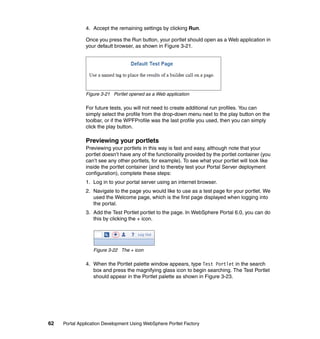
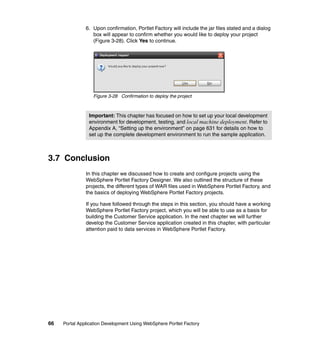
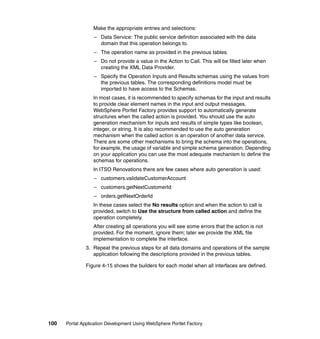
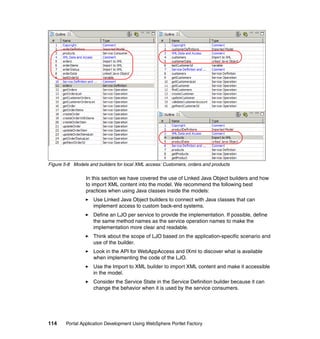
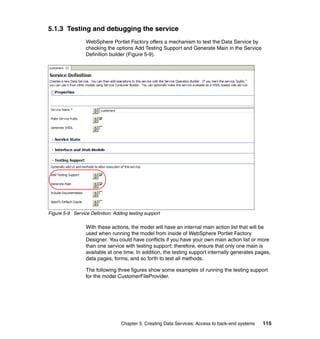
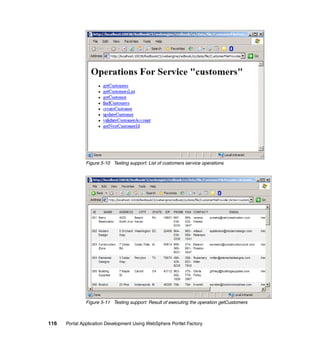
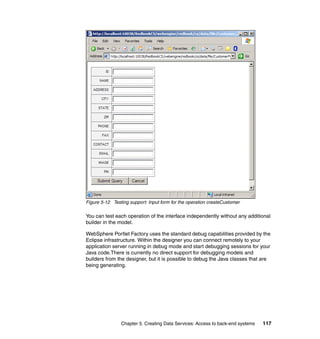
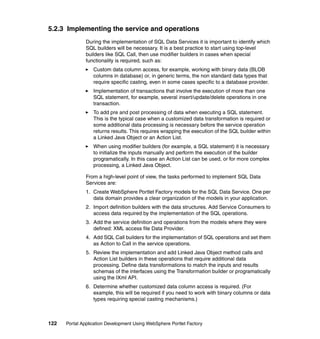
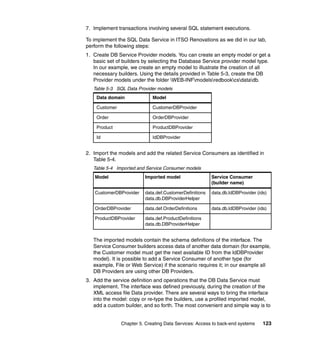
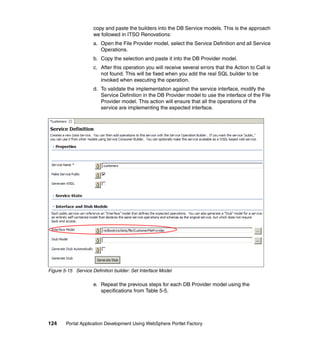
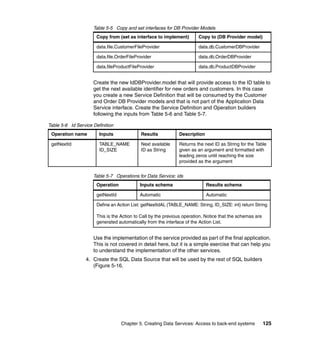
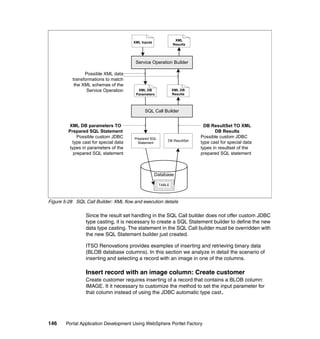
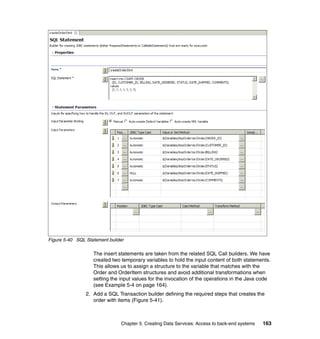
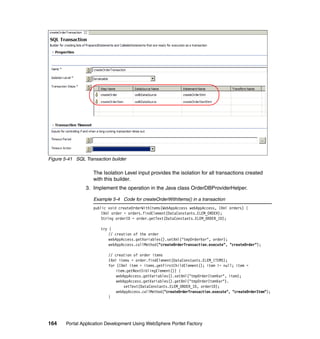
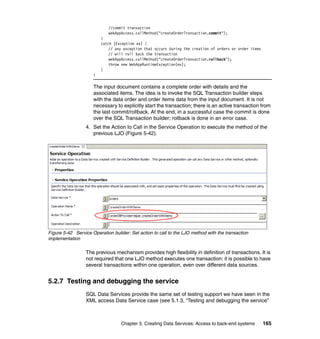
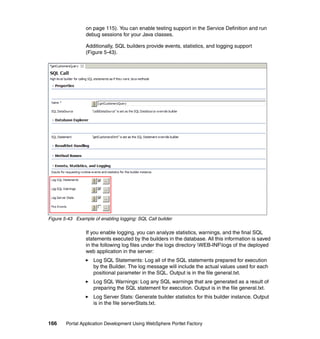
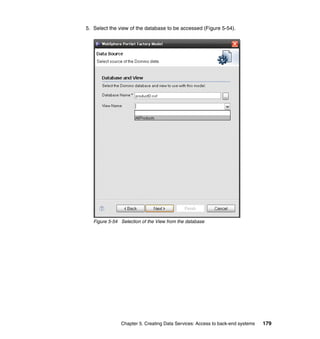
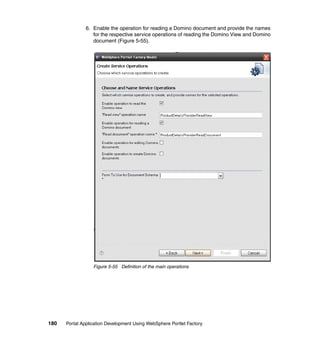
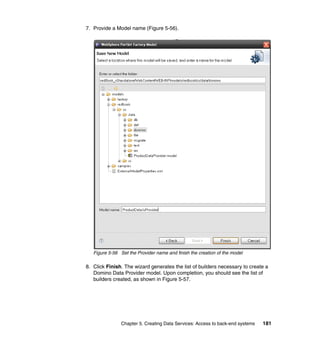
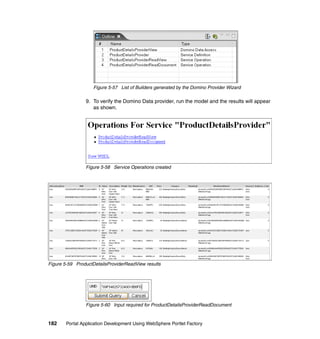
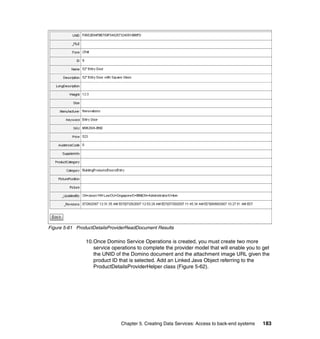
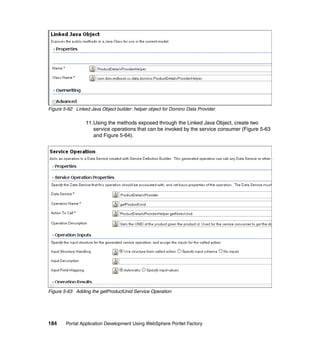
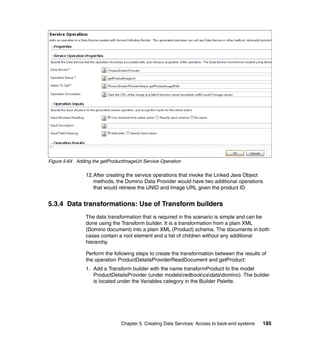
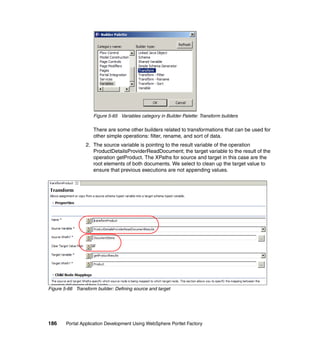
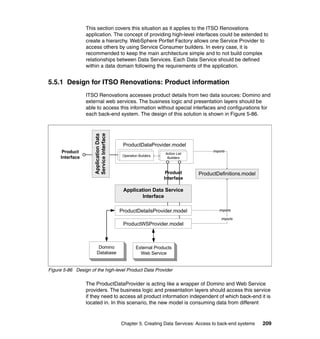
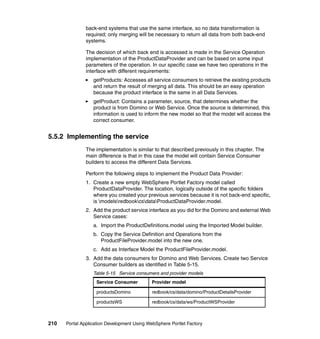
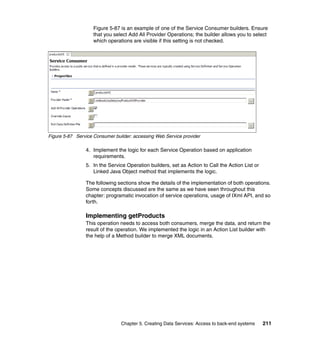
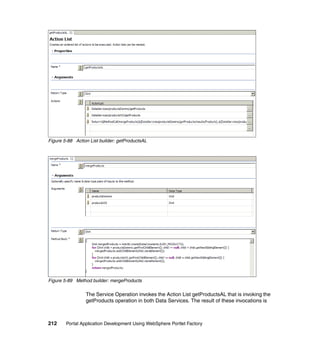
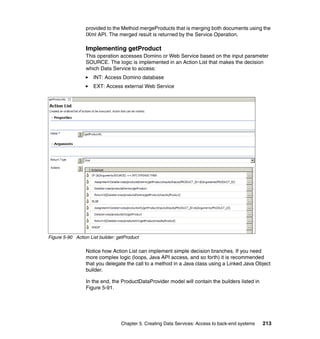
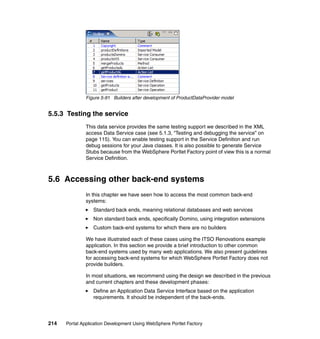
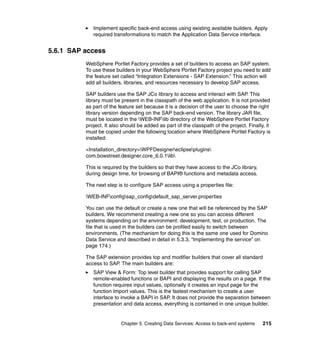
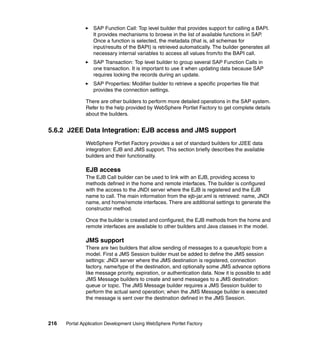
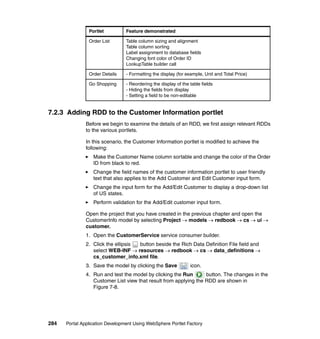
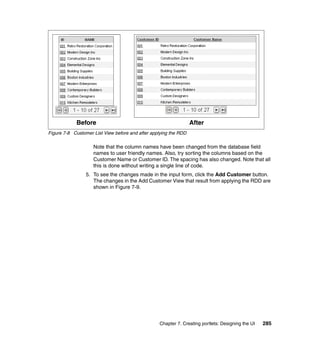
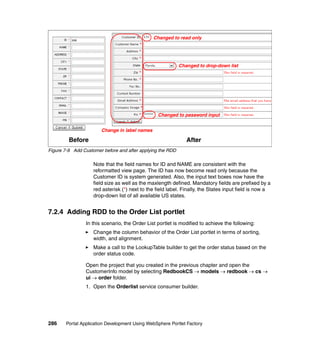
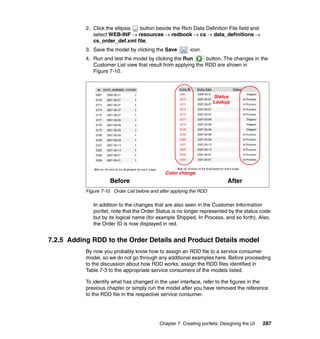
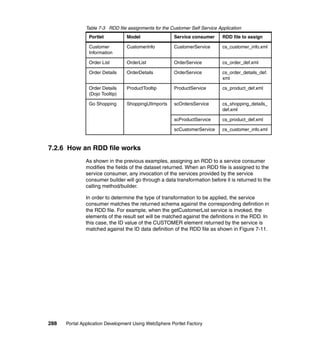
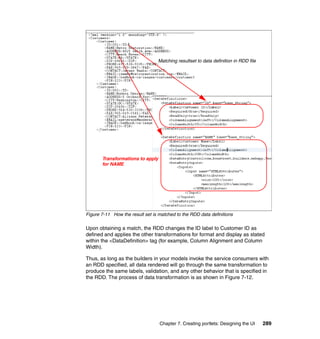
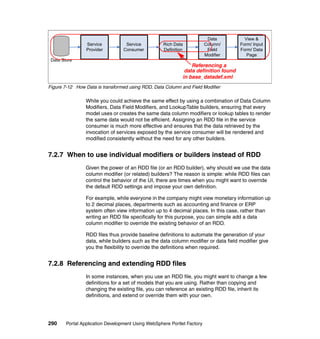
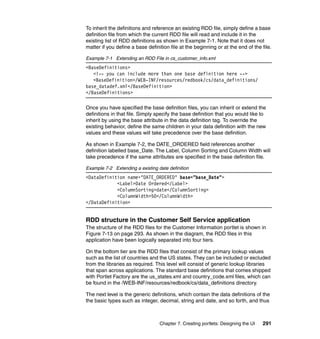
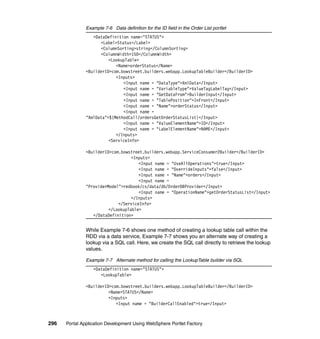
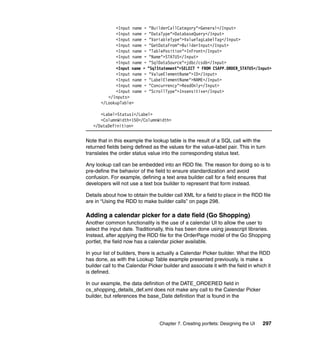
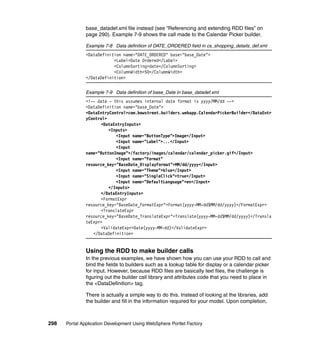
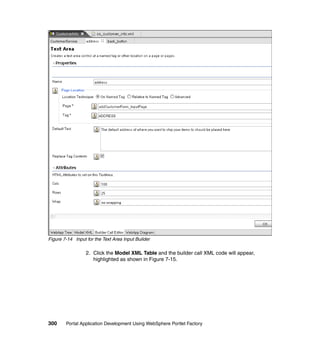
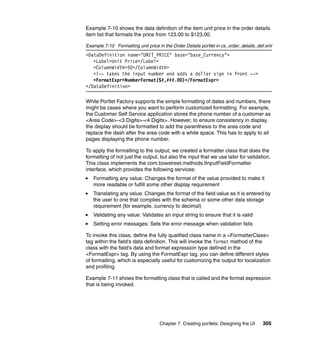
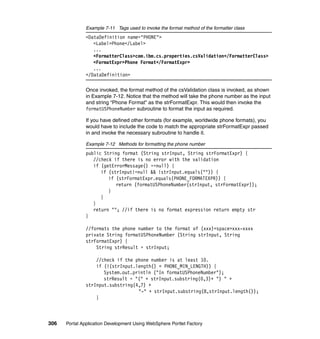
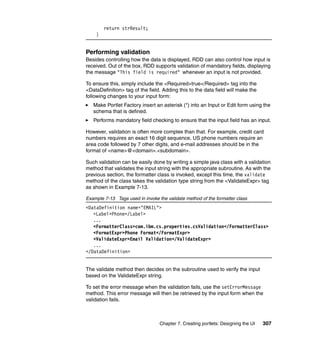
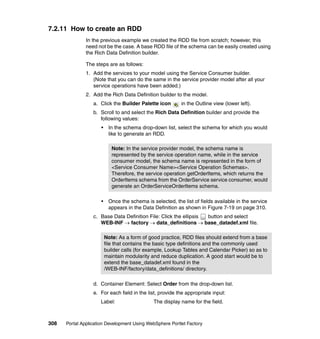
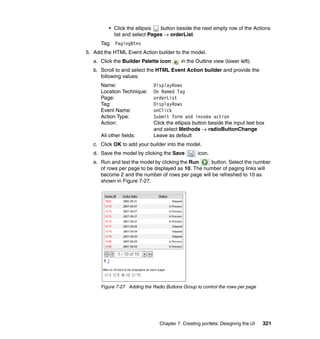
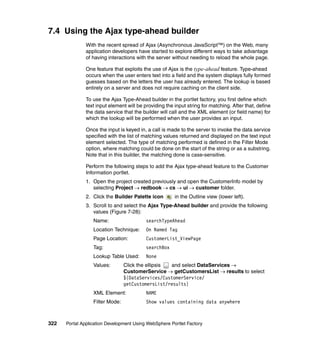
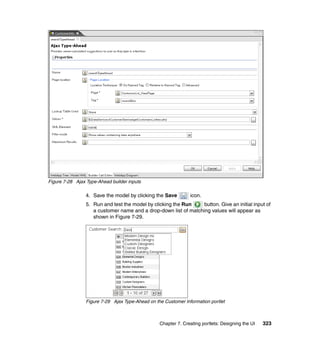
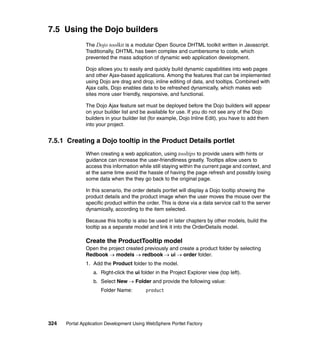
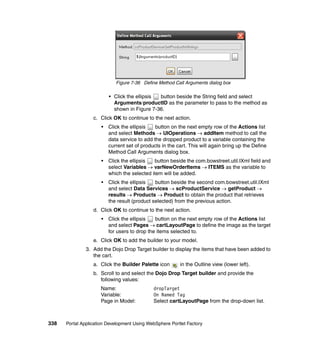
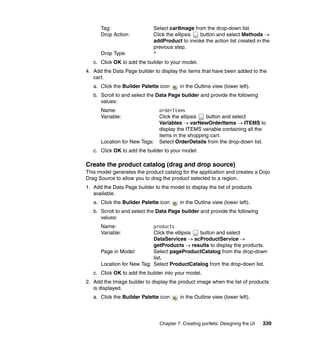
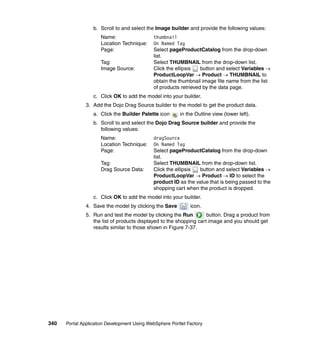
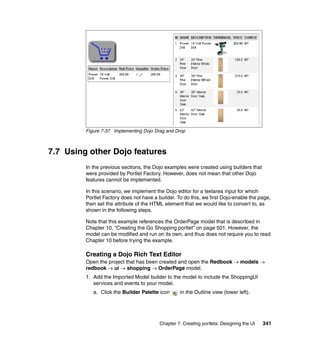
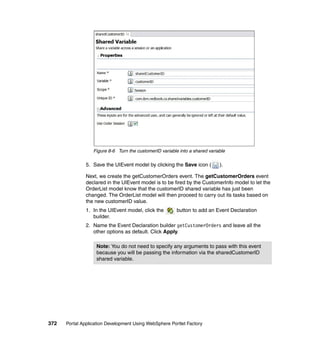
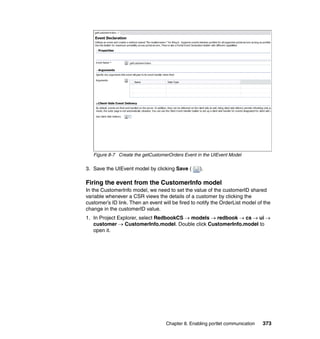
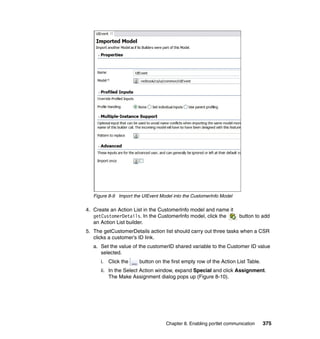
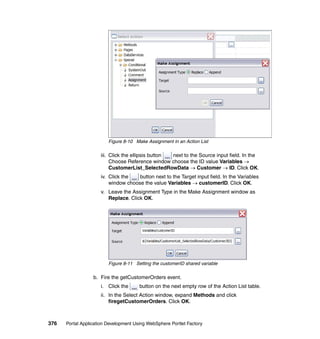
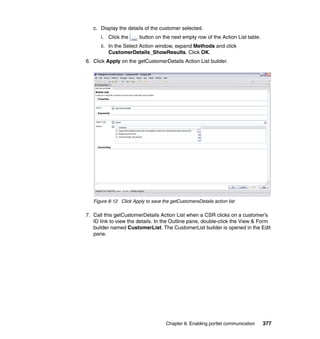
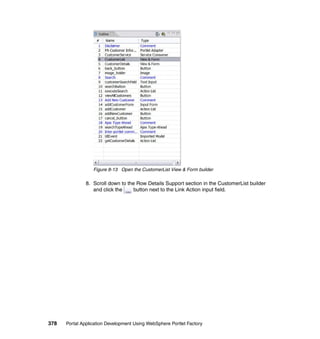
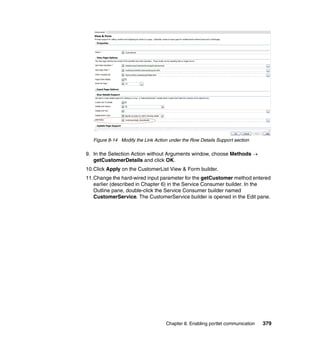
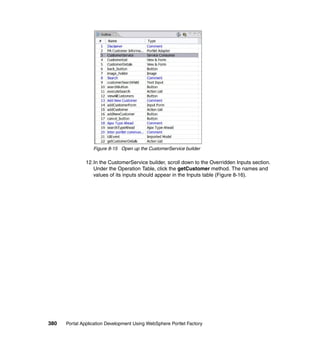
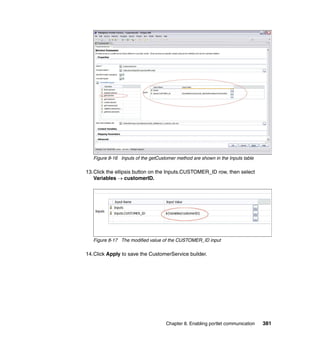
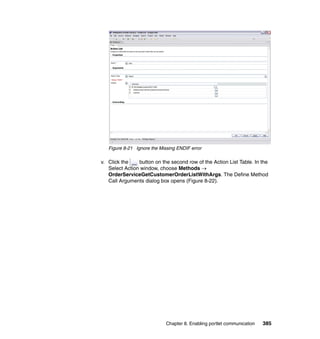
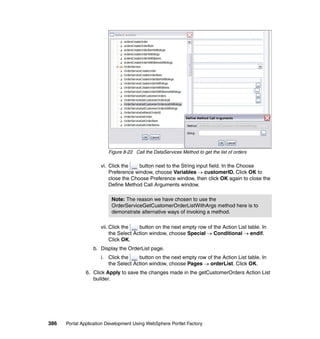
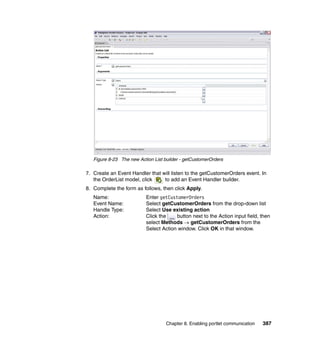
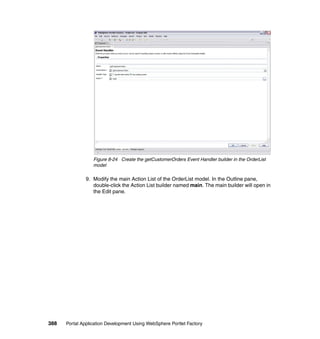
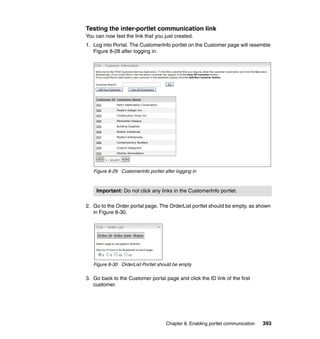
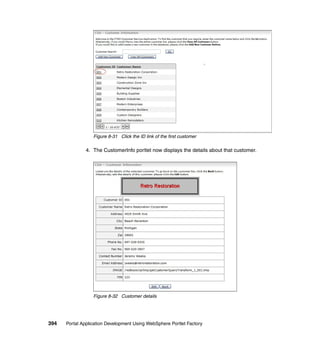
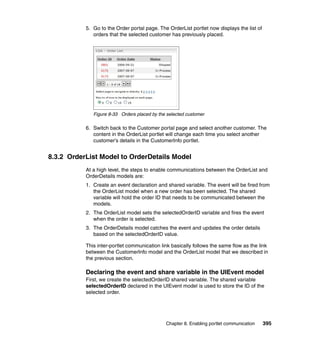
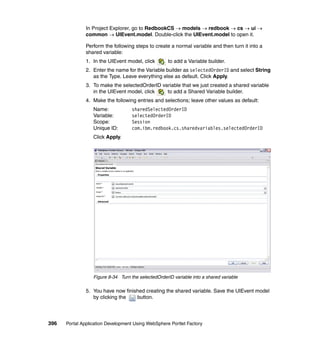
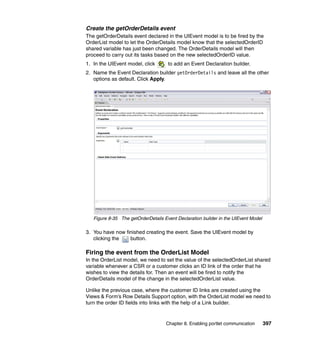
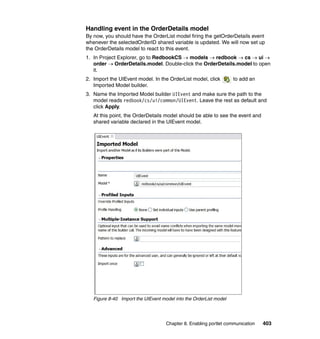
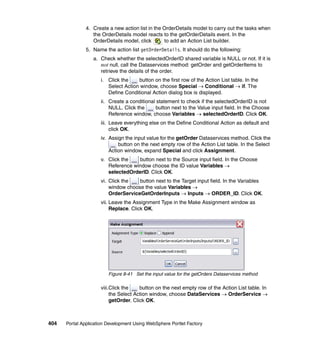
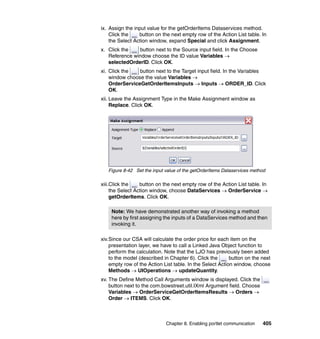
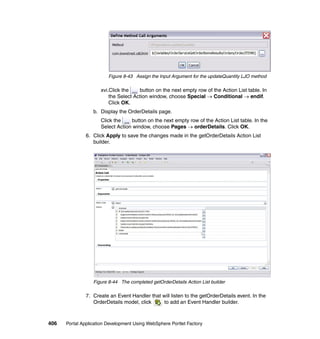
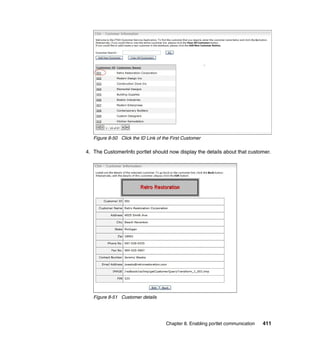
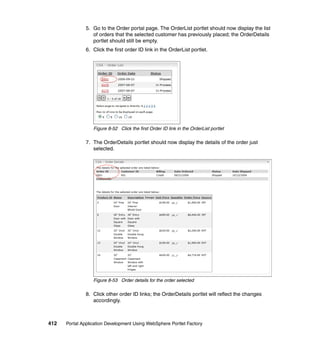
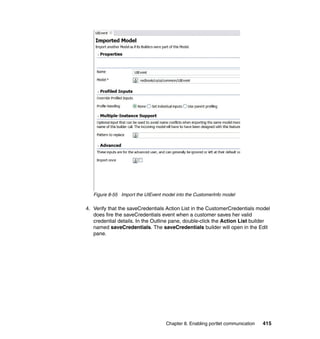
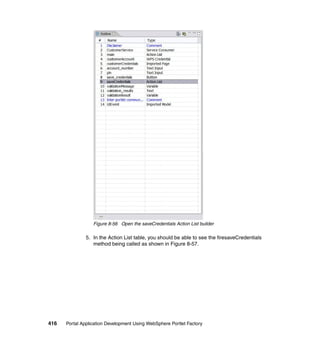
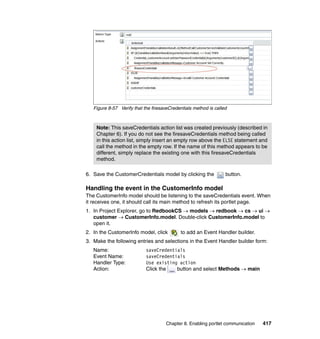
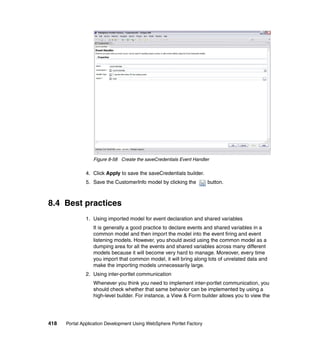
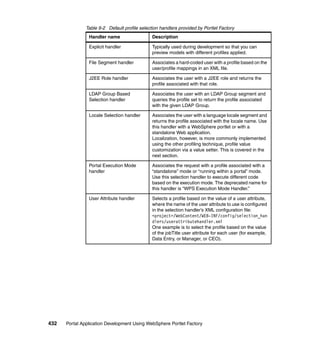
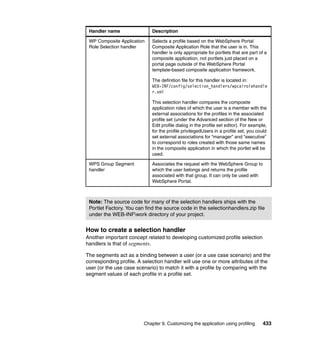
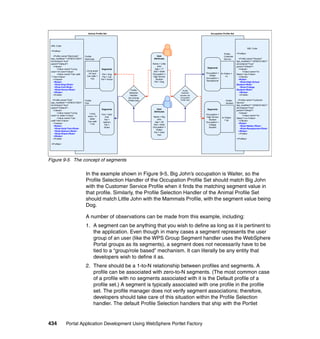
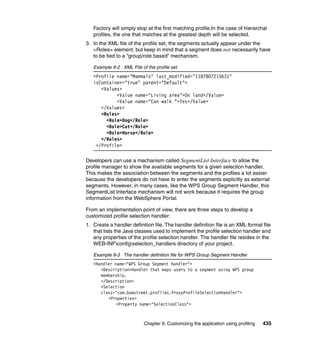
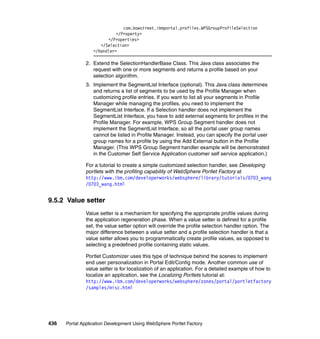
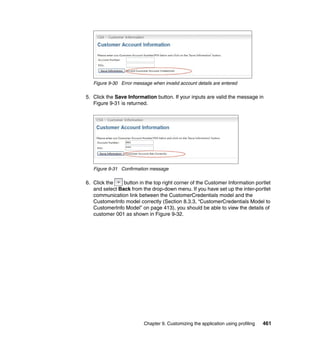
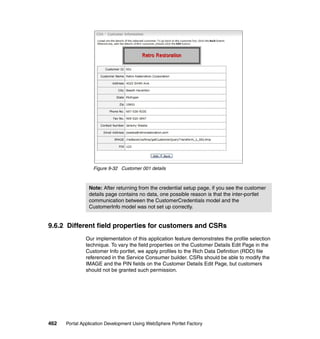
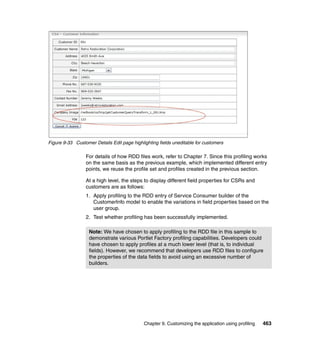
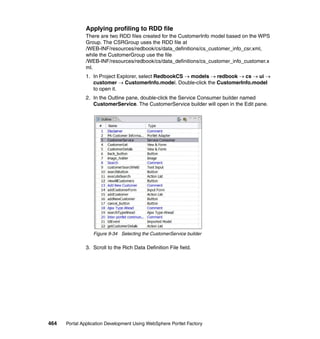
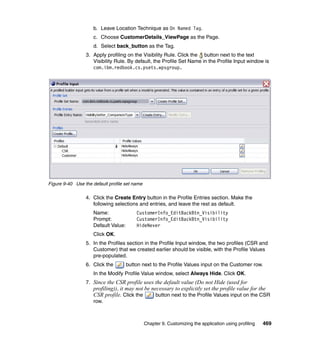
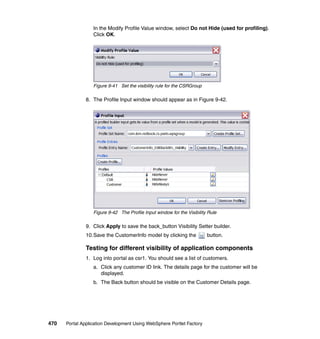
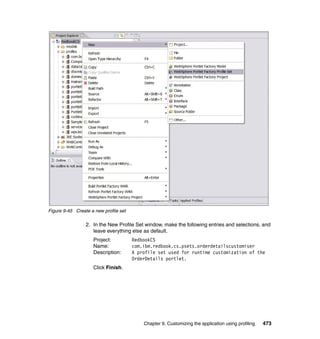
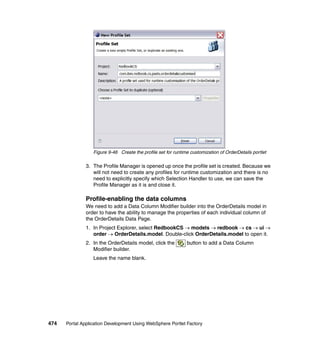
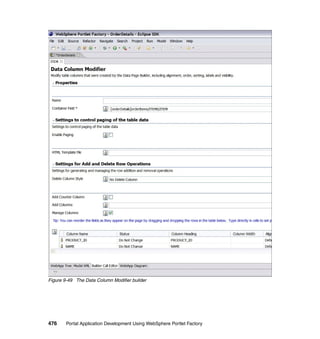
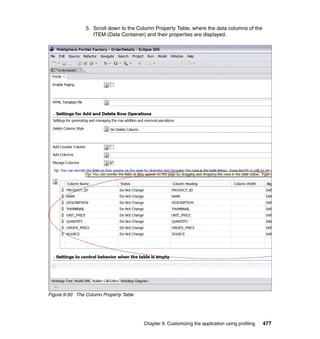
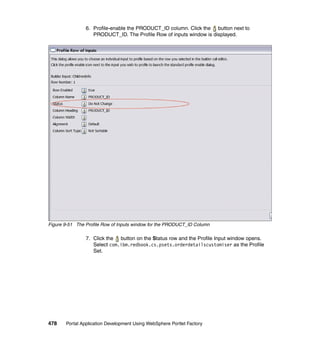
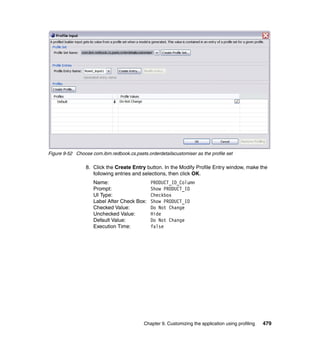
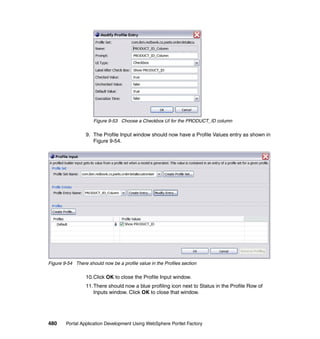
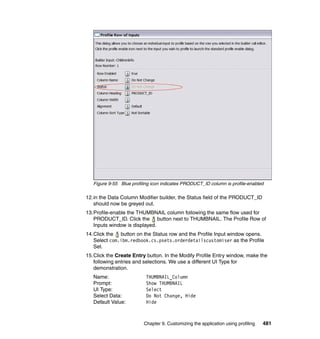
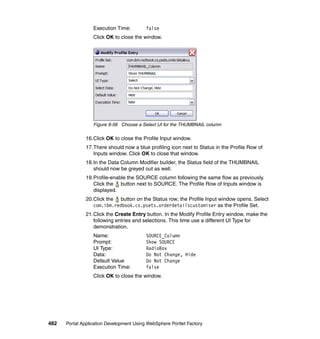
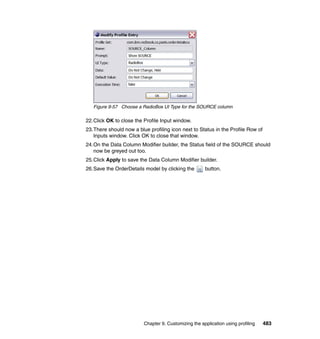
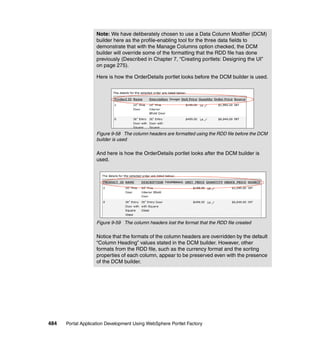
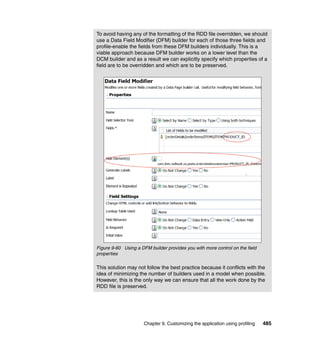
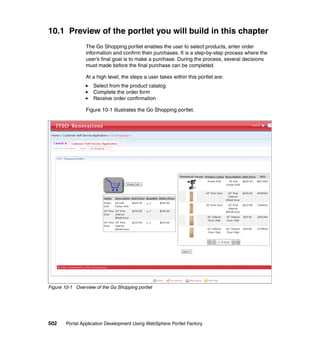
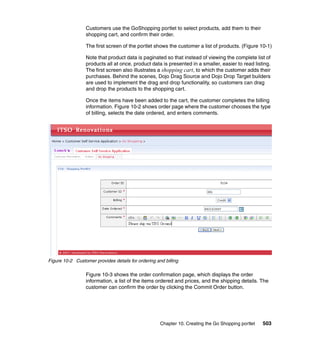
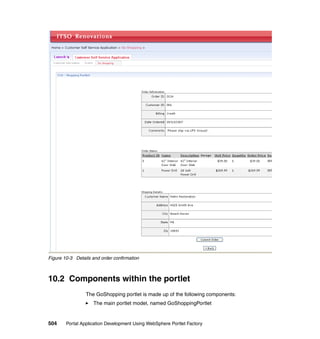
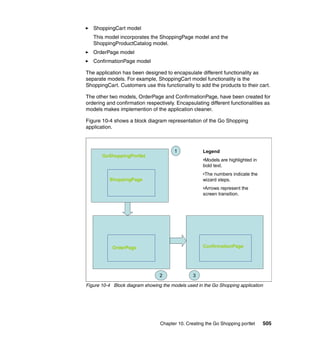
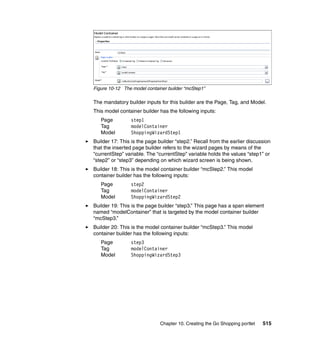
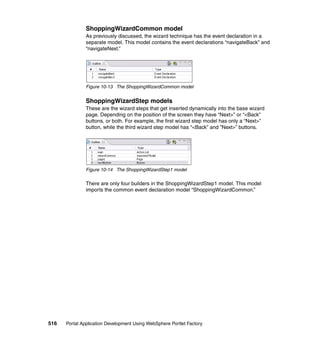
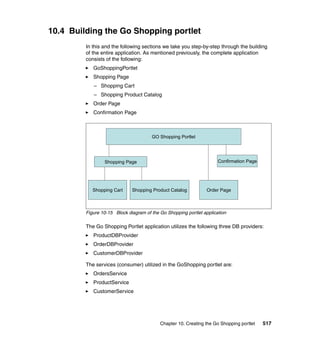
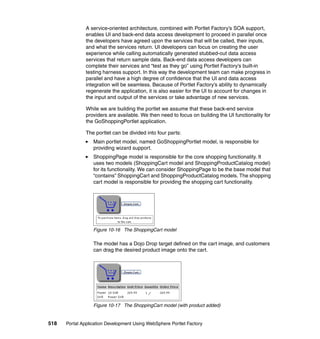
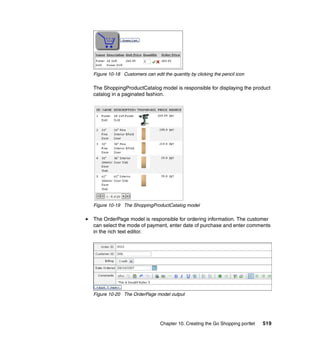
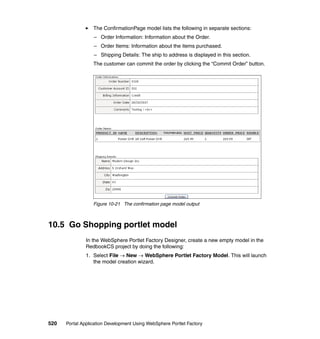
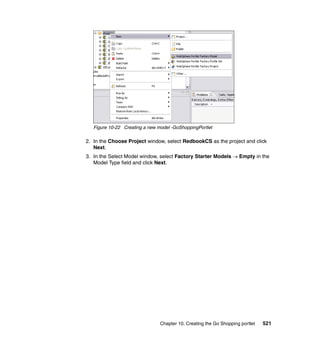
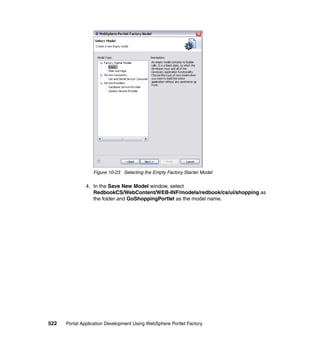
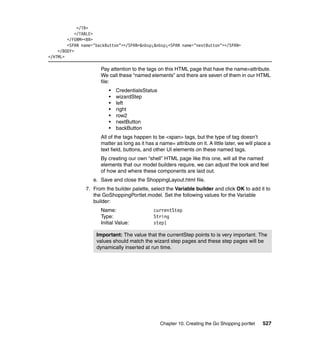
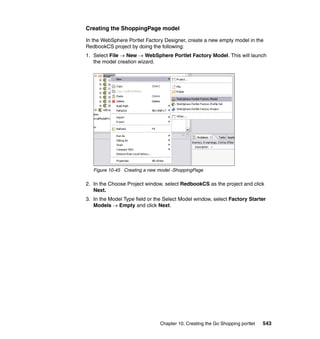
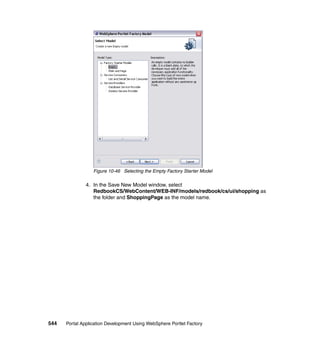
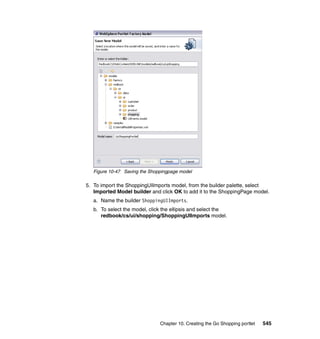
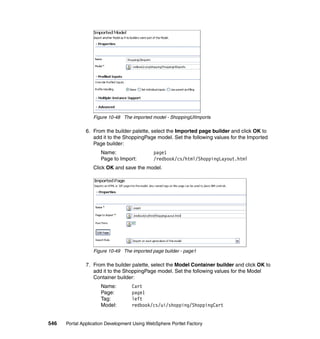
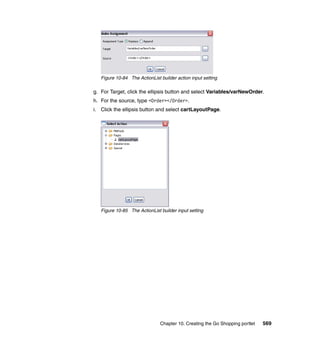
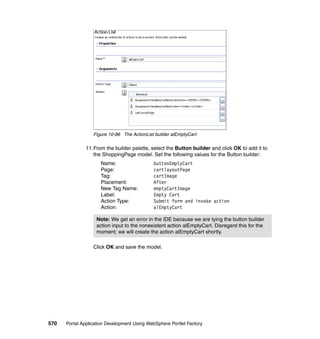
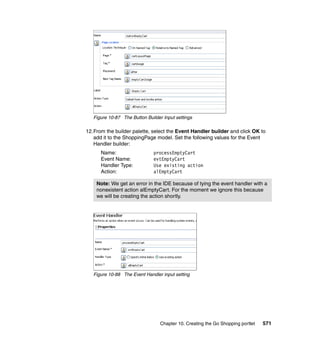
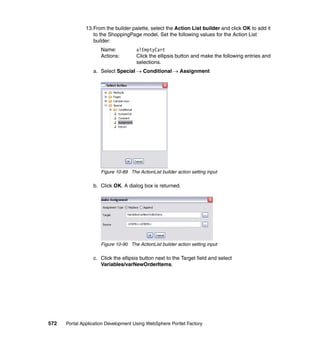
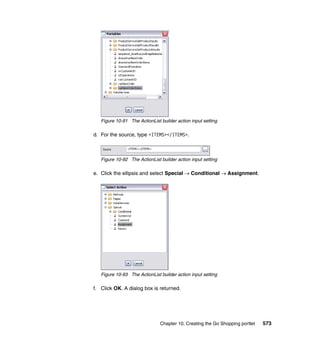
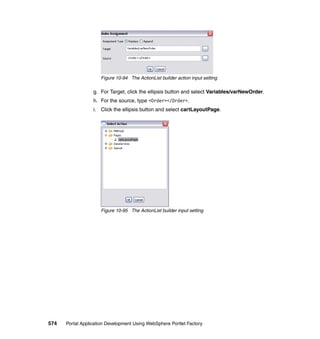
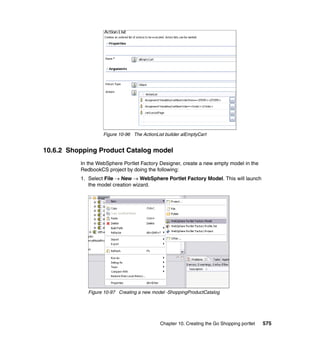
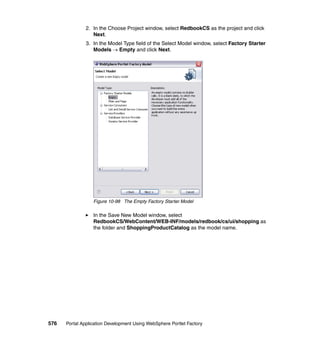
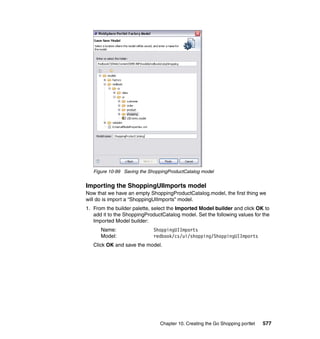
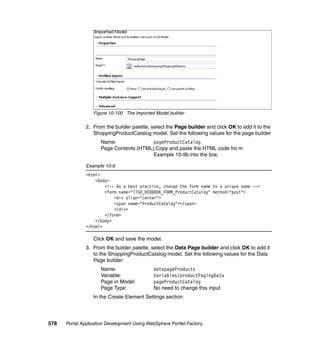
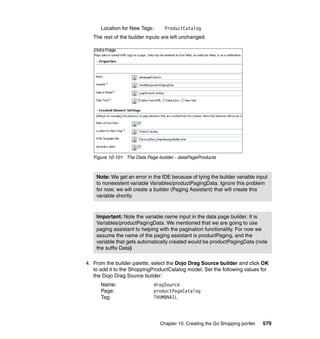
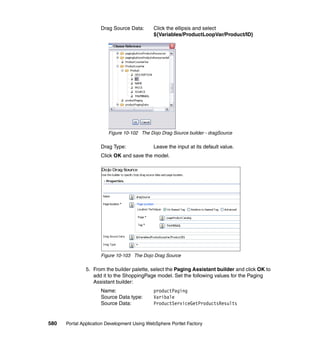
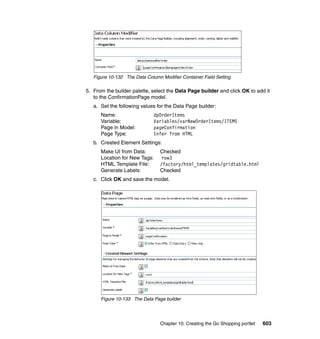
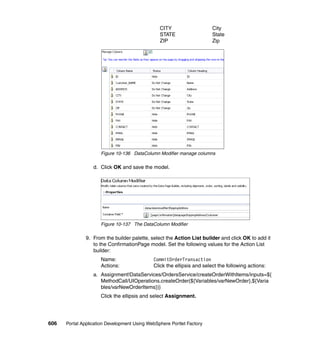
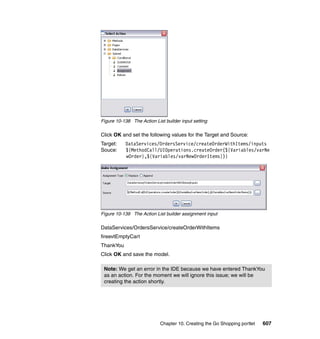
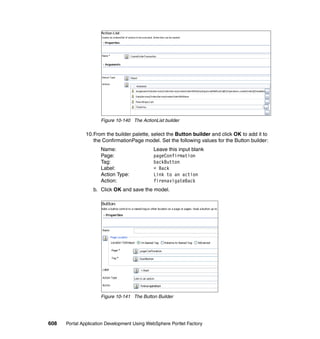
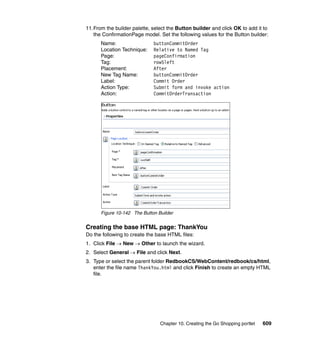
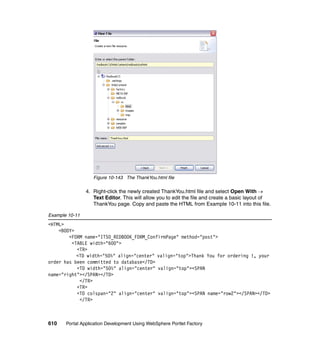
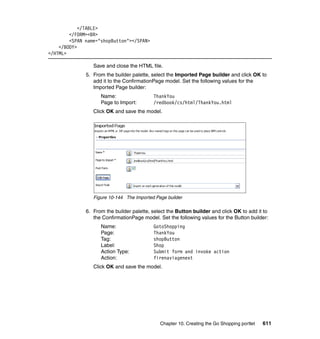
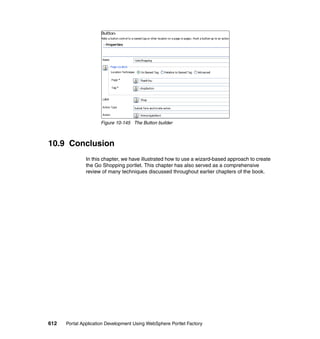
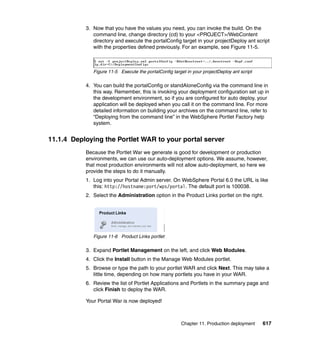
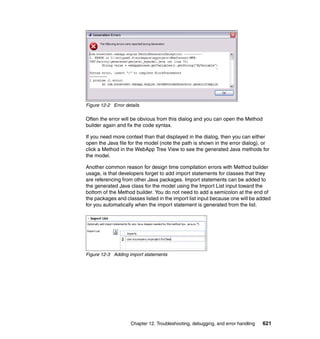
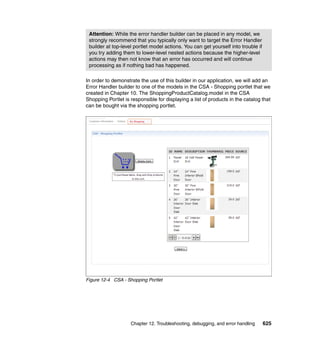
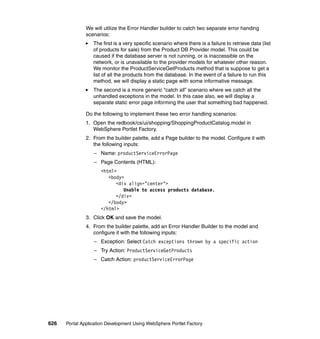
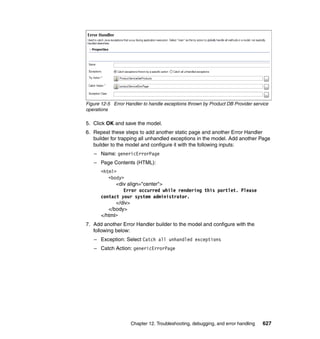
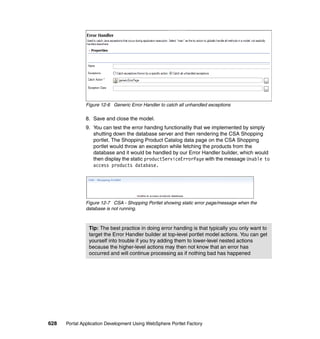
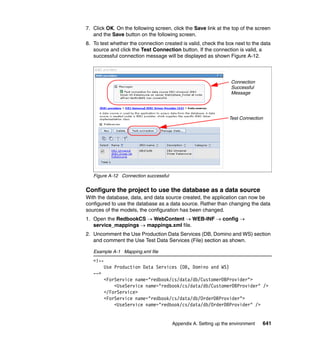
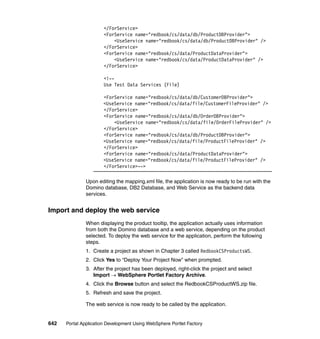
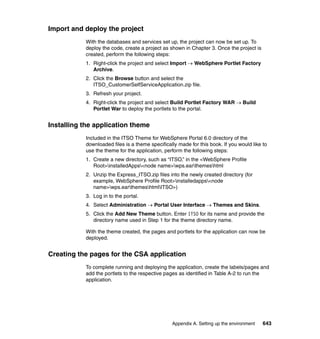
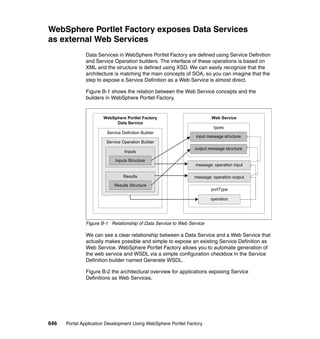
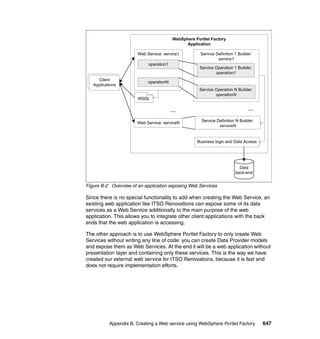
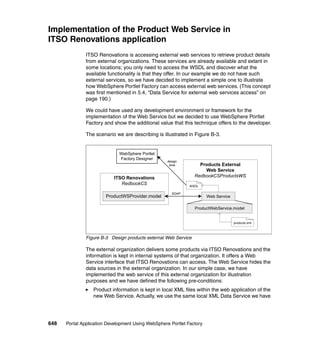
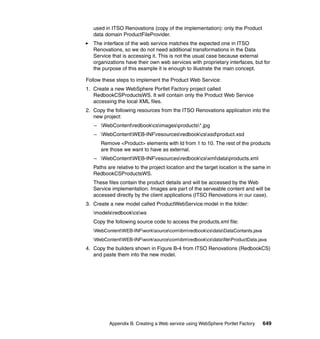
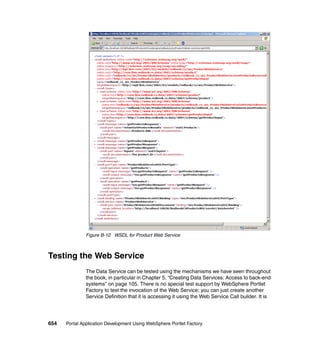
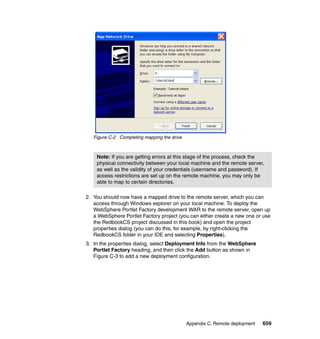
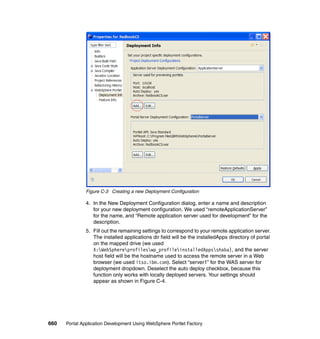
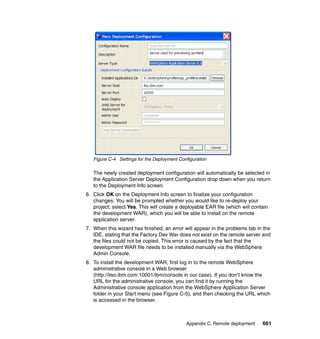
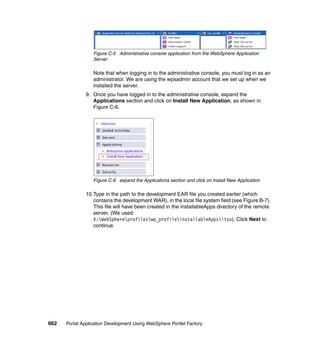
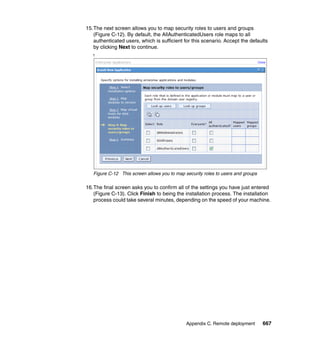
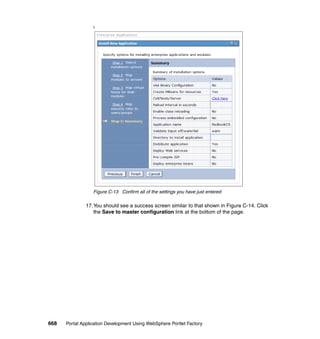
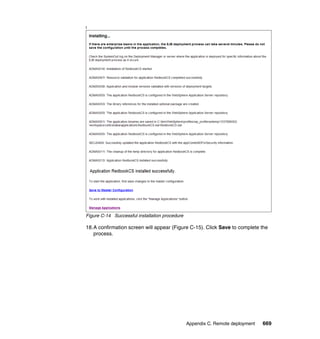
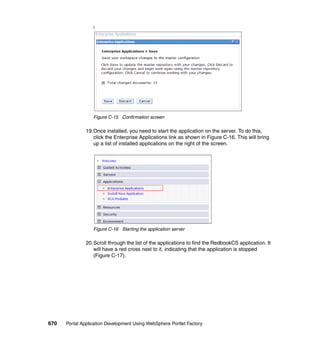
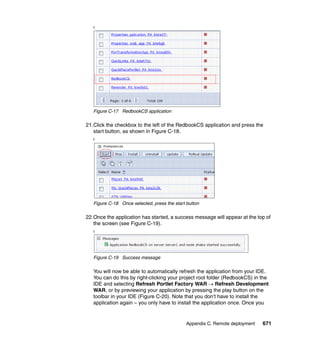
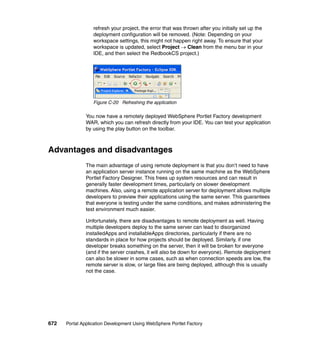
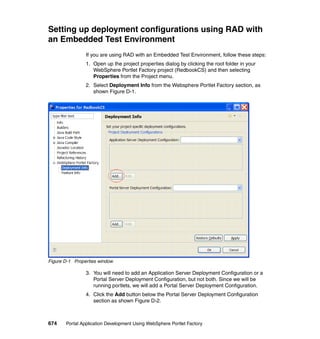
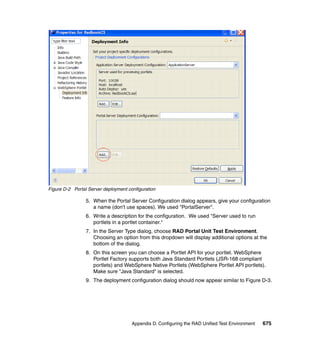
Front cover

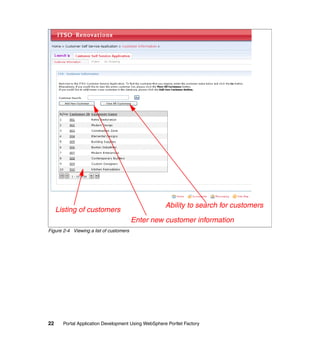
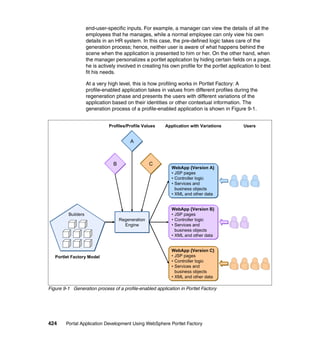
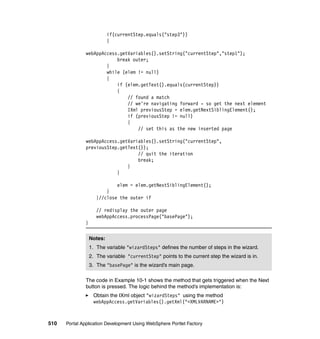
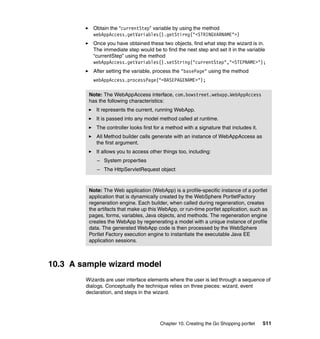
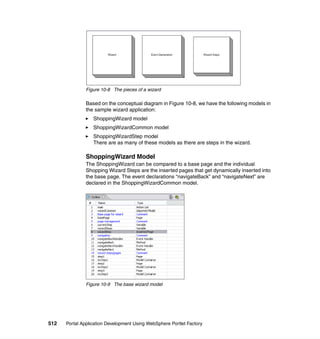
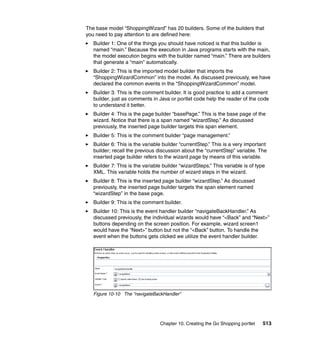
Portal Application
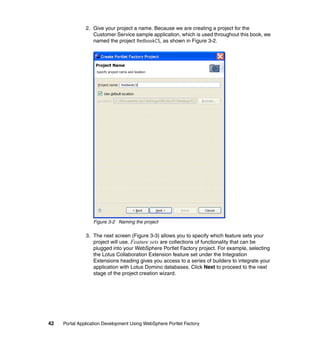
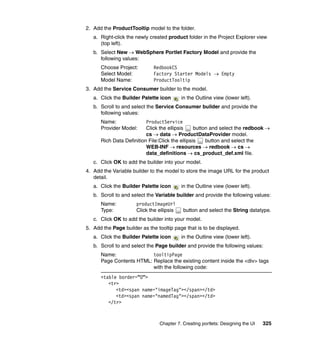
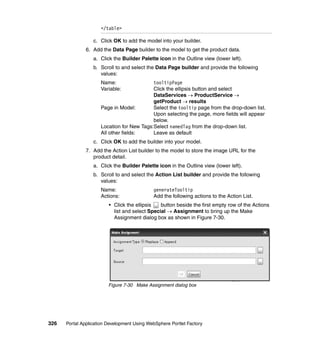
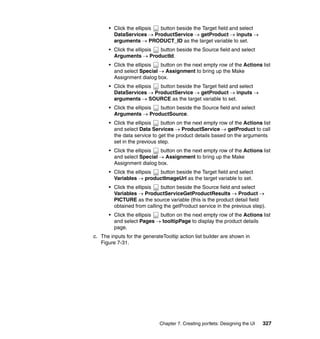
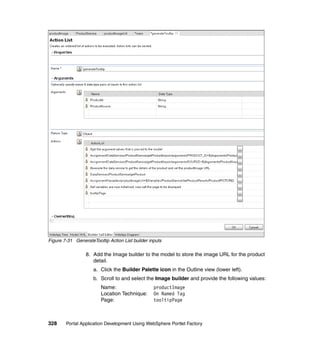
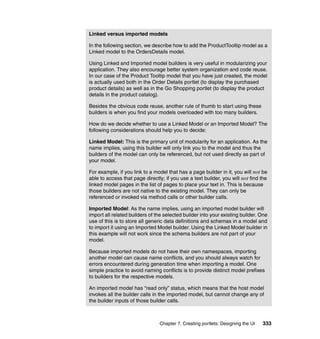
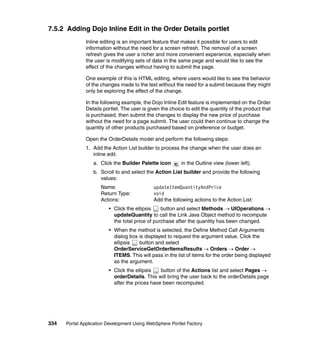
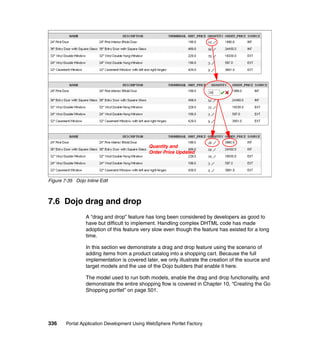
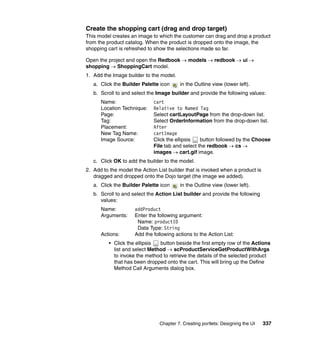
Development Using
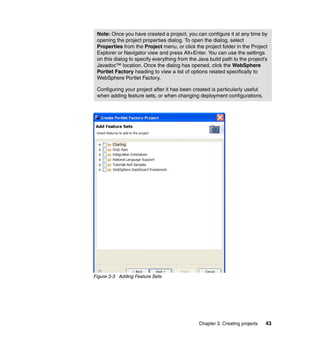
WebSphere Portlet Factory

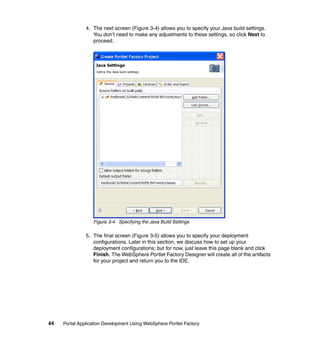
Features and techniques for rapidly
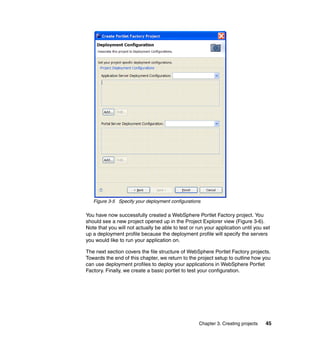
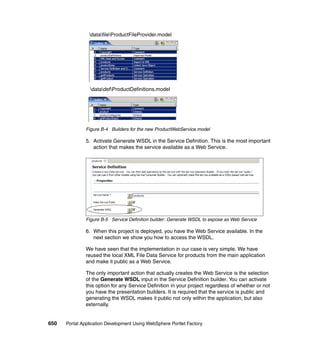
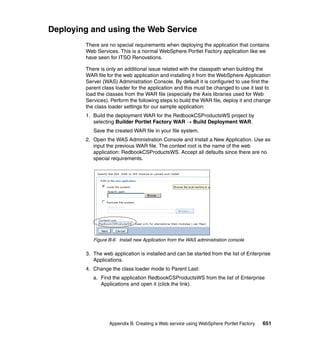
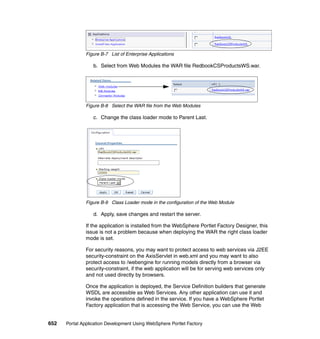
developing portlets

Step-by-step guidance for
building a sample application

Best practices, hints, tips
and troubleshooting


                                                      David Bowley
                                                         Emily Chan
                                                    Thulsi Krishnan
                                                          Jason Lee
                                                       Devang Patel
                                                    Alfredo Navarro


ibm.com/redbooks
International Technical Support Organization

Portal Application Development Using
WebSphere Portlet Factory

January 2008


                                               SG24-7525-00
Note: Before using this information and the product it supports, read the information in
 “Notices” on page iii.


First Edition (January 2008)

This edition applies to WebSphere Portlet Factory, version 6.0.1


© Copyright International Business Machines Corporation 2008. All rights reserved.
Note to U.S. Government Users Restricted Rights -- Use, duplication or disclosure restricted by GSA ADP
Schedule Contract with IBM Corp.
Notices

This information was developed for products and services offered in the U.S.A.

IBM may not offer the products, services, or features discussed in this document in other countries. Consult
your local IBM representative for information on the products and services currently available in your area.
Any reference to an IBM product, program, or service is not intended to state or imply that only that IBM
product, program, or service may be used. Any functionally equivalent product, program, or service that
does not infringe any IBM intellectual property right may be used instead. However, it is the user's
responsibility to evaluate and verify the operation of any non-IBM product, program, or service.

IBM may have patents or pending patent applications covering subject matter described in this document.
The furnishing of this document does not give you any license to these patents. You can send license
inquiries, in writing, to:
IBM Director of Licensing, IBM Corporation, North Castle Drive, Armonk, NY 10504-1785 U.S.A.

The following paragraph does not apply to the United Kingdom or any other country where such
provisions are inconsistent with local law: INTERNATIONAL BUSINESS MACHINES CORPORATION
PROVIDES THIS PUBLICATION "AS IS" WITHOUT WARRANTY OF ANY KIND, EITHER EXPRESS OR
IMPLIED, INCLUDING, BUT NOT LIMITED TO, THE IMPLIED WARRANTIES OF NON-INFRINGEMENT,
MERCHANTABILITY OR FITNESS FOR A PARTICULAR PURPOSE. Some states do not allow disclaimer
of express or implied warranties in certain transactions, therefore, this statement may not apply to you.

This information could include technical inaccuracies or typographical errors. Changes are periodically made
to the information herein; these changes will be incorporated in new editions of the publication. IBM may
make improvements and/or changes in the product(s) and/or the program(s) described in this publication at
any time without notice.

Any references in this information to non-IBM Web sites are provided for convenience only and do not in any
manner serve as an endorsement of those Web sites. The materials at those Web sites are not part of the
materials for this IBM product and use of those Web sites is at your own risk.

IBM may use or distribute any of the information you supply in any way it believes appropriate without
incurring any obligation to you.

Information concerning non-IBM products was obtained from the suppliers of those products, their published
announcements or other publicly available sources. IBM has not tested those products and cannot confirm
the accuracy of performance, compatibility or any other claims related to non-IBM products. Questions on
the capabilities of non-IBM products should be addressed to the suppliers of those products.

This information contains examples of data and reports used in daily business operations. To illustrate them
as completely as possible, the examples include the names of individuals, companies, brands, and products.
All of these names are fictitious and any similarity to the names and addresses used by an actual business
enterprise is entirely coincidental.

COPYRIGHT LICENSE:

This information contains sample application programs in source language, which illustrate programming
techniques on various operating platforms. You may copy, modify, and distribute these sample programs in
any form without payment to IBM, for the purposes of developing, using, marketing or distributing application
programs conforming to the application programming interface for the operating platform for which the
sample programs are written. These examples have not been thoroughly tested under all conditions. IBM,
therefore, cannot guarantee or imply reliability, serviceability, or function of these programs.


© Copyright IBM Corp. 2008. All rights reserved.                                                           iii
Trademarks
The following terms are trademarks of the International Business Machines Corporation in the United States,
other countries, or both:

     Redbooks (logo)    ®             Freelance Graphics®                 Redbooks®
     Cloudscape™                      IBM®                                WebSphere®
     Domino®                          Lotus®                              Workplace™
     DB2®                             Rational®                           Workplace Forms™

The following terms are trademarks of other companies:

BAPI, SAP, and SAP logos are trademarks or registered trademarks of SAP AG in Germany and in several
other countries.

Oracle, JD Edwards, PeopleSoft, Siebel, and TopLink are registered trademarks of Oracle Corporation
and/or its affiliates.

EJB, Java, Javadoc, JavaScript, JDBC, JRE, JSP, J2EE, and all Java-based trademarks are trademarks of
Sun Microsystems, Inc. in the United States, other countries, or both.

Excel, Expression, Windows, and the Windows logo are trademarks of Microsoft Corporation in the United
States, other countries, or both.

Other company, product, or service names may be trademarks or service marks of others.


iv      Portal Application Development Using WebSphere Portlet Factory
Contents

                 Notices . . . . . . . . . . . . . . . . . . . . . . . . . . . . . . . . . . . . . . . . . . . . . . . . . . . . . . . iii
                 Trademarks . . . . . . . . . . . . . . . . . . . . . . . . . . . . . . . . . . . . . . . . . . . . . . . . . . . . iv

                 Preface . . . . . . . . . . . . . . . . . . . . . . . . . . . . . . . . . . . . . . . . . . . . . . . . . . . . . . xiii
                 The team that wrote this book . . . . . . . . . . . . . . . . . . . . . . . . . . . . . . . . . . . . . xiii
                    Special acknowledgement . . . . . . . . . . . . . . . . . . . . . . . . . . . . . . . . . . . . . xv
                 Become a published author . . . . . . . . . . . . . . . . . . . . . . . . . . . . . . . . . . . . . . xvii
                 Comments welcome. . . . . . . . . . . . . . . . . . . . . . . . . . . . . . . . . . . . . . . . . . . . xviii

                 Chapter 1. Introduction . . . . . . . . . . . . . . . . . . . . . . . . . . . . . . . . . . . . . . . . . . 1
                 1.1 Overview of WebSphere Portlet Factory . . . . . . . . . . . . . . . . . . . . . . . . . . . 2
                 1.2 Capabilities of WebSphere Portlet Factory . . . . . . . . . . . . . . . . . . . . . . . . . 2
                 1.3 Development with WebSphere Portlet Factory . . . . . . . . . . . . . . . . . . . . . . 3
                    1.3.1 Builders . . . . . . . . . . . . . . . . . . . . . . . . . . . . . . . . . . . . . . . . . . . . . . . . 4
                    1.3.2 Models. . . . . . . . . . . . . . . . . . . . . . . . . . . . . . . . . . . . . . . . . . . . . . . . . 5
                    1.3.3 Profiles . . . . . . . . . . . . . . . . . . . . . . . . . . . . . . . . . . . . . . . . . . . . . . . . 7
                 1.4 Architecture . . . . . . . . . . . . . . . . . . . . . . . . . . . . . . . . . . . . . . . . . . . . . . . . . 8
                    1.4.1 Builders . . . . . . . . . . . . . . . . . . . . . . . . . . . . . . . . . . . . . . . . . . . . . . . . 9
                    1.4.2 Models. . . . . . . . . . . . . . . . . . . . . . . . . . . . . . . . . . . . . . . . . . . . . . . . . 9
                    1.4.3 Generation . . . . . . . . . . . . . . . . . . . . . . . . . . . . . . . . . . . . . . . . . . . . . 9
                    1.4.4 WebApp . . . . . . . . . . . . . . . . . . . . . . . . . . . . . . . . . . . . . . . . . . . . . . 11
                    1.4.5 Generation, Part 2: Profiling . . . . . . . . . . . . . . . . . . . . . . . . . . . . . . . 11

                 Chapter 2. Scenario introduction. . . . . . . . . . . . . . . . . . . . . . . . . . . . . . . . . 15
                 2.1 Overview of the sample scenario . . . . . . . . . . . . . . . . . . . . . . . . . . . . . . . 16
                    2.1.1 Scenario background . . . . . . . . . . . . . . . . . . . . . . . . . . . . . . . . . . . . 16
                    2.1.2 Roles specific to the sample application scenario. . . . . . . . . . . . . . . 16
                 2.2 Preview of the sample application. . . . . . . . . . . . . . . . . . . . . . . . . . . . . . . 17
                    2.2.1 Overview of the application functionality . . . . . . . . . . . . . . . . . . . . . . 17
                    2.2.2 Use cases applicable to the CSR . . . . . . . . . . . . . . . . . . . . . . . . . . . 19
                    2.2.3 Use cases applicable to an external customer . . . . . . . . . . . . . . . . . 20
                 2.3 Review of specific portlets - CSR perspective. . . . . . . . . . . . . . . . . . . . . . 21
                    2.3.1 Reviewing customer information . . . . . . . . . . . . . . . . . . . . . . . . . . . . 21
                    2.3.2 Reviewing customer order information . . . . . . . . . . . . . . . . . . . . . . . 24
                    2.3.3 Creating a new order on behalf of a customer . . . . . . . . . . . . . . . . . 26
                 2.4 Review of specific portlets - Customer perspective. . . . . . . . . . . . . . . . . . 27
                    2.4.1 Customer information based on authentication credentials . . . . . . . 27
                    2.4.2 Customer perspective - Reviewing orders . . . . . . . . . . . . . . . . . . . . 30
                    2.4.3 Customer perspective - Creating a new order . . . . . . . . . . . . . . . . . 31


© Copyright IBM Corp. 2008. All rights reserved.                                                                                        v
2.5 Mapping functional areas of sample application
                    and capabilities of Portlet Factory . . . . . . . . . . . . . . . . . . . . . . . . . . . . . . 32
                  2.5.1 Data Services . . . . . . . . . . . . . . . . . . . . . . . . . . . . . . . . . . . . . . . . . . 32
                  2.5.2 Basic user interface portlets . . . . . . . . . . . . . . . . . . . . . . . . . . . . . . . 34
                  2.5.3 Advanced user interface portlets. . . . . . . . . . . . . . . . . . . . . . . . . . . . 35
                  2.5.4 Portlet communication and profiling . . . . . . . . . . . . . . . . . . . . . . . . . 36

               Chapter 3. Creating projects . . . . . . . . . . . . . . . . . . . . . . . . . . . . . . . . . . . . 39
               3.1 Overview . . . . . . . . . . . . . . . . . . . . . . . . . . . . . . . . . . . . . . . . . . . . . . . . . . 40
               3.2 Creating a project . . . . . . . . . . . . . . . . . . . . . . . . . . . . . . . . . . . . . . . . . . . 40
               3.3 Project structure . . . . . . . . . . . . . . . . . . . . . . . . . . . . . . . . . . . . . . . . . . . . 46
               3.4 Deployment . . . . . . . . . . . . . . . . . . . . . . . . . . . . . . . . . . . . . . . . . . . . . . . . 49
                  3.4.1 WAR files . . . . . . . . . . . . . . . . . . . . . . . . . . . . . . . . . . . . . . . . . . . . . 49
                  3.4.2 Deployment configurations . . . . . . . . . . . . . . . . . . . . . . . . . . . . . . . . 50
               3.5 Testing. . . . . . . . . . . . . . . . . . . . . . . . . . . . . . . . . . . . . . . . . . . . . . . . . . . . 57
               3.6 Adding a feature set . . . . . . . . . . . . . . . . . . . . . . . . . . . . . . . . . . . . . . . . . 63
               3.7 Conclusion. . . . . . . . . . . . . . . . . . . . . . . . . . . . . . . . . . . . . . . . . . . . . . . . . 66

               Chapter 4. Data Services: Overview and interface definition . . . . . . . . . . 67
               4.1 Overview of the technical goals. . . . . . . . . . . . . . . . . . . . . . . . . . . . . . . . . 68
                  4.1.1 Value to the Portlet Factory developer . . . . . . . . . . . . . . . . . . . . . . . 68
               4.2 Data Services in Portlet Factory . . . . . . . . . . . . . . . . . . . . . . . . . . . . . . . . 69
                  4.2.1 Architecture overview . . . . . . . . . . . . . . . . . . . . . . . . . . . . . . . . . . . . 70
                  4.2.2 Supported back-end systems . . . . . . . . . . . . . . . . . . . . . . . . . . . . . . 71
                  4.2.3 General concepts . . . . . . . . . . . . . . . . . . . . . . . . . . . . . . . . . . . . . . . 72
               4.3 Developing Data Services in the sample application . . . . . . . . . . . . . . . . 73
                  4.3.1 Role of Data Services in ITSO Renovations . . . . . . . . . . . . . . . . . . . 74
                  4.3.2 Architecture and design . . . . . . . . . . . . . . . . . . . . . . . . . . . . . . . . . . 76
                  4.3.3 Development steps and guidelines . . . . . . . . . . . . . . . . . . . . . . . . . . 84
               4.4 Design and implementation of data structures and
                    Application Data Service Interfaces . . . . . . . . . . . . . . . . . . . . . . . . . . . . . 87
                  4.4.1 Data structures . . . . . . . . . . . . . . . . . . . . . . . . . . . . . . . . . . . . . . . . . 87
                  4.4.2 Application Data Service Interface: Definition and operations . . . . . 92
               4.5 Summary and best practices. . . . . . . . . . . . . . . . . . . . . . . . . . . . . . . . . . 102

               Chapter 5. Creating Data Services: Access to back-end systems . . . . . 105
               5.1 Custom Data Service: Local XML access sample. . . . . . . . . . . . . . . . . . 106
                  5.1.1 Overview of accessing a custom data service . . . . . . . . . . . . . . . . 106
                  5.1.2 Implementing the service . . . . . . . . . . . . . . . . . . . . . . . . . . . . . . . . 107
                  5.1.3 Testing and debugging the service . . . . . . . . . . . . . . . . . . . . . . . . . 115
               5.2 SQL Data Services . . . . . . . . . . . . . . . . . . . . . . . . . . . . . . . . . . . . . . . . . 118
                  5.2.1 Overview and available SQL builders . . . . . . . . . . . . . . . . . . . . . . . 118
                  5.2.2 Design for ITSO Renovations - Customer and order information . . 120
                  5.2.3 Implementing the service and operations . . . . . . . . . . . . . . . . . . . . 122


vi   Portal Application Development Using WebSphere Portlet Factory
5.2.4 Data transformations: Use of IXml API . . . . . . . . . . . . . . . . . . . . . . 140
   5.2.5 Customize data column access in SQL builders:
         Working with binary data . . . . . . . . . . . . . . . . . . . . . . . . . . . . . . . . 145
   5.2.6 Implementation of transactions . . . . . . . . . . . . . . . . . . . . . . . . . . . . 161
   5.2.7 Testing and debugging the service . . . . . . . . . . . . . . . . . . . . . . . . . 165
5.3 Domino Data Access Service . . . . . . . . . . . . . . . . . . . . . . . . . . . . . . . . . 167
   5.3.1 Overview and how to use Domino Access builders . . . . . . . . . . . . 167
   5.3.2 Design for ITSO Renovations: Product information . . . . . . . . . . . . 171
   5.3.3 Implementing the service . . . . . . . . . . . . . . . . . . . . . . . . . . . . . . . . 174
   5.3.4 Data transformations: Use of Transform builders . . . . . . . . . . . . . . 185
   5.3.5 Testing the service . . . . . . . . . . . . . . . . . . . . . . . . . . . . . . . . . . . . . 189
5.4 Data Service for external web services access. . . . . . . . . . . . . . . . . . . . 190
   5.4.1 Overview . . . . . . . . . . . . . . . . . . . . . . . . . . . . . . . . . . . . . . . . . . . . . 190
   5.4.2 Design for ITSO Renovations: External product information . . . . . 192
   5.4.3 Implementing the service . . . . . . . . . . . . . . . . . . . . . . . . . . . . . . . . 193
   5.4.4 Testing the service . . . . . . . . . . . . . . . . . . . . . . . . . . . . . . . . . . . . . 206
   5.4.5 Creating a Stub Service for testing . . . . . . . . . . . . . . . . . . . . . . . . . 207
5.5 High-level Data Services: Wrapping access to back-end systems . . . . . 208
   5.5.1 Design for ITSO Renovations: Product information . . . . . . . . . . . . 209
   5.5.2 Implementing the service . . . . . . . . . . . . . . . . . . . . . . . . . . . . . . . . 210
   5.5.3 Testing the service . . . . . . . . . . . . . . . . . . . . . . . . . . . . . . . . . . . . . 214
5.6 Accessing other back-end systems . . . . . . . . . . . . . . . . . . . . . . . . . . . . . 214
   5.6.1 SAP access. . . . . . . . . . . . . . . . . . . . . . . . . . . . . . . . . . . . . . . . . . . 215
   5.6.2 J2EE Data Integration: EJB access and JMS support . . . . . . . . . . 216
   5.6.3 Accessing back-end systems without Portlet Factory builders . . . . 217
5.7 Summary and best practices. . . . . . . . . . . . . . . . . . . . . . . . . . . . . . . . . . 218

Chapter 6. Creating portlets: Making it work . . . . . . . . . . . . . . . . . . . . . . 221
6.1 Overview . . . . . . . . . . . . . . . . . . . . . . . . . . . . . . . . . . . . . . . . . . . . . . . . . 222
6.2 Portlet design overview . . . . . . . . . . . . . . . . . . . . . . . . . . . . . . . . . . . . . . 223
   6.2.1 The context of this chapter . . . . . . . . . . . . . . . . . . . . . . . . . . . . . . . 225
6.3 Development the WebSphere Portlet Factory way . . . . . . . . . . . . . . . . . 226
   6.3.1 High-level overview of building portlets . . . . . . . . . . . . . . . . . . . . . . 227
   6.3.2 Key builders for consumer models . . . . . . . . . . . . . . . . . . . . . . . . . 228
   6.3.3 Best practices for designing large applications . . . . . . . . . . . . . . . . 231
6.4 Building the web application . . . . . . . . . . . . . . . . . . . . . . . . . . . . . . . . . . 234
   6.4.1 Customer information . . . . . . . . . . . . . . . . . . . . . . . . . . . . . . . . . . . 234
   6.4.2 Order List model . . . . . . . . . . . . . . . . . . . . . . . . . . . . . . . . . . . . . . . 255
   6.4.3 Order Details model . . . . . . . . . . . . . . . . . . . . . . . . . . . . . . . . . . . . 258
6.5 Converting the web application into portlets . . . . . . . . . . . . . . . . . . . . . . 264
6.6 Configuring pages and portlets in WebSphere Portal . . . . . . . . . . . . . . . 266
6.7 Accessing the Portal Credential Vault . . . . . . . . . . . . . . . . . . . . . . . . . . . 268
   6.7.1 WPS Credential builder. . . . . . . . . . . . . . . . . . . . . . . . . . . . . . . . . . 268


                                                                                              Contents         vii
6.7.2 Using WPS Credential builder in our application . . . . . . . . . . . . . . 269
                6.8 Summary . . . . . . . . . . . . . . . . . . . . . . . . . . . . . . . . . . . . . . . . . . . . . . . . . 272

                Chapter 7. Creating portlets: Designing the UI . . . . . . . . . . . . . . . . . . . . 275
                7.1 Introduction . . . . . . . . . . . . . . . . . . . . . . . . . . . . . . . . . . . . . . . . . . . . . . . 276
                   7.1.1 What you will learn . . . . . . . . . . . . . . . . . . . . . . . . . . . . . . . . . . . . . 281
                7.2 Using a Rich Data Definition file . . . . . . . . . . . . . . . . . . . . . . . . . . . . . . . 283
                   7.2.1 Why use an RDD? . . . . . . . . . . . . . . . . . . . . . . . . . . . . . . . . . . . . . 283
                   7.2.2 RDD in ITSO Renovations . . . . . . . . . . . . . . . . . . . . . . . . . . . . . . . 283
                   7.2.3 Adding RDD to the Customer Information portlet . . . . . . . . . . . . . . 284
                   7.2.4 Adding RDD to the Order List portlet . . . . . . . . . . . . . . . . . . . . . . . 286
                   7.2.5 Adding RDD to the Order Details and Product Details model . . . . . 287
                   7.2.6 How an RDD file works . . . . . . . . . . . . . . . . . . . . . . . . . . . . . . . . . . 288
                   7.2.7 When to use individual modifiers or builders instead of RDD . . . . . 290
                   7.2.8 Referencing and extending RDD files . . . . . . . . . . . . . . . . . . . . . . . 290
                   7.2.9 Examples of modifiers in the RDD Files . . . . . . . . . . . . . . . . . . . . . 294
                   7.2.10 Formatting the output . . . . . . . . . . . . . . . . . . . . . . . . . . . . . . . . . . 303
                   7.2.11 How to create an RDD . . . . . . . . . . . . . . . . . . . . . . . . . . . . . . . . . 308
                   7.2.12 RDD summary. . . . . . . . . . . . . . . . . . . . . . . . . . . . . . . . . . . . . . . . 311
                7.3 Paging your data . . . . . . . . . . . . . . . . . . . . . . . . . . . . . . . . . . . . . . . . . . . 312
                   7.3.1 Adding pagination in the Order List portlet . . . . . . . . . . . . . . . . . . . 315
                7.4 Using the Ajax type-ahead builder . . . . . . . . . . . . . . . . . . . . . . . . . . . . . 322
                7.5 Using the Dojo builders . . . . . . . . . . . . . . . . . . . . . . . . . . . . . . . . . . . . . . 324
                   7.5.1 Creating a Dojo tooltip in the Product Details portlet . . . . . . . . . . . 324
                   7.5.2 Adding Dojo Inline Edit in the Order Details portlet . . . . . . . . . . . . . 334
                7.6 Dojo drag and drop . . . . . . . . . . . . . . . . . . . . . . . . . . . . . . . . . . . . . . . . . 336
                7.7 Using other Dojo features . . . . . . . . . . . . . . . . . . . . . . . . . . . . . . . . . . . . 341
                7.8 Customizing the UI . . . . . . . . . . . . . . . . . . . . . . . . . . . . . . . . . . . . . . . . . 346
                   7.8.1 UI elements of a Portlet Factory page. . . . . . . . . . . . . . . . . . . . . . . 347
                7.9 HTML templates in Portlet Factory . . . . . . . . . . . . . . . . . . . . . . . . . . . . . 354
                7.10 Other UI builders . . . . . . . . . . . . . . . . . . . . . . . . . . . . . . . . . . . . . . . . . . 356
                7.11 Conclusion. . . . . . . . . . . . . . . . . . . . . . . . . . . . . . . . . . . . . . . . . . . . . . . 358

                Chapter 8. Enabling portlet communication . . . . . . . . . . . . . . . . . . . . . . . 361
                8.1 Overview . . . . . . . . . . . . . . . . . . . . . . . . . . . . . . . . . . . . . . . . . . . . . . . . . 362
                8.2 Types of inter-portlet communication . . . . . . . . . . . . . . . . . . . . . . . . . . . 363
                   8.2.1 Types of inter-portlet events . . . . . . . . . . . . . . . . . . . . . . . . . . . . . . 365
                8.3 Inter-portlet communication for CSA . . . . . . . . . . . . . . . . . . . . . . . . . . . . 366
                   8.3.1 CustomerInfo Model to OrderList Model . . . . . . . . . . . . . . . . . . . . . 367
                   8.3.2 OrderList Model to OrderDetails Model. . . . . . . . . . . . . . . . . . . . . . 395
                   8.3.3 CustomerCredentials Model to CustomerInfo Model . . . . . . . . . . . 413


viii   Portal Application Development Using WebSphere Portlet Factory
8.4 Best practices . . . . . . . . . . . . . . . . . . . . . . . . . . . . . . . . . . . . . . . . . . . . . 418
8.5 Conclusion. . . . . . . . . . . . . . . . . . . . . . . . . . . . . . . . . . . . . . . . . . . . . . . . 419

Chapter 9. Customizing the application using profiling . . . . . . . . . . . . . 421
9.1 Overview . . . . . . . . . . . . . . . . . . . . . . . . . . . . . . . . . . . . . . . . . . . . . . . . . 422
   9.1.1 Value to developers . . . . . . . . . . . . . . . . . . . . . . . . . . . . . . . . . . . . 423
   9.1.2 Value to users . . . . . . . . . . . . . . . . . . . . . . . . . . . . . . . . . . . . . . . . . 423
9.2 Profiling defined. . . . . . . . . . . . . . . . . . . . . . . . . . . . . . . . . . . . . . . . . . . . 423
9.3 Terms and definitions . . . . . . . . . . . . . . . . . . . . . . . . . . . . . . . . . . . . . . . 425
9.4 Types of profiling . . . . . . . . . . . . . . . . . . . . . . . . . . . . . . . . . . . . . . . . . . . 428
   9.4.1 Profile selection . . . . . . . . . . . . . . . . . . . . . . . . . . . . . . . . . . . . . . . . 429
   9.4.2 Profile value customization . . . . . . . . . . . . . . . . . . . . . . . . . . . . . . . 429
9.5 Selection handlers. . . . . . . . . . . . . . . . . . . . . . . . . . . . . . . . . . . . . . . . . . 430
   9.5.1 Profile selection handlers . . . . . . . . . . . . . . . . . . . . . . . . . . . . . . . . 431
   9.5.2 Value setter . . . . . . . . . . . . . . . . . . . . . . . . . . . . . . . . . . . . . . . . . . . 436
9.6 Profiling in our sample application. . . . . . . . . . . . . . . . . . . . . . . . . . . . . . 437
   9.6.1 Different entry paths for customers and CSRs . . . . . . . . . . . . . . . . 438
   9.6.2 Different field properties for customers and CSRs . . . . . . . . . . . . . 462
   9.6.3 Different visibility of components for customers and CSRs . . . . . . 468
   9.6.4 Runtime customization profiling . . . . . . . . . . . . . . . . . . . . . . . . . . . 472
9.7 Best practices . . . . . . . . . . . . . . . . . . . . . . . . . . . . . . . . . . . . . . . . . . . . . 497
9.8 Conclusion. . . . . . . . . . . . . . . . . . . . . . . . . . . . . . . . . . . . . . . . . . . . . . . . 500

Chapter 10. Creating the Go Shopping portlet . . . . . . . . . . . . . . . . . . . . . 501
10.1 Preview of the portlet you will build in this chapter . . . . . . . . . . . . . . . . 502
10.2 Components within the portlet. . . . . . . . . . . . . . . . . . . . . . . . . . . . . . . . 504
10.3 A sample wizard model . . . . . . . . . . . . . . . . . . . . . . . . . . . . . . . . . . . . . 511
10.4 Building the Go Shopping portlet. . . . . . . . . . . . . . . . . . . . . . . . . . . . . . 517
10.5 Go Shopping portlet model . . . . . . . . . . . . . . . . . . . . . . . . . . . . . . . . . . 520
10.6 Shopping Page model . . . . . . . . . . . . . . . . . . . . . . . . . . . . . . . . . . . . . . 540
   10.6.1 Cart model. . . . . . . . . . . . . . . . . . . . . . . . . . . . . . . . . . . . . . . . . . . 550
   10.6.2 Shopping Product Catalog model . . . . . . . . . . . . . . . . . . . . . . . . . 575
10.7 Order Page model . . . . . . . . . . . . . . . . . . . . . . . . . . . . . . . . . . . . . . . . . 584
10.8 Confirmation model . . . . . . . . . . . . . . . . . . . . . . . . . . . . . . . . . . . . . . . . 594
10.9 Conclusion. . . . . . . . . . . . . . . . . . . . . . . . . . . . . . . . . . . . . . . . . . . . . . . 612

Chapter 11. Production deployment . . . . . . . . . . . . . . . . . . . . . . . . . . . . . 613
11.1 J2EE production deployment WAR
    (standalone non-portal applications) . . . . . . . . . . . . . . . . . . . . . . . . . . . 614
   11.1.1 Building the Production War from the Designer . . . . . . . . . . . . . . 614
   11.1.2 Deploying the production WAR to your application server . . . . . . 614
   11.1.3 Portlet production deployment War . . . . . . . . . . . . . . . . . . . . . . . . 615
   11.1.4 Deploying the Portlet WAR to your portal server . . . . . . . . . . . . . 617


                                                                                               Contents        ix
11.2 Excluding files from your application . . . . . . . . . . . . . . . . . . . . . . . . . . . 618
               11.3 General deployment concepts. . . . . . . . . . . . . . . . . . . . . . . . . . . . . . . . 618

               Chapter 12. Troubleshooting, debugging, and error handling . . . . . . . . 619
               12.1 Troubleshooting. . . . . . . . . . . . . . . . . . . . . . . . . . . . . . . . . . . . . . . . . . . 620
                  12.1.1 Fixing compilation errors at design time . . . . . . . . . . . . . . . . . . . . 620
                  12.1.2 Diagnosing, resolving, and reporting runtime errors . . . . . . . . . . . 622
               12.2 Debugging . . . . . . . . . . . . . . . . . . . . . . . . . . . . . . . . . . . . . . . . . . . . . . . 623
                  12.2.1 Debugging back end connectivity issues . . . . . . . . . . . . . . . . . . . 624
               12.3 Error handling . . . . . . . . . . . . . . . . . . . . . . . . . . . . . . . . . . . . . . . . . . . . 624
               12.4 Other troubleshooting information . . . . . . . . . . . . . . . . . . . . . . . . . . . . . 629
                  12.4.1 Known limitations and issues . . . . . . . . . . . . . . . . . . . . . . . . . . . . 629
                  12.4.2 WebSphere Portlet Factory TechNotes . . . . . . . . . . . . . . . . . . . . 629
                  12.4.3 WebSphere Portlet Factory Forums . . . . . . . . . . . . . . . . . . . . . . . 629

               Appendix A. Setting up the environment . . . . . . . . . . . . . . . . . . . . . . . . . 631
               Deploying the Domino database . . . . . . . . . . . . . . . . . . . . . . . . . . . . . . . . . . 632
                 Creating the groups in Portal . . . . . . . . . . . . . . . . . . . . . . . . . . . . . . . . . . 633
               Customer Self-Service Application details . . . . . . . . . . . . . . . . . . . . . . . . . . . 634
                 Creating the application schema and data . . . . . . . . . . . . . . . . . . . . . . . . 635
                 Import and deploy the web service . . . . . . . . . . . . . . . . . . . . . . . . . . . . . . 642
                 Import and deploy the project . . . . . . . . . . . . . . . . . . . . . . . . . . . . . . . . . . 643
                 Installing the application theme . . . . . . . . . . . . . . . . . . . . . . . . . . . . . . . . . 643
                 Creating the pages for the CSA application . . . . . . . . . . . . . . . . . . . . . . . 643


x   Portal Application Development Using WebSphere Portlet Factory
Appendix B. Creating a Web service using WebSphere Portlet Factory 645
WebSphere Portlet Factory exposes Data Services
     as external Web Services . . . . . . . . . . . . . . . . . . . . . . . . . . . . . . . . . . . . 646
Implementation of the Product Web Service in
     ITSO Renovations application . . . . . . . . . . . . . . . . . . . . . . . . . . . . . . . . 648
Deploying and using the Web Service . . . . . . . . . . . . . . . . . . . . . . . . . . . . . . 651
Testing the Web Service . . . . . . . . . . . . . . . . . . . . . . . . . . . . . . . . . . . . . . . . 654
Conclusion . . . . . . . . . . . . . . . . . . . . . . . . . . . . . . . . . . . . . . . . . . . . . . . . . . . 655

Appendix C. Remote deployment . . . . . . . . . . . . . . . . . . . . . . . . . . . . . . . 657
Overview . . . . . . . . . . . . . . . . . . . . . . . . . . . . . . . . . . . . . . . . . . . . . . . . . . . . 658
Remote deployment procedure . . . . . . . . . . . . . . . . . . . . . . . . . . . . . . . . . . . 658
Advantages and disadvantages . . . . . . . . . . . . . . . . . . . . . . . . . . . . . . . . . . . 672

Appendix D. Configuring the RAD Unified Test Environment . . . . . . . . . 673
Setting up deployment configurations using RAD with an Embedded Test
     Environment . . . . . . . . . . . . . . . . . . . . . . . . . . . . . . . . . . . . . . . . . . . . . . 674

Appendix E. Considerations for WAS CE . . . . . . . . . . . . . . . . . . . . . . . . . 681
Adding a database pool to the WAS CE server . . . . . . . . . . . . . . . . . . . . . . . 682
Modifying the development environment when deploying to WAS CE . . . . . 683
  Modifying the project configuration files . . . . . . . . . . . . . . . . . . . . . . . . . . 683

Appendix F. Execution processing . . . . . . . . . . . . . . . . . . . . . . . . . . . . . . 687
Execution processing . . . . . . . . . . . . . . . . . . . . . . . . . . . . . . . . . . . . . . . . . . . 688
Execution: Portal action/render phases . . . . . . . . . . . . . . . . . . . . . . . . . . . . . 691

Appendix G. Additional material . . . . . . . . . . . . . . . . . . . . . . . . . . . . . . . . 693
Locating the Web material . . . . . . . . . . . . . . . . . . . . . . . . . . . . . . . . . . . . . . . 693
Using the Web material . . . . . . . . . . . . . . . . . . . . . . . . . . . . . . . . . . . . . . . . . 694

Related publications . . . . . . . . . . . . . . . . . . . . . . . . . . . . . . . . . . . . . . . . . . 695
Online resources . . . . . . . . . . . . . . . . . . . . . . . . . . . . . . . . . . . . . . . . . . . . . . 695
How to get Redbooks . . . . . . . . . . . . . . . . . . . . . . . . . . . . . . . . . . . . . . . . . . . 695
Help from IBM . . . . . . . . . . . . . . . . . . . . . . . . . . . . . . . . . . . . . . . . . . . . . . . . 695

Index . . . . . . . . . . . . . . . . . . . . . . . . . . . . . . . . . . . . . . . . . . . . . . . . . . . . . . . 697


                                                                                                   Contents         xi
xii   Portal Application Development Using WebSphere Portlet Factory
Preface

                 WebSphere® Portlet Factory is a powerful and flexible tool for rapidly building
                 portlets on top of a service-oriented architecture. It enables developers to quickly
                 and easily leverage their company's core assets, automatically assembling them
                 into custom, high-value portlets.

                 In this book, we show you specific techniques and a best practices approach for
                 developing portlets using WebSphere Portlet Factory. Using a fictitious company
                 scenario, we discuss how to build a Customer Self Service and Customer
                 Representative application. Within this context, we cover the following topics:
                     Installing and configuring the Portlet Factory development environment
                     How to create and consume data services from SQL, Domino® and a Web
                     service
                     Step-by-step guidance for creating the portlets and enabling inter-portlet
                     communication
                     Advanced UI design techniques, including the use of AJAX for type ahead
                     functionality and working with the Dojo Builders
                     Enabling the use of profiling
                     Deployment production considerations
                     Troubleshooting and debugging techniques


The team that wrote this book
                 This book was produced by a team of specialists from around the world working
                 at the International Technical Support Organization, Cambridge, Massachusetts,
                 USA Center.


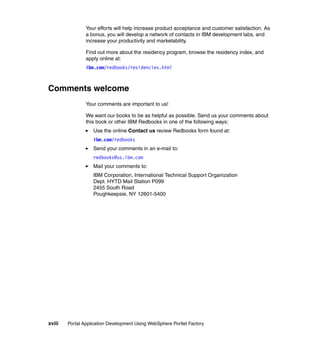
                                     David Bowley is a consultant with e-Centric Innovations in
                                     Melbourne Australia, and has been working with IBM®
                                     technologies since 1999. David specializes in the WebSphere
                                     Portal and Lotus® Domino product range, and is a regular
                                     contributor to several IT publications. David was also a
                                     co-author of the Redpaper for Portal Express Version 6.


© Copyright IBM Corp. 2008. All rights reserved.                                                  xiii
Emily Chan is a Technical Consultant in IBM Global Business
                                  Services based out of Sydney, Australia. She has 3 years of
                                  experience in various projects focusing on products based on
                                  the WebSphere Portal framework. She holds a Bachelor
                                  degree of Computer System Engineering from the University of
                                  New South Wales. Her area of expertise is Portal Content
                                  Management focusing on Portal framework design, build and
                                  performance testing.

                               Thulsi Krishnan is a IT Specialist in IBM India Software Labs
                               based out of Bangalore, India. He has over 10 years of IT
                               experience and has been focussing on portal projects for the
                               past 2 years. He is currently pursuing a Masters degree in
                               Computer science from VTU, Belagaum India part time. His
                               area of expertise include J2EE™ application development and
                               designing user interfaces. He also instructs on portal
                               technologies for partners. Thulsi enjoys travelling, reading
               about new technologies and enjoying time with the family and friends.

                                  Jason Lee is a Portal Technical Leader for IBM Lotus Software
                                  Group ASEAN and leads the pre-sales engagements in the
                                  region. He has over 8 years of development and management
                                  experience and has been involved in many intranet and
                                  extranet portal projects which include development of the
                                  Singapore Government's e-business portal. He holds a
                                  masters in computer science and business administration from
                                  the National University of Singapore and Bradford University
               respectively. His experiences include development in ASP/DCOM, J2EE
               Frameworks and other web technologies.

                                 Devang Patel is a Team Lead in WebSphere Portlet Factory
                                 Technical Support Organization based out of Research
                                 Triangle Park, NC, US. He has 5 years of experience in various
                                 products based on the WebSphere Portal framework. He holds
                                 a Masters degree in Computer Science from North Carolina
                                 State University. His areas of expertise include rapid J2EE
                                 application development, designing complex user interfaces,
                                 and Sarbanes-Oxley compliance framework. He has written
               extensively on serviceability related topics.


xiv   Portal Application Development Using WebSphere Portlet Factory
Alfredo Navarro is a Senior Software Engineer in Lotus
                             Workforce Management based on the Dublin Software Lab,
                             Ireland. He has 7 years of experience in Enterprise Application
                             Integration, Web Services and Portal applications. He holds a
                             degree in Computer Science from the University of Zaragoza,
                             Spain. He has spent more than 5 years working as Architect in
                             Germany and developing skills in integration technologies,
                             workflow engines and back-end connectors. His areas of
                             expertise include J2EE application development, software
          architecture and design patterns. He has written extensively on data integration
          topics. He likes to travel, learn other cultures, sports, read about new
          technologies and enjoy the time with the family and friends.

                            John Bergland is a project leader at the ITSO, Cambridge
                            Center. He manages projects that produce IBM Redbooks®
                            about IBM and Lotus Software products. Before joining the
                            ITSO in 2003, John worked as an Advisory IT Specialist with
                            IBM Software Services for Lotus (ISSL), specializing in Notes
                            and Domino messaging and collaborative solutions.


Special acknowledgement
          This Redbook effort was successful in large part due to the strong commitment
          and direct involvement of the WebSphere Portlet Factory Development Team.

          We wish to thank the following members for their support and their efforts during
          this residency.

                           Dee Zepf is the Product Manager for WebSphere Portlet
                           Factory. Dee returned to IBM in 2006 as part of the Bowstreet
                           acquisition and she brings over 15 years of software experience
                           to her role at IBM. Previously, at Bowstreet, she was the
                           Director of Product Management responsible for driving product
                           requirements and design. Prior to joining Bowstreet Dee spent
                           nine years at LotusIBM where she held various engineering
                           and product management positions.


                                                                               Preface    xv
Jonathan Booth is lead architect for the IBM WebSphere
                                     Portlet Factory products. These products came through the
                                     IBM acquisition of Bowstreet, where Jonathan was lead
                                     architect for seven years. Across a series of releases, the
                                     Portlet Factory products have pioneered the use of software
                                     automation techniques to address difficult software
                                     development problems, such as developing custom
                                     applications and portlets that access complex back end
                   systems. Prior to Bowstreet, Jonathan was a senior architect at Lotus and
                   IBM, where he was lead architect for Freelance Graphics® and related
                   products.


                                     Martin Romano is a software architect for the WebSphere
                                     Portlet Factory products, who returned to IBM as part of the
                                     Bowstreet acquisition. Prior to his tenure at Bowstreet,
                                     Martin worked on portal and presentation graphics products
                                     at IBM/Lotus, and wrote operating systems and digital
                                     imaging software at companies including AT&T and Kodak.


                                       Louise Simonds is the development manager for
                                      WebSphere Portlet Factory. She joined IBM as part of the
                                      Bowstreet acquisition. Prior to assuming a management
                                      role, Louise enjoyed a long career as a developer on a wide
                                      variety of software products including Portlet Factory,
                                      on-line travel booking, and CAD/CAM/simulation tools for
                   printed circuit and chip packaging technologies.


                                     Ruth Seltzer has developed and managed software
                                     products for more than 20 years and is currently Senior
                                     Engineering Manager for the IBM WebSphere Portlet
                                     Factory Products. These products came to IBM through the
                                     acquisition of Bowstreet, where Ruth was variously Director
                                     of Engineering and Director of Product Management for 5
                                     years. Prior to Bowstreet Ruth was the Director of
                   Engineering at Framework Technologies, a provider of collaboration and
                   information management software for mechanical engineering projects.
                   Before joining Framework Technologies Ruth was Director of Development at
                   Lotus and IBM where she managed the Graphics Product Group, creators of
                   Freelance Graphics and related products.


xvi   Portal Application Development Using WebSphere Portlet Factory
David Gawron is an IBM product architect in the WebSphere
                        Portlet Factory group. He joined IBM at the end of 2005 as part of
                        the Bowstreet Software acquisition. Over the last eight years
                        Dave has been involved in many aspects of Portlet Factory’s
                        development and is the architect responsible for the product's
                        integration with several IBM products and various back-ends
                        including relational databases and ERP systems. Dave's current
        focus is on helping customers and internal IBM groups effectively utilize Portlet
        Factory in their Portal development efforts. Prior to joining Bowstreet, Dave was
        a senior principal consultant specializing in software development for integrated
        call centers.

        Additional thanks to the following members who reviewed the material and
        provided extremely valuable technical guidance and direction for the team.
           Michael Burati - Senior Software Engineer - WebSphere Portlet Factory. He
           is a member of original founding development team at Bowstreet, acquired by
           IBM Dec2005/January 2006. Prior to working at Bowstreet, Michael was a
           Senior Consulting Engineer at Hewlett Packard on OSF DCE technology, and
           Technical Marketing Consultant at Apollo Computer, acquired by HP.
           Michael Bourgeois is a software engineer for the WebSphere Portlet Factory
           team. He joined Bowstreet in January 2000 as a QA Manager for the Factory.
           He moved into Development Management of offshore solutions and was
           promoted to Director of Engineering for the Work Force Management and
           Executive Dashboards products. While in this role, he traveled to India to
           work with the team and Holland for the first installation and deployment.
           When Bowstreet was acquired by IBM in 2005, Michael returned to a
           Software Engineering position on the Designer team. He currently works on
           Installation, Project Creation and Deployment, and has been certified in
           advanced SWT.
           Thomas Dolan was the Quality Engineering Team Lead for Websphere
           Portlet Factory. Special thanks to Tom for his contributions to writing about
           Considerations for WebSphere Application Server CE.


Become a published author
        Join us for a two- to six-week residency program! Help write a book dealing with
        specific products or solutions, while getting hands-on experience with
        leading-edge technologies. You will have the opportunity to team with IBM
        technical professionals, Business Partners, and Clients.


                                                                            Preface    xvii
Your efforts will help increase product acceptance and customer satisfaction. As
                a bonus, you will develop a network of contacts in IBM development labs, and
                increase your productivity and marketability.

                Find out more about the residency program, browse the residency index, and
                apply online at:
                ibm.com/redbooks/residencies.html


Comments welcome
                Your comments are important to us!

                We want our books to be as helpful as possible. Send us your comments about
                this book or other IBM Redbooks in one of the following ways:
                   Use the online Contact us review Redbooks form found at:
                   ibm.com/redbooks
                   Send your comments in an e-mail to:
                   redbooks@us.ibm.com
                   Mail your comments to:
                   IBM Corporation, International Technical Support Organization
                   Dept. HYTD Mail Station P099
                   2455 South Road
                   Poughkeepsie, NY 12601-5400


xviii   Portal Application Development Using WebSphere Portlet Factory
1


    Chapter 1.   Introduction
                 This chapter presents an overview of the capabilities, benefits, and use of the
                 WebSphere Portlet Factory.


© Copyright IBM Corp. 2008. All rights reserved.                                                   1
1.1 Overview of WebSphere Portlet Factory
               WebSphere Portlet Factory is a powerful and flexible tool for rapidly building
               portlets on top of a service-oriented architecture. Developers are able to quickly
               and easily leverage their company's core assets, automatically assembling them
               into custom, high-value portlets. Portlets created with WebSphere Portlet Factory
               are dynamic, robust Java™ 2 Enterprise Edition (J2EE) applications that react
               automatically to change. They can be further modified by business users in real
               time to meet changing business requirements, without requiring any coding, or
               duplicating and versioning of assets. By eliminating the need to code all of these
               implementations and their variations, WebSphere Portlet Factory simplifies the
               development, deployment, and change management process, saving companies
               time and money.


1.2 Capabilities of WebSphere Portlet Factory
               The primary features and capabilities of WebSphere Portlet Factory are as
               follows:
                   Multi-page custom portlets without coding
                   The WebSphere Portlet Factory rapid application development (RAD)
                   capabilities and ease of use enable developers of all skill sets to create
                   multi-page, complex portlets. Developers build portlets by defining a
                   sequence of highly adaptive software components, called builders, which
                   have an easy-to-use interface. Developers assemble builders into models,
                   which then generate the application code. In this way, developers can capture
                   and automate the process of building dynamic portlets, instead of explicitly
                   coding each portlet.
                   Robust integration capabilities with enterprise applications and data
                   WebSphere Portlet Factory provides automatic integration with existing
                   applications and data, including SAP®, Lotus Domino, PeopleSoft®, Siebel®,
                   Web Services, relational databases, and Excel®. Developers can quickly
                   create composite, high-value portlets that leverage existing investment in
                   your existing applications and data.
                   Automatic integration with WebSphere Portal
                   With WebSphere Portlet Factory, you have direct integration with IBM
                   WebSphere Portal features such as portlet wiring, Click-to-Action, business
                   user configuration, people awareness, WebSphere Portal groups, and the
                   credential vault. Portlets are deployed automatically to WebSphere Portal
                   software.


2   Portal Application Development Using WebSphere Portlet Factory
Support for SOA development
           WebSphere Portlet Factory provides powerful technology for speeding the
           creation of service-oriented applications and portlets. It includes data services
           builders along with data integration builders, which together automate the
           process of creating services from systems such as SAP and Lotus Domino.
           This services approach provides a clean way to separate the back end
           services of an application from the presentation layer. It also automatically
           creates testing support for back end services, and it enables front end
           presentation development and testing without requiring a back end
           connection.
           Many portlet variations from a single code base
           With the profiling capability of WebSphere Portlet Factory, developers can
           easily create multiple portlet variations from one code base, without requiring
           any additional code changes or redeployment.
           Automation of frequently occurring development tasks
           By creating new builders, developers and architects can capture commonly
           used design patterns and company-specific business processes as reusable
           components for all developers, enforcing application architecture and
           development best practices.


1.3 Development with WebSphere Portlet Factory
        With WebSphere Portlet Factory, developers build portlets by snapping together
        a sequence of components called builders. Each builder has a simple wizard-like
        user interface and does the work of automatically generating or modifying part of
        an application. A builder implements an application design pattern. Users
        assemble builders into models, which WebSphere Portlet Factory software then
        executes to dynamically generate the application code, including Java Server
        Pages (JSPs), Java classes, and XML documents, as well as the low-level
        artifacts that make up the portlet application. In this way, developers can capture
        and automate the process of building dynamic portlets, instead of explicitly
        coding each portlet. Developers can quickly and easily create multiple highly
        customized portlets from one code base, without requiring additional code
        changes or redeployment.

        WebSphere Portlet Factory software includes an easy-to-use graphical tool,
        called IBM WebSphere Portlet Factory Designer, for creating, viewing, and
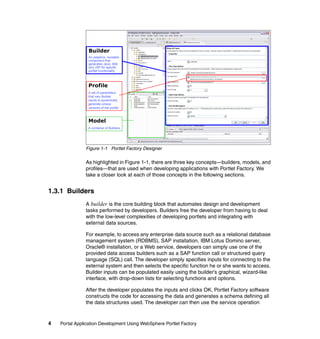
        running portlets (see Figure 1-1). The WebSphere Portlet Factory Designer tool
        plugs seamlessly into IBM Rational® Application Developer software and the
        open source Eclipse integrated development environment (IDE).


                                                                 Chapter 1. Introduction   3
Builder
                An adaptive, reusable
                component that
                generates Java, XML
                and JSP for specific
                portlet functionality


                Profile
                A set of parameters
                that vary Builder
                inputs to dynamically
                generate unique
                versions of the portlet


                Model
                A container of Builders


               Figure 1-1 Portlet Factory Designer

               As highlighted in Figure 1-1, there are three key concepts—builders, models, and
               profiles—that are used when developing applications with Portlet Factory. We
               take a closer look at each of those concepts in the following sections.


1.3.1 Builders
               A builder is the core building block that automates design and development
               tasks performed by developers. Builders free the developer from having to deal
               with the low-level complexities of developing portlets and integrating with
               external data sources.

               For example, to access any enterprise data source such as a relational database
               management system (RDBMS), SAP installation, IBM Lotus Domino server,
               Oracle® installation, or a Web service, developers can simply use one of the
               provided data access builders such as a SAP function call or structured query
               language (SQL) call. The developer simply specifies inputs for connecting to the
               external system and then selects the specific function he or she wants to access.
               Builder inputs can be populated easily using the builder’s graphical, wizard-like
               interface, with drop-down lists for selecting functions and options.

               After the developer populates the inputs and clicks OK, Portlet Factory software
               constructs the code for accessing the data and generates a schema defining all
               the data structures used. The developer can then use the service operation


4   Portal Application Development Using WebSphere Portlet Factory
builder to create a service interface for the function. Then, a single view and form
          builder can be used to create pages for searching, viewing results, or updating
          data from that service. The user does not need to create a single line of code for
          all of this functionality.

          Portlet Factory builders are similar to the “wizards” found in many development
          tools in that they present a set of simple options to the user, and then generate a
          set of code artifacts based on the responses, thereby speeding initial
          development. However, builders go far beyond traditional wizards in that builders
          are designed to re-execute on every change of the application. Because Portlet
          Factory builders generate a metadata representation of the code they generate,
          other builders can introspect the application and adapt to changes made in other
          builders. In this way, builders empower a greatly enhanced iterative development
          approach: as builders are added or changed, previously added builders
          re-execute and adapt to the changing application. Traditional wizard-based code
          generation, in contrast, is typically a “one-shot deal” because once the code has
          been generated, the user must resort to low-level hand coding to make further
          changes.

          In addition to the capabilities provided by out-of-the-box builders, Java
          developers can easily create new builders that encapsulate desired design
          patterns and development standards. By creating builders, developers can
          automate common development tasks and enable true reuse of code. In
          addition, through builders, architects and senior developers can enforce
          compliance to company architectural and code standards. And builders can save
          developers time and effort by helping to ensure the consistency and quality of
          code. One of the keys to the power of WebSphere Portlet Factory software is that
          new builders can easily include any functionality of existing builders. They can
          also automatically include portions of the design-time UI of other builders. This
          enables the easy creation of high-level builders. These high-level builders can
          encapsulate any high-level application design pattern, whether vertical or
          horizontal, customer-specific or general.


1.3.2 Models
          A model is a sequenced collection of builders that generates the application
          components that implement the behavior, structure, data, and presentation of the
          application.

          Internally, a model is simply an XML file containing a series of calls to builders.

          Application development with Portlet Factory is typically divided into two main
          parts: the service layer, which provides data access using a service-oriented
          architecture, and the presentation or portlet layer, which provides the application


                                                                    Chapter 1. Introduction     5
user interface. Some models will typically contain data-oriented builders to
                implement the service layer while other models will contain presentation-oriented
                builders to implement the user interface. A presentation model can automatically
                be run as a portlet or as a standalone J2EE application.

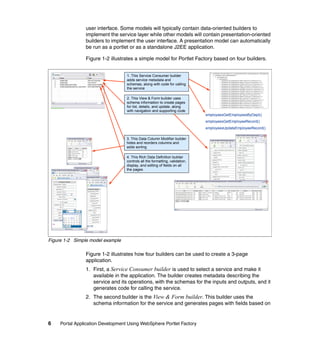
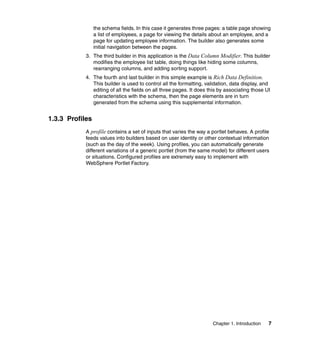
                Figure 1-2 illustrates a simple model for Portlet Factory based on four builders.


                                   1. This Service Consumer builder
                                   adds service metadata and
                                   schemas, along with code for calling
                                   the service

                                   2. This View & Form builder uses
                                   schema information to create pages
                                   for list, details, and update, along
                                   with navigation and supporting code
                                                                              employeesGetEmployeesByDept()
                                                                              employeesGetEmployeeRecord()
                                                                              employeesUpdateEmployeeRecord()

                                   3. This Data Column Modifier builder
                                   hides and reorders columns and
                                   adds sorting

                                   4. This Rich Data Definition builder
                                   controls all the formatting, validation,
                                   display, and editing of fields on all
                                   the pages


Figure 1-2 Simple model example

                Figure 1-2 illustrates how four builders can be used to create a 3-page
                application.
                1. First, a Service Consumer builder is used to select a service and make it
                   available in the application. The builder creates metadata describing the
                   service and its operations, with the schemas for the inputs and outputs, and it
                   generates code for calling the service.
                2. The second builder is the View & Form builder. This builder uses the
                   schema information for the service and generates pages with fields based on


6    Portal Application Development Using WebSphere Portlet Factory
the schema fields. In this case it generates three pages: a table page showing
                 a list of employees, a page for viewing the details about an employee, and a
                 page for updating employee information. The builder also generates some
                 initial navigation between the pages.
            3. The third builder in this application is the Data Column Modifier. This builder
               modifies the employee list table, doing things like hiding some columns,
               rearranging columns, and adding sorting support.
            4. The fourth and last builder in this simple example is Rich Data Definition.
               This builder is used to control all the formatting, validation, data display, and
               editing of all the fields on all three pages. It does this by associating those UI
               characteristics with the schema, then the page elements are in turn
               generated from the schema using this supplemental information.


1.3.3 Profiles
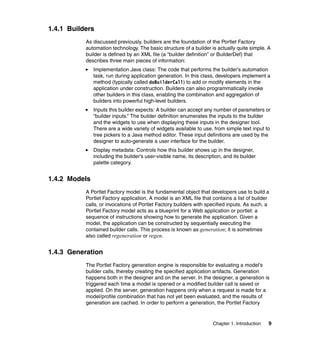
            A profile contains a set of inputs that varies the way a portlet behaves. A profile
            feeds values into builders based on user identity or other contextual information
            (such as the day of the week). Using profiles, you can automatically generate
            different variations of a generic portlet (from the same model) for different users
            or situations. Configured profiles are extremely easy to implement with
            WebSphere Portlet Factory.


                                                                      Chapter 1. Introduction   7
Model        +      Profiles                 Applications              Users

                                         A           C                WebApp A
                                               B                     • JSP pages
                                                                     • Controller logic
                                                                     • Services and
                                                                      business objects
                                                                     • XML and data
                                          Regeneration
                  Profiled builder                                       WebApp B
                        calls
                                                                       • JSP pages
                                                                       • Controller logic
                                                                       • Services and
                                                                         business objects
                                                                       • XML and data
                       A single model can
                       generate a family of                   WebApp C
                       WebApps using                         • JSP pages
                       different profiles                    • Controller logic
                                                             • Services and
                                                              business objects
                                                             • XML and data


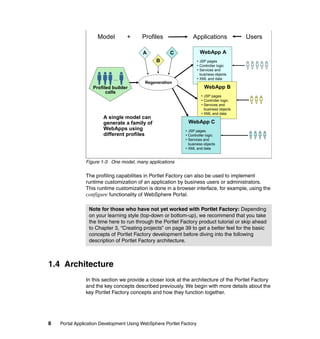
               Figure 1-3 One model, many applications

               The profiling capabilities in Portlet Factory can also be used to implement
               runtime customization of an application by business users or administrators.
               This runtime customization is done in a browser interface, for example, using the
               configure functionality of WebSphere Portal.

                 Note for those who have not yet worked with Portlet Factory: Depending
                 on your learning style (top-down or bottom-up), we recommend that you take
                 the time here to run through the Portlet Factory product tutorial or skip ahead
                 to Chapter 3, “Creating projects” on page 39 to get a better feel for the basic
                 concepts of Portlet Factory development before diving into the following
                 description of Portlet Factory architecture.


1.4 Architecture
               In this section we provide a closer look at the architecture of the Portlet Factory
               and the key concepts described previously. We begin with more details about the
               key Portlet Factory concepts and how they function together.


8   Portal Application Development Using WebSphere Portlet Factory
1.4.1 Builders
           As discussed previously, builders are the foundation of the Portlet Factory
           automation technology. The basic structure of a builder is actually quite simple. A
           builder is defined by an XML file (a “builder definition” or BuilderDef) that
           describes three main pieces of information:
               Implementation Java class: The code that performs the builder’s automation
               task, run during application generation. In this class, developers implement a
               method (typically called doBuilderCall) to add or modify elements in the
               application under construction. Builders can also programmatically invoke
               other builders in this class, enabling the combination and aggregation of
               builders into powerful high-level builders.
               Inputs this builder expects: A builder can accept any number of parameters or
               “builder inputs.” The builder definition enumerates the inputs to the builder
               and the widgets to use when displaying these inputs in the designer tool.
               There are a wide variety of widgets available to use, from simple text input to
               tree pickers to a Java method editor. These input definitions are used by the
               designer to auto-generate a user interface for the builder.
               Display metadata: Controls how this builder shows up in the designer,
               including the builder’s user-visible name, its description, and its builder
               palette category.


1.4.2 Models
           A Portlet Factory model is the fundamental object that developers use to build a
           Portlet Factory application. A model is an XML file that contains a list of builder
           calls, or invocations of Portlet Factory builders with specified inputs. As such, a
           Portlet Factory model acts as a blueprint for a Web application or portlet: a
           sequence of instructions showing how to generate the application. Given a
           model, the application can be constructed by sequentially executing the
           contained builder calls. This process is known as generation; it is sometimes
           also called regeneration or regen.


1.4.3 Generation
           The Portlet Factory generation engine is responsible for evaluating a model's
           builder calls, thereby creating the specified application artifacts. Generation
           happens both in the designer and on the server. In the designer, a generation is
           triggered each time a model is opened or a modified builder call is saved or
           applied. On the server, generation happens only when a request is made for a
           model/profile combination that has not yet been evaluated, and the results of
           generation are cached. In order to perform a generation, the Portlet Factory


                                                                      Chapter 1. Introduction   9
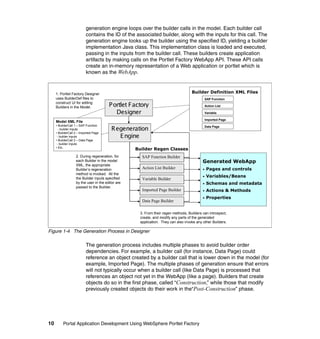
generation engine loops over the builder calls in the model. Each builder call
                          contains the ID of the associated builder, along with the inputs for this call. The
                          generation engine looks up the builder using the specified ID, yielding a builder
                          implementation Java class. This implementation class is loaded and executed,
                          passing in the inputs from the builder call. These builders create application
                          artifacts by making calls on the Portlet Factory WebApp API. These API calls
                          create an in-memory representation of a Web application or portlet which is
                          known as the WebApp.


     1. Portlet Factory Designer                                                    Builder Definition XML Files
     uses BuilderDef files to                                                                  SAP Function
     construct UI for editing
     Builders in the Model.             P ortlet Factory                                       Action List

                                           Designer                                            Variable

                                                                                               Imported Page
     Model XML File
     • BuilderCall 1 – SAP Function
       - builder inputs                   Regeneration                                         Data Page

     • BuilderCall 2 – Imported Page
      - builder inputs                      E ngine
     • BuilderCall 3 – Data Page
      - builder inputs
     • Etc.
                                                   •Builder Regen Classes
                   2. During regeneration, for        SAP Function Builder
                   each Builder in the model                                               Generated WebApp
                   XML, the appropriate
                   Builder’s regeneration             Action List Builder                  •    Pages and controls
                   method is invoked. All the
                   the Builder inputs specified
                                                                                           •    Variables/Beans
                                                      Variable Builder
                   by the user in the editor are                                           •    Schemas and metadata
                   passed to the Builder.
                                                      Imported Page Builder                •    Actions & Methods
                                                                                           •    Properties
                                                      Data Page Builder

                                                     3. From their regen methods, Builders can introspect,
                                                     create, and modify any parts of the generated
                                                     application. They can also invoke any other Builders.

Figure 1-4 The Generation Process in Designer

                          The generation process includes multiple phases to avoid builder order
                          dependencies. For example, a builder call (for instance, Data Page) could
                          reference an object created by a builder call that is lower down in the model (for
                          example, Imported Page). The multiple phases of generation ensure that errors
                          will not typically occur when a builder call (like Data Page) is processed that
                          references an object not yet in the WebApp (like a page). Builders that create
                          objects do so in the first phase, called “Construction,” while those that modify
                          previously created objects do their work in the“Post-Construction” phase.


10        Portal Application Development Using WebSphere Portlet Factory
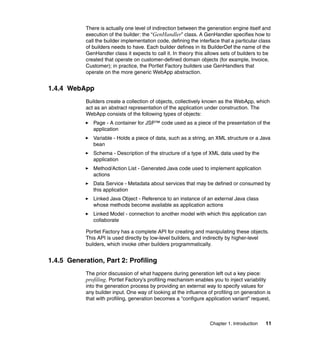
There is actually one level of indirection between the generation engine itself and
            execution of the builder: the “GenHandler” class. A GenHandler specifies how to
            call the builder implementation code, defining the interface that a particular class
            of builders needs to have. Each builder defines in its BuilderDef the name of the
            GenHandler class it expects to call it. In theory this allows sets of builders to be
            created that operate on customer-defined domain objects (for example, Invoice,
            Customer); in practice, the Portlet Factory builders use GenHandlers that
            operate on the more generic WebApp abstraction.


1.4.4 WebApp
            Builders create a collection of objects, collectively known as the WebApp, which
            act as an abstract representation of the application under construction. The
            WebApp consists of the following types of objects:
               Page - A container for JSP™ code used as a piece of the presentation of the
               application
               Variable - Holds a piece of data, such as a string, an XML structure or a Java
               bean
               Schema - Description of the structure of a type of XML data used by the
               application
               Method/Action List - Generated Java code used to implement application
               actions
               Data Service - Metadata about services that may be defined or consumed by
               this application
               Linked Java Object - Reference to an instance of an external Java class
               whose methods become available as application actions
               Linked Model - connection to another model with which this application can
               collaborate

            Portlet Factory has a complete API for creating and manipulating these objects.
            This API is used directly by low-level builders, and indirectly by higher-level
            builders, which invoke other builders programmatically.


1.4.5 Generation, Part 2: Profiling
            The prior discussion of what happens during generation left out a key piece:
            profiling. Portlet Factory’s profiling mechanism enables you to inject variability
            into the generation process by providing an external way to specify values for
            any builder input. One way of looking at the influence of profiling on generation is
            that with profiling, generation becomes a “configure application variant” request,


                                                                    Chapter 1. Introduction   11
where the description of what changes in each application variant is stored or
                    managed separately from code.

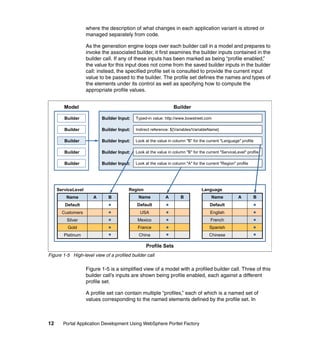
                    As the generation engine loops over each builder call in a model and prepares to
                    invoke the associated builder, it first examines the builder inputs contained in the
                    builder call. If any of these inputs has been marked as being “profile enabled,”
                    the value for this input does not come from the saved builder inputs in the builder
                    call: instead, the specified profile set is consulted to provide the current input
                    value to be passed to the builder. The profile set defines the names and types of
                    the elements under its control as well as specifying how to compute the
                    appropriate profile values.


        Model                                                    Builder

        Builder            Builder Input:   Typed-in value: http://www.bowstreet.com

        Builder            Builder Input:   Indirect reference: ${Variables/VariableName}

        Builder            Builder Input:   Look at the value in column "B" for the current "Language" profile

        Builder            Builder Input:   Look at the value in column "B" for the current "ServiceLevel" profile

        Builder            Builder Input:   Look at the value in column "A" for the current "Region" profile


     ServiceLevel                       Region                                   Language
         Name          A      B              Name           A        B                 Name           A        B
        Default                             Default                                   Default
       Customers                              USA                                     English
         Silver                              Mexico                                   French
         Gold                                France                                  Spanish
        Platinum                             China                                   Chinese

                                                 Profile Sets
Figure 1-5 High-level view of a profiled builder call

                    Figure 1-5 is a simplified view of a model with a profiled builder call. Three of this
                    builder call’s inputs are shown being profile enabled, each against a different
                    profile set.

                    A profile set can contain multiple “profiles,” each of which is a named set of
                    values corresponding to the named elements defined by the profile set. In


12     Portal Application Development Using WebSphere Portlet Factory
Figure 1-3 on page 8 there is one profile set with three profiles, named “A,” “B,”
and “C”. Depending on which profile is selected, a different set of application
artifacts will be generated. A profile set can specify, by using a set of Java
classes, what mechanism should be used to determine which profile to use for a
given request. The choice of which profile to apply can be made based on a wide
variety of factors, such as:
   User ID
   J2EE role
   Client device type
   Request parameter values
   Portlet configuration or preference data
   Application-specific data, for example, product type

This list is not exhaustive: the rules for profile determination are fully extensible, if
necessary, via the use of custom Java code.

Note that because the entire application is created by builders, and any builder
input can be profiled, there are no limits on what can be modified by profiling.
Presentation, workflow, logic, services, and so forth, can all be varied by profile
as much as you want. The Portlet Factory, however, will only generate new
artifacts (such as a JSP page, or a Java class) for a given profile if the artifact in
question has different contents than the corresponding artifact in the default
(base) profile. This helps protect against unnecessary proliferation of application
artifacts in the presence of multiple profiles.


                                                           Chapter 1. Introduction    13
14   Portal Application Development Using WebSphere Portlet Factory
2


    Chapter 2.   Scenario introduction
                 This book discusses the techniques and best practices for developing portlets
                 using WebSphere Portlet Factory within the context of a realistic business
                 scenario, highlighting a specific sample application. The sample application is
                 based on a fictitious company, ITSO Renovations, a home building materials
                 supplier and distribution company.

                 This chapter introduces the scenario and provides an overview of the application
                 functionality. It shows the application portlets from the end user perspectives of a
                 Customer Service Representative (CSR) and an external customer.

                 This chapter also provides a reference table for specific Portlet Factory
                 functionality, showing where in this book, and in the sample application, this
                 functionality is discussed in detail.


© Copyright IBM Corp. 2008. All rights reserved.                                                   15
2.1 Overview of the sample scenario
               For the purpose of providing a realistic business context throughout this book, we
               designed a sample scenario, which we then built using WebSphere Portlet
               Factory. The scenario includes two applications, a Customer Service Self Help
               application and a Customer Service Representative application, for an imaginary
               company, ITSO Renovations.


2.1.1 Scenario background
               ITSO Renovations is a fictitious home building materials supplier and distribution
               company. They have used WebSphere Portlet Factory to develop a portal-based
               application for better servicing customer needs. The service portal application is
               designed to improve customer service in the following ways:
                  It provides a single unified interface for customer service representatives to
                  retrieve and update customer information, and report on the status of existing
                  orders.
                  It allows customers to access the system directly and check on the status of
                  their orders, thereby enabling a customer self-service capability.
                  It provides a new “Go Shopping” portlet, allowing a user of the system to
                  create a new order and add items to or remove items from the order.


2.1.2 Roles specific to the sample application scenario
               For the sake of this scenario, we are interested in two specific end user roles:
                  A customer service representative (also referred to as a CSR, an internal
                  employee of ITSO Renovations), who focuses on taking inquiries from
                  customers about an existing order, or taking new orders on behalf of a
                  customer. Additionally, the customer service representative can look up
                  customer information and edit the information as needed. These capabilities,
                  now made more efficient and easier to perform via a more intuitive user
                  interface, enable ITSO Renovations to provide improved customer service.
                  An external customer, who can access the system directly to check on the
                  status of an existing order, or to place a new order. Additionally, the customer
                  can edit and update their customer information if necessary, such as updating
                  the shipping address or entering the name of a new contact person.


16   Portal Application Development Using WebSphere Portlet Factory
2.2 Preview of the sample application
           This section provides a preview of the application you will build using the
           techniques and approaches described throughout this book.

            Note: The sample code used in developing this application is available for
            download. Refer to Appendix G, “Additional material” on page 693 for the URL
            and specific instructions on how to download the code.

            The following chapters provide detailed steps to build the portlets:
               Chapter 5, “Creating Data Services: Access to back-end systems” on
               page 105
               Chapter 6, “Creating portlets: Making it work” on page 221
               Chapter 7, “Creating portlets: Designing the UI” on page 275
               Chapter 8, “Enabling portlet communication” on page 361
               Chapter 9, “Customizing the application using profiling” on page 421
               Chapter 10, “Creating the Go Shopping portlet” on page 501


2.2.1 Overview of the application functionality
           The service portal application provides the following functionality:
              Customer service representatives can retrieve and update customer
              information, and report on the status of existing orders. A customer service
              representative can also create a new order for a customer using the Go
              Shopping portlet.
              Customers can access the system directly and check on the status of their
              orders.
              A user can create a new order and add items to or remove items from the
              order using the Go Shopping portlet.

           Figure 2-1 on page 18 shows a high-level flow of the functionality from the
           perspective of a customer services representative. Each of the specific portlets is
           discussed in greater detail in subsequent sections.


                                                          Chapter 2. Scenario introduction   17
List of Customers

                                                      CSR can select specific customer to drill down and
                                                      get order specific information


                                                               Details of Customer Information
                                                               CSR has ability to edit information
     Vie er In Infor
      Ord duct
        win form ma
        Pro


           gC
              ust ation, n


                                                                Reviewing details of specific order
                 om
                     er I and
                         tio

                         nfo
                             rm
                                a
                              tion


                     Adding items to shopping cart


Figure 2-1 Application functionality from a customer service representative perspective


18     Portal Application Development Using WebSphere Portlet Factory
2.2.2 Use cases applicable to the CSR
                             Upon logging in to the system as a customer service representative, the user can
                             perform the following functions:
                                     Create a customer
                                     Search for a customer
                                     View customer details
                                     Edit customer details
                                     View orders
                                     View details and status of orders placed
                                     Add an order via the Go Shopping tab

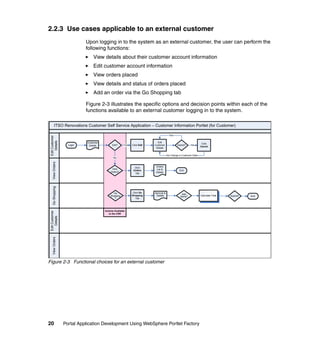
                             Figure 2-2 illustrates the specific options and decision points within each of the
                             functions available to a CSR.

         ITSO Renovations Customer Self Service Application – Customer Information Portlet (for CSR)
 Customer
  Create


                                                                                       New                                                                           Click View
                          Customer                               Click Add
                  Login                      Add?          Yes                       Customer             Submit?                                                        All
                            List                                 Customer           Input Form                                                                       Customers
                                                                                                                                                                        No
 Search for
 Customer


                                                                 Enter first                               Select                                 Filtered
                                                                  letter of                            Customer                                  Customer              View
                                           Search?         Yes   Customer           Available?   Yes    from Ajax             Click Go              List              Details?
                                                                   Name                                filtered list
                                                                                                                                                                        Yes
                                                                               No
 View Customer
     Details


                                                                   Click            Customer             View
                                             View                                                      Customer
                                            Details?       Yes   Customer            Details                           No      Edit?             Click Back
                                                                    ID                                 Orders?


                                                                                                                                Yes
                                                                                                           Yes
    View Orders


                                                                   Click                                 Click                 Orders
                                             View                                   Customer
                                                           Yes   Customer            Details            Orders                 List &               End
                                            Orders?                                                                            Details
                                                                    ID                                   Tab
 Edit Customer


                                                                                                                        Yes
     Details


                                                                   Click            Customer                                    Edit
                                                                                                                                                                       Click
                                             Edit?         Yes   Customer            Details           Click Edit             Customer            Submit?       No
                                                                                                                                                                      Cancel
                                                                    ID                                                         Details
    Go Shopping


                                             Go                   Click Go          ItemList &              Add
                                           Shopping              Shopping             Details             Items?               Calculate Total            Submit?        End
                                              ?                     Tab


                                           Actions
                                        Available to the
                                             CSR


Figure 2-2 Functional choices for a customer service representative


                                                                                                                       Chapter 2. Scenario introduction                           19
2.2.3 Use cases applicable to an external customer
                           Upon logging in to the system as an external customer, the user can perform the
                           following functions:
                                View details about their customer account information
                                Edit customer account information
                                View orders placed
                                View details and status of orders placed
                                Add an order via the Go Shopping tab

                           Figure 2-3 illustrates the specific options and decision points within each of the
                           functions available to an external customer logging in to the system.

        ITSO Renovations Customer Self Service Application – Customer Information Portlet (for Customer)

                                                                                         Yes
Edit Customer
    Details


                            Customer                                        Edit
                                                                                                                     Click
                   Login     Details         Edit?     Yes   Click Edit   Customer              Submit?    No
                                                                                                                    Cancel
                                                                           Details


                                                                                       No Change in Customer Data
                                              No
   View Orders


                                                               Click       Orders
                                            View                           List &
                                                              Orders                             End
                                           Orders?                         Details
                                                               Tab
   Go Shopping


                                             Go               Click Go    ItemList &                Add
                                           Shopping          Shopping       Details               Items?               End
                                                                                                                    Calculate Total   Submit?   End
                                              ?                 Tab


                                       Actions Available
Edit Customer


                                          to the CSR
    Details
   View Orders


Figure 2-3 Functional choices for an external customer


20               Portal Application Development Using WebSphere Portlet Factory
2.3 Review of specific portlets - CSR perspective
          This section discusses each of the specific portlets and its functions in greater
          detail. We begin by discussing the portlets specific to the role of the customer
          service representative.


2.3.1 Reviewing customer information
          Upon first logging in to the system, the CSR is presented with a list of existing
          customers. The CSR can navigate to a specific customer to view the detailed
          customer information and the orders that customer has placed, or the CSR can
          enter information for a new customer. Figure 2-4 on page 22 illustrates how a
          CSR can view the list of customers.


                                                         Chapter 2. Scenario introduction   21
Ability to search for customers
     Listing of customers
                                         Enter new customer information
Figure 2-4 Viewing a list of customers


22     Portal Application Development Using WebSphere Portlet Factory
Upon selecting the specific customer, the CSR is presented with detailed
information about that customer (Figure 2-5). From within this portlet, the CSR
has the ability edit and modify customer information if necessary.


Figure 2-5 Details of customer information

Figure 2-6 on page 24 illustrates how a Customer Service Representative can
edit specific customer information on a record.


                                             Chapter 2. Scenario introduction   23
Ability to edit customer information
Figure 2-6 Editing customer information


2.3.2 Reviewing customer order information
                 Once a specific customer has been selected, the CSR has the ability to view an
                 overall listing of their orders placed, and to view the specific details of a particular
                 order. Figure 2-7 on page 25 illustrates the details of a specific order.


24    Portal Application Development Using WebSphere Portlet Factory
Reviewing details of customer order
Figure 2-7 Reviewing the details of a specific order


                                                       Chapter 2. Scenario introduction   25
2.3.3 Creating a new order on behalf of a customer
                 The customer service representative has the ability to create a new order on
                 behalf of the customer, as shown in Figure 2-8. The CSR must simply drag items
                 from the list of items on the right side of the portlet into the shopping cart.


                                   Drag and drop to the shopping cart


         Creating a new order
Figure 2-8 Creating a new order for a customer


26    Portal Application Development Using WebSphere Portlet Factory
2.4 Review of specific portlets - Customer perspective
           This section highlights the functionality of the portlets for an external customer
           logging into the application.


2.4.1 Customer information based on authentication credentials
           The functionality for an external customer is similar to that of the customer
           service representative, with one key exception: the customer logging in will only
           see information for their own account.

           For example, as shown in Figure 2-9 on page 28, the customer Retro Restoration
           has logged into the system and is presented with their account information.


                                                          Chapter 2. Scenario introduction   27
Reviewing customer account information
               Figure 2-9 Upon logging in, a customer is presented with their customer information


28   Portal Application Development Using WebSphere Portlet Factory
The customer has the ability to edit and update their own account information if
                  necessary. Once the customer clicks the edit button, they can edit the fields, as
                  shown in Figure 2-10.
h


                            Ability to edit customer account information
Figure 2-10 Customer has the ability to edit their account information


                                                                    Chapter 2. Scenario introduction   29
2.4.2 Customer perspective - Reviewing orders
                 Once logged into the system, the customer has the ability to review each of their
                 orders. Clicking an order results in display of the specific details of the order
                 (Figure 2-11).


                       Reviewing details of customer order
Figure 2-11 Reviewing the details of an order


30     Portal Application Development Using WebSphere Portlet Factory
2.4.3 Customer perspective - Creating a new order
                 The customer can place a new order by clicking the Go Shopping tab. From
                 within the Go Shopping portlet, a customer adds new items to their shopping cart
                 by simply dragging and dropping items from the list on the right.


                                             Drag and drop to the shopping cart


     Adding items to the shopping cart
Figure 2-12 Creating a new order and adding items to the shopping cart

                 Complete information about these functional portlets, and details on how to build
                 each one, are provided in subsequent chapters. The next section identifies in
                 which chapter each Portlet Factory function is covered.


                                                                 Chapter 2. Scenario introduction   31
2.5 Mapping functional areas of sample application
    and capabilities of Portlet Factory
                   The following tables describe specific features and the builders and techniques
                   used to implement them.


2.5.1 Data Services
                   Table 2-1 highlights features implemented and functionality relating to the Data
                   Services portion of the application.

Table 2-1 Data Services features implemented and builders used
 Feature and description                             Builders and techniques used         Reference

 Data Structures                                     Definitions models                   Chapter 4
                                                     Models under redbookcsdatadef
 Definition of data structures for the Application
 Data Service Interface. Import the structure from   Builders: Schema builder
 a XSD file or as input of the builder

 Data Service Definition                             XML file models                      Chapter 4
                                                     Models under redbookcsdatafile
 Definition of the data service and operations. It
 defines the Application Data Service Interface      Builders: Service Definition
 using the XML file based implementation.                      Service Operation

 Local XML access sample                             XML file models                      Chapter 5
                                                     Models under redbookcsdatafile
 Implementation of a data service to access local
 XML files.                                          Builders: Import to XML
                                                               Linked Java Object

 SQL Data Services                                   Database models                      Chapter 5
                                                     Models under redbookcsdatadb
 Implementation of a data service to access
 relational databases.                               Builders: SQL DataSource
                                                               SQL Call

 SQL Data Services - Data Transformations            Java class OrderDBProviderHelper     Chapter 5
 using IXml API                                      Method: transformOrderItems()

 Data transformations using IXml API
 implemented in a Java class.


32    Portal Application Development Using WebSphere Portlet Factory
Feature and description                            Builders and techniques used            Reference

SQL Data Services - Customize data column          Database models                         Chapter 5
access to work with binary data: read and write    CustomerDBProvider
                                                   ProductDBProvider
How to customize the data column access in         Builders: SQL Statement
SQL builders to select and update/insert in a      DBProviderHelper.model
table that contains a binary column (BLOB).        Builders: Action List
                                                             Linked Java Object
                                                   Java class DBProviderHelper

SQL Data Services - implementation of              Database models OrderDBProvider         Chapter 5
transactions                                       Builders: SQL Statement
                                                             SQL Transaction
Implementation of user defined transactions that   Java class OrderDBProviderHelper
involves the execution of several SQL              Methods: createOrderWithItems()
Statements.                                                  updateOrderItemsList()

Domino Data Access Service                         Domino models                           Chapter 5
                                                   ProductDetailsProvider
Implementation of a data service to access a       Builders: Domino Data Access
Domino database.                                             SQL Transaction
                                                   Java class ProductDetailsProvider
                                                   Helper

Domino Data Access Service - Data                  Domino models                           Chapter 5
Transformation using Transform builders            ProductDetailsProvider
                                                   Builders: Transform
Data transformations for Domino data using
builders.

Data Service for external Web Service access       Web Service models                      Chapter 5
                                                   ProductWSProvider
Implementation of a data service to access an      Builders: WebServiceCall
external web service.

Data Service for external Web Service access -     Web Service models                      Chapter 5
accessing static content                           ProductWSProvider
                                                   Builders: Method
How to access static content provided by the                 Variable
web service (images, PDF files, and so forth).

Data Service for external Web Service access -     Profile Set Configurations              Chapter 5
Profiling the Web Service URL using a              Java class PropertyFileValueSetter
properties file

Profile the Web Service URL using a properties
file.


                                                                  Chapter 2. Scenario introduction     33
Feature and description                             Builders and techniques used          Reference

 Creating stub service for data services             Data access models                    Chapter 5
 Auto generation of Stub Services to work            Builders: Service Definition
 disconnected from the real back-end system.

 Creation of a Web Service using WebSphere           ProductWebService                     Appendix B
 Portlet Factory                                     Builders: Service Definition
 How to create expose a Data Service as a Web
 Service.


2.5.2 Basic user interface portlets
                  Table 2-2 highlights features implemented and functionality relating to creating
                  the basic User Interface portlets. These topics are covered in detail in Chapter 6,
                  “Creating portlets: Making it work” on page 221.

Table 2-2 Basic user interface portlet features implemented and builders used
 Feature and description                                            Builders and techniques used

 Creating Basic User Interface/Portlets                             CustomerInfo Model
                                                                    Service Consumer
 Consumes the Data Services and creates a basic user interface      View & Form
 using high level builders. Uses the Portlet Adapter builder to     Imported Page
 execute models as portlets. Also utilizes the WPS Credential       Portlet Adapter
 builder to access the WebSphere Portal Credential Vault.           WPS Credential

 Creating Basic User Interface/Portlets                             OrderList Model
                                                                    Service Consumer
 Uses the fundamental Data Page builder to create a portlet         Imported Page
 capable of displaying a list of orders.                            Data Page
                                                                    Portlet Adapter

 Creating Basic User Interface/Portlets                             OrderDetails Model
                                                                    Service Consumer
 Uses multiple Data Page builders to create a Order Details         Imported Page
 portlet. Also utilizes the Linked Java Object builder to conduct   Data Page
 Order calculations, etc.                                           Linked Java Object
                                                                    Portlet Adapter.


34     Portal Application Development Using WebSphere Portlet Factory
2.5.3 Advanced user interface portlets
                   Table 2-3 highlights features implemented and functionality relating to advanced
                   development with the user interface. These topics are covered in detail in
                   Chapter 7, “Creating portlets: Designing the UI” on page 275.

Table 2-3 Advanced user interface portlet features implemented and builders used
 Feature and description                                               Builders and techniques used

 Rich Data Definition                                                  CustomerInfo Model
                                                                        Rich Data Definition
 Consistently format the output of the dataset views as well as the
 input forms.

 UI Manipulation                                                       CustomerInfo Model
                                                                        Rich Data Definition
 Formats the output of the dataset views as well as the input           Highlighter
 forms.                                                                 Data Column Modifier
 Controls UI down to the field level in terms of sorting, alignment,
 color, data input type (e.g. via a text area or a calendar input
 control) as well as validation.

 Paging                                                                OrderList Model
                                                                        Paging Assistant
 Paginates the data set returned and provides paging buttons (to        Paging Buttons
 navigate across pages) and paging links (to navigate directly to       Paging Links
 a page) for navigation.

 Radio Button Selection                                                OrderList Model
                                                                        Radio Buttons Group
 Provides radio buttons for setting the page size.                      HTML Event Action

 Dojo Tooltip and Ajax Inline Edit                                     OrderDetails Model
                                                                        Dojo Tooltip
 Implements the dojo inline editing dojo tooltip pop up for product     Dojo Inline Edit
 details.                                                               Client Event Handler
 Implements inline editing of the quantity of a product ordered         Event Handler
 without refreshing the entire page.                                    Event Declaration

 Dojo Drag and Drop                                                    ShoppingCart Model
                                                                        Dojo Drag Source
 Implements the dojo drag and drop feature of a product from a          Dojo Drag Target
 product catalog to a shopping cart.

 Enabling a model with the Dojo toolkit                                OrderPage Model
                                                                        Dojo Enable
 Importing the dojo library and implementing the dojo rich text         Text Area
 editor for the order page of the shopping module.                      Attribute Setter


                                                                       Chapter 2. Scenario introduction   35
2.5.4 Portlet communication and profiling
                  Table 2-4 highlights features implemented and functionality relating to portlet
                  communication and profiling.

Table 2-4 Portlet communication and profiling features implemented and builders used
 Feature and description                             Builders and techniques used        Reference

 Portlet Communication                               UIEvent Model                       Chapter 8
                                                      Variable
 Enables the CustomerInfo model to                    Shared Variable
 communicate with the OrderList model via a           Event Declaration
 shared variable and for the CSR scenario, a         CustomerInfo Model
 Portlet Factory Event is required whereas for the    Imported Model
 Customer scenario, only the shared variable is       Action List
 sufficient.                                         OrderList Model
                                                      Imported Model
                                                      Event Handler
                                                      Action List

 Portlet Communication                               UIEvent Model                       Chapter 8
                                                      Variable
 Enables the OrderList model to communicate           Shared Variable
 with the OrderDetails model via a shared             Event Declaration
 variable and a Portlet Factory Event.               OrderList Model
                                                      Imported Model
                                                      Link
                                                      Action List
                                                     OrderDetails Model
                                                      Imported Model
                                                      Event Handler
                                                      Action List

 Portlet Communication                               UIEvent Model                       Chapter 8
                                                      Event Declaration
 Enables the CustomerCredentials model to            CustomerCredentials Model
 communicate with the CustomerInfo model              Imported Model
 using a Portlet Factory Event.                      CustomerInfo Model
                                                      Imported Model
                                                      Event Handler


36    Portal Application Development Using WebSphere Portlet Factory
Feature and description                             Builders and techniques used              Reference

Profiling for Different Entry Paths                 CustomerInfo Model                        Chapter 9
                                                     Page
Enables the CustomerGroup and CSRGroup               WPS Credential
entering the application via two different paths.    Action List
                                                    Profile Set
                                                     com.ibm.redbook.cs.psets.wpsgroup
                                                    Profile Set Selection Handler
                                                     WPS Group Segment Handler
                                                    Profile-enabled Builder
                                                     main (CustomerInfo - Action List)

Profiling for Different Data Field Properties       Profile Set                               Chapter 9
                                                     com.ibm.redbook.cs.psets.wpsgroup
Enables the data field properties varying based     Profile Set Selection Handler
on the user group using two RDD files.               WPS Group Segment Handler
Customers are not supposed to allowed to            Profile-enabled Builder
modify the PIN and IMAGE fields of their details.    CustomerService (CustomerInfo -
                                                     Service Consumer)

Profiling for Different Component Visibility        CustomerInfo Model                        Chapter 9
Properties                                           Visibility Setter
                                                    Profile Set
Enables the application to hide/show different       com.ibm.redbook.cs.psets.wpsgroup
components based on the user group.                 Profile Set Selection Handler
Customers are not supposed to see the Back           WPS Group Segment Handler
button on the Customer Details View Page.           Profile-enabled Builder
                                                     back_button (CustomerInfo - Visibility
                                                     Setter)

Runtime Customization                               OrderDetails Model                        Chapter 9
                                                     Data Column Modifier
Enables users to personalize the OrderDetails       OrderDetailsCustomiser Model
portlet during runtime. They are given the           Portlet Customizer
options to hide/show the Product ID, Thumbnail      Profile-enabled Builder
and Source columns.                                  ITEM (OrderDetails - Data Column
                                                     Modifier)


                                                                    Chapter 2. Scenario introduction      37
38   Portal Application Development Using WebSphere Portlet Factory
3


    Chapter 3.   Creating projects
                 In this chapter we describe the process of setting up a new WebSphere Portlet
                 Factory project in the WebSphere Portlet Factory Designer. A brief introduction
                 to deployment is given, then we step through the process of creating a project for
                 the Customer Service application and deploying it to a WebSphere Portal 6.0
                 server. Deployment is covered in more detail in Chapter 11, “Production
                 deployment” on page 613 of this book.

                 Also in this chapter, we outline the file structure of WebSphere Portlet Factory
                 projects, as well as the process of setting up the folder structure for the Customer
                 Service application. The different types of WAR files that you can produce from
                 the WebSphere Portlet Factory Designer are discussed and we walk you through
                 the process of creating a sample portlet, which you can use to test your project
                 settings.

                 Finally, we take you through the process of adding feature sets into your project
                 that are required in this book. A brief outline of how to preview and run your
                 WebSphere Portlet Factory applications is also given.

                   Important: This chapter focuses on how to set up your local development
                   environment for development, testing, and local machine deployment. Refer to
                   Appendix A, “Setting up the environment” on page 631 for details on how to
                   set up the complete development environment to run the sample application.


© Copyright IBM Corp. 2008. All rights reserved.                                                  39
Note: If you will be setting up a new WebSphere Portlet Factory project in the
                WebSphere Portlet Factory Designer using the RAD UTE (Unified Testing
                Environment), use this chapter together with Appendix D, “Configuring the
                RAD Unified Test Environment” on page 673, which describes special
                considerations.


3.1 Overview
               In this chapter we demonstrate how to create and configure your WebSphere
               Portlet Factory projects using the WebSphere Portlet Factory Designer. At the
               end of this chapter, you should have a working WebSphere Portlet Factory
               project (with an appropriate folder structure), which you can use as a basis for
               developing the Customer Service application that you will build in subsequent
               chapters of this book.

               This chapter contains the following sections:
                  Creating a project
                  Project structure
                  Deployment
                  Testing
                  Adding a feature set


3.2 Creating a project
               All development artifacts in WebSphere Portlet Factory are stored in a
               WebSphere Portlet Factory project in the WebSphere Portlet Factory Designer.
               A single WebSphere Portlet Factory project can contain multiple portlets or Web
               applications, but you must create one of these projects before you can begin
               development in WebSphere Portlet Factory.

               To create a WebSphere Portlet Factory project, follow these steps:
               1. Select New → WebSphere Portlet Factory Project from the File menu. If
                  the WebSphere Portlet Factory Project option does not appear, select File →
                  New → Other..., then select WebSphere Portlet Factory → WebSphere
                  Portlet Factory Project from the dialog that follows (see Figure 3-1). Click
                  Next when finished.


40   Portal Application Development Using WebSphere Portlet Factory
Figure 3-1 Create a WebSphere Portlet Factory Project wizard


                                                Chapter 3. Creating projects   41
2. Give your project a name. Because we are creating a project for the
                  Customer Service sample application, which is used throughout this book, we
                  named the project RedbookCS, as shown in Figure 3-2.


                  Figure 3-2 Naming the project

               3. The next screen (Figure 3-3) allows you to specify which feature sets your
                  project will use. Feature sets are collections of functionality that can be
                  plugged into your WebSphere Portlet Factory project. For example, selecting
                  the Lotus Collaboration Extension feature set under the Integration
                  Extensions heading gives you access to a series of builders to integrate your
                  application with Lotus Domino databases. Click Next to proceed to the next
                  stage of the project creation wizard.


42   Portal Application Development Using WebSphere Portlet Factory
Note: Once you have created a project, you can configure it at any time by
 opening the project properties dialog. To open the dialog, select
 Properties from the Project menu, or click the project folder in the Project
 Explorer or Navigator view and press Alt+Enter. You can use the settings
 on this dialog to specify everything from the Java build path to the project’s
 Javadoc™ location. Once the dialog has opened, click the WebSphere
 Portlet Factory heading to view a list of options related specifically to
 WebSphere Portlet Factory.

 Configuring your project after it has been created is particularly useful
 when adding feature sets, or when changing deployment configurations.


Figure 3-3 Adding Feature Sets


                                               Chapter 3. Creating projects   43
4. The next screen (Figure 3-4) allows you to specify your Java build settings.
                  You don’t need to make any adjustments to these settings, so click Next to
                  proceed.


                  Figure 3-4 Specifying the Java Build Settings

               5. The final screen (Figure 3-5) allows you to specify your deployment
                  configurations. Later in this section, we discuss how to set up your
                  deployment configurations; but for now, just leave this page blank and click
                  Finish. The WebSphere Portlet Factory Designer will create all of the artifacts
                  for your project and return you to the IDE.


44   Portal Application Development Using WebSphere Portlet Factory
Figure 3-5 Specify your deployment configurations

You have now successfully created a WebSphere Portlet Factory project. You
should see a new project opened up in the Project Explorer view (Figure 3-6).
Note that you will not actually be able to test or run your application until you set
up a deployment profile because the deployment profile will specify the servers
you would like to run your application on.

The next section covers the file structure of WebSphere Portlet Factory projects.
Towards the end of this chapter, we return to the project setup to outline how you
can use deployment profiles to deploy your applications in WebSphere Portlet
Factory. Finally, we create a basic portlet to test your configuration.


                                                    Chapter 3. Creating projects   45
3.3 Project structure
               Each WebSphere Portlet Factory project is structured into several main folders,
               as shown in Figure 3-6.


               Figure 3-6 Example of project structure


               Models
               The models directory houses all of the models in your project. All models need to
               go into this directory, although you should store them in subdirectories that more
               clearly delineate their purpose. (Note that the models directory shown at this top
               level is actually just a link to the models directory contained under the
               WebContent folder, so you can use either folder.)

               For the Customer Service application, add the following subfolders to the models
               directory. You can add folders to the models directory by right-clicking the
               models directory in the Project Explorer view and selecting New → Folder from
               the pop-up context menu. We gave the folders the following names and
               purposes:
                  models/redbook/cs/data/db: Provider models for DB
                  models/redbook/cs/data/def: Models containing data definitions
                  models/redbook/cs/data/domino: Provider models for Domino access
                  models/redbook/cs/data/file: Provider models for plain file implementation
                  models/redbook/cs/data/migrate: Models used for migrating data
                  models/redbook/cs/data/test: Models used for test or administration purposes
                  models/redbook/cs/data/ws: Provider models for Web services
                  models/redbook/cs/ui/common: Model holding Portlet Factory events and
                  shared variables
                  models/redbook/cs/ui/customer: UI models for customer portlets
                  models/redbook/cs/ui/order: UI models for order portlets
                  models/redbook/cs/ui/shopping: UI models for shopping portlets


46   Portal Application Development Using WebSphere Portlet Factory
Profiles
The profiles directory stores all of your profile sets, which in turn house your
profiles and profile entries (as with the models directory, note that the profiles
directory is actually just a link to the profiles directory contained under the
WebContent folder, so you can use either folder).

WebContent/WEB-INF/work/source
This directory contains all of your Java source files. Code in this directory will be
automatically compiled to the WebContent/WEB-IN/work/classes folder when it
is saved in the WebSphere Portlet Factory Designer.

JRE System Library
This folder contains all of the libraries in your Java runtime environment. You do
not normally need to change anything in this folder.

WebContent
The WebContent folder contains all of the artifacts directly servable to the client
(minus the contents of the WEB-INF folder). It consists of the following
subdirectories:
   Factory
   All the servable resources pertaining to the WebSphere Portlet Factory core
   reside in this directory. HTML pages for the applications that comprise the
   Factory and images are all in this directory.
   WEB-INF
   The WEB-INF folder is the main folder used in WebSphere Portlet Factory
   projects, and contains all of the design elements that are not directly servable
   to the client. These directories are listed in Table 3-1.
   Table 3-1 Subdirectories under WEB_INF
    Directory                    Description

    WEB-INF/bin                  Contains various batch files and scripts.

    WEB-INF/builders             Contains all of the builder definition files used in the
                                 Factory.

    WEB-INF/classes              Part of Factory's class path. Contains the deployable
                                 Java classes used by your Web applications.

    WEB-INF/clientLibs           Part of Factory's class path. Stores the deployable
                                 JAR files used by your Web applications.

    WEB-INF/config               Contains the property files used by the Factory.

    WEB-INF/factory              Contains non servable Factory core elements.


                                                     Chapter 3. Creating projects       47
Directory                   Description

                    WEB-INF/lib                 Part of the Factory's class path. Contains all the JAR
                                                files used by the Factory.

                    WEB-INF/logs                Contains log files from the Factory.

                    WEB-INF/manifests           Contains a manifest of all the files in your project.

                    WEB-INF/models              Contains all the models installed as part of the
                                                Factory, as well as models you create.

                    WEB-INF/profiles            Contains all of your profile sets.

                    WEB-INF/script_templates    Contains .jst templates.

                    WEB-INF/work                Contains sample Java source files and classes.

                    WEB-INF/work/classes        The work/classes directory is also part of Factory's
                                                class path. All classes in this directory get
                                                dynamically loaded by the Factory.

                    WEB-INF/work/source         Contains sample code and serves as a convenient
                                                place to store Java source files for your Web
                                                applications.


                  Subfolders specific to the Customer Service application
                  For the Customer Service application, you should also add the following
                  subfolders to the WebContent directory. You can add folders to the
                  WebContent directory by right-clicking the WebContent directory in the
                  Project Explorer view and selecting New → Folder from the pop-up context
                  menu. The folders and their contents are:
                  – WEB-INF/resources/redbook/cs/data_definitions: Xml data definition files
                    for displayed data
                  – WEB-INF/resources/redbook/cs/properties: Service and server properties
                    files
                  – WEB-INF/resources/redbook/cs/sqlscripts: Sql scripts
                  – WEB-INF/resources/redbook/cs/xml/data: Xml data sample files
                  – WEB-INF/resources/redbook/cs/xsd: Xml schemas for data
                  – redbook/cs/html: Html templates
                  – redbook/cs/images/customers: Images used on the customer portlets
                  – redbook/cs/images/products: Images used on the products portlets
                  – redbook/cs/tmp: Temp files


48   Portal Application Development Using WebSphere Portlet Factory
3.4 Deployment
           A WebSphere Portlet Factory project is a collection of artifacts available to your
           application at design time. Before you can test or run your application, you need
           to deploy the application as a WAR file to an application server or portal server.

           In this section we discuss some of the basic concepts used in deployment, and
           describe how to deploy your application as a WAR file to a locally installed
           WebSphere Portal 6.0 server. For a more detailed discussion of deployment, see
           Chapter 11, “Production deployment” on page 613.


3.4.1 WAR files
           A WAR file is an archive consisting of application artifacts, which can be
           deployed to an application server or portal server. Once deployed, applications
           can be automatically refreshed from your IDE, so that they do not need to be
           completely rebuilt every time you want to make changes (although there are
           scenarios where you have to rebuild your application in order to update it).
           Automatic refresh of WAR files is discussed in more detail in Chapter 11.

           There are three types of WAR files that you can deploy from WebSphere Portlet
           Factory:
              Development WAR
              Portlet WAR
              Deployment WAR

           These WAR files are discussed in the following sections.

            Note: Earlier versions of WebSphere Portlet Factory do not use the same
            terminology to refer to their WAR files. Consult your specific version’s product
            documentation if you are using a version of WebSphere Portlet Factory earlier
            than 6.0.1.


           Development WAR
           Your project will create a development WAR whenever you use an application
           server deployment configuration. This WAR is deployed to an application server,
           and contains certain developer-friendly artifacts (such as an index page that lets
           you browse all of the models in your project). These artifacts help developers
           achieve faster development cycles, although you would not usually deploy these
           artifacts into production. (Do you really want end users to be able to cycle
           through all of the models in your project?) The development WAR is created at


                                                             Chapter 3. Creating projects   49
project creation time and is continually refreshed during development. When you
               preview your application directly from your IDE, you will always use the
               development WAR.

               Portlet WAR
               Portlet application developers can create a portlet WAR to see their applications
               running in a portal container. There is only one portlet WAR and it is used for
               both development and production deployment. This WAR is created at project
               creation time and is continually refreshed during development (although note that
               certain changes will require the project to be re-deployed). This is the only WAR
               type which will let you view your application as one or more portlets, and thereby
               take advantage of functionality offered by the portlet container (such as wiring,
               portlet security, and so forth).

               Deployment WAR
               Standalone application developers can create a deployment WAR, which may be
               deployed on any supported application server (such as WebSphere Application
               Server 6). This WAR is built by executing an Ant script. The deployment WAR is
               used to deploy non portlet applications, and does not contain any of the
               development-only artifacts included in the development WAR. You might use this
               option to, for example, deploy a Web service provider.

               You can deploy WAR files by right-clicking your project's root folder (that is, the
               RedbookCS folder) and then selecting Build Portlet Factory WAR. This will open
               a context menu listing the three possible WAR files that you can deploy. You will
               only be able to deploy WAR files that are supported by the deployment profiles
               you have configured; WAR files that are not supported will be greyed out.
               Deployment profiles are discussed in the next section.

                Note: Deploying a WAR file directly from your IDE is not always possible (for
                example, when deploying to remote portal servers that you cannot access
                through the file system). In these scenarios, you need to build the WAR file,
                and then manually deploy it through the server’s administration interface.
                Manual deployment is discussed in Chapter 11.


3.4.2 Deployment configurations
               There are two types of deployment configurations you can set up in WebSphere
               Portlet Factory, as follows:

               Application Server deployment configuration
               This configuration covers the development and deployment WAR files. You can
               use either an ordinary application server or a portal server for this configuration


50   Portal Application Development Using WebSphere Portlet Factory
(although, if you are using a portal server, you will be running your applications
as servlets rather than portlets). Whenever you preview an application from your
IDE, you will automatically be using the application server deployment
configuration.

In order to use the automatic refresh option with this configuration, the server
must be either local (that is, on the same machine as the WebSphere Portlet
Factory Designer) or on a remote machine mapped to the local machine through
the file system (so that it is possible to access files on the portal server from your
local machine).

Portal Server deployment configuration
This configuration covers the portlet WAR file, and must be set to use a portal
server. You cannot configure your portal server deployment configuration to point
to an ordinary application server (that is, one without a portlet container).
Whenever you run an application on a portal server, you will be using the portal
server deployment configuration.

As with the previous configuration, in order to use the automatic refresh option,
the server must be either local (meaning on the same machine as the
WebSphere Portlet Factory Designer) or on a remote machine mapped to the
local machine through the file system (so that it is possible to access files on the
portal server from your local machine).

In the next section, we demonstrate how to configure the RedbookCS project
created earlier to deploy and automatically refresh a WAR file on a locally
installed WebSphere Application Server 6.0 server.

Setting up deployment configurations
To deploy and automatically refresh a WAR file on a locally installed WebSphere
Application Server 6.0 server, follow these steps:
1. Open up the project properties dialog by left-clicking the root folder in your
   WebSphere Portlet Factory project (RedbookCS) and selecting Properties
   from the Project menu.
2. Select Deployment Info from the WebSphere Portlet Factory section, as
   shown in Figure 3-7 on page 52.
3. The first deployment configuration you will add is for the application server,
   which will be used to preview your application before it is deployed to the
   portal server. Click Add under the Application Server Deployment
   Configuration section (shown also in Figure 3-7).


                                                    Chapter 3. Creating projects    51
Figure 3-7 Select Deployment Info and prepare to add an application server

                 4. Enter the appropriate information in the New Deployment Configuration
                    dialog box. Our entries and selections are shown in Figure 3-8 on page 53.
                    a. Configuration name (do not use spaces). We entered ApplicationServer.
                    b. Write a description for the configuration, such as Server used for
                       previewing portlets.
                    c. In the Server Type field, choose the appropriate option for your application
                       server. WebSphere Portlet Factory supports several types of application
                       servers, including WebSphere Application Server and Tomcat. Because
                       we are using WebSphere Portal Server 6.0 as our application server, we
                       selected WebSphere Application Server 6.x from the drop-down list.
                       Choosing an option from this drop-down list will display a number of
                       additional options at the bottom of the dialog.
                    d. Type your installed applications directory into the Installed Applications Dir
                       field. Your installed applications directory is a directory called


52    Portal Application Development Using WebSphere Portlet Factory
installedApps under the application server. You also need to specify a
   cell name into which to install; this should be an immediate subdirectory of
   the installedApps directory. We used:
   c:ibmWebSphereprofileswp_profileinstalledAppsITSO
e. Enter the hostname for the server. We used localhost because we are
   connecting to a local WebSphere Portal 6.0 server.
f. Enter a port to use when connecting to the server. Note that this port will
   be different depending on the type and version of the server you are using.
   The default port for WebSphere Portal 6.0 is 10038.
g. Make sure the Auto Deploy check box is selected. This ensures that your
   application is automatically deployed to the target server.
h. Specify the name of the application server you would like to deploy to. We
   used WebSphere_Portal.
i. Enter a username and password to connect to the server. This user must
   have administrator access to the server (which is why you would usually
   not use the Auto Deploy option with production servers). We used the
   wpadmin account that we used to set up the Portal Server.
j. You should now see a screen similar to that shown in Figure 3-8, although
   the exact settings may differ depending on your environment.


   Figure 3-8 Deployment configuration settings


                                                  Chapter 3. Creating projects   53
5. Before proceeding, test the connection to make sure these settings are
                  correct. To test the connection, click the Test Server Connection button at
                  the bottom of the dialog. This may take up to a few minutes, depending on the
                  speed of your machine. Once the test has completed, you should see a
                  success dialog (Figure 3-9) or an error message with which you can
                  troubleshoot the problem. The most common mistakes are related to an
                  invalid username or password, or an incorrectly specified hostname.


                  Figure 3-9 Verifying a successful test connection

               6. Click OK when you have successfully tested your application server
                  deployment configuration.

               The process for specifying the portal server deployment configuration is
               essentially the same. The portal server is where you deploy your portlets to. In
               this book, we are using the same WebSphere Portal 6.0 server we used earlier.
               7. Click Add under the Portal Server Deployment Configuration section, as
                  shown in Figure 3-10.


54   Portal Application Development Using WebSphere Portlet Factory
Figure 3-10 Portal Server Deployment Configuration

                8. Enter the appropriate information in the Portal Server Configuration dialog
                   box. Our entries and selections are shown in Figure 3-11 on page 56.
                    a. When the Portal Server Configuration dialog appears, give your
                       configuration a name (don’t use spaces). We used PortalServer.
                    b. Write a description for the configuration. We used Server used to run
                       portlets in a portlet container.
                    c. In the Server Type field, choose the appropriate option for your portal
                       server. Because we are using WebSphere Portal Server 6.0, we selected
                       WebSphere Portal 6.x from the drop-down list. Choosing an option from
                       this list will display a number of additional options at the bottom of the
                       dialog.
                    d. Choose a Portlet API for your portlet. WebSphere Portlet Factory supports
                       both Java Standard Portlets (JSR-168 compliant portlets) and WebSphere


                                                                  Chapter 3. Creating projects   55
Native Portlets (WebSphere Portlet API portlets). Make sure Java
                      Standard is selected.
                  e. Type in the root directory for your portal server installation. Ours is
                     C:Program FilesIBMWebSphere6PortalServer.
                  f. Make sure the Auto Deploy check box is selected.
                  g. Type in the JRE™ Home directory; the default directory should be fine.
                     We used C:Program FileseclipseWDFjrebin.
                  h. Type in the Admin URL for your portal server. We used
                     http://localhost:10038/wps/config. Note that the port number will be
                     different depending on the portal server and version you are using.
                  i. Enter a username and password to connect to the portal server. This
                     username must have administrator access to the portal server. We used
                     the wpadmin user that we used to set up the portal server.
                  j. The deployment configuration dialog should now appear similar to
                     Figure 3-11.


                      Figure 3-11 Deployment configuration dialog

               9. Click OK when finished. This will automatically test your configuration. You
                  should see a success dialog upon completion, as shown in Figure 3-12.


56   Portal Application Development Using WebSphere Portlet Factory
Figure 3-12 Verifying test connection

         10.Click OK on the Deployment Info dialog to finish updating the deployment
            configurations. A dialog will appear (Figure 3-13) asking whether you would
            like to re-deploy your application. Click OK.


            Figure 3-13 Re-deploying your application

         You have now set up your deployment configurations and deployed your
         application to a WebSphere Portal 6.0 server. To test your configurations, follow
         the steps in the next section.


3.5 Testing
         Before you can test your deployment configurations, you must create a test
         model. Follow these steps to create a basic test model in WebSphere Portlet
         Factory:
         1. Select New → WebSphere Portlet Factory Model from the File menu. If the
            WebSphere Portlet Factory Model option does not appear, select File →
            New → Other..., then select WebSphere Portlet Factory → WebSphere
            Portlet Factory Model from the dialog that follows (see Figure 3-14). Click
            OK when finished.


                                                           Chapter 3. Creating projects   57
Figure 3-14 Select a WebSphere Portlet Factory Model wizard

               2. Select the RedbookCS project and click Next.
               3. Select the type of model you would like to create. You can select from a
                  number of pre-defined model templates, or just create an empty model.
                  Select Main and Page under the Factory Starter Models heading, as shown
                  in Figure 3-15. This will start a wizard to let you create a simple model with a
                  test page.


58   Portal Application Development Using WebSphere Portlet Factory
Figure 3-15 Select a model type

4. On the next panel, specify Simple Page and click Next.
5. Specify the name and location of your model in the project file structure on the
   next panel. We typed the following entries:
   Model name:      TestPortlet
   Folder:          WebContent/WEB-INF/models/redbook/cs/data/test/
   Click Finish.
6. A model called TestPortlet will now be added to your project, and will be
   opened in both the Outline view in the bottom left of the screen and the
   Builder Editor in the top right quadrant of the screen. The TestPortlet should
   contain two builders (an Action List and a Page builder), and will appear in the
   Outline view as shown in Figure 3-16.


                                                  Chapter 3. Creating projects   59
Figure 3-16 Outline view of TestPortlet

               7. The TestPortlet model is presently not designated as a portlet. To designate
                  the model as a portlet, you need to add a Portlet Adapter builder to the model.
                  To do this, click the cog icon (Figure 3-17) to open the Builder Palette dialog.


                  Figure 3-17 The cog icon

               8. Select Portlet Adapter in the Builder Palette (Figure 3-18) and click OK.


                  Figure 3-18 Select the Portlet Adapter

               9. The Portlet Adapter builder will open in the Builder Editor. Enter a name, title,
                  and description for the portlet as shown in Figure 3-19.


60   Portal Application Development Using WebSphere Portlet Factory
Figure 3-19 Portlet Adapter builder

10.Save the model by pressing Ctrl+S.
11.Your model will now be made available to the portal server as a portlet once
   the application is deployed. To deploy your application, right-click the root
   folder of your project in the IDE (RedbookCS) and select Build Portlet
   Factory WAR → Build Portlet WAR.

You are now ready to test your deployment configurations. To test your
Application Server deployment configuration, complete these steps:
1. With the TestPortlet model still open in the Outline view, click the play button
   on the toolbar at the top of the screen (Figure 3-20). This will open the Run
   profile dialog.


   Figure 3-20 The play button

2. Double-click the WebSphere Portlet Factory category to open a new
   WebSphere Portlet Factory run profile.
3. Give the new profile a name; we used WPFProfile.


                                                   Chapter 3. Creating projects   61
4. Accept the remaining settings by clicking Run.

               Once you press the Run button, your portlet should open as a Web application in
               your default browser, as shown in Figure 3-21.


               Figure 3-21 Portlet opened as a Web application

               For future tests, you will not need to create additional run profiles. You can
               simply select the profile from the drop-down menu next to the play button on the
               toolbar, or if the WPFProfile was the last profile you used, then you can simply
               click the play button.

               Previewing your portlets
               Previewing your portlets in this way is fast and easy, although note that your
               portlet doesn’t have any of the functionality provided by the portlet container (you
               can’t see any other portlets, for example). To see what your portlet will look like
               inside the portlet container (and to thereby test your Portal Server deployment
               configuration), complete these steps:
               1. Log in to your portal server using an internet browser.
               2. Navigate to the page you would like to use as a test page for your portlet. We
                  used the Welcome page, which is the first page displayed when logging into
                  the portal.
               3. Add the Test Portlet portlet to the page. In WebSphere Portal 6.0, you can do
                  this by clicking the + icon.


                  Figure 3-22 The + icon

               4. When the Portlet palette window appears, type Test Portlet in the search
                  box and press the magnifying glass icon to begin searching. The Test Portlet
                  should appear in the Portlet palette as shown in Figure 3-23.


62   Portal Application Development Using WebSphere Portlet Factory
Figure 3-23 The Portlet palette with the Test Portlet displayed

         5. Click and drag the Test Portlet icon onto the portal page and drop it where
            you would like the portlet displayed.
         6. Press the + icon again to hide the Portlet palette window.
         7. Once you have added the Test Portlet to the page, the portlet should appear
            as shown in Figure 3-24.


            Figure 3-24 The test portlet on the portal page

         8. Once you are satisfied that the portlet appears correctly, log out of the portal.


3.6 Adding a feature set
         Once it is up and running, your project already has a fairly comprehensive set of
         builders for you to create an application. However, if you would like to extend the
         application with back-end integration with systems such as Domino, SAP, or
         PeopleSoft, or if you would like to enhance the UI using the Dojo toolkit, or create
         charts, you have to add the feature sets into your project.


                                                               Chapter 3. Creating projects   63
Adding the feature sets to your project entails including the relevant libraries and
               jar files, and setting the appropriate class paths into your project. These are not
               included by default to avoid adding unnecessary libraries into your project.

               The Domino and Dojo feature sets are required to build the application described
               in this book. Follow these steps to include these feature sets in your project:
               1. Right-click your project and select Properties from the pop-up menu
                  (Figure 3-25).


                  Figure 3-25 Selecting Properties

               2. In the dialog that follows, click the to expand the options of WebSphere
                  Portlet Factory, then select Feature Info.
               3. In the list of features shown on the right panel, select the Dojo Ajax feature
                  and select the Integration Extensions → Lotus Collaboration Extension
                  feature to include in your project as shown in Figure 3-26 on page 65.


64   Portal Application Development Using WebSphere Portlet Factory
Figure 3-26 Selecting specific features

4. Click OK to confirm your selection and Portlet Factory will begin to include the
   necessary files for the feature sets selected.
5. A dialog box will appear to confirm whether you would like to include the jar
   files that are required for the feature sets that you have selected
   (Figure 3-27). Click Yes to continue.


   Figure 3-27 Jar file confirmation


                                                  Chapter 3. Creating projects   65
6. Upon confirmation, Portlet Factory will include the jar files stated and a dialog
                  box will appear to confirm whether you would like to deploy your project
                  (Figure 3-28). Click Yes to continue.


                  Figure 3-28 Confirmation to deploy the project


                Important: This chapter has focused on how to set up your local development
                environment for development, testing, and local machine deployment. Refer to
                Appendix A, “Setting up the environment” on page 631 for details on how to
                set up the complete development environment to run the sample application.


3.7 Conclusion
               In this chapter we discussed how to create and configure projects using the
               WebSphere Portlet Factory Designer. We also outlined the structure of these
               projects, the different types of WAR files used in WebSphere Portlet Factory, and
               the basics of deploying WebSphere Portlet Factory projects.

               If you have followed through the steps in this section, you should have a working
               WebSphere Portlet Factory project, which you will be able to use as a basis for
               building the Customer Service application. In the next chapter we will further
               develop the Customer Service application created in this chapter, with particular
               attention paid to data services in WebSphere Portlet Factory.


66   Portal Application Development Using WebSphere Portlet Factory
4


    Chapter 4.   Data Services: Overview and
                 interface definition
                 This chapter discusses the key concepts and interface definitions for the Data
                 Services layer. The purpose of the Data Services layer is to access data that is
                 used by the application in the business logic and presentation layers. In the case
                 of either a 2-tier or 3-tier architecture model, the data access is always a
                 separate layer that provides connectivity with back-end data systems.

                 WebSphere Portlet Factory provides support to clearly define a separated data
                 access layer in accordance with a service provider and service consumer
                 architecture. It offers connectivity with back-end systems that is easy to
                 implement and transparent to the developer.

                 This chapter starts with an overview of the Data Services capabilities of
                 WebSphere Portlet Factory, and continues with the definition of the service
                 interface as the first step in the creation of the Data Services layer.

                 To clearly illustrate all concepts within the context of a real scenario, we describe
                 the development of the Service Interface in the example application ITSO
                 Renovations. We have followed a progressive development process from the
                 architecture to the final implementation.


© Copyright IBM Corp. 2008. All rights reserved.                                                   67
Note: This chapter is closely related to Chapter 5, “Creating Data Services:
                Access to back-end systems” on page 105. This chapter covers the concepts
                and interface definitions, while the next chapter focuses on the steps for
                building and implementing the data services.


4.1 Overview of the technical goals
               The data access layer is one of the most important development components in
               any enterprise application. It is responsible for providing access to data
               contained in the back-end systems that will be used by the business logic and
               presentation layers within the application. It is very important to provide a clear
               architecture and design to avoid unnecessary dependencies and interactions
               with other parts of the application.

               WebSphere Portlet Factory offers a simple approach to develop the data access
               based on services, and moving in the direction of an SOA architecture. All data
               access is represented as a service to other layers of the application. Moving
               forward with the service concept, it can easily be enabled as a Web service, so
               that other external applications can access it. We denote the data access layer
               as the Data Service layer because it accesses back-end data and exposes it as
               a service.

               The main technical goal of this chapter is to explain the definition of a Data
               Service interface that fulfills the requirement of separation between back-end
               data and the rest of the layers, meaning business logic and presentation. The
               goal for the next chapter is the development of specific back-end access once
               the interface is well defined. These goals are reached by using WebSphere
               Portlet Factory in the best possible way.


4.1.1 Value to the Portlet Factory developer
               WebSphere Portlet Factory provides powerful technology for speeding the
               creation of service-oriented applications and portlets. It includes data services
               builders along with data integration builders, which automate the process of
               connecting to systems such as SAP and Lotus Domino systems. This services
               approach provides a clean way to separate the back-end services of an
               application from the business logic and presentation layer.

               It also includes some robust lower-level builders, such as a Linked Java object
               and Web Service Call builder, that make it easy to integrate with any system via


68   Portal Application Development Using WebSphere Portlet Factory
Web services or Java APIs. For example, a Web Service Call builder can be
         used to quickly integrate with systems that have a Web Service interface.

         In this chapter and the next one, using the ITSO Renovations application for a
         background, we explore and implement the following Portlet Factory concepts:
            Separation of the Data Service layer from business logic and presentation
            layers.
            Support for a well defined and comprehensive architecture and design of
            Data Services.
            Flexibility in the definition of the Service Interface.
            Data transformations – from simple visual mappings to complex Java code to
            transform XML content.
            Use of a large range of builders for SQL, Domino, Web Services and other
            back-end systems. They are easy to use and highly configurable.
            Testing support for each service as well as additional debug and logging
            features in some specific back-end builders. Each service can be
            independently tested and the builder generates automatically a user interface
            to execute each operation, display results, or provide input values.
            Support for the creation of Stub Services that allow you to continue the
            development of the application even if the back-end system is not accessible.
            Profiling support, for example to allow swapping between service
            implementations or provide access configuration properties.
            Ability to expose any service as an external Web Service with just one click.
            The WSDL is generated automatically, and other applications can retrieve it
            to discover the functionality and invoke the service operations.


4.2 Data Services in Portlet Factory
         WebSphere Portlet Factory features a Data Services layer providing full support
         for the service provider-consumer paradigm required in an SOA environment. It
         enables the definition of clean, well-defined service interface that separates the
         user interface from back-end data.

         The key benefits are to:
            Enable reuse of existing assets across projects and departments
            Automate back end connectivity
            Speed creation of new applications
            Promote application flexibility


                               Chapter 4. Data Services: Overview and interface definition   69
4.2.1 Architecture overview
               Data Services builders in WebSphere Portlet Factory provide an entry point to
               SOA for your application. These builders provide a flexible data services layer
               that allows a developer to create the interface that separates the user interface
               from the back-end data.

               Service-oriented architecture provides a number of benefits, including:
                  Customers can encapsulate their back-end data access into a set of
                  well-defined services, which can then be reused across their portal or
                  dashboard projects. If they already have some applications exposed as
                  services, WebSphere Portlet Factory can readily consume those services. If
                  not, they can create the services, including the Integration Builders that make
                  application connectivity fast and easy. For example, using WebSphere Portlet
                  Factory’s SAP capabilities, you can quickly connect to SAP and expose one
                  or more of its APIs or BAPIs as services.
                  Customers can speed the creation of new applications and new portlets by
                  reusing data services.
                  It promotes application flexibility. Customers can reuse the same portlet user
                  interface with different data services. For example, they can easily swap out
                  the data service that drives these portlets. SOA promotes flexibility by
                  enabling you to dynamically swap out different services without having to
                  change the rest of the layers of the application.

               The main concept is summarized in Figure 4-1.


70   Portal Application Development Using WebSphere Portlet Factory
Web Application
                                                                                         BUSINESS LOGIC /
                                        DATA                                              PRESENTATION

                                   Data Services                                                         Portlets


        Enterprise


                                                   Application Data Service Interface
          Apps.


                                                                                        Data Consumers
                                   Data
       Databases                 Providers
                                                                                                                    Users


         Web
        Services


Figure 4-1 The WebSphere Portlet Factory’s service-oriented architecture


4.2.2 Supported back-end systems
                     WebSphere Portlet Factory provides support to connect with the most commonly
                     used back-end systems in current applications. It provides a set of builders for
                     each one that makes access simple, with almost no need to write any additional
                     Java code, except to implement some special functionality.

                     The back-end builders that conform to the data integration capabilities of
                     WebSphere Portlet Factory can be categorized in these groups:
                        Core Data Integration builders: Exist in each project and are used to integrate
                        with core back-end systems:
                        – Relational databases: SQL builders
                        – J2EE integration: EJB™ and JMS builders
                        Extended Data Integration builders: Used for specific back-end systems. The
                        project must add the Integration Extension feature set to have the builders
                        available. The supported back-end systems using the extensions are:
                        – Excel files
                        – Domino databases using Lotus Collaboration Extension


                                          Chapter 4. Data Services: Overview and interface definition                       71
– PeopleSoft
                  – SAP
                  – Siebel
                  – Workplace™ Forms
                  – Documents in Portal Document Manager using the Content Model
                    Extension
                  Web Service builders: Provide access to external Web Services and are part
                  of each project.

               Some applications require access to other back-end systems that are currently
               not supported, like legacy applications or custom data sources. If the back end
               provides a Web Service interface you can use the existing builders and treat it
               like an external Web Service; otherwise, you can implement the access following
               the Java API of the back end and using the low-level Linked Java Object builder.
               Another possibility is to implement a custom builder that can be reused across
               different projects.


4.2.3 General concepts
               Be certain you understand the following concepts and definitions before getting
               into the details of creating Data Services:
                  Data Domain: The set of data that the application is accessing. It can be
                  divided in different domains depending on the application (for example,
                  Customer Data Domain, Order Data Domain, and so forth).
                  Application Data Service Interface: The interface of the data access layer in
                  the context of the application. It is completely dependent on the requirements
                  of the application and should provide only the expected functionality. This
                  interface is visible to the business logic and presentation layers and could be
                  published as a Web Service. It can be divided into different interfaces
                  depending on the application (for example, Customer Data Service Interface,
                  Order Data Service Interface, and so forth).
                  In relation to the interface, Data Structures define the format of the input and
                  output message of the operation. The interface is XML based, so the Data
                  Structure is defined in XSD.
                  Data Provider : The model that is responsible to access a back-end system. It
                  implements one of the Application Data Service Interfaces. This is the real
                  implementation of the Data Service and it contains specific builders for the
                  back-end system that it is connecting to.

               One model (for example, a running XML file-based implementation) can be
               defined as the interface that it is implemented by the other Data Provider models.


72   Portal Application Development Using WebSphere Portlet Factory
There is currently no possibility in WebSphere Portlet Factory to define an
         interface without implementation. On the other hand, providing this simple
         file-based implementation, provides your application with additional testing
         support features and allows you to continue the development of other layers
         without having implemented the final access to the real back-end systems.
         Having an interface to real back-end systems is obviously required for large
         applications, but during the internal development cycle, you are not forced
         always to build an interface for your providers. When working with small projects
         or defining internal services to the application, you can create a service without
         an interface and this will decrease development efforts.
            The following builders are provided to create the service definition and build a
            Data Provider model:
            – Service Definition: Operations will reference this definition.
            – Service Operation: Operation to execute. It consists of Operation Inputs
              (input message) and Operation Results (output message), both of which
              must have a schema (Data Structure) assigned.
            They define the service and operations that actually work with the Application
            Data Service Interface.
            The Data Provider can contain only one public and several private Service
            Definitions. The public one can be exposed additionally as an external Web
            Service, so other applications can retrieve the WSDL and invoke the
            operations.
            Data Consumer : The consumer of the Data Provider. All models can act as
            data consumers of services defined in the same project, even Data Provider
            models. The Service Consumer builder is used to invoke a local service
            defined by a Data Provider model.
            Data Transformation: Transformation of the data between the Service
            Operation and the actual implementation provided by the specific back-end
            builder. Sometimes the Data Structure (XSD) of the Inputs/Results does not
            match the structure of the back-end operation; in such cases it is necessary
            to apply an XML transformation of the data.


4.3 Developing Data Services in the sample application
         This section describes the role of Data Services within the ITSO Renovations
         sample application and presents details about the architecture and design.
         Finally, it outlines the steps we followed during the development and testing of
         the sample application.


                              Chapter 4. Data Services: Overview and interface definition   73
4.3.1 Role of Data Services in ITSO Renovations
               The role of Data Services in the ITSO Renovations project is to provide access to
               the data in the back-end systems following an SOA architecture. All data sources
               are defined as services that are accessed by the business and presentation
               layers of the application.

               It must provide a common way of accessing the data separating the real
               back-end implementation from the interface of the service. The most important
               step is the definition of the Application Data Service Interface for the different
               data domains. In our sample application we distinguish the following data
               domains:
                  Customer data
                  Order and order items data
                  Product data

               The role of the data services within the architecture is illustrated in Figure 4-2.


74   Portal Application Development Using WebSphere Portlet Factory
CSRs                   Customers
                                                             WebSphere Portal
               Customer Service Application

                            Business logic and UI models

                              Data Service Consumers


                                 Data Service models

                         Application Data Service Interface

                               Data Service Providers


                                                              All data (test)


                                                       Local XML
                                                       documents


                      Customer data           External
                      Order order             product data
                      Internal product data


                                        External
                   Databases             Web
                                        Services

Figure 4-2 Data Services in the application architecture

The application follows a two-tier architecture in which the data services layer
provides access to the back-end systems that expose the data to the layers
above: namely the business logic and the presentation layers. Both layers are
implemented using WebSphere Portlet Factory and following the SOA
architecture allows you to decouple them by providing a well-defined data
services interface.


                       Chapter 4. Data Services: Overview and interface definition   75
4.3.2 Architecture and design
               The architecture of data services in the ITSO Renovations project is based on
               SOA. Each data access to the back-end system is provided as a service with a
               well-defined interface.

               The sample application is accessing data from different back-end systems.
               Table 4-1 shows which systems are involved in each data domain.

               Table 4-1 Data domains and related back-end systems
                Data domain                                   Back-end system

                Customer data                                 Relational database

                Order data                                    Relational database

                Product data (list available products)        Relational database

                Internal products data (details)              Domino database

                External products data (details)              External Web service


               Additionally, the application contains a full functional implementation accessing
               data from local XML files. This allows you to test all data services without
               connectivity to the real back-end system.

               ITSO Renovations data model
               The data model for ITSO Renovations consists of two parts:
                  Customer and order data as a relational data model
                  Product data as a single view in Domino or retrieved from an external Web
                  service

               The relational data model consists of four main tables:
                  CUSTOMER: Contains customer data.
                  ORDER: Contains order data and is related with the CUSTOMER table using
                  the CUSTOMER_ID foreign key to reflect the orders that the customer has
                  placed.
                  PRODUCT: Contains a simplified view of the products list in order to establish
                  the foreign key relationship with the ORDER_ITEM table. This information is
                  redundant, with all products existing in Domino and external systems. The
                  column SOURCE defines where the product details are placed:
                  – INT: Internal product for ITSO Renovations. The product details are saved
                    in the Domino database.


76   Portal Application Development Using WebSphere Portlet Factory
– ENT: External product provided by an external company to ITSO
     Renovations. The product details are accessed using a Web service
     provided by the external company.
   ORDER_ITEM: Reflects the relationship between ORDER and PRODUCT
   using the foreign keys ORDER_ID and PRODUCT_ID respectively. It defines
   which products are part of the order and in what quantity.

Figure 4-3 shows the relational data model and the previous relationships.


Figure 4-3 Relational data model

The external data model contains one table, PRODUCT, that contains all product
details: long description, technical details, images, and so forth. Table 4-2
identifies the data provided for each product.

The Domino database and the external Web services are responsible to return
the data following this structure.


                      Chapter 4. Data Services: Overview and interface definition   77
Table 4-2 Definition of the PRODUCT table
                Column name                                  Data type

                ID (key) *                                   String

                NAME *                                       String

                DESCRIPTION *                                String

                LONGDESCRIPTION                              String

                THUMBNAIL *                                  Binary

                PICTURE                                      Binary

                PICTUREPOSITION                              String

                KEYWORD                                      String

                WEIGHT                                       Double

                Size                                         Double

                AUNDIENCECODE                                Integer

                SUPPLIERINFO                                 String

                MANUFACTURER                                 String

                SKU                                          String

                PRICE *                                      Double

                CATEGORY                                     String

                 Table 4-2 note: All columns marked with * are duplicated
                 in the available products table in the relational database.


               Architecture details
               The Data Services architecture for ITSO Renovations must follow the previous
               data model. From a high-level point of view it contains two types of interfaces:
                  Application Data Services interfaces: The public interfaces that are visible to
                  the consumers of the data services layer
                  Back-end interfaces: Specific for each back-end access

               This model provides some benefits to the whole architecture, including:
                  Separation between the service definition of the application and the specific
                  back-end implementation.


78   Portal Application Development Using WebSphere Portlet Factory
Modular structure: Different logical modules and providers for each back-end
   system. This allows the addition of other back ends in an isolated way. It
   could be necessary to provide data transformations to match the application
   data service interface, but in this case they are back end specific and inside of
   each module.
   Flexibility: The interface of the application data services is flexible and allows
   the addition of more functionality, like new data domains, without impacts in
   the existing functionality. It will be necessary to extends the specific
   implementations to access the new data.

Considering the previous requirements, Figure 4-4 shows the high-level
architecture for ITSO Renovations.


                                    Business Logic and Presentation


                                       Data Service Consumers

   Application Data
  Service Interfaces


                                       Application Data Domains

                         Customer                  Order              Product


  Data Service
  Providers
                                                          Web
                                                                       Local XML
                        Database        Domino           Service
                                                                          File
                        Provider        Provider       Invocation
                                                                        Provider
                                                        Provider


                                        Domino             External
                        Customer                           Products    XML Test
                                        Internal
                         Service                             Web        Data
                                       Products
                        Database                                        Files
                                       Database            Service


Figure 4-4 High-level architecture of ITSO Renovations Data Services


                       Chapter 4. Data Services: Overview and interface definition   79
The Application Data Service Interface contains the public interface that the data
               consumers are accessing, in our case the business logic and user interface
               models. This interface does not necessarily match the low-level back-end data
               services interfaces. It should be generic, and operations must follow the
               functional requirements of the application for each data domain.

               The specific interfaces—databases, Domino, and Web services in our
               scenario—will be specific to the back-end implementation, with all the necessary
               custom code to access the data.

               Data transformations might be required to match the Application Data Service
               Interface and the specific interfaces of the implementations.

               Data Services design in WebSphere Portlet Factory
               The architecture described is generally valid regardless of the implementation
               details and the nature of the application (rich client, web, or another kind of
               application). In our scenario we are implementing a web application using
               WebSphere Portlet Factory; the design details that follow are specific to this
               environment.

               Before we get into the design details, we need to point out the following
               considerations for designing data services in WebSphere Portlet Factory:
                  Data Services builders are contained in WebSphere Portlet Factory Models
                  like any other kind of builder. The design should cover a good structure of
                  models and avoid duplication of builders across them.
                  Group all models for one specific back-end system in one folder (for example,
                  different folders for database, Domino, and so forth).
                  Extract common builders used by several models in a common model that is
                  imported where it is needed.
                  Consider using private services where you need to isolate, in a more granular
                  way, specific functionality when accessing a back-end.
                  Create different models for each data domain or group (for example,
                  customer, order, or product). This is a good practice in order to avoid models
                  with a large number of builders.
                  Define a wrapper service that can access different back-end systems. In this
                  case the client is transparent to the back-end system, so it can access one or
                  gather data from several.

               Figure 4-5 shows a proposed design for the ITSO Renovations data service
               providers that incorporates these considerations and architectural details.


80   Portal Application Development Using WebSphere Portlet Factory
Back-end Data Providers

                                                                       XML File Provider

                                                                  CustomerFileProvider.model                 XML Test
                                                                                                              Data
                                                                    OrderFileProvider.model                    Files
                                                                   ProductFileProvider.model


        Customer          Application Data Service Interface           Database Provider
        Interface
                                                                   CustomerDBProvider.model
                                                                                                            Customer
                                                                     OrderDBProvider.model                   Service
                                                                    ProductDBProvider.model                 Database
           Order
         Interface                                                     IdDBProvider.model


          Product                                                       Domino Provider                      Domino
         Interface                                                                                           Internal
                                                                  ProductDetailsProvider.model              Products
                                                                                                            Database


                                                               Web Service Invocation Provider             External
                                                                                                           Products
                                                                   ProductWSProvider.model                Web Service


Figure 4-5 Draft design for ITSO Renovations Data Services

                    It consists of four main data providers:
                       DB: Provides access to the relational database
                       Domino: Provides access to the Domino database
                       XML File: Provides access to local XML files with test data
                       Web Service Invocation: Provides access to invoke external Web Services

                    Each of them is implementing an Application Data Service Interface for the data
                    domain it is covering and the specific interface and implementation to connect
                    with the back-end system. Additionally, they each contain data structure


                                                               Chapter 4. Data Services: Overview and interface definition   81
definitions, data transformations, and custom implementations as needed for
               special data access in the back-end (for example, binary columns in a database).

               The described design is valid, but it can be improved with the following
               modifications:
                  Group all data structure definitions in a model and import it where required.
                  This avoids duplication across models, thereby reducing maintenance and
                  making future upgrades or changes easier.
                  Group the custom implementation for special data access in one model that
                  can be imported by all models that are accessing the same back-end system.
                  This action increases maintainability, reduces redundancy, and lowers the
                  possibility of failures.
                  Add a private service definition in the Domino case to isolate the specific
                  implementation from the application interface. This level of indirection allows
                  you to perform low level tests with Domino to analyze the returned data. It
                  also allows additional logic to exist between the private and public services.
                  Create a wrapper data provider to access product details. This hides the
                  source of the back-end data from the data consumer.

               The final design for ITSO Renovations incorporates these improvements and is
               illustrated in Figure 4-6.


82   Portal Application Development Using WebSphere Portlet Factory
Back-end Data Providers

                                                                                                  XML File Provider

                                                                                             CustomerFileProvider.model                XML Test
                                                                                                                                         Data
                                                                                               OrderFileProvider.model                   Files
                                                                                              ProductFileProvider.model

                  Application Data Service Interface
                                                                                                 Database Provider
   Customer
                                                                                             CustomerDBProvider.model
   Interface
                                                                                               OrderDBProvider.model
                                                                                                                                       Customer
                                                                                              ProductDBProvider.model                   Service
      Order                                                                                                                            Database
    Interface                                                                                    IdDBProvider.model

                                                                                               DBProviderHelper.model
                                                       ProductDataProvider.model


                                                                                                  Domino Provider                       Domino
                                                                                                                                        Internal
                                                                                            ProductDetailsProvider.model               Products
                                                                                                                                       Database
      Product
     Interface
                                                                                          Web Service invocation Provider             External
                                                                                                                                      Products
                                                                                              ProductWSProvider.model                Web Service


                                                                       Common Data Provider Definitions

                                                                                   CustomerDefinitions.model
                                                                                    OrderDefinitions.model
                                                                                   ProductDefinitions.model


Figure 4-6 Final design of ITSO Renovations Data Services


                                                                                     Chapter 4. Data Services: Overview and interface definition   83
When development is complete, the folders and models structure for data
               services in WebSphere Portlet Factory will look like Figure 4-7.


               Figure 4-7 Folders and models structure for Data Services

               At this point it is not necessary to create all the models shown in the figure. Other
               chapters guide you in the development of the data services; the figure is included
               here to give you a preview of where your development efforts are headed.

               Now that you have a high-level view of the architecture and design decisions,
               you are ready to look at the low-level design and implementation details.


4.3.3 Development steps and guidelines
               Our development of data services in the ITSO Renovations application followed
               a structured procedure that is recommended for all WebSphere Portlet Factory
               applications that require access to data from different back-end systems.


84   Portal Application Development Using WebSphere Portlet Factory
This section provides a brief overview of the development steps we followed to
create the ITSO Renovations application. Our project consisted of the following
phases: architecture, design, implementation, review, and testing.

Architecture
Define the architecture, from high to low level. Determine the role of data
services in relationship to the whole application, and where to locate them in the
application architecture. Analyze which systems are accessed and to which
category they belong:
   Internal implementations: XML or plain text file, or memory based
   Relational databases
   External web services
   Domino databases
   ERP systems: SAP, PeopleSoft or similar
   External legacy systems: accessed using Java API, JCA, EJB, or JMS

Define the application data service interface independently of the back-end
system and how it is related to the specific implementation. At this stage it is
important to find out if there are special systems that cannot be covered by the
application interface; define the architecture accordingly to this special case.

Design
1. High level design of the solution. Determine which WebSphere Portlet
   Factory models are necessary based on the previous architecture. Define the
   relationships between them and any common functionality in base models
   that can be imported.
2. Design the application data service interface depending on the domain of the
   application. Divide the whole functionality into different data domains if
   possible (for example, customer, order, product data) to enable you to
   distribute the implementation efforts and decrease the complexity of the
   models.
   The definition of the interface for each data domain consists of the following
   steps:
   a. Define the main data structures and entities that will be involved in the
      data domain (for example, customer, order, order item, product data
      structure).
   b. Define the service operations. What operations must be performed with
      the data: read, write, delete, update, and so forth. Define the input and
      output messages for each operation.


                     Chapter 4. Data Services: Overview and interface definition   85
c. Complete the set of data structures with simple ones that are required by
                     the operations in the input or output messages (for example, input filter
                     parameters, returned confirmation code, and so forth).
                  The definition of the interface must be done in conjunction with the
                  requirements of the business logic and presentation layer that actually will
                  access this interface.

               Implementation
               1. Implement XSD files for each main data structure or entity used in the
                  application interface.
               2. Implement the Application Data Service Interfaces by creating operations and
                  using the previous data structures. Create additional simple structures
                  required by some operations as input or output messages. These services
                  will be populated to each model that is connected to a back-end system. At
                  this point it is not possible to provide the actual implementation of each
                  operation.
               3. Implement each back-end access: databases, Domino, web services, and so
                  forth.
               4. Link the specific back-end implementations with the operations created
                  according to the application service interface. At this point, some operations
                  might need data transformations to adjust the input and output messages of
                  the specific implementation.
               5. Add additional functionality that is back end specific to access special data
                  types (for example, binary columns in databases). Add any special back-end
                  logic that is not covered by core builders provided by WebSphere Portlet
                  Factory.

               Review
                  Review the design to determine if there are some parts of the functionality
                  that can be extracted and shared in common models.

               Test
               1. Perform development tests of the data services. This step can include tests of
                  specific back-end access; in some cases it might be necessary to create
                  private services to decouple them from the application service operations.
               2. Test data services using the application data service interface. If the same
                  data can be retrieved from different data sources, try to switch between
                  different back-end data providers using profiling.


86   Portal Application Development Using WebSphere Portlet Factory
The project phases presented here are guidelines that are useful during the
           development of data services in a typical scenario but they may not apply to all
           projects. In every case, the goals of good architecture and design should be:
              Modularity: Define modules and split the interface to allow the distribution of
              development efforts and increase maintenance.
              Flexibility and extensibility: The interface should be open and flexible to allow
              future extensions.
              Reusability: Common functionality and definitions should be reusable.
              Transparency of the back-end implementations and ease of use by the
              application layers that are consuming data services.
              Easy test support when possible, and if this does not require big impacts in
              the whole design.


4.4 Design and implementation of data structures and
    Application Data Service Interfaces
           The first step, before starting the actual development of the back-end Data
           Providers, is the design and implementation of the main data structures and
           interfaces of the Application Data Service Interface. This section shows how to
           work with data structures, service definitions, and operations in WebSphere
           Portlet Factory by providing step by step instructions for implementing the ITSO
           Renovations application. It contains some best practices and hints that can be
           applied to other applications as well.


4.4.1 Data structures
           ITSO Renovations contains several data structures for the main entities of the
           application. Since all data service interfaces are XML based (that is, all data
           exchanged between providers and provider-consumers is within XML
           documents), it is necessary to create XSD files (XML Schema Definitions) for
           each main entity involved in the operations. These are the data structures that
           are public to the Data Consumers.

           Table 4-3 identifies the main entities in the application and the location of the
           XSD files in the project folder.


                                 Chapter 4. Data Services: Overview and interface definition   87
Table 4-3 Entities and paths of the XSD files
                Entity name              XSD path

                Customer                 WEB-INFresourcesredbookcdxsdcustomer.xsd

                Order                    WEB-INFresourcesredbookcdxsdorder.xsd

                Order Item               WEB-INFresourcesredbookcdxsdorder_items.xsd

                Order Status             WEB-INFresourcesredbookcdxsdorder_status.xsd

                Product                  WEB-INFresourcesredbookcdxsdproduct.xsd


               These data structures define a single record and a list of records. Using this
               approach, the same schema can be reused by different operations by pointing to
               the right element or type.

               Once data structures are created, they can be imported into the project. To do
               this in a structured way, we include them in common models that will be reused
               later by the Data Provider models. Perform the following steps to make the data
               structures (schemas) accessible in the project.
               1. Create a folder that will contain the models for common definitions:
                  <Project Root>modelsredbookcsdatadef
               2. Create a new WebSphere Portlet Factory Model under the previous folder
                  that will contain the common definitions. It is recommended to create different
                  models for each data domain to avoid having extra builders included when
                  importing the model. Create the model for Customer:
                  CustomerDefinitions.model
               3. Add a Schema builder to the previous model to import the XSD file of the
                  customer data domain. This builder is under the Variables category in the
                  Builder Palette.


88   Portal Application Development Using WebSphere Portlet Factory
Figure 4-8 Variables category in the Builder Palette

                4. Configure the builder to provide the path of the XSD file for customer.


Figure 4-9 Schema builder when using existing URL/File

                    It is also possible to define the complete XSD as builder input. (This option is
                    covered later, when we create simple data structures for some input/output
                    messages of operations.)
                5. Repeat steps 2 through 4 to import the schemas of Order and Product
                   domains.


                                       Chapter 4. Data Services: Overview and interface definition   89
Table 4-4 Proposed names for models and schemas for all entities
                    Model name                    Schema builder name       Entity name

                    CustomerDefinitions.model     customer                  Customer

                    OrderDefinitions.model        order                     Order

                                                  orderItems                Order Items

                                                  orderStatus               Order Status

                    ProductDefinitions.model      product                   Product


               These are the main data structures used by the operations; we will come back to
               these models to define simple data structures that are common and used as
               input and output messages of the operations. They will be defined as input
               builder content, but it is possible to create them as external XSD files and use the
               previous mechanism to import them into the model.

               These are the steps for defining the schema as input of the builder:
               1. Add a new Schema builder in the model.
               2. Configure the builder by selecting Specify explicitly as builder input in
                  the Schema Source Type field. A text box will be opened where you can type
                  the schema (Figure 4-10).


90   Portal Application Development Using WebSphere Portlet Factory
Figure 4-10 Schema builder when Specify explicitly as builder input is selected

                 In this case the schema is included as content of the builder (inside of the model
                 XML file).

                 Some recommendations regarding data structure definitions follow.
                     Use external XSD files when the structures are provided externally or for main
                     entities in your application.
                     Use content within the builder for simple data structures used for parameters
                     or simple results of operations.
                     It is very important to use different target namespaces for each structure,
                     especially if the operation will be exposed as a web service. Follow a
                     convention for the creation of the namespace. For ITSO Renovations the
                     pattern of the namespace is:
                     http://com.ibm.redbook.cs.data/2007/schema/<schema_builder_name>


                                         Chapter 4. Data Services: Overview and interface definition   91
Here, <schema_builder_name> is the name of the builder used when adding
                  the schema to the model (for example, customer, order, and so forth).
                  If the schema is generated by WebSphere Portlet Factory, it will use a default
                  namespace; we recommend that this be changed.
                  You can use the Simple Schema Generator builder if you have some sample
                  data and you want to generate the schema automatically. The sample data is
                  provided from an existing Variable within the current WebApp for the model.
                  Consider providing your own target namespace URI.

               Once the Schema builders are created, they will be part of the WebApp tree
               under the Schema leaf and they are accessible by other builders using the
               builder name.


               Figure 4-11 WebApp tree for schemas


4.4.2 Application Data Service Interface: Definition and operations
               The application data service definition provides the public interface that will be
               visible to data consumers in the business logic and presentation layers. Before
               starting with the actual implementation of the service it is important to analyze
               the functional requirements of the data service and find out what should be public
               and accessible by data consumers. At this point we define the main interface of
               the data service providers using the data structures imported in the previous
               section.

               First we describe the required functionality in each data domain and the public
               operations that will be available. The following tables describe the services and
               operations for ITSO Renovations. This information is used later for the creation
               of the Service Definition and Service Operations that will conform the application
               data service interface of the Data Providers.


92   Portal Application Development Using WebSphere Portlet Factory
Table 4-5 Customer Service definition
 Operation name             Inputs             Results                 Description

 getCustomers               No inputs          List of Customer        Returns the list of all customers data
                                               entities

 getCustomersList           No inputs          List of Customer ID     Returns the list of all customers, but only
                                               and Name                providing ID and Name

 getCustomer                Customer ID        Customer entity         Returns the customer data for the given ID

 findCustomers              Customer name      List of complete        Returns the list of all customers data
                                               Customer entities       matching the given pattern for the Name

 createCustomer             Customer entity    No results              Creates a new customer

 updateCustomer             Customer entity    No results              Updates an existing customer

 validateCustomerAccount    Customer ID        True or False           Validates the customer account using the
                            PIN                                        given PIN, returning True if valid or False
                                                                       otherwise

 getNextCustomerId          No inputs          Customer ID             Returns the next available customer ID to
                                                                       create a new one


Table 4-6 Order Service definition
 Operation name            Inputs             Results                  Description

 getOrders                 No inputs          List of Order entities   Returns the list of all orders data (without
                                                                       items, only order details)

 getOrdersList             No inputs          List of Order ID, Data   Returns the list of all orders but only the ID,
                                              Ordered, and Status      Data Ordered, and Status

 getCustomerOrders         Customer ID        List of Order entities   Returns the list of all orders data (without
                                                                       items, only order details) for a given
                                                                       Customer ID

 getCustomerOrdersList     Customer ID        List of Order ID, Data   Returns the list of all orders for a given
                                              Ordered, and Status      Customer ID. Only the ID, Data Ordered
                                                                       and Status

 getOrder                  Order ID           Order entity             Returns the order details (without items) for
                                                                       the given Order ID

 getOrderItems             Order ID           List of Order Item       Return the list of all order items for the
                                              entities                 given Order ID

 createOrder               Order entity       No results               Creates a new order (without items, only
                                                                       order details)

 createOrderWithItems      List of Order      No results               Creates a new order with items in one
                           Item entities                               transaction


                                           Chapter 4. Data Services: Overview and interface definition               93
Operation name            Inputs          Results                    Description

 createOrderItem           Order Item      No results                 Creates a single order item
                           entity

 updateOrder               Order entity    No results                 Updates an existing order (without items,
                                                                      only order details)

 updateOrderItem           Order Item      No results                 Updates a single order item
                           entity

 updateOrderItemsList      List of Order   No results                 Update a list of order items for the same
                           Item entities                              order in one transaction

 getOrderStatusList        No Inputs       List of Order Status       Returns the list of all possible order states
                                           entities

 getNextOrderId            No Inputs       Order ID                   Returns the next available order ID to
                                                                      create a new one


Table 4-7 Product Service definition
 Operation name            Inputs          Results                    Description

 getProducts               No inputs       List of Product entities   Returns the list of all products data

 getProduct                Product ID      Product entity             Returns the product details for the given
                                                                      Product ID


                   At this point it is important to notice that WebSphere Portlet Factory does not
                   allow you to implement an interface that does not contain implementation
                   because each Service Operation requires an action/method to call. This has the
                   advantage that you can bind the interface with a real test implementation and be
                   ready to check whether your interface is correct and follows your design. On the
                   other hand, it is not possible to define an abstract interface that is not bound to a
                   specific implementation. Each interface must be bound to a specific
                   implementation and when necessary, duplicated in all actual implementations.

                   Considering this limitation, in our example we bind the interface to the XML
                   file-based implementation. (This is described in the next chapter when
                   implementing a Data Provider for local XML files.) At this point, we create the
                   Service Definition and Operation in the File model without any action to invoke
                   (without a real implementation). This results in some errors in WebSphere Portlet
                   Factory, which will disappear when the operations are bound to the file-based
                   implementation as described in the next chapter.


94     Portal Application Development Using WebSphere Portlet Factory
WebSphere Portlet Factory provides two builders to create the service with
operations:
   Service Definition builder
   Service Operation builder

They are located under the Services category of the Builder Palette
(Figure 4-12).


Figure 4-12 Services category in the Builder Palette


Creation of Data Services
The first step is the creation of the Application Data Service Interfaces for each
data domain. Table 4-8 shows the data domains, model names, and service
names for ITSO Renovations. Follow the steps to create all File Data Providers
that will contain the interfaces.

Table 4-8 Data domains, model and service names
 Data domain           Model name                          Service name

 Customer              CustomerFileProvider.model          customers

 Order                 OrderFileProvider.model             orders

 Product               ProductFileProvider.model           products


1. Create a File Data Provider model using a name from the previous table. This
   model should be empty, without any default builder.


                       Chapter 4. Data Services: Overview and interface definition   95
2. Add a Service Definition builder with the name from previous table. Make sure
                    that the service is public by checking the option in the configuration of the
                    builder.


Figure 4-13 Service Definition builder: Customers

                 3. Repeat these steps for each data domain, using the names in the table.

                 Creation of Data Operations
                 The services are ready to include the public operations using the values provided
                 in the next three tables.


96    Portal Application Development Using WebSphere Portlet Factory
Table 4-9 Operations for Data Service: Customers
 Operation                   Inputs schema                            Results schema

 getCustomers                No inputs                                customer/Customers

 getCustomersList            No inputs                                customerList/Customers (*)

 getCustomer                 getCustomerInput/Inputs (*)              customer/Customer

 findCustomers               findCustomersInput/Inputs (*)            customer/Customers

 createCustomers             customer/Customer                        No results

 updateCustomer              customer/Customer                        No results

 validateCustomerAccount     validateCustomerAccountInput/Inputs      No inputs (later will be replaced by
                                                                      the structure of the called action)

 getNextCustomerId           No inputs                                No inputs (later will be replaced by
                                                                      the structure of the called action)


Table 4-10 Operations for Data Service: Orders
 Operation                   Inputs schema                          Results schema

 getOrders                   No inputs                              order/Orders

 getOrdersList               No inputs                              orderList/Orders (*)

 getCustomerOrders           getCustomerOrdersInput/Inputs (*)      order/Orders

 getCustomerOrdersList       getCustomerOrdersInput/Inputs          orderList/Orders

 getOrder                    getOrderInput/Inputs (*)               order/Order

 getOrderItems               getOrderInput/Inputs                   orderItems/Order

 createOrder                 order/Order                            No results

 createOrderWithItems        orderItems/Order                       No results

 createOrderItem             createOrderItemInput/ITEM (*)          No results

 updateOrder                 order/Order                            No results

 updateOrderItem             createOrderItemInput/ITEM              No results

 updateOrderItemsList        orderItems/Order                       No results

 getOrderStatusList          No inputs                              orderStatus/OrderStatus

 getNextOrderId              No inputs                              No inputs (later will be replaced by
                                                                    the structure of the called action)


                                         Chapter 4. Data Services: Overview and interface definition       97
Table 4-11 Operations for Data Service: Products
                Operation               Inputs schema                 Results schema

                getProducts             No inputs                     product/Products

                getProduct              getProductInput/Inputs (*)    product/Product


               In the preceding tables, (*) means that the Schema must be created under the
               definitions model of the data domain. The Schema can be created providing the
               input to the builder and getting the contents from the files under the folder:
                  <project_rootWebContentWEB-INFresources
                  redbookcsxsdexplicity_input

               with the name of the builder (for example, getProductInput.xsd). See 4.4.1, “Data
               structures” on page 87 for details.

               The names and inputs/result schemas are obtained as a result of the design of
               the interfaces that we introduced at the beginning of the section. The operations
               can be added to the service using the following steps:
               1. Open a File Data Provider for the data domain.
               2. Add a Service Operation builder and configure it (Figure 4-14)>


98   Portal Application Development Using WebSphere Portlet Factory
Figure 4-14 Example of Service Operation builder: getCustomerOrders


                                      Chapter 4. Data Services: Overview and interface definition   99
Make the appropriate entries and selections:
                  – Data Service: The public service definition associated with the data
                    domain that this operation belongs to.
                  – The operation name as provided in the previous tables.
                  – Do not provide a value in the Action to Call. This will be filled later when
                    creating the XML Data Provider.
                  – Specify the Operation Inputs and Results schemas using the values from
                    the previous tables. The corresponding definitions model must be
                    imported to have access to the Schemas.
                  In most cases, it is recommended to specify schemas for the input and results
                  to provide clear element names in the input and output messages.
                  WebSphere Portlet Factory provides support to automatically generate
                  structures when the called action is provided. You should use the auto
                  generation mechanism for inputs and results of simple types like boolean,
                  integer, or string. It is also recommended to use the auto generation
                  mechanism when the called action is an operation of another data service.
                  There are some other mechanisms to bring the schema into the operations,
                  for example, the usage of variable and simple schema generation. Depending
                  on your application you can use the most adequate mechanism to define the
                  schemas for operations.
                  In ITSO Renovations there are few cases where auto generation is used:
                  – customers.validateCustomerAccount
                  – customers.getNextCustomerId
                  – orders.getNextOrderId
                  In these cases select the No results option and when the action to call is
                  provided, switch to Use the structure from called action and define the
                  operation completely.
                  After creating all operations you will see some errors that the action is not
                  provided. For the moment, ignore them; later we provide the XML file
                  implementation to complete the interface.
               3. Repeat the previous steps for all data domains and operations of the sample
                  application following the descriptions provided in the previous tables.

               Figure 4-15 shows the builders for each model when all interfaces are defined.


100   Portal Application Development Using WebSphere Portlet Factory
Figure 4-15 Service Definition and Operation builders for customers, orders and products

                 After the development of data structures and application data service interfaces,
                 we defined the public interface for the data services layer. Service Consumers
                 can already use it to continue the development of the business logic and
                 presentation layers.

                 The procedures outlined in this section illustrate some best practices that can be
                 applied to any application that requires data access:
                     Determine the entities in the application and create XSD files for each one. All
                     data service interfaces in WebSphere Portlet Factory are XML based.
                     Create base definition models that include the XSD files and some additional
                     schemas for the input and output messages of the operations.
                     Design the interfaces of the data service access: which services are required
                     based on the data domains, public operations and required additional
                     schemas.
                     Create the Service Definition and Operations in WebSphere Portlet Factory
                     based on the interface design. This interface is bound to a real
                     implementation (for example, a test XML file based implementation) and
                     future data providers will be required to implement the interface defined at this
                     point.


                                       Chapter 4. Data Services: Overview and interface definition   101
4.5 Summary and best practices
               One of the most important parts of enterprise applications is accessing data from
               back-end systems. WebSphere Portlet Factory provides a powerful technology to
               implement this data access following an SOA architecture. In this chapter we
               have provided an introduction to the capabilities of WebSphere Portlet Factory in
               data integration, specifically:
                  Clear separation of the data access layer from the business logic and
                  presentation layers.
                  Definition of the data access layer as services that can easily be exposed as
                  web services if this is required.
                  Integration with the most common back-end data systems: relational
                  databases, Domino, SAP, Siebel, and so forth.

               We have introduced architecture and design guidelines that can be easily applied
               to any kind of web application developed with WebSphere Portlet Factory. Finally,
               we have illustrated how to create data structures and application data service
               interfaces using our sample application ITSO Renovations.

               The most important best practices when defining the architecture and design of
               Data Services are summarized as follows:
                  Discover the role of accessing data from back-end systems in your specific
                  application.
                  List the back-end systems you are going to access and categorize them
                  based on these rules:
                  – Core (SQL, J2EE, and so forth) or extended (SAP, Siebel, and so forth).
                  – Web Service enabled or not.
                  Obtain the data models for the data you need to access in each back-end
                  system. This will give you an idea of the existing data domain entities.
                  Create the architecture of the data access layer, keeping in mind that it should
                  be separated from other layers of the application and should provide a clear
                  and well-defined interface.
                  Design the data access layer based on architecture decisions and diagrams.
                  Since you are using WebSphere Portlet Factory, you can include required
                  foundation models, leverage the relationships between them, and identify
                  common functionality between similar models.
                  Define the data service interfaces of your application based on the functional
                  requirements and involved data domains.


102   Portal Application Development Using WebSphere Portlet Factory
Create data structures for the main data entities and import them into the
   definition models.
   Create Data Services and Operations following the previous design of the
   application data service interface. Do not worry if you cannot provide an
   implementation at this time; the main goal is the definition of the interface.

All best practices and concepts we have highlighted in this chapter are applicable
to all projects, especially to big ones. The definition of the application data
service interface is a good practice that will increase the quality of your
application but it is not a mandatory requirement when building data services. If
you are building small and simple applications, you can create data services
without defining this interface and speed up your development and decrease
efforts. It is also not necessary when creating private or internal services within
the application. Again, this depends of the complexity and size of the application
you are building, but in every case WebSphere Portlet Factory provides the right
technology and tools to cover all types of projects.


                    Chapter 4. Data Services: Overview and interface definition   103
104   Portal Application Development Using WebSphere Portlet Factory
5


    Chapter 5.   Creating Data Services:
                 Access to back-end systems
                 This chapter continues the discussion regarding how to create Data Services to
                 access back-end systems. It provides design and implementation details for the
                 following scenarios:
                     Custom Data Service: Exemplified by a local XML access sample, this is how
                     to integrate with back ends for which WebSphere Portlet Factory does not
                     offer builders.
                     SQL Data Service: This is the most common case when accessing relational
                     databases.
                     Domino Data Service: One of the integration extensions that WebSphere
                     Portlet Factory provides to access back-end systems.
                     Data Service to access an external web service: The most generic
                     mechanism to access a back-end system is the web service interface.

                 This chapter also introduces integration with other back-end systems like SAP
                 and J2EE data integration: JMS and EJB.

                 In summary, the chapter should give a good overview of the capabilities of
                 WebSphere Portlet Factory for data integration. It illustrates all concepts via the
                 sample application ITSO Renovations, but the ideas presented can be applied to
                 any other web application.


© Copyright IBM Corp. 2008. All rights reserved.                                                105
5.1 Custom Data Service: Local XML access sample
                WebSphere Portlet Factory provides builders to access a number of commonly
                used back-end systems; however, in some applications you might need to
                access a back-end system that is currently not supported. In this situation you
                must provide the implementation for connecting and accessing the data.

                The implementation is Java based and uses the capability of WebSphere Portlet
                Factory to include Java classes within the model using the Linked Java Object
                builder. Service operations will invoke the methods implemented in the Java
                objects via this builder.

                To illustrate accessing a custom Data Provider, ITSO Renovations includes a
                local XML file based data source used for testing purposes. It also helps in the
                definition of the application data service interface we discussed in the previous
                chapter, providing the actions to call by Service Operations. In this section, we
                describe how to design, implement, and test a custom data service to connect
                with this file based back-end system. We highlight best practices throughout,
                which can be applied to your specific application.


5.1.1 Overview of accessing a custom data service
                Custom data services are responsible to access back-end systems that are not
                supported by builders in WebSphere Portlet Factory. In that situation the
                implementation is provided using Java classes that uses the specific back-end
                Java API.

                The Linked Java Object (LJO) builder is used to have Java classes available
                within a model. Once the Java class is linked, the other builders have access to
                its public methods; Service Operations can invoke the available methods in the
                LJO. Figure 5-1 illustrates this design principle.


          Back-end Service Provider model               Back-end Library


              Service Operation 1
                                      Back-end LJO


                                                     Back-end Specific Class
              Service Operation 2
                                                          operation1()         Back-end
                      ...                                 operation2()          System
                                                              …
             Service Operation N
                                                          operationN()

Figure 5-1 Common design for a custom Data Service implemented in Java


106    Portal Application Development Using WebSphere Portlet Factory
For each service, there is an LJO that is responsible to access the XML files. The
           interface of the Java class contains a set of public methods that fits with the
           operations of the services. This is not required but it clarifies which method is
           handling each service operation. Additionally, the Java class can access any
           other public or private methods within the class or other Java classes and
           external libraries available in the classpath of the application.

           The LJO represents an object of the Java class that it is linking. Depending on
           the configuration of the builder, this object can have a different scope in the web
           application: request, session, session with failover, and application (read-only).
           We cover all possibilities in the next section. If you need to keep connection
           pools or objects that are shared across all users, you can use a singleton design
           pattern.

           It is recommended that public methods, visible via the LJO builder, follow this
           rule for the signature:

           public <return_type> <method_name> (WebAppAccess webAppAccess,
              ,<additional_parameters>, ...) {
              ...
           }

           You have full access to the Web Application context inside of the Java class by
           using the parameter WebAppAccess. Using this object you can access all of the
           application entities such as methods, variables, linked models, and so forth.

           If you need to work with XML content, IXml provides you convenient methods to
           parse, serialize, and navigate through XML documents.

           The complete API of WebAppAccess and IXml is provided as part of the
           Reference section of WebSphere Portlet Factory Help.


5.1.2 Implementing the service
           The implementation for accessing a custom back-end system can be done using
           Java code and linked using the LJO builders as discussed in the previous
           section. ITSO Renovations provides a local XML file based implementation for
           testing purposes and to help in the completion of the Application Data Service
           Interface. The following diagram (Figure 5-2) displays the implementation details
           for the local XML access.


                          Chapter 5. Creating Data Services: Access to back-end systems   107
CustomerFileProvider.model
      Customer
                                                                     Operation builders         LJO builder
      Interface


                                                                                      imports                 CustomerData.java

                                                                      CustomerDefinitions.model


                     Application Data Service Interface
                                                                                                                           customers.xml

                                                          consumes


                                                                        OrderFileProvider.model
        Order
                                                                     Operation builders         LJO builder
      Interface


                                                                                      imports                  OrderData.java

                                                                         OrderDefinitions.model                             orders.xml


                                                                                                                          order_items.xml


                                                                                                                          order_status.xml


                                                                       ProductFileProvider.model
       Product
                                                                     Operation builders         LJO builder
      Interface


                                                                                      imports                 ProductData.java

                                                                        ProductDefinitions.model                           products.xml


Figure 5-2 Design of local XML access

                  There is an LJO for each data service that is responsible to access the XML
                  documents related to the data domain. The XML documents are imported as
                  XML variables in WebSphere Portlet Factory and they are kept during the current
                  user session.

                  The following steps describe how we have implemented the XML access for
                  ITSO Renovations.


108     Portal Application Development Using WebSphere Portlet Factory
Import XML content in the models
                 Import the XML files in the models to keep the data along with the session.
                 Table 5-1 identifies the XML files used by each model.

Table 5-1 Import XML files details
 Model name                  Import to XML         XML file name        Variable schema
                             builder name

 CustomerFileProvider        customers             customers.xml        customers/Customer

 OrderFileProvider           orders                orders.xml           orders/Orders

                             orderItems            order_items.xml      orderItems/Order

                             orderStatus           order_status.xml     orderStatus/OrderStatus

 ProductFileProvider         products              products.xml         product/Products


                 Follow these steps to import the XML data:
                 1. Open the model for the File Provider and add a new Import to XML builder.
                    This builder can be found under the Data Integration category of the Builder
                    Palette (Figure 5-3).


                       Figure 5-3 Data Integration category in the Builder Palette

                 2. Configure the builder, providing the relative path of the XML file and the
                    variable schema used to validate the content. The definitions model where
                    the schemas are defined must have been imported prior to this. All XML files
                    are located under the following folder:
                       WEB-INFresourcesredbookcsxmldata


                                      Chapter 5. Creating Data Services: Access to back-end systems   109
Figure 5-4 Import to XML builder: Products

                 3. Repeat the previous steps for each XML file, using the details provided in
                    Table 5-1.

                 Importing an XML file will create in the model a variable with the contents of the
                 XML file and using as a name the builder name. This mechanism can be used by
                 any kind of model when reading XML files and making the content accessible in
                 the model.

                 Implementation of LJO to access XML content
                 The Java classes with the local XML file based implementation are already
                 provided in the code of ITSO Renovations at WEB-INFworksource. The
                 package name is com.ibm.redbook.cs.data.file. We access these classes from
                 the models by using the Linked Java Object builder. Table 5-2 shows details
                 about the classes and LJO builders required in each File Provider model.

Table 5-2 LJO details
 Model name                Linked Java Object        Class name
                           builder name

 CustomerFileProvider      customerData              com.ibm.redbook.cs.data.file.CustomerData

 OrderFileProvider         orderData                 com.ibm.redbook.cs.data.file.OrderData

 ProductFileProvider       productData               com.ibm.redbook.cs.data.file.ProductData


110     Portal Application Development Using WebSphere Portlet Factory
Follow these steps to create a Linked Java Object builder for each class:
                 1. Open the model for the File Provider and add a new Linked Java Object
                    builder. The builder is under the Variables category of the Builder Palette.
                 2. Configure the builder and select the builder name and class name provided in
                    Table 5-2.


Figure 5-5 Linked Java Object builder: orderData linked with OrderData.java class

                     The scope is set to Read-write, so the same instance of the object is valid for
                     the complete session.
                 3. Repeat the previous steps for each LJO builder defined in the table.

                 An LJO can have one of several scopes. Selected in the Advanced section of the
                 builder, the available scopes have the following meanings:
                     Read-write: Session scope and serializable fields are persistent for failover if
                     the web application server allows persistence of the session.
                     Read-write but not persisted for failover: Session scope but not persistence.
                     Read-only: Shared across all users, application scope but only for read only.
                     Request scoped: The object is only valid on a per request basis.


                                  Chapter 5. Creating Data Services: Access to back-end systems    111
To complete the implementation, two variables (Variable builder) are defined to
                 keep the last used IDs for customers and orders:
                     CustomerFileProvider model: lastCustomerId (Integer)
                     OrderFileProvider model: lastOrderId (Integer)

                 Invoking the methods of LJO from a Service Operation
                 The Service Operation builders can now be modified to specify the Action To Call
                 when the operation is executed. In this case they will execute the methods in the
                 Linked Java Object.
                 1. Open the File Provider model and open each Service Operation builder that
                    was created previously (4.4.2, “Application Data Service Interface: Definition
                    and operations” on page 92). Complete the builder configuration by providing
                    the Action To Call input with the method of the LJO to invoke.


Figure 5-6 Service Operation builder: specify Action To Call to invoke LJO method

                     We used the same names of the service operations for the methods in the
                     Java classes.
                 2. Repeat the previous step for each File Provider model.
                 3. The interface can be completed by using the structure of the called action for
                    the Results schemas in these cases:
                     – customers.validateCustomerAccount
                     – customers.getNextCustomerId
                     – orders.getNextOrderId
                     The service is completed and the interface defined at this point will be used
                     for the implementation of the other Data Services. Since the interface is


112     Portal Application Development Using WebSphere Portlet Factory
bound to the XML-based implementation, it is possible to do the first
                      functional tests to determine whether it fulfills the design described in the
                      previous chapter.
                  4. The implementation of the XML File access requires our application to keep
                     the service stateful to ensure that data is maintained in memory during the
                     session. To do this, change the Service State in the Service Definition
                     builders for customers, orders, and products (Figure 5-7).


Figure 5-7 Service Definition builder: Set service state

                      When the service is used by the Service Consumer, it creates an instance of
                      the Service Provider model that can be disposed of after each operation or
                      kept across operation invocations within the user session. Because it is an
                      instance of the complete model, all variables and LJO are involved; even if
                      variables are defined in the session scope they can be disposed of if the
                      service that contains them is stateless.

                  The XML file-based implementation is provided for testing purposes and there
                  are some limitations to consider:
                      The data is read from the files and kept during the current user session.
                      Any changes in the data are only reflected in memory. Customer information
                      is shared across users and orders data is valid for each user session.

                  After implementing the XML file-based Data Provider you should have the
                  models and builders shown in Figure 5-8.


                                   Chapter 5. Creating Data Services: Access to back-end systems      113
Figure 5-8 Models and builders for local XML access: Customers, orders and products

                 In this section we have covered the use of Linked Java Object builders and how
                 to import XML content into the model. We recommend the following best
                 practices when using Java classes inside the models:
                    Use Linked Java Object builders to connect with Java classes that can
                    implement access to custom back-end systems.
                    Define an LJO per service to provide the implementation. If possible, define
                    the same method names as the service operation names to make the
                    implementation more clear and readable.
                    Think about the scope of LJO based on the application-specific scenario and
                    use of the builder.
                    Look in the API for WebAppAccess and IXml to discover what is available
                    when implementing the code of the LJO.
                    Use the Import to XML builder to import XML content and make it accessible
                    in the model.
                    Consider the Service State in the Service Definition builder because it can
                    change the behavior when it is used by the service consumers.


114     Portal Application Development Using WebSphere Portlet Factory
5.1.3 Testing and debugging the service
                 WebSphere Portlet Factory offers a mechanism to test the Data Service by
                 checking the options Add Testing Support and Generate Main in the Service
                 Definition builder (Figure 5-9).


Figure 5-9 Service Definition: Adding testing support

                 With these actions, the model will have an internal main action list that will be
                 used when running the model from inside of WebSphere Portlet Factory
                 Designer. You could have conflicts if you have your own main action list or more
                 than one service with testing support; therefore, ensure that only one main is
                 available at one time. In addition, the testing support internally generates pages,
                 data pages, forms, and so forth to test all methods.

                 The following three figures show some examples of running the testing support
                 for the model CustomerFileProvider.


                                  Chapter 5. Creating Data Services: Access to back-end systems   115
Figure 5-10 Testing support: List of customers service operations


               Figure 5-11 Testing support: Result of executing the operation getCustomers


116   Portal Application Development Using WebSphere Portlet Factory
Figure 5-12 Testing support: Input form for the operation createCustomer

You can test each operation of the interface independently without any additional
builder in the model.

WebSphere Portlet Factory uses the standard debug capabilities provided by the
Eclipse infrastructure. Within the designer you can connect remotely to your
application server running in debug mode and start debugging sessions for your
Java code.There is currently no direct support for debugging models and
builders from the designer, but it is possible to debug the Java classes that are
being generating.


                Chapter 5. Creating Data Services: Access to back-end systems   117
5.2 SQL Data Services
               SQL Data Services provide access to relational database back-end systems like
               DB2®, Cloudscape™, Oracle, and similar applications. WebSphere Portlet
               Factory offers a set of builders that enable you to perform database integration in
               an easy and graphical way. There is no need to write Java code except when
               your application requires some customized data transformation or special
               functionality that is not covered directly by the builders.

               The SQL builders offer a simple mechanism to define the statements, and they
               hide the implementation details to connect to and access databases.

               This section describes the available SQL builders, the functionality they provide,
               and how we used them in the ITSO Renovations application. These procedures
               can be applied to web application that requires access to relational databases.


5.2.1 Overview and available SQL builders
               A group of builders in WebSphere Portlet Factory enable you to easily connect to
               and access databases. They are part of the Data Integration category in the
               Builder Palette (Figure 5-13).


               Figure 5-13 Data Integration category in Builder Palette: SQL builders

               We can distinguish two groups of builders depending on what level of abstraction
               they are reflecting:
                  Top-level builders cover high-level functionality and usually require more
                  configuration but less implementation in Java code or action lists. They are
                  useful when the requirements are simple and the builder can hold all
                  necessary functionality (for example, SQL calls in a single transaction).


118   Portal Application Development Using WebSphere Portlet Factory
Modifier builders contain basic and low-level database operations and
   definitions. They can be used to override configuration of top-level builders
   when this is required. They also help to define common configuration like
   SQL Data Sources, SQL Statements, and so forth.

The data exchanged with the database is in XML format for those builders that
are executing SQL statements. Input and result sets are XML documents, so it is
possible that additional transformations or configuration of element names are
required to accommodate the associated Application Data Service Interface.

The available SQL builders in WebSphere Portlet Factory, presented in this list
from high- to low-level, are:
   SQL Call: This is a top-level builder for calling SQL statements without writing
   any Java code. The SQL statement (select, insert, update, delete) can be
   easily created even if it requires parameters. The main features of the builder
   are:
   – Database Explorer to query the database, discover, and select the
     metadata automatically: List of available tables and stored procedures,
     definition of tables including column names, data types, and so forth.
   – Configuration of result set handling: Concurrency options, paging support,
     customize element names for the XML that contains results, and so forth.
   – The names of generated methods can be customized.
   – Switch on events, statistics, and logging.
   – Some configurations can be overridden by modifier builders: Data Source,
     Statement, and Transformation.
   SQL Data Source: This builder accesses the JNDI resident Data Source and
   uses it as a JDBC™ connection factory. It provides a common place to define
   the data source, then reuse this same data source in other builders.
   SQL Statement: This builder creates JDBC statements that are ready for
   execution. They can be Prepared Statements (SQL statements) or Callable
   Statements (for calling stored procedures in the database). The main features
   of the builder are:
   – Configuration for special handling of parameters and result sets, more
     advanced and detailed than in the SQL Call builder.
   – Definition of result set performance parameters.
   – Definition of execution throttles.
   – Switch on events, statistics, and logging.
   It is a modifier builder that can override the SQL statement configuration of
   the SQL call builder when more flexibility is required. SQL statements can be


               Chapter 5. Creating Data Services: Access to back-end systems   119
invoked directly from Java code or action lists because they represent
                  ready-for-execution JDBC statements.
                  SQL Transaction: Top-level builder for creating a list of Statements that are
                  ready for execution as a transaction. It does not define a transaction by itself,
                  but it defines which SQL Statement builders can participate inside of one
                  transaction. The boundaries of the transaction and the execution of the
                  statements must be done programatically in Java code or action lists.
                  SQL Transform: These builders allow you to customize the transformation
                  that turns SQL result sets into XML variables.
                  – To XML: Transformation from SQL result set into XML variable. It can be
                    used to override existing transformation in the SQL Call builders. It
                    provides a more advanced and configurable transformation and it can be
                    reused by different builders.
                  – To XML Schema: Generates XML schemas from the execution of SQL
                    statements.

               The following sections explain in detail some functionality of the builders within
               the ITSO Renovations application.


5.2.2 Design for ITSO Renovations - Customer and order information
               SQL Data Services are used by ITSO Renovations to access data about
               customers and orders saved in a relational database. This section describes the
               design of the required models, relationships between them, and how they
               implement the Application Data Service Interface. Our example is implemented
               using a DB2 database but it does not have any specific SQL statement for this
               database, so other relational databases, like Cloudscape, Oracle, or similar, can
               be used.

               Following the relational model defined in 4.3.2, “Architecture and design” on
               page 76, create models for accessing data in the following domains:
                  Customer: Access information about customers following the interface of
                  customer information.
                  Order: Access information about customer orders following the interface of
                  order information.
                  Product: Access information about available products, but without details that
                  will be accessed by the Domino and Web Services Data Services.
                  ID: Access the ID table that provides help to get a new unique identifier for
                  new orders and customers.


120   Portal Application Development Using WebSphere Portlet Factory
All data is kept in the database following the data model described in the
                 previous chapter. The goal is to design a SQL Data Provider Service that
                 accesses the data of the previous domains and is linked with the service
                 definitions and operations defined in the Application Data Service Interface.
                 Figure 5-14 shows the initial design for SQL Data Services.


                                                                        DBProviderHelper.model

                                                                                                              Customer Service
                                                        imports           IdDBProvider.model
                                                                                                                 Database
                                                                                consumes
                                                                                                                     ID
     Customer                                                          CustomerDBProvider.model
     Interface
                                                            consumes             imports
                                                                                                                CUSTOMER
                   Application Data Service Interface


                                                                       CustomerDefinitions.model

                                                                                                                  ORDER
       Order                                                            OrderDBProvider.model
     Interface                                                                                                 ORDER_ITEM
                                                                                 imports

                                                            consumes     OrderDefinitions.model               ORDER_STATUS


                                                                       ProductDBProvider.model                   PRODUCT

                                                                                 imports


      Product                                                           ProductDefinitions.model
     Interface

Figure 5-14 Design SQL Data Services

                 This design will be updated during the implementation to cover special treatment
                 of data (for example, CLOB columns in database), implementation of
                 transactions, and some other special custom behavior to fulfill the requirements
                 of the application.

                 It is a good practice to provide a high-level design of the Data Service at this
                 stage. It will be extended during the implementation with all the specific
                 WebSphere Portlet Factory functionality. The next section covers the details for
                 implementing the service and operations.


                                                                   Chapter 5. Creating Data Services: Access to back-end systems   121
5.2.3 Implementing the service and operations
               During the implementation of SQL Data Services it is important to identify which
               SQL builders will be necessary. It is a best practice to start using top-level
               builders like SQL Call, then use modifier builders in cases when special
               functionality is required, such as:
                  Custom data column access, for example, working with binary data (BLOB
                  columns in database) or, in generic terms, the non standard data types that
                  require specific casting, even in some cases specific to a database provider.
                  Implementation of transactions that involve the execution of more than one
                  SQL statement, for example, several insert/update/delete operations in one
                  transaction.
                  To add pre and post processing of data when executing a SQL statement.
                  This is the typical case when a customized data transformation is required or
                  some additional data processing is necessary before the service operation
                  returns results. This requires wrapping the execution of the SQL builder within
                  a Linked Java Object or an Action List.
                  When using modifier builders (for example, a SQL statement) it is necessary
                  to initialize the inputs manually and perform the execution of the builder
                  programatically. In this case an Action List can be used, or for more complex
                  processing, a Linked Java Object.

               From a high-level point of view, the tasks performed to implement SQL Data
               Services are:
               1. Create WebSphere Portlet Factory models for the SQL Data Service. One per
                  data domain provides a clear organization of the models in your application.
               2. Import definition builders with the data structures. Add Service Consumers to
                  access data required by the implementation of the SQL operations.
               3. Add the service definition and operations from the models where they were
                  defined: XML access file Data Provider.
               4. Add SQL Call builders for the implementation of SQL operations and set them
                  as Action to Call in the service operations.
               5. Review the implementation and add Linked Java Object method calls and
                  Action List builders in these operations that require additional data
                  processing. Define data transformations to match the inputs and results
                  schemas of the interfaces using the Transformation builder or programatically
                  using the IXml API.
               6. Determine whether customized data column access is required. (For
                  example, this will be required if you need to work with binary columns or data
                  types requiring special casting mechanisms.)


122   Portal Application Development Using WebSphere Portlet Factory
7. Implement transactions involving several SQL statement executions.

To implement the SQL Data Service in ITSO Renovations as we did in our lab,
perform the following steps:
1. Create DB Service Provider models. You can create an empty model or get a
   basic set of builders by selecting the Database Service provider model type.
   In our example, we create an empty model to illustrate the creation of all
   necessary builders. Using the details provided in Table 5-3, create the DB
   Provider models under the folder WEB-INFmodelsredbookcsdatadb.
   Table 5-3 SQL Data Provider models
    Data domain              Model

    Customer                 CustomerDBProvider

    Order                    OrderDBProvider

    Product                  ProductDBProvider

    Id                       IdDBProvider


2. Import the models and add the related Service Consumers as identified in
   Table 5-4.
   Table 5-4 Imported and Service Consumer models
   Model                 Imported model                 Service Consumer
                                                        (builder name)

   CustomerDBProvider    data.def.CustomerDefinitions   data.db.IdDBProvider (ids)
                         data.db.DBProviderHelper

   OrderDBProvider       data.def.OrderDefinitions      data.db.IdDBProvider (ids)

   ProductDBProvider     data.def.ProductDefinitions
                         data.db.DBProviderHelper


   The imported models contain the schema definitions of the interface. The
   Service Consumer builders access data of another data domain (for example,
   the Customer model must get the next available ID from the IdDBProvider
   model). It is possible to add a Service Consumer of another type (for
   example, File or Web Service) if the scenario requires it; in our example all
   DB Providers are using other DB Providers.
3. Add the service definition and operations that the DB Data Service must
   implement. The interface was defined previously, during the creation of the
   XML access file Data provider. There are several ways to bring the interface
   into the model: copy or re-type the builders, use a profiled imported model,
   add a custom builder, and so forth. The most convenient and simple way is to


               Chapter 5. Creating Data Services: Access to back-end systems    123
copy and paste the builders into the DB Service models. This is the approach
                     we followed in ITSO Renovations:
                     a. Open the File Provider model, select the Service Definition and all Service
                        Operations.
                     b. Copy the selection and paste it into the DB Provider model.
                     c. After this operation you will receive several errors that the Action to Call is
                        not found. This will be fixed when you add the real SQL builder to be
                        invoked when executing the operation.
                     d. To validate the implementation against the service interface, modify the
                        Service Definition in the DB Provider model to use the interface of the File
                        Provider model. This action will ensure that all the operations of the
                        service are implementing the expected interface.


Figure 5-15 Service Definition builder: Set Interface Model

                     e. Repeat the previous steps for each DB Provider model using the
                        specifications from Table 5-5.


124     Portal Application Development Using WebSphere Portlet Factory
Table 5-5 Copy and set interfaces for DB Provider Models
                       Copy from (set as interface to implement)         Copy to (DB Provider model)

                       data.file.CustomerFileProvider                    data.db.CustomerDBProvider

                       data.file.OrderFileProvider                       data.db.OrderDBProvider

                       data.fileProductFileProvider                      data.db.ProductDBProvider


                     Create the new IdDBProvider.model that will provide access to the ID table to
                     get the next available identifier for new orders and customers. In this case
                     you create a new Service Definition that will be consumed by the Customer
                     and Order DB Provider models and that is not part of the Application Data
                     Service interface. Create the Service Definition and Operation builders
                     following the inputs from Table 5-6 and Table 5-7.

Table 5-6 Id Service Definition
 Operation name         Inputs              Results            Description

 getNextId              TABLE_NAME          Next available     Returns the next ID as String for the Table
                        ID_SIZE             ID as String       given as an argument and formatted with
                                                               leading zeros until reaching the size
                                                               provided as the argument


                     Table 5-7 Operations for Data Service: ids
                       Operation            Inputs schema                    Results schema

                       getNextId            Automatic                        Automatic

                       Define an Action List: getNextIdAL (TABLE_NAME: String, ID_SIZE: int) return String

                       This is the Action to Call by the previous operation. Notice that the schemas are
                       generated automatically from the interface of the Action List.


                     Use the implementation of the service provided as part of the final application.
                     This is not covered in detail here, but it is a simple exercise that can help you
                     to understand the implementation of the other services.
                 4. Create the SQL Data Source that will be used by the rest of SQL builders
                    (Figure 5-16.


                                   Chapter 5. Creating Data Services: Access to back-end systems           125
Figure 5-16 SQL DataSource builder

                     During the creation of the SQL Data Source you provide the JNDI name of the
                     Data Source registered in your application server. By default it is assumed
                     that this is the same server where the web application is running. If this is not
                     the case you can define a remote JNDI server. The data source can already
                     contain authentication information for the back-end system; if this is not the
                     case the user name and password can be defined in the builder under the
                     DataSource Authentication section.
                 5. Add SQL Call builders with the statements to execute. Override the SQL Data
                    Source in the Builder Override Definition section to use the previously defined
                    SQL DataSource builder (Figure 5-17). It is possible to provide the JNDI
                    name in the SQL Call builder but it is more maintainable to define it once and
                    reuse it in all SQL builders.


Figure 5-17 SQL Call builder: Override definitions


126     Portal Application Development Using WebSphere Portlet Factory
Provide a name for the SQL Call builder. Do not use the same name used in
the service operation because you could have some conflicts with the
generated resources. The builder contains a Database Explorer to help you
build the SQL statement that will be executed:
– List entities (tables or stored procedures) from the database. You can filter
  the result using schemas and catalog patterns.
– Generate a sample SQL statement: Select, insert, update, delete. You can
  modify the statement or provide one of your own. The syntax is standard
  SQL. Parameter use is the same as when creating Java Prepared SQL
  statements: each parameter is represented with ? as a place holder.


            Chapter 5. Creating Data Services: Access to back-end systems   127
Figure 5-18 SQL Call builder: Database Explorer makes it easy to build the SQL statement


128     Portal Application Development Using WebSphere Portlet Factory
Apply the sample SQL statement and it will be copied into the SQL Statement
                     input builder together with the parameters. You can modify the statement and
                     parameters to adjust them to your requirements. This will be the actual
                     statement that will be executed by the builder.
                     The SQL Call builder offers several configuration options to define input
                     parameters and handle the result set (Figure 5-19).


Figure 5-19 SQL Call builder: Statement, parameters and result set handling


                                 Chapter 5. Creating Data Services: Access to back-end systems   129
Brief descriptions of the main builder inputs follow; consult the WebSphere
                  Portlet Factory documentation for complete details. The main builder inputs
                  are:
                  – SQL Statement: This is the final statement that will be executed in the
                    database.
                  – Parameters: Represented with ? in the SQL statement and indexed by
                    position starting with 1. Each time a new parameter is included in the
                    statement, a new row is added to the Parameters table. The parameter
                    binding defines how to obtain the value:
                      •   Manual: You provide the binding between an existing variable and the
                          parameter.
                      •   Automatic (Create Distinct Variables): Automatically creates a variable
                          for each parameter.
                      •   Automatic (Create XML Variable): Automatically creates one XML
                          variable with elements for each parameter.
                     By default, each parameter is mapped to a variable and the JDBC Type
                     Cast is automatic. In some special cases you can provide your own
                     method to set the value in the parameter. We cover this case in detail in
                     5.2.5, “Customize data column access in SQL builders:
                     Working with binary data” on page 145.
                  – ResultSet Handling: There are several configuration options to define the
                    characteristics of the result set returned by the SQL call and the
                    translation requirements for result set data to XML:
                      •   Concurrency: The concurrency mode for the result set.
                      •   Scroll type: Type of result set.
                      •   Transform Result: Type of transform result to create when the query is
                          executed:
                          Complete XML Document means that the complete result set is
                          transformed into an XML Document.
                          Paged XML DataRetriever means that it is possible to retrieve the
                          results in pages and control this behavior. This option is especially
                          useful when a large amount of data is returned.
                      •   Top Element Name and Row Element Name: you can customize the
                          names of the root and the element that represent each row in the XML
                          document. If no names are provided, the builder uses the default
                          names: RowSet for the root and Row for each row element. These
                          options are only available if a Transform Result is defined.


130   Portal Application Development Using WebSphere Portlet Factory
•   Schema Generation: How to generate the XML schema for the results
                            of the SQL operation. There are four possibilities:
                            Omit Generation Step: Does not generate the schema automatically.
                            This is the case when transformation of the result set into an XML
                            document is not required.
                            From SQL Statement: This is the default option. It uses the SQL
                            statement from the input of the builder to generate the schema, the one
                            that is actually executed during execution of the operation in runtime. If
                            the previous top and row element names are provided, this is reflected
                            in the generated schema.
                            From Alternate SQL Statement: you can provide an additional SQL
                            statement only for generation of the schema. This is useful when the
                            builder cannot generate the schema automatically from the statement
                            provided in the builder. This is the typical case when the statement is
                            too complex and the builder cannot retrieve the metadata properly.


Figure 5-20 SQL Call Builder: generation of schema from an alternate SQL statement

                            For example, when retrieving data from a table with a BLOB column,
                            the builder cannot retrieve the data type automatically, so you need to
                            provide an alternate statement to generate a schema and force specific
                            columns with the desired data types. In the previous example, the
                            THUMBNAIL column is a BLOB, but we want to have an element of
                            type string to return the path of the file with the binary content.
                            Use Existing URL/File/Variable: You manually provide the schema to
                            use, from a URL, local file, or value of a variable.
                        •   Regen Time: This option defines when the schema is regenerated. By
                            default is only when SQL Builder changes are detected, but you can
                            set to generate it on every regeneration of the model or only when it
                            happens in the designer. This option is only possible when the schema
                            generation is from the SQL Statement.
                    We provide one SQL Call as example; you can implement the rest based on
                    the requirements of the operation and expected structure for input/results.
                    The name of the builder should be different from the name of the Service


                                 Chapter 5. Creating Data Services: Access to back-end systems    131
Operation. Do not use the same name in two or more builders to avoid
                  conflicts with the generated methods, resources, and so forth.
                  Once all SQL Call builders are created, set them as the Action To Call in each
                  Service Operation. It might be necessary to specify the input and result fields
                  mapping between the action to call and the service operation. The automatic
                  field mapping only works if the names of the fields are identical in the SQL
                  Call and the Service Operation schemas.


132   Portal Application Development Using WebSphere Portlet Factory
Figure 5-21 Service Operation builder: action to call is a SQL Call builder


                                   Chapter 5. Creating Data Services: Access to back-end systems   133
Set all actions to call using the details provided in the following three tables.
                  Table 5-8 Customers service definition: Actions to call by Service Operation builders
                   Service operation            Action to call

                   getCustomers                 DataServices/getCustomersQuery/execute

                   getCustomersList             DataServices/getCustomersListQuery/execute

                   findCustomers                findCustomersAL
                                                (Using an Action List for special functionality)

                   getCustomer                  getCustomerAL
                                                (Using an Action List for special functionality)

                   createCustomer               DataServices/createCustomerInsert/execute

                   updateCustomer               DataServices/updateCustomerSql/execute

                   validateCustomerAccount      validateCustomerAccountAL
                                                (Using an Action List for special functionality)

                   getNextCustomerId            DataServices/ids/getNextId
                                                (Notice that it is using the Service Consumer ids)


                  Table 5-9 Orders service definition: Actions to call by Service Operation builders
                   Service operation            Action to call

                   getOrders                    DataServices/getOrdersQuery/execute

                   getOrdersList                DataServices/getOrdersListQuery/execute

                   getCustomerOrders            DataServices/getCustomerOrdersQuery/execute

                   getCustomerOrdersList        DataServices/getCustomerOrdersListQuery/execute

                   getOrder                     DataServices/getOrderQuery/execute

                   getOrderItems                getOrderItemsAL (Using an Action List for special
                                                transformation of results)

                   createOrder                  DataServices/createOrderInsert/execute

                   createOrderWithItems         orderDBProviderHelper.createOrderWithItems
                                                (Using a LJO method to control the transaction)

                   createOrderItem              orderDBProviderHelper.createOrderItem
                                                (Using a LJO method for special functionality)

                   updateOrder                  DataServices/updateOrderSql/execute

                   updateOrderItem              DataServices/updateOrderItemSql/execute


134   Portal Application Development Using WebSphere Portlet Factory
Service operation            Action to call

    updateOrderItemsList         orderDBProviderHelper.updateOrderItemsList
                                 (Using a LJO method to control the transaction)

    getOrderStatusList           DataServices/getOrderStatusListQuery/execute

    getNextOrderId               DataServices/ids/getNextId
                                 (Notice that it is using the Service Consumer ids)


   Table 5-10 Products service definition: Actions to call by Service Operation builders
    Service operation            Action to call

    getProducts                  DataServices/getProductsQuery/execute

    getProduct                   DataServices/getProductQuery/execute


6. Some operations require additional data processing, pre or post the execution
   of the operation. In these situations, the execution of the SQL Call builder will
   not be done directly unless else a new Action List is provided to add the
   required functionality:
   – customers.findCustomers
   – customers.validateCustomerAccount
   – orders.createOrderItem
   Notice the previous cases we have in ITSO Renovations and how the SQL
   Call builder is invoked programatically. Details about how to invoke the SQL
   builders programatically are provided in a later section.
   There are some cases where the mapping of top and row elements is not
   enough to match the target schema. In this case you need to provide a data
   transformation using the Transformation builder, or IXml API for more
   complex transformations. ITSO Renovations requires special data
   transformations using IXml API in the following case:
   – orders.getOrderItems
   See 5.2.4, “Data transformations: Use of IXml API” on page 140 for details
   about implementing complex transformations using the IXml API.
7. Some scenarios require additional customized data column access. This is
   the case of images (binary data) in the ITSO Renovations application. In
   order to apply custom data transformations to the result set it is necessary to
   create an additional SQL Statement builder and override it in the SQL Call.
   We have following cases in our application:
   – customers.getCustomers


                 Chapter 5. Creating Data Services: Access to back-end systems        135
– customers.getCustomer
                  – products.getProducts
                  Section 5.2.5, “Customize data column access in SQL builders:
                  Working with binary data” on page 145 provides detailed information about
                  how to access binary data in these specific cases. It describes the
                  implementation pattern, required builders, and the code that must be
                  implemented.
               8. SQL Call builders are simple executions of one SQL statement in one
                  transaction. There are some scenarios where it is required to execute several
                  statements within one transaction. In this case the SQL Call builder cannot be
                  used and separate SQL Statement builders must be created. The SQL
                  Transaction builder is used to define which statements can take part in the
                  transaction. We have several of these cases in ITSO Renovations:
                  – orders.createOrderWithItems
                  – orders.updateOrderItemsList
                  See 5.2.6, “Implementation of transactions” on page 161 for details about how
                  to implement these transactions that involve more than one SQL statement.

               Code generated by SQL builders
               SQL builders, like other WebSphere Portlet Factory builders, generate code and
               some other resources at execution time. The designer offers the possibility to
               visualize what is generated using the WebApp Tree view of the model. It is
               interesting to walk through the helper LJOs, methods, and schemas that are
               generated. They can be accessed programatically in these cases:
                  Java code using the WebAppAccess object
                  Action List or Method builders
                  Reference to generated structures

               This section shows what is generated by the two main builders: SQL Call builder
               and SQL Statement builder.

               SQL Call builder
               The builder metadata appears as a child of the Data Service leaf in the WebApp
               tree (Figure 5-22). In the right window you see a short summary with the SQL
               statement, the generated operation with parameters, and the internal variables
               that are used to keep the data. The builder uses some internal Linked Java
               Objects to work with the Statement and perform the result set to XML
               transformation.


136   Portal Application Development Using WebSphere Portlet Factory
Figure 5-22 SQL Call builder: Generated Data Service and internal LJO

                 Two methods are generated to execute the SQL call (Figure 5-23). They can be
                 programatically invoked using the callMethod() from the WebAppAccess object.

                 The generated code (right window) contains a base method that is invoked by
                 either of the methods <builder_name>Invoke() or
                 <builder_name>InvokeWithParams(). The difference between these methods is
                 the use of parameters. If your SQL statement contains parameters, use
                 InvokeWithParams, otherwise, use null values.


                                 Chapter 5. Creating Data Services: Access to back-end systems   137
Figure 5-23 SQL Call builder: Generated Methods


138    Portal Application Development Using WebSphere Portlet Factory
Finally, the builder generates the schemas for the inputs and results and the
                variables that contain the data when the statement is executed (Figure 5-24).


Figure 5-24 SQL Call builder: generated schemas and variables

                    <builder_name>Inputs
                    <builder_name>Inputs contains the input value for parameters of the SQL
                    statement. The schema is <builder_name>Inputs.
                    <builder_name>TransformXml
                    <builder_name>TransformXml contains the XML document with the results
                    after the transformation of the result set into the XML. The schema is
                    <builder_name>TransformXml.

                The generated code and resources can be different depending on whether the
                SQL Call contains parameters, results, or both. We have provided an example
                that covers both cases.


                                Chapter 5. Creating Data Services: Access to back-end systems   139
SQL Statement builder
                This builder generates only an internal Linked Java Object with convenient
                methods to create a Prepared SQL Statement (Figure 5-25).


Figure 5-25 SQL Statement builder: Generated LJO

                All these methods of the Linked Java Object can be invoked in Action List and
                Java code to create prepared SQL statements.

                Some of the generated methods are used in the following sections to manually
                implement the functionality of the service operation. In our example they are
                accessed from LJOs and Action List builders.


5.2.4 Data transformations: Use of IXml API
                In most cases it is enough to provide the mapping to the target structure using
                the result set handling of the SQL Call or SQL Statement builders. This is the
                case when we transform from one plain data structure to another plain data
                structure (Figure 5-26).


140    Portal Application Development Using WebSphere Portlet Factory
<RowSet>                                     <Customers>
      <Row>                                        <Customer>
         <ID>001</ID>                                 <ID>001</ID>
         <NAME>Retro Restoration</NAME>               <NAME>Retro Restoration</NAME>
         <ADDRESS>4025 Smith Ave</ADDRESS>            <ADDRESS>4025 Smith Ave</ADDRESS>
         <CITY>Beach Haven</CITY>                     <CITY>Beach Haven</CITY>
         <STATE>PA</STATE>                            <STATE>PA</STATE>
         <ZIP>18601</ZIP>                             <ZIP>18601</ZIP>
         <PHONE>697-538-9335</PHONE>                  <PHONE>697-538-9335</PHONE>
         <FAX>969-520-3847</FAX>                      <FAX>969-520-3847</FAX>
         <CONTACT>Jeremy Weeks</CONTACT>              <CONTACT>Jeremy Weeks</CONTACT>
         <EMAIL>...</EMAIL>                           <EMAIL>...</EMAIL>
         <IMAGE>...</IMAGE>                           <IMAGE>...</IMAGE>
         <PIN>...</PIN>                               <PIN>...</PIN>
      </Row>                                       </Customer>
      <Row>                                        <Customer>
         <ID>002</ID>                                 <ID>002</ID>
         <NAME>Modern Design</NAME>                   <NAME>Modern Design</NAME>
         <ADDRESS>5 Orchard Way</ADDRESS>             <ADDRESS>5 Orchard Way</ADDRESS>
         <CITY>Washington</CITY>                      <CITY>Washington</CITY>
         <STATE>DC</STATE>                            <STATE>DC</STATE>
         <ZIP>20406</ZIP>                             <ZIP>20406</ZIP>
         <PHONE>964-530-3330</PHONE>                  <PHONE>964-530-3330</PHONE>
         <FAX>965-569-1541</FAX>                      <FAX>965-569-1541</FAX>
         <CONTACT>Allison Peterson</CONTACT>          <CONTACT>Allison Peterson</CONTACT>
         <EMAIL>...</EMAIL>                           <EMAIL>...</EMAIL>
         <IMAGE>...</IMAGE>                           <IMAGE>...</IMAGE>
         <PIN>...</PIN>                               <PIN>...</PIN>
      </Row>                                       </Customer>
     ...                                          ...
   </RowSet>                                    </Customers>


Figure 5-26 Plain-to-plain data structure mapping

We are only interested in renaming the top and row element names. In this case
the column names of the database must be the same as the element names in
the target XML file. If this is not the case, a Transformation builder can be used to
apply the corresponding renaming and filtering of necessary elements.

There are some other cases where we transform from a plain to a hierarchical
structure. In this case the transformation can be implemented manually within a
method of a Linked Java Object. In this scenario, you need to know the IXml API
that allows you to access and create XML content.


                  Chapter 5. Creating Data Services: Access to back-end systems             141
<Orders>                                    <Orders>
                   <Order>                                     <Order>
                       <ORDER_ID>0001</ORDER_ID>                 <ORDER_ID>0001</ORDER_ID>
                       <PRODUCT_ID>16</PRODUCT_ID>               <ITEMS>
                       <NAME>32" Casement Window</NAME>            <ITEM>
                       <DESCRIPTION>...</DESCRIPTION>                <PRODUCT_ID>16</PRODUCT_ID>
                       <THUMBNAIL>...</THUMBNAIL>                    <NAME>32" Casement Window</NAME>
                       <PRICE>429.00</PRICE>                         <DESCRIPTION>...</DESCRIPTION>
                       <SOURCE>EXT</SOURCE>                          <THUMBNAIL>...</THUMBNAIL>
                       <QUANTITY>9</QUANTITY>                        <UNIT_PRICE>429.00</UNIT_PRICE>
                   </Order>                                          <QUANTITY>9</QUANTITY>
                   <Order>
                       <ORDER_ID>001</ORDER_ID>                    </ITEM>
                       <PRODUCT_ID>2</PRODUCT_ID>                  <ITEM>
                       <NAME>24" Pine Door</NAME>                     <PRODUCT_ID>2</PRODUCT_ID>
                       <DESCRIPTION>...</DESCRIPTION>                 <NAME>24" Pine Door</NAME>
                       <THUMBNAIL>...</THUMBNAIL>                     <DESCRIPTION>...</DESCRIPTION>
                       <PRICE>199.00</PRICE>                          <THUMBNAIL>...</THUMBNAIL>
                       <SOURCE>INT</SOURCE>                           <UNIT_PRICE>199.00</UNIT_PRICE>
                       <QUANTITY>8</QUANTITY>                         <QUANTITY>8</QUANTITY>
                   </Order>
                   ...                                             </ITEM>
                   <Order>                                         ...
                       <ORDER_ID>0002</ORDER_ID>                 </ITEMS>
                       <PRODUCT_ID>15</PRODUCT_ID>             </Order>
                       <NAME>42" Casement Window</NAME>        <Order>
                       <DESCRIPTION>...</DESCRIPTION>            <ORDER_ID>0002</ORDER_ID>
                       <THUMBNAIL>...</THUMBNAIL>                <ITEMS>
                       <PRICE>499.00</PRICE>                       <ITEM>
                       <SOURCE>EXT</SOURCE>                           <PRODUCT_ID>15</PRODUCT_ID>
                       <QUANTITY>4</QUANTITY>                         <NAME>42" Casement Window</NAME>
                                                                      <DESCRIPTION>...</DESCRIPTION>
                    </Order>                                          <THUMBNAIL>...</THUMBNAIL>
                    ...                                               <UNIT_PRICE>499.00</UNIT_PRICE>
                  </Orders>                                           <QUANTITY>4</QUANTITY>

                                                                      </ITEM>
                                                                      ...
                                                                    </ITEMS>
                                                                </Order>
                                                                ...
                                                              </Orders>


               Figure 5-27 Example plain-to-hierarchical data structure mapping

               ITSO Renovations provides examples of all kind of transformations. Previously
               we described how to use the result set handling. In 5.3.4, “Data transformations:
               Use of Transform builders” on page 185 we cover the Transform builder when
               working with Domino data. In this section we analyze how to implement a Java-
               based transformation using the IXml API for the hierarchical case.

               Example 5-1 shows the code we used to transform the data returned by the SQL
               Call builder (already with top and row elements renamed) into the hierarchical
               data structure expected by the service operation (Figure 5-27). In this example,
               notice the use of IXml API to navigate and work with the XML elements.


142   Portal Application Development Using WebSphere Portlet Factory
Example 5-1 Code for tranformOrderItems() in OrderDBProviderHelper Java class
public IXml transformOrderItems(WebAppAccess webAppAccess, String orderID, IXml sqlOrderItems) {
    // create the top level elements for order and items
    IXml resultOrderElement = XmlUtil.create(DataConstants.ELEM_ORDER);
    resultOrderElement.addChildWithText(DataConstants.ELEM_ORDER_ID, orderID);
    IXml resultItemsElement = resultOrderElement.addChildElement(DataConstants.ELEM_ITEMS);

      // get the list of all order items and transformed in the required
      // target structure
      List sqlOrderItemsList = sqlOrderItems.getChildren(DataConstants.ELEM_ORDER);
      for (int i = 0; i < sqlOrderItemsList.size(); i++) {
          IXml sqlOrderItem = (IXml) sqlOrderItemsList.get(i);
          IXml resultItemElement = resultItemsElement.addChildElement(DataConstants.ELEM_ITEM);
          resultItemElement.addChildElement(
              sqlOrderItem.findElement(DataConstants.ELEM_PRODUCT_ID).cloneElement());
          resultItemElement.addChildElement(
              sqlOrderItem.findElement(DataConstants.ELEM_NAME).cloneElement());
          resultItemElement.addChildElement(
              sqlOrderItem.findElement(DataConstants.ELEM_DESCRIPTION).cloneElement());
          resultItemElement.addChildElement(
              sqlOrderItem.findElement("THUMBNAIL").cloneElement());
          resultItemElement.addChildElement(DataConstants.ELEM_UNIT_PRICE).
              copyContent(sqlOrderItem.findElement(DataConstants.ELEM_PRICE));
          resultItemElement.addChildElement(
              sqlOrderItem.findElement(DataConstants.ELEM_QUANTITY).cloneElement());
          resultItemElement.addChildElement(
              sqlOrderItem.findElement(DataConstants.ELEM_SOURCE).cloneElement());
      }
      return resultOrderElement;
}


This example shows how to transform the items of one order as required by the
application. Figure 5-27 shows the general concept to transform all items for all
orders that could be easily implemented with minor changes in the previous
code.

All XML content in WebSphere Portlet Factory is represented as an IXml object:
documents and elements. Refer to the API for more information about this class.
The most useful methods extracted from the API are defined in Table 5-11.

Table 5-11 Useful methods when transforming XML with IXml API
    Method summary

    void addChildElement(IXml xml)
    Moves the specified element in the argument from its original parent to become the new
    last child of this element

    IXml addChildElement(java.lang.String name)
    Creates a new element with a name of the argument.

    IXml addChildWithText(java.lang.String name, java.lang.String text)
    Similar to addChildElement.


                     Chapter 5. Creating Data Services: Access to back-end systems                 143
Method summary

                void addText(java.lang.String value)
                Creates a text node having the text of the first argument and makes it the new last child
                of this.

                IXml cloneElement()
                Creates a new unparented node whose attributes are the same as this node's
                attributes.

                void copyContent(IXml xml)
                Copy all the children of the xml argument (text and elements) and add them as children
                of this.

                IXml findElement(java.lang.String path)
                Finds the specified element under this using an xpath like notation.

                java.util.List getChildren()
                Returns a list of all of the children elements of this element.

                java.util.List getChildren(java.lang.String name)
                Returns a list of all of the element children of this element whose name matches the
                specified name.

                IXml getFirstChildElement()
                Returns the first child of this element.

                IXml getNextSiblingElement()
                Returns the next sibling of this element or null if this is the last child of its parent.

                java.lang.String getText()
                Returns the text from the first child text node of this element.

                java.lang.String getText(java.lang.String path)
                Finds the specified element and gets its first text value using an xpath like notation.

                void removeChildElement(IXml child)
                Removes the specified immediate child and makes it parentless.

                void removeChildElement(java.lang.String child)
                Removes the named immediate child from this element and makes the removed child
                parentless.

                void removeChildren()
                Removes all of the children from this element.

                void setName(java.lang.String name)
                Renames this element with the specified name.

                void setText(java.lang.String value)
                Sets the first text node value for this element.


144   Portal Application Development Using WebSphere Portlet Factory
Another useful class of the XML API is com.bowstreet.util.XmlUtil, which
           provides methods to parse and create XML documents.

           These methods are very useful when implementing XML data transformations,
           but all methods of IXml API can be used in any context when working with XML
           content inside of WebSphere Portlet Factory.

           Finally, we note some best practices and considerations when working with IXml:
              IXml objects can represent variables in the WepApp tree. For example, in a
              Service Operation, inputs and results are stored in variables of IXml type. You
              can set the values directly for the input variable but it is not recommended to
              modify the results variable for operations accessing the back-end systems. It
              is possible to do transformations directly in the results variable to improve
              efficiency, but it should be done carefully because these are the actual results
              from the back-end operation and some service operations could expect them
              unchanged.
              Consider the use of clone IXml objects instead of modifying the object directly
              if you want to keep the original data. For example, when SQL Call builder
              returns data in a variable, create a new one for the result of the transformation
              and clone those elements that must be copied to the target or create new
              ones. If you assign the element, you will have a reference and both variables
              will share the objects and produce some side effects. Consider the specific
              application scenario when selecting the best approach.
              Consider memory usage. You can create variables in the model that will be
              valid during the user session and therefore the memory footprint per session
              could increase. When possible, use temporary variables in the Java methods
              that do not keep the data in the session.


5.2.5 Customize data column access in SQL builders:
      Working with binary data
           SQL builders in WebSphere Portlet Factory provide automatic JDBC type cast
           for parameter and result values for simple data types. There are some cases for
           which this is not possible because of binary data or database dependent types.
           The builders support high configurability in data casting and allow the developer
           to provide customized methods.

           Before getting into the details of the implementation, you should understand what
           is happening with the data when a SQL Call is invoked. This is illustrated in
           Figure 5-28.


                          Chapter 5. Creating Data Services: Access to back-end systems    145
XML
                                        XML Inputs
                                                               Results


                                         Service Operation Builder

                 Possible XML data
           transformations to match
            the XML schemas of the
                  Service Operation       XML DB               XML DB
                                         Parameters            Results


                                              SQL Call Builder


         XML DB parameters TO                                               DB ResultSet TO XML
         Prepared SQL Statement                                                  DB Results
              Possible custom JDBC      Prepared SQL                      Possible custom JDBC
                                                           DB ResultSet
           type cast for special data     Statement                       type cast for special data
          types in parameters of the                                      types in resultset of the
            prepared SQL statement                                        prepared SQL statement


                                                     Database

                                                       TABLE


Figure 5-28 SQL Call Builder: XML flow and execution details

                 Since the result set handling in the SQL Call builder does not offer custom JDBC
                 type casting, it is necessary to create a SQL Statement builder to define the new
                 data type casting. The statement in the SQL Call builder must be overridden with
                 the new SQL Statement builder just created.

                 ITSO Renovations provides examples of inserting and retrieving binary data
                 (BLOB database columns). In this section we analyze in detail the scenario of
                 inserting and selecting a record with an image in one of the columns.

                 Insert record with an image column: Create customer
                 Create customer requires inserting of a record that contains a BLOB column:
                 IMAGE. It it necessary to customize the method to set the input parameter for
                 that column instead of using the JDBC automatic type cast.


146     Portal Application Development Using WebSphere Portlet Factory
You can provide your own method to perform a custom type cast and value
definition. It must take the parameters described in Table 5-12 and return void.

Table 5-12 Parameters of the custom set method for SQL Input Parameters
 Parameter       Description

 BuilderName     This string parameter will contain the name of the SQL Statement
                 Builder that is calling the method to perform a custom type cast and
                 value definition. You can define one method for each custom type cast
                 you have defined or you can bundle all of your type casts together and
                 use this input to identify which specific type cast to apply when called
                 by the Builder.

 Statement       This object parameter is the actual JDBC PreparedStatement or
                 CallableStatement that was created by the Builder and is being
                 prepared for execution. The method is responsible for setting the input
                 type of the positional parameter. It is also responsible for defining the
                 input value to be used by the statement when it is executed.

 position        This integer parameter identifies the positional parameter in the SQL
                 statement for which the type cast is to be performed.

 action          This new string parameter is used to specify whether the method is
                 being called to cast an output parameter of a stored procedure call, or
                 to set the output parameter’s value.


You can create a Method builder like the one shown in Figure 5-29.


               Chapter 5. Creating Data Services: Access to back-end systems           147
Figure 5-29 Method builder for custom JDBC type cast


148     Portal Application Development Using WebSphere Portlet Factory
The problem with this solution is that you are not able to debug this code in the
designer. You can implement the method in a Java class and access it using the
LJO builder, but you cannot invoke it as part of the set/cast method of the input
parameter because only Method or Action List builders with the previous
interface are allowed.

We implemented the following solution:
1. Implement the logic to set the binary content in a helper Java class and
   access it via LJO builder. In our example, the code of the method is in
   com.ibm.redbook.cs.data.db.DBProviderHelper.java.

   Example 5-2
   public void setBinaryFileContent(WebAppAccess webAppAccess, String builderName,
       java.sql.PreparedStatement statement, int position, String action, String filePath) {
       try {
           if ("cast".equalsIgnoreCase(action)) {
               // "cast" is only called when the SQL is a callable statement
               // and you need to set a parameter's type.
               // You can return null in this case.
           } else if ("set".equalsIgnoreCase(action)) {
               // "set" is called when the SQL builder needs you to set the
               // value of a custom-typed parameter. In this sample
               // we're setting a BLOB. Many DB drivers have special classes to
               // efficiently handle LOB types so you'll need to
               // consult the docs for your DB / driver to see what they
               // recommend. The code below uses the JDBC standard
               // for setting a BLOB.
               File file = null;
               if (!"".equals(filePath)) {
                   file = new File(BSConfig.getHtmlRootDir() + filePath);
               }

              if ((file != null) && (file.exists())) {
                  InputStream inputStream = new FileInputStream(file);
                  statement.setBinaryStream(position, inputStream, inputStream.available());
              }
              else {
                  statement.setNull(position, Types.BLOB);
              }
           }
       } catch (Exception e) {
           try {
               statement.setNull(position, Types.BLOB);
           } catch (SQLException e1) {
           }
           throw new WebAppRuntimeException(e);
       }
   }


                 Chapter 5. Creating Data Services: Access to back-end systems          149
Notice the marked area where the binary content is set in the parameter by
                    position.
                 2. Create an Action List to invoke the previous LJO method (Figure 5-30).


Figure 5-30 Action List builder: setBinaryContent in DBProviderHelper.model


150     Portal Application Development Using WebSphere Portlet Factory
3. Set the previous Action List as Set/Cast Method in the Parameters of the SQL
                    Call builder: createCustomerInsert builder in CustomerDBProvider.model
                    (Figure 5-31).


Figure 5-31 SQL Call builder: Set custom type cast method

                 4. In order to reuse this functionality in several models, the Action List is defined
                    in a separate helper model that is imported where needed:
                       DBProviderHelper.model


                                 Chapter 5. Creating Data Services: Access to back-end systems    151
Figure 5-32 shows the implementation details and what is happening when
               inserting the record.


                                                                                          1) Execute Service
                                                                                              Operation


                                                                                              XML Inputs
                                                                      2) Get XML inputs
                     DBProviderHelper.model                           where tmp content
                                                                       path defined and
                                                                       execute method         Pre-execute
                                  Method Builder:
                                                                                                method
                              assignTmpContentPath
                           3) assign variable
                                                                                            Service Operation Builder
                            tmpContentPath
                                                                                      4) Execute
                                  Variable Builder:                                    SQL Call

                                  tmpContentPath
                                                                                               XML DB
                                                                                              Parameters


                                                                                                   SQL Call Builder
                                                                        5) Custom cast
                                 Action List Builder:                    of binary type       Parameters
                                 setBinaryContent                                                Cast

                   6) Execute LJO method to
                                                    Pass builder,
                    set binary parameter in
                                                   position, etc as
                   Prepared SQL Statement
                                                     arguments                                Prepared SQL
                                                                                                Statement
                                   LJO Builder:
                                 DBProviderHelper                       Pass Prepared SQL            8) Execute of SQL
                                                                      statement as argument         Prepared Statement
                               Pass tmpContentPath
                                   as argument
                                                                                               Database
                                 DBProviderHelper.java
                                 setBinaryFileContent()                                          TABLE


                            7) Read file with binary content and
                           set it in the Prepared SQL Statement


               Figure 5-32 Setting binary content as an input parameter in SQL Prepared Statements

               The path of the file that contains the binary data is also parameterized in the
               Java method and the value is provided from a temporary model variable. The
               caller of the operation must set first the path of the input file. In our scenario, the


152   Portal Application Development Using WebSphere Portlet Factory
Service Operation has a pre-execution action that sets the value of this variable
                 before executing the SQL Call builder (Figure 5-33).


Figure 5-33 Service Operation builder: Set pre-execution method


                                 Chapter 5. Creating Data Services: Access to back-end systems   153
This is the method that is invoked pre-execution of the operation. It assigns the
                  temporary variable with the path of the file that contains the binary data. The
                  variable value is used by the previous Action List to give the information about
                  the file location to the custom type cast method (Figure 5-34).


Figure 5-34 Method builder: Assigning temporary variable with the path of the file

                  The described mechanism is valid for any column with binary data. This solution
                  has some issues that must be considered when used in a real environment:
                     The path of the binary content is a temporary path part of the serveable
                     content of the web application. It is not user specific, so to avoid interactions
                     in a multiuser concurrent environment, the path should be session
                     dependent. We have not covered the complete implementation to make the
                     example easy to understand.
                     The current solution supports one binary parameter per statement because
                     we have only one variable for the path of the file with binary data. It is possible
                     to provide an array of strings with the paths for all the binary parameters.

                  The main concept is illustrated in this example and with a little effort it is possible
                  to adjust it to any specific application requirements.


154     Portal Application Development Using WebSphere Portlet Factory
Select record with an image column: Get customer
Get customer requires getting a complete record from the CUSTOMER table that
contains a BLOB column: IMAGE. It is necessary to transform the result data
from the SQL statement. The SQL Call builder does not provide the possibility to
customize data transformations in the result set; for this reason it is necessary to
create a SQL Statement builder that provides more configureability. The
complete procedure is described later in the implementation steps.

In a similar way to inserting a record with an image, it is possible to provide a
custom transform method for the result columns. This method must take the
parameters described in Table 5-13 and return void.

Table 5-13 Parameters of the custom transform method for SQL result set columns
 Parameter             Description

 BuilderName           A string parameter that contains the name of the SQL
                       Statement Builder that is calling the method to perform a
                       custom transform on a result set column.

 columnNumber          An integer parameter that identifies either the SQL statement
                       result set column or the output parameter that is to be
                       transformed by the method. You can define one method for
                       each column or output parameter that you will transform
                       manually or you can bundle all of your transforms together and
                       use this input to identify which column or output parameter is
                       being transformed by the Builder.

 columnValue           This object parameter is the actual result set column value or
                       output parameter that this custom method is to transform into
                       XML. Note that the value will be null if the column or output
                       parameter contains a null value.

 elementName           A string parameter that provides the name of the XML element
                       containing the transformed data.

 createVerboseXml      A boolean parameter that tells the method whether or not it is
                       allowed to create XML that includes any special element
                       attributes meaningful to this particular transformation. In most
                       cases this parameter can be safely ignored.


                Chapter 5. Creating Data Services: Access to back-end systems        155
As previously discussed, it is only possible to provide Method or Action List
               builder calls as Transform Method. Following the same design we introduced for
               inserting a record with an image, the implementation steps for selecting binary
               content are as follows:
               1. Implement the logic to extract the binary content in the DB helper Java class:
                  com.ibm.redbook.cs.data.db.DBProviderHelper.java.

                  Example 5-3
                  public IXml extractBinaryContent(WebAppAccess webAppAccess, String builderName, int columnNumber,
                      Object columnValue, String elementName, boolean createVerboseXML) {
                      final IXml result = XmlUtil.create(elementName);

                      try {
                          switch (columnNumber) {
                              case 1:
                                  webAppAccess.getVariables().setString("tmpContentPath",
                                       builderName + "_" + Integer.toString(columnNumber)
                                       + "_" + columnValue.toString() + ".tmp");
                                  result.setText(columnValue.toString());
                                  break;
                              case 4:
                              case 11:
                                  final String filePath = webAppAccess.getVariables().getString("tmpContentPath");

                                  // Extract the blob content and write it into the file.
                                  final Blob blobContent = (Blob) columnValue;
                                  if (blobContent != null) {
                                      final InputStream inputStream = blobContent.getBinaryStream();
                                      final byte[] buffer = new byte[4096];
                                      int bytesRead = 0;

                                       try {
                                           final File file = new File(BSConfig.getHtmlRootDir() +
                                               BINARY_TMP_PATH + "" + filePath);
                                           final FileOutputStream outputStream = new FileOutputStream(file);

                                           while ((bytesRead = inputStream.read(buffer)) > -1) {
                                               outputStream.write(buffer, 0, bytesRead);
                                           }
                                           outputStream.close();

                                           // Return a relative URL for the file just written.
                                           result.setText(BINARY_TMP_URL + "/" + filePath);
                                       }
                                       catch (FileNotFoundException ex) {
                                           // ignore if the file is not found, go on without binary content
                                       }
                                  }
                                  break;
                          }
                      } catch (Exception e) {
                          throw new WebAppRuntimeException(e);
                      }

                      return result;
                  }


156   Portal Application Development Using WebSphere Portlet Factory
2. Create an Action List to invoke the previous LJO method (Figure 5-35).


Figure 5-35 Action List builder: extractBinaryContent in DBProviderHelper.model


                                 Chapter 5. Creating Data Services: Access to back-end systems   157
3. Create a new SQL Statement builder that will override the statement in the
                    SQL Call builder for get customer and set the previous Action List as
                    Transform Method in the Result Set Custom Data Transforms. You specify by
                    index which columns will apply the transformation (Figure 5-36).


Figure 5-36 SQL Statement builder: custom data transform for extracting binary content

                     Notice that we provide custom transforms for the column with the ID.
                     Basically we use a visitor pattern in the way that first we apply the
                     transformation method to this column to build a unique path for the binary
                     content based on the primary key of the table. We save the path in a
                     temporary variable that will be used during the transformation of the BLOB
                     column to save the binary content in the file system under this path. This
                     content will be part of the shareable content and the path now can be
                     returned as content of the column and be displayed in the user interface
                     layer.


158     Portal Application Development Using WebSphere Portlet Factory
4. Override the SQL statement with the new SQL Statement builder in the SQL
                   Call builder for get customer (Figure 5-37).


Figure 5-37 SQL Call builder: Override SQL Statement


                                Chapter 5. Creating Data Services: Access to back-end systems   159
Figure 5-38 shows the implementation details and what is happening when
                    selecting the record.


          7) Paths of the files
           with binary content      XML
           are the contents of     Results
          the binary elements


           Service Operation Builder


                                                                    DBProviderHelper.model
                                   XML DB                                        Variable Builder:
                                   Results
                                                                                 tmpContentPath


                 SQL Call Builder
                                              2) Custom data
                                               transforms of
                         ResultSet Custom    selected columns                  Action List Builder:
                         Data Transforms                                      extractBinaryContent

                                                                   3) Execute LJO      4) Execute LJO
                            DB ResultSet
                                                                method with columns      method with
                                                                 that determine the      binary data
                                                                  path to save the         column
                     1) Result of the                           binary content. Set it
                     SQL operation                                 in tmp variable                 6) Return the value of
                                                                                                     the path as value in
                                                                                                      the binary column


                                  Database                                        LJO Builder:
                                                                                DBProviderHelper
                                   TABLE


                                                  5) Save file with binary
                                                     content from the
                                                    column value using
                                                    the path in the tmp
                                                         variable               DBProviderHelper.java
                                                                                extractBinaryContent()


Figure 5-38 Extracting binary content from SQL result sets

                    This is a generic mechanism that can be used to retrieve any binary content. You
                    should consider some issues before using it in a real environment:
                          The servable content is not session dependent. This could give some side
                          effects when working in a concurrent multiuser environment. One solution is


160     Portal Application Development Using WebSphere Portlet Factory
to provide a path for the binary content that is session dependent, probably
              using the session ID as part of the path.
              The current solution only allows one column with binary content. The custom
              transformation can be extended to support multiple columns and build some
              advanced mechanism during building of the paths for saving the binary
              content. For this problem it is interesting to use the visitor pattern as
              previously described.

           Previous examples showed the main concept when inserting and getting data
           from the database. It is possible to extend it to be more generic or to fulfill the
           requirements of your application environment. We can extract some best
           practices from this example:
              Binary data should not be delivered as bytes as part of the input or result XML
              of the service operation. This could make the variable in memory very large
              and cause issues with session memory footprints.
              The recommended approach is to save the binary data in the file system
              under the servable folder of the web application; this content is known as
              static in this context. The service operation will contain the path to this
              location in input or result XML documents.
              The user interface is responsible to work with the path of the file that contains
              the binary data to upload and download the contents.


5.2.6 Implementation of transactions
           WebSphere Portlet Factory offers transaction support to execute more than one
           SQL statement in one transaction. SQL Call builder does not provide transaction
           behavior by itself, it executes one statement in one transaction. All statements
           involved in a transaction must be defined using the SQL Statement builder and
           the control of the transaction scope is done manually in Java code or Action
           Lists.

           The SQL Transaction builder defines a set of steps that can be involved in one
           transaction. Each step is bound to one SQL Statement builder that defines the
           statement to be executed. Programatically you start the transaction, invoke the
           SQL Statement builders that are part of the transaction, and commit/rollback at
           the end. The SQL Transaction builder creates an internal LJO that provides a set
           of methods to control the transaction (Figure 5-39).


                           Chapter 5. Creating Data Services: Access to back-end systems     161
Figure 5-39 Internal LJO generated by the SQL Transaction builder

                 The implementation pattern can be summarize as follows:
                 1. Implement the statements to be executed as SQL Statement builders.
                 2. Add a SQL Transaction builder with a set of steps for the SQL statements that
                    can be part of one transaction.
                 3. Implement the operation that must be executed in a transaction in a Java
                    class available in WebSphere Portlet Factory via an LJO builder. This
                    implementation is responsible to control the transaction and the execution of
                    the steps bound with the SQL statements.
                 4. The Service Operation invokes the method defined in the LJO builder.

                 ITSO Renovations contains operations that require the execution of several SQL
                 statements in one transaction. This section covers one of these operations:
                 createOrderWithItems. This operation is responsible to create one order with all
                 associated items. It requires executing the create order and create order item
                 SQL statements in one single transaction. Considering the previous pattern, we
                 follow these steps to implement this operation in one transaction:
                 1. Implementation of SQL Statement builders (Figure 5-40).


162     Portal Application Development Using WebSphere Portlet Factory
Figure 5-40 SQL Statement builder

                   The insert statements are taken from the related SQL Call builders. We have
                   created two temporary variables to hold the input content of both statements.
                   This allows us to assign a structure to the variable that matches with the
                   Order and OrderItem structures and avoid additional transformations when
                   setting the input values for the invocation of the operations in the Java code
                   (see Example 5-4 on page 164).
                2. Add a SQL Transaction builder defining the required steps that creates the
                   order with items (Figure 5-41).


                               Chapter 5. Creating Data Services: Access to back-end systems   163
Figure 5-41 SQL Transaction builder

                    The Isolation Level input provides the isolation for all transactions created
                    with this builder.
                 3. Implement the operation in the Java class OrderDBProviderHelper.

                    Example 5-4 Code for createOrderWithItems() in a transaction
                    public void createOrderWithItems(WebAppAccess webAppAccess, IXml orders) {
                        IXml order = orders.findElement(DataConstants.ELEM_ORDER);
                        String orderID = order.getText(DataConstants.ELEM_ORDER_ID);

                       try {
                           // creation of the order
                           webAppAccess.getVariables().setXml("tmpOrderVar", order);
                           webAppAccess.callMethod("createOrderTransaction.execute", "createOrder");

                           // creation of order items
                           IXml items = order.findElement(DataConstants.ELEM_ITEMS);
                           for (IXml item = items.getFirstChildElement(); item != null; item =
                               item.getNextSiblingElement()) {
                               webAppAccess.getVariables().setXml("tmpOrderItemVar", item);
                               webAppAccess.getVariables().getXml("tmpOrderItemVar").
                                   setText(DataConstants.ELEM_ORDER_ID, orderID);
                               webAppAccess.callMethod("createOrderTransaction.execute", "createOrderItem");
                           }


164     Portal Application Development Using WebSphere Portlet Factory
//commit transaction
                            webAppAccess.callMethod("createOrderTransaction.commit");
                         }
                         catch (Exception ex) {
                             // any exception that occurs during the creation of orders or order items
                             // will roll back the transaction
                             webAppAccess.callMethod("createOrderTransaction.rollback");
                             throw new WebAppRuntimeException(ex);
                         }
                     }

                     The input document contains a complete order with details and the
                     associated items. The idea is to invoke the SQL Transaction builder steps
                     with the data order and order items data from the input document. It is not
                     necessary to explicitly start the transaction; there is an active transaction from
                     the last commit/rollback. At the end, in a successful case the commit is done
                     over the SQL Transaction builder; rollback is done in an error case.
                  4. Set the Action to Call in the Service Operation to execute the method of the
                     previous LJO (Figure 5-42).


Figure 5-42 Service Operation builder: Set action to call to the LJO method with the transaction
implementation

                  The previous mechanism provides high flexibility in definition of transactions. It is
                  not required that one LJO method executes one transaction: it is possible to have
                  several transactions within one operation, even over different data sources.


5.2.7 Testing and debugging the service
                  SQL Data Services provide the same set of testing support we have seen in the
                  XML access Data Service case (see 5.1.3, “Testing and debugging the service”


                                   Chapter 5. Creating Data Services: Access to back-end systems         165
on page 115). You can enable testing support in the Service Definition and run
                 debug sessions for your Java classes.

                 Additionally, SQL builders provide events, statistics, and logging support
                 (Figure 5-43).


Figure 5-43 Example of enabling logging: SQL Call builder

                 If you enable logging, you can analyze statistics, warnings, and the final SQL
                 statements executed by the builders in the database. All this information is saved
                 in the following log files under the logs directory WEB-INFlogs of the deployed
                 web application in the server:
                    Log SQL Statements: Log all of the SQL statements prepared for execution
                    by the Builder. The log message will include the actual values used for each
                    positional parameter in the SQL. Output is in the file general.txt.
                    Log SQL Warnings: Log any SQL warnings that are generated as a result of
                    preparing the SQL statement for execution. Output is in the file general.txt.
                    Log Server Stats: Generate builder statistics for this builder instance. Output
                    is in the file serverStats.txt.


166     Portal Application Development Using WebSphere Portlet Factory
You can also configure to trigger events when connections are acquired,
          transactions are committed or rolled back, statements are created, and so forth.
          It is possible to define event handlers (Event Handler builder) that listen for these
          events and perform some special actions.

          SQL builders provide good mechanisms to debug and keep track of the activity in
          the database because they can:
             Track which SQL statements have been executed in the database.
             Define events to react under some database actions.
             Create statistics to analyze the performance of your database actions.


5.3 Domino Data Access Service
          WebSphere Portlet Factory offers integration extensions to access third party
          products and back-end systems. In this book we cover in detail how to access
          Domino databases, and in 5.6.1, “SAP access” we discuss how to integrate with
          SAP systems.

          Domino is provided as part of a feature set called Lotus Collaboration Extension;
          it features WebSphere Portlet Factory with a set of builders that allow you to
          access views and documents in Domino databases, as well as some other
          artifacts like agents, attachments, and so forth. It provides an easy way to
          connect to the server and access a database to retrieve views and documents. It
          is not necessary to write any Java code unless some special functionality is
          required.

          ITSO Renovations contains an example of accessing an internal products
          database. It illustrates how to get a list of products (view access), and how to get
          the details about one product, (document access). This section demonstrates the
          capabilities of the Domino builders by describing the design we followed in our
          sample application and providing implementation details. At the end you will be
          able to test the service and discover how easy it is to access Domino with
          WebSphere Portlet Factory.


5.3.1 Overview and how to use Domino Access builders
          In our Customer Self Service application, half of the product data is stored in a
          Lotus Domino database. This section describes how we created a Service
          Provider model to retrieve customer order information from Domino.

          In this scenario, we use the Portlet Factory’s Domino Data Access builder to
          access the Domino database and views. Then we create the service definition,


                          Chapter 5. Creating Data Services: Access to back-end systems    167
followed by a service operation that will retrieve the list of products from the
               Domino database and another service operation that retrieves the selected
               product given the document UNID. To demonstrate the ease of creating this
               model, we use the Domino Service Provider Wizard of Portlet Factory to create
               all the builders described.

               Since the selected product will only return the product ID, we are not able to
               retrieve the Domino UNID of the document when the user clicks the selected
               product. To do this, we use a Linked Java Object that will return the UNID when
               given the product ID.

               The LJO and its respective operations will be added to the model after it is
               created using the wizard. A high-level overview of the Domino Service Provider
               model is shown in Figure 5-44.


                                                              Get Product Image
                                      Read Document
                                                                     Url


                                        Read View              Get Product UNID


                                    Domino Data Access        Linked Java Object


                                                       Domino
                                                      Database


               Figure 5-44 High-level overview of the Domino Service Provider model


               Using the Domino builders
               In Chapter 3, when we added the Integration Extension → Lotus Collaboration
               Extension feature into the project, a set of builders and libraries was added to our
               project to enable the integration and access of Domino data. The builders added
               were Domino Attachment, Domino Data Access, Domino Formula, Domino
               Keyword Lookup, and Domino View & Form.


168   Portal Application Development Using WebSphere Portlet Factory
To provide access to Domino data, we use the Domino Data Access builder,
                 which provides not only access to views within Domino, but also to document
                 data. Enabling document support in this builder results in the builder creating five
                 actions in the Data Service object in the WebApp:
                    readTable: Reads the Domino view
                    readDocument: Reads a single document given the document UNID as input
                    updateDocument: Updates a document using an input structure containing all
                    the form fields plus the document UNID
                    createDocument: Creates a new document using an input structure
                    containing all the form fields
                    deleteDocument: Deletes the document given the document UNID as input

                 These operations can be seen when a Domino Data Access builder is added to a
                 model by clicking the WebAppTree when the builder is selected, as shown in
                 Figure 5-45.


                                                                                      Domino
                                                                                      Server
                                                                                      Properties


                                                                                      Domino
                                                                                      Data
                                                                                      Access
                                                                                      Methods


Figure 5-45 Operations and properties of the Domino Data Access builder

                 In the WebApp Tree view, you can also find the Linked Java Objects that are
                 generated by the Domino Data Access builders and the methods for each of the
                 objects, as shown in Figure 5-46 on page 170. In addition to the methods
                 provided for accessing the Domino database, note that a getProperty method


                                 Chapter 5. Creating Data Services: Access to back-end systems     169
(circled) is also provided to read the credentials set in the config file, which is
                 discussed later.


Figure 5-46 Linked Java Objects generated by the Domino Data Access builder

                 Furthermore, since the Domino Data Access builder is specific to a view of a
                 Domino database, it also automatically creates the schema of the view that is
                 being retrieved (Figure 5-47).


170     Portal Application Development Using WebSphere Portlet Factory
Figure 5-47 Schema generated by the Domino Data Access builder

                As you might have noticed when you included the Lotus Collaboration Extension
                feature set into your project, the Domino NCSO.jar is also included in the project,
                which allows you to write Java code/methods to extend any other functionality
                that you might not be able to accomplish with the builders described in the next
                few sections.


5.3.2 Design for ITSO Renovations: Product information
                ITSO Renovations is accessing a Domino database to retrieve a list of all
                available internal products of the organization and to get the details about one
                specific product.

                The service must follow the common product interface defined in 4.4.2,
                “Application Data Service Interface: Definition and operations” on page 92. The
                interface to access Domino is different from the common one, therefore a data
                transformation will be required to match them. To test the Domino access
                independently we defined a private service within the model that isolated the
                common from the specific back-end interface. The transformation stays between
                them to adjust the XML and follow the Product schema.


                               Chapter 5. Creating Data Services: Access to back-end systems   171
The design of the Product information in terms of the Domino Form input and the
               Domino View that will be used is shown in Figure 5-48 and Figure 5-49.


               Figure 5-48 Form view of the product details in Domino

               As shown in Figure 5-48, the user attaches the image of the product in the
               Product Picture (Big) field. This is stored as an attachment to the Notes
               document and can be retrieved in a document using the @AttachmentNames
               formula.


172   Portal Application Development Using WebSphere Portlet Factory
Figure 5-49 All Products view of the ProductD.nsf Domino database

                 The private service contains all specific functions for Domino access, including
                 usage of the DominoDataAccess builder. Additionally, we have created a helper
                 Java class with special functionality that is not provided by the builder. The
                 definitions of the private service operations are in Table 5-14.

                 Table 5-14 Domino Service definition
                  Service operation                       Description

                  ProductDetailsProviderReadView          Added when creating the Domino Data
                                                          Provider. It access the database to read a
                                                          view.

                  ProductDetailsProviderReadDocument      Added when creating the Domino Data
                                                          Provider. It access the database to read a
                                                          document.

                  getProductUnid                          Helper operation to retrieve the UNID for a
                                                          given product ID.

                  getProductImageUrl                      Helper operation to retrieve the absolute
                                                          URL of the image. It will be returned in the
                                                          corresponding field of the image.


                 Note that the Service definition will be automatically added when creating the
                 Domino Data Provider and must not be visible by data consumers. This is done
                 by unselecting the Make Service Public option in the builder (Figure 5-50).


                                 Chapter 5. Creating Data Services: Access to back-end systems      173
Figure 5-50 Service Definition builder for Domino access: Private service

                 Following are some recommendations for Domino access design:
                     Use builders provided by the Domino - Lotus Collaboration Extension when it
                     is possible. If the provided functionality is not enough for your specific
                     requirements, provide an implementation in a Java class that will be
                     accessed via an LJO builder.
                     Define a private service definition to access Domino and retrieve all data
                     without any transformation. This is very useful for testing purposes because
                     you can test the Domino builders independently of your application interface.
                     However, depending on the application, this is not always possible because
                     this action adds overhead to the current model due to:
                     – Additional builders for the Service Definition and Operations.
                     – Generation of additional internal variables to keep the data for each
                       operation (input/results), which increases the memory footprint for the
                       session.
                     In our example we have implemented a private data service to access
                     Domino; it is invoked by the service operations that follow the application
                     interface.
                     Data transformations could be required to match the schemas of the
                     input/results between the common and Domino interface. Consider using the
                     Transformation builder if the transformation is simple, or a method in the Java
                     class manipulating the XML documents following the IXml API.


5.3.3 Implementing the service
                 To implement the server, both the Domino and Portlet Factory must be
                 configured to make sure the Domino Access builders will work.


174     Portal Application Development Using WebSphere Portlet Factory
Setting up DIIOP on Domino
The Domino integration builders use the Domino Java APIs, which communicate
with Domino via CORBA. Therefore, your Domino server must be running the
DIIOP task. Also, the connecting user must have ACL permissions to the
database. To verify that DIIOP is running, try accessing:
   http://<server_name>/diiop_ior.txt

If you are able to see a text string, the DIIOP task is running. If not, use the steps
in the following article to set up your Domino server to support DIIOP
(“NotesException: Could not get IOR from Domino Server”
http://wpf1.cam.itso.ibm.com/diiop_ior.txt). For additional information on
configuration, see the help file for the Domino Data Access and Domino View &
Form builders.

Configuring the Domino connection and credentials
Before you create the provider model, the Domino server information and the
credential information has to be set. This information can be supplied in several
ways, which are described in the builder help. For this application, we created a
properties file based on the example provided in
WEB-INFconfigdomino_configredbook_domino_server.properties. Example
3-1 provides the contents of our properties file.

Example 5-5 Properties file
# servername. Replace localhost with the fully qualified
# server name of your domino server.
ServerName=localhost:63148

# Username and Password are required
UserName=administrator
Password=admin

For the ServerName property, specify the fully qualified hostname of the
machine where Domino is running. We also appended the DIIOP port number so
that the IOR (Interoperable Object Reference) can be retrieved. We then
specified a username and password for accessing the database.

With the Domino service running and the configurations in Portlet Factory
completed, you can now proceed to create a Domino Provider.


                Chapter 5. Creating Data Services: Access to back-end systems     175
Creating a Domino Provider model
               To create the Domino Service Provider, use the Domino Service Provider Wizard
               to create an initial set of builders that provide you with access to the database.
               Perform the following steps to do this:
               1. Create a new model by selecting the redbook → cs → data → domino
                  folder.
               2. Select Domino Service Provider from the Select Model screen.


                  Figure 5-51 Creation of the Domino Service Provider


176   Portal Application Development Using WebSphere Portlet Factory
3. Provide the name of the service and select the properties file containing the
   Domino server name and credentials as highlighted in the previous section
   (Figure 5-52).


   Figure 5-52 Details of the Domino Service Provider


               Chapter 5. Creating Data Services: Access to back-end systems   177
4. Select the Domino database to be accessed (Figure 5-53).


Figure 5-53 Selection of the Notes database


178     Portal Application Development Using WebSphere Portlet Factory
5. Select the view of the database to be accessed (Figure 5-54).


   Figure 5-54 Selection of the View from the database


               Chapter 5. Creating Data Services: Access to back-end systems   179
6. Enable the operation for reading a Domino document and provide the names
                  for the respective service operations of reading the Domino View and Domino
                  document (Figure 5-55).


                  Figure 5-55 Definition of the main operations


180   Portal Application Development Using WebSphere Portlet Factory
7. Provide a Model name (Figure 5-56).


   Figure 5-56 Set the Provider name and finish the creation of the model

8. Click Finish. The wizard generates the list of builders necessary to create a
   Domino Data Provider model. Upon completion, you should see the list of
   builders created, as shown in Figure 5-57.


                Chapter 5. Creating Data Services: Access to back-end systems   181
Figure 5-57 List of Builders generated by the Domino Provider Wizard

                9. To verify the Domino Data provider, run the model and the results will appear
                   as shown.


                Figure 5-58 Service Operations created


Figure 5-59 ProductDetailsProviderReadView results


                Figure 5-60 Input required for ProductDetailsProviderReadDocument


182    Portal Application Development Using WebSphere Portlet Factory
Figure 5-61 ProductDetailsProviderReadDocument Results

                10.Once Domino Service Operations is created, you must create two more
                   service operations to complete the provider model that will enable you to get
                   the UNID of the Domino document and the attachment image URL given the
                   product ID that is selected. Add an Linked Java Object referring to the
                   ProductDetailsProviderHelper class (Figure 5-62).


                               Chapter 5. Creating Data Services: Access to back-end systems   183
Figure 5-62 Linked Java Object builder: helper object for Domino Data Provider

                 11.Using the methods exposed through the Linked Java Object, create two
                    service operations that can be invoked by the service consumer (Figure 5-63
                    and Figure 5-64).


Figure 5-63 Adding the getProductUnid Service Operation


184     Portal Application Development Using WebSphere Portlet Factory
Figure 5-64 Adding the getProductImageUrl Service Operation

                12.After creating the service operations that invoke the Linked Java Object
                   methods, the Domino Data Provider would have two additional operations
                   that would retrieve the UNID and Image URL given the product ID.


5.3.4 Data transformations: Use of Transform builders
                The data transformation that is required in the scenario is simple and can be
                done using the Transform builder. It is a transformation from a plain XML
                (Domino document) into a plain XML (Product) schema. The documents in both
                cases contain a root element and a list of children without any additional
                hierarchy.

                Perform the following steps to create the transformation between the results of
                the operation ProductDetailsProviderReadDocument and getProduct:
                1. Add a Transform builder with the name transformProduct to the model
                   ProductDetailsProvider (under modelsredbookcsdatadomino). The builder
                   is located under the Variables category in the Builder Palette.


                                Chapter 5. Creating Data Services: Access to back-end systems   185
Figure 5-65 Variables category in Builder Palette: Transform builders

                     There are some other builders related to transformations that can be used for
                     other simple operations: filter, rename, and sort of data.
                 2. The source variable is pointing to the result variable of the operation
                    ProductDetailsProviderReadDocument; the target variable to the result of the
                    operation getProduct. The XPaths for source and target in this case are the
                    root elements of both documents. We select to clean up the target value to
                    ensure that previous executions are not appending values.


Figure 5-66 Transform builder: Defining source and target


186     Portal Application Development Using WebSphere Portlet Factory
3. Define the child node mappings. These are the mappings between the
   children of the root elements. Some values in the target do not have a
   mapping, so they are not provided by the source. Also, some values of the
   source do not have a corresponding mapping in the target; they are not used
   or filtered.
   The parent node mappings can remain by default since we have only a root
   element and no complex hierarchy. The builder provides additional options to
   control the mapping of parent nodes (refer the documentation of the builder
   for more details).


              Chapter 5. Creating Data Services: Access to back-end systems   187
Figure 5-67 Transform builder: child node and parent mappings


188     Portal Application Development Using WebSphere Portlet Factory
4. The mapping is ready and can be used by other builders or programatically in
                    a Java class. In both cases the method to invoke is the same. In our scenario
                    we execute the transformation after calling the Domino data service operation
                    and we implement it using an Action List called getProductAL.


Figure 5-68 Action List builder: Invoking Domino and executing the transformation

                     This Action List is invoked by the Service Operation getProduct, which is part
                     of the Product interface and should already exist in the model. Notice that the
                     implementation contains two calls to the private service that accesses
                     Domino. This behavior is transparent to the consumer of the operation, which
                     is only able to invoke getProduct, and it hides all the complexity of accessing
                     Domino.

                 Transform builder can be used by any service that requires simple data
                 transformations. It can be used in a completely different context when you need
                 to transform XML documents contained in variables inside of the model.


5.3.5 Testing the service
                 Domino Data Services provides the same testing support we showed in the XML
                 access Data Service case (5.1.3, “Testing and debugging the service” on
                 page 115). You can enable testing support in the Service Definition and run
                 debug sessions for your Java classes.


                                  Chapter 5. Creating Data Services: Access to back-end systems   189
By separating the Domino access from the common service, you can test both
               independently. Ensure that you do not have testing support enabled in both
               cases, otherwise you will have a compilation error because it generates two Main
               methods in the model. You can enable and disable the testing support in Service
               Definition without any impact on the normal functionality.


5.4 Data Service for external web services access
               WebSphere Portlet Factory provides support to access external web services
               with a set of builders that make this task easy to implement without writing
               additional code. The builders are able to analyze WSDL files, discover the
               available operations, and make them accessible to other builders within a model.

               In this section we identify the available builders, describe how to use them, and
               provide an example to access an external web service to retrieve product
               information from organizations that are external to ITSO Renovations. We show
               how to configure the builder and profile the URL of the service in a way that is
               easy to change. Finally, we introduce the testing capabilities and how to define a
               Service Stub to access local test data when the real service is not available.

               In our example we provide the external web service that the builders are
               accessing. This service was developed with WebSphere Portlet Factory and is
               explained in detail in Appendix B, “Creating a Web service using WebSphere
               Portlet Factory” on page 645.

               We can conclude that WebSphere Portlet Factory offers web service capabilities
               in two areas:
                  Invocation of web services from the builders, acting like a client (covered in
                  this section).
                  Exposing a Service Definition and Operation builders as a web service that
                  other applications can access (covered in the appendix).


5.4.1 Overview
               The Web Service Call builder allows you to call an external operation of a web
               service. Using the WSDL definition of the web service, the builder discovers
               which operations are available, and can be configured to execute one of them.
               The service URL can be overridden in the builder or using the one defined in the
               service port of the WSDL file. Also it allows you to define additional SOAP and
               HTTP headers, authentication mechanisms, and proxy configuration.


190   Portal Application Development Using WebSphere Portlet Factory
The design of an application with Data Services that access external web
                                                  services is summarized in Figure 5-69.


                                                                      Web Service Provider Model


             Application Data Service Interface
                                                                                                                       Web
                                                                                                                     Service 1
                                                       Service Operation 1              Web Service Call 1
                                                                                                                       Web
                                                       Service Operation 2              Web Service Call 2           Service 2

                                                       Service Operation 3              Web Service Call 3

                                                                ...
                                                                                                                       Web
                                                       Service Operation N             Web Service Call N            Service N


Figure 5-69 Common design for external web service access

                                                  The Application Data Service Interface is the one we described previously in this
                                                  chapter; it offers the interface that data providers are exposing to the business
                                                  logic and presentation layers. The Service Operation builders are responsible to
                                                  execute the Web Service Call builder that is invoking the operation in the
                                                  external service. It is possible that a data transformation is necessary to match
                                                  the schemas of the input/results between the application and the web service
                                                  operation interfaces. The same mechanisms we covered previously for Data
                                                  Services can be used to perform the transformation.

                                                  Considerations and best practices when working with the Web Service Call
                                                  builder include:
                                                     The Web Service Call builder is connected with exactly one operation of one
                                                     service. If you need to execute other operations from the same service and
                                                     WSDL, create additional builders that retrieve the operation definitions from
                                                     the same WSDL content.
                                                     Data transformations could be necessary to match the interfaces of the
                                                     service operation and the external web service operation.
                                                     The WSDL file is only accessed during design time to retrieve the definition of
                                                     the web service operation. Once the builder is configured and bound to one
                                                     operation, it contains the schemas, request parameters, and service
                                                     information from the WSDL. It will not be used during execution in runtime.


                                                                 Chapter 5. Creating Data Services: Access to back-end systems   191
All other builder inputs (service URL, proxy settings, authentication, and so
                     forth) can be profiled to retrieve the values dynamically from a properties file
                     or configured to get the values from other builders.


5.4.2 Design for ITSO Renovations: External product information
                  ITSO Renovations accesses product information from external organizations via
                  web services. The interface of the external web service is not fixed and is
                  provided by the external organization in the form of a WSDL file. The Data
                  Service is responsible to transform the data to the Product interface of the ITSO
                  Renovations application.

                  The design of the solution for our sample application is illustrated in Figure 5-70.


                                                                                     WebSphere Portlet
                                                                                     Factory Designer


                                                                                          Products
                      Service Interface
                      Application Data


                                                                                           WSDL
                                           ProductWSProvider.model
       Product                                                       Web Service     External Products
                                          Operation Builders
      Interface                                                      Call Builders     Web Service

                                                           imports


                                            ProductDefinitions.model

Figure 5-70 Design for external Web Service access

                  The same design can be followed for connectivity with additional external web
                  services without changing the product interface that is visible to the other layers
                  of the application. This solution allows plug-in access to various external web
                  services in a transparent way to the complete web application.

                  In our sample application, we followed the product interface in the external Web
                  Service. It is not necessary to apply any additional transformation in this case,
                  but this is not the most common scenario because you are not able to influence
                  the web service interface of external organizations. This is enough for the current
                  discussion because we covered the transformation capabilities in great detail in
                  previous sections of this chapter.


192     Portal Application Development Using WebSphere Portlet Factory
5.4.3 Implementing the service
           This section describes how to implement access to an external web service that
           provides product information, following the design shown previously. From a
           high-level point of view, the implementation goals can be summarized as:
              Create the Data Provider model.
              Add the Web Service Call builders for the operations to execute in the
              external web service.
              Link the Service Operation builders with the Web Service Call builders via the
              Action to Call input.

           These steps are similar to those presented previously for the Data Service
           implementation. In detail the implementation steps are:
           1. Create the Data Provider Web Service model ProductWSProvider.model
              under the folder WEB-INFmodelsredbookcsdataws. It should be created
              empty because you will add the Service Definition and Operations from the
              common interface.
           2. Add the Service Definition and Operations for the Product interface. Copy
              these builders from the ProductFileProvider.model into the new model.


              Figure 5-71 Builders to copy from ProductFileProvider

           3. In order to validate the implementation against the service interface, modify
              the Service Definition to use the interface of the File Provider model. This
              action will ensure that all the operations of the service are implementing the
              expected interface.
           4. Add a new Web Service Call builder for the operation getProducts() as shown
              in Figure 5-72. Provide the URL/path of the WSDL of the external web service
              to connect to. In our example we used a local web service for product
              information. This is described in detail in Appendix B, “Creating a Web service
              using WebSphere Portlet Factory” on page 645.


                          Chapter 5. Creating Data Services: Access to back-end systems   193
Figure 5-72 Web Service Call builder: Before fetching WSDL

                    There is nothing else to configure in the builder, so click Fetch WSDL. Once
                    the WSDL is retrieved from the previous location, the builder is populated with
                    the list of available operations in the WSDL (Figure 5-73).


194     Portal Application Development Using WebSphere Portlet Factory
Figure 5-73 Web Service Call builder: After fetching WSDL

                    Select the desired operation, in our case the getProducts SOAP document.
                    The rest of the information is filled in automatically from the WSDL file. The
                    option AutoCreate Input Vars will create all necessary variables to hold the
                    input values of the operation. Select this option unless you have your own
                    variable to hold the data and that follows the schema of the inputs.
                    By default the service URL is retrieved from the port information of the WSDL
                    file. Later in this section we discuss how to override this value to obtain the
                    value from a properties file without regenerating and redeploying the
                    complete application.


                                 Chapter 5. Creating Data Services: Access to back-end systems   195
5. Link the Service Operation with the Web Service Call. Open the Service
                    Operation builder for getProducts and set Action To Call to the Web Service
                    Call builder you created in the previous step.


Figure 5-74 Service Operation builder: Set Action To Call to the Web Service Call

                     In this case, the interfaces of both operations match. If this it not the case, you
                     need to implement a data transformation of the XML content using the
                     Transform builder or a Java method and IXml API. In this case the Action to
                     Call must be an Action List or a LJO method that performs the necessary pre
                     and post processing of the data around the execution of the Web Service Call
                     builder.
                 6. Repeat the same steps for the second operation: getProduct. The final
                    situation of the builders will be similar to Figure 5-75.


                 Figure 5-75 Builders for product external Web Service access: ProductFileProvider

                 The previous implementation pattern can be applied for all external web service
                 operations you need to execute in the model. The following sections cover some
                 advanced concepts related to the execution of external Web Service operations.


196     Portal Application Development Using WebSphere Portlet Factory
Accessing static content from the external web server
                 Some content is not retrieved as part of the XML document returned by the web
                 service operation because it is too large: images, PDF documents, and so forth.
                 We denote this as static content because it will be accessed directly in the web
                 application using the URL of the web server that contains the service.

                 Assuming that the web service operation returns the relative URL to the resource
                 in the server, the Data Service is responsible to append the location of the
                 servable content to build the absolute URL.

                 We have an example of this technique in the ITSO Renovations application. As
                 part of the product information, there is an image located in the web service that
                 can be displayed by the web application. The web service operation returns the
                 relative location in the server, and the Service Operation of the Data Service
                 builds the absolute URL appending the location of the servable content with the
                 relative path. This location is provided as configuration of the web application in a
                 similar way to that of the web service end point (see “Profiling the Web Service
                 URL using a properties file” on page 200 to learn how to access configuration
                 properties).

                 Perform the following steps to retrieve the absolute URL of the product image:
                 1. Add a Variable builder that contains the URL with the location of static content
                    in the web service (Figure 5-76).


Figure 5-76 Variable builder: Contains service static URL

                     At the moment we use a default value of the variable; in the next section we
                     describe how to use profiling to get the value from a properties file and avoid
                     regeneration and redeployment of the application.
                 2. Add a Method builder that receives as parameter the relative URL of the
                    resource and appends it to the value of the previous variable. The result is the


                                  Chapter 5. Creating Data Services: Access to back-end systems   197
absolute URL of the resource that can be used to access the resource:
                     download the document, display the image, and so forth.


Figure 5-77 Method builder: Creates the absolute URL of the service static content

                 3. Use the previous method to modify the returned values for images in the
                    getProduct() operation. This requires you to modify the operation results in
                    the Service Operation builder to invoke the previous method using as
                    parameter the value from the Web Service call. The result is set as the result
                    of the service operation.


198     Portal Application Development Using WebSphere Portlet Factory
Figure 5-78 Service Operation builder: Invoke the creation of the absolute URL for static content

                     We specify manually the mapping of the result field values, customizing the
                     fields THUMBNAIL and PICTURE to invoke the method to set the value of the
                     field as result of the Service Operation.

                  The pattern described in this section can be applied to access any servable
                  content of the web service. If the operation already provides the absolute path of
                  the resource, it is not necessary to do any additional work, but this will add the
                  limitation of moving the web service between different machines.


                                   Chapter 5. Creating Data Services: Access to back-end systems    199
The example has shown also how to specify the result field values manually.
               This gives the possibility of intercepting the result of the web service, modifying it
               in a method, and returning it as a result of the Service Operation. More complex
               logic can be applied for each field if it is required, such as executing logic in a
               LJO method, executing a lookup by an additional operation, and so forth.

               Profiling the Web Service URL using a properties file
               The service URL is retrieved by default from the WSDL when configuring the
               Web Service Call builder. This solution does not offer flexibility to provide a
               different location of the web service if this changes, since the WSDL is only used
               at design time to populate the builder inputs.

               The Web Service Call builder provides a mechanism to override some inputs
               related to the service location: URL, host name, port, and timeout (Figure 5-79).


200   Portal Application Development Using WebSphere Portlet Factory
Figure 5-79 Web Service Call builder: Advanced configuration

                 The Advanced section also contains some settings for the proxy, authentication
                 mechanism, and so forth.


                                 Chapter 5. Creating Data Services: Access to back-end systems   201
In our scenario we override the value of the Service URL to be able to customize
                  it. It is possible to provide the value directly or fetch it from a variable. The
                  problem of this approach is that if the value changes, it will be available only after
                  regeneration of the model, adding a limitation in configureability.

                  The solution we provide in our sample application is to profile the value and set it
                  from a properties file. If the value changes, it will be available the next time the
                  server is restarted (cache of the builders must be cleaned up) without
                  regeneration and redeployment of the application.

                  These are the steps we followed to implement the solution:
                  1. Create a profile set with the entries you need to profile. In our example we
                     profiled the URL for static content we mentioned in the previous section.
                     Under the profiles folder of the project, select:
                     File → New → WebSphere Portlet Factory Profile Set
                     Add the profile entry ServiceCallURL (Figure 5-80).


Figure 5-80 Profile Set for configuration properties: redbook.cs.data.Configurationps

                     The other entries are created in the same way:
                     – ServiceStaticURL: Provides the URL for static servable content of the web
                       service.
                     – JNDIName: provides the JNDI name for database data sources
                       (described in Appendix B, “Creating a Web service using WebSphere
                       Portlet Factory” on page 645).
                  2. Provide a value setter class that will be applied when setting the value of each
                     profile entry. This Java class contains a method, with a specific interface, that
                     sets the profile entry values from a properties file. Use the provided Java
                     class under the source directory
                     com.ibm.redbook.cs.profiles.PropertyFileValueSetter and analyze the code.
                     The interface of the method is like Example 5-6.


202     Portal Application Development Using WebSphere Portlet Factory
Example 5-6
                     public void updateProfileValues(HttpServletRequest request, Profile profile, String modelName,
                         String explicitProfile, ModelInstanceCreator modelInstanceCreator) {
                         ...
                         // set those profile values defined in the properties file
                         Iterator iter = profile.getValues();
                         while (iter.hasNext()) {
                             ProfileValue profileValue = (ProfileValue) iter.next();
                             String propertyFileValue = properties.getProperty(profileValue.getName());
                             if (propertyFileValue != null) {
                                 profileValue.setData(propertyFileValue);
                             }
                         }
                     }


                     You have access to the current profile to decide which profile values must be
                     set within the method (see the previous code for a snapshot of working with
                     the profile object).
                     The Java class for the value setter is part of the Select Handler configuration
                     of the Profile Set.


Figure 5-81 Profile Set: Specify the value setter class

                     Notice that we have used property names like the entries in order to simplify
                     the solution. The value setter method implementation can be as complex as
                     required by the application: values can be retrieved from a different source,
                     logic can be more advanced, and so forth.
                  3. Profile the Service URL input in the Web Service Call. Open the Web Service
                     Call builder and profile the input for the Service URL. Select the ProfileSet
                     created previously and the entry name ServiceCallURL.


                                    Chapter 5. Creating Data Services: Access to back-end systems                203
Figure 5-82 Web Service Call builder: Set profile input for Service URL

                     Now the builder input is profiled and it is getting the value from the profile
                     entry ServiceCallURL that is set by the previous Java class. In our scenario,
                     values are defined in the following properties file:
                     WEB-INFresourcesredbookcspropertiescsapp.properties

                     # URL of the web service end point for products data
                     ServiceCallURL=http://localhost:10038/RedbookCSProductsWS/servlet/AxisServlet

                     # URL for static content for the web service
                     ServiceStaticURL=http://localhost:10038/RedbookCSProductsWS

                     After profiling the input, you should have the same situation shown in
                     Figure 5-79 on page 201.
                     You can use the same mechanism for the service static URL. The value of the
                     variable is profiled with a new entry and therefore a new property.

                 This mechanism is generic and can be applied in any other scenario. The Java
                 class setter value can be used by any profile set and is a highly configurable
                 solution to set the values from other resources (such as properties file) instead of
                 provide them as part of the profile set. More information about profiling is in
                 Chapter 9, “Customizing the application using profiling” on page 421.


204     Portal Application Development Using WebSphere Portlet Factory
Generated code by external Web Service access builders
                 This section provides an introduction to the resources that are generated when
                 adding a Web Service Call builder: internal LJO, schemas from the WSDL,
                 variables for input/result values, and so forth. Figure 5-83 shows what is
                 generated in the case of the getProduct() web service operation.


Figure 5-83 Web Service Call builder: Generated resources


                                Chapter 5. Creating Data Services: Access to back-end systems   205
The generated variables (_arguments, _reply) contain the values for the
                 inputs/results for the invocation of the web service operation. The schemas are
                 retrieved from the WSDL and can be used to define additional temporary
                 variables or apply data transformations.

                 The LJO can be used to access low-level functionality of the builder and
                 implement some special low-level functionality (Figure 5-84).


Figure 5-84 Web Service Call builder: generated internal LJO

                 All these resources can be accessed by other builders or programatically in Java
                 code via the WebAppAccess object.


5.4.4 Testing the service
                 Data Services accessing external web services provide the same set of testing
                 support we described in the XML access Data Service case (5.1.3, “Testing and
                 debugging the service” on page 115); you can enable testing support in the
                 Service Definition and run debug sessions for your Java classes.

                 Additionally it is possible to enable a logging mechanism in the Web Service call
                 in the Advance section of the Web Service Call builder. The Logging drop-down
                 list enables you to select from the following logging levels:
                    None: Do not produce any logging information.
                    Inputs and outputs only: Log the input and output SOAP messages (no
                    envelopes).


206     Portal Application Development Using WebSphere Portlet Factory
Envelopes only: Log only the envelopes of the input and output SOAP
                    messages.
                    All: Log complete input and output SOAP messages.

                 Increasing the log level provides a debug mechanism for each Web Service call
                 and makes it possible to analyze input and output messages. The log is written in
                 a file located in the log folder of the deployed web application in the server,
                 WEB-INFlogsdebugTracing.txt.


5.4.5 Creating a Stub Service for testing
                 The external web service might not be accessible during development of the
                 application. In this situation it is interesting to provide a Stub Service that
                 simulates the behavior of the real web service but without connection to the
                 back-end system.

                 Perform the following steps to create the Stub Service for the Product Web
                 Service Data Provider:
                 1. Open the product Service Definition from the ProductWSProvider model.
                 2. Provide a path and model name for the Stub Service and click Generate
                    Stub.


Figure 5-85 Service Definition builder: Generate Stub models


                                 Chapter 5. Creating Data Services: Access to back-end systems     207
We placed all of our Stub models under the path redbook/cs/data/stub with
                  different subfolders for each Data Service.
               3. The Stub Service is generated and can be used during generation time in
                  design time. To enable this, update the following file:
                  WEB-INFconfigservice_mappingsmappings.xml
                  If the file does not exist, copy the example mappings.xml.example into a new
                  one with the name mappings.xml.
                  Ensure that you have the following entry under the <ServiceMappings>
                  element:

                  <ForAllServices when="regen-time" where="designer">
                     <UseStub />
                  </ForAllServices>

                  This action will enable the use of Stub Services (when defined) for all the
                  services of the application. You can enable the Stub on a per service basis
                  using the <ForService> element. For more information about this file refer to
                  the WebSphere Portlet Factory documentation.

               After creating the Stub Service, you can continue developing the application
               without having access to the back-end system. You should not see any error
               regarding connectivity.

               This mechanism is applicable to any Data Service we have seen in this chapter,
               specifically SQL and Domino. The creation of Stub Services can be applied to
               any Service Definition created in your application.


5.5 High-level Data Services: Wrapping access to
    back-end systems
               There are some applications that access the same type of data from different
               back-end systems. In the previous chapter, we introduced an architecture that
               makes this possible because all data access is implementing the same interface
               independent of what back-end system is behind it. If we have two or more
               implementations of one interface covering the same data domain, we can define
               a high-level Data Service that, while consuming different implementations, will
               hide which is the actual back-end system you are accessing. The determination
               of which system to access can be based on some input parameters of the
               operation, the configuration, or complex business logic in the new wrapper Data
               Service.


208   Portal Application Development Using WebSphere Portlet Factory
This section covers this situation as it applies to the ITSO Renovations
                 application. The concept of providing high-level interfaces could be extended to
                 create a hierarchy. WebSphere Portlet Factory allows one Service Provider to
                 access others by using Service Consumer builders. In every case, it is
                 recommended to keep the main architecture simple and to not build complex
                 relationships between Data Services. Each Data Service should be defined
                 within a data domain following the requirements of the application.


5.5.1 Design for ITSO Renovations: Product information
                 ITSO Renovations accesses product details from two data sources: Domino and
                 external web services. The business logic and presentation layers should be
                 able to access this information without special interfaces and configurations for
                 each back-end system. The design of this solution is shown in Figure 5-86.
                     Service Interface
                     Application Data


                                          ProductDataProvider.model
      Product                                                   Action List
                                                                                    imports
                                          Operation Builders
     Interface                                                   Builders


                                                                Product       ProductDefinitions.model
                                                               Interface

                                          Application Data Service
                                                  Interface

                                         ProductDetailsProvider.model                  imports

                                                                                         imports
                                          ProductWSProvider.model


                         Domino                   External Products
                        Database                    Web Service


Figure 5-86 Design of the high-level Product Data Provider

                 The ProductDataProvider is acting like a wrapper of Domino and Web Service
                 providers. The business logic and presentation layers should access this service
                 if they need to access all product information independent of which back-end it is
                 located in. In this scenario, the new model is consuming data from different


                                         Chapter 5. Creating Data Services: Access to back-end systems   209
back-end systems that use the same interface, so no data transformation is
               required; only merging will be necessary to return all data from both back-end
               systems.

               The decision of which back end is accessed is made in the Service Operation
               implementation of the ProductDataProvider and can be based on some input
               parameters of the operation. In our specific case we have two operations in the
               interface with different requirements:
                  getProducts: Accesses all service consumers to retrieve the existing products
                  and return the result of merging all data. This should be an easy operation
                  because the product interface is the same in all Data Services.
                  getProduct: Contains a parameter, source, that determines whether the
                  product is from Domino or Web Service. Once the source is determined, this
                  information is used to inform the new model so that the model will access the
                  correct consumer.


5.5.2 Implementing the service
               The implementation is similar to that described previously in this chapter. The
               main difference is that in this case the model will contain Service Consumer
               builders to access the different Data Services.

               Perform the following steps to implement the Product Data Provider:
               1. Create a new empty WebSphere Portlet Factory model called
                  ProductDataProvider. The location, logically outside of the specific folders
                  where you created your previous services because it is not back-end specific,
                  is modelsredbookcsdataProductDataProvider.model.
               2. Add the product service interface as you did for the Domino and external Web
                  Service cases:
                  a. Import the ProductDefinitions.model using the Imported Model builder.
                  b. Copy the Service Definition and Operations from the
                     ProductFileProvider.model into the new one.
                  c. Add as Interface Model the ProductFileProvider.model.
               3. Add the data consumers for Domino and Web Services. Create two Service
                  Consumer builders as identified in Table 5-15.
                  Table 5-15 Service consumers and provider models
                   Service Consumer          Provider model

                   productsDomino            redbook/cs/data/domino/ProductDetailsProvider

                   productsWS                redbook/cs/data/ws/ProductWSProvider


210   Portal Application Development Using WebSphere Portlet Factory
Figure 5-87 is an example of one of the Service Consumer builders. Ensure
                    that you select Add All Provider Operations; the builder allows you to select
                    which operations are visible if this setting is not checked.


Figure 5-87 Service Consumer builder: accessing Web Service provider

                4. Implement the logic for each Service Operation based on application
                   requirements.
                5. In the Service Operation builders, set as Action to Call the Action List or
                   Linked Java Object method that implements the logic.

                The following sections show the details of the implementation of both operations.
                Some concepts discussed are the same as we have seen throughout this
                chapter: programatic invocation of service operations, usage of IXml API, and so
                forth.

                Implementing getProducts
                This operation needs to access both consumers, merge the data, and return the
                result of the operation. We implemented the logic in an Action List builder with
                the help of a Method builder to merge XML documents.


                                Chapter 5. Creating Data Services: Access to back-end systems    211
Figure 5-88 Action List builder: getProductsAL


Figure 5-89 Method builder: mergeProducts

                 The Service Operation invokes the Action List getProductsAL that is invoking the
                 getProducts operation in both Data Services. The result of these invocations is


212     Portal Application Development Using WebSphere Portlet Factory
provided to the Method mergeProducts that is merging both documents using the
                 IXml API. The merged result is returned by the Service Operation.

                 Implementing getProduct
                 This operation accesses Domino or Web Service based on the input parameter
                 SOURCE. The logic is implemented in an Action List that makes the decision
                 which Data Service to access:
                     INT: Access Domino database
                     EXT: Access external Web Service


Figure 5-90 Action List builder: getProduct

                 Notice how Action List can implement simple decision branches. If you need
                 more complex logic (loops, Java API access, and so forth) it is recommended
                 that you delegate the call to a method in a Java class using a Linked Java Object
                 builder.

                 In the end, the ProductDataProvider model will contain the builders listed in
                 Figure 5-91.


                                  Chapter 5. Creating Data Services: Access to back-end systems   213
Figure 5-91 Builders after development of ProductDataProvider model


5.5.3 Testing the service
               This data service provides the same testing support we described in the XML
               access Data Service case (see 5.1.3, “Testing and debugging the service” on
               page 115). You can enable testing support in the Service Definition and run
               debug sessions for your Java classes. It is also possible to generate Service
               Stubs because from the WebSphere Portlet Factory point of view this is a normal
               Service Definition.


5.6 Accessing other back-end systems
               In this chapter we have seen how to access the most common back-end
               systems:
                  Standard back ends, meaning relational databases and web services
                  Non standard back ends, specifically Domino, using integration extensions
                  Custom back-end systems for which there are no builders

               We have illustrated each of these cases using the ITSO Renovations example
               application. In this section we provide a brief introduction to other common
               back-end systems used by many web applications. We also present guidelines
               for accessing back-end systems for which WebSphere Portlet Factory does not
               provide builders.

               In most situations, we recommend using the design we described in the previous
               and current chapters and these development phases:
                  Define an Application Data Service Interface based on the application
                  requirements. It should be independent of the back-ends.


214   Portal Application Development Using WebSphere Portlet Factory
Implement specific back-end access using existing available builders. Apply
             required transformations to match the Application Data Service interface.


5.6.1 SAP access
          WebSphere Portlet Factory provides a set of builders to access an SAP system.
          To use these builders in your WebSphere Portlet Factory project you need to add
          the feature set called “Integration Extensions - SAP Extension.” This action will
          add all builders, libraries, and resources necessary to develop SAP access.

          SAP builders use the SAP JCo library to access and interact with SAP. This
          library must be present in the classpath of the web application. It is not provided
          as part of the feature set because it is a decision of the user to choose the right
          library version depending on the SAP back-end version. The library JAR file,
          must be located in the WEB-INFlib directory of the WebSphere Portlet Factory
          project. It also should be added as part of the classpath of the project. Finally, it
          must be copied under the following location where WebSphere Portlet Factory is
          installed:

          <Installation_directory>WPFDesignereclipseplugins
          com.bowstreet.designer.core_6.0.1lib

          This is required by the builders so that they have access to the JCo library,
          during design time, for browsing of BAPI® functions and metadata access.

          The next step is to configure SAP access using a properties file:

          WEB-INFconfigsap_configdefault_sap_server.properties

          You can use the default or create a new one that will be referenced by the SAP
          builders. We recommend creating a new one so you can access different
          systems depending on the environment: development, test, or production. The
          file that is used in the builders can be profiled easily to switch between
          environments. (The mechanism for doing this is the same one used for Domino
          Data Service and described in detail in 5.3.3, “Implementing the service” on
          page 174.)

          The SAP extension provides top and modifier builders that cover all standard
          access to SAP. The main builders are:
             SAP View & Form: Top level builder that provides support for calling SAP
             remote-enabled functions or BAPI and displaying the results on a page. If the
             function requires input values, optionally it creates an input page for the
             function Import values. This is the fastest mechanism to create a user
             interface to invoke a BAPI in SAP. It does not provide the separation between
             presentation and data access, everything is contained in one unique builder.


                          Chapter 5. Creating Data Services: Access to back-end systems    215
SAP Function Call: Top level builder that provides support for calling a BAPI.
                  It provides mechanisms to browse in the list of available functions in SAP.
                  Once a function is selected, the metadata (that is, all schemas for
                  input/results of the BAPI) is retrieved automatically. The builder generates all
                  necessary internal variables to access all values from/to the BAPI call.
                  SAP Transaction: Top level builder to group several SAP Function Calls in
                  one transaction. It is important to use it when updating data because SAP
                  requires locking the records during an update.
                  SAP Properties: Modifier builder to retrieve a specific properties file that
                  provides the connection settings.

               There are other builders to perform more detailed operations in the SAP system.
               Refer to the help provided by WebSphere Portlet Factory to get complete details
               about the builders.


5.6.2 J2EE Data Integration: EJB access and JMS support
               WebSphere Portlet Factory provides a set of standard builders for J2EE data
               integration: EJB and JMS support. This section briefly describes the available
               builders and their functionality.

               EJB access
               The EJB Call builder can be used to link with an EJB, providing access to
               methods defined in the home and remote interfaces. The builder is configured
               with the access to the JNDI server where the EJB is registered and the EJB
               name to call. The main information from the ejb-jar.xml is retrieved: name, JNDI
               name, and home/remote interfaces. There are additional settings to generate the
               constructor method.

               Once the builder is created and configured, the EJB methods from the home and
               remote interfaces are available to other builders and Java classes in the model.

               JMS support
               There are two builders that allow sending of messages to a queue/topic from a
               model. First a JMS Session builder must be added to define the JMS session
               settings: JNDI server where the JMS destination is registered, connection
               factory, name/type of the destination, and optionally some JMS advance options
               like message priority, expiration, or authentication data. Now it is possible to add
               JMS Message builders to create and send messages to a JMS destination:
               queue or topic. The JMS Message builder requires a JMS Session builder to
               perform the actual send operation; when the JMS Message builder is executed
               the message is sent over the destination defined in the JMS Session.


216   Portal Application Development Using WebSphere Portlet Factory
Once the previous builders are created and configured, all builders and Java
           classes of the model will be able to send JMS messages to the associated
           destinations (JMS Session linked to the JMS Message).


5.6.3 Accessing back-end systems without Portlet Factory builders
           There are some application scenarios where it is required to access back-end
           systems like legacy applications or custom data sources. If WebSphere Portlet
           Factory does not provide builders, the application architecture and design must
           reflect the custom access to these back-end systems.

           There are at least two possibilities to implement access to these special
           back-end systems:
              Implementation with customized builders. This is the most elegant solution
              because these builders can be reused by other applications. On the other
              hand, it requires more development effort. The design of the builders should
              be considered carefully in order to allow them to be reusable. This solution is
              not covered in this book.
              Implementation using Java code. This is the straightforward solution and valid
              for each specific application. The implementation is provided using Java
              classes that are available in the models via the Linked Java Object builders. It
              is possible to create a Java library with all complexity confined to accessing
              the back end, and simple Java classes in the WebSphere Portlet Factory
              project that delegate the calls to the library. You can apply design patterns
              like facade or proxy in your solution. In every case, if you need to reuse the
              functionality in other web applications, you will need to repeat the creation of
              the Linked Java Object builders. This is the solution we covered in 5.1,
              “Custom Data Service: Local XML access sample” on page 106.

           The decision to use of one of these solutions is an architecture and design
           decision. Some factors to consider are:
              Complexity of the back-end system.
              Whether this back-end system can be accessed by other web applications
              developed with WebSphere Portlet Factory.
              Implementation efforts.
              Role of the special back-end system within the whole application. For
              example, if the application is simple it may not make sense to implement a
              customized builder.
              How the chosen solution fits into the complete architecture of the application.


                          Chapter 5. Creating Data Services: Access to back-end systems   217
There are other possibilities to access custom back-end systems, but in this
               section we have covered these solutions that best fit in with the whole idea of
               WebSphere Portlet Factory.


5.7 Summary and best practices
               WebSphere Portlet Factory provides powerful mechanisms to connect with
               various back-end systems with limited requirements for Java code
               implementation. Configuring the builders properly will give you almost 80 percent
               of the final implementation and hides from you all the complexity caused by
               accessing the back-end systems. Assuming that you need special functionality in
               your application, the other 20 percent of implementation effort should cover
               those cases where you need to provide Java code for custom transformation and
               special data access.

               In this chapter we have covered the most important back-end systems; you
               should now have a good overview as well as practical details that can be applied
               to your specific application. We have illustrated all concepts by following the
               implementation of our sample application: ITSO Renovations.

               In this and the previous chapter, we have tried to present the best possible
               architecture and design when implementing data services in WebSphere Portlet
               Factory. You should notice that we have adhered to the basic concept of always
               separating the data access from the business logic and presentation. This has
               been possible because we established a clear and well defined Application Data
               Service Interface that is public to the rest of the layers in the application. The
               whole idea is a best practice that can be applied to many real-life scenarios. By
               following this pattern, you will have a clean and modular architecture that will
               allow you to distribute development tasks and the final application will be easy to
               test, extend, and maintain.

               We conclude by summarizing the most important best practices and
               recommendations when accessing back-end systems:
                  Use top level builders when possible. If this is not the case, use low level and
                  modifier builders in the most structured way possible.
                  Extract common functionality in helper models that can be imported by
                  others. With a little bit more effort it may be possible to provide a generic
                  solution for a problem, which can then be reused it in other places. A good
                  example was the access of binary content in Database Data Providers.
                  Keep in mind the Application Data Service Interface, including how the back
                  end specific data services will be linked with it and which data transformations


218   Portal Application Development Using WebSphere Portlet Factory
will be required. Decide which transformation mechanisms to use depending
   on the complexity of the structures.
   Accessing special back-end systems, like Domino, SAP, Siebel, and so forth,
   requires adding a feature set of data integration to make all builders and
   resources available.
   Consider the use of Stub Services to develop the rest of the application even
   if the back-end systems are not available.
   Consider providing a simple local implementation (for example, XML file
   based) of the Application Data Service Interface as soon as possible. This will
   give you a proof of concept that the interface is correct and will allow you to
   continue the development in the business logic and presentation layers. The
   implementation of specific back-end systems can be done in parallel and
   without dependencies between development teams (distribution of tasks and
   modularity).
   The development of one specific back-end system should be able to run
   independently. It can execute isolated tests and the development integration
   steps are minimal if it has followed the Application Interface.

The final recommendation when developing data services in WebSphere Portlet
Factory is:
   Do not start creating modules and builders immediately. Begin by considering
   the architecture from a high- to low-level perspective, specifically:
   – The role of data access in the complete application
   – Which back-end systems you need to integrate with
   – What application interface your data services must provide
   Start painting high-level diagrams, then go step by step into details to the
   low-level back-end access. When you have identified which systems you
   need to access, find out what builders WebSphere Portlet Factory offers.
   Implement custom access when you have no available builders.
   Design your specific data services while keeping in mind the data domains
   you need to cover. Implement and test each back-end data service
   independently. Integrate all data services at the end and perform application
   tests.
   Keep these keywords in mind: top-down view, clear architecture and design,
   simple implementation, isolation tests, modularity.


               Chapter 5. Creating Data Services: Access to back-end systems      219
220   Portal Application Development Using WebSphere Portlet Factory
6


    Chapter 6.   Creating portlets:
                 Making it work
                 This chapter describes the process to connect to some of the data services that
                 we created in Chapter 4 and 5 to build the basic user interface and consumer
                 models for our ITSO Renovation - Customer Self-Service application.


© Copyright IBM Corp. 2008. All rights reserved.                                             221
6.1 Overview
               In this chapter, we describe how to create “consumer” models that use the
               services we exposed in chapter 4 and 5. The previous chapter introduced us to
               the methodology for building back-end “services” models; this chapter introduces
               the methodology for building front-end “consumer” models. Taken together,
               these chapters illustrate the basic development strategy for building complete
               applications with WebSphere Portlet Factory; further chapters build on relevant
               issues within this overall context.

               Here, we build models that employ Data Services to feed some sophisticated
               front-end builders, which generate a presentation for the data returned by the
               service. In later chapters, this presentation are tweaked with “modifier” builder
               calls – a deliberate and ubiquitous part of the development strategy.

               Think of a WebSphere Portlet Factory model as a code generator. (The Factory
               itself has been called a code generator; this is not true. It is an environment for
               making code generators.) So, when you build a model using builder calls, you
               are in effect building a customized code generator. Adding builder calls simply
               adds “stations” to this assembly line; by adding enough builder calls (out of the
               box ones, ones that call in your own custom methods and helper objects, and
               even calls to your own custom builders themselves) you can get exactly the code
               generator you want.


222   Portal Application Development Using WebSphere Portlet Factory
6.2 Portlet design overview
         In this and the next three chapters, we iteratively develop three separate portlets
         for our ITSO Renovations - Customer Self Service application. The portlets and
         their key features are as follows:
            Customer Information portlet
            This is the primary portlet in our application. The Customer Information portlet
            is profiled such that there are two separate runtime entry paths into the
            portlet, one for the Customer Service Representative (CSR) and the other for
            the Customer. This profiling is based on which WebSphere Portal Server
            group each user is part of (CSRGroup or CustomerGroup).
            – The CSR will be able to:
               •   Display a list of all customers and drill down to get details about any
                   customer
               •   Edit any customer details
               •   Search for any customer
               •   Add new customers
            – The Customer will be able to:
               •   Personalize the Customer Information portlet and save their account
                   access information in the portal credential vault
               •   View the details of just their own account once the portlet is
                   personalized.
               •   Edit their account information
            Order List portlet
            The Order List portlet is responsible for displaying the list of orders placed by
            a customer. Using portlet to portlet communication and event handling, this
            portlet will be populated automatically based in the customer selected in the
            Customer Information portlet.
            Order Details portlet
            The Order Details portlet is geared to display the details about a specific
            order and the list of items included in the order. This portlet also is populated
            automatically based on the selected order in the Order List portlet. Other
            functions of this portlet include the ability to:
            – Fetch and display additional product details from a Domino database as
              well as from a external remote web service
            – Alter the item quantity on the fly


                                            Chapter 6. Creating portlets: Making it work   223
– Personalize the portlets and configure (show/hide) the display columns at
                      runtime

                 Since we are developing our ITSO Renovations - Customer Self Service
                 application as a portal-based application (that is, portlets), we will have portal
                 elements such as labels, pages, and so forth. on which our portlets will be
                 housed. The creation of these portal-specific elements will be discussed later in
                 this chapter.
                 The following two figures provide a glimpse of the solution that is our ultimate
                 goal.


Figure 6-1 Customer Information page with the Customer Information portlet


224     Portal Application Development Using WebSphere Portlet Factory
Figure 6-2 Orders page showing the Order List and Order Details portlets


6.2.1 The context of this chapter
                 In this chapter, we introduce the basic process to construct front-end consumer
                 models. We use this process to build the first of the three portlets mentioned
                 previously. Our goal for this chapter is to create three standalone portlets that
                 verify that we have connectivity to the back-end services models and can
                 generate the basic user interface. Since the first iteration of the three portlets
                 would be standalone (that is, no inter-portlet communication), we hard wire some
                 of the inputs in the portlets so that we can visualize the basic layout and structure
                 of the portlets. The last section of this chapter explains the linkage and use of
                 portal-specific elements (credential vault and so forth).


                                                      Chapter 6. Creating portlets: Making it work   225
In chapter 7, we discuss UI design and add more functionality to the application
               by using rich data definitions and some of the newer Web 2.0 builders (Ajax,
               Dojo, and so forth). The Order Details portlet will be able to access additional
               product details by tapping into a Domino database or an external web service at
               runtime.

               In chapter 8, we discuss portlet to portlet communication. This is when we
               remove all the hard wires and establish true portlet to portlet communication and
               event handling. In this chapter, the Customer Information, Order List, and Order
               Details portlets are hooked or wired together such that actions in one portlet
               would cause events in another.

               In chapter 9, we discuss profiling. We then profile our application and create two
               separate runtime entry paths to our application, one for the CSR and the other for
               the customer. We also customize and profile several other items in the
               application so that our two user sets have different runtime experiences.

               Additional topics are discussed in other chapters when appropriate.


6.3 Development the WebSphere Portlet Factory way
               With WebSphere Portlet Factory, developers build portlets by snapping together
               a sequence of components called builders. Each builder has a simple wizard-like
               user interface and does the work of automatically generating or modifying part of
               an application. A builder implements an application design pattern.

               Builders are assembled into models, which are like application production lines.
               Each time a change is made to any of the builders in a model, the application
               code is regenerated, allowing the developer to iteratively develop a custom
               portlet application. The builders generate all the application code, including
               JSPs, Java classes, and XML documents.

               Development continues by adding builders to your model until you have the
               desired functionality. Along the way, you can test the model by running it from the
               Designer tool, using any application server to see the intermediate results. You
               do not need to deploy to the portal unless you need to test portal-specific
               features such as portlet-to-portlet communication.

               Development with WebSphere Portlet Factory is an iterative process. If you do
               not like what a builder has created, you can go back, change the builder’s input
               values, and have the entire portlet application update instantly. Or, you can add
               additional builders to your model that modify what other builders have created.
               You can also import your own Java code, HTML, style sheets, and JSPs to get
               the exact functionality desired. In short, WebSphere Portlet Factory supports


226   Portal Application Development Using WebSphere Portlet Factory
rapid prototyping, and it also includes all the necessary capabilities for you to
           turn your quick prototype into a production-ready portlet.


6.3.1 High-level overview of building portlets
           This section describes the high-level steps for building data-driven consumer
           portlets with WebSphere Portlet Factory.
           1. Create a service consumer model.
              Create a new service consumer model, to which you will add all of the
              builders necessary to call the appropriate data services and generate the
              user interface. Add a Service Consumer builder to this model; this is used to
              provide access to a public service created by the builders in a service
              provider model. Note that we may add multiple service consumer builders to
              our model to access multiple service providers.
           2. Create the initial presentation interface.
              After a service is available, the next step is to build the user interface. The
              most common builder to use for this is View & Form. This builder is a
              high-level builder that automatically generates pages for viewing and editing
              data from data services. This builder is explained in further detail later in this
              chapter.
              Alternatively, in some cases, you may need to create the initial presentation
              for a model by using a combination of other builders such as Data Page, Input
              Form, or any lower level UI builders. These will also be discussed in detail
              later in this chapter.
           3. Add builders to achieve the exact functionality required.
              After we have created our initial presentation page or pages, the next step is
              usually to add additional modifier builders that add new features to the model.
              For example, if we use View & Form builder to create a page with a table of
              service results, we can then add a Data Column Modifier builder to rearrange
              or hide columns, or to add column sorting functionality. Or, if we want to add a
              navigation link, we can use a Link builder.
              The development process then continues by iteratively making changes to
              the model and testing them out. At any time we can open any of the builders
              in the model and change any of the values. We can also temporarily disable
              any builders, by using the right-click menu on the builder in the Outline view.
              As we continue to customize our application by adding and editing builders,
              the number of builders in the model will increase.


                                               Chapter 6. Creating portlets: Making it work   227
Tip: As a best practice, we recommend keeping the number of builders in
                   a model to under 50 since models larger than that tend to be more difficult
                   to work with.

                  To keep the number of builders small, you can use builders such as Imported
                  Model, Linked Model, and Model Container to make your application more
                  modular.
               4. Add the portlet wrapper to the model.
                  The final step in creating the user interface model is to add a Portlet Adapter
                  builder to the model. This builder adds the portlet wrapper to your model and
                  enables it to be executable within the portal container.


6.3.2 Key builders for consumer models
               This section describes the functionality of some of the key builders that we are
               going to use to develop the portlets for our ITSO Renovations - Customer Self
               Service application.
                  Service Consumer builder
                  The Service Consumer builder makes all the operations defined in a Service
                  Provider model available for use. It enables other builders to reference all the
                  information provided by the service, including the input and output schemas,
                  the operations and the associated variables. With the Service Consumer
                  builder making the data available to the Page Automation system, you can
                  use the entire array of Page Automation builders to generate pages. For
                  example, the View & Form builder can reference service information,
                  including the input and result schemas, and automatically generate complex
                  presentation elements such as forms and list views.
                  UI generating/Page Automation builders
                  WebSphere Portlet Factory provides us with a vast collection of UI builders
                  that can be used for generating and modifying our application. Before we get
                  into the details, it is important to understand the fundamentals of high-level
                  builders and low-level builders in WebSphere Portlet Factory.
                  High-level builders are builders that encapsulate the functionality of many of
                  the lower level builders into a simple user interface. High-level builders are
                  themselves implemented by using multiple lower level builders.
                  For example, a View & Form builder is a high-level builder because it wraps
                  the functionality of many lower level builders such as a Data Page, Paging
                  Buttons, and so forth. Another example of a high-level builder is the Domino


228   Portal Application Development Using WebSphere Portlet Factory
View and Form builder. Under the covers, it is implemented by using Domino
Data Access, and so forth.

 Important: As a rule of thumb, use the highest level builder available for
 the job.

 It is more efficient to use the high-level builder because it reduces the
 number of builders in the model, which in turn eliminates the need to hook
 up multiple lower level builders needed to derive the same functionality.
 Having fewer builders in the model makes it more easily readable.

 Also, if granular control is needed during development time, it is a lot easier
 to decompose a high-level builder call into multiple lower level constituents
 than to group together a number of low-level builders into a high-level call.

Some of the key UI builders are:
– View & Form builder
   The View & Form builder is a high-level builder that can be used to create
   a portlet with a view page that displays the results from a service
   operation, with optional pages for input, details, and update. As with other
   builders, you can selectively add the functionality that you require. For
   example, you can have this builder just create the view page and not the
   input, details, and update pages. Here are a few examples of portlet use
   cases ideally suited to the View & Form builder:
   •   A portlet displays a list of expenses, and allows users to click to see the
       details of an expense, and then update that expense.
   •   An employee directory portlet enables users to search for an employee
       and view a table of results for the selected employee.
   •   A “Personal Information” portlet in an HR employee self-service
       application allows users to view and edit their own personal data.
   The View & Form builder automates the creation of:
   •   A view page that displays a table or single record of data.
   •   An optional input page for the specified view operation, with optional
       validation.
   •   An optional detail page that displays either data from the selected row
       in the view page or data from another data service or method.
   •   An optional update page for editing details or results data.
   •   Navigation between the pages (buttons).


                                Chapter 6. Creating portlets: Making it work   229
– Data Page builder
                     The Data Page builder, as the name suggests, provides you with the
                     ability to display data resulting from a service call, SQL statement, or any
                     other builder call that provides data. The data does need to be defined by
                     a schema for the Data Page builder to work. Most service calls and SQL
                     statement builder calls add a schema to the model that defines the data
                     being returned.
                     While working with data page or any other high-level builder that uses the
                     data page functionality under the covers, there are two basic ways for
                     generating the UI with datapage: using HTML Templates, or using an
                     existing presentation and then gluing the elements to the named tag on
                     the page. These are discussed further in Chapter 7.
                  – Input Form builder
                     The Input Form builder creates an input page for a data service operation
                     or a method. It is much like View & Form input page support, but the next
                     action after submitting the input form is a user-specified action. This
                     builder is suitable for operations that do not have result data to display. If
                     you do want to display result data from the operation, you should consider
                     using the View & Form builder instead because that builder generates a
                     results page.
                     We utilize the Input Form builder later in this chapter when we build the
                     Customer Information model to implement the functionality to add new
                     customers.
                  Application Logic and Flow control builders
                  Three builders (Action List, Methods, and Linked Java Objects) available in
                  WebSphere Portlet Factory can help regulate application logic and flow.
                  – Action List builder
                      •   An Action List is a simple list of model actions that can help in loading
                          pages, calling methods, making variable assignments, and in creating
                          simple branching statements. (If/Then/Else)
                      •   The builder allows the use of indirect referencing.
                      •   It generates a method in the WebApp’s methods class.
                  – Method builder
                      •   Method builder provides us with a mechanism to write standard Java
                          code directly in the builder’s input.
                      •   It provides a means to make simple calls to pages, and execute
                          methods and service calls.


230   Portal Application Development Using WebSphere Portlet Factory
•   It can be used to formulate more sophisticated branching statements
                     than those allowed by the Action List builder.
                 •   It adds a Java method to the WebApp’s runtime methods class.
              – Linked Java Object builder
                 •   The Linked Java Object (LJO) builder points to a Java object in the
                     classpath and it makes the object’s public methods available to the
                     model. These methods become model actions and can be triggered
                     from any other builder in the model.
                 •   LJO is the best option to consume existing code and can be used to
                     formulate complex business logic in the methods in the Java class.
                 •   LJO method can get a handle on the running WebApp by specifying
                     the WebAppAccess as the first argument in the method’s signature.


6.3.3 Best practices for designing large applications

           When building large applications with WebSphere Portlet Factory, it is a good
           idea to break out functionality into separate models. This may achieve one or
           more of these goals:
              Number of builders in the model becomes fewer, which makes the model
              more “readable.”
              Functionality can be developed simultaneously by developers working on
              separate models at the same time.
              A single model can be imported into multiple other models, keeping the
              administration of the imported model’s functionality centralized.

           There are a number of builders that can help you achieve modularity in your
           application. These include the Imported Model builder, the Linked Model builder
           and the Model Container builder.
              Imported Model builder
              The Imported Model builder can be used to import a model (target model) and
              its complete builder call set into another model (host model). When you
              import a model into another, all the attributes of the target model are imported
              into the host model at generation time. The target model has read-only status.
              This means that the host model can invoke all the builder calls of the target
              model, but cannot change any of the builder inputs of those builder calls.
              By using the Imported Model technique to pull target models into a host
              model, only one WebApp is generated. Hence both the host’s and target’s
              artifacts are ultimately local. One key point to note here is that there could be


                                              Chapter 6. Creating portlets: Making it work   231
naming conflicts resulting in regeneration errors if the artifacts (such as
                  Builder Names) of the host and the target model have the same names.
                  For our ITSO Renovations - Customer Self Service application, we will use
                  the Imported Model builder described in detail in Chapter 9.
                  Linked Model builder
                  The Linked Model builder can be used to link a model (linked model) and its
                  artifacts in another model (host model). Linked models are the primary unit of
                  modularity for an application. They are roughly analogous to classes in Java.
                  They contain methods and state data, and support the distinction between
                  public and private access. From a host model, you can directly access any
                  public methods, Linked Java Objects (LJOs), and action lists in a linked
                  model.
                  Using the Linked Model technique, the host model simply points to another
                  WebApp (linked model), which remains independent of host. This approach
                  can be very useful if many models need to link to a common utility
                  functionality module.
                  The key difference between the Imported Model approach and the Linked
                  Model approach in achieving modularity is that in the case of Linked Model,
                  two separate WebApps exist (host and linked). And since there are two
                  separate WebApps, the Linked Model approach is ideally suited to be used
                  when you want to retrieve data or functionality from another model but not the
                  user interface (UI).


                   Important: Linked Model builder is best suited for linking to data and logic
                   that resides in another model. It is not suited for linking to any user inter-
                   face elements (pages, buttons, forms, and so forth) that may reside in
                   another model. The Model Container builder is ideal for retrieving user
                   interface components from another model.

                  For our ITSO Renovations - Customer Self Service application, we will use
                  the Linked Model builder, which is discussed in detail in Chapter 7.
                  Model Container builder
                  The Model Container builder allows a model to host another model at a
                  named page location. Under the covers, the hosted model is partially
                  implemented using the Linked Model functionality.


232   Portal Application Development Using WebSphere Portlet Factory
You can use a Model Container approach to make a model self-contained
and allow it to be inserted into a web page. Using multiple models, with model
containers, provides two main advantages:
– For developers: Using Model containers makes shared development
  easier. Multiple developers can collaborate on page content and creation.
  Each developer can work independently and contribute a model that
  provides specific content to the same page.
– For web users: Model Container builders provide a consistent page
  context. A web page incorporating contained models enables users to
  remain in that page’s context, even as they drill down into a model in
  search of additional content. This keeps users oriented, and it also
  facilitates users’ access to content in other models on the page.
Here is a typical example of how modular development might be used: Let us
assume that a news site is supported by several developers. Each developer
is responsible for the creation and maintenance of a certain type of news
section (weather, sports, international, business, society, education, and so
forth) on the page. Using container builders, each developer can develop a
portion of this overall page’s content and then plug his or her model into the
page.
From the point of view of someone accessing the page, the page is displayed
as a seamless whole, offering a mosaic of news content. However, as a user
clicks down into the news model to view details about international events, for
instance, the overall context of the page remains constant, with only the
international news model segment of the page changing.
Each model is assigned to a container, which is a placeholder for the model to
be displayed. Models can also contain containers.
A container can have more than one model assigned to it, but only one model
can be displayed (active) in the container at a time. You may want to think of
a container as an electrical outlet. You can have only one item (your models)
plugged into an outlet at a time, but you can change the model displayed in
the container. Models can have containers. Think of a power strip as a model
that has three containers. In each container only one model can be displayed
at a time, even though more than one model might be assigned to the
container. Those models can also have containers, and so forth. You can
have an unlimited nesting of models within containers.
For our ITSO Renovations - Customer Self Service application, we will use
the Model Container builder described in detail in Chapter 10 when we design
the Shopping portlet.


                               Chapter 6. Creating portlets: Making it work   233
6.4 Building the web application
               This section describes the process of building the three primary models for our
               ITSO Renovations - Customer Self Service application.


6.4.1 Customer information
               In this section, we create the first iteration of the Customer Information model,
               which will enable users to do the following:
                  Display a list of customers and get detailed information about any customer
                  Edit customer information
                  Search for a customer
                  Add a new customer

               Creating the base HTML pages
               First, we are going to create a base HTML pages that will host static content and
               named Tags that will be used as anchors in our UI model for inserting dynamic
               content structures and other page elements such as buttons, text fields, and so
               forth.

               The process of creating the base HTML pages is optional but it is very useful in
               creating portlets with the desired UI layout. Think of these as “shell pages” that
               our high-level builders (View and Form, Data Page, and so forth) will start with to
               generate their presentation.

               Do the following to create the base HTML files:
               1. Click File → New → Other to launch the wizard.
               2. Select General → File and click Next.
               3. Type or select the parent folder as RedbookCS/WebContent/redbook/cs/html,
                  enter the file name as CustomerListLayout.html and click Finish to create
                  an empty HTML file.


234   Portal Application Development Using WebSphere Portlet Factory
Figure 6-3 Creating the CustomerListLayout.html file

4. Right-click the newly created CustomerListLayout.html file and select Open
   With → Text Editor. This will allow you to edit the file and create a basic
   layout of Customer List page. Copy and paste the HTML in Example 6-1 into
   this file.

   Example 6-1
   <html>
   <body>
   <form name="ITSO_REDBOOK_FORM_CustomerListLayout" method="post">
   <TABLE>
      <TR>
          <TD align="left" valign="top">Customer Search: </TD>
          <TD align="left" valign="top"><span name="searchBox"></span></TD>
          <TD align="left" valign="top">
             <span name="searchButton"></span>
          </TD>
          <TD align="left" valign="top">
             <span name="viewAllCustomers"></span>
          </TD>


                                    Chapter 6. Creating portlets: Making it work   235
<TD align="left" valign="top">
                           <span name="addNewCustomer"></span>
                        </TD>
                     </TR>
                     <TR>
                        <TD colspan=3 align="center" valign="top">
                           <span name="data"></span>
                           <span name="paging_buttons"></span>
                        </TD>
                     </TR>
                  </TABLE>
                  </form>
                  </body>
                  </html>

                  Pay attention to the tags on the HTML page that have the name= attribute. We
                  call these named elements and there are six of them in our HTML file:
                  – searchBox
                  – searchButton
                  – viewAllCustomers
                  – addNewCustomer
                  – data
                  – paging_buttons
                  All six of the tags happen to be <span> tags, but the type of tag does not
                  matter as long as it has a name= attribute on it. A little later, we place a text
                  field, buttons, and other UI elements on the named tags.
                  By creating our own shell HTML page like this one, with all the named
                  elements that our model builders require, we can adjust the look and feel of
                  how and where these components are laid out.
               5. Save and close the CustomerListLayout.html file.
               6. Create another base HTML file to use for the Customer Details page. Repeat
                  Steps 1 through 3 to create a new HTML file and name it
                  CustomerDetailsLayout.html
               7. Right-click the CustomerDetailsLayout.html file and select Open With →
                  Text Editor. Copy and paste the HTML in Example 6-2 into the file.

                  Example 6-2
                  <html>
                  <body>
                  <form name="ITSO_REDBOOK_FORM_CustomerDetailsLayout" method="post">
                  <TABLE>


236   Portal Application Development Using WebSphere Portlet Factory
<TR>
         <TD colspan=3 align="center" valign="top">
            <span name="image_holder"></span>
         </TD>
      </TR>
      <TR>
         <TD colspan=3 align="center" valign="top">
            <span name="data"></span><br>
            <span name="update_button" />
            <span name="back_button" />
         </TD>
      </TR>
   </TABLE>
   </form>
   </body>
   </html>

8. Save and close the HTML file.

Creating the CustomerInfo model
In the WebSphere Portlet Factory Designer, create a new empty model in the
RedbookCS project by performing the following steps:
1. Select File → New → WebSphere Portlet Factory Model. This will launch
   the model creation wizard.


   Figure 6-4 Creating a new model


                                     Chapter 6. Creating portlets: Making it work   237
2. In the Choose Project pane, select RedbookCS as the project and then click
                  Next.
               3. In the Select Model pane, select the Model Type as Factory Starter
                  Models → Empty and click Next.


                  Figure 6-5 Selecting the Empty Factory Starter Model

               4. In the Save New Model pane, select
                  RedbookCS/WebContent/WEB-INF/models/redbook/cs/ui/customer as
                  the folder and CustomerInfo as the model name.
               5. Click Finish to save the model.


238   Portal Application Development Using WebSphere Portlet Factory
Figure 6-6 Saving the CustomerInfo model


Binding to the Service Provider model
Now that we have an empty CustomerInfo.model, we need to add a Service
Consumer builder so that we can connect to the customer data service provider
model that we built in Chapters 4 and 5. The Service Consumer builder is an
integral part of creating SOA-based applications. It provides a binding
mechanism to couple the UI model with the data service model.
1. From the builder palette, select the Service Consumer builder and click OK
   to add it to the CustomerInfo model.
2. Name the builder CustomerService.
3. To select the Provider Model, click the ellipsis and select the
   redbook/cs/data/db/CustomerDBProvider model.


                                   Chapter 6. Creating portlets: Making it work   239
Figure 6-7 Service Consumer model


                   Attention: When we choose a Provider Model, the builder editor inspects
                   the model, looks for Service Definition and Operation builder calls, and
                   pulls the service interface into the consumer model. Notice that by default
                   the Service Consumer will add all discovered service operations to your
                   consumer model. You can, however, limit the number of operations that
                   are visible by unchecking the Add All Provider Operations checkbox and
                   then enabling the operations individually.

               4. For our CustomerService Service Consumer builder, leave the Add All
                  Provider Operations checked. Click OK and save the model.
               5. Review the CustomerInfo model’s WebApp Tree showing all the operations
                  that have been exposed by the ServiceConsumer builder.


240   Portal Application Development Using WebSphere Portlet Factory
Figure 6-8 WebApp tree showing the operations provided by the CustomerService


Displaying data in View and Form builder
Perform the following steps to add the View and Form builder for displaying the
Customer List:
1. Open the CustomerInfo model if it is not already open.
2. From the builder palette, select View & Form Builder and click OK to add it
   to the CustomerInfo model.
3. Set the following values for the View and Form builder:
   Name:                   CustomerList
   View Data Operation: DataServices/CustomerService/getCustomersList


                                  Chapter 6. Creating portlets: Making it work   241
View Page HTML:         /redbook/cs/html/CustomerListLayout.html
                                          This is the file we created earlier in this section.
                  Paged Data Display:     (checked)
                  Rows Per Page:          10
                  Advance > Generate Main: (checked)
               4. Click OK and save the model.


                  Figure 6-9 View & Form builder


                   Tip: While creating the UI models, it is a good practice to execute a model
                   after making small changes to ensure that the desired changes are indeed
                   taking effect.

               5. Execute the CustomerInfo.model in WebSphere Portlet Factory to verify that
                  it can connect to the CustomerDBProvider.model and run the service
                  operation to get the customer list. Upon running the model, the browser
                  should display the list shown in Figure 6-10.


242   Portal Application Development Using WebSphere Portlet Factory
Figure 6-10 Customer List view

6. Add another View & Form builder to display the customer details. Open the
   CustomerInfo.model if it not already open. Select View & Form Builder from
   the builder palette and add it to the CustomerInfo.model
7. Set the following values for the View and Form builder:
      Name:                  CustomerDetails
   In the View Page Options section of the builder:
      View Data Operation: DataServices/CustomerService/getCustomer
      View Page HTML:        /redbook/cs/html/CustomerDetailsLayout.html


      Figure 6-11 Customer Details View & Form builder

   In the Update Page Support section of the builder:
      Create Update Page: (checked)
      Update Method:         DataServices/CustomerService/updateCustomer


                                    Chapter 6. Creating portlets: Making it work   243
Update Next Action:     CustomerDetails_ViewPage
                     This input value determines the page to display after the update form has
                     been submitted. In our case, we would like to go back to the customer
                     details view page.


                     Figure 6-12 Customer Details View & Form builder showing update page support

                     Advance > Generate Main: (unchecked)
                     We are doing this because the first View & Form builder [CustomerList]
                     that we added to the model is already generating the main method for the
                     model.

                   Important: If multiple View & Form Builders in the model are generating
                   the main method, you will see the following error in the WebSphere Portlet
                   Factory Designer when the model is saved:
                       This Builder Call caused the following exception: Attempt to
                       create duplicate action main in model.

               8. In this step, we link the two View and Form builders so that the users will be
                  allowed to click the Customer ID on the CustomerList and be able to view the
                  details for that customer in the CustomerDetails View.
                  a. Open the CustomerList View and Form builder in the Builder Call Editor.


244   Portal Application Development Using WebSphere Portlet Factory
b. In the Row Details Support section, make the following entries and
      selections:
      Create Link To Details:(checked)
      Link Details Column: ID
      Details Action Type:    Specify an action to call for showing
                              details.
      Link Action:            CustomerDetails_ShowResults
      This is the method that generates the Customer Details view.


   Figure 6-13 Customer List View & Form builder showing the Row Details Support


Overriding the input in Service Consumer
Now that we have basic View & Form builders set up in our CustomerInfo.model,
we need do one more thing before they are truly connected.
1. Open the CustomerService Service Consumer builder in the Builder Call
   Editor.
2. Check the option to Override Inputs. Once checked, a list of operations
   provided by the CustomerDBProvider.model will be visible. Here we can
   override the inputs for any individual operations.
3. Click the getCustomer operation to view its inputs.
4. In the inputs section, set the Inputs.CUSTOMER_ID to
   ${Variables/CustomerList_SelectedRowData/Customer/ID}. We are
   overriding this input so that when the getCustomer operation is run by the
   CustomerDetails View & Form builder, it fetches the Customer ID from the
   selected (clicked) row of the CustomerList View and Form builder.


                                  Chapter 6. Creating portlets: Making it work   245
Figure 6-14 Service Consumer builder inputs being overridden


                   Important: The CustomerList_SelectedRowData is a variable (also known
                   as an artifact) produced by the high-level View and Form builder (in our
                   case the CustomerList View and Form builder). This variable holds the
                   value of the selected row when we click the Customer ID on the customer
                   list. We used this variable while overriding the inputs in the service
                   consumer builder to channel in the selected customer ID to the
                   getCustomer operation.

               5. Execute the CustomerInfo.model. You should now be able to click any
                  Customer ID on the customer list to view the details. In the customer details
                  view, you should also be able to click the Edit button to change the customer
                  details information.


246   Portal Application Development Using WebSphere Portlet Factory
Figure 6-15 Execution of the CustomerInfo model showing the list, details, and edit
functionality


Adding image and back button to the Customer Details view
1. From the builder palette, select and add an Image builder to the model and
   configure it with the following values.
   Page Location:
       Page:       CustomerDetails_ViewPage
       Tag:        image_holder
   Image Source:
     ${DataServices/CustomerService/getCustomer/results/Customer/IMAGE}


                                     Chapter 6. Creating portlets: Making it work     247
Figure 6-16 Image builder

               2. Click OK and save the model.
               3. From the builder palette, select and add a Button builder to the model and
                  configure it with the following values:
                  Page location:
                     Page:         CustomerDetails_ViewPage
                     Tag:          back_button
                  Label:           back
                  Action Type: Submit form and invoke action
                  Action:          CustomerList_ViewPage


                  Figure 6-17 Button builder


248   Portal Application Development Using WebSphere Portlet Factory
4. Click OK and save the model.
5. Execute the model. Click any Customer ID to view the details page. You
   should see the company image and also the back button on this page.


Figure 6-18 CustomerInfo model showing customer details


Adding the search functionality
In this section, we add the ability to search for customers. To do this, we add the
following builders to the model:
   Text Field: For allowing users to type in the search string
   Button: For triggering the search process
   Action List: For conducting the search process

Perform the following steps to implementing this functionality:
1. From the builder palette, select and add a Text Field builder to the
   CustomerInfo.model. Populate it with the following inputs:
   Name:          customerSearchField
   Page Location:
      Page:       CustomerList_ViewPage
      Tag:        searchBox


                                   Chapter 6. Creating portlets: Making it work   249
In the HTML attributes section, set the Size to 30.


                  Figure 6-19 Text Input builder for search functionality

               2. Click OK and save the model.
               3. Next we implement the search process in an Action List builder. This Action
                  List will have one input parameter, which will be the search string. From the
                  builder palette, add an Action List builder to the CustomerInfo model and set
                  the following values:
                       Name:            executeSearch
                  Expand the Arguments section to specify the name and datatype of the
                  arguments. Here we need to specify just one argument for the search text.
                       Name:            searchText
                       Data Type:       String
                  Specify these actions in the Action List:
                     CustomerServiceFindCustomersWithArgs(${Arguments/searchText})
                         This action executes the findCustomer operation of the
                         CustomerService and channels in the search argument.


250   Portal Application Development Using WebSphere Portlet Factory
Assignment!DataServices/CustomerService/getCustomersList/results=
       ${DataServices/CustomerService/findCustomers/results}
            This assignment statement sets the data in the CustomerList with the
            results obtained upon running the findCustomer operation.
       CustomerList_ViewPage
            This action simply refreshes the CustomerList_ViewPage.


Figure 6-20 Action List builder showing the search execution process

4. Click OK and save the model.
5. We need a button for triggering our search action. Add a new Button builder
   to the model and set the following inputs values:
   Page Location:
       Page:       CustomerList_ViewPage
       Tag:        searchButton
   Label:          Go
   Action:         executeSearch


                                    Chapter 6. Creating portlets: Making it work   251
In the Arguments section, set the input mappings for the argument:
                               executeSearch_Arg1 to value: ${Inputs/SearchBox}
               6. Click OK and save the model.
               7. Add a new Button builder to the model and configure it with the following
                  inputs:
                  Page Location:
                     Page:       CustomerList_ViewPage
                     Tag:        viewAllCustomers
                  Label:         View All Customers
                  Action:        CustomerList_ShowResults
               8. Click OK and save the model.
               9. Execute the model.


               Figure 6-21 CustomerInfo model


               Implementing the functionality to add a new customer
               In this section, we utilize an Input Form builder along with Action List and Buttons
               to implement the functionality to add a new customer.
               1. Add an Input Form builder to the model and configure it with the following
                  values:
                     Name:                      addCustomer
                     Input Submit Operation: DataServices/CustomerService/createCustomer


252   Portal Application Development Using WebSphere Portlet Factory
Input Next Action:        CustomerList_ShowResults
      Advanced > Generate Main: (unchecked)


   Figure 6-22 Input Form builder for adding new customers.

2. Click OK and save the model.
3. Add an Action List builder to the model and configure it with the following:
   Name: addCustomer
   Specify the actions below in the Action List:
      DataServices/CustomerService/getNextCustomerId
          This action calls the getNextCustomerId method exposed by the
          Customer Service to get a unique Customer ID from the database.
      Assignment!DataServices/CustomerService/createCustomer/inputs/Cus
      tomer/ID=${DataServices/CustomerService/getNextCustomerId/results
      /arguments/returnValue}
          The above statement assigns the result of the getNextCustomerId
          operation to the input of the createCustomer operation.


                                   Chapter 6. Creating portlets: Making it work   253
addCustomerForm_InputPage
                           This action renders the input page for adding new customer.
               4. Click OK and save the model.
               5. Add a Button builder to trigger the addCustomer process. Configure it with the
                  following values:
                  Page Location:
                     Page:         CustomerList_ViewPage
                     Tag:          addNewCustomer
                  Label:      Add New Customer
                  Action:     addCustomer
               6. Click OK and save the model.
               7. Add another Button builder to the model. This is a cancel button that we place
                  on the Input Form in case the user decides not to add a customer. Configure
                  it with the following values:
                  Page Location:
                     Page:         addCustomerForm_InputPage
                     Tag:          cancel_button
                  Label:      Cancel
                  Action:     main
               8. Click OK and save the model.
               9. Execute the model. Click the Add New Customer button. Note that the ID is
                  automatically populated.


254   Portal Application Development Using WebSphere Portlet Factory
Figure 6-23 Customer Info model showing the input form to add new customer

           This completes the construction of our Customer Info model.


6.4.2 Order List model
           In this section we create a bare bones version of the Order List model. The Order
           List model will be able to consume the Order Service and to execute an
           operation to get a list of orders for a customer. In this version of the model, we
           hard wire the default inputs (Customer ID) for the Order Service Consumer so
           that we can view and test the basic execution of the Order List model.

           In Chapter 8, when we introduce and discuss event handling and portlet to portlet
           communication, we remove all the hard wires and default inputs from the Order
           Service Consumer because we will be able to execute and render the Order List
           based on the selected customer in the Customer Information portlet.


                                              Chapter 6. Creating portlets: Making it work   255
Creating the base HTML page
               This procedure is similar to the one we used to create the Customer Info model,
               beginning with creating the base HTML layout page for the Order List model.
               1. Create a new HTML file in the RedbookCS/WebContent/redbook/cs/html
                  directory and name it OrderListLayout.html
               2. Open it for editing and copy and paste the HTML from Example 6-3 into the
                  file.

                  Example 6-3
                  <HTML>
                  <BODY>
                  <FORM name="ITSO_REDBOOK_FORM_OrderDetailsLayout" method="post">
                     <TABLE>
                        <TR>
                           <TD colspan="3" align="left" valign="top">
                              <SPAN name="OrderList"></SPAN>
                           </TD>
                        </TR>
                     </TABLE>
                     <SPAN name="PagingBtns"></SPAN><br>
                     <SPAN name="DisplayRowsText">Max no of rows to be displayed on
                  each page:</SPAN>
                     <SPAN name="DisplayRows"></SPAN>
                  </FORM>
                  </BODY>
                  </HTML>

               3. Save and close the file.

               Developing the OrderList model
               1. Create a new empty model in the
                  RedbookCS/WebContent/WEB-INF/models/redbook/cs/ui/order directory and
                  name it OrderList.model.
               2. Our order list needs to connect to the Order service provider model that we
                  built in Chapter 4 and 5. For this we need a Service Consumer Builder. From
                  the builder palette, add a Service Consumer builder to the OrderList model
                  and configure it with the following values:
                  Name: OrderService
                  Provider Model: redbook/cs/data/db/OrderDBProvider


256   Portal Application Development Using WebSphere Portlet Factory
Override Inputs: (checked)
      Then set the default input for the getCustomerOrdersList operation:
      Input Name: Inputs.CUSTOMER_ID
      Input Value: 001
3. Click OK and save the model.
4. Add an Imported Page Builder to the OrderList model to import the base
   HTML page that we created previously. Configure it with the following values:
   Name: orderList
   Page to Import: /redbook/cs/html/OrderListLayout.html
5. Click OK and save the model.
6. Add an Action List builder to the model. This will be our “main” method and
   the entry point for the execution of the model. Configure it with the following
   values:
   Name: main
   Actions:
      DataServices/OrderService/getCustomerOrdersList
          This method makes the call to the getCustomerOrderList operation of
          the OrderService to get a list of all Orders for customer
          [Customer_ID=001] that we had set as the default input.
      orderList
          This action renders the orderList page.
7. We need a mechanism to display the data (that is, the List of Orders) on the
   orderList page. For this, we will use a Data Page builder. From the builder
   palette, add a Data Page builder to the OrderList model and configure it with
   the following values:
   Variable:     DataServices/OrderService/getCustomerOrdersList/results
   Page in Model:            orderList
   Location for New Tags: OrderList
8. Click OK and save the model.
9. Execute the OrderList.model. You should see a table with a list of orders
   showing the ID, DATE_ORDERED, and STATUS of orders, like the one in
   Figure 6-24.


                                   Chapter 6. Creating portlets: Making it work   257
Figure 6-24 Order List model showing the list of orders


6.4.3 Order Details model
               The last of the three models that we are going to create in this chapter is the
               OrderDetails model. Just like the OrderList model, for the first iteration of this
               model we are going to channel in the default inputs for the Order Service
               Operations to test the basic functionality. In Chapter 8 we remove these default
               inputs and establish true portlet to portlet communication.

               Creating the base HTML page
               Similar to what we did previously to create the CustomerInfo and OrderList
               models, we begin by creating the base HTML layout page for the OrderDetails
               model.
               1. Create a new HTML file in the RedbookCS/WebContent/redbook/cs/html
                  directory and name it OrderDetailsLayout.html
               2. Open it for editing and copy and paste the following HTML into the file.

                  <HTML>
                  <BODY>
                  <FORM name="ITSO_REDBOOK_FORM_OrderDetailsLayout" method="post">
                  <TABLE>
                     <TR>
                     <TD colspan="3" align="left" valign="top">
                         <SPAN name="orderInformation"></SPAN>
                     </TD>
                     </TR>
                  </table>
                  <table>
                  <TR>
                     <TD align="left" valign="top"><SPAN name="orderItems"></SPAN></TD>
                  </TR>
                  </TABLE>


258   Portal Application Development Using WebSphere Portlet Factory
</FORM>
   </BODY>
   </HTML>

3. Save and close the file.

Developing the Order Details model
1. Create a new empty model in the
   RedbookCS/WebContent/WEB-INF/models/redbook/cs/ui/order directory and
   name it OrderDetails.model.
2. We need a Service Consumer builder in the Order Details model for
   connecting to the Order Details Provider. From the builder palette, add a
   Service Consumer builder to the OrderDetails model and configure the
   following values:
   Name: OrderService
   Provider Model: redbook/cs/data/db/OrderDBProvider
   Override Inputs: (checked).
      Then set the default inputs for the following operations:

        Operation              Input name              Input value

        getOrder               Inputs.ORDER_ID         0001

        getOrderItems          Inputs.ORDER_ID         0001


3. Click OK and save the model.
4. Add an Imported Page builder to the OrderDetails model to import the base
   HTML page that we created earlier. Configure it with the following values:
   Name:                orderDetails
   Page to Import:      /redbook/cs/html/OrderDetailsLayout.html
5. Click OK and save the model.
6. For the OrderDetails.model, we need two data pages: one to display the
   Order Information (Order_ID, Customer_ID, Billing, Date_Ordered, Status,
   Date_Shipped, Comments), and another to display the list of Items
   (Product_ID, Name, Description, Thumbnail, Unit_Price, Quantity,
   Order_Price, Source) in the Order.
   a. From the builder palette, add a Data Page builder to the
      OrderDetails.model and configure it with the following values:
      Variable:                DataServices/OrderService/getOrder/results


                                  Chapter 6. Creating portlets: Making it work   259
Page in Model:             orderDetails
                     Location for New Tags:     OrderDetails
                  b. Click OK and save the model.
                  c. Add another Data Page builder to the OrderDetails.model and configure it
                     with the following values:
                     Name:                      orderItems
                     Variable:        DataServices/OrderService/getOrderItems/results/
                                      Orders/Order/ITEMS
                     Page in Model:             orderDetails
                     Location for New Tags:     orderItems
                  d. Click OK and save the model.
               7. Add an Action List builder to the model. This will be our “main” method and
                  the entry point for the execution of the model. Configure it with the following
                  values:
                  Name:          main
                  Actions:
                     DataServices/OrderService/getOrder
                         This method makes a call to the getOrder operation of the
                         OrderService to get the data for Order [Order_ID=0001] that we had
                         set as the default input in the Service Consumer.
                     DataServices/OrderService/getOrderItems
                         This method makes a call to the getOrderItems operation of the
                         OrderService to get a list of all items in the Order [Order_ID=0001]
                     orderDetails
                         This action renders the orderDetails page.
               8. Click OK and save the model.
               9. Execute the OrderDetails.model. You should see the Order Details page
                  showing two separate datapages, one displaying the order information and
                  the other displaying the list of items in the order in a tabular format.


260   Portal Application Development Using WebSphere Portlet Factory
Figure 6-25 OrderDetails model showing the details about an order

10.If you look closely at the second datapage (orderItems) in Figure 6-25, you
   will see that the ORDER_PRICE column is empty. This is because the order
   price is not stored in the database but can be computed on the client side by
   multiplying the UNIT_PRICE and QUANTITY. We are going to do this calculation
   in a method in a Java class and then utilize a Linked Java Object Builder to
   execute the method.
   First we need to create a Java file and create a method that does the
   calculation. To create the Java file, click File → New → Class. This will
   launch the dialog box to create a new Java class. Configure it with the
   following values:
   Package:       com.ibm.redbook.cs.ui
   Name:          UIOperations


                                    Chapter 6. Creating portlets: Making it work   261
Figure 6-26 LJO creation dialog box

               11.Click Finish. This will create the UIOperations.java file in the
                  Redbook/WebContent/WEB-INF/work/source/com/ibm/redbook/cs/ui
                  directory.
               12.Open the UIOperations.java file in a editor and add the following
                  updateQuanity method to it. This updateQuantity method basically iterates
                  through the itemList, gets the unit price and quantity, multiples them and sets
                  that value in the order price.

                  public void updateQuantity(WebAppAccess webAppAccess, IXml itemList)
                  {
                     IXml item=itemList.getFirstChildElement();
                     while(item!=null)
                     {
                        double unitPrice= Double.parseDouble(
                  item.getText("UNIT_PRICE"));
                        int quantity=Integer.parseInt(item.getText("QUANTITY"));
                        item.setText("ORDER_PRICE","" +(unitPrice*quantity));


262   Portal Application Development Using WebSphere Portlet Factory
item=item.getNextSiblingElement();
       }
   }

13.Save and close the UIOperations.java file.
14.From the builder palette, add a Linked Java Object builder to the
   OrderDetails.model, configure it with the following values, and save the
   model:
   Name:              UIOperations
   Class Name:        com.ibm.redbook.cs.ui.UIOperations
15.Execute this method in the main Action List prior to display the orderDetails
   page. Open the main Action List and insert the following statement:
   UIOperations.updateQuantity(
   ${Variables/OrderServiceGetOrderItemsResults/Orders/Order/ITEMS})


   Figure 6-27 main Action List with the LJO UpdateQuantity method

16.Save and execute the OrderDetails.model. You should now see the
   ORDER_PRICE column populated.


                                   Chapter 6. Creating portlets: Making it work   263
Figure 6-28 OrderDetails model showing the computed order price


6.5 Converting the web application into portlets
               Once we have finished building the basic WebSphere Portlet Factory models, we
               can deploy them to WebSphere Portal. To do this, we need to simply add one
               additional builder, the Portlet Adapter builder, to our models. This builder will
               create a portlet wrapper for the model and enable it to run within the WebSphere
               Portal container.

               Each model with the Portlet Adapter builder will be an individual portlet in the
               portlet war file. The key thing to remember here is that even when we have the
               portlet adapter in our models, we can still run the models standalone as well as in
               a portlet.

               Do the following for each of the three models (CustomerInfo, OrderList,
               OrderDetails) that we built in this chapter:
               1. Open the model in the WebSphere Portlet Factory Designer.
               2. From the builder palette, add the Portlet Adapter builder to the model.
               3. Specify a Name and Portlet Title in the Portlet Adapter builder for each of the
                  models:
                  – Model:              CustomerInfo
                     Name:              PA Customer Information
                     Portlet Title:     CSA - Customer Information


264   Portal Application Development Using WebSphere Portlet Factory
– Model:               OrderList
      Name:               PA Order List
      Portlet Title:      CSA - Order List
   – Model:               OrderDetails
      Name:              PA Order Details
      Portlet Title:     CSA - Order Details

    Tip: It is a good practice to prefix the Portlet Title with the name of the
    application that the portlet is a part of. In large portal environments, this
    helps identify portlets quickly and aids the portlet administration process.

    In our case, all the portlets belong to the Customer Service Application,
    thus the prefix CSA.


   Figure 6-29 Portlet Adapter builder for the Customer Info model

4. Click OK.
5. Save and close each of the models.

    Note: The portlet adapter builder also provides a mechanism to specify the
    edit and configure modes for the portlet. We discuss this in further detail
    later in this chapter and also in Chapter 9 when we discuss profiling.

6. Right-click the RedbookCS project and select Build Portlet Factory War →
   Build Portlet war. This will build the portlet war file in the
   <WP_Home>/installableApps directory. If auto deploy is enabled, it will also
   install the portlet war file in WebSphere Portal.


                                      Chapter 6. Creating portlets: Making it work   265
Important: The only time you need to rebuild Portlet WARs is:
                1. When you are making changes to Portlet Adapter builder calls in the
                   models that will become portlets, that is, when you add a Portlet Adapter
                   builder call to a model, when you remove a Portlet Adapter builder call from
                   a model (or delete the model itself), or when you make changes to name,
                   title, or description inside an existing Portlet Adapter builder call.
                2. When you add, remove, or edit any Cooperative Portlet (Source/Target)
                   builders in your model.

                Either of these actions modifies the portlet.xml file, which is why a rebuild of
                the Portlet WAR file is required.

               If you make other changes to the model, such as adding or editing other builder
               calls, these changes will automatically propagate out to the deployed directory
               on the application or portal server upon each project build (which, by default in
               Eclipse, is with each resource save). In other words save your model, and the
               model file is updated automatically:
                  In the project contents folder (workspace)
                  On the application server under the deployed app folder
                  On the portal server under the deployed app folder

               For iterative development, this is a very nice convenience. As you might imagine,
               then, once a related group of portlets (WebApp project) is completed, you will
               often elect to rebuild the Portlet WAR, so that the installable .WAR file is in
               perfect sync with the deployed WAR directory. During iterative development and
               testing, though, this is not necessary because of how Designer automates the
               migration of files and code onto the application or portal server.


6.6 Configuring pages and portlets in WebSphere Portal
               In this section, we create labels and pages in WebSphere Portal for our ITSO
               Customer Self Service Application and add the three portlets we created to these
               pages.
               1. Bring up a browser window and access the WebSphere Portal Server. The
                  URL will be something like http://<hostname>:10038/wps/portal
               2. Log into the portal as the portal administrative user. (Typically this user is the
                  wpsadmin)
               3. Click the Administration link to go to the portal administration section.


266   Portal Application Development Using WebSphere Portlet Factory
4. On the left side, click Portal User Interface → Manage Pages.
5. Under Content Root, create a new label and call it ITSO Customer Self
   Service.
6. Click the newly created label and create 2 pages, Customer Information and
   Orders.
7. Edit the Customer Information page and choose a single column layout. Add
   the CSA - Customer Information portlet to the page.


   Figure 6-30 Customer Information page layout

8. Edit the Orders page and choose a two column layout. Add the CSA - Order
   List portlet in the left column and the CSA - Order Details portlet in the right
   column.


                                   Chapter 6. Creating portlets: Making it work   267
Figure 6-31 Orders page layout


6.7 Accessing the Portal Credential Vault
               The WebSphere Portal Credential Vault mechanism is useful for portlets that
               require credentials different from the credentials used by the WebSphere Portal.
               This might occur when a portlet needs to submit unique credentials to a
               back-end system such as a database, Lotus Domino server, web service, and so
               forth.


6.7.1 WPS Credential builder
               WebSphere Portlet Factory allows models to tap into the WebSphere Portal
               Credential Vault with the aid of the WPS Credential Builder. It encapsulates the
               functionality of the Credential Vault for accessing user credentials from within a
               portlet model. This builder adds a Linked Java Object and related instantiate
               method to the model. The LJO class will be an implementation of a
               CredentialVault interface. This builder can be used to access credentials (user
               names, passwords, and so forth) stored in the WebSphere Portal credential
               vault.


268   Portal Application Development Using WebSphere Portlet Factory
There are four types of credentials that you can configure for the vault:
              Portlet private: To access in Credential Vault user credentials that are not
              shared among portlets
              Shared: To access in Credential Vault user credentials that are shared
              among the user's portlets
              Administrative: To access in Credential Vault user credentials that can be
              shared among all portlets in that user's session
              System: To access in Credential Vault system credentials shared among all
              users and all portlets


6.7.2 Using WPS Credential builder in our application
           For our ITSO Customer Self Service Application, we are going to use the
           Credential Vault to store the customer account number and pin. This information
           is unique to each customer and it needs to be shared among all the user’s
           portlets.

           In this section we are not going to build any model from scratch; instead, we
           review the usage of the WPS Credential builder in the
           CustomerCredentials.model that is included in the redbook code.

           We are then going to use this CustomerCredentials.model as the Custom Edit
           Type for our CSA - Customer Information portlet. In later chapters, we profile the
           application such that there will be two separate entry paths: one for the CSRs
           and one for the Customers.
           1. Download the source code from the redbook ftp site: Import the WebSphere
              Portlet Factory archive file named Chapter6.zip into your project.
           2. Right-click the RedbookCS project and select Import. Select Other →
              WebSphere Portlet Factory archive, then click Next. Select Chapter6.zip
              and click Finish to import the CustomerCredentials.model into the project.
           3. Open the CustomerCredentials.model in the
              RedbookCS/WebContent/WEB-INF/models/redbook/cs/ui/customer folder for
              review. The basic user interface of this model looks like that shown in
              Figure 6-32.


                                              Chapter 6. Creating portlets: Making it work   269
Figure 6-32 User interface of the CustomerCredential model

                  This is a simple model with Service Consumer, Imported Page, Action Lists,
                  and Buttons, which enables users to save their CustomerID and Pin in the
                  WebSphere Portal Credential vault via the WPS Credential builder.
               4. Open the WPS Credential builder named customerAccount in
                  CustomerCredentials.model in the Builder Call Editor.


                  Figure 6-33 WPS Credentials builder

                  Note that the WPS Credential Type is Shared. This is because we want the
                  user credentials to be visible across all users’ portlets.
                  The Resource Name is the reference by which the credentials are stored
                  inside the WebSphere Portal Credential vault. In our case we are referencing
                  the vault that stores the Customer Account Number and PIN by alias
                  CustomerSelfServiceAccount. Any model in our ITSO Renovations Customer
                  Self Service application can access this credential vault by referencing the
                  Resource Name and can obtain the customer account number and pin.
               5. That’s all the information we need to review at the moment. Close the
                  CustomerCredentials.model


270   Portal Application Development Using WebSphere Portlet Factory
6. Expose this CustomerCredentials.model as the Custom Edit Type for the
   CSA Customer Information portlet. To do this, open the CustomerInfo.model
   and open the portlet adapter builder named PA Customer Information in the
   builder call editor.
7. Expand the Edit and Configure Settings section of the Portlet Adapter
   builder. For Custom Edit Type, select Custom Model and point to the
   redbook/cs/ui/customer/CustomerCredentials model. This specifies the
   model to execute when the user chooses to Personalize the CSA - Customer
   Information portlet.


   Figure 6-34 Edit and Configure Settings of the Portlet Adapter Builder

8. Save and close the CustomerInfo.model
9. Rebuild the portlet war.
10.Log in to the portal and render the Customer Information page on which the
   Customer Information portlet is housed. Click the top right corner of the portlet
   and click the option Personalize. The portlet will enter the edit mode and
   render the CustomerCredentials.model. In Chapter 9, when we discuss
   profiling, we describe how to build additional business logic around the
   credentials element.


                                    Chapter 6. Creating portlets: Making it work   271
Figure 6-35 Customer Information portlet with the option to personalize


6.8 Summary
               In this chapter we have covered the creation of a basic user interface for our
               ITSO Renovations - Customer Service application. We created three portlets
               (CustomerInformation, OrderList, and OrderDetails) with the WebSphere Portlet
               Factory Designer, tested them on the application server outside the portal
               framework, and then snapped them into the portal framework using the Portlet
               Adapter builder.

               This chapter introduced a number of concepts, including the methodology and
               technique of building a “front-end” or “consumer” model that employs simplified
               data service calls to a separate “back-end” model. This involves three basic
               steps:
                  Connect to your services.
                  Lay down a “starting point” with high-level Page Automation builder calls,
                  such as View & Form and Data Page.
                  Refine this starting point with Page Automation “modifier” builder calls.


272   Portal Application Development Using WebSphere Portlet Factory
Further development of application models that consume data services will be
refinements on these basic steps. In later chapters we undertake these
refinements to illustrate architectural best practices, to reinforce the concept of
regeneration, and to illustrate the value of profile-enabling your models.

This chapter also introduced several sophisticated builder editors. By now you
are developing an array of skills for navigating among the full range of builder
editors available in the out-of-the-box WebSphere Portlet Factory.

You were introduced to the concept of “shell pages,” whereby a “base” HTML
page is imported into the model to build up a JSP, on which other builder calls
place, or locate, their work. These files live within the project, and are editable
outside the model either by Eclipse or a more robust HTML editor.

You are ready to move on to the chapters where we describe how to customize
the UI for our application, introduce profiling, and establish communication
among portlets.


                                    Chapter 6. Creating portlets: Making it work   273
274   Portal Application Development Using WebSphere Portlet Factory
7


    Chapter 7.   Creating portlets:
                 Designing the UI
                 This chapter describes the tools and techniques for designing the User Interface
                 (UI) using the Portlet Factory.

                 The tools and techniques include:
                     Using the Rich Data Definition builder to control field-level presentation and
                     validation of data
                     Using the Paging Assistant builder to control how much data is displayed
                     Using Ajax to implement the type ahead feature in the application
                     Using Dojo Inline Edit to perform inline editing of information
                     Using the Dojo Tooltip builder to display dynamic tooltips
                     Using the Dojo Enable builder to implement other Dojo features
                     Using other Portlet Factory builders to extend your UI
                     Editing your HTML pages to extend the UI


© Copyright IBM Corp. 2008. All rights reserved.                                                 275
7.1 Introduction
               In the previous chapter, when creating the Customer Information, Order List, and
               Order Details portlets, we were mainly focused on techniques for displaying
               information using the View and Form and Input Form builders with the back-end
               data. By now, you should be familiar with creating data services, using data
               consumers, and rapidly creating views and forms from these services.

               However, user applications often involve more than just presenting the data.
               Acceptance of a system is often dependent on the usability of the application or
               product. Users tend to be IT savvy and have high expectations of applications in
               terms of usability, efficiency in performing their tasks, and aesthetic aspects (for
               example, whether the colors and overall look of the system are in line with the
               corporate colors and image).

               Having a web application behave like a traditional desktop application seems to
               be more of a requirement nowadays. Rich Internet Applications (RIA) are
               becoming common, and being able to rapidly develop such applications without
               the need to handle complex DHTML code is essential for all developers who want
               to keep up with the trends.

               In this chapter, we describe how to enrich the UI of the customer service
               application to illustrate how this can be done for other applications. By way of
               introduction, the following seven figures show how the portlets will appear after
               adding the UI features covered in this chapter.


276   Portal Application Development Using WebSphere Portlet Factory
Figure 7-1 Customer Information Portlet: Customer List


                                  Chapter 7. Creating portlets: Designing the UI   277
Figure 7-2 Customer Information Portlet: Customer Details


278   Portal Application Development Using WebSphere Portlet Factory
Figure 7-3 Customer Information Portlet: Edit Customer Details


Figure 7-4 Customer Information Portlet: Add New Customer


                                  Chapter 7. Creating portlets: Designing the UI   279
Figure 7-5 Order List and Details Portlet after applying the UI elements


               Figure 7-6 Shopping Portlet with the drag and drop functionality


280   Portal Application Development Using WebSphere Portlet Factory
Figure 7-7 Shopping Portlet confirmation window with the Dojo rich text editor


7.1.1 What you will learn
           This chapter demonstrates how to implement a UI as illustrated in the previous
           figures. The use of the builders is demonstrated in discrete examples for each
           portlet. Different builders are used to achieve different UI features; an overview of
           the portlets modified, the builders used, and the features implemented is
           provided in Table 7-1.


                                              Chapter 7. Creating portlets: Designing the UI   281
Table 7-1 Summary of features implemented and builders used
 Portlet                         Features and key UI          Summary of features
                                 builders used

 All                             Generic UI builders          Enables the highlighting of rows when
                                  Highlighter                 the user moves their mouse over the
                                                              items. Helps to highlight the current
                                                              selection.

 Customer Information            UI elements                  Formats the output of the dataset views
 (redbook → cs → ui →             Rich Data Definition        as well as the input forms.
 customer →                       Highlighter
 CustomerInfo.model)              Data Column Modifier        Controls UI down to the field level in
                                                              terms of sorting, alignment, color, data
                                                              input type (for example. via a text area or
                                                              a calendar input control) as well as
                                                              validation.

 Order List                      Paging                       Paginates the data set returned and
 (redbook → cs → ui → order →     Paging Assistant            provides paging buttons (to navigate
 OrderList.model)                 Paging Buttons              across pages) and paging links (to
                                  Paging Links                navigate directly to a page) for
                                                              navigation.
                                 Radio button selection
                                  Radio Buttons Group         Provides radio buttons for setting the
                                  HTML Event Action           page size.

                                 UI enhancement
                                  HTML

 Order Details                   Dojo tooltip                 Implements the Dojo inline editing Dojo
 (redbook → cs → ui → order →     Dojo Tooltip                tooltip pop up for product details.
 OrderDetails.model)              Dojo Inline Edit
                                  Client Event Handler        Implements inline editing of the quantity
                                  Event Handler               of a product ordered without refreshing
                                  Event Declaration           the entire page.

 Shopping                        Dojo drag and drop           Implements the Dojo drag and drop
 (redbook → cs → ui → order →     Dojo Drag Source            feature of a product from a product
 ShoppingProductCatalog.model     Dojo Drag Target            catalog to a shopping cart.
 and ShoppingCart.model)
                                 UI enhancement
                                  Visibility Setter

 Shopping                        Dojo enablement              Implements the Dojo rich text editor for
 (redbook → cs → ui →             Dojo Enable                 the order page of the shopping module.
 shopping → OrderPage.model)      Text Area
                                  Attribute Setter


282    Portal Application Development Using WebSphere Portlet Factory
7.2 Using a Rich Data Definition file
          The Rich Data Definition file (RDD) is a file that enables control of the UI at the
          field level in a centralized and automated way. Besides controlling the UI, the
          RDD file also allows the addition of UI “data definition” information into the fields
          of a schema. This information includes most settings found in the Data Field
          Modifier and Data Column Modifier builders.


7.2.1 Why use an RDD?
          An RDD file allows you to control how data is displayed within a project or an
          organization from a centralized location. For example, a company might mandate
          that all revenue displayed should be up to 2 decimal places. Or you might simply
          want to standardize the table width whenever a table of the company’s products
          is displayed. If all project teams work with a common RDD file when coding data
          service consumers, any data rendered by the service consumers will be
          displayed in the same way, ensuring consistency across the project.

          Such a feature is especially useful for teams working on different modules of an
          application because conflicts can often arise when one team labels a field such
          as CUSTOMER_ID as Customer ID while another team names it User ID. Using
          an RDD will ensure consistency in information display, minimize conflicts in
          application development, and increase the user friendliness of your application.


7.2.2 RDD in ITSO Renovations
          The ITSO Renovations application includes several examples of how an RDD
          can be used to customize the output. The features demonstrated in our sample
          portlets are identified in Table 7-2.

          Table 7-2 RDD features demonstrated
           Portlet          Feature demonstrated

           Customer         Table column sizing and alignment
           Information      Table column sorting
                            Label assignment to database fields
                            Resizing the customer input and edit form
                            Defining the type of HTML input element for each field of input form
                            Allowing validation on the customer input and edit form
                            Formatting customer phone numbers


                                            Chapter 7. Creating portlets: Designing the UI    283
Portlet          Feature demonstrated

                Order List       Table column sizing and alignment
                                 Table column sorting
                                 Label assignment to database fields
                                 Changing font color of Order ID
                                 LookupTable builder call

                Order Details    - Formatting the display (for example, Unit and Total Price)

                Go Shopping      - Reordering the display of the table fields
                                 - Hiding the fields from display
                                 - Setting a field to be non-editable


7.2.3 Adding RDD to the Customer Information portlet
               Before we begin to examine the details of an RDD, we first assign relevant RDDs
               to the various portlets.

               In this scenario, the Customer Information portlet is modified to achieve the
               following:
                  Make the Customer Name column sortable and change the color of the Order
                  ID from black to red.
                  Change the field names of the customer information portlet to user friendly
                  text that also applies to the Add Customer and Edit Customer input form.
                  Change the input form for the Add/Edit Customer to display a drop-down list
                  of US states.
                  Perform validation for the Add/Edit customer input form.

               Open the project that you have created in the previous chapter and open the
               CustomerInfo model by selecting Project → models → redbook → cs → ui →
               customer.
               1. Open the CustomerService service consumer builder.
               2. Click the ellipsis button beside the Rich Data Definition File field and
                  select WEB-INF → resources → redbook → cs → data_definitions →
                  cs_customer_info.xml file.
               3. Save the model by clicking the Save            icon.
               4. Run and test the model by clicking the Run       button. The changes in the
                  Customer List view that result from applying the RDD are shown in
                  Figure 7-8.


284   Portal Application Development Using WebSphere Portlet Factory
Before                                                After
Figure 7-8 Customer List View before and after applying the RDD

                    Note that the column names have been changed from the database field
                    names to user friendly names. Also, try sorting the columns based on the
                    Customer Name or Customer ID. The spacing has also changed. Note that all
                    this is done without writing a single line of code.
                 5. To see the changes made in the input form, click the Add Customer button.
                    The changes in the Add Customer View that result from applying the RDD are
                    shown in Figure 7-9.


                                                  Chapter 7. Creating portlets: Designing the UI   285
Changed to read only


                                                            Changed to drop-down list


                                                 Changed to password input


                       Change in label names

         Before                                                After
Figure 7-9 Add Customer before and after applying the RDD

                    Note that the field names for ID and NAME are consistent with the
                    reformatted view page. The ID has now become read only because the
                    Customer ID is system generated. Also, the input text boxes now have the
                    field size as well as the maxlength defined. Mandatory fields are prefixed by a
                    red asterisk (*) next to the field label. Finally, the States input field is now a
                    drop-down list of all available US states.


7.2.4 Adding RDD to the Order List portlet
                In this scenario, the Order List portlet is modified to achieve the following:
                    Change the column behavior of the Order List portlet in terms of sorting,
                    width, and alignment.
                    Make a call to the LookupTable builder to get the order status based on the
                    order status code.

                Open the project that you created in the previous chapter and open the
                CustomerInfo model by selecting RedbookCS → models → redbook → cs →
                ui → order folder.
                1. Open the Orderlist service consumer builder.


286    Portal Application Development Using WebSphere Portlet Factory
2. Click the ellipsis button beside the Rich Data Definition File field and
              select WEB-INF → resources → redbook → cs → data_definitions →
              cs_order_def.xml file.
           3. Save the model by clicking the Save          icon.
           4. Run and test the model by clicking the Run       button. The changes in the
              Customer List view that result from applying the RDD are shown in
              Figure 7-10.


                                                                      Status
                                                                      Lookup


                                               Color change
                      Before                                                 After
           Figure 7-10 Order List before and after applying the RDD

              In addition to the changes that are also seen in the Customer Information
              portlet, note that the Order Status is no longer represented by the status code
              but by its logical name (for example Shipped, In Process, and so forth). Also,
              the Order ID is now displayed in red.


7.2.5 Adding RDD to the Order Details and Product Details model
           By now you probably know how to assign an RDD file to a service consumer
           model, so we do not go through any additional examples here. Before proceeding
           to the discussion about how RDD works, assign the RDD files identified in
           Table 7-3 to the appropriate service consumers of the models listed.

           To identify what has changed in the user interface, refer to the figures in the
           previous chapter or simply run the model after you have removed the reference
           to the RDD file in the respective service consumer.


                                             Chapter 7. Creating portlets: Designing the UI   287
Table 7-3 RDD file assignments for the Customer Self Service Application
                Portlet          Model                 Service consumer       RDD file to assign

                Customer         CustomerInfo          CustomerService        cs_customer_info.xml
                Information

                Order List       OrderList             OrderService           cs_order_def.xml

                Order Details    OrderDetails          OrderService           cs_order_details_def.
                                                                              xml

                Order Details    ProductTooltip        ProductService         cs_product_def.xml
                (Dojo Tooltip)

                Go Shopping       ShoppingUIImports    scOrdersService        cs_shopping_details_
                                                                              def.xml

                                                       scProductService       cs_product_def.xml

                                                       scCustomerService      cs_customer_info.xml


7.2.6 How an RDD file works
               As shown in the previous examples, assigning an RDD to a service consumer
               modifies the fields of the dataset returned. When an RDD file is assigned to the
               service consumer, any invocation of the services provided by the service
               consumer builder will go through a data transformation before it is returned to the
               calling method/builder.

               In order to determine the type of transformation to be applied, the service
               consumer matches the returned schema against the corresponding definition in
               the RDD file. For example, when the getCustomerList service is invoked, the
               elements of the result set will be matched against the definitions in the RDD. In
               this case, the ID value of the CUSTOMER element returned by the service is
               matched against the ID data definition of the RDD file as shown in Figure 7-11.


288   Portal Application Development Using WebSphere Portlet Factory
Matching resultset to data definition in RDD file


       Transformations to apply
       for NAME


Figure 7-11 How the result set is matched to the RDD data definitions

Upon obtaining a match, the RDD changes the ID label to Customer ID as
defined and applies the other transformations for format and display as stated
within the <DataDefinition> tag (for example, Column Alignment and Column
Width).

Thus, as long as the builders in your models invoke the service consumers with
an RDD specified, all data rendered will go through the same transformation to
produce the same labels, validation, and any other behavior that is specified in
the RDD. The process of data transformation is as shown in Figure 7-12.


                                  Chapter 7. Creating portlets: Designing the UI     289
Data          View &
                 Service           Service          Rich Data            Column/      Form/ Input
                 Provider         Consumer          Definition            Field       Form/ Data
                                                                         Modifier        Page
 Data Store
                                                                 Referencing a
                                                              data definition found
                                                             in base_datadef.xml
Figure 7-12 How Data is transformed using RDD, Data Column and Field Modifier

                 While you could achieve the same effect by using a combination of Data Column
                 Modifiers, Data Field Modifiers, and LookupTable builders, ensuring that every
                 model uses or creates the same data column modifiers or lookup tables to render
                 the same data would not be efficient. Assigning an RDD file in the service
                 consumer is much more effective and ensures that the data retrieved by the
                 invocation of services exposed by the service consumer will be rendered and
                 modified consistently without the need for any other builders.


7.2.7 When to use individual modifiers or builders instead of RDD
                 Given the power of an RDD file (or an RDD builder), why should we use the data
                 column modifier (or related) builders? The reason is simple: while RDD files can
                 control the behavior of the UI, there are times when you might want to override

                 the default RDD settings and impose your own definition.

                 For example, while everyone in the company might view monetary information up
                 to 2 decimal places, departments such as accounting and finance or ERP
                 system often view information up to 4 decimal places. In this case, rather than
                 writing an RDD file specifically for this purpose, you can simple add a data
                 column modifier to override the existing behavior of an RDD.

                 RDD files thus provide baseline definitions to automate the generation of your
                 data, while builders such as the data column modifier or data field modifier give
                 you the flexibility to override the definitions when required.


7.2.8 Referencing and extending RDD files
                 In some instances, when you use an RDD file, you might want to change a few
                 definitions for a set of models that you are using. Rather than copying and
                 changing the existing file, you can reference an existing RDD file, inherit its
                 definitions, and extend or override them with your own.


290     Portal Application Development Using WebSphere Portlet Factory
To inherit the definitions and reference an existing RDD file, simply define a base
definition file from which the current RDD file will read and include it in the
existing list of RDD definitions as shown in Example 7-1. Note that it does not
matter if you define a base definition file at the beginning or at the end of the file.

Example 7-1 Extending an RDD File in cs_customer_info.xml
<BaseDefinitions>
   <!-- you can include more than one base definition here -->
   <BaseDefinition>/WEB-INF/resources/redbook/cs/data_definitions/
base_datadef.xml</BaseDefinition>
</BaseDefinitions>

Once you have specified the base definition files, you can inherit or extend the
definitions in that file. Simply specify the base definition that you would like to
inherit by using the base attribute in the data definition tag. To override the
existing behavior, define the same children in your data definition with the new
values and these values will take precedence over the base definition.

As shown in Example 7-2, the DATE_ORDERED field references another
definition labelled base_Date. The Label, Column Sorting and Column Width will
take precedence if the same attributes are specified in the base definition file.

Example 7-2 Extending a existing date definition
<DataDefinition name="DATE_ORDERED" base="base_Date">
            <Label>Date Ordered</Label>
            <ColumnSorting>date</ColumnSorting>
            <ColumnWidth>50</ColumnWidth>
</DataDefinition>


RDD structure in the Customer Self Service application
The structure of the RDD files for the Customer Information portlet is shown in
Figure 7-13 on page 293. As shown in the diagram, the RDD files in this
application have been logically separated into four tiers.

On the bottom tier are the RDD files that consist of the primary lookup values
such as the list of countries and the US states. They can be included or excluded
from the libraries as required. This level will consist of generic lookup libraries
that span across applications. The standard base definitions that comes shipped
with Portlet Factory are the us_states.xml and country_code.xml files, which can
be found in the /WEB-INF/resources/redbook/cs/data_definitions directory.

The next level is the generic definitions, which contain the data definitions of the
the basic types such as integer, decimal, string and date, and so forth, and thus


                                  Chapter 7. Creating portlets: Designing the UI   291
can span across multiple applications. These definitions normally define the sort
               order (if applicable) as well as any formatting that is required. The standard base
               definition in Portlet Factory is the base_datadef.xml.

               Next comes the application-specific libraries. The definitions you specify here
               should be application-wide definitions and are generated with reference to the
               schema of your application. These are normally generated and modified by the
               data integration developer, which is covered in greater detail in “How to create an
               RDD” on page 308.

               Finally, we have the module-, model-, profile-specific RDD files. At this level,
               RDDs mainly extend existing RDDs and overwrite definitions specific to the
               module or user role (profiling of RDD is covered in the next chapter).

               Through the use of such an architecture we have created a highly extensible and
               reusable structure in which any new module or profile that is created can simply
               extend existing definitions and add definitions for the fields whose behavior is
               different from the default.


292   Portal Application Development Using WebSphere Portlet Factory
cs_customer_def_customer.
         cs_customer_def_csr.xml
                                                                                        xml
                                                                                                             Profile or Module
            Contains the column                                                                             Specific Definitions
                                                                               Contains the column
          definitions specific to the
                                                                             definitions specific to the
                  CSR profile
                                                                                 customer profile


                                            cs_customer_def.xml                                               Application Level
                                              Contains the column                                            Specific Definitions
                                           definitions required for the
                                          customer service application


                                               base_datadef.xml
                                               Contains base type                                            Generic Definitions
                                           definitions (such as string,
                                                   int, date etc.)


                us_states.xml                                               country_code.xml               Generic Libraries and
           Creates a LookupTable                                          Creates a LookupTable                  Lookups
           builder call for the list of                                   builder call for the list of
                  US States                                                countries of the world


Figure 7-13 The Customer Information portlet RDD file structure

                     Based on this structure, you might realize that referencing can happen at multiple
                     levels. You can reference a field from a base data definition, which in turn
                     references a field from another base data definition, and so on.

                     In Example 7-3 the field STATE (found in cs_customer_info.xml) references the
                     field base_US_States (found in base_datadef.xml). Upon inspecting the
                     definition in base_datadef.xml (Example 7-4) you will find that base_US_States
                     actually refers to a base_US_StatesLookup field (found in us_states.xml). Finally,


                                                                            Chapter 7. Creating portlets: Designing the UI    293
when you inspect the us_states.xml file, you will find that the file consists of a
               key-value pair lookup table of all the US states.

               Example 7-3 STATE definition in cs_customer_info.xml
               <DataDefinition name="STATE" base="base_US_States">
                      <Label>State</Label>
                       <Required>false</Required>
                       <DataType>string</DataType>

               </DataDefinition>


               Example 7-4 Base_US_States refering to the base_US_StatesLookup definition in the
               us_states.xml file
                  <!-- lookup table with US states -->
                   <DataDefinition name="base_US_States" base="base_US_StatesLookup">
                   <!-- The list is in separate XML file -->
                   </DataDefinition>

               In the next chapter, we further extend the cs_customer_info.xml to allow users
               with different profiles to use different RDD files and thus have different field
               behavior (for example, view only or read only) depending on the login profile.

               Next we discuss some examples of field-level control in the RDD files and how
               they work.


7.2.9 Examples of modifiers in the RDD Files
               In this section, we discuss the data definitions that did the transformations in the
               previous scenarios. The examples that we cover are:
                  Changing the column behavior in terms of sorting, alignment, and table width,
                  and table contents attributes such as color
                  Performing a lookup table call
                  Adding a calendar picker to a date field
                  Performing output formatting and translation of data
                  Performing validation for input forms

               Changing column behavior (All portlets)
               RDD works by specifying the field-level attributes within the field tags in an RDD
               file. For instance, Example 7-5 shows the data definition for the ID field of the


294   Portal Application Development Using WebSphere Portlet Factory
Order List Portlet. The values inside the <ColumnSorting>, <ColumnAlignment>
and <ColumnWidth> tags determine how the values are treated within the table.

By adding an <Attributes> tag in the definition, you can also determine the font,
style, color, and various other HTML attributes of the data within the column.

Also, the <Label> tag converts the schema field name to a user friendly label that
will be used in all input forms or views showing the schema.

Example 7-5 Data definition for the ID field in the Order List portlet
<DataDefinition name="ORDER_ID">
      <Label>Order ID</Label>
       <ColumnSorting>Number</ColumnSorting>
         <ColumnAlignment>center</ColumnAlignment>
       <ColumnWidth>30</ColumnWidth>
       <Attributes>
        <Attribute>
           <Name>style</Name>
            <Value>color:blue</Value>
        </Attribute>
           <Attribute>
            <Name>style</Name>
            <Value>color:red</Value>
        </Attribute>
    </Attributes>
   </DataDefinition>


Performing a LookupTable call (Order List portlet)
In addition to affecting the column display behavior, a builder call can be made at
the field level. As shown in Example 7-6, a call to the LookupTable builder is
made. This call maps the Status ID to the Status Name for the order. This is done
within the <LookupTable> tag. The original order status (1, 2, 3, 4) has been
converted to the logical representation (Shipped, Order pending, and so forth).

You might have noticed that below the <LookupTable> tag, there is actually a
<ServiceInfo> tag that makes a ServiceConsumer2Builder call. The reason for
this is that the LookupTable builder call is getting the lookup from a service
consumer builder that does not create a lookup.

To convert this service consumer call into a lookup, a ServiceInfo child element
needs to be added as an child element of the LookupTable element, which
creates an additional builder that supports getting lookup data, which is then
reference by the LookupTable.


                                    Chapter 7. Creating portlets: Designing the UI   295
Example 7-6 Data definition for the ID field in the Order List portlet
                  <DataDefinition name="STATUS">
                     <Label>Status</Label>
                     <ColumnSorting>string</ColumnSorting>
                     <ColumnWidth>150</ColumnWidth>
                         <LookupTable>
                            <Name>orderStatus</Name>
               <BuilderID>com.bowstreet.builders.webapp.LookupTableBuilder</BuilderID>
                            <Inputs>
                               <Input name = "DataType">XmlData</Input>
                               <Input name = "VariableType">ValueTagLabelTag</Input>
                               <Input name = "GetDataFrom">BuilderInput</Input>
                               <Input name = "TablePosition">InFront</Input>
                               <Input name = "Name">orderStatus</Input>
                               <Input name =
               "XmlData">${MethodCall/ordersGetOrderStatusList}</Input>
                               <Input name = "ValueElementName">ID</Input>
                               <Input name = "LabelElementName">NAME</Input>
                            </Inputs>
                         <ServiceInfo>

               <BuilderID>com.bowstreet.builders.webapp.ServiceConsumer2Builder</BuilderID>
                                   <Inputs>
                                      <Input name = "UseAllOperations">true</Input>
                                      <Input name = "OverrideInputs">false</Input>
                                      <Input name = "Name">orders</Input>
                                      <Input name =
               "ProviderModel">redbook/cs/data/db/OrderDBProvider</Input>
                                      <Input name = "OperationName">getOrderStatusList</Input>
                                   </Inputs>
                             </ServiceInfo>
                         </LookupTable>
                  </DataDefinition>


               While Example 7-6 shows one method of creating a lookup table call within the
               RDD via a data service, Example 7-7 shows you an alternate way of creating a
               lookup via a SQL call. Here, we create the SQL call directly to retrieve the lookup
               values.

               Example 7-7 Alternate method for calling the LookupTable builder via SQL
                  <DataDefinition name="STATUS">
                     <LookupTable>

               <BuilderID>com.bowstreet.builders.webapp.LookupTableBuilder</BuilderID>
                         <Name>STATUS</Name>
                         <Inputs>
                            <Input name = "BuilderCallEnabled">true</Input>


296   Portal Application Development Using WebSphere Portlet Factory
<Input name = "BuilderCallCategory">General</Input>
             <Input name = "DataType">DatabaseQuery</Input>
             <Input name = "VariableType">ValueTagLabelTag</Input>
             <Input name = "GetDataFrom">BuilderInput</Input>
             <Input name = "TablePosition">InFront</Input>
             <Input name = "Name">STATUS</Input>
             <Input name = "SqlDataSource">jdbc/csdb</Input>
             <Input name = "SqlStatement">SELECT * FROM CSAPP.ORDER_STATUS</Input>
             <Input name = "ValueElementName">ID</Input>
             <Input name = "LabelElementName">NAME</Input>
             <Input name = "Concurrency">ReadOnly</Input>
             <Input name = "ScrollType">Insensitive</Input>
          </Inputs>
       </LookupTable>

      <Label>Status1</Label>
      <ColumnWidth>150</ColumnWidth>
   </DataDefinition>


Note that in this example the lookup table is the result of a SQL call with the
returned fields being defined as the values for the value-label pair. This in turn
translates the order status value into the corresponding status text.

Any lookup call can be embedded into an RDD file. The reason for doing so is to
pre-define the behavior of the field to ensure standardization and avoid
confusion. For example, defining a text area builder call for a field ensures that
developers will not use a text box builder to represent that form instead.

Details about how to obtain the builder call XML for a field to place in the RDD file
are in “Using the RDD to make builder calls” on page 298.

Adding a calendar picker for a date field (Go Shopping)
Another common functionality is the use of a calendar UI to allow the user to
select the input date. Traditionally, this has been done using javascript libraries.
Instead, after applying the RDD file for the OrderPage model of the Go Shopping
portlet, the field now has a calendar picker available.

In your list of builders, there is actually a Calendar Picker builder. What the RDD
has done, as with the Lookup Table example presented previously, is make a
builder call to the Calendar Picker builder and associate it with the field in which it
is defined.

In our example, the data definition of the DATE_ORDERED field in
cs_shopping_details_def.xml does not make any call to the Calendar Picker
builder, but references the base_Date definition that is found in the


                                  Chapter 7. Creating portlets: Designing the UI   297
base_datadef.xml file instead (see “Referencing and extending RDD files” on
               page 290). Example 7-9 shows the call made to the Calendar Picker builder.

               Example 7-8 Data definition of DATE_ORDERED field in cs_shopping_details_def.xml
               <DataDefinition name="DATE_ORDERED" base="base_Date">
                           <Label>Date Ordered</Label>
                           <ColumnSorting>date</ColumnSorting>
                           <ColumnWidth>50</ColumnWidth>
               </DataDefinition>


               Example 7-9 Data definition of base_Date in base_datadef.xml
               <!-- date - this assumes internal date format is yyyy/MM/dd -->
               <DataDefinition name="base_Date">
               <DataEntryControl>com.bowstreet.builders.webapp.CalendarPickerBuilder</DataEntr
               yControl>
                     <DataEntryInputs>
                         <Inputs>
                            <Input name="ButtonType">Image</Input>
                            <Input name="Label">...</Input>
                            <Input
               name="ButtonImage">/factory/images/calendar/calendar_picker.gif</Input>
                            <Input name="Format"
               resource_key="BaseDate_DisplayFormat">MM/dd/yyyy</Input>
                            <Input name="Theme">blue</Input>
                            <Input name="SingleClick">true</Input>
                            <Input name="DefaultLanguage">en</Input>
                         </Inputs>
                     </DataEntryInputs>
                     <FormatExpr
               resource_key="BaseDate_FormatExpr">Format(yyyy-MM-dd$MM/dd/yyyy)</FormatExpr>
                     <TranslateExpr
               resource_key="BaseDate_TranslateExpr">Translate(yyyy-MM-dd$MM/dd/yyyy)</Transla
               teExpr>
                     <ValidateExpr>Date(yyyy-MM-dd)</ValidateExpr>
                  </DataDefinition>


               Using the RDD to make builder calls
               In the previous examples, we have shown how you can use your RDD to call and
               bind the fields to builders such as a lookup table for display or a calendar picker
               for input. However, because RDD files are basically text files, the challenge is
               figuring out the builder call library and attributes code that you need to place in
               the <DataDefinition> tag.

               There is actually a simple way to do this. Instead of looking at the libraries, add
               the builder and fill in the information required for your model. Upon completion,


298   Portal Application Development Using WebSphere Portlet Factory
click the Model XML tab found on the left of the Builder Call Editor tab. The
builder call XML snippet will be displayed and you can copy and modify the
generated builder call definition and place it in the field’s <DataDefinition> tag in
the RDD file to bind the field to the builder. With the definition set in the RDD file,
you can now delete your builder from your model.

 Note: It is recommended practice to disable a builder to test your changes
 before deleting it. To do this, simply right-click the builder in the model and
 select Disable. The model will now run without executing the builder in the
 model.

To demonstrate this, we convert the ADDRESS field in the Add Customer input
form from a text input field to a text area within the RDD as follows:

Open the project that was created previously and select Redbook → models →
redbook → ui → customer → CustomerInfo model.
1. Add the Text Area builder to the model.
   a. Click the Builder Palette icon        in the Outline view (lower left).
   b. Scroll to and select the Text Area builder and provide the following
      values:
       Name:              address
       Location:          On Named Tag
       Page:              addCustomerForm_InputPage
       Tag:               ADDRESS
       Default Text:      “The default address of where you want to..”
   c. Expand the Attributes section and provide the following values:
       Cols:              100
       Rows:              25
       Wrap:              No wrapping
   d. Click OK to add your builder into the model (Figure 7-14).


                                  Chapter 7. Creating portlets: Designing the UI   299
Figure 7-14 Input for the Text Area Input Builder

                  2. Click the Model XML Table and the builder call XML code will appear,
                     highlighted as shown in Figure 7-15.


300     Portal Application Development Using WebSphere Portlet Factory
Figure 7-15 Generated XML code for the Text Area builder

                 3. Copy the values of the <BuilderDefID> and <Inputs> tags into the
                    <DataEntryControl> and <DataEntryInputs> tag of the ADDRESS field in the
                    cs_customer_info.xml RDD file as shown in Figure 7-16.


                                                  Chapter 7. Creating portlets: Designing the UI   301
Figure 7-16 New inputs for the RDD file

                 4. Disable your builder by right-clicking it and select Disable. (Note that you can
                    delete it, but we recommend that you test the result before deleting it.)
                 5. Save the model by clicking the Save         icon.
                 6. Run and test the model by clicking the Run       button. The Add Customer
                    screen will have a text area input box as shown in Figure 7-17.


302     Portal Application Development Using WebSphere Portlet Factory
Figure 7-17 Text area input builder call from an RDD


7.2.10 Formatting the output
                 RDD files can also help in formatting the output before it is displayed to the user
                 or after the user has entered information into your system. This is useful when
                 the data representation in your database is different from the data presentation in
                 your system.

                 RDD files can actually support simple formatting natively. This includes
                 formatting dates and currency to the desired formats. An example of this in the
                 Customer Self Service application is in the Order Details portlet, where the dates
                 have been changed from YYYY-MM-DD to DD/MM/YYYY and the unit price has
                 been changed from its native number format (for example, 123) to the currency
                 format ($123.00) as shown in Figure 7-18.

                 By having separate RDD files for different profiles or locales, you can define
                 different date, currency, and time formats, thereby internationalizing or profiling
                 your application without the need to code.


                                                       Chapter 7. Creating portlets: Designing the UI   303
Before


      Date Formatted


                                                                            Order and Unit Price
                                                                            Formatted


                                                                            After


Figure 7-18 Order Details portlet before and after applying the RDD files

                  To change the format of the unit price, we placed the expression within the
                  <FormatExpr> tag, which changes the format of the input string to transform it
                  from its native form to the desired application-specific form.


304      Portal Application Development Using WebSphere Portlet Factory
Example 7-10 shows the data definition of the item unit price in the order details
item list that formats the price from 123.00 to $123.00.

Example 7-10 Formatting unit price in the Order Details portlet in cs_order_details_def.xml
<DataDefinition name="UNIT_PRICE" base="base_Currency">
   <Label>Unit Price</Label>
   <ColumnWidth>50</ColumnWidth>
   <!-- takes the input number and adds a dollar sign in front -->
   <FormatExpr>NumberFormat($#,###.00)</FormatExpr>
</DataDefinition>

While Portlet Factory supports the simple formatting of dates and numbers, there
might be cases where you want to perform customized formatting. For example,
the Customer Self Service application stores the phone number of a customer as
<Area Code>-<3 Digits>-<4 Digits>. However, to ensure consistency in display,
the display should be formatted to add the parenthesis to the area code and
replace the dash after the area code with a white space. This has to apply to all
pages displaying the phone number.

To apply the formatting to the output, we created a formatter class that does the
formatting of not just the output, but also the input that we use later for validation.
This class implements the com.bowstreet.methods.IInputFieldFormatter
interface, which provides the following services:
   Formatting any value: Changes the format of the value provided to make it
   more readable or fulfill some other display requirement
   Translating any value: Changes the format of the field value as it is entered by
   the user to one that complies with the schema or some other data storage
   requirement (for example, currency to decimal)
   Validating any value: Validates an input string to ensure that it is valid
   Setting error messages: Sets the error message when validation fails

To invoke this class, define the fully qualified class name in a <FormatterClass>
tag within the field’s data definition. This will invoke the format method of the
class with the field’s data and format expression type defined in the
<FormatExpr> tag. By using the FormatExpr tag, you can define different styles
of formatting, which is especially useful for customizing the output for localization
and profiling.

Example 7-11 shows the formatting class that is called and the format expression
that is being invoked.


                                    Chapter 7. Creating portlets: Designing the UI    305
Example 7-11 Tags used to invoke the format method of the formatter class
               <DataDefinition name="PHONE">
                  <Label>Phone</Label>
                  ...
                  <FormatterClass>com.ibm.cs.properties.csValidation</FormatterClass>
                  <FormatExpr>Phone Format</FormatExpr>
                  ...
               </DataDefinition>

               Once invoked, the format method of the csValidation class is invoked, as shown
               in Example 7-12. Notice that the method will take the phone number as the input
               and string “Phone Format” as the strFormatExpr. This would then invoke the
               formatUSPhoneNumber subroutine to format the input as required.

               If you have defined other formats (for example, worldwide phone formats), you
               would have to include the code to match the appropriate strFormatExpr passed
               in and invoke the necessary subroutine to handle it.

               Example 7-12 Methods for formatting the phone number
               public String format (String strInput, String strFormatExpr) {
                  //check if there is no error with the validation
                  if (getErrorMessage() ==null) {
                     if (strInput!=null && !strInput.equals("")) {
                        if (strFormatExpr.equals(PHONE_FORMATEXPR)) {
                           return (formatUSPhoneNumber(strInput, strFormatExpr));
                        }
                     }
                  }
                  return ""; //if there is no format expression return empty str
               }

               //formats the phone number to the format of (xxx)<space>xxx-xxxx
               private String formatUSPhoneNumber (String strInput, String
               strFormatExpr) {
                   String strResult = strInput;

                   //check if the phone number is at least 10.
                   if (!(strInput.length() < PHONE_MIN_LENGTH)) {
                      System.out.println ("In formatUSPhoneNumber");
                      strResult = "(" + strInput.substring(0,3)+ ") " +
               strInput.substring(4,7) +
                                   "-" + strInput.substring(8,strInput.length());
                   }


306   Portal Application Development Using WebSphere Portlet Factory
return strResult;
    }


Performing validation
Besides controlling how the data is displayed, RDD can also control how input is
received. Out of the box, RDD supports validation of mandatory fields, displaying
the message "This field is required" whenever an input is not provided.

To ensure this, simply include the <Required>true</Required> tag into the
<DataDefinition> tag of the field. Adding this to the data field will make the
following changes to your input form:
   Make Portlet Factory insert an asterisk (*) into an Input or Edit form using the
   schema that is defined.
   Performs mandatory field checking to ensure that the input field has an input.

However, validation is often more complex than that. For example, credit card
numbers requires an exact 16 digit sequence, US phone numbers require an
area code followed by 7 other digits, and e-mail addresses should be in the
format of <name>@<domain>.<subdomain>.

Such validation can be easily done by writing a simple java class with a validation
method that validates the input string with the appropriate subroutine. As with the
previous section, the formatter class is invoked, except this time, the validate
method of the class takes the validation type string from the <ValidateExpr> tag
as shown in Example 7-13.

Example 7-13 Tags used in invoke the validate method of the formatter class
<DataDefinition name="EMAIL">
   <Label>Phone</Label>
   ...
   <FormatterClass>com.ibm.cs.properties.csValidation</FormatterClass>
   <FormatExpr>Phone Format</FormatExpr>
   <ValidateExpr>Email Validation</ValidateExpr>
   ...
</DataDefinition>


The validate method then decides on the subroutine used to verify the input
based on the ValidateExpr string.

To set the error message when the validation fails, use the setErrorMessage
method. This error message will then be retrieved by the input form when the
validation fails.


                                  Chapter 7. Creating portlets: Designing the UI   307
7.2.11 How to create an RDD
               In the previous example we created the RDD file from scratch; however, this
               need not be the case. A base RDD file of the schema can be easily created using
               the Rich Data Definition builder.

               The steps are as follows:
               1. Add the services to your model using the Service Consumer builder.
                  (Note that you can do the same in the service provider model after all your
                  service operations have been added.)
               2. Add the Rich Data Definition builder to the model.
                  a. Click the Builder Palette icon         in the Outline view (lower left).
                  b. Scroll to and select the Rich Data Definition builder and provide the
                     following values:
                      •    In the schema drop-down list, select the schema for which you would
                           like to generate an RDD.

                             Note: In the service provider model, the schema name is
                             represented by the service operation name, while in the service
                             consumer model, the schema name is represented in the form of
                             <Service Consumer Name><Service Operation Schemas>.
                             Therefore, the service operation getOrderItems, which returns the
                             OrderItems schema from the OrderService service consumer, would
                             generate an OrderServiceOrderItems schema.

                      •    Once the schema is selected, the list of fields available in the service
                           appears in the Data Definition as shown in Figure 7-19 on page 310.
                  c. Base Data Definition File: Click the ellipsis button and select
                     WEB-INF → factory → data_definitions → base_datadef.xml file.

                          Note: As a form of good practice, RDD files should extend from a base
                          file that contains the basic type definitions and the commonly used
                          builder calls (for example, Lookup Tables and Calendar Picker) so as to
                          maintain modularity and reduce duplication. A good start would be to
                          extend the base_datadef.xml found in the
                          /WEB-INF/factory/data_definitions/ directory.

                  d. Container Element: Select Order from the drop-down list.
                  e. For each field in the list, provide the appropriate input:
                     Label:                    The display name for the field.


308   Portal Application Development Using WebSphere Portlet Factory
Base Data Definition: Select the appropriate data type.
   Required:             Check if the field is a mandatory field for the input
                         form.
   Data Type:            Select the appropriate data type.
   Enumeration Values: Enter comma-separated values if the field takes the
                         information from the list of values. If you have a
                         lookup table for the values, leave this blank and use
                         the lookup table method instead.
   Hidden:               Check if the field is not to be displayed.
   Read Only:            Check if the field is not to be edited but just
                         displayed in the input form.
   Formatting Expression®: Select the type of formatting appropriate for your
                         data.
   Validate Expression: Select the type of validation appropriate for your
                         data.
   Translate Expression: Select the type of translation appropriate for your
                         data.
f. Once completed, in the Save Sample Data Definition File section, click the
   Create Data Definition File button and save your file into the project as
   shown in Figure 7-19.


                            Chapter 7. Creating portlets: Designing the UI   309
Figure 7-19 The Rich Data Definition builder

                 3. Once saved, delete the builder from the model.

                 4. Open the Service Consumer builder of the model and select the newly
                    created RDD file in the Rich Data Definition File field.


310     Portal Application Development Using WebSphere Portlet Factory
7.2.12 RDD summary
                 While the examples presented here illustrate a number of the features RDD can
                 implement, it is capable of doing much more. The RDD builder only creates a
                 basic RDD file that controls field-level sorting, display, formatting, and validation.
                 Features such as making a call to the LookupTable builder and controlling the
                 HTML input form values are not provided in the RDD builder.

                 The WebSphere Portlet Factory builder call help is useful in providing more ideas
                 for extending the RDD file. However, sometimes both of these resources might
                 not be enough.

                 RDD is a powerful builder that you will use in most, if not all, of your models. This
                 builder lets you select a schema in your model. For each field in the selected
                 schema, you can specify labels, control types, lookup tables, formatting,
                 validation, and much more—just by using a single instance of this builder—and
                 ensure consistency across all your models and pages by changing just one file.

                 Table 7-4 identifies the column modifiers and the file for which each is used.

Table 7-4 Summary of RDD features and references
 Property              Description                                                  References

 <ColumnAlignment>     Use the <ColumnAlignment> tag to determine if the            cs_order_def.xml
                       column is right, center or left aligned.                     cs_customer_info.xml

 <ColumnWidth>         Sets the width of the column in the table. Accepts
                       absolute value and relative size as well (for
                       example, 20%).

 <ColumnSorting>       Allows the column to be sorted in the order based on the
                       data type specified. The data types include Case
                       Insensitive String, Case Sensitive String, Number, Date,
                       Not Sortable.

 <Attribute>           Allows the HTML attributes of the field to be set.
                       Attributes include text color, font, size, and so forth.

 <DisplayMode>         Allows the hiding of fields.

 <Label>               Changes the schema field name to a user friendly label.

 <Required>            Determines if the field is a mandatory field within the
                       data input form.

 <BaseDefinitions>     Allows the current RDD file to reference other RDD files     cs_customer_def.xml
                       and definitions.


                                                      Chapter 7. Creating portlets: Designing the UI   311
Property               Description                                                References

 <LookupTable>          Makes a call to the LookupTable builder and converts the
                        code value to the string value.

 <FormatterClass>       Used to include a class that is to be invoked for
                        formatting and validation.

 <FormatExpr>           Used for formatting the output.

 <ValidateExpr>         Expression used for validation of the input.               cs_product_def.xml


7.3 Paging your data
                  When working with large datasets, it is often necessary to paginate the data
                  display by specifying the number of rows of data shown at one time. While the
                  View and Form builder provides such functionality automatically, this feature is
                  not available when using lower level builders such as the Data Page builder.

                  In such cases, the Paging Assistant builder is used to provide the ability to
                  navigate through the dataset. When the builder is added, an LJO is added to the
                  WebApp, which wraps the specified data source in an IXml object and provides
                  methods to access records one “page” at a time or one record at a time. As with
                  the other builders shown in this book, you can view the LJO that is created, the
                  variable storing the paged data, and the methods that are provided in the
                  WebApp Tree tab as shown in Figure 7-20.


312    Portal Application Development Using WebSphere Portlet Factory
orderPage LJO


                           orderPageData
                           variable

                                                                            Methods generated


Figure 7-20 The LJO, variable, and methods created by the Paging Assistant builder

                 However, the Paging Assistant builder only paginates the data; it does not
                 provide any navigation controls to your page. To achieve that, use either the
                 Paging Links or the Paging Buttons builder, or both, to add the data navigation
                 controls to the page. Figure 7-21 shows how the Paging Assistant, Buttons and
                 Links work together.


                                                   Chapter 7. Creating portlets: Designing the UI   313
Page or Imported Page
                                       The page in the application that will be rendered


                                                      Displays in selected tag


                  Paging Buttons                                                                 Paging Links
   Adds a set of buttons to the page for navigating                                 Adds a set of page links to the page for
    through the data set specified in the Paging                                 navigating through the data set specified in the
                      Assistant                                                                 Paging Assistant


                                    Adds buttons and links to navigate through the data set


                                                     Paging Assistant
                                        Paginates the dataset retrieved into n records
                                                          per page


                                                             Paginates


                                                           Data Page
                                         Consumes the dataset and is displayed in the
                                        selected tag of the page selected in the builder


                                            Maps Data to the Page/Imported Page


                                                           DataSet
                                        This would be the dataset that is returned from
                                             executing a data retrieval operation


Figure 7-21 Using the Paging Assistant, Buttons and Links builders


314      Portal Application Development Using WebSphere Portlet Factory
7.3.1 Adding pagination in the Order List portlet
                 In the Order List portlet, the list of orders is displayed using the orderList Data
                 Page builder. The Data Page builder is a lower level builder and does not have
                 the ability to paginate by default.

                 Open the project created previously and select Redbook → models →
                 redbook → ui → order → OrdersList model.
                 1. Add the Paging Assistant builder to the model.
                     a. Click the Builder Palette icon      in the Outline view (lower left).
                     b. Scroll to and select the Paging Assistant builder and provide the
                        following values:
                        Name:                   orderPage
                        Source Data Type:       Variable
                        Source Data:            Select OrderServiceGetCustomerOrdersListResults
                                                from the drop-down list.
                        Page Size:              3
                        All other fields:       Leave as default
                     c. Click OK to add your builder into the model.


Figure 7-22 Paging Assistant builder inputs


                                                  Chapter 7. Creating portlets: Designing the UI   315
2. Add the Paging Button builder to the model.
                    a. Click the Builder Palette icon       in the Outline view (lower left).
                    b. Scroll to and select the Paging Buttons builder and provide the following
                       values:
                        Name:                  orderPageButton
                        Location Technique:    On Named Tag
                        Page:                  orderList
                        Tag:                   PagingBtns
                        Assistant Name:        Select orderPage from the drop-down list.
                        All other fields:      Leave as default
                    c. Click OK to add your builder into the model.


Figure 7-23 Paging Buttons builder inputs

                 3. Change the data page variable to consume the paged data from the paging
                    assistant instead of the data service.
                    a. Click the orderList Data Page builder in the Outline view (lower left).
                    b. Click the ellipsis button besides the Variable field and select
                       Variables → orderPageData.


316     Portal Application Development Using WebSphere Portlet Factory
c. Click OK to close the builder.
4. Save the model by clicking the Save          icon.
5. Run and test the model by clicking the Run       button. The data will be
   displayed in pages of three rows each, with the paging buttons placed below
   the displayed dataset (Figure 7-24).


Figure 7-24 Result of using the Paging Assistant and Paging Buttons builder


Adding paging links
At this point your data will be paginated. When you run your model the display
will show the first 3 rows of data, along with the paging buttons to move through
the entire dataset. However, if the dataset is large, and the number of rows per
page small, the paging buttons are not an efficient way of moving to a particular
data item, such as to record 100 out of 200. To do this, we might want the default
page size to be 20 rows per page instead of 3, and a set of page links that can
bring us directly to the required page.

Use the following steps to add page links for easier access to specific records:
1. Add the Paging Links builder to the model.
   a. Click the Builder Palette icon        in the Outline view (lower left).
   b. Scroll to and select the Paging Links builder and provide the following
      values:
       Name:                   orderPageLinks
       Location Technique:     On Named Tag
       Page:                   orderList
       Tag:                    PageLinks
       Assistant Name:         Select orderPage from the drop-down list.
       All other fields:       Leave as default
   c. Click OK to add your builder into the model.
2. Save the model by clicking the Save          icon.
3. Run and test the model by clicking the Run       button. The data will be
   displayed in pages of three rows each, with the paging buttons placed below
   the displayed dataset as shown in Figure 7-24.


                                  Chapter 7. Creating portlets: Designing the UI   317
Figure 7-25 Result of using the Paging Links builder


               Controlling rows per page using the Radio Button Group
               In this scenario, we use the Radio Button Group to allow the user to control the
               number of rows per page that is to be displayed. Often, when using the Radio
               Button Group builder, three other builders are included to process the inputs:
               1. HTML Event Action builder: This builder allows the model to “catch” the
                  OnClick (or any other HTML event) action for the Radio Button Group
                  selection on the page. Once invoked, the builder can invoke other actions
                  such as submitting the form or calling an action list.
               2. Action List: Often called by the HTML Event Action builder to process the
                  Radio Button Group input and redirect to another page.
               3. Method: To capture the value of the input of the Radio Button Group.

               Figure 7-26 shows how the builders work together in processing a Radio Button
               Group onClick event.


318   Portal Application Development Using WebSphere Portlet Factory
Radio Button Group                                                            Method
               The radio buttons to be                                               Gets the input value of the
               displayed on the page                                                    radio button group


  Listens for HTML Events on the Radio Button Group


                HTML Event Action                                                             Variable
              The builder that listens for            Performs the following           Stores the value of the
             HTML Events on controls on                actions in sequence             input extracted by the
                 the pages specified                                                           method


          Calls the Action List when invoked


                      Action List
                Called by HTML Event                                                           Page
               Action when the event is                                                 Refreshes the target
                 triggered to process                                                    page as required
                       the input


Figure 7-26 Processing a Radio Button Group input

                   Perform the following steps to enhance the paging ability created in the previous
                   steps:
                   1. Add the Radio Button Group builder to the model.
                       a. Click the Builder Palette icon              in the Outline view (lower left).
                       b. Scroll to and select the Radio Button Group builder and provide the
                          following values:
                           Name:                       DisplayRows
                           Location Technique:         On Named Tag
                           Page:                       orderList
                           Tag:                        DisplayRows
                           Lookup Table Used:          None
                           Radio Group Data:           3, 5, 10, 15
                           Selected Value:             ${MethodCall/orderPage.getRowsPerPage}
                           Orientation:                Horizontal
                           All other fields:           Leave as default
                       c. Click OK to add the builder into the model.


                                                          Chapter 7. Creating portlets: Designing the UI           319
2. Add the Variable builder to the model.
                    a. Click the Builder Palette icon        in the Outline view (lower left).
                    b. Scroll to and select the Variable builder and provide the following values:
                       Name:                      rowsDisplayed
                       Type:                      Integer
                       Initial Value:             3
                    c. Click OK to add the builder into the model.
                 3. Add the Method builder to the model.
                    a. Click the Builder Palette icon        in the Outline view (lower left).
                    b. Scroll to and select the Method builder and provide the following values:
                       Name:                      getRadioButtonInput
                       Method Body:               Type in the code shown in Example 7-14.

Example 7-14 Code for the getRadioInput builder
{
    //get the input selected by the user in the radio button group
    String rowDisplayed= webAppAccess.getRequestInputs().getInputValue(“DisplayRows”);

    //set the rowsDisplayed variable to the value that was entered
    webAppAccess.getVariables().setString (“rowsDisplayed”, rowDisplayed);
}

                    c. Click OK to add the builder into the model.
                 4. Add the Action List builder to the model.
                    a. Click the Builder Palette icon        in the Outline view (lower left).
                    b. Scroll to and select the Action List builder and select the following
                       actions to perform in sequence:
                       Name:        radioButtonChange
                       Actions:     Add the following actions to the Action List:
                           • Click the ellipsis  button beside the first empty row of the Actions
                             list and select Methods → getRadioButtonInput method.
                           • Click the ellipsis  button beside the next empty row of the Actions
                             list and select Methods → orderPage → setRowsPerPage.
                           • The method call arguments dialog box will pop up. Click the ellipsis
                                button beside the input text box and select the Variables →
                             rowsDisplayed.


320     Portal Application Development Using WebSphere Portlet Factory
• Click the ellipsis  button beside the next empty row of the Actions
           list and select Pages → orderList.
      Tag: PagingBtns
5. Add the HTML Event Action builder to the model.
   a. Click the Builder Palette icon      in the Outline view (lower left).
   b. Scroll to and select the HTML Event Action builder and provide the
      following values:
      Name:                   DisplayRows
      Location Technique:     On Named Tag
      Page:                   orderList
      Tag:                    DisplayRows
      Event Name:             onClick
      Action Type:            Submit form and invoke action
      Action:                 Click the ellipsis button beside the input text box
                              and select Methods → radioButtonChange
      All other fields:       Leave as default
   c. Click OK to add your builder into the model.
   d. Save the model by clicking the Save         icon.
   e. Run and test the model by clicking the Run    button. Select the number
      of rows per page to be displayed as 10. The number of paging links will
      become 2 and the number of rows per page will be refreshed to 10 as
      shown in Figure 7-27.


      Figure 7-27 Adding the Radio Buttons Group to control the rows per page


                                Chapter 7. Creating portlets: Designing the UI   321
7.4 Using the Ajax type-ahead builder
               With the recent spread of Ajax (Asynchronous JavaScript™) on the Web, many
               application developers have started to explore different ways to take advantage
               of having interactions with the server without needing to reload the whole page.

               One feature that exploits the use of Ajax is the type-ahead feature. Type-ahead
               occurs when the user enters text into a field and the system displays fully formed
               guesses based on the letters the user has already entered. The lookup is based
               entirely on a server and does not require caching on the client side.

               To use the Ajax Type-Ahead builder in the portlet factory, you first define which
               text input element will be providing the input string for matching. After that, define
               the data service that the builder will call and the XML element (or field name) for
               which the lookup will be performed when the user provides an input.

               Once the input is keyed in, a call is made to the server to invoke the data service
               specified with the list of matching values returned and displayed on the text input
               element selected. The type of matching performed is defined in the Filter Mode
               option, where matching could be done on the start of the string or as a substring.
               Note that in this builder, the matching done is case-sensitive.

               Perform the following steps to add the Ajax type-ahead feature to the Customer
               Information portlet.
               1. Open the project created previously and open the CustomerInfo model by
                  selecting Project → redbook → cs → ui → customer folder.
               2. Click the Builder Palette icon        in the Outline view (lower left).
               3. Scroll to and select the Ajax Type-Ahead builder and provide the following
                  values (Figure 7-28):
                  Name:                    searchTypeAhead
                  Location Technique:      On Named Tag
                  Page Location:           CustomerList_ViewPage
                  Tag:                     searchBox
                  Lookup Table Used:       None
                  Values:        Click the ellipsis and select DataServices →
                                 CustomerService → getCustomersList → results to select
                                 ${DataServices/CustomerService/
                                 getCustomersList/results}
                  XML Element:             NAME
                  Filter Mode:             Show values containing data anywhere


322   Portal Application Development Using WebSphere Portlet Factory
Figure 7-28 Ajax Type-Ahead builder inputs

                 4. Save the model by clicking the Save         icon.
                 5. Run and test the model by clicking the Run    button. Give an initial input of
                    a customer name and a drop-down list of matching values will appear as
                    shown in Figure 7-29.


                 Figure 7-29 Ajax Type-Ahead on the Customer Information portlet


                                                  Chapter 7. Creating portlets: Designing the UI   323
7.5 Using the Dojo builders
               The Dojo toolkit is a modular Open Source DHTML toolkit written in Javascript.
               Traditionally, DHTML has been complex and cumbersome to code, which
               prevented the mass adoption of dynamic web application development.

               Dojo allows you to easily and quickly build dynamic capabilities into web pages
               and other Ajax-based applications. Among the features that can be implemented
               using Dojo are drag and drop, inline editing of data, and tooltips. Combined with
               Ajax calls, Dojo enables data to be refreshed dynamically, which makes web
               sites more user friendly, responsive, and functional.

               The Dojo Ajax feature set must be deployed before the Dojo builders will appear
               on your builder list and be available for use. If you do not see any of the Dojo
               builders in your builder list (for example, Dojo Inline Edit), you have to add them
               into your project.


7.5.1 Creating a Dojo tooltip in the Product Details portlet
               When creating a web application, using tooltips to provide users with hints or
               guidance can increase the user-friendliness greatly. Tooltips allow users to
               access this information while still staying within the current page and context, and
               at the same time avoid the hassle of having the page refresh and possibly losing
               some data when the they go back to the original page.

               In this scenario, the order details portlet will display a Dojo tooltip showing the
               product details and the product image when the user moves the mouse over the
               specific product within the order. This is done via a data service call to the server
               dynamically, according to the item selected.

               Because this tooltip is also be used in later chapters by other models, build the
               tooltip as a separate model and link it into the OrderDetails model.

               Create the ProductTooltip model
               Open the project created previously and create a product folder by selecting
               Redbook → models → redbook → ui → order folder.
               1. Add the Product folder to the model.
                  a. Right-click the ui folder in the Project Explorer view (top left).
                  b. Select New → Folder and provide the following value:
                     Folder Name:         product


324   Portal Application Development Using WebSphere Portlet Factory
2. Add the ProductTooltip model to the folder.
   a. Right-click the newly created product folder in the Project Explorer view
      (top left).
   b. Select New → WebSphere Portlet Factory Model and provide the
      following values:
      Choose Project:        RedbookCS
      Select Model:          Factory Starter Models → Empty
      Model Name:            ProductTooltip
3. Add the Service Consumer builder to the model.
   a. Click the Builder Palette icon       in the Outline view (lower left).
   b. Scroll to and select the Service Consumer builder and provide the
      following values:
      Name:               ProductService
      Provider Model:     Click the ellipsis     button and select the redbook →
                          cs → data → ProductDataProvider model.
      Rich Data Definition File:Click the ellipsis    button and select the
                          WEB-INF → resources → redbook → cs →
                          data_definitions → cs_product_def.xml file.
   c. Click OK to add the builder into your model.
4. Add the Variable builder to the model to store the image URL for the product
   detail.
   a. Click the Builder Palette icon       in the Outline view (lower left).
   b. Scroll to and select the Variable builder and provide the following values:
      Name:           productImageUrl
      Type:           Click the ellipsis   button and select the String datatype.
   c. Click OK to add the builder into your model.
5. Add the Page builder as the tooltip page that is to be displayed.
   a. Click the Builder Palette icon       in the Outline view (lower left).
   b. Scroll to and select the Page builder and provide the following values:
      Name:               tooltipPage
      Page Contents HTML: Replace the existing content inside the <div> tags
                          with the following code:
      <table border=”0”>
         <tr>
            <td><span name="imageTag"></span></td>
            <td><span name="namedTag"></span></td>
         </tr>


                                Chapter 7. Creating portlets: Designing the UI   325
</table>

                  c. Click OK to add the model into your builder.
               6. Add the Data Page builder to the model to get the product data.
                  a. Click the Builder Palette icon in the Outline view (lower left).
                  b. Scroll to and select the Data Page builder and provide the following
                     values:
                     Name:                 tooltipPage
                     Variable:             Click the ellipsis button and select
                                           DataServices → ProductService →
                                           getProduct → results
                     Page in Model:        Select the tooltip page from the drop-down list.
                                           Upon selecting the page, more fields will appear
                                           below.
                     Location for New Tags:Select namedTag from the drop-down list.
                     All other fields:     Leave as default
                  c. Click OK to add the builder into your model.
               7. Add the Action List builder to the model to store the image URL for the
                  product detail.
                  a. Click the Builder Palette icon in the Outline view (lower left).
                  b. Scroll to and select the Action List builder and provide the following
                     values:
                     Name:                   generateTooltip
                     Actions:                Add the following actions to the Action List.
                         • Click the ellipsis   button beside the first empty row of the Actions
                           list and select Special → Assignment to bring up the Make
                           Assignment dialog box as shown in Figure 7-30.


                         Figure 7-30 Make Assignment dialog box


326   Portal Application Development Using WebSphere Portlet Factory
• Click the ellipsis button beside the Target field and select
        DataServices → ProductService → getProduct → inputs →
        arguments → PRODUCT_ID as the target variable to set.
      • Click the ellipsis button beside the Source field and select
        Arguments → ProductId.
      • Click the ellipsis button on the next empty row of the Actions list
        and select Special → Assignment to bring up the Make
        Assignment dialog box.
      • Click the ellipsis button beside the Target field and select
        DataServices → ProductService → getProduct → inputs →
        arguments → SOURCE as the target variable to set.
      • Click the ellipsis button beside the Source field and select
        Arguments → ProductSource.
      • Click the ellipsis   button on the next empty row of the Actions list
        and select Data Services → ProductService → getProduct to call
        the data service to get the product details based on the arguments
        set in the previous step.
      • Click the ellipsis button on the next empty row of the Actions list
        and select Special → Assignment to bring up the Make
        Assignment dialog box.
      • Click the ellipsis button beside the Target field and select
        Variables → productImageUrl as the target variable to set.
      • Click the ellipsis  button beside the Source field and select
        Variables → ProductServiceGetProductResults → Product →
        PICTURE as the source variable (this is the product detail field
        obtained from calling the getProduct service in the previous step).
      • Click the ellipsis button on the next empty row of the Actions list
        and select Pages → tooltipPage to display the product details
        page.
c. The inputs for the generateTooltip action list builder are shown in
   Figure 7-31.


                             Chapter 7. Creating portlets: Designing the UI   327
Figure 7-31 GenerateTooltip Action List builder inputs

                 8. Add the Image builder to the model to store the image URL for the product
                    detail.
                     a. Click the Builder Palette icon in the Outline view (lower left).
                     b. Scroll to and select the Image builder and provide the following values:
                         Name:                    productImage
                         Location Technique:      On Named Tag
                         Page:                    tooltipPage


328     Portal Application Development Using WebSphere Portlet Factory
Tag:                    imageTag
       Image Source:           Click the ellipsis button and select Variables →
                               productImageUrl.
   c. Click OK to add the builder into your model.

At this point, your model is ready to render the product details when a specific
product is selected. However, since there is no product selected and no main
action defined, running the model will result in an error.

Testing the ProductTooltip model
One of the ways to test a model is to create a main action list that will set any
required arguments and then call the corresponding starting builder of the model.
Once the testing is complete, you can either disable the builder (so that you can
test it again in the future by enabling it) or delete the builder (if you would like to
ship the product). In this builder, we create a main action list and disable it after
testing is complete.

Use the following steps to add the Action List builder to the model to store the
image URL for the product detail.
1. Click the Builder Palette icon        in the Outline view (lower left).
2. Scroll to and select the Action List builder and provide the following values.
   Name:             main
                     (Note that this is case sensitive. If you typed in Main, your
                     model will not run.)
   Actions:          In the action list, add the following action to invoke the
                     generateTooltip action list with the ProductId and
                     ProductSource values that it requires:
                        generateTooltip (1, INT)
                     Note that the arguments passed are not being encased in
                     quotes even though a string variable is expected.


                                  Chapter 7. Creating portlets: Designing the UI   329
Figure 7-32 Main Action List builder inputs

                 3. Save the model by clicking the Save         icon.
                 4. Run and test the model by clicking the Run      button. The product details
                    together with the image of the product are shown in Figure 7-33.


                     Figure 7-33 Product Details Tooltip page


330     Portal Application Development Using WebSphere Portlet Factory
Create the ProductTooltip model
With the Dojo tooltip created, we can now link it to the OrderDetails model and
generate a tooltip whenever the user moves their mouse over a product listed in
the product details.
1. Add the Linked Model builder to include the ProductTooltip model created
   from the previous step.
   a. Click the Builder Palette icon        in the Outline view (lower left).
   b. Scroll to and select the Linked Model builder and provide the following
      values:
      Name:                    productTooltip
      Model:                   Click the ellipsis button and select redbook →
                               cs → ui → product → ProductTooltip model.
      Instance Rule:           Always use same instance and state data for a
                               session.
   c. Click OK to add the builder to your model.
2. Add the Dojo Tooltip builder to pop up a Dojo tooltip whenever the user
   places the mouse over a specific product.
   a. Click the Builder Palette icon        in the Outline view (lower left).
   b. Scroll to and select the Dojo Tooltip builder and provide the following
      values:
      Name:                    dojoTooltip
      Location Technique:      On Named Tag
      Tag:                     ColumnData
                               (The ColumnData tag covers the entire row.)
      Tooltip Type:            Action
      Tooltip Action:          Click the ellipsis  button and select redbook →
                               cs → ui → product → ProductTooltip model.
      Input Mappings:          Enter the values shown in Table 7-5.
      Table 7-5 Input mappings for the Dojo Tooltip builder
       Name (Type in)            Value (Can be selected using the ellipsis icon)

       ProductId                 ${Variables/ITEMLoopVar/PRODUCT_ID}

       ProductSource             ${Variables/ITEMLoopVar/SOURCE}


   c. Click OK to add the builder to the model.
3. Save the model by clicking the Save          icon.


                                  Chapter 7. Creating portlets: Designing the UI   331
4. Run and test the model by clicking the Run         button. Place your mouse
                     over any of the products listed in the order and the tooltip will appear as
                     shown in Figure 7-34.


Figure 7-34 Order Details portlet with Dojo tooltip enabled


332     Portal Application Development Using WebSphere Portlet Factory
Linked versus imported models

In the following section, we describe how to add the ProductTooltip model as a
Linked model to the OrdersDetails model.

Using Linked and Imported model builders is very useful in modularizing your
application. They also encourage better system organization and code reuse.
In our case of the Product Tooltip model that you have just created, the model
is actually used both in the Order Details portlet (to display the purchased
product details) as well as in the Go Shopping portlet (to display the product
details in the product catalog).

Besides the obvious code reuse, another rule of thumb to start using these
builders is when you find your models overloaded with too many builders.

How do we decide whether to use a Linked Model or an Imported Model? The
following considerations should help you to decide:

Linked Model: This is the primary unit of modularity for an application. As the
name implies, using this builder will only link you to the model and thus the
builders of the model can only be referenced, but not used directly as part of
your model.

For example, if you link to a model that has a page builder in it, you will not be
able to access that page directly; if you use a text builder, you will not find the
linked model pages in the list of pages to place your text in. This is because
those builders are not native to the existing model. They can only be
referenced or invoked via method calls or other builder calls.

Imported Model: As the name implies, using an imported model builder will
import all related builders of the selected builder into your existing builder. One
use of this is to store all generic data definitions and schemas in a model and
to import it using an Imported Model builder. Using the Linked Model builder in
this example will not work since the schema builders are not part of your
model.

Because imported models do not have their own namespaces, importing
another model can cause name conflicts, and you should always watch for
errors encountered during generation time when importing a model. One
simple practice to avoid naming conflicts is to provide distinct model prefixes
to builders for the respective models.

An imported model has “read only” status, which means that the host model
invokes all the builder calls in the imported model, but cannot change any of
the builder inputs of those builder calls.


                                Chapter 7. Creating portlets: Designing the UI   333
7.5.2 Adding Dojo Inline Edit in the Order Details portlet
               Inline editing is an important feature that makes it possible for users to edit
               information without the need for a screen refresh. The removal of a screen
               refresh gives the user a richer and more convenient experience, especially when
               the user is modifying sets of data in the same page and would like to see the
               effect of the changes without having to submit the page.

               One example of this is HTML editing, where users would like to see the behavior
               of the changes made to the text without the need for a submit because they might
               only be exploring the effect of the change.

               In the following example, the Dojo Inline Edit feature is implemented on the Order
               Details portlet. The user is given the choice to edit the quantity of the product that
               is purchased, then submit the changes to display the new price of purchase
               without the need for a page submit. The user could then continue to change the
               quantity of other products purchased based on preference or budget.

               Open the OrderDetails model and perform the following steps:
               1. Add the Action List builder to process the change when the user does an
                  inline edit.
                  a. Click the Builder Palette icon        in the Outline view (lower left).
                  b. Scroll to and select the Action List builder and provide the following
                     values:
                      Name:                   updateItemQuantityAndPrice
                      Return Type:            void
                      Actions:                Add the following actions to the Action List:
                         • Click the ellipsis    button and select Methods → UIOperations →
                           updateQuantity to call the Link Java Object method to recompute
                           the total price of purchase after the quantity has been changed.
                         • When the method is selected, the Define Method Call Arguments
                           dialog box is displayed to request the argument value. Click the
                           ellipsis   button and select
                           OrderServiceGetOrderItemsResults → Orders → Order →
                           ITEMS. This will pass in the list of items for the order being displayed
                           as the argument.
                         • Click the ellipsis   button of the Actions list and select Pages →
                           orderDetails. This will bring the user back to the orderDetails page
                           after the prices have been recomputed.


334   Portal Application Development Using WebSphere Portlet Factory
2. Add the Dojo Inline Edit builder to include the inline editing function on a field
   within the list of order items.
   a. Click the Builder Palette icon       in the Outline view (lower left).
   b. Scroll to and select the Dojo Inline Edit builder and provide the following
      values:
      Name:              dojoInlineEdit
      Fields:            Click the ellipsis     button and select the
                         [orderDetails]orderItems → ITEMS → ITEM →
                         QUANTITY field. This will cause the quantity of each
                         item in the order items list to be inline editable.
      Submit Form:       Check
      Action:            Click the ellipsis     button and select the Methods →
                         updateItemQuantityAndPrice method. This will fire the
                         action list defined in the previous step to recompute the
                         total price for each item.
   c. Click OK to add the builder to your model.
3. Save the model by clicking the Save          icon.
4. Run and test the model by clicking the Run        button. Try to change the
   quantity of the items ordered and check that the corresponding Order Price is
   updated (Figure 7-35 on page 336).


                                 Chapter 7. Creating portlets: Designing the UI   335
Quantity and
                                             Order Price Updated


Figure 7-35 Dojo Inline Edit


7.6 Dojo drag and drop
                 A “drag and drop” feature has long been considered by developers as good to
                 have but difficult to implement. Handling complex DHTML code has made
                 adoption of this feature very slow even though the feature has existed for a long
                 time.

                 In this section we demonstrate a drag and drop feature using the scenario of
                 adding items from a product catalog into a shopping cart. Because the full
                 implementation is covered later, we only illustrate the creation of the source and
                 target models and the use of the Dojo builders that enable it here.

                 The model used to run both models, enable the drag and drop functionality, and
                 demonstrate the entire shopping flow is covered in Chapter 10, “Creating the Go
                 Shopping portlet” on page 501.


336     Portal Application Development Using WebSphere Portlet Factory
Create the shopping cart (drag and drop target)
This model creates an image to which the customer can drag and drop a product
from the product catalog. When the product is dropped onto the image, the
shopping cart is refreshed to show the selections made so far.

Open the project and open the Redbook → models → redbook → ui →
shopping → ShoppingCart model.
1. Add the Image builder to the model.
   a. Click the Builder Palette icon     in the Outline view (lower left).
   b. Scroll to and select the Image builder and provide the following values:
      Name:                  cart
      Location Technique:    Relative to Named Tag
      Page:                  Select cartLayoutPage from the drop-down list.
      Tag:                   Select OrderInformation from the drop-down list.
      Placement:             After
      New Tag Name:          cartImage
      Image Source:          Click the ellipsis   button followed by the Choose
                             File tab and select the redbook → cs →
                             images → cart.gif image.
   c. Click OK to add the builder to the model.
2. Add to the model the Action List builder that is invoked when a product is
   dragged and dropped onto the Dojo target (the image we added).
   a. Click the Builder Palette icon     in the Outline view (lower left).
   b. Scroll to and select the Action List builder and provide the following
      values:
      Name:          addProduct
      Arguments:     Enter the following argument:
                      Name: productID
                      Data Type: String
      Actions:       Add the following actions to the Action List:
          • Click the ellipsis  button beside the first empty row of the Actions
            list and select Method → scProductServiceGetProductWithArgs
            to invoke the method to retrieve the details of the selected product
            that has been dropped onto the cart. This will bring up the Define
            Method Call Arguments dialog box.


                                Chapter 7. Creating portlets: Designing the UI   337
Figure 7-36 Define Method Call Arguments dialog box

                          • Click the ellipsis button beside the String field and select
                            Arguments/productID as the parameter to pass to the method as
                            shown in Figure 7-36.
                  c. Click OK to continue to the next action.
                      •   Click the ellipsis   button on the next empty row of the Actions list
                          and select Methods → UIOperations → addItem method to call the
                          data service to add the dropped product to a variable containing the
                          current set of products in the cart. This will again bring up the Define
                          Method Call Arguments dialog box.
                      •   Click the ellipsis  button beside the com.bowstreet.util.IXml field and
                          select Variables → varNewOrderItems → ITEMS as the variable to
                          which the selected item will be added.
                      •   Click the ellipsis   button beside the second com.bowstreet.util.IXml
                          and select Data Services → scProductService → getProduct →
                          results → Products → Product to obtain the product that retrieves
                          the result (product selected) from the previous action.
                  d. Click OK to continue to the next action.
                      •   Click the ellipsis   button on the next empty row of the Actions list
                          and select Pages → cartLayoutPage to define the image as the target
                          for users to drop the items selected to.
                  e. Click OK to add the builder to your model.
               3. Add the Dojo Drop Target builder to display the items that have been added to
                  the cart.
                  a. Click the Builder Palette icon       in the Outline view (lower left).
                  b. Scroll to and select the Dojo Drop Target builder and provide the
                     following values:
                     Name:                    dropTarget
                     Variable:                On Named Tag
                     Page in Model:           Select cartLayoutPage from the drop-down list.


338   Portal Application Development Using WebSphere Portlet Factory
Tag:                   Select cartImage from the drop-down list.
      Drop Action:           Click the ellipsis button and select Methods →
                             addProduct to invoke the action list created in the
                             previous step.
      Drop Type:             *
   c. Click OK to add the builder to your model.
4. Add the Data Page builder to display the items that have been added to the
   cart.
   a. Click the Builder Palette icon     in the Outline view (lower left).
   b. Scroll to and select the Data Page builder and provide the following
      values:
      Name:                     orderItems
      Variable:                 Click the ellipsis  button and select
                                Variables → varNewOrderItems → ITEMS to
                                display the ITEMS variable containing all the
                                items in the shopping cart.
      Location for New Tags:    Select OrderDetails from the drop-down list.
   c. Click OK to add the builder to your model.

Create the product catalog (drag and drop source)
This model generates the product catalog for the application and creates a Dojo
Drag Source to allow you to drag the product selected to a region.
1. Add the Data Page builder to the model to display the list of products
   available.
   a. Click the Builder Palette icon     in the Outline view (lower left).
   b. Scroll to and select the Data Page builder and provide the following
      values:
      Name:                 products
      Variable:             Click the ellipsis button and select
                            DataServices → scProductService →
                            getProducts → results to display the products.
      Page in Model:        Select pageProductCatalog from the drop-down
                            list.
      Location for New Tag: Select ProductCatalog from the drop-down list.
   c. Click OK to add the builder into your model.
2. Add the Image builder to display the product image when the list of products
   is displayed.
   a. Click the Builder Palette icon     in the Outline view (lower left).


                                Chapter 7. Creating portlets: Designing the UI   339
b. Scroll to and select the Image builder and provide the following values:
                     Name:                   thumbnail
                     Location Technique:     On Named Tag
                     Page:                   Select pageProductCatalog from the drop-down
                                             list.
                     Tag:                    Select THUMBNAIL from the drop-down list.
                     Image Source:           Click the ellipsis   button and select Variables →
                                             ProductLoopVar → Product → THUMBNAIL to
                                             obtain the thumbnail image file name from the list
                                             of products retrieved by the data page.
                  c. Click OK to add the model into your builder.
               3. Add the Dojo Drag Source builder to the model to get the product data.
                  a. Click the Builder Palette icon      in the Outline view (lower left).
                  b. Scroll to and select the Dojo Drag Source builder and provide the
                     following values:
                     Name:                   dragSource
                     Location Technique:     On Named Tag
                     Page:                   Select pageProductCatalog from the drop-down
                                             list.
                     Tag:                    Select THUMBNAIL from the drop-down list.
                     Drag Source Data:       Click the ellipsis button and select Variables →
                                             ProductLoopVar → Product → ID to select the
                                             product ID as the value that is being passed to the
                                             shopping cart when the product is dropped.
                  c. Click OK to add the model into your builder.
               4. Save the model by clicking the Save         icon.
               5. Run and test the model by clicking the Run         button. Drag a product from
                  the list of products displayed to the shopping cart image and you should get
                  results similar to those shown in Figure 7-37.


340   Portal Application Development Using WebSphere Portlet Factory
Figure 7-37 Implementing Dojo Drag and Drop


7.7 Using other Dojo features
         In the previous sections, the Dojo examples were created using builders that
         were provided by Portlet Factory. However, does not mean that other Dojo
         features cannot be implemented.

         In this scenario, we implement the Dojo editor for a textarea input for which
         Portlet Factory does not have a builder. To do this, we first Dojo-enable the page,
         then set the attribute of the HTML element that we would like to convert to, as
         shown in the following steps.

         Note that this example references the OrderPage model that is described in
         Chapter 10, “Creating the Go Shopping portlet” on page 501. However, the
         model can be modified and run on its own, and thus does not require you to read
         Chapter 10 before trying the example.

         Creating a Dojo Rich Text Editor
         Open the project that has been created and open the Redbook → models →
         redbook → ui → shopping → OrderPage model.
         1. Add the Imported Model builder to the model to include the ShoppingUI
            services and events to your model.
            a. Click the Builder Palette icon      in the Outline view (lower left).


                                          Chapter 7. Creating portlets: Designing the UI   341
b. Scroll to and select the Imported Model builder and provide the following
                     values:
                      Name:          ShoppingUIImports
                      Model:         Click the ellipsis button and select the redbook → cs →
                                     ui → Shopping → ShoppingUIImports model.
                  c. Click OK to add the builder into your model.
               2. Add the Action List builder to the model to add the steps for running the
                  model.
                  a. Click the Builder Palette icon       in the Outline view (lower left).
                  b. Scroll to and select the Action List builder and provide the following
                     values:
                      Name:                   main
                      Actions:                Add the following actions to the Action List:
                         • Click the ellipsis    button and select DataServices →
                           scOrdersService → getNextOrderId to get the next order ID for the
                           order that is to be created.
                         • Click the ellipsis button on the next empty row of the Actions list
                           and select Special → Assignment to bring up the Make
                           Assignment dialog box.
                         • Click the ellipsis button beside the Target field and select
                           Variables → varnewOrder → Order as the target variable to set.
                         • Click the ellipsis button beside the Source field and select
                           DataServices → scOrdersService → getNextOrderId →
                           results → arguments → returnValue to get the return value of the
                           getNextOrderId method that you called at the start of this action list.
                         • Click the ellipsis button on the next empty row of the Actions list
                           and select Page → shoppingDetails_InputPage to refresh the
                           page when the variables have been loaded.
                  c. Click OK to add the builder into your model.
               3. Add to the model the Action List builder that the input form will call. This action
                  list does not perform any actions but is necessary because it is required by
                  the input form builder.
                  a. Click the Builder Palette icon       in the Outline view (lower left).
                  b. Scroll to and select the Action List builder and provide the following
                     values:
                      Name:                   noop
                      Return Type:            void
                  c. Click OK to add the builder into your model.


342   Portal Application Development Using WebSphere Portlet Factory
4. Add the Input Form builder to the model.
   a. Click the Builder Palette icon       in the Outline view (lower left).
   b. Scroll to and select the Input Form builder and provide the following
      values:
      Name:                   shoppingDetails
      Input Submit Operation: noop
      Input Next Action:      noop
      Input Page HTML:        Leave as default
      Input Variable:         Click the ellipsis button and select the
                              Variables → varNewOrder → Order variable for
                              the builder.
      All other fields:       Leave as default
      •   Click the ellipsis  button on the next empty row of the Actions list and
          select Page → shoppingDetails_InputPage to refresh the page when
          the variables have been loaded.
5. Add the Action List builder to the model to add the steps for running the
   model.
   a. Click the Builder Palette icon       in the Outline view (lower left).
   b. Scroll to and select the Action List builder and provide the following
      values:
      Name:                    main
      Actions:                 Add the following actions to the Action List:
          • Click the ellipsis button on the next empty row of the Actions list
            and select Special → Assignment to bring up the Make
            Assignment dialog box.
          • Click the ellipsis button beside the Target field and select
            Variables → varCustomerID as the target variable to set.
      •   Click the ellipsis   button beside the Source field and select Inputs →
          CUSTOMER_ID.
      •   Click the ellipsis button on the next empty row of the Actions list
          and select Methods → fireevtReloadPrimaryContainer to invoke the
          event.
      •   The Define Method Call Arguments dialog box will appear, requesting
          the arguments to be passed to this method. For this field, type in
          redbook/cs/ui/shopping/ConfirmationPage.
   c. Click OK to add the action to the list.
   d. Click OK to add the builder into your model.
6. Add the Button builder to the model.


                                 Chapter 7. Creating portlets: Designing the UI   343
a. Click the Builder Palette icon      in the Outline view (lower left).
                  b. Scroll to and select the Button builder and provide the following values:
                     Name:                   back
                     Location Technique:     Relative to Named Tag
                     Page:                   Select shoppingDetails_InputPage from the
                                             drop-down list.
                     Tag:                    Select submit_button from the drop-down list.
                     Placement:              Select Before from the drop-down list.
                     New Tag name:           Back
                     Label:                  <-- Back
                     Action Type:            Submit form and invoke action
                     Action:                 Click the ellipsis   button and select Methods →
                                             fireevtReloadPrimaryContainer (This is
                                             discussed in detail in Chapter 10).
                  c. Click OK to add the builder into your model.
               7. Add the Button builder to the model.
                  a. Click the Builder Palette icon      in the Outline view (lower left).
                  b. Scroll to and select the Button builder and provide the following values:
                     Name:                   submitOverride
                     Location Technique:     On Named Tag
                     Page:                   Select shoppingDetails_InputPage from the
                                             drop-down list.
                     Tag:                    Select submit_button from the drop-down list.
                     New Tag name:           Next -->
                     Label:                  Next -->
                     Action Type:            Submit form and invoke action
                     Action:                 Click the ellipsis button and select Methods →
                                             submitShoppingDetails to invoke the action list
                                             that you created.
                  c. Click OK to add the builder into your model.
               8. Add the Dojo Enable builder to the model.
                  a. Click the Builder Palette icon      in the Outline view (lower left).
                  b. Scroll to and select the Dojo Enable builder and provide the following
                     values:
                     Name:                  dojoEnable
                     Select Page:           shoppingDetails_InputPage
                     Requires Package List: dojo.widget.Editor2
                                            dojo.widget.ColorPalette
                  c. Click OK to add the builder into your model.


344   Portal Application Development Using WebSphere Portlet Factory
Figure 7-38 Dojo Enable Builder inputs

                 9. To convert the field into a text area input, add the Text Area builder to the
                    model.
                    a. Click the Builder Palette icon       in the Outline view (lower left).
                    b. Scroll to and select the Text Area builder and provide the following
                       values:
                        Name:                   comments
                        Location Technique:     On Named Tag
                        Page:                   Select shoppingDetails_InputPage from the
                                                drop-down list.
                        Tag:                    Select COMMENTS from the drop-down list.
                    c. Click OK to add the builder into your model.
                 10.To convert the text area into a Dojo Rich Text Editor, the attributes of the text
                    area field have to be set. This is done by add the Attribute Setting builder to
                    the model.
                    a. Click the Builder Palette icon       in the Outline view (lower left).
                    b. Scroll to and select the Attribute Setter builder and provide the following
                       values:


                                                  Chapter 7. Creating portlets: Designing the UI    345
Name:                     comments
                         Location Technique:       On Named Tag
                         Page:                     Select shoppingDetails_InputPage from the
                                                   drop-down list.
                         Tag:                      Select COMMENTS from the drop-down list.
                      c. Save the model by clicking the Save                icon.
                  11.Run and test the model by clicking the Run    button. The input text area of
                     the model should now appear as a Rich Text Editor as shown in Figure 7-39.


Figure 7-39 Applying the Dojo Rich Text Editor to a input text area field

                  Note that if your model has already defined a field to be an input text area in the
                  RDD file, then there is no need to use the text area builder to convert the text
                  input field to a input text area field. The purpose of doing so in this example is to
                  explicitly demonstrate how an attribute setter can add or modify the attributes of
                  another builder.


7.8 Customizing the UI
                  So far, we have presented the features that you can implement using the builders
                  in the portlet factory. This should give you a sense of just how quickly you can
                  implement UI features to enrich an application greatly.

                  However, besides these features, there is still the issue of handling the layout. As
                  you probably have noticed by now, when you want to manipulate the way the
                  fields are displayed, the RDD, Data Column Modifiers, and Data Field Modifiers
                  would probably do the trick, but they do not allow you to specify if you want the
                  data grid to be displayed in a horizontal or vertical fashion.


346     Portal Application Development Using WebSphere Portlet Factory
For example, in our Order Details portlet, you probably noticed that the Order
           Details placed at the top of the Order Items list has a fair amount of white space
           to the right of it which makes the UI slightly unbalanced, as shown in Figure 7-40.


                                                      Unused white space


           Figure 7-40 Order Details UI

           In addition to the obvious unused white space, there is also the issue of layout in
           terms of the portlet look and feel. In the portlet in Figure 7-40, there is a lack of
           styling and no instructions to inform the customers that the product details would
           be displayed by a tooltip if they moved their mouse over it, or that clicking on the
           pencil icon (    ) would enable them to edit the quantity ordered. Without those
           elements, all that we have built would be useless to the user.

           This section explains the components in the UI of a portlet factory page and the
           general techniques in user interface development.


7.8.1 UI elements of a Portlet Factory page
           In handling the user interface of a portlet factory page, you must first understand
           the elements involved in creating a portlet factory page.

           So far, the models that generate data have been using mainly the View & Form
           builder or the combination of Imported Page and Data Page builders to create
           your page.

           In most cases, a page generated by portlet factory is broken down into two
           components:


                                            Chapter 7. Creating portlets: Designing the UI   347
Static content: The content is coded via HTML, as specified in the View Page
                     HTML field of the View & Form builder inputs or the Page to Import field in the
                     Imported Page builder.
                     Dynamic content: The content is rendered automatically by Portlet Factory via
                     an HTML template, which by default is the gridtable.html found in the HTML
                     Template field of both the View & Form builder, Input Form and Data Page
                     builders. More details on HTML templates are covered in the next section.

                 Figure 7-41 shows the static and dynamic content of the Orders List portlet of the
                 application.


                                                                     Static content
                                                                     (generated by HTML Code)


                                                                     Dynamic content
                                                                     (rendered by Portlet Factory)


Figure 7-41 Static and dynamic content of a portlet factory page

                 To see the HTML code for this portlet, perform the following steps with the
                 orderDetails portlet that you have built so far.
                 1. Open the orderList Imported Page builder and set the following value:
                     Page to Import:      Click the ellipsis button and select redbook → cs →
                                          html → OrderListLayout_Revised.html to use this as
                                          the HTML template instead.
                 2. Click the Edit Page button to see the HTML source code of the imported
                    page.
                 3. Save the model by clicking the Save            icon.
                 4. Run and test the model by clicking the Run             button.


348     Portal Application Development Using WebSphere Portlet Factory
Besides the HTML templates that render your data dynamically, don’t forget that
                you have also added UI builders that latch themselves onto the tags specified in
                the static HTML pages. These tags allow you to “place” your UI elements onto a
                page. To shift them around the page, all you need to do is to move the
                corresponding tags.

                To provide you with a better understanding of which are the dynamic contents of
                your model, Figure 7-42 shows the tags in the HTML source code that match the
                elements and the builders that automate the output in the rendered HTML.


                                                            <SPAN name=”OrderList”>
                                                            (Using the Data Page builder)

                                                            <SPAN name=”PagingBtns”>
                                                            (Using the Paging Buttons builder)

                                                            <SPAN name=”PageLinks”>
                                                            (Using the Paging Links builder)


                                                            <SPAN name=”DisplayRows”>
                                                            (Using the Radio Button Group builder)


Figure 7-42 Matching the imported HTML page to the output

                With the difference between static and dynamic content established, we can
                begin to modify the static UI of our application.

                Customizing the static content
                Most applications and portlets normally would have a set of standard
                instructions, headers, or footers that you would like to include. In this scenario,
                we edit the HTML of an imported page to insert the instructions for the order list
                portlets and include an HTML builder to store an HTML block that will be inserted
                as a footer to the order list page.

                While you can directly edit the HTML code to insert the footer, using HTML
                builders to store blocks of reusable HTML code allows you to create a model that
                can be imported into other models. By doing so, you will be able to update your
                headers or footers from a single location and effect the change to all other pages
                of your application.


                                                 Chapter 7. Creating portlets: Designing the UI   349
To begin, open the Redbook → models → redbook → ui → order →
               OrderList model.
               1. Edit the existing orderList imported page to include the instructions and the
                  footer.
                  a. Click the orderList imported page builder in the Outline view (lower left).
                  b. Click the Edit Page.
                  c. Scroll down to the bottom of Page Contents (HTML) and add the following
                     lines to the HTML.

                     <SPAN name=”DisplayRows” class=”instructions”></span>
                     <br><br>

                     <!-- insert this line into your code -->
                     <SPAN name=”footer”></span>

                     </form>
                     </body>
                     </html>

                  d. Click OK to save your changes.
               2. Add an HTML builder to the model. (Note, we have not created a separate
                  model for you to import. This is left as an exercise for the reader.)
                  a. Click the Builder Palette icon       in the Outline view (lower left).
                  b. Scroll to and select the HTML builder and provide the following values:
                     Name:                   footer
                     Location Technique:     On Named Tag
                     Page:                   orderList
                     Tag:                    footer
                  c. Add the following code in the HTML field.

                     <table width="100%" border="0" cellspacing="0" cellpadding="2">
                       <tr bgcolor="#E46E74">
                         <td height="1%">
                           <table width="100%" border="0" cellspacing="0" cellpadding="2">
                        <tr>
                          <td width='100%' align="left" class="indexMenu">
                           &copy; 2007, Developed by ITSO Renovations. All Rights Reserved
                           </td>
                         </tr>
                           </table>
                         </td>
                       </tr>


350   Portal Application Development Using WebSphere Portlet Factory
</table>

   d. Click OK to add your builder into the model.
3. Save the model by clicking the Save           icon.
4. Run and test the model by clicking the Run            button. Your portlet should
   now have the footer shown in Figure 7-43.


   Figure 7-43 Result of applying the HTML builder into Order List portlet


 Note: Always rename the HTML file that you are going to use if you intend to
 make changes in the static HTML file and store it in a separate directory for
 reference. Editing a default HTML file such as view_and_form_view.html might
 result in errors because it is the default HTML referenced by all the other
 builders in your project.

To customize the static content, simply edit the corresponding HTML page that is
referenced in the builders you are using to render the content. The default HTML
differs with the builder that you use. For the View & Form builder, the HTML to
edit would be the view_and_form_view.html form that is found in the <Project
Root>/WebContent/factory/pages directory. For the Input Form builder, the HTML
used would be view_and_form_inputform.html found in the same directory.


                                  Chapter 7. Creating portlets: Designing the UI   351
Customizing the dynamic content
               While Portlet Factory can fully automate the presentation of your data, there
               could be instances when you would like to have full control over display of your
               data. In this case, you would not use HTML templates; instead, you would hard
               code all of the display named tags in the static html file that you defined earlier.

               In this example, we modify the Order Details layout to remove the white space on
               the screen as shown in Figure 7-40 on page 347.

               To change the look and feel of the Order Details portlet and see the changes in
               the HTML code, perform the following steps with the orderDetails portlet that you
               have built so far.
               1. Open the orderDetails Imported Page builder and set the following value:
                  Page to Import:      Click the ellipsis button and select redbook → cs →
                                       html → OrderDetailsLayout_Revised.html to use this
                                       as the HTML template instead.
               2. Click the Edit Page button to see the HTML source code of the imported
                  page.
               3. Save the model by clicking the Save          icon.
               4. Run and test the model by clicking the Run        button. You will see the order
                  details now laid out in a horizontal format as shown in Figure 7-44.


352   Portal Application Development Using WebSphere Portlet Factory
Figure 7-44 Order Details UI after changing the imported HTML page

On viewing the HTML code, you will notice that the fields corresponding to the
order details have been hard coded within the <span name=”orderInformation”>
tag with the layout of the order details coded exactly as you would have done in a
normal JSP page. What has happened here is that the tag names in the table
correspond exactly to the field name of the data set and when they are rendered,
the data automatically latches itself to its corresponding tag as shown in
Figure 7-45 on page 354.


                                 Chapter 7. Creating portlets: Designing the UI   353
Figure 7-45 How the customized HTML is tied to the display


                  Note: While this technique provides full control over the layout of the pages, it
                  does cause tight coupling between the data and the code. This means that
                  any changes in the data schema would also require changes to the front-end
                  code. Changes in your RDD would also not be reflected because the table has
                  already been hard coded. This method should be used only when you are
                  unable to customize your layout using the existing builders.


7.9 HTML templates in Portlet Factory

                  Note: This is an advanced topic for the purpose of understanding page
                  generation. If you would like to carry on with the building of the application,
                  you can skip this section.

                 The goal of using HTML Templates is to enable the Page Automation code of
                 Portlet Factory to build HTML that looks handcrafted but is instead generated
                 from a description of the data.

                 With HTML Templates, you handle your data at a fairly high level of presentation
                 abstraction, unlike the traditional way of coding. Traditionally, when creating a
                 simple HTML page, you know the exact values you want to display, and you only
                 need to be concerned with how to lay them out. When you are creating a JSP
                 page, you think of the data more abstractly, by field name or by some other
                 reference technique. You also have to consider how to render sections of
                 repeated elements, such as the rows from a database query. You know the
                 structure of your data, not the actual values, in terms of the fields that you have in


354     Portal Application Development Using WebSphere Portlet Factory
the result set, the number of rows, and possibly even the field order if you are
doing low level coding.

With just a few templates, you can define the overall look for an entire application
with hundreds of pages in it. In addition, by changing the templates (with
Profiling), you can change the overall look dramatically, without sacrificing the
quality of the appearance at all.

In general, you should not be creating HTML Templates from scratch. The
existing set of HTML Templates provided by Portlet Factory should be sufficient
to render most datasets. If there is a need to modify the data format or layout, the
use of RDD files, Form Layout builder, Style Sheets, and other builders should be
sufficient. Using the methods highlighted in “UI elements of a Portlet Factory
page” on page 347 should also be considered.

However, if there is still a requirement to customize the HTML template, it would
be more effective to modify an existing HTML template (for example,
gridtable.html) rather than creating one from scratch. To modify one that almost
suits your requirements, we recommend the following steps:
1. Run your model.
2. Compare the generated HTML with the HTML template that is used to
   generate it.
3. Remove the sections of code that are not required.
4. Run the model and ensure that the changes do not affect the application.
5. Modify the HTML template to meet your requirements.
6. Run the model again.

Note that these steps should be performed incrementally. Carefully sculpting out
pieces and modifying them would enable you to control the changes and
understand the HTML templates better.

For more information on HTML templates, refer to the article “Introducing
WebSphere Portlet Factory HTML Templates” found at
http://www.ibm.com/developerworks/websphere/library/techarticles/0607_o
donnell/0607_odonnell.html.


                                 Chapter 7. Creating portlets: Designing the UI   355
7.10 Other UI builders
               Besides the concepts covered so far, there are many additional builders that can
               manipulate the UI that cannot be exhaustively covered in this book. This section
               describes some of the more commonly used builders in the Portlet Factory and
               mentions some other builders for the user to explore.

               Data Column Modifier
               In the case of customizing the UI at the model or individual page level, besides
               using the RDD, the Data Column Modifier is a highly useful builder that allows
               you to manipulate the selected schema of the page.

               In addition to column sorting, hiding, alignment and width setting, one of the key
               features often used by developers is the addition of a counter column for the rows
               in a table.

               Clicking the Add Counter Column checkbox will add a counter column to the
               table, uncheck the Manage Columns checkbox since the RDD will do that, and
               define the counter label in the Counter Column Head field as shown in
               Figure 7-46.


356   Portal Application Development Using WebSphere Portlet Factory
Figure 7-46 Adding a Counter Column and Highlighter in the Customer Information portlet


                                                   Chapter 7. Creating portlets: Designing the UI   357
Highlighter
               Highlighting a selected row when the user performs a mouse over is a good way
               to indicate the current selection. To include this in your model, add a Highlighter
               builder and in the Fields field, select the row element that you wish to highlight (in
               the case of the customer self-service application, the row element is customer
               since each row represents a customer. The result is as shown in Figure 7-46.

               Some other builders that are not covered in this book but that might be of interest
               to the reader are identified in Table 7-6.

               Table 7-6 Some additional UI builders
                Builder                 Description

                Form Layout             Allows a section of data to be formatted to multiple columns.

                Visibility Setter       Hides/Displays data within the selected tag. Useful for
                                        displaying messages when there is no data set or hiding
                                        sections of data in response to user actions.

                Print Page Contents     Allows you to set a block of content to printer-friendly format.
                                        Often used together with Excel Export builder (requires the
                                        Excel Extension feature to be included).

                Attribute Setter        Allows you to set the attribute of any HTML element in a page.
                                        Particularly useful to manage styles and colors of HTML
                                        elements in response to events without using scripts.


7.11 Conclusion
               This chapter has shown many examples to both control and augment your UI.
               RDD files are very effective for centralizing control and managing the UI in a
               consistent fashion. They are also highly extensible and thus allow a structured
               way of building up the UI control.

               Other UI builders, such as the Paging Assistant, Data Column Modifier, and
               Highlighter builders, have also been highlighted as the common builders that you
               would typically use to handle the UI elements in controlling your data. These
               builders allow you to quickly and easily control data without the need for back end
               or javascript coding as it is traditionally done.

               Ajax and Dojo builders have also been covered; these tools enable you to build
               Rich Internet Applications (RIA) in keeping up with latest developments of web
               programming.


358   Portal Application Development Using WebSphere Portlet Factory
Last but not least, we demonstrated the way to perform low-level control of your
UI through the editing of the HTML files.

The examples presented here should enable you to create a user-friendly and
highly functional user interface for your application.


                                Chapter 7. Creating portlets: Designing the UI   359
360   Portal Application Development Using WebSphere Portlet Factory
8


    Chapter 8.   Enabling portlet
                 communication
                 In this chapter we describe the types of inter-portlet communication supported by
                 Portlet Factory and demonstrate how to create the communication links for our
                 CustomerInfo Model, Order List Model, Order Details Model, and
                 CustomerCredentials Model.

                 There are a few ways to implement inter-portlet communication in Portlet
                 Factory, each with certain advantages over the others. With our Customer Self
                 Service Application (CSA), we have chosen to use a combination of Portlet
                 Factory events and shared variables as the mechanism for communication,
                 mainly due to the ease of implementation.

                 To complete the steps in this chapter, you need to have installed copies of
                 WebSphere Portal and WebSphere Portlet Factory 6.0.1. You also need to have
                 set up the data service providers described in previous chapters, and to have
                 built and deployed the CustomerInfo, Order List, Order Details, and
                 CustomerCredentials models described in Chapter 6, “Creating portlets:
                 Making it work” on page 221. The UI components described in Chapter 7,
                 “Creating portlets: Designing the UI” on page 275 are preferred but not essential.

                   Note: The sample code (Chapter8.zip) that shipped with this chapter cannot
                   be run in standalone mode. The project must be deployed in WebSphere
                   Portal for it to work.


© Copyright IBM Corp. 2008. All rights reserved.                                              361
8.1 Overview
               In the previous chapters, we built the data services for the CSA and most of the
               functionality of its portlets in standalone mode. In this chapter, we discuss how to
               build the communication links among the CustomerInfo, OrderList, OrderDetails
               and CustomerCredentials models for the CSA.

               We will be using a combination of Portlet Factory events and shared variables to
               build the communication links for our application. We have chosen this type of
               inter-portlet communication mainly due to the ease of implementation, but in
               general, the major advantage of the Portlet Factory events over the other
               mechanisms is its ability to support standalone J2EE application, meaning
               WebSphere Portal is not required for building the communication links.

               Briefly, the Portlet Factory events and shared variables work together by causing
               an event to be broadcast to all models whenever a shared variable is changed.
               Any model that is listening to that event will retrieve the updated value of the
               shared variable to carry out its tasks.

               By the end of this chapter, we will have the four models communicating with each
               other and they will no longer work as standalone portlet applications.

               Table 8-1 summarizes the features of CSA covered in this chapter and the
               techniques or builders used to implement these features.

               Table 8-1 Summary of features implemented and builders/techniques used
                Feature            Description                         Builders or techniques used

                Portlet            Enables the CustomerInfo            UIEvent Model
                communication      model to communicate with the        Variable
                                   OrderList model via a shared         Shared Variable
                                   variable. For the CSR scenario,      Event Declaration
                                   a Portlet Factory event is          CustomerInfo Model
                                   required; for the Customer           Imported Model
                                   scenario, the shared variable is     Action List
                                   sufficient.                         OrderList Model
                                                                        Imported Model
                                                                        Event Handler
                                                                        Action List


362   Portal Application Development Using WebSphere Portlet Factory
Feature           Description                       Builders or techniques used

          Portlet           Enables the OrderList model to    UIEvent Model
          communication     communicate with the               Variable
                            OrderDetails model via a shared    Shared Variable
                            variable and a Portlet Factory     Event Declaration
                            event.                            OrderList Model
                                                               Imported Model
                                                               Link
                                                               Action List
                                                              OrderDetails Model
                                                               Imported Model
                                                               Event Handler
                                                               Action List

          Portlet           Enables the                       UIEvent Model
          communication     CustomerCredentials model to       Event Declaration
                            communicate with the              CustomerCredentials Model
                            CustomerInfo model using a         Imported Model
                            Portlet Factory event.            CustomerInfo Model
                                                               Imported Model
                                                               Event Handler


         Value to end users
         Inter-portlet communication allows end users to have a more dynamic application
         because user behavior in one portlet may invoke another portlet to perform
         automatically. This saves end users time by proactively displaying related data or
         carrying out tasks that end users may wish to proceed to next. This
         communication capability also provides more flexibility in terms of presenting the
         application to the end users. It is now possible to divide the application into
         different components (portlets) that can reside on different portal pages.


8.2 Types of inter-portlet communication
         There are three general types of inter-portlet communication supported by Portlet
         Factory builders:
            Portlet Factory events
            These events are a simple way to implement inter-model communication,
            both in Portal and when running standalone. These events work in both IBM
            Portlet API mode and Standard portlet API mode. When an event is fired, it is
            broadcast to all models in the same user session, and any models that are
            listening for the event will have their event handler called. Events can have
            any number of arguments, of simple or complex types. These events are fired


                                            Chapter 8. Enabling portlet communication   363
explicitly and don’t have any user interface of their own. The builders used for
                  Portlet Factory events are Event Declaration and Event Handler.
                  Cooperative Portlet events: Click-to-Action and Property Broker
                  These are mechanisms defined by WebSphere Portal for inter-portlet
                  communication, and are only available when running in Portal. Click-to-Action
                  is a Portal mechanism that uses drop-down menus to control portlet
                  interaction; it is available only when running a project in IBM Portlet mode. In
                  Standard portlet mode, Cooperative Portlets must be configured using the
                  “Wires” tool. The builders used for Cooperative Portlet events are
                  Cooperative Portlet Source, Cooperative Portlet Target, and Event Handler.
                  Using this type of inter-portlet communication enables portlets developed
                  using different tools to be used together in composite applications. It
                  encourages reuse of components, and allows developers to build
                  customizable portlet applications that can be plugged into other portlet
                  applications via the WebSphere Property Broker.
                  IBM WebSphere Portal Express Version 6 - Customizing Portal Express for
                  Small to Medium Business, REDP-4316 provides a detail example showing
                  how two portlets developed using different tools can communicate with each
                  other using this technique. See the following Web site for details:
                  http://www.redbooks.ibm.com/redpieces/abstracts/redp4316.html?Open

                   Note: Portlet Factory Events provide a convenient way of linking portlets
                   because they do not require external wiring in Portal like the Cooperative
                   Portlet Events do. However, some major advantages of using Cooperative
                   Portlet Events are:
                       The ability to send events across deployment WARs
                       Communication between non-Portlet Factory portlets
                       Support of wiring across portal pages
                       The ability to react to events that are triggered before instantiation

                   Portlet Factory Events have a dependency on the rendering order of the
                   portlets.

                  Shared variables
                  This is a Portlet Factory feature that lets you share a variable across all the
                  models in a user session. This feature works both in Portal (either portlet
                  mode) and when running standalone. The models do not have to be on the
                  same portal page. The builder used for this is Shared Variable. This feature is
                  often coupled with one of the event mechanisms described previously, so that
                  when a portlet modifies a shared variable it can notify other portlets that a


364   Portal Application Development Using WebSphere Portlet Factory
value has changed. In the CSA, shared variables are used together with the
               Portlet Factory events mechanism to enable inter-portlet communication.

                    Source Model


                                                    Step 2. The Source Model modifies
                                                            the shared variable


                                                                                  Shared Variable
                    St the


                    Ste
                      ep S
                      to


                         p3
                         1. our
                           Th c e


                           . Th e e
                            fire
                              e
                                T a Mo d


                                s th
                                 e S vent
                                   rg el


                                     our
                                     et fo
                                       M rt


                                        ce
                                         od he
                                           el


                                           Mo
                                              lis eve                                       Step 4. The Target Model retrieves the


                                                 del
                                                 te nt                                       updated value of the shared variable
                                                   ns


                                                         Target Model

                                                                                                               Target Model’s
                                                                                                                Action List:
                                                                                                                     …
                                                                                                                     …
                                                                          Step 5. The Target Model carries           ...
                                                                                  out its tasks using
                                                                                the shared variable.


               Figure 8-1 How shared variables work when coupled with an event mechanism


8.2.1 Types of inter-portlet events
            There are four types of inter-portlet events available in Portlet Factory:
            Click-to-Action (C2A), Property Broker Link, Property Broker Action, and Portlet
            Factory events. The key differences between these event types are summarized
            in Table 8-2. There are also differences in behavior depending on whether
            portlets are using IBM Portlet mode or Standard mode (JSR 168).


                                                               Chapter 8. Enabling portlet communication                        365
Table 8-2 Summary of key features of the event mechanisms
                    Click-to-Action        Property Broker        Property Broker          Portlet Factory
                                           Link                   Action                   Events

 Platform           Portal only, IBM       Portal only (either    Portal only (either      Portal (either
 support            Portlet mode only*     mode)                  mode)                    mode) and
                                                                                           standalone J2EE
                                                                                           supported

 User interface     C2A drop-down          Link in standard       No UI (event must        No UI (event must
                    menu                   portlet mode; C2A      be explicitly fired by   be explicitly fired by
                                           drop-down menu in      application)             application)
                                           IBM Portlet mode

 Arguments          Simple argument        Simple argument        Simple argument          Multiple complex
 supported          value                  value or single        value or single          argument types
                                           complex argument       complex argument
                                           value                  value

 Event              No wiring required -   Requires explicit      Requires explicit        No wiring required -
 configuration      matches event          Portlet wiring in      Portlet wiring in        matches event
                    names and types        standard portlet       standard portlet         names and types
                                           mode                   mode

      * Click-to-Action menus are displayed only in IBM Portlet mode, but the same models can be
        configured with Portlet Wiring in Standard portlet mode and will display a simple link UI instead
        of a drop-down menu.


                    Note: For detailed sample code for different types of inter-portlet
                    communication, see http://www-128.ibm.com/developerworks/websphere/
                    zones/portal/portletfactory/samples/misc.html


8.3 Inter-portlet communication for CSA
                   In this section we provide step-by-step instructions for building the following
                   three portlet communication links for our CSA:
                   1. CustomerInfo Model to OrderList Model (across Portal pages)
                       When a CSR logs into the application, he is presented with a list of customers
                       in the CustomerInfo portlet. When the CSR clicks on any ID link of a
                       customer, the customer details are displayed in the current portlet and the
                       OrderList portlet on the Order portal page retrieves the orders that the
                       customer has previously placed and displays them when the CSR browses to


366      Portal Application Development Using WebSphere Portlet Factory
that page. The variable that is used to invoke the action of the OrderList
              model is the ID value of the customer.
              The customer scenario works in a manner similar to that of the CSR, except
              when a customer logs into the application the CustomerInfo portlet displays
              the details about that customer by default. (This is based on the assumption
              that the customer has already set up his credential details.)
           2. OrderList Model to OrderDetails Model
              When a customer or CSR clicks the Order ID link in the OrderList portlet, the
              details about that order are displayed in the OrderDetails portlet on the same
              page. The variable that is used to invoke the action of the OrderDetails model
              is the ID value of the order selected.
           3. CustomerCredentials Model to CustomerInfo Model
              In Chapter 6, “Creating portlets: Making it work” on page 221, we created a
              CustomerCredentials model to set up customers’ credential details when the
              customers log in for the first time. The CustomerInfo portlet should refresh
              itself automatically, showing the details for the customer when he returns
              from the credential details personalize page (provided that the data he enters
              is valid).


8.3.1 CustomerInfo Model to OrderList Model
           At a high level, the steps to enable communications between the CustomerInfo
           and Orderlist models are:
           1. Create an event declaration and shared variable. The event is fired from the
              CustomerInfo model when a new customer has been selected. The shared
              variable holds the customer ID, which is communicated between the models.
           2. The CustomerInfo model sets the customerID variable and fires the event
              when the customer is selected.
           3. The OrderList model catches the event and updates the customer orders
              based on the customerID value.

           The details about these steps are provided in the following sections.


                                              Chapter 8. Enabling portlet communication    367
Note: As mentioned before, there are two possible use cases for the
                CustomerInfo Model to OrderList Model inter-portlet communication: the CSR
                use scenario and the customer use scenario. In this chapter, we only cover the
                CSR scenario. Details about the customer scenario are included in Chapter 9,
                “Customizing the application using profiling” after we customize the
                application for the customer use cases using profiling.

                Nevertheless, it is worth mentioning here that there is a difference between
                the two scenarios in terms of creating the communication link between the
                CustomerInfo model and the OrderList model; we explain the difference in
                9.6.1, “Different entry paths for customers and CSRs” on page 438


               Creating and importing the UIEvent model
               This model is used as the common model that declares the Portlet Factory
               Events as well as the shared variables. This will be imported into both the
               CustomerInfo Model and OrderList Model.
               1. In Project Explorer, go to RedbookCS → models → redbook → cs → ui →
                  common and right-click the common folder. Click New → WebSphere
                  Portlet Factory Model.


                  Figure 8-2 Creating a new WebSphere Portlet Factory Model


368   Portal Application Development Using WebSphere Portlet Factory
2. In the Choose Project window, choose RedbookCS and click Next.
3. In the Select Model window, choose Empty under Factory Starter Models
   and click Next.


   Figure 8-3 Selecting an Empty model to begin with for the UIEvent Model

4. In the Save New Model window, make sure the two inputs are as follows:
      Enter or select the folder:
         RedbookCS/WebContent/WEB-INF/models/redbook/cs/ui/common
      Model name:
         UIEvent
5. Click Finish.


                                    Chapter 8. Enabling portlet communication   369
Figure 8-4 Save the new UIEvent model


               Declaring the event and shared variable in the UIEvent model
               First, we create the customerID shared variable. The shared variable customerID
               declared in the UIEvent model is used to store the ID of the customer that is
               currently logged in or the ID of the customer that a CSR has selected.

               Perform the following steps to create a normal variable and then turn it into a
               shared variable:
               1. In the UIEvent model, click the       button to add a Variable builder.
               2. Make the following entries and selections; leave other values as default:
                  Name:            customerID
                  Type:            String
                  Click Apply.


370   Portal Application Development Using WebSphere Portlet Factory
Figure 8-5 Create the customerID variable

3. Click the      button to add a Shared Variable builder.
4. Make the following entries and selections; leave the other values as default.
   Name:            sharedCustomerID
   Variable:        customerID
   Scope:           Session
   Unique ID:       com.ibm.redbook.cs.sharedvariables.customerID
   Click Apply.


                                    Chapter 8. Enabling portlet communication   371
Figure 8-6 Turn the customerID variable into a shared variable

               5. Save the UIEvent model by clicking the Save icon (         ).

               Next, we create the getCustomerOrders event. The getCustomerOrders event
               declared in the UIEvent model is to be fired by the CustomerInfo model to let the
               OrderList model know that the customerID shared variable has just been
               changed. The OrderList model will then proceed to carry out its tasks based on
               the new customerID value.
               1. In the UIEvent model, click the        button to add an Event Declaration
                  builder.
               2. Name the Event Declaration builder getCustomerOrders and leave all the
                  other options as default. Click Apply.

                   Note: You do not need to specify any arguments to pass with this event
                   because you will be passing the information via the sharedCustomerID
                   shared variable.


372   Portal Application Development Using WebSphere Portlet Factory
Figure 8-7 Create the getCustomerOrders Event in the UIEvent Model

3. Save the UIEvent model by clicking Save (       ).

Firing the event from the CustomerInfo model
In the CustomerInfo model, we need to set the value of the customerID shared
variable whenever a CSR views the details of a customer by clicking the
customer’s ID link. Then an event will be fired to notify the OrderList model of the
change in the customerID value.
1. In Project Explorer, select RedbookCS → models → redbook → cs → ui →
   customer → CustomerInfo.model. Double click CustomerInfo.model to
   open it.


                                    Chapter 8. Enabling portlet communication   373
Figure 8-8 Open up the CustomerInfo Model

               2. Import the UIEvent model, which contains the definition for the event and the
                  shared variable. In the CustomerInfo model, click the      button to add an
                  Imported Model builder.
               3. Name the Imported Model builder UIEvent and make sure that path to the
                  model reads redbook/cs/ui/common/UIEvent. Leave the rest as default and
                  click Apply.
                  At this point, the CustomerInfo model should be able to see the event and
                  shared variable declared in the UIEvent model.


374   Portal Application Development Using WebSphere Portlet Factory
Figure 8-9 Import the UIEvent Model into the CustomerInfo Model

4. Create an Action List in the CustomerInfo model and name it
   getCustomerDetails. In the CustomerInfo model, click the          button to add
   an Action List builder.
5. The getCustomerDetails action list should carry out three tasks when a CSR
   clicks a customer’s ID link.
   a. Set the value of the customerID shared variable to the Customer ID value
      selected.
      i. Click the     button on the first empty row of the Action List Table.
      ii. In the Select Action window, expand Special and click Assignment.
          The Make Assignment dialog pops up (Figure 8-10).


                                   Chapter 8. Enabling portlet communication     375
Figure 8-10 Make Assignment in an Action List

                     iii. Click the ellipsis button next to the Source input field. In the
                          Choose Reference window choose the ID value Variables →
                          CustomerList_SelectedRowData → Customer → ID. Click OK.
                     iv. Click the   button next to the Target input field. In the Variables
                         window choose the value Variables → customerID. Click OK.
                     v. Leave the Assignment Type in the Make Assignment window as
                        Replace. Click OK.


                         Figure 8-11 Setting the customerID shared variable

                  b. Fire the getCustomerOrders event.
                     i. Click the      button on the next empty row of the Action List table.
                     ii. In the Select Action window, expand Methods and click
                         firegetCustomerOrders. Click OK.


376   Portal Application Development Using WebSphere Portlet Factory
c. Display the details of the customer selected.
      i. Click the      button on the next empty row of the Action List table.
      ii. In the Select Action window, expand Methods and click
          CustomerDetails_ShowResults. Click OK.
6. Click Apply on the getCustomerDetails Action List builder.


   Figure 8-12 Click Apply to save the getCustomersDetails action list

7. Call this getCustomerDetails Action List when a CSR clicks on a customer’s
   ID link to view the details. In the Outline pane, double-click the View & Form
   builder named CustomerList. The CustomerList builder is opened in the Edit
   pane.


                                     Chapter 8. Enabling portlet communication   377
Figure 8-13 Open the CustomerList View & Form builder

               8. Scroll down to the Row Details Support section in the CustomerList builder
                  and click the     button next to the Link Action input field.


378   Portal Application Development Using WebSphere Portlet Factory
Figure 8-14 Modify the Link Action under the Row Details Support section

9. In the Selection Action without Arguments window, choose Methods →
   getCustomerDetails and click OK.
10.Click Apply on the CustomerList View & Form builder.
11.Change the hard-wired input parameter for the getCustomer method entered
   earlier (described in Chapter 6) in the Service Consumer builder. In the
   Outline pane, double-click the Service Consumer builder named
   CustomerService. The CustomerService builder is opened in the Edit pane.


                                    Chapter 8. Enabling portlet communication   379
Figure 8-15 Open up the CustomerService builder

               12.In the CustomerService builder, scroll down to the Overridden Inputs section.
                  Under the Operation Table, click the getCustomer method. The names and
                  values of its inputs should appear in the Inputs table (Figure 8-16).


380   Portal Application Development Using WebSphere Portlet Factory
Figure 8-16 Inputs of the getCustomer method are shown in the Inputs table

13.Click the ellipsis button on the Inputs.CUSTOMER_ID row, then select
   Variables → customerID.


   Figure 8-17 The modified value of the CUSTOMER_ID input

14.Click Apply to save the CustomerService builder.


                                    Chapter 8. Enabling portlet communication   381
Note: The original hard-wired input value source is from the data of the
                   selected customer row (that is, the customer that the CSR clicks on to view
                   his details). However, this input value will not work for the customer
                   scenario because when a customer logs in to view his details, he will not
                   have to select from the list of customers. Therefore, we use the
                   customerID shared variable as the input instead. (It will work for both
                   scenarios because we have the customerID value set before invoking the
                   method to display the details of the customer).

               15.Save the CustomerInfo model by clicking the          button.

               Handling event in the OrderList Model
               By now, you should have the CustomerInfo model firing the getCustomerOrders
               event whenever the customerID shared variable is updated. Perform the
               following steps to set up the OrderList model to react to this event.
               1. In Project Explorer, select RedbookCS → models → redbook → cs → ui →
                  order → OrderList.model. Double-click OrderList.model to open it.


                  Figure 8-18 Open the OrderList model

               2. Import the UIEvent model. In the OrderList model, click        to add an
                  Imported Model builder.


382   Portal Application Development Using WebSphere Portlet Factory
3. Name the Imported Model builder UIEvent and make sure the path to the
   model is redbook/cs/ui/common/UIEvent. Leave the rest as default and click
   Apply.
   At this point, the OrderList model should be able to see the event and shared
   variable declared in the UIEvent model.


   Figure 8-19 Import the UIEvent Model into the OrderList Model

4. Create a new action list in the OrderList model to carry out the tasks when the
   OrderList model reacts to the getCustomerOrders event. In the OrderList
   model, click     to add an Action List builder.
5. Name the action list getCustomerOrders. It should do the following:
   a. Check whether the customerID shared variable is NULL. If it is not null,
      call the DataServices method getCustomerOrdersList to retrieve the list of
      orders that the customer (with the customerID) has previously purchased.


                                    Chapter 8. Enabling portlet communication   383
i. Click the    button on the first row of the Action List table. In the
                        Select Action window, choose Special → Conditional → if. The
                        Define Conditional Action dialog box opens (Figure 8-20).


                         Figure 8-20 Set up the conditional action

                     ii. Create a conditional statement to check if the customerID is not NULL.
                         Click the   button next to the Value input field. In the Choose
                         Reference window, choose Variables → customerID. Click OK.
                     iii. Leave everything else in the Define Conditional Action box as default
                          and click OK.
                     iv. The getCustomerOrders Action List builder should appear as shown in
                         Figure 8-21. Ignore the Missing ENDIF error for now.


384   Portal Application Development Using WebSphere Portlet Factory
Figure 8-21 Ignore the Missing ENDIF error

v. Click the    button on the second row of the Action List Table. In the
   Select Action window, choose Methods →
   OrderServiceGetCustomerOrderListWithArgs. The Define Method
   Call Arguments dialog box opens (Figure 8-22).


                             Chapter 8. Enabling portlet communication   385
Figure 8-22 Call the DataServices Method to get the list of orders

                     vi. Click the    button next to the String input field. In the Choose
                         Preference window, choose Variables → customerID. Click OK to
                         close the Choose Preference window, then click OK again to close the
                         Define Method Call Arguments window.

                          Note: The reason we have chosen to use the
                          OrderServiceGetCustomerOrderListWithArgs method here is to
                          demonstrate alternative ways of invoking a method.

                     vii. Click the    button on the next empty row of the Action List table. In
                          the Select Action window, choose Special → Conditional → endif.
                          Click OK.
                  b. Display the OrderList page.
                     i. Click the    button on the next empty row of the Action List table. In
                        the Select Action window, choose Pages → orderList. Click OK.
               6. Click Apply to save the changes made in the getCustomerOrders Action List
                  builder.


386   Portal Application Development Using WebSphere Portlet Factory
Figure 8-23 The new Action List builder - getCustomerOrders

7. Create an Event Handler that will listen to the getCustomerOrders event. In
   the OrderList model, click    to add an Event Handler builder.
8. Complete the form as follows, then click Apply.
   Name:                  Enter getCustomerOrders
   Event Name:            Select getCustomerOrders from the drop-down list
   Handle Type:           Select Use existing action
   Action:                Click the    button next to the Action input field, then
                          select Methods → getCustomerOrders from the
                          Select Action window. Click OK in that window.


                                    Chapter 8. Enabling portlet communication   387
Figure 8-24 Create the getCustomerOrders Event Handler builder in the OrderList
                  model

               9. Modify the main Action List of the OrderList model. In the Outline pane,
                  double-click the Action List builder named main. The main builder will open in
                  the Edit pane.


388   Portal Application Development Using WebSphere Portlet Factory
Figure 8-25 Open up the main Action List in the OrderList model

10.In the main Action List table, right-click the icon next to the first row of the
   table. Click Delete All Rows to remove all the existing actions.


                                    Chapter 8. Enabling portlet communication   389
Figure 8-26 Delete the existing actions in the main Action List

               11.Make main call the new action list that you just created, getCustomerOrders.
                  Click the     button on the first row of the Action List table and select
                  Methods → getCustomerOrders from the Select Action window. Click OK to
                  close that window.

                   Note: The reason that the main action list has to call the
                   getCustomerOrders action list here is to handle the situation that when a
                   CSR clicks on a customer’s ID link before the OrderList portlet has been
                   instantiated, the OrderList portlet will not be able to respond to events fired
                   by the CustomerInfo model. Having the main method call the same action
                   list here enforces that the OrderList portlet will still display the order list
                   details as expected even when the event is fired before its instantiation.

               12.Click Apply on the main Action List builder (Figure 8-27).


390   Portal Application Development Using WebSphere Portlet Factory
Figure 8-27 Click Apply to save the main action list

13.Before we can test this link, we need to remove the hard-coded input value
   entered in the OrderService Service Consumer builder (described in
   Chapter 6). In the Outline pane, double-click the Service Consumer builder
   named OrderService. The OrderService builder will open in the Edit pane.
14.Uncheck the box for Override Inputs option. Click Apply.


                                      Chapter 8. Enabling portlet communication   391
Figure 8-28 Disable the Override Inputs option

               15.Save the OrderList model by clicking the         button.


392   Portal Application Development Using WebSphere Portlet Factory
Testing the inter-portlet communication link
You can now test the link that you just created.
1. Log into Portal. The CustomerInfo portlet on the Customer page will resemble
   Figure 8-28 after logging in.


   Figure 8-29 CustomerInfo portlet after logging in


    Important: Do not click any links in the CustomerInfo portlet.

2. Go to the Order portal page. The OrderList portlet should be empty, as shown
   in Figure 8-30.


   Figure 8-30 OrderList Portlet should be empty

3. Go back to the Customer portal page and click the ID link of the first
   customer.


                                     Chapter 8. Enabling portlet communication   393
Figure 8-31 Click the ID link of the first customer

               4. The CustomerInfo portlet now displays the details about that customer.


                  Figure 8-32 Customer details


394   Portal Application Development Using WebSphere Portlet Factory
5. Go to the Order portal page. The OrderList portlet now displays the list of
              orders that the selected customer has previously placed.


              Figure 8-33 Orders placed by the selected customer

           6. Switch back to the Customer portal page and select another customer. The
              content in the OrderList portlet will change each time you select another
              customer’s details in the CustomerInfo portlet.


8.3.2 OrderList Model to OrderDetails Model
           At a high level, the steps to enable communications between the OrderList and
           OrderDetails models are:
           1. Create an event declaration and shared variable. The event will be fired from
              the OrderList model when a new order has been selected. The shared
              variable will hold the order ID that needs to be communicated between the
              models.
           2. The OrderList model sets the selectedOrderID variable and fires the event
              when the order is selected.
           3. The OrderDetails model catches the event and updates the order details
              based on the selectedOrderID value.

           This inter-portlet communication link basically follows the same flow as the link
           between the CustomerInfo model and the OrderList model that we described in
           the previous section.

           Declaring the event and share variable in the UIEvent model
           First, we create the selectedOrderID shared variable. The shared variable
           selectedOrderID declared in the UIEvent model is used to store the ID of the
           selected order.


                                              Chapter 8. Enabling portlet communication     395
In Project Explorer, go to RedbookCS → models → redbook → cs → ui →
               common → UIEvent.model. Double-click the UIEvent.model to open it.

               Perform the following steps to create a normal variable and then turn it into a
               shared variable:
               1. In the UIEvent model, click        to add a Variable builder.
               2. Enter the name for the Variable builder as selectedOrderID and select String
                  as the Type. Leave everything else as default. Click Apply.
               3. To make the selectedOrderID variable that we just created a shared variable
                  in the UIEvent model, click   to add a Shared Variable builder.
               4. Make the following entries and selections; leave other values as default:
                  Name:             sharedSelectedOrderID
                  Variable:         selectedOrderID
                  Scope:            Session
                  Unique ID:        com.ibm.redbook.cs.sharedvariables.selectedOrderID
                  Click Apply.


                  Figure 8-34 Turn the selectedOrderID variable into a shared variable

               5. You have now finished creating the shared variable. Save the UIEvent model
                  by clicking the   button.


396   Portal Application Development Using WebSphere Portlet Factory
Create the getOrderDetails event
The getOrderDetails event declared in the UIEvent model is to be fired by the
OrderList model to let the OrderDetails model know that the selectedOrderID
shared variable has just been changed. The OrderDetails model will then
proceed to carry out its tasks based on the new selectedOrderID value.
1. In the UIEvent model, click       to add an Event Declaration builder.
2. Name the Event Declaration builder getOrderDetails and leave all the other
   options as default. Click Apply.


   Figure 8-35 The getOrderDetails Event Declaration builder in the UIEvent Model

3. You have now finished creating the event. Save the UIEvent model by
   clicking the   button.

Firing the event from the OrderList Model
In the OrderList model, we need to set the value of the selectedOrderList shared
variable whenever a CSR or a customer clicks an ID link of the order that he
wishes to view the details for. Then an event will be fired to notify the
OrderDetails model of the change in the selectedOrderList value.

Unlike the previous case, where the customer ID links are created using the
Views & Form’s Row Details Support option, with the OrderList model we need to
turn the order ID fields into links with the help of a Link builder.


                                    Chapter 8. Enabling portlet communication       397
1. In Project Explorer, go to RedbookCS → models → redbook → cs → ui →
                  order → OrderList.model. Double-click the OrderList.model to open it.
               2. Since the UIEvent model has already been imported, create a new action list
                  that will set the selectedOrderID shared variable as well as firing the
                  getOrderDetails event. In the OrderList model, click      to add an Action List
                  builder. Name this action list builder getOrderDetails.
               3. The getOrderDetails action list should carry out the following three tasks
                  when a CSR/customer clicks on an order ID link.
                  a. Take the order ID as an input argument.
                     i. Expand the Arguments section by clicking on the word Argument.


                         Figure 8-36 Expand the Arguments section in the Action List builder

                     ii. Create a new argument with the following details:
                         Name:                orderID
                         Data Type:           String


                         Figure 8-37 Create an argument for the getOrderDetails Action List


398   Portal Application Development Using WebSphere Portlet Factory
b. Set the value of the selectedOrderID shared variable equal to the
      argument of the action list.
      i. Click the     button on the first empty row of the Action List table.
      ii. In the Select Action window, expand Special and click Assignment.
      iii. Click the   button next to the Source input field. In the Choose
           Reference window choose the ID value Arguments → orderID. Click
           OK.
      iv. Click the   button next to the Target input field. In the Variables
          window choose the value Variables → selectedOrderID. Click OK.
      v. Leave the Assignment Type in the Make Assignment window as
         Replace. Click OK.


         Figure 8-38 Setting the selectedOrderID shared variable

   c. Fire the getOrderDetails event.
      i. Click the     button on the next empty row of the Action List table.
      ii. In the Select Action window, expand Methods and click
          firegetOrderDetails. Click OK.
4. Click Apply on the getOrderDetails Action List builder.
5. We have to turn the order ID fields into links such that when a customer or
   CSR clicks on one of these, the getOrderDetails event will be fired. In the
   OrderList model, click     to add a Link builder.
6. Leave the name of this builder blank so that it will take the HTML tag name as
   its name. Complete the form as follows and leave everything else as default.
   Location Technique:    On Named Tag
   Page:                  orderList
   Tag:                   ORDER_ID
   Action Type:           Link to an action
   Action:                Click    next the Action input field. Choose
                          Methods → getOrderDetails. Click OK.


                                   Chapter 8. Enabling portlet communication     399
Evaluate arguments:       Select As the page is rendered (You must not get
                                            this part wrong or the inter-portlet communication link
                                            will not work properly.)
                  Input Mappings Name: Replace getOrderDetails_Arg1 with orderID.
                  Input Mappings Value: Click    next to the Value input field. Choose
                                        Variables → OrderLoopVar → Order →
                                        ORDER_ID. Click OK to close the Choose
                                        Reference window.


                  Figure 8-39 Create the ID Link builder


400   Portal Application Development Using WebSphere Portlet Factory
Note: Two other components are generated behind the scenes when the
Link builder is created:
   Order ID Links on JSP page
   The Link builder generates a set of order ID links in the OrderList
   portlet. In order to identify each individual ID link, the Link builder uses
   the unique orderID value as a parameter of the href property of each
   link. For example, the first order may have
   <a href=“http://...?orderID=001” />
   whereas the second one may have
   <a href=“http://...?orderID=002” />
   Looking at the WebAppTree, here is the exact code generated for the
   set of ID links:

   <a name="ID" ...
   href='<%= JSPSupport.getActionURL(webAppAccess,"_gen_call_getOrderDetails",
   new String[] {"orderID", ""+ webAppAccess.getVariables().getXmlText(
   "OrderLoopVar","Order/ORDER_ID") }) %>'>
   ...
   </a>


   Basically, it uses the orderID value of each order to generate a unique
   link; to identify which link is selected, we need to parse through the
   HTTP request parameters to retrieve the “orderID” value.
   Wrapper method (_gen_call_getOrderDetails)
   A wrapper method is generated automatically when the Link builder is
   created. Its basic function is to use the OrderLoopVar variable as a
   reference to retrieve the orderID parameter from the HTTP request. It
   then passes this orderID value to the Link builder Action (which is
   getOrderDetails in this case). The getOrderDetails action then carries
   out its tasks based on the input value.
   The time to evaluate the input argument is crucial because it may result
   in passing an incorrect value to the getOrderDetails action. To examine
   the differences between the two options of when the argument should
   be evaluated, we look at the codes generated in the WebApp Tree.


                                Chapter 8. Enabling portlet communication        401
If the As the page is rendered option is chosen, the wrapper method
                       looks like this:

                       public Object _gen_call_getOrderDetails(WebAppAccess webAppAccess){
                           ...
                           returnValue = webAppAccess.callMethod("getOrderDetails", new Object[] {
                           webAppAccess.getRequestInputs().getInputValue("orderID") });
                           ...
                       }


                       Notice that it actually parses through the input parameters of the HTTP
                       request to retrieve the “orderID” value and then passes it to the
                       getOrderDetails function.
                       Now, we look at the codes generated if the When the action is run
                       option is chosen:

                       public Object _gen_call_getOrderDetails(WebAppAccess webAppAccess){

                           ...
                           returnValue = webAppAccess.callMethod("getOrderDetails", new Object[] {
                           webAppAccess.getVariables().getXmlText("OrderLoopVar", "Order/ORDER_ID")
                           });
                           ...
                       }


                       Notice that with this option, the actual value of the Order/ORDER_ID of
                       the OrderLoopVar variable is being passed to getOrderDetails, instead
                       of the input parameter in the HTTP request. As the OrderLoopVar
                       variable loops through the entire result set, it will always have the last
                       result as the last instance (that is, choosing this option implies that no
                       matter which order ID link you click, you will always only be able to see
                       the order details of the last order).

                   Tip: You will find that in most cases when a LoopVar variable is involved,
                   the “As the page is rendered” option is mostly likely the choice, whereas
                   when a form is being submitted, the “When the action is run” option is most
                   likely chosen.

               7. Click Apply to save the ID link builder.
               8. Save the OrderList model by clicking the          button.


402   Portal Application Development Using WebSphere Portlet Factory
Handling event in the OrderDetails model
By now, you should have the OrderList model firing the getOrderDetails event
whenever the selectedOrderID shared variable is updated. We will now set up
the OrderDetails model to react to this event.
1. In Project Explorer, go to RedbookCS → models → redbook → cs → ui →
   order → OrderDetails.model. Double-click the OrderDetails.model to open
   it.
2. Import the UIEvent model. In the OrderList model, click         to add an
   Imported Model builder.
3. Name the Imported Model builder UIEvent and make sure the path to the
   model reads redbook/cs/ui/common/UIEvent. Leave the rest as default and
   click Apply.
   At this point, the OrderDetails model should be able to see the event and
   shared variable declared in the UIEvent model.


   Figure 8-40 Import the UIEvent model into the OrderList model


                                    Chapter 8. Enabling portlet communication   403
4. Create a new action list in the OrderDetails model to carry out the tasks when
                  the OrderDetails model reacts to the getOrderDetails event. In the
                  OrderDetails model, click       to add an Action List builder.
               5. Name the action list getOrderDetails. It should do the following:
                  a. Check whether the selectedOrderID shared variable is NULL or not. If it is
                     not null, call the Dataservices method: getOrder and getOrderItems to
                     retrieve the details of the order.
                     i. Click the    button on the first row of the Action List table. In the
                        Select Action window, choose Special → Conditional → if. The
                        Define Conditional Action dialog box is displayed.
                     ii. Create a conditional statement to check if the selectedOrderID is not
                         NULL. Click the      button next to the Value input field. In the Choose
                         Reference window, choose Variables → selectedOrderID. Click OK.
                     iii. Leave everything else on the Define Conditional Action as default and
                          click OK.
                     iv. Assign the input value for the getOrder Dataservices method. Click the
                             button on the next empty row of the Action List table. In the Select
                         Action window, expand Special and click Assignment.
                     v. Click the   button next to the Source input field. In the Choose
                        Reference window choose the ID value Variables →
                        selectedOrderID. Click OK.
                     vi. Click the   button next to the Target input field. In the Variables
                         window choose the value Variables →
                         OrderServiceGetOrderInputs → Inputs → ORDER_ID. Click OK.
                     vii. Leave the Assignment Type in the Make Assignment window as
                          Replace. Click OK.


                         Figure 8-41 Set the input value for the getOrders Dataservices method

                     viii.Click the    button on the next empty row of the Action List table. In
                          the Select Action window, choose DataServices → OrderService →
                          getOrder. Click OK.


404   Portal Application Development Using WebSphere Portlet Factory
ix. Assign the input value for the getOrderItems Dataservices method.
    Click the    button on the next empty row of the Action List table. In
    the Select Action window, expand Special and click Assignment.
x. Click the   button next to the Source input field. In the Choose
   Reference window choose the ID value Variables →
   selectedOrderID. Click OK.
xi. Click the   button next to the Target input field. In the Variables
    window choose the value Variables →
    OrderServiceGetOrderItemsInputs → Inputs → ORDER_ID. Click
    OK.
xii. Leave the Assignment Type in the Make Assignment window as
     Replace. Click OK.


   Figure 8-42 Set the input value of the getOrderItems Dataservices method

xiii.Click the    button on the next empty row of the Action List table. In
     the Select Action window, choose DataServices → OrderService →
     getOrderItems. Click OK.

    Note: We have demonstrated another way of invoking a method
    here by first assigning the inputs of a DataServices method and then
    invoking it.

xiv.Since our CSA will calculate the order price for each item on the
    presentation layer, we have to call a Linked Java Object function to
    perform the calculation. Note that the LJO has previously been added
    to the model (described in Chapter 6). Click the       button on the next
    empty row of the Action List table. In the Select Action window, choose
    Methods → UIOperations → updateQuantity.
xv. The Define Method Call Arguments window is displayed. Click the
    button next to the com.bowstreet.util.IXml Argument field. Choose
    Variables → OrderServiceGetOrderItemsResults → Orders →
    Order → ITEMS. Click OK.


                             Chapter 8. Enabling portlet communication   405
Figure 8-43 Assign the Input Argument for the updateQuantity LJO method

                     xvi.Click the    button on the next empty row of the Action List table. In
                         the Select Action window, choose Special → Conditional → endif.
                         Click OK.
                  b. Display the OrderDetails page.
                     Click the    button on the next empty row of the Action List table. In the
                     Select Action window, choose Pages → orderDetails. Click OK.
               6. Click Apply to save the changes made in the getOrderDetails Action List
                  builder.


                  Figure 8-44 The completed getOrderDetails Action List builder

               7. Create an Event Handler that will listen to the getOrderDetails event. In the
                  OrderDetails model, click     to add an Event Handler builder.


406   Portal Application Development Using WebSphere Portlet Factory
8. Make the following entries and selections.
   Name:                   getOrderDetails
   Event Name:             getOrderDetails (select from the drop-down list)
   Handle Type:            Use existing action
   Action:                 Click the   button next to the Action input field, then
                           select Methods → getOrderDetails from the Select
                           Action window. Click OK in that window.


   Figure 8-45 Create the getOrderDetails Event Handler in the OrderDetails model

9. Modify the main Action List of the OrderDetails model. In the Outline pane,
   double-click the Action List builder named main. The main builder will open in
   the Edit pane.


                                    Chapter 8. Enabling portlet communication   407
Figure 8-46 Open up the main Action List builder in the OrderDetails model

               10.In this main Action List table, right-click the icon next the first row of the
                  table. Click Delete All Rows to remove all the existing actions.
               11.To make main call the new action list that we just created, getOrderDetails,
                  click the  button on the first row of the Action List table. Select Methods →
                  getOrderDetails from the Select Action window. Click OK to close that
                  window.

                   Note: We have deliberately made the main method to call the
                   getOrderDetails action, which might seems unnecessary here when the
                   getOrderDetails Event Handler is already calling that action. We discuss
                   the reason behind it in 9.6.4, “Runtime customization profiling” on
                   page 472 when we demonstrate how to implement portlet runtime
                   customization.

               12.Click Apply on the main Action List builder.


408   Portal Application Development Using WebSphere Portlet Factory
13.Before you can test this link, you need to remove the hard-coded input value
   entered in the OrderService Service Consumer builder (described in Chapter
   6). In the Outline pane, double-click the Service Consumer builder named
   OrderService. The OrderService builder will be opened in the Edit pane.
14.Uncheck the Override Inputs box. Click Apply.


   Figure 8-47 Disable the Override Inputs option

15.Save the OrderList model by clicking the         button.

Testing the inter-portlet communication link
We are now ready to test the link that we just created.
1. Log into Portal. The CustomerInfo portlet on the Customer page will appear
   as shown in Figure 8-48.


                                    Chapter 8. Enabling portlet communication   409
Figure 8-48 CustomerInfo Portlet after logging-in


                      Important: Do not click any links in the CustomerInfo portlet.

                 2. Go to the Order portal page. The OrderList portlet and the OrderDetails
                    portlet should be empty, as shown in Figure 8-49.


Figure 8-49 The OrderList portlet and the OrderDetails portlet should be empty

                 3. Go back to the Customer portal page and click the ID link of the first
                    customer.


410     Portal Application Development Using WebSphere Portlet Factory
Figure 8-50 Click the ID Link of the First Customer

4. The CustomerInfo portlet should now display the details about that customer.


   Figure 8-51 Customer details


                                     Chapter 8. Enabling portlet communication   411
5. Go to the Order portal page. The OrderList portlet should now display the list
                  of orders that the selected customer has previously placed; the OrderDetails
                  portlet should still be empty.
               6. Click the first order ID link in the OrderList portlet.


                  Figure 8-52 Click the first Order ID link in the OrderList portlet

               7. The OrderDetails portlet should now display the details of the order just
                  selected.


                  Figure 8-53 Order details for the order selected

               8. Click other order ID links; the OrderDetails portlet will reflect the changes
                  accordingly.


412   Portal Application Development Using WebSphere Portlet Factory
8.3.3 CustomerCredentials Model to CustomerInfo Model
          The very first time a customer logs in, she will be prompted to enter her
          credential details before she can proceed further with the application. She will
          need to go to the Personalize page of the CustomerInfo portlet to set up
          credential details; by returning from the Personalize mode to the normal mode,
          the user should be able to see her details right away in the CustomerInfo Portlet.
          To ensure the CustomerInfo portlet refreshes itself automatically to meet this
          requirement, we need to fire an event from the CustomerCredential model to the
          CustomerInfo model letting it know that the credential details of the customer
          have now been set up correctly. The CustomerInfo model can then refresh itself
          by retrieving data from the credential vault.

          At a high level, the following three steps are used to enable communications
          between the CustomerCredentials and CustomerInfo models.
          1. Create an event declaration. The event will be fired from the
             CustomerCredentials model when a customer has correctly set up his or her
             credential details.
          2. The CustomerCredentials model will fire the event when the customer is
             selected.
          3. The CustomerInfo model will catch the event and update the customer details
             based on the credential values in the credentials vault.

           Note: To test this link, we first need to complete the WPS Credential
           component of the application as described in 9.6.1, “Different entry paths for
           customers and CSRs” on page 438. We will only implement the link here and
           defer the testing to section 9.6.1.


          Declaring the event in UIEvent model

           Note: In this case, we will not need a shared variable between the models
           because the data that is passed around is stored in the Credential Vault. We
           will be calling the LJO methods to set and get that data.

          We will create the saveCredentials event first. The saveCredentials event
          declared in the UIEvent model is to be fired by the CustomerCredentials model to
          let the CustomerInfo model know that the credential details have been set up
          correctly by the customer. The CustomerInfo model will then proceed to carry out
          its tasks based on the data stored in the Credential Vault.
          1. In Project Explorer, go to RedbookCS → models → redbook → cs → ui →
             common → UIEvent.model. Double-click the UIEvent.model to open it.


                                             Chapter 8. Enabling portlet communication   413
2. In the UIEvent model, click       to add an Event Declaration builder.
               3. Name the Event Declaration builder saveCredentials and leave all the other
                  options as default. Click Apply.


                  Figure 8-54 Declare the saveCredentials event in the UIEvent model

               4. You have now finished creating the event. Save the UIEvent model by
                  clicking the   button.

               Firing the event from the CustomerCredentials model
               In the CustomerCredentials model, when a customer saves her credential details
               correctly, an event will be fired to notify the CustomerInfo model.
               1. In Project Explorer, go to RedbookCS → models → redbook → cs → ui →
                  customer → CustomerCredentails.model. Double-click the
                  CustomerCredentails.model to open it.
               2. Import the UIEvent model. In the CustomerCredentials model, click        to
                  add an Imported Model builder.
               3. Name the Imported Model builder UIEvent and make sure the path to the
                  model reads redbook/cs/ui/common/UIEvent. Leave the rest as default and
                  click Apply.
                  At this point, the CustomerCredentials model should be able to see the event
                  declared in the UIEvent model.


414   Portal Application Development Using WebSphere Portlet Factory
Figure 8-55 Import the UIEvent model into the CustomerInfo model

4. Verify that the saveCredentials Action List in the CustomerCredentials model
   does fire the saveCredentials event when a customer saves her valid
   credential details. In the Outline pane, double-click the Action List builder
   named saveCredentials. The saveCredentials builder will open in the Edit
   pane.


                                   Chapter 8. Enabling portlet communication   415
Figure 8-56 Open the saveCredentials Action List builder

               5. In the Action List table, you should be able to see the firesaveCredentials
                  method being called as shown in Figure 8-57.


416   Portal Application Development Using WebSphere Portlet Factory
Figure 8-57 Verify that the firesaveCredentials method is called


    Note: This saveCredentials action list was created previously (described in
    Chapter 6). If you do not see the firesaveCredentials method being called
    in this action list, simply insert an empty row above the ELSE statement and
    call the method in the empty row. If the name of this method appears to be
    different, simply replace the existing one with this firesaveCredentials
    method.

6. Save the CustomerCredentials model by clicking the             button.

Handling the event in the CustomerInfo model
The CustomerInfo model should be listening to the saveCredentials event. When
it receives one, it should call its main method to refresh its portlet page.
1. In Project Explorer, go to RedbookCS → models → redbook → cs → ui →
   customer → CustomerInfo.model. Double-click CustomerInfo.model to
   open it.
2. In the CustomerInfo model, click         to add an Event Handler builder.
3. Make the following entries and selections in the Event Handler builder form:
   Name:                    saveCredentials
   Event Name:              saveCredentials
   Handler Type:            Use existing action
   Action:                  Click the   button and select Methods → main


                                     Chapter 8. Enabling portlet communication   417
Figure 8-58 Create the saveCredentials Event Handler

               4. Click Apply to save the saveCredentials builder.
               5. Save the CustomerInfo model by clicking the          button.


8.4 Best practices
               1. Using imported model for event declaration and shared variables
                  It is generally a good practice to declare events and shared variables in a
                  common model and then import the model into the event firing and event
                  listening models. However, you should avoid using the common model as a
                  dumping area for all the events and shared variables across many different
                  models because it will become very hard to manage. Moreover, every time
                  you import that common model, it will bring along lots of unrelated data and
                  make the importing models unnecessarily large.
               2. Using inter-portlet communication
                  Whenever you think you need to implement inter-portlet communication, you
                  should check whether that same behavior can be implemented by using a
                  high-level builder. For instance, a View & Form builder allows you to view the


418   Portal Application Development Using WebSphere Portlet Factory
details of a selected result set in the same portlet by enabling the Row Details
           Support option.


8.5 Conclusion
        In this chapter, we have demonstrated how to create the inter-portlet
        communication links for our CSA. We have also discussed other possible ways
        of implementing inter-portlet communication. If you have followed the steps in
        this chapter, you should now have the three portlets working together as one
        application in WebSphere Portal.


                                           Chapter 8. Enabling portlet communication   419
420   Portal Application Development Using WebSphere Portlet Factory
9


    Chapter 9.   Customizing the application
                 using profiling
                 In this chapter we describe the basic concept of “profiling” in Portlet Factory. We
                 also demonstrate how to apply various profiling techniques to our Customer Self
                 Service Application.

                 To complete the steps in this chapter, you will need installed copies of
                 WebSphere Portal and WebSphere Portlet Factory 6.0.1. We assume that you
                 have followed the set up and configuration steps for the data service providers as
                 described in chapters 4 and 5, and that you have built and deployed the
                 CustomerInfo, OrderList, and OrderDetails portlets according to the procedures
                 given in the previous three chapters.

                   Note: The sample code (Chapter9.zip) available with this chapter cannot be
                   run in standalone mode. You must deploy the project into WebSphere Portal
                   for it to work.


© Copyright IBM Corp. 2008. All rights reserved.                                                421
9.1 Overview
                    In the previous chapters, we built the data services for the Customer Self Service
                    application and built the portlets such that they are now working together as one
                    application. To complete the Customer and Order components of our application,
                    we now have to apply profiling to them.

                    Profiling in Portlet Factory is a very powerful and useful feature; it allows
                    applications to have a high degree of flexibility to cater to different user cases
                    and reduces the time and effort required to implement such applications.
                    Therefore, it is important to understand the concept of profiling and to apply it in a
                    manageable manner. In this chapter, we discuss what profiling means in Portlet
                    Factory and the different types of profiling that can be done with Portlet Factory.

                    In the context of our Customer Self Service Application, we demonstrate the use
                    of several profiling techniques. By the end of this chapter, we will have the
                    Customer Self Service Application fully functioning as described in Chapter
                    Chapter 2, “Scenario introduction” on page 15, except for the Go Shopping
                    component.

                    Table 9-1 summarizes the features of CSA covered in this chapter as well as the
                    builders and techniques used to implement these features.

Table 9-1 Summary of features implemented and builders and techniques used
 Feature                      Description of feature              Builders and techniques used

 Profiling for different      Enables the CustomerGroup           CustomerInfo model
 entry paths                  and CSRGroup to enter the            Page
                              application via two different        WPS Credential
                              paths.                               Action List
                                                                  Profile set selection handler
                                                                   WPS Group Segment Handler
                                                                  Profile-enabled builder
                                                                   main (CustomerInfo - Action List)

 Profiling for different      Enables the data field properties   Profile set
 data field properties        to vary based on the user group      com.ibm.redbook.cs.psets.wpsgroup
                              using two RDD files. Customers      Profile set selection handler
                              are not allowed to modify the        WPS Group Segment Handler
                              PIN and IMAGE fields of their       Profile-enabled builder
                              details.                             CustomerService (CustomerInfo -
                                                                   Service Consumer)


422      Portal Application Development Using WebSphere Portlet Factory
Feature                       Description of feature             Builders and techniques used

Profiling for different       Enables the application to hide    CustomerInfo model
component visibility          or show different components        Visibility Setter
properties                    based on the user group.           Profile Set
                              Customers are not supposed to       com.ibm.redbook.cs.psets.wpsgroup
                              see the Back button on the         Profile Set Selection handler
                              Customer Details View page.         WPS Group Segment Handler
                                                                 Profile-enabled builder
                                                                  back_button (CustomerInfo - Visibility
                                                                  Setter)

Runtime customization         Enables users to personalize the   OrderDetails model
                              OrderDetails portlet during         Data Column Modifier
                              runtime. They are given the        OrderDetailsCustomizer model
                              option to hide or show the          Portlet Customizer
                              Product ID, Thumbnail and          Profile set
                              Source columns.                     com.ibm.redbook.cs.psets.orderdetails
                                                                  customiser
                                                                 Profile-enabled builder
                                                                  ITEM (OrderDetails - Data Column
                                                                  Modifier)


9.1.1 Value to developers
                   Profiling allows developers to implement applications with a high degree of
                   flexibility to fulfill various complicated real-life scenarios. Profiling can easily be
                   applied from a high level down to very granular details of an application using
                   Portlet Factory.


9.1.2 Value to users
                   Profiling adjusts an application’s behaviors according to the end users’ identities
                   as well as other contextual information. End users receive only relevant
                   components of the application, allowing the application to behave in a more
                   personalized manner. End users also have the ability to further customize the
                   user interface of the application to fit their own needs.


9.2 Profiling defined
                   Profiling in Portlet Factory allows automated generation of various versions of an
                   application for different users. Depending on the type of profiling used, the
                   behavior of the application is based on either pre-defined logic or


                                              Chapter 9. Customizing the application using profiling    423
end-user-specific inputs. For example, a manager can view the details of all the
                    employees that he manages, while a normal employee can only view his own
                    details in an HR system. In this case, the pre-defined logic takes care of the
                    generation process; hence, neither user is aware of what happens behind the
                    scene when the application is presented to him or her. On the other hand, when
                    the manager personalizes a portlet application by hiding certain fields on a page,
                    he is actively involved in creating his own profile for the portlet application to best
                    fit his needs.

                    At a very high level, this is how profiling works in Portlet Factory: A
                    profile-enabled application takes in values from different profiles during the
                    regeneration phase and presents the users with different variations of the
                    application based on their identities or other contextual information. The
                    generation process of a profile-enabled application is shown in Figure 9-1.


                              Profiles/Profile Values    Application with Variations          Users


                                         A


                                B                  C
                                                            WebApp {Version A}
                                                            • JSP pages
                                                            • Controller logic
                                                            • Services and
                                                              business objects
                                                            • XML and other data


                                                            WebApp {Version B}
         Builders                                           • JSP pages
                                    Regeneration            • Controller logic
                                      Engine                • Services and
                                                              business objects
                                                            • XML and other data


                                                            WebApp {Version C}
   Portlet Factory Model                                    • JSP pages
                                                            • Controller logic
                                                            • Services and
                                                              business objects
                                                            • XML and other data

Figure 9-1 Generation process of a profile-enabled application in Portlet Factory


424     Portal Application Development Using WebSphere Portlet Factory
There are two basic steps to create a profile-enabled application in Portlet
         Factory:
         1. Create or manage a profile set, profiles, profile entries, and profile values
            (defined in the next section).
         2. Apply the profiles into appropriate builders.

         In 9.4, “Types of profiling” on page 428, we explore how different types of profiling
         are implemented in the Customer Self Service Application.


9.3 Terms and definitions
         Some important profiling terms are defined in the following list.
         Profile set             A profile set is a collection of profiles. This acts like an
                                 interface that defines what values are stored in the
                                 profiles and how these values are to be accessed by the
                                 Regeneration Engine.
         Profile                 A profile is a collection of name value pairs that an
                                 application takes in during the regeneration process to
                                 create various behaviors for different users.
         Profile entry           One or more profile entry items (name, UI type, and so
                                 forth) are used to describe the structure of the profile set.
         Profile entry value     A profile value is associated with a profile entry in a profile
                                 and each value represents a possible variation in the
                                 behavior of an application.

         For instance, a profile set named “Pet” contains profiles for a few popular kinds of
         animals that people like to keep as pets. These profiles might include Dog, Cat,
         Fish, and so forth. Each of these profiles contains a group of name and value
         pairs (in Portlet Factory terms, these are pairs of profile entry and profile value).
         For example, in the Dog profile, we might have a group of pairs like {(“name”,
         “dog”),(“favorite food”, “bone”)}; whereas for the Cat profile, we might have
         {(“name”, “cat”),(“favorite food”, “fish”)}. By encapsulating these profiles in the
         “Pet” profile set, Portlet Factory allows you to view different information based on
         the profile you selected using one user interface (that is, on the same fields of the
         same page).

         This does not necessarily imply that all profiles will always have exactly the same
         elements displayed on the same page. This is because in addition to the ability to
         control the content behavior via profiling, Portlet Factory also allows you to set
         the visibility of certain elements (content or functions) on a page based on the
         profiles. For example, under the Dog and the Cat profiles, there might be a


                                   Chapter 9. Customizing the application using profiling   425
“Listen to its voice” button that plays an audio clip of a dog barking or a cat
                         meowing respectively. However, with the Fish profile, such a button might not be
                         displayed at all.

                         From a technical point of view, Portlet Factory allows a clear separation between
                         the presentation layer and the application logic. A developer will only have to
                         develop one single user interface, but with the ability to easily modify the
                         outcomes of an application by applying different profiles into the builders.
                         Another benefit demonstrated in this example is that Portlet Factory allows
                         developers to profile-enable an application down to a very granule level (that is,
                         individual fields on a page or individual parameters of the application) without
                         going through a lot of grief.


                                                                 Pet Profile Set

             "Bird" Profile                     "Fish" Profile                     "Cat" Profile                        "Dog" Profile

            Name = Bird                       Name = Fish                       Name = Cat                             Name = Dog
       Favorite Food = Seeds              Favorite Food = Bread             Favorite Food = Fish                   Favorite Food = Bone


      Show     Listen to its voice       Hide     Listen to its voice     Show      Listen to its voice          Show     Listen to its voice


                                                                                                          I want to view information
                                                                                                               about my dog.
                                       Select the appropriate profile
                                       based on some pre-defined
                                          logic or user request.


                                                                                                   User
                                            My Pet Homepage


                                     Name of Animal:             Dog

 Single Presentation                 Favorite Food:          Bone
 Layer                                                                                "Dog" Profile Selected

                                                    Listen to its voice


Figure 9-2 Separation between the presentation layer and the application logic in Portlet Factory


426       Portal Application Development Using WebSphere Portlet Factory
The definition of a profile set in a Portlet Factory project is in the format of an
XML file with .pset as its suffix. These profile set files are stored in the
/WEB-INF/profiles directory of the project.

Example 9-1 A subset of Pet.pset for the scenario described previously
<ProfileSet name="Pet" useQualifiedProfileNames="true">
   <Description>Generated profile set for model Pet</Description>
   <LastModifiedBy>wschan</LastModifiedBy>
   <ProfileSelectionClass>Explicit Handler</ProfileSelectionClass>
   <Models />
   <ProfileDef>
      <Entries>
         <Entry name="FavouriteFood" isRuntime="false">
            <UI type="TextInput">
               <Prompt>FavouriteFood</Prompt>
               <ExtraData>60</ExtraData>
            </UI>
         </Entry>
   </ProfileDef>
   <Profiles>
      <Profile name="Cat" last_modified="1186605057891"
      isContainer="false" parent="Default">
         <Values>
            <Value name="FavouriteFood">Fish</Value>
         </Values>
         <Roles />
      </Profile>
      <Profile name="Dog" last_modified="1186605057891"
      isContainer="false" parent="Default">
         <Values>
            <Value name="FavouriteFood">Bone</Value>
         </Values>
         <Roles />
      </Profile>
   </Profiles>
</ProfileSet>

There is no need to modify the profile set XML file directly because Portlet
Factory provides a tool called Profile Manager to assist in managing all the
profile sets. You can also create or modify the profile set during the profile
enablement of a builder input. To access that, when the Designer is running in
the WebSphere Portlet Factory perspective, go to YourProject → profiles and
simply double-click any profile sets that you want to modify. The Profile Manager
brings up the profile set that you selected in the Editor area. (Figure 9-3).


                           Chapter 9. Customizing the application using profiling     427
Figure 9-3 Profile Manager


9.4 Types of profiling
                Portlet Factory provides two options of profiling techniques: Profile selection and
                Profile value customization. These techniques are discussed in detail in the
                following sections.


428    Portal Application Development Using WebSphere Portlet Factory
9.4.1 Profile selection
            Profile selection can be implemented in either of two ways:
            1. The application decides which profile to apply during regeneration based on
               some pre-defined profile selection logic. The selection process is carried out
               programmatically behind the scene using a profile selection handler. The first
               example in Section 9.2, where the manager and his employees get to see
               different information on the application, is a frequently used profiling selection
               technique. This example is based on the user groups defined in a group/user
               directory. Portlet Factory provides easy mechanisms (via the default Profile
               Selection Handlers) to integrate profiling with WebSphere Portal Group
               Directory as well as LDAP Group Directory. Another popular profile selection
               implementation is based on locale information. With Portlet Factory,
               developers can easily develop a multi-version application with different
               languages, date and currency formats, and so forth.
               Section 9.5.1, “Profile selection handlers” provides details on the default
               profile selection handlers that ship with Portlet Factory. It is not uncommon for
               developers to find that the default profile selection handlers do not completely
               cover the requirements of the application. Portlet Factory gives developers the
               flexibility to create their own selection logic; this is covered in Section 9.5.1 as
               well.
            2. The profile selection process is exposed to end users using the Portlet
               Customizer mechanism, meaning exposing the options to the Portlet
               Edit/Config mode in Portal. This is not used as commonly as the previous
               technique.


9.4.2 Profile value customization
            Similar to the profile selection technique, there are two ways that you can
            implement profile value customization:
            1. The most common use case of profile value customization is to enable an end
               user to explicitly set profile values during runtime; these values are then used
               to regenerate the application. The concept behind this is the same as portlet
               customization in Edit and Config modes in WebSphere Portal. Portlet Factory
               allows you to create the Edit and Config pages without worrying about
               creating any portlet preference variables and matching these preferences
               with the corresponding properties of the portlet.
               Very often, the properties that a non portal administrator end user can modify
               have to do with the user interface. The user must have been granted the
               required security level in order to carry out the customization. In WebSphere
               Portal terms, the end user must have at least privileged access.


                                      Chapter 9. Customizing the application using profiling   429
The three types of portlet value customization provided by Portlet Factory
                  correspond to the three portlet customization modes in WebSphere Portal
                  and have the following characteristics:
                  a. Custom edit type
                     This is intended for end users with privileged access to customize the
                     portlet application. The updates made here will only affect the individual
                     user who made the modification and subsequently views the portlet on this
                     page. It is known as the Personalize mode on WebSphere Portal 6. This
                     technique is demonstrated in the Customer Service Application in
                     Section 9.6.4.
                  b. Custom edit defaults type
                     This is intended for portal administrators or users with sufficient access
                     rights to change the default portlet application for all users. The updates
                     made here affect all users who view the portlet on this page. However,
                     these default values will be overridden if an individual user modifies them
                     in the personalize mode. This technique is known as the Edit Shared
                     Settings mode on WebSphere Portal 6.
                  c. Custom configure type
                     This is intended for portal administrators or users with sufficient access
                     rights to modify the default portlet application for all users across all
                     pages. In other words, the updates made here will affect all users who
                     view this portlet on any page. This option is known as the Configure mode
                     on WebSphere Portal 6.
                  For each of these customization techniques, you can choose either to import
                  a page or import a custom model to implement the portlet customizer.
               2. Portlet Factory also provides a mechanism called Value Setter to enable
                  profile value customization to be carried out programmatically. Value setter
                  works in a manner similar to that of the profile selection handler, allowing
                  developers to set some predefined logic to set individual profile values during
                  the regeneration phase. There are also a few default value setters shipped
                  with the Portlet Factory. We take a more detailed look at them in 9.5.2, “Value
                  setter”.


9.5 Selection handlers
               So far, we have mentioned that a profile-enabled application takes in values from
               different profiles during the regeneration phase to create variations in the
               application’s behavior. However, what is actually doing the work of selecting the
               “right” profile or setting the “right” values behind the scene? Portlet Factory has a
               mechanism called selection handler, and each selection handler can be either


430   Portal Application Development Using WebSphere Portlet Factory
profile-based or profile-value-based. A selection handler is used to define the
                  logic for choosing a profile or setting profile values during the regeneration phase
                  of the application. Every profile set defined in Portlet Factory must be associated
                  with one of these handlers.


Figure 9-4 Profile selection settings


9.5.1 Profile selection handlers
                  Portlet Factory provides a number of default profile selection handlers. In most
                  cases, these are sufficient for developers to profile-enable their applications.
                  However, developers can also define their own custom profile selection handlers
                  when necessary. In this section we explore the default profile selection handlers
                  and describe how to create a new profile selection handler.

                  Default profile selection handlers
                  The selection handlers provided by Portlet Factory by default are defined in
                  Table 9-2.


                                            Chapter 9. Customizing the application using profiling   431
Table 9-2 Default profile selection handlers provided by Portlet Factory
                Handler name                   Description

                Explicit handler               Typically used during development so that you can
                                               preview models with different profiles applied.

                File Segment handler           Associates a hard-coded user with a profile based on the
                                               user/profile mappings in an XML file.

                J2EE Role handler              Associates the user with a J2EE role and returns the
                                               profile associated with that role.

                LDAP Group Based               Associates the user with an LDAP Group segment and
                Selection handler              queries the profile set to return the profile associated
                                               with the given LDAP Group.

                Locale Selection handler       Associates the user with a language locale segment and
                                               returns the profile associated with the locale name. Use
                                               this handler with a WebSphere portlet or with a
                                               standalone Web application.
                                               Localization, however, is more commonly implemented
                                               using the other profiling technique, profile value
                                               customization via a value setter. This is covered in the
                                               next section.

                Portal Execution Mode          Associates the request with a profile associated with a
                handler                        “standalone” mode or “running within a portal” mode.
                                               Use this selection handler to execute different code
                                               based on the execution mode. The deprecated name for
                                               this handler is “WPS Execution Mode Handler.”

                User Attribute handler         Selects a profile based on the value of a user attribute,
                                               where the name of the user attribute to use is configured
                                               in the selection handler’s XML configuration file:
                                               <project>/WebContent/WEB-INF/config/selection_han
                                               dlers/userattributehandler.xml
                                               One example is to select the profile based on the value
                                               of the jobTitle user attribute for each user (for example,
                                               Data Entry, or Manager, or CEO).


432   Portal Application Development Using WebSphere Portlet Factory
Handler name                Description

 WP Composite Application    Selects a profile based on the WebSphere Portal
 Role Selection handler      Composite Application Role that the user is in. This
                             handler is only appropriate for portlets that are part of a
                             composite application, not portlets just placed on a
                             portal page outside of the WebSphere Portal
                             template-based composite application framework.

                             The definition file for this handler is located in:
                             WEB-INF/config/selection_handlers/wpcairolehandle
                             r.xml

                             This selection handler compares the composite
                             application roles of which the user is a member with the
                             external associations for the profiles in the associated
                             profile set (under the Advanced section of the New or
                             Edit profile dialog in the profile set editor). For example,
                             for the profile privilegedUsers in a profile set, you could
                             set external associations for “manager” and “executive”
                             to correspond to roles created with those same names
                             in the composite application in which the portlet will be
                             used.

 WPS Group Segment           Associates the request with the WebSphere Group to
 handler                     which the user belongs and returns the profile
                             associated with that group. It can only be used with
                             WebSphere Portal.


 Note: The source code for many of the selection handlers ships with the
 Portlet Factory. You can find the source code in the selectionhandlers.zip file
 under the WEB-INFwork directory of your project.


How to create a selection handler
Another important concept related to developing customized profile selection
handlers is that of segments.

The segments act as a binding between a user (or a use case scenario) and the
corresponding profile. A selection handler will use one or more attributes of the
user (or the use case scenario) to match it with a profile by comparing with the
segment values of each profile in a profile set.


                         Chapter 9. Customizing the application using profiling       433
Animal Profile Set                                                           Occupation Profile Set


 XML Code
                                                                                                                                                         XML Code
 <Profiles>
                                                                                                                              Profile:     <Profiles>
   <Profile name="Mammals"       Profile:                                         User                                        Customer
 last_modified="1187807215631"   Mammals                                       Attributes                                     Service        <Profile name="Student"
 isContainer="true"                                                                                                                        last_modified="1187807215631"
 parent="Default">                                                            Name = Little                                                isContainer="true"
   <Values>                                                                      John                                                      parent="Default">
                                                                                                              Segments
       <Value name="Living                       Segments                       Age = 17                                                     <Values>
 area">On land</Value>            Living area=                                 Sex = Male                                                        <Value name="Av
                                    On land                                   Occupation =                   Occupation =   Av Salary =
       <Value name="Can walk                      Pet = Dog                                                                                Salary">pp</Value>
                                  Can walk =                                  High School                       Waiter          uu
 ">Yes</Value>                                    Pet = Cat                                                                                  </Values>
                                       Yes                                      Student                      Occupation =
   </Values>                                     Pet = Horse                                                                                 <Roles>
                                                                               Pet = Dog                     Receptionist
    <Roles>                                                                                                                                   <Role>High School
    <Role>Dog</Role>                                                                                                                       Student</Role>
    <Role>Cat</Role>                                                                                                                          <Role>College
    <Role>Horse</Role>                                            Profile                       Profile
                                                                                                                                           Student</Role>
    </Roles>                                                    Selection                      Selection                                      </Roles>
   </Profile>                                                    Handler                      Handler (for                                    </Profile>
                                                               (for Animal                    Occupation
   <Profile name="Fish"          Profile:                      Profile Set)                   Profile Set)                      Profile:     <Profile name="Customer
 last_modified="1187807215631"   Fish                                                                                           Student    Service"
 isContainer="true"                                                                                                                        last_modified="1187807215631"
 parent="Default">                                                                                                                         isContainer="true"
                                                 Segments                         User                        Segments
    <Values>                                                                                                                               parent="Default">
                                                                               Attributes
        <Value name="Living          Living                                                                                                   <Values>
                                                 Pet = Gold                                                  Occupation =
 area">In water</Value>             area = In                                                                                                    <Value name="Av
                                                    Fish                      Name = Big                     High School    Av Salary
        <Value name="Can              water                                                                                                Salary">uu</Value>
                                                   Pet =                         John                          Student        = pp
 walk">No</Value>                   Can walk                                                                                                  </Values>
                                                  Salmon                        Age = 26                     Occupation =
    </Values>                         = No                                                                                                    <Roles>
                                                   Pet =                       Sex = Male                      College
     <Roles>                                                                                                                                   <Role>Waiter</Role>
                                                   Shark                      Occupation =                     Student
     <Role>Gold Fish</Role>                                                                                                                    <Role>Receptionist</Role>
                                                                                 Waiter
     <Role>Salmon</Role>                                                                                                                      </Roles>
                                                                               Pet = Gold
     <Role>Shark</Role>                                                                                                                       </Profile>
                                                                                  Fish
     </Roles>
    </Profile>                                                                                                                             </Profiles>

 </Profiles>


Figure 9-5 The concept of segments

                                 In the example shown in Figure 9-5, Big John’s occupation is Waiter, so the
                                 Profile Selection Handler of the Occupation Profile Set should match Big John
                                 with the Customer Service Profile when it finds the matching segment value in
                                 that profile. Similarly, the Profile Selection Handler of the Animal Profile Set
                                 should match Little John with the Mammals Profile, with the segment value being
                                 Dog.

                                 A number of observations can be made from this example, including:
                                 1. A segment can be anything that you wish to define as long as it is pertinent to
                                    the application. Even though in many cases a segment represents the user
                                    group of an user (like the WPS Group Segment handler uses the WebSphere
                                    Portal groups as its segments), a segment does not necessarily have to be
                                    tied to a “group/role based” mechanism. It can literally be any entity that
                                    developers wish to define it as.
                                 2. There should be a 1-to-N relationship between profiles and segments. A
                                    profile can be associated with zero-to-N segments. (The most common case
                                    of a profile with no segments associated with it is the Default profile of a
                                    profile set.) A segment is typically associated with one profile in the profile
                                    set. The profile manager does not verify segment associations; therefore,
                                    developers should take care of this situation within the Profile Selection
                                    handler. The default Profile Selection handlers that ship with the Portlet


434            Portal Application Development Using WebSphere Portlet Factory
Factory will simply stop at the first matching profile.In the case of hierarchal
   profiles, the one that matches at the greatest depth will be selected.
3. In the XML file of the profile set, the segments actually appear under the
   <Roles> element, but keep in mind that a segment does not necessarily have
   to be tied to a “group/role based” mechanism.

   Example 9-2 XML File of the profile set
   <Profile name="Mammals" last_modified="1187807215631"
   isContainer="true" parent="Default">
      <Values>
            <Value name="Living area">On land</Value>
            <Value name="Can walk ">Yes</Value>
      </Values>
      <Roles>
        <Role>Dog</Role>
        <Role>Cat</Role>
        <Role>Horse</Role>
      </Roles>
    </Profile>

Developers can use a mechanism called SegmentList Interface to allow the
profile manager to show the available segments for a given selection handler.
This makes the association between the segments and the profiles a lot easier
because the developers do not have to enter the segments explicitly as external
segments. However, in many cases, like the WPS Group Segment Handler, this
SegmentList Interface mechanism will not work because it requires the group
information from the WebSphere Portal.

From an implementation point of view, there are three steps to develop a
customized profile selection handler:
1. Create a handler definition file. The handler definition file is an XML format file
   that lists the Java classes used to implement the profile selection handler and
   any properties of the profile selection handler. The handler file resides in the
   WEB-INFconfigselection_handlers directory of your project.

   Example 9-3 The handler definition file for WPS Group Segment Handler
   <Handler name="WPS Group Segment Handler">
      <Description>Handler that maps users to a segment using WPS group
      membership.
      </Description>
      <Selection
      class="com.bowstreet.profiles.ProxyProfileSelectionHandler">
         <Properties>
             <Property name="SelectionClass">


                           Chapter 9. Customizing the application using profiling   435
com.bowstreet.ibmportal.profiles.WPSGroupProfileSelection
                            </Property>
                        </Properties>
                     </Selection>
                  </Handler>

               2. Extend the SelectionHandlerBase Class. This Java class associates the
                  request with one or more segments and returns a profile based on your
                  selection algorithm.
               3. Implement the SegmentList Interface (optional). This Java class determines
                  and returns a list of segments to be used by the Profile Manager when
                  customizing profile entries. If you want to list all your segments in Profile
                  Manager while managing the profiles, you need to implement the
                  SegmentList Interface. If a Selection handler does not implement the
                  SegmentList Interface, you have to add external segments for profiles in the
                  Profile Manager. For example, WPS Group Segment handler does not
                  implement the SegmentList Interface, so all the portal user group names
                  cannot be listed in Profile Manager. Instead, you can specify the portal user
                  group names for a profile by using the Add External button in the Profile
                  Manager. (This WPS Group Segment handler example will be demonstrated
                  in the Customer Self Service Application customer self service application.)

               For a tutorial to create a simple customized selection handler, see Developing
               portlets with the profiling capability of WebSphere Portlet Factory at
               http://www.ibm.com/developerworks/websphere/library/tutorials/0703_wang
               /0703_wang.html


9.5.2 Value setter
               Value setter is a mechanism for specifying the appropriate profile values during
               the application regeneration phase. When a value setter is defined for a profile
               set, the value setter option will override the profile selection handler option. The
               major difference between a value setter and a profile selection handler is that a
               value setter allows you to programmatically create profile values, as opposed to
               selecting a predefined profile containing static values.

               Portlet Customizer uses this type of technique behind the scenes to implement
               end user personalization in Portal Edit/Config mode. Another common use of
               value setter is for localization of an application. For a detailed example of how to
               localize an application, see the Localizing Portlets tutorial at:
               http://www.ibm.com/developerworks/websphere/zones/portal/portletfactory
               /samples/misc.html


436   Portal Application Development Using WebSphere Portlet Factory
Default value setters
         There are a number of default value setters provided by Portlet Factory, including
         the following:
            com.bowstreet.profiles.LocaleCustomValueClass
            This value setter is used in the com.bowstreet.profileset.SimpleLocaleValues
            default profile set. It relies on the user’s locale preference to determine the
            correct language and country codes to apply to the Localized Resource
            builder call. It is essential that the Language and Country inputs of the
            Localized Resource builder call are associated with the LanguageCode and
            CountryCode Profile Entries in the SimpleLocaleValues profile set in order for
            this profile values handler to work properly.
            The benefit of using a value setter over a profile selection handler for
            localization is the ability to manage and store the locale data in a Resource
            Bundle instead of individual profile values.
            com.bowstreet.profiles.ProfileUpdateValueFromRequest
            This value setter is not tied to any default profile set. It gets profile values from
            correspondingly named request parameters (query string or post
            parameters). It is potentially useful in standalone Web applications, but
            probably not in portlets.


9.6 Profiling in our sample application
         In this section we illustrate how various profiling techniques can be applied by
         implementing them in our Customer Self Service Application to efficiently create
         the following variations in the application’s behavior:
         1. Different entry paths for customers and CSRs
            When a CSR logs in, a list of all customers is displayed on the Customer Info
            Portlet, and if the CSR clicks any ID link of a customer, the details about that
            customer will be displayed in the same portlet.
            As for a customer, there are two possible scenarios:
            – First log-in ever (Credential details have not been set)
              When a customer logs into the Customer Self Service Application for the
              very first time, a message in the Customer Info Portlet advises him to set
              up his credential details. The customer will have to go to the Edit page of
              the portlet to set up an account using the access details that the CSR has
              previously provided to him. Providing that the credential details are valid,
              the customer will then be presented with his details in the Customer Info
              Portlet. From this point on, the customer will always see his details in the
              Customer Info Portlet when he logs in.


                                    Chapter 9. Customizing the application using profiling   437
– Subsequent log-in (Credential details have been set correctly)
                    If a customer has previously set up his credential details correctly, when
                    he logs in he is presented with his details in the Customer Info Portlet.
               2. Different field properties for customers and CSRs
                  When a customer edits his details, he should not be allowed to modify the
                  Image and PIN fields; when a CSR is editing a customer’s details, the CSR
                  will be given the permission to modify those two fields.
               3. Different visibility of application components for customers and CSRs
                  When a CSR selects to view the details about a customer, there should be a
                  Back button that allows the CSR to go back to the list of customers that he
                  sees when he first logs in. This enables the CSR to view details of another
                  customer. However, this Back button should not be presented to any
                  customers.
               4. End users runtime customization
                  In the Order Details Portlet, end users (both CSRs and customers) have the
                  ability to specify whether or not to display any of the following columns:
                  Product ID, Thumbnail, and Source. The customization is carried out during
                  runtime on the Edit Page of the portlet.


9.6.1 Different entry paths for customers and CSRs
               Our implementation of this application feature demonstrates the profile selection
               technique. To create the different entry paths for the Customer Group and the
               CSR Group, we apply profiles to the action lists being called by the main method
               in the Customer Info Model. Since this profiling is based on the user groups, we
               will be using the default WPS Group Segment Handler as the profile selection
               handler.

               At a high level, the procedures to create the two different entry paths are:
               1. Create the two user groups (CSRGroup and CustomerGroup) in Portal and
                  assign privileged security access to the CSA for these groups.
               2. Create the Profile Set and the two Profiles using the Profiling Manager.
                  Associate a Selection Handler with the Profile Set created.
               3. Set up the WPS Credential component of the CSA.
               4. Create the entry path for the CSRGroup.
               5. Create the entry path for the CustomerGroup.
               6. Apply profiling to the main method of the CustomerInfo model to enable the
                  two different entry paths based on the user group.


438   Portal Application Development Using WebSphere Portlet Factory
The following sections provide step by step instructions for these tasks along
with the steps to test that profiling has been successfully implemented.

Create user groups in portal
1. Create the two user groups for the Customer Self Service Application. Log
   into portal as a portal administrator and go to the Users and Groups page by
   selecting Administration → WebSphere Portal → Access → Users and
   Groups. Create the following groups:
   – CSRGroup for all the customer sales representatives
   – CustomerGroup for all the customers
2. Under these group, create the following users:
   – CSRGroup Users:
      •   csr1
      •   csr2
   – CustomerGroup User:
      •   customer1
      •   customer2
      •   customer3
   Use their user names as their passwords as well.

    Note: Make sure these users all have privileged access to all the pages
    and portlets of the Customer Self Service Application. Consult WebSphere
    Portal help documentation if you are unsure how to create users or assign
    security access.


Create the profile set and profiles
Begin by creating the profile set needed for this WPS Group-based profiling.
1. In Project Explore, right-click RedbookCS. Select New → WebSphere
   Portlet Factory Profile Set.


                         Chapter 9. Customizing the application using profiling   439
Figure 9-6 Create a new Profile Set


440     Portal Application Development Using WebSphere Portlet Factory
2. In the New Profile Set window, make the following entries and selections;
   leave everything else as default.
   Project:               RedbookCS
   Name:                  com.ibm.redbook.cs.psets.wpsgroup
   Description:           A profile set based on the WPS Group
   Click Finish.


Figure 9-7 The New Profile Set is Based on the WPS Groups


                         Chapter 9. Customizing the application using profiling   441
3. The Profile Manager shown in Figure 9-8 opens once the profile set is
                    created. To create the two profiles, select the Manage Profiles tab. The
                    resulting window is shown in Figure 9-9.


Figure 9-8 Profile Manger of the com.ibm.redbook.cs.psets.wpsgroup profile set


442     Portal Application Development Using WebSphere Portlet Factory
Figure 9-9 The Manage Profiles tab

                4. Click the Add new profile button (  ) to create a new profile. When the
                   New Profile window opens, name this profile CSR.


                    Figure 9-10 Create the CSR profile


                                          Chapter 9. Customizing the application using profiling   443
5. To associate the CSRGroup created previously in portal with this profile,
                  expand the Advanced section. Click Add External.


                  Figure 9-11 Associate the CSRGroup with this profile

               6. In the Add External Association window, enter CSRGroup and click OK.


                  Figure 9-12 Specify the WPS Group name


                   Note: It is very important that the group you enter here exactly matches the
                   group name that you created in portal.

               7. Click OK on the New Profile window.
                  Now click the     button to create the second profile. In the New Profile
                  window, name this profile Customer.


444   Portal Application Development Using WebSphere Portlet Factory
8. To associate the CustomerGroup created previously in portal with this profile,
                    expand the Advanced section. Click Add External.
                 9. In the Add External Association window, enter CustomerGroup and click OK.

                       Note: It is very important that the group you enter here exactly matches the
                       group name that you created in portal.

                 10.Click OK in the New Profile window. The Manage Profiles tab shown in
                    Figure 9-13 is returned.


Figure 9-13 The Manage Profiles tab after creating the two profiles

                 11.To associate a Selection Handler with this profile set, click the Select
                    Handler tab.


                                             Chapter 9. Customizing the application using profiling   445
Figure 9-14 The Select Handler tab

                12.Select WPS Group Segment Handler as the Profile Selection Handler. Click
                   OK in the confirmation box that pops up (Figure 9-15).


                    Figure 9-15 Profile selection handler confirmation box

                13.Click the Save button (      ) to save the wpsgroup profile set.


446    Portal Application Development Using WebSphere Portlet Factory
Set up the WPS Credential component

 Note: The fact that we introduce the WPS Credential builder here may have
 made profiling seem a bit more complicated; however, the concept of applying
 profiling to the action lists to allow alternative page flows in a model should
 remain the same even without the WPS Credential component.

When the customer logs in for the first time, he will be prompted to set up his
credential details. Otherwise, the customer will not be able to use the Customer
Self Service Application. The credential details are to be provided by a CSR
external to this application.

We previously built and imported the CustomerCredentials model into the
CustomerInfo model. Now, we use that to build the entry path for the customers.
1. Create a page with a message asking the customer to set up his credential
   details. In the CustomerInfo model, click the button to add a Page
   builder.
2. Name the page SetUpCredentialMsgPage and paste the following HTML
   sample content into the Page Contents box:

   <html>
      <body>
         <span name="message">Please click Personalize on the portlet
         drop down menu to configure your credential details.</span>
      </body>
   </html>

3. Click Apply to save the Page builder.


                         Chapter 9. Customizing the application using profiling   447
Figure 9-16 A page with a static message notifying customers to set up their credential details

                  4. To access the details stored in the Portal Credential Vault, add a WPS
                     Credential builder. In the CustomerInfo model, click the       button to add a
                     WPS Credential builder.
                  5. Make the following entries and selections:
                     Name:                     customerAccount
                     Type:                     Shared
                     Resource Name:            CustomerSelfServiceAccount


448     Portal Application Development Using WebSphere Portlet Factory
Note: The details entered here must exactly match the details in the
    customerAccount WPS Credential builder of the CustomerCredentials
    model.

6. Click Apply to save the customerAccount WPS Credential builder.

Set up an Action List for CSRs
1. In the CustomerInfo model, click the         button to add an Action List builder
   and name it showCustomersList.
2. To make the showCustomersList action list display the list of all customers,
   do the following:
   a. Click the      button on the first empty row of the Action List Table.
   b. In the Select Action window, choose Methods →
      CustomerList_ShowResults.
   c. Click Apply to save the showCustomersList builder.

Set up an Action List for customers
1. In the CustomerInfo model, click the         button to add an Action List builder
   and name it checkCredentials.
2. Perform the steps to make the checkCredentials action list do the following
   tasks:
   a. Check whether the logged in customer’s credential details exist in the
      credential vault.
      i. Click the      button on the first empty row of the Action List Table.
      ii. In the Select Action window, choose Special → Conditional → if. The
          Define Conditional Action window pops up.
      iii. Click the    button next to the Value Input Field in the Define
           Conditional Action window. Choose MethodCall →
           Credential_customerAccount → doesCredentialExist.
      iv. Click OK on the Define Conditional Action window.
   b. If the details exist, set the customerID shared variable (declared in the
      UIEvent model) equal to the user ID retrieved from the credential vault and
      then show the customer details.
      i. Click the      button on the next empty row of the Action List Table.
      ii. In the Select Action window, choose Special → Assignment. The
          Make Assignment window pops up.


                          Chapter 9. Customizing the application using profiling   449
iii. Click the   button next to the Source Input Field in the Make
                          Assignment window. Choose MethodCall →
                          Credential_customerAccount → getUserID.
                     iv. Click the   button next to the Target Input Field in the Make
                         Assignment window. Choose Variables → customerID.
                     v. Leave the Assignment Type as Replace.
                     vi. Click OK.
                     vii. Click the    button on the next empty row of the Action List Table.
                     viii.In the Select Action window, choose Methods →
                          CustomerDetails_ShowResults.
                  c. If the credential details do not exist, display the SetUpCredentialMsgPage.
                     i. Click the      button on the next empty row of the Action List Table.
                     ii. In the Select Action window, choose Special → Conditional → else.
                     iii. Click the    button on the next empty row of the Action List Table.
                     iv. In the Select Action window, choose Pages →
                         SetUpCredentialMsgPage.
                     v. Click the      button on the next empty row of the Action List Table.
                     vi. In the Select Action window, choose Special → Conditional → endif.
               3. Click Apply to save the checkCredentials builder.


450   Portal Application Development Using WebSphere Portlet Factory
Note: In Section 8.3.1, “CustomerInfo Model to OrderList Model” on
    page 367, we briefly mentioned that there is a difference in the inter-portlet
    communication link between the customer scenario and the CSR scenario.
    With the customer case here, note that we have only set the shared
    variable in the checkCredentials action to make this communication link
    between the two models work without firing any event. The reasons for this
    are as follows:
    1. When a customer logs into the application, he will be presented with his
       own details in the CustomerInfo portlet on the Customer portal page
       and his orders will also be listed in the OrderList portlet on the Order
       portal page. Unlike the CSR’s scenario, the content of the OrderList
       portlet of this customer will not be changing due to any actions in the
       CustomerInfo model (because the customer will only be able to view his
       own details, whereas a CSR can click the customer ID links of all
       customers to view their details). As a result, the OrderList portlet will not
       be expecting any events fired by the customer.
    2. The second reason has to do with the order of the two portlets being
       rendered. The Customer ID shared variable has already been set when
       the CustomerInfo portlet is first being rendered and the fact that the
       OrderList portlet is residing on the second page eliminates the need for
       firing an event at all. When the customer browses to the Order portal
       page, the main method of the OrderList portlet will be called during its
       instantiation. The main method will see the shared variable has already
       been set and will use it to retrieve and display the list of orders that the
       customer has placed previously.

    This scenario demonstrates a way to use shared variables only to allow
    different models to communicate. However, there is a strong dependency
    on the order in which the portlets are rendered and whether or not data
    displayed in the second portlet is expected to be changed.


Apply profiling to the main method
1. Remove the main method generated by the CustomerList View & Form
   builder. In the Outline pane, double-click the View & Form builder named
   CustomerList. It will open up the CustomerList builder in the Edit pane.


                          Chapter 9. Customizing the application using profiling   451
Figure 9-17 Open the CustomerList View & Form builder

               2. Expand the Advanced section in the CustomerList builder and uncheck the
                  Generate Main checkbox.


452   Portal Application Development Using WebSphere Portlet Factory
Figure 9-18 Disable the generating main method option in the CustomerList builder

                 3. In the CustomerInfo model, click the          button to add an Action List builder
                    and name it main.
                 4. Click the Profiling icon     next to the Action List Table.


                                            Chapter 9. Customizing the application using profiling   453
Figure 9-19 The Profile icon next to the Action List Table

                  5. In the Profile Input window, choose the profile set that you created previously:
                     com.ibm.redbook.cs.psets.wpsgroup as the Profile Set Name.
                  6. Click the Create Entry button to create a profile entry.


454     Portal Application Development Using WebSphere Portlet Factory
Figure 9-20 Click the Create Entry button to create a profile entry

                  7. In the New Profile Entry window, make the following entries and leave
                     everything else as default:
                      Name:         CustomerList_main_ActionList
                      Prompt:       CustomerList_main_ActionList
                      Click OK to close the window.


                      Figure 9-21 Create a new profile entry for the main action list


                                              Chapter 9. Customizing the application using profiling   455
8. In the Profiles section in the Profile Input window, the two profiles you created
                    previously (CSR and Customer) should be visible.


Figure 9-22 The two profiles created previously

                 9. Click the       button next to the Profile Values Input on the CSR row.
                 10.In the Modify Profile Value window, click the          button and select
                    Methods → showCustomersList. Click OK.


                     Figure 9-23 Set the main action list for the CSR profile

                 11.Click the       button next to the Profile Values Input on the Customer row.
                 12.In the Modify Profile Value window, click the          button and select
                    Methods → checkCredentials. Click OK.


456     Portal Application Development Using WebSphere Portlet Factory
Figure 9-24 Set the main action list for the customer profile

13.Click the       button next to the Profile Values Input on the Default row.
14.In the Modify Profile Value window, click the           button and select
   Methods → showCustomersList. Click OK.
15.The Profile Entry window should appear as in Figure 9-25. Click OK.


Figure 9-25 The profiled action list for the main method

16.The main action list builder should look like Figure 9-26.


                           Chapter 9. Customizing the application using profiling   457
Figure 9-26 The profile-enabled main action list builder


                   Note: The blue profiling icon      next to the Action List Table indicates
                   that the action list element has been profile enabled. To modify the profiled
                   values, you must click the      icon because the Action List Table has been
                   greyed out.

                   The long text appearing below the Action List Table is composed of two
                   parts: the profile set name and the profile entry name for this element.

               17.Click OK to save the main action list.
               18.Save the CustomerInfo model by clicking the           button.


458   Portal Application Development Using WebSphere Portlet Factory
Note: A quick way to tell whether profiling has been applied to a builder is
    to look at the Outline pane. If there is a blue profiling icon    next to the
    builder name, it indicates that profiling has been applied to this builder.


    Figure 9-27 The blue profiling icon implies that builder has been profile enabled


Testing for different entry points
1. Log into the portal as csr1. As a CSR, you should be able to see the list of
   customers on the Customer portal page (Figure 9-28).


                          Chapter 9. Customizing the application using profiling    459
Figure 9-28 csr1 should see the list of customers

               2. Log into the portal as customer1. Because this is the first time customer1 logs
                  in, you should see the page prompting you to enter credential details
                  (Figure 9-29).


                  Figure 9-29 Credential details request to customer1

               3. Click the down arrow     in the top right corner of the Customer Information
                  portlet and select Personalize from the drop-down menu. Enter the credential
                  details as follow:
                  Account Number:         001
                  PIN:                    123
               4. If you have entered invalid credential details, an error message will appear
                  next to the Save Information button when you try to save the details
                  (Figure 9-30).


460   Portal Application Development Using WebSphere Portlet Factory
Figure 9-30 Error message when invalid account details are entered

5. Click the Save Information button. If your inputs are valid the message in
   Figure 9-31 is returned.


   Figure 9-31 Confirmation message

6. Click the    button in the top right corner of the Customer Information portlet
   and select Back from the drop-down menu. If you have set up the inter-portlet
   communication link between the CustomerCredentials model and the
   CustomerInfo model correctly (Section 8.3.3, “CustomerCredentials Model to
   CustomerInfo Model” on page 413), you should be able to view the details of
   customer 001 as shown in Figure 9-32.


                          Chapter 9. Customizing the application using profiling   461
Figure 9-32 Customer 001 details


                Note: After returning from the credential setup page, if you see the customer
                details page contains no data, one possible reason is that the inter-portlet
                communication between the CustomerCredentials model and the
                CustomerInfo model was not set up correctly.


9.6.2 Different field properties for customers and CSRs
               Our implementation of this application feature demonstrates the profile selection
               technique. To vary the field properties on the Customer Details Edit Page in the
               Customer Info portlet, we apply profiles to the Rich Data Definition (RDD) file
               referenced in the Service Consumer builder. CSRs should be able to modify the
               IMAGE and the PIN fields on the Customer Details Edit Page, but customers
               should not be granted such permission.


462   Portal Application Development Using WebSphere Portlet Factory
Figure 9-33 Customer Details Edit page highlighting fields uneditable for customers

                 For details of how RDD files work, refer to Chapter 7. Since this profiling works
                 on the same basis as the previous example, which implemented different entry
                 points, we reuse the profile set and profiles created in the previous section.

                 At a high level, the steps to display different field properties for CSRs and
                 customers are as follows:
                 1. Apply profiling to the RDD entry of Service Consumer builder of the
                    CustomerInfo model to enable the variations in field properties based on the
                    user group.
                 2. Test whether profiling has been successfully implemented.

                   Note: We have chosen to apply profiling to the RDD file in this sample to
                   demonstrate various Portlet Factory profiling capabilities. Developers could
                   have chosen to apply profiles at a much lower level (that is, to individual
                   fields). However, we recommend that developers use RDD files to configure
                   the properties of the data fields to avoid using an excessive number of
                   builders.


                                             Chapter 9. Customizing the application using profiling   463
Applying profiling to RDD file
               There are two RDD files created for the CustomerInfo model based on the WPS
               Group. The CSRGroup uses the RDD file at
               /WEB-INF/resources/redbook/cs/data_definitions/cs_customer_info_csr.xml,
               while the CustomerGroup use the file
               /WEB-INF/resources/redbook/cs/data_definitions/cs_customer_info_customer.x
               ml.
               1. In Project Explorer, select RedbookCS → models → redbook → cs → ui →
                  customer → CustomerInfo.model. Double-click the CustomerInfo.model
                  to open it.
               2. In the Outline pane, double-click the Service Consumer builder named
                  CustomerService. The CustomerService builder will open in the Edit pane.


                  Figure 9-34 Selecting the CustomerService builder

               3. Scroll to the Rich Data Definition File field.


464   Portal Application Development Using WebSphere Portlet Factory
Figure 9-35 The Service Consumer builder with Rich Data Definition File field highlighted

                 4. Click the button next to the Rich Data Definition File text box. By default,
                    the Profile Set Name in the Profile input window should be


                                             Chapter 9. Customizing the application using profiling   465
com.ibm.redbook.cs.psets.wpsgroup. Click the Create Entry button in the
                  Profile Entry section.
               5. In the New Profile Entry dialog bow, make the following entries and leave
                  other fields as default.
                  Name:             CustomerInfo_DataDefinitionFile
                  Prompt:           CustomerInfo_DataDefinitionFile
                  Default Value:    /WEB-INF/resources/redbook/cs/data_definitions/
                                    cs_customer_info_csr.xml
                  Click OK.


                  Figure 9-36 Modify the Profile Entry for the RDD file

               6. In the Profiles section in the Profile Input window, the two profiles (CSR and
                  Customer) that we created earlier should appear, with the Profile Values
                  pre-populated.
               7. Since this profile uses the default profile value, you may choose to skip this
                  step.
                  Click the      button next to the Profile Values input on the CSR row. In the
                  Modify Profile Value window, enter:
                  /WEB-INF/resources/redbook/cs/data_definitions/cs_customer_info_csr.xml
                  Click OK.


                  Figure 9-37 Set the RDD file for the CSR profile


466   Portal Application Development Using WebSphere Portlet Factory
8. Click the      button next to the Profile Values input on the CSR row. In the
   Modify Profile Value window, enter:
   /WEB-INF/resources/redbook/cs/data_definitions/cs_customer_info_customer.xml
   Click OK.
9. Click OK to close the Profile Input window.
10.Click Apply to save the CustomerService Service Consumer builder.
11.Save the CustomerInfo model by clicking the          button.

Testing for different field properties
1. Log into portal as csr1. You should see a list of customers.
   a. Click any customer ID link. This should bring you to the details page of the
      customer.
   b. Click the Edit button at the bottom of the page.
   c. On the Customer Details Edit page the Image and PIN fields should be
      editable.


   Figure 9-38 CSR should be able to modify the Image and PIN fields

2. Log into portal as customer1. You should see the details about customer1.
   a. Click the Edit button at the bottom of the page.
   b. On the Customer Details Edit page, as a customer, the Image and PIN
      fields should not be editable.


                          Chapter 9. Customizing the application using profiling   467
Figure 9-39 Customers should not be able to modify the Image and PIN fields


9.6.3 Different visibility of components for customers and CSRs
               Our implementation of this application feature demonstrates the profile selection
               technique. To hide the Back button on the Customer Details Page in the
               Customer Info portlet, we apply profiles to the Visibility Setter builder for the Back
               button. Since this profiling works on the same basis as the previous examples,
               we reuse the profile set and profiles created in those section.

               At a high level, the steps to create the different visibility of components are:
               1. Add the Visibility Setter builder for the Back button on the Customer Details
                  View page in the CustomerInfo model.
               2. Apply profiling to the Visibility Rule of the Visibility Setter to enable different
                  visibility settings for the application component based on the user group.
               3. Test whether profiling has been successfully implemented.

               Adding and profile-enabling the Visibility Setter builder
               1. In Project Explorer, go to RedbookCS → models → redbook → cs → ui →
                  customer → CustomerInfo.model. Double-click CustomerInfo.model to
                  open it.
               2. In the CustomerInfo model, click the         button to add a Visibility Setter
                  builder.
                  a. Leave the name of this builder blank.


468   Portal Application Development Using WebSphere Portlet Factory
b. Leave Location Technique as On Named Tag.
                     c. Choose CustomerDetails_ViewPage as the Page.
                     d. Select back_button as the Tag.
                 3. Apply profiling on the Visibility Rule. Click the button next to the text
                    Visibility Rule. By default, the Profile Set Name in the Profile Input window is
                    com.ibm.redbook.cs.psets.wpsgroup.


Figure 9-40 Use the default profile set name

                 4. Click the Create Entry button in the Profile Entries section. Make the
                    following selections and entries, and leave the rest as default.
                     Name:                CustomerInfo_EditBackBtn_Visibility
                     Prompt:              CustomerInfo_EditBackBtn_Visibility
                     Default Value:       HideNever
                     Click OK.
                 5. In the Profiles section in the Profile Input window, the two profiles (CSR and
                    Customer) that we created earlier should be visible, with the Profile Values
                    pre-populated.
                 6. Click the         button next to the Profile Values input on the Customer row.
                     In the Modify Profile Value window, select Always Hide. Click OK.
                 7. Since the CSR profile uses the default value (Do not Hide (used for
                    profiling)), it may not be necessary to explicitly set the profile value for the
                    CSR profile. Click the       button next to the Profile Values input on the CSR
                    row.


                                               Chapter 9. Customizing the application using profiling   469
In the Modify Profile Value window, select Do not Hide (used for profiling).
                  Click OK.


                  Figure 9-41 Set the visibility rule for the CSRGroup

               8. The Profile Input window should appear as in Figure 9-42.


                  Figure 9-42 The Profile Input window for the Visibility Rule

               9. Click Apply to save the back_button Visibility Setter builder.
               10.Save the CustomerInfo model by clicking the            button.

               Testing for different visibility of application components
               1. Log into portal as csr1. You should see a list of customers.
                  a. Click any customer ID link. The details page for the customer will be
                     displayed.
                  b. The Back button should be visible on the Customer Details page.


470   Portal Application Development Using WebSphere Portlet Factory
Figure 9-43 CSR’s view of Customer Details page

2. Log into portal as customer1. The details for customer1 will be displayed.
   The Back button should not be visible at the bottom of the page.


   Figure 9-44 Customer’s view of Customer Details page


                         Chapter 9. Customizing the application using profiling   471
9.6.4 Runtime customization profiling
               Our implementation of this application feature demonstrates the profile value
               customization technique. To allow end users to customize the Order Details
               Portlet, we need to create a new profile set and then profile-enable the Product
               ID, Thumbnail and Source data fields (that is, create profile entries for the three
               fields in the profile set just created). Because profile value customization uses
               Values Setter instead of Profile Selection handler, profiles are not required.
               Unlike the localization example, we do not need to define a value for the Value
               Setter because Portlet Factory will take care of that for the case of runtime portlet
               customization.

               At a high level, the steps to implement runtime customization for the OrderDetails
               portlet are:
               1. Create the profile set needed for the customization. We do not need to create
                  any profiles in this profile set because we will be using a value-based
                  selection handler.
               2. Add a Data Column Modifier builder to the OrderDetails model. Using that
                  builder, profile-enable the three data columns (Product ID, Thumbnail and
                  Source).
               3. Create the OrderDetailsCustomizer model in which we will create a Portlet
                  Customizer builder that is associated with the OrderDetails portlet.
               4. Associate the OrderDetailsCustomizer model as the portlet Edit mode for the
                  OrderDetails portlet.
               5. Test whether the runtime customization has been applied successfully.

               Creating the profile set
               Begin by creating the profile set needed for this WPS Group based profiling.
               1. In Project Explorer, right-click RedbookCS. Select New → WebSphere
                  Portlet Factory Profile Set.


472   Portal Application Development Using WebSphere Portlet Factory
Figure 9-45 Create a new profile set

                 2. In the New Profile Set window, make the following entries and selections, and
                    leave everything else as default.
                    Project:           RedbookCS
                    Name:              com.ibm.redbook.cs.psets.orderdetailscustomiser
                    Description:       A profile set used for runtime customization of the
                                       OrderDetails portlet.
                    Click Finish.


                                           Chapter 9. Customizing the application using profiling   473
Figure 9-46 Create the profile set for runtime customization of OrderDetails portlet

               3. The Profile Manager is opened up once the profile set is created. Because we
                  will not need to create any profiles for runtime customization and there is no
                  need to explicitly specify which Selection Handler to use, we can save the
                  Profile Manager as it is and close it.

               Profile-enabling the data columns
               We need to add a Data Column Modifier builder into the OrderDetails model in
               order to have the ability to manage the properties of each individual column of
               the OrderDetails Data Page.
               1. In Project Explorer, select RedbookCS → models → redbook → cs → ui →
                  order → OrderDetails.model. Double-click OrderDetails.model to open it.
               2. In the OrderDetails model, click the         button to add a Data Column
                  Modifier builder.
                  Leave the name blank.


474   Portal Application Development Using WebSphere Portlet Factory
Figure 9-47 Leave the name of the Data Column Modifier blank

3. In the Container Field row, click the button. Select
   [orderDetails]orderItems → ITEMS → ITEM.


   Figure 9-48 Choose the Container Field value for the data column modifier

4. Click OK in the Data Page Field Chooser window. The original Data Column
   Modifier builder will expand and appear as shown in Figure 9-49.


                          Chapter 9. Customizing the application using profiling   475
Figure 9-49 The Data Column Modifier builder


476     Portal Application Development Using WebSphere Portlet Factory
5. Scroll down to the Column Property Table, where the data columns of the
                   ITEM (Data Container) and their properties are displayed.


Figure 9-50 The Column Property Table


                                        Chapter 9. Customizing the application using profiling   477
6. Profile-enable the PRODUCT_ID column. Click the button next to
                   PRODUCT_ID. The Profile Row of inputs window is displayed.


Figure 9-51 The Profile Row of Inputs window for the PRODUCT_ID Column

                7. Click the button on the Status row and the Profile Input window opens.
                   Select com.ibm.redbook.cs.psets.orderdetailscustomiser as the Profile
                   Set.


478    Portal Application Development Using WebSphere Portlet Factory
Figure 9-52 Choose com.ibm.redbook.cs.psets.orderdetailscustomiser as the profile set

                 8. Click the Create Entry button. In the Modify Profile Entry window, make the
                    following entries and selections, then click OK.
                    Name:                      PRODUCT_ID_Column
                    Prompt:                    Show PRODUCT_ID
                    UI Type:                   Checkbox
                    Label After Check Box:     Show PRODUCT_ID
                    Checked Value:             Do Not Change
                    Unchecked Value:           Hide
                    Default Value:             Do Not Change
                    Execution Time:            false


                                            Chapter 9. Customizing the application using profiling   479
Figure 9-53 Choose a Checkbox UI for the PRODUCT_ID column

                  9. The Profile Input window should now have a Profile Values entry as shown in
                     Figure 9-54.


Figure 9-54 There should now be a profile value in the Profiles section

                  10.Click OK to close the Profile Input window.
                  11.There should now a blue profiling icon next to Status in the Profile Row of
                     Inputs window. Click OK to close that window.


480     Portal Application Development Using WebSphere Portlet Factory
Figure 9-55 Blue profiling icon indicates PRODUCT_ID column is profile-enabled

12.in the Data Column Modifier builder, the Status field of the PRODUCT_ID
   should now be greyed out.
13.Profile-enable the THUMBNAIL column following the same flow used for
   PRODUCT_ID. Click the button next to THUMBNAIL. The Profile Row of
   Inputs window is displayed.
14.Click the button on the Status row and the Profile Input window opens.
   Select com.ibm.redbook.cs.psets.orderdetailscustomiser as the Profile
   Set.
15.Click the Create Entry button. In the Modify Profile Entry window, make the
   following entries and selections. We use a different UI Type for
   demonstration.
   Name:                   THUMBNAIL_Column
   Prompt:                 Show THUMBNAIL
   UI Type:                Select
   Select Data:            Do Not Change, Hide
   Default Value:          Hide


                          Chapter 9. Customizing the application using profiling   481
Execution Time:         false
                  Click OK to close the window.


                  Figure 9-56 Choose a Select UI for the THUMBNAIL column

               16.Click OK to close the Profile Input window.
               17.There should now a blue profiling icon next to Status in the Profile Row of
                  Inputs window. Click OK to close that window.
               18.In the Data Column Modifier builder, the Status field of the THUMBNAIL
                  should now be greyed out as well.
               19.Profile-enable the SOURCE column following the same flow as previously.
                  Click the button next to SOURCE. The Profile Row of Inputs window is
                  displayed.
               20.Click the button on the Status row; the Profile Input window opens. Select
                  com.ibm.redbook.cs.psets.orderdetailscustomiser as the Profile Set.
               21.Click the Create Entry button. In the Modify Profile Entry window, make the
                  following entries and selections. This time use a different UI Type for
                  demonstration.
                  Name:                   SOURCE_Column
                  Prompt:                 Show SOURCE
                  UI Type:                RadioBox
                  Data:                   Do Not Change, Hide
                  Default Value           Do Not Change
                  Execution Time:         false
                  Click OK to close the window.


482   Portal Application Development Using WebSphere Portlet Factory
Figure 9-57 Choose a RadioBox UI Type for the SOURCE column

22.Click OK to close the Profile Input window.
23.There should now a blue profiling icon next to Status in the Profile Row of
   Inputs window. Click OK to close that window.
24.On the Data Column Modifier builder, the Status field of the SOURCE should
   now be greyed out too.
25.Click Apply to save the Data Column Modifier builder.
26.Save the OrderDetails model by clicking the        button.


                         Chapter 9. Customizing the application using profiling   483
Note: We have deliberately chosen to use a Data Column Modifier (DCM)
                   builder here as the profile-enabling tool for the three data fields to
                   demonstrate that with the Manage Columns option checked, the DCM
                   builder will override some of the formatting that the RDD file has done
                   previously (Described in Chapter 7, “Creating portlets: Designing the UI”
                   on page 275).

                   Here is how the OrderDetails portlet looks before the DCM builder is used.


                   Figure 9-58 The column headers are formatted using the RDD file before the DCM
                   builder is used

                   And here is how the OrderDetails portlet looks after the DCM builder is
                   used.


                   Figure 9-59 The column headers lost the format that the RDD file created

                   Notice that the formats of the column headers are overridden by the default
                   “Column Heading” values stated in the DCM builder. However, other
                   formats from the RDD file, such as the currency format and the sorting
                   properties of each column, appear to be preserved even with the presence
                   of the DCM builder.


484   Portal Application Development Using WebSphere Portlet Factory
To avoid having any of the formatting of the RDD file overridden, we should
use a Data Field Modifier (DFM) builder for each of those three fields and
profile-enable the fields from these DFM builders individually. This is a
viable approach because DFM builder works on a lower level than the
DCM builder and as a result we can explicitly specify which properties of a
field are to be overridden and which are to be preserved.


Figure 9-60 Using a DFM builder provides you with more control on the field
properties

This solution may not follow the best practice because it conflicts with the
idea of minimizing the number of builders used in a model when possible.
However, this is the only way we can ensure that all the work done by the
RDD file is preserved.


                      Chapter 9. Customizing the application using profiling   485
In our CSA, instead of creating the three DFM builders, we will simply carry
                out the changes directly in the Data Column Modifier builder as follows:


                Figure 9-61 We will manually modify the column heading in the DCM builder for CSA


486   Portal Application Development Using WebSphere Portlet Factory
Creating OrderDetailsCustomiser model
                1. In the Project Explorer, right-click Redbooks → models → redbook → cs →
                   ui → order. Select New → WebSphere Portlet Factory Model.


Figure 9-62 Create a new WebSphere Portlet Factory Model

                2. Choose RedbookCS and click Next.
                3. Choose Factory Starter Models → Empty and click Next.
                4. In the next screen, make the following entries and selections:
                   Folder:     RedbookCS/WebContent/WEB-INF/models/redbook/cs/ui/order
                   Model name: OrderDetailsCustomiser


                                         Chapter 9. Customizing the application using profiling   487
Figure 9-63 Name the model OrderDetailsCustomiser

               5. Click Finish.
               6. In the OrderDetailsCustomiser model, click the       button to add a Portlet
                  Customizer builder.
               7. Note that the Profile Sets and Input Values sections are empty by default.
                  Name the builder OrderDetailsCustomiser.


488   Portal Application Development Using WebSphere Portlet Factory
Figure 9-64 The Profile Sets and the Input Values sections are empty by default

                 8. To select the model that this Portlet Customizer builder is associated with,
                    click the     button on the Portlet row. Select redbook → cs → ui →
                    order → OrderDetails. Click OK.


                                             Chapter 9. Customizing the application using profiling   489
Figure 9-65 Select the model this Portlet Customizer is associated with

               9. Note that the Profile Sets and Input Values sections are populated
                  automatically after choosing the portlet. Ensure that the Profile Set handler is
                  Values. Click Apply to save this builder.


490   Portal Application Development Using WebSphere Portlet Factory
Figure 9-66 The Profile Sets and Input Values sections are populated automatically after choosing the
Portlet

                 10.Save the OrderDetailsCustomiser model by clicking the              button.


                                             Chapter 9. Customizing the application using profiling     491
Setting up for OrderDetails model
               1. In Project Explorer, go to RedbookCS → models → redbook → cs → ui →
                  order → OrderDetails.model. Double-click OrderDetails.model to open it.
               2. In the Outline pane, double-click the PA Order Details Portlet Adapter
                  builder. The builder opens in the Edit pane.


                  Figure 9-67 Open the Portlet Adapter builder

               3. Scroll down to Edit and Configure Settings. For the Custom Edit Type, choose
                  Custom Model.
               4. Click the     button on the Custom Edit Model row.
               5. Select redbook → cs → ui → order → OrderDetails and click OK.


492   Portal Application Development Using WebSphere Portlet Factory
Figure 9-68 Associate the OrderDetailsCustomiser model as the Custom Edit model of the OrderDetails
portlet

                 6. Click Apply to save the changes.


                                           Chapter 9. Customizing the application using profiling   493
7. Save the OrderDetails model by clicking the          button.

                Testing for portlet runtime customization
                1. Before you can test the runtime customization feature, you must refresh the
                   Portlet WAR because changes were made to the Portlet Adapter. Do this by
                   right-clicking the RedbookCS project in the Project Explorer. Then select
                   Refresh Portlet Factory WAR → Refresh Portlet Deployment WAR(s).


Figure 9-69 Refreshing the Portlet Deployment WAR

                2. Log into portal as customer1. (Note that CSRs will have the same feature
                   available to them.)
                3. Go to the Order portal page after the Customer Information portlet is
                   rendered.


494    Portal Application Development Using WebSphere Portlet Factory
4. In the Order List portlet, click any order ID. The details of that order are
   displayed in the Order Details portlet. By default, you should be able to see
   the two columns including the PRODUCT_ID and SOURCE columns, and the
   THUMBNAIL is hidden in the Order Details portlet.


   Figure 9-70 The Order Details portlet

5. Click the    button on the top right corner of the Order Details portlet and
   click personalize.
6. The personalize page shown in Figure 9-71 is displayed. Note that the three
   columns have different types of UIs.


   Figure 9-71 Portlet customization page for Order Details portlet


                           Chapter 9. Customizing the application using profiling   495
7. Uncheck Show PRODUCT_ID. Click OK.
               8. You should still be able to see the same set of data displayed in the Order
                  Details portlet (that is, portlet state is maintained when switching from
                  personalize mode to View mode), but the PRODUCT_ID is now hidden.


                  Figure 9-72 Same set of data is displayed with the PRODUCT_ID column now
                  hidden


                Note: In Chapter 8, “Enabling portlet communication” on page 361, we briefly
                mentioned that we deliberately called the getOrderDetails action in the main
                method while the getOrderDetails Event Handler is already doing so. The
                primary reason for this is to allow the portlet to “maintain state” after returning
                from Edit/Config mode. Each time a portlet returns from Edit/Config mode, a
                new instance of the portlet is created; thus it will not have the same data from
                the previous instance. Having the getOrderDetails action called in the main
                method again enforces the new instance portlet to re-acquire and display the
                same data (using the selectedOrderID shared variable). As a result, state can
                be maintained from Edit/Config mode to View mode.


496   Portal Application Development Using WebSphere Portlet Factory
9.7 Best practices
         We recommend that the following simple software lifecyle be used to implement
         profiling:

         Analysis phase
            Identify all the variations in the application’s behavior.
            Identify what the influencing factors are for each of the variations.

         Design phase
            Group the related influencing factors.
            Design the profile set/profile structures.
            Decide how the profile values are accessed by the regeneration engine (that
            is, by using a profile selection handler or a value setter).
            Design for selection handlers if required.

         Implementation phase
            Create profile sets, profiles, profile entry and profile values as designed.
            Implement selection handlers if required.
            Associate these profile sets with the appropriate builders.

         Testing phase
            For each variation of the application, test whether it is working as expected.

         Among the factors you should consider during the project cycle, particularly in
         the design phase, are:
         1. Creating and managing profile sets
            You might find that some profile entries in a profile set are shared across
            different models. In that case, separate these entries out from the
            model-specific entries and then group these shared entries into different
            profile sets based on their context.
         2. Creating and managing profiles
            If you find that two or more profiles have the same values for many of the
            profile entries, create a base profile as the parent for these profiles such that
            these shared entry values can be taken at the parent level. For example, the
            Manager profile and the Assistant Manager profile can be built as the children
            of the Employee profile.


                                   Chapter 9. Customizing the application using profiling   497
3. Naming conventions
                  For profile sets, you may find it useful to distinguish among the model-specific
                  profile sets as well as the shared profile sets by applying a meaningful
                  naming convention. Also, a consistent prefix should be used to avoid any
                  potential naming conflicts.
                  Profiles and profile entries should be named based on their context. In
                  particular with the profile entries, using the default names sometimes makes it
                  very difficult to identify them, especially when they are from different builders
                  of a model.
               4. Default values for profile entries
                  Whenever it makes sense to do so (that is, not violating the application logic),
                  define an appropriate default value for each profile entry.
               5. Testing
                  The Portlet Factory Designer provides an easy way to test the implemented
                  profiling in a standalone mode:
                  a. Open the model that you would like to test and make sure it is active on
                     the Editor Panel.
                  b. Switch to the Applied Profiles view (in the bottom center panel).
                  c. For each profile set this model uses, select a profile that you want to test
                     and click Apply.
                  d. Run the model by clicking the Run button (        ) on the tool bar.
                  If more than one profile set is used in a model, the Manage Combinations
                  function allows you to define different combinations of profiles selected for
                  each profile set, then you can reuse these combinations. This eliminates the
                  need to re-select the profile for each profile set every time you run the model.


498   Portal Application Development Using WebSphere Portlet Factory
Figure 9-73 Using the Applied Profiles View in the Portlet Factory Designer


                                             Chapter 9. Customizing the application using profiling   499
9.8 Conclusion
               In this chapter, we have demonstrated how to apply various profiling techniques
               for our Customer Self Service Application. We have also discussed the basic
               concept of profiling and some best practices to implement profiling. If you have
               followed the steps in this chapter, you should now have the Customer Self
               Service Application fully functioning as described in Chapter 2, except for the Go
               Shopping component.


500   Portal Application Development Using WebSphere Portlet Factory
10


   Chapter 10.   Creating the Go Shopping
                 portlet
                 This chapter describes how to create the Go Shopping portlet. It also illustrates a
                 wizard-based design pattern used for building this portlet. This is the final portlet
                 you will develop within the sample application. It combines all of the techniques
                 learned in the previous chapters to create the complete application.

                 The models developed in this chapter are:
                     GoShoppingPortlet
                     ShoppingPage
                     ShoppingCart & ShoppingProductCatalog
                     OrderPage
                     ConfirmationPage


© Copyright IBM Corp. 2008. All rights reserved.                                                  501
10.1 Preview of the portlet you will build in this chapter
                 The Go Shopping portlet enables the user to select products, enter order
                 information and confirm their purchases. It is a step-by-step process where the
                 user’s final goal is to make a purchase. During the process, several decisions
                 must made before the final purchase can be completed.

                 At a high level, the steps a user takes within this portlet are:
                    Select from the product catalog
                    Complete the order form
                    Receive order confirmation

                 Figure 10-1 illustrates the Go Shopping portlet.


Figure 10-1 Overview of the Go Shopping portlet


502     Portal Application Development Using WebSphere Portlet Factory
Customers use the GoShopping portlet to select products, add them to their
                 shopping cart, and confirm their order.

                 The first screen of the portlet shows the customer a list of products. (Figure 10-1)

                 Note that product data is paginated so that instead of viewing the complete list of
                 products all at once, product data is presented in a smaller, easier to read listing.
                 The first screen also illustrates a shopping cart, to which the customer adds their
                 purchases. Behind the scenes, Dojo Drag Source and Dojo Drop Target builders
                 are used to implement the drag and drop functionality, so customers can drag
                 and drop the products to the shopping cart.

                 Once the items have been added to the cart, the customer completes the billing
                 information. Figure 10-2 shows order page where the customer chooses the type
                 of billing, selects the date ordered, and enters comments.


Figure 10-2 Customer provides details for ordering and billing

                 Figure 10-3 shows the order confirmation page, which displays the order
                 information, a list of the items ordered and prices, and the shipping details. The
                 customer can confirm the order by clicking the Commit Order button.


                                                     Chapter 10. Creating the Go Shopping portlet   503
Figure 10-3 Details and order confirmation


10.2 Components within the portlet
                 The GoShopping portlet is made up of the following components:
                    The main portlet model, named GoShoppingPortlet


504     Portal Application Development Using WebSphere Portlet Factory
ShoppingCart model
   This model incorporates the ShoppingPage model and the
   ShoppingProductCatalog model.
   OrderPage model
   ConfirmationPage model

The application has been designed to encapsulate different functionality as
separate models. For example, ShoppingCart model functionality is the
ShoppingCart. Customers use this functionality to add the products to their cart.

The other two models, OrderPage and ConfirmationPage, have been created for
ordering and confirmation respectively. Encapsulating different functionalities as
models makes implemention of the application cleaner.

Figure 10-4 shows a block diagram representation of the Go Shopping
application.


                                        1           Legend
       GoShoppingPortlet
                                                    •Models are highlighted in
                                                    bold text.
                                                    •The numbers indicate the
          ShoppingPage                              wizard steps.
                                                    •Arrows represent the
                                                    screen transition.


            OrderPage                               ConfirmationPage


                                 2              3

Figure 10-4 Block diagram showing the models used in the Go Shopping application


                                 Chapter 10. Creating the Go Shopping portlet    505
Note: The inner rectangular boxes represent the wizard screen. The outer
                rectangular box is the base screen. The entire screen can be thought of as the
                output generated by the base screen and the wizard screen.


               Value to the developer in building this portlet
               This modular approach to building the portlet, which segregates different
               functional pieces as separate models, provides the opportunity for you to learn
               about:
                  The wizard-based approach
                  Multiple Container models
                  How the wizard based approach overcomes the back button navigation
                  problem

               Wizard-based approach
               The key technique that you, as the developer, will learn in this implementation is
               the wizard design pattern, which takes the developer through the entire task one
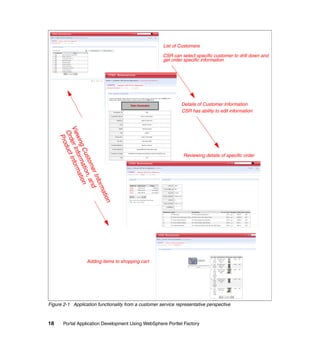
               step at a time.

               There are other approaches to building multiple screen portlets besides the
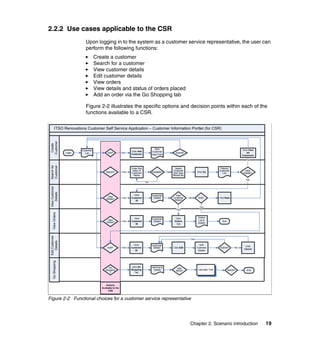
               wizard-based approach. While building the screens using the wizard-based
               design pattern, the models that are the wizard steps are dynamically selected
               and rendered. A call to the portlet shows the rendering produced by the base
               wizard model and the rendering produced by the inserted wizard step model.

               One approach to building a multiple screen based portlet is to swap models in
               and out of one model container. There is a chance that the customer could
               trigger an “action not found” error by using the browser back button and then
               clicking an action. The wizard-based approach avoids this problem because it
               uses the inserted page builder, so the action URLs present in any cached HTML
               will correspond to actions that can be executed, whether or not the model being
               displayed to the user is the “current” one.

               Once the decision is made to use models to represent different functional pieces,
               the question arises: How are we going to show the page rendered by a model as
               a part of the base wizard model? The answer is by using the model container in
               conjunction with a page builder. The model container displays a model at a
               named tag or other locations on a page or pages.


506   Portal Application Development Using WebSphere Portlet Factory
Base Imported Page

    <wizardStep>

                                          Step Page
                InsertedPage

                       currentStep    <modelContainer>
                           variable


                                                   mcStep1         ShoppingPage


                                          modelContainer
                                                                      model


Figure 10-5 The builders in a wizard-based model

Figure 10-5 illustrates the wizard technique. The diagram has been expanded so
that you can easily see how the various builders come together in this technique.

The key points in the relationship between the builders are as follows:
   The wizard can be assumed to be comprised of the main base wizard page;
   the base imported page “basePage” has a span element named “wizardStep”
   which is the target for the inserted page.
   The inserted page can be assumed to be the individual pages that get
   changed dynamically based on the button action in the individual wizard
   pages or the wizard step pages.
   The inserted page refers to the wizard screens by means of a variable
   “currentStep,” which is set according to the action in the individual wizard step
   pages.
   The step pages have a span element named “modelContainer,” which is the
   target for the model container.
   Finally, the individual model container holds a model.


                                 Chapter 10. Creating the Go Shopping portlet   507
basePage
                               1                                     Legend
                    <wizardStep>                                     1:Base Page
                                                                     2:Inserted Page
                                                                     3:Wizard Step Page
                             Inserted page
                                                                     4:Model Container
                                 2
                                                                     5:Model
                                                                     6:CurrentStep Variable
                                               currentStep 6
                            step1
                            3
                  <modelContainer>


                              modelContainer

                                 4                               5
                                        “points to”


                                                      ShoppingPage
               Figure 10-6 Technical elaboration of the wizard-based technique

               Figure 10-6 shows the sequence of action among the various builders in the
               wizard. For simplicity we assume that it is the first time the user is invoking the
               portlet. The base page span element named “wizardStep” is acted upon by the
               inserted page. The inserted page refers to a page by means of a variable named
               “currentStep.” The default value of the variable is “step1,” which means that a
               page named “step1” gets inserted into the contents of the base page at the
               location “wizardStep.” The “step1” page has a span element named
               “modelContainer,” which is acted upon by the model container. The model
               container renders the model “ShoppingPage.” The “step1” page contents gets
               populated by the contents of the model “ShoppingPage.”


508   Portal Application Development Using WebSphere Portlet Factory
basePage                                                  Legend
                                                      1
                                                              •Curved arrows indicate
                  step1                                       triggering the action.
                                                              •firenavigateNext is
                                                              the action that gets
                                                              called when the Next
                                                              button is pressed.
                                Next
                                                          firenaviagateNext


       basePage
                    step2


                     Prev <--      Next-->                      firenaviagateNext

                                                          2


Figure 10-7 Transition from screen 1 to screen 2

Figure 10-7 illustrates the transition from wizard step 1 to wizard step 2. The
transition happens when the user presses the Next button. The method called is
“firenaviagateNext” and the implementation of the method is in the
GoShoppingPortlet model. Example 10-1 shows the implementation code.

Example 10-1
{
    // get the variable that defines the wizard steps
    IXml wizardSteps =
webAppAccess.getVariables().getXml("wizardSteps");
    // determine what the current step is
    String currentStep =
webAppAccess.getVariables().getString("currentStep");

    outer:   if (wizardSteps != null)
      {
          // Find the current step with the list of all steps
          IXml elem = wizardSteps.getFirstChildElement();


                                  Chapter 10. Creating the Go Shopping portlet      509
if(currentStep.equals("step3"))
                            {

               webAppAccess.getVariables().setString("currentStep","step1");
                           break outer;
                       }
                       while (elem != null)
                       {
                           if (elem.getText().equals(currentStep))
                           {
                               // found a match
                               // we're navigating forward - so get the next element
                               IXml previousStep = elem.getNextSiblingElement();
                               if (previousStep != null)
                               {
                                   // set this as the new inserted page

               webAppAccess.getVariables().setString("currentStep",
               previousStep.getText());
                                   // quit the iteration
                                   break;
                               }
                           }

                              elem = elem.getNextSiblingElement();
                          }
                      }//close the outer if

                      // redisplay the outer page
                      webAppAccess.processPage("basePage");
               }


                   Notes:
                   1. The variable "wizardSteps" defines the number of steps in the wizard.
                   2. The variable "currentStep" points to the current step the wizard is in.
                   3. The "basePage" is the wizard’s main page.

               The code in Example 10-1 shows the method that gets triggered when the Next
               button is pressed. The logic behind the method’s implementation is:
                    Obtain the IXml object "wizardSteps" using the method
                    webAppAccess.getVariables().getXml("<XMLVARNAME>")


510   Portal Application Development Using WebSphere Portlet Factory
Obtain the "currentStep" variable by using the method
           webAppAccess.getVariables().getStirng("<STRINGVARNAME">)
           Once you have obtained these two objects, find what step the wizard is in.
           The immediate step would be to find the next step and set it in the variable
           “currentStep” using the method
           webAppAccess.getVariables().setString("currentStep","<STEPNAME>");
           After setting the variable, process the "basePage" using the method
           webAppAccess.processPage("<BASEPAGENAME>");

         Note: The WebAppAccess interface, com.bowstreet.webapp.WebAppAccess
         has the following characteristics:
            It represents the current, running WebApp.
            It is passed into any model method called at runtime.
            The controller looks first for a method with a signature that includes it.
            All Method builder calls generate with an instance of WebAppAccess as
            the first argument.
            It allows you to access other things too, including:
            – System properties
            – The HttpServletRequest object


         Note: The Web application (WebApp) is a profile-specific instance of a portlet
         application that is dynamically created by the WebSphere PortletFactory
         regeneration engine. Each builder, when called during regeneration, creates
         the artifacts that make up this WebApp, or run-time portlet application, such as
         pages, forms, variables, Java objects, and methods. The regeneration engine
         creates the WebApp by regenerating a model with a unique instance of profile
         data. The generated WebApp code is then processed by the WebSphere
         Portlet Factory execution engine to instantiate the executable Java EE
         application sessions.


10.3 A sample wizard model
        Wizards are user interface elements where the user is led through a sequence of
        dialogs. Conceptually the technique relies on three pieces: wizard, event
        declaration, and steps in the wizard.


                                         Chapter 10. Creating the Go Shopping portlet    511
Figure 10-8 The pieces of a wizard

               Based on the conceptual diagram in Figure 10-8, we have the following models in
               the sample wizard application:
                  ShoppingWizard model
                  ShoppingWizardCommon model
                  ShoppingWizardStep model
                  There are as many of these models as there are steps in the wizard.

               ShoppingWizard Model
               The ShoppingWizard can be compared to a base page and the individual
               Shopping Wizard Steps are the inserted pages that get dynamically inserted into
               the base page. The event declarations “navigateBack” and “navigateNext” are
               declared in the ShoppingWizardCommon model.


               Figure 10-9 The base wizard model


512   Portal Application Development Using WebSphere Portlet Factory
The base model “ShoppingWizard” has 20 builders. Some of the builders that
you need to pay attention to are defined here:
   Builder 1: One of the things you should have noticed is that this builder is
   named “main.” Because the execution in Java programs starts with the main,
   the model execution begins with the builder named “main.” There are builders
   that generate a “main” automatically.
   Builder 2: This is the imported model builder that imports the
   “ShoppingWizardCommon” into the model. As discussed previously, we have
   declared the common events in the “ShoppingWizardCommon” model.
   Builder 3: This is the comment builder. It is good practice to add a comment
   builder, just as comments in Java or portlet code help the reader of the code
   to understand it better.
   Builder 4: This is the page builder “basePage.” This is the base page of the
   wizard. Notice that there is a span named “wizardStep.” As discussed
   previously, the inserted page builder targets this span element.
   Builder 5: This is the comment builder “page management.”
   Builder 6: This is the variable builder “currentStep.” This is a very important
   builder; recall the previous discussion about the “currentStep” variable. The
   inserted page builder refers to the wizard page by means of this variable.
   Builder 7: This is the variable builder “wizardSteps.” This variable is of type
   XML. This variable holds the number of wizard steps in the wizard.
   Builder 8: This is the inserted page builder “wizardStep.” As discussed
   previously, the inserted page builder targets the span element named
   “wizardStep” in the base page.
   Builder 9: This is the comment builder.
   Builder 10: This is the event handler builder “navigateBackHandler.” As
   discussed previously, the individual wizards would have “<Back” and “Next>”
   buttons depending on the screen position. For example, wizard screen1
   would have the “Next>” button but not the “<Back” button. To handle the
   event when the buttons gets clicked we utilize the event handler builder.


   Figure 10-10 The “navigateBackHandler”


                                 Chapter 10. Creating the Go Shopping portlet    513
Two important inputs that must be specified for this builder are the event
                  name “navigateBack” and the action “navigateBack.”
                  Builder 11: This is the method builder “navigateBack.” We have specified this
                  action “navigateBack” in the event handler builder “navigateBackHandler.”
                  Builder 12: This is the event handler builder “navigateNextHandler.” As
                  discussed previously, the individual wizards would have “<Back” and “Next>”
                  buttons depending on the screen position. For example, wizard screen 1
                  would have the “Next>” button but not the “<Back” button. To handle the
                  event when the buttons gets clicked we utilize the event handler builder. This
                  event handler builder would indicate what action gets called when the “Next>”
                  button gets pressed.


                  Figure 10-11 The “navigateNextHandler”

                  Two important inputs that must be specified for this builder are the event
                  name “navigateNext” and the action “navigateNext.”
                  Builder 13: This is the method builder “navigateNext.” We have specified this
                  action “navigateNext” in the event handler builder “navigateNextHandler.”
                  Builder 14: This is the comment builder.
                  Builder 15: This is the wizard step page builder “step1.” Notice the span
                  element named “modelContainer” in the page builder.
                  Builder 16: This is the model container builder “mcStep1.” You can use a
                  model container to make a model self-contained and allow it to be inserted
                  into a web page. Using multiple models with model containers provides two
                  main advantages.
                  – For developers - Using model containers makes shared development
                    easier. Multiple developers can collaborate on page content and creation.
                    Each developer can work independently and contribute a model that
                    provides specific content to the same page.
                  – For web users - Model container builders provide a consistent page
                    context. A web page incorporating contained models enables users to
                    remain in that page’s context, even as they drill down into a model in
                    search of additional content. This keeps users oriented, and it also
                    facilitates their access to content in other models on the page.


514   Portal Application Development Using WebSphere Portlet Factory
Figure 10-12 The model container builder “mcStep1”

The mandatory builder inputs for this builder are the Page, Tag, and Model.
This model container builder has the following inputs:
   Page          step1
   Tag           modelContainer
   Model         ShoppingWizardStep1
Builder 17: This is the page builder “step2.” Recall from the earlier discussion
that the inserted page builder refers to the wizard pages by means of the
“currentStep” variable. The “currentStep” variable holds the values “step1” or
“step2” or “step3” depending on which wizard screen is being shown.
Builder 18: This is the model container builder “mcStep2.” This model
container builder has the following inputs:
   Page          step2
   Tag           modelContainer
   Model         ShoppingWizardStep2
Builder 19: This is the page builder “step3.” This page has a span element
named “modelContainer” that is targeted by the model container builder
“mcStep3.”
Builder 20: This is the model container builder “mcStep3.” This model
container builder has the following inputs:
   Page          step3
   Tag           modelContainer
   Model         ShoppingWizardStep3


                              Chapter 10. Creating the Go Shopping portlet   515
ShoppingWizardCommon model
               As previously discussed, the wizard technique has the event declaration in a
               separate model. This model contains the event declarations “navigateBack” and
               “navigateNext.”


               Figure 10-13 The ShoppingWizardCommon model


               ShoppingWizardStep models
               These are the wizard steps that get inserted dynamically into the base wizard
               page. Depending on the position of the screen they have “Next>” or “<Back”
               buttons, or both. For example, the first wizard step model has only a “Next>”
               button, while the third wizard step model has “<Back” and ”Next>” buttons.


               Figure 10-14 The ShoppingWizardStep1 model

               There are only four builders in the ShoppingWizardStep1 model. This model
               imports the common event declaration model “ShoppingWizardCommon.”


516   Portal Application Development Using WebSphere Portlet Factory
10.4 Building the Go Shopping portlet
         In this and the following sections we take you step-by-step through the building
         of the entire application. As mentioned previously, the complete application
         consists of the following:
            GoShoppingPortlet
            Shopping Page
            – Shopping Cart
            – Shopping Product Catalog
            Order Page
            Confirmation Page


                                       GO Shopping Portlet


                 Shopping Page                                        Confirmation Page


            Shopping Cart     Shopping Product Catalog          Order Page


         Figure 10-15 Block diagram of the Go Shopping portlet application

         The Go Shopping Portlet application utilizes the following three DB providers:
            ProductDBProvider
            OrderDBProvider
            CustomerDBProvider

         The services (consumer) utilized in the GoShopping portlet are:
            OrdersService
            ProductService
            CustomerService


                                           Chapter 10. Creating the Go Shopping portlet   517
A service-oriented architecture, combined with Portlet Factory’s SOA support,
               enables UI and back-end data access development to proceed in parallel once
               the developers have agreed upon the services that will be called, their inputs,
               and what the services return. UI developers can focus on creating the user
               experience while calling automatically generated stubbed-out data access
               services that return sample data. Back-end data access developers can
               complete their services and “test as they go” using Portlet Factory’s built-in
               testing harness support. In this way the development team can make progress in
               parallel and have a high degree of confidence that the UI and data access
               integration will be seamless. Because of Portlet Factory’s ability to dynamically
               regenerate the application, it is also easier for the UI to account for changes in
               the input and output of the services or take advantage of new services.

               While we are building the portlet we assume that these back-end service
               providers are available. We then need to focus on building the UI functionality for
               the GoShoppingPortlet application.

               The portlet can be divided into four parts:
                  Main portlet model, named GoShoppingPortlet model, is responsible for
                  providing wizard support.
                  ShoppingPage model is responsible for the core shopping functionality. It
                  uses two models (ShoppingCart model and ShoppingProductCatalog model)
                  for its functionality. We can consider ShoppingPage to be the base model that
                  “contains” ShoppingCart and ShoppingProductCatalog models. The shopping
                  cart model is responsible for providing the shopping cart functionality.


                  Figure 10-16 The ShoppingCart model

                  The model has a Dojo Drop target defined on the cart image, and customers
                  can drag the desired product image onto the cart.


                  Figure 10-17 The ShoppingCart model (with product added)


518   Portal Application Development Using WebSphere Portlet Factory
Figure 10-18 Customers can edit the quantity by clicking the pencil icon

The ShoppingProductCatalog model is responsible for displaying the product
catalog in a paginated fashion.


Figure 10-19 The ShoppingProductCatalog model

The OrderPage model is responsible for ordering information. The customer
can select the mode of payment, enter date of purchase and enter comments
in the rich text editor.


Figure 10-20 The OrderPage model output


                               Chapter 10. Creating the Go Shopping portlet   519
The ConfirmationPage model lists the following in separate sections:
                  – Order Information: Information about the Order.
                  – Order Items: Information about the items purchased.
                  – Shipping Details: The ship to address is displayed in this section.
                  The customer can commit the order by clicking the “Commit Order” button.


                  Figure 10-21 The confirmation page model output


10.5 Go Shopping portlet model
               In the WebSphere Portlet Factory Designer, create a new empty model in the
               RedbookCS project by doing the following:
               1. Select File → New → WebSphere Portlet Factory Model. This will launch
                  the model creation wizard.


520   Portal Application Development Using WebSphere Portlet Factory
Figure 10-22 Creating a new model -GoShoppingPortlet

2. In the Choose Project window, select RedbookCS as the project and click
   Next.
3. In the Select Model window, select Factory Starter Models → Empty in the
   Model Type field and click Next.


                                Chapter 10. Creating the Go Shopping portlet   521
Figure 10-23 Selecting the Empty Factory Starter Model

               4. In the Save New Model window, select
                  RedbookCS/WebContent/WEB-INF/models/redbook/cs/ui/shopping as
                  the folder and GoShoppingPortlet as the model name.


522   Portal Application Development Using WebSphere Portlet Factory
Figure 10-24 Saving the GoShoppingPortlet model


Importing the ShoppingUIImports model
Now that we have an empty GoShoppingPortlet.model, we will import a
"ShoppingUIImports" model. For now we will assume that this model is ready
and available for import. This model is important because it contains helper
functionality for the other models. For example, it has service consumers that
consume OrderDBProvider, ProductDBProvider, and CustomerDBProvider.
Think of this model as a C language #include.
1. From the builder palette, select the Imported Model builder and click OK to
   add it to the GoShoppingPortlet model.
2. Name the builder ShoppingPage.
3. To select the model, click the ellipsis button and select the
   redbook/cs/ui/shopping/ShoppingUIImports model.


                                 Chapter 10. Creating the Go Shopping portlet   523
Figure 10-25 Imported Model ShoppingUIImports

               4. From the builder palette, select ImportedPage and click OK to add it to the
                  GoShoppingPortlet model. Set the following values for the Imported Page
                  builder:
                     Name:                   basePage
                     Page to Import:         /redbook/cs/html/ShoppingLayout.html
               5. Click OK and save the model.


                  Figure 10-26 The Imported Page -basePage


524   Portal Application Development Using WebSphere Portlet Factory
6. We had assumed in the previous step the existence of
   “ShoppingLayout.html.” In this step we go through the creation of the HTML
   template ShoppingLayout. The HTML template will host static content and
   named tags that will be used as anchors in our UI model for inserting dynamic
   content structures and other page elements such as buttons, text fields, and
   so forth.
   You can use the HTML Templates feature to achieve a custom, handcrafted
   appearance for your applications without coding the HTML by hand. Think of
   an HTML Template as a collection of HTML snippets (constructs) that are
   selected and assembled by Portlet Factory’s page automation functionality.
   You make these constructs using normal HTML, and then you add some
   specifically named elements to tell Portlet Factory which construct is to be
   used for which purpose, and to identify the various pieces.
   Do the following to create the base HTML files:
   a. Click File → New → Other to launch the wizard.
   b. Select General → File and click Next.
   c. Type or select the parent folder as
      RedbookCS/WebContent/redbook/cs/html, enter the file name as
      ShoppingLayout.html and click Finish to create an empty HTML file.


                                Chapter 10. Creating the Go Shopping portlet   525
Figure 10-27 Base HTML template ShoppingLayout.html file

                   d. right-click the newly created ShoppingLayout.html file and select Open
                      With → Text Editor. This will allow you to edit the file and create a basic
                      layout of ShoppingLayout page. Copy and paste the HTML in
                      Example 10-2 into this file.

Example 10-2 HTML for the basic layout of ShoppingLayout page
<HTML>
    <BODY>
        <FORM name="ITSO_REDBOOK_FORM_OrderPage1" method="post">
        <DIV align="center"> <SPAN name="CredentialsStatus"></SPAN> </DIV>
        <BR>
        <SPAN name="wizardStep"></SPAN><BR>
        <TABLE width="600">
           <TR>
           <TD width="50%" align="center" valign="top"><SPAN name="left"></SPAN></TD>
           <TD width="50%" align="center" valign="top"><SPAN name="right"></SPAN></TD>
             </TR>
           <TR>
           <TD colspan="2" align="center" valign="top"><SPAN name="row2"></SPAN></TD>


526    Portal Application Development Using WebSphere Portlet Factory
</TR>
            </TABLE>
        </FORM><BR>
        <SPAN name="backButton"></SPAN>&nbsp;&nbsp;<SPAN name="nextButton"></SPAN>
    </BODY>
</HTML>

                      Pay attention to the tags on this HTML page that have the name=attribute.
                      We call these “named elements” and there are seven of them in our HTML
                      file:
                          •   CredentialsStatus
                          •   wizardStep
                          •   left
                          •   right
                          •   row2
                          •   nextButton
                          •   backButton
                      All of the tags happen to be <span> tags, but the type of tag doesn’t
                      matter as long as it has a name= attribute on it. A little later, we will place a
                      text field, buttons, and other UI elements on these named tags.
                      By creating our own “shell” HTML page like this one, will all the named
                      elements that our model builders require, we can adjust the look and feel
                      of how and where these components are laid out.
                   e. Save and close the ShoppingLayout.html file.
                7. From the builder palette, select the Variable builder and click OK to add it to
                   the GoShoppingPortlet.model. Set the following values for the Variable
                   builder:
                      Name:                    currentStep
                      Type:                    String
                      Initial Value:           step1

                    Important: The value that the currentStep points to is very important. The
                    values should match the wizard step pages and these step pages will be
                    dynamically inserted at run time.


                                                  Chapter 10. Creating the Go Shopping portlet     527
Figure 10-28 The variable builder “currentStep”

               8. From the builder palette, select the Variable builder and click OK to add it to
                  the GoShoppingPortlet.model. Set the following values for the Variable
                  builder:
                     Name:                    wizardSteps
                     Type:                    XML
                     Initial Value:           <steps>
                                              <step>step1</step>
                                              <step>step2</step>
                                              <step>step3</step>
                                              </steps>
                  Click OK and save the model.


                  Figure 10-29 The wizardSteps variable builder


                   Important: The wizardSteps builder is another important variable in the
                   wizard technique. The number of child elements in the <steps></steps>
                   indicates the total number of wizard screens.


528   Portal Application Development Using WebSphere Portlet Factory
9. From the builder palette, select the Inserted Page builder and click OK to
                   add it to the GoShoppingPortlet.model. Set the following values for the
                   Inserted Page builder:
                      Name:                   Leave this blank; it will take the name of the tag we
                                              specify in the tag input.
                      Page:                   basePage
                      Tag:                    wizardStep
                      Page in Model           Click the ellipses and select Variables →
                                              currentStep
                   Click OK and save the model.


                   Figure 10-30 The inserted page builder -wizardStep

                   From the builder palette, select the Method builder and click OK to add it to
                   the GoShoppingPortlet.model. Set the following values for the Method
                   builder:
                      Name                    navigateBack
                      Method Body             Copy and paste the Java code in Example 10-3 into
                                              box.

Example 10-3
// get the variable that defines the wizard steps IXml wizardSteps =
             webAppAccess.getVariables().getXml("wizardSteps");
// determine what the current step is String currentStep =
             webAppAccess.getVariables().getString("currentStep");


                                                 Chapter 10. Creating the Go Shopping portlet   529
if (wizardSteps != null)
    {
        // Find the current step with the list of all steps
        IXml elem = wizardSteps.getFirstChildElement();
        while (elem != null)
        {
            if (elem.getText().equals(currentStep))
            {
                // found a match
                // we're navigating backward - so get the previous element
                IXml previousStep = elem.getPreviousSiblingElement();
                if (previousStep != null)
                {
                    // set this as the new inserted page
                    webAppAccess.getVariables().setString("currentStep", previousStep.getText());
                    // quit the iteration
                    break;
                }
            }
            elem = elem.getNextSiblingElement();
        }
    }

      // redisplay the outer page
      webAppAccess.processPage("basePage");
}

                      f. Click OK and save the model.


530       Portal Application Development Using WebSphere Portlet Factory
Figure 10-31 The navigateBack method builder


 Attention: Where did the event “navigateBack” come from? Recall that we
 imported the model ShoppingUIImports model. One of the event
 declarations defined in that model is “naviageBack.”


                             Chapter 10. Creating the Go Shopping portlet   531
10.From the builder palette, select the Event Handler builder and click OK to
                    add it to the GoShoppingPortlet.model. Set the following values for the Event
                    Handler builder:
                       Name:                   navigateBackHandler
                       Event Name:             navigateBack
                       Handler Type:           Use existing action
                       Action:                 navigateBack
                    Click OK and save the model.


                    Figure 10-32 The event handler -navigateBackHandler

                 11.From the builder palette, select the Method builder and click OK to add it to
                    the GoShoppingPortlet.model. Set the following values for the Method
                    builder:
                       Name:                   navigateNext
                       Method Body:            Copy and paste the Java code from Example 10-4
                                               into the box.

Example 10-4
// get the variable that defines the wizard steps
    IXml wizardSteps = webAppAccess.getVariables().getXml("wizardSteps");
    // determine what the current step is
    String currentStep = webAppAccess.getVariables().getString("currentStep");

 outer: if (wizardSteps != null)
   {
       // Find the current step with the list of all steps
       IXml elem = wizardSteps.getFirstChildElement();

       if(currentStep.equals("step3"))
       {
           webAppAccess.getVariables().setString("currentStep","step1");
           break outer;
       }
       while (elem != null)
       {


532     Portal Application Development Using WebSphere Portlet Factory
if (elem.getText().equals(currentStep))
            {
                // found a match
                // we're navigating forward - so get the next element
                IXml previousStep = elem.getNextSiblingElement();
                if (previousStep != null)
                {
                    // set this as the new inserted page
                    webAppAccess.getVariables().setString("currentStep", previousStep.getText());
                    // quit the iteration
                    break;
                }
            }

            elem = elem.getNextSiblingElement();
        }
    }//close the outer if

    // redisplay the outer page
    webAppAccess.processPage("basePage");
}
{


                Click OK and save the model.


                Figure 10-33 Method builder “navigateNext”


                                                   Chapter 10. Creating the Go Shopping portlet   533
12.From the builder palette, select the Event Handler builder and click OK to
                  add it to the GoShoppingPortlet.model. Set the following values for the Event
                  Handler builder:
                     Name:                   navigateNexthandler
                     Event Name:             navigateNext
                     Handler Type:           Use existing action
                     Action:                 navigateNext
                  Click OK and save the model.


                  Figure 10-34 The event handler “navigateNext”

               13.From the builder palette, select the Action List builder and click OK to add it
                  to the GoShoppingPortlet.model. Set the following values for the Action List
                  builder:
                     Name:                   main
                     Actions:                basePage
                  Click OK and save the model.


534   Portal Application Development Using WebSphere Portlet Factory
Figure 10-35 The action list builder “main”

14.From the builder palette, select the Page builder and click OK to add it to the
   GoShoppingPortlet.model. Set the following values for the page builder:
      Name:                        step1
      Page Contents(HTML):         Copy and paste the HTML code from
                                   Example 10-5 into the box.

   Example 10-5

   <html>
       <body>
           <!-- As a best practice, change the form name to a unique name -->
           <form name="ITSO_REDBOOK_FORM_STEP1" method="post">
               <div align="center">
                   <span name="modelContainer"></span>
               </div>
           </form>
       </body>
   </html>

   Click OK and save the model.


                                   Chapter 10. Creating the Go Shopping portlet   535
Figure 10-36 The page builder “step1”

               15.From the builder palette, select the Model Container builder and click OK to
                  add it to the GoShoppingPortlet.model. Set the following values for the Model
                  Container builder:
                     Name:                   Step1
                     Page:                   step1
                     Tag:                    modelContainer
                     Model:                  redbook/cs/ui/shopping/ShoppingPage
                  Click OK and save the model.

                   Note: We get an error in the IDE because we are pointing the model
                   container to the non existent model
                   redbook/cs/ui/shopping/ShoppingPage. Ignore this problem for the
                   moment; we will fix it when we create the ShoppingPage model shortly.


536   Portal Application Development Using WebSphere Portlet Factory
Figure 10-37 The model container “Step1”

16.From the builder palette, select the Page builder and click OK to add it to the
   GoShoppingPortlet.model. Set the following values for the page builder:
      Name:                 step2
      Page Contents (HTML): Copy and paste the HTML code from
                            Example 10-6 into the box.

   Example 10-6

   <html>
       <body>
           <!-- As a best practice, change the form name to a unique name -->
           <form name="ITSO_REDBOOK_FORM_STEP2" method="post">
               <div align="center">

               <span name="modelContainer"></span>
               </div>
           </form>
       </body>
   </html>

   Click OK and save the model.


                                 Chapter 10. Creating the Go Shopping portlet   537
Figure 10-38 The page builder “step2”

               17.From the builder palette, select the Model Container builder and click OK to
                  add it to the GoShoppingPortlet.model. Set the following values for the Model
                  Container builder:.
                     Name:              Step2
                     Page:              step2
                     Tag:               modelContainer
                     Model:             redbook/cs/ui/shopping/OrderPage
                  Click OK and save the model.

                   Note: We get an error in the IDE because we are pointing the model
                   container to the non existent model redbook/cs/ui/shopping/OrderPage.
                   Ignore this problem for the moment; we will fix it when we create the
                   OrderPage model shortly.


538   Portal Application Development Using WebSphere Portlet Factory
Figure 10-39 The model container “Step2”

18.From the builder palette, select the Page builder and click OK to add it to the
   GoShoppingPortlet.model. Set the following values for the page builder:
      Name:                 step3
      Page Contents (HTML): Copy and paste the HTML code from
                            Example 10-7 into the box.

   Example 10-7
   <html>
       <body>
           <!-- As a best practice, change the form name to a unique name -->
           <form name="ITSO_REDBOOK_FORM_STEP3" method="post">
               <div align="center">

               <span name="modelContainer"></span>
               </div>
           </form>
       </body>
   </html>

   Click OK and save the model.


                                 Chapter 10. Creating the Go Shopping portlet   539
19.From the builder palette, select the Model Container builder and click OK to
                  add it to the GoShoppingPortlet.model. Set the following values for the Model
                  Container builder:
                     Name:            Step3
                     Page:            step3
                     Tag:             modelContainer
                     Model:           redbook/cs/ui/shopping/ConfirmationPage
                  Click OK and save the model.

                   Note: We get an error in the IDE because we are pointing to the non
                   existent model redbook/cs/ui/shopping/ConfirmationPage. Ignore this
                   problem for the moment; we will fix it when we create the
                   ConfirmationPage model shortly.


                  Figure 10-40 The model container builder “Step3”


10.6 Shopping Page model
               As discussed earlier, the ShoppingPage model is responsible for the core
               shopping functionality. The next three figures illustrate the functionality of the
               finished ShoppingPage application.


540   Portal Application Development Using WebSphere Portlet Factory
Note: These figures were taken when the model was running in a stand-alone
 environment. Just as we run Java programs, we can run the model stand
 alone from the IDE.


Figure 10-41 The ShoppingPage model when run stand alone


Figure 10-42 The shopping page application (products added to the cart)


                                  Chapter 10. Creating the Go Shopping portlet   541
Figure 10-43 The shopping page application (product numbers can be edited)

               The ShoppingPage model houses two models: “ShoppingCart” and
               “ShoppingProductCatalog.” It is like a base model that utilizes the other two
               models, and is a good example of modularizing individual functional pieces as
               separate models.

                Note: It is good practice in WPF development to keep the number of builders
                in a model to fewer than 50. Using model containers to contain models that
                are separate functional pieces helps achieve this goal.


               Figure 10-44 The ShoppingPage model

               Figure 10-44 shows the builders in the ShoppingPage model. The important
               builders utilized are the Model Container builders, specifically builders number 6
               and 7 in the model. You must have noticed the button “nextButton,” which is
               builder number 9 in the model. This button would take the user to the next wizard
               screen step, the order page.


542   Portal Application Development Using WebSphere Portlet Factory
Creating the ShoppingPage model

In the WebSphere Portlet Factory Designer, create a new empty model in the
RedbookCS project by doing the following:
1. Select File → New → WebSphere Portlet Factory Model. This will launch
   the model creation wizard.


   Figure 10-45 Creating a new model -ShoppingPage

2. In the Choose Project window, select RedbookCS as the project and click
   Next.
3. In the Model Type field or the Select Model window, select Factory Starter
   Models → Empty and click Next.


                               Chapter 10. Creating the Go Shopping portlet   543
Figure 10-46 Selecting the Empty Factory Starter Model

               4. In the Save New Model window, select
                  RedbookCS/WebContent/WEB-INF/models/redbook/cs/ui/shopping as
                  the folder and ShoppingPage as the model name.


544   Portal Application Development Using WebSphere Portlet Factory
Figure 10-47 Saving the Shoppingpage model

5. To import the ShoppingUIImports model, from the builder palette, select
   Imported Model builder and click OK to add it to the ShoppingPage model.
   a. Name the builder ShoppingUIImports.
   b. To select the model, click the ellipsis and select the
      redbook/cs/ui/shopping/ShoppingUIImports model.


                               Chapter 10. Creating the Go Shopping portlet   545
Figure 10-48 The imported model - ShoppingUIImports

               6. From the builder palette, select the Imported page builder and click OK to
                  add it to the ShoppingPage model. Set the following values for the Imported
                  Page builder:
                     Name:                   page1
                     Page to Import:         /redbook/cs/html/ShoppingLayout.html
                  Click OK and save the model.


                  Figure 10-49 The imported page builder - page1

               7. From the builder palette, select the Model Container builder and click OK to
                  add it to the ShoppingPage model. Set the following values for the Model
                  Container builder:
                     Name:         Cart
                     Page:         page1
                     Tag:          left
                     Model:        redbook/cs/ui/shopping/ShoppingCart


546   Portal Application Development Using WebSphere Portlet Factory
Note: We get an error because we are pointing a model container to the
    non existent model redbook/cs/ui/shopping/ShoppingCart. Ignore this
    problem for the moment; we will fix it when we create the model shortly.


   Figure 10-50 The model container - Cart

8. From the builder palette, select the Model Container builder and click OK to
   add it to the ShoppingPage model. Set the following values for the Model
   Container builder:
      Name:                   ProductCatalog
      Page:                   page1
      Tag:                    right
      Model:                  redbook/cs/ui/shopping/ShoppingProductCatalog
   Click OK and save the model.

    Note: We get an error because we are pointing a model container to the
    nonexistent model redbook/cs/ui/shopping/ProductCatalog. Ignore this
    problem for the moment; we will fix it when we create the model shortly.


                                 Chapter 10. Creating the Go Shopping portlet   547
Figure 10-51 The Model Container -ProductCatalog

               9. From the builder palette, select the Button builder and click OK to add it to
                  the ShoppingPage model. Set the following values for the button builder:
                     Name:                   Leave this field empty; the name defaults to the tag
                                             name that we will be selecting for this builder.
                     Page:                   page1
                     Tag:                    nextButton
                     Label:                  Next>
                     Action:                 Click the ellipsis button and select
                                             firenavigateNext method
                  Click OK and save the model.


548   Portal Application Development Using WebSphere Portlet Factory
Figure 10-52 The Button builder - nextButton

10.From the builder palette, select the Action List builder and click OK to add it
   to the ShoppingPage model. Set the following values for the Action List
   builder:
      Name:         main
      Actions:      page1
   Click OK and save the model.


                                 Chapter 10. Creating the Go Shopping portlet   549
Figure 10-53 The Action List builder - main


10.6.1 Cart model
               At a high level, there are three steps involved in creating the Cart model:
                  Create the base HTML page
                  Create the shopping cart model
                  Import the ShoppingUIImports model

               Creating the base HTML page
               First, we create the base HTML page, cartLayoutPage, which will host static
               content and named Tags that will be used as anchors in our UI model for
               inserting dynamic content structures and other page elements such as buttons,
               images, and so forth.

               Do the following to create the base HTML file:
               1. Click File → New → Other to launch the wizard.
               2. Select General → File and click Next.
               3. Enter or select parent folder RedbookCS/WebContent/redbook/cs/html, enter
                  the file name cartLayoutPage.html, and click Finish to create an empty
                  HTML file.


550   Portal Application Development Using WebSphere Portlet Factory
Figure 10-54 The CartLayout.html file

               4. Right-click the newly created CartLayout.html file and select Open With →
                  Text Editor. This will allow you to edit the file and create a basic layout of the
                  CartLayout page. Copy and paste the HTML from Example 10-8 into this file.

Example 10-8
<HTML>
   <BODY>
       <FORM name="ITSO_REDBOOK_FORM_CartLayout" method="post">
       <DIV align="center"> <SPAN name="CredentialsStatus"></SPAN> </DIV>
       <BR>
       <TABLE>

           <TR>
           <TD colspan="3" align="left" valign="top"><SPAN name="OrderInformation"></SPAN>
         </TD>
           </TR>

          <TR>
          <TD align="left" valign="top"><SPAN name="OrderDetails"></SPAN></TD>
          </TR>


                                                 Chapter 10. Creating the Go Shopping portlet   551
<TR>
           <TD align="center" valign="top"><SPAN name="row3left"></SPAN></TD>
           <TD align="center" valign="top"><SPAN name="row3right"></SPAN></TD>
           </TR>

            <TR>
            <TD align="center"   valign="top"><SPAN name="row4left"></SPAN></TD>
            <TD align="center"   valign="top"><SPAN name="row4right"></SPAN></TD>
            </TR>
            <TR>
            <TD align="center"   valign="top"><SPAN name="row5left"></SPAN></TD>
            <TD align="center"   valign="top"><SPAN name="row5right"></SPAN></TD>
            </TR>
        </TABLE>
         </FORM>
    </BODY>
</HTML>


                     Note: Pay attention to the tags on the HTML page that have the name=
                     attribute. We call these “named elements.”

                5. Save and close the CartLayout.html file.

                Creating the ShoppingCart model
                In the WebSphere Portlet Factory Designer, create a new empty model in the
                RedbookCS project by doing the following:
                1. Select File → New → WebSphere Portlet Factory Model. This will launch
                   the model creation wizard.


552    Portal Application Development Using WebSphere Portlet Factory
Figure 10-55 Creating a new model - ShoppingCart

2. In the Choose Project screen, select RedbookCS as the project and click
   Next.
3. In the Model Type field in the Select Model window, select Factory Starter
   Models → Empty and click Next.


                                Chapter 10. Creating the Go Shopping portlet   553
Figure 10-56 The Empty Factory Starter Model

               4. In the Save New Model window, select
                  RedbookCS/WebContent/WEB-INF/models/redbook/cs/ui/shopping as
                  the folder enter ShoppingCart in the Model name field.


554   Portal Application Development Using WebSphere Portlet Factory
Figure 10-57 Saving the ShoppingCart model


Importing the ShoppingUIImports model
Now that we have an empty GoShoppingPortlet.model, we will import a
“ShoppingUIImports” model. For now we will assume that this model is ready and
available for import. This model is important because it contains helper
functionality for the other models. For example, it has service consumers that
consume OrderDBProvider, ProductDBProvider, and CustomerDBProvider.
Think of this model as a “Java” import.
1. From the builder palette, select the Imported Model builder and click OK to
   add it to the ShoppingCart model.
   a. Name the builder ShoppingUIImports.
   b. To select the model, click the ellipsis and select
      redbook/cs/ui/shopping/ShoppingUIImports.


                                 Chapter 10. Creating the Go Shopping portlet   555
Figure 10-58 The Imported Model - ShoppingUIImports

               2. From the builder palette, select the Imported Page builder and click OK to
                  add it to the ShoppingCart model. Set the following values for the Imported
                  Page builder:
                     Name:                   cartLayoutPage
                     Page to Import:         Click the ellipsis button and select
                                             /redbook/cs/html/CartLayout.html HTML.
                  c. Click OK and save the model.


                  Figure 10-59 The ImportedPage - cartLayoutPage

               3. From the builder palette, select the Image builder and click OK to add it to
                  the Shoppingcart model. Set the following values for the Imported Page
                  builder:
                     Name:                cartImage
                     Page Location:       Relative to Named Tag


556   Portal Application Development Using WebSphere Portlet Factory
Page:               cartLayoutPage
      Tag:                OrderInformation
      Placement:          After
      New Tag Name:       cartImage
      Image Source:       Click the ellipsis button and select
                          /redbook/cs/images/cart.gif
   Click OK and save the model.


   Figure 10-60 The Image Builder -cartImage

4. From the builder palette, select the Data Page builder and click OK to add it
   to the ShoppingCart model. Set the following values for the Data Page
   builder:
      Name:                 OrderItems
      Variable:             Click the ellipsis button and select
                            Variables/varNewOrderItems
      Page in Model:        cartLayoutPage
      Page Type:            Infer from HTML
      Make UI from Data: Selected
      Location for New Tags: OrderDetails
      HTML Template File: Click the ellipsis button and select
                            /factory/html_templates/gridtable.html
      Generate Labels:      Selected
   Leave remaining sections as they are.


                                Chapter 10. Creating the Go Shopping portlet   557
Click OK and save the model.


                  Figure 10-61 The Data Page - OrderItems

               5. From the builder palette, select the Data Column Modifier builder and click
                  OK to add it to the ShoppingCart model. Set the following values for the Data
                  Column Modifier builder:
                     Name:                   dataColumnModifierOrderItems
                     Container Field:        Click the ellipsis button and select
                                             [cartLayoutPage]OrderItems/ITEMS/ITEM
                     Manage Columns:         Selected
                                             Modify the Status and Column Sort Type selections
                                             for the columns named in Table 10-1 and
                                             Table 10-2.


                  Figure 10-62 DataColumnModifier builder - dataColumnModifierOrderItems


558   Portal Application Development Using WebSphere Portlet Factory
Table 10-1 Column Sort Type selections for specified column names
 Column Name                       Column Sort Type

 NAME                              Case Insensitive String

 DESCRIPTION                       Case Insensitive String

 UNIT_PRICE                        Number

 QUANTITY                          Number

 ORDER_PRICE                       Number


 Tip: You can reorder the fields as they appear on the page by dragging
 and dropping the rows in the table (below Manage Columns). Type directly
 in cells to set properties.

Table 10-2 Column Status selections for specified column names
 Column Name                       Status

 PRODUCT_ID                        Hide

 THUMBNAIL                         Hide

 SOURCE                            Hide

After making the changes to the columns, the table should look like the table
shown in Figure 10-62.
Under the section “Settings to control behavior when the table is empty” set
the followings values:
   Empty Data Action:  Hide entire table and optionally display a
                       message
   Empty Data Message: To purchase items, drag and drop products to
                       the cart.


Figure 10-63 The DataColumnModifier setting


                              Chapter 10. Creating the Go Shopping portlet   559
6. From the builder palette, select the Dojo Drop Target builder and click OK
                  to add it to the ShoppingCart model. Set the following values for the Dojo
                  Drop Target builder:
                     Name:                   dropTarget
                     Page:                   cartLayoutPage
                     Tag:                    cartImage
                     Drop Action:            addProduct
                     Drop Type:              Leave the input as it is.

                   Note: We get an error in the IDE because we have input a nonexistent
                   drop action addProduct. Disregard this for the moment; we will create an
                   action addProduct shortly.


                  Figure 10-64 The Dojo Drop Target builder

               7. From the builder palette, select the Action List builder and click OK to add it
                  to the ShoppingCart model. Set the following values for the Action List
                  builder:
                     Name:                   addProduct
                     Actions:                Click the ellipsis button and select the following
                                             actions:
                     i. ProductServiceGetProductWithArgs(${Arguments/productID})
                     ii. UIOperations.addItem(${Variables/varNewOrderItems/ITEMS},${DataS
                         ervices/ProductService/getProduct/results/Products/Product})
                     iii. cartLayoutPage


560   Portal Application Development Using WebSphere Portlet Factory
Figure 10-65 The ActionList builder input setting

a. For action i, choose ProductServiceGetProductWithArgs and click OK.
   In the String field of the Define Method Call Arguments dialog click the
   ellipsis button and select ${Arguments/productID}.


   Figure 10-66 The ActionList builder input setting


   Figure 10-67 Selecting the argument reference


                               Chapter 10. Creating the Go Shopping portlet   561
b. For action ii, select UIOperations → addItem and click OK.


                     Figure 10-68 The ActionList builder setting

                     You are presented with a dialog for setting the method call arguments as
                     shown in Figure 10-68.
                     For the first argument, click the ellipsis button and select
                     ${Variables/varNewOrderItems/ITEMS}


                     Figure 10-69 The ActionList builder setting reference


562   Portal Application Development Using WebSphere Portlet Factory
For the second argument, click the ellipsis button and select
      ${DataServices/ProductService/getProduct/results/Products/Product}


      Figure 10-70 The ActionList builder setting

   c. For action iii, click the ellipsis button and select cartLayoutPage.


      Figure 10-71 The ActionList builder setting

8. From the builder palette, select the Dojo Inline Edit builder and click OK to
   add it to the ShoppingCart model.
   a. Set the following values for the Dojo Inline Edit builder:
      Name:         editQuantity
      Fields:       Click the ellipsis and select
                    [cartLayoutPage]OrderItems/ITEMS/ITEM/QUANTITY


                                  Chapter 10. Creating the Go Shopping portlet   563
Figure 10-72 The Dojo Inline Edit builder input setting

                  b. Click the Submit Form check box.


                     Figure 10-73 The Dojo Inline Edit builder input setting

                  c. Action: Click the ellipsis button and select updateQuantity.


                     Figure 10-74 The Dojo Inline Edit Action input setting

                  d. Leave the rest of the sections in the builder as they are.
                  e. Click OK and save the model.


564   Portal Application Development Using WebSphere Portlet Factory
9. From the builder palette, select the Action List builder and click OK to add it
   to the ShoppingPage model.
   a. Set the following values for the Action List builder:
      Name:              updateQuantity
      Actions:           Click the ellipsis button and select
     UIOperations.updateQuantity(${Variables/varNewOrderItems/ITEMS})


      Figure 10-75 The Action List builder input setting

   b. Select the updateQuantity method under Methods and click OK. The
      dialog box for setting the method call arguments is returned.


      Figure 10-76 The ActionList builder input setting

   c. Click the ellipsis button and select
      ${Variables/varNewOrderItems/ITEMS}.


                                  Chapter 10. Creating the Go Shopping portlet   565
Figure 10-77 The ActionList builder input setting

                  d. Click the ellipsis button and select cartLayoutPage.


                     Figure 10-78 The ActionList builder input setting

                  e. Click OK and save the model.
               10.From the builder palette, select the Action List builder and click OK to add it
                  to the ShoppingPage model. Set the following values for the Action List
                  builder:
                     Name:            alEmptyCart
                     Actions:         Click the ellipsis button and make the following entries and
                                      selections.
                  a. Select Special → Conditional → Assignment.


566   Portal Application Development Using WebSphere Portlet Factory
Figure 10-79 The ActionList builder action setting input

b. Click OK. A dialog box is returned.


   Figure 10-80

c. Click the ellipsis button by the Target field and select
   Variables/varNewOrderItems.


                               Chapter 10. Creating the Go Shopping portlet   567
Figure 10-81 The ActionList builder action input setting

                  d. For the source, type <ITEMS></ITEMS>.


                     Figure 10-82 The ActionList builder action input setting

                  e. Click the ellipsis button. Select Special → Conditional → Assignment.


                     Figure 10-83 The ActionList builder action input setting

                  f. Click OK. A dialog box is returned.


568   Portal Application Development Using WebSphere Portlet Factory
Figure 10-84 The ActionList builder action input setting

g. For Target, click the ellipsis button and select Variables/varNewOrder.
h. For the source, type <Order></Order>.
i. Click the ellipsis button and select cartLayoutPage.


   Figure 10-85 The ActionList builder input setting


                               Chapter 10. Creating the Go Shopping portlet   569
Figure 10-86 The ActionList builder alEmptyCart

               11.From the builder palette, select the Button builder and click OK to add it to
                  the ShoppingPage model. Set the following values for the Button builder:
                     Name:                   buttonEmptyCart
                     Page:                   cartlayoutPage
                     Tag:                    cartImage
                     Placement:              After
                     New Tag Name:           emptyCartImage
                     Label:                  Empty Cart
                     Action Type:            Submit form and invoke action
                     Action:                 alEmptyCart

                   Note: We get an error in the IDE because we are tying the button builder
                   action input to the nonexistent action alEmptyCart. Disregard this for the
                   moment; we will create the action alEmptyCart shortly.

                  Click OK and save the model.


570   Portal Application Development Using WebSphere Portlet Factory
Figure 10-87 The Button Builder Input settings

12.From the builder palette, select the Event Handler builder and click OK to
   add it to the ShoppingPage model. Set the following values for the Event
   Handler builder:
      Name:                    processEmptyCart
      Event Name:              evtEmptyCart
      Handler Type:            Use existing action
      Action:                  alEmptyCart

    Note: We get an error in the IDE because of tying the event handler with a
    nonexistent action alEmptyCart. For the moment we ignore this because
    we will be creating the action shortly.


   Figure 10-88 The Event Handler input setting


                                  Chapter 10. Creating the Go Shopping portlet   571
13.From the builder palette, select the Action List builder and click OK to add it
                  to the ShoppingPage model. Set the following values for the Action List
                  builder:
                     Name:            alEmptyCart
                     Actions:         Click the ellipsis button and make the following entries and
                                      selections.
                  a. Select Special → Conditional → Assignment


                     Figure 10-89 The ActionList builder action setting input

                  b. Click OK. A dialog box is returned.


                     Figure 10-90 The ActionList builder action setting input

                  c. Click the ellipsis button next to the Target field and select
                     Variables/varNewOrderItems.


572   Portal Application Development Using WebSphere Portlet Factory
Figure 10-91 The ActionList builder action input setting

d. For the source, type <ITEMS></ITEMS>.


   Figure 10-92 The ActionList builder action input setting

e. Click the ellipsis and select Special → Conditional → Assignment.


   Figure 10-93 The ActionList builder action input setting

f. Click OK. A dialog box is returned.


                               Chapter 10. Creating the Go Shopping portlet   573
Figure 10-94 The ActionList builder action input setting

                  g. For Target, click the ellipsis button and select Variables/varNewOrder.
                  h. For the source, type <Order></Order>.
                  i. Click the ellipsis button and select cartLayoutPage.


                     Figure 10-95 The ActionList builder input setting


574   Portal Application Development Using WebSphere Portlet Factory
Figure 10-96 The ActionList builder alEmptyCart


10.6.2 Shopping Product Catalog model
          In the WebSphere Portlet Factory Designer, create a new empty model in the
          RedbookCS project by doing the following:
          1. Select File → New → WebSphere Portlet Factory Model. This will launch
             the model creation wizard.


             Figure 10-97 Creating a new model -ShoppingProductCatalog


                                            Chapter 10. Creating the Go Shopping portlet   575
2. In the Choose Project window, select RedbookCS as the project and click
                  Next.
               3. In the Model Type field of the Select Model window, select Factory Starter
                  Models → Empty and click Next.


                  Figure 10-98 The Empty Factory Starter Model

                  In the Save New Model window, select
                  RedbookCS/WebContent/WEB-INF/models/redbook/cs/ui/shopping as
                  the folder and ShoppingProductCatalog as the model name.


576   Portal Application Development Using WebSphere Portlet Factory
Figure 10-99 Saving the ShoppingProductCatalog model


Importing the ShoppingUIImports model
Now that we have an empty ShoppingProductCatalog.model, the first thing we
will do is import a “ShoppingUIImports” model.
1. From the builder palette, select the Imported Model builder and click OK to
   add it to the ShoppingProductCatalog model. Set the following values for the
   Imported Model builder:
      Name:                  ShoppingUIImports
      Model:                 redbook/cs/ui/shopping/ShoppingUIImports
   Click OK and save the model.


                               Chapter 10. Creating the Go Shopping portlet   577
Figure 10-100 The Imported Model builder

               2. From the builder palette, select the Page builder and click OK to add it to the
                  ShoppingProductCatalog model. Set the following values for the page builder
                     Name:               pageProductCatalog
                     Page Contents (HTML):Copy and paste the HTML code fro m
                                         Example 10-9b into the box.

               Example 10-9
               <html>
                   <body>
                       <!-- As a best practice, change the form name to a unique name -->
                       <form name="ITSO_REDBOOK_FORM_ProductCatalog" method="post">
                           <div align="center">
                           <span name="ProductCatalog"></span>
                           </div>
                       </form>
                   </body>
               </html>

                  Click OK and save the model.
               3. From the builder palette, select the Data Page builder and click OK to add it
                  to the ShoppingProductCatalog model. Set the following values for the Data
                  Page builder:
                     Name:                   datapageProducts
                     Variable:               Variables/productPagingData
                     Page in Model:          pageProductCatalog
                     Page Type:              No need to change this input.
                  In the Create Element Settings section:


578   Portal Application Development Using WebSphere Portlet Factory
Location for New Tags:      ProductCatalog
   The rest of the builder inputs are left unchanged.


   Figure 10-101 The Data Page builder - dataPageProducts


    Note: We get an error in the IDE because of tying the builder variable input
    to nonexistent variable Variables/productPagingData. Ignore this problem
    for now; we will create a builder (Paging Assistant) that will create this
    variable shortly.


    Important: Note the variable name input in the data page builder. It is
    Variables/productPagingData. We mentioned that we are going to use
    paging assistant to helping with the pagination functionality. For now we
    assume the name of the paging assistant is productPaging, and the
    variable that gets automatically created would be productPagingData (note
    the suffix Data)

4. From the builder palette, select the Dojo Drag Source builder and click OK
   to add it to the ShoppingProductCatalog model. Set the following values for
   the Dojo Drag Source builder:
      Name:                  dragSource
      Page:                  productPageCatalog
      Tag:                   THUMBNAIL


                                Chapter 10. Creating the Go Shopping portlet   579
Drag Source Data:       Click the ellipsis and select
                                             ${Variables/ProductLoopVar/Product/ID}


                         Figure 10-102 The Dojo Drag Source builder - dragSource

                     Drag Type:              Leave the input at its default value.
                     Click OK and save the model.


                     Figure 10-103 The Dojo Drag Source

               5. From the builder palette, select the Paging Assistant builder and click OK to
                  add it to the ShoppingPage model. Set the following values for the Paging
                  Assistant builder:
                     Name:                   productPaging
                     Source Data type:       Varibale
                     Source Data:            ProductServiceGetProductsResults


580   Portal Application Development Using WebSphere Portlet Factory
Page Size:              5
   Leave the rest of the builder inputs as they are.


   Figure 10-104 The Paging Assistant builder

6. From the builder palette, select the Paging Buttons builder and click OK to
   add it to the ShoppingProductCatalog model. Set the following values for the
   Paging Buttons builder:
      Name:                   pagingbuttonsProducts
      Location Technique:     Relative to Named Tag
      Page:                   pageProductCatalog
      Tag:                    Table
      Placement:              Table-Wrap-Below
      New Tag Name:           paging_buttons
      Assistant Name:         productPaging
   Leave the rest of the builder inputs as they are.
   Click OK and save the model.


                                  Chapter 10. Creating the Go Shopping portlet   581
Figure 10-105 The Paging Buttons builder

               7. From the builder palette, select the Image builder and click OK to add it to
                  the ShoppingProductCatalog model. Set the following values for the Image
                  builder:
                     Name:                   productThumb
                     Page:                   pageProductCatalog
                     Tag:                    THUMBNAIL
                     Image Source:           ${Variables/ProductLoopVar/Product/THUMBNAIL}
                  Click OK and save the model.


582   Portal Application Development Using WebSphere Portlet Factory
Figure 10-106 The Image builder input

8. From the builder palette, select the Highlighter builder and click OK to add it
   to the ShoppingProductCatalog model. Set the following values for the
   Highlighter builder:
      Name:                highlightRows
      Filed Selector Tool: Select by Name
      Fields:      [pageProductCatalog]datapageProducts/Products/Product
      How to Highlight:    Change element color
      Color:               LightBlue
   Click OK and save the model.


   Figure 10-107 The Highlighter builder -highlightRows


                                 Chapter 10. Creating the Go Shopping portlet   583
10.7 Order Page model
               In the WebSphere Portlet Factory Designer, create a new empty model in the
               RedbookCS project by doing the following:
               1. Select File → New → WebSphere Portlet Factory Model. This will launch
                  the model creation wizard.


                  Figure 10-108 The new model creation

               2. In the Choose Project window, select the RedbookCS as the project and click
                  Next.
               3. In the Model Type field of the Select Model window, select Factory Starter
                  Models → Empty and then click Next.


584   Portal Application Development Using WebSphere Portlet Factory
Figure 10-109 The Empty Factory Starter model

4. In the Save New Model window, select
   RedbookCS/WebContent/WEB-INF/models/redbook/cs/ui/shopping as
   the folder and OrderPage as the model name.


                               Chapter 10. Creating the Go Shopping portlet   585
Figure 10-110 Saving the model OrderPage


               Importing the ShoppingUIImports model
               Now that we have an empty OrderPage.model, we will import a
               “ShoppingUIImports” model.
               1. From the builder palette, select the Imported Model builder and click OK to
                  add it to the OrderPage model. Set the following values for the Imported
                  Model builder:
                     Name:                   ShoppingUIImports
                     Model:                  redbook/cs/ui/shopping/ShoppingUIImports
                  Leave the rest of the builder inputs as they are.
                  Click OK and save the model.


586   Portal Application Development Using WebSphere Portlet Factory
Figure 10-111 The Importetd Model builder

2. From the builder palette, select the Input Form builder and click OK to add it
   to the OrderPage model. Set the following values for the Input Form builder:
      Name:                      shoppingDetails
      Input Submit Operation:    noop
      Input Next Action:         noop
      Input Variable:            Variables/varNewOrder/Order
      Input Submit Text:         Next
   Click OK and save the model.


   Figure 10-112 The Input Form builder inputs.


                                 Chapter 10. Creating the Go Shopping portlet   587
3. From the builder palette, select the Action List builder and click OK to add it
                  to the OrderPage model. Set the following values for the Action List builder:
                     Name:                    noop
                     Actions:                 SystemOut!SubmitOpThatDoesNothing


                  Figure 10-113 The ActionList builder input

                  Click OK. In the dialog box, type SubmitOpThatDoesNothing.


                  Figure 10-114 The ActionList builder input

                  Click OK and save the model.


588   Portal Application Development Using WebSphere Portlet Factory
Figure 10-115 The ActionList builder

4. From the builder palette, select the Button builder and click OK to add it to
   the OrderPage model. Set the following values for the Button builder:
      Name:                   next
      Page:                   shoppingDetails_InputPage
      Tag:                    submit_button
      Label:                  Next >
      Action Type:            Submit form and invoke action
      Action:                 NextAction
   Leave the rest of the builder inputs as they are.
   Click OK and save the model.


                                 Chapter 10. Creating the Go Shopping portlet   589
Figure 10-116 The Button builder


                   Note: We get an error in the IDE because of tying the button to nonexistent
                   action NextAction. For the moment we can ignore this error because we
                   will be creating the action NextAction shortly.

               5. From the builder palette, select the Button builder and click OK to add it to
                  the OrderPage model. Set the following values for the Button builder:
                     Name:                   back
                     Location Technique:     shoppingDetails_InputPage
                     Tag:                    submit_button
                     Placement:              Before
                     New Tag Name:           back
                     Label:                  < Back
                     Action Type:            Submit form and invoke action
                     Action:                 firenavigateBack
                  Leave the rest of the builder inputs as they are.
                  Click OK and save the model.


590   Portal Application Development Using WebSphere Portlet Factory
Figure 10-117 The Button Builder

6. From the builder palette, select the Action List builder and click OK to add it
   to the OrderPage model. Set the following values for the Action List builder:
      Name:                   NextAction
      Actions:                Click the ellipsis button and make the following
                              entries and selections:
      Assignment!Variables/varCustomerID=${Inputs/CUSTOMER_ID}
   a. Click the ellipsis and select Assignment.


      Figure 10-118 The ActionList builder action input

   b. Click OK and set the following values for the Target and Source:
          Target:             Variables/varCustomerID
          Source:             ${Inputs/CUSTOMER_ID}


                                  Chapter 10. Creating the Go Shopping portlet   591
Figure 10-119 The ActionList builder action setting

                  c. Click the ellipsis and select the action firenavigateNext.
                  Click OK and save the model.


                         Figure 10-120 The ActionList builder input

               7. From the builder palette, select the Dojo Enable builder and click OK to add
                  it to the OrderPage model. Set the following values for the Dojo Enable
                  builder:
                     Name:                       dojoEnable
                     Select Page:                shoppingDetails_InputPage
                     Requires Package List:      Under the Name column select
                                                 dojo.widget.Editor2 and
                                                 dojo.widget.ColorPalette


592   Portal Application Development Using WebSphere Portlet Factory
Figure 10-121 The Dojo Enable builder input

8. From the builder palette, select the Text Area builder and click OK to add it
   to the OrderPage model. Set the following values for the Text Area builder:
      Name:                   comments
      Page:                   shoppingDetails_InputPage
      Tag:                    COMMENTS
   Click OK and save the model.


   Figure 10-122 The TextArea builder input


                                 Chapter 10. Creating the Go Shopping portlet   593
9. From the builder palette, select the Attribute Setter builder and click OK to
                  add it to the OrderPage model. Set the following values for the Attribute
                  Setter builder:
                     Name:                  comments
                     Page:                  shoppingDetails_InputPage
                     Tag:                   COMMENTS
                     Attribute List:        Click the columns and create the following
                                            name/value pairs:
                                            Name: dojoType Value: Editor2
                                            Name: minRows Value: 50
                     Overwrite Rule:        Append new value
                     Value-less Attributes: Leave as is.
                  Click OK and save the model.


                  Figure 10-123 The Attribute Setter


10.8 Confirmation model
               In the WebSphere Portlet Factory Designer, create a new empty model in the
               RedbookCS project by doing the following:
               1. Select File → New → WebSphere Portlet Factory Model. This will launch
                  the model creation wizard.


594   Portal Application Development Using WebSphere Portlet Factory
Figure 10-124 The new model creation

2. In the Choose Project window, select RedbookCS as the project and click
   Next.
3. In the Model Type field of the Select Model window, select Factory Starter
   Models → Empty and click Next.


                               Chapter 10. Creating the Go Shopping portlet   595
Figure 10-125 The Empty Factory Starter Model

               4. In the Save New Model window, select
                  RedbookCS/WebContent/WEB-INF/models/redbook/cs/ui/shopping as
                  the folder and ConfirmationPage as the model name.


596   Portal Application Development Using WebSphere Portlet Factory
Figure 10-126 Saving the confirmation model


Importing the ShoppingUIImports model
Now that we have an empty ConfirmationPage.model, we will import a
“ShoppingUIImports” model.
1. From the builder palette, select the Imported Model builder and click OK to
   add it to the ConfirmationPage model. Set the following values for the
   Imported Model builder:
      Name:                  ShoppingUIImports
      Model:                 redbook/cs/ui/shopping/ShoppingUIImports
2. Click OK and save the model.


                                Chapter 10. Creating the Go Shopping portlet   597
Figure 10-127 The Imported Model builder -ShoppingUIImports


               Creating the base HTML page: ConfirmationPageLayout
               Create a base HTML page, ConfirmationPageLayout, which will host static
               content and named Tags that will be used as anchors in our UI model for
               inserting dynamic content structures and other page elements such as buttons,
               images, and so forth.
               1. Do the following to create the base HTML files:
                  a. Click File → New → Other to launch the wizard.
                  b. Select General → File and click Next.
                  c. Type or select the parent folder
                     RedbookCS/WebContent/redbook/cs/html, enter the file name as
                     ConfirmationPageLayout.html and click Finish to create an empty HTML
                     file.


598   Portal Application Development Using WebSphere Portlet Factory
Figure 10-128 ConfirmationPageLayout HTML file creation

                 d. Right-click the newly created ConfirmationPageLayout.html file and select
                    Open With → Text Editor. This will allow you to edit the file and create a
                    basic layout of the CartLayout page. Copy and paste the HTML from
                    Example 10-10 into this file.

Example 10-10
<HTML>
    <BODY>
        <FORM name="ITSO_REDBOOK_FORM_ConfirmationLayout" method="post">
        <DIV align="left"> <SPAN name="CredentialsStatus"></SPAN> </DIV>
        <BR>
        <TABLE>
           <TR>
           <TD colspan="3" align="left" valign="top"><SPAN name="row1"></SPAN>
         </TD>
           </TR>
           <TR>


                                              Chapter 10. Creating the Go Shopping portlet   599
<TD align="left" valign="top">Order Information:<BR><SPAN
name="row2left"></SPAN></TD>
           <TD align="left" valign="top"><SPAN name="row2right"></SPAN></TD>
           </TR>

           <TR>
           <TD colspan="2" align="left" valign="top"><BR><BR><BR><BR>Order Items:
<BR>
           <SPAN name="row3"></SPAN></TD>
           </TR>
           <TR>

            <TD align="left" valign="top"><BR><BR><BR><BR>Shipping Details:<BR><SPAN
name="row4left"></SPAN></TD>
            <TD align="left" valign="top"><SPAN name="row4right"></SPAN></TD>
            </TR>
            <TR>
            <TD align="center" valign="top"><SPAN name="row5left"></SPAN></TD>
            <TD align="center" valign="top"><SPAN name="row5right"></SPAN></TD>
            </TR>
       </TABLE><BR>
       <span name="backButton"></span>&nbsp;&nbsp;<span name="nextButton"></span>
        </FORM>
    </BODY>
</HTML>


                   e. Save and close the ConfirmationPageLayout.html.
                2. From the builder palette, select the Imported Page builder and click OK to
                   add it to the ConfirmationPage model. Set the following values for the
                   Imported Page builder:
                      Name:                   pageConfirmation
                      Page to Import:         /redbook/cs/html/ConfirmationPageLayout.html
                   Click OK and save the model.


600    Portal Application Development Using WebSphere Portlet Factory
Figure 10-129 The Imported Page

3. From the builder palette, select the Data Page builder and click OK to add it
   to the ConfirmationPage model.
   a. Set the following values for the Data Page builder:
      Name:                  datapageOrder
      Variable:              Variables/varNewOrder/Order
      Page In Model:         pageConfirmation
      Page Type:             Infer from HTML
   b. Created Element Settings:
      Make UI from Data: Checked.
      Location for New Tags:row2left.
      HTML Template File: /factory/html_templates/gridtable.html
      Generate Labels:      Checked.
   c. Click OK and save the model.


                                Chapter 10. Creating the Go Shopping portlet   601
Figure 10-130 Data Page builder

               4. From the builder palette, select the Data Column Modifier builder and click
                  OK to add it to the ConfirmationPage model. Set the following values for the
                  Data Column Modifier builder:
                     Name:                   datacolumnmodifierOrder
                     Container Field:        [pageConfirmation]datapageOrder/Order
                     Manage Columns:         Change the status of the following Column Names:
                                             STATUS:             Hide
                                             DATE_SHIPPED:       Hide


                  Figure 10-131 The Data Column Modifier Manage Columns

                  Click OK and save the model.


602   Portal Application Development Using WebSphere Portlet Factory
Figure 10-132 The Data Column Modifier Container Field Setting

5. From the builder palette, select the Data Page builder and click OK to add it
   to the ConfirmationPage model.
   a. Set the following values for the Data Page builder:
      Name:                   dpOrderItems
      Variable:               Variables/varNewOrderItems/ITEMS
      Page in Model:          pageConfirmation
      Page Type:              Infer from HTML
   b. Created Element Settings:
      Make UI from Data:         Checked
      Location for New Tags:      row3
      HTML Template File:        /factory/html_templates/gridtable.html
      Generate Labels:           Checked
   c. Click OK and save the model.


      Figure 10-133 The Data Page builder


                                 Chapter 10. Creating the Go Shopping portlet   603
6. From the builder palette, select the Data Column Modifier builder and click
                   OK to add it to the ConfirmationPage model. Set the following values for the
                   Data Column Modifier builder:
                      Name:                   dcmOrderItems
                      Container Field:        [pageConfirmation]dpOrderItems/ITEMS/ITEM
                      Manage Columns:         Change the Column Sort Type of the following
                                              Column Names:
                                              PRODUCT_ID        Case Insensitive String
                                              NAME              Case Insensitive String
                                              DESCRIPTION       Case Insensitive String
                                              THUMBNAIL         Not Sortable
                                              UNIT_PRICE        Number
                                              QUANTITY          Number
                                              ORDER_PRICE       Number
                                              SOURCE            Case Insensitive String


Figure 10-134 The Data Column Modifier

                7. From the builder palette, select the Data Page builder and click OK to add it
                   to the ConfirmationPage model.
                   a. Set the following values for the Data Page builder:
                      Name:                datapageShippingAddress
                      Variable:            DataServices/CustomerService/getCustomer/results
                      Page in Model:       pageConfirmation
                   b. Created Element Settings:
                      Make UI from Data:         Checked
                      Location for New Tags:     row4left
                      HTML Template File:        /factory/html_templates/gridtable.html
                      Generate Labels:           Checked


604    Portal Application Development Using WebSphere Portlet Factory
c. Click OK and save the model.


   Figure 10-135 The Data Page builder

8. From the builder palette, select the Data Column Modifier builder and click
   OK to add it to the ConfirmationPage model. Set the following values for the
   Data Column Modifier builder:
      Name:                 datacolumnmodifierShippingAddress
      Container Field: [pageConfirmation]datapageShippingAddress/Customer
      Manage Columns:       Set the Status of the following Column Names:
                               ID                      Hide
                               Customer_Name           Do not Change
                               ADDRESS                 Do not Change
                               CITY                    Do not Change
                               STATE                   Do not Change
                               ZIP                     Do not Change
                               PHONE                   Hide
                               FAX                     Hide
                               CONTACT                 Hide
                               EMAIL                   Hide
                               IMAGE                   Hide
                               PIN                     Hide

                             Set the Column Heading values of the following
                             Column Names:
                               Customer_Name        Name
                               ADDRESS              Address


                                Chapter 10. Creating the Go Shopping portlet   605
CITY                    City
                                                STATE                   State
                                                ZIP                     Zip


                     Figure 10-136 DataColumn Modifier manage columns

                  d. Click OK and save the model.


                     Figure 10-137 The DataColumn Modifier

               9. From the builder palette, select the Action List builder and click OK to add it
                  to the ConfirmationPage model. Set the following values for the Action List
                  builder:
                     Name:                   CommitOrderTransaction
                     Actions:                Click the ellipsis and select the following actions:
                  a. Assignment!DataServices/OrdersService/createOrderWithItems/inputs=${
                     MethodCall/UIOperations.createOrder(${Variables/varNewOrder},${Varia
                     bles/varNewOrderItems})}
                     Click the ellipsis and select Assignment.


606   Portal Application Development Using WebSphere Portlet Factory
Figure 10-138 The Action List builder input setting

Click OK and set the following values for the Target and Source:
Target:    DataServices/OrdersService/createOrderWithItems/inputs
Souce:     ${MethodCall/UIOperations.createOrder(${Variables/varNe
           wOrder},${Variables/varNewOrderItems})}


Figure 10-139 The Action List builder assignment input

DataServices/OrdersService/createOrderWithItems
fireevtEmptyCart
ThankYou
Click OK and save the model.

 Note: We get an error in the IDE because we have entered ThankYou
 as an action. For the moment we will ignore this issue; we will be
 creating the action shortly.


                            Chapter 10. Creating the Go Shopping portlet   607
Figure 10-140 The ActionList builder

               10.From the builder palette, select the Button builder and click OK to add it to
                  the ConfirmationPage model. Set the following values for the Button builder:
                     Name:                   Leave this input blank
                     Page:                   pageConfirmation
                     Tag:                    backButton
                     Label:                  < Back
                     Action Type:            Link to an action
                     Action:                 firenavigateBack
                  b. Click OK and save the model.


                     Figure 10-141 The Button Builder


608   Portal Application Development Using WebSphere Portlet Factory
11.From the builder palette, select the Button builder and click OK to add it to
   the ConfirmationPage model. Set the following values for the Button builder:
      Name:                  buttonCommitOrder
      Location Technique:    Relative to Named Tag
      Page:                  pageConfirmation
      Tag:                   row5left
      Placement:             After
      New Tag Name:          buttonCommitOrder
      Label:                 Commit Order
      Action Type:           Submit form and invoke action
      Action:                CommitOrderTransaction


      Figure 10-142 The Button Builder


Creating the base HTML page: ThankYou
Do the following to create the base HTML files:
1. Click File → New → Other to launch the wizard.
2. Select General → File and click Next.
3. Type or select the parent folder RedbookCS/WebContent/redbook/cs/html,
   enter the file name ThankYou.html and click Finish to create an empty HTML
   file.


                                Chapter 10. Creating the Go Shopping portlet   609
Figure 10-143 The ThankYou.html file

                4. Right-click the newly created ThankYou.html file and select Open With →
                   Text Editor. This will allow you to edit the file and create a basic layout of
                   ThankYou page. Copy and paste the HTML from Example 10-11 into this file.

Example 10-11
<HTML>
    <BODY>
        <FORM name="ITSO_REDBOOK_FORM_ConfirmPage" method="post">
         <TABLE width="600">
           <TR>
           <TD width="50%" align="center" valign="top">Thank You for ordering !, your
order has been committed to database</TD>
           <TD width="50%" align="center" valign="top"><SPAN
name="right"></SPAN></TD>
            </TR>
           <TR>
           <TD colspan="2" align="center" valign="top"><SPAN name="row2"></SPAN></TD>
            </TR>


610    Portal Application Development Using WebSphere Portlet Factory
</TABLE>
        </FORM><BR>
        <SPAN name="shopButton"></SPAN>
    </BODY>
</HTML>

                 Save and close the HTML file.
              5. From the builder palette, select the Imported Page builder and click OK to
                 add it to the ConfirmationPage model. Set the following values for the
                 Imported Page builder:
                    Name:                  ThankYou
                    Page to Import:        /redbook/cs/html/ThankYou.html
                 Click OK and save the model.


                 Figure 10-144 The Imported Page builder

              6. From the builder palette, select the Button builder and click OK to add it to
                 the ConfirmationPage model. Set the following values for the Button builder:
                    Name:                  GotoShopping
                    Page:                  ThankYou
                    Tag:                   shopButton
                    Label:                 Shop
                    Action Type:           Submit form and invoke action
                    Action:                firenaviagenext
                 Click OK and save the model.


                                              Chapter 10. Creating the Go Shopping portlet   611
Figure 10-145 The Button builder


10.9 Conclusion
               In this chapter, we have illustrated how to use a wizard-based approach to create
               the Go Shopping portlet. This chapter has also served as a comprehensive
               review of many techniques discussed throughout earlier chapters of the book.


612   Portal Application Development Using WebSphere Portlet Factory
11


   Chapter 11.   Production deployment
                 This chapter describes the production deployment of the portlet WAR generated
                 either from the WebSphere Portlet Factory Designer or using ANT scripts. Once
                 the WAR file is generated, we discuss how to deploy it to the Portal Server. We
                 also discuss how to exclude files from deployed archives. Finally, we mention
                 several general deployment concepts of which you should be aware.


© Copyright IBM Corp. 2008. All rights reserved.                                            613
11.1 J2EE production deployment WAR
     (standalone non-portal applications)
               Our J2EE Production Deployment WAR is different from the development WAR.
               We exclude a few models and some JSP files that are great development
               options, but not so great in production. For this reason, you should build a
               Production WAR and manually deploy it to your Application Server.


11.1.1 Building the Production War from the Designer
               To build the Production War from the Designer, follow these steps:
               1. Right-click your project and select Application Server WAR Build WAR for
                  a production deployment.


                  Figure 11-1 Select Application Server WAR

               2. Set the path you want the archive to be built to, and click Finish.


                  Figure 11-2 Set the path


11.1.2 Deploying the production WAR to your application server
               Now that you have a production WAR, manually deploy it to your Application
               server using the following steps. These instructions assume WebSphere
               Application Server 6.0.
               1. Launch the WebSphere Administrative Console in a browser and log in. The
                  URL for a WebSphere Administration Server 6.0 server is
                  https://hostname:10003/ibm/console
               2. Click Applications → Install New Application.


614   Portal Application Development Using WebSphere Portlet Factory
a. Enter the full path to the EAR file.
              b. On the page about bindings and mappings, click Next. You should now
                 see a 5-step process for installing the application.
              c. Select Installation Options and click Next.
              d. Map virtual hosts for Web modules; click Next.
              e. Map modules to servers: Examine the value in the Server column of the
                 table. By default, the application will be deployed to the server1
                 application server instance. If you intend to deploy to the
                 WebSphere_Portal instance, check the box in the Select column, select
                 the WebSphere_Portal instance in the Clusters and Servers field, and
                 click Apply. Examine the value in the Server column again to ensure that
                 the application is to be deployed to the correct server instance. Click Next
                 to continue.
              f. Map security roles to users/groups: By default, the AllAuthenticated
                 column in the AllAuthenticatedUsers row is checked. Click Next.
              g. Summary: Click Finish. Wait for deployment to finish because you have to
                 save these changes.
           3. Configure the application; it needs certain class loading settings before it will
              work properly.
              a. From the WebSphere Administration Server Admin Console, click
                 Applications → Enterprise Applications.
              b. Find the application and click its name to open the configuration page.
              c. Set the classloader mode to Parent Last.
              d. Set the WAR class loader policy to Module and check the box to enable
                 (class) reloading.
              e. Click OK, then click Save at the top of the screen. Click Save again to
                 save these changes to the Master Configuration.
           4. Start the application. If the application was deployed to the server1 instance,
              it can be started from Applications → Enterprise Applications. If the
              application was deployed to the WebSphere_Portal instance, the portal
              server must be restarted in order to start the application. Depending upon the
              security configuration, you may need the WebSphere Administration Server
              Admin (not the WebSphere Portal Server Admin) credentials to stop the
              WebSphere Portal Server server.


11.1.3 Portlet production deployment War
           Ok, this isn't really a topic! We don't have any tricks up our sleeves when it
           comes to the portlet wars we generate. There is only one type of Portlet WAR, at


                                                        Chapter 11. Production deployment   615
least as it relates to deployment. For this reason you can use the same portlet
               WAR built during your development process in production.

               Build the Portlet WAR with the Designer
               1. Right click your project and select Portal Server WAR → Build Portlet War.
                  The portlet WAR is built to the path you set in your portal deployment
                  configuration plus installableApps/<PROJECT_NAME>.war.


                  Figure 11-3 The portlet war is built to the path you set in your portal deployment
                  configuration

               2. If you set the deployment configuration for auto-deployment, your application
                  will be re-deployed to your development server. If you want to turn off
                  deployment, adjust your deployment configuration.

               Build the Portlet WAR on the command line
               1. You need Ant installed and configured on your system to build the production
                  WAR with the command line. For more information about setting up Ant, visit
                  http://ant.apache.org/manual/index.html
               2. Because our project structure and deployment configuration location is
                  configurable, you need to set a couple of properties on the command line.
                  You need to know where your .bowstreet file is relative to the
                  projectDeploy.xml file, which you can figure out by looking in your project.
                  You also need to know where your deployment configurations are located.
                  You can see or change the deployment configuration location by selecting
                  Window → Preferences → WebSphere Portlet Factory → Deployment.


                  Figure 11-4 Setting the deployment configuration location


616   Portal Application Development Using WebSphere Portlet Factory
3. Now that you have the values you need, you can invoke the build. On the
              command line, change directory (cd) to your <PROJECT>/WebContent
              directory and execute the portalConfig target in your projectDeploy ant script
              with the properties defined previously. For an example, see Figure 11-5.


              Figure 11-5 Execute the portalConfig target in your projectDeploy ant script

           4. You can build the portalConfig or standAloneConfig via the command line in
              this way. Remember, this is invoking your deployment configuration set up in
              the development environment, so if you are configured for auto deploy, your
              application will be deployed when you call it on the command line. For more
              detailed information on building your archives on the command line, refer to
              “Deploying from the command line” in the WebSphere Portlet Factory help
              system.


11.1.4 Deploying the Portlet WAR to your portal server
           Because the Portlet War we generate is good for development or production
           environments, we can use our auto-deployment options. We assume, however,
           that most production environments will not allow auto-deployment, so here we
           provide the steps to do it manually.
           1. Log into your Portal Admin server. On WebSphere Portal 6.0 the URL is like
              this: http://hostname:port/wps/portal. The default port is 100038.
           2. Select the Administration option in the Product Links portlet on the right.


              Figure 11-6 Product Links portlet

           3. Expand Portlet Management on the left, and click Web Modules.
           4. Click the Install button in the Manage Web Modules portlet.
           5. Browse or type the path to your portlet WAR and click Next. This may take a
              little time, depending on how many portlets you have in your WAR.
           6. Review the list of Portlet Applications and Portlets in the summary page and
              click Finish to deploy the WAR.

           Your Portal War is now deployed!


                                                        Chapter 11. Production deployment    617
11.2 Excluding files from your application
               You can exclude files from your deployed application by simply editing the
               <PROJECT>/WebContent/.excludeFromServer file in your project. Just add a
               new line for each exclude with file paths that start at WEB-INF, for example,
               WEB-INF/lib/myjar.jar.
                  You can exclude entire directories by naming them “nodeploy.” We do not
                  deploy any file that has nodeploy in its path.
                  This is true for both development and production deployment scenarios.


11.3 General deployment concepts
               Here are a few general deployment concepts you may be interested in knowing
               more about. For more information on these topics and others, refer to the
               WebSphere Portlet Factory documentation.
                  You may need to perform an automated task before or after your application
                  has been deployed. You can extend the deployment process by implementing
                  “pre” or “post” deployment actions. By providing an ant script in a certain
                  location in the project, you can perform any task that ant or java can do.
                  We have a custom ant task that will add a servlet to the web.xml file. Because
                  our projects deploy to so many target server types, we need to generate
                  several web.xml files depending on the server. You could create a
                  pre-deployment task that adds your servlet to the appropriate web.xml files.
                  Did you know that the deployment archive we generate is dependant on the
                  server type? For example, we built an ear file for WebSphere Application
                  Server development, WAR files for the Portal Server and WAS CE, and
                  Tomcat just likes us to copy an open directory structure. We have attempted
                  to insulate you from needing to know too much about the deployment process
                  of your server, but it’s probably good to know.


618   Portal Application Development Using WebSphere Portlet Factory
12


   Chapter 12.   Troubleshooting, debugging,
                 and error handling
                 This chapter discusses best practices for troubleshooting a portlet factory
                 application, triggering debug traces, and handling runtime errors. It also lists
                 additional online resources where you can obtain the latest release notes and
                 information about any known issues or limitations.


© Copyright IBM Corp. 2008. All rights reserved.                                                619
12.1 Troubleshooting
               In addition to reading this chapter, we recommend that you read through the
               “Debugging Web Applications” section of the help installed along with
               WebSphere Portlet Factory. That documentation provides information about
               debugging, performance tuning, logging and tracing configuration, tracing
               specific variables and actions, and debugging the generated code.

               To access this from within the help installed with Portlet Factory Designer, select
               Eclipse → Help → Contents → IBM WebSphere Portlet Factory Designer →
               Working with Portlet Factory → Debugging Web Applications.


12.1.1 Fixing compilation errors at design time
               While working with the Method builder in the WebSphere Portlet Factory
               Designer, you are adding code that will be inserted into a single Java class file
               for the model at generation time. To avoid having to wait until the model is run to
               find compilation errors in such generated code, the designer calls the Java
               compiler to compile the model’s generated Java class each time a generation
               occurs at design time. If there are any compilation errors in the model’s generate
               Java class, they will show up as Errors in the Eclipse Problems view for that
               model.


               Figure 12-1 Problems view

               If you double-click the error line in the Problems view, a dialog showing the
               details of the compilation error will pop up that looks like Figure 12-2, showing
               the compilation errors reported by the Java compiler.


620   Portal Application Development Using WebSphere Portlet Factory
Figure 12-2 Error details

Often the error will be obvious from this dialog and you can open the Method
builder again and fix the code syntax.

If you need more context than that displayed in the dialog, then you can either
open the Java file for the model (note the path is shown in the error dialog), or
click a Method in the WebApp Tree View to see the generated Java methods for
the model.

Another common reason for design time compilation errors with Method builder
usage, is that developers forget to add import statements for classes that they
are referencing from other Java packages. Import statements can be added to
the generated Java class for the model using the Import List input toward the
bottom of the Method builder. You do not need to add a semicolon at the end of
the packages and classes listed in the import list input because one will be added
for you automatically when the import statement is generated from the list.


Figure 12-3 Adding import statements


                     Chapter 12. Troubleshooting, debugging, and error handling   621
Tip: If you find yourself having to diagnose syntax errors or debug
                complicated Java code using Method builders, then you should consider
                moving that code to a Java class built using the Eclipse Java IDE and using
                the classes in your models with the Linked Java Object builder. The Eclipse
                Java IDE provides a lot more tools and syntax helpers than the Method builder
                can provide. The Method builder exists mainly to rapidly develop short
                convenience methods that tie actions and pages together, not for manually
                developing large, complex Java code.


12.1.2 Diagnosing, resolving, and reporting runtime errors
               Even well designed and implemented applications may run into errors at runtime,
               so it's a good idea to know where to start looking when something does go wrong
               when you run your application for the first time (for example, if another developer
               didn't quite have the same idea about the interfaces you are sharing), or at
               runtime on deployment servers (for example, if a backend is not available or is
               misconfigured).

               The first sign that something went wrong is usually an error returned to the
               browser following a request to the application. During development, this typically
               results in the WebSphere Portlet Factory default error page being returned, with
               exception information (click the show details link to see the full stack trace of
               exceptions). This default error page should be customized for your application's
               look and feel, and to provide only what end users should see (for example,
               “Contact an administrator at ...”) before deploying your applications for actual
               use. The default error page that is used when an exception is thrown that is not
               caught and handled by the application, is a JSP located in your project at:
               WebContent/factory/webapp/defaulterror.jsp. If the WPF runtime controller
               catches the exception, it sends it to this page as configured with the property
               bowstreet.webapp.errorHandler. If a J2EE servlet engine catches an unhandled
               exception, it sends it to this page as configured in the WAR's web.xml file within
               the <error-page> element.

               Be sure to look at the entire stack trace details when investigating an exception,
               Often Java (for example, InvocationTargetException when calling methods via
               reflection) and application servers wrap the root cause exception in a higher level
               exception (for example, ServletException), and you may see multiple stack
               traces, with the outer wrapper showing up first, and the root cause exception
               being displayed separately or nested within the wrapped exception.

               Sometimes, an error and exception reported to a user is actually caused by an
               earlier error and exception that occurred on the server. It is a good idea to look at
               the error logs for the application itself, and the error and standard output logs for


622   Portal Application Development Using WebSphere Portlet Factory
your application server, for this additional error information. See your application
        or portal server administration documentation for log configuration and locations
        on those servers. The WebSphere Portlet Factory applications and portlets write
        error and diagnostic logs into the deployed WAR's WEB-INF/logs folder. The
        event.log file contains exceptions logged by the WPF runtime. The other logs
        located in the WEB-INF/logs folder are typically used for debugging and
        performance analysis, described in the next section. Be sure to look for all
        exceptions in the event log that occurred at and just before when an error was
        reported to the browser, because some exceptions are caused by other earlier
        exceptions and you may need all of the exception information that contributed to
        the problem to determine what is going wrong.


12.2 Debugging
        If you run into problems that do not have obvious answers based on investigating
        the exceptions as described in the previous section, then your next step may be
        to troubleshoot the cause by debugging. As we will discuss, we recommend
        using Error Handlers on top-level actions, but not on all actions, and not on
        nested model actions, to avoid the processing after error issue.

        There are various ways you can debug the runtime of a WPF application,
        including using the Eclipse Java debugger to debug LJO or generated Java
        methods, printing model variable values and Java variable data to the standard
        output stream, and the WPF Debug Tracing facility.

        In the following WPF Help pages, you will find information on configuring the
        application server and designer for Java debugging, configuring debug levels for
        the log4j based logging facility, using the Debug Tracing Builder to trace model
        actions and variable values, interpreting the debug tracing files, and debugging
        generated Java code.

        To access this from within the help installed with Portlet Factory Designer, select
        Eclipse → Help → Help Contents → IBM WebSphere Portlet Factory
        Designer → Working with Portlet Factory → Debugging Web Applications.

        In addition to the general Debug Tracing builder, which allows you to log
        information about actions and variable values, some individual builders have
        their own advanced inputs to turn on builder-specific tracing. For instance, in the
        advanced section of the Web Service Call builder, there is a Logging input, which
        when set to All, will log the HTTP headers, request inputs, and SOAP request
        and response XML envelopes involved in a web service request, which can help
        you track down problems encountered when making a web service call. The
        most common cause of web service call failure other than network issues, is
        failure to send the correct XML (for example, incorrect namespace associations


                            Chapter 12. Troubleshooting, debugging, and error handling   623
in Document style web service XML input documents) such that the web service
               cannot figure out which service to invoke based on the XML input being sent.
               Using this Web Service Call Logging input and looking at the actual SOAP
               envelope being sent is the best way to diagnose such issues.


12.2.1 Debugging back end connectivity issues
               Some runtime issues are caused by connectivity or configuration problems with
               respect to back end systems such as databases or an IBM Lotus Domino server.
               WPF provides some utility JSPs to help you diagnose connectivity problems with
               databases and Domino servers, to remove WPF from the equation. The
               /factory/util/testDataSourceConnection.jsp page allows you to test JDBC
               Datasource access directly, without going through a WPF model or the WPF
               runtime, to determine whether a database and datasource are set up correctly.
               Often it is not a WPF SQL builder issue at all causing a problem, but rather a
               misconfigured JDBC Datasource on the application server itself, that causes DB
               connectivity issues. If you have the Lotus Collaboration feature (Domino
               Builders) added to your project, then you should also have a
               /factory/util/testDominoConnection.jsp page that can be hit directly with a
               browser to determine whether Domino is correctly configured to allow incoming
               HTTP and DIIOP requests. This is a useful diagnostic tool to remove the WPF
               runtime and builders from the equation when encountering Domino connectivity
               issues from your web application and portlets.


12.3 Error handling
               WebSphere Portlet Factory provides a nifty mechanism to implement runtime
               error handling via the Error Handler Builder. This builder can be used to catch
               and handle errors pertaining to any model actions such as a Page, Method, or an
               Action List in the model. This pattern is very similar to the standard Java
               language Try/Catch block error handling mechanism.

               The error handler builder can be placed in any model and the corresponding “try”
               and “catch” actions can be specified as builder inputs. The Try Action is the
               action we want the Error Handler builder to monitor and the Catch Action is the
               one we want to initiate if an exception occurs.


624   Portal Application Development Using WebSphere Portlet Factory
Attention: While the error handler builder can be placed in any model, we
 strongly recommend that you typically only want to target the Error Handler
 builder at top-level portlet model actions. You can get yourself into trouble if
 you try adding them to lower-level nested actions because the higher-level
 actions may then not know that an error has occurred and will continue
 processing as if nothing bad has happened.

In order to demonstrate the use of this builder in our application, we will add an
Error Handler builder to one of the models in the CSA - Shopping portlet that we
created in Chapter 10. The ShoppingProductCatalog.model in the CSA
Shopping Portlet is responsible for displaying a list of products in the catalog that
can be bought via the shopping portlet.


Figure 12-4 CSA - Shopping Portlet


                    Chapter 12. Troubleshooting, debugging, and error handling      625
We will utilize the Error Handler builder to catch two separate error handing
               scenarios:
                  The first is a very specific scenario where there is a failure to retrieve data (list
                  of products for sale) from the Product DB Provider model. This could be
                  caused if the database server is not running, or is inaccessible on the
                  network, or is unavailable to the provider models for whatever other reason.
                  We monitor the ProductServiceGetProducts method that is suppose to get a
                  list of all the products from the database. In the event of a failure to run this
                  method, we will display a static page with some informative message.
                  The second is a more generic “catch all” scenario where we catch all the
                  unhandled exceptions in the model. In this case also, we will display a
                  separate static error page informing the user that something bad happened.

               Do the following to implement these two error handling scenarios:
               1. Open the redbook/cs/ui/shopping/ShoppingProductCatalog.model in
                  WebSphere Portlet Factory.
               2. From the builder palette, add a Page builder to the model. Configure it with
                  the following inputs:
                  – Name: productServiceErrorPage
                  – Page Contents (HTML):
                     <html>
                        <body>
                           <div align="center">
                              Unable to access products database.
                           </div>
                        </body>
                     </html>
               3. Click OK and save the model.
               4. From the builder palette, add an Error Handler Builder to the model and
                  configure it with the following inputs:
                  – Exception: Select Catch exceptions thrown by a specific action
                  – Try Action: ProductServiceGetProducts
                  – Catch Action: productServiceErrorPage


626   Portal Application Development Using WebSphere Portlet Factory
Figure 12-5 Error Handler to handle exceptions thrown by Product DB Provider service
operations

5. Click OK and save the model.
6. Repeat these steps to add another static page and another Error Handler
   builder for trapping all unhandled exceptions in the model. Add another Page
   builder to the model and configure it with the following inputs:
   – Name: genericErrorPage
   – Page Contents (HTML):
      <html>
         <body>
            <div align="center">
               Error occurred while rendering this portlet. Please
      contact your system administrator.
            </div>
         </body>
      </html>
7. Add another Error Handler builder to the model and configure with the
   following below:
   – Exception: Select Catch all unhandled exceptions
   – Catch Action: genericErrorPage


                    Chapter 12. Troubleshooting, debugging, and error handling   627
Figure 12-6 Generic Error Handler to catch all unhandled exceptions

               8. Save and close the model.
               9. You can test the error handing functionality that we implemented by simply
                  shutting down the database server and then rendering the CSA Shopping
                  portlet. The Shopping Product Catalog data page on the CSA Shopping
                  portlet would throw an exception while fetching the products from the
                  database and it would be handled by our Error Handler builder, which would
                  then display the static productServiceErrorPage with the message Unable to
                  access products database.


               Figure 12-7 CSA - Shopping Portlet showing static error page/message when the
               database is not running.


                Tip: The best practice in doing error handing is that typically you only want to
                target the Error Handler builder at top-level portlet model actions. You can get
                yourself into trouble if you try adding them to lower-level nested actions
                because the higher-level actions may then not know that an error has
                occurred and will continue processing as if nothing bad has happened


628   Portal Application Development Using WebSphere Portlet Factory
12.4 Other troubleshooting information
           This section highlights additional on-line resources for current information.


12.4.1 Known limitations and issues
           You can find known limitations and issues in the release notes for each WPF
           release.
              http://www-128.ibm.com/developerworks/websphere/zones/portal/portlet
              factory/proddoc.html

           It is a good idea to read through the release notes for the WPF release that you
           are working with, before starting any development project.


12.4.2 WebSphere Portlet Factory TechNotes
           The WebSphere Portlet Factory support and development teams create and
           maintain a set of technical notes describing common complex tasks and
           common mistakes or issues that developers encounter.
              http://www-1.ibm.com/support/search.wss?tc=SSRUWN+SS3LP9&rs=3044&ran
              k=8&dc=DB520+D800+D900+DA900+DA800&dtm

           Performance
           A WebSphere Portlet Factory technote with the title “How can I improve WPF
           Performance?” on troubleshooting and improving performance of WPF-based
           applications is in the process of being published and should also be available
           from the TechNotes URL.


12.4.3 WebSphere Portlet Factory Forums
           If you have debugged an issue, checked the release notes and technotes, and
           still can't get past a particular problem, then the WebSphere Portlet Factory
           forums are a good place to look for discussion threads on similar issues before
           resorting to customer support. Try searching for similar issues first, before
           posting a question that may have been answered already. If you decide to post a
           question about your issue, please be as thorough as possible in describing the
           details of the problem scenario, including WPF, Portal and Application Server
           versions and fixpack level, and a complete traceback for any exceptions that you


                               Chapter 12. Troubleshooting, debugging, and error handling   629
encountered. There are separate forums for WPF Installation and Configuration,
               Best Practices, DB, Web Services, and some of the integration builders.
               Choose the forum most appropriate for your scenario when posting questions.
                  http://www.ibm.com/developerworks/forums/wsdd_forums.jsp


630   Portal Application Development Using WebSphere Portlet Factory
A


  Appendix A.    Setting up the environment
                 In the Customer Self Service Application, several components are required for
                 the application in this book to run successfully. In this appendix, we describe how
                 to set up the development (test) environment so that you will be able to
                 successfully run the sample application described in this book.


© Copyright IBM Corp. 2008. All rights reserved.                                                631
Deploying the Domino database
               In the application provided, one of the data sources used is a Domino database.
               This database serves out the product details information, which we discuss in
               detail later. This database can be found in Domino Products Database directory
               with the database name productD.nsf. To ensure that the Domino database is
               accessible by the application, execute the following steps.
               1. For the database to be viewable by portlet factory, copy the productD.nsf into
                  your Domino server’s Data directory.
               2. Set the server name, user name, and password for the Domino Server found
                  in the RedbookCS → WebContent → WEB-INF → config →
                  domino_config → redbook_domino_server.properties file.
               3. Verify that the DIIOP is running in Domino by accessing the URL
                  http://<Domino Server>/diiop_ior.txt. You should see the output shown
                  in Figure A-1.


                  Figure A-1 Verifying that DIIOP is running

               4. If DIIOP is not running, open the server document in the Domino Directory
                  (names.nsf). On the Ports → Internet Ports → DIIOP tab, specify the
                  TCP/IP Port Number for the DIIOP (which should be the same port number
                  as you specified in the redbook_domino_server.properties file in the previous
                  step). Also, set TCP/IP Port Status to enabled.
               5. To access a database without knowing its file name (as the Portlet Factory
                  Domino builders do), you must allow browsing over the network. In the Server
                  document, go to the Internet Protocols → HTTP → R5 Basics tab. Set
                  “Allow HTTP clients to browse databases” to Yes as shown in Figure A-2.


632   Portal Application Development Using WebSphere Portlet Factory
Figure A-2 Server document details

           6. In the Server document, go to the Ports → Internet Ports → Web tab.
              Ensure that the authentication settings are set to allow Anonymous
              authentication as shown in the next figure.


              Figure A-3 Server document web settings


Creating the groups in Portal
           In the Customer Self-Service Application, there are two groups of users that can
           access the application: the Customers and the Customer Service
           Representatives (CSRs). To view how Portlet Factory is able to provide different
           privileges and data to different group of users, create the groups and users listed
           in Figure A-1. You may assign any passwords for the users created.


                                                   Appendix A. Setting up the environment   633
Table A-1 Groups and users to be created
                Group Name                   Users

                CSRGroup                     csr1
                                             csr2
                                             csr3

                Customer Group               customer1
                                             customer2
                                             customer3


Customer Self-Service Application details
               Importing the application code
               The application code for this redbook is available from our web site; and the
               instructions for downloading all of the sample code can be found in Appendix G,
               “Additional material” on page 693. To run this code, import the code into the
               project that you have created.


               Figure A-4 Import the Customer Self Service Application into the project


634   Portal Application Development Using WebSphere Portlet Factory
Deploying the portlets
           After the project has been imported, build the portlet war again. To deploy the
           newly imported portlets of the application, right-click the root folder of your
           project and select Build Portlet Factory WAR → Build Portlet WAR as shown.


           Figure A-5 Deploy portlet WAR


Creating the application schema and data
           By now, you might have noticed that you have been able to run the application
           without creating a database at all. The reason for this is that the application has
           been running on data stored in XML files. Using XML files, the application is able
           to run standalone without the need for a database setup or data migration.
           Furthermore, when doing development, using XML files can allow you to modify
           the schema locally for testing before committing the changes to your database.


                                                 Appendix A. Setting up the environment   635
The application is also built to run with a standard RDBMS. To run the application
               using an RDBMS, execute the following steps. (The following steps were tested
               on a DB2 database).

               Create the database and tables
               1. Create the database CSDB.
               2. Run the sql file CSAPP.sql, which is located in the Database Schema
                  Creation directory.

               Migrate the data into the database
               In the project that you have imported, there is a data migration utility that imports
               the data from the flat file into the database.
               1. To use the utility, select RedbookCS → models → redbook → cs → data →
                  migrate → DataMigration.model.
               2. Run and test the model by clicking the Run           button. The utility shown in
                  Figure A-6 will appear.


                  Figure A-6 Data migration utility

               3. Click Migrate All.
               4. The data migration will take a few minutes. Upon completion, the window
                  shown in Figure A-7 will appear.


                  Figure A-7 Migration successful message


636   Portal Application Development Using WebSphere Portlet Factory
Create the JDBC connection
With the creation of the database, tables, and data completed, we will now create
a JDBC data source in WebSphere Application Server (WAS). The general steps
for creating a data source definition in WAS is as follows:
1. Add J2C authentication data for DB2.
2. Add a JDBC Provider for DB2.
3. Add a data source for the newly created DB2 JDBC provider.

Add J2C authentication data for DB2
1. Log into your WAS Administration Console at:
   https://<portal server>:10039/ibm/console
2. Select Global Security → JAAS Configuration from the left navigation
   menu.
3. Select JAAS Configuration → J2C Authentication Data from the right
   navigation menu under Authentication data.
4. Click the New button to create new J2C authentication data.
5. Enter the DB2 Credentials for your database as shown.


Figure A-8 J2C settings for DB2

6. Click OK. On the following screen, click the Save link at the top of the window
   to save your changes.


                                      Appendix A. Setting up the environment   637
Add a JDBC provider for DB2
               1. Select Resources → JDBC Providers from the left navigation menu.
               2. The list of JDBC providers will appear on the right. Click New to create a new
                  JDBC provider for the application.
               3. Select the database type, provider type, and implementation type as shown in
                  Figure A-9.


                  Figure A-9 Database, provider, and implementation type

               4. On the following screen, accept the default inputs and click OK. The list of
                  JDBC Providers will be displayed.


638   Portal Application Development Using WebSphere Portlet Factory
Figure A-10 JDBC provider settings for DB2

5. Click the newly created JDBC provider; on the following screen, click the Data
   Sources link under the Additional Properties section.
6. Click New. Set the JNDI Name to jdbc/csdb. For the authentication alias,
   select the J2C authentication data that was created earlier.


                                      Appendix A. Setting up the environment   639
JNDI Name


                                                                       J2C Authentication
                                                                       Data


                                                                       Database
                                                                       Parameters


               Figure A-11 Data source settings


640   Portal Application Development Using WebSphere Portlet Factory
7. Click OK. On the following screen, click the Save link at the top of the screen
   and the Save button on the following screen.
8. To test whether the connection created is valid, check the box next to the data
   source and click the Test Connection button. If the connection is valid, a
   successful connection message will be displayed as shown Figure A-12.


                                                                  Connection
                                                                  Successful
                                                                  Message


                                                                 Test Connection


   Figure A-12 Connection successful


Configure the project to use the database as a data source
With the database, data, and data source created, the application can now be
configured to use the database as a data source. Rather than changing the data
sources of the models, the configuration has been changed.
1. Open the RedbookCS → WebContent → WEB-INF → config →
   service_mappings → mappings.xml file.
2. Uncomment the Use Production Data Services (DB, Domino and WS) section
   and comment the Use Test Data Services (File) section as shown.

   Example A-1 Mapping.xml file
   <!--
         Use Production Data Services (DB, Domino and WS)
   -->
         <ForService name="redbook/cs/data/db/CustomerDBProvider">
             <UseService name="redbook/cs/data/db/CustomerDBProvider" />
         </ForService>
         <ForService name="redbook/cs/data/db/OrderDBProvider">
             <UseService name="redbook/cs/data/db/OrderDBProvider" />


                                       Appendix A. Setting up the environment   641
</ForService>
                       <ForService name="redbook/cs/data/db/ProductDBProvider">
                           <UseService name="redbook/cs/data/db/ProductDBProvider" />
                       </ForService>
                       <ForService name="redbook/cs/data/ProductDataProvider">
                           <UseService name="redbook/cs/data/ProductDataProvider" />
                       </ForService>

                       <!--
                       Use Test Data Services (File)

                       <ForService name="redbook/cs/data/db/CustomerDBProvider">
                       <UseService name="redbook/cs/data/file/CustomerFileProvider" />
                       </ForService>
                       <ForService name="redbook/cs/data/db/OrderDBProvider">
                           <UseService name="redbook/cs/data/file/OrderFileProvider" />
                       </ForService>
                       <ForService name="redbook/cs/data/db/ProductDBProvider">
                       <UseService name="redbook/cs/data/file/ProductFileProvider" />
                       </ForService>
                       <ForService name="redbook/cs/data/ProductDataProvider">
                       <UseService name="redbook/cs/data/file/ProductFileProvider" />
                       </ForService>-->

               Upon editing the mapping.xml file, the application is now ready to be run with the
               Domino database, DB2 Database, and Web Service as the backend data
               services.


Import and deploy the web service
               When displaying the product tooltip, the application actually uses information
               from both the Domino database and a web service, depending on the product
               selected. To deploy the web service for the application, perform the following
               steps.
               1. Create a project as shown in Chapter 3 called RedbookCSProductsWS.
               2. Click Yes to “Deploy Your Project Now” when prompted.
               3. After the project has been deployed, right-click the project and select
                  Import → WebSphere Portlet Factory Archive.
               4. Click the Browse button and select the RedbookCSProductWS.zip file.
               5. Refresh and save the project.

               The web service is now ready to be called by the application.


642   Portal Application Development Using WebSphere Portlet Factory
Import and deploy the project
           With the databases and services set up, the project can now be set up. To
           deploy the code, create a project as shown in Chapter 3. Once the project is
           created, perform the following steps:
           1. Right-click the project and select Import → WebSphere Portlet Factory
              Archive.
           2. Click the Browse button and select the
              ITSO_CustomerSelfServiceApplication.zip file.
           3. Refresh your project.
           4. Right-click the project and select Build Portlet Factory WAR → Build
              Portlet War to deploy the portlets to the portal.


Installing the application theme
           Included in the ITSO Theme for WebSphere Portal 6.0 directory of the
           downloaded files is a theme specifically made for this book. If you would like to
           use the theme for the application, perform the following steps:
           1. Create a new directory, such as “ITSO,” in the <WebSphere Profile
              Root>installedApps<node name>wps.earthemeshtml
           2. Unzip the Express_ITSO.zip files into the newly created directory (for
              example, WebSphere Profile Root>installedapps<node
              name>wps.earthemeshtmlITSO>)
           3. Log in to the portal.
           4. Select Administration → Portal User Interface → Themes and Skins.
           5. Click the Add New Theme button. Enter ITSO for its name and provide the
              directory name used in Step 1 for the theme directory name.

           With the theme created, the pages and portlets for the application can now be
           deployed.


Creating the pages for the CSA application
           To complete running and deploying the application, create the labels/pages and
           add the portlets to the respective pages as identified in Table A-2 to run the
           application.


                                                 Appendix A. Setting up the environment   643
Table A-2 Labels, Pages, and Portlets to Add
                Page/Label/      Location                              Name
                Portlet

                Label            Content Root → Home                   Customer Self Service
                                                                       Application

                                                                       (Set the Theme to the ITSO
                                                                       theme created previously
                                                                       and the Navigation Type to
                                                                       DoubleTopNav)

                Page             Content Root → Home → Customer        Customer Information
                                 Self Service Application

                Page             Content Root → Home → Customer        Orders
                                 Self Service Application

                Page             Content Root → Home → Customer        Shopping
                                 Self Service Application

                Portlet          Content Root → Home → Customer        CSA - Customer Information
                                 Self Service Application →
                                 Customer Information

                Portlet          Content Root → Home → Customer        CSA - Order List
                                 Self Service Application → Orders

                Portlet          Content Root → Home → Customer        CSA - Order Details
                                 Self Service Application → Orders

                Portlet          Content Root → Home → Customer        CSA - Shopping Portlet
                                 Self Service Application →
                                 Shopping


644   Portal Application Development Using WebSphere Portlet Factory
B


  Appendix B.    Creating a Web service
                 using WebSphere Portlet
                 Factory
                 WebSphere Portlet Factory offers the possibility of creating a Web Service
                 without adding additional development efforts. Any Data Provider in a project can
                 be exposed as a Web Service by creating the WSDL for any Service Definition
                 that contains. This action is possible because WebSphere Portlet Factory uses a
                 SOA architecture for the definition of Data Services: service definition,
                 operations, and input/output messages.

                 In this appendix we demonstrate how easy it is to create a Web Service using
                 WebSphere Portlet Factory, and deploy it, and how to access the WSDL to
                 invoke the service from external applications.

                 We illustrate the concept using our sample application, ITSO Renovations. It is
                 outside of the scope of the main application because it is an additional
                 WebSphere Portlet Factory project to hold the external web service that is
                 accessed by ITSO Renovations.


© Copyright IBM Corp. 2008. All rights reserved.                                              645
WebSphere Portlet Factory exposes Data Services
as external Web Services
               Data Services in WebSphere Portlet Factory are defined using Service Definition
               and Service Operation builders. The interface of these operations is based on
               XML and the structure is defined using XSD. We can easily recognize that the
               architecture is matching the main concepts of SOA, so you can imagine that the
               step to expose a Service Definition as a Web Service is almost direct.

               Figure B-1 shows the relation between the Web Service concepts and the
               builders in WebSphere Portlet Factory.


                       WebSphere Portlet Factory                         Web Service
                            Data Service
                                                                          types
                        Service Definition Builder
                                                                 input message structure
                        Service Operation Builder
                                                                output message structure
                                 Inputs

                            Inputs Structure
                                                                 message: operation input

                                 Results                        message: operation output
                            Results Structure
                                                                        portType

                                                                        operation


               Figure B-1 Relationship of Data Service to Web Service

               We can see a clear relationship between a Data Service and a Web Service that
               actually makes possible and simple to expose an existing Service Definition as
               Web Service. WebSphere Portlet Factory allows you to automate generation of
               the web service and WSDL via a simple configuration checkbox in the Service
               Definition builder named Generate WSDL.

               Figure B-2 the architectural overview for applications exposing Service
               Definitions as Web Services.


646   Portal Application Development Using WebSphere Portlet Factory
WebSphere Portlet Factory
                                                Application

                       Web Service: service1           Service Definition 1 Builder:
                                                                service1
                            operation1
                                                      Service Operation 1 Builder:
                                                              operation1
     Client
                            operationN
   Applications
                                                      Service Operation N Builder:
                                                              operationN
                       WSDL

                                         ...                                     ...

                       Web Service: serviceN           Service Definition N Builder:
                                                                serviceN


                                                     Business logic and Data Access


                                                                            Data
                                                                          back-end


Figure B-2 Overview of an application exposing Web Services

Since there is no special functionality to add when creating the Web Service, an
existing web application like ITSO Renovations can expose some of its data
services as a Web Service additionally to the main purpose of the web
application. This allows you to integrate other client applications with the back
ends that the web application is accessing.

The other approach is to use WebSphere Portlet Factory to only create Web
Services without writing any line of code: you can create Data Provider models
and expose them as Web Services. At the end it will be a web application without
presentation layer and containing only these services. This is the way we have
created our external web service for ITSO Renovations, because it is fast and
does not require implementation efforts.


           Appendix B. Creating a Web service using WebSphere Portlet Factory          647
Implementation of the Product Web Service in
ITSO Renovations application
               ITSO Renovations is accessing external web services to retrieve product details
               from external organizations. These services are already available and extant in
               some locations; you only need to access the WSDL and discover what the
               available functionality is that they offer. In our example we do not have such
               external services, so we have decided to implement a simple one to illustrate
               how WebSphere Portlet Factory can access external web services. (This concept
               was first mentioned in 5.4, “Data Service for external web services access” on
               page 190.)

               We could have used any development environment or framework for the
               implementation of the Web Service but we decided to use WebSphere Portlet
               Factory and show the additional value that this technique offers to the developer.

               The scenario we are describing is illustrated in Figure B-3.


                              WebSphere Portlet
                              Factory Designer
                                                    design
                                                     time          Products External
                                                                     Web Service
                           ITSO Renovations                      RedbookCSProductsWS
                              RedbookCS                       WSDL

                                                      SOAP
                        ProductWSProvider.model                        Web Service

                                                                 ProductWebService.model


                                                                                     products.xml


               Figure B-3 Design products external Web Service

               The external organization delivers some products via ITSO Renovations and the
               information is kept in internal systems of that organization. It offers a Web
               Service interface that ITSO Renovations can access. The Web Service hides the
               data sources in the external organization. In our simple case, we have
               implemented the web service of this external organization for illustration
               purposes and we have defined the following pre-conditions:
                  Product information is kept in local XML files within the web application of the
                  new Web Service. Actually, we use the same local XML Data Service we have


648   Portal Application Development Using WebSphere Portlet Factory
used in ITSO Renovations (copy of the implementation): only the Product
   data domain ProductFileProvider.
   The interface of the web service matches the expected one in ITSO
   Renovations, so we do not need additional transformations in the Data
   Service that is accessing it. This is not the usual case because external
   organizations have their own web services with proprietary interfaces, but for
   the purpose of this example it is enough to illustrate the main concept.

Follow these steps to implement the Product Web Service:
1. Create a new WebSphere Portlet Factory project called
   RedbookCSProductsWS. It will contain only the Product Web Service
   accessing the local XML files.
2. Copy the following resources from the ITSO Renovations application into the
   new project:
   – WebContentredbookcsimagesproducts*.jpg
   – WebContentWEB-INFresourcesredbookcsxsdproduct.xsd
      Remove <Product> elements with Id from 1 to 10. The rest of the products
      are those we want to have as external.
   – WebContentWEB-INFresourcesredbookcsxmldataproducts.xml
   Paths are relative to the project location and the target location is the same in
   RedbookCSProductsWS.
   These files contain the product details and will be accessed by the Web
   Service implementation. Images are part of the serveable content and will be
   accessed directly by the client applications (ITSO Renovations in our case).
3. Create a new model called ProductWebService.model in the folder:
   modelsredbookcsws
   Copy the following source code to access the products.xml file:
   WebContentWEB-INFworksourcecomibmredbookcsdataDataContants.java
   WebContentWEB-INFworksourcecomibmredbookcsdatafileProductData.java
4. Copy the builders shown in Figure B-4 from ITSO Renovations (RedbookCS)
   and paste them into the new model.


          Appendix B. Creating a Web service using WebSphere Portlet Factory    649
datafileProductFileProvider.model


                datadefProductDefinitions.model


               Figure B-4 Builders for the new ProductWebService.model

               5. Activate Generate WSDL in the Service Definition. This is the most important
                  action that makes the service available as a Web Service.


               Figure B-5 Service Definition builder: Generate WSDL to expose as Web Service

               6. When this project is deployed, you have the Web Service available. In the
                  next section we show you how to access the WSDL.

               We have seen that the implementation in our case is very simple. We have
               reused the local XML File Data Service for products from the main application
               and make it public as a Web Service.

               The only important action that actually creates the Web Service is the selection
               of the Generate WSDL input in the Service Definition builder. You can activate
               this option for any Service Definition in your project regardless of whether or not
               you have the presentation builders. It is required that the service is public and
               generating the WSDL makes it public not only within the application, but also
               externally.


650   Portal Application Development Using WebSphere Portlet Factory
Deploying and using the Web Service
        There are no special requirements when deploying the application that contains
        Web Services. This is a normal WebSphere Portlet Factory application like we
        have seen for ITSO Renovations.

        There is only an additional issue related with the classpath when building the
        WAR file for the web application and installing it from the WebSphere Application
        Server (WAS) Administration Console. By default it is configured to use first the
        parent class loader for the application and this must be changed to use it last to
        load the classes from the WAR file (especially the Axis libraries used for Web
        Services). Perform the following steps to build the WAR file, deploy it and change
        the class loader settings for our sample application:
        1. Build the deployment WAR for the RedbookCSProductsWS project by
           selecting Builder Portlet Factory WAR → Build Deployment WAR.
           Save the created WAR file in your file system.
        2. Open the WAS Administration Console and Install a New Application. Use as
           input the previous WAR file. The context root is the name of the web
           application: RedbookCSProductsWS. Accept all defaults since there are no
           special requirements.


           Figure B-6 Install new Application from the WAS administration console

        3. The web application is installed and can be started from the list of Enterprise
           Applications.
        4. Change the class loader mode to Parent Last:
           a. Find the application RedbookCSProductsWS from the list of Enterprise
              Applications and open it (click the link).


                  Appendix B. Creating a Web service using WebSphere Portlet Factory   651
Figure B-7 List of Enterprise Applications

                  b. Select from Web Modules the WAR file RedbookCSProductsWS.war.


               Figure B-8 Select the WAR file from the Web Modules

                  c. Change the class loader mode to Parent Last.


               Figure B-9 Class Loader mode in the configuration of the Web Module

                  d. Apply, save changes and restart the server.

               If the application is installed from the WebSphere Portlet Factory Designer, this
               issue is not a problem because when deploying the WAR the right class loader
               mode is set.

               For security reasons, you may want to protect access to web services via J2EE
               security-constraint on the AxisServlet in web.xml and you may want to also
               protect access to /webengine for running models directly from a browser via
               security-constraint, if the web application will be for serving web services only
               and not used directly by browsers.

               Once the application is deployed, the Service Definition builders that generate
               WSDL are accessible as Web Services. Any other application can use it and
               invoke the operations defined in the service. If you have a WebSphere Portlet
               Factory application that is accessing the Web Service, you can use the Web


652   Portal Application Development Using WebSphere Portlet Factory
Service Call builder as described in 5.4, “Data Service for external web services
access” on page 190.

The WSDL of the Web Service is available under the following address:
   http://localhost:10038/<application_name>/webengine
   /<path_web_service_model>/Action!getWSDL
   – <application_name>: This is the application name that contains the web
     service.
   – <path_web_service_model>: The path where the model containing the
     web service is located (without the models folder, see our example).

In our sample application this is the URL when deployed in the localhost
machine:
   http://localhost:10038/RedbookCSProductsWS/webengine
   /redbook/cs/ws/ProductWebService/Action!getWSDL

The resulting WSDL where you can find the schemas, messages, and operations
defined as Service Definition of the Data Provider model is shown in Figure B-10.


          Appendix B. Creating a Web service using WebSphere Portlet Factory   653
Figure B-10 WSDL for Product Web Service


Testing the Web Service
               The Data Service can be tested using the mechanisms we have seen throughout
               the book, in particular in Chapter 5, “Creating Data Services: Access to back-end
               systems” on page 105. There is no special test support by WebSphere Portlet
               Factory to test the invocation of the Web Service; you can just create another
               Service Definition that it is accessing it using the Web Service Call builder. It is


654   Portal Application Development Using WebSphere Portlet Factory
also recommended to check that the WSDL is available as described in the
        previous section.


Conclusion
        We have seen in this appendix how easy it is to create a Web Service using
        WebSphere Portlet Factory. We can conclude that any public Service Definition
        can be exposed as a Web Service selecting the option: Generate WSDL. It will
        generate a WSDL of the service definition and it will be registered and accessible
        in the application server where it is deployed.


                  Appendix B. Creating a Web service using WebSphere Portlet Factory   655
656   Portal Application Development Using WebSphere Portlet Factory
C


  Appendix C.    Remote deployment
                 This appendix describes how to deploy the WebSphere Portlet Factory
                 Development WAR file to a remote application server.


© Copyright IBM Corp. 2008. All rights reserved.                                       657
Overview
               Remote deployment of the WebSphere Portlet Factory Development WAR file is
               useful when you do not have an application server instance available on the
               same machine as the WebSphere Portlet Factory Designer, but you still want a
               mechanism for testing models without deploying them to a portal server. When
               testing models in this way, you run the models as standalone servlets via the
               Development WAR file, even if the models contain a portlet adapter builder and
               would normally be run as portlets inside a portlet container.

               Note that in order to remotely deploy, you must be able to map a drive to the
               machine that is running the application server. If you can’t do this, and you still
               want to preview your models as standalone servlets, then you will need to use a
               local application server. Otherwise you will need to run your models as portlets
               on a portal server in order to test them.


Remote deployment procedure
               To deploy the WebSphere Portlet Factory Development WAR file to a remote
               server, follow these steps:
               1. Map a drive to the remote server that is running the application server. To do
                  this, select Map Network Drive from the Tools menu of the Windows®
                  Explorer menu (Figure C-1).


                  Figure C-1 Mapping a drive

                  This will open the Map Network Drive dialog. Select a drive letter that you
                  would like to use to access the mapped drive, and then type in the path you
                  would like to map to (this would usually be the root of the server which is
                  running the application server, although you can also map to a subdirectory
                  on the mapped server). We will map to the ibm directory on the remote
                  server, as shown in Figure C-2. Press the Finish button when you are done.


658   Portal Application Development Using WebSphere Portlet Factory
Figure C-2 Completing mapping the drive


    Note: If you are getting errors at this stage of the process, check the
    physical connectivity between your local machine and the remote server,
    as well as the validity of your credentials (username and password). If
    access restrictions are set up on the remote machine, you may only be
    able to map to certain directories.

2. You should now have a mapped drive to the remote server, which you can
   access through Windows explorer on your local machine. To deploy the
   WebSphere Portlet Factory development WAR to the remote server, open up
   a WebSphere Portlet Factory project (you can either create a new one or use
   the RedbookCS project discussed in this book) and open the project
   properties dialog (you can do this, for example, by right-clicking the
   RedbookCS folder in your IDE and selecting Properties).
3. In the properties dialog, select Deployment Info from the WebSphere
   Portlet Factory heading, and then click the Add button as shown in
   Figure C-3 to add a new deployment configuration.


                                             Appendix C. Remote deployment   659
Figure C-3 Creating a new Deployment Configuration

               4. In the New Deployment Configuration dialog, enter a name and description
                  for your new deployment configuration. We used “remoteApplicationServer”
                  for the name, and “Remote application server used for development” for the
                  description.
               5. Fill out the remaining settings to correspond to your remote application server.
                  The installed applications dir field will be the installedApps directory of portal
                  on the mapped drive (we used
                  X:WebSphereprofileswp_profileinstalledAppsshaba), and the server
                  host field will be the hostname used to access the remote server in a Web
                  browser (we used itso.ibm.com). Select “server1” for the WAS server for
                  deployment dropdown. Deselect the auto deploy checkbox, because this
                  function only works with locally deployed servers. Your settings should
                  appear as shown in Figure C-4.


660   Portal Application Development Using WebSphere Portlet Factory
Figure C-4 Settings for the Deployment Configuration

   The newly created deployment configuration will automatically be selected in
   the Application Server Deployment Configuration drop down when you return
   to the Deployment Info screen.
6. Click OK on the Deployment Info screen to finalize your configuration
   changes. You will be prompted whether you would like to re-deploy your
   project; select Yes. This will create a deployable EAR file (which will contain
   the development WAR), which you will be able to install on the remote
   application server.
7. When this wizard has finished, an error will appear in the problems tab in the
   IDE, stating that the Factory Dev War does not exist on the remote server and
   the files could not be copied. This error is caused by the fact that the
   development WAR file needs to be installed manually via the WebSphere
   Admin Console.
8. To install the development WAR, first log in to the remote WebSphere
   administrative console in a Web browser
   (http://itso.ibm.com:10001/ibm/console in our case). If you don’t know the
   URL for the administrative console, you can find it by running the
   Administrative console application from the WebSphere Application Server
   folder in your Start menu (see Figure C-5), and then checking the URL which
   is accessed in the browser.


                                             Appendix C. Remote deployment     661
Figure C-5 Administrative console application from the WebSphere Application
                  Server

                  Note that when logging in to the administrative console, you must log in as an
                  administrator. We are using the wpsadmin account that we set up when we
                  installed the server.
               9. Once you have logged in to the administrative console, expand the
                  Applications section and click on Install New Application, as shown in
                  Figure C-6.


                  Figure C-6 expand the Applications section and click on Install New Application

               10.Type in the path to the development EAR file you created earlier (which
                  contains the development WAR), in the local file system field (see Figure B-7).
                  This file will have been created in the installableApps directory of the remote
                  server. (We used:
                  X:WebSphereprofileswp_profileinstallableAppsitso). Click Next to
                  continue.


662   Portal Application Development Using WebSphere Portlet Factory
f


Figure C-7 Entering path to the new application

11.The next screen allows you to generate default bindings and mappings (see
   Figure C-8). Leave the default settings and click Next.


                                              Appendix C. Remote deployment   663
f


                  Figure C-8 Additional configuration settings

               12.The next screen allows you to specify some basic deployment options
                  (Figure C-9). Accept the defaults and click Next to continue.


664   Portal Application Development Using WebSphere Portlet Factory
f


   Figure C-9 Specify some basic deployment options

13.The next screen allows you to map modules to servers (Figure C-10). By
   default, modules will be installed on the server from which you are using the
   administrative console. Accept the defaults and click Next to continue.


                                            Appendix C. Remote deployment    665
f


                  Figure C-10 Mapping modules to servers

               14.The next screen allows you to specify virtual host mappings (Figure C-11).
                  The virtual server default_host is used by default; accept these settings by
                  clicking Next.
                  f


                  Figure C-11 Specify virtual host mappings


666   Portal Application Development Using WebSphere Portlet Factory
15.The next screen allows you to map security roles to users and groups
   (Figure C-12). By default, the AllAuthenticatedUsers role maps to all
   authenticated users, which is sufficient for this scenario. Accept the defaults
   by clicking Next to continue.
   f


   Figure C-12 This screen allows you to map security roles to users and groups

16.The final screen asks you to confirm all of the settings you have just entered
   (Figure C-13). Click Finish to being the installation process. The installation
   process could take several minutes, depending on the speed of your machine.


                                              Appendix C. Remote deployment       667
f


                  Figure C-13 Confirm all of the settings you have just entered

               17.You should see a success screen similar to that shown in Figure C-14. Click
                  the Save to master configuration link at the bottom of the page.


668   Portal Application Development Using WebSphere Portlet Factory
f


Figure C-14 Successful installation procedure

18.A confirmation screen will appear (Figure C-15). Click Save to complete the
   process.


                                                Appendix C. Remote deployment   669
f


                  Figure C-15 Confirmation screen

               19.Once installed, you need to start the application on the server. To do this,
                  click the Enterprise Applications link as shown in Figure C-16. This will bring
                  up a list of installed applications on the right of the screen.


                  Figure C-16 Starting the application server

               20.Scroll through the list of the applications to find the RedbookCS application. It
                  will have a red cross next to it, indicating that the application is stopped
                  (Figure C-17).


670   Portal Application Development Using WebSphere Portlet Factory
f


   Figure C-17 RedbookCS application

21.Click the checkbox to the left of the RedbookCS application and press the
   start button, as shown in Figure C-18.
   f


   Figure C-18 Once selected, press the start button

22.Once the application has started, a success message will appear at the top of
   the screen (see Figure C-19).
   f


   Figure C-19 Success message

   You will now be able to automatically refresh the application from your IDE.
   You can do this by right-clicking your project root folder (RedbookCS) in the
   IDE and selecting Refresh Portlet Factory WAR → Refresh Development
   WAR, or by previewing your application by pressing the play button on the
   toolbar in your IDE (Figure C-20). Note that you don’t have to install the
   application again – you only have to install the application once. Once you


                                              Appendix C. Remote deployment   671
refresh your project, the error that was thrown after you initially set up the
                  deployment configuration will be removed. (Note: Depending on your
                  workspace settings, this might not happen right away. To ensure that your
                  workspace is updated, select Project → Clean from the menu bar in your
                  IDE, and then select the RedbookCS project.)


                  Figure C-20 Refreshing the application

               You now have a remotely deployed WebSphere Portlet Factory development
               WAR, which you can refresh directly from your IDE. You can test your application
               by using the play button on the toolbar.


Advantages and disadvantages
               The main advantage of using remote deployment is that you don’t need to have
               an application server instance running on the same machine as the WebSphere
               Portlet Factory Designer. This frees up system resources and can result in
               generally faster development times, particularly on slower development
               machines. Also, using a remote application server for deployment allows multiple
               developers to preview their applications using the same server. This guarantees
               that everyone is testing under the same conditions, and makes administering the
               test environment much easier.

               Unfortunately, there are disadvantages to remote deployment as well. Having
               multiple developers deploy to the same server can lead to disorganized
               installedApps and installableApps directories, particularly if there are no
               standards in place for how projects should be deployed. Similarly, if one
               developer breaks something on the server, then it will be broken for everyone
               (and if the server crashes, it will also be down for everyone). Remote deployment
               can also be slower in some cases, such as when connection speeds are low, the
               remote server is slow, or large files are being deployed, although this is usually
               not the case.


672   Portal Application Development Using WebSphere Portlet Factory
D


  Appendix D.    Configuring the RAD Unified
                 Test Environment
                 This appendix builds on the discussion in Chapter 3, “Creating projects” on
                 page 39 to address specific issues required for configuring the Rational
                 Application Developer (RAD) Unified Test Environment for Portlet Factory
                 Development.

                   Important: This appendix should be used in conjunction with Chapter 3,
                   “Creating projects” on page 39, as much of the information builds directly upon
                   what was included in this earlier chapter.


© Copyright IBM Corp. 2008. All rights reserved.                                               673
Setting up deployment configurations using RAD with
an Embedded Test Environment
                If you are using RAD with an Embedded Test Environment, follow these steps:
                1. Open up the project properties dialog by clicking the root folder in your
                   WebSphere Portlet Factory project (RedbookCS) and then selecting
                   Properties from the Project menu.
                2. Select Deployment Info from the Websphere Portlet Factory section, as
                   shown Figure D-1.


Figure D-1 Properties window

                3. You will need to add an Application Server Deployment Configuration or a
                   Portal Server Deployment Configuration, but not both. Since we will be
                   running portlets, we will add a Portal Server Deployment Configuration.
                4. Click the Add button below the Portal Server Deployment Configuration
                   section as shown Figure D-2.


674    Portal Application Development Using WebSphere Portlet Factory
Figure D-2 Portal Server deployment configuration

                 5. When the Portal Server Configuration dialog appears, give your configuration
                    a name (don't use spaces). We used "PortalServer".
                 6. Write a description for the configuration. We used "Server used to run
                    portlets in a portlet container."
                 7. In the Server Type dialog, choose RAD Portal Unit Test Environment.
                    Choosing an option from this dropdown will display additional options at the
                    bottom of the dialog.
                 8. On this screen you can choose a Portlet API for your portlet. WebSphere
                    Portlet Factory supports both Java Standard Portlets (JSR-168 compliant
                    portlets) and WebSphere Native Portlets (WebSphere Portlet API portlets).
                    Make sure "Java Standard" is selected.
                 9. The deployment configuration dialog should now appear similar to Figure D-3.


                                      Appendix D. Configuring the RAD Unified Test Environment   675
Figure D-3 Deployment configuration dialog

               10.Click OK when finished.
               11.Click OK on the Deployment Info dialog to finish updating the deployment
                  configuration. A dialog will appear (shown Figure D-4) asking you whether
                  you would like to re-deploy your application. Click Yes.


               Figure D-4 Dialog for re-deploying application

               You now have set up your deployment configuration and deployed your
               application to a WebSphere Portal Embedded Test Environment. To test your
               configuration, follow the steps in 3.5, “Testing” on page 57. Once you have
               completed this, note the following:

               There are extra steps required to set up the project in the Embedded Test
               Environment before you can run the model.


676   Portal Application Development Using WebSphere Portlet Factory
If you are using RAD with an Embedded Test Environment, you will need to
configure your project in your Embedded Test Environment. Follow these steps:
1. Right-click your project's EAR project and choose Properties.
2. Select Targeted Runtimes. Make sure your server instance is checked. Click
   OK.
3. In your project's EAR project, open the Deployment Descriptor for editing. Go
   to the Deployment tab and set the Classloader mode to PARENT_LAST for
   your project's WAR.


   Figure D-5 Deployment tab and set the Classloader mode to PARENT_LAST

4. Save your changes and close the Deployment Descriptor.
5. Right-click your project and rebuild the Portlet WAR again.
6. Right-click your project, select Run As, then select Run on Server from the
   sub-menu as shown in Figure D-6.


                    Appendix D. Configuring the RAD Unified Test Environment   677
Figure D-6 Specifying how to run the project

               7. In the Define a New Server window, select your WebSphere Portal instance
                  and click Next.
               8. In the next window, your project should show up in the Configured Projects
                  column (Figure D-7). If it doesn't, add it and click Next.
               9. Click Finish in the final window. Eventually, you will get a browser window
                  showing your portlet. Once this is done, you will be able to run your model as
                  described in 3.5, “Testing” on page 57.


678   Portal Application Development Using WebSphere Portlet Factory
Figure D-7 Running the project


 Note: When using the Embedded Test Environment, you can skip the steps in
 “Previewing your portlets” on page 62 because the Embedded Test
 Environment has already allowed you to view the portlet. To see it again,
 simply repeat the Run on Server steps (steps 6 through 10).

Why do things seem "backwards" for the Embedded Test Environment?
Because you can't successfully run the model standalone until you do at least
one Run on Server after first deploying the project.


 Important: It is important to republish after the re-deploy. Generally,
 Embedded Test Environment users will have to republish after re-deploying
 and before running the model, if the model was changed.


                    Appendix D. Configuring the RAD Unified Test Environment   679
680   Portal Application Development Using WebSphere Portlet Factory
E


  Appendix E.    Considerations for WAS CE
                 This appendix describes the configuration of the Eclipse/WAS CE development
                 environment in order to examine and run the Redbook application in WAS CE
                 and includes the following topics:
                     Adding a database pool to the WAS CE server
                     Modifying the development environment when deploying to WAS CE


© Copyright IBM Corp. 2008. All rights reserved.                                         681
Adding a database pool to the WAS CE server
               Just as in a WebSphere development environment, you need to configure the
               application server to access the database server. In WAS CE, you do this by
               creating a “Database Pool,” which defines the JDBC driver and the database
               connection information. In WAS CE, the individual applications need to define
               the JNDI datasource and reference the database pool defined on the WAS CE
               server.

               To add a database pool to the WAS CE server:
               1. Open the Administrative Console for your WAS CE server instance.
               2. Click on the Database Pools link in the Navigation Console panel.
               3. In the resulting Database Pools panel, choose to add a new Database Pool
                  with the “Using the geronimo database pool wizard” link.
               4. Your configuration will be similar to the one shown in the figure below:


                  Figure E-1 Database pool configuration

               Once you have entered the database connection info, click, Next and test the
               connection. If the connection succeeds, click the deploy button. If it fails, confirm
               that the information you entered matches the actual server name, database


682   Portal Application Development Using WebSphere Portlet Factory
name, and port number on which the database listens for requests. Also make
           sure that the JDBC driver you specify is appropriate for the database server to
           which you are connecting.

            Note: WAS CE includes the DB2 Universal JDBC Driver for DB2 8.2 and 9.1
            as part of its distribution. If you are creating a database pool to a different
            RDBMS, you will need to deploy the JAR(s) for the JDBC driver as “Common
            Libs” before you can create the database pool.

           Once you have the WAS CE database pool deployed, you can configure your
           project to use that database pool via a JNDI datasource defined in the project’s
           geronimo-web.xml and wasce.web.xml files.


Modifying the development environment when
deploying to WAS CE
           Developing the Redbook project in a WAS CE development environment requires
           that you configure the environment so that the application references the
           database pool you created in the WAS CE Administrative Console and that
           database provider models use indirect JNDI notation to that resource reference.
           (“java:comp/env/jdbc/csdb” instead of “jdbc/csdb”).


Modifying the project configuration files
           In order for applications deployed to WAS CE to access the database pool, they
           need to define references to the database pool and declare that reference to be a
           JNDI datasource.You can create these references in the Portlet Factory
           Designer by modifying the following files:
              WEB-INF/geronimo-web.xml
              WEB-INF/bin/deployment/wasce.web.xml

           Each of these files contains commented entries for the datasource configuration.
           Each of the file listings below reflect that the database pool name is, “csdb”. If
           your database pool name is something different, modify your files accordingly.

           Example: E-1 Mapping of database pool to resource reference in geronimo-web.xml
           <?xml version="1.0" encoding="UTF-8"?>
           <web-app xmlns="http://geronimo.apache.org/xml/ns/j2ee/web-1.1">
              <environment
                 xmlns="http://geronimo.apache.org/xml/ns/deployment-1.1">


                                                Appendix E. Considerations for WAS CE        683
<moduleId>
                        <groupId>geronimo</groupId>
                        <artifactId>pf_redbook</artifactId>
                        <version>1</version>
                        <type>war</type>
                     </moduleId>
                     <dependencies>
                        <dependency>
                           <groupId>console.dbpool</groupId>
                           <artifactId>csdb</artifactId>
                        </dependency>
                        ...
                     </dependencies>
                     <inverse-classloading />
                  </environment>
                  <context-root>/pf_redbook</context-root>
                  <resource-ref>
                     <ref-name>jdbc/csdb</ref-name>
                     <resource-link>csdb</resource-link>
                  </resource-ref>
               </web-app>

               Example: E-2 Mapping of resource reference to be of type DataSource in wasce.web.xml
               <?xml version="1.0" encoding="UTF-8"?>
               <!DOCTYPE web-app PUBLIC "-//Sun Microsystems, Inc.//DTD Web
               Application 2.3//EN" "http://java.sun.com/dtd/web-app_2_3.dtd">
               <web-app>
                 <display-name>WPF</display-name>
                 <description>IBM WebSphere Portlet Factory</description>

                  <resource-ref>
                     <res-ref-name>jdbc/csdb</res-ref-name>
                     <res-type>javax.sql.DataSource</res-type>
                     <res-auth>Container</res-auth>
                     <res-sharing-scope>Shareable</res-sharing-scope>
                  </resource-ref>
               ...

               Once you have modified and saved the geronimo-web.xml and wasce.web.xml
               files, re-deploy the development WAR by right-clicking on the project and
               choosing: Application Server WAR > Build WAR for Dev Testing.


684   Portal Application Development Using WebSphere Portlet Factory
Modifying the csapp.properties file
The JNDI name for the datasource used by the database provider models is
driven by the JNDIName property in the project’s
WEB-INF/resources/redbook/cs/properties directory.

By default, this value is, “jdbc/csdb”. Assuming you named your resource
reference “jdbc/csdb”, modify the JNDIName property to be:
“java:comp/env/jdbc/csdb”.

Applying the profile in designer
The only task remaining before you can work with the Redbook app in a WAS CE
environment is to set Designer to use the “Development” profile when working
with the database provider models.

To apply the Development profile in Designer:
1. Open one of the database provider models.
2. In Designer, click on the Applied Profiles tab.
3. From the Profile drop down list, select “Development” and click Apply.

Any errors in the model that were due to data not being available are cleared.


                                      Appendix E. Considerations for WAS CE   685
686   Portal Application Development Using WebSphere Portlet Factory
F


  Appendix F.    Execution processing
                 This appendix discusses the steps and architectural considerations related to
                 execution processing.


© Copyright IBM Corp. 2008. All rights reserved.                                             687
Execution processing
               The Portlet Factory runtime includes a thin controller layer that handles requests
               for web applications and portlets, generating them from their underlying WebApp
               abstraction prior to execution. When a request to execute a model is sent to the
               server, the main steps taken are as follows.
                  Profile selection
                  When an HTTP request is made, it is handled by the application server or
                  portal server, which does any necessary authentication for the security realm.
                  The request is then passed to the Factory controller, beginning the profile
                  selection process. A profile is then selected for use during the generation
                  process. r arbitrary piece of meta-data or logic implemented by the developer.
                  WebApp creation
                  During the second phase, the selected profiles is applied to a specific model,
                  producing a WebApp. During this process, the generation Engine fetches the
                  appropriate profile values from the selected profile(s), and then creates and
                  caches the WebApp. If an instance of this WebApp already exists in cache,
                  this entire step is skipped; the cached WebApp instance is used instead.
                  Execution
                  In the third phase, the WebApp is executed for the specific user. During the
                  first step of the execution phase, instance data is created for the user’s
                  session. Second, a class is generated containing all of the methods and
                  action lists, but only if this is the first use of this WebApp. Next, the application
                  executes its logic, calling out to various web services and components. And,
                  finally, the JSP page is compiled and delivered (Note: compilation occurs only
                  if it is the first time this page is executed on the server or if it is the first time
                  the page is executed for a given profile). Subsequent requests from the user
                  directly interact with the generated session, unless the application needs to
                  be regenerated again based on a user's actions.


688   Portal Application Development Using WebSphere Portlet Factory
Request for               1.
Portlet Factory                        Portlet Factory Servlet/Portlet
model/action
                                              WebAppRunner

                                  2.                            5.
                                                                               6.
  Profile selection            Determine profile          Web App                        Instance data creation
      handler                                             execution
                               Regen & Cache                                           Methods class generation
                                         3.                                    7.

                                                                     8.
                                                                              WebApp
   WebAppGenHandler
                                                                            Linked Models
                                                   4.
                      WebApp Builders                                                                      Data sources
                                                                          Methods/ActionLists              and services
                      WebApp Builders
                                                                           Variables & LJO’s
                      WebApp Builders

                                                                             Pages (JSP)
                                                                                                           9.

                                                                                                            JSP files


Figure F-1 Execution Flow: Initial Request

In Figure F-1, we see the flow for a request for an action in a model in the case
where this model/profile combination has not yet been generated on this server.
The request first is processed by the Portlet Factory servlet for a standalone web
application or portlet adapter when running in a portal (step 1.) The processing
then moves on to the Factory controller, also known as the “WebAppRunner”.
This controller first determines the model and profile associated with the request
(step 2); it then looks for this combination in a cache. Since this is the first
request for this combination, the WebApp is not found (step 3), and the
generation process is kicked off. The generation engine executes, invoking
builders to create the in-memory WebApp objects (step 4.) Once the WebApp
has been created, application execution begins (step 5.) Since this is an initial
request, the instance data for the WebApp must be created (step 6) - the
instance data stores the runtime values of variables, and other per-session
values such as the model instance’s current page. Similarly, if the Java class that
contains the method and action list implementations specified in the WebApp is
not found, it is created at this point (step 7.) Once the instance data and methods
class are made available, control is transferred to the action specified in the
request (step 8), which presumably will result in a page being processed, either
directly or indirectly. The abstract page name in the WebApp is then translated to


                                                                      Appendix F. Execution processing                  689
the name of a JSP file. If this JSP file is non-existent or out-of-date, the page
               contents are written to this file, and then control is transferred to the JSP; if the
               hosting servlet engine has not yet generated the backing servlet for this JSP file,
               it will trigger a JSP compilation at this time (step 9.) The resulting markup is
               either send directly to the browser in the standalone web application case, or is
               aggregated into the containing portal page.


                 Request for               1.
                 Portlet Factory                     Portlet Factory Servlet/Portlet
                 model/action
                                                            WebAppRunner

                                                                              2.
                   Profile selection            Determine profile       Web App                        Instance data creation
                       handler                                          execution
                                                Regen & Cache                                        Methods class generation

                                                                                   3.

                                                                                            WebApp
                    WebAppGenHandler
                                                                                          Linked Models
                                       WebApp Builders                                                                   Data sources
                                                                                        Methods/ActionLists              and services
                                       WebApp Builders
                                                                                         Variables & LJO’s
                                       WebApp Builders

                                                                                           Pages (JSP)


                                                                                                                          JSP files


               Figure F-2 Execution Flow: Subsequent Requests in Same Session

               In Figure F-2, the flow is seen for a subsequent request to a model action. In this
               case, the controller sees that the correct WebApp has already been created, and
               skips the generation and instance data creation phases, transferring control
               directly to the generated application (steps 2 and 3.) The specified action is
               executed, eventually resulting in a JSP being run.


690   Portal Application Development Using WebSphere Portlet Factory
Request for               1.
           Portlet Factory                     Portlet Factory Servlet/Portlet
           model/action
                                                         WebAppRunner

                                               2.                       4.                5.

             Profile selection            Determine profile       Web App                        Instance data creation
                 handler                                          execution
                                           Find in Cache                                       Methods class generation
                                                    3.
                                                                             6.
                                                                                      WebApp
              WebAppGenHandler
                                                                                    Linked Models
                                 WebApp Builders                                                                   Data sources
                                                                                  Methods/ActionLists              and services
                                 WebApp Builders
                                                                                   Variables & LJO’s
                                 WebApp Builders

                                                                                     Pages (JSP)


                                                                                                                    JSP files


         Figure F-3 Execution flow (Request processed for model/profile generated)

         Figure F-3 shows the flow when a request is processed for a model/profile which
         has been generated, but which is the first request to this combination in the
         current user session. In this case generation can be skipped, since the indicated
         WebApp is found in the cache (steps 1-3) and control flows directly to the
         execution phase (step 4.) New instance data needs to be created in this case,
         since the model is not already in session (step 5.) From here, the action is
         directly executed. Since requests for this model have already been processed in
         another session, the methods class and JSP files are very likely in place and
         ready for direct execution. It is theoretically possible that this request is asking for
         a page which was not executed in any other session (e.g., an error page) - if so,
         the JSP will be written and compiled as above.


Execution: Portal action/render phases
         When running in a portal, request processing is broken into two main phases: an
         action phase, in which a portlet action is executed without any page rendering
         being done, and the render phase, which happens whenever the portal page is


                                                                        Appendix F. Execution processing                   691
re-drawn, and in which each portlet is asked to refresh its generated markup.
               Portlet Factory attempts to hide this detail from the developer: when you write
               code to handle an action, you can include calls to process a page, just as if you
               were handling a request in a standalone web application. When a Portlet Factory
               action executes in a portal’s action phase, any calls to process a page do not
               attempt to execute the associated JSP; instead, a piece of instance data known
               as the “current page flag” is set with the name of the specified page, and
               processing continues from there. When the portlet is called in render mode, the
               portlet adapter transfers control to the current page for the associated model
               instance (calling the “main” action if no current page has been set.)


692   Portal Application Development Using WebSphere Portlet Factory
G


  Appendix G.    Additional material
                 This book refers to additional material that can be downloaded from the Internet
                 as described here.


Locating the Web material
                 The Web material associated with this book is available in softcopy on the
                 Internet from the IBM Redbooks Web server. Point your Web browser to:
                 ftp://www.redbooks.ibm.com/redbooks/SG247525

                 Alternatively, you can go to the IBM Redbooks Web site at:
                 ibm.com/redbooks

                 Select the Additional materials and open the directory that corresponds with
                 the IBM Redbooks form number, SG247525.


© Copyright IBM Corp. 2008. All rights reserved.                                              693
Using the Web material
               The additional Web material that accompanies this book includes the following
               files:

               Table 12-1 The files contained as Additional Materal for this Redbook
                File Name                                   Description

                Chapter Builds Code.zip                     Code used for each chapter

                Database Schema Creation.zip                SQL code for creating the database
                                                            schema

                Domino Products Database.zip                Domino database used for storing the
                                                            product information

                ITSO Customer Self Service Application      Final comprehensive code for the
                Code.zip                                    completed application

                ITSO Theme for WebSphere Portal 6.0.zip     Code and Images used for creating the
                                                            theme shown in ITSO Renovations
                                                            sample

                ProductsWebService.zip                      Code for self contained Web Service


694   Portal Application Development Using WebSphere Portlet Factory
Related publications

                 The publications listed in this section are considered particularly suitable for a
                 more detailed discussion of the topics covered in this book.


Online resources
                 These Web sites are also relevant as further information sources:
                     Portlet Factory product documentation
                     http://www.ibm.com/developerworks/websphere/zones/portal/portletfact
                     ory/proddoc.html
                     Portlet Factory Samples: Miscellaneous Techniques
                     http://www.ibm.com/developerworks/websphere/zones/portal/portletfact
                     ory/samples/misc.html
                     Getting started with WebSphere Portlet Factory V6.0.1
                     http://www.ibm.com/developerworks/websphere/library/techarticles/070
                     4_wpf601/0704_wpf601.html


How to get Redbooks
                 You can search for, view, or download Redbooks, Redpapers, Technotes, draft
                 publications and Additional materials, as well as order hardcopy Redbooks, at
                 this Web site:
                 ibm.com/redbooks


Help from IBM
                 IBM Support and downloads
                 ibm.com/support

                 IBM Global Services
                 ibm.com/services


© Copyright IBM Corp. 2008. All rights reserved.                                                  695
696   Portal Application Development Using WebSphere Portlet Factory
Index
                                                       Advanced User Interface portlets - Features Imple-
A                                                      mented and Builders Used 35
absolute URL 173, 197
                                                       Advantages and disadvantages 672
Accessing other back-end systems 214
                                                       Analysis Phase 497
Accessing static content from the external Web
                                                       API 10–11, 106–107
Server 197
                                                       application data service
Accessing the Portal Credential Vault 268
                                                          definition 92
Action List
                                                          interface 32, 72–73, 86, 106–107, 119–120
     builder 122, 140, 230, 250, 320, 326, 329, 337,
                                                       Application Data Service Interface
     383–384, 449, 453, 534, 549
                                                          Definition and Operations 92
     builder assignment input 607
                                                       application server 49, 111, 117, 226, 266, 272, 651,
     builder input setting 565, 607
                                                       655, 657–658, 682, 684, 688
     getProductsAL 212
                                                       Application Server Deployment Configuration 50
     Table 375–376, 449–450
                                                       Applying Profiling to RDD File 464
     Table.In 404
                                                       Applying Profiling to the Main Method 451
action list 11, 33, 36, 59, 118, 120, 230–231, 318,
                                                       Applying the Profile in Designer 685
320, 362–363, 422, 449, 688
                                                       Architecture 8
Action List builder 375, 377
                                                       Architecture and design 76
Action Type 245, 248, 321, 344, 399, 570, 589
                                                       Architecture details 78
Actions list 320, 326
Add a J2C authentication data for DB2 637
Add a JDBC Provider for DB2 638                        B
Adding a Calendar Picker for a Date field (Go Shop-    Back End systems
ping) 297                                                  Summary and best practices 218
Adding a Database Pool to the WAS CE Server 682        back-end system 34, 69, 72, 105, 268
Adding a Feature Set 63                                    access data 84
Adding and Profile-enabling the Visibility Setter          authentication information 126
Builder 468                                                different logical modules/providers 79
Adding Dojo Inline Edit in the Order Details Portlet       specific builders 72
334                                                    base definition
Adding Feature Sets 43                                     file 291
Adding Image and back button to the Customer De-           model 101
tails view 247                                         basic layout 225, 235
Adding Pagination in the Order List Portlet 315        Basic User Interface portlets - Features Implement-
Adding RDD to the Customer Information Portlet         ed and Builders Used 34
284                                                    Best Practice for Designing Large Applications 231
Adding RDD to the Order Details and Product De-        Best Practices 418, 497
tails Model 287                                        binary content 131, 149
Adding RDD to the Order List Portlet 286                   unique path 158
Adding the Search Functionality 249                    binary data 33, 122, 135–136, 145–146
Additional configuration settings 664                  Binding to the Service Provider model 239
Additional material 693                                Build the Portlet WAR on the Command Line 616
Administrative console application from the Web-       Build the Portlet WAR with the Designer 616
Sphere Application Server 662                          builder call 9, 222, 229–230, 295, 333


© Copyright IBM Corp. 2008. All rights reserved.                                                      697
builder inputs 333                                   event 364
    generation engine loops 12                           Source 364
    saved builder inputs 12                              Target 364
builder input 4, 9                                    Create a WebSphere Portlet Factory Project Wizard
Builder Palette 60, 88–89, 109, 111, 239, 241,        41
523–524                                               Create the Database and Tables 636
    Data Integration category 109                     Create the JDBC Connection 637
    Services category 95                              Creating a Dojo Rich Text Editor 341
    Variables category 185                            Creating a Dojo Tooltip in the Product Details Portlet
builder palette                                       324
    Form Builder 243                                  Creating a Domino Provider Model 176
Builder Palette icon 299, 308, 315                    Creating a new Deployment Configuration 660
Builders for the new ProductWebService.model          Creating a new order on behalf of a customer 26
650                                                   Creating a project 40
Builders/Techniques Used 32, 34–36                    Creating a Stub Service for testing 207
Building the Go Shopping Portlet 517                  Creating a web service using WebSphere Portlet
Building the Web Application 234                      Factory 645
business logic                                        Creating and Importing the UIEvent Model 368
    data access 218                                   Creating Data Services
    data consumers 92                                    access to back-end systems 105
Business logic within application 67–68, 191, 208,    Creating OrderDetailsCustomiser Model 487
271                                                   Creating Portlets - Designing the UI 275
Button builder 248, 251, 316, 343, 548–549            Creating Portlets - Making it work 221
    following values 548, 570                         Creating Profile Set 472
                                                      Creating Profile Set & Profiles 439
                                                      Creating Projects 39
C                                                     Creating the Application Schema and Data 635
Capabilities of WebSphere Portlet Factory 2
                                                      Creating the base HTML page 256, 258
Cart Model 550
                                                      Creating the base HTML pages 234
Changing Column Behaviour (All Portlets) 294
                                                      Creating the CustomerInfo model 237
Class Loader mode in the configuration of the Web
                                                      Creating the Groups in Portal 633
Module 652
                                                      Creating the Pages for the CSA Application 643
Completing mapping the drive 659
                                                      Creating the WebSphere Portlet Factory project 39
Configuing the environment for WAS CE 681–682
                                                      Creating User Groups in Portal 439
Configure the Project to use the database as a data
                                                      Creation of Data Operations 96
source 641
                                                      Creation of Data Services 95
Configuring pages/portlets in WebSphere Portal
                                                      Credential detail 367, 413, 437, 447
266
                                                      Credential vault 2, 223, 225, 413, 448–449
Configuring the Domino Connection and Credentials
                                                      CSR Group 438
175
                                                      Custom Data Service - local XML access sample
Configuring the RAD Unified Test Environment 673
                                                      106
Confirm all of the settings you have just entered
                                                      Customer detail
668
                                                         PIN fields 462
Confirmation Model 594
                                                      Customer Id 93, 244–245, 283, 285, 367, 375, 451,
Confirmationg for including JAR files 66
                                                      467
ConfirmationPage model.Set 597, 600
                                                      Customer Information
Considerations for WAS CE 681
                                                         page layout 267
Converting the web application into portlets 264
                                                         Portlet 223–224, 279, 284, 322, 460–461
Cooperative Portlet
                                                         Portlet RDD file 293


698     Portal Application Development Using WebSphere Portlet Factory
Customer Information based on authentication cre-       Application Data Service Interface 80
dentials 27                                             Application Data Service Interfaces 95
Customer Information model 230, 234, 269                definitions model 98
Customer Information page 267, 271                      different models 80, 88
Customer perspective - Creating a new order 31          required functionality 92
Customer perspective - Reviewing Orders 30          data domain
Customer Self Service Application 167, 223, 288,        Service Consumer builders access data 123
291, 303, 361–362, 421                              Data Field Modifier (DFM) 283, 290, 346, 485
   designing the UI 305                             Data Service xiii
   how to build it 221                                  additional transformations 649
   inter-portlet communication 361                      clear relationship 646
   profiling 422–423                                    complex relationships 209
   setting up environment 634                           development tests 86
CustomerCredentials model 36, 361–362, 447, 449         functional requirements 92
   inter-portlet communication 462                      getProducts operation 212
CustomerCredentials Model to CustomerInfo Model         high level design 121
413                                                     models structure 84
customerID attribute 372, 449–450                       real implementation 72
CustomerInfo Model                                      Role 73, 85
   Action List 375                                      Service Operation 197
   communication link 368                           Data service
   communication links 362                              editing data 227
   main method 438                                  Data Service for external Web Services access 190
   possible use cases 368                           Data Services
   UIEvent Model 375, 415                               overview and interface definition 67
CustomerInfo model 34–35, 237, 239, 284, 286,       Data Services - Features Implemented and Builders
361, 413, 422–423                                   Used 32
CustomerInfo Model to OrderList Model 367           Data Services design in WebSphere Portlet Factory
CustomerInfo Portlet 366, 393, 451                  80
CustomerInfo portlet                                Data Services in Portlet Factory 69
   Personalize page 413                             Data Structures 87
CustomerList View 244, 246, 378–379, 451–452        Data Transformations - usage of IXml API 140
CustomerService builder 379–380, 464                Data Transformations - usage of Transformation
Customize data column access in SQL builders        Builders 185
   working with binary data 145                     Database Pool 682–683
Customizing the application using profiling 421         Mapping 683
Customizing the Static Content 349                  Database pool configuration 682
Customizing the UI 346                              DataDefinition name 291, 294
                                                    DCM builder 484–486
                                                        RDD file 484
D                                                   Debugging 623
Data Access
                                                    Debugging back end connectivity issues 624
   custom implementation 82
                                                    Declaring Event and Share Variable in UIEvent
Data Column
                                                    Model 395
   Modifier 7, 290, 423
                                                    Declaring Event in UIEvent Model 413
   Modifier builder 227, 474–476, 481, 558, 602
                                                    Declaring the Event and Shared Variable in the
   Modifier Container Field Setting 603
                                                    UIEvent Model 370
Data Column Modifier 356
                                                    Default Profile Selection Handlers 431
Data Domain
                                                    Default Value Setters 437


                                                                                        Index   699
deployed web application                                  Customers and CSRs 468
    log folder 207                                        DifferentEntryPointProfiling 438
Deploying and using the Web Service 651                   Directory 47
Deploying the Domino Database 632                         Displaying Data in View and Form builder 241
Deploying the Portlet WAR to your Portal Server           Dojo Drag 35, 282, 336
617                                                           Source 35, 282, 339, 503, 579
Deploying the Production WAR to your Application              Source builder 340, 579–580
server                                                        Target 35, 282
      614                                                 Dojo Drag and Drop 336
Deploying to portal server 266                            Dojo Inline 35, 275, 282, 563–564
Deployment Configuration 674                              Dojo Rich Text Editor 35, 281–282
deployment configuration 616                                  text area 345
Deployment configuration dialog 56, 676                   Dojo Tooltip 35, 275, 282
Deployment configuration settings 53                          Order Details Portlet 332
Deployment configurations 50                              Domino Data Access
Deployment tab and set the Classloader mode to                builder 167, 169
PARENT_LAST 677                                               Service 33
Deployment WAR 50                                         Domino Data Access Service 167
Description 694                                           Domino Database
Description of Features 32                                    configuring 226
Design and implementation of Data Structures and              using as a back end store 85
Application Data Service Interfaces 87                    Domino database 71, 694
Design for ITSO Renovations - Customer and Order          Domino Provider
information 120                                               Model 176
Design for ITSO Renovations - External Product in-            Wizard 182
formation 192                                             Double click 373, 451
Design for ITSO Renovations - Product information         drop-down list 4, 206
171, 209                                                  dropdown list
Design Phase 497                                              Select cartImage 339
Design Products External Web Service 648                      Select Order 308
Details of customer information. 23                           Select OrderInformation 337
Developing Data Services in the sample application
73
Developing the Order Details model 259
                                                          E
                                                          EJB access 216
Developing the OrderList model. 256
                                                          ellipsis 239, 287
Development - the WebSphere Portlet Factory way
                                                          ellipsis button 282, 284
226
                                                          empty model 58, 123, 237, 256, 259, 369, 520, 543
Development steps and guidelines 84
                                                          Enabling Portlet Communication 361
Development WAR 49
                                                          Entering path to the new application 663
development War 614
                                                          Enterprise Application 2, 68, 615, 651–652, 670
Dialog box will appear to confirm if you would like to
                                                          enterprise application
include the jar files that are required for the feature
                                                               important parts 102
sets 65
                                                          entry path 422, 437
Dialog for re-deploying application 676
                                                          Error Handling 624
Dialog to re-deploy your application 57
                                                          Event Declaration 35–36, 282, 362–363, 511, 516
Different Entry Paths for Customers and CSRs 438
                                                               imported Model 418
Different Field Properties for Customers and CSRs
                                                          event handler 513–514
462
                                                          Event Name 321, 366, 514
Different Visibility of Application Components for


700      Portal Application Development Using WebSphere Portlet Factory
Example of project structure 46                           available segments 435
Examples of modifiers in the RDD Files 294             Go Shopping Portlet Model 520
Excluding files from your application 618
execution engine (EE) 511
Execution Flow
                                                       H
                                                       Handling Event in the CustomerInfo Model 417
   Initial Request 689
                                                       Handling Event in the OrderList Model 382
   Subsequent Requests in Same Session 690
                                                       Having added the test portlet to the page 63
Execution Processing 687
                                                       High level Data Services
expand the Applications section and click on Install
                                                           wrapping access to different back-end systems
New Application 662
                                                           208
external Web Service
                                                       High level overview of building portlets 227
   Product interface 192
                                                       Highlighter 358
external web service 33, 69, 72–73, 76, 105, 190,
                                                       hildElement 143
226, 645, 647
                                                       How Does a RDD File Work? 288
                                                       How to access other back-end systems without
F                                                      Portlet Factory builders 217
Factory 47                                             How to Create a Selection Handler 433
Factory Starter                                        How to create an RDD 308
    Model 58, 238, 369, 543, 553                       HTML 506, 524
Features of WebSphere Portlet Factory 35               HTML code 535, 537
File Name 694                                          HTML Event
Firing Event from the CustomerCredentials Model            Action 35, 282, 318
414                                                        Action builder 318, 321
Firing Event from the OrderList Model 397              HTML file 525–526
Firing the Event from the CustomerInfo Model 373       HTML page 527, 550
Fixing compilation errors at design time 620           HTML template 48, 348, 525–526
Form builder 451                                           existing set 355
Formatting the Output 303                                  Portlet Factory 348
ForService name 641–642                                HTML Templates in Portlet Factory 354
From the Builder Palette, select Portlet Adapter 60    HTTP request
                                                           input parameter 402
                                                           input parameters 402
G                                                          orderID parameter 401
General concepts 72
Generated code by external Web Service access
builders 205                                           I
Generated code by SQL builders 136                     ID link 366, 373, 437, 467
Generation 9                                           Image builder 247–248, 328, 337, 556–557
Generation, Part 2                                         following values 582
    Profiling 11                                       Implementation of Linked Java Objects to access
getCustomerOrders event 372–373                        XML content 110
getOrderDetails Action                                 Implementation of the Product Web Service in ITSO
    List builder 399, 406                              Renovations application 648
getOrderDetails event 397–398                          Implementation of transactions 161
given Order Id                                         Implementation Phase 497
    order items 93                                     Implementing getProduct 213
given Product Id                                       Implementing getProducts 211
    product details 94                                 Implementing the functionality to Add New Custom-
given selection handler                                er 252


                                                                                            Index    701
Implementing the service and operations 122             J
Import and Deploy the Project 643                       J2EE Data Integration
Import and Deploy the Web Service 642                      EJB access and JMS support 216
Import XML content in the models 109                    J2EE Production Deployment War (standalone
Imported Page 524                                       non-portal applications)
Importing the Application Code 634                           614
input form 587                                          Java code 529, 532
    builder 587                                         Java Object
    mandatory field 309                                    builder 72, 106, 110
Input form builder 230                                     method 122, 211
Input Mappings                                          Java object 511
    Name 400                                            JDBC Provider 637–638
    Value 400                                           JMS support 216
Insert record with an image column                      JNDI Name 202, 639
    create customer 146                                 JRE System Library 47
Install new Application from the WAS administration
console 651
Installing the Application Theme 643                    K
                                                        Key Builders for “consumer” models 228
integrated development environment (IDE) 3
Interoperable Object Reference (IOR) 175
inter-portlet communication xiii, 361, 451, 461         L
    different types 366                                 Linked Java Object
    general types 363                                       SQL builder 122
    Types 363, 366                                      Linked Java Object (LJO) 68, 106, 110, 312–313,
    WebSphere Portal 364                                405–406
Inter-portlet Communication for CSA 366                 List of Enterprise Applications 652
Introduction to the sample scenario used in this Red-   LJO method 112, 134, 231, 413
book 16                                                 Locating the Web material 693
Invoking the methods of LJO from a Service Opera-       Location Technique 316–317, 399, 469, 581, 590
tion 112
ITSO Renovation
    data model 76
                                                        M
                                                        Main method 190, 244, 390, 408, 438, 451
    data services 74, 76
                                                            profiled action list 457
    Data Services architecture 78
                                                        Mapping between functional areas of sample appli-
    Design 120, 171
                                                        cation and capabilities of Portlet Factory 32
    expected one 649
                                                        Mapping modules to servers 666
    final design 82
                                                        Mapping of database pool to resource reference in
    high level architecture 79
                                                        geronimo-web.xml 683
    internal employee 16
                                                        Mapping of resource reference to be of type Data-
    internal product 76
                                                        Source in wasce.web.xml 684
    service names 95
                                                        Method builder 136, 320, 511, 514
    SQL Data Service 123
                                                        method builder
    XML access 108
                                                            following values 529, 532
ITSO Renovation (Ficticious Company) 283
                                                        method call
ITSO Renovations Data Model 76
                                                            argument 562, 565
IXml API 32, 122, 135, 140, 142
                                                            arguments dialog box 320, 334
                                                        Methods class 230–231, 689
                                                        Migrate the Data into the Database 636


702     Portal Application Development Using WebSphere Portlet Factory
model builder 527                                       UIEvent Model 383, 403
Model Container                                      OrderList Model to OrderDetails Model 395
    multiple models 233                              OrderList Portlet 366, 390, 451
Model container 228, 231                             OrderList portlet
model container 506, 508                                First Order ID Link 412
    multiple models 514                                 ID link 390
Model name 110, 522, 544                                order ID links 401
model.Set 577–578                                    OrderPage model.Set 586–587
Models 5, 9, 46                                      Other UI Builders 356
Modifying the csapp.properties File 685              Outline pane 459
Modifying the Development Environment When De-       Outline view
ploying to WAS CE 683                                   Builder Palette icon 299, 308
Modifying the Project Configuration Files 683           orderList data page builder 316
                                                        orderList imported page builder 350
                                                        project creation 59
N                                                    Overriding the input in Service Consumer 245
Naming the project 42
                                                     Overview 422
New Tag
                                                     Overview and available SQL builders 118
  designing the UI 326
                                                     Overview and how to use Domino Access builders
                                                     167
O                                                    Overview of accessing a custom data service 106
One model, many applications 8                       Overview of an application exposing Web Services
one-shot deal 5                                      647
Order Detail 93, 225, 282, 303, 395                  Overview of Builders 4, 9
   designing the UI 284                              Overview of the application functionality 17
   profiling 438                                     Overview of the technical goals 68
Order Details Portlet 34, 223, 226, 276, 304, 492,   Overview of WebSphere Portlet Factory 2
495
   Portlet Customization Page 495
Order Id 367                                         P
                                                     Page builder 59, 312, 315, 447, 506, 513
order item 503, 520
                                                     Page Location 232, 247, 322, 556
Order List 223, 255, 280
                                                     Paging data 312
Order List Portlet 286, 295
                                                     Performance 629
Order page 35
                                                     Performing a LookupTable Call (Order List Portlet)
order page 517
                                                     295
Order Page Model 584
                                                     Performing Validation 307
OrderDetails Model
                                                     Portal Server Deployment Configuration 51, 675
   getOrderDetails Event Handler 407
                                                     portlet xiii
   main Action List 407
                                                     Portlet Adapter
   new action list 404
                                                         builder call 266
OrderDetails model 258
                                                     Portlet adapter
   Data Column Modifier builder 474
                                                         builder 60
OrderDetails Portlet 37, 367, 410, 423
                                                     portlet adapter
   runtime customization 472, 474
                                                         transfer 692
OrderDetails.mode l
                                                     Portlet Adapter (PA) 34, 264
   Double click 492
                                                     Portlet Communication 36, 361–362, 451, 461
OrderList Model 34–35, 256, 363, 367
                                                     Portlet Communication and Profiling - Features Im-
   getCustomerOrders Event Handler Builder 388
                                                     plemented and Builders Used 36
   new action list 383


                                                                                          Index    703
Portlet Factory xiii                                     Previewing your portlets 62
    Ajax Type-Ahead builder 322                          previous step 110
    application 9                                        product detail
    Application development 5                                image URL 325–326
    architecture 8                                       product information 694
    automation technology 9                              Production Deployment 613
    builder 3, 5, 9, 136, 217, 363                       ProductTooltip Model 324, 329
    Data Services 69                                     Profile entry
    Designer 3, 427                                          appropriate default value 498
    Development xiii, 8                                  Profile Input window 454, 456
    development Environment 3                                Profile Set Name 466
    Domino builder 632                                       Profiles section 466, 469
    Domino Service Provider Wizard 168                   Profile Manager 427, 434
    event 361                                            Profile Selection 429
    events mechanism 365                                     Handler option 436
    feature 364                                              technique 429, 438
    generation engine 9                                  Profile Selection Handler 429–430
    generation engine loop 9                             Profile Selection Handlers 431
    HTML Templates 354                                   Profile Set 203
    insert 307                                           profile set
    inter-portlet communication 361                          profile entries 497
    model 9                                                  profile privilegedUsers 433
    more commonly used builders 356                          Selection Handler 438
    Page Automation code 354                                 XML file 435
    product tutorial and/or 8                            Profile Value
    profiling capabilities 8                                 Customization 428–429
    project 427                                              window 456–457
    selection handlers ship 433                          profile value 203, 425
    simple model 6                                       Profile Value Customization 429
    software 3–4                                         Profile-enabled Builder 37, 422
    term 425                                             Profile-enabling the Data Columns 474
    War 50, 61, 265                                      Profiles 7, 47
Portlet Factory Designer 3–4, 39–40, 115, 237,           Profiling
244, 498–499, 520, 543, 652, 658, 672, 683                   value to developers 423
Portlet Production Deployment War 615                        value to end users 423
Portlet WAR 50                                           Profiling for Customer Self Service Application 437
portlet war 50, 615                                      Profiling the Web Service URL using a properties file
portlet.xml file 266                                     200
Portlets xiii, 17, 617                                   Project Explorer 45, 468
Presentation Layer 426                                   Project structure 46
presentation layer                                       Provider Model 175
    clear separation 426
    web application 647
Press the play button on the toolbar at the top of the
                                                         R
                                                         Rapid Application Development (RAD) 2
screen 61
                                                         Rational Application Developer (RAD) 673
Preview of the portlet you will build in this chapter
                                                         RDD file 37, 283, 287, 294, 422, 463
502
                                                            field tags 294
Preview of the sample application you will build for
                                                            ID data definition 288
ITSO Renovations 17


704      Portal Application Development Using WebSphere Portlet Factory
input text area 346                                 Select Action window 375–376, 449–450
    Profile Entry 466                                   Select Main and Page from under the Factory Start-
RDD in ITSO Renovations 283                             er Models heading 59
RDD Structure in the Customer Self Service Appli-       Select Model
cation 291                                                  screen 521, 543
RDD Summary 311                                         Select record with an image column
RedbookCS application 671                                   get customer 155
RedbookCS project 51, 58, 265, 269, 494, 659, 672       Select the WAR file from the Web Modules 652
Redbooks Web site 695                                   selectedOrderID 395, 496
    Contact us xviii                                    Selecting Properties 64
Referencing and Extending RDD files 290                 Selecting specific features 65
Refreshing the application 672                          Selection Handler 37, 422
Relational Database                                     Service Consumer 113, 523, 555
    back end store 118                                      default input 260
Relationship Data Service and Web Service 646               simple model 270
Remote Deployment 657                                   service consumer
Remote Deployment Procedure 658                             RDD file 290
Remote server                                           Service Definition 32, 34, 73, 78, 82, 113–114, 121,
    ibm directory 658                                   240, 645–646
    installableApps directory 662                           Additional builders 174
Review of specific Portlets - Perspective from a Cus-       testing support 166, 189
tomer Service Representative 21                         Service Definition builder
Review of specific Portlets - Perspective from an Ex-       generate WSDL to expose as Web Service 650
ternal Customer 27                                      Service operation
Reviewing customer information 21                           programatic invocation 211
Reviewing customer order information 24                 Service-Oriented Architecture (SOA) 2
Rich Data Definition (RDD) 7, 35, 226, 283–284,         service-oriented architecture (SOA) xiii, 518
289, 462, 464                                           Setting up Action List for CSRs 449
Role of Data Services in ITSO Renovations 74            Setting up Action List for Customers 449
Roles specific to the sample application scenario       Setting up deployment configurations 51
16                                                      Setting up DIIOP on Domino 175
Runtime Customization 8, 37, 423, 438                   Setting up for OrderDetails Model 492
    Profiling 472                                       Setting Up The Environment 632
Runtime errors 622                                      Setting up the Environment 631
                                                        Setting up the WPS Credential Component 447
                                                        Settings for the Deployment Configuration 661
S                                                       shopping cart 503, 517
Sample Application
                                                        Shopping Page Model 540
   Developing Data Services 73
                                                        Shopping Product Catalog Model 575
Sample application
                                                        ShoppingCart model 35, 505, 518
   ITSO Renovation 102
                                                        ShoppingCart model.Set 556–557
   Preview 17
                                                        ShoppingPage model 505, 518
   scenario 16
                                                        ShoppingPage model.Set 546–547
Sample application scenario 16
                                                        ShoppingUIImports model 523, 531
SAP access 215
                                                        SOA architecture 68, 74, 645
Scenario
                                                        span name 526
   sample application 15
                                                        Specify some basic deployment options 665
Scenario Background 16
                                                        Specify virtual host mappings 666
Scenario Introduction 15
                                                        Specify your deployment configurations 45


                                                                                              Index    705
Specifying the Java Build Settings 44                Types of Profiling 428
SQL Call 32, 119, 122, 296
    builder 119, 158
SQL Data Services 118
                                                     U
                                                     UI Element 282, 527
SQL Statement 119–120, 230
                                                     UI Elements of a Portlet Factory Page 347
    positional parameter 147
                                                     UI model 234, 525, 550
    result data 155
                                                     UIEvent Model
    short summary 136
                                                         saveCredentials event 414
    simple execution 136
                                                         Shared Variable 370
SQL statement
                                                     UIEvent model 36, 362–363, 449
    builder call 230
                                                     Unified Testing Environment (UTE) 40
    configuration 119
                                                     Use Cases applicable to an external customer 20
    execution 123
                                                     Use Cases applicable to the Customer Service Rep-
    result 155
                                                     resentative 19
SQL Transaction
                                                     User Interface
    builder 136, 161
                                                         advanced development 35
    builder step 165
                                                     user interface (UI) 6, 16, 34, 46, 63, 69, 158, 161,
sqlOrderItem.find Element 143
                                                     221, 225, 275, 287, 364, 366, 423, 425–426
Starting the application server 670
                                                     UseService name 641–642
Static content
                                                     Using Other Dojo Features 341
    absolute URL 199
                                                     Using Rich Data Definition (RDD) File 283
static content 525, 550, 598
                                                     Using the Ajax Type-Ahead builder 322
Structured query language (SQL) 4
                                                     Using the Dojo builders 324
Stub Service 34, 207
                                                     Using the Domino Builders 168
    model name 207
                                                     Using the Web material 694
Successful installation procedure 669
                                                     Using WPS Credential builder in the ITSO - Custom-
                                                     er Self Service Application 269
T
Tag 506, 515
TD colspan 236–237, 526, 551
                                                     V
                                                     Value Setter 436
td width 526
                                                     Value setter 203
Terms and Definitions 425
                                                         Java class 203
Testing a back end Service 214
                                                     Value to the developer in building this portlet 506
Testing and debugging the service 165
                                                     Value-less Attribute 594
Testing for Different Entry Points 459
                                                     Variable builder 325, 513, 527
Testing for Different Field Properties 467
                                                     variable builder
Testing for Portlet Runtime Customization 494
                                                         following values 527–528
Testing Phase 497
                                                     Verifying test connection 57
Testing Support 165
                                                     View Page
Testing the created Portlet 62
                                                         Options section 243
Testing the Inter-portlet Communication Link 393
TestPortlet should contain two builders (an Action
List and a Page builder) 60                          W
the xiii, 693                                        WAR file 49, 265, 613, 618
Transformation builder 185                              different types 39, 66
Troubleshooting 620                                  web application 511
Types of Inter-portlet Communication 363                local XML files 648
Types of Inter-portlet Events 365                       main purpose 647


706     Portal Application Development Using WebSphere Portlet Factory
serveable folder 161                             WSDL file 190–191
   WAR file 651                                       port information 195
Web Service xiii, 694                                 service port 190
   different location 200                           WSDL for Product Web Service 654
   external operation 190
   serveable content 199
   static content 197
                                                    X
                                                    XML access
   static serveable content 202
                                                      Data Service case 165, 189, 206, 214
   WSDL definition 190
                                                    XML access file
Web service
                                                      Data Provider 122–123
   provider models 46
                                                    XML content 107
WebApp 511
                                                      data transformation 196
   existing Variable 92
                                                    XML document 107–108
WebApp tree 92, 241
                                                    XML file 287
   Data Service leaf 136
                                                      base Data Provider 113
webAppAccess.call Method 164–165, 402
                                                      implementation 100
webAppAccess.getV ariables 401, 509–510
                                                      name 109
WebContent/WEB-INF/work/source 47
                                                      relative path 109
WEB-INF 47
                                                      user/profile mappings 432
WebSphere Portal
                                                    XML Schema
   Config modes 429
                                                      Definition 87
   Configure functionality 8
                                                    XSD file 32, 86–87
   Configuring pages/portlets 266
   installed copies 421
   portlet war file 265
WebSphere Portal 6.0
   directory 643
   server 39, 49
WebSphere Portlet Factory exposes Data Services
as external Web Services 646
WebSphere Portlet Factory Forums 629
WebSphere Portlet Factory Model Wizard 58
WebSphere Portlet Factory TechNotes 629
What is Profiling? 423
When to use a Data Column/Field Modifier or Field
Level builders versus a RDD file 290
Why use an RDD? 283
Wizard Based approach 506
WPS Credential
   Builder 34, 268, 448
   Component 413, 438, 447
   Type 270
WPS Credential Builder. 268
WPS Group
   name 444
   Segment Handler 37, 423, 433
   Segment Handler example 436
WPS group 422
WSDL 73


                                                                                       Index   707
708   Portal Application Development Using WebSphere Portlet Factory
Portal Application Development Using
WebSphere Portlet Factory
                                          (1.0” spine)
                                        0.875”<->1.498”
                                       460 <-> 788 pages
Back cover                                          ®


Portal Application
Development Using
WebSphere Portlet Factory                                                                                      ®


Features and        WebSphere Portlet Factory is a powerful and flexible tool for
techniques for      rapidly building portlets on top of a service-oriented          INTERNATIONAL
rapidly             architecture. It enables developers to quickly and easily       TECHNICAL
developing          leverage their company's core assets, automatically             SUPPORT
portlets            assembling them into custom, high-value portlets.               ORGANIZATION
                    In this book, we show you specific techniques and a best
Step-by-step        practices approach for developing portlets using WebSphere
guidance for        Portlet Factory. Using a fictitious company scenario, we        BUILDING TECHNICAL
building a sample   discuss how to build a Customer Self Service and Customer       INFORMATION BASED ON
application         Representative application. Within this context, we cover the   PRACTICAL EXPERIENCE
                    following topics:
Best practices,        Installing and configuring the Portlet Factory               IBM Redbooks are developed by
hints, tips and        development environment                                      the IBM International Technical
troubleshooting        How to create and consume data services from SQL,            Support Organization. Experts
                       Domino and a Web service                                     from IBM, Customers and
                       Step-by-step guidance for creating the portlets and          Partners from around the world
                                                                                    create timely technical
                       enabling inter-portlet communication                         information based on realistic
                       Advanced UI design techniques, including the use of          scenarios. Specific
                       AJAX for type ahead functionality and working with the       recommendations are provided
                       Dojo Builders                                                to help you implement IT
                       Enabling the use of profiling                                solutions more effectively in
                                                                                    your environment.
                       Deployment production considerations
                       Troubleshooting and debugging techniques

                                                                                    For more information:
                                                                                    ibm.com/redbooks

                      SG24-7525-00                   ISBN0738488658

Portal application development using Websphere Portlet Factory

  • 1.
    Front cover Portal Application DevelopmentUsing WebSphere Portlet Factory Features and techniques for rapidly developing portlets Step-by-step guidance for building a sample application Best practices, hints, tips and troubleshooting David Bowley Emily Chan Thulsi Krishnan Jason Lee Devang Patel Alfredo Navarro ibm.com/redbooks
  • 3.
    International Technical SupportOrganization Portal Application Development Using WebSphere Portlet Factory January 2008 SG24-7525-00
  • 4.
    Note: Before usingthis information and the product it supports, read the information in “Notices” on page iii. First Edition (January 2008) This edition applies to WebSphere Portlet Factory, version 6.0.1 © Copyright International Business Machines Corporation 2008. All rights reserved. Note to U.S. Government Users Restricted Rights -- Use, duplication or disclosure restricted by GSA ADP Schedule Contract with IBM Corp.
  • 5.
    Notices This information wasdeveloped for products and services offered in the U.S.A. IBM may not offer the products, services, or features discussed in this document in other countries. Consult your local IBM representative for information on the products and services currently available in your area. Any reference to an IBM product, program, or service is not intended to state or imply that only that IBM product, program, or service may be used. Any functionally equivalent product, program, or service that does not infringe any IBM intellectual property right may be used instead. However, it is the user's responsibility to evaluate and verify the operation of any non-IBM product, program, or service. IBM may have patents or pending patent applications covering subject matter described in this document. The furnishing of this document does not give you any license to these patents. You can send license inquiries, in writing, to: IBM Director of Licensing, IBM Corporation, North Castle Drive, Armonk, NY 10504-1785 U.S.A. The following paragraph does not apply to the United Kingdom or any other country where such provisions are inconsistent with local law: INTERNATIONAL BUSINESS MACHINES CORPORATION PROVIDES THIS PUBLICATION "AS IS" WITHOUT WARRANTY OF ANY KIND, EITHER EXPRESS OR IMPLIED, INCLUDING, BUT NOT LIMITED TO, THE IMPLIED WARRANTIES OF NON-INFRINGEMENT, MERCHANTABILITY OR FITNESS FOR A PARTICULAR PURPOSE. Some states do not allow disclaimer of express or implied warranties in certain transactions, therefore, this statement may not apply to you. This information could include technical inaccuracies or typographical errors. Changes are periodically made to the information herein; these changes will be incorporated in new editions of the publication. IBM may make improvements and/or changes in the product(s) and/or the program(s) described in this publication at any time without notice. Any references in this information to non-IBM Web sites are provided for convenience only and do not in any manner serve as an endorsement of those Web sites. The materials at those Web sites are not part of the materials for this IBM product and use of those Web sites is at your own risk. IBM may use or distribute any of the information you supply in any way it believes appropriate without incurring any obligation to you. Information concerning non-IBM products was obtained from the suppliers of those products, their published announcements or other publicly available sources. IBM has not tested those products and cannot confirm the accuracy of performance, compatibility or any other claims related to non-IBM products. Questions on the capabilities of non-IBM products should be addressed to the suppliers of those products. This information contains examples of data and reports used in daily business operations. To illustrate them as completely as possible, the examples include the names of individuals, companies, brands, and products. All of these names are fictitious and any similarity to the names and addresses used by an actual business enterprise is entirely coincidental. COPYRIGHT LICENSE: This information contains sample application programs in source language, which illustrate programming techniques on various operating platforms. You may copy, modify, and distribute these sample programs in any form without payment to IBM, for the purposes of developing, using, marketing or distributing application programs conforming to the application programming interface for the operating platform for which the sample programs are written. These examples have not been thoroughly tested under all conditions. IBM, therefore, cannot guarantee or imply reliability, serviceability, or function of these programs. © Copyright IBM Corp. 2008. All rights reserved. iii
  • 6.
    Trademarks The following termsare trademarks of the International Business Machines Corporation in the United States, other countries, or both: Redbooks (logo) ® Freelance Graphics® Redbooks® Cloudscape™ IBM® WebSphere® Domino® Lotus® Workplace™ DB2® Rational® Workplace Forms™ The following terms are trademarks of other companies: BAPI, SAP, and SAP logos are trademarks or registered trademarks of SAP AG in Germany and in several other countries. Oracle, JD Edwards, PeopleSoft, Siebel, and TopLink are registered trademarks of Oracle Corporation and/or its affiliates. EJB, Java, Javadoc, JavaScript, JDBC, JRE, JSP, J2EE, and all Java-based trademarks are trademarks of Sun Microsystems, Inc. in the United States, other countries, or both. Excel, Expression, Windows, and the Windows logo are trademarks of Microsoft Corporation in the United States, other countries, or both. Other company, product, or service names may be trademarks or service marks of others. iv Portal Application Development Using WebSphere Portlet Factory
  • 7.
    Contents Notices . . . . . . . . . . . . . . . . . . . . . . . . . . . . . . . . . . . . . . . . . . . . . . . . . . . . . . . iii Trademarks . . . . . . . . . . . . . . . . . . . . . . . . . . . . . . . . . . . . . . . . . . . . . . . . . . . . iv Preface . . . . . . . . . . . . . . . . . . . . . . . . . . . . . . . . . . . . . . . . . . . . . . . . . . . . . . xiii The team that wrote this book . . . . . . . . . . . . . . . . . . . . . . . . . . . . . . . . . . . . . xiii Special acknowledgement . . . . . . . . . . . . . . . . . . . . . . . . . . . . . . . . . . . . . xv Become a published author . . . . . . . . . . . . . . . . . . . . . . . . . . . . . . . . . . . . . . xvii Comments welcome. . . . . . . . . . . . . . . . . . . . . . . . . . . . . . . . . . . . . . . . . . . . xviii Chapter 1. Introduction . . . . . . . . . . . . . . . . . . . . . . . . . . . . . . . . . . . . . . . . . . 1 1.1 Overview of WebSphere Portlet Factory . . . . . . . . . . . . . . . . . . . . . . . . . . . 2 1.2 Capabilities of WebSphere Portlet Factory . . . . . . . . . . . . . . . . . . . . . . . . . 2 1.3 Development with WebSphere Portlet Factory . . . . . . . . . . . . . . . . . . . . . . 3 1.3.1 Builders . . . . . . . . . . . . . . . . . . . . . . . . . . . . . . . . . . . . . . . . . . . . . . . . 4 1.3.2 Models. . . . . . . . . . . . . . . . . . . . . . . . . . . . . . . . . . . . . . . . . . . . . . . . . 5 1.3.3 Profiles . . . . . . . . . . . . . . . . . . . . . . . . . . . . . . . . . . . . . . . . . . . . . . . . 7 1.4 Architecture . . . . . . . . . . . . . . . . . . . . . . . . . . . . . . . . . . . . . . . . . . . . . . . . . 8 1.4.1 Builders . . . . . . . . . . . . . . . . . . . . . . . . . . . . . . . . . . . . . . . . . . . . . . . . 9 1.4.2 Models. . . . . . . . . . . . . . . . . . . . . . . . . . . . . . . . . . . . . . . . . . . . . . . . . 9 1.4.3 Generation . . . . . . . . . . . . . . . . . . . . . . . . . . . . . . . . . . . . . . . . . . . . . 9 1.4.4 WebApp . . . . . . . . . . . . . . . . . . . . . . . . . . . . . . . . . . . . . . . . . . . . . . 11 1.4.5 Generation, Part 2: Profiling . . . . . . . . . . . . . . . . . . . . . . . . . . . . . . . 11 Chapter 2. Scenario introduction. . . . . . . . . . . . . . . . . . . . . . . . . . . . . . . . . 15 2.1 Overview of the sample scenario . . . . . . . . . . . . . . . . . . . . . . . . . . . . . . . 16 2.1.1 Scenario background . . . . . . . . . . . . . . . . . . . . . . . . . . . . . . . . . . . . 16 2.1.2 Roles specific to the sample application scenario. . . . . . . . . . . . . . . 16 2.2 Preview of the sample application. . . . . . . . . . . . . . . . . . . . . . . . . . . . . . . 17 2.2.1 Overview of the application functionality . . . . . . . . . . . . . . . . . . . . . . 17 2.2.2 Use cases applicable to the CSR . . . . . . . . . . . . . . . . . . . . . . . . . . . 19 2.2.3 Use cases applicable to an external customer . . . . . . . . . . . . . . . . . 20 2.3 Review of specific portlets - CSR perspective. . . . . . . . . . . . . . . . . . . . . . 21 2.3.1 Reviewing customer information . . . . . . . . . . . . . . . . . . . . . . . . . . . . 21 2.3.2 Reviewing customer order information . . . . . . . . . . . . . . . . . . . . . . . 24 2.3.3 Creating a new order on behalf of a customer . . . . . . . . . . . . . . . . . 26 2.4 Review of specific portlets - Customer perspective. . . . . . . . . . . . . . . . . . 27 2.4.1 Customer information based on authentication credentials . . . . . . . 27 2.4.2 Customer perspective - Reviewing orders . . . . . . . . . . . . . . . . . . . . 30 2.4.3 Customer perspective - Creating a new order . . . . . . . . . . . . . . . . . 31 © Copyright IBM Corp. 2008. All rights reserved. v
  • 8.
    2.5 Mapping functionalareas of sample application and capabilities of Portlet Factory . . . . . . . . . . . . . . . . . . . . . . . . . . . . . . 32 2.5.1 Data Services . . . . . . . . . . . . . . . . . . . . . . . . . . . . . . . . . . . . . . . . . . 32 2.5.2 Basic user interface portlets . . . . . . . . . . . . . . . . . . . . . . . . . . . . . . . 34 2.5.3 Advanced user interface portlets. . . . . . . . . . . . . . . . . . . . . . . . . . . . 35 2.5.4 Portlet communication and profiling . . . . . . . . . . . . . . . . . . . . . . . . . 36 Chapter 3. Creating projects . . . . . . . . . . . . . . . . . . . . . . . . . . . . . . . . . . . . 39 3.1 Overview . . . . . . . . . . . . . . . . . . . . . . . . . . . . . . . . . . . . . . . . . . . . . . . . . . 40 3.2 Creating a project . . . . . . . . . . . . . . . . . . . . . . . . . . . . . . . . . . . . . . . . . . . 40 3.3 Project structure . . . . . . . . . . . . . . . . . . . . . . . . . . . . . . . . . . . . . . . . . . . . 46 3.4 Deployment . . . . . . . . . . . . . . . . . . . . . . . . . . . . . . . . . . . . . . . . . . . . . . . . 49 3.4.1 WAR files . . . . . . . . . . . . . . . . . . . . . . . . . . . . . . . . . . . . . . . . . . . . . 49 3.4.2 Deployment configurations . . . . . . . . . . . . . . . . . . . . . . . . . . . . . . . . 50 3.5 Testing. . . . . . . . . . . . . . . . . . . . . . . . . . . . . . . . . . . . . . . . . . . . . . . . . . . . 57 3.6 Adding a feature set . . . . . . . . . . . . . . . . . . . . . . . . . . . . . . . . . . . . . . . . . 63 3.7 Conclusion. . . . . . . . . . . . . . . . . . . . . . . . . . . . . . . . . . . . . . . . . . . . . . . . . 66 Chapter 4. Data Services: Overview and interface definition . . . . . . . . . . 67 4.1 Overview of the technical goals. . . . . . . . . . . . . . . . . . . . . . . . . . . . . . . . . 68 4.1.1 Value to the Portlet Factory developer . . . . . . . . . . . . . . . . . . . . . . . 68 4.2 Data Services in Portlet Factory . . . . . . . . . . . . . . . . . . . . . . . . . . . . . . . . 69 4.2.1 Architecture overview . . . . . . . . . . . . . . . . . . . . . . . . . . . . . . . . . . . . 70 4.2.2 Supported back-end systems . . . . . . . . . . . . . . . . . . . . . . . . . . . . . . 71 4.2.3 General concepts . . . . . . . . . . . . . . . . . . . . . . . . . . . . . . . . . . . . . . . 72 4.3 Developing Data Services in the sample application . . . . . . . . . . . . . . . . 73 4.3.1 Role of Data Services in ITSO Renovations . . . . . . . . . . . . . . . . . . . 74 4.3.2 Architecture and design . . . . . . . . . . . . . . . . . . . . . . . . . . . . . . . . . . 76 4.3.3 Development steps and guidelines . . . . . . . . . . . . . . . . . . . . . . . . . . 84 4.4 Design and implementation of data structures and Application Data Service Interfaces . . . . . . . . . . . . . . . . . . . . . . . . . . . . . 87 4.4.1 Data structures . . . . . . . . . . . . . . . . . . . . . . . . . . . . . . . . . . . . . . . . . 87 4.4.2 Application Data Service Interface: Definition and operations . . . . . 92 4.5 Summary and best practices. . . . . . . . . . . . . . . . . . . . . . . . . . . . . . . . . . 102 Chapter 5. Creating Data Services: Access to back-end systems . . . . . 105 5.1 Custom Data Service: Local XML access sample. . . . . . . . . . . . . . . . . . 106 5.1.1 Overview of accessing a custom data service . . . . . . . . . . . . . . . . 106 5.1.2 Implementing the service . . . . . . . . . . . . . . . . . . . . . . . . . . . . . . . . 107 5.1.3 Testing and debugging the service . . . . . . . . . . . . . . . . . . . . . . . . . 115 5.2 SQL Data Services . . . . . . . . . . . . . . . . . . . . . . . . . . . . . . . . . . . . . . . . . 118 5.2.1 Overview and available SQL builders . . . . . . . . . . . . . . . . . . . . . . . 118 5.2.2 Design for ITSO Renovations - Customer and order information . . 120 5.2.3 Implementing the service and operations . . . . . . . . . . . . . . . . . . . . 122 vi Portal Application Development Using WebSphere Portlet Factory
  • 9.
    5.2.4 Data transformations:Use of IXml API . . . . . . . . . . . . . . . . . . . . . . 140 5.2.5 Customize data column access in SQL builders: Working with binary data . . . . . . . . . . . . . . . . . . . . . . . . . . . . . . . . 145 5.2.6 Implementation of transactions . . . . . . . . . . . . . . . . . . . . . . . . . . . . 161 5.2.7 Testing and debugging the service . . . . . . . . . . . . . . . . . . . . . . . . . 165 5.3 Domino Data Access Service . . . . . . . . . . . . . . . . . . . . . . . . . . . . . . . . . 167 5.3.1 Overview and how to use Domino Access builders . . . . . . . . . . . . 167 5.3.2 Design for ITSO Renovations: Product information . . . . . . . . . . . . 171 5.3.3 Implementing the service . . . . . . . . . . . . . . . . . . . . . . . . . . . . . . . . 174 5.3.4 Data transformations: Use of Transform builders . . . . . . . . . . . . . . 185 5.3.5 Testing the service . . . . . . . . . . . . . . . . . . . . . . . . . . . . . . . . . . . . . 189 5.4 Data Service for external web services access. . . . . . . . . . . . . . . . . . . . 190 5.4.1 Overview . . . . . . . . . . . . . . . . . . . . . . . . . . . . . . . . . . . . . . . . . . . . . 190 5.4.2 Design for ITSO Renovations: External product information . . . . . 192 5.4.3 Implementing the service . . . . . . . . . . . . . . . . . . . . . . . . . . . . . . . . 193 5.4.4 Testing the service . . . . . . . . . . . . . . . . . . . . . . . . . . . . . . . . . . . . . 206 5.4.5 Creating a Stub Service for testing . . . . . . . . . . . . . . . . . . . . . . . . . 207 5.5 High-level Data Services: Wrapping access to back-end systems . . . . . 208 5.5.1 Design for ITSO Renovations: Product information . . . . . . . . . . . . 209 5.5.2 Implementing the service . . . . . . . . . . . . . . . . . . . . . . . . . . . . . . . . 210 5.5.3 Testing the service . . . . . . . . . . . . . . . . . . . . . . . . . . . . . . . . . . . . . 214 5.6 Accessing other back-end systems . . . . . . . . . . . . . . . . . . . . . . . . . . . . . 214 5.6.1 SAP access. . . . . . . . . . . . . . . . . . . . . . . . . . . . . . . . . . . . . . . . . . . 215 5.6.2 J2EE Data Integration: EJB access and JMS support . . . . . . . . . . 216 5.6.3 Accessing back-end systems without Portlet Factory builders . . . . 217 5.7 Summary and best practices. . . . . . . . . . . . . . . . . . . . . . . . . . . . . . . . . . 218 Chapter 6. Creating portlets: Making it work . . . . . . . . . . . . . . . . . . . . . . 221 6.1 Overview . . . . . . . . . . . . . . . . . . . . . . . . . . . . . . . . . . . . . . . . . . . . . . . . . 222 6.2 Portlet design overview . . . . . . . . . . . . . . . . . . . . . . . . . . . . . . . . . . . . . . 223 6.2.1 The context of this chapter . . . . . . . . . . . . . . . . . . . . . . . . . . . . . . . 225 6.3 Development the WebSphere Portlet Factory way . . . . . . . . . . . . . . . . . 226 6.3.1 High-level overview of building portlets . . . . . . . . . . . . . . . . . . . . . . 227 6.3.2 Key builders for consumer models . . . . . . . . . . . . . . . . . . . . . . . . . 228 6.3.3 Best practices for designing large applications . . . . . . . . . . . . . . . . 231 6.4 Building the web application . . . . . . . . . . . . . . . . . . . . . . . . . . . . . . . . . . 234 6.4.1 Customer information . . . . . . . . . . . . . . . . . . . . . . . . . . . . . . . . . . . 234 6.4.2 Order List model . . . . . . . . . . . . . . . . . . . . . . . . . . . . . . . . . . . . . . . 255 6.4.3 Order Details model . . . . . . . . . . . . . . . . . . . . . . . . . . . . . . . . . . . . 258 6.5 Converting the web application into portlets . . . . . . . . . . . . . . . . . . . . . . 264 6.6 Configuring pages and portlets in WebSphere Portal . . . . . . . . . . . . . . . 266 6.7 Accessing the Portal Credential Vault . . . . . . . . . . . . . . . . . . . . . . . . . . . 268 6.7.1 WPS Credential builder. . . . . . . . . . . . . . . . . . . . . . . . . . . . . . . . . . 268 Contents vii
  • 10.
    6.7.2 Using WPSCredential builder in our application . . . . . . . . . . . . . . 269 6.8 Summary . . . . . . . . . . . . . . . . . . . . . . . . . . . . . . . . . . . . . . . . . . . . . . . . . 272 Chapter 7. Creating portlets: Designing the UI . . . . . . . . . . . . . . . . . . . . 275 7.1 Introduction . . . . . . . . . . . . . . . . . . . . . . . . . . . . . . . . . . . . . . . . . . . . . . . 276 7.1.1 What you will learn . . . . . . . . . . . . . . . . . . . . . . . . . . . . . . . . . . . . . 281 7.2 Using a Rich Data Definition file . . . . . . . . . . . . . . . . . . . . . . . . . . . . . . . 283 7.2.1 Why use an RDD? . . . . . . . . . . . . . . . . . . . . . . . . . . . . . . . . . . . . . 283 7.2.2 RDD in ITSO Renovations . . . . . . . . . . . . . . . . . . . . . . . . . . . . . . . 283 7.2.3 Adding RDD to the Customer Information portlet . . . . . . . . . . . . . . 284 7.2.4 Adding RDD to the Order List portlet . . . . . . . . . . . . . . . . . . . . . . . 286 7.2.5 Adding RDD to the Order Details and Product Details model . . . . . 287 7.2.6 How an RDD file works . . . . . . . . . . . . . . . . . . . . . . . . . . . . . . . . . . 288 7.2.7 When to use individual modifiers or builders instead of RDD . . . . . 290 7.2.8 Referencing and extending RDD files . . . . . . . . . . . . . . . . . . . . . . . 290 7.2.9 Examples of modifiers in the RDD Files . . . . . . . . . . . . . . . . . . . . . 294 7.2.10 Formatting the output . . . . . . . . . . . . . . . . . . . . . . . . . . . . . . . . . . 303 7.2.11 How to create an RDD . . . . . . . . . . . . . . . . . . . . . . . . . . . . . . . . . 308 7.2.12 RDD summary. . . . . . . . . . . . . . . . . . . . . . . . . . . . . . . . . . . . . . . . 311 7.3 Paging your data . . . . . . . . . . . . . . . . . . . . . . . . . . . . . . . . . . . . . . . . . . . 312 7.3.1 Adding pagination in the Order List portlet . . . . . . . . . . . . . . . . . . . 315 7.4 Using the Ajax type-ahead builder . . . . . . . . . . . . . . . . . . . . . . . . . . . . . 322 7.5 Using the Dojo builders . . . . . . . . . . . . . . . . . . . . . . . . . . . . . . . . . . . . . . 324 7.5.1 Creating a Dojo tooltip in the Product Details portlet . . . . . . . . . . . 324 7.5.2 Adding Dojo Inline Edit in the Order Details portlet . . . . . . . . . . . . . 334 7.6 Dojo drag and drop . . . . . . . . . . . . . . . . . . . . . . . . . . . . . . . . . . . . . . . . . 336 7.7 Using other Dojo features . . . . . . . . . . . . . . . . . . . . . . . . . . . . . . . . . . . . 341 7.8 Customizing the UI . . . . . . . . . . . . . . . . . . . . . . . . . . . . . . . . . . . . . . . . . 346 7.8.1 UI elements of a Portlet Factory page. . . . . . . . . . . . . . . . . . . . . . . 347 7.9 HTML templates in Portlet Factory . . . . . . . . . . . . . . . . . . . . . . . . . . . . . 354 7.10 Other UI builders . . . . . . . . . . . . . . . . . . . . . . . . . . . . . . . . . . . . . . . . . . 356 7.11 Conclusion. . . . . . . . . . . . . . . . . . . . . . . . . . . . . . . . . . . . . . . . . . . . . . . 358 Chapter 8. Enabling portlet communication . . . . . . . . . . . . . . . . . . . . . . . 361 8.1 Overview . . . . . . . . . . . . . . . . . . . . . . . . . . . . . . . . . . . . . . . . . . . . . . . . . 362 8.2 Types of inter-portlet communication . . . . . . . . . . . . . . . . . . . . . . . . . . . 363 8.2.1 Types of inter-portlet events . . . . . . . . . . . . . . . . . . . . . . . . . . . . . . 365 8.3 Inter-portlet communication for CSA . . . . . . . . . . . . . . . . . . . . . . . . . . . . 366 8.3.1 CustomerInfo Model to OrderList Model . . . . . . . . . . . . . . . . . . . . . 367 8.3.2 OrderList Model to OrderDetails Model. . . . . . . . . . . . . . . . . . . . . . 395 8.3.3 CustomerCredentials Model to CustomerInfo Model . . . . . . . . . . . 413 viii Portal Application Development Using WebSphere Portlet Factory
  • 11.
    8.4 Best practices. . . . . . . . . . . . . . . . . . . . . . . . . . . . . . . . . . . . . . . . . . . . . 418 8.5 Conclusion. . . . . . . . . . . . . . . . . . . . . . . . . . . . . . . . . . . . . . . . . . . . . . . . 419 Chapter 9. Customizing the application using profiling . . . . . . . . . . . . . 421 9.1 Overview . . . . . . . . . . . . . . . . . . . . . . . . . . . . . . . . . . . . . . . . . . . . . . . . . 422 9.1.1 Value to developers . . . . . . . . . . . . . . . . . . . . . . . . . . . . . . . . . . . . 423 9.1.2 Value to users . . . . . . . . . . . . . . . . . . . . . . . . . . . . . . . . . . . . . . . . . 423 9.2 Profiling defined. . . . . . . . . . . . . . . . . . . . . . . . . . . . . . . . . . . . . . . . . . . . 423 9.3 Terms and definitions . . . . . . . . . . . . . . . . . . . . . . . . . . . . . . . . . . . . . . . 425 9.4 Types of profiling . . . . . . . . . . . . . . . . . . . . . . . . . . . . . . . . . . . . . . . . . . . 428 9.4.1 Profile selection . . . . . . . . . . . . . . . . . . . . . . . . . . . . . . . . . . . . . . . . 429 9.4.2 Profile value customization . . . . . . . . . . . . . . . . . . . . . . . . . . . . . . . 429 9.5 Selection handlers. . . . . . . . . . . . . . . . . . . . . . . . . . . . . . . . . . . . . . . . . . 430 9.5.1 Profile selection handlers . . . . . . . . . . . . . . . . . . . . . . . . . . . . . . . . 431 9.5.2 Value setter . . . . . . . . . . . . . . . . . . . . . . . . . . . . . . . . . . . . . . . . . . . 436 9.6 Profiling in our sample application. . . . . . . . . . . . . . . . . . . . . . . . . . . . . . 437 9.6.1 Different entry paths for customers and CSRs . . . . . . . . . . . . . . . . 438 9.6.2 Different field properties for customers and CSRs . . . . . . . . . . . . . 462 9.6.3 Different visibility of components for customers and CSRs . . . . . . 468 9.6.4 Runtime customization profiling . . . . . . . . . . . . . . . . . . . . . . . . . . . 472 9.7 Best practices . . . . . . . . . . . . . . . . . . . . . . . . . . . . . . . . . . . . . . . . . . . . . 497 9.8 Conclusion. . . . . . . . . . . . . . . . . . . . . . . . . . . . . . . . . . . . . . . . . . . . . . . . 500 Chapter 10. Creating the Go Shopping portlet . . . . . . . . . . . . . . . . . . . . . 501 10.1 Preview of the portlet you will build in this chapter . . . . . . . . . . . . . . . . 502 10.2 Components within the portlet. . . . . . . . . . . . . . . . . . . . . . . . . . . . . . . . 504 10.3 A sample wizard model . . . . . . . . . . . . . . . . . . . . . . . . . . . . . . . . . . . . . 511 10.4 Building the Go Shopping portlet. . . . . . . . . . . . . . . . . . . . . . . . . . . . . . 517 10.5 Go Shopping portlet model . . . . . . . . . . . . . . . . . . . . . . . . . . . . . . . . . . 520 10.6 Shopping Page model . . . . . . . . . . . . . . . . . . . . . . . . . . . . . . . . . . . . . . 540 10.6.1 Cart model. . . . . . . . . . . . . . . . . . . . . . . . . . . . . . . . . . . . . . . . . . . 550 10.6.2 Shopping Product Catalog model . . . . . . . . . . . . . . . . . . . . . . . . . 575 10.7 Order Page model . . . . . . . . . . . . . . . . . . . . . . . . . . . . . . . . . . . . . . . . . 584 10.8 Confirmation model . . . . . . . . . . . . . . . . . . . . . . . . . . . . . . . . . . . . . . . . 594 10.9 Conclusion. . . . . . . . . . . . . . . . . . . . . . . . . . . . . . . . . . . . . . . . . . . . . . . 612 Chapter 11. Production deployment . . . . . . . . . . . . . . . . . . . . . . . . . . . . . 613 11.1 J2EE production deployment WAR (standalone non-portal applications) . . . . . . . . . . . . . . . . . . . . . . . . . . . 614 11.1.1 Building the Production War from the Designer . . . . . . . . . . . . . . 614 11.1.2 Deploying the production WAR to your application server . . . . . . 614 11.1.3 Portlet production deployment War . . . . . . . . . . . . . . . . . . . . . . . . 615 11.1.4 Deploying the Portlet WAR to your portal server . . . . . . . . . . . . . 617 Contents ix
  • 12.
    11.2 Excluding filesfrom your application . . . . . . . . . . . . . . . . . . . . . . . . . . . 618 11.3 General deployment concepts. . . . . . . . . . . . . . . . . . . . . . . . . . . . . . . . 618 Chapter 12. Troubleshooting, debugging, and error handling . . . . . . . . 619 12.1 Troubleshooting. . . . . . . . . . . . . . . . . . . . . . . . . . . . . . . . . . . . . . . . . . . 620 12.1.1 Fixing compilation errors at design time . . . . . . . . . . . . . . . . . . . . 620 12.1.2 Diagnosing, resolving, and reporting runtime errors . . . . . . . . . . . 622 12.2 Debugging . . . . . . . . . . . . . . . . . . . . . . . . . . . . . . . . . . . . . . . . . . . . . . . 623 12.2.1 Debugging back end connectivity issues . . . . . . . . . . . . . . . . . . . 624 12.3 Error handling . . . . . . . . . . . . . . . . . . . . . . . . . . . . . . . . . . . . . . . . . . . . 624 12.4 Other troubleshooting information . . . . . . . . . . . . . . . . . . . . . . . . . . . . . 629 12.4.1 Known limitations and issues . . . . . . . . . . . . . . . . . . . . . . . . . . . . 629 12.4.2 WebSphere Portlet Factory TechNotes . . . . . . . . . . . . . . . . . . . . 629 12.4.3 WebSphere Portlet Factory Forums . . . . . . . . . . . . . . . . . . . . . . . 629 Appendix A. Setting up the environment . . . . . . . . . . . . . . . . . . . . . . . . . 631 Deploying the Domino database . . . . . . . . . . . . . . . . . . . . . . . . . . . . . . . . . . 632 Creating the groups in Portal . . . . . . . . . . . . . . . . . . . . . . . . . . . . . . . . . . 633 Customer Self-Service Application details . . . . . . . . . . . . . . . . . . . . . . . . . . . 634 Creating the application schema and data . . . . . . . . . . . . . . . . . . . . . . . . 635 Import and deploy the web service . . . . . . . . . . . . . . . . . . . . . . . . . . . . . . 642 Import and deploy the project . . . . . . . . . . . . . . . . . . . . . . . . . . . . . . . . . . 643 Installing the application theme . . . . . . . . . . . . . . . . . . . . . . . . . . . . . . . . . 643 Creating the pages for the CSA application . . . . . . . . . . . . . . . . . . . . . . . 643 x Portal Application Development Using WebSphere Portlet Factory
  • 13.
    Appendix B. Creatinga Web service using WebSphere Portlet Factory 645 WebSphere Portlet Factory exposes Data Services as external Web Services . . . . . . . . . . . . . . . . . . . . . . . . . . . . . . . . . . . . 646 Implementation of the Product Web Service in ITSO Renovations application . . . . . . . . . . . . . . . . . . . . . . . . . . . . . . . . 648 Deploying and using the Web Service . . . . . . . . . . . . . . . . . . . . . . . . . . . . . . 651 Testing the Web Service . . . . . . . . . . . . . . . . . . . . . . . . . . . . . . . . . . . . . . . . 654 Conclusion . . . . . . . . . . . . . . . . . . . . . . . . . . . . . . . . . . . . . . . . . . . . . . . . . . . 655 Appendix C. Remote deployment . . . . . . . . . . . . . . . . . . . . . . . . . . . . . . . 657 Overview . . . . . . . . . . . . . . . . . . . . . . . . . . . . . . . . . . . . . . . . . . . . . . . . . . . . 658 Remote deployment procedure . . . . . . . . . . . . . . . . . . . . . . . . . . . . . . . . . . . 658 Advantages and disadvantages . . . . . . . . . . . . . . . . . . . . . . . . . . . . . . . . . . . 672 Appendix D. Configuring the RAD Unified Test Environment . . . . . . . . . 673 Setting up deployment configurations using RAD with an Embedded Test Environment . . . . . . . . . . . . . . . . . . . . . . . . . . . . . . . . . . . . . . . . . . . . . . 674 Appendix E. Considerations for WAS CE . . . . . . . . . . . . . . . . . . . . . . . . . 681 Adding a database pool to the WAS CE server . . . . . . . . . . . . . . . . . . . . . . . 682 Modifying the development environment when deploying to WAS CE . . . . . 683 Modifying the project configuration files . . . . . . . . . . . . . . . . . . . . . . . . . . 683 Appendix F. Execution processing . . . . . . . . . . . . . . . . . . . . . . . . . . . . . . 687 Execution processing . . . . . . . . . . . . . . . . . . . . . . . . . . . . . . . . . . . . . . . . . . . 688 Execution: Portal action/render phases . . . . . . . . . . . . . . . . . . . . . . . . . . . . . 691 Appendix G. Additional material . . . . . . . . . . . . . . . . . . . . . . . . . . . . . . . . 693 Locating the Web material . . . . . . . . . . . . . . . . . . . . . . . . . . . . . . . . . . . . . . . 693 Using the Web material . . . . . . . . . . . . . . . . . . . . . . . . . . . . . . . . . . . . . . . . . 694 Related publications . . . . . . . . . . . . . . . . . . . . . . . . . . . . . . . . . . . . . . . . . . 695 Online resources . . . . . . . . . . . . . . . . . . . . . . . . . . . . . . . . . . . . . . . . . . . . . . 695 How to get Redbooks . . . . . . . . . . . . . . . . . . . . . . . . . . . . . . . . . . . . . . . . . . . 695 Help from IBM . . . . . . . . . . . . . . . . . . . . . . . . . . . . . . . . . . . . . . . . . . . . . . . . 695 Index . . . . . . . . . . . . . . . . . . . . . . . . . . . . . . . . . . . . . . . . . . . . . . . . . . . . . . . 697 Contents xi
  • 14.
    xii Portal Application Development Using WebSphere Portlet Factory
  • 15.
    Preface WebSphere® Portlet Factory is a powerful and flexible tool for rapidly building portlets on top of a service-oriented architecture. It enables developers to quickly and easily leverage their company's core assets, automatically assembling them into custom, high-value portlets. In this book, we show you specific techniques and a best practices approach for developing portlets using WebSphere Portlet Factory. Using a fictitious company scenario, we discuss how to build a Customer Self Service and Customer Representative application. Within this context, we cover the following topics: Installing and configuring the Portlet Factory development environment How to create and consume data services from SQL, Domino® and a Web service Step-by-step guidance for creating the portlets and enabling inter-portlet communication Advanced UI design techniques, including the use of AJAX for type ahead functionality and working with the Dojo Builders Enabling the use of profiling Deployment production considerations Troubleshooting and debugging techniques The team that wrote this book This book was produced by a team of specialists from around the world working at the International Technical Support Organization, Cambridge, Massachusetts, USA Center. David Bowley is a consultant with e-Centric Innovations in Melbourne Australia, and has been working with IBM® technologies since 1999. David specializes in the WebSphere Portal and Lotus® Domino product range, and is a regular contributor to several IT publications. David was also a co-author of the Redpaper for Portal Express Version 6. © Copyright IBM Corp. 2008. All rights reserved. xiii
  • 16.
    Emily Chan isa Technical Consultant in IBM Global Business Services based out of Sydney, Australia. She has 3 years of experience in various projects focusing on products based on the WebSphere Portal framework. She holds a Bachelor degree of Computer System Engineering from the University of New South Wales. Her area of expertise is Portal Content Management focusing on Portal framework design, build and performance testing. Thulsi Krishnan is a IT Specialist in IBM India Software Labs based out of Bangalore, India. He has over 10 years of IT experience and has been focussing on portal projects for the past 2 years. He is currently pursuing a Masters degree in Computer science from VTU, Belagaum India part time. His area of expertise include J2EE™ application development and designing user interfaces. He also instructs on portal technologies for partners. Thulsi enjoys travelling, reading about new technologies and enjoying time with the family and friends. Jason Lee is a Portal Technical Leader for IBM Lotus Software Group ASEAN and leads the pre-sales engagements in the region. He has over 8 years of development and management experience and has been involved in many intranet and extranet portal projects which include development of the Singapore Government's e-business portal. He holds a masters in computer science and business administration from the National University of Singapore and Bradford University respectively. His experiences include development in ASP/DCOM, J2EE Frameworks and other web technologies. Devang Patel is a Team Lead in WebSphere Portlet Factory Technical Support Organization based out of Research Triangle Park, NC, US. He has 5 years of experience in various products based on the WebSphere Portal framework. He holds a Masters degree in Computer Science from North Carolina State University. His areas of expertise include rapid J2EE application development, designing complex user interfaces, and Sarbanes-Oxley compliance framework. He has written extensively on serviceability related topics. xiv Portal Application Development Using WebSphere Portlet Factory
  • 17.
    Alfredo Navarro isa Senior Software Engineer in Lotus Workforce Management based on the Dublin Software Lab, Ireland. He has 7 years of experience in Enterprise Application Integration, Web Services and Portal applications. He holds a degree in Computer Science from the University of Zaragoza, Spain. He has spent more than 5 years working as Architect in Germany and developing skills in integration technologies, workflow engines and back-end connectors. His areas of expertise include J2EE application development, software architecture and design patterns. He has written extensively on data integration topics. He likes to travel, learn other cultures, sports, read about new technologies and enjoy the time with the family and friends. John Bergland is a project leader at the ITSO, Cambridge Center. He manages projects that produce IBM Redbooks® about IBM and Lotus Software products. Before joining the ITSO in 2003, John worked as an Advisory IT Specialist with IBM Software Services for Lotus (ISSL), specializing in Notes and Domino messaging and collaborative solutions. Special acknowledgement This Redbook effort was successful in large part due to the strong commitment and direct involvement of the WebSphere Portlet Factory Development Team. We wish to thank the following members for their support and their efforts during this residency. Dee Zepf is the Product Manager for WebSphere Portlet Factory. Dee returned to IBM in 2006 as part of the Bowstreet acquisition and she brings over 15 years of software experience to her role at IBM. Previously, at Bowstreet, she was the Director of Product Management responsible for driving product requirements and design. Prior to joining Bowstreet Dee spent nine years at LotusIBM where she held various engineering and product management positions. Preface xv
  • 18.
    Jonathan Booth islead architect for the IBM WebSphere Portlet Factory products. These products came through the IBM acquisition of Bowstreet, where Jonathan was lead architect for seven years. Across a series of releases, the Portlet Factory products have pioneered the use of software automation techniques to address difficult software development problems, such as developing custom applications and portlets that access complex back end systems. Prior to Bowstreet, Jonathan was a senior architect at Lotus and IBM, where he was lead architect for Freelance Graphics® and related products. Martin Romano is a software architect for the WebSphere Portlet Factory products, who returned to IBM as part of the Bowstreet acquisition. Prior to his tenure at Bowstreet, Martin worked on portal and presentation graphics products at IBM/Lotus, and wrote operating systems and digital imaging software at companies including AT&T and Kodak. Louise Simonds is the development manager for WebSphere Portlet Factory. She joined IBM as part of the Bowstreet acquisition. Prior to assuming a management role, Louise enjoyed a long career as a developer on a wide variety of software products including Portlet Factory, on-line travel booking, and CAD/CAM/simulation tools for printed circuit and chip packaging technologies. Ruth Seltzer has developed and managed software products for more than 20 years and is currently Senior Engineering Manager for the IBM WebSphere Portlet Factory Products. These products came to IBM through the acquisition of Bowstreet, where Ruth was variously Director of Engineering and Director of Product Management for 5 years. Prior to Bowstreet Ruth was the Director of Engineering at Framework Technologies, a provider of collaboration and information management software for mechanical engineering projects. Before joining Framework Technologies Ruth was Director of Development at Lotus and IBM where she managed the Graphics Product Group, creators of Freelance Graphics and related products. xvi Portal Application Development Using WebSphere Portlet Factory
  • 19.
    David Gawron isan IBM product architect in the WebSphere Portlet Factory group. He joined IBM at the end of 2005 as part of the Bowstreet Software acquisition. Over the last eight years Dave has been involved in many aspects of Portlet Factory’s development and is the architect responsible for the product's integration with several IBM products and various back-ends including relational databases and ERP systems. Dave's current focus is on helping customers and internal IBM groups effectively utilize Portlet Factory in their Portal development efforts. Prior to joining Bowstreet, Dave was a senior principal consultant specializing in software development for integrated call centers. Additional thanks to the following members who reviewed the material and provided extremely valuable technical guidance and direction for the team. Michael Burati - Senior Software Engineer - WebSphere Portlet Factory. He is a member of original founding development team at Bowstreet, acquired by IBM Dec2005/January 2006. Prior to working at Bowstreet, Michael was a Senior Consulting Engineer at Hewlett Packard on OSF DCE technology, and Technical Marketing Consultant at Apollo Computer, acquired by HP. Michael Bourgeois is a software engineer for the WebSphere Portlet Factory team. He joined Bowstreet in January 2000 as a QA Manager for the Factory. He moved into Development Management of offshore solutions and was promoted to Director of Engineering for the Work Force Management and Executive Dashboards products. While in this role, he traveled to India to work with the team and Holland for the first installation and deployment. When Bowstreet was acquired by IBM in 2005, Michael returned to a Software Engineering position on the Designer team. He currently works on Installation, Project Creation and Deployment, and has been certified in advanced SWT. Thomas Dolan was the Quality Engineering Team Lead for Websphere Portlet Factory. Special thanks to Tom for his contributions to writing about Considerations for WebSphere Application Server CE. Become a published author Join us for a two- to six-week residency program! Help write a book dealing with specific products or solutions, while getting hands-on experience with leading-edge technologies. You will have the opportunity to team with IBM technical professionals, Business Partners, and Clients. Preface xvii
  • 20.
    Your efforts willhelp increase product acceptance and customer satisfaction. As a bonus, you will develop a network of contacts in IBM development labs, and increase your productivity and marketability. Find out more about the residency program, browse the residency index, and apply online at: ibm.com/redbooks/residencies.html Comments welcome Your comments are important to us! We want our books to be as helpful as possible. Send us your comments about this book or other IBM Redbooks in one of the following ways: Use the online Contact us review Redbooks form found at: ibm.com/redbooks Send your comments in an e-mail to: redbooks@us.ibm.com Mail your comments to: IBM Corporation, International Technical Support Organization Dept. HYTD Mail Station P099 2455 South Road Poughkeepsie, NY 12601-5400 xviii Portal Application Development Using WebSphere Portlet Factory
  • 21.
    1 Chapter 1. Introduction This chapter presents an overview of the capabilities, benefits, and use of the WebSphere Portlet Factory. © Copyright IBM Corp. 2008. All rights reserved. 1
  • 22.
    1.1 Overview ofWebSphere Portlet Factory WebSphere Portlet Factory is a powerful and flexible tool for rapidly building portlets on top of a service-oriented architecture. Developers are able to quickly and easily leverage their company's core assets, automatically assembling them into custom, high-value portlets. Portlets created with WebSphere Portlet Factory are dynamic, robust Java™ 2 Enterprise Edition (J2EE) applications that react automatically to change. They can be further modified by business users in real time to meet changing business requirements, without requiring any coding, or duplicating and versioning of assets. By eliminating the need to code all of these implementations and their variations, WebSphere Portlet Factory simplifies the development, deployment, and change management process, saving companies time and money. 1.2 Capabilities of WebSphere Portlet Factory The primary features and capabilities of WebSphere Portlet Factory are as follows: Multi-page custom portlets without coding The WebSphere Portlet Factory rapid application development (RAD) capabilities and ease of use enable developers of all skill sets to create multi-page, complex portlets. Developers build portlets by defining a sequence of highly adaptive software components, called builders, which have an easy-to-use interface. Developers assemble builders into models, which then generate the application code. In this way, developers can capture and automate the process of building dynamic portlets, instead of explicitly coding each portlet. Robust integration capabilities with enterprise applications and data WebSphere Portlet Factory provides automatic integration with existing applications and data, including SAP®, Lotus Domino, PeopleSoft®, Siebel®, Web Services, relational databases, and Excel®. Developers can quickly create composite, high-value portlets that leverage existing investment in your existing applications and data. Automatic integration with WebSphere Portal With WebSphere Portlet Factory, you have direct integration with IBM WebSphere Portal features such as portlet wiring, Click-to-Action, business user configuration, people awareness, WebSphere Portal groups, and the credential vault. Portlets are deployed automatically to WebSphere Portal software. 2 Portal Application Development Using WebSphere Portlet Factory
  • 23.
    Support for SOAdevelopment WebSphere Portlet Factory provides powerful technology for speeding the creation of service-oriented applications and portlets. It includes data services builders along with data integration builders, which together automate the process of creating services from systems such as SAP and Lotus Domino. This services approach provides a clean way to separate the back end services of an application from the presentation layer. It also automatically creates testing support for back end services, and it enables front end presentation development and testing without requiring a back end connection. Many portlet variations from a single code base With the profiling capability of WebSphere Portlet Factory, developers can easily create multiple portlet variations from one code base, without requiring any additional code changes or redeployment. Automation of frequently occurring development tasks By creating new builders, developers and architects can capture commonly used design patterns and company-specific business processes as reusable components for all developers, enforcing application architecture and development best practices. 1.3 Development with WebSphere Portlet Factory With WebSphere Portlet Factory, developers build portlets by snapping together a sequence of components called builders. Each builder has a simple wizard-like user interface and does the work of automatically generating or modifying part of an application. A builder implements an application design pattern. Users assemble builders into models, which WebSphere Portlet Factory software then executes to dynamically generate the application code, including Java Server Pages (JSPs), Java classes, and XML documents, as well as the low-level artifacts that make up the portlet application. In this way, developers can capture and automate the process of building dynamic portlets, instead of explicitly coding each portlet. Developers can quickly and easily create multiple highly customized portlets from one code base, without requiring additional code changes or redeployment. WebSphere Portlet Factory software includes an easy-to-use graphical tool, called IBM WebSphere Portlet Factory Designer, for creating, viewing, and running portlets (see Figure 1-1). The WebSphere Portlet Factory Designer tool plugs seamlessly into IBM Rational® Application Developer software and the open source Eclipse integrated development environment (IDE). Chapter 1. Introduction 3
  • 24.
    Builder An adaptive, reusable component that generates Java, XML and JSP for specific portlet functionality Profile A set of parameters that vary Builder inputs to dynamically generate unique versions of the portlet Model A container of Builders Figure 1-1 Portlet Factory Designer As highlighted in Figure 1-1, there are three key concepts—builders, models, and profiles—that are used when developing applications with Portlet Factory. We take a closer look at each of those concepts in the following sections. 1.3.1 Builders A builder is the core building block that automates design and development tasks performed by developers. Builders free the developer from having to deal with the low-level complexities of developing portlets and integrating with external data sources. For example, to access any enterprise data source such as a relational database management system (RDBMS), SAP installation, IBM Lotus Domino server, Oracle® installation, or a Web service, developers can simply use one of the provided data access builders such as a SAP function call or structured query language (SQL) call. The developer simply specifies inputs for connecting to the external system and then selects the specific function he or she wants to access. Builder inputs can be populated easily using the builder’s graphical, wizard-like interface, with drop-down lists for selecting functions and options. After the developer populates the inputs and clicks OK, Portlet Factory software constructs the code for accessing the data and generates a schema defining all the data structures used. The developer can then use the service operation 4 Portal Application Development Using WebSphere Portlet Factory
  • 25.
    builder to createa service interface for the function. Then, a single view and form builder can be used to create pages for searching, viewing results, or updating data from that service. The user does not need to create a single line of code for all of this functionality. Portlet Factory builders are similar to the “wizards” found in many development tools in that they present a set of simple options to the user, and then generate a set of code artifacts based on the responses, thereby speeding initial development. However, builders go far beyond traditional wizards in that builders are designed to re-execute on every change of the application. Because Portlet Factory builders generate a metadata representation of the code they generate, other builders can introspect the application and adapt to changes made in other builders. In this way, builders empower a greatly enhanced iterative development approach: as builders are added or changed, previously added builders re-execute and adapt to the changing application. Traditional wizard-based code generation, in contrast, is typically a “one-shot deal” because once the code has been generated, the user must resort to low-level hand coding to make further changes. In addition to the capabilities provided by out-of-the-box builders, Java developers can easily create new builders that encapsulate desired design patterns and development standards. By creating builders, developers can automate common development tasks and enable true reuse of code. In addition, through builders, architects and senior developers can enforce compliance to company architectural and code standards. And builders can save developers time and effort by helping to ensure the consistency and quality of code. One of the keys to the power of WebSphere Portlet Factory software is that new builders can easily include any functionality of existing builders. They can also automatically include portions of the design-time UI of other builders. This enables the easy creation of high-level builders. These high-level builders can encapsulate any high-level application design pattern, whether vertical or horizontal, customer-specific or general. 1.3.2 Models A model is a sequenced collection of builders that generates the application components that implement the behavior, structure, data, and presentation of the application. Internally, a model is simply an XML file containing a series of calls to builders. Application development with Portlet Factory is typically divided into two main parts: the service layer, which provides data access using a service-oriented architecture, and the presentation or portlet layer, which provides the application Chapter 1. Introduction 5
  • 26.
    user interface. Somemodels will typically contain data-oriented builders to implement the service layer while other models will contain presentation-oriented builders to implement the user interface. A presentation model can automatically be run as a portlet or as a standalone J2EE application. Figure 1-2 illustrates a simple model for Portlet Factory based on four builders. 1. This Service Consumer builder adds service metadata and schemas, along with code for calling the service 2. This View & Form builder uses schema information to create pages for list, details, and update, along with navigation and supporting code employeesGetEmployeesByDept() employeesGetEmployeeRecord() employeesUpdateEmployeeRecord() 3. This Data Column Modifier builder hides and reorders columns and adds sorting 4. This Rich Data Definition builder controls all the formatting, validation, display, and editing of fields on all the pages Figure 1-2 Simple model example Figure 1-2 illustrates how four builders can be used to create a 3-page application. 1. First, a Service Consumer builder is used to select a service and make it available in the application. The builder creates metadata describing the service and its operations, with the schemas for the inputs and outputs, and it generates code for calling the service. 2. The second builder is the View & Form builder. This builder uses the schema information for the service and generates pages with fields based on 6 Portal Application Development Using WebSphere Portlet Factory
  • 27.
    the schema fields.In this case it generates three pages: a table page showing a list of employees, a page for viewing the details about an employee, and a page for updating employee information. The builder also generates some initial navigation between the pages. 3. The third builder in this application is the Data Column Modifier. This builder modifies the employee list table, doing things like hiding some columns, rearranging columns, and adding sorting support. 4. The fourth and last builder in this simple example is Rich Data Definition. This builder is used to control all the formatting, validation, data display, and editing of all the fields on all three pages. It does this by associating those UI characteristics with the schema, then the page elements are in turn generated from the schema using this supplemental information. 1.3.3 Profiles A profile contains a set of inputs that varies the way a portlet behaves. A profile feeds values into builders based on user identity or other contextual information (such as the day of the week). Using profiles, you can automatically generate different variations of a generic portlet (from the same model) for different users or situations. Configured profiles are extremely easy to implement with WebSphere Portlet Factory. Chapter 1. Introduction 7
  • 28.
    Model + Profiles Applications Users A C WebApp A B • JSP pages • Controller logic • Services and business objects • XML and data Regeneration Profiled builder WebApp B calls • JSP pages • Controller logic • Services and business objects • XML and data A single model can generate a family of WebApp C WebApps using • JSP pages different profiles • Controller logic • Services and business objects • XML and data Figure 1-3 One model, many applications The profiling capabilities in Portlet Factory can also be used to implement runtime customization of an application by business users or administrators. This runtime customization is done in a browser interface, for example, using the configure functionality of WebSphere Portal. Note for those who have not yet worked with Portlet Factory: Depending on your learning style (top-down or bottom-up), we recommend that you take the time here to run through the Portlet Factory product tutorial or skip ahead to Chapter 3, “Creating projects” on page 39 to get a better feel for the basic concepts of Portlet Factory development before diving into the following description of Portlet Factory architecture. 1.4 Architecture In this section we provide a closer look at the architecture of the Portlet Factory and the key concepts described previously. We begin with more details about the key Portlet Factory concepts and how they function together. 8 Portal Application Development Using WebSphere Portlet Factory
  • 29.
    1.4.1 Builders As discussed previously, builders are the foundation of the Portlet Factory automation technology. The basic structure of a builder is actually quite simple. A builder is defined by an XML file (a “builder definition” or BuilderDef) that describes three main pieces of information: Implementation Java class: The code that performs the builder’s automation task, run during application generation. In this class, developers implement a method (typically called doBuilderCall) to add or modify elements in the application under construction. Builders can also programmatically invoke other builders in this class, enabling the combination and aggregation of builders into powerful high-level builders. Inputs this builder expects: A builder can accept any number of parameters or “builder inputs.” The builder definition enumerates the inputs to the builder and the widgets to use when displaying these inputs in the designer tool. There are a wide variety of widgets available to use, from simple text input to tree pickers to a Java method editor. These input definitions are used by the designer to auto-generate a user interface for the builder. Display metadata: Controls how this builder shows up in the designer, including the builder’s user-visible name, its description, and its builder palette category. 1.4.2 Models A Portlet Factory model is the fundamental object that developers use to build a Portlet Factory application. A model is an XML file that contains a list of builder calls, or invocations of Portlet Factory builders with specified inputs. As such, a Portlet Factory model acts as a blueprint for a Web application or portlet: a sequence of instructions showing how to generate the application. Given a model, the application can be constructed by sequentially executing the contained builder calls. This process is known as generation; it is sometimes also called regeneration or regen. 1.4.3 Generation The Portlet Factory generation engine is responsible for evaluating a model's builder calls, thereby creating the specified application artifacts. Generation happens both in the designer and on the server. In the designer, a generation is triggered each time a model is opened or a modified builder call is saved or applied. On the server, generation happens only when a request is made for a model/profile combination that has not yet been evaluated, and the results of generation are cached. In order to perform a generation, the Portlet Factory Chapter 1. Introduction 9
  • 30.
    generation engine loopsover the builder calls in the model. Each builder call contains the ID of the associated builder, along with the inputs for this call. The generation engine looks up the builder using the specified ID, yielding a builder implementation Java class. This implementation class is loaded and executed, passing in the inputs from the builder call. These builders create application artifacts by making calls on the Portlet Factory WebApp API. These API calls create an in-memory representation of a Web application or portlet which is known as the WebApp. 1. Portlet Factory Designer Builder Definition XML Files uses BuilderDef files to SAP Function construct UI for editing Builders in the Model. P ortlet Factory Action List Designer Variable Imported Page Model XML File • BuilderCall 1 – SAP Function - builder inputs Regeneration Data Page • BuilderCall 2 – Imported Page - builder inputs E ngine • BuilderCall 3 – Data Page - builder inputs • Etc. •Builder Regen Classes 2. During regeneration, for SAP Function Builder each Builder in the model Generated WebApp XML, the appropriate Builder’s regeneration Action List Builder • Pages and controls method is invoked. All the the Builder inputs specified • Variables/Beans Variable Builder by the user in the editor are • Schemas and metadata passed to the Builder. Imported Page Builder • Actions & Methods • Properties Data Page Builder 3. From their regen methods, Builders can introspect, create, and modify any parts of the generated application. They can also invoke any other Builders. Figure 1-4 The Generation Process in Designer The generation process includes multiple phases to avoid builder order dependencies. For example, a builder call (for instance, Data Page) could reference an object created by a builder call that is lower down in the model (for example, Imported Page). The multiple phases of generation ensure that errors will not typically occur when a builder call (like Data Page) is processed that references an object not yet in the WebApp (like a page). Builders that create objects do so in the first phase, called “Construction,” while those that modify previously created objects do their work in the“Post-Construction” phase. 10 Portal Application Development Using WebSphere Portlet Factory
  • 31.
    There is actuallyone level of indirection between the generation engine itself and execution of the builder: the “GenHandler” class. A GenHandler specifies how to call the builder implementation code, defining the interface that a particular class of builders needs to have. Each builder defines in its BuilderDef the name of the GenHandler class it expects to call it. In theory this allows sets of builders to be created that operate on customer-defined domain objects (for example, Invoice, Customer); in practice, the Portlet Factory builders use GenHandlers that operate on the more generic WebApp abstraction. 1.4.4 WebApp Builders create a collection of objects, collectively known as the WebApp, which act as an abstract representation of the application under construction. The WebApp consists of the following types of objects: Page - A container for JSP™ code used as a piece of the presentation of the application Variable - Holds a piece of data, such as a string, an XML structure or a Java bean Schema - Description of the structure of a type of XML data used by the application Method/Action List - Generated Java code used to implement application actions Data Service - Metadata about services that may be defined or consumed by this application Linked Java Object - Reference to an instance of an external Java class whose methods become available as application actions Linked Model - connection to another model with which this application can collaborate Portlet Factory has a complete API for creating and manipulating these objects. This API is used directly by low-level builders, and indirectly by higher-level builders, which invoke other builders programmatically. 1.4.5 Generation, Part 2: Profiling The prior discussion of what happens during generation left out a key piece: profiling. Portlet Factory’s profiling mechanism enables you to inject variability into the generation process by providing an external way to specify values for any builder input. One way of looking at the influence of profiling on generation is that with profiling, generation becomes a “configure application variant” request, Chapter 1. Introduction 11
  • 32.
    where the descriptionof what changes in each application variant is stored or managed separately from code. As the generation engine loops over each builder call in a model and prepares to invoke the associated builder, it first examines the builder inputs contained in the builder call. If any of these inputs has been marked as being “profile enabled,” the value for this input does not come from the saved builder inputs in the builder call: instead, the specified profile set is consulted to provide the current input value to be passed to the builder. The profile set defines the names and types of the elements under its control as well as specifying how to compute the appropriate profile values. Model Builder Builder Builder Input: Typed-in value: http://www.bowstreet.com Builder Builder Input: Indirect reference: ${Variables/VariableName} Builder Builder Input: Look at the value in column "B" for the current "Language" profile Builder Builder Input: Look at the value in column "B" for the current "ServiceLevel" profile Builder Builder Input: Look at the value in column "A" for the current "Region" profile ServiceLevel Region Language Name A B Name A B Name A B Default Default Default Customers USA English Silver Mexico French Gold France Spanish Platinum China Chinese Profile Sets Figure 1-5 High-level view of a profiled builder call Figure 1-5 is a simplified view of a model with a profiled builder call. Three of this builder call’s inputs are shown being profile enabled, each against a different profile set. A profile set can contain multiple “profiles,” each of which is a named set of values corresponding to the named elements defined by the profile set. In 12 Portal Application Development Using WebSphere Portlet Factory
  • 33.
    Figure 1-3 onpage 8 there is one profile set with three profiles, named “A,” “B,” and “C”. Depending on which profile is selected, a different set of application artifacts will be generated. A profile set can specify, by using a set of Java classes, what mechanism should be used to determine which profile to use for a given request. The choice of which profile to apply can be made based on a wide variety of factors, such as: User ID J2EE role Client device type Request parameter values Portlet configuration or preference data Application-specific data, for example, product type This list is not exhaustive: the rules for profile determination are fully extensible, if necessary, via the use of custom Java code. Note that because the entire application is created by builders, and any builder input can be profiled, there are no limits on what can be modified by profiling. Presentation, workflow, logic, services, and so forth, can all be varied by profile as much as you want. The Portlet Factory, however, will only generate new artifacts (such as a JSP page, or a Java class) for a given profile if the artifact in question has different contents than the corresponding artifact in the default (base) profile. This helps protect against unnecessary proliferation of application artifacts in the presence of multiple profiles. Chapter 1. Introduction 13
  • 34.
    14 Portal Application Development Using WebSphere Portlet Factory
  • 35.
    2 Chapter 2. Scenario introduction This book discusses the techniques and best practices for developing portlets using WebSphere Portlet Factory within the context of a realistic business scenario, highlighting a specific sample application. The sample application is based on a fictitious company, ITSO Renovations, a home building materials supplier and distribution company. This chapter introduces the scenario and provides an overview of the application functionality. It shows the application portlets from the end user perspectives of a Customer Service Representative (CSR) and an external customer. This chapter also provides a reference table for specific Portlet Factory functionality, showing where in this book, and in the sample application, this functionality is discussed in detail. © Copyright IBM Corp. 2008. All rights reserved. 15
  • 36.
    2.1 Overview ofthe sample scenario For the purpose of providing a realistic business context throughout this book, we designed a sample scenario, which we then built using WebSphere Portlet Factory. The scenario includes two applications, a Customer Service Self Help application and a Customer Service Representative application, for an imaginary company, ITSO Renovations. 2.1.1 Scenario background ITSO Renovations is a fictitious home building materials supplier and distribution company. They have used WebSphere Portlet Factory to develop a portal-based application for better servicing customer needs. The service portal application is designed to improve customer service in the following ways: It provides a single unified interface for customer service representatives to retrieve and update customer information, and report on the status of existing orders. It allows customers to access the system directly and check on the status of their orders, thereby enabling a customer self-service capability. It provides a new “Go Shopping” portlet, allowing a user of the system to create a new order and add items to or remove items from the order. 2.1.2 Roles specific to the sample application scenario For the sake of this scenario, we are interested in two specific end user roles: A customer service representative (also referred to as a CSR, an internal employee of ITSO Renovations), who focuses on taking inquiries from customers about an existing order, or taking new orders on behalf of a customer. Additionally, the customer service representative can look up customer information and edit the information as needed. These capabilities, now made more efficient and easier to perform via a more intuitive user interface, enable ITSO Renovations to provide improved customer service. An external customer, who can access the system directly to check on the status of an existing order, or to place a new order. Additionally, the customer can edit and update their customer information if necessary, such as updating the shipping address or entering the name of a new contact person. 16 Portal Application Development Using WebSphere Portlet Factory
  • 37.
    2.2 Preview ofthe sample application This section provides a preview of the application you will build using the techniques and approaches described throughout this book. Note: The sample code used in developing this application is available for download. Refer to Appendix G, “Additional material” on page 693 for the URL and specific instructions on how to download the code. The following chapters provide detailed steps to build the portlets: Chapter 5, “Creating Data Services: Access to back-end systems” on page 105 Chapter 6, “Creating portlets: Making it work” on page 221 Chapter 7, “Creating portlets: Designing the UI” on page 275 Chapter 8, “Enabling portlet communication” on page 361 Chapter 9, “Customizing the application using profiling” on page 421 Chapter 10, “Creating the Go Shopping portlet” on page 501 2.2.1 Overview of the application functionality The service portal application provides the following functionality: Customer service representatives can retrieve and update customer information, and report on the status of existing orders. A customer service representative can also create a new order for a customer using the Go Shopping portlet. Customers can access the system directly and check on the status of their orders. A user can create a new order and add items to or remove items from the order using the Go Shopping portlet. Figure 2-1 on page 18 shows a high-level flow of the functionality from the perspective of a customer services representative. Each of the specific portlets is discussed in greater detail in subsequent sections. Chapter 2. Scenario introduction 17
  • 38.
    List of Customers CSR can select specific customer to drill down and get order specific information Details of Customer Information CSR has ability to edit information Vie er In Infor Ord duct win form ma Pro gC ust ation, n Reviewing details of specific order om er I and tio nfo rm a tion Adding items to shopping cart Figure 2-1 Application functionality from a customer service representative perspective 18 Portal Application Development Using WebSphere Portlet Factory
  • 39.
    2.2.2 Use casesapplicable to the CSR Upon logging in to the system as a customer service representative, the user can perform the following functions: Create a customer Search for a customer View customer details Edit customer details View orders View details and status of orders placed Add an order via the Go Shopping tab Figure 2-2 illustrates the specific options and decision points within each of the functions available to a CSR. ITSO Renovations Customer Self Service Application – Customer Information Portlet (for CSR) Customer Create New Click View Customer Click Add Login Add? Yes Customer Submit? All List Customer Input Form Customers No Search for Customer Enter first Select Filtered letter of Customer Customer View Search? Yes Customer Available? Yes from Ajax Click Go List Details? Name filtered list Yes No View Customer Details Click Customer View View Customer Details? Yes Customer Details No Edit? Click Back ID Orders? Yes Yes View Orders Click Click Orders View Customer Yes Customer Details Orders List & End Orders? Details ID Tab Edit Customer Yes Details Click Customer Edit Click Edit? Yes Customer Details Click Edit Customer Submit? No Cancel ID Details Go Shopping Go Click Go ItemList & Add Shopping Shopping Details Items? Calculate Total Submit? End ? Tab Actions Available to the CSR Figure 2-2 Functional choices for a customer service representative Chapter 2. Scenario introduction 19
  • 40.
    2.2.3 Use casesapplicable to an external customer Upon logging in to the system as an external customer, the user can perform the following functions: View details about their customer account information Edit customer account information View orders placed View details and status of orders placed Add an order via the Go Shopping tab Figure 2-3 illustrates the specific options and decision points within each of the functions available to an external customer logging in to the system. ITSO Renovations Customer Self Service Application – Customer Information Portlet (for Customer) Yes Edit Customer Details Customer Edit Click Login Details Edit? Yes Click Edit Customer Submit? No Cancel Details No Change in Customer Data No View Orders Click Orders View List & Orders End Orders? Details Tab Go Shopping Go Click Go ItemList & Add Shopping Shopping Details Items? End Calculate Total Submit? End ? Tab Actions Available Edit Customer to the CSR Details View Orders Figure 2-3 Functional choices for an external customer 20 Portal Application Development Using WebSphere Portlet Factory
  • 41.
    2.3 Review ofspecific portlets - CSR perspective This section discusses each of the specific portlets and its functions in greater detail. We begin by discussing the portlets specific to the role of the customer service representative. 2.3.1 Reviewing customer information Upon first logging in to the system, the CSR is presented with a list of existing customers. The CSR can navigate to a specific customer to view the detailed customer information and the orders that customer has placed, or the CSR can enter information for a new customer. Figure 2-4 on page 22 illustrates how a CSR can view the list of customers. Chapter 2. Scenario introduction 21
  • 42.
    Ability to searchfor customers Listing of customers Enter new customer information Figure 2-4 Viewing a list of customers 22 Portal Application Development Using WebSphere Portlet Factory
  • 43.
    Upon selecting thespecific customer, the CSR is presented with detailed information about that customer (Figure 2-5). From within this portlet, the CSR has the ability edit and modify customer information if necessary. Figure 2-5 Details of customer information Figure 2-6 on page 24 illustrates how a Customer Service Representative can edit specific customer information on a record. Chapter 2. Scenario introduction 23
  • 44.
    Ability to editcustomer information Figure 2-6 Editing customer information 2.3.2 Reviewing customer order information Once a specific customer has been selected, the CSR has the ability to view an overall listing of their orders placed, and to view the specific details of a particular order. Figure 2-7 on page 25 illustrates the details of a specific order. 24 Portal Application Development Using WebSphere Portlet Factory
  • 45.
    Reviewing details ofcustomer order Figure 2-7 Reviewing the details of a specific order Chapter 2. Scenario introduction 25
  • 46.
    2.3.3 Creating anew order on behalf of a customer The customer service representative has the ability to create a new order on behalf of the customer, as shown in Figure 2-8. The CSR must simply drag items from the list of items on the right side of the portlet into the shopping cart. Drag and drop to the shopping cart Creating a new order Figure 2-8 Creating a new order for a customer 26 Portal Application Development Using WebSphere Portlet Factory
  • 47.
    2.4 Review ofspecific portlets - Customer perspective This section highlights the functionality of the portlets for an external customer logging into the application. 2.4.1 Customer information based on authentication credentials The functionality for an external customer is similar to that of the customer service representative, with one key exception: the customer logging in will only see information for their own account. For example, as shown in Figure 2-9 on page 28, the customer Retro Restoration has logged into the system and is presented with their account information. Chapter 2. Scenario introduction 27
  • 48.
    Reviewing customer accountinformation Figure 2-9 Upon logging in, a customer is presented with their customer information 28 Portal Application Development Using WebSphere Portlet Factory
  • 49.
    The customer hasthe ability to edit and update their own account information if necessary. Once the customer clicks the edit button, they can edit the fields, as shown in Figure 2-10. h Ability to edit customer account information Figure 2-10 Customer has the ability to edit their account information Chapter 2. Scenario introduction 29
  • 50.
    2.4.2 Customer perspective- Reviewing orders Once logged into the system, the customer has the ability to review each of their orders. Clicking an order results in display of the specific details of the order (Figure 2-11). Reviewing details of customer order Figure 2-11 Reviewing the details of an order 30 Portal Application Development Using WebSphere Portlet Factory
  • 51.
    2.4.3 Customer perspective- Creating a new order The customer can place a new order by clicking the Go Shopping tab. From within the Go Shopping portlet, a customer adds new items to their shopping cart by simply dragging and dropping items from the list on the right. Drag and drop to the shopping cart Adding items to the shopping cart Figure 2-12 Creating a new order and adding items to the shopping cart Complete information about these functional portlets, and details on how to build each one, are provided in subsequent chapters. The next section identifies in which chapter each Portlet Factory function is covered. Chapter 2. Scenario introduction 31
  • 52.
    2.5 Mapping functionalareas of sample application and capabilities of Portlet Factory The following tables describe specific features and the builders and techniques used to implement them. 2.5.1 Data Services Table 2-1 highlights features implemented and functionality relating to the Data Services portion of the application. Table 2-1 Data Services features implemented and builders used Feature and description Builders and techniques used Reference Data Structures Definitions models Chapter 4 Models under redbookcsdatadef Definition of data structures for the Application Data Service Interface. Import the structure from Builders: Schema builder a XSD file or as input of the builder Data Service Definition XML file models Chapter 4 Models under redbookcsdatafile Definition of the data service and operations. It defines the Application Data Service Interface Builders: Service Definition using the XML file based implementation. Service Operation Local XML access sample XML file models Chapter 5 Models under redbookcsdatafile Implementation of a data service to access local XML files. Builders: Import to XML Linked Java Object SQL Data Services Database models Chapter 5 Models under redbookcsdatadb Implementation of a data service to access relational databases. Builders: SQL DataSource SQL Call SQL Data Services - Data Transformations Java class OrderDBProviderHelper Chapter 5 using IXml API Method: transformOrderItems() Data transformations using IXml API implemented in a Java class. 32 Portal Application Development Using WebSphere Portlet Factory
  • 53.
    Feature and description Builders and techniques used Reference SQL Data Services - Customize data column Database models Chapter 5 access to work with binary data: read and write CustomerDBProvider ProductDBProvider How to customize the data column access in Builders: SQL Statement SQL builders to select and update/insert in a DBProviderHelper.model table that contains a binary column (BLOB). Builders: Action List Linked Java Object Java class DBProviderHelper SQL Data Services - implementation of Database models OrderDBProvider Chapter 5 transactions Builders: SQL Statement SQL Transaction Implementation of user defined transactions that Java class OrderDBProviderHelper involves the execution of several SQL Methods: createOrderWithItems() Statements. updateOrderItemsList() Domino Data Access Service Domino models Chapter 5 ProductDetailsProvider Implementation of a data service to access a Builders: Domino Data Access Domino database. SQL Transaction Java class ProductDetailsProvider Helper Domino Data Access Service - Data Domino models Chapter 5 Transformation using Transform builders ProductDetailsProvider Builders: Transform Data transformations for Domino data using builders. Data Service for external Web Service access Web Service models Chapter 5 ProductWSProvider Implementation of a data service to access an Builders: WebServiceCall external web service. Data Service for external Web Service access - Web Service models Chapter 5 accessing static content ProductWSProvider Builders: Method How to access static content provided by the Variable web service (images, PDF files, and so forth). Data Service for external Web Service access - Profile Set Configurations Chapter 5 Profiling the Web Service URL using a Java class PropertyFileValueSetter properties file Profile the Web Service URL using a properties file. Chapter 2. Scenario introduction 33
  • 54.
    Feature and description Builders and techniques used Reference Creating stub service for data services Data access models Chapter 5 Auto generation of Stub Services to work Builders: Service Definition disconnected from the real back-end system. Creation of a Web Service using WebSphere ProductWebService Appendix B Portlet Factory Builders: Service Definition How to create expose a Data Service as a Web Service. 2.5.2 Basic user interface portlets Table 2-2 highlights features implemented and functionality relating to creating the basic User Interface portlets. These topics are covered in detail in Chapter 6, “Creating portlets: Making it work” on page 221. Table 2-2 Basic user interface portlet features implemented and builders used Feature and description Builders and techniques used Creating Basic User Interface/Portlets CustomerInfo Model Service Consumer Consumes the Data Services and creates a basic user interface View & Form using high level builders. Uses the Portlet Adapter builder to Imported Page execute models as portlets. Also utilizes the WPS Credential Portlet Adapter builder to access the WebSphere Portal Credential Vault. WPS Credential Creating Basic User Interface/Portlets OrderList Model Service Consumer Uses the fundamental Data Page builder to create a portlet Imported Page capable of displaying a list of orders. Data Page Portlet Adapter Creating Basic User Interface/Portlets OrderDetails Model Service Consumer Uses multiple Data Page builders to create a Order Details Imported Page portlet. Also utilizes the Linked Java Object builder to conduct Data Page Order calculations, etc. Linked Java Object Portlet Adapter. 34 Portal Application Development Using WebSphere Portlet Factory
  • 55.
    2.5.3 Advanced userinterface portlets Table 2-3 highlights features implemented and functionality relating to advanced development with the user interface. These topics are covered in detail in Chapter 7, “Creating portlets: Designing the UI” on page 275. Table 2-3 Advanced user interface portlet features implemented and builders used Feature and description Builders and techniques used Rich Data Definition CustomerInfo Model Rich Data Definition Consistently format the output of the dataset views as well as the input forms. UI Manipulation CustomerInfo Model Rich Data Definition Formats the output of the dataset views as well as the input Highlighter forms. Data Column Modifier Controls UI down to the field level in terms of sorting, alignment, color, data input type (e.g. via a text area or a calendar input control) as well as validation. Paging OrderList Model Paging Assistant Paginates the data set returned and provides paging buttons (to Paging Buttons navigate across pages) and paging links (to navigate directly to Paging Links a page) for navigation. Radio Button Selection OrderList Model Radio Buttons Group Provides radio buttons for setting the page size. HTML Event Action Dojo Tooltip and Ajax Inline Edit OrderDetails Model Dojo Tooltip Implements the dojo inline editing dojo tooltip pop up for product Dojo Inline Edit details. Client Event Handler Implements inline editing of the quantity of a product ordered Event Handler without refreshing the entire page. Event Declaration Dojo Drag and Drop ShoppingCart Model Dojo Drag Source Implements the dojo drag and drop feature of a product from a Dojo Drag Target product catalog to a shopping cart. Enabling a model with the Dojo toolkit OrderPage Model Dojo Enable Importing the dojo library and implementing the dojo rich text Text Area editor for the order page of the shopping module. Attribute Setter Chapter 2. Scenario introduction 35
  • 56.
    2.5.4 Portlet communicationand profiling Table 2-4 highlights features implemented and functionality relating to portlet communication and profiling. Table 2-4 Portlet communication and profiling features implemented and builders used Feature and description Builders and techniques used Reference Portlet Communication UIEvent Model Chapter 8 Variable Enables the CustomerInfo model to Shared Variable communicate with the OrderList model via a Event Declaration shared variable and for the CSR scenario, a CustomerInfo Model Portlet Factory Event is required whereas for the Imported Model Customer scenario, only the shared variable is Action List sufficient. OrderList Model Imported Model Event Handler Action List Portlet Communication UIEvent Model Chapter 8 Variable Enables the OrderList model to communicate Shared Variable with the OrderDetails model via a shared Event Declaration variable and a Portlet Factory Event. OrderList Model Imported Model Link Action List OrderDetails Model Imported Model Event Handler Action List Portlet Communication UIEvent Model Chapter 8 Event Declaration Enables the CustomerCredentials model to CustomerCredentials Model communicate with the CustomerInfo model Imported Model using a Portlet Factory Event. CustomerInfo Model Imported Model Event Handler 36 Portal Application Development Using WebSphere Portlet Factory
  • 57.
    Feature and description Builders and techniques used Reference Profiling for Different Entry Paths CustomerInfo Model Chapter 9 Page Enables the CustomerGroup and CSRGroup WPS Credential entering the application via two different paths. Action List Profile Set com.ibm.redbook.cs.psets.wpsgroup Profile Set Selection Handler WPS Group Segment Handler Profile-enabled Builder main (CustomerInfo - Action List) Profiling for Different Data Field Properties Profile Set Chapter 9 com.ibm.redbook.cs.psets.wpsgroup Enables the data field properties varying based Profile Set Selection Handler on the user group using two RDD files. WPS Group Segment Handler Customers are not supposed to allowed to Profile-enabled Builder modify the PIN and IMAGE fields of their details. CustomerService (CustomerInfo - Service Consumer) Profiling for Different Component Visibility CustomerInfo Model Chapter 9 Properties Visibility Setter Profile Set Enables the application to hide/show different com.ibm.redbook.cs.psets.wpsgroup components based on the user group. Profile Set Selection Handler Customers are not supposed to see the Back WPS Group Segment Handler button on the Customer Details View Page. Profile-enabled Builder back_button (CustomerInfo - Visibility Setter) Runtime Customization OrderDetails Model Chapter 9 Data Column Modifier Enables users to personalize the OrderDetails OrderDetailsCustomiser Model portlet during runtime. They are given the Portlet Customizer options to hide/show the Product ID, Thumbnail Profile-enabled Builder and Source columns. ITEM (OrderDetails - Data Column Modifier) Chapter 2. Scenario introduction 37
  • 58.
    38 Portal Application Development Using WebSphere Portlet Factory
  • 59.
    3 Chapter 3. Creating projects In this chapter we describe the process of setting up a new WebSphere Portlet Factory project in the WebSphere Portlet Factory Designer. A brief introduction to deployment is given, then we step through the process of creating a project for the Customer Service application and deploying it to a WebSphere Portal 6.0 server. Deployment is covered in more detail in Chapter 11, “Production deployment” on page 613 of this book. Also in this chapter, we outline the file structure of WebSphere Portlet Factory projects, as well as the process of setting up the folder structure for the Customer Service application. The different types of WAR files that you can produce from the WebSphere Portlet Factory Designer are discussed and we walk you through the process of creating a sample portlet, which you can use to test your project settings. Finally, we take you through the process of adding feature sets into your project that are required in this book. A brief outline of how to preview and run your WebSphere Portlet Factory applications is also given. Important: This chapter focuses on how to set up your local development environment for development, testing, and local machine deployment. Refer to Appendix A, “Setting up the environment” on page 631 for details on how to set up the complete development environment to run the sample application. © Copyright IBM Corp. 2008. All rights reserved. 39
  • 60.
    Note: If youwill be setting up a new WebSphere Portlet Factory project in the WebSphere Portlet Factory Designer using the RAD UTE (Unified Testing Environment), use this chapter together with Appendix D, “Configuring the RAD Unified Test Environment” on page 673, which describes special considerations. 3.1 Overview In this chapter we demonstrate how to create and configure your WebSphere Portlet Factory projects using the WebSphere Portlet Factory Designer. At the end of this chapter, you should have a working WebSphere Portlet Factory project (with an appropriate folder structure), which you can use as a basis for developing the Customer Service application that you will build in subsequent chapters of this book. This chapter contains the following sections: Creating a project Project structure Deployment Testing Adding a feature set 3.2 Creating a project All development artifacts in WebSphere Portlet Factory are stored in a WebSphere Portlet Factory project in the WebSphere Portlet Factory Designer. A single WebSphere Portlet Factory project can contain multiple portlets or Web applications, but you must create one of these projects before you can begin development in WebSphere Portlet Factory. To create a WebSphere Portlet Factory project, follow these steps: 1. Select New → WebSphere Portlet Factory Project from the File menu. If the WebSphere Portlet Factory Project option does not appear, select File → New → Other..., then select WebSphere Portlet Factory → WebSphere Portlet Factory Project from the dialog that follows (see Figure 3-1). Click Next when finished. 40 Portal Application Development Using WebSphere Portlet Factory
  • 61.
    Figure 3-1 Createa WebSphere Portlet Factory Project wizard Chapter 3. Creating projects 41
  • 62.
    2. Give yourproject a name. Because we are creating a project for the Customer Service sample application, which is used throughout this book, we named the project RedbookCS, as shown in Figure 3-2. Figure 3-2 Naming the project 3. The next screen (Figure 3-3) allows you to specify which feature sets your project will use. Feature sets are collections of functionality that can be plugged into your WebSphere Portlet Factory project. For example, selecting the Lotus Collaboration Extension feature set under the Integration Extensions heading gives you access to a series of builders to integrate your application with Lotus Domino databases. Click Next to proceed to the next stage of the project creation wizard. 42 Portal Application Development Using WebSphere Portlet Factory
  • 63.
    Note: Once youhave created a project, you can configure it at any time by opening the project properties dialog. To open the dialog, select Properties from the Project menu, or click the project folder in the Project Explorer or Navigator view and press Alt+Enter. You can use the settings on this dialog to specify everything from the Java build path to the project’s Javadoc™ location. Once the dialog has opened, click the WebSphere Portlet Factory heading to view a list of options related specifically to WebSphere Portlet Factory. Configuring your project after it has been created is particularly useful when adding feature sets, or when changing deployment configurations. Figure 3-3 Adding Feature Sets Chapter 3. Creating projects 43
  • 64.
    4. The nextscreen (Figure 3-4) allows you to specify your Java build settings. You don’t need to make any adjustments to these settings, so click Next to proceed. Figure 3-4 Specifying the Java Build Settings 5. The final screen (Figure 3-5) allows you to specify your deployment configurations. Later in this section, we discuss how to set up your deployment configurations; but for now, just leave this page blank and click Finish. The WebSphere Portlet Factory Designer will create all of the artifacts for your project and return you to the IDE. 44 Portal Application Development Using WebSphere Portlet Factory
  • 65.
    Figure 3-5 Specifyyour deployment configurations You have now successfully created a WebSphere Portlet Factory project. You should see a new project opened up in the Project Explorer view (Figure 3-6). Note that you will not actually be able to test or run your application until you set up a deployment profile because the deployment profile will specify the servers you would like to run your application on. The next section covers the file structure of WebSphere Portlet Factory projects. Towards the end of this chapter, we return to the project setup to outline how you can use deployment profiles to deploy your applications in WebSphere Portlet Factory. Finally, we create a basic portlet to test your configuration. Chapter 3. Creating projects 45
  • 66.
    3.3 Project structure Each WebSphere Portlet Factory project is structured into several main folders, as shown in Figure 3-6. Figure 3-6 Example of project structure Models The models directory houses all of the models in your project. All models need to go into this directory, although you should store them in subdirectories that more clearly delineate their purpose. (Note that the models directory shown at this top level is actually just a link to the models directory contained under the WebContent folder, so you can use either folder.) For the Customer Service application, add the following subfolders to the models directory. You can add folders to the models directory by right-clicking the models directory in the Project Explorer view and selecting New → Folder from the pop-up context menu. We gave the folders the following names and purposes: models/redbook/cs/data/db: Provider models for DB models/redbook/cs/data/def: Models containing data definitions models/redbook/cs/data/domino: Provider models for Domino access models/redbook/cs/data/file: Provider models for plain file implementation models/redbook/cs/data/migrate: Models used for migrating data models/redbook/cs/data/test: Models used for test or administration purposes models/redbook/cs/data/ws: Provider models for Web services models/redbook/cs/ui/common: Model holding Portlet Factory events and shared variables models/redbook/cs/ui/customer: UI models for customer portlets models/redbook/cs/ui/order: UI models for order portlets models/redbook/cs/ui/shopping: UI models for shopping portlets 46 Portal Application Development Using WebSphere Portlet Factory
  • 67.
    Profiles The profiles directorystores all of your profile sets, which in turn house your profiles and profile entries (as with the models directory, note that the profiles directory is actually just a link to the profiles directory contained under the WebContent folder, so you can use either folder). WebContent/WEB-INF/work/source This directory contains all of your Java source files. Code in this directory will be automatically compiled to the WebContent/WEB-IN/work/classes folder when it is saved in the WebSphere Portlet Factory Designer. JRE System Library This folder contains all of the libraries in your Java runtime environment. You do not normally need to change anything in this folder. WebContent The WebContent folder contains all of the artifacts directly servable to the client (minus the contents of the WEB-INF folder). It consists of the following subdirectories: Factory All the servable resources pertaining to the WebSphere Portlet Factory core reside in this directory. HTML pages for the applications that comprise the Factory and images are all in this directory. WEB-INF The WEB-INF folder is the main folder used in WebSphere Portlet Factory projects, and contains all of the design elements that are not directly servable to the client. These directories are listed in Table 3-1. Table 3-1 Subdirectories under WEB_INF Directory Description WEB-INF/bin Contains various batch files and scripts. WEB-INF/builders Contains all of the builder definition files used in the Factory. WEB-INF/classes Part of Factory's class path. Contains the deployable Java classes used by your Web applications. WEB-INF/clientLibs Part of Factory's class path. Stores the deployable JAR files used by your Web applications. WEB-INF/config Contains the property files used by the Factory. WEB-INF/factory Contains non servable Factory core elements. Chapter 3. Creating projects 47
  • 68.
    Directory Description WEB-INF/lib Part of the Factory's class path. Contains all the JAR files used by the Factory. WEB-INF/logs Contains log files from the Factory. WEB-INF/manifests Contains a manifest of all the files in your project. WEB-INF/models Contains all the models installed as part of the Factory, as well as models you create. WEB-INF/profiles Contains all of your profile sets. WEB-INF/script_templates Contains .jst templates. WEB-INF/work Contains sample Java source files and classes. WEB-INF/work/classes The work/classes directory is also part of Factory's class path. All classes in this directory get dynamically loaded by the Factory. WEB-INF/work/source Contains sample code and serves as a convenient place to store Java source files for your Web applications. Subfolders specific to the Customer Service application For the Customer Service application, you should also add the following subfolders to the WebContent directory. You can add folders to the WebContent directory by right-clicking the WebContent directory in the Project Explorer view and selecting New → Folder from the pop-up context menu. The folders and their contents are: – WEB-INF/resources/redbook/cs/data_definitions: Xml data definition files for displayed data – WEB-INF/resources/redbook/cs/properties: Service and server properties files – WEB-INF/resources/redbook/cs/sqlscripts: Sql scripts – WEB-INF/resources/redbook/cs/xml/data: Xml data sample files – WEB-INF/resources/redbook/cs/xsd: Xml schemas for data – redbook/cs/html: Html templates – redbook/cs/images/customers: Images used on the customer portlets – redbook/cs/images/products: Images used on the products portlets – redbook/cs/tmp: Temp files 48 Portal Application Development Using WebSphere Portlet Factory
  • 69.
    3.4 Deployment A WebSphere Portlet Factory project is a collection of artifacts available to your application at design time. Before you can test or run your application, you need to deploy the application as a WAR file to an application server or portal server. In this section we discuss some of the basic concepts used in deployment, and describe how to deploy your application as a WAR file to a locally installed WebSphere Portal 6.0 server. For a more detailed discussion of deployment, see Chapter 11, “Production deployment” on page 613. 3.4.1 WAR files A WAR file is an archive consisting of application artifacts, which can be deployed to an application server or portal server. Once deployed, applications can be automatically refreshed from your IDE, so that they do not need to be completely rebuilt every time you want to make changes (although there are scenarios where you have to rebuild your application in order to update it). Automatic refresh of WAR files is discussed in more detail in Chapter 11. There are three types of WAR files that you can deploy from WebSphere Portlet Factory: Development WAR Portlet WAR Deployment WAR These WAR files are discussed in the following sections. Note: Earlier versions of WebSphere Portlet Factory do not use the same terminology to refer to their WAR files. Consult your specific version’s product documentation if you are using a version of WebSphere Portlet Factory earlier than 6.0.1. Development WAR Your project will create a development WAR whenever you use an application server deployment configuration. This WAR is deployed to an application server, and contains certain developer-friendly artifacts (such as an index page that lets you browse all of the models in your project). These artifacts help developers achieve faster development cycles, although you would not usually deploy these artifacts into production. (Do you really want end users to be able to cycle through all of the models in your project?) The development WAR is created at Chapter 3. Creating projects 49
  • 70.
    project creation timeand is continually refreshed during development. When you preview your application directly from your IDE, you will always use the development WAR. Portlet WAR Portlet application developers can create a portlet WAR to see their applications running in a portal container. There is only one portlet WAR and it is used for both development and production deployment. This WAR is created at project creation time and is continually refreshed during development (although note that certain changes will require the project to be re-deployed). This is the only WAR type which will let you view your application as one or more portlets, and thereby take advantage of functionality offered by the portlet container (such as wiring, portlet security, and so forth). Deployment WAR Standalone application developers can create a deployment WAR, which may be deployed on any supported application server (such as WebSphere Application Server 6). This WAR is built by executing an Ant script. The deployment WAR is used to deploy non portlet applications, and does not contain any of the development-only artifacts included in the development WAR. You might use this option to, for example, deploy a Web service provider. You can deploy WAR files by right-clicking your project's root folder (that is, the RedbookCS folder) and then selecting Build Portlet Factory WAR. This will open a context menu listing the three possible WAR files that you can deploy. You will only be able to deploy WAR files that are supported by the deployment profiles you have configured; WAR files that are not supported will be greyed out. Deployment profiles are discussed in the next section. Note: Deploying a WAR file directly from your IDE is not always possible (for example, when deploying to remote portal servers that you cannot access through the file system). In these scenarios, you need to build the WAR file, and then manually deploy it through the server’s administration interface. Manual deployment is discussed in Chapter 11. 3.4.2 Deployment configurations There are two types of deployment configurations you can set up in WebSphere Portlet Factory, as follows: Application Server deployment configuration This configuration covers the development and deployment WAR files. You can use either an ordinary application server or a portal server for this configuration 50 Portal Application Development Using WebSphere Portlet Factory
  • 71.
    (although, if youare using a portal server, you will be running your applications as servlets rather than portlets). Whenever you preview an application from your IDE, you will automatically be using the application server deployment configuration. In order to use the automatic refresh option with this configuration, the server must be either local (that is, on the same machine as the WebSphere Portlet Factory Designer) or on a remote machine mapped to the local machine through the file system (so that it is possible to access files on the portal server from your local machine). Portal Server deployment configuration This configuration covers the portlet WAR file, and must be set to use a portal server. You cannot configure your portal server deployment configuration to point to an ordinary application server (that is, one without a portlet container). Whenever you run an application on a portal server, you will be using the portal server deployment configuration. As with the previous configuration, in order to use the automatic refresh option, the server must be either local (meaning on the same machine as the WebSphere Portlet Factory Designer) or on a remote machine mapped to the local machine through the file system (so that it is possible to access files on the portal server from your local machine). In the next section, we demonstrate how to configure the RedbookCS project created earlier to deploy and automatically refresh a WAR file on a locally installed WebSphere Application Server 6.0 server. Setting up deployment configurations To deploy and automatically refresh a WAR file on a locally installed WebSphere Application Server 6.0 server, follow these steps: 1. Open up the project properties dialog by left-clicking the root folder in your WebSphere Portlet Factory project (RedbookCS) and selecting Properties from the Project menu. 2. Select Deployment Info from the WebSphere Portlet Factory section, as shown in Figure 3-7 on page 52. 3. The first deployment configuration you will add is for the application server, which will be used to preview your application before it is deployed to the portal server. Click Add under the Application Server Deployment Configuration section (shown also in Figure 3-7). Chapter 3. Creating projects 51
  • 72.
    Figure 3-7 SelectDeployment Info and prepare to add an application server 4. Enter the appropriate information in the New Deployment Configuration dialog box. Our entries and selections are shown in Figure 3-8 on page 53. a. Configuration name (do not use spaces). We entered ApplicationServer. b. Write a description for the configuration, such as Server used for previewing portlets. c. In the Server Type field, choose the appropriate option for your application server. WebSphere Portlet Factory supports several types of application servers, including WebSphere Application Server and Tomcat. Because we are using WebSphere Portal Server 6.0 as our application server, we selected WebSphere Application Server 6.x from the drop-down list. Choosing an option from this drop-down list will display a number of additional options at the bottom of the dialog. d. Type your installed applications directory into the Installed Applications Dir field. Your installed applications directory is a directory called 52 Portal Application Development Using WebSphere Portlet Factory
  • 73.
    installedApps under theapplication server. You also need to specify a cell name into which to install; this should be an immediate subdirectory of the installedApps directory. We used: c:ibmWebSphereprofileswp_profileinstalledAppsITSO e. Enter the hostname for the server. We used localhost because we are connecting to a local WebSphere Portal 6.0 server. f. Enter a port to use when connecting to the server. Note that this port will be different depending on the type and version of the server you are using. The default port for WebSphere Portal 6.0 is 10038. g. Make sure the Auto Deploy check box is selected. This ensures that your application is automatically deployed to the target server. h. Specify the name of the application server you would like to deploy to. We used WebSphere_Portal. i. Enter a username and password to connect to the server. This user must have administrator access to the server (which is why you would usually not use the Auto Deploy option with production servers). We used the wpadmin account that we used to set up the Portal Server. j. You should now see a screen similar to that shown in Figure 3-8, although the exact settings may differ depending on your environment. Figure 3-8 Deployment configuration settings Chapter 3. Creating projects 53
  • 74.
    5. Before proceeding,test the connection to make sure these settings are correct. To test the connection, click the Test Server Connection button at the bottom of the dialog. This may take up to a few minutes, depending on the speed of your machine. Once the test has completed, you should see a success dialog (Figure 3-9) or an error message with which you can troubleshoot the problem. The most common mistakes are related to an invalid username or password, or an incorrectly specified hostname. Figure 3-9 Verifying a successful test connection 6. Click OK when you have successfully tested your application server deployment configuration. The process for specifying the portal server deployment configuration is essentially the same. The portal server is where you deploy your portlets to. In this book, we are using the same WebSphere Portal 6.0 server we used earlier. 7. Click Add under the Portal Server Deployment Configuration section, as shown in Figure 3-10. 54 Portal Application Development Using WebSphere Portlet Factory
  • 75.
    Figure 3-10 PortalServer Deployment Configuration 8. Enter the appropriate information in the Portal Server Configuration dialog box. Our entries and selections are shown in Figure 3-11 on page 56. a. When the Portal Server Configuration dialog appears, give your configuration a name (don’t use spaces). We used PortalServer. b. Write a description for the configuration. We used Server used to run portlets in a portlet container. c. In the Server Type field, choose the appropriate option for your portal server. Because we are using WebSphere Portal Server 6.0, we selected WebSphere Portal 6.x from the drop-down list. Choosing an option from this list will display a number of additional options at the bottom of the dialog. d. Choose a Portlet API for your portlet. WebSphere Portlet Factory supports both Java Standard Portlets (JSR-168 compliant portlets) and WebSphere Chapter 3. Creating projects 55
  • 76.
    Native Portlets (WebSpherePortlet API portlets). Make sure Java Standard is selected. e. Type in the root directory for your portal server installation. Ours is C:Program FilesIBMWebSphere6PortalServer. f. Make sure the Auto Deploy check box is selected. g. Type in the JRE™ Home directory; the default directory should be fine. We used C:Program FileseclipseWDFjrebin. h. Type in the Admin URL for your portal server. We used http://localhost:10038/wps/config. Note that the port number will be different depending on the portal server and version you are using. i. Enter a username and password to connect to the portal server. This username must have administrator access to the portal server. We used the wpadmin user that we used to set up the portal server. j. The deployment configuration dialog should now appear similar to Figure 3-11. Figure 3-11 Deployment configuration dialog 9. Click OK when finished. This will automatically test your configuration. You should see a success dialog upon completion, as shown in Figure 3-12. 56 Portal Application Development Using WebSphere Portlet Factory
  • 77.
    Figure 3-12 Verifyingtest connection 10.Click OK on the Deployment Info dialog to finish updating the deployment configurations. A dialog will appear (Figure 3-13) asking whether you would like to re-deploy your application. Click OK. Figure 3-13 Re-deploying your application You have now set up your deployment configurations and deployed your application to a WebSphere Portal 6.0 server. To test your configurations, follow the steps in the next section. 3.5 Testing Before you can test your deployment configurations, you must create a test model. Follow these steps to create a basic test model in WebSphere Portlet Factory: 1. Select New → WebSphere Portlet Factory Model from the File menu. If the WebSphere Portlet Factory Model option does not appear, select File → New → Other..., then select WebSphere Portlet Factory → WebSphere Portlet Factory Model from the dialog that follows (see Figure 3-14). Click OK when finished. Chapter 3. Creating projects 57
  • 78.
    Figure 3-14 Selecta WebSphere Portlet Factory Model wizard 2. Select the RedbookCS project and click Next. 3. Select the type of model you would like to create. You can select from a number of pre-defined model templates, or just create an empty model. Select Main and Page under the Factory Starter Models heading, as shown in Figure 3-15. This will start a wizard to let you create a simple model with a test page. 58 Portal Application Development Using WebSphere Portlet Factory
  • 79.
    Figure 3-15 Selecta model type 4. On the next panel, specify Simple Page and click Next. 5. Specify the name and location of your model in the project file structure on the next panel. We typed the following entries: Model name: TestPortlet Folder: WebContent/WEB-INF/models/redbook/cs/data/test/ Click Finish. 6. A model called TestPortlet will now be added to your project, and will be opened in both the Outline view in the bottom left of the screen and the Builder Editor in the top right quadrant of the screen. The TestPortlet should contain two builders (an Action List and a Page builder), and will appear in the Outline view as shown in Figure 3-16. Chapter 3. Creating projects 59
  • 80.
    Figure 3-16 Outlineview of TestPortlet 7. The TestPortlet model is presently not designated as a portlet. To designate the model as a portlet, you need to add a Portlet Adapter builder to the model. To do this, click the cog icon (Figure 3-17) to open the Builder Palette dialog. Figure 3-17 The cog icon 8. Select Portlet Adapter in the Builder Palette (Figure 3-18) and click OK. Figure 3-18 Select the Portlet Adapter 9. The Portlet Adapter builder will open in the Builder Editor. Enter a name, title, and description for the portlet as shown in Figure 3-19. 60 Portal Application Development Using WebSphere Portlet Factory
  • 81.
    Figure 3-19 PortletAdapter builder 10.Save the model by pressing Ctrl+S. 11.Your model will now be made available to the portal server as a portlet once the application is deployed. To deploy your application, right-click the root folder of your project in the IDE (RedbookCS) and select Build Portlet Factory WAR → Build Portlet WAR. You are now ready to test your deployment configurations. To test your Application Server deployment configuration, complete these steps: 1. With the TestPortlet model still open in the Outline view, click the play button on the toolbar at the top of the screen (Figure 3-20). This will open the Run profile dialog. Figure 3-20 The play button 2. Double-click the WebSphere Portlet Factory category to open a new WebSphere Portlet Factory run profile. 3. Give the new profile a name; we used WPFProfile. Chapter 3. Creating projects 61
  • 82.
    4. Accept theremaining settings by clicking Run. Once you press the Run button, your portlet should open as a Web application in your default browser, as shown in Figure 3-21. Figure 3-21 Portlet opened as a Web application For future tests, you will not need to create additional run profiles. You can simply select the profile from the drop-down menu next to the play button on the toolbar, or if the WPFProfile was the last profile you used, then you can simply click the play button. Previewing your portlets Previewing your portlets in this way is fast and easy, although note that your portlet doesn’t have any of the functionality provided by the portlet container (you can’t see any other portlets, for example). To see what your portlet will look like inside the portlet container (and to thereby test your Portal Server deployment configuration), complete these steps: 1. Log in to your portal server using an internet browser. 2. Navigate to the page you would like to use as a test page for your portlet. We used the Welcome page, which is the first page displayed when logging into the portal. 3. Add the Test Portlet portlet to the page. In WebSphere Portal 6.0, you can do this by clicking the + icon. Figure 3-22 The + icon 4. When the Portlet palette window appears, type Test Portlet in the search box and press the magnifying glass icon to begin searching. The Test Portlet should appear in the Portlet palette as shown in Figure 3-23. 62 Portal Application Development Using WebSphere Portlet Factory
  • 83.
    Figure 3-23 ThePortlet palette with the Test Portlet displayed 5. Click and drag the Test Portlet icon onto the portal page and drop it where you would like the portlet displayed. 6. Press the + icon again to hide the Portlet palette window. 7. Once you have added the Test Portlet to the page, the portlet should appear as shown in Figure 3-24. Figure 3-24 The test portlet on the portal page 8. Once you are satisfied that the portlet appears correctly, log out of the portal. 3.6 Adding a feature set Once it is up and running, your project already has a fairly comprehensive set of builders for you to create an application. However, if you would like to extend the application with back-end integration with systems such as Domino, SAP, or PeopleSoft, or if you would like to enhance the UI using the Dojo toolkit, or create charts, you have to add the feature sets into your project. Chapter 3. Creating projects 63
  • 84.
    Adding the featuresets to your project entails including the relevant libraries and jar files, and setting the appropriate class paths into your project. These are not included by default to avoid adding unnecessary libraries into your project. The Domino and Dojo feature sets are required to build the application described in this book. Follow these steps to include these feature sets in your project: 1. Right-click your project and select Properties from the pop-up menu (Figure 3-25). Figure 3-25 Selecting Properties 2. In the dialog that follows, click the to expand the options of WebSphere Portlet Factory, then select Feature Info. 3. In the list of features shown on the right panel, select the Dojo Ajax feature and select the Integration Extensions → Lotus Collaboration Extension feature to include in your project as shown in Figure 3-26 on page 65. 64 Portal Application Development Using WebSphere Portlet Factory
  • 85.
    Figure 3-26 Selectingspecific features 4. Click OK to confirm your selection and Portlet Factory will begin to include the necessary files for the feature sets selected. 5. A dialog box will appear to confirm whether you would like to include the jar files that are required for the feature sets that you have selected (Figure 3-27). Click Yes to continue. Figure 3-27 Jar file confirmation Chapter 3. Creating projects 65
  • 86.
    6. Upon confirmation,Portlet Factory will include the jar files stated and a dialog box will appear to confirm whether you would like to deploy your project (Figure 3-28). Click Yes to continue. Figure 3-28 Confirmation to deploy the project Important: This chapter has focused on how to set up your local development environment for development, testing, and local machine deployment. Refer to Appendix A, “Setting up the environment” on page 631 for details on how to set up the complete development environment to run the sample application. 3.7 Conclusion In this chapter we discussed how to create and configure projects using the WebSphere Portlet Factory Designer. We also outlined the structure of these projects, the different types of WAR files used in WebSphere Portlet Factory, and the basics of deploying WebSphere Portlet Factory projects. If you have followed through the steps in this section, you should have a working WebSphere Portlet Factory project, which you will be able to use as a basis for building the Customer Service application. In the next chapter we will further develop the Customer Service application created in this chapter, with particular attention paid to data services in WebSphere Portlet Factory. 66 Portal Application Development Using WebSphere Portlet Factory
  • 87.
    4 Chapter 4. Data Services: Overview and interface definition This chapter discusses the key concepts and interface definitions for the Data Services layer. The purpose of the Data Services layer is to access data that is used by the application in the business logic and presentation layers. In the case of either a 2-tier or 3-tier architecture model, the data access is always a separate layer that provides connectivity with back-end data systems. WebSphere Portlet Factory provides support to clearly define a separated data access layer in accordance with a service provider and service consumer architecture. It offers connectivity with back-end systems that is easy to implement and transparent to the developer. This chapter starts with an overview of the Data Services capabilities of WebSphere Portlet Factory, and continues with the definition of the service interface as the first step in the creation of the Data Services layer. To clearly illustrate all concepts within the context of a real scenario, we describe the development of the Service Interface in the example application ITSO Renovations. We have followed a progressive development process from the architecture to the final implementation. © Copyright IBM Corp. 2008. All rights reserved. 67
  • 88.
    Note: This chapteris closely related to Chapter 5, “Creating Data Services: Access to back-end systems” on page 105. This chapter covers the concepts and interface definitions, while the next chapter focuses on the steps for building and implementing the data services. 4.1 Overview of the technical goals The data access layer is one of the most important development components in any enterprise application. It is responsible for providing access to data contained in the back-end systems that will be used by the business logic and presentation layers within the application. It is very important to provide a clear architecture and design to avoid unnecessary dependencies and interactions with other parts of the application. WebSphere Portlet Factory offers a simple approach to develop the data access based on services, and moving in the direction of an SOA architecture. All data access is represented as a service to other layers of the application. Moving forward with the service concept, it can easily be enabled as a Web service, so that other external applications can access it. We denote the data access layer as the Data Service layer because it accesses back-end data and exposes it as a service. The main technical goal of this chapter is to explain the definition of a Data Service interface that fulfills the requirement of separation between back-end data and the rest of the layers, meaning business logic and presentation. The goal for the next chapter is the development of specific back-end access once the interface is well defined. These goals are reached by using WebSphere Portlet Factory in the best possible way. 4.1.1 Value to the Portlet Factory developer WebSphere Portlet Factory provides powerful technology for speeding the creation of service-oriented applications and portlets. It includes data services builders along with data integration builders, which automate the process of connecting to systems such as SAP and Lotus Domino systems. This services approach provides a clean way to separate the back-end services of an application from the business logic and presentation layer. It also includes some robust lower-level builders, such as a Linked Java object and Web Service Call builder, that make it easy to integrate with any system via 68 Portal Application Development Using WebSphere Portlet Factory
  • 89.
    Web services orJava APIs. For example, a Web Service Call builder can be used to quickly integrate with systems that have a Web Service interface. In this chapter and the next one, using the ITSO Renovations application for a background, we explore and implement the following Portlet Factory concepts: Separation of the Data Service layer from business logic and presentation layers. Support for a well defined and comprehensive architecture and design of Data Services. Flexibility in the definition of the Service Interface. Data transformations – from simple visual mappings to complex Java code to transform XML content. Use of a large range of builders for SQL, Domino, Web Services and other back-end systems. They are easy to use and highly configurable. Testing support for each service as well as additional debug and logging features in some specific back-end builders. Each service can be independently tested and the builder generates automatically a user interface to execute each operation, display results, or provide input values. Support for the creation of Stub Services that allow you to continue the development of the application even if the back-end system is not accessible. Profiling support, for example to allow swapping between service implementations or provide access configuration properties. Ability to expose any service as an external Web Service with just one click. The WSDL is generated automatically, and other applications can retrieve it to discover the functionality and invoke the service operations. 4.2 Data Services in Portlet Factory WebSphere Portlet Factory features a Data Services layer providing full support for the service provider-consumer paradigm required in an SOA environment. It enables the definition of clean, well-defined service interface that separates the user interface from back-end data. The key benefits are to: Enable reuse of existing assets across projects and departments Automate back end connectivity Speed creation of new applications Promote application flexibility Chapter 4. Data Services: Overview and interface definition 69
  • 90.
    4.2.1 Architecture overview Data Services builders in WebSphere Portlet Factory provide an entry point to SOA for your application. These builders provide a flexible data services layer that allows a developer to create the interface that separates the user interface from the back-end data. Service-oriented architecture provides a number of benefits, including: Customers can encapsulate their back-end data access into a set of well-defined services, which can then be reused across their portal or dashboard projects. If they already have some applications exposed as services, WebSphere Portlet Factory can readily consume those services. If not, they can create the services, including the Integration Builders that make application connectivity fast and easy. For example, using WebSphere Portlet Factory’s SAP capabilities, you can quickly connect to SAP and expose one or more of its APIs or BAPIs as services. Customers can speed the creation of new applications and new portlets by reusing data services. It promotes application flexibility. Customers can reuse the same portlet user interface with different data services. For example, they can easily swap out the data service that drives these portlets. SOA promotes flexibility by enabling you to dynamically swap out different services without having to change the rest of the layers of the application. The main concept is summarized in Figure 4-1. 70 Portal Application Development Using WebSphere Portlet Factory
  • 91.
    Web Application BUSINESS LOGIC / DATA PRESENTATION Data Services Portlets Enterprise Application Data Service Interface Apps. Data Consumers Data Databases Providers Users Web Services Figure 4-1 The WebSphere Portlet Factory’s service-oriented architecture 4.2.2 Supported back-end systems WebSphere Portlet Factory provides support to connect with the most commonly used back-end systems in current applications. It provides a set of builders for each one that makes access simple, with almost no need to write any additional Java code, except to implement some special functionality. The back-end builders that conform to the data integration capabilities of WebSphere Portlet Factory can be categorized in these groups: Core Data Integration builders: Exist in each project and are used to integrate with core back-end systems: – Relational databases: SQL builders – J2EE integration: EJB™ and JMS builders Extended Data Integration builders: Used for specific back-end systems. The project must add the Integration Extension feature set to have the builders available. The supported back-end systems using the extensions are: – Excel files – Domino databases using Lotus Collaboration Extension Chapter 4. Data Services: Overview and interface definition 71
  • 92.
    – PeopleSoft – SAP – Siebel – Workplace™ Forms – Documents in Portal Document Manager using the Content Model Extension Web Service builders: Provide access to external Web Services and are part of each project. Some applications require access to other back-end systems that are currently not supported, like legacy applications or custom data sources. If the back end provides a Web Service interface you can use the existing builders and treat it like an external Web Service; otherwise, you can implement the access following the Java API of the back end and using the low-level Linked Java Object builder. Another possibility is to implement a custom builder that can be reused across different projects. 4.2.3 General concepts Be certain you understand the following concepts and definitions before getting into the details of creating Data Services: Data Domain: The set of data that the application is accessing. It can be divided in different domains depending on the application (for example, Customer Data Domain, Order Data Domain, and so forth). Application Data Service Interface: The interface of the data access layer in the context of the application. It is completely dependent on the requirements of the application and should provide only the expected functionality. This interface is visible to the business logic and presentation layers and could be published as a Web Service. It can be divided into different interfaces depending on the application (for example, Customer Data Service Interface, Order Data Service Interface, and so forth). In relation to the interface, Data Structures define the format of the input and output message of the operation. The interface is XML based, so the Data Structure is defined in XSD. Data Provider : The model that is responsible to access a back-end system. It implements one of the Application Data Service Interfaces. This is the real implementation of the Data Service and it contains specific builders for the back-end system that it is connecting to. One model (for example, a running XML file-based implementation) can be defined as the interface that it is implemented by the other Data Provider models. 72 Portal Application Development Using WebSphere Portlet Factory
  • 93.
    There is currentlyno possibility in WebSphere Portlet Factory to define an interface without implementation. On the other hand, providing this simple file-based implementation, provides your application with additional testing support features and allows you to continue the development of other layers without having implemented the final access to the real back-end systems. Having an interface to real back-end systems is obviously required for large applications, but during the internal development cycle, you are not forced always to build an interface for your providers. When working with small projects or defining internal services to the application, you can create a service without an interface and this will decrease development efforts. The following builders are provided to create the service definition and build a Data Provider model: – Service Definition: Operations will reference this definition. – Service Operation: Operation to execute. It consists of Operation Inputs (input message) and Operation Results (output message), both of which must have a schema (Data Structure) assigned. They define the service and operations that actually work with the Application Data Service Interface. The Data Provider can contain only one public and several private Service Definitions. The public one can be exposed additionally as an external Web Service, so other applications can retrieve the WSDL and invoke the operations. Data Consumer : The consumer of the Data Provider. All models can act as data consumers of services defined in the same project, even Data Provider models. The Service Consumer builder is used to invoke a local service defined by a Data Provider model. Data Transformation: Transformation of the data between the Service Operation and the actual implementation provided by the specific back-end builder. Sometimes the Data Structure (XSD) of the Inputs/Results does not match the structure of the back-end operation; in such cases it is necessary to apply an XML transformation of the data. 4.3 Developing Data Services in the sample application This section describes the role of Data Services within the ITSO Renovations sample application and presents details about the architecture and design. Finally, it outlines the steps we followed during the development and testing of the sample application. Chapter 4. Data Services: Overview and interface definition 73
  • 94.
    4.3.1 Role ofData Services in ITSO Renovations The role of Data Services in the ITSO Renovations project is to provide access to the data in the back-end systems following an SOA architecture. All data sources are defined as services that are accessed by the business and presentation layers of the application. It must provide a common way of accessing the data separating the real back-end implementation from the interface of the service. The most important step is the definition of the Application Data Service Interface for the different data domains. In our sample application we distinguish the following data domains: Customer data Order and order items data Product data The role of the data services within the architecture is illustrated in Figure 4-2. 74 Portal Application Development Using WebSphere Portlet Factory
  • 95.
    CSRs Customers WebSphere Portal Customer Service Application Business logic and UI models Data Service Consumers Data Service models Application Data Service Interface Data Service Providers All data (test) Local XML documents Customer data External Order order product data Internal product data External Databases Web Services Figure 4-2 Data Services in the application architecture The application follows a two-tier architecture in which the data services layer provides access to the back-end systems that expose the data to the layers above: namely the business logic and the presentation layers. Both layers are implemented using WebSphere Portlet Factory and following the SOA architecture allows you to decouple them by providing a well-defined data services interface. Chapter 4. Data Services: Overview and interface definition 75
  • 96.
    4.3.2 Architecture anddesign The architecture of data services in the ITSO Renovations project is based on SOA. Each data access to the back-end system is provided as a service with a well-defined interface. The sample application is accessing data from different back-end systems. Table 4-1 shows which systems are involved in each data domain. Table 4-1 Data domains and related back-end systems Data domain Back-end system Customer data Relational database Order data Relational database Product data (list available products) Relational database Internal products data (details) Domino database External products data (details) External Web service Additionally, the application contains a full functional implementation accessing data from local XML files. This allows you to test all data services without connectivity to the real back-end system. ITSO Renovations data model The data model for ITSO Renovations consists of two parts: Customer and order data as a relational data model Product data as a single view in Domino or retrieved from an external Web service The relational data model consists of four main tables: CUSTOMER: Contains customer data. ORDER: Contains order data and is related with the CUSTOMER table using the CUSTOMER_ID foreign key to reflect the orders that the customer has placed. PRODUCT: Contains a simplified view of the products list in order to establish the foreign key relationship with the ORDER_ITEM table. This information is redundant, with all products existing in Domino and external systems. The column SOURCE defines where the product details are placed: – INT: Internal product for ITSO Renovations. The product details are saved in the Domino database. 76 Portal Application Development Using WebSphere Portlet Factory
  • 97.
    – ENT: Externalproduct provided by an external company to ITSO Renovations. The product details are accessed using a Web service provided by the external company. ORDER_ITEM: Reflects the relationship between ORDER and PRODUCT using the foreign keys ORDER_ID and PRODUCT_ID respectively. It defines which products are part of the order and in what quantity. Figure 4-3 shows the relational data model and the previous relationships. Figure 4-3 Relational data model The external data model contains one table, PRODUCT, that contains all product details: long description, technical details, images, and so forth. Table 4-2 identifies the data provided for each product. The Domino database and the external Web services are responsible to return the data following this structure. Chapter 4. Data Services: Overview and interface definition 77
  • 98.
    Table 4-2 Definitionof the PRODUCT table Column name Data type ID (key) * String NAME * String DESCRIPTION * String LONGDESCRIPTION String THUMBNAIL * Binary PICTURE Binary PICTUREPOSITION String KEYWORD String WEIGHT Double Size Double AUNDIENCECODE Integer SUPPLIERINFO String MANUFACTURER String SKU String PRICE * Double CATEGORY String Table 4-2 note: All columns marked with * are duplicated in the available products table in the relational database. Architecture details The Data Services architecture for ITSO Renovations must follow the previous data model. From a high-level point of view it contains two types of interfaces: Application Data Services interfaces: The public interfaces that are visible to the consumers of the data services layer Back-end interfaces: Specific for each back-end access This model provides some benefits to the whole architecture, including: Separation between the service definition of the application and the specific back-end implementation. 78 Portal Application Development Using WebSphere Portlet Factory
  • 99.
    Modular structure: Differentlogical modules and providers for each back-end system. This allows the addition of other back ends in an isolated way. It could be necessary to provide data transformations to match the application data service interface, but in this case they are back end specific and inside of each module. Flexibility: The interface of the application data services is flexible and allows the addition of more functionality, like new data domains, without impacts in the existing functionality. It will be necessary to extends the specific implementations to access the new data. Considering the previous requirements, Figure 4-4 shows the high-level architecture for ITSO Renovations. Business Logic and Presentation Data Service Consumers Application Data Service Interfaces Application Data Domains Customer Order Product Data Service Providers Web Local XML Database Domino Service File Provider Provider Invocation Provider Provider Domino External Customer Products XML Test Internal Service Web Data Products Database Files Database Service Figure 4-4 High-level architecture of ITSO Renovations Data Services Chapter 4. Data Services: Overview and interface definition 79
  • 100.
    The Application DataService Interface contains the public interface that the data consumers are accessing, in our case the business logic and user interface models. This interface does not necessarily match the low-level back-end data services interfaces. It should be generic, and operations must follow the functional requirements of the application for each data domain. The specific interfaces—databases, Domino, and Web services in our scenario—will be specific to the back-end implementation, with all the necessary custom code to access the data. Data transformations might be required to match the Application Data Service Interface and the specific interfaces of the implementations. Data Services design in WebSphere Portlet Factory The architecture described is generally valid regardless of the implementation details and the nature of the application (rich client, web, or another kind of application). In our scenario we are implementing a web application using WebSphere Portlet Factory; the design details that follow are specific to this environment. Before we get into the design details, we need to point out the following considerations for designing data services in WebSphere Portlet Factory: Data Services builders are contained in WebSphere Portlet Factory Models like any other kind of builder. The design should cover a good structure of models and avoid duplication of builders across them. Group all models for one specific back-end system in one folder (for example, different folders for database, Domino, and so forth). Extract common builders used by several models in a common model that is imported where it is needed. Consider using private services where you need to isolate, in a more granular way, specific functionality when accessing a back-end. Create different models for each data domain or group (for example, customer, order, or product). This is a good practice in order to avoid models with a large number of builders. Define a wrapper service that can access different back-end systems. In this case the client is transparent to the back-end system, so it can access one or gather data from several. Figure 4-5 shows a proposed design for the ITSO Renovations data service providers that incorporates these considerations and architectural details. 80 Portal Application Development Using WebSphere Portlet Factory
  • 101.
    Back-end Data Providers XML File Provider CustomerFileProvider.model XML Test Data OrderFileProvider.model Files ProductFileProvider.model Customer Application Data Service Interface Database Provider Interface CustomerDBProvider.model Customer OrderDBProvider.model Service ProductDBProvider.model Database Order Interface IdDBProvider.model Product Domino Provider Domino Interface Internal ProductDetailsProvider.model Products Database Web Service Invocation Provider External Products ProductWSProvider.model Web Service Figure 4-5 Draft design for ITSO Renovations Data Services It consists of four main data providers: DB: Provides access to the relational database Domino: Provides access to the Domino database XML File: Provides access to local XML files with test data Web Service Invocation: Provides access to invoke external Web Services Each of them is implementing an Application Data Service Interface for the data domain it is covering and the specific interface and implementation to connect with the back-end system. Additionally, they each contain data structure Chapter 4. Data Services: Overview and interface definition 81
  • 102.
    definitions, data transformations,and custom implementations as needed for special data access in the back-end (for example, binary columns in a database). The described design is valid, but it can be improved with the following modifications: Group all data structure definitions in a model and import it where required. This avoids duplication across models, thereby reducing maintenance and making future upgrades or changes easier. Group the custom implementation for special data access in one model that can be imported by all models that are accessing the same back-end system. This action increases maintainability, reduces redundancy, and lowers the possibility of failures. Add a private service definition in the Domino case to isolate the specific implementation from the application interface. This level of indirection allows you to perform low level tests with Domino to analyze the returned data. It also allows additional logic to exist between the private and public services. Create a wrapper data provider to access product details. This hides the source of the back-end data from the data consumer. The final design for ITSO Renovations incorporates these improvements and is illustrated in Figure 4-6. 82 Portal Application Development Using WebSphere Portlet Factory
  • 103.
    Back-end Data Providers XML File Provider CustomerFileProvider.model XML Test Data OrderFileProvider.model Files ProductFileProvider.model Application Data Service Interface Database Provider Customer CustomerDBProvider.model Interface OrderDBProvider.model Customer ProductDBProvider.model Service Order Database Interface IdDBProvider.model DBProviderHelper.model ProductDataProvider.model Domino Provider Domino Internal ProductDetailsProvider.model Products Database Product Interface Web Service invocation Provider External Products ProductWSProvider.model Web Service Common Data Provider Definitions CustomerDefinitions.model OrderDefinitions.model ProductDefinitions.model Figure 4-6 Final design of ITSO Renovations Data Services Chapter 4. Data Services: Overview and interface definition 83
  • 104.
    When development iscomplete, the folders and models structure for data services in WebSphere Portlet Factory will look like Figure 4-7. Figure 4-7 Folders and models structure for Data Services At this point it is not necessary to create all the models shown in the figure. Other chapters guide you in the development of the data services; the figure is included here to give you a preview of where your development efforts are headed. Now that you have a high-level view of the architecture and design decisions, you are ready to look at the low-level design and implementation details. 4.3.3 Development steps and guidelines Our development of data services in the ITSO Renovations application followed a structured procedure that is recommended for all WebSphere Portlet Factory applications that require access to data from different back-end systems. 84 Portal Application Development Using WebSphere Portlet Factory
  • 105.
    This section providesa brief overview of the development steps we followed to create the ITSO Renovations application. Our project consisted of the following phases: architecture, design, implementation, review, and testing. Architecture Define the architecture, from high to low level. Determine the role of data services in relationship to the whole application, and where to locate them in the application architecture. Analyze which systems are accessed and to which category they belong: Internal implementations: XML or plain text file, or memory based Relational databases External web services Domino databases ERP systems: SAP, PeopleSoft or similar External legacy systems: accessed using Java API, JCA, EJB, or JMS Define the application data service interface independently of the back-end system and how it is related to the specific implementation. At this stage it is important to find out if there are special systems that cannot be covered by the application interface; define the architecture accordingly to this special case. Design 1. High level design of the solution. Determine which WebSphere Portlet Factory models are necessary based on the previous architecture. Define the relationships between them and any common functionality in base models that can be imported. 2. Design the application data service interface depending on the domain of the application. Divide the whole functionality into different data domains if possible (for example, customer, order, product data) to enable you to distribute the implementation efforts and decrease the complexity of the models. The definition of the interface for each data domain consists of the following steps: a. Define the main data structures and entities that will be involved in the data domain (for example, customer, order, order item, product data structure). b. Define the service operations. What operations must be performed with the data: read, write, delete, update, and so forth. Define the input and output messages for each operation. Chapter 4. Data Services: Overview and interface definition 85
  • 106.
    c. Complete theset of data structures with simple ones that are required by the operations in the input or output messages (for example, input filter parameters, returned confirmation code, and so forth). The definition of the interface must be done in conjunction with the requirements of the business logic and presentation layer that actually will access this interface. Implementation 1. Implement XSD files for each main data structure or entity used in the application interface. 2. Implement the Application Data Service Interfaces by creating operations and using the previous data structures. Create additional simple structures required by some operations as input or output messages. These services will be populated to each model that is connected to a back-end system. At this point it is not possible to provide the actual implementation of each operation. 3. Implement each back-end access: databases, Domino, web services, and so forth. 4. Link the specific back-end implementations with the operations created according to the application service interface. At this point, some operations might need data transformations to adjust the input and output messages of the specific implementation. 5. Add additional functionality that is back end specific to access special data types (for example, binary columns in databases). Add any special back-end logic that is not covered by core builders provided by WebSphere Portlet Factory. Review Review the design to determine if there are some parts of the functionality that can be extracted and shared in common models. Test 1. Perform development tests of the data services. This step can include tests of specific back-end access; in some cases it might be necessary to create private services to decouple them from the application service operations. 2. Test data services using the application data service interface. If the same data can be retrieved from different data sources, try to switch between different back-end data providers using profiling. 86 Portal Application Development Using WebSphere Portlet Factory
  • 107.
    The project phasespresented here are guidelines that are useful during the development of data services in a typical scenario but they may not apply to all projects. In every case, the goals of good architecture and design should be: Modularity: Define modules and split the interface to allow the distribution of development efforts and increase maintenance. Flexibility and extensibility: The interface should be open and flexible to allow future extensions. Reusability: Common functionality and definitions should be reusable. Transparency of the back-end implementations and ease of use by the application layers that are consuming data services. Easy test support when possible, and if this does not require big impacts in the whole design. 4.4 Design and implementation of data structures and Application Data Service Interfaces The first step, before starting the actual development of the back-end Data Providers, is the design and implementation of the main data structures and interfaces of the Application Data Service Interface. This section shows how to work with data structures, service definitions, and operations in WebSphere Portlet Factory by providing step by step instructions for implementing the ITSO Renovations application. It contains some best practices and hints that can be applied to other applications as well. 4.4.1 Data structures ITSO Renovations contains several data structures for the main entities of the application. Since all data service interfaces are XML based (that is, all data exchanged between providers and provider-consumers is within XML documents), it is necessary to create XSD files (XML Schema Definitions) for each main entity involved in the operations. These are the data structures that are public to the Data Consumers. Table 4-3 identifies the main entities in the application and the location of the XSD files in the project folder. Chapter 4. Data Services: Overview and interface definition 87
  • 108.
    Table 4-3 Entitiesand paths of the XSD files Entity name XSD path Customer WEB-INFresourcesredbookcdxsdcustomer.xsd Order WEB-INFresourcesredbookcdxsdorder.xsd Order Item WEB-INFresourcesredbookcdxsdorder_items.xsd Order Status WEB-INFresourcesredbookcdxsdorder_status.xsd Product WEB-INFresourcesredbookcdxsdproduct.xsd These data structures define a single record and a list of records. Using this approach, the same schema can be reused by different operations by pointing to the right element or type. Once data structures are created, they can be imported into the project. To do this in a structured way, we include them in common models that will be reused later by the Data Provider models. Perform the following steps to make the data structures (schemas) accessible in the project. 1. Create a folder that will contain the models for common definitions: <Project Root>modelsredbookcsdatadef 2. Create a new WebSphere Portlet Factory Model under the previous folder that will contain the common definitions. It is recommended to create different models for each data domain to avoid having extra builders included when importing the model. Create the model for Customer: CustomerDefinitions.model 3. Add a Schema builder to the previous model to import the XSD file of the customer data domain. This builder is under the Variables category in the Builder Palette. 88 Portal Application Development Using WebSphere Portlet Factory
  • 109.
    Figure 4-8 Variablescategory in the Builder Palette 4. Configure the builder to provide the path of the XSD file for customer. Figure 4-9 Schema builder when using existing URL/File It is also possible to define the complete XSD as builder input. (This option is covered later, when we create simple data structures for some input/output messages of operations.) 5. Repeat steps 2 through 4 to import the schemas of Order and Product domains. Chapter 4. Data Services: Overview and interface definition 89
  • 110.
    Table 4-4 Proposednames for models and schemas for all entities Model name Schema builder name Entity name CustomerDefinitions.model customer Customer OrderDefinitions.model order Order orderItems Order Items orderStatus Order Status ProductDefinitions.model product Product These are the main data structures used by the operations; we will come back to these models to define simple data structures that are common and used as input and output messages of the operations. They will be defined as input builder content, but it is possible to create them as external XSD files and use the previous mechanism to import them into the model. These are the steps for defining the schema as input of the builder: 1. Add a new Schema builder in the model. 2. Configure the builder by selecting Specify explicitly as builder input in the Schema Source Type field. A text box will be opened where you can type the schema (Figure 4-10). 90 Portal Application Development Using WebSphere Portlet Factory
  • 111.
    Figure 4-10 Schemabuilder when Specify explicitly as builder input is selected In this case the schema is included as content of the builder (inside of the model XML file). Some recommendations regarding data structure definitions follow. Use external XSD files when the structures are provided externally or for main entities in your application. Use content within the builder for simple data structures used for parameters or simple results of operations. It is very important to use different target namespaces for each structure, especially if the operation will be exposed as a web service. Follow a convention for the creation of the namespace. For ITSO Renovations the pattern of the namespace is: http://com.ibm.redbook.cs.data/2007/schema/<schema_builder_name> Chapter 4. Data Services: Overview and interface definition 91
  • 112.
    Here, <schema_builder_name> isthe name of the builder used when adding the schema to the model (for example, customer, order, and so forth). If the schema is generated by WebSphere Portlet Factory, it will use a default namespace; we recommend that this be changed. You can use the Simple Schema Generator builder if you have some sample data and you want to generate the schema automatically. The sample data is provided from an existing Variable within the current WebApp for the model. Consider providing your own target namespace URI. Once the Schema builders are created, they will be part of the WebApp tree under the Schema leaf and they are accessible by other builders using the builder name. Figure 4-11 WebApp tree for schemas 4.4.2 Application Data Service Interface: Definition and operations The application data service definition provides the public interface that will be visible to data consumers in the business logic and presentation layers. Before starting with the actual implementation of the service it is important to analyze the functional requirements of the data service and find out what should be public and accessible by data consumers. At this point we define the main interface of the data service providers using the data structures imported in the previous section. First we describe the required functionality in each data domain and the public operations that will be available. The following tables describe the services and operations for ITSO Renovations. This information is used later for the creation of the Service Definition and Service Operations that will conform the application data service interface of the Data Providers. 92 Portal Application Development Using WebSphere Portlet Factory
  • 113.
    Table 4-5 CustomerService definition Operation name Inputs Results Description getCustomers No inputs List of Customer Returns the list of all customers data entities getCustomersList No inputs List of Customer ID Returns the list of all customers, but only and Name providing ID and Name getCustomer Customer ID Customer entity Returns the customer data for the given ID findCustomers Customer name List of complete Returns the list of all customers data Customer entities matching the given pattern for the Name createCustomer Customer entity No results Creates a new customer updateCustomer Customer entity No results Updates an existing customer validateCustomerAccount Customer ID True or False Validates the customer account using the PIN given PIN, returning True if valid or False otherwise getNextCustomerId No inputs Customer ID Returns the next available customer ID to create a new one Table 4-6 Order Service definition Operation name Inputs Results Description getOrders No inputs List of Order entities Returns the list of all orders data (without items, only order details) getOrdersList No inputs List of Order ID, Data Returns the list of all orders but only the ID, Ordered, and Status Data Ordered, and Status getCustomerOrders Customer ID List of Order entities Returns the list of all orders data (without items, only order details) for a given Customer ID getCustomerOrdersList Customer ID List of Order ID, Data Returns the list of all orders for a given Ordered, and Status Customer ID. Only the ID, Data Ordered and Status getOrder Order ID Order entity Returns the order details (without items) for the given Order ID getOrderItems Order ID List of Order Item Return the list of all order items for the entities given Order ID createOrder Order entity No results Creates a new order (without items, only order details) createOrderWithItems List of Order No results Creates a new order with items in one Item entities transaction Chapter 4. Data Services: Overview and interface definition 93
  • 114.
    Operation name Inputs Results Description createOrderItem Order Item No results Creates a single order item entity updateOrder Order entity No results Updates an existing order (without items, only order details) updateOrderItem Order Item No results Updates a single order item entity updateOrderItemsList List of Order No results Update a list of order items for the same Item entities order in one transaction getOrderStatusList No Inputs List of Order Status Returns the list of all possible order states entities getNextOrderId No Inputs Order ID Returns the next available order ID to create a new one Table 4-7 Product Service definition Operation name Inputs Results Description getProducts No inputs List of Product entities Returns the list of all products data getProduct Product ID Product entity Returns the product details for the given Product ID At this point it is important to notice that WebSphere Portlet Factory does not allow you to implement an interface that does not contain implementation because each Service Operation requires an action/method to call. This has the advantage that you can bind the interface with a real test implementation and be ready to check whether your interface is correct and follows your design. On the other hand, it is not possible to define an abstract interface that is not bound to a specific implementation. Each interface must be bound to a specific implementation and when necessary, duplicated in all actual implementations. Considering this limitation, in our example we bind the interface to the XML file-based implementation. (This is described in the next chapter when implementing a Data Provider for local XML files.) At this point, we create the Service Definition and Operation in the File model without any action to invoke (without a real implementation). This results in some errors in WebSphere Portlet Factory, which will disappear when the operations are bound to the file-based implementation as described in the next chapter. 94 Portal Application Development Using WebSphere Portlet Factory
  • 115.
    WebSphere Portlet Factoryprovides two builders to create the service with operations: Service Definition builder Service Operation builder They are located under the Services category of the Builder Palette (Figure 4-12). Figure 4-12 Services category in the Builder Palette Creation of Data Services The first step is the creation of the Application Data Service Interfaces for each data domain. Table 4-8 shows the data domains, model names, and service names for ITSO Renovations. Follow the steps to create all File Data Providers that will contain the interfaces. Table 4-8 Data domains, model and service names Data domain Model name Service name Customer CustomerFileProvider.model customers Order OrderFileProvider.model orders Product ProductFileProvider.model products 1. Create a File Data Provider model using a name from the previous table. This model should be empty, without any default builder. Chapter 4. Data Services: Overview and interface definition 95
  • 116.
    2. Add aService Definition builder with the name from previous table. Make sure that the service is public by checking the option in the configuration of the builder. Figure 4-13 Service Definition builder: Customers 3. Repeat these steps for each data domain, using the names in the table. Creation of Data Operations The services are ready to include the public operations using the values provided in the next three tables. 96 Portal Application Development Using WebSphere Portlet Factory
  • 117.
    Table 4-9 Operationsfor Data Service: Customers Operation Inputs schema Results schema getCustomers No inputs customer/Customers getCustomersList No inputs customerList/Customers (*) getCustomer getCustomerInput/Inputs (*) customer/Customer findCustomers findCustomersInput/Inputs (*) customer/Customers createCustomers customer/Customer No results updateCustomer customer/Customer No results validateCustomerAccount validateCustomerAccountInput/Inputs No inputs (later will be replaced by the structure of the called action) getNextCustomerId No inputs No inputs (later will be replaced by the structure of the called action) Table 4-10 Operations for Data Service: Orders Operation Inputs schema Results schema getOrders No inputs order/Orders getOrdersList No inputs orderList/Orders (*) getCustomerOrders getCustomerOrdersInput/Inputs (*) order/Orders getCustomerOrdersList getCustomerOrdersInput/Inputs orderList/Orders getOrder getOrderInput/Inputs (*) order/Order getOrderItems getOrderInput/Inputs orderItems/Order createOrder order/Order No results createOrderWithItems orderItems/Order No results createOrderItem createOrderItemInput/ITEM (*) No results updateOrder order/Order No results updateOrderItem createOrderItemInput/ITEM No results updateOrderItemsList orderItems/Order No results getOrderStatusList No inputs orderStatus/OrderStatus getNextOrderId No inputs No inputs (later will be replaced by the structure of the called action) Chapter 4. Data Services: Overview and interface definition 97
  • 118.
    Table 4-11 Operationsfor Data Service: Products Operation Inputs schema Results schema getProducts No inputs product/Products getProduct getProductInput/Inputs (*) product/Product In the preceding tables, (*) means that the Schema must be created under the definitions model of the data domain. The Schema can be created providing the input to the builder and getting the contents from the files under the folder: <project_rootWebContentWEB-INFresources redbookcsxsdexplicity_input with the name of the builder (for example, getProductInput.xsd). See 4.4.1, “Data structures” on page 87 for details. The names and inputs/result schemas are obtained as a result of the design of the interfaces that we introduced at the beginning of the section. The operations can be added to the service using the following steps: 1. Open a File Data Provider for the data domain. 2. Add a Service Operation builder and configure it (Figure 4-14)> 98 Portal Application Development Using WebSphere Portlet Factory
  • 119.
    Figure 4-14 Exampleof Service Operation builder: getCustomerOrders Chapter 4. Data Services: Overview and interface definition 99
  • 120.
    Make the appropriateentries and selections: – Data Service: The public service definition associated with the data domain that this operation belongs to. – The operation name as provided in the previous tables. – Do not provide a value in the Action to Call. This will be filled later when creating the XML Data Provider. – Specify the Operation Inputs and Results schemas using the values from the previous tables. The corresponding definitions model must be imported to have access to the Schemas. In most cases, it is recommended to specify schemas for the input and results to provide clear element names in the input and output messages. WebSphere Portlet Factory provides support to automatically generate structures when the called action is provided. You should use the auto generation mechanism for inputs and results of simple types like boolean, integer, or string. It is also recommended to use the auto generation mechanism when the called action is an operation of another data service. There are some other mechanisms to bring the schema into the operations, for example, the usage of variable and simple schema generation. Depending on your application you can use the most adequate mechanism to define the schemas for operations. In ITSO Renovations there are few cases where auto generation is used: – customers.validateCustomerAccount – customers.getNextCustomerId – orders.getNextOrderId In these cases select the No results option and when the action to call is provided, switch to Use the structure from called action and define the operation completely. After creating all operations you will see some errors that the action is not provided. For the moment, ignore them; later we provide the XML file implementation to complete the interface. 3. Repeat the previous steps for all data domains and operations of the sample application following the descriptions provided in the previous tables. Figure 4-15 shows the builders for each model when all interfaces are defined. 100 Portal Application Development Using WebSphere Portlet Factory
  • 121.
    Figure 4-15 ServiceDefinition and Operation builders for customers, orders and products After the development of data structures and application data service interfaces, we defined the public interface for the data services layer. Service Consumers can already use it to continue the development of the business logic and presentation layers. The procedures outlined in this section illustrate some best practices that can be applied to any application that requires data access: Determine the entities in the application and create XSD files for each one. All data service interfaces in WebSphere Portlet Factory are XML based. Create base definition models that include the XSD files and some additional schemas for the input and output messages of the operations. Design the interfaces of the data service access: which services are required based on the data domains, public operations and required additional schemas. Create the Service Definition and Operations in WebSphere Portlet Factory based on the interface design. This interface is bound to a real implementation (for example, a test XML file based implementation) and future data providers will be required to implement the interface defined at this point. Chapter 4. Data Services: Overview and interface definition 101
  • 122.
    4.5 Summary andbest practices One of the most important parts of enterprise applications is accessing data from back-end systems. WebSphere Portlet Factory provides a powerful technology to implement this data access following an SOA architecture. In this chapter we have provided an introduction to the capabilities of WebSphere Portlet Factory in data integration, specifically: Clear separation of the data access layer from the business logic and presentation layers. Definition of the data access layer as services that can easily be exposed as web services if this is required. Integration with the most common back-end data systems: relational databases, Domino, SAP, Siebel, and so forth. We have introduced architecture and design guidelines that can be easily applied to any kind of web application developed with WebSphere Portlet Factory. Finally, we have illustrated how to create data structures and application data service interfaces using our sample application ITSO Renovations. The most important best practices when defining the architecture and design of Data Services are summarized as follows: Discover the role of accessing data from back-end systems in your specific application. List the back-end systems you are going to access and categorize them based on these rules: – Core (SQL, J2EE, and so forth) or extended (SAP, Siebel, and so forth). – Web Service enabled or not. Obtain the data models for the data you need to access in each back-end system. This will give you an idea of the existing data domain entities. Create the architecture of the data access layer, keeping in mind that it should be separated from other layers of the application and should provide a clear and well-defined interface. Design the data access layer based on architecture decisions and diagrams. Since you are using WebSphere Portlet Factory, you can include required foundation models, leverage the relationships between them, and identify common functionality between similar models. Define the data service interfaces of your application based on the functional requirements and involved data domains. 102 Portal Application Development Using WebSphere Portlet Factory
  • 123.
    Create data structuresfor the main data entities and import them into the definition models. Create Data Services and Operations following the previous design of the application data service interface. Do not worry if you cannot provide an implementation at this time; the main goal is the definition of the interface. All best practices and concepts we have highlighted in this chapter are applicable to all projects, especially to big ones. The definition of the application data service interface is a good practice that will increase the quality of your application but it is not a mandatory requirement when building data services. If you are building small and simple applications, you can create data services without defining this interface and speed up your development and decrease efforts. It is also not necessary when creating private or internal services within the application. Again, this depends of the complexity and size of the application you are building, but in every case WebSphere Portlet Factory provides the right technology and tools to cover all types of projects. Chapter 4. Data Services: Overview and interface definition 103
  • 124.
    104 Portal Application Development Using WebSphere Portlet Factory
  • 125.
    5 Chapter 5. Creating Data Services: Access to back-end systems This chapter continues the discussion regarding how to create Data Services to access back-end systems. It provides design and implementation details for the following scenarios: Custom Data Service: Exemplified by a local XML access sample, this is how to integrate with back ends for which WebSphere Portlet Factory does not offer builders. SQL Data Service: This is the most common case when accessing relational databases. Domino Data Service: One of the integration extensions that WebSphere Portlet Factory provides to access back-end systems. Data Service to access an external web service: The most generic mechanism to access a back-end system is the web service interface. This chapter also introduces integration with other back-end systems like SAP and J2EE data integration: JMS and EJB. In summary, the chapter should give a good overview of the capabilities of WebSphere Portlet Factory for data integration. It illustrates all concepts via the sample application ITSO Renovations, but the ideas presented can be applied to any other web application. © Copyright IBM Corp. 2008. All rights reserved. 105
  • 126.
    5.1 Custom DataService: Local XML access sample WebSphere Portlet Factory provides builders to access a number of commonly used back-end systems; however, in some applications you might need to access a back-end system that is currently not supported. In this situation you must provide the implementation for connecting and accessing the data. The implementation is Java based and uses the capability of WebSphere Portlet Factory to include Java classes within the model using the Linked Java Object builder. Service operations will invoke the methods implemented in the Java objects via this builder. To illustrate accessing a custom Data Provider, ITSO Renovations includes a local XML file based data source used for testing purposes. It also helps in the definition of the application data service interface we discussed in the previous chapter, providing the actions to call by Service Operations. In this section, we describe how to design, implement, and test a custom data service to connect with this file based back-end system. We highlight best practices throughout, which can be applied to your specific application. 5.1.1 Overview of accessing a custom data service Custom data services are responsible to access back-end systems that are not supported by builders in WebSphere Portlet Factory. In that situation the implementation is provided using Java classes that uses the specific back-end Java API. The Linked Java Object (LJO) builder is used to have Java classes available within a model. Once the Java class is linked, the other builders have access to its public methods; Service Operations can invoke the available methods in the LJO. Figure 5-1 illustrates this design principle. Back-end Service Provider model Back-end Library Service Operation 1 Back-end LJO Back-end Specific Class Service Operation 2 operation1() Back-end ... operation2() System … Service Operation N operationN() Figure 5-1 Common design for a custom Data Service implemented in Java 106 Portal Application Development Using WebSphere Portlet Factory
  • 127.
    For each service,there is an LJO that is responsible to access the XML files. The interface of the Java class contains a set of public methods that fits with the operations of the services. This is not required but it clarifies which method is handling each service operation. Additionally, the Java class can access any other public or private methods within the class or other Java classes and external libraries available in the classpath of the application. The LJO represents an object of the Java class that it is linking. Depending on the configuration of the builder, this object can have a different scope in the web application: request, session, session with failover, and application (read-only). We cover all possibilities in the next section. If you need to keep connection pools or objects that are shared across all users, you can use a singleton design pattern. It is recommended that public methods, visible via the LJO builder, follow this rule for the signature: public <return_type> <method_name> (WebAppAccess webAppAccess, ,<additional_parameters>, ...) { ... } You have full access to the Web Application context inside of the Java class by using the parameter WebAppAccess. Using this object you can access all of the application entities such as methods, variables, linked models, and so forth. If you need to work with XML content, IXml provides you convenient methods to parse, serialize, and navigate through XML documents. The complete API of WebAppAccess and IXml is provided as part of the Reference section of WebSphere Portlet Factory Help. 5.1.2 Implementing the service The implementation for accessing a custom back-end system can be done using Java code and linked using the LJO builders as discussed in the previous section. ITSO Renovations provides a local XML file based implementation for testing purposes and to help in the completion of the Application Data Service Interface. The following diagram (Figure 5-2) displays the implementation details for the local XML access. Chapter 5. Creating Data Services: Access to back-end systems 107
  • 128.
    CustomerFileProvider.model Customer Operation builders LJO builder Interface imports CustomerData.java CustomerDefinitions.model Application Data Service Interface customers.xml consumes OrderFileProvider.model Order Operation builders LJO builder Interface imports OrderData.java OrderDefinitions.model orders.xml order_items.xml order_status.xml ProductFileProvider.model Product Operation builders LJO builder Interface imports ProductData.java ProductDefinitions.model products.xml Figure 5-2 Design of local XML access There is an LJO for each data service that is responsible to access the XML documents related to the data domain. The XML documents are imported as XML variables in WebSphere Portlet Factory and they are kept during the current user session. The following steps describe how we have implemented the XML access for ITSO Renovations. 108 Portal Application Development Using WebSphere Portlet Factory
  • 129.
    Import XML contentin the models Import the XML files in the models to keep the data along with the session. Table 5-1 identifies the XML files used by each model. Table 5-1 Import XML files details Model name Import to XML XML file name Variable schema builder name CustomerFileProvider customers customers.xml customers/Customer OrderFileProvider orders orders.xml orders/Orders orderItems order_items.xml orderItems/Order orderStatus order_status.xml orderStatus/OrderStatus ProductFileProvider products products.xml product/Products Follow these steps to import the XML data: 1. Open the model for the File Provider and add a new Import to XML builder. This builder can be found under the Data Integration category of the Builder Palette (Figure 5-3). Figure 5-3 Data Integration category in the Builder Palette 2. Configure the builder, providing the relative path of the XML file and the variable schema used to validate the content. The definitions model where the schemas are defined must have been imported prior to this. All XML files are located under the following folder: WEB-INFresourcesredbookcsxmldata Chapter 5. Creating Data Services: Access to back-end systems 109
  • 130.
    Figure 5-4 Importto XML builder: Products 3. Repeat the previous steps for each XML file, using the details provided in Table 5-1. Importing an XML file will create in the model a variable with the contents of the XML file and using as a name the builder name. This mechanism can be used by any kind of model when reading XML files and making the content accessible in the model. Implementation of LJO to access XML content The Java classes with the local XML file based implementation are already provided in the code of ITSO Renovations at WEB-INFworksource. The package name is com.ibm.redbook.cs.data.file. We access these classes from the models by using the Linked Java Object builder. Table 5-2 shows details about the classes and LJO builders required in each File Provider model. Table 5-2 LJO details Model name Linked Java Object Class name builder name CustomerFileProvider customerData com.ibm.redbook.cs.data.file.CustomerData OrderFileProvider orderData com.ibm.redbook.cs.data.file.OrderData ProductFileProvider productData com.ibm.redbook.cs.data.file.ProductData 110 Portal Application Development Using WebSphere Portlet Factory
  • 131.
    Follow these stepsto create a Linked Java Object builder for each class: 1. Open the model for the File Provider and add a new Linked Java Object builder. The builder is under the Variables category of the Builder Palette. 2. Configure the builder and select the builder name and class name provided in Table 5-2. Figure 5-5 Linked Java Object builder: orderData linked with OrderData.java class The scope is set to Read-write, so the same instance of the object is valid for the complete session. 3. Repeat the previous steps for each LJO builder defined in the table. An LJO can have one of several scopes. Selected in the Advanced section of the builder, the available scopes have the following meanings: Read-write: Session scope and serializable fields are persistent for failover if the web application server allows persistence of the session. Read-write but not persisted for failover: Session scope but not persistence. Read-only: Shared across all users, application scope but only for read only. Request scoped: The object is only valid on a per request basis. Chapter 5. Creating Data Services: Access to back-end systems 111
  • 132.
    To complete theimplementation, two variables (Variable builder) are defined to keep the last used IDs for customers and orders: CustomerFileProvider model: lastCustomerId (Integer) OrderFileProvider model: lastOrderId (Integer) Invoking the methods of LJO from a Service Operation The Service Operation builders can now be modified to specify the Action To Call when the operation is executed. In this case they will execute the methods in the Linked Java Object. 1. Open the File Provider model and open each Service Operation builder that was created previously (4.4.2, “Application Data Service Interface: Definition and operations” on page 92). Complete the builder configuration by providing the Action To Call input with the method of the LJO to invoke. Figure 5-6 Service Operation builder: specify Action To Call to invoke LJO method We used the same names of the service operations for the methods in the Java classes. 2. Repeat the previous step for each File Provider model. 3. The interface can be completed by using the structure of the called action for the Results schemas in these cases: – customers.validateCustomerAccount – customers.getNextCustomerId – orders.getNextOrderId The service is completed and the interface defined at this point will be used for the implementation of the other Data Services. Since the interface is 112 Portal Application Development Using WebSphere Portlet Factory
  • 133.
    bound to theXML-based implementation, it is possible to do the first functional tests to determine whether it fulfills the design described in the previous chapter. 4. The implementation of the XML File access requires our application to keep the service stateful to ensure that data is maintained in memory during the session. To do this, change the Service State in the Service Definition builders for customers, orders, and products (Figure 5-7). Figure 5-7 Service Definition builder: Set service state When the service is used by the Service Consumer, it creates an instance of the Service Provider model that can be disposed of after each operation or kept across operation invocations within the user session. Because it is an instance of the complete model, all variables and LJO are involved; even if variables are defined in the session scope they can be disposed of if the service that contains them is stateless. The XML file-based implementation is provided for testing purposes and there are some limitations to consider: The data is read from the files and kept during the current user session. Any changes in the data are only reflected in memory. Customer information is shared across users and orders data is valid for each user session. After implementing the XML file-based Data Provider you should have the models and builders shown in Figure 5-8. Chapter 5. Creating Data Services: Access to back-end systems 113
  • 134.
    Figure 5-8 Modelsand builders for local XML access: Customers, orders and products In this section we have covered the use of Linked Java Object builders and how to import XML content into the model. We recommend the following best practices when using Java classes inside the models: Use Linked Java Object builders to connect with Java classes that can implement access to custom back-end systems. Define an LJO per service to provide the implementation. If possible, define the same method names as the service operation names to make the implementation more clear and readable. Think about the scope of LJO based on the application-specific scenario and use of the builder. Look in the API for WebAppAccess and IXml to discover what is available when implementing the code of the LJO. Use the Import to XML builder to import XML content and make it accessible in the model. Consider the Service State in the Service Definition builder because it can change the behavior when it is used by the service consumers. 114 Portal Application Development Using WebSphere Portlet Factory
  • 135.
    5.1.3 Testing anddebugging the service WebSphere Portlet Factory offers a mechanism to test the Data Service by checking the options Add Testing Support and Generate Main in the Service Definition builder (Figure 5-9). Figure 5-9 Service Definition: Adding testing support With these actions, the model will have an internal main action list that will be used when running the model from inside of WebSphere Portlet Factory Designer. You could have conflicts if you have your own main action list or more than one service with testing support; therefore, ensure that only one main is available at one time. In addition, the testing support internally generates pages, data pages, forms, and so forth to test all methods. The following three figures show some examples of running the testing support for the model CustomerFileProvider. Chapter 5. Creating Data Services: Access to back-end systems 115
  • 136.
    Figure 5-10 Testingsupport: List of customers service operations Figure 5-11 Testing support: Result of executing the operation getCustomers 116 Portal Application Development Using WebSphere Portlet Factory
  • 137.
    Figure 5-12 Testingsupport: Input form for the operation createCustomer You can test each operation of the interface independently without any additional builder in the model. WebSphere Portlet Factory uses the standard debug capabilities provided by the Eclipse infrastructure. Within the designer you can connect remotely to your application server running in debug mode and start debugging sessions for your Java code.There is currently no direct support for debugging models and builders from the designer, but it is possible to debug the Java classes that are being generating. Chapter 5. Creating Data Services: Access to back-end systems 117
  • 138.
    5.2 SQL DataServices SQL Data Services provide access to relational database back-end systems like DB2®, Cloudscape™, Oracle, and similar applications. WebSphere Portlet Factory offers a set of builders that enable you to perform database integration in an easy and graphical way. There is no need to write Java code except when your application requires some customized data transformation or special functionality that is not covered directly by the builders. The SQL builders offer a simple mechanism to define the statements, and they hide the implementation details to connect to and access databases. This section describes the available SQL builders, the functionality they provide, and how we used them in the ITSO Renovations application. These procedures can be applied to web application that requires access to relational databases. 5.2.1 Overview and available SQL builders A group of builders in WebSphere Portlet Factory enable you to easily connect to and access databases. They are part of the Data Integration category in the Builder Palette (Figure 5-13). Figure 5-13 Data Integration category in Builder Palette: SQL builders We can distinguish two groups of builders depending on what level of abstraction they are reflecting: Top-level builders cover high-level functionality and usually require more configuration but less implementation in Java code or action lists. They are useful when the requirements are simple and the builder can hold all necessary functionality (for example, SQL calls in a single transaction). 118 Portal Application Development Using WebSphere Portlet Factory
  • 139.
    Modifier builders containbasic and low-level database operations and definitions. They can be used to override configuration of top-level builders when this is required. They also help to define common configuration like SQL Data Sources, SQL Statements, and so forth. The data exchanged with the database is in XML format for those builders that are executing SQL statements. Input and result sets are XML documents, so it is possible that additional transformations or configuration of element names are required to accommodate the associated Application Data Service Interface. The available SQL builders in WebSphere Portlet Factory, presented in this list from high- to low-level, are: SQL Call: This is a top-level builder for calling SQL statements without writing any Java code. The SQL statement (select, insert, update, delete) can be easily created even if it requires parameters. The main features of the builder are: – Database Explorer to query the database, discover, and select the metadata automatically: List of available tables and stored procedures, definition of tables including column names, data types, and so forth. – Configuration of result set handling: Concurrency options, paging support, customize element names for the XML that contains results, and so forth. – The names of generated methods can be customized. – Switch on events, statistics, and logging. – Some configurations can be overridden by modifier builders: Data Source, Statement, and Transformation. SQL Data Source: This builder accesses the JNDI resident Data Source and uses it as a JDBC™ connection factory. It provides a common place to define the data source, then reuse this same data source in other builders. SQL Statement: This builder creates JDBC statements that are ready for execution. They can be Prepared Statements (SQL statements) or Callable Statements (for calling stored procedures in the database). The main features of the builder are: – Configuration for special handling of parameters and result sets, more advanced and detailed than in the SQL Call builder. – Definition of result set performance parameters. – Definition of execution throttles. – Switch on events, statistics, and logging. It is a modifier builder that can override the SQL statement configuration of the SQL call builder when more flexibility is required. SQL statements can be Chapter 5. Creating Data Services: Access to back-end systems 119
  • 140.
    invoked directly fromJava code or action lists because they represent ready-for-execution JDBC statements. SQL Transaction: Top-level builder for creating a list of Statements that are ready for execution as a transaction. It does not define a transaction by itself, but it defines which SQL Statement builders can participate inside of one transaction. The boundaries of the transaction and the execution of the statements must be done programatically in Java code or action lists. SQL Transform: These builders allow you to customize the transformation that turns SQL result sets into XML variables. – To XML: Transformation from SQL result set into XML variable. It can be used to override existing transformation in the SQL Call builders. It provides a more advanced and configurable transformation and it can be reused by different builders. – To XML Schema: Generates XML schemas from the execution of SQL statements. The following sections explain in detail some functionality of the builders within the ITSO Renovations application. 5.2.2 Design for ITSO Renovations - Customer and order information SQL Data Services are used by ITSO Renovations to access data about customers and orders saved in a relational database. This section describes the design of the required models, relationships between them, and how they implement the Application Data Service Interface. Our example is implemented using a DB2 database but it does not have any specific SQL statement for this database, so other relational databases, like Cloudscape, Oracle, or similar, can be used. Following the relational model defined in 4.3.2, “Architecture and design” on page 76, create models for accessing data in the following domains: Customer: Access information about customers following the interface of customer information. Order: Access information about customer orders following the interface of order information. Product: Access information about available products, but without details that will be accessed by the Domino and Web Services Data Services. ID: Access the ID table that provides help to get a new unique identifier for new orders and customers. 120 Portal Application Development Using WebSphere Portlet Factory
  • 141.
    All data iskept in the database following the data model described in the previous chapter. The goal is to design a SQL Data Provider Service that accesses the data of the previous domains and is linked with the service definitions and operations defined in the Application Data Service Interface. Figure 5-14 shows the initial design for SQL Data Services. DBProviderHelper.model Customer Service imports IdDBProvider.model Database consumes ID Customer CustomerDBProvider.model Interface consumes imports CUSTOMER Application Data Service Interface CustomerDefinitions.model ORDER Order OrderDBProvider.model Interface ORDER_ITEM imports consumes OrderDefinitions.model ORDER_STATUS ProductDBProvider.model PRODUCT imports Product ProductDefinitions.model Interface Figure 5-14 Design SQL Data Services This design will be updated during the implementation to cover special treatment of data (for example, CLOB columns in database), implementation of transactions, and some other special custom behavior to fulfill the requirements of the application. It is a good practice to provide a high-level design of the Data Service at this stage. It will be extended during the implementation with all the specific WebSphere Portlet Factory functionality. The next section covers the details for implementing the service and operations. Chapter 5. Creating Data Services: Access to back-end systems 121
  • 142.
    5.2.3 Implementing theservice and operations During the implementation of SQL Data Services it is important to identify which SQL builders will be necessary. It is a best practice to start using top-level builders like SQL Call, then use modifier builders in cases when special functionality is required, such as: Custom data column access, for example, working with binary data (BLOB columns in database) or, in generic terms, the non standard data types that require specific casting, even in some cases specific to a database provider. Implementation of transactions that involve the execution of more than one SQL statement, for example, several insert/update/delete operations in one transaction. To add pre and post processing of data when executing a SQL statement. This is the typical case when a customized data transformation is required or some additional data processing is necessary before the service operation returns results. This requires wrapping the execution of the SQL builder within a Linked Java Object or an Action List. When using modifier builders (for example, a SQL statement) it is necessary to initialize the inputs manually and perform the execution of the builder programatically. In this case an Action List can be used, or for more complex processing, a Linked Java Object. From a high-level point of view, the tasks performed to implement SQL Data Services are: 1. Create WebSphere Portlet Factory models for the SQL Data Service. One per data domain provides a clear organization of the models in your application. 2. Import definition builders with the data structures. Add Service Consumers to access data required by the implementation of the SQL operations. 3. Add the service definition and operations from the models where they were defined: XML access file Data Provider. 4. Add SQL Call builders for the implementation of SQL operations and set them as Action to Call in the service operations. 5. Review the implementation and add Linked Java Object method calls and Action List builders in these operations that require additional data processing. Define data transformations to match the inputs and results schemas of the interfaces using the Transformation builder or programatically using the IXml API. 6. Determine whether customized data column access is required. (For example, this will be required if you need to work with binary columns or data types requiring special casting mechanisms.) 122 Portal Application Development Using WebSphere Portlet Factory
  • 143.
    7. Implement transactionsinvolving several SQL statement executions. To implement the SQL Data Service in ITSO Renovations as we did in our lab, perform the following steps: 1. Create DB Service Provider models. You can create an empty model or get a basic set of builders by selecting the Database Service provider model type. In our example, we create an empty model to illustrate the creation of all necessary builders. Using the details provided in Table 5-3, create the DB Provider models under the folder WEB-INFmodelsredbookcsdatadb. Table 5-3 SQL Data Provider models Data domain Model Customer CustomerDBProvider Order OrderDBProvider Product ProductDBProvider Id IdDBProvider 2. Import the models and add the related Service Consumers as identified in Table 5-4. Table 5-4 Imported and Service Consumer models Model Imported model Service Consumer (builder name) CustomerDBProvider data.def.CustomerDefinitions data.db.IdDBProvider (ids) data.db.DBProviderHelper OrderDBProvider data.def.OrderDefinitions data.db.IdDBProvider (ids) ProductDBProvider data.def.ProductDefinitions data.db.DBProviderHelper The imported models contain the schema definitions of the interface. The Service Consumer builders access data of another data domain (for example, the Customer model must get the next available ID from the IdDBProvider model). It is possible to add a Service Consumer of another type (for example, File or Web Service) if the scenario requires it; in our example all DB Providers are using other DB Providers. 3. Add the service definition and operations that the DB Data Service must implement. The interface was defined previously, during the creation of the XML access file Data provider. There are several ways to bring the interface into the model: copy or re-type the builders, use a profiled imported model, add a custom builder, and so forth. The most convenient and simple way is to Chapter 5. Creating Data Services: Access to back-end systems 123
  • 144.
    copy and pastethe builders into the DB Service models. This is the approach we followed in ITSO Renovations: a. Open the File Provider model, select the Service Definition and all Service Operations. b. Copy the selection and paste it into the DB Provider model. c. After this operation you will receive several errors that the Action to Call is not found. This will be fixed when you add the real SQL builder to be invoked when executing the operation. d. To validate the implementation against the service interface, modify the Service Definition in the DB Provider model to use the interface of the File Provider model. This action will ensure that all the operations of the service are implementing the expected interface. Figure 5-15 Service Definition builder: Set Interface Model e. Repeat the previous steps for each DB Provider model using the specifications from Table 5-5. 124 Portal Application Development Using WebSphere Portlet Factory
  • 145.
    Table 5-5 Copyand set interfaces for DB Provider Models Copy from (set as interface to implement) Copy to (DB Provider model) data.file.CustomerFileProvider data.db.CustomerDBProvider data.file.OrderFileProvider data.db.OrderDBProvider data.fileProductFileProvider data.db.ProductDBProvider Create the new IdDBProvider.model that will provide access to the ID table to get the next available identifier for new orders and customers. In this case you create a new Service Definition that will be consumed by the Customer and Order DB Provider models and that is not part of the Application Data Service interface. Create the Service Definition and Operation builders following the inputs from Table 5-6 and Table 5-7. Table 5-6 Id Service Definition Operation name Inputs Results Description getNextId TABLE_NAME Next available Returns the next ID as String for the Table ID_SIZE ID as String given as an argument and formatted with leading zeros until reaching the size provided as the argument Table 5-7 Operations for Data Service: ids Operation Inputs schema Results schema getNextId Automatic Automatic Define an Action List: getNextIdAL (TABLE_NAME: String, ID_SIZE: int) return String This is the Action to Call by the previous operation. Notice that the schemas are generated automatically from the interface of the Action List. Use the implementation of the service provided as part of the final application. This is not covered in detail here, but it is a simple exercise that can help you to understand the implementation of the other services. 4. Create the SQL Data Source that will be used by the rest of SQL builders (Figure 5-16. Chapter 5. Creating Data Services: Access to back-end systems 125
  • 146.
    Figure 5-16 SQLDataSource builder During the creation of the SQL Data Source you provide the JNDI name of the Data Source registered in your application server. By default it is assumed that this is the same server where the web application is running. If this is not the case you can define a remote JNDI server. The data source can already contain authentication information for the back-end system; if this is not the case the user name and password can be defined in the builder under the DataSource Authentication section. 5. Add SQL Call builders with the statements to execute. Override the SQL Data Source in the Builder Override Definition section to use the previously defined SQL DataSource builder (Figure 5-17). It is possible to provide the JNDI name in the SQL Call builder but it is more maintainable to define it once and reuse it in all SQL builders. Figure 5-17 SQL Call builder: Override definitions 126 Portal Application Development Using WebSphere Portlet Factory
  • 147.
    Provide a namefor the SQL Call builder. Do not use the same name used in the service operation because you could have some conflicts with the generated resources. The builder contains a Database Explorer to help you build the SQL statement that will be executed: – List entities (tables or stored procedures) from the database. You can filter the result using schemas and catalog patterns. – Generate a sample SQL statement: Select, insert, update, delete. You can modify the statement or provide one of your own. The syntax is standard SQL. Parameter use is the same as when creating Java Prepared SQL statements: each parameter is represented with ? as a place holder. Chapter 5. Creating Data Services: Access to back-end systems 127
  • 148.
    Figure 5-18 SQLCall builder: Database Explorer makes it easy to build the SQL statement 128 Portal Application Development Using WebSphere Portlet Factory
  • 149.
    Apply the sampleSQL statement and it will be copied into the SQL Statement input builder together with the parameters. You can modify the statement and parameters to adjust them to your requirements. This will be the actual statement that will be executed by the builder. The SQL Call builder offers several configuration options to define input parameters and handle the result set (Figure 5-19). Figure 5-19 SQL Call builder: Statement, parameters and result set handling Chapter 5. Creating Data Services: Access to back-end systems 129
  • 150.
    Brief descriptions ofthe main builder inputs follow; consult the WebSphere Portlet Factory documentation for complete details. The main builder inputs are: – SQL Statement: This is the final statement that will be executed in the database. – Parameters: Represented with ? in the SQL statement and indexed by position starting with 1. Each time a new parameter is included in the statement, a new row is added to the Parameters table. The parameter binding defines how to obtain the value: • Manual: You provide the binding between an existing variable and the parameter. • Automatic (Create Distinct Variables): Automatically creates a variable for each parameter. • Automatic (Create XML Variable): Automatically creates one XML variable with elements for each parameter. By default, each parameter is mapped to a variable and the JDBC Type Cast is automatic. In some special cases you can provide your own method to set the value in the parameter. We cover this case in detail in 5.2.5, “Customize data column access in SQL builders: Working with binary data” on page 145. – ResultSet Handling: There are several configuration options to define the characteristics of the result set returned by the SQL call and the translation requirements for result set data to XML: • Concurrency: The concurrency mode for the result set. • Scroll type: Type of result set. • Transform Result: Type of transform result to create when the query is executed: Complete XML Document means that the complete result set is transformed into an XML Document. Paged XML DataRetriever means that it is possible to retrieve the results in pages and control this behavior. This option is especially useful when a large amount of data is returned. • Top Element Name and Row Element Name: you can customize the names of the root and the element that represent each row in the XML document. If no names are provided, the builder uses the default names: RowSet for the root and Row for each row element. These options are only available if a Transform Result is defined. 130 Portal Application Development Using WebSphere Portlet Factory
  • 151.
    Schema Generation: How to generate the XML schema for the results of the SQL operation. There are four possibilities: Omit Generation Step: Does not generate the schema automatically. This is the case when transformation of the result set into an XML document is not required. From SQL Statement: This is the default option. It uses the SQL statement from the input of the builder to generate the schema, the one that is actually executed during execution of the operation in runtime. If the previous top and row element names are provided, this is reflected in the generated schema. From Alternate SQL Statement: you can provide an additional SQL statement only for generation of the schema. This is useful when the builder cannot generate the schema automatically from the statement provided in the builder. This is the typical case when the statement is too complex and the builder cannot retrieve the metadata properly. Figure 5-20 SQL Call Builder: generation of schema from an alternate SQL statement For example, when retrieving data from a table with a BLOB column, the builder cannot retrieve the data type automatically, so you need to provide an alternate statement to generate a schema and force specific columns with the desired data types. In the previous example, the THUMBNAIL column is a BLOB, but we want to have an element of type string to return the path of the file with the binary content. Use Existing URL/File/Variable: You manually provide the schema to use, from a URL, local file, or value of a variable. • Regen Time: This option defines when the schema is regenerated. By default is only when SQL Builder changes are detected, but you can set to generate it on every regeneration of the model or only when it happens in the designer. This option is only possible when the schema generation is from the SQL Statement. We provide one SQL Call as example; you can implement the rest based on the requirements of the operation and expected structure for input/results. The name of the builder should be different from the name of the Service Chapter 5. Creating Data Services: Access to back-end systems 131
  • 152.
    Operation. Do notuse the same name in two or more builders to avoid conflicts with the generated methods, resources, and so forth. Once all SQL Call builders are created, set them as the Action To Call in each Service Operation. It might be necessary to specify the input and result fields mapping between the action to call and the service operation. The automatic field mapping only works if the names of the fields are identical in the SQL Call and the Service Operation schemas. 132 Portal Application Development Using WebSphere Portlet Factory
  • 153.
    Figure 5-21 ServiceOperation builder: action to call is a SQL Call builder Chapter 5. Creating Data Services: Access to back-end systems 133
  • 154.
    Set all actionsto call using the details provided in the following three tables. Table 5-8 Customers service definition: Actions to call by Service Operation builders Service operation Action to call getCustomers DataServices/getCustomersQuery/execute getCustomersList DataServices/getCustomersListQuery/execute findCustomers findCustomersAL (Using an Action List for special functionality) getCustomer getCustomerAL (Using an Action List for special functionality) createCustomer DataServices/createCustomerInsert/execute updateCustomer DataServices/updateCustomerSql/execute validateCustomerAccount validateCustomerAccountAL (Using an Action List for special functionality) getNextCustomerId DataServices/ids/getNextId (Notice that it is using the Service Consumer ids) Table 5-9 Orders service definition: Actions to call by Service Operation builders Service operation Action to call getOrders DataServices/getOrdersQuery/execute getOrdersList DataServices/getOrdersListQuery/execute getCustomerOrders DataServices/getCustomerOrdersQuery/execute getCustomerOrdersList DataServices/getCustomerOrdersListQuery/execute getOrder DataServices/getOrderQuery/execute getOrderItems getOrderItemsAL (Using an Action List for special transformation of results) createOrder DataServices/createOrderInsert/execute createOrderWithItems orderDBProviderHelper.createOrderWithItems (Using a LJO method to control the transaction) createOrderItem orderDBProviderHelper.createOrderItem (Using a LJO method for special functionality) updateOrder DataServices/updateOrderSql/execute updateOrderItem DataServices/updateOrderItemSql/execute 134 Portal Application Development Using WebSphere Portlet Factory
  • 155.
    Service operation Action to call updateOrderItemsList orderDBProviderHelper.updateOrderItemsList (Using a LJO method to control the transaction) getOrderStatusList DataServices/getOrderStatusListQuery/execute getNextOrderId DataServices/ids/getNextId (Notice that it is using the Service Consumer ids) Table 5-10 Products service definition: Actions to call by Service Operation builders Service operation Action to call getProducts DataServices/getProductsQuery/execute getProduct DataServices/getProductQuery/execute 6. Some operations require additional data processing, pre or post the execution of the operation. In these situations, the execution of the SQL Call builder will not be done directly unless else a new Action List is provided to add the required functionality: – customers.findCustomers – customers.validateCustomerAccount – orders.createOrderItem Notice the previous cases we have in ITSO Renovations and how the SQL Call builder is invoked programatically. Details about how to invoke the SQL builders programatically are provided in a later section. There are some cases where the mapping of top and row elements is not enough to match the target schema. In this case you need to provide a data transformation using the Transformation builder, or IXml API for more complex transformations. ITSO Renovations requires special data transformations using IXml API in the following case: – orders.getOrderItems See 5.2.4, “Data transformations: Use of IXml API” on page 140 for details about implementing complex transformations using the IXml API. 7. Some scenarios require additional customized data column access. This is the case of images (binary data) in the ITSO Renovations application. In order to apply custom data transformations to the result set it is necessary to create an additional SQL Statement builder and override it in the SQL Call. We have following cases in our application: – customers.getCustomers Chapter 5. Creating Data Services: Access to back-end systems 135
  • 156.
    – customers.getCustomer – products.getProducts Section 5.2.5, “Customize data column access in SQL builders: Working with binary data” on page 145 provides detailed information about how to access binary data in these specific cases. It describes the implementation pattern, required builders, and the code that must be implemented. 8. SQL Call builders are simple executions of one SQL statement in one transaction. There are some scenarios where it is required to execute several statements within one transaction. In this case the SQL Call builder cannot be used and separate SQL Statement builders must be created. The SQL Transaction builder is used to define which statements can take part in the transaction. We have several of these cases in ITSO Renovations: – orders.createOrderWithItems – orders.updateOrderItemsList See 5.2.6, “Implementation of transactions” on page 161 for details about how to implement these transactions that involve more than one SQL statement. Code generated by SQL builders SQL builders, like other WebSphere Portlet Factory builders, generate code and some other resources at execution time. The designer offers the possibility to visualize what is generated using the WebApp Tree view of the model. It is interesting to walk through the helper LJOs, methods, and schemas that are generated. They can be accessed programatically in these cases: Java code using the WebAppAccess object Action List or Method builders Reference to generated structures This section shows what is generated by the two main builders: SQL Call builder and SQL Statement builder. SQL Call builder The builder metadata appears as a child of the Data Service leaf in the WebApp tree (Figure 5-22). In the right window you see a short summary with the SQL statement, the generated operation with parameters, and the internal variables that are used to keep the data. The builder uses some internal Linked Java Objects to work with the Statement and perform the result set to XML transformation. 136 Portal Application Development Using WebSphere Portlet Factory
  • 157.
    Figure 5-22 SQLCall builder: Generated Data Service and internal LJO Two methods are generated to execute the SQL call (Figure 5-23). They can be programatically invoked using the callMethod() from the WebAppAccess object. The generated code (right window) contains a base method that is invoked by either of the methods <builder_name>Invoke() or <builder_name>InvokeWithParams(). The difference between these methods is the use of parameters. If your SQL statement contains parameters, use InvokeWithParams, otherwise, use null values. Chapter 5. Creating Data Services: Access to back-end systems 137
  • 158.
    Figure 5-23 SQLCall builder: Generated Methods 138 Portal Application Development Using WebSphere Portlet Factory
  • 159.
    Finally, the buildergenerates the schemas for the inputs and results and the variables that contain the data when the statement is executed (Figure 5-24). Figure 5-24 SQL Call builder: generated schemas and variables <builder_name>Inputs <builder_name>Inputs contains the input value for parameters of the SQL statement. The schema is <builder_name>Inputs. <builder_name>TransformXml <builder_name>TransformXml contains the XML document with the results after the transformation of the result set into the XML. The schema is <builder_name>TransformXml. The generated code and resources can be different depending on whether the SQL Call contains parameters, results, or both. We have provided an example that covers both cases. Chapter 5. Creating Data Services: Access to back-end systems 139
  • 160.
    SQL Statement builder This builder generates only an internal Linked Java Object with convenient methods to create a Prepared SQL Statement (Figure 5-25). Figure 5-25 SQL Statement builder: Generated LJO All these methods of the Linked Java Object can be invoked in Action List and Java code to create prepared SQL statements. Some of the generated methods are used in the following sections to manually implement the functionality of the service operation. In our example they are accessed from LJOs and Action List builders. 5.2.4 Data transformations: Use of IXml API In most cases it is enough to provide the mapping to the target structure using the result set handling of the SQL Call or SQL Statement builders. This is the case when we transform from one plain data structure to another plain data structure (Figure 5-26). 140 Portal Application Development Using WebSphere Portlet Factory
  • 161.
    <RowSet> <Customers> <Row> <Customer> <ID>001</ID> <ID>001</ID> <NAME>Retro Restoration</NAME> <NAME>Retro Restoration</NAME> <ADDRESS>4025 Smith Ave</ADDRESS> <ADDRESS>4025 Smith Ave</ADDRESS> <CITY>Beach Haven</CITY> <CITY>Beach Haven</CITY> <STATE>PA</STATE> <STATE>PA</STATE> <ZIP>18601</ZIP> <ZIP>18601</ZIP> <PHONE>697-538-9335</PHONE> <PHONE>697-538-9335</PHONE> <FAX>969-520-3847</FAX> <FAX>969-520-3847</FAX> <CONTACT>Jeremy Weeks</CONTACT> <CONTACT>Jeremy Weeks</CONTACT> <EMAIL>...</EMAIL> <EMAIL>...</EMAIL> <IMAGE>...</IMAGE> <IMAGE>...</IMAGE> <PIN>...</PIN> <PIN>...</PIN> </Row> </Customer> <Row> <Customer> <ID>002</ID> <ID>002</ID> <NAME>Modern Design</NAME> <NAME>Modern Design</NAME> <ADDRESS>5 Orchard Way</ADDRESS> <ADDRESS>5 Orchard Way</ADDRESS> <CITY>Washington</CITY> <CITY>Washington</CITY> <STATE>DC</STATE> <STATE>DC</STATE> <ZIP>20406</ZIP> <ZIP>20406</ZIP> <PHONE>964-530-3330</PHONE> <PHONE>964-530-3330</PHONE> <FAX>965-569-1541</FAX> <FAX>965-569-1541</FAX> <CONTACT>Allison Peterson</CONTACT> <CONTACT>Allison Peterson</CONTACT> <EMAIL>...</EMAIL> <EMAIL>...</EMAIL> <IMAGE>...</IMAGE> <IMAGE>...</IMAGE> <PIN>...</PIN> <PIN>...</PIN> </Row> </Customer> ... ... </RowSet> </Customers> Figure 5-26 Plain-to-plain data structure mapping We are only interested in renaming the top and row element names. In this case the column names of the database must be the same as the element names in the target XML file. If this is not the case, a Transformation builder can be used to apply the corresponding renaming and filtering of necessary elements. There are some other cases where we transform from a plain to a hierarchical structure. In this case the transformation can be implemented manually within a method of a Linked Java Object. In this scenario, you need to know the IXml API that allows you to access and create XML content. Chapter 5. Creating Data Services: Access to back-end systems 141
  • 162.
    <Orders> <Orders> <Order> <Order> <ORDER_ID>0001</ORDER_ID> <ORDER_ID>0001</ORDER_ID> <PRODUCT_ID>16</PRODUCT_ID> <ITEMS> <NAME>32" Casement Window</NAME> <ITEM> <DESCRIPTION>...</DESCRIPTION> <PRODUCT_ID>16</PRODUCT_ID> <THUMBNAIL>...</THUMBNAIL> <NAME>32" Casement Window</NAME> <PRICE>429.00</PRICE> <DESCRIPTION>...</DESCRIPTION> <SOURCE>EXT</SOURCE> <THUMBNAIL>...</THUMBNAIL> <QUANTITY>9</QUANTITY> <UNIT_PRICE>429.00</UNIT_PRICE> </Order> <QUANTITY>9</QUANTITY> <Order> <ORDER_ID>001</ORDER_ID> </ITEM> <PRODUCT_ID>2</PRODUCT_ID> <ITEM> <NAME>24" Pine Door</NAME> <PRODUCT_ID>2</PRODUCT_ID> <DESCRIPTION>...</DESCRIPTION> <NAME>24" Pine Door</NAME> <THUMBNAIL>...</THUMBNAIL> <DESCRIPTION>...</DESCRIPTION> <PRICE>199.00</PRICE> <THUMBNAIL>...</THUMBNAIL> <SOURCE>INT</SOURCE> <UNIT_PRICE>199.00</UNIT_PRICE> <QUANTITY>8</QUANTITY> <QUANTITY>8</QUANTITY> </Order> ... </ITEM> <Order> ... <ORDER_ID>0002</ORDER_ID> </ITEMS> <PRODUCT_ID>15</PRODUCT_ID> </Order> <NAME>42" Casement Window</NAME> <Order> <DESCRIPTION>...</DESCRIPTION> <ORDER_ID>0002</ORDER_ID> <THUMBNAIL>...</THUMBNAIL> <ITEMS> <PRICE>499.00</PRICE> <ITEM> <SOURCE>EXT</SOURCE> <PRODUCT_ID>15</PRODUCT_ID> <QUANTITY>4</QUANTITY> <NAME>42" Casement Window</NAME> <DESCRIPTION>...</DESCRIPTION> </Order> <THUMBNAIL>...</THUMBNAIL> ... <UNIT_PRICE>499.00</UNIT_PRICE> </Orders> <QUANTITY>4</QUANTITY> </ITEM> ... </ITEMS> </Order> ... </Orders> Figure 5-27 Example plain-to-hierarchical data structure mapping ITSO Renovations provides examples of all kind of transformations. Previously we described how to use the result set handling. In 5.3.4, “Data transformations: Use of Transform builders” on page 185 we cover the Transform builder when working with Domino data. In this section we analyze how to implement a Java- based transformation using the IXml API for the hierarchical case. Example 5-1 shows the code we used to transform the data returned by the SQL Call builder (already with top and row elements renamed) into the hierarchical data structure expected by the service operation (Figure 5-27). In this example, notice the use of IXml API to navigate and work with the XML elements. 142 Portal Application Development Using WebSphere Portlet Factory
  • 163.
    Example 5-1 Codefor tranformOrderItems() in OrderDBProviderHelper Java class public IXml transformOrderItems(WebAppAccess webAppAccess, String orderID, IXml sqlOrderItems) { // create the top level elements for order and items IXml resultOrderElement = XmlUtil.create(DataConstants.ELEM_ORDER); resultOrderElement.addChildWithText(DataConstants.ELEM_ORDER_ID, orderID); IXml resultItemsElement = resultOrderElement.addChildElement(DataConstants.ELEM_ITEMS); // get the list of all order items and transformed in the required // target structure List sqlOrderItemsList = sqlOrderItems.getChildren(DataConstants.ELEM_ORDER); for (int i = 0; i < sqlOrderItemsList.size(); i++) { IXml sqlOrderItem = (IXml) sqlOrderItemsList.get(i); IXml resultItemElement = resultItemsElement.addChildElement(DataConstants.ELEM_ITEM); resultItemElement.addChildElement( sqlOrderItem.findElement(DataConstants.ELEM_PRODUCT_ID).cloneElement()); resultItemElement.addChildElement( sqlOrderItem.findElement(DataConstants.ELEM_NAME).cloneElement()); resultItemElement.addChildElement( sqlOrderItem.findElement(DataConstants.ELEM_DESCRIPTION).cloneElement()); resultItemElement.addChildElement( sqlOrderItem.findElement("THUMBNAIL").cloneElement()); resultItemElement.addChildElement(DataConstants.ELEM_UNIT_PRICE). copyContent(sqlOrderItem.findElement(DataConstants.ELEM_PRICE)); resultItemElement.addChildElement( sqlOrderItem.findElement(DataConstants.ELEM_QUANTITY).cloneElement()); resultItemElement.addChildElement( sqlOrderItem.findElement(DataConstants.ELEM_SOURCE).cloneElement()); } return resultOrderElement; } This example shows how to transform the items of one order as required by the application. Figure 5-27 shows the general concept to transform all items for all orders that could be easily implemented with minor changes in the previous code. All XML content in WebSphere Portlet Factory is represented as an IXml object: documents and elements. Refer to the API for more information about this class. The most useful methods extracted from the API are defined in Table 5-11. Table 5-11 Useful methods when transforming XML with IXml API Method summary void addChildElement(IXml xml) Moves the specified element in the argument from its original parent to become the new last child of this element IXml addChildElement(java.lang.String name) Creates a new element with a name of the argument. IXml addChildWithText(java.lang.String name, java.lang.String text) Similar to addChildElement. Chapter 5. Creating Data Services: Access to back-end systems 143
  • 164.
    Method summary void addText(java.lang.String value) Creates a text node having the text of the first argument and makes it the new last child of this. IXml cloneElement() Creates a new unparented node whose attributes are the same as this node's attributes. void copyContent(IXml xml) Copy all the children of the xml argument (text and elements) and add them as children of this. IXml findElement(java.lang.String path) Finds the specified element under this using an xpath like notation. java.util.List getChildren() Returns a list of all of the children elements of this element. java.util.List getChildren(java.lang.String name) Returns a list of all of the element children of this element whose name matches the specified name. IXml getFirstChildElement() Returns the first child of this element. IXml getNextSiblingElement() Returns the next sibling of this element or null if this is the last child of its parent. java.lang.String getText() Returns the text from the first child text node of this element. java.lang.String getText(java.lang.String path) Finds the specified element and gets its first text value using an xpath like notation. void removeChildElement(IXml child) Removes the specified immediate child and makes it parentless. void removeChildElement(java.lang.String child) Removes the named immediate child from this element and makes the removed child parentless. void removeChildren() Removes all of the children from this element. void setName(java.lang.String name) Renames this element with the specified name. void setText(java.lang.String value) Sets the first text node value for this element. 144 Portal Application Development Using WebSphere Portlet Factory
  • 165.
    Another useful classof the XML API is com.bowstreet.util.XmlUtil, which provides methods to parse and create XML documents. These methods are very useful when implementing XML data transformations, but all methods of IXml API can be used in any context when working with XML content inside of WebSphere Portlet Factory. Finally, we note some best practices and considerations when working with IXml: IXml objects can represent variables in the WepApp tree. For example, in a Service Operation, inputs and results are stored in variables of IXml type. You can set the values directly for the input variable but it is not recommended to modify the results variable for operations accessing the back-end systems. It is possible to do transformations directly in the results variable to improve efficiency, but it should be done carefully because these are the actual results from the back-end operation and some service operations could expect them unchanged. Consider the use of clone IXml objects instead of modifying the object directly if you want to keep the original data. For example, when SQL Call builder returns data in a variable, create a new one for the result of the transformation and clone those elements that must be copied to the target or create new ones. If you assign the element, you will have a reference and both variables will share the objects and produce some side effects. Consider the specific application scenario when selecting the best approach. Consider memory usage. You can create variables in the model that will be valid during the user session and therefore the memory footprint per session could increase. When possible, use temporary variables in the Java methods that do not keep the data in the session. 5.2.5 Customize data column access in SQL builders: Working with binary data SQL builders in WebSphere Portlet Factory provide automatic JDBC type cast for parameter and result values for simple data types. There are some cases for which this is not possible because of binary data or database dependent types. The builders support high configurability in data casting and allow the developer to provide customized methods. Before getting into the details of the implementation, you should understand what is happening with the data when a SQL Call is invoked. This is illustrated in Figure 5-28. Chapter 5. Creating Data Services: Access to back-end systems 145
  • 166.
    XML XML Inputs Results Service Operation Builder Possible XML data transformations to match the XML schemas of the Service Operation XML DB XML DB Parameters Results SQL Call Builder XML DB parameters TO DB ResultSet TO XML Prepared SQL Statement DB Results Possible custom JDBC Prepared SQL Possible custom JDBC DB ResultSet type cast for special data Statement type cast for special data types in parameters of the types in resultset of the prepared SQL statement prepared SQL statement Database TABLE Figure 5-28 SQL Call Builder: XML flow and execution details Since the result set handling in the SQL Call builder does not offer custom JDBC type casting, it is necessary to create a SQL Statement builder to define the new data type casting. The statement in the SQL Call builder must be overridden with the new SQL Statement builder just created. ITSO Renovations provides examples of inserting and retrieving binary data (BLOB database columns). In this section we analyze in detail the scenario of inserting and selecting a record with an image in one of the columns. Insert record with an image column: Create customer Create customer requires inserting of a record that contains a BLOB column: IMAGE. It it necessary to customize the method to set the input parameter for that column instead of using the JDBC automatic type cast. 146 Portal Application Development Using WebSphere Portlet Factory
  • 167.
    You can provideyour own method to perform a custom type cast and value definition. It must take the parameters described in Table 5-12 and return void. Table 5-12 Parameters of the custom set method for SQL Input Parameters Parameter Description BuilderName This string parameter will contain the name of the SQL Statement Builder that is calling the method to perform a custom type cast and value definition. You can define one method for each custom type cast you have defined or you can bundle all of your type casts together and use this input to identify which specific type cast to apply when called by the Builder. Statement This object parameter is the actual JDBC PreparedStatement or CallableStatement that was created by the Builder and is being prepared for execution. The method is responsible for setting the input type of the positional parameter. It is also responsible for defining the input value to be used by the statement when it is executed. position This integer parameter identifies the positional parameter in the SQL statement for which the type cast is to be performed. action This new string parameter is used to specify whether the method is being called to cast an output parameter of a stored procedure call, or to set the output parameter’s value. You can create a Method builder like the one shown in Figure 5-29. Chapter 5. Creating Data Services: Access to back-end systems 147
  • 168.
    Figure 5-29 Methodbuilder for custom JDBC type cast 148 Portal Application Development Using WebSphere Portlet Factory
  • 169.
    The problem withthis solution is that you are not able to debug this code in the designer. You can implement the method in a Java class and access it using the LJO builder, but you cannot invoke it as part of the set/cast method of the input parameter because only Method or Action List builders with the previous interface are allowed. We implemented the following solution: 1. Implement the logic to set the binary content in a helper Java class and access it via LJO builder. In our example, the code of the method is in com.ibm.redbook.cs.data.db.DBProviderHelper.java. Example 5-2 public void setBinaryFileContent(WebAppAccess webAppAccess, String builderName, java.sql.PreparedStatement statement, int position, String action, String filePath) { try { if ("cast".equalsIgnoreCase(action)) { // "cast" is only called when the SQL is a callable statement // and you need to set a parameter's type. // You can return null in this case. } else if ("set".equalsIgnoreCase(action)) { // "set" is called when the SQL builder needs you to set the // value of a custom-typed parameter. In this sample // we're setting a BLOB. Many DB drivers have special classes to // efficiently handle LOB types so you'll need to // consult the docs for your DB / driver to see what they // recommend. The code below uses the JDBC standard // for setting a BLOB. File file = null; if (!"".equals(filePath)) { file = new File(BSConfig.getHtmlRootDir() + filePath); } if ((file != null) && (file.exists())) { InputStream inputStream = new FileInputStream(file); statement.setBinaryStream(position, inputStream, inputStream.available()); } else { statement.setNull(position, Types.BLOB); } } } catch (Exception e) { try { statement.setNull(position, Types.BLOB); } catch (SQLException e1) { } throw new WebAppRuntimeException(e); } } Chapter 5. Creating Data Services: Access to back-end systems 149
  • 170.
    Notice the markedarea where the binary content is set in the parameter by position. 2. Create an Action List to invoke the previous LJO method (Figure 5-30). Figure 5-30 Action List builder: setBinaryContent in DBProviderHelper.model 150 Portal Application Development Using WebSphere Portlet Factory
  • 171.
    3. Set theprevious Action List as Set/Cast Method in the Parameters of the SQL Call builder: createCustomerInsert builder in CustomerDBProvider.model (Figure 5-31). Figure 5-31 SQL Call builder: Set custom type cast method 4. In order to reuse this functionality in several models, the Action List is defined in a separate helper model that is imported where needed: DBProviderHelper.model Chapter 5. Creating Data Services: Access to back-end systems 151
  • 172.
    Figure 5-32 showsthe implementation details and what is happening when inserting the record. 1) Execute Service Operation XML Inputs 2) Get XML inputs DBProviderHelper.model where tmp content path defined and execute method Pre-execute Method Builder: method assignTmpContentPath 3) assign variable Service Operation Builder tmpContentPath 4) Execute Variable Builder: SQL Call tmpContentPath XML DB Parameters SQL Call Builder 5) Custom cast Action List Builder: of binary type Parameters setBinaryContent Cast 6) Execute LJO method to Pass builder, set binary parameter in position, etc as Prepared SQL Statement arguments Prepared SQL Statement LJO Builder: DBProviderHelper Pass Prepared SQL 8) Execute of SQL statement as argument Prepared Statement Pass tmpContentPath as argument Database DBProviderHelper.java setBinaryFileContent() TABLE 7) Read file with binary content and set it in the Prepared SQL Statement Figure 5-32 Setting binary content as an input parameter in SQL Prepared Statements The path of the file that contains the binary data is also parameterized in the Java method and the value is provided from a temporary model variable. The caller of the operation must set first the path of the input file. In our scenario, the 152 Portal Application Development Using WebSphere Portlet Factory
  • 173.
    Service Operation hasa pre-execution action that sets the value of this variable before executing the SQL Call builder (Figure 5-33). Figure 5-33 Service Operation builder: Set pre-execution method Chapter 5. Creating Data Services: Access to back-end systems 153
  • 174.
    This is themethod that is invoked pre-execution of the operation. It assigns the temporary variable with the path of the file that contains the binary data. The variable value is used by the previous Action List to give the information about the file location to the custom type cast method (Figure 5-34). Figure 5-34 Method builder: Assigning temporary variable with the path of the file The described mechanism is valid for any column with binary data. This solution has some issues that must be considered when used in a real environment: The path of the binary content is a temporary path part of the serveable content of the web application. It is not user specific, so to avoid interactions in a multiuser concurrent environment, the path should be session dependent. We have not covered the complete implementation to make the example easy to understand. The current solution supports one binary parameter per statement because we have only one variable for the path of the file with binary data. It is possible to provide an array of strings with the paths for all the binary parameters. The main concept is illustrated in this example and with a little effort it is possible to adjust it to any specific application requirements. 154 Portal Application Development Using WebSphere Portlet Factory
  • 175.
    Select record withan image column: Get customer Get customer requires getting a complete record from the CUSTOMER table that contains a BLOB column: IMAGE. It is necessary to transform the result data from the SQL statement. The SQL Call builder does not provide the possibility to customize data transformations in the result set; for this reason it is necessary to create a SQL Statement builder that provides more configureability. The complete procedure is described later in the implementation steps. In a similar way to inserting a record with an image, it is possible to provide a custom transform method for the result columns. This method must take the parameters described in Table 5-13 and return void. Table 5-13 Parameters of the custom transform method for SQL result set columns Parameter Description BuilderName A string parameter that contains the name of the SQL Statement Builder that is calling the method to perform a custom transform on a result set column. columnNumber An integer parameter that identifies either the SQL statement result set column or the output parameter that is to be transformed by the method. You can define one method for each column or output parameter that you will transform manually or you can bundle all of your transforms together and use this input to identify which column or output parameter is being transformed by the Builder. columnValue This object parameter is the actual result set column value or output parameter that this custom method is to transform into XML. Note that the value will be null if the column or output parameter contains a null value. elementName A string parameter that provides the name of the XML element containing the transformed data. createVerboseXml A boolean parameter that tells the method whether or not it is allowed to create XML that includes any special element attributes meaningful to this particular transformation. In most cases this parameter can be safely ignored. Chapter 5. Creating Data Services: Access to back-end systems 155
  • 176.
    As previously discussed,it is only possible to provide Method or Action List builder calls as Transform Method. Following the same design we introduced for inserting a record with an image, the implementation steps for selecting binary content are as follows: 1. Implement the logic to extract the binary content in the DB helper Java class: com.ibm.redbook.cs.data.db.DBProviderHelper.java. Example 5-3 public IXml extractBinaryContent(WebAppAccess webAppAccess, String builderName, int columnNumber, Object columnValue, String elementName, boolean createVerboseXML) { final IXml result = XmlUtil.create(elementName); try { switch (columnNumber) { case 1: webAppAccess.getVariables().setString("tmpContentPath", builderName + "_" + Integer.toString(columnNumber) + "_" + columnValue.toString() + ".tmp"); result.setText(columnValue.toString()); break; case 4: case 11: final String filePath = webAppAccess.getVariables().getString("tmpContentPath"); // Extract the blob content and write it into the file. final Blob blobContent = (Blob) columnValue; if (blobContent != null) { final InputStream inputStream = blobContent.getBinaryStream(); final byte[] buffer = new byte[4096]; int bytesRead = 0; try { final File file = new File(BSConfig.getHtmlRootDir() + BINARY_TMP_PATH + "" + filePath); final FileOutputStream outputStream = new FileOutputStream(file); while ((bytesRead = inputStream.read(buffer)) > -1) { outputStream.write(buffer, 0, bytesRead); } outputStream.close(); // Return a relative URL for the file just written. result.setText(BINARY_TMP_URL + "/" + filePath); } catch (FileNotFoundException ex) { // ignore if the file is not found, go on without binary content } } break; } } catch (Exception e) { throw new WebAppRuntimeException(e); } return result; } 156 Portal Application Development Using WebSphere Portlet Factory
  • 177.
    2. Create anAction List to invoke the previous LJO method (Figure 5-35). Figure 5-35 Action List builder: extractBinaryContent in DBProviderHelper.model Chapter 5. Creating Data Services: Access to back-end systems 157
  • 178.
    3. Create anew SQL Statement builder that will override the statement in the SQL Call builder for get customer and set the previous Action List as Transform Method in the Result Set Custom Data Transforms. You specify by index which columns will apply the transformation (Figure 5-36). Figure 5-36 SQL Statement builder: custom data transform for extracting binary content Notice that we provide custom transforms for the column with the ID. Basically we use a visitor pattern in the way that first we apply the transformation method to this column to build a unique path for the binary content based on the primary key of the table. We save the path in a temporary variable that will be used during the transformation of the BLOB column to save the binary content in the file system under this path. This content will be part of the shareable content and the path now can be returned as content of the column and be displayed in the user interface layer. 158 Portal Application Development Using WebSphere Portlet Factory
  • 179.
    4. Override theSQL statement with the new SQL Statement builder in the SQL Call builder for get customer (Figure 5-37). Figure 5-37 SQL Call builder: Override SQL Statement Chapter 5. Creating Data Services: Access to back-end systems 159
  • 180.
    Figure 5-38 showsthe implementation details and what is happening when selecting the record. 7) Paths of the files with binary content XML are the contents of Results the binary elements Service Operation Builder DBProviderHelper.model XML DB Variable Builder: Results tmpContentPath SQL Call Builder 2) Custom data transforms of ResultSet Custom selected columns Action List Builder: Data Transforms extractBinaryContent 3) Execute LJO 4) Execute LJO DB ResultSet method with columns method with that determine the binary data path to save the column 1) Result of the binary content. Set it SQL operation in tmp variable 6) Return the value of the path as value in the binary column Database LJO Builder: DBProviderHelper TABLE 5) Save file with binary content from the column value using the path in the tmp variable DBProviderHelper.java extractBinaryContent() Figure 5-38 Extracting binary content from SQL result sets This is a generic mechanism that can be used to retrieve any binary content. You should consider some issues before using it in a real environment: The servable content is not session dependent. This could give some side effects when working in a concurrent multiuser environment. One solution is 160 Portal Application Development Using WebSphere Portlet Factory
  • 181.
    to provide apath for the binary content that is session dependent, probably using the session ID as part of the path. The current solution only allows one column with binary content. The custom transformation can be extended to support multiple columns and build some advanced mechanism during building of the paths for saving the binary content. For this problem it is interesting to use the visitor pattern as previously described. Previous examples showed the main concept when inserting and getting data from the database. It is possible to extend it to be more generic or to fulfill the requirements of your application environment. We can extract some best practices from this example: Binary data should not be delivered as bytes as part of the input or result XML of the service operation. This could make the variable in memory very large and cause issues with session memory footprints. The recommended approach is to save the binary data in the file system under the servable folder of the web application; this content is known as static in this context. The service operation will contain the path to this location in input or result XML documents. The user interface is responsible to work with the path of the file that contains the binary data to upload and download the contents. 5.2.6 Implementation of transactions WebSphere Portlet Factory offers transaction support to execute more than one SQL statement in one transaction. SQL Call builder does not provide transaction behavior by itself, it executes one statement in one transaction. All statements involved in a transaction must be defined using the SQL Statement builder and the control of the transaction scope is done manually in Java code or Action Lists. The SQL Transaction builder defines a set of steps that can be involved in one transaction. Each step is bound to one SQL Statement builder that defines the statement to be executed. Programatically you start the transaction, invoke the SQL Statement builders that are part of the transaction, and commit/rollback at the end. The SQL Transaction builder creates an internal LJO that provides a set of methods to control the transaction (Figure 5-39). Chapter 5. Creating Data Services: Access to back-end systems 161
  • 182.
    Figure 5-39 InternalLJO generated by the SQL Transaction builder The implementation pattern can be summarize as follows: 1. Implement the statements to be executed as SQL Statement builders. 2. Add a SQL Transaction builder with a set of steps for the SQL statements that can be part of one transaction. 3. Implement the operation that must be executed in a transaction in a Java class available in WebSphere Portlet Factory via an LJO builder. This implementation is responsible to control the transaction and the execution of the steps bound with the SQL statements. 4. The Service Operation invokes the method defined in the LJO builder. ITSO Renovations contains operations that require the execution of several SQL statements in one transaction. This section covers one of these operations: createOrderWithItems. This operation is responsible to create one order with all associated items. It requires executing the create order and create order item SQL statements in one single transaction. Considering the previous pattern, we follow these steps to implement this operation in one transaction: 1. Implementation of SQL Statement builders (Figure 5-40). 162 Portal Application Development Using WebSphere Portlet Factory
  • 183.
    Figure 5-40 SQLStatement builder The insert statements are taken from the related SQL Call builders. We have created two temporary variables to hold the input content of both statements. This allows us to assign a structure to the variable that matches with the Order and OrderItem structures and avoid additional transformations when setting the input values for the invocation of the operations in the Java code (see Example 5-4 on page 164). 2. Add a SQL Transaction builder defining the required steps that creates the order with items (Figure 5-41). Chapter 5. Creating Data Services: Access to back-end systems 163
  • 184.
    Figure 5-41 SQLTransaction builder The Isolation Level input provides the isolation for all transactions created with this builder. 3. Implement the operation in the Java class OrderDBProviderHelper. Example 5-4 Code for createOrderWithItems() in a transaction public void createOrderWithItems(WebAppAccess webAppAccess, IXml orders) { IXml order = orders.findElement(DataConstants.ELEM_ORDER); String orderID = order.getText(DataConstants.ELEM_ORDER_ID); try { // creation of the order webAppAccess.getVariables().setXml("tmpOrderVar", order); webAppAccess.callMethod("createOrderTransaction.execute", "createOrder"); // creation of order items IXml items = order.findElement(DataConstants.ELEM_ITEMS); for (IXml item = items.getFirstChildElement(); item != null; item = item.getNextSiblingElement()) { webAppAccess.getVariables().setXml("tmpOrderItemVar", item); webAppAccess.getVariables().getXml("tmpOrderItemVar"). setText(DataConstants.ELEM_ORDER_ID, orderID); webAppAccess.callMethod("createOrderTransaction.execute", "createOrderItem"); } 164 Portal Application Development Using WebSphere Portlet Factory
  • 185.
    //commit transaction webAppAccess.callMethod("createOrderTransaction.commit"); } catch (Exception ex) { // any exception that occurs during the creation of orders or order items // will roll back the transaction webAppAccess.callMethod("createOrderTransaction.rollback"); throw new WebAppRuntimeException(ex); } } The input document contains a complete order with details and the associated items. The idea is to invoke the SQL Transaction builder steps with the data order and order items data from the input document. It is not necessary to explicitly start the transaction; there is an active transaction from the last commit/rollback. At the end, in a successful case the commit is done over the SQL Transaction builder; rollback is done in an error case. 4. Set the Action to Call in the Service Operation to execute the method of the previous LJO (Figure 5-42). Figure 5-42 Service Operation builder: Set action to call to the LJO method with the transaction implementation The previous mechanism provides high flexibility in definition of transactions. It is not required that one LJO method executes one transaction: it is possible to have several transactions within one operation, even over different data sources. 5.2.7 Testing and debugging the service SQL Data Services provide the same set of testing support we have seen in the XML access Data Service case (see 5.1.3, “Testing and debugging the service” Chapter 5. Creating Data Services: Access to back-end systems 165
  • 186.
    on page 115).You can enable testing support in the Service Definition and run debug sessions for your Java classes. Additionally, SQL builders provide events, statistics, and logging support (Figure 5-43). Figure 5-43 Example of enabling logging: SQL Call builder If you enable logging, you can analyze statistics, warnings, and the final SQL statements executed by the builders in the database. All this information is saved in the following log files under the logs directory WEB-INFlogs of the deployed web application in the server: Log SQL Statements: Log all of the SQL statements prepared for execution by the Builder. The log message will include the actual values used for each positional parameter in the SQL. Output is in the file general.txt. Log SQL Warnings: Log any SQL warnings that are generated as a result of preparing the SQL statement for execution. Output is in the file general.txt. Log Server Stats: Generate builder statistics for this builder instance. Output is in the file serverStats.txt. 166 Portal Application Development Using WebSphere Portlet Factory
  • 187.
    You can alsoconfigure to trigger events when connections are acquired, transactions are committed or rolled back, statements are created, and so forth. It is possible to define event handlers (Event Handler builder) that listen for these events and perform some special actions. SQL builders provide good mechanisms to debug and keep track of the activity in the database because they can: Track which SQL statements have been executed in the database. Define events to react under some database actions. Create statistics to analyze the performance of your database actions. 5.3 Domino Data Access Service WebSphere Portlet Factory offers integration extensions to access third party products and back-end systems. In this book we cover in detail how to access Domino databases, and in 5.6.1, “SAP access” we discuss how to integrate with SAP systems. Domino is provided as part of a feature set called Lotus Collaboration Extension; it features WebSphere Portlet Factory with a set of builders that allow you to access views and documents in Domino databases, as well as some other artifacts like agents, attachments, and so forth. It provides an easy way to connect to the server and access a database to retrieve views and documents. It is not necessary to write any Java code unless some special functionality is required. ITSO Renovations contains an example of accessing an internal products database. It illustrates how to get a list of products (view access), and how to get the details about one product, (document access). This section demonstrates the capabilities of the Domino builders by describing the design we followed in our sample application and providing implementation details. At the end you will be able to test the service and discover how easy it is to access Domino with WebSphere Portlet Factory. 5.3.1 Overview and how to use Domino Access builders In our Customer Self Service application, half of the product data is stored in a Lotus Domino database. This section describes how we created a Service Provider model to retrieve customer order information from Domino. In this scenario, we use the Portlet Factory’s Domino Data Access builder to access the Domino database and views. Then we create the service definition, Chapter 5. Creating Data Services: Access to back-end systems 167
  • 188.
    followed by aservice operation that will retrieve the list of products from the Domino database and another service operation that retrieves the selected product given the document UNID. To demonstrate the ease of creating this model, we use the Domino Service Provider Wizard of Portlet Factory to create all the builders described. Since the selected product will only return the product ID, we are not able to retrieve the Domino UNID of the document when the user clicks the selected product. To do this, we use a Linked Java Object that will return the UNID when given the product ID. The LJO and its respective operations will be added to the model after it is created using the wizard. A high-level overview of the Domino Service Provider model is shown in Figure 5-44. Get Product Image Read Document Url Read View Get Product UNID Domino Data Access Linked Java Object Domino Database Figure 5-44 High-level overview of the Domino Service Provider model Using the Domino builders In Chapter 3, when we added the Integration Extension → Lotus Collaboration Extension feature into the project, a set of builders and libraries was added to our project to enable the integration and access of Domino data. The builders added were Domino Attachment, Domino Data Access, Domino Formula, Domino Keyword Lookup, and Domino View & Form. 168 Portal Application Development Using WebSphere Portlet Factory
  • 189.
    To provide accessto Domino data, we use the Domino Data Access builder, which provides not only access to views within Domino, but also to document data. Enabling document support in this builder results in the builder creating five actions in the Data Service object in the WebApp: readTable: Reads the Domino view readDocument: Reads a single document given the document UNID as input updateDocument: Updates a document using an input structure containing all the form fields plus the document UNID createDocument: Creates a new document using an input structure containing all the form fields deleteDocument: Deletes the document given the document UNID as input These operations can be seen when a Domino Data Access builder is added to a model by clicking the WebAppTree when the builder is selected, as shown in Figure 5-45. Domino Server Properties Domino Data Access Methods Figure 5-45 Operations and properties of the Domino Data Access builder In the WebApp Tree view, you can also find the Linked Java Objects that are generated by the Domino Data Access builders and the methods for each of the objects, as shown in Figure 5-46 on page 170. In addition to the methods provided for accessing the Domino database, note that a getProperty method Chapter 5. Creating Data Services: Access to back-end systems 169
  • 190.
    (circled) is alsoprovided to read the credentials set in the config file, which is discussed later. Figure 5-46 Linked Java Objects generated by the Domino Data Access builder Furthermore, since the Domino Data Access builder is specific to a view of a Domino database, it also automatically creates the schema of the view that is being retrieved (Figure 5-47). 170 Portal Application Development Using WebSphere Portlet Factory
  • 191.
    Figure 5-47 Schemagenerated by the Domino Data Access builder As you might have noticed when you included the Lotus Collaboration Extension feature set into your project, the Domino NCSO.jar is also included in the project, which allows you to write Java code/methods to extend any other functionality that you might not be able to accomplish with the builders described in the next few sections. 5.3.2 Design for ITSO Renovations: Product information ITSO Renovations is accessing a Domino database to retrieve a list of all available internal products of the organization and to get the details about one specific product. The service must follow the common product interface defined in 4.4.2, “Application Data Service Interface: Definition and operations” on page 92. The interface to access Domino is different from the common one, therefore a data transformation will be required to match them. To test the Domino access independently we defined a private service within the model that isolated the common from the specific back-end interface. The transformation stays between them to adjust the XML and follow the Product schema. Chapter 5. Creating Data Services: Access to back-end systems 171
  • 192.
    The design ofthe Product information in terms of the Domino Form input and the Domino View that will be used is shown in Figure 5-48 and Figure 5-49. Figure 5-48 Form view of the product details in Domino As shown in Figure 5-48, the user attaches the image of the product in the Product Picture (Big) field. This is stored as an attachment to the Notes document and can be retrieved in a document using the @AttachmentNames formula. 172 Portal Application Development Using WebSphere Portlet Factory
  • 193.
    Figure 5-49 AllProducts view of the ProductD.nsf Domino database The private service contains all specific functions for Domino access, including usage of the DominoDataAccess builder. Additionally, we have created a helper Java class with special functionality that is not provided by the builder. The definitions of the private service operations are in Table 5-14. Table 5-14 Domino Service definition Service operation Description ProductDetailsProviderReadView Added when creating the Domino Data Provider. It access the database to read a view. ProductDetailsProviderReadDocument Added when creating the Domino Data Provider. It access the database to read a document. getProductUnid Helper operation to retrieve the UNID for a given product ID. getProductImageUrl Helper operation to retrieve the absolute URL of the image. It will be returned in the corresponding field of the image. Note that the Service definition will be automatically added when creating the Domino Data Provider and must not be visible by data consumers. This is done by unselecting the Make Service Public option in the builder (Figure 5-50). Chapter 5. Creating Data Services: Access to back-end systems 173
  • 194.
    Figure 5-50 ServiceDefinition builder for Domino access: Private service Following are some recommendations for Domino access design: Use builders provided by the Domino - Lotus Collaboration Extension when it is possible. If the provided functionality is not enough for your specific requirements, provide an implementation in a Java class that will be accessed via an LJO builder. Define a private service definition to access Domino and retrieve all data without any transformation. This is very useful for testing purposes because you can test the Domino builders independently of your application interface. However, depending on the application, this is not always possible because this action adds overhead to the current model due to: – Additional builders for the Service Definition and Operations. – Generation of additional internal variables to keep the data for each operation (input/results), which increases the memory footprint for the session. In our example we have implemented a private data service to access Domino; it is invoked by the service operations that follow the application interface. Data transformations could be required to match the schemas of the input/results between the common and Domino interface. Consider using the Transformation builder if the transformation is simple, or a method in the Java class manipulating the XML documents following the IXml API. 5.3.3 Implementing the service To implement the server, both the Domino and Portlet Factory must be configured to make sure the Domino Access builders will work. 174 Portal Application Development Using WebSphere Portlet Factory
  • 195.
    Setting up DIIOPon Domino The Domino integration builders use the Domino Java APIs, which communicate with Domino via CORBA. Therefore, your Domino server must be running the DIIOP task. Also, the connecting user must have ACL permissions to the database. To verify that DIIOP is running, try accessing: http://<server_name>/diiop_ior.txt If you are able to see a text string, the DIIOP task is running. If not, use the steps in the following article to set up your Domino server to support DIIOP (“NotesException: Could not get IOR from Domino Server” http://wpf1.cam.itso.ibm.com/diiop_ior.txt). For additional information on configuration, see the help file for the Domino Data Access and Domino View & Form builders. Configuring the Domino connection and credentials Before you create the provider model, the Domino server information and the credential information has to be set. This information can be supplied in several ways, which are described in the builder help. For this application, we created a properties file based on the example provided in WEB-INFconfigdomino_configredbook_domino_server.properties. Example 3-1 provides the contents of our properties file. Example 5-5 Properties file # servername. Replace localhost with the fully qualified # server name of your domino server. ServerName=localhost:63148 # Username and Password are required UserName=administrator Password=admin For the ServerName property, specify the fully qualified hostname of the machine where Domino is running. We also appended the DIIOP port number so that the IOR (Interoperable Object Reference) can be retrieved. We then specified a username and password for accessing the database. With the Domino service running and the configurations in Portlet Factory completed, you can now proceed to create a Domino Provider. Chapter 5. Creating Data Services: Access to back-end systems 175
  • 196.
    Creating a DominoProvider model To create the Domino Service Provider, use the Domino Service Provider Wizard to create an initial set of builders that provide you with access to the database. Perform the following steps to do this: 1. Create a new model by selecting the redbook → cs → data → domino folder. 2. Select Domino Service Provider from the Select Model screen. Figure 5-51 Creation of the Domino Service Provider 176 Portal Application Development Using WebSphere Portlet Factory
  • 197.
    3. Provide thename of the service and select the properties file containing the Domino server name and credentials as highlighted in the previous section (Figure 5-52). Figure 5-52 Details of the Domino Service Provider Chapter 5. Creating Data Services: Access to back-end systems 177
  • 198.
    4. Select theDomino database to be accessed (Figure 5-53). Figure 5-53 Selection of the Notes database 178 Portal Application Development Using WebSphere Portlet Factory
  • 199.
    5. Select theview of the database to be accessed (Figure 5-54). Figure 5-54 Selection of the View from the database Chapter 5. Creating Data Services: Access to back-end systems 179
  • 200.
    6. Enable theoperation for reading a Domino document and provide the names for the respective service operations of reading the Domino View and Domino document (Figure 5-55). Figure 5-55 Definition of the main operations 180 Portal Application Development Using WebSphere Portlet Factory
  • 201.
    7. Provide aModel name (Figure 5-56). Figure 5-56 Set the Provider name and finish the creation of the model 8. Click Finish. The wizard generates the list of builders necessary to create a Domino Data Provider model. Upon completion, you should see the list of builders created, as shown in Figure 5-57. Chapter 5. Creating Data Services: Access to back-end systems 181
  • 202.
    Figure 5-57 Listof Builders generated by the Domino Provider Wizard 9. To verify the Domino Data provider, run the model and the results will appear as shown. Figure 5-58 Service Operations created Figure 5-59 ProductDetailsProviderReadView results Figure 5-60 Input required for ProductDetailsProviderReadDocument 182 Portal Application Development Using WebSphere Portlet Factory
  • 203.
    Figure 5-61 ProductDetailsProviderReadDocumentResults 10.Once Domino Service Operations is created, you must create two more service operations to complete the provider model that will enable you to get the UNID of the Domino document and the attachment image URL given the product ID that is selected. Add an Linked Java Object referring to the ProductDetailsProviderHelper class (Figure 5-62). Chapter 5. Creating Data Services: Access to back-end systems 183
  • 204.
    Figure 5-62 LinkedJava Object builder: helper object for Domino Data Provider 11.Using the methods exposed through the Linked Java Object, create two service operations that can be invoked by the service consumer (Figure 5-63 and Figure 5-64). Figure 5-63 Adding the getProductUnid Service Operation 184 Portal Application Development Using WebSphere Portlet Factory
  • 205.
    Figure 5-64 Addingthe getProductImageUrl Service Operation 12.After creating the service operations that invoke the Linked Java Object methods, the Domino Data Provider would have two additional operations that would retrieve the UNID and Image URL given the product ID. 5.3.4 Data transformations: Use of Transform builders The data transformation that is required in the scenario is simple and can be done using the Transform builder. It is a transformation from a plain XML (Domino document) into a plain XML (Product) schema. The documents in both cases contain a root element and a list of children without any additional hierarchy. Perform the following steps to create the transformation between the results of the operation ProductDetailsProviderReadDocument and getProduct: 1. Add a Transform builder with the name transformProduct to the model ProductDetailsProvider (under modelsredbookcsdatadomino). The builder is located under the Variables category in the Builder Palette. Chapter 5. Creating Data Services: Access to back-end systems 185
  • 206.
    Figure 5-65 Variablescategory in Builder Palette: Transform builders There are some other builders related to transformations that can be used for other simple operations: filter, rename, and sort of data. 2. The source variable is pointing to the result variable of the operation ProductDetailsProviderReadDocument; the target variable to the result of the operation getProduct. The XPaths for source and target in this case are the root elements of both documents. We select to clean up the target value to ensure that previous executions are not appending values. Figure 5-66 Transform builder: Defining source and target 186 Portal Application Development Using WebSphere Portlet Factory
  • 207.
    3. Define thechild node mappings. These are the mappings between the children of the root elements. Some values in the target do not have a mapping, so they are not provided by the source. Also, some values of the source do not have a corresponding mapping in the target; they are not used or filtered. The parent node mappings can remain by default since we have only a root element and no complex hierarchy. The builder provides additional options to control the mapping of parent nodes (refer the documentation of the builder for more details). Chapter 5. Creating Data Services: Access to back-end systems 187
  • 208.
    Figure 5-67 Transformbuilder: child node and parent mappings 188 Portal Application Development Using WebSphere Portlet Factory
  • 209.
    4. The mappingis ready and can be used by other builders or programatically in a Java class. In both cases the method to invoke is the same. In our scenario we execute the transformation after calling the Domino data service operation and we implement it using an Action List called getProductAL. Figure 5-68 Action List builder: Invoking Domino and executing the transformation This Action List is invoked by the Service Operation getProduct, which is part of the Product interface and should already exist in the model. Notice that the implementation contains two calls to the private service that accesses Domino. This behavior is transparent to the consumer of the operation, which is only able to invoke getProduct, and it hides all the complexity of accessing Domino. Transform builder can be used by any service that requires simple data transformations. It can be used in a completely different context when you need to transform XML documents contained in variables inside of the model. 5.3.5 Testing the service Domino Data Services provides the same testing support we showed in the XML access Data Service case (5.1.3, “Testing and debugging the service” on page 115). You can enable testing support in the Service Definition and run debug sessions for your Java classes. Chapter 5. Creating Data Services: Access to back-end systems 189
  • 210.
    By separating theDomino access from the common service, you can test both independently. Ensure that you do not have testing support enabled in both cases, otherwise you will have a compilation error because it generates two Main methods in the model. You can enable and disable the testing support in Service Definition without any impact on the normal functionality. 5.4 Data Service for external web services access WebSphere Portlet Factory provides support to access external web services with a set of builders that make this task easy to implement without writing additional code. The builders are able to analyze WSDL files, discover the available operations, and make them accessible to other builders within a model. In this section we identify the available builders, describe how to use them, and provide an example to access an external web service to retrieve product information from organizations that are external to ITSO Renovations. We show how to configure the builder and profile the URL of the service in a way that is easy to change. Finally, we introduce the testing capabilities and how to define a Service Stub to access local test data when the real service is not available. In our example we provide the external web service that the builders are accessing. This service was developed with WebSphere Portlet Factory and is explained in detail in Appendix B, “Creating a Web service using WebSphere Portlet Factory” on page 645. We can conclude that WebSphere Portlet Factory offers web service capabilities in two areas: Invocation of web services from the builders, acting like a client (covered in this section). Exposing a Service Definition and Operation builders as a web service that other applications can access (covered in the appendix). 5.4.1 Overview The Web Service Call builder allows you to call an external operation of a web service. Using the WSDL definition of the web service, the builder discovers which operations are available, and can be configured to execute one of them. The service URL can be overridden in the builder or using the one defined in the service port of the WSDL file. Also it allows you to define additional SOAP and HTTP headers, authentication mechanisms, and proxy configuration. 190 Portal Application Development Using WebSphere Portlet Factory
  • 211.
    The design ofan application with Data Services that access external web services is summarized in Figure 5-69. Web Service Provider Model Application Data Service Interface Web Service 1 Service Operation 1 Web Service Call 1 Web Service Operation 2 Web Service Call 2 Service 2 Service Operation 3 Web Service Call 3 ... Web Service Operation N Web Service Call N Service N Figure 5-69 Common design for external web service access The Application Data Service Interface is the one we described previously in this chapter; it offers the interface that data providers are exposing to the business logic and presentation layers. The Service Operation builders are responsible to execute the Web Service Call builder that is invoking the operation in the external service. It is possible that a data transformation is necessary to match the schemas of the input/results between the application and the web service operation interfaces. The same mechanisms we covered previously for Data Services can be used to perform the transformation. Considerations and best practices when working with the Web Service Call builder include: The Web Service Call builder is connected with exactly one operation of one service. If you need to execute other operations from the same service and WSDL, create additional builders that retrieve the operation definitions from the same WSDL content. Data transformations could be necessary to match the interfaces of the service operation and the external web service operation. The WSDL file is only accessed during design time to retrieve the definition of the web service operation. Once the builder is configured and bound to one operation, it contains the schemas, request parameters, and service information from the WSDL. It will not be used during execution in runtime. Chapter 5. Creating Data Services: Access to back-end systems 191
  • 212.
    All other builderinputs (service URL, proxy settings, authentication, and so forth) can be profiled to retrieve the values dynamically from a properties file or configured to get the values from other builders. 5.4.2 Design for ITSO Renovations: External product information ITSO Renovations accesses product information from external organizations via web services. The interface of the external web service is not fixed and is provided by the external organization in the form of a WSDL file. The Data Service is responsible to transform the data to the Product interface of the ITSO Renovations application. The design of the solution for our sample application is illustrated in Figure 5-70. WebSphere Portlet Factory Designer Products Service Interface Application Data WSDL ProductWSProvider.model Product Web Service External Products Operation Builders Interface Call Builders Web Service imports ProductDefinitions.model Figure 5-70 Design for external Web Service access The same design can be followed for connectivity with additional external web services without changing the product interface that is visible to the other layers of the application. This solution allows plug-in access to various external web services in a transparent way to the complete web application. In our sample application, we followed the product interface in the external Web Service. It is not necessary to apply any additional transformation in this case, but this is not the most common scenario because you are not able to influence the web service interface of external organizations. This is enough for the current discussion because we covered the transformation capabilities in great detail in previous sections of this chapter. 192 Portal Application Development Using WebSphere Portlet Factory
  • 213.
    5.4.3 Implementing theservice This section describes how to implement access to an external web service that provides product information, following the design shown previously. From a high-level point of view, the implementation goals can be summarized as: Create the Data Provider model. Add the Web Service Call builders for the operations to execute in the external web service. Link the Service Operation builders with the Web Service Call builders via the Action to Call input. These steps are similar to those presented previously for the Data Service implementation. In detail the implementation steps are: 1. Create the Data Provider Web Service model ProductWSProvider.model under the folder WEB-INFmodelsredbookcsdataws. It should be created empty because you will add the Service Definition and Operations from the common interface. 2. Add the Service Definition and Operations for the Product interface. Copy these builders from the ProductFileProvider.model into the new model. Figure 5-71 Builders to copy from ProductFileProvider 3. In order to validate the implementation against the service interface, modify the Service Definition to use the interface of the File Provider model. This action will ensure that all the operations of the service are implementing the expected interface. 4. Add a new Web Service Call builder for the operation getProducts() as shown in Figure 5-72. Provide the URL/path of the WSDL of the external web service to connect to. In our example we used a local web service for product information. This is described in detail in Appendix B, “Creating a Web service using WebSphere Portlet Factory” on page 645. Chapter 5. Creating Data Services: Access to back-end systems 193
  • 214.
    Figure 5-72 WebService Call builder: Before fetching WSDL There is nothing else to configure in the builder, so click Fetch WSDL. Once the WSDL is retrieved from the previous location, the builder is populated with the list of available operations in the WSDL (Figure 5-73). 194 Portal Application Development Using WebSphere Portlet Factory
  • 215.
    Figure 5-73 WebService Call builder: After fetching WSDL Select the desired operation, in our case the getProducts SOAP document. The rest of the information is filled in automatically from the WSDL file. The option AutoCreate Input Vars will create all necessary variables to hold the input values of the operation. Select this option unless you have your own variable to hold the data and that follows the schema of the inputs. By default the service URL is retrieved from the port information of the WSDL file. Later in this section we discuss how to override this value to obtain the value from a properties file without regenerating and redeploying the complete application. Chapter 5. Creating Data Services: Access to back-end systems 195
  • 216.
    5. Link theService Operation with the Web Service Call. Open the Service Operation builder for getProducts and set Action To Call to the Web Service Call builder you created in the previous step. Figure 5-74 Service Operation builder: Set Action To Call to the Web Service Call In this case, the interfaces of both operations match. If this it not the case, you need to implement a data transformation of the XML content using the Transform builder or a Java method and IXml API. In this case the Action to Call must be an Action List or a LJO method that performs the necessary pre and post processing of the data around the execution of the Web Service Call builder. 6. Repeat the same steps for the second operation: getProduct. The final situation of the builders will be similar to Figure 5-75. Figure 5-75 Builders for product external Web Service access: ProductFileProvider The previous implementation pattern can be applied for all external web service operations you need to execute in the model. The following sections cover some advanced concepts related to the execution of external Web Service operations. 196 Portal Application Development Using WebSphere Portlet Factory
  • 217.
    Accessing static contentfrom the external web server Some content is not retrieved as part of the XML document returned by the web service operation because it is too large: images, PDF documents, and so forth. We denote this as static content because it will be accessed directly in the web application using the URL of the web server that contains the service. Assuming that the web service operation returns the relative URL to the resource in the server, the Data Service is responsible to append the location of the servable content to build the absolute URL. We have an example of this technique in the ITSO Renovations application. As part of the product information, there is an image located in the web service that can be displayed by the web application. The web service operation returns the relative location in the server, and the Service Operation of the Data Service builds the absolute URL appending the location of the servable content with the relative path. This location is provided as configuration of the web application in a similar way to that of the web service end point (see “Profiling the Web Service URL using a properties file” on page 200 to learn how to access configuration properties). Perform the following steps to retrieve the absolute URL of the product image: 1. Add a Variable builder that contains the URL with the location of static content in the web service (Figure 5-76). Figure 5-76 Variable builder: Contains service static URL At the moment we use a default value of the variable; in the next section we describe how to use profiling to get the value from a properties file and avoid regeneration and redeployment of the application. 2. Add a Method builder that receives as parameter the relative URL of the resource and appends it to the value of the previous variable. The result is the Chapter 5. Creating Data Services: Access to back-end systems 197
  • 218.
    absolute URL ofthe resource that can be used to access the resource: download the document, display the image, and so forth. Figure 5-77 Method builder: Creates the absolute URL of the service static content 3. Use the previous method to modify the returned values for images in the getProduct() operation. This requires you to modify the operation results in the Service Operation builder to invoke the previous method using as parameter the value from the Web Service call. The result is set as the result of the service operation. 198 Portal Application Development Using WebSphere Portlet Factory
  • 219.
    Figure 5-78 ServiceOperation builder: Invoke the creation of the absolute URL for static content We specify manually the mapping of the result field values, customizing the fields THUMBNAIL and PICTURE to invoke the method to set the value of the field as result of the Service Operation. The pattern described in this section can be applied to access any servable content of the web service. If the operation already provides the absolute path of the resource, it is not necessary to do any additional work, but this will add the limitation of moving the web service between different machines. Chapter 5. Creating Data Services: Access to back-end systems 199
  • 220.
    The example hasshown also how to specify the result field values manually. This gives the possibility of intercepting the result of the web service, modifying it in a method, and returning it as a result of the Service Operation. More complex logic can be applied for each field if it is required, such as executing logic in a LJO method, executing a lookup by an additional operation, and so forth. Profiling the Web Service URL using a properties file The service URL is retrieved by default from the WSDL when configuring the Web Service Call builder. This solution does not offer flexibility to provide a different location of the web service if this changes, since the WSDL is only used at design time to populate the builder inputs. The Web Service Call builder provides a mechanism to override some inputs related to the service location: URL, host name, port, and timeout (Figure 5-79). 200 Portal Application Development Using WebSphere Portlet Factory
  • 221.
    Figure 5-79 WebService Call builder: Advanced configuration The Advanced section also contains some settings for the proxy, authentication mechanism, and so forth. Chapter 5. Creating Data Services: Access to back-end systems 201
  • 222.
    In our scenariowe override the value of the Service URL to be able to customize it. It is possible to provide the value directly or fetch it from a variable. The problem of this approach is that if the value changes, it will be available only after regeneration of the model, adding a limitation in configureability. The solution we provide in our sample application is to profile the value and set it from a properties file. If the value changes, it will be available the next time the server is restarted (cache of the builders must be cleaned up) without regeneration and redeployment of the application. These are the steps we followed to implement the solution: 1. Create a profile set with the entries you need to profile. In our example we profiled the URL for static content we mentioned in the previous section. Under the profiles folder of the project, select: File → New → WebSphere Portlet Factory Profile Set Add the profile entry ServiceCallURL (Figure 5-80). Figure 5-80 Profile Set for configuration properties: redbook.cs.data.Configurationps The other entries are created in the same way: – ServiceStaticURL: Provides the URL for static servable content of the web service. – JNDIName: provides the JNDI name for database data sources (described in Appendix B, “Creating a Web service using WebSphere Portlet Factory” on page 645). 2. Provide a value setter class that will be applied when setting the value of each profile entry. This Java class contains a method, with a specific interface, that sets the profile entry values from a properties file. Use the provided Java class under the source directory com.ibm.redbook.cs.profiles.PropertyFileValueSetter and analyze the code. The interface of the method is like Example 5-6. 202 Portal Application Development Using WebSphere Portlet Factory
  • 223.
    Example 5-6 public void updateProfileValues(HttpServletRequest request, Profile profile, String modelName, String explicitProfile, ModelInstanceCreator modelInstanceCreator) { ... // set those profile values defined in the properties file Iterator iter = profile.getValues(); while (iter.hasNext()) { ProfileValue profileValue = (ProfileValue) iter.next(); String propertyFileValue = properties.getProperty(profileValue.getName()); if (propertyFileValue != null) { profileValue.setData(propertyFileValue); } } } You have access to the current profile to decide which profile values must be set within the method (see the previous code for a snapshot of working with the profile object). The Java class for the value setter is part of the Select Handler configuration of the Profile Set. Figure 5-81 Profile Set: Specify the value setter class Notice that we have used property names like the entries in order to simplify the solution. The value setter method implementation can be as complex as required by the application: values can be retrieved from a different source, logic can be more advanced, and so forth. 3. Profile the Service URL input in the Web Service Call. Open the Web Service Call builder and profile the input for the Service URL. Select the ProfileSet created previously and the entry name ServiceCallURL. Chapter 5. Creating Data Services: Access to back-end systems 203
  • 224.
    Figure 5-82 WebService Call builder: Set profile input for Service URL Now the builder input is profiled and it is getting the value from the profile entry ServiceCallURL that is set by the previous Java class. In our scenario, values are defined in the following properties file: WEB-INFresourcesredbookcspropertiescsapp.properties # URL of the web service end point for products data ServiceCallURL=http://localhost:10038/RedbookCSProductsWS/servlet/AxisServlet # URL for static content for the web service ServiceStaticURL=http://localhost:10038/RedbookCSProductsWS After profiling the input, you should have the same situation shown in Figure 5-79 on page 201. You can use the same mechanism for the service static URL. The value of the variable is profiled with a new entry and therefore a new property. This mechanism is generic and can be applied in any other scenario. The Java class setter value can be used by any profile set and is a highly configurable solution to set the values from other resources (such as properties file) instead of provide them as part of the profile set. More information about profiling is in Chapter 9, “Customizing the application using profiling” on page 421. 204 Portal Application Development Using WebSphere Portlet Factory
  • 225.
    Generated code byexternal Web Service access builders This section provides an introduction to the resources that are generated when adding a Web Service Call builder: internal LJO, schemas from the WSDL, variables for input/result values, and so forth. Figure 5-83 shows what is generated in the case of the getProduct() web service operation. Figure 5-83 Web Service Call builder: Generated resources Chapter 5. Creating Data Services: Access to back-end systems 205
  • 226.
    The generated variables(_arguments, _reply) contain the values for the inputs/results for the invocation of the web service operation. The schemas are retrieved from the WSDL and can be used to define additional temporary variables or apply data transformations. The LJO can be used to access low-level functionality of the builder and implement some special low-level functionality (Figure 5-84). Figure 5-84 Web Service Call builder: generated internal LJO All these resources can be accessed by other builders or programatically in Java code via the WebAppAccess object. 5.4.4 Testing the service Data Services accessing external web services provide the same set of testing support we described in the XML access Data Service case (5.1.3, “Testing and debugging the service” on page 115); you can enable testing support in the Service Definition and run debug sessions for your Java classes. Additionally it is possible to enable a logging mechanism in the Web Service call in the Advance section of the Web Service Call builder. The Logging drop-down list enables you to select from the following logging levels: None: Do not produce any logging information. Inputs and outputs only: Log the input and output SOAP messages (no envelopes). 206 Portal Application Development Using WebSphere Portlet Factory
  • 227.
    Envelopes only: Logonly the envelopes of the input and output SOAP messages. All: Log complete input and output SOAP messages. Increasing the log level provides a debug mechanism for each Web Service call and makes it possible to analyze input and output messages. The log is written in a file located in the log folder of the deployed web application in the server, WEB-INFlogsdebugTracing.txt. 5.4.5 Creating a Stub Service for testing The external web service might not be accessible during development of the application. In this situation it is interesting to provide a Stub Service that simulates the behavior of the real web service but without connection to the back-end system. Perform the following steps to create the Stub Service for the Product Web Service Data Provider: 1. Open the product Service Definition from the ProductWSProvider model. 2. Provide a path and model name for the Stub Service and click Generate Stub. Figure 5-85 Service Definition builder: Generate Stub models Chapter 5. Creating Data Services: Access to back-end systems 207
  • 228.
    We placed allof our Stub models under the path redbook/cs/data/stub with different subfolders for each Data Service. 3. The Stub Service is generated and can be used during generation time in design time. To enable this, update the following file: WEB-INFconfigservice_mappingsmappings.xml If the file does not exist, copy the example mappings.xml.example into a new one with the name mappings.xml. Ensure that you have the following entry under the <ServiceMappings> element: <ForAllServices when="regen-time" where="designer"> <UseStub /> </ForAllServices> This action will enable the use of Stub Services (when defined) for all the services of the application. You can enable the Stub on a per service basis using the <ForService> element. For more information about this file refer to the WebSphere Portlet Factory documentation. After creating the Stub Service, you can continue developing the application without having access to the back-end system. You should not see any error regarding connectivity. This mechanism is applicable to any Data Service we have seen in this chapter, specifically SQL and Domino. The creation of Stub Services can be applied to any Service Definition created in your application. 5.5 High-level Data Services: Wrapping access to back-end systems There are some applications that access the same type of data from different back-end systems. In the previous chapter, we introduced an architecture that makes this possible because all data access is implementing the same interface independent of what back-end system is behind it. If we have two or more implementations of one interface covering the same data domain, we can define a high-level Data Service that, while consuming different implementations, will hide which is the actual back-end system you are accessing. The determination of which system to access can be based on some input parameters of the operation, the configuration, or complex business logic in the new wrapper Data Service. 208 Portal Application Development Using WebSphere Portlet Factory
  • 229.
    This section coversthis situation as it applies to the ITSO Renovations application. The concept of providing high-level interfaces could be extended to create a hierarchy. WebSphere Portlet Factory allows one Service Provider to access others by using Service Consumer builders. In every case, it is recommended to keep the main architecture simple and to not build complex relationships between Data Services. Each Data Service should be defined within a data domain following the requirements of the application. 5.5.1 Design for ITSO Renovations: Product information ITSO Renovations accesses product details from two data sources: Domino and external web services. The business logic and presentation layers should be able to access this information without special interfaces and configurations for each back-end system. The design of this solution is shown in Figure 5-86. Service Interface Application Data ProductDataProvider.model Product Action List imports Operation Builders Interface Builders Product ProductDefinitions.model Interface Application Data Service Interface ProductDetailsProvider.model imports imports ProductWSProvider.model Domino External Products Database Web Service Figure 5-86 Design of the high-level Product Data Provider The ProductDataProvider is acting like a wrapper of Domino and Web Service providers. The business logic and presentation layers should access this service if they need to access all product information independent of which back-end it is located in. In this scenario, the new model is consuming data from different Chapter 5. Creating Data Services: Access to back-end systems 209
  • 230.
    back-end systems thatuse the same interface, so no data transformation is required; only merging will be necessary to return all data from both back-end systems. The decision of which back end is accessed is made in the Service Operation implementation of the ProductDataProvider and can be based on some input parameters of the operation. In our specific case we have two operations in the interface with different requirements: getProducts: Accesses all service consumers to retrieve the existing products and return the result of merging all data. This should be an easy operation because the product interface is the same in all Data Services. getProduct: Contains a parameter, source, that determines whether the product is from Domino or Web Service. Once the source is determined, this information is used to inform the new model so that the model will access the correct consumer. 5.5.2 Implementing the service The implementation is similar to that described previously in this chapter. The main difference is that in this case the model will contain Service Consumer builders to access the different Data Services. Perform the following steps to implement the Product Data Provider: 1. Create a new empty WebSphere Portlet Factory model called ProductDataProvider. The location, logically outside of the specific folders where you created your previous services because it is not back-end specific, is modelsredbookcsdataProductDataProvider.model. 2. Add the product service interface as you did for the Domino and external Web Service cases: a. Import the ProductDefinitions.model using the Imported Model builder. b. Copy the Service Definition and Operations from the ProductFileProvider.model into the new one. c. Add as Interface Model the ProductFileProvider.model. 3. Add the data consumers for Domino and Web Services. Create two Service Consumer builders as identified in Table 5-15. Table 5-15 Service consumers and provider models Service Consumer Provider model productsDomino redbook/cs/data/domino/ProductDetailsProvider productsWS redbook/cs/data/ws/ProductWSProvider 210 Portal Application Development Using WebSphere Portlet Factory
  • 231.
    Figure 5-87 isan example of one of the Service Consumer builders. Ensure that you select Add All Provider Operations; the builder allows you to select which operations are visible if this setting is not checked. Figure 5-87 Service Consumer builder: accessing Web Service provider 4. Implement the logic for each Service Operation based on application requirements. 5. In the Service Operation builders, set as Action to Call the Action List or Linked Java Object method that implements the logic. The following sections show the details of the implementation of both operations. Some concepts discussed are the same as we have seen throughout this chapter: programatic invocation of service operations, usage of IXml API, and so forth. Implementing getProducts This operation needs to access both consumers, merge the data, and return the result of the operation. We implemented the logic in an Action List builder with the help of a Method builder to merge XML documents. Chapter 5. Creating Data Services: Access to back-end systems 211
  • 232.
    Figure 5-88 ActionList builder: getProductsAL Figure 5-89 Method builder: mergeProducts The Service Operation invokes the Action List getProductsAL that is invoking the getProducts operation in both Data Services. The result of these invocations is 212 Portal Application Development Using WebSphere Portlet Factory
  • 233.
    provided to theMethod mergeProducts that is merging both documents using the IXml API. The merged result is returned by the Service Operation. Implementing getProduct This operation accesses Domino or Web Service based on the input parameter SOURCE. The logic is implemented in an Action List that makes the decision which Data Service to access: INT: Access Domino database EXT: Access external Web Service Figure 5-90 Action List builder: getProduct Notice how Action List can implement simple decision branches. If you need more complex logic (loops, Java API access, and so forth) it is recommended that you delegate the call to a method in a Java class using a Linked Java Object builder. In the end, the ProductDataProvider model will contain the builders listed in Figure 5-91. Chapter 5. Creating Data Services: Access to back-end systems 213
  • 234.
    Figure 5-91 Buildersafter development of ProductDataProvider model 5.5.3 Testing the service This data service provides the same testing support we described in the XML access Data Service case (see 5.1.3, “Testing and debugging the service” on page 115). You can enable testing support in the Service Definition and run debug sessions for your Java classes. It is also possible to generate Service Stubs because from the WebSphere Portlet Factory point of view this is a normal Service Definition. 5.6 Accessing other back-end systems In this chapter we have seen how to access the most common back-end systems: Standard back ends, meaning relational databases and web services Non standard back ends, specifically Domino, using integration extensions Custom back-end systems for which there are no builders We have illustrated each of these cases using the ITSO Renovations example application. In this section we provide a brief introduction to other common back-end systems used by many web applications. We also present guidelines for accessing back-end systems for which WebSphere Portlet Factory does not provide builders. In most situations, we recommend using the design we described in the previous and current chapters and these development phases: Define an Application Data Service Interface based on the application requirements. It should be independent of the back-ends. 214 Portal Application Development Using WebSphere Portlet Factory
  • 235.
    Implement specific back-endaccess using existing available builders. Apply required transformations to match the Application Data Service interface. 5.6.1 SAP access WebSphere Portlet Factory provides a set of builders to access an SAP system. To use these builders in your WebSphere Portlet Factory project you need to add the feature set called “Integration Extensions - SAP Extension.” This action will add all builders, libraries, and resources necessary to develop SAP access. SAP builders use the SAP JCo library to access and interact with SAP. This library must be present in the classpath of the web application. It is not provided as part of the feature set because it is a decision of the user to choose the right library version depending on the SAP back-end version. The library JAR file, must be located in the WEB-INFlib directory of the WebSphere Portlet Factory project. It also should be added as part of the classpath of the project. Finally, it must be copied under the following location where WebSphere Portlet Factory is installed: <Installation_directory>WPFDesignereclipseplugins com.bowstreet.designer.core_6.0.1lib This is required by the builders so that they have access to the JCo library, during design time, for browsing of BAPI® functions and metadata access. The next step is to configure SAP access using a properties file: WEB-INFconfigsap_configdefault_sap_server.properties You can use the default or create a new one that will be referenced by the SAP builders. We recommend creating a new one so you can access different systems depending on the environment: development, test, or production. The file that is used in the builders can be profiled easily to switch between environments. (The mechanism for doing this is the same one used for Domino Data Service and described in detail in 5.3.3, “Implementing the service” on page 174.) The SAP extension provides top and modifier builders that cover all standard access to SAP. The main builders are: SAP View & Form: Top level builder that provides support for calling SAP remote-enabled functions or BAPI and displaying the results on a page. If the function requires input values, optionally it creates an input page for the function Import values. This is the fastest mechanism to create a user interface to invoke a BAPI in SAP. It does not provide the separation between presentation and data access, everything is contained in one unique builder. Chapter 5. Creating Data Services: Access to back-end systems 215
  • 236.
    SAP Function Call:Top level builder that provides support for calling a BAPI. It provides mechanisms to browse in the list of available functions in SAP. Once a function is selected, the metadata (that is, all schemas for input/results of the BAPI) is retrieved automatically. The builder generates all necessary internal variables to access all values from/to the BAPI call. SAP Transaction: Top level builder to group several SAP Function Calls in one transaction. It is important to use it when updating data because SAP requires locking the records during an update. SAP Properties: Modifier builder to retrieve a specific properties file that provides the connection settings. There are other builders to perform more detailed operations in the SAP system. Refer to the help provided by WebSphere Portlet Factory to get complete details about the builders. 5.6.2 J2EE Data Integration: EJB access and JMS support WebSphere Portlet Factory provides a set of standard builders for J2EE data integration: EJB and JMS support. This section briefly describes the available builders and their functionality. EJB access The EJB Call builder can be used to link with an EJB, providing access to methods defined in the home and remote interfaces. The builder is configured with the access to the JNDI server where the EJB is registered and the EJB name to call. The main information from the ejb-jar.xml is retrieved: name, JNDI name, and home/remote interfaces. There are additional settings to generate the constructor method. Once the builder is created and configured, the EJB methods from the home and remote interfaces are available to other builders and Java classes in the model. JMS support There are two builders that allow sending of messages to a queue/topic from a model. First a JMS Session builder must be added to define the JMS session settings: JNDI server where the JMS destination is registered, connection factory, name/type of the destination, and optionally some JMS advance options like message priority, expiration, or authentication data. Now it is possible to add JMS Message builders to create and send messages to a JMS destination: queue or topic. The JMS Message builder requires a JMS Session builder to perform the actual send operation; when the JMS Message builder is executed the message is sent over the destination defined in the JMS Session. 216 Portal Application Development Using WebSphere Portlet Factory
  • 237.
    Once the previousbuilders are created and configured, all builders and Java classes of the model will be able to send JMS messages to the associated destinations (JMS Session linked to the JMS Message). 5.6.3 Accessing back-end systems without Portlet Factory builders There are some application scenarios where it is required to access back-end systems like legacy applications or custom data sources. If WebSphere Portlet Factory does not provide builders, the application architecture and design must reflect the custom access to these back-end systems. There are at least two possibilities to implement access to these special back-end systems: Implementation with customized builders. This is the most elegant solution because these builders can be reused by other applications. On the other hand, it requires more development effort. The design of the builders should be considered carefully in order to allow them to be reusable. This solution is not covered in this book. Implementation using Java code. This is the straightforward solution and valid for each specific application. The implementation is provided using Java classes that are available in the models via the Linked Java Object builders. It is possible to create a Java library with all complexity confined to accessing the back end, and simple Java classes in the WebSphere Portlet Factory project that delegate the calls to the library. You can apply design patterns like facade or proxy in your solution. In every case, if you need to reuse the functionality in other web applications, you will need to repeat the creation of the Linked Java Object builders. This is the solution we covered in 5.1, “Custom Data Service: Local XML access sample” on page 106. The decision to use of one of these solutions is an architecture and design decision. Some factors to consider are: Complexity of the back-end system. Whether this back-end system can be accessed by other web applications developed with WebSphere Portlet Factory. Implementation efforts. Role of the special back-end system within the whole application. For example, if the application is simple it may not make sense to implement a customized builder. How the chosen solution fits into the complete architecture of the application. Chapter 5. Creating Data Services: Access to back-end systems 217
  • 238.
    There are otherpossibilities to access custom back-end systems, but in this section we have covered these solutions that best fit in with the whole idea of WebSphere Portlet Factory. 5.7 Summary and best practices WebSphere Portlet Factory provides powerful mechanisms to connect with various back-end systems with limited requirements for Java code implementation. Configuring the builders properly will give you almost 80 percent of the final implementation and hides from you all the complexity caused by accessing the back-end systems. Assuming that you need special functionality in your application, the other 20 percent of implementation effort should cover those cases where you need to provide Java code for custom transformation and special data access. In this chapter we have covered the most important back-end systems; you should now have a good overview as well as practical details that can be applied to your specific application. We have illustrated all concepts by following the implementation of our sample application: ITSO Renovations. In this and the previous chapter, we have tried to present the best possible architecture and design when implementing data services in WebSphere Portlet Factory. You should notice that we have adhered to the basic concept of always separating the data access from the business logic and presentation. This has been possible because we established a clear and well defined Application Data Service Interface that is public to the rest of the layers in the application. The whole idea is a best practice that can be applied to many real-life scenarios. By following this pattern, you will have a clean and modular architecture that will allow you to distribute development tasks and the final application will be easy to test, extend, and maintain. We conclude by summarizing the most important best practices and recommendations when accessing back-end systems: Use top level builders when possible. If this is not the case, use low level and modifier builders in the most structured way possible. Extract common functionality in helper models that can be imported by others. With a little bit more effort it may be possible to provide a generic solution for a problem, which can then be reused it in other places. A good example was the access of binary content in Database Data Providers. Keep in mind the Application Data Service Interface, including how the back end specific data services will be linked with it and which data transformations 218 Portal Application Development Using WebSphere Portlet Factory
  • 239.
    will be required.Decide which transformation mechanisms to use depending on the complexity of the structures. Accessing special back-end systems, like Domino, SAP, Siebel, and so forth, requires adding a feature set of data integration to make all builders and resources available. Consider the use of Stub Services to develop the rest of the application even if the back-end systems are not available. Consider providing a simple local implementation (for example, XML file based) of the Application Data Service Interface as soon as possible. This will give you a proof of concept that the interface is correct and will allow you to continue the development in the business logic and presentation layers. The implementation of specific back-end systems can be done in parallel and without dependencies between development teams (distribution of tasks and modularity). The development of one specific back-end system should be able to run independently. It can execute isolated tests and the development integration steps are minimal if it has followed the Application Interface. The final recommendation when developing data services in WebSphere Portlet Factory is: Do not start creating modules and builders immediately. Begin by considering the architecture from a high- to low-level perspective, specifically: – The role of data access in the complete application – Which back-end systems you need to integrate with – What application interface your data services must provide Start painting high-level diagrams, then go step by step into details to the low-level back-end access. When you have identified which systems you need to access, find out what builders WebSphere Portlet Factory offers. Implement custom access when you have no available builders. Design your specific data services while keeping in mind the data domains you need to cover. Implement and test each back-end data service independently. Integrate all data services at the end and perform application tests. Keep these keywords in mind: top-down view, clear architecture and design, simple implementation, isolation tests, modularity. Chapter 5. Creating Data Services: Access to back-end systems 219
  • 240.
    220 Portal Application Development Using WebSphere Portlet Factory
  • 241.
    6 Chapter 6. Creating portlets: Making it work This chapter describes the process to connect to some of the data services that we created in Chapter 4 and 5 to build the basic user interface and consumer models for our ITSO Renovation - Customer Self-Service application. © Copyright IBM Corp. 2008. All rights reserved. 221
  • 242.
    6.1 Overview In this chapter, we describe how to create “consumer” models that use the services we exposed in chapter 4 and 5. The previous chapter introduced us to the methodology for building back-end “services” models; this chapter introduces the methodology for building front-end “consumer” models. Taken together, these chapters illustrate the basic development strategy for building complete applications with WebSphere Portlet Factory; further chapters build on relevant issues within this overall context. Here, we build models that employ Data Services to feed some sophisticated front-end builders, which generate a presentation for the data returned by the service. In later chapters, this presentation are tweaked with “modifier” builder calls – a deliberate and ubiquitous part of the development strategy. Think of a WebSphere Portlet Factory model as a code generator. (The Factory itself has been called a code generator; this is not true. It is an environment for making code generators.) So, when you build a model using builder calls, you are in effect building a customized code generator. Adding builder calls simply adds “stations” to this assembly line; by adding enough builder calls (out of the box ones, ones that call in your own custom methods and helper objects, and even calls to your own custom builders themselves) you can get exactly the code generator you want. 222 Portal Application Development Using WebSphere Portlet Factory
  • 243.
    6.2 Portlet designoverview In this and the next three chapters, we iteratively develop three separate portlets for our ITSO Renovations - Customer Self Service application. The portlets and their key features are as follows: Customer Information portlet This is the primary portlet in our application. The Customer Information portlet is profiled such that there are two separate runtime entry paths into the portlet, one for the Customer Service Representative (CSR) and the other for the Customer. This profiling is based on which WebSphere Portal Server group each user is part of (CSRGroup or CustomerGroup). – The CSR will be able to: • Display a list of all customers and drill down to get details about any customer • Edit any customer details • Search for any customer • Add new customers – The Customer will be able to: • Personalize the Customer Information portlet and save their account access information in the portal credential vault • View the details of just their own account once the portlet is personalized. • Edit their account information Order List portlet The Order List portlet is responsible for displaying the list of orders placed by a customer. Using portlet to portlet communication and event handling, this portlet will be populated automatically based in the customer selected in the Customer Information portlet. Order Details portlet The Order Details portlet is geared to display the details about a specific order and the list of items included in the order. This portlet also is populated automatically based on the selected order in the Order List portlet. Other functions of this portlet include the ability to: – Fetch and display additional product details from a Domino database as well as from a external remote web service – Alter the item quantity on the fly Chapter 6. Creating portlets: Making it work 223
  • 244.
    – Personalize theportlets and configure (show/hide) the display columns at runtime Since we are developing our ITSO Renovations - Customer Self Service application as a portal-based application (that is, portlets), we will have portal elements such as labels, pages, and so forth. on which our portlets will be housed. The creation of these portal-specific elements will be discussed later in this chapter. The following two figures provide a glimpse of the solution that is our ultimate goal. Figure 6-1 Customer Information page with the Customer Information portlet 224 Portal Application Development Using WebSphere Portlet Factory
  • 245.
    Figure 6-2 Orderspage showing the Order List and Order Details portlets 6.2.1 The context of this chapter In this chapter, we introduce the basic process to construct front-end consumer models. We use this process to build the first of the three portlets mentioned previously. Our goal for this chapter is to create three standalone portlets that verify that we have connectivity to the back-end services models and can generate the basic user interface. Since the first iteration of the three portlets would be standalone (that is, no inter-portlet communication), we hard wire some of the inputs in the portlets so that we can visualize the basic layout and structure of the portlets. The last section of this chapter explains the linkage and use of portal-specific elements (credential vault and so forth). Chapter 6. Creating portlets: Making it work 225
  • 246.
    In chapter 7,we discuss UI design and add more functionality to the application by using rich data definitions and some of the newer Web 2.0 builders (Ajax, Dojo, and so forth). The Order Details portlet will be able to access additional product details by tapping into a Domino database or an external web service at runtime. In chapter 8, we discuss portlet to portlet communication. This is when we remove all the hard wires and establish true portlet to portlet communication and event handling. In this chapter, the Customer Information, Order List, and Order Details portlets are hooked or wired together such that actions in one portlet would cause events in another. In chapter 9, we discuss profiling. We then profile our application and create two separate runtime entry paths to our application, one for the CSR and the other for the customer. We also customize and profile several other items in the application so that our two user sets have different runtime experiences. Additional topics are discussed in other chapters when appropriate. 6.3 Development the WebSphere Portlet Factory way With WebSphere Portlet Factory, developers build portlets by snapping together a sequence of components called builders. Each builder has a simple wizard-like user interface and does the work of automatically generating or modifying part of an application. A builder implements an application design pattern. Builders are assembled into models, which are like application production lines. Each time a change is made to any of the builders in a model, the application code is regenerated, allowing the developer to iteratively develop a custom portlet application. The builders generate all the application code, including JSPs, Java classes, and XML documents. Development continues by adding builders to your model until you have the desired functionality. Along the way, you can test the model by running it from the Designer tool, using any application server to see the intermediate results. You do not need to deploy to the portal unless you need to test portal-specific features such as portlet-to-portlet communication. Development with WebSphere Portlet Factory is an iterative process. If you do not like what a builder has created, you can go back, change the builder’s input values, and have the entire portlet application update instantly. Or, you can add additional builders to your model that modify what other builders have created. You can also import your own Java code, HTML, style sheets, and JSPs to get the exact functionality desired. In short, WebSphere Portlet Factory supports 226 Portal Application Development Using WebSphere Portlet Factory
  • 247.
    rapid prototyping, andit also includes all the necessary capabilities for you to turn your quick prototype into a production-ready portlet. 6.3.1 High-level overview of building portlets This section describes the high-level steps for building data-driven consumer portlets with WebSphere Portlet Factory. 1. Create a service consumer model. Create a new service consumer model, to which you will add all of the builders necessary to call the appropriate data services and generate the user interface. Add a Service Consumer builder to this model; this is used to provide access to a public service created by the builders in a service provider model. Note that we may add multiple service consumer builders to our model to access multiple service providers. 2. Create the initial presentation interface. After a service is available, the next step is to build the user interface. The most common builder to use for this is View & Form. This builder is a high-level builder that automatically generates pages for viewing and editing data from data services. This builder is explained in further detail later in this chapter. Alternatively, in some cases, you may need to create the initial presentation for a model by using a combination of other builders such as Data Page, Input Form, or any lower level UI builders. These will also be discussed in detail later in this chapter. 3. Add builders to achieve the exact functionality required. After we have created our initial presentation page or pages, the next step is usually to add additional modifier builders that add new features to the model. For example, if we use View & Form builder to create a page with a table of service results, we can then add a Data Column Modifier builder to rearrange or hide columns, or to add column sorting functionality. Or, if we want to add a navigation link, we can use a Link builder. The development process then continues by iteratively making changes to the model and testing them out. At any time we can open any of the builders in the model and change any of the values. We can also temporarily disable any builders, by using the right-click menu on the builder in the Outline view. As we continue to customize our application by adding and editing builders, the number of builders in the model will increase. Chapter 6. Creating portlets: Making it work 227
  • 248.
    Tip: As abest practice, we recommend keeping the number of builders in a model to under 50 since models larger than that tend to be more difficult to work with. To keep the number of builders small, you can use builders such as Imported Model, Linked Model, and Model Container to make your application more modular. 4. Add the portlet wrapper to the model. The final step in creating the user interface model is to add a Portlet Adapter builder to the model. This builder adds the portlet wrapper to your model and enables it to be executable within the portal container. 6.3.2 Key builders for consumer models This section describes the functionality of some of the key builders that we are going to use to develop the portlets for our ITSO Renovations - Customer Self Service application. Service Consumer builder The Service Consumer builder makes all the operations defined in a Service Provider model available for use. It enables other builders to reference all the information provided by the service, including the input and output schemas, the operations and the associated variables. With the Service Consumer builder making the data available to the Page Automation system, you can use the entire array of Page Automation builders to generate pages. For example, the View & Form builder can reference service information, including the input and result schemas, and automatically generate complex presentation elements such as forms and list views. UI generating/Page Automation builders WebSphere Portlet Factory provides us with a vast collection of UI builders that can be used for generating and modifying our application. Before we get into the details, it is important to understand the fundamentals of high-level builders and low-level builders in WebSphere Portlet Factory. High-level builders are builders that encapsulate the functionality of many of the lower level builders into a simple user interface. High-level builders are themselves implemented by using multiple lower level builders. For example, a View & Form builder is a high-level builder because it wraps the functionality of many lower level builders such as a Data Page, Paging Buttons, and so forth. Another example of a high-level builder is the Domino 228 Portal Application Development Using WebSphere Portlet Factory
  • 249.
    View and Formbuilder. Under the covers, it is implemented by using Domino Data Access, and so forth. Important: As a rule of thumb, use the highest level builder available for the job. It is more efficient to use the high-level builder because it reduces the number of builders in the model, which in turn eliminates the need to hook up multiple lower level builders needed to derive the same functionality. Having fewer builders in the model makes it more easily readable. Also, if granular control is needed during development time, it is a lot easier to decompose a high-level builder call into multiple lower level constituents than to group together a number of low-level builders into a high-level call. Some of the key UI builders are: – View & Form builder The View & Form builder is a high-level builder that can be used to create a portlet with a view page that displays the results from a service operation, with optional pages for input, details, and update. As with other builders, you can selectively add the functionality that you require. For example, you can have this builder just create the view page and not the input, details, and update pages. Here are a few examples of portlet use cases ideally suited to the View & Form builder: • A portlet displays a list of expenses, and allows users to click to see the details of an expense, and then update that expense. • An employee directory portlet enables users to search for an employee and view a table of results for the selected employee. • A “Personal Information” portlet in an HR employee self-service application allows users to view and edit their own personal data. The View & Form builder automates the creation of: • A view page that displays a table or single record of data. • An optional input page for the specified view operation, with optional validation. • An optional detail page that displays either data from the selected row in the view page or data from another data service or method. • An optional update page for editing details or results data. • Navigation between the pages (buttons). Chapter 6. Creating portlets: Making it work 229
  • 250.
    – Data Pagebuilder The Data Page builder, as the name suggests, provides you with the ability to display data resulting from a service call, SQL statement, or any other builder call that provides data. The data does need to be defined by a schema for the Data Page builder to work. Most service calls and SQL statement builder calls add a schema to the model that defines the data being returned. While working with data page or any other high-level builder that uses the data page functionality under the covers, there are two basic ways for generating the UI with datapage: using HTML Templates, or using an existing presentation and then gluing the elements to the named tag on the page. These are discussed further in Chapter 7. – Input Form builder The Input Form builder creates an input page for a data service operation or a method. It is much like View & Form input page support, but the next action after submitting the input form is a user-specified action. This builder is suitable for operations that do not have result data to display. If you do want to display result data from the operation, you should consider using the View & Form builder instead because that builder generates a results page. We utilize the Input Form builder later in this chapter when we build the Customer Information model to implement the functionality to add new customers. Application Logic and Flow control builders Three builders (Action List, Methods, and Linked Java Objects) available in WebSphere Portlet Factory can help regulate application logic and flow. – Action List builder • An Action List is a simple list of model actions that can help in loading pages, calling methods, making variable assignments, and in creating simple branching statements. (If/Then/Else) • The builder allows the use of indirect referencing. • It generates a method in the WebApp’s methods class. – Method builder • Method builder provides us with a mechanism to write standard Java code directly in the builder’s input. • It provides a means to make simple calls to pages, and execute methods and service calls. 230 Portal Application Development Using WebSphere Portlet Factory
  • 251.
    It can be used to formulate more sophisticated branching statements than those allowed by the Action List builder. • It adds a Java method to the WebApp’s runtime methods class. – Linked Java Object builder • The Linked Java Object (LJO) builder points to a Java object in the classpath and it makes the object’s public methods available to the model. These methods become model actions and can be triggered from any other builder in the model. • LJO is the best option to consume existing code and can be used to formulate complex business logic in the methods in the Java class. • LJO method can get a handle on the running WebApp by specifying the WebAppAccess as the first argument in the method’s signature. 6.3.3 Best practices for designing large applications When building large applications with WebSphere Portlet Factory, it is a good idea to break out functionality into separate models. This may achieve one or more of these goals: Number of builders in the model becomes fewer, which makes the model more “readable.” Functionality can be developed simultaneously by developers working on separate models at the same time. A single model can be imported into multiple other models, keeping the administration of the imported model’s functionality centralized. There are a number of builders that can help you achieve modularity in your application. These include the Imported Model builder, the Linked Model builder and the Model Container builder. Imported Model builder The Imported Model builder can be used to import a model (target model) and its complete builder call set into another model (host model). When you import a model into another, all the attributes of the target model are imported into the host model at generation time. The target model has read-only status. This means that the host model can invoke all the builder calls of the target model, but cannot change any of the builder inputs of those builder calls. By using the Imported Model technique to pull target models into a host model, only one WebApp is generated. Hence both the host’s and target’s artifacts are ultimately local. One key point to note here is that there could be Chapter 6. Creating portlets: Making it work 231
  • 252.
    naming conflicts resultingin regeneration errors if the artifacts (such as Builder Names) of the host and the target model have the same names. For our ITSO Renovations - Customer Self Service application, we will use the Imported Model builder described in detail in Chapter 9. Linked Model builder The Linked Model builder can be used to link a model (linked model) and its artifacts in another model (host model). Linked models are the primary unit of modularity for an application. They are roughly analogous to classes in Java. They contain methods and state data, and support the distinction between public and private access. From a host model, you can directly access any public methods, Linked Java Objects (LJOs), and action lists in a linked model. Using the Linked Model technique, the host model simply points to another WebApp (linked model), which remains independent of host. This approach can be very useful if many models need to link to a common utility functionality module. The key difference between the Imported Model approach and the Linked Model approach in achieving modularity is that in the case of Linked Model, two separate WebApps exist (host and linked). And since there are two separate WebApps, the Linked Model approach is ideally suited to be used when you want to retrieve data or functionality from another model but not the user interface (UI). Important: Linked Model builder is best suited for linking to data and logic that resides in another model. It is not suited for linking to any user inter- face elements (pages, buttons, forms, and so forth) that may reside in another model. The Model Container builder is ideal for retrieving user interface components from another model. For our ITSO Renovations - Customer Self Service application, we will use the Linked Model builder, which is discussed in detail in Chapter 7. Model Container builder The Model Container builder allows a model to host another model at a named page location. Under the covers, the hosted model is partially implemented using the Linked Model functionality. 232 Portal Application Development Using WebSphere Portlet Factory
  • 253.
    You can usea Model Container approach to make a model self-contained and allow it to be inserted into a web page. Using multiple models, with model containers, provides two main advantages: – For developers: Using Model containers makes shared development easier. Multiple developers can collaborate on page content and creation. Each developer can work independently and contribute a model that provides specific content to the same page. – For web users: Model Container builders provide a consistent page context. A web page incorporating contained models enables users to remain in that page’s context, even as they drill down into a model in search of additional content. This keeps users oriented, and it also facilitates users’ access to content in other models on the page. Here is a typical example of how modular development might be used: Let us assume that a news site is supported by several developers. Each developer is responsible for the creation and maintenance of a certain type of news section (weather, sports, international, business, society, education, and so forth) on the page. Using container builders, each developer can develop a portion of this overall page’s content and then plug his or her model into the page. From the point of view of someone accessing the page, the page is displayed as a seamless whole, offering a mosaic of news content. However, as a user clicks down into the news model to view details about international events, for instance, the overall context of the page remains constant, with only the international news model segment of the page changing. Each model is assigned to a container, which is a placeholder for the model to be displayed. Models can also contain containers. A container can have more than one model assigned to it, but only one model can be displayed (active) in the container at a time. You may want to think of a container as an electrical outlet. You can have only one item (your models) plugged into an outlet at a time, but you can change the model displayed in the container. Models can have containers. Think of a power strip as a model that has three containers. In each container only one model can be displayed at a time, even though more than one model might be assigned to the container. Those models can also have containers, and so forth. You can have an unlimited nesting of models within containers. For our ITSO Renovations - Customer Self Service application, we will use the Model Container builder described in detail in Chapter 10 when we design the Shopping portlet. Chapter 6. Creating portlets: Making it work 233
  • 254.
    6.4 Building theweb application This section describes the process of building the three primary models for our ITSO Renovations - Customer Self Service application. 6.4.1 Customer information In this section, we create the first iteration of the Customer Information model, which will enable users to do the following: Display a list of customers and get detailed information about any customer Edit customer information Search for a customer Add a new customer Creating the base HTML pages First, we are going to create a base HTML pages that will host static content and named Tags that will be used as anchors in our UI model for inserting dynamic content structures and other page elements such as buttons, text fields, and so forth. The process of creating the base HTML pages is optional but it is very useful in creating portlets with the desired UI layout. Think of these as “shell pages” that our high-level builders (View and Form, Data Page, and so forth) will start with to generate their presentation. Do the following to create the base HTML files: 1. Click File → New → Other to launch the wizard. 2. Select General → File and click Next. 3. Type or select the parent folder as RedbookCS/WebContent/redbook/cs/html, enter the file name as CustomerListLayout.html and click Finish to create an empty HTML file. 234 Portal Application Development Using WebSphere Portlet Factory
  • 255.
    Figure 6-3 Creatingthe CustomerListLayout.html file 4. Right-click the newly created CustomerListLayout.html file and select Open With → Text Editor. This will allow you to edit the file and create a basic layout of Customer List page. Copy and paste the HTML in Example 6-1 into this file. Example 6-1 <html> <body> <form name="ITSO_REDBOOK_FORM_CustomerListLayout" method="post"> <TABLE> <TR> <TD align="left" valign="top">Customer Search: </TD> <TD align="left" valign="top"><span name="searchBox"></span></TD> <TD align="left" valign="top"> <span name="searchButton"></span> </TD> <TD align="left" valign="top"> <span name="viewAllCustomers"></span> </TD> Chapter 6. Creating portlets: Making it work 235
  • 256.
    <TD align="left" valign="top"> <span name="addNewCustomer"></span> </TD> </TR> <TR> <TD colspan=3 align="center" valign="top"> <span name="data"></span> <span name="paging_buttons"></span> </TD> </TR> </TABLE> </form> </body> </html> Pay attention to the tags on the HTML page that have the name= attribute. We call these named elements and there are six of them in our HTML file: – searchBox – searchButton – viewAllCustomers – addNewCustomer – data – paging_buttons All six of the tags happen to be <span> tags, but the type of tag does not matter as long as it has a name= attribute on it. A little later, we place a text field, buttons, and other UI elements on the named tags. By creating our own shell HTML page like this one, with all the named elements that our model builders require, we can adjust the look and feel of how and where these components are laid out. 5. Save and close the CustomerListLayout.html file. 6. Create another base HTML file to use for the Customer Details page. Repeat Steps 1 through 3 to create a new HTML file and name it CustomerDetailsLayout.html 7. Right-click the CustomerDetailsLayout.html file and select Open With → Text Editor. Copy and paste the HTML in Example 6-2 into the file. Example 6-2 <html> <body> <form name="ITSO_REDBOOK_FORM_CustomerDetailsLayout" method="post"> <TABLE> 236 Portal Application Development Using WebSphere Portlet Factory
  • 257.
    <TR> <TD colspan=3 align="center" valign="top"> <span name="image_holder"></span> </TD> </TR> <TR> <TD colspan=3 align="center" valign="top"> <span name="data"></span><br> <span name="update_button" /> <span name="back_button" /> </TD> </TR> </TABLE> </form> </body> </html> 8. Save and close the HTML file. Creating the CustomerInfo model In the WebSphere Portlet Factory Designer, create a new empty model in the RedbookCS project by performing the following steps: 1. Select File → New → WebSphere Portlet Factory Model. This will launch the model creation wizard. Figure 6-4 Creating a new model Chapter 6. Creating portlets: Making it work 237
  • 258.
    2. In theChoose Project pane, select RedbookCS as the project and then click Next. 3. In the Select Model pane, select the Model Type as Factory Starter Models → Empty and click Next. Figure 6-5 Selecting the Empty Factory Starter Model 4. In the Save New Model pane, select RedbookCS/WebContent/WEB-INF/models/redbook/cs/ui/customer as the folder and CustomerInfo as the model name. 5. Click Finish to save the model. 238 Portal Application Development Using WebSphere Portlet Factory
  • 259.
    Figure 6-6 Savingthe CustomerInfo model Binding to the Service Provider model Now that we have an empty CustomerInfo.model, we need to add a Service Consumer builder so that we can connect to the customer data service provider model that we built in Chapters 4 and 5. The Service Consumer builder is an integral part of creating SOA-based applications. It provides a binding mechanism to couple the UI model with the data service model. 1. From the builder palette, select the Service Consumer builder and click OK to add it to the CustomerInfo model. 2. Name the builder CustomerService. 3. To select the Provider Model, click the ellipsis and select the redbook/cs/data/db/CustomerDBProvider model. Chapter 6. Creating portlets: Making it work 239
  • 260.
    Figure 6-7 ServiceConsumer model Attention: When we choose a Provider Model, the builder editor inspects the model, looks for Service Definition and Operation builder calls, and pulls the service interface into the consumer model. Notice that by default the Service Consumer will add all discovered service operations to your consumer model. You can, however, limit the number of operations that are visible by unchecking the Add All Provider Operations checkbox and then enabling the operations individually. 4. For our CustomerService Service Consumer builder, leave the Add All Provider Operations checked. Click OK and save the model. 5. Review the CustomerInfo model’s WebApp Tree showing all the operations that have been exposed by the ServiceConsumer builder. 240 Portal Application Development Using WebSphere Portlet Factory
  • 261.
    Figure 6-8 WebApptree showing the operations provided by the CustomerService Displaying data in View and Form builder Perform the following steps to add the View and Form builder for displaying the Customer List: 1. Open the CustomerInfo model if it is not already open. 2. From the builder palette, select View & Form Builder and click OK to add it to the CustomerInfo model. 3. Set the following values for the View and Form builder: Name: CustomerList View Data Operation: DataServices/CustomerService/getCustomersList Chapter 6. Creating portlets: Making it work 241
  • 262.
    View Page HTML: /redbook/cs/html/CustomerListLayout.html This is the file we created earlier in this section. Paged Data Display: (checked) Rows Per Page: 10 Advance > Generate Main: (checked) 4. Click OK and save the model. Figure 6-9 View & Form builder Tip: While creating the UI models, it is a good practice to execute a model after making small changes to ensure that the desired changes are indeed taking effect. 5. Execute the CustomerInfo.model in WebSphere Portlet Factory to verify that it can connect to the CustomerDBProvider.model and run the service operation to get the customer list. Upon running the model, the browser should display the list shown in Figure 6-10. 242 Portal Application Development Using WebSphere Portlet Factory
  • 263.
    Figure 6-10 CustomerList view 6. Add another View & Form builder to display the customer details. Open the CustomerInfo.model if it not already open. Select View & Form Builder from the builder palette and add it to the CustomerInfo.model 7. Set the following values for the View and Form builder: Name: CustomerDetails In the View Page Options section of the builder: View Data Operation: DataServices/CustomerService/getCustomer View Page HTML: /redbook/cs/html/CustomerDetailsLayout.html Figure 6-11 Customer Details View & Form builder In the Update Page Support section of the builder: Create Update Page: (checked) Update Method: DataServices/CustomerService/updateCustomer Chapter 6. Creating portlets: Making it work 243
  • 264.
    Update Next Action: CustomerDetails_ViewPage This input value determines the page to display after the update form has been submitted. In our case, we would like to go back to the customer details view page. Figure 6-12 Customer Details View & Form builder showing update page support Advance > Generate Main: (unchecked) We are doing this because the first View & Form builder [CustomerList] that we added to the model is already generating the main method for the model. Important: If multiple View & Form Builders in the model are generating the main method, you will see the following error in the WebSphere Portlet Factory Designer when the model is saved: This Builder Call caused the following exception: Attempt to create duplicate action main in model. 8. In this step, we link the two View and Form builders so that the users will be allowed to click the Customer ID on the CustomerList and be able to view the details for that customer in the CustomerDetails View. a. Open the CustomerList View and Form builder in the Builder Call Editor. 244 Portal Application Development Using WebSphere Portlet Factory
  • 265.
    b. In theRow Details Support section, make the following entries and selections: Create Link To Details:(checked) Link Details Column: ID Details Action Type: Specify an action to call for showing details. Link Action: CustomerDetails_ShowResults This is the method that generates the Customer Details view. Figure 6-13 Customer List View & Form builder showing the Row Details Support Overriding the input in Service Consumer Now that we have basic View & Form builders set up in our CustomerInfo.model, we need do one more thing before they are truly connected. 1. Open the CustomerService Service Consumer builder in the Builder Call Editor. 2. Check the option to Override Inputs. Once checked, a list of operations provided by the CustomerDBProvider.model will be visible. Here we can override the inputs for any individual operations. 3. Click the getCustomer operation to view its inputs. 4. In the inputs section, set the Inputs.CUSTOMER_ID to ${Variables/CustomerList_SelectedRowData/Customer/ID}. We are overriding this input so that when the getCustomer operation is run by the CustomerDetails View & Form builder, it fetches the Customer ID from the selected (clicked) row of the CustomerList View and Form builder. Chapter 6. Creating portlets: Making it work 245
  • 266.
    Figure 6-14 ServiceConsumer builder inputs being overridden Important: The CustomerList_SelectedRowData is a variable (also known as an artifact) produced by the high-level View and Form builder (in our case the CustomerList View and Form builder). This variable holds the value of the selected row when we click the Customer ID on the customer list. We used this variable while overriding the inputs in the service consumer builder to channel in the selected customer ID to the getCustomer operation. 5. Execute the CustomerInfo.model. You should now be able to click any Customer ID on the customer list to view the details. In the customer details view, you should also be able to click the Edit button to change the customer details information. 246 Portal Application Development Using WebSphere Portlet Factory
  • 267.
    Figure 6-15 Executionof the CustomerInfo model showing the list, details, and edit functionality Adding image and back button to the Customer Details view 1. From the builder palette, select and add an Image builder to the model and configure it with the following values. Page Location: Page: CustomerDetails_ViewPage Tag: image_holder Image Source: ${DataServices/CustomerService/getCustomer/results/Customer/IMAGE} Chapter 6. Creating portlets: Making it work 247
  • 268.
    Figure 6-16 Imagebuilder 2. Click OK and save the model. 3. From the builder palette, select and add a Button builder to the model and configure it with the following values: Page location: Page: CustomerDetails_ViewPage Tag: back_button Label: back Action Type: Submit form and invoke action Action: CustomerList_ViewPage Figure 6-17 Button builder 248 Portal Application Development Using WebSphere Portlet Factory
  • 269.
    4. Click OKand save the model. 5. Execute the model. Click any Customer ID to view the details page. You should see the company image and also the back button on this page. Figure 6-18 CustomerInfo model showing customer details Adding the search functionality In this section, we add the ability to search for customers. To do this, we add the following builders to the model: Text Field: For allowing users to type in the search string Button: For triggering the search process Action List: For conducting the search process Perform the following steps to implementing this functionality: 1. From the builder palette, select and add a Text Field builder to the CustomerInfo.model. Populate it with the following inputs: Name: customerSearchField Page Location: Page: CustomerList_ViewPage Tag: searchBox Chapter 6. Creating portlets: Making it work 249
  • 270.
    In the HTMLattributes section, set the Size to 30. Figure 6-19 Text Input builder for search functionality 2. Click OK and save the model. 3. Next we implement the search process in an Action List builder. This Action List will have one input parameter, which will be the search string. From the builder palette, add an Action List builder to the CustomerInfo model and set the following values: Name: executeSearch Expand the Arguments section to specify the name and datatype of the arguments. Here we need to specify just one argument for the search text. Name: searchText Data Type: String Specify these actions in the Action List: CustomerServiceFindCustomersWithArgs(${Arguments/searchText}) This action executes the findCustomer operation of the CustomerService and channels in the search argument. 250 Portal Application Development Using WebSphere Portlet Factory
  • 271.
    Assignment!DataServices/CustomerService/getCustomersList/results= ${DataServices/CustomerService/findCustomers/results} This assignment statement sets the data in the CustomerList with the results obtained upon running the findCustomer operation. CustomerList_ViewPage This action simply refreshes the CustomerList_ViewPage. Figure 6-20 Action List builder showing the search execution process 4. Click OK and save the model. 5. We need a button for triggering our search action. Add a new Button builder to the model and set the following inputs values: Page Location: Page: CustomerList_ViewPage Tag: searchButton Label: Go Action: executeSearch Chapter 6. Creating portlets: Making it work 251
  • 272.
    In the Argumentssection, set the input mappings for the argument: executeSearch_Arg1 to value: ${Inputs/SearchBox} 6. Click OK and save the model. 7. Add a new Button builder to the model and configure it with the following inputs: Page Location: Page: CustomerList_ViewPage Tag: viewAllCustomers Label: View All Customers Action: CustomerList_ShowResults 8. Click OK and save the model. 9. Execute the model. Figure 6-21 CustomerInfo model Implementing the functionality to add a new customer In this section, we utilize an Input Form builder along with Action List and Buttons to implement the functionality to add a new customer. 1. Add an Input Form builder to the model and configure it with the following values: Name: addCustomer Input Submit Operation: DataServices/CustomerService/createCustomer 252 Portal Application Development Using WebSphere Portlet Factory
  • 273.
    Input Next Action: CustomerList_ShowResults Advanced > Generate Main: (unchecked) Figure 6-22 Input Form builder for adding new customers. 2. Click OK and save the model. 3. Add an Action List builder to the model and configure it with the following: Name: addCustomer Specify the actions below in the Action List: DataServices/CustomerService/getNextCustomerId This action calls the getNextCustomerId method exposed by the Customer Service to get a unique Customer ID from the database. Assignment!DataServices/CustomerService/createCustomer/inputs/Cus tomer/ID=${DataServices/CustomerService/getNextCustomerId/results /arguments/returnValue} The above statement assigns the result of the getNextCustomerId operation to the input of the createCustomer operation. Chapter 6. Creating portlets: Making it work 253
  • 274.
    addCustomerForm_InputPage This action renders the input page for adding new customer. 4. Click OK and save the model. 5. Add a Button builder to trigger the addCustomer process. Configure it with the following values: Page Location: Page: CustomerList_ViewPage Tag: addNewCustomer Label: Add New Customer Action: addCustomer 6. Click OK and save the model. 7. Add another Button builder to the model. This is a cancel button that we place on the Input Form in case the user decides not to add a customer. Configure it with the following values: Page Location: Page: addCustomerForm_InputPage Tag: cancel_button Label: Cancel Action: main 8. Click OK and save the model. 9. Execute the model. Click the Add New Customer button. Note that the ID is automatically populated. 254 Portal Application Development Using WebSphere Portlet Factory
  • 275.
    Figure 6-23 CustomerInfo model showing the input form to add new customer This completes the construction of our Customer Info model. 6.4.2 Order List model In this section we create a bare bones version of the Order List model. The Order List model will be able to consume the Order Service and to execute an operation to get a list of orders for a customer. In this version of the model, we hard wire the default inputs (Customer ID) for the Order Service Consumer so that we can view and test the basic execution of the Order List model. In Chapter 8, when we introduce and discuss event handling and portlet to portlet communication, we remove all the hard wires and default inputs from the Order Service Consumer because we will be able to execute and render the Order List based on the selected customer in the Customer Information portlet. Chapter 6. Creating portlets: Making it work 255
  • 276.
    Creating the baseHTML page This procedure is similar to the one we used to create the Customer Info model, beginning with creating the base HTML layout page for the Order List model. 1. Create a new HTML file in the RedbookCS/WebContent/redbook/cs/html directory and name it OrderListLayout.html 2. Open it for editing and copy and paste the HTML from Example 6-3 into the file. Example 6-3 <HTML> <BODY> <FORM name="ITSO_REDBOOK_FORM_OrderDetailsLayout" method="post"> <TABLE> <TR> <TD colspan="3" align="left" valign="top"> <SPAN name="OrderList"></SPAN> </TD> </TR> </TABLE> <SPAN name="PagingBtns"></SPAN><br> <SPAN name="DisplayRowsText">Max no of rows to be displayed on each page:</SPAN> <SPAN name="DisplayRows"></SPAN> </FORM> </BODY> </HTML> 3. Save and close the file. Developing the OrderList model 1. Create a new empty model in the RedbookCS/WebContent/WEB-INF/models/redbook/cs/ui/order directory and name it OrderList.model. 2. Our order list needs to connect to the Order service provider model that we built in Chapter 4 and 5. For this we need a Service Consumer Builder. From the builder palette, add a Service Consumer builder to the OrderList model and configure it with the following values: Name: OrderService Provider Model: redbook/cs/data/db/OrderDBProvider 256 Portal Application Development Using WebSphere Portlet Factory
  • 277.
    Override Inputs: (checked) Then set the default input for the getCustomerOrdersList operation: Input Name: Inputs.CUSTOMER_ID Input Value: 001 3. Click OK and save the model. 4. Add an Imported Page Builder to the OrderList model to import the base HTML page that we created previously. Configure it with the following values: Name: orderList Page to Import: /redbook/cs/html/OrderListLayout.html 5. Click OK and save the model. 6. Add an Action List builder to the model. This will be our “main” method and the entry point for the execution of the model. Configure it with the following values: Name: main Actions: DataServices/OrderService/getCustomerOrdersList This method makes the call to the getCustomerOrderList operation of the OrderService to get a list of all Orders for customer [Customer_ID=001] that we had set as the default input. orderList This action renders the orderList page. 7. We need a mechanism to display the data (that is, the List of Orders) on the orderList page. For this, we will use a Data Page builder. From the builder palette, add a Data Page builder to the OrderList model and configure it with the following values: Variable: DataServices/OrderService/getCustomerOrdersList/results Page in Model: orderList Location for New Tags: OrderList 8. Click OK and save the model. 9. Execute the OrderList.model. You should see a table with a list of orders showing the ID, DATE_ORDERED, and STATUS of orders, like the one in Figure 6-24. Chapter 6. Creating portlets: Making it work 257
  • 278.
    Figure 6-24 OrderList model showing the list of orders 6.4.3 Order Details model The last of the three models that we are going to create in this chapter is the OrderDetails model. Just like the OrderList model, for the first iteration of this model we are going to channel in the default inputs for the Order Service Operations to test the basic functionality. In Chapter 8 we remove these default inputs and establish true portlet to portlet communication. Creating the base HTML page Similar to what we did previously to create the CustomerInfo and OrderList models, we begin by creating the base HTML layout page for the OrderDetails model. 1. Create a new HTML file in the RedbookCS/WebContent/redbook/cs/html directory and name it OrderDetailsLayout.html 2. Open it for editing and copy and paste the following HTML into the file. <HTML> <BODY> <FORM name="ITSO_REDBOOK_FORM_OrderDetailsLayout" method="post"> <TABLE> <TR> <TD colspan="3" align="left" valign="top"> <SPAN name="orderInformation"></SPAN> </TD> </TR> </table> <table> <TR> <TD align="left" valign="top"><SPAN name="orderItems"></SPAN></TD> </TR> </TABLE> 258 Portal Application Development Using WebSphere Portlet Factory
  • 279.
    </FORM> </BODY> </HTML> 3. Save and close the file. Developing the Order Details model 1. Create a new empty model in the RedbookCS/WebContent/WEB-INF/models/redbook/cs/ui/order directory and name it OrderDetails.model. 2. We need a Service Consumer builder in the Order Details model for connecting to the Order Details Provider. From the builder palette, add a Service Consumer builder to the OrderDetails model and configure the following values: Name: OrderService Provider Model: redbook/cs/data/db/OrderDBProvider Override Inputs: (checked). Then set the default inputs for the following operations: Operation Input name Input value getOrder Inputs.ORDER_ID 0001 getOrderItems Inputs.ORDER_ID 0001 3. Click OK and save the model. 4. Add an Imported Page builder to the OrderDetails model to import the base HTML page that we created earlier. Configure it with the following values: Name: orderDetails Page to Import: /redbook/cs/html/OrderDetailsLayout.html 5. Click OK and save the model. 6. For the OrderDetails.model, we need two data pages: one to display the Order Information (Order_ID, Customer_ID, Billing, Date_Ordered, Status, Date_Shipped, Comments), and another to display the list of Items (Product_ID, Name, Description, Thumbnail, Unit_Price, Quantity, Order_Price, Source) in the Order. a. From the builder palette, add a Data Page builder to the OrderDetails.model and configure it with the following values: Variable: DataServices/OrderService/getOrder/results Chapter 6. Creating portlets: Making it work 259
  • 280.
    Page in Model: orderDetails Location for New Tags: OrderDetails b. Click OK and save the model. c. Add another Data Page builder to the OrderDetails.model and configure it with the following values: Name: orderItems Variable: DataServices/OrderService/getOrderItems/results/ Orders/Order/ITEMS Page in Model: orderDetails Location for New Tags: orderItems d. Click OK and save the model. 7. Add an Action List builder to the model. This will be our “main” method and the entry point for the execution of the model. Configure it with the following values: Name: main Actions: DataServices/OrderService/getOrder This method makes a call to the getOrder operation of the OrderService to get the data for Order [Order_ID=0001] that we had set as the default input in the Service Consumer. DataServices/OrderService/getOrderItems This method makes a call to the getOrderItems operation of the OrderService to get a list of all items in the Order [Order_ID=0001] orderDetails This action renders the orderDetails page. 8. Click OK and save the model. 9. Execute the OrderDetails.model. You should see the Order Details page showing two separate datapages, one displaying the order information and the other displaying the list of items in the order in a tabular format. 260 Portal Application Development Using WebSphere Portlet Factory
  • 281.
    Figure 6-25 OrderDetailsmodel showing the details about an order 10.If you look closely at the second datapage (orderItems) in Figure 6-25, you will see that the ORDER_PRICE column is empty. This is because the order price is not stored in the database but can be computed on the client side by multiplying the UNIT_PRICE and QUANTITY. We are going to do this calculation in a method in a Java class and then utilize a Linked Java Object Builder to execute the method. First we need to create a Java file and create a method that does the calculation. To create the Java file, click File → New → Class. This will launch the dialog box to create a new Java class. Configure it with the following values: Package: com.ibm.redbook.cs.ui Name: UIOperations Chapter 6. Creating portlets: Making it work 261
  • 282.
    Figure 6-26 LJOcreation dialog box 11.Click Finish. This will create the UIOperations.java file in the Redbook/WebContent/WEB-INF/work/source/com/ibm/redbook/cs/ui directory. 12.Open the UIOperations.java file in a editor and add the following updateQuanity method to it. This updateQuantity method basically iterates through the itemList, gets the unit price and quantity, multiples them and sets that value in the order price. public void updateQuantity(WebAppAccess webAppAccess, IXml itemList) { IXml item=itemList.getFirstChildElement(); while(item!=null) { double unitPrice= Double.parseDouble( item.getText("UNIT_PRICE")); int quantity=Integer.parseInt(item.getText("QUANTITY")); item.setText("ORDER_PRICE","" +(unitPrice*quantity)); 262 Portal Application Development Using WebSphere Portlet Factory
  • 283.
    item=item.getNextSiblingElement(); } } 13.Save and close the UIOperations.java file. 14.From the builder palette, add a Linked Java Object builder to the OrderDetails.model, configure it with the following values, and save the model: Name: UIOperations Class Name: com.ibm.redbook.cs.ui.UIOperations 15.Execute this method in the main Action List prior to display the orderDetails page. Open the main Action List and insert the following statement: UIOperations.updateQuantity( ${Variables/OrderServiceGetOrderItemsResults/Orders/Order/ITEMS}) Figure 6-27 main Action List with the LJO UpdateQuantity method 16.Save and execute the OrderDetails.model. You should now see the ORDER_PRICE column populated. Chapter 6. Creating portlets: Making it work 263
  • 284.
    Figure 6-28 OrderDetailsmodel showing the computed order price 6.5 Converting the web application into portlets Once we have finished building the basic WebSphere Portlet Factory models, we can deploy them to WebSphere Portal. To do this, we need to simply add one additional builder, the Portlet Adapter builder, to our models. This builder will create a portlet wrapper for the model and enable it to run within the WebSphere Portal container. Each model with the Portlet Adapter builder will be an individual portlet in the portlet war file. The key thing to remember here is that even when we have the portlet adapter in our models, we can still run the models standalone as well as in a portlet. Do the following for each of the three models (CustomerInfo, OrderList, OrderDetails) that we built in this chapter: 1. Open the model in the WebSphere Portlet Factory Designer. 2. From the builder palette, add the Portlet Adapter builder to the model. 3. Specify a Name and Portlet Title in the Portlet Adapter builder for each of the models: – Model: CustomerInfo Name: PA Customer Information Portlet Title: CSA - Customer Information 264 Portal Application Development Using WebSphere Portlet Factory
  • 285.
    – Model: OrderList Name: PA Order List Portlet Title: CSA - Order List – Model: OrderDetails Name: PA Order Details Portlet Title: CSA - Order Details Tip: It is a good practice to prefix the Portlet Title with the name of the application that the portlet is a part of. In large portal environments, this helps identify portlets quickly and aids the portlet administration process. In our case, all the portlets belong to the Customer Service Application, thus the prefix CSA. Figure 6-29 Portlet Adapter builder for the Customer Info model 4. Click OK. 5. Save and close each of the models. Note: The portlet adapter builder also provides a mechanism to specify the edit and configure modes for the portlet. We discuss this in further detail later in this chapter and also in Chapter 9 when we discuss profiling. 6. Right-click the RedbookCS project and select Build Portlet Factory War → Build Portlet war. This will build the portlet war file in the <WP_Home>/installableApps directory. If auto deploy is enabled, it will also install the portlet war file in WebSphere Portal. Chapter 6. Creating portlets: Making it work 265
  • 286.
    Important: The onlytime you need to rebuild Portlet WARs is: 1. When you are making changes to Portlet Adapter builder calls in the models that will become portlets, that is, when you add a Portlet Adapter builder call to a model, when you remove a Portlet Adapter builder call from a model (or delete the model itself), or when you make changes to name, title, or description inside an existing Portlet Adapter builder call. 2. When you add, remove, or edit any Cooperative Portlet (Source/Target) builders in your model. Either of these actions modifies the portlet.xml file, which is why a rebuild of the Portlet WAR file is required. If you make other changes to the model, such as adding or editing other builder calls, these changes will automatically propagate out to the deployed directory on the application or portal server upon each project build (which, by default in Eclipse, is with each resource save). In other words save your model, and the model file is updated automatically: In the project contents folder (workspace) On the application server under the deployed app folder On the portal server under the deployed app folder For iterative development, this is a very nice convenience. As you might imagine, then, once a related group of portlets (WebApp project) is completed, you will often elect to rebuild the Portlet WAR, so that the installable .WAR file is in perfect sync with the deployed WAR directory. During iterative development and testing, though, this is not necessary because of how Designer automates the migration of files and code onto the application or portal server. 6.6 Configuring pages and portlets in WebSphere Portal In this section, we create labels and pages in WebSphere Portal for our ITSO Customer Self Service Application and add the three portlets we created to these pages. 1. Bring up a browser window and access the WebSphere Portal Server. The URL will be something like http://<hostname>:10038/wps/portal 2. Log into the portal as the portal administrative user. (Typically this user is the wpsadmin) 3. Click the Administration link to go to the portal administration section. 266 Portal Application Development Using WebSphere Portlet Factory
  • 287.
    4. On theleft side, click Portal User Interface → Manage Pages. 5. Under Content Root, create a new label and call it ITSO Customer Self Service. 6. Click the newly created label and create 2 pages, Customer Information and Orders. 7. Edit the Customer Information page and choose a single column layout. Add the CSA - Customer Information portlet to the page. Figure 6-30 Customer Information page layout 8. Edit the Orders page and choose a two column layout. Add the CSA - Order List portlet in the left column and the CSA - Order Details portlet in the right column. Chapter 6. Creating portlets: Making it work 267
  • 288.
    Figure 6-31 Orderspage layout 6.7 Accessing the Portal Credential Vault The WebSphere Portal Credential Vault mechanism is useful for portlets that require credentials different from the credentials used by the WebSphere Portal. This might occur when a portlet needs to submit unique credentials to a back-end system such as a database, Lotus Domino server, web service, and so forth. 6.7.1 WPS Credential builder WebSphere Portlet Factory allows models to tap into the WebSphere Portal Credential Vault with the aid of the WPS Credential Builder. It encapsulates the functionality of the Credential Vault for accessing user credentials from within a portlet model. This builder adds a Linked Java Object and related instantiate method to the model. The LJO class will be an implementation of a CredentialVault interface. This builder can be used to access credentials (user names, passwords, and so forth) stored in the WebSphere Portal credential vault. 268 Portal Application Development Using WebSphere Portlet Factory
  • 289.
    There are fourtypes of credentials that you can configure for the vault: Portlet private: To access in Credential Vault user credentials that are not shared among portlets Shared: To access in Credential Vault user credentials that are shared among the user's portlets Administrative: To access in Credential Vault user credentials that can be shared among all portlets in that user's session System: To access in Credential Vault system credentials shared among all users and all portlets 6.7.2 Using WPS Credential builder in our application For our ITSO Customer Self Service Application, we are going to use the Credential Vault to store the customer account number and pin. This information is unique to each customer and it needs to be shared among all the user’s portlets. In this section we are not going to build any model from scratch; instead, we review the usage of the WPS Credential builder in the CustomerCredentials.model that is included in the redbook code. We are then going to use this CustomerCredentials.model as the Custom Edit Type for our CSA - Customer Information portlet. In later chapters, we profile the application such that there will be two separate entry paths: one for the CSRs and one for the Customers. 1. Download the source code from the redbook ftp site: Import the WebSphere Portlet Factory archive file named Chapter6.zip into your project. 2. Right-click the RedbookCS project and select Import. Select Other → WebSphere Portlet Factory archive, then click Next. Select Chapter6.zip and click Finish to import the CustomerCredentials.model into the project. 3. Open the CustomerCredentials.model in the RedbookCS/WebContent/WEB-INF/models/redbook/cs/ui/customer folder for review. The basic user interface of this model looks like that shown in Figure 6-32. Chapter 6. Creating portlets: Making it work 269
  • 290.
    Figure 6-32 Userinterface of the CustomerCredential model This is a simple model with Service Consumer, Imported Page, Action Lists, and Buttons, which enables users to save their CustomerID and Pin in the WebSphere Portal Credential vault via the WPS Credential builder. 4. Open the WPS Credential builder named customerAccount in CustomerCredentials.model in the Builder Call Editor. Figure 6-33 WPS Credentials builder Note that the WPS Credential Type is Shared. This is because we want the user credentials to be visible across all users’ portlets. The Resource Name is the reference by which the credentials are stored inside the WebSphere Portal Credential vault. In our case we are referencing the vault that stores the Customer Account Number and PIN by alias CustomerSelfServiceAccount. Any model in our ITSO Renovations Customer Self Service application can access this credential vault by referencing the Resource Name and can obtain the customer account number and pin. 5. That’s all the information we need to review at the moment. Close the CustomerCredentials.model 270 Portal Application Development Using WebSphere Portlet Factory
  • 291.
    6. Expose thisCustomerCredentials.model as the Custom Edit Type for the CSA Customer Information portlet. To do this, open the CustomerInfo.model and open the portlet adapter builder named PA Customer Information in the builder call editor. 7. Expand the Edit and Configure Settings section of the Portlet Adapter builder. For Custom Edit Type, select Custom Model and point to the redbook/cs/ui/customer/CustomerCredentials model. This specifies the model to execute when the user chooses to Personalize the CSA - Customer Information portlet. Figure 6-34 Edit and Configure Settings of the Portlet Adapter Builder 8. Save and close the CustomerInfo.model 9. Rebuild the portlet war. 10.Log in to the portal and render the Customer Information page on which the Customer Information portlet is housed. Click the top right corner of the portlet and click the option Personalize. The portlet will enter the edit mode and render the CustomerCredentials.model. In Chapter 9, when we discuss profiling, we describe how to build additional business logic around the credentials element. Chapter 6. Creating portlets: Making it work 271
  • 292.
    Figure 6-35 CustomerInformation portlet with the option to personalize 6.8 Summary In this chapter we have covered the creation of a basic user interface for our ITSO Renovations - Customer Service application. We created three portlets (CustomerInformation, OrderList, and OrderDetails) with the WebSphere Portlet Factory Designer, tested them on the application server outside the portal framework, and then snapped them into the portal framework using the Portlet Adapter builder. This chapter introduced a number of concepts, including the methodology and technique of building a “front-end” or “consumer” model that employs simplified data service calls to a separate “back-end” model. This involves three basic steps: Connect to your services. Lay down a “starting point” with high-level Page Automation builder calls, such as View & Form and Data Page. Refine this starting point with Page Automation “modifier” builder calls. 272 Portal Application Development Using WebSphere Portlet Factory
  • 293.
    Further development ofapplication models that consume data services will be refinements on these basic steps. In later chapters we undertake these refinements to illustrate architectural best practices, to reinforce the concept of regeneration, and to illustrate the value of profile-enabling your models. This chapter also introduced several sophisticated builder editors. By now you are developing an array of skills for navigating among the full range of builder editors available in the out-of-the-box WebSphere Portlet Factory. You were introduced to the concept of “shell pages,” whereby a “base” HTML page is imported into the model to build up a JSP, on which other builder calls place, or locate, their work. These files live within the project, and are editable outside the model either by Eclipse or a more robust HTML editor. You are ready to move on to the chapters where we describe how to customize the UI for our application, introduce profiling, and establish communication among portlets. Chapter 6. Creating portlets: Making it work 273
  • 294.
    274 Portal Application Development Using WebSphere Portlet Factory
  • 295.
    7 Chapter 7. Creating portlets: Designing the UI This chapter describes the tools and techniques for designing the User Interface (UI) using the Portlet Factory. The tools and techniques include: Using the Rich Data Definition builder to control field-level presentation and validation of data Using the Paging Assistant builder to control how much data is displayed Using Ajax to implement the type ahead feature in the application Using Dojo Inline Edit to perform inline editing of information Using the Dojo Tooltip builder to display dynamic tooltips Using the Dojo Enable builder to implement other Dojo features Using other Portlet Factory builders to extend your UI Editing your HTML pages to extend the UI © Copyright IBM Corp. 2008. All rights reserved. 275
  • 296.
    7.1 Introduction In the previous chapter, when creating the Customer Information, Order List, and Order Details portlets, we were mainly focused on techniques for displaying information using the View and Form and Input Form builders with the back-end data. By now, you should be familiar with creating data services, using data consumers, and rapidly creating views and forms from these services. However, user applications often involve more than just presenting the data. Acceptance of a system is often dependent on the usability of the application or product. Users tend to be IT savvy and have high expectations of applications in terms of usability, efficiency in performing their tasks, and aesthetic aspects (for example, whether the colors and overall look of the system are in line with the corporate colors and image). Having a web application behave like a traditional desktop application seems to be more of a requirement nowadays. Rich Internet Applications (RIA) are becoming common, and being able to rapidly develop such applications without the need to handle complex DHTML code is essential for all developers who want to keep up with the trends. In this chapter, we describe how to enrich the UI of the customer service application to illustrate how this can be done for other applications. By way of introduction, the following seven figures show how the portlets will appear after adding the UI features covered in this chapter. 276 Portal Application Development Using WebSphere Portlet Factory
  • 297.
    Figure 7-1 CustomerInformation Portlet: Customer List Chapter 7. Creating portlets: Designing the UI 277
  • 298.
    Figure 7-2 CustomerInformation Portlet: Customer Details 278 Portal Application Development Using WebSphere Portlet Factory
  • 299.
    Figure 7-3 CustomerInformation Portlet: Edit Customer Details Figure 7-4 Customer Information Portlet: Add New Customer Chapter 7. Creating portlets: Designing the UI 279
  • 300.
    Figure 7-5 OrderList and Details Portlet after applying the UI elements Figure 7-6 Shopping Portlet with the drag and drop functionality 280 Portal Application Development Using WebSphere Portlet Factory
  • 301.
    Figure 7-7 ShoppingPortlet confirmation window with the Dojo rich text editor 7.1.1 What you will learn This chapter demonstrates how to implement a UI as illustrated in the previous figures. The use of the builders is demonstrated in discrete examples for each portlet. Different builders are used to achieve different UI features; an overview of the portlets modified, the builders used, and the features implemented is provided in Table 7-1. Chapter 7. Creating portlets: Designing the UI 281
  • 302.
    Table 7-1 Summaryof features implemented and builders used Portlet Features and key UI Summary of features builders used All Generic UI builders Enables the highlighting of rows when Highlighter the user moves their mouse over the items. Helps to highlight the current selection. Customer Information UI elements Formats the output of the dataset views (redbook → cs → ui → Rich Data Definition as well as the input forms. customer → Highlighter CustomerInfo.model) Data Column Modifier Controls UI down to the field level in terms of sorting, alignment, color, data input type (for example. via a text area or a calendar input control) as well as validation. Order List Paging Paginates the data set returned and (redbook → cs → ui → order → Paging Assistant provides paging buttons (to navigate OrderList.model) Paging Buttons across pages) and paging links (to Paging Links navigate directly to a page) for navigation. Radio button selection Radio Buttons Group Provides radio buttons for setting the HTML Event Action page size. UI enhancement HTML Order Details Dojo tooltip Implements the Dojo inline editing Dojo (redbook → cs → ui → order → Dojo Tooltip tooltip pop up for product details. OrderDetails.model) Dojo Inline Edit Client Event Handler Implements inline editing of the quantity Event Handler of a product ordered without refreshing Event Declaration the entire page. Shopping Dojo drag and drop Implements the Dojo drag and drop (redbook → cs → ui → order → Dojo Drag Source feature of a product from a product ShoppingProductCatalog.model Dojo Drag Target catalog to a shopping cart. and ShoppingCart.model) UI enhancement Visibility Setter Shopping Dojo enablement Implements the Dojo rich text editor for (redbook → cs → ui → Dojo Enable the order page of the shopping module. shopping → OrderPage.model) Text Area Attribute Setter 282 Portal Application Development Using WebSphere Portlet Factory
  • 303.
    7.2 Using aRich Data Definition file The Rich Data Definition file (RDD) is a file that enables control of the UI at the field level in a centralized and automated way. Besides controlling the UI, the RDD file also allows the addition of UI “data definition” information into the fields of a schema. This information includes most settings found in the Data Field Modifier and Data Column Modifier builders. 7.2.1 Why use an RDD? An RDD file allows you to control how data is displayed within a project or an organization from a centralized location. For example, a company might mandate that all revenue displayed should be up to 2 decimal places. Or you might simply want to standardize the table width whenever a table of the company’s products is displayed. If all project teams work with a common RDD file when coding data service consumers, any data rendered by the service consumers will be displayed in the same way, ensuring consistency across the project. Such a feature is especially useful for teams working on different modules of an application because conflicts can often arise when one team labels a field such as CUSTOMER_ID as Customer ID while another team names it User ID. Using an RDD will ensure consistency in information display, minimize conflicts in application development, and increase the user friendliness of your application. 7.2.2 RDD in ITSO Renovations The ITSO Renovations application includes several examples of how an RDD can be used to customize the output. The features demonstrated in our sample portlets are identified in Table 7-2. Table 7-2 RDD features demonstrated Portlet Feature demonstrated Customer Table column sizing and alignment Information Table column sorting Label assignment to database fields Resizing the customer input and edit form Defining the type of HTML input element for each field of input form Allowing validation on the customer input and edit form Formatting customer phone numbers Chapter 7. Creating portlets: Designing the UI 283
  • 304.
    Portlet Feature demonstrated Order List Table column sizing and alignment Table column sorting Label assignment to database fields Changing font color of Order ID LookupTable builder call Order Details - Formatting the display (for example, Unit and Total Price) Go Shopping - Reordering the display of the table fields - Hiding the fields from display - Setting a field to be non-editable 7.2.3 Adding RDD to the Customer Information portlet Before we begin to examine the details of an RDD, we first assign relevant RDDs to the various portlets. In this scenario, the Customer Information portlet is modified to achieve the following: Make the Customer Name column sortable and change the color of the Order ID from black to red. Change the field names of the customer information portlet to user friendly text that also applies to the Add Customer and Edit Customer input form. Change the input form for the Add/Edit Customer to display a drop-down list of US states. Perform validation for the Add/Edit customer input form. Open the project that you have created in the previous chapter and open the CustomerInfo model by selecting Project → models → redbook → cs → ui → customer. 1. Open the CustomerService service consumer builder. 2. Click the ellipsis button beside the Rich Data Definition File field and select WEB-INF → resources → redbook → cs → data_definitions → cs_customer_info.xml file. 3. Save the model by clicking the Save icon. 4. Run and test the model by clicking the Run button. The changes in the Customer List view that result from applying the RDD are shown in Figure 7-8. 284 Portal Application Development Using WebSphere Portlet Factory
  • 305.
    Before After Figure 7-8 Customer List View before and after applying the RDD Note that the column names have been changed from the database field names to user friendly names. Also, try sorting the columns based on the Customer Name or Customer ID. The spacing has also changed. Note that all this is done without writing a single line of code. 5. To see the changes made in the input form, click the Add Customer button. The changes in the Add Customer View that result from applying the RDD are shown in Figure 7-9. Chapter 7. Creating portlets: Designing the UI 285
  • 306.
    Changed to readonly Changed to drop-down list Changed to password input Change in label names Before After Figure 7-9 Add Customer before and after applying the RDD Note that the field names for ID and NAME are consistent with the reformatted view page. The ID has now become read only because the Customer ID is system generated. Also, the input text boxes now have the field size as well as the maxlength defined. Mandatory fields are prefixed by a red asterisk (*) next to the field label. Finally, the States input field is now a drop-down list of all available US states. 7.2.4 Adding RDD to the Order List portlet In this scenario, the Order List portlet is modified to achieve the following: Change the column behavior of the Order List portlet in terms of sorting, width, and alignment. Make a call to the LookupTable builder to get the order status based on the order status code. Open the project that you created in the previous chapter and open the CustomerInfo model by selecting RedbookCS → models → redbook → cs → ui → order folder. 1. Open the Orderlist service consumer builder. 286 Portal Application Development Using WebSphere Portlet Factory
  • 307.
    2. Click theellipsis button beside the Rich Data Definition File field and select WEB-INF → resources → redbook → cs → data_definitions → cs_order_def.xml file. 3. Save the model by clicking the Save icon. 4. Run and test the model by clicking the Run button. The changes in the Customer List view that result from applying the RDD are shown in Figure 7-10. Status Lookup Color change Before After Figure 7-10 Order List before and after applying the RDD In addition to the changes that are also seen in the Customer Information portlet, note that the Order Status is no longer represented by the status code but by its logical name (for example Shipped, In Process, and so forth). Also, the Order ID is now displayed in red. 7.2.5 Adding RDD to the Order Details and Product Details model By now you probably know how to assign an RDD file to a service consumer model, so we do not go through any additional examples here. Before proceeding to the discussion about how RDD works, assign the RDD files identified in Table 7-3 to the appropriate service consumers of the models listed. To identify what has changed in the user interface, refer to the figures in the previous chapter or simply run the model after you have removed the reference to the RDD file in the respective service consumer. Chapter 7. Creating portlets: Designing the UI 287
  • 308.
    Table 7-3 RDDfile assignments for the Customer Self Service Application Portlet Model Service consumer RDD file to assign Customer CustomerInfo CustomerService cs_customer_info.xml Information Order List OrderList OrderService cs_order_def.xml Order Details OrderDetails OrderService cs_order_details_def. xml Order Details ProductTooltip ProductService cs_product_def.xml (Dojo Tooltip) Go Shopping ShoppingUIImports scOrdersService cs_shopping_details_ def.xml scProductService cs_product_def.xml scCustomerService cs_customer_info.xml 7.2.6 How an RDD file works As shown in the previous examples, assigning an RDD to a service consumer modifies the fields of the dataset returned. When an RDD file is assigned to the service consumer, any invocation of the services provided by the service consumer builder will go through a data transformation before it is returned to the calling method/builder. In order to determine the type of transformation to be applied, the service consumer matches the returned schema against the corresponding definition in the RDD file. For example, when the getCustomerList service is invoked, the elements of the result set will be matched against the definitions in the RDD. In this case, the ID value of the CUSTOMER element returned by the service is matched against the ID data definition of the RDD file as shown in Figure 7-11. 288 Portal Application Development Using WebSphere Portlet Factory
  • 309.
    Matching resultset todata definition in RDD file Transformations to apply for NAME Figure 7-11 How the result set is matched to the RDD data definitions Upon obtaining a match, the RDD changes the ID label to Customer ID as defined and applies the other transformations for format and display as stated within the <DataDefinition> tag (for example, Column Alignment and Column Width). Thus, as long as the builders in your models invoke the service consumers with an RDD specified, all data rendered will go through the same transformation to produce the same labels, validation, and any other behavior that is specified in the RDD. The process of data transformation is as shown in Figure 7-12. Chapter 7. Creating portlets: Designing the UI 289
  • 310.
    Data View & Service Service Rich Data Column/ Form/ Input Provider Consumer Definition Field Form/ Data Modifier Page Data Store Referencing a data definition found in base_datadef.xml Figure 7-12 How Data is transformed using RDD, Data Column and Field Modifier While you could achieve the same effect by using a combination of Data Column Modifiers, Data Field Modifiers, and LookupTable builders, ensuring that every model uses or creates the same data column modifiers or lookup tables to render the same data would not be efficient. Assigning an RDD file in the service consumer is much more effective and ensures that the data retrieved by the invocation of services exposed by the service consumer will be rendered and modified consistently without the need for any other builders. 7.2.7 When to use individual modifiers or builders instead of RDD Given the power of an RDD file (or an RDD builder), why should we use the data column modifier (or related) builders? The reason is simple: while RDD files can control the behavior of the UI, there are times when you might want to override the default RDD settings and impose your own definition. For example, while everyone in the company might view monetary information up to 2 decimal places, departments such as accounting and finance or ERP system often view information up to 4 decimal places. In this case, rather than writing an RDD file specifically for this purpose, you can simple add a data column modifier to override the existing behavior of an RDD. RDD files thus provide baseline definitions to automate the generation of your data, while builders such as the data column modifier or data field modifier give you the flexibility to override the definitions when required. 7.2.8 Referencing and extending RDD files In some instances, when you use an RDD file, you might want to change a few definitions for a set of models that you are using. Rather than copying and changing the existing file, you can reference an existing RDD file, inherit its definitions, and extend or override them with your own. 290 Portal Application Development Using WebSphere Portlet Factory
  • 311.
    To inherit thedefinitions and reference an existing RDD file, simply define a base definition file from which the current RDD file will read and include it in the existing list of RDD definitions as shown in Example 7-1. Note that it does not matter if you define a base definition file at the beginning or at the end of the file. Example 7-1 Extending an RDD File in cs_customer_info.xml <BaseDefinitions> <!-- you can include more than one base definition here --> <BaseDefinition>/WEB-INF/resources/redbook/cs/data_definitions/ base_datadef.xml</BaseDefinition> </BaseDefinitions> Once you have specified the base definition files, you can inherit or extend the definitions in that file. Simply specify the base definition that you would like to inherit by using the base attribute in the data definition tag. To override the existing behavior, define the same children in your data definition with the new values and these values will take precedence over the base definition. As shown in Example 7-2, the DATE_ORDERED field references another definition labelled base_Date. The Label, Column Sorting and Column Width will take precedence if the same attributes are specified in the base definition file. Example 7-2 Extending a existing date definition <DataDefinition name="DATE_ORDERED" base="base_Date"> <Label>Date Ordered</Label> <ColumnSorting>date</ColumnSorting> <ColumnWidth>50</ColumnWidth> </DataDefinition> RDD structure in the Customer Self Service application The structure of the RDD files for the Customer Information portlet is shown in Figure 7-13 on page 293. As shown in the diagram, the RDD files in this application have been logically separated into four tiers. On the bottom tier are the RDD files that consist of the primary lookup values such as the list of countries and the US states. They can be included or excluded from the libraries as required. This level will consist of generic lookup libraries that span across applications. The standard base definitions that comes shipped with Portlet Factory are the us_states.xml and country_code.xml files, which can be found in the /WEB-INF/resources/redbook/cs/data_definitions directory. The next level is the generic definitions, which contain the data definitions of the the basic types such as integer, decimal, string and date, and so forth, and thus Chapter 7. Creating portlets: Designing the UI 291
  • 312.
    can span acrossmultiple applications. These definitions normally define the sort order (if applicable) as well as any formatting that is required. The standard base definition in Portlet Factory is the base_datadef.xml. Next comes the application-specific libraries. The definitions you specify here should be application-wide definitions and are generated with reference to the schema of your application. These are normally generated and modified by the data integration developer, which is covered in greater detail in “How to create an RDD” on page 308. Finally, we have the module-, model-, profile-specific RDD files. At this level, RDDs mainly extend existing RDDs and overwrite definitions specific to the module or user role (profiling of RDD is covered in the next chapter). Through the use of such an architecture we have created a highly extensible and reusable structure in which any new module or profile that is created can simply extend existing definitions and add definitions for the fields whose behavior is different from the default. 292 Portal Application Development Using WebSphere Portlet Factory
  • 313.
    cs_customer_def_customer. cs_customer_def_csr.xml xml Profile or Module Contains the column Specific Definitions Contains the column definitions specific to the definitions specific to the CSR profile customer profile cs_customer_def.xml Application Level Contains the column Specific Definitions definitions required for the customer service application base_datadef.xml Contains base type Generic Definitions definitions (such as string, int, date etc.) us_states.xml country_code.xml Generic Libraries and Creates a LookupTable Creates a LookupTable Lookups builder call for the list of builder call for the list of US States countries of the world Figure 7-13 The Customer Information portlet RDD file structure Based on this structure, you might realize that referencing can happen at multiple levels. You can reference a field from a base data definition, which in turn references a field from another base data definition, and so on. In Example 7-3 the field STATE (found in cs_customer_info.xml) references the field base_US_States (found in base_datadef.xml). Upon inspecting the definition in base_datadef.xml (Example 7-4) you will find that base_US_States actually refers to a base_US_StatesLookup field (found in us_states.xml). Finally, Chapter 7. Creating portlets: Designing the UI 293
  • 314.
    when you inspectthe us_states.xml file, you will find that the file consists of a key-value pair lookup table of all the US states. Example 7-3 STATE definition in cs_customer_info.xml <DataDefinition name="STATE" base="base_US_States"> <Label>State</Label> <Required>false</Required> <DataType>string</DataType> </DataDefinition> Example 7-4 Base_US_States refering to the base_US_StatesLookup definition in the us_states.xml file <!-- lookup table with US states --> <DataDefinition name="base_US_States" base="base_US_StatesLookup"> <!-- The list is in separate XML file --> </DataDefinition> In the next chapter, we further extend the cs_customer_info.xml to allow users with different profiles to use different RDD files and thus have different field behavior (for example, view only or read only) depending on the login profile. Next we discuss some examples of field-level control in the RDD files and how they work. 7.2.9 Examples of modifiers in the RDD Files In this section, we discuss the data definitions that did the transformations in the previous scenarios. The examples that we cover are: Changing the column behavior in terms of sorting, alignment, and table width, and table contents attributes such as color Performing a lookup table call Adding a calendar picker to a date field Performing output formatting and translation of data Performing validation for input forms Changing column behavior (All portlets) RDD works by specifying the field-level attributes within the field tags in an RDD file. For instance, Example 7-5 shows the data definition for the ID field of the 294 Portal Application Development Using WebSphere Portlet Factory
  • 315.
    Order List Portlet.The values inside the <ColumnSorting>, <ColumnAlignment> and <ColumnWidth> tags determine how the values are treated within the table. By adding an <Attributes> tag in the definition, you can also determine the font, style, color, and various other HTML attributes of the data within the column. Also, the <Label> tag converts the schema field name to a user friendly label that will be used in all input forms or views showing the schema. Example 7-5 Data definition for the ID field in the Order List portlet <DataDefinition name="ORDER_ID"> <Label>Order ID</Label> <ColumnSorting>Number</ColumnSorting> <ColumnAlignment>center</ColumnAlignment> <ColumnWidth>30</ColumnWidth> <Attributes> <Attribute> <Name>style</Name> <Value>color:blue</Value> </Attribute> <Attribute> <Name>style</Name> <Value>color:red</Value> </Attribute> </Attributes> </DataDefinition> Performing a LookupTable call (Order List portlet) In addition to affecting the column display behavior, a builder call can be made at the field level. As shown in Example 7-6, a call to the LookupTable builder is made. This call maps the Status ID to the Status Name for the order. This is done within the <LookupTable> tag. The original order status (1, 2, 3, 4) has been converted to the logical representation (Shipped, Order pending, and so forth). You might have noticed that below the <LookupTable> tag, there is actually a <ServiceInfo> tag that makes a ServiceConsumer2Builder call. The reason for this is that the LookupTable builder call is getting the lookup from a service consumer builder that does not create a lookup. To convert this service consumer call into a lookup, a ServiceInfo child element needs to be added as an child element of the LookupTable element, which creates an additional builder that supports getting lookup data, which is then reference by the LookupTable. Chapter 7. Creating portlets: Designing the UI 295
  • 316.
    Example 7-6 Datadefinition for the ID field in the Order List portlet <DataDefinition name="STATUS"> <Label>Status</Label> <ColumnSorting>string</ColumnSorting> <ColumnWidth>150</ColumnWidth> <LookupTable> <Name>orderStatus</Name> <BuilderID>com.bowstreet.builders.webapp.LookupTableBuilder</BuilderID> <Inputs> <Input name = "DataType">XmlData</Input> <Input name = "VariableType">ValueTagLabelTag</Input> <Input name = "GetDataFrom">BuilderInput</Input> <Input name = "TablePosition">InFront</Input> <Input name = "Name">orderStatus</Input> <Input name = "XmlData">${MethodCall/ordersGetOrderStatusList}</Input> <Input name = "ValueElementName">ID</Input> <Input name = "LabelElementName">NAME</Input> </Inputs> <ServiceInfo> <BuilderID>com.bowstreet.builders.webapp.ServiceConsumer2Builder</BuilderID> <Inputs> <Input name = "UseAllOperations">true</Input> <Input name = "OverrideInputs">false</Input> <Input name = "Name">orders</Input> <Input name = "ProviderModel">redbook/cs/data/db/OrderDBProvider</Input> <Input name = "OperationName">getOrderStatusList</Input> </Inputs> </ServiceInfo> </LookupTable> </DataDefinition> While Example 7-6 shows one method of creating a lookup table call within the RDD via a data service, Example 7-7 shows you an alternate way of creating a lookup via a SQL call. Here, we create the SQL call directly to retrieve the lookup values. Example 7-7 Alternate method for calling the LookupTable builder via SQL <DataDefinition name="STATUS"> <LookupTable> <BuilderID>com.bowstreet.builders.webapp.LookupTableBuilder</BuilderID> <Name>STATUS</Name> <Inputs> <Input name = "BuilderCallEnabled">true</Input> 296 Portal Application Development Using WebSphere Portlet Factory
  • 317.
    <Input name ="BuilderCallCategory">General</Input> <Input name = "DataType">DatabaseQuery</Input> <Input name = "VariableType">ValueTagLabelTag</Input> <Input name = "GetDataFrom">BuilderInput</Input> <Input name = "TablePosition">InFront</Input> <Input name = "Name">STATUS</Input> <Input name = "SqlDataSource">jdbc/csdb</Input> <Input name = "SqlStatement">SELECT * FROM CSAPP.ORDER_STATUS</Input> <Input name = "ValueElementName">ID</Input> <Input name = "LabelElementName">NAME</Input> <Input name = "Concurrency">ReadOnly</Input> <Input name = "ScrollType">Insensitive</Input> </Inputs> </LookupTable> <Label>Status1</Label> <ColumnWidth>150</ColumnWidth> </DataDefinition> Note that in this example the lookup table is the result of a SQL call with the returned fields being defined as the values for the value-label pair. This in turn translates the order status value into the corresponding status text. Any lookup call can be embedded into an RDD file. The reason for doing so is to pre-define the behavior of the field to ensure standardization and avoid confusion. For example, defining a text area builder call for a field ensures that developers will not use a text box builder to represent that form instead. Details about how to obtain the builder call XML for a field to place in the RDD file are in “Using the RDD to make builder calls” on page 298. Adding a calendar picker for a date field (Go Shopping) Another common functionality is the use of a calendar UI to allow the user to select the input date. Traditionally, this has been done using javascript libraries. Instead, after applying the RDD file for the OrderPage model of the Go Shopping portlet, the field now has a calendar picker available. In your list of builders, there is actually a Calendar Picker builder. What the RDD has done, as with the Lookup Table example presented previously, is make a builder call to the Calendar Picker builder and associate it with the field in which it is defined. In our example, the data definition of the DATE_ORDERED field in cs_shopping_details_def.xml does not make any call to the Calendar Picker builder, but references the base_Date definition that is found in the Chapter 7. Creating portlets: Designing the UI 297
  • 318.
    base_datadef.xml file instead(see “Referencing and extending RDD files” on page 290). Example 7-9 shows the call made to the Calendar Picker builder. Example 7-8 Data definition of DATE_ORDERED field in cs_shopping_details_def.xml <DataDefinition name="DATE_ORDERED" base="base_Date"> <Label>Date Ordered</Label> <ColumnSorting>date</ColumnSorting> <ColumnWidth>50</ColumnWidth> </DataDefinition> Example 7-9 Data definition of base_Date in base_datadef.xml <!-- date - this assumes internal date format is yyyy/MM/dd --> <DataDefinition name="base_Date"> <DataEntryControl>com.bowstreet.builders.webapp.CalendarPickerBuilder</DataEntr yControl> <DataEntryInputs> <Inputs> <Input name="ButtonType">Image</Input> <Input name="Label">...</Input> <Input name="ButtonImage">/factory/images/calendar/calendar_picker.gif</Input> <Input name="Format" resource_key="BaseDate_DisplayFormat">MM/dd/yyyy</Input> <Input name="Theme">blue</Input> <Input name="SingleClick">true</Input> <Input name="DefaultLanguage">en</Input> </Inputs> </DataEntryInputs> <FormatExpr resource_key="BaseDate_FormatExpr">Format(yyyy-MM-dd$MM/dd/yyyy)</FormatExpr> <TranslateExpr resource_key="BaseDate_TranslateExpr">Translate(yyyy-MM-dd$MM/dd/yyyy)</Transla teExpr> <ValidateExpr>Date(yyyy-MM-dd)</ValidateExpr> </DataDefinition> Using the RDD to make builder calls In the previous examples, we have shown how you can use your RDD to call and bind the fields to builders such as a lookup table for display or a calendar picker for input. However, because RDD files are basically text files, the challenge is figuring out the builder call library and attributes code that you need to place in the <DataDefinition> tag. There is actually a simple way to do this. Instead of looking at the libraries, add the builder and fill in the information required for your model. Upon completion, 298 Portal Application Development Using WebSphere Portlet Factory
  • 319.
    click the ModelXML tab found on the left of the Builder Call Editor tab. The builder call XML snippet will be displayed and you can copy and modify the generated builder call definition and place it in the field’s <DataDefinition> tag in the RDD file to bind the field to the builder. With the definition set in the RDD file, you can now delete your builder from your model. Note: It is recommended practice to disable a builder to test your changes before deleting it. To do this, simply right-click the builder in the model and select Disable. The model will now run without executing the builder in the model. To demonstrate this, we convert the ADDRESS field in the Add Customer input form from a text input field to a text area within the RDD as follows: Open the project that was created previously and select Redbook → models → redbook → ui → customer → CustomerInfo model. 1. Add the Text Area builder to the model. a. Click the Builder Palette icon in the Outline view (lower left). b. Scroll to and select the Text Area builder and provide the following values: Name: address Location: On Named Tag Page: addCustomerForm_InputPage Tag: ADDRESS Default Text: “The default address of where you want to..” c. Expand the Attributes section and provide the following values: Cols: 100 Rows: 25 Wrap: No wrapping d. Click OK to add your builder into the model (Figure 7-14). Chapter 7. Creating portlets: Designing the UI 299
  • 320.
    Figure 7-14 Inputfor the Text Area Input Builder 2. Click the Model XML Table and the builder call XML code will appear, highlighted as shown in Figure 7-15. 300 Portal Application Development Using WebSphere Portlet Factory
  • 321.
    Figure 7-15 GeneratedXML code for the Text Area builder 3. Copy the values of the <BuilderDefID> and <Inputs> tags into the <DataEntryControl> and <DataEntryInputs> tag of the ADDRESS field in the cs_customer_info.xml RDD file as shown in Figure 7-16. Chapter 7. Creating portlets: Designing the UI 301
  • 322.
    Figure 7-16 Newinputs for the RDD file 4. Disable your builder by right-clicking it and select Disable. (Note that you can delete it, but we recommend that you test the result before deleting it.) 5. Save the model by clicking the Save icon. 6. Run and test the model by clicking the Run button. The Add Customer screen will have a text area input box as shown in Figure 7-17. 302 Portal Application Development Using WebSphere Portlet Factory
  • 323.
    Figure 7-17 Textarea input builder call from an RDD 7.2.10 Formatting the output RDD files can also help in formatting the output before it is displayed to the user or after the user has entered information into your system. This is useful when the data representation in your database is different from the data presentation in your system. RDD files can actually support simple formatting natively. This includes formatting dates and currency to the desired formats. An example of this in the Customer Self Service application is in the Order Details portlet, where the dates have been changed from YYYY-MM-DD to DD/MM/YYYY and the unit price has been changed from its native number format (for example, 123) to the currency format ($123.00) as shown in Figure 7-18. By having separate RDD files for different profiles or locales, you can define different date, currency, and time formats, thereby internationalizing or profiling your application without the need to code. Chapter 7. Creating portlets: Designing the UI 303
  • 324.
    Before Date Formatted Order and Unit Price Formatted After Figure 7-18 Order Details portlet before and after applying the RDD files To change the format of the unit price, we placed the expression within the <FormatExpr> tag, which changes the format of the input string to transform it from its native form to the desired application-specific form. 304 Portal Application Development Using WebSphere Portlet Factory
  • 325.
    Example 7-10 showsthe data definition of the item unit price in the order details item list that formats the price from 123.00 to $123.00. Example 7-10 Formatting unit price in the Order Details portlet in cs_order_details_def.xml <DataDefinition name="UNIT_PRICE" base="base_Currency"> <Label>Unit Price</Label> <ColumnWidth>50</ColumnWidth> <!-- takes the input number and adds a dollar sign in front --> <FormatExpr>NumberFormat($#,###.00)</FormatExpr> </DataDefinition> While Portlet Factory supports the simple formatting of dates and numbers, there might be cases where you want to perform customized formatting. For example, the Customer Self Service application stores the phone number of a customer as <Area Code>-<3 Digits>-<4 Digits>. However, to ensure consistency in display, the display should be formatted to add the parenthesis to the area code and replace the dash after the area code with a white space. This has to apply to all pages displaying the phone number. To apply the formatting to the output, we created a formatter class that does the formatting of not just the output, but also the input that we use later for validation. This class implements the com.bowstreet.methods.IInputFieldFormatter interface, which provides the following services: Formatting any value: Changes the format of the value provided to make it more readable or fulfill some other display requirement Translating any value: Changes the format of the field value as it is entered by the user to one that complies with the schema or some other data storage requirement (for example, currency to decimal) Validating any value: Validates an input string to ensure that it is valid Setting error messages: Sets the error message when validation fails To invoke this class, define the fully qualified class name in a <FormatterClass> tag within the field’s data definition. This will invoke the format method of the class with the field’s data and format expression type defined in the <FormatExpr> tag. By using the FormatExpr tag, you can define different styles of formatting, which is especially useful for customizing the output for localization and profiling. Example 7-11 shows the formatting class that is called and the format expression that is being invoked. Chapter 7. Creating portlets: Designing the UI 305
  • 326.
    Example 7-11 Tagsused to invoke the format method of the formatter class <DataDefinition name="PHONE"> <Label>Phone</Label> ... <FormatterClass>com.ibm.cs.properties.csValidation</FormatterClass> <FormatExpr>Phone Format</FormatExpr> ... </DataDefinition> Once invoked, the format method of the csValidation class is invoked, as shown in Example 7-12. Notice that the method will take the phone number as the input and string “Phone Format” as the strFormatExpr. This would then invoke the formatUSPhoneNumber subroutine to format the input as required. If you have defined other formats (for example, worldwide phone formats), you would have to include the code to match the appropriate strFormatExpr passed in and invoke the necessary subroutine to handle it. Example 7-12 Methods for formatting the phone number public String format (String strInput, String strFormatExpr) { //check if there is no error with the validation if (getErrorMessage() ==null) { if (strInput!=null && !strInput.equals("")) { if (strFormatExpr.equals(PHONE_FORMATEXPR)) { return (formatUSPhoneNumber(strInput, strFormatExpr)); } } } return ""; //if there is no format expression return empty str } //formats the phone number to the format of (xxx)<space>xxx-xxxx private String formatUSPhoneNumber (String strInput, String strFormatExpr) { String strResult = strInput; //check if the phone number is at least 10. if (!(strInput.length() < PHONE_MIN_LENGTH)) { System.out.println ("In formatUSPhoneNumber"); strResult = "(" + strInput.substring(0,3)+ ") " + strInput.substring(4,7) + "-" + strInput.substring(8,strInput.length()); } 306 Portal Application Development Using WebSphere Portlet Factory
  • 327.
    return strResult; } Performing validation Besides controlling how the data is displayed, RDD can also control how input is received. Out of the box, RDD supports validation of mandatory fields, displaying the message "This field is required" whenever an input is not provided. To ensure this, simply include the <Required>true</Required> tag into the <DataDefinition> tag of the field. Adding this to the data field will make the following changes to your input form: Make Portlet Factory insert an asterisk (*) into an Input or Edit form using the schema that is defined. Performs mandatory field checking to ensure that the input field has an input. However, validation is often more complex than that. For example, credit card numbers requires an exact 16 digit sequence, US phone numbers require an area code followed by 7 other digits, and e-mail addresses should be in the format of <name>@<domain>.<subdomain>. Such validation can be easily done by writing a simple java class with a validation method that validates the input string with the appropriate subroutine. As with the previous section, the formatter class is invoked, except this time, the validate method of the class takes the validation type string from the <ValidateExpr> tag as shown in Example 7-13. Example 7-13 Tags used in invoke the validate method of the formatter class <DataDefinition name="EMAIL"> <Label>Phone</Label> ... <FormatterClass>com.ibm.cs.properties.csValidation</FormatterClass> <FormatExpr>Phone Format</FormatExpr> <ValidateExpr>Email Validation</ValidateExpr> ... </DataDefinition> The validate method then decides on the subroutine used to verify the input based on the ValidateExpr string. To set the error message when the validation fails, use the setErrorMessage method. This error message will then be retrieved by the input form when the validation fails. Chapter 7. Creating portlets: Designing the UI 307
  • 328.
    7.2.11 How tocreate an RDD In the previous example we created the RDD file from scratch; however, this need not be the case. A base RDD file of the schema can be easily created using the Rich Data Definition builder. The steps are as follows: 1. Add the services to your model using the Service Consumer builder. (Note that you can do the same in the service provider model after all your service operations have been added.) 2. Add the Rich Data Definition builder to the model. a. Click the Builder Palette icon in the Outline view (lower left). b. Scroll to and select the Rich Data Definition builder and provide the following values: • In the schema drop-down list, select the schema for which you would like to generate an RDD. Note: In the service provider model, the schema name is represented by the service operation name, while in the service consumer model, the schema name is represented in the form of <Service Consumer Name><Service Operation Schemas>. Therefore, the service operation getOrderItems, which returns the OrderItems schema from the OrderService service consumer, would generate an OrderServiceOrderItems schema. • Once the schema is selected, the list of fields available in the service appears in the Data Definition as shown in Figure 7-19 on page 310. c. Base Data Definition File: Click the ellipsis button and select WEB-INF → factory → data_definitions → base_datadef.xml file. Note: As a form of good practice, RDD files should extend from a base file that contains the basic type definitions and the commonly used builder calls (for example, Lookup Tables and Calendar Picker) so as to maintain modularity and reduce duplication. A good start would be to extend the base_datadef.xml found in the /WEB-INF/factory/data_definitions/ directory. d. Container Element: Select Order from the drop-down list. e. For each field in the list, provide the appropriate input: Label: The display name for the field. 308 Portal Application Development Using WebSphere Portlet Factory
  • 329.
    Base Data Definition:Select the appropriate data type. Required: Check if the field is a mandatory field for the input form. Data Type: Select the appropriate data type. Enumeration Values: Enter comma-separated values if the field takes the information from the list of values. If you have a lookup table for the values, leave this blank and use the lookup table method instead. Hidden: Check if the field is not to be displayed. Read Only: Check if the field is not to be edited but just displayed in the input form. Formatting Expression®: Select the type of formatting appropriate for your data. Validate Expression: Select the type of validation appropriate for your data. Translate Expression: Select the type of translation appropriate for your data. f. Once completed, in the Save Sample Data Definition File section, click the Create Data Definition File button and save your file into the project as shown in Figure 7-19. Chapter 7. Creating portlets: Designing the UI 309
  • 330.
    Figure 7-19 TheRich Data Definition builder 3. Once saved, delete the builder from the model. 4. Open the Service Consumer builder of the model and select the newly created RDD file in the Rich Data Definition File field. 310 Portal Application Development Using WebSphere Portlet Factory
  • 331.
    7.2.12 RDD summary While the examples presented here illustrate a number of the features RDD can implement, it is capable of doing much more. The RDD builder only creates a basic RDD file that controls field-level sorting, display, formatting, and validation. Features such as making a call to the LookupTable builder and controlling the HTML input form values are not provided in the RDD builder. The WebSphere Portlet Factory builder call help is useful in providing more ideas for extending the RDD file. However, sometimes both of these resources might not be enough. RDD is a powerful builder that you will use in most, if not all, of your models. This builder lets you select a schema in your model. For each field in the selected schema, you can specify labels, control types, lookup tables, formatting, validation, and much more—just by using a single instance of this builder—and ensure consistency across all your models and pages by changing just one file. Table 7-4 identifies the column modifiers and the file for which each is used. Table 7-4 Summary of RDD features and references Property Description References <ColumnAlignment> Use the <ColumnAlignment> tag to determine if the cs_order_def.xml column is right, center or left aligned. cs_customer_info.xml <ColumnWidth> Sets the width of the column in the table. Accepts absolute value and relative size as well (for example, 20%). <ColumnSorting> Allows the column to be sorted in the order based on the data type specified. The data types include Case Insensitive String, Case Sensitive String, Number, Date, Not Sortable. <Attribute> Allows the HTML attributes of the field to be set. Attributes include text color, font, size, and so forth. <DisplayMode> Allows the hiding of fields. <Label> Changes the schema field name to a user friendly label. <Required> Determines if the field is a mandatory field within the data input form. <BaseDefinitions> Allows the current RDD file to reference other RDD files cs_customer_def.xml and definitions. Chapter 7. Creating portlets: Designing the UI 311
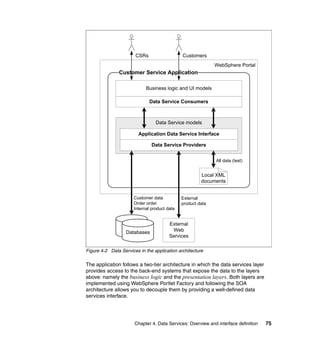
  • 332.
    Property Description References <LookupTable> Makes a call to the LookupTable builder and converts the code value to the string value. <FormatterClass> Used to include a class that is to be invoked for formatting and validation. <FormatExpr> Used for formatting the output. <ValidateExpr> Expression used for validation of the input. cs_product_def.xml 7.3 Paging your data When working with large datasets, it is often necessary to paginate the data display by specifying the number of rows of data shown at one time. While the View and Form builder provides such functionality automatically, this feature is not available when using lower level builders such as the Data Page builder. In such cases, the Paging Assistant builder is used to provide the ability to navigate through the dataset. When the builder is added, an LJO is added to the WebApp, which wraps the specified data source in an IXml object and provides methods to access records one “page” at a time or one record at a time. As with the other builders shown in this book, you can view the LJO that is created, the variable storing the paged data, and the methods that are provided in the WebApp Tree tab as shown in Figure 7-20. 312 Portal Application Development Using WebSphere Portlet Factory
  • 333.
    orderPage LJO orderPageData variable Methods generated Figure 7-20 The LJO, variable, and methods created by the Paging Assistant builder However, the Paging Assistant builder only paginates the data; it does not provide any navigation controls to your page. To achieve that, use either the Paging Links or the Paging Buttons builder, or both, to add the data navigation controls to the page. Figure 7-21 shows how the Paging Assistant, Buttons and Links work together. Chapter 7. Creating portlets: Designing the UI 313
  • 334.
    Page or ImportedPage The page in the application that will be rendered Displays in selected tag Paging Buttons Paging Links Adds a set of buttons to the page for navigating Adds a set of page links to the page for through the data set specified in the Paging navigating through the data set specified in the Assistant Paging Assistant Adds buttons and links to navigate through the data set Paging Assistant Paginates the dataset retrieved into n records per page Paginates Data Page Consumes the dataset and is displayed in the selected tag of the page selected in the builder Maps Data to the Page/Imported Page DataSet This would be the dataset that is returned from executing a data retrieval operation Figure 7-21 Using the Paging Assistant, Buttons and Links builders 314 Portal Application Development Using WebSphere Portlet Factory
  • 335.
    7.3.1 Adding paginationin the Order List portlet In the Order List portlet, the list of orders is displayed using the orderList Data Page builder. The Data Page builder is a lower level builder and does not have the ability to paginate by default. Open the project created previously and select Redbook → models → redbook → ui → order → OrdersList model. 1. Add the Paging Assistant builder to the model. a. Click the Builder Palette icon in the Outline view (lower left). b. Scroll to and select the Paging Assistant builder and provide the following values: Name: orderPage Source Data Type: Variable Source Data: Select OrderServiceGetCustomerOrdersListResults from the drop-down list. Page Size: 3 All other fields: Leave as default c. Click OK to add your builder into the model. Figure 7-22 Paging Assistant builder inputs Chapter 7. Creating portlets: Designing the UI 315
  • 336.
    2. Add thePaging Button builder to the model. a. Click the Builder Palette icon in the Outline view (lower left). b. Scroll to and select the Paging Buttons builder and provide the following values: Name: orderPageButton Location Technique: On Named Tag Page: orderList Tag: PagingBtns Assistant Name: Select orderPage from the drop-down list. All other fields: Leave as default c. Click OK to add your builder into the model. Figure 7-23 Paging Buttons builder inputs 3. Change the data page variable to consume the paged data from the paging assistant instead of the data service. a. Click the orderList Data Page builder in the Outline view (lower left). b. Click the ellipsis button besides the Variable field and select Variables → orderPageData. 316 Portal Application Development Using WebSphere Portlet Factory
  • 337.
    c. Click OKto close the builder. 4. Save the model by clicking the Save icon. 5. Run and test the model by clicking the Run button. The data will be displayed in pages of three rows each, with the paging buttons placed below the displayed dataset (Figure 7-24). Figure 7-24 Result of using the Paging Assistant and Paging Buttons builder Adding paging links At this point your data will be paginated. When you run your model the display will show the first 3 rows of data, along with the paging buttons to move through the entire dataset. However, if the dataset is large, and the number of rows per page small, the paging buttons are not an efficient way of moving to a particular data item, such as to record 100 out of 200. To do this, we might want the default page size to be 20 rows per page instead of 3, and a set of page links that can bring us directly to the required page. Use the following steps to add page links for easier access to specific records: 1. Add the Paging Links builder to the model. a. Click the Builder Palette icon in the Outline view (lower left). b. Scroll to and select the Paging Links builder and provide the following values: Name: orderPageLinks Location Technique: On Named Tag Page: orderList Tag: PageLinks Assistant Name: Select orderPage from the drop-down list. All other fields: Leave as default c. Click OK to add your builder into the model. 2. Save the model by clicking the Save icon. 3. Run and test the model by clicking the Run button. The data will be displayed in pages of three rows each, with the paging buttons placed below the displayed dataset as shown in Figure 7-24. Chapter 7. Creating portlets: Designing the UI 317
  • 338.
    Figure 7-25 Resultof using the Paging Links builder Controlling rows per page using the Radio Button Group In this scenario, we use the Radio Button Group to allow the user to control the number of rows per page that is to be displayed. Often, when using the Radio Button Group builder, three other builders are included to process the inputs: 1. HTML Event Action builder: This builder allows the model to “catch” the OnClick (or any other HTML event) action for the Radio Button Group selection on the page. Once invoked, the builder can invoke other actions such as submitting the form or calling an action list. 2. Action List: Often called by the HTML Event Action builder to process the Radio Button Group input and redirect to another page. 3. Method: To capture the value of the input of the Radio Button Group. Figure 7-26 shows how the builders work together in processing a Radio Button Group onClick event. 318 Portal Application Development Using WebSphere Portlet Factory
  • 339.
    Radio Button Group Method The radio buttons to be Gets the input value of the displayed on the page radio button group Listens for HTML Events on the Radio Button Group HTML Event Action Variable The builder that listens for Performs the following Stores the value of the HTML Events on controls on actions in sequence input extracted by the the pages specified method Calls the Action List when invoked Action List Called by HTML Event Page Action when the event is Refreshes the target triggered to process page as required the input Figure 7-26 Processing a Radio Button Group input Perform the following steps to enhance the paging ability created in the previous steps: 1. Add the Radio Button Group builder to the model. a. Click the Builder Palette icon in the Outline view (lower left). b. Scroll to and select the Radio Button Group builder and provide the following values: Name: DisplayRows Location Technique: On Named Tag Page: orderList Tag: DisplayRows Lookup Table Used: None Radio Group Data: 3, 5, 10, 15 Selected Value: ${MethodCall/orderPage.getRowsPerPage} Orientation: Horizontal All other fields: Leave as default c. Click OK to add the builder into the model. Chapter 7. Creating portlets: Designing the UI 319
  • 340.
    2. Add theVariable builder to the model. a. Click the Builder Palette icon in the Outline view (lower left). b. Scroll to and select the Variable builder and provide the following values: Name: rowsDisplayed Type: Integer Initial Value: 3 c. Click OK to add the builder into the model. 3. Add the Method builder to the model. a. Click the Builder Palette icon in the Outline view (lower left). b. Scroll to and select the Method builder and provide the following values: Name: getRadioButtonInput Method Body: Type in the code shown in Example 7-14. Example 7-14 Code for the getRadioInput builder { //get the input selected by the user in the radio button group String rowDisplayed= webAppAccess.getRequestInputs().getInputValue(“DisplayRows”); //set the rowsDisplayed variable to the value that was entered webAppAccess.getVariables().setString (“rowsDisplayed”, rowDisplayed); } c. Click OK to add the builder into the model. 4. Add the Action List builder to the model. a. Click the Builder Palette icon in the Outline view (lower left). b. Scroll to and select the Action List builder and select the following actions to perform in sequence: Name: radioButtonChange Actions: Add the following actions to the Action List: • Click the ellipsis button beside the first empty row of the Actions list and select Methods → getRadioButtonInput method. • Click the ellipsis button beside the next empty row of the Actions list and select Methods → orderPage → setRowsPerPage. • The method call arguments dialog box will pop up. Click the ellipsis button beside the input text box and select the Variables → rowsDisplayed. 320 Portal Application Development Using WebSphere Portlet Factory
  • 341.
    • Click theellipsis button beside the next empty row of the Actions list and select Pages → orderList. Tag: PagingBtns 5. Add the HTML Event Action builder to the model. a. Click the Builder Palette icon in the Outline view (lower left). b. Scroll to and select the HTML Event Action builder and provide the following values: Name: DisplayRows Location Technique: On Named Tag Page: orderList Tag: DisplayRows Event Name: onClick Action Type: Submit form and invoke action Action: Click the ellipsis button beside the input text box and select Methods → radioButtonChange All other fields: Leave as default c. Click OK to add your builder into the model. d. Save the model by clicking the Save icon. e. Run and test the model by clicking the Run button. Select the number of rows per page to be displayed as 10. The number of paging links will become 2 and the number of rows per page will be refreshed to 10 as shown in Figure 7-27. Figure 7-27 Adding the Radio Buttons Group to control the rows per page Chapter 7. Creating portlets: Designing the UI 321
  • 342.
    7.4 Using theAjax type-ahead builder With the recent spread of Ajax (Asynchronous JavaScript™) on the Web, many application developers have started to explore different ways to take advantage of having interactions with the server without needing to reload the whole page. One feature that exploits the use of Ajax is the type-ahead feature. Type-ahead occurs when the user enters text into a field and the system displays fully formed guesses based on the letters the user has already entered. The lookup is based entirely on a server and does not require caching on the client side. To use the Ajax Type-Ahead builder in the portlet factory, you first define which text input element will be providing the input string for matching. After that, define the data service that the builder will call and the XML element (or field name) for which the lookup will be performed when the user provides an input. Once the input is keyed in, a call is made to the server to invoke the data service specified with the list of matching values returned and displayed on the text input element selected. The type of matching performed is defined in the Filter Mode option, where matching could be done on the start of the string or as a substring. Note that in this builder, the matching done is case-sensitive. Perform the following steps to add the Ajax type-ahead feature to the Customer Information portlet. 1. Open the project created previously and open the CustomerInfo model by selecting Project → redbook → cs → ui → customer folder. 2. Click the Builder Palette icon in the Outline view (lower left). 3. Scroll to and select the Ajax Type-Ahead builder and provide the following values (Figure 7-28): Name: searchTypeAhead Location Technique: On Named Tag Page Location: CustomerList_ViewPage Tag: searchBox Lookup Table Used: None Values: Click the ellipsis and select DataServices → CustomerService → getCustomersList → results to select ${DataServices/CustomerService/ getCustomersList/results} XML Element: NAME Filter Mode: Show values containing data anywhere 322 Portal Application Development Using WebSphere Portlet Factory
  • 343.
    Figure 7-28 AjaxType-Ahead builder inputs 4. Save the model by clicking the Save icon. 5. Run and test the model by clicking the Run button. Give an initial input of a customer name and a drop-down list of matching values will appear as shown in Figure 7-29. Figure 7-29 Ajax Type-Ahead on the Customer Information portlet Chapter 7. Creating portlets: Designing the UI 323
  • 344.
    7.5 Using theDojo builders The Dojo toolkit is a modular Open Source DHTML toolkit written in Javascript. Traditionally, DHTML has been complex and cumbersome to code, which prevented the mass adoption of dynamic web application development. Dojo allows you to easily and quickly build dynamic capabilities into web pages and other Ajax-based applications. Among the features that can be implemented using Dojo are drag and drop, inline editing of data, and tooltips. Combined with Ajax calls, Dojo enables data to be refreshed dynamically, which makes web sites more user friendly, responsive, and functional. The Dojo Ajax feature set must be deployed before the Dojo builders will appear on your builder list and be available for use. If you do not see any of the Dojo builders in your builder list (for example, Dojo Inline Edit), you have to add them into your project. 7.5.1 Creating a Dojo tooltip in the Product Details portlet When creating a web application, using tooltips to provide users with hints or guidance can increase the user-friendliness greatly. Tooltips allow users to access this information while still staying within the current page and context, and at the same time avoid the hassle of having the page refresh and possibly losing some data when the they go back to the original page. In this scenario, the order details portlet will display a Dojo tooltip showing the product details and the product image when the user moves the mouse over the specific product within the order. This is done via a data service call to the server dynamically, according to the item selected. Because this tooltip is also be used in later chapters by other models, build the tooltip as a separate model and link it into the OrderDetails model. Create the ProductTooltip model Open the project created previously and create a product folder by selecting Redbook → models → redbook → ui → order folder. 1. Add the Product folder to the model. a. Right-click the ui folder in the Project Explorer view (top left). b. Select New → Folder and provide the following value: Folder Name: product 324 Portal Application Development Using WebSphere Portlet Factory
  • 345.
    2. Add theProductTooltip model to the folder. a. Right-click the newly created product folder in the Project Explorer view (top left). b. Select New → WebSphere Portlet Factory Model and provide the following values: Choose Project: RedbookCS Select Model: Factory Starter Models → Empty Model Name: ProductTooltip 3. Add the Service Consumer builder to the model. a. Click the Builder Palette icon in the Outline view (lower left). b. Scroll to and select the Service Consumer builder and provide the following values: Name: ProductService Provider Model: Click the ellipsis button and select the redbook → cs → data → ProductDataProvider model. Rich Data Definition File:Click the ellipsis button and select the WEB-INF → resources → redbook → cs → data_definitions → cs_product_def.xml file. c. Click OK to add the builder into your model. 4. Add the Variable builder to the model to store the image URL for the product detail. a. Click the Builder Palette icon in the Outline view (lower left). b. Scroll to and select the Variable builder and provide the following values: Name: productImageUrl Type: Click the ellipsis button and select the String datatype. c. Click OK to add the builder into your model. 5. Add the Page builder as the tooltip page that is to be displayed. a. Click the Builder Palette icon in the Outline view (lower left). b. Scroll to and select the Page builder and provide the following values: Name: tooltipPage Page Contents HTML: Replace the existing content inside the <div> tags with the following code: <table border=”0”> <tr> <td><span name="imageTag"></span></td> <td><span name="namedTag"></span></td> </tr> Chapter 7. Creating portlets: Designing the UI 325
  • 346.
    </table> c. Click OK to add the model into your builder. 6. Add the Data Page builder to the model to get the product data. a. Click the Builder Palette icon in the Outline view (lower left). b. Scroll to and select the Data Page builder and provide the following values: Name: tooltipPage Variable: Click the ellipsis button and select DataServices → ProductService → getProduct → results Page in Model: Select the tooltip page from the drop-down list. Upon selecting the page, more fields will appear below. Location for New Tags:Select namedTag from the drop-down list. All other fields: Leave as default c. Click OK to add the builder into your model. 7. Add the Action List builder to the model to store the image URL for the product detail. a. Click the Builder Palette icon in the Outline view (lower left). b. Scroll to and select the Action List builder and provide the following values: Name: generateTooltip Actions: Add the following actions to the Action List. • Click the ellipsis button beside the first empty row of the Actions list and select Special → Assignment to bring up the Make Assignment dialog box as shown in Figure 7-30. Figure 7-30 Make Assignment dialog box 326 Portal Application Development Using WebSphere Portlet Factory
  • 347.
    • Click theellipsis button beside the Target field and select DataServices → ProductService → getProduct → inputs → arguments → PRODUCT_ID as the target variable to set. • Click the ellipsis button beside the Source field and select Arguments → ProductId. • Click the ellipsis button on the next empty row of the Actions list and select Special → Assignment to bring up the Make Assignment dialog box. • Click the ellipsis button beside the Target field and select DataServices → ProductService → getProduct → inputs → arguments → SOURCE as the target variable to set. • Click the ellipsis button beside the Source field and select Arguments → ProductSource. • Click the ellipsis button on the next empty row of the Actions list and select Data Services → ProductService → getProduct to call the data service to get the product details based on the arguments set in the previous step. • Click the ellipsis button on the next empty row of the Actions list and select Special → Assignment to bring up the Make Assignment dialog box. • Click the ellipsis button beside the Target field and select Variables → productImageUrl as the target variable to set. • Click the ellipsis button beside the Source field and select Variables → ProductServiceGetProductResults → Product → PICTURE as the source variable (this is the product detail field obtained from calling the getProduct service in the previous step). • Click the ellipsis button on the next empty row of the Actions list and select Pages → tooltipPage to display the product details page. c. The inputs for the generateTooltip action list builder are shown in Figure 7-31. Chapter 7. Creating portlets: Designing the UI 327
  • 348.
    Figure 7-31 GenerateTooltipAction List builder inputs 8. Add the Image builder to the model to store the image URL for the product detail. a. Click the Builder Palette icon in the Outline view (lower left). b. Scroll to and select the Image builder and provide the following values: Name: productImage Location Technique: On Named Tag Page: tooltipPage 328 Portal Application Development Using WebSphere Portlet Factory
  • 349.
    Tag: imageTag Image Source: Click the ellipsis button and select Variables → productImageUrl. c. Click OK to add the builder into your model. At this point, your model is ready to render the product details when a specific product is selected. However, since there is no product selected and no main action defined, running the model will result in an error. Testing the ProductTooltip model One of the ways to test a model is to create a main action list that will set any required arguments and then call the corresponding starting builder of the model. Once the testing is complete, you can either disable the builder (so that you can test it again in the future by enabling it) or delete the builder (if you would like to ship the product). In this builder, we create a main action list and disable it after testing is complete. Use the following steps to add the Action List builder to the model to store the image URL for the product detail. 1. Click the Builder Palette icon in the Outline view (lower left). 2. Scroll to and select the Action List builder and provide the following values. Name: main (Note that this is case sensitive. If you typed in Main, your model will not run.) Actions: In the action list, add the following action to invoke the generateTooltip action list with the ProductId and ProductSource values that it requires: generateTooltip (1, INT) Note that the arguments passed are not being encased in quotes even though a string variable is expected. Chapter 7. Creating portlets: Designing the UI 329
  • 350.
    Figure 7-32 MainAction List builder inputs 3. Save the model by clicking the Save icon. 4. Run and test the model by clicking the Run button. The product details together with the image of the product are shown in Figure 7-33. Figure 7-33 Product Details Tooltip page 330 Portal Application Development Using WebSphere Portlet Factory
  • 351.
    Create the ProductTooltipmodel With the Dojo tooltip created, we can now link it to the OrderDetails model and generate a tooltip whenever the user moves their mouse over a product listed in the product details. 1. Add the Linked Model builder to include the ProductTooltip model created from the previous step. a. Click the Builder Palette icon in the Outline view (lower left). b. Scroll to and select the Linked Model builder and provide the following values: Name: productTooltip Model: Click the ellipsis button and select redbook → cs → ui → product → ProductTooltip model. Instance Rule: Always use same instance and state data for a session. c. Click OK to add the builder to your model. 2. Add the Dojo Tooltip builder to pop up a Dojo tooltip whenever the user places the mouse over a specific product. a. Click the Builder Palette icon in the Outline view (lower left). b. Scroll to and select the Dojo Tooltip builder and provide the following values: Name: dojoTooltip Location Technique: On Named Tag Tag: ColumnData (The ColumnData tag covers the entire row.) Tooltip Type: Action Tooltip Action: Click the ellipsis button and select redbook → cs → ui → product → ProductTooltip model. Input Mappings: Enter the values shown in Table 7-5. Table 7-5 Input mappings for the Dojo Tooltip builder Name (Type in) Value (Can be selected using the ellipsis icon) ProductId ${Variables/ITEMLoopVar/PRODUCT_ID} ProductSource ${Variables/ITEMLoopVar/SOURCE} c. Click OK to add the builder to the model. 3. Save the model by clicking the Save icon. Chapter 7. Creating portlets: Designing the UI 331
  • 352.
    4. Run andtest the model by clicking the Run button. Place your mouse over any of the products listed in the order and the tooltip will appear as shown in Figure 7-34. Figure 7-34 Order Details portlet with Dojo tooltip enabled 332 Portal Application Development Using WebSphere Portlet Factory
  • 353.
    Linked versus importedmodels In the following section, we describe how to add the ProductTooltip model as a Linked model to the OrdersDetails model. Using Linked and Imported model builders is very useful in modularizing your application. They also encourage better system organization and code reuse. In our case of the Product Tooltip model that you have just created, the model is actually used both in the Order Details portlet (to display the purchased product details) as well as in the Go Shopping portlet (to display the product details in the product catalog). Besides the obvious code reuse, another rule of thumb to start using these builders is when you find your models overloaded with too many builders. How do we decide whether to use a Linked Model or an Imported Model? The following considerations should help you to decide: Linked Model: This is the primary unit of modularity for an application. As the name implies, using this builder will only link you to the model and thus the builders of the model can only be referenced, but not used directly as part of your model. For example, if you link to a model that has a page builder in it, you will not be able to access that page directly; if you use a text builder, you will not find the linked model pages in the list of pages to place your text in. This is because those builders are not native to the existing model. They can only be referenced or invoked via method calls or other builder calls. Imported Model: As the name implies, using an imported model builder will import all related builders of the selected builder into your existing builder. One use of this is to store all generic data definitions and schemas in a model and to import it using an Imported Model builder. Using the Linked Model builder in this example will not work since the schema builders are not part of your model. Because imported models do not have their own namespaces, importing another model can cause name conflicts, and you should always watch for errors encountered during generation time when importing a model. One simple practice to avoid naming conflicts is to provide distinct model prefixes to builders for the respective models. An imported model has “read only” status, which means that the host model invokes all the builder calls in the imported model, but cannot change any of the builder inputs of those builder calls. Chapter 7. Creating portlets: Designing the UI 333
  • 354.
    7.5.2 Adding DojoInline Edit in the Order Details portlet Inline editing is an important feature that makes it possible for users to edit information without the need for a screen refresh. The removal of a screen refresh gives the user a richer and more convenient experience, especially when the user is modifying sets of data in the same page and would like to see the effect of the changes without having to submit the page. One example of this is HTML editing, where users would like to see the behavior of the changes made to the text without the need for a submit because they might only be exploring the effect of the change. In the following example, the Dojo Inline Edit feature is implemented on the Order Details portlet. The user is given the choice to edit the quantity of the product that is purchased, then submit the changes to display the new price of purchase without the need for a page submit. The user could then continue to change the quantity of other products purchased based on preference or budget. Open the OrderDetails model and perform the following steps: 1. Add the Action List builder to process the change when the user does an inline edit. a. Click the Builder Palette icon in the Outline view (lower left). b. Scroll to and select the Action List builder and provide the following values: Name: updateItemQuantityAndPrice Return Type: void Actions: Add the following actions to the Action List: • Click the ellipsis button and select Methods → UIOperations → updateQuantity to call the Link Java Object method to recompute the total price of purchase after the quantity has been changed. • When the method is selected, the Define Method Call Arguments dialog box is displayed to request the argument value. Click the ellipsis button and select OrderServiceGetOrderItemsResults → Orders → Order → ITEMS. This will pass in the list of items for the order being displayed as the argument. • Click the ellipsis button of the Actions list and select Pages → orderDetails. This will bring the user back to the orderDetails page after the prices have been recomputed. 334 Portal Application Development Using WebSphere Portlet Factory
  • 355.
    2. Add theDojo Inline Edit builder to include the inline editing function on a field within the list of order items. a. Click the Builder Palette icon in the Outline view (lower left). b. Scroll to and select the Dojo Inline Edit builder and provide the following values: Name: dojoInlineEdit Fields: Click the ellipsis button and select the [orderDetails]orderItems → ITEMS → ITEM → QUANTITY field. This will cause the quantity of each item in the order items list to be inline editable. Submit Form: Check Action: Click the ellipsis button and select the Methods → updateItemQuantityAndPrice method. This will fire the action list defined in the previous step to recompute the total price for each item. c. Click OK to add the builder to your model. 3. Save the model by clicking the Save icon. 4. Run and test the model by clicking the Run button. Try to change the quantity of the items ordered and check that the corresponding Order Price is updated (Figure 7-35 on page 336). Chapter 7. Creating portlets: Designing the UI 335
  • 356.
    Quantity and Order Price Updated Figure 7-35 Dojo Inline Edit 7.6 Dojo drag and drop A “drag and drop” feature has long been considered by developers as good to have but difficult to implement. Handling complex DHTML code has made adoption of this feature very slow even though the feature has existed for a long time. In this section we demonstrate a drag and drop feature using the scenario of adding items from a product catalog into a shopping cart. Because the full implementation is covered later, we only illustrate the creation of the source and target models and the use of the Dojo builders that enable it here. The model used to run both models, enable the drag and drop functionality, and demonstrate the entire shopping flow is covered in Chapter 10, “Creating the Go Shopping portlet” on page 501. 336 Portal Application Development Using WebSphere Portlet Factory
  • 357.
    Create the shoppingcart (drag and drop target) This model creates an image to which the customer can drag and drop a product from the product catalog. When the product is dropped onto the image, the shopping cart is refreshed to show the selections made so far. Open the project and open the Redbook → models → redbook → ui → shopping → ShoppingCart model. 1. Add the Image builder to the model. a. Click the Builder Palette icon in the Outline view (lower left). b. Scroll to and select the Image builder and provide the following values: Name: cart Location Technique: Relative to Named Tag Page: Select cartLayoutPage from the drop-down list. Tag: Select OrderInformation from the drop-down list. Placement: After New Tag Name: cartImage Image Source: Click the ellipsis button followed by the Choose File tab and select the redbook → cs → images → cart.gif image. c. Click OK to add the builder to the model. 2. Add to the model the Action List builder that is invoked when a product is dragged and dropped onto the Dojo target (the image we added). a. Click the Builder Palette icon in the Outline view (lower left). b. Scroll to and select the Action List builder and provide the following values: Name: addProduct Arguments: Enter the following argument: Name: productID Data Type: String Actions: Add the following actions to the Action List: • Click the ellipsis button beside the first empty row of the Actions list and select Method → scProductServiceGetProductWithArgs to invoke the method to retrieve the details of the selected product that has been dropped onto the cart. This will bring up the Define Method Call Arguments dialog box. Chapter 7. Creating portlets: Designing the UI 337
  • 358.
    Figure 7-36 DefineMethod Call Arguments dialog box • Click the ellipsis button beside the String field and select Arguments/productID as the parameter to pass to the method as shown in Figure 7-36. c. Click OK to continue to the next action. • Click the ellipsis button on the next empty row of the Actions list and select Methods → UIOperations → addItem method to call the data service to add the dropped product to a variable containing the current set of products in the cart. This will again bring up the Define Method Call Arguments dialog box. • Click the ellipsis button beside the com.bowstreet.util.IXml field and select Variables → varNewOrderItems → ITEMS as the variable to which the selected item will be added. • Click the ellipsis button beside the second com.bowstreet.util.IXml and select Data Services → scProductService → getProduct → results → Products → Product to obtain the product that retrieves the result (product selected) from the previous action. d. Click OK to continue to the next action. • Click the ellipsis button on the next empty row of the Actions list and select Pages → cartLayoutPage to define the image as the target for users to drop the items selected to. e. Click OK to add the builder to your model. 3. Add the Dojo Drop Target builder to display the items that have been added to the cart. a. Click the Builder Palette icon in the Outline view (lower left). b. Scroll to and select the Dojo Drop Target builder and provide the following values: Name: dropTarget Variable: On Named Tag Page in Model: Select cartLayoutPage from the drop-down list. 338 Portal Application Development Using WebSphere Portlet Factory
  • 359.
    Tag: Select cartImage from the drop-down list. Drop Action: Click the ellipsis button and select Methods → addProduct to invoke the action list created in the previous step. Drop Type: * c. Click OK to add the builder to your model. 4. Add the Data Page builder to display the items that have been added to the cart. a. Click the Builder Palette icon in the Outline view (lower left). b. Scroll to and select the Data Page builder and provide the following values: Name: orderItems Variable: Click the ellipsis button and select Variables → varNewOrderItems → ITEMS to display the ITEMS variable containing all the items in the shopping cart. Location for New Tags: Select OrderDetails from the drop-down list. c. Click OK to add the builder to your model. Create the product catalog (drag and drop source) This model generates the product catalog for the application and creates a Dojo Drag Source to allow you to drag the product selected to a region. 1. Add the Data Page builder to the model to display the list of products available. a. Click the Builder Palette icon in the Outline view (lower left). b. Scroll to and select the Data Page builder and provide the following values: Name: products Variable: Click the ellipsis button and select DataServices → scProductService → getProducts → results to display the products. Page in Model: Select pageProductCatalog from the drop-down list. Location for New Tag: Select ProductCatalog from the drop-down list. c. Click OK to add the builder into your model. 2. Add the Image builder to display the product image when the list of products is displayed. a. Click the Builder Palette icon in the Outline view (lower left). Chapter 7. Creating portlets: Designing the UI 339
  • 360.
    b. Scroll toand select the Image builder and provide the following values: Name: thumbnail Location Technique: On Named Tag Page: Select pageProductCatalog from the drop-down list. Tag: Select THUMBNAIL from the drop-down list. Image Source: Click the ellipsis button and select Variables → ProductLoopVar → Product → THUMBNAIL to obtain the thumbnail image file name from the list of products retrieved by the data page. c. Click OK to add the model into your builder. 3. Add the Dojo Drag Source builder to the model to get the product data. a. Click the Builder Palette icon in the Outline view (lower left). b. Scroll to and select the Dojo Drag Source builder and provide the following values: Name: dragSource Location Technique: On Named Tag Page: Select pageProductCatalog from the drop-down list. Tag: Select THUMBNAIL from the drop-down list. Drag Source Data: Click the ellipsis button and select Variables → ProductLoopVar → Product → ID to select the product ID as the value that is being passed to the shopping cart when the product is dropped. c. Click OK to add the model into your builder. 4. Save the model by clicking the Save icon. 5. Run and test the model by clicking the Run button. Drag a product from the list of products displayed to the shopping cart image and you should get results similar to those shown in Figure 7-37. 340 Portal Application Development Using WebSphere Portlet Factory
  • 361.
    Figure 7-37 ImplementingDojo Drag and Drop 7.7 Using other Dojo features In the previous sections, the Dojo examples were created using builders that were provided by Portlet Factory. However, does not mean that other Dojo features cannot be implemented. In this scenario, we implement the Dojo editor for a textarea input for which Portlet Factory does not have a builder. To do this, we first Dojo-enable the page, then set the attribute of the HTML element that we would like to convert to, as shown in the following steps. Note that this example references the OrderPage model that is described in Chapter 10, “Creating the Go Shopping portlet” on page 501. However, the model can be modified and run on its own, and thus does not require you to read Chapter 10 before trying the example. Creating a Dojo Rich Text Editor Open the project that has been created and open the Redbook → models → redbook → ui → shopping → OrderPage model. 1. Add the Imported Model builder to the model to include the ShoppingUI services and events to your model. a. Click the Builder Palette icon in the Outline view (lower left). Chapter 7. Creating portlets: Designing the UI 341
  • 362.
    b. Scroll toand select the Imported Model builder and provide the following values: Name: ShoppingUIImports Model: Click the ellipsis button and select the redbook → cs → ui → Shopping → ShoppingUIImports model. c. Click OK to add the builder into your model. 2. Add the Action List builder to the model to add the steps for running the model. a. Click the Builder Palette icon in the Outline view (lower left). b. Scroll to and select the Action List builder and provide the following values: Name: main Actions: Add the following actions to the Action List: • Click the ellipsis button and select DataServices → scOrdersService → getNextOrderId to get the next order ID for the order that is to be created. • Click the ellipsis button on the next empty row of the Actions list and select Special → Assignment to bring up the Make Assignment dialog box. • Click the ellipsis button beside the Target field and select Variables → varnewOrder → Order as the target variable to set. • Click the ellipsis button beside the Source field and select DataServices → scOrdersService → getNextOrderId → results → arguments → returnValue to get the return value of the getNextOrderId method that you called at the start of this action list. • Click the ellipsis button on the next empty row of the Actions list and select Page → shoppingDetails_InputPage to refresh the page when the variables have been loaded. c. Click OK to add the builder into your model. 3. Add to the model the Action List builder that the input form will call. This action list does not perform any actions but is necessary because it is required by the input form builder. a. Click the Builder Palette icon in the Outline view (lower left). b. Scroll to and select the Action List builder and provide the following values: Name: noop Return Type: void c. Click OK to add the builder into your model. 342 Portal Application Development Using WebSphere Portlet Factory
  • 363.
    4. Add theInput Form builder to the model. a. Click the Builder Palette icon in the Outline view (lower left). b. Scroll to and select the Input Form builder and provide the following values: Name: shoppingDetails Input Submit Operation: noop Input Next Action: noop Input Page HTML: Leave as default Input Variable: Click the ellipsis button and select the Variables → varNewOrder → Order variable for the builder. All other fields: Leave as default • Click the ellipsis button on the next empty row of the Actions list and select Page → shoppingDetails_InputPage to refresh the page when the variables have been loaded. 5. Add the Action List builder to the model to add the steps for running the model. a. Click the Builder Palette icon in the Outline view (lower left). b. Scroll to and select the Action List builder and provide the following values: Name: main Actions: Add the following actions to the Action List: • Click the ellipsis button on the next empty row of the Actions list and select Special → Assignment to bring up the Make Assignment dialog box. • Click the ellipsis button beside the Target field and select Variables → varCustomerID as the target variable to set. • Click the ellipsis button beside the Source field and select Inputs → CUSTOMER_ID. • Click the ellipsis button on the next empty row of the Actions list and select Methods → fireevtReloadPrimaryContainer to invoke the event. • The Define Method Call Arguments dialog box will appear, requesting the arguments to be passed to this method. For this field, type in redbook/cs/ui/shopping/ConfirmationPage. c. Click OK to add the action to the list. d. Click OK to add the builder into your model. 6. Add the Button builder to the model. Chapter 7. Creating portlets: Designing the UI 343
  • 364.
    a. Click theBuilder Palette icon in the Outline view (lower left). b. Scroll to and select the Button builder and provide the following values: Name: back Location Technique: Relative to Named Tag Page: Select shoppingDetails_InputPage from the drop-down list. Tag: Select submit_button from the drop-down list. Placement: Select Before from the drop-down list. New Tag name: Back Label: <-- Back Action Type: Submit form and invoke action Action: Click the ellipsis button and select Methods → fireevtReloadPrimaryContainer (This is discussed in detail in Chapter 10). c. Click OK to add the builder into your model. 7. Add the Button builder to the model. a. Click the Builder Palette icon in the Outline view (lower left). b. Scroll to and select the Button builder and provide the following values: Name: submitOverride Location Technique: On Named Tag Page: Select shoppingDetails_InputPage from the drop-down list. Tag: Select submit_button from the drop-down list. New Tag name: Next --> Label: Next --> Action Type: Submit form and invoke action Action: Click the ellipsis button and select Methods → submitShoppingDetails to invoke the action list that you created. c. Click OK to add the builder into your model. 8. Add the Dojo Enable builder to the model. a. Click the Builder Palette icon in the Outline view (lower left). b. Scroll to and select the Dojo Enable builder and provide the following values: Name: dojoEnable Select Page: shoppingDetails_InputPage Requires Package List: dojo.widget.Editor2 dojo.widget.ColorPalette c. Click OK to add the builder into your model. 344 Portal Application Development Using WebSphere Portlet Factory
  • 365.
    Figure 7-38 DojoEnable Builder inputs 9. To convert the field into a text area input, add the Text Area builder to the model. a. Click the Builder Palette icon in the Outline view (lower left). b. Scroll to and select the Text Area builder and provide the following values: Name: comments Location Technique: On Named Tag Page: Select shoppingDetails_InputPage from the drop-down list. Tag: Select COMMENTS from the drop-down list. c. Click OK to add the builder into your model. 10.To convert the text area into a Dojo Rich Text Editor, the attributes of the text area field have to be set. This is done by add the Attribute Setting builder to the model. a. Click the Builder Palette icon in the Outline view (lower left). b. Scroll to and select the Attribute Setter builder and provide the following values: Chapter 7. Creating portlets: Designing the UI 345
  • 366.
    Name: comments Location Technique: On Named Tag Page: Select shoppingDetails_InputPage from the drop-down list. Tag: Select COMMENTS from the drop-down list. c. Save the model by clicking the Save icon. 11.Run and test the model by clicking the Run button. The input text area of the model should now appear as a Rich Text Editor as shown in Figure 7-39. Figure 7-39 Applying the Dojo Rich Text Editor to a input text area field Note that if your model has already defined a field to be an input text area in the RDD file, then there is no need to use the text area builder to convert the text input field to a input text area field. The purpose of doing so in this example is to explicitly demonstrate how an attribute setter can add or modify the attributes of another builder. 7.8 Customizing the UI So far, we have presented the features that you can implement using the builders in the portlet factory. This should give you a sense of just how quickly you can implement UI features to enrich an application greatly. However, besides these features, there is still the issue of handling the layout. As you probably have noticed by now, when you want to manipulate the way the fields are displayed, the RDD, Data Column Modifiers, and Data Field Modifiers would probably do the trick, but they do not allow you to specify if you want the data grid to be displayed in a horizontal or vertical fashion. 346 Portal Application Development Using WebSphere Portlet Factory
  • 367.
    For example, inour Order Details portlet, you probably noticed that the Order Details placed at the top of the Order Items list has a fair amount of white space to the right of it which makes the UI slightly unbalanced, as shown in Figure 7-40. Unused white space Figure 7-40 Order Details UI In addition to the obvious unused white space, there is also the issue of layout in terms of the portlet look and feel. In the portlet in Figure 7-40, there is a lack of styling and no instructions to inform the customers that the product details would be displayed by a tooltip if they moved their mouse over it, or that clicking on the pencil icon ( ) would enable them to edit the quantity ordered. Without those elements, all that we have built would be useless to the user. This section explains the components in the UI of a portlet factory page and the general techniques in user interface development. 7.8.1 UI elements of a Portlet Factory page In handling the user interface of a portlet factory page, you must first understand the elements involved in creating a portlet factory page. So far, the models that generate data have been using mainly the View & Form builder or the combination of Imported Page and Data Page builders to create your page. In most cases, a page generated by portlet factory is broken down into two components: Chapter 7. Creating portlets: Designing the UI 347
  • 368.
    Static content: Thecontent is coded via HTML, as specified in the View Page HTML field of the View & Form builder inputs or the Page to Import field in the Imported Page builder. Dynamic content: The content is rendered automatically by Portlet Factory via an HTML template, which by default is the gridtable.html found in the HTML Template field of both the View & Form builder, Input Form and Data Page builders. More details on HTML templates are covered in the next section. Figure 7-41 shows the static and dynamic content of the Orders List portlet of the application. Static content (generated by HTML Code) Dynamic content (rendered by Portlet Factory) Figure 7-41 Static and dynamic content of a portlet factory page To see the HTML code for this portlet, perform the following steps with the orderDetails portlet that you have built so far. 1. Open the orderList Imported Page builder and set the following value: Page to Import: Click the ellipsis button and select redbook → cs → html → OrderListLayout_Revised.html to use this as the HTML template instead. 2. Click the Edit Page button to see the HTML source code of the imported page. 3. Save the model by clicking the Save icon. 4. Run and test the model by clicking the Run button. 348 Portal Application Development Using WebSphere Portlet Factory
  • 369.
    Besides the HTMLtemplates that render your data dynamically, don’t forget that you have also added UI builders that latch themselves onto the tags specified in the static HTML pages. These tags allow you to “place” your UI elements onto a page. To shift them around the page, all you need to do is to move the corresponding tags. To provide you with a better understanding of which are the dynamic contents of your model, Figure 7-42 shows the tags in the HTML source code that match the elements and the builders that automate the output in the rendered HTML. <SPAN name=”OrderList”> (Using the Data Page builder) <SPAN name=”PagingBtns”> (Using the Paging Buttons builder) <SPAN name=”PageLinks”> (Using the Paging Links builder) <SPAN name=”DisplayRows”> (Using the Radio Button Group builder) Figure 7-42 Matching the imported HTML page to the output With the difference between static and dynamic content established, we can begin to modify the static UI of our application. Customizing the static content Most applications and portlets normally would have a set of standard instructions, headers, or footers that you would like to include. In this scenario, we edit the HTML of an imported page to insert the instructions for the order list portlets and include an HTML builder to store an HTML block that will be inserted as a footer to the order list page. While you can directly edit the HTML code to insert the footer, using HTML builders to store blocks of reusable HTML code allows you to create a model that can be imported into other models. By doing so, you will be able to update your headers or footers from a single location and effect the change to all other pages of your application. Chapter 7. Creating portlets: Designing the UI 349
  • 370.
    To begin, openthe Redbook → models → redbook → ui → order → OrderList model. 1. Edit the existing orderList imported page to include the instructions and the footer. a. Click the orderList imported page builder in the Outline view (lower left). b. Click the Edit Page. c. Scroll down to the bottom of Page Contents (HTML) and add the following lines to the HTML. <SPAN name=”DisplayRows” class=”instructions”></span> <br><br> <!-- insert this line into your code --> <SPAN name=”footer”></span> </form> </body> </html> d. Click OK to save your changes. 2. Add an HTML builder to the model. (Note, we have not created a separate model for you to import. This is left as an exercise for the reader.) a. Click the Builder Palette icon in the Outline view (lower left). b. Scroll to and select the HTML builder and provide the following values: Name: footer Location Technique: On Named Tag Page: orderList Tag: footer c. Add the following code in the HTML field. <table width="100%" border="0" cellspacing="0" cellpadding="2"> <tr bgcolor="#E46E74"> <td height="1%"> <table width="100%" border="0" cellspacing="0" cellpadding="2"> <tr> <td width='100%' align="left" class="indexMenu"> &copy; 2007, Developed by ITSO Renovations. All Rights Reserved </td> </tr> </table> </td> </tr> 350 Portal Application Development Using WebSphere Portlet Factory
  • 371.
    </table> d. Click OK to add your builder into the model. 3. Save the model by clicking the Save icon. 4. Run and test the model by clicking the Run button. Your portlet should now have the footer shown in Figure 7-43. Figure 7-43 Result of applying the HTML builder into Order List portlet Note: Always rename the HTML file that you are going to use if you intend to make changes in the static HTML file and store it in a separate directory for reference. Editing a default HTML file such as view_and_form_view.html might result in errors because it is the default HTML referenced by all the other builders in your project. To customize the static content, simply edit the corresponding HTML page that is referenced in the builders you are using to render the content. The default HTML differs with the builder that you use. For the View & Form builder, the HTML to edit would be the view_and_form_view.html form that is found in the <Project Root>/WebContent/factory/pages directory. For the Input Form builder, the HTML used would be view_and_form_inputform.html found in the same directory. Chapter 7. Creating portlets: Designing the UI 351
  • 372.
    Customizing the dynamiccontent While Portlet Factory can fully automate the presentation of your data, there could be instances when you would like to have full control over display of your data. In this case, you would not use HTML templates; instead, you would hard code all of the display named tags in the static html file that you defined earlier. In this example, we modify the Order Details layout to remove the white space on the screen as shown in Figure 7-40 on page 347. To change the look and feel of the Order Details portlet and see the changes in the HTML code, perform the following steps with the orderDetails portlet that you have built so far. 1. Open the orderDetails Imported Page builder and set the following value: Page to Import: Click the ellipsis button and select redbook → cs → html → OrderDetailsLayout_Revised.html to use this as the HTML template instead. 2. Click the Edit Page button to see the HTML source code of the imported page. 3. Save the model by clicking the Save icon. 4. Run and test the model by clicking the Run button. You will see the order details now laid out in a horizontal format as shown in Figure 7-44. 352 Portal Application Development Using WebSphere Portlet Factory
  • 373.
    Figure 7-44 OrderDetails UI after changing the imported HTML page On viewing the HTML code, you will notice that the fields corresponding to the order details have been hard coded within the <span name=”orderInformation”> tag with the layout of the order details coded exactly as you would have done in a normal JSP page. What has happened here is that the tag names in the table correspond exactly to the field name of the data set and when they are rendered, the data automatically latches itself to its corresponding tag as shown in Figure 7-45 on page 354. Chapter 7. Creating portlets: Designing the UI 353
  • 374.
    Figure 7-45 Howthe customized HTML is tied to the display Note: While this technique provides full control over the layout of the pages, it does cause tight coupling between the data and the code. This means that any changes in the data schema would also require changes to the front-end code. Changes in your RDD would also not be reflected because the table has already been hard coded. This method should be used only when you are unable to customize your layout using the existing builders. 7.9 HTML templates in Portlet Factory Note: This is an advanced topic for the purpose of understanding page generation. If you would like to carry on with the building of the application, you can skip this section. The goal of using HTML Templates is to enable the Page Automation code of Portlet Factory to build HTML that looks handcrafted but is instead generated from a description of the data. With HTML Templates, you handle your data at a fairly high level of presentation abstraction, unlike the traditional way of coding. Traditionally, when creating a simple HTML page, you know the exact values you want to display, and you only need to be concerned with how to lay them out. When you are creating a JSP page, you think of the data more abstractly, by field name or by some other reference technique. You also have to consider how to render sections of repeated elements, such as the rows from a database query. You know the structure of your data, not the actual values, in terms of the fields that you have in 354 Portal Application Development Using WebSphere Portlet Factory
  • 375.
    the result set,the number of rows, and possibly even the field order if you are doing low level coding. With just a few templates, you can define the overall look for an entire application with hundreds of pages in it. In addition, by changing the templates (with Profiling), you can change the overall look dramatically, without sacrificing the quality of the appearance at all. In general, you should not be creating HTML Templates from scratch. The existing set of HTML Templates provided by Portlet Factory should be sufficient to render most datasets. If there is a need to modify the data format or layout, the use of RDD files, Form Layout builder, Style Sheets, and other builders should be sufficient. Using the methods highlighted in “UI elements of a Portlet Factory page” on page 347 should also be considered. However, if there is still a requirement to customize the HTML template, it would be more effective to modify an existing HTML template (for example, gridtable.html) rather than creating one from scratch. To modify one that almost suits your requirements, we recommend the following steps: 1. Run your model. 2. Compare the generated HTML with the HTML template that is used to generate it. 3. Remove the sections of code that are not required. 4. Run the model and ensure that the changes do not affect the application. 5. Modify the HTML template to meet your requirements. 6. Run the model again. Note that these steps should be performed incrementally. Carefully sculpting out pieces and modifying them would enable you to control the changes and understand the HTML templates better. For more information on HTML templates, refer to the article “Introducing WebSphere Portlet Factory HTML Templates” found at http://www.ibm.com/developerworks/websphere/library/techarticles/0607_o donnell/0607_odonnell.html. Chapter 7. Creating portlets: Designing the UI 355
  • 376.
    7.10 Other UIbuilders Besides the concepts covered so far, there are many additional builders that can manipulate the UI that cannot be exhaustively covered in this book. This section describes some of the more commonly used builders in the Portlet Factory and mentions some other builders for the user to explore. Data Column Modifier In the case of customizing the UI at the model or individual page level, besides using the RDD, the Data Column Modifier is a highly useful builder that allows you to manipulate the selected schema of the page. In addition to column sorting, hiding, alignment and width setting, one of the key features often used by developers is the addition of a counter column for the rows in a table. Clicking the Add Counter Column checkbox will add a counter column to the table, uncheck the Manage Columns checkbox since the RDD will do that, and define the counter label in the Counter Column Head field as shown in Figure 7-46. 356 Portal Application Development Using WebSphere Portlet Factory
  • 377.
    Figure 7-46 Addinga Counter Column and Highlighter in the Customer Information portlet Chapter 7. Creating portlets: Designing the UI 357
  • 378.
    Highlighter Highlighting a selected row when the user performs a mouse over is a good way to indicate the current selection. To include this in your model, add a Highlighter builder and in the Fields field, select the row element that you wish to highlight (in the case of the customer self-service application, the row element is customer since each row represents a customer. The result is as shown in Figure 7-46. Some other builders that are not covered in this book but that might be of interest to the reader are identified in Table 7-6. Table 7-6 Some additional UI builders Builder Description Form Layout Allows a section of data to be formatted to multiple columns. Visibility Setter Hides/Displays data within the selected tag. Useful for displaying messages when there is no data set or hiding sections of data in response to user actions. Print Page Contents Allows you to set a block of content to printer-friendly format. Often used together with Excel Export builder (requires the Excel Extension feature to be included). Attribute Setter Allows you to set the attribute of any HTML element in a page. Particularly useful to manage styles and colors of HTML elements in response to events without using scripts. 7.11 Conclusion This chapter has shown many examples to both control and augment your UI. RDD files are very effective for centralizing control and managing the UI in a consistent fashion. They are also highly extensible and thus allow a structured way of building up the UI control. Other UI builders, such as the Paging Assistant, Data Column Modifier, and Highlighter builders, have also been highlighted as the common builders that you would typically use to handle the UI elements in controlling your data. These builders allow you to quickly and easily control data without the need for back end or javascript coding as it is traditionally done. Ajax and Dojo builders have also been covered; these tools enable you to build Rich Internet Applications (RIA) in keeping up with latest developments of web programming. 358 Portal Application Development Using WebSphere Portlet Factory
  • 379.
    Last but notleast, we demonstrated the way to perform low-level control of your UI through the editing of the HTML files. The examples presented here should enable you to create a user-friendly and highly functional user interface for your application. Chapter 7. Creating portlets: Designing the UI 359
  • 380.
    360 Portal Application Development Using WebSphere Portlet Factory
  • 381.
    8 Chapter 8. Enabling portlet communication In this chapter we describe the types of inter-portlet communication supported by Portlet Factory and demonstrate how to create the communication links for our CustomerInfo Model, Order List Model, Order Details Model, and CustomerCredentials Model. There are a few ways to implement inter-portlet communication in Portlet Factory, each with certain advantages over the others. With our Customer Self Service Application (CSA), we have chosen to use a combination of Portlet Factory events and shared variables as the mechanism for communication, mainly due to the ease of implementation. To complete the steps in this chapter, you need to have installed copies of WebSphere Portal and WebSphere Portlet Factory 6.0.1. You also need to have set up the data service providers described in previous chapters, and to have built and deployed the CustomerInfo, Order List, Order Details, and CustomerCredentials models described in Chapter 6, “Creating portlets: Making it work” on page 221. The UI components described in Chapter 7, “Creating portlets: Designing the UI” on page 275 are preferred but not essential. Note: The sample code (Chapter8.zip) that shipped with this chapter cannot be run in standalone mode. The project must be deployed in WebSphere Portal for it to work. © Copyright IBM Corp. 2008. All rights reserved. 361
  • 382.
    8.1 Overview In the previous chapters, we built the data services for the CSA and most of the functionality of its portlets in standalone mode. In this chapter, we discuss how to build the communication links among the CustomerInfo, OrderList, OrderDetails and CustomerCredentials models for the CSA. We will be using a combination of Portlet Factory events and shared variables to build the communication links for our application. We have chosen this type of inter-portlet communication mainly due to the ease of implementation, but in general, the major advantage of the Portlet Factory events over the other mechanisms is its ability to support standalone J2EE application, meaning WebSphere Portal is not required for building the communication links. Briefly, the Portlet Factory events and shared variables work together by causing an event to be broadcast to all models whenever a shared variable is changed. Any model that is listening to that event will retrieve the updated value of the shared variable to carry out its tasks. By the end of this chapter, we will have the four models communicating with each other and they will no longer work as standalone portlet applications. Table 8-1 summarizes the features of CSA covered in this chapter and the techniques or builders used to implement these features. Table 8-1 Summary of features implemented and builders/techniques used Feature Description Builders or techniques used Portlet Enables the CustomerInfo UIEvent Model communication model to communicate with the Variable OrderList model via a shared Shared Variable variable. For the CSR scenario, Event Declaration a Portlet Factory event is CustomerInfo Model required; for the Customer Imported Model scenario, the shared variable is Action List sufficient. OrderList Model Imported Model Event Handler Action List 362 Portal Application Development Using WebSphere Portlet Factory
  • 383.
    Feature Description Builders or techniques used Portlet Enables the OrderList model to UIEvent Model communication communicate with the Variable OrderDetails model via a shared Shared Variable variable and a Portlet Factory Event Declaration event. OrderList Model Imported Model Link Action List OrderDetails Model Imported Model Event Handler Action List Portlet Enables the UIEvent Model communication CustomerCredentials model to Event Declaration communicate with the CustomerCredentials Model CustomerInfo model using a Imported Model Portlet Factory event. CustomerInfo Model Imported Model Event Handler Value to end users Inter-portlet communication allows end users to have a more dynamic application because user behavior in one portlet may invoke another portlet to perform automatically. This saves end users time by proactively displaying related data or carrying out tasks that end users may wish to proceed to next. This communication capability also provides more flexibility in terms of presenting the application to the end users. It is now possible to divide the application into different components (portlets) that can reside on different portal pages. 8.2 Types of inter-portlet communication There are three general types of inter-portlet communication supported by Portlet Factory builders: Portlet Factory events These events are a simple way to implement inter-model communication, both in Portal and when running standalone. These events work in both IBM Portlet API mode and Standard portlet API mode. When an event is fired, it is broadcast to all models in the same user session, and any models that are listening for the event will have their event handler called. Events can have any number of arguments, of simple or complex types. These events are fired Chapter 8. Enabling portlet communication 363
  • 384.
    explicitly and don’thave any user interface of their own. The builders used for Portlet Factory events are Event Declaration and Event Handler. Cooperative Portlet events: Click-to-Action and Property Broker These are mechanisms defined by WebSphere Portal for inter-portlet communication, and are only available when running in Portal. Click-to-Action is a Portal mechanism that uses drop-down menus to control portlet interaction; it is available only when running a project in IBM Portlet mode. In Standard portlet mode, Cooperative Portlets must be configured using the “Wires” tool. The builders used for Cooperative Portlet events are Cooperative Portlet Source, Cooperative Portlet Target, and Event Handler. Using this type of inter-portlet communication enables portlets developed using different tools to be used together in composite applications. It encourages reuse of components, and allows developers to build customizable portlet applications that can be plugged into other portlet applications via the WebSphere Property Broker. IBM WebSphere Portal Express Version 6 - Customizing Portal Express for Small to Medium Business, REDP-4316 provides a detail example showing how two portlets developed using different tools can communicate with each other using this technique. See the following Web site for details: http://www.redbooks.ibm.com/redpieces/abstracts/redp4316.html?Open Note: Portlet Factory Events provide a convenient way of linking portlets because they do not require external wiring in Portal like the Cooperative Portlet Events do. However, some major advantages of using Cooperative Portlet Events are: The ability to send events across deployment WARs Communication between non-Portlet Factory portlets Support of wiring across portal pages The ability to react to events that are triggered before instantiation Portlet Factory Events have a dependency on the rendering order of the portlets. Shared variables This is a Portlet Factory feature that lets you share a variable across all the models in a user session. This feature works both in Portal (either portlet mode) and when running standalone. The models do not have to be on the same portal page. The builder used for this is Shared Variable. This feature is often coupled with one of the event mechanisms described previously, so that when a portlet modifies a shared variable it can notify other portlets that a 364 Portal Application Development Using WebSphere Portlet Factory
  • 385.
    value has changed.In the CSA, shared variables are used together with the Portlet Factory events mechanism to enable inter-portlet communication. Source Model Step 2. The Source Model modifies the shared variable Shared Variable St the Ste ep S to p3 1. our Th c e . Th e e fire e T a Mo d s th e S vent rg el our et fo M rt ce od he el Mo lis eve Step 4. The Target Model retrieves the del te nt updated value of the shared variable ns Target Model Target Model’s Action List: … … Step 5. The Target Model carries ... out its tasks using the shared variable. Figure 8-1 How shared variables work when coupled with an event mechanism 8.2.1 Types of inter-portlet events There are four types of inter-portlet events available in Portlet Factory: Click-to-Action (C2A), Property Broker Link, Property Broker Action, and Portlet Factory events. The key differences between these event types are summarized in Table 8-2. There are also differences in behavior depending on whether portlets are using IBM Portlet mode or Standard mode (JSR 168). Chapter 8. Enabling portlet communication 365
  • 386.
    Table 8-2 Summaryof key features of the event mechanisms Click-to-Action Property Broker Property Broker Portlet Factory Link Action Events Platform Portal only, IBM Portal only (either Portal only (either Portal (either support Portlet mode only* mode) mode) mode) and standalone J2EE supported User interface C2A drop-down Link in standard No UI (event must No UI (event must menu portlet mode; C2A be explicitly fired by be explicitly fired by drop-down menu in application) application) IBM Portlet mode Arguments Simple argument Simple argument Simple argument Multiple complex supported value value or single value or single argument types complex argument complex argument value value Event No wiring required - Requires explicit Requires explicit No wiring required - configuration matches event Portlet wiring in Portlet wiring in matches event names and types standard portlet standard portlet names and types mode mode * Click-to-Action menus are displayed only in IBM Portlet mode, but the same models can be configured with Portlet Wiring in Standard portlet mode and will display a simple link UI instead of a drop-down menu. Note: For detailed sample code for different types of inter-portlet communication, see http://www-128.ibm.com/developerworks/websphere/ zones/portal/portletfactory/samples/misc.html 8.3 Inter-portlet communication for CSA In this section we provide step-by-step instructions for building the following three portlet communication links for our CSA: 1. CustomerInfo Model to OrderList Model (across Portal pages) When a CSR logs into the application, he is presented with a list of customers in the CustomerInfo portlet. When the CSR clicks on any ID link of a customer, the customer details are displayed in the current portlet and the OrderList portlet on the Order portal page retrieves the orders that the customer has previously placed and displays them when the CSR browses to 366 Portal Application Development Using WebSphere Portlet Factory
  • 387.
    that page. Thevariable that is used to invoke the action of the OrderList model is the ID value of the customer. The customer scenario works in a manner similar to that of the CSR, except when a customer logs into the application the CustomerInfo portlet displays the details about that customer by default. (This is based on the assumption that the customer has already set up his credential details.) 2. OrderList Model to OrderDetails Model When a customer or CSR clicks the Order ID link in the OrderList portlet, the details about that order are displayed in the OrderDetails portlet on the same page. The variable that is used to invoke the action of the OrderDetails model is the ID value of the order selected. 3. CustomerCredentials Model to CustomerInfo Model In Chapter 6, “Creating portlets: Making it work” on page 221, we created a CustomerCredentials model to set up customers’ credential details when the customers log in for the first time. The CustomerInfo portlet should refresh itself automatically, showing the details for the customer when he returns from the credential details personalize page (provided that the data he enters is valid). 8.3.1 CustomerInfo Model to OrderList Model At a high level, the steps to enable communications between the CustomerInfo and Orderlist models are: 1. Create an event declaration and shared variable. The event is fired from the CustomerInfo model when a new customer has been selected. The shared variable holds the customer ID, which is communicated between the models. 2. The CustomerInfo model sets the customerID variable and fires the event when the customer is selected. 3. The OrderList model catches the event and updates the customer orders based on the customerID value. The details about these steps are provided in the following sections. Chapter 8. Enabling portlet communication 367
  • 388.
    Note: As mentionedbefore, there are two possible use cases for the CustomerInfo Model to OrderList Model inter-portlet communication: the CSR use scenario and the customer use scenario. In this chapter, we only cover the CSR scenario. Details about the customer scenario are included in Chapter 9, “Customizing the application using profiling” after we customize the application for the customer use cases using profiling. Nevertheless, it is worth mentioning here that there is a difference between the two scenarios in terms of creating the communication link between the CustomerInfo model and the OrderList model; we explain the difference in 9.6.1, “Different entry paths for customers and CSRs” on page 438 Creating and importing the UIEvent model This model is used as the common model that declares the Portlet Factory Events as well as the shared variables. This will be imported into both the CustomerInfo Model and OrderList Model. 1. In Project Explorer, go to RedbookCS → models → redbook → cs → ui → common and right-click the common folder. Click New → WebSphere Portlet Factory Model. Figure 8-2 Creating a new WebSphere Portlet Factory Model 368 Portal Application Development Using WebSphere Portlet Factory
  • 389.
    2. In theChoose Project window, choose RedbookCS and click Next. 3. In the Select Model window, choose Empty under Factory Starter Models and click Next. Figure 8-3 Selecting an Empty model to begin with for the UIEvent Model 4. In the Save New Model window, make sure the two inputs are as follows: Enter or select the folder: RedbookCS/WebContent/WEB-INF/models/redbook/cs/ui/common Model name: UIEvent 5. Click Finish. Chapter 8. Enabling portlet communication 369
  • 390.
    Figure 8-4 Savethe new UIEvent model Declaring the event and shared variable in the UIEvent model First, we create the customerID shared variable. The shared variable customerID declared in the UIEvent model is used to store the ID of the customer that is currently logged in or the ID of the customer that a CSR has selected. Perform the following steps to create a normal variable and then turn it into a shared variable: 1. In the UIEvent model, click the button to add a Variable builder. 2. Make the following entries and selections; leave other values as default: Name: customerID Type: String Click Apply. 370 Portal Application Development Using WebSphere Portlet Factory
  • 391.
    Figure 8-5 Createthe customerID variable 3. Click the button to add a Shared Variable builder. 4. Make the following entries and selections; leave the other values as default. Name: sharedCustomerID Variable: customerID Scope: Session Unique ID: com.ibm.redbook.cs.sharedvariables.customerID Click Apply. Chapter 8. Enabling portlet communication 371
  • 392.
    Figure 8-6 Turnthe customerID variable into a shared variable 5. Save the UIEvent model by clicking the Save icon ( ). Next, we create the getCustomerOrders event. The getCustomerOrders event declared in the UIEvent model is to be fired by the CustomerInfo model to let the OrderList model know that the customerID shared variable has just been changed. The OrderList model will then proceed to carry out its tasks based on the new customerID value. 1. In the UIEvent model, click the button to add an Event Declaration builder. 2. Name the Event Declaration builder getCustomerOrders and leave all the other options as default. Click Apply. Note: You do not need to specify any arguments to pass with this event because you will be passing the information via the sharedCustomerID shared variable. 372 Portal Application Development Using WebSphere Portlet Factory
  • 393.
    Figure 8-7 Createthe getCustomerOrders Event in the UIEvent Model 3. Save the UIEvent model by clicking Save ( ). Firing the event from the CustomerInfo model In the CustomerInfo model, we need to set the value of the customerID shared variable whenever a CSR views the details of a customer by clicking the customer’s ID link. Then an event will be fired to notify the OrderList model of the change in the customerID value. 1. In Project Explorer, select RedbookCS → models → redbook → cs → ui → customer → CustomerInfo.model. Double click CustomerInfo.model to open it. Chapter 8. Enabling portlet communication 373
  • 394.
    Figure 8-8 Openup the CustomerInfo Model 2. Import the UIEvent model, which contains the definition for the event and the shared variable. In the CustomerInfo model, click the button to add an Imported Model builder. 3. Name the Imported Model builder UIEvent and make sure that path to the model reads redbook/cs/ui/common/UIEvent. Leave the rest as default and click Apply. At this point, the CustomerInfo model should be able to see the event and shared variable declared in the UIEvent model. 374 Portal Application Development Using WebSphere Portlet Factory
  • 395.
    Figure 8-9 Importthe UIEvent Model into the CustomerInfo Model 4. Create an Action List in the CustomerInfo model and name it getCustomerDetails. In the CustomerInfo model, click the button to add an Action List builder. 5. The getCustomerDetails action list should carry out three tasks when a CSR clicks a customer’s ID link. a. Set the value of the customerID shared variable to the Customer ID value selected. i. Click the button on the first empty row of the Action List Table. ii. In the Select Action window, expand Special and click Assignment. The Make Assignment dialog pops up (Figure 8-10). Chapter 8. Enabling portlet communication 375
  • 396.
    Figure 8-10 MakeAssignment in an Action List iii. Click the ellipsis button next to the Source input field. In the Choose Reference window choose the ID value Variables → CustomerList_SelectedRowData → Customer → ID. Click OK. iv. Click the button next to the Target input field. In the Variables window choose the value Variables → customerID. Click OK. v. Leave the Assignment Type in the Make Assignment window as Replace. Click OK. Figure 8-11 Setting the customerID shared variable b. Fire the getCustomerOrders event. i. Click the button on the next empty row of the Action List table. ii. In the Select Action window, expand Methods and click firegetCustomerOrders. Click OK. 376 Portal Application Development Using WebSphere Portlet Factory
  • 397.
    c. Display thedetails of the customer selected. i. Click the button on the next empty row of the Action List table. ii. In the Select Action window, expand Methods and click CustomerDetails_ShowResults. Click OK. 6. Click Apply on the getCustomerDetails Action List builder. Figure 8-12 Click Apply to save the getCustomersDetails action list 7. Call this getCustomerDetails Action List when a CSR clicks on a customer’s ID link to view the details. In the Outline pane, double-click the View & Form builder named CustomerList. The CustomerList builder is opened in the Edit pane. Chapter 8. Enabling portlet communication 377
  • 398.
    Figure 8-13 Openthe CustomerList View & Form builder 8. Scroll down to the Row Details Support section in the CustomerList builder and click the button next to the Link Action input field. 378 Portal Application Development Using WebSphere Portlet Factory
  • 399.
    Figure 8-14 Modifythe Link Action under the Row Details Support section 9. In the Selection Action without Arguments window, choose Methods → getCustomerDetails and click OK. 10.Click Apply on the CustomerList View & Form builder. 11.Change the hard-wired input parameter for the getCustomer method entered earlier (described in Chapter 6) in the Service Consumer builder. In the Outline pane, double-click the Service Consumer builder named CustomerService. The CustomerService builder is opened in the Edit pane. Chapter 8. Enabling portlet communication 379
  • 400.
    Figure 8-15 Openup the CustomerService builder 12.In the CustomerService builder, scroll down to the Overridden Inputs section. Under the Operation Table, click the getCustomer method. The names and values of its inputs should appear in the Inputs table (Figure 8-16). 380 Portal Application Development Using WebSphere Portlet Factory
  • 401.
    Figure 8-16 Inputsof the getCustomer method are shown in the Inputs table 13.Click the ellipsis button on the Inputs.CUSTOMER_ID row, then select Variables → customerID. Figure 8-17 The modified value of the CUSTOMER_ID input 14.Click Apply to save the CustomerService builder. Chapter 8. Enabling portlet communication 381
  • 402.
    Note: The originalhard-wired input value source is from the data of the selected customer row (that is, the customer that the CSR clicks on to view his details). However, this input value will not work for the customer scenario because when a customer logs in to view his details, he will not have to select from the list of customers. Therefore, we use the customerID shared variable as the input instead. (It will work for both scenarios because we have the customerID value set before invoking the method to display the details of the customer). 15.Save the CustomerInfo model by clicking the button. Handling event in the OrderList Model By now, you should have the CustomerInfo model firing the getCustomerOrders event whenever the customerID shared variable is updated. Perform the following steps to set up the OrderList model to react to this event. 1. In Project Explorer, select RedbookCS → models → redbook → cs → ui → order → OrderList.model. Double-click OrderList.model to open it. Figure 8-18 Open the OrderList model 2. Import the UIEvent model. In the OrderList model, click to add an Imported Model builder. 382 Portal Application Development Using WebSphere Portlet Factory
  • 403.
    3. Name theImported Model builder UIEvent and make sure the path to the model is redbook/cs/ui/common/UIEvent. Leave the rest as default and click Apply. At this point, the OrderList model should be able to see the event and shared variable declared in the UIEvent model. Figure 8-19 Import the UIEvent Model into the OrderList Model 4. Create a new action list in the OrderList model to carry out the tasks when the OrderList model reacts to the getCustomerOrders event. In the OrderList model, click to add an Action List builder. 5. Name the action list getCustomerOrders. It should do the following: a. Check whether the customerID shared variable is NULL. If it is not null, call the DataServices method getCustomerOrdersList to retrieve the list of orders that the customer (with the customerID) has previously purchased. Chapter 8. Enabling portlet communication 383
  • 404.
    i. Click the button on the first row of the Action List table. In the Select Action window, choose Special → Conditional → if. The Define Conditional Action dialog box opens (Figure 8-20). Figure 8-20 Set up the conditional action ii. Create a conditional statement to check if the customerID is not NULL. Click the button next to the Value input field. In the Choose Reference window, choose Variables → customerID. Click OK. iii. Leave everything else in the Define Conditional Action box as default and click OK. iv. The getCustomerOrders Action List builder should appear as shown in Figure 8-21. Ignore the Missing ENDIF error for now. 384 Portal Application Development Using WebSphere Portlet Factory
  • 405.
    Figure 8-21 Ignorethe Missing ENDIF error v. Click the button on the second row of the Action List Table. In the Select Action window, choose Methods → OrderServiceGetCustomerOrderListWithArgs. The Define Method Call Arguments dialog box opens (Figure 8-22). Chapter 8. Enabling portlet communication 385
  • 406.
    Figure 8-22 Callthe DataServices Method to get the list of orders vi. Click the button next to the String input field. In the Choose Preference window, choose Variables → customerID. Click OK to close the Choose Preference window, then click OK again to close the Define Method Call Arguments window. Note: The reason we have chosen to use the OrderServiceGetCustomerOrderListWithArgs method here is to demonstrate alternative ways of invoking a method. vii. Click the button on the next empty row of the Action List table. In the Select Action window, choose Special → Conditional → endif. Click OK. b. Display the OrderList page. i. Click the button on the next empty row of the Action List table. In the Select Action window, choose Pages → orderList. Click OK. 6. Click Apply to save the changes made in the getCustomerOrders Action List builder. 386 Portal Application Development Using WebSphere Portlet Factory
  • 407.
    Figure 8-23 Thenew Action List builder - getCustomerOrders 7. Create an Event Handler that will listen to the getCustomerOrders event. In the OrderList model, click to add an Event Handler builder. 8. Complete the form as follows, then click Apply. Name: Enter getCustomerOrders Event Name: Select getCustomerOrders from the drop-down list Handle Type: Select Use existing action Action: Click the button next to the Action input field, then select Methods → getCustomerOrders from the Select Action window. Click OK in that window. Chapter 8. Enabling portlet communication 387
  • 408.
    Figure 8-24 Createthe getCustomerOrders Event Handler builder in the OrderList model 9. Modify the main Action List of the OrderList model. In the Outline pane, double-click the Action List builder named main. The main builder will open in the Edit pane. 388 Portal Application Development Using WebSphere Portlet Factory
  • 409.
    Figure 8-25 Openup the main Action List in the OrderList model 10.In the main Action List table, right-click the icon next to the first row of the table. Click Delete All Rows to remove all the existing actions. Chapter 8. Enabling portlet communication 389
  • 410.
    Figure 8-26 Deletethe existing actions in the main Action List 11.Make main call the new action list that you just created, getCustomerOrders. Click the button on the first row of the Action List table and select Methods → getCustomerOrders from the Select Action window. Click OK to close that window. Note: The reason that the main action list has to call the getCustomerOrders action list here is to handle the situation that when a CSR clicks on a customer’s ID link before the OrderList portlet has been instantiated, the OrderList portlet will not be able to respond to events fired by the CustomerInfo model. Having the main method call the same action list here enforces that the OrderList portlet will still display the order list details as expected even when the event is fired before its instantiation. 12.Click Apply on the main Action List builder (Figure 8-27). 390 Portal Application Development Using WebSphere Portlet Factory
  • 411.
    Figure 8-27 ClickApply to save the main action list 13.Before we can test this link, we need to remove the hard-coded input value entered in the OrderService Service Consumer builder (described in Chapter 6). In the Outline pane, double-click the Service Consumer builder named OrderService. The OrderService builder will open in the Edit pane. 14.Uncheck the box for Override Inputs option. Click Apply. Chapter 8. Enabling portlet communication 391
  • 412.
    Figure 8-28 Disablethe Override Inputs option 15.Save the OrderList model by clicking the button. 392 Portal Application Development Using WebSphere Portlet Factory
  • 413.
    Testing the inter-portletcommunication link You can now test the link that you just created. 1. Log into Portal. The CustomerInfo portlet on the Customer page will resemble Figure 8-28 after logging in. Figure 8-29 CustomerInfo portlet after logging in Important: Do not click any links in the CustomerInfo portlet. 2. Go to the Order portal page. The OrderList portlet should be empty, as shown in Figure 8-30. Figure 8-30 OrderList Portlet should be empty 3. Go back to the Customer portal page and click the ID link of the first customer. Chapter 8. Enabling portlet communication 393
  • 414.
    Figure 8-31 Clickthe ID link of the first customer 4. The CustomerInfo portlet now displays the details about that customer. Figure 8-32 Customer details 394 Portal Application Development Using WebSphere Portlet Factory
  • 415.
    5. Go tothe Order portal page. The OrderList portlet now displays the list of orders that the selected customer has previously placed. Figure 8-33 Orders placed by the selected customer 6. Switch back to the Customer portal page and select another customer. The content in the OrderList portlet will change each time you select another customer’s details in the CustomerInfo portlet. 8.3.2 OrderList Model to OrderDetails Model At a high level, the steps to enable communications between the OrderList and OrderDetails models are: 1. Create an event declaration and shared variable. The event will be fired from the OrderList model when a new order has been selected. The shared variable will hold the order ID that needs to be communicated between the models. 2. The OrderList model sets the selectedOrderID variable and fires the event when the order is selected. 3. The OrderDetails model catches the event and updates the order details based on the selectedOrderID value. This inter-portlet communication link basically follows the same flow as the link between the CustomerInfo model and the OrderList model that we described in the previous section. Declaring the event and share variable in the UIEvent model First, we create the selectedOrderID shared variable. The shared variable selectedOrderID declared in the UIEvent model is used to store the ID of the selected order. Chapter 8. Enabling portlet communication 395
  • 416.
    In Project Explorer,go to RedbookCS → models → redbook → cs → ui → common → UIEvent.model. Double-click the UIEvent.model to open it. Perform the following steps to create a normal variable and then turn it into a shared variable: 1. In the UIEvent model, click to add a Variable builder. 2. Enter the name for the Variable builder as selectedOrderID and select String as the Type. Leave everything else as default. Click Apply. 3. To make the selectedOrderID variable that we just created a shared variable in the UIEvent model, click to add a Shared Variable builder. 4. Make the following entries and selections; leave other values as default: Name: sharedSelectedOrderID Variable: selectedOrderID Scope: Session Unique ID: com.ibm.redbook.cs.sharedvariables.selectedOrderID Click Apply. Figure 8-34 Turn the selectedOrderID variable into a shared variable 5. You have now finished creating the shared variable. Save the UIEvent model by clicking the button. 396 Portal Application Development Using WebSphere Portlet Factory
  • 417.
    Create the getOrderDetailsevent The getOrderDetails event declared in the UIEvent model is to be fired by the OrderList model to let the OrderDetails model know that the selectedOrderID shared variable has just been changed. The OrderDetails model will then proceed to carry out its tasks based on the new selectedOrderID value. 1. In the UIEvent model, click to add an Event Declaration builder. 2. Name the Event Declaration builder getOrderDetails and leave all the other options as default. Click Apply. Figure 8-35 The getOrderDetails Event Declaration builder in the UIEvent Model 3. You have now finished creating the event. Save the UIEvent model by clicking the button. Firing the event from the OrderList Model In the OrderList model, we need to set the value of the selectedOrderList shared variable whenever a CSR or a customer clicks an ID link of the order that he wishes to view the details for. Then an event will be fired to notify the OrderDetails model of the change in the selectedOrderList value. Unlike the previous case, where the customer ID links are created using the Views & Form’s Row Details Support option, with the OrderList model we need to turn the order ID fields into links with the help of a Link builder. Chapter 8. Enabling portlet communication 397
  • 418.
    1. In ProjectExplorer, go to RedbookCS → models → redbook → cs → ui → order → OrderList.model. Double-click the OrderList.model to open it. 2. Since the UIEvent model has already been imported, create a new action list that will set the selectedOrderID shared variable as well as firing the getOrderDetails event. In the OrderList model, click to add an Action List builder. Name this action list builder getOrderDetails. 3. The getOrderDetails action list should carry out the following three tasks when a CSR/customer clicks on an order ID link. a. Take the order ID as an input argument. i. Expand the Arguments section by clicking on the word Argument. Figure 8-36 Expand the Arguments section in the Action List builder ii. Create a new argument with the following details: Name: orderID Data Type: String Figure 8-37 Create an argument for the getOrderDetails Action List 398 Portal Application Development Using WebSphere Portlet Factory
  • 419.
    b. Set thevalue of the selectedOrderID shared variable equal to the argument of the action list. i. Click the button on the first empty row of the Action List table. ii. In the Select Action window, expand Special and click Assignment. iii. Click the button next to the Source input field. In the Choose Reference window choose the ID value Arguments → orderID. Click OK. iv. Click the button next to the Target input field. In the Variables window choose the value Variables → selectedOrderID. Click OK. v. Leave the Assignment Type in the Make Assignment window as Replace. Click OK. Figure 8-38 Setting the selectedOrderID shared variable c. Fire the getOrderDetails event. i. Click the button on the next empty row of the Action List table. ii. In the Select Action window, expand Methods and click firegetOrderDetails. Click OK. 4. Click Apply on the getOrderDetails Action List builder. 5. We have to turn the order ID fields into links such that when a customer or CSR clicks on one of these, the getOrderDetails event will be fired. In the OrderList model, click to add a Link builder. 6. Leave the name of this builder blank so that it will take the HTML tag name as its name. Complete the form as follows and leave everything else as default. Location Technique: On Named Tag Page: orderList Tag: ORDER_ID Action Type: Link to an action Action: Click next the Action input field. Choose Methods → getOrderDetails. Click OK. Chapter 8. Enabling portlet communication 399
  • 420.
    Evaluate arguments: Select As the page is rendered (You must not get this part wrong or the inter-portlet communication link will not work properly.) Input Mappings Name: Replace getOrderDetails_Arg1 with orderID. Input Mappings Value: Click next to the Value input field. Choose Variables → OrderLoopVar → Order → ORDER_ID. Click OK to close the Choose Reference window. Figure 8-39 Create the ID Link builder 400 Portal Application Development Using WebSphere Portlet Factory
  • 421.
    Note: Two othercomponents are generated behind the scenes when the Link builder is created: Order ID Links on JSP page The Link builder generates a set of order ID links in the OrderList portlet. In order to identify each individual ID link, the Link builder uses the unique orderID value as a parameter of the href property of each link. For example, the first order may have <a href=“http://...?orderID=001” /> whereas the second one may have <a href=“http://...?orderID=002” /> Looking at the WebAppTree, here is the exact code generated for the set of ID links: <a name="ID" ... href='<%= JSPSupport.getActionURL(webAppAccess,"_gen_call_getOrderDetails", new String[] {"orderID", ""+ webAppAccess.getVariables().getXmlText( "OrderLoopVar","Order/ORDER_ID") }) %>'> ... </a> Basically, it uses the orderID value of each order to generate a unique link; to identify which link is selected, we need to parse through the HTTP request parameters to retrieve the “orderID” value. Wrapper method (_gen_call_getOrderDetails) A wrapper method is generated automatically when the Link builder is created. Its basic function is to use the OrderLoopVar variable as a reference to retrieve the orderID parameter from the HTTP request. It then passes this orderID value to the Link builder Action (which is getOrderDetails in this case). The getOrderDetails action then carries out its tasks based on the input value. The time to evaluate the input argument is crucial because it may result in passing an incorrect value to the getOrderDetails action. To examine the differences between the two options of when the argument should be evaluated, we look at the codes generated in the WebApp Tree. Chapter 8. Enabling portlet communication 401
  • 422.
    If the Asthe page is rendered option is chosen, the wrapper method looks like this: public Object _gen_call_getOrderDetails(WebAppAccess webAppAccess){ ... returnValue = webAppAccess.callMethod("getOrderDetails", new Object[] { webAppAccess.getRequestInputs().getInputValue("orderID") }); ... } Notice that it actually parses through the input parameters of the HTTP request to retrieve the “orderID” value and then passes it to the getOrderDetails function. Now, we look at the codes generated if the When the action is run option is chosen: public Object _gen_call_getOrderDetails(WebAppAccess webAppAccess){ ... returnValue = webAppAccess.callMethod("getOrderDetails", new Object[] { webAppAccess.getVariables().getXmlText("OrderLoopVar", "Order/ORDER_ID") }); ... } Notice that with this option, the actual value of the Order/ORDER_ID of the OrderLoopVar variable is being passed to getOrderDetails, instead of the input parameter in the HTTP request. As the OrderLoopVar variable loops through the entire result set, it will always have the last result as the last instance (that is, choosing this option implies that no matter which order ID link you click, you will always only be able to see the order details of the last order). Tip: You will find that in most cases when a LoopVar variable is involved, the “As the page is rendered” option is mostly likely the choice, whereas when a form is being submitted, the “When the action is run” option is most likely chosen. 7. Click Apply to save the ID link builder. 8. Save the OrderList model by clicking the button. 402 Portal Application Development Using WebSphere Portlet Factory
  • 423.
    Handling event inthe OrderDetails model By now, you should have the OrderList model firing the getOrderDetails event whenever the selectedOrderID shared variable is updated. We will now set up the OrderDetails model to react to this event. 1. In Project Explorer, go to RedbookCS → models → redbook → cs → ui → order → OrderDetails.model. Double-click the OrderDetails.model to open it. 2. Import the UIEvent model. In the OrderList model, click to add an Imported Model builder. 3. Name the Imported Model builder UIEvent and make sure the path to the model reads redbook/cs/ui/common/UIEvent. Leave the rest as default and click Apply. At this point, the OrderDetails model should be able to see the event and shared variable declared in the UIEvent model. Figure 8-40 Import the UIEvent model into the OrderList model Chapter 8. Enabling portlet communication 403
  • 424.
    4. Create anew action list in the OrderDetails model to carry out the tasks when the OrderDetails model reacts to the getOrderDetails event. In the OrderDetails model, click to add an Action List builder. 5. Name the action list getOrderDetails. It should do the following: a. Check whether the selectedOrderID shared variable is NULL or not. If it is not null, call the Dataservices method: getOrder and getOrderItems to retrieve the details of the order. i. Click the button on the first row of the Action List table. In the Select Action window, choose Special → Conditional → if. The Define Conditional Action dialog box is displayed. ii. Create a conditional statement to check if the selectedOrderID is not NULL. Click the button next to the Value input field. In the Choose Reference window, choose Variables → selectedOrderID. Click OK. iii. Leave everything else on the Define Conditional Action as default and click OK. iv. Assign the input value for the getOrder Dataservices method. Click the button on the next empty row of the Action List table. In the Select Action window, expand Special and click Assignment. v. Click the button next to the Source input field. In the Choose Reference window choose the ID value Variables → selectedOrderID. Click OK. vi. Click the button next to the Target input field. In the Variables window choose the value Variables → OrderServiceGetOrderInputs → Inputs → ORDER_ID. Click OK. vii. Leave the Assignment Type in the Make Assignment window as Replace. Click OK. Figure 8-41 Set the input value for the getOrders Dataservices method viii.Click the button on the next empty row of the Action List table. In the Select Action window, choose DataServices → OrderService → getOrder. Click OK. 404 Portal Application Development Using WebSphere Portlet Factory
  • 425.
    ix. Assign theinput value for the getOrderItems Dataservices method. Click the button on the next empty row of the Action List table. In the Select Action window, expand Special and click Assignment. x. Click the button next to the Source input field. In the Choose Reference window choose the ID value Variables → selectedOrderID. Click OK. xi. Click the button next to the Target input field. In the Variables window choose the value Variables → OrderServiceGetOrderItemsInputs → Inputs → ORDER_ID. Click OK. xii. Leave the Assignment Type in the Make Assignment window as Replace. Click OK. Figure 8-42 Set the input value of the getOrderItems Dataservices method xiii.Click the button on the next empty row of the Action List table. In the Select Action window, choose DataServices → OrderService → getOrderItems. Click OK. Note: We have demonstrated another way of invoking a method here by first assigning the inputs of a DataServices method and then invoking it. xiv.Since our CSA will calculate the order price for each item on the presentation layer, we have to call a Linked Java Object function to perform the calculation. Note that the LJO has previously been added to the model (described in Chapter 6). Click the button on the next empty row of the Action List table. In the Select Action window, choose Methods → UIOperations → updateQuantity. xv. The Define Method Call Arguments window is displayed. Click the button next to the com.bowstreet.util.IXml Argument field. Choose Variables → OrderServiceGetOrderItemsResults → Orders → Order → ITEMS. Click OK. Chapter 8. Enabling portlet communication 405
  • 426.
    Figure 8-43 Assignthe Input Argument for the updateQuantity LJO method xvi.Click the button on the next empty row of the Action List table. In the Select Action window, choose Special → Conditional → endif. Click OK. b. Display the OrderDetails page. Click the button on the next empty row of the Action List table. In the Select Action window, choose Pages → orderDetails. Click OK. 6. Click Apply to save the changes made in the getOrderDetails Action List builder. Figure 8-44 The completed getOrderDetails Action List builder 7. Create an Event Handler that will listen to the getOrderDetails event. In the OrderDetails model, click to add an Event Handler builder. 406 Portal Application Development Using WebSphere Portlet Factory
  • 427.
    8. Make thefollowing entries and selections. Name: getOrderDetails Event Name: getOrderDetails (select from the drop-down list) Handle Type: Use existing action Action: Click the button next to the Action input field, then select Methods → getOrderDetails from the Select Action window. Click OK in that window. Figure 8-45 Create the getOrderDetails Event Handler in the OrderDetails model 9. Modify the main Action List of the OrderDetails model. In the Outline pane, double-click the Action List builder named main. The main builder will open in the Edit pane. Chapter 8. Enabling portlet communication 407
  • 428.
    Figure 8-46 Openup the main Action List builder in the OrderDetails model 10.In this main Action List table, right-click the icon next the first row of the table. Click Delete All Rows to remove all the existing actions. 11.To make main call the new action list that we just created, getOrderDetails, click the button on the first row of the Action List table. Select Methods → getOrderDetails from the Select Action window. Click OK to close that window. Note: We have deliberately made the main method to call the getOrderDetails action, which might seems unnecessary here when the getOrderDetails Event Handler is already calling that action. We discuss the reason behind it in 9.6.4, “Runtime customization profiling” on page 472 when we demonstrate how to implement portlet runtime customization. 12.Click Apply on the main Action List builder. 408 Portal Application Development Using WebSphere Portlet Factory
  • 429.
    13.Before you cantest this link, you need to remove the hard-coded input value entered in the OrderService Service Consumer builder (described in Chapter 6). In the Outline pane, double-click the Service Consumer builder named OrderService. The OrderService builder will be opened in the Edit pane. 14.Uncheck the Override Inputs box. Click Apply. Figure 8-47 Disable the Override Inputs option 15.Save the OrderList model by clicking the button. Testing the inter-portlet communication link We are now ready to test the link that we just created. 1. Log into Portal. The CustomerInfo portlet on the Customer page will appear as shown in Figure 8-48. Chapter 8. Enabling portlet communication 409
  • 430.
    Figure 8-48 CustomerInfoPortlet after logging-in Important: Do not click any links in the CustomerInfo portlet. 2. Go to the Order portal page. The OrderList portlet and the OrderDetails portlet should be empty, as shown in Figure 8-49. Figure 8-49 The OrderList portlet and the OrderDetails portlet should be empty 3. Go back to the Customer portal page and click the ID link of the first customer. 410 Portal Application Development Using WebSphere Portlet Factory
  • 431.
    Figure 8-50 Clickthe ID Link of the First Customer 4. The CustomerInfo portlet should now display the details about that customer. Figure 8-51 Customer details Chapter 8. Enabling portlet communication 411
  • 432.
    5. Go tothe Order portal page. The OrderList portlet should now display the list of orders that the selected customer has previously placed; the OrderDetails portlet should still be empty. 6. Click the first order ID link in the OrderList portlet. Figure 8-52 Click the first Order ID link in the OrderList portlet 7. The OrderDetails portlet should now display the details of the order just selected. Figure 8-53 Order details for the order selected 8. Click other order ID links; the OrderDetails portlet will reflect the changes accordingly. 412 Portal Application Development Using WebSphere Portlet Factory
  • 433.
    8.3.3 CustomerCredentials Modelto CustomerInfo Model The very first time a customer logs in, she will be prompted to enter her credential details before she can proceed further with the application. She will need to go to the Personalize page of the CustomerInfo portlet to set up credential details; by returning from the Personalize mode to the normal mode, the user should be able to see her details right away in the CustomerInfo Portlet. To ensure the CustomerInfo portlet refreshes itself automatically to meet this requirement, we need to fire an event from the CustomerCredential model to the CustomerInfo model letting it know that the credential details of the customer have now been set up correctly. The CustomerInfo model can then refresh itself by retrieving data from the credential vault. At a high level, the following three steps are used to enable communications between the CustomerCredentials and CustomerInfo models. 1. Create an event declaration. The event will be fired from the CustomerCredentials model when a customer has correctly set up his or her credential details. 2. The CustomerCredentials model will fire the event when the customer is selected. 3. The CustomerInfo model will catch the event and update the customer details based on the credential values in the credentials vault. Note: To test this link, we first need to complete the WPS Credential component of the application as described in 9.6.1, “Different entry paths for customers and CSRs” on page 438. We will only implement the link here and defer the testing to section 9.6.1. Declaring the event in UIEvent model Note: In this case, we will not need a shared variable between the models because the data that is passed around is stored in the Credential Vault. We will be calling the LJO methods to set and get that data. We will create the saveCredentials event first. The saveCredentials event declared in the UIEvent model is to be fired by the CustomerCredentials model to let the CustomerInfo model know that the credential details have been set up correctly by the customer. The CustomerInfo model will then proceed to carry out its tasks based on the data stored in the Credential Vault. 1. In Project Explorer, go to RedbookCS → models → redbook → cs → ui → common → UIEvent.model. Double-click the UIEvent.model to open it. Chapter 8. Enabling portlet communication 413
  • 434.
    2. In theUIEvent model, click to add an Event Declaration builder. 3. Name the Event Declaration builder saveCredentials and leave all the other options as default. Click Apply. Figure 8-54 Declare the saveCredentials event in the UIEvent model 4. You have now finished creating the event. Save the UIEvent model by clicking the button. Firing the event from the CustomerCredentials model In the CustomerCredentials model, when a customer saves her credential details correctly, an event will be fired to notify the CustomerInfo model. 1. In Project Explorer, go to RedbookCS → models → redbook → cs → ui → customer → CustomerCredentails.model. Double-click the CustomerCredentails.model to open it. 2. Import the UIEvent model. In the CustomerCredentials model, click to add an Imported Model builder. 3. Name the Imported Model builder UIEvent and make sure the path to the model reads redbook/cs/ui/common/UIEvent. Leave the rest as default and click Apply. At this point, the CustomerCredentials model should be able to see the event declared in the UIEvent model. 414 Portal Application Development Using WebSphere Portlet Factory
  • 435.
    Figure 8-55 Importthe UIEvent model into the CustomerInfo model 4. Verify that the saveCredentials Action List in the CustomerCredentials model does fire the saveCredentials event when a customer saves her valid credential details. In the Outline pane, double-click the Action List builder named saveCredentials. The saveCredentials builder will open in the Edit pane. Chapter 8. Enabling portlet communication 415
  • 436.
    Figure 8-56 Openthe saveCredentials Action List builder 5. In the Action List table, you should be able to see the firesaveCredentials method being called as shown in Figure 8-57. 416 Portal Application Development Using WebSphere Portlet Factory
  • 437.
    Figure 8-57 Verifythat the firesaveCredentials method is called Note: This saveCredentials action list was created previously (described in Chapter 6). If you do not see the firesaveCredentials method being called in this action list, simply insert an empty row above the ELSE statement and call the method in the empty row. If the name of this method appears to be different, simply replace the existing one with this firesaveCredentials method. 6. Save the CustomerCredentials model by clicking the button. Handling the event in the CustomerInfo model The CustomerInfo model should be listening to the saveCredentials event. When it receives one, it should call its main method to refresh its portlet page. 1. In Project Explorer, go to RedbookCS → models → redbook → cs → ui → customer → CustomerInfo.model. Double-click CustomerInfo.model to open it. 2. In the CustomerInfo model, click to add an Event Handler builder. 3. Make the following entries and selections in the Event Handler builder form: Name: saveCredentials Event Name: saveCredentials Handler Type: Use existing action Action: Click the button and select Methods → main Chapter 8. Enabling portlet communication 417
  • 438.
    Figure 8-58 Createthe saveCredentials Event Handler 4. Click Apply to save the saveCredentials builder. 5. Save the CustomerInfo model by clicking the button. 8.4 Best practices 1. Using imported model for event declaration and shared variables It is generally a good practice to declare events and shared variables in a common model and then import the model into the event firing and event listening models. However, you should avoid using the common model as a dumping area for all the events and shared variables across many different models because it will become very hard to manage. Moreover, every time you import that common model, it will bring along lots of unrelated data and make the importing models unnecessarily large. 2. Using inter-portlet communication Whenever you think you need to implement inter-portlet communication, you should check whether that same behavior can be implemented by using a high-level builder. For instance, a View & Form builder allows you to view the 418 Portal Application Development Using WebSphere Portlet Factory
  • 439.
    details of aselected result set in the same portlet by enabling the Row Details Support option. 8.5 Conclusion In this chapter, we have demonstrated how to create the inter-portlet communication links for our CSA. We have also discussed other possible ways of implementing inter-portlet communication. If you have followed the steps in this chapter, you should now have the three portlets working together as one application in WebSphere Portal. Chapter 8. Enabling portlet communication 419
  • 440.
    420 Portal Application Development Using WebSphere Portlet Factory
  • 441.
    9 Chapter 9. Customizing the application using profiling In this chapter we describe the basic concept of “profiling” in Portlet Factory. We also demonstrate how to apply various profiling techniques to our Customer Self Service Application. To complete the steps in this chapter, you will need installed copies of WebSphere Portal and WebSphere Portlet Factory 6.0.1. We assume that you have followed the set up and configuration steps for the data service providers as described in chapters 4 and 5, and that you have built and deployed the CustomerInfo, OrderList, and OrderDetails portlets according to the procedures given in the previous three chapters. Note: The sample code (Chapter9.zip) available with this chapter cannot be run in standalone mode. You must deploy the project into WebSphere Portal for it to work. © Copyright IBM Corp. 2008. All rights reserved. 421
  • 442.
    9.1 Overview In the previous chapters, we built the data services for the Customer Self Service application and built the portlets such that they are now working together as one application. To complete the Customer and Order components of our application, we now have to apply profiling to them. Profiling in Portlet Factory is a very powerful and useful feature; it allows applications to have a high degree of flexibility to cater to different user cases and reduces the time and effort required to implement such applications. Therefore, it is important to understand the concept of profiling and to apply it in a manageable manner. In this chapter, we discuss what profiling means in Portlet Factory and the different types of profiling that can be done with Portlet Factory. In the context of our Customer Self Service Application, we demonstrate the use of several profiling techniques. By the end of this chapter, we will have the Customer Self Service Application fully functioning as described in Chapter Chapter 2, “Scenario introduction” on page 15, except for the Go Shopping component. Table 9-1 summarizes the features of CSA covered in this chapter as well as the builders and techniques used to implement these features. Table 9-1 Summary of features implemented and builders and techniques used Feature Description of feature Builders and techniques used Profiling for different Enables the CustomerGroup CustomerInfo model entry paths and CSRGroup to enter the Page application via two different WPS Credential paths. Action List Profile set selection handler WPS Group Segment Handler Profile-enabled builder main (CustomerInfo - Action List) Profiling for different Enables the data field properties Profile set data field properties to vary based on the user group com.ibm.redbook.cs.psets.wpsgroup using two RDD files. Customers Profile set selection handler are not allowed to modify the WPS Group Segment Handler PIN and IMAGE fields of their Profile-enabled builder details. CustomerService (CustomerInfo - Service Consumer) 422 Portal Application Development Using WebSphere Portlet Factory
  • 443.
    Feature Description of feature Builders and techniques used Profiling for different Enables the application to hide CustomerInfo model component visibility or show different components Visibility Setter properties based on the user group. Profile Set Customers are not supposed to com.ibm.redbook.cs.psets.wpsgroup see the Back button on the Profile Set Selection handler Customer Details View page. WPS Group Segment Handler Profile-enabled builder back_button (CustomerInfo - Visibility Setter) Runtime customization Enables users to personalize the OrderDetails model OrderDetails portlet during Data Column Modifier runtime. They are given the OrderDetailsCustomizer model option to hide or show the Portlet Customizer Product ID, Thumbnail and Profile set Source columns. com.ibm.redbook.cs.psets.orderdetails customiser Profile-enabled builder ITEM (OrderDetails - Data Column Modifier) 9.1.1 Value to developers Profiling allows developers to implement applications with a high degree of flexibility to fulfill various complicated real-life scenarios. Profiling can easily be applied from a high level down to very granular details of an application using Portlet Factory. 9.1.2 Value to users Profiling adjusts an application’s behaviors according to the end users’ identities as well as other contextual information. End users receive only relevant components of the application, allowing the application to behave in a more personalized manner. End users also have the ability to further customize the user interface of the application to fit their own needs. 9.2 Profiling defined Profiling in Portlet Factory allows automated generation of various versions of an application for different users. Depending on the type of profiling used, the behavior of the application is based on either pre-defined logic or Chapter 9. Customizing the application using profiling 423
  • 444.
    end-user-specific inputs. Forexample, a manager can view the details of all the employees that he manages, while a normal employee can only view his own details in an HR system. In this case, the pre-defined logic takes care of the generation process; hence, neither user is aware of what happens behind the scene when the application is presented to him or her. On the other hand, when the manager personalizes a portlet application by hiding certain fields on a page, he is actively involved in creating his own profile for the portlet application to best fit his needs. At a very high level, this is how profiling works in Portlet Factory: A profile-enabled application takes in values from different profiles during the regeneration phase and presents the users with different variations of the application based on their identities or other contextual information. The generation process of a profile-enabled application is shown in Figure 9-1. Profiles/Profile Values Application with Variations Users A B C WebApp {Version A} • JSP pages • Controller logic • Services and business objects • XML and other data WebApp {Version B} Builders • JSP pages Regeneration • Controller logic Engine • Services and business objects • XML and other data WebApp {Version C} Portlet Factory Model • JSP pages • Controller logic • Services and business objects • XML and other data Figure 9-1 Generation process of a profile-enabled application in Portlet Factory 424 Portal Application Development Using WebSphere Portlet Factory
  • 445.
    There are twobasic steps to create a profile-enabled application in Portlet Factory: 1. Create or manage a profile set, profiles, profile entries, and profile values (defined in the next section). 2. Apply the profiles into appropriate builders. In 9.4, “Types of profiling” on page 428, we explore how different types of profiling are implemented in the Customer Self Service Application. 9.3 Terms and definitions Some important profiling terms are defined in the following list. Profile set A profile set is a collection of profiles. This acts like an interface that defines what values are stored in the profiles and how these values are to be accessed by the Regeneration Engine. Profile A profile is a collection of name value pairs that an application takes in during the regeneration process to create various behaviors for different users. Profile entry One or more profile entry items (name, UI type, and so forth) are used to describe the structure of the profile set. Profile entry value A profile value is associated with a profile entry in a profile and each value represents a possible variation in the behavior of an application. For instance, a profile set named “Pet” contains profiles for a few popular kinds of animals that people like to keep as pets. These profiles might include Dog, Cat, Fish, and so forth. Each of these profiles contains a group of name and value pairs (in Portlet Factory terms, these are pairs of profile entry and profile value). For example, in the Dog profile, we might have a group of pairs like {(“name”, “dog”),(“favorite food”, “bone”)}; whereas for the Cat profile, we might have {(“name”, “cat”),(“favorite food”, “fish”)}. By encapsulating these profiles in the “Pet” profile set, Portlet Factory allows you to view different information based on the profile you selected using one user interface (that is, on the same fields of the same page). This does not necessarily imply that all profiles will always have exactly the same elements displayed on the same page. This is because in addition to the ability to control the content behavior via profiling, Portlet Factory also allows you to set the visibility of certain elements (content or functions) on a page based on the profiles. For example, under the Dog and the Cat profiles, there might be a Chapter 9. Customizing the application using profiling 425
  • 446.
    “Listen to itsvoice” button that plays an audio clip of a dog barking or a cat meowing respectively. However, with the Fish profile, such a button might not be displayed at all. From a technical point of view, Portlet Factory allows a clear separation between the presentation layer and the application logic. A developer will only have to develop one single user interface, but with the ability to easily modify the outcomes of an application by applying different profiles into the builders. Another benefit demonstrated in this example is that Portlet Factory allows developers to profile-enable an application down to a very granule level (that is, individual fields on a page or individual parameters of the application) without going through a lot of grief. Pet Profile Set "Bird" Profile "Fish" Profile "Cat" Profile "Dog" Profile Name = Bird Name = Fish Name = Cat Name = Dog Favorite Food = Seeds Favorite Food = Bread Favorite Food = Fish Favorite Food = Bone Show Listen to its voice Hide Listen to its voice Show Listen to its voice Show Listen to its voice I want to view information about my dog. Select the appropriate profile based on some pre-defined logic or user request. User My Pet Homepage Name of Animal: Dog Single Presentation Favorite Food: Bone Layer "Dog" Profile Selected Listen to its voice Figure 9-2 Separation between the presentation layer and the application logic in Portlet Factory 426 Portal Application Development Using WebSphere Portlet Factory
  • 447.
    The definition ofa profile set in a Portlet Factory project is in the format of an XML file with .pset as its suffix. These profile set files are stored in the /WEB-INF/profiles directory of the project. Example 9-1 A subset of Pet.pset for the scenario described previously <ProfileSet name="Pet" useQualifiedProfileNames="true"> <Description>Generated profile set for model Pet</Description> <LastModifiedBy>wschan</LastModifiedBy> <ProfileSelectionClass>Explicit Handler</ProfileSelectionClass> <Models /> <ProfileDef> <Entries> <Entry name="FavouriteFood" isRuntime="false"> <UI type="TextInput"> <Prompt>FavouriteFood</Prompt> <ExtraData>60</ExtraData> </UI> </Entry> </ProfileDef> <Profiles> <Profile name="Cat" last_modified="1186605057891" isContainer="false" parent="Default"> <Values> <Value name="FavouriteFood">Fish</Value> </Values> <Roles /> </Profile> <Profile name="Dog" last_modified="1186605057891" isContainer="false" parent="Default"> <Values> <Value name="FavouriteFood">Bone</Value> </Values> <Roles /> </Profile> </Profiles> </ProfileSet> There is no need to modify the profile set XML file directly because Portlet Factory provides a tool called Profile Manager to assist in managing all the profile sets. You can also create or modify the profile set during the profile enablement of a builder input. To access that, when the Designer is running in the WebSphere Portlet Factory perspective, go to YourProject → profiles and simply double-click any profile sets that you want to modify. The Profile Manager brings up the profile set that you selected in the Editor area. (Figure 9-3). Chapter 9. Customizing the application using profiling 427
  • 448.
    Figure 9-3 ProfileManager 9.4 Types of profiling Portlet Factory provides two options of profiling techniques: Profile selection and Profile value customization. These techniques are discussed in detail in the following sections. 428 Portal Application Development Using WebSphere Portlet Factory
  • 449.
    9.4.1 Profile selection Profile selection can be implemented in either of two ways: 1. The application decides which profile to apply during regeneration based on some pre-defined profile selection logic. The selection process is carried out programmatically behind the scene using a profile selection handler. The first example in Section 9.2, where the manager and his employees get to see different information on the application, is a frequently used profiling selection technique. This example is based on the user groups defined in a group/user directory. Portlet Factory provides easy mechanisms (via the default Profile Selection Handlers) to integrate profiling with WebSphere Portal Group Directory as well as LDAP Group Directory. Another popular profile selection implementation is based on locale information. With Portlet Factory, developers can easily develop a multi-version application with different languages, date and currency formats, and so forth. Section 9.5.1, “Profile selection handlers” provides details on the default profile selection handlers that ship with Portlet Factory. It is not uncommon for developers to find that the default profile selection handlers do not completely cover the requirements of the application. Portlet Factory gives developers the flexibility to create their own selection logic; this is covered in Section 9.5.1 as well. 2. The profile selection process is exposed to end users using the Portlet Customizer mechanism, meaning exposing the options to the Portlet Edit/Config mode in Portal. This is not used as commonly as the previous technique. 9.4.2 Profile value customization Similar to the profile selection technique, there are two ways that you can implement profile value customization: 1. The most common use case of profile value customization is to enable an end user to explicitly set profile values during runtime; these values are then used to regenerate the application. The concept behind this is the same as portlet customization in Edit and Config modes in WebSphere Portal. Portlet Factory allows you to create the Edit and Config pages without worrying about creating any portlet preference variables and matching these preferences with the corresponding properties of the portlet. Very often, the properties that a non portal administrator end user can modify have to do with the user interface. The user must have been granted the required security level in order to carry out the customization. In WebSphere Portal terms, the end user must have at least privileged access. Chapter 9. Customizing the application using profiling 429
  • 450.
    The three typesof portlet value customization provided by Portlet Factory correspond to the three portlet customization modes in WebSphere Portal and have the following characteristics: a. Custom edit type This is intended for end users with privileged access to customize the portlet application. The updates made here will only affect the individual user who made the modification and subsequently views the portlet on this page. It is known as the Personalize mode on WebSphere Portal 6. This technique is demonstrated in the Customer Service Application in Section 9.6.4. b. Custom edit defaults type This is intended for portal administrators or users with sufficient access rights to change the default portlet application for all users. The updates made here affect all users who view the portlet on this page. However, these default values will be overridden if an individual user modifies them in the personalize mode. This technique is known as the Edit Shared Settings mode on WebSphere Portal 6. c. Custom configure type This is intended for portal administrators or users with sufficient access rights to modify the default portlet application for all users across all pages. In other words, the updates made here will affect all users who view this portlet on any page. This option is known as the Configure mode on WebSphere Portal 6. For each of these customization techniques, you can choose either to import a page or import a custom model to implement the portlet customizer. 2. Portlet Factory also provides a mechanism called Value Setter to enable profile value customization to be carried out programmatically. Value setter works in a manner similar to that of the profile selection handler, allowing developers to set some predefined logic to set individual profile values during the regeneration phase. There are also a few default value setters shipped with the Portlet Factory. We take a more detailed look at them in 9.5.2, “Value setter”. 9.5 Selection handlers So far, we have mentioned that a profile-enabled application takes in values from different profiles during the regeneration phase to create variations in the application’s behavior. However, what is actually doing the work of selecting the “right” profile or setting the “right” values behind the scene? Portlet Factory has a mechanism called selection handler, and each selection handler can be either 430 Portal Application Development Using WebSphere Portlet Factory
  • 451.
    profile-based or profile-value-based.A selection handler is used to define the logic for choosing a profile or setting profile values during the regeneration phase of the application. Every profile set defined in Portlet Factory must be associated with one of these handlers. Figure 9-4 Profile selection settings 9.5.1 Profile selection handlers Portlet Factory provides a number of default profile selection handlers. In most cases, these are sufficient for developers to profile-enable their applications. However, developers can also define their own custom profile selection handlers when necessary. In this section we explore the default profile selection handlers and describe how to create a new profile selection handler. Default profile selection handlers The selection handlers provided by Portlet Factory by default are defined in Table 9-2. Chapter 9. Customizing the application using profiling 431
  • 452.
    Table 9-2 Defaultprofile selection handlers provided by Portlet Factory Handler name Description Explicit handler Typically used during development so that you can preview models with different profiles applied. File Segment handler Associates a hard-coded user with a profile based on the user/profile mappings in an XML file. J2EE Role handler Associates the user with a J2EE role and returns the profile associated with that role. LDAP Group Based Associates the user with an LDAP Group segment and Selection handler queries the profile set to return the profile associated with the given LDAP Group. Locale Selection handler Associates the user with a language locale segment and returns the profile associated with the locale name. Use this handler with a WebSphere portlet or with a standalone Web application. Localization, however, is more commonly implemented using the other profiling technique, profile value customization via a value setter. This is covered in the next section. Portal Execution Mode Associates the request with a profile associated with a handler “standalone” mode or “running within a portal” mode. Use this selection handler to execute different code based on the execution mode. The deprecated name for this handler is “WPS Execution Mode Handler.” User Attribute handler Selects a profile based on the value of a user attribute, where the name of the user attribute to use is configured in the selection handler’s XML configuration file: <project>/WebContent/WEB-INF/config/selection_han dlers/userattributehandler.xml One example is to select the profile based on the value of the jobTitle user attribute for each user (for example, Data Entry, or Manager, or CEO). 432 Portal Application Development Using WebSphere Portlet Factory
  • 453.
    Handler name Description WP Composite Application Selects a profile based on the WebSphere Portal Role Selection handler Composite Application Role that the user is in. This handler is only appropriate for portlets that are part of a composite application, not portlets just placed on a portal page outside of the WebSphere Portal template-based composite application framework. The definition file for this handler is located in: WEB-INF/config/selection_handlers/wpcairolehandle r.xml This selection handler compares the composite application roles of which the user is a member with the external associations for the profiles in the associated profile set (under the Advanced section of the New or Edit profile dialog in the profile set editor). For example, for the profile privilegedUsers in a profile set, you could set external associations for “manager” and “executive” to correspond to roles created with those same names in the composite application in which the portlet will be used. WPS Group Segment Associates the request with the WebSphere Group to handler which the user belongs and returns the profile associated with that group. It can only be used with WebSphere Portal. Note: The source code for many of the selection handlers ships with the Portlet Factory. You can find the source code in the selectionhandlers.zip file under the WEB-INFwork directory of your project. How to create a selection handler Another important concept related to developing customized profile selection handlers is that of segments. The segments act as a binding between a user (or a use case scenario) and the corresponding profile. A selection handler will use one or more attributes of the user (or the use case scenario) to match it with a profile by comparing with the segment values of each profile in a profile set. Chapter 9. Customizing the application using profiling 433
  • 454.
    Animal Profile Set Occupation Profile Set XML Code XML Code <Profiles> Profile: <Profiles> <Profile name="Mammals" Profile: User Customer last_modified="1187807215631" Mammals Attributes Service <Profile name="Student" isContainer="true" last_modified="1187807215631" parent="Default"> Name = Little isContainer="true" <Values> John parent="Default"> Segments <Value name="Living Segments Age = 17 <Values> area">On land</Value> Living area= Sex = Male <Value name="Av On land Occupation = Occupation = Av Salary = <Value name="Can walk Pet = Dog Salary">pp</Value> Can walk = High School Waiter uu ">Yes</Value> Pet = Cat </Values> Yes Student Occupation = </Values> Pet = Horse <Roles> Pet = Dog Receptionist <Roles> <Role>High School <Role>Dog</Role> Student</Role> <Role>Cat</Role> <Role>College <Role>Horse</Role> Profile Profile Student</Role> </Roles> Selection Selection </Roles> </Profile> Handler Handler (for </Profile> (for Animal Occupation <Profile name="Fish" Profile: Profile Set) Profile Set) Profile: <Profile name="Customer last_modified="1187807215631" Fish Student Service" isContainer="true" last_modified="1187807215631" parent="Default"> isContainer="true" Segments User Segments <Values> parent="Default"> Attributes <Value name="Living Living <Values> Pet = Gold Occupation = area">In water</Value> area = In <Value name="Av Fish Name = Big High School Av Salary <Value name="Can water Salary">uu</Value> Pet = John Student = pp walk">No</Value> Can walk </Values> Salmon Age = 26 Occupation = </Values> = No <Roles> Pet = Sex = Male College <Roles> <Role>Waiter</Role> Shark Occupation = Student <Role>Gold Fish</Role> <Role>Receptionist</Role> Waiter <Role>Salmon</Role> </Roles> Pet = Gold <Role>Shark</Role> </Profile> Fish </Roles> </Profile> </Profiles> </Profiles> Figure 9-5 The concept of segments In the example shown in Figure 9-5, Big John’s occupation is Waiter, so the Profile Selection Handler of the Occupation Profile Set should match Big John with the Customer Service Profile when it finds the matching segment value in that profile. Similarly, the Profile Selection Handler of the Animal Profile Set should match Little John with the Mammals Profile, with the segment value being Dog. A number of observations can be made from this example, including: 1. A segment can be anything that you wish to define as long as it is pertinent to the application. Even though in many cases a segment represents the user group of an user (like the WPS Group Segment handler uses the WebSphere Portal groups as its segments), a segment does not necessarily have to be tied to a “group/role based” mechanism. It can literally be any entity that developers wish to define it as. 2. There should be a 1-to-N relationship between profiles and segments. A profile can be associated with zero-to-N segments. (The most common case of a profile with no segments associated with it is the Default profile of a profile set.) A segment is typically associated with one profile in the profile set. The profile manager does not verify segment associations; therefore, developers should take care of this situation within the Profile Selection handler. The default Profile Selection handlers that ship with the Portlet 434 Portal Application Development Using WebSphere Portlet Factory
  • 455.
    Factory will simplystop at the first matching profile.In the case of hierarchal profiles, the one that matches at the greatest depth will be selected. 3. In the XML file of the profile set, the segments actually appear under the <Roles> element, but keep in mind that a segment does not necessarily have to be tied to a “group/role based” mechanism. Example 9-2 XML File of the profile set <Profile name="Mammals" last_modified="1187807215631" isContainer="true" parent="Default"> <Values> <Value name="Living area">On land</Value> <Value name="Can walk ">Yes</Value> </Values> <Roles> <Role>Dog</Role> <Role>Cat</Role> <Role>Horse</Role> </Roles> </Profile> Developers can use a mechanism called SegmentList Interface to allow the profile manager to show the available segments for a given selection handler. This makes the association between the segments and the profiles a lot easier because the developers do not have to enter the segments explicitly as external segments. However, in many cases, like the WPS Group Segment Handler, this SegmentList Interface mechanism will not work because it requires the group information from the WebSphere Portal. From an implementation point of view, there are three steps to develop a customized profile selection handler: 1. Create a handler definition file. The handler definition file is an XML format file that lists the Java classes used to implement the profile selection handler and any properties of the profile selection handler. The handler file resides in the WEB-INFconfigselection_handlers directory of your project. Example 9-3 The handler definition file for WPS Group Segment Handler <Handler name="WPS Group Segment Handler"> <Description>Handler that maps users to a segment using WPS group membership. </Description> <Selection class="com.bowstreet.profiles.ProxyProfileSelectionHandler"> <Properties> <Property name="SelectionClass"> Chapter 9. Customizing the application using profiling 435
  • 456.
    com.bowstreet.ibmportal.profiles.WPSGroupProfileSelection </Property> </Properties> </Selection> </Handler> 2. Extend the SelectionHandlerBase Class. This Java class associates the request with one or more segments and returns a profile based on your selection algorithm. 3. Implement the SegmentList Interface (optional). This Java class determines and returns a list of segments to be used by the Profile Manager when customizing profile entries. If you want to list all your segments in Profile Manager while managing the profiles, you need to implement the SegmentList Interface. If a Selection handler does not implement the SegmentList Interface, you have to add external segments for profiles in the Profile Manager. For example, WPS Group Segment handler does not implement the SegmentList Interface, so all the portal user group names cannot be listed in Profile Manager. Instead, you can specify the portal user group names for a profile by using the Add External button in the Profile Manager. (This WPS Group Segment handler example will be demonstrated in the Customer Self Service Application customer self service application.) For a tutorial to create a simple customized selection handler, see Developing portlets with the profiling capability of WebSphere Portlet Factory at http://www.ibm.com/developerworks/websphere/library/tutorials/0703_wang /0703_wang.html 9.5.2 Value setter Value setter is a mechanism for specifying the appropriate profile values during the application regeneration phase. When a value setter is defined for a profile set, the value setter option will override the profile selection handler option. The major difference between a value setter and a profile selection handler is that a value setter allows you to programmatically create profile values, as opposed to selecting a predefined profile containing static values. Portlet Customizer uses this type of technique behind the scenes to implement end user personalization in Portal Edit/Config mode. Another common use of value setter is for localization of an application. For a detailed example of how to localize an application, see the Localizing Portlets tutorial at: http://www.ibm.com/developerworks/websphere/zones/portal/portletfactory /samples/misc.html 436 Portal Application Development Using WebSphere Portlet Factory
  • 457.
    Default value setters There are a number of default value setters provided by Portlet Factory, including the following: com.bowstreet.profiles.LocaleCustomValueClass This value setter is used in the com.bowstreet.profileset.SimpleLocaleValues default profile set. It relies on the user’s locale preference to determine the correct language and country codes to apply to the Localized Resource builder call. It is essential that the Language and Country inputs of the Localized Resource builder call are associated with the LanguageCode and CountryCode Profile Entries in the SimpleLocaleValues profile set in order for this profile values handler to work properly. The benefit of using a value setter over a profile selection handler for localization is the ability to manage and store the locale data in a Resource Bundle instead of individual profile values. com.bowstreet.profiles.ProfileUpdateValueFromRequest This value setter is not tied to any default profile set. It gets profile values from correspondingly named request parameters (query string or post parameters). It is potentially useful in standalone Web applications, but probably not in portlets. 9.6 Profiling in our sample application In this section we illustrate how various profiling techniques can be applied by implementing them in our Customer Self Service Application to efficiently create the following variations in the application’s behavior: 1. Different entry paths for customers and CSRs When a CSR logs in, a list of all customers is displayed on the Customer Info Portlet, and if the CSR clicks any ID link of a customer, the details about that customer will be displayed in the same portlet. As for a customer, there are two possible scenarios: – First log-in ever (Credential details have not been set) When a customer logs into the Customer Self Service Application for the very first time, a message in the Customer Info Portlet advises him to set up his credential details. The customer will have to go to the Edit page of the portlet to set up an account using the access details that the CSR has previously provided to him. Providing that the credential details are valid, the customer will then be presented with his details in the Customer Info Portlet. From this point on, the customer will always see his details in the Customer Info Portlet when he logs in. Chapter 9. Customizing the application using profiling 437
  • 458.
    – Subsequent log-in(Credential details have been set correctly) If a customer has previously set up his credential details correctly, when he logs in he is presented with his details in the Customer Info Portlet. 2. Different field properties for customers and CSRs When a customer edits his details, he should not be allowed to modify the Image and PIN fields; when a CSR is editing a customer’s details, the CSR will be given the permission to modify those two fields. 3. Different visibility of application components for customers and CSRs When a CSR selects to view the details about a customer, there should be a Back button that allows the CSR to go back to the list of customers that he sees when he first logs in. This enables the CSR to view details of another customer. However, this Back button should not be presented to any customers. 4. End users runtime customization In the Order Details Portlet, end users (both CSRs and customers) have the ability to specify whether or not to display any of the following columns: Product ID, Thumbnail, and Source. The customization is carried out during runtime on the Edit Page of the portlet. 9.6.1 Different entry paths for customers and CSRs Our implementation of this application feature demonstrates the profile selection technique. To create the different entry paths for the Customer Group and the CSR Group, we apply profiles to the action lists being called by the main method in the Customer Info Model. Since this profiling is based on the user groups, we will be using the default WPS Group Segment Handler as the profile selection handler. At a high level, the procedures to create the two different entry paths are: 1. Create the two user groups (CSRGroup and CustomerGroup) in Portal and assign privileged security access to the CSA for these groups. 2. Create the Profile Set and the two Profiles using the Profiling Manager. Associate a Selection Handler with the Profile Set created. 3. Set up the WPS Credential component of the CSA. 4. Create the entry path for the CSRGroup. 5. Create the entry path for the CustomerGroup. 6. Apply profiling to the main method of the CustomerInfo model to enable the two different entry paths based on the user group. 438 Portal Application Development Using WebSphere Portlet Factory
  • 459.
    The following sectionsprovide step by step instructions for these tasks along with the steps to test that profiling has been successfully implemented. Create user groups in portal 1. Create the two user groups for the Customer Self Service Application. Log into portal as a portal administrator and go to the Users and Groups page by selecting Administration → WebSphere Portal → Access → Users and Groups. Create the following groups: – CSRGroup for all the customer sales representatives – CustomerGroup for all the customers 2. Under these group, create the following users: – CSRGroup Users: • csr1 • csr2 – CustomerGroup User: • customer1 • customer2 • customer3 Use their user names as their passwords as well. Note: Make sure these users all have privileged access to all the pages and portlets of the Customer Self Service Application. Consult WebSphere Portal help documentation if you are unsure how to create users or assign security access. Create the profile set and profiles Begin by creating the profile set needed for this WPS Group-based profiling. 1. In Project Explore, right-click RedbookCS. Select New → WebSphere Portlet Factory Profile Set. Chapter 9. Customizing the application using profiling 439
  • 460.
    Figure 9-6 Createa new Profile Set 440 Portal Application Development Using WebSphere Portlet Factory
  • 461.
    2. In theNew Profile Set window, make the following entries and selections; leave everything else as default. Project: RedbookCS Name: com.ibm.redbook.cs.psets.wpsgroup Description: A profile set based on the WPS Group Click Finish. Figure 9-7 The New Profile Set is Based on the WPS Groups Chapter 9. Customizing the application using profiling 441
  • 462.
    3. The ProfileManager shown in Figure 9-8 opens once the profile set is created. To create the two profiles, select the Manage Profiles tab. The resulting window is shown in Figure 9-9. Figure 9-8 Profile Manger of the com.ibm.redbook.cs.psets.wpsgroup profile set 442 Portal Application Development Using WebSphere Portlet Factory
  • 463.
    Figure 9-9 TheManage Profiles tab 4. Click the Add new profile button ( ) to create a new profile. When the New Profile window opens, name this profile CSR. Figure 9-10 Create the CSR profile Chapter 9. Customizing the application using profiling 443
  • 464.
    5. To associatethe CSRGroup created previously in portal with this profile, expand the Advanced section. Click Add External. Figure 9-11 Associate the CSRGroup with this profile 6. In the Add External Association window, enter CSRGroup and click OK. Figure 9-12 Specify the WPS Group name Note: It is very important that the group you enter here exactly matches the group name that you created in portal. 7. Click OK on the New Profile window. Now click the button to create the second profile. In the New Profile window, name this profile Customer. 444 Portal Application Development Using WebSphere Portlet Factory
  • 465.
    8. To associatethe CustomerGroup created previously in portal with this profile, expand the Advanced section. Click Add External. 9. In the Add External Association window, enter CustomerGroup and click OK. Note: It is very important that the group you enter here exactly matches the group name that you created in portal. 10.Click OK in the New Profile window. The Manage Profiles tab shown in Figure 9-13 is returned. Figure 9-13 The Manage Profiles tab after creating the two profiles 11.To associate a Selection Handler with this profile set, click the Select Handler tab. Chapter 9. Customizing the application using profiling 445
  • 466.
    Figure 9-14 TheSelect Handler tab 12.Select WPS Group Segment Handler as the Profile Selection Handler. Click OK in the confirmation box that pops up (Figure 9-15). Figure 9-15 Profile selection handler confirmation box 13.Click the Save button ( ) to save the wpsgroup profile set. 446 Portal Application Development Using WebSphere Portlet Factory
  • 467.
    Set up theWPS Credential component Note: The fact that we introduce the WPS Credential builder here may have made profiling seem a bit more complicated; however, the concept of applying profiling to the action lists to allow alternative page flows in a model should remain the same even without the WPS Credential component. When the customer logs in for the first time, he will be prompted to set up his credential details. Otherwise, the customer will not be able to use the Customer Self Service Application. The credential details are to be provided by a CSR external to this application. We previously built and imported the CustomerCredentials model into the CustomerInfo model. Now, we use that to build the entry path for the customers. 1. Create a page with a message asking the customer to set up his credential details. In the CustomerInfo model, click the button to add a Page builder. 2. Name the page SetUpCredentialMsgPage and paste the following HTML sample content into the Page Contents box: <html> <body> <span name="message">Please click Personalize on the portlet drop down menu to configure your credential details.</span> </body> </html> 3. Click Apply to save the Page builder. Chapter 9. Customizing the application using profiling 447
  • 468.
    Figure 9-16 Apage with a static message notifying customers to set up their credential details 4. To access the details stored in the Portal Credential Vault, add a WPS Credential builder. In the CustomerInfo model, click the button to add a WPS Credential builder. 5. Make the following entries and selections: Name: customerAccount Type: Shared Resource Name: CustomerSelfServiceAccount 448 Portal Application Development Using WebSphere Portlet Factory
  • 469.
    Note: The detailsentered here must exactly match the details in the customerAccount WPS Credential builder of the CustomerCredentials model. 6. Click Apply to save the customerAccount WPS Credential builder. Set up an Action List for CSRs 1. In the CustomerInfo model, click the button to add an Action List builder and name it showCustomersList. 2. To make the showCustomersList action list display the list of all customers, do the following: a. Click the button on the first empty row of the Action List Table. b. In the Select Action window, choose Methods → CustomerList_ShowResults. c. Click Apply to save the showCustomersList builder. Set up an Action List for customers 1. In the CustomerInfo model, click the button to add an Action List builder and name it checkCredentials. 2. Perform the steps to make the checkCredentials action list do the following tasks: a. Check whether the logged in customer’s credential details exist in the credential vault. i. Click the button on the first empty row of the Action List Table. ii. In the Select Action window, choose Special → Conditional → if. The Define Conditional Action window pops up. iii. Click the button next to the Value Input Field in the Define Conditional Action window. Choose MethodCall → Credential_customerAccount → doesCredentialExist. iv. Click OK on the Define Conditional Action window. b. If the details exist, set the customerID shared variable (declared in the UIEvent model) equal to the user ID retrieved from the credential vault and then show the customer details. i. Click the button on the next empty row of the Action List Table. ii. In the Select Action window, choose Special → Assignment. The Make Assignment window pops up. Chapter 9. Customizing the application using profiling 449
  • 470.
    iii. Click the button next to the Source Input Field in the Make Assignment window. Choose MethodCall → Credential_customerAccount → getUserID. iv. Click the button next to the Target Input Field in the Make Assignment window. Choose Variables → customerID. v. Leave the Assignment Type as Replace. vi. Click OK. vii. Click the button on the next empty row of the Action List Table. viii.In the Select Action window, choose Methods → CustomerDetails_ShowResults. c. If the credential details do not exist, display the SetUpCredentialMsgPage. i. Click the button on the next empty row of the Action List Table. ii. In the Select Action window, choose Special → Conditional → else. iii. Click the button on the next empty row of the Action List Table. iv. In the Select Action window, choose Pages → SetUpCredentialMsgPage. v. Click the button on the next empty row of the Action List Table. vi. In the Select Action window, choose Special → Conditional → endif. 3. Click Apply to save the checkCredentials builder. 450 Portal Application Development Using WebSphere Portlet Factory
  • 471.
    Note: In Section8.3.1, “CustomerInfo Model to OrderList Model” on page 367, we briefly mentioned that there is a difference in the inter-portlet communication link between the customer scenario and the CSR scenario. With the customer case here, note that we have only set the shared variable in the checkCredentials action to make this communication link between the two models work without firing any event. The reasons for this are as follows: 1. When a customer logs into the application, he will be presented with his own details in the CustomerInfo portlet on the Customer portal page and his orders will also be listed in the OrderList portlet on the Order portal page. Unlike the CSR’s scenario, the content of the OrderList portlet of this customer will not be changing due to any actions in the CustomerInfo model (because the customer will only be able to view his own details, whereas a CSR can click the customer ID links of all customers to view their details). As a result, the OrderList portlet will not be expecting any events fired by the customer. 2. The second reason has to do with the order of the two portlets being rendered. The Customer ID shared variable has already been set when the CustomerInfo portlet is first being rendered and the fact that the OrderList portlet is residing on the second page eliminates the need for firing an event at all. When the customer browses to the Order portal page, the main method of the OrderList portlet will be called during its instantiation. The main method will see the shared variable has already been set and will use it to retrieve and display the list of orders that the customer has placed previously. This scenario demonstrates a way to use shared variables only to allow different models to communicate. However, there is a strong dependency on the order in which the portlets are rendered and whether or not data displayed in the second portlet is expected to be changed. Apply profiling to the main method 1. Remove the main method generated by the CustomerList View & Form builder. In the Outline pane, double-click the View & Form builder named CustomerList. It will open up the CustomerList builder in the Edit pane. Chapter 9. Customizing the application using profiling 451
  • 472.
    Figure 9-17 Openthe CustomerList View & Form builder 2. Expand the Advanced section in the CustomerList builder and uncheck the Generate Main checkbox. 452 Portal Application Development Using WebSphere Portlet Factory
  • 473.
    Figure 9-18 Disablethe generating main method option in the CustomerList builder 3. In the CustomerInfo model, click the button to add an Action List builder and name it main. 4. Click the Profiling icon next to the Action List Table. Chapter 9. Customizing the application using profiling 453
  • 474.
    Figure 9-19 TheProfile icon next to the Action List Table 5. In the Profile Input window, choose the profile set that you created previously: com.ibm.redbook.cs.psets.wpsgroup as the Profile Set Name. 6. Click the Create Entry button to create a profile entry. 454 Portal Application Development Using WebSphere Portlet Factory
  • 475.
    Figure 9-20 Clickthe Create Entry button to create a profile entry 7. In the New Profile Entry window, make the following entries and leave everything else as default: Name: CustomerList_main_ActionList Prompt: CustomerList_main_ActionList Click OK to close the window. Figure 9-21 Create a new profile entry for the main action list Chapter 9. Customizing the application using profiling 455
  • 476.
    8. In theProfiles section in the Profile Input window, the two profiles you created previously (CSR and Customer) should be visible. Figure 9-22 The two profiles created previously 9. Click the button next to the Profile Values Input on the CSR row. 10.In the Modify Profile Value window, click the button and select Methods → showCustomersList. Click OK. Figure 9-23 Set the main action list for the CSR profile 11.Click the button next to the Profile Values Input on the Customer row. 12.In the Modify Profile Value window, click the button and select Methods → checkCredentials. Click OK. 456 Portal Application Development Using WebSphere Portlet Factory
  • 477.
    Figure 9-24 Setthe main action list for the customer profile 13.Click the button next to the Profile Values Input on the Default row. 14.In the Modify Profile Value window, click the button and select Methods → showCustomersList. Click OK. 15.The Profile Entry window should appear as in Figure 9-25. Click OK. Figure 9-25 The profiled action list for the main method 16.The main action list builder should look like Figure 9-26. Chapter 9. Customizing the application using profiling 457
  • 478.
    Figure 9-26 Theprofile-enabled main action list builder Note: The blue profiling icon next to the Action List Table indicates that the action list element has been profile enabled. To modify the profiled values, you must click the icon because the Action List Table has been greyed out. The long text appearing below the Action List Table is composed of two parts: the profile set name and the profile entry name for this element. 17.Click OK to save the main action list. 18.Save the CustomerInfo model by clicking the button. 458 Portal Application Development Using WebSphere Portlet Factory
  • 479.
    Note: A quickway to tell whether profiling has been applied to a builder is to look at the Outline pane. If there is a blue profiling icon next to the builder name, it indicates that profiling has been applied to this builder. Figure 9-27 The blue profiling icon implies that builder has been profile enabled Testing for different entry points 1. Log into the portal as csr1. As a CSR, you should be able to see the list of customers on the Customer portal page (Figure 9-28). Chapter 9. Customizing the application using profiling 459
  • 480.
    Figure 9-28 csr1should see the list of customers 2. Log into the portal as customer1. Because this is the first time customer1 logs in, you should see the page prompting you to enter credential details (Figure 9-29). Figure 9-29 Credential details request to customer1 3. Click the down arrow in the top right corner of the Customer Information portlet and select Personalize from the drop-down menu. Enter the credential details as follow: Account Number: 001 PIN: 123 4. If you have entered invalid credential details, an error message will appear next to the Save Information button when you try to save the details (Figure 9-30). 460 Portal Application Development Using WebSphere Portlet Factory
  • 481.
    Figure 9-30 Errormessage when invalid account details are entered 5. Click the Save Information button. If your inputs are valid the message in Figure 9-31 is returned. Figure 9-31 Confirmation message 6. Click the button in the top right corner of the Customer Information portlet and select Back from the drop-down menu. If you have set up the inter-portlet communication link between the CustomerCredentials model and the CustomerInfo model correctly (Section 8.3.3, “CustomerCredentials Model to CustomerInfo Model” on page 413), you should be able to view the details of customer 001 as shown in Figure 9-32. Chapter 9. Customizing the application using profiling 461
  • 482.
    Figure 9-32 Customer001 details Note: After returning from the credential setup page, if you see the customer details page contains no data, one possible reason is that the inter-portlet communication between the CustomerCredentials model and the CustomerInfo model was not set up correctly. 9.6.2 Different field properties for customers and CSRs Our implementation of this application feature demonstrates the profile selection technique. To vary the field properties on the Customer Details Edit Page in the Customer Info portlet, we apply profiles to the Rich Data Definition (RDD) file referenced in the Service Consumer builder. CSRs should be able to modify the IMAGE and the PIN fields on the Customer Details Edit Page, but customers should not be granted such permission. 462 Portal Application Development Using WebSphere Portlet Factory
  • 483.
    Figure 9-33 CustomerDetails Edit page highlighting fields uneditable for customers For details of how RDD files work, refer to Chapter 7. Since this profiling works on the same basis as the previous example, which implemented different entry points, we reuse the profile set and profiles created in the previous section. At a high level, the steps to display different field properties for CSRs and customers are as follows: 1. Apply profiling to the RDD entry of Service Consumer builder of the CustomerInfo model to enable the variations in field properties based on the user group. 2. Test whether profiling has been successfully implemented. Note: We have chosen to apply profiling to the RDD file in this sample to demonstrate various Portlet Factory profiling capabilities. Developers could have chosen to apply profiles at a much lower level (that is, to individual fields). However, we recommend that developers use RDD files to configure the properties of the data fields to avoid using an excessive number of builders. Chapter 9. Customizing the application using profiling 463
  • 484.
    Applying profiling toRDD file There are two RDD files created for the CustomerInfo model based on the WPS Group. The CSRGroup uses the RDD file at /WEB-INF/resources/redbook/cs/data_definitions/cs_customer_info_csr.xml, while the CustomerGroup use the file /WEB-INF/resources/redbook/cs/data_definitions/cs_customer_info_customer.x ml. 1. In Project Explorer, select RedbookCS → models → redbook → cs → ui → customer → CustomerInfo.model. Double-click the CustomerInfo.model to open it. 2. In the Outline pane, double-click the Service Consumer builder named CustomerService. The CustomerService builder will open in the Edit pane. Figure 9-34 Selecting the CustomerService builder 3. Scroll to the Rich Data Definition File field. 464 Portal Application Development Using WebSphere Portlet Factory
  • 485.
    Figure 9-35 TheService Consumer builder with Rich Data Definition File field highlighted 4. Click the button next to the Rich Data Definition File text box. By default, the Profile Set Name in the Profile input window should be Chapter 9. Customizing the application using profiling 465
  • 486.
    com.ibm.redbook.cs.psets.wpsgroup. Click theCreate Entry button in the Profile Entry section. 5. In the New Profile Entry dialog bow, make the following entries and leave other fields as default. Name: CustomerInfo_DataDefinitionFile Prompt: CustomerInfo_DataDefinitionFile Default Value: /WEB-INF/resources/redbook/cs/data_definitions/ cs_customer_info_csr.xml Click OK. Figure 9-36 Modify the Profile Entry for the RDD file 6. In the Profiles section in the Profile Input window, the two profiles (CSR and Customer) that we created earlier should appear, with the Profile Values pre-populated. 7. Since this profile uses the default profile value, you may choose to skip this step. Click the button next to the Profile Values input on the CSR row. In the Modify Profile Value window, enter: /WEB-INF/resources/redbook/cs/data_definitions/cs_customer_info_csr.xml Click OK. Figure 9-37 Set the RDD file for the CSR profile 466 Portal Application Development Using WebSphere Portlet Factory
  • 487.
    8. Click the button next to the Profile Values input on the CSR row. In the Modify Profile Value window, enter: /WEB-INF/resources/redbook/cs/data_definitions/cs_customer_info_customer.xml Click OK. 9. Click OK to close the Profile Input window. 10.Click Apply to save the CustomerService Service Consumer builder. 11.Save the CustomerInfo model by clicking the button. Testing for different field properties 1. Log into portal as csr1. You should see a list of customers. a. Click any customer ID link. This should bring you to the details page of the customer. b. Click the Edit button at the bottom of the page. c. On the Customer Details Edit page the Image and PIN fields should be editable. Figure 9-38 CSR should be able to modify the Image and PIN fields 2. Log into portal as customer1. You should see the details about customer1. a. Click the Edit button at the bottom of the page. b. On the Customer Details Edit page, as a customer, the Image and PIN fields should not be editable. Chapter 9. Customizing the application using profiling 467
  • 488.
    Figure 9-39 Customersshould not be able to modify the Image and PIN fields 9.6.3 Different visibility of components for customers and CSRs Our implementation of this application feature demonstrates the profile selection technique. To hide the Back button on the Customer Details Page in the Customer Info portlet, we apply profiles to the Visibility Setter builder for the Back button. Since this profiling works on the same basis as the previous examples, we reuse the profile set and profiles created in those section. At a high level, the steps to create the different visibility of components are: 1. Add the Visibility Setter builder for the Back button on the Customer Details View page in the CustomerInfo model. 2. Apply profiling to the Visibility Rule of the Visibility Setter to enable different visibility settings for the application component based on the user group. 3. Test whether profiling has been successfully implemented. Adding and profile-enabling the Visibility Setter builder 1. In Project Explorer, go to RedbookCS → models → redbook → cs → ui → customer → CustomerInfo.model. Double-click CustomerInfo.model to open it. 2. In the CustomerInfo model, click the button to add a Visibility Setter builder. a. Leave the name of this builder blank. 468 Portal Application Development Using WebSphere Portlet Factory
  • 489.
    b. Leave LocationTechnique as On Named Tag. c. Choose CustomerDetails_ViewPage as the Page. d. Select back_button as the Tag. 3. Apply profiling on the Visibility Rule. Click the button next to the text Visibility Rule. By default, the Profile Set Name in the Profile Input window is com.ibm.redbook.cs.psets.wpsgroup. Figure 9-40 Use the default profile set name 4. Click the Create Entry button in the Profile Entries section. Make the following selections and entries, and leave the rest as default. Name: CustomerInfo_EditBackBtn_Visibility Prompt: CustomerInfo_EditBackBtn_Visibility Default Value: HideNever Click OK. 5. In the Profiles section in the Profile Input window, the two profiles (CSR and Customer) that we created earlier should be visible, with the Profile Values pre-populated. 6. Click the button next to the Profile Values input on the Customer row. In the Modify Profile Value window, select Always Hide. Click OK. 7. Since the CSR profile uses the default value (Do not Hide (used for profiling)), it may not be necessary to explicitly set the profile value for the CSR profile. Click the button next to the Profile Values input on the CSR row. Chapter 9. Customizing the application using profiling 469
  • 490.
    In the ModifyProfile Value window, select Do not Hide (used for profiling). Click OK. Figure 9-41 Set the visibility rule for the CSRGroup 8. The Profile Input window should appear as in Figure 9-42. Figure 9-42 The Profile Input window for the Visibility Rule 9. Click Apply to save the back_button Visibility Setter builder. 10.Save the CustomerInfo model by clicking the button. Testing for different visibility of application components 1. Log into portal as csr1. You should see a list of customers. a. Click any customer ID link. The details page for the customer will be displayed. b. The Back button should be visible on the Customer Details page. 470 Portal Application Development Using WebSphere Portlet Factory
  • 491.
    Figure 9-43 CSR’sview of Customer Details page 2. Log into portal as customer1. The details for customer1 will be displayed. The Back button should not be visible at the bottom of the page. Figure 9-44 Customer’s view of Customer Details page Chapter 9. Customizing the application using profiling 471
  • 492.
    9.6.4 Runtime customizationprofiling Our implementation of this application feature demonstrates the profile value customization technique. To allow end users to customize the Order Details Portlet, we need to create a new profile set and then profile-enable the Product ID, Thumbnail and Source data fields (that is, create profile entries for the three fields in the profile set just created). Because profile value customization uses Values Setter instead of Profile Selection handler, profiles are not required. Unlike the localization example, we do not need to define a value for the Value Setter because Portlet Factory will take care of that for the case of runtime portlet customization. At a high level, the steps to implement runtime customization for the OrderDetails portlet are: 1. Create the profile set needed for the customization. We do not need to create any profiles in this profile set because we will be using a value-based selection handler. 2. Add a Data Column Modifier builder to the OrderDetails model. Using that builder, profile-enable the three data columns (Product ID, Thumbnail and Source). 3. Create the OrderDetailsCustomizer model in which we will create a Portlet Customizer builder that is associated with the OrderDetails portlet. 4. Associate the OrderDetailsCustomizer model as the portlet Edit mode for the OrderDetails portlet. 5. Test whether the runtime customization has been applied successfully. Creating the profile set Begin by creating the profile set needed for this WPS Group based profiling. 1. In Project Explorer, right-click RedbookCS. Select New → WebSphere Portlet Factory Profile Set. 472 Portal Application Development Using WebSphere Portlet Factory
  • 493.
    Figure 9-45 Createa new profile set 2. In the New Profile Set window, make the following entries and selections, and leave everything else as default. Project: RedbookCS Name: com.ibm.redbook.cs.psets.orderdetailscustomiser Description: A profile set used for runtime customization of the OrderDetails portlet. Click Finish. Chapter 9. Customizing the application using profiling 473
  • 494.
    Figure 9-46 Createthe profile set for runtime customization of OrderDetails portlet 3. The Profile Manager is opened up once the profile set is created. Because we will not need to create any profiles for runtime customization and there is no need to explicitly specify which Selection Handler to use, we can save the Profile Manager as it is and close it. Profile-enabling the data columns We need to add a Data Column Modifier builder into the OrderDetails model in order to have the ability to manage the properties of each individual column of the OrderDetails Data Page. 1. In Project Explorer, select RedbookCS → models → redbook → cs → ui → order → OrderDetails.model. Double-click OrderDetails.model to open it. 2. In the OrderDetails model, click the button to add a Data Column Modifier builder. Leave the name blank. 474 Portal Application Development Using WebSphere Portlet Factory
  • 495.
    Figure 9-47 Leavethe name of the Data Column Modifier blank 3. In the Container Field row, click the button. Select [orderDetails]orderItems → ITEMS → ITEM. Figure 9-48 Choose the Container Field value for the data column modifier 4. Click OK in the Data Page Field Chooser window. The original Data Column Modifier builder will expand and appear as shown in Figure 9-49. Chapter 9. Customizing the application using profiling 475
  • 496.
    Figure 9-49 TheData Column Modifier builder 476 Portal Application Development Using WebSphere Portlet Factory
  • 497.
    5. Scroll downto the Column Property Table, where the data columns of the ITEM (Data Container) and their properties are displayed. Figure 9-50 The Column Property Table Chapter 9. Customizing the application using profiling 477
  • 498.
    6. Profile-enable thePRODUCT_ID column. Click the button next to PRODUCT_ID. The Profile Row of inputs window is displayed. Figure 9-51 The Profile Row of Inputs window for the PRODUCT_ID Column 7. Click the button on the Status row and the Profile Input window opens. Select com.ibm.redbook.cs.psets.orderdetailscustomiser as the Profile Set. 478 Portal Application Development Using WebSphere Portlet Factory
  • 499.
    Figure 9-52 Choosecom.ibm.redbook.cs.psets.orderdetailscustomiser as the profile set 8. Click the Create Entry button. In the Modify Profile Entry window, make the following entries and selections, then click OK. Name: PRODUCT_ID_Column Prompt: Show PRODUCT_ID UI Type: Checkbox Label After Check Box: Show PRODUCT_ID Checked Value: Do Not Change Unchecked Value: Hide Default Value: Do Not Change Execution Time: false Chapter 9. Customizing the application using profiling 479
  • 500.
    Figure 9-53 Choosea Checkbox UI for the PRODUCT_ID column 9. The Profile Input window should now have a Profile Values entry as shown in Figure 9-54. Figure 9-54 There should now be a profile value in the Profiles section 10.Click OK to close the Profile Input window. 11.There should now a blue profiling icon next to Status in the Profile Row of Inputs window. Click OK to close that window. 480 Portal Application Development Using WebSphere Portlet Factory
  • 501.
    Figure 9-55 Blueprofiling icon indicates PRODUCT_ID column is profile-enabled 12.in the Data Column Modifier builder, the Status field of the PRODUCT_ID should now be greyed out. 13.Profile-enable the THUMBNAIL column following the same flow used for PRODUCT_ID. Click the button next to THUMBNAIL. The Profile Row of Inputs window is displayed. 14.Click the button on the Status row and the Profile Input window opens. Select com.ibm.redbook.cs.psets.orderdetailscustomiser as the Profile Set. 15.Click the Create Entry button. In the Modify Profile Entry window, make the following entries and selections. We use a different UI Type for demonstration. Name: THUMBNAIL_Column Prompt: Show THUMBNAIL UI Type: Select Select Data: Do Not Change, Hide Default Value: Hide Chapter 9. Customizing the application using profiling 481
  • 502.
    Execution Time: false Click OK to close the window. Figure 9-56 Choose a Select UI for the THUMBNAIL column 16.Click OK to close the Profile Input window. 17.There should now a blue profiling icon next to Status in the Profile Row of Inputs window. Click OK to close that window. 18.In the Data Column Modifier builder, the Status field of the THUMBNAIL should now be greyed out as well. 19.Profile-enable the SOURCE column following the same flow as previously. Click the button next to SOURCE. The Profile Row of Inputs window is displayed. 20.Click the button on the Status row; the Profile Input window opens. Select com.ibm.redbook.cs.psets.orderdetailscustomiser as the Profile Set. 21.Click the Create Entry button. In the Modify Profile Entry window, make the following entries and selections. This time use a different UI Type for demonstration. Name: SOURCE_Column Prompt: Show SOURCE UI Type: RadioBox Data: Do Not Change, Hide Default Value Do Not Change Execution Time: false Click OK to close the window. 482 Portal Application Development Using WebSphere Portlet Factory
  • 503.
    Figure 9-57 Choosea RadioBox UI Type for the SOURCE column 22.Click OK to close the Profile Input window. 23.There should now a blue profiling icon next to Status in the Profile Row of Inputs window. Click OK to close that window. 24.On the Data Column Modifier builder, the Status field of the SOURCE should now be greyed out too. 25.Click Apply to save the Data Column Modifier builder. 26.Save the OrderDetails model by clicking the button. Chapter 9. Customizing the application using profiling 483
  • 504.
    Note: We havedeliberately chosen to use a Data Column Modifier (DCM) builder here as the profile-enabling tool for the three data fields to demonstrate that with the Manage Columns option checked, the DCM builder will override some of the formatting that the RDD file has done previously (Described in Chapter 7, “Creating portlets: Designing the UI” on page 275). Here is how the OrderDetails portlet looks before the DCM builder is used. Figure 9-58 The column headers are formatted using the RDD file before the DCM builder is used And here is how the OrderDetails portlet looks after the DCM builder is used. Figure 9-59 The column headers lost the format that the RDD file created Notice that the formats of the column headers are overridden by the default “Column Heading” values stated in the DCM builder. However, other formats from the RDD file, such as the currency format and the sorting properties of each column, appear to be preserved even with the presence of the DCM builder. 484 Portal Application Development Using WebSphere Portlet Factory
  • 505.
    To avoid havingany of the formatting of the RDD file overridden, we should use a Data Field Modifier (DFM) builder for each of those three fields and profile-enable the fields from these DFM builders individually. This is a viable approach because DFM builder works on a lower level than the DCM builder and as a result we can explicitly specify which properties of a field are to be overridden and which are to be preserved. Figure 9-60 Using a DFM builder provides you with more control on the field properties This solution may not follow the best practice because it conflicts with the idea of minimizing the number of builders used in a model when possible. However, this is the only way we can ensure that all the work done by the RDD file is preserved. Chapter 9. Customizing the application using profiling 485
  • 506.
    In our CSA,instead of creating the three DFM builders, we will simply carry out the changes directly in the Data Column Modifier builder as follows: Figure 9-61 We will manually modify the column heading in the DCM builder for CSA 486 Portal Application Development Using WebSphere Portlet Factory
  • 507.
    Creating OrderDetailsCustomiser model 1. In the Project Explorer, right-click Redbooks → models → redbook → cs → ui → order. Select New → WebSphere Portlet Factory Model. Figure 9-62 Create a new WebSphere Portlet Factory Model 2. Choose RedbookCS and click Next. 3. Choose Factory Starter Models → Empty and click Next. 4. In the next screen, make the following entries and selections: Folder: RedbookCS/WebContent/WEB-INF/models/redbook/cs/ui/order Model name: OrderDetailsCustomiser Chapter 9. Customizing the application using profiling 487
  • 508.
    Figure 9-63 Namethe model OrderDetailsCustomiser 5. Click Finish. 6. In the OrderDetailsCustomiser model, click the button to add a Portlet Customizer builder. 7. Note that the Profile Sets and Input Values sections are empty by default. Name the builder OrderDetailsCustomiser. 488 Portal Application Development Using WebSphere Portlet Factory
  • 509.
    Figure 9-64 TheProfile Sets and the Input Values sections are empty by default 8. To select the model that this Portlet Customizer builder is associated with, click the button on the Portlet row. Select redbook → cs → ui → order → OrderDetails. Click OK. Chapter 9. Customizing the application using profiling 489
  • 510.
    Figure 9-65 Selectthe model this Portlet Customizer is associated with 9. Note that the Profile Sets and Input Values sections are populated automatically after choosing the portlet. Ensure that the Profile Set handler is Values. Click Apply to save this builder. 490 Portal Application Development Using WebSphere Portlet Factory
  • 511.
    Figure 9-66 TheProfile Sets and Input Values sections are populated automatically after choosing the Portlet 10.Save the OrderDetailsCustomiser model by clicking the button. Chapter 9. Customizing the application using profiling 491
  • 512.
    Setting up forOrderDetails model 1. In Project Explorer, go to RedbookCS → models → redbook → cs → ui → order → OrderDetails.model. Double-click OrderDetails.model to open it. 2. In the Outline pane, double-click the PA Order Details Portlet Adapter builder. The builder opens in the Edit pane. Figure 9-67 Open the Portlet Adapter builder 3. Scroll down to Edit and Configure Settings. For the Custom Edit Type, choose Custom Model. 4. Click the button on the Custom Edit Model row. 5. Select redbook → cs → ui → order → OrderDetails and click OK. 492 Portal Application Development Using WebSphere Portlet Factory
  • 513.
    Figure 9-68 Associatethe OrderDetailsCustomiser model as the Custom Edit model of the OrderDetails portlet 6. Click Apply to save the changes. Chapter 9. Customizing the application using profiling 493
  • 514.
    7. Save theOrderDetails model by clicking the button. Testing for portlet runtime customization 1. Before you can test the runtime customization feature, you must refresh the Portlet WAR because changes were made to the Portlet Adapter. Do this by right-clicking the RedbookCS project in the Project Explorer. Then select Refresh Portlet Factory WAR → Refresh Portlet Deployment WAR(s). Figure 9-69 Refreshing the Portlet Deployment WAR 2. Log into portal as customer1. (Note that CSRs will have the same feature available to them.) 3. Go to the Order portal page after the Customer Information portlet is rendered. 494 Portal Application Development Using WebSphere Portlet Factory
  • 515.
    4. In theOrder List portlet, click any order ID. The details of that order are displayed in the Order Details portlet. By default, you should be able to see the two columns including the PRODUCT_ID and SOURCE columns, and the THUMBNAIL is hidden in the Order Details portlet. Figure 9-70 The Order Details portlet 5. Click the button on the top right corner of the Order Details portlet and click personalize. 6. The personalize page shown in Figure 9-71 is displayed. Note that the three columns have different types of UIs. Figure 9-71 Portlet customization page for Order Details portlet Chapter 9. Customizing the application using profiling 495
  • 516.
    7. Uncheck ShowPRODUCT_ID. Click OK. 8. You should still be able to see the same set of data displayed in the Order Details portlet (that is, portlet state is maintained when switching from personalize mode to View mode), but the PRODUCT_ID is now hidden. Figure 9-72 Same set of data is displayed with the PRODUCT_ID column now hidden Note: In Chapter 8, “Enabling portlet communication” on page 361, we briefly mentioned that we deliberately called the getOrderDetails action in the main method while the getOrderDetails Event Handler is already doing so. The primary reason for this is to allow the portlet to “maintain state” after returning from Edit/Config mode. Each time a portlet returns from Edit/Config mode, a new instance of the portlet is created; thus it will not have the same data from the previous instance. Having the getOrderDetails action called in the main method again enforces the new instance portlet to re-acquire and display the same data (using the selectedOrderID shared variable). As a result, state can be maintained from Edit/Config mode to View mode. 496 Portal Application Development Using WebSphere Portlet Factory
  • 517.
    9.7 Best practices We recommend that the following simple software lifecyle be used to implement profiling: Analysis phase Identify all the variations in the application’s behavior. Identify what the influencing factors are for each of the variations. Design phase Group the related influencing factors. Design the profile set/profile structures. Decide how the profile values are accessed by the regeneration engine (that is, by using a profile selection handler or a value setter). Design for selection handlers if required. Implementation phase Create profile sets, profiles, profile entry and profile values as designed. Implement selection handlers if required. Associate these profile sets with the appropriate builders. Testing phase For each variation of the application, test whether it is working as expected. Among the factors you should consider during the project cycle, particularly in the design phase, are: 1. Creating and managing profile sets You might find that some profile entries in a profile set are shared across different models. In that case, separate these entries out from the model-specific entries and then group these shared entries into different profile sets based on their context. 2. Creating and managing profiles If you find that two or more profiles have the same values for many of the profile entries, create a base profile as the parent for these profiles such that these shared entry values can be taken at the parent level. For example, the Manager profile and the Assistant Manager profile can be built as the children of the Employee profile. Chapter 9. Customizing the application using profiling 497
  • 518.
    3. Naming conventions For profile sets, you may find it useful to distinguish among the model-specific profile sets as well as the shared profile sets by applying a meaningful naming convention. Also, a consistent prefix should be used to avoid any potential naming conflicts. Profiles and profile entries should be named based on their context. In particular with the profile entries, using the default names sometimes makes it very difficult to identify them, especially when they are from different builders of a model. 4. Default values for profile entries Whenever it makes sense to do so (that is, not violating the application logic), define an appropriate default value for each profile entry. 5. Testing The Portlet Factory Designer provides an easy way to test the implemented profiling in a standalone mode: a. Open the model that you would like to test and make sure it is active on the Editor Panel. b. Switch to the Applied Profiles view (in the bottom center panel). c. For each profile set this model uses, select a profile that you want to test and click Apply. d. Run the model by clicking the Run button ( ) on the tool bar. If more than one profile set is used in a model, the Manage Combinations function allows you to define different combinations of profiles selected for each profile set, then you can reuse these combinations. This eliminates the need to re-select the profile for each profile set every time you run the model. 498 Portal Application Development Using WebSphere Portlet Factory
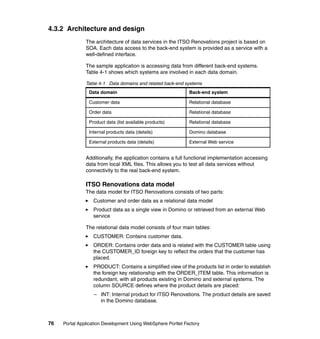
  • 519.
    Figure 9-73 Usingthe Applied Profiles View in the Portlet Factory Designer Chapter 9. Customizing the application using profiling 499
  • 520.
    9.8 Conclusion In this chapter, we have demonstrated how to apply various profiling techniques for our Customer Self Service Application. We have also discussed the basic concept of profiling and some best practices to implement profiling. If you have followed the steps in this chapter, you should now have the Customer Self Service Application fully functioning as described in Chapter 2, except for the Go Shopping component. 500 Portal Application Development Using WebSphere Portlet Factory
  • 521.
    10 Chapter 10. Creating the Go Shopping portlet This chapter describes how to create the Go Shopping portlet. It also illustrates a wizard-based design pattern used for building this portlet. This is the final portlet you will develop within the sample application. It combines all of the techniques learned in the previous chapters to create the complete application. The models developed in this chapter are: GoShoppingPortlet ShoppingPage ShoppingCart & ShoppingProductCatalog OrderPage ConfirmationPage © Copyright IBM Corp. 2008. All rights reserved. 501
  • 522.
    10.1 Preview ofthe portlet you will build in this chapter The Go Shopping portlet enables the user to select products, enter order information and confirm their purchases. It is a step-by-step process where the user’s final goal is to make a purchase. During the process, several decisions must made before the final purchase can be completed. At a high level, the steps a user takes within this portlet are: Select from the product catalog Complete the order form Receive order confirmation Figure 10-1 illustrates the Go Shopping portlet. Figure 10-1 Overview of the Go Shopping portlet 502 Portal Application Development Using WebSphere Portlet Factory
  • 523.
    Customers use theGoShopping portlet to select products, add them to their shopping cart, and confirm their order. The first screen of the portlet shows the customer a list of products. (Figure 10-1) Note that product data is paginated so that instead of viewing the complete list of products all at once, product data is presented in a smaller, easier to read listing. The first screen also illustrates a shopping cart, to which the customer adds their purchases. Behind the scenes, Dojo Drag Source and Dojo Drop Target builders are used to implement the drag and drop functionality, so customers can drag and drop the products to the shopping cart. Once the items have been added to the cart, the customer completes the billing information. Figure 10-2 shows order page where the customer chooses the type of billing, selects the date ordered, and enters comments. Figure 10-2 Customer provides details for ordering and billing Figure 10-3 shows the order confirmation page, which displays the order information, a list of the items ordered and prices, and the shipping details. The customer can confirm the order by clicking the Commit Order button. Chapter 10. Creating the Go Shopping portlet 503
  • 524.
    Figure 10-3 Detailsand order confirmation 10.2 Components within the portlet The GoShopping portlet is made up of the following components: The main portlet model, named GoShoppingPortlet 504 Portal Application Development Using WebSphere Portlet Factory
  • 525.
    ShoppingCart model This model incorporates the ShoppingPage model and the ShoppingProductCatalog model. OrderPage model ConfirmationPage model The application has been designed to encapsulate different functionality as separate models. For example, ShoppingCart model functionality is the ShoppingCart. Customers use this functionality to add the products to their cart. The other two models, OrderPage and ConfirmationPage, have been created for ordering and confirmation respectively. Encapsulating different functionalities as models makes implemention of the application cleaner. Figure 10-4 shows a block diagram representation of the Go Shopping application. 1 Legend GoShoppingPortlet •Models are highlighted in bold text. •The numbers indicate the ShoppingPage wizard steps. •Arrows represent the screen transition. OrderPage ConfirmationPage 2 3 Figure 10-4 Block diagram showing the models used in the Go Shopping application Chapter 10. Creating the Go Shopping portlet 505
  • 526.
    Note: The innerrectangular boxes represent the wizard screen. The outer rectangular box is the base screen. The entire screen can be thought of as the output generated by the base screen and the wizard screen. Value to the developer in building this portlet This modular approach to building the portlet, which segregates different functional pieces as separate models, provides the opportunity for you to learn about: The wizard-based approach Multiple Container models How the wizard based approach overcomes the back button navigation problem Wizard-based approach The key technique that you, as the developer, will learn in this implementation is the wizard design pattern, which takes the developer through the entire task one step at a time. There are other approaches to building multiple screen portlets besides the wizard-based approach. While building the screens using the wizard-based design pattern, the models that are the wizard steps are dynamically selected and rendered. A call to the portlet shows the rendering produced by the base wizard model and the rendering produced by the inserted wizard step model. One approach to building a multiple screen based portlet is to swap models in and out of one model container. There is a chance that the customer could trigger an “action not found” error by using the browser back button and then clicking an action. The wizard-based approach avoids this problem because it uses the inserted page builder, so the action URLs present in any cached HTML will correspond to actions that can be executed, whether or not the model being displayed to the user is the “current” one. Once the decision is made to use models to represent different functional pieces, the question arises: How are we going to show the page rendered by a model as a part of the base wizard model? The answer is by using the model container in conjunction with a page builder. The model container displays a model at a named tag or other locations on a page or pages. 506 Portal Application Development Using WebSphere Portlet Factory
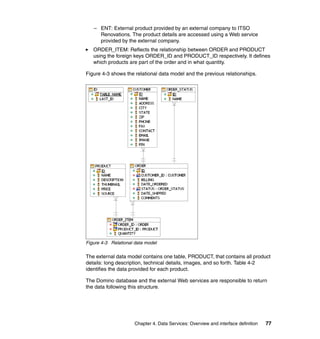
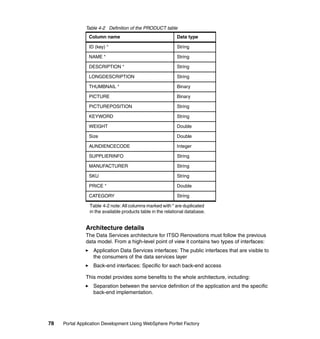
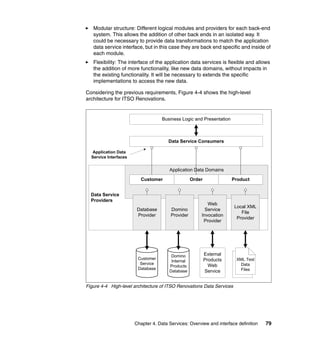
  • 527.
    Base Imported Page <wizardStep> Step Page InsertedPage currentStep <modelContainer> variable mcStep1 ShoppingPage modelContainer model Figure 10-5 The builders in a wizard-based model Figure 10-5 illustrates the wizard technique. The diagram has been expanded so that you can easily see how the various builders come together in this technique. The key points in the relationship between the builders are as follows: The wizard can be assumed to be comprised of the main base wizard page; the base imported page “basePage” has a span element named “wizardStep” which is the target for the inserted page. The inserted page can be assumed to be the individual pages that get changed dynamically based on the button action in the individual wizard pages or the wizard step pages. The inserted page refers to the wizard screens by means of a variable “currentStep,” which is set according to the action in the individual wizard step pages. The step pages have a span element named “modelContainer,” which is the target for the model container. Finally, the individual model container holds a model. Chapter 10. Creating the Go Shopping portlet 507
  • 528.
    basePage 1 Legend <wizardStep> 1:Base Page 2:Inserted Page 3:Wizard Step Page Inserted page 4:Model Container 2 5:Model 6:CurrentStep Variable currentStep 6 step1 3 <modelContainer> modelContainer 4 5 “points to” ShoppingPage Figure 10-6 Technical elaboration of the wizard-based technique Figure 10-6 shows the sequence of action among the various builders in the wizard. For simplicity we assume that it is the first time the user is invoking the portlet. The base page span element named “wizardStep” is acted upon by the inserted page. The inserted page refers to a page by means of a variable named “currentStep.” The default value of the variable is “step1,” which means that a page named “step1” gets inserted into the contents of the base page at the location “wizardStep.” The “step1” page has a span element named “modelContainer,” which is acted upon by the model container. The model container renders the model “ShoppingPage.” The “step1” page contents gets populated by the contents of the model “ShoppingPage.” 508 Portal Application Development Using WebSphere Portlet Factory
  • 529.
    basePage Legend 1 •Curved arrows indicate step1 triggering the action. •firenavigateNext is the action that gets called when the Next button is pressed. Next firenaviagateNext basePage step2 Prev <-- Next--> firenaviagateNext 2 Figure 10-7 Transition from screen 1 to screen 2 Figure 10-7 illustrates the transition from wizard step 1 to wizard step 2. The transition happens when the user presses the Next button. The method called is “firenaviagateNext” and the implementation of the method is in the GoShoppingPortlet model. Example 10-1 shows the implementation code. Example 10-1 { // get the variable that defines the wizard steps IXml wizardSteps = webAppAccess.getVariables().getXml("wizardSteps"); // determine what the current step is String currentStep = webAppAccess.getVariables().getString("currentStep"); outer: if (wizardSteps != null) { // Find the current step with the list of all steps IXml elem = wizardSteps.getFirstChildElement(); Chapter 10. Creating the Go Shopping portlet 509
  • 530.
    if(currentStep.equals("step3")) { webAppAccess.getVariables().setString("currentStep","step1"); break outer; } while (elem != null) { if (elem.getText().equals(currentStep)) { // found a match // we're navigating forward - so get the next element IXml previousStep = elem.getNextSiblingElement(); if (previousStep != null) { // set this as the new inserted page webAppAccess.getVariables().setString("currentStep", previousStep.getText()); // quit the iteration break; } } elem = elem.getNextSiblingElement(); } }//close the outer if // redisplay the outer page webAppAccess.processPage("basePage"); } Notes: 1. The variable "wizardSteps" defines the number of steps in the wizard. 2. The variable "currentStep" points to the current step the wizard is in. 3. The "basePage" is the wizard’s main page. The code in Example 10-1 shows the method that gets triggered when the Next button is pressed. The logic behind the method’s implementation is: Obtain the IXml object "wizardSteps" using the method webAppAccess.getVariables().getXml("<XMLVARNAME>") 510 Portal Application Development Using WebSphere Portlet Factory
  • 531.
    Obtain the "currentStep"variable by using the method webAppAccess.getVariables().getStirng("<STRINGVARNAME">) Once you have obtained these two objects, find what step the wizard is in. The immediate step would be to find the next step and set it in the variable “currentStep” using the method webAppAccess.getVariables().setString("currentStep","<STEPNAME>"); After setting the variable, process the "basePage" using the method webAppAccess.processPage("<BASEPAGENAME>"); Note: The WebAppAccess interface, com.bowstreet.webapp.WebAppAccess has the following characteristics: It represents the current, running WebApp. It is passed into any model method called at runtime. The controller looks first for a method with a signature that includes it. All Method builder calls generate with an instance of WebAppAccess as the first argument. It allows you to access other things too, including: – System properties – The HttpServletRequest object Note: The Web application (WebApp) is a profile-specific instance of a portlet application that is dynamically created by the WebSphere PortletFactory regeneration engine. Each builder, when called during regeneration, creates the artifacts that make up this WebApp, or run-time portlet application, such as pages, forms, variables, Java objects, and methods. The regeneration engine creates the WebApp by regenerating a model with a unique instance of profile data. The generated WebApp code is then processed by the WebSphere Portlet Factory execution engine to instantiate the executable Java EE application sessions. 10.3 A sample wizard model Wizards are user interface elements where the user is led through a sequence of dialogs. Conceptually the technique relies on three pieces: wizard, event declaration, and steps in the wizard. Chapter 10. Creating the Go Shopping portlet 511
  • 532.
    Figure 10-8 Thepieces of a wizard Based on the conceptual diagram in Figure 10-8, we have the following models in the sample wizard application: ShoppingWizard model ShoppingWizardCommon model ShoppingWizardStep model There are as many of these models as there are steps in the wizard. ShoppingWizard Model The ShoppingWizard can be compared to a base page and the individual Shopping Wizard Steps are the inserted pages that get dynamically inserted into the base page. The event declarations “navigateBack” and “navigateNext” are declared in the ShoppingWizardCommon model. Figure 10-9 The base wizard model 512 Portal Application Development Using WebSphere Portlet Factory
  • 533.
    The base model“ShoppingWizard” has 20 builders. Some of the builders that you need to pay attention to are defined here: Builder 1: One of the things you should have noticed is that this builder is named “main.” Because the execution in Java programs starts with the main, the model execution begins with the builder named “main.” There are builders that generate a “main” automatically. Builder 2: This is the imported model builder that imports the “ShoppingWizardCommon” into the model. As discussed previously, we have declared the common events in the “ShoppingWizardCommon” model. Builder 3: This is the comment builder. It is good practice to add a comment builder, just as comments in Java or portlet code help the reader of the code to understand it better. Builder 4: This is the page builder “basePage.” This is the base page of the wizard. Notice that there is a span named “wizardStep.” As discussed previously, the inserted page builder targets this span element. Builder 5: This is the comment builder “page management.” Builder 6: This is the variable builder “currentStep.” This is a very important builder; recall the previous discussion about the “currentStep” variable. The inserted page builder refers to the wizard page by means of this variable. Builder 7: This is the variable builder “wizardSteps.” This variable is of type XML. This variable holds the number of wizard steps in the wizard. Builder 8: This is the inserted page builder “wizardStep.” As discussed previously, the inserted page builder targets the span element named “wizardStep” in the base page. Builder 9: This is the comment builder. Builder 10: This is the event handler builder “navigateBackHandler.” As discussed previously, the individual wizards would have “<Back” and “Next>” buttons depending on the screen position. For example, wizard screen1 would have the “Next>” button but not the “<Back” button. To handle the event when the buttons gets clicked we utilize the event handler builder. Figure 10-10 The “navigateBackHandler” Chapter 10. Creating the Go Shopping portlet 513
  • 534.
    Two important inputsthat must be specified for this builder are the event name “navigateBack” and the action “navigateBack.” Builder 11: This is the method builder “navigateBack.” We have specified this action “navigateBack” in the event handler builder “navigateBackHandler.” Builder 12: This is the event handler builder “navigateNextHandler.” As discussed previously, the individual wizards would have “<Back” and “Next>” buttons depending on the screen position. For example, wizard screen 1 would have the “Next>” button but not the “<Back” button. To handle the event when the buttons gets clicked we utilize the event handler builder. This event handler builder would indicate what action gets called when the “Next>” button gets pressed. Figure 10-11 The “navigateNextHandler” Two important inputs that must be specified for this builder are the event name “navigateNext” and the action “navigateNext.” Builder 13: This is the method builder “navigateNext.” We have specified this action “navigateNext” in the event handler builder “navigateNextHandler.” Builder 14: This is the comment builder. Builder 15: This is the wizard step page builder “step1.” Notice the span element named “modelContainer” in the page builder. Builder 16: This is the model container builder “mcStep1.” You can use a model container to make a model self-contained and allow it to be inserted into a web page. Using multiple models with model containers provides two main advantages. – For developers - Using model containers makes shared development easier. Multiple developers can collaborate on page content and creation. Each developer can work independently and contribute a model that provides specific content to the same page. – For web users - Model container builders provide a consistent page context. A web page incorporating contained models enables users to remain in that page’s context, even as they drill down into a model in search of additional content. This keeps users oriented, and it also facilitates their access to content in other models on the page. 514 Portal Application Development Using WebSphere Portlet Factory
  • 535.
    Figure 10-12 Themodel container builder “mcStep1” The mandatory builder inputs for this builder are the Page, Tag, and Model. This model container builder has the following inputs: Page step1 Tag modelContainer Model ShoppingWizardStep1 Builder 17: This is the page builder “step2.” Recall from the earlier discussion that the inserted page builder refers to the wizard pages by means of the “currentStep” variable. The “currentStep” variable holds the values “step1” or “step2” or “step3” depending on which wizard screen is being shown. Builder 18: This is the model container builder “mcStep2.” This model container builder has the following inputs: Page step2 Tag modelContainer Model ShoppingWizardStep2 Builder 19: This is the page builder “step3.” This page has a span element named “modelContainer” that is targeted by the model container builder “mcStep3.” Builder 20: This is the model container builder “mcStep3.” This model container builder has the following inputs: Page step3 Tag modelContainer Model ShoppingWizardStep3 Chapter 10. Creating the Go Shopping portlet 515
  • 536.
    ShoppingWizardCommon model As previously discussed, the wizard technique has the event declaration in a separate model. This model contains the event declarations “navigateBack” and “navigateNext.” Figure 10-13 The ShoppingWizardCommon model ShoppingWizardStep models These are the wizard steps that get inserted dynamically into the base wizard page. Depending on the position of the screen they have “Next>” or “<Back” buttons, or both. For example, the first wizard step model has only a “Next>” button, while the third wizard step model has “<Back” and ”Next>” buttons. Figure 10-14 The ShoppingWizardStep1 model There are only four builders in the ShoppingWizardStep1 model. This model imports the common event declaration model “ShoppingWizardCommon.” 516 Portal Application Development Using WebSphere Portlet Factory
  • 537.
    10.4 Building theGo Shopping portlet In this and the following sections we take you step-by-step through the building of the entire application. As mentioned previously, the complete application consists of the following: GoShoppingPortlet Shopping Page – Shopping Cart – Shopping Product Catalog Order Page Confirmation Page GO Shopping Portlet Shopping Page Confirmation Page Shopping Cart Shopping Product Catalog Order Page Figure 10-15 Block diagram of the Go Shopping portlet application The Go Shopping Portlet application utilizes the following three DB providers: ProductDBProvider OrderDBProvider CustomerDBProvider The services (consumer) utilized in the GoShopping portlet are: OrdersService ProductService CustomerService Chapter 10. Creating the Go Shopping portlet 517
  • 538.
    A service-oriented architecture,combined with Portlet Factory’s SOA support, enables UI and back-end data access development to proceed in parallel once the developers have agreed upon the services that will be called, their inputs, and what the services return. UI developers can focus on creating the user experience while calling automatically generated stubbed-out data access services that return sample data. Back-end data access developers can complete their services and “test as they go” using Portlet Factory’s built-in testing harness support. In this way the development team can make progress in parallel and have a high degree of confidence that the UI and data access integration will be seamless. Because of Portlet Factory’s ability to dynamically regenerate the application, it is also easier for the UI to account for changes in the input and output of the services or take advantage of new services. While we are building the portlet we assume that these back-end service providers are available. We then need to focus on building the UI functionality for the GoShoppingPortlet application. The portlet can be divided into four parts: Main portlet model, named GoShoppingPortlet model, is responsible for providing wizard support. ShoppingPage model is responsible for the core shopping functionality. It uses two models (ShoppingCart model and ShoppingProductCatalog model) for its functionality. We can consider ShoppingPage to be the base model that “contains” ShoppingCart and ShoppingProductCatalog models. The shopping cart model is responsible for providing the shopping cart functionality. Figure 10-16 The ShoppingCart model The model has a Dojo Drop target defined on the cart image, and customers can drag the desired product image onto the cart. Figure 10-17 The ShoppingCart model (with product added) 518 Portal Application Development Using WebSphere Portlet Factory
  • 539.
    Figure 10-18 Customerscan edit the quantity by clicking the pencil icon The ShoppingProductCatalog model is responsible for displaying the product catalog in a paginated fashion. Figure 10-19 The ShoppingProductCatalog model The OrderPage model is responsible for ordering information. The customer can select the mode of payment, enter date of purchase and enter comments in the rich text editor. Figure 10-20 The OrderPage model output Chapter 10. Creating the Go Shopping portlet 519
  • 540.
    The ConfirmationPage modellists the following in separate sections: – Order Information: Information about the Order. – Order Items: Information about the items purchased. – Shipping Details: The ship to address is displayed in this section. The customer can commit the order by clicking the “Commit Order” button. Figure 10-21 The confirmation page model output 10.5 Go Shopping portlet model In the WebSphere Portlet Factory Designer, create a new empty model in the RedbookCS project by doing the following: 1. Select File → New → WebSphere Portlet Factory Model. This will launch the model creation wizard. 520 Portal Application Development Using WebSphere Portlet Factory
  • 541.
    Figure 10-22 Creatinga new model -GoShoppingPortlet 2. In the Choose Project window, select RedbookCS as the project and click Next. 3. In the Select Model window, select Factory Starter Models → Empty in the Model Type field and click Next. Chapter 10. Creating the Go Shopping portlet 521
  • 542.
    Figure 10-23 Selectingthe Empty Factory Starter Model 4. In the Save New Model window, select RedbookCS/WebContent/WEB-INF/models/redbook/cs/ui/shopping as the folder and GoShoppingPortlet as the model name. 522 Portal Application Development Using WebSphere Portlet Factory
  • 543.
    Figure 10-24 Savingthe GoShoppingPortlet model Importing the ShoppingUIImports model Now that we have an empty GoShoppingPortlet.model, we will import a "ShoppingUIImports" model. For now we will assume that this model is ready and available for import. This model is important because it contains helper functionality for the other models. For example, it has service consumers that consume OrderDBProvider, ProductDBProvider, and CustomerDBProvider. Think of this model as a C language #include. 1. From the builder palette, select the Imported Model builder and click OK to add it to the GoShoppingPortlet model. 2. Name the builder ShoppingPage. 3. To select the model, click the ellipsis button and select the redbook/cs/ui/shopping/ShoppingUIImports model. Chapter 10. Creating the Go Shopping portlet 523
  • 544.
    Figure 10-25 ImportedModel ShoppingUIImports 4. From the builder palette, select ImportedPage and click OK to add it to the GoShoppingPortlet model. Set the following values for the Imported Page builder: Name: basePage Page to Import: /redbook/cs/html/ShoppingLayout.html 5. Click OK and save the model. Figure 10-26 The Imported Page -basePage 524 Portal Application Development Using WebSphere Portlet Factory
  • 545.
    6. We hadassumed in the previous step the existence of “ShoppingLayout.html.” In this step we go through the creation of the HTML template ShoppingLayout. The HTML template will host static content and named tags that will be used as anchors in our UI model for inserting dynamic content structures and other page elements such as buttons, text fields, and so forth. You can use the HTML Templates feature to achieve a custom, handcrafted appearance for your applications without coding the HTML by hand. Think of an HTML Template as a collection of HTML snippets (constructs) that are selected and assembled by Portlet Factory’s page automation functionality. You make these constructs using normal HTML, and then you add some specifically named elements to tell Portlet Factory which construct is to be used for which purpose, and to identify the various pieces. Do the following to create the base HTML files: a. Click File → New → Other to launch the wizard. b. Select General → File and click Next. c. Type or select the parent folder as RedbookCS/WebContent/redbook/cs/html, enter the file name as ShoppingLayout.html and click Finish to create an empty HTML file. Chapter 10. Creating the Go Shopping portlet 525
  • 546.
    Figure 10-27 BaseHTML template ShoppingLayout.html file d. right-click the newly created ShoppingLayout.html file and select Open With → Text Editor. This will allow you to edit the file and create a basic layout of ShoppingLayout page. Copy and paste the HTML in Example 10-2 into this file. Example 10-2 HTML for the basic layout of ShoppingLayout page <HTML> <BODY> <FORM name="ITSO_REDBOOK_FORM_OrderPage1" method="post"> <DIV align="center"> <SPAN name="CredentialsStatus"></SPAN> </DIV> <BR> <SPAN name="wizardStep"></SPAN><BR> <TABLE width="600"> <TR> <TD width="50%" align="center" valign="top"><SPAN name="left"></SPAN></TD> <TD width="50%" align="center" valign="top"><SPAN name="right"></SPAN></TD> </TR> <TR> <TD colspan="2" align="center" valign="top"><SPAN name="row2"></SPAN></TD> 526 Portal Application Development Using WebSphere Portlet Factory
  • 547.
    </TR> </TABLE> </FORM><BR> <SPAN name="backButton"></SPAN>&nbsp;&nbsp;<SPAN name="nextButton"></SPAN> </BODY> </HTML> Pay attention to the tags on this HTML page that have the name=attribute. We call these “named elements” and there are seven of them in our HTML file: • CredentialsStatus • wizardStep • left • right • row2 • nextButton • backButton All of the tags happen to be <span> tags, but the type of tag doesn’t matter as long as it has a name= attribute on it. A little later, we will place a text field, buttons, and other UI elements on these named tags. By creating our own “shell” HTML page like this one, will all the named elements that our model builders require, we can adjust the look and feel of how and where these components are laid out. e. Save and close the ShoppingLayout.html file. 7. From the builder palette, select the Variable builder and click OK to add it to the GoShoppingPortlet.model. Set the following values for the Variable builder: Name: currentStep Type: String Initial Value: step1 Important: The value that the currentStep points to is very important. The values should match the wizard step pages and these step pages will be dynamically inserted at run time. Chapter 10. Creating the Go Shopping portlet 527
  • 548.
    Figure 10-28 Thevariable builder “currentStep” 8. From the builder palette, select the Variable builder and click OK to add it to the GoShoppingPortlet.model. Set the following values for the Variable builder: Name: wizardSteps Type: XML Initial Value: <steps> <step>step1</step> <step>step2</step> <step>step3</step> </steps> Click OK and save the model. Figure 10-29 The wizardSteps variable builder Important: The wizardSteps builder is another important variable in the wizard technique. The number of child elements in the <steps></steps> indicates the total number of wizard screens. 528 Portal Application Development Using WebSphere Portlet Factory
  • 549.
    9. From thebuilder palette, select the Inserted Page builder and click OK to add it to the GoShoppingPortlet.model. Set the following values for the Inserted Page builder: Name: Leave this blank; it will take the name of the tag we specify in the tag input. Page: basePage Tag: wizardStep Page in Model Click the ellipses and select Variables → currentStep Click OK and save the model. Figure 10-30 The inserted page builder -wizardStep From the builder palette, select the Method builder and click OK to add it to the GoShoppingPortlet.model. Set the following values for the Method builder: Name navigateBack Method Body Copy and paste the Java code in Example 10-3 into box. Example 10-3 // get the variable that defines the wizard steps IXml wizardSteps = webAppAccess.getVariables().getXml("wizardSteps"); // determine what the current step is String currentStep = webAppAccess.getVariables().getString("currentStep"); Chapter 10. Creating the Go Shopping portlet 529
  • 550.
    if (wizardSteps !=null) { // Find the current step with the list of all steps IXml elem = wizardSteps.getFirstChildElement(); while (elem != null) { if (elem.getText().equals(currentStep)) { // found a match // we're navigating backward - so get the previous element IXml previousStep = elem.getPreviousSiblingElement(); if (previousStep != null) { // set this as the new inserted page webAppAccess.getVariables().setString("currentStep", previousStep.getText()); // quit the iteration break; } } elem = elem.getNextSiblingElement(); } } // redisplay the outer page webAppAccess.processPage("basePage"); } f. Click OK and save the model. 530 Portal Application Development Using WebSphere Portlet Factory
  • 551.
    Figure 10-31 ThenavigateBack method builder Attention: Where did the event “navigateBack” come from? Recall that we imported the model ShoppingUIImports model. One of the event declarations defined in that model is “naviageBack.” Chapter 10. Creating the Go Shopping portlet 531
  • 552.
    10.From the builderpalette, select the Event Handler builder and click OK to add it to the GoShoppingPortlet.model. Set the following values for the Event Handler builder: Name: navigateBackHandler Event Name: navigateBack Handler Type: Use existing action Action: navigateBack Click OK and save the model. Figure 10-32 The event handler -navigateBackHandler 11.From the builder palette, select the Method builder and click OK to add it to the GoShoppingPortlet.model. Set the following values for the Method builder: Name: navigateNext Method Body: Copy and paste the Java code from Example 10-4 into the box. Example 10-4 // get the variable that defines the wizard steps IXml wizardSteps = webAppAccess.getVariables().getXml("wizardSteps"); // determine what the current step is String currentStep = webAppAccess.getVariables().getString("currentStep"); outer: if (wizardSteps != null) { // Find the current step with the list of all steps IXml elem = wizardSteps.getFirstChildElement(); if(currentStep.equals("step3")) { webAppAccess.getVariables().setString("currentStep","step1"); break outer; } while (elem != null) { 532 Portal Application Development Using WebSphere Portlet Factory
  • 553.
    if (elem.getText().equals(currentStep)) { // found a match // we're navigating forward - so get the next element IXml previousStep = elem.getNextSiblingElement(); if (previousStep != null) { // set this as the new inserted page webAppAccess.getVariables().setString("currentStep", previousStep.getText()); // quit the iteration break; } } elem = elem.getNextSiblingElement(); } }//close the outer if // redisplay the outer page webAppAccess.processPage("basePage"); } { Click OK and save the model. Figure 10-33 Method builder “navigateNext” Chapter 10. Creating the Go Shopping portlet 533
  • 554.
    12.From the builderpalette, select the Event Handler builder and click OK to add it to the GoShoppingPortlet.model. Set the following values for the Event Handler builder: Name: navigateNexthandler Event Name: navigateNext Handler Type: Use existing action Action: navigateNext Click OK and save the model. Figure 10-34 The event handler “navigateNext” 13.From the builder palette, select the Action List builder and click OK to add it to the GoShoppingPortlet.model. Set the following values for the Action List builder: Name: main Actions: basePage Click OK and save the model. 534 Portal Application Development Using WebSphere Portlet Factory
  • 555.
    Figure 10-35 Theaction list builder “main” 14.From the builder palette, select the Page builder and click OK to add it to the GoShoppingPortlet.model. Set the following values for the page builder: Name: step1 Page Contents(HTML): Copy and paste the HTML code from Example 10-5 into the box. Example 10-5 <html> <body> <!-- As a best practice, change the form name to a unique name --> <form name="ITSO_REDBOOK_FORM_STEP1" method="post"> <div align="center"> <span name="modelContainer"></span> </div> </form> </body> </html> Click OK and save the model. Chapter 10. Creating the Go Shopping portlet 535
  • 556.
    Figure 10-36 Thepage builder “step1” 15.From the builder palette, select the Model Container builder and click OK to add it to the GoShoppingPortlet.model. Set the following values for the Model Container builder: Name: Step1 Page: step1 Tag: modelContainer Model: redbook/cs/ui/shopping/ShoppingPage Click OK and save the model. Note: We get an error in the IDE because we are pointing the model container to the non existent model redbook/cs/ui/shopping/ShoppingPage. Ignore this problem for the moment; we will fix it when we create the ShoppingPage model shortly. 536 Portal Application Development Using WebSphere Portlet Factory
  • 557.
    Figure 10-37 Themodel container “Step1” 16.From the builder palette, select the Page builder and click OK to add it to the GoShoppingPortlet.model. Set the following values for the page builder: Name: step2 Page Contents (HTML): Copy and paste the HTML code from Example 10-6 into the box. Example 10-6 <html> <body> <!-- As a best practice, change the form name to a unique name --> <form name="ITSO_REDBOOK_FORM_STEP2" method="post"> <div align="center"> <span name="modelContainer"></span> </div> </form> </body> </html> Click OK and save the model. Chapter 10. Creating the Go Shopping portlet 537
  • 558.
    Figure 10-38 Thepage builder “step2” 17.From the builder palette, select the Model Container builder and click OK to add it to the GoShoppingPortlet.model. Set the following values for the Model Container builder:. Name: Step2 Page: step2 Tag: modelContainer Model: redbook/cs/ui/shopping/OrderPage Click OK and save the model. Note: We get an error in the IDE because we are pointing the model container to the non existent model redbook/cs/ui/shopping/OrderPage. Ignore this problem for the moment; we will fix it when we create the OrderPage model shortly. 538 Portal Application Development Using WebSphere Portlet Factory
  • 559.
    Figure 10-39 Themodel container “Step2” 18.From the builder palette, select the Page builder and click OK to add it to the GoShoppingPortlet.model. Set the following values for the page builder: Name: step3 Page Contents (HTML): Copy and paste the HTML code from Example 10-7 into the box. Example 10-7 <html> <body> <!-- As a best practice, change the form name to a unique name --> <form name="ITSO_REDBOOK_FORM_STEP3" method="post"> <div align="center"> <span name="modelContainer"></span> </div> </form> </body> </html> Click OK and save the model. Chapter 10. Creating the Go Shopping portlet 539
  • 560.
    19.From the builderpalette, select the Model Container builder and click OK to add it to the GoShoppingPortlet.model. Set the following values for the Model Container builder: Name: Step3 Page: step3 Tag: modelContainer Model: redbook/cs/ui/shopping/ConfirmationPage Click OK and save the model. Note: We get an error in the IDE because we are pointing to the non existent model redbook/cs/ui/shopping/ConfirmationPage. Ignore this problem for the moment; we will fix it when we create the ConfirmationPage model shortly. Figure 10-40 The model container builder “Step3” 10.6 Shopping Page model As discussed earlier, the ShoppingPage model is responsible for the core shopping functionality. The next three figures illustrate the functionality of the finished ShoppingPage application. 540 Portal Application Development Using WebSphere Portlet Factory
  • 561.
    Note: These figureswere taken when the model was running in a stand-alone environment. Just as we run Java programs, we can run the model stand alone from the IDE. Figure 10-41 The ShoppingPage model when run stand alone Figure 10-42 The shopping page application (products added to the cart) Chapter 10. Creating the Go Shopping portlet 541
  • 562.
    Figure 10-43 Theshopping page application (product numbers can be edited) The ShoppingPage model houses two models: “ShoppingCart” and “ShoppingProductCatalog.” It is like a base model that utilizes the other two models, and is a good example of modularizing individual functional pieces as separate models. Note: It is good practice in WPF development to keep the number of builders in a model to fewer than 50. Using model containers to contain models that are separate functional pieces helps achieve this goal. Figure 10-44 The ShoppingPage model Figure 10-44 shows the builders in the ShoppingPage model. The important builders utilized are the Model Container builders, specifically builders number 6 and 7 in the model. You must have noticed the button “nextButton,” which is builder number 9 in the model. This button would take the user to the next wizard screen step, the order page. 542 Portal Application Development Using WebSphere Portlet Factory
  • 563.
    Creating the ShoppingPagemodel In the WebSphere Portlet Factory Designer, create a new empty model in the RedbookCS project by doing the following: 1. Select File → New → WebSphere Portlet Factory Model. This will launch the model creation wizard. Figure 10-45 Creating a new model -ShoppingPage 2. In the Choose Project window, select RedbookCS as the project and click Next. 3. In the Model Type field or the Select Model window, select Factory Starter Models → Empty and click Next. Chapter 10. Creating the Go Shopping portlet 543
  • 564.
    Figure 10-46 Selectingthe Empty Factory Starter Model 4. In the Save New Model window, select RedbookCS/WebContent/WEB-INF/models/redbook/cs/ui/shopping as the folder and ShoppingPage as the model name. 544 Portal Application Development Using WebSphere Portlet Factory
  • 565.
    Figure 10-47 Savingthe Shoppingpage model 5. To import the ShoppingUIImports model, from the builder palette, select Imported Model builder and click OK to add it to the ShoppingPage model. a. Name the builder ShoppingUIImports. b. To select the model, click the ellipsis and select the redbook/cs/ui/shopping/ShoppingUIImports model. Chapter 10. Creating the Go Shopping portlet 545
  • 566.
    Figure 10-48 Theimported model - ShoppingUIImports 6. From the builder palette, select the Imported page builder and click OK to add it to the ShoppingPage model. Set the following values for the Imported Page builder: Name: page1 Page to Import: /redbook/cs/html/ShoppingLayout.html Click OK and save the model. Figure 10-49 The imported page builder - page1 7. From the builder palette, select the Model Container builder and click OK to add it to the ShoppingPage model. Set the following values for the Model Container builder: Name: Cart Page: page1 Tag: left Model: redbook/cs/ui/shopping/ShoppingCart 546 Portal Application Development Using WebSphere Portlet Factory
  • 567.
    Note: We getan error because we are pointing a model container to the non existent model redbook/cs/ui/shopping/ShoppingCart. Ignore this problem for the moment; we will fix it when we create the model shortly. Figure 10-50 The model container - Cart 8. From the builder palette, select the Model Container builder and click OK to add it to the ShoppingPage model. Set the following values for the Model Container builder: Name: ProductCatalog Page: page1 Tag: right Model: redbook/cs/ui/shopping/ShoppingProductCatalog Click OK and save the model. Note: We get an error because we are pointing a model container to the nonexistent model redbook/cs/ui/shopping/ProductCatalog. Ignore this problem for the moment; we will fix it when we create the model shortly. Chapter 10. Creating the Go Shopping portlet 547
  • 568.
    Figure 10-51 TheModel Container -ProductCatalog 9. From the builder palette, select the Button builder and click OK to add it to the ShoppingPage model. Set the following values for the button builder: Name: Leave this field empty; the name defaults to the tag name that we will be selecting for this builder. Page: page1 Tag: nextButton Label: Next> Action: Click the ellipsis button and select firenavigateNext method Click OK and save the model. 548 Portal Application Development Using WebSphere Portlet Factory
  • 569.
    Figure 10-52 TheButton builder - nextButton 10.From the builder palette, select the Action List builder and click OK to add it to the ShoppingPage model. Set the following values for the Action List builder: Name: main Actions: page1 Click OK and save the model. Chapter 10. Creating the Go Shopping portlet 549
  • 570.
    Figure 10-53 TheAction List builder - main 10.6.1 Cart model At a high level, there are three steps involved in creating the Cart model: Create the base HTML page Create the shopping cart model Import the ShoppingUIImports model Creating the base HTML page First, we create the base HTML page, cartLayoutPage, which will host static content and named Tags that will be used as anchors in our UI model for inserting dynamic content structures and other page elements such as buttons, images, and so forth. Do the following to create the base HTML file: 1. Click File → New → Other to launch the wizard. 2. Select General → File and click Next. 3. Enter or select parent folder RedbookCS/WebContent/redbook/cs/html, enter the file name cartLayoutPage.html, and click Finish to create an empty HTML file. 550 Portal Application Development Using WebSphere Portlet Factory
  • 571.
    Figure 10-54 TheCartLayout.html file 4. Right-click the newly created CartLayout.html file and select Open With → Text Editor. This will allow you to edit the file and create a basic layout of the CartLayout page. Copy and paste the HTML from Example 10-8 into this file. Example 10-8 <HTML> <BODY> <FORM name="ITSO_REDBOOK_FORM_CartLayout" method="post"> <DIV align="center"> <SPAN name="CredentialsStatus"></SPAN> </DIV> <BR> <TABLE> <TR> <TD colspan="3" align="left" valign="top"><SPAN name="OrderInformation"></SPAN> </TD> </TR> <TR> <TD align="left" valign="top"><SPAN name="OrderDetails"></SPAN></TD> </TR> Chapter 10. Creating the Go Shopping portlet 551
  • 572.
    <TR> <TD align="center" valign="top"><SPAN name="row3left"></SPAN></TD> <TD align="center" valign="top"><SPAN name="row3right"></SPAN></TD> </TR> <TR> <TD align="center" valign="top"><SPAN name="row4left"></SPAN></TD> <TD align="center" valign="top"><SPAN name="row4right"></SPAN></TD> </TR> <TR> <TD align="center" valign="top"><SPAN name="row5left"></SPAN></TD> <TD align="center" valign="top"><SPAN name="row5right"></SPAN></TD> </TR> </TABLE> </FORM> </BODY> </HTML> Note: Pay attention to the tags on the HTML page that have the name= attribute. We call these “named elements.” 5. Save and close the CartLayout.html file. Creating the ShoppingCart model In the WebSphere Portlet Factory Designer, create a new empty model in the RedbookCS project by doing the following: 1. Select File → New → WebSphere Portlet Factory Model. This will launch the model creation wizard. 552 Portal Application Development Using WebSphere Portlet Factory
  • 573.
    Figure 10-55 Creatinga new model - ShoppingCart 2. In the Choose Project screen, select RedbookCS as the project and click Next. 3. In the Model Type field in the Select Model window, select Factory Starter Models → Empty and click Next. Chapter 10. Creating the Go Shopping portlet 553
  • 574.
    Figure 10-56 TheEmpty Factory Starter Model 4. In the Save New Model window, select RedbookCS/WebContent/WEB-INF/models/redbook/cs/ui/shopping as the folder enter ShoppingCart in the Model name field. 554 Portal Application Development Using WebSphere Portlet Factory
  • 575.
    Figure 10-57 Savingthe ShoppingCart model Importing the ShoppingUIImports model Now that we have an empty GoShoppingPortlet.model, we will import a “ShoppingUIImports” model. For now we will assume that this model is ready and available for import. This model is important because it contains helper functionality for the other models. For example, it has service consumers that consume OrderDBProvider, ProductDBProvider, and CustomerDBProvider. Think of this model as a “Java” import. 1. From the builder palette, select the Imported Model builder and click OK to add it to the ShoppingCart model. a. Name the builder ShoppingUIImports. b. To select the model, click the ellipsis and select redbook/cs/ui/shopping/ShoppingUIImports. Chapter 10. Creating the Go Shopping portlet 555
  • 576.
    Figure 10-58 TheImported Model - ShoppingUIImports 2. From the builder palette, select the Imported Page builder and click OK to add it to the ShoppingCart model. Set the following values for the Imported Page builder: Name: cartLayoutPage Page to Import: Click the ellipsis button and select /redbook/cs/html/CartLayout.html HTML. c. Click OK and save the model. Figure 10-59 The ImportedPage - cartLayoutPage 3. From the builder palette, select the Image builder and click OK to add it to the Shoppingcart model. Set the following values for the Imported Page builder: Name: cartImage Page Location: Relative to Named Tag 556 Portal Application Development Using WebSphere Portlet Factory
  • 577.
    Page: cartLayoutPage Tag: OrderInformation Placement: After New Tag Name: cartImage Image Source: Click the ellipsis button and select /redbook/cs/images/cart.gif Click OK and save the model. Figure 10-60 The Image Builder -cartImage 4. From the builder palette, select the Data Page builder and click OK to add it to the ShoppingCart model. Set the following values for the Data Page builder: Name: OrderItems Variable: Click the ellipsis button and select Variables/varNewOrderItems Page in Model: cartLayoutPage Page Type: Infer from HTML Make UI from Data: Selected Location for New Tags: OrderDetails HTML Template File: Click the ellipsis button and select /factory/html_templates/gridtable.html Generate Labels: Selected Leave remaining sections as they are. Chapter 10. Creating the Go Shopping portlet 557
  • 578.
    Click OK andsave the model. Figure 10-61 The Data Page - OrderItems 5. From the builder palette, select the Data Column Modifier builder and click OK to add it to the ShoppingCart model. Set the following values for the Data Column Modifier builder: Name: dataColumnModifierOrderItems Container Field: Click the ellipsis button and select [cartLayoutPage]OrderItems/ITEMS/ITEM Manage Columns: Selected Modify the Status and Column Sort Type selections for the columns named in Table 10-1 and Table 10-2. Figure 10-62 DataColumnModifier builder - dataColumnModifierOrderItems 558 Portal Application Development Using WebSphere Portlet Factory
  • 579.
    Table 10-1 ColumnSort Type selections for specified column names Column Name Column Sort Type NAME Case Insensitive String DESCRIPTION Case Insensitive String UNIT_PRICE Number QUANTITY Number ORDER_PRICE Number Tip: You can reorder the fields as they appear on the page by dragging and dropping the rows in the table (below Manage Columns). Type directly in cells to set properties. Table 10-2 Column Status selections for specified column names Column Name Status PRODUCT_ID Hide THUMBNAIL Hide SOURCE Hide After making the changes to the columns, the table should look like the table shown in Figure 10-62. Under the section “Settings to control behavior when the table is empty” set the followings values: Empty Data Action: Hide entire table and optionally display a message Empty Data Message: To purchase items, drag and drop products to the cart. Figure 10-63 The DataColumnModifier setting Chapter 10. Creating the Go Shopping portlet 559
  • 580.
    6. From thebuilder palette, select the Dojo Drop Target builder and click OK to add it to the ShoppingCart model. Set the following values for the Dojo Drop Target builder: Name: dropTarget Page: cartLayoutPage Tag: cartImage Drop Action: addProduct Drop Type: Leave the input as it is. Note: We get an error in the IDE because we have input a nonexistent drop action addProduct. Disregard this for the moment; we will create an action addProduct shortly. Figure 10-64 The Dojo Drop Target builder 7. From the builder palette, select the Action List builder and click OK to add it to the ShoppingCart model. Set the following values for the Action List builder: Name: addProduct Actions: Click the ellipsis button and select the following actions: i. ProductServiceGetProductWithArgs(${Arguments/productID}) ii. UIOperations.addItem(${Variables/varNewOrderItems/ITEMS},${DataS ervices/ProductService/getProduct/results/Products/Product}) iii. cartLayoutPage 560 Portal Application Development Using WebSphere Portlet Factory
  • 581.
    Figure 10-65 TheActionList builder input setting a. For action i, choose ProductServiceGetProductWithArgs and click OK. In the String field of the Define Method Call Arguments dialog click the ellipsis button and select ${Arguments/productID}. Figure 10-66 The ActionList builder input setting Figure 10-67 Selecting the argument reference Chapter 10. Creating the Go Shopping portlet 561
  • 582.
    b. For actionii, select UIOperations → addItem and click OK. Figure 10-68 The ActionList builder setting You are presented with a dialog for setting the method call arguments as shown in Figure 10-68. For the first argument, click the ellipsis button and select ${Variables/varNewOrderItems/ITEMS} Figure 10-69 The ActionList builder setting reference 562 Portal Application Development Using WebSphere Portlet Factory
  • 583.
    For the secondargument, click the ellipsis button and select ${DataServices/ProductService/getProduct/results/Products/Product} Figure 10-70 The ActionList builder setting c. For action iii, click the ellipsis button and select cartLayoutPage. Figure 10-71 The ActionList builder setting 8. From the builder palette, select the Dojo Inline Edit builder and click OK to add it to the ShoppingCart model. a. Set the following values for the Dojo Inline Edit builder: Name: editQuantity Fields: Click the ellipsis and select [cartLayoutPage]OrderItems/ITEMS/ITEM/QUANTITY Chapter 10. Creating the Go Shopping portlet 563
  • 584.
    Figure 10-72 TheDojo Inline Edit builder input setting b. Click the Submit Form check box. Figure 10-73 The Dojo Inline Edit builder input setting c. Action: Click the ellipsis button and select updateQuantity. Figure 10-74 The Dojo Inline Edit Action input setting d. Leave the rest of the sections in the builder as they are. e. Click OK and save the model. 564 Portal Application Development Using WebSphere Portlet Factory
  • 585.
    9. From thebuilder palette, select the Action List builder and click OK to add it to the ShoppingPage model. a. Set the following values for the Action List builder: Name: updateQuantity Actions: Click the ellipsis button and select UIOperations.updateQuantity(${Variables/varNewOrderItems/ITEMS}) Figure 10-75 The Action List builder input setting b. Select the updateQuantity method under Methods and click OK. The dialog box for setting the method call arguments is returned. Figure 10-76 The ActionList builder input setting c. Click the ellipsis button and select ${Variables/varNewOrderItems/ITEMS}. Chapter 10. Creating the Go Shopping portlet 565
  • 586.
    Figure 10-77 TheActionList builder input setting d. Click the ellipsis button and select cartLayoutPage. Figure 10-78 The ActionList builder input setting e. Click OK and save the model. 10.From the builder palette, select the Action List builder and click OK to add it to the ShoppingPage model. Set the following values for the Action List builder: Name: alEmptyCart Actions: Click the ellipsis button and make the following entries and selections. a. Select Special → Conditional → Assignment. 566 Portal Application Development Using WebSphere Portlet Factory
  • 587.
    Figure 10-79 TheActionList builder action setting input b. Click OK. A dialog box is returned. Figure 10-80 c. Click the ellipsis button by the Target field and select Variables/varNewOrderItems. Chapter 10. Creating the Go Shopping portlet 567
  • 588.
    Figure 10-81 TheActionList builder action input setting d. For the source, type <ITEMS></ITEMS>. Figure 10-82 The ActionList builder action input setting e. Click the ellipsis button. Select Special → Conditional → Assignment. Figure 10-83 The ActionList builder action input setting f. Click OK. A dialog box is returned. 568 Portal Application Development Using WebSphere Portlet Factory
  • 589.
    Figure 10-84 TheActionList builder action input setting g. For Target, click the ellipsis button and select Variables/varNewOrder. h. For the source, type <Order></Order>. i. Click the ellipsis button and select cartLayoutPage. Figure 10-85 The ActionList builder input setting Chapter 10. Creating the Go Shopping portlet 569
  • 590.
    Figure 10-86 TheActionList builder alEmptyCart 11.From the builder palette, select the Button builder and click OK to add it to the ShoppingPage model. Set the following values for the Button builder: Name: buttonEmptyCart Page: cartlayoutPage Tag: cartImage Placement: After New Tag Name: emptyCartImage Label: Empty Cart Action Type: Submit form and invoke action Action: alEmptyCart Note: We get an error in the IDE because we are tying the button builder action input to the nonexistent action alEmptyCart. Disregard this for the moment; we will create the action alEmptyCart shortly. Click OK and save the model. 570 Portal Application Development Using WebSphere Portlet Factory
  • 591.
    Figure 10-87 TheButton Builder Input settings 12.From the builder palette, select the Event Handler builder and click OK to add it to the ShoppingPage model. Set the following values for the Event Handler builder: Name: processEmptyCart Event Name: evtEmptyCart Handler Type: Use existing action Action: alEmptyCart Note: We get an error in the IDE because of tying the event handler with a nonexistent action alEmptyCart. For the moment we ignore this because we will be creating the action shortly. Figure 10-88 The Event Handler input setting Chapter 10. Creating the Go Shopping portlet 571
  • 592.
    13.From the builderpalette, select the Action List builder and click OK to add it to the ShoppingPage model. Set the following values for the Action List builder: Name: alEmptyCart Actions: Click the ellipsis button and make the following entries and selections. a. Select Special → Conditional → Assignment Figure 10-89 The ActionList builder action setting input b. Click OK. A dialog box is returned. Figure 10-90 The ActionList builder action setting input c. Click the ellipsis button next to the Target field and select Variables/varNewOrderItems. 572 Portal Application Development Using WebSphere Portlet Factory
  • 593.
    Figure 10-91 TheActionList builder action input setting d. For the source, type <ITEMS></ITEMS>. Figure 10-92 The ActionList builder action input setting e. Click the ellipsis and select Special → Conditional → Assignment. Figure 10-93 The ActionList builder action input setting f. Click OK. A dialog box is returned. Chapter 10. Creating the Go Shopping portlet 573
  • 594.
    Figure 10-94 TheActionList builder action input setting g. For Target, click the ellipsis button and select Variables/varNewOrder. h. For the source, type <Order></Order>. i. Click the ellipsis button and select cartLayoutPage. Figure 10-95 The ActionList builder input setting 574 Portal Application Development Using WebSphere Portlet Factory
  • 595.
    Figure 10-96 TheActionList builder alEmptyCart 10.6.2 Shopping Product Catalog model In the WebSphere Portlet Factory Designer, create a new empty model in the RedbookCS project by doing the following: 1. Select File → New → WebSphere Portlet Factory Model. This will launch the model creation wizard. Figure 10-97 Creating a new model -ShoppingProductCatalog Chapter 10. Creating the Go Shopping portlet 575
  • 596.
    2. In theChoose Project window, select RedbookCS as the project and click Next. 3. In the Model Type field of the Select Model window, select Factory Starter Models → Empty and click Next. Figure 10-98 The Empty Factory Starter Model In the Save New Model window, select RedbookCS/WebContent/WEB-INF/models/redbook/cs/ui/shopping as the folder and ShoppingProductCatalog as the model name. 576 Portal Application Development Using WebSphere Portlet Factory
  • 597.
    Figure 10-99 Savingthe ShoppingProductCatalog model Importing the ShoppingUIImports model Now that we have an empty ShoppingProductCatalog.model, the first thing we will do is import a “ShoppingUIImports” model. 1. From the builder palette, select the Imported Model builder and click OK to add it to the ShoppingProductCatalog model. Set the following values for the Imported Model builder: Name: ShoppingUIImports Model: redbook/cs/ui/shopping/ShoppingUIImports Click OK and save the model. Chapter 10. Creating the Go Shopping portlet 577
  • 598.
    Figure 10-100 TheImported Model builder 2. From the builder palette, select the Page builder and click OK to add it to the ShoppingProductCatalog model. Set the following values for the page builder Name: pageProductCatalog Page Contents (HTML):Copy and paste the HTML code fro m Example 10-9b into the box. Example 10-9 <html> <body> <!-- As a best practice, change the form name to a unique name --> <form name="ITSO_REDBOOK_FORM_ProductCatalog" method="post"> <div align="center"> <span name="ProductCatalog"></span> </div> </form> </body> </html> Click OK and save the model. 3. From the builder palette, select the Data Page builder and click OK to add it to the ShoppingProductCatalog model. Set the following values for the Data Page builder: Name: datapageProducts Variable: Variables/productPagingData Page in Model: pageProductCatalog Page Type: No need to change this input. In the Create Element Settings section: 578 Portal Application Development Using WebSphere Portlet Factory
  • 599.
    Location for NewTags: ProductCatalog The rest of the builder inputs are left unchanged. Figure 10-101 The Data Page builder - dataPageProducts Note: We get an error in the IDE because of tying the builder variable input to nonexistent variable Variables/productPagingData. Ignore this problem for now; we will create a builder (Paging Assistant) that will create this variable shortly. Important: Note the variable name input in the data page builder. It is Variables/productPagingData. We mentioned that we are going to use paging assistant to helping with the pagination functionality. For now we assume the name of the paging assistant is productPaging, and the variable that gets automatically created would be productPagingData (note the suffix Data) 4. From the builder palette, select the Dojo Drag Source builder and click OK to add it to the ShoppingProductCatalog model. Set the following values for the Dojo Drag Source builder: Name: dragSource Page: productPageCatalog Tag: THUMBNAIL Chapter 10. Creating the Go Shopping portlet 579
  • 600.
    Drag Source Data: Click the ellipsis and select ${Variables/ProductLoopVar/Product/ID} Figure 10-102 The Dojo Drag Source builder - dragSource Drag Type: Leave the input at its default value. Click OK and save the model. Figure 10-103 The Dojo Drag Source 5. From the builder palette, select the Paging Assistant builder and click OK to add it to the ShoppingPage model. Set the following values for the Paging Assistant builder: Name: productPaging Source Data type: Varibale Source Data: ProductServiceGetProductsResults 580 Portal Application Development Using WebSphere Portlet Factory
  • 601.
    Page Size: 5 Leave the rest of the builder inputs as they are. Figure 10-104 The Paging Assistant builder 6. From the builder palette, select the Paging Buttons builder and click OK to add it to the ShoppingProductCatalog model. Set the following values for the Paging Buttons builder: Name: pagingbuttonsProducts Location Technique: Relative to Named Tag Page: pageProductCatalog Tag: Table Placement: Table-Wrap-Below New Tag Name: paging_buttons Assistant Name: productPaging Leave the rest of the builder inputs as they are. Click OK and save the model. Chapter 10. Creating the Go Shopping portlet 581
  • 602.
    Figure 10-105 ThePaging Buttons builder 7. From the builder palette, select the Image builder and click OK to add it to the ShoppingProductCatalog model. Set the following values for the Image builder: Name: productThumb Page: pageProductCatalog Tag: THUMBNAIL Image Source: ${Variables/ProductLoopVar/Product/THUMBNAIL} Click OK and save the model. 582 Portal Application Development Using WebSphere Portlet Factory
  • 603.
    Figure 10-106 TheImage builder input 8. From the builder palette, select the Highlighter builder and click OK to add it to the ShoppingProductCatalog model. Set the following values for the Highlighter builder: Name: highlightRows Filed Selector Tool: Select by Name Fields: [pageProductCatalog]datapageProducts/Products/Product How to Highlight: Change element color Color: LightBlue Click OK and save the model. Figure 10-107 The Highlighter builder -highlightRows Chapter 10. Creating the Go Shopping portlet 583
  • 604.
    10.7 Order Pagemodel In the WebSphere Portlet Factory Designer, create a new empty model in the RedbookCS project by doing the following: 1. Select File → New → WebSphere Portlet Factory Model. This will launch the model creation wizard. Figure 10-108 The new model creation 2. In the Choose Project window, select the RedbookCS as the project and click Next. 3. In the Model Type field of the Select Model window, select Factory Starter Models → Empty and then click Next. 584 Portal Application Development Using WebSphere Portlet Factory
  • 605.
    Figure 10-109 TheEmpty Factory Starter model 4. In the Save New Model window, select RedbookCS/WebContent/WEB-INF/models/redbook/cs/ui/shopping as the folder and OrderPage as the model name. Chapter 10. Creating the Go Shopping portlet 585
  • 606.
    Figure 10-110 Savingthe model OrderPage Importing the ShoppingUIImports model Now that we have an empty OrderPage.model, we will import a “ShoppingUIImports” model. 1. From the builder palette, select the Imported Model builder and click OK to add it to the OrderPage model. Set the following values for the Imported Model builder: Name: ShoppingUIImports Model: redbook/cs/ui/shopping/ShoppingUIImports Leave the rest of the builder inputs as they are. Click OK and save the model. 586 Portal Application Development Using WebSphere Portlet Factory
  • 607.
    Figure 10-111 TheImportetd Model builder 2. From the builder palette, select the Input Form builder and click OK to add it to the OrderPage model. Set the following values for the Input Form builder: Name: shoppingDetails Input Submit Operation: noop Input Next Action: noop Input Variable: Variables/varNewOrder/Order Input Submit Text: Next Click OK and save the model. Figure 10-112 The Input Form builder inputs. Chapter 10. Creating the Go Shopping portlet 587
  • 608.
    3. From thebuilder palette, select the Action List builder and click OK to add it to the OrderPage model. Set the following values for the Action List builder: Name: noop Actions: SystemOut!SubmitOpThatDoesNothing Figure 10-113 The ActionList builder input Click OK. In the dialog box, type SubmitOpThatDoesNothing. Figure 10-114 The ActionList builder input Click OK and save the model. 588 Portal Application Development Using WebSphere Portlet Factory
  • 609.
    Figure 10-115 TheActionList builder 4. From the builder palette, select the Button builder and click OK to add it to the OrderPage model. Set the following values for the Button builder: Name: next Page: shoppingDetails_InputPage Tag: submit_button Label: Next > Action Type: Submit form and invoke action Action: NextAction Leave the rest of the builder inputs as they are. Click OK and save the model. Chapter 10. Creating the Go Shopping portlet 589
  • 610.
    Figure 10-116 TheButton builder Note: We get an error in the IDE because of tying the button to nonexistent action NextAction. For the moment we can ignore this error because we will be creating the action NextAction shortly. 5. From the builder palette, select the Button builder and click OK to add it to the OrderPage model. Set the following values for the Button builder: Name: back Location Technique: shoppingDetails_InputPage Tag: submit_button Placement: Before New Tag Name: back Label: < Back Action Type: Submit form and invoke action Action: firenavigateBack Leave the rest of the builder inputs as they are. Click OK and save the model. 590 Portal Application Development Using WebSphere Portlet Factory
  • 611.
    Figure 10-117 TheButton Builder 6. From the builder palette, select the Action List builder and click OK to add it to the OrderPage model. Set the following values for the Action List builder: Name: NextAction Actions: Click the ellipsis button and make the following entries and selections: Assignment!Variables/varCustomerID=${Inputs/CUSTOMER_ID} a. Click the ellipsis and select Assignment. Figure 10-118 The ActionList builder action input b. Click OK and set the following values for the Target and Source: Target: Variables/varCustomerID Source: ${Inputs/CUSTOMER_ID} Chapter 10. Creating the Go Shopping portlet 591
  • 612.
    Figure 10-119 TheActionList builder action setting c. Click the ellipsis and select the action firenavigateNext. Click OK and save the model. Figure 10-120 The ActionList builder input 7. From the builder palette, select the Dojo Enable builder and click OK to add it to the OrderPage model. Set the following values for the Dojo Enable builder: Name: dojoEnable Select Page: shoppingDetails_InputPage Requires Package List: Under the Name column select dojo.widget.Editor2 and dojo.widget.ColorPalette 592 Portal Application Development Using WebSphere Portlet Factory
  • 613.
    Figure 10-121 TheDojo Enable builder input 8. From the builder palette, select the Text Area builder and click OK to add it to the OrderPage model. Set the following values for the Text Area builder: Name: comments Page: shoppingDetails_InputPage Tag: COMMENTS Click OK and save the model. Figure 10-122 The TextArea builder input Chapter 10. Creating the Go Shopping portlet 593
  • 614.
    9. From thebuilder palette, select the Attribute Setter builder and click OK to add it to the OrderPage model. Set the following values for the Attribute Setter builder: Name: comments Page: shoppingDetails_InputPage Tag: COMMENTS Attribute List: Click the columns and create the following name/value pairs: Name: dojoType Value: Editor2 Name: minRows Value: 50 Overwrite Rule: Append new value Value-less Attributes: Leave as is. Click OK and save the model. Figure 10-123 The Attribute Setter 10.8 Confirmation model In the WebSphere Portlet Factory Designer, create a new empty model in the RedbookCS project by doing the following: 1. Select File → New → WebSphere Portlet Factory Model. This will launch the model creation wizard. 594 Portal Application Development Using WebSphere Portlet Factory
  • 615.
    Figure 10-124 Thenew model creation 2. In the Choose Project window, select RedbookCS as the project and click Next. 3. In the Model Type field of the Select Model window, select Factory Starter Models → Empty and click Next. Chapter 10. Creating the Go Shopping portlet 595
  • 616.
    Figure 10-125 TheEmpty Factory Starter Model 4. In the Save New Model window, select RedbookCS/WebContent/WEB-INF/models/redbook/cs/ui/shopping as the folder and ConfirmationPage as the model name. 596 Portal Application Development Using WebSphere Portlet Factory
  • 617.
    Figure 10-126 Savingthe confirmation model Importing the ShoppingUIImports model Now that we have an empty ConfirmationPage.model, we will import a “ShoppingUIImports” model. 1. From the builder palette, select the Imported Model builder and click OK to add it to the ConfirmationPage model. Set the following values for the Imported Model builder: Name: ShoppingUIImports Model: redbook/cs/ui/shopping/ShoppingUIImports 2. Click OK and save the model. Chapter 10. Creating the Go Shopping portlet 597
  • 618.
    Figure 10-127 TheImported Model builder -ShoppingUIImports Creating the base HTML page: ConfirmationPageLayout Create a base HTML page, ConfirmationPageLayout, which will host static content and named Tags that will be used as anchors in our UI model for inserting dynamic content structures and other page elements such as buttons, images, and so forth. 1. Do the following to create the base HTML files: a. Click File → New → Other to launch the wizard. b. Select General → File and click Next. c. Type or select the parent folder RedbookCS/WebContent/redbook/cs/html, enter the file name as ConfirmationPageLayout.html and click Finish to create an empty HTML file. 598 Portal Application Development Using WebSphere Portlet Factory
  • 619.
    Figure 10-128 ConfirmationPageLayoutHTML file creation d. Right-click the newly created ConfirmationPageLayout.html file and select Open With → Text Editor. This will allow you to edit the file and create a basic layout of the CartLayout page. Copy and paste the HTML from Example 10-10 into this file. Example 10-10 <HTML> <BODY> <FORM name="ITSO_REDBOOK_FORM_ConfirmationLayout" method="post"> <DIV align="left"> <SPAN name="CredentialsStatus"></SPAN> </DIV> <BR> <TABLE> <TR> <TD colspan="3" align="left" valign="top"><SPAN name="row1"></SPAN> </TD> </TR> <TR> Chapter 10. Creating the Go Shopping portlet 599
  • 620.
    <TD align="left" valign="top">OrderInformation:<BR><SPAN name="row2left"></SPAN></TD> <TD align="left" valign="top"><SPAN name="row2right"></SPAN></TD> </TR> <TR> <TD colspan="2" align="left" valign="top"><BR><BR><BR><BR>Order Items: <BR> <SPAN name="row3"></SPAN></TD> </TR> <TR> <TD align="left" valign="top"><BR><BR><BR><BR>Shipping Details:<BR><SPAN name="row4left"></SPAN></TD> <TD align="left" valign="top"><SPAN name="row4right"></SPAN></TD> </TR> <TR> <TD align="center" valign="top"><SPAN name="row5left"></SPAN></TD> <TD align="center" valign="top"><SPAN name="row5right"></SPAN></TD> </TR> </TABLE><BR> <span name="backButton"></span>&nbsp;&nbsp;<span name="nextButton"></span> </FORM> </BODY> </HTML> e. Save and close the ConfirmationPageLayout.html. 2. From the builder palette, select the Imported Page builder and click OK to add it to the ConfirmationPage model. Set the following values for the Imported Page builder: Name: pageConfirmation Page to Import: /redbook/cs/html/ConfirmationPageLayout.html Click OK and save the model. 600 Portal Application Development Using WebSphere Portlet Factory
  • 621.
    Figure 10-129 TheImported Page 3. From the builder palette, select the Data Page builder and click OK to add it to the ConfirmationPage model. a. Set the following values for the Data Page builder: Name: datapageOrder Variable: Variables/varNewOrder/Order Page In Model: pageConfirmation Page Type: Infer from HTML b. Created Element Settings: Make UI from Data: Checked. Location for New Tags:row2left. HTML Template File: /factory/html_templates/gridtable.html Generate Labels: Checked. c. Click OK and save the model. Chapter 10. Creating the Go Shopping portlet 601
  • 622.
    Figure 10-130 DataPage builder 4. From the builder palette, select the Data Column Modifier builder and click OK to add it to the ConfirmationPage model. Set the following values for the Data Column Modifier builder: Name: datacolumnmodifierOrder Container Field: [pageConfirmation]datapageOrder/Order Manage Columns: Change the status of the following Column Names: STATUS: Hide DATE_SHIPPED: Hide Figure 10-131 The Data Column Modifier Manage Columns Click OK and save the model. 602 Portal Application Development Using WebSphere Portlet Factory
  • 623.
    Figure 10-132 TheData Column Modifier Container Field Setting 5. From the builder palette, select the Data Page builder and click OK to add it to the ConfirmationPage model. a. Set the following values for the Data Page builder: Name: dpOrderItems Variable: Variables/varNewOrderItems/ITEMS Page in Model: pageConfirmation Page Type: Infer from HTML b. Created Element Settings: Make UI from Data: Checked Location for New Tags: row3 HTML Template File: /factory/html_templates/gridtable.html Generate Labels: Checked c. Click OK and save the model. Figure 10-133 The Data Page builder Chapter 10. Creating the Go Shopping portlet 603
  • 624.
    6. From thebuilder palette, select the Data Column Modifier builder and click OK to add it to the ConfirmationPage model. Set the following values for the Data Column Modifier builder: Name: dcmOrderItems Container Field: [pageConfirmation]dpOrderItems/ITEMS/ITEM Manage Columns: Change the Column Sort Type of the following Column Names: PRODUCT_ID Case Insensitive String NAME Case Insensitive String DESCRIPTION Case Insensitive String THUMBNAIL Not Sortable UNIT_PRICE Number QUANTITY Number ORDER_PRICE Number SOURCE Case Insensitive String Figure 10-134 The Data Column Modifier 7. From the builder palette, select the Data Page builder and click OK to add it to the ConfirmationPage model. a. Set the following values for the Data Page builder: Name: datapageShippingAddress Variable: DataServices/CustomerService/getCustomer/results Page in Model: pageConfirmation b. Created Element Settings: Make UI from Data: Checked Location for New Tags: row4left HTML Template File: /factory/html_templates/gridtable.html Generate Labels: Checked 604 Portal Application Development Using WebSphere Portlet Factory
  • 625.
    c. Click OKand save the model. Figure 10-135 The Data Page builder 8. From the builder palette, select the Data Column Modifier builder and click OK to add it to the ConfirmationPage model. Set the following values for the Data Column Modifier builder: Name: datacolumnmodifierShippingAddress Container Field: [pageConfirmation]datapageShippingAddress/Customer Manage Columns: Set the Status of the following Column Names: ID Hide Customer_Name Do not Change ADDRESS Do not Change CITY Do not Change STATE Do not Change ZIP Do not Change PHONE Hide FAX Hide CONTACT Hide EMAIL Hide IMAGE Hide PIN Hide Set the Column Heading values of the following Column Names: Customer_Name Name ADDRESS Address Chapter 10. Creating the Go Shopping portlet 605
  • 626.
    CITY City STATE State ZIP Zip Figure 10-136 DataColumn Modifier manage columns d. Click OK and save the model. Figure 10-137 The DataColumn Modifier 9. From the builder palette, select the Action List builder and click OK to add it to the ConfirmationPage model. Set the following values for the Action List builder: Name: CommitOrderTransaction Actions: Click the ellipsis and select the following actions: a. Assignment!DataServices/OrdersService/createOrderWithItems/inputs=${ MethodCall/UIOperations.createOrder(${Variables/varNewOrder},${Varia bles/varNewOrderItems})} Click the ellipsis and select Assignment. 606 Portal Application Development Using WebSphere Portlet Factory
  • 627.
    Figure 10-138 TheAction List builder input setting Click OK and set the following values for the Target and Source: Target: DataServices/OrdersService/createOrderWithItems/inputs Souce: ${MethodCall/UIOperations.createOrder(${Variables/varNe wOrder},${Variables/varNewOrderItems})} Figure 10-139 The Action List builder assignment input DataServices/OrdersService/createOrderWithItems fireevtEmptyCart ThankYou Click OK and save the model. Note: We get an error in the IDE because we have entered ThankYou as an action. For the moment we will ignore this issue; we will be creating the action shortly. Chapter 10. Creating the Go Shopping portlet 607
  • 628.
    Figure 10-140 TheActionList builder 10.From the builder palette, select the Button builder and click OK to add it to the ConfirmationPage model. Set the following values for the Button builder: Name: Leave this input blank Page: pageConfirmation Tag: backButton Label: < Back Action Type: Link to an action Action: firenavigateBack b. Click OK and save the model. Figure 10-141 The Button Builder 608 Portal Application Development Using WebSphere Portlet Factory
  • 629.
    11.From the builderpalette, select the Button builder and click OK to add it to the ConfirmationPage model. Set the following values for the Button builder: Name: buttonCommitOrder Location Technique: Relative to Named Tag Page: pageConfirmation Tag: row5left Placement: After New Tag Name: buttonCommitOrder Label: Commit Order Action Type: Submit form and invoke action Action: CommitOrderTransaction Figure 10-142 The Button Builder Creating the base HTML page: ThankYou Do the following to create the base HTML files: 1. Click File → New → Other to launch the wizard. 2. Select General → File and click Next. 3. Type or select the parent folder RedbookCS/WebContent/redbook/cs/html, enter the file name ThankYou.html and click Finish to create an empty HTML file. Chapter 10. Creating the Go Shopping portlet 609
  • 630.
    Figure 10-143 TheThankYou.html file 4. Right-click the newly created ThankYou.html file and select Open With → Text Editor. This will allow you to edit the file and create a basic layout of ThankYou page. Copy and paste the HTML from Example 10-11 into this file. Example 10-11 <HTML> <BODY> <FORM name="ITSO_REDBOOK_FORM_ConfirmPage" method="post"> <TABLE width="600"> <TR> <TD width="50%" align="center" valign="top">Thank You for ordering !, your order has been committed to database</TD> <TD width="50%" align="center" valign="top"><SPAN name="right"></SPAN></TD> </TR> <TR> <TD colspan="2" align="center" valign="top"><SPAN name="row2"></SPAN></TD> </TR> 610 Portal Application Development Using WebSphere Portlet Factory
  • 631.
    </TABLE> </FORM><BR> <SPAN name="shopButton"></SPAN> </BODY> </HTML> Save and close the HTML file. 5. From the builder palette, select the Imported Page builder and click OK to add it to the ConfirmationPage model. Set the following values for the Imported Page builder: Name: ThankYou Page to Import: /redbook/cs/html/ThankYou.html Click OK and save the model. Figure 10-144 The Imported Page builder 6. From the builder palette, select the Button builder and click OK to add it to the ConfirmationPage model. Set the following values for the Button builder: Name: GotoShopping Page: ThankYou Tag: shopButton Label: Shop Action Type: Submit form and invoke action Action: firenaviagenext Click OK and save the model. Chapter 10. Creating the Go Shopping portlet 611
  • 632.
    Figure 10-145 TheButton builder 10.9 Conclusion In this chapter, we have illustrated how to use a wizard-based approach to create the Go Shopping portlet. This chapter has also served as a comprehensive review of many techniques discussed throughout earlier chapters of the book. 612 Portal Application Development Using WebSphere Portlet Factory
  • 633.
    11 Chapter 11. Production deployment This chapter describes the production deployment of the portlet WAR generated either from the WebSphere Portlet Factory Designer or using ANT scripts. Once the WAR file is generated, we discuss how to deploy it to the Portal Server. We also discuss how to exclude files from deployed archives. Finally, we mention several general deployment concepts of which you should be aware. © Copyright IBM Corp. 2008. All rights reserved. 613
  • 634.
    11.1 J2EE productiondeployment WAR (standalone non-portal applications) Our J2EE Production Deployment WAR is different from the development WAR. We exclude a few models and some JSP files that are great development options, but not so great in production. For this reason, you should build a Production WAR and manually deploy it to your Application Server. 11.1.1 Building the Production War from the Designer To build the Production War from the Designer, follow these steps: 1. Right-click your project and select Application Server WAR Build WAR for a production deployment. Figure 11-1 Select Application Server WAR 2. Set the path you want the archive to be built to, and click Finish. Figure 11-2 Set the path 11.1.2 Deploying the production WAR to your application server Now that you have a production WAR, manually deploy it to your Application server using the following steps. These instructions assume WebSphere Application Server 6.0. 1. Launch the WebSphere Administrative Console in a browser and log in. The URL for a WebSphere Administration Server 6.0 server is https://hostname:10003/ibm/console 2. Click Applications → Install New Application. 614 Portal Application Development Using WebSphere Portlet Factory
  • 635.
    a. Enter thefull path to the EAR file. b. On the page about bindings and mappings, click Next. You should now see a 5-step process for installing the application. c. Select Installation Options and click Next. d. Map virtual hosts for Web modules; click Next. e. Map modules to servers: Examine the value in the Server column of the table. By default, the application will be deployed to the server1 application server instance. If you intend to deploy to the WebSphere_Portal instance, check the box in the Select column, select the WebSphere_Portal instance in the Clusters and Servers field, and click Apply. Examine the value in the Server column again to ensure that the application is to be deployed to the correct server instance. Click Next to continue. f. Map security roles to users/groups: By default, the AllAuthenticated column in the AllAuthenticatedUsers row is checked. Click Next. g. Summary: Click Finish. Wait for deployment to finish because you have to save these changes. 3. Configure the application; it needs certain class loading settings before it will work properly. a. From the WebSphere Administration Server Admin Console, click Applications → Enterprise Applications. b. Find the application and click its name to open the configuration page. c. Set the classloader mode to Parent Last. d. Set the WAR class loader policy to Module and check the box to enable (class) reloading. e. Click OK, then click Save at the top of the screen. Click Save again to save these changes to the Master Configuration. 4. Start the application. If the application was deployed to the server1 instance, it can be started from Applications → Enterprise Applications. If the application was deployed to the WebSphere_Portal instance, the portal server must be restarted in order to start the application. Depending upon the security configuration, you may need the WebSphere Administration Server Admin (not the WebSphere Portal Server Admin) credentials to stop the WebSphere Portal Server server. 11.1.3 Portlet production deployment War Ok, this isn't really a topic! We don't have any tricks up our sleeves when it comes to the portlet wars we generate. There is only one type of Portlet WAR, at Chapter 11. Production deployment 615
  • 636.
    least as itrelates to deployment. For this reason you can use the same portlet WAR built during your development process in production. Build the Portlet WAR with the Designer 1. Right click your project and select Portal Server WAR → Build Portlet War. The portlet WAR is built to the path you set in your portal deployment configuration plus installableApps/<PROJECT_NAME>.war. Figure 11-3 The portlet war is built to the path you set in your portal deployment configuration 2. If you set the deployment configuration for auto-deployment, your application will be re-deployed to your development server. If you want to turn off deployment, adjust your deployment configuration. Build the Portlet WAR on the command line 1. You need Ant installed and configured on your system to build the production WAR with the command line. For more information about setting up Ant, visit http://ant.apache.org/manual/index.html 2. Because our project structure and deployment configuration location is configurable, you need to set a couple of properties on the command line. You need to know where your .bowstreet file is relative to the projectDeploy.xml file, which you can figure out by looking in your project. You also need to know where your deployment configurations are located. You can see or change the deployment configuration location by selecting Window → Preferences → WebSphere Portlet Factory → Deployment. Figure 11-4 Setting the deployment configuration location 616 Portal Application Development Using WebSphere Portlet Factory
  • 637.
    3. Now thatyou have the values you need, you can invoke the build. On the command line, change directory (cd) to your <PROJECT>/WebContent directory and execute the portalConfig target in your projectDeploy ant script with the properties defined previously. For an example, see Figure 11-5. Figure 11-5 Execute the portalConfig target in your projectDeploy ant script 4. You can build the portalConfig or standAloneConfig via the command line in this way. Remember, this is invoking your deployment configuration set up in the development environment, so if you are configured for auto deploy, your application will be deployed when you call it on the command line. For more detailed information on building your archives on the command line, refer to “Deploying from the command line” in the WebSphere Portlet Factory help system. 11.1.4 Deploying the Portlet WAR to your portal server Because the Portlet War we generate is good for development or production environments, we can use our auto-deployment options. We assume, however, that most production environments will not allow auto-deployment, so here we provide the steps to do it manually. 1. Log into your Portal Admin server. On WebSphere Portal 6.0 the URL is like this: http://hostname:port/wps/portal. The default port is 100038. 2. Select the Administration option in the Product Links portlet on the right. Figure 11-6 Product Links portlet 3. Expand Portlet Management on the left, and click Web Modules. 4. Click the Install button in the Manage Web Modules portlet. 5. Browse or type the path to your portlet WAR and click Next. This may take a little time, depending on how many portlets you have in your WAR. 6. Review the list of Portlet Applications and Portlets in the summary page and click Finish to deploy the WAR. Your Portal War is now deployed! Chapter 11. Production deployment 617
  • 638.
    11.2 Excluding filesfrom your application You can exclude files from your deployed application by simply editing the <PROJECT>/WebContent/.excludeFromServer file in your project. Just add a new line for each exclude with file paths that start at WEB-INF, for example, WEB-INF/lib/myjar.jar. You can exclude entire directories by naming them “nodeploy.” We do not deploy any file that has nodeploy in its path. This is true for both development and production deployment scenarios. 11.3 General deployment concepts Here are a few general deployment concepts you may be interested in knowing more about. For more information on these topics and others, refer to the WebSphere Portlet Factory documentation. You may need to perform an automated task before or after your application has been deployed. You can extend the deployment process by implementing “pre” or “post” deployment actions. By providing an ant script in a certain location in the project, you can perform any task that ant or java can do. We have a custom ant task that will add a servlet to the web.xml file. Because our projects deploy to so many target server types, we need to generate several web.xml files depending on the server. You could create a pre-deployment task that adds your servlet to the appropriate web.xml files. Did you know that the deployment archive we generate is dependant on the server type? For example, we built an ear file for WebSphere Application Server development, WAR files for the Portal Server and WAS CE, and Tomcat just likes us to copy an open directory structure. We have attempted to insulate you from needing to know too much about the deployment process of your server, but it’s probably good to know. 618 Portal Application Development Using WebSphere Portlet Factory
  • 639.
    12 Chapter 12. Troubleshooting, debugging, and error handling This chapter discusses best practices for troubleshooting a portlet factory application, triggering debug traces, and handling runtime errors. It also lists additional online resources where you can obtain the latest release notes and information about any known issues or limitations. © Copyright IBM Corp. 2008. All rights reserved. 619
  • 640.
    12.1 Troubleshooting In addition to reading this chapter, we recommend that you read through the “Debugging Web Applications” section of the help installed along with WebSphere Portlet Factory. That documentation provides information about debugging, performance tuning, logging and tracing configuration, tracing specific variables and actions, and debugging the generated code. To access this from within the help installed with Portlet Factory Designer, select Eclipse → Help → Contents → IBM WebSphere Portlet Factory Designer → Working with Portlet Factory → Debugging Web Applications. 12.1.1 Fixing compilation errors at design time While working with the Method builder in the WebSphere Portlet Factory Designer, you are adding code that will be inserted into a single Java class file for the model at generation time. To avoid having to wait until the model is run to find compilation errors in such generated code, the designer calls the Java compiler to compile the model’s generated Java class each time a generation occurs at design time. If there are any compilation errors in the model’s generate Java class, they will show up as Errors in the Eclipse Problems view for that model. Figure 12-1 Problems view If you double-click the error line in the Problems view, a dialog showing the details of the compilation error will pop up that looks like Figure 12-2, showing the compilation errors reported by the Java compiler. 620 Portal Application Development Using WebSphere Portlet Factory
  • 641.
    Figure 12-2 Errordetails Often the error will be obvious from this dialog and you can open the Method builder again and fix the code syntax. If you need more context than that displayed in the dialog, then you can either open the Java file for the model (note the path is shown in the error dialog), or click a Method in the WebApp Tree View to see the generated Java methods for the model. Another common reason for design time compilation errors with Method builder usage, is that developers forget to add import statements for classes that they are referencing from other Java packages. Import statements can be added to the generated Java class for the model using the Import List input toward the bottom of the Method builder. You do not need to add a semicolon at the end of the packages and classes listed in the import list input because one will be added for you automatically when the import statement is generated from the list. Figure 12-3 Adding import statements Chapter 12. Troubleshooting, debugging, and error handling 621
  • 642.
    Tip: If youfind yourself having to diagnose syntax errors or debug complicated Java code using Method builders, then you should consider moving that code to a Java class built using the Eclipse Java IDE and using the classes in your models with the Linked Java Object builder. The Eclipse Java IDE provides a lot more tools and syntax helpers than the Method builder can provide. The Method builder exists mainly to rapidly develop short convenience methods that tie actions and pages together, not for manually developing large, complex Java code. 12.1.2 Diagnosing, resolving, and reporting runtime errors Even well designed and implemented applications may run into errors at runtime, so it's a good idea to know where to start looking when something does go wrong when you run your application for the first time (for example, if another developer didn't quite have the same idea about the interfaces you are sharing), or at runtime on deployment servers (for example, if a backend is not available or is misconfigured). The first sign that something went wrong is usually an error returned to the browser following a request to the application. During development, this typically results in the WebSphere Portlet Factory default error page being returned, with exception information (click the show details link to see the full stack trace of exceptions). This default error page should be customized for your application's look and feel, and to provide only what end users should see (for example, “Contact an administrator at ...”) before deploying your applications for actual use. The default error page that is used when an exception is thrown that is not caught and handled by the application, is a JSP located in your project at: WebContent/factory/webapp/defaulterror.jsp. If the WPF runtime controller catches the exception, it sends it to this page as configured with the property bowstreet.webapp.errorHandler. If a J2EE servlet engine catches an unhandled exception, it sends it to this page as configured in the WAR's web.xml file within the <error-page> element. Be sure to look at the entire stack trace details when investigating an exception, Often Java (for example, InvocationTargetException when calling methods via reflection) and application servers wrap the root cause exception in a higher level exception (for example, ServletException), and you may see multiple stack traces, with the outer wrapper showing up first, and the root cause exception being displayed separately or nested within the wrapped exception. Sometimes, an error and exception reported to a user is actually caused by an earlier error and exception that occurred on the server. It is a good idea to look at the error logs for the application itself, and the error and standard output logs for 622 Portal Application Development Using WebSphere Portlet Factory
  • 643.
    your application server,for this additional error information. See your application or portal server administration documentation for log configuration and locations on those servers. The WebSphere Portlet Factory applications and portlets write error and diagnostic logs into the deployed WAR's WEB-INF/logs folder. The event.log file contains exceptions logged by the WPF runtime. The other logs located in the WEB-INF/logs folder are typically used for debugging and performance analysis, described in the next section. Be sure to look for all exceptions in the event log that occurred at and just before when an error was reported to the browser, because some exceptions are caused by other earlier exceptions and you may need all of the exception information that contributed to the problem to determine what is going wrong. 12.2 Debugging If you run into problems that do not have obvious answers based on investigating the exceptions as described in the previous section, then your next step may be to troubleshoot the cause by debugging. As we will discuss, we recommend using Error Handlers on top-level actions, but not on all actions, and not on nested model actions, to avoid the processing after error issue. There are various ways you can debug the runtime of a WPF application, including using the Eclipse Java debugger to debug LJO or generated Java methods, printing model variable values and Java variable data to the standard output stream, and the WPF Debug Tracing facility. In the following WPF Help pages, you will find information on configuring the application server and designer for Java debugging, configuring debug levels for the log4j based logging facility, using the Debug Tracing Builder to trace model actions and variable values, interpreting the debug tracing files, and debugging generated Java code. To access this from within the help installed with Portlet Factory Designer, select Eclipse → Help → Help Contents → IBM WebSphere Portlet Factory Designer → Working with Portlet Factory → Debugging Web Applications. In addition to the general Debug Tracing builder, which allows you to log information about actions and variable values, some individual builders have their own advanced inputs to turn on builder-specific tracing. For instance, in the advanced section of the Web Service Call builder, there is a Logging input, which when set to All, will log the HTTP headers, request inputs, and SOAP request and response XML envelopes involved in a web service request, which can help you track down problems encountered when making a web service call. The most common cause of web service call failure other than network issues, is failure to send the correct XML (for example, incorrect namespace associations Chapter 12. Troubleshooting, debugging, and error handling 623
  • 644.
    in Document styleweb service XML input documents) such that the web service cannot figure out which service to invoke based on the XML input being sent. Using this Web Service Call Logging input and looking at the actual SOAP envelope being sent is the best way to diagnose such issues. 12.2.1 Debugging back end connectivity issues Some runtime issues are caused by connectivity or configuration problems with respect to back end systems such as databases or an IBM Lotus Domino server. WPF provides some utility JSPs to help you diagnose connectivity problems with databases and Domino servers, to remove WPF from the equation. The /factory/util/testDataSourceConnection.jsp page allows you to test JDBC Datasource access directly, without going through a WPF model or the WPF runtime, to determine whether a database and datasource are set up correctly. Often it is not a WPF SQL builder issue at all causing a problem, but rather a misconfigured JDBC Datasource on the application server itself, that causes DB connectivity issues. If you have the Lotus Collaboration feature (Domino Builders) added to your project, then you should also have a /factory/util/testDominoConnection.jsp page that can be hit directly with a browser to determine whether Domino is correctly configured to allow incoming HTTP and DIIOP requests. This is a useful diagnostic tool to remove the WPF runtime and builders from the equation when encountering Domino connectivity issues from your web application and portlets. 12.3 Error handling WebSphere Portlet Factory provides a nifty mechanism to implement runtime error handling via the Error Handler Builder. This builder can be used to catch and handle errors pertaining to any model actions such as a Page, Method, or an Action List in the model. This pattern is very similar to the standard Java language Try/Catch block error handling mechanism. The error handler builder can be placed in any model and the corresponding “try” and “catch” actions can be specified as builder inputs. The Try Action is the action we want the Error Handler builder to monitor and the Catch Action is the one we want to initiate if an exception occurs. 624 Portal Application Development Using WebSphere Portlet Factory
  • 645.
    Attention: While theerror handler builder can be placed in any model, we strongly recommend that you typically only want to target the Error Handler builder at top-level portlet model actions. You can get yourself into trouble if you try adding them to lower-level nested actions because the higher-level actions may then not know that an error has occurred and will continue processing as if nothing bad has happened. In order to demonstrate the use of this builder in our application, we will add an Error Handler builder to one of the models in the CSA - Shopping portlet that we created in Chapter 10. The ShoppingProductCatalog.model in the CSA Shopping Portlet is responsible for displaying a list of products in the catalog that can be bought via the shopping portlet. Figure 12-4 CSA - Shopping Portlet Chapter 12. Troubleshooting, debugging, and error handling 625
  • 646.
    We will utilizethe Error Handler builder to catch two separate error handing scenarios: The first is a very specific scenario where there is a failure to retrieve data (list of products for sale) from the Product DB Provider model. This could be caused if the database server is not running, or is inaccessible on the network, or is unavailable to the provider models for whatever other reason. We monitor the ProductServiceGetProducts method that is suppose to get a list of all the products from the database. In the event of a failure to run this method, we will display a static page with some informative message. The second is a more generic “catch all” scenario where we catch all the unhandled exceptions in the model. In this case also, we will display a separate static error page informing the user that something bad happened. Do the following to implement these two error handling scenarios: 1. Open the redbook/cs/ui/shopping/ShoppingProductCatalog.model in WebSphere Portlet Factory. 2. From the builder palette, add a Page builder to the model. Configure it with the following inputs: – Name: productServiceErrorPage – Page Contents (HTML): <html> <body> <div align="center"> Unable to access products database. </div> </body> </html> 3. Click OK and save the model. 4. From the builder palette, add an Error Handler Builder to the model and configure it with the following inputs: – Exception: Select Catch exceptions thrown by a specific action – Try Action: ProductServiceGetProducts – Catch Action: productServiceErrorPage 626 Portal Application Development Using WebSphere Portlet Factory
  • 647.
    Figure 12-5 ErrorHandler to handle exceptions thrown by Product DB Provider service operations 5. Click OK and save the model. 6. Repeat these steps to add another static page and another Error Handler builder for trapping all unhandled exceptions in the model. Add another Page builder to the model and configure it with the following inputs: – Name: genericErrorPage – Page Contents (HTML): <html> <body> <div align="center"> Error occurred while rendering this portlet. Please contact your system administrator. </div> </body> </html> 7. Add another Error Handler builder to the model and configure with the following below: – Exception: Select Catch all unhandled exceptions – Catch Action: genericErrorPage Chapter 12. Troubleshooting, debugging, and error handling 627
  • 648.
    Figure 12-6 GenericError Handler to catch all unhandled exceptions 8. Save and close the model. 9. You can test the error handing functionality that we implemented by simply shutting down the database server and then rendering the CSA Shopping portlet. The Shopping Product Catalog data page on the CSA Shopping portlet would throw an exception while fetching the products from the database and it would be handled by our Error Handler builder, which would then display the static productServiceErrorPage with the message Unable to access products database. Figure 12-7 CSA - Shopping Portlet showing static error page/message when the database is not running. Tip: The best practice in doing error handing is that typically you only want to target the Error Handler builder at top-level portlet model actions. You can get yourself into trouble if you try adding them to lower-level nested actions because the higher-level actions may then not know that an error has occurred and will continue processing as if nothing bad has happened 628 Portal Application Development Using WebSphere Portlet Factory
  • 649.
    12.4 Other troubleshootinginformation This section highlights additional on-line resources for current information. 12.4.1 Known limitations and issues You can find known limitations and issues in the release notes for each WPF release. http://www-128.ibm.com/developerworks/websphere/zones/portal/portlet factory/proddoc.html It is a good idea to read through the release notes for the WPF release that you are working with, before starting any development project. 12.4.2 WebSphere Portlet Factory TechNotes The WebSphere Portlet Factory support and development teams create and maintain a set of technical notes describing common complex tasks and common mistakes or issues that developers encounter. http://www-1.ibm.com/support/search.wss?tc=SSRUWN+SS3LP9&rs=3044&ran k=8&dc=DB520+D800+D900+DA900+DA800&dtm Performance A WebSphere Portlet Factory technote with the title “How can I improve WPF Performance?” on troubleshooting and improving performance of WPF-based applications is in the process of being published and should also be available from the TechNotes URL. 12.4.3 WebSphere Portlet Factory Forums If you have debugged an issue, checked the release notes and technotes, and still can't get past a particular problem, then the WebSphere Portlet Factory forums are a good place to look for discussion threads on similar issues before resorting to customer support. Try searching for similar issues first, before posting a question that may have been answered already. If you decide to post a question about your issue, please be as thorough as possible in describing the details of the problem scenario, including WPF, Portal and Application Server versions and fixpack level, and a complete traceback for any exceptions that you Chapter 12. Troubleshooting, debugging, and error handling 629
  • 650.
    encountered. There areseparate forums for WPF Installation and Configuration, Best Practices, DB, Web Services, and some of the integration builders. Choose the forum most appropriate for your scenario when posting questions. http://www.ibm.com/developerworks/forums/wsdd_forums.jsp 630 Portal Application Development Using WebSphere Portlet Factory
  • 651.
    A AppendixA. Setting up the environment In the Customer Self Service Application, several components are required for the application in this book to run successfully. In this appendix, we describe how to set up the development (test) environment so that you will be able to successfully run the sample application described in this book. © Copyright IBM Corp. 2008. All rights reserved. 631
  • 652.
    Deploying the Dominodatabase In the application provided, one of the data sources used is a Domino database. This database serves out the product details information, which we discuss in detail later. This database can be found in Domino Products Database directory with the database name productD.nsf. To ensure that the Domino database is accessible by the application, execute the following steps. 1. For the database to be viewable by portlet factory, copy the productD.nsf into your Domino server’s Data directory. 2. Set the server name, user name, and password for the Domino Server found in the RedbookCS → WebContent → WEB-INF → config → domino_config → redbook_domino_server.properties file. 3. Verify that the DIIOP is running in Domino by accessing the URL http://<Domino Server>/diiop_ior.txt. You should see the output shown in Figure A-1. Figure A-1 Verifying that DIIOP is running 4. If DIIOP is not running, open the server document in the Domino Directory (names.nsf). On the Ports → Internet Ports → DIIOP tab, specify the TCP/IP Port Number for the DIIOP (which should be the same port number as you specified in the redbook_domino_server.properties file in the previous step). Also, set TCP/IP Port Status to enabled. 5. To access a database without knowing its file name (as the Portlet Factory Domino builders do), you must allow browsing over the network. In the Server document, go to the Internet Protocols → HTTP → R5 Basics tab. Set “Allow HTTP clients to browse databases” to Yes as shown in Figure A-2. 632 Portal Application Development Using WebSphere Portlet Factory
  • 653.
    Figure A-2 Serverdocument details 6. In the Server document, go to the Ports → Internet Ports → Web tab. Ensure that the authentication settings are set to allow Anonymous authentication as shown in the next figure. Figure A-3 Server document web settings Creating the groups in Portal In the Customer Self-Service Application, there are two groups of users that can access the application: the Customers and the Customer Service Representatives (CSRs). To view how Portlet Factory is able to provide different privileges and data to different group of users, create the groups and users listed in Figure A-1. You may assign any passwords for the users created. Appendix A. Setting up the environment 633
  • 654.
    Table A-1 Groupsand users to be created Group Name Users CSRGroup csr1 csr2 csr3 Customer Group customer1 customer2 customer3 Customer Self-Service Application details Importing the application code The application code for this redbook is available from our web site; and the instructions for downloading all of the sample code can be found in Appendix G, “Additional material” on page 693. To run this code, import the code into the project that you have created. Figure A-4 Import the Customer Self Service Application into the project 634 Portal Application Development Using WebSphere Portlet Factory
  • 655.
    Deploying the portlets After the project has been imported, build the portlet war again. To deploy the newly imported portlets of the application, right-click the root folder of your project and select Build Portlet Factory WAR → Build Portlet WAR as shown. Figure A-5 Deploy portlet WAR Creating the application schema and data By now, you might have noticed that you have been able to run the application without creating a database at all. The reason for this is that the application has been running on data stored in XML files. Using XML files, the application is able to run standalone without the need for a database setup or data migration. Furthermore, when doing development, using XML files can allow you to modify the schema locally for testing before committing the changes to your database. Appendix A. Setting up the environment 635
  • 656.
    The application isalso built to run with a standard RDBMS. To run the application using an RDBMS, execute the following steps. (The following steps were tested on a DB2 database). Create the database and tables 1. Create the database CSDB. 2. Run the sql file CSAPP.sql, which is located in the Database Schema Creation directory. Migrate the data into the database In the project that you have imported, there is a data migration utility that imports the data from the flat file into the database. 1. To use the utility, select RedbookCS → models → redbook → cs → data → migrate → DataMigration.model. 2. Run and test the model by clicking the Run button. The utility shown in Figure A-6 will appear. Figure A-6 Data migration utility 3. Click Migrate All. 4. The data migration will take a few minutes. Upon completion, the window shown in Figure A-7 will appear. Figure A-7 Migration successful message 636 Portal Application Development Using WebSphere Portlet Factory
  • 657.
    Create the JDBCconnection With the creation of the database, tables, and data completed, we will now create a JDBC data source in WebSphere Application Server (WAS). The general steps for creating a data source definition in WAS is as follows: 1. Add J2C authentication data for DB2. 2. Add a JDBC Provider for DB2. 3. Add a data source for the newly created DB2 JDBC provider. Add J2C authentication data for DB2 1. Log into your WAS Administration Console at: https://<portal server>:10039/ibm/console 2. Select Global Security → JAAS Configuration from the left navigation menu. 3. Select JAAS Configuration → J2C Authentication Data from the right navigation menu under Authentication data. 4. Click the New button to create new J2C authentication data. 5. Enter the DB2 Credentials for your database as shown. Figure A-8 J2C settings for DB2 6. Click OK. On the following screen, click the Save link at the top of the window to save your changes. Appendix A. Setting up the environment 637
  • 658.
    Add a JDBCprovider for DB2 1. Select Resources → JDBC Providers from the left navigation menu. 2. The list of JDBC providers will appear on the right. Click New to create a new JDBC provider for the application. 3. Select the database type, provider type, and implementation type as shown in Figure A-9. Figure A-9 Database, provider, and implementation type 4. On the following screen, accept the default inputs and click OK. The list of JDBC Providers will be displayed. 638 Portal Application Development Using WebSphere Portlet Factory
  • 659.
    Figure A-10 JDBCprovider settings for DB2 5. Click the newly created JDBC provider; on the following screen, click the Data Sources link under the Additional Properties section. 6. Click New. Set the JNDI Name to jdbc/csdb. For the authentication alias, select the J2C authentication data that was created earlier. Appendix A. Setting up the environment 639
  • 660.
    JNDI Name J2C Authentication Data Database Parameters Figure A-11 Data source settings 640 Portal Application Development Using WebSphere Portlet Factory
  • 661.
    7. Click OK.On the following screen, click the Save link at the top of the screen and the Save button on the following screen. 8. To test whether the connection created is valid, check the box next to the data source and click the Test Connection button. If the connection is valid, a successful connection message will be displayed as shown Figure A-12. Connection Successful Message Test Connection Figure A-12 Connection successful Configure the project to use the database as a data source With the database, data, and data source created, the application can now be configured to use the database as a data source. Rather than changing the data sources of the models, the configuration has been changed. 1. Open the RedbookCS → WebContent → WEB-INF → config → service_mappings → mappings.xml file. 2. Uncomment the Use Production Data Services (DB, Domino and WS) section and comment the Use Test Data Services (File) section as shown. Example A-1 Mapping.xml file <!-- Use Production Data Services (DB, Domino and WS) --> <ForService name="redbook/cs/data/db/CustomerDBProvider"> <UseService name="redbook/cs/data/db/CustomerDBProvider" /> </ForService> <ForService name="redbook/cs/data/db/OrderDBProvider"> <UseService name="redbook/cs/data/db/OrderDBProvider" /> Appendix A. Setting up the environment 641
  • 662.
    </ForService> <ForService name="redbook/cs/data/db/ProductDBProvider"> <UseService name="redbook/cs/data/db/ProductDBProvider" /> </ForService> <ForService name="redbook/cs/data/ProductDataProvider"> <UseService name="redbook/cs/data/ProductDataProvider" /> </ForService> <!-- Use Test Data Services (File) <ForService name="redbook/cs/data/db/CustomerDBProvider"> <UseService name="redbook/cs/data/file/CustomerFileProvider" /> </ForService> <ForService name="redbook/cs/data/db/OrderDBProvider"> <UseService name="redbook/cs/data/file/OrderFileProvider" /> </ForService> <ForService name="redbook/cs/data/db/ProductDBProvider"> <UseService name="redbook/cs/data/file/ProductFileProvider" /> </ForService> <ForService name="redbook/cs/data/ProductDataProvider"> <UseService name="redbook/cs/data/file/ProductFileProvider" /> </ForService>--> Upon editing the mapping.xml file, the application is now ready to be run with the Domino database, DB2 Database, and Web Service as the backend data services. Import and deploy the web service When displaying the product tooltip, the application actually uses information from both the Domino database and a web service, depending on the product selected. To deploy the web service for the application, perform the following steps. 1. Create a project as shown in Chapter 3 called RedbookCSProductsWS. 2. Click Yes to “Deploy Your Project Now” when prompted. 3. After the project has been deployed, right-click the project and select Import → WebSphere Portlet Factory Archive. 4. Click the Browse button and select the RedbookCSProductWS.zip file. 5. Refresh and save the project. The web service is now ready to be called by the application. 642 Portal Application Development Using WebSphere Portlet Factory
  • 663.
    Import and deploythe project With the databases and services set up, the project can now be set up. To deploy the code, create a project as shown in Chapter 3. Once the project is created, perform the following steps: 1. Right-click the project and select Import → WebSphere Portlet Factory Archive. 2. Click the Browse button and select the ITSO_CustomerSelfServiceApplication.zip file. 3. Refresh your project. 4. Right-click the project and select Build Portlet Factory WAR → Build Portlet War to deploy the portlets to the portal. Installing the application theme Included in the ITSO Theme for WebSphere Portal 6.0 directory of the downloaded files is a theme specifically made for this book. If you would like to use the theme for the application, perform the following steps: 1. Create a new directory, such as “ITSO,” in the <WebSphere Profile Root>installedApps<node name>wps.earthemeshtml 2. Unzip the Express_ITSO.zip files into the newly created directory (for example, WebSphere Profile Root>installedapps<node name>wps.earthemeshtmlITSO>) 3. Log in to the portal. 4. Select Administration → Portal User Interface → Themes and Skins. 5. Click the Add New Theme button. Enter ITSO for its name and provide the directory name used in Step 1 for the theme directory name. With the theme created, the pages and portlets for the application can now be deployed. Creating the pages for the CSA application To complete running and deploying the application, create the labels/pages and add the portlets to the respective pages as identified in Table A-2 to run the application. Appendix A. Setting up the environment 643
  • 664.
    Table A-2 Labels,Pages, and Portlets to Add Page/Label/ Location Name Portlet Label Content Root → Home Customer Self Service Application (Set the Theme to the ITSO theme created previously and the Navigation Type to DoubleTopNav) Page Content Root → Home → Customer Customer Information Self Service Application Page Content Root → Home → Customer Orders Self Service Application Page Content Root → Home → Customer Shopping Self Service Application Portlet Content Root → Home → Customer CSA - Customer Information Self Service Application → Customer Information Portlet Content Root → Home → Customer CSA - Order List Self Service Application → Orders Portlet Content Root → Home → Customer CSA - Order Details Self Service Application → Orders Portlet Content Root → Home → Customer CSA - Shopping Portlet Self Service Application → Shopping 644 Portal Application Development Using WebSphere Portlet Factory
  • 665.
    B AppendixB. Creating a Web service using WebSphere Portlet Factory WebSphere Portlet Factory offers the possibility of creating a Web Service without adding additional development efforts. Any Data Provider in a project can be exposed as a Web Service by creating the WSDL for any Service Definition that contains. This action is possible because WebSphere Portlet Factory uses a SOA architecture for the definition of Data Services: service definition, operations, and input/output messages. In this appendix we demonstrate how easy it is to create a Web Service using WebSphere Portlet Factory, and deploy it, and how to access the WSDL to invoke the service from external applications. We illustrate the concept using our sample application, ITSO Renovations. It is outside of the scope of the main application because it is an additional WebSphere Portlet Factory project to hold the external web service that is accessed by ITSO Renovations. © Copyright IBM Corp. 2008. All rights reserved. 645
  • 666.
    WebSphere Portlet Factoryexposes Data Services as external Web Services Data Services in WebSphere Portlet Factory are defined using Service Definition and Service Operation builders. The interface of these operations is based on XML and the structure is defined using XSD. We can easily recognize that the architecture is matching the main concepts of SOA, so you can imagine that the step to expose a Service Definition as a Web Service is almost direct. Figure B-1 shows the relation between the Web Service concepts and the builders in WebSphere Portlet Factory. WebSphere Portlet Factory Web Service Data Service types Service Definition Builder input message structure Service Operation Builder output message structure Inputs Inputs Structure message: operation input Results message: operation output Results Structure portType operation Figure B-1 Relationship of Data Service to Web Service We can see a clear relationship between a Data Service and a Web Service that actually makes possible and simple to expose an existing Service Definition as Web Service. WebSphere Portlet Factory allows you to automate generation of the web service and WSDL via a simple configuration checkbox in the Service Definition builder named Generate WSDL. Figure B-2 the architectural overview for applications exposing Service Definitions as Web Services. 646 Portal Application Development Using WebSphere Portlet Factory
  • 667.
    WebSphere Portlet Factory Application Web Service: service1 Service Definition 1 Builder: service1 operation1 Service Operation 1 Builder: operation1 Client operationN Applications Service Operation N Builder: operationN WSDL ... ... Web Service: serviceN Service Definition N Builder: serviceN Business logic and Data Access Data back-end Figure B-2 Overview of an application exposing Web Services Since there is no special functionality to add when creating the Web Service, an existing web application like ITSO Renovations can expose some of its data services as a Web Service additionally to the main purpose of the web application. This allows you to integrate other client applications with the back ends that the web application is accessing. The other approach is to use WebSphere Portlet Factory to only create Web Services without writing any line of code: you can create Data Provider models and expose them as Web Services. At the end it will be a web application without presentation layer and containing only these services. This is the way we have created our external web service for ITSO Renovations, because it is fast and does not require implementation efforts. Appendix B. Creating a Web service using WebSphere Portlet Factory 647
  • 668.
    Implementation of theProduct Web Service in ITSO Renovations application ITSO Renovations is accessing external web services to retrieve product details from external organizations. These services are already available and extant in some locations; you only need to access the WSDL and discover what the available functionality is that they offer. In our example we do not have such external services, so we have decided to implement a simple one to illustrate how WebSphere Portlet Factory can access external web services. (This concept was first mentioned in 5.4, “Data Service for external web services access” on page 190.) We could have used any development environment or framework for the implementation of the Web Service but we decided to use WebSphere Portlet Factory and show the additional value that this technique offers to the developer. The scenario we are describing is illustrated in Figure B-3. WebSphere Portlet Factory Designer design time Products External Web Service ITSO Renovations RedbookCSProductsWS RedbookCS WSDL SOAP ProductWSProvider.model Web Service ProductWebService.model products.xml Figure B-3 Design products external Web Service The external organization delivers some products via ITSO Renovations and the information is kept in internal systems of that organization. It offers a Web Service interface that ITSO Renovations can access. The Web Service hides the data sources in the external organization. In our simple case, we have implemented the web service of this external organization for illustration purposes and we have defined the following pre-conditions: Product information is kept in local XML files within the web application of the new Web Service. Actually, we use the same local XML Data Service we have 648 Portal Application Development Using WebSphere Portlet Factory
  • 669.
    used in ITSORenovations (copy of the implementation): only the Product data domain ProductFileProvider. The interface of the web service matches the expected one in ITSO Renovations, so we do not need additional transformations in the Data Service that is accessing it. This is not the usual case because external organizations have their own web services with proprietary interfaces, but for the purpose of this example it is enough to illustrate the main concept. Follow these steps to implement the Product Web Service: 1. Create a new WebSphere Portlet Factory project called RedbookCSProductsWS. It will contain only the Product Web Service accessing the local XML files. 2. Copy the following resources from the ITSO Renovations application into the new project: – WebContentredbookcsimagesproducts*.jpg – WebContentWEB-INFresourcesredbookcsxsdproduct.xsd Remove <Product> elements with Id from 1 to 10. The rest of the products are those we want to have as external. – WebContentWEB-INFresourcesredbookcsxmldataproducts.xml Paths are relative to the project location and the target location is the same in RedbookCSProductsWS. These files contain the product details and will be accessed by the Web Service implementation. Images are part of the serveable content and will be accessed directly by the client applications (ITSO Renovations in our case). 3. Create a new model called ProductWebService.model in the folder: modelsredbookcsws Copy the following source code to access the products.xml file: WebContentWEB-INFworksourcecomibmredbookcsdataDataContants.java WebContentWEB-INFworksourcecomibmredbookcsdatafileProductData.java 4. Copy the builders shown in Figure B-4 from ITSO Renovations (RedbookCS) and paste them into the new model. Appendix B. Creating a Web service using WebSphere Portlet Factory 649
  • 670.
    datafileProductFileProvider.model datadefProductDefinitions.model Figure B-4 Builders for the new ProductWebService.model 5. Activate Generate WSDL in the Service Definition. This is the most important action that makes the service available as a Web Service. Figure B-5 Service Definition builder: Generate WSDL to expose as Web Service 6. When this project is deployed, you have the Web Service available. In the next section we show you how to access the WSDL. We have seen that the implementation in our case is very simple. We have reused the local XML File Data Service for products from the main application and make it public as a Web Service. The only important action that actually creates the Web Service is the selection of the Generate WSDL input in the Service Definition builder. You can activate this option for any Service Definition in your project regardless of whether or not you have the presentation builders. It is required that the service is public and generating the WSDL makes it public not only within the application, but also externally. 650 Portal Application Development Using WebSphere Portlet Factory
  • 671.
    Deploying and usingthe Web Service There are no special requirements when deploying the application that contains Web Services. This is a normal WebSphere Portlet Factory application like we have seen for ITSO Renovations. There is only an additional issue related with the classpath when building the WAR file for the web application and installing it from the WebSphere Application Server (WAS) Administration Console. By default it is configured to use first the parent class loader for the application and this must be changed to use it last to load the classes from the WAR file (especially the Axis libraries used for Web Services). Perform the following steps to build the WAR file, deploy it and change the class loader settings for our sample application: 1. Build the deployment WAR for the RedbookCSProductsWS project by selecting Builder Portlet Factory WAR → Build Deployment WAR. Save the created WAR file in your file system. 2. Open the WAS Administration Console and Install a New Application. Use as input the previous WAR file. The context root is the name of the web application: RedbookCSProductsWS. Accept all defaults since there are no special requirements. Figure B-6 Install new Application from the WAS administration console 3. The web application is installed and can be started from the list of Enterprise Applications. 4. Change the class loader mode to Parent Last: a. Find the application RedbookCSProductsWS from the list of Enterprise Applications and open it (click the link). Appendix B. Creating a Web service using WebSphere Portlet Factory 651
  • 672.
    Figure B-7 Listof Enterprise Applications b. Select from Web Modules the WAR file RedbookCSProductsWS.war. Figure B-8 Select the WAR file from the Web Modules c. Change the class loader mode to Parent Last. Figure B-9 Class Loader mode in the configuration of the Web Module d. Apply, save changes and restart the server. If the application is installed from the WebSphere Portlet Factory Designer, this issue is not a problem because when deploying the WAR the right class loader mode is set. For security reasons, you may want to protect access to web services via J2EE security-constraint on the AxisServlet in web.xml and you may want to also protect access to /webengine for running models directly from a browser via security-constraint, if the web application will be for serving web services only and not used directly by browsers. Once the application is deployed, the Service Definition builders that generate WSDL are accessible as Web Services. Any other application can use it and invoke the operations defined in the service. If you have a WebSphere Portlet Factory application that is accessing the Web Service, you can use the Web 652 Portal Application Development Using WebSphere Portlet Factory
  • 673.
    Service Call builderas described in 5.4, “Data Service for external web services access” on page 190. The WSDL of the Web Service is available under the following address: http://localhost:10038/<application_name>/webengine /<path_web_service_model>/Action!getWSDL – <application_name>: This is the application name that contains the web service. – <path_web_service_model>: The path where the model containing the web service is located (without the models folder, see our example). In our sample application this is the URL when deployed in the localhost machine: http://localhost:10038/RedbookCSProductsWS/webengine /redbook/cs/ws/ProductWebService/Action!getWSDL The resulting WSDL where you can find the schemas, messages, and operations defined as Service Definition of the Data Provider model is shown in Figure B-10. Appendix B. Creating a Web service using WebSphere Portlet Factory 653
  • 674.
    Figure B-10 WSDLfor Product Web Service Testing the Web Service The Data Service can be tested using the mechanisms we have seen throughout the book, in particular in Chapter 5, “Creating Data Services: Access to back-end systems” on page 105. There is no special test support by WebSphere Portlet Factory to test the invocation of the Web Service; you can just create another Service Definition that it is accessing it using the Web Service Call builder. It is 654 Portal Application Development Using WebSphere Portlet Factory
  • 675.
    also recommended tocheck that the WSDL is available as described in the previous section. Conclusion We have seen in this appendix how easy it is to create a Web Service using WebSphere Portlet Factory. We can conclude that any public Service Definition can be exposed as a Web Service selecting the option: Generate WSDL. It will generate a WSDL of the service definition and it will be registered and accessible in the application server where it is deployed. Appendix B. Creating a Web service using WebSphere Portlet Factory 655
  • 676.
    656 Portal Application Development Using WebSphere Portlet Factory
  • 677.
    C AppendixC. Remote deployment This appendix describes how to deploy the WebSphere Portlet Factory Development WAR file to a remote application server. © Copyright IBM Corp. 2008. All rights reserved. 657
  • 678.
    Overview Remote deployment of the WebSphere Portlet Factory Development WAR file is useful when you do not have an application server instance available on the same machine as the WebSphere Portlet Factory Designer, but you still want a mechanism for testing models without deploying them to a portal server. When testing models in this way, you run the models as standalone servlets via the Development WAR file, even if the models contain a portlet adapter builder and would normally be run as portlets inside a portlet container. Note that in order to remotely deploy, you must be able to map a drive to the machine that is running the application server. If you can’t do this, and you still want to preview your models as standalone servlets, then you will need to use a local application server. Otherwise you will need to run your models as portlets on a portal server in order to test them. Remote deployment procedure To deploy the WebSphere Portlet Factory Development WAR file to a remote server, follow these steps: 1. Map a drive to the remote server that is running the application server. To do this, select Map Network Drive from the Tools menu of the Windows® Explorer menu (Figure C-1). Figure C-1 Mapping a drive This will open the Map Network Drive dialog. Select a drive letter that you would like to use to access the mapped drive, and then type in the path you would like to map to (this would usually be the root of the server which is running the application server, although you can also map to a subdirectory on the mapped server). We will map to the ibm directory on the remote server, as shown in Figure C-2. Press the Finish button when you are done. 658 Portal Application Development Using WebSphere Portlet Factory
  • 679.
    Figure C-2 Completingmapping the drive Note: If you are getting errors at this stage of the process, check the physical connectivity between your local machine and the remote server, as well as the validity of your credentials (username and password). If access restrictions are set up on the remote machine, you may only be able to map to certain directories. 2. You should now have a mapped drive to the remote server, which you can access through Windows explorer on your local machine. To deploy the WebSphere Portlet Factory development WAR to the remote server, open up a WebSphere Portlet Factory project (you can either create a new one or use the RedbookCS project discussed in this book) and open the project properties dialog (you can do this, for example, by right-clicking the RedbookCS folder in your IDE and selecting Properties). 3. In the properties dialog, select Deployment Info from the WebSphere Portlet Factory heading, and then click the Add button as shown in Figure C-3 to add a new deployment configuration. Appendix C. Remote deployment 659
  • 680.
    Figure C-3 Creatinga new Deployment Configuration 4. In the New Deployment Configuration dialog, enter a name and description for your new deployment configuration. We used “remoteApplicationServer” for the name, and “Remote application server used for development” for the description. 5. Fill out the remaining settings to correspond to your remote application server. The installed applications dir field will be the installedApps directory of portal on the mapped drive (we used X:WebSphereprofileswp_profileinstalledAppsshaba), and the server host field will be the hostname used to access the remote server in a Web browser (we used itso.ibm.com). Select “server1” for the WAS server for deployment dropdown. Deselect the auto deploy checkbox, because this function only works with locally deployed servers. Your settings should appear as shown in Figure C-4. 660 Portal Application Development Using WebSphere Portlet Factory
  • 681.
    Figure C-4 Settingsfor the Deployment Configuration The newly created deployment configuration will automatically be selected in the Application Server Deployment Configuration drop down when you return to the Deployment Info screen. 6. Click OK on the Deployment Info screen to finalize your configuration changes. You will be prompted whether you would like to re-deploy your project; select Yes. This will create a deployable EAR file (which will contain the development WAR), which you will be able to install on the remote application server. 7. When this wizard has finished, an error will appear in the problems tab in the IDE, stating that the Factory Dev War does not exist on the remote server and the files could not be copied. This error is caused by the fact that the development WAR file needs to be installed manually via the WebSphere Admin Console. 8. To install the development WAR, first log in to the remote WebSphere administrative console in a Web browser (http://itso.ibm.com:10001/ibm/console in our case). If you don’t know the URL for the administrative console, you can find it by running the Administrative console application from the WebSphere Application Server folder in your Start menu (see Figure C-5), and then checking the URL which is accessed in the browser. Appendix C. Remote deployment 661
  • 682.
    Figure C-5 Administrativeconsole application from the WebSphere Application Server Note that when logging in to the administrative console, you must log in as an administrator. We are using the wpsadmin account that we set up when we installed the server. 9. Once you have logged in to the administrative console, expand the Applications section and click on Install New Application, as shown in Figure C-6. Figure C-6 expand the Applications section and click on Install New Application 10.Type in the path to the development EAR file you created earlier (which contains the development WAR), in the local file system field (see Figure B-7). This file will have been created in the installableApps directory of the remote server. (We used: X:WebSphereprofileswp_profileinstallableAppsitso). Click Next to continue. 662 Portal Application Development Using WebSphere Portlet Factory
  • 683.
    f Figure C-7 Enteringpath to the new application 11.The next screen allows you to generate default bindings and mappings (see Figure C-8). Leave the default settings and click Next. Appendix C. Remote deployment 663
  • 684.
    f Figure C-8 Additional configuration settings 12.The next screen allows you to specify some basic deployment options (Figure C-9). Accept the defaults and click Next to continue. 664 Portal Application Development Using WebSphere Portlet Factory
  • 685.
    f Figure C-9 Specify some basic deployment options 13.The next screen allows you to map modules to servers (Figure C-10). By default, modules will be installed on the server from which you are using the administrative console. Accept the defaults and click Next to continue. Appendix C. Remote deployment 665
  • 686.
    f Figure C-10 Mapping modules to servers 14.The next screen allows you to specify virtual host mappings (Figure C-11). The virtual server default_host is used by default; accept these settings by clicking Next. f Figure C-11 Specify virtual host mappings 666 Portal Application Development Using WebSphere Portlet Factory
  • 687.
    15.The next screenallows you to map security roles to users and groups (Figure C-12). By default, the AllAuthenticatedUsers role maps to all authenticated users, which is sufficient for this scenario. Accept the defaults by clicking Next to continue. f Figure C-12 This screen allows you to map security roles to users and groups 16.The final screen asks you to confirm all of the settings you have just entered (Figure C-13). Click Finish to being the installation process. The installation process could take several minutes, depending on the speed of your machine. Appendix C. Remote deployment 667
  • 688.
    f Figure C-13 Confirm all of the settings you have just entered 17.You should see a success screen similar to that shown in Figure C-14. Click the Save to master configuration link at the bottom of the page. 668 Portal Application Development Using WebSphere Portlet Factory
  • 689.
    f Figure C-14 Successfulinstallation procedure 18.A confirmation screen will appear (Figure C-15). Click Save to complete the process. Appendix C. Remote deployment 669
  • 690.
    f Figure C-15 Confirmation screen 19.Once installed, you need to start the application on the server. To do this, click the Enterprise Applications link as shown in Figure C-16. This will bring up a list of installed applications on the right of the screen. Figure C-16 Starting the application server 20.Scroll through the list of the applications to find the RedbookCS application. It will have a red cross next to it, indicating that the application is stopped (Figure C-17). 670 Portal Application Development Using WebSphere Portlet Factory
  • 691.
    f Figure C-17 RedbookCS application 21.Click the checkbox to the left of the RedbookCS application and press the start button, as shown in Figure C-18. f Figure C-18 Once selected, press the start button 22.Once the application has started, a success message will appear at the top of the screen (see Figure C-19). f Figure C-19 Success message You will now be able to automatically refresh the application from your IDE. You can do this by right-clicking your project root folder (RedbookCS) in the IDE and selecting Refresh Portlet Factory WAR → Refresh Development WAR, or by previewing your application by pressing the play button on the toolbar in your IDE (Figure C-20). Note that you don’t have to install the application again – you only have to install the application once. Once you Appendix C. Remote deployment 671
  • 692.
    refresh your project,the error that was thrown after you initially set up the deployment configuration will be removed. (Note: Depending on your workspace settings, this might not happen right away. To ensure that your workspace is updated, select Project → Clean from the menu bar in your IDE, and then select the RedbookCS project.) Figure C-20 Refreshing the application You now have a remotely deployed WebSphere Portlet Factory development WAR, which you can refresh directly from your IDE. You can test your application by using the play button on the toolbar. Advantages and disadvantages The main advantage of using remote deployment is that you don’t need to have an application server instance running on the same machine as the WebSphere Portlet Factory Designer. This frees up system resources and can result in generally faster development times, particularly on slower development machines. Also, using a remote application server for deployment allows multiple developers to preview their applications using the same server. This guarantees that everyone is testing under the same conditions, and makes administering the test environment much easier. Unfortunately, there are disadvantages to remote deployment as well. Having multiple developers deploy to the same server can lead to disorganized installedApps and installableApps directories, particularly if there are no standards in place for how projects should be deployed. Similarly, if one developer breaks something on the server, then it will be broken for everyone (and if the server crashes, it will also be down for everyone). Remote deployment can also be slower in some cases, such as when connection speeds are low, the remote server is slow, or large files are being deployed, although this is usually not the case. 672 Portal Application Development Using WebSphere Portlet Factory
  • 693.
    D AppendixD. Configuring the RAD Unified Test Environment This appendix builds on the discussion in Chapter 3, “Creating projects” on page 39 to address specific issues required for configuring the Rational Application Developer (RAD) Unified Test Environment for Portlet Factory Development. Important: This appendix should be used in conjunction with Chapter 3, “Creating projects” on page 39, as much of the information builds directly upon what was included in this earlier chapter. © Copyright IBM Corp. 2008. All rights reserved. 673
  • 694.
    Setting up deploymentconfigurations using RAD with an Embedded Test Environment If you are using RAD with an Embedded Test Environment, follow these steps: 1. Open up the project properties dialog by clicking the root folder in your WebSphere Portlet Factory project (RedbookCS) and then selecting Properties from the Project menu. 2. Select Deployment Info from the Websphere Portlet Factory section, as shown Figure D-1. Figure D-1 Properties window 3. You will need to add an Application Server Deployment Configuration or a Portal Server Deployment Configuration, but not both. Since we will be running portlets, we will add a Portal Server Deployment Configuration. 4. Click the Add button below the Portal Server Deployment Configuration section as shown Figure D-2. 674 Portal Application Development Using WebSphere Portlet Factory
  • 695.
    Figure D-2 PortalServer deployment configuration 5. When the Portal Server Configuration dialog appears, give your configuration a name (don't use spaces). We used "PortalServer". 6. Write a description for the configuration. We used "Server used to run portlets in a portlet container." 7. In the Server Type dialog, choose RAD Portal Unit Test Environment. Choosing an option from this dropdown will display additional options at the bottom of the dialog. 8. On this screen you can choose a Portlet API for your portlet. WebSphere Portlet Factory supports both Java Standard Portlets (JSR-168 compliant portlets) and WebSphere Native Portlets (WebSphere Portlet API portlets). Make sure "Java Standard" is selected. 9. The deployment configuration dialog should now appear similar to Figure D-3. Appendix D. Configuring the RAD Unified Test Environment 675
  • 696.
    Figure D-3 Deploymentconfiguration dialog 10.Click OK when finished. 11.Click OK on the Deployment Info dialog to finish updating the deployment configuration. A dialog will appear (shown Figure D-4) asking you whether you would like to re-deploy your application. Click Yes. Figure D-4 Dialog for re-deploying application You now have set up your deployment configuration and deployed your application to a WebSphere Portal Embedded Test Environment. To test your configuration, follow the steps in 3.5, “Testing” on page 57. Once you have completed this, note the following: There are extra steps required to set up the project in the Embedded Test Environment before you can run the model. 676 Portal Application Development Using WebSphere Portlet Factory
  • 697.
    If you areusing RAD with an Embedded Test Environment, you will need to configure your project in your Embedded Test Environment. Follow these steps: 1. Right-click your project's EAR project and choose Properties. 2. Select Targeted Runtimes. Make sure your server instance is checked. Click OK. 3. In your project's EAR project, open the Deployment Descriptor for editing. Go to the Deployment tab and set the Classloader mode to PARENT_LAST for your project's WAR. Figure D-5 Deployment tab and set the Classloader mode to PARENT_LAST 4. Save your changes and close the Deployment Descriptor. 5. Right-click your project and rebuild the Portlet WAR again. 6. Right-click your project, select Run As, then select Run on Server from the sub-menu as shown in Figure D-6. Appendix D. Configuring the RAD Unified Test Environment 677
  • 698.
    Figure D-6 Specifyinghow to run the project 7. In the Define a New Server window, select your WebSphere Portal instance and click Next. 8. In the next window, your project should show up in the Configured Projects column (Figure D-7). If it doesn't, add it and click Next. 9. Click Finish in the final window. Eventually, you will get a browser window showing your portlet. Once this is done, you will be able to run your model as described in 3.5, “Testing” on page 57. 678 Portal Application Development Using WebSphere Portlet Factory
  • 699.
    Figure D-7 Runningthe project Note: When using the Embedded Test Environment, you can skip the steps in “Previewing your portlets” on page 62 because the Embedded Test Environment has already allowed you to view the portlet. To see it again, simply repeat the Run on Server steps (steps 6 through 10). Why do things seem "backwards" for the Embedded Test Environment? Because you can't successfully run the model standalone until you do at least one Run on Server after first deploying the project. Important: It is important to republish after the re-deploy. Generally, Embedded Test Environment users will have to republish after re-deploying and before running the model, if the model was changed. Appendix D. Configuring the RAD Unified Test Environment 679
  • 700.
    680 Portal Application Development Using WebSphere Portlet Factory
  • 701.
    E AppendixE. Considerations for WAS CE This appendix describes the configuration of the Eclipse/WAS CE development environment in order to examine and run the Redbook application in WAS CE and includes the following topics: Adding a database pool to the WAS CE server Modifying the development environment when deploying to WAS CE © Copyright IBM Corp. 2008. All rights reserved. 681
  • 702.
    Adding a databasepool to the WAS CE server Just as in a WebSphere development environment, you need to configure the application server to access the database server. In WAS CE, you do this by creating a “Database Pool,” which defines the JDBC driver and the database connection information. In WAS CE, the individual applications need to define the JNDI datasource and reference the database pool defined on the WAS CE server. To add a database pool to the WAS CE server: 1. Open the Administrative Console for your WAS CE server instance. 2. Click on the Database Pools link in the Navigation Console panel. 3. In the resulting Database Pools panel, choose to add a new Database Pool with the “Using the geronimo database pool wizard” link. 4. Your configuration will be similar to the one shown in the figure below: Figure E-1 Database pool configuration Once you have entered the database connection info, click, Next and test the connection. If the connection succeeds, click the deploy button. If it fails, confirm that the information you entered matches the actual server name, database 682 Portal Application Development Using WebSphere Portlet Factory
  • 703.
    name, and portnumber on which the database listens for requests. Also make sure that the JDBC driver you specify is appropriate for the database server to which you are connecting. Note: WAS CE includes the DB2 Universal JDBC Driver for DB2 8.2 and 9.1 as part of its distribution. If you are creating a database pool to a different RDBMS, you will need to deploy the JAR(s) for the JDBC driver as “Common Libs” before you can create the database pool. Once you have the WAS CE database pool deployed, you can configure your project to use that database pool via a JNDI datasource defined in the project’s geronimo-web.xml and wasce.web.xml files. Modifying the development environment when deploying to WAS CE Developing the Redbook project in a WAS CE development environment requires that you configure the environment so that the application references the database pool you created in the WAS CE Administrative Console and that database provider models use indirect JNDI notation to that resource reference. (“java:comp/env/jdbc/csdb” instead of “jdbc/csdb”). Modifying the project configuration files In order for applications deployed to WAS CE to access the database pool, they need to define references to the database pool and declare that reference to be a JNDI datasource.You can create these references in the Portlet Factory Designer by modifying the following files: WEB-INF/geronimo-web.xml WEB-INF/bin/deployment/wasce.web.xml Each of these files contains commented entries for the datasource configuration. Each of the file listings below reflect that the database pool name is, “csdb”. If your database pool name is something different, modify your files accordingly. Example: E-1 Mapping of database pool to resource reference in geronimo-web.xml <?xml version="1.0" encoding="UTF-8"?> <web-app xmlns="http://geronimo.apache.org/xml/ns/j2ee/web-1.1"> <environment xmlns="http://geronimo.apache.org/xml/ns/deployment-1.1"> Appendix E. Considerations for WAS CE 683
  • 704.
    <moduleId> <groupId>geronimo</groupId> <artifactId>pf_redbook</artifactId> <version>1</version> <type>war</type> </moduleId> <dependencies> <dependency> <groupId>console.dbpool</groupId> <artifactId>csdb</artifactId> </dependency> ... </dependencies> <inverse-classloading /> </environment> <context-root>/pf_redbook</context-root> <resource-ref> <ref-name>jdbc/csdb</ref-name> <resource-link>csdb</resource-link> </resource-ref> </web-app> Example: E-2 Mapping of resource reference to be of type DataSource in wasce.web.xml <?xml version="1.0" encoding="UTF-8"?> <!DOCTYPE web-app PUBLIC "-//Sun Microsystems, Inc.//DTD Web Application 2.3//EN" "http://java.sun.com/dtd/web-app_2_3.dtd"> <web-app> <display-name>WPF</display-name> <description>IBM WebSphere Portlet Factory</description> <resource-ref> <res-ref-name>jdbc/csdb</res-ref-name> <res-type>javax.sql.DataSource</res-type> <res-auth>Container</res-auth> <res-sharing-scope>Shareable</res-sharing-scope> </resource-ref> ... Once you have modified and saved the geronimo-web.xml and wasce.web.xml files, re-deploy the development WAR by right-clicking on the project and choosing: Application Server WAR > Build WAR for Dev Testing. 684 Portal Application Development Using WebSphere Portlet Factory
  • 705.
    Modifying the csapp.propertiesfile The JNDI name for the datasource used by the database provider models is driven by the JNDIName property in the project’s WEB-INF/resources/redbook/cs/properties directory. By default, this value is, “jdbc/csdb”. Assuming you named your resource reference “jdbc/csdb”, modify the JNDIName property to be: “java:comp/env/jdbc/csdb”. Applying the profile in designer The only task remaining before you can work with the Redbook app in a WAS CE environment is to set Designer to use the “Development” profile when working with the database provider models. To apply the Development profile in Designer: 1. Open one of the database provider models. 2. In Designer, click on the Applied Profiles tab. 3. From the Profile drop down list, select “Development” and click Apply. Any errors in the model that were due to data not being available are cleared. Appendix E. Considerations for WAS CE 685
  • 706.
    686 Portal Application Development Using WebSphere Portlet Factory
  • 707.
    F AppendixF. Execution processing This appendix discusses the steps and architectural considerations related to execution processing. © Copyright IBM Corp. 2008. All rights reserved. 687
  • 708.
    Execution processing The Portlet Factory runtime includes a thin controller layer that handles requests for web applications and portlets, generating them from their underlying WebApp abstraction prior to execution. When a request to execute a model is sent to the server, the main steps taken are as follows. Profile selection When an HTTP request is made, it is handled by the application server or portal server, which does any necessary authentication for the security realm. The request is then passed to the Factory controller, beginning the profile selection process. A profile is then selected for use during the generation process. r arbitrary piece of meta-data or logic implemented by the developer. WebApp creation During the second phase, the selected profiles is applied to a specific model, producing a WebApp. During this process, the generation Engine fetches the appropriate profile values from the selected profile(s), and then creates and caches the WebApp. If an instance of this WebApp already exists in cache, this entire step is skipped; the cached WebApp instance is used instead. Execution In the third phase, the WebApp is executed for the specific user. During the first step of the execution phase, instance data is created for the user’s session. Second, a class is generated containing all of the methods and action lists, but only if this is the first use of this WebApp. Next, the application executes its logic, calling out to various web services and components. And, finally, the JSP page is compiled and delivered (Note: compilation occurs only if it is the first time this page is executed on the server or if it is the first time the page is executed for a given profile). Subsequent requests from the user directly interact with the generated session, unless the application needs to be regenerated again based on a user's actions. 688 Portal Application Development Using WebSphere Portlet Factory
  • 709.
    Request for 1. Portlet Factory Portlet Factory Servlet/Portlet model/action WebAppRunner 2. 5. 6. Profile selection Determine profile Web App Instance data creation handler execution Regen & Cache Methods class generation 3. 7. 8. WebApp WebAppGenHandler Linked Models 4. WebApp Builders Data sources Methods/ActionLists and services WebApp Builders Variables & LJO’s WebApp Builders Pages (JSP) 9. JSP files Figure F-1 Execution Flow: Initial Request In Figure F-1, we see the flow for a request for an action in a model in the case where this model/profile combination has not yet been generated on this server. The request first is processed by the Portlet Factory servlet for a standalone web application or portlet adapter when running in a portal (step 1.) The processing then moves on to the Factory controller, also known as the “WebAppRunner”. This controller first determines the model and profile associated with the request (step 2); it then looks for this combination in a cache. Since this is the first request for this combination, the WebApp is not found (step 3), and the generation process is kicked off. The generation engine executes, invoking builders to create the in-memory WebApp objects (step 4.) Once the WebApp has been created, application execution begins (step 5.) Since this is an initial request, the instance data for the WebApp must be created (step 6) - the instance data stores the runtime values of variables, and other per-session values such as the model instance’s current page. Similarly, if the Java class that contains the method and action list implementations specified in the WebApp is not found, it is created at this point (step 7.) Once the instance data and methods class are made available, control is transferred to the action specified in the request (step 8), which presumably will result in a page being processed, either directly or indirectly. The abstract page name in the WebApp is then translated to Appendix F. Execution processing 689
  • 710.
    the name ofa JSP file. If this JSP file is non-existent or out-of-date, the page contents are written to this file, and then control is transferred to the JSP; if the hosting servlet engine has not yet generated the backing servlet for this JSP file, it will trigger a JSP compilation at this time (step 9.) The resulting markup is either send directly to the browser in the standalone web application case, or is aggregated into the containing portal page. Request for 1. Portlet Factory Portlet Factory Servlet/Portlet model/action WebAppRunner 2. Profile selection Determine profile Web App Instance data creation handler execution Regen & Cache Methods class generation 3. WebApp WebAppGenHandler Linked Models WebApp Builders Data sources Methods/ActionLists and services WebApp Builders Variables & LJO’s WebApp Builders Pages (JSP) JSP files Figure F-2 Execution Flow: Subsequent Requests in Same Session In Figure F-2, the flow is seen for a subsequent request to a model action. In this case, the controller sees that the correct WebApp has already been created, and skips the generation and instance data creation phases, transferring control directly to the generated application (steps 2 and 3.) The specified action is executed, eventually resulting in a JSP being run. 690 Portal Application Development Using WebSphere Portlet Factory
  • 711.
    Request for 1. Portlet Factory Portlet Factory Servlet/Portlet model/action WebAppRunner 2. 4. 5. Profile selection Determine profile Web App Instance data creation handler execution Find in Cache Methods class generation 3. 6. WebApp WebAppGenHandler Linked Models WebApp Builders Data sources Methods/ActionLists and services WebApp Builders Variables & LJO’s WebApp Builders Pages (JSP) JSP files Figure F-3 Execution flow (Request processed for model/profile generated) Figure F-3 shows the flow when a request is processed for a model/profile which has been generated, but which is the first request to this combination in the current user session. In this case generation can be skipped, since the indicated WebApp is found in the cache (steps 1-3) and control flows directly to the execution phase (step 4.) New instance data needs to be created in this case, since the model is not already in session (step 5.) From here, the action is directly executed. Since requests for this model have already been processed in another session, the methods class and JSP files are very likely in place and ready for direct execution. It is theoretically possible that this request is asking for a page which was not executed in any other session (e.g., an error page) - if so, the JSP will be written and compiled as above. Execution: Portal action/render phases When running in a portal, request processing is broken into two main phases: an action phase, in which a portlet action is executed without any page rendering being done, and the render phase, which happens whenever the portal page is Appendix F. Execution processing 691
  • 712.
    re-drawn, and inwhich each portlet is asked to refresh its generated markup. Portlet Factory attempts to hide this detail from the developer: when you write code to handle an action, you can include calls to process a page, just as if you were handling a request in a standalone web application. When a Portlet Factory action executes in a portal’s action phase, any calls to process a page do not attempt to execute the associated JSP; instead, a piece of instance data known as the “current page flag” is set with the name of the specified page, and processing continues from there. When the portlet is called in render mode, the portlet adapter transfers control to the current page for the associated model instance (calling the “main” action if no current page has been set.) 692 Portal Application Development Using WebSphere Portlet Factory
  • 713.
    G AppendixG. Additional material This book refers to additional material that can be downloaded from the Internet as described here. Locating the Web material The Web material associated with this book is available in softcopy on the Internet from the IBM Redbooks Web server. Point your Web browser to: ftp://www.redbooks.ibm.com/redbooks/SG247525 Alternatively, you can go to the IBM Redbooks Web site at: ibm.com/redbooks Select the Additional materials and open the directory that corresponds with the IBM Redbooks form number, SG247525. © Copyright IBM Corp. 2008. All rights reserved. 693
  • 714.
    Using the Webmaterial The additional Web material that accompanies this book includes the following files: Table 12-1 The files contained as Additional Materal for this Redbook File Name Description Chapter Builds Code.zip Code used for each chapter Database Schema Creation.zip SQL code for creating the database schema Domino Products Database.zip Domino database used for storing the product information ITSO Customer Self Service Application Final comprehensive code for the Code.zip completed application ITSO Theme for WebSphere Portal 6.0.zip Code and Images used for creating the theme shown in ITSO Renovations sample ProductsWebService.zip Code for self contained Web Service 694 Portal Application Development Using WebSphere Portlet Factory
  • 715.
    Related publications The publications listed in this section are considered particularly suitable for a more detailed discussion of the topics covered in this book. Online resources These Web sites are also relevant as further information sources: Portlet Factory product documentation http://www.ibm.com/developerworks/websphere/zones/portal/portletfact ory/proddoc.html Portlet Factory Samples: Miscellaneous Techniques http://www.ibm.com/developerworks/websphere/zones/portal/portletfact ory/samples/misc.html Getting started with WebSphere Portlet Factory V6.0.1 http://www.ibm.com/developerworks/websphere/library/techarticles/070 4_wpf601/0704_wpf601.html How to get Redbooks You can search for, view, or download Redbooks, Redpapers, Technotes, draft publications and Additional materials, as well as order hardcopy Redbooks, at this Web site: ibm.com/redbooks Help from IBM IBM Support and downloads ibm.com/support IBM Global Services ibm.com/services © Copyright IBM Corp. 2008. All rights reserved. 695
  • 716.
    696 Portal Application Development Using WebSphere Portlet Factory
  • 717.
    Index Advanced User Interface portlets - Features Imple- A mented and Builders Used 35 absolute URL 173, 197 Advantages and disadvantages 672 Accessing other back-end systems 214 Analysis Phase 497 Accessing static content from the external Web API 10–11, 106–107 Server 197 application data service Accessing the Portal Credential Vault 268 definition 92 Action List interface 32, 72–73, 86, 106–107, 119–120 builder 122, 140, 230, 250, 320, 326, 329, 337, Application Data Service Interface 383–384, 449, 453, 534, 549 Definition and Operations 92 builder assignment input 607 application server 49, 111, 117, 226, 266, 272, 651, builder input setting 565, 607 655, 657–658, 682, 684, 688 getProductsAL 212 Application Server Deployment Configuration 50 Table 375–376, 449–450 Applying Profiling to RDD File 464 Table.In 404 Applying Profiling to the Main Method 451 action list 11, 33, 36, 59, 118, 120, 230–231, 318, Applying the Profile in Designer 685 320, 362–363, 422, 449, 688 Architecture 8 Action List builder 375, 377 Architecture and design 76 Action Type 245, 248, 321, 344, 399, 570, 589 Architecture details 78 Actions list 320, 326 Add a J2C authentication data for DB2 637 Add a JDBC Provider for DB2 638 B Adding a Calendar Picker for a Date field (Go Shop- Back End systems ping) 297 Summary and best practices 218 Adding a Database Pool to the WAS CE Server 682 back-end system 34, 69, 72, 105, 268 Adding a Feature Set 63 access data 84 Adding and Profile-enabling the Visibility Setter authentication information 126 Builder 468 different logical modules/providers 79 Adding Dojo Inline Edit in the Order Details Portlet specific builders 72 334 base definition Adding Feature Sets 43 file 291 Adding Image and back button to the Customer De- model 101 tails view 247 basic layout 225, 235 Adding Pagination in the Order List Portlet 315 Basic User Interface portlets - Features Implement- Adding RDD to the Customer Information Portlet ed and Builders Used 34 284 Best Practice for Designing Large Applications 231 Adding RDD to the Order Details and Product De- Best Practices 418, 497 tails Model 287 binary content 131, 149 Adding RDD to the Order List Portlet 286 unique path 158 Adding the Search Functionality 249 binary data 33, 122, 135–136, 145–146 Additional configuration settings 664 Binding to the Service Provider model 239 Additional material 693 Build the Portlet WAR on the Command Line 616 Administrative console application from the Web- Build the Portlet WAR with the Designer 616 Sphere Application Server 662 builder call 9, 222, 229–230, 295, 333 © Copyright IBM Corp. 2008. All rights reserved. 697
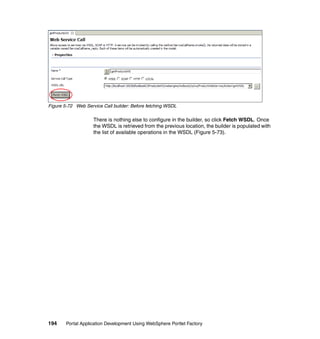
  • 718.
    builder inputs 333 event 364 generation engine loops 12 Source 364 saved builder inputs 12 Target 364 builder input 4, 9 Create a WebSphere Portlet Factory Project Wizard Builder Palette 60, 88–89, 109, 111, 239, 241, 41 523–524 Create the Database and Tables 636 Data Integration category 109 Create the JDBC Connection 637 Services category 95 Creating a Dojo Rich Text Editor 341 Variables category 185 Creating a Dojo Tooltip in the Product Details Portlet builder palette 324 Form Builder 243 Creating a Domino Provider Model 176 Builder Palette icon 299, 308, 315 Creating a new Deployment Configuration 660 Builders for the new ProductWebService.model Creating a new order on behalf of a customer 26 650 Creating a project 40 Builders/Techniques Used 32, 34–36 Creating a Stub Service for testing 207 Building the Go Shopping Portlet 517 Creating a web service using WebSphere Portlet Building the Web Application 234 Factory 645 business logic Creating and Importing the UIEvent Model 368 data access 218 Creating Data Services data consumers 92 access to back-end systems 105 Business logic within application 67–68, 191, 208, Creating OrderDetailsCustomiser Model 487 271 Creating Portlets - Designing the UI 275 Button builder 248, 251, 316, 343, 548–549 Creating Portlets - Making it work 221 following values 548, 570 Creating Profile Set 472 Creating Profile Set & Profiles 439 Creating Projects 39 C Creating the Application Schema and Data 635 Capabilities of WebSphere Portlet Factory 2 Creating the base HTML page 256, 258 Cart Model 550 Creating the base HTML pages 234 Changing Column Behaviour (All Portlets) 294 Creating the CustomerInfo model 237 Class Loader mode in the configuration of the Web Creating the Groups in Portal 633 Module 652 Creating the Pages for the CSA Application 643 Completing mapping the drive 659 Creating the WebSphere Portlet Factory project 39 Configuing the environment for WAS CE 681–682 Creating User Groups in Portal 439 Configure the Project to use the database as a data Creation of Data Operations 96 source 641 Creation of Data Services 95 Configuring pages/portlets in WebSphere Portal Credential detail 367, 413, 437, 447 266 Credential vault 2, 223, 225, 413, 448–449 Configuring the Domino Connection and Credentials CSR Group 438 175 Custom Data Service - local XML access sample Configuring the RAD Unified Test Environment 673 106 Confirm all of the settings you have just entered Customer detail 668 PIN fields 462 Confirmation Model 594 Customer Id 93, 244–245, 283, 285, 367, 375, 451, Confirmationg for including JAR files 66 467 ConfirmationPage model.Set 597, 600 Customer Information Considerations for WAS CE 681 page layout 267 Converting the web application into portlets 264 Portlet 223–224, 279, 284, 322, 460–461 Cooperative Portlet Portlet RDD file 293 698 Portal Application Development Using WebSphere Portlet Factory
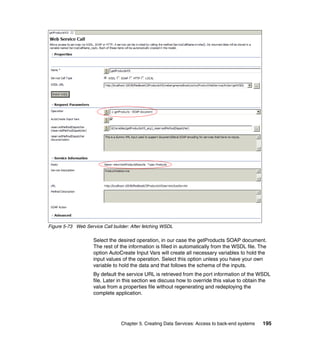
  • 719.
    Customer Information basedon authentication cre- Application Data Service Interface 80 dentials 27 Application Data Service Interfaces 95 Customer Information model 230, 234, 269 definitions model 98 Customer Information page 267, 271 different models 80, 88 Customer perspective - Creating a new order 31 required functionality 92 Customer perspective - Reviewing Orders 30 data domain Customer Self Service Application 167, 223, 288, Service Consumer builders access data 123 291, 303, 361–362, 421 Data Field Modifier (DFM) 283, 290, 346, 485 designing the UI 305 Data Service xiii how to build it 221 additional transformations 649 inter-portlet communication 361 clear relationship 646 profiling 422–423 complex relationships 209 setting up environment 634 development tests 86 CustomerCredentials model 36, 361–362, 447, 449 functional requirements 92 inter-portlet communication 462 getProducts operation 212 CustomerCredentials Model to CustomerInfo Model high level design 121 413 models structure 84 customerID attribute 372, 449–450 real implementation 72 CustomerInfo Model Role 73, 85 Action List 375 Service Operation 197 communication link 368 Data service communication links 362 editing data 227 main method 438 Data Service for external Web Services access 190 possible use cases 368 Data Services UIEvent Model 375, 415 overview and interface definition 67 CustomerInfo model 34–35, 237, 239, 284, 286, Data Services - Features Implemented and Builders 361, 413, 422–423 Used 32 CustomerInfo Model to OrderList Model 367 Data Services design in WebSphere Portlet Factory CustomerInfo Portlet 366, 393, 451 80 CustomerInfo portlet Data Services in Portlet Factory 69 Personalize page 413 Data Structures 87 CustomerList View 244, 246, 378–379, 451–452 Data Transformations - usage of IXml API 140 CustomerService builder 379–380, 464 Data Transformations - usage of Transformation Customize data column access in SQL builders Builders 185 working with binary data 145 Database Pool 682–683 Customizing the application using profiling 421 Mapping 683 Customizing the Static Content 349 Database pool configuration 682 Customizing the UI 346 DataDefinition name 291, 294 DCM builder 484–486 RDD file 484 D Debugging 623 Data Access Debugging back end connectivity issues 624 custom implementation 82 Declaring Event and Share Variable in UIEvent Data Column Model 395 Modifier 7, 290, 423 Declaring Event in UIEvent Model 413 Modifier builder 227, 474–476, 481, 558, 602 Declaring the Event and Shared Variable in the Modifier Container Field Setting 603 UIEvent Model 370 Data Column Modifier 356 Default Profile Selection Handlers 431 Data Domain Default Value Setters 437 Index 699
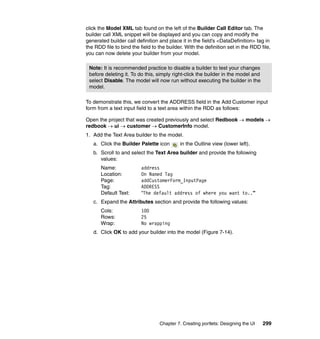
  • 720.
    deployed web application Customers and CSRs 468 log folder 207 DifferentEntryPointProfiling 438 Deploying and using the Web Service 651 Directory 47 Deploying the Domino Database 632 Displaying Data in View and Form builder 241 Deploying the Portlet WAR to your Portal Server Dojo Drag 35, 282, 336 617 Source 35, 282, 339, 503, 579 Deploying the Production WAR to your Application Source builder 340, 579–580 server Target 35, 282 614 Dojo Drag and Drop 336 Deploying to portal server 266 Dojo Inline 35, 275, 282, 563–564 Deployment Configuration 674 Dojo Rich Text Editor 35, 281–282 deployment configuration 616 text area 345 Deployment configuration dialog 56, 676 Dojo Tooltip 35, 275, 282 Deployment configuration settings 53 Order Details Portlet 332 Deployment configurations 50 Domino Data Access Deployment tab and set the Classloader mode to builder 167, 169 PARENT_LAST 677 Service 33 Deployment WAR 50 Domino Data Access Service 167 Description 694 Domino Database Description of Features 32 configuring 226 Design and implementation of Data Structures and using as a back end store 85 Application Data Service Interfaces 87 Domino database 71, 694 Design for ITSO Renovations - Customer and Order Domino Provider information 120 Model 176 Design for ITSO Renovations - External Product in- Wizard 182 formation 192 Double click 373, 451 Design for ITSO Renovations - Product information drop-down list 4, 206 171, 209 dropdown list Design Phase 497 Select cartImage 339 Design Products External Web Service 648 Select Order 308 Details of customer information. 23 Select OrderInformation 337 Developing Data Services in the sample application 73 Developing the Order Details model 259 E EJB access 216 Developing the OrderList model. 256 ellipsis 239, 287 Development - the WebSphere Portlet Factory way ellipsis button 282, 284 226 empty model 58, 123, 237, 256, 259, 369, 520, 543 Development steps and guidelines 84 Enabling Portlet Communication 361 Development WAR 49 Entering path to the new application 663 development War 614 Enterprise Application 2, 68, 615, 651–652, 670 Dialog box will appear to confirm if you would like to enterprise application include the jar files that are required for the feature important parts 102 sets 65 entry path 422, 437 Dialog for re-deploying application 676 Error Handling 624 Dialog to re-deploy your application 57 Event Declaration 35–36, 282, 362–363, 511, 516 Different Entry Paths for Customers and CSRs 438 imported Model 418 Different Field Properties for Customers and CSRs event handler 513–514 462 Event Name 321, 366, 514 Different Visibility of Application Components for 700 Portal Application Development Using WebSphere Portlet Factory
  • 721.
    Example of projectstructure 46 available segments 435 Examples of modifiers in the RDD Files 294 Go Shopping Portlet Model 520 Excluding files from your application 618 execution engine (EE) 511 Execution Flow H Handling Event in the CustomerInfo Model 417 Initial Request 689 Handling Event in the OrderList Model 382 Subsequent Requests in Same Session 690 Having added the test portlet to the page 63 Execution Processing 687 High level Data Services expand the Applications section and click on Install wrapping access to different back-end systems New Application 662 208 external Web Service High level overview of building portlets 227 Product interface 192 Highlighter 358 external web service 33, 69, 72–73, 76, 105, 190, hildElement 143 226, 645, 647 How Does a RDD File Work? 288 How to access other back-end systems without F Portlet Factory builders 217 Factory 47 How to Create a Selection Handler 433 Factory Starter How to create an RDD 308 Model 58, 238, 369, 543, 553 HTML 506, 524 Features of WebSphere Portlet Factory 35 HTML code 535, 537 File Name 694 HTML Event Firing Event from the CustomerCredentials Model Action 35, 282, 318 414 Action builder 318, 321 Firing Event from the OrderList Model 397 HTML file 525–526 Firing the Event from the CustomerInfo Model 373 HTML page 527, 550 Fixing compilation errors at design time 620 HTML template 48, 348, 525–526 Form builder 451 existing set 355 Formatting the Output 303 Portlet Factory 348 ForService name 641–642 HTML Templates in Portlet Factory 354 From the Builder Palette, select Portlet Adapter 60 HTTP request input parameter 402 input parameters 402 G orderID parameter 401 General concepts 72 Generated code by external Web Service access builders 205 I Generated code by SQL builders 136 ID link 366, 373, 437, 467 Generation 9 Image builder 247–248, 328, 337, 556–557 Generation, Part 2 following values 582 Profiling 11 Implementation of Linked Java Objects to access getCustomerOrders event 372–373 XML content 110 getOrderDetails Action Implementation of the Product Web Service in ITSO List builder 399, 406 Renovations application 648 getOrderDetails event 397–398 Implementation of transactions 161 given Order Id Implementation Phase 497 order items 93 Implementing getProduct 213 given Product Id Implementing getProducts 211 product details 94 Implementing the functionality to Add New Custom- given selection handler er 252 Index 701
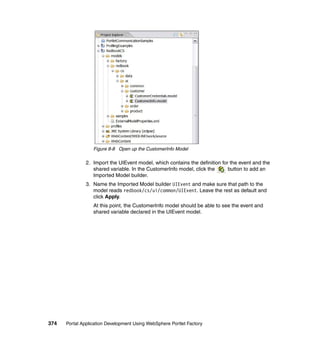
  • 722.
    Implementing the serviceand operations 122 J Import and Deploy the Project 643 J2EE Data Integration Import and Deploy the Web Service 642 EJB access and JMS support 216 Import XML content in the models 109 J2EE Production Deployment War (standalone Imported Page 524 non-portal applications) Importing the Application Code 634 614 input form 587 Java code 529, 532 builder 587 Java Object mandatory field 309 builder 72, 106, 110 Input form builder 230 method 122, 211 Input Mappings Java object 511 Name 400 JDBC Provider 637–638 Value 400 JMS support 216 Insert record with an image column JNDI Name 202, 639 create customer 146 JRE System Library 47 Install new Application from the WAS administration console 651 Installing the Application Theme 643 K Key Builders for “consumer” models 228 integrated development environment (IDE) 3 Interoperable Object Reference (IOR) 175 inter-portlet communication xiii, 361, 451, 461 L different types 366 Linked Java Object general types 363 SQL builder 122 Types 363, 366 Linked Java Object (LJO) 68, 106, 110, 312–313, WebSphere Portal 364 405–406 Inter-portlet Communication for CSA 366 List of Enterprise Applications 652 Introduction to the sample scenario used in this Red- LJO method 112, 134, 231, 413 book 16 Locating the Web material 693 Invoking the methods of LJO from a Service Opera- Location Technique 316–317, 399, 469, 581, 590 tion 112 ITSO Renovation data model 76 M Main method 190, 244, 390, 408, 438, 451 data services 74, 76 profiled action list 457 Data Services architecture 78 Mapping between functional areas of sample appli- Design 120, 171 cation and capabilities of Portlet Factory 32 expected one 649 Mapping modules to servers 666 final design 82 Mapping of database pool to resource reference in high level architecture 79 geronimo-web.xml 683 internal employee 16 Mapping of resource reference to be of type Data- internal product 76 Source in wasce.web.xml 684 service names 95 Method builder 136, 320, 511, 514 SQL Data Service 123 method builder XML access 108 following values 529, 532 ITSO Renovation (Ficticious Company) 283 method call ITSO Renovations Data Model 76 argument 562, 565 IXml API 32, 122, 135, 140, 142 arguments dialog box 320, 334 Methods class 230–231, 689 Migrate the Data into the Database 636 702 Portal Application Development Using WebSphere Portlet Factory
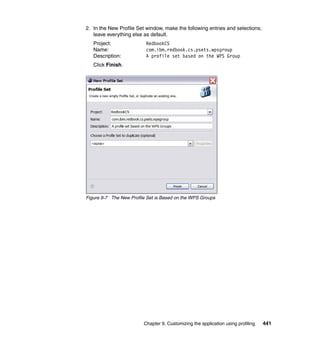
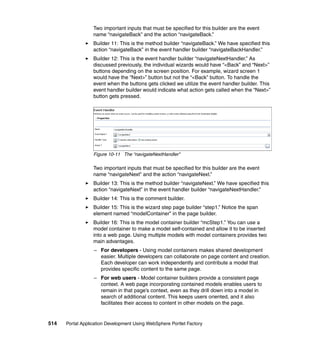
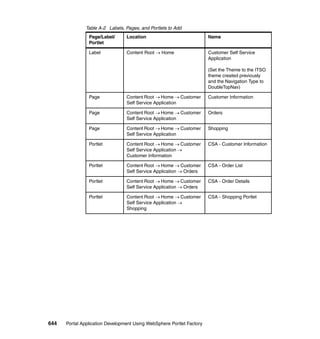
  • 723.
    model builder 527 UIEvent Model 383, 403 Model Container OrderList Model to OrderDetails Model 395 multiple models 233 OrderList Portlet 366, 390, 451 Model container 228, 231 OrderList portlet model container 506, 508 First Order ID Link 412 multiple models 514 ID link 390 Model name 110, 522, 544 order ID links 401 model.Set 577–578 OrderPage model.Set 586–587 Models 5, 9, 46 Other UI Builders 356 Modifying the csapp.properties File 685 Outline pane 459 Modifying the Development Environment When De- Outline view ploying to WAS CE 683 Builder Palette icon 299, 308 Modifying the Project Configuration Files 683 orderList data page builder 316 orderList imported page builder 350 project creation 59 N Overriding the input in Service Consumer 245 Naming the project 42 Overview 422 New Tag Overview and available SQL builders 118 designing the UI 326 Overview and how to use Domino Access builders 167 O Overview of accessing a custom data service 106 One model, many applications 8 Overview of an application exposing Web Services one-shot deal 5 647 Order Detail 93, 225, 282, 303, 395 Overview of Builders 4, 9 designing the UI 284 Overview of the application functionality 17 profiling 438 Overview of the technical goals 68 Order Details Portlet 34, 223, 226, 276, 304, 492, Overview of WebSphere Portlet Factory 2 495 Portlet Customization Page 495 Order Id 367 P Page builder 59, 312, 315, 447, 506, 513 order item 503, 520 Page Location 232, 247, 322, 556 Order List 223, 255, 280 Paging data 312 Order List Portlet 286, 295 Performance 629 Order page 35 Performing a LookupTable Call (Order List Portlet) order page 517 295 Order Page Model 584 Performing Validation 307 OrderDetails Model Portal Server Deployment Configuration 51, 675 getOrderDetails Event Handler 407 portlet xiii main Action List 407 Portlet Adapter new action list 404 builder call 266 OrderDetails model 258 Portlet adapter Data Column Modifier builder 474 builder 60 OrderDetails Portlet 37, 367, 410, 423 portlet adapter runtime customization 472, 474 transfer 692 OrderDetails.mode l Portlet Adapter (PA) 34, 264 Double click 492 Portlet Communication 36, 361–362, 451, 461 OrderList Model 34–35, 256, 363, 367 Portlet Communication and Profiling - Features Im- getCustomerOrders Event Handler Builder 388 plemented and Builders Used 36 new action list 383 Index 703
  • 724.
    Portlet Factory xiii Previewing your portlets 62 Ajax Type-Ahead builder 322 previous step 110 application 9 product detail Application development 5 image URL 325–326 architecture 8 product information 694 automation technology 9 Production Deployment 613 builder 3, 5, 9, 136, 217, 363 ProductTooltip Model 324, 329 Data Services 69 Profile entry Designer 3, 427 appropriate default value 498 Development xiii, 8 Profile Input window 454, 456 development Environment 3 Profile Set Name 466 Domino builder 632 Profiles section 466, 469 Domino Service Provider Wizard 168 Profile Manager 427, 434 event 361 Profile Selection 429 events mechanism 365 Handler option 436 feature 364 technique 429, 438 generation engine 9 Profile Selection Handler 429–430 generation engine loop 9 Profile Selection Handlers 431 HTML Templates 354 Profile Set 203 insert 307 profile set inter-portlet communication 361 profile entries 497 model 9 profile privilegedUsers 433 more commonly used builders 356 Selection Handler 438 Page Automation code 354 XML file 435 product tutorial and/or 8 Profile Value profiling capabilities 8 Customization 428–429 project 427 window 456–457 selection handlers ship 433 profile value 203, 425 simple model 6 Profile Value Customization 429 software 3–4 Profile-enabled Builder 37, 422 term 425 Profile-enabling the Data Columns 474 War 50, 61, 265 Profiles 7, 47 Portlet Factory Designer 3–4, 39–40, 115, 237, Profiling 244, 498–499, 520, 543, 652, 658, 672, 683 value to developers 423 Portlet Production Deployment War 615 value to end users 423 Portlet WAR 50 Profiling for Customer Self Service Application 437 portlet war 50, 615 Profiling the Web Service URL using a properties file portlet.xml file 266 200 Portlets xiii, 17, 617 Project Explorer 45, 468 Presentation Layer 426 Project structure 46 presentation layer Provider Model 175 clear separation 426 web application 647 Press the play button on the toolbar at the top of the R Rapid Application Development (RAD) 2 screen 61 Rational Application Developer (RAD) 673 Preview of the portlet you will build in this chapter RDD file 37, 283, 287, 294, 422, 463 502 field tags 294 Preview of the sample application you will build for ID data definition 288 ITSO Renovations 17 704 Portal Application Development Using WebSphere Portlet Factory
  • 725.
    input text area346 Select Action window 375–376, 449–450 Profile Entry 466 Select Main and Page from under the Factory Start- RDD in ITSO Renovations 283 er Models heading 59 RDD Structure in the Customer Self Service Appli- Select Model cation 291 screen 521, 543 RDD Summary 311 Select record with an image column RedbookCS application 671 get customer 155 RedbookCS project 51, 58, 265, 269, 494, 659, 672 Select the WAR file from the Web Modules 652 Redbooks Web site 695 selectedOrderID 395, 496 Contact us xviii Selecting Properties 64 Referencing and Extending RDD files 290 Selecting specific features 65 Refreshing the application 672 Selection Handler 37, 422 Relational Database Service Consumer 113, 523, 555 back end store 118 default input 260 Relationship Data Service and Web Service 646 simple model 270 Remote Deployment 657 service consumer Remote Deployment Procedure 658 RDD file 290 Remote server Service Definition 32, 34, 73, 78, 82, 113–114, 121, ibm directory 658 240, 645–646 installableApps directory 662 Additional builders 174 Review of specific Portlets - Perspective from a Cus- testing support 166, 189 tomer Service Representative 21 Service Definition builder Review of specific Portlets - Perspective from an Ex- generate WSDL to expose as Web Service 650 ternal Customer 27 Service operation Reviewing customer information 21 programatic invocation 211 Reviewing customer order information 24 Service-Oriented Architecture (SOA) 2 Rich Data Definition (RDD) 7, 35, 226, 283–284, service-oriented architecture (SOA) xiii, 518 289, 462, 464 Setting up Action List for CSRs 449 Role of Data Services in ITSO Renovations 74 Setting up Action List for Customers 449 Roles specific to the sample application scenario Setting up deployment configurations 51 16 Setting up DIIOP on Domino 175 Runtime Customization 8, 37, 423, 438 Setting up for OrderDetails Model 492 Profiling 472 Setting Up The Environment 632 Runtime errors 622 Setting up the Environment 631 Setting up the WPS Credential Component 447 Settings for the Deployment Configuration 661 S shopping cart 503, 517 Sample Application Shopping Page Model 540 Developing Data Services 73 Shopping Product Catalog Model 575 Sample application ShoppingCart model 35, 505, 518 ITSO Renovation 102 ShoppingCart model.Set 556–557 Preview 17 ShoppingPage model 505, 518 scenario 16 ShoppingPage model.Set 546–547 Sample application scenario 16 ShoppingUIImports model 523, 531 SAP access 215 SOA architecture 68, 74, 645 Scenario span name 526 sample application 15 Specify some basic deployment options 665 Scenario Background 16 Specify virtual host mappings 666 Scenario Introduction 15 Specify your deployment configurations 45 Index 705
  • 726.
    Specifying the JavaBuild Settings 44 Types of Profiling 428 SQL Call 32, 119, 122, 296 builder 119, 158 SQL Data Services 118 U UI Element 282, 527 SQL Statement 119–120, 230 UI Elements of a Portlet Factory Page 347 positional parameter 147 UI model 234, 525, 550 result data 155 UIEvent Model short summary 136 saveCredentials event 414 simple execution 136 Shared Variable 370 SQL statement UIEvent model 36, 362–363, 449 builder call 230 Unified Testing Environment (UTE) 40 configuration 119 Use Cases applicable to an external customer 20 execution 123 Use Cases applicable to the Customer Service Rep- result 155 resentative 19 SQL Transaction User Interface builder 136, 161 advanced development 35 builder step 165 user interface (UI) 6, 16, 34, 46, 63, 69, 158, 161, sqlOrderItem.find Element 143 221, 225, 275, 287, 364, 366, 423, 425–426 Starting the application server 670 UseService name 641–642 Static content Using Other Dojo Features 341 absolute URL 199 Using Rich Data Definition (RDD) File 283 static content 525, 550, 598 Using the Ajax Type-Ahead builder 322 Structured query language (SQL) 4 Using the Dojo builders 324 Stub Service 34, 207 Using the Domino Builders 168 model name 207 Using the Web material 694 Successful installation procedure 669 Using WPS Credential builder in the ITSO - Custom- er Self Service Application 269 T Tag 506, 515 TD colspan 236–237, 526, 551 V Value Setter 436 td width 526 Value setter 203 Terms and Definitions 425 Java class 203 Testing a back end Service 214 Value to the developer in building this portlet 506 Testing and debugging the service 165 Value-less Attribute 594 Testing for Different Entry Points 459 Variable builder 325, 513, 527 Testing for Different Field Properties 467 variable builder Testing for Portlet Runtime Customization 494 following values 527–528 Testing Phase 497 Verifying test connection 57 Testing Support 165 View Page Testing the created Portlet 62 Options section 243 Testing the Inter-portlet Communication Link 393 TestPortlet should contain two builders (an Action List and a Page builder) 60 W the xiii, 693 WAR file 49, 265, 613, 618 Transformation builder 185 different types 39, 66 Troubleshooting 620 web application 511 Types of Inter-portlet Communication 363 local XML files 648 Types of Inter-portlet Events 365 main purpose 647 706 Portal Application Development Using WebSphere Portlet Factory
  • 727.
    serveable folder 161 WSDL file 190–191 WAR file 651 port information 195 Web Service xiii, 694 service port 190 different location 200 WSDL for Product Web Service 654 external operation 190 serveable content 199 static content 197 X XML access static serveable content 202 Data Service case 165, 189, 206, 214 WSDL definition 190 XML access file Web service Data Provider 122–123 provider models 46 XML content 107 WebApp 511 data transformation 196 existing Variable 92 XML document 107–108 WebApp tree 92, 241 XML file 287 Data Service leaf 136 base Data Provider 113 webAppAccess.call Method 164–165, 402 implementation 100 webAppAccess.getV ariables 401, 509–510 name 109 WebContent/WEB-INF/work/source 47 relative path 109 WEB-INF 47 user/profile mappings 432 WebSphere Portal XML Schema Config modes 429 Definition 87 Configure functionality 8 XSD file 32, 86–87 Configuring pages/portlets 266 installed copies 421 portlet war file 265 WebSphere Portal 6.0 directory 643 server 39, 49 WebSphere Portlet Factory exposes Data Services as external Web Services 646 WebSphere Portlet Factory Forums 629 WebSphere Portlet Factory Model Wizard 58 WebSphere Portlet Factory TechNotes 629 What is Profiling? 423 When to use a Data Column/Field Modifier or Field Level builders versus a RDD file 290 Why use an RDD? 283 Wizard Based approach 506 WPS Credential Builder 34, 268, 448 Component 413, 438, 447 Type 270 WPS Credential Builder. 268 WPS Group name 444 Segment Handler 37, 423, 433 Segment Handler example 436 WPS group 422 WSDL 73 Index 707
  • 728.
    708 Portal Application Development Using WebSphere Portlet Factory
  • 729.
    Portal Application DevelopmentUsing WebSphere Portlet Factory (1.0” spine) 0.875”<->1.498” 460 <-> 788 pages
  • 732.
    Back cover ® Portal Application Development Using WebSphere Portlet Factory ® Features and WebSphere Portlet Factory is a powerful and flexible tool for techniques for rapidly building portlets on top of a service-oriented INTERNATIONAL rapidly architecture. It enables developers to quickly and easily TECHNICAL developing leverage their company's core assets, automatically SUPPORT portlets assembling them into custom, high-value portlets. ORGANIZATION In this book, we show you specific techniques and a best Step-by-step practices approach for developing portlets using WebSphere guidance for Portlet Factory. Using a fictitious company scenario, we BUILDING TECHNICAL building a sample discuss how to build a Customer Self Service and Customer INFORMATION BASED ON application Representative application. Within this context, we cover the PRACTICAL EXPERIENCE following topics: Best practices, Installing and configuring the Portlet Factory IBM Redbooks are developed by hints, tips and development environment the IBM International Technical troubleshooting How to create and consume data services from SQL, Support Organization. Experts Domino and a Web service from IBM, Customers and Step-by-step guidance for creating the portlets and Partners from around the world create timely technical enabling inter-portlet communication information based on realistic Advanced UI design techniques, including the use of scenarios. Specific AJAX for type ahead functionality and working with the recommendations are provided Dojo Builders to help you implement IT Enabling the use of profiling solutions more effectively in your environment. Deployment production considerations Troubleshooting and debugging techniques For more information: ibm.com/redbooks SG24-7525-00 ISBN0738488658