ibm.com/redbooks
Implementing IBM
Systems Director 6.1
David Feisthammel
Lesley Bain
Paul Engel
Shripad Nadgowda
Jesus Sahagun
David Watts
Practical guide to getting the most out
of the next generation of IBM Director
Detailed rationale for the use of
each management operation
Useful real-world scenarios
put it all together
Front cover
Implementing IBM Systems Director 6.1
May 2009
International Technical Support Organization
SG24-7694-00
© Copyright International Business Machines Corporation 2009. All rights reserved.
Note to U.S. Government Users Restricted Rights -- Use, duplication or disclosure restricted by GSA ADP
Schedule Contract with IBM Corp.
First Edition (May 2009)
This edition applies to Version 6.1 of IBM Systems Director.
Note: Before using this information and the product it supports, read the information in
“Notices” on page xiii.
© Copyright IBM Corp. 2009. All rights reserved. iii
Contents
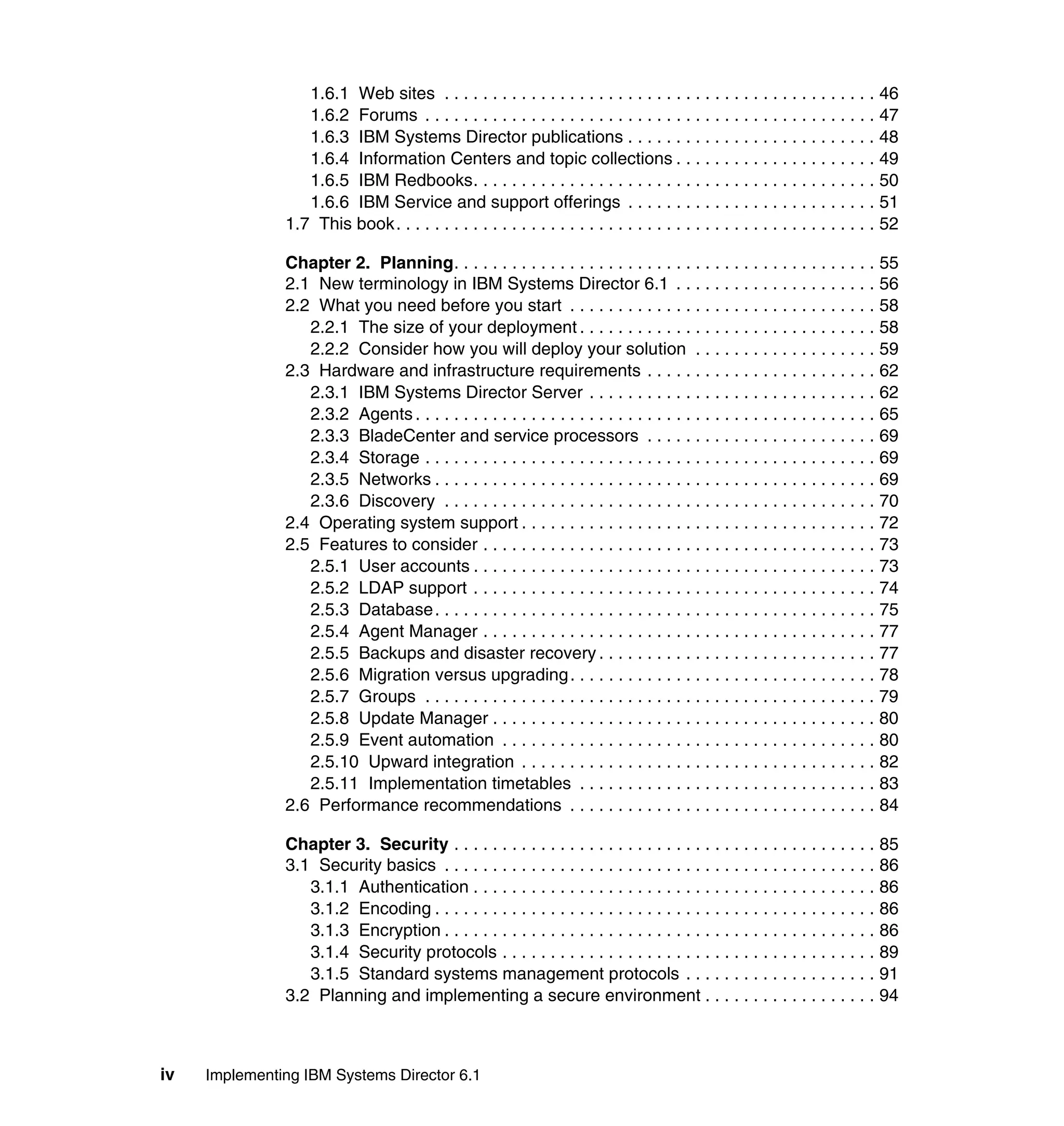
Notices . . . . . . . . . . . . . . . . . . . . . . . . . . . . . . . . . . . . . . . . . . . . . . . . . . . . . . xiii
Trademarks . . . . . . . . . . . . . . . . . . . . . . . . . . . . . . . . . . . . . . . . . . . . . . . . . . . xiv
Preface . . . . . . . . . . . . . . . . . . . . . . . . . . . . . . . . . . . . . . . . . . . . . . . . . . . . . xvii
The team that wrote this book . . . . . . . . . . . . . . . . . . . . . . . . . . . . . . . . . . . . xvii
Become a published author . . . . . . . . . . . . . . . . . . . . . . . . . . . . . . . . . . . . . . . xx
Comments welcome. . . . . . . . . . . . . . . . . . . . . . . . . . . . . . . . . . . . . . . . . . . . . xxi
Chapter 1. Introduction. . . . . . . . . . . . . . . . . . . . . . . . . . . . . . . . . . . . . . . . . . 1
1.1 Overview . . . . . . . . . . . . . . . . . . . . . . . . . . . . . . . . . . . . . . . . . . . . . . . . . . . 2
1.2 Industry standards. . . . . . . . . . . . . . . . . . . . . . . . . . . . . . . . . . . . . . . . . . . . 3
1.2.1 Common Information Model . . . . . . . . . . . . . . . . . . . . . . . . . . . . . . . . 3
1.2.2 Intelligent Platform Management Interface . . . . . . . . . . . . . . . . . . . . . 4
1.2.3 Platform Event Trap . . . . . . . . . . . . . . . . . . . . . . . . . . . . . . . . . . . . . . 4
1.2.4 Predictive Failure Analysis . . . . . . . . . . . . . . . . . . . . . . . . . . . . . . . . . 4
1.2.5 Service Location Protocol . . . . . . . . . . . . . . . . . . . . . . . . . . . . . . . . . . 5
1.2.6 Simple Network Management Protocol. . . . . . . . . . . . . . . . . . . . . . . . 5
1.2.7 Storage Management Initiative Specification . . . . . . . . . . . . . . . . . . . 6
1.2.8 System Management Bus . . . . . . . . . . . . . . . . . . . . . . . . . . . . . . . . . . 7
1.2.9 System Management BIOS. . . . . . . . . . . . . . . . . . . . . . . . . . . . . . . . . 7
1.2.10 Systems Management Architecture for Server Hardware. . . . . . . . . 8
1.2.11 Unified Extensible Firmware Interface . . . . . . . . . . . . . . . . . . . . . . . 8
1.2.12 Integrated Management Module . . . . . . . . . . . . . . . . . . . . . . . . . . . . 9
1.3 IBM Systems Director . . . . . . . . . . . . . . . . . . . . . . . . . . . . . . . . . . . . . . . . . 9
1.3.1 Features of IBM Systems Director 6.1 . . . . . . . . . . . . . . . . . . . . . . . 10
1.3.2 IBM Systems Director components. . . . . . . . . . . . . . . . . . . . . . . . . . 11
1.3.3 Licensing . . . . . . . . . . . . . . . . . . . . . . . . . . . . . . . . . . . . . . . . . . . . . . 16
1.4 What is new in IBM Systems Director 6.1 . . . . . . . . . . . . . . . . . . . . . . . . . 17
1.4.1 Functional enhancements . . . . . . . . . . . . . . . . . . . . . . . . . . . . . . . . . 17
1.4.2 Enhanced plug-in architecture . . . . . . . . . . . . . . . . . . . . . . . . . . . . . 22
1.4.3 Terminology changes . . . . . . . . . . . . . . . . . . . . . . . . . . . . . . . . . . . . 24
1.4.4 Withdrawn operating system support . . . . . . . . . . . . . . . . . . . . . . . . 26
1.4.5 Discontinued functions . . . . . . . . . . . . . . . . . . . . . . . . . . . . . . . . . . . 27
1.4.6 How to. . . . . . . . . . . . . . . . . . . . . . . . . . . . . . . . . . . . . . . . . . . . . . . . 29
1.5 Common Agent Services. . . . . . . . . . . . . . . . . . . . . . . . . . . . . . . . . . . . . . 35
1.5.1 CAS in an IBM Systems Director environment . . . . . . . . . . . . . . . . . 40
1.5.2 Agent Manager registration. . . . . . . . . . . . . . . . . . . . . . . . . . . . . . . . 44
1.6 Systems Director resources . . . . . . . . . . . . . . . . . . . . . . . . . . . . . . . . . . . 46
iv Implementing IBM Systems Director 6.1
1.6.1 Web sites . . . . . . . . . . . . . . . . . . . . . . . . . . . . . . . . . . . . . . . . . . . . . 46
1.6.2 Forums . . . . . . . . . . . . . . . . . . . . . . . . . . . . . . . . . . . . . . . . . . . . . . . 47
1.6.3 IBM Systems Director publications . . . . . . . . . . . . . . . . . . . . . . . . . . 48
1.6.4 Information Centers and topic collections . . . . . . . . . . . . . . . . . . . . . 49
1.6.5 IBM Redbooks. . . . . . . . . . . . . . . . . . . . . . . . . . . . . . . . . . . . . . . . . . 50
1.6.6 IBM Service and support offerings . . . . . . . . . . . . . . . . . . . . . . . . . . 51
1.7 This book. . . . . . . . . . . . . . . . . . . . . . . . . . . . . . . . . . . . . . . . . . . . . . . . . . 52
Chapter 2. Planning. . . . . . . . . . . . . . . . . . . . . . . . . . . . . . . . . . . . . . . . . . . . 55
2.1 New terminology in IBM Systems Director 6.1 . . . . . . . . . . . . . . . . . . . . . 56
2.2 What you need before you start . . . . . . . . . . . . . . . . . . . . . . . . . . . . . . . . 58
2.2.1 The size of your deployment . . . . . . . . . . . . . . . . . . . . . . . . . . . . . . . 58
2.2.2 Consider how you will deploy your solution . . . . . . . . . . . . . . . . . . . 59
2.3 Hardware and infrastructure requirements . . . . . . . . . . . . . . . . . . . . . . . . 62
2.3.1 IBM Systems Director Server . . . . . . . . . . . . . . . . . . . . . . . . . . . . . . 62
2.3.2 Agents . . . . . . . . . . . . . . . . . . . . . . . . . . . . . . . . . . . . . . . . . . . . . . . . 65
2.3.3 BladeCenter and service processors . . . . . . . . . . . . . . . . . . . . . . . . 69
2.3.4 Storage . . . . . . . . . . . . . . . . . . . . . . . . . . . . . . . . . . . . . . . . . . . . . . . 69
2.3.5 Networks . . . . . . . . . . . . . . . . . . . . . . . . . . . . . . . . . . . . . . . . . . . . . . 69
2.3.6 Discovery . . . . . . . . . . . . . . . . . . . . . . . . . . . . . . . . . . . . . . . . . . . . . 70
2.4 Operating system support . . . . . . . . . . . . . . . . . . . . . . . . . . . . . . . . . . . . . 72
2.5 Features to consider . . . . . . . . . . . . . . . . . . . . . . . . . . . . . . . . . . . . . . . . . 73
2.5.1 User accounts . . . . . . . . . . . . . . . . . . . . . . . . . . . . . . . . . . . . . . . . . . 73
2.5.2 LDAP support . . . . . . . . . . . . . . . . . . . . . . . . . . . . . . . . . . . . . . . . . . 74
2.5.3 Database. . . . . . . . . . . . . . . . . . . . . . . . . . . . . . . . . . . . . . . . . . . . . . 75
2.5.4 Agent Manager . . . . . . . . . . . . . . . . . . . . . . . . . . . . . . . . . . . . . . . . . 77
2.5.5 Backups and disaster recovery . . . . . . . . . . . . . . . . . . . . . . . . . . . . . 77
2.5.6 Migration versus upgrading. . . . . . . . . . . . . . . . . . . . . . . . . . . . . . . . 78
2.5.7 Groups . . . . . . . . . . . . . . . . . . . . . . . . . . . . . . . . . . . . . . . . . . . . . . . 79
2.5.8 Update Manager . . . . . . . . . . . . . . . . . . . . . . . . . . . . . . . . . . . . . . . . 80
2.5.9 Event automation . . . . . . . . . . . . . . . . . . . . . . . . . . . . . . . . . . . . . . . 80
2.5.10 Upward integration . . . . . . . . . . . . . . . . . . . . . . . . . . . . . . . . . . . . . 82
2.5.11 Implementation timetables . . . . . . . . . . . . . . . . . . . . . . . . . . . . . . . 83
2.6 Performance recommendations . . . . . . . . . . . . . . . . . . . . . . . . . . . . . . . . 84
Chapter 3. Security . . . . . . . . . . . . . . . . . . . . . . . . . . . . . . . . . . . . . . . . . . . . 85
3.1 Security basics . . . . . . . . . . . . . . . . . . . . . . . . . . . . . . . . . . . . . . . . . . . . . 86
3.1.1 Authentication . . . . . . . . . . . . . . . . . . . . . . . . . . . . . . . . . . . . . . . . . . 86
3.1.2 Encoding . . . . . . . . . . . . . . . . . . . . . . . . . . . . . . . . . . . . . . . . . . . . . . 86
3.1.3 Encryption . . . . . . . . . . . . . . . . . . . . . . . . . . . . . . . . . . . . . . . . . . . . . 86
3.1.4 Security protocols . . . . . . . . . . . . . . . . . . . . . . . . . . . . . . . . . . . . . . . 89
3.1.5 Standard systems management protocols . . . . . . . . . . . . . . . . . . . . 91
3.2 Planning and implementing a secure environment . . . . . . . . . . . . . . . . . . 94
Contents v
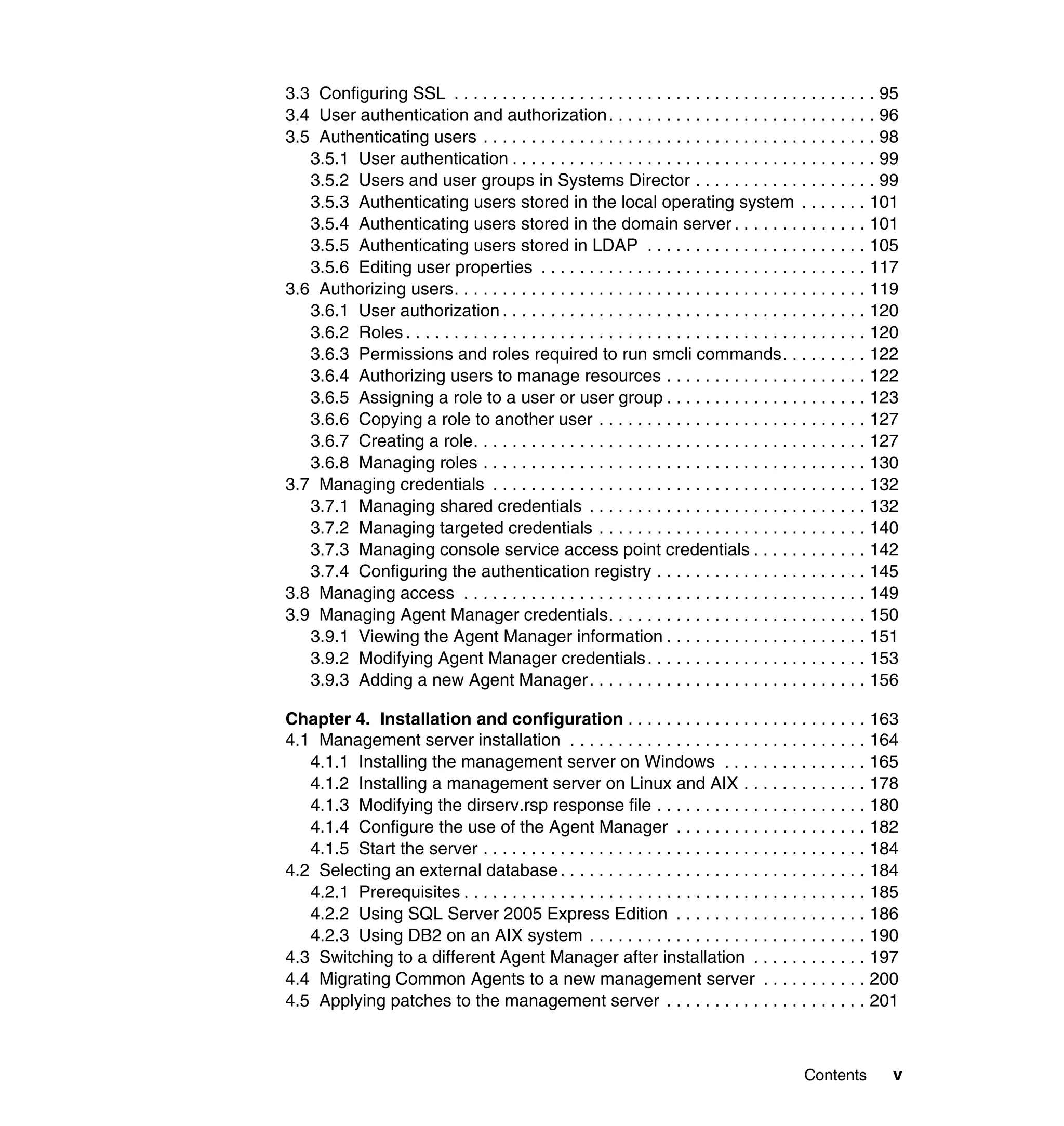
3.3 Configuring SSL . . . . . . . . . . . . . . . . . . . . . . . . . . . . . . . . . . . . . . . . . . . . 95
3.4 User authentication and authorization. . . . . . . . . . . . . . . . . . . . . . . . . . . . 96
3.5 Authenticating users . . . . . . . . . . . . . . . . . . . . . . . . . . . . . . . . . . . . . . . . . 98
3.5.1 User authentication . . . . . . . . . . . . . . . . . . . . . . . . . . . . . . . . . . . . . . 99
3.5.2 Users and user groups in Systems Director . . . . . . . . . . . . . . . . . . . 99
3.5.3 Authenticating users stored in the local operating system . . . . . . . 101
3.5.4 Authenticating users stored in the domain server . . . . . . . . . . . . . . 101
3.5.5 Authenticating users stored in LDAP . . . . . . . . . . . . . . . . . . . . . . . 105
3.5.6 Editing user properties . . . . . . . . . . . . . . . . . . . . . . . . . . . . . . . . . . 117
3.6 Authorizing users. . . . . . . . . . . . . . . . . . . . . . . . . . . . . . . . . . . . . . . . . . . 119
3.6.1 User authorization . . . . . . . . . . . . . . . . . . . . . . . . . . . . . . . . . . . . . . 120
3.6.2 Roles . . . . . . . . . . . . . . . . . . . . . . . . . . . . . . . . . . . . . . . . . . . . . . . . 120
3.6.3 Permissions and roles required to run smcli commands. . . . . . . . . 122
3.6.4 Authorizing users to manage resources . . . . . . . . . . . . . . . . . . . . . 122
3.6.5 Assigning a role to a user or user group . . . . . . . . . . . . . . . . . . . . . 123
3.6.6 Copying a role to another user . . . . . . . . . . . . . . . . . . . . . . . . . . . . 127
3.6.7 Creating a role. . . . . . . . . . . . . . . . . . . . . . . . . . . . . . . . . . . . . . . . . 127
3.6.8 Managing roles . . . . . . . . . . . . . . . . . . . . . . . . . . . . . . . . . . . . . . . . 130
3.7 Managing credentials . . . . . . . . . . . . . . . . . . . . . . . . . . . . . . . . . . . . . . . 132
3.7.1 Managing shared credentials . . . . . . . . . . . . . . . . . . . . . . . . . . . . . 132
3.7.2 Managing targeted credentials . . . . . . . . . . . . . . . . . . . . . . . . . . . . 140
3.7.3 Managing console service access point credentials . . . . . . . . . . . . 142
3.7.4 Configuring the authentication registry . . . . . . . . . . . . . . . . . . . . . . 145
3.8 Managing access . . . . . . . . . . . . . . . . . . . . . . . . . . . . . . . . . . . . . . . . . . 149
3.9 Managing Agent Manager credentials. . . . . . . . . . . . . . . . . . . . . . . . . . . 150
3.9.1 Viewing the Agent Manager information . . . . . . . . . . . . . . . . . . . . . 151
3.9.2 Modifying Agent Manager credentials. . . . . . . . . . . . . . . . . . . . . . . 153
3.9.3 Adding a new Agent Manager. . . . . . . . . . . . . . . . . . . . . . . . . . . . . 156
Chapter 4. Installation and configuration . . . . . . . . . . . . . . . . . . . . . . . . . 163
4.1 Management server installation . . . . . . . . . . . . . . . . . . . . . . . . . . . . . . . 164
4.1.1 Installing the management server on Windows . . . . . . . . . . . . . . . 165
4.1.2 Installing a management server on Linux and AIX . . . . . . . . . . . . . 178
4.1.3 Modifying the dirserv.rsp response file . . . . . . . . . . . . . . . . . . . . . . 180
4.1.4 Configure the use of the Agent Manager . . . . . . . . . . . . . . . . . . . . 182
4.1.5 Start the server . . . . . . . . . . . . . . . . . . . . . . . . . . . . . . . . . . . . . . . . 184
4.2 Selecting an external database. . . . . . . . . . . . . . . . . . . . . . . . . . . . . . . . 184
4.2.1 Prerequisites . . . . . . . . . . . . . . . . . . . . . . . . . . . . . . . . . . . . . . . . . . 185
4.2.2 Using SQL Server 2005 Express Edition . . . . . . . . . . . . . . . . . . . . 186
4.2.3 Using DB2 on an AIX system . . . . . . . . . . . . . . . . . . . . . . . . . . . . . 190
4.3 Switching to a different Agent Manager after installation . . . . . . . . . . . . 197
4.4 Migrating Common Agents to a new management server . . . . . . . . . . . 200
4.5 Applying patches to the management server . . . . . . . . . . . . . . . . . . . . . 201
vi Implementing IBM Systems Director 6.1
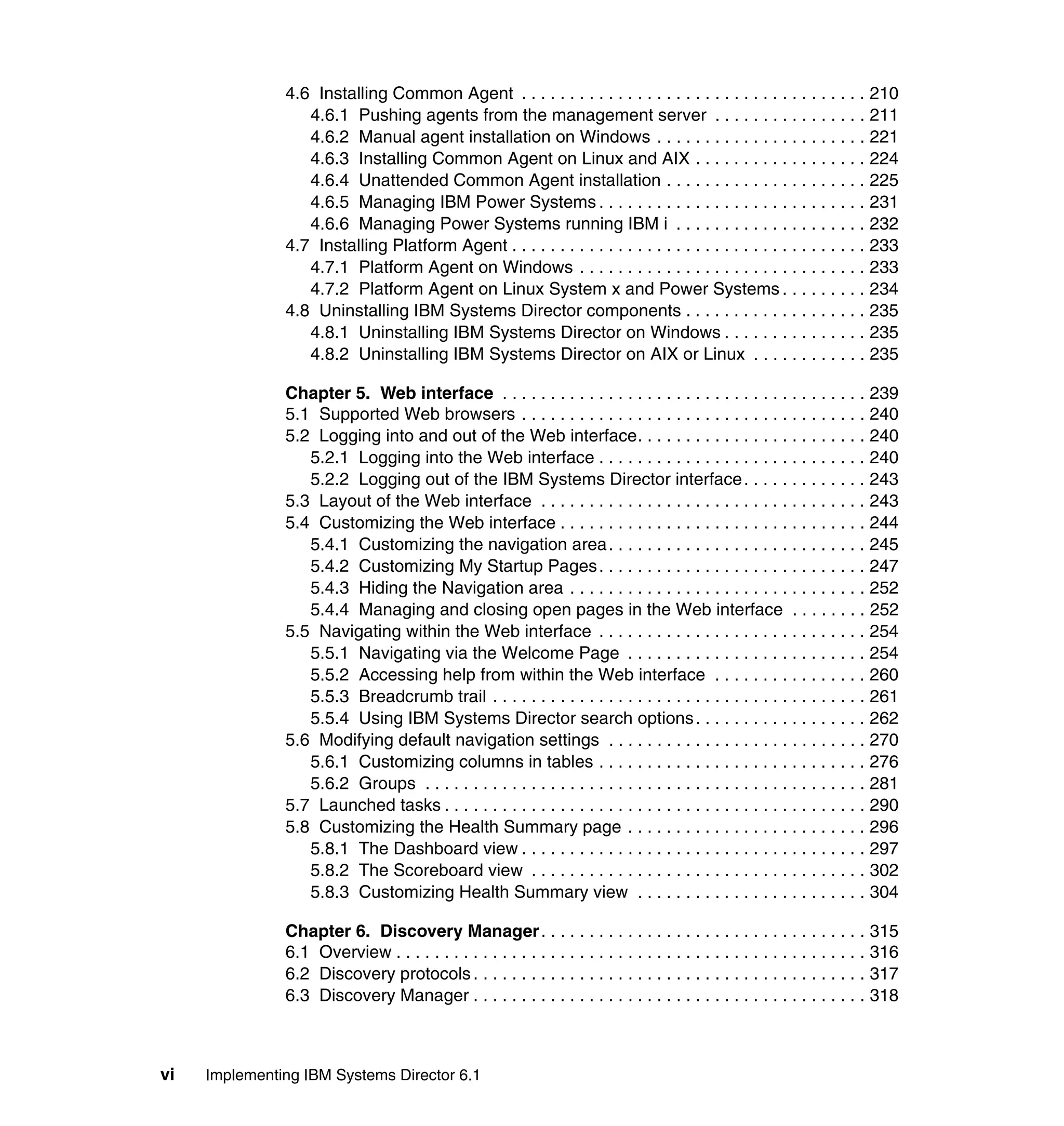
4.6 Installing Common Agent . . . . . . . . . . . . . . . . . . . . . . . . . . . . . . . . . . . . 210
4.6.1 Pushing agents from the management server . . . . . . . . . . . . . . . . 211
4.6.2 Manual agent installation on Windows . . . . . . . . . . . . . . . . . . . . . . 221
4.6.3 Installing Common Agent on Linux and AIX . . . . . . . . . . . . . . . . . . 224
4.6.4 Unattended Common Agent installation . . . . . . . . . . . . . . . . . . . . . 225
4.6.5 Managing IBM Power Systems . . . . . . . . . . . . . . . . . . . . . . . . . . . . 231
4.6.6 Managing Power Systems running IBM i . . . . . . . . . . . . . . . . . . . . 232
4.7 Installing Platform Agent . . . . . . . . . . . . . . . . . . . . . . . . . . . . . . . . . . . . . 233
4.7.1 Platform Agent on Windows . . . . . . . . . . . . . . . . . . . . . . . . . . . . . . 233
4.7.2 Platform Agent on Linux System x and Power Systems . . . . . . . . . 234
4.8 Uninstalling IBM Systems Director components . . . . . . . . . . . . . . . . . . . 235
4.8.1 Uninstalling IBM Systems Director on Windows . . . . . . . . . . . . . . . 235
4.8.2 Uninstalling IBM Systems Director on AIX or Linux . . . . . . . . . . . . 235
Chapter 5. Web interface . . . . . . . . . . . . . . . . . . . . . . . . . . . . . . . . . . . . . . 239
5.1 Supported Web browsers . . . . . . . . . . . . . . . . . . . . . . . . . . . . . . . . . . . . 240
5.2 Logging into and out of the Web interface. . . . . . . . . . . . . . . . . . . . . . . . 240
5.2.1 Logging into the Web interface . . . . . . . . . . . . . . . . . . . . . . . . . . . . 240
5.2.2 Logging out of the IBM Systems Director interface. . . . . . . . . . . . . 243
5.3 Layout of the Web interface . . . . . . . . . . . . . . . . . . . . . . . . . . . . . . . . . . 243
5.4 Customizing the Web interface . . . . . . . . . . . . . . . . . . . . . . . . . . . . . . . . 244
5.4.1 Customizing the navigation area. . . . . . . . . . . . . . . . . . . . . . . . . . . 245
5.4.2 Customizing My Startup Pages. . . . . . . . . . . . . . . . . . . . . . . . . . . . 247
5.4.3 Hiding the Navigation area . . . . . . . . . . . . . . . . . . . . . . . . . . . . . . . 252
5.4.4 Managing and closing open pages in the Web interface . . . . . . . . 252
5.5 Navigating within the Web interface . . . . . . . . . . . . . . . . . . . . . . . . . . . . 254
5.5.1 Navigating via the Welcome Page . . . . . . . . . . . . . . . . . . . . . . . . . 254
5.5.2 Accessing help from within the Web interface . . . . . . . . . . . . . . . . 260
5.5.3 Breadcrumb trail . . . . . . . . . . . . . . . . . . . . . . . . . . . . . . . . . . . . . . . 261
5.5.4 Using IBM Systems Director search options. . . . . . . . . . . . . . . . . . 262
5.6 Modifying default navigation settings . . . . . . . . . . . . . . . . . . . . . . . . . . . 270
5.6.1 Customizing columns in tables . . . . . . . . . . . . . . . . . . . . . . . . . . . . 276
5.6.2 Groups . . . . . . . . . . . . . . . . . . . . . . . . . . . . . . . . . . . . . . . . . . . . . . 281
5.7 Launched tasks . . . . . . . . . . . . . . . . . . . . . . . . . . . . . . . . . . . . . . . . . . . . 290
5.8 Customizing the Health Summary page . . . . . . . . . . . . . . . . . . . . . . . . . 296
5.8.1 The Dashboard view . . . . . . . . . . . . . . . . . . . . . . . . . . . . . . . . . . . . 297
5.8.2 The Scoreboard view . . . . . . . . . . . . . . . . . . . . . . . . . . . . . . . . . . . 302
5.8.3 Customizing Health Summary view . . . . . . . . . . . . . . . . . . . . . . . . 304
Chapter 6. Discovery Manager. . . . . . . . . . . . . . . . . . . . . . . . . . . . . . . . . . 315
6.1 Overview . . . . . . . . . . . . . . . . . . . . . . . . . . . . . . . . . . . . . . . . . . . . . . . . . 316
6.2 Discovery protocols . . . . . . . . . . . . . . . . . . . . . . . . . . . . . . . . . . . . . . . . . 317
6.3 Discovery Manager . . . . . . . . . . . . . . . . . . . . . . . . . . . . . . . . . . . . . . . . . 318
Contents vii
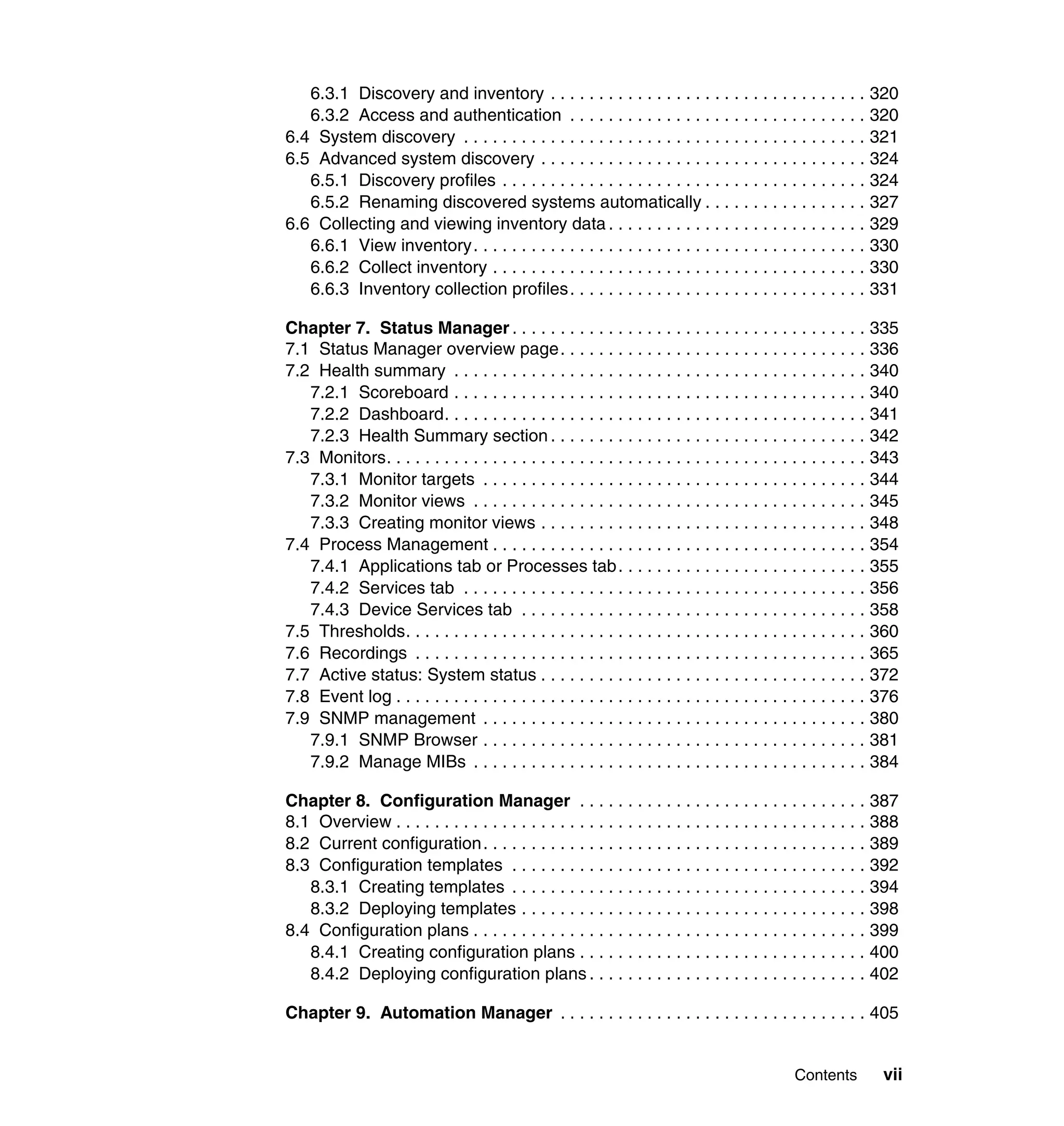
6.3.1 Discovery and inventory . . . . . . . . . . . . . . . . . . . . . . . . . . . . . . . . . 320
6.3.2 Access and authentication . . . . . . . . . . . . . . . . . . . . . . . . . . . . . . . 320
6.4 System discovery . . . . . . . . . . . . . . . . . . . . . . . . . . . . . . . . . . . . . . . . . . 321
6.5 Advanced system discovery . . . . . . . . . . . . . . . . . . . . . . . . . . . . . . . . . . 324
6.5.1 Discovery profiles . . . . . . . . . . . . . . . . . . . . . . . . . . . . . . . . . . . . . . 324
6.5.2 Renaming discovered systems automatically . . . . . . . . . . . . . . . . . 327
6.6 Collecting and viewing inventory data . . . . . . . . . . . . . . . . . . . . . . . . . . . 329
6.6.1 View inventory. . . . . . . . . . . . . . . . . . . . . . . . . . . . . . . . . . . . . . . . . 330
6.6.2 Collect inventory . . . . . . . . . . . . . . . . . . . . . . . . . . . . . . . . . . . . . . . 330
6.6.3 Inventory collection profiles. . . . . . . . . . . . . . . . . . . . . . . . . . . . . . . 331
Chapter 7. Status Manager . . . . . . . . . . . . . . . . . . . . . . . . . . . . . . . . . . . . . 335
7.1 Status Manager overview page. . . . . . . . . . . . . . . . . . . . . . . . . . . . . . . . 336
7.2 Health summary . . . . . . . . . . . . . . . . . . . . . . . . . . . . . . . . . . . . . . . . . . . 340
7.2.1 Scoreboard . . . . . . . . . . . . . . . . . . . . . . . . . . . . . . . . . . . . . . . . . . . 340
7.2.2 Dashboard. . . . . . . . . . . . . . . . . . . . . . . . . . . . . . . . . . . . . . . . . . . . 341
7.2.3 Health Summary section . . . . . . . . . . . . . . . . . . . . . . . . . . . . . . . . . 342
7.3 Monitors. . . . . . . . . . . . . . . . . . . . . . . . . . . . . . . . . . . . . . . . . . . . . . . . . . 343
7.3.1 Monitor targets . . . . . . . . . . . . . . . . . . . . . . . . . . . . . . . . . . . . . . . . 344
7.3.2 Monitor views . . . . . . . . . . . . . . . . . . . . . . . . . . . . . . . . . . . . . . . . . 345
7.3.3 Creating monitor views . . . . . . . . . . . . . . . . . . . . . . . . . . . . . . . . . . 348
7.4 Process Management . . . . . . . . . . . . . . . . . . . . . . . . . . . . . . . . . . . . . . . 354
7.4.1 Applications tab or Processes tab. . . . . . . . . . . . . . . . . . . . . . . . . . 355
7.4.2 Services tab . . . . . . . . . . . . . . . . . . . . . . . . . . . . . . . . . . . . . . . . . . 356
7.4.3 Device Services tab . . . . . . . . . . . . . . . . . . . . . . . . . . . . . . . . . . . . 358
7.5 Thresholds. . . . . . . . . . . . . . . . . . . . . . . . . . . . . . . . . . . . . . . . . . . . . . . . 360
7.6 Recordings . . . . . . . . . . . . . . . . . . . . . . . . . . . . . . . . . . . . . . . . . . . . . . . 365
7.7 Active status: System status . . . . . . . . . . . . . . . . . . . . . . . . . . . . . . . . . . 372
7.8 Event log . . . . . . . . . . . . . . . . . . . . . . . . . . . . . . . . . . . . . . . . . . . . . . . . . 376
7.9 SNMP management . . . . . . . . . . . . . . . . . . . . . . . . . . . . . . . . . . . . . . . . 380
7.9.1 SNMP Browser . . . . . . . . . . . . . . . . . . . . . . . . . . . . . . . . . . . . . . . . 381
7.9.2 Manage MIBs . . . . . . . . . . . . . . . . . . . . . . . . . . . . . . . . . . . . . . . . . 384
Chapter 8. Configuration Manager . . . . . . . . . . . . . . . . . . . . . . . . . . . . . . 387
8.1 Overview . . . . . . . . . . . . . . . . . . . . . . . . . . . . . . . . . . . . . . . . . . . . . . . . . 388
8.2 Current configuration. . . . . . . . . . . . . . . . . . . . . . . . . . . . . . . . . . . . . . . . 389
8.3 Configuration templates . . . . . . . . . . . . . . . . . . . . . . . . . . . . . . . . . . . . . 392
8.3.1 Creating templates . . . . . . . . . . . . . . . . . . . . . . . . . . . . . . . . . . . . . 394
8.3.2 Deploying templates . . . . . . . . . . . . . . . . . . . . . . . . . . . . . . . . . . . . 398
8.4 Configuration plans . . . . . . . . . . . . . . . . . . . . . . . . . . . . . . . . . . . . . . . . . 399
8.4.1 Creating configuration plans . . . . . . . . . . . . . . . . . . . . . . . . . . . . . . 400
8.4.2 Deploying configuration plans . . . . . . . . . . . . . . . . . . . . . . . . . . . . . 402
Chapter 9. Automation Manager . . . . . . . . . . . . . . . . . . . . . . . . . . . . . . . . 405
viii Implementing IBM Systems Director 6.1
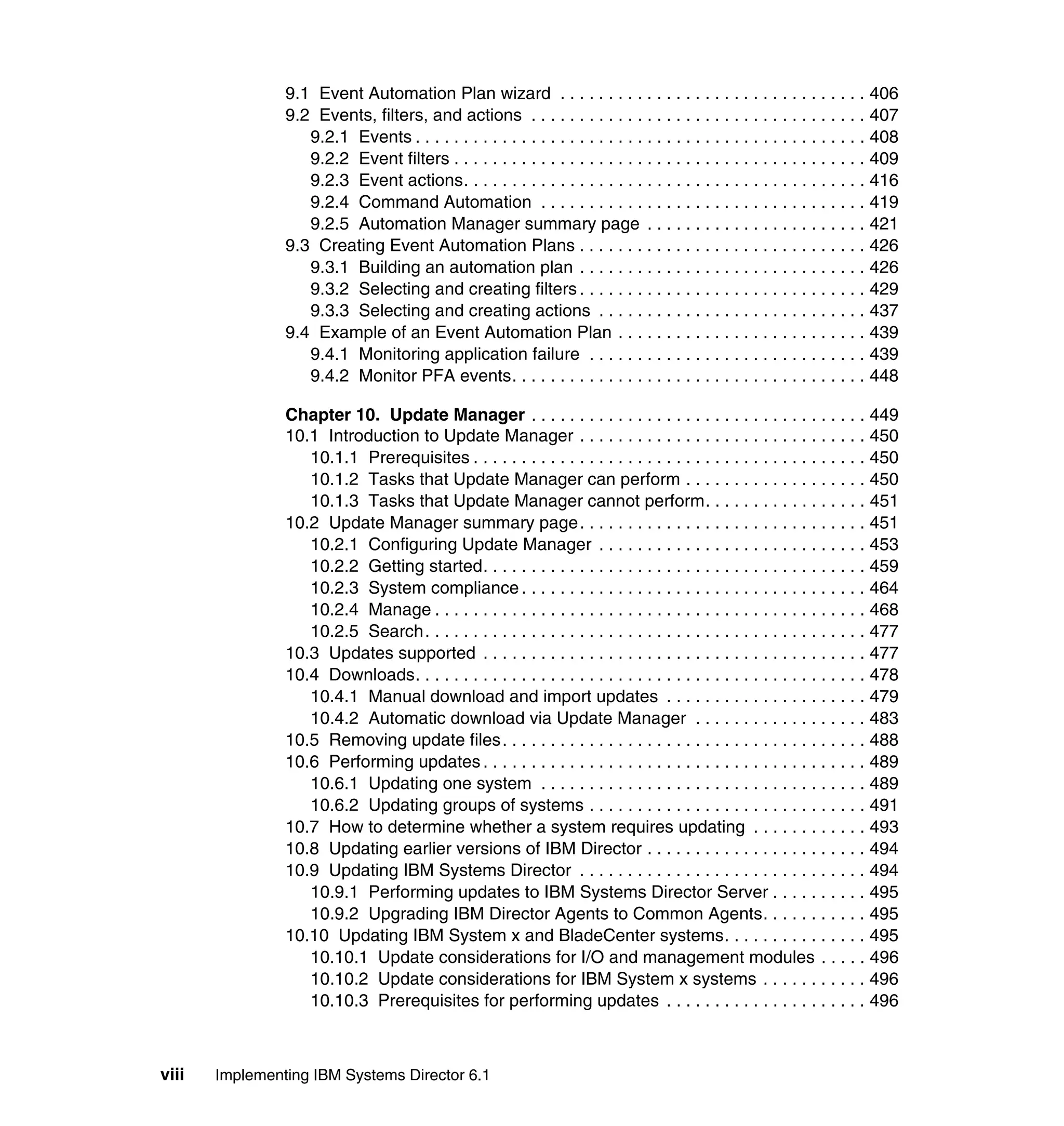
9.1 Event Automation Plan wizard . . . . . . . . . . . . . . . . . . . . . . . . . . . . . . . . 406
9.2 Events, filters, and actions . . . . . . . . . . . . . . . . . . . . . . . . . . . . . . . . . . . 407
9.2.1 Events . . . . . . . . . . . . . . . . . . . . . . . . . . . . . . . . . . . . . . . . . . . . . . . 408
9.2.2 Event filters . . . . . . . . . . . . . . . . . . . . . . . . . . . . . . . . . . . . . . . . . . . 409
9.2.3 Event actions. . . . . . . . . . . . . . . . . . . . . . . . . . . . . . . . . . . . . . . . . . 416
9.2.4 Command Automation . . . . . . . . . . . . . . . . . . . . . . . . . . . . . . . . . . 419
9.2.5 Automation Manager summary page . . . . . . . . . . . . . . . . . . . . . . . 421
9.3 Creating Event Automation Plans . . . . . . . . . . . . . . . . . . . . . . . . . . . . . . 426
9.3.1 Building an automation plan . . . . . . . . . . . . . . . . . . . . . . . . . . . . . . 426
9.3.2 Selecting and creating filters . . . . . . . . . . . . . . . . . . . . . . . . . . . . . . 429
9.3.3 Selecting and creating actions . . . . . . . . . . . . . . . . . . . . . . . . . . . . 437
9.4 Example of an Event Automation Plan . . . . . . . . . . . . . . . . . . . . . . . . . . 439
9.4.1 Monitoring application failure . . . . . . . . . . . . . . . . . . . . . . . . . . . . . 439
9.4.2 Monitor PFA events. . . . . . . . . . . . . . . . . . . . . . . . . . . . . . . . . . . . . 448
Chapter 10. Update Manager . . . . . . . . . . . . . . . . . . . . . . . . . . . . . . . . . . . 449
10.1 Introduction to Update Manager . . . . . . . . . . . . . . . . . . . . . . . . . . . . . . 450
10.1.1 Prerequisites . . . . . . . . . . . . . . . . . . . . . . . . . . . . . . . . . . . . . . . . . 450
10.1.2 Tasks that Update Manager can perform . . . . . . . . . . . . . . . . . . . 450
10.1.3 Tasks that Update Manager cannot perform. . . . . . . . . . . . . . . . . 451
10.2 Update Manager summary page. . . . . . . . . . . . . . . . . . . . . . . . . . . . . . 451
10.2.1 Configuring Update Manager . . . . . . . . . . . . . . . . . . . . . . . . . . . . 453
10.2.2 Getting started. . . . . . . . . . . . . . . . . . . . . . . . . . . . . . . . . . . . . . . . 459
10.2.3 System compliance . . . . . . . . . . . . . . . . . . . . . . . . . . . . . . . . . . . . 464
10.2.4 Manage . . . . . . . . . . . . . . . . . . . . . . . . . . . . . . . . . . . . . . . . . . . . . 468
10.2.5 Search. . . . . . . . . . . . . . . . . . . . . . . . . . . . . . . . . . . . . . . . . . . . . . 477
10.3 Updates supported . . . . . . . . . . . . . . . . . . . . . . . . . . . . . . . . . . . . . . . . 477
10.4 Downloads. . . . . . . . . . . . . . . . . . . . . . . . . . . . . . . . . . . . . . . . . . . . . . . 478
10.4.1 Manual download and import updates . . . . . . . . . . . . . . . . . . . . . 479
10.4.2 Automatic download via Update Manager . . . . . . . . . . . . . . . . . . 483
10.5 Removing update files. . . . . . . . . . . . . . . . . . . . . . . . . . . . . . . . . . . . . . 488
10.6 Performing updates . . . . . . . . . . . . . . . . . . . . . . . . . . . . . . . . . . . . . . . . 489
10.6.1 Updating one system . . . . . . . . . . . . . . . . . . . . . . . . . . . . . . . . . . 489
10.6.2 Updating groups of systems . . . . . . . . . . . . . . . . . . . . . . . . . . . . . 491
10.7 How to determine whether a system requires updating . . . . . . . . . . . . 493
10.8 Updating earlier versions of IBM Director . . . . . . . . . . . . . . . . . . . . . . . 494
10.9 Updating IBM Systems Director . . . . . . . . . . . . . . . . . . . . . . . . . . . . . . 494
10.9.1 Performing updates to IBM Systems Director Server . . . . . . . . . . 495
10.9.2 Upgrading IBM Director Agents to Common Agents. . . . . . . . . . . 495
10.10 Updating IBM System x and BladeCenter systems. . . . . . . . . . . . . . . 495
10.10.1 Update considerations for I/O and management modules . . . . . 496
10.10.2 Update considerations for IBM System x systems . . . . . . . . . . . 496
10.10.3 Prerequisites for performing updates . . . . . . . . . . . . . . . . . . . . . 496
Contents ix
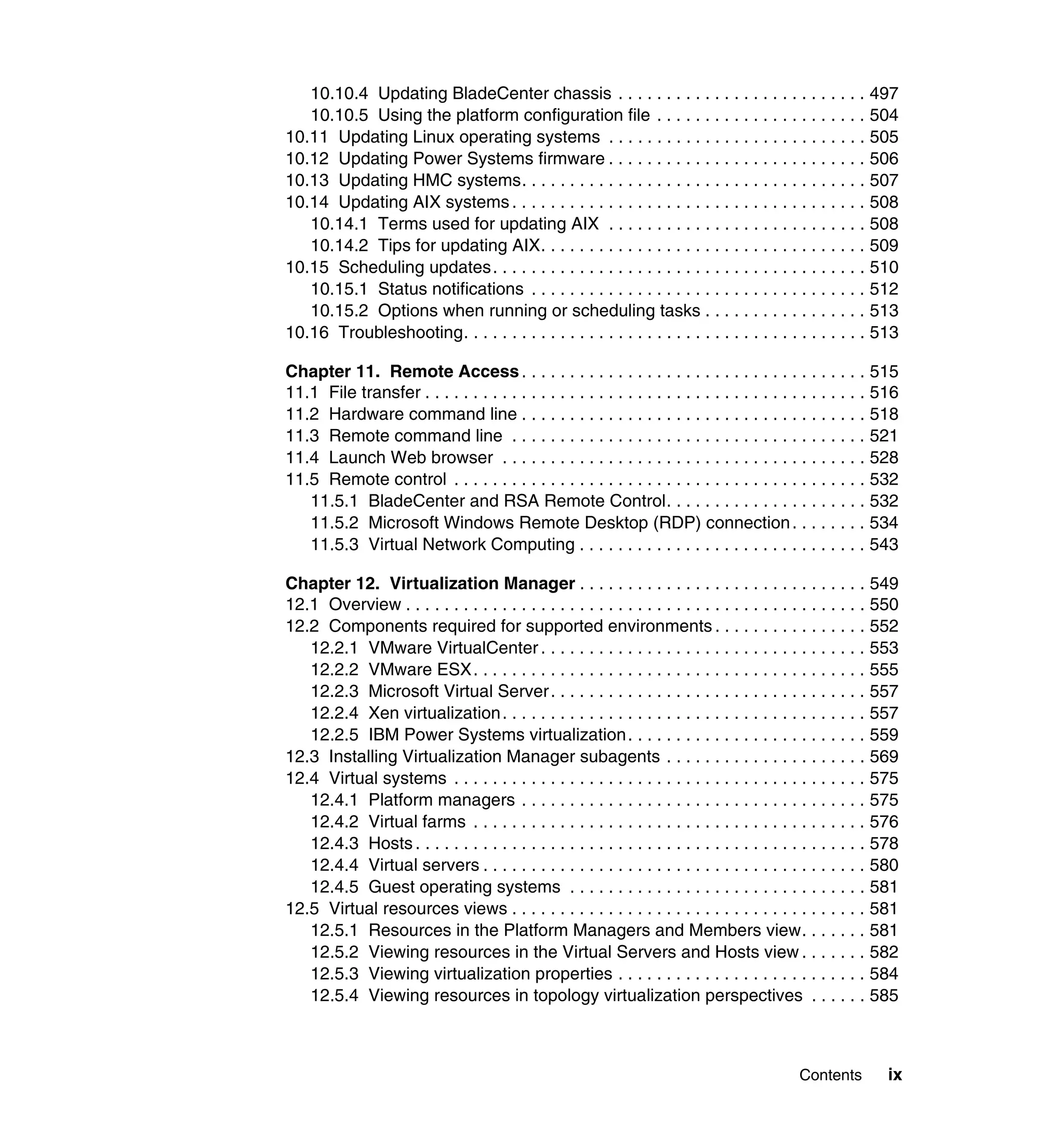
10.10.4 Updating BladeCenter chassis . . . . . . . . . . . . . . . . . . . . . . . . . . 497
10.10.5 Using the platform configuration file . . . . . . . . . . . . . . . . . . . . . . 504
10.11 Updating Linux operating systems . . . . . . . . . . . . . . . . . . . . . . . . . . . 505
10.12 Updating Power Systems firmware . . . . . . . . . . . . . . . . . . . . . . . . . . . 506
10.13 Updating HMC systems. . . . . . . . . . . . . . . . . . . . . . . . . . . . . . . . . . . . 507
10.14 Updating AIX systems . . . . . . . . . . . . . . . . . . . . . . . . . . . . . . . . . . . . . 508
10.14.1 Terms used for updating AIX . . . . . . . . . . . . . . . . . . . . . . . . . . . 508
10.14.2 Tips for updating AIX. . . . . . . . . . . . . . . . . . . . . . . . . . . . . . . . . . 509
10.15 Scheduling updates. . . . . . . . . . . . . . . . . . . . . . . . . . . . . . . . . . . . . . . 510
10.15.1 Status notifications . . . . . . . . . . . . . . . . . . . . . . . . . . . . . . . . . . . 512
10.15.2 Options when running or scheduling tasks . . . . . . . . . . . . . . . . . 513
10.16 Troubleshooting. . . . . . . . . . . . . . . . . . . . . . . . . . . . . . . . . . . . . . . . . . 513
Chapter 11. Remote Access. . . . . . . . . . . . . . . . . . . . . . . . . . . . . . . . . . . . 515
11.1 File transfer . . . . . . . . . . . . . . . . . . . . . . . . . . . . . . . . . . . . . . . . . . . . . . 516
11.2 Hardware command line . . . . . . . . . . . . . . . . . . . . . . . . . . . . . . . . . . . . 518
11.3 Remote command line . . . . . . . . . . . . . . . . . . . . . . . . . . . . . . . . . . . . . 521
11.4 Launch Web browser . . . . . . . . . . . . . . . . . . . . . . . . . . . . . . . . . . . . . . 528
11.5 Remote control . . . . . . . . . . . . . . . . . . . . . . . . . . . . . . . . . . . . . . . . . . . 532
11.5.1 BladeCenter and RSA Remote Control. . . . . . . . . . . . . . . . . . . . . 532
11.5.2 Microsoft Windows Remote Desktop (RDP) connection. . . . . . . . 534
11.5.3 Virtual Network Computing . . . . . . . . . . . . . . . . . . . . . . . . . . . . . . 543
Chapter 12. Virtualization Manager . . . . . . . . . . . . . . . . . . . . . . . . . . . . . . 549
12.1 Overview . . . . . . . . . . . . . . . . . . . . . . . . . . . . . . . . . . . . . . . . . . . . . . . . 550
12.2 Components required for supported environments . . . . . . . . . . . . . . . . 552
12.2.1 VMware VirtualCenter . . . . . . . . . . . . . . . . . . . . . . . . . . . . . . . . . . 553
12.2.2 VMware ESX. . . . . . . . . . . . . . . . . . . . . . . . . . . . . . . . . . . . . . . . . 555
12.2.3 Microsoft Virtual Server. . . . . . . . . . . . . . . . . . . . . . . . . . . . . . . . . 557
12.2.4 Xen virtualization. . . . . . . . . . . . . . . . . . . . . . . . . . . . . . . . . . . . . . 557
12.2.5 IBM Power Systems virtualization. . . . . . . . . . . . . . . . . . . . . . . . . 559
12.3 Installing Virtualization Manager subagents . . . . . . . . . . . . . . . . . . . . . 569
12.4 Virtual systems . . . . . . . . . . . . . . . . . . . . . . . . . . . . . . . . . . . . . . . . . . . 575
12.4.1 Platform managers . . . . . . . . . . . . . . . . . . . . . . . . . . . . . . . . . . . . 575
12.4.2 Virtual farms . . . . . . . . . . . . . . . . . . . . . . . . . . . . . . . . . . . . . . . . . 576
12.4.3 Hosts . . . . . . . . . . . . . . . . . . . . . . . . . . . . . . . . . . . . . . . . . . . . . . . 578
12.4.4 Virtual servers . . . . . . . . . . . . . . . . . . . . . . . . . . . . . . . . . . . . . . . . 580
12.4.5 Guest operating systems . . . . . . . . . . . . . . . . . . . . . . . . . . . . . . . 581
12.5 Virtual resources views . . . . . . . . . . . . . . . . . . . . . . . . . . . . . . . . . . . . . 581
12.5.1 Resources in the Platform Managers and Members view. . . . . . . 581
12.5.2 Viewing resources in the Virtual Servers and Hosts view . . . . . . . 582
12.5.3 Viewing virtualization properties . . . . . . . . . . . . . . . . . . . . . . . . . . 584
12.5.4 Viewing resources in topology virtualization perspectives . . . . . . 585
x Implementing IBM Systems Director 6.1
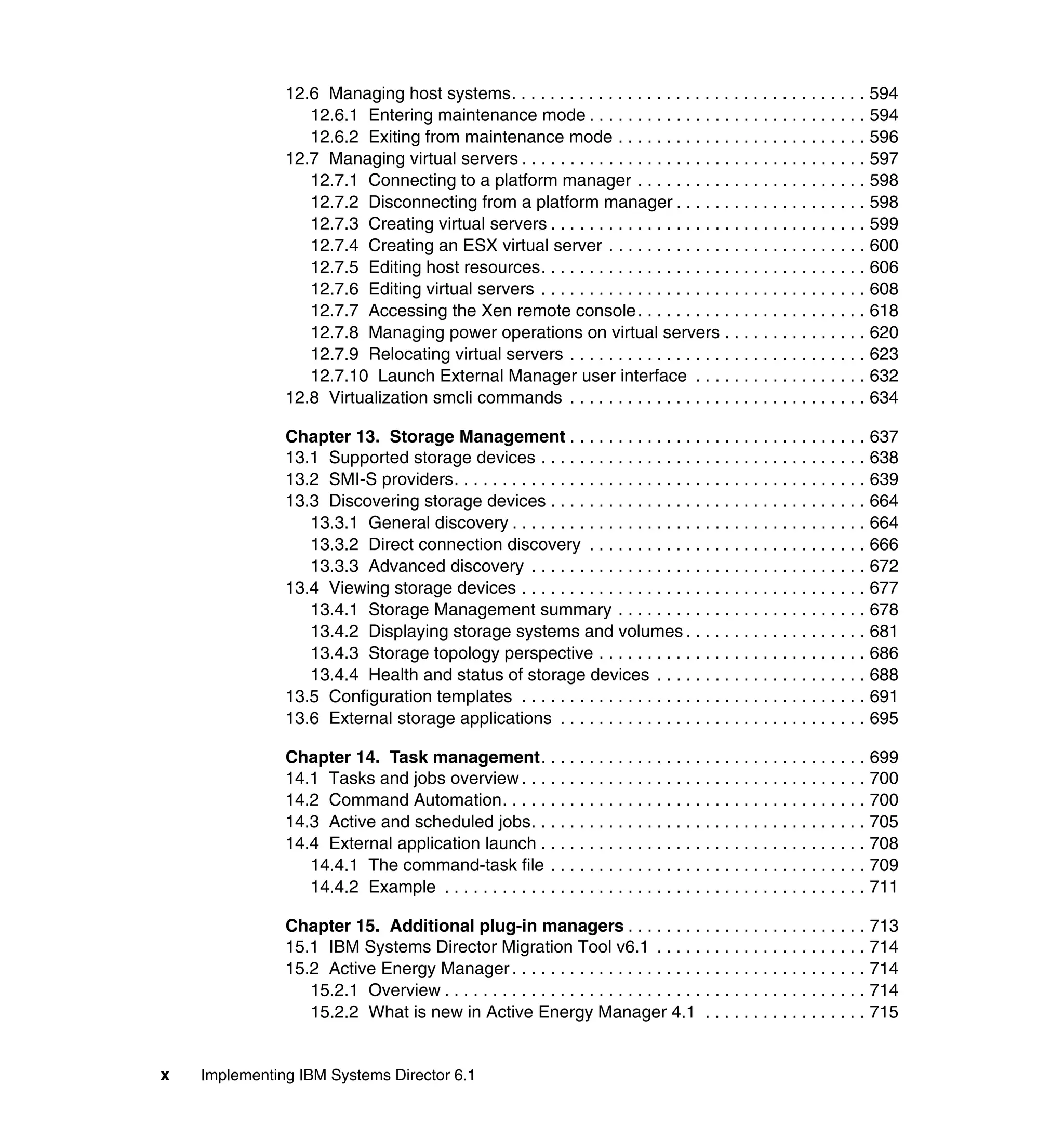
12.6 Managing host systems. . . . . . . . . . . . . . . . . . . . . . . . . . . . . . . . . . . . . 594
12.6.1 Entering maintenance mode . . . . . . . . . . . . . . . . . . . . . . . . . . . . . 594
12.6.2 Exiting from maintenance mode . . . . . . . . . . . . . . . . . . . . . . . . . . 596
12.7 Managing virtual servers . . . . . . . . . . . . . . . . . . . . . . . . . . . . . . . . . . . . 597
12.7.1 Connecting to a platform manager . . . . . . . . . . . . . . . . . . . . . . . . 598
12.7.2 Disconnecting from a platform manager . . . . . . . . . . . . . . . . . . . . 598
12.7.3 Creating virtual servers . . . . . . . . . . . . . . . . . . . . . . . . . . . . . . . . . 599
12.7.4 Creating an ESX virtual server . . . . . . . . . . . . . . . . . . . . . . . . . . . 600
12.7.5 Editing host resources. . . . . . . . . . . . . . . . . . . . . . . . . . . . . . . . . . 606
12.7.6 Editing virtual servers . . . . . . . . . . . . . . . . . . . . . . . . . . . . . . . . . . 608
12.7.7 Accessing the Xen remote console. . . . . . . . . . . . . . . . . . . . . . . . 618
12.7.8 Managing power operations on virtual servers . . . . . . . . . . . . . . . 620
12.7.9 Relocating virtual servers . . . . . . . . . . . . . . . . . . . . . . . . . . . . . . . 623
12.7.10 Launch External Manager user interface . . . . . . . . . . . . . . . . . . 632
12.8 Virtualization smcli commands . . . . . . . . . . . . . . . . . . . . . . . . . . . . . . . 634
Chapter 13. Storage Management . . . . . . . . . . . . . . . . . . . . . . . . . . . . . . . 637
13.1 Supported storage devices . . . . . . . . . . . . . . . . . . . . . . . . . . . . . . . . . . 638
13.2 SMI-S providers. . . . . . . . . . . . . . . . . . . . . . . . . . . . . . . . . . . . . . . . . . . 639
13.3 Discovering storage devices . . . . . . . . . . . . . . . . . . . . . . . . . . . . . . . . . 664
13.3.1 General discovery . . . . . . . . . . . . . . . . . . . . . . . . . . . . . . . . . . . . . 664
13.3.2 Direct connection discovery . . . . . . . . . . . . . . . . . . . . . . . . . . . . . 666
13.3.3 Advanced discovery . . . . . . . . . . . . . . . . . . . . . . . . . . . . . . . . . . . 672
13.4 Viewing storage devices . . . . . . . . . . . . . . . . . . . . . . . . . . . . . . . . . . . . 677
13.4.1 Storage Management summary . . . . . . . . . . . . . . . . . . . . . . . . . . 678
13.4.2 Displaying storage systems and volumes . . . . . . . . . . . . . . . . . . . 681
13.4.3 Storage topology perspective . . . . . . . . . . . . . . . . . . . . . . . . . . . . 686
13.4.4 Health and status of storage devices . . . . . . . . . . . . . . . . . . . . . . 688
13.5 Configuration templates . . . . . . . . . . . . . . . . . . . . . . . . . . . . . . . . . . . . 691
13.6 External storage applications . . . . . . . . . . . . . . . . . . . . . . . . . . . . . . . . 695
Chapter 14. Task management. . . . . . . . . . . . . . . . . . . . . . . . . . . . . . . . . . 699
14.1 Tasks and jobs overview . . . . . . . . . . . . . . . . . . . . . . . . . . . . . . . . . . . . 700
14.2 Command Automation. . . . . . . . . . . . . . . . . . . . . . . . . . . . . . . . . . . . . . 700
14.3 Active and scheduled jobs. . . . . . . . . . . . . . . . . . . . . . . . . . . . . . . . . . . 705
14.4 External application launch . . . . . . . . . . . . . . . . . . . . . . . . . . . . . . . . . . 708
14.4.1 The command-task file . . . . . . . . . . . . . . . . . . . . . . . . . . . . . . . . . 709
14.4.2 Example . . . . . . . . . . . . . . . . . . . . . . . . . . . . . . . . . . . . . . . . . . . . 711
Chapter 15. Additional plug-in managers . . . . . . . . . . . . . . . . . . . . . . . . . 713
15.1 IBM Systems Director Migration Tool v6.1 . . . . . . . . . . . . . . . . . . . . . . 714
15.2 Active Energy Manager . . . . . . . . . . . . . . . . . . . . . . . . . . . . . . . . . . . . . 714
15.2.1 Overview . . . . . . . . . . . . . . . . . . . . . . . . . . . . . . . . . . . . . . . . . . . . 714
15.2.2 What is new in Active Energy Manager 4.1 . . . . . . . . . . . . . . . . . 715
Contents xi
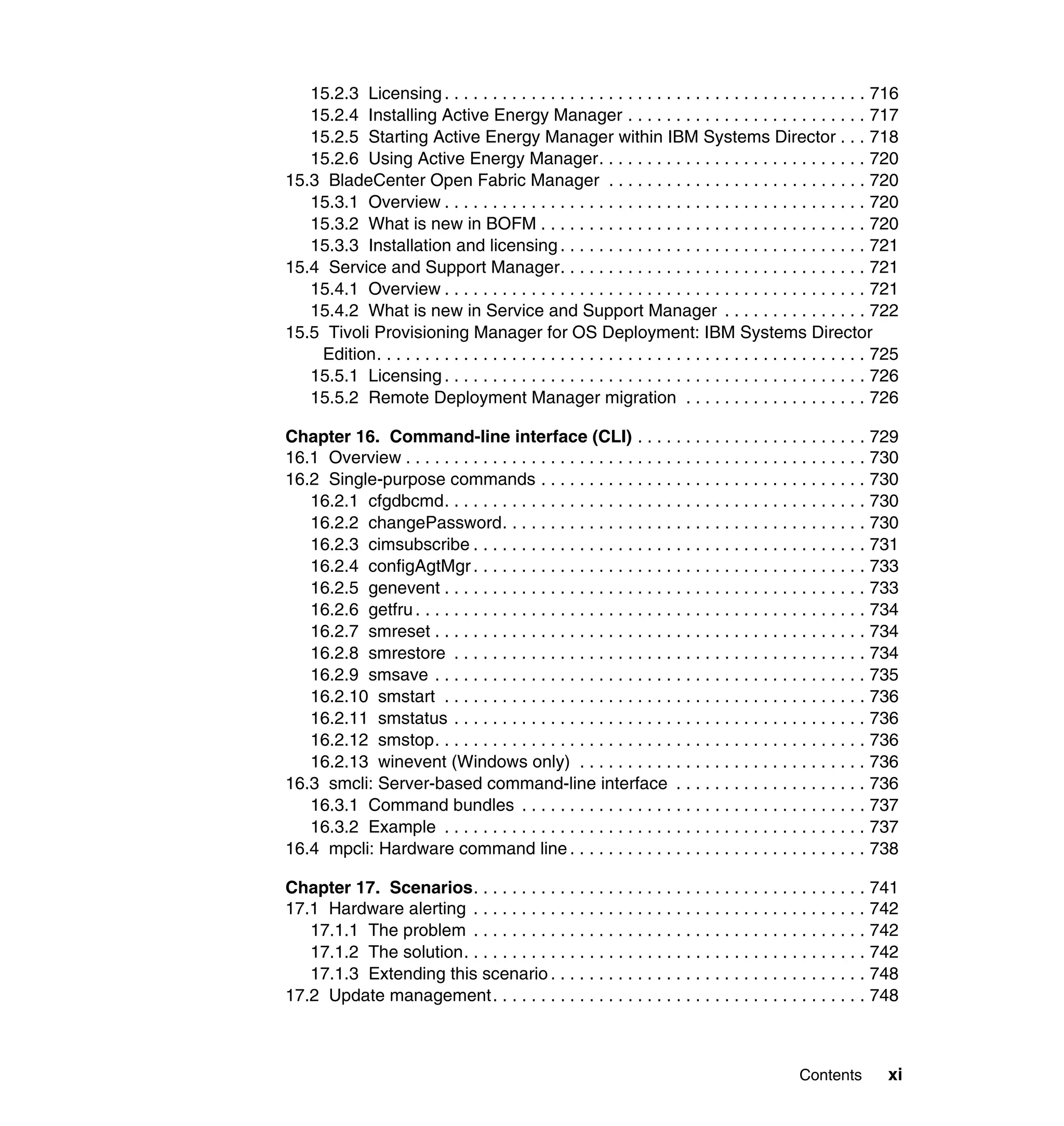
15.2.3 Licensing. . . . . . . . . . . . . . . . . . . . . . . . . . . . . . . . . . . . . . . . . . . . 716
15.2.4 Installing Active Energy Manager . . . . . . . . . . . . . . . . . . . . . . . . . 717
15.2.5 Starting Active Energy Manager within IBM Systems Director . . . 718
15.2.6 Using Active Energy Manager. . . . . . . . . . . . . . . . . . . . . . . . . . . . 720
15.3 BladeCenter Open Fabric Manager . . . . . . . . . . . . . . . . . . . . . . . . . . . 720
15.3.1 Overview . . . . . . . . . . . . . . . . . . . . . . . . . . . . . . . . . . . . . . . . . . . . 720
15.3.2 What is new in BOFM . . . . . . . . . . . . . . . . . . . . . . . . . . . . . . . . . . 720
15.3.3 Installation and licensing . . . . . . . . . . . . . . . . . . . . . . . . . . . . . . . . 721
15.4 Service and Support Manager. . . . . . . . . . . . . . . . . . . . . . . . . . . . . . . . 721
15.4.1 Overview . . . . . . . . . . . . . . . . . . . . . . . . . . . . . . . . . . . . . . . . . . . . 721
15.4.2 What is new in Service and Support Manager . . . . . . . . . . . . . . . 722
15.5 Tivoli Provisioning Manager for OS Deployment: IBM Systems Director
Edition. . . . . . . . . . . . . . . . . . . . . . . . . . . . . . . . . . . . . . . . . . . . . . . . . . . 725
15.5.1 Licensing. . . . . . . . . . . . . . . . . . . . . . . . . . . . . . . . . . . . . . . . . . . . 726
15.5.2 Remote Deployment Manager migration . . . . . . . . . . . . . . . . . . . 726
Chapter 16. Command-line interface (CLI) . . . . . . . . . . . . . . . . . . . . . . . . 729
16.1 Overview . . . . . . . . . . . . . . . . . . . . . . . . . . . . . . . . . . . . . . . . . . . . . . . . 730
16.2 Single-purpose commands . . . . . . . . . . . . . . . . . . . . . . . . . . . . . . . . . . 730
16.2.1 cfgdbcmd. . . . . . . . . . . . . . . . . . . . . . . . . . . . . . . . . . . . . . . . . . . . 730
16.2.2 changePassword. . . . . . . . . . . . . . . . . . . . . . . . . . . . . . . . . . . . . . 730
16.2.3 cimsubscribe . . . . . . . . . . . . . . . . . . . . . . . . . . . . . . . . . . . . . . . . . 731
16.2.4 configAgtMgr . . . . . . . . . . . . . . . . . . . . . . . . . . . . . . . . . . . . . . . . . 733
16.2.5 genevent . . . . . . . . . . . . . . . . . . . . . . . . . . . . . . . . . . . . . . . . . . . . 733
16.2.6 getfru. . . . . . . . . . . . . . . . . . . . . . . . . . . . . . . . . . . . . . . . . . . . . . . 734
16.2.7 smreset . . . . . . . . . . . . . . . . . . . . . . . . . . . . . . . . . . . . . . . . . . . . . 734
16.2.8 smrestore . . . . . . . . . . . . . . . . . . . . . . . . . . . . . . . . . . . . . . . . . . . 734
16.2.9 smsave . . . . . . . . . . . . . . . . . . . . . . . . . . . . . . . . . . . . . . . . . . . . . 735
16.2.10 smstart . . . . . . . . . . . . . . . . . . . . . . . . . . . . . . . . . . . . . . . . . . . . 736
16.2.11 smstatus . . . . . . . . . . . . . . . . . . . . . . . . . . . . . . . . . . . . . . . . . . . 736
16.2.12 smstop. . . . . . . . . . . . . . . . . . . . . . . . . . . . . . . . . . . . . . . . . . . . . 736
16.2.13 winevent (Windows only) . . . . . . . . . . . . . . . . . . . . . . . . . . . . . . 736
16.3 smcli: Server-based command-line interface . . . . . . . . . . . . . . . . . . . . 736
16.3.1 Command bundles . . . . . . . . . . . . . . . . . . . . . . . . . . . . . . . . . . . . 737
16.3.2 Example . . . . . . . . . . . . . . . . . . . . . . . . . . . . . . . . . . . . . . . . . . . . 737
16.4 mpcli: Hardware command line . . . . . . . . . . . . . . . . . . . . . . . . . . . . . . . 738
Chapter 17. Scenarios. . . . . . . . . . . . . . . . . . . . . . . . . . . . . . . . . . . . . . . . . 741
17.1 Hardware alerting . . . . . . . . . . . . . . . . . . . . . . . . . . . . . . . . . . . . . . . . . 742
17.1.1 The problem . . . . . . . . . . . . . . . . . . . . . . . . . . . . . . . . . . . . . . . . . 742
17.1.2 The solution. . . . . . . . . . . . . . . . . . . . . . . . . . . . . . . . . . . . . . . . . . 742
17.1.3 Extending this scenario . . . . . . . . . . . . . . . . . . . . . . . . . . . . . . . . . 748
17.2 Update management. . . . . . . . . . . . . . . . . . . . . . . . . . . . . . . . . . . . . . . 748
xii Implementing IBM Systems Director 6.1
17.2.1 The problem . . . . . . . . . . . . . . . . . . . . . . . . . . . . . . . . . . . . . . . . . 749
17.2.2 The solution. . . . . . . . . . . . . . . . . . . . . . . . . . . . . . . . . . . . . . . . . . 749
17.2.3 Extending this scenario . . . . . . . . . . . . . . . . . . . . . . . . . . . . . . . . . 755
17.3 Basic monitoring . . . . . . . . . . . . . . . . . . . . . . . . . . . . . . . . . . . . . . . . . . 756
17.3.1 The situation . . . . . . . . . . . . . . . . . . . . . . . . . . . . . . . . . . . . . . . . . 756
17.3.2 The solution. . . . . . . . . . . . . . . . . . . . . . . . . . . . . . . . . . . . . . . . . . 756
17.3.3 Extending this scenario . . . . . . . . . . . . . . . . . . . . . . . . . . . . . . . . . 762
17.4 Process management . . . . . . . . . . . . . . . . . . . . . . . . . . . . . . . . . . . . . . 763
17.4.1 The situation . . . . . . . . . . . . . . . . . . . . . . . . . . . . . . . . . . . . . . . . . 763
17.4.2 The solution. . . . . . . . . . . . . . . . . . . . . . . . . . . . . . . . . . . . . . . . . . 763
17.4.3 Extending this scenario . . . . . . . . . . . . . . . . . . . . . . . . . . . . . . . . . 769
17.5 Unattended installation . . . . . . . . . . . . . . . . . . . . . . . . . . . . . . . . . . . . . 769
17.5.1 The problem . . . . . . . . . . . . . . . . . . . . . . . . . . . . . . . . . . . . . . . . . 769
17.5.2 The solution. . . . . . . . . . . . . . . . . . . . . . . . . . . . . . . . . . . . . . . . . . 770
17.5.3 Extending this scenario . . . . . . . . . . . . . . . . . . . . . . . . . . . . . . . . . 788
17.6 Virtualization management . . . . . . . . . . . . . . . . . . . . . . . . . . . . . . . . . . 793
17.6.1 The problem . . . . . . . . . . . . . . . . . . . . . . . . . . . . . . . . . . . . . . . . . 793
17.6.2 The solution. . . . . . . . . . . . . . . . . . . . . . . . . . . . . . . . . . . . . . . . . . 794
17.6.3 Extending this scenario . . . . . . . . . . . . . . . . . . . . . . . . . . . . . . . . . 809
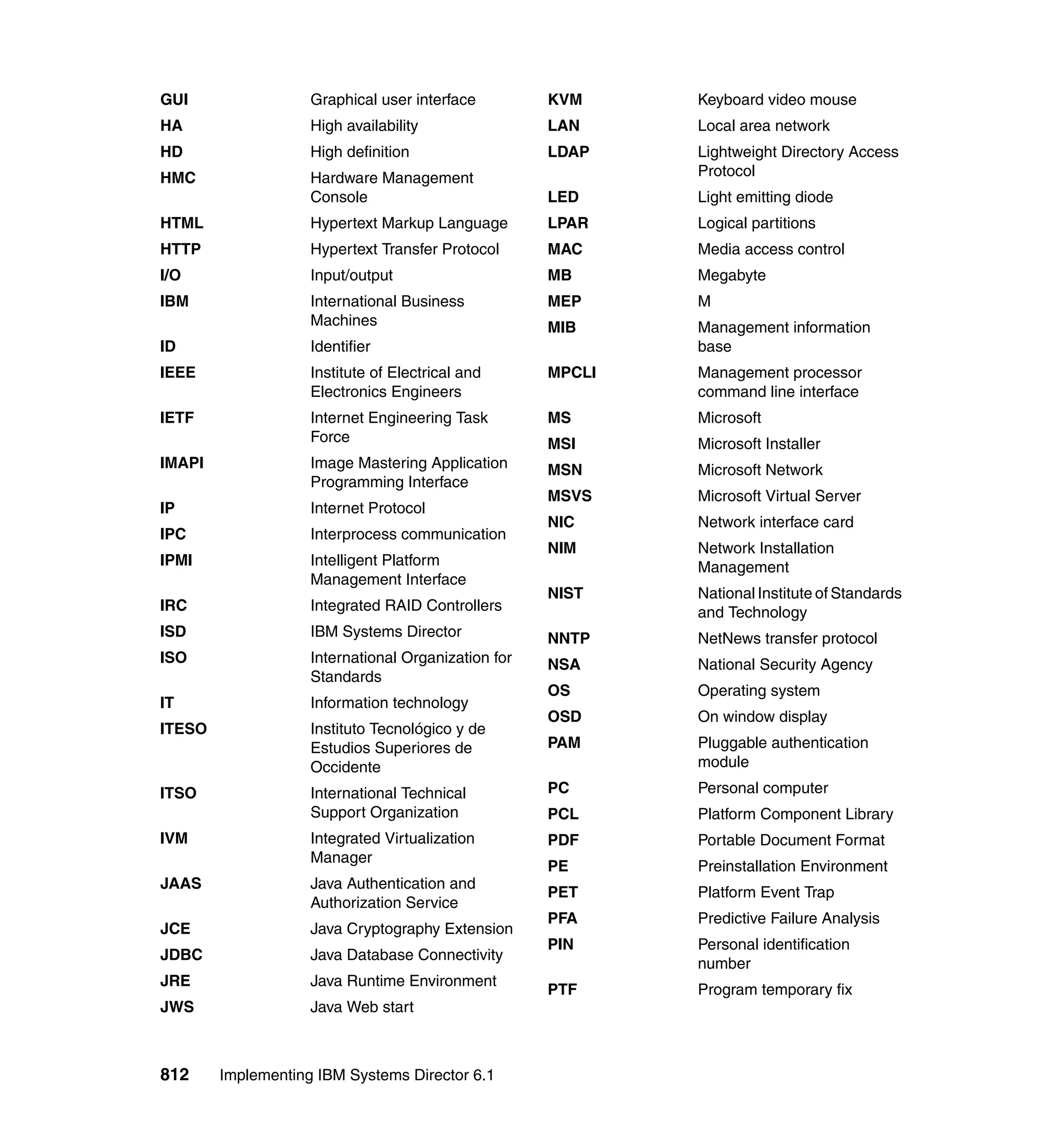
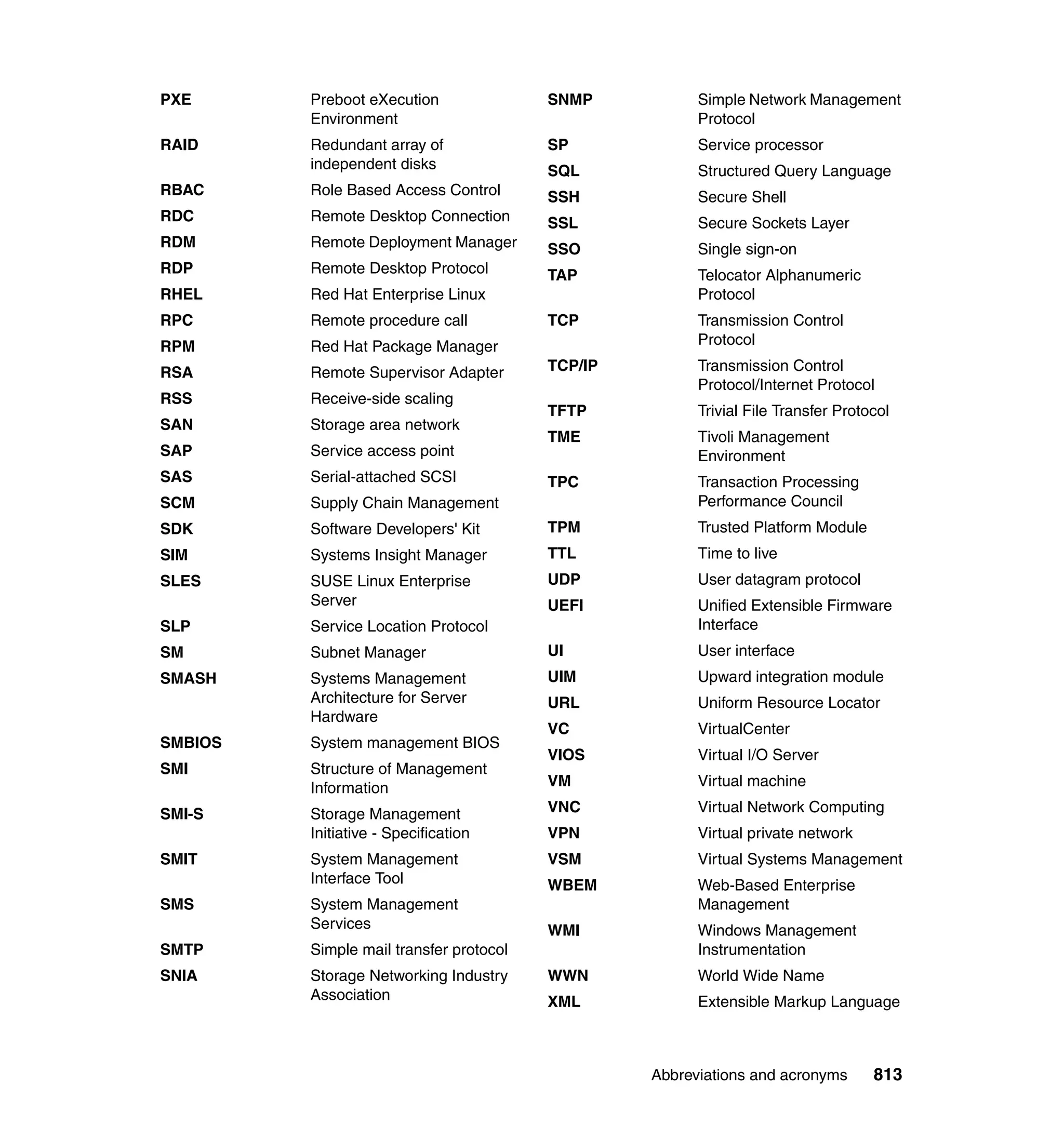
Abbreviations and acronyms . . . . . . . . . . . . . . . . . . . . . . . . . . . . . . . . . . . 811
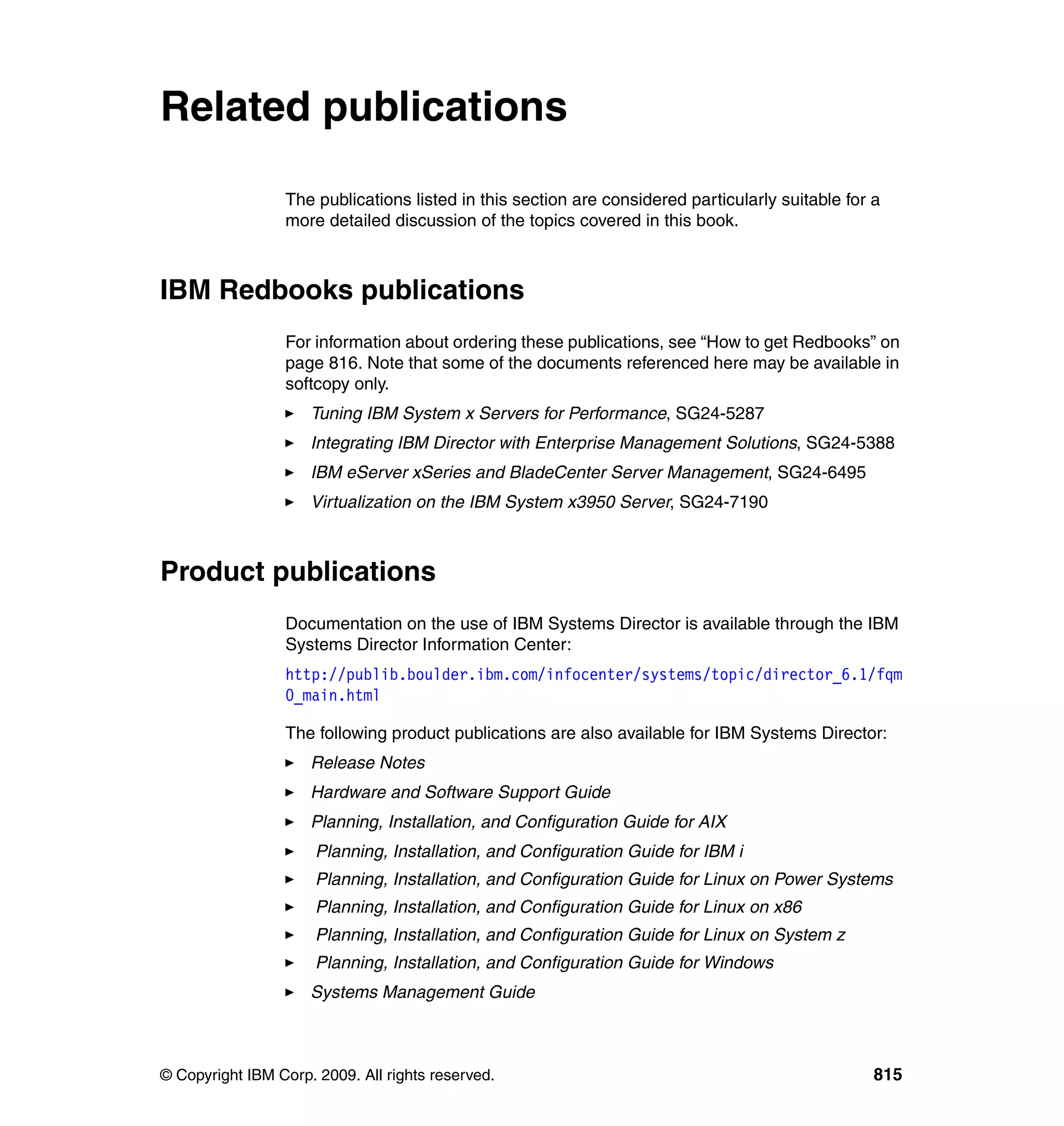
Related publications . . . . . . . . . . . . . . . . . . . . . . . . . . . . . . . . . . . . . . . . . . 815
IBM Redbooks publications . . . . . . . . . . . . . . . . . . . . . . . . . . . . . . . . . . . . . . 815
Product publications . . . . . . . . . . . . . . . . . . . . . . . . . . . . . . . . . . . . . . . . . . . . 815
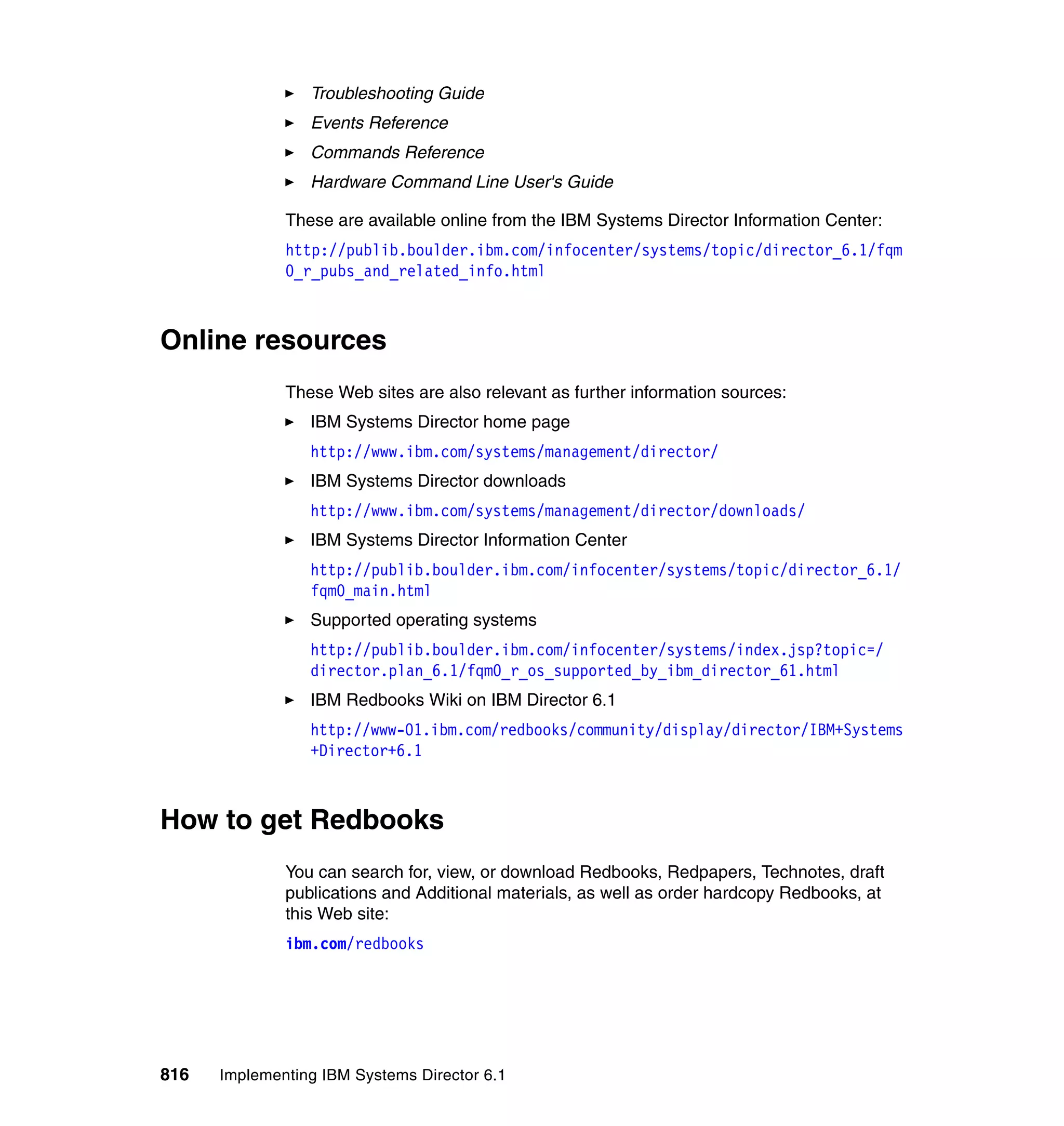
Online resources . . . . . . . . . . . . . . . . . . . . . . . . . . . . . . . . . . . . . . . . . . . . . . 816
How to get Redbooks . . . . . . . . . . . . . . . . . . . . . . . . . . . . . . . . . . . . . . . . . . . 816
Help from IBM . . . . . . . . . . . . . . . . . . . . . . . . . . . . . . . . . . . . . . . . . . . . . . . . 817
Index . . . . . . . . . . . . . . . . . . . . . . . . . . . . . . . . . . . . . . . . . . . . . . . . . . . . . . . 819
© Copyright IBM Corp. 2009. All rights reserved. xiii
Notices
This information was developed for products and services offered in the U.S.A.
IBM may not offer the products, services, or features discussed in this document in other countries. Consult
your local IBM representative for information about the products and services currently available in your
area. Any reference to an IBM product, program, or service is not intended to state or imply that only that
IBM product, program, or service may be used. Any functionally equivalent product, program, or service that
does not infringe any IBM intellectual property right may be used instead. However, it is the user's
responsibility to evaluate and verify the operation of any non-IBM product, program, or service.
IBM may have patents or pending patent applications covering subject matter described in this document.
The furnishing of this document does not give you any license to these patents. You can send license
inquiries, in writing, to:
IBM Director of Licensing, IBM Corporation, North Castle Drive, Armonk, NY 10504-1785 U.S.A.
The following paragraph does not apply to the United Kingdom or any other country where such
provisions are inconsistent with local law: INTERNATIONAL BUSINESS MACHINES CORPORATION
PROVIDES THIS PUBLICATION "AS IS" WITHOUT WARRANTY OF ANY KIND, EITHER EXPRESS OR
IMPLIED, INCLUDING, BUT NOT LIMITED TO, THE IMPLIED WARRANTIES OF NON-INFRINGEMENT,
MERCHANTABILITY OR FITNESS FOR A PARTICULAR PURPOSE. Some states do not allow disclaimer
of express or implied warranties in certain transactions, therefore, this statement may not apply to you.
This information could include technical inaccuracies or typographical errors. Changes are periodically made
to the information herein; these changes will be incorporated in new editions of the publication. IBM may
make improvements and/or changes in the product(s) and/or the program(s) described in this publication at
any time without notice.
Any references in this information to non-IBM Web sites are provided for convenience only and do not in any
manner serve as an endorsement of those Web sites. The materials at those Web sites are not part of the
materials for this IBM product and use of those Web sites is at your own risk.
IBM may use or distribute any of the information you supply in any way it believes appropriate without
incurring any obligation to you.
Information concerning non-IBM products was obtained from the suppliers of those products, their published
announcements or other publicly available sources. IBM has not tested those products and cannot confirm
the accuracy of performance, compatibility or any other claims related to non-IBM products. Questions on
the capabilities of non-IBM products should be addressed to the suppliers of those products.
This information contains examples of data and reports used in daily business operations. To illustrate them
as completely as possible, the examples include the names of individuals, companies, brands, and products.
All of these names are fictitious and any similarity to the names and addresses used by an actual business
enterprise is entirely coincidental.
COPYRIGHT LICENSE:
This information contains sample application programs in source language, which illustrate programming
techniques on various operating platforms. You may copy, modify, and distribute these sample programs in
any form without payment to IBM, for the purposes of developing, using, marketing or distributing application
programs conforming to the application programming interface for the operating platform for which the
sample programs are written. These examples have not been thoroughly tested under all conditions. IBM,
therefore, cannot guarantee or imply reliability, serviceability, or function of these programs.
xiv Implementing IBM Systems Director 6.1
Trademarks
IBM, the IBM logo, and ibm.com are trademarks or registered trademarks of International Business
Machines Corporation in the United States, other countries, or both. These and other IBM trademarked
terms are marked on their first occurrence in this information with the appropriate symbol (® or ™),
indicating US registered or common law trademarks owned by IBM at the time this information was
published. Such trademarks may also be registered or common law trademarks in other countries. A current
list of IBM trademarks is available on the Web at http://www.ibm.com/legal/copytrade.shtml
The following terms are trademarks of the International Business Machines Corporation in the United States,
other countries, or both:
AIX 5L™
AIX®
BladeCenter®
DB2 Universal Database™
DB2®
Domino®
DPI®
DS4000®
DS6000™
DS8000®
Electronic Service Agent™
Enterprise Storage Server®
eServer™
i5/OS®
IBM Systems Director Active
Energy Manager™
IBM®
Netcool®
Netfinity®
NetView®
OpenPower®
Power Architecture®
Power Systems™
POWER5™
POWER6™
PowerVM™
Redbooks®
Redbooks (logo) ®
ServerProven®
ServicePac®
System i®
System p5®
System p®
System Storage™
System x®
System z®
Tivoli Enterprise Console®
Tivoli®
TotalStorage®
WebSphere®
xSeries®
z/OS®
z/VM®
The following terms are trademarks of other companies:
InfiniBand, and the InfiniBand design marks are trademarks and/or service marks of the InfiniBand Trade
Association.
SUSE, the Novell logo, and the N logo are registered trademarks of Novell, Inc. in the United States and
other countries.
Oracle, JD Edwards, PeopleSoft, Siebel, and TopLink are registered trademarks of Oracle Corporation
and/or its affiliates.
QLogic, and the QLogic logo are registered trademarks of QLogic Corporation. SANblade is a registered
trademark in the United States.
Interchange, Red Hat, and the Shadowman logo are trademarks or registered trademarks of Red Hat, Inc. in
the U.S. and other countries.
VMotion, VMware, the VMware "boxes" logo and design are registered trademarks or trademarks of
VMware, Inc. in the United States and/or other jurisdictions.
Java, JavaScript, JDBC, JDK, JRE, Solaris, and all Java-based trademarks are trademarks of Sun
Microsystems, Inc. in the United States, other countries, or both.
Active Directory, Hyper-V, Internet Explorer, Microsoft, MSN, MS, SQL Server, Visual C++, Windows Media,
Windows Server, Windows, and the Windows logo are trademarks of Microsoft Corporation in the United
States, other countries, or both.
Notices xv
Intel Itanium, Intel, Itanium, Intel logo, Intel Inside logo, and Intel Centrino logo are trademarks or registered
trademarks of Intel Corporation or its subsidiaries in the United States, other countries, or both.
UNIX is a registered trademark of The Open Group in the United States and other countries.
Linux is a trademark of Linus Torvalds in the United States, other countries, or both.
Other company, product, or service names may be trademarks or service marks of others.
xvi Implementing IBM Systems Director 6.1
© Copyright IBM Corp. 2009. All rights reserved. xvii
Preface
IBM Systems Director is a platform management foundation that streamlines the
way physical and virtual systems are managed across a multi-system
environment. Leveraging industry standards, IBM Systems Director supports
multiple operating systems and virtualization technologies across IBM® and
non-IBM platforms.
IBM Systems Director provides multi-system support for IBM Power Systems™,
Systems x, BladeCenter®, System z®, and Storage Systems, enabling
integration of IBM systems with the total infrastructure. IBM Systems Director
also manages non-IBM x86-based systems through a dedicated agent.
This IBM Redbooks® publication describes how to implement systems
management with IBM Systems Director 6.1, discussing IBM Systems Director
architecture, its adherence to industry standards, and the planning required for a
successful implementation.
This book helps you tailor and configure IBM Systems Director while showing
how to maximize your investment in IBM technology. This book is a companion
to the IBM Systems Director online publications and the product DVDs.
The team that wrote this book
This book was produced by a team of specialists from around the world working
at the International Technical Support Organization, Raleigh Center.
David Feisthammel works in the Executive Briefing Center at the IBM Center for
Microsoft® Technologies in Kirkland, Washington. He is the System x® and
BladeCenter Systems Management Specialist there and regularly presents and
demonstrates IBM management products and solutions to customers. He has
over 17 years of experience in the IT field, including four years as an IBM client.
He worked in Raleigh for two years as a Program Manager and Worldwide
Product Manager for Netfinity® Director, IBM Director, and related products. He
holds a degree in Biological Sciences from Northwestern University. His area of
expertise is systems management, including IBM Director, Microsoft System
Center, and IBM Advanced System Management hardware. He was a co-author
of the previous two versions of this book.
Lesley Bain works for the European Advanced Technical Sales Support
organization and is based in Greenock, Scotland. She is responsible for
xviii Implementing IBM Systems Director 6.1
demonstrating, educating, and implementing systems management solutions for
customers. She has eight years of experience working in sales support and five
years of experience working for the IBM Server Development and Test
Organization. She has a degree in Computing Information Systems from
Glasgow Caledonian University. Her areas of expertise is IBM System x and
BladeCenter systems management hardware, including RSAII, BMC, and
BladeCenter Management Modules, and IBM Systems Management software,
including the IBM Director and IBM Systems Director solutions.
Paul Engel is a Consulting IT Specialist and IBM System x and BladeCenter
Systems Engineer in the United States. He has over 25 years of experience in
various computer fields including software development, systems design and
implementation, and computer training. He holds certifications from Microsoft
and VMware®, as well as being a Certified Advanced Technical Expert from IBM.
His areas of expertise include systems management, overall systems
performance, and training. He has written and spoken extensively on real-world
implementation of computer systems and systems management solutions.
Shripad Nadgowda is a Software Engineer working at System and Technology
Group in IBM Pune, India. He holds a Bachelor of Engineering degree in
Information Technology from Pune University. He has worked with IBM since
2006 as a Systems Software Developer. He has authored one IEEE paper and
two Invention Disclosures. His areas of expertise are Storage and Systems
Management and IBM Systems management solutions. He is currently involved
in development efforts for IBM Systems Director Transition Manager.
Jesus Sahagun is a Software Engineer and Test Leader working for the STG
Mexico System and Technology Laboratory based in IBM Campus Guadalajara.
He has a degree in Electronic Engineering from ITESO Guadalajara University.
He has four years of experience working with IBM Director Systems
Management products and the IBM Virtualization Manager extension. His area of
expertise is IBM Virtualization Manager, with particular emphasis on VMware,
Xen, HMC, and IVM hypervisors managed by IBM Director Server running on
System x and System p® platforms.
David Watts is a Consulting IT Specialist at the IBM ITSO Center in Raleigh. He
manages residencies and produces Redbooks publications on hardware and
software topics related to IBM System x and BladeCenter servers and
associated client platforms. He has authored over 80 books, papers, and
technotes. He holds a Bachelor of Engineering degree from the University of
Queensland (Australia) and has worked for IBM for over 17 years. He is an IBM
Certified IT Specialist.
Preface xix
The team (left–right): David W., Lesley, Shripad, Dave F., Jesus, and Paul
Thanks to the following people for their contributions to this project:
From the ITSO:
Tamikia Barrow
Dave Bennin
Jim Cook
Linda Robinson
Margaret Ticknor
From IBM development:
Tony Abbondanzio
Sandip Amin
Eric Brown
Ramamohan Chennamsetty
Alan Hawkins
Dave Hubka
Rajat Jain
Gary Kennedy
Jake Kitchener
Jim Macon
Dan Moravec
Niraj Patel
Mark Privette
Sudhir Rao
Bahram Sanaei
Chip Vincent
Marc Vuilleumier
Nicholas Williamson
Abraham Woldemichael
xx Implementing IBM Systems Director 6.1
From IBM support:
Kenny Bain
Jason Brunson
Craig Elliott
Rick Ramos
From IBM marketing:
Suzanne Battenfeld
Paul Casterlin
Richard Mancini
Chuck Weber
Other people from around the world:
Mike Hurman, IBM South Africa
Become a published author
Join us for a two- to six-week residency program! Help write a book dealing with
specific products or solutions, while getting hands-on experience with
leading-edge technologies. You will have the opportunity to team with IBM
technical professionals, Business Partners, and Clients.
Your efforts will help increase product acceptance and customer satisfaction. As
a bonus, you will develop a network of contacts in IBM development labs, and
increase your productivity and marketability.
Find out more about the residency program, browse the residency index, and
apply online at:
ibm.com/redbooks/residencies.html
Preface xxi
Comments welcome
Your comments are important to us!
We want our books to be as helpful as possible. Send us your comments about
this book or other IBM Redbooks in one of the following ways:
Use the online Contact us review Redbooks form found at:
ibm.com/redbooks
Send your comments in an e-mail to:
redbooks@us.ibm.com
Mail your comments to:
IBM Corporation, International Technical Support Organization
Dept. HYTD Mail Station P099
2455 South Road
Poughkeepsie, NY 12601-5400
xxii Implementing IBM Systems Director 6.1
© Copyright IBM Corp. 2009. All rights reserved. 1
Chapter 1. Introduction
This chapter provides an overview of the IBM systems management solution and
the IBM Systems Director 6.1 offering. A product overview and licensing
summary is provided, along with a description of some of the main new features
of the latest release. It also provides a list of resources for additional information
about Systems Director, including where to obtain various related pieces of
software.
This chapter discusses the following topics:
1.1, “Overview” on page 2
1.2, “Industry standards” on page 3
1.3, “IBM Systems Director” on page 9
1.4, “What is new in IBM Systems Director 6.1” on page 17
1.5, “Common Agent Services” on page 35
1.6, “Systems Director resources” on page 46
1.7, “This book” on page 52
1
2 Implementing IBM Systems Director 6.1
1.1 Overview
Effective systems management is more important than ever as IT administrators
are faced with the daunting task of managing complex, heterogeneous IT
environments with fewer resources. Reducing the complexity with intuitive,
automated tools that simplify critical IT tasks and require less training is key to
helping customers face this challenge. The latest release of the IBM Director
product family represents the next generation in systems management tools
developed by IBM for its server customers. IBM Systems Director 6.1 enables IT
staff to reduce the complexity and costs associated with managing IT
environments. Systems Director’s new Web interface helps customers get
started faster and be more productive in less time, with enhancements that
improve ease of use.
Users are so dependent on their computer systems that they are increasingly
frustrated by system outages, print problems, and anything that keeps them from
being productive. They expect immediate assistance from the help desk or
support center to fix a problem or to show them how to use an application. IT
personnel are challenged to keep system availability high and to handle user
requests quickly and efficiently. Yet today, their environments are more complex
than ever, with diverse management tools that have no common characteristics
and little to no integration. This means that they can spend too much time
managing existing IT resources rather than working on other important problems.
IBM Systems Director’s Web and command-line interfaces provide a consistent
user environment focused on driving common systems management tasks and
functions. Moving forward, this same look and feel will become consistent across
many tools from IBM, including those offered by Tivoli®.
Systems Director enables monitoring and event management across
heterogeneous IT environments from a single browser-based user interface. IBM
Systems Director provides broad platform coverage, including Microsoft
Windows®, Intel® Linux®, Power Linux, AIX®, i5/OS®, IBM i, and System z
Linux environments across System p, System i®, System x, System z,
BladeCenter, and OpenPower®, as well as x86-based non-IBM hardware.
From one access point, users can monitor system environmentals, resources,
inventory, events, task management, core corrective actions, distributed
commands, and hardware control for both servers and storage. This IBM
Redbooks publication provides a detailed discussion of the new Web interface,
as well as important details concerning the implementation of the next generation
IBM release of its IBM Director product family.
Chapter 1. Introduction 3
1.2 Industry standards
It has often been said that the nice thing about industry standards is that there
are so many of them. This statement certainly is true regarding systems
management. A key underpinning of IBM Systems Director is the adherence to
industry standards for systems management.
IBM servers are instrumented to support many industry standards related to
systems management. IBM Systems Director supports these standards as well,
providing comprehensive cross-platform support. Since Systems Director is
based on industry standards, it can manage both IBM and non-IBM Intel
processor-based hardware. This is a huge benefit from the standpoint of
simplifying systems management of a heterogeneous environment.
A very brief summary of each systems management industry standard supported
by Systems Director is provided here.
1.2.1 Common Information Model
The Common Information Model (CIM), adopted and evolved by the Distributed
Management Task Force (DMTF), is a published systems management standard
and was developed in an open forum by DMTF member companies. Defined and
promoted as an industry standard for managing systems, CIM was designed to
be used for describing management information between differing management
applications, running in many different operating environments, including
Microsoft Windows and Linux. Detailed information about the CIM Specification
is available from the DMTF home page:
http://www.dmtf.org
CIM provides a common definition of management information for systems,
networks, applications, and services, and allows for vendor extensions. CIM’s
common definitions enable vendors to exchange rich management information
between systems throughout the network. CIM is composed of a specification
and a schema. The schema provides the actual model descriptions, while the
specification defines the details for integration with other management models.
CIM is used extensively throughout Systems Director. In fact, all management
function performed against Platform Agent is based entirely on CIM
instrumentation and providers. For more about information about Platform Agent
and its capabilities, see “Platform Agent” on page 14.
4 Implementing IBM Systems Director 6.1
1.2.2 Intelligent Platform Management Interface
Intelligent Platform Management Interface (IPMI) is a standardized, abstracted,
message-based interface developed by Intel that defines records for describing
platform management devices and their characteristics. This interface allows for
standard communication between systems management software such as IBM
Systems Director and IPMI-compliant system management hardware such as
IBM Baseboard Management Controllers (BMCs).
1.2.3 Platform Event Trap
A platform event is defined as an event that is originated directly from platform
firmware (Basic Input/Output System, or BIOS) or platform hardware
(application-specific integrated circuit (ASIC), chip set, or microcontroller)
independent of the state of the operating system or system management
hardware. The Platform Event Trap (PET) format is used for sending a platform
event in an Simple Network Management Protocol (SNMP) trap. The trap may be
directly issued from the platform or may be indirectly issued via a proxy (local or
remote) that acts on events or alternatively formatted traps from the platform.
The Platform Event Trap allows traps to be generated from various sources
including:
BIOS
Operating system (OS) bootstrap loader
Network interface card
System alert ASIC
System management micro-controller
System management software
Alert proxy software
Service Location Protocol
PET-formatted events are generated by BMC service processors found in IBM
System x hardware. Other IBM service processors, even on System x servers,
do not generate PET events.
1.2.4 Predictive Failure Analysis
Predictive Failure Analysis (PFA) gives key components in IBM System x servers
the ability to monitor their own health and generate an alert up to 48 hours before
failure occurs. This allows the system administrator to either hot swap the
component (if applicable) or schedule downtime at low-impact times for the
component to be changed or refreshed.
Chapter 1. Introduction 5
PFA code monitors certain subsystems within the component, and if tolerances
exceed a predetermined range, an alert is automatically generated. For example,
in hard disks, PFA code monitors:
Read/write errors
Fly height changes (the height of the disk head above the platter)
Torque amplification control (the amount of power used to keep the drive
spinning at a constant speed)
IBM implements PFA on more server components than any other vendor. The
System x components currently protected by PFA are:
CPUs
Memory
Hard disk drives
Voltage regulator modules
Power supply units
Fans
IBM is extremely confident in the PFA technology used in System x servers. If a
hardware component generates an alert within the warranty period of the
component, IBM will exchange the component on the basis of that alert rather
than wait for the failure to actually occur.
1.2.5 Service Location Protocol
The Service Location Protocol (SLP) was originally an Internet Engineering Task
Force (IETF) standards track protocol that provides a framework to allow
networking applications to discover the existence, location, and configuration of
networked services in enterprise networks. Traditionally, in order to locate
services in the network, users of network applications have been required to
supply the host name or network address of the machine that provides a desired
service. SLP eliminates the need for a user to know the name or address of a
network host supporting a service.
SLP is used to discover Platform Agent systems. For more about Platform Agent
and its capabilities, see “Platform Agent” on page 14.
1.2.6 Simple Network Management Protocol
The Simple Network Management Protocol (SNMP) is a set of internet standards
for communicating with devices such as servers, workstations, printers, routers,
switches, and hubs connected on a TCP/IP network.
6 Implementing IBM Systems Director 6.1
A device is said to be SNMP manageable if it can be monitored and controlled
using SNMP messages. These devices contain SNMP agent software to send,
receive, and act upon SNMP messages. SNMP uses Management Information
Base (MIB) files, which define the information available from any
SNMP-manageable device.
SNMP is an application layer protocol that facilitates the exchange of
management information between network devices and is part of the TCP/IP
suite. It is perhaps the oldest and most widely implemented standard for systems
management. Although SNMPv3 can be implemented in a secure manner, there
are serious security issues that you must consider before using SNMPv1 or
SNMPv2.
For more information about SNMP security, see “Simple Network Management
Protocol (SNMP)” on page 91.
1.2.7 Storage Management Initiative Specification
The Storage Management Initiative Specification (SMI-S), driven by the Storage
Networking Industry Association (SNIA), is an industry standard to access and
manage storage devices. SMI-S defines a method for the interoperable
management of a heterogeneous storage area network (SAN). SMI-S expands
on the CIM and WBEM standards, using XML over HTTP to communicate
between storage management applications and the devices that they manage.
The specification standardizes and streamlines storage management functions
and features into a common set of tools that address the day-to-day tasks of the
IT environment. Common systems management functionality such as discovery,
inventory, system configuration, and event notification can be achieved using the
SMI-S standard.
The following storage devices are SMI-S compliant and are supported directly by
Storage Management in Systems Director:
LSI 1064 RAID controller (onboard controller found in IBM System x servers)
LSI 1078 RAID controller (onboard controller found in IBM System x servers)
IBM System Storage™ DS3000 series disk storage systems
IBM System Storage DS4000® series disk storage systems
IBM System Storage DS6000™ series disk storage systems
QLogic® 2 Gbps and 4 Gbps Fibre Channel switches for IBM BladeCenter
All Brocade Fibre Channel switches for IBM BladeCenter
QLogic 8 Gbps Fibre Channel switches were not supported at the time of writing.
Chapter 1. Introduction 7
For more information about the SNIA and details on the SMI-S specification, see:
http://www.snia.org
1.2.8 System Management Bus
The System Management Bus (SMBus) is the default standard interface for
system management communication in most electronic equipment from
televisions to computers. It is based on the Inter Integrated Circuit (I2
C) bus that
was developed by Phillips. It is a two-wired bus embedded on the system board
in all IBM System x servers and supports temperature sensors, fan sensors,
power supply sensors, and other devices that might exist in the server and can
provide system management information.
Some servers do not have a service processor, but they still can provide some
system management information. This is taken care of by the LM chip. The LM
chip replaces the service processor in entry-level servers and is connected to the
SMBus. Because the LM chip is very common in computers today, most
operating systems contain a device driver for it and can receive any messages
sent from it. IBM Systems Director can get system management information from
the SMBus driver running non-IBM hardware that use the LM chip.
Even if the chip provides support for many different system management
devices, it still comes down to the kind of components used in the server. For
example, a fan must have an RPM counter, and the system board must have a
temperature sensor for these parameters to be monitored and communicated.
The LM chip is a one-way chip that can only send information to the operating
system. It is not possible to request information from the LM chip.
For information about SMBus see:
http://www.smbus.org
For information about I2
C see:
http://www.philipslogic.com/i2c
1.2.9 System Management BIOS
BIOS is the program originally conceived to get a PC started after power-on. The
BIOS also manages pre-boot data flow between the computer's operating
system and attached devices such as the hard disk, video adapter, keyboard,
and mouse. When the BIOS starts up a computer, it first determines whether all
of the attachments are in place and operational and then loads the operating
system (or key parts of it) into the computer's memory from local storage or the
network.
8 Implementing IBM Systems Director 6.1
The System Management BIOS (SMBIOS) specification, developed by Intel,
addresses how motherboard and system vendors present management
information about their products in a standard format by extending the BIOS
interface on x86 architecture systems. The information is intended to allow
generic instrumentation to deliver this information to management applications
that use Desktop Management Interface (DMI), CIM, or direct access, eliminating
the need for error-prone operations like probing system hardware for presence
detection.
A critical requirement that must be met by any Intel-based, non-IBM system is
that the system must implement SMBIOS Version 2.2 or later. SMBIOS extends
the system BIOS to support retrieval of management data in desktop, mobile,
and server system hardware. As this requirement is placed on system firmware,
it is applicable even for systems prior to loading an operating system. Most
Intel-based hardware vendors implement SMBIOS in their systems.
1.2.10 Systems Management Architecture for Server Hardware
The DMTF Systems Management Architecture for Server Hardware (SMASH)
initiative is a suite of specifications that deliver architectural semantics, industry
standard protocols, and profiles to unify the management of the data center. The
server management (SM) Command Line Protocol (CLP) specification enables
management of heterogeneous servers independent of machine state, operating
system state, server system topology, or access method. This allows local and
remote management of server hardware in both out-of-service and out-of-band
management environments. SMASH also includes the SM Managed Element
Addressing Specification, SM CLP-to-CIM Mapping Specification, SM CLP
Discovery Specification, and Server Management Profiles.
SMASH is a CIM standard that uses profiles to store and manage compliant
devices. Although not available in its initial release, future releases of IBM
Systems Director will use SMASH-compliant CIM profiles when communicating
with Platform Agent on System x servers that contain an integrated Management
Module. This next-generation service processor will merge many capabilities of
current BMC and Remote Supervisor Adapter (RSA) subsystems to provide
higher-level on-board systems management functionality out of the box.
1.2.11 Unified Extensible Firmware Interface
Unified Extensible Firmware Interface (UEFI) is a specification detailing an
interface that helps hand off control of the system for the pre-boot environment to
an operating system. It replaces BIOS. UEFI provides a clean interface between
operating systems and platform firmware at boot time, and supports an
architecture-independent mechanism for initializing add-in cards.
Chapter 1. Introduction 9
The UEFI specification is based on the EFI 1.10 specification published by Intel
with corrections and changes managed by the Unified EFI Forum. There will not
be any future versions of the Intel EFI specification. For more information about
the UEFI specification, see the Unified EFI Forum site at:
http://www.uefi.org
BIOS has served as the OS-to-firmware interface since the original PC-XT and
PC-AT computers. This interface has been expanded over the years as the PC
market has grown, but was never fully modernized. UEFI defines a similar
OS-firmware interface, known as boot services and runtime services, but is not
specific to any processor architecture. BIOS is specific to the Intel x86 processor
architecture, as it relies on the 16-bit real mode interface supported by x86
processors.
IBM has already released systems that utilize UEFI rather than heritage BIOS
and intends to adopt UEFI across its entire System x server family moving
forward. These systems will also utilize the integrated Management Module
mentioned in the next section.
1.2.12 Integrated Management Module
The integrated Management Module (iMM) service processor provides
standards-based systems management functionality, enabling upward
integration into a wide variety of enterprise management environments out of the
box. Available in the newest IBM System x servers, the iMM provides RSA II
functionality, as well as remote presence, in addition to several new functions. It
is not necessary to install device drivers for an iMM, since drivers are already
present in both Windows and Linux operating systems. A single firmware image
for the iMM will be used across the IBM System x product set, simplifying this
aspect of systems management. The iMM allows a choice of dedicated or shared
Ethernet connectivity, so systems management network traffic can be fully
isolated from the production network.
1.3 IBM Systems Director
IBM Systems Director is a platform management foundation that streamlines the
way physical and virtual systems are managed across a multi-system
environment. Leveraging industry standards, Systems Director supports multiple
operating systems and virtualization technologies across IBM and non-IBM
platforms. IBM Systems Director is an easy-to-use, point-and-click, simplified
management solution. Through a single browser-based user interface, Systems
Director provides consistent views for visualizing managed systems and
10 Implementing IBM Systems Director 6.1
determining how these systems relate to one another while identifying their
individual status.
IBM Systems Director 6.1 is a platform management solution that utilizes a
modular and extensible platform services foundation, which provides a way to
add advanced platform management capabilities to the base offering. Advanced
platform management functions can be added via plug-ins as they are required.
IBM Systems Director is based on industry standards and can report results to
other tools.
IBM Systems Director unifies the management of IBM systems, delivering a
consistent look and feel for common management tasks, and integrates the IBM
best-of-breed virtualization capabilities to provide new and radically improved
ways to simplify the management of physical and virtual platform resources.
Systems Director provides multi-system support for IBM Power Systems,
Systems x, BladeCenter, System z, and Storage Systems, enabling seamless
integration of IBM systems with the total infrastructure. Systems Director also
manages non-IBM x86-based systems through a dedicated agent.
IBM Systems Director is the next-generation platform management solution of
IBM Director that can improve the customer’s total cost of ownership by
decreasing management costs and improving the utilization of existing IT
resources within a datacenter by eliminating the need to maintain multiple tools.
1.3.1 Features of IBM Systems Director 6.1
There is a long list of features associated with IBM Systems Director. Key among
these are that it:
Unifies the management of IBM systems, delivering a consistent look and feel
for common management tasks
Integrates IBM best-of-breed virtualization capabilities to provide new and
radically improved ways to simplify the management of physical and virtual
platform resources
Provides multi-system support for IBM Power Systems, Systems x,
BladeCenter, System z, and Storage Systems
Provides an extensible and modular foundation to advance the core systems
management capabilities with additional plug-ins
Enables seamless integration of IBM systems with the total infrastructure
Facilitates reduced training cost by means of a consistent and unified
platform management foundation and interface
Manages non-IBM x86-based systems through a dedicated agent
Chapter 1. Introduction 11
IBM Systems Director is the next generation platform management solution of
IBM Director that can improve the total cost of ownership by decreasing
management costs and improving the utilization of existing IT resources within a
datacenter by eliminating the need to maintain multiple tools.
1.3.2 IBM Systems Director components
IBM Systems Director is designed to manage a complex environment that
contains numerous servers, desktop computers, workstations, notebook
computers, storage subsystems, and various types of SNMP-based devices.
Figure 1-1 on page 12 shows a simple diagram of the major components that you
might find in a Systems Director managed environment, as well as the Systems
Director software components that might be installed on each type of hardware.
12 Implementing IBM Systems Director 6.1
Figure 1-1 IBM Systems Director management environment showing components
Like IBM Director 5.20, IBM Systems Director 6.1 includes a management server
component, as well as a choice between multiple management agents. However,
there is no management console component in a Systems Director environment.
The console function is provided entirely through a supported Web browser.
Browser system
•No IBM Systems Director
code installed
Agentless managed systems
•No IBM Systems Director
code installed
SNMP devices
Common managed systems
•Common Agent installed
on each
Platform managed systems
•Platform Agent installed
on each
Agentless managed systems
•No IBM Systems Director
code installed
HTTPS TCP/IP Various protocols
IBM Systems Director Server installed
includes:
•IBM Systems Director Server
•IBM Systems Director Web interface
•Command-line interface
•Common Agent
Management server
Chapter 1. Introduction 13
The hardware in a Systems Director environment can be divided into the
following categories:
Management servers: One or more servers on which IBM Systems Director
Server is installed
Managed systems: Servers, workstations, desktop computers, and notebook
computers that are managed by Systems Director
SNMP devices: Network devices, printers, or computers that have SNMP
agents installed or embedded
In today’s rapidly changing and complex IT environments, it is common to find a
mixture of system types, wiring structures, and network protocols used within a
single corporate IT infrastructure. In addition, it is becoming very common to find
virtual systems contributing an increasingly significant portion of the overall IT
resource. IBM Systems Director supports hardware from the entire IBM Systems
family, Intel-based hardware from many manufacturers, virtual systems from all
the leading virtualization engines, as well as multiple network connection types
and protocols, enabling you to manage a heterogeneous environment.
IBM Systems Director software has three main components:
Platform Agent
Common Agent
IBM Systems Director Server
Each managed endpoint in a Systems Director environment may have one or
more of these components installed, each of which is described in the following
sections.
Systems Director can manage some endpoints on which none of the above
components are installed. Such a managed system is now referred to as an
agentless-managed system. This is equivalent to the Level-0 managed object
terminology of a Director 5 environment.
These endpoints must at a minimum support either Secure Shell (SSH),
Distributed Component Object Model (DCOM), or Simple Network Management
Protocol (SNMP) in order for the Systems Director server to discover them. The
function available to agentless-managed systems is limited to the following tasks,
and varies based on operating system and hardware:
Discover systems.
Collect limited operating-system inventory data.
Remotely deploy and install Platform Agent.
Remotely deploy and install Common Agent.
Perform limited remote access.
Perform limited restart capabilities.
14 Implementing IBM Systems Director 6.1
For additional information about determining whether to install Platform Agent or
Common Agent on your managed systems, see the next two sections, as well as
2.3.2, “Agents” on page 65.
Platform Agent
Platform Agent is installed on managed systems where the smallest agent
footprint is critical and management requirements are fairly simple. This agent
communicates directly with both the operating system and the hardware (that is,
the service processor) to surface problems via Director Native Events, CIM
indications, and SNMP traps to the management server. Platform Agent also is
responsible for communicating with other systems management environments,
which is referred to as upward integration. Platform Agent is equivalent to the
Level-1 Agent or IBM Director Core Services component of a Director 5
environment.
Platform Agent provides a base set of management functionality that is used to
communicate with and administer a managed endpoint. Systems that have
Platform Agent (but not Common Agent) installed on them are referred to as
Platform Agent managed systems.
Platform Agent provides management entirely through standard protocols. This
includes discovery, authentication, and management. The Platform Agent
package installs an SLP service agent, an SSL-enabled CIMOM (on Linux), or
CIM mapping libraries to Windows Management Instrumentation (WMI) (on
Windows), an optional SSH server, and platform-specific instrumentation.
The function available for Platform Agent managed systems is limited to the
following tasks, and varies based on operating system and hardware:
Discover systems.
Collect limited platform inventory data.
Monitor health and status.
Manage alerts.
Remotely deploy and install Common Agent.
Perform limited remote access.
Perform limited restart capabilities.
Tip: Platform Agent Version 6.1 and IBM Director Core Services Version
5.20.3 are the same agent. If Core Services 5.20.3 is already installed on an
endpoint, it is not necessary to install Platform Agent 6.1 on the system.
Chapter 1. Introduction 15
Common Agent
Common Agent is the full-function management agent designed to provide
comprehensive systems management capabilities. Once Common Agent is
installed on an endpoint, additional agent-side plug-ins can be installed to add
advanced management functionality to the endpoint. For example, once
Common Agent is installed on a VMware VirtualCenter Server, the IBM Systems
Director Virtualization Manager plug-in can be pushed to that system to support
advanced Virtualization Manager functionality that is particular to VirtualCenter.
Common Agent is equivalent to the Level-2 Agent or IBM Director Agent
component of a Director 5 environment.
Common Agent is installed on a managed endpoint to provide enhanced
functionality for IBM Systems Director to communicate with and administer the
system. Common Agent communicates with the management server through a
single port (9510). This is an improvement over the number of ports required for
server-agent communication in Director 5, although additional ports are required
for certain types of functions. For example, remote command-line access to a
Linux-managed system uses port 22, which is standard for the SSH protocol
used for this operation.
Systems (IBM and non-IBM servers, desktop computers, workstations, and
mobile computers, as well as virtual systems) that have Common Agent installed
on them are referred to as Common Agent managed systems.
The function available for Common Agent managed systems varies based on
operating system and hardware, and includes the following tasks:
Discover systems.
Collect comprehensive platform and operating system inventory data.
Monitor health and status.
Manage alerts.
Remotely deploy and install Common Agent.
Perform remote access, including transferring files.
Perform power management function.
Note: Platform Agent will not surface hardware events from non-IBM
hardware, since the IBM CIM mapping libraries do not understand CIM
indications from non-IBM hardware. The single exception to this rule is that
SMART drive events should be surfaced, since there is an industry standard
method developed specifically for this purpose.
Note: If Common Agent is installed on an endpoint, then Platform Agent is
also installed on that endpoint.
16 Implementing IBM Systems Director 6.1
Has additional event support.
Monitor processes and resources.
Set critical thresholds that send notifications when triggered.
Manage operating system resources and processes.
IBM Systems Director Server
IBM Systems Director Server is installed on the system that is to become the
management server. Ideally, this is a single system in the environment, but this is
not always possible. In the case where multiple management servers are
required, you must decide whether to install an Agent Manager on each Systems
Director Server or to share a single Agent Manager between multiple
management servers. The Agent Manager is new to IBM Systems Director 6.1
and is responsible for credentials and authentication between the IBM Systems
Director Server and the Common Agent.
For more about the Agent Manager and its role in an IBM Systems Director
environment, see 1.5, “Common Agent Services” on page 35.
IBM Systems Director Server is the main component of IBM Systems Director
and has been completely rewritten for the Version 6.1 release. Systems Director
Server contains the management data, the server engine, and the application
logic. It provides basic functions such as discovery of the managed endpoints,
persistent storage of inventory data, SQL database support, presence checking,
security and authentication, Web service, and administrative tasks.
In the basic installation, Systems Director Server stores management
information in an embedded Apache Derby database. You can access
information that is stored in this integrated, centralized, relational database even
when the managed endpoints are not available. For large-scale Systems Director
solutions, you can use a stand-alone database application, such as IBM DB2®
Universal Database™, Oracle®, or Microsoft SQL Server®. A complete list of
supported databases can be found in 4.8, “Uninstalling IBM Systems Director
components” on page 235.
1.3.3 Licensing
All IBM Systems Director components require a license. All supported IBM
hardware comes with a license for Common Agent. In addition, every server in
the IBM Systems family (System i, System p, System x, System z, and
BladeCenter) comes with a license for IBM Systems Director Server. In order to
Note: If IBM Systems Director Server is installed on an endpoint, then both
Common Agent and Platform Agent are also installed on that endpoint.
Chapter 1. Introduction 17
install Systems Director components on non-IBM systems, appropriate licenses
must be purchased.
Common Agent
If you want to install Common Agent on a non-IBM system, you must purchase
an IBM Systems Director Agent for non-IBM x86 license (part number
5765-DRA). This license includes a 1-year software subscription, which entitles
you to all upgrades released for Common Agent for one year from the date of
purchase.
IBM Systems Director Server
If you want to install IBM Systems Director Server on a non-IBM system, you
must purchase an IBM Systems Director on x86, V6.1 license (part number
5765-DRX). This license includes a one year software subscription, which
entitles you to all upgrades released for IBM Systems Director Server for one
year from the date of purchase.
1.4 What is new in IBM Systems Director 6.1
IBM Systems Director 6.1 provides many new features and enhancements.
There are additional supported hardware platforms and operating systems for
installation and management. Many functional enhancements have been
incorporated and entirely new capabilities have been added.
The extensible architecture of the product has been leveraged to provide
managers as the basis for management functionality. Terminology has been
modified to take into account the product redesign. As with many software
product updates, support for some operating systems has been withdrawn and
some features have been discontinued.
1.4.1 Functional enhancements
This section describes key functional enhancements.
Tip: As in Director 5, each IBM Systems Director Server license includes 20
agent licenses for non-IBM hardware. If you install the management server
code on IBM hardware, you can legally manage up to 20 non-IBM systems
from that management server using Common Agent without purchasing
additional licenses. This is meant primarily to allow users to evaluate the
effectiveness of Common Agent to manage non-IBM systems.
18 Implementing IBM Systems Director 6.1
Web-based user interface
The first enhancement that a user of previous versions of IBM Director is likely to
notice is the lack of a separate management console product. A Web browser is
your console, connecting directly to IBM Systems Director Server. This makes it
much easier to access the management server and perform updates of Systems
Director since there is no dedicated Console code to install and maintain.
An example of the new browser interface is shown in Figure 1-2. In this interface,
the left column is used to navigate to a desired function. The right side of the
window generally shows a table with a list of groups or systems that can be acted
upon.
Figure 1-2 IBM Systems Director 6.1 Web interface
Chapter 1. Introduction 19
A new flexible, intuitive user interface is integrated with the IBM Systems Director
Server and is accessible through any supported Web browser that is connected
to the management server. Improvements include:
Welcome pages to assist with setting up IBM Systems Director Server and to
determine whether actions are needed after IBM Systems Director Server is
up and running
Resource views that list systems and groups, show relationships between
resources, and list resource properties
Navigation links to help quickly find and perform tasks
New wizards that walk through certain tasks, such as creating groups
Create and manage resource groups
Tutorials to help learn how to use features and functions available with IBM
Systems Director
Some tasks have not been ported to the new Web interface but can be launched
from the Web interface. These launched tasks are dynamically uploaded to the
system on which the browser is running to seamlessly perform the
launch-in-context of the task.
Simplified installation and deployment
New functions include:
Standard and custom installation options and enhanced unattended
installation streamlines the base installation of IBM Systems Director Server.
Automatic start of IBM Systems Director Server after successful installation
(Windows only).
Migration tool that imports custom data from a previous release (available
sometime after the initial release date).
Online help system enhancements
A new help system is available with advanced search capabilities and an
integrated table of contents. Organization and related links have also been
improved. Links from the Web interface display context-sensitive help for the
panel that you are currently viewing and also the full help system.
20 Implementing IBM Systems Director 6.1
Discovery and inventory data collection enhancements
New functions include:
Basic discovery to find systems with a specific network address or range of
addresses
Advanced discovery to find systems using a discovery profile, which identifies
the type of resources to discover and the discovery protocols to use,
automatically authenticates discovered systems, and collects inventory data
Improved support for IBM Power, System z, and IBM System Storage
systems
System status and health enhancements
New functions include:
Scoreboard to easily monitor the health of your systems, including hardware,
thresholds, and compliance status
Dashboard to view graphical representations of live-data monitors for critical
resources
Health summary to monitor the resources that you care about most
LED status of System x and blade servers
Drilling down to the root cause or problems
Agent management enhancements
New tasks are available to deploy, install, and configure Common Agent and
manage Common Agent Services (CAS). For more information about CAS, see
1.5, “Common Agent Services” on page 35.
Update management enhancements
New functions include:
Compliance policies to verify the currency of updates on systems
Search capabilities for update documentation files
Event Automation Plans enhancements
New functions include:
Simplified interface for managing Event Automation Plans, including new
wizards to easily set up e-mail notifications or run a task
Common event schema for heterogeneous systems
New commands for managing Event Automation Plans, event actions, event
filters, and event logs
Chapter 1. Introduction 21
Security enhancements
New functions include:
Role-based authorization allows users to perform specific GUI and
command-line interface CLI tasks and access specific resources
Authorization through Lightweight Directory Access Protocol (LDAP) groups
New set of default user roles
Single sign-on (SSO) authentication using credentials for local and target
systems
Ability to specify credentials for a specific protocol or system, and to view and
edit credentials on specific systems
New command-line support for user groups, roles, and permissions
System configuration enhancements
New functions include:
Integrated operating-system configurations settings for network, user
administration, SNMP agent settings, and inventory data
Ability to create, view, and edit template settings per system and integrate
into a configuration plan
Improved support for IBM BladeCenter and IBM System Storage systems
Remote management enhancements
Several new tools are available for performing remote tasks, including launching
Virtual Network Computing (VNC) and Remote Desktop (RDP), from the IBM
Systems Director Web interface.
Virtualization enhancements
IBM Virtualization Manager has been integrated into the IBM Systems Director
base suite of tools to support the discovery, health, and life-cycle tasks.
Note: Event Automation Plans were known as event action plans in previous
releases of IBM Director.
22 Implementing IBM Systems Director 6.1
Platform management enhancements
New functions include:
Support has been improved for managing your storage products, including
the seamless integration of Storage Configuration Manager and the ability to
launch external applications from the Web interface.
The ability to launch IBM Systems Director Console for AIX from the IBM
Systems Director Web interface.
Integration of IBM Systems Director Navigator for i5/OS into the IBM Systems
Director Web interface.
Storage management enhancements
New functions include:
Seamless integration of Storage Configuration Manager (SCM) function
Ability to launch storage management application, such as TotalStorage®
Productivity Center (TPC), from the Web interface
Support for additional storage systems
Command-line interface enhancements
The name of the command-line interface has changed to smcli (systems
management command-line interface). The dircli command-line interface is
supported in this release for backward compatibility. All smcli commands will run
using either smcli or dircli. However, to use the command syntax supported in
IBM Director Version 5.20 and earlier, you must set the CLILEGACY
environment variable.
The command-line interface has been enhanced with new commands to support
systems, inventory, status, scheduler, user administration, automation, process
management, and resource monitoring. For more information about the new
smcli commands, see Chapter 16, “Command-line interface (CLI)” on page 729.
1.4.2 Enhanced plug-in architecture
Many functions have been grouped into components, called plug-ins. The
following base plug-in managers are provided with IBM Systems Director 6.1:
Discovery Manager
This discovers both virtual and physical systems in your network, collects
inventory data about hardware and software, and visualizes relationships to
other systems in the network. This includes simple unicast discovery and
more advanced discovery workflows to discover, authenticate, and inventory
one or more specific systems in the network.
Chapter 1. Introduction 23
For more information about Discovery Manager, see Chapter 6, “Discovery
Manager” on page 315.
Status Manager
This monitors hardware status, power status, and update compliance status
on discovered systems. Using status manager, you can create, view, and
customize the resources and processes to monitor and generate notifications
when a custom threshold is reached.
For more information about Status Manager, see Chapter 7, “Status
Manager” on page 335.
Configuration Manager
This configures system parameters and hardware settings on systems,
including BladeCenter chassis and its installed components, in your network.
You can also set up configuration manager to automatically configure newly
discovered systems.
For more information about Configuration Manager, see Chapter 8,
“Configuration Manager” on page 387.
Automation Manager
This automatically performs predefined actions in response to events that
occur in your environment using Event Automation Plans. Actions can include
sending an e-mail, running a task on the management server, or running a
task on the system where the event was generated.
For more information about Automation Manager, see Chapter 9, “Automation
Manager” on page 405.
Update Manager
This acquires, distributes, and installs required firmware, device drivers, and
operating system updates using predefined policies and workflows. Using
update manager, you can also update IBM Systems Director Server and
agents and get updates to support hardware changes without an upgrade or
migration of the installed product.
For more information about Update Manager, see Chapter 10, “Update
Manager” on page 449.
Remote Access
This provides a set of integrated tools that support remote access, including
remote control tools (such as VNC, RDP, and Web-based remote control for
IBM BladeCenter and RSA), hardware command line, remote command line,
and file transfer tools.
For more information about Remote Access, see Chapter 11, “Remote
Access” on page 515.
24 Implementing IBM Systems Director 6.1
Virtualization Manager
This manages the life-cycle of your virtual resources (such as virtual servers
and virtual farms) from a single interface for many of the different
virtualization technologies. The virtualization tasks can be included in Event
Automation Plans.
For more information about Virtualization Manager, see Chapter 12,
“Virtualization Manager” on page 549.
Storage Management
This provides full life-cycle management of your storage resources including
discovery, status, configuration, and updates.
For more information about Storage Management, see Chapter 13, “Storage
Management” on page 637.
IBM BladeCenter and System x management
This provides full life-cycle management of your modular System x, IBM
BladeCenter Chassis, and related resources including discovery, status,
configuration, updates, and virtualization.
IBM Power systems management
This provides full life-cycle management of your IBM Power systems and
related resources including discovery, status, configuration, updates, and
virtualization.
IBM System z management
This provides the capability to discover System z systems and their
associated virtual servers, and to access status information about them.
1.4.3 Terminology changes
Several terms have changed in IBM Systems Director 6.1 and should be noted in
order to avoid confusion when working with the new version.
A Level-0 managed object is now referred to as an agentless-managed system.
This is a system that does not have an agent installed, but can be discovered by
IBM Systems Director using SSH, DCOM, or SNMP.
IBM Director Core Services is now referred to as Platform Agent. Platform
Agent provides a lighter footprint and fewer management functions than the
Common Agent. A system on which Platform Agent is installed is now known as
a Platform-Agent managed system rather than a Level-1 managed object.
IBM Director Agent is now referred to as Common Agent. Common Agent
provides a rich set of security, deployment, and management function. A system
Chapter 1. Introduction 25
on which Common Agent is installed is now known as a Common Agent
managed system rather than a Level-2 managed object.
Managed objects are now called systems, which are hardware endpoints that can
be discovered and managed by IBM Systems Director. For example, storage
devices, network devices, physical servers, virtual servers, and virtual farms are
systems.
Extensions are now known as plug-ins, which are free or for-fee software that is
downloaded and installed on top of IBM Systems Director to provide additional
function.
Job activation is now referred to as job instance, which is a specific occurrence
of a job that is running or has completed running.
Event action plans are now called Event Automation Plans. These are
user-defined policies that determine how IBM Systems Director automatically
handles certain events. An event action plan comprises one or more event filters
and one or more customized event actions.
Hardware control points are now known as platform managers. A platform
manager is software that manages one or more host systems and their
associated virtual servers and operating systems. Platform managers can be
started from the IBM Systems Director Web interface. For example, BladeCenter
Management Module, IBM Hardware Management Console (HMC), IBM
Integrated Virtualization Manager (IVM), and VMware VirtualCenter are platform
managers.
What was previously called a configuration profile is now called a configuration
plan, which is a collection of templates used to configure hardware and operating
systems.
Components are now referred to as templates. These are stored versions of
definition parameters for the configuration of specific systems.
Remote session is now called the remote command line and still refers to initiating
a command-line interface to a remote managed system.
26 Implementing IBM Systems Director 6.1
1.4.4 Withdrawn operating system support
The operating systems listed here are ones that were supported by IBM Director
5.2 but are no longer supported by the Common Agent or Platform Agent in IBM
Systems Director 6.1. These operating systems can be managed by IBM
Systems Director using the appropriate IBM Director 5.2 Agent. The operating
systems that are effected are:
Thirty-two-bit System x and non-IBM x86 hardware platforms:
– Windows 2000, all editions and versions
– Windows Small Business Server 2003, all versions
– RHEL Advanced Server and Enterprise Server V3.0
– RHEL Workstation V3.0
– VMware ESX Server Versions 2.5, 2.5.1, 2.5.2, 2.5.3, 2.5.4, 2.5.5, 3.0.2
U1, 3.0.3
– VMware GSX Server, v3.1 3.2
Sixty-four-bit System x and non-IBM x86 hardware platforms:
– Windows Server® 2003 Datacenter Edition for Itanium® systems
– Windows Server 2003 Enterprise Edition for Itanium systems
– RHEL Advanced Server V3.0 for Intel Itanium®
– RHEL Workstation V3.0 for AMD64 and EM64T
– RHEL Advanced Server V4., for Intel Itanium
– SLES 9 for Itanium Processor Family
– Microsoft Virtual Server 2005
IBM Power Systems hardware platforms:
– AIX 5L™ V5.2 TL06 SP4
– i5/OS, V5R3, V5R4, V6R1
– RHEL Advanced Server V4.3, 4.4, 4.5, 5.0
IBM System z hardware platform: RHEL for Mainframe Computing V5.1, 5.0
Note: Even though there is no current version of the Common Agent or
Platform Agent for the operating systems listed above, they can be managed
by IBM Systems Director using the previous Version 5.20 Director Agent or
Core Services.
Chapter 1. Introduction 27
For further information about supported operating systems, see 2.4, “Operating
system support” on page 72.
For a complete list of supported operating systems (including those supported
using IBM Director 5.2 agent software or equivalent software such as the i5/OS
5722-UME component) see the Information Center:
http://publib.boulder.ibm.com/infocenter/systems/index.jsp?topic=/director
.plan_6.1/fqm0_r_os_supported_by_ibm_director_61.html
1.4.5 Discontinued functions
Several Director 5 management functions have been discontinued in IBM
Systems Director 6.1 either because the function is no longer needed or because
it has been replaced with an equivalent capability.
IBM Director base functions
The following base functions that were available in IBM Director 5.20 are not
supported in IBM Systems Director 6.1:
License Administrator
License Administrator is no longer supported in IBM Systems Director. In the
previous release you used License Administration to view the total number of
product licenses, the number of used licenses, and the number of available
licenses.
Rack Manager
Rack Manager is no longer supported in IBM Systems Director. In the
previous release, you used Rack Manager to group your systems in visual
representations of rack suites.
Remote Control
Remote Control function has been replaced with third-party tools, including
Virtual Network Computing (VNC) and RDP.
Associations
Associations changed the organization of a group of managed objects. This is
no longer supported.
High availability
High availability configurations are not currently supported by IBM Systems
Director.
28 Implementing IBM Systems Director 6.1
Microsoft Cluster Management
You can no longer monitor the status of clusters in your network using the
Microsoft Cluster Browser.
Inventory monitors
You can no longer create a monitor that will generate an event based on a
change in inventory.
Discontinued event actions
The following event actions are no longer available:
– Add a message to the console ticker tape.
– Send an event message to a console user.
– Update the status of the event system.
IBM Director 5.20 extensions
The following extensions that were available in IBM Director 5.20 are not
supported in IBM Systems Director 6.1:
Capacity Manager
Capacity Manager is no longer a supported plug-in for IBM Systems Director.
Capacity Manager was a resource-management planning tool that you could
use to monitor critical resources, identify current or potential bottlenecks,
generate performance-analysis reports, recommend ways to improve
performance and prevent diminished performance or downtime, and forecast
performance trends.
Electronic Service Agent™
The Electronic Service Agent extension has been replaced by the Service
and Support Manager plug-in for IBM Systems Director. This plug-in includes
the Electronic Service Agent tool, which identifies and reports hardware
problems and service information automatically to IBM for service and
support.
Remote Deployment Manager
Remote Deployment Manager (RDM) is no longer a supported plug-in for IBM
Systems Director. RDM is replaced by Tivoli Provisioning Manager for OS
Deployment (TPM for OSD). At the time of writing, you can launch TPM for
OSD as an external application from the IBM Systems Director Web interface.
Server Storage Provisioning Tool
Server Storage Provisioning Tool function and commands have been
integrated into IBM Systems Director in the Storage Manager plug-in. The
commands are now called storage commands.
Chapter 1. Introduction 29
ServeRAID Manager
ServeRAID Manager is no longer a supported plug-in for IBM Systems
Director. Systems Director does perform inventory collection, monitor status,
and raise events for RAID controllers.
Software Distribution Premium Edition
Software Distribution Premium Edition is no longer a supported plug-in for
IBM Systems Director. Software Distribution Premium Edition was used to
import applications and data, build a software package, and distribute the
package to managed systems. The Update Manager plug-in for IBM Systems
Director 6.1 can perform BIOS, firmware, and driver updates for managed
systems, as well as push Common Agent and Platform Agent to any
discovered operating system for which the agent is supported.
System Availability
System Availability is no longer a supported extension of IBM Systems
Director. System Availability was an analysis tool that you used to view
statistics about system uptime and downtime, identify problematic systems
that have had too many unplanned outages over a specified period of time,
identify system that have old availability data, and identify systems that fail to
report data.
z/VM® Center
z/VM Center is no longer a supported extension of IBM Systems Director.
z/VM Center used the z/VM hypervisor to provision System z resources in the
form of z/VM virtual servers.
The dircmd command-line interface
All dircmd commands and several dircli commands that were supported in
IBM Director Version 5.20 and earlier are no longer supported. In most cases,
equivalent functionality is implemented through commands in the smcli
command-line interface.
1.4.6 How to
This section highlights a few of the major differences between IBM Systems
Director 6.1 and previous versions of IBM Director. These differences will be
readily apparent to anyone who has a working knowledge of the earlier versions.
Tip: You can launch the ServeRAID Manager as an external application
from the IBM Systems Director Web interface. However, the application
does not recognize IBM Systems Director systems, groups, or clusters.
30 Implementing IBM Systems Director 6.1
Start managing systems
In IBM Director Console Version 5.20, limited status information was displayed
along the bottom of the window. This information included:
The number of managed objects that had critical, warning, or information
alerts
The status of IBM Director
The host and login information for IBM Director Server
The number of managed objects in the Group Contents pane.
In the IBM Systems Director 6.1 Web interface, the Welcome page gives you
at-a-glance status information.
The Welcome page lets you start your work with a clear picture of your current
systems-management environment. Immediately after the first login, the
Welcome page suggests next steps for configuring Systems Director, as seen in
Figure 1-3 on page 31.
Chapter 1. Introduction 31
Figure 1-3 IBM Systems Director Welcome page
Discover systems
In IBM Director Console Version 5.20 you could manually discover an individual
system or use discovery preferences. In the IBM Systems Director 6.1 Web
32 Implementing IBM Systems Director 6.1
interface, you can perform an initial discovery of your subnet from the Start tab
on the Welcome page.
From the Start tab, you can also link to tasks to discover individual systems as
well as create discovery profiles for advanced system discovery. Alternatively,
these tasks are available from the inventory section of the navigation area.
View systems and groups
In IBM Director Console Version 5.20, you viewed groups in the Groups pane.
When you clicked a group, its members were displayed in the Group Contents
pane. In the IBM Systems Director 6.1 Web interface, you no longer use panes.
Instead, you view your groups in Navigate Resources, which displays groups in
resource views.
As shown in Figure 1-4, the default resource view is a table view. When you
select a group, you drill down to the group members which can be more groups
or individual systems and their resources. Navigate Resources is available in the
navigation pane and from the Welcome page. The All Systems group is
equivalent to All Managed Objects group in IBM Director 5.20.
Figure 1-4 The default resource view in IBM Systems Director 6.1
The IBM Systems Director Web interface provides a number of ways to view
information about your resources as well as manage the resources. The most
typical ways are through tables and the properties view. Most tasks and plug-ins
Chapter 1. Introduction 33
provide information and function using tables, although the amount of information
and function varies depending on the task or plug-in.
Information and functions also are provided using the properties view. The
properties view is always available for any resource by selecting the resource
and clicking Actions → Properties.
Some tasks and plug-ins, most notably Navigate Resources, also provide
topology perspectives. When you select this feature, you can view a collection of
related resources, such as systems and their storage, and see the relationships
among the resources using a topology map. You also can toggle from the map
view to a resource view or relationship view.
View system inventory
In IBM Director Console 5.20 you could view inventory by dragging the task onto
a managed system or group. In the IBM Systems Director 6.1 Web interface, the
Inventory section of the navigation area provides a task to view and collect
inventory for a system or group.
You can choose from several predefined inventory profiles that filter only the
inventory items that you want to display.
Use the View and Collect Inventory task to view and manage an extended set of
resources and relationships for systems that have already been discovered. The
inventory that is displayed includes:
Physical, logical, and virtual hardware
Software applications, operating systems, middleware, firmware, BIOS, and
diagnostics
Network information
System-contained resources
Also, IBM Systems Director displays the inventory data for the inventory items
that are collected.
Start tasks
In IBM Director Console 5.20, you clicked tasks in the Tasks pane, dragged
tasks from the Tasks pane to a system or group, dragged systems or a group to
a task, or right-clicked a system. In the IBM Systems Director 6.1 Web interface,
you no longer drag tasks, systems, or anything else. Instead, tasks are available
in the navigation area and the content area. When you right-click a resource a
set of applicable tasks is displayed.
34 Implementing IBM Systems Director 6.1
You can start a task from the Systems Director Web interface navigation area in
any of the following ways:
Click Find a Task. On the Find a Task page, you can search for and start a
specific task.
Expand the sections in the navigation pane to view and click available tasks.
Expand Task Management and click External Application Launch. You
can configure other applications to run from the Systems Director Web
interface.
Click My Startup Pages. Any pages that you have saved to your Startup
page are displayed here. A saved page includes any tasks that can be run
from that page.
Click any of the tasks available in the navigation area.
You can start a task from the IBM Systems Director Web interface content area
in any of the following ways:
In a table view, right-click a resource and select a task.
In a table or topology map view, select one or more resources. Then click
Actions and click a task.
In the topology map view, right-click a resource and select a task.
In the topology map view, select the resource. Then in the Details palette,
right-click the resource and select a task.
For applicable tasks, you can select Run Now or Schedule. You can
schedule a task to start immediately or at a later time.
Tip: You can run some tasks on multiple resources simultaneously. To
perform a task on multiple resources, select one or more resources. Then
right-click one of the selected resources and select a task.
Chapter 1. Introduction 35
If you have been using a previous version of IBM Director for some time, it might
not be obvious where certain tasks in IBM Systems Director can be found.
Table 1-1 shows a list of tasks from IBM Director 5.20, and the corresponding
path to access those tasks in IBM Systems Director 6.1.
Table 1-1 IBM Director 5.20 tasks mapped to IBM Systems Director 6.1
1.5 Common Agent Services
IBM Systems Director uses the Common Agent Services (CAS) architecture,
which provides a shared infrastructure for managing systems. This infrastructure
IBM Director 5.20 task How to access the equivalent Systems Director task
Discover systems On the Welcome page, click System Discovery.
Event action plans Automation → Automation Plans.
Event log Right-click a system and select System Status and
Health → Event Log.
File transfer Right-click a system and select System Configuration →
Remote Access → File Transfer.
Hardware status System Status and Health → Health Summary.
Inventory Right-click a system and select Inventory → View and
Collect Inventory.
Process management Automation → Command Automation.
Remote control Right-click a system and select System Configuration →
Remote Access → Remote Control.
Remote session Right-click a system and select System Configuration →
Remote Access → Remote Command Line.
Resource monitors Right-click a system and select Monitor Resources.
ServeRAID manager System Configuration → External Storage
Applications.
Scheduler Right-click a system and select a task. If the task can be
scheduled, the window is displayed for creating a schedule.
Software distribution Release Management → Updates.
Note: Most function from Software Distribution (Standard
Edition) is now provided by Updates.
36 Implementing IBM Systems Director 6.1
is also used by Tivoli Provisioning Manager products. The components in the
CAS include the following:
Common Agent
Agent Manager
Resource Manager
Figure 1-5 shows how these components are implemented in an IBM Systems
Director environment.
Figure 1-5 Common Agent Services as implemented by IBM Systems Director
The goal of CAS is to reduce infrastructure cost, complexity, and redundancy by
providing a Common Agent that can be used by multiple management products
instead of multiple separate agents that each provide essentially the same
functionality.
To achieve this goal, Resource Managers (such as IBM Systems Director
Server) use an Agent Manager to communicate with Common Agents that are
installed on managed resources. We describe these three types of components
here.
Resource Manager
A component of the management server, the Resource Manager is the
management application, such as IBM Systems Director Server. It uses the
services of the Agent Manager for security and credential management.
Common
agents
Common
agents
Common
agents
• Agent Manager
service
• Agent recovery
service
Registry
Resource
manager
Registration
Registry database queries
Registration
Configuration updates
Status updates
Logging of registration failures
Note: Systems management communications between IBM Systems Director
Server and Common Agents do not go through the Agent Manager except for
security and credential management. All other server-to-agent communication
is directly between the management server and the managed agents, just as it
has always been.
Chapter 1. Introduction 37
Multiple Resource Managers can use the same Agent Manager and manage the
same Common Agents. In addition, each Resource Manager can manage many
Common Agents. However, each Resource Manager can use exactly one Agent
Manager, although many Resource Managers can register with a single Agent
Manager.
Agent Manager
The Agent Manager service is a network service, or servlet, that serves as a
certificate and registration authority to provide authentication and authorization
using X.509 digital certificates and the Secure Sockets Layer (SSL) protocol. It
also processes queries against its registry of configuration information about
Common Agents and Resource Managers.
Resource Managers and Common Agents must register with the Agent Manager
before they can use its services to communicate with each other. Registration is
password protected to prevent a Trojan horse Common Agent or Resource
Manager from registering and gaining a valid identity. There are separate
passwords for the registration of Common Agents and Resource Managers.
Each Agent Manager can be used by many Resource Managers and each Agent
Manager can be used to manage many Common Agents.
IBM Systems Director Server includes an embedded Agent Manager as part of
the basic installation. However, through the custom installation of Systems
Director Server, you can specify that it use an existing external Agent Manager
instead of the embedded one.
You might consider using an external Agent Manager for a couple of reasons:
Doing so will allow this instance of IBM Systems Director Server to manage
all Common Agents that register with the external Agent Manager.
Installing Systems Director Server and Agent Manager on separate servers
can improve performance of both the Agent Manager and IBM Systems
Director Server.
It is therefore reasonable to install one instance of IBM Systems Director Server
in the environment simply to make use of its embedded Agent Manager, with no
intention of ever launching the Web management console against it. Using this
model, multiple management servers could register with this dedicated Agent
Manager system.
Note: The Agent Manager that is embedded with IBM Systems Director
Server can be used by any instance of IBM Systems Director Server, but it is
not configured for use with other management applications.
38 Implementing IBM Systems Director 6.1
You can have multiple installations of the Agent Manager in your IT environment,
but there is no communication between them. That is, the Agent Manager,
Common Agents, and Resource Managers from one installation cannot interact
with the Agent Manager, Common Agents, and Resource Managers in another
installation. If you plan to have separate production and test environments,
specify a different name for the certificate authority and security domain when
you install each Agent Manager.
The Agent Manager has the following parts:
Agent Manager service
The Agent Manager service provides authentication and authorization using
X.509 digital certificates and the Secure Sockets Layer protocol. It also
processes queries against its registry of configuration information about
Common Agents and Resource Managers. Resource Managers and
Common Agents must each register with the Agent Manager before they can
use its services to communicate with each other.
Agent Manager registry
The Agent Manager registry stores the following information in a database:
– The identity, digital certificates, and communication information for each
Resource Manager
– The identity, digital certificate, and status for each Common Agent
– The status of each Common Agent
– Basic configuration information about each Common Agent, including
information about the type and version of the hardware and operating
system
– The last error or, optionally, a configurable number of errors, reported by
each Common Agent
– Communication parameters for the Common Agent, including IP address,
the ports for which the Common Agent is configured, and the supported
protocol
Agent recovery service
The agent recovery service is a network service that provides error logging for
Common Agents that cannot communicate with other Agent Manager
services. This can occur because of configuration or network problems,
because of missing, expired, or revoked security certificates, or because the
Common Agent is not yet registered.
Common Agents use an unsecured (non-SSL-encrypted) HTTP connection
on port 9513 to communicate with the agent recovery service embedded in
IBM Systems Director. Because the connection is unsecured, a Common
Chapter 1. Introduction 39
Agent can always communicate with the agent recovery service, even when
the Common Agent is incorrectly configured or has expired or revoked
certificates.
Common Agent
Installed on managed systems, the Common Agent reports information about the
managed system to the Resource Manager and performs tasks on the managed
system as directed by the Resource Manager.
Each Common Agent can use exactly one Agent Manager, but can be managed
by one or more instances of IBM Systems Director Server.
Common Agent contacts the Agent Manager and reports its status and any
configuration changes at the following times:
When Common Agent starts or stops
Any time Common Agent or a subagent is installed, upgraded, or removed
After a configurable period of time (the default is 24 hours)
The Common Agent provides these features:
Continuous operation
The Common Agent has self-healing features that make sure the Common
Agent and IBM Systems Director subagents are always available. If the
Common Agent stops, a watchdog process called the nonstop service
automatically restarts it.
Automated management of security credentials
The CAS model provides a single set of security credentials and a common
security infrastructure for all management applications. When Common Agent
certificates near their expiration date, they are automatically renewed.
Deployment and life-cycle management
Resource Managers can remotely install, upgrade, patch, or uninstall
Common Agents and subagents. This helps keep the Common Agent
services deployment current without having to take explicit action on each
Common Agent system.
40 Implementing IBM Systems Director 6.1
1.5.1 CAS in an IBM Systems Director environment
Applying the CAS model to a Systems Director management environment is
straightforward. However, there are a few things that you should keep in mind,
especially if you are a Director 5 user. Figure 1-6 shows how all the pieces of
CAS work in an IBM Systems Director environment.
Figure 1-6 CAS components and IBM Systems Director
AM user/pwd
store
Agent manager
Database
AM ports
Certificate
store
Authentication
Authentication
OS
Agent Manager
Application server
Certificate
store
Auth
repository
Single CA port
Common Agents
Internet
firewall
SOAP/HTTP/SSL
Common agent
Resource
manager
Certificate
store
IBM Systems Director Server
SOAP/HTTP/SSL
Chapter 1. Introduction 41
If you compare a Director 5 managed environment with one managed by IBM
Systems Director, you will see that planning is important if multiple management
servers are required. This is true since all authentication and authorization
services are provided by CAS rather than by each management server.
In Director 5, management servers negotiate security keys with managed
systems on an individual basis. When you successfully request access to an
agent from a Director 5 server, the management server provides its public DSA
encryption key to the agent for subsequent access and management. If multiple
Director 5 servers have successfully gained access to a managed agent, the
agent system will possess multiple keys, one from each management server.
CAS changes this paradigm for IBM Systems Director. Responsibility for
authentication and authorization services lies with the Agent Manager, which can
be shared between multiple management servers. However, both the Resource
Manager and Common Agent can register with only one Agent Manager to
provide these services. The result is illustrated in Figure 1-7 to Figure 1-10 on
page 44.
Figure 1-7 Authentication and authorization services flow in a basic IBM Systems
Director Server installation
Authentication and Authorization Services
Resource
manager
Agent
manager
IBM Systems Director Server 1
Common
Agent A
Common
Agent B
Resource
manager
Agent
manager
IBM Systems Director Server 2
Common
Agent C
Common
Agent D
42 Implementing IBM Systems Director 6.1
As shown in Figure 1-7 on page 41, installing IBM Systems Director Server with
an embedded Agent Manager (the method used in the basic installation) results
in an environment where the Common Agents discovered and accessed by one
management server talk to the corresponding Agent Manager for matters
pertaining to security.
Figure 1-8 Management communication flow in a basic IBM Systems Director Server
installation
Management Communication (events, monitors, etc.)
Resource
manager
Agent
manager
IBM Systems Director Server 1
Common
Agent A
Common
Agent B
Resource
manager
Agent
manager
IBM Systems Director Server 2
Common
Agent C
Common
Agent D
Chapter 1. Introduction 43
Since these security matters include certificate management, each management
server can access only the Common Agents registered with its embedded Agent
Manager. That is, IBM Systems Director Server 1 can only access and manage
Common Agent A and Common Agent B, while IBM Systems Director Server 2
can only access and manage Common Agent C and Common Agent D, as
shown in Figure 1-8 on page 42.
Figure 1-9 Authentication and authorization services flow in a custom installation of IBM
Systems Director Server with a single shared Agent Manager
This limited access and management (as shown in Figure 1-9) is because the
secure communication between IBM Systems Director Server and the Common
Agent is based on the certificates managed by the Agent Manager. Any given
Common Agent can register with only one Agent Manager. The same holds true
for Resource Managers in the CAS model. Each IBM Systems Director Server
can register with only one Agent Manager.
In order to implement an environment where multiple IBM Systems Director
Servers can manage all Common Agents in the enterprise, only one
management server supplies an embedded Agent Manager. All others register
with that single embedded Agent Manager. This is performed during a custom
installation of IBM Systems Director Server. In this case, all Common Agents and
management servers talk to a single Agent Manager, as shown in Figure 1-9.
In this case, since IBM Systems Director Server 2 has registered with the Agent
Manager embedded in IBM Systems Director Server 1, it has access to the
security certificates stored there. As a result, it can manage all Common Agents
that have also registered with the same Agent Manager. In order for IBM
Systems Director Server 2 to manage these Common Agents, you must create
an Agent Manager discovery profile, as discussed in 6.5, “Advanced system
discovery” on page 324.
Resource
manager
Agent
manager
IBM Systems Director Server 1
Common
Agent A
Common
Agent B
Resource
manager
IBM Systems Director Server 2
Common
Agent C
Common
Agent D
44 Implementing IBM Systems Director 6.1
Management communication in this case flows between both management
servers and all four Common Agents, as shown in Figure 1-10. Note that only
generic events (that is, those events that have not been configured from a
specific management server, such as hardware status events) are passed from
Common Agent to all known management servers. Events from process
monitors, resource monitors, thresholds, and so on, will only pass from Common
Agent to the management server on which they were configured.
Figure 1-10 Management communication flow in a custom installation of IBM Systems
Director Server with a single shared Agent Manager
1.5.2 Agent Manager registration
One final point to discuss before leaving the CAS topic is Agent Manager
registration. Both Resource Managers and Common Agents must register with
an Agent Manager in order to open communication between management
servers and managed systems running Common Agent. Both types of
registration can be accomplished during installation or at some later point in time.
Furthermore, once registration is accomplished, it can be modified to suit
changing infrastructure requirements.
Management server
The most straightforward way to register a Resource Manager with an Agent
Manager is during installation of IBM Systems Director Server. If you perform a
basic installation, an embedded Agent Manager is created and registration is
handled automatically using the credentials supplied in the installation wizard. If
multiple management servers are installed in this manner, you will be left with
islands of management, as discussed in the previous section. Each management
Management communication (events, monitors, and so on)
IBM Systems Director Server 2
Resource
manager
Agent
manager
IBM Systems Director Server 1
Common
Agent A
Common
Agent B
Resource
manager
Common
Agent C
Common
Agent D
Chapter 1. Introduction 45
server will be able to access and manage only those Common Agents that have
registered with its own embedded Agent Manager.
In order to create a management environment where multiple IBM Systems
Director Servers can manage any system, you must perform a custom
installation of the management server. During a custom installation, you will see
an option for Agent Manager configuration. By choosing the Reuse an existing
Agent Manager option, your new management server will be able to register
with an existing Agent Manager, likely embedded in another IBM Systems
Director Server, and be able to access and manage any Common Agents known
to that Agent Manager. See 4.1, “Management server installation” on page 164,
for more information about registering the management server with an Agent
Manager during installation.
In addition to registering the management server with an Agent Manager during
installation, you can perform this operation after installation by selecting the
Agent Manager Configuration function from the Systems Director Web
console. For details see 4.1, “Management server installation” on page 164.
Managed systems
Managed systems running Common Agent must register with an Agent Manager
in order to be accessed and managed by IBM Systems Director Server. As with
management server registration, agent registration can be accomplished during
installation or at a later time.
Registration during Common Agent installation occurs when the Check only if
you want to register CAS Agent with Common Agent option is selected on
the Registering Common Agent Services page of the installation wizard. In this
manner you can preregister the Common Agent so that it is automatically
discovered and unlocked (access is granted) by all management servers that are
also registered with the same Agent Manager. For more about this see 4.6,
“Installing Common Agent” on page 210.
If the “Check only if you want to register CAS Agent with Common Agent” option
is not selected during Common Agent installation, the managed system waits for
a management server to discover it and request access. Assuming that proper
credentials are entered during the request access process, the management
server provides the location (IP address) and agent registration password for its
Agent Manager to the Common Agent. These details are used by that system to
register with its management server’s Agent Manager. Any other management
Note: This is equivalent to the AddKnownServerAddress feature, which can
be invoked during an unattended installation of the Director 5 Agent.
46 Implementing IBM Systems Director 6.1
servers that are registered with the same Agent Manager will automatically
discover and be able to access and manage this system.
Finally, if you want to change the Agent Manager with which a particular
Common Agent is registered, you must use a special process from the command
line. For more on this see 3.9, “Managing Agent Manager credentials” on
page 150.
1.6 Systems Director resources
Many sources of additional information about IBM Systems Director are
available, including Web sites and forums, official IBM Systems Director
publications, and various IBM Service and Support offerings.
1.6.1 Web sites
Various Web sites have been created to provide additional information and
troubleshooting support, as well as sources for software downloads.
IBM Systems Director home page
View the IBM Systems Director Web site on ibm.com for links to downloads and
documentation for all currently supported versions of IBM Systems Director:
http://www.ibm.com/systems/management/director/
IBM Systems Director Downloads
View the IBM Systems Director Downloads Web site on ibm.com for links to
download code IBM Systems Director, IBM Systems Director plug-ins, and IBM
Systems Director upward integration modules:
http://www.ibm.com/systems/management/director/downloads/
IBM Systems Director Documentation and Resources
View the IBM Systems Director Documentation and Resources Web site on
ibm.com for links to product documentation, IBM Redbooks publications, white
papers, and learning modules related to IBM Systems Director, IBM Systems
Director plug-ins, and IBM Systems Director upward integration modules:
http://www.ibm.com/systems/management/director/resources/
Chapter 1. Introduction 47
IBM Systems Director Upward Integration
View the IBM Systems Director Upward Integration Web site on ibm.com for
more information about IBM Systems Director upward integration modules
created by IBM and other companies. IBM Systems Director UIMs enable
third-party workgroup and enterprise systems-management products to interpret
and display data that is provided by IBM Systems Director Platform-Agent
managed system.
http://www.ibm.com/systems/management/director/upward/
IBM Servers
View the IBM Servers Web site to learn about IBM Systems server and storage
products.
http://www.ibm.com/servers/
IBM ServerProven
View the IBM ServerProven® Web site to learn about hardware compatibility of
IBM System x and BladeCenter systems with IBM applications and middleware,
including IBM Systems Director:
http://www.ibm.com/servers/eserver/serverproven/compat/us/
1.6.2 Forums
Web forums are also a good source of information and troubleshooting regarding
IBM Systems Director, the IBM Systems Director Software Developers Kit (SDK),
and IBM Systems in general.
IBM Systems Director forum
View the IBM Systems Director forum Web site on ibm.com to discuss
product-related issues pertaining to IBM Systems Director, Systems Director
UIMs, and Systems Director extensions. This Web site includes a link for
obtaining the forum using a Rich Site Summary (RSS) feed.
http://www.ibm.com/developerworks/forums/forum.jspa?forumID=759
IBM Systems Director SDK forum
View the IBM Systems Director SDK forum Web site to discuss issues pertaining
to the IBM Systems Director Software Development Kit (SDK). This Web site
includes a link for obtaining the forum using an RSS feed:
http://www.ibm.com/developerworks/forums/dw_esforums.jspa
48 Implementing IBM Systems Director 6.1
IBM Systems forums
View the IBM Systems forums Web site on ibm.com to learn about various
forums that are available to discuss technology-related and product-related
issues pertaining to IBM Systems hardware and software products. This Web
site includes a link for obtaining the forum using an RSS feed:
http://www.ibm.com/developerworks/forums/dw_esforums.jsp
1.6.3 IBM Systems Director publications
There is a significant number of publications that have been written specifically to
guide users through the installation, configuration, and use of IBM Systems
Director 6.1:
Release Notes
These provide information about hardware requirements for running Systems
Director components, supported Systems Director hardware, operating
systems, databases, and workgroup and enterprise systems-management
software.
Hardware and Software Support Guide
This provides information about hardware requirements for running Systems
Director components, supported Systems Director hardware, operating
systems, databases, and workgroup and enterprise systems-management
software.
Planning, installation, and configuration guides
These provide detailed instructions about how to install and configure each
component of IBM Systems Director on systems running various supported
operating systems using the standard installation option. The following guides
are available:
– Planning, Installation, and Configuration Guide for AIX
– Planning, Installation, and Configuration Guide for IBM i
– Planning, Installation, and Configuration Guide for Linux on Power
Systems
– Planning, Installation, and Configuration Guide for Linux on x86
– Planning, Installation, and Configuration Guide for Linux on System z
– Planning, Installation, and Configuration Guide for Windows
Systems Management Guide
This provides detailed instructions for using the Web interface and managing
systems and resources in your environment.
Chapter 1. Introduction 49
Troubleshooting Guide
This provides information about problems and how to solve them, and
strategies for troubleshooting common problems.
Events Reference
This provides information about IBM Systems Director events, including the
event type, description, severity, and extended attributes.
Commands Reference
This provides detailed information about the systems management
command-line interface (smcli) commands, and other commands that can be
run directly from the command line, including configuring the database and
starting and stopping IBM Systems Director.
Hardware Command Line User's Guide
This document provides information about installing and using the Hardware
Command Line (formerly known as the IBM Management Processor
Command-Line Interface). Command output in this release might vary from
command output in previous releases.
Systems Director plug-in guides
In addition to the publications listed above, many Systems Director plug-ins
have their own sets of manuals or guides. See all documents in the IBM
Systems Software Information Center under Product listing in the tree view:
http://publib.boulder.ibm.com/infocenter/eserver/v1r2/topic/einfo/ic
main.htm
1.6.4 Information Centers and topic collections
IBM Information Centers are a rich source of up-to-date reference information
about many relevant topics.
IBM Systems
The IBM Systems Information Center provides integrated information for multiple
IBM Systems products, including operating systems, hardware, storage, and
software. This Information Center also contains scenarios to help you use
multiple IBM Systems products in the same environment:
http://publib.boulder.ibm.com/infocenter/systems/index.jsp
50 Implementing IBM Systems Director 6.1
IBM Systems Director
Updated periodically, the IBM Systems Director topic collection contains the
most up-to-date documentation available for IBM Systems Director:
http://publib.boulder.ibm.com/infocenter/systems/topic/director_6.1/fqm
0_main.html
IBM Systems Director plug-ins
View the IBM Systems Information Center for information about installing and
using plug-ins that extend the functionality of IBM Systems Director”
http://publib.boulder.ibm.com/infocenter/systems/index.jsp
IBM Systems Director Upward Integration Modules
Read the this topic collection to learn about how to install and use upward
integration modules and management packs that enable non-IBM workgroup
and enterprise-management products to interpret and display data that is
provided by Common Agent and Platform Agent:
http://publib.boulder.ibm.com/infocenter/systems/topic/uims_6.1/fqs0_main
.html
IBM Systems Director Software Development Kit
View the IBM Systems Director SDK Information Center to learn about the APIs
and CLIs that you can use to extend the capabilities of IBM Systems Director:
http://publib.boulder.ibm.com/infocenter/dirinfo/toolkit/index.jsp
1.6.5 IBM Redbooks
You might find the following IBM Redbooks publications relevant:
Tuning IBM System x Servers for Performance, SG24-5287
Virtualization on System x, REDP-4480
Hyper-V on System x, REDP-4481
IBM eServer xSeries and BladeCenter Server Management, SG24-6495
Integrating IBM Director with Enterprise Management Solutions, SG24-5388
You can download these books and search for other pertinent books from the
IBM Redbooks Web site:
http://ibm.com/redbooks
Chapter 1. Introduction 51
1.6.6 IBM Service and support offerings
No support contract is included with any IBM Systems Director product. Such
contracts are available, but must be purchased separately from any licenses or
software subscriptions already acquired. A variety of Systems Director service
and support offerings are available from IBM and our business partners.
For IBM System x, BladeCenter, and non-IBM Intel processor-based systems,
customers can get support in a variety of ways including the following:
IBM Systems Director support forum is a no-charge IBM-hosted forum staffed
by IBM technical specialists familiar with Systems Director. This forum
provides an excellent avenue to research Systems Director questions and to
learn what others are doing with the product:
http://www.ibm.com/developerworks/forums/forum.jspa?forumID=759
Electronic Support through the IBM Support Web site is available at no
charge for all IBM clients. This support is provided on a best-effort basis. To
ask a question or submit a request, go to the following Web site and click
Open a service request in the left column:
http://www.ibm.com/support
IBM Remote Technical Support Services - ServicePac® offers hardware and
software support for System x, BladeCenter, and Storage systems. Coverage
includes hardware questions as well as support for Microsoft Windows, Linux,
IBM Systems Director, VMware, and Storage Manager.
Access to answers is available 24 hours a day, 365 days a year for severity 1
problems, and Monday through Friday, 8:00 a.m. to 5:00 p.m. in your local
time zone for all other questions and problems. With unlimited calls and
unlimited callers, almost anyone at your company can call as often as needed
and receive quick and efficient responses.
This service is conveniently packaged in ServicePac part numbers and
provides the flexibility that customers need for smaller environments. For
more information about IBM Remote Technical Support Services refer to:
http://www.ibm.com/systems/support/supportsite.wss/docdisplay?
brandind=5000016&lndocid=MIGR-43272
IBM Operational Support Services - Support Line is an annual service
contract that provides unlimited calls and unlimited callers at a fixed price.
The support line provides the flexibility to choose the support groups (select
operating systems, software, and hardware products) that best meet your
business coverage needs.
Basic support includes prime-shift coverage, defined as normal business
hours, Monday through Friday, excluding national holidays. If you require
support beyond prime-shift hours, IBM offers extended/full-shift coverage,
52 Implementing IBM Systems Director 6.1
available around the clock. For more information about IBM Operational
Support Services - Support Line, refer to:
http://www.ibm.com/services/us/index.wss/offering/its/a1000030
STG Lab Services for System x brings the skills, experience, and expertise of
the development lab to your environment through on-site consulting and
technical skills transfer to your personnel. Whether IBM Systems Director is
your first systems management tool implementation or an addition to your
existing systems management environment, STG Lab Services for System x
can assist with IBM Systems Director Accelerator services. In as few as three
days, you can receive expert implementation, solution integration, and
customized technical skills transfer to speed and simplify your implementation
of IBM Systems Director, as well as accelerate the return on investment of
your IBM system purchase. For more details see:
http://www.ibm.com/servers/eserver/services/xseriesservices.html
STG Lab Services for Power Systems will provide implementation services to
help you install, configure, and exploit the capabilities of IBM Systems
Director. IBM will work with your team to identify platform management
requirements, issues, and strategies for your Power Systems environment
and architect a solution to address those objectives. Such strategies and
objectives will incorporate many features of IBM Systems Director and may
include, but are not limited to, managing your virtualized environment, cross
platform management, system resource monitoring and alerting with
automation plans, update management, and inventory and device discovery.
For more details see:
http://ibm.com/systems/services/labservices/platforms/labservices_power
.html
Many IBM Business Partners throughout the world offer services to help our
customers implement IBM systems management solution. Contact your local
IBM Business Partner for more information.
1.7 This book
This book describes how to plan for and implement IBM Systems Director 6.1 in
a variety of IT environments. While its heritage is with System x and BladeCenter
servers, Systems Director can manage various aspects of all IBM server
platforms, including IBM System i, System p, and System z, as well as IBM
Storage Systems. We focus primarily on the management of IBM server
hardware, although we provide some insight into using Systems Director to
manage desktop systems, IBM Storage Systems, and non-IBM Intel-based
hardware.
Chapter 1. Introduction 53
Throughout this book we describe various best practices that we have learned to
apply from our own experience, as well as those of the many clients with whom
we have worked. We focus on those concepts, functions, and processes that are
entirely new from a Director 5 user’s perspective. Finally, we provide example
scenarios that are meant to describe how these products can be made to work
together in the real world to provide a solid systems management environment.
Systems Director general planning, installation, configuration, and product usage
is comprehensively covered in the publications that are provided in PDF format,
either on the Systems Director DVD or the online IBM Systems Director
Information Center Web site, found at:
http://publib.boulder.ibm.com/infocenter/systems/topic/director_6.1/fqm
0_main.html
Anyone interested in establishing a Systems Director managed environment will
find the publications listed in 1.6.3, “IBM Systems Director publications” on
page 48, particularly useful.
In general, we avoid duplicating these topics, describing only those steps that we
believe require special attention. We highly recommend that you read these
guides and have them handy while using this book, because we refer to them
often.
54 Implementing IBM Systems Director 6.1
© Copyright IBM Corp. 2009. All rights reserved. 55
Chapter 2. Planning
Whether you are new to IBM Systems Director or have been using IBM Director
for years, taking the time to plan your deployment will greatly improve your
chances of success.
This chapter describes the items to consider when planning your Systems
Director implementation:
2.1, “New terminology in IBM Systems Director 6.1” on page 56
2.2, “What you need before you start” on page 58
2.3, “Hardware and infrastructure requirements” on page 62
2.4, “Operating system support” on page 72
2.5, “Features to consider” on page 73
2.6, “Performance recommendations” on page 84
2
56 Implementing IBM Systems Director 6.1
2.1 New terminology in IBM Systems Director 6.1
If you are a current IBM Director user this section will help you make the
transition to IBM Systems Director 6.1 easier. The old (Director 5.x) terms and
what they are called now in IBM Systems Director 6.1 are:
IBM Director Agent (now called Common Agent)
Common Agent provides a rich set of security, deployment, and management
function. The function available for Common Agent-managed systems varies
based on operating system and hardware, and includes the following tasks:
– Discover systems.
– Collect comprehensive platform and operating system inventory data.
– Monitor health and status.
– Manage alerts.
– Remotely deploy and install Common Agent.
– Perform remote access, including transferring files.
– Perform power management function.
– Provide additional event support.
– Monitor processes and resources, and set critical thresholds that send
notifications when triggered.
– Manage operating system resources and processes.
See “Agent Manager” on page 58 for how Common Agents use the new
Agent Manager.
IBM Director Core Services (now called Platform Agent)
Platform Agent provides a lighter footprint and fewer management functions
than the Common Agent. The function available for Platform Agent managed
systems is limited to the following tasks, and varies based on operating
system and hardware:
– Discover systems.
– Collect limited platform inventory data.
– Monitor health and status.
– Manage alerts.
– Remotely deploy and install Common Agent.
– Perform limited remote access.
– Perform limited restart capabilities.
Level-2 managed object (now called Common-Agent managed system)
This is a system on which Common Agent is installed.
Chapter 2. Planning 57
Level-1 managed object (now called Platform-Agent managed system)
This is a system on which Platform Agent is installed.
Level-0 managed object (now called Agentless-managed system)
This is a system that does not have an agent installed, but can be discovered
by IBM Systems Director using Secure Shell (SSH), Distributed Component
Object Model (DCOM), or Simple Network Management Protocol (SNMP).
The function available to Agentless-managed systems is limited to the
following tasks, and varies based on operating system and hardware:
– Discover systems.
– Collect limited operating-system inventory data.
– Remotely deploy and install Common Agent and Platform Agent.
– Perform limited remote access.
– Perform limited restart capabilities.
Managed object (now called system)
This is a hardware endpoint that can be discovered and managed by IBM
Systems Director. For example, storage devices, network devices, physical
servers, virtual servers, and virtual farms are systems.
Extension (now called plug-in)
This is free or for-fee software that is downloaded and installed on top of IBM
Systems Director to provide additional function.
Job activation (now called job instance)
This is a specific occurrence of a job that is running or has completed running.
Event action plan (now called Event Automation Plan)
This is a user-defined plan that determines how IBM Systems Director
automatically handles certain events. An event action plan comprises one or
more event filters and one or more customized event actions.
Hardware control point (now called patform manager)
This is software that manages one or more host systems and their associated
virtual servers and operating systems. Platform managers can be started
from the IBM Systems Director Web interface. For example, BladeCenter
Management Module, IBM Hardware Management Console (HMC), IBM
Integrated Virtualization Manager (IVM), and VMware VirtualCenter are
platform managers.
Configuration profile (now called configuration plan)
This is a collection of templates used to configure hardware and operating
systems.
58 Implementing IBM Systems Director 6.1
Component (now called template)
This is a stored version of definition parameters for the configuration of a
specific system.
Remote session (now called remote command line)
This is a command-line interface to a remote system.
Agent Manager
New to IBM Systems Director 6.1 is the concept of an Agent Manager. In IBM
Systems Director, the Agent Manager handles credentials and authentication
between IBM Systems Director and the Common Agent. A Common Agent can
only authenticate with one Agent Manager. For this reason, if a Common Agent
is to be managed by more than one IBM Systems Director server those servers
must use the same Agent Manager.]
Groups
In IBM Systems Director 6.1 you have nested groups (one group within another)
and a favorites group. Nested groups allow you to include one group inside
another. The favorites group allows you to keep all of your favorite systems
together in one group. See 7.2, “Health summary” on page 340, to see one way
that the favorites group is used in IBM Systems Director.
2.2 What you need before you start
When you first start your IBM Systems Director 6.1 deployment you may be
tempted to jump right in and start installing. If yours is a small test environment
and you are just looking to get familiar with IBM Systems Director 6.1 this may
work. However, taking some time to determine what you will need and planning
your deployment will not only make it easier to get IBM Systems Director up and
running, but will leave you with a more stable environment.
2.2.1 The size of your deployment
While many of the tasks and considerations that are included in this chapter are
the same whether you’re deploying five systems or 5,000 systems, planning
based on the size of your environment will help save you from redundant or
unnecessary tasks. Some of the things that you must consider are:
How many systems must be installed?
What types of agents will you be using (Common Agents, Platform Agents,
storage devices, IBM BladeCenter chassis, and so on)?
Chapter 2. Planning 59
Will you need to install any optional features (for example, Remote Control
Agent or BladeCenter Management)?
How many people will need access to your IBM Systems Director server?
How will users authenticate with IBM Systems Director?
Does your IBM Systems Director environment need to communicate with
other management systems?
How many subnets does your IBM Systems Director system need to access?
Having this information readily available will not only make it easier to plan your
deployment, but will also minimize the chance of having to go back and redo
some tasks.
2.2.2 Consider how you will deploy your solution
Setting proper and realistic goals can help your deployment of IBM Systems
Director go smoothly and maximize the usefulness of the tool once deployed. We
recommend that you follow the guidelines discussed in this section.
Development, integration, and production (DIP) environments
DIP refers to a 3-phased approach commonly used in corporate IT
environments:
Development means the initial phase of testing and configuring. This step
usually takes place in an isolated environment to avoid harming production
systems or interrupting production services. The development environment
need not be a mirror of the production environment.
Integration means the phase of porting a product from your development
environment to your production platform. The integration environment must
be a mirror of your production environment. This ensures that potential
problems are identified before they can do harm to the production
environment and your business.
Production refers to the IT environment that you are running to support your
daily business. A downtime caused by a faulty implementation can cause
significant trouble. This is the reason new and untested products, whatever
they might be, should never be introduced into the production environment
without going through the integration phase.
Depending on the size of the systems management infrastructure you plan to
implement, going through these three steps might require an unreasonable
investment. However, in most cases, following this approach produces much
better results.
60 Implementing IBM Systems Director 6.1
We recommend having at least a testing platform in place that incorporates
development and integration into one step. This precaution is based on the
architecture of Intel-based computer systems. There might be dependencies
between the products that you plan to implement and the ones that you already
run on your corporate network. Dependencies often are customer-specific and
might not have been discovered by the manufacturer.
Figure 2-1 shows the PDI approach to implementing IBM Systems Director
Server.
Figure 2-1 DIP approach to implementing IBM Systems Director Server
Figure 2-2 shows the DPI® approach to implementing IBM Systems Director
Agent.
Figure 2-2 DIP approach to implementing IBM Systems Director Agent
Pass
Production
Integration
Development
Develop
IBM Systems Director
Test functionality
Production
Fail
Pass
Production
Integration
Development
Develop
IBM Systems Director
Agent and Deployment
Test functionality with all
• Operating systems
• Middlewear
• Major applications
Production
Fail
Chapter 2. Planning 61
Keep it simple
Many people see all that IBM Systems Director can do and try to deploy it all at
once. While Systems Director is a powerful and feature rich tool, starting your
deployment plan with the basics will greatly increase your chance of success.
We recommend creating a prioritized list of features that you need to deploy and
focusing on them in order. For example, you probably put a high priority on
receiving hardware alerts, but may put a lower priority on virtualization
integration. Focusing on the high priority items will help you have a successful
deployment and allow you to devote attention to the other features when time is
available.
Take small steps
Similar to keep it simple, planing to deploy Systems Director in small
manageable steps not only helps you get your system up faster, but improves
the likelihood of success when you deploy the more advanced features.
We have found it best to have a stable installation of Systems Director (both
server and agents) with the basic tools configured for hardware monitoring and
alerting before taking on additional capabilities. You can then add additional
functionality in a logical step-by-step process. While you may be tempted to
install all the function that you want all at once, you are more likely to complicate
your testing and delay crucial functionality.
Read the manual
It is important to read the manuals and guides available. The fact that you are
reading this book is a step in the right direction. In particular, look through the
planning, installation, and configuration guides that are appropriate for your
environment. Also, bookmark the IBM Systems Director Information Center. It is
the official authoritative reference on Systems Director. You can find the
Information Center at:
http://publib.boulder.ibm.com/infocenter/systems/topic/director_6.1/fqm
0_main.html
Write it down
The most often neglected step in deploying a solution like IBM Systems Director
is to maintain proper documentation. Whether to help someone who comes after
you to maintain the environment or simply to remember how you configured the
environment, documentation will save you time and effort in the long run. We
recommend creating a list of systems, user IDs, passwords, and so on, that you
will use in your deployment. Your deployment will go more smoothly if you do not
need to stop to have an ID created, security profile updated, or open change
control window to close.
62 Implementing IBM Systems Director 6.1
2.3 Hardware and infrastructure requirements
Using supported systems helps ensure a smooth deployment and operation of
your IBM Systems Director environment. One area often overlooked is the
network infrastructure that Systems Director will use.
The basic requirements for both the hardware-based service processors and
Systems Director are described in their respective product manuals (see 1.6,
“Systems Director resources” on page 46). This section discusses requirements
that are not covered in those documents or that warrant further discussion.
2.3.1 IBM Systems Director Server
In addition to making sure that the hardware and operating system are
supported, consider the topics discussed in this section for your IBM Systems
Director server.
Windows Active Directory domain
In order for an IBM Systems Director Server to use Active Directory® for user
authentication the server must be a member of the Active Directory domain.
LDAP
If you want your IBM Systems Director Server to authenticate users against an
LDAP directory you must have information about accessing and logging onto the
directory.
Important: We do not recommend writing down passwords, not only because
it is a security issue, but hopefully because these passwords change regularly.
We recommend recording references to passwords such as current root
password or See Admin team for the password for this account.
Note: You should not install the IBM Systems Director Server on an Active
Directory Domain Controller. Doing so would require Domain Administrator
privileges to perform administrative tasks on the server.
Chapter 2. Planning 63
Centralized network access
The amount of network traffic that an IBM Systems Director environment will
generate depends on the number of systems being managed, how often and
what type of inventory is being collected, how many events are being generated
from the agents, and what additional managers are installed. With this many
variables it is difficult to specify how much network bandwidth will be needed. We
have determined that the following are best practices:
IBM Systems Director Server should be as close to the hub of the network as
possible.
As much as possible, minimize the number of firewalls between the
management server and the majority of the managed systems.
The Systems Director Server should have redundant Network Interface Cards
(NICs) and paths to the managed systems.
CPU, memory, and disk requirements
While the Systems Director documentation lists recommended processor,
memory, and disk requirements for the management server and agents, based
on our experience we recommend installing additional memory in the Systems
Director Server when possible.
Given our experience with IBM Systems Director Server installed on Windows
Server 2003, we recommend, at a minimum, the hardware configurations listed
in Table 2-1.
Table 2-1 Minimum hardware recommendations for Systems Director Server (Windows)
Note: While we recommend redundant NICs, your environment will be
easier to maintain if the they are bonded together using one IP address.
Small Medium Large
Number of Common Agent
managed systems
< 500 500–1,000 1,000–5,000
Processors 1 CPU, 3 GHz 2 CPUs, 3 GHz 4 CPUs, 3 GHz
Memory 1.5 GB 2 GB 4 GB
Disk space 4 GB 6 GB 8 GB
64 Implementing IBM Systems Director 6.1
For further information about the hardware requirements of IBM Systems
Director, see the following section of the IBM Systems Director Information
Center:
http://publib.boulder.ibm.com/infocenter/systems/topic/director_6.1/fqm
0_main.html
User account
What user account will the IBM Systems Director Server use? Unlike IBM
Director 5.x, the IBM Director service in Windows does not log on as a user.
However, you do need to specify one user account, which IBM Systems Director
will use as your first smadmin account. See 2.5.1, “User accounts” on page 73,
for more information about the default IBM Systems Director groups.
Encryption
Will you use encryption when communicating with Common Agents, and if so
which type of encryption? By default all communications between the IBM
Systems Director and its agents are encrypted using triple Data Encryption
Standard (triple DES). You can also choose Data Encryption Standard or
Advanced Encryption Standard.
Update management packages
IBM Systems Director Update Manager stores its update packages in a
repository in the installation directory structure. Be sure that you install IBM
Systems Director on a disk with enough room to store these updates.
Database
IBM Systems Director supports multiple database applications. If your installation
is relatively small (500 agents or less) you can use the Apache Derby database
included with IBM Systems Director or Microsoft SQL Server Express Edition. If
you have a larger network you will need to install a larger supported database
server.
The other consideration for databases is whether the database should be
installed on the management server or remotely. While putting the database
server on the same system as the IBM Systems Director Server eliminates the
need for an additional server, it does put a much higher load on the system.
Putting the database on a remote system does reduce the overall resource
utilization on the management server, but connectivity issues may arise
Note: By default, IBM Systems Director limits the size of its update repository
to 10 GB. You can change this in the Update Manager settings page.
Chapter 2. Planning 65
depending on the location of the database server and the network between the
two systems.
Web browser
The IBM Systems Director Web console takes advantage of JavaScript™ to
improve usability and functionality. In our testing, we found both Firefox 2 and
Firefox 3 JavaScript performance to be superior to Internet Explorer® 6 and
Internet Explorer 7. Third-party benchmarks of Internet Explorer 8 Beta have
demonstrated better JavaScript performance than Internet Explorer 7, with
performance similar to Firefox 2. Therefore, at this time we recommend using the
latest version of Firefox if Web console response is a critical factor.
2.3.2 Agents
There are also a number of things to consider when planning for installation of
the management agents supported by IBM Systems Director, as discussed in
this section.
Required drivers
In order for the agents to communicate with any management hardware installed
in your systems the proper drivers must be installed. One of the most common
reasons for missing alerts from systems that we have encountered are missing
drivers for the Baseboard Management Controller (BMC) or the Remote
Supervisor Adapter. It is a best practice to use tools like IBM UpdateXpress to
ensure that all applicable and required drivers are installed properly. This applies
to x86-based non-IBM hardware that you plan to manage as well. Use the
appropriate vendor tool to check for drivers.
Management level
There are three levels of agent management supported by Systems Director:
No agent: No IBM Systems Director components are installed on the
endpoint.
Platform Agent: Basic hardware alerting and management.
Common Agent: Full management of the endpoint.
Depending on the type of managed object and the management tasks that you
want to perform, you must decide which agent to install.
66 Implementing IBM Systems Director 6.1
Choose no agent if:
You do not want to install additional software on the system.
You do not require any of the functionality provided by one of the agents.
You want to be able to restart the system.
You want to be able to open a remote session to the system.
You want to upgrade easily to either Platform Agent or Common Agent.
You do not have a Systems Director Agent license for a non-IBM system.
Your system is already memory constrained.
Choose to install Platform Agent if:
You want to get the hardware status (IBM systems only).
You want to record events in the event log.
You want to use Event Automation Plans.
Your system is already memory constrained.
You already have a supported workgroup or enterprise management agent
installed.
You want to manage Xen virtual environments.
Choose to install Common Agent if:
You want to use Monitors or Process Management.
You want to use Service and Support Manager (Linux and Windows).
You want to use the Virtualization Manager to manage a VMware ESX
environment.
Other upstream management servers
If your environment includes another upstream management server (for
example, Tivoli, Microsoft System Center, CA Unicenter) you must consider how
you will communicate with these products. For example, the most common way
to communicate with a CA Unicenter environment is via SNMP, while
communication with Tivoli is via native APIs. Also, you must decide which
management server (IBM Systems Director or the upstream manager) will
handle different tasks like monitoring and alerting.
Note: VMware ESXi is managed through VMware VirtualCenter. The
VirtualCenter server requires the Common Agent plus the Virtualization
Manager subagent, but ESXi servers do not require any agent software.
Chapter 2. Planning 67
For more information about Upward Integration Modules, check the IBM Systems
Director UIMs topic of the Information Center at:
http://publib.boulder.ibm.com/infocenter/systems/topic/director_6.1/fqm
0_main.html
Additional managers
If your implementation will include additional plug-in managers such as
BladeCenter Open Fabric Manager or Active Energy Manager, subagents may
need to be deployed to certain managed systems in order for the plug-in to
function properly. Check the IBM Systems Director documentation for details on
the requirements for the managers that you need. You can access the IBM
Systems Director 6.1 Information Center at the above URL.
Agent installation
You can install either Common Agent or Platform Agent on your managed
systems in several ways, depending on your current software deployment and
installation strategy and the operating systems on which you will install IBM
Systems Director Agent.
The choices for agent installation are:
Manual installation (all operating systems)
Manual installation is the basic method of installing IBM Systems Director.
The source can be the IBM Systems Director DVD shipped with your system
or downloaded from the IBM Web site. Either way, you will perform the
installation process manually.
While this method of deployment makes sense in development scenarios or
in smaller or specialized scenarios, it is too much manual work for larger
Important: Before installing either IBM Systems Director Agent on a System x
server or IBM blade server, you must first install the system management
processor drivers. If you do not install the driver, you will not have in-band
access to the service processor on that system.
Recommended: When installing IBM Systems Director on a Linux system
with SELinux (such as Red Hat® Enterprise Linux), SELinux is only supported
when the enforce security policy is set to either permissive or disabled.
However, during our testing we encountered issues when SELinux enforce
security policy is set to permissive. We recommend disabling SELinux before
installing IBM Systems Director. You cannot re-enable SELinux after
installation.
68 Implementing IBM Systems Director 6.1
installations. If you plan to install IBM Systems Director Agent on more than
20 systems, you may want to use one of the other deployment methods.
Deployment using Tivoli Provisioning Manager for Operating System
Deployment (TPM for OSD)
TPM for OSD is a fee-based tool that enables you to perform a native
(unattended) operating system install or create an image (clone) of an entire
donor system. Note that cloning a system that already has IBM Systems
Director agent installed is not supported. To install an IBM Systems Director
agent with TPM for OSD you must script an unattended install that runs after
the image is installed. See 4.6.4, “Unattended Common Agent installation” on
page 225, for more information about unattended agent installation.
For more information about TPM for OSD go to:
http://ibm.com/software/tivoli/products/prov-mgr-os-deploy/
Installation using Release Management
For systems that already have an operating system installed, you can use the
Release Management tool in IBM Systems Director to perform an unattended
installation of the agent. As long as a system has been discovered, you can
push the agent to the system. This includes systems that do not already have
any IBM Systems Director Agent installed (agentless) or upgrading a Platform
Agent to a Common Agent.
Using the Release Management tool is also the preferred method when
upgrading from a previous version of the agent, including a Director 5 Level-2
agent.
See Chapter 10, “Update Manager” on page 449, for more information about
Release Management and pushing out agents.
Unattended installation (Windows)
The IBM Systems Director Agent installation routine supports the use of a
response file for the unattended installation of the software. This enables you
to run a silent installation that requires no user input. This way of deploying
the agent will probably suit most demands and deployment strategies.
An advantage of this deployment method is that it can be used equally in new
installations (for example, as a RunOnce command in a Windows Server 2003
unattended installation) and in existing installations (such as running a batch
file that launches the installation).
The process of implementing an unattended installation is described in 4.6.4,
“Unattended Common Agent installation” on page 225.
Scripted installation (Linux, AIX)
The easiest way to install the IBM Systems Director Agent on multiple Linux
or AIX-based systems is to use an installation script. Installation scripts are
Chapter 2. Planning 69
easy to create and, compared with unattended script files for Windows-based
machines, scripts pay off when planning to install as few as five systems.
See 4.6.4, “Unattended Common Agent installation” on page 225, for more
information.
2.3.3 BladeCenter and service processors
IBM Systems Director 6.1 can communicate directly with IBM BladeCenter
management modules as well as the service processors (BMCs and Remote
Supervisor Adapter (RSA) IIs) in both IBM blade servers and System x servers.
For the management server to be able to communicate with the service
processors directly (that is, not through the operating system but directly to the
management port) the service processor must be on an accessible network and
at a fixed address. (By fixed address we mean either a static address or a
reserved DHCP address.)
2.3.4 Storage
IBM Systems Director can manage supported local storage and networked
storage (like IBM DS3000 series, DS4000 series, and DS6000 products). To
manage supported local storage, the proper drivers and providers must be
installed. (Supported local storage providers are normally included with the IBM
Systems Director agent.) IBM Systems Director communicates with networked
storage via the Storage Management Initiative Specification (SMI-S). Some
devices include an SMI-S provider in the hardware, while others use separate
SMI-S provider software. See the Managing SMI-S providers section of the IBM
Systems Director Information Center for details on downloading and installed
SMI-S providers for your system:
http://publib.boulder.ibm.com/infocenter/systems/topic/director_6.1/fqm
0_main.html
2.3.5 Networks
Subnetting networks is quite common, even in small to medium-sized
environments. Communications and discovery issues are most often related
either to the routers or firewalls between the subnets. You will need a list of
subnets where you have devices that IBM Systems Director will be managing so
you can ensure that you have the necessary connectivity.
Depending on the type of device being managed and the level of management
agent installed on systems, several network ports must be open between the
server and the agent. In addition to the basic networking protocols like FTP,
70 Implementing IBM Systems Director 6.1
HTTP, and SNMP, you may need to open ports for Common Information Model
(CIM), Common Agents, and any other sub-agents that you have installed. Do
not forget that if you are using a remote database you must open ports for
communication with your database server. Refer to the IBM Systems Director 6.1
Information Center for specific ports that you must open:
http://publib.boulder.ibm.com/infocenter/systems/topic/director_6.1/fqm
0_main.html
2.3.6 Discovery
Before a system can be managed by IBM Systems Director, it first must be
discovered by the Systems Director Server. During discovery, the management
server learns about resources for it to manage. The management server then
stores the resources IP addresses and adds them to the management console.
To discover managed systems, IBM Systems Director can use either push or pull
algorithms. Depending on the complexity of your network, you should spend
some time planning how your managed systems will be discovered.
You must have detailed information about the layout of your network, especially
the information about subnets and VLANs. We also suggest that you plan the
discovery method used by IBM Systems Director with your network staff to
ensure that no unwanted side effects (for example, high unicast traffic) occur.
The different discovery methods supported by IBM Systems Director are
discussed in the following sections.
Agent-initiated discovery (Common Agent only)
The term agent-initiated discovery in IBM Systems Director refers to managed
systems contacting the IBM Systems Director Server rather than IBM Systems
Director Server searching for managed systems. This is a push-based discovery.
This implementation has several advantages. First, no matter how complicated
your network might be (if you implement VLANs, for example), an agent-initiated
discovery will always succeed as long as there is a TCP/IP connection from the
management server to the managed system. Also, compared to a server-initiated
discovery, the network traffic due to discovery requests will be negligible.
Chapter 2. Planning 71
The two available agent-initiated discovery algorithms are:
Use an existing Agent Manager to register the Common Agent. This involves
having a Common Agent register itself with an Agent Manager, which the IBM
Systems Director server then checks for new agents. For detailed information
about unattended installation, refer to 4.6.4, “Unattended Common Agent
installation” on page 225.
Use a batch file or shell script with the genevent command that sends an
event to the management server with the managed system’s name and IP
address. For detailed information about genevent, refer to 16.2,
“Single-purpose commands” on page 730.
Server-initiated discovery
The term server-initiated discovery refers to IBM Systems Director searching the
network for systems and devices. Normally, this is referred to simply as
discovery. The big advantage of this solution is ease of configuration. You simply
enter the discovery settings at the management server. IBM Systems Director
allows you to control which protocols the server will use and how it will try to
contact systems. Below is a list of methods that an IBM Systems Director server
can use to discover devices:
Discovery methods
– Broadcast discovery
Broadcast discovery performs a broadcast in a specified subnet. The
subnet will be the one where the management server is installed, but you
can also send broadcasts to other subnets if broadcasts are not filtered by
your network infrastructure. (By default, most gateways will not permit
general broadcasts to pass over subnets.)
– Multicast discovery
A multicast discovery sends a request to the standard multicast address
224.0.1.118 and waits for reply from devices in reach (as defined by the
TTL of the packet). If your network infrastructure filters broadcast requests
(most of them will) but not multicast requests, consider this method.
– Unicast discovery
Unicast discovery enables you to specify an exact address or a range of
addresses. Each address will be contacted individually. You may want to
use this discovery method if your network filters both broadcast and
multicast requests. The disadvantage of an unicast discovery is that
several protocols must be tried for each individual IP address, increasing
network traffic.
72 Implementing IBM Systems Director 6.1
– Directory agents
By using a directory agent you can avoid the disadvantages of a broadcast
discovery. The only thing that you will need is one known Common Agent
per subnet. IBM Systems Director then contacts these systems in order to
perform a broadcast within their respective subnets. When the broadcast
is received by Common Agents and Platform Agents, they reply directly to
the management server.
– Service Location Protocol (SLP) discovery
SLP discovery is used for discovering IBM BladeCenter chassis and
systems with service processors.
Discovery protocols
In addition to the method used by the server to discover devices, there are
several protocols used to discover different system types. Here the protocols
are listed with the types of systems that each can discover:
– Agent Manager: Systems already discovered by another Agent Manager
– Common Agent Services (CAS): Common Agent systems
– Common Information Model (CIM): CIM-based Platform Agent systems
– DCOM: Agentless Windows systems
– IPC: Director 5 agent systems
– SMI-S: Storage devices
– SNMP: Generic network devices and switches
– SSH: Agentless Linux and AIX systems
2.4 Operating system support
The operating systems supported are:
Windows (32-bit and 64-bit)
Red Hat Linux (32-bit and 64-bit)
SUSE® Linux (32-bit and 64-bit)
VMware ESX
IBM AIX
IBM i and IBM i5/OS
The specific versions and platforms of operating systems supported by IBM
Systems Director grows with each release. The latest list of specific versions of
operating systems supported can be found in the IBM Systems Director
Information Center.
Chapter 2. Planning 73
For a list of operating systems that are supported by IBM Systems Director 6.1
see:
http://publib.boulder.ibm.com/infocenter/systems/index.jsp?topic=/
director.plan_6.1/fqm0_r_os_supported_by_ibm_director_61.html
For details related to which IBM Systems Director tasks are supported by a given
operating system and agent level see:
http://publib.boulder.ibm.com/infocenter/systems/index.jsp?topic=/
director.plan_6.1/fqm0_r_os_support_by_ibm_director_task.html
For a list of new operating systems that are supported for the first time in IBM
Systems Director 6.1 as well as a list of those operating systems that were
supported in IBM Director 5.20, but are no longer supported by IBM Systems
Director see:
http://publib.boulder.ibm.com/infocenter/systems/index.jsp?topic=/
director_6.1/fqm0_r_whats_new_in_release_610.html
2.5 Features to consider
This section describes other aspects of IBM Systems Director that you should
consider when planning an installation.
2.5.1 User accounts
IBM Systems Director user accounts are based on user accounts created in the
operating system under which the management server is installed or by
authenticating through an LDAP server. When IBM Systems Director Server is
installed, four local groups are created automatically in the operating system:
smadmin: Administrators
smmgr: Managers
smmon: Monitors
smuser: Users
Tip: Those operating systems that were supported by IBM Director Agent
5.20.x or Core Services 5.20.x can be managed by IBM Systems Director 6.1
Server using that older agent even though an equivalent IBM Systems
Director Agent may not be available. In addition, versions of IBM i (formerly
i5/OS) can be managed at the Platform Agent managed level using the
5722-UME product.
74 Implementing IBM Systems Director 6.1
These groups map to user roles within IBM Systems Director. See 3.6.2, “Roles”
on page 120, for more information about user roles.
Special consideration must be given to IBM i users. These users must have a
user profile on the management server that is running IBM i and be registered in
a function usage group. For more about this, refer to the IBM Systems Director
for IBM i Planning, Installation, and Configuration Guide.
Under Windows, the account specified during installation is added to the
smadmin group. Under other operating systems the root account is added to
smadmin.
When planning your IBM Systems Director environment consider what users will
need access on the system, how you might group them together, and what roles
they will need.
2.5.2 LDAP support
IBM Systems Director can authenticate user login requests against a Lightweight
Directory Access Protocol (LDAP) server. LDAP is an open protocol that uses
TCP/IP to provide access to directory services and perform user authentication.
Using LDAP for IBM Systems Director 6.1 user authentication has the following
advantages:
Many organizations already have existing LDAP directories that can be used
for Systems Director user authentication. This saves the time and effort
required to create user accounts on management servers.
User access can be immediately modified or terminated on all instances of
Systems Director Server by changing the user’s LDAP group memberships.
Users only need a single ID and password, which can centralize user
administration for multiple management servers.
LDAP considerations
Before deploying IBM Systems Director, you should determine what IBM
Systems Director user roles need to be defined for your organization. In addition,
you should determine the user authentication type that will best meet your needs.
Note: LDAP administrators should note that IBM Systems Director determines
group membership using only the members attribute of the group entry.
Systems Director ignores other methods of specifying group membership,
including attributes (such as memberOf) on user entries.
Chapter 2. Planning 75
Decide what kind of user authentication to use for Systems Director:
LDAP server
Using accounts on the operating system of the management server
With LDAP authentication, it is easy to implement common roles and access for
users across multiple instances of Systems Director Server. However, the LDAP
server must be secure in order to avoid unauthorized access to management
tasks and managed objects in IBM Systems Director.
Before you attempt to have IBM Systems Director authenticate users via LDAP
make sure that you have the following information:
What LDAP directory you use
Address of the LDAP server
Port used by LDAP
Whether you need to use SSL to communicate with the LDAP server
What user and password you will need to bind to the LDAP service
The search base (or root) that you need to use to find user accounts
User groups
Consider how Systems Director will be used to manage systems and objects in
various locations:
How many users will be authorized to access IBM Systems Director?
Will a single management server be used for the entire organization, or will
multiple management servers be used?
If multiple management servers will be used, will the same user accounts be
needed on more than one of the management servers, or should user
accounts be unique for each management server?
Is there an existing LDAP directory, such as IBM Directory Server or Microsoft
Active Directory, for your organization?
Refer to 3.1.5, “Standard systems management protocols” on page 91, for more
details on LDAP support.
2.5.3 Database
IBM Systems Director stores all inventory in a database. Before you install IBM
Systems Director Server, you should decide which database you want to use.
Note: IBM Systems Director can authenticate users either via the local
operating system (including directory authentication like Active Directory or
Network Information Service) or via LDAP but not both at the same time.
76 Implementing IBM Systems Director 6.1
IBM Systems Director Servers support several databases on several platforms.
Depending on your current environment, select the best platform for your
database:
Linux (System x, System p, System z)
– Apache Derby (included with Systems Director) (embedded only)
– IBM DB2
– Oracle
Windows
– Apache Derby (included with Systems Director) (embedded only)
– IBM DB2
– Microsoft SQL Server 2005
– Microsoft SQL Server 2005 Express Edition (local install only)
– Oracle
AIX
– Apache Derby (included with Systems Director) (embedded only)
– IBM DB2
– Oracle
See the Planning, Installation, and Configuration Guide publication for the
platform that you are interested in to view details of specific database versions
supported on various platforms and operating systems.
If you already have an existing database system, you may want to configure IBM
Systems Director to use that database.
Apache Derby is the default management database and is bundled with the
product. It is supported on all operating systems on which IBM Systems Director
Server can be installed.
The Apache Derby database is an open source Java™ relational database
engine, with zero administration and a small memory footprint. Although Apache
Derby is a full functional relational database, the version IBM Systems Director
uses is an embedded version with limited functionality. This means that the
database tables are not accessible externally. Only the management server can
access information stored in the Apache Derby database.
Important: Consider your database choice carefully. Changing the database
configuration requires you to reset your IBM Systems Director server, which
will wipe out any systems, inventory, and Event Automation Plans that you
have created.
Chapter 2. Planning 77
2.5.4 Agent Manager
With IBM Systems Director 6.1 there is the concept of an Agent Manager. The
Agent Manager handles credentials and certificates between an IBM Systems
Director Server (referred to as the resource manager in the Agent Manager) and
the Common Agent.
How must you plan for an Agent Manager? An IBM Systems Director server or
Common Agent can be registered with one and only one Agent Manager. If you
try to request access to a Common Agent that is already registered with an Agent
Manager it will fail.
IBM Systems Director Server can use its embedded Agent Manager or can use
another Agent Manager, which can be another IBM Systems Director Server or a
stand-alone Agent Manager like the one included with WebSphere® Application
Manager. If you are planning on having more than one IBM Systems Director
Server, or already use a supported Agent Manager, you must register all of your
Common Agents and IBM Systems Director Servers with one Agent Manager.
See the Information Center for information about using a remote Agent Manager
and supported remote Agent Managers:
http://publib.boulder.ibm.com/infocenter/systems/index.jsp?topic=/director
_6.1/fqm0_main.html
2.5.5 Backups and disaster recovery
Like any other system you should regularly back you IBM Systems Director
server.
smsave and smrestore
smsave is used to back up the persistent data (file system and database) of an
IBM Systems Director server. smrestore is used to restore the persistent data
(file system and database) from an IBM Systems Director server backed up with
Note: Only the IBM Systems Director Server and Common Agent use the
Agent Manager. This does not effect Platform Agents or Agentless or other
resource types.
Note: This section talks about backing up data for disaster recovery, not for
migration (for example, backing up a Systems Director Server on Windows
and restoring it to another Windows system). If you want to migrate between
different platforms, operating systems, or versions of IBM Systems Director,
see 2.5.6, “Migration versus upgrading” on page 78.
78 Implementing IBM Systems Director 6.1
the smsave command. See 16.2.9, “smsave” on page 735 and 16.2.8, “smrestore”
on page 734 for more information about these commands.
We recommend as a best practice to schedule regular backups of the
management server and store at least one copy of the data off-site. Most backup
software allows you to run a script before backing up the system. We
recommend either having your backup software run smsave before backing up
the server or scheduling the smsave command and using the -targetDirector and
-dbTargetDirector options to save the data to a different server.
2.5.6 Migration versus upgrading
You cannot upgrade an IBM Director 5.x server or earlier to IBM Systems
Director 6.1. Also, we advise that you not try to install IBM Systems Director 6.1
on an existing Director 5 system. We recommend using the manual migration
process.
Manual migration
IBM plans to release a tool to help migrate data from an IBM Director Server 5.20
to IBM Systems Director 6.1 some time after initial product release.
As of the writing of this book, to manually upgrade from IBM Director Server 5.20
to IBM Systems Director Server 6.1 and migrate the 5.20 data to 6.1, complete
the following steps:
1. Install IBM Systems Director Server 6.1 on a different management server
from the one on which you have installed IBM Director Server 5.20.
2. Export the IBM Director 5.20 data from the 5.20 management server.
3. Import the saved IBM Director 5.20 data to IBM Systems Director Server 6.1.
Note: At time of writing, if you have systems running IBM Director 5.20 (either
IBM Director Core Services or IBM Director Agent) they can be managed by
IBM Systems Director 6.1.
Tip: There is no need to upgrade IBM Director Console 5.20. In Version
6.1 the IBM Systems Director Web interface uses a Web browser and does
not require a separate installation.
Chapter 2. Planning 79
4. System x only: To migrate the storage provisioning settings from IBM Server
Storage Provisioning Tool, use the following procedure (where
<install_root> is the directory where IBM Director 5.20 is installed):
a. Locate this file on the IBM Director 5.20 system:
<install_root>/data/SSPTSetting.xml
b. Copy the file to this location on the IBM Systems Director 6.1 system:
<install_root>lwiruntimedirectoreclipsepluginscom.ibm.direc
tor.services.storage.sspt_1.0.0
5. Start IBM Systems Director Server 6.1.
6. To upgrade managed systems running IBM Director Core Services Version
5.20 and IBM Director Agent Version 5.20, use the Agent Installation Wizard
to deploy either Platform Agent or Common Agent on the managed systems.
2.5.7 Groups
Groups are a powerful instrument within IBM Systems Director 6.1. You can use
groups to ease administration, for security purposes, and for event automation.
For example, you can use groups to enable a Web administrator to only access a
group of Web servers or for the management server to send an e-mail alert to the
Wed administrator when an event is received from systems in that group.
We highly recommend a proper planning of groups, especially when using
groups for security purposes. The attributes of dynamic groups should be
planned and tested carefully. If your attributes have not been planned
thoroughly, it is possible, for example, that a mission-critical database server
could be manipulated by someone who should not have the authority.
Refer to the Planning, Installation, ad Configuration Guide for your platform
available in the Publications and related information section of the Information
Center:
http://publib.boulder.ibm.com/infocenter/systems/topic/director_6.1/fqm
0_main.html
Important: Do not use smsave and smrestore to attempt to save the data
from an IBM Director 5.20 management server and restore to an IBM
Systems Director 6.1 Server.
80 Implementing IBM Systems Director 6.1
2.5.8 Update Manager
Maintaining updates on systems is an ongoing task. IBM Systems Director
makes this easier with Update Manager. There are two things that you must plan
for before beginning to use Update Manager:
Repository disk space
Update Manager downloads updates from IBM and stores them in a local
repository. This repository is under the IBM Systems Director installation
directory, so you must allow enough disk space for the repository. By default,
Update Manager does not use more than 10 GB of space, but you can adjust
this upward or downward as required.
Internet connection
Update Manager must connect to the internet using HTTP (port 80) to check
for and download updates. IBM Systems Director Server must have direct
access to the internet or be able to connect through a proxy. If your proxy
server requires user authentication you can specify that in the Update
Manager Connection tab.
2.5.9 Event automation
One of the most powerful features of IBM Systems Director is the Event
Automation Plan tool. This function allows you to react to events in your
managed environment in a variety of ways. But like many power features, a little
planning can go a long way to getting the most out of the system with the least
effort.
Planning for Event Automation Plans
There are many ways to implement Event Automation Plans (EAPs), but we
recommend that you keep them simple. This makes the EAPs easy to maintain
and update without having to restructure an entire EAP.
Before you create an EAP for the first time, start by planning the EAP. How you
configure your EAPs is based on your infrastructure. A small company with one
or two IT staff members and a few managed systems and applications will need
different EAPs than a company with hundreds or thousands of managed systems
and applications, and many locations and IT departments.
The managed systems that are servers are the most critical systems because if
they have a problem more users can be affected. Single-user managed systems
(desktop and notebook computers) are generally not considered as important
because a failure will only affect a single user.
Chapter 2. Planning 81
Consider the following for your EAPs:
Make your EAPs as generic as possible. Rather than creating a plan for each
threshold, monitor, alert, or system think of how you want to handle alerts as
a whole. For example, if you create an EAP for each server that you monitor
they could quickly become very numerous and hard to maintain. A best
practice would be to organize your systems into group and create a plan for
that group. (See “Event Automation Plan examples” on page 81.) Also, rather
than creating filters for each threshold or monitor that you create, try using
filters based on severity. Unless you have a need to handle critical CPU
utilization events differently from critical disk space events, using one filter
and plan will make your life easier.
Consider any specialized needs for your EAPs. Do you have multiple
locations with different staff that must be notified of a local event? Do you
have different groups (such as DBAs and e-mail administrators) that must be
notified of events based on what software the system is running rather than
where it is located?
Consider modularizing your EAPs. Since one event can trigger multiple EAPs
based on where those EAPs are targeted, we often find it easier to break
down EAPs into logical modules. See “Modular Event Automation Plans” on
page 82 for more about this.
The following section contains examples to show you how you might use this
information.
Event Automation Plan examples
Here are some examples of what you must consider when planning your EAPs:
Multiple locations
If your IBM Systems Director implementation will have devices in multiple
locations, you may need to notify different people based on where those
devices are. For example, say you have data centers in New York, London,
Berlin, and Beijing. Each location has its own staff and the London data
center is responsible for monitoring the health not only of its local systems,
but those in the other locations as well. Since these locations probably have
different subnets, you could create a dynamic group for each of them based
on those subnets. Then you could create an EAP for each location that would
alert the appropriate personnel for that location. You could also create an
EAP for the all systems group that would handle events for the London
administrators.
Different administrators
Many IBM Systems Director 6.1 installations have different administrative
teams based on the operating system (Windows, Linux, AIX, and so on), the
applications running on the system (database versus e-mail), or even a
82 Implementing IBM Systems Director 6.1
separate group for the test and development lab versus the production
environment. In each of these cases you could create different IBM Systems
Director groups for the different systems and have separate EAPs for each.
Modular Event Automation Plans
Whether or not your deployment will have multiple locations, different
administrative teams, or just one administrator for the entire environment,
consider modularizing your EAPs. That is, consider a few small EAPs that
work together rather than trying to make one large EAP do all things for all
systems. For example, you may want all Hardware Predictive Failure Analysis
events to page an administrator regardless of the system. You may also want
to make a database administrator aware of an issue on a database server or
a Domino® administrator aware of an issue on a Domino server. By creating
separate plans for each of these you can target them to the appropriate
groups of systems, and if those groups are dynamic you do not have to
modify anything when a new system comes online.
While breaking your EAPs into modular units can be helpful, avoid creating
too many small EAPs. You must balance the usefulness of modular EAPs
against the overhead of having to maintain so many individual EAPs.
As we said before, do not make your Event Automation Plans more
complicated then necessary. If you are the only administrator, managing five
servers in one location with one simple EAP would work much better than a
larger set of them.
2.5.10 Upward integration
IBM Systems Director lets you leverage your existing enterprise and workgroup
management software by upwardly integrating with those products. IBM Systems
Director Upward Integration Modules (UIMs) and management packs allow the
supported management systems to interpret and display data provided by
Common Agents and Platform Agents. IBM Systems Director UIMs and
management packs allow the related products to collect inventory, view IBM
Systems Director events, and for some UIMs even distribute IBM Systems
Director software packages.
When planning your IBM Systems Director installation, determine what features
you already have implemented in another system, whether that system is
supported by an IBM Systems Director UIM or management pack, and whether
you want information from IBM Systems Director to flow up to that software. For
more information see the IBM Systems Director UIMs section of the IBM
Systems Director 6.1 Information Center, which can be found at:
http://publib.boulder.ibm.com/infocenter/systems/topic/director_6.1/fqm
0_main.html
Chapter 2. Planning 83
2.5.11 Implementation timetables
We have compiled some information that may help you decide when you should
deploy IBM Systems Director. This may be different, based on your current level
of familiarity with Director 5, whether you intend to manage x86-based Hewlett
Packard systems using Systems Director, or whether you are currently using
supported enterprise or workgroup managers.
Existing IBM Director 5.xx users
For existing IBM Director 5.xx users:
November 2008: Begin testing IBM Systems Director 6.1.
December 2008: Begin testing the IBM migration tool, Active Energy
Manager, and BladeCenter Open Fabric Manager.
February 2009: Start managing IBM Director 5.10 Level-2 agents.
June 2009: Begin managing VMware ESXi and Hyper-V™ systems.
Users new to IBM Systems Director
For users new to IBM Systems Director:
November 2008: Deploy IBM Systems Director 6.1.
December 2008: Begin using Active Energy Manager and BladeCenter Open
Fabric Manager.
June 2009: Begin managing VMware ESXi and Hyper-V systems.
HP users deploying System x with IBM Systems Director 6.1
For HP users deploying System x with IBM Systems Director 6.1:
November 2008: Deploy IBM Systems Director 6.1.
December 2008: Deploy Active Energy Manager and BladeCenter Open
Fabric Manager.
February 2009: HP Systems Insight Manager (SIM) users can use the HP
SIM Transition Manager to manage their HP installed base with IBM Systems
Director.
June 2009: Begin managing VMware ESXi and Hyper-V systems.
Note: All of the below timetables are based on dates and information available
at the time of writing.
84 Implementing IBM Systems Director 6.1
Users with upward integration needs
For users with upward integration needs:
November 2008: Deploy IBM Systems Director 6.1 Platform Agent for
integration into Tivoli TME, NetView®, CA Unicenter, HP OpenView, BMC
Patrol, Tivoli Netcool®, Microsoft Operations Manager and System Center
Operations Manager, and Microsoft Systems Management Server and
System Center Configuration Manager.
February 2009: Improve experience with IBM new integrated Management
Module (iMM).
2.6 Performance recommendations
Depending on the version and type of operating system that you are using, you
can usually tweak and tune it in many different ways. Many people use
performance tuning to gain optimization and speed, but for the IBM Systems
Director Server we are more concerned with reliability, usability, stability, and
security.
Here are a few tips for how we optimized performance on our IBM Systems
Director:
Database
Locate the database on a high-speed file system, for example, RAID-1 with
as many drives as possible when building the RAID array.
Memory
More memory is always good. Our testing showed that IBM Systems Director
definitely runs better with more memory. We recommend at least 2 GB of
memory on the management server, and more if you plan to manage more
than 500 systems.
Services and daemons
Stop or disable any services or daemons that are not necessary on your
management server. In particular, under Windows this might include the print
spooler, zero wireless service, 802.11b access, indexing services, fast user
switching, FTP, IMAPI CD burning, and other services that not required.
Antivirus
Exclude the directories where IBM Director JAR files reside to speed up
Systems Director startup.
© Copyright IBM Corp. 2009. All rights reserved. 85
Chapter 3. Security
Systems management agents typically have full access to the hardware and
software of the managed system, so they can cause serious problems if not
secured properly. It is very important to understand what security risks are
present, what security capabilities exist in IBM Systems Director, and how to plan
for the safest and most efficient use of these features.
This chapter highlights the security features built into IBM Systems Director and
describes in detail how to implement a secure systems management
environment. It discusses the following topics:
3.1, “Security basics” on page 86
3.2, “Planning and implementing a secure environment” on page 94
3.3, “Configuring SSL” on page 95
3.4, “User authentication and authorization” on page 96
3.5, “Authenticating users” on page 98
3.6, “Authorizing users” on page 119
3.7, “Managing credentials” on page 132
3.8, “Managing access” on page 149
3.9, “Managing Agent Manager credentials” on page 150
3
86 Implementing IBM Systems Director 6.1
3.1 Security basics
In order to plan and implement effective security, you must understand a few
basic concepts and principles. If you are comfortable with security terminology
and practice, you can skip to 3.1.5, “Standard systems management protocols”
on page 91.
This section begins with an explanation of a few key concepts, including
authentication, encoding, and encryption. Then we discuss various security
protocols, and finish with information about other industry-standard protocols
used by the IBM systems management solution.
3.1.1 Authentication
Authentication is the process whereby one entity proves its identity to another
entity. We do this all the time in the form of IDs. When you go to the airport you
are required to prove who you are (authenticate) by showing a photo ID. In this
case, a trusted third party, the issuer of the ID, authenticates you by giving you a
recognizable ID with your photograph. In a perfect world, if someone steals your
ID they cannot use it, as either the picture would not match or the ID would show
evidence of tampering. Another example is the user ID and password you
provide to access a computer system or the internet. The fact that you are the
only person who knows the password is what makes this authentication valid.
3.1.2 Encoding
Encoding is the process of making data compatible with a transfer medium or, as
it is used here, making it more difficult for unauthorized individuals to read the
data. Many children play a game where they send secret messages by assigning
a different number to each letter of the alphabet and writing down the numbers
rather than the letters. This is the same thing that we do when we represent
telephone numbers as words, such as 1-800-IBM-4YOU. As both of these
encoding schemes are fairly well known, they are a poor choice for keeping
important secrets. However, using a proper encoding system does provide
protection against snooping.
3.1.3 Encryption
Encryption is the process of manipulating data so that it is unrecognizable
without a proper encryption key. Unlike encoding, which translates a message
from one form to another, encryption involves performing a mathematical
operation to change the data itself. As a simple example, if you want to encrypt
the name lesley bain (we use lower case for simplicity) we could use the
Chapter 3. Security 87
encryption key 123 and the encryption algorithm for each letter add the number
of letters represented in the key. For the name we have chosen to encrypt, this
yields mgvmgbacdjo, as shown in Example 3-1.
Example 3-1 Simple encryption example
lesley bain
12312312312
-----------
mgvmgbacdjo
While this is a very simplistic example, you can see that mgvmgbacdjo does not
look much like lesley bain. While even an unsophisticated decryption program
could easily crack this code, more complicated systems make it very difficult to
decrypt messages, even with massive amounts of computer power.
Data Encryption Standard
The Data Encryption Standard (DES) is the name of the Federal Information
Processing Standard (FIPS) 46-3 standard, which describes the data encryption
algorithm (DEA). The DEA also is defined in the American National Standards
Institute (ANSI) standard X9.32. The terms DES and DEA often are used
interchangeably, but we use DES within this book. DES has been studied
extensively since its publication and is the best known and the most widely used
symmetric encryption algorithm in the world.
DES is a robust algorithm used in many applications where security is a prime
concern. The obvious method of attack is a brute-force exhaustive search of the
key space. This process takes 255 steps on average. Many experts consider
DES to be unsecure, and DES encryption is no longer allowed for U.S.
government use.
When using DES, several practical considerations can affect the security of the
encrypted data. You should change DES keys frequently to prevent attacks that
require sustained data analysis. In addition, you must find a secure way of
communicating the DES key from the sender to the receiver. In the IBM Systems
Director environment, this is handled by the Diffie-Hellman key exchange
protocol. (See “Diffie-Hellman key exchange protocol” on page 91 for more about
this.) Using this approach, a different DES key is generated for each session,
which increases the level of security by orders of magnitude.
IBM Systems Director can be set to use DES encryption when communicating
with IBM Director Agents v5.20.3 and earlier.
88 Implementing IBM Systems Director 6.1
Triple-DES
Triple-DES uses three DES algorithms in parallel, which effectively lengthens the
key to 168-bit. However, the way Triple-DES works is that the #1 and #3 keys are
the same, which results in a 112-bit key (128 bit with parity). The cryptographic
community at large feels that Triple-DES is more secure than DES.
IBM Systems Director, by default, uses Triple-DES encryption when
communicating with IBM Director Agents v5.20.3 and earlier.
Advanced Encryption Standard (AES)
Advanced Encryption Standard (AES) is a block cipher created as a result of a
worldwide call for submissions of encryption algorithms issued by the U.S.
Government's National Institute of Standards and Technology (NIST) in 1997.
After nearly five years of standardization, AES was adopted by NIST as
FIPS-197 in November 2001. In June 2003 the U.S. National Security Agency
(NSA) announced that AES is secure enough to protect classified information up
to the top secret level, which is the highest security level.
AES was developed to replace DES and Triple-DES. The primary motivation for
a new standard was the fact that DES has a relatively small 56-bit key, which
was becoming vulnerable to brute force attacks. In addition, DES was designed
primarily for hardware implementation and is relatively slow when implemented
in software. AES solves these issues, offering:
A block size of 128 bits
Key sizes of 128, 192, and 256 bits
Significantly improved performance
The AES algorithm uses one of three cipher key strengths: a 128-bit, 192-bit, or
256-bit encryption key. Each encryption key size causes the algorithm to behave
slightly differently, so increasing the key size not only offers a larger number of
bits with which you can scramble the data, but also increases the complexity of
the cipher algorithm.
IBM Systems Director can be set to use AES encryption when communicating
with IBM Director Agents v5.20.3 and earlier.
Java Cryptography Extension (JCE)
JCE provides ciphers and encryption tools for all Java-based platforms. JCE
provides a framework for encryption, key generation and agreement, and
authentication algorithms. The JCE implementation in IBM Systems Director can
use DES, Triple-DES, and AES (or Blowfish on older agents) algorithms to
encrypt the data and Diffie-Hellman to transfer the keys.
Chapter 3. Security 89
IBM Systems Director uses JCE to provide encryption for IBM Director 5.20.3
Agents, Common Agents, and Platform Agents.
3.1.4 Security protocols
As protocols are merely standard ways of doing things, security protocols are
standardized ways of performing security tasks. IBM Systems Director uses
multiple security protocols, depending on how the management server,
management console, and managed systems are configured. These protocols
include Challenge-Handshake Authentication Protocol, Digital Signature
Algorithm (DSA), and Diffie-Hellman Key Exchange Protocol.
Challenge-Handshake Authentication Protocol (CHAP)
Challenge-Handshake Authentication Protocol is a shared secret authentication
method. The iSCSI initiator uses CHAP to issue a challenge to the iSCSI client,
which then uses the shared secret to build a hash for the response. (This
prevents the secret from being sent across the network.) The iSCSI specification
recommends his method of authentication.
iSCSI initiators and targets prove their identity to each other using the CHAP
protocol, which includes a mechanism to prevent cleartext passwords from
appearing on the wire.
Both CHAP and its Microsoft-extended version, MS-CHAP, work by two systems
having a shared secret. Think of it as trying to get into a club with a secret
handshake. Everyone in the club knows this secret. If you want to get into the
club, you must prove that you know the secret.
It works basically the same way with computers. You and the computer that you
want to access share a secret, which is your password. If you want to log on to a
computer service such as MSN®, you must prove that you know your password.
You do not want your password to be seen by anyone else in the network, so you
and your service must agree on a way to share the password so that no one else
can discover it. The method used is called a hash. A hash is simply a
mathematical formula that cannot be reversed. You and your service agree on a
hash. This occurs between the services server and the client software. When you
access the service, you send your hashed password across the network. The
service knows how your password was hashed, so you are authenticated without
sending your password out in the network in the clear.
90 Implementing IBM Systems Director 6.1
Example 3-2 shows how a hashed password might appear if intercepted by a
network sniffer program.
Example 3-2 Sample hashed password
password = “password”
hashed password = “X03MO1qnZdYdgyfeuILPmQ”
CHAP works basically the same way. When you access a server it challenges
you to prove who you are. You respond to the challenge with a user name and
password. The password is hashed and sent. The server looks up your user
name and your hashed password. If everything matches, you are authenticated
and allowed access. This allows CHAP to provide basic authentication with a
minimum of security.
Digital signature algorithm
Digital signatures provide a more robust method of authenticating users and
systems. DSA works using pairs of digital keys, one public and one private.
These keys are used with complimentary one-way encryption algorithms,
meaning that once something is encrypted with one key it can only be decrypted
with the other. One of the most common places where you can see digital
signatures is when you download Web browser plug-ins from the internet. This is
how it works:
1. You decide to download a piece of software from IBM.
2. IBM has signed the package using its private key.
3. When you install the package the installer finds that IBM is listed as the
signing authority and tries to decode the signature block using the IBM public
key.
4. Because only the IBM private key can encrypt something that can be
decrypted by its public key, if the installer can decode the signature block
successfully it knows that the package truly came from IBM.
If you access a secured Web site using SSL, a certificate is generated so that the
data can be encrypted and authenticated using digital signatures. Also, when
you log on to a Windows 2003 domain using an Active Directory client, every
attempt to communicate with a Windows 2003 Server in the domain is
authenticated using digital signatures.
Secure Sockets Layer (SSL)
Secure Sockets Layer is a protocol designed to enable secure communications
on an insecure network such as the internet. SSL provides encryption and
integrity of communications along with strong authentication using digital
certificates, such as those provided by DSA encryption.
Chapter 3. Security 91
Most Web-based online purchases and monetary transactions are now secured
by SSL. When you submit your credit card information to purchase a product
from an online merchant, the order form information is sent through a secure
tunnel so that only the merchant’s Web server can view it. With online banking,
financial institutions use SSL to secure the transmission of your personal
identification number (PIN) and other confidential account data.
When you connect to the IBM Systems Director Web console the session is
redirected to an SSL encrypted session (as noted by the https:// in the URL.) IBM
Systems Director’s default SSL configuration uses a self-signed certificate, but
can be configured to use a certificate signed by a trusted certificate authority
(CA). See 3.3, “Configuring SSL” on page 95, for information about how to install
your own certificate.
Certificates
IBM Systems Director Server provides, by default, a SSL certificate that supports
HTTPS connections between IBM Systems Director Server and the Web
browser client. However, to ensure server authentication, data privacy, and data
integrity, we recommend that you replace the default certificate with a certificate
that is signed by a trusted CA and change the keystore password.
Diffie-Hellman key exchange protocol
Strictly speaking, this is called the Diffie-Hellman key agreement protocol (also
called exponential key agreement) and was developed by Whitfield Diffie and
Martin Hellman in 1976. This protocol allows two users to exchange a secret
digital key over an insecure medium without any prior secrets. Diffie-Hellman is
started and used by IBM Systems Director when establishing encrypted sessions
between the management server and its managed agents.
3.1.5 Standard systems management protocols
Now we examine other standard protocols used in an IBM Systems Director
environment, including the Simple Network Management Protocol, Hypertext
Transfer Protocol (HTTP), and Telnet.
Simple Network Management Protocol (SNMP)
The most common management protocol currently in use, the Simple Network
Management Protocol, is designed to allow systems to perform management
functions in heterogeneous environments. While SNMP is widely used and
available for most systems, it is not a strict standard and is not always closely
adhered to. In fact, it is not uncommon for the Management Information Base
(MIB) from an agent to require modification before it can be implemented on
some management servers.
92 Implementing IBM Systems Director 6.1
SNMP is an application layer protocol that facilitates the exchange of
management information between network devices and is part of the TCP/IP
suite.
This book does not cover SNMP in detail. However, because Systems Director
and IBM server platforms can use the SNMP standard, the basic implications of
SNMP security should be discussed.
The Remote Supervisor Adapter, Remote Supervisor Adapter II, and the
Advanced Management Module can use SNMP to send traps and for inventory
purposes. To secure SNMP, you should plan the SNMP communities used by
these SNMP devices. If your company already uses SNMP you probably will
have done this planning step already. You can easily apply the settings in your
network to Remote Supervisor Adapters.
Whenever possible, you should use SNMPv3, because it was designed to be
highly secure. Note that both SNMPv1 and SNMPv2 have serious security holes,
including the following:
SNMP is based on User Datagram Packet (UDP), which is a connectionless
protocol, so there is no guarantee that a message sent is actually received or
that the sender is who they say they are.
Access privileges are controlled by a community name. A community name is
simply a string of characters that identifies a group of managed systems. This
means that all you need to know to manage a system is the proper
community string.
This is rather like having to specify a user name without a password. To make
matters worse, most SNMP devices use the default community name public,
which is known to anyone with more than a passing interest in SNMP. Some
additional control can be added by removing the public community name and
by configuring the SNMP agent to accept only SNMP packets from certain IP
addresses, but this is difficult to manage, as each agent must be configured
with the proper addresses.
All SNMPv1 and SNMPv2 traffic is sent in clear text. Many tools exist to help
analyze (or sniff) network traffic, including Microsoft Network Monitor and
Wireshark.
Using such a tool, a hacker could pick out the SNMP traffic, look at the
community string, then attempt to hack into your systems. Considering how
commonly the connectionless properties of UDP are exploited by hackers,
this can leave you vulnerable to a serious attack.
If you are not using SNMP at the moment, also consider the following. By default,
most SNMP devices give read-only access to the community named public. We
recommend that you use an SNMP community other than public. Also, try not to
Chapter 3. Security 93
use SNMP community names that can be guessed easily, such as company
names.
In addition, certain SNMP devices, such as the Remote Supervisor Adapter, are
able to communicate only with trusted hosts. Consider this option to allow SNMP
queries only from the IBM Systems Director Server.
The latest version of SNMP, SNMPv3, is also supported by Systems Director.
The SNMPv3 specification primarily adds user-based security and remote
configuration capabilities to SNMP, making it much more secure than previous
versions. SNMPv3 also supports proxies.
Hypertext Transfer Protocol
With everything becoming Web-enabled these days, it is not uncommon for
clients to ask that their management products be Web-enabled as well. On the
surface, this sounds good. You get easy access from a variety of systems. You
probably already use HTTP traffic for any remote or virtual private network (VPN)
access to your environment.
Unfortunately, unless your Web access agent uses some form of security
protocol such as SSL or a Java applet to encode the data, all of your
management information is being sent in an easily readable format. It takes only
a little more work to read an HTTP data stream than it does to read an SNMP
data stream.
Pluggable authentication module
On systems running a UNIX®-based operating system (Linux or AIX for this
discussion), the pluggable authentication module (PAM) framework provides
system administrators with the ability to incorporate multiple authentication
mechanisms into an existing system through the use of pluggable modules.
Applications enabled to make use of PAM can be plugged in to new technologies
without modifying the existing applications.
When IBM Systems Director Server is installed under Linux or AIX, the default
authentication uses PAM much like it uses Active Directory when installed under
Microsoft Windows. When a user attempts to log on to a UNIX-based IBM
Systems Director Server, it simply makes a call to the PAM for authentication.
PAM is responsible for the authentication mechanism itself, which varies
depending on how the administrator has chosen to configure the environment.
Lightweight Directory Access Protocol (LDAP)
Lightweight Directory Access Protocol is a standard directory protocol. By that
we mean that LDAP can be used to store, organize, and retrieve information
94 Implementing IBM Systems Director 6.1
using standardize calls. In IBM Systems Director LDAP is used as a potential
user registry for authenticating accounts for Web console access.
Secure Shell (SSH)
Secure Shell is a protocol for creating a secure connection between two
systems. In the SSH protocol, the client machine initiates a connection with a
server machine. After an initial connection, the client verifies its connection to the
same server during subsequent sessions, transmitting its authentication
information to the server, such as a user name and password, in an encrypted
format. All data sent and received during the connection is transferred using
128-bit encryption.
IBM Systems Director uses SSH for communication between the server and
UNIX/Linux-based agentless systems. IBM Systems Director also uses SSH by
default, rather than the simple and unsecure Telnet protocol when executing the
remote command line capability. However, if the SSH server on the system does
not respond, the remote command line attempts to connect using the Telnet
protocol. For systems running IBM i, the remote command line uses only the
Telnet protocol. See 11.3, “Remote command line” on page 521, for more
information about this.
Service Location Protocol (SLP)
The Service Location Protocol provides a flexible and scalable framework for
providing hosts with access to information about the existence, location, and
configuration of network services. Traditionally, users have had to find services
by knowing the name of a network host (a human-readable text string), which is
an alias for a network address. SLP eliminates the need for a user to know the
name of a network host supporting a service.
Telnet
Command-line interfaces are useful to manage systems in bulk. Like HTTP,
Telnet is easy to set up and available on most platforms today. And like HTTP,
Telnet is easily read by prying eyes. Unlike HTTP though, Telnet does not have
an encryption capability such as SSL to help make it more secure. SSH is far
more secure than standard Telnet and should be used whenever security is a
concern.
3.2 Planning and implementing a secure environment
Before deploying an IBM Systems Director management solution, you are
required to plan and determine what steps you need to take to secure your
environment and avoid any security attacks.
Chapter 3. Security 95
The specific areas are as follows:
Planning IBM Systems Director Authentication
Before deploying IBM Systems Director you must determine the user
authentication type that will best meet your needs. For further information
about the methods of authentication see 3.5, “Authenticating users” on
page 98.
Planning IBM Systems Director users and groups
Before deploying IBM Systems Director, you must define user roles for your
organization. For more information about defining users and groups see 3.6,
“Authorizing users” on page 119.
Planning Secure Sockets Layer configuration on IBM Systems Director
To ensure server authentication, data privacy, and data integrity, you must
replace the default certificate with a certificate that is signed by a trusted CA
and you must change the keystore password. For more information about
configuring SSL see 3.3, “Configuring SSL” on page 95.
Planning password management in IBM Systems Director
Before deploying IBM Systems Director, plan how you will manage
passwords in your environment. See 3.4, “User authentication and
authorization” on page 96, for more information.
For other aspects of planning your IBM Systems Director management solution
refer to Chapter 2, “Planning” on page 55.
3.3 Configuring SSL
It is not required that you use SSL to secure the network traffic between your
management server and client browser. However, configuring SSL ensures data
integrity and data confidentiality between the management server and Web
browser client. This protection is especially important if you access the IBM
Systems Director from outside your network or if you use the launched tasks
feature of the IBM Systems Director Web interface.
For details on how to Configure Secure Sockets Layer between IBM Systems
Director and the Web browser client see the Information Center:
http://publib.boulder.ibm.com/infocenter/systems/index.jsp?topic=/director
.console_6.1/fqm0_t_configuring_ssl.html
96 Implementing IBM Systems Director 6.1
3.4 User authentication and authorization
IBM Systems Director offers a number of security features. With the provided
authentication and user administration options, system administrators can
specify user privileges for particular tasks and resources. User registry
integration, integrity, confidentiality, and SSL supported secure data transmission
are other key elements of a basic security model.
IBM Systems Director is controlled by two interdependent processes,
authentication and authorization. Authentication is used to determine the identity
of the user and verify and validate that identity. Authorization checks the
permissions of the authenticated user and controls access to resources based
on the roles that are assigned to the user.
The IBM Systems Director Server uses a role-based access control (RBAC)
service with which an administrator can create custom sets of permissions,
known as roles, and assign them to individual users or groups. A set of task,
command-line interface (CLI), and application permissions that is applied to one
or more resources defines an authorization role. Each role can be applied to
many users, and each user can have many roles. Regulating user roles is an
effective way to control security for your system as it enables you to control
access to every task and CLI command.
By default, the only user ID that is assigned to the SMAdministrator role (the only
one that can take any action immediately after installation) is the user ID that was
use during the installation of IBM Systems Director Server.
Even if you have other administrators defined on the management server, as a
role is not assigned to them, they will be unable to administer IBM Systems
Director. They will instead receive a message telling them to contact their system
administrator, as shown in Figure 3-1.
Figure 3-1 Error received if user not authorized to log in to IBM Systems Director
Chapter 3. Security 97
Using the security features in Systems Director, an administrator can perform the
following functions:
View and manage authorized users and groups.
Assign roles and resources to users.
Manage user properties.
Create and modify roles.
Manage permissions that are grouped within a role.
Use roles to control access to a system.
Request access to a system.
Manage credentials and their associated mappings.
To use IBM Systems Director to access or manage a system, the following steps
are taken:
1. A user authenticates to the IBM Systems Director Web interface using his
user ID and password (as shown in Figure 3-2), which is then verified with the
user ID and password stored in the user registry that is configured by
Systems Director.
Figure 3-2 Login page to IBM Systems Director
The user registry is configured by default on the local operating system, but it
can also reside on a domain controller, in an Active Directory, or in an LDAP
98 Implementing IBM Systems Director 6.1
server. IBM Systems Director also finds the user's group membership by
associating his user ID with the user ID contained in the group.
2. If the user ID and password entered matches the user ID and password
stored in the registry on the target system, then the user is authenticated to
the target system.
3. When the user tries to perform a task, the authorization mechanism
compares his user ID or the group ID of the group to which he belongs to the
associated RBAC settings on the management server. If a role exists that
contains the authorizations necessary for that task, then the task is
performed.
3.5 Authenticating users
Authentication is the process that IBM Systems Director uses to determine
whether the identity claimed by a user, system, or application is correct. The
process of authenticating users involves a user registry and an authentication
mechanism. With user authentication, you can access and manage resources
with the Systems Director Web interface.
Note: After five failed login attempts, users are locked from using IBM
Systems Director. The command smcli lsuser shows users that are locked.
smcli chuser can be used to unlock them, as shown below. The Web
interface also has this ability. A restart of the server also unlocks users.
To correct this problem, type one of the following commands on the
management server to reset the locked-out user ID:
smcli chuser -m unlock username
Where username is the locked-out user ID.
smcli chuser -m reset username
Where username is the locked-out user ID.
pam_tally --user username --reset
Where username is the locked-out user ID.
If you want to change the number of permitted login failures, edit the following
properties files:
Linux: /etc/pam.d/ibmdir file
Windows: lwiconfoverridessecurity.properties file
Chapter 3. Security 99
3.5.1 User authentication
User authentication is the security mechanism by which a user's credentials that
are used to access a system are verified. After authentication, a user can access
the system. However, to access a specific resource or perform a specific task,
the user must also have the appropriate authorization. Authentication prevents
unauthorized management servers or rogue managed-system applications from
accessing the resources.
To be authenticated, users are required to enter a user ID and password for the
system that they want to access. The authentication process uses the configured
user registry, which is from either the operating system, LDAP, or the domain
controller.
The user accounts and groups that are created at the user registry level to log in
to a system are also used by IBM Systems Director. For example, to enable
successful logging in to the IBM Systems Director Web interface, a user must
authenticate by logging in with a user registry level account for the management
server. To then use the IBM Systems Director Web interface to gain access to a
managed system, the user must enter the appropriate user ID and password to
access that other system.
3.5.2 Users and user groups in Systems Director
In IBM Systems Director users and user groups are based on users and groups
that are defined in the configured registry, which is associated with either the
operating system, LDAP, or domain controller. IBM Systems Director uses the
user and group information for the purpose of authentication and authorization.
Systems Director does not provide the capability to create, update, or delete
users or groups in a user registry regardless of where the registry resides.
To manage users or groups in the user registry, you must instead use the
appropriate tool associated with the registry in which the users or groups are
stored. Systems Director does, however, give you the ability to enter and edit
information for each user or group that describes each in the context of IBM
Systems Director.
100 Implementing IBM Systems Director 6.1
Access to particular resources or tasks is governed by restrictions based on the
user ID or user group membership and the roles that are defined for each user.
For a user to access Systems Director Server, one of the following conditions
must exist:
The user is a member of a user group that is authorized for IBM Systems
Director Server.
The user has administrator privileges on the Windows management server or
Windows domain.
The user is a root user on the AIX or Linux management server.
Users are specific to the systems on which they are created. Each system has its
own set of users that is independent of those on any other system in the network
or in accounts that are created in Systems Director. The users are placed in
either predefined or user-created groups.
In a default IBM Systems Director Server installation scenario that uses the local
operating-system registry, the following Systems Director user groups are
automatically created at the operating system level on the management server:
smadmin (administrator group): Members of the smadmin group are
authorized for all operations. They have administrative access to IBM
Systems Director and can perform all administrative tasks. These members
can define the privileges available to the smmgr, smmon, smuser, and
groupread groups. The privileges available to members of the smadmin group
cannot be restricted.
smmgr (Manager group): Members of the smmgr group can perform
management operations, which are a subset of the functions that a member
of the smadmin group can perform.
smmon (Monitor group): Members of the smmon group can access those
administrative functions that provide read-only access, such as monitoring.
smuser (User group): The smuser group includes all authenticated users.
Members can perform only basic operations.
Notes: smadmin is the only role that is automatically assigned. The user
who is assigned this role is the user ID/password that was entered during
the installation of IBM Systems Director. So, initially, no other user is
associated with a role. That Systems Director administrator must then
associate other users with roles or other users must be added to the
smadmin group.
If you want to use LDAP or another tool that the registry supports, you
must manually create all of the user groups on the LDAP server.
Chapter 3. Security 101
To authorize additional users and groups to access IBM Systems Director you
must use the smcli authusergp command. For more information about the smcli
authusergp command see 3.5.5, “Authenticating users stored in LDAP” on
page 105.
3.5.3 Authenticating users stored in the local operating system
IBM Systems Director can authenticate user login requests to the registry for the
configured operating system. The local operating system user registry is the one
that IBM Systems Director Server uses by default.
To create a local operating system user account that has access to IBM Systems
Director Server:
1. Create a user account in the user registry that is associated with the
management server.
2. On the Systems Director Server add the user as a member of one of the user
groups defined for Systems Director at the user registry level. You can either
use one of the predefined groups or create your own.
3. Log in to Systems Director Web interface as an administrator and navigate to
Security → Users. The users that you configured in the previous steps will
be displayed in the list.
After users are authenticated to IBM Systems Director, you can configure the
authorizations for each user to Systems Director tasks and resources.
3.5.4 Authenticating users stored in the domain server
IBM Systems Director can authenticate user login requests to a domain server.
To create a domain server user account that has access to IBM Systems
Director Server, complete the following steps. For this example we use Microsoft
Active Directory.
1. Create a user account in the domain server user registry.
2. Join the IBM Systems Director Server to the windows domain.
102 Implementing IBM Systems Director 6.1
3. On the Systems Director Server add the user created above as a member of
one of the user groups defined for Systems Director at the user registry level,
as shown in Figure 3-3. You can either use one of the predefined groups or
create your own.
Figure 3-3 Adding domain user paul to IBM Systems Director group smmngr
Chapter 3. Security 103
Complete this step for all new domain users that you want to authorize for
access to IBM Systems Director Server, as shown in Figure 3-4.
Figure 3-4 Adding domain user lesley to IBM Systems Director group smmon
104 Implementing IBM Systems Director 6.1
4. Log in to the IBM Systems Director Web interface as an administrator and
navigate to Security → Users, as shown in Figure 3-5.
Figure 3-5 Security task list showing Users, Roles, and Credentials tasks
Chapter 3. Security 105
The users that you configured in the previous steps will be displayed in the
list, as shown in Figure 3-6.
Figure 3-6 Domain users Paul and Lesley shown within users view
5. After users are authenticated to IBM Systems Director Server, you can
configure the authorizations for each user to Systems Director tasks and
resources.
3.5.5 Authenticating users stored in LDAP
IBM Systems Director can authenticate user login requests to an LDAP server.
LDAP is an open protocol that uses TCP/IP to provide access to directories that
support an X.500 model. Managing your user information with LDAP instead of
the local operating system is particularly useful when you have a large number of
users who will operate IBM Systems Director.
Note: The user interface login can be slower when the server is a member
of a domain, depending on the number of users and groups in the domain.
This is due to the IBM Systems Director authentication service searching
for users and group membership.
106 Implementing IBM Systems Director 6.1
For Systems Director user authentication, LDAP has a number of advantages:
Many companies already have existing LDAP directories of employees that
can be used for Systems Director user authentication. These existing
directories save the time and effort required to create new user accounts on
the management server.
An administrator can immediately modify or terminate a user's access on all
instances of Systems Director Server by changing the user's LDAP group
memberships or by removing the user's LDAP entry.
Users need only one user ID and password, as opposed to multiple accounts
for each management server.
To create an LDAP user account that has access to IBM Systems Director
Server complete the steps below.
Important: You will require the following before configuring LDAP
authentication for IBM Systems Director 6.1:
LDAP server host name or IP address.
LDAP port number: Default open port =389, SSL port =636
LDAPAdminUser or the binding distinguished name (dn) and password
This is the user that IBM Systems Director will use to bind to the LDAP
Server.
Search Base information
In our example this is dc=hatteras,dc=lab. This is the search base or root
portion of the directory hierarchy that you want to search.
If you enabled SSL you must know the following information:
The client keystore file path: The path should be relative to the current LWI
working directory (<LWI_Dir>/runtime/core) (for example,
/../../security/keystore/clientKeyStore.jks). This must be set if
com.ibm.lwi.ldap.ssl.enable=true.
Keystore password: The default password for keystore is "ibmpassw0rd"
(zero instead of 'o').
The client truststore file path: The path should be relative to the current
LWI working directory (<LWI_Dir>/runtime/core) (for example,
/../../security/keystore/clientTrustStore.jks). This must be set if
com.ibm.lwi.ldap.ssl.enable=true.
Truststore password: The default password for truststore is also
"ibmpassw0rd" (zero instead of 'o').
Chapter 3. Security 107
For this example we use a Windows Active Directory as our LDAP Server and a
Windows-based IBM Systems Director management Server, although we include
commands for the Linux equivalent for awareness.
1. On the management server change to the following directory:
– Windows: <isd_install directory>lwiconfoverrides
– Linux: <isd_install directory>/lwi/conf/overrides
2. Locate the file security.LDAP.
3. Copy file security.LDAP and rename it as securityLDAP.properties.
4. Once the securityLDAP.properties file is created, use a text editor to edit this
file.
5. Update securityLDAP.properties to instruct IBM Systems Director to use the
LDAP server registry instead of the local operating system registry. See the
highlighted text in Example 3-3 for details on what the fields should contain.
Example 3-3 The securityLDAP.properties file contents
##################################################################
# **** WARNING ****
# To enable LDAP based security configuration, follow these steps:
#
# 1. Modify the contents of this file with appropriate
# LDAP configuration properties.
# 2. Remove 'security.properties' file from current directory and #any
security related properties files
# 3. Rename this file to <filename>.properties
# eg. securityLDAP.properties
##################################################################
####################################################################
# Property: com.ibm.lwi.rolemanagerfragment
# -----------------------------------------
#
# Class name of the role manager fragment to use. The built-in #fragment
Note: If there are any other security.properties files listed in the
overrides directory rename these to secuirty.properties.old or remove
them from this directory to a temporary location if you want to keep them.
Note: We recommend that you specify the fully qualified distinguished
name for the com.ibm.lwi.LDAPAdminUser. A common name may work, but
your results may vary. For our implementation this would be:
cn=Administrator,cn=users dc=hatteras,dc=lab
108 Implementing IBM Systems Director 6.1
# is com.ibm.lwi.security.rolemanagers.os.OSRoleManagerFragment and
provides
# Operating System user/group management.
#
###################################################################
com.ibm.lwi.rolemanagerfragment=com.ibm.lwi.security.rolemanagers.ldap.Role
ManagerLdap
#####################################################################
Property: com.ibm.lwi.security.jaas.jaasindex
# ---------------------------------------------
#
# Specifies the application name to use when performing JAAS
#authentication.This name must correspond to an application #definition in
the JAAS authentication file(s).
#
#####################################################################
com.ibm.lwi.security.jaas.jaasindex=Jaas2.LdapWithHandler
####################################################################
# Property: com.ibm.lwi.security.jaas.failedLoginHandler
# ---------------------------------------------
#
# Class name of the failed logins handler implemenation to use. The
# class specified here must implement the
#com.ibm.security.jaas2lwi.IFailedLoginHandler interface.
#
####################################################################
com.ibm.lwi.security.jaas.failedLoginHandler=com.ibm.security.jaas2lwi.Fail
edLoginHandler
com.ibm.lwi.security.jaas.failedLoginHandler.debug=false
com.ibm.lwi.security.numFailedAttempts=5
####################################################################
# Property:
#com.ibm.lwi.security.jaas.failedLoginHandler.normalizeUsernameClass
# ---------------------------------------------
#
# Class name of the normalize username to use. The
# class specified here must implement the
# com.ibm.security.jaas2lwi.INormalizeUsername interface.
# If user names on LDAP server are configured as a non case #sensitive
fields,then use #com.ibm.security.jaas2lwi.CaseNormalizeUsername class
# otherwise delete property
#com.ibm.lwi.security.jaas.failedLoginHandler.normalizeUsernameClass
# and failedLoginHandler.normalizeUsernameClass
# from LWI_DIRsecurityjaasjaas.config file.
#
####################################################################
com.ibm.lwi.security.jaas.failedLoginHandler.normalizeUsernameClass=com.ibm
.security.jaas2lwi.CaseNormalizeUsername
Chapter 3. Security 109
####################################################################
# Property: com.ibm.lwi.LDAPHost
# ---------------------------------------------
#
# Specifies the host name of LDAP server.
#
####################################################################
com.ibm.lwi.LDAPHost = x236-gateway.hatteras.lab
####################################################################
# Property: com.ibm.lwi.LDAPPort
# ---------------------------------------------
#
# Specifies listening port defined on the LDAP server.
#
####################################################################
com.ibm.lwi.LDAPPort = 389
#
#
####################################################################
# Property: com.ibm.lwi.LDAPAdminUser
# ---------------------------------------------
#
# Specifies Administrator username defined on the LDAP server
#
####################################################################
com.ibm.lwi.LDAPAdminUser = cn=Administrator,cn=users,dc=hatteras,dc=lab
####################################################################
# Property: com.ibm.lwi.LDAPAdminPassword
# ---------------------------------------------
#
# Specifies encrypted password of Administrator user defined on the LDAP
server.
# Use lwiencoder command located in the <LWI_Dir>/bin directory.
#
####################################################################
com.ibm.lwi.LDAPAdminPassword = itso4you
####################################################################
# Property: com.ibm.lwi.LDAPBase
# ---------------------------------------------
#
# Specifies Base (root) distinguish name defined on the LDAP server.
#
####################################################################
com.ibm.lwi.LDAPBase = dc=hatteras,dc=lab
110 Implementing IBM Systems Director 6.1
####################################################################
# Property: com.ibm.lwi.searchfilter
# ---------------------------------------------
# Specifies user search filter to use on the LDAP server.
#
# Search filter per Active Directory type:
# -----------------------------------------
# Microsoft Active Directory:
#
# User Filter:(&(sAMAccountName=%v)(objectcategory=user))
#
# IBM Lotus Domino:
#
# User Filter:(&(uid=%v)(objectclass=Person))
#
# IBM Tivoli Directory Server:
#
# User Filter:(&(uid=%v)(objectclass=ePerson))
#
# Sun One:
#
# User Filter:(&(uid=%v)(objectclass=inetOrgPerson))
#
# IBM Secure Way Directory Server:
#
# User Filter:(&(uid=%v)(objectclass=ePerson))
#
# Novell eDirectory:
#
# User Filter:(&(cn=%v)(objectclass=Person))
#
####################################################################
com.ibm.lwi.searchfilter = (&(sAMAccountName=%v)(objectcategory=user))
####################################################################
# LdapRolemanager authorization fragment properties #
####################################################################
####################################################################
# com.ibm.lwi.rolemanager.ldap.filters.usergroup
#---------------------------------------------------
# Filter string(LDAP) used to search directory for
# groups objects.
#^^^^^^^^^^^^^^^^^^^^^^^^^^^^^^^^^^^^^^^^^^^^^^^^^^^
# IBM Tivoli example:
#
# (|(objectclass=groupOfNames)(objectclass = groupOfUniqueNames))
#
# Microsoft Directory example:
Chapter 3. Security 111
#
# (|(objectCategory=group)(objectCategory=groupOfNames))
#
####################################################################
com.ibm.lwi.rolemanager.ldap.filters.usergroup =
(|(objectCategory=group)(objectCategory=groupOfNames))
####################################################################
# com.ibm.lwi.rolemanager.ldap.filters.users
#---------------------------------------------------
# Filter string(LDAP) used to search directory for
# users objects.
#^^^^^^^^^^^^^^^^^^^^^^^^^^^^^^^^^^^^^^^^^^^^^^^^^^^
# IBM Tivoli example:
#
# (objectclass=person)
#
# Microsoft Directory example:
#
# (|(objectCategory=person)(objectCategory=user))
#
####################################################################
com.ibm.lwi.rolemanager.ldap.filters.users =
(|(objectCategory=person)(objectCategory=user))
####################################################################
# com.ibm.lwi.rolemanager.ldap.names.memberAttribute
#---------------------------------------------------
# Name of member attribute of role object in
# directory.
# *if there are more then one property value - values
# have to be separated by ','(comma)
#^^^^^^^^^^^^^^^^^^^^^^^^^^^^^^^^^^^^^^^^^^^^^^^^^^^
# IBM Tivoli example:
#
# member
#
# Microsoft Directory example:
#
# member
#
####################################################################
com.ibm.lwi.rolemanager.ldap.names.memberAttribute = member
####################################################################
# com.ibm.lwi.rolemanager.ldap.names.loginName
#---------------------------------------------------
# Name of login name attribute of user in
# directory.
112 Implementing IBM Systems Director 6.1
#^^^^^^^^^^^^^^^^^^^^^^^^^^^^^^^^^^^^^^^^^^^^^^^^^^^
# IBM Tivoli example:
#
# uid
#
# Microsoft Directory example:
#
# sAMAccountName
#
####################################################################
com.ibm.lwi.rolemanager.ldap.names.loginName = sAMAccountName
####################################################################
# LDAP with secure connection (SSL) properties #
####################################################################
####################################################################
# com.ibm.lwi.ldap.ssl.enable
#---------------------------------------------------
# Enables/Disables LDAP SSL communication
# If true, all "com.ibm.lwi.ldap.ssl.*" properties must be set.
####################################################################
com.ibm.lwi.ldap.ssl.enable = false
####################################################################
# com.ibm.lwi.ldap.ssl.keyStore
#---------------------------------------------------
# The client keystore file path. The path should be relative
# to the current LWI working directory (<LWI_Dir>/runtime/core).
# For example /../../security/keystore/clientKeyStore.jks.
# Must be set if com.ibm.lwi.ldap.ssl.enable=true
#
####################################################################
com.ibm.lwi.ldap.ssl.keyStore =
####################################################################
# com.ibm.lwi.ldap.ssl.keyStorePassword
#---------------------------------------------------
# Password of keystore. The password must be encrypted.
# Use lwiencoder command located in the <LWI_Dir>/bin directory.
#
####################################################################
com.ibm.lwi.ldap.ssl.keyStorePassword =
####################################################################
# com.ibm.lwi.ldap.ssl.trustStore
#---------------------------------------------------
# The client truststore file path. The path should be relative
# to the current LWI working directory (<LWI_Dir>/runtime/core).
Chapter 3. Security 113
# For example /../../security/keystore/clientTrustStore.jks.
# Must be set if com.ibm.lwi.ldap.ssl.enable=true
#
####################################################################
com.ibm.lwi.ldap.ssl.trustStore =
####################################################################
# com.ibm.lwi.ldap.ssl.trustStorePassword
#---------------------------------------------------
# Password of truststore. The password must be encrypted.
# Use lwiencoder command located in the <LWI_Dir>/bin directory.
#
####################################################################
com.ibm.lwi.ldap.ssl.trustStorePassword =
6. Once you have completed editing the securityLDAP.properties file, save it.
7. Encrypt the password field within the securityLDAP.properties file, as this is
currently in plain text, and the file requires the password to be encrypted as
detailed in Example 3-4.
Example 3-4 The securityLDAP.properties file information for LDAPAdminPassword
# Specifies encrypted password of Administrator user defined on the # LDAP
server.Use lwiencoder command located in the <LWI_Dir>/bin #directory.
To perform this task:
a. Change to the following directory as instructed in Example 3-4:
• Windows: <isd_install_path>lwibin
• Linux: <isd_install_path>/lwi/bin
b. Run the following command:
• Windows: lwiencoder.bat -filename
<isd_install_path>lwiconfoverridessecurityLDAP.properties
-keylist com.ibm.lwi.LDAPAdminPassword
• Linux: ./lwiencoder -filename
<isd_install_path>/lwi/conf/overrides/securityLDAP.properties
-keylist com.ibm.lwi.LDAPAdminPassword
c. Once the password is encrypted, the password in the
securityLDAP.properties file will look something like the highlighted area
in Example 3-5.
Example 3-5 Encrypted password within securityLDAP.properties file
com.ibm.lwi.LDAPAdminPassword={aes:3C5SnKQL63SjkEy44Gs+vHF6nQzC+D
il1NzNvSiAzzk=}w1QqRHxTUW+lQ+KvimEpJQ===
114 Implementing IBM Systems Director 6.1
8. In your LDAP registry, create the four IBM Systems Director default user
groups smadmin, smmgr, smmon, and smuser.
9. Restart IBM Systems Director Server by performing the following command:
– Windows: net stop dirserver
Wait for the service to stop (this can take a while), then restart the server
by typing net start dirserver.
– Linux: /etc/init.d/smserver restart
10.Log in to IBM Systems Director Web interface.
11.You can also create and use groups specific to your environment. On the
LDAP server create a user account (and, optionally, create a new group) in
the LDAP user registry. Add the user to one of the predefined groups already
available (for example, one of the smadmin, smmgr, smmon, or smuser
groups), or you can also add the user to the new groups created.
As an example, this would be adding a new system management employee
user ID to the system management admin group (a group created to enable a
member of this group to manage servers within a company environment).
In our example we created the following users and groups. Each user is a
member of the groups as detailed.
– UK_group: User Lesley is a member of this group.
– Mexico_group: User Jesus is a member of this group.
– USA_group: Users Dave and Paul are members of this group.
– India_group: User Shripad is a member of this group.
12.To authorize these groups for access to IBM Systems Director you must
utilize the smcli interface included with the IBM Systems Director server
installation. For more information about the smcli interface refer to 16.3,
“smcli: Server-based command-line interface” on page 736.
13.First we open a command prompt on the IBM Systems Director server and
type:
smcli lsbundle
This enables us to check whether you are authorized to run this command.
Note: If IBM Systems Director is authenticating via an LDAP server or a
Windows Active Directory domain controller, the login process may be
slower than authenticating with a local user account. In the latter case, the
time to log in depends on the number of users in the domain, due to a
limitation with the Windows APIs available for domains.
Chapter 3. Security 115
If you receive the following error message then you are not authorized to run
the command:
Error: User requires Director Super-user privileges:
HATTERASadministrator
As we are currently logged on as an LDAP user administrator, the smcli utility
does not recognize the user logged into the server as a superuser account.
14.At the command prompt type the following:
smcli -user <superuser-account> lsbundle
You will be prompted to enter the password for this account, and if you are
authorized to run this command you will see the output shown in
Example 3-6.
Example 3-6 Output of smcli lsbundle command
snmp/addsystem
.
.
user/authusergp
.
.
user/rmusergp
.
.
vsmsecurity/chvsmauth
The commands that we must utilize for the LDAP configuration are
authusergp and rmusergp.
15.At the command prompt type the following commands to authorize a group:
smcli -user <superuser-account> authusergp <group_name>
In Example 3-7 we authorized multiple groups within our LDAP server to
access the IBM Systems Director server.
Example 3-7 Authorizing UK_Group, USA_Group, India_group, and Mexico_group
C:>smcli -user administrator authusergp UK_group
Password:xxxx
DNZCLI1033I : The group UK_group was successfully authorized.
C:>smcli -user administrator authusergp USA_group
Password:xxxx
Note: The smcli interface requires that the user is an IBM Systems
Director superuser to run the commands.
116 Implementing IBM Systems Director 6.1
DNZCLI1033I : The group USA_group was successfully authorized.
C:>smcli -user administrator authusergp Mexico_group
Password:xxxx
DNZCLI1033I : The group Mexico_group was successfully authorized.
C:>smcli -user administrator authusergp India_group
Password:xxxx
DNZCLI1033I : The group India_group was successfully authorized.
16.Once this is complete go back to the IBM Systems Director Web interface and
click Security from the tasks available in the navigation area.
For information about where the navigation area is see 5.3, “Layout of the
Web interface” on page 243.
17.Click Users to open the Users view and see the added LDAP groups and
users, as shown Figure 3-7.
Figure 3-7 LDAP groups and users now visible
Chapter 3. Security 117
18.To assign roles to these groups refer to 3.6.5, “Assigning a role to a user or
user group” on page 123.
3.5.6 Editing user properties
IBM Systems Director does not provide the capability to create, update, or delete
users or groups in a user registry regardless of where the registry resides. To
manage users or groups in the user registry, you must instead use the
appropriate tool associated with the registry in which the users or groups are
stored. Systems Director does, however, give you the ability to enter and edit
information for each user or group that describes each in the context of Systems
Director.
To edit the properties that IBM Systems Director associates with each user or
group:
1. In the IBM Systems Director Web interface navigation area, expand Security
and click Users.
2. Select the user or group that you want to edit.
Notes: It is important to note that there are no roles assigned to the LDAP
groups, and the individual users only have GroupRead roles assigned, as
shown in Figure 3-7 highlighted by the boxes. For details on GroupRead
see 3.6.2, “Roles” on page 120.
In Figure 3-7 we reordered the columns in the table. For information about
how to reorder columns see 5.6.1, “Customizing columns in tables” on
page 276.
118 Implementing IBM Systems Director 6.1
3. Click Edit. The properties page is displayed as seen in Figure 3-8, “User
properties page” on page 118.
Figure 3-8 User properties page
Chapter 3. Security 119
4. Click Edit. The Edit Properties window is displayed (Figure 3-9).
Figure 3-9 Edit user properties page
5. Modify the properties as desired.
6. Click OK.
3.6 Authorizing users
Authorization is the process that determines whether an authenticated user or
group has the necessary privileges to access specific resources. With user
authorization, IBM Systems Director users can perform tasks on specific
resources by using the IBM Systems Director Web interface. You must use
Systems Director to configure the authorizations that provide access to Systems
Director tasks and resources.
120 Implementing IBM Systems Director 6.1
Using IBM Systems Director you can create and manage the roles that control
authorization for Systems Director users.
3.6.1 User authorization
User authorization occurs when an authenticated user uses IBM Systems
Director to perform a task on a resource. The authorization mechanism
compares the user account or the group to which the user belongs to the
role-based access control settings for that user or group. If a role exists that
contains the authorizations necessary to complete that task on that specified
resource, then the task proceeds.
Users can access only the applications, tasks, and resources that their user
accounts are authorized to access. The authorities that you grant to a user
determine the console and resource information that the user can access and the
tasks that the user can perform on those resources.
The authorization process that Systems Director performs when accessing a
resource is independent of the authentication that is required to access that
resource. For example, a user might be able to authenticate to and therefore
access the Systems Director Web interface or another resource by using the
Systems Director Web interface, but not be able to perform a task on that
resource. Both the task and the resource must be authorized in the role settings
that are assigned to that user or the authorization group to which the user
belongs.
After a user account is added to the applicable IBM Systems Director group to
provide access to Systems Director Web interface, you can log in to the Systems
Director Web interface as an administrator and configure the authorization
policies and rules for Systems Director tasks and resources for that user.
3.6.2 Roles
You can assign roles to IBM Systems Director users to control their access to
resources and limit the tasks that they can perform on those resources. The
authorities that you configure for a role determine the level of access granted to
each user who is assigned to that role. All users or groups of users that access
Systems Director must have a user role assignment.
Role-based access control functionality was not available in previous versions of
IBM Director. In those versions, you could only edit the access levels on each
individual user or group, or you could modify the default access. IBM Systems
Director 6.1 adds reusable roles that you can assign more than once and use to
build other roles. Systems Director also provides instance-based authorization,
Chapter 3. Security 121
which gives you the ability to define, at a more granular level than before, which
tasks apply to which groups in a system.
User roles are preconfigured in IBM Systems Director.
The predefined user roles are:
SMAdministrator (administrator role): The SMAdministrator role has full
authority to perform all operations and functions, and has full control over
permissions. A user assigned to this role can perform all operations (including
security administration, product installation, and configuration) with any
resource.
SMManager (manager role): The SMManager role can perform management
operations, which are a subset of the functions that a member of the
SMAdministrator role can perform. Typically, system administration, system
health management, and system configuration tasks are available. This role
cannot perform security administration or security configuration tasks, but it
has full access to all of the IBM Systems Director functions included within a
functional manager or feature. The list of accessible functions include those
within the discovery manager, status manager, configuration manager, and
update manager.
SMMonitor (monitor role): The SMMonitor role can access those
administrative functions that provide read-only access, such as monitoring,
notification, and status. With this role, a user can complete tasks such as
monitoring a process, viewing inventory, and viewing hardware status. This
role cannot, for example, create virtual servers or reconfigure the IBM
BladeCenter.
SMUser (user role): The SMUser role includes any authenticated user and
includes the ability to perform only basic operations such as viewing
resources and properties.
GroupRead (group role): The GroupRead role has a single permission,
known as group read, that defines the groups that are visible to each user.
The administrator that assigns this role to a user can assign the groups that
the user can view. The user then has access to see the groups but not
necessarily to see the group contents. For example, in a dynamic group, the
Note: The hierarchical order of the roles in this list is such that the
SMAdministrator role has the highest authority and the SMUser role has the
lowest authority. Roles with higher authority are permitted to run all operations
that roles with lower authority are permitted to run. For example, if the
execution of an operation is permitted for SMUser, then all the other roles with
higher privileges are also permitted to run the operation.
122 Implementing IBM Systems Director 6.1
visibility to users can vary based on the assignments to which a user has
read-only access.
These default user roles correspond directly with the groups that are created at
the operating system level during installation of IBM Systems Director Server.
You cannot delete these roles, nor can you modify the permissions associated
with them. However, you can add users and other groups to the system-defined
roles as needed, and you also can copy the system-defined roles or create new
ones for your business needs.
Tasks that require a role with greater permissions than those of the role that you
have will not appear in the IBM Systems Director Web interface navigation area
or on any of the pages.
3.6.3 Permissions and roles required to run smcli commands
A user ID must be authorized with certain permissions and roles to run the smcli
commands. For more information about what these permissions are, refer to the
Systems Director Information Center:
http://publib.boulder.ibm.com/infocenter/systems/topic/director.security
_6.1/fqm0_r_roles_required_to_run_commands.html
3.6.4 Authorizing users to manage resources
To log in to the IBM Systems Director Web interface and manage the resources
that are discovered by Systems Director, a user must have a user account that is
associated with a role that has the appropriate authority.
To authorize an IBM Systems Director user to manage resources:
1. If the user account that is needed does not already exist, create it on the
operating system of the system that you want to manage or within the Active
Directory or on the LDAP server.
2. Log in to IBM Systems Director as an SMAdministrator. For example, the user
used to install Systems Director Server is an SMAadministrator.
3. Assign an appropriate role to the user account or group to which the user
account belongs and associate it with the resources that you want the
account to manage. You can use any of the existing initial role groups
(smadmin, smmgr, smmon, smuser) or you can create a new role that
includes the privileges necessary to access the appropriate resource.
Chapter 3. Security 123
3.6.5 Assigning a role to a user or user group
The roles that are assigned to a user or user group determine the tasks that the
user has permission to access. From the Users page, you can assign one or
more roles to a user or user group. When you assign a role, you also associate
specific resources to which the role will apply for the selected user.
Before you can assign a role to a user, each user or group of users must have a
valid user ID or group ID in the IBM Systems Director authenticating user
registry. Also, you must make sure that the role that you want to assign to a user
already exists. If it does not, you can create a new role from the Roles page.
If you want to associate a role and user with only one resource group, you can
create a group that contains all the resources that you will assign to a specific
user and then pick that group when you work with the Assign Role Wizard.
Note: Assigning a role other than smadmin, which is done with the
operating system, is performed from within the Systems Director Web
interface.
124 Implementing IBM Systems Director 6.1
To assign a role to a user or group:
1. In the IBM Systems Director Web interface navigation area, expand Security
and click Users.
2. Select the user or group to which you want to assign a role. In our example,
we have four groups that require roles assigned as shown in Figure 3-7 on
page 116.
3. Click Assign Role. The Assign Role Wizard opens as shown in Figure 3-10.
If the Welcome page opens, click Next to continue.
Figure 3-10 Roles available
Chapter 3. Security 125
4. Select the role that you want to assign to the user or group. In our example
we assign role smmgr to group UK_group. Click Next.
5. Select the resource groups that you want to associate with the role and the
user or group, then click Add.
In our example we enable group UK_group to manage group System x, as
shown in Figure 3-11.
Figure 3-11 Selecting resource groups to be managed by UK_group
Note: All the roles above are IBM Systems Director predefined roles. You
can create your own roles specific to your environment. For information
about creating roles see 3.6.7, “Creating a role” on page 127.
Note: The user or group will have access to all the resources contained in
the selected groups, including any groups nested underneath, even if any
resources are also contained in other groups that are not selected.
126 Implementing IBM Systems Director 6.1
6. Click Next. The Summary page shown in Figure 3-12 is displayed.
Figure 3-12 UK_Group Role and resources assigned summary
7. Click Finish.
8. In the search box type SMManager and click Search, as shown in Figure 3-13.
Figure 3-13 Search for SMManager roles
9. In the window shown in Figure 3-14 you see only the users and groups with
the SMManager role assigned. Notice that user Lesley who is a member of
the group UK_group has also been assigned the SMManager role
automatically.
Figure 3-14 Users and groups assigned SMManager role
Note: To show the updated information close the Users view and reopen it
again in order for the Web interface to refresh.
Chapter 3. Security 127
3.6.6 Copying a role to another user
The roles that are created in IBM Systems Director to control access to tasks and
resources can be applied to one or more users or groups. Use the Users page to
copy the task and resource assignments in an existing role from one user or
group to another user or group.
When you copy a role from one user to another, the task and resource
assignments in an existing role are copied and assigned to the new user in one
step. As a result, both the task permissions and the associated resources for the
selected user are copied to the new user.
To copy a role to another user:
1. In the IBM Systems Director Web interface navigation area, expand Security
and click Users.
2. On the Users page, select the user that has the role that you want to copy and
then click Copy Role to User. The Copy Role to User page opens.
3. In the Copy to list, select the user to whom you want to copy the role.
4. In the Roles list box, select the roles that you want to copy. Both the task
permissions and the associated resources for the selected user are copied to
the new user.
5. Click OK.
3.6.7 Creating a role
With the Roles page, you can create new roles on your system. IBM Systems
Director Server uses a RBAC service with which an administrator can create a
set of task permissions that can be applied to one or more resources. The
permissions that are configured for a role determine the resources that a user
can access and what tasks the user can perform on those resources. Each role
can be applied to many users or groups, and each user can have many roles.
Note: The copy role to user action does not result in the creation of a new role
that matches the selected role. Instead, the task and resource assignments in
the selected role are copied to the user or group. In other words, it is the task
and resource assignments in the selected role, not the role itself, that are
copied to the user or group. If you instead want to copy a role, you can do so
using the Roles page detailed in 3.6.8, “Managing roles” on page 130.
128 Implementing IBM Systems Director 6.1
To create a role, complete the following steps:
1. In the IBM Systems Director Web interface navigation area, expand Security
and click Roles.
2. On the Roles page, click Create. The Create Role wizard opens. If the
Welcome page is displayed you can deselect the option to show the Welcome
page next time, and click Next to continue.
3. The Name page is displayed, as shown in Figure 3-15. In the Name field, type
a name for the role that you want to create. In the Description field, type an
optional brief description for the role. Click Next to continue.
Figure 3-15 Enter the name for the role that you are creating
Chapter 3. Security 129
The Permissions page is then displayed, as seen in Figure 3-16.
Figure 3-16 Permissions page
4. In the Available permissions field, select a permission that you want to add to
the user role and then click Add. The selected permission is added to the
Selected permissions field and removed from the available permissions field.
Continue adding permissions until you have identified all permissions
required for the role.
5. To remove a permission from the role, select a permission in the Selected
permissions field and then click Remove. The selected permission is added
back to the Available permissions field.
Note: The permissions are ordered and grouped under specific categories,
such as inventory and security, and subcategories within those categories.
Under each category, the permissions are sorted alphabetically by
permission type. The task permissions are first, followed by the CLI
permissions. The different types of permissions are designated by different
icons. You can either select a category or subcategory name, which adds
all the contained permissions, or you can drill down to select and add an
individual permission.
130 Implementing IBM Systems Director 6.1
Click Next. The Summary Page is displayed, as shown in Figure 3-17.
Figure 3-17 Create role Summary view
6. If you are satisfied with the role created click Finish to create it and close the
Create Role Wizard.
7. After you create a role, use the Assign Role Wizard, as described in 3.6.5,
“Assigning a role to a user or user group” on page 123.
3.6.8 Managing roles
Use IBM Systems Director to work with roles and assign individual users and
user groups to those roles. From the Roles page, you can view, copy, edit, or
delete a role. To view, copy, edit, or delete a role, the role must already exist. You
can also use this page to create a new role that you can then manage. See 3.6.7,
“Creating a role” on page 127, for instructions.
Chapter 3. Security 131
To view, copy, edit, or delete a role:
1. In the IBM Systems Director Web interface navigation area, expand Security
and click Roles.
2. On the Roles page, select one of the actions detailed in Table 3-1.
Table 3-1 Role actions
To do this task... Complete these steps
View details about an
existing role.
1. Select the role that you want to view.
2. Click View. The View page is displayed.
3. View the following details about the role:
- Name
- Description
- Permissions
4. Click OK.
Note: When you view a role, you will see one of two icons
that designate the type of permissions that the role has.
One icon indicates that the role applies to tasks in the IBM
Systems Director Web interface, and the other indicates
that it applies to CLI commands.
Copy an existing role. 1. Select the role that you want to copy.
2. Click Create like. The Create Role Like wizard is
displayed. The role name defaults to Copy of (original
role name), but the rest of the fields are populated
with the same entries and selections as is in the
original role.
3. Edit the fields as needed.
4. Click Finish. The new role based on the original role
will appear in the table on the Roles page.
Edit an existing role. 1. Select the role that you want to edit.
2. Click Edit. The Create Role wizard is displayed but
with the fields already filled out. You can select only
certain fields to edit.
3. Edit the role properties as needed, clicking Next to
continue through the wizard.
4. Click Finish.
Note: You cannot edit the roles that are shipped with IBM
Systems Director, which are designated by the type of
system defined.
132 Implementing IBM Systems Director 6.1
3.7 Managing credentials
IBM Systems Director uses credentials and the Credential Transformation
Service (CTS) to implement Single Sign-on (SSO) authentication. SSO is an
authentication process in which a user can access more than one system or
application by entering a single user ID and password. It is used to automate
access to multiple resources by requiring a user to authenticate only once.
A user's credentials that access a system are mapped to the appropriate
credentials that the user needs for authenticating to that system. With this
service, Systems Director users who are managing remote systems over various
security domains or realms can authenticate and manage these remote systems
by using credentials that are saved in the registries.
When credentials are configured in Systems Director, users are not required to
type the user ID and password for the target system each time that they or a task
access it. IBM Systems Director Server automatically logs in to the target system
as needed.
With IBM Systems Director, you can manage shared, targeted, and Service
Access Point (SAP) credentials.
3.7.1 Managing shared credentials
Shared credentials are those credentials that exist in an authentication registry
that is not specific to an SAP. They must be of type user ID/password. Shared
credentials are created on the local operating system, the domain controller, or
LDAP, and are then mapped to other credentials if necessary. In IBM Systems
Director, use the Security → Credentials page to manage shared credentials.
Delete an existing role. 1. Select the role that you want to delete.
2. Click Delete. A confirmation message is displayed.
3. Click Delete in the confirmation message box to
confirm the deletion or click Cancel to retain the
selected role. The selected role is deleted and is no
longer displayed in the table on the roles.
Note: You cannot delete the roles that are shipped with
IBM Systems Director, which are designated by the type of
system defined.
To do this task... Complete these steps
Chapter 3. Security 133
Creating shared credentials
To create a set of shared user ID/password credentials:
1. In the IBM Systems Director Web interface navigation area, expand Security
and click Credentials, as shown in Figure 3-18.
Figure 3-18 security task
The Credentials page is displayed, as shown in Figure 3-19.
Figure 3-19 Credentials page
134 Implementing IBM Systems Director 6.1
2. On the Credentials page, click Create. The Credential Wizard opens and the
Welcome page is displayed, as shown in Figure 3-20.
Figure 3-20 Credential wizard
Chapter 3. Security 135
3. Click Next. The Credential Details page is displayed, as shown in
Figure 3-21.
Figure 3-21 Credentials details
4. From the Authentication Registry Type list, select the type of authentication
registry that you want to create. The three authentication registry types are:
– Local OS: Authenticates user login requests with the local operating
system of the target system. The target system must have a
corresponding user account in the operating-system registry.
– LDAP: Authenticates user login requests with an LDAP server. Ensure
that the LDAP server is configured in your environment and available to
the management server.
– Domain: Authenticates user login requests with a specific domain server.
Ensure that the domain server is configured in your environment and
available to the management server.
136 Implementing IBM Systems Director 6.1
5. From the Target system list, select the name of the target system. If your
target system does not appear in the list, click Browse to search for it from
the content chooser window, as shown in Figure 3-22.
Figure 3-22 Browse for the target systems view
6. Once you select the correct target system, click Add.
7. The system selected will now appear in the Target Systems list.
8. Click OK to continue.
Chapter 3. Security 137
9. Enter the appropriate login credentials for the system, as shown in
Figure 3-23, and click Next.
Figure 3-23 Target system user ID and Password Credential view
The Summary page is displayed, as shown in Figure 3-24.
Figure 3-24 View Summary view
10.Ensure that the information is correct and then click Finish. The created
credential now appears in the Credentials view, as shown in Figure 3-25.
Figure 3-25 Credentials view
138 Implementing IBM Systems Director 6.1
Editing shared credentials
To edit a set of shared user ID/password credentials:
1. In the IBM Systems Director Web interface navigation area, expand Security
and click Credentials, as shown in Figure 3-18 on page 133.
2. On the Credentials page, select the shared credential that you want to edit, as
shown in Figure 3-26.
Figure 3-26 Credential to be edited or deleted
3. Click Edit. The Edit Credential Wizard opens.
4. If the Welcome page is displayed, click Next. The Credential Details page is
displayed.
5. Change the password details that are available for changing and verify the
password for the credential, as shown in Figure 3-27.
Figure 3-27 Edit details for credentials view
Chapter 3. Security 139
Click Next. The Summary page is displayed, as shown in Figure 3-28.
Figure 3-28 Edited credentials summary
6. Click Finish.
Deleting shared credentials
The credentials page can also be used to delete shared credentials that are no
longer needed.
To delete a set of shared credentials:
1. In the IBM Systems Director Web interface navigation area, expand Security
and click Credentials, as shown in Figure 3-18 on page 133.
2. On the Credentials page, select the credentials that you want to delete, as
shown in Figure 3-26 on page 138.
3. Click Delete. A confirmation message is displayed, as shown in Figure 3-29.
Figure 3-29 Confirmation message when deleting a credential
4. Click OK to confirm removal of the credential. The credential is deleted.
Note: If you have created any automated tasks in IBM Systems Director,
ensure that you check the systems that are the targets of those tasks and the
credentials that are used to log into those systems. Some tasks might be
configured to use a set of credentials to accomplish the procedures in the
task. Deleting the set of credentials that are used by one of these automated
tasks prevents the task from accessing targeted systems that are secured.
You do not receive a warning when deleting a credential that is associated
with an automated task, and the task is no longer able to access the system.
140 Implementing IBM Systems Director 6.1
3.7.2 Managing targeted credentials
Targeted credentials are each assigned to only one SAP and are located in an
authentication registry that is specific to that SAP. In IBM Systems Director, use
Navigate Resources → All systems to display the list of all managed systems,
then right-click a system and select Security → Configure Access to manage
targeted credentials. See 3.7.3, “Managing console service access point
credentials” on page 142, for more details.
Use IBM Systems Director to configure the targeted credentials that are used to
log into and access SAPs that are managed by Systems Director.
Creating targeted credentials
With IBM Systems Director, you can create targeted credentials that are specific
to an agent access point on a resource.
To create a set of targeted credentials:
1. In the IBM Systems Director Web interface navigation area, click Navigate
Resources → <group name> → <system name>.
2. Click Actions → Security → Configure Access. The Configure Access
page is displayed.
3. Click an access point with an access type other than console. The credentials
associated with that access point are listed.
4. Click Configure Credentials. The Configure Credential Wizard is displayed.
5. If the Welcome page is displayed, click Next. The Credential Type page is
displayed.
Note: If any CAS or interprocess communication (IPC) access points exist on
the resource, you cannot use this process to configure credentials for any of
the agent access points, which are all access points that have an access type
other than the console. (You can still use this process to configure credentials
for console access points.) When the agent access points include CAS or IPC
access points, using the request access task to successfully request access to
the resource is all that is required to obtain access to all the agent access
points. Credentials and mappings are created for the agent access points, but
you cannot view or manage them.
Chapter 3. Security 141
6. Select the type of credential that you want to create. Table 3-2 details the
credential types available.
Table 3-2 Credential types available
7. Click Next. The Credential Details page that applies to the type of credential
that you chose is displayed.
8. Fill in the values for the chosen credential type and click Next. The Summary
page is then displayed.
9. Click Finish.
Editing targeted credentials
To edit a targeted credential:
1. In the IBM Systems Director Web interface navigation area, click Navigate
Resources → <group name> → <system name>.
2. Click Actions → Security → Configure Access. The Configure Access
page is displayed.
3. Click an access point with an access type other than console. The credentials
associated with that access point are listed.
4. Select the credential that you want to edit.
Credential type When to choose this credential
Key pair Choose this credential type to specify a key pair file and
password.
SNMP v1/v2c Choose this credential type to use either SNMPv1 or SNMPv2c
and specify a community name.
SNMP v3 Choose this credential type to manage SNMPv3 profiles.
User ID and
password
Choose this credential type to specify a user ID and password for
the credential.
X509 Choose this credential type to specify a keystore location and
password, and an alias for the credential.
Note:
This list represents all available credential types. The list of credential types that is
displayed depends on the type of access point.
Two credentials of the same type cannot exist simultaneously on an access point.
If one of these types of credentials is already created for this access point, that
credential type option will not be displayed. Your only option is to edit the existing
credential of that type or delete it before you can create a new one of the same
type.
142 Implementing IBM Systems Director 6.1
5. Click Edit. The Edit Credential Wizard is displayed.
6. Change the details that are available for changing and click Next. The
Summary page is then displayed.
7. Click Finish.
Deleting targeted credentials
If you have created any automated tasks in IBM Systems Director, ensure that
you check the systems that are the targets of those tasks and the credentials that
are used to log into those systems. Some tasks might be configured to use a set
of credentials to accomplish the procedures in the task. Deleting the set of
credentials that is used by one of these automated tasks prevents the task from
accessing targeted systems that are secured.
To delete targeted credentials that are no longer necessary:
1. In the IBM Systems Director Web interface navigation area, click Navigate
Resources → <group name> → <system name>.
2. Click Actions → Security → Configure Access. The Configure Access
page is displayed.
3. On the Configure Access page, select the credentials that you want to delete.
4. Click Delete. A confirmation message is displayed.
5. Click OK.
3.7.3 Managing console service access point credentials
A service access point is a logical address that a system uses to route data
between a remote device and the appropriate communications support. Service
access point credentials incorporate both source and targeted credentials, as
well as mappings between the credentials.
Note: You will not receive a warning when deleting a credential that is
associated with an automated tasks, and the task will no longer be able to
access the system.
Chapter 3. Security 143
In IBM Systems Director, use Navigate Resources → All systems to display
the list of all managed systems, then right-click a system and select Security →
Configure Access to manage the credentials, as shown in Figure 3-30.
Figure 3-30 Configuring SAP mappings
Creating console access point credentials
Creating an access point credential involves choosing a target credential and
then mapping it to a source credential.
To create a set of access point credentials:
1. In the IBM Systems Director Web interface navigation area, click Navigate
Resources → <group name> → <system name>.
2. Click Actions → Security → Configure Access. The Configure Access
page is displayed.
144 Implementing IBM Systems Director 6.1
3. Click an access point with an access type of console. The credentials
associated with that access point are listed.
4. Click Configure Credentials. The Configure Credential Wizard is displayed.
5. If the Welcome page is displayed, click Next. The Credential Details page is
displayed.
6. From the Authentication Registry Type list, select the type of authentication
registry that you want to create. The three authentication registry types are:
– Local OS
Authenticates user login requests with the local operating system of the
target system. The target system must have a corresponding user account
in the operating-system registry.
– LDAP
Authenticates user login requests with a LDAP server. Ensure that the
LDAP server is configured in your environment and available to the target
system.
– Domain
Authenticates user login requests with a specific domain server. Ensure
that the domain server is configured in your environment and available to
the target system.
7. Enter the appropriate login credentials for the system. Click Next. The Source
Credential page is displayed.
8. Select the source credential that you want to use. You can use either the
current console credential or choose another credential from the table. Click
Next. The Summary page is then displayed.
9. Click Finish.
Editing console access point credentials
To edit an access point credential:
1. In the IBM Systems Director Web interface navigation area, click Navigate
Resources → <group name> → <system name>.
2. Click Actions → Security → Configure Access. The Configure Access
page is displayed.
3. Click an access point with an access type other than console. The credentials
associated with that access point are listed.
Chapter 3. Security 145
4. Select the credential that you want to edit. Click Edit. The Edit Credential
Wizard is displayed.
5. Change the details that are available for changing and click Next. The
Summary page is then displayed. Click Finish.
Deleting console access point credentials
If you have created any automated tasks in IBM Systems Director, ensure that
you check the systems that are the targets of those tasks and the credentials that
are used to log in to those systems. Some tasks might be configured to use a set
of credentials to accomplish the procedures in the task. Deleting the set of
credentials that are used by one of these automated tasks will prevent the task
from accessing targeted systems that are secured.
To delete a set of access point credentials:
1. In the IBM Systems Director Web interface navigation area, click Navigate
Resources → <group name> → <system name>.
2. Click Actions → Security → Configure Access. The Configure Access
page is displayed.
3. On the Configure Access page, select the credentials that you want to delete
and click Delete. A confirmation message is displayed. Click OK.
3.7.4 Configuring the authentication registry
To configure IBM Systems Director with the authentication registry that the
selected console-type access point uses to authenticate credentials on the
remote system:
1. In the IBM Systems Director Web interface navigation area, click Navigate
Resources → <group name> → <system name>.
2. Click Actions → Security → Configure Access. The Configure Access
page is displayed.
3. Click an access point with an access type of console. The credentials
currently configured for that access point are listed.
4. Click Configure Authentication Registry. The Configure Authentication
Registry Wizard is displayed.
Note: You will not receive a warning when deleting a credential that is
associated with an automated tasks, and the task will no longer be able to
access the system.
146 Implementing IBM Systems Director 6.1
5. If the Welcome page is displayed, click Next. The Authentication Registry
Type page is displayed.
6. From the Authentication Registry Type list, select the type of authentication
registry that you want to identify. The three authentication registry types are:
– Local OS
Authenticates user login requests with the local operating system of the
target system. The target system must have a corresponding user account
in the operating-system registry.
– LDAP
Authenticates user login requests with a LDAP server. Ensure that the
LDAP server is configured in your environment and available to the target
system.
– Domain
Authenticates user login requests with a specific domain server. Ensure
that the domain server is configured in your environment and available to
the target system.
7. If you chose LDAP or Domain and previously used the credentials or
configure access tasks to identify LDAP or domain authentication registries,
select the one that you want to use from the list.
8. If you chose LDAP or Domain, enter the IP address or host name of the
specific LDAP server or domain and click Next. The Summary page is then
displayed.
9. Click Finish.
Managing mappings
Mappings represent associations between a source credential in one security
domain and a target credential in another domain. For example, you can map
credentials from your local registry to various other types of authentication
registries, such as LDAP.
Chapter 3. Security 147
Depending on the values used in the mapping and how the mapping is
associated with an access point, the following three types of mapping
associations are possible:
One-to-one mapping
This most basic type of mapping is used when a specific user wants to
request the services of an access point. A source credential and a target
credential are specified, and the target credential must be valid in the same
registry that the access point uses for validation. This mapping can be used
by any access point that happens to validate to the same registry.
One-to-one mapping with access point association
Use one-to-one mapping with access point association if you want to restrict a
mapping to a particular access point.
As with one-to-one mapping, a source credential and a target credential are
specified. The target credential must still be valid in the registry that the
access point uses for validation. However, the mapping is associated with a
specific access point.
Many-to-one mapping with access point association
Use many-to-one mapping with access point association if you want to have a
mapping with which any user can request the services of a particular access
point. This method avoids the administrative overhead of creating many
one-to-one mappings when all users must use the same target credential for
an access point.
Note that because this type of mapping can enable broad access, credential
transformation service (CTS) requires that this type of mapping associate with
an access point.
Create mappings
To create a one-to-one mapping between two credentials:
1. In the IBM Systems Director Web interface navigation area, expand Security
and click Credentials.
2. On the Credentials page, select the credential that you want to map and click
Actions → Mapping.
3. On the Mapping page, click Create. The Mapping Wizard opens.
4. If the Welcome page is displayed, click Next. The Target credential page is
displayed and contains information about the selected credential.
5. Click Next. The Source credential page is displayed.
6. Choose whether you would like to use the current console credential or a
credential that was previously created and is displayed in the credential table.
148 Implementing IBM Systems Director 6.1
If you choose to select a credential from the table, select it and click Next.
The Summary page is then displayed. Click Finish.
Edit mappings
To edit a one-to-one credential mapping:
1. In the IBM Systems Director Web interface navigation area, expand Security
and click Credentials.
2. On the Credentials page, select the credential that you want to edit and click
Actions → Mapping.
3. Select the mapping that you want to edit and click Edit. The Create
Credential Mapping wizard is displayed,
4. If the Welcome page is displayed, click Next. The Target credential page is
displayed and contains information about the selected credential.
5. Click Next. The Source credential page is displayed.
6. Select whether you would like to use the current console credential or a
credential that was previously created and is displayed in the credential table.
If you choose to select a credential from the table, select it and click Next.
The Summary page is then displayed.
7. Click Finish.
Delete mappings
To delete one-to-one credential mappings that are no longer needed:
1. In the IBM Systems Director Web interface navigation area, expand Security
and click Credentials.
2. On the Credentials page, select the credential that contains the mapping that
you want to delete and click Actions → Mapping.
3. On the Mapping page, select the mapping that you want to delete and click
Delete. A confirmation message is displayed. Click OK.
Note: If the Credential Mapping wizard does not finish when editing a
credential mapping see the following link describing the issue:
http://publib.boulder.ibm.com/infocenter/systems/topic/director.tbs
_6.1/fqm0_r_tbs_security_no_error_when_editing_deleted_credential_
mapping.html
Chapter 3. Security 149
3.8 Managing access
You can request access to resources using either the request access task or the
configure access task. You can also revoke access to an accessed system.
Accessing a secured system with request access
If the management server to which you are connected has not yet authenticated
to the system, you must request access. You must be able to access the system
before you can perform tasks or remotely access the system. Also ensure that
you have the correct authorization to access the secured system.
Secured systems are displayed in the IBM Systems Director Web interface with a
padlock icon beside them ( ). After a system is accessed, the
padlock disappears and additional tasks and status information is available.
The access attribute for each resource shows the current access status. You
cannot request access to resources that have an access status of offline. You
must instead use verify access. If the status is OK, you already have access to
those resources and no further action is required.
Requesting access to Windows-managed systems provides some challenges if
domain credentials are supplied. The format of the user name and domain name
varies depending on the level of IBM Director Agent installed on the managed
system. Refer to Table 3-3 for acceptable formats for supplying domain
credentials to Windows-based systems.
Table 3-3 Windows domain credentials for accessing secured systems
IBM Systems Director Agent level Domain credential formats accepted
Agentless username@domain
Blank passwords are not acceptable.
Platform Agent username@domain
domainusername
Blank passwords are not acceptable.
Common Agent username@domain
domainusername
Blank passwords are not acceptable.
150 Implementing IBM Systems Director 6.1
To request access to secured managed systems, complete the following steps.
1. In the IBM Systems Director Web interface, click Navigate Resources.
2. Navigate to the system that you want to access, right-click the system for
which you want to request access, and select Security → Request Access.
Alternatively, you can select Security → Configure Access and then click
Request Access on the Configure Access page.
3. On the Request Access page, type the user ID and password of a user with
administrator privileges on the managed system.
4. Click Request Access. Credentials are created and authenticated to the
managed system in an attempt to access it.
5. If the access request is successful, the access status for the managed system
will change to OK, and the padlock will be removed.
3.9 Managing Agent Manager credentials
The Agent Manager is responsible for authentication and authorization services
between the management server and Common Agents and manages security
certificates from both parties using the credentials supplied during IBM Systems
Director Server installation. For more information about CAS see 1.5, “Common
Agent Services” on page 35.
Note: You can select more than one system at a time as long as each
requires the same user ID and password.
Note: If any CAS or IPC access points exist on the resource, you must use
this process to configure credentials for all of the agent access points, which
are all access points that have an access type other than console. When the
agent access points include CAS or IPC access points, using the request
access task to successfully request access to the resource is all that is
required to obtain access to all the agent access points.
Credentials and mappings are created for the agent access points, but you
cannot view or manage them. If no CAS or IPC access points exist on the
resource, you have the option of using the configure access task to request
access to the secured resource.
Chapter 3. Security 151
3.9.1 Viewing the Agent Manager information
You can view the configuration of an Agent Manager in a Web browser. You can
also use this procedure to verify that an Agent Manager is running. To view the
configuration of an Agent Manager:
1. Open the following address in your browser, where host_name is the address
of the Agent Manager host:
http://<host_name>:9513/AgentMgr/Info
For example:
http://ws2k3isdv03.hatteras.lab:9513/AgentMgr/Info
Note: IBM Systems Director uses only one Agent Manager at a time. The
Agent Manager in use is the active Agent Manager. You can add other Agent
Managers in the Agent Manager Configuration page, but only the active Agent
Manager is used for communication with Common Agents.
Setting the Agent Manager incorrectly prevents IBM Systems Director Server
from communicating with Common Agents.
Note: The public HTTP port of the Agent Manager embedded with IBM
Systems Director Server is 9513. If you are using an Agent Manager with a
different public HTTP port, substitute that port number.
152 Implementing IBM Systems Director 6.1
2. If the Agent Manager is running, the Agent Manager Web page opens, as
shown in Figure 3-31.
Figure 3-31 IBM Systems Director embedded Agent Manager Information
The Web page information about the Agent Manager includes the following
items:
– Version
– Instance ID
– Server name
– Ports used by the Agent Manager
– Aliases for the root certificate, root key, Agent Manager certificate, and
Agent Manager key
– The paths and file names for the root keystore file, the root keystore
password file, the Agent Manager keystore file, the Agent Manager
truststore file, and the certificate revocation list file
Chapter 3. Security 153
– Key size
– Whether a secure connection is used for certificate revocation list
download
– Certificate revocation list time to live
– The database type and version used by Agent Manager
3.9.2 Modifying Agent Manager credentials
It is possible to reconfigure several aspects of the Agent Manager via the
command line or by modifying specific properties files on the management
server. This section includes details on how to modify attributes of the embedded
Agent Manager after installation of IBM Systems Director Server, including the
following:
Changing the user ID/password for Resource Manager registration with the
Agent Manager (See “Changing Resource Manager credentials” on page 153
for further information.)
Changing the password for Common Agent registration with the Agent
Manager (See “Changing Common Agent registration credentials” on
page 154 for further information.)
Changing the IP address or host name of the Agent Manager
Changing the Agent Manager with which a Common Agent registers
Changing Resource Manager credentials
To change the password for the Resource Manager in IBM Systems Director,
you must use the AuthchangePasswd command from a command line. This
command can be found in the following directory:
For Windows:
<install_root>lwiruntimeagentmanagertoolkitbinAuthChangePasswd
.bat
For AIX and Linux:
<install_root>/lwi/runtime/agentmanager/toolkit/bin/AuthChangePasswd
.sh
The usage of the command is as follows:
AuthChangePasswd -toolkitPassword <password> -user <user> -oldPassword
<password> -newPassword <password>
154 Implementing IBM Systems Director 6.1
Where:
-toolkitPassword <password>: This parameter is used to unlock local toolkit
keystore and truststore files. It is set during the toolkit registration process by
the registration tool. By default this is set to the same value as the Agent
Manager Resource Manager registration password.
-user <user>: User name in the authorization schema.
-oldPassword <password>: Old password.
-newPassword <password>: New password.
Changing Common Agent registration credentials
In some cases you might want to change the agent registration password. The
agent registration password serves two purposes:
Validating the registration of Common Agents
Locking the agentTrust.jks truststore file
To change the agent registration password, first update the Agent Manager and
then redistribute the agentTrust.jks truststore file to unregistered Common
Agents and to IBM Systems Director Server and any other resource managers
that remotely install Common Agents. Use the following procedure:
1. Log on to the Agent Manager server with the credentials that were used to
install IBM Systems Director.
2. Run the EncryptAMProps script. Type one of the following commands:
– For an embedded Agent Manager on Windows:
cd <install_root>lwiruntimeagentmanagerbin
EncryptAMProps.bat <new_password>
– For an embedded Agent Manager on AIX or Linux:
cd <install_root>/lwi/runtime/agentmanager/bin
./EncryptAMProps.sh <new_password>
Where
– <new_password> is the new agent registration password.
– <install_root> is the root directory of your IBM Systems Director Server
installation.
This script updates the value of the Registration.Agent.Access.Password
property in the AgentManager.properties file.
Chapter 3. Security 155
3. Start the IBM Key Management utility. Type one of the following commands:
– For an embedded Agent Manager on Windows:
<install_root>jrebinikeyman.exe
– For an embedded Agent Manager on AIX or Linux:
<install_root>/jre/bin/ikeyman.sh
Where <install_root> is the root directory of your IBM Systems Director
Server installation.
4. Open the agentTrust.jks truststore file.
a. In the IBM Key Management window, click Key Database File → Open.
b. In the Open window, set the key database type to JKS, specify the file
name and location of the agentTrust.jks truststore file, and click OK.
The agentTrust.jks truststore file is located in the following directory:
<install_root>lwiruntimeagentmanagereclipsepluginscom.ibm.t
ivoli.cas.managercerts
Where <install_root> is the root directory of your IBM Systems Director
Server installation.
If the agentTrust.jks truststore file is missing or corrupted, you can
copy the agentTrust.jks file from a Common Agent or Resource
Manager. However, because the password for the file changes when the
Common Agent or resource manager registers, you must use the
password that unlocks the file on that system to open the truststore file in
step 4c.
c. In the Password Prompt window, type the current agent registration
password and then click OK. The IBM Key Management window now
shows the agentTrust.jks file, which contains the signer certificate
named rootcert.
5. In the IBM Key Management window, click Key Database File → Change
Password.
6. In the Change Password window, enter and confirm the new password that
you specified in step 2 on page 154, and then click OK. The agentTrust.jks
truststore file is encrypted with the new password.
7. Click Key Database File → Exit to close the IBM Key Management window.
8. Redistribute the agentTrust.jks truststore file to any Common Agent or
Resource Manager that has not yet registered. If you created a copy of the
agent installation files or created an installed image for rapidly deploying
Common Agents, copy the new agentTrust.jks truststore file to that
location.
156 Implementing IBM Systems Director 6.1
9. On any Common Agent where you redeployed the truststore file in step 8 on
page 155, update the agent registration password that is stored in an
encrypted format in the endpoint.properties file.
To update the saved password, type one of the following commands:
– For an embedded Agent Manager on Windows:
cd <install_root>lwiruntimeagentmanagerbin
EncryptPW.bat <agent_registration_password>
– For an embedded Agent Manager on AIX or Linux:
cd <install_root>/lwi/runtime/agentmanager/bin/
./EncryptPW.sh <agent_registration_password>
Where:
– <agent_registration_password> is the new agent registration password.
– <install_root> is the root directory of your IBM Systems Director Server
installation.
10.If necessary, redistribute the agentTrust.jks truststore file to any IBM
Systems Director Server instances and any other resource managers that
have not yet registered. Typically, you will not have resource managers that
are installed but not registered.
11.Change the saved agent registration password for any Resource Manager
that uses it to deploy Common Agents.
12.Restart the Agent Manager to start using the new properties file and
password.
The agent registration password is now changed throughout your deployment.
3.9.3 Adding a new Agent Manager
At some point in the future it may be required to change which Agent Manager
the Common Agents register with. However, the new Agent Manager must be
configured and available before removing the current Agent Manager.
Note: You do not need to redistribute the truststore file to Common
Agents and Resource Managers that have successfully registered.
Note: You do not need to change the endpoint.properties file on
Common Agents that have successfully registered.
Chapter 3. Security 157
You also must ensure that you have the following information:
Host name or IP address of the Agent Manager that you will use
Resource Manager user name and password (that is, the IBM Systems
Director user that will be used to register IBM Systems Director Server with
Agent Manager)
Agent registration password that is used to register Common Agents with
Agent Manager
Public communications port used by Agent Manager
For the above information requirements refer to 3.9.1, “Viewing the Agent
Manager information” on page 151.
IBM Systems Director Common Agents uses only one Agent Manager at a time.
The Agent Manager in use is the active Agent Manager. You can add other
Agent Managers in the Agent Manager Configuration page, but only the active
Agent Manager is used for communication with Common Agents.
To add a new Agent Manager:
1. Click Settings → Agent Manager Configuration. This opens the Agent
Manager Configuration page, as shown in Figure 3-32.
Figure 3-32 Agent Manager Configuration page
2. In the Agent Manager Configuration page, click Add.
158 Implementing IBM Systems Director 6.1
3. In the Add a New Agent Manager window shown in Figure 3-33, type the
requested information for the Agent Manager that you are adding and then
click OK.
Figure 3-33 Add new Agent Manager window
The settings required are:
– Agent Manager host name or IP address: The host name or IP address of
the Agent Manager that you are adding.
– Resource Manager Registration user name: The user name that is used to
register IBM Systems Director Server with the Agent Manager.
– Resource Manager Registration password: The password that is used to
register IBM Systems Director Server with the Agent Manager.
– Agent Registration password: The password that is used to register
Common Agents with the Agent Manager.
– Catalogue service port: The port that is used for non-secure, or public,
communications. Note that the agent recovery service listens for
registration failures on this port number in addition to port 80.
Chapter 3. Security 159
– Make the new Agent Manager active: If selected, this check box sets the
new Agent Manager as the active Agent Manager for IBM Systems
Director Server.
4. Once the Agent Manager has been added successfully you will receive a
message, as shown in Figure 3-34.
Figure 3-34 Agent Manager added successfully
5. Click Close Message to remove from the view. The New Agent Manager will
now appear listed in the table, as shown in Figure 3-35.
Figure 3-35 New agent successfully added
Important: Changing the active Agent Manager in IBM Systems
Director migrates all of the Common Agents that are registered with the
previously active Agent Manager to the new active Agent Manager.
This has two implications:
Depending on the number of Common Agents that are registered
with the previously active Agent Manager, the migration process
could take some time, during which some Common Agents might
not be available for management by IBM Systems Director.
After the Common Agents are migrated to the new active Agent
Manager, they will no longer be able to be managed by any
management applications (including other installations of IBM
Systems Director) that use the Agent Manager from which they were
migrated.
In order to manage the migrated Common Agents with other
management applications, the management applications must be
configured to use the new active Agent Manager.
160 Implementing IBM Systems Director 6.1
6. If you did not already activate the Agent Manager you can do so now by
selecting the Agent Manager and clicking Make Active. However, first ensure
the you understand the implications of this action, as discussed in step 3 on
page 158.
7. Common Agents now begin migrating from the previous Agent Manager to
the new Agent Manager.
Deleting an Agent Manager
You can remove an Agent Manager from the Agent Manager Configuration page.
However, you cannot delete the active Agent Manager. If you must delete the
active Agent Manager, you must first make a different Agent Manager active. For
instructions on adding a new Agent Manager refer to 3.9.3, “Adding a new Agent
Manager” on page 156.
To delete an Agent Manager from the Agent Manager Configuration page:
1. Click Settings → Agent Manager Configuration.
2. In the Agent Manager Configuration page, select the Agent Manager that you
want to delete, and then click Delete, as shown in Figure 3-36. The Delete
Selected Agent Managers window prompts you for confirmation.
Figure 3-36 Delete Agent Manager
3. Click OK in the Delete Selected Agent Managers window, as shown in
Figure 3-37.
Figure 3-37 Confirm deletion of selected Agent Manager
Chapter 3. Security 161
4. The Agent Manager is now removed from the table in the Agent Manager
configuration page, and IBM Systems Director Server will no longer use the
Agent Manager to communicate with Common Agents.
Note: Deleting an Agent Manager from the Agent Manager Configuration
page does not uninstall the Agent Manager or delete any Agent Manager
data.
162 Implementing IBM Systems Director 6.1
© Copyright IBM Corp. 2009. All rights reserved. 163
Chapter 4. Installation and configuration
In this chapter we discuss the installation of IBM Systems Director 6.1 Server,
Common Agent, and Platform Agent and provide recommendations for the initial
configuration of these Systems Director components.
For a list of specific requirements for the wide range of hardware products,
operating systems, and database applications that are supported by IBM
Systems Director, we recommend reading the Planning, Installation, and
Configuration Guides for your platforms, available from:
http://publib.boulder.ibm.com/infocenter/systems/topic/director_6.1/fqm
0_main.html
Rather than duplicate information contained in the product publications, this
chapter focuses on the installation and configuration details that we consider
particularly important or confusing, as well as those topics that are not covered
elsewhere in sufficient detail. We cover the following areas:
4.1, “Management server installation” on page 164
4.2, “Selecting an external database” on page 184
4.3, “Switching to a different Agent Manager after installation” on page 197
4.4, “Migrating Common Agents to a new management server” on page 200
4.5, “Applying patches to the management server” on page 201
4.6, “Installing Common Agent” on page 210
4.7, “Installing Platform Agent” on page 233
4.8, “Uninstalling IBM Systems Director components” on page 235
4
164 Implementing IBM Systems Director 6.1
4.1 Management server installation
Before beginning installation of IBM Systems Director Server, make sure that
you have prepared your environment and that you understand the main security
considerations that you must apply. You should be familiar with the information
contained in Chapter 2, “Planning” on page 55, and Chapter 3, “Security” on
page 85, before you install the management server. In addition, you must ensure
that the following steps are taken before beginning installation of IBM Systems
Director Server:
Before installing IBM Systems Director Server on a system that has IBM
Storage Configuration Manager installed, you must first uninstall IBM Storage
Configuration Manager. After installing IBM Systems Director Server, you can
re-install IBM Storage Configuration Manager.
If you plan to install and use a database for IBM Systems Director other than
the default Apache Derby database, either make sure that you have installed
and configured the database application that you will use with Systems
Director before installing IBM Systems Director Server or be prepared to reset
the IBM Systems Director Server configuration using the smreset command.
For more information see in 4.2, “Selecting an external database” on
page 184.
Ensure that there is a mechanism to keep the system clocks on the
management server and managed systems synchronized.
Installation of IBM Systems Director Server installs IBM Systems Director Server,
Common Agent, and Platform Agent. Therefore, it is not necessary to separately
install Common Agent or Platform Agent on the management server after
installing IBM Systems Director Server. This is just as it was for Director 5.
Common Agent Services
New in IBM Systems Director 6.1 is the ability to leverage the Common Agent
Services (CAS) architecture, which provides a shared infrastructure for
managing systems. This infrastructure is also used by Tivoli Provisioning
Manager products.
The primary function of CAS for our purposes is to provide a common certificate
and registration authority for authentication and authorization using X.509 digital
certificates and the Secure Sockets Layer (SSL) protocol. It is the Agent
Manager that provides this functionality in an IBM Systems Director environment.
For an overview of CAS, see 1.5, “Common Agent Services” on page 35.
IBM Systems Director Server can use its own embedded Agent Manager or it
can rely on an external Agent Manager to provide this function. In most Systems
Chapter 4. Installation and configuration 165
Director implementations, this external Agent Manager is simply embedded in
another IBM Systems Director Server.
IBM Systems Director Server can also register with a stand-alone Agent
Manager. That is, you can install the Agent Manager on a system that is not
running IBM Systems Director Server. In fact, if a Tivoli Provisioning Manager
product is used, a stand-alone Agent Manager is required.
For the purposes of installing the management server, the important aspect of
CAS is to decide whether you will install the embedded Agent Manager. You
must have at least one Agent Manager with which IBM Systems Director Server
can register at the time of installation. Therefore, if an Agent Manager does not
already exist, you must include the embedded Agent Manager in the first
management server that you install.
Topics in this section are:
4.1.1, “Installing the management server on Windows” on page 165
4.1.2, “Installing a management server on Linux and AIX” on page 178
4.1.3, “Modifying the dirserv.rsp response file” on page 180
4.1.4, “Configure the use of the Agent Manager” on page 182
4.1.5, “Start the server” on page 184
4.1.1 Installing the management server on Windows
This section discusses manual installation of IBM Systems Director Server via
the Windows installation wizard. If you choose to install the management server
on a supported version of AIX or Linux, simply apply the points discussed here to
the command-line installation methods used for those operating systems. There
are switches available in the dirserv.rsp response file that handle all the
installation settings that we cover.
If Microsoft Windows Installer (MSI) Version 3.0 or later is not installed on the
system, it is installed during IBM Systems Director Server installation. If this
upgrade is necessary, the system prompts you to restart following the installation
of IBM Systems Director Server without specifying that MSI was installed. Unless
you install using the response file and set the RebootIfRequired parameter to N,
you are prompted to restart whether or not the IBM Systems Director Server
installation is completed successfully.
Specifying the database: When installing the management server on
Windows, you can either specify the database to use during installation or you
can change your selection installation. However, for Linux and AIX, the only
option is to specify the database after the installation of the management
server. This is discussed in 4.2, “Selecting an external database” on page 184.
166 Implementing IBM Systems Director 6.1
We cover only the steps in the installation process that are particularly important,
since we assume that you can figure out for yourself whether to accept the
license agreement, where to install the code, and so on.
Once you have made these decisions, you must choose whether you want to
perform a basic installation or a custom installation, as shown in Figure 4-1.
Figure 4-1 IBM Systems Director installer panel
If you perform a basic installation, IBM Systems Director Server is installed with
the default configuration. This includes an embedded Agent Manager and the
Apache Derby database. In addition, the credentials used for registering with the
embedded Agent Manager will be the same as those used for the IBM Systems
Director service account. For more details on this and whether to install an
embedded Agent Manager, see 1.5, “Common Agent Services” on page 35. We
cover the basic installation in the next section.
If you perform a custom installation, you have access to all installation options
available, including whether to install an embedded Agent Manager or register
with an existing Agent Manager, and which database will be used for IBM
Systems Director. We cover the custom installation in “Custom installation” on
page 168.
Chapter 4. Installation and configuration 167
Basic installation
With basic installation, you are presented with the minimum number of setup
windows, and IBM Systems Director Server is installed using default settings.
The only window that requires any input is the one pictured in Figure 4-2.
Figure 4-2 Basic installation User credentials panel (see note below)
On the User credentials window, enter the requested information as follows:
Local computer name or domain
If the system is not a member of a Windows domain, enter the host name of
the management server. If the system is a member of a Windows domain,
enter the name of that domain.
User name
Enter an account name that has local administrator rights on the system. This
account will be added to the smadmin local group created during installation.
This is the only account that will have access to IBM Systems Director Web
Note: The User credentials window says Provide the following
information about the IBM Systems Director service account. This is
incorrect, since IBM Systems Director now uses the local system account
rather than a user account to run its services. The credentials entered on this
window are used for other purposes, as detailed below.
168 Implementing IBM Systems Director 6.1
console once installation is complete. For more about this, see 3.5.2, “Users
and user groups in Systems Director” on page 99. In addition, this account
will be used for registration of the Resource Manager with the embedded
Agent Manager that gets installed with IBM Systems Director Server. For
more about this see 1.5, “Common Agent Services” on page 35.
Password
Enter the password for the account entered in the previous field. This
password will also be used by Common Agents to register with the embedded
Agent Manager. Note that only a password is required for Common Agent to
register with an Agent Manager. The user name is not used for this purpose.
If you want to specify different passwords for Common Agent and Resource
Manager registration with the Agent Manager, you must use the custom
installation method.
Custom installation
With custom installation, you are presented with all the setup windows and can
change the IBM Systems Director default values, such as which database
application to use, as necessary. Particularly important windows during a custom
installation are discussed here.
Note: The note on this window is incorrect. Although the user name and
password entered here are used by the Resource Manager to register with
the embedded Agent Manager, Common Agents do not use a user name
for registration. They use only the password supplied on this window.
Chapter 4. Installation and configuration 169
User credentials
Enter the requested information exactly as described for the basic installation
above. However, notice that the window shown in Figure 4-3 is slightly different
from the window seen during basic installation (Figure 4-2 on page 167). This is
because the credentials that you enter on this page are not used for registration
with an Agent Manager.
Figure 4-3 Custom installation User credentials panel
170 Implementing IBM Systems Director 6.1
Once appropriate credentials are entered on this window, you must choose
whether to have IBM Systems Director Server register with the embedded (local)
Agent Manager or an existing (external) Agent Manager, as shown in Figure 4-4.
Figure 4-4 Select Create a new Agent Manager user name and password
Note: Regardless of whether you choose to register with the embedded Agent
Manager or an existing Agent Manager, an embedded Agent Manager is
always installed on the management server. This allows for reconfiguration of
the active Agent Manager later (see 4.3, “Switching to a different Agent
Manager after installation” on page 197).
Chapter 4. Installation and configuration 171
Registering with the embedded Agent Manager
If you want the management server to register with the embedded Agent
Manager, choose the Create a new Agent Manager user name and password
option (Figure 4-4 on page 170) and click Next. You are then prompted as shown
in Figure 4-5.
Figure 4-5 Embedded Agent Manager registration credentials
Resource Manager is CAS terminology for the IBM Systems Director Server. The
Resource Manager needs both a user name and a password to register with the
Agent Manager. However, Common Agents need only a password to register
with the Agent Manager.
The Agent Registration password is given to each Common Agent, along with
the IP address or host name of the Agent Manager, at the point when access is
granted. The Common Agent then uses these details to register with the Agent
Manager.
172 Implementing IBM Systems Director 6.1
Enter the credentials that the embedded Agent Manager installed in this instance
of IBM Systems Director Server will use to register all Resource Managers and
Common Agents in the future.
Tip: The two passwords can be the same, and usually they are the same,
when you want to treat all the manage objects as equal, but you may want to
have different passwords to avoid compromising the Resource Manager
password. This is because the Resource Manager password is only used by
the non-Director Common Agent components (Agentless, Platform Agent, and
so on), whereas the Agent Registration password is used in all IBM Systems
Director Common Agents.
Important: Careful consideration should be given to the credentials entered
on this window, since it is not trivial to change them after installation. For
information about how to change registration credentials after management
server installation, see 3.9, “Managing Agent Manager credentials” on
page 150.
Chapter 4. Installation and configuration 173
Registering with an existing Agent Manager
If you want the management server to register with an existing Agent Manager,
choose the Reuse an existing Agent Manager option in Figure 4-4 on
page 170. You will see Figure 4-6.
Figure 4-6 Existing Agent Manager registration credentials
Enter the credentials that the management server should use to register with the
designated Agent Manager. Note that Resource Manager Username is an
identifier that is used to communicate with the Agent Manager. It is not a user ID
on the operating system or LDAP server. Also, enter the password that should be
used by the local Common Agent to register with the designated Agent Manager.
This password, along with the host name or IP address of the Agent Manager,
will also be provided to each Common Agent that is later discovered and
accessed by this management server.
In addition to the registration credentials, you must specify the host name or IP
address of the designated Agent Manager, as well as the port that should be
used to communicate with the Agent Manager.
Note: When you select the option Reuse an existing Agent Manager, an
embedded Agent Manager is still installed, but it is not used.
174 Implementing IBM Systems Director 6.1
To see how to change the Agent Manager, Resource Manager, and Common
Agent registration credentials, refer to 3.9.2, “Modifying Agent Manager
credentials” on page 153.
Configuring the database
After you set the user credentials and configure the Agent Manager, the next
step in the custom installation for Windows is the selection of the database.
In this section we describe the process of defining Microsoft SQL Server 2005
Express Edition as the database for IBM Systems Director Server during
installation of the management server on Windows. To use any of the other
supported databases, see the Information Center:
http://publib.boulder.ibm.com/infocenter/systems/topic/director.install
_6.1/fqm0_t_install_config_database_application.html
To configure IBM Systems Director to use an external database:
1. When the panel shown in Figure 4-7 appears, select the database that you
wish to use and click Next. We selected MS® SQL for SQL Server.
Figure 4-7 MS SQL is selected in IBM Systems Director install
Chapter 4. Installation and configuration 175
2. In the Database Configuration window shown in Figure 4-8, fill-in the following
fields and click Next.
– User name: A valid Microsoft SQL Server user ID. This ID must have
database owner (DBO) access to the IBM Systems Director database.
– Password: The password for the Microsoft SQL Server user ID.
– Choose Local if the database will reside on the IBM Systems Director
Server, otherwise choose Remote.
– Administrator name: A valid user ID for the Microsoft SQL Server with
administrative privileges.
– Password: The password for the Microsoft SQL Server administrator
account.
Figure 4-8 Microsoft SQL Server Database information
176 Implementing IBM Systems Director 6.1
3. Provide connectivity information for the IBM Systems Director database, as
shown in Figure 4-9. Fill-in the following fields and click Next.
– Server hostname: The host name or IP address of the Microsoft SQL
Server.
– Port number: The TCP/IP port that the database server is listening on.
– Database name: The name of the database (for Microsoft SQL Server. If
the database does not exist it will be created.). This is a native behavior for
Microsoft SQL Express server. Other databases may have different
behaviors. Refer to the database links at the beginning of 4.2, “Selecting
an external database” on page 184, for specific procedures.
Figure 4-9 Microsoft SQL Server Database Information
Chapter 4. Installation and configuration 177
4. Specify the location of the files needed to communicate with the database
server (for example, the Microsoft SQL Server client or a JDBC™ driver), as
shown in Figure 4-10.
Figure 4-10 Directory location for database client to be used to configure database
for IBM Systems Director use
IBM Systems Director 6.1 will recognize automatically if the required files are
in that path. Otherwise, it will inform you that they are missing.
5. Once all the database configuration fields are entered, click Next to continue
with the rest of the IBM Systems Director Server installation.
Tip: There is no Browse button. You must manually enter (or paste) the full
path where the files are but do not include a file name and watch that you
are not including a space at the end of the path.
178 Implementing IBM Systems Director 6.1
Installation complete
Figure 4-11 shows the Add or Remove Programs control panel on a Windows
system that has IBM Systems Director Server 6.1 installed. Notice that the name
for Platform Agent displays as IBM Director Core Services and that the icon
displays as the Director 5 icon. This is expected, since Platform Agent 6.1 is
exactly the same code as IBM Director Core Services 5.20.3. For consistency
with all other Systems Director publications, we refer to this code as Platform
Agent throughout this book.
Figure 4-11 Add or Remove Programs control panel on Windows system with IBM
Systems Director 6.1 Server installed
It is important that you apply any updates that are released for IBM Systems
Director 6.1. To automatically update your management server refer to 4.5,
“Applying patches to the management server” on page 201, and 10.9, “Updating
IBM Systems Director” on page 494.
4.1.2 Installing a management server on Linux and AIX
In this section and subsequent sections we show how to install your
non-Windows management server using a response file. The instructions here
are for Linux-based systems. Installation of the IBM Systems Director 6.1 and
Common Agent under AIX and Linux Power Systems is virtually identical to the
Linux installation.
Chapter 4. Installation and configuration 179
If you want to install the management server software manually, refer to the links
below for the specific operating system (OS) instructions listed in the IBM
System Information Center.
Before installing IBM Systems Director 6.1 Server, make sure that the
requirements that are applicable to your system have been met. You can see
detailed information in the “Preparing the management server” link:
http://publib.boulder.ibm.com/infocenter/systems/index.jsp?topic=/director
.install_6.1/fqm0_t_installing_ibm_director_server.html
The following links describe the specifics of the installation process for the
various supported operating systems.
Installing IBM Systems Director Server on AIX
http://publib.boulder.ibm.com/infocenter/systems/topic/director.install
_6.1/fqm0_t_installing_ibm_director_server_on_aix.html
Installing IBM Systems Director Server on Linux on Power Systems
http://publib.boulder.ibm.com/infocenter/systems/topic/director.install
_6.1/fqm0_t_installing_ibm_director_server_on_linuxonpower.html
Installing IBM Systems Director Server on Linux and x86-based systems
http://publib.boulder.ibm.com/infocenter/systems/topic/director.install
_6.1/fqm0_t_installing_ibm_director_server_on_linux_for_xseries.html
Installing IBM Systems Director Server on Linux for System z
http://publib.boulder.ibm.com/infocenter/systems/topic/director.instal
l_6.1/fqm0_t_installing_ibm_director_server_on_linux_for_zseries.html
To customize the IBM Systems Director installation (for example, to select ports
other than the default), copy the response file (dirserv.rsp) to a local directory
and modify the installation settings in your local copy. We cover this in the next
section.
In Linux installs, the response file does not let you specify a database to use.
This can be performed after installation, as described in 4.2, “Selecting an
external database” on page 184. It is also described in the Information Center:
http://publib.boulder.ibm.com/infocenter/systems/topic/director.install
_6.1/fqm0_t_config_database_application_cfgdbcmd.html
Note: IBM Systems Director 6.1 Server is not supported on IBM i.
180 Implementing IBM Systems Director 6.1
4.1.3 Modifying the dirserv.rsp response file
You can modify the copy of the dirserv.rsp response file using a text editor to
modify the installation settings. This file is fully commented. You can modify the
following items in the server response file:
Where the installation log file will be saved:
#LogFile=/var/log/dirinst.log
Enable debug logging by setting the parameter to 1 (default is 0):
DebugInstall=0
TCP/IP port numbers for the Web console, both secure and insecure. The
defaults are:
PortNumber=8421
SecurePortNumber=8422
Specify the Tivoli Provisioning Manager (TPM) host name and IP address.
You normally would not change these parameters. These parameters are
used to configure the local database. TPM is installed as a component of the
server. The default is localhost, but if you want to declare it in case you do not
use localhost you can write the actual IP and the actual host name of the
system:
TPMHostname=localhost
TPMIPAddress=127.0.0.1
Tip: Only Windows has the option of connecting the database during
installation. All IBM Systems Director Server installations on Linux and AIX
must be connected to a newly configured database after the installation.
Note: It is not possible to change the database from the response file using
the TPM parameters. With these parameters you only have the option to
use the actual IP and domain name server (DNS) host name of your actual
system running the IBM Systems Director server or use the host name
variable and the loopback IP if it is allowed. You cannot change to any
other system in the network. This is only for the local system.
Chapter 4. Installation and configuration 181
The nonstop service is a watchdog service and works to keep the server
continuously running on a system. It is disabled by default but, if enabled, will
restart the server’s Java process if it crashes or if it is killed. There are no
disadvantages to enabling this feature (for example, you will not lose any
logs) except for the use of resources to keep this service running in the
background.
EnableNonStop=0
The host name (or IP address) and password of the Agent Manager if a
remote one is used. These are disabled (commented out) by default.
#AMHostname=remotehost
#AMPassword=think4me
These two parameters are used to register the local Common Agent to a
remote Agent Manager during the local Common Agent installation. Use
these parameters when you have IBM Systems Director Server installed on a
remote system and you want to register the Common Agent of this system
there.
Do not, however, use these parameters to point to a local Agent Manager.
Otherwise, the installation of the Common Agent services portion of the
server installation will fail. If you are using a local Agent Manager, simply
leave these parameters disabled (commented out).
The default network ports that the Common Agent Services uses are:
– AgentPort=9510 (Common Agent listener port)
– AgentNonStopPort1=9514 (Common Agent nonstop services port 1)
– AgentNonStopPort2=9515 (Common Agent nonstop services port 2)
– AgentClientPort=20000 (Agent Manager listener port)
You must ensure that the installation is set to use ports that are not already in
use. If these ports are already in use when you install the agent, the
installation fails. A situation where these ports will be already in use is if you
have a different version of the CAS agent installed, for example, as part of the
Tivoli Provisioning Manager agent.
To install IBM Systems Director Server using the settings in the response file
enter the following command:
<install source>/dirinstall.server -r <path/modified_response_file.rsp>
Where <install source> is the local directory to which you copied the response
file, and <path/response_file.rsp> is the path and name of the response file.
182 Implementing IBM Systems Director 6.1
After this, the response file will be used to set up the IBM Systems Director initial
installation, but you must need finish it running the Agent Manager configurator,
configAgtMgr.sh, as shown in Example 4-1.
Example 4-1 Output reminding you to run the Agent Manager configurator
Installation of selected components is successful.
See the help documents for instructions on configuring a different
database.
You must configure the Agent Manager prior to starting the server.
To configure the Agent Manager, run
/opt/ibm/director/bin/configAgtMgr.sh
To start the server manually, run
/opt/ibm/director/bin/smstart
XNL3096:~/Desktop/DirectorServer #
We describe the configAgtMgr.sh command in the next section.
4.1.4 Configure the use of the Agent Manager
Whether you have customized the installation or not, you must configure the use
of the Agent Manager before starting IBM Systems Director Server.
1. Configure the Agent Manager by running the following command:
/opt/ibm/director/bin/configAgtMgr.sh
Example 4-2 shows the use of the command.
Example 4-2 Output of the configAgtMgr.sh command
Enter the Resource Manager user ID that you would like to set for your
Agent Manager:
root
Enter the Resource Manager password to set for your Agent Manager:
Verify the Resource Manager password to set for your Agent Manager:
Enter the Agent Registration password to set for your Agent Manager:
Verify the Agent Registration password to set for your Agent Manager:
Would you like to use an existing Agent Manager (yes or no)?
no
Chapter 4. Installation and configuration 183
2. As prompted in Example 4-2 on page 182, enter the Resource Manager user
ID that you would like to set for your Agent Manager.
The resource manager user ID is an identifier that is used by IBM Systems
Director or other resource managers to register with the Agent Manager. It is
not a user ID on the operating system or an LDAP server.
3. Enter the Resource Manager password to set for your Agent Manager.
4. Verify the Resource Manager password to set for your Agent Manager.
5. Enter the agent registration password to set for your Agent Manager.
6. Verify the agent registration password to set for your Agent Manager.
7. Specify whether you want to use an existing Agent Manager (yes or no).
If you answer yes, the user ID and passwords that you previously entered will
be used to register with the existing Agent Manager. Continue to step 8.
If you answer no, the script completes and the configuration will be applied.
You do not need to specify your local IP, because it is automatically
configured. Continue to 4.1.5, “Start the server” on page 184, or configure the
database as described in 4.2, “Selecting an external database” on page 184.
8. Enter the IP address for the existing Agent Manager.
The required data is the IP address of the existing remote Agent Manager. (A
host name can be also used.) If we are not configuring a local Agent
Manager, we point the resource manager of this local system to the remote
Agent Manager.
9. Enter the port number for the existing Agent Manager.
Provide the port number of the existing Agent Manager. The port number
must be a valid number between 0 and 65535.
After you have provided all the requested information, the Agent Manager
configuration script runs and displays a series of status messages. When it
finishes the Agent Manager set up and Resource Manager credentials are set.
If you want to change to a different database now is time to follow the instructions
before starting the server. Go to 4.2, “Selecting an external database” on
page 184.
Note: The agent registration password is used by Common Agent systems
to register with the Agent Manager. See 3.9, “Managing Agent Manager
credentials” on page 150.
184 Implementing IBM Systems Director 6.1
4.1.5 Start the server
Start IBM Systems Director processes on the management servers by running
the smstart command:
/opt/ibm/director/bin/smstart
You can check the status of the management server by running:
/opt/ibm/director/bin/smstatus
This reports the status of the server. Alternatively, you can run the smstatus
command with the -r parameter so that it will continue to report changes in status
until you manually terminate the command:
/opt/ibm/director/bin/smstatus -r
When the smstatus command reports Active, the server is started and ready to
use.
4.2 Selecting an external database
IBM Systems Director stores inventory data in a database. IBM Systems Director
provides Apache Derby as a default database engine. You can either use the
included Apache Derby or configure one of the other following supported
database applications:
IBM DB2 Universal Database
Microsoft SQL Server 2005
Microsoft SQL Server 2005 Express Edition
Oracle Database
The timing as to when you can specify the database to use depends on the
operating system that you are installing the management server on:
Windows: You can specify the database to use either during installation or
you can change the database after the installation. We cover selecting the
database during installation in “Configuring the database” on page 174.
Linux and AIX: You must specify the database after the installation of the
management server.
This section describes the process of selecting a database after the installation
of the management server is complete. This task is performed using the
cfgdbcmd command, along with the cfgdbcmd.rsp response file.
Chapter 4. Installation and configuration 185
This section contains the following topics:
4.2.1, “Prerequisites” on page 185
4.2.2, “Using SQL Server 2005 Express Edition” on page 186
4.2.3, “Using DB2 on an AIX system” on page 190
4.2.1 Prerequisites
The links to the Information Center describe the prerequisites for each supported
database:
IBM DB2 Universal Database
http://publib.boulder.ibm.com/infocenter/systems/topic/director.install
_6.1/fqm0_t_preparing_ibm_db2.html
Microsoft SQL Server 2005
http://publib.boulder.ibm.com/infocenter/systems/topic/director.install
_6.1/fqm0_t_preparing_ms_sql_server.html
Microsoft SQL Server 2005 Express Edition
http://publib.boulder.ibm.com/infocenter/systems/topic/director.install
_6.1/fqm0_t_preparing_ms_sql_server_express_2005.html
Oracle Database
http://publib.boulder.ibm.com/infocenter/systems/topic/director.install
_6.1/fqm0_t_preparing_oracle_server.html
Unless you want to use the default embedded database for your system, you
must prepare the database application for use with IBM Systems Director and
configure both systems to work together.
The steps required to prepare the database depends on the database application
chosen. Preparation will likely include some of the following tasks:
Downloading and installing the applicable database administrator client
Downloading and installing the applicable Java Database Connectivity
(JDBC) drivers
Creating the database that IBM Systems Director will use
Creating a user ID with sufficient access to the server and database
Note: If you change the database after running the management server, you
must reset the management server using the smreset command, as described
in “Reset the server” on page 189. We recommend properly configuring the
database before working with the newly installed server.
186 Implementing IBM Systems Director 6.1
Configuring and starting a TCP/IP listener
Setting the authentication mode
4.2.2 Using SQL Server 2005 Express Edition
In this section we provide an example for using this process to change the
management database from the default Apache Derby database to Microsoft
SQL Server 2005 Express Edition for the same Windows management server.
Prepare the database
Make sure that all requirements for use of SQL Server 2005 Express Edition are
met and that it has been prepared for use by IBM Systems Director. Specific
instructions for this can be found in the IBM Systems Director Information Center
at:
http://publib.boulder.ibm.com/infocenter/systems/index.jsp?topic=/director
.install_6.1/fqm0_t_install_config_database_application.html
You will need a few important details in order to ensure successful database
configuration:
If the database is installed on a different system from IBM Systems Director
Server, you must install the SQL Server Native Client and SQL Server 2005
Command Line Query Utility on the management server.
The JDBC drivers must be installed on the IBM Systems Director Server.
Integrated security cannot be used for IBM Systems Director. You must use
SQL security (that is, mixed mode authentication).
Stop the IBM Systems Director Server services with the following command:
/opt/ibm/director/bin/smstop
The next step is to edit the cfgdbcmd.rsp response file, then run the cfgdbcmd
command to configure and initialize the database connection. We discuss these
in the next section.
Note: You can install IBM Systems Director before preparing the database,
but you will only be able to use the default Apache Derby database until you
configure IBM Systems Director Server to use a different database.
Chapter 4. Installation and configuration 187
Use the cfgdbcmd command
Complete the following steps to use the cfgdbcmd command and the
cfgdbcmd.rsp file to configure your database:
1. Open the cfgdbcmd.rsp file with any text editor. The cfgdbcmd.rsp file resides
in the <install_root>proddata directory, where <install_root> is the root
directory of your IBM Systems Director installation.
2. In the cfgdbcmd.rsp file, ensure that the configuration information for
Microsoft SQL Server is not commented out. To do this, remove the
semi-colon (;) at the beginning of all fields in the SQLServer section. Make
sure that the other possible database configuration options are commented
out so that they remain ignored. Alternatively, you can delete all lines in the
file except those in the SQLServer section (after creating a backup copy of
the original file).
3. Use information from your database administrator to fill in the fields needed
for the SQL Server. A portion of our modified cfgdbcmd.rsp file can be seen in
Example 4-3.
Example 4-3 A portion of cfgdbcmd.rsp file set to configure Microsoft SQL Server
;===================================================================
; SQLServer
;===================================================================
DbmsApplication = SQLServer
DbmsTcpIpListenerPort = 1433
DbmsServerName = w2k3sql01
DbmsDatabaseName = sysdirdb
DbmsUserId = sysdiradmin
DbmsPassword = itso4you
DbmsDatabaseAppHome = C:Program FilesMicrosoft SQL Server
;===================================================================
4. Save and close the cfgdbcmd.rsp file.
5. Before running the cfgdbcmd command, you must encrypt the database
password using the cfgserver script provided. To encrypt the SQL Server
password, open a command prompt on the management server and issue the
following commands (where <install_root> is the root directory of your IBM
Systems Director Server installation):
cd <install_root>bin
cfgserver.bat -db
Attention: Make sure that you do not use any quotation marks (“) in the
response file, as these cause errors.
188 Implementing IBM Systems Director 6.1
6. Provide the information requested by the script. This script prompts for the
user ID and password for the SQL Server and writes the encrypted password
to the response file in the DbmsPassword field. Example 4-4 shows this
process on our management server.
Example 4-4 Database password encryption script in action
C:Program FilesIBMDirectorbin>cfgserver.bat -db
Enter Database username : sysdiradmin
Enter Database password :
Re-Enter Database password :
[Configuration-Key]: y9ODudWbUviklxzsp5KUReAl9LDWbgtY
[Database-Password]: YNKtCJxOqYhcWN4wKT3pwQ==
[Update] [File]: C:Program FilesIBMDirector/proddata/cfgdbcmd.rsp
[Update] [Element]: DbmsUserId [Value]: sysdiradmin
[Update] [Element]: DbmsPassword [Value]: YNKtCJxOqYhcWN4wKT3pwQ==
Example 4-5 shows our cfgdbcmd.rsp file after password encryption.
Compare the DbmsPassword entry with the one in Example 4-3 on page 187.
Example 4-5 Same portion of the cfgdbcmd.rsp file after password encryption
;===================================================================
; SQLServer
;===================================================================
DbmsApplication = SQLServer
DbmsTcpIpListenerPort = 1433
DbmsServerName = w2k3sql01sysdirdb
DbmsDatabaseName = sysdirdb
DbmsUserId = sysdiradmin
DbmsPassword = YNKtCJxOqYhcWN4wKT3pwQ==
DbmsDatabaseAppHome = C:Program FilesMicrosoft SQL Server
;===================================================================
7. After the encryption script is complete, run the cfgdbcmd tool. The cfgdbcmd
tool uses the response file to configure your IBM Systems Director Server to
use the Microsoft SQL Server 2005 Express Edition database.
To run the tool and configure our SQL Server database, we entered (all on
one line):
cfgdbcmd.cmd -dbLocal false -rspfile
"C:Program FilesIBMDirectorproddatacfgdbcmd.rsp"
Note: The -dbLocal false parameter is only required if the database server
is not local to the IBM Systems Director Server.
Chapter 4. Installation and configuration 189
Reset the server
After the database configuration tool completes, reset the management server
with the following command. This resets IBM Systems Director Server, returning
it to its installation default values.
install_rootbinsmreset
Start the server
Start IBM Systems Director Server with the following command for Windows:
net start DirServer
Important: The smreset command changes the configuration of IBM Systems
Director Server and cannot be undone. This command reinitializes the
databases and clears all persistent data. It deletes both local data on the file
system where IBM Systems Director Server is installed as well as deletes and
rebuilds all database tables that are used by IBM Systems Director Server.
The deleted data incudes:
Discovered resource data
Inventory data
Event data, including logs, filters, actions, and plans
Monitoring data
Updates data
Status data
Configuration templates
Security configurations
All other data associated with running and configuring IBM Systems
Director Server after installation
190 Implementing IBM Systems Director 6.1
Or stop the IBM Systems Director from Services in Windows, as shown in
Figure 4-12.
Figure 4-12 IBM Systems Director 6.1 management server Windows service
For Linux-based systems the command to stop it is:
/opt/ibm/director/bin/smstart
After this configuration is complete, IBM Systems Director Server is properly
connected to Microsoft SQL Server 2005 Express Edition. You can now begin
system discovery and management server configuration.
4.2.3 Using DB2 on an AIX system
In this section we provide an example of configuring DB2 to be the database on
IBM Systems Director Server running on AIX. IBM Systems Director Server
provides an embeded database (Apache Derby) that is used to store inventory
data for the discovered systems in the environment. In this section we describe
how to configure IBM DB2 Universal Database for using with IBM Systems
Director Server running on an AIX system.
There are three database installation types, depending on the application
selected and the operating system of the management server. The database
management system (DBMS) might be embedded, local, or remote.
Chapter 4. Installation and configuration 191
When using IBM DB2, the database can be either local or remote:
Local DBMS: The DBMS is installed on the management server on which IBM
Systems Director Server is installed.
Remote DBMS: The DBMS is installed on a different server from the
management server, and accessed remotely by IBM Systems Director
Server.
The DB2 versions that this section is based on are:
Express Version 9
Version 9.1 with Fix Pack 4 or later
Version 9.5 with Fix Pack 1 or later
Additional database support information can be found in the Information Center:
http://publib.boulder.ibm.com/infocenter/systems/index.jsp?topic=/director
.plan_6.1/fqm0_r_supported_database_applications.html
Preparing DB2
Before you configure IBM Systems Director to use DB2, you must first prepare
the database:
1. Install the database server on either the management server or a different
server.
2. Set the EXTSHM environment variable.
If the DB2 server and IBM Systems Director Server are both installed on the
machine running AIX (that is, using a local instance of DB2), set the EXTSHM
environment variable to ON to increase the number of shared memory
segments to which a single process can be attached. EXTSHM must be
exported both in the shell where the IBM Systems Director server is going to
be started and also in the shell where db2start is run.
Note: If you want to run the database on a remote server, you must install
the full administration client with IBM Systems Director Server. The
administration client automatically installs the needed DB2 tools and JDBC
drivers.
192 Implementing IBM Systems Director 6.1
To configure the EXTSHM environment variable for multiple JDBC
connections:
a. Before starting the DB2 server, run the following commands (in the shell
where db2start is going to be run):
export EXTSHM=ON
db2set DB2ENVLIST=EXTSHM
db2set -all
b. Open db2profile in an editor and add the following lines:
EXTSHM=ON
export EXTSHM
c. Once you have installed IBM Systems Director and before starting it, run
the following command:
export EXTSHM=ON
You must have the EXTSHM=ON in every shell that we have opened to
manipulate the database or IBM Systems Director. If you are using the same
shell that you used in step a, then you do not need to issue this command
again.
3. Start the database server.
4. Create the database that you plan to use for IBM Systems Director.
5. Create a unique user ID and password on the database server for the runtime
database connection. Ensure that this user ID is not the instance owner of the
database server. The IBM Systems Director cfgdbcmd database configuration
tool grants the user the correct privileges to manage the database, as we
described in “Use the cfgdbcmd command” on page 187.
Note: Always confirm the EXTSHM setting before starting IBM Systems
Director Server or running any command-line tools such as cfgdbcmd,
smreset, smsave, or smrestore. If EXTSHM is not set to ON, run the
export EXTSHM=ON command again.
Note: If you plan to use smsave or smrestore with IBM Systems Director
Server and the database, you must:
1. Enable password file authentication for the database system
administrator user ID that is used for backup/restore.
2. Ensure that the database system administrator user ID that is used for
backup/restore has write permission to the backup directory so that the
database server can write the database backup image to the backup
directory.
Chapter 4. Installation and configuration 193
IBM Systems Director does not save the IBM DB2 Universal Database
administrator account user ID and password.
3. Ensure that the following environment variables are correctly set and are
persistent after logoff or reboot:
– PATH
Add the bin directory under the DB2 installation root directory to the
system variable PATH so that IBM Systems Director tools can access
db2cmd:
<db2_install_root>/bin
– LD_LIBRARY_PATH (Linux) or LIBPATH (AIX)
For 32-bit machine types, set this variable to <db2_install_root>/lib or
<db2_install_root>/lib32 (lib is a link to lib32).
– DB2_HOME (AIX)
Set this variable to <db2_install_root>.
4. Complete the following steps to set DB2_WORKLOAD to TPM on IBM DB2
Universal Database Server. TPM is a predefined setting that turns on
DB2_SKIPINSERTED, DB2_SKIPDELETED, and
DB2_EVALUNCOMMITTED. Setting DB2_WORKLOAD to TPM improves
concurrency through instance-level configuration settings.
Notes: If your machine type is 64-bit, the DB2 installation will link
<db2_install_root>/lib to a 64-bit driver, which is incorrect. You must
use <db2_install_root>/lib32 for 64-bit machine types.
On AIX, if you want IBM Systems Director Server to automatically start
at boot time, you must also set LIBPATH in /etc/environment.
Tip: You can automate the task of setting the environment variables on
UNIX. Depending on which UNIX platform you are on, values for the
environment variables are set in either db2profile (for bash or korn shell) or
db2cshrc (for C shell). You can place a call to these files in your .profile
(bash or korn shell) or .login (C shell) file so that every time you log in
those variables are set.
194 Implementing IBM Systems Director 6.1
You must run the following commands in CLI command mode, not interactive
mode.
a. Ensure that the CLI environment is initialized by running the following
command:
• On Linux or AIX: db2profile
• On Windows: db2cmd
Registry keys and values are not case-sensitive.
b. Set DB2_WORKLOAD to TPM:
db2set DB2_WORKLOAD=TPM
c. Stop the database instance:
db2stop force
d. Restart the database instance:
db2start
5. Ensure that the DB2 administration server is initialized by running the
following command:
DB2ADMIN START
6. Complete the following steps to enable automatic reorg in DB2.
a. In the DB2 Control Center, right-click the database instance that you want
to configure for automatic reorganization and select Configure Automatic
Maintenance. The Configure Automatic Maintenance wizard is displayed.
Click Next.
b. Select Change automation settings. Click Next. The Specify when
automatic maintenance activities can run page is displayed.
c. Next to the On-line maintenance window, click Change.
d. Specify a start time of 00:00 and duration of 24.
e. Click OK. Click Next. Click Next again. The Select maintenance activity to
configure page is displayed.
f. In the Automate column, select Reorg and RUNSTATS. Click Finish.
Connecting the management server to the DB2 database
Now that DB2 has been configured, configure IBM Systems Director Server to
connect to the database.
Chapter 4. Installation and configuration 195
Follow the instructions in 4.2, “Selecting an external database” on page 184. You
need the following information to go into the cfgdbcmd.rsp response file:
Host name of the server on which the database is installed
(DbmsServerName in the response file).
Name of the database that you created (DbmsDatabaseName).
Whether the database is local or remote to IBM Systems Director Server.
Fully qualified directory where DB2 is installed (the sqllib directory). You can
confirm this from a DB2 command window using DB2SET DB2PATH
(DbmsDatabaseAppHome).
TCP/IP listener port ID for the database. You can get this from the DB2
command db2 get dbm config and look for the value of with SVCENAME
(DbmsTcpIpListenerPort).
User ID and password of the database user account that you created
(DbmsUserId and DbmsPassword).
For more information see Table 1 in the following Information Center page:
http://publib.boulder.ibm.com/infocenter/systems/index.jsp?topic=/director
.install_6.1/fqm0_t_preparing_ibm_db2.html
In our lab, the response file will look like Example 4-6.
Example 4-6 cfgdbcmd.rsp file after password encryption
(0) root @ aix6srv: : /opt/ibm/director/proddata
# cat cfgdbcmd.rsp
DbmsApplication = DB2
DbmsTcpIpListenerPort = 50001
DbmsServerName = lwi17.austin.ibm.com
DbmsDatabaseName = IBMDIR03
DbmsUserId = db2usr03
DbmsDatabaseAppHome = /home/db2admc3/sqllib
DbmsPassword = CromCGF/tcM=
(0) root @ aix6srv: : /opt/ibm/director/proddata
In this previous example you can see that we are using a remote DB2 database
server specified in the DbmsServerName where we previously set the DB2.
Now you can use the cfgdbcmd command as described in 4.2, “Selecting an
external database” on page 184. Since our database is remote, we used:
./cfgdbcmd.sh -rspfile /responseFilePath/cfgdbcmd.rsp -dbAdmin admin
-dbAdminPW passw0rd -dbLocal false
196 Implementing IBM Systems Director 6.1
You can omit the dbAdmin and the dbAdminPW parameters in the command if
they are already specified in the response file.
For more information about the cfgdbcmd command, see:
http://publib.boulder.ibm.com/infocenter/systems/index.jsp?topic=/director
.cli_6.1/fqm0_r_cli_cfgdbcmd.html
Reset the server
After the database configuration tool completes, if you had previously run IBM
Systems Director Server, you must reset the management server with the
following command. This resets IBM Systems Director Server, returning it to its
installation default values.
/opt/ibm/director/bin/smreset
Note: The IBM DB2 Universal Database Information Center has current
information about security in IBM DB2 Universal Database. The IBM DB2
Universal Database Information Center is at:
http://publib.boulder.ibm.com/infocenter/db2help/index.jsp
Important: The smreset command changes the configuration of IBM Systems
Director Server and cannot be undone. This command reinitializes the
databases and clears all persistent data. It deletes both local data on the file
system where IBM Systems Director Server is installed as well as deletes and
rebuilds all database tables that are used by IBM Systems Director Server.
The deleted data incudes:
Discovered resource data
Inventory data
Event data, including logs, filters, actions, and plans
Monitoring data
Updates data
Status data
Configuration templates
Security configurations
All other data associated with running and configuring IBM Systems
Director Server after installation
Chapter 4. Installation and configuration 197
Start IBM Systems Director Server
Start IBM Systems Director Server with the following command:
/opt/ibm/director/bin/smstart
After this configuration is complete, IBM Systems Director Server is properly
connected to IBM DB2 Universal Database. You can now begin system
discovery and management server configuration.
4.3 Switching to a different Agent Manager after
installation
You can configure how IBM Systems Director interacts with the Common Agent
Services architecture to secure your Common Agent managed systems and to
improve scalability and performance. For more information about CAS see 1.5,
“Common Agent Services” on page 35.
IBM Systems Director Server fills the role of a Resource Manager in the CAS
architecture. Although a Resource Manager can know about multiple Agent
Managers, it can register with only one. The process of changing Agent
Managers involves adding a new Agent Manager and then making the new
Agent Manager active.
Important: Setting the Agent Manager incorrectly prevents IBM Systems
Director Server from communicating with all IBM Systems Director Common
Agents.
198 Implementing IBM Systems Director 6.1
To change the Agent Manager with which the management server is registered:
1. Open the Settings task in the navigation area of the Web console
(Figure 4-13) and click Agent Manager Configuration.
Figure 4-13 Settings task expanded in navigation area of Web console
The Agent Manager Configuration window opens, showing a list of all
currently known Agent Managers. For most installations this includes only
one entry, as seen in Figure 4-14.
Figure 4-14 Agent Manager Configuration panel
Chapter 4. Installation and configuration 199
2. Click the Add button to open the Add a New Agent Manager window shown in
Figure 4-15.
Figure 4-15 Add a New Agent Manager window
3. Enter the following information in this window:
– The host name or IP address of the Agent Manager to be added (likely
another IBM Systems Director Server in your environment).
– The user name that IBM Systems Director Server will use to register with
the new Agent Manager.
– The password that IBM Systems Director Server will use to register with
the new Agent Manager.
– The password that Common Agents will use to register with the new Agent
Manager. For a brief discussion of whether these two passwords should
be the same or different see the important note on page 172.
– Leave the Catalogue service port at its default value of 9513.
– If you wish to use this new Agent Manager now, deactivate the Agent
Manager that is currently in use and begin migrating all existing Common
Agents to the new Agent Manager, then click Make the new Agent
Manager active. Each Common Agent that is registered with the previous
200 Implementing IBM Systems Director 6.1
Agent Manager will be contacted and given instructions on how to reach
the new Agent Manager.
If you wish to leave the activation process until later, leave this field
unchecked. You can make the new Agent Manager active at a later stage
using the Make Active button in Figure 4-14 on page 198.
4. Click OK to complete the process of adding a new Agent Manager.
4.4 Migrating Common Agents to a new management
server
If you install a new management server with the intent of replacing your existing
management server, and each has a local Agent Manager, you will probably
want to migrate all Common Agents from the old Agent Manager to the new
Agent Manager.
To migrate Common Agents to a new management server:
1. Install IBM Systems Director Server on the new management server.
2. On the new management server, configure Director Server to use the
(remote) Agent Manager of the old management server.
You will need to do a custom install (Windows) or use a modified response file
(Linux, AIX, or Windows). Doing this means that the new management server
will pick up all Common Agents defined in the old Agent Manager.
Important: Changing the active Agent Manager migrates all Common Agents
that are registered with the previously active Agent Manager to the new active
Agent Manager. This has two implications:
Depending on the number of Common Agents that are registered with the
previously active Agent Manager, the migration process could take some
time, during which some Common Agents might not be available for
management.
After the Common Agents are migrated to the new active Agent Manager,
they will no longer be able to be managed by any management
applications (including other installations of IBM Systems Director Server)
that use the Agent Manager from which they were migrated. In order to
manage the migrated Common Agents with other management servers,
those management servers must also be configured to use the new active
Agent Manager.
Chapter 4. Installation and configuration 201
3. On the new management server, reconfigure the selection of the Agent
Manager by specifying the new Agent Manager, as described in 4.3,
“Switching to a different Agent Manager after installation” on page 197.
The act of changing the Agent Manager from the old one to the new one will
copy over all Common Agent credentials. Make sure to select the Make the
new Agent Manager active option. The Common Agents that were managed
using the old Agent Manager will be migrated to use the new Agent Manager.
4. After migration is complete, perform a discovery on the new management
server.
For any further details and information about the Agent Managers configuration
options refer to the IBM Systems Information Center at:
http://publib.boulder.ibm.com/infocenter/systems/topic/director.agent_6
.1/fqm0_t_managing_agents.html
4.5 Applying patches to the management server
It is a good practice install all the updates and patches that IBM makes available
to clients.
The following section provides the step-by-step process to update your
management server through the automatic update manager process, but if you
have any further questions about the Update Manager capabilities refer to
Chapter 10, “Update Manager” on page 449.
To update your management server:
1. Log on to the IBM Systems Director server Web console.
2. Ensure that the management server itself is both discovered and unlocked in
the Web console. It normally is as part of the installation process. The
management server is the system that the IBM Systems Director Server is
installed on (that is, the localhost). This should be automatically discovered
and unlocked.
a. Click the Navigate Resources link in the top-left corner.
202 Implementing IBM Systems Director 6.1
b. Click the All Systems group. You should see something like Figure 4-16.
Figure 4-16 Operating System and Server MEPs exist
c. Verify that an operating system and server resource exist for the
management server (see the Type column).
• If neither exist, discover the management server via Inventory →
System Discovery.
• If the operating system exists and is locked, click the No access link in
the Access column and provide credentials to unlock the management
server. Once that is successful, the server resource should appear in
the all systems group.
3. Collect inventory on the management server (use either the operating system
or server resource).
a. Right-click the system in the resource navigator and select Inventory →
View and Collect Inventory.
b. Once on the View and Collect Inventory page, the system should already
be selected, so click the Collect Inventory button.
Chapter 4. Installation and configuration 203
c. Click OK on the pop-up and monitor the task to completion. The collect
inventory job must be started as seen in Figure 4-17.
Figure 4-17 Collect Inventory job has been created for the management server
4. From the welcome page, click the View Updates link in the top-right corner.
See Figure 4-18.
Figure 4-18 View updates link in the Welcome page
204 Implementing IBM Systems Director 6.1
5. Click the Check for Updates button. This brings up a criteria chooser, which
should be populated already (Figure 4-19).
Figure 4-19 After check for updates we see the updates selection
6. Click OK and OK again to check for updates. Monitor the task to completion.
It may take a while to have all the results. Figure 4-20 shows the progress.
Figure 4-20 Check for updates task completion in progress
Note: If you are only applying Director 6.1 update/patch content, then you
should only select IBM Systems Director → Version → 6.1 in the check
for updates criteria chooser. In other words, that is all that should be in the
right-side of the chooser.
Chapter 4. Installation and configuration 205
Figure 4-21 Monitoring the Update Compliance task completion
Note: Compliance will be automatically run after the check for updates
completes and new updates are found. However, the compliance task is
run in the background, so it cannot be monitored from the Active and
Scheduled Jobs page. To monitor the update compliance task to
completion, click the management server in the resource navigator, select
the Applied Activities tab, and monitor the compliance task to completion
(Figure 4-21 on page 205).
Note: If you experience time-out issues while checking for updates, try
authenticating to the firewall and then check for updates again. If your
management server is behind a VPN firewall you may need to also set
proxy connection settings using Release Management → Updates →
Settings. Enter proxy information in the Connection tab.
206 Implementing IBM Systems Director 6.1
7. Back on the View Updates page (from step 5 on page 204), you should see
the newly acquired updates that are needed by the management server, as
seen in Figure 4-22. Select the updates that you want to install and click the
Install button. This launches the Install Wizard.
Figure 4-22 Show Updates lists the required patches and the install button
8. Click Next on the Welcome panel and answer the wizard as usual in the
Update Manager updating process. Refer to 10.9, “Updating IBM Systems
Director” on page 494, for further details.
9. Select the management server (operating system or server resource) and
add to the right side of the chooser. Click Next.
10.Leave the default options and click Next.
11.Leave the default restarts and click Next.
12.Review your selections on the Summary panel and click Finish to begin the
install task. Click OK on the pop-up scheduler dialog and monitor the task to
completion.
Chapter 4. Installation and configuration 207
13.If the install task fails, check the logs. If the install task is successful, view the
installed updates by going to Release Management → Updates and clicking
the Show installed updates link, as seen in Figure 4-23.
Figure 4-23 Updates already installed
Note: Inventory will be automatically collected on the target systems after
the install task completes. This is done on a background task so it will not
show up in the Active and Scheduled Jobs page. Once the inventory task
completes, compliance will be automatically validated again on the target
systems and all updates/patches. You can monitor these tasks in the same
way described in step 6 on page 204.
208 Implementing IBM Systems Director 6.1
14.Select the management server (click the Browse button to find the
management server if it is not already selected) and click the Show Installed
Updates button to see the updates installed on the management server, as
shown in Figure 4-24.
Figure 4-24 Showing the installed IBM Systems Director 6.1 updates
15.At this point, the plug-ins within the updated features are not active in the
framework. You must log off the Director console and restart the
management server run time to enable the patched plug-ins to test the issues
that they are meant to fix.
Chapter 4. Installation and configuration 209
Patches rollback (uninstallation)
You can also roll back the installation of updates from the Show Installed
Updates page (Figure 4-25).
Figure 4-25 Uninstall updates common task
To uninstall an update:
1. Select Uninstall updates.
2. Once on the Uninstall Wizard, click Next on the Welcome panel.
3. Select the management server and add it to the right side of the context
chooser (same as the install wizard). Click Next.
4. Leave the defaults on the Options page and click Next.
Note: The Director Services Core Manager is not uninstallable.
210 Implementing IBM Systems Director 6.1
5. On the Manual uninstall panel, select the View link to view manual uninstall
instructions, as seen in Figure 4-26.
Figure 4-26 Uninstall instructions View link
6. Follow the manual uninstall instructions to roll back the manager patch. This
attempts to uninstall the member features and manager feature in the reverse
order in which they were updated via the install task. The previous versions of
the features should be enabled once the rollback is complete.
7. Once the rollback is successful, restart the management server, log on to the
Director console, collect inventory on the management server, and verify that
the updates are no longer installed by viewing the Show Installed Updates
page for the management server.
4.6 Installing Common Agent
There are a number of ways that you might choose to install agents on your
managed systems. IBM Systems Director supports the following methods for
agent installation:
IBM Systems Director Release Management
Manual installation
Unattended installation
We discuss each of these installation methods. As in other areas of this book, we
focus on important points, issues not covered elsewhere, and tips and tricks to
make each method of agent installation as effective and efficient as possible.
Topics in this section are:
4.6.1, “Pushing agents from the management server” on page 211
4.6.2, “Manual agent installation on Windows” on page 221
4.6.3, “Installing Common Agent on Linux and AIX” on page 224
4.6.5, “Managing IBM Power Systems” on page 231
4.6.6, “Managing Power Systems running IBM i” on page 232
4.6.4, “Unattended Common Agent installation” on page 225
Chapter 4. Installation and configuration 211
To install systems with service processors, make sure that you have the
supporting device drivers and mapping layers, if they are not already installed.
See the “Preparing to manage service processors with IBM Systems Director”
Information Center topic for information about these drivers and mapping layers:
http://publib.boulder.ibm.com/infocenter/systems/topic/director.install
_6.1/fqm0_t_preparing_to_manage_service_processors.html
4.6.1 Pushing agents from the management server
IBM Systems Director is installed with a number of agent packages that can be
deployed to managed systems using the Agent Installation Wizard.
The Agent Installation Wizard is launched from the IBM Systems Director 6.1
Web console and guides you through the process of deploying agent software to
remote systems. The wizard guides you through agent selection and system
target selection and is an effective way of performing a remote installation of the
agent code.
Importing agent packages
IBM Systems Director 6.1 can import agent packages that have been
downloaded from the Web or provided on media. These agent packages then
can be distributed to managed systems using the Agent Installation Wizard.
The agent packages that IBM Systems Director uses are Tivoli Provisioning
Manager automation packages with a file extension of .tcdriver.
Important: The IBM Systems Director on x86 DVD no longer includes
OpenSSH for Windows. If an agentless managed system does not have a
Secure Shell (SSH) package installed, IBM Systems Director Server cannot
communicate securely with the managed system. To secure communication,
install OpenSSH on the managed system. Download OpenSSH for Windows
from the following site and update the managed system with SSH:
http://www.sourceforge.net/projects/sshwindows/
Tip: The install DVD and the Systems Director download page have the full
IBM Systems Director 6.1 management server including the Common Agent
and the Platform Agent in the package ready to be pushed to the managed
resources.
212 Implementing IBM Systems Director 6.1
Use the following procedure to import one or more agent packages for
distribution using the Agent Installation Wizard:
1. Copy the tcdriver package files to a directory on the management server. In
our example, we use c:CommonAgent.
2. In the IBM Systems Director navigation area, click Release Management →
Agents. The available agent package groups are listed, as shown in
Figure 4-27.
Figure 4-27 Available agent packages
Chapter 4. Installation and configuration 213
3. Click Import Agent. The Import Agent window opens, as seen in Figure 4-28.
As you can see, you can import and push as much as Common Agents as
Platform Agents, but you must have the correct tcdrivers for the specific
platform, as mentioned in 4.7, “Installing Platform Agent” on page 233.
Figure 4-28 Specify the directory path that contains the agent tcdriver packages
4. Type the path in the management server where you copied the package files
in step 1 on page 212, and then click OK.
Tip: Platform Agent packages to be pushed through the Agent Installation
Wizard are:
Dir5_20_3_Platform_Agent_Linux_Power.tcdriver
Dir5_20_31_Platform_Agent_Windows.tcdriver
214 Implementing IBM Systems Director 6.1
All of the agent packages that are found in the specified path are imported, and a
confirmation message appears indicating that the packages were successfully
imported, as shown in Figure 4-29.
Figure 4-29 Agent package successfully imported
After the agent packages are successfully imported and appear in the agent
package groups, you can install the packages using the Agent Installation
Wizard.
Installing agents using the Agent Installation Wizard
The imported packages are located in the dynamic group Agent Package Groups
and can be accessed by clicking Release Management → Agents in the
navigation area. Use the Agent Installation Wizard to select one of these agent
packages to install and one or more systems on which to install the agent
package. Then the wizard creates an agent installation job that can be run now
or scheduled.
Tip: The imported packages will not appear in the agent package groups list,
but as soon as the message 1 new agents packages were imported
successfully is shown, you will be ready to install it from the release
management function.
Chapter 4. Installation and configuration 215
1. Start the Agent Installation Wizard. You can start the wizard in one of two
ways:
– Right-click an agent package or a managed system and select Release
Management → Install Agent.
– From the IBM Systems Director 6.1 Welcome page (Figure 4-30), click
Install agents on systems.
Figure 4-30 Install agents on systems from the welcome page
Note about VMware systems: You might need to configure certain VMware
systems before you can install agents on them using the Agent Installation
Wizard. Managed systems running VMware ESX require the following
configuration to ensure that agents can be installed using the Agent
Installation Wizard:
1. On the VMware managed system, open the /etc/ssh/sshd_config file in a
text editor.
2. Locate the following line:
Ciphers aes256-cbc,aes128-cbc
3. Change the line to:
Ciphers aes256-cbc,aes128-cbc,3des-cbc
4. Save and close the /etc/ssh/sshd_config file.
5. Stop and restart the ssh daemon. Type the following command:
service sshd restart
216 Implementing IBM Systems Director 6.1
2. When the Agent Installation Wizard Welcome page appears, click Next.
3. At the Agent Installation Wizard Agents page, select the agent package that
you want to install in the available list and click Add. The selected agent
package is displayed in the selected list, as shown in the Figure 4-31. Click
Next.
Figure 4-31 Agent package to be installed
Tip: Depending on how you started the Agent Installation Wizard, one or
more agent packages might already be displayed in the selected list.
Note: The Agent Installation Wizard can install only one agent package at
a time. If more than one agent package is displayed in the selected list, you
will not be able to advance to the systems page.
Chapter 4. Installation and configuration 217
4. In the Agent Installation Wizard Systems page, select the managed systems
on which you want to install the agent package in the available list and click
Add. The selected systems are displayed in the selected list (Figure 4-32).
Figure 4-32 System to be installed
5. Click Next. Depending on the agent package being installed, some selected
systems might not be valid targets for installation. The wizard checks the
selected systems for the following criteria to ensure that the systems are valid
targets for installing the selected agent package before allowing you to
continue:
– Operating system family
– Operating system version
– Operating system distribution
– Operating system name
– Server architecture
Tip: Depending on how you started the Agent Installation Wizard, one or
more systems might already be displayed in the selected list.
218 Implementing IBM Systems Director 6.1
6. In the Agent Installation Wizard Summary page, shown in Figure 4-33, review
the selected agents and selected systems lists to ensure that they are correct.
If the selections are not correct, click Back and make the necessary changes.
If the selections are correct, click Finish.
Figure 4-33 Summary of the install agent task, package and system selected
7. The Run - Install Agent window appears. Click the Schedule tab. On this
page, you can choose to run the job immediately or schedule the job to run at
a later time, as shown in Figure 4-34.
Figure 4-34 Install Agent IBM Systems Director job
Chapter 4. Installation and configuration 219
8. Click OK to save the job.
If the job is created successfully, a message is displayed on the page from
which you started the scheduler, as seen in Figure 4-35. If the job creation
fails, a message is displayed in the Run window so that you can correct the
job.
Figure 4-35 Install Agent job is created
The job created by the Agent Installation Wizard transfers the agent
self-extracting script and the agent response file into the %TEMP% directory
on the target system. After the files are copied, the installation file sets are
extracted into a %TEMP%extract_XXXXXX directory and installed. The files
are then removed after a successful installation. You must ensure that there
is sufficient space on the target system to copy the self-extracting script and
extract the file sets. Refer to the space requirements, as specified in the IBM
Systems Infocenter under the “Hardware requirements for systems running
Common Agent or Platform Agent” section:
http://publib.boulder.ibm.com/infocenter/systems/index.jsp?topic=/
director.plan_6.1/fqm0_r_hardware_requirements.html
9. You can view the status of the agent installation job by clicking Task
Management → Active and Scheduled Jobs, as shown in Figure 4-36.
Figure 4-36 Status of active and scheduled jobs: Showing successful installation
220 Implementing IBM Systems Director 6.1
As you can see in Figure 4-37, the Common Agent is now installed on the
host selected.
Figure 4-37 Common Agent installed in Virtual Center 2.5: DCOM, CAS, and CIM are protocols managing
machine
The Common Agent is now installed in a Virtual Center 2.5. DCOM, CAS, and
CIM are the protocols managing the machine, and it now has IBM Director Agent
Version 6.1 and IBM Director Core Services Version 5.20.31 installed.
In this way, now you can see that this is the standard release management
installation procedure for Common Agent, Platform Agent, and sub agents in IBM
Systems Director 6.1.
Chapter 4. Installation and configuration 221
4.6.2 Manual agent installation on Windows
The manual installation process on Windows is a standard application install.
The only window in the installation wizard that requires input is the Registering
Common Agent Services (CAS) window shown in Figure 4-38. This window
provides the ability to preregister Common Agent with an existing Agent
Manager. This is analogous to the AddKnownServerAddress function that could
be specified in the response file and invoked from an unattended installation of
the Director 5 Agent.
Using this option allows Common Agent to find and register with an existing
Agent Manager (for example, the one embedded in the management server). As
a result, all management servers that are registered with the same Agent
Manager will automatically discovery and gain access to the Common Agent
being installed.
Figure 4-38 Registering Common Agent Services (CAS) panel
222 Implementing IBM Systems Director 6.1
If you want to take advantage of this feature, select the Check only if you want
to register CAS Agent with Agent Manager option and enter the following
information:
Agent Manager Hostname or IP Address: The host name or IP address of the
existing Agent Manager
Agent Manager Registration Password: The password used by all Common
Agents to register with the specified Agent Manager
Note: IPv6-only Agent Managers are not supported.
Chapter 4. Installation and configuration 223
When the installation is completed, the resource will be set up as a manageable
resource. If you chose to register the Common Agent with an existing Agent
Manager during installation, it will be discovered and accessible without further
intervention, as seen in Figure 4-39.
Figure 4-39 Common Agent installed and ready to be managed
In the highlighted fields in Figure 4-39, you can see that the management
software is IBM Director Agent 6.1 and the IBM Director Core Services 5.20.31,
meaning that the Common Agent is already installed.
The second highlight in Figure 4-39 shows that DCOM and CAS protocols are in
use. The fact that they are listed here indicates that the Common Agent was
installed successfully.
224 Implementing IBM Systems Director 6.1
4.6.3 Installing Common Agent on Linux and AIX
To install IBM Systems Director Common Agent using the default settings in
Linux on System x, and Linux or AIX on System p, use the following packages:
Installation packages for AIX
– SysDir6_1_Common_Agent_AIX.tar.gz (for script installation)
– SysDir6_1_Server_Agent_Installp_AIX.tar.gz (for installp or NIM
installation)
– SysDir6_1_Common_Agent_AIX.tcdriver (agent package for Agent
Installation Wizard installation)
Installation packages for Power Linux
– SysDir6_1_Common_Agent_Linux_Power.tar.gz
– SysDir6_1_Common_Agent_Linux_Power.tcdriver (agent package for
Agent Installation Wizard installation)
Installation packages for Linux on System x or x86
– SysDir6_1_Common_Agent_Linux_x86.tar.gz
– SysDir6_1_Common_Agent_Linux_x86.tcdriver (agent package for Agent
Installation Wizard installation)
Log in as the root user and run the following command:
dir6.1_commonagent_<LinuxPackage>.sh
Where <LinuxPackage> represents any of the particular packages supported by
the platform and the operating system. The script runs and installs all the
Common Agent products, as shown in Example 4-7.
Example 4-7 Installing the Common Agent for Linux and AIX
[root@xnv9167]# ./dir6.1_commonagent_linux.sh
./dir6.1_commonagent_linux.sh self-extracting installation
program... Please wait...
(The installation process continues until it finish in this way:)
Installation of selected components is successful.
Attempting to install Common Agent Services.
Note: You can perform a standard installation, install using installp or
Network Installation Management (NIM), or you can use a response file to
customize the installation for your organization.
Chapter 4. Installation and configuration 225
Preparing...
########################################### [100%]
1:ISDCommonAgent
########################################### [100%]
Attempting to install features.
Restarting the agent runtime.
Feature installation complete.
Configuring VMware firewall
Restarting the agent runtime.
Installation of IBM Systems Director Agent completed successfully.
[root@xnv9167]#
You use the same script to perform scripted installs, as described in 4.6.4,
“Unattended Common Agent installation” on page 225.
4.6.4 Unattended Common Agent installation
It is possible to use a response file to perform an unattended installation of
Common Agent. The response file is used to set the switches used to configure
several options during installation.
Linux and AIX
If you download the Common Agent from the IBM Systems Director 6.1 Web
download page it is in a compressed tar.gz file. Simply unpack these files before
starting your customization. The Common Agent that is delivered on the DVD (or
in the DVD ISO image) is in a self-extracting shell script for Linux and AIX.
To extract the contents of the installation package, type the following command:
tar -xvf install_package
Where install_package is the file name of the downloaded installation package.
To see a list of the different kinds of packages for AIX and Linux refer to 4.6.3,
“Installing Common Agent on Linux and AIX” on page 224.
Notes: The response file for a Windows install is different from that of a Linux
install.
There is no Common Agent for IBM i. You must use the Platform Agent
instead.
226 Implementing IBM Systems Director 6.1
To install IBM Systems Director Common Agent, use the following command:
<install source>/dir6.1_commonagent_linux.sh -r <path>/<response_file.rsp>
Where <path> is the local directory to which you copied the response file, and
<response_file.rsp> is the name of the response file.
You can customize the Linux installation, as we did in 4.1.3, “Modifying the
dirserv.rsp response file” on page 180. However, for the Common Agent, the
response file to modify is diragent.rsp.
The parameters that you can modify are as follows. These first two are for Linux
and AIX installs only (they are not available for Windows installs).
This is where the log installation file will be saved. The default is
/var/log/dirinst.log.
LogFile=/var/log/dirinst.log
Whether to enable debug logging. The default is disabled.
DebugInstall=0
Tip: To extract the file sets but not install Common Agent, enter the following
command:
agent/xlinux/dir6.1_commonagent_linux.sh -x extract_directory
Where extract_directory is the local directory into which you want to extract
the installation files.
Note: You must specify the path to the response file. If you do not the installer
may not be able to find the file. If the installer cannot find the response file you
will see the error in the /var/log/dirinst.log file.
Chapter 4. Installation and configuration 227
You can also modify these parameters, which are common in all the Common
Agents across the platforms:
Whether to use an Agent Manager and how to register with it. By default, the
agent is not registered with an Agent Manager. To register one, you must
supply both the host name (or IP address) and Agent Manager password.
– AMHostname: The host name or IP address for the Agent Manager
– AMPassword: The password for the Agent Manager
What network ports the Common Agent Services will use. The defaults are:
– AgentPort=9510: Agent Listener Port
– AgentNonStopPort1=9514: Nonstop services port 1
– AgentNonStopPort2=9515: Nonstop services port 2
See 4.1.3, “Modifying the dirserv.rsp response file” on page 180, for a description
of these parameters.
The following additional information may also be useful:
Installing Director Server and Common Agent for AIX using installp
Installing Director Common Agent for AIX using NIM
List of filesets installed with Director Server and Common Agent on AIX
These and others are available from the IBM Redbooks Wiki:
http://www-01.ibm.com/redbooks/community/display/director/Installation+
(Director+6.1+Power)
Windows
Prior to performing an attended installation of the Common Agent, you must
unpack the agent install code.
If you download the Common Agent from the IBM Systems Director 6.1 Web
download page it is in a compressed file ZIP file. Simply unpack these files
before starting your customization.
The Common Agent that is delivered on the DVD (or in the DVD ISO image) is in
a self-extracting EXE. To unpack the Windows EXE file, do the following:
1. Run the self-extracting EXE and stop at the welcome page.
2. Open the folder where the EXE unpacked itself to. This will be a folder in
the%TEMP% directory. You must scan through this directory to find the correct
folder.
3. Copy that folder to another location and use it as your source directory.
4. Cancel the install process.
228 Implementing IBM Systems Director 6.1
Start the IBM Systems Director Common Agent install by running the following
command:
IBMSystemsDirectorAgentSetup installationtype rsp="responsefile" option
Use the following options to begin an unattended or silent installation. Additional
details can be found at:
http://publib.boulder.ibm.com/infocenter/systems/topic/director.install
_6.1/fqm0_t_performing_an_unattended_installation_of_ibm_director_level
2_agent_on_windows32bit.html
The installationtype parameter can be one of the following:
unattended
Displays progress messages but does not prompt for any input. Uses the
diragent.rsp response file located in the installation source directory.
silent
A silent installation that does not display any messages. Uses the
diragent.rsp response file located in the installation source directory.
Other parameters are:
rsp="filename"
Used with unattended or silent parameters. Specifies the name and location
of the response file.
waitforme
Used with unattended or silent parameters. Ensures that the
ISDAgentSetup.exe process will not end until the installation of IBM Director
Agent is complete.
Note: If Microsoft Software Installer (MSI) V3.0 or later is not installed on the
system, it is installed during Common Agent installation. If this occurs, a
system restart will be required following the installation of Common Agent.
Note: You must specify the full path to the response file. If you do not the
installer may not be able to find the file. If the installer cannot find the
response file you will see the error in the %SystemRoot%dirinst.log file.
Chapter 4. Installation and configuration 229
log=logfilename
Specifies the fully qualified name of an alternative log file.
We do not extensively cover all the switches present in the diragent.rsp file, but
only those that allow Common Agent to register with an existing Agent Manager.
This is particularly useful and is analogous to the AddKnownServerAddress
function that could be specified in the response file and invoked from an
unattended installation of the Director 5 Agent.
Specific settings for Windows that are not common with AIX and Linux in their
response files are:
UseExistingTarget
Use the same installation location as in the previous version. Specifying Y will
use the same directory as the existing IBM Director Agent installation. The
TargetDrive and TargetFolder parameters in this response file are ignored if
UseExistingTarget is set to Y during an upgrade.
UseExistingTarget = Y
TargetDrive
Specifies the drive letter for the installation directory. If no value is specified,
the hard disk drive that is running Windows is used by default.
TargetDrive = C
TargetFolder
Specifies the installation directory on the target disk. If no value is specified,
the <d>:Program FilesIBMDirector directory is used by default, where
<d> is the drive letter for the installation directory. If targetFolder starts with
Program Files it is replaced with the environment variable
%PROGRAMFILES%, which includes the drive letter. In this case, the
TargetDrive value is ignored. To use a TargetDrive value, TargetFolder must
not start with program files.
TargetFolder = Program FilesIBMDirector
Note: When using the unattended option without the waitforme option,
there may be a period of time both at the beginning and the end of the
installation when no installation window is on the window but the installer is
still running. We recommend using the Task Manager and waiting until the
IBMSystemsDirectorAgentSetup process finishes before testing the
installation.
230 Implementing IBM Systems Director 6.1
Existing Common Agent Services
These two parameters are used to instruct IBM Systems Director Common
Agent to use the existing Common Agent Services:
UseExistingCAS = Y
ExistingCASDir = E:Program Filestivoliep
Example 4-8 shows the portion of the diragent.rsp response file that pertains to
Common Agent Services). For more information about CAS, see 1.5, “Common
Agent Services” on page 35.
Example 4-8 A portion of diragent.rsp used for unattended installation of Common Agent
;=====================================================================
;UseExistingCAS = Y
;ExistingCASDir = E:Program Filestivoliep
;
;
; The following parameters are used to register common agent services
; with an Agent Manager. These parameters are optional, but if
; one is specified, then both need to be specified
;
; AMHostname = The hostname or IP address for the Agent Manager
; AMPassword = The password for the Agent Manager
;
;
AMHostname=ws2k3isd02.hatteras.lab
AMPassword=itso4you
;
;
;=====================================================================
To have Common Agent automatically register with an existing Agent Manager,
make sure to uncomment (remove the semi-colon (;) at the beginning of the
lines) the statements for AMHostname and AMPassword and enter the proper
information on those lines as follows:
AMHostname
The host name or IP address for the Agent Manager where all the Common
Agents are being registered.
AMPassword
The password for registering with the Agent Manager used in the IBM
Systems Director installation process or defined in the standalone Agent
Manager.
Chapter 4. Installation and configuration 231
Example 4-8 on page 230 shows a portion of the diragent.rsp file customized
for our environment.
4.6.5 Managing IBM Power Systems
IBM Systems Director 6.1 provides specific tasks that can help you manage
Power Systems and platform managers such as the Hardware Management
Console (HMC) and the Integrated Virtualization Manager (IVM). Specific
information about how to set up these Platform Agents to work with the
management server are documented in 12.2.5, “IBM Power Systems
virtualization” on page 559.
IBM Systems Director can also manage the following IBM Power environments
that might include POWER5™ and POWER6™ processor-based servers
running AIX, IBM i (formerly i5/OS), or Linux:
Power Systems managed by the Hardware Management Console
Power Systems managed by the Integrated Virtualization Manager
A Power Systems server with a single image (a nonpartitioned configuration),
which IBM Systems Director installation for AIX and Linux is identical to the
xLinux configuration.
A Power Architecture® BladeCenter server under the control of a
BladeCenter management module
For additional information about managing the virtualization and consolidation on
Power Systems using IBM Systems Director, see the white paper Managing IBM
Power Servers with IBM Systems Director 6.1, available at:
http://ibm.com/common/ssi/cgi-bin/ssialias?infotype=SA&subtype=WH&appna
me=STGE_PO_PO_USEN&htmlfid=POW03011USEN
For instructions on how to install the Common Agent on VIOS see:
http://www-01.ibm.com/redbooks/community/display/director/Installing+
Common+Agent+on+VIOS
Important: The Platform Agent installation response file does not contain
information to be registered in the Agent Manager, because it does not use
Common Agent Services.
232 Implementing IBM Systems Director 6.1
4.6.6 Managing Power Systems running IBM i
The following IBM i systems can be managed by IBM Systems Director 6.1:
IBM i 6.1 (formerly i5/OS, Version 6 Release 1)
IBM i 5.4 (formerly i5/OS, Version 5 Release 4)
These IBM i systems can be managed by IBM Systems Director 6.1 using the
following:
IBM Director Agent 5.20 for i5/OS
i5/OS Universal Manageability Enablement 5722-UME, which acts as a
Platform Agent
Agentless support (only discovery, remote session, and a limited subset of the
Agent Installation Wizard task)
There is, however, no IBM Systems Director 6.1 Common Agent for IBM i.
IBM Director Agent 5.20 for i5/OS, when managed by IBM Systems Director 6.1,
has the following restrictions:
The Agent Installation Wizard cannot be used to install subagents.
Configuration Manager: Only operating system configuration plug-ins are
supported.
Update Manager: Only IBM i operating system updates are supported.
Refer to the IBM Systems Director for IBM i Planning, Installation, and
Configuration Guide at:
http://publib.boulder.ibm.com/infocenter/systems/topic/director_6.1/fqp
0_bk_install_gde_ibmi.pdf
This guide provides detailed instructions to install and configure each component
of IBM Systems Director on systems running IBM i using the Standard
installation option.
Chapter 4. Installation and configuration 233
4.7 Installing Platform Agent
You can install Platform Agent by downloading the installation files from the IBM
Systems Director support Web site or by using the CD. You can install Platform
Agent in one of three ways:
Performing a standard installation by using the wizard in a standard
interactive mode
Performing an unattended installation by using a response file, as we
described in the Common Agent examples in 4.6, “Installing Common Agent”
on page 210
Pushing the Platform Agent remotely using the Agent Installation Wizard, as
we described in 4.6.1, “Pushing agents from the management server” on
page 211
Topics in this section are:
4.7.1, “Platform Agent on Windows” on page 233
4.7.2, “Platform Agent on Linux System x and Power Systems” on page 234
With IBM i, Platform Agent managed system support is provided by the i5/OS
5722-UME product. For further information refer to 4.6.6, “Managing Power
Systems running IBM i” on page 232.
4.7.1 Platform Agent on Windows
To use the InstallShield wizard to install Platform Agent on a system that is
running Windows, get the following installation files:
Dir5_20_31_Platform_Agent_Windows.zip
Dir5_20_31_Platform_Agent_Windows.tcdriver (agent package for Agent
Installation Wizard installation)
Run the command dir5.20.3_coreservices_windows.exe. The installation is a
standard MSI installation. Follow the standard prompts until the installation
completes.
Note: Systems running AIX require Common Agent to be installed. These
systems cannot be managed with Platform Agent.
234 Implementing IBM Systems Director 6.1
4.7.2 Platform Agent on Linux System x and Power Systems
To install Platform Agent on a system that is running Linux System x or on Power
Systems, download the installation files from the IBM Systems Director support
Web site or use the DVD. You can perform a standard installation or you can use
a response file to customize the installation for your environment.
The Platform Agent has different kind of packages to be used during the
installation process:
Platform Agent for Linux on Power Systems
– Dir5_20_3_Platform_Agent_Linux_Power.tar.gz
– Dir5_20_3_Platform_Agent_Linux_Power.tcdriver (agent package for
Agent Installation Wizard installation)
Platform Agent for Linux on System x
– Dir5_20_31_Platform_Agent_Linux_x86.tar.gz
– Dir5_20_31_Platform_Agent_Linux_x86.tcdriver (agent package for Agent
Installation Wizard installation)
To unzip and extract the contents of the installation package, type the following
command:
gzip -cd <package_name> | tar -xvf -
Where <package_name> is the file name of the download package.
Optionally, modify the coresvcs.rsp response file to customize the installation.
This file is fully commented.
To install the Platform Agent for Linux on a Power platform, use either of the
following commands:
agentlinux/cs5.20.3_agent_linppc.sh
agentlinux/cs5.20.3_agent_linppc.sh -r /directory/response.rsp
To install the Platform Agent for Linux on System x, use either of the following
commands:
agentlinux/dir5.20.3_coreservices_linux.sh
agentlinux/dir5.20.3_coreservices_linux.sh -r /directory/response.rsp
Use the first variation of the command in either case to accept the defaults during
installation. Use the second variation to use the response file for a custom
installation.
The Platform Agent is started automatically when installation completes.
Chapter 4. Installation and configuration 235
4.8 Uninstalling IBM Systems Director components
This section describes how to uninstall IBM Systems Director and its
components from your system. Before you begin ensure that you uninstall any
IBM Systems Director extensions before using these methods to uninstall IBM
Systems Director Server, Common Agent, or Platform Agent. For more
information see the uninstallation instructions provided with each extension.
Consider retaining the configuration data when you uninstall IBM Systems
Director. This enables you to reinstall or upgrade IBM Systems Director and
access the saved configuration data. Should you reinstall, be sure to reinstall
IBM Systems Director in the same location.
4.8.1 Uninstalling IBM Systems Director on Windows
Uninstall IBM Systems Director 6.1 by using either the Windows Add or Remove
Programs feature or a command-line prompt. You can use either of these
methods to uninstall IBM Systems Director Server, Common Agent, and Platform
Agent.
The command-line tool to uninstall IBM Systems Director is isduninst and is
used as follows:
<install_root>binisduninst directorcomponent option
Refer to the IBM Systems Director Information Center for details on switches
available for this command. The Information Center can be found at:
http://publib.boulder.ibm.com/infocenter/systems/topic/director.install
_6.1/fqm0_t_uninstalling_ibm_director_using_the_dirunins_command.html
4.8.2 Uninstalling IBM Systems Director on AIX or Linux
Use the diruninstall command to uninstall IBM Systems Director and its
components on AIX, Linux for System p, Linux for System x, or Linux for
System z.
Note: In the IBM i, Platform Agent managed system support is provided by the
i5/OS 5722UME product, which is part of the Universal Manageability
Enablement (UME) in the base operating system. HMC and IVM also include
this capability, and there is not a Platform Agent uninstalling process for it.
236 Implementing IBM Systems Director 6.1
The diruninstall command is located in the install_root/bin directory, where
install_root represents the root directory of your IBM Systems Director
installation. By default, this command removes all IBM Systems Director
components, but you can modify the script to remove specific components. The
following files are not removed in case other applications need them:
openssl.base (on AIX)
sysmgt.cimserver.pegasus (on AIX)
sysmgt.cim.providers (on AIX)
sysmgt.cim.smisproviders (on AIX)
tivoli.tivguid (on AIX) and TIVguid-1.3.0-0 (on Linux)
cas.agent (on AIX)
Complete the following steps to uninstall IBM Systems Director and all of its
components:
1. Type the following command and press Enter:
install_root/bin/diruninstall
2. (Linux only) Ensure that the installed RPM packages were removed by
executing the following command:
rpm -qa --last | less
When you uninstall packages on AIX or Linux, the
/etc/ibm/director/twgagent/twgagent.uid file is retained to make it possible to
restore persistent data. Use the information in the following link to clean up after
a failed IBM Systems Director installation or uninstallation:
http://publib.boulder.ibm.com/infocenter/systems/topic/director.tbs_6.1
/fqm0_r_tbs_ibm_director_uninstallation_fails.html
Note: You can also uninstall IBM Systems Director on Linux using standard
RPM commands or on AIX using the System Management Interface Tool
(SMIT).
Note: The TIVguide package is not automatically removed in case it is needed
by another product. If you determine that it is not needed elsewhere, use the
following command to remove it manually:
rpm -e TIVguid
Chapter 4. Installation and configuration 237
Note: When uninstalling Director 5 in order to install an earlier version of IBM
Systems Director, ensure that you uninstall all instances of Platform Agent. On
managed systems running Microsoft Windows, versions of IBM Systems
Director previous to 5.20 cannot detect whether Platform Agent is installed. As
a result, the pre-5.20 installation will not provide any indication that an IBM
Systems Director 5.20 component is present.
238 Implementing IBM Systems Director 6.1
© Copyright IBM Corp. 2009. All rights reserved. 239
Chapter 5. Web interface
IBM Systems Director now provides a Web interface as the console. This is
different from the previous versions of IBM Director, which used a Java interface.
The Web interface enables you to view all your resources and use tasks to
manage your environment.
This chapter contains the following information about the IBM Systems Director
Web interface:
5.1, “Supported Web browsers” on page 240
5.2, “Logging into and out of the Web interface” on page 240
5.3, “Layout of the Web interface” on page 243
5.4, “Customizing the Web interface” on page 244
5.5, “Navigating within the Web interface” on page 254
5.6, “Modifying default navigation settings” on page 270
5.7, “Launched tasks” on page 290
5.8, “Customizing the Health Summary page” on page 296
5
240 Implementing IBM Systems Director 6.1
5.1 Supported Web browsers
The Web interface requires that you use a supported Web browser. The
following Web browsers are supported for use with the IBM Systems Director
Web interface:
Firefox versions
– Firefox 2.0
– Firefox 3.0
Microsoft Internet Explorer versions
– Microsoft Internet Explorer 6.0
– Microsoft Internet Explorer 7.0
5.2 Logging into and out of the Web interface
In order to log into the IBM Systems Director Web interface and log out of the
Web interface, follow the steps in this section.
5.2.1 Logging into the Web interface
To log into the IBM Systems Director Web interface you must open a Web
browser.
1. Open the browser and point the browser to the following URL:
http://system_name:port_number/ibm/console
Where:
– system_name is the host name (or IP address) of the system on which
IBM Systems Director Server is installed.
– port_number is the first (lower) of two consecutive port numbers that you
configured the Web server to use during installation. (Default ports for the
Web server are 8421 for http and 8422 for https.)
Note: Firefox 3.0 is the minimum required version on SUSE Linux
Enterprise Server 10.
Note: At time of writing, the plan to support Microsoft Internet Explorer v8.0
was targeted for 1st Quarter 2009. This target date is subject to change
without notice.
Chapter 5. Web interface 241
2. Figure 5-1 appears. Enter the user ID and password corresponding to an
authorized IBM Systems Director administrator user ID and password and
click Log in.
Figure 5-1 Web interface login window
3. The first time that you log in you will be presented with the welcome shown in
Figure 5-2 on page 242. The IBM Systems Director Welcome page is used to
complete first-time setup steps to make sure that IBM Systems Director and
its plug-ins are set up and configured to manage your environment. See 5.3,
“Layout of the Web interface” on page 243, for a description of the various
areas in the Web console.
Note: If you prefer to use SSL for security, use the second port (by default
port 8422) and use https in the URL:
https://system_name:port_number/ibm/console
Note: A security alert window might be displayed before logging in. This is
due to an incorrect configuration of the Secure Socket Layer (SSL)
certificate. For details about configuring SSL between IBM Systems
Director and the Web browser, see 3.9, “Managing Agent Manager
credentials” on page 150.
242 Implementing IBM Systems Director 6.1
Figure 5-2 IBM Systems Director welcome view at initial login
Chapter 5. Web interface 243
5.2.2 Logging out of the IBM Systems Director interface
To log out of the IBM Systems Director Web interface locate the link in the top
right corner of the Web interface and click Logout. See in Figure 5-3. This
logs you out of the IBM Systems Director server Web interface.
5.3 Layout of the Web interface
The IBM Systems Director Web interface provides tasks and unique views to
help you manage your environment. The Web interface is divided into six areas,
which are highlighted in Figure 5-3.
Figure 5-3 Web interface layout
Note: If you do not actively use the IBM Systems Director Web interface for 30
minutes, the automatic timeout feature logs you out.
244 Implementing IBM Systems Director 6.1
The areas in Figure 5-4 on page 245 are:
Navigation area: The navigation area of IBM Systems Director Web interface
provides categories of tasks that can vary depending on your IBM Systems
Director installation. The navigation provides links to that you can perform on
your resources. Examples of typical tasks are navigate resources, inventory,
health summary, automation, and settings.
Select Action pull-down: This list provides the following ways to work with
task pages:
– My Startup Pages: Customizes the pages that are started automatically
when you log into IBM Systems Director, the page that is displayed first of
these automatically started pages, and the default navigation area view.
For more information see 5.4.2, “Customizing My Startup Pages” on
page 247.
– Manage Open Pages: Provides a way to manage and close one or more
open pages.
– Close Page: Closes the page that you are viewing.
Content area: When you open the Web interface, by default you see the
Welcome page for IBM Systems Director in the content area. The content
area changes depending on the item that you select in the navigation area.
You can customize aspects of the content area using the Navigation
Preferences.
View list: See 5.4.1, “Customizing the navigation area” on page 245.
Help: Displays the help information for IBM Systems Director.
Logout: Logs you out of the IBM Systems Director Web interface.
5.4 Customizing the Web interface
The IBM Systems Director Web interface provides options and settings that you
can use to customize the Web interface to meet your specific needs.
The My Tasks feature provides a way to customize the tasks that are displayed
in the navigation area. By saving task pages to My Startup Pages, you can set
one or more pages to open automatically when you log into IBM Systems
Director, including a setting for the default page that is displayed first among all
of the automatically started pages. Also, you can set the view that is displayed in
the navigation area. You can also hide the navigation area to increase the size of
the contents viewable area.
Chapter 5. Web interface 245
5.4.1 Customizing the navigation area
The navigation area of the IBM Systems Director Web interface provides
categories of tasks that can vary depending on your IBM Systems Director
installation. The navigation area provides links to tasks that you can perform on
your resources. Examples of typical tasks might include navigate resources,
inventory, health summary, automation, and settings. On the tasks menu there
are three options, as shown in Figure 5-4.
Figure 5-4 Task options for IBM Systems Director
The My tasks feature provides a way to customize the tasks that are displayed in
the navigation area. By default this view is empty, as shown in Figure 5-5.
Figure 5-5 Default view for my tasks
To add tasks available to My tasks:
1. Select My tasks from the drop-down options, as shown in Figure 5-4.
2. Click link Edit “My Tasks”.
246 Implementing IBM Systems Director 6.1
The tasks option view is shown in the contents area, as shown in Figure 5-6.
Figure 5-6 Tasks available to choose
3. Select the available tasks required and click Apply.
Chapter 5. Web interface 247
The tasks selected now appear in the tasks list on the left, as seen in
Figure 5-7.
Figure 5-7 My tasks selected
5.4.2 Customizing My Startup Pages
By saving task pages to My Startup Pages, you can set one or more pages to
open automatically when you log in to IBM Systems Director, including a setting
for the default page that is displayed first among all of the automatically started
pages.
248 Implementing IBM Systems Director 6.1
Adding pages to My Startup Pages
To customize My Startup Pages:
1. Select the My Startup Pages link from the navigation area. The My Startup
Pages window opens in the contents area of the Web interface, as seen in
Figure 5-8.
Figure 5-8 My Startup Pages view
2. From this view you can select the default navigation view that you want,
which will display by default in the navigation area the next time that you log
in. Click Apply and then click OK to close the My startup Pages view.
3. To add a page to My Startup Pages, navigate to the desired page and select
Add to My Startup Pages. In our example we want to add Navigate
Resources and Health Summary to My startup pages.
a. To add Navigate resources to My Startup Pages locate and select
Navigate Resources in the Navigation area. The Navigate Resources
view opens in the contents area.
Chapter 5. Web interface 249
b. From the Select Action List located in the upper-right corner of the Web
interface content area, select Add to My Startup Pages, as shown in
Figure 5-9.
Figure 5-9 Action list: Selecting Add to My Startup Pages
c. You are prompted via the view in Figure 5-10 to confirm your request. Click
OK.
Figure 5-10 Confirming request to add Navigate Resources to My Startup Pages
d. Expand System Status and Health from the navigation area and click
Health Summary. The Health Summary window opens in the contents
area.
e. From the Select Action List click Add to My Startup Pages, as shown in
Figure 5-9.
250 Implementing IBM Systems Director 6.1
f. You will be prompted via the view in Figure 5-11 to confirm your request.
Click OK.
Figure 5-11 Confirming request to add Health Summary to the Startup Pages
g. Click My Startup pages in the Navigation area, You now see the pages
listed, as shown in Figure 5-12.
Figure 5-12 Updated My Startup view
h. Make the selection for the default view to be shown at login and click
Apply.
Chapter 5. Web interface 251
i. Click OK to confirm and close the My Startup pages view.
j. The next time that you log in you will see these two pages open in the
contents area, with the default view showing the page that you selected,
as shown in Figure 5-13.
Figure 5-13 My Startup Pages at next logon showing default view
Removing pages from My Startup Pages
To do this:
1. Select the My Startup Pages link from the navigation area. The My Startup
Page window opens in the contents area of the Web interface, as seen in
Figure 5-8 on page 248.
2. To remove a page, select the page in the list and click Remove. To modify
the default view at any time, specify the page that will be displayed at login
and select the Default radio button.
3. Click Apply.
4. Click OK to confirm, which closes the My Startup Pages view.
252 Implementing IBM Systems Director 6.1
5.4.3 Hiding the Navigation area
To maximize, increase, or decrease the contents view, there is also the option to
hide the navigation view or reduce or increase the size of the Navigation view. To
achieve this:
1. Locate the slide bar, as shown in Figure 5-14.
Figure 5-14 Navigation view resize option
2. To increase the Navigation area, drag the to the right.
3. To decrease the Navigation area, drag the to the right.
4. To hide the Navigation area, select the arrowhead .
5.4.4 Managing and closing open pages in the Web interface
The IBM Systems Director Web interface provides several ways to manage and
close open pages.
Resize
control
Chapter 5. Web interface 253
The Web interface provides page controls in the upper-right corner in the Select
Action list. Also, when you have more page tabs than can be displayed in the
width of the Web interface, an arrow is displayed that you can click to view the
additional tabs, as shown in Figure 5-15. The arrow only appears if there are
more pages than the interface can show. It disappears if the maximum has not
been reached.
Figure 5-15 Web interface page navigation via arrow and action list
To manage and close open pages:
1. In the IBM Systems Director Web interface, click Manage Open Pages from
the Select Action list. This opens the Manage Open Pages view, as shown in
Figure 5-16.
Figure 5-16 Manage Open Pages view
2. On the Manage Open Pages page, you can close all pages by clicking Close
all Pages, close selected pages by selecting one or more pages and clicking
254 Implementing IBM Systems Director 6.1
Close Page, or view a selected page by clicking the page URL link listed
under Page Names.
3. To close a page that you are viewing, click Close Page from the Select Action
list, as shown in Figure 5-17. Or you can also close a page by clicking the X
on the page tab, as shown in Figure 5-18. The X is visible on all tabs.
Figure 5-17 Close Page option
Figure 5-18 Close a tab by clicking the X
When applicable on some pages, click OK or Cancel on the page, which also
results in the closure of the page.
5.5 Navigating within the Web interface
This section describes the various ways to navigate the Web interface. We
discuss the following methods:
5.5.1, “Navigating via the Welcome Page” on page 254
5.5.2, “Accessing help from within the Web interface” on page 260
5.5.3, “Breadcrumb trail” on page 261
5.5.4, “Using IBM Systems Director search options” on page 262
5.5.1 Navigating via the Welcome Page
Use the IBM Systems Director Welcome page to complete:
First-time setup steps
Steps to make sure that IBM Systems Director and its plug-ins are set up and
configured correctly
Steps to manage your environment from plug-in summary pages
Ways to access tutorials to expand your skills with IBM Systems Director
Chapter 5. Web interface 255
The Welcome page contains the following tabs:
Start tab
Manage tab
Learn tab
Start tab
The Start tab:
Provides the getting started tasks to perform initial discovery in your
systems-management environment
Requests access to your discovered resources
Collect inventory from your resources, as shown in Figure 5-19 on page 256
You can use the Next Steps area of the Start page, also shown in Figure 5-19 on
page 256, to guide you through which actions to perform after the initial
discovery of your environment.
Note: A user must have the AllPermission permission to view this page.
Otherwise, it is not displayed.
256 Implementing IBM Systems Director 6.1
Figure 5-19 Getting Started content in the Start Page
Manage tab
After the initial discovery is completed, the Manage tab is displayed by default
when you view the Welcome page. The Manage tab provides information that
you can use to determine whether IBM Systems Director and its plug-ins are
installed correctly and ready to use, as shown in Figure 5-20 on page 257.
Chapter 5. Web interface 257
Figure 5-20 The Manage page view
258 Implementing IBM Systems Director 6.1
The message and icon associated with each plug-in changes based on whether
the plug-in is ready to use. The icons detailed beside each Manager help you see
whether the manager or plug-in is in one of the following states:
Ready: The manager or plug-in is correctly installed, configured, and ready
to use.
Setup Required: The plug-in is not set up correctly or the setup is currently
incomplete. A message and additional links are displayed providing
information about any required setup, such as additional configuring,
enabling of firewall support, identifying applicable types of servers
required by that plug-in, or other setup activities that you must perform to
complete configuration of the plug-in, as shown in Figure 5-21. In this
case, inventory must be collected on discovered systems.
Figure 5-21 Setup-required state showing action required
Once the Collect Inventory task has been run and has completed, click
Refresh located at the bottom of the Manage page and the icon next to
Discovery manager will change to ready, as shown in Figure 5-22.
Figure 5-22 Status now set to ready
Error Connecting: The plug-in has failed to connect to the applicable
destination, which might be the management server, a Web site, or
another destination.
Collecting Data: The process to determine whether a plug-in is ready to
use has started and might take a long time. To determine when the plug-in
is ready, click Refresh (located at the bottom of the page), and if the
plug-in is ready the status icon will change.
Note: The term plug-in refers not only to management function that can be
added to IBM Systems Director after initial installation, but also to the multiple
manager functions that come preinstalled in the base IBM Systems Director
product.
Chapter 5. Web interface 259
The links provided for each plug-in include the plug-in summary page, on which
you have quick access to your environment's data and applicable tasks. Under
this main link is the status description and smaller URL links to plug-in specific
tasks. These can be seen in Figure 5-21 on page 258, Figure 5-22 on page 258,
and Figure 5-20 on page 257.
Learn tab
To aid the user further, IBM Systems Director provides a list of available tutorial
links via the Learn tab, as shown in Figure 5-23. Each link opens a tutorial
section in the IBM Systems Director Information Center located at:
http://publib.boulder.ibm.com/infocenter/systems/index.jsp?topic=/director
_6.1/fqm0_main.html
Figure 5-23 Learn tab with mouse hovering over the Monitoring Systems link
Tip: For more information about each tutorial listed you can hover over each
link in turn and a description for that particular tutorial will be displayed. For
example, in Figure 5-23, the mouse is hovering above the Monitoring Systems
link.
260 Implementing IBM Systems Director 6.1
5.5.2 Accessing help from within the Web interface
The IBM Systems Director Web interface provides several ways to view help:
In the IBM Systems Director Web interface, click Help in the upper-right hand
corner of the Web interface. The IBM Systems Director help system opens in
a new Web browser window titled Help, as shown in Figure 5-24. You can
search the online help resource for any aspect of IBM Systems Director.
Figure 5-24 Help browser
To locate help when in a task page, click the question mark (?) in the
upper-right hand corner of the page, as shown in Figure 5-25.
Figure 5-25 Accessing help within task page
This provides help and information specific to the tasks page that you are
currently viewing.
In a task window or wizard, click ? in the upper-right hand corner of the
window or wizard, as shown in Figure 5-26 on page 261.
Chapter 5. Web interface 261
Figure 5-26 Accessing help within a task wizard
When applicable, click the Help option on the page.
5.5.3 Breadcrumb trail
As you navigate from one resource to another or drill down from a resource to its
subcomponents, a breadcrumb trail is displayed at the top of the page as a
navigational signpost.
The breadcrumb trail is extended each time you drill down. If you navigate to a
related resource, the breadcrumb trail is updated to the current location. The last
link in the path identifies your current location in the resource navigation. As
shown in Figure 5-27, we see the breadcrumb trail forming above the table,
providing an easy way to get back to the previous location.
Figure 5-27 Example of the breadcrumb trail
Tip: Breadcrumbs are a navigation technique used within user interfaces. Its
purpose is to give users a way to keep track of the pages that they have
visited, providing an easy way to return to them.
262 Implementing IBM Systems Director 6.1
In addition, if you right-click the right-most link in the breadcrumb trail (that is,
Systems with Full Access (View Members) in Figure 5-27 on page 261), a
menu is displayed. This menu provides the same options as the Actions menu at
this current location. See Figure 5-28.
Figure 5-28 Right-clicking last link in breadcrumb trail launches Actions menu
In the following examples we detail specific resources and the pop-up menus
that are displayed when you right-click the breadcrumb trail:
When you view members of a group, the breadcrumb trail displays the menu
associated with that group.
When you view blade servers in a BladeCenter chassis, the breadcrumb trail
displays the menu associated with the chassis.
When you view a resource in a topology map, the breadcrumb trail displays
the menu associated with that resource.
5.5.4 Using IBM Systems Director search options
IBM Systems Director provides a wealth of tasks that you can use to manage
your systems management environment. You can quickly and easily find
particular tasks or resources using the following methods:
“Searching tables” on page 263
“Finding a task” on page 263
“Finding a resource” on page 266
We discuss each in the following sub-sections.
Chapter 5. Web interface 263
Searching tables
Within any IBM Systems Director Web interface table, you can search for a
specific string in the table information. To search any table:
1. From the table view, type a string in the Search field. Any matching strings in
the currently displayed table are highlighted, as shown in Figure 5-29.
Figure 5-29 Table search for the string ws2k3isdv0
2. Once you have entered the string, click Search. All of the pages in the table
are searched for the provided string and any rows that contain that string are
displayed in a new table, as shown in Figure 5-30.
Figure 5-30 Search results for the string “ws2k3isdv0”
Finding a task
To find a task, you must be authorized to use that task. If it is a targeted task, you
must also have authorization to access the systems. For more information about
task and system authorization, see Chapter 3, “Security” on page 85.
264 Implementing IBM Systems Director 6.1
To find tasks quickly in the IBM Systems Director Web interface:
1. In the Navigation area, click Find a Task, as shown in Figure 5-31.
Figure 5-31 Navigation area → Find a Task
Find a Task is also available on the Welcome page, as shown in Figure 5-32.
Figure 5-32 Welcome page option for Find a Task
Chapter 5. Web interface 265
The Find a Task page opens and displays an alphabetical list of all available
tasks in your IBM Systems Director installation, as seen in Figure 5-33.
Figure 5-33 Find a Task, alphabetic view, with search string add or Remove
266 Implementing IBM Systems Director 6.1
If you do not know the name of the task that you want, go through the Find a
Task pages and view the descriptions of the tasks until you recognize the task
that you want. If you know all or part of the name of the task that you want to
find, type the task name in the Search field. All of the table columns are
searched for the string that you enter. Any task that has the entered string in
any of its columns is highlighted. This is also shown in Figure 5-33 on
page 265. When you click Search the tasks are shown in a new table, as
shown in Figure 5-34.
Figure 5-34 Find task results, shown in new table
2. To start any task that is found, click the task. In our example in Figure 5-34
you would select any of the tasks Add or Remove. Note that although four
seemingly identical tasks are listed, the Description field for each makes it
clear that these are four tasks that perform four entirely different functions.
3. If the task requires a resource on which to work, the task requests the
resource. If the task does not require a resource, then the task opens
immediately.
Finding a resource
A systems management environment can include thousands of resources. You
can quickly and easily find a particular resource using the Find a Resource
option. To locate resources quickly:
1. In the Navigation area, click Find a Resource, as shown in Figure 5-35.
Figure 5-35 Navigation area → Find a Resource
Chapter 5. Web interface 267
Find a Resource is also available on the Welcome page, as shown in
Figure 5-36.
Figure 5-36 Welcome page option for Find a Resource
2. In the Find a Resource field, type the name of a system and click Find. The
first 10 results of the search are displayed below the field, as shown in
Figure 5-37.
Figure 5-37 Results for Find a Resource with name esx
268 Implementing IBM Systems Director 6.1
3. From this results view you can access the resource via different methods:
– The Details option: To show a tabular view of the resources found click
Details and you will see the list of resources displayed in a table, as
shown in Figure 5-38.
Figure 5-38 Clicking Details shows resources found in table format
Chapter 5. Web interface 269
– Clicking one of the resources found: You can also select one of the
specific resources listed, as shown in Figure 5-37 on page 267. For
example, in Figure 5-37 on page 267 we clicked the link
esxca01.hatteras.lab, which opened the resources view shown in
Figure 5-39. From this view you can look deeper into the information for
the specific resource, in our case esxca01.hatteras.lab.
Figure 5-39 Specific resource view for esxca01.hatteras.lab
– The More option: If there are more than 10 results, a More option is
displayed. To view all the search results, click More. A table is displayed
with the search results. Alternatively, you can refine your search results.
270 Implementing IBM Systems Director 6.1
5.6 Modifying default navigation settings
The default navigation settings are as shown in Figure 5-40. These preferences
include the way that topology map palettes are displayed, the default topology
and table sizes, your preferred topology icon size, and more. To open the
Navigation Preferences page, go to the navigator on the home page, expand
Settings, and click Navigation Preferences. Figure 5-40 appears.
Figure 5-40 Default navigation settings
Chapter 5. Web interface 271
The fields that can be modified are shown in Figure 5-40 on page 270. We now
describe each of the configurable navigation settings in greater detail:
Show palettes on initial view: This option is selected by default.
If this option is selected, the Overview, Details, and Filter palettes will be
displayed in the topology map view. The default palettes are shown in
Figure 5-41.
If you deselect this option, you will see the topology map without the palettes,
as shown in Figure 5-42 on page 272.
Figure 5-41 Default topology palettes (details pallet minimized)
272 Implementing IBM Systems Director 6.1
Figure 5-42 Topology view without pallets visible
You can show the palettes again by clicking the Show Palette View icon on
the navigation toolbar, as highlighted in Figure 5-43 with the red box.
Figure 5-43 Pallet visible enabled: Default setting
Remember palette state: This option is selected by default.
Select this option to make sure that the state of your palettes persist even as
you navigate away from the topology map view, change to another page in
the overall IBM Systems Director Web interface, or log off from the IBM
Systems Director Web interface. For example, you can customize the
topology map view by minimizing or reordering the overview, details, and filter
palettes. By selecting Remember palette state you maintain the customized
view of your palettes even after you log out of the IBM Systems Director Web
interface.
Chapter 5. Web interface 273
Enable tables for accessibility: By default this option is not selected.
Select this option to turn off table features that are not accessible in the
interface, such as fixed column width.
Play sound when data on the page changes: By default this option is not
selected.
Select this option to turn on a notification sound that is played when the
graphical user interface is refreshed. Examples of situations that can cause a
notification sound include a page refreshing dynamic data, a user selection
that displays additional controls or options, a table completes a sort, or a user
starts a page refresh.
Use the resource table view as the default view for topology perspectives: By
default, this option is not selected. The topology view is the default view.
Select the view that you want displayed when you open a resource in the
topology map. This setting affects only the view that is shown when the
resource is opened. After you have opened the resource, you can switch to a
different view.
The next option is to configure the topology map size, specifying the dimensions
to use for the topology map view. Options available are:
Remember last size used: Specify that you want to save the dimensions of
the current topology map view and use these dimensions at the next startup.
This option is selected by default.
Custom size (pixels): Specify custom dimensions for the topology map view.
The default dimensions are 500 pixels (both width and height).
274 Implementing IBM Systems Director 6.1
The final options are:
Rows per table: The default number of rows is 15.
Specify the number of rows to display on a page in the table view for Navigate
Resources and other navigation tables in IBM Systems Director. The default
number of rows is 15, as shown in Figure 5-44, using the Navigate resources
view.
Figure 5-44 Rows per table setting at default value of 15
Chapter 5. Web interface 275
Figure 5-45 Setting the rows per table to more than 18 results in a scroll bar
Tip: From a usability perspective, we do not recommend a setting of more
than 18 rows. Displaying more than 18 rows in a table results in an added
scroll bar, as shown in Figure 5-45 on page 275, where we set the value for
rows per table to 19.
276 Implementing IBM Systems Director 6.1
Rows per embedded table: The default number of rows is 10.
Specify the number of rows to display in an embedded table in the table view
for Health Summary and other navigation tables in IBM Systems Director.
Preferred size for topology map icons (pixels): The default value is 50.
Specify the size of icons in the topology map when the map is displayed
initially. The default value is 50.
In Figure 5-46 we show the difference in size depending on the value you
configure. We selected 20, 50, and 100 as examples.
Figure 5-46 Example of icon sizes
5.6.1 Customizing columns in tables
The various tables contained within the views of IBM Systems Director may not
present information that is appropriate to your environment. Therefore, there is a
certain amount of customization that can be accomplished. In this section we
show how to add, remove, and change the position of the columns within the
table views. The topics covered are:
“Add columns” on page 277
“Change the order of columns” on page 279
“Remove columns from view” on page 280
Note: When viewing embedded tables on the Health Summary page, the
recommendation here is to leave the number of rows for the embedded
table to the default setting or reduce them if you need to add additional
thumbnails to this view. For more information about customizing the Health
Summary page see 5.8.3, “Customizing Health Summary view” on
page 304.
Size=20 Size = 50 Size=100
Chapter 5. Web interface 277
Add columns
To add columns to the navigate resource view:
1. Open the Navigate Resources view.
2. Click Actions and then select Columns from the drop-down menu, as shown
in Figure 5-47.
Figure 5-47 Selecting Columns from actions menu
278 Implementing IBM Systems Director 6.1
3. You will be presented with the Columns Order view, as shown in Figure 5-48.
4. Select the column that you want to add from the Available Columns option
box and click Add, as shown in Figure 5-48. This moves the column to the
Selected Columns box.
Figure 5-48 Columns Order view
5. You then have the ability to select where you want the column to appear. This
is done by clicking the Up or Down options, as shown in Figure 5-49.
Figure 5-49 Moving position of a column within a view
6. Once you are satisfied with the columns added and the position of the
columns, click OK to save and close the Columns window.
Chapter 5. Web interface 279
7. The columns that you added now appear in the position selected in the
navigate resource view, as shown in Figure 5-50.
Figure 5-50 Column added to Navigate Resource view
Change the order of columns
To change the order of columns in a view:
1. Click Actions → Columns, then select the column that you want to move in
the Selected Columns view and click the Up or Down options to place the
column where you want it.
2. Click OK to confirm and close the Columns window.
280 Implementing IBM Systems Director 6.1
3. In the Navigate Resources view, as shown in Figure 5-51, we show that we
have moved the IP Addresses column from its default location to a new
location between the Name and Hardware Status columns.
Figure 5-51 New position of IP Address column
Remove columns from view
To remove columns from the table views:
1. Click Actions → Columns, then select the column that you want to remove
from the Selected Columns view.
2. Click Remove, as shown in Figure 5-52.
Figure 5-52 Remove column from view
Chapter 5. Web interface 281
3. Click OK to confirm and close the Columns window.
5.6.2 Groups
A group is either static or dynamic. Static groups are defined by a list of
resources. Dynamic groups are defined by criteria. You can use groups for
organizational purposes and to run tasks on one or more managed resources at
a time. The topics that we discuss in this section are:
“Default groups” on page 281
“Creating static groups” on page 286
“Creating dynamic groups” on page 287
Default groups
When you start Navigate Resources, the discovered resources are categorized
and displayed in default groups. You can click a group to view subgroups that
further categorize the resources for ease-of-use.
The default groups are:
All Systems: All discovered systems in IBM Systems Director, including
servers, chassis, operating systems, switches, blades, and storage systems.
All Operating Systems: All operating systems that can be managed in the IBM
Systems Director.
Groups by System Type: Systems categorized into subgroups by hardware
and operating system platform. The available subgroups vary, depending on
the plug-ins that you have installed in your IBM Systems Director
environment. The subgroups are:
– BladeCenter Systems
• BladeCenter Chassis
• BladeCenter Chassis and Members
• Power Systems and Blade Servers
• x86 Blade Servers
• Cell Blade Servers
• BladeCenter Ethernet Switches
• BladeCenter Fibre Channel Switches
• BladeCenter InfiniBand® Switches
• BladeCenter SAS Switches
• BladeCenter InfiniBand Switches to Ethernet Bridges
Note: You cannot edit or delete default groups.
282 Implementing IBM Systems Director 6.1
• BladeCenter InfiniBand Switches to Fibre Channel Bridges
• BladeCenter Pass-Through Modules
– Operating Systems
• Windows Systems
• Linux Systems
• AIX Systems
• IBM i Systems
• z/OS® Systems
– System x
• System x Servers
• Servers with Service Processors
• VMware Hosts
• MSVS Hosts
• Xen Hosts
• Scalable Systems
• Scalable Virtual Servers and Members
• Scalable Systems and Members
– System z
• HMC and Managed System z Servers
• z/VM Hosts
• z/VM Virtual Servers
• Linux on System z
• z/VM Manageability Access Points
– IBM Power Systems
• HMC and Managed Power Systems Servers
• IVM and Managed Power Systems Servers
• Virtual I/O Servers (VIOS) Appliances
• Power Servers
• AIX/Linux Virtual Servers
• IBM i (i5/OS) Virtual Servers
• Virtual I/O Servers (VIOS)
• Isolated Workloads and Hosts
• AIX Workload Partitions (WPAR)
• Linux Containers
Chapter 5. Web interface 283
– Storage Systems: All groups provided by Storage Management
• Systems and Volumes
• Storage Subsystems and Volumes
• SMI-S Providers
• Internal RAID
• Network Storage
• BladeCenter Storage
• Network Systems
Groups by Agent: Systems categorized into subgroups by the degree of
management capability available in the IBM Systems Director systems
management environment. This default group provides the following
subgroups:
– Systems with No Agent
– Systems with Platform Agent
– Systems with Common Agent
Groups by Status: Dynamic groups that contain systems for which there are
unresolved hardware status events. This default group provides the following
subgroups:
– Systems with Problems
– Systems not in Compliance
Groups by Access: Dynamic groups that contain systems depending on their
current access state. This default group provides the following subgroups:
– Systems with No Access
– Systems with Partial Access
– Systems with Full Access
Groups with Thresholds: Any groups to which you have applied a threshold.
Personal Groups: Any groups that you have created or are exclusively
associated with your IBM Systems Director user ID. These subgroups include
the favorites group.
Other Groups: Group definitions migrated from versions of IBM Director
earlier than IBM Systems Director 6.1.
Note: If you have migrated Event Automation Plans from versions of IBM
Director earlier than IBM Systems Director 6.1, Event Automation Plans
that use threshold values are migrated to this group.
284 Implementing IBM Systems Director 6.1
Update Groups: All groups provided by update manager. Update groups can
be static or dynamic. Both types can be used in compliance policies.
– Static update groups: Contain individual updates that were explicitly
chosen. Once established, the membership changes only when you
manually add or delete updates. Static update groups can be used as a
baseline for future comparison or update deployment.
– Dynamic update groups: Automatically contains updates based on
selected update types. The membership of this group changes as update
information changes.
Virtualization Groups: All groups provided by Virtualization Manager.
IBM Systems Director organizes logical sets of resources into groups.
Virtualization Manager provides a set of default or predefined groups for
virtual resources.
Table 5-1 lists the names and descriptions of the groups provided by
Virtualization Manager.
Table 5-1 Virtualization Manager groups
Note: The membership of an update group is not resolved at the time that
a task using the group is scheduled. The membership of the update group
is resolved at the time that the task runs.
Group Description
Virtualization Groups Contains groups for managing virtualization
Platform Managers Contains systems capable of managing hosts or
farms
Platform Managers and
Members
Contains platform managers and their hosts or farms
Hosts Contains systems capable of hosting virtual servers
Virtual Servers Contains platform managers and their hosts or farms
Virtual Servers and Hosts Contains virtual servers and their hosts
Guest Operating Systems Contains operating systems running on virtual
servers
Virtualization Systems Contains systems with virtualization capabilities,
attributes, or relationships
Virtual Farms Contains virtual farms
Chapter 5. Web interface 285
Service and Support groups: These predefined groups are available only if
you have installed and activated the IBM Systems Director Service and
Support Manager plug-in. Service and Support Manager categorizes systems
into subgroups based on their service monitoring status. This default group
provides the following dynamic subgroups:
– Eligible Systems: Contains resources that Service and Support Manager
can monitor, but are not currently being monitored.
– Excluded Systems: Contains resources that are ineligible for monitoring
by Service and Support Manager. The eligibility of a resource depends on
many factors, such as the type of resource, machine type, manufacturer,
model, and serial number.
– Systems with Service Requests: Contains resources for which a service
request has been opened with IBM Support.
– Monitored Systems: Contains resources that are being monitored by
Service and Support Manager.
– Unknown Systems: Contains resources for which Service and Support
Manager eligibility is undetermined. The eligibility of a resource depends
on many factors, such as the type of resource, machine type,
manufacturer, model, and serial number. Service and Support Manager
has not been able to determine the resources' eligibility because the
resource information is not available.
Storage groups: These predefined storage groups are shipped with IBM
Systems Director so that you can start working on storage configuration
quickly, and can understand which systems have which storage devices
attached.
The subgroups are:
– BladeCenter Storage: Contains all systems that have IBM BladeCenter S
SAS RAID Controller Module storage for IBM Systems Director.
This group is used to define discovered storage contained within the IBM
BladeCenter S SAS RAID Controller Module itself. IBM BladeCenter S
SAS RAID Controller Module storage is included in this group as well as in
the Network Storage group.
– Local Storage: Contains all systems that have internal RAID Controllers
installed. They could be systems with traditional adapter cards or IBM
BladeCenter systems with RAID daughter cards.
Note: Do not delete or make changes to these predefined storage groups.
Instead, make a copy of one that you want to change and make changes to
the copy.
286 Implementing IBM Systems Director 6.1
– Network Storage: Contains all discovered external storage systems.
These are the SAN systems. They could be Fibre Channel, Serial
Attached SCSI (SAS) storage systems, or Internet Small Computer
System Interface (iSCSI) systems. IBM BladeCenter S SAS RAID
Controller Module storage is included in this group as well as in the
BladeCenter Storage group.
– SMI-S Providers: Contains all systems that have SMI-S providers installed
and running. An example is a system that has installed the SMI-S Provider
for IBM Storage System DS4000.
– Storage Subsystems and Volumes: Storage subsystem volume to
computer system volume topology.
– Systems and Volumes: Computer system volume to storage subsystem
volume topology.
Creating static groups
To make working with a set of resources easier, you can create a static group.
Static groups contain a specified list of systems. IBM Systems Director Server
does not automatically update the contents of a static group. The members of a
static group are fixed unless you change them using the IBM Systems Director
Web interface, the dircli chgp command, or an Event Automation Plan. You
also can copy the members of any dynamic group to a static group. For example,
you can create a static group for all the servers that you are responsible for in
your systems management environment. Groups also can contain other groups.
For example, you can have a group called development systems that contains
three groups—one group for each development team.
To create a static group:
1. In the IBM Systems Director navigation area, click Navigate Resources.
2. In Navigate Resources, click Create Group.
3. In the Group Editor wizard, the Welcome page is displayed. Click Next.
4. On the Name page, type a unique descriptive name for the group that you are
creating. Optionally, you also can type a description of the group. Click Next.
5. On the Type and Location page, select Static from the Group type list.
Chapter 5. Web interface 287
6. From the Member type list, select the type of member that you want included
in the group. A member type acts like a filter. Only resources of the specified
type can be part of the group that you are creating.
– Any: Group membership is unlimited. Any resource can be in the group,
including systems, software, and management applications.
– Managed System: Group membership is limited to system types such as
different type of servers, fabric, farms, hardware control points, controllers,
operating systems, chassis, switches, and storage.
– Update: Group membership is limited to update types such as for
firmware, IBM Systems Director, and operating systems.
– Group: Group membership is limited to other existing groups.
7. From the Location list, select the parent group to contain the group that you
are creating. In Navigate Resources, a parent group is created and is located
under Personal Groups. Click Next.
8. On the Define page, select one or more groups of resources from the
Available list and click Add. You also can drill down into a group and select
one or more resources. If you want to remove a group or resource, select it
from the Selected list and click Remove.
Click Next.
9. On the Summary page, verify the details of the group. If you must make
changes, click Back. Otherwise, click Finish.
10.The static group is created and is displayed in Navigate Resources. A
confirmation message about the group creation is displayed also.
Creating dynamic groups
Dynamic groups are based on specified system criteria. You can create a
dynamic group by specifying criteria that the attributes and properties of the
systems must match. IBM Systems Director automatically adds or removes
systems to or from the group when their attributes and properties change and
affect their matches to the group criteria. The criteria available for selection are
derived from inventory.
Note: You cannot add a group's parent to itself. For example, if you define
the parent group location for Group1 to be Personal Groups, then you
cannot add Personal Groups to Group1.
If you select a resource to add, but the Add button is unavailable, then the
selected resource is not a valid selection due to its member type.
288 Implementing IBM Systems Director 6.1
For example, You can quickly group existing systems by creating a dynamic
group using the criterion Windows operating system. You can further refine the
systems that can be in the dynamic group by using logical AND with an additional
criterion selection of Windows systems with critical problems. Then create an
Event Automation Plan to notify you when these systems have problems.
You also can schedule tasks to run on all systems that match a certain criterion,
such as Collect AIX Inventory on a group called AIX systems.
To create a dynamic group:
1. In the IBM Systems Director navigation area, click Navigate Resources.
2. In Navigate Resources, click Actions → Create group.
3. In the Group Editor wizard, the Welcome page is displayed. Click Next. You
can opt to not see the welcome page by deselecting the Show this Welcome
page next time option.
4. On the Name page, type a unique descriptive name for the group that you are
creating. For our example, we want to create a group showing which systems
and devices are used within the virtualized environment. Optionally, you also
can type a description of the group. Click Next.
5. On the Type and Location page, select Dynamic from the Group type list.
6. From the Member type list, select the type of member that you want included
in the group. A member type acts like a filter. Only resources of the specified
type can be part of the group that you are creating:
– Managed System: Membership is limited to system types such as different
type of servers, fabric, farms, hardware control points, controllers,
operating systems, chassis, switches, and storage.
– Update: Membership is limited to update types such as for firmware, IBM
Systems Director, and operating systems.
– Any: Membership is unlimited. Any resource can be in the group, including
systems, software, and management applications.
For our example, we select Managed System.
7. From the Location list, select the parent group to contain the group that you
are creating. Click Browse to open the groups view, and make your selection
on where you want your group to be located.
Note: You must delete any already selected options before you can select
the group location that you want. To remove, highlight the selected option
and click Remove. You will now be able to select a new group location and
add this into the Selected location box.
Chapter 5. Web interface 289
In Navigate Resources, a parent group is created and is located under
Personal Groups.
8. Click Next.
If you selected Any or Managed System, the Define page is displayed.
Continue to the next step.
If you selected Update, the Updates page is displayed. Go to step 15 on
page 290.
9. On the Define page, click Add. The Add Criterion window is displayed.
10.Refine the criteria from which you can select.
– If you selected Any:
i. In the Resource category list, select the type of resource with the
criteria that you want to evaluate.
ii. In the Type of device to add list, select the device type to further refine
the available criteria.
– If you selected Managed System, in the Type of system to add list, select
the system type to further refine the available criteria.
i. In the Select criteria to refine group contents list, expand the tree and
select a criterion for the dynamic group to evaluate. Your selection is
displayed below the list.
ii. Click Operators to select how you want the criterion evaluated by the
value that you provide.
iii. Click Value to select the value by which you want to evaluate the
criterion. If you want to specify a custom value, select Use entry from
below and type the custom value in the field.
Important: The custom value must match the value stored in the IBM
Systems Director Server database. Partial matches are not accepted. If
the value does not match, nothing is returned for this criterion.
iv. Click OK. On the Define page, the criterion is displayed in the Criteria
preview field.
11.If you want to add additional criteria, click Add and repeat step 10.
After adding another criterion, the Define page displays the logical AND and
the logical OR selections. These selections determine how the criterion that
you create now will affect the criterion that you created previously.
You can use the logical AND only if your selected criteria belongs to the same
resource type or managed system type. For example, a criteria of
(Battery.description='Sony') AND (DiskDrive.NeedsCleaning='true') is never
true because a resource cannot be both a disk drive and a battery. Therefore,
if your criteria contain different resource types or managed system types, the
290 Implementing IBM Systems Director 6.1
selection is set to logical OR and cannot be changed. If you do select logical
AND and subsequently add another criterion, the Add Criterion window
automatically displays the criteria that are valid for the resource type or
managed system type that you already selected.
12.If you want to change a criterion, select the criterion from the Criteria list and
click Edit. The Edit Criterion window is displayed with the settings for the
selected criterion. Change the settings and click OK.
13.If you want to delete a criterion, select the criterion from the Criteria list and
click Delete. A confirmation window is displayed. Click Delete and the
selected criterion is deleted from the list.
14.Click Next and go to step 17.
15.On the Updates page, in the Available update types list, select the updates
that you want to add to the group and click Add. To make multiple selections,
press the Ctrl key and click your selections, then click Add.
16.Click Next.
17.On the Summary page, verify the details of the group. If you must make
changes, click Back. Otherwise, click Finish.
18.The dynamic group is created and is displayed in Navigate Resources. A
confirmation message about the group creation is also displayed.
5.7 Launched tasks
IBM Systems Director provides some tasks that start outside of the Web
interface and may still require a client-based application. These tasks are
launched tasks and are identified on menus by the Launched tasks icon ( ).
When you select a launched task, the task can be displayed in one of the
following ways:
In another instance of your Web browser. The task provides its own Web
interface.
As a separate program on your system desktop.
The IBM Systems Director Launched Tasks program is displayed and opens
the task that you selected.
Chapter 5. Web interface 291
The IBM Systems Director Launched Tasks program can open the following
tasks:
Event Action Editor: Used to create advanced event actions. See 9.3.3,
“Selecting and creating actions” on page 437, for more information.
Event Filter Builder: Used to create advanced event filters. See 9.3.2,
“Selecting and creating filters” on page 429, for more information.
File Transfer: Used to transfer files from one system to another. See 11.1,
“File transfer” on page 516, for more information.
Command Automation: Formerly called Process Management Tasks and
used process automation. See Chapter 9, “Automation Manager” on
page 405, for more information.
Remote command line: Formerly called Remote Session and used to open a
remote command-line session with a managed system. See 11.3, “Remote
command line” on page 521, for more information.
SNMP browser: Used to view and configure the attributes of Simple Network
Management Protocol (SNMP) devices, for example, hubs, routers, or other
SNMP-compliant management devices.
MIB Management: Used to compile and load Management Information Base
(MIB) files on the management server.
Before you can launch any Launch tasks you must install Java Web Start (JWS)
on IBM Systems Director Server. To download JWS:
1. If your browser system requires JWS, a message window is displayed at the
time that you invoke the task. Complete the following applicable steps:
– For Windows and AIX, click Download Now.
– For Linux, select the applicable Java Runtime Environment (JRE™) for
your browser system and click Download Now.
2. Select to save the file to your hard disk drive or open and run the file
immediately, as applicable for your operating system.
3. When the JWS installation is complete, retry the launched task that you
wanted to use.
292 Implementing IBM Systems Director 6.1
To use a launch task:
1. In the IBM Systems Director Web interface navigation area, click Navigate
Resources.
2. Locate the resource on which you want to start the task and right-click and
select one of the launch tasks, as shown in Figure 5-53.
Figure 5-53 Launch tasks available
Chapter 5. Web interface 293
3. Clicking any one of these options opens the Opening launch.jnlp window
notifying you that you must specify an available program for launch. The
default option selected is Java Web Start Executable, as shown in
Figure 5-54.
Figure 5-54 JWS Executable
To open, ensure the Open file is selected and click OK. You can optionally
select to launch Java Web Start automatically by selecting the Do this
automatically for files like this from now on option.
294 Implementing IBM Systems Director 6.1
4. You may be notified that the Web site’s certificate cannot be verified, as
shown in Figure 5-55. To avoid seeing future instances of this message,
select the Always trust content from this publisher option and click Yes.
Figure 5-55 Certificate verification required
5. The certificate is then verified and prompts you to run the task, as shown in
Figure 5-56. Click Run.
Figure 5-56 Certificate verified
Chapter 5. Web interface 295
Download of the task begins, with a status window shown in Figure 5-57.
Figure 5-57 Downloading application
6. Once the task has downloaded, you see another status window, as shown in
Figure 5-58.
Figure 5-58 IBM Launching Tasks status bar
296 Implementing IBM Systems Director 6.1
The mini IBM console appears, as shown in Figure 5-59. This lets you know
which tasks have been opened. In our example, we open the Process
Monitors task.
Figure 5-59 JWS mini console showing launched tasks
The Process Monitors Task is also opened, as shown in Figure 5-60.
Figure 5-60 Launch task: Process monitors
5.8 Customizing the Health Summary page
The Health Summary page enables you to quickly view and monitor the
resources that are most important to you.The scoreboard, dashboard, and health
summary display the status and health of your environment.
You can perform actions on a resource by using the Actions menu. You can also
drill down to display the properties and other details for each resource.
Chapter 5. Web interface 297
In this section we describe how to customize the Dashboard and Health
Summary views. The topics that we discuss are:
5.8.1, “The Dashboard view” on page 297
5.8.2, “The Scoreboard view” on page 302
5.8.3, “Customizing Health Summary view” on page 304
5.8.1 The Dashboard view
The Dashboard section of the Health Summary page displays a real-time,
graphical representation of resource status based on the measurable properties
for the resource that you have set. You can display this data in a variety of
formats to help monitor resources. You must use the Monitors task to add items
to the dashboard.
To display information in the dashboard, you must first set up and configure the
monitors to indicate the information that you want retrieved. By default, the
dashboard is initially empty. To add charts to the dashboard, you must use the
Monitors task to display existing monitors and target systems. From the Monitors
page, you can find the appropriate monitors and then add them to the
dashboard.
Monitors are dynamic in nature and can be easily monitored graphically by
configuring IBM Systems Director to display the information. When you select
Add to Dashboard for an individual monitor on the Monitors page, a graphical
representation of that monitor is added to the dashboard.
Creating monitors and adding monitors to the Dashboard
Before you can display any graphical monitors on the dashboard, IBM Systems
Director must first discover the systems that you want to monitor. After you have
discovered the applicable systems, you can add them to a group. You can then
add individual monitors to the dashboard.
298 Implementing IBM Systems Director 6.1
To configure the dashboard to display the monitors that you want:
1. In the IBM Systems Director Web interface navigation area, expand System
Status and Health and click Health Summary. The initial view on the
Dashboard is a notification like the one shown in Figure 5-61. Click Close
Message.
Figure 5-61 Dashboard information message
2. In the dashboard, click View Monitors. The Monitors page is displayed, as
shown in Figure 5-62.
Figure 5-62 Monitors view
3. To select one or more target resources, click Browse. The Context Chooser
is displayed.
Chapter 5. Web interface 299
4. Use the Context Chooser to add one or more resources or groups of
resources as a target:
a. To add a group, select the group that you want to add as a target. To add
a single resource, drill down from the group that includes the resource that
you want to add and select the resource. Click Add.
b. Continue selecting groups or resources as needed.
c. When you are finished adding targets, click OK.
5. From the Monitor selection page, select the monitor view that you want to be
displayed for the targets that you selected, then click Show Monitors.
In our example, we selected All Monitors. The Monitor View page listing that
monitors for the targets that you selected is then displayed, as shown in
Figure 5-63. Be aware that this opens a new tab.
Figure 5-63 All Monitors available for ws2k3isdv03.hatteras.lab
Note: As a quicker method you can click the link to open the same tab.
300 Implementing IBM Systems Director 6.1
6. Right-click the monitor that you want to be displayed on the dashboard and
select Add to dashboard.
Figure 5-64 Right-click monitor and select Add to Dashboard
7. You are prompted to enter the details for the chart, as shown in Figure 5-65.
Figure 5-65 Prompt for adding monitors to the dashboard
Tip: In the example in Figure 5-63 on page 299, we rearranged the
columns to be able to see the current value of the monitors. To modify
column views, refer to “Change the order of columns” on page 279.
Chapter 5. Web interface 301
There are different types of charts that you can select, as shown in
Figure 5-66.
Figure 5-66 Chart type options
8. Make your selection and click Next to continue.
9. Click Finish.
10.After adding a monitor to the health summary, navigate to the Health
Summary page to verify that the monitor is displayed in the dashboard, as
seen in Figure 5-67.
Figure 5-67 Dashboard view with monitors added
302 Implementing IBM Systems Director 6.1
5.8.2 The Scoreboard view
The Scoreboard section of the Health Summary page is used to identify areas
within your environment that might have problems or issues that require
resolution. The scoreboard displays a table in which each row represents an area
or category of information, as shown in Figure 5-68.
Figure 5-68 The Scoreboard table
Each element of the table, including column headers, row headers, and cell data,
is potentially clickable and displays specific data. Each column header in the
scoreboard identifies a severity status associated with the corresponding
categories.
At the intersection of each row and column is a number that represents the
number of resources that adhere to the conditions of both the row and the
column that intersect. Clicking the number displays the resources.
The scoreboard displays the status of important areas of your environment using
three severity levels:
Critical
Warning
Informational
Systems with Common Agent or Platform Agent installed on them generate
events that numerically indicate their health status to IBM Systems Director
Server. The numeric values indicated by the event correspond to one of three
severity levels in IBM Systems Director:
Critical
Warning
Informational
Note: Each resource is counted only once, regardless of the number of issues
it has. Before you can view the status of any resources, IBM Systems Director
must first discover those resources. The scoreboard counts and then displays
only those systems that have been discovered and are accessible, and have
reached a critical, warning, or informational status level.
Chapter 5. Web interface 303
Each applicable IBM Systems Director system generates a numeric value that
aligns it with one of the following three severity levels:
Critical A system that has generated an event with a severity of 5 or
6 is the most severe and is identified in IBM Systems Director as
being in a critical state. These systems have already lost or will
imminently lose data, have had system down time, or are on the
verge of losing some other services. System operation might be
impacted if the problem is left uncorrected.
Warning A system that has generated an event with a severity of 3 or
4 is identified in IBM Systems Director as being in a warning
state.
These systems can escalate to a critical state if left uncorrected.
System operation might not be impacted and normal use of the
hardware can continue.
Informational A system that has generated an event with a severity of 1 or
2 is identified in IBM Systems Director as being in an
Informational state. These systems are operating normally, and
typically no action is required.
A system that reports multiple severities is always grouped under the highest
severity. For example, if a system has both critical and warning events, it is
shown under critical and is not listed under warning. From the totals, icons, and
category names in the scoreboard, you can drill down to view various details
about the systems that are reporting system health and performance issues.
Each clickable option in the table details the following:
Active Status: Provides access to a centralized interface that you
can use to get a quick snapshot of the resources that trigger a status set
entry.
Critical icon: If systems in your environment have problems or require
updates associated with a critical status, this icon becomes a clickable link.
When you click the link, it displays a list of all critical problems and updates.
Warning icon: If systems in your environment have problems or need
updates associated with a warning status, this icon becomes a clickable link.
When you click the link, it displays a list of all problems and updates in the
warning state.
Information icon: If systems in your environment have problems that
require your awareness, or have updates that are associated with an
informational status, this icon becomes a clickable link. When you click the
link, it displays a list of all problems and updates in the informational state.
304 Implementing IBM Systems Director 6.1
Problems: Includes systems with all types of issues including
hardware, software, inventory, and power-related status issues.
Compliance: Includes systems with software-update and
compliance-related status issues. See “System compliance” on page 464 for
more information about this.
5.8.3 Customizing Health Summary view
The Health Summary tab of the Health Summary page displays selected
resources that you have chosen to watch.
To view the Health Summary tab, expand System Status and Health in the
Navigation pane and click Health Summary. The tab displayed is shown in
Figure 5-69.
Figure 5-69 Health Summary page
Chapter 5. Web interface 305
The Favorites group and the Systems with Problems group both appear in the
health summary by default. They remain empty until you add agents and devices
to your favorites or there is an event triggered on the agent, respectively. You
can add or remove groups of resources from the health summary. You can also
create new health summary groups.
To display information in the health summary, you must first set up and configure
the groups that you want to display.
After you have discovered applicable resources, use the Health Summary Group
Editor wizard to add the most important or critical systems in your environment to
a health summary group. After a health summary group has been created, you
can add the group to the health summary.
Add a group to the health summary
In our example we created health summary groups for the following OS types:
Windows Server 2003 systems (dynamic group)
Windows Server 2008 systems (dynamic group)
VMware ESX hosts (static group)
To open the Health Summary Group Editor wizard and add the groups created:
1. Click Navigate Resources from the navigation view.
2. Click Personal Groups from the groups listed.
3. Click the current user. In this case it would be Administrator.WS2K3ISDV03,
as shown in Figure 5-70.
Figure 5-70 Personal Group members
Note: The Health Summary view is specific to a user and provides a different
view for each logged-in user.
306 Implementing IBM Systems Director 6.1
4. Right-click , which takes you into the
Health Summary Group Editor wizard, as seen in Figure 5-71. If the welcome
window appears, click Next to continue. You can deselect the option to show
the welcome window the next time that you open the wizard.
Figure 5-71 Health Summary Group Editor wizard
Click Next to continue. The name and description cannot be modified.
Chapter 5. Web interface 307
5. You will then be presented with the Define panel seen in Figure 5-72, where
you will select the groups to add to the Health Summary view on the Health
Summary page.
Figure 5-72 Define view to add groups
6. Click the group Other Groups to view members of that group.
7. Within Other Groups are the three groups that we created earlier.
308 Implementing IBM Systems Director 6.1
8. Highlight all three groups and click Add, as shown in Figure 5-73.
Figure 5-73 Selecting Groups to add to Health Summary page
The selected groups now show in the selected box. Click Next to continue.
9. The Summary view is displayed showing your choices, as seen in
Figure 5-74.
Figure 5-74 Summary view
Chapter 5. Web interface 309
10.Click Finish to complete and close the wizard. You should see a small
message window stating that the group was successfully edited, as seen in
Figure 5-75.
Figure 5-75 Notification message for successful group edit
11.Click Close Message.
12.Open the Health summary page and you will see the groups now added
within the Health Summary view, as seen in Figure 5-76.
Figure 5-76 Updated Health Summary view on Health Summary page
Adding resources to the Favorites view
You can save resources that you refer to frequently in a special location: your
Favorites view. Having all these resources in one location makes managing your
systems management environment easier.
310 Implementing IBM Systems Director 6.1
You can add a resource to your Favorites view from many places in the IBM
Systems Director Web interface. Whenever the Actions menu or a pop-up menu
provides the Add to → Favorites selection you can add the resource to your
Favorites.
To add a resource to your favorites:
1. Click Navigate Resources from the navigation view.
2. From the list of resources available navigate to the resource that you want to
add to your favorites. If you want to add multiple resources to your favorites at
once, select each resource in the table that you want to save.
3. Right-click a resource and then click Add to → Favorites. Or click Action
and select Add to → Favorites, as shown in Figure 5-77.
Figure 5-77 Add resources to Favorites
A confirmation message is displayed, as shown in Figure 5-78.
Figure 5-78 Message received once you add a resource to favorites
Chapter 5. Web interface 311
4. Click View Favorites from the message displayed in Figure 5-78 on
page 310. This takes you to the Health Summary Page, where you can see
the resources that you added to the favorites table, as shown in Figure 5-79.
Alternatively, you can navigate to the Health Summary page. In the IBM
Systems Director Web interface navigation area, expand System Status and
Health and click Health Summary.
Figure 5-79 Resources added to favorites
5. Above the Favorites table you will see Favorites - userid, where userid is your
user ID.
312 Implementing IBM Systems Director 6.1
Deleting groups from the Health summary page
If you want to change or delete the groups included, from the Health summary
view, follow the steps below.
To open the Health Summary Group Editor wizard and remove any group
previously added:
1. Repeat step 1 on page 305 to step on page 306.
2. You are then presented with the Define view seen in Figure 5-72 on page 307,
where you will select the groups to be removed from the Health Summary
view on the Health Summary page.
3. From the Selected box highlight the group that you want to remove, as shown
in Figure 5-80, and click Remove.
Figure 5-80 Remove group from Health Summary view
4. Click Finish. You will then see a notification message, like the one shown in
Figure 5-75 on page 309, notifying you that the edit was successful.
Note: You cannot remove the default groups from the Health Summary view.
You can remove only groups that have been created after installation.
Chapter 5. Web interface 313
5. Open the Health summary page and you will see that the group has been
removed. In our case, the Windows Server 2008 Systems group is no longer
visible within the Health Summary view, as shown in Figure 5-81.
Figure 5-81 Health Summary view: Windows Server 2008 Systems group has been removed
For additional information about other aspects of the IBM Systems Director Web
interface see the “Using the Web interface” topic in the IBM Systems Director
Information Center, which can be found at:
http://publib.boulder.ibm.com/infocenter/systems/topic/director_6.1/fqm
0_main.html
314 Implementing IBM Systems Director 6.1
© Copyright IBM Corp. 2009. All rights reserved. 315
Chapter 6. Discovery Manager
Before any system can be managed by IBM Systems Director it must be
discovered. It is also important to gain management access to the system and
collect inventory from it before other capabilities in Systems Director can be
configured and used to manage it.
This chapter provides information about the discovery and inventory collection
processes, including the following:
6.1, “Overview” on page 316
6.2, “Discovery protocols” on page 317
6.3, “Discovery Manager” on page 318
6.4, “System discovery” on page 321
6.5, “Advanced system discovery” on page 324
6.6, “Collecting and viewing inventory data” on page 329
6
316 Implementing IBM Systems Director 6.1
6.1 Overview
Discovery is the process by which IBM Systems Director identifies and
establishes a connection with objects, such as systems that it can manage. A
system is one type of resource that Systems Director can manage. It is an
operating-system-based or hardware-based endpoint that has an IP address and
host name and can be discovered and managed by Systems Director. Before
Systems Director can manage a system or device, that resource must be
discovered by IBM Systems Director Server. IBM Systems Director manages
these types of systems:
Blade administrative server
Boot server
Cluster
Fabric
Farm
Hardware Management Console
Management controller
Operating system
Print server
SAN
Server
Storage system
Switch
System chassis
IBM Systems Director uses a discovery profile for each type of managed
endpoint that it discovers. A discovery profile is a configurable set of discovery
settings for a specific type of manageable endpoint. You can use IBM Systems
Director to create, configure, or remove the profiles that are used for discovery.
You also can create multiple profiles for a specific type of manageable endpoint.
Being able to configure multiple profiles provides the flexibility to schedule the
appropriate type of discovery for specific IP ranges in your network at specific
times.
IBM Systems Director gives you two options for discovery:
System Discovery: See 6.4, “System discovery” on page 321.
Advance System Discovery: See 6.5, “Advanced system discovery” on
page 324.
Before discussing these we cover the various protocols used by Systems
Director to perform discovery.
Chapter 6. Discovery Manager 317
6.2 Discovery protocols
A discovery protocol is any network communication protocol that is used by IBM
Systems Director during the discovery process to discover a system. During
system discovery, Systems Director Server attempts to communicate with target
resources by using a predetermined list of protocols. When using advanced
system discovery, the management server attempts to communicate with target
resources by using only the protocols that have been configured.
IBM Systems Director supports the following discovery protocols:
Agent Manager Discovery
Agent Manager discovery is used particularly to discover Common Agent
installed on manageable endpoints. Service Location Protocol (SLP) is not
supported, so IBM Systems Director queries the Agent Manager that knows
about the agents in the environment. Selection of Agent Manager is
customizable to the user.
Common Agent Services discovery
Common Agent Services (CAS) discovery utilizes SLP discovery, with which
clients can locate servers and other services in the network.
Common Information Model (CIM) discovery
CIM discovery also utilizes SLP for discovery. With CIM discovery, clients can
locate servers and other services in the network. You can use either unicast
or multicast and broadcast to perform CIM discovery. You can also configure
directory agents.
Interprocess Communication (IPC) discovery
IPC leverages services provided by IBM Systems Director that components
use to communicate with each other. By using these services, a server task
can communicate with an agent task running on a target.
Secure shell (SSH) discovery
SSH is a UNIX-based command interface and protocol for securely accessing
a remote computer.
Service Location Protocol (SLP) discovery
SLP is a protocol for service discovery. With SLP discovery, clients can locate
servers and other services in the network. In SLP discovery, IBM Systems
Director sends a request message and an SLP Service Agent that replies to
the request that is identified in IBM Systems Director as a platform-managed
system.
318 Implementing IBM Systems Director 6.1
Simple Network Management Protocol (SNMP) discovery
SNMP is a network management standard widely used in TCP/IP networks.
SNMP performs management services by using a distributed architecture of
management systems and agents. SNMP provides a method of managing
network hosts such as workstation or server computers, routers, bridges, and
hubs from a centrally located computer running network-management
software.
Windows Distributed Component Object Model (DCOM) discovery
Use Windows DCOM configuration to specify either a single IP address or a
range of IP addresses upon which to run discovery.
6.3 Discovery Manager
Discovery Manager is the central repository for all the discovered systems and
also central control point for performing all the discovery and inventory-related
actions.
Chapter 6. Discovery Manager 319
To launch Discovery Manager from the IBM Systems Director Web console go to
Welcome → Discovery Manger. This opens the Discovery Manager page, as
shown in Figure 6-1.
Figure 6-1 Discovery Manager page
The Discovery Manager page is broadly classified in two parts:
Discovery and inventory
Access and authentication
320 Implementing IBM Systems Director 6.1
6.3.1 Discovery and inventory
All the systems discovered by IBM Systems Director are listed in this section.
The discovered systems are classified into three parts based on the agent used
for discovering:
No agent systems
Platform Agent systems
Common Agent systems
The pie chart in Figure 6-1 on page 319 provides you with the visual
representation of these classified discovered systems.
You can also find the following common tasks, which you can launch from the
same page:
System discovery
Advanced system discovery
Collect and view inventory
Navigate resources
6.3.2 Access and authentication
All the systems discovered in Systems Director listed in this section are classified
into three parts:
No access systems
Partial access systems
Full access systems
Chapter 6. Discovery Manager 321
You can click each classification title to see the list of systems under each
respective classification. For example, you can click Partial access systems to
see a list of all discovered systems currently having partial access, as shown in
Figure 6-2.
Figure 6-2 Partial access systems list
You can also perform the following common tasks for requesting access to a
system or configuring the authentication credentials:
Request access for no access systems
Manage credentials
6.4 System discovery
To discover manageable endpoints at a specific network address or range of
addresses, use system discovery. This method is useful in networks where both
broadcasts and multicasts are filtered. System discovery discovers manageable
endpoints by unicasting its request to one or more addresses. IBM Systems
Director Server sends one request to each manageable endpoint at a time.
System discovery provides the following functions:
Discovery based on a single IP address
Discovery based on a range of IP addresses
Discovery based on a host name
322 Implementing IBM Systems Director 6.1
Refer to Figure 6-3.
Figure 6-3 System Discovery Page in IBM Systems Director 6.1
Once the system is discovered it is shown in the Discovered Systems table, as
shown in Figure 6-4.
Figure 6-4 Discovered Systems table
For system discovery, when you discover any system by default it will have no
access. You can check the access status in the Discovered System table under
the Access column for each respective systems.
Chapter 6. Discovery Manager 323
To request the access you need to select the No access reference. This opens
the Request Access Wizard, as shown in Figure 6-5.
Figure 6-5 Request Access page
You must specify the correct credentials to access the system. Once the system
is unlocked, IBM Systems Director will be able to access and collect inventory for
the system. You can also create the credential mappings for your systems. For
more details on how to create credential mappings, see Chapter 3, “Security” on
page 85.
324 Implementing IBM Systems Director 6.1
6.5 Advanced system discovery
Use advanced system discovery to identify and manage a specific type of
resource. Advanced system discovery is helpful when you want to limit your
discovery using criteria that you specify. Advanced system discovery provides a
list of default discovery profiles. As shown in Figure 6-1 on page 319, IBM
Systems Director provides an Advanced Discovery Wizard for creating
customizable discovery profiles. Each profile corresponds to one or more types
of resources that can be discovered. Refer to Figure 6-6.
Figure 6-6 Advanced Discovery Wizard in IBM Systems Director 6.1
6.5.1 Discovery profiles
A discovery profile is a group of discovery settings that are saved by IBM
Systems Director Server that indicate the type of resources discovered and the
communication protocols that are used during the discovery process. Advanced
System Discovery uses discovery profiles to manage the discovery tasks that
you undertake. Using the advanced system discovery wizard you can:
Create, copy, edit, or delete discovery profiles.
Run a discovery profile on specific resources.
Schedule a profile to run at specific times or in response to specific events.
Each discovery profile that you create corresponds to one or more types and
subtypes of resources that can be discovered. You can choose from the
Chapter 6. Discovery Manager 325
following resource types, which are also called system types or profile types, and
their subtypes:
Generic network device: Printers
Switch: Switch module
Operating system
– Systems with Common Agent
– Systems with Platform Agent
– Systems with no agent
BladeCenter Chassis
Server
– Hardware Management Console (HMC) managing Power Systems
– HMC managing System z
– System x servers with service processors
– Integrated Virtualization Manager (IVM) managing Power Systems
– Power System servers with service processors
Depending on the profile type and protocol that you choose, you might need to
specify some of the following configuration parameters when creating a
discovery profile:
Select the Agent Managers for discovery.
Specify individual Agent Managers or select to use all available Agent
Managers.
Specify the IP address or range of IP addresses.
Input a single IP address, multiple IP addresses, or a range of IP addresses.
You can also import IP addresses from a line delimited file.
Enable mulitcast.
Choose to use multicast, for which you need to specify an IP address and
time-out period. By default, IBM Systems Director uses 224.10.1.118 as the
multicast address. You can specify the time-out period (in seconds), which is
the number of times that packets will pass between the subnets before
discarding. Not all network configurations allow multicast if they are
configured to prevent multicast requests from passing between subnets.
Enable general broadcast.
Choose to use general broadcast. When you enable general broadcast,
Systems Director issues a general IP broadcast to discover service agents on
the local subnet. Some environments might not allow the use of general IP
broadcast to discover systems, in which case you should not select this
option.
326 Implementing IBM Systems Director 6.1
Enable directed broadcast.
Choose to use directed broadcast, for which you specify an IP address and
subnet mask. In directed broadcast discovery, IBM Systems Director sends
the discovery request message to the specific managed system.
Enable relay broadcast.
Choose to use relay broadcast, for which you specify the agent that will send
the broadcast. This discovery method is useful when IBM Systems Director
and the managed systems belong to different subnets and the network is
configured to filter broadcast requests across those subnets.
To perform the broadcast relay discovery, the system that performs the
general broadcast must have already been discovered by IBM Systems
Director. You might want to consider broadcast relay discovery if you have
multiple physical locations in which manageable endpoints reside, with
lower-bandwidth network infrastructure (such as T1 or frame relay) between
these physical sites as it generates less network traffic.
Configure directory agents.
Directory agents are a type of SLP agent and is used during SLP discovery.
Use directory agents to configure a proxy using their IP addresses or host
names. The Directory Agent is a software entity that acts as a centralized
repository for service location information. If you have configured a directory
agent, you can configure IBM Systems Director to use the directory agent to
discover service agents.
Specify a scope.
Specify a scope, which is used to group agents, within which to search for
directory agents.
Configure access request automation.
Choose to automatically request access to resources as they are discovered.
When any managed resource is discovered in IBM Systems Director, it shows
the default access type as no access. You can decide to automatically
request access for managed resources as they are discovered in Systems
Director. You must specify the credentials (user ID and password) to enable
access to the system.
Note: By default, agentless systems are not discovered using broadcast
discovery. Agentless systems are discovered using unicast discovery, and
an IP address range must be specified for the unicast.
Chapter 6. Discovery Manager 327
Configure inventory discovery automation.
Choose to automatically collect inventory from resources as they are
discovered. If you want to collect inventory for every managed system
automatically once it is discovered by the current profile in the Systems
Director, you can select this option. You can also choose not to run inventory
discovery automatically as a part of a discovery profile and can separately
execute inventory discovery.
Configure SNMP community names.
Specify SNMPv1 or SNMPv2c community names for discovery.
Configure SNMP profiles.
Create, edit, or delete SNMPv3 profiles.
Configure a direct connection.
Configure a direct connection to a hardware resource, specifying the
hardware type, protocol, IPv4 IP address, and port. For example, you can
specify parameters for the Management Module or Advanced Management
Module for BladeCenter.
6.5.2 Renaming discovered systems automatically
Following discovery, IBM Systems Director assigns a name to each discovered
system that might not be suitable to understand. To help you better organize
your systems and ensure consistency among system names, it is often beneficial
to rename each system to follow a certain convention. IBM Systems Director
facilitates the user to automatically rename each discovered system to a name
that matches a specified, predefined template.
Tip: You need to gain access to a system (via the request access function)
before you can run inventory discovery.
328 Implementing IBM Systems Director 6.1
To automatically rename discovered systems, from IBM Systems Director Web
navigation area go to Settings → Auto Rename. This opens the Auto Rename
wizard, as shown in Figure 6-7.
Figure 6-7 Add Rename Wizard in IBM Systems Director 6.1
This lists the resource types and their respective default rename template. To
change or create a new rename template click Edit.
Using the Edit Template wizard you can specify the convention (template) to be
used when systems are automatically renamed and enable the auto rename
task:
All the resource variables are listed in a drop-down menu on the right-hand
side. Depending on the resource type, you can select from the list of variables
to specify their order during the display of the resource name.
Use the %Text% variable to specify a hard-coded value to be inserted into the
name template. Inserting this variable opens a window where you can specify
your hard-coded name variable, as shown in Figure 6-8.
Figure 6-8 Input box to enter hard-coded rename variable
Chapter 6. Discovery Manager 329
Use the %Clear% variable to clear the template.
You can select to automatically rename each system after it is discovered in
the IBM Systems Director.Otherwise, you can also choose to run the rename
utility separately for discovered systems.
To open then Run - AutoRename wizard click Rename. The Run - AutoRename
wizard is used to set up targets and options for your auto rename task:
Use the Targets page to add to the template the targets on which the auto
rename task will run.
Use the Schedule page to set the auto rename task to run immediately or at a
specified time and date in the future. You can also schedule the task to repeat
at a specified frequency.
Use the Notification page to choose options for an e-mail notification that you
can receive as the auto rename process progresses.
Use the Options page to specify the time to use for the system time and how
to handle unavailable systems.
6.6 Collecting and viewing inventory data
To manage a platform resource within your organization's environment or view
inventory data about it, that resource must first be discovered and inventory must
be collected. That is, the resource must be recognized and added to the
comprehensive list of native resources and native attributes for the system.
Inventory collection is the process by which Systems Director establishes
connections with network-level resources that have already been discovered and
collects data about the hardware and software that is currently installed on those
resources. This process provides information about components such as:
Physical, logical, and virtual hardware
Software applications, operating systems, middleware, firmware, BIOS, and
diagnostics
Network information
System-contained resources
330 Implementing IBM Systems Director 6.1
6.6.1 View inventory
To view the inventory for a managed resource, you should have the resource
discovered in IBM Systems Director and its inventory collected. Then from the
IBM Systems Director Web navigator area you can select Inventory → View and
Collect Inventory. This opens the View and Collect Inventory page, as shown in
Figure 6-9.
Figure 6-9 View and Collect Inventory page
You can select the resource whose inventory information you want to see by
clicking the Browse button. You can also select the inventory profile to filter your
inventory view as per the profile configuration. You can also create your own
inventory profile for a customizable inventory view. (See 6.6.3, “Inventory
collection profiles” on page 331.) Once you view the inventory, you can refresh
the view by clicking the Refresh button so that any inventory changes are
updated in the view.
6.6.2 Collect inventory
To collect inventory for a managed resource you must have that respective
resource discovered in IBM Systems Director. Once a resource is discovered
you can select Inventory → View and Collect Inventory from the IBM Systems
Director Web navigation area. You can browse through the discovered resources
to select the resource for which you want to collect inventory. You can also
customize the inventory discovery by selecting the appropriate inventory profile.
By default, IBM Systems Director provides four inventory profiles (see 6.6.1,
“View inventory” on page 330). You can also create your own inventory profiles.
(See 6.6.3, “Inventory collection profiles” on page 331.)
Chapter 6. Discovery Manager 331
As shown in Figure 6-10, you can choose to schedule inventory collection and
set notification options.
Figure 6-10 Run Now: Collect Inventory page
6.6.3 Inventory collection profiles
Inventory profiles are used to define the inventory data to be collected as a part
of inventory discovery. Inventory data comprises three parts:
Inventory item
Inventory attribute
Inventory value
IBM Systems Director defines the following default inventory profiles:
All Inventory
Basic system information
All hardware inventory
All software inventory
332 Implementing IBM Systems Director 6.1
You can edit these profiles to make any changes. You can also create your own
customized inventory profiles. To change the existing inventory profiles or to
create new profiles go to Inventory → View and Collect Inventory. Click
Manage Profiles. See Figure 6-11.
Figure 6-11 Manage inventory profile page
To edit the existing profiles, select any profile and then click Edit. This opens the
Edit Inventory Profile Wizard, which guides you through making changes in the
profile.
Chapter 6. Discovery Manager 333
To create a new Inventory profile, click Create. This opens the Create Inventory
Profile Wizard, as shown in Figure 6-12.
Figure 6-12 Create Inventory Profile wizard
You must specify the profile name and optionally the profile description on the
Profile Name page, as shown in Figure 6-13.
Figure 6-13 Available inventory resources during inventory profile creation
As shown in Figure 6-13, on the inventory selection page, you can select from
inventory resources in the list and also their respective inventory items that you
want to be part of your inventory profile.
In the Timeout period field, type the number of minutes that you want to allot
before an inventory collection event terminates. If the time-out value elapses
before the response is received from the destination no inventory data will be
334 Implementing IBM Systems Director 6.1
collected from that target. In the Maximum simultaneous collections field, type
the maximum number of agents from which IBM Systems Director Server can
simultaneously collect inventory.
Once the inventory profile is created it can be used to view the inventory or to
collect the inventory as per the configurations defined in the profile.
Tip: To help reduce network traffic, specify the lowest possible number of
agents.
© Copyright IBM Corp. 2009. All rights reserved. 335
Chapter 7. Status Manager
Being aware of the status of the resources in your environment is one of the
primary reasons to implement a systems management tool like IBM Systems
Director. You can monitor the health and status of your systems and other
resources using Status Manager.
This chapter describes the following topics regarding Status Manager:
7.1, “Status Manager overview page” on page 336
7.2, “Health summary” on page 340
7.3, “Monitors” on page 343
7.4, “Process Management” on page 354
7.5, “Thresholds” on page 360
7.6, “Recordings” on page 365
7.7, “Active status: System status” on page 372
7.8, “Event log” on page 376
7.9, “SNMP management” on page 380
7.9.1, “SNMP Browser” on page 381
7
336 Implementing IBM Systems Director 6.1
7.1 Status Manager overview page
The Status Manager plug-in allows you to monitor not only the health of a system
but also the status of resources and processes. You can access the different
functions of Status Manager either by clicking Status Manager on the Welcome
page or one of the System Status and Health tasks in the tasks pane of the Web
console, shown in Figure 7-1.
Figure 7-1 Navigation area showing system status and health tasks
Note: The term plug-in refers not only to management function that can be
added to IBM Systems Director after initial installation, but also to the multiple
manager functions that come preinstalled in the base IBM Systems Director
product.
Chapter 7. Status Manager 337
When you click Status Manager on the Welcome page you get the Status
Manager overview page, as shown in Figure 7-2.
Figure 7-2 Status Manager overview page
That page gives you a convenient overview of the health of your environment
and several common tasks that you may use. This makes that page very useful
as a startup page or for use by an operations or systems administration team.
See 5.4, “Customizing the Web interface” on page 244, for details on setting up
Startup pages.
338 Implementing IBM Systems Director 6.1
Under the Status heading in Figure 7-2 on page 337 is a pie chart showing the
overall heath of your environment. The pie chart shows that all systems being
monitored are OK. Next to that is a list of the different severity statuses and the
number of systems that have reported each status. Clicking either the pie chart
or the severity text takes you to a page showing the related resources, as seen in
Figure 7-3.
Figure 7-3 Healthy Resources list
To the right of the status pie chart are several common tasks related to overall
status of your environment, including Health summary, View problems, View
active and ignored status, and Groups by status. See 7.2, “Health summary” on
page 340, and 7.7, “Active status: System status” on page 372, for more
information about the Health summary, View problems, and View active and
ignored status links.
Figure 7-4 Status Manager: Status tasks
Tip: Problems are a subset of active status. If you click View active and
ignored status you will see both problems and compliance events. If you click
View problems you will see only problem events.
Chapter 7. Status Manager 339
Next is the Management section. This section shows you any recordings or
thresholds defined in the environment.
Figure 7-5 Status Manager: Management
Clicking either Active recordings or Active thresholds takes you to the
appropriate page.
To the right of the active recordings and active thresholds is a list of common
tasks related to managing systems, including monitors, thresholds, recordings,
and event log, as shown in Figure 7-7. Clicking these links takes you to the
appropriate pages.
Figure 7-7 Status Manager: Management common tasks
See the following sections for more information about these topics:
7.3, “Monitors” on page 343
7.5, “Thresholds” on page 360
7.6, “Recordings” on page 365
7.8, “Event log” on page 376
Note: To open the Active recordings page you must have Java Web Start
installed. If you do not have Java Web Start installed you will see a warning,
as shown in Figure 7-6, and be given a chance to install it.
Figure 7-6 Java Web Start required warning
340 Implementing IBM Systems Director 6.1
7.2 Health summary
The health summary page gives you a view of the overall health of your
environment. This page includes a scoreboard, customizable dashboard, and
health summary with both of your favorite groups and a list of problem systems.
See Figure 7-8.
Figure 7-8 Health Summary page
Unlike the Status Manager page, this page focuses exclusively on the health of
your environment.
7.2.1 Scoreboard
The scoreboard gives you a quick look at the health of your environment. Unlike
the Status Manager page, this element shows the number of resources reporting
either problems or compliance issues categorized by severity.
Chapter 7. Status Manager 341
Clicking the Active Status heading takes you to the Active Status page. Clicking
the Problems or Compliance links also takes you to the Active Status page, but
filters the events based on the that link you click. See 7.7, “Active status: System
status” on page 372, for more information about the Active Status page.
Figure 7-9 Status Manager Scoreboard
7.2.2 Dashboard
The dashboard allows you to watch selected monitors. When you first log in to
IBM Systems Director 6.1 there are no monitors in your dashboard. See 5.8.1,
“The Dashboard view” on page 297, for more information about customizing the
dashboard.
Figure 7-10 Status Manager dashboard without monitors
After customizing the dashboard, it looks similar to Figure 7-11.
Figure 7-11 Status Manager Dashboard with monitors
342 Implementing IBM Systems Director 6.1
See “Creating monitors and adding monitors to the Dashboard” on page 297 for
more information about adding monitors to the dashboard.
7.2.3 Health Summary section
The Health Summary section shows the detailed health status of resources that
you have added to your favorites and any resources with active problem events.
When you first install IBM Systems Director 6.1, there are no resources in your
favorites group. See “Adding resources to the Favorites view” on page 309 for
more details about adding resources to your favorites group.
Figure 7-12 Status Manager Health Summary
By having the resources that you most need to monitor in your favorites group
you can easily see their health status on this page. If we focus on one of the
summary lists, you will see the different statuses that a system may report.
Figure 7-13 Health Summary: Systems with Problems
Chapter 7. Status Manager 343
The basic information that you see listed here is the system name and the three
status columns:
Access: Does IBM Systems Director have access to the resource?
Problems: The highest severity of any problems reported by the resource.
Compliance: The highest severity of any compliance issues reported by the
resource.
Further to the right, you see additional information about the resource, such as IP
address, operating system, and version.
7.3 Monitors
The term monitors in IBM Systems Director refers to the counters on a specific
resource that you can watch (for real-time monitoring), record (for historical
information), or set a threshold on (for alerting and automation). The specific
monitors available vary based on the type of resource and the operating system
that it is running.
When you click the Monitors task you see a list of monitor views (Figure 7-14).
Figure 7-14 Monitors view showing categories of monitors available
344 Implementing IBM Systems Director 6.1
Here you can select the systems that you want to target, as well as which
monitor or groups of monitors you want to view. See 7.3.2, “Monitor views” on
page 345, for more information about Monitor views.
7.3.1 Monitor targets
In order to look at a resources monitor you need to target it (that is, tell IBM
Systems Director which system monitors you want to see). When you first go to
the Monitors page there are no systems selected.
Figure 7-15 Select target for monitors
Click the Browse button to see the Context Chooser window, which allows you
to select systems on which to target the selected monitors.
Figure 7-16 Monitors context chooser
Select the systems that you want to target then click the Add button to add them
to the target list. See 5.5.3, “Breadcrumb trail” on page 261, for more information
about finding resources.
Chapter 7. Status Manager 345
7.3.2 Monitor views
Monitor views allow you to group monitors together in logical groups. This
provides a couple of benefits:
You can find the monitor that you are looking for more easily by not having to
search through all available monitors.
You can see a group of monitors that you use frequently in one step, rather
than having to select each monitor individually.
Figure 7-17 Monitor Views window
346 Implementing IBM Systems Director 6.1
When IBM Systems Director 6.1 is installed several default Monitor views are
created. As you can see in Figure 7-17 on page 345, most of the views are
designated as read only. This means that you can use the views, but not edit
them. To view all the monitors in the view targeted at selected resources, select
a monitor group and click Show Monitors. Alternately, you can select the view
and select specific monitors to view. An example is shown in Figure 7-18.
Figure 7-18 Show Monitors view
In Figure 7-18 we see all the counters for all systems that we targeted. Each row
includes the system name, the name of the monitor, the type of monitor (group or
individual), whether there is an active threshold, what the current value of the
monitor is, and the warning and critical values for the threshold.
Chapter 7. Status Manager 347
Figure 7-19 shows a Monitors view in which active monitor thresholds have been
applied to two monitors.
Figure 7-19 Show monitors with active thresholds
348 Implementing IBM Systems Director 6.1
7.3.3 Creating monitor views
To create your own monitor views, click the Create button on the Monitor Views
frame, seen in Figure 7-20.
Figure 7-20 Monitor Views frame
Chapter 7. Status Manager 349
Figure 7-21 Create Monitor View window
When you create a view you must give it a name and optionally a description.
Then select which monitors to include in the view. To find monitors, you can
either search the monitors available for the resources that you have targeted in
the Monitor Views page or search one of the existing views. See Figure 7-22.
Figure 7-22 Show selected resources during monitor view creation
350 Implementing IBM Systems Director 6.1
To search through existing monitor views, select Monitor Views from the Show
pull-down, as shown in Figure 7-23. Then drill into the views, check the monitors
that you want to add, and click the Add button.
Figure 7-23 Create view from monitor views
Chapter 7. Status Manager 351
You can also add any monitors in the resources that you have selected. Just
choose Selected Resources from the Show pull-down, drill down into the
systems, and Add them to the chooser, as shown in Figure 7-24.
Figure 7-24 Create view from selected resources
352 Implementing IBM Systems Director 6.1
You can choose specific types of monitors, as seen in Figure 7-25 and
Figure 7-26.
Figure 7-25 Monitor types
Figure 7-26 Specific monitor
Chapter 7. Status Manager 353
Once you have selected all the monitors that you want in your view, click OK and
the new view appears in the list of views, as shown in Figure 7-27.
Figure 7-27 New monitor view
Note: When you create a view it displays No in the Read Only column. While
anyone can use the view, only the creator or an SMAdmin can edit the view.
354 Implementing IBM Systems Director 6.1
7.4 Process Management
Unlike monitors, which can be targeted to multiple systems and groups, the
Process Management task targets only a single system. For this reason, you
start Process Management by finding the system resource that you want to
target, right-clicking it, and then selecting Systems Status and Health →
Manage Processes. See Figure 7-28.
Figure 7-28 Process Management window
Chapter 7. Status Manager 355
7.4.1 Applications tab or Processes tab
The Applications tab or Processes tab (depending on the target operating
system) lists all of the applications or processes currently running on the target
system. Each process shows the following information, depending on the
installed operating system:
Name
Process ID
User
Thread count
Priority
Memory usage
CPU time
Monitored
When you right-click a process you get a context menu from which you can add
the process to monitors, close the application, or set the priority of the process.
See “Process monitors” on page 365 for more information about process
monitors.
Figure 7-29 Process management context menu
356 Implementing IBM Systems Director 6.1
7.4.2 Services tab
The Services tab (on Windows-managed systems only) shows you information
about the services installed in the operating system, as shown in Figure 7-30.
Figure 7-30 Process Management: Services tab
On this tab you can see the following information about these services:
Name
Service status
Description
Chapter 7. Status Manager 357
Right-clicking on a services brings up a context menu where you can create a
threshold for the service or change the status of the service, as shown in
Figure 7-31.
Figure 7-31 Process Management: Services context menu
If you click Add Service Threshold you see a window to define a Service
Monitor, Figure 7-32.
Figure 7-32 Process Management Service Monitor
358 Implementing IBM Systems Director 6.1
While the page is different, refer to “Textual thresholds” on page 362 and
“Generate events when the value changes.” on page 363 for more information
about how to select appropriate settings for service monitors.
7.4.3 Device Services tab
In addition to Windows services, IBM Systems Director Process Management
allows you to see and control the Windows device services that are installed on a
managed system.
Figure 7-33 Process Management - Device Services tab
This tab shows you the following information about the device services
Name
Service Status
Tip: While the context menu says Add Service Threshold, the window that is
opened is called Service Monitor. Do not get confused by the change in
terminology.
Chapter 7. Status Manager 359
Right-clicking a device service brings up a context menu that allows you to
create a device threshold or change the status of the device service.
Figure 7-34 Process Manager: Device services context menu
When you click Add Device Threshold you see a window to define a service
monitor (Figure 7-35).
Figure 7-35 Process management service monitor
360 Implementing IBM Systems Director 6.1
When the page is different, refer to “Textual thresholds” on page 362 and
“Generate events when the value changes.” on page 363 for more information
about how to select appropriate settings for device service monitors.
7.5 Thresholds
Thresholds are the method that IBM Systems Director uses to generate an alert
when a monitor exceeds a limit that you set, either high or low.
Figure 7-36 Thresholds page
The Thresholds page, shown in Figure 7-36, shows a list of all thresholds set on
resources in your environment. Clicking a threshold shows you its properties.
Also, you can click Open Monitors to create thresholds to create additional
thresholds. See 7.3, “Monitors” on page 343, for more details on monitors.
Clicking Open Event Automation Plan wizard takes you to the Event
Automation Plan wizard where you can define how events are handled, including
those from monitor thresholds. See Chapter 9, “Automation Manager” on
page 405, for more information about the Event Automation Plan wizard.
Creating thresholds
With the exception of Process Monitors, the easiest way to create a threshold is
to find the monitor that you want to set the threshold on, right-click the system
name (the Name column, not the Monitor Name column), and select Activate
Threshold. See “Process monitors” on page 365 for details on how to create a
Process Monitor.
Note: While the context menu says Add Device Threshold, the window that is
opened is called Service Monitor. Do not get confused by the change in
terminology.
Chapter 7. Status Manager 361
Numeric thresholds
When you activate a threshold on a numeric monitor you get the page shown in
Figure 7-37.
Figure 7-37 Create numeric threshold
On the Threshold tab you can choose which severity and values you want to set
for the threshold. In Figure 7-37 we create a threshold for CPU utilization, so we
selected to set a warning status at 75% and a critical status at 90% on the
monitor values that are high. Also notice that we did not enable events for low
values, since we are not concerned about low CPU utilization.
Once you set the values click OK to activate the threshold.
362 Implementing IBM Systems Director 6.1
Textual thresholds
When the monitor on which you set a threshold uses text strings rather than
numerical values to indicate its status, IBM Systems Director provides a different
window to configure the threshold (Figure 7-38).
Figure 7-38 Create textual threshold
Chapter 7. Status Manager 363
In Figure 7-38 on page 362 we see a list of possible values for the Windows Print
Spooler service monitor, along with the severity level of each. Notice that we set
the severity for the PAUSED and STOPPED strings to warning and critical,
respectively. By default, all strings have a severity level of normal. You can edit
the severity level by selecting a string (one at a time) and clicking Edit, as shown
in Figure 7-39.
Figure 7-39 Edit textual threshold severity
In the pop-up window, choose the severity level that you want to establish in the
case where the value of the monitor becomes equal to the string shown.
If the value of the monitor becomes equal to a string that is not listed, the
threshold will have a severity status of normal.
Threshold options
For both numeric and textual thresholds you can set the options shown in
Figure 7-40 on page 364. Specifically, you can set the following options:
Enable event generation.
Since you probably will not be creating a threshold that you did not plan to
use, Enable event generation is checked by default. This means that when
the status of the threshold changes an event will be sent to IBM Systems
Director Server. If you wish to disable a threshold without deleting it, you can
uncheck this box.
Generate events when the value changes.
Checking Generate events when the value changes means that whenever
the value of the monitor changes it will generate an event to the management
server regardless of whether the new value causes a change in status. While
we do not normally use this for numeric thresholds, it can be quite handy for
textual thresholds where you want your Event Automation Plan to use the text
of the monitor status rather than its severity.
Maximum queued events.
If a managed system cannot send an event to its IBM Systems Director
Server, it queues the event for later transmission. While this is not normally a
problem, if you create a threshold that generates events at a very high rate,
this can cause serious problems, depending on available network bandwidth.
364 Implementing IBM Systems Director 6.1
The Maximum queued events field allows you to limit the maximum number of
events that an agent will queue to the server for this threshold.
Figure 7-40 Threshold options
Minimum duration
A threshold that changes status for a short period of time may not be of a
concern to you. For example, it is not uncommon for a server to spike the
CPU utilization for a few seconds when performing certain tasks. To help you
eliminate extraneous events from being triggered, use the Minimum duration
setting to set how long the status must remain changed before an event is
sent to the server.
Resend delay
Some thresholds are important enough that you may want the system to
resend them if they are not resolved within a certain amount of time. Setting a
Note: If the status of the threshold changes before the minimum duration
has elapsed then no event will be generated. For example, assume that
you have a 5-minute minimum duration for a threshold. If that threshold
changes from a normal to a warning state and then four minutes and 50
seconds later changes to a critical state, no warning event will be sent. An
event will be sent for the critical state change only after an additional five
minutes at the critical state.
Chapter 7. Status Manager 365
Resend delay allows you to set how frequently the threshold will resend the
event if a warning or critical state does not change.
Process monitors
Unlike numeric or textual thresholds, process monitors can only target individual
system resources. Also, process monitors are not created on the Monitors page,
but by finding the system resource that you want to set the monitor for,
right-clicking it, and selecting Systems Status and Health then Process
Monitors. Once this is done, you will see the Process Monitors window for the
system that you targeted, as shown in Figure 7-41.
Figure 7-41 Process Monitors window
In the Process Monitors window you can enter the process name that you wish to
monitor and check whether you want a system to generate an event when a
process starts, stops, or fails to start within the time-out that you specify.
Alternately, you can add a process monitor from the Process Management
window. See 7.4, “Process Management” on page 354, for details on how
process management works.
7.6 Recordings
Resource Monitor Recordings (or just recordings) allow the data from monitors to
be recorded on the IBM Systems Director Server. You set up a recording by:
1. Right-click a system name (Name column, not the Monitor Name column) of
the monitor that you want to record in the Monitor view and clicking Resource
Note: To open the Process Monitors page you must have Java Web Start
installed. If you do not have Java Web Start installed you will see a warning
and will be given a chance to install it.
366 Implementing IBM Systems Director 6.1
Monitor Recording, as shown in Figure 7-42. You can also view all
recordings by clicking Recordings from the Management section of the
Status Manager page.
Figure 7-42 Resource Monitor Recording
2. Once the Resource Monitor Recording window is open, as shown in
Figure 7-43, click File → New to create a new recording.
Figure 7-43 Monitor recordings
Chapter 7. Status Manager 367
3. In the New Recording page, shown in Figure 7-44, enter a description for the
recording and a duration, then click OK.
Figure 7-44 New Recording
The new recording will be listed in the Resource Monitor Recordings window,
as shown in Figure 7-45.
Figure 7-45 Resource Monitor Recordings
Once you have started recording data, you can work with a recording, either with
the Windows menus or the context menu by right-click the recording. From these
menus you can:
Export or graph the data.
Delete, stop, or copy the recording.
Copy the contents of one of the cells
Sort the recordings.
Note: Since recordings must send the recorded data back to the management
server, they put additional load on the managed system, management server,
and the network. For this reason, we recommend limiting the number of
recordings that you use and limiting their time frame.
368 Implementing IBM Systems Director 6.1
See Figure 7-46.
Figure 7-46 Monitor Recording context menu
Export
When you select Export you are given the chance to select where to save the
file as well as the file format, as shown in Figure 7-47.
Figure 7-47 Save recording window
You can save an export in any of the following formats:
CSV
HTM
TXT
XML
Note: The data file is saved on the management server, not the system on
which you are running the Web console.
Chapter 7. Status Manager 369
CSV format
This format is most commonly used to import data into different analysis
programs, databases, and spreadsheets. Data exported as a csv file will look
similar to that shown in Example 7-1.
Example 7-1 Monitor Recording csv file
"Machine Name = ws2k3isdv02.hatteras.lab","",""
"Attribute Path = [[Director Agent][CPU Monitors][CPU Utilization]]","",""
"Description = ISD CPU Utilization","",""
"Start Time = November 4, 2008 at 9:45:53 AM","",""
"Stop Time = November 4, 2008 at 10:26:24 AM","",""
"Sampling Rate = 5000 msecs","",""
"","",""
"Date","Time","Data"
"November 4, 2008","9:45:57 AM","11.801242236024844"
"November 4, 2008","9:46:02 AM","13.437500000000002"
"November 4, 2008","9:46:07 AM","13.437500000000002"
"November 4, 2008","9:46:12 AM","15.552099533437014"
"November 4, 2008","9:46:18 AM","9.345794392523366"
"November 4, 2008","9:46:23 AM","9.345794392523366"
"November 4, 2008","9:46:28 AM","13.622291021671828"
"November 4, 2008","9:46:33 AM","13.622291021671828"
"November 4, 2008","9:46:38 AM","4.976671850699843"
"November 4, 2008","9:46:43 AM","4.976671850699843"
"November 4, 2008","9:46:48 AM","6.987577639751552"
"November 4, 2008","9:46:53 AM","6.987577639751552"
"November 4, 2008","9:46:58 AM","5.607476635514019"
...
370 Implementing IBM Systems Director 6.1
HTM format
Use the format shown in Figure 7-48 to view the data in a Web browser.
Figure 7-48 Recorded Monitor data in htm file
TXT format
The text format is a tab-separated file. Use this to read the data in a standard text
editor since it is easier to read than the csv format. Example 7-2 provides a
sample of a txt export.
Example 7-2 Recorded monitor data txt file
Machine Name = ws2k3isdv02.hatteras.lab
Attribute Path = [[Director Agent][CPU Monitors][CPU Utilization]]
Description = ISD CPU Utilization
Start Time = November 4, 2008 at 9:45:53 AM
Stop Time = November 4, 2008 at 10:26:24 AM
Chapter 7. Status Manager 371
Sampling Rate = 5000 msecs
Date Time Data
November 4, 2008 9:45:57 AM 11.801242236024844
November 4, 2008 9:46:02 AM 13.437500000000002
November 4, 2008 9:46:07 AM 13.437500000000002
November 4, 2008 9:46:12 AM 15.552099533437014
November 4, 2008 9:46:18 AM 9.345794392523366
November 4, 2008 9:46:23 AM 9.345794392523366
November 4, 2008 9:46:28 AM 13.622291021671828
November 4, 2008 9:46:33 AM 13.622291021671828
November 4, 2008 9:46:38 AM 4.976671850699843
November 4, 2008 9:46:43 AM 4.976671850699843
November 4, 2008 9:46:48 AM 6.987577639751552
November 4, 2008 9:46:53 AM 6.987577639751552
November 4, 2008 9:46:58 AM 5.607476635514019
...
XML format
The xml format is used to transfer data between different programs. A sample of
such a file is shown in Figure 7-49 (as viewed in a Web browser).
Figure 7-49 Recorded monitor data in xml format
372 Implementing IBM Systems Director 6.1
7.7 Active status: System status
Within IBM Systems Director, system status is maintained by tracking status set
entries. Status set entries are reported by the resources in your environment to
track either problems or compliance issues. When a resource reports a problem
or when the Systems Director Server determines that an agent is out of
compliance, a status set entry is generated.
These entries are listed on the Active Status page, shown in Figure 7-50. In
addition, the overall status of a resource can be seen on many pages within the
IBM Systems Director Web interface.
Figure 7-50 Active Status page
Chapter 7. Status Manager 373
From this page you can see details about the entries including:
Name
Severity
System
Component
Category
Date and time
Details (text of the entry)
If you select one or more entries you can delete them or ignore them. Ignoring an
entry deactivates it, but leaves it in the set. You can view and reactivate any
ignored entries by clicking the Ignored Status button.
374 Implementing IBM Systems Director 6.1
Clicking the name of an entry shows you all the details, as shown in Figure 7-51.
Figure 7-51 Active status sample details (useful entries circled in red)
These details can be very helpful when troubleshooting both hardware problems
and issues within the IBM Systems Director management environment itself.
Chapter 7. Status Manager 375
We found the following items particularly interesting (highlighted in Figure 7-51
on page 374):
Auto-Clear: This identifies whether this event is automatically cleared if the
proper resolution event is received.
Event Text: This is the text of the event that created the entry.
EVENTID: This is useful in determining which CIM subscription on the system
forwarded the event.
PROVIDERNAME: The name of the CIM provider that generated the event.
Problems
Problems are a subset of status set entries related only to problems on
resources within the environment. These entries are events reported by the
resource, such as hardware events, triggered threshold events, and process
monitor events.
Compliance
Compliance entries identify software update or other issues found when a
compliance policy is re-validated, either manually or as a scheduled job. See
Chapter 10, “Update Manager” on page 449, for more information about
compliance checking.
376 Implementing IBM Systems Director 6.1
7.8 Event log
The IBM Systems Director event log includes all events sent to the server from all
managed resources, as shown in Figure 7-52.
Figure 7-52 IBM Systems Director Event Log
Chapter 7. Status Manager 377
By collecting all events from managed systems and storing them on the
management server, you can easily get an overview of events that have
occurred on systems that are currently unavailable. Figure 7-52 on page 376
shows the event log for all events on the server. You can also show events for a
specific system or group by navigating to the resource or group, right-clicking,
and selecting System Status and Health → Event Log.
Figure 7-53 IBM Systems Director Event Log for the All Operating Systems group
378 Implementing IBM Systems Director 6.1
You can also filter the events using any of the event filters that exist in the
Automation Manager plug-in. See 9.2.2, “Event filters” on page 409, for more
information about event filters. An event filter chooser is shown in Figure 7-54.
Figure 7-54 Event Log event filters
In the table of events (Figure 7-53 on page 377), for each event you will see:
Event text
Source
Severity
Category
Date and time
Chapter 7. Status Manager 379
Clicking the text of a specific event displays its details, as shown in Figure 7-55.
Figure 7-55 Event Log details
In addition to what you see in the table, the details include additional information
based on the type of event that you are viewing.
At the bottom of the window is an Event Log Preferences link, which can also be
found in the settings task group in the navigation area, as shown in Figure 7-56.
If you click Event Log Preferences in either location, you see the window shown
in Figure 7-57 on page 380.
Figure 7-56 Settings task group in the navigation area
380 Implementing IBM Systems Director 6.1
Figure 7-57 Event Log Preferences window
The Time Range and Number of entries to retrieve fields refer to the events that
are displayed, not the number of events that IBM Systems Director Server
retains. To change the number of events that IBM Systems Director Server
retains, click the Server Preferences link in the settings task group of the
navigation area, as shown in Figure 7-56 on page 379. Then change the event
log entry at the bottom of the page, as shown in Figure 7-58.
Figure 7-58 Event log setting under server preferences
7.9 SNMP management
IBM Systems Director manages generic network devices via SNMP. Using either
the SNMP Management task in the system status and health group of tasks in
the navigation area, or by selecting the specific task in the context menu of a
resource that supports SNMP, you can either browse a Management Information
Base (MIB) file or manage the MIBs installed in IBM Systems Director. Taking
either of these paths opens the SNMP management page shown in Figure 7-59
on page 381.
Note: To open any of the SNMP tools you must have Java Web Start
installed. If you do not have Java Web Start installed you will see a warning
and will be given a chance to install it.
Chapter 7. Status Manager 381
Figure 7-59 SNMP Management page
7.9.1 SNMP Browser
The SNMP Browser allows you to browse or walk a MIB. This means traversing
down the object tree of the MIB to find the information needed. To open the
SNMP Browser, click SNMP Browser on the SNMP Management page. This
opens the Run - SNMP Browser window, which is used to select a target for the
SNMP Browser. Once you have chosen a target and clicked OK, the SNMP
Browser opens with the targeted device selected.
382 Implementing IBM Systems Director 6.1
In the example shown in Figure 7-60 we have selected the sysDescr property,
which displays the system description on the right side of the SNMP Browser
window. We see the Value field, which provides the system description, as well
as the Details area, which describes the sysDescr property itself.
Figure 7-60 SNMP Browser showing an expanded portion of a MIB file
Chapter 7. Status Manager 383
If we select a property field that is writable, we can set or change the property
value. With the same device selected, we select the sysContact property, which
is a writable property. This is shown in Figure 7-61. To change the value of this
property, we simply enter the data that we want to set in the Value pane and click
the Set button.
Figure 7-61 SNMP Browser: Setting a property
384 Implementing IBM Systems Director 6.1
7.9.2 Manage MIBs
In order for IBM Systems Director Server to understand the data that it receives
from an SNMP resource, it must have access to the MIB file for the resource.
Gaining this access is a two-step process that involves compiling the MIB and
then loading it, which is described below. See Figure 7-62.
Figure 7-62 SNMP MIB Management page
Compiling MIBs
Compiling a MIB file is the process of parsing it for the MIB objects that it
contains, confirming that all dependencies are met, then saving the objects. To
do this, from the MIB Management window select File → Select MIB to
Compile.
Chapter 7. Status Manager 385
The Select MIB to Compile window opens, as shown in Figure 7-63. Use this
window to select the MIB file that you want to compile.
Figure 7-63 SNMP Compile a MIB
When you click OK IBM Systems Director compiles the MIB file. If there are
errors, they will be displayed in the window. Otherwise, you will get a completed
message like the one shown in Figure 7-64.
Figure 7-64 SNMP MIB compile: Compile complete message
386 Implementing IBM Systems Director 6.1
Loading MIBs
While compiling a MIB saves the objects in a way that IBM Systems Director can
understand, loading the MIB involves loading it into memory so that it is available
both to the SNMP Browser and to Event Automation. When you select File →
Select MIB to Load from the MIB Management page shown in Figure 7-62 on
page 384, you can choose from the compiled MIBs that you want to load.
Figure 7-65 shows the Load MIBs page, in which you highlight the MIBs that you
want to add from the Available MIBs pane and click the Add button, or select the
MIBs the you wish to remove from the loaded MIBs and click the Remove button.
Figure 7-65 SNMP Load MIBs page
Removing a MIB from the Load MIBs page does not remove the compiled
objects from the system. Removed MIBs still appear in the Available MIBs pane
and can be loaded again at any time.
© Copyright IBM Corp. 2009. All rights reserved. 387
Chapter 8. Configuration Manager
Setting the hardware configuration of new hardware is not the most popular or
exciting job that an IT administrator must execute. The Configuration Manager
plug-in included in IBM Systems Director may not make this task fun, but it can
make maintaining your configurations much easier, less tedious, and more
consistent.
This chapter describes the various capabilities of Configuration Manager,
including the following:
8.1, “Overview” on page 388
8.2, “Current configuration” on page 389
8.3, “Configuration templates” on page 392
8.4, “Configuration plans” on page 399
8
388 Implementing IBM Systems Director 6.1
8.1 Overview
The Configuration Manager plug-in included in IBM Systems Director helps make
the task of configuration of hardware (both new and existing) easier by allowing
you to automate the process. See Figure 8-1.
Figure 8-1 Configuration Manager summary page
Chapter 8. Configuration Manager 389
8.2 Current configuration
Use the Current Configuration task to determine what the current configuration of
a system is. This task is in the System Configuration task group in the navigation
area, as shown in Figure 8-2.
Figure 8-2 Systems Configuration tasks
Note: Configuration Manager allow you to manage hardware configuration for
items such as IBM BladeCenter, servers, and network resources. This means
that Configuration Manager works with IBM BladeCenter Advanced
Management Modules, I/O modules and stand-alone servers. Configuration
Manager does not manage configurations of operating systems or other
resources.
390 Implementing IBM Systems Director 6.1
You can also get the current configuration from a supported resource by clicking
the Configuration tab on the resource properties page, as shown in Figure 8-3,
or by clicking the Current Configuration link and targeting a configurable
resource.
Figure 8-3 Resource properties Configuration tab
The current configuration task allows you to save the current configuration from a
discovered resource. Click the Browse button and use the context chooser to
Note: Only resources that you can configure with IBM Systems Director
Configuration Manager show a Configuration tab on their properties page.
Chapter 8. Configuration Manager 391
select a single resource to target. Clicking the View button s you the templates
that can be saved from the current configuration.
Once you view the configuration, you can save a specific configuration as a
configuration template or a group of configurations as a configuration plan. If
you select one item from the current configuration, you can save it as a
configuration template by clicking Save as Configuration Template. The Save
as Configuration Template page opens, as shown in Figure 8-4. For more
information see 8.3, “Configuration templates” on page 392.
Figure 8-4 Save as Configuration Template
392 Implementing IBM Systems Director 6.1
If you select one or more configuration options you can save them as a
configuration plan by clicking Save as Configuration Plan. The Save as
Configuration Plan page opens, as shown in Figure 8-5.
Figure 8-5 Save As Configuration Plan
Here you can add the templates that you selected to an existing configuration
plan or to a new configuration plan. See 8.4, “Configuration plans” on page 399,
for more information about configuration plans.
8.3 Configuration templates
A configuration template is a group of settings for a specific part of a specific type
of resource. For example, three different templates might be:
Management module login configuration for an IBM BladeCenter AMM
Management module IP configuration
Configuration for a specific I/O module within a BladeCenter chassis
Chapter 8. Configuration Manager 393
The Configuration Templates window is shown in Figure 8-6.
Figure 8-6 Configuration Templates page
394 Implementing IBM Systems Director 6.1
8.3.1 Creating templates
To open the Configuration Templates page shown in Figure 8-6 on page 393,
click Configuration Templates in the system configuration task group in the
navigation area. Configuration Manager includes the boot sequence predefined
template by default. When you click Create the context chooser opens, as shown
in Figure 8-7. Select a target system and click Add, then click OK.
Figure 8-7 Context chooser
Chapter 8. Configuration Manager 395
While each resource type has its own set templates, we chose the
BladeCenter H (BC5 in Figure 8-7 on page 394) as our source. In Figure 8-8 we
have chosen the BladeCenter H chassis as the target type and Management
Module Login Configuration as the configuration from which we want to create
the template. We name the template Redbook BladeCenter Login Config.
Figure 8-8 Create configuration template page
Several configuration templates can automatically be deployed when a resource
of the template type is detected. To automatically deploy a configuration
Tip: Even though some templates appear in multiple target types, remember
that a template can only be targeted at a resource of the same type and can
only be part of a plan of the same type. For example, the BladeCenter I/O
Module template appears in both the BladeCenter Chassis types and the I/O
module types (which are network types). If you create a template using the I/O
module type you will not be able to deploy it to a BladeCenter chassis or
include it in a BladeCenter chassis plan.
396 Implementing IBM Systems Director 6.1
template, check the Automatically deploy this configuration template when
notified of a matching resource option.
When you click Continue you get a blank configuration. While each template has
its own settings, we decided to create a management module login configuration
as an example, so we can create tasks related to logins. Clicking the Create
Task button brings up the Create Management Module Login task window, as
seen in Figure 8-9 on page 397. As you can see, we have already filled in the
template with an Admin account.
Tip: Only one template per resource can be set to automatically deploy at a
time. If you have two different management module network configuration
templates, only one can be set to automatically deploy. If you set a template to
automatically deploy and a conflicting template is already set to automatically
deploy, the automatically deploy option will be deselected in the other
template and you will get a warning message.
Tip: The configuration template name and description cannot include the
ampersand (&), apostrophe (‘), double quotation mark (“), greater than
character (>), or less than characters (<).
Chapter 8. Configuration Manager 397
We selected the Create New Account option from the Select task list and set
the user access to Administrator, as shown in Figure 8-9 and Figure 8-10 on
page 398.
Figure 8-9 Create Management Module Login task
398 Implementing IBM Systems Director 6.1
After we create several tasks we have the Management Module Login
Configuration template shown in Figure 8-10.
Figure 8-10 Management Module Login Configuration template tasks
At the bottom of the configuration page there is a Set the Management Module
Date and Time check box. This allows you to set the date and time to the local
time used by the IBM Systems Director Server. This is only be done when the
template is deployed, not as an ongoing process.
8.3.2 Deploying templates
Once you have created templates, they must be deployed. Templates can be
deployed individually or as part of a configuration plan. See 8.4, “Configuration
plans” on page 399, for more information about using configuration plans. To
deploy a template individually select the template and click the Deploy button.
Chapter 8. Configuration Manager 399
Figure 8-11 shows the job created when we deployed the BladeCenter QLogic
Config that we created previously. From this window select the resources that
you want to target with this template.
Figure 8-11 Deploy template job
See Chapter 9, “Automation Manager” on page 405, for more information about
Command Automation.
8.4 Configuration plans
Configuration plans allow you to group one or more configuration templates
together and apply them to a resource in a specific order.
400 Implementing IBM Systems Director 6.1
8.4.1 Creating configuration plans
Clicking the Create button starts the Configuration Plan Wizard. After passing
the Welcome page you must set a name and a target type (that is, chassis,
server, or network) for which the configuration plan will be used. Optionally, you
can enter a description and check the Automatic deploy check box, as shown in
Figure 8-12.
Figure 8-12 Configuration Plan Wizard Name page
Chapter 8. Configuration Manager 401
Next select which templates you want included in the configuration plan and what
order you want the templates applied, as shown in Figure 8-13.
Figure 8-13 Configuration Plan Wizard Templates page
Lastly, a summary of your configuration plan is displayed so that you can confirm
the configuration plan’s actions before saving it, as shown in Figure 8-14.
Figure 8-14 Configuration Plan Wizard Summary page
402 Implementing IBM Systems Director 6.1
8.4.2 Deploying configuration plans
Figure 8-15 shows the list of configuration plans currently defined on our
management server. To deploy one of these configuration plans, we simply
select it and click Deploy.
Figure 8-15 Configuration Plans page
Chapter 8. Configuration Manager 403
As with deploying a configuration template, clicking Deploy creates a job to
deploy the configuration plan (Figure 8-16).
Figure 8-16 Configuration Plan automation job target chooser page
In the target chooser page that opens, select a system and click Add, then OK.
The configuration plan will be deployed to the target systems. See Chapter 9,
“Automation Manager” on page 405, for more information about Command
Automation.
404 Implementing IBM Systems Director 6.1
© Copyright IBM Corp. 2009. All rights reserved. 405
Chapter 9. Automation Manager
Automation Manager provides tools to notify an administrator or run a predefined
task automatically when a certain event occurs. You can use the Automation
Manager plug-in to:
Create custom Event Automation Plans (formerly called Event Action Plans in
previous IBM Director versions) used to automate tasks and other responses
to situations that occur in your environment.
Create and manage event filters that allow the Event Automation Plans to
target specific events.
Create and manage event actions that identify tasks or commands to run, or
notifications to send. Valid actions include starting a noninteractive task or
program on the management server or the system on which the event was
generated, or sending an e-mail notification.
View the Automation Manager Summary page, which shows the status of
jobs and automation plans and a summary of tasks that will help you
automate tasks.
In this section we explore the following topics:
9.1, “Event Automation Plan wizard” on page 406
9.2, “Events, filters, and actions” on page 407
9.3, “Creating Event Automation Plans” on page 426
9.4, “Example of an Event Automation Plan” on page 439
9
406 Implementing IBM Systems Director 6.1
9.1 Event Automation Plan wizard
To assist the system administrator, IBM Systems Director provides the Event
Automation Plan wizard as a quick and simple way to create Event Automation
Plans that meet most systems’ management needs.
Using the Event Automation Plan wizard, you can create plans that monitor for
the most typical situations in systems management environments, including, but
not limited to, the following examples:
Critical hardware events from all systems in your environment
Processor (CPU) utilization in a specific group of systems, such as all servers
running Linux
All Common Agent managed systems to determine whether Common Agent
goes offline
The status of updates that are underway
Disk space use in systems, such as those that store database data
You can then configure actions to be performed based on the situation. For
example, actions could send a page or e-mail message, or could start a program
on a system. For more information about creating Event Automation Plans and
using the Event Automation Plan wizard, see 9.3, “Creating Event Automation
Plans” on page 426.
The Event Automation Plan wizard also provides advanced event actions and
event filter options that you can use to create Event Automation Plans that can
meet very specific needs in your systems management environment.
Successful implementation of Event Automation Plans requires planning and
consideration of how you will implement them. Providing thoughtful descriptions
for your Event Automation Plans can be particularly helpful. For more information
see “Planning for Event Automation Plans” on page 80.
By default, IBM Systems Director creates one Event Automation Plan. This
default plan is called log all events. This Event Automation Plan logs every event
received from every managed system/resource to the IBM Systems Director
event log. This Event Automation Plan is activated on all systems/resources.
Note: The Log All Events Event Automation Plan does not log
Windows-specific or IBM i-specific events. For more information about how to
monitor these operating-system-specific events, see “Monitoring
operating-system-specific events” on page 415.
Chapter 9. Automation Manager 407
To view the default plan, click Automation → Automation Plans in the
navigation area. The Automation Plans page opens in the contents view, as seen
in Figure 9-1.
Figure 9-1 Default Automation Plans page
You will see listed in the table shown in Figure 9-1 the default automation plan
Log All Events, with the Targets setting set to All Systems, status Active, and time
range All the time (24x7).
9.2 Events, filters, and actions
To create an Event Automation Plan there are a few aspects to consider (see
also 2.5.9, “Event automation” on page 80):
You must decide which events will generate a notification.
You must decide which actions to perform when event notification is received.
You must decide which Event Automation Plan should be applied to which
systems or groups of systems.
Note: This default Event Automation Plan can be deleted. However, we do not
recommend deleting it until you have created other Event Automation Plans
for your specific environment.
408 Implementing IBM Systems Director 6.1
9.2.1 Events
An event is an occurrence of significance to a task or system, such as the
completion or failure of an operation.
IBM Systems Director Server receives events from many sources. These
sources include, but are not limited to, the following programs and protocols:
IBM Systems Director native events generated by Common Agent (such as a
fan failure or a power supply failure)
Common Information Model (CIM) indications from the Common Information
Model Object Manager (CIMOM) that is installed as part of Common Agent
and Platform Agent
Microsoft Windows event log events
Windows Management Instrumentation (WMI) events
SNMP traps through out-of-band communication (communication that is not
through Common Agent or Platform Agent)
Platform Event Traps (PET) through out-of-band communication with systems
that support Alert Standard Format (ASF) and Intelligent Platform
Management Interface (IPMI) such as the Baseboard Management Controller
on IBM System x and BladeCenter Servers
IBM service processor notifications through out-of-band communication, such
as from the Remote Supervisor Adapter (RSA) on IBM System x servers
When IBM Systems Director Server receives these events or notifications, it
converts them into IBM Systems Director events. For example, when the
Systems Director Server receives a CIM indication, it converts the CIM indication
into an IBM Systems Director event of the type CIM.
IBM Systems Director can convert CIM indications into other event types,
including event types that are used by enterprise-level systems management
programs, such as SNMP events. Using these event types, Systems Director
can provide system data to the enterprise-level systems management programs
Note: If you want to create sophisticated Event Automation Plans, it is
important to understand the events that are generated in a systems
management environment, the event filters that specify the triggering
events, and the event actions that can automate a response to the
triggering event. For examples see “Event Automation Plan examples” on
page 81.
Chapter 9. Automation Manager 409
through the IBM Systems Director Upward Integration Modules. Systems
Director converts CIM indications for use by the following consumers:
IBM Systems Director events
Microsoft System Center Operations Manager 2007 (alerts)
Microsoft Operations Manager 2005 (alerts)
Microsoft Systems Management Server (SMS) (native events)
Microsoft Windows (event log event ID)
Simple Network Management Protocol (SNMP)
Tivoli Enterprise Console® (native events)
Tivoli Enterprise Console (SNMP events)
For a full list of CIM indications refer to the IBM Systems Director Information
Center at:
http://publib.boulder.ibm.com/infocenter/systems/topic/director.events_
6.1/fqm0_r_events_cim_indicators.html
Alerts and resolutions
In IBM Systems Director an event can be classified in one of the following
categories:
Alert: Typically, an alert is the occurrence of a problem relating to a system
(for example, a power supply failure).
Resolution: A resolution is the occurrence of a correction or solution to a
problem. For example, the power supply has been replaced.
9.2.2 Event filters
A filter specifies one or more events that you want your Event Automation Plan to
process. The Event Automation Plan ignores any event instances that do not
meet the specifications of the filter.
Note: The CA Unicenter, HP OpenView, and Tivoli NetView Upward
Integration Modules (UIMs) use SNMP traps. However, these SNMP events
are not the same as SNMP traps that IBM Systems Director Server receives
out-of-band (that is, not through Common Agent or Platform Agent).
Out-of-band SNMP traps are generated by hardware products and other
software programs. They are displayed under the SNMP node in the event
filter builder tree, but beneath a different subnode.
410 Implementing IBM Systems Director 6.1
In IBM Systems Director Server there are a number of default filters already
created. These default filters are shown in Figure 9-2.
Figure 9-2 Default event filters
Occasionally, there are situations in which you will want to create a sophisticated
event filter. Using these filters, you can specify details for an event such that it
covers very specific problems or occurrences. To create filters quickly, default
values are provided. However, you can customize the settings.
Chapter 9. Automation Manager 411
You can use a filter to capture a single event or multiple events. When designing
an event filter, first determine whether the following criteria are met:
Can all the target systems generate all the events that you want to filter?
If a system cannot generate the event that you want to filter, the filter will not
be effective on that system. In such instances, you can apply the Event
Automation Plan to those systems, but it will have no effect. For example, If
an event filter is based on an event for IBM BladeCenter products and that
Event Automation Plan is applied to systems that do not include BladeCenter
products, the event filter has no events to filter, and therefore, no actions are
performed.
If you understand this concept you can create more complex Event
Automation Plans and you can reduce the number of Event Automation Plans
that you must build and maintain.
Can you use the same event actions for all targeted systems to respond to
the event?
Are the other filter options besides the event type common for all targeted
systems? These settings include the number of times that the filter is active,
the severity of the event, and other attributes.
In addition to selecting the event types to filter, you also can select from four
types of event filters. Each filter type offers different options for processing
selected events:
Simple event filter: Simple event filters are general-purpose filters. Most
Event Automation Plans use simple event filters.
Duplication event filter: Duplication event filters ignore duplicate events.
Exclusion event filter: Exclusion event filters exclude certain event types.
Threshold event filter: Threshold event filters process an event after it has
occurred a specified number of times within a specified time period.
We now look at each event filter type in more detail.
412 Implementing IBM Systems Director 6.1
Simple event filter
In addition to any simple event filters that you create, IBM Systems Director
provides the following predefined, read-only simple event filters in the Event
Filters page.
All events: Processes any events that occur on a system, except for
Windows-specific and IBM i-specific events
Common Agent offline: Processes only those events that are generated by
the Common Agent when it goes offline
Critical events: Processes only those events that have a critical severity
Disk use: Processes only those events that are generated when the currently
available hard disk space in a system changes with respect to availability
Environmental sensor events: Processes only those events that are
associated with the condition of a system environment, such as voltage and
temperature
Fatal events: Processes only those events that have a fatal severity
Hardware Predictive Failure Alert (PFA) events: Processes only those events
that are generated when a PFA is detected for a hardware component
Informational events: Processes only those events that have an informational
severity
Memory use: Processes only those events that are generated when the
currently available memory in a system changes with respect to availability
Minor events: Processes only those events that have a minor severity
Processor use: Processes only those events that are generated when the
state of a processor (CPU) has changed
Security events: Processes only those events that are generated by specific
security protocols, for example, logon failed due to an undefined user ID or
incorrect or expired password
Storage events: Processes only those events that are generated by storage
components, such as Redundant Array of Independent Disks (RAID)
configurations (for example, when creating, modifying, or destroying a
storage volume or storage pool)
Unknown events: Processes only those events that have an unknown
severity
Warning events: Processes only those events that have a warning severity
Note: You cannot change predefined event filters. They are read only.
However, you can copy a predefined filter and change the copy.
Chapter 9. Automation Manager 413
Some of these predefined filters use the severity of events to determine which
events can pass through. Other filters target a specific type of event. Using one
of these predefined event filters ensures that the correct event type or event
severity is selected.
Duplication event filter
Duplication event filters ignore duplicate events. You can use this type of filter
two ways. First, you can specify a simple time range threshold. Second, you can
specify the number of times to ignore an event (count).
Interval only
To specify only a time range (interval), the count setting must be set to zero
(count = 0). The first occurrence of an event that meets the filter criteria triggers
associated actions and starts a countdown of the interval. For example, if you
specify a 10-second interval, a 10-second timer starts when an event meets the
filtering criteria. Because the count is set to 0, all other instances of an event that
meet the criteria do not trigger associated actions during the interval.
Event count
If you also specify a number of times to ignore an event (count), it applies within
the specified time range (interval). After the first occurrence of an event that
meets the filtering criteria, the count setting specifies the number of times that an
event must meet the criteria again, within the specified interval, before
associated actions are triggered. For example, if you set the count to 9, an event
meeting the criteria is allowed to occur nine times within the interval. When an
event meets the criteria for a tenth time within the interval, the associated actions
are triggered, the count is reset, and the interval is reset.
For the duplication filter to trigger the associated event actions a second time,
the count must be exceeded within the reset interval.
If count = 3 and interval = 5 minutes, the event action is invoked for the fourth
occurrence of the event that occurs within 5 minutes. Then the count and interval
are reset. Four more occurrences of the event must occur within another
5-minute interval before actions are triggered again.
Frequently generated events
Duplication event filters are particularly useful in managing the processing of
frequently generated events. For example, you can define a duplication event
filter-to-filter on the occurrence of an offline event and define a corresponding
event action to send an e-mail notification to a particular server administrator.
Depending on the criteria that you define, only the first event announcing that the
system is offline is processed, and all other instances in which an event meets
414 Implementing IBM Systems Director 6.1
the filtering criteria are discarded until the count value is exceeded during the
specified interval.
Exclusion event filter
Exclusion event filters exclude certain event types. Using this type of filter, you
can define the criteria of the events to exclude. You can use this filter type to
activate a group of events and then exclude some of the events in that group.
This filter type is useful when you want to create a filter based on a severity or a
category of events, but you want to exclude specific event types. Instead of
creating event filters for each event that you want to include, you can specify the
event types that you want to exclude. By using exclusion event filters, it is easier
to remove events that you do not want to monitor. For example, using this filter
type you can monitor the Windows Security event log events, but exclude
security alerts 528, 551, and 552.
Threshold event filter
The threshold event filter processes an event after it has occurred a specified
number of times within a specified interval. An event triggers associated actions
if, within the specified interval, the event occurs the number of times specified in
the Count field. For example, you can define a threshold filter to monitor failed
login attempt events and execute an event action only when the event is
received for the fifth time during a specified interval. If the count is set to 5 and
interval is set to 3 minutes, the specified event will be received up to four times in
a 3-minute period and no action will be taken. However, if a user fails to lo gin for
a fifth time within any 3-minute window, the event actions are invoked and the
count and interval are reset.
To invoke the event actions a second time, the specified event must be received
five times within an interval of 3 minutes again. If only four events are received
within the 3 minutes, the count and interval are reset.
Chapter 9. Automation Manager 415
Monitoring operating-system-specific events
If you want to monitor Windows-specific or IBM i-specific events in the IBM
Systems Director environment, you must create an Event Automation Plan in
order for IBM Systems Director to process these events. The predefined active
Event Automation Plan in IBM Systems Director, log all events, does not monitor
these operating-system-specific events. Systems running Windows or IBM i can
generate operating-specific events, as detailed in Table 9-1.
Table 9-1 Windows or IBM i operating-system-specific event types
Even though these events are generated by their respective operating systems
(or an optional layer that is installed on the operating system), IBM Systems
Director does not process these events unless you create an Event Automation
Plan to do so.
You must create an Event Automation Plan with a simple event filter that
contains the event types for one or more of these events. Then you must apply
this Event Automation Plan to systems running Windows or IBM i.
Operating system Specific event type
Windows Windows event log
Windows services
Windows registry
IBM i Msgq
Note: When Common Agent starts on a system running Windows, the
twgescli.exe program starts, too. This program listens for IBM Systems
Director Server to send a message to Common Agent that says that an Event
Automation Plan has been applied to that system.
If the Event Automation Plan includes a simple event filter that contains the
event types for any of the Windows-specific events, IBM Systems Director
appropriates these events for its own use. This is called event subscription.
The twgescli.exe program subscribes to the event types that are specified in
the Event Automation Plan and translates the Windows-specific events into an
IBM Systems Director event type. Then the program forwards the events to
the management server from which the Event Automation Plan was applied.
When IBM Systems Director starts on a system running IBM i, the process is
the same with comparable code to twgescli.exe that is included in IBM
Systems Director for IBM i.
416 Implementing IBM Systems Director 6.1
9.2.3 Event actions
Event actions specify the action that IBM Systems Director takes in response to
specific events. For example, using the Event Automation Plan wizard, you can
easily create an Event Automation Plan that will send an e-mail or pager
notification in response to an event. Additionally, the Event Automation Plan
wizard provides other advanced event actions that you can use in response to an
event.
Predefined event actions
IBM Systems Director has several predefined types of event actions. With the
exception of Add to the event log, you must customize each action that you want
to use.
Note: In IBM Systems Director 6.1 and later, the following Director 5 event
actions are no longer be supported:
Add a message to the console ticker tape.
Send a message to a management console user.
At the time of writing, the migration tool to enable migration from IBM Director
5.20.x Server to IBM Systems Director 6.1 was not available. However, note
that if you are using the migration tool to migrate IBM Director 5.20 Server to
IBM Systems Director 6.1 Server, these actions will be removed from the
Event Automation Plan.
If the resulting Event Automation Plan has no event actions remaining, the
plan will be in a deactivated state, and you must create another action before
you can activate these plans. At the time of writing the migration tool was not
available for testing.
Chapter 9. Automation Manager 417
The default predefined customizable actions available are shown in Figure 9-3.
Figure 9-3 Default predefined customizable actions
The available actions are:
Start a program on a system: Starts a program on a specified system.
Programs can include command-line commands that can start or stop
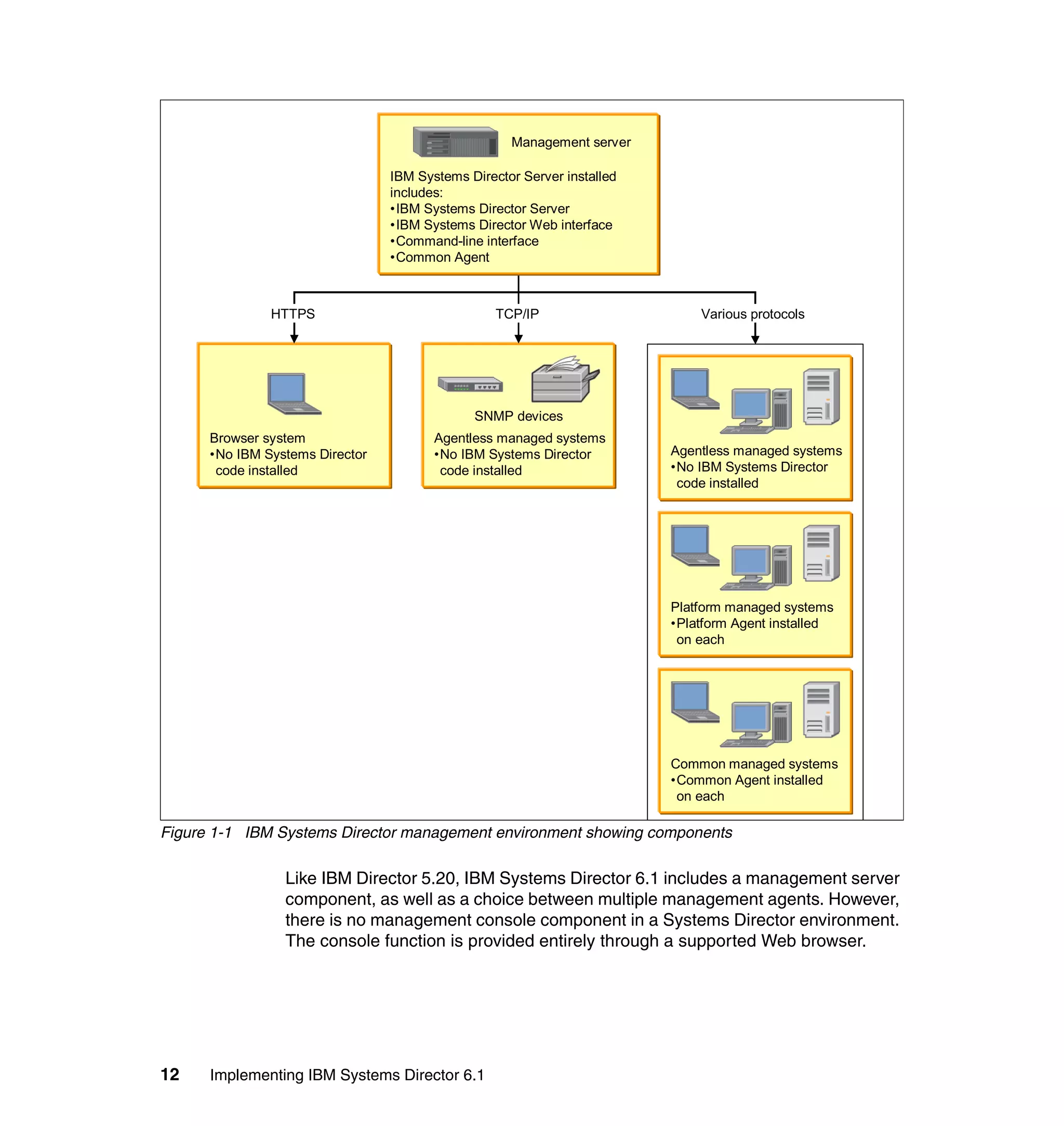
programs on the system.
Start a program on the system that generated the event: Starts a program on
the system that generated the event that triggered the Event Automation
Plan. Programs can include command-line commands that can start or stop
programs on the system.
Send an e-mail to a mobile phone: Sends an e-mail message to a mobile
phone. The e-mail message is shortened to accommodate the limited display
window of a mobile phone. Using this action, you can send less text than
when using Send an e-mail (Internet SMTP).
Start a program on the management server: In response to an event, starts a
program on the management server that received the event. Programs can
418 Implementing IBM Systems Director 6.1
include command-line commands that can start or stop programs on the
system.
Send an e-mail (Internet SMTP): Sends a Simple Mail Transfer Protocol
(SMTP) e-mail message. You also can send a message to an e-mail enabled
phone. Using this action, you can send more text than when using Send an
e-mail to a mobile phone.
Send an alphanumeric page (using TAP): (Windows only) Sends a message
to a pager using the Telocator Alphanumeric Protocol (TAP).
Static group: Add or remove group members: Adds a defined set of systems
to a specified static group or removes a defined set of systems from the
specified static group. Use this event action to initialize a set of systems to
process. Then the processing is triggered by an event that you specify in your
event filter.
Post to a newsgroup (NNTP): Posts a message to a newsgroup used by your
organization. The newsgroup must use Network News Transfer Protocol
(NNTP) to send and receive information.
Send an SNMP trap reliably to a NetView host: Generates an SNMP trap and
sends it to a specified NetView host using a TCP/IP connection to the host. If
delivery of the SNMP trap fails, a message is posted in the history log of the
system.
Send a Tivoli Enterprise Console event: If IBM Systems Director Server
receives an event, you can forward that event to a specified Tivoli Enterprise
Console event server.
Static group: Add or remove the event-generating system: Adds the system
that generated the event to a specified static group or removes the system
that generated the event from a specified static group, as applicable.
Send an SNMP INFORM request to an IP host: Sends an SNMP INFORM
request to a specified IP address or host name. SNMP INFORM is a special
version of an SNMP trap with a response from a destination.
Send an SNMP trap to an IP host: Generates an SNMPv1 or SNMPv2c trap
and sends it to a specified IP address or host name.
Modify an event and send it: Resends the event that originally triggered the
Event Automation Plan. Before resending the event, the action modifies the
event data, such as its text and severity, to your specification.
Timed alarm that starts a program: Starts a specified program only if IBM
Systems Director does not receive a specified event within a specified time
range. This event action is useful for monitoring for a loss of function, much
like a heartbeat monitor.
Set an event system variable: Sets a user-defined system variable to a new
value or resets the value of an existing system variable. IBM Systems
Chapter 9. Automation Manager 419
Director provides user-defined system variables to help you test and track the
status of network resources according to the needs of your organization.
System variable names and values can be referenced wherever event data
substitution is allowed.
Start a task on a specified system: Starts a noninteractive IBM Systems
Director task on a specified system. Noninteractive tasks are tasks that do not
require user input.
Timed alarm that generates an event: Generates a defined alarm event only if
IBM Systems Director does not receive a specified event within a specified
time range. This event action is useful for monitoring for a loss of function,
much like a heartbeat monitor.
Start a task on the system that generated the event: Starts a noninteractive
IBM Systems Director task on the system that generated the event.
Noninteractive tasks are tasks that do not require user input.
Log to a log file: Logs information about the triggering event to a specified text
file.
Send a numeric page: (Windows only) Sends a numeric-only message to the
specified pager.
For more detailed information about each of the default actions refer to the IBM
Systems Director Information Center:
http://publib.boulder.ibm.com/infocenter/systems/topic/director.automate
_6.1/fqm0_c_ea_actions.html
9.2.4 Command Automation
Use the Command Definitions page to create a command definition that is saved
to the Command Automation page in the IBM Systems Director Web interface.
When you create and save a command definition, you can then apply it to a
system and run the command. This page is also used to edit an existing
command definition.
Note: This task requires the IBM Systems Director Launched Tasks program.
This program is installed automatically the first time that you use a task that
requires it. For information about the IBM Systems Director Launched Tasks
program see 5.7, “Launched tasks” on page 290.
420 Implementing IBM Systems Director 6.1
To create a Command Automation definition:
1. Expand Automation from the navigation area and click Command
Automation.
2. Click Create from the Command Automation page.
3. The Launch task program begins and opens the Command Definition
window, as shown in Figure 9-4.
Figure 9-4 Command Definition window
Enter the command that you want to run and specify the login credentials for
the system on which the command will be run.
In Figure 9-4 we entered the command to start the Windows Media® Player
application using the login credentials of administrator and password for one
of our Windows Common Agents.
4. Once you are satisfied with the command definition click File → Save As,
enter an appropriate name for the command definition, and click OK.
5. You can then create more command definitions by changing the information
and selecting to Save as a different name. Once you are finished creating
command definitions click File → Close to close the Command Definition
window.
Chapter 9. Automation Manager 421
Your created command definition will now appear in the Command Definitions
table, as shown in Figure 9-5.
Figure 9-5 Command definition created
Figure 9-6 Customized Action: Start a task on the system that generated the event
9.2.5 Automation Manager summary page
You can view a summary of activity within the past 30 days that is associated
with automation in the Automation Manager summary page. Activities listed here
include Event Automation Plans, scheduled and run jobs, event management
and event log, a list of systems with the most critical and warning events, and a
list of the most frequently received critical and warning events. Note that
information about this page is refreshed automatically when there are any
changes.
To view the Automation Manager summary page:
1. In the IBM Systems Director navigation area, click Welcome.
2. From the available tabs in the Welcome page, click the Manage tab.
Note: This new command definition will also appear as a task when
customizing event actions, as shown in Figure 9-6, and as detailed further in
9.2.3, “Event actions” on page 416.
422 Implementing IBM Systems Director 6.1
3. On the Manage page, click the Automation Manager section heading. The
Automation Manager summary page opens, showing a summary for the past
30 days, as shown in Figure 9-7.
Figure 9-7 Automation Manager Summary page
The sections shown on the summary page in Figure 9-7 are as described in the
following subsections.
Chapter 9. Automation Manager 423
Scheduled jobs
This section, shown in Figure 9-7 on page 422 by the number , provides the
following information:
The number of active scheduled jobs.
The number of job activations that have completed successfully.
The number of job activations that have failed.
Up to three upcoming jobs that will run next. If more than one job will run at
the same time, all affected jobs are displayed.
Up to three of the most recently run jobs. If more than one job ran at the same
time, all affected jobs are displayed.
In the Job management area, a link to the Scheduler task page. Using
scheduler you can create or edit jobs, view job information, view job instance
information, suspend and resume jobs, and more.
From the Job Management box you have the option to click Active and
Scheduled Jobs. Clicking this opens the Active and Scheduled Jobs page, as
shown in Figure 9-8. Here you can see which jobs are scheduled and when the
jobs are due to run next. You also see the progress of active jobs.
Figure 9-8 Active and Scheduled Jobs page
Systems with the most frequent critical or warning events
The section with the number 2 in Figure 9-7 on page 422 lists the five systems
with the most events of type fatal, critical, or warning. If there are more than five
systems that have generated the same number of events, an ellipsis (...)
indicates that there are more systems.
424 Implementing IBM Systems Director 6.1
In the Event management box, you have an option to click Event log. This opens
the Event Log page, as shown in Figure 9-9.
Figure 9-9 IBM Systems Director event log
Chapter 9. Automation Manager 425
On this page you can view events that IBM Systems Director Server has
received along with event information that can help you troubleshoot problems in
your systems management environment. You can filter this view further to show
only specific events within the event log. This is achieved by clicking the Event
filter drop-down menu, as shown in Figure 9-10.
Figure 9-10 Event log filter options
View the most frequent critical or warning events
This section, shown in Figure 9-7 on page 422 with the number , lists the five
event types that have been generated the most with the event severity of fatal,
critical, and warning. If there are more than five event types that have been
generated in the same number of severities, an ellipsis (...) indicates that there
are more event types.
View the automation plans
This section, shown in Figure 9-7 on page 422 with the number , provides the
following information:
The number of active Event Automation Plans
The number of inactive Event Automation Plans
426 Implementing IBM Systems Director 6.1
In the Plan management box, the following links are provided:
Automation plans: Takes you to the Event Automation Plans page, as
described in 9.3, “Creating Event Automation Plans” on page 426. Use the
Automation Plans page to create and work with Event Automation Plans.
Event actions: Takes you to the Event Actions page, as described in 9.2.3,
“Event actions” on page 416. Use the Event Actions page to create and work
with event actions that specify the action to automate when an Event
Automation Plan is triggered.
Event filters: Takes you to the Event Filters page, as described in 9.2.2, “Event
filters” on page 409. Use the Event Filters page to create and work with event
filters that determine which events trigger an Event Automation Plan.
9.3 Creating Event Automation Plans
In order to create an Event Automation Plan there are various stages involved. In
this section we look at the following:
Building an automation plan
Selecting and creating filters
Selecting and creating actions
9.3.1 Building an automation plan
To begin creating your Event Automation Plan you must start the Automation
Plan Wizard. To start the wizard:
1. Expand Automation in the Navigation area, as shown in Figure 9-11.
Figure 9-11 Automation menu in navigation section
Chapter 9. Automation Manager 427
2. Click Automation plans. The Automation Plans view opens, as shown in
Figure 9-12.
Figure 9-12 Automation Plans view
3. Click Create to open the Event Automation Plan wizard. The wizard is used to
create Event Automation Plans. Use these plans to designate events within
your systems management environment for which one or more actions are
executed.
4. If presented with the Welcome page, click Next to continue.
To avoid showing the welcome page next time you enter the Event
Automation Plan wizard deselect the option Show this Welcome page next
time.
5. Begin the Event Automation Plan by giving it a name and, optionally, a
description. Click Next to continue.
6. Identify the systems that you want the plan to monitor for specific events.
7. In the Available pane, select one or more systems or groups of systems.
Then click Add to move your selections to the Selected pane. If you want to
select specific systems from a group, click the group to view the group
members. Make your selections and then click Add. Click Next to continue.
8. Select or create a filter for the automation plan. See 9.3.2, “Selecting and
creating filters” on page 429.
9. Now you must select the events that trigger an event action. Specify one or
more events from the list of common events. The selected events trigger this
Event Automation Plan.
Alternatively, select Advanced Event Filters in the Events list to use one
advanced event filter. Use advanced event filters to monitor for specific
events that are not included in the common event filters or to monitor for only
one event.
428 Implementing IBM Systems Director 6.1
For more information about which filters to use see 9.3.2, “Selecting and
creating filters” on page 429.
For example, instead of monitoring for all fan event types, you can monitor for
only the Fan Predictive Failure Alert (PFA) event. Also, you can create more
sophisticated event filters that are triggered when duplicates of an event are
received, when a specific number of instances of an event is received within
an interval of time, or when a specific event is received but you want to
exclude another event.
Once you are satisfied with your selection, click Next to continue.
10.The Actions view appears next, enabling you to pick the action that you want
to invoke on receiving the event. You can either pick one of the event actions
listed or create your own action. For more information about creating actions
see 9.3.3, “Selecting and creating actions” on page 437.
Once you have selected an action, click Next to continue.
11.Specify the time range for Event Automation Plan activation. When creating
an Event Automation Plan, you can specify the time range for the plan to be
active. You will want many plans to be active all the time, in which case select
All the time (24x7). However, you might need other plans to be active at only
certain times, such as weekends or overnight, and in this case you should
click Custom and specify the time that you want to monitor the event. Click
Next to continue.
Chapter 9. Automation Manager 429
12.You are then presented with a summary of the proposed Event Automation
Plan, as shown in Figure 9-13. If you are satisfied with the plan, click Finish.
Figure 9-13 Event Automation Plan summary
The plan now shows up in the Automation Plans view, Figure 9-14. Note that
the Log All Events automation plan is created by default.
Figure 9-14 Automation plans view with created automation plan
9.3.2 Selecting and creating filters
The Event Automation Plan uses event filters to monitor for the occurrence of
one or more specified events. When these events occur, your Event Automation
Plan responds with one or more customized event actions.
Tip: Within the summary view, as shown in Figure 9-13, there is a check
box selected by default to Apply this Event Automation Plan when I
click Finish. If you do not want to apply the Event Automation Plan at this
time, deselect this option.
430 Implementing IBM Systems Director 6.1
The types of events from which you can select and the ways that you can filter
the events are broadly divided between the following categories:
Common event filters
These are predefined simple filters that monitor for events of common
interest. For example, the disks event filter is triggered by any hard disk event
and the fans event filter is triggered by any fan event.
The Event Automation Plan wizard provides several common event filters so
you can create typically required Event Automation Plans quickly and easily.
Common filters available are:
– General
• Event severity
• Updates
• Common Agent
• User login security
– Thresholds
• CPU utilization
• Memory usage
• Disk % space used
– Hardware
• Processors (CPU)
• Disks
• Fans
• Memory
• Network and switches
• Power
• Servers
• RAID or storage arrays
• Blade servers
Advanced event filters
If you want to monitor specific events that are not included in the common
event filters you must select advanced event filters. Not only can you specify
additional events, but you also can create more sophisticated event filters that
are triggered:
– When duplicates of an event are received
– When a specific number of instances of an event is received within and
interval of time
– When a specific event is received but you want to exclude another event
Chapter 9. Automation Manager 431
For more information about Advanced Event filters see 9.2.2, “Event filters” on
page 409.
Selecting default advanced event filters
When you select Advanced Event Filters within an Event Automation Plan you
are provided with a list of default event filters, as shown in Figure 9-15.
Figure 9-15 Default advanced event filters
432 Implementing IBM Systems Director 6.1
To see more information about any of the event filters listed, you can either click
the filter name (for example, click Common Agent offline) or select a filter and
click Actions → Properties. This opens the properties page for the specific filter,
as shown in Figure 9-16.
Figure 9-16 Event filter Common Agent offline properties page
If you decide not to use any of the filters listed you can create your own specific
filters, as described in the next section.
Chapter 9. Automation Manager 433
Creating customized advanced event filters
You can open the event filter builder in two ways:
From within the Event Automation Plan wizard you can choose to Create a
new event filter.
Expand the Automation task in the navigation area and click Event Filters,
then click Create.
Once the Create Filter page is open, select the filter type from the available
options (simple event filter, threshold filter, duplication filter, exclusion filter). For
more information about each filter type see 9.2.2, “Event filters” on page 409.
This starts the Launch Task program and opens the appropriate event filter
builder, where you can create a customized filter.
Each filter type that you select displays a different window:
Selecting Simple event filter launches the window shown in Figure 9-17.
Figure 9-17 Simple Event Filter Builder
434 Implementing IBM Systems Director 6.1
Make your filter selection, then save this filter with an appropriate name. This
saved filter will be added to the list of available advanced filters, as shown in
Figure 9-21 on page 437.
Selecting Threshold event filter launches a window similar to the one shown
in Figure 9-17 on page 433. However, you will have a Frequency tab available
to configure, as shown in Figure 9-18.
Figure 9-18 Threshold event filter builder tab option
Configure your specific threshold event and specify the frequency
information. Then save this filter with an appropriate name. This saved filter
will be added to the list of available advanced filters, as shown in Figure 9-21
on page 437.
Chapter 9. Automation Manager 435
Selecting Duplication filter launches a window similar to the one shown in
Figure 9-17 on page 433. However, you will have a Frequency tab available to
configure, as shown in Figure 9-19.
Figure 9-19 Duplicate event filter builder
Configure your specific duplicate event and specify the frequency information.
Then save this filter with an appropriate name. This saved filter will be added
to the list of available advanced filters, as shown in Figure 9-21 on page 437.
436 Implementing IBM Systems Director 6.1
Selecting Exclusion filter launches a window similar to the one shown in
Figure 9-17 on page 433. However, you will have a Frequency tab available to
configure, as shown in Figure 9-19 on page 435.
Figure 9-20 Exclusion event filter
Chapter 9. Automation Manager 437
Configure your specific exclusion event. Then save this filter with an
appropriate name. This saved filter will be added to the list of available
advanced filters, as shown in Figure 9-21.
13.Once the event filters are created and saved the new event filters are listed in
the available filters list, as seen in Figure 9-21.
Figure 9-21 New event filters added
9.3.3 Selecting and creating actions
When it comes time to choose an action for an Event Automation Plan, you can
either select the default action or customize one of the available predefined
actions. In this section we describe both options.
438 Implementing IBM Systems Director 6.1
Selecting the default action
The only default action available is the Add to the event log action, which logs
the event received and adds it to the IBM Systems Director event log. To view
the event log, expand the System Status and Health task in the navigation area
and select Event Log.
Creating customized actions
You can customize any of the predefined actions, as detailed in “Predefined
event actions” on page 416. To customize an action:
1. From the Select Actions page within the Event Automation Plan, click Create.
2. Select the action that you want to customize, then click OK. In our example,
we select Start a program on the Management Server.
3. Enter the settings required to customize the action, as shown in Figure 9-22.
Figure 9-22 Create Action: Customized start program on management server
Chapter 9. Automation Manager 439
4. If you have the option to test your action, click Test. In our example, we want
to start the Firefox browser and open the default home page, which connects
to an RSA II card installed in an IBM xSeries® 236 server. If the action is
configured correctly, the program will start and you will receive a message
stating that the action was successful, as shown in Figure 9-23.
Figure 9-23 Testing action to open Firefox browser against RSA II adapter
5. Click OK to save the action and add it to the actions table, as shown in
Figure 9-24.
Figure 9-24 New action created
9.4 Example of an Event Automation Plan
In this section we show how to create a process-management-initiated Event
Automation Plan and include a link to the scenario in 17.1, “Hardware alerting”
on page 742.
9.4.1 Monitoring application failure
You can create an Event Automation Plan that monitors a process or application
and restarts the process or application if it fails. In our example we monitor the
Windows Media Player application. On failure, the Event Automation Plan
automatically restarts this application using a customized action. This example
can be applied to virtually any process or application.
There are two prerequisites for this Event Automation Plan. First, we must create
a process monitor that will generate an event when the application fails. This will
become the event on which we trigger the plan. Second, we must create a
command definition to restart the failed application. This will become the action
that is triggered by the plan.
440 Implementing IBM Systems Director 6.1
Finally, we test the new Event Automation Plan to make sure that it does exactly
what we intend.
Create the process monitor
To create the process monitor:
1. Ensure that the application (Windows Media Player) is running on the system
that you want to manage.
2. In the IBM Systems Director Web interface, click Find a Resource.
3. Enter the name of the system that you want to manage in the search criteria
box and click Find. In our example we search for ws2k3cav04, as shown in
Figure 9-25.
Figure 9-25 Find a Resource page
4. Click Details to show the resources that match the criteria, as shown in
Figure 9-26.
Figure 9-26 Find resource results
5. Right-click the resource of type Operating System and click System Status
and Health → Manage Processes. This starts the Launched tasks program.
Chapter 9. Automation Manager 441
6. Once the Process Management window opens, locate the process
wmplayer.exe, right-click, and select Add to Monitors, as shown in
Figure 9-27.
Figure 9-27 Add wmplayer.exe to monitors
7. Click File → Close to close the Process Management window.
8. Return to the resource results page and right-click the resource of type
Operating System and click System Status and Health → Process
Monitors.
442 Implementing IBM Systems Director 6.1
9. This also starts the Launched tasks program. Once the Process Monitors
window opens, select the check mark in the Stop column, as shown in
Figure 9-28.
Figure 9-28 Process Monitors window
10.Click File → Create task.
11.Enter Monitor Wmplayer.exe stopping for the task name and click OK.
12.Click File → Close to close the Process Monitors view.
13.This prerequisite is now complete. You can close the Find a resources tab in
the IBM Systems Director Web interface.
Create the command definition
To create the command definition task to restart the wmplayer.exe application:
1. Expand Automation from the navigation area and click Command
Automation.
2. Click Create from the Command Automation page.
Chapter 9. Automation Manager 443
3. The Launch task program begins and opens the Command Definition
window, as shown in Figure 9-4 on page 420.
Figure 9-29 Command Definition window
Enter the following data in the fields:
– Command: C:Program FilesWindows Media Playerwmplayer.exe
– Timeout (Seconds): 60 (This is optional for our example.)
– User ID: An appropriate user ID
– Password: A password to match the user ID entered above
4. Click File → Save As, enter an appropriate name for the command definition
(Start WMPlayer.exe) and click OK.
The new command definition appears in the Command Definitions table, as
shown in Figure 9-30.
Figure 9-30 Command definition created
444 Implementing IBM Systems Director 6.1
Build the Event Automation Plan
We are now ready to create the Event Automation Plan to monitor wmplayer.exe
and restart it when it stops.
1. Expand Automation in the navigation area and click Automation Plans. The
automation plan wizard opens.
2. Click Next if the welcome page appears.
3. Enter the name for the Event Automation Plan. In this case type Monitor
wmplayer.exe stopping and restart application.
4. Enter a description for the Event Automation Plan (in this case, Monitor
wmplayer.exe stopping and restart application). Click Next.
5. Choose the systems that you want to monitor. Select a target system and
click Add. In our example, we monitor Windows Media Player on system
ws2k3cav04.
6. Once the system is added to the Selected list, click Next.
7. Select Advanced Event Filters from the events option and click Create to
create an event filter.
8. Select Simple Event Filter and click OK. This starts the Launched tasks
program.
Chapter 9. Automation Manager 445
9. The Simple Event Filter Builder window opens. Deselect Any in the Event
Type view and select the event type Director → Systems Director Agent →
Process Monitors → Process Terminated → WMPLAYER.EXE, as shown
in Figure 9-31.
Figure 9-31 Select Process Terminated → wmplayer.exe
10.You can optionally make further selections. However, for this example we
save this filter now. Click File → Save As, type monitor wmplayer
termination for the name of the filter, and click OK. Click File → Close to
close the Simple Event Filter Builder window.
446 Implementing IBM Systems Director 6.1
11.Return to the automation plan currently being built within the IBM Systems
Director Web interface. The Event filter should now be visible in the table, as
shown in Figure 9-32.
Figure 9-32 Monitor wmplayer termination filter available in table
12.Select filter monitor wmplayer termination and click Next.
13.Select Start wmplayer.exe on event system and click Next.
14.Click Next to accept the time range as All the time (24 x 7).
15.Check the summary, as shown in Figure 9-33. If correct, click Finish to create
and activate the Event Automation Plan.
Figure 9-33 Event Automation Plan summary
Chapter 9. Automation Manager 447
The Event Automation Plan is now shown in the Event Automation Plans page,
as shown in Figure 9-34.
Figure 9-34 Monitor wmplayer stopping Event Automation Plan added to plans view
To see what happens on system ws2k3cav04 when Windows Media Player is
stopped, see the next section.
Test the Event Automation Plan
We now stop Windows Media Player on system ws2k3cav04 to see what
happens in the IBM Systems Director Web interface and on system ws2k3cav04.
1. In the Systems Director Web interface click Navigate Resources and locate
system ws2k3cav04.
2. Right-click ws2k3cav04 and click Add to → Favorites. Close the
confirmation message displayed once the system has been added to
favorites.
3. Click View Favorites or expand System Status and Health in the tasks list
in the navigation area and click Health summary.
System ws2k3cav04 is shown in the favorites table.
4. On system ws2k3cav04, stop the Windows Media Player application (which
should still be running from setting up the process monitor).
After a few seconds system ws2k3cav04 appears in the Systems with
Problems table, as shown in Figure 9-35.
Figure 9-35 Systems with problems table
On system ws2k3cav04 you will see that Windows Media Player has
restarted.
448 Implementing IBM Systems Director 6.1
5. To remove this event, click Warning in the Problems column. This opens the
Problems page, as shown in Figure 9-36.
Figure 9-36 Problems page showing wmplayer warning event
6. Select the event and click Delete.
7. Close the Problems page and return to the Health Summary page.
System ws2k3cav04 now returns to normal.
9.4.2 Monitor PFA events
To create an Event Automation Plan to monitor PFA events, refer to the example
scenario in 17.1, “Hardware alerting” on page 742.
© Copyright IBM Corp. 2009. All rights reserved. 449
Chapter 10. Update Manager
The IBM Systems Director Update Manager plug-in is installed by default during
the installation and is used to acquire, install, and manage updates. It is also
used to monitor your systems to ensure that they remain current.
This chapter includes the following topics:
10.1, “Introduction to Update Manager” on page 450
10.2, “Update Manager summary page” on page 451
10.3, “Updates supported” on page 477
10.4, “Downloads” on page 478
10.5, “Removing update files” on page 488
10.6, “Performing updates” on page 489
10.7, “How to determine whether a system requires updating” on page 493
10.8, “Updating earlier versions of IBM Director” on page 494
10.9, “Updating IBM Systems Director” on page 494
10.10, “Updating IBM System x and BladeCenter systems” on page 495
10.11, “Updating Linux operating systems” on page 505
10.12, “Updating Power Systems firmware” on page 506
10.13, “Updating HMC systems” on page 507
10.14, “Updating AIX systems” on page 508
10.15, “Scheduling updates” on page 510
10.15.1, “Status notifications” on page 512
10.16, “Troubleshooting” on page 513
10
450 Implementing IBM Systems Director 6.1
10.1 Introduction to Update Manager
Update Manager provides tools for maintaining current versions of operating
systems, device drivers, firmware and BIOS, and IBM Systems Director Agent
and server code on managed systems without an upgrade or migration of the
installed product. For an introduction to Update Manager view the tutorial
included in the Information Center at:
http://publib.boulder.ibm.com/infocenter/systems/topic/director_6.1/fqm
0_c_elearning_updating_firmware_and_software.html
10.1.1 Prerequisites
To monitor and update systems, you must set up the environment correctly,
including choosing the systems that you want to be monitored. You must also
ensure that a check for updates is run periodically and that an administrator is
periodically checking systems that have compliance issues raised. Lastly, you
must take action by installing required updates.
For systems that are to be monitored for update management and compliance
status, it is required that you:
Make sure that the systems are discovered and not locked. If a system is
locked, the update menu actions will not be displayed for it. You cannot select
a locked system in any of the system selection actions.
Collect inventory on these systems. Inventory collection must be run on any
unlocked systems that are to be monitored for update management and
compliance status. Applicability of updates to a system cannot be determined
unless inventory has been collected on the system.
10.1.2 Tasks that Update Manager can perform
The tasks that Update Manager can perform include:
Manages and installs updates to existing software products and firmware,
external network and storage switches, and external storage servers.
Installs updates to IBM Systems Director agents that have already been
installed.
For an individual update or update collection, performs this sequence of tasks
to acquire and install it:
a. Download, which copies the installable files for an update to the
management server.
Chapter 10. Update Manager 451
b. Installation staging, which copies the installable files for an update to an
appropriate location for eventual installation.
c. Installation, which installs an update.
d. Uninstall, which removes an update. Not all updates support the uninstall
task.
Manages compliance policies, which provide notification of when systems are
in need of updates and which updates are needed.
Schedules a check for updates, which is a search for new updates of which
update manager is currently not aware. If any new updates are found, update
manager obtains necessary information to include these updates.
Provide details about a specific update, such as its documentation and
prerequisite requirements.
Displays information about updates that were installed by IBM Systems
Director. Updates installed by other means are not displayed.
10.1.3 Tasks that Update Manager cannot perform
The tasks that Update Manager cannot perform include the following:
Install new software products.
Install IBM Systems Director agents on systems that currently do not have an
agent.
IBM Systems Director agents can be installed using the Agent Installation
wizard, which is included with IBM Systems Director. For more information
about the Agent Installation wizard refer to 4.6.1, “Pushing agents from the
management server” on page 211.
Migrate to IBM Systems Director 6.1 from any other release of IBM Director.
Migrate to IBM Director 5.2 from IBM Director 5.1.
Perform actions on systems that are locked. Update actions can be
performed only on systems that are unlocked.
Update a different instance of the IBM Systems Director Server.
10.2 Update Manager summary page
The Update Manager summary page reports status and lists tasks for the
management of updates. This page summarizes current system compliance and
provides navigational links to common update-related tasks.
452 Implementing IBM Systems Director 6.1
Topics in this section are:
10.2.1, “Configuring Update Manager” on page 453
10.2.2, “Getting started” on page 459
10.2.3, “System compliance” on page 464
10.2.4, “Manage” on page 468
10.2.5, “Search” on page 477
The Update Manager summary page consists of three main sections: System
Compliance, Manage, and Search. There is also an additional section that looks
at settings and helps you to get started, as seen in Figure 10-1 with the number
.
Figure 10-1 Update Manager summary page
Chapter 10. Update Manager 453
10.2.1 Configuring Update Manager
Before you use Update Manager you should review the plug-in settings. The
Settings link is marked in Figure 10-1 on page 452 with the number . The
Settings dialog shown in Figure 10-2 is used to specify settings for the various
tasks performed with updates. The four tabs in this dialog are described in the
following subsections.
Connection tab
As shown in Figure 10-2, here you configure how the internet should be
accessed. You also have the option to test whether the connection is working
correctly by clicking Test Connection.
Figure 10-2 Update Manager Settings
454 Implementing IBM Systems Director 6.1
Location tab
This page is used to set a maximum size on the update storage location for the
management server. See Figure 10-3.
Figure 10-3 Update Manager settings: Location tab
The storage location itself cannot be changed, but it is displayed for reference.
The storage location is <isd_install_path>IBMDirectordataupdateslib.
In the Maximum disk space to use field enter the maximum amount of disk space
on the management server for updates. The default is 10,000 MB. The minimum
is 1 MB and the maximum is 128,000 MB.
Chapter 10. Update Manager 455
AIX tab
AIX updates must be installed from a NIM Master. This tab is used to specify the
system that is to be the IBM AIX NIM master. We discuss this further in 10.14,
“Updating AIX systems” on page 508. See Figure 10-4.
Figure 10-4 Update Manager settings: AIX tab
456 Implementing IBM Systems Director 6.1
BladeCenter tab
This tab is used to specify the TFTP and FTP servers and options. IBM
BladeCenter updates must be installed from a TFTP or FTP server. Figure 10-5
shows the settings required.
Figure 10-5 Update Manager: BladeCenter Settings
Chapter 10. Update Manager 457
To specify IBM BladeCenter settings:
1. From the Settings task, click the BladeCenter tab. The BladeCenter Settings
page is displayed as shown in Figure 10-5 on page 456.
2. In the top half of the dialog you are required to specify the system to use as
the TFTP server. The choices are:
– Do not use a TFTP server.
If the TFTP server included with the management server has been
enabled, choosing this option disables it.
You will not be able to install updates on management modules and
certain I/O modules that require a TFTP server if no TFTP server is
specified.
– Use the management server as a TFTP server.
This starts and uses the TFTP server included with the management
server.
– Use system.
Use a TFTP server on an external system. If the TFTP server included
with the management server has been enabled, choosing this option
disables it. Select a system. Click Browse to see details of a given
system.
If you select Use system, then there are three other fields:
• Select a Network interface (IP address). This option is to choose an
alternate network interface for the server specified in the Use system
selection.
• In the TFTP root directory field, type the full path to the root directory of
the TFTP server (for example, /tftpboot or C:Program
FilesTFTPServertftpboot). This path is used to automatically
distribute files to the TFTP server.
• Optionally, in the Relative path to updates field, if the update files are
located in a subdirectory of the TFTP server root directory, specify the
Note: If you acquire the BladeCenter updates from the IBM
repositories, the updates will be filed in directory
<install_root>directordataupdateslibfixid. Whenever install of
the update is initiated an out of band distribution extension gets called
first. It looks at the BladeCenter Configuration panel settings and
distributes the update to whatever TFTP/FTP is selected.
458 Implementing IBM Systems Director 6.1
relative path of that subdirectory (for example,
update_manager/updates).
If no path is provided, the TFTP server root directory is assumed to be
where the update files are stored.
3. In the bottom half of the dialog specify the system to use as the FTP server.
The choices are:
– Do not use an FTP server.
An FTP server will not be used for the installation staging and install tasks.
You will not be able to install updates on certain I/O modules that require
an FTP server if no FTP server is specified.
If you select this option, then you can skip the remaining fields and click
OK to save the changes.
– Use system.
Use an FTP server on an external system. Select a system. Click Browse
to see details about a given system.
4. Select a network interface (IP address). This option is to choose an alternate
network interface for the server specified in the Use system selection.
Note about the Relative Path To Updates field: There is a 64-character
limit on the length of the relative path and the file names for updates
installed from TFTP servers with SNMP. This includes updates to the IBM
BladeCenter Management Modules and IBM BladeCenter pass-through
modules. The 64-character limit is the sum of the lengths of:
The Relative Path To Updates field
The build identifier of the update
The file name of the update
Therefore, the Relative Path To Updates field must be kept as short as
possible if the IBM BladeCenter Management Modules and IBM
BladeCenter pass-through modules are to be updated.
No such limit applies to switch module updates installed from TFTP or FTP
servers.
Some IBM BladeCenter updates only support using FTP, and some only
support using TFTP. If an update supports both TFTP and FTP then TFTP
will be used.
Chapter 10. Update Manager 459
5. In the FTP user home directory field, type the full path of the FTP user's home
directory on the FTP server (for example, /home/ftpuser). This path is used
to automatically distribute files to the FTP server.
6. Optionally: In the Relative path to updates field, if the update files are located
in a subdirectory of the FTP user's home directory, specify the relative path of
that subdirectory (for example, update_manager/updates). If no path is
provided, the FTP user's home directory is assumed as the path where the
update files are stored.
7. Type the FTP server credentials for user name and password.
8. Click OK to have these choices take effect.
10.2.2 Getting started
The number marks this link in Figure 10-1 on page 452. This wizard helps
you to start managing firmware and software updates by selecting the systems
that you want to monitor and then checking for new updates. It helps you perform
the following operations:
Selecting the systems to keep in compliance with the latest updates
Creating an update group to contain the updates for your selected systems
Configuring a connection to the internet
Running or scheduling a check for updates
To run the Getting Started wizard:
1. From the Welcome page, click Manage → Update Manager, or from the task
menu expand Release Management and click Updates. The Update
manager summary page is displayed as shown in Figure 10-1 on page 452.
Click Getting Started, shown in Figure 10-1 on page 452 in section .
2. The Getting Started wizard opens. If the welcome page is shown you can
deselect the option to show this the next time that you log on. Click Next to
continue.
Using this wizard, choose those systems that you want monitored for update
compliance and create an update group for updates appropriate to these
systems. This update group gets added to the default update groups already
available.
3. Type in an appropriate name for the group and (optionally) a description, and
click Next.
Note: Anonymous FTP (user name of anonymous) is supported. However,
for Anonymous FTP, the need for a password (or the form of the password)
is a requirement of the FTP server itself.
460 Implementing IBM Systems Director 6.1
4. Select the systems that should be monitored for the latest updates. The
selected systems will be monitored using the new update group. Select the
system and click Add → Next to continue.
5. Figure 10-6 appears. An internet connection is required to use this function.
Specify how the internet should be accessed. If you are not sure whether your
Director server is attached to the internet you can click Test connection.
Figure 10-6 Test Connection option
6. Once you test the connection, if successful you will be presented with the
message box seen in Figure 10-7.
Figure 10-7 Test connection successful
7. Click Close Message and then within the wizard click Next to continue.
Chapter 10. Update Manager 461
You will then be shown a summary of the choices made, as shown in
Figure 10-8.
Figure 10-8 Getting Started Summary
If you are satisfied with the selections made click Finish or click Back and
correct any incorrect or missing options.
8. You will now be prompted to execute the task now or schedule the get
updates task for a later time. In our example we selected Run Now. Before
clicking OK you can also specify notification settings and options via the
appropriate tabs, as described in 10.15, “Scheduling updates” on page 510.
Once you have completed your selections click OK.
9. To check the progress click Display properties from the information
message that appears.
462 Implementing IBM Systems Director 6.1
10.You will be presented with a progress summary window. The task is complete
once the progress bar reaches 100%, as shown in Figure 10-9. To close this
view click the X on the Getting started tab.
Figure 10-9 Download updates at 100%
11.To view the updates, return to the Check for updates tab, as shown in
Figure 10-10, then click the Show Updates option.
Figure 10-10 Show updates link
Chapter 10. Update Manager 463
Next you are shown all the updates that were found, as seen in Figure 10-11.
Figure 10-11 Show updates: Results
12.Review the System Compliance section of the Update Manager summary
page ( in Figure 10-1 on page 452). The compliance status will not change
on the monitored systems until the check for updates is complete and
compliance has completed. This can take up to 10 minutes after checking for
updates completes.
13.If some systems are in need of updates, review the exact compliance issues
by clicking View all issues in the compliance area, and make plans to
address them by installing needed updates.
14.Periodically perform steps 12 and 13 or create an Event Automation Plan to
perform this task and notify you of any systems that are in need of updates.
464 Implementing IBM Systems Director 6.1
10.2.3 System compliance
Located in Figure 10-1 on page 452 by the number and duplicated in
Figure 10-12, this section provides a quick summary of the update health of your
systems and provides access to several system-related tasks. A pie chart and a
list indicate how many of your systems fall into each compliance category.
Figure 10-12 Update Manager summary page: System Compliance portion
The system-compliance status indicator represents the highest severity among
all of the compliance policy updates that are not installed on the system. There
are four compliance categories, represented by icons:
Error icon: Indicates a missing update severity of critical or high
Warning icon: Indicates a missing update severity of medium or low
Information icon: Indicates a missing update severity that is not known or
not applicable
Ready icon: Indicates systems that are in compliance and have no
missing updates
Chapter 10. Update Manager 465
You can also select View All Issues, which shows all system compliance issues
and recommendations, as shown in Figure 10-13.
Figure 10-13 View all compliance issues
System tasks
The compliance categories in the Systems Task options are as shown in
Figure 10-14.
Figure 10-14 System tasks
466 Implementing IBM Systems Director 6.1
Change Compliance Policies page
The Change Compliance Policies page displays compliance policies used to
indicate when systems are out of compliance and make changes to compliance
policies. This task is done, for example, when a new system is added and
existing compliance policies must be changed to accommodate that system, as
shown in Figure 10-15.
Figure 10-15 Change compliance policy
The fields shown in the table in Figure 10-15 are:
Name: The name of the update or update group that will be used to monitor
the system. A compliance status is raised on the system when it is found to
need the updates from the group.
Type: Indicates whether the selected entry is an update or an update group.
Version: If the resource is an update, this is its version.
Compliant: Indicates whether the system was found to be compliant during
the last compliance evaluation. Valid values are:
– Yes: All tested systems passed all compliance policies.
– No: The compliance policy indicates that one or more monitored systems
require one or more updates.
– Unknown: The compliance policy has not yet been run.
Inherited: Indicates whether the compliance policy is defined for this system
or for a parent system group. Clicking the link displays a new page containing
the compliance policy setup panel for the parent system group. You cannot
Chapter 10. Update Manager 467
remove inherited checks. This can be done only from the system group's
compliance policy panel.
Show Needed Updates page
The Show Needed Updates page displays updates that are needed on a system
or system group.
First you must select the system or system group and then click Show Needed
Updates. The needed updates are then displayed, as shown in Figure 10-16.
Figure 10-16 Show Needed Updates
468 Implementing IBM Systems Director 6.1
Show Installed Updates page
The Show Installed Updates page displays updates that have been installed on a
system or system group. First you must select the system or system group and
then click Show Installed Updates. The installed updates are then displayed, as
shown in Figure 10-17.
Figure 10-17 Show installed updates
10.2.4 Manage
Located in Figure 10-1 on page 452 with the number and duplicated in
Figure 10-18, this section displays information about individual updates and
groups of updates.
Figure 10-18 Update Manager summary page: Manage portion
Chapter 10. Update Manager 469
Check for updates
The Check for Updates link is used to check for new updates that have become
available since the last check for updates has been run. The dates of the last
check for updates and the next scheduled check for updates are also displayed.
To use this function:
1. Select the update types that you wish to perform, as shown in Figure 10-19.
Select the update types, then click Add. Click Next to continue.
Figure 10-19 Check for updates
2. You will be prompted to schedule the task or run now. Make your selection.
Before clicking OK you can also specify notification settings and options via
the appropriate tabs, as described in 10.15, “Scheduling updates” on
page 510. Once you have completed the selections click OK.
You are then notified via the message shown in Figure 10-20 that the job has
been created and started successfully.
Figure 10-20 Notification job successful
470 Implementing IBM Systems Director 6.1
3. You can display the progress of the job by selecting Display properties,
which displays the window shown in Figure 10-21. Wait until the job is 100%
complete before closing this view, as shown in Figure 10-21.
Figure 10-21 Check for updates job 100% complete
4. You are then prompted to View Updates or Close, as shown in Figure 10-22.
Click Show Updates.
Figure 10-22 Option to select View Updates or Close
Note: You can perform other tasks on other tabs while you wait for the job
to complete.
Chapter 10. Update Manager 471
You will then see the updates available, as shown in Figure 10-23.
Figure 10-23 Updates available
472 Implementing IBM Systems Director 6.1
5. The following actions can then be performed from this view:
– Download the selected updates:
i. Click Actions → Download and you will be notified of the download
size and location to which the file will be downloaded, as shown in
Figure 10-24.
Figure 10-24 Download details including size and location
Click OK to begin the download.
ii. You are then prompted to schedule this job or run it now. Make your
selection. Before clicking OK you can also specify notification settings
and options via the appropriate tabs, as described in 10.15,
“Scheduling updates” on page 510. Once you have completed your
selections click OK. Once the download is complete you can view the
updates via the show updates task.
– Perform installation staging for the selected updates.
Once you select updates, click Actions → Installation Staging. This
starts the Installation staging wizard, which stages updates for installation
to one or more systems by copying them to an appropriate location for
future installations.
Chapter 10. Update Manager 473
Once you make all the required staging selections the summary view
opens, as shown in Figure 10-25. Click Finish to begin the staging
process.
Figure 10-25 Staging Summary view
– Install updates: Described further in “Common tasks” on page 474.
– Uninstall updates: Described further in “Common tasks” on page 474.
Show updates
This is used to show the new updates that have been found since the last check
for updates has been run. You can examine the list of updates to see whether
any of these updates apply to your systems or require immediate attention. You
can show updates using day ranges or use the all option to see all of them. See
the example Show updates view in Figure 10-23 on page 471.
474 Implementing IBM Systems Director 6.1
Show update groups
This is used to display update groups, which are sets of updates created to
facilitate update maintenance and compliance. See Figure 10-26.
Figure 10-26 Update groups available
Common tasks
The common tasks shown in the box in Figure 10-27 can be performed on the
various updates. We describe each in turn.
Figure 10-27 Common tasks
Chapter 10. Update Manager 475
The common tasks are:
Install updates.
Once you select the updates, click Action → Install. This then starts the
install wizard, where you select the updates and the system on which you
want to install the updates.
Within the wizard there is also an option available to automatically install
missing update requirements. (Some updates might include installation
options or require that additional updates be installed.) Note that this is
selected by default.
The installation of an update might require restarting of resources, so make
sure that you take note of the requirements here and deselect the option to
automatically restart as needed.
For more information about install updates refer to 10.6, “Performing updates”
on page 489.
Uninstall updates.
Reverse the installation process by removing updates.
It may be necessary to remove an update from a system or group of systems.
Use the uninstall updates task to do this. Not all updates support the uninstall
task. For updates that cannot be uninstalled, it might be possible to roll them
back to an earlier version by installing an older version on top of the current
one.
Import updates.
Use the import update function to copy one or more updates from a directory
on the management server to the update library.
476 Implementing IBM Systems Director 6.1
To import updates:
a. Click Import updates.
b. In the Path field, type the directory of the update files on the management
server, as shown in Figure 10-28.
Figure 10-28 Import updates from temporary location on t he Management Server
c. Click OK. The scheduler is displayed. You can then choose to run the task
now or to schedule it to run in the future. Make your selection. Before
clicking OK you can also specify notification settings and options via the
appropriate tabs, as described in 10.15, “Scheduling updates” on
page 510. Once you have completed your selections click OK.
Any updates that can be generated in the specified directory will attempt to
be generated and imported also.
More information about update generation can be found by viewing the
importupd command and the -g option in the Information Center at:
http://publib.boulder.ibm.com/infocenter/systems/topic/director.cli
_6.1/fqm0_r_cli_importupd.html
Export updates.
Use the export function to copy updates from the update library to a target
directory on the management server. To export updates:
a. Click Export Updates from the Common Tasks list. Or select View
Updates and click Actions → Export updates.
b. If updates not already selected, from the list of updates select those that
you want to export.
c. Specify a location for the update files by typing the path name on the
management server in the Path field.
Note: All updates found within the specified directory will be copied to
the update library. You cannot select specific updates from this
directory.
Chapter 10. Update Manager 477
d. Click OK. The scheduler is displayed. You can then choose to run the task
now or schedule it to run in the future. Make your selection. Before clicking
OK you can also specify notification settings and options via the
appropriate tabs, as described in 10.15, “Scheduling updates” on
page 510. Once you have completed your selections click OK.
10.2.5 Search
Located in Figure 10-1 on page 452 by the number and duplicated in
Figure 10-29, this section is used to search update documentation in order to find
updates that are of specific interest, such as those for a particular operating
system or level. Use the Search local updates field to enter search parameters.
This field is used to initiate a search of the user-readable portion of update files.
Figure 10-29 Update Manager summary page: Search portion
10.3 Updates supported
The following are supported update types and the systems to which they apply.
Unless otherwise noted, the systems can be Common Agent-managed systems,
Platform Agent-managed systems, or Agentless-managed systems.
IBM Systems Director 6.1:
– IBM Systems Director Web interface
– IBM Systems Director Server
– Common Agent
Level 1 and Level 2 agents of IBM Director V5.20.
Technology levels and service packs for IBM AIX 5.3 TL6 SP5 and later.
Technology levels and service packs for IBM AIX 6.1.
Linux (Red Hat, SUSE, VMware ESX) on all supported platforms.
Note: The target directory must be accessible to the management
server, and it is important to make sure that the export directory location
exists, as the export manager does not create the location directory for
you. It gives you an error ( )
478 Implementing IBM Systems Director 6.1
Cumulative PTF package and PTF Groups for IBM i systems running
Platform Agent-managed systems.
Hardware Management Console (HMC) systems with Hardware
Management Console V7.3.3 SP2 and later. All updates will be Hardware
Management Console V7.3.3 and later, as well.
Power Systems Firmware for all IBM Power Systems p5 and later systems
that meet one of the criteria in Table 10-1.
Table 10-1 Power Systems firmware criteria
IBM BladeCenter I/O Module Firmware. Inventory for these devices is
provided by SNMP.
IBM BladeCenter Management Modules, Advanced Management Modules,
and Passthru Modules. For these devices, inventory is provided by SNMP.
IBM System x servers running Linux or Windows, device driver, and firmware
updates. Support is provided for servers running all agent levels, including
IBM Director V5.2 agents and Agentless-managed system.
External Storage firmware (including IBM BladeCenter external storage
firmware for IBM BladeCenter S SAS RAID Controller Module and IBM
BladeCenter SAS Connectivity Module).
10.4 Downloads
There are multiple ways to download the updates for update manager. You can
use update manager to download the updates or you can download the updates
manually. We describe each method in this section.
10.4.1, “Manual download and import updates” on page 479
10.4.2, “Automatic download via Update Manager” on page 483
Criteria Target
In-band standalone (not
managed by Hardware
Management Console)
IBM Power Systems target systems running AIX or
Linux. These systems must have the Common Agent
installed.
Out-of-band (managed by
Hardware Management
Console)
Target systems running IBM i. No Common Agent is
required because Secure Shell (SSH) performs the
update.
IBM Power Systems Target systems managed by Integrated Virtualization
Manager and running VIOS Version 1.5.0.0 or later.
No Common Agent is required because SSH
performs the update.
Chapter 10. Update Manager 479
10.4.1 Manual download and import updates
Download the updates from the IBM Support Web site:
http://www.ibm.com/support/
Three are two types of downloads that you can retrieve from the IBM Support
Web site:
UpdateXpress System update packs
Single updates
UpdateXpress System update packs
UpdateXpress System packs simplify the downloading and installation of all
online driver and firmware updates for a given system, ensuring that you are
always working with a complete set of updates that have been tested together
and bundled by IBM. A single click downloads the entire update bundle, along
with a readme file and a complete change history, if available.
UpdateXpress System packs are available for the following System x and
BladeCenter OS types:
Microsoft Windows 2000, Server 2003, Server 2008
Red Hat Enterprise Linux 3
Red Hat Enterprise Linux 4
Red Hat Enterprise Linux 5
SUSE Linux Enterprise Server 9
SUSE Linux Enterprise Server 10
VMware ESX
UpdateXpress System Packs are created for a machine type and operating
system combination. Separate UpdateXpress System packs are provided for
Windows and each of the Linux distributions. Therefore, there could be several
UpdateXpress System packs for one particular machine type. To download
System Update Packs without the use of Update Manager:
1. Go to the following page:
http://www.ibm.com/support/docview.wss?uid=psg1SERV-XPRESS
480 Implementing IBM Systems Director 6.1
2. Select the appropriate operating system, as shown in Figure 10-30.
Figure 10-30 Update System Pack Libraries per OS type
3. Select the model type that you require (updates are specific to system type
and operating system). See the example in Figure 10-31 for VMware Update
System Packs.
Figure 10-31 System Update Packs library specific to OS VMware
Chapter 10. Update Manager 481
4. Select the link for the system model that you require and you will be
presented with the download page and instructions about how to run the
updates, as shown in Figure 10-32.
Figure 10-32 UXSP Download page: In this example x3850M2/x3950M2, VMware
Note that if you plan to use the System update pack on the Server/Blade
locally you must download the UpdateXpress System Update pack installer,
which also can be downloaded from same link:
http://www.ibm.com/support/docview.wss?uid=psg1SERV-XPRESS
482 Implementing IBM Systems Director 6.1
The Update System Pack Installer is also specific to the installed OS, as
shown in Figure 10-33.
Figure 10-33 Update Xpress System Pack Installer packages
Single updates
You can also download individual updates based on system type and operating
system installed. Three operating systems are typically supported:
Windows
These are updates that can be applied while the server is running. They are
known as online updates. Some updates may require a reboot to be
activated. However, this can be scheduled for a maintenance period. These
updates can be imported into IBM Systems Director to be used with Update
Manager. The file formats are:
– <ibm_update_name>.exe
– <ibm_update_name>.xml
Linux
These are similar to the Windows updates but for Linux. The file formats are:
– <ibm_update_name>.sh
– <ibm_update_name>.xml
Chapter 10. Update Manager 483
DOS
These are typically for hardware updates and the running server must be
rebooted to run this update. The file formats are:
– <ibm_update_name>.img
– <ibm_update_name>.iso
If you decide to download your updates using the manual download methods and
want to use Update Manager to push the updates to your servers, ensure that
you have assessed the size of this repository when planning your Director server
install. See Chapter 2, “Planning” on page 55, for more details about planning
your Director server environment.
You must download the updates to a temp directory on the Director server. This
cannot be a network share. It must be a local to the Director server. Once all the
updates have been downloaded and placed on the local drive of the Director
server you must import these updates using the method described in “Common
tasks” on page 474.
The import task imports all updates within the temp directory specified. You will
not be able to pick out specific updates to import.
10.4.2 Automatic download via Update Manager
Update Manager can be used to download the updates from the IBM repositories
automatically. However, this can only be achieved if the IBM Systems Director
server has access to the internet, either directly or via a proxy server, as
described in 10.2.1, “Configuring Update Manager” on page 453.
The update repositories are held in the USA. The repository information is
detailed in Table 10-2.
Table 10-2 Update Manager download repository information.
Host name IP address Port
eccgw01.boulder.ibm.com 207.25.252.197 443
eccgw02.rochester.ibm.com 129.42.160.51 443
Tip: When you check for updates, Update Manager downloads the meta data,
which includes readme and update information files. It does not download the
actual update file until you run the install update or download the update.
484 Implementing IBM Systems Director 6.1
To download the updates:
1. Ensure that your environment meets the prerequisites for using update
manager, as detailed in 10.10.3, “Prerequisites for performing updates” on
page 496.
2. Expand Release Management in the Navigation tasks area and click
Updates. The Update Manager summary page opens.
3. Click Getting Started (located in Figure 10-1 on page 452 by number ).
4. The Getting Started with updates wizard opens. Click Next from the welcome
window if this is visible.
5. Enter a name for the update group and an optional description. Click Next to
continue.
6. Select the systems or groups that match the criteria for this update. Click
Next to continue.
7. Enter the internet settings if not already configured. You have the option here
to test the connection. Click Next to confine.
8. Examine the summary page (Figure 10-34), and if correct click Finish.
Figure 10-34 Check for the updates summary
Chapter 10. Update Manager 485
9. Click Finish to complete and start task. When prompted to either run the task
now or schedule it for a future time, make your selection. Before clicking OK
you can also specify notification settings and options via the appropriate tabs,
as described in 10.15, “Scheduling updates” on page 510. Once you have
completed your selections click OK.
10.Once the job has started click Display Properties from the notification
message or open Active and Scheduled tasks. Once tasks are completed
100% close this window. You may be provided with another view, as shown in
Figure 10-35.
Figure 10-35 Show Updates or Close
11.Click Show Updates, which opens the Show Updates page. If no updates are
shown in the table then there may not have been any newer updates
available. However, if you previously checked for updates click the time
period option and select the number of days in the past that you want to
check. Once you have selected an appropriate time period the updates for
this group appear.
12.To download the updates, select the updates individually or click Actions →
Select All.
13.Once the updates are selected click Actions → Downloads. You will be
shown the download location for the updates, as shown in Figure 10-36. Click
OK to continue to download the updates.
Figure 10-36 Download location
Tip: At this time the updates have not yet been downloaded.
486 Implementing IBM Systems Director 6.1
14.When prompted to run the task now or to schedule the download for later,
make your selection and then click OK. You can also specify notification
settings and options via the appropriate tabs, as described in 10.15,
“Scheduling updates” on page 510. Once you have completed the selections
click OK.
How to tell whether an update has been downloaded
To determine whether a particular update has been downloaded, view the
download status of the updates:
1. Open the Update Manager page by expanding Release Management and
clicking Updates.
1. Click Show Updates from the Manage section on the Update Manager page.
2. Select the appropriate time period in order to view the updates list found on
the IBM update sites (detailed in 10.4.2, “Automatic download via Update
Manager” on page 483).
Chapter 10. Update Manager 487
3. Using the horizontal scroll bar at the bottom of the table to scroll along until
the Downloaded column is visible, as shown in Figure 10-37.
Figure 10-37 Download state
The Downloaded column shows yes when the update has been downloaded and
no when you still need to download the update.
488 Implementing IBM Systems Director 6.1
10.5 Removing update files
When an update is no longer needed, you can remove its associated installable
files in order to save space.
This task removes the installable files for an update, but the solution deployment
descriptor and any human-readable files such as readme files are not removed.
When this task completes, the update remains known to the update manager
and is treated like any other update.
To remove the installable files from an update:
1. From any page where a list of updates is present, select the updates whose
files you want to delete.
2. Click Actions → Delete files, as shown in Figure 10-38.
Figure 10-38 Deleting update files
Note: If an update has not been downloaded, this task is not available.
Chapter 10. Update Manager 489
3. Click Yes in the verification window to confirm the removal of the files.
Once the files have been deleted you will receive a message like that shown
in Figure 10-39.
Figure 10-39 Confirmation of deletion of update files
4. Click Close Message.
10.6 Performing updates
This section describes the ways to perform updates:
10.6.1, “Updating one system” on page 489
10.6.2, “Updating groups of systems” on page 491
10.6.1 Updating one system
To apply an update to one server:
1. Open the Update Manager page by expanding Release Management and
clicking Updates.
1. Click Install Updates from the Common tasks list in the Manage section, as
shown Figure 10-1 on page 452 (see the number ).
2. This opens the install wizard. Click Next on the Welcome window.
3. Select the updates that you want to apply to the system and then click Add to
the selected list. Click Next to continue.
4. Select the systems to which you want to apply the updates and click Add to
the selected list.
490 Implementing IBM Systems Director 6.1
5. Configure the options as shown in Figure 10-40. You can deselect
Automatically install missing update requirements or you can leave this
selected. This is selected by default.
Figure 10-40 Options
In our example there are no missing update requirements. Click Next.
6. To configure the restart settings for the updates to avoid the server shutting
down, deselect the option to Automatically restart as needed during
installation. In our example you will notice that the Restarts Required column
value is Deferred.
Figure 10-41 Restart options
7. Click Deferred and you will see which updates require that the resources be
restarted.
8. Click Close, and then click Next to continue.
9. At the summary view check whether this is correct and then click Finish.
Chapter 10. Update Manager 491
10.At the scheduler page make the selection of when you want the update
process to run. Before clicking OK you can also specify notification settings
and options via the appropriate tabs, as described in 10.15, “Scheduling
updates” on page 510. Once you have completed the selections click OK.
11.If you select Run Now, the update runs on the system and you can view the
progress via active and scheduled jobs or display properties from the
confirmation message.
10.6.2 Updating groups of systems
To apply an update to a group of systems or blades:
1. Open the Update Manager page by expanding Release Management and
clicking Updates.
1. Click Install Updates from the Common tasks list in the Manage section, as
shown Figure 10-1 on page 452, located via the number . This opens the
install wizard. Click Next on Welcome window.
2. Select the updates that you want to apply to the group of systems and click
Add to the selected list. Click Next to continue.
3. Select the group to which you want to apply the updates and click Add to add
these groups to the selected list.
4. The Options page opens, as shown in Figure 10-42. You can deselect
Automatically install missing update requirements or you can leave this
selected. This is selected by default.
Figure 10-42 Options when installing updates to a group of systems
Tip: Do not forget to update your inventory for this system after the update
has completed.
492 Implementing IBM Systems Director 6.1
When installing updates to groups the message shown in Figure 10-42 on
page 491 appears. Click Next to configure the restart settings for the updates.
5. To avoid the server shutting down, deselect the option Automatically restart
as needed during installation.
When installing to groups the restart is not displayed, and you will the
messages shown in Figure 10-43.
Figure 10-43 Restart options for groups
Click Next to continue.
Chapter 10. Update Manager 493
6. At the summary view shown in Figure 10-44 check that this is correct and
then click Finish.
Figure 10-44 Groups installation summary
7. At the scheduler page make the selection of when you want the update
process to run. Before clicking OK you can also specify notification settings
and options via the appropriate tabs, as described in 10.15, “Scheduling
updates” on page 510. Once you have completed your selections click OK.
8. If you selected Run Now the update runs on the system and you can view the
progress via active and scheduled jobs or display properties from the
confirmation message.
9. Do not forget to update your inventory for these systems after the updates
have completed.
10.7 How to determine whether a system requires
updating
In order to determine whether a system requires an update, you should use
compliance policies that enable you to be informed of systems that are missing
specific updates, as described in 10.2.3, “System compliance” on page 464.
494 Implementing IBM Systems Director 6.1
Alternatively, you can manually check via the Check for Updates and Show
Needed Updates option, described in 10.2.4, “Manage” on page 468.
10.8 Updating earlier versions of IBM Director
Consider these points when applying updates to systems that are at a level
earlier than the current level of IBM Systems Director:
Migration to IBM Director 5.20 from IBM Director 5.10 cannot be performed by
Update Manager.
Migration to IBM Systems Director 6.1 from any version of IBM Director 5.10
or 5.20 cannot be performed by Update Manager. However, you can upgrade
an IBM Director Agent 5.20 to a IBM Systems Director 6.1
Common-Agent-managed system using Agent Manager. See 10.10,
“Updating IBM System x and BladeCenter systems” on page 495.
IBM Systems Director supports the updating of systems that are at earlier
versions of IBM Director, provided that the updates do not change the version
or release level.
10.9 Updating IBM Systems Director
Update manager can be used to obtain and install updates for IBM Systems
Director. However, consider these points when updating IBM Systems Director:
Ensure that software inventory has been recently collected for the
management server before using Update Manager.
IBM Systems Director updates require that IBM Systems Director be restarted
before the updates will be active. This restart is required before additional
updates can be installed. If you are also installing firmware or operating
system updates, these updates might require that the IBM Systems Director
Server be restarted as well. If the update requires a restart but you choose to
not permit these automatic restarts, you must manually restart IBM Systems
Director.
Chapter 10. Update Manager 495
10.9.1 Performing updates to IBM Systems Director Server
To update IBM Systems Director:
1. Ensure that you have collected the latest inventory for the IBM Systems
Director Server.
2. Click the View updates link on the Welcome page in the upper-right corner.
3. Click Check for updates to run or schedule a check for new updates. When
the check for updates completes, the updates needed by the IBM Systems
Director Server are displayed in the table.
4. Optional: If your management server does not have a connection to the
internet:
a. Download IBM Systems Director updates from this IBM Web site:
http://www.ibm.com/eserver/support/fixes/fixcentral
Fix Central provides fixes and updates for your system's software,
hardware, and operating system. For additional information see:
http://www.ibm.com/systems/support/fixes/en/fixcentral/help/get
started.html
b. Copy the updates to the management server.
c. Use the update manager Import updates task.
For more information about importing updates see “Common tasks” on
page 474.
5. From the View updates panel, select the updates to install and select the
Install button to start the Install wizard (for more information about the Install
wizard refer to “Common tasks” on page 474).
10.9.2 Upgrading IBM Director Agents to Common Agents
For information about how to perform this upgrade procedure, refer to the
scenario in 17.2, “Update management” on page 748.
10.10 Updating IBM System x and BladeCenter systems
Updates to IBM System x and IBM BladeCenter can be installed using the
Update Manager, but you cannot uninstall or roll back System x and IBM
BladeCenter updates.
496 Implementing IBM Systems Director 6.1
10.10.1 Update considerations for I/O and management modules
Consider these factors when updating IBM BladeCenter I/O Modules and
Management Modules:
Before you can update the IBM BladeCenter S SAS RAID Controller Module,
you must discover the Storage Management Initiative Specification (SMI-S)
provider used to communicate with the module.
Before you can update out-of-band switches and IBM BladeCenter
Management Modules, you must create a configuration template for them.
Updates to I/O modules, management modules, advanced management
modules, and pass-thru modules must be installed from a Trivial File Transfer
Protocol (TFTP) or File Transfer Protocol (FTP) server. Use the settings
function to specify TFTP or FTP server properties. For information about the
configuration settings for the TFTP and FTP servers refer to “Configuring
Update Manager” on page 453.
10.10.2 Update considerations for IBM System x systems
When updating IBM System x systems, review these considerations for device
driver and firmware updates involving IBM Director systems:
Applying IBM System x and IBM BladeCenter device driver and firmware
updates to IBM Director 5.20 systems is supported. This includes IBM
Director 5.20 Common-Agent-managed systems, Platform-Agent-managed
systems, and Agentless-managed systems.
Applying IBM System x and IBM BladeCenter device driver and firmware
updates to IBM Director 5.10 systems is not supported.
For more information about installing updates to System x servers see 10.6,
“Performing updates” on page 489, or the scenario in 17.2, “Update
management” on page 748.
10.10.3 Prerequisites for performing updates
This section describes the prerequisites need for System x servers and
BladeCenter chassis.
Chapter 10. Update Manager 497
The main prerequisites, as detailed in 10.1, “Introduction to Update Manager” on
page 450, are:
Make sure that the systems are discovered and not locked. If a system is
locked, the update menu actions will not be displayed for it. You cannot select
a locked system in any of the system selection actions.
Once unlocked, collect inventory on these systems. Inventory collection must
be run on any unlocked systems that are to be monitored for update
management and compliance status. Applicability of updates to a system
cannot be determined unless inventory has been collected on the system.
10.10.4 Updating BladeCenter chassis
To update BladeCenter chassis components ensure that inventory collection has
been performed and check configuration settings for BladeCenter chassis
updates:
1. Expand Release Management in the navigation area and click Updates.
2. Click Settings on Update Manager summary page.
3. Click the BladeCenter tab and see “BladeCenter tab” on page 456 for the
settings required for TFTP and FTP servers. Enter the settings required and
click OK to close the Settings page.
Downloading BladeCenter chassis updates
To download updates for any switches and the management modules in a
BladeCenter chassis:
1. Return to the Update Manager summary page,
2. Click Check for updates from the Manage section.
498 Implementing IBM Systems Director 6.1
3. Select and expand from the list of system types
available, expand Category, select the management module and switches in
turn, and click Add to add this into the selected list, as shown in Figure 10-45.
Figure 10-45 BladeCenter Chassis devices selected
4. Once both are selected click OK.
5. When prompted to run the job now or schedule for a later time or date make
your selection. Before clicking OK you can also specify notification settings
and options via the appropriate tabs, as described in 10.15, “Scheduling
updates” on page 510. Once you have completed your selections click OK.
6. If you selected Run Now, Update Manager now checks the IBM repository for
available updates.
7. You can monitor progress of the job by clicking Display Properties after the
job starts.
8. Once the job is 100% complete, from the Updates Summary page you can
click Show Updates in the Manage section or via the Check for Updates
tab, which may still be open.
Chapter 10. Update Manager 499
The available updates are displayed on the Show Updates page, as shown in
Figure 10-46.
Figure 10-46 BladeCenter updates
500 Implementing IBM Systems Director 6.1
9. Some of the updates listed must be downloaded manually. To determine
which updates these are, scroll along to the column titled Downloaded, as
shown in Figure 10-47.
Figure 10-47 Example of BladeCenter updates requiring manual download
10.To perform the download for these updates select the update and click
Actions → Download.
Chapter 10. Update Manager 501
11.You are then presented with the Download Updates view, which explains that
this update must be downloaded manually and then imported. This view also
includes the link for the download site, as shown in Figure 10-48.
Figure 10-48 Manual download notification
12.Updates that can be downloaded via Update Manager can be selected
one-by-one and downloaded. However, multiple updates can also be
downloaded together. Once you have selected all the updates that you want
to download click Actions → Download.
13.The Download updates view appears confirming the number of updates to be
downloaded and a location where these updates will be downloaded to, as
shown in Figure 10-49.
Figure 10-49 Updates downloaded via Update Manager
14.To continue with this download click OK and follow options for scheduling as
appropriate.
Required updates for a specific BladeCenter chassis
The updates shown in Figure 10-47 on page 500 are all the currently available
updates for any BladeCenter chassis. These updates are not specific to what has
502 Implementing IBM Systems Director 6.1
been discovered within your environment. The check for updates shows what
updates are available for download on the IBM Repository matching your
specified criteria. To determine updates required for a specific BladeCenter
chassis:
1. Click Navigate Resources, then click Groups by System Type →
BladeCenter Systems → BladeCenter Chassis and Members (View
Members).
2. Select the BladeCenter chassis object that you are enquiring about and click
Actions → Release Management → Show needed updates, as shown in
Figure 10-50.
Figure 10-50 Show needed updates for BladeCenter chassis
Chapter 10. Update Manager 503
You will then be presented with the updates available as per the chassis
requirements, as shown in Figure 10-51.
Figure 10-51 Updates needed specific to once chassis
3. To install this update on the BladeCenter chassis, select the update via the
Select check box and click Actions → Install. The Install Wizard opens. Click
Next if the Welcome window opens.
4. Select the BladeCenter chassis and click Add, then click Next to continue.
5. The Automatically install missing update requirements option is selected by
default. Accept the default settings and click Next to continue.
6. Restart information is provided. Ensure that this meets your requirements,
then click Next to continue.
504 Implementing IBM Systems Director 6.1
You are then presented with the summary for this install task, as shown in
Figure 10-52.
Figure 10-52 BladeCenter chassis updates summary
7. Click Finish to continue or click Back to modify any aspect of this task.
8. You are now prompted to run the task now or schedule this task to run at
another time. Make your selection and click OK. You can also specify
notification settings and options via the appropriate tabs, as described in
10.15, “Scheduling updates” on page 510. Once you have completed the
selections click OK. You will also be able to see the status of the task by
clicking Display Properties, when prompted.
10.10.5 Using the platform configuration file
An IBM System x and IBM BladeCenter platform configuration file can be used to
specify systems that you have not discovered or collected inventory for with IBM
Systems Director. This file is then used to perform update tasks on the systems
listed in the file.
This capability applies to IBM System x and IBM BladeCenter systems. A blank
IBM System x and IBM BladeCenter platform configuration file is created
Chapter 10. Update Manager 505
automatically on the management server the first time that any IBM System x or
IBM BladeCenter update criterion is displayed. You can customize this file for
systems that have not been discovered by IBM Systems Director so that their
updates can be downloaded.
The IBM System x and IBM BladeCenter platform configuration file has the name
director install/data/xbc_platforms.cfg, where director install is the
directory in which IBM Systems Director has been installed.
Use this procedure only in situations where the normal update tasks cannot be
performed. Customize the IBM System x and IBM BladeCenter platform
configuration file so that you can check for updates and download updates for
systems that you have not discovered or for which you have not collected
inventory using IBM Systems Director.
To modify the IBM System x and IBM BladeCenter platform configuration file for
a particular IBM System x or IBM BladeCenter system, see the following link:
http://publib.boulder.ibm.com/infocenter/systems/index.jsp?topic=/director
.updates_6.1/fqm0_c_um_platform_criteria_extension_file.html
10.11 Updating Linux operating systems
Each Linux distribution partner provides updates for its specific Linux distribution.
To download updates and install them, you must have an internet connection
and be registered with the Linux distribution partner.
Consider these factors when updating Linux systems:
IBM Systems Director supports the application of updates only to Enterprise
Linux, Red Hat Enterprise Linux Version 5, and Enterprise Linux SUSE Linux
SLES Version 10.
In order to apply Linux updates, each system must be registered with the
appropriate Linux distribution's update service. See these Web sites for more
information:
– For Red Hat Enterprise Linux distributions
https://rhn.redhat.com
– For SUSE Linux SLES distributions
http://www.novell.com/customercenter
All Common Agents must be running at root level, which means that you
should be logged in as root when performing the Common Agent installation,
which is the default.
506 Implementing IBM Systems Director 6.1
You must have network connectivity between the management server, the
target system, and the internet. The internet connection is needed to obtain
the updates from the Linux Distribution Partner.
The commands yum and rug must be installed on each system that is to
receive an update. If they are missing, no interactive messages are
displayed, but the error logs indicate this error.
Uninstalling updates and rolling back updates are not supported.
For the Linux operating system to receive updates, it must have the Common
Agent installed.
10.12 Updating Power Systems firmware
Consider these factors when updating Power Systems firmware:
You must perform extended discovery or inventory collection for the target
system before working with Power Systems firmware updates.
If the target system is managed by Hardware Management Console (HMC) or
Integrated Virtualization Manager (IVM), extended discovery or inventory
collection must be performed for the managing IVM or HMC of the target
system before using any Power Systems firmware functions in Update
Manager.
For stand-alone Power Systems, the installation staging and installation tasks
require that the installed operating system (Linux or AIX) is available.
The fix service provider will have only the firmware level 01SF240_338.201
for IBM System p5® Power System firmware.
All IBM System p6 firmware will be available from the fix service provider.
Some IBM System p5 and IBM System p6 Power systems have Bulk Power
Control (BPC) firmware to control each bulk power unit in the central
processor complex (CPC) and towers. This bulk power is attached to the
frame. These systems must be managed by an HMC.
When the power systems firmware is updated for these systems, the bulk
power firmware might require updating as well. Update Manager for Power
Systems firmware will automatically update this bulk power firmware in this
situation.
An example is if you upgrade your IBM System p5 or IBM System p6 Power
systems firmware to a new level and that level requires an update to the bulk
power firmware. Update Manager will automatically download and install this
bulk power firmware as part of the Power Systems firmware download and
installation tasks.
Chapter 10. Update Manager 507
Power systems firmware updates can be obtained from:
http://www14.software.ibm.com/Webapp/set2/firmware/gjsn
You can find a description of firmware at:
http://www-941.ibm.com/collaboration/wiki/display/LinuxP/P5+System+
Firmware+Upgrade
Some levels of Power Systems firmware being installed on a system
managed by HMC have a requirement that the HMC managing the system be
at a minimum HMC level. Consult the readme file for the Power Systems
firmware. If you attempt to update the Power Systems firmware when the
HMC is not at the required level, the task fails and logs an appropriate
message.
Uninstalling and rolling back Power Systems firmware updates or upgrades is
not supported.
Supported configurations
The configurations supported for updating Power System firmware are:
Standalone IBM System p5 and later systems running Linux or AIX with the
Common Agent installed
IBM Power Systems p5 and later systems managed by HMC (see 10.13,
“Updating HMC systems” on page 507) and running Linux, AIX, or IBM i
IBM Power Systems p5 and later systems (IBM Power Systems p6 and so
forth) managed by IVM, with VIOS 1.5.2.1 and later fix packs
10.13 Updating HMC systems
Hardware Management Console systems can have updates, upgrades, and
interim fixes installed.
Note these restrictions and hints for working with HMC updates:
Only HMC Version 7 Release V7.3.3 SP2 and later versions and releases are
supported.
Only Virtual I/O Server (VIOS) Version 1.5.2.1 and later fix packs are
supported.
HMC upgrades are not supported for the installation staging task. If
installation staging is attempted, a message is displayed with instructions for
creating and using a CD to manually perform this task.
A download is automatically performed for an ISO disc image, and the files
that are downloaded can be used for installation on the management server.
508 Implementing IBM Systems Director 6.1
You must manually create a CD with this ISO image and then install the
update from the CD.
HMC upgrades are not supported for the installation task. If you attempt an
installation task, after having successfully performed a manual installation
staging task, a message is displayed with instructions for installing the
upgrades on each HMC system. If you attempt an installation task and
installation staging has not been performed manually, a message is displayed
with the installation staging instructions using the CDs mentioned above.
Uninstalling and rolling back HMC updates, upgrades, or interim fixes is not
supported.
Extended discovery or inventory discovery must be performed for the target
HMC before using any HMC update manager functions.
Sometimes upgrades require that you install the media manually by storing
the obtained ISO image on a CD, for example, when there is no HMC update
path to a new release. When a manual CD installation is required, the
upgrade ISO image must be downloaded using update manager and stored
in the <director install>dataupdateslibHMCUpdate_ID directory, where
<director install> is the location of the IBM Systems Director installation.
Subsequently, if the install task is chosen, installation instructions are
displayed to upgrade the HMC manually using the CD installation.
10.14 Updating AIX systems
Updating AIX systems with IBM Systems Director requires the use of Network
Installation Management (NIM) software and a Common Agent. IBM Systems
Director supports updating AIX 5.3 TL6 SP4 and later releases, as well as
updating AIX 6.1 and later releases.
10.14.1 Terms used for updating AIX
These are terms that you will encounter when you are working with AIX updates:
Network Installation Manager master: An AIX system that has been
designated as a focal point to receive updates and install them on other AIX
systems, known as NIM clients.
Network Installation Manager client: An AIX system that is installed from a
NIM master.
Technology level (TL): The twice yearly AIX releases, which contain new
hardware and software features and service updates. The first of the twice
yearly TLs is restricted to hardware features and enablement, as well as
Chapter 10. Update Manager 509
software service. The second of the twice yearly TLs includes hardware
features and enablement, software service, and new software features.
Make sure that you install all parts of a TL. Back up your system before
installing a TL.
Service pack (SP): A collection of service-only updates (also known as PTFs)
that are released between technology levels to be grouped together for easier
identification. These fixes address highly pervasive, critical, or
security-related issues.
Maintenance level: The service updates (fixes and enhancements) that are
necessary to upgrade the base operating system (BOS) or an optional
software product to the current release level.
Recommended level: The level of an SP that is recommended for a given AIX
TL. Not all TLs have a recommended SP level.
Latest level: The most recent level of SP or TL.
10.14.2 Tips for updating AIX
Consider these tips and restrictions when you are working with AIX updates:
Back up your system before installing a TL.
Updates can be installed only within a release of AIX. You cannot perform a
migration to a new version of AIX with update manager.
You cannot perform a new overwrite installation of AIX with update manager.
AIX 5.3 TL6 SP4 and later releases are supported, as well as AIX 6.1 and
later releases.
In order to perform an installation or installation staging for AIX updates, your
system must meet these requirements:
– An AIX NIM master is required to stage and install the updates.
– A NIM environment is required.
– The AIX NIM master and the AIX managed systems (NIM clients) require
a Common Agent.
– The AIX NIM master cannot be the same system as the management
server.
510 Implementing IBM Systems Director 6.1
The updates will always be staged to a NIM master, and they will be put into a
directory named /export. When creating the NIM environment, create a
separate file system and mount it in /export to avoid using the root file
system to store updates.
Installation of an update that requires a license acceptance must be done
manually on the AIX target system. There are cases in which an update
contained in a TL or an SP can require license acceptance. The ability to
accept a license is not supported from the user interface and must be
performed by installing the file set through the System Management Interface
Tool (SMIT) interface and responding yes to the query to accept new license
agreements.
10.15 Scheduling updates
Whenever you create a task within IBM Systems Director including checking for
updates and installing updates, after you create the task you are asked whether
you want to run the update now or whether you want to schedule the task to run
at another time (Figure 10-53).
Figure 10-53 Schedule tasks view
Chapter 10. Update Manager 511
When you select Schedule and click OK you will be required to enter the details
shown in Figure 10-54.
Figure 10-54 Schedule update manager job
You must enter the time that you want the update to run, the date when you want
the update to run, and whether you must repeat this job. select from the following
options:
Once
Hourly
Daily
Weekly
Monthly
Yearly
Custom
As this is a code update you would select Once here, as the update only must be
run once.
512 Implementing IBM Systems Director 6.1
10.15.1 Status notifications
To be notified if there are any problems during the task execution there is an
option within the window, as shown in Figure 10-55.
Figure 10-55 Notification tab
After selecting your task run options (Run now or Schedule) click the
Notification tab and you will see the notification options shown in Figure 10-56.
Figure 10-56 Notification options
Chapter 10. Update Manager 513
10.15.2 Options when running or scheduling tasks
You can also select the options shown in Figure 10-57 from the Options tab.
Figure 10-57 Options tab
10.16 Troubleshooting
For information about troubleshooting Update Manager go to the IBM Information
Center at:
http://publib.boulder.ibm.com/infocenter/systems/topic/director.tbs_6.1
/fqm0_r_tbs_um_general.html
514 Implementing IBM Systems Director 6.1
© Copyright IBM Corp. 2009. All rights reserved. 515
Chapter 11. Remote Access
In IBM Systems Director 6.1 the term remote access refers to a number of
capabilities. Using the Remote Access plug-in you can perform a file transfer
between two systems, as well as gain access to managed systems using both
full-window and command-line modes. You can also launch a browser against
any managed system that is running a Web server.
This chapter contains the following topics:
11.1, “File transfer” on page 516
11.2, “Hardware command line” on page 518
11.3, “Remote command line” on page 521
11.4, “Launch Web browser” on page 528
11.5, “Remote control” on page 532
11
516 Implementing IBM Systems Director 6.1
11.1 File transfer
File transfer is used to send files from one system to another and to synchronize
files, directories, or drives. The file transfer task is a secure alternative to File
Transfer Protocol (FTP) and works much as it did in Director 5.
You can transfer individual files and directories between the following systems:
The browser system and the management server
The browser system and a managed system
The management server and a managed system
You cannot transfer files between two systems if neither is the management
server nor the browser system. However, you can transfer a file from one system
to the management server or browser system, and then transfer that file to
another system (that is, a two-step transfer).
Particular care should be taken when synchronizing directories to ensure that
files are not deleted accidentally. The synchronization process deletes the entire
contents of the target directory, replacing those contents with files from the
source directory. As a result, any files in the target directory that have different
names from those in the source directory will be gone after synchronization.
Chapter 11. Remote Access 517
In Figure 11-1 we see both source and target directories set up and ready for
synchronization. Notice that the directory names themselves do not need to
match, although you will get a warning message if this is the case.
Figure 11-1 File transfer function ready to perform a directory synchronization
518 Implementing IBM Systems Director 6.1
By right-clicking the Synchronization Target directory (Figure 11-1 on
page 517) and selecting Synchronize from Source you can replace the existing
content of the target directory (in this case empty) with the current content of the
source directory (in this case, four text files). The result is shown in Figure 11-2.
Note that the name of the directory itself is unchanged.
Figure 11-2 After directory synchronization, contents are identical
Before synchronization takes place you may see a warning message stating that
this action could delete some files and directories on the target system. Verify
that this is what you intend before clicking Yes since these changes cannot be
undone.
11.2 Hardware command line
The hardware command line function, also know as IBM Management Processor
Command-Line Interface (MPCLI), is run from an established remote session.
MPCLI provides system management functions from a command-line interface
(CLI) that connects to a service processor, such as a Remote Supervisor
Chapter 11. Remote Access 519
Adapter (RSA). Using MPCLI, you can access and set a wide range of
information about the health, configuration, communication, and state of your
system. These functions are immediately available after you make a connection
to a service processor.
Using the hardware command-line function in IBM Systems Director is very
similar to using the remote command line function, as described in 11.3, “Remote
command line” on page 521. When you click Hardware Command Line in the
Remote Access page of the Systems Director Web console you are presented
with a list of legal targets for this function. Legal targets are service processors
on IBM Netfinity, xSeries, and System x servers, including Baseboard
Management Controller (BMC), Advanced System Management Adapter
(ASMA), and RSA family service processors (but not BladeCenter AMMs).
Figure 11-3 Target selection for hardware command line with RSA II system selected
520 Implementing IBM Systems Director 6.1
Once you choose a target from the Available list and add it to the Selected list, as
shown in Figure 11-3 on page 519, click OK to finish launching the hardware
command-line session.
Figure 11-4 Remote Command Line window with MPCLI invoked against an RSA
In addition to opening a command line window targeting the appropriate service
processor, you will see the hardware command line function automatically log
into the service processor and initiate an MPCLI session, as shown in
Figure 11-4.
Important: As you can see in Figure 11-4, this function opens a
command-line window that makes the service processor login credentials
visible to the user. Therefore, careful consideration should be given when
deciding which users or roles are allowed to use the Hardware Command Line
function.
Chapter 11. Remote Access 521
11.3 Remote command line
You can use the Remote Command Line window to establish a fully active
command session with a system. The remote command line task initiates a
command-line session with a target system and opens a window to display the
session in the management console browser window.
Figure 11-5 shows a remote command line session open against a managed
VMware ESX host. Any commands that can be entered at the local console will
work from this remote session.
Figure 11-5 Remote command line session with a VMware ESX host
Tip: This function is similar to the Remote Session task in Director 5.
522 Implementing IBM Systems Director 6.1
The first time that you attempt a remote command line session with a managed
system from a given Web console machine you might see the error message
shown in Figure 11-6.
Figure 11-6 Error message displayed if Java Web Start is not already installed
If you see this message, click the Download Now button to have the Java Web
Start installer automatically downloaded. Figure 11-7 shows the dialog box
displayed when you click the Download Now button. Note that there is no choice
for download destination. This is a 58.5 MB file and is downloaded to the system
running the Systems Director Web interface (the exact location depends on your
browser configuration).
Figure 11-7 Dialog box allows download of Java Web Start
Chapter 11. Remote Access 523
Locate the file and run the installer. After choosing the setup language and
accepting the license agreement, leave the installation directory at the default
location. You will see the window shown in Figure 11-8.
Figure 11-8 Dialog box for Java Web Start installer
Click Yes, then Next to install the IBM Runtime Environment for Java 2. Choose
the Web browsers that you want to associate with the plug-in, as shown in
Figure 11-9, then click Finish. You can now run the remote command line task or
any other task that requires Java Web Start from the system on which the current
Web console is running.
Figure 11-9 Dialog box offering choice of Java plug-in association
524 Implementing IBM Systems Director 6.1
Once you complete the process above, you must restart the remote command
line session. This time, the task launches and you will see the window shown in
Figure 11-10. To prevent this window from appearing each time Java Web Start
is needed for a task, check the box labeled Do this automatically for files like
this from now on, as shown in Figure 11-10.
Figure 11-10 Dialog box to launch Java Web Start
The next step deals with security certificates, as shown in Figure 11-11. If
desired, check the Always allow content from this publisher box in order to
suppress this window on future attempts.
Figure 11-11 Digital certificate warning
Chapter 11. Remote Access 525
Now that the certificate issue has been addressed, we see another security
warning window, this one complaining about the application’s digital signature,
as shown in Figure 11-12. You can click the More Information link to see that
the signature does indeed belong to IBM and that it has not expired. Select
Always trust content from this publisher if you want to suppress future
warnings of this type and click Run.
Figure 11-12 Digital signature warning
Before you are connected to the target system via remote command line access,
you will likely see a number of inconsequential windows, including those shown
in Figure 11-13, Figure 11-14 on page 526, and Figure 11-15 on page 526.
Figure 11-13 Momentary window shown when launching external tasks
526 Implementing IBM Systems Director 6.1
Figure 11-14 Java Web Start launch window
Although the first two windows are displayed only for a moment, the last one,
shown in Figure 11-15, remains on your window and displays all the launched
tasks that are currently open.
Figure 11-15 IBM Launched Tasks window from IBM Systems Director
Chapter 11. Remote Access 527
Now that Java Web Start has been downloaded and installed, and both digital
certificate and signature have been accepted, the remote command line session
finally opens, as seen in Figure 11-16.
Figure 11-16 Remote command line session showing login with root level privilege
If a Windows system is the target of the remote command line operation, you
would see a similar window, as shown in Figure 11-17.
Figure 11-17 Remote command line session showing login with system level privilege
528 Implementing IBM Systems Director 6.1
You can have multiple remote command line sessions active at the same time.
However, you can have only one active remote command line session through a
management server to a single system at a time.
When you connect to a system that is running Windows, the remote command
line uses IPC (native agent protocol) to ensure privacy of the data being
exchanged between the management server and the managed endpoint. You
cannot use the remote command line operation on an agentless managed
Windows system unless it is configured to use Secure Shell (SSH), in which
case, SSH is used.
For a system running UNIX or Linux, remote command line uses the SSH
protocol. If the SSH server on the system does not respond, the remote
command line attempts to connect using the Telnet protocol.
For a system running IBM i, the remote command line uses only the Telnet
protocol.
By default, the remote command line uses TCP. If you disable support for TCP
sessions, the remote command line uses UDP.
11.4 Launch Web browser
Use the Launch Web browser facility to access a system on which a Web server
is running. The IP address that Systems Director has for the system is used to
launch the Web browser using the HTTP protocol.
This can be particularly convenient for opening the service processor Web
interface to an IBM BladeCenter AMM or System x RSA card. To initiate this
Important: Remote command line sessions initiated by IBM Systems Director
automatically log in using whatever credentials were used to request access
from the managed system. In many cases, this will be a privileged account
(that is, root on UNIX or Linux systems). This is shown in Figure 11-16 for a
Linux system (root level access) and Figure 11-17 for a Windows system
(system level access).
Although this may be convenient, many organizations would consider this a
serious security risk. Furthermore, the remote command line operation can be
applied to any managed system, including agentless-managed systems, as
long as access has been granted. Therefore, careful consideration should be
given when deciding which users or roles are allowed to use the remote
command line function.
Chapter 11. Remote Access 529
capability, select the Launch Web Browser option from the Remote Access
Summary page.
This opens a page in which you can choose your intended target, exactly like the
other remote control functions. The list of legal targets will include all systems
that are running a Web server. As you can see in Figure 11-18, this includes IBM
BladeCenter chassis, certain switch modules, RSA cards, and any Windows or
Linux system running a Web service, such as an IBM Systems Director Server.
In order to open the Web interface to an IBM BladeCenter management module,
simply add a BladeCenter chassis managed object to the Selected side of the
window, as shown in Figure 11-18, and click OK.
Figure 11-18 Target selection for launching Web browser with BladeCenter chassis
selected
Note: Although the system is displayed as a legal target, attempting to open a
Web browser against the management server on which you are currently
running the Web console will fail and you may need to restart your Web
console session.
530 Implementing IBM Systems Director 6.1
A new tab opens in your Web browser, containing the Web session to the logon
window for the BladeCenter management module, as shown in Figure 11-19.
Figure 11-19 BladeCenter Advanced Management Module login page
Chapter 11. Remote Access 531
Enter appropriate credentials and click Log In to begin a Web session with the
management module, as shown in Figure 11-20.
Figure 11-20 BladeCenter H Advanced Management Module Web interface
You can open a Web browser interface to an IBM System x RSA card using
exactly the same process, or you can use the remote control operation discussed
in the next section.
532 Implementing IBM Systems Director 6.1
11.5 Remote control
Remote control establishes a full-window session to the remote system using a
remote control application. The following types of remote control are supported:
BladeCenter and RSA Remote Control (via browser interface)
Microsoft Windows Remote Desktop Connection (RDC)
Virtual Network Computing (VNC)
In order to use RDC or VNC, these applications must be installed and enabled on
both ends of the connection (that is, on the target-managed system and on the
system running the Systems Director Web console). More details about specific
requirements are noted below for each method of remote control.
11.5.1 BladeCenter and RSA Remote Control
If the target of the remote control operation is an IBM Blade Server hardware
platform or System x RSA card, then the service processor Web interface is
invoked.
You can perform all normal functions through this interface, including full
keyboard video mouse (KVM) remote control. To initiate this capability, select the
Remote Control option from the Remote Access Summary page.
This opens a page in which you can choose your intended target, exactly like the
other remote control functions. The list of legal targets will include all Windows,
AIX, and Linux OS systems, as well as service processors.
Note: Although it might make logical sense to target a BladeCenter chassis
for this function, you will find that there is no chassis listed in the target
selection window for this operation. This is because this function is a subset of
the remote control operation and, strictly speaking, you cannot remote control
a BladeCenter chassis. You can, however, remote control any of the blade
servers installed in a chassis. Therefore, the individual blade server systems
will be listed as legal targets for this function.
Tip: This has exactly the same effect as selecting the Launch Web Browser
operation from the Remote Access Summary page and targeting an RSA card
or BladeCenter chassis. See 11.4, “Launch Web browser” on page 528, for
more about this.
Chapter 11. Remote Access 533
In order to open the Web interface to an IBM service processor, simply add a
service processor managed object to the Selected side of the window, as shown
in Figure 11-21, and click OK.
Figure 11-21 Target selection for remote control function with service processor selected
The first time that you connect to a given service processor in this manner you
may see a dialog box asking for credentials, as shown in Figure 11-22.
Figure 11-22 Request for credentials to access an IBM service processor
534 Implementing IBM Systems Director 6.1
Once you supply the proper credentials, a new tab opens containing the Web
session to the service processor. Figure 11-23 shows an example of using this
function to connect to an RSA II service processor.
Figure 11-23 Web interface of an IBM RSA II service processor
11.5.2 Microsoft Windows Remote Desktop (RDP) connection
If the target of the remote control operation is a Windows operating system, then
an RDP session is invoked. For this to work, Remote Desktop must be enabled
on the target system (known as the host for this operation). To do this:
1. Right-click My Computer and select Properties.
2. Choose the Remote tab.
Chapter 11. Remote Access 535
3. On this page make sure that the Allow users to connect remotely to this
computer check box is selected, as shown in Figure 11-24.
Figure 11-24 System Properties window showing Remote Desktop enabled
4. Click OK to save this setting and enable remote access.
If the system on which the management console is running (known as the client
for this operation) is a Linux system, you must install the rdesktop and tsclient
applications. The rdesktop package is the Linux implementation of RDP. The
tsclient package is a wrapper for rdesktop that understands the RDP file format,
sent by the management server to initiate the session. These are packages
included with most distributions of Linux.
Finally, firewalls between the host and the client must allow RDP traffic on the
default port of 5901. This includes Windows Firewall running on Windows XP
and later versions of Microsoft operating systems.
Once all the enabling and configuring is complete, initiate this capability by
selecting the Remote Control option from the Remote Access Summary page.
536 Implementing IBM Systems Director 6.1
This opens a page in which you can choose your intended target, exactly like the
other remote control functions. The list of legal targets will include all Windows,
AIX, and Linux OS systems, as well as service processors.
To initiate an RDP session, add a Windows operating system to the Selected
side of the window, as shown in Figure 11-25, and click OK.
Figure 11-25 Target selection window for remote control function with Windows
operating system selected
A dialog box opens asking how to treat the RDP file that has been received from
the management server. The name of the file is in the format ipaddress.rdp,
where ipaddress is the IP address of the target system. If using Internet Explorer,
just click Open to proceed. A Remote Desktop session is started.
Chapter 11. Remote Access 537
If running Firefox, you must specify the application that should be used to open
the RDP file. Select Open with and check the Do this automatically for files
like this from now on box to avoid having to take this step for subsequent
sessions. Figure 11-26 shows this window.
Figure 11-26 Firefox dialog box requesting application to open file
Since Firefox does not know which application to use to open an RDP file, you
must specify the path and application to use.
538 Implementing IBM Systems Director 6.1
For a Windows client, make sure that the Open with radio button is selected.
Browse to C:WINDOWSsystem32mtsc.exe and click Open. The dialog box
updates and should look like Figure 11-27.
Figure 11-27 Firefox dialog box ready to launch RDC against a Windows target
Chapter 11. Remote Access 539
Click OK to initiate a Windows Remote Desktop Connection session, as shown
in Figure 11-28.
Figure 11-28 Windows Remote Desktop Connection
540 Implementing IBM Systems Director 6.1
For a Linux client, you will see a very similar window. Make sure that the Open
with radio button is selected. Browse to the location where tsclient is installed,
usually /usr/bin/tsclient, and click Open. The dialog box updates and should
look like Figure 11-29.
Figure 11-29 Firefox dialog box ready to launch VNC against a Windows target
Tip: To see where tsclient is installed, use whereis tsclient from the
command line.
Chapter 11. Remote Access 541
Click OK to open the Terminal Server Client window, as shown in Figure 11-30.
Figure 11-30 Terminal Server Client window
542 Implementing IBM Systems Director 6.1
Although the IP address may be entered, you must specify a valid Windows user
name and password (and domain if the user account is a domain account). Once
these fields are complete, click Connect to initiate a remote control session with
the target system, as shown in Figure 11-31.
Figure 11-31 Remote control window of a Windows host from a Linux client
What happens in the background is that an RDP file is downloaded from the
management server to the system on which the Web console is running. This file
is opened by the client-side application (RDC for Windows and tsclient for AIX
or Linux).
If the client is a Windows system, a pure Windows Remote Desktop Connection
is established using the RDP protocol. If the client system is an AIX or Linux
system, tsclient reads the RDP file and opens an appropriate connection using
rdesktop, thereby establishing the remote control session against the target
using the RDP protocol.
Chapter 11. Remote Access 543
11.5.3 Virtual Network Computing
If the target of the remote control operation is an AIX or Linux operating system,
then a VNC session is initiated. Whereas the RDP protocol is part of Windows
and is enabled with a simple check box, the VNC protocol must be enabled on
the target system (known as the host for this operation) by configuring vncserver.
Since IBM Systems Director uses only port 5901 for remote control, and since
this corresponds to VNC display 1, vncserver must be configured to allow a
remote connection to display 1.
Also, we recommend using vncpassword or some other authentication method
for login when the VNC session initiates.
If the system on which the management console is running (known as the client
for this operation) is a Linux system, you must install the rdesktop and tsclient
applications. The rdesktop package is the Linux implementation of RDP. The
tsclient package is a wrapper for rdesktop that understands the RDP file format,
sent by the management server to initiate the session. These are packages
included with most distributions of Linux.
If the client is a Windows system, you must install and configure the VNC Viewer
application. To install VNC Viewer on the Web console system, go to the Remote
Access Summary page and click Set up remote control in the Common Tasks
pane. This opens another browser tab to the RealVNC home page:
http://www.realvnc.com/
Various editions of VNC are available here, including free editions for Windows
and Linux, as well as a free VNC Viewer for Windows.
Finally, firewalls between the host and the client must allow RDP traffic on the
default port of 5901. This includes Windows Firewall running on Windows XP
and later versions of Microsoft operating systems if the client is a Windows
system.
Once all the enabling and configuring is complete, initiate the remote control
operation by selecting the Remote Control option from the Remote Access
Summary page.
Note: The use of remote control against a Linux or AIX target assumes that a
graphical user interface (GUI) is installed and running on the target. Although
this might be fairly common for desktop systems running Linux, many
corporate users choose not to enable a GUI on their AIX or Linux servers.
544 Implementing IBM Systems Director 6.1
This opens a page in which you can choose your intended target, exactly like the
other remote control functions. The list of legal targets will include all Windows,
AIX, and Linux OS systems, as well as service processors.
To initiate a VNC session, add an AIX or Linux operating system to the Selected
side of the window, as shown in Figure 11-32 and click OK.
Figure 11-32 Target selection window for remote control function with Linux operating
system selected
A dialog box opens asking how to treat the VNC file that has been received from
the management server. The name of the file is in the format ipaddress.vnc,
where ipaddress is the IP address of the target system.
Chapter 11. Remote Access 545
If running Firefox on the client, you might need to specify the application that
should be used to open the VNC file. Select Open with and check the Do this
automatically for files like this from now on box to avoid having to take this
step for subsequent sessions. Figure 11-33 shows this window.
Figure 11-33 Firefox dialog box ready to launch VNC Viewer against a Linux target
Click OK to launch the VNC Viewer application and begin a remote control
session with the target system.
If running Internet Explorer, the window will look a bit different, as shown in
Figure 11-34.
Figure 11-34 Internet Explorer dialog box ready to launch VNC Viewer against a Linux
target
546 Implementing IBM Systems Director 6.1
Click Open to launch the VNC Viewer application and begin a remote control
session with the target system. If you have specified the use of vncpassword per
our recommendation above, a small window opens asking for the VNC
password, as shown in Figure 11-35.
Figure 11-35 VNC Viewer password request window
If this window opens, enter the password specified by vncpassword and click OK
to open a remote control session against the target using the VNC protocol, as
shown in Figure 11-36.
Figure 11-36 Remote control session with Linux managed system from Windows client
Chapter 11. Remote Access 547
What happens in the background in this case is that a VNC file is downloaded
from the management server to the system on which the Web console is running.
This file is opened by the client-side application (VNC Viewer for Windows and
tsclient for AIX or Linux), establishing the remote control session against the
target using the VNC protocol.
548 Implementing IBM Systems Director 6.1
© Copyright IBM Corp. 2009. All rights reserved. 549
Chapter 12. Virtualization Manager
IBM Systems Director 6.1 has a solution to virtualized infrastructures with
Virtualization Manager. The underlying technical differences across different
hardware and software virtual solutions are hidden, allowing administrators to
manage the overall virtualized infrastructure as a unified whole. You can use
Virtualization Manager to provide various views of your environment and monitor
the status and performance of virtual and physical machines.
In this chapter we discuss our experience using Virtualization Manager with our
VMware, Xen, and Power Platform manager environment. We managed physical
and virtual machines running Windows and Linux operating systems.
This chapter contains the following topics:
12.1, “Overview” on page 550
12.2, “Components required for supported environments” on page 552
12.3, “Installing Virtualization Manager subagents” on page 569
12.4, “Virtual systems” on page 575
12.5, “Virtual resources views” on page 581
12.6, “Managing host systems” on page 594
12.7, “Managing virtual servers” on page 597
12.8, “Virtualization smcli commands” on page 634
12
550 Implementing IBM Systems Director 6.1
12.1 Overview
Virtualization Manager is part of the base suite of tools, as seen in Figure 12-1,
to support discovery, health, and life-cycle tasks. This plug-in allows you to
visualize and manage physical and virtual systems from a single console.
Figure 12-1 Launching Virtualization Manager from the Web console
Virtualization Manager includes support for several virtualized environments:
Hardware Management Console (HMC)
Integrated Virtualization Manager (IVM)
Microsoft Virtual Server
Virtual I/O Server
VMware ESX Server
VMware ESXi
VMware VirtualCenter
Xen virtualization
z/VM virtualization
For specific details concerning the configuration, operation system support, and
requirements refer to the Information Center:
http://publib.boulder.ibm.com/infocenter/systems/index.jsp?topic=/director
.plan_6.1/fqm0_r_operating_system_and_software_requirements.html
Chapter 12. Virtualization Manager 551
Figure 12-2 shows the main Virtualization Manager interface.
Figure 12-2 The new Virtualization Manager interface
Note: The terminology applied to the resources of different virtualization
environments varies by vendor. Virtualization Manager uses the term farm to
refer to a container of hosts and their associated virtual servers within which
you can perform migration tasks. The VMware term cluster now encompasses
the Virtualization Manager notion of a farm.
552 Implementing IBM Systems Director 6.1
Features
Features and benefits of Virtualization Manager include:
Consolidated management for different virtualized environments and tools,
including HMC, IVM, Microsoft Virtual Server, VMware, and Xen
virtualization.
A topology viewer to relate the connection between physical and virtual
resources, which can change dynamically across time. Two examples
include:
– A BladeCenter chassis with two ESX blades that are hosting virtual
servers with Systems Director’s Common Agent.
– A Platform manager environment with the Power Server hosting virtual
servers with Systems Director’s Common Agent. You can see how this is
shown in the topology in Figure 12-18.
Tracking of alerts and system status for virtual resources to help isolate
problems that affect them.
Creation of automation plans based on events and actions from virtual and
physical resources, such as relocating a virtual server based on critical
hardware alerts.
Life-cycle management tasks, such as creating additional virtual servers,
editing virtual server resources, or relocating virtual servers to alternate
physical hosts.
12.2 Components required for supported environments
This section describes other Virtualization Manager components and vendor
software that must be installed for each supported virtualization environment.
Prerequisites include the typical IBM Systems Director components Common
Agent or Platform Agent. These are described in 1.3.2, “IBM Systems Director
components” on page 11.
In this section we discuss the following topics:
12.2.1, “VMware VirtualCenter” on page 553
12.2.2, “VMware ESX” on page 555
12.2.3, “Microsoft Virtual Server” on page 557
12.2.4, “Xen virtualization” on page 557
12.2.5, “IBM Power Systems virtualization” on page 559
Chapter 12. Virtualization Manager 553
12.2.1 VMware VirtualCenter
If you want to use Virtualization Manager to manage a VMware VirtualCenter
environment, you must install the following on each VMware VirtualCenter
system.
Common Agent
Virtualization Manager subagent for VMware VirtualCenter Server
The VMware VirtualCenter client should also be installed on any management
console from which an administrator will remotely access the management
server and perform Virtualization Manager tasks. This allows IBM Systems
Director to open the VirtualCenter management interface to perform tasks that
cannot be performed from within IBM Systems Director Console. Figure 12-3
shows how a Virtual Center environment is represented in the topology view.
Figure 12-3 VirtualCenter, ESX, and guest OS represented in IBM Systems Director
Note: Microsoft Hyper-V is not supported in IBM Systems Director 6.1. The list
of virtualization products supported by Virtualization Manager in the
Information Center:
http://publib.boulder.ibm.com/infocenter/systems/index.jsp?topic=/
director.plan_6.1/fqm0_r_supported_virt_software_versions.html
554 Implementing IBM Systems Director 6.1
For each VMware ESX server managed by VirtualCenter, install IBM Systems
Director Common Agent. Figure 12-4 shows what components must be installed
and where.
Figure 12-4 ESX and VirtualCenter configurations and the IBM products installed on each machine
VMware ESXi
VMware ESXi is only managed by VirtualCenter, since ESXi does not have an
interactive console. You therefore cannot install any Common Agent or
Note: For any VirtualCenter Server Version 2.x instances in your
environment, you must install VMware VirtualCenter Web Services prior to
installing the Virtualization Manager Agent.
Note: For VMware ESX environments, we recommend that you do not install
the Virtualization Manager Agent on the ESX servers. Management is
performed through VirtualCenter and not directly against the hosts.
Virtualization
Manager
Server to
Agent
Agent
Manager
Management Server
IBM Systems Director 6.1
Guest
OS
Virtual
Server
Guest
OS
Virtual
Server
Service
Console
Common
Agent
x86 Hardware Platform
VMware ESX Kernel
x86 Hardware
Platform
Common Agent
VM Sub
Agent
VMware
Virtual Center
Windows
Platform
Guest
OS
Virtual
Server
Guest
OS
Virtual
Server
x86 Hardware Platform
Service
Console
Common
Agent
Browser
System
(Web & CLI)
VMware ESX Kernel
Chapter 12. Virtualization Manager 555
Virtualization Manager component on these systems. Figure 12-5 shows what
components must be installed when managing VMware ESXi hosts.
Figure 12-5 VMware ESXi with VirtualCenter managed by IBM Systems Director
12.2.2 VMware ESX
If you want to use Virtualization Manager to manage a stand alone VMware ESX
server environment (which means that you will not try to manage the ESX from a
VirtualCenter), you must install the following on each VMware ESX Server
system to be managed:
Common Agent
Virtualization Manager subagent for VMware ESX Server
Service
Console
Virtualization
Manager
Server to
Agent
Agent
Manager
Management Server
IBM Systems Director 6.1
Guest
OS
Virtual
Server
Guest
OS
Virtual
Server
Service
Console
x86 Hardware Platform
VMware ESXi Kernel
x86 Hardware
Platform
Common Agent
VM Sub
Agent
VMware
Virtual Center
Windows
Platform
Guest
OS
Virtual
Server
Guest
OS
Virtual
Server
x86 Hardware Platform
VMware ESXi Kernel
Browser
System
(Web & CLI)
Note: ESXi is only managed via VirtualCenter. IBM Systems Director does not
install any Director Agent code in there. But hardware alerting can be reported
from service processors devices to extend the high-availability process.
556 Implementing IBM Systems Director 6.1
No additional components must be installed. Figure 12-6 gives an example of
how a VMware ESX server looks in the Virtual Servers and Hosts view.
Figure 12-6 ESX stand alone with guest operating systems
Figure 12-7 shows what components must be installed and where they must be
installed.
Figure 12-7 VMware ESX stand alone configuration
Note: Only the ESX servers not managed by VirtualCenter need the
Virtualization Manager subagent. If you want to have the ESX server
managed by VMware VirtualCenter only install the Common Agent in the ESX
Service Console.
Virtualization
Manager
Server to
Agent
Agent
Manager
Management Server
IBM Systems Director 6.1
Guest
OS
Virtual
Server
Guest
OS
Virtual
Server
Service
Console
x86 Hardware Platform
VMware ESX Kernel
Browser
System
(Web & CLI)
Common
Agent
VM Sub
Agent
Chapter 12. Virtualization Manager 557
12.2.3 Microsoft Virtual Server
If you want to use Virtualization Manager to manage a Microsoft Virtual Server
environment, you must install the following on each Microsoft Virtual Server
system to be managed:
Common Agent
Virtualization Manager subagent for Microsoft Virtual Server
No additional components must be installed. Figure 12-8 shows what
components must be installed on the different systems.
Figure 12-8 Common Agent and subagent installed in a Microsoft Virtual Server
environment
12.2.4 Xen virtualization
If you want to use Virtualization Manager to manage a Xen virtualization
environment, you must install Platform Agent on each managed system running
Xen virtualization. (The full Common Agent is not required.)
The Platform Agent installer (dir5.20.31_coreservices_linux.sh) includes the Xen
Common Information Model (CIM) provider code. There is no need to install two
Virtualization
Manager
Server to
Agent
Agent
Manager
Management Server
IBM Systems Director 6.1
Guest
OS
Virtual
Server
Guest
OS
Virtual
Server
Common
Agent
Microsoft Virtual Server
Browser
System
(Web & CLI)
VM Sub
Agent
x86 Hardware Platform
Windows Server 2003
558 Implementing IBM Systems Director 6.1
products. However, if you uninstall the software, you must use two uninstall
scripts: Virtualization Manager and then the IBM Systems Director Platform
Agent uninstallers.
If you install a Platform Agent in a system without Xen installed, Platform Agent
determines that the Xen CIM providers are not required and so does not install
them. If you later install Xen, then we recommend that you uninstall Platform
Agent and reinstall it to let the installer detect the Xen services and correctly
install the Xen CIM providers.
No additional components must be installed. Figure 12-9 shows what
components must be installed on the different systems.
Figure 12-9 Platform Agent installed over Xen systems
The Xen resource feature in IBM Systems Director 6.1 provides an
implementation of the new IBM Systems Director 6.1 inventory functions—farm
and relocation extensions provided by the common infrastructure model for the
Xen supported platforms. Other Xen features are mostly a port from Director 5.x
functionality.
Virtualization Manager Server to Xen
IBM Director Server 6.1
Web Console
Guest
OS
Virtual
Server
Guest
OS
Virtual
Server
Platform
Manager
x86 Hardware Platform
SLES10/RHEL5 Xen Kernel
Core
Services
Xen Cim
Provider
SSH CIM Client
Chapter 12. Virtualization Manager 559
Figure 12-10 shows an example of an Xen SLES 10 system with its virtual
servers, as seen in IBM Systems Director 6.1.
Figure 12-10 A Xen host with its virtual servers, managed by IBM Systems Director
12.2.5 IBM Power Systems virtualization
The IBM Power Systems resource feature provides the implementation for
life-cycle tasks on virtual servers on a given host for HMC and IVM
environments.
The IBM Power Systems resource feature uses a combination of CIM interfaces
and proprietary command-line interfaces (HMC, IVM, and Virtual I/O Server
(VIOS)) over a Secure Shell (SSH) access point to perform the systems
management functions. The IBM Power Systems resource feature uses the
Common CIM agent embedded (neither Common Agent nor Platform Agent) in
the Director 6.1 time frame to orchestrate relocation for the relocation services
only.
You can use the plug-in to:
Manage the following Power Systems environments that might include IBM
Power System5 and IBM Power System6 processor-based servers running
AIX, IBM i, or Linux:
– Power Systems managed by the Hardware Management Console
– Power Systems managed by the Integrated Virtualization Manager
– A Power Systems server with a single image
– A Power Architecture BladeCenter server under the control of a
BladeCenter management module
Perform management tasks on systems that are under the control of the IBM
Power Systems Platform managers, including managing power, creating
virtual servers, editing virtual server resources, and relocating virtual servers
between host systems.
560 Implementing IBM Systems Director 6.1
Perform operating system-specific management tasks that are available from
the Systems Director Console for AIX and IBM i.
Collect inventory of virtual storage and associated storage pools hosted by
IBM i and used by client Power LPARs and iSCSI-attached BladeCenter
blade and System x servers, providing intuitive viewing and management of
those hosted servers.
The HMC configuration with Systems Director is represented in Figure 12-11
Figure 12-11 IBM Systems Director managing a HMC platform manager
In addition, each resource feature includes some form of extended discovery to
discover additional physical and virtual resources.
VIOS
VIOS
Guest
OS
LPAR
Virtualization Manager Server to HMC
IBM Director Server 6.1
Web Console
Guest
OS
LPAR
IBM Power System
SSH CIM Client
HMC Platform Manager
SSH CIM Client
Chapter 12. Virtualization Manager 561
IBM Systems Director 6.1 basic discovery will discover HMC, IVM, hosts (central
electronic complexes (CECs)), and virtual servers (logical partitions (LPARs),
including VIOS LPARs). The VSM IBM Power Systems resource feature
extended discovery function interrogates the endpoint to discover additional
physical and virtual resources managed by HMC or IVM, as shown in
Figure 12-12.
Figure 12-12 Automatic logical partitions discoveries
The IVM configuration with Systems Director is represented in Figure 12-13.
Figure 12-13 IBM Systems Director managing an IVM platform Manager
Virtualization Manager Server to IVM
IBM Director Server 6.1
Web Console
Guest
OS
LPAR
Guest
OS
LPAR
SSH CIM Client
IVM Platform Manager
VIOS
SSH CIMOM
IBM Power System
562 Implementing IBM Systems Director 6.1
Additional functions provided by the Power resource feature include:
A query function that is designed to keep the IBM Systems Director and
Virtualization Manager inventory for the managed endpoints current by
automatically discovering changes to the endpoints.
The collection and graphic rendering of metrics via IBM Systems Director's
resource monitoring live data metrics framework. Metrics retrieved from the
Power hypervisor are displayed on the virtual servers and hosts view and are
available in the Virtualization Metrics category of the resource monitor.
Collection of virtualization properties from Power endpoints.
Collection and correlation of virtual status on the virtual servers and hosts
view.
Support for display of the virtualization problems category on the virtual
servers and hosts view.
Configuring the Hardware Management Console
If you want to use the Virtualization Manager to manage System i or System p
servers under the control of a Hardware Management Console, perform the
configuration steps detailed below.
Set up user access to the HMC
Create users on the Hardware Management Console with the required
authorities, listed below, to ensure that users can request access to an HMC
from IBM Systems Director and perform tasks for managing the HMC. There are
three HMC user roles that you can create:
hmcsuperadmin
hmcoperator
hmcviewer
To request access to an HMC from IBM Systems Director, you must have a user
account on the HMC. When you request access using an HMC user ID and
password, the role associated with the HMC user determines the tasks that are
available in IBM Systems Director for all IBM Systems Director users.
Refer to the following link to find additional information about how to create this
and what properties have a role:
http://publib.boulder.ibm.com/infocenter/systems/topic/director.virtual
_6.1/eica7_t_setting_up_user_access_hmc.html
Chapter 12. Virtualization Manager 563
Enabling the HMC for remote command execution
Before IBM Systems Director can communicate with the HMC and issue remote
commands, the connectivity must first be enabled. Only users in the following
categories can enable this connectivity:
Super administrator
Service representative
To enable the HMC for remote command execution:
1. Open the HMC Web interface.
2. Click HMC Management in the left-hand navigation area.
3. Click Remote Command Execution, as highlighted in Figure 12-14.
Figure 12-14 Hardware Management Console Web interface
564 Implementing IBM Systems Director 6.1
4. From the Remote Command Execution window, select Enable remote
command execution using the ssh facility, as seen in Figure 12-15 and
click OK.
Figure 12-15 Enabling the remote command execution through SSH
Setting the HMC to collect resource utilization data
Use this procedure to set the Hardware Management Console to collect resource
utilization data for any of the managed systems that it manages.
To set the HMC to collect resource utilization data, you must be either of the
following user classes:
Super administrator
Operator
When you set the HMC to collect resource utilization data for a managed system,
the HMC collects utilization data for memory and processor resources. The HMC
collects utilization data into records called events. Events are created at the
following times:
At periodic intervals that you set
When you make system-level and partition-level state and configuration
changes that affect resource utilization
When you start up, shut down, and change the local time on the HMC
To set the HMC to collect resource utilization data:
1. In the navigation area of the HMC Web interface, expand Systems
Management and click Servers.
2. In the corresponding systems table, select the servers that you want to
enable for collecting utilization data.
Chapter 12. Virtualization Manager 565
3. In the task area underneath the table, expand Operations → Utilization
Data and click Change Sampling Rate, as seen in Figure 12-16.
Figure 12-16 Change the sample frequency of the utilization data
566 Implementing IBM Systems Director 6.1
4. In the Change Sampling Rate window that appears, select the sampling rate
that you want to use for the systems that you selected, as shown in
Figure 12-17. Click OK and the HMC is now ready to work with IBM Systems
Director 6.1.
Figure 12-17 Select the sample rate for the specific IBM Power Systems
Figure 12-18 shows an example of HMC 7.3.3 managing an IBM Power Systems
server with several logical partitions.
Figure 12-18 HMC managing a IBM Power Systems and its LPARs
Chapter 12. Virtualization Manager 567
Configuring Integrated Virtualization Manager (IVM)
To manage System p servers running on blades under the control of a Integrated
Virtualization Manager, perform the configuration steps detailed below on the
Integrated Virtualization Manager.
Set up user access to the IVM
Create users on the Integrated Virtualization Manager with the required
authorities to ensure that users can request access to an IVM from Systems
Director and perform tasks for managing the IVM. There are three IVM user roles
that you can create:
padmin
View/modify
View only
To request access to an IVM from IBM Systems Director, you must have a user
account on the IVM. When you request access using an IVM user ID and
password, the role associated with the IVM user determines the tasks that are
available in IBM Systems Director for all IBM Systems Director users.
Additional information can be found in the IBM Systems Information Center:
http://publib.boulder.ibm.com/infocenter/systems/topic/director.virtual
_6.1/eica7_t_setting_up_user_access_ivm.html
Enabling IVM for remote command execution
Enable Integrated Virtualization Manager for remote command execution by
setting the secure shell to start. The SSH service is subsequently started
whenever you reboot the IVM.
To enable the IVM for remote command execution:
1. Connect to the IVM using Telnet or another application.
2. Use the default user ID padmin to log into the IVM.
3. Determine whether the IVM is enabled for remote command execution by
default by entering the following command on the Virtual I/O Server command
line:
lsnetsvc ssh
568 Implementing IBM Systems Director 6.1
If remote command (sshd) execution is active, as shown in the Example 12-1,
then the task is complete.
Example 12-1 Remote execution enabled in the IVM
$ lsnetsvc ssh
Subsystem Group PID Status
sshd ssh 94310 active
If remote command execution is not enabled, continue with the next step.
4. Type the following command:
ioscli startnetsvc ssh
After you start the SSH service it will continue running until you issue a
command to stop it.
Example 12-2 SSH running in IVM
$ ioscli startnetsvc ssh
0513-029 The sshd Subsystem is already active.
Multiple instances are not supported.
Figure 12-19 is an example of an IVM 1.5.2.1 managing an IBM Power
Systems server with several logical partitions. Figure 12-19 shows the IVM
platform manager operating system and virtual server representation from left
to right, the server in the middle, and the logical partitions on the right.
Figure 12-19 IVM managing an IBM Power host
Chapter 12. Virtualization Manager 569
Starting Common Information Model server on the IVM
Start the cimserver service one time. The cimserver service is subsequently
started whenever you reboot the Integrated Virtualization Manager managed
object.
To start the cimserver service on the IVM:
1. Connect to the IVM using Telnet or SSH.
2. Use the default user ID padmin to log into the IVM.
3. On the Virtual I/O Server command line, type the following command:
ioscli startnetsvc cimserver
After you start the cimserver service, it will continue running until you issue a
command to stop it. CIM is very important to IBM Systems Director Server in
order to have all the system-managed data updated.
Configuring credentials for the FSP CIM Proxy
To enable power-on and power-off tasks for an IVM-managed Power Systems
server or a standalone Power Systems server, you must configure credentials for
the Flexible Service Processor (FSP) Common Information Model Proxy.
Ensure that you have installed the FSP Proxy extension and the IBM Cluster
Systems Management utilities.
To configure the FSP CIM Proxy and enable power-on and power-off tasks for
the Power Systems server, refer to the following link:
http://publib.boulder.ibm.com/infocenter/systems/topic/director.virtual
_6.1/fqm0_t_vm_configuring_credentials_fsp_cim_proxy.html
12.3 Installing Virtualization Manager subagents
Virtualization Manager subagents are installed using the IBM Systems Director
installation wizard. A Common Agent must be installed on the system where you
plan to install the IBM Systems Director Virtualization Manager subagent.
Note: Xen hosts do not require a Virtualization Manager subagent to be
installed. All Xen virtual server management capabilities are provided through
the Xen CIM Provider.
570 Implementing IBM Systems Director 6.1
To install the IBM Systems Director Virtualization Manager subagent on the host
system using the installation wizard:
1. In the IBM Systems Director navigation pane, expand Release
management, as shown in Figure 12-20. You can launch the context menu
over the host to be installed.
Figure 12-20 Release management function from the main panel
2. Click Agents.
3. On the Agents page, click Common Agent Subagent Packages, as seen in
Figure 12-21.
Figure 12-21 Selecting an ESX3x Common Agent package to be installed
Chapter 12. Virtualization Manager 571
4. From the Common Agent Subagent Packages view, select the subagent that
you want to install. You can choose from the list of subagent packages
provided in Table 12-1.
Table 12-1 Common Agent Subagent Packages
5. When you have selected the subagent that you want to install, click Actions
from the menu bar and select Release Management → Install Agent.
6. Complete the instructions in the installation wizard to install the appropriate
Virtualization Manager subagent on your host system, as shown in
Figure 12-22. Verify that the installation summary is correct and click Next.
Figure 12-22 Install subagent summary after selecting package and target system
Subagent Package to install
Subagent for VMware ESX Server 3.x and 3.5.x CommonAgentSubagent_VSM_ESX3x-6.1.0
Subagent for Microsoft Virtual Server CommonAgentSubagent_VSM_MSVS-6.1.0
Subagent for VMware VirtualCenter 1.4.x CommonAgentSubagent_VSM_VC14x-6.1.0
Subagent for VMware VirtualCenter 2.x and 2.5.x CommonAgentSubagent_VSM_VC2x-6.1.0
572 Implementing IBM Systems Director 6.1
7. Verify that the installation has been completed in the Active and Scheduled
Jobs view, as shown in the Figure 12-23.
Figure 12-23 Agent installation jobs are completed without errors
8. When the installation is complete, right-click the host system in Navigate
Resources and select Security → Verify Connection, as seen in
Figure 12-24. When this task is complete, you can access Virtualization
Manager tasks.
Figure 12-24 ‘The agent connection is verified
Chapter 12. Virtualization Manager 573
9. Virtualization is now enabled. Verify that properties in the VirtualCenter
Server (not in the operation system object) and check that your system
already has additional properties, as shown in Figure 12-25.
Figure 12-25 VirtualCenter Server endpoint properties now have virtualization
properties
10.Click Virtualization Properties to see more information, as shown in
Figure 12-26.
Figure 12-26 VirtualCenter Virtualization Properties
574 Implementing IBM Systems Director 6.1
11.For VirtualCenter, once you have the ESX hosts added to VirtualCenter you
must connect to the Web service from IBM Systems Director. Right-click
VirtualCenter and click Security → Connect, as shown in Figure 12-27.
Figure 12-27 Connecting the Virtual Center to the ESX hosts
12.Enter the appropriate user ID and password, as shown in Figure 12-28. This
then allows the server to manage the ESX hosts through the subagent in the
VirtualCenter.
Figure 12-28 Connecting to the VMware Web service
Chapter 12. Virtualization Manager 575
Even though the ESX hosts do not have a Virtualization Manager subagent, after
connecting they will have Virtualization Properties, as shown in Figure 12-29.
Figure 12-29 ESX Virtualization Properties in the server endpoint
12.4 Virtual systems
This topic provides an overview of the different types of systems that you can
manage using IBM Systems Director Virtualization Manager.
12.4.1 Platform managers
Platform managers manage one or more host systems and their associated
virtual servers and operating systems.
576 Implementing IBM Systems Director 6.1
Examples of platform managers are:
IBM Hardware Management Console
IBM Integrated Virtualization Manager
VMware VirtualCenter
IBM Systems Director does not recognize a managed system as a platform
manager until the server has access to the managed system. To request access
to the managed system, right-click the it and click Request Access. By providing
a valid user name that has local administrative rights to that managed system
and its password, you can access the system.
12.4.2 Virtual farms
A virtual farm logically groups like hosts and facilitates the relocation task,
moving a virtual server from one host to another host within the virtual farm. A
virtual farm can contain multiple hosts and their associated virtual servers. A
VMware VirtualCenter virtual farm can contain only hosts that are being
managed with the same type of Virtualization Manager subagent. For example, a
virtual farm that contains a host running a Virtualization Manager subagent for
the VMware ESX Server can contain only other hosts that are also running a
Virtualization Manager subagent for the VMware ESX Server. When a virtual
farm is configured, you can relocate virtual servers between hosts in the farm.
You use the Create Virtual Farm wizard to group hosts together and enable
specialized capabilities for the virtual servers running on the hosts. You can
enable capabilities such as high availability, workload management, live
relocation, and static relocation. Not all capabilities are supported on all
platforms.
Note: Before you can manage a VMware VirtualCenter platform manager, you
must enter credentials to log in to VMware VirtualCenter server. You can do
this by using the connect task, as seen in Figure 12-27.
Chapter 12. Virtualization Manager 577
Farms in a VMware VirtualCenter environment
During discovery, IBM Systems Director identifies a system that is running
VMware VirtualCenter server as a platform manager. The Virtualization Manager
subagent continues the discovery process to identify farms that are in a VMware
VirtualCenter environment. If necessary, you can manually request the discovery
of IBM Systems Director farms after the server has discovered a platform
manager, as seen in Figure 12-30. Alternatively, you can create IBM Systems
Director farms for a platform manager.
Figure 12-30 Platform managers and the auto discovered farms in a VirtualCenter
environment
IBM Systems Director farms are not identical to farms in VMware VirtualCenter
because IBM Systems Director does not use the hierarchical model that VMware
VirtualCenter uses. VMware VirtualCenter supports collections of farms, which
are referred to as farm groups. This concept enables VMware VirtualCenter to
present farms in hierarchical groups within the VMware VirtualCenter client.
However, IBM Systems Director does not have a farm group concept and does
not support displaying the farm groups in the same type of farm hierarchy. When
the Virtualization Manager subagent creates an IBM Systems Director farm for a
VMware VirtualCenter farm that is a member of one or more farm groups, the
name of the IBM Systems Director farm is displayed, but the hierarchy is not.
You can find the full path that VMware VirtualCenter uses in the Virtualization
Properties (Vendor identifier field).
Note: If a farm that is contained within a farm group is discovered and later
that farm group is renamed in VMware VirtualCenter, unexpected behavior
can occur with the IBM Systems Director farm. This unexpected behavior for
the IBM Systems Director farm occurs for all instances of IBM Systems
Director Server that are tracking activity on that IBM Systems Director farm.
After a farm group is renamed, you should disconnect from the platform
manager that contains the IBM Systems Director farm and then connect
again.
578 Implementing IBM Systems Director 6.1
Farms in other virtualization environments
You can create IBM Systems Director farms for use with other supported
virtualization environments. These IBM Systems Director farms are not defined
in any virtualization application, but exist only in IBM Systems Director.
The farm type of a IBM Systems Director farm is undefined until you add a host
to it. Then the farm type becomes one of the following values:
HMC
IVM
Microsoft Virtual Server
VMware ESX
VMware ESX 3.0 or later
Xen
12.4.3 Hosts
In an IBM Systems Director environment, a host is a system that contains
resources from which virtual servers are constructed. Hosts can be any of the
following systems that are configured for the IBM Systems Director environment:
A Microsoft Virtual Server.
IBM Power Systems that are under the control of an IBM Hardware
Management Console
An IBM Power Systems server that is under the control of IBM Integrated
Virtualization Manager
A VMware ESX server
A VMware ESX server that is under the control of VMware VirtualCenter
A Xen virtualization server on a supported Linux operating system
A host can manage multiple virtual servers and their guest operating systems.
Hosts that are in a VMware VirtualCenter environment
After you connect to a VMware VirtualCenter platform manager, IBM Systems
Director creates a virtual farm to represent any farm that exists in the VMware
VirtualCenter environment. IBM Systems Director attempts to match each host
that is managed by a VMware VirtualCenter farm to systems that are currently
being managed by IBM Systems Director. If the host is not already being
managed by IBM Systems Director, it will not be added to the managed
inventory, and will not be displayed as a member of the virtual farm in IBM
Systems Director.
Chapter 12. Virtualization Manager 579
When a host is running VMware ESX Server in a VMware VirtualCenter
environment, you can perform IBM Systems Director operations on that host
whether it is locked or unlocked. IBM Systems Director communicates through
the Virtual Center with this system. Figure 12-31 shows two ESX hosts able to be
operated and reporting status to IBM Systems Director.
Figure 12-31 Two ESX hosts with two virtual servers
If the hosts are added through VirtualCenter, IBM Systems Director supports
only those hosts that are connected to a system that is running VMware
VirtualCenter server. If a VMware VirtualCenter host is disconnected, IBM
Systems Director removes the host and generates two events:
A Virtualization Manager farm removed event
A host removed event
IBM Systems Director does not discover hosts that are disconnected from a
system that is running VMware VirtualCenter server.
To launch in context the VMware VirtualCenter from IBM Systems Director, you
must have this VMware client installed on the system on which the IBM Systems
Director Web console is being executed.
Hosts that are in other virtualization environments
A managed system that is running the VMware ESX Server stand alone,
Microsoft Virtual Server, HMC, IVM, or Xen is not recognized as a host when it is
locked. To request access to the host, right-click the managed system and click
Request Access. By providing a valid user name that has local administrative
rights to that managed system and its password, you can access the system.
Note: (VMware ESX Server 3.0 only) The VMware Virtual Infrastructure Client
2.0 must be installed on the system where IBM Systems Director is installed.
580 Implementing IBM Systems Director 6.1
12.4.4 Virtual servers
A virtual server is associated with a host system. The host must be part of a
virtualization environment that is supported in IBM Systems Director.
A virtual server is the logical equivalent of a physical platform. After IBM Systems
Director discovers a host, it continues the discovery process for all the virtual
servers that are associated with the host. When virtual servers are discovered,
they can be powered on and turned off through IBM Systems Director. In
addition, you can edit resources that are assigned to virtual servers and relocate
a virtual server from one host to another. You can also create additional virtual
servers to meet your needs.
You can use IBM Systems Director Virtualization Manager to manage virtual
servers that are configured with one or more virtual disks. IBM Systems Director
provides support for several types of virtual disks, including undoable disks. For
more information about this topic refer to the following link:
http://publib.boulder.ibm.com/infocenter/systems/topic/eica7/eica7_concept
_undoable_disks.html
An undoable disk is a type of virtual disk that saves changes to a temporary file
instead of to the virtual disk itself. Changes can be committed when the virtual
machine is turned off.
Notes: (VMware VirtualCenter only) IBM Systems Director does not support
or display virtual server groups, which are collections of virtual servers
supported by VMware VirtualCenter. When the Virtualization Manager
subagent creates a virtual server that is a member of one or more virtual
server groups, the name of the virtual server group is ignored and not included
in the name of the virtual server.
Microsoft Virtual Server has a virtual server status called save state. IBM
Systems Director refers to this feature as suspending a virtual server. For
information about the save state, see the documentation included with
Microsoft Virtual Server.
Chapter 12. Virtualization Manager 581
12.4.5 Guest operating systems
A guest operating system object in IBM Systems Director represents an operating
system that is running on a virtual server on which a Common Agent is installed.
It appears in the view as shown in Figure 12-32.
Figure 12-32 Guest Operating Systems view listing Common Agent running in virtual
servers
The standard IBM Systems Director discovery process for managed systems can
discover guest operating systems. However, if a guest operating system is not
running Common Agent, it is not recognized as a guest operating system object
in IBM Systems Director, so make sure that you have installed Common Agent in
the virtual servers to be able to discover them as guest operating systems.
12.5 Virtual resources views
There are several views in IBM Systems Director that you can use to have
different perspectives of your environment. You can perform the same supported
tasks defined in IBM Systems Director 6.1: create, delete, edit, and relocate
virtual servers, as well as resume and suspend virtual servers from this view.
12.5.1 Resources in the Platform Managers and Members view
You can use the Platform Managers and Members view to see a variety of
information about your platform managers and the hosts or farms that are
controlled by the platform managers. You can view details such as status, IP
address, and descriptions.
582 Implementing IBM Systems Director 6.1
Open the Platform Managers and Members view in one of the following ways:
In the IBM Systems Director navigation area, click Inventory → Views →
Platform Managers and Members, as shown in Figure 12-33.
In the IBM Systems Director navigation area, click Navigate Resources →
Virtualization Groups → Platform Managers and Members.
Figure 12-33 Inventory views to access the Virtualization Manager navigation area
12.5.2 Viewing resources in the Virtual Servers and Hosts view
You can use the Virtual Servers and Hosts view to see a variety of information
about your virtual servers and hosts, such as status, IP address, and a
description. You can also view CPU utilization for the host or virtual server, as
well as the number of processors and amount of memory that is allocated to your
virtual servers or hosts.
Open the Virtual Servers and Hosts view in one of the following ways:
In the IBM Systems Director navigation area, click Inventory → Views →
Virtual Servers and Hosts.
In the IBM Systems Director navigation area, click Navigate Resources →
Virtualization Groups → Virtual Servers and Hosts, as shown in
Figure 12-34.
Figure 12-34 Virtualization Groups view members from the Navigate Resources view
Chapter 12. Virtualization Manager 583
In addition to the columns that are displayed by default in the Virtual Servers and
Hosts view or in the Navigate Resources view, you might be able to select
additional columns depending on your virtualization environment, as shown in
Figure 12-35. You can see the Virtualization Manager State and Virtualization
Status column added to the All system View members view.
Figure 12-35 Additional columns can be added to identify virtual resource properties
Tip: If you want to focus on the virtualization environment to have a better
understanding of the machine’s states at a glance in the Navigate Resources
Groups → All Systems (View Members) view you may want to add these
columns:
State
Problems
Virtualization Status
Tip: A good recommendation when working with virtual resources and hosts is
to add the Virtualization Status column to any of the most used groups in IBM
Systems Director. This column is helpful for realizing new host states and any
other important virtualization alerts.
584 Implementing IBM Systems Director 6.1
12.5.3 Viewing virtualization properties
In addition to viewing the properties listed in the main properties view for a
selected resource, you can see additional properties that are specific to virtual
resources.
To see virtualization properties:
1. Navigate to a resource whose properties you want to see and select it.
2. Click Actions → Properties.
3. On the General page, click Virtualization Properties (under Additional
Properties) in the upper-right corner of the page, as seen in Figure 12-36.
Figure 12-36 Resource with virtual properties
Chapter 12. Virtualization Manager 585
The virtualization properties displayed vary, depending on the resource that you
selected.
The Virtualization Properties page lists properties for virtual resources in the
categories shown in Figure 12-37.
Figure 12-37 Virtualization properties
12.5.4 Viewing resources in topology virtualization perspectives
You can use basic topology perspectives to view virtual resources. However, you
can use the Virtualization Basic, Virtualization Common, and Virtualization
Details perspectives to isolate virtual resources and drill down further to view
additional details about relationships between virtual resources.
In the Virtualization Basic topology perspective
You can use the Virtualization Basic perspective to view the same resources
found in the Virtualization Systems group, along with the operating systems
running on the systems and the relationships between the resources. This is the
most useful cases with which to represent the Virtualization Manager simple
topology.
Note: Virtualization properties are displayed only for resources that provide
virtualization services.
586 Implementing IBM Systems Director 6.1
To view resources in the Virtualization Basic perspective:
1. Navigate to a resource whose relationships you want to see in a topology
map view and select it.
2. Click Actions → Topology Perspectives → Virtualization Basic, as seen
in Figure 12-38.
Figure 12-38 Launching Virtualization Basic perspective from a VMware Virtual
Center
Chapter 12. Virtualization Manager 587
Figure 12-39 Switching from radial layout to tree layout in Virtualization perspectives
Tip: Once you have launched the topology perspective desired, Click
Actions → Layout Tree to change the default radial layout if it does not
suit your purposes, as shown in Figure 12-39.
588 Implementing IBM Systems Director 6.1
An example of the output for a VMware environment detailed in the
Virtualization Basic perspective is shown in Figure 12-40.
Figure 12-40 Virtualization basic map view: Tree layout for a ESX with VirtualCenter
environment
Chapter 12. Virtualization Manager 589
You can switch to the relationship view shown in Figure 12-41 by clicking
Actions → Relationship View.
Figure 12-41 virtualization basic: Relationship view
To switch to the Resources view shown in Figure 12-42 click Actions →
Resource View.
Figure 12-42 Virtualization basic: Resource view
590 Implementing IBM Systems Director 6.1
Virtualization Common perspective
You can use the Virtualization Common perspective to view a common subset of
resources, such as storage pools and network endpoints, along with the basic
resources.
To view resources in the Virtualization Common perspective:
1. Navigate to a resource whose relationships you want to see in a topology
map view and select it.
2. Click Actions → Topology Perspectives → Virtualization Common. The
output is shown in Figure 12-43.
Figure 12-43 Virtualization Common perspective, tree layout, depth 6
Chapter 12. Virtualization Manager 591
You can switch to the Relationship View shown in Figure 12-44 by clicking
Actions → Relationship View.
Figure 12-44 Virtualization Common perspective: Relationship View
592 Implementing IBM Systems Director 6.1
To switch to the Resource View shown in Figure 12-45 click Actions →
Resource View.
Figure 12-45 Virtualization Common perspective: Resource View
Virtualization Detail perspective
You can use the Virtualization Detail perspective to view details such as settings,
allocations, and other resources, along with the basic and common resources.
To view resources in the Virtualization Detail perspective:
1. Navigate to a resource whose relationships you want to see in a topology
map view and select it.
2. Click Actions → Topology Perspectives → Virtualization Detail. An
example of this view is shown in Figure 12-46. Now you can see many details,
such as virtual server, storage, and the available connections.
Figure 12-46 Virtualization details showing many specific details for each host
Chapter 12. Virtualization Manager 593
You can switch to the relationship view shown in Figure 12-47 by clicking
Actions → Relationship View.
Figure 12-47 One of several pages displayed in the Virtualization Detail perspective
In the Relationship View, processors, memory, disks, and local area network
(LAN) connections are detailed.
594 Implementing IBM Systems Director 6.1
To switch to the resources view shown in Figure 12-48 click Actions →
Resource View.
Figure 12-48 Virtualization Detail perspective showing one of the resource view pages
12.6 Managing host systems
You can use IBM Systems Director to run the Enter Maintenance Mode and Exit
Maintenance Mode tasks on your VMware ESX host systems. You can also start
and stop the virtualization service on a host in a Microsoft Virtual Server virtual
farm.
12.6.1 Entering maintenance mode
You can specify that certain hosts be in maintenance mode so that you can
perform service tasks on the host.
Note: For VMware ESX hosts managed by VMware VirtualCenter 2.x, all
virtual servers on the host must be powered off to access the maintenance
mode task.
Chapter 12. Virtualization Manager 595
VMware ESX hosts that are in maintenance mode cannot be targeted with tasks
such as Create Virtual Server, Power On, or Relocate Virtual Server.
To change a host to maintenance mode:
1. In the IBM Systems Director navigation pane, click Navigate Resources to
locate the host.
2. Select the host, click Actions from the menu bar, and select Availability →
Enter Maintenance Mode, as seen in Figure 12-49.
Figure 12-49 Entering maintenance mode from All Systems view in Navigate
Resources
3. In the scheduler window, click OK to run the task immediately. You also can
schedule to run this task at a later time.
4. As result you will see that a new event is logged in the Problems column and
Virtualization Status column, as shown in Figure 12-50. There is no change in
the ESX host icon, only the information event.
Figure 12-50 Virtualization Status and Problems column are reporting new
information in the ESX host targeted
596 Implementing IBM Systems Director 6.1
5. You can verify the information event in the problem column by clicking the
Information link under the Problem column, as shown in Figure 12-51.
Figure 12-51 The ESX host state is notified in the Problems Active Status report
12.6.2 Exiting from maintenance mode
You can use the Exit Maintenance Mode task to enable VMware ESX Server
hosts that are managed by VMware VirtualCenter 2.x to once again be targeted
by tasks such as Create Virtual Server, Power On, or Relocate Virtual Server.
When the service tasks are complete, you can return the host to a fully functional
state. To exit from maintenance mode:
1. In the IBM Systems Director navigation pane, click Navigate Resources to
locate the host.
2. Select the host. Click Actions from the menu bar or click over the selected
host and select Availability → Exit Maintenance Mode, as shown in
Figure 12-52.
Figure 12-52 Exiting maintenance mode from the Virtual Servers and Host view
Chapter 12. Virtualization Manager 597
3. In the scheduler window, click OK to run the task immediately. You also can
schedule to run this task at a later time. A job created message appears, as
shown in Figure 12-53.
Figure 12-53 The job is sent and the host is changing its state
The host has exited maintenance mode.
12.7 Managing virtual servers
You can use IBM Systems Director to create, delete, edit, and relocate virtual
servers, as well as resume and suspend virtual servers. In addition, you can
perform power operations tasks such as powering on and off virtual servers.
For more information about how to manage virtual servers go to the Information
Center at:
http://publib.boulder.ibm.com/infocenter/systems/index.jsp?topic=/director
.virtual_6.1/fqm0_t_vm_managing_virtual_servers.html
The topics in this section are:
12.7.1, “Connecting to a platform manager” on page 598
12.7.2, “Disconnecting from a platform manager” on page 598
12.7.3, “Creating virtual servers” on page 599
12.7.4, “Creating an ESX virtual server” on page 600
12.7.5, “Editing host resources” on page 606
12.7.6, “Editing virtual servers” on page 608
12.7.7, “Accessing the Xen remote console” on page 618
12.7.8, “Managing power operations on virtual servers” on page 620
12.7.9, “Relocating virtual servers” on page 623
12.7.10, “Launch External Manager user interface” on page 632
598 Implementing IBM Systems Director 6.1
12.7.1 Connecting to a platform manager
Before you can use IBM Systems Director to perform management operations on
systems that are under the control of VMware VirtualCenter or VMware ESX
Server 3.x, you must be connected to the platform manager. The Connect
operation is shown in Figure 12-54.
Figure 12-54 Connecting to the Virtual Center
Connect to the VMware Web services to be able to perform management
operation in the ESX or ESXi servers.
To connect to a platform manager:
1. In the IBM Systems Director navigation pane, click Navigate Resources to
locate the platform manager to which you want to connect.
2. Select the platform manager, click Actions from the menu bar, and select
Security → Connect.
3. In the scheduler window, click OK to run the task immediately. You also can
schedule to run this task at a later time.
12.7.2 Disconnecting from a platform manager
When you are connected to a VMware VirtualCenter platform manager or a
VMware ESX Server 3.x platform manager, you can use IBM Systems Director to
perform management operations on systems that are under the control of that
platform manager. If you want to ensure that IBM Systems Director users cannot
access VMware VirtualCenter tasks or VMware ESX Server 3.x tasks, you must
disconnect from the respective platform manager.
When you disconnect from the platform manager, IBM Systems Director deletes
the saved credentials for the platform manager from IBM Systems Director
Server.
Chapter 12. Virtualization Manager 599
To disconnect a platform manager from the VMware management interface for
the system:
1. In the IBM Systems Director navigation pane, click Navigate Resources to
locate the platform manager that you want to disconnect.
2. Select the platform manager, click Actions from the menu bar, and select
Security → Disconnect.
3. In the scheduler window, click OK to run the task immediately. You also can
schedule to run this task at a later time. The task status appears in the Active
and Scheduled Jobs panel, as shown in the Figure 12-55.
Figure 12-55 The disconnect job status
12.7.3 Creating virtual servers
Virtualization Manager includes the ability to create virtual servers on your host
systems by using the Create Virtual Server wizard.
The Create Virtual Server task is available on systems running in the following
virtualization environments:
Hardware Management Console
Integrated Virtualization Manager
Microsoft Virtual Server
VMware ESX Server
VMware ESX Server hosts that are under the control of VMware
VirtualCenter
Xen virtualization
We provide information about creating an ESX virtual server in the next section.
Typically, the Create Virtual Server task does not install an operating system.
You install the appropriate operating system after the virtual server is created.
In the Xen virtualization environment, a prerequisite to using the Create Virtual
Server wizard is to create an image to be used when the virtual server is created.
Then when the Xen virtual server creation is completed, the new virtual server is
ready to use.
600 Implementing IBM Systems Director 6.1
For more information about how to create specific virtual servers go to the
Information Center:
http://publib.boulder.ibm.com/infocenter/systems/index.jsp?topic=/director
.virtual_6.1/fqm0_c_vm_virtual_server_creation.html
12.7.4 Creating an ESX virtual server
When you create a virtual server on an ESX server, the wizard prompts you to
provide information such as the name, processing units, memory, and storage to
allocate to the virtual server. The information that it requests is specific to the
virtualization environment in which the virtual server is being created, as shown
in the Figure 12-56.
Figure 12-56 Welcome panel show the Wizard stages that the customer will set up
To create a virtual server:
1. In the IBM Systems Director navigation pane, click Navigate Resources to
locate the host.
2. Select the host, click Actions from the menu bar, and click System
Configuration → Create Virtual Server.
3. In the Scheduler window, click OK to run the task immediately. You also can
schedule to run this task at a later time.
The Create Virtual Server wizard now starts. Click Next to proceed past the
welcome window. Some steps in the wizard will be greyed out because virtual
server manipulation is virtualization software dependent. This means that if
you are creating a virtual server in a System x environment using VMware
Chapter 12. Virtualization Manager 601
you will not need to assign physical slots or IBM i settings as you would if you
were creating an IBM i partition or virtual server in a Power System
environment. For additional information about the physical slots see:
http://publib.boulder.ibm.com/infocenter/systems/topic/director.virtual
_6.1/com/ibm/director/vsm/console/auiml/SetVSResources/PanelPhysical
SlotsHMC.html
For additional information about IBM i settings see:
http://publib.boulder.ibm.com/infocenter/systems/topic/director.virtual
_6.1/com/ibm/director/vsm/console/auiml/SetVSResources/Paneli5OS
SpecificPower.html
4. Enter the name of the virtual server that you want to create (Figure 12-57).
Figure 12-57 Name of the new virtual server to be created
602 Implementing IBM Systems Director 6.1
5. Select the image that will be used as the basis of the new virtual server or, if
none, specify the planned operating system to be used (Figure 12-58).
Figure 12-58 Select None or an image to be used and the planned operating system
6. Select the number of processors to be allocated to this virtual server
(Figure 12-59).
Figure 12-59 Number of processors to assign to the virtual server
Chapter 12. Virtualization Manager 603
7. Specify the amount of memory to be assigned to this virtual server
(Figure 12-60).
Figure 12-60 Amount of memory to be assigned to this virtual server
8. Specify the amount of disk space to be assigned to this virtual server
(Figure 12-61).
Figure 12-61 Amount of disk space to assign to the virtual server
When you create a virtual server in a Microsoft Virtual Server environment,
the disk is created in the default location, C:Documents and SettingsAll
UsersShared DocumentsShared Virtual Machines.
To create a virtual server in a location other than the default location, in the
Virtual Server Name field, as shown in Figure 12-57, type the fully qualified
path of the location where you want to create the virtual server. If the directory
does not exist, it will be created.
604 Implementing IBM Systems Director 6.1
This concept also applies to a shared storage location such as a storage area
network (SAN). In this scenario the host system must have a shared drive
associated with the storage location.
9. Select the network connection for use by this virtual server.
Figure 12-62 Network label for the virtual server
Chapter 12. Virtualization Manager 605
10.A summary page now appears. If the settings are correct, click Finish to
create the virtual server.
Figure 12-63 Summary, the virtual server is ready to be created
11.Choose whether to create the virtual server now or schedule it as a task to
run later.
606 Implementing IBM Systems Director 6.1
As you can see in Figure 12-64, the new virtual server is created and is ready to
be loaded with the planned operating system.
Figure 12-64 Topology showing the updated tree layout
12.7.5 Editing host resources
You can edit the virtual resources allocated to a virtual server. Depending on the
platform, you can edit resources such as memory, processors, and virtual disks.
You can edit the resources for an ESX host that is under VMware VirtualCenter
control to enable relocation for VMware VirtualCenter VMotion® (Figure 12-66).
You can also edit host resources for an IBM Power System. For Power Systems
that are under the control of the Hardware Management Console or the
Integrated Virtualization Manager you can edit disk resources for the host, as
well as processor and memory allocations for the virtual servers that are running
on the host.
Tips: The Edit Host Resources task might take several minutes to complete
for Power Systems that are managed by the HMC or IVM. Results can be
found in the job log associated with the request.
You can also automate this task using the systems management
command-line interface (SMCLI). For more information, see 12.8,
“Virtualization smcli commands” on page 634.
Chapter 12. Virtualization Manager 607
To edit host resources:
1. In the IBM Systems Director navigation area, click Navigate Resources to
locate the host that you want to edit. Right-click over the target host as shown
in Figure 12-65 and click System Configuration → Edit Host.
Figure 12-65 Editing a targeted host
The Edit Host Resources window opens (Figure 12-66).
2. Complete the changes that you want to make and click OK. A VMotion
network example is shown in Figure 12-66.
Figure 12-66 Editing ESX host relocation properties in VMware VirtualCenter
environment
608 Implementing IBM Systems Director 6.1
3. In the scheduler window, click OK to run the task immediately. You also can
schedule to run this task at a later time.
12.7.6 Editing virtual servers
You can edit the virtual resources that are allocated to a virtual server.
Depending on the platform, you can edit resources such as memory, processors,
and virtual disks. To edit the virtual resources of a virtual server:
1. In the IBM Systems Director navigation area, click Navigate Resources to
locate the virtual server that you want to edit.
2. Select the virtual server, click Actions from the menu bar, and select System
Configuration → Edit Virtual Server, as shown in Figure 12-67.
Figure 12-67 Editing a powered-off ESX virtual server
3. In the scheduler window, click OK to run the task immediately. You also can
schedule to run this task at a later time.
You must power off a virtual server before you can change the values of most
attributes. The following exceptions apply:
For a VMware VirtualCenter or VMware ESX Server environment and
Microsoft Virtual Server environment, the virtual server can be running when
you change the value of the undoable disk attributes.
In a Power Systems environment in which systems are managed by the
Hardware Management Console or the Integrated Virtualization Manager, the
Chapter 12. Virtualization Manager 609
virtual server can be running when you edit memory and processor
allocations.
The resources that you are able to edit vary by the type of virtual server to which
the resources are allocated. These are outlined in the following subsections.
VMware VirtualCenter and VMware ESX Server
In a VMware VirtualCenter or VMware ESX Server environment, you can set the
memory size, the number of virtual CPUs, the virtual disk type as shown in
Figure 12-68, and the PowerON and PowerOFF action for undoable disks.
Figure 12-68 ESX virtual server Type of virtual disk
If VMware VirtualCenter is using VMware Distributed Resource Scheduler (DRS)
you can choose whether a virtual server can move from its current host.
If VMware VirtualCenter is using VMware High Availability (HA) you can edit the
restart priority.
Note: The PowerOn and PowerOFF actions for undoable disks cannot be set
for VMware ESX Server 3.0.
610 Implementing IBM Systems Director 6.1
Power Systems
In a Power Systems environment, you can edit the minimum, maximum, and
assigned processors for virtual servers in both shared processor mode and
dedicated processor mode, as shown in Figure 12-69, whether they are running
or not.
Figure 12-69 Editing processor mode and units
Chapter 12. Virtualization Manager 611
You can also edit the virtual or physical disks that are assigned, the minimum
and maximum memory that are assigned, virtual Ethernet adapters, and the
optical devices that are assigned to a virtual server, as seen in Figure 12-70 to
Figure 12-76.
Figure 12-70 Specify memory size for the targeted LPAR
In the Processor and Memory panels there is a Extended Management
additional properties link. If you click over the link, the message in Figure 12-71 is
shown.
Figure 12-71 Launch confirmation to see additional properties
612 Implementing IBM Systems Director 6.1
Clicking Yes launches in context to the original IVM of HMC management
console, as shown in Figure 12-71.
Figure 12-72 Network configuration panel
In a Power Systems environment that is managed by the HMC or the IVM, you
can edit the physical I/O slots that are assigned to a virtual server so that you can
assign non-virtualized I/O devices such as physical storage or Ethernet adapters.
See Figure 12-73.
Figure 12-73 Configuring the Power physical slots
Chapter 12. Virtualization Manager 613
You can select the virtual disks and physical volumes that you want assigned to
a specific virtual server, as shown in Figure 12-74.
Figure 12-74 Available virtual disks and physical volumes
Note: The edit virtual resources task might take several minutes to complete
for Power Systems that are managed by the HMC or the IVM. Check the job
instance log for status.
Note: For a Virtual I/O Server partition in HMC as in IVM, you can edit only
memory and processor resources.
614 Implementing IBM Systems Director 6.1
You can select the available devices that you want assigned to a specific virtual
server. In this case we have a SATA DVD drive able to be selected, as shown in
Figure 12-75.
Figure 12-75 Editing physical devices, a DVD
You can Launch the Advanced Platform Manager in the last tab of the Edit virtual
resources wizard if you must access any other function not supported for IBM
Systems Director, as shown in Figure 12-76.
Figure 12-76 Launch Advanced Platform Manager
Chapter 12. Virtualization Manager 615
The options listed above to edit virtual resources apply for HMC and IVM in the
same way for all the logical partitions.
For virtual servers that are powered on and managed by the HMC, you can
choose to change virtual server settings temporarily or permanently. Temporary
changes remain in effect only until you power off the virtual server.
Figure 12-77 Editing the permanent changes properties (HMC)
616 Implementing IBM Systems Director 6.1
IBM i
For virtual servers running the IBM i operating system, you can select a load
source and an alternate restart device (Figure 12-78).
Figure 12-78 IBM i specific properties: Load source device and alternate restart device
Microsoft Virtual Server
In a Microsoft Virtual Server environment, you can set the memory size, the
virtual disk mode, and the PowerOFF action for undoable disks.
Chapter 12. Virtualization Manager 617
Xen
In a Xen environment, you can edit the processors assigned to the virtual server,
the minimum and maximum memory available, and the virtual disk assigned, as
shown in Figure 12-79.
Figure 12-79 Editing virtual resources for a Xen Virtual server: Processor, memory, and
virtual disk
To create a new virtual disk on the Xen host system when you want to assign
additional virtual disks to your Xen virtual servers refer to the Information Center:
http://publib.boulder.ibm.com/infocenter/systems/topic/director.virtual
_6.1/fqm0_t_vm_creating_a_virtual_disk_xen.html
After you have that done, you will be able to see the virtual disks listed in the Edit
virtual resources for the Xen host field. This feature is only available for the Xen
hypervisor.
618 Implementing IBM Systems Director 6.1
12.7.7 Accessing the Xen remote console
Access the Xen console remotely for your Xen virtual servers and hosts by
right-clicking the host, then clicking System Configuration → Remote
Access → Remote Xen Console, as shown in Figure 12-80.
Figure 12-80 Launching the remote console from the Xen host Platform Agent
The remote console opens a terminal to the Platform Agent system, which in this
case is the Xen host.
Chapter 12. Virtualization Manager 619
To access a Xen console remotely in a virtual server, in the IBM Systems
Director navigation pane, click Navigate Resources from your topology view to
locate the Xen virtual server that you want to access remotely. Select the virtual
server, click Actions from the menu bar, and select System Configuration →
Remote Access → Launch Remote Console, as shown in Figure 12-81.
Figure 12-81 Virtual Server Remote Xen console
The Virtual Server console appears, as seen in Figure 12-82.
Figure 12-82 The Xen virtual server console comes up
620 Implementing IBM Systems Director 6.1
12.7.8 Managing power operations on virtual servers
IBM Systems Director supports power operations that you can perform on virtual
servers. You can complete the following tasks on individual virtual servers:
Power On
The virtual server is turned on.
Restart Now
The virtual server is restarted immediately, which means that it is restarted
without an orderly shutdown of its guest operating system. This immediately
stops all applications that are in use on that guest operating system.
Power Off Now
The virtual server is turned off without an orderly shutdown of its guest
operating system. This immediately stops all applications that are in use on
that guest operating system.
Shutdown and Power Off
– VMware VirtualCenter and VMware ESX Server
If VMware Tools is installed on the guest operating system, this menu
option performs an orderly shutdown of the guest operating system and
then turns off the virtual server. However, if VMware Tools is not installed
on the guest operating system, this menu option fails with the message:
The operation Graceful power off virtual server task cannot be
performed for system NewVirtualServer. The command to the Common
Agent running on the system failed with a returned error message
of Unable to perform this command without VMware tools installed.
– Microsoft Virtual Server
If the guest operating system is a Windows operating system and if
Microsoft Virtual Machine Additions is installed on the guest operating
system, this menu option performs an orderly shutdown of the guest
operating system and then turns off the virtual server.
Suspend
The virtual server remains turned on but is suspended from use.
Resume
The virtual server resumes operation and is no longer suspended.
Chapter 12. Virtualization Manager 621
To perform a power management operation for a virtual server:
1. In the IBM Systems Director navigation pane, click Navigate Resources to
locate the virtual server.
2. Select the virtual server, click Actions from the menu bar, and select Power
On/Off and the power action that you want to perform. An example is shown
in Figure 12-83.
Only those operations that are applicable to the selected virtual server are
available to perform. For example, if a virtual server is suspended, the only
available power action is Resume.
Figure 12-83 Power options in a powered on virtual server
3. In the scheduler window, click OK to run the task immediately. You also can
schedule to run this task at a later time.
Restriction: Systems that are controlled by a Hardware Management
Console do not have the following power options available:
Shutdown and power off
Suspend
Resume
622 Implementing IBM Systems Director 6.1
4. Verify the information on the Active and Scheduled Jobs panel each time that
you perform a power task operation, as shown in Figure 12-84.
Figure 12-84 Active and Scheduled Jobs
Undoable disks
An undoable disk is a type of virtual disk that saves changes to a temporary file
instead of to the virtual disk itself. Changes can be committed when the virtual
machine is turned off.
IBM Systems Director creates virtual servers that contain undoable disks. You
can create and view these virtual servers in IBM Systems Director, which
supports power operations and relocation for virtual servers that contain
undoable disks.
Note: (Virtualization Manager subagent for VMware VirtualCenter only)
Without Virtualization Manager, a power operation for a virtual server is
initiated through VMware VirtualCenter. VMware prompts the administrator
with a question about whether you want to commit the changes in the ESX
server with undoable disks. With Virtualization Manager, IBM Systems
Director responds to these questions instead. This can be confusing because
VMware VirtualCenter still reports that there are questions to answer, even
though IBM Systems Director has already answered them.
You can disregard the questions that might appear in VMware VirtualCenter.
This situation does not occur when using the Virtualization Manager Agents
for VMware ESX Server.
Chapter 12. Virtualization Manager 623
In IBM Systems Director, each virtual server that has undoable disks can have
PowerON and PowerOFF actions that are used to answer questions from the
associated virtualization application when that virtual server is turned on or
turned off. The available actions vary, depending on which Virtualization
Manager subagent is controlling the virtual server:
Virtualization Manager subagent for VMware VirtualCenter and VMware ESX
Server only
By default, when a virtual server is turned off, changes are written
immediately to disk, which is the PowerOFF Commit action. If you configure a
PowerOFF action but do not configure a PowerON action, then by default
changes saved in the redo log are applied to disk when the virtual server is
turned on, which is the PowerON Commit action.
Virtualization Manager subagent for Microsoft Virtual Server only
IBM Systems Director provides PowerOFF actions only for virtual servers with
undoable disks in Microsoft Virtual Server. To configure PowerON actions,
you must use the Web interface to Microsoft Virtual Server. By default, when
a virtual server is turned off, changes to the virtual disk are saved in a redo
log, which is the PowerOFF Keep action.
For detailed information about the undoable disk implementation for a
virtualization application, see its included documentation.
12.7.9 Relocating virtual servers
You can use Virtualization Manager to relocate a single virtual server or all of the
virtual servers on a host. Virtual server relocation is the act of moving a virtual
server from one host to another host. Two types of relocation exist:
Live relocation
Static relocation
The types of relocation that are available for a system are dependent on the
virtualization environment.
Live relocation does not modify the power state of the virtual server throughout
the relocation. For example, if a virtual server is powered on when the relocation
begins, it remains powered on with guest operating systems available for use
Note: PowerON and PowerOFF actions are not supported on VMware
ESX Server 3.0.
624 Implementing IBM Systems Director 6.1
throughout the relocation process. Live relocation is an option in the following
virtualization environments:
IBM Power Systems that are under the control of the HMC or the IVM
VMware VirtualCenter with VMware ESX Server hosts
Xen
If a virtual server is powered on during static relocation, the relocation operation
powers off the virtual server at the beginning of the relocation process and
powers on the virtual server again when the relocation is complete. Only static
relocation can be used when you are running in one of the following virtualization
environments:
Microsoft Virtual Server
VMware ESX Server (without VirtualCenter)
Relocation requirements
Before you start a virtual server relocation, ensure that the systems meet the
relocation requirements:
Relocation of virtual servers is possible only between hosts within the same
virtual farm.
Both the source and target host must have access to a shared storage area
network (SAN).
For Xen relocation, the virtual server image must be available on a shared
storage volume, with that volume mounted by both the source and the target
host.
Both the source and target host must have access to a shared
communications network.
The target host must have enough memory to support the virtual server.
Additionally, for Xen, the source host must have memory available that is
equal to or greater than the virtual server or virtual servers that you want to
relocate.
The target host must support the configuration version of the virtual server.
Relocation of clustered virtual servers is not supported.
Relocation of virtual servers that are suspended or in a transition state is not
supported.
Additionally for Xen, the virtual server cannot be in an offline or paused state.
Source and target hosts must have a virtual network device with the same
label.
For Xen, the bridge must have the same name on both the source and target
hosts.
Chapter 12. Virtualization Manager 625
Virtual servers to be relocated cannot be connected to a removable device
such as a CD drive or diskette drive.
The version of a configuration file for a virtual server must be supported by
the virtualization application with which the Virtualization Manager subagent
communicates.
For IBM Power Systems, to relocate a virtual server ensure that you meet the
minimum virtualization software requirements for the HMC and the IVM.
IBM Power Systems relocation leverages Live Partition Mobility functionality, a
component of the PowerVM™ Enterprise Edition hardware feature. To use the
relocation functionality in IBM Systems Director, you must meet the requirements
described in the preparation sections in the “Moving the mobile partition using
the HMC” or “Moving the mobile partition using the Integrated Virtualization
Manager” topics in the IBM Information Center:
http://publib.boulder.ibm.com/infocenter/systems/topic/director.virtual
_6.1/fqm0_c_relocation_requirements.html
Live relocation
You can perform live relocation of virtual servers when using the Virtualization
Manager subagent for VMware VirtualCenter and for Xen. You can also relocate
a virtual server that is running on an IBM Power Systems that is under the control
of the Hardware Management Console or the Integrated Virtualization Manager.
Live relocation in a VMware ESX environment
Live relocation for VMware VirtualCenter is supported only for hosts that are
running VMware ESX Server in a VMware VirtualCenter environment. The guest
operating systems on relocated virtual servers remain available for use. They are
not shut down.
VMware VirtualCenter VMotion must be enabled on both the source host and
target host, between which you want to perform a live relocation of virtual
servers. You can use the VMware VirtualCenter client to enable VMotion for the
applicable hosts. For information about VMware VirtualCenter VMotion
requirements, see the documentation included with VMware VirtualCenter:
http://pubs.vmware.com/vi301/admin/wwhelp/wwhimpl/common/html/wwhelp.ht
m?context=admin&file=BSA_Migration.18.5.html
626 Implementing IBM Systems Director 6.1
Relocate Virtual Server wizard
You can relocate a single virtual server or all virtual servers on any kind of host
by running the relocation wizard. You can also create a relocation plan to
facilitate relocation. You can run the relocation plan immediately or save the plan
to run later. The Relocate Virtual Server wizard gives you the following options:
Relocate and save plan.
Save plan only.
Relocate only.
Note: Remember the following relocation concepts used with VMware:
When using VMware VirtualCenter, you can use Virtualization Manager to
set a host attribute that enables relocation.
Live relocation is not supported for virtual servers that contain undoable
disks with the PowerOFF action to keep (that is, save the changes in a
redo log).
During a live relocation, VMware VirtualCenter is sometimes unable to
relocate a virtual server in an active state, as requested.
In the VMware VirtualCenter documentation, live relocation is referred to
as migration with VMotion.
Note: With the relocate only option, the relocation job is run directly.
Chapter 12. Virtualization Manager 627
To relocate one or more virtual servers using the Relocate Virtual Server wizard:
1. From the navigation area, expand Availability, as shown in Figure 12-85, and
click Relocate. The relocation wizard starts.
Figure 12-85 Availability panel to start relocate or relocation plans
2. Select a host to relocate its virtual servers. This could be all the virtual servers
in a specific host or only one virtual server, as shown in Figure 12-86. Click
Next to continue.
Figure 12-86 Select the virtual server that you want to relocate
628 Implementing IBM Systems Director 6.1
3. Select the target host to which the virtual server will be relocated, as shown in
Figure 12-87.
Figure 12-87 Selecting the target host to which the virtual server will be relocated
4. Select whether you want to save this as a relocation plan and whether you
want to relocate now. You will have the option to schedule the relocation
when you click finish, as shown in Figure 12-88.
Figure 12-88 Save the relocation plan or relocate now
Chapter 12. Virtualization Manager 629
5. The last step in the Relocation wizard shows a summary of all the details
selected and is ready to finish the process, as seen in Figure 12-89.
Figure 12-89 Verifying that all the information is accurate in the summary
6. As soon as the job is finished the virtual server will be relocated and will
appear under the new host, as shown in Figure 12-90.
Figure 12-90 The powered on virtual server is relocated to the targeted host
7. The relocation job issued by the relocation wizard can be verified in the Active
and Scheduled Jobs window, as seen in Figure 12-91.
Figure 12-91 In the Active and Scheduled Jobs window you can verify that task is
complete
630 Implementing IBM Systems Director 6.1
Create Relocation Plan wizard
The Relocation Plans page displays the relocation plans that have been created
and saved. You can use the plans to schedule a relocation task or to incorporate
them into an automation plan. For additional information about this topic refer to:
http://publib.boulder.ibm.com/infocenter/systems/topic/director.virtual
_6.1/fqm0_r_panel_vm_relocation_plans.html
To create a relocation plan using the Create Relocation Plan wizard:
1. From the navigation area, expand Availability.
2. Click Relocation Plans. The window in Figure 12-92 appears.
Figure 12-92 An already created relocation plan: Create new relocation plan button
3. Click Create. The wizard begins as shown in Figure 12-93.
Figure 12-93 The relocation wizard appears
Chapter 12. Virtualization Manager 631
4. Follow the instructions in the wizard to create a relocation plan, which is
almost the same as in the relocation wizard, with the only addition shown in
Figure 12-94. The Save plan only option is now enabled.
Figure 12-94 Save plan only option is available only in the create relocation plan wizard
5. Select your save plan option and verify that the summary information is
correct. Click Finish.
As soon as you finish the Create Relocation Plan wizard the new plan is shown,
as in Figure 12-95.
Figure 12-95 Relocation plans ready to be executed at any time
632 Implementing IBM Systems Director 6.1
12.7.10 Launch External Manager user interface
Use the External Application Launch to integrate third-party management
software and other programs into the IBM Systems Director Web interface user
interface.
Launch VMware Infrastructure Client
You can launch the VMware Infrastructure Client to manage your VMware ESX
and VMware VirtualCenter hosts.
To launch the VMware Infrastructure Client:
1. In the navigation pane, click Navigate Resources or go to topology map to
locate the host from which you want to start the VMware Infrastructure Client.
2. Select the host, click Actions from the menu bar, and select System
Configuration → Launch VMware Infrastructure Client, as shown in
Figure 12-96.
Figure 12-96 Launching VMware Infrastructure Client
Note: Make sure that you have installed the VMware Infrastructure Client
wherever you are running the IBM Systems Director management console,
otherwise IBM Systems Director is unable to launch it.
Chapter 12. Virtualization Manager 633
The VMware Infrastructure Client is started in a new window, as shown in
Figure 12-97.
Figure 12-97 VMware Infrastructure Client is launched
Launch VMware ESX Manager user interface
You can launch the VMware ESX Manager user interface to manage your
VMware ESX hosts. To launch the VMware ESX Manager user interface:
1. In the IBM Systems Director navigation pane, click Navigate Resources to
locate the host from which you want to start the VMware ESX Manager user
interface.
2. Select the host, click Actions from the menu bar, and select System
Configuration → Launch VMware ESX Manager User Interface.
The VMware ESX Manager User Interface is started in a new window.
Launch VMware VirtualCenter Console
You can launch the VMware VirtualCenter Console to manage your VMware
VirtualCenter hosts, as we saw in the example in “Launch VMware Infrastructure
Client” on page 632.
634 Implementing IBM Systems Director 6.1
Launch Microsoft Virtual Server Console
You can launch the Microsoft Virtual Server Console to manage your Microsoft
Virtual Server hosts. To launch the Microsoft Virtual Server Console:
1. In the navigation pane, click Navigate Resources to locate the host from
which you want to start the Microsoft Virtual Server Console.
2. Select the host, click Actions from the menu bar, and select System
Configuration → Launch Microsoft Virtual Server Console.
The Microsoft Virtual Server Console is started in a new window.
12.8 Virtualization smcli commands
You can use the systems management command-line interface (smcli)
virtualization commands to perform administrative operations on virtual systems,
hosts, and farms. The smcli is an important administrative interface into IBM
Systems Director and can be used either as an efficient way to accomplish
simple tasks directly or as a scriptable framework for automating functions that
are not easily accomplished from a graphical user interface.
For security reasons, the CLI runs only on the management server. You can run
the CLI remotely using a remote-access utility, such as secure shell or Telnet.
The CLI follows the GNU/POSIX conventions, which means that it fits in the
standards to define the API, along with shell and utilities interfaces for software
compatible with variants of any operating system.
The smcli commands for virtualization are provided in the vsm bundle. The
syntax and usage for each of these commands is available from dircli (supported
in the Director 5 versions). For information about the dircli commands, see the
commands reference in the IBM Virtualization Manager V1.2 information center
at:
http://www.publib.boulder.ibm.com/infocenter/eserver/v1r2/topic/eica7/e
ica7_reference_command_info_commands.htm
Tip: The IBM Systems Director smcli supports most commands that were
available in previous releases through the discontinued dircli utility.
Chapter 12. Virtualization Manager 635
These are the commands available:
chvrtauth Use the chvrtauth command to authorize one or more
platform managers or host systems by setting or revoking
authorization credentials.
chvrthost Use the chvrthost command to change the attributes of one
or more virtual-server host.
chfarm Use the chfarm command to add a host to or remove a host
from a virtual farm or change a virtual farm's attributes.
chvs Use the chvs command to change the attributes of one or
more virtual servers.
lsvrtsys Use the lsvrtsys command to list the name and ID of virtual
systems.
lsvrtcap Use the lsvrtcap command to list virtualization capabilities
of a virtual server or host system.
mkfarm Use the mkfarm command to create a virtual farm.
mkrelocatetask Use the mkrelocatetask command to create a task to
relocate (or migrate) virtual servers.
mkvs Use the mkvs command to create a virtual server.
For detailed information about all these commands, see the commands
reference in the Information Center:
http://publib.boulder.ibm.com/infocenter/systems/topic/eica7/eica7_
reference_command_info_commands.html?tocNode=int_4405
636 Implementing IBM Systems Director 6.1
© Copyright IBM Corp. 2009. All rights reserved. 637
Chapter 13. Storage Management
The ability to manage storage subsystems and devices is becoming an
increasingly critical function for most IT organizations. With the increased
number of storage systems that have adopted the Storage Management Initiative
Specification (SMI-S), there exists an industry-standard way to manage these
systems. IBM Systems Director employs SMI-S to manage a number of IBM
storage devices from the same Web console used to manage more traditional
systems.
This chapter describes the capabilities that can be found in the Storage
Management plug-in, in the following topics:
13.1, “Supported storage devices” on page 638
13.2, “SMI-S providers” on page 639
13.3, “Discovering storage devices” on page 664
13.4, “Viewing storage devices” on page 677
13.5, “Configuration templates” on page 691
13.6, “External storage applications” on page 695
13
638 Implementing IBM Systems Director 6.1
13.1 Supported storage devices
IBM Systems Director provides life-cycle management of your physical and
virtual storage systems, including discovery, health and status monitoring,
configuration, updates, and virtualization. IBM Systems Director provides
facilities to manage and configure storage devices such as disks, switches,
internal RAID controllers, and RAID subsystems. This includes the use of IBM
Systems Director features, SMI-S providers, and external storage applications.
IBM Systems Director supports a wide variety of storage devices, including local
storage, BladeCenter integrated storage, network storage, and storage switches.
Here we describe specifics on each type of device that is supported:
Local storage
Dedicated local storage, accessed with an integrated RAID controller.
BladeCenter integrated storage
IBM BladeCenter integrated storage, accessed with either IBM BladeCenter
S SAS RAID Controller Modules or the IBM SAS Connectivity Module.
Network storage
Network storage, such as storage area network (SAN) or network-attached
storage (NAS), is accessed with storage switches, adapters, and protocols
such as Fibre Channel, serial-attached SCSI (SAS), or internet Small
Computer System Interface (iSCSI). The following devices are supported:
– IBM TotalStorage DS3000 series storage system (Engenio
SAS/FC/iSCSI)
– IBM TotalStorage DS4000 series storage system (Engenio FC)
– IBM TotalStorage DS6000 series storage system (IBM FC)
– IBM DS300/400 (Adaptec iSCSI/FC)
Storage switches
Storage switches connect servers to storage devices. IBM Systems Director
supports following storage switches:
– Brocade 2 Gbps and 4 Gbps Fibre Channel (chassis and external switch)
– QLogic 2 Gbps and 4 Gbps Fibre Channel (chassis and external switch)
– IBM BladeCenter 2-Port Fibre Channel Switch Module
– IBM BladeCenter SAS Connectivity Module
– IBM BladeCenter S SAS RAID Controller Module
Chapter 13. Storage Management 639
IBM Systems Director currently does not support management of the following
storage devices:
IBM System Storage DS8000®
IBM System Storage DS5000
IBM System Storage SAN Volume Controller
Internal memory, caches, or registers
Tape devices
Bridges/gateways
InfiniBand devices
13.2 SMI-S providers
The Storage Management Initiative Specification defines an interface for
heterogeneous, functionally rich, reliable, and secure monitoring and control of
critical global resources in complex and potentially broadly distributed,
multivendor storage topologies. An SMI-S provider is the vendor-specific module
that must be installed and properly configured for IBM Systems Director to
manage certain storage devices. IBM Systems Director communicates with a
storage device through its respective SMI-S provider.
IBM Systems Director requires an SMI-S provider to be installed for the following
storage devices and switches:
IBM BladeCenter SAS RAID Controller Module
IBM TotalStorage DS3000 series storage system
IBM TotalStorage DS4000 series storage system
IBM TotalStorage DS6000 series storage system
Brocade 2 Gbps and 4 Gbps Fibre Channel switches
Installing SMI-S providers
This section provides details about installing the required SMI-S providers for
various storage devices that can be managed by IBM Systems Director. We
cover providers for the products discussed in the following sections:
IBM BladeCenter S SAS RAID Controller Module
IBM TotalStorage DS3000 and DS4000 series storage systems
IBM TotalStorage DS6000 series storage systems
Brocade switch
Installing and configuring ServeRAID manager
Installing the LSI MegaRAID provider for Windows or Linux
640 Implementing IBM Systems Director 6.1
IBM BladeCenter S SAS RAID Controller Module
When you install IBM Systems Director Server, the SMI-S provider for IBM
BladeCenter SAS RAID Controller module gets installed by default. However,
you must discover the IBM Systems Director Server and request access to it to
get the SMI-S provider to function properly.
The SMI-S provider installed on one system can manage only up to four
BladeCenter chassis. For managing additional chassis install additional SMI-S
providers.
To install SMI-S providers on a separate managed system:
1. Make sure that the system on which you want to install the SMI-S provider
already has Platform Agent installed.
2. Discover and unlock the system where you want to install SMI-S provider.
3. Collect inventory on the system.
4. From the IBM Systems Director Web navigation panel select Navigate
Resources → All Systems. Select the system on which you want to install
the SMI-S provider.
Note: Do not install SMI-S provider and an IBM Systems Director agent on the
same machine, as there would be a port conflict between the two. Consider
installing the SMI-S provider on a server that contains a Baseboard
Management Controller (BMC) or Remote Supervisor Adapter (RSA) II that is
set up for out-of-band use.
Important: Before installing SMI-S provider separately for IBM
BladeCenter SAS RAID Controller Module, it is mandatory to have
Platform Agent already installed.
Chapter 13. Storage Management 641
5. Once the system is selected click Actions → Release Management →
Install Agent. This opens the Agent Installation Wizard, as shown in
Figure 13-1. Click Next.
Figure 13-1 Install SMI-S Agent Wizard
642 Implementing IBM Systems Director 6.1
6. On the Agents page, select Platform Agent Subagent Packages, as shown
in Figure 13-2, and click Add. The SMI-S provider for IBM BladeCenter SAS
RAID Controller Module comes in two packages, one for Windows and one for
Linux:
– PlatformAgentSubagent IBM BladeCenter SAS RAID Controller Module
for Linux
– PlatformAgentSubagent IBM BladeCenter SAS RAID Controller Module
for Windows
Figure 13-2 Select agent to be installed
Chapter 13. Storage Management 643
7. Select the appropriate PlatformAgentSubagent package, as shown in
Figure 13-3. Click Next.
Figure 13-3 PlatformAgentSubagent selection page
644 Implementing IBM Systems Director 6.1
8. Select the systems on which you want to install the SMI-S provider, as shown
in Figure 13-4. Click Next.
Figure 13-4 Select/Verify correct target system page
9. Verify your selections in the Summary page, click Finish to complete the
wizard, and select to run or schedule the task to install the agent.
10.After the subagent installation completes, configure the subagent so that it
can manage the storage systems. See the next section for details on how to
do this.
Chapter 13. Storage Management 645
SMI-S provider configuration
Once the SMI-S provider is installed properly, it must be configured so that it can
manage the BladeCenter SAS RAID Controller Module. To configure the
provider on IBM Systems Director:
1. From the IBM Systems Director Web navigation panel, select Navigate
Resources → Groups → Groups by Storage Type → Storage Systems →
SMI-S Providers.
2. From the list select the system on which you have IBM Systems Director
Server installed or the system on which you have installed additional SMI-S
Platform subagents.
Important: Make sure that the system on which the SMI-S provider is
installed has been discovered and access has been granted. In addition,
the BladeCenter chassis should also be discovered and accessible.
646 Implementing IBM Systems Director 6.1
3. Click Actions → System Configuration → SMI-S Provider Configuration.
This opens the SMI-S Provider Configuration Wizard, which displays a list of
storage systems that are already being managed (if any). Refer to
Figure 13-5.
Figure 13-5 Managed storage systems for provider
Chapter 13. Storage Management 647
4. Click Add Storage System to open the Add Storage System window shown
in Figure 13-6.
Figure 13-6 SMI-S provider Add Storage System page
5. Click Browse to navigate through the discovered BladeCenter chassis and
select the chassis on which the storage system that you want to manage is
hosted.
6. If the BladeCenter chassis has not been discovered by the management
server, you can still add the storage system by specifying the primary
controller IP address and optionally the secondary controller IP address.
7. Provide the proper credentials (user ID and password) for the controller.
8. Click OK to save the SMI-S provider configuration and close the page.
IBM TotalStorage DS3000 and DS4000 series storage systems
You can obtain the appropriate SMI-S Version 1.1 provider for IBM Systems
Director to manage IBM TotalStorage DS3000 and DS4000 series storage
systems from this Web site:
http://www.lsi.com/storage_home/products_home/external_raid/management_
software/smis_provider/index.html?remote=1&locale=EN
648 Implementing IBM Systems Director 6.1
The SMI-S provider can be installed on a system running Windows 2000,
Windows Server 2003, Linux, AIX, or Solaris™ SPARC. Make sure that you
download SMI-S Provider Version 10.35.30.00 for Windows and 10.35.G0.00 for
Linux/AIX/Solaris SPARC.
Installing an SMI-S provider on Windows
To install an SMI-S provider on Windows:
1. Unzip the downloaded executable on the system on which you want to install
the provider and start the installation process. The default installation
directory is C:Program FilesEngenioProvider.
2. During installation you will be asked to provide IP addresses. Specify the IP
addresses of the DS4000 or DS3000 series controller. Refer to Figure 13-7.
Figure 13-7 DS4000/DS3000 series controller IP addresses
If you do not specify IP addresses during installation, or if you want to specify
any additional controller IP addresses after installation, you can manually
accomplish this later. To do this, edit the file C:Program
FilesEngenioProviderSMI_SProviderbinarrayhosts.txt using a text
editor such as Notepad.
Figure 13-8 Edit arrayhost.txt file
Tip: Do not install this SMI-S provider on the same system on which IBM
Systems Director’s Common Agent or Platform Agent is installed, as it will
cause a port conflict.
Chapter 13. Storage Management 649
3. Authentication for the SMI-S provider is turned off by default when installed
on a system. If you want to turn on authentication:
a. Stop the provider service. To stop the service, open the Computer
Management Console from Control Panel → Administrative Tools →
Computer Management. Then open Services and Applications →
Services. From the list of all registered services select Engenio SMI-S
Provider Server and stop that service.
b. Open the cimom.properties file from C:Program
FilesEngenioProviderwbemservicescimombin.
c. From the list of available authentication providers, as shown in
Figure 13-9, choose the one you want by removing the number sign (#) at
the beginning of the line.
Figure 13-9 Edit provider authentication properties
Note: Only one authentication provider can be enabled at any time. All
others must have # at the beginning of the line.
650 Implementing IBM Systems Director 6.1
The following authentication providers may be enabled as specified in the
cimom.properties file:
– UnsecureUserPasswordProvider
This indicates that you request access to the provider by specifying
anything for the user ID and password. Authentication is not checked.
– BasicUserPasswordProvider
Domain and local users are allowed to authenticate on Windows
machines. If operating over a VPN, domain authentication does not
function. Only local users are allowed to authenticate on UNIX machines.
– CredentialsBasedPasswordProvider
This indicates that initially all users can authenticate. If you want to secure
the system you must create an instance of <OEM>_CIMOMSharedSecret
in the '/interop'/ namespace. The following keys must be populated with
the following values:
SystemCreatonClassName = "<OEM>_StorageManagementSystem"
CreationClassName = "<OEM>_CIMOMSharedSecretService"
ServiceName = "CIMOMSharedSecretService"
SystemName = "CIMOM_IP
RemoteId = USER_CHOICE
If you want a password, you must also populate the secret property with a
password of your choice. With this authentication enabled, only user ID and
password combinations created as <OEM>_CIMOMSharedSecret instances
can access the CIMOM.
4. Register the DS4000 CIM Agent so that IBM Systems Director Server can
receive intelligent alerts.
Open a command prompt and go to the directory where the slptool is
installed. For example:
cd c:Program FilesEngenioProviderSMI_SProviderwin32
Use the slptool command as follows:
– To register the DS40000 CIM Agent in a non-SSL environment, issue the
command:
slptool register service:wbem:http://{IP Address}:5988
Where {IP Address} is the IP address of the DS4000.
Note: The prefix <OEM> is the vendor/device-specific prefix attached to
every CIM class. For example, in case of a DS4000 device, each CIM
class has the prefix LSISSI attached to it (for example,
LSISSI_CIMOMSharedSecret).
Chapter 13. Storage Management 651
– To register the DS4000 CIM Agent in an SSL environment, issue the
command:
slptool register service:wbem:https://{IP Address}:5989
Where {IP Address} is the IP address of the DS4000.
– To verify that the DS4000 CIM Agent was registered properly, issue the
command:
slptool findsrvs service:wbem
The IP addresses of the DS4000 controller, as well as the SMI Provider IP
address, will be displayed.
5. To verify that the provider has been configured correctly, you can use the CIM
view. To do this:
a. Open the command prompt.
b. Change the directory to:
c:program filesEngenioProviderwbemservicesbin
c. Run cimworkshop. You will see the Login Wizard, as shown in
Figure 13-10.
Figure 13-10 Cimworkshop login
d. Authentication is not enabled by default, so you can enter anything for
user name and password unless you have enabled an authentication
provider.
e. Once you log in, you can see the CIM class tree for the interop
namespace. Change the namespace from /interop to /root/lsissi11. Now
652 Implementing IBM Systems Director 6.1
search for class CIM_ComputerSystem. Right-click the class and select
Show Instances. If you see a list of instances then the SMI-S provider is
installed and configured correctly.
Installing an SMI-S provider on Linux or AIX
Installing an SMI-S provider on Linux or AIX is similar to the process described in
“Installing an SMI-S provider on Windows” on page 648. Differences are
illustrated below:
1. To start the installation, download the SMI-S provider distribution for Linux,
uncompress the tarball, and start the installation using the install script, as
shown in Figure 13-11.
Figure 13-11 Uncompress Linux distribution of SMI-S provider on Linux machine
Note: If you have installed an earlier SMI-S provider version (9.16.G0.19 or
earlier), then to start the cimworkshop utility make sure that you:
Set the Java Runtime Environment on the machine
Created a system environmental variable name JAVA_HOME to point to
the JDK™ install directory
sledlinux:/home/sagar/EngenioProvider # ls
Linux_Installer_09_16_GO_34.tar
sledlinux:/home/sagar/EngenioProvider # tar –xvf Linux_Installer_09_16_GO_34.tar
EngenioProvider-09.16.GO.34-0.i386.rpm
install
deinstall
sledlinux:/home/sagar/EngenioProvider # ./install
Chapter 13. Storage Management 653
The successful completion of provider installation will be prompted, as shown
in Figure 13-12.
Figure 13-12 Provider installation logs
sledlinux:/home/sagar/EngenioProvider # ./install
Preparing packages for installation...
EngenioProvider-09.16.GO.34-0
EngenioProvider has been successfully installed on this computer.
The install location is /usr/engenio.
To start/stop EngenioProvider, issue the commands
'/etc/init.d/cimomd {start|stop|status|restart}'
It is recommended that EngenioProvider is only started/stopped through the
above command.
Note that starting EngenioProvider will also register and advertise its services
using SLP.
EngenioProvider is now starting for the first time.
cimomd 0:off 1:off 2:0ff 3:on 4:0ff 5:on 6:off
Starting the SMI-S Provider
sledlinux:/home/sagar/EngenioProvider #
654 Implementing IBM Systems Director 6.1
2. During the installation of the SMI provider, you will not be prompted to add the
DS4000 controllers. This must be done manually though the command line.
To add the DS4000 controllers, issue the command (Figure 13-13):
/usr/engenio/SMI_SProvider/bin/ProviderUtil
When prompted, enter the following information:
– CIMOM username: Any user name of your choosing
– CIMOM password: Any password of your choosing
– Input CIMOM port: 5988 for non-SSL or 5989 for SSL
Figure 13-13 Adding Storage Controller to provider
3. You are then prompted to select an input operation:
– add for Adddevice
– rem for RemoveDevice
4. Enter add to add a new device.
5. You will be prompted to enter an IP or host name for the array. Enter the IP
address for the DS4000 or DS3000 series controller.
6. When prompted with the input array password, you can leave this blank.
Note: By default, the SMI-S provider does not require any authentication,
but once installed can be configured for specific authentication.
sledlinux:/usr/engenio/SMI_SProvider/bin # ./ProviderUtil
CIMOM username: c
cimuser
CIMOM Password: c
Input CIMOM Port [5988]: c
Input operation:
'add' for AddDevice,
'rem' for RemoveDevice: c
add
Input IP or hostname for array: c
9.182.193.134
Input Array password: c
Attempting extrinsic method call.
The extrinsic call succeeded.
sledlinux:/usr/engenio/SMI_SProvider/bin #
Chapter 13. Storage Management 655
7. Follow steps 5 and 6 discussed in “Installing an SMI-S provider on Windows”
on page 648 to configure the CIM agent to communicate with IBM Systems
Director Server and verify correct SMI-S provider installation.
8. The same ProviderUtility can be used to remove Storage controller from the
provider, as shown in Figure 13-14.
Figure 13-14 Removing storage controller from provider
IBM TotalStorage DS6000 series storage systems
You can obtain the appropriate SMI-S Version 1.1 provider for IBM Systems
Director to manage IBM TotalStorage DS6000 series storage systems from this
Web page:
http://www-304.ibm.com/systems/support/supportsite.wss/supportresources
?taskind=2&brandind=5000033&familyind=5329497
sledlinux:/usr/engenio/SMI_SProvider/bin # ./ProviderUtil
CIMOM username: c
cimuser
CIMOM Password: c
Input CIMOM Port [5988]: c
Input operation:
'add' for AddDevice,
'rem' for RemoveDevice: c
rem
Input IP or hostname for array: c
9.182.193.134
Attempting extrinsic method call.
The extrinsic call succeeded.
sledlinux:/usr/engenio/SMI_SProvider/bin #
656 Implementing IBM Systems Director 6.1
To install the SMI-S provider:
1. Unzip the downloaded executable and start the installation. Select the default
directory location for installation. Refer to Figure 13-15.
Figure 13-15 DS Open API installation
Chapter 13. Storage Management 657
2. In the Server Communication Configuration window, accept the default
communication protocol and ports as shown in Figure 13-16. If the default
ports are already in use, select the unused ports.
Figure 13-16 Port Selection for DS Open API installation
658 Implementing IBM Systems Director 6.1
3. On the Configuration Parameter window, optionally enter a user name and
password for the Common Information Model (CIM) server. These credentials
will be used to authenticate while communicating to the SMI-S provider. Click
Add to specify the information about the device that you would like the
provider to manage. Refer to Figure 13-17.
Figure 13-17 Configure managed device
4. Enter the following parameters about the Storage Manager:
– Device Type: DS/ESS/ESSCS based on storage device family.
– IP Address: The IP address of the Storage Manager Console of the
DS6000 series storage system.
– (Optional) Alternate IP: An alternate IP address for the Storage Manager
Console.
– User Name: The user ID to log into the Storage Manager Console.
– Password: The password to log into the Storage Manager Console.
Chapter 13. Storage Management 659
5. You can use this provider to manage to more than one storage, by repeating
step 3, for each storage device, as shown in Figure 13-18.
Figure 13-18 Managed devices for provider
6. Complete the installation.
7. To verify the installation of the CIM agent on a Windows system select My
Computer → Manage Services and Applications → Services and verify
that the following two services are installed and started:
– Service location protocol
– IBM System Storage CIM Agent for DS Open API 5.x Pegasus Server
Configuring DS CIM Agent for Windows
To configure the CIM Agent:
1. From the system on which you installed the CIM agent, verify that the DS
controller system is accessible.
2. Type the following command to configure the CIM agent for each Enterprise
Storage Server® (ESS) or DS server that the CIM agent can access:
dscimcli mkdev <ip> -type ds -user <user> -password <password>
Where <ip> is the IP address of the primary hardware or software master
console (HMC/SMC), <user> is the storage manager graphical user interface
660 Implementing IBM Systems Director 6.1
(GUI) or DS command-line interface (DSCLI) user name, and <password> is
the storage manager GUI or DSCLI password.
3. To verify that the device was added properly, run the command:
dscimcli lsdev -i
This lists the storage system that you added.
4. Configure the Common Information Model Object Manager (CIMOM) for each
user that you want to have authority to use the CIMOM by running the
CIMOM configuration program.
During the CIM agent installation, the default user name to access the CIM
agent CIMOM is created. The default user name is superuser, with a default
password of passw0rd (with a zero). You must use the default user name and
password when you use the mkuser command for the first time after
installation. After you have added other users, you can initiate the mkuser
command using a user name that you defined instead of using the default.
5. Start the CIM agent if not already started by issuing this command:
# startagent
6. To add a user, type this command:
# dscimcli mkuser -user cimuser -password cimpass
Where cimuser is the user name and cimpass is the password for the new
user.
Brocade switch
You can obtain the appropriate SMI-S Version 1.1 provider for IBM Systems
Director to manage supported Brocade switches from this Web site:
http://www.brocade.com/support/SMIAGENT.jsp
To install the SMI-S provider for a supported Brocade switch:
1. Unzip the downloaded executable and start the installation.
2. Accept the license agreement and select the default install directory.
Chapter 13. Storage Management 661
3. On the Proxy Connection Configuration page (Figure 13-19) click Add to add
Brocade devices for the SMI-S agent to manage.
Figure 13-19 Proxy connection configuration
4. The Proxy Configuration pop-up is displayed, as shown in Figure 13-20.
Figure 13-20 Proxy configuration setting
662 Implementing IBM Systems Director 6.1
Specify the following parameters for proxy configuration settings:
– Proxy IP: The IP address of the Brocade switch
– User name: The user ID used to access the Brocade switch
– Password: The password used to access the Brocade switch
– Login scheme: Standard
– Number of RPC handles: 5
5. On The Configuring and Starting as a Service page, for the question “Do you
want to start SMI Agent as a Service,” click Yes.
6. Complete the installation.
Once the Brocade SMI-S provider is installed you must install the SLP service,
since this provider uses Service Location Protocol (SLP) for running discovery.
To install SLP:
1. Stop the Brocade SMI agent service from My Computer → Manage
Services and Applications → Services.
2. Change the working directory to the location where the Brocade SMI agent is
installed with the cd agentbin command.
3. Enter the command slp-install. On successful installation of SLP the
message Service Location Protocol installed is displayed.
4. Enter the command slp-start to start the SLP service.
5. Start the Brocade SMI-S agent from My Computer → Manage Services and
Applications → Services.
Installing and configuring ServeRAID manager
For the ServeRAID controllers listed below, you must install ServeRAID Manager
9.00 for use with IBM Systems Director 6.1. ServeRAID Manager 9.00 is
available from:
http://www.ibm.com/support/docview.wss?uid=psg1SERV-RAID
Out of all the available ServeRAID software features, IBM Systems Director
needs only two:
ServeRAID Manager Console
ServeRAID Manager Agent
ServeRAID Manager is needed only for the following listed ServeRAID
controllers. Before installing ServeRAID manager, make sure that your
ServeRAID controller is one of these:
IBM ServeRAID-8i serial-attached SCSI (SAS) controller
IBM ServeRAID-8k and 8k-l
IBM ServeRAID-8s
Chapter 13. Storage Management 663
IBM ServeRAID-7t SATA controller
IBM ServeRAID-7k Ultra320 SCSI controller
IBM ServeRAID-7e/8e (Adaptec HostRAID) controllers
IBM ServeRAID-6i/6i+ Ultra320 SCSI controller
IBM ServeRAID-6M Ultra320 SCSI controller
IBM ServeRAID-4H/4M/4L/4Mx/4Lx Ultra160 SCSI controllers
LSI-1030 integrated RAID controller
To install and configure ServeRAID Manager:
1. Install IBM Systems Director 6.1 Common Agent on the system that hosts the
RAID adapter, if not already done.
2. Browse to the folder that contains ServeRAID Manager extension packages
and run the ServeRAID Manager Level-1 Agent setup.
3. Navigate to the folder of the ServeRAID Manager 9.00 Application CD and
install ServeRAID Manager Agent (Standalone Edition).
4. Ensure that following features are installed on the system that hosts the
Redundant Array of Independent Disks (RAID) adapter:
– Director Agent (shown as IBM Director Agent) and IBM Director Core
Services, which is the Platform Agent
– ServeRAID Manager for Director Core Services, which is the ServeRAID
Manager Level 1 Agent
– ServeRAID Manger, the ServeRAID Manager Agent (Standalone Edition)
5. Once the ServeRAID Manager Agent is installed, you must install the
ServeRAID Manager Console on the system that is hosting the IBM Systems
Director Web interface. Install the ServeRAID Manager Console (Standalone
Edition) from the application CD.
Installing the LSI MegaRAID provider for Windows or Linux
If you have a managed system that has an LSI 1078 MegaRAID controller
installed, you must install the LSI MegaRAID provider on the managed system
after installing Common Agent, Platform Agent, IBM Director Agent 5.20, or IBM
Director Core Services 5.20.
To install the LSI MegaRAID provider:
1. Download the installation package from the IBM Systems Director Downloads
Web Site at:
http://www.ibm.com/systems/management/director/downloads/
2. Change to the directory to which you saved the installation package on the
Platform-Agent-managed system.
664 Implementing IBM Systems Director 6.1
3. For installation on Linux only run the following command:
rpm -ivh pk_name
pk_name is the installation package name.
4. For installation on Windows for agent Version 5.20.3 or later, simply
download the installable package and run the installation.
5. For installation on Windows for agent Version 5.20.2, run the downloaded
installable package. Then run the IndicationSubscription.bat batch file.
This file is located in one of the following directories:
– C:Program FilesCommon FilesIBMICCcimombin
– C:Program Files (x86)Common FilesIBMICCcimombin
Then restart the Windows system.
13.3 Discovering storage devices
IBM Systems Director can help you manage and provision various kinds of
storage (see 13.1, “Supported storage devices” on page 638, for all supported
storage devices). Before you can manage your storage systems, they must be
discovered and accessible in the IBM Systems Director Web interface.
The topics that we discuss in this section are:
13.3.1, “General discovery” on page 664
13.3.2, “Direct connection discovery” on page 666
13.3.3, “Advanced discovery” on page 672
13.3.1 General discovery
General discovery works following the IBM Systems Director default system
discovery procedure. To discover storage systems:
1. From the IBM Systems Director Web navigation panel select Inventory →
System Discovery.
2. Specify a single system by IP address (or system name) of the system that is
hosting the SMI-S provider.
3. Click Discover to run basic discovery.
Chapter 13. Storage Management 665
4. Once the system is discovered, check the access property of the discovered
system. If it shows No Access, establish access to the system using the
Request Access function, enter the appropriate credentials, then access
should be granted. Refer to Figure 13-21.
Figure 13-21 Establish access to discovered system
5. Collect inventory for the discovered system.
666 Implementing IBM Systems Director 6.1
6. To verify successful completion of discovery, click Navigate Resources →
All Systems and make sure that the discovered system is listed, along with
the storage device, as shown in Figure 13-22.
Figure 13-22 List of discovered systems, including provider host and storage device
13.3.2 Direct connection discovery
Direct connection discovery works to discover a storage device by searching for
systems that have an installed SMI-S provider for managing storage devices.
Platform Component Library (PCL) is an IBM API used for SMI-S direct
connection discovery. It allows clients to locate a specified system in the
network. To run direct connection discovery for a storage device:
1. From the IBM Systems Director Web navigation panel select Inventory →
Advanced System Discovery. For the first time user you must create a new
customized discovery profile. Click Actions → Create.
Chapter 13. Storage Management 667
2. In the Profile Properties page (Figure 13-23) specify the profile name and
optionally the profile description. From the System Type drop-down menu
select Operating System and system subtype All. Click Next.
Figure 13-23 Advanced discovery profile properties
668 Implementing IBM Systems Director 6.1
3. From the Protocol Selection page (Figure 13-24), select Storage
Management Initiative Specification (SMI-S). Click Next.
Figure 13-24 Protocol Selection page
Chapter 13. Storage Management 669
4. On the SMI-S Configuration page (Figure 13-25) you must configure settings
for SMI-S. Select Direct connection as a type of discovery. IBM Systems
Director supports SMI-S direct connection discovery only for following types
of hardware:
– IBM System Storage DS3000 and DS4000 series storage systems
– IBM System Storage DS6000 series storage system
– Brocade Fibre Channel switches
– IBM BladeCenter S SAS RAID Controller Module
Figure 13-25 SMI-S Configuration page
670 Implementing IBM Systems Director 6.1
Select the correct hardware type. Select from the protocols:
– http
– https
If you selected the hardware type IBM BladeCenter S SAS RAID Controller
Module, you cannot select a protocol. The http protocol will always be used.
Specify the IP address of the system on which you have installed the SMI-S
provider. The port number field will be automatically updated for every
selected protocol. You can edit this field if required. Refer to Figure 13-25 on
page 669.
5. On the Access Request page, activate the automatic access request and
specify correct access credentials for the user ID and password, as shown in
Figure 13-26.
Figure 13-26 Access Request page
Chapter 13. Storage Management 671
6. On the Inventory Discovery page activate the automatic inventory discovery
option and select default inventory profile, as shown in Figure 13-27.
Figure 13-27 Inventory Discovery selection page
Once completed, IBM Systems Director saves your created discovery profile
and list your profile among the available discovery profiles.
7. From the listed available discovery profiles, select your created profile and run
the discovery for that profile by clicking Run, as highlighted in Figure 13-28.
Figure 13-28 Discovery profiles
672 Implementing IBM Systems Director 6.1
When the task completes, verify that the discovery and inventory collection was
successful by selecting Navigate Resources → All Systems and make sure
that the discovered system is listed along with the storage device.
13.3.3 Advanced discovery
The direct connection discovery described in the previous section is a part of
advanced discovery. Using a direct connection you can discover and manage
only one SMI-S provider at a time. However, if you want to discover multiple
SMI-S providers you can use multicast and broadcast modes of advanced
system discovery. You can also discover multiple SMI-S providers using
Directory Agent discovery. Both these methods of discovering multiple SMI-S
providers are described in this section.
Using multicast and broadcast
Service Location Protocol (SLP) is the protocol used for SMI-S multicast and
broadcast discovery. SLP is used for clients to locate servers and other services
in the network. IBM Systems Director finds all SMI-S providers by:
Sending a SLP request to the default multicast group
Sending a SLP request to the broadcast group
To configure a discovery profile for using multicast or broadcast:
1. As detailed in 13.3.2, “Direct connection discovery” on page 666, start the
Advanced System Discovery wizard and choose to Create a new discovery
profile.
Tip: Instead of creating a new discovery profile you can edit and make
changes to an existing discovery profile.
Chapter 13. Storage Management 673
2. On the SMI-S Configuration page, for the type of discovery select Multicast
and broadcast, as shown in Figure 13-29.
Figure 13-29 SMI-S configuration page
3. Check the Enable Multicast or Enable general Broadcast option based on
which discovery type you want. The time-out period is 15 seconds by default.
You can change that if required.
674 Implementing IBM Systems Director 6.1
4. On the Access Request page make sure the Activate - use the following user
login information field is not selected, since multiple SMI-S providers will be
discovered and the discovered providers can have different access
credentials. Once discovered you can perform an access request for each
individual SMI-S provider. Refer to Figure 13-30.
Figure 13-30 Deactivate automatic request access
Chapter 13. Storage Management 675
5. On the Inventory Discovery page uncheck Automatic inventory discovery for
same reason as for the access request. You can collect inventory for each
individual SMI-S device later. Refer to Figure 13-31.
Figure 13-31 Deselect automcatic inventory discovery
6. Save the discovery profile and click Run to run the discovery profile.
Once completed, verify the successful discovery of SMI-S providers by
traversing from the IBM Systems Director Web navigation panel to Navigate
Resources → All Systems and verifying that your newly discovered systems
are listed.
Using directory agent discovery
Service Location Protocol is the protocol used for SMI-S directory agent
discovery. SLP is used for clients to locate servers and other services in the
network. This discovery method is particularly useful to find SMI-S providers that
are on a different subnet from the management server.
To configure a discovery profile for using directory agents to discover multiple
SMI-S providers at once:
1. As detailed in 13.3.2, “Direct connection discovery” on page 666, start the
Advanced System Discovery wizard and choose to Create a new discovery
profile.
676 Implementing IBM Systems Director 6.1
2. On the SMI-S Configuration page (Figure 13-32), for the type of discovery
option select Proxy - using directory agents.
Figure 13-32 SMI-S configuration page
3. Enter the IP address of the Director Agent and click Add. Repeat this step
until all the directory agents are added and make sure that the IP addresses
from the Specified IP addresses list box are valid (do this manually by
cross-checking).
4. Optionally, specify values in the scope field. The scope limits the discovery
task to only those providers listed in the scope area of the directory agent. A
scope is used to categorize SMI-S providers.
A scope is a list of SMI-S providers defined in the directory agent. If a scope is
used in this procedure, a particular SMI-S provider will not be discovered
unless it is listed in the scope. Refer to Figure 13-32.
5. Uncheck Automatic Access Request and Automatic Inventory Discovery
(Figure 13-30 on page 674 and Figure 13-31 on page 675).
Chapter 13. Storage Management 677
6. Click Finish to save the discovery profile and close the wizard.
7. Click Run to run the discovery profile. Wait for the discovery process to finish.
Once completed verify the successful discovery of SMI-S providers by traversing
from IBM Systems Director Web navigation panel to Navigate Resources → All
Systems and verify that your newly discovered systems are listed.
13.4 Viewing storage devices
Once a storage device is discovered and inventory is collected for the device,
IBM Systems Director provides you with various perspectives to view and
provision storage devices. In this section we describe the different perspectives
that you can use to view storage device.
The topics that we discuss in this section are:
13.4.1, “Storage Management summary” on page 678
13.4.2, “Displaying storage systems and volumes” on page 681
13.4.3, “Storage topology perspective” on page 686
13.4.4, “Health and status of storage devices” on page 688
678 Implementing IBM Systems Director 6.1
13.4.1 Storage Management summary
The Storage Management page (Figure 13-33) is the central location where all
the discovered storage devices are listed, categorized, and summarized. The
Storage Management summary page provides an introduction to your storage
systems.
You can launch the Storage Management summary page from the Manage tab
on the Welcome page by clicking the Storage Management link.
Figure 13-33 Storage Management summary page
Note: Discovery and inventory collection must be run before you can view
your storage device details on the Storage Management summary page.
Chapter 13. Storage Management 679
This page shows a comprehensive summary of all the supported storage devices
in your environment. The Storage Management summary page is broadly divided
into two sections, the capacity summary and the storage tasks.
Capacity summary
This area summarizes various storage capacity configurations for the storage
system. It describes three parameters:
Total available capacity
This specifies the total disk space (in GB) available for creating volumes and
attaching them to a system.
Total usable capacity
This specifies the number of GB of disk space after RAID formatting is
performed. Usable capacity represents the total storage array or storage pool
space that could be used to create volumes. Initially, when a storage array or
pool is created, the usable and available capacity are the same. As volumes
are created from the total usable capacity, the amount of available capacity
decreases. The usable capacity is a measurement of the current quantity of
usable storage.
Total raw capacity
Raw capacity represents total physical disk space in GB.
Storage tasks
This tasks box on the right side of the capacity summary lets you perform the
following storage tasks:
View and manage storage volumes.
Using this option you can work with your currently defined storage volumes to
make changes, or add or delete them. It displays the current available
configurations for the system.
By selecting an appropriate configuration plan you can create a new volume
from network storage to be assigned to a selected host system, or delete a
volume that is currently assigned to a selected host system. The create
volumes function simplifies the allocation process by determining the best fit
storage system, and creating any necessary RAID arrays automatically.
Refer to 13.5, “Configuration templates” on page 691, for more details on
creating and using configuration templates.
680 Implementing IBM Systems Director 6.1
View and apply storage templates.
This option opens the Configuration Templates wizard and list all the default
storage templates. You can select from the available templates and deploy
settings to one or more systems. Refer to Figure 13-34.
Figure 13-34 Storage configuration templates
Storage configuration templates can be used to perform the following
operations:
– Cloning the storage configuration of a system: Save a storage volume
template from an existing server, and then later apply a saved template to
another system. This can be used for duplication (clustering, or virtual
server hosts) or for saving the storage configuration for backup or disaster
recovery purposes.
– As a starting point for creating additional volumes: Start with a base
template and make changes as needed.
Capacity details
The lower half of Figure 13-33 on page 678 displays a table that summarizes the
available, usable, raw disk space, number of disk drives, and number of systems
for three different storage groups (based on location of the storage device):
Local storage
This location is the local dedicated storage attached to a given system. For
local storage only the Raw GB column is populated. The Available GB and
Usable GB columns are always displayed with values of 0.
BladeCenter storage
This location represents storage accessible to your IBM BladeCenter
systems. Specifically, this is IBM BladeCenter S storage being managed by
an IBM SAS Controller Module.
Chapter 13. Storage Management 681
Network storage
This location shows storage accessed via switches, adapters, and protocols,
such as Fibre Channel, SAS, and iSCSI. Network storage comes under this
group.
Total
This location provides a summary of all the storage groups by summing each
of the columns in this view.
13.4.2 Displaying storage systems and volumes
To view storage systems using storage groups:
1. From the IBM Systems Director Web navigation panel select Navigate
Resources → Groups → Groups by System type → Storage Systems. A
list of predefined storage groups is displayed, as shown in Figure 13-35.
Figure 13-35 Storage groups
2. Select an appropriate storage group and then select Actions → View
Members.
682 Implementing IBM Systems Director 6.1
The table of systems from the selected groups and their associated volumes
will be displayed in the default Resource View, as shown in Figure 13-36.
Figure 13-36 Resource view for displaying storage
3. You can optionally change the view for better perspective. IBM Systems
Director primarily provides three views for displaying storage:
– Resource View (default view)
– Map View
– Relationship View
Chapter 13. Storage Management 683
To change the view select the Actions menu and then select the view that
you would like to see. The Map view displays a visual representation of the
storage and its volume allocations, as shown in Figure 13-37.
Figure 13-37 Map view for displaying storage
The Relationship View details the From → Relationship Type → To
information between the storage system and allocated fragments (storage
pools, volumes, and so on), as shown in Figure 13-38.
Figure 13-38 Relationship view for storage systems
684 Implementing IBM Systems Director 6.1
4. If you want to view any specific relationship in a map view, select the
relationship and select Actions → Show Relationship in Map. This opens
the storage topology in a map view and highlights your selected relationship,
as shown in Figure 13-39.
Figure 13-39 Relationship in a Map view
Chapter 13. Storage Management 685
5. Further, IBM Systems Director also allows you to view the topology
perspective for each individual storage volume. To see the topology view of a
volume, select the storage volume from Resource view and then select
Actions → Topology Perspectives → Storage. You can view the topology,
as shown in Figure 13-40.
Figure 13-40 Topology view for the storage volume
686 Implementing IBM Systems Director 6.1
Systems Director also allows you to see an overview and details of the selected
device, as shown in Figure 13-41.
Figure 13-41 Overview and Detail view of storage device
You can move the blue-colored box in the Overview section to get the
corresponding magnified view of topology. From the topology view you can
select any storage element (storage system, volume, storage pool) to view detail
properties in the Detail window, as shown in Figure 13-41.
13.4.3 Storage topology perspective
The storage topology perspective displays a topology view tailored to the
storage-related resources for a system or device. By default, a topology
Chapter 13. Storage Management 687
perspective contains all resources related to the device. The storage perspective
limits the resource types to storage-related resources.
IBM Systems Director provides the following topology views:
Basic
Network
Storage
Storage area network
Updates
To change the topology view, select the storage system, select Actions →
Topology Perspectives, and select the desired topology view. For example,
Network topology shows the storage device and its connection configuration with
other storage elements and systems, as shown in Figure 13-42.
Figure 13-42 Network topology view for storage device
Similarly, the Storage view provides a topology map that shows logical
relationships between resources that are related to the selected resource,
688 Implementing IBM Systems Director 6.1
including hosts, host volumes, storage systems, storage volumes, storage pools,
and disk drives, as shown in Figure 13-40 on page 685.
13.4.4 Health and status of storage devices
You can view the health and status of a storage device once the storage device
is discovered in IBM Systems Director and inventory has been collected for the
device. To view the status and health summary for the storage device:
1. From the IBM Systems Director Web console select Welcome → Status
Manager. The Status Manager summary page is displayed for the systems in
your environment, as shown Figure 13-43.
Figure 13-43 Status summary for discovered systems
Chapter 13. Storage Management 689
2. To view the health of the system, from the Status tasks pane click Health
summary. The summarized health status display opens for all systems, as
shown in Figure 13-44.
Figure 13-44 Health Summary page
690 Implementing IBM Systems Director 6.1
3. For more details click the Systems with Problems (View Members) link,
which shows a list of all systems with their configuration parameters, as
shown in Figure 13-45.
Figure 13-45 Systems with Problems page
4. To view the status of a system, navigate to Welcome → Status Manager,
then in the Status tasks pane click View active and ignored status. This lists
all discovered systems and their status and severity, as shown in
Figure 13-46. You can select a storage system and check its status.
Figure 13-46 Status page for systems
Note: The status for storage devices must be cleared manually if the
cause of the status change is resolved outside of IBM Systems Director. In
this case, either ignore, deactivate, or delete the status set to reset the
status of a storage system.
Chapter 13. Storage Management 691
5. To view the event logs for your system, from the Status Manager summary
page in the Management section, view Common tasks and click Event log.
To view logs for a storage system, search for the system in the Source column
of the event log table and view its corresponding events. Refer to
Figure 13-47.
Figure 13-47 Event log display
13.5 Configuration templates
Storage configuration templates are used to specify storage definitions, such as
storage volume definitions and SAS zoning. These configuration templates are
stored by IBM Systems Director and can then be deployed to the associated
692 Implementing IBM Systems Director 6.1
storage devices. The configuration manager is used to create and manage these
configuration templates.
To create configuration templates for storage provisioning:
1. To view the existing storage configuration templates from the IBM Systems
Director Web console select Welcome → Configuration Manager. Then
from the Configuration tasks pane click View Configuration templates.
Refer to Figure 13-48.
Figure 13-48 Configuration templates page
2. To edit an existing profile, select the profile that you want to edit and click
Actions → Edit. You can change the configuration templates parameters
and save the changes.
Chapter 13. Storage Management 693
3. To create new configuration template, click Actions → Create from the
Configuration Templates page. Refer to Figure 13-48 on page 692. This
opens the Create wizard, as shown in Figure 13-49.
Figure 13-49 Create new storage configuration template page
4. Select the correct target type. From the Configuration to create a template
drop-down menu list select Storage Provisioning Configuration. Specify an
appropriate Configuration Template name and optionally a configuration
template description. Check or uncheck the Automatic deploy feature as per
requirements. Once completed, click Continue.
694 Implementing IBM Systems Director 6.1
5. On the Create Storage Volumes page, you can add configuration settings for
volumes to be created. You can specify more than one volume to be created
as part of a single storage configuration template. Refer to Figure 13-50.
Figure 13-50 Create storage volume setting page
6. Specify the volume name, volume capacity (in GB), RAID level, and
connection type from the options. Select whether you want to manually select
the storage subsystem for creating a volume or let the system choose based
on available storage.
7. Click OK to save your configuration template.
8. Your storage configuration template will be saved and listed among the
available configuration templates. To deploy your settings, select your
storage configuration template and click Deploy. You will be asked to select a
valid target on which you want to run the job.
9. Select an appropriate target and run the job.
Chapter 13. Storage Management 695
13.6 External storage applications
External storage applications refers to all storage management and provisioning
applications that can be used separately for a storage device. The following list
describes the applications available for each storage device:
IBM TotalStorage Productivity Center (SAN-attached devices)
IBM DS4000 Storage Manager (DS3000/DS4000 series storage devices)
IBM DS Storage Manager (DS6000 series storage devices)
ServeRAID Manager (Internal RAID controllers)
IBM Systems Director can be used to launch an external storage management
application to configure, control, and maintain certain storage devices and their
connectivity to the network.
Launching external storage application
To launch the external storage application:
1. From IBM Systems Director tasks navigation panel, go to System
Configuration → External Storage Applications, as shown in Figure 13-51.
Figure 13-51 Launching external storage application
Note: Before launching external storage applications from IBM Systems
Director, make sure that the respective storage application is installed and
configured correctly. External Storage Manager must be installed on the same
system that is running the client browser session (that is, the browser used to
connect to IBM Systems Director).
696 Implementing IBM Systems Director 6.1
2. The External Storage Application wizard starts, as shown in Figure 13-52.
Figure 13-52 External application Wizard
You can click Learn more to know more details about each storage
application.
3. Click the links to launch the respective external application from IBM Systems
Director.
All these external applications will be started as Launched in Context for IBM
Systems Director. If you do not have the IBM JRE 1.5 or later version installed
you are prompted to install it.
Chapter 13. Storage Management 697
4. Before launching the DS Storage Manager for DS3000 and DS4000, make
sure that you have discovered the system that hosts the SMI-S provider,
requested access, and collected inventory. Once these steps have been
successfully completed, you can also launch the DS Storage Manager from
the Actions menu of the storage system, as shown in Figure 13-53.
Figure 13-53 Launch DS4000 Storage Manager
5. Similarly, before you can launch the ServeRAID Manager, discover the
system that hosts the RAID adapter, request access, and collect inventory.
The ServeRAID Manager Level 1 Agent provides inventory and events
support. ServeRAID Manager can now be launched as an external storage
application or from the Actions menu of a server of the system that hosts the
RAID adapter. When the ServeRAID Manager Console (Standalone Edition)
is launched for the first time, you must add the managed system manually.
698 Implementing IBM Systems Director 6.1
© Copyright IBM Corp. 2009. All rights reserved. 699
Chapter 14. Task management
Much of what you do in IBM Systems Director involves creating schedule jobs
and other tasks. In this chapter we look at how to create and manage these jobs
and how to create your own tasks.
This chapter covers the following:
14.1, “Tasks and jobs overview” on page 700
14.2, “Command Automation” on page 700
14.3, “Active and scheduled jobs” on page 705
14.4, “External application launch” on page 708
14
700 Implementing IBM Systems Director 6.1
14.1 Tasks and jobs overview
Within IBM Systems Director many of the things that you do are referred to as
tasks. Simply put, a task is something that the management server must do.
When you schedule a task, whether to run immediately or to be scheduled to run
in the future, you create a job that is one or more tasks targeted at zero or more
resources that the management server executes on your behalf.
While you can create jobs when you perform tasks, such as running a discovery
profile or collecting inventory, you may want to create other tasks that run
commands on managed systems. For this we use Command Automation, as we
describe in the next section.
14.2 Command Automation
Command Automation allows you to create tasks within IBM Systems Director
that can be run against a Common Agent managed system. In addition to
running a command, you can specify the user ID and password to use when
running the command. This allows you to run a task as a specific user without
having to include a password in the script file.
When you create a Command Automation task, the Command Definition window
opens, as shown in Figure 14-1. Enter the command that you want to run in this
window.
Figure 14-1 Command Definition window
Chapter 14. Task management 701
By default, IBM Systems Director starts the command, then returns, reporting the
status of its ability to start the task. If you check the Log check box, IBM Systems
Director waits for the job to complete, capturing the standard output and
including it in the task log. To keep a hung command from permanently holding
onto IBM Systems Director, the command definition includes a Time-out field,
which limits how long IBM Systems Director will wait for the command to finish.
In addition to defining the command, you can optionally specify which user will
run the command. By default, IBM Systems Director commands are run as either
the LOCAL SYSTEM account in Windows or root in other operating systems. We
recommend that you specify a user ID and password that have the minimum
privileges necessary to run the command.
Once you have defined the command you can save it, making it available on the
Command Automation page.
Figure 14-2 Command Definition Save As window
Tip: The command must be one that you can run from a command prompt in
any working directory. Make sure that the command is in the system path or
specify the full path to the script or executable. If the command that you want
to run is built into your command interpreter, you can specify the interpreter in
the command field.
702 Implementing IBM Systems Director 6.1
Figure 14-2 on page 701 shows the Command Definition: Save As window.
Since each command must have a name unique to the IBM Systems Director
Server, the existing tasks are shown to help you avoid duplication.
Figure 14-3 Command Automaton page
Once you have defined a command, you can run it as a scheduled job. Select the
command and click Run and you will see the Run window shown in Figure 14-4.
Figure 14-4 Target job window
Chapter 14. Task management 703
Here you can specify which Common Agent managed systems to target the job
against. Using the tabs at the top of the window you can further modify how the
job will run. Next we discuss the parameters found on each tab.
On the Schedule tab in Figure 14-5 you can give the job a name and determine
when it will run. This includes the ability to schedule the job to run at a repeating
interval on a regular basis.
Figure 14-5 Job schedule window
704 Implementing IBM Systems Director 6.1
The Notification tab in Figure 14-6 allows you to specify e-mail notifications about
the status of the job and where these notifications will be sent. You can request
notification to be sent when the job starts, when it completes, or when it fails. You
can also specify an error threshold that will cause a notification to be sent.
Figure 14-6 Job notification window
Chapter 14. Task management 705
The Options tab shown in Figure 14-7 allows you to select which system’s time
will be used as the basis for starting the job and what to do if the system is not
available when the job is scheduled to run.
Figure 14-7 Options tab in job window
Once you have set up the job to run, you can check its status and logs in the
Active and Schedule Jobs task, which we cover in the next section.
14.3 Active and scheduled jobs
The Active and Scheduled Jobs page shows all jobs that are active or scheduled.
Active jobs include those that are currently running and those that have
completed and have logs on the IBM Systems Director Server.
706 Implementing IBM Systems Director 6.1
From the page shown in Figure 14-8, you have an overview of the jobs that have
been created on your management server. In addition to the status and progress
of a job, you can see when the job was run, when it will next run, and who
created the job. You can also delete a job, create another job like the one
selected, or run a job now. From the Actions menu you can suspend a running
job or resume a suspended one.
Figure 14-8 Active and Scheduled Jobs page
Chapter 14. Task management 707
Clicking the job name brings up the job status page shown in Figure 14-9. This
page shows the detailed status for the last time that the job was run.
Figure 14-9 Job status page
Clicking the History tab shows you the history for each time the job has been run
on each target (Figure 14-10).
Figure 14-10 Job history page
708 Implementing IBM Systems Director 6.1
Clicking the Logs tab shows you the logs for the job, as shown in Figure 14-11.
Figure 14-11 Job Logs tab
Each time that the job runs, the information for each target is written to the job
log, an example of which is shown in Figure 14-12.
Figure 14-12 Partial job log
14.4 External application launch
External Application tasks are user-defined tasks that allow you to launch
third-party applications from within the IBM Systems Director Web console.
Chapter 14. Task management 709
Each external application task is defined in a command-task file (with the
.CMDExt extension) in the <install_root>/classes/extensions directory. In the
command-task file you specify what command will be run, what will be the default
directory, and how IBM Systems Director will determine whether the command is
valid for a specific target.
For detailed information about External Application Launch command-task files,
see the External Application Launch topic on the IBM Systems Director 6.1
Information Center at:
http://publib.boulder.ibm.com/infocenter/systems/topic/director_6.1/fqm
0_main.html
Each command-task file includes comment lines, which start with a pound sign
(#), and parameter lines. Only one parameter is allowed per line and must be in
the format:
parameter = value;
Both parameters and values are case sensitive. For this reason, you must
exercise some care when building a command-task file.
14.4.1 The command-task file
The command-task file defines which resources are valid targets, which
commands to run on different systems, and which resource properties to pass to
the target environment.
Validating targets
The first thing that we must determine is which resources to target, if any. You
can create untargeted tasks by specifying Targeted = none. This is useful if you
want to run tasks on the Web console system without pointing toward any
resource.
Note: For external application tasks to work properly the application and any
required resources must be installed with the same path on both the
management server and the system on which the Web browser is running.
Note: During our testing we found several errors in the Information Center
External Application Launch topic. Although these errors may be fixed by prior
to publication of this book, we have decided to provide some tools to help you
through these issues.
710 Implementing IBM Systems Director 6.1
If you are creating a targeted task, you must specify the client resources type.
The Client.x.Resource parameters (where x is a sequential number starting at 0)
list the valid resource types:
The Client.0.Resource line in Example 14-1 means that all operating system
resources are valid targets.
The Client.1.Resource line means that server resources (the systems
management hardware) are also a valid target.
Example 14-1 Client.x.Resource example
Client.0.Resource=OperatingSystem
Client.1.Resource=Server
In addition to the resource type you can require that a specific file exists on the
target for it to be valid. For example, if the task requires specific software in order
to function properly, you can have the command-task file verify that an identifying
file exists on the target before the task will be available for that system.
Commands
The basic parameters to define which commands are run and how they are run
are the CommandString and CommandString.Server parameters. Each of these
parameters has operating system variations such as CommandString.Linux and
CommandString.Server.Windows. CommandString runs the command on the
target system, while CommandString.Server runs the command on the IBM
Systems Director Server. For example, if you want to run the notepad.exe
command on your Windows system running the Web console you would specify:
CommandString.Windows = notepad.exe
If, on the other hand, you want to run notepad.exe on the management server,
you would specify:
CommandString.Server.Windows = notepad.exe
The other item that you may need to specify is the working directory to use when
running the task. To specify this, use the Cwd and Cwd.Server parameters.
Tip: A resource only needs to meet one of the Client.x.Resource parameters
to be a valid target.
Note: When specifying directories in Windows, you must double the back
slashes. For example, to set the working directory to C:Windows you would
specify:
Cwd.Windows = C:Windows
Chapter 14. Task management 711
The last item that you may need to specify is whether a shell is required to run
the command. The ShellRequired and ShellRequired.Server parameters can be
either true or false. Specifying ShellRequired = true causes Windows systems
to prepend start cmd.exe /k and Linux or UNIX systems to prepend bash -c.
Passing properties
The command that you want to run may require information about the targeted
system in order to work properly. For example, if you want to create a task to
start a Telnet session on a target system, you must know the system’s IP
address. This information is passed in environment variables. The environment
variables set by the External Application Launch start with CMDTASK.
Two variables for the target, the computer name and IP address, are set by
default. Additional properties can be passed by setting System.Property.x
properties (where x is a sequential number starting from 0). For a list of resource
properties you can pass, see the Environment variables for external-application
tasks topic of the IBM Systems Director Information Center, found at:
http://publib.boulder.ibm.com/infocenter/systems/topic/director_6.1/fqm
0_main.html
14.4.2 Example
Since knowing which variables are set can be quite helpful, we include an
example that you can use. The command-task file in Example 14-2 shows you
the command-task-related environment variables that your script or program can
use. You can modify this file to test other parameters.
Example 14-2 Show CMDTASK variables command-task file
# Show CMDTASK Variables (CMDTASK.CMDExt)
# Parameters for all operating systems:
Targeted = one
ShellRequired = true
Client.0.Resource = OperatingSystem
# Parameters for Windows:
CommandString.Windows = set CMDTASK
# Parameters for Unix or Linux:
CommandStraing.Unix = env | grep CMDTASK
712 Implementing IBM Systems Director 6.1
Here is an explanation of the parameters in the example:
Targeted = one: Only one resource can be
targeted at a time.
ShellRequired = true: A shell is required to run this
command.
Client.0.Resource = OperatingSystem: The target must be an operating
system.
CommandString.Windows = set CMDTASK: The command that will be run on
a Windows system.
CommandStraing.Unix = env | grep CMDTASK: The command that will be run on
a UNIX/Linux system.
Running the task from a Web console on a Windows system yields the output
shown in Figure 14-13.
Figure 14-13 External Application Launch example output
As you can see, this task returns the environment variables for the computer
name and IP address, which are the two default environment variables passed
by the External Application Launch task.
Note: Although piping commands in UNIX/Linux works as expected, our
testing produced unpredictable results when this was attempted on Windows
targets. Therefore, we recommend that you avoid piping Windows commands.
© Copyright IBM Corp. 2009. All rights reserved. 713
Chapter 15. Additional plug-in managers
This chapter provides introductory information related to the some of the plug-in
managers that can be added to IBM Systems Director 6.1 after initial installation.
These plug-in managers extend the value of IBM Systems Director with key
additional functions from a single point of management.
The specific plug-ins discussed in this chapter include:
15.1, “IBM Systems Director Migration Tool v6.1” on page 714
15.2, “Active Energy Manager” on page 714
15.3, “BladeCenter Open Fabric Manager” on page 720
15.4, “Service and Support Manager” on page 721
15.5, “Tivoli Provisioning Manager for OS Deployment: IBM Systems Director
Edition” on page 725
15
Note: At the time writing, none of the plug-ins discussed in this chapter had
been released. Therefore, the plug-ins that you install might be slightly
different from those discussed here.
714 Implementing IBM Systems Director 6.1
15.1 IBM Systems Director Migration Tool v6.1
IBM Systems Director Migration Tool Version 6.1 is a free offering that enables
you to migrate from a previous version of IBM Director to IBM Systems Director
Version 6.1.
The IBM Systems Director Migration tool can be downloaded from the following
link:
https://www.ibm.com/services/forms/preLogin.do?source=dmp&lang=en_US&S_
PKG=SysDir6_1_mtk&S_TACT=sms
For more information about the IBM Systems Director Migration tool see the
white paper IBM Systems Director 6.1 Migration from IBM Director 5.20 Tips and
Information available from:
http://www.ibm.com/common/ssi/fcgi-bin/ssialias?infotype=SA&subtype=WH&
appname=STGE_XB_XB_USEN_&htmlfid=XBW03009USEN
15.2 Active Energy Manager
IBM Systems Director Active Energy Manager Version 4.1 measures, monitors,
and manages the energy components built into IBM Systems, enabling a
cross-platform management solution. Active Energy Manager extends the scope
of energy management to include facility providers to enable a more complete
view of energy consumption within the datacenter.
15.2.1 Overview
Active Energy Manager is an IBM Systems Director extension that supports the
following endpoints:
IBM BladeCenter
Power Systems
System x
System z
IBM storage systems and non-IBM platforms1
In addition, Active Energy Manager can collect information from select facility
providers including Liebert SiteScan from Emerson Network Power and
SynapSense. (The preceding linked content resides outside of ibm.com.)
1
IBM storage systems and non-IBM platforms can be monitored through IBM or non-IBM (Raritan
and Eaton) Power Distribution Unit (PDU) support.
Chapter 15. Additional plug-in managers 715
The Active Energy Manager server can run on the following platforms:
Windows on System x
AIX and Linux on System x
Linux on Power
Linux on System z
Active Energy Manager uses agent-less technology, and therefore, no agents
are required to be installed on the endpoints.
Monitoring and management functions apply to all IBM systems that are enabled
for IBM Systems Director Active Energy Manager.
Monitoring functions include power trending, thermal trending, IBM and
non-IBM PDU support, support for facility providers, energy thresholding, and
altitude input.
Management functions include power capping and power savings mode.
Active Energy Manager also provides a source of energy management data
that can be exploited by Tivoli enterprise solutions such as IBM Tivoli
Monitoring. For more information about IBM Tivoli Monitoring see the
following link:
http://www.ibm.com/software/tivoli/products/monitor/
15.2.2 What is new in Active Energy Manager 4.1
This release of Active Energy Manager provides a number of new features and
enhancements since the previous release, such as:
New Web interface: Active Energy Manager has been integrated into the
Web-based interface of IBM Systems Director. The result is tighter integration
of Active Energy Manager and IBM Systems Director, eliminating the
separately installable Active Energy Manager console interface of previous
Active Energy Manager releases.
Power policies: A system power policy is either a power cap or power savings
setting that can be defined and applied to any number of individual systems
or groups of systems. A group power capping policy specifies an overall
power cap that the systems in the group collectively may not exceed, and can
be applied to any number of groups. These policies are continually enforced
by Active Energy Manager on the systems or groups to which the policies are
applied.
Full support for Active Energy Manager, systems management command-line
interface (smcli) commands have been added.
Altitude setting: On the latest IBM Power systems, specifying the altitude for
an Active Energy Manager resource allows Active Energy Manager to adjust
716 Implementing IBM Systems Director 6.1
power usage and cooling needs accordingly. Active Energy Manager can
make this adjustment for altitude on the latest IBM Power systems only.
Support for:
– IBM PDU+ PDUs
– SynapSense sensor nodes
– Non-IBM PDUs
– Uninterruptible power supplies
– Computer room air conditioning (CRAC) units
For more detailed information about any of the above new features and a list of
new supported devices see the following link:
http://publib.boulder.ibm.com/infocenter/systems/topic/aem_410/frb0_r_
whats_new.html
15.2.3 Licensing
Active Energy Manager has both a no-charge (free) monitoring function and an
optional chargeable (fee-based) management function:
Monitoring functions include power usage trending, environmental trending
including temperature and humidity, setting power-related thresholds, and
event viewing support.
Management functions provide the ability to set power-capping and
power-savings modes.
When you download, install, and begin using Active Energy Manager, you are
granted a 60-day evaluation license. The evaluation license enables use of the
optional (fee-based) management function. Once the evaluation license expires,
you must purchase a license in order to continue using the optional management
function.
Active Energy Manager can be downloaded from the following location:
https://www.ibm.com/services/forms/preLogin.do?source=dmp&lang=en_US&S_
PKG=SysDir6_1_AEM&S_TACT=sms
The 60-day evaluation period begins the first time that you begin using Active
Energy Manager. The number of days left on the evaluation license appear in the
License section at the bottom of the Active Energy Manager summary page. The
day that the evaluation license expires is also displayed, as well as information
about obtaining a license.
The Active Energy Manager license is packaged on a CD-ROM with an
authorization key and install program. Once you install the license, the optional
Chapter 15. Additional plug-in managers 717
management functions are enabled and function just as they did during the
evaluation period, with your configurations and settings remaining intact. the
license section will also be updated and detail that you have installed the full
licensed product, as shown in Figure 15-1.
Figure 15-1 Full license information
Licensing consists of the part numbers given in Table 15-1.
Table 15-1 Part numbers for Active Energy Manager
15.2.4 Installing Active Energy Manager
Before installing Active Energy Manager, review the planning requirements as
detailed at the following Information Center link:
http://publib.boulder.ibm.com/infocenter/systems/topic/aem_410/frb0_r_
requirements.html
You can install the Active Energy Manager plug-in on IBM Systems Director
management servers running AIX, Linux, and Windows. For instructions on how
to install on each of these platforms see Information Center link:
http://publib.boulder.ibm.com/infocenter/systems/topic/aem_410/frb0_r_
installing_overview.html
Part
number
Description
46D0968 IBM Systems Director Active Energy Manager for x86 4.1 media pack CD
46D1008 BM Systems Director Active Energy Manager 4.1 single server license +
1-year software subscription
Software subscription
46D0969 IBM Systems Director Active Energy Manager 4.1 + 1-year software
subscription renewal
46D0970 IBM Systems Director Active Energy Manager 4.1 + 1-year software
subscription after license
718 Implementing IBM Systems Director 6.1
You can migrate data and settings from Active Energy Manager 3.1 or later to
Active Energy Manager 4.1 using the IBM Systems Director Migration Tool. The
IBM Systems Director Migration Tool is a command-line utility. For more
information about the IBM Systems Director Migration tool see the paper IBM
Systems Director 6.1 Migration from IBM Director 5.20 Tips and Information
available from:
http://www.ibm.com/common/ssi/fcgi-bin/ssialias?infotype=SA&subtype=WH&
appname=STGE_XB_XB_USEN_&htmlfid=XBW03009USEN
The IBM Systems Director Migration tool can be downloaded from:
https://www.ibm.com/services/forms/preLogin.do?source=dmp&lang=en_US&S_
PKG=SysDir6_1_mtk&S_TACT=sms
There are two main parts in the utility:
smexport
smimport
Both smexport and smimport are invoked from the command line.
Exporting data from Active Energy Manager 3.1.x is accomplished by running
smexport, while importing data into Active Energy Manager 4.1 is done by
running smimport.
Some considerations to take note of are detailed on the following Web site:
http://publib.boulder.ibm.com/infocenter/systems/topic/aem_410/frb0_t_
migrating.html
15.2.5 Starting Active Energy Manager within IBM Systems Director
Once installed, Active Energy Manager appears as a new manager in the
Welcome, view as shown in Figure 15-2.
Figure 15-2 New Active Energy Manager entry on the Welcome page
There will also be a new task present on the tasks list, as shown in Figure 15-3.
Figure 15-3 New Active Energy Manager task
Chapter 15. Additional plug-in managers 719
You can open the Active Energy Manager via either of the options described.
Once you select Active Energy Manager the Active Energy Manager page
opens, as shown in Figure 15-4.
Figure 15-4 Active Energy Manager page
This view lets you do the following:
Work with power-managed resources.
View recent power and temperature status.
Monitor power and environmental values.
Configure power settings and automate tasks in response to power and
environmental events.
720 Implementing IBM Systems Director 6.1
15.2.6 Using Active Energy Manager
For information about using Active Energy Manager refer to the following links:
Active Energy Manager Information Center
http://publib.boulder.ibm.com/infocenter/systems/topic/aem_410/frb0_
main.html
Active Energy Manager Publications and related information
http://publib.boulder.ibm.com/infocenter/systems/topic/aem_410/frb0_
r_pubs_and_related_info.html
15.3 BladeCenter Open Fabric Manager
IBM BladeCenter Open Fabric Manager (BOFM) Release 3.0 offers an
enhanced feature set that will be available as a (fee-based) plug-in to IBM
Systems Director in 2Q/2009.
15.3.1 Overview
BOFM is a solution that enables users to quickly replace and recover blades in
their environment. It does this by assigning Ethernet MAC and Fibre Channel
WWN addresses to the BladeCenter slots in such a way that any blades plugged
into those slots will take on the assigned addresses. The BladeCenter Open
Fabric Manager-Advanced upgrade adds capabilities to monitor blades for failure
events and to take automatic action to fail over from a faulty blade to a cold
standby blade.
15.3.2 What is new in BOFM
BOFM Release 3.0 will be available in two installation package formats for all
Windows and Linux platforms that IBM Systems Director supports:
Director extension
Stand Alone application
The BOFM Director Extension installer will only install BOFM plug-ins for Director
after first checking that Director has already been installed on the target system.
It will not customize the Director Server.
The BOFM Stand Alone installer will first install IBM Systems Director in express
mode and only install those Director components that are required by BOFM.
Chapter 15. Additional plug-in managers 721
Then the installer will install the BOFM plug-ins for Director and make the
standalone customizations for Director.
15.3.3 Installation and licensing
All installation packages will be delivered in Web package format. The BOFM
offering will be in BOFM Release 3. Users will be able to download BOFM R3
from one of these URLs:
http://www.ibm.com/systems/management/director/
http://ibm.com/systems/bladecenter/hardware/openfabric
The downloaded file is a zip or tar file that contains the installer. You can unpack
the archive and launch the executable, which will begin the installation process in
graphical mode by default. You can modify the response file in order to perform
the install in silent mode. Silent install uses a response file in order to specify any
user input. A default response file is provided as part of the archive file.
As downloaded, the BOFM offering will operate under a 60-day trial period
offering, but you can install the permanent key to get a full offering.
15.4 Service and Support Manager
Service and Support Manager is an IBM Systems Director plug-in that allows you
to control several aspects of IBM Electronic Service Agent from the Systems
Director Web console.
15.4.1 Overview
IBM has transformed its delivery of hardware and software support services to
help you achieve higher system availability. Electronic Services is a
Web-enabled solution that offers an exclusive, no-additional-charge
enhancement to the service and support available for IBM servers. These
services are designed to provide the opportunity for greater system availability
with faster problem resolution and preemptive monitoring.
722 Implementing IBM Systems Director 6.1
15.4.2 What is new in Service and Support Manager
Electronic Services comprises two separate, but complementary, elements:
IBM Electronic Services Web site
IBM Electronic Service Agent
IBM Electronic Service Web site
The Electronic Services news page is a single internet entry point that replaces
the multiple entry points traditionally used to access IBM internet services and
support. The news page enables you to gain easier access to IBM resources for
assistance in resolving technical problems. The features of Electronic Service
Web site that we highlight here are:
A single entry point for hardware and software support
24-hour access to customized IT information
Access to Web-delivered premium services
The ability to submit a hardware or software problem electronically
The ability to research technical problems
The ability to view Electronic Service Agent information
More efficient IT operations
The Electronic Services Web site evolved from a single-platform, single-country,
single-language Web site in 1999 to a Web site that reaches as many as 65
countries (regions) in 23 languages, with more countries added each year, and
serves many platforms. Today you are able to:
View Electronic Service Agent (ESA) inventory reports.
Use My Search to get results from IBM databases filtered by your machines.
Open service requests.
Customize the site to your preference
Receive support messages by platform or individual.
The Electronic Services Web site is located at:
http://www.ibm.com/support/electronic
Several of the categories use the IBM registration ID (IBM ID) for authentication
and privacy to determine the relationship to systems (using machine serial
numbers) and the ESA information.Your IBM Registration ID is your single
sign-on or single point of access to IBM Web applications that use IBM
Registration. You need just one IBM ID and one password to access any IBM
Registration-based application. Furthermore, your information is centralized so
you can update it in a convenient and secure location. The benefits of having an
IBM Registration ID increase over time as more and more IBM applications
migrate to IBM Registration. Because IBM Electronic Services is a
Chapter 15. Additional plug-in managers 723
registration-based application, you need an IBM ID for IBM Electronic Service
Agent.
Several activities ensure that only authorized users can view and use the Service
Agent information:
Service Agent code must be activated on a machine so that it can transmit
inventory information.
A representative from your company must register her IBM ID during the
activation process. The first person to register is the administrator who has
the ability to add, remove, or approve additional IBM IDs. Additional IBM IDs
can be added using the ESA client fields after activation. The ESA chapters
show examples of the field.
A new IBM ID user who requests access to a machine’s information
completes a request on the Electronic Services Web site under the Services
Administration category. This request goes to the administrator of the
machine serial number. The administrator must approve the request before
any access is given.
For more information about the IBM ID or to create or update your IBM ID, go to
this Web page:
https://www.ibm.com/account/myibm/profile.do
IBM Electronic Service Agent
The Electronic Service Agent is no-additional-charge software that resides on
your server. It monitors events and transmits system inventory information to
IBM on a periodic, client-defined timetable. The Electronic Service Agent
automatically reports hardware problems to IBM. Early knowledge of potential
problems enables IBM to deliver proactive service that may result in higher
system availability and performance. In addition, information collected through
the Service Agent is made available to IBM service support representatives
when they help answer your questions or diagnose problems. Installation and
use of IBM Electronic Service Agent for problem reporting enables IBM to
provide better support and service for your IBM server.
No-additional-charge software that resides on your IBM eServer™
24 x 7 system monitoring
Reports hardware error logs and performance information
Automatic hardware problem submission
Tracks system inventory
724 Implementing IBM Systems Director 6.1
Automated Microcode PTF downloads
IBM Customer Service Representative (CSR) access to data while
diagnosing problems
The following list outlines the current Electronic Service Agents. Because there
are periodic updates on each platform, refer to the Service Agent User Guide for
the latest listing of machine types and operating system coverage:
Electronic Service Agent for System i
Electronic Service Agent for System p
Electronic Service Agent for Linux on System p
Electronic Service Agent for System x
Electronic Service Agent for Linux on System x
Electronic Service Agent for System z
Service Agent is available on each IBM system product line for stand-alone and
network environments. The secure communication options range from modems
to the internet. IBM Electronic Service Agent can run on a variety of operating
systems and system platforms:
i5/OS
AIX
Linux on System p, System i, or System x
Windows on System x
Hardware Management Console (HMC)
z/OS
Moreover, the inventory collected as a part of electronic service ensures privacy
and security.The ESA inventory information includes:
Your support contact information, including names, phone numbers, and
e-mail addresses
System utilization, performance, system failure logs, part feature codes, part
number, part serial number, part locations, software inventory, operating
system applications, program temporary fixes (PTFs), the maintenance level,
and configuration values
Inventory information does not include:
Collection or transmission of any of your company’s financial, statistical, or
personnel data
Client information
Your business plans
Chapter 15. Additional plug-in managers 725
For more information about using Service and Support Manager refer to the
following links:
Service and Support Manager infocenter main page:
http://publib.boulder.ibm.com/infocenter/systems/topic/esa_6.1/esa_
kickoff.html
Service and Support Manager related information:
http://publib.boulder.ibm.com/infocenter/systems/topic/esa_6.1/esa_
related_info.html
15.5 Tivoli Provisioning Manager for OS Deployment:
IBM Systems Director Edition
IBM Tivoli Provisioning Manager for OS Deployment (TPMfOSD) is a
database-driven, Preboot Execution Environment (PXE) based deployment
solution. Through a easy-to-use interface, Tivoli Provisioning Manager for OS
Deployment provides the following from Windows, Linux, and IBM AIX servers:
Windows cloning and unattended setup
Linux cloning and unattended setup
Solaris cloning and unattended setup
AIX unattended setup
VMWare ESX unattended setup
TPMfOSD uses industry standards including:
Wake on LAN
vPro
PXE
OpenBOOT
ODBC
Java Database Connectivity (JDBC)
Desktop Management Interface (DMI)
Microsoft Sysprep
Kickstart
Autoyast
Jumpstart
Network Installation Management (NIM)
TPMfOSD provides ready-to-use installation of operating systems and selected
software on tens, or even hundreds, of computers simultaneously.
726 Implementing IBM Systems Director 6.1
There are two versions of TPMfOSD:
Standalone TPMfOSD (current version is 7.1)
This version is a software offering from IBM Tivoli. This version does not
provide any integration into IBM Systems Director. For more information
about this option see:
http://www.ibm.com/software/tivoli/products/prov-mgr-os-deploy/
IBM Systems Director 6.1 Edition (TPMfOSD-ISDE v7.1)
Basically, this is the same as the standalone version above. However, this
version will be the replacement for the current deployment solution Remote
Deployment Manager 4.40.1. This version of TPMfOSD will provide
integration into IBM Systems Director 6.1 via its own manager, as shown in
Figure 15-5.
Figure 15-5 TPMfOSD-ISDE Manager visible on Welcome view
Once TPMfOSD IBM Systems Director 6.1 Edition (ISDE) is released all
information will be available from the following link:
http://publib.boulder.ibm.com/infocenter/tivihelp/v3r1/topic/com.ibm.
tivoli.osdisde.doc/welcome/osdisdehome.htm
15.5.1 Licensing
At the time of writing, the TPMfOSD-ISDE licensing information was not
available. However, it will be posted on the IBM Redbooks Wiki site at the
following location once released:
http://www-01.ibm.com/redbooks/community/display/director/IBM+Systems+
Director+Plugins
15.5.2 Remote Deployment Manager migration
Because of the differences between IBM Director Version 5.20.x and IBM
Systems Director 6.1, it was not possible to adapt Remote Deployment Manager
(RDM). Therefore, IBM will release a migration tool to assist you with moving
from RDM 4.40.1 to TPMfOSD-ISDE v7.1.
Note: It is also possible to migrate from RDM to the Standalone TPMfOSD
7.1. However, this version does not integrate with IBM Systems Director 6.1.
Chapter 15. Additional plug-in managers 727
The IBM Technote Migrating RDM 4.40.1 to TPM for OSD - IBM Systems
Director Edition 7.1 includes a migration document explaining how to perform the
migration. It is available at:
http://www.ibm.com/support/docview.wss?uid=swg21326651
Earlier RDM versions
For users of RDM 4.30 and earlier it is not possible to move directly to
TPMfOSD-ISDE v7.1 and we do not recommend moving to RDM 4.40. We
recommend installing TPMfOSD-ISDE V7.1, recreating your images, and
recreating the required deployment tasks.
728 Implementing IBM Systems Director 6.1
© Copyright IBM Corp. 2009. All rights reserved. 729
Chapter 16. Command-line interface
(CLI)
Although the new Web interface to IBM Systems Director is quite powerful and
can be used virtually anywhere to open a systems management console, it is
often very desirable to perform certain functions against the management server
using the command line.
This chapter contains useful information for anyone who prefers to get the job
done using the command line. We cover the following topics:
16.1, “Overview” on page 730
16.2, “Single-purpose commands” on page 730
16.3, “smcli: Server-based command-line interface” on page 736
16.4, “mpcli: Hardware command line” on page 738
16
730 Implementing IBM Systems Director 6.1
16.1 Overview
Whether scripting something to be used on a large number of systems or to
automate a process, a command-line interface can be very useful in a
management environment like IBM Systems Director.
In the next section we cover some of the single-purpose commands, then focus
on the two command-line interfaces used in conjunction with Systems Director.
In 16.3, “smcli: Server-based command-line interface” on page 736, we cover
IBM Systems Director systems management command-line interface (smcli),
and in 16.4, “mpcli: Hardware command line” on page 738, we discuss the IBM
management processor command-line interface (mpcli).
See the management server and agent commands section of the Information
Center at:
http://publib.boulder.ibm.com/infocenter/systems/topic/director_6.1/fqm
0_main.html
16.2 Single-purpose commands
The commands in this section are generally single-purpose commands, meaning
that the command performs one function, as opposed to a command-line
interface that can perform many functions.
16.2.1 cfgdbcmd
The cfgdbcmd command allows you to configure and initialize the database
connection for IBM Systems Director Server. We discuss its use in 4.2, “Selecting
an external database” on page 184.
16.2.2 changePassword
With the changePassword command you can change the password for either the
tioadmin account (the service account that you specified when you installed IBM
Note: If you change the database configuration of IBM Systems Director
Server you must reset the server. See 16.2.7, “smreset” on page 734, for
information about the smreset command.
Chapter 16. Command-line interface (CLI) 731
Systems Director Server) or the tiodb account (the account used to access
remote databases).
16.2.3 cimsubscribe
The cimsubscribe command allows you to see which Common Information
Model (CIM) events will be sent where. It also allows you to modify which CIM
events are generated and where they are sent.
While the detailed uses of cimsubscribe are beyond the scope of this book, there
are a couple of commands that you might find particularly useful, as discussed in
the following subsections.
cimsubscribe -lh: List handlers
If you run cimsubscribe -lh on a Systems Director agent it generates several
multi-line entries showing you which handlers (also called consumers) are
currently defined on the agent. Example 16-1 shows a sample handler definition.
Example 16-1 Sample cimsubscribe handler definition (the emphasis is ours)
CIM_ListenerDestinationCIMXML.CreationClassName="CIM_ListenerDestinationCIMXML",Name="Health",S
ystemCreationClassName="CIM_ComputerSystem",SystemName="ws2k3isdv02.hatteras.lab"
Caption =
CreationClassName = CIM_ListenerDestinationCIMXML
Description =
Destination = http://localhost:6988/CIMListener/HealthConsumer
ElementName =
Name = Health
OtherPersistenceType =
PersistenceType =
SystemCreationClassName = CIM_ComputerSystem
SystemName = ws2k3isdv02.hatteras.lab
The items that we tend to focus on are the name and the destination:
Name: The name of the handler
Destination: Shows where the handler will send the event
Notice that the destination is an http URL and that the event goes to the local
host on port 6988. In order for this handler to work, nothing can block
communication on this port. Also, something (usually the CIM Listener service or
Note: The cimsubscribe command only effects CIM events, not thresholds or
process monitors.
732 Implementing IBM Systems Director 6.1
daemon) must be listening on this port. You can check this with the netstat -an
command, shown in Example 16-2.
Example 16-2 Check for listening port using netstat -an
C:Documents and SettingsAdministrator>netstat -an | find "6988"
TCP 0.0.0.0:6988 0.0.0.0:0 LISTENING
cimsubscribe -ls: List subscriptions
The other cimsubscribe command that we tend to use is to get a list of
subscriptions, or links between filters and handlers.
Example 16-3 Sample CIM subscription
CIM_IndicationSubscription.Filter="CIM_IndicationFilter.CreationClassName="CIM_IndicationFilte
r",Name="Power Supply
Criticals",SystemCreationClassName="CIM_ComputerSystem",SystemName="ws2k3isdv02.hatteras.la
b"",Handler="CIM_ListenerDestinationCIMXML.CreationClassName="CIM_ListenerDestinationCIMXML"
,Name="Health",SystemCreationClassName="CIM_ComputerSystem",SystemName="ws2k3isdv02.hatter
as.lab""
FailureTriggerTimeInterval =
Filter = CIM_IndicationFilter.CreationClassName="CIM_IndicationFilter",Name="Power Supply
Criticals",SystemCreationClassName="CIM_ComputerSystem",SystemName="ws2k3isdv02.hatteras.lab"
Handler =
CIM_ListenerDestinationCIMXML.CreationClassName="CIM_ListenerDestinationCIMXML",Name="Health",S
ystemCreationClassName="CIM_ComputerSystem",SystemName="ws2k3isdv02.hatteras.lab"
OnFatalErrorPolicy =
OtherOnFatalErrorPolicy =
OtherRepeatNotificationPolicy =
OtherSubscriptionState =
RepeatNotificationCount =
RepeatNotificationGap =
RepeatNotificationInterval =
RepeatNotificationPolicy =
SubscriptionDuration =
SubscriptionStartTime =
SubscriptionState =
SubscriptionTimeRemaining =
TimeOfLastStateChange =
While the example in Example 16-3 seems quite complicated, there are most
likely only two things that must look at:
Filter: What filter or type of event this subscription will use.
Handler: Where the event is going to be sent.
From this example we can see that power supply critical events1
will be sent to
the health handler2
.
Chapter 16. Command-line interface (CLI) 733
16.2.4 configAgtMgr
This command is for AIX and Linux only. The configAgtMgr command is run after
installing IBM Systems Director on an AIX or Linux server to configure the Agent
Manager. We discuss the use of this command in 4.1.4, “Configure the use of the
Agent Manager” on page 182.
16.2.5 genevent
The genevent command is used on Common Agents to send events to the IBM
Systems Director Server and is most often used for testing (either connectivity or
Event Automation Plans, or by scripts and programs to send events to IBM
Systems Director. For example, if you run the following command on a Common
Agent managed system, the management server would receive an event like the
one shown in Figure 16-1:
genevent /compcat:"Operating System" /comptype:"Operating System"
/text:"Agent Registration Event" /sev:4
Figure 16-1 Sample generated event
1
Defined as: Filter = CIM_Indi cationFilter.CreationClassName="CIM_IndicationFilter",
Name="Power Supply Criticals",SystemCreationClassName="CIM_ComputerSystem",
SystemName="ws2k3isdv02.hatteras.lab"
2
Defined as: Handler = CIM_ListenerDestinationCIMXML.CreationClassName=
"CIM_ListenerDestinationCIMXML",Name="Health",SystemCreationClassName="CIM_Computer
System",SystemName="ws2k3isdv02.hatteras.lab"
734 Implementing IBM Systems Director 6.1
16.2.6 getfru
The getfru command is run from Platform Agents and Common Agents to
retrieve part number information categorized as the Field Replaceable Unit
(FRU) data for the system.
16.2.7 smreset
Use smreset to reset the IBM Systems Director Server to the installation defaults.
After running the smreset command all changes that you made to the
management server will be reset, including discovered systems, inventory, Event
Automation Plans, monitors, and so on, so use this command with care.
16.2.8 smrestore
The smrestore command restores a backup created by smsave:
smrestore [-dbUserName user_name] [-dbUserPwd password] {-sourceDir
directory} {-dbsourceDir directory} {-timestamp timestamp} [-noPrompt
{true|false}]
Where:
-dbUserName and -dbUserPwd are used to specify access to the database.
This user must have privileges to back up the database.
-sourceDir and -dbSourceDir point to the data previously backed up with
smsave.
If you have more than one backup in the source directory you must specify the
-timestamp option. The timestamp is in the format of yyyymmddhhss where yyyy
is the year, mm is the month, dd is the day, hh is the hour, and ss is the seconds.
You can find the timestamp in the <install_root>tpmconfiglogsbackup.log
file.
Note: The system that you run getfru from must have File Transfer Protocol
(FTP) access to the IBM FTP site.
Chapter 16. Command-line interface (CLI) 735
16.2.9 smsave
The smsave command backs up all data associated with IBM Systems Director
Server, including any file-systems data (called the master data) and database
data:
smsave [-dbUserName user_name] [-dbUserPwd password] [-targetDir
directory] [-dbTargetDir directory] [-noPrompt {true|false}]
Where
-dbUserName and -dbUserPwd are used to specify access to the database.
This user must have privileges to back up the database.
The -targetDir and -dbTargetDir options determine where the data will be
stored. The data is saved to <install_root>backupstime_stamp and the
database data set is stored with the master set unless otherwise specified.
Notes: If the database is remote you must specify the -dbSourceDir option.
The -dbUserName and -dbUserPwd options do not apply to the Apache Derby
database.
You must stop the IBM Systems Director Server before using the smrestore
command to restore data.
Notes: The -dbUserName and -dbUserPwd options do not apply to the
Apache Derby database.
If your management server is running on AIX ensure that the Bash shell is
installed.
The database data is stored in a format specific to the type. You cannot
restore data from one database type to another (that is, from an Apache Derby
database to a DB/2 database).
If you have a remote database, the smsave command produces two data sets,
one on the remote database server and another on the IBM Systems Director
Server. These data sets are mated sets. You must maintain and restore these
two data sets together.
The IP address of the management server and the database server can
change from the original installation without any adverse effects.
736 Implementing IBM Systems Director 6.1
16.2.10 smstart
The smstart command is used to start the IBM Systems Director Server
processes on AIX and Linux management servers.
16.2.11 smstatus
Use the smstatus command to check the status of the IBM Systems Director
Server running on an AIX or Linux system. If you run smstatus -r the command
will continue to run, showing any changes in status.
16.2.12 smstop
The smstop command is used to stop the IBM Systems Director Server
processes on AIX and Linux management servers.
16.2.13 winevent (Windows only)
The winevent command is used to simulate a hardware alert on a Platform
Agent. When you run winevent you will select from a list of possible events to
generate and the severity of the event you want to send. This is a simple way to
test how an IBM Systems Director system would react to a hardware alert.
16.3 smcli: Server-based command-line interface
The smcli tool allows you to interact with an IBM Systems Director Server from a
command line rather than through the Web console. The smcli tool is installed
by default on the IBM Systems Director Server and must be run from there. Also,
smcli must be run as a smadmin user. If you are not logged on as smadmin or if
your IBM Systems Director Server uses Lightweight Directory Access Protocol
(LDAP) authentication rather than operating system authentication, you must
specify the user name and password of an smadmin user.
Notes: If your IBM Systems Director Server uses LDAP authentication, it
cannot validate the group membership of the currently logged on user. This is
why you must specify credentials when you run smcli.
If you specify a user name (with the -user option) but not a password when
running smcli you will be prompted for a password.
Chapter 16. Command-line interface (CLI) 737
If you are running the management server on Windows 2000 or Windows Server
2003 (pre-R2), you must have the msvcr80.dll installed. The easiest way to get
this file is to install the Microsoft Visual C++® 2005 SP1 Redistributable Package
(x86), available from:
http://www.microsoft.com/downloads/details.aspx?FamilyID=200b2fd9-ae1a-
4a14-984d-389c36f85647
If this link is not available, search the following Microsoft site for msvcr80 for
information about downloading and installing this file:
https://www.microsoft.com/downloads
16.3.1 Command bundles
Commands in the smcli tool are grouped together into bundles. If you run the
command smcli lsbundle you will see a list of bundles and commands. If you
check this list you will find that the list command is included in the snmp, event,
scheduler, and template bundles. This is important since if you use the list
command smcli will have no way of knowing which bundle’s commands you
want to list.
16.3.2 Example
One of the reasons why you may need to use smcli is to authorize additional
user groups to the IBM Systems Director Server. If you are logged in as smadmin
you could authorize a new group by issuing the smcli command seen in
Example 16-4.
Example 16-4 Sample authorize group
C:>smcli authusergp MySMUsers
DNZCLI1033I : The group MySMUsers was successfully authorized.
738 Implementing IBM Systems Director 6.1
Figure 16-2 shows that the MySMUsers group has been successfully creating
using the above smcli command.
Figure 16-2 New user group authorized
16.4 mpcli: Hardware command line
You can interact with IBM management hardware either by running mpcli, which
is installed on the IBM Systems Director Server, or by using the Hardware
Command Line link on the Remote Access page of IBM Systems Director. Either
way, you will find yourself at the mp> prompt.
Once at the mp> prompt, you can get help using the command-line interface by
entering help-cli. If you want to use mpcli in a script, you can specify an input
file using the syntax mpcli -input <filename> and it will read and execute the
commands in the file. Alternately, you can pipe a command to mpcli (echo
help-cli | mpcli).
You can get a list of available commands by typing help-cmd within this
command-line interface. If you want more detailed information for a specific
command, try help-cmd <command> (referred to as the help-cmd family in the
help-cli command).
Tip: If you start mpcli using the Hardware Command Line link, you will be
automatically logged into the management processor of the system that you
targeted.
Chapter 16. Command-line interface (CLI) 739
Example 16-5 shows how to change the password for a management processor
using mpcli.
Example 16-5 Changing password with mpcli
mp>changepw -h 192.168.70.101 -u USERID -op PASSW0RD -np mynewpass
SUCCESS: changepw -h 192.168.70.101 -u USERID -op PASSW0RD -np mynewpass
Here is a handy way to change the password on multiple IBM management
processors:
1. Create a text file called ipaddr.txt with a list of IP addresses for
management processors, as shown in Example 16-6.
Example 16-6 List of Management processor IP addresses in file ipaddr.txt
192.168.70.101
192.168.70.125
2. Run one of the following commands in the same directory as the text file:
– On Windows:
for /f %i in (ipaddr.txt) do echo changepw -h %i -u USERID -op
PASSW0RD -np mynewpass | mpcli >> changepw.log
– On Linux:
for IP in ‘cat ipaddr.txt‘; do echo changepw -h $IP -u USERID -op
PASSW0RD -np mynewpass | MPCLI >> changepw.log
This command loops through the addresses, changes the password from
PASSW0RD to mynewpass, and records the output to the changepw.log file,
as shown in Example 16-7.
Example 16-7 Output of the for command described above
mp>mp>SUCCESS: changepw -h 192.168.70.101 -u USERID -op PASSW0RD -np
mynewpass
mp>mp>SUCCESS: changepw -h 192.168.70.125 -u USERID -op PASSW0RD -np
mynewpass
Note: With the Linux command you will see errors stating that there is
an invalid argument. These are because the bash shell is confused
about the pipe (|) in the command. However, the command does work
properly.
740 Implementing IBM Systems Director 6.1
The examples included here are intended to help make your systems
management chores a bit easier and inspire you to explore the capabilities of the
command line as an adjunct to the IBM Systems Director Web interface.
© Copyright IBM Corp. 2009. All rights reserved. 741
Chapter 17. Scenarios
This chapter examines a number of real-world scenarios, providing a framework
within which we explore the application of various functions of IBM Systems
Director in a logical manner. Here we describe the best practices that we have
learned to apply from our own experience, as well as those of the many clients
with whom we have worked. We provide these example scenarios in order to
describe how multiple IBM Systems Director tools can be used together in the
real world to provide a solid systems management environment.
The scenarios covered include:
17.1, “Hardware alerting” on page 742
17.2, “Update management” on page 748
17.3, “Basic monitoring” on page 756
17.4, “Process management” on page 763
17.5, “Unattended installation” on page 769
17.6, “Virtualization management” on page 793
17
742 Implementing IBM Systems Director 6.1
17.1 Hardware alerting
One of the most basic requirements of any systems management solution is to
notify IT administrators when hardware problems occur in the environment. IBM
Systems Director includes many features that have been designed with this
capability in mind. In fact, Systems Director can alert you to hardware problems
before they actually occur, monitoring systems for industry standard Predictive
Failure Alert (PFA) and Self-Monitoring, Analysis, and Reporting Technology
(SMART) events.
This scenario describes how to use IBM Systems Director to monitor IBM
System x and BladeCenter servers for potential hardware problems and receive
notification of imminent hardware failure before a failure occurs.
17.1.1 The problem
Our company owns many IBM System x and BladeCenter servers, which are
located all over the world. Although many of these systems are housed in remote
locations, our IT skills are focused in our headquarters data center. We do not
employ the technical resources necessary to support all our remote locations on
a full-time basis. It is critical for us to know if any of our remote servers are
experiencing potential hardware issues. This would allow us to send
well-prepared IT personnel out to remote locations to fix issues as they arise.
17.1.2 The solution
Since IBM Systems Director offers the ability to monitor hardware and also can
be configured to send automated notifications when certain events occur, we
decide to use these capabilities to monitor for hardware PFA events coming from
our IBM System x servers.
To create an Event Automation Plan to monitor PFA events:
1. Expand Automation in the Navigate tasks area of the IBM Systems Director
Web interface and click Automation Plans. The Automation Plan windows
opens.
2. Click Create to start the Automation Plans wizard.
3. Click Next if the welcome page appears.
4. Enter a name for the Event Automation Plan. In our example, we type
Monitor PFA events on System x and Blade servers.
5. Enter a description for the Event Automation Plan. In our example, we type
Monitor PFA events on System x and Blade servers. Click Next.
Chapter 17. Scenarios 743
6. We now choose the systems that we want to monitor. Select Groups by
System Type, which expands this group.
7. Select System x and select BladeCenter Systems, as shown in Figure 17-1,
then click Add.
Figure 17-1 Select System x and BladeCenter Systems
8. Once the groups have been added to the Selected list, click Next.
744 Implementing IBM Systems Director 6.1
9. From the Events drop-down menu, select Advanced Event Filters, and then
select Hardware Predictive Failure Alert events, as shown in Figure 17-2.
Click Next.
Figure 17-2 Selecting Hardware Predictive Failure Alert events from the list of Event Filters
10.Click Create to customize a new event action.
Chapter 17. Scenarios 745
11.Select Send an e-mail to a mobile phone, as shown in Figure 17-3.
Figure 17-3 Selecting the action to perform
746 Implementing IBM Systems Director 6.1
12.Complete the required fields. You can see our entries in Figure 17-4. When
finished, click OK.
Figure 17-4 Creating the custom action
Chapter 17. Scenarios 747
13.From the actions available, select Add to the event log and the new event
action just created (in our example, Send Email to Lesley’s Phone), then click
Next.
Figure 17-5 Selecting event actions
14.Click Next to accept the default time range of All the time and continue.
15.Check that the summary information is correct, as shown in Figure 17-6, and
click Finish to create and activate the Event Automation Plan.
Figure 17-6 PFA Event Automation Plan summary
748 Implementing IBM Systems Director 6.1
The Event Automation Plan now shows up in the list of Event Automation
Plans, as shown in Figure 17-7.
Figure 17-7 Monitor PFA Event Automation Plan
Once created and activated, this Event Automation Plan sends an e-mail
notification to the mobile phone of a staff member whenever a predictive failure
alert event is detected on any of our IBM System x or BladeCenter servers. We
can then look into the details of the problem and plan a trip to a remote site if
necessary, with the proper replacement parts in hand.
17.1.3 Extending this scenario
We can monitor for many more conditions in addition to PFA events being
generated by our IBM servers. We can monitor for failed hard drives, or monitor
hardware environments (fan speed, temperature, and so on) to ensure that
everything is running optimally.
We can add hardware resource monitors and thresholds, as well. Items like CPU
utilization, memory usage, and others provide excellent indicators of system
effectiveness and may let us know when we must add or replace particular
servers. Finally, operating system and software monitors can be added to make
our monitoring complete.
17.2 Update management
Keeping the firmware, Basic Input/Output System (BIOS), and drivers up to date
on systems can be a very challenging and time-consuming chore. In addition to
these types of updates, it can be important to update systems management
software, such as agents, running in the environment, especially when major
new versions become available. IBM Systems Director includes features that
make the task of keeping systems current much easier and more straightforward
to accomplish.
Chapter 17. Scenarios 749
This scenario describes how you can use Update Manager to perform remote
updates to your servers. Specifically, we show how you can use this plug-in to
upgrade existing IBM Director 5.20.x agents to IBM Systems Director Common
Agent.
17.2.1 The problem
We have been using IBM Director to manage our systems for a few years. Our
systems currently are running IBM Director 5.20.3 agents. Now that we have
downloaded IBM Systems Director and have tested it for a reasonable period of
time, we must upgrade the older agents to the new IBM Systems Director
Common Agent. We are responsible for multiple sites, but have insufficient staff
to allow us to travel to each site to perform this update locally on each server.
17.2.2 The solution
We use IBM Systems Director Update Manager to perform the upgrade of
Director 5 agents to IBM Systems Director Common Agent remotely. We now
have the IBM Systems Director 6.1 management server in production. We have
also discovered all our Director 5 agents and have gained access to these
systems by using the request access function.
To upgrade an IBM Director Agent 5.20.x to IBM Systems Director 6.1 Common
Agent:
1. Click Navigate resources in the Navigate tasks area of the IBM Systems
Director Web console.
2. Locate the system (in our example, system ws2k3cav04) or group of systems
that will be upgraded to IBM Systems Director Common Agent.
750 Implementing IBM Systems Director 6.1
3. Either right-click the system (ws2k3cav04) and click Release
Management → Install Agent (shown in Figure 17-8), or highlight the
system and select Actions → Release Management → Install Agent.
Figure 17-8 Right-click to select Release Management → Install Agent
4. The Agent Installation Wizard opens. Click Next at the welcome page.
5. From the list of packages available select Common Agent Packages.
Chapter 17. Scenarios 751
6. Select the Link to the appropriate Common Agent package specific to the
operating system installed. In our example, we install the Windows Common
Agent package, as shown in Figure 17-9. Click Add to add this package to the
Selected packages list. Click Next.
Figure 17-9 Select Common Agent package specific to OS installed on systems
752 Implementing IBM Systems Director 6.1
7. Confirm that the correct target is selected and add additional targets if
required, as shown in Figure 17-10. Click Next.
Figure 17-10 Targets available for the agent install: Single target selected
8. We are presented with a summary view, as shown in Figure 17-11. Verify that
the configuration is as desired and click Finish.
Figure 17-11 Agent install wizard summary
Chapter 17. Scenarios 753
9. Select whether the tasks will be run now or scheduled to run in the future. In
our example, shown in Figure 17-12, we select Run Now. Click OK to confirm
the current time selection and start the task.
Figure 17-12 Agent install run option
10.A message is displayed, as in Figure 17-13, to indicate that the job has been
started successfully. To view the progress of the job, click Display
Properties.
Figure 17-13 Job created and started message
11.Once the job has started successfully we want to check the status of the job
process. (The initial indicator means that the job has started successfully, but
does not tell us how it is progressing.) To check the current status, close the
job view page, expand Task Management in the Navigate tasks view, and
click Active and Scheduled jobs. The Active and Scheduled Jobs page
opens, as shown in Figure 17-14.
Figure 17-14 Active and Scheduled Jobs page showing progress of tasks
754 Implementing IBM Systems Director 6.1
12.Once the job (in our example, “Agent Installation@Wed Nov 19 12:20:11 EST
2008,” shown in Figure 17-14 on page 753) is 100% complete, close this view
and return to the Navigate Resources page.
13.Locate the system or group of systems that were updated. IBM Systems
Director Server no longer has access to these systems, as shown in
Figure 17-15.
Figure 17-15 Agent access has changed to No access
14.To request access to the systems, click the No access link, which opens the
Request Access page, as shown in Figure 17-16.
Figure 17-16 Request Access page
15.Insert the appropriate credentials and click Request Access.
16.The state displayed in the Access column changes to OK as the Common
Agents register with the Agent Manager used by the management server and
access certificates are exchanged. Click Close.
Chapter 17. Scenarios 755
17.The systems are now running IBM Systems Director Common Agent and are
ready to be managed. On the Navigate Resources page, select the system
(in our example, ws2k3cav04) to see the changes in the general information
about this system, as shown in Figure 17-17.
Figure 17-17 Changes seen once Common Agent has been installed
17.2.3 Extending this scenario
By upgrading the management agent on multiple systems at the same time, a
single administrator could perform these updates for the entire company, saving
time and money, since there is no need for travel to remote sites. We could even
schedule the upgrades to run overnight, so there is no downtime or disruption in
756 Implementing IBM Systems Director 6.1
service. Our servers would remain up and running the next day when we arrive at
the office, with new IBM Systems Director Common Agents installed.
17.3 Basic monitoring
IBM Systems Director provides a large and robust set of tools to monitor systems
and notify IT administrators when problems occur. This scenario describes how
you might go about performing basic system monitoring in a typical IT
environment.
17.3.1 The situation
Our company has just purchased a new Windows file and print server after
problems with its last server’s availability. Our IT manager was able to convince
senior management to pay for the new hardware based, at least partly, on the
commitment that the previous poor availability issues would be resolved. We
have been given the task of keeping an eye on the new server so that the
executives are kept happy.
17.3.2 The solution
In addition to getting alerts about hardware problems (see 17.1, “Hardware
alerting” on page 742, for a hardware alerting scenario), we decide to monitor the
overall load of the server and any critical processes and services. This will allow
us to deal with any performance or availability issues quickly, preferably before
they happen.
First, we must decide what we want to watch on the server. We are looking for
signs that the server is either running out of resources or that some critical
process is not available.
Chapter 17. Scenarios 757
Configuring IBM Systems Director
The first thing that we want to do is make sure that we get a good overview of the
system when we log into Systems Director. To do this we navigate to the Health
Summary page and add it to My Startup Pages (Figure 17-18).
Figure 17-18 Add page to My Startup Pages
Next we add the file server to the favorites group so that it appears in the Health
Summary page even if there are no problems. We add a couple of monitors to
the Dashboard to keep an eye on them as well (Figure 17-19). We also modify
the favorites group so that Access, Problems and Compliance are the first three
columns. This will make it very easy to identify issues with a glance at the Web
console.
Figure 17-19 Add server to favorites
758 Implementing IBM Systems Director 6.1
And lastly, we set the verify connection interval down to 5 minutes so we are
notified more quickly if this critical system goes offline (Figure 17-20).
Figure 17-20 Setting the verify connection interval
Chapter 17. Scenarios 759
Overall system load
One of the things that we want to watch is the overall load on the server. We
decide to start with CPU, memory, disk, and network. To do this, we create a
monitor view and set up thresholds to monitor these areas, like the one shown in
Figure 17-21.
Figure 17-21 Monitor view with thresholds set
760 Implementing IBM Systems Director 6.1
Critical processes and services
In Figure 17-21 on page 759 you see that we have created and activated
thresholds on the system load counters. We have also enabled thresholds on two
critical Windows services: Print spooler and server. Figure 17-22 shows how we
configured the print spooler service threshold. We used the same values for the
server service.
Figure 17-22 Print spooler service threshold
Chapter 17. Scenarios 761
Now when we log into the IBM Systems Director Web interface we see the
Health Summary page (Figure 17-23), which gives us an immediate overview of
the status of this server.
Figure 17-23 Health Summary page
762 Implementing IBM Systems Director 6.1
After getting the IBM Systems Director Web interface configured to our
satisfaction, we turn our attention to setting up alerts when events occur.
Figure 17-24 shows the summary of the Event Automation Plan that we create to
generate these alerts.
Figure 17-24 Event Automation Plan
For this Event Automation Plan we create a filter call favorites filter, which filters
events based on severity. Then we apply the plan to our favorites group and add
a customized action to send SMS e-mail to our cell phone when problems occur.
As always, we add the default action to add all events to the IBM Systems
Director event log. This gives us the ability to look back through the history of
performance and problems on this system.
17.3.3 Extending this scenario
Other things we would consider doing to keep this server running at peak
performance include:
Monitoring critical processes
Adding other actions to our Event Automation Plan
Putting a compliance policy in place
Scheduling regular download/installation of updates in Update Manager
Limiting the number of users who can access this system
Chapter 17. Scenarios 763
17.4 Process management
The process management capabilities of IBM Systems Director provide an
excellent way to monitor processes and their behaviors in your environment. This
scenario makes use of those capabilities to monitor the status of regularly
scheduled backup jobs that run on a Linux file server.
17.4.1 The situation
Our company uses a backup program that starts as a scheduled job every
evening. We have been given the task of monitoring the backup job that runs on
a file server every evening. We must be sure that the backup job runs
successfully each night, and also that it starts and stops on time.
17.4.2 The solution
IBM Systems Director provides functionality well-suited to addressing this
challenge. In particular, the process management capabilities seem perfect for
this task. We configure a process monitor on the file server for the backup
program. This will tell us when the backup process starts and stops each night.
We also establish a process monitor for the Crash_Dump program, which is run
if the Backup program crashes.
You can see the process monitors that we have set up in Figure 17-25. As
configured, these process monitors will generate events when the backup
program starts or stops and when the Crash_Dump program starts. Using these
monitors, we can configure IBM Systems Director to add an event log entry each
time that one of these events occurs.
Figure 17-25 Process Monitors
764 Implementing IBM Systems Director 6.1
Watching the backup processes
The first part of our task is to make sure that the backup job runs during the
correct hours. Our corporate policy requires that backups be run between the
hours of 10:00 p.m. and 4:00 a.m. the next day. If the backup job starts outside of
this window, we want to be notified.
To establish this type of notification we create an Event Automation Plan that will
use the process monitors that we have already created. Our Event Automation
Plan, shown in Figure 17-26, will send an alert if the backup program starts or
stops outside the time range specified by the corporate policy.
Figure 17-26 Backup start time Event Automation Plan
Chapter 17. Scenarios 765
Notice that the event filter in this Event Automation Plan has a day/time range.
This means that the plan will be triggered only if the process monitors for the
backup program generate an event between the hours of 4:00 a.m. and
10:00 p.m., which would violate our corporate policy.
In addition to the alert we receive if a backup process starts or stops outside of
our intended window, we want to receive notification if the backup takes more
than 4 hours to complete. One way to accomplish this is to configure a pair of
Event Automation Plans that work together. The first plan, shown in
Figure 17-27, starts a 4-hour timer when it receives the event from the process
monitor for Backup START.
Figure 17-27 How long backup runs Event Automation Plan
When the timer expires, an alarm is triggered. This alarm is itself an event that
can be used in other Event Automation Plans, as we will see.
766 Implementing IBM Systems Director 6.1
Figure 17-28 shows the Event Automation Plan responsible for resetting the
timer in the previous plan. When it receives the event from the process monitor
for Backup STOP, it resets the countdown timer, preventing the alarm from being
triggered. Since there is no alarm event, there is no trigger for the next plan that
we discuss.
Figure 17-28 Backup complete
Chapter 17. Scenarios 767
In Figure 17-29 we show the Event Automation Plan that is responsible for
sending an e-mail notification to alert us if a backup job takes longer than 4
hours. This plan uses the alarm event generated by the how long backup runs
plan shown in Figure 17-27 on page 765 to trigger the e-mail notification.
However, if the backup job finishes in less than 4 hours, the backup completed
plan shown in Figure 17-28 on page 766 resets the countdown timer so that no
alarm event is generated and no e-mail message is sent.
Figure 17-29 Backup took too long Event Automation Plan
Watching for system crash
Having handled the cases in which our backup job completes successfully
(regardless of the time that it takes or the hours that it runs), we turn our attention
to the possibility of a system crash during the backup process. One of the
768 Implementing IBM Systems Director 6.1
features of backup is that it starts Crash_Dump automatically if there is a
program error in order to gather logs to analyze the problem. This means that we
can use the process monitor on Crash_Dump that we created earlier in this
exercise.
Using the Event Automation Plan shown in Figure 17-30 we know that we will
receive an immediate e-mail notification if the backup terminates abnormally and
the Crash_Dump program starts.
Figure 17-30 Monitor backup Crash_Dump Event Automation Plan
Chapter 17. Scenarios 769
17.4.3 Extending this scenario
To address the challenges of this scenario, we start a timer when the backup job
starts. This assumes that the job starts on time or shortly thereafter. We could
write a script that calculates the maximum time that the backup job could run.
Similarly, we could use a script to lower the priority of the backup program when
the timer expires, thereby reducing the effects seen by users accessing our file
server.
17.5 Unattended installation
This scenario describes how to use the IBM Systems Director Agent Installation
Wizard to push the IBM Systems Director Agent and subagents to a VMware
ESX Server and VirtualCenter-managed systems in a common virtualized
VMware environment, thereby automating one of the most time-consuming
processes in implementing an IBM Systems Director environment.
Focused on reducing this challenge, IBM Systems Director 6.1 supports the
installation of Platform Agent, Common Agent, and the Virtualization Manager
subagents to managed systems with a new installation wizard.
This installation can be achieved in a completely automated manner from the
IBM Systems Director Web interface, using the Agent Installation Wizard to
install agent and subagent packages on target-managed systems.
17.5.1 The problem
One of the most challenging aspects of implementing IBM Systems Director in an
IT environment of any size has always been getting the Systems Director
products installed on all managed systems. Traditionally, this has involved either
manual installation of the agents on each system or a semi-automated approach.
In this scenario we work in an IT organization that has implemented a VMware
virtual infrastructure that is critical to our environment. A VirtualCenter Server
manages several ESX hosts and their many virtual servers. These virtual servers
run different operating systems. We want to manage all our physical hosts using
Common Agent and leverage the capabilities of Virtualization Manager, a plug-in
that comes preinstalled in IBM Systems Director 6.1.
In previous versions of IBM Director the most common method of initial
installation was to either manually install the IBM Director Agent on each system
that was to be managed or to use Update Manager to push the agent. Other
methods were used as well, but each had its own set of issues. For example,
770 Implementing IBM Systems Director 6.1
rolling out system images that already include the agent code can be tricky
because of how IBM Systems Director Server keeps track of managed systems
internally. Similarly, implementing script-based silent installation methods can be
complicated and confusing.
An ideal approach might be for the IBM Systems Director Server itself to discover
all potentially manageable systems and to install appropriately managed system
code on target systems selected by the administrator. Or identify the already
supported hosts managed by Director 5 and Virtualization Manager, discover
them in the new IBM Systems Director 6.1, run some uninstall commands on
them, and then install them easily trough the Agent Installation Wizard.
This scenario addresses our need to install and see the VMs in our Virtual Center
2.5 and ESX 3.5.1 environment.
17.5.2 The solution
The solution is to push the agents from the management server. IBM Systems
Director is installed with a number of agent packages that can be deployed to
managed systems using the Agent Installation Wizard.
Before installing Common Agent on a managed system, ensure that the
requirements applicable to your system have been met. Verify the following link
to make sure that the hosts and the platform manager are ready to be installed
for the very first time:
http://infocenterdev2.raleigh.ibm.com:8090/help/topic/director.install_
6.1/fqm0_t_preparing_level2_managed_system.html
Importing agent packages
You can use the Agent Installation Wizard to install agent packages on managed
systems, but first you must import them to your IBM Systems Director Server to
be able to distribute the packages.
IBM Systems Director 6.1 can import agent packages that have been
downloaded from the Web or obtained on physical media. These agent
packages then can be distributed to managed systems using the Agent
Installation Wizard.
The agent packages that IBM Systems Director uses are Tivoli Provisioning
Manager automation packages with a file extension of tcdriver.
Chapter 17. Scenarios 771
Use the following procedure to import one or more agent packages for
distribution using the Agent Installation Wizard:
1. Copy the tcdriver package files to a directory on the management server, as
seen in Figure 17-31. In this case we must import the Linux Common Agent
for the ESX and the Windows Common Agent for the VMware Virtual Center.
Figure 17-31 Copy the tcdriver file on a known management server directory
772 Implementing IBM Systems Director 6.1
2. In the IBM Systems Director navigation area, click Release Management →
Agents. The available agent package groups are listed, as shown in
Figure 17-32.
Figure 17-32 Available agent packages
Chapter 17. Scenarios 773
3. Click Import Agent. The Import Agent window opens, as seen in
Figure 17-33.
Figure 17-33 Specify the directory path that contains the agent tcdriver package
4. Type the path on the management server where you copied the package files
in step 1, and then click OK.
774 Implementing IBM Systems Director 6.1
All of the agent packages that are found in the specified path are imported, and a
confirmation message appears indicating that the packages were successfully
imported, as seen in Figure 17-34. If you must import more Common Agents
packages later, you can repeat this same process every time.
Figure 17-34 Agent package successfully imported
After the agent packages are successfully imported and appear in the agent
package groups, you can install the packages using the Agent Installation
Wizard.
Installing agents using the Agent Installation Wizard
The imported packages are located in the dynamic group agent package groups
and can be accessed by clicking Release Management → Agents in the
navigation area. You use the Agent Installation Wizard to select one of these
agent packages to install and one or more systems on which to install the agent
package. Then the wizard creates an agent installation job that can be run now
or scheduled.
Tip: The imported packages might not appear in the agent package groups
list immediately.
Chapter 17. Scenarios 775
1. Start the Agent Installation Wizard. You can start the wizard in multiple ways:
– From the Welcome page, as seen in the Figure 17-35, click Next.
– Right-click an agent package or a managed system and select Release
Management → Install Agent.
Figure 17-35 Install agents on systems from the welcome page
2. If the Agent Installation Wizard Welcome page appears, click Next.
Note: You might need to configure certain VMware systems before you can
install agents on them using the Agent Installation Wizard.
Managed systems running VMware ESX require the following configuration to
ensure that agents can be installed using the Agent Installation Wizard:
1. On the VMware managed system, open the /etc/ssh/sshd_config file in a
text editor.
2. Locate the following line:
Ciphers aes256-cbc,aes128-cbc
3. Change the line to:
Ciphers aes256-cbc,aes128-cbc,3des-cbc
4. Save and close the /etc/ssh/sshd_config file.
5. Stop and restart the ssh daemon. Type the following command:
service sshd restart
776 Implementing IBM Systems Director 6.1
3. In the Agent Installation Wizard Agents page, complete the following steps:
a. Select the agent package that you want to install in the Available list. For
this case we start working with a Windows 2003 EE with VMware Virtual
Center. The same process would apply for the ESX hosts, but instead of
Common Agent for Windows, will require Common Agent for Linux.
b. Click Add. The selected agent package is displayed in the Selected list, as
shown in the Figure 17-36. Click Next.
Figure 17-36 Agent package to be installed
Notes: Depending on how you started the Agent Installation Wizard, one
or more agent packages might already be displayed in the Selected list.
The Agent Installation Wizard can install only one agent package at a time.
If more than one agent package is displayed in the Selected list, you will
not be able to advance to the Systems page.
Chapter 17. Scenarios 777
4. In the Agent Installation Wizard Systems page, complete the following steps:
a. Select the managed systems on which you want to install the agent
package in the Available list. The system selected represents the
Windows server with VMware Virtual Center and any other targets that
may apply.
b. Click Add. The selected systems are displayed in the Selected list
(Figure 17-37). Click Next.
Figure 17-37 System to be installed
5. Depending on the agent package being installed, some selected systems
might not be valid targets for installation. The wizard checks the selected
systems for the following criteria to ensure that the systems are valid targets
for installing the selected agent package before allowing you to continue:
– Operating system family
– Operating system version
– Operating system distribution
– Operating system name
– Server architecture
778 Implementing IBM Systems Director 6.1
6. In the Agent Installation Wizard Summary page, shown in Figure 17-38,
review the Selected Agents and Selected Systems lists to ensure that they
are correct.
– If the selections are not correct, click Back and make the necessary
changes.
– If the selections are correct, click Finish.
Figure 17-38 Summary of the install agent task, package, and system selected
After you click Finish, the Run - Install Agent window opens.
7. In the Run - Install Agent window, click the Schedule tab. On this page you
can choose to run the job immediately or schedule the job to run at a later
time, as you can see in Figure 17-39.
Figure 17-39 Install Agent IBM Systems Director job
8. Click OK to save the job.
Chapter 17. Scenarios 779
If the job is created successfully, a message is displayed on the page from which
you started the Scheduler. If the job creation fails, a message is displayed in the
Run window so that you can correct the job, as seen in Figure 17-40.
Figure 17-40 Install agent job is created
The job created by the Agent Installation Wizard will transfer the agent
self-extracting script and the agent response file into the /tmp directory on the
target system. After the files are copied, the installation file sets are extracted
into the /tmp/extract_XXXXXX directory and installed. The files are then removed
after a successful installation.
You must ensure that there is sufficient space on the target system to copy the
self-extracting script and extract the file sets. Refer to the space requirements as
specified in “Hardware requirements for systems running Common Agent or
Platform Agent” at the following IBM Systems Information Center link:
http://infocenterdev2.raleigh.ibm.com:8090/help/topic/director.plan_6.1
/fqm0_r_supported_hardware_and_software_requirements.html
You can view the status of the agent installation job by clicking Task
Management → Active and Scheduled Jobs, as you can see in Figure 17-41.
Figure 17-41 Agent successfully installed from the Installation Wizard
780 Implementing IBM Systems Director 6.1
As you can see in Figure 17-42, now the Common Agent is installed in the
system selected. In this case the Windows 2003 EE with VMware VirtualCenter
was an agentless system.
Figure 17-42 Common Agent installed in a Virtual Center 2.5: DCOM, CAS, and CIM are the protocols
managing the machine
Pushing the Virtualization Manager subagents
You can access and install Virtualization Manager subagents from the Release
Management section of the IBM Systems Director Web interface.
In the case of this scenario the Common Agent in the VMware Virtual Center is
already installed on the system and we plan to install the IBM Systems Director
Virtualization Manager subagent to be able to manage the ESX hosts.
Chapter 17. Scenarios 781
To install the IBM Systems Director Virtualization Manager subagent on the
Virtual Center or any other host system using the installation wizard:
1. In the IBM Systems Director navigation pane, expand Release Management,
as shown in Figure 17-43.
Figure 17-43 Release Management function from the main panel
2. Click Agents.
3. On the Agents page, click Common Agent Subagent Packages.
Figure 17-44 appears.
Figure 17-44 Selecting an ESX3x Common Agent package to be installed
4. From the Common Agent Subagent Packages view, select the subagent that
you want to install. You can choose from the following list of subagent
packages:
– Subagent for VMware ESX Server 3.x and 3.5.x
CommonAgentSubagent_VSM_ESX3x-6.1.0
– Subagent for Microsoft Virtual Server
CommonAgentSubagent_VSM_MSVS-6.1.0
782 Implementing IBM Systems Director 6.1
– Subagent for VMware VirtualCenter 1.4.x
CommonAgentSubagent_VSM_VC14x-6.1.0
– Subagent for VMware VirtualCenter 2.x and 2.5.x
CommonAgentSubagent_VSM_VC2x-6.1.0
5. When you have selected the subagent that you want to install, click Actions
from the menu bar and select Release Management → Install Agent.
6. Complete the instructions in the installation wizard to install the appropriate
Virtualization Manager subagent on your host system, as shown in
Figure 17-45.
Figure 17-45 Install Sub Agent summary after selecting the package and the target
system
Note: Xen hosts do not require a Virtualization Manager subagent to be
installed. All Xen virtual server management capabilities are provided
through the Platform Agent (which includes the Xen CIM Provider, and it is
installed automatically only when a Xen kernel is detected in a Platform
Agent target).
Chapter 17. Scenarios 783
7. Verify that the installation has completed in the Active and Scheduled Jobs
window, as shown in Figure 17-46.
Figure 17-46 Agent installation jobs are completed without errors
8. When the installation is complete, right-click the host system in Navigate
Resources window and select Security → Verify Connection, as seen in
Figure 17-47. When this task is complete, you can access Virtualization
Manager tasks.
Figure 17-47 Once the agent has its connection verified the Sub Agent must be able
to be used
784 Implementing IBM Systems Director 6.1
9. Virtualization is now enabled. Verify the properties in the Virtual Center
Server (not in the operation system object) and check that your system
already has additional properties, as shown in Figure 17-48.
Figure 17-48 Virtual Center Server endpoint properties now have Virtualization
Properties
Clicking Virtualization Properties shows a window similar to Figure 17-49.
Figure 17-49 Virtual Center Virtual Properties
For Virtual Center, once you have the ESX hosts added to the Virtual Center and
discovered from the IBM Systems Director 6.1 server, you must execute the
connect task in the Virtual Center endpoint to let IBM Systems Director manage
Chapter 17. Scenarios 785
the ESX hosts through the sub agent in the Virtual Center, as shown in
Figure 17-50
Figure 17-50 Connect to VMware Web service to perform management operation in
managed resources
786 Implementing IBM Systems Director 6.1
You can also see that, although the ESX Server does not have Virtualization
Manager installed, after doing the connect it will have virtualization properties, as
shown in Figure 17-51.
Figure 17-51 ESX Virtualization Properties in the server endpoint once it is connected to
the Virtual Center
Chapter 17. Scenarios 787
Figure 17-52 shows the map view of the virtualized environment.
Figure 17-52 Virtual and physical VMware environment managed by IBM Systems
Director 6.1 and Virtualization Manager
Now that the simplified Agent Installation Wizard has helped us to install the
environment with the required IBM Systems Director products, the customer can
start thinking about the particular hardware events that he would like to monitor
from IBM Systems Director, such as the Predictive Failure Alert (PFA) events.
A VMware ESX host can indicate that a hardware failure is imminent and, as a
result, execute an Event Automation Plan (EAP) driven by Virtualization Manager
that would migrate all virtual servers from the effected host to other legal hosts,
thereby providing a highly available environment. Other events would also be
useful in creating EAPs for virtualized environments, but the ability to receive
PFAs would be critically important, since the event is generated before the
hardware actually fails.
For more information about this refer to the scenario in 17.6, “Virtualization
management” on page 793.
788 Implementing IBM Systems Director 6.1
17.5.3 Extending this scenario
If you want to uninstall several ESXs managed by a Virtual Center or any IBM
Director 5 Agent in your environment you can discover them into the new IBM
Systems Director 6.1, request access, and use the Command Automation IBM
Systems Director function to define the uninstall commands needed to clean all
the Director 5 Agents easily and install them with the new Common Agent trough
the Agent Installation Wizard.
In this particular case you can use the diruninstall script to uninstall Director 5 on
a ESX Linux for System x managed by a VMware Virtual Center.
The diruninstall script is located in the install_root/bin directory, where
install_root represents the root directory of your IBM Director installation. In this
example we have the path <install_root> as /opt/ibm/director, given that this is
the default install path.
By default, this script removes all IBM Director components. You can modify the
script to remove specific components.
The following command is used to stop the Director 5 Agent:
install_root/bin/twgstop
The following command is used to uninstall Director 5 Agent and all its
components:
install_root/bin/diruninstall
And a last recommendation to automate this process would be the use of the
following command to erase the IBM Director 5 Agent folders and have a
clean system:
rm -rf /opt/ibm/
Running a command definition
You can run a command definition using the Command Automation task on the
IBM Systems Director 6.1Web interface.
Note: In the case that the Director 5 Agents have installed Virtualization
Manager, make sure that you add the required uninstall command for this
product extension after stopping the services.
Note: To uninstall any Director 5 product, you must stop the services first.
Chapter 17. Scenarios 789
As an alternative to using the Process Management task on the IBM Systems
Director Web interface, you can also specify the process task as an action in an
event action plan.
To run a process task:
1. In the IBM Systems Director Web interface navigation area, click Navigate
Resources.
2. Navigate to the resource for which you want to create a Command
Automation task, as shown in Figure 17-53.
Figure 17-53 Command Automation launched from one of the ESX hosts
3. From the Navigate Resources table, right-click the resource and select
System Status and Health → Automation → Command Automation. The
Command Automation task is displayed.
790 Implementing IBM Systems Director 6.1
4. Select the command definition already created or create a new one
(Figure 17-54).
Figure 17-54 Selecting the command definition to run or creating a new one
5. Click Create.
6. Specify information about the command-line operation, as shown in
Figure 17-55:
a. In the Command field, type the fully qualified file name and command
syntax. In this case we want to stop the Director 5 Agent. Once stopped,
we launch the diruninstall command, and as soon as it finishes the IBM
folders stored in the Linux host are deleted.
b. Select the Log check box. This is because the command produces
text-based output.
c. Optional: If you want to run the process using an alternate user account
and override the default user ID, you can specify a user ID and password
in the Login group box.
Figure 17-55 Defining a new command definition
7. Click File → Save As to save the process task.
Chapter 17. Scenarios 791
8. In the Save As window, type a name, as shown in Figure 17-56.
Figure 17-56 Typing the new command definition name
9. Click OK. The new command definition is displayed under Command
Automation in the IBM Systems Director Web interface, as shown in
Figure 17-57.
Figure 17-57 The command definition is ready
10.Select the entry and click Run.
Note: The name for a process task includes the following information:
Type of the process task that is to be run
Name of the process task that is to be run
Types of managed systems with which the process task will work
correctly
792 Implementing IBM Systems Director 6.1
11.Select the targets on which the job will run, as shown in Figure 17-58.
Figure 17-58 ESX targeted to be uninstalled via Uninstalling Director 5 Agent
command
12.Click OK. Uninstalling Director 5 Agent is executed, as seen in Figure 17-59.
Figure 17-59 Job created from Command Automation is executed in all targeted
systems
Chapter 17. Scenarios 793
13.Once the job with the commands defined has been executed and completed,
as shown in Figure 17-60, the ESX hosts will be ready to be installed via the
Agent Installation Wizard or any other desired installation way.
Figure 17-60 Command automaton job completed
17.6 Virtualization management
A VMware ESX host configured in an IBM Systems Director 6.1 environment can
indicate that a hardware failure is imminent and, as a result, execute an Event
Automation Plan (EAP) driven by Virtualization Manager. The EAP would
relocate all virtual servers from the affected host to other legal hosts, thereby
providing a highly available virtualized environment.
Other events would also be useful in creating EAPs for virtualized environments,
but the ability to receive PFAs is critically important, since the event is generated
before the hardware actually fails.
Objectives:
This scenario describes the Event Action Plan creation process sensitive to
Predictive Failure Alerts in a specific ESX host belonging to a VMotion farm.
The customer will use an action plan to trigger a preventive action in the hosts
doing relocation on the affected virtual load to a safer host among their farm.
17.6.1 The problem
VMware tools offer resource management support for DRS and high availability,
but they cannot realize any Predictive Failure Alert until the failure occurs and the
virtual servers in the alerting hardware host are affected.
The customer might be running light database applications, Web services, SMTP
mail servers, software repositories, or printing services, or a testing bad
environment on the virtual servers hosted in the ESX machines, with no way to
afford a slowdown in production for IT management reasons.
794 Implementing IBM Systems Director 6.1
In this scenario we have two VMware ESX hosts, each with one virtual server.
One of these ESX hosts reports failure alerts, and the other ESX host is the safer
host (able to receive virtual servers from other hosts in trouble and keep them
running without trouble). This could work in both directions with the appropriate
EAP referring to the other target systems.
17.6.2 The solution
Based on the objectives listed above, we configure EAPs to alert us in the event
of problems in our managed environment. This ensures that actions necessary to
recover systems are taken immediately, thereby maintaining high availability.
Only one of the two EAPs required a fully automated PFA action plan, which is
detailed in this section and will be applied to the ESXca03 sever. The second
EAP has a different targeted ESX host to sense the PFA event and a different
safer host in the relocation plan.
We proceed with through the following steps:
1. Prerequisites
2. Creating the EAP
3. FPA event arrivals and verification of the EAP results
Note: The following example was done with two ESX 3.5.2 hosts and a Virtual
Center 2.5, and the IBM Systems Director 6.1 products have been installed as
described in Chapter 4, “Installation and configuration” on page 163, and 17.5,
“Unattended installation” on page 769.
Chapter 17. Scenarios 795
Prerequisites
We assume that you have set up the following:
The ESX host and virtual servers are installed and discovered in IBM
Systems Director 6.1, as highlighted in Figure 17-61.
Figure 17-61 VMware environment is discovered in IBM Systems Director server
Virtualization Manager metrics are working for the ESX host and virtual
servers. You can verify this in the Virtual Server and Host view, as in
Figure 17-62.
Figure 17-62 Virtualization Manager metrics available in the managed resources
796 Implementing IBM Systems Director 6.1
Create the automation plan using the EAP wizard
To create the Event Automation Plan:
1. From the navigation tree click Automation Plans, as shown in Figure 17-63.
Figure 17-63 Launch EAP wizard from the navigation tree
2. Click Create to launch EAP wizard, as shown in Figure 17-64.
Figure 17-64 Create a new EAP or create it like another already created EAP
Chapter 17. Scenarios 797
3. Click Next on the Welcome panel, as shown in Figure 17-65.
Figure 17-65 EAP Welcome panel
4. Enter an EAP name and description, as shown in Figure 17-66.
Figure 17-66 Specify a name and description
798 Implementing IBM Systems Director 6.1
5. Select the target system that will generate the FPA alert. We select the
ESXca03 Host Server Managed End Point (MEP). Make sure to select this
and not the operating system MEP, as shown in Figure 17-67.
Figure 17-67 Select the target system to be monitored (we will catch its FPA alerts)
Note: You must make sure that the correct target is selected. It must be a
valid Server MEP that is showing Virtualization Manager metrics in the
virtual server and host view.
Chapter 17. Scenarios 799
6. Now we select the event filter. Select Advanced Event Filters from the
Events drop-down, as shown in Figure 17-68. Click Next.
Figure 17-68 Select advanced event filter
800 Implementing IBM Systems Director 6.1
7. On the Advanced Events Filter panel, select Hardware Predictive Failure
Alert events, as shown in Figure 17-69. Click Next.
Figure 17-69 Selecting the hardware PFA event filter
Chapter 17. Scenarios 801
8. Now we create the event action. Click the Create button to create a new
Event Action, as shown in Figure 17-70.
Figure 17-70 Pick an already created Event Action or create a new one
9. Select the Start a task on a specified system that generated the event
action and click OK, as seen in Figure 17-71.
Figure 17-71 Select type of action that you want to create
802 Implementing IBM Systems Director 6.1
As discussed in 12.7.9, “Relocating virtual servers” on page 623, we can
create relocation plans and store them for use them in the future. In this
example we assume that there is an relocation plan already created that will
relocate (migrate) all the virtual servers in the ESX host target.
If you want to send virtual servers to two or more safer target hosts, there
should exist a customized relocation plan for each one of those targets to be
triggered by the same event action plan.
The relocation plan is that ESXca03 will migrate all the virtual servers to
ESXca04, as you can see in Figure 17-72.
Figure 17-72 We have an already created Relocation Plan stored
10.The Customize Action panel is shown. Select the relocation plan predefined
listed in the drop-down Customize Action menu, as shown in Figure 17-73.
Figure 17-73 Selecting the relocation task defined in the relocation plan
Chapter 17. Scenarios 803
11.Save the event action with a descriptive name and click OK, as shown in
Figure 17-74.
Figure 17-74 Event action plan name
12.Select the newly created event action on the Event Action panel, as shown in
Figure 17-75, and click Next to keep walking through the wizard.
Figure 17-75 Selecting the event action in the EAP wizard
804 Implementing IBM Systems Director 6.1
13.Since the PFA time range cannot be modified, as shown in Figure 17-76, click
Next.
Figure 17-76 The time range panel is shown in the wizard
14.Verify the summary. Check the box Enable this Event Automation Plan
when I click Finish, as shown in Figure 17-77.
Figure 17-77 Event Automation Plan summary settings
15.Click Finish.
Chapter 17. Scenarios 805
Now we have EAP created, activated, and ready to catch a PFA event from the
ESXca03, as seen in Figure 17-78. When a PFA occurs, an event will be created
that will match the event filter and thus trigger the event action specified in the
EAP that we just created.
Figure 17-78 The new EAP is stored in the Automation Plans list
The EAP has properties that must match with the settings shown in the summary
panel, as seen in Figure 17-79.
Figure 17-79 EAP properties
806 Implementing IBM Systems Director 6.1
When the PFA event arrives
In the following example, the PFA event is Memory PF Event, as shown in
Figure 17-80.
Figure 17-80 PFA event arrived to the IBM Systems Director server event log
Chapter 17. Scenarios 807
The details of the event are shown in Figure 17-81.
Figure 17-81 PFA event properties
808 Implementing IBM Systems Director 6.1
As soon as this event arrived, the status manager display a critical icon in the
severity column, alerting us and starting the EAP activities. The blue information
icon displayed in the Virtualization Status column (Figure 17-82) reminds us that
as soon as the relocation is finished, the ESX host affected will enter
maintenance mode. This is shown in Figure 17-83.
Figure 17-82 Hosts reflecting current status and virtual servers being migrated
In the Virtualization Status column select the information icon to display the
name and the details of the problem exported for the target system. You then see
Figure 17-83.
Figure 17-83 The affected host entered maintenance mode
Note: If you ignore or delete the host is in maintenance mode event from the
host problem list, you will not be able to determine that the host is in
maintenance mode. This is the only way to determine this status.
Chapter 17. Scenarios 809
The IT staff might not be aware of this situation, but the common services that
they used to have are running without any problem because IBM Systems
Director with an Event Automation Plan has already taken care of the imminent
failure in the monitored host by relocating all the virtual servers to the safer host,
as shown in Figure 17-84.
Figure 17-84 Virtualization load migrated to safer host: ESXca03 in maintenance mode
17.6.3 Extending this scenario
This scenario could be extended to any number of host machines. (Each one
must have its own Event Automation Plan properly set and pointing the
relocation targets to another host_.
810 Implementing IBM Systems Director 6.1
© Copyright IBM Corp. 2009. All rights reserved. 811
AEM Active Energy Manager
AES Advanced Encryption
Standard
AMM Advanced Management
Module
ANSI American National Standards
Institute
API Application programming
interface
ASCII American Standard Code for
Information Interchange™
ASF Alert Standard Format
ASIC Application-specificintegrated
circuit
ASMA Advanced System
Management Adapter
BC BladeCenter
BIOS Basic input output system
BMC Baseboard Management
Controller
BOFM BladeCenter Open Fabric
Manager
BOS Base Operating System
BPC Bulk Power Control
CA Certification Authority
CAS Column address strobe
CD Compact disk
CHAP Challenge-Handshake
Authentication Protocol
CIM Common Information Model
CIMOM Common Information Model
Object Manager
CLI Command-line interface
CLP Command Line Protocol
CPC Central processor complex
Abbreviations and acronyms
CPU Central processing unit
CSR Certificate Signing Request
CTS Clear to send
DB Database
DBMS Data base management
system
DCOM Distributed Component
Object Model
DEA Data Encryption Algorithm
DES Data Encryption Standard
DHCP Dynamic Host Configuration
Protocol
DIP Development-Integration-Pro
duction
DMI Desktop Management
Interface
DMTF Distributed Management Task
Force
DOS Disk operating system
DRS Distributed Resource
Scheduler
DSA Digital Signature Algorithm
EAP Event Action Plan
EFI Extensible Firmware Interface
ESA Electronic Service Agent
ESS Enterprise Storage Server
EST Eastern standard time
FC Fibre Channel
FIPS Federal Information
Processing Standard
FRU Field replaceable unit
FTP File Transfer Protocol
GA General availability
GB Gigabyte
812 Implementing IBM Systems Director 6.1
GUI Graphical user interface
HA High availability
HD High definition
HMC Hardware Management
Console
HTML Hypertext Markup Language
HTTP Hypertext Transfer Protocol
I/O Input/output
IBM International Business
Machines
ID Identifier
IEEE Institute of Electrical and
Electronics Engineers
IETF Internet Engineering Task
Force
IMAPI Image Mastering Application
Programming Interface
IP Internet Protocol
IPC Interprocess communication
IPMI Intelligent Platform
Management Interface
IRC Integrated RAID Controllers
ISD IBM Systems Director
ISO International Organization for
Standards
IT Information technology
ITESO Instituto Tecnológico y de
Estudios Superiores de
Occidente
ITSO International Technical
Support Organization
IVM Integrated Virtualization
Manager
JAAS Java Authentication and
Authorization Service
JCE Java Cryptography Extension
JDBC Java Database Connectivity
JRE Java Runtime Environment
JWS Java Web start
KVM Keyboard video mouse
LAN Local area network
LDAP Lightweight Directory Access
Protocol
LED Light emitting diode
LPAR Logical partitions
MAC Media access control
MB Megabyte
MEP M
MIB Management information
base
MPCLI Management processor
command line interface
MS Microsoft
MSI Microsoft Installer
MSN Microsoft Network
MSVS Microsoft Virtual Server
NIC Network interface card
NIM Network Installation
Management
NIST National Institute of Standards
and Technology
NNTP NetNews transfer protocol
NSA National Security Agency
OS Operating system
OSD On window display
PAM Pluggable authentication
module
PC Personal computer
PCL Platform Component Library
PDF Portable Document Format
PE Preinstallation Environment
PET Platform Event Trap
PFA Predictive Failure Analysis
PIN Personal identification
number
PTF Program temporary fix
Abbreviations and acronyms 813
PXE Preboot eXecution
Environment
RAID Redundant array of
independent disks
RBAC Role Based Access Control
RDC Remote Desktop Connection
RDM Remote Deployment Manager
RDP Remote Desktop Protocol
RHEL Red Hat Enterprise Linux
RPC Remote procedure call
RPM Red Hat Package Manager
RSA Remote Supervisor Adapter
RSS Receive-side scaling
SAN Storage area network
SAP Service access point
SAS Serial-attached SCSI
SCM Supply Chain Management
SDK Software Developers' Kit
SIM Systems Insight Manager
SLES SUSE Linux Enterprise
Server
SLP Service Location Protocol
SM Subnet Manager
SMASH Systems Management
Architecture for Server
Hardware
SMBIOS System management BIOS
SMI Structure of Management
Information
SMI-S Storage Management
Initiative - Specification
SMIT System Management
Interface Tool
SMS System Management
Services
SMTP Simple mail transfer protocol
SNIA Storage Networking Industry
Association
SNMP Simple Network Management
Protocol
SP Service processor
SQL Structured Query Language
SSH Secure Shell
SSL Secure Sockets Layer
SSO Single sign-on
TAP Telocator Alphanumeric
Protocol
TCP Transmission Control
Protocol
TCP/IP Transmission Control
Protocol/Internet Protocol
TFTP Trivial File Transfer Protocol
TME Tivoli Management
Environment
TPC Transaction Processing
Performance Council
TPM Trusted Platform Module
TTL Time to live
UDP User datagram protocol
UEFI Unified Extensible Firmware
Interface
UI User interface
UIM Upward integration module
URL Uniform Resource Locator
VC VirtualCenter
VIOS Virtual I/O Server
VM Virtual machine
VNC Virtual Network Computing
VPN Virtual private network
VSM Virtual Systems Management
WBEM Web-Based Enterprise
Management
WMI Windows Management
Instrumentation
WWN World Wide Name
XML Extensible Markup Language
814 Implementing IBM Systems Director 6.1
© Copyright IBM Corp. 2009. All rights reserved. 815
Related publications
The publications listed in this section are considered particularly suitable for a
more detailed discussion of the topics covered in this book.
IBM Redbooks publications
For information about ordering these publications, see “How to get Redbooks” on
page 816. Note that some of the documents referenced here may be available in
softcopy only.
Tuning IBM System x Servers for Performance, SG24-5287
Integrating IBM Director with Enterprise Management Solutions, SG24-5388
IBM eServer xSeries and BladeCenter Server Management, SG24-6495
Virtualization on the IBM System x3950 Server, SG24-7190
Product publications
Documentation on the use of IBM Systems Director is available through the IBM
Systems Director Information Center:
http://publib.boulder.ibm.com/infocenter/systems/topic/director_6.1/fqm
0_main.html
The following product publications are also available for IBM Systems Director:
Release Notes
Hardware and Software Support Guide
Planning, Installation, and Configuration Guide for AIX
Planning, Installation, and Configuration Guide for IBM i
Planning, Installation, and Configuration Guide for Linux on Power Systems
Planning, Installation, and Configuration Guide for Linux on x86
Planning, Installation, and Configuration Guide for Linux on System z
Planning, Installation, and Configuration Guide for Windows
Systems Management Guide
816 Implementing IBM Systems Director 6.1
Troubleshooting Guide
Events Reference
Commands Reference
Hardware Command Line User's Guide
These are available online from the IBM Systems Director Information Center:
http://publib.boulder.ibm.com/infocenter/systems/topic/director_6.1/fqm
0_r_pubs_and_related_info.html
Online resources
These Web sites are also relevant as further information sources:
IBM Systems Director home page
http://www.ibm.com/systems/management/director/
IBM Systems Director downloads
http://www.ibm.com/systems/management/director/downloads/
IBM Systems Director Information Center
http://publib.boulder.ibm.com/infocenter/systems/topic/director_6.1/
fqm0_main.html
Supported operating systems
http://publib.boulder.ibm.com/infocenter/systems/index.jsp?topic=/
director.plan_6.1/fqm0_r_os_supported_by_ibm_director_61.html
IBM Redbooks Wiki on IBM Director 6.1
http://www-01.ibm.com/redbooks/community/display/director/IBM+Systems
+Director+6.1
How to get Redbooks
You can search for, view, or download Redbooks, Redpapers, Technotes, draft
publications and Additional materials, as well as order hardcopy Redbooks, at
this Web site:
ibm.com/redbooks
Related publications 817
Help from IBM
IBM Support and downloads
ibm.com/support
IBM Global Services
ibm.com/services
818 Implementing IBM Systems Director 6.1
© Copyright IBM Corp. 2009. All rights reserved. 819
Index
A
access 149
accessibility in tables 273
accounts 73
actions 416, 437
Active and Scheduled Jobs 705
Active Director users 101
Active Directory 62
Active Energy Manager 714–720
installing 717
launching 718
what’s new 715
Active Status 372
Add or Remove Programs 178
AddKnownServerAddress 45, 221
Advanced Discovery wizard 666
advanced event filters 431
Advanced Management Module 69
Configuration Manager 389
remote control 532
template 395
advanced management modules
Update Manager 478
AES 88
agent installation 67
AIX 224
Common Agent 210, 213
Linux 224
Platform Agent 233
Virtualization Manager 569
Agent Installation Wizard 214–220
example of use 770
Agent Manager 37, 77
adding a new Agent Manager 156
agent recovery service 38
certificates 38
configure with configAgtMgr.sh 182
credentials 150
deleting 160
encrypt password 154
EncryptPW command 156
ikeyman command 155
multiple 37
password encrypt 154
registration 44
registry 38
service 38
switching to another 197
agent recovery service 38
agent-initiated discovery 70
agentless-managed system 57
agents
Common Agent 15
IBM i 232
Platform Agent 14
Virtualization Manager 569
AIX 72
Common Agent install 224
database 190
database selection 184
DS3000/DS4000 SMI-S support 652
filesets 227
installation 178
installp 227
NIM 227
NIM Master 455
planning 72
unattended installation 225
uninstall 235
Update Manager 455, 508
alert 409
alerting 742
Apache Derby 76, 184
application launch, external 708
AuthchangePasswd command 153
authentication 42, 98
concept 86
authentication registry 145
authorization 96
authorizing users 119
authusergp command 101
automated commands 700
automatic updates 483
Automation Manager 405–448
actions 416, 437
advanced event filters 431
alerts 409
820 Implementing IBM Systems Director 6.1
command 419
creating an EAP 426
customized event filters 433
duplication event filter 413, 435
Event Automation Plan wizard 406
event filters 409
event log filter 378
events 408
exclusion event filter 414, 436
filters 409
groups 418
jobs 423
newsgroup post 418
overview 405
paging a user 418
predefined event actions 416
program launch 419
resolution 409
scheduled jobs 423
send an e-mail 417
simple event filters 412, 433
start a program 417
summary page 421
system variable 418
threshold event filters 414, 434
variable 418
B
backups 77, 735
basic server installation 167
BladeCenter
AMM template 395
Configuration Manager 389
management module 69
SAS RAID Controller Module 640
Update Manager 456, 495
BladeCenter Open Fabric Manager 720
block diagram 12
BMC driver 65
breadcrumb train 261
broadcast discovery 71
Brocade switches 660
browser certificate 241
browser interface
See Web interface
C
Capacity Manager 28
CAS 35, 40
certificate 241
certificates 91
cfgdbcmd command 187, 195, 730
cfgserver command 187
changePassword command 730
changes in monitor values 363
check for updates 462, 469
CIM 3, 317
events 408
cimsubscribe 731
client keystore 106
close all pages 253
CMDExt files 709
collect inventory 330
column order 279
columns in tables 276
Command Automation 419, 700
command line 521
commands 729–740
AuthchangePasswd 153
authusergp 101
cfgdbcmd 187, 195, 730
cfgserver 187
changePassword 730
cimsubscribe 731
configAgtMgr 182, 733
dir6.1_commonagent_linux.sh 226
dirinstall 181
EncryptAMProps 154
EncryptPW 156
genevent 733
getfru 734
IBMSystemsDirectorAgentSetup 228
ikeyman 155
lwiencoder 113
mpcli 518, 738–740
net start DirServer 189
pam_tally 98
smcli 98, 736–738
smreset 189, 734
smrestore 734
smsave 735
smstart 184, 736
smstatus 184, 736
smstop 736
virtualization smcli 634
winevent 736
Common Agent 15, 39, 56
Index 821
AIX install 224
automation 700
defined 15
function 15
installation 210, 213
licensing 17
Linux install 224
new management server 200
unattended install 225
VIOS installation 231
Common Agent Services 35, 317
installation 164
Common Information Model 3
compiling MIBs 384
compliance 464
components 11
Agent Manager 37
Common Agent 15, 39
console 18
management server 16
message flow 42
Platform Agent 14
Resource Manager 36
configAgtMgr 733
configAgtMgr.sh 182
configuration 163–237
Agent Manager selection 182
Configuration Manager 387–403
configuration plans 399
Configuration Templates 392
creating a template 394
Current Configuration 389
deploying plans 402
deployment template 398
overview 388
templates 392
connecting to the web 453
console
See Web interface
Console Ticker Tape 28
console ticker tape 416
copying a role 127
Core Services 14, 56
CPU requirements 63
crash monitor 767
Credential Transformation Service 132
credentials 132
Current Configuration task 389
custom server installation 168
customize the UI 244
D
Dashboard 757
dashboard 297, 341
database 64, 184–197
Apache Derby 184
by operating system 75
cfgdbcmd command 187, 195
cfgserver command 187
custom Windows install 174
DB2 190–197
default 184
encrypting the password 187
JDBC driver 177
JDBC drivers 185
password 187
planning 75
preparation 186
prerequisites 185
reset 189
selecting during install (Windows) 174
smreset command 189
SQL Server 2005 174
user account 175
when to select 184
DB2
AIX installation 190–197
planning 76
prerequisites 185
using 184
debug logging 180
default database 184
default view 273
delete columns 280
deleting an Agent Manager 160
deployment 19
deployment size 58
deployment template 398
Derby 76
DES 87
ding 273
dir6.1_commonagent_linux.sh command 226
dircmd 29
Director Agent
See Common Agent
Director Console
See Web interface
822 Implementing IBM Systems Director 6.1
Director Server
See management server
dirserv.rsp response file 180
discontinued functions 27
discovery 31, 70, 315–334
advanced discovery 324, 672
agent-initiated 70
authentication 320
auto rename 327
BladeCenter SAS RAID Controller Module 640
broadcast 325, 672
collect inventory 330
direct connection discovery 666
directed broadcast 326
Discovery Manager 318
enhancements over 5.20 20
hostname 321
inventory 327, 329
multicast 325, 672
overview 316
Partial access systems 321
profiles 324
protocol 317
range of IP Addresses 321
renaming systems 327
Request Access 323
request access 326
scope 326
server-initiated 71
single IP Address 321
SNMP 327
storage devices 664
types of systems 316
Discovery Manager 315–334
extended discovery 506, 560
discussion forums 47, 51
disk requirements 63
DMTF 3
domain users 101
downloads 46
drivers 65
DS storage devices 69
DS Storage Manager 697
DS3000/DS4000 support 647
DS6000 support 655
duplication event filter 413, 435
dynamic groups 287
E
Electronic Service Agent 28, 721
electronic support 51
e-mail notification 417
embedded Agent Manager 37
encoding 86
encrypt password 113
EncryptAMProps command 154
encryption 86
requirements 64
Triple-DES 88
EncryptPW command 156
Engenio SMI-S Provider 649
enhancements 17
event action plan
See even automation plan
event automation plans 405–448
actions 416, 437
advanced event filters 431
alert defined 409
command 419
creating 406, 426
custom event filters 433
default plan 406
duplication event filter 413, 435
event filters 409
events 408
example of use 81, 439, 742, 764
exclusion event filters 414, 436
filters 409
groups 418
newsgroup post 418
paging a user 418
planning 80
predefined event actions 416
program launch 419
resolution defined 409
send an e-mail 417
simple event filters 412, 433
start a program 417
system variable 418
threshold event filters 414, 434
variable 418
wizard 406
event filters 409
creating 429
customized 433
event log 376
action 419
Index 823
event log events 415
Event Manager
enhancements 20
events 408
examples 741–809
hardware alerting 742
monitoring 756
process management 763
unattended installation 769
Update Manager 748
exclusion event filters 414, 436
export updates 476
extended discovery 506, 560
Extensible Firmware Interface 8
extensions
See plug-ins
external Agent Manager 37
External Application Launch 34, 708
external database 184
F
farms 576
favorites view 309
features 10
file transfer 516
filter 263
filters 409
creating 429
find a resource 266
Find a Task 34, 263
Firefox support 240
Flexible Service Processor 569
forums 47, 51
FTP 456, 516
G
genevent 733
genevent command 71
getfru 734
group
add to group automatically 418
GroupRead role 121
groups 32, 58, 281
about 79
assigning roles 123
default 281
dynamic 287
LDAP 114
planning 79
static 286
Update Manager 474, 491
user groups 99
guest operating systems 581
guides 48
H
hardware alerting 742
hardware CLI 518
hardware requirements 62
health status 20
Health Summary 296, 340, 342
help 19, 244
heterogeneous environments 2
hide the navigation area 252
HMC 562–566
data collection 564
edit virtual servers 612
remote commands 563
support for 550
Update Manager 507
user access 562
Virtualization Manager 559
HTTP 93
I
i5/OS 232
IBM AIX
See AIX
IBM DB2
See DB2
IBM Director 5.20
Update Manager 494
IBM Director 5.20 help 35
IBM i 72
agents 232
edit virtual servers 616
event log events 415
msgq events 415
remote command line 528
user accounts 74
IBM i5/OS 72
IBM Key Management utility 155
IBM Systems Director Migration Tool 714
IBMSystemsDirectorAgentSetup command 228
icons 258, 303
Update Manager 464
824 Implementing IBM Systems Director 6.1
ikeyman command 155
import updates 475
industry standards 3
Information Center 49
infrastructure requirements 62
installation 163–237
Active Energy Manager 717
agent 67
Agent Installation Wizard 214–220
Agent Manager selection 170
AIX agent 224
AIX filesets 227
AIX server 178
basic server installation 167
command-line install 180
Common Agent 210
Common Agent Services 164
configAgtMgr.sh 182
custom server installation 168
database (Windows) 174
dirserv.rsp response file 180
installp 227
Linux agent 224
Linux server 178
management server 164
manual 221
NIM 227
passwords for server 171
Platform Agent 233
Resource Manager details 171
server 164
Storage Configuration Manager 164
unattended 213, 225
uninstallation 235
user credentials 169
VIOS Common Agent 231
Virtualization Manager subagent 569
VMware ESX 215
installed updates 468
installp 227
Integrated Virtualization Manager
See IVM
Internet connection 453
Internet Explorer support 240
introduction 1
inventory 33, 329
inventory monitors 28
IPC 317
IPMI 4
IPv6 222
iSCSI 89
IVM
CIM server 569
edit virtual servers 612
FSP CIM proxy 569
remote command execution 567
support for 550
user access 567
J
Java Cryptography Extension 88
Java Web Start 291, 522
JDBC driver 177
JDBC drivers 185
jobs 423, 705
K
key exchange 91
Key Management utility 155
keystore 106
L
Lab Services 52
Launch Web browser 528
launched tasks 290
LDAP 62, 74, 99
authenticating users 105
groups 114
ports 106
Learn tab 259
Level-0 managed object 57
Level-1 managed object 57
Level-2 managed object 56
License Administrator 27
licensing 16–17
Linux
Common Agent install 224
database selection 184
DS3000/DS4000 SMI-S support 652
Platform Agent install 234
RDP 540
tsclient 540
unattended installation 225
uninstall 235
Update Manager 505
Linux installation 178
Index 825
load monitoring 759
loading MIBs 386
logging in 97, 240
logs
command automation 701
event log 376
scheduled jobs 708
LPARs 561
LSI MegaRAID 663
lwiencoder command 113
M
maintenance mode 594
Manage tab 256
managed system 13
management module 69
management server 13, 16
Agent Manager selection 170
AIX 178
basic installation 166–167
command-line install 180
custom installation 166, 168
database (Windows) 174
dirserv.rsp response file 180
existing Agent Manager 171
installation 164
installation on Linux and AIX 178
installation on Windows 165
licensing 17
Linux 178
migrating to a new one 200
passwords 171
patches 201
registration 44
reset 734
Resource Manager 171
start or stop 736
status 736
stop 736
updates 201
user credentials 169
managing systems 30
manual installation 221
mappings 146
maximum queued events 363
MegaRAID 663
memory requirements 63
message flow 42
MIB files 384
Microsoft Cluster Management 28
Microsoft Operations Manager 409
Microsoft SQL Server 76, 184
Microsoft System Center Operations Manager 409
Microsoft Virtual Server 550, 557
Microsoft Windows Installer 165
migration
from Director 5.20 78
Migration Tool 714
new Agent Manager 197
new management server 200
minimum duration 364
monitors 297, 343
creating a view 348
examples of use 756–762
monitor targets 344
types 352
views 345
mpcli 518, 738–740
MS-CHAP 89
multicast discovery 71
My Startup Pages 34, 247, 757
My Tasks 244
N
navigation area 244–245
needed updates 467
nested groups 58
NetView, send event to 418
network 69
network traffic 63
new in IBM Systems Director 6.1 17
newsgroup post 418
NIM 227
NNTP 418
nonstop service 181
notification
command automation 704
event automation plan 762
sounds in Web console 273
notifications
event actions 416, 437
Update Manager 512
numeric thresholds 361
O
OpenSSH 211
826 Implementing IBM Systems Director 6.1
operating systems
supported 72
withdrawn from support 26
Oracle database
prerequisites 185
support 76
use 184
order of columns 279
overview 2
P
package repository 64
packages 211
paging a user 418
pam_tally command 98
Partial access systems 321
password 98
password command 730
passwords
management server 171
patching the server 201
performance 84
permissions 122
PET 4
events 408
PFA 4, 742
pie chart 338
planning 55–84
agents 65
backups 77
database 75
discovery 70
event automation plans 80
groups 79
hardware requirements 62
infrastructure 62
LDAP 74
migration 78
operating system support 72
performance 84
security 94
Update Manager 80
upward integration 82
user accounts 73
plans, configuration 399
Platform Agent 14, 56
defined 14
functions 14
installation 213, 233
Platform Event Trap 4
platform managers 575
pluggable authentication module 93
plug-ins 22
Active Energy Manager 714–720
Automation Manager 405–448
BladeCenter Open Fabric Manager 720
Configuration Manager 387–403
Discovery Manager 315–334
IBM Systems Director Migration Tool 714
Remote Access 515–547
Service and Support Manager 721
Status Manager 335–386
Storage Management 637–697
Update Manager 449–513, 748
Virtualization Manager 549–635
policies, Update Manager 466
ports
LDAP 106
Update Manager 483
power control 620
Power Systems
Update Manager 506
predefined event actions 416
Predictive Failure Analysis 4
problems 375
process management 354
process monitors
creating 365
example of use 760, 763
program launch 419
protocols 72
discovery 317
security 89
publications 48
pushing agents 211
R
Rack Manager 27
RDP 534
receiving files 516
recordings 365
export 368
new 366
Red Hat Linux 72
Redbooks Web site 816
Contact us xxi
Index 827
registration 44
register CAS Agent with Common Agent 45
release schedule 83
Remote Access 515–547
file transfer 516
hardware command line 518
IBM i 528
Java Web Start 522
Launch Web browser 528
Linux 527
MPCLI 518
RDP 534
remote command line 521
remote control 532
Remote Desktop Connection 534
SSH 528
transferring files 516
VMware ESX 521
VNC 543
Windows 527
remote command line 521
remote control 532
Remote Deployment Manager 28, 726
Remote Desktop Connection 534
remove columns 280
removed functions 27
renaming systems 327
repository 64
resend delay 364
reset the server 734
resolution 409
Resource Manager 36
registration 44
server installation 171
Resource Manager credentials 153
Resource Monitor Recordings 365
response files
AIX agent 226
cfgdbcmd.rsp 187
Linux agent 226
management server 180
Windows agent 230
restore a backup 734
role copy 127
role-based access control 96
roles 120
rollback 209
rows per table 274
RSA
command line 518
driver 65
events 408
remote control 532
S
save data 735
scenarios 741–809
hardware alerting 742
monitoring 756
process management 763
unattended installation 769
Update Manager 748
schedule jobs 423
schedule of releases 83
scheduled jobs 705
scheduled tasks 703
scoreboard 340
Scoreboard view 302
SDK 47
search 263
security 85–161
access 149
Active Director users 101
AES 88
Agent Manager credentials 150
assigning roles 123
AuthchangePasswd command 153
authentication 86, 98
authentication registry 145
authorization 96
authorizing users 119
authusergp command 101
basics 86
certificates 91
copying a role 127
creating a role 127
Credential Transformation Service 132
credentials 132
DES 87
domain users 101
encoding 86
encrypt password 113
EncryptAMProps 154
encryption 86
EncryptPW command 156
enhancements 21
groups of users 100
828 Implementing IBM Systems Director 6.1
HTTP 93
ikeyman 155
introduction 86
Java Cryptography Extension 88
key exchange 91
keystore 106
LDAP 99, 105
logging in 97
lwiencoder command 113
mappings 146
password 98
permissions 122
planning 94
pluggable authentication module 93
protocols 89
Resource Manager credentials 153
role copy 127
role-based access control 96
roles 120
securityLDAP.properties file 107
service access point credentials 142
shared credentials 132
signatures 90
Single Sign-on authentication 132
smcli command 98
SSH 94
SSL 95
targeted credentials 140
telnet 94
truststore 106
user authentication 96, 98
user authorization 119
user properties 117
securityLDAP.properties file 107
send a message 416
send an e-mail 417
sending files 516
Server Storage Provisioning Tool 28
ServeRAID Manager 697
ServeRAID support 662
server-initiated discovery 71
ServerProven 47
service access point credentials 142
Service and Support Manager 721
Service Location Protocol 5, 72
service processor
CLI 518
driver 67
ServicePac 51
shared credentials 132
show the navigation area 252
signatures 90
simple event filters 412, 433
Single Sign-on authentication 132
size of deployment 58
SLP 5, 317
smadmin group 100
SMAdministrator role 121
SMART 742
SMASH 8
SMBIOS 8
SMBus 7
smcli 736–738
smcli command 98
SMI-S 6, 69, 637
Brocade switches 660
DS3000/DS4000 647
DS6000 655
installing providers 639
MegaRAID 663
ServeRAID 662
SMManager role 121
smmgr group 100
smmon group 100
SMMonitor role 121
smreset 734
smreset command 189
smrestore 734
smsave 735
smstart 736
smstart command 184
smstatus 736
smstatus command 184
smstop 736
smuser group 100
SMUser role 121
SNMP 5, 318
event action 418
events 408
management of devices 380
MIB files 384
SNMP browser 381
Software Distribution Premium Edition 29
sound 273
SQL Server
configuring 174
prerequisites 185
support 76, 184
Index 829
SSH 94, 317, 528
SSL
configuring 95
standards 3
start a program 417
start the server 736
starting a task 33
static groups 286
status 20
Status Manager 335–386
Active Status 372
Applications tab 355
changes in values 363
create monitor view 348
dashboard 341
Device Services tab 358
event log 376
Health Summary 342
health summary 338, 340
log 376
maximum queued events 363
minimum duration 364
monitor targets 344
monitor views 345
monitors 343
numeric thresholds 361
overview 336
pie chart 338
problems 375
process monitors 365
processes 354
Processes tab 355
recordings 365
resend delay 364
Resource Monitor Recordings 365
scoreboard 340
Services tab 356
SNMP 380
storage devices 688
system status 372
targets 344
textual thresholds 362
threshold monitor 357
thresholds 360–365
welcome page 336
status of the server 736
STG Lab Services 52
storage 69
Storage Configuration Manager 164
Storage Management 637–697
advanced discovery 672
Advanced Discovery wizard 666
BladeCenter SAS RAID Controller Module 640
broadcast discovery 672
Brocade switches 660
capacity summary 679
configuration templates 691
devices supported 638
direct connection discovery 666
discovery 664
DS Storage Manager 697
DS6000 support 655
external applications 695
health 688
launch applications 695
LSI MegaRAID 663
map view 682
MegaRAID 663
multicast discovery 672
relationship view 684
resource view 682
ServeRAID Manager 697
ServeRAID support 662
SMI-S 637
SMI-S providers 639
status 688
supported devices 638
table views 682
tasks 679
templates 680, 691
topology view 685–686
viewing devices 677
Support Line 51
support, electronic support 51
SUSE Linux 72
System Availability 29
System Compliance 464
system load monitoring 759
system status 372
system variable 418
Systems Management Server 409
T
table search 263
targeted credentials 140
targets, monitor 344
task find 263
830 Implementing IBM Systems Director 6.1
tasks 33, 699–712
Command Automation 700
External Application Launch 708
notification 704
resume 706
scheduled 703
suspend 706
time-out 701
userid used 701
tcdriver files 211
Telnet 528
telnet 94
templates, configuration 392
Terminal Server Client 541
terminology 24, 56
textual thresholds 362
TFTP 456
threshold event filters 414, 434
threshold monitor 357
thresholds 360–365
Ticker Tape 28
ticker tape 416
timetable 83
Tivoli Enterprise Console 409
Tivoli Provisioning Manager 36
Tivoli Provisioning Manager for OS Deployment
725
tools 729–740
AuthchangePasswd 153
authusergp 101
cfgdbcmd 187, 195, 730
cfgserver 187
changePassword 730
cimsubscribe 731
configAgtMgr 182, 733
dir6.1_commonagent_linux.sh 226
dirinstall 181
EncryptAMProps 154
EncryptPW 156
genevent 733
getfru 734
IBMSystemsDirectorAgentSetup 228
ikeyman 155
lwiencoder 113
mpcli 518, 738–740
pam_tally 98
smcli 98, 736–738
smreset 189, 734
smrestore 734
smsave 735
smstart 184, 736
smstatus 184, 736
smstop 736
virtualization smcli 634
winevent 736
topology map defaults 273
TotalStorage DS3000/DS4000 647
TotalStorage DS6000 655
transferring files 516
truststore 106
tsclient 540
U
UEFI 8
unattended installation
Common Agent 225
example of use 769
undoable disks 622
unicast discovery 71
Unified Extensible Firmware Interface 8
uninstall
removing updates 209
uninstallation
IBM Systems Director 235
Update Manager 449–513
AIX 455, 508
automatic updates 483
BladeCenter 456
check for updates 462, 469
cleanup 488
common tasks 474
configuing 453
delete updates 488
downloads 479
enhancements 20
example of use 748
export updates 476
FTP 456
functions 450
group updates 491
groups 474
HMC 507
icons 464
import updates 475
individual updates 482
installed updates 468
Internet connection 453
Index 831
introduction 450
Linux 505
needed updates 467
notifications 512
planning 80
policies 466
Power Systems 506
prerequisites 450
restarting the system 490
scenario 748
scheduling 510
search 477
settings 453
single updates 482
space required 454
status 486
summary page 451
supported updates 477
System Compliance 464
TFTP 456
uninstall 475
UpdateXpress 479
updating a system 489
updating groups 491
updates to the server 201
UpdateXpress 479
upward integration 47, 82
user accounts 64, 73
user authentication 96, 98
user authorization 119
user groups 99
user guides 48
user interface
See Web interface
user properties 117
user roles 120
V
variable 418
view, default 273
VIOS
Common Agent installation 231
virtual farms 576
Virtual I/O Server support 550
Virtualization Manager 549–635
agent installation 569
Create Relocation Plan wizard 630
creating a virtual server 600
Edit Host Resources 606
editing virtual servers 608
external managers 632
features 552
guest operating systems 581
HMC 559
hosts 578
IBM i 616
installing subagents 569
Integrated Virtualization Manager 559
interface 551
live relocation 625
maintenance mode 594
managing host systems 594
map views 590
Microsoft Virtual Server 557
migrating servers 623
overview 550
platform managers 575
power control 620
prerequisites 552
properties 584
relocating servers 606, 623
resource views 581
servers 580
subagent installation 569
supported platforms 550
topology views 585
undoable disks 622
vendor software 552
views 581
VIOS 559
virtual farms 576
virtual servers 580, 597
VMware ESX 555
VMware ESXi 554
VMware VirtualCenter 553
Xen 557, 617
VMware ESX 72
Agent Installation Wizard 215, 769
creating a virtual server 600
Infrastructure Client 632
maintenance mode 595
relocation 625
remote command line 521
unattended install 769
Virtualization Manager 550, 555
VMware ESXi 554
VMware VirtualCenter
832 Implementing IBM Systems Director 6.1
support 550
use with Virtualization Manager 553
virtual farm 576
VNC 543
W
Web interface 239–313
accessibility in tables 273
action list pulldown 244
breadcrumb trail 261
browsers supported 240
certificate 241
close all pages 253
column order 279
connecting 240
customize 244
customize table columns 276
dashboard 297
default groups 281
default view 273
delete columns 280
ding 273
dynamic groups 287
favorites view 309
filter 263
find a resource 266
find a task 263
groups 281
Health Summary Group Editor wizard 306
Health Summary page 296
help 244, 260
hide navigation area 252
icons 258, 303
launched tasks 290
layout 243
Learn tab 259
logging in 240
logging out 243
manage open pages 253
Manage tab 256
monitors 297
My Startup Pages 247
My Tasks 244
navigation area 244–245
navigation area hide/show 252
Navigation Preferences 270
notification sound 273
order of columns 279
overview 18, 243
palette state 272
palettes 271
preferences, navigation 270
remember palette state 272
remove columns 280
resource find 266
rows per table 274
Scoreboard view 302
search 263
Select Action pulldown 244
sound 273
SSL 241
starting 240
startup page 247
static groups 286
supported browsers 240
table rows 274
table search 263
task find 263
topology map defaults 273
topology map palettes 271
view, default 273
welcome page 241, 254
web sites 46
welcome page 241, 254
what’s new 17
Windows 72
Active Directory users 101
database selection 174, 184
DS3000/DS4000 SMI-S provider 648
event log events 408, 415
management server installation 165
manual agent install 221
Platform Agent install 233
remote command line 527
Remote Desktop Connection 534
uninstall 235
winevent 736
X
Xen
remote console 618
support 550
Virtualization Manager 557
Z
z/VM Center 29
Index 833
z/VM support in Virtualization Manager 550
834 Implementing IBM Systems Director 6.1
ImplementingIBM
SystemsDirector6.1
®
SG24-7694-00 ISBN 0738432679
INTERNATIONAL
TECHNICAL
SUPPORT
ORGANIZATION
BUILDING TECHNICAL
INFORMATION BASED ON
PRACTICAL EXPERIENCE
IBM Redbooks are developed by
the IBM International Technical
Support Organization. Experts
from IBM, Customers and
Partners from around the world
create timely technical
information based on realistic
scenarios. Specific
recommendations are provided
to help you implement IT
solutions more effectively in
your environment.
For more information:
ibm.com/redbooks
®
Implementing IBM
Systems Director 6.1
Practical guide to
getting the most out
of the next
generation of IBM
Director
Detailed rationale for
the use of each
management
operation
Useful real-world
scenarios put it all
together
IBM Systems Director is a platform management foundation
that streamlines the way that physical and virtual systems
are managed across a multi-system environment.
Leveraging industry standards, IBM Systems Director
supports multiple operating systems and virtualization
technologies across IBM and non-IBM platforms.
IBM Systems Director provides multi-system support for IBM
Power Systems, Systems x, BladeCenter, System z, and
Storage Systems, enabling integration of IBM systems with
the total infrastructure. IBM Systems Director also manages
non-IBM x86-based systems through a dedicated agent.
This IBM Redbooks publication describes how to implement
systems management with IBM Systems Director 6.1,
discussing IBM Systems Director architecture, its adherence
to industry standards, and the planning required for a
successful implementation.
This book helps you tailor and configure IBM Systems
Director while showing how to maximize your investment in
IBM technology. This book is a companion to the IBM
Systems Director online publications and the product DVDs.
Back cover

BOOK - IBM Implementing ibm system directory 6.1

  • 1.
    ibm.com/redbooks Implementing IBM Systems Director6.1 David Feisthammel Lesley Bain Paul Engel Shripad Nadgowda Jesus Sahagun David Watts Practical guide to getting the most out of the next generation of IBM Director Detailed rationale for the use of each management operation Useful real-world scenarios put it all together Front cover
  • 3.
    Implementing IBM SystemsDirector 6.1 May 2009 International Technical Support Organization SG24-7694-00
  • 4.
    © Copyright InternationalBusiness Machines Corporation 2009. All rights reserved. Note to U.S. Government Users Restricted Rights -- Use, duplication or disclosure restricted by GSA ADP Schedule Contract with IBM Corp. First Edition (May 2009) This edition applies to Version 6.1 of IBM Systems Director. Note: Before using this information and the product it supports, read the information in “Notices” on page xiii.
  • 5.
    © Copyright IBMCorp. 2009. All rights reserved. iii Contents Notices . . . . . . . . . . . . . . . . . . . . . . . . . . . . . . . . . . . . . . . . . . . . . . . . . . . . . . xiii Trademarks . . . . . . . . . . . . . . . . . . . . . . . . . . . . . . . . . . . . . . . . . . . . . . . . . . . xiv Preface . . . . . . . . . . . . . . . . . . . . . . . . . . . . . . . . . . . . . . . . . . . . . . . . . . . . . xvii The team that wrote this book . . . . . . . . . . . . . . . . . . . . . . . . . . . . . . . . . . . . xvii Become a published author . . . . . . . . . . . . . . . . . . . . . . . . . . . . . . . . . . . . . . . xx Comments welcome. . . . . . . . . . . . . . . . . . . . . . . . . . . . . . . . . . . . . . . . . . . . . xxi Chapter 1. Introduction. . . . . . . . . . . . . . . . . . . . . . . . . . . . . . . . . . . . . . . . . . 1 1.1 Overview . . . . . . . . . . . . . . . . . . . . . . . . . . . . . . . . . . . . . . . . . . . . . . . . . . . 2 1.2 Industry standards. . . . . . . . . . . . . . . . . . . . . . . . . . . . . . . . . . . . . . . . . . . . 3 1.2.1 Common Information Model . . . . . . . . . . . . . . . . . . . . . . . . . . . . . . . . 3 1.2.2 Intelligent Platform Management Interface . . . . . . . . . . . . . . . . . . . . . 4 1.2.3 Platform Event Trap . . . . . . . . . . . . . . . . . . . . . . . . . . . . . . . . . . . . . . 4 1.2.4 Predictive Failure Analysis . . . . . . . . . . . . . . . . . . . . . . . . . . . . . . . . . 4 1.2.5 Service Location Protocol . . . . . . . . . . . . . . . . . . . . . . . . . . . . . . . . . . 5 1.2.6 Simple Network Management Protocol. . . . . . . . . . . . . . . . . . . . . . . . 5 1.2.7 Storage Management Initiative Specification . . . . . . . . . . . . . . . . . . . 6 1.2.8 System Management Bus . . . . . . . . . . . . . . . . . . . . . . . . . . . . . . . . . . 7 1.2.9 System Management BIOS. . . . . . . . . . . . . . . . . . . . . . . . . . . . . . . . . 7 1.2.10 Systems Management Architecture for Server Hardware. . . . . . . . . 8 1.2.11 Unified Extensible Firmware Interface . . . . . . . . . . . . . . . . . . . . . . . 8 1.2.12 Integrated Management Module . . . . . . . . . . . . . . . . . . . . . . . . . . . . 9 1.3 IBM Systems Director . . . . . . . . . . . . . . . . . . . . . . . . . . . . . . . . . . . . . . . . . 9 1.3.1 Features of IBM Systems Director 6.1 . . . . . . . . . . . . . . . . . . . . . . . 10 1.3.2 IBM Systems Director components. . . . . . . . . . . . . . . . . . . . . . . . . . 11 1.3.3 Licensing . . . . . . . . . . . . . . . . . . . . . . . . . . . . . . . . . . . . . . . . . . . . . . 16 1.4 What is new in IBM Systems Director 6.1 . . . . . . . . . . . . . . . . . . . . . . . . . 17 1.4.1 Functional enhancements . . . . . . . . . . . . . . . . . . . . . . . . . . . . . . . . . 17 1.4.2 Enhanced plug-in architecture . . . . . . . . . . . . . . . . . . . . . . . . . . . . . 22 1.4.3 Terminology changes . . . . . . . . . . . . . . . . . . . . . . . . . . . . . . . . . . . . 24 1.4.4 Withdrawn operating system support . . . . . . . . . . . . . . . . . . . . . . . . 26 1.4.5 Discontinued functions . . . . . . . . . . . . . . . . . . . . . . . . . . . . . . . . . . . 27 1.4.6 How to. . . . . . . . . . . . . . . . . . . . . . . . . . . . . . . . . . . . . . . . . . . . . . . . 29 1.5 Common Agent Services. . . . . . . . . . . . . . . . . . . . . . . . . . . . . . . . . . . . . . 35 1.5.1 CAS in an IBM Systems Director environment . . . . . . . . . . . . . . . . . 40 1.5.2 Agent Manager registration. . . . . . . . . . . . . . . . . . . . . . . . . . . . . . . . 44 1.6 Systems Director resources . . . . . . . . . . . . . . . . . . . . . . . . . . . . . . . . . . . 46
  • 6.
    iv Implementing IBMSystems Director 6.1 1.6.1 Web sites . . . . . . . . . . . . . . . . . . . . . . . . . . . . . . . . . . . . . . . . . . . . . 46 1.6.2 Forums . . . . . . . . . . . . . . . . . . . . . . . . . . . . . . . . . . . . . . . . . . . . . . . 47 1.6.3 IBM Systems Director publications . . . . . . . . . . . . . . . . . . . . . . . . . . 48 1.6.4 Information Centers and topic collections . . . . . . . . . . . . . . . . . . . . . 49 1.6.5 IBM Redbooks. . . . . . . . . . . . . . . . . . . . . . . . . . . . . . . . . . . . . . . . . . 50 1.6.6 IBM Service and support offerings . . . . . . . . . . . . . . . . . . . . . . . . . . 51 1.7 This book. . . . . . . . . . . . . . . . . . . . . . . . . . . . . . . . . . . . . . . . . . . . . . . . . . 52 Chapter 2. Planning. . . . . . . . . . . . . . . . . . . . . . . . . . . . . . . . . . . . . . . . . . . . 55 2.1 New terminology in IBM Systems Director 6.1 . . . . . . . . . . . . . . . . . . . . . 56 2.2 What you need before you start . . . . . . . . . . . . . . . . . . . . . . . . . . . . . . . . 58 2.2.1 The size of your deployment . . . . . . . . . . . . . . . . . . . . . . . . . . . . . . . 58 2.2.2 Consider how you will deploy your solution . . . . . . . . . . . . . . . . . . . 59 2.3 Hardware and infrastructure requirements . . . . . . . . . . . . . . . . . . . . . . . . 62 2.3.1 IBM Systems Director Server . . . . . . . . . . . . . . . . . . . . . . . . . . . . . . 62 2.3.2 Agents . . . . . . . . . . . . . . . . . . . . . . . . . . . . . . . . . . . . . . . . . . . . . . . . 65 2.3.3 BladeCenter and service processors . . . . . . . . . . . . . . . . . . . . . . . . 69 2.3.4 Storage . . . . . . . . . . . . . . . . . . . . . . . . . . . . . . . . . . . . . . . . . . . . . . . 69 2.3.5 Networks . . . . . . . . . . . . . . . . . . . . . . . . . . . . . . . . . . . . . . . . . . . . . . 69 2.3.6 Discovery . . . . . . . . . . . . . . . . . . . . . . . . . . . . . . . . . . . . . . . . . . . . . 70 2.4 Operating system support . . . . . . . . . . . . . . . . . . . . . . . . . . . . . . . . . . . . . 72 2.5 Features to consider . . . . . . . . . . . . . . . . . . . . . . . . . . . . . . . . . . . . . . . . . 73 2.5.1 User accounts . . . . . . . . . . . . . . . . . . . . . . . . . . . . . . . . . . . . . . . . . . 73 2.5.2 LDAP support . . . . . . . . . . . . . . . . . . . . . . . . . . . . . . . . . . . . . . . . . . 74 2.5.3 Database. . . . . . . . . . . . . . . . . . . . . . . . . . . . . . . . . . . . . . . . . . . . . . 75 2.5.4 Agent Manager . . . . . . . . . . . . . . . . . . . . . . . . . . . . . . . . . . . . . . . . . 77 2.5.5 Backups and disaster recovery . . . . . . . . . . . . . . . . . . . . . . . . . . . . . 77 2.5.6 Migration versus upgrading. . . . . . . . . . . . . . . . . . . . . . . . . . . . . . . . 78 2.5.7 Groups . . . . . . . . . . . . . . . . . . . . . . . . . . . . . . . . . . . . . . . . . . . . . . . 79 2.5.8 Update Manager . . . . . . . . . . . . . . . . . . . . . . . . . . . . . . . . . . . . . . . . 80 2.5.9 Event automation . . . . . . . . . . . . . . . . . . . . . . . . . . . . . . . . . . . . . . . 80 2.5.10 Upward integration . . . . . . . . . . . . . . . . . . . . . . . . . . . . . . . . . . . . . 82 2.5.11 Implementation timetables . . . . . . . . . . . . . . . . . . . . . . . . . . . . . . . 83 2.6 Performance recommendations . . . . . . . . . . . . . . . . . . . . . . . . . . . . . . . . 84 Chapter 3. Security . . . . . . . . . . . . . . . . . . . . . . . . . . . . . . . . . . . . . . . . . . . . 85 3.1 Security basics . . . . . . . . . . . . . . . . . . . . . . . . . . . . . . . . . . . . . . . . . . . . . 86 3.1.1 Authentication . . . . . . . . . . . . . . . . . . . . . . . . . . . . . . . . . . . . . . . . . . 86 3.1.2 Encoding . . . . . . . . . . . . . . . . . . . . . . . . . . . . . . . . . . . . . . . . . . . . . . 86 3.1.3 Encryption . . . . . . . . . . . . . . . . . . . . . . . . . . . . . . . . . . . . . . . . . . . . . 86 3.1.4 Security protocols . . . . . . . . . . . . . . . . . . . . . . . . . . . . . . . . . . . . . . . 89 3.1.5 Standard systems management protocols . . . . . . . . . . . . . . . . . . . . 91 3.2 Planning and implementing a secure environment . . . . . . . . . . . . . . . . . . 94
  • 7.
    Contents v 3.3 ConfiguringSSL . . . . . . . . . . . . . . . . . . . . . . . . . . . . . . . . . . . . . . . . . . . . 95 3.4 User authentication and authorization. . . . . . . . . . . . . . . . . . . . . . . . . . . . 96 3.5 Authenticating users . . . . . . . . . . . . . . . . . . . . . . . . . . . . . . . . . . . . . . . . . 98 3.5.1 User authentication . . . . . . . . . . . . . . . . . . . . . . . . . . . . . . . . . . . . . . 99 3.5.2 Users and user groups in Systems Director . . . . . . . . . . . . . . . . . . . 99 3.5.3 Authenticating users stored in the local operating system . . . . . . . 101 3.5.4 Authenticating users stored in the domain server . . . . . . . . . . . . . . 101 3.5.5 Authenticating users stored in LDAP . . . . . . . . . . . . . . . . . . . . . . . 105 3.5.6 Editing user properties . . . . . . . . . . . . . . . . . . . . . . . . . . . . . . . . . . 117 3.6 Authorizing users. . . . . . . . . . . . . . . . . . . . . . . . . . . . . . . . . . . . . . . . . . . 119 3.6.1 User authorization . . . . . . . . . . . . . . . . . . . . . . . . . . . . . . . . . . . . . . 120 3.6.2 Roles . . . . . . . . . . . . . . . . . . . . . . . . . . . . . . . . . . . . . . . . . . . . . . . . 120 3.6.3 Permissions and roles required to run smcli commands. . . . . . . . . 122 3.6.4 Authorizing users to manage resources . . . . . . . . . . . . . . . . . . . . . 122 3.6.5 Assigning a role to a user or user group . . . . . . . . . . . . . . . . . . . . . 123 3.6.6 Copying a role to another user . . . . . . . . . . . . . . . . . . . . . . . . . . . . 127 3.6.7 Creating a role. . . . . . . . . . . . . . . . . . . . . . . . . . . . . . . . . . . . . . . . . 127 3.6.8 Managing roles . . . . . . . . . . . . . . . . . . . . . . . . . . . . . . . . . . . . . . . . 130 3.7 Managing credentials . . . . . . . . . . . . . . . . . . . . . . . . . . . . . . . . . . . . . . . 132 3.7.1 Managing shared credentials . . . . . . . . . . . . . . . . . . . . . . . . . . . . . 132 3.7.2 Managing targeted credentials . . . . . . . . . . . . . . . . . . . . . . . . . . . . 140 3.7.3 Managing console service access point credentials . . . . . . . . . . . . 142 3.7.4 Configuring the authentication registry . . . . . . . . . . . . . . . . . . . . . . 145 3.8 Managing access . . . . . . . . . . . . . . . . . . . . . . . . . . . . . . . . . . . . . . . . . . 149 3.9 Managing Agent Manager credentials. . . . . . . . . . . . . . . . . . . . . . . . . . . 150 3.9.1 Viewing the Agent Manager information . . . . . . . . . . . . . . . . . . . . . 151 3.9.2 Modifying Agent Manager credentials. . . . . . . . . . . . . . . . . . . . . . . 153 3.9.3 Adding a new Agent Manager. . . . . . . . . . . . . . . . . . . . . . . . . . . . . 156 Chapter 4. Installation and configuration . . . . . . . . . . . . . . . . . . . . . . . . . 163 4.1 Management server installation . . . . . . . . . . . . . . . . . . . . . . . . . . . . . . . 164 4.1.1 Installing the management server on Windows . . . . . . . . . . . . . . . 165 4.1.2 Installing a management server on Linux and AIX . . . . . . . . . . . . . 178 4.1.3 Modifying the dirserv.rsp response file . . . . . . . . . . . . . . . . . . . . . . 180 4.1.4 Configure the use of the Agent Manager . . . . . . . . . . . . . . . . . . . . 182 4.1.5 Start the server . . . . . . . . . . . . . . . . . . . . . . . . . . . . . . . . . . . . . . . . 184 4.2 Selecting an external database. . . . . . . . . . . . . . . . . . . . . . . . . . . . . . . . 184 4.2.1 Prerequisites . . . . . . . . . . . . . . . . . . . . . . . . . . . . . . . . . . . . . . . . . . 185 4.2.2 Using SQL Server 2005 Express Edition . . . . . . . . . . . . . . . . . . . . 186 4.2.3 Using DB2 on an AIX system . . . . . . . . . . . . . . . . . . . . . . . . . . . . . 190 4.3 Switching to a different Agent Manager after installation . . . . . . . . . . . . 197 4.4 Migrating Common Agents to a new management server . . . . . . . . . . . 200 4.5 Applying patches to the management server . . . . . . . . . . . . . . . . . . . . . 201
  • 8.
    vi Implementing IBMSystems Director 6.1 4.6 Installing Common Agent . . . . . . . . . . . . . . . . . . . . . . . . . . . . . . . . . . . . 210 4.6.1 Pushing agents from the management server . . . . . . . . . . . . . . . . 211 4.6.2 Manual agent installation on Windows . . . . . . . . . . . . . . . . . . . . . . 221 4.6.3 Installing Common Agent on Linux and AIX . . . . . . . . . . . . . . . . . . 224 4.6.4 Unattended Common Agent installation . . . . . . . . . . . . . . . . . . . . . 225 4.6.5 Managing IBM Power Systems . . . . . . . . . . . . . . . . . . . . . . . . . . . . 231 4.6.6 Managing Power Systems running IBM i . . . . . . . . . . . . . . . . . . . . 232 4.7 Installing Platform Agent . . . . . . . . . . . . . . . . . . . . . . . . . . . . . . . . . . . . . 233 4.7.1 Platform Agent on Windows . . . . . . . . . . . . . . . . . . . . . . . . . . . . . . 233 4.7.2 Platform Agent on Linux System x and Power Systems . . . . . . . . . 234 4.8 Uninstalling IBM Systems Director components . . . . . . . . . . . . . . . . . . . 235 4.8.1 Uninstalling IBM Systems Director on Windows . . . . . . . . . . . . . . . 235 4.8.2 Uninstalling IBM Systems Director on AIX or Linux . . . . . . . . . . . . 235 Chapter 5. Web interface . . . . . . . . . . . . . . . . . . . . . . . . . . . . . . . . . . . . . . 239 5.1 Supported Web browsers . . . . . . . . . . . . . . . . . . . . . . . . . . . . . . . . . . . . 240 5.2 Logging into and out of the Web interface. . . . . . . . . . . . . . . . . . . . . . . . 240 5.2.1 Logging into the Web interface . . . . . . . . . . . . . . . . . . . . . . . . . . . . 240 5.2.2 Logging out of the IBM Systems Director interface. . . . . . . . . . . . . 243 5.3 Layout of the Web interface . . . . . . . . . . . . . . . . . . . . . . . . . . . . . . . . . . 243 5.4 Customizing the Web interface . . . . . . . . . . . . . . . . . . . . . . . . . . . . . . . . 244 5.4.1 Customizing the navigation area. . . . . . . . . . . . . . . . . . . . . . . . . . . 245 5.4.2 Customizing My Startup Pages. . . . . . . . . . . . . . . . . . . . . . . . . . . . 247 5.4.3 Hiding the Navigation area . . . . . . . . . . . . . . . . . . . . . . . . . . . . . . . 252 5.4.4 Managing and closing open pages in the Web interface . . . . . . . . 252 5.5 Navigating within the Web interface . . . . . . . . . . . . . . . . . . . . . . . . . . . . 254 5.5.1 Navigating via the Welcome Page . . . . . . . . . . . . . . . . . . . . . . . . . 254 5.5.2 Accessing help from within the Web interface . . . . . . . . . . . . . . . . 260 5.5.3 Breadcrumb trail . . . . . . . . . . . . . . . . . . . . . . . . . . . . . . . . . . . . . . . 261 5.5.4 Using IBM Systems Director search options. . . . . . . . . . . . . . . . . . 262 5.6 Modifying default navigation settings . . . . . . . . . . . . . . . . . . . . . . . . . . . 270 5.6.1 Customizing columns in tables . . . . . . . . . . . . . . . . . . . . . . . . . . . . 276 5.6.2 Groups . . . . . . . . . . . . . . . . . . . . . . . . . . . . . . . . . . . . . . . . . . . . . . 281 5.7 Launched tasks . . . . . . . . . . . . . . . . . . . . . . . . . . . . . . . . . . . . . . . . . . . . 290 5.8 Customizing the Health Summary page . . . . . . . . . . . . . . . . . . . . . . . . . 296 5.8.1 The Dashboard view . . . . . . . . . . . . . . . . . . . . . . . . . . . . . . . . . . . . 297 5.8.2 The Scoreboard view . . . . . . . . . . . . . . . . . . . . . . . . . . . . . . . . . . . 302 5.8.3 Customizing Health Summary view . . . . . . . . . . . . . . . . . . . . . . . . 304 Chapter 6. Discovery Manager. . . . . . . . . . . . . . . . . . . . . . . . . . . . . . . . . . 315 6.1 Overview . . . . . . . . . . . . . . . . . . . . . . . . . . . . . . . . . . . . . . . . . . . . . . . . . 316 6.2 Discovery protocols . . . . . . . . . . . . . . . . . . . . . . . . . . . . . . . . . . . . . . . . . 317 6.3 Discovery Manager . . . . . . . . . . . . . . . . . . . . . . . . . . . . . . . . . . . . . . . . . 318
  • 9.
    Contents vii 6.3.1 Discoveryand inventory . . . . . . . . . . . . . . . . . . . . . . . . . . . . . . . . . 320 6.3.2 Access and authentication . . . . . . . . . . . . . . . . . . . . . . . . . . . . . . . 320 6.4 System discovery . . . . . . . . . . . . . . . . . . . . . . . . . . . . . . . . . . . . . . . . . . 321 6.5 Advanced system discovery . . . . . . . . . . . . . . . . . . . . . . . . . . . . . . . . . . 324 6.5.1 Discovery profiles . . . . . . . . . . . . . . . . . . . . . . . . . . . . . . . . . . . . . . 324 6.5.2 Renaming discovered systems automatically . . . . . . . . . . . . . . . . . 327 6.6 Collecting and viewing inventory data . . . . . . . . . . . . . . . . . . . . . . . . . . . 329 6.6.1 View inventory. . . . . . . . . . . . . . . . . . . . . . . . . . . . . . . . . . . . . . . . . 330 6.6.2 Collect inventory . . . . . . . . . . . . . . . . . . . . . . . . . . . . . . . . . . . . . . . 330 6.6.3 Inventory collection profiles. . . . . . . . . . . . . . . . . . . . . . . . . . . . . . . 331 Chapter 7. Status Manager . . . . . . . . . . . . . . . . . . . . . . . . . . . . . . . . . . . . . 335 7.1 Status Manager overview page. . . . . . . . . . . . . . . . . . . . . . . . . . . . . . . . 336 7.2 Health summary . . . . . . . . . . . . . . . . . . . . . . . . . . . . . . . . . . . . . . . . . . . 340 7.2.1 Scoreboard . . . . . . . . . . . . . . . . . . . . . . . . . . . . . . . . . . . . . . . . . . . 340 7.2.2 Dashboard. . . . . . . . . . . . . . . . . . . . . . . . . . . . . . . . . . . . . . . . . . . . 341 7.2.3 Health Summary section . . . . . . . . . . . . . . . . . . . . . . . . . . . . . . . . . 342 7.3 Monitors. . . . . . . . . . . . . . . . . . . . . . . . . . . . . . . . . . . . . . . . . . . . . . . . . . 343 7.3.1 Monitor targets . . . . . . . . . . . . . . . . . . . . . . . . . . . . . . . . . . . . . . . . 344 7.3.2 Monitor views . . . . . . . . . . . . . . . . . . . . . . . . . . . . . . . . . . . . . . . . . 345 7.3.3 Creating monitor views . . . . . . . . . . . . . . . . . . . . . . . . . . . . . . . . . . 348 7.4 Process Management . . . . . . . . . . . . . . . . . . . . . . . . . . . . . . . . . . . . . . . 354 7.4.1 Applications tab or Processes tab. . . . . . . . . . . . . . . . . . . . . . . . . . 355 7.4.2 Services tab . . . . . . . . . . . . . . . . . . . . . . . . . . . . . . . . . . . . . . . . . . 356 7.4.3 Device Services tab . . . . . . . . . . . . . . . . . . . . . . . . . . . . . . . . . . . . 358 7.5 Thresholds. . . . . . . . . . . . . . . . . . . . . . . . . . . . . . . . . . . . . . . . . . . . . . . . 360 7.6 Recordings . . . . . . . . . . . . . . . . . . . . . . . . . . . . . . . . . . . . . . . . . . . . . . . 365 7.7 Active status: System status . . . . . . . . . . . . . . . . . . . . . . . . . . . . . . . . . . 372 7.8 Event log . . . . . . . . . . . . . . . . . . . . . . . . . . . . . . . . . . . . . . . . . . . . . . . . . 376 7.9 SNMP management . . . . . . . . . . . . . . . . . . . . . . . . . . . . . . . . . . . . . . . . 380 7.9.1 SNMP Browser . . . . . . . . . . . . . . . . . . . . . . . . . . . . . . . . . . . . . . . . 381 7.9.2 Manage MIBs . . . . . . . . . . . . . . . . . . . . . . . . . . . . . . . . . . . . . . . . . 384 Chapter 8. Configuration Manager . . . . . . . . . . . . . . . . . . . . . . . . . . . . . . 387 8.1 Overview . . . . . . . . . . . . . . . . . . . . . . . . . . . . . . . . . . . . . . . . . . . . . . . . . 388 8.2 Current configuration. . . . . . . . . . . . . . . . . . . . . . . . . . . . . . . . . . . . . . . . 389 8.3 Configuration templates . . . . . . . . . . . . . . . . . . . . . . . . . . . . . . . . . . . . . 392 8.3.1 Creating templates . . . . . . . . . . . . . . . . . . . . . . . . . . . . . . . . . . . . . 394 8.3.2 Deploying templates . . . . . . . . . . . . . . . . . . . . . . . . . . . . . . . . . . . . 398 8.4 Configuration plans . . . . . . . . . . . . . . . . . . . . . . . . . . . . . . . . . . . . . . . . . 399 8.4.1 Creating configuration plans . . . . . . . . . . . . . . . . . . . . . . . . . . . . . . 400 8.4.2 Deploying configuration plans . . . . . . . . . . . . . . . . . . . . . . . . . . . . . 402 Chapter 9. Automation Manager . . . . . . . . . . . . . . . . . . . . . . . . . . . . . . . . 405
  • 10.
    viii Implementing IBMSystems Director 6.1 9.1 Event Automation Plan wizard . . . . . . . . . . . . . . . . . . . . . . . . . . . . . . . . 406 9.2 Events, filters, and actions . . . . . . . . . . . . . . . . . . . . . . . . . . . . . . . . . . . 407 9.2.1 Events . . . . . . . . . . . . . . . . . . . . . . . . . . . . . . . . . . . . . . . . . . . . . . . 408 9.2.2 Event filters . . . . . . . . . . . . . . . . . . . . . . . . . . . . . . . . . . . . . . . . . . . 409 9.2.3 Event actions. . . . . . . . . . . . . . . . . . . . . . . . . . . . . . . . . . . . . . . . . . 416 9.2.4 Command Automation . . . . . . . . . . . . . . . . . . . . . . . . . . . . . . . . . . 419 9.2.5 Automation Manager summary page . . . . . . . . . . . . . . . . . . . . . . . 421 9.3 Creating Event Automation Plans . . . . . . . . . . . . . . . . . . . . . . . . . . . . . . 426 9.3.1 Building an automation plan . . . . . . . . . . . . . . . . . . . . . . . . . . . . . . 426 9.3.2 Selecting and creating filters . . . . . . . . . . . . . . . . . . . . . . . . . . . . . . 429 9.3.3 Selecting and creating actions . . . . . . . . . . . . . . . . . . . . . . . . . . . . 437 9.4 Example of an Event Automation Plan . . . . . . . . . . . . . . . . . . . . . . . . . . 439 9.4.1 Monitoring application failure . . . . . . . . . . . . . . . . . . . . . . . . . . . . . 439 9.4.2 Monitor PFA events. . . . . . . . . . . . . . . . . . . . . . . . . . . . . . . . . . . . . 448 Chapter 10. Update Manager . . . . . . . . . . . . . . . . . . . . . . . . . . . . . . . . . . . 449 10.1 Introduction to Update Manager . . . . . . . . . . . . . . . . . . . . . . . . . . . . . . 450 10.1.1 Prerequisites . . . . . . . . . . . . . . . . . . . . . . . . . . . . . . . . . . . . . . . . . 450 10.1.2 Tasks that Update Manager can perform . . . . . . . . . . . . . . . . . . . 450 10.1.3 Tasks that Update Manager cannot perform. . . . . . . . . . . . . . . . . 451 10.2 Update Manager summary page. . . . . . . . . . . . . . . . . . . . . . . . . . . . . . 451 10.2.1 Configuring Update Manager . . . . . . . . . . . . . . . . . . . . . . . . . . . . 453 10.2.2 Getting started. . . . . . . . . . . . . . . . . . . . . . . . . . . . . . . . . . . . . . . . 459 10.2.3 System compliance . . . . . . . . . . . . . . . . . . . . . . . . . . . . . . . . . . . . 464 10.2.4 Manage . . . . . . . . . . . . . . . . . . . . . . . . . . . . . . . . . . . . . . . . . . . . . 468 10.2.5 Search. . . . . . . . . . . . . . . . . . . . . . . . . . . . . . . . . . . . . . . . . . . . . . 477 10.3 Updates supported . . . . . . . . . . . . . . . . . . . . . . . . . . . . . . . . . . . . . . . . 477 10.4 Downloads. . . . . . . . . . . . . . . . . . . . . . . . . . . . . . . . . . . . . . . . . . . . . . . 478 10.4.1 Manual download and import updates . . . . . . . . . . . . . . . . . . . . . 479 10.4.2 Automatic download via Update Manager . . . . . . . . . . . . . . . . . . 483 10.5 Removing update files. . . . . . . . . . . . . . . . . . . . . . . . . . . . . . . . . . . . . . 488 10.6 Performing updates . . . . . . . . . . . . . . . . . . . . . . . . . . . . . . . . . . . . . . . . 489 10.6.1 Updating one system . . . . . . . . . . . . . . . . . . . . . . . . . . . . . . . . . . 489 10.6.2 Updating groups of systems . . . . . . . . . . . . . . . . . . . . . . . . . . . . . 491 10.7 How to determine whether a system requires updating . . . . . . . . . . . . 493 10.8 Updating earlier versions of IBM Director . . . . . . . . . . . . . . . . . . . . . . . 494 10.9 Updating IBM Systems Director . . . . . . . . . . . . . . . . . . . . . . . . . . . . . . 494 10.9.1 Performing updates to IBM Systems Director Server . . . . . . . . . . 495 10.9.2 Upgrading IBM Director Agents to Common Agents. . . . . . . . . . . 495 10.10 Updating IBM System x and BladeCenter systems. . . . . . . . . . . . . . . 495 10.10.1 Update considerations for I/O and management modules . . . . . 496 10.10.2 Update considerations for IBM System x systems . . . . . . . . . . . 496 10.10.3 Prerequisites for performing updates . . . . . . . . . . . . . . . . . . . . . 496
  • 11.
    Contents ix 10.10.4 UpdatingBladeCenter chassis . . . . . . . . . . . . . . . . . . . . . . . . . . 497 10.10.5 Using the platform configuration file . . . . . . . . . . . . . . . . . . . . . . 504 10.11 Updating Linux operating systems . . . . . . . . . . . . . . . . . . . . . . . . . . . 505 10.12 Updating Power Systems firmware . . . . . . . . . . . . . . . . . . . . . . . . . . . 506 10.13 Updating HMC systems. . . . . . . . . . . . . . . . . . . . . . . . . . . . . . . . . . . . 507 10.14 Updating AIX systems . . . . . . . . . . . . . . . . . . . . . . . . . . . . . . . . . . . . . 508 10.14.1 Terms used for updating AIX . . . . . . . . . . . . . . . . . . . . . . . . . . . 508 10.14.2 Tips for updating AIX. . . . . . . . . . . . . . . . . . . . . . . . . . . . . . . . . . 509 10.15 Scheduling updates. . . . . . . . . . . . . . . . . . . . . . . . . . . . . . . . . . . . . . . 510 10.15.1 Status notifications . . . . . . . . . . . . . . . . . . . . . . . . . . . . . . . . . . . 512 10.15.2 Options when running or scheduling tasks . . . . . . . . . . . . . . . . . 513 10.16 Troubleshooting. . . . . . . . . . . . . . . . . . . . . . . . . . . . . . . . . . . . . . . . . . 513 Chapter 11. Remote Access. . . . . . . . . . . . . . . . . . . . . . . . . . . . . . . . . . . . 515 11.1 File transfer . . . . . . . . . . . . . . . . . . . . . . . . . . . . . . . . . . . . . . . . . . . . . . 516 11.2 Hardware command line . . . . . . . . . . . . . . . . . . . . . . . . . . . . . . . . . . . . 518 11.3 Remote command line . . . . . . . . . . . . . . . . . . . . . . . . . . . . . . . . . . . . . 521 11.4 Launch Web browser . . . . . . . . . . . . . . . . . . . . . . . . . . . . . . . . . . . . . . 528 11.5 Remote control . . . . . . . . . . . . . . . . . . . . . . . . . . . . . . . . . . . . . . . . . . . 532 11.5.1 BladeCenter and RSA Remote Control. . . . . . . . . . . . . . . . . . . . . 532 11.5.2 Microsoft Windows Remote Desktop (RDP) connection. . . . . . . . 534 11.5.3 Virtual Network Computing . . . . . . . . . . . . . . . . . . . . . . . . . . . . . . 543 Chapter 12. Virtualization Manager . . . . . . . . . . . . . . . . . . . . . . . . . . . . . . 549 12.1 Overview . . . . . . . . . . . . . . . . . . . . . . . . . . . . . . . . . . . . . . . . . . . . . . . . 550 12.2 Components required for supported environments . . . . . . . . . . . . . . . . 552 12.2.1 VMware VirtualCenter . . . . . . . . . . . . . . . . . . . . . . . . . . . . . . . . . . 553 12.2.2 VMware ESX. . . . . . . . . . . . . . . . . . . . . . . . . . . . . . . . . . . . . . . . . 555 12.2.3 Microsoft Virtual Server. . . . . . . . . . . . . . . . . . . . . . . . . . . . . . . . . 557 12.2.4 Xen virtualization. . . . . . . . . . . . . . . . . . . . . . . . . . . . . . . . . . . . . . 557 12.2.5 IBM Power Systems virtualization. . . . . . . . . . . . . . . . . . . . . . . . . 559 12.3 Installing Virtualization Manager subagents . . . . . . . . . . . . . . . . . . . . . 569 12.4 Virtual systems . . . . . . . . . . . . . . . . . . . . . . . . . . . . . . . . . . . . . . . . . . . 575 12.4.1 Platform managers . . . . . . . . . . . . . . . . . . . . . . . . . . . . . . . . . . . . 575 12.4.2 Virtual farms . . . . . . . . . . . . . . . . . . . . . . . . . . . . . . . . . . . . . . . . . 576 12.4.3 Hosts . . . . . . . . . . . . . . . . . . . . . . . . . . . . . . . . . . . . . . . . . . . . . . . 578 12.4.4 Virtual servers . . . . . . . . . . . . . . . . . . . . . . . . . . . . . . . . . . . . . . . . 580 12.4.5 Guest operating systems . . . . . . . . . . . . . . . . . . . . . . . . . . . . . . . 581 12.5 Virtual resources views . . . . . . . . . . . . . . . . . . . . . . . . . . . . . . . . . . . . . 581 12.5.1 Resources in the Platform Managers and Members view. . . . . . . 581 12.5.2 Viewing resources in the Virtual Servers and Hosts view . . . . . . . 582 12.5.3 Viewing virtualization properties . . . . . . . . . . . . . . . . . . . . . . . . . . 584 12.5.4 Viewing resources in topology virtualization perspectives . . . . . . 585
  • 12.
    x Implementing IBMSystems Director 6.1 12.6 Managing host systems. . . . . . . . . . . . . . . . . . . . . . . . . . . . . . . . . . . . . 594 12.6.1 Entering maintenance mode . . . . . . . . . . . . . . . . . . . . . . . . . . . . . 594 12.6.2 Exiting from maintenance mode . . . . . . . . . . . . . . . . . . . . . . . . . . 596 12.7 Managing virtual servers . . . . . . . . . . . . . . . . . . . . . . . . . . . . . . . . . . . . 597 12.7.1 Connecting to a platform manager . . . . . . . . . . . . . . . . . . . . . . . . 598 12.7.2 Disconnecting from a platform manager . . . . . . . . . . . . . . . . . . . . 598 12.7.3 Creating virtual servers . . . . . . . . . . . . . . . . . . . . . . . . . . . . . . . . . 599 12.7.4 Creating an ESX virtual server . . . . . . . . . . . . . . . . . . . . . . . . . . . 600 12.7.5 Editing host resources. . . . . . . . . . . . . . . . . . . . . . . . . . . . . . . . . . 606 12.7.6 Editing virtual servers . . . . . . . . . . . . . . . . . . . . . . . . . . . . . . . . . . 608 12.7.7 Accessing the Xen remote console. . . . . . . . . . . . . . . . . . . . . . . . 618 12.7.8 Managing power operations on virtual servers . . . . . . . . . . . . . . . 620 12.7.9 Relocating virtual servers . . . . . . . . . . . . . . . . . . . . . . . . . . . . . . . 623 12.7.10 Launch External Manager user interface . . . . . . . . . . . . . . . . . . 632 12.8 Virtualization smcli commands . . . . . . . . . . . . . . . . . . . . . . . . . . . . . . . 634 Chapter 13. Storage Management . . . . . . . . . . . . . . . . . . . . . . . . . . . . . . . 637 13.1 Supported storage devices . . . . . . . . . . . . . . . . . . . . . . . . . . . . . . . . . . 638 13.2 SMI-S providers. . . . . . . . . . . . . . . . . . . . . . . . . . . . . . . . . . . . . . . . . . . 639 13.3 Discovering storage devices . . . . . . . . . . . . . . . . . . . . . . . . . . . . . . . . . 664 13.3.1 General discovery . . . . . . . . . . . . . . . . . . . . . . . . . . . . . . . . . . . . . 664 13.3.2 Direct connection discovery . . . . . . . . . . . . . . . . . . . . . . . . . . . . . 666 13.3.3 Advanced discovery . . . . . . . . . . . . . . . . . . . . . . . . . . . . . . . . . . . 672 13.4 Viewing storage devices . . . . . . . . . . . . . . . . . . . . . . . . . . . . . . . . . . . . 677 13.4.1 Storage Management summary . . . . . . . . . . . . . . . . . . . . . . . . . . 678 13.4.2 Displaying storage systems and volumes . . . . . . . . . . . . . . . . . . . 681 13.4.3 Storage topology perspective . . . . . . . . . . . . . . . . . . . . . . . . . . . . 686 13.4.4 Health and status of storage devices . . . . . . . . . . . . . . . . . . . . . . 688 13.5 Configuration templates . . . . . . . . . . . . . . . . . . . . . . . . . . . . . . . . . . . . 691 13.6 External storage applications . . . . . . . . . . . . . . . . . . . . . . . . . . . . . . . . 695 Chapter 14. Task management. . . . . . . . . . . . . . . . . . . . . . . . . . . . . . . . . . 699 14.1 Tasks and jobs overview . . . . . . . . . . . . . . . . . . . . . . . . . . . . . . . . . . . . 700 14.2 Command Automation. . . . . . . . . . . . . . . . . . . . . . . . . . . . . . . . . . . . . . 700 14.3 Active and scheduled jobs. . . . . . . . . . . . . . . . . . . . . . . . . . . . . . . . . . . 705 14.4 External application launch . . . . . . . . . . . . . . . . . . . . . . . . . . . . . . . . . . 708 14.4.1 The command-task file . . . . . . . . . . . . . . . . . . . . . . . . . . . . . . . . . 709 14.4.2 Example . . . . . . . . . . . . . . . . . . . . . . . . . . . . . . . . . . . . . . . . . . . . 711 Chapter 15. Additional plug-in managers . . . . . . . . . . . . . . . . . . . . . . . . . 713 15.1 IBM Systems Director Migration Tool v6.1 . . . . . . . . . . . . . . . . . . . . . . 714 15.2 Active Energy Manager . . . . . . . . . . . . . . . . . . . . . . . . . . . . . . . . . . . . . 714 15.2.1 Overview . . . . . . . . . . . . . . . . . . . . . . . . . . . . . . . . . . . . . . . . . . . . 714 15.2.2 What is new in Active Energy Manager 4.1 . . . . . . . . . . . . . . . . . 715
  • 13.
    Contents xi 15.2.3 Licensing.. . . . . . . . . . . . . . . . . . . . . . . . . . . . . . . . . . . . . . . . . . . 716 15.2.4 Installing Active Energy Manager . . . . . . . . . . . . . . . . . . . . . . . . . 717 15.2.5 Starting Active Energy Manager within IBM Systems Director . . . 718 15.2.6 Using Active Energy Manager. . . . . . . . . . . . . . . . . . . . . . . . . . . . 720 15.3 BladeCenter Open Fabric Manager . . . . . . . . . . . . . . . . . . . . . . . . . . . 720 15.3.1 Overview . . . . . . . . . . . . . . . . . . . . . . . . . . . . . . . . . . . . . . . . . . . . 720 15.3.2 What is new in BOFM . . . . . . . . . . . . . . . . . . . . . . . . . . . . . . . . . . 720 15.3.3 Installation and licensing . . . . . . . . . . . . . . . . . . . . . . . . . . . . . . . . 721 15.4 Service and Support Manager. . . . . . . . . . . . . . . . . . . . . . . . . . . . . . . . 721 15.4.1 Overview . . . . . . . . . . . . . . . . . . . . . . . . . . . . . . . . . . . . . . . . . . . . 721 15.4.2 What is new in Service and Support Manager . . . . . . . . . . . . . . . 722 15.5 Tivoli Provisioning Manager for OS Deployment: IBM Systems Director Edition. . . . . . . . . . . . . . . . . . . . . . . . . . . . . . . . . . . . . . . . . . . . . . . . . . . 725 15.5.1 Licensing. . . . . . . . . . . . . . . . . . . . . . . . . . . . . . . . . . . . . . . . . . . . 726 15.5.2 Remote Deployment Manager migration . . . . . . . . . . . . . . . . . . . 726 Chapter 16. Command-line interface (CLI) . . . . . . . . . . . . . . . . . . . . . . . . 729 16.1 Overview . . . . . . . . . . . . . . . . . . . . . . . . . . . . . . . . . . . . . . . . . . . . . . . . 730 16.2 Single-purpose commands . . . . . . . . . . . . . . . . . . . . . . . . . . . . . . . . . . 730 16.2.1 cfgdbcmd. . . . . . . . . . . . . . . . . . . . . . . . . . . . . . . . . . . . . . . . . . . . 730 16.2.2 changePassword. . . . . . . . . . . . . . . . . . . . . . . . . . . . . . . . . . . . . . 730 16.2.3 cimsubscribe . . . . . . . . . . . . . . . . . . . . . . . . . . . . . . . . . . . . . . . . . 731 16.2.4 configAgtMgr . . . . . . . . . . . . . . . . . . . . . . . . . . . . . . . . . . . . . . . . . 733 16.2.5 genevent . . . . . . . . . . . . . . . . . . . . . . . . . . . . . . . . . . . . . . . . . . . . 733 16.2.6 getfru. . . . . . . . . . . . . . . . . . . . . . . . . . . . . . . . . . . . . . . . . . . . . . . 734 16.2.7 smreset . . . . . . . . . . . . . . . . . . . . . . . . . . . . . . . . . . . . . . . . . . . . . 734 16.2.8 smrestore . . . . . . . . . . . . . . . . . . . . . . . . . . . . . . . . . . . . . . . . . . . 734 16.2.9 smsave . . . . . . . . . . . . . . . . . . . . . . . . . . . . . . . . . . . . . . . . . . . . . 735 16.2.10 smstart . . . . . . . . . . . . . . . . . . . . . . . . . . . . . . . . . . . . . . . . . . . . 736 16.2.11 smstatus . . . . . . . . . . . . . . . . . . . . . . . . . . . . . . . . . . . . . . . . . . . 736 16.2.12 smstop. . . . . . . . . . . . . . . . . . . . . . . . . . . . . . . . . . . . . . . . . . . . . 736 16.2.13 winevent (Windows only) . . . . . . . . . . . . . . . . . . . . . . . . . . . . . . 736 16.3 smcli: Server-based command-line interface . . . . . . . . . . . . . . . . . . . . 736 16.3.1 Command bundles . . . . . . . . . . . . . . . . . . . . . . . . . . . . . . . . . . . . 737 16.3.2 Example . . . . . . . . . . . . . . . . . . . . . . . . . . . . . . . . . . . . . . . . . . . . 737 16.4 mpcli: Hardware command line . . . . . . . . . . . . . . . . . . . . . . . . . . . . . . . 738 Chapter 17. Scenarios. . . . . . . . . . . . . . . . . . . . . . . . . . . . . . . . . . . . . . . . . 741 17.1 Hardware alerting . . . . . . . . . . . . . . . . . . . . . . . . . . . . . . . . . . . . . . . . . 742 17.1.1 The problem . . . . . . . . . . . . . . . . . . . . . . . . . . . . . . . . . . . . . . . . . 742 17.1.2 The solution. . . . . . . . . . . . . . . . . . . . . . . . . . . . . . . . . . . . . . . . . . 742 17.1.3 Extending this scenario . . . . . . . . . . . . . . . . . . . . . . . . . . . . . . . . . 748 17.2 Update management. . . . . . . . . . . . . . . . . . . . . . . . . . . . . . . . . . . . . . . 748
  • 14.
    xii Implementing IBMSystems Director 6.1 17.2.1 The problem . . . . . . . . . . . . . . . . . . . . . . . . . . . . . . . . . . . . . . . . . 749 17.2.2 The solution. . . . . . . . . . . . . . . . . . . . . . . . . . . . . . . . . . . . . . . . . . 749 17.2.3 Extending this scenario . . . . . . . . . . . . . . . . . . . . . . . . . . . . . . . . . 755 17.3 Basic monitoring . . . . . . . . . . . . . . . . . . . . . . . . . . . . . . . . . . . . . . . . . . 756 17.3.1 The situation . . . . . . . . . . . . . . . . . . . . . . . . . . . . . . . . . . . . . . . . . 756 17.3.2 The solution. . . . . . . . . . . . . . . . . . . . . . . . . . . . . . . . . . . . . . . . . . 756 17.3.3 Extending this scenario . . . . . . . . . . . . . . . . . . . . . . . . . . . . . . . . . 762 17.4 Process management . . . . . . . . . . . . . . . . . . . . . . . . . . . . . . . . . . . . . . 763 17.4.1 The situation . . . . . . . . . . . . . . . . . . . . . . . . . . . . . . . . . . . . . . . . . 763 17.4.2 The solution. . . . . . . . . . . . . . . . . . . . . . . . . . . . . . . . . . . . . . . . . . 763 17.4.3 Extending this scenario . . . . . . . . . . . . . . . . . . . . . . . . . . . . . . . . . 769 17.5 Unattended installation . . . . . . . . . . . . . . . . . . . . . . . . . . . . . . . . . . . . . 769 17.5.1 The problem . . . . . . . . . . . . . . . . . . . . . . . . . . . . . . . . . . . . . . . . . 769 17.5.2 The solution. . . . . . . . . . . . . . . . . . . . . . . . . . . . . . . . . . . . . . . . . . 770 17.5.3 Extending this scenario . . . . . . . . . . . . . . . . . . . . . . . . . . . . . . . . . 788 17.6 Virtualization management . . . . . . . . . . . . . . . . . . . . . . . . . . . . . . . . . . 793 17.6.1 The problem . . . . . . . . . . . . . . . . . . . . . . . . . . . . . . . . . . . . . . . . . 793 17.6.2 The solution. . . . . . . . . . . . . . . . . . . . . . . . . . . . . . . . . . . . . . . . . . 794 17.6.3 Extending this scenario . . . . . . . . . . . . . . . . . . . . . . . . . . . . . . . . . 809 Abbreviations and acronyms . . . . . . . . . . . . . . . . . . . . . . . . . . . . . . . . . . . 811 Related publications . . . . . . . . . . . . . . . . . . . . . . . . . . . . . . . . . . . . . . . . . . 815 IBM Redbooks publications . . . . . . . . . . . . . . . . . . . . . . . . . . . . . . . . . . . . . . 815 Product publications . . . . . . . . . . . . . . . . . . . . . . . . . . . . . . . . . . . . . . . . . . . . 815 Online resources . . . . . . . . . . . . . . . . . . . . . . . . . . . . . . . . . . . . . . . . . . . . . . 816 How to get Redbooks . . . . . . . . . . . . . . . . . . . . . . . . . . . . . . . . . . . . . . . . . . . 816 Help from IBM . . . . . . . . . . . . . . . . . . . . . . . . . . . . . . . . . . . . . . . . . . . . . . . . 817 Index . . . . . . . . . . . . . . . . . . . . . . . . . . . . . . . . . . . . . . . . . . . . . . . . . . . . . . . 819
  • 15.
    © Copyright IBMCorp. 2009. All rights reserved. xiii Notices This information was developed for products and services offered in the U.S.A. IBM may not offer the products, services, or features discussed in this document in other countries. Consult your local IBM representative for information about the products and services currently available in your area. Any reference to an IBM product, program, or service is not intended to state or imply that only that IBM product, program, or service may be used. Any functionally equivalent product, program, or service that does not infringe any IBM intellectual property right may be used instead. However, it is the user's responsibility to evaluate and verify the operation of any non-IBM product, program, or service. IBM may have patents or pending patent applications covering subject matter described in this document. The furnishing of this document does not give you any license to these patents. You can send license inquiries, in writing, to: IBM Director of Licensing, IBM Corporation, North Castle Drive, Armonk, NY 10504-1785 U.S.A. The following paragraph does not apply to the United Kingdom or any other country where such provisions are inconsistent with local law: INTERNATIONAL BUSINESS MACHINES CORPORATION PROVIDES THIS PUBLICATION "AS IS" WITHOUT WARRANTY OF ANY KIND, EITHER EXPRESS OR IMPLIED, INCLUDING, BUT NOT LIMITED TO, THE IMPLIED WARRANTIES OF NON-INFRINGEMENT, MERCHANTABILITY OR FITNESS FOR A PARTICULAR PURPOSE. Some states do not allow disclaimer of express or implied warranties in certain transactions, therefore, this statement may not apply to you. This information could include technical inaccuracies or typographical errors. Changes are periodically made to the information herein; these changes will be incorporated in new editions of the publication. IBM may make improvements and/or changes in the product(s) and/or the program(s) described in this publication at any time without notice. Any references in this information to non-IBM Web sites are provided for convenience only and do not in any manner serve as an endorsement of those Web sites. The materials at those Web sites are not part of the materials for this IBM product and use of those Web sites is at your own risk. IBM may use or distribute any of the information you supply in any way it believes appropriate without incurring any obligation to you. Information concerning non-IBM products was obtained from the suppliers of those products, their published announcements or other publicly available sources. IBM has not tested those products and cannot confirm the accuracy of performance, compatibility or any other claims related to non-IBM products. Questions on the capabilities of non-IBM products should be addressed to the suppliers of those products. This information contains examples of data and reports used in daily business operations. To illustrate them as completely as possible, the examples include the names of individuals, companies, brands, and products. All of these names are fictitious and any similarity to the names and addresses used by an actual business enterprise is entirely coincidental. COPYRIGHT LICENSE: This information contains sample application programs in source language, which illustrate programming techniques on various operating platforms. You may copy, modify, and distribute these sample programs in any form without payment to IBM, for the purposes of developing, using, marketing or distributing application programs conforming to the application programming interface for the operating platform for which the sample programs are written. These examples have not been thoroughly tested under all conditions. IBM, therefore, cannot guarantee or imply reliability, serviceability, or function of these programs.
  • 16.
    xiv Implementing IBMSystems Director 6.1 Trademarks IBM, the IBM logo, and ibm.com are trademarks or registered trademarks of International Business Machines Corporation in the United States, other countries, or both. These and other IBM trademarked terms are marked on their first occurrence in this information with the appropriate symbol (® or ™), indicating US registered or common law trademarks owned by IBM at the time this information was published. Such trademarks may also be registered or common law trademarks in other countries. A current list of IBM trademarks is available on the Web at http://www.ibm.com/legal/copytrade.shtml The following terms are trademarks of the International Business Machines Corporation in the United States, other countries, or both: AIX 5L™ AIX® BladeCenter® DB2 Universal Database™ DB2® Domino® DPI® DS4000® DS6000™ DS8000® Electronic Service Agent™ Enterprise Storage Server® eServer™ i5/OS® IBM Systems Director Active Energy Manager™ IBM® Netcool® Netfinity® NetView® OpenPower® Power Architecture® Power Systems™ POWER5™ POWER6™ PowerVM™ Redbooks® Redbooks (logo) ® ServerProven® ServicePac® System i® System p5® System p® System Storage™ System x® System z® Tivoli Enterprise Console® Tivoli® TotalStorage® WebSphere® xSeries® z/OS® z/VM® The following terms are trademarks of other companies: InfiniBand, and the InfiniBand design marks are trademarks and/or service marks of the InfiniBand Trade Association. SUSE, the Novell logo, and the N logo are registered trademarks of Novell, Inc. in the United States and other countries. Oracle, JD Edwards, PeopleSoft, Siebel, and TopLink are registered trademarks of Oracle Corporation and/or its affiliates. QLogic, and the QLogic logo are registered trademarks of QLogic Corporation. SANblade is a registered trademark in the United States. Interchange, Red Hat, and the Shadowman logo are trademarks or registered trademarks of Red Hat, Inc. in the U.S. and other countries. VMotion, VMware, the VMware "boxes" logo and design are registered trademarks or trademarks of VMware, Inc. in the United States and/or other jurisdictions. Java, JavaScript, JDBC, JDK, JRE, Solaris, and all Java-based trademarks are trademarks of Sun Microsystems, Inc. in the United States, other countries, or both. Active Directory, Hyper-V, Internet Explorer, Microsoft, MSN, MS, SQL Server, Visual C++, Windows Media, Windows Server, Windows, and the Windows logo are trademarks of Microsoft Corporation in the United States, other countries, or both.
  • 17.
    Notices xv Intel Itanium,Intel, Itanium, Intel logo, Intel Inside logo, and Intel Centrino logo are trademarks or registered trademarks of Intel Corporation or its subsidiaries in the United States, other countries, or both. UNIX is a registered trademark of The Open Group in the United States and other countries. Linux is a trademark of Linus Torvalds in the United States, other countries, or both. Other company, product, or service names may be trademarks or service marks of others.
  • 18.
    xvi Implementing IBMSystems Director 6.1
  • 19.
    © Copyright IBMCorp. 2009. All rights reserved. xvii Preface IBM Systems Director is a platform management foundation that streamlines the way physical and virtual systems are managed across a multi-system environment. Leveraging industry standards, IBM Systems Director supports multiple operating systems and virtualization technologies across IBM® and non-IBM platforms. IBM Systems Director provides multi-system support for IBM Power Systems™, Systems x, BladeCenter®, System z®, and Storage Systems, enabling integration of IBM systems with the total infrastructure. IBM Systems Director also manages non-IBM x86-based systems through a dedicated agent. This IBM Redbooks® publication describes how to implement systems management with IBM Systems Director 6.1, discussing IBM Systems Director architecture, its adherence to industry standards, and the planning required for a successful implementation. This book helps you tailor and configure IBM Systems Director while showing how to maximize your investment in IBM technology. This book is a companion to the IBM Systems Director online publications and the product DVDs. The team that wrote this book This book was produced by a team of specialists from around the world working at the International Technical Support Organization, Raleigh Center. David Feisthammel works in the Executive Briefing Center at the IBM Center for Microsoft® Technologies in Kirkland, Washington. He is the System x® and BladeCenter Systems Management Specialist there and regularly presents and demonstrates IBM management products and solutions to customers. He has over 17 years of experience in the IT field, including four years as an IBM client. He worked in Raleigh for two years as a Program Manager and Worldwide Product Manager for Netfinity® Director, IBM Director, and related products. He holds a degree in Biological Sciences from Northwestern University. His area of expertise is systems management, including IBM Director, Microsoft System Center, and IBM Advanced System Management hardware. He was a co-author of the previous two versions of this book. Lesley Bain works for the European Advanced Technical Sales Support organization and is based in Greenock, Scotland. She is responsible for
  • 20.
    xviii Implementing IBMSystems Director 6.1 demonstrating, educating, and implementing systems management solutions for customers. She has eight years of experience working in sales support and five years of experience working for the IBM Server Development and Test Organization. She has a degree in Computing Information Systems from Glasgow Caledonian University. Her areas of expertise is IBM System x and BladeCenter systems management hardware, including RSAII, BMC, and BladeCenter Management Modules, and IBM Systems Management software, including the IBM Director and IBM Systems Director solutions. Paul Engel is a Consulting IT Specialist and IBM System x and BladeCenter Systems Engineer in the United States. He has over 25 years of experience in various computer fields including software development, systems design and implementation, and computer training. He holds certifications from Microsoft and VMware®, as well as being a Certified Advanced Technical Expert from IBM. His areas of expertise include systems management, overall systems performance, and training. He has written and spoken extensively on real-world implementation of computer systems and systems management solutions. Shripad Nadgowda is a Software Engineer working at System and Technology Group in IBM Pune, India. He holds a Bachelor of Engineering degree in Information Technology from Pune University. He has worked with IBM since 2006 as a Systems Software Developer. He has authored one IEEE paper and two Invention Disclosures. His areas of expertise are Storage and Systems Management and IBM Systems management solutions. He is currently involved in development efforts for IBM Systems Director Transition Manager. Jesus Sahagun is a Software Engineer and Test Leader working for the STG Mexico System and Technology Laboratory based in IBM Campus Guadalajara. He has a degree in Electronic Engineering from ITESO Guadalajara University. He has four years of experience working with IBM Director Systems Management products and the IBM Virtualization Manager extension. His area of expertise is IBM Virtualization Manager, with particular emphasis on VMware, Xen, HMC, and IVM hypervisors managed by IBM Director Server running on System x and System p® platforms. David Watts is a Consulting IT Specialist at the IBM ITSO Center in Raleigh. He manages residencies and produces Redbooks publications on hardware and software topics related to IBM System x and BladeCenter servers and associated client platforms. He has authored over 80 books, papers, and technotes. He holds a Bachelor of Engineering degree from the University of Queensland (Australia) and has worked for IBM for over 17 years. He is an IBM Certified IT Specialist.
  • 21.
    Preface xix The team(left–right): David W., Lesley, Shripad, Dave F., Jesus, and Paul Thanks to the following people for their contributions to this project: From the ITSO: Tamikia Barrow Dave Bennin Jim Cook Linda Robinson Margaret Ticknor From IBM development: Tony Abbondanzio Sandip Amin Eric Brown Ramamohan Chennamsetty Alan Hawkins Dave Hubka Rajat Jain Gary Kennedy Jake Kitchener Jim Macon Dan Moravec Niraj Patel Mark Privette Sudhir Rao Bahram Sanaei Chip Vincent Marc Vuilleumier Nicholas Williamson Abraham Woldemichael
  • 22.
    xx Implementing IBMSystems Director 6.1 From IBM support: Kenny Bain Jason Brunson Craig Elliott Rick Ramos From IBM marketing: Suzanne Battenfeld Paul Casterlin Richard Mancini Chuck Weber Other people from around the world: Mike Hurman, IBM South Africa Become a published author Join us for a two- to six-week residency program! Help write a book dealing with specific products or solutions, while getting hands-on experience with leading-edge technologies. You will have the opportunity to team with IBM technical professionals, Business Partners, and Clients. Your efforts will help increase product acceptance and customer satisfaction. As a bonus, you will develop a network of contacts in IBM development labs, and increase your productivity and marketability. Find out more about the residency program, browse the residency index, and apply online at: ibm.com/redbooks/residencies.html
  • 23.
    Preface xxi Comments welcome Yourcomments are important to us! We want our books to be as helpful as possible. Send us your comments about this book or other IBM Redbooks in one of the following ways: Use the online Contact us review Redbooks form found at: ibm.com/redbooks Send your comments in an e-mail to: redbooks@us.ibm.com Mail your comments to: IBM Corporation, International Technical Support Organization Dept. HYTD Mail Station P099 2455 South Road Poughkeepsie, NY 12601-5400
  • 24.
    xxii Implementing IBMSystems Director 6.1
  • 25.
    © Copyright IBMCorp. 2009. All rights reserved. 1 Chapter 1. Introduction This chapter provides an overview of the IBM systems management solution and the IBM Systems Director 6.1 offering. A product overview and licensing summary is provided, along with a description of some of the main new features of the latest release. It also provides a list of resources for additional information about Systems Director, including where to obtain various related pieces of software. This chapter discusses the following topics: 1.1, “Overview” on page 2 1.2, “Industry standards” on page 3 1.3, “IBM Systems Director” on page 9 1.4, “What is new in IBM Systems Director 6.1” on page 17 1.5, “Common Agent Services” on page 35 1.6, “Systems Director resources” on page 46 1.7, “This book” on page 52 1
  • 26.
    2 Implementing IBMSystems Director 6.1 1.1 Overview Effective systems management is more important than ever as IT administrators are faced with the daunting task of managing complex, heterogeneous IT environments with fewer resources. Reducing the complexity with intuitive, automated tools that simplify critical IT tasks and require less training is key to helping customers face this challenge. The latest release of the IBM Director product family represents the next generation in systems management tools developed by IBM for its server customers. IBM Systems Director 6.1 enables IT staff to reduce the complexity and costs associated with managing IT environments. Systems Director’s new Web interface helps customers get started faster and be more productive in less time, with enhancements that improve ease of use. Users are so dependent on their computer systems that they are increasingly frustrated by system outages, print problems, and anything that keeps them from being productive. They expect immediate assistance from the help desk or support center to fix a problem or to show them how to use an application. IT personnel are challenged to keep system availability high and to handle user requests quickly and efficiently. Yet today, their environments are more complex than ever, with diverse management tools that have no common characteristics and little to no integration. This means that they can spend too much time managing existing IT resources rather than working on other important problems. IBM Systems Director’s Web and command-line interfaces provide a consistent user environment focused on driving common systems management tasks and functions. Moving forward, this same look and feel will become consistent across many tools from IBM, including those offered by Tivoli®. Systems Director enables monitoring and event management across heterogeneous IT environments from a single browser-based user interface. IBM Systems Director provides broad platform coverage, including Microsoft Windows®, Intel® Linux®, Power Linux, AIX®, i5/OS®, IBM i, and System z Linux environments across System p, System i®, System x, System z, BladeCenter, and OpenPower®, as well as x86-based non-IBM hardware. From one access point, users can monitor system environmentals, resources, inventory, events, task management, core corrective actions, distributed commands, and hardware control for both servers and storage. This IBM Redbooks publication provides a detailed discussion of the new Web interface, as well as important details concerning the implementation of the next generation IBM release of its IBM Director product family.
  • 27.
    Chapter 1. Introduction3 1.2 Industry standards It has often been said that the nice thing about industry standards is that there are so many of them. This statement certainly is true regarding systems management. A key underpinning of IBM Systems Director is the adherence to industry standards for systems management. IBM servers are instrumented to support many industry standards related to systems management. IBM Systems Director supports these standards as well, providing comprehensive cross-platform support. Since Systems Director is based on industry standards, it can manage both IBM and non-IBM Intel processor-based hardware. This is a huge benefit from the standpoint of simplifying systems management of a heterogeneous environment. A very brief summary of each systems management industry standard supported by Systems Director is provided here. 1.2.1 Common Information Model The Common Information Model (CIM), adopted and evolved by the Distributed Management Task Force (DMTF), is a published systems management standard and was developed in an open forum by DMTF member companies. Defined and promoted as an industry standard for managing systems, CIM was designed to be used for describing management information between differing management applications, running in many different operating environments, including Microsoft Windows and Linux. Detailed information about the CIM Specification is available from the DMTF home page: http://www.dmtf.org CIM provides a common definition of management information for systems, networks, applications, and services, and allows for vendor extensions. CIM’s common definitions enable vendors to exchange rich management information between systems throughout the network. CIM is composed of a specification and a schema. The schema provides the actual model descriptions, while the specification defines the details for integration with other management models. CIM is used extensively throughout Systems Director. In fact, all management function performed against Platform Agent is based entirely on CIM instrumentation and providers. For more about information about Platform Agent and its capabilities, see “Platform Agent” on page 14.
  • 28.
    4 Implementing IBMSystems Director 6.1 1.2.2 Intelligent Platform Management Interface Intelligent Platform Management Interface (IPMI) is a standardized, abstracted, message-based interface developed by Intel that defines records for describing platform management devices and their characteristics. This interface allows for standard communication between systems management software such as IBM Systems Director and IPMI-compliant system management hardware such as IBM Baseboard Management Controllers (BMCs). 1.2.3 Platform Event Trap A platform event is defined as an event that is originated directly from platform firmware (Basic Input/Output System, or BIOS) or platform hardware (application-specific integrated circuit (ASIC), chip set, or microcontroller) independent of the state of the operating system or system management hardware. The Platform Event Trap (PET) format is used for sending a platform event in an Simple Network Management Protocol (SNMP) trap. The trap may be directly issued from the platform or may be indirectly issued via a proxy (local or remote) that acts on events or alternatively formatted traps from the platform. The Platform Event Trap allows traps to be generated from various sources including: BIOS Operating system (OS) bootstrap loader Network interface card System alert ASIC System management micro-controller System management software Alert proxy software Service Location Protocol PET-formatted events are generated by BMC service processors found in IBM System x hardware. Other IBM service processors, even on System x servers, do not generate PET events. 1.2.4 Predictive Failure Analysis Predictive Failure Analysis (PFA) gives key components in IBM System x servers the ability to monitor their own health and generate an alert up to 48 hours before failure occurs. This allows the system administrator to either hot swap the component (if applicable) or schedule downtime at low-impact times for the component to be changed or refreshed.
  • 29.
    Chapter 1. Introduction5 PFA code monitors certain subsystems within the component, and if tolerances exceed a predetermined range, an alert is automatically generated. For example, in hard disks, PFA code monitors: Read/write errors Fly height changes (the height of the disk head above the platter) Torque amplification control (the amount of power used to keep the drive spinning at a constant speed) IBM implements PFA on more server components than any other vendor. The System x components currently protected by PFA are: CPUs Memory Hard disk drives Voltage regulator modules Power supply units Fans IBM is extremely confident in the PFA technology used in System x servers. If a hardware component generates an alert within the warranty period of the component, IBM will exchange the component on the basis of that alert rather than wait for the failure to actually occur. 1.2.5 Service Location Protocol The Service Location Protocol (SLP) was originally an Internet Engineering Task Force (IETF) standards track protocol that provides a framework to allow networking applications to discover the existence, location, and configuration of networked services in enterprise networks. Traditionally, in order to locate services in the network, users of network applications have been required to supply the host name or network address of the machine that provides a desired service. SLP eliminates the need for a user to know the name or address of a network host supporting a service. SLP is used to discover Platform Agent systems. For more about Platform Agent and its capabilities, see “Platform Agent” on page 14. 1.2.6 Simple Network Management Protocol The Simple Network Management Protocol (SNMP) is a set of internet standards for communicating with devices such as servers, workstations, printers, routers, switches, and hubs connected on a TCP/IP network.
  • 30.
    6 Implementing IBMSystems Director 6.1 A device is said to be SNMP manageable if it can be monitored and controlled using SNMP messages. These devices contain SNMP agent software to send, receive, and act upon SNMP messages. SNMP uses Management Information Base (MIB) files, which define the information available from any SNMP-manageable device. SNMP is an application layer protocol that facilitates the exchange of management information between network devices and is part of the TCP/IP suite. It is perhaps the oldest and most widely implemented standard for systems management. Although SNMPv3 can be implemented in a secure manner, there are serious security issues that you must consider before using SNMPv1 or SNMPv2. For more information about SNMP security, see “Simple Network Management Protocol (SNMP)” on page 91. 1.2.7 Storage Management Initiative Specification The Storage Management Initiative Specification (SMI-S), driven by the Storage Networking Industry Association (SNIA), is an industry standard to access and manage storage devices. SMI-S defines a method for the interoperable management of a heterogeneous storage area network (SAN). SMI-S expands on the CIM and WBEM standards, using XML over HTTP to communicate between storage management applications and the devices that they manage. The specification standardizes and streamlines storage management functions and features into a common set of tools that address the day-to-day tasks of the IT environment. Common systems management functionality such as discovery, inventory, system configuration, and event notification can be achieved using the SMI-S standard. The following storage devices are SMI-S compliant and are supported directly by Storage Management in Systems Director: LSI 1064 RAID controller (onboard controller found in IBM System x servers) LSI 1078 RAID controller (onboard controller found in IBM System x servers) IBM System Storage™ DS3000 series disk storage systems IBM System Storage DS4000® series disk storage systems IBM System Storage DS6000™ series disk storage systems QLogic® 2 Gbps and 4 Gbps Fibre Channel switches for IBM BladeCenter All Brocade Fibre Channel switches for IBM BladeCenter QLogic 8 Gbps Fibre Channel switches were not supported at the time of writing.
  • 31.
    Chapter 1. Introduction7 For more information about the SNIA and details on the SMI-S specification, see: http://www.snia.org 1.2.8 System Management Bus The System Management Bus (SMBus) is the default standard interface for system management communication in most electronic equipment from televisions to computers. It is based on the Inter Integrated Circuit (I2 C) bus that was developed by Phillips. It is a two-wired bus embedded on the system board in all IBM System x servers and supports temperature sensors, fan sensors, power supply sensors, and other devices that might exist in the server and can provide system management information. Some servers do not have a service processor, but they still can provide some system management information. This is taken care of by the LM chip. The LM chip replaces the service processor in entry-level servers and is connected to the SMBus. Because the LM chip is very common in computers today, most operating systems contain a device driver for it and can receive any messages sent from it. IBM Systems Director can get system management information from the SMBus driver running non-IBM hardware that use the LM chip. Even if the chip provides support for many different system management devices, it still comes down to the kind of components used in the server. For example, a fan must have an RPM counter, and the system board must have a temperature sensor for these parameters to be monitored and communicated. The LM chip is a one-way chip that can only send information to the operating system. It is not possible to request information from the LM chip. For information about SMBus see: http://www.smbus.org For information about I2 C see: http://www.philipslogic.com/i2c 1.2.9 System Management BIOS BIOS is the program originally conceived to get a PC started after power-on. The BIOS also manages pre-boot data flow between the computer's operating system and attached devices such as the hard disk, video adapter, keyboard, and mouse. When the BIOS starts up a computer, it first determines whether all of the attachments are in place and operational and then loads the operating system (or key parts of it) into the computer's memory from local storage or the network.
  • 32.
    8 Implementing IBMSystems Director 6.1 The System Management BIOS (SMBIOS) specification, developed by Intel, addresses how motherboard and system vendors present management information about their products in a standard format by extending the BIOS interface on x86 architecture systems. The information is intended to allow generic instrumentation to deliver this information to management applications that use Desktop Management Interface (DMI), CIM, or direct access, eliminating the need for error-prone operations like probing system hardware for presence detection. A critical requirement that must be met by any Intel-based, non-IBM system is that the system must implement SMBIOS Version 2.2 or later. SMBIOS extends the system BIOS to support retrieval of management data in desktop, mobile, and server system hardware. As this requirement is placed on system firmware, it is applicable even for systems prior to loading an operating system. Most Intel-based hardware vendors implement SMBIOS in their systems. 1.2.10 Systems Management Architecture for Server Hardware The DMTF Systems Management Architecture for Server Hardware (SMASH) initiative is a suite of specifications that deliver architectural semantics, industry standard protocols, and profiles to unify the management of the data center. The server management (SM) Command Line Protocol (CLP) specification enables management of heterogeneous servers independent of machine state, operating system state, server system topology, or access method. This allows local and remote management of server hardware in both out-of-service and out-of-band management environments. SMASH also includes the SM Managed Element Addressing Specification, SM CLP-to-CIM Mapping Specification, SM CLP Discovery Specification, and Server Management Profiles. SMASH is a CIM standard that uses profiles to store and manage compliant devices. Although not available in its initial release, future releases of IBM Systems Director will use SMASH-compliant CIM profiles when communicating with Platform Agent on System x servers that contain an integrated Management Module. This next-generation service processor will merge many capabilities of current BMC and Remote Supervisor Adapter (RSA) subsystems to provide higher-level on-board systems management functionality out of the box. 1.2.11 Unified Extensible Firmware Interface Unified Extensible Firmware Interface (UEFI) is a specification detailing an interface that helps hand off control of the system for the pre-boot environment to an operating system. It replaces BIOS. UEFI provides a clean interface between operating systems and platform firmware at boot time, and supports an architecture-independent mechanism for initializing add-in cards.
  • 33.
    Chapter 1. Introduction9 The UEFI specification is based on the EFI 1.10 specification published by Intel with corrections and changes managed by the Unified EFI Forum. There will not be any future versions of the Intel EFI specification. For more information about the UEFI specification, see the Unified EFI Forum site at: http://www.uefi.org BIOS has served as the OS-to-firmware interface since the original PC-XT and PC-AT computers. This interface has been expanded over the years as the PC market has grown, but was never fully modernized. UEFI defines a similar OS-firmware interface, known as boot services and runtime services, but is not specific to any processor architecture. BIOS is specific to the Intel x86 processor architecture, as it relies on the 16-bit real mode interface supported by x86 processors. IBM has already released systems that utilize UEFI rather than heritage BIOS and intends to adopt UEFI across its entire System x server family moving forward. These systems will also utilize the integrated Management Module mentioned in the next section. 1.2.12 Integrated Management Module The integrated Management Module (iMM) service processor provides standards-based systems management functionality, enabling upward integration into a wide variety of enterprise management environments out of the box. Available in the newest IBM System x servers, the iMM provides RSA II functionality, as well as remote presence, in addition to several new functions. It is not necessary to install device drivers for an iMM, since drivers are already present in both Windows and Linux operating systems. A single firmware image for the iMM will be used across the IBM System x product set, simplifying this aspect of systems management. The iMM allows a choice of dedicated or shared Ethernet connectivity, so systems management network traffic can be fully isolated from the production network. 1.3 IBM Systems Director IBM Systems Director is a platform management foundation that streamlines the way physical and virtual systems are managed across a multi-system environment. Leveraging industry standards, Systems Director supports multiple operating systems and virtualization technologies across IBM and non-IBM platforms. IBM Systems Director is an easy-to-use, point-and-click, simplified management solution. Through a single browser-based user interface, Systems Director provides consistent views for visualizing managed systems and
  • 34.
    10 Implementing IBMSystems Director 6.1 determining how these systems relate to one another while identifying their individual status. IBM Systems Director 6.1 is a platform management solution that utilizes a modular and extensible platform services foundation, which provides a way to add advanced platform management capabilities to the base offering. Advanced platform management functions can be added via plug-ins as they are required. IBM Systems Director is based on industry standards and can report results to other tools. IBM Systems Director unifies the management of IBM systems, delivering a consistent look and feel for common management tasks, and integrates the IBM best-of-breed virtualization capabilities to provide new and radically improved ways to simplify the management of physical and virtual platform resources. Systems Director provides multi-system support for IBM Power Systems, Systems x, BladeCenter, System z, and Storage Systems, enabling seamless integration of IBM systems with the total infrastructure. Systems Director also manages non-IBM x86-based systems through a dedicated agent. IBM Systems Director is the next-generation platform management solution of IBM Director that can improve the customer’s total cost of ownership by decreasing management costs and improving the utilization of existing IT resources within a datacenter by eliminating the need to maintain multiple tools. 1.3.1 Features of IBM Systems Director 6.1 There is a long list of features associated with IBM Systems Director. Key among these are that it: Unifies the management of IBM systems, delivering a consistent look and feel for common management tasks Integrates IBM best-of-breed virtualization capabilities to provide new and radically improved ways to simplify the management of physical and virtual platform resources Provides multi-system support for IBM Power Systems, Systems x, BladeCenter, System z, and Storage Systems Provides an extensible and modular foundation to advance the core systems management capabilities with additional plug-ins Enables seamless integration of IBM systems with the total infrastructure Facilitates reduced training cost by means of a consistent and unified platform management foundation and interface Manages non-IBM x86-based systems through a dedicated agent
  • 35.
    Chapter 1. Introduction11 IBM Systems Director is the next generation platform management solution of IBM Director that can improve the total cost of ownership by decreasing management costs and improving the utilization of existing IT resources within a datacenter by eliminating the need to maintain multiple tools. 1.3.2 IBM Systems Director components IBM Systems Director is designed to manage a complex environment that contains numerous servers, desktop computers, workstations, notebook computers, storage subsystems, and various types of SNMP-based devices. Figure 1-1 on page 12 shows a simple diagram of the major components that you might find in a Systems Director managed environment, as well as the Systems Director software components that might be installed on each type of hardware.
  • 36.
    12 Implementing IBMSystems Director 6.1 Figure 1-1 IBM Systems Director management environment showing components Like IBM Director 5.20, IBM Systems Director 6.1 includes a management server component, as well as a choice between multiple management agents. However, there is no management console component in a Systems Director environment. The console function is provided entirely through a supported Web browser. Browser system •No IBM Systems Director code installed Agentless managed systems •No IBM Systems Director code installed SNMP devices Common managed systems •Common Agent installed on each Platform managed systems •Platform Agent installed on each Agentless managed systems •No IBM Systems Director code installed HTTPS TCP/IP Various protocols IBM Systems Director Server installed includes: •IBM Systems Director Server •IBM Systems Director Web interface •Command-line interface •Common Agent Management server
  • 37.
    Chapter 1. Introduction13 The hardware in a Systems Director environment can be divided into the following categories: Management servers: One or more servers on which IBM Systems Director Server is installed Managed systems: Servers, workstations, desktop computers, and notebook computers that are managed by Systems Director SNMP devices: Network devices, printers, or computers that have SNMP agents installed or embedded In today’s rapidly changing and complex IT environments, it is common to find a mixture of system types, wiring structures, and network protocols used within a single corporate IT infrastructure. In addition, it is becoming very common to find virtual systems contributing an increasingly significant portion of the overall IT resource. IBM Systems Director supports hardware from the entire IBM Systems family, Intel-based hardware from many manufacturers, virtual systems from all the leading virtualization engines, as well as multiple network connection types and protocols, enabling you to manage a heterogeneous environment. IBM Systems Director software has three main components: Platform Agent Common Agent IBM Systems Director Server Each managed endpoint in a Systems Director environment may have one or more of these components installed, each of which is described in the following sections. Systems Director can manage some endpoints on which none of the above components are installed. Such a managed system is now referred to as an agentless-managed system. This is equivalent to the Level-0 managed object terminology of a Director 5 environment. These endpoints must at a minimum support either Secure Shell (SSH), Distributed Component Object Model (DCOM), or Simple Network Management Protocol (SNMP) in order for the Systems Director server to discover them. The function available to agentless-managed systems is limited to the following tasks, and varies based on operating system and hardware: Discover systems. Collect limited operating-system inventory data. Remotely deploy and install Platform Agent. Remotely deploy and install Common Agent. Perform limited remote access. Perform limited restart capabilities.
  • 38.
    14 Implementing IBMSystems Director 6.1 For additional information about determining whether to install Platform Agent or Common Agent on your managed systems, see the next two sections, as well as 2.3.2, “Agents” on page 65. Platform Agent Platform Agent is installed on managed systems where the smallest agent footprint is critical and management requirements are fairly simple. This agent communicates directly with both the operating system and the hardware (that is, the service processor) to surface problems via Director Native Events, CIM indications, and SNMP traps to the management server. Platform Agent also is responsible for communicating with other systems management environments, which is referred to as upward integration. Platform Agent is equivalent to the Level-1 Agent or IBM Director Core Services component of a Director 5 environment. Platform Agent provides a base set of management functionality that is used to communicate with and administer a managed endpoint. Systems that have Platform Agent (but not Common Agent) installed on them are referred to as Platform Agent managed systems. Platform Agent provides management entirely through standard protocols. This includes discovery, authentication, and management. The Platform Agent package installs an SLP service agent, an SSL-enabled CIMOM (on Linux), or CIM mapping libraries to Windows Management Instrumentation (WMI) (on Windows), an optional SSH server, and platform-specific instrumentation. The function available for Platform Agent managed systems is limited to the following tasks, and varies based on operating system and hardware: Discover systems. Collect limited platform inventory data. Monitor health and status. Manage alerts. Remotely deploy and install Common Agent. Perform limited remote access. Perform limited restart capabilities. Tip: Platform Agent Version 6.1 and IBM Director Core Services Version 5.20.3 are the same agent. If Core Services 5.20.3 is already installed on an endpoint, it is not necessary to install Platform Agent 6.1 on the system.
  • 39.
    Chapter 1. Introduction15 Common Agent Common Agent is the full-function management agent designed to provide comprehensive systems management capabilities. Once Common Agent is installed on an endpoint, additional agent-side plug-ins can be installed to add advanced management functionality to the endpoint. For example, once Common Agent is installed on a VMware VirtualCenter Server, the IBM Systems Director Virtualization Manager plug-in can be pushed to that system to support advanced Virtualization Manager functionality that is particular to VirtualCenter. Common Agent is equivalent to the Level-2 Agent or IBM Director Agent component of a Director 5 environment. Common Agent is installed on a managed endpoint to provide enhanced functionality for IBM Systems Director to communicate with and administer the system. Common Agent communicates with the management server through a single port (9510). This is an improvement over the number of ports required for server-agent communication in Director 5, although additional ports are required for certain types of functions. For example, remote command-line access to a Linux-managed system uses port 22, which is standard for the SSH protocol used for this operation. Systems (IBM and non-IBM servers, desktop computers, workstations, and mobile computers, as well as virtual systems) that have Common Agent installed on them are referred to as Common Agent managed systems. The function available for Common Agent managed systems varies based on operating system and hardware, and includes the following tasks: Discover systems. Collect comprehensive platform and operating system inventory data. Monitor health and status. Manage alerts. Remotely deploy and install Common Agent. Perform remote access, including transferring files. Perform power management function. Note: Platform Agent will not surface hardware events from non-IBM hardware, since the IBM CIM mapping libraries do not understand CIM indications from non-IBM hardware. The single exception to this rule is that SMART drive events should be surfaced, since there is an industry standard method developed specifically for this purpose. Note: If Common Agent is installed on an endpoint, then Platform Agent is also installed on that endpoint.
  • 40.
    16 Implementing IBMSystems Director 6.1 Has additional event support. Monitor processes and resources. Set critical thresholds that send notifications when triggered. Manage operating system resources and processes. IBM Systems Director Server IBM Systems Director Server is installed on the system that is to become the management server. Ideally, this is a single system in the environment, but this is not always possible. In the case where multiple management servers are required, you must decide whether to install an Agent Manager on each Systems Director Server or to share a single Agent Manager between multiple management servers. The Agent Manager is new to IBM Systems Director 6.1 and is responsible for credentials and authentication between the IBM Systems Director Server and the Common Agent. For more about the Agent Manager and its role in an IBM Systems Director environment, see 1.5, “Common Agent Services” on page 35. IBM Systems Director Server is the main component of IBM Systems Director and has been completely rewritten for the Version 6.1 release. Systems Director Server contains the management data, the server engine, and the application logic. It provides basic functions such as discovery of the managed endpoints, persistent storage of inventory data, SQL database support, presence checking, security and authentication, Web service, and administrative tasks. In the basic installation, Systems Director Server stores management information in an embedded Apache Derby database. You can access information that is stored in this integrated, centralized, relational database even when the managed endpoints are not available. For large-scale Systems Director solutions, you can use a stand-alone database application, such as IBM DB2® Universal Database™, Oracle®, or Microsoft SQL Server®. A complete list of supported databases can be found in 4.8, “Uninstalling IBM Systems Director components” on page 235. 1.3.3 Licensing All IBM Systems Director components require a license. All supported IBM hardware comes with a license for Common Agent. In addition, every server in the IBM Systems family (System i, System p, System x, System z, and BladeCenter) comes with a license for IBM Systems Director Server. In order to Note: If IBM Systems Director Server is installed on an endpoint, then both Common Agent and Platform Agent are also installed on that endpoint.
  • 41.
    Chapter 1. Introduction17 install Systems Director components on non-IBM systems, appropriate licenses must be purchased. Common Agent If you want to install Common Agent on a non-IBM system, you must purchase an IBM Systems Director Agent for non-IBM x86 license (part number 5765-DRA). This license includes a 1-year software subscription, which entitles you to all upgrades released for Common Agent for one year from the date of purchase. IBM Systems Director Server If you want to install IBM Systems Director Server on a non-IBM system, you must purchase an IBM Systems Director on x86, V6.1 license (part number 5765-DRX). This license includes a one year software subscription, which entitles you to all upgrades released for IBM Systems Director Server for one year from the date of purchase. 1.4 What is new in IBM Systems Director 6.1 IBM Systems Director 6.1 provides many new features and enhancements. There are additional supported hardware platforms and operating systems for installation and management. Many functional enhancements have been incorporated and entirely new capabilities have been added. The extensible architecture of the product has been leveraged to provide managers as the basis for management functionality. Terminology has been modified to take into account the product redesign. As with many software product updates, support for some operating systems has been withdrawn and some features have been discontinued. 1.4.1 Functional enhancements This section describes key functional enhancements. Tip: As in Director 5, each IBM Systems Director Server license includes 20 agent licenses for non-IBM hardware. If you install the management server code on IBM hardware, you can legally manage up to 20 non-IBM systems from that management server using Common Agent without purchasing additional licenses. This is meant primarily to allow users to evaluate the effectiveness of Common Agent to manage non-IBM systems.
  • 42.
    18 Implementing IBMSystems Director 6.1 Web-based user interface The first enhancement that a user of previous versions of IBM Director is likely to notice is the lack of a separate management console product. A Web browser is your console, connecting directly to IBM Systems Director Server. This makes it much easier to access the management server and perform updates of Systems Director since there is no dedicated Console code to install and maintain. An example of the new browser interface is shown in Figure 1-2. In this interface, the left column is used to navigate to a desired function. The right side of the window generally shows a table with a list of groups or systems that can be acted upon. Figure 1-2 IBM Systems Director 6.1 Web interface
  • 43.
    Chapter 1. Introduction19 A new flexible, intuitive user interface is integrated with the IBM Systems Director Server and is accessible through any supported Web browser that is connected to the management server. Improvements include: Welcome pages to assist with setting up IBM Systems Director Server and to determine whether actions are needed after IBM Systems Director Server is up and running Resource views that list systems and groups, show relationships between resources, and list resource properties Navigation links to help quickly find and perform tasks New wizards that walk through certain tasks, such as creating groups Create and manage resource groups Tutorials to help learn how to use features and functions available with IBM Systems Director Some tasks have not been ported to the new Web interface but can be launched from the Web interface. These launched tasks are dynamically uploaded to the system on which the browser is running to seamlessly perform the launch-in-context of the task. Simplified installation and deployment New functions include: Standard and custom installation options and enhanced unattended installation streamlines the base installation of IBM Systems Director Server. Automatic start of IBM Systems Director Server after successful installation (Windows only). Migration tool that imports custom data from a previous release (available sometime after the initial release date). Online help system enhancements A new help system is available with advanced search capabilities and an integrated table of contents. Organization and related links have also been improved. Links from the Web interface display context-sensitive help for the panel that you are currently viewing and also the full help system.
  • 44.
    20 Implementing IBMSystems Director 6.1 Discovery and inventory data collection enhancements New functions include: Basic discovery to find systems with a specific network address or range of addresses Advanced discovery to find systems using a discovery profile, which identifies the type of resources to discover and the discovery protocols to use, automatically authenticates discovered systems, and collects inventory data Improved support for IBM Power, System z, and IBM System Storage systems System status and health enhancements New functions include: Scoreboard to easily monitor the health of your systems, including hardware, thresholds, and compliance status Dashboard to view graphical representations of live-data monitors for critical resources Health summary to monitor the resources that you care about most LED status of System x and blade servers Drilling down to the root cause or problems Agent management enhancements New tasks are available to deploy, install, and configure Common Agent and manage Common Agent Services (CAS). For more information about CAS, see 1.5, “Common Agent Services” on page 35. Update management enhancements New functions include: Compliance policies to verify the currency of updates on systems Search capabilities for update documentation files Event Automation Plans enhancements New functions include: Simplified interface for managing Event Automation Plans, including new wizards to easily set up e-mail notifications or run a task Common event schema for heterogeneous systems New commands for managing Event Automation Plans, event actions, event filters, and event logs
  • 45.
    Chapter 1. Introduction21 Security enhancements New functions include: Role-based authorization allows users to perform specific GUI and command-line interface CLI tasks and access specific resources Authorization through Lightweight Directory Access Protocol (LDAP) groups New set of default user roles Single sign-on (SSO) authentication using credentials for local and target systems Ability to specify credentials for a specific protocol or system, and to view and edit credentials on specific systems New command-line support for user groups, roles, and permissions System configuration enhancements New functions include: Integrated operating-system configurations settings for network, user administration, SNMP agent settings, and inventory data Ability to create, view, and edit template settings per system and integrate into a configuration plan Improved support for IBM BladeCenter and IBM System Storage systems Remote management enhancements Several new tools are available for performing remote tasks, including launching Virtual Network Computing (VNC) and Remote Desktop (RDP), from the IBM Systems Director Web interface. Virtualization enhancements IBM Virtualization Manager has been integrated into the IBM Systems Director base suite of tools to support the discovery, health, and life-cycle tasks. Note: Event Automation Plans were known as event action plans in previous releases of IBM Director.
  • 46.
    22 Implementing IBMSystems Director 6.1 Platform management enhancements New functions include: Support has been improved for managing your storage products, including the seamless integration of Storage Configuration Manager and the ability to launch external applications from the Web interface. The ability to launch IBM Systems Director Console for AIX from the IBM Systems Director Web interface. Integration of IBM Systems Director Navigator for i5/OS into the IBM Systems Director Web interface. Storage management enhancements New functions include: Seamless integration of Storage Configuration Manager (SCM) function Ability to launch storage management application, such as TotalStorage® Productivity Center (TPC), from the Web interface Support for additional storage systems Command-line interface enhancements The name of the command-line interface has changed to smcli (systems management command-line interface). The dircli command-line interface is supported in this release for backward compatibility. All smcli commands will run using either smcli or dircli. However, to use the command syntax supported in IBM Director Version 5.20 and earlier, you must set the CLILEGACY environment variable. The command-line interface has been enhanced with new commands to support systems, inventory, status, scheduler, user administration, automation, process management, and resource monitoring. For more information about the new smcli commands, see Chapter 16, “Command-line interface (CLI)” on page 729. 1.4.2 Enhanced plug-in architecture Many functions have been grouped into components, called plug-ins. The following base plug-in managers are provided with IBM Systems Director 6.1: Discovery Manager This discovers both virtual and physical systems in your network, collects inventory data about hardware and software, and visualizes relationships to other systems in the network. This includes simple unicast discovery and more advanced discovery workflows to discover, authenticate, and inventory one or more specific systems in the network.
  • 47.
    Chapter 1. Introduction23 For more information about Discovery Manager, see Chapter 6, “Discovery Manager” on page 315. Status Manager This monitors hardware status, power status, and update compliance status on discovered systems. Using status manager, you can create, view, and customize the resources and processes to monitor and generate notifications when a custom threshold is reached. For more information about Status Manager, see Chapter 7, “Status Manager” on page 335. Configuration Manager This configures system parameters and hardware settings on systems, including BladeCenter chassis and its installed components, in your network. You can also set up configuration manager to automatically configure newly discovered systems. For more information about Configuration Manager, see Chapter 8, “Configuration Manager” on page 387. Automation Manager This automatically performs predefined actions in response to events that occur in your environment using Event Automation Plans. Actions can include sending an e-mail, running a task on the management server, or running a task on the system where the event was generated. For more information about Automation Manager, see Chapter 9, “Automation Manager” on page 405. Update Manager This acquires, distributes, and installs required firmware, device drivers, and operating system updates using predefined policies and workflows. Using update manager, you can also update IBM Systems Director Server and agents and get updates to support hardware changes without an upgrade or migration of the installed product. For more information about Update Manager, see Chapter 10, “Update Manager” on page 449. Remote Access This provides a set of integrated tools that support remote access, including remote control tools (such as VNC, RDP, and Web-based remote control for IBM BladeCenter and RSA), hardware command line, remote command line, and file transfer tools. For more information about Remote Access, see Chapter 11, “Remote Access” on page 515.
  • 48.
    24 Implementing IBMSystems Director 6.1 Virtualization Manager This manages the life-cycle of your virtual resources (such as virtual servers and virtual farms) from a single interface for many of the different virtualization technologies. The virtualization tasks can be included in Event Automation Plans. For more information about Virtualization Manager, see Chapter 12, “Virtualization Manager” on page 549. Storage Management This provides full life-cycle management of your storage resources including discovery, status, configuration, and updates. For more information about Storage Management, see Chapter 13, “Storage Management” on page 637. IBM BladeCenter and System x management This provides full life-cycle management of your modular System x, IBM BladeCenter Chassis, and related resources including discovery, status, configuration, updates, and virtualization. IBM Power systems management This provides full life-cycle management of your IBM Power systems and related resources including discovery, status, configuration, updates, and virtualization. IBM System z management This provides the capability to discover System z systems and their associated virtual servers, and to access status information about them. 1.4.3 Terminology changes Several terms have changed in IBM Systems Director 6.1 and should be noted in order to avoid confusion when working with the new version. A Level-0 managed object is now referred to as an agentless-managed system. This is a system that does not have an agent installed, but can be discovered by IBM Systems Director using SSH, DCOM, or SNMP. IBM Director Core Services is now referred to as Platform Agent. Platform Agent provides a lighter footprint and fewer management functions than the Common Agent. A system on which Platform Agent is installed is now known as a Platform-Agent managed system rather than a Level-1 managed object. IBM Director Agent is now referred to as Common Agent. Common Agent provides a rich set of security, deployment, and management function. A system
  • 49.
    Chapter 1. Introduction25 on which Common Agent is installed is now known as a Common Agent managed system rather than a Level-2 managed object. Managed objects are now called systems, which are hardware endpoints that can be discovered and managed by IBM Systems Director. For example, storage devices, network devices, physical servers, virtual servers, and virtual farms are systems. Extensions are now known as plug-ins, which are free or for-fee software that is downloaded and installed on top of IBM Systems Director to provide additional function. Job activation is now referred to as job instance, which is a specific occurrence of a job that is running or has completed running. Event action plans are now called Event Automation Plans. These are user-defined policies that determine how IBM Systems Director automatically handles certain events. An event action plan comprises one or more event filters and one or more customized event actions. Hardware control points are now known as platform managers. A platform manager is software that manages one or more host systems and their associated virtual servers and operating systems. Platform managers can be started from the IBM Systems Director Web interface. For example, BladeCenter Management Module, IBM Hardware Management Console (HMC), IBM Integrated Virtualization Manager (IVM), and VMware VirtualCenter are platform managers. What was previously called a configuration profile is now called a configuration plan, which is a collection of templates used to configure hardware and operating systems. Components are now referred to as templates. These are stored versions of definition parameters for the configuration of specific systems. Remote session is now called the remote command line and still refers to initiating a command-line interface to a remote managed system.
  • 50.
    26 Implementing IBMSystems Director 6.1 1.4.4 Withdrawn operating system support The operating systems listed here are ones that were supported by IBM Director 5.2 but are no longer supported by the Common Agent or Platform Agent in IBM Systems Director 6.1. These operating systems can be managed by IBM Systems Director using the appropriate IBM Director 5.2 Agent. The operating systems that are effected are: Thirty-two-bit System x and non-IBM x86 hardware platforms: – Windows 2000, all editions and versions – Windows Small Business Server 2003, all versions – RHEL Advanced Server and Enterprise Server V3.0 – RHEL Workstation V3.0 – VMware ESX Server Versions 2.5, 2.5.1, 2.5.2, 2.5.3, 2.5.4, 2.5.5, 3.0.2 U1, 3.0.3 – VMware GSX Server, v3.1 3.2 Sixty-four-bit System x and non-IBM x86 hardware platforms: – Windows Server® 2003 Datacenter Edition for Itanium® systems – Windows Server 2003 Enterprise Edition for Itanium systems – RHEL Advanced Server V3.0 for Intel Itanium® – RHEL Workstation V3.0 for AMD64 and EM64T – RHEL Advanced Server V4., for Intel Itanium – SLES 9 for Itanium Processor Family – Microsoft Virtual Server 2005 IBM Power Systems hardware platforms: – AIX 5L™ V5.2 TL06 SP4 – i5/OS, V5R3, V5R4, V6R1 – RHEL Advanced Server V4.3, 4.4, 4.5, 5.0 IBM System z hardware platform: RHEL for Mainframe Computing V5.1, 5.0 Note: Even though there is no current version of the Common Agent or Platform Agent for the operating systems listed above, they can be managed by IBM Systems Director using the previous Version 5.20 Director Agent or Core Services.
  • 51.
    Chapter 1. Introduction27 For further information about supported operating systems, see 2.4, “Operating system support” on page 72. For a complete list of supported operating systems (including those supported using IBM Director 5.2 agent software or equivalent software such as the i5/OS 5722-UME component) see the Information Center: http://publib.boulder.ibm.com/infocenter/systems/index.jsp?topic=/director .plan_6.1/fqm0_r_os_supported_by_ibm_director_61.html 1.4.5 Discontinued functions Several Director 5 management functions have been discontinued in IBM Systems Director 6.1 either because the function is no longer needed or because it has been replaced with an equivalent capability. IBM Director base functions The following base functions that were available in IBM Director 5.20 are not supported in IBM Systems Director 6.1: License Administrator License Administrator is no longer supported in IBM Systems Director. In the previous release you used License Administration to view the total number of product licenses, the number of used licenses, and the number of available licenses. Rack Manager Rack Manager is no longer supported in IBM Systems Director. In the previous release, you used Rack Manager to group your systems in visual representations of rack suites. Remote Control Remote Control function has been replaced with third-party tools, including Virtual Network Computing (VNC) and RDP. Associations Associations changed the organization of a group of managed objects. This is no longer supported. High availability High availability configurations are not currently supported by IBM Systems Director.
  • 52.
    28 Implementing IBMSystems Director 6.1 Microsoft Cluster Management You can no longer monitor the status of clusters in your network using the Microsoft Cluster Browser. Inventory monitors You can no longer create a monitor that will generate an event based on a change in inventory. Discontinued event actions The following event actions are no longer available: – Add a message to the console ticker tape. – Send an event message to a console user. – Update the status of the event system. IBM Director 5.20 extensions The following extensions that were available in IBM Director 5.20 are not supported in IBM Systems Director 6.1: Capacity Manager Capacity Manager is no longer a supported plug-in for IBM Systems Director. Capacity Manager was a resource-management planning tool that you could use to monitor critical resources, identify current or potential bottlenecks, generate performance-analysis reports, recommend ways to improve performance and prevent diminished performance or downtime, and forecast performance trends. Electronic Service Agent™ The Electronic Service Agent extension has been replaced by the Service and Support Manager plug-in for IBM Systems Director. This plug-in includes the Electronic Service Agent tool, which identifies and reports hardware problems and service information automatically to IBM for service and support. Remote Deployment Manager Remote Deployment Manager (RDM) is no longer a supported plug-in for IBM Systems Director. RDM is replaced by Tivoli Provisioning Manager for OS Deployment (TPM for OSD). At the time of writing, you can launch TPM for OSD as an external application from the IBM Systems Director Web interface. Server Storage Provisioning Tool Server Storage Provisioning Tool function and commands have been integrated into IBM Systems Director in the Storage Manager plug-in. The commands are now called storage commands.
  • 53.
    Chapter 1. Introduction29 ServeRAID Manager ServeRAID Manager is no longer a supported plug-in for IBM Systems Director. Systems Director does perform inventory collection, monitor status, and raise events for RAID controllers. Software Distribution Premium Edition Software Distribution Premium Edition is no longer a supported plug-in for IBM Systems Director. Software Distribution Premium Edition was used to import applications and data, build a software package, and distribute the package to managed systems. The Update Manager plug-in for IBM Systems Director 6.1 can perform BIOS, firmware, and driver updates for managed systems, as well as push Common Agent and Platform Agent to any discovered operating system for which the agent is supported. System Availability System Availability is no longer a supported extension of IBM Systems Director. System Availability was an analysis tool that you used to view statistics about system uptime and downtime, identify problematic systems that have had too many unplanned outages over a specified period of time, identify system that have old availability data, and identify systems that fail to report data. z/VM® Center z/VM Center is no longer a supported extension of IBM Systems Director. z/VM Center used the z/VM hypervisor to provision System z resources in the form of z/VM virtual servers. The dircmd command-line interface All dircmd commands and several dircli commands that were supported in IBM Director Version 5.20 and earlier are no longer supported. In most cases, equivalent functionality is implemented through commands in the smcli command-line interface. 1.4.6 How to This section highlights a few of the major differences between IBM Systems Director 6.1 and previous versions of IBM Director. These differences will be readily apparent to anyone who has a working knowledge of the earlier versions. Tip: You can launch the ServeRAID Manager as an external application from the IBM Systems Director Web interface. However, the application does not recognize IBM Systems Director systems, groups, or clusters.
  • 54.
    30 Implementing IBMSystems Director 6.1 Start managing systems In IBM Director Console Version 5.20, limited status information was displayed along the bottom of the window. This information included: The number of managed objects that had critical, warning, or information alerts The status of IBM Director The host and login information for IBM Director Server The number of managed objects in the Group Contents pane. In the IBM Systems Director 6.1 Web interface, the Welcome page gives you at-a-glance status information. The Welcome page lets you start your work with a clear picture of your current systems-management environment. Immediately after the first login, the Welcome page suggests next steps for configuring Systems Director, as seen in Figure 1-3 on page 31.
  • 55.
    Chapter 1. Introduction31 Figure 1-3 IBM Systems Director Welcome page Discover systems In IBM Director Console Version 5.20 you could manually discover an individual system or use discovery preferences. In the IBM Systems Director 6.1 Web
  • 56.
    32 Implementing IBMSystems Director 6.1 interface, you can perform an initial discovery of your subnet from the Start tab on the Welcome page. From the Start tab, you can also link to tasks to discover individual systems as well as create discovery profiles for advanced system discovery. Alternatively, these tasks are available from the inventory section of the navigation area. View systems and groups In IBM Director Console Version 5.20, you viewed groups in the Groups pane. When you clicked a group, its members were displayed in the Group Contents pane. In the IBM Systems Director 6.1 Web interface, you no longer use panes. Instead, you view your groups in Navigate Resources, which displays groups in resource views. As shown in Figure 1-4, the default resource view is a table view. When you select a group, you drill down to the group members which can be more groups or individual systems and their resources. Navigate Resources is available in the navigation pane and from the Welcome page. The All Systems group is equivalent to All Managed Objects group in IBM Director 5.20. Figure 1-4 The default resource view in IBM Systems Director 6.1 The IBM Systems Director Web interface provides a number of ways to view information about your resources as well as manage the resources. The most typical ways are through tables and the properties view. Most tasks and plug-ins
  • 57.
    Chapter 1. Introduction33 provide information and function using tables, although the amount of information and function varies depending on the task or plug-in. Information and functions also are provided using the properties view. The properties view is always available for any resource by selecting the resource and clicking Actions → Properties. Some tasks and plug-ins, most notably Navigate Resources, also provide topology perspectives. When you select this feature, you can view a collection of related resources, such as systems and their storage, and see the relationships among the resources using a topology map. You also can toggle from the map view to a resource view or relationship view. View system inventory In IBM Director Console 5.20 you could view inventory by dragging the task onto a managed system or group. In the IBM Systems Director 6.1 Web interface, the Inventory section of the navigation area provides a task to view and collect inventory for a system or group. You can choose from several predefined inventory profiles that filter only the inventory items that you want to display. Use the View and Collect Inventory task to view and manage an extended set of resources and relationships for systems that have already been discovered. The inventory that is displayed includes: Physical, logical, and virtual hardware Software applications, operating systems, middleware, firmware, BIOS, and diagnostics Network information System-contained resources Also, IBM Systems Director displays the inventory data for the inventory items that are collected. Start tasks In IBM Director Console 5.20, you clicked tasks in the Tasks pane, dragged tasks from the Tasks pane to a system or group, dragged systems or a group to a task, or right-clicked a system. In the IBM Systems Director 6.1 Web interface, you no longer drag tasks, systems, or anything else. Instead, tasks are available in the navigation area and the content area. When you right-click a resource a set of applicable tasks is displayed.
  • 58.
    34 Implementing IBMSystems Director 6.1 You can start a task from the Systems Director Web interface navigation area in any of the following ways: Click Find a Task. On the Find a Task page, you can search for and start a specific task. Expand the sections in the navigation pane to view and click available tasks. Expand Task Management and click External Application Launch. You can configure other applications to run from the Systems Director Web interface. Click My Startup Pages. Any pages that you have saved to your Startup page are displayed here. A saved page includes any tasks that can be run from that page. Click any of the tasks available in the navigation area. You can start a task from the IBM Systems Director Web interface content area in any of the following ways: In a table view, right-click a resource and select a task. In a table or topology map view, select one or more resources. Then click Actions and click a task. In the topology map view, right-click a resource and select a task. In the topology map view, select the resource. Then in the Details palette, right-click the resource and select a task. For applicable tasks, you can select Run Now or Schedule. You can schedule a task to start immediately or at a later time. Tip: You can run some tasks on multiple resources simultaneously. To perform a task on multiple resources, select one or more resources. Then right-click one of the selected resources and select a task.
  • 59.
    Chapter 1. Introduction35 If you have been using a previous version of IBM Director for some time, it might not be obvious where certain tasks in IBM Systems Director can be found. Table 1-1 shows a list of tasks from IBM Director 5.20, and the corresponding path to access those tasks in IBM Systems Director 6.1. Table 1-1 IBM Director 5.20 tasks mapped to IBM Systems Director 6.1 1.5 Common Agent Services IBM Systems Director uses the Common Agent Services (CAS) architecture, which provides a shared infrastructure for managing systems. This infrastructure IBM Director 5.20 task How to access the equivalent Systems Director task Discover systems On the Welcome page, click System Discovery. Event action plans Automation → Automation Plans. Event log Right-click a system and select System Status and Health → Event Log. File transfer Right-click a system and select System Configuration → Remote Access → File Transfer. Hardware status System Status and Health → Health Summary. Inventory Right-click a system and select Inventory → View and Collect Inventory. Process management Automation → Command Automation. Remote control Right-click a system and select System Configuration → Remote Access → Remote Control. Remote session Right-click a system and select System Configuration → Remote Access → Remote Command Line. Resource monitors Right-click a system and select Monitor Resources. ServeRAID manager System Configuration → External Storage Applications. Scheduler Right-click a system and select a task. If the task can be scheduled, the window is displayed for creating a schedule. Software distribution Release Management → Updates. Note: Most function from Software Distribution (Standard Edition) is now provided by Updates.
  • 60.
    36 Implementing IBMSystems Director 6.1 is also used by Tivoli Provisioning Manager products. The components in the CAS include the following: Common Agent Agent Manager Resource Manager Figure 1-5 shows how these components are implemented in an IBM Systems Director environment. Figure 1-5 Common Agent Services as implemented by IBM Systems Director The goal of CAS is to reduce infrastructure cost, complexity, and redundancy by providing a Common Agent that can be used by multiple management products instead of multiple separate agents that each provide essentially the same functionality. To achieve this goal, Resource Managers (such as IBM Systems Director Server) use an Agent Manager to communicate with Common Agents that are installed on managed resources. We describe these three types of components here. Resource Manager A component of the management server, the Resource Manager is the management application, such as IBM Systems Director Server. It uses the services of the Agent Manager for security and credential management. Common agents Common agents Common agents • Agent Manager service • Agent recovery service Registry Resource manager Registration Registry database queries Registration Configuration updates Status updates Logging of registration failures Note: Systems management communications between IBM Systems Director Server and Common Agents do not go through the Agent Manager except for security and credential management. All other server-to-agent communication is directly between the management server and the managed agents, just as it has always been.
  • 61.
    Chapter 1. Introduction37 Multiple Resource Managers can use the same Agent Manager and manage the same Common Agents. In addition, each Resource Manager can manage many Common Agents. However, each Resource Manager can use exactly one Agent Manager, although many Resource Managers can register with a single Agent Manager. Agent Manager The Agent Manager service is a network service, or servlet, that serves as a certificate and registration authority to provide authentication and authorization using X.509 digital certificates and the Secure Sockets Layer (SSL) protocol. It also processes queries against its registry of configuration information about Common Agents and Resource Managers. Resource Managers and Common Agents must register with the Agent Manager before they can use its services to communicate with each other. Registration is password protected to prevent a Trojan horse Common Agent or Resource Manager from registering and gaining a valid identity. There are separate passwords for the registration of Common Agents and Resource Managers. Each Agent Manager can be used by many Resource Managers and each Agent Manager can be used to manage many Common Agents. IBM Systems Director Server includes an embedded Agent Manager as part of the basic installation. However, through the custom installation of Systems Director Server, you can specify that it use an existing external Agent Manager instead of the embedded one. You might consider using an external Agent Manager for a couple of reasons: Doing so will allow this instance of IBM Systems Director Server to manage all Common Agents that register with the external Agent Manager. Installing Systems Director Server and Agent Manager on separate servers can improve performance of both the Agent Manager and IBM Systems Director Server. It is therefore reasonable to install one instance of IBM Systems Director Server in the environment simply to make use of its embedded Agent Manager, with no intention of ever launching the Web management console against it. Using this model, multiple management servers could register with this dedicated Agent Manager system. Note: The Agent Manager that is embedded with IBM Systems Director Server can be used by any instance of IBM Systems Director Server, but it is not configured for use with other management applications.
  • 62.
    38 Implementing IBMSystems Director 6.1 You can have multiple installations of the Agent Manager in your IT environment, but there is no communication between them. That is, the Agent Manager, Common Agents, and Resource Managers from one installation cannot interact with the Agent Manager, Common Agents, and Resource Managers in another installation. If you plan to have separate production and test environments, specify a different name for the certificate authority and security domain when you install each Agent Manager. The Agent Manager has the following parts: Agent Manager service The Agent Manager service provides authentication and authorization using X.509 digital certificates and the Secure Sockets Layer protocol. It also processes queries against its registry of configuration information about Common Agents and Resource Managers. Resource Managers and Common Agents must each register with the Agent Manager before they can use its services to communicate with each other. Agent Manager registry The Agent Manager registry stores the following information in a database: – The identity, digital certificates, and communication information for each Resource Manager – The identity, digital certificate, and status for each Common Agent – The status of each Common Agent – Basic configuration information about each Common Agent, including information about the type and version of the hardware and operating system – The last error or, optionally, a configurable number of errors, reported by each Common Agent – Communication parameters for the Common Agent, including IP address, the ports for which the Common Agent is configured, and the supported protocol Agent recovery service The agent recovery service is a network service that provides error logging for Common Agents that cannot communicate with other Agent Manager services. This can occur because of configuration or network problems, because of missing, expired, or revoked security certificates, or because the Common Agent is not yet registered. Common Agents use an unsecured (non-SSL-encrypted) HTTP connection on port 9513 to communicate with the agent recovery service embedded in IBM Systems Director. Because the connection is unsecured, a Common
  • 63.
    Chapter 1. Introduction39 Agent can always communicate with the agent recovery service, even when the Common Agent is incorrectly configured or has expired or revoked certificates. Common Agent Installed on managed systems, the Common Agent reports information about the managed system to the Resource Manager and performs tasks on the managed system as directed by the Resource Manager. Each Common Agent can use exactly one Agent Manager, but can be managed by one or more instances of IBM Systems Director Server. Common Agent contacts the Agent Manager and reports its status and any configuration changes at the following times: When Common Agent starts or stops Any time Common Agent or a subagent is installed, upgraded, or removed After a configurable period of time (the default is 24 hours) The Common Agent provides these features: Continuous operation The Common Agent has self-healing features that make sure the Common Agent and IBM Systems Director subagents are always available. If the Common Agent stops, a watchdog process called the nonstop service automatically restarts it. Automated management of security credentials The CAS model provides a single set of security credentials and a common security infrastructure for all management applications. When Common Agent certificates near their expiration date, they are automatically renewed. Deployment and life-cycle management Resource Managers can remotely install, upgrade, patch, or uninstall Common Agents and subagents. This helps keep the Common Agent services deployment current without having to take explicit action on each Common Agent system.
  • 64.
    40 Implementing IBMSystems Director 6.1 1.5.1 CAS in an IBM Systems Director environment Applying the CAS model to a Systems Director management environment is straightforward. However, there are a few things that you should keep in mind, especially if you are a Director 5 user. Figure 1-6 shows how all the pieces of CAS work in an IBM Systems Director environment. Figure 1-6 CAS components and IBM Systems Director AM user/pwd store Agent manager Database AM ports Certificate store Authentication Authentication OS Agent Manager Application server Certificate store Auth repository Single CA port Common Agents Internet firewall SOAP/HTTP/SSL Common agent Resource manager Certificate store IBM Systems Director Server SOAP/HTTP/SSL
  • 65.
    Chapter 1. Introduction41 If you compare a Director 5 managed environment with one managed by IBM Systems Director, you will see that planning is important if multiple management servers are required. This is true since all authentication and authorization services are provided by CAS rather than by each management server. In Director 5, management servers negotiate security keys with managed systems on an individual basis. When you successfully request access to an agent from a Director 5 server, the management server provides its public DSA encryption key to the agent for subsequent access and management. If multiple Director 5 servers have successfully gained access to a managed agent, the agent system will possess multiple keys, one from each management server. CAS changes this paradigm for IBM Systems Director. Responsibility for authentication and authorization services lies with the Agent Manager, which can be shared between multiple management servers. However, both the Resource Manager and Common Agent can register with only one Agent Manager to provide these services. The result is illustrated in Figure 1-7 to Figure 1-10 on page 44. Figure 1-7 Authentication and authorization services flow in a basic IBM Systems Director Server installation Authentication and Authorization Services Resource manager Agent manager IBM Systems Director Server 1 Common Agent A Common Agent B Resource manager Agent manager IBM Systems Director Server 2 Common Agent C Common Agent D
  • 66.
    42 Implementing IBMSystems Director 6.1 As shown in Figure 1-7 on page 41, installing IBM Systems Director Server with an embedded Agent Manager (the method used in the basic installation) results in an environment where the Common Agents discovered and accessed by one management server talk to the corresponding Agent Manager for matters pertaining to security. Figure 1-8 Management communication flow in a basic IBM Systems Director Server installation Management Communication (events, monitors, etc.) Resource manager Agent manager IBM Systems Director Server 1 Common Agent A Common Agent B Resource manager Agent manager IBM Systems Director Server 2 Common Agent C Common Agent D
  • 67.
    Chapter 1. Introduction43 Since these security matters include certificate management, each management server can access only the Common Agents registered with its embedded Agent Manager. That is, IBM Systems Director Server 1 can only access and manage Common Agent A and Common Agent B, while IBM Systems Director Server 2 can only access and manage Common Agent C and Common Agent D, as shown in Figure 1-8 on page 42. Figure 1-9 Authentication and authorization services flow in a custom installation of IBM Systems Director Server with a single shared Agent Manager This limited access and management (as shown in Figure 1-9) is because the secure communication between IBM Systems Director Server and the Common Agent is based on the certificates managed by the Agent Manager. Any given Common Agent can register with only one Agent Manager. The same holds true for Resource Managers in the CAS model. Each IBM Systems Director Server can register with only one Agent Manager. In order to implement an environment where multiple IBM Systems Director Servers can manage all Common Agents in the enterprise, only one management server supplies an embedded Agent Manager. All others register with that single embedded Agent Manager. This is performed during a custom installation of IBM Systems Director Server. In this case, all Common Agents and management servers talk to a single Agent Manager, as shown in Figure 1-9. In this case, since IBM Systems Director Server 2 has registered with the Agent Manager embedded in IBM Systems Director Server 1, it has access to the security certificates stored there. As a result, it can manage all Common Agents that have also registered with the same Agent Manager. In order for IBM Systems Director Server 2 to manage these Common Agents, you must create an Agent Manager discovery profile, as discussed in 6.5, “Advanced system discovery” on page 324. Resource manager Agent manager IBM Systems Director Server 1 Common Agent A Common Agent B Resource manager IBM Systems Director Server 2 Common Agent C Common Agent D
  • 68.
    44 Implementing IBMSystems Director 6.1 Management communication in this case flows between both management servers and all four Common Agents, as shown in Figure 1-10. Note that only generic events (that is, those events that have not been configured from a specific management server, such as hardware status events) are passed from Common Agent to all known management servers. Events from process monitors, resource monitors, thresholds, and so on, will only pass from Common Agent to the management server on which they were configured. Figure 1-10 Management communication flow in a custom installation of IBM Systems Director Server with a single shared Agent Manager 1.5.2 Agent Manager registration One final point to discuss before leaving the CAS topic is Agent Manager registration. Both Resource Managers and Common Agents must register with an Agent Manager in order to open communication between management servers and managed systems running Common Agent. Both types of registration can be accomplished during installation or at some later point in time. Furthermore, once registration is accomplished, it can be modified to suit changing infrastructure requirements. Management server The most straightforward way to register a Resource Manager with an Agent Manager is during installation of IBM Systems Director Server. If you perform a basic installation, an embedded Agent Manager is created and registration is handled automatically using the credentials supplied in the installation wizard. If multiple management servers are installed in this manner, you will be left with islands of management, as discussed in the previous section. Each management Management communication (events, monitors, and so on) IBM Systems Director Server 2 Resource manager Agent manager IBM Systems Director Server 1 Common Agent A Common Agent B Resource manager Common Agent C Common Agent D
  • 69.
    Chapter 1. Introduction45 server will be able to access and manage only those Common Agents that have registered with its own embedded Agent Manager. In order to create a management environment where multiple IBM Systems Director Servers can manage any system, you must perform a custom installation of the management server. During a custom installation, you will see an option for Agent Manager configuration. By choosing the Reuse an existing Agent Manager option, your new management server will be able to register with an existing Agent Manager, likely embedded in another IBM Systems Director Server, and be able to access and manage any Common Agents known to that Agent Manager. See 4.1, “Management server installation” on page 164, for more information about registering the management server with an Agent Manager during installation. In addition to registering the management server with an Agent Manager during installation, you can perform this operation after installation by selecting the Agent Manager Configuration function from the Systems Director Web console. For details see 4.1, “Management server installation” on page 164. Managed systems Managed systems running Common Agent must register with an Agent Manager in order to be accessed and managed by IBM Systems Director Server. As with management server registration, agent registration can be accomplished during installation or at a later time. Registration during Common Agent installation occurs when the Check only if you want to register CAS Agent with Common Agent option is selected on the Registering Common Agent Services page of the installation wizard. In this manner you can preregister the Common Agent so that it is automatically discovered and unlocked (access is granted) by all management servers that are also registered with the same Agent Manager. For more about this see 4.6, “Installing Common Agent” on page 210. If the “Check only if you want to register CAS Agent with Common Agent” option is not selected during Common Agent installation, the managed system waits for a management server to discover it and request access. Assuming that proper credentials are entered during the request access process, the management server provides the location (IP address) and agent registration password for its Agent Manager to the Common Agent. These details are used by that system to register with its management server’s Agent Manager. Any other management Note: This is equivalent to the AddKnownServerAddress feature, which can be invoked during an unattended installation of the Director 5 Agent.
  • 70.
    46 Implementing IBMSystems Director 6.1 servers that are registered with the same Agent Manager will automatically discover and be able to access and manage this system. Finally, if you want to change the Agent Manager with which a particular Common Agent is registered, you must use a special process from the command line. For more on this see 3.9, “Managing Agent Manager credentials” on page 150. 1.6 Systems Director resources Many sources of additional information about IBM Systems Director are available, including Web sites and forums, official IBM Systems Director publications, and various IBM Service and Support offerings. 1.6.1 Web sites Various Web sites have been created to provide additional information and troubleshooting support, as well as sources for software downloads. IBM Systems Director home page View the IBM Systems Director Web site on ibm.com for links to downloads and documentation for all currently supported versions of IBM Systems Director: http://www.ibm.com/systems/management/director/ IBM Systems Director Downloads View the IBM Systems Director Downloads Web site on ibm.com for links to download code IBM Systems Director, IBM Systems Director plug-ins, and IBM Systems Director upward integration modules: http://www.ibm.com/systems/management/director/downloads/ IBM Systems Director Documentation and Resources View the IBM Systems Director Documentation and Resources Web site on ibm.com for links to product documentation, IBM Redbooks publications, white papers, and learning modules related to IBM Systems Director, IBM Systems Director plug-ins, and IBM Systems Director upward integration modules: http://www.ibm.com/systems/management/director/resources/
  • 71.
    Chapter 1. Introduction47 IBM Systems Director Upward Integration View the IBM Systems Director Upward Integration Web site on ibm.com for more information about IBM Systems Director upward integration modules created by IBM and other companies. IBM Systems Director UIMs enable third-party workgroup and enterprise systems-management products to interpret and display data that is provided by IBM Systems Director Platform-Agent managed system. http://www.ibm.com/systems/management/director/upward/ IBM Servers View the IBM Servers Web site to learn about IBM Systems server and storage products. http://www.ibm.com/servers/ IBM ServerProven View the IBM ServerProven® Web site to learn about hardware compatibility of IBM System x and BladeCenter systems with IBM applications and middleware, including IBM Systems Director: http://www.ibm.com/servers/eserver/serverproven/compat/us/ 1.6.2 Forums Web forums are also a good source of information and troubleshooting regarding IBM Systems Director, the IBM Systems Director Software Developers Kit (SDK), and IBM Systems in general. IBM Systems Director forum View the IBM Systems Director forum Web site on ibm.com to discuss product-related issues pertaining to IBM Systems Director, Systems Director UIMs, and Systems Director extensions. This Web site includes a link for obtaining the forum using a Rich Site Summary (RSS) feed. http://www.ibm.com/developerworks/forums/forum.jspa?forumID=759 IBM Systems Director SDK forum View the IBM Systems Director SDK forum Web site to discuss issues pertaining to the IBM Systems Director Software Development Kit (SDK). This Web site includes a link for obtaining the forum using an RSS feed: http://www.ibm.com/developerworks/forums/dw_esforums.jspa
  • 72.
    48 Implementing IBMSystems Director 6.1 IBM Systems forums View the IBM Systems forums Web site on ibm.com to learn about various forums that are available to discuss technology-related and product-related issues pertaining to IBM Systems hardware and software products. This Web site includes a link for obtaining the forum using an RSS feed: http://www.ibm.com/developerworks/forums/dw_esforums.jsp 1.6.3 IBM Systems Director publications There is a significant number of publications that have been written specifically to guide users through the installation, configuration, and use of IBM Systems Director 6.1: Release Notes These provide information about hardware requirements for running Systems Director components, supported Systems Director hardware, operating systems, databases, and workgroup and enterprise systems-management software. Hardware and Software Support Guide This provides information about hardware requirements for running Systems Director components, supported Systems Director hardware, operating systems, databases, and workgroup and enterprise systems-management software. Planning, installation, and configuration guides These provide detailed instructions about how to install and configure each component of IBM Systems Director on systems running various supported operating systems using the standard installation option. The following guides are available: – Planning, Installation, and Configuration Guide for AIX – Planning, Installation, and Configuration Guide for IBM i – Planning, Installation, and Configuration Guide for Linux on Power Systems – Planning, Installation, and Configuration Guide for Linux on x86 – Planning, Installation, and Configuration Guide for Linux on System z – Planning, Installation, and Configuration Guide for Windows Systems Management Guide This provides detailed instructions for using the Web interface and managing systems and resources in your environment.
  • 73.
    Chapter 1. Introduction49 Troubleshooting Guide This provides information about problems and how to solve them, and strategies for troubleshooting common problems. Events Reference This provides information about IBM Systems Director events, including the event type, description, severity, and extended attributes. Commands Reference This provides detailed information about the systems management command-line interface (smcli) commands, and other commands that can be run directly from the command line, including configuring the database and starting and stopping IBM Systems Director. Hardware Command Line User's Guide This document provides information about installing and using the Hardware Command Line (formerly known as the IBM Management Processor Command-Line Interface). Command output in this release might vary from command output in previous releases. Systems Director plug-in guides In addition to the publications listed above, many Systems Director plug-ins have their own sets of manuals or guides. See all documents in the IBM Systems Software Information Center under Product listing in the tree view: http://publib.boulder.ibm.com/infocenter/eserver/v1r2/topic/einfo/ic main.htm 1.6.4 Information Centers and topic collections IBM Information Centers are a rich source of up-to-date reference information about many relevant topics. IBM Systems The IBM Systems Information Center provides integrated information for multiple IBM Systems products, including operating systems, hardware, storage, and software. This Information Center also contains scenarios to help you use multiple IBM Systems products in the same environment: http://publib.boulder.ibm.com/infocenter/systems/index.jsp
  • 74.
    50 Implementing IBMSystems Director 6.1 IBM Systems Director Updated periodically, the IBM Systems Director topic collection contains the most up-to-date documentation available for IBM Systems Director: http://publib.boulder.ibm.com/infocenter/systems/topic/director_6.1/fqm 0_main.html IBM Systems Director plug-ins View the IBM Systems Information Center for information about installing and using plug-ins that extend the functionality of IBM Systems Director” http://publib.boulder.ibm.com/infocenter/systems/index.jsp IBM Systems Director Upward Integration Modules Read the this topic collection to learn about how to install and use upward integration modules and management packs that enable non-IBM workgroup and enterprise-management products to interpret and display data that is provided by Common Agent and Platform Agent: http://publib.boulder.ibm.com/infocenter/systems/topic/uims_6.1/fqs0_main .html IBM Systems Director Software Development Kit View the IBM Systems Director SDK Information Center to learn about the APIs and CLIs that you can use to extend the capabilities of IBM Systems Director: http://publib.boulder.ibm.com/infocenter/dirinfo/toolkit/index.jsp 1.6.5 IBM Redbooks You might find the following IBM Redbooks publications relevant: Tuning IBM System x Servers for Performance, SG24-5287 Virtualization on System x, REDP-4480 Hyper-V on System x, REDP-4481 IBM eServer xSeries and BladeCenter Server Management, SG24-6495 Integrating IBM Director with Enterprise Management Solutions, SG24-5388 You can download these books and search for other pertinent books from the IBM Redbooks Web site: http://ibm.com/redbooks
  • 75.
    Chapter 1. Introduction51 1.6.6 IBM Service and support offerings No support contract is included with any IBM Systems Director product. Such contracts are available, but must be purchased separately from any licenses or software subscriptions already acquired. A variety of Systems Director service and support offerings are available from IBM and our business partners. For IBM System x, BladeCenter, and non-IBM Intel processor-based systems, customers can get support in a variety of ways including the following: IBM Systems Director support forum is a no-charge IBM-hosted forum staffed by IBM technical specialists familiar with Systems Director. This forum provides an excellent avenue to research Systems Director questions and to learn what others are doing with the product: http://www.ibm.com/developerworks/forums/forum.jspa?forumID=759 Electronic Support through the IBM Support Web site is available at no charge for all IBM clients. This support is provided on a best-effort basis. To ask a question or submit a request, go to the following Web site and click Open a service request in the left column: http://www.ibm.com/support IBM Remote Technical Support Services - ServicePac® offers hardware and software support for System x, BladeCenter, and Storage systems. Coverage includes hardware questions as well as support for Microsoft Windows, Linux, IBM Systems Director, VMware, and Storage Manager. Access to answers is available 24 hours a day, 365 days a year for severity 1 problems, and Monday through Friday, 8:00 a.m. to 5:00 p.m. in your local time zone for all other questions and problems. With unlimited calls and unlimited callers, almost anyone at your company can call as often as needed and receive quick and efficient responses. This service is conveniently packaged in ServicePac part numbers and provides the flexibility that customers need for smaller environments. For more information about IBM Remote Technical Support Services refer to: http://www.ibm.com/systems/support/supportsite.wss/docdisplay? brandind=5000016&lndocid=MIGR-43272 IBM Operational Support Services - Support Line is an annual service contract that provides unlimited calls and unlimited callers at a fixed price. The support line provides the flexibility to choose the support groups (select operating systems, software, and hardware products) that best meet your business coverage needs. Basic support includes prime-shift coverage, defined as normal business hours, Monday through Friday, excluding national holidays. If you require support beyond prime-shift hours, IBM offers extended/full-shift coverage,
  • 76.
    52 Implementing IBMSystems Director 6.1 available around the clock. For more information about IBM Operational Support Services - Support Line, refer to: http://www.ibm.com/services/us/index.wss/offering/its/a1000030 STG Lab Services for System x brings the skills, experience, and expertise of the development lab to your environment through on-site consulting and technical skills transfer to your personnel. Whether IBM Systems Director is your first systems management tool implementation or an addition to your existing systems management environment, STG Lab Services for System x can assist with IBM Systems Director Accelerator services. In as few as three days, you can receive expert implementation, solution integration, and customized technical skills transfer to speed and simplify your implementation of IBM Systems Director, as well as accelerate the return on investment of your IBM system purchase. For more details see: http://www.ibm.com/servers/eserver/services/xseriesservices.html STG Lab Services for Power Systems will provide implementation services to help you install, configure, and exploit the capabilities of IBM Systems Director. IBM will work with your team to identify platform management requirements, issues, and strategies for your Power Systems environment and architect a solution to address those objectives. Such strategies and objectives will incorporate many features of IBM Systems Director and may include, but are not limited to, managing your virtualized environment, cross platform management, system resource monitoring and alerting with automation plans, update management, and inventory and device discovery. For more details see: http://ibm.com/systems/services/labservices/platforms/labservices_power .html Many IBM Business Partners throughout the world offer services to help our customers implement IBM systems management solution. Contact your local IBM Business Partner for more information. 1.7 This book This book describes how to plan for and implement IBM Systems Director 6.1 in a variety of IT environments. While its heritage is with System x and BladeCenter servers, Systems Director can manage various aspects of all IBM server platforms, including IBM System i, System p, and System z, as well as IBM Storage Systems. We focus primarily on the management of IBM server hardware, although we provide some insight into using Systems Director to manage desktop systems, IBM Storage Systems, and non-IBM Intel-based hardware.
  • 77.
    Chapter 1. Introduction53 Throughout this book we describe various best practices that we have learned to apply from our own experience, as well as those of the many clients with whom we have worked. We focus on those concepts, functions, and processes that are entirely new from a Director 5 user’s perspective. Finally, we provide example scenarios that are meant to describe how these products can be made to work together in the real world to provide a solid systems management environment. Systems Director general planning, installation, configuration, and product usage is comprehensively covered in the publications that are provided in PDF format, either on the Systems Director DVD or the online IBM Systems Director Information Center Web site, found at: http://publib.boulder.ibm.com/infocenter/systems/topic/director_6.1/fqm 0_main.html Anyone interested in establishing a Systems Director managed environment will find the publications listed in 1.6.3, “IBM Systems Director publications” on page 48, particularly useful. In general, we avoid duplicating these topics, describing only those steps that we believe require special attention. We highly recommend that you read these guides and have them handy while using this book, because we refer to them often.
  • 78.
    54 Implementing IBMSystems Director 6.1
  • 79.
    © Copyright IBMCorp. 2009. All rights reserved. 55 Chapter 2. Planning Whether you are new to IBM Systems Director or have been using IBM Director for years, taking the time to plan your deployment will greatly improve your chances of success. This chapter describes the items to consider when planning your Systems Director implementation: 2.1, “New terminology in IBM Systems Director 6.1” on page 56 2.2, “What you need before you start” on page 58 2.3, “Hardware and infrastructure requirements” on page 62 2.4, “Operating system support” on page 72 2.5, “Features to consider” on page 73 2.6, “Performance recommendations” on page 84 2
  • 80.
    56 Implementing IBMSystems Director 6.1 2.1 New terminology in IBM Systems Director 6.1 If you are a current IBM Director user this section will help you make the transition to IBM Systems Director 6.1 easier. The old (Director 5.x) terms and what they are called now in IBM Systems Director 6.1 are: IBM Director Agent (now called Common Agent) Common Agent provides a rich set of security, deployment, and management function. The function available for Common Agent-managed systems varies based on operating system and hardware, and includes the following tasks: – Discover systems. – Collect comprehensive platform and operating system inventory data. – Monitor health and status. – Manage alerts. – Remotely deploy and install Common Agent. – Perform remote access, including transferring files. – Perform power management function. – Provide additional event support. – Monitor processes and resources, and set critical thresholds that send notifications when triggered. – Manage operating system resources and processes. See “Agent Manager” on page 58 for how Common Agents use the new Agent Manager. IBM Director Core Services (now called Platform Agent) Platform Agent provides a lighter footprint and fewer management functions than the Common Agent. The function available for Platform Agent managed systems is limited to the following tasks, and varies based on operating system and hardware: – Discover systems. – Collect limited platform inventory data. – Monitor health and status. – Manage alerts. – Remotely deploy and install Common Agent. – Perform limited remote access. – Perform limited restart capabilities. Level-2 managed object (now called Common-Agent managed system) This is a system on which Common Agent is installed.
  • 81.
    Chapter 2. Planning57 Level-1 managed object (now called Platform-Agent managed system) This is a system on which Platform Agent is installed. Level-0 managed object (now called Agentless-managed system) This is a system that does not have an agent installed, but can be discovered by IBM Systems Director using Secure Shell (SSH), Distributed Component Object Model (DCOM), or Simple Network Management Protocol (SNMP). The function available to Agentless-managed systems is limited to the following tasks, and varies based on operating system and hardware: – Discover systems. – Collect limited operating-system inventory data. – Remotely deploy and install Common Agent and Platform Agent. – Perform limited remote access. – Perform limited restart capabilities. Managed object (now called system) This is a hardware endpoint that can be discovered and managed by IBM Systems Director. For example, storage devices, network devices, physical servers, virtual servers, and virtual farms are systems. Extension (now called plug-in) This is free or for-fee software that is downloaded and installed on top of IBM Systems Director to provide additional function. Job activation (now called job instance) This is a specific occurrence of a job that is running or has completed running. Event action plan (now called Event Automation Plan) This is a user-defined plan that determines how IBM Systems Director automatically handles certain events. An event action plan comprises one or more event filters and one or more customized event actions. Hardware control point (now called patform manager) This is software that manages one or more host systems and their associated virtual servers and operating systems. Platform managers can be started from the IBM Systems Director Web interface. For example, BladeCenter Management Module, IBM Hardware Management Console (HMC), IBM Integrated Virtualization Manager (IVM), and VMware VirtualCenter are platform managers. Configuration profile (now called configuration plan) This is a collection of templates used to configure hardware and operating systems.
  • 82.
    58 Implementing IBMSystems Director 6.1 Component (now called template) This is a stored version of definition parameters for the configuration of a specific system. Remote session (now called remote command line) This is a command-line interface to a remote system. Agent Manager New to IBM Systems Director 6.1 is the concept of an Agent Manager. In IBM Systems Director, the Agent Manager handles credentials and authentication between IBM Systems Director and the Common Agent. A Common Agent can only authenticate with one Agent Manager. For this reason, if a Common Agent is to be managed by more than one IBM Systems Director server those servers must use the same Agent Manager.] Groups In IBM Systems Director 6.1 you have nested groups (one group within another) and a favorites group. Nested groups allow you to include one group inside another. The favorites group allows you to keep all of your favorite systems together in one group. See 7.2, “Health summary” on page 340, to see one way that the favorites group is used in IBM Systems Director. 2.2 What you need before you start When you first start your IBM Systems Director 6.1 deployment you may be tempted to jump right in and start installing. If yours is a small test environment and you are just looking to get familiar with IBM Systems Director 6.1 this may work. However, taking some time to determine what you will need and planning your deployment will not only make it easier to get IBM Systems Director up and running, but will leave you with a more stable environment. 2.2.1 The size of your deployment While many of the tasks and considerations that are included in this chapter are the same whether you’re deploying five systems or 5,000 systems, planning based on the size of your environment will help save you from redundant or unnecessary tasks. Some of the things that you must consider are: How many systems must be installed? What types of agents will you be using (Common Agents, Platform Agents, storage devices, IBM BladeCenter chassis, and so on)?
  • 83.
    Chapter 2. Planning59 Will you need to install any optional features (for example, Remote Control Agent or BladeCenter Management)? How many people will need access to your IBM Systems Director server? How will users authenticate with IBM Systems Director? Does your IBM Systems Director environment need to communicate with other management systems? How many subnets does your IBM Systems Director system need to access? Having this information readily available will not only make it easier to plan your deployment, but will also minimize the chance of having to go back and redo some tasks. 2.2.2 Consider how you will deploy your solution Setting proper and realistic goals can help your deployment of IBM Systems Director go smoothly and maximize the usefulness of the tool once deployed. We recommend that you follow the guidelines discussed in this section. Development, integration, and production (DIP) environments DIP refers to a 3-phased approach commonly used in corporate IT environments: Development means the initial phase of testing and configuring. This step usually takes place in an isolated environment to avoid harming production systems or interrupting production services. The development environment need not be a mirror of the production environment. Integration means the phase of porting a product from your development environment to your production platform. The integration environment must be a mirror of your production environment. This ensures that potential problems are identified before they can do harm to the production environment and your business. Production refers to the IT environment that you are running to support your daily business. A downtime caused by a faulty implementation can cause significant trouble. This is the reason new and untested products, whatever they might be, should never be introduced into the production environment without going through the integration phase. Depending on the size of the systems management infrastructure you plan to implement, going through these three steps might require an unreasonable investment. However, in most cases, following this approach produces much better results.
  • 84.
    60 Implementing IBMSystems Director 6.1 We recommend having at least a testing platform in place that incorporates development and integration into one step. This precaution is based on the architecture of Intel-based computer systems. There might be dependencies between the products that you plan to implement and the ones that you already run on your corporate network. Dependencies often are customer-specific and might not have been discovered by the manufacturer. Figure 2-1 shows the PDI approach to implementing IBM Systems Director Server. Figure 2-1 DIP approach to implementing IBM Systems Director Server Figure 2-2 shows the DPI® approach to implementing IBM Systems Director Agent. Figure 2-2 DIP approach to implementing IBM Systems Director Agent Pass Production Integration Development Develop IBM Systems Director Test functionality Production Fail Pass Production Integration Development Develop IBM Systems Director Agent and Deployment Test functionality with all • Operating systems • Middlewear • Major applications Production Fail
  • 85.
    Chapter 2. Planning61 Keep it simple Many people see all that IBM Systems Director can do and try to deploy it all at once. While Systems Director is a powerful and feature rich tool, starting your deployment plan with the basics will greatly increase your chance of success. We recommend creating a prioritized list of features that you need to deploy and focusing on them in order. For example, you probably put a high priority on receiving hardware alerts, but may put a lower priority on virtualization integration. Focusing on the high priority items will help you have a successful deployment and allow you to devote attention to the other features when time is available. Take small steps Similar to keep it simple, planing to deploy Systems Director in small manageable steps not only helps you get your system up faster, but improves the likelihood of success when you deploy the more advanced features. We have found it best to have a stable installation of Systems Director (both server and agents) with the basic tools configured for hardware monitoring and alerting before taking on additional capabilities. You can then add additional functionality in a logical step-by-step process. While you may be tempted to install all the function that you want all at once, you are more likely to complicate your testing and delay crucial functionality. Read the manual It is important to read the manuals and guides available. The fact that you are reading this book is a step in the right direction. In particular, look through the planning, installation, and configuration guides that are appropriate for your environment. Also, bookmark the IBM Systems Director Information Center. It is the official authoritative reference on Systems Director. You can find the Information Center at: http://publib.boulder.ibm.com/infocenter/systems/topic/director_6.1/fqm 0_main.html Write it down The most often neglected step in deploying a solution like IBM Systems Director is to maintain proper documentation. Whether to help someone who comes after you to maintain the environment or simply to remember how you configured the environment, documentation will save you time and effort in the long run. We recommend creating a list of systems, user IDs, passwords, and so on, that you will use in your deployment. Your deployment will go more smoothly if you do not need to stop to have an ID created, security profile updated, or open change control window to close.
  • 86.
    62 Implementing IBMSystems Director 6.1 2.3 Hardware and infrastructure requirements Using supported systems helps ensure a smooth deployment and operation of your IBM Systems Director environment. One area often overlooked is the network infrastructure that Systems Director will use. The basic requirements for both the hardware-based service processors and Systems Director are described in their respective product manuals (see 1.6, “Systems Director resources” on page 46). This section discusses requirements that are not covered in those documents or that warrant further discussion. 2.3.1 IBM Systems Director Server In addition to making sure that the hardware and operating system are supported, consider the topics discussed in this section for your IBM Systems Director server. Windows Active Directory domain In order for an IBM Systems Director Server to use Active Directory® for user authentication the server must be a member of the Active Directory domain. LDAP If you want your IBM Systems Director Server to authenticate users against an LDAP directory you must have information about accessing and logging onto the directory. Important: We do not recommend writing down passwords, not only because it is a security issue, but hopefully because these passwords change regularly. We recommend recording references to passwords such as current root password or See Admin team for the password for this account. Note: You should not install the IBM Systems Director Server on an Active Directory Domain Controller. Doing so would require Domain Administrator privileges to perform administrative tasks on the server.
  • 87.
    Chapter 2. Planning63 Centralized network access The amount of network traffic that an IBM Systems Director environment will generate depends on the number of systems being managed, how often and what type of inventory is being collected, how many events are being generated from the agents, and what additional managers are installed. With this many variables it is difficult to specify how much network bandwidth will be needed. We have determined that the following are best practices: IBM Systems Director Server should be as close to the hub of the network as possible. As much as possible, minimize the number of firewalls between the management server and the majority of the managed systems. The Systems Director Server should have redundant Network Interface Cards (NICs) and paths to the managed systems. CPU, memory, and disk requirements While the Systems Director documentation lists recommended processor, memory, and disk requirements for the management server and agents, based on our experience we recommend installing additional memory in the Systems Director Server when possible. Given our experience with IBM Systems Director Server installed on Windows Server 2003, we recommend, at a minimum, the hardware configurations listed in Table 2-1. Table 2-1 Minimum hardware recommendations for Systems Director Server (Windows) Note: While we recommend redundant NICs, your environment will be easier to maintain if the they are bonded together using one IP address. Small Medium Large Number of Common Agent managed systems < 500 500–1,000 1,000–5,000 Processors 1 CPU, 3 GHz 2 CPUs, 3 GHz 4 CPUs, 3 GHz Memory 1.5 GB 2 GB 4 GB Disk space 4 GB 6 GB 8 GB
  • 88.
    64 Implementing IBMSystems Director 6.1 For further information about the hardware requirements of IBM Systems Director, see the following section of the IBM Systems Director Information Center: http://publib.boulder.ibm.com/infocenter/systems/topic/director_6.1/fqm 0_main.html User account What user account will the IBM Systems Director Server use? Unlike IBM Director 5.x, the IBM Director service in Windows does not log on as a user. However, you do need to specify one user account, which IBM Systems Director will use as your first smadmin account. See 2.5.1, “User accounts” on page 73, for more information about the default IBM Systems Director groups. Encryption Will you use encryption when communicating with Common Agents, and if so which type of encryption? By default all communications between the IBM Systems Director and its agents are encrypted using triple Data Encryption Standard (triple DES). You can also choose Data Encryption Standard or Advanced Encryption Standard. Update management packages IBM Systems Director Update Manager stores its update packages in a repository in the installation directory structure. Be sure that you install IBM Systems Director on a disk with enough room to store these updates. Database IBM Systems Director supports multiple database applications. If your installation is relatively small (500 agents or less) you can use the Apache Derby database included with IBM Systems Director or Microsoft SQL Server Express Edition. If you have a larger network you will need to install a larger supported database server. The other consideration for databases is whether the database should be installed on the management server or remotely. While putting the database server on the same system as the IBM Systems Director Server eliminates the need for an additional server, it does put a much higher load on the system. Putting the database on a remote system does reduce the overall resource utilization on the management server, but connectivity issues may arise Note: By default, IBM Systems Director limits the size of its update repository to 10 GB. You can change this in the Update Manager settings page.
  • 89.
    Chapter 2. Planning65 depending on the location of the database server and the network between the two systems. Web browser The IBM Systems Director Web console takes advantage of JavaScript™ to improve usability and functionality. In our testing, we found both Firefox 2 and Firefox 3 JavaScript performance to be superior to Internet Explorer® 6 and Internet Explorer 7. Third-party benchmarks of Internet Explorer 8 Beta have demonstrated better JavaScript performance than Internet Explorer 7, with performance similar to Firefox 2. Therefore, at this time we recommend using the latest version of Firefox if Web console response is a critical factor. 2.3.2 Agents There are also a number of things to consider when planning for installation of the management agents supported by IBM Systems Director, as discussed in this section. Required drivers In order for the agents to communicate with any management hardware installed in your systems the proper drivers must be installed. One of the most common reasons for missing alerts from systems that we have encountered are missing drivers for the Baseboard Management Controller (BMC) or the Remote Supervisor Adapter. It is a best practice to use tools like IBM UpdateXpress to ensure that all applicable and required drivers are installed properly. This applies to x86-based non-IBM hardware that you plan to manage as well. Use the appropriate vendor tool to check for drivers. Management level There are three levels of agent management supported by Systems Director: No agent: No IBM Systems Director components are installed on the endpoint. Platform Agent: Basic hardware alerting and management. Common Agent: Full management of the endpoint. Depending on the type of managed object and the management tasks that you want to perform, you must decide which agent to install.
  • 90.
    66 Implementing IBMSystems Director 6.1 Choose no agent if: You do not want to install additional software on the system. You do not require any of the functionality provided by one of the agents. You want to be able to restart the system. You want to be able to open a remote session to the system. You want to upgrade easily to either Platform Agent or Common Agent. You do not have a Systems Director Agent license for a non-IBM system. Your system is already memory constrained. Choose to install Platform Agent if: You want to get the hardware status (IBM systems only). You want to record events in the event log. You want to use Event Automation Plans. Your system is already memory constrained. You already have a supported workgroup or enterprise management agent installed. You want to manage Xen virtual environments. Choose to install Common Agent if: You want to use Monitors or Process Management. You want to use Service and Support Manager (Linux and Windows). You want to use the Virtualization Manager to manage a VMware ESX environment. Other upstream management servers If your environment includes another upstream management server (for example, Tivoli, Microsoft System Center, CA Unicenter) you must consider how you will communicate with these products. For example, the most common way to communicate with a CA Unicenter environment is via SNMP, while communication with Tivoli is via native APIs. Also, you must decide which management server (IBM Systems Director or the upstream manager) will handle different tasks like monitoring and alerting. Note: VMware ESXi is managed through VMware VirtualCenter. The VirtualCenter server requires the Common Agent plus the Virtualization Manager subagent, but ESXi servers do not require any agent software.
  • 91.
    Chapter 2. Planning67 For more information about Upward Integration Modules, check the IBM Systems Director UIMs topic of the Information Center at: http://publib.boulder.ibm.com/infocenter/systems/topic/director_6.1/fqm 0_main.html Additional managers If your implementation will include additional plug-in managers such as BladeCenter Open Fabric Manager or Active Energy Manager, subagents may need to be deployed to certain managed systems in order for the plug-in to function properly. Check the IBM Systems Director documentation for details on the requirements for the managers that you need. You can access the IBM Systems Director 6.1 Information Center at the above URL. Agent installation You can install either Common Agent or Platform Agent on your managed systems in several ways, depending on your current software deployment and installation strategy and the operating systems on which you will install IBM Systems Director Agent. The choices for agent installation are: Manual installation (all operating systems) Manual installation is the basic method of installing IBM Systems Director. The source can be the IBM Systems Director DVD shipped with your system or downloaded from the IBM Web site. Either way, you will perform the installation process manually. While this method of deployment makes sense in development scenarios or in smaller or specialized scenarios, it is too much manual work for larger Important: Before installing either IBM Systems Director Agent on a System x server or IBM blade server, you must first install the system management processor drivers. If you do not install the driver, you will not have in-band access to the service processor on that system. Recommended: When installing IBM Systems Director on a Linux system with SELinux (such as Red Hat® Enterprise Linux), SELinux is only supported when the enforce security policy is set to either permissive or disabled. However, during our testing we encountered issues when SELinux enforce security policy is set to permissive. We recommend disabling SELinux before installing IBM Systems Director. You cannot re-enable SELinux after installation.
  • 92.
    68 Implementing IBMSystems Director 6.1 installations. If you plan to install IBM Systems Director Agent on more than 20 systems, you may want to use one of the other deployment methods. Deployment using Tivoli Provisioning Manager for Operating System Deployment (TPM for OSD) TPM for OSD is a fee-based tool that enables you to perform a native (unattended) operating system install or create an image (clone) of an entire donor system. Note that cloning a system that already has IBM Systems Director agent installed is not supported. To install an IBM Systems Director agent with TPM for OSD you must script an unattended install that runs after the image is installed. See 4.6.4, “Unattended Common Agent installation” on page 225, for more information about unattended agent installation. For more information about TPM for OSD go to: http://ibm.com/software/tivoli/products/prov-mgr-os-deploy/ Installation using Release Management For systems that already have an operating system installed, you can use the Release Management tool in IBM Systems Director to perform an unattended installation of the agent. As long as a system has been discovered, you can push the agent to the system. This includes systems that do not already have any IBM Systems Director Agent installed (agentless) or upgrading a Platform Agent to a Common Agent. Using the Release Management tool is also the preferred method when upgrading from a previous version of the agent, including a Director 5 Level-2 agent. See Chapter 10, “Update Manager” on page 449, for more information about Release Management and pushing out agents. Unattended installation (Windows) The IBM Systems Director Agent installation routine supports the use of a response file for the unattended installation of the software. This enables you to run a silent installation that requires no user input. This way of deploying the agent will probably suit most demands and deployment strategies. An advantage of this deployment method is that it can be used equally in new installations (for example, as a RunOnce command in a Windows Server 2003 unattended installation) and in existing installations (such as running a batch file that launches the installation). The process of implementing an unattended installation is described in 4.6.4, “Unattended Common Agent installation” on page 225. Scripted installation (Linux, AIX) The easiest way to install the IBM Systems Director Agent on multiple Linux or AIX-based systems is to use an installation script. Installation scripts are
  • 93.
    Chapter 2. Planning69 easy to create and, compared with unattended script files for Windows-based machines, scripts pay off when planning to install as few as five systems. See 4.6.4, “Unattended Common Agent installation” on page 225, for more information. 2.3.3 BladeCenter and service processors IBM Systems Director 6.1 can communicate directly with IBM BladeCenter management modules as well as the service processors (BMCs and Remote Supervisor Adapter (RSA) IIs) in both IBM blade servers and System x servers. For the management server to be able to communicate with the service processors directly (that is, not through the operating system but directly to the management port) the service processor must be on an accessible network and at a fixed address. (By fixed address we mean either a static address or a reserved DHCP address.) 2.3.4 Storage IBM Systems Director can manage supported local storage and networked storage (like IBM DS3000 series, DS4000 series, and DS6000 products). To manage supported local storage, the proper drivers and providers must be installed. (Supported local storage providers are normally included with the IBM Systems Director agent.) IBM Systems Director communicates with networked storage via the Storage Management Initiative Specification (SMI-S). Some devices include an SMI-S provider in the hardware, while others use separate SMI-S provider software. See the Managing SMI-S providers section of the IBM Systems Director Information Center for details on downloading and installed SMI-S providers for your system: http://publib.boulder.ibm.com/infocenter/systems/topic/director_6.1/fqm 0_main.html 2.3.5 Networks Subnetting networks is quite common, even in small to medium-sized environments. Communications and discovery issues are most often related either to the routers or firewalls between the subnets. You will need a list of subnets where you have devices that IBM Systems Director will be managing so you can ensure that you have the necessary connectivity. Depending on the type of device being managed and the level of management agent installed on systems, several network ports must be open between the server and the agent. In addition to the basic networking protocols like FTP,
  • 94.
    70 Implementing IBMSystems Director 6.1 HTTP, and SNMP, you may need to open ports for Common Information Model (CIM), Common Agents, and any other sub-agents that you have installed. Do not forget that if you are using a remote database you must open ports for communication with your database server. Refer to the IBM Systems Director 6.1 Information Center for specific ports that you must open: http://publib.boulder.ibm.com/infocenter/systems/topic/director_6.1/fqm 0_main.html 2.3.6 Discovery Before a system can be managed by IBM Systems Director, it first must be discovered by the Systems Director Server. During discovery, the management server learns about resources for it to manage. The management server then stores the resources IP addresses and adds them to the management console. To discover managed systems, IBM Systems Director can use either push or pull algorithms. Depending on the complexity of your network, you should spend some time planning how your managed systems will be discovered. You must have detailed information about the layout of your network, especially the information about subnets and VLANs. We also suggest that you plan the discovery method used by IBM Systems Director with your network staff to ensure that no unwanted side effects (for example, high unicast traffic) occur. The different discovery methods supported by IBM Systems Director are discussed in the following sections. Agent-initiated discovery (Common Agent only) The term agent-initiated discovery in IBM Systems Director refers to managed systems contacting the IBM Systems Director Server rather than IBM Systems Director Server searching for managed systems. This is a push-based discovery. This implementation has several advantages. First, no matter how complicated your network might be (if you implement VLANs, for example), an agent-initiated discovery will always succeed as long as there is a TCP/IP connection from the management server to the managed system. Also, compared to a server-initiated discovery, the network traffic due to discovery requests will be negligible.
  • 95.
    Chapter 2. Planning71 The two available agent-initiated discovery algorithms are: Use an existing Agent Manager to register the Common Agent. This involves having a Common Agent register itself with an Agent Manager, which the IBM Systems Director server then checks for new agents. For detailed information about unattended installation, refer to 4.6.4, “Unattended Common Agent installation” on page 225. Use a batch file or shell script with the genevent command that sends an event to the management server with the managed system’s name and IP address. For detailed information about genevent, refer to 16.2, “Single-purpose commands” on page 730. Server-initiated discovery The term server-initiated discovery refers to IBM Systems Director searching the network for systems and devices. Normally, this is referred to simply as discovery. The big advantage of this solution is ease of configuration. You simply enter the discovery settings at the management server. IBM Systems Director allows you to control which protocols the server will use and how it will try to contact systems. Below is a list of methods that an IBM Systems Director server can use to discover devices: Discovery methods – Broadcast discovery Broadcast discovery performs a broadcast in a specified subnet. The subnet will be the one where the management server is installed, but you can also send broadcasts to other subnets if broadcasts are not filtered by your network infrastructure. (By default, most gateways will not permit general broadcasts to pass over subnets.) – Multicast discovery A multicast discovery sends a request to the standard multicast address 224.0.1.118 and waits for reply from devices in reach (as defined by the TTL of the packet). If your network infrastructure filters broadcast requests (most of them will) but not multicast requests, consider this method. – Unicast discovery Unicast discovery enables you to specify an exact address or a range of addresses. Each address will be contacted individually. You may want to use this discovery method if your network filters both broadcast and multicast requests. The disadvantage of an unicast discovery is that several protocols must be tried for each individual IP address, increasing network traffic.
  • 96.
    72 Implementing IBMSystems Director 6.1 – Directory agents By using a directory agent you can avoid the disadvantages of a broadcast discovery. The only thing that you will need is one known Common Agent per subnet. IBM Systems Director then contacts these systems in order to perform a broadcast within their respective subnets. When the broadcast is received by Common Agents and Platform Agents, they reply directly to the management server. – Service Location Protocol (SLP) discovery SLP discovery is used for discovering IBM BladeCenter chassis and systems with service processors. Discovery protocols In addition to the method used by the server to discover devices, there are several protocols used to discover different system types. Here the protocols are listed with the types of systems that each can discover: – Agent Manager: Systems already discovered by another Agent Manager – Common Agent Services (CAS): Common Agent systems – Common Information Model (CIM): CIM-based Platform Agent systems – DCOM: Agentless Windows systems – IPC: Director 5 agent systems – SMI-S: Storage devices – SNMP: Generic network devices and switches – SSH: Agentless Linux and AIX systems 2.4 Operating system support The operating systems supported are: Windows (32-bit and 64-bit) Red Hat Linux (32-bit and 64-bit) SUSE® Linux (32-bit and 64-bit) VMware ESX IBM AIX IBM i and IBM i5/OS The specific versions and platforms of operating systems supported by IBM Systems Director grows with each release. The latest list of specific versions of operating systems supported can be found in the IBM Systems Director Information Center.
  • 97.
    Chapter 2. Planning73 For a list of operating systems that are supported by IBM Systems Director 6.1 see: http://publib.boulder.ibm.com/infocenter/systems/index.jsp?topic=/ director.plan_6.1/fqm0_r_os_supported_by_ibm_director_61.html For details related to which IBM Systems Director tasks are supported by a given operating system and agent level see: http://publib.boulder.ibm.com/infocenter/systems/index.jsp?topic=/ director.plan_6.1/fqm0_r_os_support_by_ibm_director_task.html For a list of new operating systems that are supported for the first time in IBM Systems Director 6.1 as well as a list of those operating systems that were supported in IBM Director 5.20, but are no longer supported by IBM Systems Director see: http://publib.boulder.ibm.com/infocenter/systems/index.jsp?topic=/ director_6.1/fqm0_r_whats_new_in_release_610.html 2.5 Features to consider This section describes other aspects of IBM Systems Director that you should consider when planning an installation. 2.5.1 User accounts IBM Systems Director user accounts are based on user accounts created in the operating system under which the management server is installed or by authenticating through an LDAP server. When IBM Systems Director Server is installed, four local groups are created automatically in the operating system: smadmin: Administrators smmgr: Managers smmon: Monitors smuser: Users Tip: Those operating systems that were supported by IBM Director Agent 5.20.x or Core Services 5.20.x can be managed by IBM Systems Director 6.1 Server using that older agent even though an equivalent IBM Systems Director Agent may not be available. In addition, versions of IBM i (formerly i5/OS) can be managed at the Platform Agent managed level using the 5722-UME product.
  • 98.
    74 Implementing IBMSystems Director 6.1 These groups map to user roles within IBM Systems Director. See 3.6.2, “Roles” on page 120, for more information about user roles. Special consideration must be given to IBM i users. These users must have a user profile on the management server that is running IBM i and be registered in a function usage group. For more about this, refer to the IBM Systems Director for IBM i Planning, Installation, and Configuration Guide. Under Windows, the account specified during installation is added to the smadmin group. Under other operating systems the root account is added to smadmin. When planning your IBM Systems Director environment consider what users will need access on the system, how you might group them together, and what roles they will need. 2.5.2 LDAP support IBM Systems Director can authenticate user login requests against a Lightweight Directory Access Protocol (LDAP) server. LDAP is an open protocol that uses TCP/IP to provide access to directory services and perform user authentication. Using LDAP for IBM Systems Director 6.1 user authentication has the following advantages: Many organizations already have existing LDAP directories that can be used for Systems Director user authentication. This saves the time and effort required to create user accounts on management servers. User access can be immediately modified or terminated on all instances of Systems Director Server by changing the user’s LDAP group memberships. Users only need a single ID and password, which can centralize user administration for multiple management servers. LDAP considerations Before deploying IBM Systems Director, you should determine what IBM Systems Director user roles need to be defined for your organization. In addition, you should determine the user authentication type that will best meet your needs. Note: LDAP administrators should note that IBM Systems Director determines group membership using only the members attribute of the group entry. Systems Director ignores other methods of specifying group membership, including attributes (such as memberOf) on user entries.
  • 99.
    Chapter 2. Planning75 Decide what kind of user authentication to use for Systems Director: LDAP server Using accounts on the operating system of the management server With LDAP authentication, it is easy to implement common roles and access for users across multiple instances of Systems Director Server. However, the LDAP server must be secure in order to avoid unauthorized access to management tasks and managed objects in IBM Systems Director. Before you attempt to have IBM Systems Director authenticate users via LDAP make sure that you have the following information: What LDAP directory you use Address of the LDAP server Port used by LDAP Whether you need to use SSL to communicate with the LDAP server What user and password you will need to bind to the LDAP service The search base (or root) that you need to use to find user accounts User groups Consider how Systems Director will be used to manage systems and objects in various locations: How many users will be authorized to access IBM Systems Director? Will a single management server be used for the entire organization, or will multiple management servers be used? If multiple management servers will be used, will the same user accounts be needed on more than one of the management servers, or should user accounts be unique for each management server? Is there an existing LDAP directory, such as IBM Directory Server or Microsoft Active Directory, for your organization? Refer to 3.1.5, “Standard systems management protocols” on page 91, for more details on LDAP support. 2.5.3 Database IBM Systems Director stores all inventory in a database. Before you install IBM Systems Director Server, you should decide which database you want to use. Note: IBM Systems Director can authenticate users either via the local operating system (including directory authentication like Active Directory or Network Information Service) or via LDAP but not both at the same time.
  • 100.
    76 Implementing IBMSystems Director 6.1 IBM Systems Director Servers support several databases on several platforms. Depending on your current environment, select the best platform for your database: Linux (System x, System p, System z) – Apache Derby (included with Systems Director) (embedded only) – IBM DB2 – Oracle Windows – Apache Derby (included with Systems Director) (embedded only) – IBM DB2 – Microsoft SQL Server 2005 – Microsoft SQL Server 2005 Express Edition (local install only) – Oracle AIX – Apache Derby (included with Systems Director) (embedded only) – IBM DB2 – Oracle See the Planning, Installation, and Configuration Guide publication for the platform that you are interested in to view details of specific database versions supported on various platforms and operating systems. If you already have an existing database system, you may want to configure IBM Systems Director to use that database. Apache Derby is the default management database and is bundled with the product. It is supported on all operating systems on which IBM Systems Director Server can be installed. The Apache Derby database is an open source Java™ relational database engine, with zero administration and a small memory footprint. Although Apache Derby is a full functional relational database, the version IBM Systems Director uses is an embedded version with limited functionality. This means that the database tables are not accessible externally. Only the management server can access information stored in the Apache Derby database. Important: Consider your database choice carefully. Changing the database configuration requires you to reset your IBM Systems Director server, which will wipe out any systems, inventory, and Event Automation Plans that you have created.
  • 101.
    Chapter 2. Planning77 2.5.4 Agent Manager With IBM Systems Director 6.1 there is the concept of an Agent Manager. The Agent Manager handles credentials and certificates between an IBM Systems Director Server (referred to as the resource manager in the Agent Manager) and the Common Agent. How must you plan for an Agent Manager? An IBM Systems Director server or Common Agent can be registered with one and only one Agent Manager. If you try to request access to a Common Agent that is already registered with an Agent Manager it will fail. IBM Systems Director Server can use its embedded Agent Manager or can use another Agent Manager, which can be another IBM Systems Director Server or a stand-alone Agent Manager like the one included with WebSphere® Application Manager. If you are planning on having more than one IBM Systems Director Server, or already use a supported Agent Manager, you must register all of your Common Agents and IBM Systems Director Servers with one Agent Manager. See the Information Center for information about using a remote Agent Manager and supported remote Agent Managers: http://publib.boulder.ibm.com/infocenter/systems/index.jsp?topic=/director _6.1/fqm0_main.html 2.5.5 Backups and disaster recovery Like any other system you should regularly back you IBM Systems Director server. smsave and smrestore smsave is used to back up the persistent data (file system and database) of an IBM Systems Director server. smrestore is used to restore the persistent data (file system and database) from an IBM Systems Director server backed up with Note: Only the IBM Systems Director Server and Common Agent use the Agent Manager. This does not effect Platform Agents or Agentless or other resource types. Note: This section talks about backing up data for disaster recovery, not for migration (for example, backing up a Systems Director Server on Windows and restoring it to another Windows system). If you want to migrate between different platforms, operating systems, or versions of IBM Systems Director, see 2.5.6, “Migration versus upgrading” on page 78.
  • 102.
    78 Implementing IBMSystems Director 6.1 the smsave command. See 16.2.9, “smsave” on page 735 and 16.2.8, “smrestore” on page 734 for more information about these commands. We recommend as a best practice to schedule regular backups of the management server and store at least one copy of the data off-site. Most backup software allows you to run a script before backing up the system. We recommend either having your backup software run smsave before backing up the server or scheduling the smsave command and using the -targetDirector and -dbTargetDirector options to save the data to a different server. 2.5.6 Migration versus upgrading You cannot upgrade an IBM Director 5.x server or earlier to IBM Systems Director 6.1. Also, we advise that you not try to install IBM Systems Director 6.1 on an existing Director 5 system. We recommend using the manual migration process. Manual migration IBM plans to release a tool to help migrate data from an IBM Director Server 5.20 to IBM Systems Director 6.1 some time after initial product release. As of the writing of this book, to manually upgrade from IBM Director Server 5.20 to IBM Systems Director Server 6.1 and migrate the 5.20 data to 6.1, complete the following steps: 1. Install IBM Systems Director Server 6.1 on a different management server from the one on which you have installed IBM Director Server 5.20. 2. Export the IBM Director 5.20 data from the 5.20 management server. 3. Import the saved IBM Director 5.20 data to IBM Systems Director Server 6.1. Note: At time of writing, if you have systems running IBM Director 5.20 (either IBM Director Core Services or IBM Director Agent) they can be managed by IBM Systems Director 6.1. Tip: There is no need to upgrade IBM Director Console 5.20. In Version 6.1 the IBM Systems Director Web interface uses a Web browser and does not require a separate installation.
  • 103.
    Chapter 2. Planning79 4. System x only: To migrate the storage provisioning settings from IBM Server Storage Provisioning Tool, use the following procedure (where <install_root> is the directory where IBM Director 5.20 is installed): a. Locate this file on the IBM Director 5.20 system: <install_root>/data/SSPTSetting.xml b. Copy the file to this location on the IBM Systems Director 6.1 system: <install_root>lwiruntimedirectoreclipsepluginscom.ibm.direc tor.services.storage.sspt_1.0.0 5. Start IBM Systems Director Server 6.1. 6. To upgrade managed systems running IBM Director Core Services Version 5.20 and IBM Director Agent Version 5.20, use the Agent Installation Wizard to deploy either Platform Agent or Common Agent on the managed systems. 2.5.7 Groups Groups are a powerful instrument within IBM Systems Director 6.1. You can use groups to ease administration, for security purposes, and for event automation. For example, you can use groups to enable a Web administrator to only access a group of Web servers or for the management server to send an e-mail alert to the Wed administrator when an event is received from systems in that group. We highly recommend a proper planning of groups, especially when using groups for security purposes. The attributes of dynamic groups should be planned and tested carefully. If your attributes have not been planned thoroughly, it is possible, for example, that a mission-critical database server could be manipulated by someone who should not have the authority. Refer to the Planning, Installation, ad Configuration Guide for your platform available in the Publications and related information section of the Information Center: http://publib.boulder.ibm.com/infocenter/systems/topic/director_6.1/fqm 0_main.html Important: Do not use smsave and smrestore to attempt to save the data from an IBM Director 5.20 management server and restore to an IBM Systems Director 6.1 Server.
  • 104.
    80 Implementing IBMSystems Director 6.1 2.5.8 Update Manager Maintaining updates on systems is an ongoing task. IBM Systems Director makes this easier with Update Manager. There are two things that you must plan for before beginning to use Update Manager: Repository disk space Update Manager downloads updates from IBM and stores them in a local repository. This repository is under the IBM Systems Director installation directory, so you must allow enough disk space for the repository. By default, Update Manager does not use more than 10 GB of space, but you can adjust this upward or downward as required. Internet connection Update Manager must connect to the internet using HTTP (port 80) to check for and download updates. IBM Systems Director Server must have direct access to the internet or be able to connect through a proxy. If your proxy server requires user authentication you can specify that in the Update Manager Connection tab. 2.5.9 Event automation One of the most powerful features of IBM Systems Director is the Event Automation Plan tool. This function allows you to react to events in your managed environment in a variety of ways. But like many power features, a little planning can go a long way to getting the most out of the system with the least effort. Planning for Event Automation Plans There are many ways to implement Event Automation Plans (EAPs), but we recommend that you keep them simple. This makes the EAPs easy to maintain and update without having to restructure an entire EAP. Before you create an EAP for the first time, start by planning the EAP. How you configure your EAPs is based on your infrastructure. A small company with one or two IT staff members and a few managed systems and applications will need different EAPs than a company with hundreds or thousands of managed systems and applications, and many locations and IT departments. The managed systems that are servers are the most critical systems because if they have a problem more users can be affected. Single-user managed systems (desktop and notebook computers) are generally not considered as important because a failure will only affect a single user.
  • 105.
    Chapter 2. Planning81 Consider the following for your EAPs: Make your EAPs as generic as possible. Rather than creating a plan for each threshold, monitor, alert, or system think of how you want to handle alerts as a whole. For example, if you create an EAP for each server that you monitor they could quickly become very numerous and hard to maintain. A best practice would be to organize your systems into group and create a plan for that group. (See “Event Automation Plan examples” on page 81.) Also, rather than creating filters for each threshold or monitor that you create, try using filters based on severity. Unless you have a need to handle critical CPU utilization events differently from critical disk space events, using one filter and plan will make your life easier. Consider any specialized needs for your EAPs. Do you have multiple locations with different staff that must be notified of a local event? Do you have different groups (such as DBAs and e-mail administrators) that must be notified of events based on what software the system is running rather than where it is located? Consider modularizing your EAPs. Since one event can trigger multiple EAPs based on where those EAPs are targeted, we often find it easier to break down EAPs into logical modules. See “Modular Event Automation Plans” on page 82 for more about this. The following section contains examples to show you how you might use this information. Event Automation Plan examples Here are some examples of what you must consider when planning your EAPs: Multiple locations If your IBM Systems Director implementation will have devices in multiple locations, you may need to notify different people based on where those devices are. For example, say you have data centers in New York, London, Berlin, and Beijing. Each location has its own staff and the London data center is responsible for monitoring the health not only of its local systems, but those in the other locations as well. Since these locations probably have different subnets, you could create a dynamic group for each of them based on those subnets. Then you could create an EAP for each location that would alert the appropriate personnel for that location. You could also create an EAP for the all systems group that would handle events for the London administrators. Different administrators Many IBM Systems Director 6.1 installations have different administrative teams based on the operating system (Windows, Linux, AIX, and so on), the applications running on the system (database versus e-mail), or even a
  • 106.
    82 Implementing IBMSystems Director 6.1 separate group for the test and development lab versus the production environment. In each of these cases you could create different IBM Systems Director groups for the different systems and have separate EAPs for each. Modular Event Automation Plans Whether or not your deployment will have multiple locations, different administrative teams, or just one administrator for the entire environment, consider modularizing your EAPs. That is, consider a few small EAPs that work together rather than trying to make one large EAP do all things for all systems. For example, you may want all Hardware Predictive Failure Analysis events to page an administrator regardless of the system. You may also want to make a database administrator aware of an issue on a database server or a Domino® administrator aware of an issue on a Domino server. By creating separate plans for each of these you can target them to the appropriate groups of systems, and if those groups are dynamic you do not have to modify anything when a new system comes online. While breaking your EAPs into modular units can be helpful, avoid creating too many small EAPs. You must balance the usefulness of modular EAPs against the overhead of having to maintain so many individual EAPs. As we said before, do not make your Event Automation Plans more complicated then necessary. If you are the only administrator, managing five servers in one location with one simple EAP would work much better than a larger set of them. 2.5.10 Upward integration IBM Systems Director lets you leverage your existing enterprise and workgroup management software by upwardly integrating with those products. IBM Systems Director Upward Integration Modules (UIMs) and management packs allow the supported management systems to interpret and display data provided by Common Agents and Platform Agents. IBM Systems Director UIMs and management packs allow the related products to collect inventory, view IBM Systems Director events, and for some UIMs even distribute IBM Systems Director software packages. When planning your IBM Systems Director installation, determine what features you already have implemented in another system, whether that system is supported by an IBM Systems Director UIM or management pack, and whether you want information from IBM Systems Director to flow up to that software. For more information see the IBM Systems Director UIMs section of the IBM Systems Director 6.1 Information Center, which can be found at: http://publib.boulder.ibm.com/infocenter/systems/topic/director_6.1/fqm 0_main.html
  • 107.
    Chapter 2. Planning83 2.5.11 Implementation timetables We have compiled some information that may help you decide when you should deploy IBM Systems Director. This may be different, based on your current level of familiarity with Director 5, whether you intend to manage x86-based Hewlett Packard systems using Systems Director, or whether you are currently using supported enterprise or workgroup managers. Existing IBM Director 5.xx users For existing IBM Director 5.xx users: November 2008: Begin testing IBM Systems Director 6.1. December 2008: Begin testing the IBM migration tool, Active Energy Manager, and BladeCenter Open Fabric Manager. February 2009: Start managing IBM Director 5.10 Level-2 agents. June 2009: Begin managing VMware ESXi and Hyper-V™ systems. Users new to IBM Systems Director For users new to IBM Systems Director: November 2008: Deploy IBM Systems Director 6.1. December 2008: Begin using Active Energy Manager and BladeCenter Open Fabric Manager. June 2009: Begin managing VMware ESXi and Hyper-V systems. HP users deploying System x with IBM Systems Director 6.1 For HP users deploying System x with IBM Systems Director 6.1: November 2008: Deploy IBM Systems Director 6.1. December 2008: Deploy Active Energy Manager and BladeCenter Open Fabric Manager. February 2009: HP Systems Insight Manager (SIM) users can use the HP SIM Transition Manager to manage their HP installed base with IBM Systems Director. June 2009: Begin managing VMware ESXi and Hyper-V systems. Note: All of the below timetables are based on dates and information available at the time of writing.
  • 108.
    84 Implementing IBMSystems Director 6.1 Users with upward integration needs For users with upward integration needs: November 2008: Deploy IBM Systems Director 6.1 Platform Agent for integration into Tivoli TME, NetView®, CA Unicenter, HP OpenView, BMC Patrol, Tivoli Netcool®, Microsoft Operations Manager and System Center Operations Manager, and Microsoft Systems Management Server and System Center Configuration Manager. February 2009: Improve experience with IBM new integrated Management Module (iMM). 2.6 Performance recommendations Depending on the version and type of operating system that you are using, you can usually tweak and tune it in many different ways. Many people use performance tuning to gain optimization and speed, but for the IBM Systems Director Server we are more concerned with reliability, usability, stability, and security. Here are a few tips for how we optimized performance on our IBM Systems Director: Database Locate the database on a high-speed file system, for example, RAID-1 with as many drives as possible when building the RAID array. Memory More memory is always good. Our testing showed that IBM Systems Director definitely runs better with more memory. We recommend at least 2 GB of memory on the management server, and more if you plan to manage more than 500 systems. Services and daemons Stop or disable any services or daemons that are not necessary on your management server. In particular, under Windows this might include the print spooler, zero wireless service, 802.11b access, indexing services, fast user switching, FTP, IMAPI CD burning, and other services that not required. Antivirus Exclude the directories where IBM Director JAR files reside to speed up Systems Director startup.
  • 109.
    © Copyright IBMCorp. 2009. All rights reserved. 85 Chapter 3. Security Systems management agents typically have full access to the hardware and software of the managed system, so they can cause serious problems if not secured properly. It is very important to understand what security risks are present, what security capabilities exist in IBM Systems Director, and how to plan for the safest and most efficient use of these features. This chapter highlights the security features built into IBM Systems Director and describes in detail how to implement a secure systems management environment. It discusses the following topics: 3.1, “Security basics” on page 86 3.2, “Planning and implementing a secure environment” on page 94 3.3, “Configuring SSL” on page 95 3.4, “User authentication and authorization” on page 96 3.5, “Authenticating users” on page 98 3.6, “Authorizing users” on page 119 3.7, “Managing credentials” on page 132 3.8, “Managing access” on page 149 3.9, “Managing Agent Manager credentials” on page 150 3
  • 110.
    86 Implementing IBMSystems Director 6.1 3.1 Security basics In order to plan and implement effective security, you must understand a few basic concepts and principles. If you are comfortable with security terminology and practice, you can skip to 3.1.5, “Standard systems management protocols” on page 91. This section begins with an explanation of a few key concepts, including authentication, encoding, and encryption. Then we discuss various security protocols, and finish with information about other industry-standard protocols used by the IBM systems management solution. 3.1.1 Authentication Authentication is the process whereby one entity proves its identity to another entity. We do this all the time in the form of IDs. When you go to the airport you are required to prove who you are (authenticate) by showing a photo ID. In this case, a trusted third party, the issuer of the ID, authenticates you by giving you a recognizable ID with your photograph. In a perfect world, if someone steals your ID they cannot use it, as either the picture would not match or the ID would show evidence of tampering. Another example is the user ID and password you provide to access a computer system or the internet. The fact that you are the only person who knows the password is what makes this authentication valid. 3.1.2 Encoding Encoding is the process of making data compatible with a transfer medium or, as it is used here, making it more difficult for unauthorized individuals to read the data. Many children play a game where they send secret messages by assigning a different number to each letter of the alphabet and writing down the numbers rather than the letters. This is the same thing that we do when we represent telephone numbers as words, such as 1-800-IBM-4YOU. As both of these encoding schemes are fairly well known, they are a poor choice for keeping important secrets. However, using a proper encoding system does provide protection against snooping. 3.1.3 Encryption Encryption is the process of manipulating data so that it is unrecognizable without a proper encryption key. Unlike encoding, which translates a message from one form to another, encryption involves performing a mathematical operation to change the data itself. As a simple example, if you want to encrypt the name lesley bain (we use lower case for simplicity) we could use the
  • 111.
    Chapter 3. Security87 encryption key 123 and the encryption algorithm for each letter add the number of letters represented in the key. For the name we have chosen to encrypt, this yields mgvmgbacdjo, as shown in Example 3-1. Example 3-1 Simple encryption example lesley bain 12312312312 ----------- mgvmgbacdjo While this is a very simplistic example, you can see that mgvmgbacdjo does not look much like lesley bain. While even an unsophisticated decryption program could easily crack this code, more complicated systems make it very difficult to decrypt messages, even with massive amounts of computer power. Data Encryption Standard The Data Encryption Standard (DES) is the name of the Federal Information Processing Standard (FIPS) 46-3 standard, which describes the data encryption algorithm (DEA). The DEA also is defined in the American National Standards Institute (ANSI) standard X9.32. The terms DES and DEA often are used interchangeably, but we use DES within this book. DES has been studied extensively since its publication and is the best known and the most widely used symmetric encryption algorithm in the world. DES is a robust algorithm used in many applications where security is a prime concern. The obvious method of attack is a brute-force exhaustive search of the key space. This process takes 255 steps on average. Many experts consider DES to be unsecure, and DES encryption is no longer allowed for U.S. government use. When using DES, several practical considerations can affect the security of the encrypted data. You should change DES keys frequently to prevent attacks that require sustained data analysis. In addition, you must find a secure way of communicating the DES key from the sender to the receiver. In the IBM Systems Director environment, this is handled by the Diffie-Hellman key exchange protocol. (See “Diffie-Hellman key exchange protocol” on page 91 for more about this.) Using this approach, a different DES key is generated for each session, which increases the level of security by orders of magnitude. IBM Systems Director can be set to use DES encryption when communicating with IBM Director Agents v5.20.3 and earlier.
  • 112.
    88 Implementing IBMSystems Director 6.1 Triple-DES Triple-DES uses three DES algorithms in parallel, which effectively lengthens the key to 168-bit. However, the way Triple-DES works is that the #1 and #3 keys are the same, which results in a 112-bit key (128 bit with parity). The cryptographic community at large feels that Triple-DES is more secure than DES. IBM Systems Director, by default, uses Triple-DES encryption when communicating with IBM Director Agents v5.20.3 and earlier. Advanced Encryption Standard (AES) Advanced Encryption Standard (AES) is a block cipher created as a result of a worldwide call for submissions of encryption algorithms issued by the U.S. Government's National Institute of Standards and Technology (NIST) in 1997. After nearly five years of standardization, AES was adopted by NIST as FIPS-197 in November 2001. In June 2003 the U.S. National Security Agency (NSA) announced that AES is secure enough to protect classified information up to the top secret level, which is the highest security level. AES was developed to replace DES and Triple-DES. The primary motivation for a new standard was the fact that DES has a relatively small 56-bit key, which was becoming vulnerable to brute force attacks. In addition, DES was designed primarily for hardware implementation and is relatively slow when implemented in software. AES solves these issues, offering: A block size of 128 bits Key sizes of 128, 192, and 256 bits Significantly improved performance The AES algorithm uses one of three cipher key strengths: a 128-bit, 192-bit, or 256-bit encryption key. Each encryption key size causes the algorithm to behave slightly differently, so increasing the key size not only offers a larger number of bits with which you can scramble the data, but also increases the complexity of the cipher algorithm. IBM Systems Director can be set to use AES encryption when communicating with IBM Director Agents v5.20.3 and earlier. Java Cryptography Extension (JCE) JCE provides ciphers and encryption tools for all Java-based platforms. JCE provides a framework for encryption, key generation and agreement, and authentication algorithms. The JCE implementation in IBM Systems Director can use DES, Triple-DES, and AES (or Blowfish on older agents) algorithms to encrypt the data and Diffie-Hellman to transfer the keys.
  • 113.
    Chapter 3. Security89 IBM Systems Director uses JCE to provide encryption for IBM Director 5.20.3 Agents, Common Agents, and Platform Agents. 3.1.4 Security protocols As protocols are merely standard ways of doing things, security protocols are standardized ways of performing security tasks. IBM Systems Director uses multiple security protocols, depending on how the management server, management console, and managed systems are configured. These protocols include Challenge-Handshake Authentication Protocol, Digital Signature Algorithm (DSA), and Diffie-Hellman Key Exchange Protocol. Challenge-Handshake Authentication Protocol (CHAP) Challenge-Handshake Authentication Protocol is a shared secret authentication method. The iSCSI initiator uses CHAP to issue a challenge to the iSCSI client, which then uses the shared secret to build a hash for the response. (This prevents the secret from being sent across the network.) The iSCSI specification recommends his method of authentication. iSCSI initiators and targets prove their identity to each other using the CHAP protocol, which includes a mechanism to prevent cleartext passwords from appearing on the wire. Both CHAP and its Microsoft-extended version, MS-CHAP, work by two systems having a shared secret. Think of it as trying to get into a club with a secret handshake. Everyone in the club knows this secret. If you want to get into the club, you must prove that you know the secret. It works basically the same way with computers. You and the computer that you want to access share a secret, which is your password. If you want to log on to a computer service such as MSN®, you must prove that you know your password. You do not want your password to be seen by anyone else in the network, so you and your service must agree on a way to share the password so that no one else can discover it. The method used is called a hash. A hash is simply a mathematical formula that cannot be reversed. You and your service agree on a hash. This occurs between the services server and the client software. When you access the service, you send your hashed password across the network. The service knows how your password was hashed, so you are authenticated without sending your password out in the network in the clear.
  • 114.
    90 Implementing IBMSystems Director 6.1 Example 3-2 shows how a hashed password might appear if intercepted by a network sniffer program. Example 3-2 Sample hashed password password = “password” hashed password = “X03MO1qnZdYdgyfeuILPmQ” CHAP works basically the same way. When you access a server it challenges you to prove who you are. You respond to the challenge with a user name and password. The password is hashed and sent. The server looks up your user name and your hashed password. If everything matches, you are authenticated and allowed access. This allows CHAP to provide basic authentication with a minimum of security. Digital signature algorithm Digital signatures provide a more robust method of authenticating users and systems. DSA works using pairs of digital keys, one public and one private. These keys are used with complimentary one-way encryption algorithms, meaning that once something is encrypted with one key it can only be decrypted with the other. One of the most common places where you can see digital signatures is when you download Web browser plug-ins from the internet. This is how it works: 1. You decide to download a piece of software from IBM. 2. IBM has signed the package using its private key. 3. When you install the package the installer finds that IBM is listed as the signing authority and tries to decode the signature block using the IBM public key. 4. Because only the IBM private key can encrypt something that can be decrypted by its public key, if the installer can decode the signature block successfully it knows that the package truly came from IBM. If you access a secured Web site using SSL, a certificate is generated so that the data can be encrypted and authenticated using digital signatures. Also, when you log on to a Windows 2003 domain using an Active Directory client, every attempt to communicate with a Windows 2003 Server in the domain is authenticated using digital signatures. Secure Sockets Layer (SSL) Secure Sockets Layer is a protocol designed to enable secure communications on an insecure network such as the internet. SSL provides encryption and integrity of communications along with strong authentication using digital certificates, such as those provided by DSA encryption.
  • 115.
    Chapter 3. Security91 Most Web-based online purchases and monetary transactions are now secured by SSL. When you submit your credit card information to purchase a product from an online merchant, the order form information is sent through a secure tunnel so that only the merchant’s Web server can view it. With online banking, financial institutions use SSL to secure the transmission of your personal identification number (PIN) and other confidential account data. When you connect to the IBM Systems Director Web console the session is redirected to an SSL encrypted session (as noted by the https:// in the URL.) IBM Systems Director’s default SSL configuration uses a self-signed certificate, but can be configured to use a certificate signed by a trusted certificate authority (CA). See 3.3, “Configuring SSL” on page 95, for information about how to install your own certificate. Certificates IBM Systems Director Server provides, by default, a SSL certificate that supports HTTPS connections between IBM Systems Director Server and the Web browser client. However, to ensure server authentication, data privacy, and data integrity, we recommend that you replace the default certificate with a certificate that is signed by a trusted CA and change the keystore password. Diffie-Hellman key exchange protocol Strictly speaking, this is called the Diffie-Hellman key agreement protocol (also called exponential key agreement) and was developed by Whitfield Diffie and Martin Hellman in 1976. This protocol allows two users to exchange a secret digital key over an insecure medium without any prior secrets. Diffie-Hellman is started and used by IBM Systems Director when establishing encrypted sessions between the management server and its managed agents. 3.1.5 Standard systems management protocols Now we examine other standard protocols used in an IBM Systems Director environment, including the Simple Network Management Protocol, Hypertext Transfer Protocol (HTTP), and Telnet. Simple Network Management Protocol (SNMP) The most common management protocol currently in use, the Simple Network Management Protocol, is designed to allow systems to perform management functions in heterogeneous environments. While SNMP is widely used and available for most systems, it is not a strict standard and is not always closely adhered to. In fact, it is not uncommon for the Management Information Base (MIB) from an agent to require modification before it can be implemented on some management servers.
  • 116.
    92 Implementing IBMSystems Director 6.1 SNMP is an application layer protocol that facilitates the exchange of management information between network devices and is part of the TCP/IP suite. This book does not cover SNMP in detail. However, because Systems Director and IBM server platforms can use the SNMP standard, the basic implications of SNMP security should be discussed. The Remote Supervisor Adapter, Remote Supervisor Adapter II, and the Advanced Management Module can use SNMP to send traps and for inventory purposes. To secure SNMP, you should plan the SNMP communities used by these SNMP devices. If your company already uses SNMP you probably will have done this planning step already. You can easily apply the settings in your network to Remote Supervisor Adapters. Whenever possible, you should use SNMPv3, because it was designed to be highly secure. Note that both SNMPv1 and SNMPv2 have serious security holes, including the following: SNMP is based on User Datagram Packet (UDP), which is a connectionless protocol, so there is no guarantee that a message sent is actually received or that the sender is who they say they are. Access privileges are controlled by a community name. A community name is simply a string of characters that identifies a group of managed systems. This means that all you need to know to manage a system is the proper community string. This is rather like having to specify a user name without a password. To make matters worse, most SNMP devices use the default community name public, which is known to anyone with more than a passing interest in SNMP. Some additional control can be added by removing the public community name and by configuring the SNMP agent to accept only SNMP packets from certain IP addresses, but this is difficult to manage, as each agent must be configured with the proper addresses. All SNMPv1 and SNMPv2 traffic is sent in clear text. Many tools exist to help analyze (or sniff) network traffic, including Microsoft Network Monitor and Wireshark. Using such a tool, a hacker could pick out the SNMP traffic, look at the community string, then attempt to hack into your systems. Considering how commonly the connectionless properties of UDP are exploited by hackers, this can leave you vulnerable to a serious attack. If you are not using SNMP at the moment, also consider the following. By default, most SNMP devices give read-only access to the community named public. We recommend that you use an SNMP community other than public. Also, try not to
  • 117.
    Chapter 3. Security93 use SNMP community names that can be guessed easily, such as company names. In addition, certain SNMP devices, such as the Remote Supervisor Adapter, are able to communicate only with trusted hosts. Consider this option to allow SNMP queries only from the IBM Systems Director Server. The latest version of SNMP, SNMPv3, is also supported by Systems Director. The SNMPv3 specification primarily adds user-based security and remote configuration capabilities to SNMP, making it much more secure than previous versions. SNMPv3 also supports proxies. Hypertext Transfer Protocol With everything becoming Web-enabled these days, it is not uncommon for clients to ask that their management products be Web-enabled as well. On the surface, this sounds good. You get easy access from a variety of systems. You probably already use HTTP traffic for any remote or virtual private network (VPN) access to your environment. Unfortunately, unless your Web access agent uses some form of security protocol such as SSL or a Java applet to encode the data, all of your management information is being sent in an easily readable format. It takes only a little more work to read an HTTP data stream than it does to read an SNMP data stream. Pluggable authentication module On systems running a UNIX®-based operating system (Linux or AIX for this discussion), the pluggable authentication module (PAM) framework provides system administrators with the ability to incorporate multiple authentication mechanisms into an existing system through the use of pluggable modules. Applications enabled to make use of PAM can be plugged in to new technologies without modifying the existing applications. When IBM Systems Director Server is installed under Linux or AIX, the default authentication uses PAM much like it uses Active Directory when installed under Microsoft Windows. When a user attempts to log on to a UNIX-based IBM Systems Director Server, it simply makes a call to the PAM for authentication. PAM is responsible for the authentication mechanism itself, which varies depending on how the administrator has chosen to configure the environment. Lightweight Directory Access Protocol (LDAP) Lightweight Directory Access Protocol is a standard directory protocol. By that we mean that LDAP can be used to store, organize, and retrieve information
  • 118.
    94 Implementing IBMSystems Director 6.1 using standardize calls. In IBM Systems Director LDAP is used as a potential user registry for authenticating accounts for Web console access. Secure Shell (SSH) Secure Shell is a protocol for creating a secure connection between two systems. In the SSH protocol, the client machine initiates a connection with a server machine. After an initial connection, the client verifies its connection to the same server during subsequent sessions, transmitting its authentication information to the server, such as a user name and password, in an encrypted format. All data sent and received during the connection is transferred using 128-bit encryption. IBM Systems Director uses SSH for communication between the server and UNIX/Linux-based agentless systems. IBM Systems Director also uses SSH by default, rather than the simple and unsecure Telnet protocol when executing the remote command line capability. However, if the SSH server on the system does not respond, the remote command line attempts to connect using the Telnet protocol. For systems running IBM i, the remote command line uses only the Telnet protocol. See 11.3, “Remote command line” on page 521, for more information about this. Service Location Protocol (SLP) The Service Location Protocol provides a flexible and scalable framework for providing hosts with access to information about the existence, location, and configuration of network services. Traditionally, users have had to find services by knowing the name of a network host (a human-readable text string), which is an alias for a network address. SLP eliminates the need for a user to know the name of a network host supporting a service. Telnet Command-line interfaces are useful to manage systems in bulk. Like HTTP, Telnet is easy to set up and available on most platforms today. And like HTTP, Telnet is easily read by prying eyes. Unlike HTTP though, Telnet does not have an encryption capability such as SSL to help make it more secure. SSH is far more secure than standard Telnet and should be used whenever security is a concern. 3.2 Planning and implementing a secure environment Before deploying an IBM Systems Director management solution, you are required to plan and determine what steps you need to take to secure your environment and avoid any security attacks.
  • 119.
    Chapter 3. Security95 The specific areas are as follows: Planning IBM Systems Director Authentication Before deploying IBM Systems Director you must determine the user authentication type that will best meet your needs. For further information about the methods of authentication see 3.5, “Authenticating users” on page 98. Planning IBM Systems Director users and groups Before deploying IBM Systems Director, you must define user roles for your organization. For more information about defining users and groups see 3.6, “Authorizing users” on page 119. Planning Secure Sockets Layer configuration on IBM Systems Director To ensure server authentication, data privacy, and data integrity, you must replace the default certificate with a certificate that is signed by a trusted CA and you must change the keystore password. For more information about configuring SSL see 3.3, “Configuring SSL” on page 95. Planning password management in IBM Systems Director Before deploying IBM Systems Director, plan how you will manage passwords in your environment. See 3.4, “User authentication and authorization” on page 96, for more information. For other aspects of planning your IBM Systems Director management solution refer to Chapter 2, “Planning” on page 55. 3.3 Configuring SSL It is not required that you use SSL to secure the network traffic between your management server and client browser. However, configuring SSL ensures data integrity and data confidentiality between the management server and Web browser client. This protection is especially important if you access the IBM Systems Director from outside your network or if you use the launched tasks feature of the IBM Systems Director Web interface. For details on how to Configure Secure Sockets Layer between IBM Systems Director and the Web browser client see the Information Center: http://publib.boulder.ibm.com/infocenter/systems/index.jsp?topic=/director .console_6.1/fqm0_t_configuring_ssl.html
  • 120.
    96 Implementing IBMSystems Director 6.1 3.4 User authentication and authorization IBM Systems Director offers a number of security features. With the provided authentication and user administration options, system administrators can specify user privileges for particular tasks and resources. User registry integration, integrity, confidentiality, and SSL supported secure data transmission are other key elements of a basic security model. IBM Systems Director is controlled by two interdependent processes, authentication and authorization. Authentication is used to determine the identity of the user and verify and validate that identity. Authorization checks the permissions of the authenticated user and controls access to resources based on the roles that are assigned to the user. The IBM Systems Director Server uses a role-based access control (RBAC) service with which an administrator can create custom sets of permissions, known as roles, and assign them to individual users or groups. A set of task, command-line interface (CLI), and application permissions that is applied to one or more resources defines an authorization role. Each role can be applied to many users, and each user can have many roles. Regulating user roles is an effective way to control security for your system as it enables you to control access to every task and CLI command. By default, the only user ID that is assigned to the SMAdministrator role (the only one that can take any action immediately after installation) is the user ID that was use during the installation of IBM Systems Director Server. Even if you have other administrators defined on the management server, as a role is not assigned to them, they will be unable to administer IBM Systems Director. They will instead receive a message telling them to contact their system administrator, as shown in Figure 3-1. Figure 3-1 Error received if user not authorized to log in to IBM Systems Director
  • 121.
    Chapter 3. Security97 Using the security features in Systems Director, an administrator can perform the following functions: View and manage authorized users and groups. Assign roles and resources to users. Manage user properties. Create and modify roles. Manage permissions that are grouped within a role. Use roles to control access to a system. Request access to a system. Manage credentials and their associated mappings. To use IBM Systems Director to access or manage a system, the following steps are taken: 1. A user authenticates to the IBM Systems Director Web interface using his user ID and password (as shown in Figure 3-2), which is then verified with the user ID and password stored in the user registry that is configured by Systems Director. Figure 3-2 Login page to IBM Systems Director The user registry is configured by default on the local operating system, but it can also reside on a domain controller, in an Active Directory, or in an LDAP
  • 122.
    98 Implementing IBMSystems Director 6.1 server. IBM Systems Director also finds the user's group membership by associating his user ID with the user ID contained in the group. 2. If the user ID and password entered matches the user ID and password stored in the registry on the target system, then the user is authenticated to the target system. 3. When the user tries to perform a task, the authorization mechanism compares his user ID or the group ID of the group to which he belongs to the associated RBAC settings on the management server. If a role exists that contains the authorizations necessary for that task, then the task is performed. 3.5 Authenticating users Authentication is the process that IBM Systems Director uses to determine whether the identity claimed by a user, system, or application is correct. The process of authenticating users involves a user registry and an authentication mechanism. With user authentication, you can access and manage resources with the Systems Director Web interface. Note: After five failed login attempts, users are locked from using IBM Systems Director. The command smcli lsuser shows users that are locked. smcli chuser can be used to unlock them, as shown below. The Web interface also has this ability. A restart of the server also unlocks users. To correct this problem, type one of the following commands on the management server to reset the locked-out user ID: smcli chuser -m unlock username Where username is the locked-out user ID. smcli chuser -m reset username Where username is the locked-out user ID. pam_tally --user username --reset Where username is the locked-out user ID. If you want to change the number of permitted login failures, edit the following properties files: Linux: /etc/pam.d/ibmdir file Windows: lwiconfoverridessecurity.properties file
  • 123.
    Chapter 3. Security99 3.5.1 User authentication User authentication is the security mechanism by which a user's credentials that are used to access a system are verified. After authentication, a user can access the system. However, to access a specific resource or perform a specific task, the user must also have the appropriate authorization. Authentication prevents unauthorized management servers or rogue managed-system applications from accessing the resources. To be authenticated, users are required to enter a user ID and password for the system that they want to access. The authentication process uses the configured user registry, which is from either the operating system, LDAP, or the domain controller. The user accounts and groups that are created at the user registry level to log in to a system are also used by IBM Systems Director. For example, to enable successful logging in to the IBM Systems Director Web interface, a user must authenticate by logging in with a user registry level account for the management server. To then use the IBM Systems Director Web interface to gain access to a managed system, the user must enter the appropriate user ID and password to access that other system. 3.5.2 Users and user groups in Systems Director In IBM Systems Director users and user groups are based on users and groups that are defined in the configured registry, which is associated with either the operating system, LDAP, or domain controller. IBM Systems Director uses the user and group information for the purpose of authentication and authorization. Systems Director does not provide the capability to create, update, or delete users or groups in a user registry regardless of where the registry resides. To manage users or groups in the user registry, you must instead use the appropriate tool associated with the registry in which the users or groups are stored. Systems Director does, however, give you the ability to enter and edit information for each user or group that describes each in the context of IBM Systems Director.
  • 124.
    100 Implementing IBMSystems Director 6.1 Access to particular resources or tasks is governed by restrictions based on the user ID or user group membership and the roles that are defined for each user. For a user to access Systems Director Server, one of the following conditions must exist: The user is a member of a user group that is authorized for IBM Systems Director Server. The user has administrator privileges on the Windows management server or Windows domain. The user is a root user on the AIX or Linux management server. Users are specific to the systems on which they are created. Each system has its own set of users that is independent of those on any other system in the network or in accounts that are created in Systems Director. The users are placed in either predefined or user-created groups. In a default IBM Systems Director Server installation scenario that uses the local operating-system registry, the following Systems Director user groups are automatically created at the operating system level on the management server: smadmin (administrator group): Members of the smadmin group are authorized for all operations. They have administrative access to IBM Systems Director and can perform all administrative tasks. These members can define the privileges available to the smmgr, smmon, smuser, and groupread groups. The privileges available to members of the smadmin group cannot be restricted. smmgr (Manager group): Members of the smmgr group can perform management operations, which are a subset of the functions that a member of the smadmin group can perform. smmon (Monitor group): Members of the smmon group can access those administrative functions that provide read-only access, such as monitoring. smuser (User group): The smuser group includes all authenticated users. Members can perform only basic operations. Notes: smadmin is the only role that is automatically assigned. The user who is assigned this role is the user ID/password that was entered during the installation of IBM Systems Director. So, initially, no other user is associated with a role. That Systems Director administrator must then associate other users with roles or other users must be added to the smadmin group. If you want to use LDAP or another tool that the registry supports, you must manually create all of the user groups on the LDAP server.
  • 125.
    Chapter 3. Security101 To authorize additional users and groups to access IBM Systems Director you must use the smcli authusergp command. For more information about the smcli authusergp command see 3.5.5, “Authenticating users stored in LDAP” on page 105. 3.5.3 Authenticating users stored in the local operating system IBM Systems Director can authenticate user login requests to the registry for the configured operating system. The local operating system user registry is the one that IBM Systems Director Server uses by default. To create a local operating system user account that has access to IBM Systems Director Server: 1. Create a user account in the user registry that is associated with the management server. 2. On the Systems Director Server add the user as a member of one of the user groups defined for Systems Director at the user registry level. You can either use one of the predefined groups or create your own. 3. Log in to Systems Director Web interface as an administrator and navigate to Security → Users. The users that you configured in the previous steps will be displayed in the list. After users are authenticated to IBM Systems Director, you can configure the authorizations for each user to Systems Director tasks and resources. 3.5.4 Authenticating users stored in the domain server IBM Systems Director can authenticate user login requests to a domain server. To create a domain server user account that has access to IBM Systems Director Server, complete the following steps. For this example we use Microsoft Active Directory. 1. Create a user account in the domain server user registry. 2. Join the IBM Systems Director Server to the windows domain.
  • 126.
    102 Implementing IBMSystems Director 6.1 3. On the Systems Director Server add the user created above as a member of one of the user groups defined for Systems Director at the user registry level, as shown in Figure 3-3. You can either use one of the predefined groups or create your own. Figure 3-3 Adding domain user paul to IBM Systems Director group smmngr
  • 127.
    Chapter 3. Security103 Complete this step for all new domain users that you want to authorize for access to IBM Systems Director Server, as shown in Figure 3-4. Figure 3-4 Adding domain user lesley to IBM Systems Director group smmon
  • 128.
    104 Implementing IBMSystems Director 6.1 4. Log in to the IBM Systems Director Web interface as an administrator and navigate to Security → Users, as shown in Figure 3-5. Figure 3-5 Security task list showing Users, Roles, and Credentials tasks
  • 129.
    Chapter 3. Security105 The users that you configured in the previous steps will be displayed in the list, as shown in Figure 3-6. Figure 3-6 Domain users Paul and Lesley shown within users view 5. After users are authenticated to IBM Systems Director Server, you can configure the authorizations for each user to Systems Director tasks and resources. 3.5.5 Authenticating users stored in LDAP IBM Systems Director can authenticate user login requests to an LDAP server. LDAP is an open protocol that uses TCP/IP to provide access to directories that support an X.500 model. Managing your user information with LDAP instead of the local operating system is particularly useful when you have a large number of users who will operate IBM Systems Director. Note: The user interface login can be slower when the server is a member of a domain, depending on the number of users and groups in the domain. This is due to the IBM Systems Director authentication service searching for users and group membership.
  • 130.
    106 Implementing IBMSystems Director 6.1 For Systems Director user authentication, LDAP has a number of advantages: Many companies already have existing LDAP directories of employees that can be used for Systems Director user authentication. These existing directories save the time and effort required to create new user accounts on the management server. An administrator can immediately modify or terminate a user's access on all instances of Systems Director Server by changing the user's LDAP group memberships or by removing the user's LDAP entry. Users need only one user ID and password, as opposed to multiple accounts for each management server. To create an LDAP user account that has access to IBM Systems Director Server complete the steps below. Important: You will require the following before configuring LDAP authentication for IBM Systems Director 6.1: LDAP server host name or IP address. LDAP port number: Default open port =389, SSL port =636 LDAPAdminUser or the binding distinguished name (dn) and password This is the user that IBM Systems Director will use to bind to the LDAP Server. Search Base information In our example this is dc=hatteras,dc=lab. This is the search base or root portion of the directory hierarchy that you want to search. If you enabled SSL you must know the following information: The client keystore file path: The path should be relative to the current LWI working directory (<LWI_Dir>/runtime/core) (for example, /../../security/keystore/clientKeyStore.jks). This must be set if com.ibm.lwi.ldap.ssl.enable=true. Keystore password: The default password for keystore is "ibmpassw0rd" (zero instead of 'o'). The client truststore file path: The path should be relative to the current LWI working directory (<LWI_Dir>/runtime/core) (for example, /../../security/keystore/clientTrustStore.jks). This must be set if com.ibm.lwi.ldap.ssl.enable=true. Truststore password: The default password for truststore is also "ibmpassw0rd" (zero instead of 'o').
  • 131.
    Chapter 3. Security107 For this example we use a Windows Active Directory as our LDAP Server and a Windows-based IBM Systems Director management Server, although we include commands for the Linux equivalent for awareness. 1. On the management server change to the following directory: – Windows: <isd_install directory>lwiconfoverrides – Linux: <isd_install directory>/lwi/conf/overrides 2. Locate the file security.LDAP. 3. Copy file security.LDAP and rename it as securityLDAP.properties. 4. Once the securityLDAP.properties file is created, use a text editor to edit this file. 5. Update securityLDAP.properties to instruct IBM Systems Director to use the LDAP server registry instead of the local operating system registry. See the highlighted text in Example 3-3 for details on what the fields should contain. Example 3-3 The securityLDAP.properties file contents ################################################################## # **** WARNING **** # To enable LDAP based security configuration, follow these steps: # # 1. Modify the contents of this file with appropriate # LDAP configuration properties. # 2. Remove 'security.properties' file from current directory and #any security related properties files # 3. Rename this file to <filename>.properties # eg. securityLDAP.properties ################################################################## #################################################################### # Property: com.ibm.lwi.rolemanagerfragment # ----------------------------------------- # # Class name of the role manager fragment to use. The built-in #fragment Note: If there are any other security.properties files listed in the overrides directory rename these to secuirty.properties.old or remove them from this directory to a temporary location if you want to keep them. Note: We recommend that you specify the fully qualified distinguished name for the com.ibm.lwi.LDAPAdminUser. A common name may work, but your results may vary. For our implementation this would be: cn=Administrator,cn=users dc=hatteras,dc=lab
  • 132.
    108 Implementing IBMSystems Director 6.1 # is com.ibm.lwi.security.rolemanagers.os.OSRoleManagerFragment and provides # Operating System user/group management. # ################################################################### com.ibm.lwi.rolemanagerfragment=com.ibm.lwi.security.rolemanagers.ldap.Role ManagerLdap ##################################################################### Property: com.ibm.lwi.security.jaas.jaasindex # --------------------------------------------- # # Specifies the application name to use when performing JAAS #authentication.This name must correspond to an application #definition in the JAAS authentication file(s). # ##################################################################### com.ibm.lwi.security.jaas.jaasindex=Jaas2.LdapWithHandler #################################################################### # Property: com.ibm.lwi.security.jaas.failedLoginHandler # --------------------------------------------- # # Class name of the failed logins handler implemenation to use. The # class specified here must implement the #com.ibm.security.jaas2lwi.IFailedLoginHandler interface. # #################################################################### com.ibm.lwi.security.jaas.failedLoginHandler=com.ibm.security.jaas2lwi.Fail edLoginHandler com.ibm.lwi.security.jaas.failedLoginHandler.debug=false com.ibm.lwi.security.numFailedAttempts=5 #################################################################### # Property: #com.ibm.lwi.security.jaas.failedLoginHandler.normalizeUsernameClass # --------------------------------------------- # # Class name of the normalize username to use. The # class specified here must implement the # com.ibm.security.jaas2lwi.INormalizeUsername interface. # If user names on LDAP server are configured as a non case #sensitive fields,then use #com.ibm.security.jaas2lwi.CaseNormalizeUsername class # otherwise delete property #com.ibm.lwi.security.jaas.failedLoginHandler.normalizeUsernameClass # and failedLoginHandler.normalizeUsernameClass # from LWI_DIRsecurityjaasjaas.config file. # #################################################################### com.ibm.lwi.security.jaas.failedLoginHandler.normalizeUsernameClass=com.ibm .security.jaas2lwi.CaseNormalizeUsername
  • 133.
    Chapter 3. Security109 #################################################################### # Property: com.ibm.lwi.LDAPHost # --------------------------------------------- # # Specifies the host name of LDAP server. # #################################################################### com.ibm.lwi.LDAPHost = x236-gateway.hatteras.lab #################################################################### # Property: com.ibm.lwi.LDAPPort # --------------------------------------------- # # Specifies listening port defined on the LDAP server. # #################################################################### com.ibm.lwi.LDAPPort = 389 # # #################################################################### # Property: com.ibm.lwi.LDAPAdminUser # --------------------------------------------- # # Specifies Administrator username defined on the LDAP server # #################################################################### com.ibm.lwi.LDAPAdminUser = cn=Administrator,cn=users,dc=hatteras,dc=lab #################################################################### # Property: com.ibm.lwi.LDAPAdminPassword # --------------------------------------------- # # Specifies encrypted password of Administrator user defined on the LDAP server. # Use lwiencoder command located in the <LWI_Dir>/bin directory. # #################################################################### com.ibm.lwi.LDAPAdminPassword = itso4you #################################################################### # Property: com.ibm.lwi.LDAPBase # --------------------------------------------- # # Specifies Base (root) distinguish name defined on the LDAP server. # #################################################################### com.ibm.lwi.LDAPBase = dc=hatteras,dc=lab
  • 134.
    110 Implementing IBMSystems Director 6.1 #################################################################### # Property: com.ibm.lwi.searchfilter # --------------------------------------------- # Specifies user search filter to use on the LDAP server. # # Search filter per Active Directory type: # ----------------------------------------- # Microsoft Active Directory: # # User Filter:(&(sAMAccountName=%v)(objectcategory=user)) # # IBM Lotus Domino: # # User Filter:(&(uid=%v)(objectclass=Person)) # # IBM Tivoli Directory Server: # # User Filter:(&(uid=%v)(objectclass=ePerson)) # # Sun One: # # User Filter:(&(uid=%v)(objectclass=inetOrgPerson)) # # IBM Secure Way Directory Server: # # User Filter:(&(uid=%v)(objectclass=ePerson)) # # Novell eDirectory: # # User Filter:(&(cn=%v)(objectclass=Person)) # #################################################################### com.ibm.lwi.searchfilter = (&(sAMAccountName=%v)(objectcategory=user)) #################################################################### # LdapRolemanager authorization fragment properties # #################################################################### #################################################################### # com.ibm.lwi.rolemanager.ldap.filters.usergroup #--------------------------------------------------- # Filter string(LDAP) used to search directory for # groups objects. #^^^^^^^^^^^^^^^^^^^^^^^^^^^^^^^^^^^^^^^^^^^^^^^^^^^ # IBM Tivoli example: # # (|(objectclass=groupOfNames)(objectclass = groupOfUniqueNames)) # # Microsoft Directory example:
  • 135.
    Chapter 3. Security111 # # (|(objectCategory=group)(objectCategory=groupOfNames)) # #################################################################### com.ibm.lwi.rolemanager.ldap.filters.usergroup = (|(objectCategory=group)(objectCategory=groupOfNames)) #################################################################### # com.ibm.lwi.rolemanager.ldap.filters.users #--------------------------------------------------- # Filter string(LDAP) used to search directory for # users objects. #^^^^^^^^^^^^^^^^^^^^^^^^^^^^^^^^^^^^^^^^^^^^^^^^^^^ # IBM Tivoli example: # # (objectclass=person) # # Microsoft Directory example: # # (|(objectCategory=person)(objectCategory=user)) # #################################################################### com.ibm.lwi.rolemanager.ldap.filters.users = (|(objectCategory=person)(objectCategory=user)) #################################################################### # com.ibm.lwi.rolemanager.ldap.names.memberAttribute #--------------------------------------------------- # Name of member attribute of role object in # directory. # *if there are more then one property value - values # have to be separated by ','(comma) #^^^^^^^^^^^^^^^^^^^^^^^^^^^^^^^^^^^^^^^^^^^^^^^^^^^ # IBM Tivoli example: # # member # # Microsoft Directory example: # # member # #################################################################### com.ibm.lwi.rolemanager.ldap.names.memberAttribute = member #################################################################### # com.ibm.lwi.rolemanager.ldap.names.loginName #--------------------------------------------------- # Name of login name attribute of user in # directory.
  • 136.
    112 Implementing IBMSystems Director 6.1 #^^^^^^^^^^^^^^^^^^^^^^^^^^^^^^^^^^^^^^^^^^^^^^^^^^^ # IBM Tivoli example: # # uid # # Microsoft Directory example: # # sAMAccountName # #################################################################### com.ibm.lwi.rolemanager.ldap.names.loginName = sAMAccountName #################################################################### # LDAP with secure connection (SSL) properties # #################################################################### #################################################################### # com.ibm.lwi.ldap.ssl.enable #--------------------------------------------------- # Enables/Disables LDAP SSL communication # If true, all "com.ibm.lwi.ldap.ssl.*" properties must be set. #################################################################### com.ibm.lwi.ldap.ssl.enable = false #################################################################### # com.ibm.lwi.ldap.ssl.keyStore #--------------------------------------------------- # The client keystore file path. The path should be relative # to the current LWI working directory (<LWI_Dir>/runtime/core). # For example /../../security/keystore/clientKeyStore.jks. # Must be set if com.ibm.lwi.ldap.ssl.enable=true # #################################################################### com.ibm.lwi.ldap.ssl.keyStore = #################################################################### # com.ibm.lwi.ldap.ssl.keyStorePassword #--------------------------------------------------- # Password of keystore. The password must be encrypted. # Use lwiencoder command located in the <LWI_Dir>/bin directory. # #################################################################### com.ibm.lwi.ldap.ssl.keyStorePassword = #################################################################### # com.ibm.lwi.ldap.ssl.trustStore #--------------------------------------------------- # The client truststore file path. The path should be relative # to the current LWI working directory (<LWI_Dir>/runtime/core).
  • 137.
    Chapter 3. Security113 # For example /../../security/keystore/clientTrustStore.jks. # Must be set if com.ibm.lwi.ldap.ssl.enable=true # #################################################################### com.ibm.lwi.ldap.ssl.trustStore = #################################################################### # com.ibm.lwi.ldap.ssl.trustStorePassword #--------------------------------------------------- # Password of truststore. The password must be encrypted. # Use lwiencoder command located in the <LWI_Dir>/bin directory. # #################################################################### com.ibm.lwi.ldap.ssl.trustStorePassword = 6. Once you have completed editing the securityLDAP.properties file, save it. 7. Encrypt the password field within the securityLDAP.properties file, as this is currently in plain text, and the file requires the password to be encrypted as detailed in Example 3-4. Example 3-4 The securityLDAP.properties file information for LDAPAdminPassword # Specifies encrypted password of Administrator user defined on the # LDAP server.Use lwiencoder command located in the <LWI_Dir>/bin #directory. To perform this task: a. Change to the following directory as instructed in Example 3-4: • Windows: <isd_install_path>lwibin • Linux: <isd_install_path>/lwi/bin b. Run the following command: • Windows: lwiencoder.bat -filename <isd_install_path>lwiconfoverridessecurityLDAP.properties -keylist com.ibm.lwi.LDAPAdminPassword • Linux: ./lwiencoder -filename <isd_install_path>/lwi/conf/overrides/securityLDAP.properties -keylist com.ibm.lwi.LDAPAdminPassword c. Once the password is encrypted, the password in the securityLDAP.properties file will look something like the highlighted area in Example 3-5. Example 3-5 Encrypted password within securityLDAP.properties file com.ibm.lwi.LDAPAdminPassword={aes:3C5SnKQL63SjkEy44Gs+vHF6nQzC+D il1NzNvSiAzzk=}w1QqRHxTUW+lQ+KvimEpJQ===
  • 138.
    114 Implementing IBMSystems Director 6.1 8. In your LDAP registry, create the four IBM Systems Director default user groups smadmin, smmgr, smmon, and smuser. 9. Restart IBM Systems Director Server by performing the following command: – Windows: net stop dirserver Wait for the service to stop (this can take a while), then restart the server by typing net start dirserver. – Linux: /etc/init.d/smserver restart 10.Log in to IBM Systems Director Web interface. 11.You can also create and use groups specific to your environment. On the LDAP server create a user account (and, optionally, create a new group) in the LDAP user registry. Add the user to one of the predefined groups already available (for example, one of the smadmin, smmgr, smmon, or smuser groups), or you can also add the user to the new groups created. As an example, this would be adding a new system management employee user ID to the system management admin group (a group created to enable a member of this group to manage servers within a company environment). In our example we created the following users and groups. Each user is a member of the groups as detailed. – UK_group: User Lesley is a member of this group. – Mexico_group: User Jesus is a member of this group. – USA_group: Users Dave and Paul are members of this group. – India_group: User Shripad is a member of this group. 12.To authorize these groups for access to IBM Systems Director you must utilize the smcli interface included with the IBM Systems Director server installation. For more information about the smcli interface refer to 16.3, “smcli: Server-based command-line interface” on page 736. 13.First we open a command prompt on the IBM Systems Director server and type: smcli lsbundle This enables us to check whether you are authorized to run this command. Note: If IBM Systems Director is authenticating via an LDAP server or a Windows Active Directory domain controller, the login process may be slower than authenticating with a local user account. In the latter case, the time to log in depends on the number of users in the domain, due to a limitation with the Windows APIs available for domains.
  • 139.
    Chapter 3. Security115 If you receive the following error message then you are not authorized to run the command: Error: User requires Director Super-user privileges: HATTERASadministrator As we are currently logged on as an LDAP user administrator, the smcli utility does not recognize the user logged into the server as a superuser account. 14.At the command prompt type the following: smcli -user <superuser-account> lsbundle You will be prompted to enter the password for this account, and if you are authorized to run this command you will see the output shown in Example 3-6. Example 3-6 Output of smcli lsbundle command snmp/addsystem . . user/authusergp . . user/rmusergp . . vsmsecurity/chvsmauth The commands that we must utilize for the LDAP configuration are authusergp and rmusergp. 15.At the command prompt type the following commands to authorize a group: smcli -user <superuser-account> authusergp <group_name> In Example 3-7 we authorized multiple groups within our LDAP server to access the IBM Systems Director server. Example 3-7 Authorizing UK_Group, USA_Group, India_group, and Mexico_group C:>smcli -user administrator authusergp UK_group Password:xxxx DNZCLI1033I : The group UK_group was successfully authorized. C:>smcli -user administrator authusergp USA_group Password:xxxx Note: The smcli interface requires that the user is an IBM Systems Director superuser to run the commands.
  • 140.
    116 Implementing IBMSystems Director 6.1 DNZCLI1033I : The group USA_group was successfully authorized. C:>smcli -user administrator authusergp Mexico_group Password:xxxx DNZCLI1033I : The group Mexico_group was successfully authorized. C:>smcli -user administrator authusergp India_group Password:xxxx DNZCLI1033I : The group India_group was successfully authorized. 16.Once this is complete go back to the IBM Systems Director Web interface and click Security from the tasks available in the navigation area. For information about where the navigation area is see 5.3, “Layout of the Web interface” on page 243. 17.Click Users to open the Users view and see the added LDAP groups and users, as shown Figure 3-7. Figure 3-7 LDAP groups and users now visible
  • 141.
    Chapter 3. Security117 18.To assign roles to these groups refer to 3.6.5, “Assigning a role to a user or user group” on page 123. 3.5.6 Editing user properties IBM Systems Director does not provide the capability to create, update, or delete users or groups in a user registry regardless of where the registry resides. To manage users or groups in the user registry, you must instead use the appropriate tool associated with the registry in which the users or groups are stored. Systems Director does, however, give you the ability to enter and edit information for each user or group that describes each in the context of Systems Director. To edit the properties that IBM Systems Director associates with each user or group: 1. In the IBM Systems Director Web interface navigation area, expand Security and click Users. 2. Select the user or group that you want to edit. Notes: It is important to note that there are no roles assigned to the LDAP groups, and the individual users only have GroupRead roles assigned, as shown in Figure 3-7 highlighted by the boxes. For details on GroupRead see 3.6.2, “Roles” on page 120. In Figure 3-7 we reordered the columns in the table. For information about how to reorder columns see 5.6.1, “Customizing columns in tables” on page 276.
  • 142.
    118 Implementing IBMSystems Director 6.1 3. Click Edit. The properties page is displayed as seen in Figure 3-8, “User properties page” on page 118. Figure 3-8 User properties page
  • 143.
    Chapter 3. Security119 4. Click Edit. The Edit Properties window is displayed (Figure 3-9). Figure 3-9 Edit user properties page 5. Modify the properties as desired. 6. Click OK. 3.6 Authorizing users Authorization is the process that determines whether an authenticated user or group has the necessary privileges to access specific resources. With user authorization, IBM Systems Director users can perform tasks on specific resources by using the IBM Systems Director Web interface. You must use Systems Director to configure the authorizations that provide access to Systems Director tasks and resources.
  • 144.
    120 Implementing IBMSystems Director 6.1 Using IBM Systems Director you can create and manage the roles that control authorization for Systems Director users. 3.6.1 User authorization User authorization occurs when an authenticated user uses IBM Systems Director to perform a task on a resource. The authorization mechanism compares the user account or the group to which the user belongs to the role-based access control settings for that user or group. If a role exists that contains the authorizations necessary to complete that task on that specified resource, then the task proceeds. Users can access only the applications, tasks, and resources that their user accounts are authorized to access. The authorities that you grant to a user determine the console and resource information that the user can access and the tasks that the user can perform on those resources. The authorization process that Systems Director performs when accessing a resource is independent of the authentication that is required to access that resource. For example, a user might be able to authenticate to and therefore access the Systems Director Web interface or another resource by using the Systems Director Web interface, but not be able to perform a task on that resource. Both the task and the resource must be authorized in the role settings that are assigned to that user or the authorization group to which the user belongs. After a user account is added to the applicable IBM Systems Director group to provide access to Systems Director Web interface, you can log in to the Systems Director Web interface as an administrator and configure the authorization policies and rules for Systems Director tasks and resources for that user. 3.6.2 Roles You can assign roles to IBM Systems Director users to control their access to resources and limit the tasks that they can perform on those resources. The authorities that you configure for a role determine the level of access granted to each user who is assigned to that role. All users or groups of users that access Systems Director must have a user role assignment. Role-based access control functionality was not available in previous versions of IBM Director. In those versions, you could only edit the access levels on each individual user or group, or you could modify the default access. IBM Systems Director 6.1 adds reusable roles that you can assign more than once and use to build other roles. Systems Director also provides instance-based authorization,
  • 145.
    Chapter 3. Security121 which gives you the ability to define, at a more granular level than before, which tasks apply to which groups in a system. User roles are preconfigured in IBM Systems Director. The predefined user roles are: SMAdministrator (administrator role): The SMAdministrator role has full authority to perform all operations and functions, and has full control over permissions. A user assigned to this role can perform all operations (including security administration, product installation, and configuration) with any resource. SMManager (manager role): The SMManager role can perform management operations, which are a subset of the functions that a member of the SMAdministrator role can perform. Typically, system administration, system health management, and system configuration tasks are available. This role cannot perform security administration or security configuration tasks, but it has full access to all of the IBM Systems Director functions included within a functional manager or feature. The list of accessible functions include those within the discovery manager, status manager, configuration manager, and update manager. SMMonitor (monitor role): The SMMonitor role can access those administrative functions that provide read-only access, such as monitoring, notification, and status. With this role, a user can complete tasks such as monitoring a process, viewing inventory, and viewing hardware status. This role cannot, for example, create virtual servers or reconfigure the IBM BladeCenter. SMUser (user role): The SMUser role includes any authenticated user and includes the ability to perform only basic operations such as viewing resources and properties. GroupRead (group role): The GroupRead role has a single permission, known as group read, that defines the groups that are visible to each user. The administrator that assigns this role to a user can assign the groups that the user can view. The user then has access to see the groups but not necessarily to see the group contents. For example, in a dynamic group, the Note: The hierarchical order of the roles in this list is such that the SMAdministrator role has the highest authority and the SMUser role has the lowest authority. Roles with higher authority are permitted to run all operations that roles with lower authority are permitted to run. For example, if the execution of an operation is permitted for SMUser, then all the other roles with higher privileges are also permitted to run the operation.
  • 146.
    122 Implementing IBMSystems Director 6.1 visibility to users can vary based on the assignments to which a user has read-only access. These default user roles correspond directly with the groups that are created at the operating system level during installation of IBM Systems Director Server. You cannot delete these roles, nor can you modify the permissions associated with them. However, you can add users and other groups to the system-defined roles as needed, and you also can copy the system-defined roles or create new ones for your business needs. Tasks that require a role with greater permissions than those of the role that you have will not appear in the IBM Systems Director Web interface navigation area or on any of the pages. 3.6.3 Permissions and roles required to run smcli commands A user ID must be authorized with certain permissions and roles to run the smcli commands. For more information about what these permissions are, refer to the Systems Director Information Center: http://publib.boulder.ibm.com/infocenter/systems/topic/director.security _6.1/fqm0_r_roles_required_to_run_commands.html 3.6.4 Authorizing users to manage resources To log in to the IBM Systems Director Web interface and manage the resources that are discovered by Systems Director, a user must have a user account that is associated with a role that has the appropriate authority. To authorize an IBM Systems Director user to manage resources: 1. If the user account that is needed does not already exist, create it on the operating system of the system that you want to manage or within the Active Directory or on the LDAP server. 2. Log in to IBM Systems Director as an SMAdministrator. For example, the user used to install Systems Director Server is an SMAadministrator. 3. Assign an appropriate role to the user account or group to which the user account belongs and associate it with the resources that you want the account to manage. You can use any of the existing initial role groups (smadmin, smmgr, smmon, smuser) or you can create a new role that includes the privileges necessary to access the appropriate resource.
  • 147.
    Chapter 3. Security123 3.6.5 Assigning a role to a user or user group The roles that are assigned to a user or user group determine the tasks that the user has permission to access. From the Users page, you can assign one or more roles to a user or user group. When you assign a role, you also associate specific resources to which the role will apply for the selected user. Before you can assign a role to a user, each user or group of users must have a valid user ID or group ID in the IBM Systems Director authenticating user registry. Also, you must make sure that the role that you want to assign to a user already exists. If it does not, you can create a new role from the Roles page. If you want to associate a role and user with only one resource group, you can create a group that contains all the resources that you will assign to a specific user and then pick that group when you work with the Assign Role Wizard. Note: Assigning a role other than smadmin, which is done with the operating system, is performed from within the Systems Director Web interface.
  • 148.
    124 Implementing IBMSystems Director 6.1 To assign a role to a user or group: 1. In the IBM Systems Director Web interface navigation area, expand Security and click Users. 2. Select the user or group to which you want to assign a role. In our example, we have four groups that require roles assigned as shown in Figure 3-7 on page 116. 3. Click Assign Role. The Assign Role Wizard opens as shown in Figure 3-10. If the Welcome page opens, click Next to continue. Figure 3-10 Roles available
  • 149.
    Chapter 3. Security125 4. Select the role that you want to assign to the user or group. In our example we assign role smmgr to group UK_group. Click Next. 5. Select the resource groups that you want to associate with the role and the user or group, then click Add. In our example we enable group UK_group to manage group System x, as shown in Figure 3-11. Figure 3-11 Selecting resource groups to be managed by UK_group Note: All the roles above are IBM Systems Director predefined roles. You can create your own roles specific to your environment. For information about creating roles see 3.6.7, “Creating a role” on page 127. Note: The user or group will have access to all the resources contained in the selected groups, including any groups nested underneath, even if any resources are also contained in other groups that are not selected.
  • 150.
    126 Implementing IBMSystems Director 6.1 6. Click Next. The Summary page shown in Figure 3-12 is displayed. Figure 3-12 UK_Group Role and resources assigned summary 7. Click Finish. 8. In the search box type SMManager and click Search, as shown in Figure 3-13. Figure 3-13 Search for SMManager roles 9. In the window shown in Figure 3-14 you see only the users and groups with the SMManager role assigned. Notice that user Lesley who is a member of the group UK_group has also been assigned the SMManager role automatically. Figure 3-14 Users and groups assigned SMManager role Note: To show the updated information close the Users view and reopen it again in order for the Web interface to refresh.
  • 151.
    Chapter 3. Security127 3.6.6 Copying a role to another user The roles that are created in IBM Systems Director to control access to tasks and resources can be applied to one or more users or groups. Use the Users page to copy the task and resource assignments in an existing role from one user or group to another user or group. When you copy a role from one user to another, the task and resource assignments in an existing role are copied and assigned to the new user in one step. As a result, both the task permissions and the associated resources for the selected user are copied to the new user. To copy a role to another user: 1. In the IBM Systems Director Web interface navigation area, expand Security and click Users. 2. On the Users page, select the user that has the role that you want to copy and then click Copy Role to User. The Copy Role to User page opens. 3. In the Copy to list, select the user to whom you want to copy the role. 4. In the Roles list box, select the roles that you want to copy. Both the task permissions and the associated resources for the selected user are copied to the new user. 5. Click OK. 3.6.7 Creating a role With the Roles page, you can create new roles on your system. IBM Systems Director Server uses a RBAC service with which an administrator can create a set of task permissions that can be applied to one or more resources. The permissions that are configured for a role determine the resources that a user can access and what tasks the user can perform on those resources. Each role can be applied to many users or groups, and each user can have many roles. Note: The copy role to user action does not result in the creation of a new role that matches the selected role. Instead, the task and resource assignments in the selected role are copied to the user or group. In other words, it is the task and resource assignments in the selected role, not the role itself, that are copied to the user or group. If you instead want to copy a role, you can do so using the Roles page detailed in 3.6.8, “Managing roles” on page 130.
  • 152.
    128 Implementing IBMSystems Director 6.1 To create a role, complete the following steps: 1. In the IBM Systems Director Web interface navigation area, expand Security and click Roles. 2. On the Roles page, click Create. The Create Role wizard opens. If the Welcome page is displayed you can deselect the option to show the Welcome page next time, and click Next to continue. 3. The Name page is displayed, as shown in Figure 3-15. In the Name field, type a name for the role that you want to create. In the Description field, type an optional brief description for the role. Click Next to continue. Figure 3-15 Enter the name for the role that you are creating
  • 153.
    Chapter 3. Security129 The Permissions page is then displayed, as seen in Figure 3-16. Figure 3-16 Permissions page 4. In the Available permissions field, select a permission that you want to add to the user role and then click Add. The selected permission is added to the Selected permissions field and removed from the available permissions field. Continue adding permissions until you have identified all permissions required for the role. 5. To remove a permission from the role, select a permission in the Selected permissions field and then click Remove. The selected permission is added back to the Available permissions field. Note: The permissions are ordered and grouped under specific categories, such as inventory and security, and subcategories within those categories. Under each category, the permissions are sorted alphabetically by permission type. The task permissions are first, followed by the CLI permissions. The different types of permissions are designated by different icons. You can either select a category or subcategory name, which adds all the contained permissions, or you can drill down to select and add an individual permission.
  • 154.
    130 Implementing IBMSystems Director 6.1 Click Next. The Summary Page is displayed, as shown in Figure 3-17. Figure 3-17 Create role Summary view 6. If you are satisfied with the role created click Finish to create it and close the Create Role Wizard. 7. After you create a role, use the Assign Role Wizard, as described in 3.6.5, “Assigning a role to a user or user group” on page 123. 3.6.8 Managing roles Use IBM Systems Director to work with roles and assign individual users and user groups to those roles. From the Roles page, you can view, copy, edit, or delete a role. To view, copy, edit, or delete a role, the role must already exist. You can also use this page to create a new role that you can then manage. See 3.6.7, “Creating a role” on page 127, for instructions.
  • 155.
    Chapter 3. Security131 To view, copy, edit, or delete a role: 1. In the IBM Systems Director Web interface navigation area, expand Security and click Roles. 2. On the Roles page, select one of the actions detailed in Table 3-1. Table 3-1 Role actions To do this task... Complete these steps View details about an existing role. 1. Select the role that you want to view. 2. Click View. The View page is displayed. 3. View the following details about the role: - Name - Description - Permissions 4. Click OK. Note: When you view a role, you will see one of two icons that designate the type of permissions that the role has. One icon indicates that the role applies to tasks in the IBM Systems Director Web interface, and the other indicates that it applies to CLI commands. Copy an existing role. 1. Select the role that you want to copy. 2. Click Create like. The Create Role Like wizard is displayed. The role name defaults to Copy of (original role name), but the rest of the fields are populated with the same entries and selections as is in the original role. 3. Edit the fields as needed. 4. Click Finish. The new role based on the original role will appear in the table on the Roles page. Edit an existing role. 1. Select the role that you want to edit. 2. Click Edit. The Create Role wizard is displayed but with the fields already filled out. You can select only certain fields to edit. 3. Edit the role properties as needed, clicking Next to continue through the wizard. 4. Click Finish. Note: You cannot edit the roles that are shipped with IBM Systems Director, which are designated by the type of system defined.
  • 156.
    132 Implementing IBMSystems Director 6.1 3.7 Managing credentials IBM Systems Director uses credentials and the Credential Transformation Service (CTS) to implement Single Sign-on (SSO) authentication. SSO is an authentication process in which a user can access more than one system or application by entering a single user ID and password. It is used to automate access to multiple resources by requiring a user to authenticate only once. A user's credentials that access a system are mapped to the appropriate credentials that the user needs for authenticating to that system. With this service, Systems Director users who are managing remote systems over various security domains or realms can authenticate and manage these remote systems by using credentials that are saved in the registries. When credentials are configured in Systems Director, users are not required to type the user ID and password for the target system each time that they or a task access it. IBM Systems Director Server automatically logs in to the target system as needed. With IBM Systems Director, you can manage shared, targeted, and Service Access Point (SAP) credentials. 3.7.1 Managing shared credentials Shared credentials are those credentials that exist in an authentication registry that is not specific to an SAP. They must be of type user ID/password. Shared credentials are created on the local operating system, the domain controller, or LDAP, and are then mapped to other credentials if necessary. In IBM Systems Director, use the Security → Credentials page to manage shared credentials. Delete an existing role. 1. Select the role that you want to delete. 2. Click Delete. A confirmation message is displayed. 3. Click Delete in the confirmation message box to confirm the deletion or click Cancel to retain the selected role. The selected role is deleted and is no longer displayed in the table on the roles. Note: You cannot delete the roles that are shipped with IBM Systems Director, which are designated by the type of system defined. To do this task... Complete these steps
  • 157.
    Chapter 3. Security133 Creating shared credentials To create a set of shared user ID/password credentials: 1. In the IBM Systems Director Web interface navigation area, expand Security and click Credentials, as shown in Figure 3-18. Figure 3-18 security task The Credentials page is displayed, as shown in Figure 3-19. Figure 3-19 Credentials page
  • 158.
    134 Implementing IBMSystems Director 6.1 2. On the Credentials page, click Create. The Credential Wizard opens and the Welcome page is displayed, as shown in Figure 3-20. Figure 3-20 Credential wizard
  • 159.
    Chapter 3. Security135 3. Click Next. The Credential Details page is displayed, as shown in Figure 3-21. Figure 3-21 Credentials details 4. From the Authentication Registry Type list, select the type of authentication registry that you want to create. The three authentication registry types are: – Local OS: Authenticates user login requests with the local operating system of the target system. The target system must have a corresponding user account in the operating-system registry. – LDAP: Authenticates user login requests with an LDAP server. Ensure that the LDAP server is configured in your environment and available to the management server. – Domain: Authenticates user login requests with a specific domain server. Ensure that the domain server is configured in your environment and available to the management server.
  • 160.
    136 Implementing IBMSystems Director 6.1 5. From the Target system list, select the name of the target system. If your target system does not appear in the list, click Browse to search for it from the content chooser window, as shown in Figure 3-22. Figure 3-22 Browse for the target systems view 6. Once you select the correct target system, click Add. 7. The system selected will now appear in the Target Systems list. 8. Click OK to continue.
  • 161.
    Chapter 3. Security137 9. Enter the appropriate login credentials for the system, as shown in Figure 3-23, and click Next. Figure 3-23 Target system user ID and Password Credential view The Summary page is displayed, as shown in Figure 3-24. Figure 3-24 View Summary view 10.Ensure that the information is correct and then click Finish. The created credential now appears in the Credentials view, as shown in Figure 3-25. Figure 3-25 Credentials view
  • 162.
    138 Implementing IBMSystems Director 6.1 Editing shared credentials To edit a set of shared user ID/password credentials: 1. In the IBM Systems Director Web interface navigation area, expand Security and click Credentials, as shown in Figure 3-18 on page 133. 2. On the Credentials page, select the shared credential that you want to edit, as shown in Figure 3-26. Figure 3-26 Credential to be edited or deleted 3. Click Edit. The Edit Credential Wizard opens. 4. If the Welcome page is displayed, click Next. The Credential Details page is displayed. 5. Change the password details that are available for changing and verify the password for the credential, as shown in Figure 3-27. Figure 3-27 Edit details for credentials view
  • 163.
    Chapter 3. Security139 Click Next. The Summary page is displayed, as shown in Figure 3-28. Figure 3-28 Edited credentials summary 6. Click Finish. Deleting shared credentials The credentials page can also be used to delete shared credentials that are no longer needed. To delete a set of shared credentials: 1. In the IBM Systems Director Web interface navigation area, expand Security and click Credentials, as shown in Figure 3-18 on page 133. 2. On the Credentials page, select the credentials that you want to delete, as shown in Figure 3-26 on page 138. 3. Click Delete. A confirmation message is displayed, as shown in Figure 3-29. Figure 3-29 Confirmation message when deleting a credential 4. Click OK to confirm removal of the credential. The credential is deleted. Note: If you have created any automated tasks in IBM Systems Director, ensure that you check the systems that are the targets of those tasks and the credentials that are used to log into those systems. Some tasks might be configured to use a set of credentials to accomplish the procedures in the task. Deleting the set of credentials that are used by one of these automated tasks prevents the task from accessing targeted systems that are secured. You do not receive a warning when deleting a credential that is associated with an automated task, and the task is no longer able to access the system.
  • 164.
    140 Implementing IBMSystems Director 6.1 3.7.2 Managing targeted credentials Targeted credentials are each assigned to only one SAP and are located in an authentication registry that is specific to that SAP. In IBM Systems Director, use Navigate Resources → All systems to display the list of all managed systems, then right-click a system and select Security → Configure Access to manage targeted credentials. See 3.7.3, “Managing console service access point credentials” on page 142, for more details. Use IBM Systems Director to configure the targeted credentials that are used to log into and access SAPs that are managed by Systems Director. Creating targeted credentials With IBM Systems Director, you can create targeted credentials that are specific to an agent access point on a resource. To create a set of targeted credentials: 1. In the IBM Systems Director Web interface navigation area, click Navigate Resources → <group name> → <system name>. 2. Click Actions → Security → Configure Access. The Configure Access page is displayed. 3. Click an access point with an access type other than console. The credentials associated with that access point are listed. 4. Click Configure Credentials. The Configure Credential Wizard is displayed. 5. If the Welcome page is displayed, click Next. The Credential Type page is displayed. Note: If any CAS or interprocess communication (IPC) access points exist on the resource, you cannot use this process to configure credentials for any of the agent access points, which are all access points that have an access type other than the console. (You can still use this process to configure credentials for console access points.) When the agent access points include CAS or IPC access points, using the request access task to successfully request access to the resource is all that is required to obtain access to all the agent access points. Credentials and mappings are created for the agent access points, but you cannot view or manage them.
  • 165.
    Chapter 3. Security141 6. Select the type of credential that you want to create. Table 3-2 details the credential types available. Table 3-2 Credential types available 7. Click Next. The Credential Details page that applies to the type of credential that you chose is displayed. 8. Fill in the values for the chosen credential type and click Next. The Summary page is then displayed. 9. Click Finish. Editing targeted credentials To edit a targeted credential: 1. In the IBM Systems Director Web interface navigation area, click Navigate Resources → <group name> → <system name>. 2. Click Actions → Security → Configure Access. The Configure Access page is displayed. 3. Click an access point with an access type other than console. The credentials associated with that access point are listed. 4. Select the credential that you want to edit. Credential type When to choose this credential Key pair Choose this credential type to specify a key pair file and password. SNMP v1/v2c Choose this credential type to use either SNMPv1 or SNMPv2c and specify a community name. SNMP v3 Choose this credential type to manage SNMPv3 profiles. User ID and password Choose this credential type to specify a user ID and password for the credential. X509 Choose this credential type to specify a keystore location and password, and an alias for the credential. Note: This list represents all available credential types. The list of credential types that is displayed depends on the type of access point. Two credentials of the same type cannot exist simultaneously on an access point. If one of these types of credentials is already created for this access point, that credential type option will not be displayed. Your only option is to edit the existing credential of that type or delete it before you can create a new one of the same type.
  • 166.
    142 Implementing IBMSystems Director 6.1 5. Click Edit. The Edit Credential Wizard is displayed. 6. Change the details that are available for changing and click Next. The Summary page is then displayed. 7. Click Finish. Deleting targeted credentials If you have created any automated tasks in IBM Systems Director, ensure that you check the systems that are the targets of those tasks and the credentials that are used to log into those systems. Some tasks might be configured to use a set of credentials to accomplish the procedures in the task. Deleting the set of credentials that is used by one of these automated tasks prevents the task from accessing targeted systems that are secured. To delete targeted credentials that are no longer necessary: 1. In the IBM Systems Director Web interface navigation area, click Navigate Resources → <group name> → <system name>. 2. Click Actions → Security → Configure Access. The Configure Access page is displayed. 3. On the Configure Access page, select the credentials that you want to delete. 4. Click Delete. A confirmation message is displayed. 5. Click OK. 3.7.3 Managing console service access point credentials A service access point is a logical address that a system uses to route data between a remote device and the appropriate communications support. Service access point credentials incorporate both source and targeted credentials, as well as mappings between the credentials. Note: You will not receive a warning when deleting a credential that is associated with an automated tasks, and the task will no longer be able to access the system.
  • 167.
    Chapter 3. Security143 In IBM Systems Director, use Navigate Resources → All systems to display the list of all managed systems, then right-click a system and select Security → Configure Access to manage the credentials, as shown in Figure 3-30. Figure 3-30 Configuring SAP mappings Creating console access point credentials Creating an access point credential involves choosing a target credential and then mapping it to a source credential. To create a set of access point credentials: 1. In the IBM Systems Director Web interface navigation area, click Navigate Resources → <group name> → <system name>. 2. Click Actions → Security → Configure Access. The Configure Access page is displayed.
  • 168.
    144 Implementing IBMSystems Director 6.1 3. Click an access point with an access type of console. The credentials associated with that access point are listed. 4. Click Configure Credentials. The Configure Credential Wizard is displayed. 5. If the Welcome page is displayed, click Next. The Credential Details page is displayed. 6. From the Authentication Registry Type list, select the type of authentication registry that you want to create. The three authentication registry types are: – Local OS Authenticates user login requests with the local operating system of the target system. The target system must have a corresponding user account in the operating-system registry. – LDAP Authenticates user login requests with a LDAP server. Ensure that the LDAP server is configured in your environment and available to the target system. – Domain Authenticates user login requests with a specific domain server. Ensure that the domain server is configured in your environment and available to the target system. 7. Enter the appropriate login credentials for the system. Click Next. The Source Credential page is displayed. 8. Select the source credential that you want to use. You can use either the current console credential or choose another credential from the table. Click Next. The Summary page is then displayed. 9. Click Finish. Editing console access point credentials To edit an access point credential: 1. In the IBM Systems Director Web interface navigation area, click Navigate Resources → <group name> → <system name>. 2. Click Actions → Security → Configure Access. The Configure Access page is displayed. 3. Click an access point with an access type other than console. The credentials associated with that access point are listed.
  • 169.
    Chapter 3. Security145 4. Select the credential that you want to edit. Click Edit. The Edit Credential Wizard is displayed. 5. Change the details that are available for changing and click Next. The Summary page is then displayed. Click Finish. Deleting console access point credentials If you have created any automated tasks in IBM Systems Director, ensure that you check the systems that are the targets of those tasks and the credentials that are used to log in to those systems. Some tasks might be configured to use a set of credentials to accomplish the procedures in the task. Deleting the set of credentials that are used by one of these automated tasks will prevent the task from accessing targeted systems that are secured. To delete a set of access point credentials: 1. In the IBM Systems Director Web interface navigation area, click Navigate Resources → <group name> → <system name>. 2. Click Actions → Security → Configure Access. The Configure Access page is displayed. 3. On the Configure Access page, select the credentials that you want to delete and click Delete. A confirmation message is displayed. Click OK. 3.7.4 Configuring the authentication registry To configure IBM Systems Director with the authentication registry that the selected console-type access point uses to authenticate credentials on the remote system: 1. In the IBM Systems Director Web interface navigation area, click Navigate Resources → <group name> → <system name>. 2. Click Actions → Security → Configure Access. The Configure Access page is displayed. 3. Click an access point with an access type of console. The credentials currently configured for that access point are listed. 4. Click Configure Authentication Registry. The Configure Authentication Registry Wizard is displayed. Note: You will not receive a warning when deleting a credential that is associated with an automated tasks, and the task will no longer be able to access the system.
  • 170.
    146 Implementing IBMSystems Director 6.1 5. If the Welcome page is displayed, click Next. The Authentication Registry Type page is displayed. 6. From the Authentication Registry Type list, select the type of authentication registry that you want to identify. The three authentication registry types are: – Local OS Authenticates user login requests with the local operating system of the target system. The target system must have a corresponding user account in the operating-system registry. – LDAP Authenticates user login requests with a LDAP server. Ensure that the LDAP server is configured in your environment and available to the target system. – Domain Authenticates user login requests with a specific domain server. Ensure that the domain server is configured in your environment and available to the target system. 7. If you chose LDAP or Domain and previously used the credentials or configure access tasks to identify LDAP or domain authentication registries, select the one that you want to use from the list. 8. If you chose LDAP or Domain, enter the IP address or host name of the specific LDAP server or domain and click Next. The Summary page is then displayed. 9. Click Finish. Managing mappings Mappings represent associations between a source credential in one security domain and a target credential in another domain. For example, you can map credentials from your local registry to various other types of authentication registries, such as LDAP.
  • 171.
    Chapter 3. Security147 Depending on the values used in the mapping and how the mapping is associated with an access point, the following three types of mapping associations are possible: One-to-one mapping This most basic type of mapping is used when a specific user wants to request the services of an access point. A source credential and a target credential are specified, and the target credential must be valid in the same registry that the access point uses for validation. This mapping can be used by any access point that happens to validate to the same registry. One-to-one mapping with access point association Use one-to-one mapping with access point association if you want to restrict a mapping to a particular access point. As with one-to-one mapping, a source credential and a target credential are specified. The target credential must still be valid in the registry that the access point uses for validation. However, the mapping is associated with a specific access point. Many-to-one mapping with access point association Use many-to-one mapping with access point association if you want to have a mapping with which any user can request the services of a particular access point. This method avoids the administrative overhead of creating many one-to-one mappings when all users must use the same target credential for an access point. Note that because this type of mapping can enable broad access, credential transformation service (CTS) requires that this type of mapping associate with an access point. Create mappings To create a one-to-one mapping between two credentials: 1. In the IBM Systems Director Web interface navigation area, expand Security and click Credentials. 2. On the Credentials page, select the credential that you want to map and click Actions → Mapping. 3. On the Mapping page, click Create. The Mapping Wizard opens. 4. If the Welcome page is displayed, click Next. The Target credential page is displayed and contains information about the selected credential. 5. Click Next. The Source credential page is displayed. 6. Choose whether you would like to use the current console credential or a credential that was previously created and is displayed in the credential table.
  • 172.
    148 Implementing IBMSystems Director 6.1 If you choose to select a credential from the table, select it and click Next. The Summary page is then displayed. Click Finish. Edit mappings To edit a one-to-one credential mapping: 1. In the IBM Systems Director Web interface navigation area, expand Security and click Credentials. 2. On the Credentials page, select the credential that you want to edit and click Actions → Mapping. 3. Select the mapping that you want to edit and click Edit. The Create Credential Mapping wizard is displayed, 4. If the Welcome page is displayed, click Next. The Target credential page is displayed and contains information about the selected credential. 5. Click Next. The Source credential page is displayed. 6. Select whether you would like to use the current console credential or a credential that was previously created and is displayed in the credential table. If you choose to select a credential from the table, select it and click Next. The Summary page is then displayed. 7. Click Finish. Delete mappings To delete one-to-one credential mappings that are no longer needed: 1. In the IBM Systems Director Web interface navigation area, expand Security and click Credentials. 2. On the Credentials page, select the credential that contains the mapping that you want to delete and click Actions → Mapping. 3. On the Mapping page, select the mapping that you want to delete and click Delete. A confirmation message is displayed. Click OK. Note: If the Credential Mapping wizard does not finish when editing a credential mapping see the following link describing the issue: http://publib.boulder.ibm.com/infocenter/systems/topic/director.tbs _6.1/fqm0_r_tbs_security_no_error_when_editing_deleted_credential_ mapping.html
  • 173.
    Chapter 3. Security149 3.8 Managing access You can request access to resources using either the request access task or the configure access task. You can also revoke access to an accessed system. Accessing a secured system with request access If the management server to which you are connected has not yet authenticated to the system, you must request access. You must be able to access the system before you can perform tasks or remotely access the system. Also ensure that you have the correct authorization to access the secured system. Secured systems are displayed in the IBM Systems Director Web interface with a padlock icon beside them ( ). After a system is accessed, the padlock disappears and additional tasks and status information is available. The access attribute for each resource shows the current access status. You cannot request access to resources that have an access status of offline. You must instead use verify access. If the status is OK, you already have access to those resources and no further action is required. Requesting access to Windows-managed systems provides some challenges if domain credentials are supplied. The format of the user name and domain name varies depending on the level of IBM Director Agent installed on the managed system. Refer to Table 3-3 for acceptable formats for supplying domain credentials to Windows-based systems. Table 3-3 Windows domain credentials for accessing secured systems IBM Systems Director Agent level Domain credential formats accepted Agentless username@domain Blank passwords are not acceptable. Platform Agent username@domain domainusername Blank passwords are not acceptable. Common Agent username@domain domainusername Blank passwords are not acceptable.
  • 174.
    150 Implementing IBMSystems Director 6.1 To request access to secured managed systems, complete the following steps. 1. In the IBM Systems Director Web interface, click Navigate Resources. 2. Navigate to the system that you want to access, right-click the system for which you want to request access, and select Security → Request Access. Alternatively, you can select Security → Configure Access and then click Request Access on the Configure Access page. 3. On the Request Access page, type the user ID and password of a user with administrator privileges on the managed system. 4. Click Request Access. Credentials are created and authenticated to the managed system in an attempt to access it. 5. If the access request is successful, the access status for the managed system will change to OK, and the padlock will be removed. 3.9 Managing Agent Manager credentials The Agent Manager is responsible for authentication and authorization services between the management server and Common Agents and manages security certificates from both parties using the credentials supplied during IBM Systems Director Server installation. For more information about CAS see 1.5, “Common Agent Services” on page 35. Note: You can select more than one system at a time as long as each requires the same user ID and password. Note: If any CAS or IPC access points exist on the resource, you must use this process to configure credentials for all of the agent access points, which are all access points that have an access type other than console. When the agent access points include CAS or IPC access points, using the request access task to successfully request access to the resource is all that is required to obtain access to all the agent access points. Credentials and mappings are created for the agent access points, but you cannot view or manage them. If no CAS or IPC access points exist on the resource, you have the option of using the configure access task to request access to the secured resource.
  • 175.
    Chapter 3. Security151 3.9.1 Viewing the Agent Manager information You can view the configuration of an Agent Manager in a Web browser. You can also use this procedure to verify that an Agent Manager is running. To view the configuration of an Agent Manager: 1. Open the following address in your browser, where host_name is the address of the Agent Manager host: http://<host_name>:9513/AgentMgr/Info For example: http://ws2k3isdv03.hatteras.lab:9513/AgentMgr/Info Note: IBM Systems Director uses only one Agent Manager at a time. The Agent Manager in use is the active Agent Manager. You can add other Agent Managers in the Agent Manager Configuration page, but only the active Agent Manager is used for communication with Common Agents. Setting the Agent Manager incorrectly prevents IBM Systems Director Server from communicating with Common Agents. Note: The public HTTP port of the Agent Manager embedded with IBM Systems Director Server is 9513. If you are using an Agent Manager with a different public HTTP port, substitute that port number.
  • 176.
    152 Implementing IBMSystems Director 6.1 2. If the Agent Manager is running, the Agent Manager Web page opens, as shown in Figure 3-31. Figure 3-31 IBM Systems Director embedded Agent Manager Information The Web page information about the Agent Manager includes the following items: – Version – Instance ID – Server name – Ports used by the Agent Manager – Aliases for the root certificate, root key, Agent Manager certificate, and Agent Manager key – The paths and file names for the root keystore file, the root keystore password file, the Agent Manager keystore file, the Agent Manager truststore file, and the certificate revocation list file
  • 177.
    Chapter 3. Security153 – Key size – Whether a secure connection is used for certificate revocation list download – Certificate revocation list time to live – The database type and version used by Agent Manager 3.9.2 Modifying Agent Manager credentials It is possible to reconfigure several aspects of the Agent Manager via the command line or by modifying specific properties files on the management server. This section includes details on how to modify attributes of the embedded Agent Manager after installation of IBM Systems Director Server, including the following: Changing the user ID/password for Resource Manager registration with the Agent Manager (See “Changing Resource Manager credentials” on page 153 for further information.) Changing the password for Common Agent registration with the Agent Manager (See “Changing Common Agent registration credentials” on page 154 for further information.) Changing the IP address or host name of the Agent Manager Changing the Agent Manager with which a Common Agent registers Changing Resource Manager credentials To change the password for the Resource Manager in IBM Systems Director, you must use the AuthchangePasswd command from a command line. This command can be found in the following directory: For Windows: <install_root>lwiruntimeagentmanagertoolkitbinAuthChangePasswd .bat For AIX and Linux: <install_root>/lwi/runtime/agentmanager/toolkit/bin/AuthChangePasswd .sh The usage of the command is as follows: AuthChangePasswd -toolkitPassword <password> -user <user> -oldPassword <password> -newPassword <password>
  • 178.
    154 Implementing IBMSystems Director 6.1 Where: -toolkitPassword <password>: This parameter is used to unlock local toolkit keystore and truststore files. It is set during the toolkit registration process by the registration tool. By default this is set to the same value as the Agent Manager Resource Manager registration password. -user <user>: User name in the authorization schema. -oldPassword <password>: Old password. -newPassword <password>: New password. Changing Common Agent registration credentials In some cases you might want to change the agent registration password. The agent registration password serves two purposes: Validating the registration of Common Agents Locking the agentTrust.jks truststore file To change the agent registration password, first update the Agent Manager and then redistribute the agentTrust.jks truststore file to unregistered Common Agents and to IBM Systems Director Server and any other resource managers that remotely install Common Agents. Use the following procedure: 1. Log on to the Agent Manager server with the credentials that were used to install IBM Systems Director. 2. Run the EncryptAMProps script. Type one of the following commands: – For an embedded Agent Manager on Windows: cd <install_root>lwiruntimeagentmanagerbin EncryptAMProps.bat <new_password> – For an embedded Agent Manager on AIX or Linux: cd <install_root>/lwi/runtime/agentmanager/bin ./EncryptAMProps.sh <new_password> Where – <new_password> is the new agent registration password. – <install_root> is the root directory of your IBM Systems Director Server installation. This script updates the value of the Registration.Agent.Access.Password property in the AgentManager.properties file.
  • 179.
    Chapter 3. Security155 3. Start the IBM Key Management utility. Type one of the following commands: – For an embedded Agent Manager on Windows: <install_root>jrebinikeyman.exe – For an embedded Agent Manager on AIX or Linux: <install_root>/jre/bin/ikeyman.sh Where <install_root> is the root directory of your IBM Systems Director Server installation. 4. Open the agentTrust.jks truststore file. a. In the IBM Key Management window, click Key Database File → Open. b. In the Open window, set the key database type to JKS, specify the file name and location of the agentTrust.jks truststore file, and click OK. The agentTrust.jks truststore file is located in the following directory: <install_root>lwiruntimeagentmanagereclipsepluginscom.ibm.t ivoli.cas.managercerts Where <install_root> is the root directory of your IBM Systems Director Server installation. If the agentTrust.jks truststore file is missing or corrupted, you can copy the agentTrust.jks file from a Common Agent or Resource Manager. However, because the password for the file changes when the Common Agent or resource manager registers, you must use the password that unlocks the file on that system to open the truststore file in step 4c. c. In the Password Prompt window, type the current agent registration password and then click OK. The IBM Key Management window now shows the agentTrust.jks file, which contains the signer certificate named rootcert. 5. In the IBM Key Management window, click Key Database File → Change Password. 6. In the Change Password window, enter and confirm the new password that you specified in step 2 on page 154, and then click OK. The agentTrust.jks truststore file is encrypted with the new password. 7. Click Key Database File → Exit to close the IBM Key Management window. 8. Redistribute the agentTrust.jks truststore file to any Common Agent or Resource Manager that has not yet registered. If you created a copy of the agent installation files or created an installed image for rapidly deploying Common Agents, copy the new agentTrust.jks truststore file to that location.
  • 180.
    156 Implementing IBMSystems Director 6.1 9. On any Common Agent where you redeployed the truststore file in step 8 on page 155, update the agent registration password that is stored in an encrypted format in the endpoint.properties file. To update the saved password, type one of the following commands: – For an embedded Agent Manager on Windows: cd <install_root>lwiruntimeagentmanagerbin EncryptPW.bat <agent_registration_password> – For an embedded Agent Manager on AIX or Linux: cd <install_root>/lwi/runtime/agentmanager/bin/ ./EncryptPW.sh <agent_registration_password> Where: – <agent_registration_password> is the new agent registration password. – <install_root> is the root directory of your IBM Systems Director Server installation. 10.If necessary, redistribute the agentTrust.jks truststore file to any IBM Systems Director Server instances and any other resource managers that have not yet registered. Typically, you will not have resource managers that are installed but not registered. 11.Change the saved agent registration password for any Resource Manager that uses it to deploy Common Agents. 12.Restart the Agent Manager to start using the new properties file and password. The agent registration password is now changed throughout your deployment. 3.9.3 Adding a new Agent Manager At some point in the future it may be required to change which Agent Manager the Common Agents register with. However, the new Agent Manager must be configured and available before removing the current Agent Manager. Note: You do not need to redistribute the truststore file to Common Agents and Resource Managers that have successfully registered. Note: You do not need to change the endpoint.properties file on Common Agents that have successfully registered.
  • 181.
    Chapter 3. Security157 You also must ensure that you have the following information: Host name or IP address of the Agent Manager that you will use Resource Manager user name and password (that is, the IBM Systems Director user that will be used to register IBM Systems Director Server with Agent Manager) Agent registration password that is used to register Common Agents with Agent Manager Public communications port used by Agent Manager For the above information requirements refer to 3.9.1, “Viewing the Agent Manager information” on page 151. IBM Systems Director Common Agents uses only one Agent Manager at a time. The Agent Manager in use is the active Agent Manager. You can add other Agent Managers in the Agent Manager Configuration page, but only the active Agent Manager is used for communication with Common Agents. To add a new Agent Manager: 1. Click Settings → Agent Manager Configuration. This opens the Agent Manager Configuration page, as shown in Figure 3-32. Figure 3-32 Agent Manager Configuration page 2. In the Agent Manager Configuration page, click Add.
  • 182.
    158 Implementing IBMSystems Director 6.1 3. In the Add a New Agent Manager window shown in Figure 3-33, type the requested information for the Agent Manager that you are adding and then click OK. Figure 3-33 Add new Agent Manager window The settings required are: – Agent Manager host name or IP address: The host name or IP address of the Agent Manager that you are adding. – Resource Manager Registration user name: The user name that is used to register IBM Systems Director Server with the Agent Manager. – Resource Manager Registration password: The password that is used to register IBM Systems Director Server with the Agent Manager. – Agent Registration password: The password that is used to register Common Agents with the Agent Manager. – Catalogue service port: The port that is used for non-secure, or public, communications. Note that the agent recovery service listens for registration failures on this port number in addition to port 80.
  • 183.
    Chapter 3. Security159 – Make the new Agent Manager active: If selected, this check box sets the new Agent Manager as the active Agent Manager for IBM Systems Director Server. 4. Once the Agent Manager has been added successfully you will receive a message, as shown in Figure 3-34. Figure 3-34 Agent Manager added successfully 5. Click Close Message to remove from the view. The New Agent Manager will now appear listed in the table, as shown in Figure 3-35. Figure 3-35 New agent successfully added Important: Changing the active Agent Manager in IBM Systems Director migrates all of the Common Agents that are registered with the previously active Agent Manager to the new active Agent Manager. This has two implications: Depending on the number of Common Agents that are registered with the previously active Agent Manager, the migration process could take some time, during which some Common Agents might not be available for management by IBM Systems Director. After the Common Agents are migrated to the new active Agent Manager, they will no longer be able to be managed by any management applications (including other installations of IBM Systems Director) that use the Agent Manager from which they were migrated. In order to manage the migrated Common Agents with other management applications, the management applications must be configured to use the new active Agent Manager.
  • 184.
    160 Implementing IBMSystems Director 6.1 6. If you did not already activate the Agent Manager you can do so now by selecting the Agent Manager and clicking Make Active. However, first ensure the you understand the implications of this action, as discussed in step 3 on page 158. 7. Common Agents now begin migrating from the previous Agent Manager to the new Agent Manager. Deleting an Agent Manager You can remove an Agent Manager from the Agent Manager Configuration page. However, you cannot delete the active Agent Manager. If you must delete the active Agent Manager, you must first make a different Agent Manager active. For instructions on adding a new Agent Manager refer to 3.9.3, “Adding a new Agent Manager” on page 156. To delete an Agent Manager from the Agent Manager Configuration page: 1. Click Settings → Agent Manager Configuration. 2. In the Agent Manager Configuration page, select the Agent Manager that you want to delete, and then click Delete, as shown in Figure 3-36. The Delete Selected Agent Managers window prompts you for confirmation. Figure 3-36 Delete Agent Manager 3. Click OK in the Delete Selected Agent Managers window, as shown in Figure 3-37. Figure 3-37 Confirm deletion of selected Agent Manager
  • 185.
    Chapter 3. Security161 4. The Agent Manager is now removed from the table in the Agent Manager configuration page, and IBM Systems Director Server will no longer use the Agent Manager to communicate with Common Agents. Note: Deleting an Agent Manager from the Agent Manager Configuration page does not uninstall the Agent Manager or delete any Agent Manager data.
  • 186.
    162 Implementing IBMSystems Director 6.1
  • 187.
    © Copyright IBMCorp. 2009. All rights reserved. 163 Chapter 4. Installation and configuration In this chapter we discuss the installation of IBM Systems Director 6.1 Server, Common Agent, and Platform Agent and provide recommendations for the initial configuration of these Systems Director components. For a list of specific requirements for the wide range of hardware products, operating systems, and database applications that are supported by IBM Systems Director, we recommend reading the Planning, Installation, and Configuration Guides for your platforms, available from: http://publib.boulder.ibm.com/infocenter/systems/topic/director_6.1/fqm 0_main.html Rather than duplicate information contained in the product publications, this chapter focuses on the installation and configuration details that we consider particularly important or confusing, as well as those topics that are not covered elsewhere in sufficient detail. We cover the following areas: 4.1, “Management server installation” on page 164 4.2, “Selecting an external database” on page 184 4.3, “Switching to a different Agent Manager after installation” on page 197 4.4, “Migrating Common Agents to a new management server” on page 200 4.5, “Applying patches to the management server” on page 201 4.6, “Installing Common Agent” on page 210 4.7, “Installing Platform Agent” on page 233 4.8, “Uninstalling IBM Systems Director components” on page 235 4
  • 188.
    164 Implementing IBMSystems Director 6.1 4.1 Management server installation Before beginning installation of IBM Systems Director Server, make sure that you have prepared your environment and that you understand the main security considerations that you must apply. You should be familiar with the information contained in Chapter 2, “Planning” on page 55, and Chapter 3, “Security” on page 85, before you install the management server. In addition, you must ensure that the following steps are taken before beginning installation of IBM Systems Director Server: Before installing IBM Systems Director Server on a system that has IBM Storage Configuration Manager installed, you must first uninstall IBM Storage Configuration Manager. After installing IBM Systems Director Server, you can re-install IBM Storage Configuration Manager. If you plan to install and use a database for IBM Systems Director other than the default Apache Derby database, either make sure that you have installed and configured the database application that you will use with Systems Director before installing IBM Systems Director Server or be prepared to reset the IBM Systems Director Server configuration using the smreset command. For more information see in 4.2, “Selecting an external database” on page 184. Ensure that there is a mechanism to keep the system clocks on the management server and managed systems synchronized. Installation of IBM Systems Director Server installs IBM Systems Director Server, Common Agent, and Platform Agent. Therefore, it is not necessary to separately install Common Agent or Platform Agent on the management server after installing IBM Systems Director Server. This is just as it was for Director 5. Common Agent Services New in IBM Systems Director 6.1 is the ability to leverage the Common Agent Services (CAS) architecture, which provides a shared infrastructure for managing systems. This infrastructure is also used by Tivoli Provisioning Manager products. The primary function of CAS for our purposes is to provide a common certificate and registration authority for authentication and authorization using X.509 digital certificates and the Secure Sockets Layer (SSL) protocol. It is the Agent Manager that provides this functionality in an IBM Systems Director environment. For an overview of CAS, see 1.5, “Common Agent Services” on page 35. IBM Systems Director Server can use its own embedded Agent Manager or it can rely on an external Agent Manager to provide this function. In most Systems
  • 189.
    Chapter 4. Installationand configuration 165 Director implementations, this external Agent Manager is simply embedded in another IBM Systems Director Server. IBM Systems Director Server can also register with a stand-alone Agent Manager. That is, you can install the Agent Manager on a system that is not running IBM Systems Director Server. In fact, if a Tivoli Provisioning Manager product is used, a stand-alone Agent Manager is required. For the purposes of installing the management server, the important aspect of CAS is to decide whether you will install the embedded Agent Manager. You must have at least one Agent Manager with which IBM Systems Director Server can register at the time of installation. Therefore, if an Agent Manager does not already exist, you must include the embedded Agent Manager in the first management server that you install. Topics in this section are: 4.1.1, “Installing the management server on Windows” on page 165 4.1.2, “Installing a management server on Linux and AIX” on page 178 4.1.3, “Modifying the dirserv.rsp response file” on page 180 4.1.4, “Configure the use of the Agent Manager” on page 182 4.1.5, “Start the server” on page 184 4.1.1 Installing the management server on Windows This section discusses manual installation of IBM Systems Director Server via the Windows installation wizard. If you choose to install the management server on a supported version of AIX or Linux, simply apply the points discussed here to the command-line installation methods used for those operating systems. There are switches available in the dirserv.rsp response file that handle all the installation settings that we cover. If Microsoft Windows Installer (MSI) Version 3.0 or later is not installed on the system, it is installed during IBM Systems Director Server installation. If this upgrade is necessary, the system prompts you to restart following the installation of IBM Systems Director Server without specifying that MSI was installed. Unless you install using the response file and set the RebootIfRequired parameter to N, you are prompted to restart whether or not the IBM Systems Director Server installation is completed successfully. Specifying the database: When installing the management server on Windows, you can either specify the database to use during installation or you can change your selection installation. However, for Linux and AIX, the only option is to specify the database after the installation of the management server. This is discussed in 4.2, “Selecting an external database” on page 184.
  • 190.
    166 Implementing IBMSystems Director 6.1 We cover only the steps in the installation process that are particularly important, since we assume that you can figure out for yourself whether to accept the license agreement, where to install the code, and so on. Once you have made these decisions, you must choose whether you want to perform a basic installation or a custom installation, as shown in Figure 4-1. Figure 4-1 IBM Systems Director installer panel If you perform a basic installation, IBM Systems Director Server is installed with the default configuration. This includes an embedded Agent Manager and the Apache Derby database. In addition, the credentials used for registering with the embedded Agent Manager will be the same as those used for the IBM Systems Director service account. For more details on this and whether to install an embedded Agent Manager, see 1.5, “Common Agent Services” on page 35. We cover the basic installation in the next section. If you perform a custom installation, you have access to all installation options available, including whether to install an embedded Agent Manager or register with an existing Agent Manager, and which database will be used for IBM Systems Director. We cover the custom installation in “Custom installation” on page 168.
  • 191.
    Chapter 4. Installationand configuration 167 Basic installation With basic installation, you are presented with the minimum number of setup windows, and IBM Systems Director Server is installed using default settings. The only window that requires any input is the one pictured in Figure 4-2. Figure 4-2 Basic installation User credentials panel (see note below) On the User credentials window, enter the requested information as follows: Local computer name or domain If the system is not a member of a Windows domain, enter the host name of the management server. If the system is a member of a Windows domain, enter the name of that domain. User name Enter an account name that has local administrator rights on the system. This account will be added to the smadmin local group created during installation. This is the only account that will have access to IBM Systems Director Web Note: The User credentials window says Provide the following information about the IBM Systems Director service account. This is incorrect, since IBM Systems Director now uses the local system account rather than a user account to run its services. The credentials entered on this window are used for other purposes, as detailed below.
  • 192.
    168 Implementing IBMSystems Director 6.1 console once installation is complete. For more about this, see 3.5.2, “Users and user groups in Systems Director” on page 99. In addition, this account will be used for registration of the Resource Manager with the embedded Agent Manager that gets installed with IBM Systems Director Server. For more about this see 1.5, “Common Agent Services” on page 35. Password Enter the password for the account entered in the previous field. This password will also be used by Common Agents to register with the embedded Agent Manager. Note that only a password is required for Common Agent to register with an Agent Manager. The user name is not used for this purpose. If you want to specify different passwords for Common Agent and Resource Manager registration with the Agent Manager, you must use the custom installation method. Custom installation With custom installation, you are presented with all the setup windows and can change the IBM Systems Director default values, such as which database application to use, as necessary. Particularly important windows during a custom installation are discussed here. Note: The note on this window is incorrect. Although the user name and password entered here are used by the Resource Manager to register with the embedded Agent Manager, Common Agents do not use a user name for registration. They use only the password supplied on this window.
  • 193.
    Chapter 4. Installationand configuration 169 User credentials Enter the requested information exactly as described for the basic installation above. However, notice that the window shown in Figure 4-3 is slightly different from the window seen during basic installation (Figure 4-2 on page 167). This is because the credentials that you enter on this page are not used for registration with an Agent Manager. Figure 4-3 Custom installation User credentials panel
  • 194.
    170 Implementing IBMSystems Director 6.1 Once appropriate credentials are entered on this window, you must choose whether to have IBM Systems Director Server register with the embedded (local) Agent Manager or an existing (external) Agent Manager, as shown in Figure 4-4. Figure 4-4 Select Create a new Agent Manager user name and password Note: Regardless of whether you choose to register with the embedded Agent Manager or an existing Agent Manager, an embedded Agent Manager is always installed on the management server. This allows for reconfiguration of the active Agent Manager later (see 4.3, “Switching to a different Agent Manager after installation” on page 197).
  • 195.
    Chapter 4. Installationand configuration 171 Registering with the embedded Agent Manager If you want the management server to register with the embedded Agent Manager, choose the Create a new Agent Manager user name and password option (Figure 4-4 on page 170) and click Next. You are then prompted as shown in Figure 4-5. Figure 4-5 Embedded Agent Manager registration credentials Resource Manager is CAS terminology for the IBM Systems Director Server. The Resource Manager needs both a user name and a password to register with the Agent Manager. However, Common Agents need only a password to register with the Agent Manager. The Agent Registration password is given to each Common Agent, along with the IP address or host name of the Agent Manager, at the point when access is granted. The Common Agent then uses these details to register with the Agent Manager.
  • 196.
    172 Implementing IBMSystems Director 6.1 Enter the credentials that the embedded Agent Manager installed in this instance of IBM Systems Director Server will use to register all Resource Managers and Common Agents in the future. Tip: The two passwords can be the same, and usually they are the same, when you want to treat all the manage objects as equal, but you may want to have different passwords to avoid compromising the Resource Manager password. This is because the Resource Manager password is only used by the non-Director Common Agent components (Agentless, Platform Agent, and so on), whereas the Agent Registration password is used in all IBM Systems Director Common Agents. Important: Careful consideration should be given to the credentials entered on this window, since it is not trivial to change them after installation. For information about how to change registration credentials after management server installation, see 3.9, “Managing Agent Manager credentials” on page 150.
  • 197.
    Chapter 4. Installationand configuration 173 Registering with an existing Agent Manager If you want the management server to register with an existing Agent Manager, choose the Reuse an existing Agent Manager option in Figure 4-4 on page 170. You will see Figure 4-6. Figure 4-6 Existing Agent Manager registration credentials Enter the credentials that the management server should use to register with the designated Agent Manager. Note that Resource Manager Username is an identifier that is used to communicate with the Agent Manager. It is not a user ID on the operating system or LDAP server. Also, enter the password that should be used by the local Common Agent to register with the designated Agent Manager. This password, along with the host name or IP address of the Agent Manager, will also be provided to each Common Agent that is later discovered and accessed by this management server. In addition to the registration credentials, you must specify the host name or IP address of the designated Agent Manager, as well as the port that should be used to communicate with the Agent Manager. Note: When you select the option Reuse an existing Agent Manager, an embedded Agent Manager is still installed, but it is not used.
  • 198.
    174 Implementing IBMSystems Director 6.1 To see how to change the Agent Manager, Resource Manager, and Common Agent registration credentials, refer to 3.9.2, “Modifying Agent Manager credentials” on page 153. Configuring the database After you set the user credentials and configure the Agent Manager, the next step in the custom installation for Windows is the selection of the database. In this section we describe the process of defining Microsoft SQL Server 2005 Express Edition as the database for IBM Systems Director Server during installation of the management server on Windows. To use any of the other supported databases, see the Information Center: http://publib.boulder.ibm.com/infocenter/systems/topic/director.install _6.1/fqm0_t_install_config_database_application.html To configure IBM Systems Director to use an external database: 1. When the panel shown in Figure 4-7 appears, select the database that you wish to use and click Next. We selected MS® SQL for SQL Server. Figure 4-7 MS SQL is selected in IBM Systems Director install
  • 199.
    Chapter 4. Installationand configuration 175 2. In the Database Configuration window shown in Figure 4-8, fill-in the following fields and click Next. – User name: A valid Microsoft SQL Server user ID. This ID must have database owner (DBO) access to the IBM Systems Director database. – Password: The password for the Microsoft SQL Server user ID. – Choose Local if the database will reside on the IBM Systems Director Server, otherwise choose Remote. – Administrator name: A valid user ID for the Microsoft SQL Server with administrative privileges. – Password: The password for the Microsoft SQL Server administrator account. Figure 4-8 Microsoft SQL Server Database information
  • 200.
    176 Implementing IBMSystems Director 6.1 3. Provide connectivity information for the IBM Systems Director database, as shown in Figure 4-9. Fill-in the following fields and click Next. – Server hostname: The host name or IP address of the Microsoft SQL Server. – Port number: The TCP/IP port that the database server is listening on. – Database name: The name of the database (for Microsoft SQL Server. If the database does not exist it will be created.). This is a native behavior for Microsoft SQL Express server. Other databases may have different behaviors. Refer to the database links at the beginning of 4.2, “Selecting an external database” on page 184, for specific procedures. Figure 4-9 Microsoft SQL Server Database Information
  • 201.
    Chapter 4. Installationand configuration 177 4. Specify the location of the files needed to communicate with the database server (for example, the Microsoft SQL Server client or a JDBC™ driver), as shown in Figure 4-10. Figure 4-10 Directory location for database client to be used to configure database for IBM Systems Director use IBM Systems Director 6.1 will recognize automatically if the required files are in that path. Otherwise, it will inform you that they are missing. 5. Once all the database configuration fields are entered, click Next to continue with the rest of the IBM Systems Director Server installation. Tip: There is no Browse button. You must manually enter (or paste) the full path where the files are but do not include a file name and watch that you are not including a space at the end of the path.
  • 202.
    178 Implementing IBMSystems Director 6.1 Installation complete Figure 4-11 shows the Add or Remove Programs control panel on a Windows system that has IBM Systems Director Server 6.1 installed. Notice that the name for Platform Agent displays as IBM Director Core Services and that the icon displays as the Director 5 icon. This is expected, since Platform Agent 6.1 is exactly the same code as IBM Director Core Services 5.20.3. For consistency with all other Systems Director publications, we refer to this code as Platform Agent throughout this book. Figure 4-11 Add or Remove Programs control panel on Windows system with IBM Systems Director 6.1 Server installed It is important that you apply any updates that are released for IBM Systems Director 6.1. To automatically update your management server refer to 4.5, “Applying patches to the management server” on page 201, and 10.9, “Updating IBM Systems Director” on page 494. 4.1.2 Installing a management server on Linux and AIX In this section and subsequent sections we show how to install your non-Windows management server using a response file. The instructions here are for Linux-based systems. Installation of the IBM Systems Director 6.1 and Common Agent under AIX and Linux Power Systems is virtually identical to the Linux installation.
  • 203.
    Chapter 4. Installationand configuration 179 If you want to install the management server software manually, refer to the links below for the specific operating system (OS) instructions listed in the IBM System Information Center. Before installing IBM Systems Director 6.1 Server, make sure that the requirements that are applicable to your system have been met. You can see detailed information in the “Preparing the management server” link: http://publib.boulder.ibm.com/infocenter/systems/index.jsp?topic=/director .install_6.1/fqm0_t_installing_ibm_director_server.html The following links describe the specifics of the installation process for the various supported operating systems. Installing IBM Systems Director Server on AIX http://publib.boulder.ibm.com/infocenter/systems/topic/director.install _6.1/fqm0_t_installing_ibm_director_server_on_aix.html Installing IBM Systems Director Server on Linux on Power Systems http://publib.boulder.ibm.com/infocenter/systems/topic/director.install _6.1/fqm0_t_installing_ibm_director_server_on_linuxonpower.html Installing IBM Systems Director Server on Linux and x86-based systems http://publib.boulder.ibm.com/infocenter/systems/topic/director.install _6.1/fqm0_t_installing_ibm_director_server_on_linux_for_xseries.html Installing IBM Systems Director Server on Linux for System z http://publib.boulder.ibm.com/infocenter/systems/topic/director.instal l_6.1/fqm0_t_installing_ibm_director_server_on_linux_for_zseries.html To customize the IBM Systems Director installation (for example, to select ports other than the default), copy the response file (dirserv.rsp) to a local directory and modify the installation settings in your local copy. We cover this in the next section. In Linux installs, the response file does not let you specify a database to use. This can be performed after installation, as described in 4.2, “Selecting an external database” on page 184. It is also described in the Information Center: http://publib.boulder.ibm.com/infocenter/systems/topic/director.install _6.1/fqm0_t_config_database_application_cfgdbcmd.html Note: IBM Systems Director 6.1 Server is not supported on IBM i.
  • 204.
    180 Implementing IBMSystems Director 6.1 4.1.3 Modifying the dirserv.rsp response file You can modify the copy of the dirserv.rsp response file using a text editor to modify the installation settings. This file is fully commented. You can modify the following items in the server response file: Where the installation log file will be saved: #LogFile=/var/log/dirinst.log Enable debug logging by setting the parameter to 1 (default is 0): DebugInstall=0 TCP/IP port numbers for the Web console, both secure and insecure. The defaults are: PortNumber=8421 SecurePortNumber=8422 Specify the Tivoli Provisioning Manager (TPM) host name and IP address. You normally would not change these parameters. These parameters are used to configure the local database. TPM is installed as a component of the server. The default is localhost, but if you want to declare it in case you do not use localhost you can write the actual IP and the actual host name of the system: TPMHostname=localhost TPMIPAddress=127.0.0.1 Tip: Only Windows has the option of connecting the database during installation. All IBM Systems Director Server installations on Linux and AIX must be connected to a newly configured database after the installation. Note: It is not possible to change the database from the response file using the TPM parameters. With these parameters you only have the option to use the actual IP and domain name server (DNS) host name of your actual system running the IBM Systems Director server or use the host name variable and the loopback IP if it is allowed. You cannot change to any other system in the network. This is only for the local system.
  • 205.
    Chapter 4. Installationand configuration 181 The nonstop service is a watchdog service and works to keep the server continuously running on a system. It is disabled by default but, if enabled, will restart the server’s Java process if it crashes or if it is killed. There are no disadvantages to enabling this feature (for example, you will not lose any logs) except for the use of resources to keep this service running in the background. EnableNonStop=0 The host name (or IP address) and password of the Agent Manager if a remote one is used. These are disabled (commented out) by default. #AMHostname=remotehost #AMPassword=think4me These two parameters are used to register the local Common Agent to a remote Agent Manager during the local Common Agent installation. Use these parameters when you have IBM Systems Director Server installed on a remote system and you want to register the Common Agent of this system there. Do not, however, use these parameters to point to a local Agent Manager. Otherwise, the installation of the Common Agent services portion of the server installation will fail. If you are using a local Agent Manager, simply leave these parameters disabled (commented out). The default network ports that the Common Agent Services uses are: – AgentPort=9510 (Common Agent listener port) – AgentNonStopPort1=9514 (Common Agent nonstop services port 1) – AgentNonStopPort2=9515 (Common Agent nonstop services port 2) – AgentClientPort=20000 (Agent Manager listener port) You must ensure that the installation is set to use ports that are not already in use. If these ports are already in use when you install the agent, the installation fails. A situation where these ports will be already in use is if you have a different version of the CAS agent installed, for example, as part of the Tivoli Provisioning Manager agent. To install IBM Systems Director Server using the settings in the response file enter the following command: <install source>/dirinstall.server -r <path/modified_response_file.rsp> Where <install source> is the local directory to which you copied the response file, and <path/response_file.rsp> is the path and name of the response file.
  • 206.
    182 Implementing IBMSystems Director 6.1 After this, the response file will be used to set up the IBM Systems Director initial installation, but you must need finish it running the Agent Manager configurator, configAgtMgr.sh, as shown in Example 4-1. Example 4-1 Output reminding you to run the Agent Manager configurator Installation of selected components is successful. See the help documents for instructions on configuring a different database. You must configure the Agent Manager prior to starting the server. To configure the Agent Manager, run /opt/ibm/director/bin/configAgtMgr.sh To start the server manually, run /opt/ibm/director/bin/smstart XNL3096:~/Desktop/DirectorServer # We describe the configAgtMgr.sh command in the next section. 4.1.4 Configure the use of the Agent Manager Whether you have customized the installation or not, you must configure the use of the Agent Manager before starting IBM Systems Director Server. 1. Configure the Agent Manager by running the following command: /opt/ibm/director/bin/configAgtMgr.sh Example 4-2 shows the use of the command. Example 4-2 Output of the configAgtMgr.sh command Enter the Resource Manager user ID that you would like to set for your Agent Manager: root Enter the Resource Manager password to set for your Agent Manager: Verify the Resource Manager password to set for your Agent Manager: Enter the Agent Registration password to set for your Agent Manager: Verify the Agent Registration password to set for your Agent Manager: Would you like to use an existing Agent Manager (yes or no)? no
  • 207.
    Chapter 4. Installationand configuration 183 2. As prompted in Example 4-2 on page 182, enter the Resource Manager user ID that you would like to set for your Agent Manager. The resource manager user ID is an identifier that is used by IBM Systems Director or other resource managers to register with the Agent Manager. It is not a user ID on the operating system or an LDAP server. 3. Enter the Resource Manager password to set for your Agent Manager. 4. Verify the Resource Manager password to set for your Agent Manager. 5. Enter the agent registration password to set for your Agent Manager. 6. Verify the agent registration password to set for your Agent Manager. 7. Specify whether you want to use an existing Agent Manager (yes or no). If you answer yes, the user ID and passwords that you previously entered will be used to register with the existing Agent Manager. Continue to step 8. If you answer no, the script completes and the configuration will be applied. You do not need to specify your local IP, because it is automatically configured. Continue to 4.1.5, “Start the server” on page 184, or configure the database as described in 4.2, “Selecting an external database” on page 184. 8. Enter the IP address for the existing Agent Manager. The required data is the IP address of the existing remote Agent Manager. (A host name can be also used.) If we are not configuring a local Agent Manager, we point the resource manager of this local system to the remote Agent Manager. 9. Enter the port number for the existing Agent Manager. Provide the port number of the existing Agent Manager. The port number must be a valid number between 0 and 65535. After you have provided all the requested information, the Agent Manager configuration script runs and displays a series of status messages. When it finishes the Agent Manager set up and Resource Manager credentials are set. If you want to change to a different database now is time to follow the instructions before starting the server. Go to 4.2, “Selecting an external database” on page 184. Note: The agent registration password is used by Common Agent systems to register with the Agent Manager. See 3.9, “Managing Agent Manager credentials” on page 150.
  • 208.
    184 Implementing IBMSystems Director 6.1 4.1.5 Start the server Start IBM Systems Director processes on the management servers by running the smstart command: /opt/ibm/director/bin/smstart You can check the status of the management server by running: /opt/ibm/director/bin/smstatus This reports the status of the server. Alternatively, you can run the smstatus command with the -r parameter so that it will continue to report changes in status until you manually terminate the command: /opt/ibm/director/bin/smstatus -r When the smstatus command reports Active, the server is started and ready to use. 4.2 Selecting an external database IBM Systems Director stores inventory data in a database. IBM Systems Director provides Apache Derby as a default database engine. You can either use the included Apache Derby or configure one of the other following supported database applications: IBM DB2 Universal Database Microsoft SQL Server 2005 Microsoft SQL Server 2005 Express Edition Oracle Database The timing as to when you can specify the database to use depends on the operating system that you are installing the management server on: Windows: You can specify the database to use either during installation or you can change the database after the installation. We cover selecting the database during installation in “Configuring the database” on page 174. Linux and AIX: You must specify the database after the installation of the management server. This section describes the process of selecting a database after the installation of the management server is complete. This task is performed using the cfgdbcmd command, along with the cfgdbcmd.rsp response file.
  • 209.
    Chapter 4. Installationand configuration 185 This section contains the following topics: 4.2.1, “Prerequisites” on page 185 4.2.2, “Using SQL Server 2005 Express Edition” on page 186 4.2.3, “Using DB2 on an AIX system” on page 190 4.2.1 Prerequisites The links to the Information Center describe the prerequisites for each supported database: IBM DB2 Universal Database http://publib.boulder.ibm.com/infocenter/systems/topic/director.install _6.1/fqm0_t_preparing_ibm_db2.html Microsoft SQL Server 2005 http://publib.boulder.ibm.com/infocenter/systems/topic/director.install _6.1/fqm0_t_preparing_ms_sql_server.html Microsoft SQL Server 2005 Express Edition http://publib.boulder.ibm.com/infocenter/systems/topic/director.install _6.1/fqm0_t_preparing_ms_sql_server_express_2005.html Oracle Database http://publib.boulder.ibm.com/infocenter/systems/topic/director.install _6.1/fqm0_t_preparing_oracle_server.html Unless you want to use the default embedded database for your system, you must prepare the database application for use with IBM Systems Director and configure both systems to work together. The steps required to prepare the database depends on the database application chosen. Preparation will likely include some of the following tasks: Downloading and installing the applicable database administrator client Downloading and installing the applicable Java Database Connectivity (JDBC) drivers Creating the database that IBM Systems Director will use Creating a user ID with sufficient access to the server and database Note: If you change the database after running the management server, you must reset the management server using the smreset command, as described in “Reset the server” on page 189. We recommend properly configuring the database before working with the newly installed server.
  • 210.
    186 Implementing IBMSystems Director 6.1 Configuring and starting a TCP/IP listener Setting the authentication mode 4.2.2 Using SQL Server 2005 Express Edition In this section we provide an example for using this process to change the management database from the default Apache Derby database to Microsoft SQL Server 2005 Express Edition for the same Windows management server. Prepare the database Make sure that all requirements for use of SQL Server 2005 Express Edition are met and that it has been prepared for use by IBM Systems Director. Specific instructions for this can be found in the IBM Systems Director Information Center at: http://publib.boulder.ibm.com/infocenter/systems/index.jsp?topic=/director .install_6.1/fqm0_t_install_config_database_application.html You will need a few important details in order to ensure successful database configuration: If the database is installed on a different system from IBM Systems Director Server, you must install the SQL Server Native Client and SQL Server 2005 Command Line Query Utility on the management server. The JDBC drivers must be installed on the IBM Systems Director Server. Integrated security cannot be used for IBM Systems Director. You must use SQL security (that is, mixed mode authentication). Stop the IBM Systems Director Server services with the following command: /opt/ibm/director/bin/smstop The next step is to edit the cfgdbcmd.rsp response file, then run the cfgdbcmd command to configure and initialize the database connection. We discuss these in the next section. Note: You can install IBM Systems Director before preparing the database, but you will only be able to use the default Apache Derby database until you configure IBM Systems Director Server to use a different database.
  • 211.
    Chapter 4. Installationand configuration 187 Use the cfgdbcmd command Complete the following steps to use the cfgdbcmd command and the cfgdbcmd.rsp file to configure your database: 1. Open the cfgdbcmd.rsp file with any text editor. The cfgdbcmd.rsp file resides in the <install_root>proddata directory, where <install_root> is the root directory of your IBM Systems Director installation. 2. In the cfgdbcmd.rsp file, ensure that the configuration information for Microsoft SQL Server is not commented out. To do this, remove the semi-colon (;) at the beginning of all fields in the SQLServer section. Make sure that the other possible database configuration options are commented out so that they remain ignored. Alternatively, you can delete all lines in the file except those in the SQLServer section (after creating a backup copy of the original file). 3. Use information from your database administrator to fill in the fields needed for the SQL Server. A portion of our modified cfgdbcmd.rsp file can be seen in Example 4-3. Example 4-3 A portion of cfgdbcmd.rsp file set to configure Microsoft SQL Server ;=================================================================== ; SQLServer ;=================================================================== DbmsApplication = SQLServer DbmsTcpIpListenerPort = 1433 DbmsServerName = w2k3sql01 DbmsDatabaseName = sysdirdb DbmsUserId = sysdiradmin DbmsPassword = itso4you DbmsDatabaseAppHome = C:Program FilesMicrosoft SQL Server ;=================================================================== 4. Save and close the cfgdbcmd.rsp file. 5. Before running the cfgdbcmd command, you must encrypt the database password using the cfgserver script provided. To encrypt the SQL Server password, open a command prompt on the management server and issue the following commands (where <install_root> is the root directory of your IBM Systems Director Server installation): cd <install_root>bin cfgserver.bat -db Attention: Make sure that you do not use any quotation marks (“) in the response file, as these cause errors.
  • 212.
    188 Implementing IBMSystems Director 6.1 6. Provide the information requested by the script. This script prompts for the user ID and password for the SQL Server and writes the encrypted password to the response file in the DbmsPassword field. Example 4-4 shows this process on our management server. Example 4-4 Database password encryption script in action C:Program FilesIBMDirectorbin>cfgserver.bat -db Enter Database username : sysdiradmin Enter Database password : Re-Enter Database password : [Configuration-Key]: y9ODudWbUviklxzsp5KUReAl9LDWbgtY [Database-Password]: YNKtCJxOqYhcWN4wKT3pwQ== [Update] [File]: C:Program FilesIBMDirector/proddata/cfgdbcmd.rsp [Update] [Element]: DbmsUserId [Value]: sysdiradmin [Update] [Element]: DbmsPassword [Value]: YNKtCJxOqYhcWN4wKT3pwQ== Example 4-5 shows our cfgdbcmd.rsp file after password encryption. Compare the DbmsPassword entry with the one in Example 4-3 on page 187. Example 4-5 Same portion of the cfgdbcmd.rsp file after password encryption ;=================================================================== ; SQLServer ;=================================================================== DbmsApplication = SQLServer DbmsTcpIpListenerPort = 1433 DbmsServerName = w2k3sql01sysdirdb DbmsDatabaseName = sysdirdb DbmsUserId = sysdiradmin DbmsPassword = YNKtCJxOqYhcWN4wKT3pwQ== DbmsDatabaseAppHome = C:Program FilesMicrosoft SQL Server ;=================================================================== 7. After the encryption script is complete, run the cfgdbcmd tool. The cfgdbcmd tool uses the response file to configure your IBM Systems Director Server to use the Microsoft SQL Server 2005 Express Edition database. To run the tool and configure our SQL Server database, we entered (all on one line): cfgdbcmd.cmd -dbLocal false -rspfile "C:Program FilesIBMDirectorproddatacfgdbcmd.rsp" Note: The -dbLocal false parameter is only required if the database server is not local to the IBM Systems Director Server.
  • 213.
    Chapter 4. Installationand configuration 189 Reset the server After the database configuration tool completes, reset the management server with the following command. This resets IBM Systems Director Server, returning it to its installation default values. install_rootbinsmreset Start the server Start IBM Systems Director Server with the following command for Windows: net start DirServer Important: The smreset command changes the configuration of IBM Systems Director Server and cannot be undone. This command reinitializes the databases and clears all persistent data. It deletes both local data on the file system where IBM Systems Director Server is installed as well as deletes and rebuilds all database tables that are used by IBM Systems Director Server. The deleted data incudes: Discovered resource data Inventory data Event data, including logs, filters, actions, and plans Monitoring data Updates data Status data Configuration templates Security configurations All other data associated with running and configuring IBM Systems Director Server after installation
  • 214.
    190 Implementing IBMSystems Director 6.1 Or stop the IBM Systems Director from Services in Windows, as shown in Figure 4-12. Figure 4-12 IBM Systems Director 6.1 management server Windows service For Linux-based systems the command to stop it is: /opt/ibm/director/bin/smstart After this configuration is complete, IBM Systems Director Server is properly connected to Microsoft SQL Server 2005 Express Edition. You can now begin system discovery and management server configuration. 4.2.3 Using DB2 on an AIX system In this section we provide an example of configuring DB2 to be the database on IBM Systems Director Server running on AIX. IBM Systems Director Server provides an embeded database (Apache Derby) that is used to store inventory data for the discovered systems in the environment. In this section we describe how to configure IBM DB2 Universal Database for using with IBM Systems Director Server running on an AIX system. There are three database installation types, depending on the application selected and the operating system of the management server. The database management system (DBMS) might be embedded, local, or remote.
  • 215.
    Chapter 4. Installationand configuration 191 When using IBM DB2, the database can be either local or remote: Local DBMS: The DBMS is installed on the management server on which IBM Systems Director Server is installed. Remote DBMS: The DBMS is installed on a different server from the management server, and accessed remotely by IBM Systems Director Server. The DB2 versions that this section is based on are: Express Version 9 Version 9.1 with Fix Pack 4 or later Version 9.5 with Fix Pack 1 or later Additional database support information can be found in the Information Center: http://publib.boulder.ibm.com/infocenter/systems/index.jsp?topic=/director .plan_6.1/fqm0_r_supported_database_applications.html Preparing DB2 Before you configure IBM Systems Director to use DB2, you must first prepare the database: 1. Install the database server on either the management server or a different server. 2. Set the EXTSHM environment variable. If the DB2 server and IBM Systems Director Server are both installed on the machine running AIX (that is, using a local instance of DB2), set the EXTSHM environment variable to ON to increase the number of shared memory segments to which a single process can be attached. EXTSHM must be exported both in the shell where the IBM Systems Director server is going to be started and also in the shell where db2start is run. Note: If you want to run the database on a remote server, you must install the full administration client with IBM Systems Director Server. The administration client automatically installs the needed DB2 tools and JDBC drivers.
  • 216.
    192 Implementing IBMSystems Director 6.1 To configure the EXTSHM environment variable for multiple JDBC connections: a. Before starting the DB2 server, run the following commands (in the shell where db2start is going to be run): export EXTSHM=ON db2set DB2ENVLIST=EXTSHM db2set -all b. Open db2profile in an editor and add the following lines: EXTSHM=ON export EXTSHM c. Once you have installed IBM Systems Director and before starting it, run the following command: export EXTSHM=ON You must have the EXTSHM=ON in every shell that we have opened to manipulate the database or IBM Systems Director. If you are using the same shell that you used in step a, then you do not need to issue this command again. 3. Start the database server. 4. Create the database that you plan to use for IBM Systems Director. 5. Create a unique user ID and password on the database server for the runtime database connection. Ensure that this user ID is not the instance owner of the database server. The IBM Systems Director cfgdbcmd database configuration tool grants the user the correct privileges to manage the database, as we described in “Use the cfgdbcmd command” on page 187. Note: Always confirm the EXTSHM setting before starting IBM Systems Director Server or running any command-line tools such as cfgdbcmd, smreset, smsave, or smrestore. If EXTSHM is not set to ON, run the export EXTSHM=ON command again. Note: If you plan to use smsave or smrestore with IBM Systems Director Server and the database, you must: 1. Enable password file authentication for the database system administrator user ID that is used for backup/restore. 2. Ensure that the database system administrator user ID that is used for backup/restore has write permission to the backup directory so that the database server can write the database backup image to the backup directory.
  • 217.
    Chapter 4. Installationand configuration 193 IBM Systems Director does not save the IBM DB2 Universal Database administrator account user ID and password. 3. Ensure that the following environment variables are correctly set and are persistent after logoff or reboot: – PATH Add the bin directory under the DB2 installation root directory to the system variable PATH so that IBM Systems Director tools can access db2cmd: <db2_install_root>/bin – LD_LIBRARY_PATH (Linux) or LIBPATH (AIX) For 32-bit machine types, set this variable to <db2_install_root>/lib or <db2_install_root>/lib32 (lib is a link to lib32). – DB2_HOME (AIX) Set this variable to <db2_install_root>. 4. Complete the following steps to set DB2_WORKLOAD to TPM on IBM DB2 Universal Database Server. TPM is a predefined setting that turns on DB2_SKIPINSERTED, DB2_SKIPDELETED, and DB2_EVALUNCOMMITTED. Setting DB2_WORKLOAD to TPM improves concurrency through instance-level configuration settings. Notes: If your machine type is 64-bit, the DB2 installation will link <db2_install_root>/lib to a 64-bit driver, which is incorrect. You must use <db2_install_root>/lib32 for 64-bit machine types. On AIX, if you want IBM Systems Director Server to automatically start at boot time, you must also set LIBPATH in /etc/environment. Tip: You can automate the task of setting the environment variables on UNIX. Depending on which UNIX platform you are on, values for the environment variables are set in either db2profile (for bash or korn shell) or db2cshrc (for C shell). You can place a call to these files in your .profile (bash or korn shell) or .login (C shell) file so that every time you log in those variables are set.
  • 218.
    194 Implementing IBMSystems Director 6.1 You must run the following commands in CLI command mode, not interactive mode. a. Ensure that the CLI environment is initialized by running the following command: • On Linux or AIX: db2profile • On Windows: db2cmd Registry keys and values are not case-sensitive. b. Set DB2_WORKLOAD to TPM: db2set DB2_WORKLOAD=TPM c. Stop the database instance: db2stop force d. Restart the database instance: db2start 5. Ensure that the DB2 administration server is initialized by running the following command: DB2ADMIN START 6. Complete the following steps to enable automatic reorg in DB2. a. In the DB2 Control Center, right-click the database instance that you want to configure for automatic reorganization and select Configure Automatic Maintenance. The Configure Automatic Maintenance wizard is displayed. Click Next. b. Select Change automation settings. Click Next. The Specify when automatic maintenance activities can run page is displayed. c. Next to the On-line maintenance window, click Change. d. Specify a start time of 00:00 and duration of 24. e. Click OK. Click Next. Click Next again. The Select maintenance activity to configure page is displayed. f. In the Automate column, select Reorg and RUNSTATS. Click Finish. Connecting the management server to the DB2 database Now that DB2 has been configured, configure IBM Systems Director Server to connect to the database.
  • 219.
    Chapter 4. Installationand configuration 195 Follow the instructions in 4.2, “Selecting an external database” on page 184. You need the following information to go into the cfgdbcmd.rsp response file: Host name of the server on which the database is installed (DbmsServerName in the response file). Name of the database that you created (DbmsDatabaseName). Whether the database is local or remote to IBM Systems Director Server. Fully qualified directory where DB2 is installed (the sqllib directory). You can confirm this from a DB2 command window using DB2SET DB2PATH (DbmsDatabaseAppHome). TCP/IP listener port ID for the database. You can get this from the DB2 command db2 get dbm config and look for the value of with SVCENAME (DbmsTcpIpListenerPort). User ID and password of the database user account that you created (DbmsUserId and DbmsPassword). For more information see Table 1 in the following Information Center page: http://publib.boulder.ibm.com/infocenter/systems/index.jsp?topic=/director .install_6.1/fqm0_t_preparing_ibm_db2.html In our lab, the response file will look like Example 4-6. Example 4-6 cfgdbcmd.rsp file after password encryption (0) root @ aix6srv: : /opt/ibm/director/proddata # cat cfgdbcmd.rsp DbmsApplication = DB2 DbmsTcpIpListenerPort = 50001 DbmsServerName = lwi17.austin.ibm.com DbmsDatabaseName = IBMDIR03 DbmsUserId = db2usr03 DbmsDatabaseAppHome = /home/db2admc3/sqllib DbmsPassword = CromCGF/tcM= (0) root @ aix6srv: : /opt/ibm/director/proddata In this previous example you can see that we are using a remote DB2 database server specified in the DbmsServerName where we previously set the DB2. Now you can use the cfgdbcmd command as described in 4.2, “Selecting an external database” on page 184. Since our database is remote, we used: ./cfgdbcmd.sh -rspfile /responseFilePath/cfgdbcmd.rsp -dbAdmin admin -dbAdminPW passw0rd -dbLocal false
  • 220.
    196 Implementing IBMSystems Director 6.1 You can omit the dbAdmin and the dbAdminPW parameters in the command if they are already specified in the response file. For more information about the cfgdbcmd command, see: http://publib.boulder.ibm.com/infocenter/systems/index.jsp?topic=/director .cli_6.1/fqm0_r_cli_cfgdbcmd.html Reset the server After the database configuration tool completes, if you had previously run IBM Systems Director Server, you must reset the management server with the following command. This resets IBM Systems Director Server, returning it to its installation default values. /opt/ibm/director/bin/smreset Note: The IBM DB2 Universal Database Information Center has current information about security in IBM DB2 Universal Database. The IBM DB2 Universal Database Information Center is at: http://publib.boulder.ibm.com/infocenter/db2help/index.jsp Important: The smreset command changes the configuration of IBM Systems Director Server and cannot be undone. This command reinitializes the databases and clears all persistent data. It deletes both local data on the file system where IBM Systems Director Server is installed as well as deletes and rebuilds all database tables that are used by IBM Systems Director Server. The deleted data incudes: Discovered resource data Inventory data Event data, including logs, filters, actions, and plans Monitoring data Updates data Status data Configuration templates Security configurations All other data associated with running and configuring IBM Systems Director Server after installation
  • 221.
    Chapter 4. Installationand configuration 197 Start IBM Systems Director Server Start IBM Systems Director Server with the following command: /opt/ibm/director/bin/smstart After this configuration is complete, IBM Systems Director Server is properly connected to IBM DB2 Universal Database. You can now begin system discovery and management server configuration. 4.3 Switching to a different Agent Manager after installation You can configure how IBM Systems Director interacts with the Common Agent Services architecture to secure your Common Agent managed systems and to improve scalability and performance. For more information about CAS see 1.5, “Common Agent Services” on page 35. IBM Systems Director Server fills the role of a Resource Manager in the CAS architecture. Although a Resource Manager can know about multiple Agent Managers, it can register with only one. The process of changing Agent Managers involves adding a new Agent Manager and then making the new Agent Manager active. Important: Setting the Agent Manager incorrectly prevents IBM Systems Director Server from communicating with all IBM Systems Director Common Agents.
  • 222.
    198 Implementing IBMSystems Director 6.1 To change the Agent Manager with which the management server is registered: 1. Open the Settings task in the navigation area of the Web console (Figure 4-13) and click Agent Manager Configuration. Figure 4-13 Settings task expanded in navigation area of Web console The Agent Manager Configuration window opens, showing a list of all currently known Agent Managers. For most installations this includes only one entry, as seen in Figure 4-14. Figure 4-14 Agent Manager Configuration panel
  • 223.
    Chapter 4. Installationand configuration 199 2. Click the Add button to open the Add a New Agent Manager window shown in Figure 4-15. Figure 4-15 Add a New Agent Manager window 3. Enter the following information in this window: – The host name or IP address of the Agent Manager to be added (likely another IBM Systems Director Server in your environment). – The user name that IBM Systems Director Server will use to register with the new Agent Manager. – The password that IBM Systems Director Server will use to register with the new Agent Manager. – The password that Common Agents will use to register with the new Agent Manager. For a brief discussion of whether these two passwords should be the same or different see the important note on page 172. – Leave the Catalogue service port at its default value of 9513. – If you wish to use this new Agent Manager now, deactivate the Agent Manager that is currently in use and begin migrating all existing Common Agents to the new Agent Manager, then click Make the new Agent Manager active. Each Common Agent that is registered with the previous
  • 224.
    200 Implementing IBMSystems Director 6.1 Agent Manager will be contacted and given instructions on how to reach the new Agent Manager. If you wish to leave the activation process until later, leave this field unchecked. You can make the new Agent Manager active at a later stage using the Make Active button in Figure 4-14 on page 198. 4. Click OK to complete the process of adding a new Agent Manager. 4.4 Migrating Common Agents to a new management server If you install a new management server with the intent of replacing your existing management server, and each has a local Agent Manager, you will probably want to migrate all Common Agents from the old Agent Manager to the new Agent Manager. To migrate Common Agents to a new management server: 1. Install IBM Systems Director Server on the new management server. 2. On the new management server, configure Director Server to use the (remote) Agent Manager of the old management server. You will need to do a custom install (Windows) or use a modified response file (Linux, AIX, or Windows). Doing this means that the new management server will pick up all Common Agents defined in the old Agent Manager. Important: Changing the active Agent Manager migrates all Common Agents that are registered with the previously active Agent Manager to the new active Agent Manager. This has two implications: Depending on the number of Common Agents that are registered with the previously active Agent Manager, the migration process could take some time, during which some Common Agents might not be available for management. After the Common Agents are migrated to the new active Agent Manager, they will no longer be able to be managed by any management applications (including other installations of IBM Systems Director Server) that use the Agent Manager from which they were migrated. In order to manage the migrated Common Agents with other management servers, those management servers must also be configured to use the new active Agent Manager.
  • 225.
    Chapter 4. Installationand configuration 201 3. On the new management server, reconfigure the selection of the Agent Manager by specifying the new Agent Manager, as described in 4.3, “Switching to a different Agent Manager after installation” on page 197. The act of changing the Agent Manager from the old one to the new one will copy over all Common Agent credentials. Make sure to select the Make the new Agent Manager active option. The Common Agents that were managed using the old Agent Manager will be migrated to use the new Agent Manager. 4. After migration is complete, perform a discovery on the new management server. For any further details and information about the Agent Managers configuration options refer to the IBM Systems Information Center at: http://publib.boulder.ibm.com/infocenter/systems/topic/director.agent_6 .1/fqm0_t_managing_agents.html 4.5 Applying patches to the management server It is a good practice install all the updates and patches that IBM makes available to clients. The following section provides the step-by-step process to update your management server through the automatic update manager process, but if you have any further questions about the Update Manager capabilities refer to Chapter 10, “Update Manager” on page 449. To update your management server: 1. Log on to the IBM Systems Director server Web console. 2. Ensure that the management server itself is both discovered and unlocked in the Web console. It normally is as part of the installation process. The management server is the system that the IBM Systems Director Server is installed on (that is, the localhost). This should be automatically discovered and unlocked. a. Click the Navigate Resources link in the top-left corner.
  • 226.
    202 Implementing IBMSystems Director 6.1 b. Click the All Systems group. You should see something like Figure 4-16. Figure 4-16 Operating System and Server MEPs exist c. Verify that an operating system and server resource exist for the management server (see the Type column). • If neither exist, discover the management server via Inventory → System Discovery. • If the operating system exists and is locked, click the No access link in the Access column and provide credentials to unlock the management server. Once that is successful, the server resource should appear in the all systems group. 3. Collect inventory on the management server (use either the operating system or server resource). a. Right-click the system in the resource navigator and select Inventory → View and Collect Inventory. b. Once on the View and Collect Inventory page, the system should already be selected, so click the Collect Inventory button.
  • 227.
    Chapter 4. Installationand configuration 203 c. Click OK on the pop-up and monitor the task to completion. The collect inventory job must be started as seen in Figure 4-17. Figure 4-17 Collect Inventory job has been created for the management server 4. From the welcome page, click the View Updates link in the top-right corner. See Figure 4-18. Figure 4-18 View updates link in the Welcome page
  • 228.
    204 Implementing IBMSystems Director 6.1 5. Click the Check for Updates button. This brings up a criteria chooser, which should be populated already (Figure 4-19). Figure 4-19 After check for updates we see the updates selection 6. Click OK and OK again to check for updates. Monitor the task to completion. It may take a while to have all the results. Figure 4-20 shows the progress. Figure 4-20 Check for updates task completion in progress Note: If you are only applying Director 6.1 update/patch content, then you should only select IBM Systems Director → Version → 6.1 in the check for updates criteria chooser. In other words, that is all that should be in the right-side of the chooser.
  • 229.
    Chapter 4. Installationand configuration 205 Figure 4-21 Monitoring the Update Compliance task completion Note: Compliance will be automatically run after the check for updates completes and new updates are found. However, the compliance task is run in the background, so it cannot be monitored from the Active and Scheduled Jobs page. To monitor the update compliance task to completion, click the management server in the resource navigator, select the Applied Activities tab, and monitor the compliance task to completion (Figure 4-21 on page 205). Note: If you experience time-out issues while checking for updates, try authenticating to the firewall and then check for updates again. If your management server is behind a VPN firewall you may need to also set proxy connection settings using Release Management → Updates → Settings. Enter proxy information in the Connection tab.
  • 230.
    206 Implementing IBMSystems Director 6.1 7. Back on the View Updates page (from step 5 on page 204), you should see the newly acquired updates that are needed by the management server, as seen in Figure 4-22. Select the updates that you want to install and click the Install button. This launches the Install Wizard. Figure 4-22 Show Updates lists the required patches and the install button 8. Click Next on the Welcome panel and answer the wizard as usual in the Update Manager updating process. Refer to 10.9, “Updating IBM Systems Director” on page 494, for further details. 9. Select the management server (operating system or server resource) and add to the right side of the chooser. Click Next. 10.Leave the default options and click Next. 11.Leave the default restarts and click Next. 12.Review your selections on the Summary panel and click Finish to begin the install task. Click OK on the pop-up scheduler dialog and monitor the task to completion.
  • 231.
    Chapter 4. Installationand configuration 207 13.If the install task fails, check the logs. If the install task is successful, view the installed updates by going to Release Management → Updates and clicking the Show installed updates link, as seen in Figure 4-23. Figure 4-23 Updates already installed Note: Inventory will be automatically collected on the target systems after the install task completes. This is done on a background task so it will not show up in the Active and Scheduled Jobs page. Once the inventory task completes, compliance will be automatically validated again on the target systems and all updates/patches. You can monitor these tasks in the same way described in step 6 on page 204.
  • 232.
    208 Implementing IBMSystems Director 6.1 14.Select the management server (click the Browse button to find the management server if it is not already selected) and click the Show Installed Updates button to see the updates installed on the management server, as shown in Figure 4-24. Figure 4-24 Showing the installed IBM Systems Director 6.1 updates 15.At this point, the plug-ins within the updated features are not active in the framework. You must log off the Director console and restart the management server run time to enable the patched plug-ins to test the issues that they are meant to fix.
  • 233.
    Chapter 4. Installationand configuration 209 Patches rollback (uninstallation) You can also roll back the installation of updates from the Show Installed Updates page (Figure 4-25). Figure 4-25 Uninstall updates common task To uninstall an update: 1. Select Uninstall updates. 2. Once on the Uninstall Wizard, click Next on the Welcome panel. 3. Select the management server and add it to the right side of the context chooser (same as the install wizard). Click Next. 4. Leave the defaults on the Options page and click Next. Note: The Director Services Core Manager is not uninstallable.
  • 234.
    210 Implementing IBMSystems Director 6.1 5. On the Manual uninstall panel, select the View link to view manual uninstall instructions, as seen in Figure 4-26. Figure 4-26 Uninstall instructions View link 6. Follow the manual uninstall instructions to roll back the manager patch. This attempts to uninstall the member features and manager feature in the reverse order in which they were updated via the install task. The previous versions of the features should be enabled once the rollback is complete. 7. Once the rollback is successful, restart the management server, log on to the Director console, collect inventory on the management server, and verify that the updates are no longer installed by viewing the Show Installed Updates page for the management server. 4.6 Installing Common Agent There are a number of ways that you might choose to install agents on your managed systems. IBM Systems Director supports the following methods for agent installation: IBM Systems Director Release Management Manual installation Unattended installation We discuss each of these installation methods. As in other areas of this book, we focus on important points, issues not covered elsewhere, and tips and tricks to make each method of agent installation as effective and efficient as possible. Topics in this section are: 4.6.1, “Pushing agents from the management server” on page 211 4.6.2, “Manual agent installation on Windows” on page 221 4.6.3, “Installing Common Agent on Linux and AIX” on page 224 4.6.5, “Managing IBM Power Systems” on page 231 4.6.6, “Managing Power Systems running IBM i” on page 232 4.6.4, “Unattended Common Agent installation” on page 225
  • 235.
    Chapter 4. Installationand configuration 211 To install systems with service processors, make sure that you have the supporting device drivers and mapping layers, if they are not already installed. See the “Preparing to manage service processors with IBM Systems Director” Information Center topic for information about these drivers and mapping layers: http://publib.boulder.ibm.com/infocenter/systems/topic/director.install _6.1/fqm0_t_preparing_to_manage_service_processors.html 4.6.1 Pushing agents from the management server IBM Systems Director is installed with a number of agent packages that can be deployed to managed systems using the Agent Installation Wizard. The Agent Installation Wizard is launched from the IBM Systems Director 6.1 Web console and guides you through the process of deploying agent software to remote systems. The wizard guides you through agent selection and system target selection and is an effective way of performing a remote installation of the agent code. Importing agent packages IBM Systems Director 6.1 can import agent packages that have been downloaded from the Web or provided on media. These agent packages then can be distributed to managed systems using the Agent Installation Wizard. The agent packages that IBM Systems Director uses are Tivoli Provisioning Manager automation packages with a file extension of .tcdriver. Important: The IBM Systems Director on x86 DVD no longer includes OpenSSH for Windows. If an agentless managed system does not have a Secure Shell (SSH) package installed, IBM Systems Director Server cannot communicate securely with the managed system. To secure communication, install OpenSSH on the managed system. Download OpenSSH for Windows from the following site and update the managed system with SSH: http://www.sourceforge.net/projects/sshwindows/ Tip: The install DVD and the Systems Director download page have the full IBM Systems Director 6.1 management server including the Common Agent and the Platform Agent in the package ready to be pushed to the managed resources.
  • 236.
    212 Implementing IBMSystems Director 6.1 Use the following procedure to import one or more agent packages for distribution using the Agent Installation Wizard: 1. Copy the tcdriver package files to a directory on the management server. In our example, we use c:CommonAgent. 2. In the IBM Systems Director navigation area, click Release Management → Agents. The available agent package groups are listed, as shown in Figure 4-27. Figure 4-27 Available agent packages
  • 237.
    Chapter 4. Installationand configuration 213 3. Click Import Agent. The Import Agent window opens, as seen in Figure 4-28. As you can see, you can import and push as much as Common Agents as Platform Agents, but you must have the correct tcdrivers for the specific platform, as mentioned in 4.7, “Installing Platform Agent” on page 233. Figure 4-28 Specify the directory path that contains the agent tcdriver packages 4. Type the path in the management server where you copied the package files in step 1 on page 212, and then click OK. Tip: Platform Agent packages to be pushed through the Agent Installation Wizard are: Dir5_20_3_Platform_Agent_Linux_Power.tcdriver Dir5_20_3_Platform_Agent_Linux_Power.tcdriver Dir5_20_31_Platform_Agent_Windows.tcdriver
  • 238.
    214 Implementing IBMSystems Director 6.1 All of the agent packages that are found in the specified path are imported, and a confirmation message appears indicating that the packages were successfully imported, as shown in Figure 4-29. Figure 4-29 Agent package successfully imported After the agent packages are successfully imported and appear in the agent package groups, you can install the packages using the Agent Installation Wizard. Installing agents using the Agent Installation Wizard The imported packages are located in the dynamic group Agent Package Groups and can be accessed by clicking Release Management → Agents in the navigation area. Use the Agent Installation Wizard to select one of these agent packages to install and one or more systems on which to install the agent package. Then the wizard creates an agent installation job that can be run now or scheduled. Tip: The imported packages will not appear in the agent package groups list, but as soon as the message 1 new agents packages were imported successfully is shown, you will be ready to install it from the release management function.
  • 239.
    Chapter 4. Installationand configuration 215 1. Start the Agent Installation Wizard. You can start the wizard in one of two ways: – Right-click an agent package or a managed system and select Release Management → Install Agent. – From the IBM Systems Director 6.1 Welcome page (Figure 4-30), click Install agents on systems. Figure 4-30 Install agents on systems from the welcome page Note about VMware systems: You might need to configure certain VMware systems before you can install agents on them using the Agent Installation Wizard. Managed systems running VMware ESX require the following configuration to ensure that agents can be installed using the Agent Installation Wizard: 1. On the VMware managed system, open the /etc/ssh/sshd_config file in a text editor. 2. Locate the following line: Ciphers aes256-cbc,aes128-cbc 3. Change the line to: Ciphers aes256-cbc,aes128-cbc,3des-cbc 4. Save and close the /etc/ssh/sshd_config file. 5. Stop and restart the ssh daemon. Type the following command: service sshd restart
  • 240.
    216 Implementing IBMSystems Director 6.1 2. When the Agent Installation Wizard Welcome page appears, click Next. 3. At the Agent Installation Wizard Agents page, select the agent package that you want to install in the available list and click Add. The selected agent package is displayed in the selected list, as shown in the Figure 4-31. Click Next. Figure 4-31 Agent package to be installed Tip: Depending on how you started the Agent Installation Wizard, one or more agent packages might already be displayed in the selected list. Note: The Agent Installation Wizard can install only one agent package at a time. If more than one agent package is displayed in the selected list, you will not be able to advance to the systems page.
  • 241.
    Chapter 4. Installationand configuration 217 4. In the Agent Installation Wizard Systems page, select the managed systems on which you want to install the agent package in the available list and click Add. The selected systems are displayed in the selected list (Figure 4-32). Figure 4-32 System to be installed 5. Click Next. Depending on the agent package being installed, some selected systems might not be valid targets for installation. The wizard checks the selected systems for the following criteria to ensure that the systems are valid targets for installing the selected agent package before allowing you to continue: – Operating system family – Operating system version – Operating system distribution – Operating system name – Server architecture Tip: Depending on how you started the Agent Installation Wizard, one or more systems might already be displayed in the selected list.
  • 242.
    218 Implementing IBMSystems Director 6.1 6. In the Agent Installation Wizard Summary page, shown in Figure 4-33, review the selected agents and selected systems lists to ensure that they are correct. If the selections are not correct, click Back and make the necessary changes. If the selections are correct, click Finish. Figure 4-33 Summary of the install agent task, package and system selected 7. The Run - Install Agent window appears. Click the Schedule tab. On this page, you can choose to run the job immediately or schedule the job to run at a later time, as shown in Figure 4-34. Figure 4-34 Install Agent IBM Systems Director job
  • 243.
    Chapter 4. Installationand configuration 219 8. Click OK to save the job. If the job is created successfully, a message is displayed on the page from which you started the scheduler, as seen in Figure 4-35. If the job creation fails, a message is displayed in the Run window so that you can correct the job. Figure 4-35 Install Agent job is created The job created by the Agent Installation Wizard transfers the agent self-extracting script and the agent response file into the %TEMP% directory on the target system. After the files are copied, the installation file sets are extracted into a %TEMP%extract_XXXXXX directory and installed. The files are then removed after a successful installation. You must ensure that there is sufficient space on the target system to copy the self-extracting script and extract the file sets. Refer to the space requirements, as specified in the IBM Systems Infocenter under the “Hardware requirements for systems running Common Agent or Platform Agent” section: http://publib.boulder.ibm.com/infocenter/systems/index.jsp?topic=/ director.plan_6.1/fqm0_r_hardware_requirements.html 9. You can view the status of the agent installation job by clicking Task Management → Active and Scheduled Jobs, as shown in Figure 4-36. Figure 4-36 Status of active and scheduled jobs: Showing successful installation
  • 244.
    220 Implementing IBMSystems Director 6.1 As you can see in Figure 4-37, the Common Agent is now installed on the host selected. Figure 4-37 Common Agent installed in Virtual Center 2.5: DCOM, CAS, and CIM are protocols managing machine The Common Agent is now installed in a Virtual Center 2.5. DCOM, CAS, and CIM are the protocols managing the machine, and it now has IBM Director Agent Version 6.1 and IBM Director Core Services Version 5.20.31 installed. In this way, now you can see that this is the standard release management installation procedure for Common Agent, Platform Agent, and sub agents in IBM Systems Director 6.1.
  • 245.
    Chapter 4. Installationand configuration 221 4.6.2 Manual agent installation on Windows The manual installation process on Windows is a standard application install. The only window in the installation wizard that requires input is the Registering Common Agent Services (CAS) window shown in Figure 4-38. This window provides the ability to preregister Common Agent with an existing Agent Manager. This is analogous to the AddKnownServerAddress function that could be specified in the response file and invoked from an unattended installation of the Director 5 Agent. Using this option allows Common Agent to find and register with an existing Agent Manager (for example, the one embedded in the management server). As a result, all management servers that are registered with the same Agent Manager will automatically discovery and gain access to the Common Agent being installed. Figure 4-38 Registering Common Agent Services (CAS) panel
  • 246.
    222 Implementing IBMSystems Director 6.1 If you want to take advantage of this feature, select the Check only if you want to register CAS Agent with Agent Manager option and enter the following information: Agent Manager Hostname or IP Address: The host name or IP address of the existing Agent Manager Agent Manager Registration Password: The password used by all Common Agents to register with the specified Agent Manager Note: IPv6-only Agent Managers are not supported.
  • 247.
    Chapter 4. Installationand configuration 223 When the installation is completed, the resource will be set up as a manageable resource. If you chose to register the Common Agent with an existing Agent Manager during installation, it will be discovered and accessible without further intervention, as seen in Figure 4-39. Figure 4-39 Common Agent installed and ready to be managed In the highlighted fields in Figure 4-39, you can see that the management software is IBM Director Agent 6.1 and the IBM Director Core Services 5.20.31, meaning that the Common Agent is already installed. The second highlight in Figure 4-39 shows that DCOM and CAS protocols are in use. The fact that they are listed here indicates that the Common Agent was installed successfully.
  • 248.
    224 Implementing IBMSystems Director 6.1 4.6.3 Installing Common Agent on Linux and AIX To install IBM Systems Director Common Agent using the default settings in Linux on System x, and Linux or AIX on System p, use the following packages: Installation packages for AIX – SysDir6_1_Common_Agent_AIX.tar.gz (for script installation) – SysDir6_1_Server_Agent_Installp_AIX.tar.gz (for installp or NIM installation) – SysDir6_1_Common_Agent_AIX.tcdriver (agent package for Agent Installation Wizard installation) Installation packages for Power Linux – SysDir6_1_Common_Agent_Linux_Power.tar.gz – SysDir6_1_Common_Agent_Linux_Power.tcdriver (agent package for Agent Installation Wizard installation) Installation packages for Linux on System x or x86 – SysDir6_1_Common_Agent_Linux_x86.tar.gz – SysDir6_1_Common_Agent_Linux_x86.tcdriver (agent package for Agent Installation Wizard installation) Log in as the root user and run the following command: dir6.1_commonagent_<LinuxPackage>.sh Where <LinuxPackage> represents any of the particular packages supported by the platform and the operating system. The script runs and installs all the Common Agent products, as shown in Example 4-7. Example 4-7 Installing the Common Agent for Linux and AIX [root@xnv9167]# ./dir6.1_commonagent_linux.sh ./dir6.1_commonagent_linux.sh self-extracting installation program... Please wait... (The installation process continues until it finish in this way:) Installation of selected components is successful. Attempting to install Common Agent Services. Note: You can perform a standard installation, install using installp or Network Installation Management (NIM), or you can use a response file to customize the installation for your organization.
  • 249.
    Chapter 4. Installationand configuration 225 Preparing... ########################################### [100%] 1:ISDCommonAgent ########################################### [100%] Attempting to install features. Restarting the agent runtime. Feature installation complete. Configuring VMware firewall Restarting the agent runtime. Installation of IBM Systems Director Agent completed successfully. [root@xnv9167]# You use the same script to perform scripted installs, as described in 4.6.4, “Unattended Common Agent installation” on page 225. 4.6.4 Unattended Common Agent installation It is possible to use a response file to perform an unattended installation of Common Agent. The response file is used to set the switches used to configure several options during installation. Linux and AIX If you download the Common Agent from the IBM Systems Director 6.1 Web download page it is in a compressed tar.gz file. Simply unpack these files before starting your customization. The Common Agent that is delivered on the DVD (or in the DVD ISO image) is in a self-extracting shell script for Linux and AIX. To extract the contents of the installation package, type the following command: tar -xvf install_package Where install_package is the file name of the downloaded installation package. To see a list of the different kinds of packages for AIX and Linux refer to 4.6.3, “Installing Common Agent on Linux and AIX” on page 224. Notes: The response file for a Windows install is different from that of a Linux install. There is no Common Agent for IBM i. You must use the Platform Agent instead.
  • 250.
    226 Implementing IBMSystems Director 6.1 To install IBM Systems Director Common Agent, use the following command: <install source>/dir6.1_commonagent_linux.sh -r <path>/<response_file.rsp> Where <path> is the local directory to which you copied the response file, and <response_file.rsp> is the name of the response file. You can customize the Linux installation, as we did in 4.1.3, “Modifying the dirserv.rsp response file” on page 180. However, for the Common Agent, the response file to modify is diragent.rsp. The parameters that you can modify are as follows. These first two are for Linux and AIX installs only (they are not available for Windows installs). This is where the log installation file will be saved. The default is /var/log/dirinst.log. LogFile=/var/log/dirinst.log Whether to enable debug logging. The default is disabled. DebugInstall=0 Tip: To extract the file sets but not install Common Agent, enter the following command: agent/xlinux/dir6.1_commonagent_linux.sh -x extract_directory Where extract_directory is the local directory into which you want to extract the installation files. Note: You must specify the path to the response file. If you do not the installer may not be able to find the file. If the installer cannot find the response file you will see the error in the /var/log/dirinst.log file.
  • 251.
    Chapter 4. Installationand configuration 227 You can also modify these parameters, which are common in all the Common Agents across the platforms: Whether to use an Agent Manager and how to register with it. By default, the agent is not registered with an Agent Manager. To register one, you must supply both the host name (or IP address) and Agent Manager password. – AMHostname: The host name or IP address for the Agent Manager – AMPassword: The password for the Agent Manager What network ports the Common Agent Services will use. The defaults are: – AgentPort=9510: Agent Listener Port – AgentNonStopPort1=9514: Nonstop services port 1 – AgentNonStopPort2=9515: Nonstop services port 2 See 4.1.3, “Modifying the dirserv.rsp response file” on page 180, for a description of these parameters. The following additional information may also be useful: Installing Director Server and Common Agent for AIX using installp Installing Director Common Agent for AIX using NIM List of filesets installed with Director Server and Common Agent on AIX These and others are available from the IBM Redbooks Wiki: http://www-01.ibm.com/redbooks/community/display/director/Installation+ (Director+6.1+Power) Windows Prior to performing an attended installation of the Common Agent, you must unpack the agent install code. If you download the Common Agent from the IBM Systems Director 6.1 Web download page it is in a compressed file ZIP file. Simply unpack these files before starting your customization. The Common Agent that is delivered on the DVD (or in the DVD ISO image) is in a self-extracting EXE. To unpack the Windows EXE file, do the following: 1. Run the self-extracting EXE and stop at the welcome page. 2. Open the folder where the EXE unpacked itself to. This will be a folder in the%TEMP% directory. You must scan through this directory to find the correct folder. 3. Copy that folder to another location and use it as your source directory. 4. Cancel the install process.
  • 252.
    228 Implementing IBMSystems Director 6.1 Start the IBM Systems Director Common Agent install by running the following command: IBMSystemsDirectorAgentSetup installationtype rsp="responsefile" option Use the following options to begin an unattended or silent installation. Additional details can be found at: http://publib.boulder.ibm.com/infocenter/systems/topic/director.install _6.1/fqm0_t_performing_an_unattended_installation_of_ibm_director_level 2_agent_on_windows32bit.html The installationtype parameter can be one of the following: unattended Displays progress messages but does not prompt for any input. Uses the diragent.rsp response file located in the installation source directory. silent A silent installation that does not display any messages. Uses the diragent.rsp response file located in the installation source directory. Other parameters are: rsp="filename" Used with unattended or silent parameters. Specifies the name and location of the response file. waitforme Used with unattended or silent parameters. Ensures that the ISDAgentSetup.exe process will not end until the installation of IBM Director Agent is complete. Note: If Microsoft Software Installer (MSI) V3.0 or later is not installed on the system, it is installed during Common Agent installation. If this occurs, a system restart will be required following the installation of Common Agent. Note: You must specify the full path to the response file. If you do not the installer may not be able to find the file. If the installer cannot find the response file you will see the error in the %SystemRoot%dirinst.log file.
  • 253.
    Chapter 4. Installationand configuration 229 log=logfilename Specifies the fully qualified name of an alternative log file. We do not extensively cover all the switches present in the diragent.rsp file, but only those that allow Common Agent to register with an existing Agent Manager. This is particularly useful and is analogous to the AddKnownServerAddress function that could be specified in the response file and invoked from an unattended installation of the Director 5 Agent. Specific settings for Windows that are not common with AIX and Linux in their response files are: UseExistingTarget Use the same installation location as in the previous version. Specifying Y will use the same directory as the existing IBM Director Agent installation. The TargetDrive and TargetFolder parameters in this response file are ignored if UseExistingTarget is set to Y during an upgrade. UseExistingTarget = Y TargetDrive Specifies the drive letter for the installation directory. If no value is specified, the hard disk drive that is running Windows is used by default. TargetDrive = C TargetFolder Specifies the installation directory on the target disk. If no value is specified, the <d>:Program FilesIBMDirector directory is used by default, where <d> is the drive letter for the installation directory. If targetFolder starts with Program Files it is replaced with the environment variable %PROGRAMFILES%, which includes the drive letter. In this case, the TargetDrive value is ignored. To use a TargetDrive value, TargetFolder must not start with program files. TargetFolder = Program FilesIBMDirector Note: When using the unattended option without the waitforme option, there may be a period of time both at the beginning and the end of the installation when no installation window is on the window but the installer is still running. We recommend using the Task Manager and waiting until the IBMSystemsDirectorAgentSetup process finishes before testing the installation.
  • 254.
    230 Implementing IBMSystems Director 6.1 Existing Common Agent Services These two parameters are used to instruct IBM Systems Director Common Agent to use the existing Common Agent Services: UseExistingCAS = Y ExistingCASDir = E:Program Filestivoliep Example 4-8 shows the portion of the diragent.rsp response file that pertains to Common Agent Services). For more information about CAS, see 1.5, “Common Agent Services” on page 35. Example 4-8 A portion of diragent.rsp used for unattended installation of Common Agent ;===================================================================== ;UseExistingCAS = Y ;ExistingCASDir = E:Program Filestivoliep ; ; ; The following parameters are used to register common agent services ; with an Agent Manager. These parameters are optional, but if ; one is specified, then both need to be specified ; ; AMHostname = The hostname or IP address for the Agent Manager ; AMPassword = The password for the Agent Manager ; ; AMHostname=ws2k3isd02.hatteras.lab AMPassword=itso4you ; ; ;===================================================================== To have Common Agent automatically register with an existing Agent Manager, make sure to uncomment (remove the semi-colon (;) at the beginning of the lines) the statements for AMHostname and AMPassword and enter the proper information on those lines as follows: AMHostname The host name or IP address for the Agent Manager where all the Common Agents are being registered. AMPassword The password for registering with the Agent Manager used in the IBM Systems Director installation process or defined in the standalone Agent Manager.
  • 255.
    Chapter 4. Installationand configuration 231 Example 4-8 on page 230 shows a portion of the diragent.rsp file customized for our environment. 4.6.5 Managing IBM Power Systems IBM Systems Director 6.1 provides specific tasks that can help you manage Power Systems and platform managers such as the Hardware Management Console (HMC) and the Integrated Virtualization Manager (IVM). Specific information about how to set up these Platform Agents to work with the management server are documented in 12.2.5, “IBM Power Systems virtualization” on page 559. IBM Systems Director can also manage the following IBM Power environments that might include POWER5™ and POWER6™ processor-based servers running AIX, IBM i (formerly i5/OS), or Linux: Power Systems managed by the Hardware Management Console Power Systems managed by the Integrated Virtualization Manager A Power Systems server with a single image (a nonpartitioned configuration), which IBM Systems Director installation for AIX and Linux is identical to the xLinux configuration. A Power Architecture® BladeCenter server under the control of a BladeCenter management module For additional information about managing the virtualization and consolidation on Power Systems using IBM Systems Director, see the white paper Managing IBM Power Servers with IBM Systems Director 6.1, available at: http://ibm.com/common/ssi/cgi-bin/ssialias?infotype=SA&subtype=WH&appna me=STGE_PO_PO_USEN&htmlfid=POW03011USEN For instructions on how to install the Common Agent on VIOS see: http://www-01.ibm.com/redbooks/community/display/director/Installing+ Common+Agent+on+VIOS Important: The Platform Agent installation response file does not contain information to be registered in the Agent Manager, because it does not use Common Agent Services.
  • 256.
    232 Implementing IBMSystems Director 6.1 4.6.6 Managing Power Systems running IBM i The following IBM i systems can be managed by IBM Systems Director 6.1: IBM i 6.1 (formerly i5/OS, Version 6 Release 1) IBM i 5.4 (formerly i5/OS, Version 5 Release 4) These IBM i systems can be managed by IBM Systems Director 6.1 using the following: IBM Director Agent 5.20 for i5/OS i5/OS Universal Manageability Enablement 5722-UME, which acts as a Platform Agent Agentless support (only discovery, remote session, and a limited subset of the Agent Installation Wizard task) There is, however, no IBM Systems Director 6.1 Common Agent for IBM i. IBM Director Agent 5.20 for i5/OS, when managed by IBM Systems Director 6.1, has the following restrictions: The Agent Installation Wizard cannot be used to install subagents. Configuration Manager: Only operating system configuration plug-ins are supported. Update Manager: Only IBM i operating system updates are supported. Refer to the IBM Systems Director for IBM i Planning, Installation, and Configuration Guide at: http://publib.boulder.ibm.com/infocenter/systems/topic/director_6.1/fqp 0_bk_install_gde_ibmi.pdf This guide provides detailed instructions to install and configure each component of IBM Systems Director on systems running IBM i using the Standard installation option.
  • 257.
    Chapter 4. Installationand configuration 233 4.7 Installing Platform Agent You can install Platform Agent by downloading the installation files from the IBM Systems Director support Web site or by using the CD. You can install Platform Agent in one of three ways: Performing a standard installation by using the wizard in a standard interactive mode Performing an unattended installation by using a response file, as we described in the Common Agent examples in 4.6, “Installing Common Agent” on page 210 Pushing the Platform Agent remotely using the Agent Installation Wizard, as we described in 4.6.1, “Pushing agents from the management server” on page 211 Topics in this section are: 4.7.1, “Platform Agent on Windows” on page 233 4.7.2, “Platform Agent on Linux System x and Power Systems” on page 234 With IBM i, Platform Agent managed system support is provided by the i5/OS 5722-UME product. For further information refer to 4.6.6, “Managing Power Systems running IBM i” on page 232. 4.7.1 Platform Agent on Windows To use the InstallShield wizard to install Platform Agent on a system that is running Windows, get the following installation files: Dir5_20_31_Platform_Agent_Windows.zip Dir5_20_31_Platform_Agent_Windows.tcdriver (agent package for Agent Installation Wizard installation) Run the command dir5.20.3_coreservices_windows.exe. The installation is a standard MSI installation. Follow the standard prompts until the installation completes. Note: Systems running AIX require Common Agent to be installed. These systems cannot be managed with Platform Agent.
  • 258.
    234 Implementing IBMSystems Director 6.1 4.7.2 Platform Agent on Linux System x and Power Systems To install Platform Agent on a system that is running Linux System x or on Power Systems, download the installation files from the IBM Systems Director support Web site or use the DVD. You can perform a standard installation or you can use a response file to customize the installation for your environment. The Platform Agent has different kind of packages to be used during the installation process: Platform Agent for Linux on Power Systems – Dir5_20_3_Platform_Agent_Linux_Power.tar.gz – Dir5_20_3_Platform_Agent_Linux_Power.tcdriver (agent package for Agent Installation Wizard installation) Platform Agent for Linux on System x – Dir5_20_31_Platform_Agent_Linux_x86.tar.gz – Dir5_20_31_Platform_Agent_Linux_x86.tcdriver (agent package for Agent Installation Wizard installation) To unzip and extract the contents of the installation package, type the following command: gzip -cd <package_name> | tar -xvf - Where <package_name> is the file name of the download package. Optionally, modify the coresvcs.rsp response file to customize the installation. This file is fully commented. To install the Platform Agent for Linux on a Power platform, use either of the following commands: agentlinux/cs5.20.3_agent_linppc.sh agentlinux/cs5.20.3_agent_linppc.sh -r /directory/response.rsp To install the Platform Agent for Linux on System x, use either of the following commands: agentlinux/dir5.20.3_coreservices_linux.sh agentlinux/dir5.20.3_coreservices_linux.sh -r /directory/response.rsp Use the first variation of the command in either case to accept the defaults during installation. Use the second variation to use the response file for a custom installation. The Platform Agent is started automatically when installation completes.
  • 259.
    Chapter 4. Installationand configuration 235 4.8 Uninstalling IBM Systems Director components This section describes how to uninstall IBM Systems Director and its components from your system. Before you begin ensure that you uninstall any IBM Systems Director extensions before using these methods to uninstall IBM Systems Director Server, Common Agent, or Platform Agent. For more information see the uninstallation instructions provided with each extension. Consider retaining the configuration data when you uninstall IBM Systems Director. This enables you to reinstall or upgrade IBM Systems Director and access the saved configuration data. Should you reinstall, be sure to reinstall IBM Systems Director in the same location. 4.8.1 Uninstalling IBM Systems Director on Windows Uninstall IBM Systems Director 6.1 by using either the Windows Add or Remove Programs feature or a command-line prompt. You can use either of these methods to uninstall IBM Systems Director Server, Common Agent, and Platform Agent. The command-line tool to uninstall IBM Systems Director is isduninst and is used as follows: <install_root>binisduninst directorcomponent option Refer to the IBM Systems Director Information Center for details on switches available for this command. The Information Center can be found at: http://publib.boulder.ibm.com/infocenter/systems/topic/director.install _6.1/fqm0_t_uninstalling_ibm_director_using_the_dirunins_command.html 4.8.2 Uninstalling IBM Systems Director on AIX or Linux Use the diruninstall command to uninstall IBM Systems Director and its components on AIX, Linux for System p, Linux for System x, or Linux for System z. Note: In the IBM i, Platform Agent managed system support is provided by the i5/OS 5722UME product, which is part of the Universal Manageability Enablement (UME) in the base operating system. HMC and IVM also include this capability, and there is not a Platform Agent uninstalling process for it.
  • 260.
    236 Implementing IBMSystems Director 6.1 The diruninstall command is located in the install_root/bin directory, where install_root represents the root directory of your IBM Systems Director installation. By default, this command removes all IBM Systems Director components, but you can modify the script to remove specific components. The following files are not removed in case other applications need them: openssl.base (on AIX) sysmgt.cimserver.pegasus (on AIX) sysmgt.cim.providers (on AIX) sysmgt.cim.smisproviders (on AIX) tivoli.tivguid (on AIX) and TIVguid-1.3.0-0 (on Linux) cas.agent (on AIX) Complete the following steps to uninstall IBM Systems Director and all of its components: 1. Type the following command and press Enter: install_root/bin/diruninstall 2. (Linux only) Ensure that the installed RPM packages were removed by executing the following command: rpm -qa --last | less When you uninstall packages on AIX or Linux, the /etc/ibm/director/twgagent/twgagent.uid file is retained to make it possible to restore persistent data. Use the information in the following link to clean up after a failed IBM Systems Director installation or uninstallation: http://publib.boulder.ibm.com/infocenter/systems/topic/director.tbs_6.1 /fqm0_r_tbs_ibm_director_uninstallation_fails.html Note: You can also uninstall IBM Systems Director on Linux using standard RPM commands or on AIX using the System Management Interface Tool (SMIT). Note: The TIVguide package is not automatically removed in case it is needed by another product. If you determine that it is not needed elsewhere, use the following command to remove it manually: rpm -e TIVguid
  • 261.
    Chapter 4. Installationand configuration 237 Note: When uninstalling Director 5 in order to install an earlier version of IBM Systems Director, ensure that you uninstall all instances of Platform Agent. On managed systems running Microsoft Windows, versions of IBM Systems Director previous to 5.20 cannot detect whether Platform Agent is installed. As a result, the pre-5.20 installation will not provide any indication that an IBM Systems Director 5.20 component is present.
  • 262.
    238 Implementing IBMSystems Director 6.1
  • 263.
    © Copyright IBMCorp. 2009. All rights reserved. 239 Chapter 5. Web interface IBM Systems Director now provides a Web interface as the console. This is different from the previous versions of IBM Director, which used a Java interface. The Web interface enables you to view all your resources and use tasks to manage your environment. This chapter contains the following information about the IBM Systems Director Web interface: 5.1, “Supported Web browsers” on page 240 5.2, “Logging into and out of the Web interface” on page 240 5.3, “Layout of the Web interface” on page 243 5.4, “Customizing the Web interface” on page 244 5.5, “Navigating within the Web interface” on page 254 5.6, “Modifying default navigation settings” on page 270 5.7, “Launched tasks” on page 290 5.8, “Customizing the Health Summary page” on page 296 5
  • 264.
    240 Implementing IBMSystems Director 6.1 5.1 Supported Web browsers The Web interface requires that you use a supported Web browser. The following Web browsers are supported for use with the IBM Systems Director Web interface: Firefox versions – Firefox 2.0 – Firefox 3.0 Microsoft Internet Explorer versions – Microsoft Internet Explorer 6.0 – Microsoft Internet Explorer 7.0 5.2 Logging into and out of the Web interface In order to log into the IBM Systems Director Web interface and log out of the Web interface, follow the steps in this section. 5.2.1 Logging into the Web interface To log into the IBM Systems Director Web interface you must open a Web browser. 1. Open the browser and point the browser to the following URL: http://system_name:port_number/ibm/console Where: – system_name is the host name (or IP address) of the system on which IBM Systems Director Server is installed. – port_number is the first (lower) of two consecutive port numbers that you configured the Web server to use during installation. (Default ports for the Web server are 8421 for http and 8422 for https.) Note: Firefox 3.0 is the minimum required version on SUSE Linux Enterprise Server 10. Note: At time of writing, the plan to support Microsoft Internet Explorer v8.0 was targeted for 1st Quarter 2009. This target date is subject to change without notice.
  • 265.
    Chapter 5. Webinterface 241 2. Figure 5-1 appears. Enter the user ID and password corresponding to an authorized IBM Systems Director administrator user ID and password and click Log in. Figure 5-1 Web interface login window 3. The first time that you log in you will be presented with the welcome shown in Figure 5-2 on page 242. The IBM Systems Director Welcome page is used to complete first-time setup steps to make sure that IBM Systems Director and its plug-ins are set up and configured to manage your environment. See 5.3, “Layout of the Web interface” on page 243, for a description of the various areas in the Web console. Note: If you prefer to use SSL for security, use the second port (by default port 8422) and use https in the URL: https://system_name:port_number/ibm/console Note: A security alert window might be displayed before logging in. This is due to an incorrect configuration of the Secure Socket Layer (SSL) certificate. For details about configuring SSL between IBM Systems Director and the Web browser, see 3.9, “Managing Agent Manager credentials” on page 150.
  • 266.
    242 Implementing IBMSystems Director 6.1 Figure 5-2 IBM Systems Director welcome view at initial login
  • 267.
    Chapter 5. Webinterface 243 5.2.2 Logging out of the IBM Systems Director interface To log out of the IBM Systems Director Web interface locate the link in the top right corner of the Web interface and click Logout. See in Figure 5-3. This logs you out of the IBM Systems Director server Web interface. 5.3 Layout of the Web interface The IBM Systems Director Web interface provides tasks and unique views to help you manage your environment. The Web interface is divided into six areas, which are highlighted in Figure 5-3. Figure 5-3 Web interface layout Note: If you do not actively use the IBM Systems Director Web interface for 30 minutes, the automatic timeout feature logs you out.
  • 268.
    244 Implementing IBMSystems Director 6.1 The areas in Figure 5-4 on page 245 are: Navigation area: The navigation area of IBM Systems Director Web interface provides categories of tasks that can vary depending on your IBM Systems Director installation. The navigation provides links to that you can perform on your resources. Examples of typical tasks are navigate resources, inventory, health summary, automation, and settings. Select Action pull-down: This list provides the following ways to work with task pages: – My Startup Pages: Customizes the pages that are started automatically when you log into IBM Systems Director, the page that is displayed first of these automatically started pages, and the default navigation area view. For more information see 5.4.2, “Customizing My Startup Pages” on page 247. – Manage Open Pages: Provides a way to manage and close one or more open pages. – Close Page: Closes the page that you are viewing. Content area: When you open the Web interface, by default you see the Welcome page for IBM Systems Director in the content area. The content area changes depending on the item that you select in the navigation area. You can customize aspects of the content area using the Navigation Preferences. View list: See 5.4.1, “Customizing the navigation area” on page 245. Help: Displays the help information for IBM Systems Director. Logout: Logs you out of the IBM Systems Director Web interface. 5.4 Customizing the Web interface The IBM Systems Director Web interface provides options and settings that you can use to customize the Web interface to meet your specific needs. The My Tasks feature provides a way to customize the tasks that are displayed in the navigation area. By saving task pages to My Startup Pages, you can set one or more pages to open automatically when you log into IBM Systems Director, including a setting for the default page that is displayed first among all of the automatically started pages. Also, you can set the view that is displayed in the navigation area. You can also hide the navigation area to increase the size of the contents viewable area.
  • 269.
    Chapter 5. Webinterface 245 5.4.1 Customizing the navigation area The navigation area of the IBM Systems Director Web interface provides categories of tasks that can vary depending on your IBM Systems Director installation. The navigation area provides links to tasks that you can perform on your resources. Examples of typical tasks might include navigate resources, inventory, health summary, automation, and settings. On the tasks menu there are three options, as shown in Figure 5-4. Figure 5-4 Task options for IBM Systems Director The My tasks feature provides a way to customize the tasks that are displayed in the navigation area. By default this view is empty, as shown in Figure 5-5. Figure 5-5 Default view for my tasks To add tasks available to My tasks: 1. Select My tasks from the drop-down options, as shown in Figure 5-4. 2. Click link Edit “My Tasks”.
  • 270.
    246 Implementing IBMSystems Director 6.1 The tasks option view is shown in the contents area, as shown in Figure 5-6. Figure 5-6 Tasks available to choose 3. Select the available tasks required and click Apply.
  • 271.
    Chapter 5. Webinterface 247 The tasks selected now appear in the tasks list on the left, as seen in Figure 5-7. Figure 5-7 My tasks selected 5.4.2 Customizing My Startup Pages By saving task pages to My Startup Pages, you can set one or more pages to open automatically when you log in to IBM Systems Director, including a setting for the default page that is displayed first among all of the automatically started pages.
  • 272.
    248 Implementing IBMSystems Director 6.1 Adding pages to My Startup Pages To customize My Startup Pages: 1. Select the My Startup Pages link from the navigation area. The My Startup Pages window opens in the contents area of the Web interface, as seen in Figure 5-8. Figure 5-8 My Startup Pages view 2. From this view you can select the default navigation view that you want, which will display by default in the navigation area the next time that you log in. Click Apply and then click OK to close the My startup Pages view. 3. To add a page to My Startup Pages, navigate to the desired page and select Add to My Startup Pages. In our example we want to add Navigate Resources and Health Summary to My startup pages. a. To add Navigate resources to My Startup Pages locate and select Navigate Resources in the Navigation area. The Navigate Resources view opens in the contents area.
  • 273.
    Chapter 5. Webinterface 249 b. From the Select Action List located in the upper-right corner of the Web interface content area, select Add to My Startup Pages, as shown in Figure 5-9. Figure 5-9 Action list: Selecting Add to My Startup Pages c. You are prompted via the view in Figure 5-10 to confirm your request. Click OK. Figure 5-10 Confirming request to add Navigate Resources to My Startup Pages d. Expand System Status and Health from the navigation area and click Health Summary. The Health Summary window opens in the contents area. e. From the Select Action List click Add to My Startup Pages, as shown in Figure 5-9.
  • 274.
    250 Implementing IBMSystems Director 6.1 f. You will be prompted via the view in Figure 5-11 to confirm your request. Click OK. Figure 5-11 Confirming request to add Health Summary to the Startup Pages g. Click My Startup pages in the Navigation area, You now see the pages listed, as shown in Figure 5-12. Figure 5-12 Updated My Startup view h. Make the selection for the default view to be shown at login and click Apply.
  • 275.
    Chapter 5. Webinterface 251 i. Click OK to confirm and close the My Startup pages view. j. The next time that you log in you will see these two pages open in the contents area, with the default view showing the page that you selected, as shown in Figure 5-13. Figure 5-13 My Startup Pages at next logon showing default view Removing pages from My Startup Pages To do this: 1. Select the My Startup Pages link from the navigation area. The My Startup Page window opens in the contents area of the Web interface, as seen in Figure 5-8 on page 248. 2. To remove a page, select the page in the list and click Remove. To modify the default view at any time, specify the page that will be displayed at login and select the Default radio button. 3. Click Apply. 4. Click OK to confirm, which closes the My Startup Pages view.
  • 276.
    252 Implementing IBMSystems Director 6.1 5.4.3 Hiding the Navigation area To maximize, increase, or decrease the contents view, there is also the option to hide the navigation view or reduce or increase the size of the Navigation view. To achieve this: 1. Locate the slide bar, as shown in Figure 5-14. Figure 5-14 Navigation view resize option 2. To increase the Navigation area, drag the to the right. 3. To decrease the Navigation area, drag the to the right. 4. To hide the Navigation area, select the arrowhead . 5.4.4 Managing and closing open pages in the Web interface The IBM Systems Director Web interface provides several ways to manage and close open pages. Resize control
  • 277.
    Chapter 5. Webinterface 253 The Web interface provides page controls in the upper-right corner in the Select Action list. Also, when you have more page tabs than can be displayed in the width of the Web interface, an arrow is displayed that you can click to view the additional tabs, as shown in Figure 5-15. The arrow only appears if there are more pages than the interface can show. It disappears if the maximum has not been reached. Figure 5-15 Web interface page navigation via arrow and action list To manage and close open pages: 1. In the IBM Systems Director Web interface, click Manage Open Pages from the Select Action list. This opens the Manage Open Pages view, as shown in Figure 5-16. Figure 5-16 Manage Open Pages view 2. On the Manage Open Pages page, you can close all pages by clicking Close all Pages, close selected pages by selecting one or more pages and clicking
  • 278.
    254 Implementing IBMSystems Director 6.1 Close Page, or view a selected page by clicking the page URL link listed under Page Names. 3. To close a page that you are viewing, click Close Page from the Select Action list, as shown in Figure 5-17. Or you can also close a page by clicking the X on the page tab, as shown in Figure 5-18. The X is visible on all tabs. Figure 5-17 Close Page option Figure 5-18 Close a tab by clicking the X When applicable on some pages, click OK or Cancel on the page, which also results in the closure of the page. 5.5 Navigating within the Web interface This section describes the various ways to navigate the Web interface. We discuss the following methods: 5.5.1, “Navigating via the Welcome Page” on page 254 5.5.2, “Accessing help from within the Web interface” on page 260 5.5.3, “Breadcrumb trail” on page 261 5.5.4, “Using IBM Systems Director search options” on page 262 5.5.1 Navigating via the Welcome Page Use the IBM Systems Director Welcome page to complete: First-time setup steps Steps to make sure that IBM Systems Director and its plug-ins are set up and configured correctly Steps to manage your environment from plug-in summary pages Ways to access tutorials to expand your skills with IBM Systems Director
  • 279.
    Chapter 5. Webinterface 255 The Welcome page contains the following tabs: Start tab Manage tab Learn tab Start tab The Start tab: Provides the getting started tasks to perform initial discovery in your systems-management environment Requests access to your discovered resources Collect inventory from your resources, as shown in Figure 5-19 on page 256 You can use the Next Steps area of the Start page, also shown in Figure 5-19 on page 256, to guide you through which actions to perform after the initial discovery of your environment. Note: A user must have the AllPermission permission to view this page. Otherwise, it is not displayed.
  • 280.
    256 Implementing IBMSystems Director 6.1 Figure 5-19 Getting Started content in the Start Page Manage tab After the initial discovery is completed, the Manage tab is displayed by default when you view the Welcome page. The Manage tab provides information that you can use to determine whether IBM Systems Director and its plug-ins are installed correctly and ready to use, as shown in Figure 5-20 on page 257.
  • 281.
    Chapter 5. Webinterface 257 Figure 5-20 The Manage page view
  • 282.
    258 Implementing IBMSystems Director 6.1 The message and icon associated with each plug-in changes based on whether the plug-in is ready to use. The icons detailed beside each Manager help you see whether the manager or plug-in is in one of the following states: Ready: The manager or plug-in is correctly installed, configured, and ready to use. Setup Required: The plug-in is not set up correctly or the setup is currently incomplete. A message and additional links are displayed providing information about any required setup, such as additional configuring, enabling of firewall support, identifying applicable types of servers required by that plug-in, or other setup activities that you must perform to complete configuration of the plug-in, as shown in Figure 5-21. In this case, inventory must be collected on discovered systems. Figure 5-21 Setup-required state showing action required Once the Collect Inventory task has been run and has completed, click Refresh located at the bottom of the Manage page and the icon next to Discovery manager will change to ready, as shown in Figure 5-22. Figure 5-22 Status now set to ready Error Connecting: The plug-in has failed to connect to the applicable destination, which might be the management server, a Web site, or another destination. Collecting Data: The process to determine whether a plug-in is ready to use has started and might take a long time. To determine when the plug-in is ready, click Refresh (located at the bottom of the page), and if the plug-in is ready the status icon will change. Note: The term plug-in refers not only to management function that can be added to IBM Systems Director after initial installation, but also to the multiple manager functions that come preinstalled in the base IBM Systems Director product.
  • 283.
    Chapter 5. Webinterface 259 The links provided for each plug-in include the plug-in summary page, on which you have quick access to your environment's data and applicable tasks. Under this main link is the status description and smaller URL links to plug-in specific tasks. These can be seen in Figure 5-21 on page 258, Figure 5-22 on page 258, and Figure 5-20 on page 257. Learn tab To aid the user further, IBM Systems Director provides a list of available tutorial links via the Learn tab, as shown in Figure 5-23. Each link opens a tutorial section in the IBM Systems Director Information Center located at: http://publib.boulder.ibm.com/infocenter/systems/index.jsp?topic=/director _6.1/fqm0_main.html Figure 5-23 Learn tab with mouse hovering over the Monitoring Systems link Tip: For more information about each tutorial listed you can hover over each link in turn and a description for that particular tutorial will be displayed. For example, in Figure 5-23, the mouse is hovering above the Monitoring Systems link.
  • 284.
    260 Implementing IBMSystems Director 6.1 5.5.2 Accessing help from within the Web interface The IBM Systems Director Web interface provides several ways to view help: In the IBM Systems Director Web interface, click Help in the upper-right hand corner of the Web interface. The IBM Systems Director help system opens in a new Web browser window titled Help, as shown in Figure 5-24. You can search the online help resource for any aspect of IBM Systems Director. Figure 5-24 Help browser To locate help when in a task page, click the question mark (?) in the upper-right hand corner of the page, as shown in Figure 5-25. Figure 5-25 Accessing help within task page This provides help and information specific to the tasks page that you are currently viewing. In a task window or wizard, click ? in the upper-right hand corner of the window or wizard, as shown in Figure 5-26 on page 261.
  • 285.
    Chapter 5. Webinterface 261 Figure 5-26 Accessing help within a task wizard When applicable, click the Help option on the page. 5.5.3 Breadcrumb trail As you navigate from one resource to another or drill down from a resource to its subcomponents, a breadcrumb trail is displayed at the top of the page as a navigational signpost. The breadcrumb trail is extended each time you drill down. If you navigate to a related resource, the breadcrumb trail is updated to the current location. The last link in the path identifies your current location in the resource navigation. As shown in Figure 5-27, we see the breadcrumb trail forming above the table, providing an easy way to get back to the previous location. Figure 5-27 Example of the breadcrumb trail Tip: Breadcrumbs are a navigation technique used within user interfaces. Its purpose is to give users a way to keep track of the pages that they have visited, providing an easy way to return to them.
  • 286.
    262 Implementing IBMSystems Director 6.1 In addition, if you right-click the right-most link in the breadcrumb trail (that is, Systems with Full Access (View Members) in Figure 5-27 on page 261), a menu is displayed. This menu provides the same options as the Actions menu at this current location. See Figure 5-28. Figure 5-28 Right-clicking last link in breadcrumb trail launches Actions menu In the following examples we detail specific resources and the pop-up menus that are displayed when you right-click the breadcrumb trail: When you view members of a group, the breadcrumb trail displays the menu associated with that group. When you view blade servers in a BladeCenter chassis, the breadcrumb trail displays the menu associated with the chassis. When you view a resource in a topology map, the breadcrumb trail displays the menu associated with that resource. 5.5.4 Using IBM Systems Director search options IBM Systems Director provides a wealth of tasks that you can use to manage your systems management environment. You can quickly and easily find particular tasks or resources using the following methods: “Searching tables” on page 263 “Finding a task” on page 263 “Finding a resource” on page 266 We discuss each in the following sub-sections.
  • 287.
    Chapter 5. Webinterface 263 Searching tables Within any IBM Systems Director Web interface table, you can search for a specific string in the table information. To search any table: 1. From the table view, type a string in the Search field. Any matching strings in the currently displayed table are highlighted, as shown in Figure 5-29. Figure 5-29 Table search for the string ws2k3isdv0 2. Once you have entered the string, click Search. All of the pages in the table are searched for the provided string and any rows that contain that string are displayed in a new table, as shown in Figure 5-30. Figure 5-30 Search results for the string “ws2k3isdv0” Finding a task To find a task, you must be authorized to use that task. If it is a targeted task, you must also have authorization to access the systems. For more information about task and system authorization, see Chapter 3, “Security” on page 85.
  • 288.
    264 Implementing IBMSystems Director 6.1 To find tasks quickly in the IBM Systems Director Web interface: 1. In the Navigation area, click Find a Task, as shown in Figure 5-31. Figure 5-31 Navigation area → Find a Task Find a Task is also available on the Welcome page, as shown in Figure 5-32. Figure 5-32 Welcome page option for Find a Task
  • 289.
    Chapter 5. Webinterface 265 The Find a Task page opens and displays an alphabetical list of all available tasks in your IBM Systems Director installation, as seen in Figure 5-33. Figure 5-33 Find a Task, alphabetic view, with search string add or Remove
  • 290.
    266 Implementing IBMSystems Director 6.1 If you do not know the name of the task that you want, go through the Find a Task pages and view the descriptions of the tasks until you recognize the task that you want. If you know all or part of the name of the task that you want to find, type the task name in the Search field. All of the table columns are searched for the string that you enter. Any task that has the entered string in any of its columns is highlighted. This is also shown in Figure 5-33 on page 265. When you click Search the tasks are shown in a new table, as shown in Figure 5-34. Figure 5-34 Find task results, shown in new table 2. To start any task that is found, click the task. In our example in Figure 5-34 you would select any of the tasks Add or Remove. Note that although four seemingly identical tasks are listed, the Description field for each makes it clear that these are four tasks that perform four entirely different functions. 3. If the task requires a resource on which to work, the task requests the resource. If the task does not require a resource, then the task opens immediately. Finding a resource A systems management environment can include thousands of resources. You can quickly and easily find a particular resource using the Find a Resource option. To locate resources quickly: 1. In the Navigation area, click Find a Resource, as shown in Figure 5-35. Figure 5-35 Navigation area → Find a Resource
  • 291.
    Chapter 5. Webinterface 267 Find a Resource is also available on the Welcome page, as shown in Figure 5-36. Figure 5-36 Welcome page option for Find a Resource 2. In the Find a Resource field, type the name of a system and click Find. The first 10 results of the search are displayed below the field, as shown in Figure 5-37. Figure 5-37 Results for Find a Resource with name esx
  • 292.
    268 Implementing IBMSystems Director 6.1 3. From this results view you can access the resource via different methods: – The Details option: To show a tabular view of the resources found click Details and you will see the list of resources displayed in a table, as shown in Figure 5-38. Figure 5-38 Clicking Details shows resources found in table format
  • 293.
    Chapter 5. Webinterface 269 – Clicking one of the resources found: You can also select one of the specific resources listed, as shown in Figure 5-37 on page 267. For example, in Figure 5-37 on page 267 we clicked the link esxca01.hatteras.lab, which opened the resources view shown in Figure 5-39. From this view you can look deeper into the information for the specific resource, in our case esxca01.hatteras.lab. Figure 5-39 Specific resource view for esxca01.hatteras.lab – The More option: If there are more than 10 results, a More option is displayed. To view all the search results, click More. A table is displayed with the search results. Alternatively, you can refine your search results.
  • 294.
    270 Implementing IBMSystems Director 6.1 5.6 Modifying default navigation settings The default navigation settings are as shown in Figure 5-40. These preferences include the way that topology map palettes are displayed, the default topology and table sizes, your preferred topology icon size, and more. To open the Navigation Preferences page, go to the navigator on the home page, expand Settings, and click Navigation Preferences. Figure 5-40 appears. Figure 5-40 Default navigation settings
  • 295.
    Chapter 5. Webinterface 271 The fields that can be modified are shown in Figure 5-40 on page 270. We now describe each of the configurable navigation settings in greater detail: Show palettes on initial view: This option is selected by default. If this option is selected, the Overview, Details, and Filter palettes will be displayed in the topology map view. The default palettes are shown in Figure 5-41. If you deselect this option, you will see the topology map without the palettes, as shown in Figure 5-42 on page 272. Figure 5-41 Default topology palettes (details pallet minimized)
  • 296.
    272 Implementing IBMSystems Director 6.1 Figure 5-42 Topology view without pallets visible You can show the palettes again by clicking the Show Palette View icon on the navigation toolbar, as highlighted in Figure 5-43 with the red box. Figure 5-43 Pallet visible enabled: Default setting Remember palette state: This option is selected by default. Select this option to make sure that the state of your palettes persist even as you navigate away from the topology map view, change to another page in the overall IBM Systems Director Web interface, or log off from the IBM Systems Director Web interface. For example, you can customize the topology map view by minimizing or reordering the overview, details, and filter palettes. By selecting Remember palette state you maintain the customized view of your palettes even after you log out of the IBM Systems Director Web interface.
  • 297.
    Chapter 5. Webinterface 273 Enable tables for accessibility: By default this option is not selected. Select this option to turn off table features that are not accessible in the interface, such as fixed column width. Play sound when data on the page changes: By default this option is not selected. Select this option to turn on a notification sound that is played when the graphical user interface is refreshed. Examples of situations that can cause a notification sound include a page refreshing dynamic data, a user selection that displays additional controls or options, a table completes a sort, or a user starts a page refresh. Use the resource table view as the default view for topology perspectives: By default, this option is not selected. The topology view is the default view. Select the view that you want displayed when you open a resource in the topology map. This setting affects only the view that is shown when the resource is opened. After you have opened the resource, you can switch to a different view. The next option is to configure the topology map size, specifying the dimensions to use for the topology map view. Options available are: Remember last size used: Specify that you want to save the dimensions of the current topology map view and use these dimensions at the next startup. This option is selected by default. Custom size (pixels): Specify custom dimensions for the topology map view. The default dimensions are 500 pixels (both width and height).
  • 298.
    274 Implementing IBMSystems Director 6.1 The final options are: Rows per table: The default number of rows is 15. Specify the number of rows to display on a page in the table view for Navigate Resources and other navigation tables in IBM Systems Director. The default number of rows is 15, as shown in Figure 5-44, using the Navigate resources view. Figure 5-44 Rows per table setting at default value of 15
  • 299.
    Chapter 5. Webinterface 275 Figure 5-45 Setting the rows per table to more than 18 results in a scroll bar Tip: From a usability perspective, we do not recommend a setting of more than 18 rows. Displaying more than 18 rows in a table results in an added scroll bar, as shown in Figure 5-45 on page 275, where we set the value for rows per table to 19.
  • 300.
    276 Implementing IBMSystems Director 6.1 Rows per embedded table: The default number of rows is 10. Specify the number of rows to display in an embedded table in the table view for Health Summary and other navigation tables in IBM Systems Director. Preferred size for topology map icons (pixels): The default value is 50. Specify the size of icons in the topology map when the map is displayed initially. The default value is 50. In Figure 5-46 we show the difference in size depending on the value you configure. We selected 20, 50, and 100 as examples. Figure 5-46 Example of icon sizes 5.6.1 Customizing columns in tables The various tables contained within the views of IBM Systems Director may not present information that is appropriate to your environment. Therefore, there is a certain amount of customization that can be accomplished. In this section we show how to add, remove, and change the position of the columns within the table views. The topics covered are: “Add columns” on page 277 “Change the order of columns” on page 279 “Remove columns from view” on page 280 Note: When viewing embedded tables on the Health Summary page, the recommendation here is to leave the number of rows for the embedded table to the default setting or reduce them if you need to add additional thumbnails to this view. For more information about customizing the Health Summary page see 5.8.3, “Customizing Health Summary view” on page 304. Size=20 Size = 50 Size=100
  • 301.
    Chapter 5. Webinterface 277 Add columns To add columns to the navigate resource view: 1. Open the Navigate Resources view. 2. Click Actions and then select Columns from the drop-down menu, as shown in Figure 5-47. Figure 5-47 Selecting Columns from actions menu
  • 302.
    278 Implementing IBMSystems Director 6.1 3. You will be presented with the Columns Order view, as shown in Figure 5-48. 4. Select the column that you want to add from the Available Columns option box and click Add, as shown in Figure 5-48. This moves the column to the Selected Columns box. Figure 5-48 Columns Order view 5. You then have the ability to select where you want the column to appear. This is done by clicking the Up or Down options, as shown in Figure 5-49. Figure 5-49 Moving position of a column within a view 6. Once you are satisfied with the columns added and the position of the columns, click OK to save and close the Columns window.
  • 303.
    Chapter 5. Webinterface 279 7. The columns that you added now appear in the position selected in the navigate resource view, as shown in Figure 5-50. Figure 5-50 Column added to Navigate Resource view Change the order of columns To change the order of columns in a view: 1. Click Actions → Columns, then select the column that you want to move in the Selected Columns view and click the Up or Down options to place the column where you want it. 2. Click OK to confirm and close the Columns window.
  • 304.
    280 Implementing IBMSystems Director 6.1 3. In the Navigate Resources view, as shown in Figure 5-51, we show that we have moved the IP Addresses column from its default location to a new location between the Name and Hardware Status columns. Figure 5-51 New position of IP Address column Remove columns from view To remove columns from the table views: 1. Click Actions → Columns, then select the column that you want to remove from the Selected Columns view. 2. Click Remove, as shown in Figure 5-52. Figure 5-52 Remove column from view
  • 305.
    Chapter 5. Webinterface 281 3. Click OK to confirm and close the Columns window. 5.6.2 Groups A group is either static or dynamic. Static groups are defined by a list of resources. Dynamic groups are defined by criteria. You can use groups for organizational purposes and to run tasks on one or more managed resources at a time. The topics that we discuss in this section are: “Default groups” on page 281 “Creating static groups” on page 286 “Creating dynamic groups” on page 287 Default groups When you start Navigate Resources, the discovered resources are categorized and displayed in default groups. You can click a group to view subgroups that further categorize the resources for ease-of-use. The default groups are: All Systems: All discovered systems in IBM Systems Director, including servers, chassis, operating systems, switches, blades, and storage systems. All Operating Systems: All operating systems that can be managed in the IBM Systems Director. Groups by System Type: Systems categorized into subgroups by hardware and operating system platform. The available subgroups vary, depending on the plug-ins that you have installed in your IBM Systems Director environment. The subgroups are: – BladeCenter Systems • BladeCenter Chassis • BladeCenter Chassis and Members • Power Systems and Blade Servers • x86 Blade Servers • Cell Blade Servers • BladeCenter Ethernet Switches • BladeCenter Fibre Channel Switches • BladeCenter InfiniBand® Switches • BladeCenter SAS Switches • BladeCenter InfiniBand Switches to Ethernet Bridges Note: You cannot edit or delete default groups.
  • 306.
    282 Implementing IBMSystems Director 6.1 • BladeCenter InfiniBand Switches to Fibre Channel Bridges • BladeCenter Pass-Through Modules – Operating Systems • Windows Systems • Linux Systems • AIX Systems • IBM i Systems • z/OS® Systems – System x • System x Servers • Servers with Service Processors • VMware Hosts • MSVS Hosts • Xen Hosts • Scalable Systems • Scalable Virtual Servers and Members • Scalable Systems and Members – System z • HMC and Managed System z Servers • z/VM Hosts • z/VM Virtual Servers • Linux on System z • z/VM Manageability Access Points – IBM Power Systems • HMC and Managed Power Systems Servers • IVM and Managed Power Systems Servers • Virtual I/O Servers (VIOS) Appliances • Power Servers • AIX/Linux Virtual Servers • IBM i (i5/OS) Virtual Servers • Virtual I/O Servers (VIOS) • Isolated Workloads and Hosts • AIX Workload Partitions (WPAR) • Linux Containers
  • 307.
    Chapter 5. Webinterface 283 – Storage Systems: All groups provided by Storage Management • Systems and Volumes • Storage Subsystems and Volumes • SMI-S Providers • Internal RAID • Network Storage • BladeCenter Storage • Network Systems Groups by Agent: Systems categorized into subgroups by the degree of management capability available in the IBM Systems Director systems management environment. This default group provides the following subgroups: – Systems with No Agent – Systems with Platform Agent – Systems with Common Agent Groups by Status: Dynamic groups that contain systems for which there are unresolved hardware status events. This default group provides the following subgroups: – Systems with Problems – Systems not in Compliance Groups by Access: Dynamic groups that contain systems depending on their current access state. This default group provides the following subgroups: – Systems with No Access – Systems with Partial Access – Systems with Full Access Groups with Thresholds: Any groups to which you have applied a threshold. Personal Groups: Any groups that you have created or are exclusively associated with your IBM Systems Director user ID. These subgroups include the favorites group. Other Groups: Group definitions migrated from versions of IBM Director earlier than IBM Systems Director 6.1. Note: If you have migrated Event Automation Plans from versions of IBM Director earlier than IBM Systems Director 6.1, Event Automation Plans that use threshold values are migrated to this group.
  • 308.
    284 Implementing IBMSystems Director 6.1 Update Groups: All groups provided by update manager. Update groups can be static or dynamic. Both types can be used in compliance policies. – Static update groups: Contain individual updates that were explicitly chosen. Once established, the membership changes only when you manually add or delete updates. Static update groups can be used as a baseline for future comparison or update deployment. – Dynamic update groups: Automatically contains updates based on selected update types. The membership of this group changes as update information changes. Virtualization Groups: All groups provided by Virtualization Manager. IBM Systems Director organizes logical sets of resources into groups. Virtualization Manager provides a set of default or predefined groups for virtual resources. Table 5-1 lists the names and descriptions of the groups provided by Virtualization Manager. Table 5-1 Virtualization Manager groups Note: The membership of an update group is not resolved at the time that a task using the group is scheduled. The membership of the update group is resolved at the time that the task runs. Group Description Virtualization Groups Contains groups for managing virtualization Platform Managers Contains systems capable of managing hosts or farms Platform Managers and Members Contains platform managers and their hosts or farms Hosts Contains systems capable of hosting virtual servers Virtual Servers Contains platform managers and their hosts or farms Virtual Servers and Hosts Contains virtual servers and their hosts Guest Operating Systems Contains operating systems running on virtual servers Virtualization Systems Contains systems with virtualization capabilities, attributes, or relationships Virtual Farms Contains virtual farms
  • 309.
    Chapter 5. Webinterface 285 Service and Support groups: These predefined groups are available only if you have installed and activated the IBM Systems Director Service and Support Manager plug-in. Service and Support Manager categorizes systems into subgroups based on their service monitoring status. This default group provides the following dynamic subgroups: – Eligible Systems: Contains resources that Service and Support Manager can monitor, but are not currently being monitored. – Excluded Systems: Contains resources that are ineligible for monitoring by Service and Support Manager. The eligibility of a resource depends on many factors, such as the type of resource, machine type, manufacturer, model, and serial number. – Systems with Service Requests: Contains resources for which a service request has been opened with IBM Support. – Monitored Systems: Contains resources that are being monitored by Service and Support Manager. – Unknown Systems: Contains resources for which Service and Support Manager eligibility is undetermined. The eligibility of a resource depends on many factors, such as the type of resource, machine type, manufacturer, model, and serial number. Service and Support Manager has not been able to determine the resources' eligibility because the resource information is not available. Storage groups: These predefined storage groups are shipped with IBM Systems Director so that you can start working on storage configuration quickly, and can understand which systems have which storage devices attached. The subgroups are: – BladeCenter Storage: Contains all systems that have IBM BladeCenter S SAS RAID Controller Module storage for IBM Systems Director. This group is used to define discovered storage contained within the IBM BladeCenter S SAS RAID Controller Module itself. IBM BladeCenter S SAS RAID Controller Module storage is included in this group as well as in the Network Storage group. – Local Storage: Contains all systems that have internal RAID Controllers installed. They could be systems with traditional adapter cards or IBM BladeCenter systems with RAID daughter cards. Note: Do not delete or make changes to these predefined storage groups. Instead, make a copy of one that you want to change and make changes to the copy.
  • 310.
    286 Implementing IBMSystems Director 6.1 – Network Storage: Contains all discovered external storage systems. These are the SAN systems. They could be Fibre Channel, Serial Attached SCSI (SAS) storage systems, or Internet Small Computer System Interface (iSCSI) systems. IBM BladeCenter S SAS RAID Controller Module storage is included in this group as well as in the BladeCenter Storage group. – SMI-S Providers: Contains all systems that have SMI-S providers installed and running. An example is a system that has installed the SMI-S Provider for IBM Storage System DS4000. – Storage Subsystems and Volumes: Storage subsystem volume to computer system volume topology. – Systems and Volumes: Computer system volume to storage subsystem volume topology. Creating static groups To make working with a set of resources easier, you can create a static group. Static groups contain a specified list of systems. IBM Systems Director Server does not automatically update the contents of a static group. The members of a static group are fixed unless you change them using the IBM Systems Director Web interface, the dircli chgp command, or an Event Automation Plan. You also can copy the members of any dynamic group to a static group. For example, you can create a static group for all the servers that you are responsible for in your systems management environment. Groups also can contain other groups. For example, you can have a group called development systems that contains three groups—one group for each development team. To create a static group: 1. In the IBM Systems Director navigation area, click Navigate Resources. 2. In Navigate Resources, click Create Group. 3. In the Group Editor wizard, the Welcome page is displayed. Click Next. 4. On the Name page, type a unique descriptive name for the group that you are creating. Optionally, you also can type a description of the group. Click Next. 5. On the Type and Location page, select Static from the Group type list.
  • 311.
    Chapter 5. Webinterface 287 6. From the Member type list, select the type of member that you want included in the group. A member type acts like a filter. Only resources of the specified type can be part of the group that you are creating. – Any: Group membership is unlimited. Any resource can be in the group, including systems, software, and management applications. – Managed System: Group membership is limited to system types such as different type of servers, fabric, farms, hardware control points, controllers, operating systems, chassis, switches, and storage. – Update: Group membership is limited to update types such as for firmware, IBM Systems Director, and operating systems. – Group: Group membership is limited to other existing groups. 7. From the Location list, select the parent group to contain the group that you are creating. In Navigate Resources, a parent group is created and is located under Personal Groups. Click Next. 8. On the Define page, select one or more groups of resources from the Available list and click Add. You also can drill down into a group and select one or more resources. If you want to remove a group or resource, select it from the Selected list and click Remove. Click Next. 9. On the Summary page, verify the details of the group. If you must make changes, click Back. Otherwise, click Finish. 10.The static group is created and is displayed in Navigate Resources. A confirmation message about the group creation is displayed also. Creating dynamic groups Dynamic groups are based on specified system criteria. You can create a dynamic group by specifying criteria that the attributes and properties of the systems must match. IBM Systems Director automatically adds or removes systems to or from the group when their attributes and properties change and affect their matches to the group criteria. The criteria available for selection are derived from inventory. Note: You cannot add a group's parent to itself. For example, if you define the parent group location for Group1 to be Personal Groups, then you cannot add Personal Groups to Group1. If you select a resource to add, but the Add button is unavailable, then the selected resource is not a valid selection due to its member type.
  • 312.
    288 Implementing IBMSystems Director 6.1 For example, You can quickly group existing systems by creating a dynamic group using the criterion Windows operating system. You can further refine the systems that can be in the dynamic group by using logical AND with an additional criterion selection of Windows systems with critical problems. Then create an Event Automation Plan to notify you when these systems have problems. You also can schedule tasks to run on all systems that match a certain criterion, such as Collect AIX Inventory on a group called AIX systems. To create a dynamic group: 1. In the IBM Systems Director navigation area, click Navigate Resources. 2. In Navigate Resources, click Actions → Create group. 3. In the Group Editor wizard, the Welcome page is displayed. Click Next. You can opt to not see the welcome page by deselecting the Show this Welcome page next time option. 4. On the Name page, type a unique descriptive name for the group that you are creating. For our example, we want to create a group showing which systems and devices are used within the virtualized environment. Optionally, you also can type a description of the group. Click Next. 5. On the Type and Location page, select Dynamic from the Group type list. 6. From the Member type list, select the type of member that you want included in the group. A member type acts like a filter. Only resources of the specified type can be part of the group that you are creating: – Managed System: Membership is limited to system types such as different type of servers, fabric, farms, hardware control points, controllers, operating systems, chassis, switches, and storage. – Update: Membership is limited to update types such as for firmware, IBM Systems Director, and operating systems. – Any: Membership is unlimited. Any resource can be in the group, including systems, software, and management applications. For our example, we select Managed System. 7. From the Location list, select the parent group to contain the group that you are creating. Click Browse to open the groups view, and make your selection on where you want your group to be located. Note: You must delete any already selected options before you can select the group location that you want. To remove, highlight the selected option and click Remove. You will now be able to select a new group location and add this into the Selected location box.
  • 313.
    Chapter 5. Webinterface 289 In Navigate Resources, a parent group is created and is located under Personal Groups. 8. Click Next. If you selected Any or Managed System, the Define page is displayed. Continue to the next step. If you selected Update, the Updates page is displayed. Go to step 15 on page 290. 9. On the Define page, click Add. The Add Criterion window is displayed. 10.Refine the criteria from which you can select. – If you selected Any: i. In the Resource category list, select the type of resource with the criteria that you want to evaluate. ii. In the Type of device to add list, select the device type to further refine the available criteria. – If you selected Managed System, in the Type of system to add list, select the system type to further refine the available criteria. i. In the Select criteria to refine group contents list, expand the tree and select a criterion for the dynamic group to evaluate. Your selection is displayed below the list. ii. Click Operators to select how you want the criterion evaluated by the value that you provide. iii. Click Value to select the value by which you want to evaluate the criterion. If you want to specify a custom value, select Use entry from below and type the custom value in the field. Important: The custom value must match the value stored in the IBM Systems Director Server database. Partial matches are not accepted. If the value does not match, nothing is returned for this criterion. iv. Click OK. On the Define page, the criterion is displayed in the Criteria preview field. 11.If you want to add additional criteria, click Add and repeat step 10. After adding another criterion, the Define page displays the logical AND and the logical OR selections. These selections determine how the criterion that you create now will affect the criterion that you created previously. You can use the logical AND only if your selected criteria belongs to the same resource type or managed system type. For example, a criteria of (Battery.description='Sony') AND (DiskDrive.NeedsCleaning='true') is never true because a resource cannot be both a disk drive and a battery. Therefore, if your criteria contain different resource types or managed system types, the
  • 314.
    290 Implementing IBMSystems Director 6.1 selection is set to logical OR and cannot be changed. If you do select logical AND and subsequently add another criterion, the Add Criterion window automatically displays the criteria that are valid for the resource type or managed system type that you already selected. 12.If you want to change a criterion, select the criterion from the Criteria list and click Edit. The Edit Criterion window is displayed with the settings for the selected criterion. Change the settings and click OK. 13.If you want to delete a criterion, select the criterion from the Criteria list and click Delete. A confirmation window is displayed. Click Delete and the selected criterion is deleted from the list. 14.Click Next and go to step 17. 15.On the Updates page, in the Available update types list, select the updates that you want to add to the group and click Add. To make multiple selections, press the Ctrl key and click your selections, then click Add. 16.Click Next. 17.On the Summary page, verify the details of the group. If you must make changes, click Back. Otherwise, click Finish. 18.The dynamic group is created and is displayed in Navigate Resources. A confirmation message about the group creation is also displayed. 5.7 Launched tasks IBM Systems Director provides some tasks that start outside of the Web interface and may still require a client-based application. These tasks are launched tasks and are identified on menus by the Launched tasks icon ( ). When you select a launched task, the task can be displayed in one of the following ways: In another instance of your Web browser. The task provides its own Web interface. As a separate program on your system desktop. The IBM Systems Director Launched Tasks program is displayed and opens the task that you selected.
  • 315.
    Chapter 5. Webinterface 291 The IBM Systems Director Launched Tasks program can open the following tasks: Event Action Editor: Used to create advanced event actions. See 9.3.3, “Selecting and creating actions” on page 437, for more information. Event Filter Builder: Used to create advanced event filters. See 9.3.2, “Selecting and creating filters” on page 429, for more information. File Transfer: Used to transfer files from one system to another. See 11.1, “File transfer” on page 516, for more information. Command Automation: Formerly called Process Management Tasks and used process automation. See Chapter 9, “Automation Manager” on page 405, for more information. Remote command line: Formerly called Remote Session and used to open a remote command-line session with a managed system. See 11.3, “Remote command line” on page 521, for more information. SNMP browser: Used to view and configure the attributes of Simple Network Management Protocol (SNMP) devices, for example, hubs, routers, or other SNMP-compliant management devices. MIB Management: Used to compile and load Management Information Base (MIB) files on the management server. Before you can launch any Launch tasks you must install Java Web Start (JWS) on IBM Systems Director Server. To download JWS: 1. If your browser system requires JWS, a message window is displayed at the time that you invoke the task. Complete the following applicable steps: – For Windows and AIX, click Download Now. – For Linux, select the applicable Java Runtime Environment (JRE™) for your browser system and click Download Now. 2. Select to save the file to your hard disk drive or open and run the file immediately, as applicable for your operating system. 3. When the JWS installation is complete, retry the launched task that you wanted to use.
  • 316.
    292 Implementing IBMSystems Director 6.1 To use a launch task: 1. In the IBM Systems Director Web interface navigation area, click Navigate Resources. 2. Locate the resource on which you want to start the task and right-click and select one of the launch tasks, as shown in Figure 5-53. Figure 5-53 Launch tasks available
  • 317.
    Chapter 5. Webinterface 293 3. Clicking any one of these options opens the Opening launch.jnlp window notifying you that you must specify an available program for launch. The default option selected is Java Web Start Executable, as shown in Figure 5-54. Figure 5-54 JWS Executable To open, ensure the Open file is selected and click OK. You can optionally select to launch Java Web Start automatically by selecting the Do this automatically for files like this from now on option.
  • 318.
    294 Implementing IBMSystems Director 6.1 4. You may be notified that the Web site’s certificate cannot be verified, as shown in Figure 5-55. To avoid seeing future instances of this message, select the Always trust content from this publisher option and click Yes. Figure 5-55 Certificate verification required 5. The certificate is then verified and prompts you to run the task, as shown in Figure 5-56. Click Run. Figure 5-56 Certificate verified
  • 319.
    Chapter 5. Webinterface 295 Download of the task begins, with a status window shown in Figure 5-57. Figure 5-57 Downloading application 6. Once the task has downloaded, you see another status window, as shown in Figure 5-58. Figure 5-58 IBM Launching Tasks status bar
  • 320.
    296 Implementing IBMSystems Director 6.1 The mini IBM console appears, as shown in Figure 5-59. This lets you know which tasks have been opened. In our example, we open the Process Monitors task. Figure 5-59 JWS mini console showing launched tasks The Process Monitors Task is also opened, as shown in Figure 5-60. Figure 5-60 Launch task: Process monitors 5.8 Customizing the Health Summary page The Health Summary page enables you to quickly view and monitor the resources that are most important to you.The scoreboard, dashboard, and health summary display the status and health of your environment. You can perform actions on a resource by using the Actions menu. You can also drill down to display the properties and other details for each resource.
  • 321.
    Chapter 5. Webinterface 297 In this section we describe how to customize the Dashboard and Health Summary views. The topics that we discuss are: 5.8.1, “The Dashboard view” on page 297 5.8.2, “The Scoreboard view” on page 302 5.8.3, “Customizing Health Summary view” on page 304 5.8.1 The Dashboard view The Dashboard section of the Health Summary page displays a real-time, graphical representation of resource status based on the measurable properties for the resource that you have set. You can display this data in a variety of formats to help monitor resources. You must use the Monitors task to add items to the dashboard. To display information in the dashboard, you must first set up and configure the monitors to indicate the information that you want retrieved. By default, the dashboard is initially empty. To add charts to the dashboard, you must use the Monitors task to display existing monitors and target systems. From the Monitors page, you can find the appropriate monitors and then add them to the dashboard. Monitors are dynamic in nature and can be easily monitored graphically by configuring IBM Systems Director to display the information. When you select Add to Dashboard for an individual monitor on the Monitors page, a graphical representation of that monitor is added to the dashboard. Creating monitors and adding monitors to the Dashboard Before you can display any graphical monitors on the dashboard, IBM Systems Director must first discover the systems that you want to monitor. After you have discovered the applicable systems, you can add them to a group. You can then add individual monitors to the dashboard.
  • 322.
    298 Implementing IBMSystems Director 6.1 To configure the dashboard to display the monitors that you want: 1. In the IBM Systems Director Web interface navigation area, expand System Status and Health and click Health Summary. The initial view on the Dashboard is a notification like the one shown in Figure 5-61. Click Close Message. Figure 5-61 Dashboard information message 2. In the dashboard, click View Monitors. The Monitors page is displayed, as shown in Figure 5-62. Figure 5-62 Monitors view 3. To select one or more target resources, click Browse. The Context Chooser is displayed.
  • 323.
    Chapter 5. Webinterface 299 4. Use the Context Chooser to add one or more resources or groups of resources as a target: a. To add a group, select the group that you want to add as a target. To add a single resource, drill down from the group that includes the resource that you want to add and select the resource. Click Add. b. Continue selecting groups or resources as needed. c. When you are finished adding targets, click OK. 5. From the Monitor selection page, select the monitor view that you want to be displayed for the targets that you selected, then click Show Monitors. In our example, we selected All Monitors. The Monitor View page listing that monitors for the targets that you selected is then displayed, as shown in Figure 5-63. Be aware that this opens a new tab. Figure 5-63 All Monitors available for ws2k3isdv03.hatteras.lab Note: As a quicker method you can click the link to open the same tab.
  • 324.
    300 Implementing IBMSystems Director 6.1 6. Right-click the monitor that you want to be displayed on the dashboard and select Add to dashboard. Figure 5-64 Right-click monitor and select Add to Dashboard 7. You are prompted to enter the details for the chart, as shown in Figure 5-65. Figure 5-65 Prompt for adding monitors to the dashboard Tip: In the example in Figure 5-63 on page 299, we rearranged the columns to be able to see the current value of the monitors. To modify column views, refer to “Change the order of columns” on page 279.
  • 325.
    Chapter 5. Webinterface 301 There are different types of charts that you can select, as shown in Figure 5-66. Figure 5-66 Chart type options 8. Make your selection and click Next to continue. 9. Click Finish. 10.After adding a monitor to the health summary, navigate to the Health Summary page to verify that the monitor is displayed in the dashboard, as seen in Figure 5-67. Figure 5-67 Dashboard view with monitors added
  • 326.
    302 Implementing IBMSystems Director 6.1 5.8.2 The Scoreboard view The Scoreboard section of the Health Summary page is used to identify areas within your environment that might have problems or issues that require resolution. The scoreboard displays a table in which each row represents an area or category of information, as shown in Figure 5-68. Figure 5-68 The Scoreboard table Each element of the table, including column headers, row headers, and cell data, is potentially clickable and displays specific data. Each column header in the scoreboard identifies a severity status associated with the corresponding categories. At the intersection of each row and column is a number that represents the number of resources that adhere to the conditions of both the row and the column that intersect. Clicking the number displays the resources. The scoreboard displays the status of important areas of your environment using three severity levels: Critical Warning Informational Systems with Common Agent or Platform Agent installed on them generate events that numerically indicate their health status to IBM Systems Director Server. The numeric values indicated by the event correspond to one of three severity levels in IBM Systems Director: Critical Warning Informational Note: Each resource is counted only once, regardless of the number of issues it has. Before you can view the status of any resources, IBM Systems Director must first discover those resources. The scoreboard counts and then displays only those systems that have been discovered and are accessible, and have reached a critical, warning, or informational status level.
  • 327.
    Chapter 5. Webinterface 303 Each applicable IBM Systems Director system generates a numeric value that aligns it with one of the following three severity levels: Critical A system that has generated an event with a severity of 5 or 6 is the most severe and is identified in IBM Systems Director as being in a critical state. These systems have already lost or will imminently lose data, have had system down time, or are on the verge of losing some other services. System operation might be impacted if the problem is left uncorrected. Warning A system that has generated an event with a severity of 3 or 4 is identified in IBM Systems Director as being in a warning state. These systems can escalate to a critical state if left uncorrected. System operation might not be impacted and normal use of the hardware can continue. Informational A system that has generated an event with a severity of 1 or 2 is identified in IBM Systems Director as being in an Informational state. These systems are operating normally, and typically no action is required. A system that reports multiple severities is always grouped under the highest severity. For example, if a system has both critical and warning events, it is shown under critical and is not listed under warning. From the totals, icons, and category names in the scoreboard, you can drill down to view various details about the systems that are reporting system health and performance issues. Each clickable option in the table details the following: Active Status: Provides access to a centralized interface that you can use to get a quick snapshot of the resources that trigger a status set entry. Critical icon: If systems in your environment have problems or require updates associated with a critical status, this icon becomes a clickable link. When you click the link, it displays a list of all critical problems and updates. Warning icon: If systems in your environment have problems or need updates associated with a warning status, this icon becomes a clickable link. When you click the link, it displays a list of all problems and updates in the warning state. Information icon: If systems in your environment have problems that require your awareness, or have updates that are associated with an informational status, this icon becomes a clickable link. When you click the link, it displays a list of all problems and updates in the informational state.
  • 328.
    304 Implementing IBMSystems Director 6.1 Problems: Includes systems with all types of issues including hardware, software, inventory, and power-related status issues. Compliance: Includes systems with software-update and compliance-related status issues. See “System compliance” on page 464 for more information about this. 5.8.3 Customizing Health Summary view The Health Summary tab of the Health Summary page displays selected resources that you have chosen to watch. To view the Health Summary tab, expand System Status and Health in the Navigation pane and click Health Summary. The tab displayed is shown in Figure 5-69. Figure 5-69 Health Summary page
  • 329.
    Chapter 5. Webinterface 305 The Favorites group and the Systems with Problems group both appear in the health summary by default. They remain empty until you add agents and devices to your favorites or there is an event triggered on the agent, respectively. You can add or remove groups of resources from the health summary. You can also create new health summary groups. To display information in the health summary, you must first set up and configure the groups that you want to display. After you have discovered applicable resources, use the Health Summary Group Editor wizard to add the most important or critical systems in your environment to a health summary group. After a health summary group has been created, you can add the group to the health summary. Add a group to the health summary In our example we created health summary groups for the following OS types: Windows Server 2003 systems (dynamic group) Windows Server 2008 systems (dynamic group) VMware ESX hosts (static group) To open the Health Summary Group Editor wizard and add the groups created: 1. Click Navigate Resources from the navigation view. 2. Click Personal Groups from the groups listed. 3. Click the current user. In this case it would be Administrator.WS2K3ISDV03, as shown in Figure 5-70. Figure 5-70 Personal Group members Note: The Health Summary view is specific to a user and provides a different view for each logged-in user.
  • 330.
    306 Implementing IBMSystems Director 6.1 4. Right-click , which takes you into the Health Summary Group Editor wizard, as seen in Figure 5-71. If the welcome window appears, click Next to continue. You can deselect the option to show the welcome window the next time that you open the wizard. Figure 5-71 Health Summary Group Editor wizard Click Next to continue. The name and description cannot be modified.
  • 331.
    Chapter 5. Webinterface 307 5. You will then be presented with the Define panel seen in Figure 5-72, where you will select the groups to add to the Health Summary view on the Health Summary page. Figure 5-72 Define view to add groups 6. Click the group Other Groups to view members of that group. 7. Within Other Groups are the three groups that we created earlier.
  • 332.
    308 Implementing IBMSystems Director 6.1 8. Highlight all three groups and click Add, as shown in Figure 5-73. Figure 5-73 Selecting Groups to add to Health Summary page The selected groups now show in the selected box. Click Next to continue. 9. The Summary view is displayed showing your choices, as seen in Figure 5-74. Figure 5-74 Summary view
  • 333.
    Chapter 5. Webinterface 309 10.Click Finish to complete and close the wizard. You should see a small message window stating that the group was successfully edited, as seen in Figure 5-75. Figure 5-75 Notification message for successful group edit 11.Click Close Message. 12.Open the Health summary page and you will see the groups now added within the Health Summary view, as seen in Figure 5-76. Figure 5-76 Updated Health Summary view on Health Summary page Adding resources to the Favorites view You can save resources that you refer to frequently in a special location: your Favorites view. Having all these resources in one location makes managing your systems management environment easier.
  • 334.
    310 Implementing IBMSystems Director 6.1 You can add a resource to your Favorites view from many places in the IBM Systems Director Web interface. Whenever the Actions menu or a pop-up menu provides the Add to → Favorites selection you can add the resource to your Favorites. To add a resource to your favorites: 1. Click Navigate Resources from the navigation view. 2. From the list of resources available navigate to the resource that you want to add to your favorites. If you want to add multiple resources to your favorites at once, select each resource in the table that you want to save. 3. Right-click a resource and then click Add to → Favorites. Or click Action and select Add to → Favorites, as shown in Figure 5-77. Figure 5-77 Add resources to Favorites A confirmation message is displayed, as shown in Figure 5-78. Figure 5-78 Message received once you add a resource to favorites
  • 335.
    Chapter 5. Webinterface 311 4. Click View Favorites from the message displayed in Figure 5-78 on page 310. This takes you to the Health Summary Page, where you can see the resources that you added to the favorites table, as shown in Figure 5-79. Alternatively, you can navigate to the Health Summary page. In the IBM Systems Director Web interface navigation area, expand System Status and Health and click Health Summary. Figure 5-79 Resources added to favorites 5. Above the Favorites table you will see Favorites - userid, where userid is your user ID.
  • 336.
    312 Implementing IBMSystems Director 6.1 Deleting groups from the Health summary page If you want to change or delete the groups included, from the Health summary view, follow the steps below. To open the Health Summary Group Editor wizard and remove any group previously added: 1. Repeat step 1 on page 305 to step on page 306. 2. You are then presented with the Define view seen in Figure 5-72 on page 307, where you will select the groups to be removed from the Health Summary view on the Health Summary page. 3. From the Selected box highlight the group that you want to remove, as shown in Figure 5-80, and click Remove. Figure 5-80 Remove group from Health Summary view 4. Click Finish. You will then see a notification message, like the one shown in Figure 5-75 on page 309, notifying you that the edit was successful. Note: You cannot remove the default groups from the Health Summary view. You can remove only groups that have been created after installation.
  • 337.
    Chapter 5. Webinterface 313 5. Open the Health summary page and you will see that the group has been removed. In our case, the Windows Server 2008 Systems group is no longer visible within the Health Summary view, as shown in Figure 5-81. Figure 5-81 Health Summary view: Windows Server 2008 Systems group has been removed For additional information about other aspects of the IBM Systems Director Web interface see the “Using the Web interface” topic in the IBM Systems Director Information Center, which can be found at: http://publib.boulder.ibm.com/infocenter/systems/topic/director_6.1/fqm 0_main.html
  • 338.
    314 Implementing IBMSystems Director 6.1
  • 339.
    © Copyright IBMCorp. 2009. All rights reserved. 315 Chapter 6. Discovery Manager Before any system can be managed by IBM Systems Director it must be discovered. It is also important to gain management access to the system and collect inventory from it before other capabilities in Systems Director can be configured and used to manage it. This chapter provides information about the discovery and inventory collection processes, including the following: 6.1, “Overview” on page 316 6.2, “Discovery protocols” on page 317 6.3, “Discovery Manager” on page 318 6.4, “System discovery” on page 321 6.5, “Advanced system discovery” on page 324 6.6, “Collecting and viewing inventory data” on page 329 6
  • 340.
    316 Implementing IBMSystems Director 6.1 6.1 Overview Discovery is the process by which IBM Systems Director identifies and establishes a connection with objects, such as systems that it can manage. A system is one type of resource that Systems Director can manage. It is an operating-system-based or hardware-based endpoint that has an IP address and host name and can be discovered and managed by Systems Director. Before Systems Director can manage a system or device, that resource must be discovered by IBM Systems Director Server. IBM Systems Director manages these types of systems: Blade administrative server Boot server Cluster Fabric Farm Hardware Management Console Management controller Operating system Print server SAN Server Storage system Switch System chassis IBM Systems Director uses a discovery profile for each type of managed endpoint that it discovers. A discovery profile is a configurable set of discovery settings for a specific type of manageable endpoint. You can use IBM Systems Director to create, configure, or remove the profiles that are used for discovery. You also can create multiple profiles for a specific type of manageable endpoint. Being able to configure multiple profiles provides the flexibility to schedule the appropriate type of discovery for specific IP ranges in your network at specific times. IBM Systems Director gives you two options for discovery: System Discovery: See 6.4, “System discovery” on page 321. Advance System Discovery: See 6.5, “Advanced system discovery” on page 324. Before discussing these we cover the various protocols used by Systems Director to perform discovery.
  • 341.
    Chapter 6. DiscoveryManager 317 6.2 Discovery protocols A discovery protocol is any network communication protocol that is used by IBM Systems Director during the discovery process to discover a system. During system discovery, Systems Director Server attempts to communicate with target resources by using a predetermined list of protocols. When using advanced system discovery, the management server attempts to communicate with target resources by using only the protocols that have been configured. IBM Systems Director supports the following discovery protocols: Agent Manager Discovery Agent Manager discovery is used particularly to discover Common Agent installed on manageable endpoints. Service Location Protocol (SLP) is not supported, so IBM Systems Director queries the Agent Manager that knows about the agents in the environment. Selection of Agent Manager is customizable to the user. Common Agent Services discovery Common Agent Services (CAS) discovery utilizes SLP discovery, with which clients can locate servers and other services in the network. Common Information Model (CIM) discovery CIM discovery also utilizes SLP for discovery. With CIM discovery, clients can locate servers and other services in the network. You can use either unicast or multicast and broadcast to perform CIM discovery. You can also configure directory agents. Interprocess Communication (IPC) discovery IPC leverages services provided by IBM Systems Director that components use to communicate with each other. By using these services, a server task can communicate with an agent task running on a target. Secure shell (SSH) discovery SSH is a UNIX-based command interface and protocol for securely accessing a remote computer. Service Location Protocol (SLP) discovery SLP is a protocol for service discovery. With SLP discovery, clients can locate servers and other services in the network. In SLP discovery, IBM Systems Director sends a request message and an SLP Service Agent that replies to the request that is identified in IBM Systems Director as a platform-managed system.
  • 342.
    318 Implementing IBMSystems Director 6.1 Simple Network Management Protocol (SNMP) discovery SNMP is a network management standard widely used in TCP/IP networks. SNMP performs management services by using a distributed architecture of management systems and agents. SNMP provides a method of managing network hosts such as workstation or server computers, routers, bridges, and hubs from a centrally located computer running network-management software. Windows Distributed Component Object Model (DCOM) discovery Use Windows DCOM configuration to specify either a single IP address or a range of IP addresses upon which to run discovery. 6.3 Discovery Manager Discovery Manager is the central repository for all the discovered systems and also central control point for performing all the discovery and inventory-related actions.
  • 343.
    Chapter 6. DiscoveryManager 319 To launch Discovery Manager from the IBM Systems Director Web console go to Welcome → Discovery Manger. This opens the Discovery Manager page, as shown in Figure 6-1. Figure 6-1 Discovery Manager page The Discovery Manager page is broadly classified in two parts: Discovery and inventory Access and authentication
  • 344.
    320 Implementing IBMSystems Director 6.1 6.3.1 Discovery and inventory All the systems discovered by IBM Systems Director are listed in this section. The discovered systems are classified into three parts based on the agent used for discovering: No agent systems Platform Agent systems Common Agent systems The pie chart in Figure 6-1 on page 319 provides you with the visual representation of these classified discovered systems. You can also find the following common tasks, which you can launch from the same page: System discovery Advanced system discovery Collect and view inventory Navigate resources 6.3.2 Access and authentication All the systems discovered in Systems Director listed in this section are classified into three parts: No access systems Partial access systems Full access systems
  • 345.
    Chapter 6. DiscoveryManager 321 You can click each classification title to see the list of systems under each respective classification. For example, you can click Partial access systems to see a list of all discovered systems currently having partial access, as shown in Figure 6-2. Figure 6-2 Partial access systems list You can also perform the following common tasks for requesting access to a system or configuring the authentication credentials: Request access for no access systems Manage credentials 6.4 System discovery To discover manageable endpoints at a specific network address or range of addresses, use system discovery. This method is useful in networks where both broadcasts and multicasts are filtered. System discovery discovers manageable endpoints by unicasting its request to one or more addresses. IBM Systems Director Server sends one request to each manageable endpoint at a time. System discovery provides the following functions: Discovery based on a single IP address Discovery based on a range of IP addresses Discovery based on a host name
  • 346.
    322 Implementing IBMSystems Director 6.1 Refer to Figure 6-3. Figure 6-3 System Discovery Page in IBM Systems Director 6.1 Once the system is discovered it is shown in the Discovered Systems table, as shown in Figure 6-4. Figure 6-4 Discovered Systems table For system discovery, when you discover any system by default it will have no access. You can check the access status in the Discovered System table under the Access column for each respective systems.
  • 347.
    Chapter 6. DiscoveryManager 323 To request the access you need to select the No access reference. This opens the Request Access Wizard, as shown in Figure 6-5. Figure 6-5 Request Access page You must specify the correct credentials to access the system. Once the system is unlocked, IBM Systems Director will be able to access and collect inventory for the system. You can also create the credential mappings for your systems. For more details on how to create credential mappings, see Chapter 3, “Security” on page 85.
  • 348.
    324 Implementing IBMSystems Director 6.1 6.5 Advanced system discovery Use advanced system discovery to identify and manage a specific type of resource. Advanced system discovery is helpful when you want to limit your discovery using criteria that you specify. Advanced system discovery provides a list of default discovery profiles. As shown in Figure 6-1 on page 319, IBM Systems Director provides an Advanced Discovery Wizard for creating customizable discovery profiles. Each profile corresponds to one or more types of resources that can be discovered. Refer to Figure 6-6. Figure 6-6 Advanced Discovery Wizard in IBM Systems Director 6.1 6.5.1 Discovery profiles A discovery profile is a group of discovery settings that are saved by IBM Systems Director Server that indicate the type of resources discovered and the communication protocols that are used during the discovery process. Advanced System Discovery uses discovery profiles to manage the discovery tasks that you undertake. Using the advanced system discovery wizard you can: Create, copy, edit, or delete discovery profiles. Run a discovery profile on specific resources. Schedule a profile to run at specific times or in response to specific events. Each discovery profile that you create corresponds to one or more types and subtypes of resources that can be discovered. You can choose from the
  • 349.
    Chapter 6. DiscoveryManager 325 following resource types, which are also called system types or profile types, and their subtypes: Generic network device: Printers Switch: Switch module Operating system – Systems with Common Agent – Systems with Platform Agent – Systems with no agent BladeCenter Chassis Server – Hardware Management Console (HMC) managing Power Systems – HMC managing System z – System x servers with service processors – Integrated Virtualization Manager (IVM) managing Power Systems – Power System servers with service processors Depending on the profile type and protocol that you choose, you might need to specify some of the following configuration parameters when creating a discovery profile: Select the Agent Managers for discovery. Specify individual Agent Managers or select to use all available Agent Managers. Specify the IP address or range of IP addresses. Input a single IP address, multiple IP addresses, or a range of IP addresses. You can also import IP addresses from a line delimited file. Enable mulitcast. Choose to use multicast, for which you need to specify an IP address and time-out period. By default, IBM Systems Director uses 224.10.1.118 as the multicast address. You can specify the time-out period (in seconds), which is the number of times that packets will pass between the subnets before discarding. Not all network configurations allow multicast if they are configured to prevent multicast requests from passing between subnets. Enable general broadcast. Choose to use general broadcast. When you enable general broadcast, Systems Director issues a general IP broadcast to discover service agents on the local subnet. Some environments might not allow the use of general IP broadcast to discover systems, in which case you should not select this option.
  • 350.
    326 Implementing IBMSystems Director 6.1 Enable directed broadcast. Choose to use directed broadcast, for which you specify an IP address and subnet mask. In directed broadcast discovery, IBM Systems Director sends the discovery request message to the specific managed system. Enable relay broadcast. Choose to use relay broadcast, for which you specify the agent that will send the broadcast. This discovery method is useful when IBM Systems Director and the managed systems belong to different subnets and the network is configured to filter broadcast requests across those subnets. To perform the broadcast relay discovery, the system that performs the general broadcast must have already been discovered by IBM Systems Director. You might want to consider broadcast relay discovery if you have multiple physical locations in which manageable endpoints reside, with lower-bandwidth network infrastructure (such as T1 or frame relay) between these physical sites as it generates less network traffic. Configure directory agents. Directory agents are a type of SLP agent and is used during SLP discovery. Use directory agents to configure a proxy using their IP addresses or host names. The Directory Agent is a software entity that acts as a centralized repository for service location information. If you have configured a directory agent, you can configure IBM Systems Director to use the directory agent to discover service agents. Specify a scope. Specify a scope, which is used to group agents, within which to search for directory agents. Configure access request automation. Choose to automatically request access to resources as they are discovered. When any managed resource is discovered in IBM Systems Director, it shows the default access type as no access. You can decide to automatically request access for managed resources as they are discovered in Systems Director. You must specify the credentials (user ID and password) to enable access to the system. Note: By default, agentless systems are not discovered using broadcast discovery. Agentless systems are discovered using unicast discovery, and an IP address range must be specified for the unicast.
  • 351.
    Chapter 6. DiscoveryManager 327 Configure inventory discovery automation. Choose to automatically collect inventory from resources as they are discovered. If you want to collect inventory for every managed system automatically once it is discovered by the current profile in the Systems Director, you can select this option. You can also choose not to run inventory discovery automatically as a part of a discovery profile and can separately execute inventory discovery. Configure SNMP community names. Specify SNMPv1 or SNMPv2c community names for discovery. Configure SNMP profiles. Create, edit, or delete SNMPv3 profiles. Configure a direct connection. Configure a direct connection to a hardware resource, specifying the hardware type, protocol, IPv4 IP address, and port. For example, you can specify parameters for the Management Module or Advanced Management Module for BladeCenter. 6.5.2 Renaming discovered systems automatically Following discovery, IBM Systems Director assigns a name to each discovered system that might not be suitable to understand. To help you better organize your systems and ensure consistency among system names, it is often beneficial to rename each system to follow a certain convention. IBM Systems Director facilitates the user to automatically rename each discovered system to a name that matches a specified, predefined template. Tip: You need to gain access to a system (via the request access function) before you can run inventory discovery.
  • 352.
    328 Implementing IBMSystems Director 6.1 To automatically rename discovered systems, from IBM Systems Director Web navigation area go to Settings → Auto Rename. This opens the Auto Rename wizard, as shown in Figure 6-7. Figure 6-7 Add Rename Wizard in IBM Systems Director 6.1 This lists the resource types and their respective default rename template. To change or create a new rename template click Edit. Using the Edit Template wizard you can specify the convention (template) to be used when systems are automatically renamed and enable the auto rename task: All the resource variables are listed in a drop-down menu on the right-hand side. Depending on the resource type, you can select from the list of variables to specify their order during the display of the resource name. Use the %Text% variable to specify a hard-coded value to be inserted into the name template. Inserting this variable opens a window where you can specify your hard-coded name variable, as shown in Figure 6-8. Figure 6-8 Input box to enter hard-coded rename variable
  • 353.
    Chapter 6. DiscoveryManager 329 Use the %Clear% variable to clear the template. You can select to automatically rename each system after it is discovered in the IBM Systems Director.Otherwise, you can also choose to run the rename utility separately for discovered systems. To open then Run - AutoRename wizard click Rename. The Run - AutoRename wizard is used to set up targets and options for your auto rename task: Use the Targets page to add to the template the targets on which the auto rename task will run. Use the Schedule page to set the auto rename task to run immediately or at a specified time and date in the future. You can also schedule the task to repeat at a specified frequency. Use the Notification page to choose options for an e-mail notification that you can receive as the auto rename process progresses. Use the Options page to specify the time to use for the system time and how to handle unavailable systems. 6.6 Collecting and viewing inventory data To manage a platform resource within your organization's environment or view inventory data about it, that resource must first be discovered and inventory must be collected. That is, the resource must be recognized and added to the comprehensive list of native resources and native attributes for the system. Inventory collection is the process by which Systems Director establishes connections with network-level resources that have already been discovered and collects data about the hardware and software that is currently installed on those resources. This process provides information about components such as: Physical, logical, and virtual hardware Software applications, operating systems, middleware, firmware, BIOS, and diagnostics Network information System-contained resources
  • 354.
    330 Implementing IBMSystems Director 6.1 6.6.1 View inventory To view the inventory for a managed resource, you should have the resource discovered in IBM Systems Director and its inventory collected. Then from the IBM Systems Director Web navigator area you can select Inventory → View and Collect Inventory. This opens the View and Collect Inventory page, as shown in Figure 6-9. Figure 6-9 View and Collect Inventory page You can select the resource whose inventory information you want to see by clicking the Browse button. You can also select the inventory profile to filter your inventory view as per the profile configuration. You can also create your own inventory profile for a customizable inventory view. (See 6.6.3, “Inventory collection profiles” on page 331.) Once you view the inventory, you can refresh the view by clicking the Refresh button so that any inventory changes are updated in the view. 6.6.2 Collect inventory To collect inventory for a managed resource you must have that respective resource discovered in IBM Systems Director. Once a resource is discovered you can select Inventory → View and Collect Inventory from the IBM Systems Director Web navigation area. You can browse through the discovered resources to select the resource for which you want to collect inventory. You can also customize the inventory discovery by selecting the appropriate inventory profile. By default, IBM Systems Director provides four inventory profiles (see 6.6.1, “View inventory” on page 330). You can also create your own inventory profiles. (See 6.6.3, “Inventory collection profiles” on page 331.)
  • 355.
    Chapter 6. DiscoveryManager 331 As shown in Figure 6-10, you can choose to schedule inventory collection and set notification options. Figure 6-10 Run Now: Collect Inventory page 6.6.3 Inventory collection profiles Inventory profiles are used to define the inventory data to be collected as a part of inventory discovery. Inventory data comprises three parts: Inventory item Inventory attribute Inventory value IBM Systems Director defines the following default inventory profiles: All Inventory Basic system information All hardware inventory All software inventory
  • 356.
    332 Implementing IBMSystems Director 6.1 You can edit these profiles to make any changes. You can also create your own customized inventory profiles. To change the existing inventory profiles or to create new profiles go to Inventory → View and Collect Inventory. Click Manage Profiles. See Figure 6-11. Figure 6-11 Manage inventory profile page To edit the existing profiles, select any profile and then click Edit. This opens the Edit Inventory Profile Wizard, which guides you through making changes in the profile.
  • 357.
    Chapter 6. DiscoveryManager 333 To create a new Inventory profile, click Create. This opens the Create Inventory Profile Wizard, as shown in Figure 6-12. Figure 6-12 Create Inventory Profile wizard You must specify the profile name and optionally the profile description on the Profile Name page, as shown in Figure 6-13. Figure 6-13 Available inventory resources during inventory profile creation As shown in Figure 6-13, on the inventory selection page, you can select from inventory resources in the list and also their respective inventory items that you want to be part of your inventory profile. In the Timeout period field, type the number of minutes that you want to allot before an inventory collection event terminates. If the time-out value elapses before the response is received from the destination no inventory data will be
  • 358.
    334 Implementing IBMSystems Director 6.1 collected from that target. In the Maximum simultaneous collections field, type the maximum number of agents from which IBM Systems Director Server can simultaneously collect inventory. Once the inventory profile is created it can be used to view the inventory or to collect the inventory as per the configurations defined in the profile. Tip: To help reduce network traffic, specify the lowest possible number of agents.
  • 359.
    © Copyright IBMCorp. 2009. All rights reserved. 335 Chapter 7. Status Manager Being aware of the status of the resources in your environment is one of the primary reasons to implement a systems management tool like IBM Systems Director. You can monitor the health and status of your systems and other resources using Status Manager. This chapter describes the following topics regarding Status Manager: 7.1, “Status Manager overview page” on page 336 7.2, “Health summary” on page 340 7.3, “Monitors” on page 343 7.4, “Process Management” on page 354 7.5, “Thresholds” on page 360 7.6, “Recordings” on page 365 7.7, “Active status: System status” on page 372 7.8, “Event log” on page 376 7.9, “SNMP management” on page 380 7.9.1, “SNMP Browser” on page 381 7
  • 360.
    336 Implementing IBMSystems Director 6.1 7.1 Status Manager overview page The Status Manager plug-in allows you to monitor not only the health of a system but also the status of resources and processes. You can access the different functions of Status Manager either by clicking Status Manager on the Welcome page or one of the System Status and Health tasks in the tasks pane of the Web console, shown in Figure 7-1. Figure 7-1 Navigation area showing system status and health tasks Note: The term plug-in refers not only to management function that can be added to IBM Systems Director after initial installation, but also to the multiple manager functions that come preinstalled in the base IBM Systems Director product.
  • 361.
    Chapter 7. StatusManager 337 When you click Status Manager on the Welcome page you get the Status Manager overview page, as shown in Figure 7-2. Figure 7-2 Status Manager overview page That page gives you a convenient overview of the health of your environment and several common tasks that you may use. This makes that page very useful as a startup page or for use by an operations or systems administration team. See 5.4, “Customizing the Web interface” on page 244, for details on setting up Startup pages.
  • 362.
    338 Implementing IBMSystems Director 6.1 Under the Status heading in Figure 7-2 on page 337 is a pie chart showing the overall heath of your environment. The pie chart shows that all systems being monitored are OK. Next to that is a list of the different severity statuses and the number of systems that have reported each status. Clicking either the pie chart or the severity text takes you to a page showing the related resources, as seen in Figure 7-3. Figure 7-3 Healthy Resources list To the right of the status pie chart are several common tasks related to overall status of your environment, including Health summary, View problems, View active and ignored status, and Groups by status. See 7.2, “Health summary” on page 340, and 7.7, “Active status: System status” on page 372, for more information about the Health summary, View problems, and View active and ignored status links. Figure 7-4 Status Manager: Status tasks Tip: Problems are a subset of active status. If you click View active and ignored status you will see both problems and compliance events. If you click View problems you will see only problem events.
  • 363.
    Chapter 7. StatusManager 339 Next is the Management section. This section shows you any recordings or thresholds defined in the environment. Figure 7-5 Status Manager: Management Clicking either Active recordings or Active thresholds takes you to the appropriate page. To the right of the active recordings and active thresholds is a list of common tasks related to managing systems, including monitors, thresholds, recordings, and event log, as shown in Figure 7-7. Clicking these links takes you to the appropriate pages. Figure 7-7 Status Manager: Management common tasks See the following sections for more information about these topics: 7.3, “Monitors” on page 343 7.5, “Thresholds” on page 360 7.6, “Recordings” on page 365 7.8, “Event log” on page 376 Note: To open the Active recordings page you must have Java Web Start installed. If you do not have Java Web Start installed you will see a warning, as shown in Figure 7-6, and be given a chance to install it. Figure 7-6 Java Web Start required warning
  • 364.
    340 Implementing IBMSystems Director 6.1 7.2 Health summary The health summary page gives you a view of the overall health of your environment. This page includes a scoreboard, customizable dashboard, and health summary with both of your favorite groups and a list of problem systems. See Figure 7-8. Figure 7-8 Health Summary page Unlike the Status Manager page, this page focuses exclusively on the health of your environment. 7.2.1 Scoreboard The scoreboard gives you a quick look at the health of your environment. Unlike the Status Manager page, this element shows the number of resources reporting either problems or compliance issues categorized by severity.
  • 365.
    Chapter 7. StatusManager 341 Clicking the Active Status heading takes you to the Active Status page. Clicking the Problems or Compliance links also takes you to the Active Status page, but filters the events based on the that link you click. See 7.7, “Active status: System status” on page 372, for more information about the Active Status page. Figure 7-9 Status Manager Scoreboard 7.2.2 Dashboard The dashboard allows you to watch selected monitors. When you first log in to IBM Systems Director 6.1 there are no monitors in your dashboard. See 5.8.1, “The Dashboard view” on page 297, for more information about customizing the dashboard. Figure 7-10 Status Manager dashboard without monitors After customizing the dashboard, it looks similar to Figure 7-11. Figure 7-11 Status Manager Dashboard with monitors
  • 366.
    342 Implementing IBMSystems Director 6.1 See “Creating monitors and adding monitors to the Dashboard” on page 297 for more information about adding monitors to the dashboard. 7.2.3 Health Summary section The Health Summary section shows the detailed health status of resources that you have added to your favorites and any resources with active problem events. When you first install IBM Systems Director 6.1, there are no resources in your favorites group. See “Adding resources to the Favorites view” on page 309 for more details about adding resources to your favorites group. Figure 7-12 Status Manager Health Summary By having the resources that you most need to monitor in your favorites group you can easily see their health status on this page. If we focus on one of the summary lists, you will see the different statuses that a system may report. Figure 7-13 Health Summary: Systems with Problems
  • 367.
    Chapter 7. StatusManager 343 The basic information that you see listed here is the system name and the three status columns: Access: Does IBM Systems Director have access to the resource? Problems: The highest severity of any problems reported by the resource. Compliance: The highest severity of any compliance issues reported by the resource. Further to the right, you see additional information about the resource, such as IP address, operating system, and version. 7.3 Monitors The term monitors in IBM Systems Director refers to the counters on a specific resource that you can watch (for real-time monitoring), record (for historical information), or set a threshold on (for alerting and automation). The specific monitors available vary based on the type of resource and the operating system that it is running. When you click the Monitors task you see a list of monitor views (Figure 7-14). Figure 7-14 Monitors view showing categories of monitors available
  • 368.
    344 Implementing IBMSystems Director 6.1 Here you can select the systems that you want to target, as well as which monitor or groups of monitors you want to view. See 7.3.2, “Monitor views” on page 345, for more information about Monitor views. 7.3.1 Monitor targets In order to look at a resources monitor you need to target it (that is, tell IBM Systems Director which system monitors you want to see). When you first go to the Monitors page there are no systems selected. Figure 7-15 Select target for monitors Click the Browse button to see the Context Chooser window, which allows you to select systems on which to target the selected monitors. Figure 7-16 Monitors context chooser Select the systems that you want to target then click the Add button to add them to the target list. See 5.5.3, “Breadcrumb trail” on page 261, for more information about finding resources.
  • 369.
    Chapter 7. StatusManager 345 7.3.2 Monitor views Monitor views allow you to group monitors together in logical groups. This provides a couple of benefits: You can find the monitor that you are looking for more easily by not having to search through all available monitors. You can see a group of monitors that you use frequently in one step, rather than having to select each monitor individually. Figure 7-17 Monitor Views window
  • 370.
    346 Implementing IBMSystems Director 6.1 When IBM Systems Director 6.1 is installed several default Monitor views are created. As you can see in Figure 7-17 on page 345, most of the views are designated as read only. This means that you can use the views, but not edit them. To view all the monitors in the view targeted at selected resources, select a monitor group and click Show Monitors. Alternately, you can select the view and select specific monitors to view. An example is shown in Figure 7-18. Figure 7-18 Show Monitors view In Figure 7-18 we see all the counters for all systems that we targeted. Each row includes the system name, the name of the monitor, the type of monitor (group or individual), whether there is an active threshold, what the current value of the monitor is, and the warning and critical values for the threshold.
  • 371.
    Chapter 7. StatusManager 347 Figure 7-19 shows a Monitors view in which active monitor thresholds have been applied to two monitors. Figure 7-19 Show monitors with active thresholds
  • 372.
    348 Implementing IBMSystems Director 6.1 7.3.3 Creating monitor views To create your own monitor views, click the Create button on the Monitor Views frame, seen in Figure 7-20. Figure 7-20 Monitor Views frame
  • 373.
    Chapter 7. StatusManager 349 Figure 7-21 Create Monitor View window When you create a view you must give it a name and optionally a description. Then select which monitors to include in the view. To find monitors, you can either search the monitors available for the resources that you have targeted in the Monitor Views page or search one of the existing views. See Figure 7-22. Figure 7-22 Show selected resources during monitor view creation
  • 374.
    350 Implementing IBMSystems Director 6.1 To search through existing monitor views, select Monitor Views from the Show pull-down, as shown in Figure 7-23. Then drill into the views, check the monitors that you want to add, and click the Add button. Figure 7-23 Create view from monitor views
  • 375.
    Chapter 7. StatusManager 351 You can also add any monitors in the resources that you have selected. Just choose Selected Resources from the Show pull-down, drill down into the systems, and Add them to the chooser, as shown in Figure 7-24. Figure 7-24 Create view from selected resources
  • 376.
    352 Implementing IBMSystems Director 6.1 You can choose specific types of monitors, as seen in Figure 7-25 and Figure 7-26. Figure 7-25 Monitor types Figure 7-26 Specific monitor
  • 377.
    Chapter 7. StatusManager 353 Once you have selected all the monitors that you want in your view, click OK and the new view appears in the list of views, as shown in Figure 7-27. Figure 7-27 New monitor view Note: When you create a view it displays No in the Read Only column. While anyone can use the view, only the creator or an SMAdmin can edit the view.
  • 378.
    354 Implementing IBMSystems Director 6.1 7.4 Process Management Unlike monitors, which can be targeted to multiple systems and groups, the Process Management task targets only a single system. For this reason, you start Process Management by finding the system resource that you want to target, right-clicking it, and then selecting Systems Status and Health → Manage Processes. See Figure 7-28. Figure 7-28 Process Management window
  • 379.
    Chapter 7. StatusManager 355 7.4.1 Applications tab or Processes tab The Applications tab or Processes tab (depending on the target operating system) lists all of the applications or processes currently running on the target system. Each process shows the following information, depending on the installed operating system: Name Process ID User Thread count Priority Memory usage CPU time Monitored When you right-click a process you get a context menu from which you can add the process to monitors, close the application, or set the priority of the process. See “Process monitors” on page 365 for more information about process monitors. Figure 7-29 Process management context menu
  • 380.
    356 Implementing IBMSystems Director 6.1 7.4.2 Services tab The Services tab (on Windows-managed systems only) shows you information about the services installed in the operating system, as shown in Figure 7-30. Figure 7-30 Process Management: Services tab On this tab you can see the following information about these services: Name Service status Description
  • 381.
    Chapter 7. StatusManager 357 Right-clicking on a services brings up a context menu where you can create a threshold for the service or change the status of the service, as shown in Figure 7-31. Figure 7-31 Process Management: Services context menu If you click Add Service Threshold you see a window to define a Service Monitor, Figure 7-32. Figure 7-32 Process Management Service Monitor
  • 382.
    358 Implementing IBMSystems Director 6.1 While the page is different, refer to “Textual thresholds” on page 362 and “Generate events when the value changes.” on page 363 for more information about how to select appropriate settings for service monitors. 7.4.3 Device Services tab In addition to Windows services, IBM Systems Director Process Management allows you to see and control the Windows device services that are installed on a managed system. Figure 7-33 Process Management - Device Services tab This tab shows you the following information about the device services Name Service Status Tip: While the context menu says Add Service Threshold, the window that is opened is called Service Monitor. Do not get confused by the change in terminology.
  • 383.
    Chapter 7. StatusManager 359 Right-clicking a device service brings up a context menu that allows you to create a device threshold or change the status of the device service. Figure 7-34 Process Manager: Device services context menu When you click Add Device Threshold you see a window to define a service monitor (Figure 7-35). Figure 7-35 Process management service monitor
  • 384.
    360 Implementing IBMSystems Director 6.1 When the page is different, refer to “Textual thresholds” on page 362 and “Generate events when the value changes.” on page 363 for more information about how to select appropriate settings for device service monitors. 7.5 Thresholds Thresholds are the method that IBM Systems Director uses to generate an alert when a monitor exceeds a limit that you set, either high or low. Figure 7-36 Thresholds page The Thresholds page, shown in Figure 7-36, shows a list of all thresholds set on resources in your environment. Clicking a threshold shows you its properties. Also, you can click Open Monitors to create thresholds to create additional thresholds. See 7.3, “Monitors” on page 343, for more details on monitors. Clicking Open Event Automation Plan wizard takes you to the Event Automation Plan wizard where you can define how events are handled, including those from monitor thresholds. See Chapter 9, “Automation Manager” on page 405, for more information about the Event Automation Plan wizard. Creating thresholds With the exception of Process Monitors, the easiest way to create a threshold is to find the monitor that you want to set the threshold on, right-click the system name (the Name column, not the Monitor Name column), and select Activate Threshold. See “Process monitors” on page 365 for details on how to create a Process Monitor. Note: While the context menu says Add Device Threshold, the window that is opened is called Service Monitor. Do not get confused by the change in terminology.
  • 385.
    Chapter 7. StatusManager 361 Numeric thresholds When you activate a threshold on a numeric monitor you get the page shown in Figure 7-37. Figure 7-37 Create numeric threshold On the Threshold tab you can choose which severity and values you want to set for the threshold. In Figure 7-37 we create a threshold for CPU utilization, so we selected to set a warning status at 75% and a critical status at 90% on the monitor values that are high. Also notice that we did not enable events for low values, since we are not concerned about low CPU utilization. Once you set the values click OK to activate the threshold.
  • 386.
    362 Implementing IBMSystems Director 6.1 Textual thresholds When the monitor on which you set a threshold uses text strings rather than numerical values to indicate its status, IBM Systems Director provides a different window to configure the threshold (Figure 7-38). Figure 7-38 Create textual threshold
  • 387.
    Chapter 7. StatusManager 363 In Figure 7-38 on page 362 we see a list of possible values for the Windows Print Spooler service monitor, along with the severity level of each. Notice that we set the severity for the PAUSED and STOPPED strings to warning and critical, respectively. By default, all strings have a severity level of normal. You can edit the severity level by selecting a string (one at a time) and clicking Edit, as shown in Figure 7-39. Figure 7-39 Edit textual threshold severity In the pop-up window, choose the severity level that you want to establish in the case where the value of the monitor becomes equal to the string shown. If the value of the monitor becomes equal to a string that is not listed, the threshold will have a severity status of normal. Threshold options For both numeric and textual thresholds you can set the options shown in Figure 7-40 on page 364. Specifically, you can set the following options: Enable event generation. Since you probably will not be creating a threshold that you did not plan to use, Enable event generation is checked by default. This means that when the status of the threshold changes an event will be sent to IBM Systems Director Server. If you wish to disable a threshold without deleting it, you can uncheck this box. Generate events when the value changes. Checking Generate events when the value changes means that whenever the value of the monitor changes it will generate an event to the management server regardless of whether the new value causes a change in status. While we do not normally use this for numeric thresholds, it can be quite handy for textual thresholds where you want your Event Automation Plan to use the text of the monitor status rather than its severity. Maximum queued events. If a managed system cannot send an event to its IBM Systems Director Server, it queues the event for later transmission. While this is not normally a problem, if you create a threshold that generates events at a very high rate, this can cause serious problems, depending on available network bandwidth.
  • 388.
    364 Implementing IBMSystems Director 6.1 The Maximum queued events field allows you to limit the maximum number of events that an agent will queue to the server for this threshold. Figure 7-40 Threshold options Minimum duration A threshold that changes status for a short period of time may not be of a concern to you. For example, it is not uncommon for a server to spike the CPU utilization for a few seconds when performing certain tasks. To help you eliminate extraneous events from being triggered, use the Minimum duration setting to set how long the status must remain changed before an event is sent to the server. Resend delay Some thresholds are important enough that you may want the system to resend them if they are not resolved within a certain amount of time. Setting a Note: If the status of the threshold changes before the minimum duration has elapsed then no event will be generated. For example, assume that you have a 5-minute minimum duration for a threshold. If that threshold changes from a normal to a warning state and then four minutes and 50 seconds later changes to a critical state, no warning event will be sent. An event will be sent for the critical state change only after an additional five minutes at the critical state.
  • 389.
    Chapter 7. StatusManager 365 Resend delay allows you to set how frequently the threshold will resend the event if a warning or critical state does not change. Process monitors Unlike numeric or textual thresholds, process monitors can only target individual system resources. Also, process monitors are not created on the Monitors page, but by finding the system resource that you want to set the monitor for, right-clicking it, and selecting Systems Status and Health then Process Monitors. Once this is done, you will see the Process Monitors window for the system that you targeted, as shown in Figure 7-41. Figure 7-41 Process Monitors window In the Process Monitors window you can enter the process name that you wish to monitor and check whether you want a system to generate an event when a process starts, stops, or fails to start within the time-out that you specify. Alternately, you can add a process monitor from the Process Management window. See 7.4, “Process Management” on page 354, for details on how process management works. 7.6 Recordings Resource Monitor Recordings (or just recordings) allow the data from monitors to be recorded on the IBM Systems Director Server. You set up a recording by: 1. Right-click a system name (Name column, not the Monitor Name column) of the monitor that you want to record in the Monitor view and clicking Resource Note: To open the Process Monitors page you must have Java Web Start installed. If you do not have Java Web Start installed you will see a warning and will be given a chance to install it.
  • 390.
    366 Implementing IBMSystems Director 6.1 Monitor Recording, as shown in Figure 7-42. You can also view all recordings by clicking Recordings from the Management section of the Status Manager page. Figure 7-42 Resource Monitor Recording 2. Once the Resource Monitor Recording window is open, as shown in Figure 7-43, click File → New to create a new recording. Figure 7-43 Monitor recordings
  • 391.
    Chapter 7. StatusManager 367 3. In the New Recording page, shown in Figure 7-44, enter a description for the recording and a duration, then click OK. Figure 7-44 New Recording The new recording will be listed in the Resource Monitor Recordings window, as shown in Figure 7-45. Figure 7-45 Resource Monitor Recordings Once you have started recording data, you can work with a recording, either with the Windows menus or the context menu by right-click the recording. From these menus you can: Export or graph the data. Delete, stop, or copy the recording. Copy the contents of one of the cells Sort the recordings. Note: Since recordings must send the recorded data back to the management server, they put additional load on the managed system, management server, and the network. For this reason, we recommend limiting the number of recordings that you use and limiting their time frame.
  • 392.
    368 Implementing IBMSystems Director 6.1 See Figure 7-46. Figure 7-46 Monitor Recording context menu Export When you select Export you are given the chance to select where to save the file as well as the file format, as shown in Figure 7-47. Figure 7-47 Save recording window You can save an export in any of the following formats: CSV HTM TXT XML Note: The data file is saved on the management server, not the system on which you are running the Web console.
  • 393.
    Chapter 7. StatusManager 369 CSV format This format is most commonly used to import data into different analysis programs, databases, and spreadsheets. Data exported as a csv file will look similar to that shown in Example 7-1. Example 7-1 Monitor Recording csv file "Machine Name = ws2k3isdv02.hatteras.lab","","" "Attribute Path = [[Director Agent][CPU Monitors][CPU Utilization]]","","" "Description = ISD CPU Utilization","","" "Start Time = November 4, 2008 at 9:45:53 AM","","" "Stop Time = November 4, 2008 at 10:26:24 AM","","" "Sampling Rate = 5000 msecs","","" "","","" "Date","Time","Data" "November 4, 2008","9:45:57 AM","11.801242236024844" "November 4, 2008","9:46:02 AM","13.437500000000002" "November 4, 2008","9:46:07 AM","13.437500000000002" "November 4, 2008","9:46:12 AM","15.552099533437014" "November 4, 2008","9:46:18 AM","9.345794392523366" "November 4, 2008","9:46:23 AM","9.345794392523366" "November 4, 2008","9:46:28 AM","13.622291021671828" "November 4, 2008","9:46:33 AM","13.622291021671828" "November 4, 2008","9:46:38 AM","4.976671850699843" "November 4, 2008","9:46:43 AM","4.976671850699843" "November 4, 2008","9:46:48 AM","6.987577639751552" "November 4, 2008","9:46:53 AM","6.987577639751552" "November 4, 2008","9:46:58 AM","5.607476635514019" ...
  • 394.
    370 Implementing IBMSystems Director 6.1 HTM format Use the format shown in Figure 7-48 to view the data in a Web browser. Figure 7-48 Recorded Monitor data in htm file TXT format The text format is a tab-separated file. Use this to read the data in a standard text editor since it is easier to read than the csv format. Example 7-2 provides a sample of a txt export. Example 7-2 Recorded monitor data txt file Machine Name = ws2k3isdv02.hatteras.lab Attribute Path = [[Director Agent][CPU Monitors][CPU Utilization]] Description = ISD CPU Utilization Start Time = November 4, 2008 at 9:45:53 AM Stop Time = November 4, 2008 at 10:26:24 AM
  • 395.
    Chapter 7. StatusManager 371 Sampling Rate = 5000 msecs Date Time Data November 4, 2008 9:45:57 AM 11.801242236024844 November 4, 2008 9:46:02 AM 13.437500000000002 November 4, 2008 9:46:07 AM 13.437500000000002 November 4, 2008 9:46:12 AM 15.552099533437014 November 4, 2008 9:46:18 AM 9.345794392523366 November 4, 2008 9:46:23 AM 9.345794392523366 November 4, 2008 9:46:28 AM 13.622291021671828 November 4, 2008 9:46:33 AM 13.622291021671828 November 4, 2008 9:46:38 AM 4.976671850699843 November 4, 2008 9:46:43 AM 4.976671850699843 November 4, 2008 9:46:48 AM 6.987577639751552 November 4, 2008 9:46:53 AM 6.987577639751552 November 4, 2008 9:46:58 AM 5.607476635514019 ... XML format The xml format is used to transfer data between different programs. A sample of such a file is shown in Figure 7-49 (as viewed in a Web browser). Figure 7-49 Recorded monitor data in xml format
  • 396.
    372 Implementing IBMSystems Director 6.1 7.7 Active status: System status Within IBM Systems Director, system status is maintained by tracking status set entries. Status set entries are reported by the resources in your environment to track either problems or compliance issues. When a resource reports a problem or when the Systems Director Server determines that an agent is out of compliance, a status set entry is generated. These entries are listed on the Active Status page, shown in Figure 7-50. In addition, the overall status of a resource can be seen on many pages within the IBM Systems Director Web interface. Figure 7-50 Active Status page
  • 397.
    Chapter 7. StatusManager 373 From this page you can see details about the entries including: Name Severity System Component Category Date and time Details (text of the entry) If you select one or more entries you can delete them or ignore them. Ignoring an entry deactivates it, but leaves it in the set. You can view and reactivate any ignored entries by clicking the Ignored Status button.
  • 398.
    374 Implementing IBMSystems Director 6.1 Clicking the name of an entry shows you all the details, as shown in Figure 7-51. Figure 7-51 Active status sample details (useful entries circled in red) These details can be very helpful when troubleshooting both hardware problems and issues within the IBM Systems Director management environment itself.
  • 399.
    Chapter 7. StatusManager 375 We found the following items particularly interesting (highlighted in Figure 7-51 on page 374): Auto-Clear: This identifies whether this event is automatically cleared if the proper resolution event is received. Event Text: This is the text of the event that created the entry. EVENTID: This is useful in determining which CIM subscription on the system forwarded the event. PROVIDERNAME: The name of the CIM provider that generated the event. Problems Problems are a subset of status set entries related only to problems on resources within the environment. These entries are events reported by the resource, such as hardware events, triggered threshold events, and process monitor events. Compliance Compliance entries identify software update or other issues found when a compliance policy is re-validated, either manually or as a scheduled job. See Chapter 10, “Update Manager” on page 449, for more information about compliance checking.
  • 400.
    376 Implementing IBMSystems Director 6.1 7.8 Event log The IBM Systems Director event log includes all events sent to the server from all managed resources, as shown in Figure 7-52. Figure 7-52 IBM Systems Director Event Log
  • 401.
    Chapter 7. StatusManager 377 By collecting all events from managed systems and storing them on the management server, you can easily get an overview of events that have occurred on systems that are currently unavailable. Figure 7-52 on page 376 shows the event log for all events on the server. You can also show events for a specific system or group by navigating to the resource or group, right-clicking, and selecting System Status and Health → Event Log. Figure 7-53 IBM Systems Director Event Log for the All Operating Systems group
  • 402.
    378 Implementing IBMSystems Director 6.1 You can also filter the events using any of the event filters that exist in the Automation Manager plug-in. See 9.2.2, “Event filters” on page 409, for more information about event filters. An event filter chooser is shown in Figure 7-54. Figure 7-54 Event Log event filters In the table of events (Figure 7-53 on page 377), for each event you will see: Event text Source Severity Category Date and time
  • 403.
    Chapter 7. StatusManager 379 Clicking the text of a specific event displays its details, as shown in Figure 7-55. Figure 7-55 Event Log details In addition to what you see in the table, the details include additional information based on the type of event that you are viewing. At the bottom of the window is an Event Log Preferences link, which can also be found in the settings task group in the navigation area, as shown in Figure 7-56. If you click Event Log Preferences in either location, you see the window shown in Figure 7-57 on page 380. Figure 7-56 Settings task group in the navigation area
  • 404.
    380 Implementing IBMSystems Director 6.1 Figure 7-57 Event Log Preferences window The Time Range and Number of entries to retrieve fields refer to the events that are displayed, not the number of events that IBM Systems Director Server retains. To change the number of events that IBM Systems Director Server retains, click the Server Preferences link in the settings task group of the navigation area, as shown in Figure 7-56 on page 379. Then change the event log entry at the bottom of the page, as shown in Figure 7-58. Figure 7-58 Event log setting under server preferences 7.9 SNMP management IBM Systems Director manages generic network devices via SNMP. Using either the SNMP Management task in the system status and health group of tasks in the navigation area, or by selecting the specific task in the context menu of a resource that supports SNMP, you can either browse a Management Information Base (MIB) file or manage the MIBs installed in IBM Systems Director. Taking either of these paths opens the SNMP management page shown in Figure 7-59 on page 381. Note: To open any of the SNMP tools you must have Java Web Start installed. If you do not have Java Web Start installed you will see a warning and will be given a chance to install it.
  • 405.
    Chapter 7. StatusManager 381 Figure 7-59 SNMP Management page 7.9.1 SNMP Browser The SNMP Browser allows you to browse or walk a MIB. This means traversing down the object tree of the MIB to find the information needed. To open the SNMP Browser, click SNMP Browser on the SNMP Management page. This opens the Run - SNMP Browser window, which is used to select a target for the SNMP Browser. Once you have chosen a target and clicked OK, the SNMP Browser opens with the targeted device selected.
  • 406.
    382 Implementing IBMSystems Director 6.1 In the example shown in Figure 7-60 we have selected the sysDescr property, which displays the system description on the right side of the SNMP Browser window. We see the Value field, which provides the system description, as well as the Details area, which describes the sysDescr property itself. Figure 7-60 SNMP Browser showing an expanded portion of a MIB file
  • 407.
    Chapter 7. StatusManager 383 If we select a property field that is writable, we can set or change the property value. With the same device selected, we select the sysContact property, which is a writable property. This is shown in Figure 7-61. To change the value of this property, we simply enter the data that we want to set in the Value pane and click the Set button. Figure 7-61 SNMP Browser: Setting a property
  • 408.
    384 Implementing IBMSystems Director 6.1 7.9.2 Manage MIBs In order for IBM Systems Director Server to understand the data that it receives from an SNMP resource, it must have access to the MIB file for the resource. Gaining this access is a two-step process that involves compiling the MIB and then loading it, which is described below. See Figure 7-62. Figure 7-62 SNMP MIB Management page Compiling MIBs Compiling a MIB file is the process of parsing it for the MIB objects that it contains, confirming that all dependencies are met, then saving the objects. To do this, from the MIB Management window select File → Select MIB to Compile.
  • 409.
    Chapter 7. StatusManager 385 The Select MIB to Compile window opens, as shown in Figure 7-63. Use this window to select the MIB file that you want to compile. Figure 7-63 SNMP Compile a MIB When you click OK IBM Systems Director compiles the MIB file. If there are errors, they will be displayed in the window. Otherwise, you will get a completed message like the one shown in Figure 7-64. Figure 7-64 SNMP MIB compile: Compile complete message
  • 410.
    386 Implementing IBMSystems Director 6.1 Loading MIBs While compiling a MIB saves the objects in a way that IBM Systems Director can understand, loading the MIB involves loading it into memory so that it is available both to the SNMP Browser and to Event Automation. When you select File → Select MIB to Load from the MIB Management page shown in Figure 7-62 on page 384, you can choose from the compiled MIBs that you want to load. Figure 7-65 shows the Load MIBs page, in which you highlight the MIBs that you want to add from the Available MIBs pane and click the Add button, or select the MIBs the you wish to remove from the loaded MIBs and click the Remove button. Figure 7-65 SNMP Load MIBs page Removing a MIB from the Load MIBs page does not remove the compiled objects from the system. Removed MIBs still appear in the Available MIBs pane and can be loaded again at any time.
  • 411.
    © Copyright IBMCorp. 2009. All rights reserved. 387 Chapter 8. Configuration Manager Setting the hardware configuration of new hardware is not the most popular or exciting job that an IT administrator must execute. The Configuration Manager plug-in included in IBM Systems Director may not make this task fun, but it can make maintaining your configurations much easier, less tedious, and more consistent. This chapter describes the various capabilities of Configuration Manager, including the following: 8.1, “Overview” on page 388 8.2, “Current configuration” on page 389 8.3, “Configuration templates” on page 392 8.4, “Configuration plans” on page 399 8
  • 412.
    388 Implementing IBMSystems Director 6.1 8.1 Overview The Configuration Manager plug-in included in IBM Systems Director helps make the task of configuration of hardware (both new and existing) easier by allowing you to automate the process. See Figure 8-1. Figure 8-1 Configuration Manager summary page

  • 413.
    Chapter 8. ConfigurationManager 389 8.2 Current configuration Use the Current Configuration task to determine what the current configuration of a system is. This task is in the System Configuration task group in the navigation area, as shown in Figure 8-2. Figure 8-2 Systems Configuration tasks Note: Configuration Manager allow you to manage hardware configuration for items such as IBM BladeCenter, servers, and network resources. This means that Configuration Manager works with IBM BladeCenter Advanced Management Modules, I/O modules and stand-alone servers. Configuration Manager does not manage configurations of operating systems or other resources.
  • 414.
    390 Implementing IBMSystems Director 6.1 You can also get the current configuration from a supported resource by clicking the Configuration tab on the resource properties page, as shown in Figure 8-3, or by clicking the Current Configuration link and targeting a configurable resource. Figure 8-3 Resource properties Configuration tab The current configuration task allows you to save the current configuration from a discovered resource. Click the Browse button and use the context chooser to Note: Only resources that you can configure with IBM Systems Director Configuration Manager show a Configuration tab on their properties page.
  • 415.
    Chapter 8. ConfigurationManager 391 select a single resource to target. Clicking the View button s you the templates that can be saved from the current configuration. Once you view the configuration, you can save a specific configuration as a configuration template or a group of configurations as a configuration plan. If you select one item from the current configuration, you can save it as a configuration template by clicking Save as Configuration Template. The Save as Configuration Template page opens, as shown in Figure 8-4. For more information see 8.3, “Configuration templates” on page 392. Figure 8-4 Save as Configuration Template
  • 416.
    392 Implementing IBMSystems Director 6.1 If you select one or more configuration options you can save them as a configuration plan by clicking Save as Configuration Plan. The Save as Configuration Plan page opens, as shown in Figure 8-5. Figure 8-5 Save As Configuration Plan Here you can add the templates that you selected to an existing configuration plan or to a new configuration plan. See 8.4, “Configuration plans” on page 399, for more information about configuration plans. 8.3 Configuration templates A configuration template is a group of settings for a specific part of a specific type of resource. For example, three different templates might be: Management module login configuration for an IBM BladeCenter AMM Management module IP configuration Configuration for a specific I/O module within a BladeCenter chassis
  • 417.
    Chapter 8. ConfigurationManager 393 The Configuration Templates window is shown in Figure 8-6. Figure 8-6 Configuration Templates page
  • 418.
    394 Implementing IBMSystems Director 6.1 8.3.1 Creating templates To open the Configuration Templates page shown in Figure 8-6 on page 393, click Configuration Templates in the system configuration task group in the navigation area. Configuration Manager includes the boot sequence predefined template by default. When you click Create the context chooser opens, as shown in Figure 8-7. Select a target system and click Add, then click OK. Figure 8-7 Context chooser
  • 419.
    Chapter 8. ConfigurationManager 395 While each resource type has its own set templates, we chose the BladeCenter H (BC5 in Figure 8-7 on page 394) as our source. In Figure 8-8 we have chosen the BladeCenter H chassis as the target type and Management Module Login Configuration as the configuration from which we want to create the template. We name the template Redbook BladeCenter Login Config. Figure 8-8 Create configuration template page Several configuration templates can automatically be deployed when a resource of the template type is detected. To automatically deploy a configuration Tip: Even though some templates appear in multiple target types, remember that a template can only be targeted at a resource of the same type and can only be part of a plan of the same type. For example, the BladeCenter I/O Module template appears in both the BladeCenter Chassis types and the I/O module types (which are network types). If you create a template using the I/O module type you will not be able to deploy it to a BladeCenter chassis or include it in a BladeCenter chassis plan.
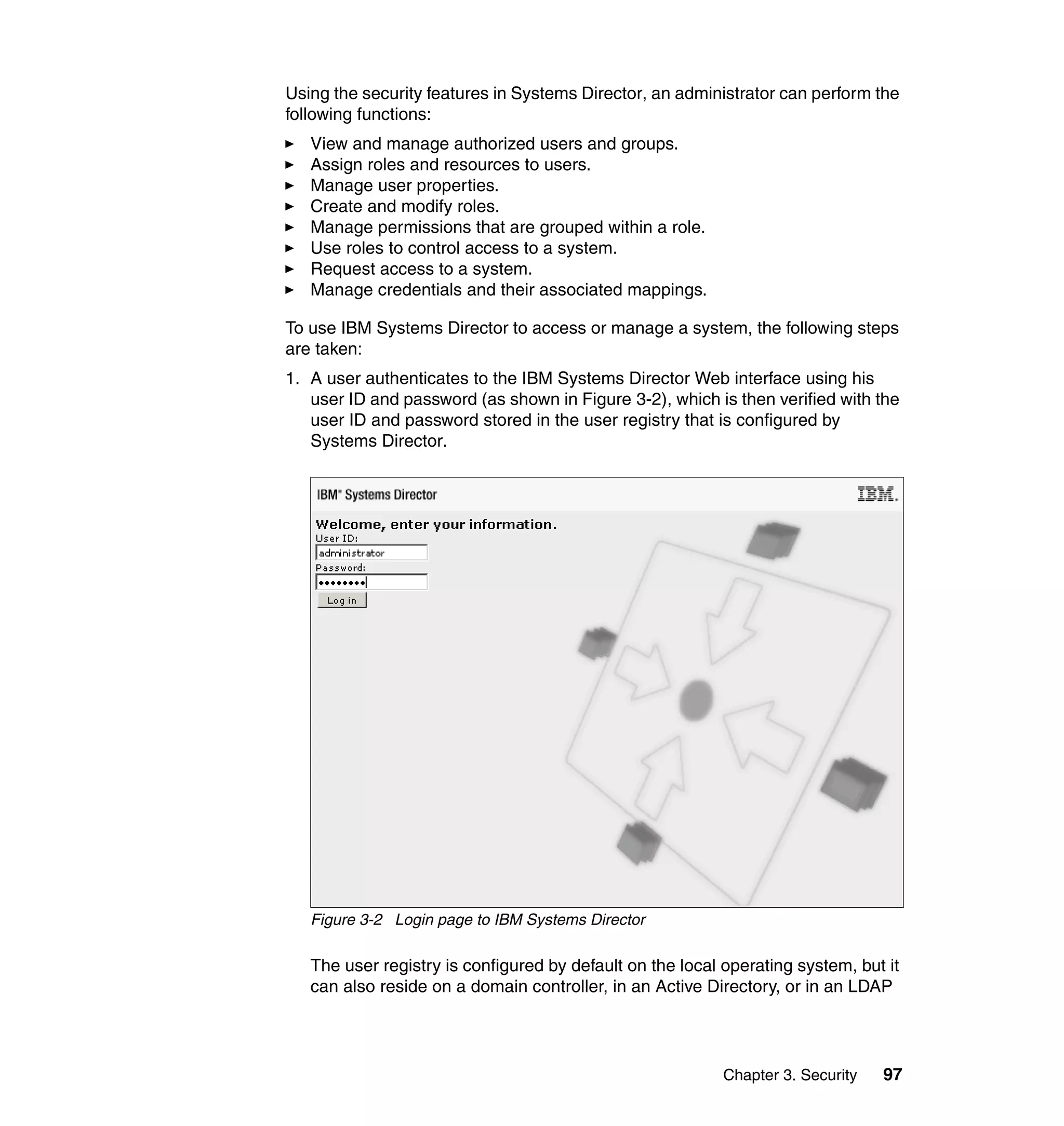
  • 420.
    396 Implementing IBMSystems Director 6.1 template, check the Automatically deploy this configuration template when notified of a matching resource option. When you click Continue you get a blank configuration. While each template has its own settings, we decided to create a management module login configuration as an example, so we can create tasks related to logins. Clicking the Create Task button brings up the Create Management Module Login task window, as seen in Figure 8-9 on page 397. As you can see, we have already filled in the template with an Admin account. Tip: Only one template per resource can be set to automatically deploy at a time. If you have two different management module network configuration templates, only one can be set to automatically deploy. If you set a template to automatically deploy and a conflicting template is already set to automatically deploy, the automatically deploy option will be deselected in the other template and you will get a warning message. Tip: The configuration template name and description cannot include the ampersand (&), apostrophe (‘), double quotation mark (“), greater than character (>), or less than characters (<).
  • 421.
    Chapter 8. ConfigurationManager 397 We selected the Create New Account option from the Select task list and set the user access to Administrator, as shown in Figure 8-9 and Figure 8-10 on page 398. Figure 8-9 Create Management Module Login task
  • 422.
    398 Implementing IBMSystems Director 6.1 After we create several tasks we have the Management Module Login Configuration template shown in Figure 8-10. Figure 8-10 Management Module Login Configuration template tasks At the bottom of the configuration page there is a Set the Management Module Date and Time check box. This allows you to set the date and time to the local time used by the IBM Systems Director Server. This is only be done when the template is deployed, not as an ongoing process. 8.3.2 Deploying templates Once you have created templates, they must be deployed. Templates can be deployed individually or as part of a configuration plan. See 8.4, “Configuration plans” on page 399, for more information about using configuration plans. To deploy a template individually select the template and click the Deploy button.
  • 423.
    Chapter 8. ConfigurationManager 399 Figure 8-11 shows the job created when we deployed the BladeCenter QLogic Config that we created previously. From this window select the resources that you want to target with this template. Figure 8-11 Deploy template job See Chapter 9, “Automation Manager” on page 405, for more information about Command Automation. 8.4 Configuration plans Configuration plans allow you to group one or more configuration templates together and apply them to a resource in a specific order.
  • 424.
    400 Implementing IBMSystems Director 6.1 8.4.1 Creating configuration plans Clicking the Create button starts the Configuration Plan Wizard. After passing the Welcome page you must set a name and a target type (that is, chassis, server, or network) for which the configuration plan will be used. Optionally, you can enter a description and check the Automatic deploy check box, as shown in Figure 8-12. Figure 8-12 Configuration Plan Wizard Name page
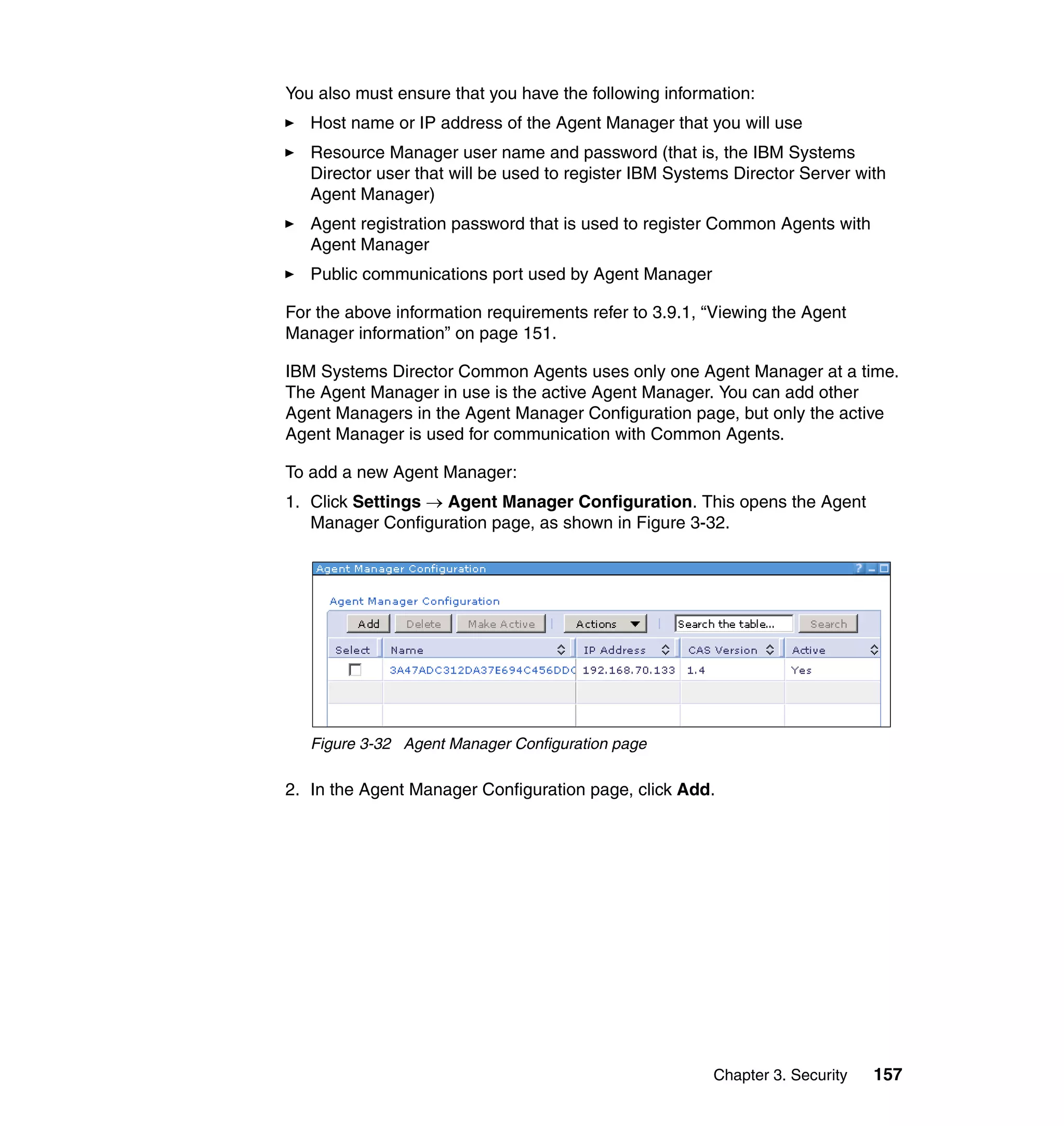
  • 425.
    Chapter 8. ConfigurationManager 401 Next select which templates you want included in the configuration plan and what order you want the templates applied, as shown in Figure 8-13. Figure 8-13 Configuration Plan Wizard Templates page Lastly, a summary of your configuration plan is displayed so that you can confirm the configuration plan’s actions before saving it, as shown in Figure 8-14. Figure 8-14 Configuration Plan Wizard Summary page
  • 426.
    402 Implementing IBMSystems Director 6.1 8.4.2 Deploying configuration plans Figure 8-15 shows the list of configuration plans currently defined on our management server. To deploy one of these configuration plans, we simply select it and click Deploy. Figure 8-15 Configuration Plans page
  • 427.
    Chapter 8. ConfigurationManager 403 As with deploying a configuration template, clicking Deploy creates a job to deploy the configuration plan (Figure 8-16). Figure 8-16 Configuration Plan automation job target chooser page In the target chooser page that opens, select a system and click Add, then OK. The configuration plan will be deployed to the target systems. See Chapter 9, “Automation Manager” on page 405, for more information about Command Automation.
  • 428.
    404 Implementing IBMSystems Director 6.1
  • 429.
    © Copyright IBMCorp. 2009. All rights reserved. 405 Chapter 9. Automation Manager Automation Manager provides tools to notify an administrator or run a predefined task automatically when a certain event occurs. You can use the Automation Manager plug-in to: Create custom Event Automation Plans (formerly called Event Action Plans in previous IBM Director versions) used to automate tasks and other responses to situations that occur in your environment. Create and manage event filters that allow the Event Automation Plans to target specific events. Create and manage event actions that identify tasks or commands to run, or notifications to send. Valid actions include starting a noninteractive task or program on the management server or the system on which the event was generated, or sending an e-mail notification. View the Automation Manager Summary page, which shows the status of jobs and automation plans and a summary of tasks that will help you automate tasks. In this section we explore the following topics: 9.1, “Event Automation Plan wizard” on page 406 9.2, “Events, filters, and actions” on page 407 9.3, “Creating Event Automation Plans” on page 426 9.4, “Example of an Event Automation Plan” on page 439 9
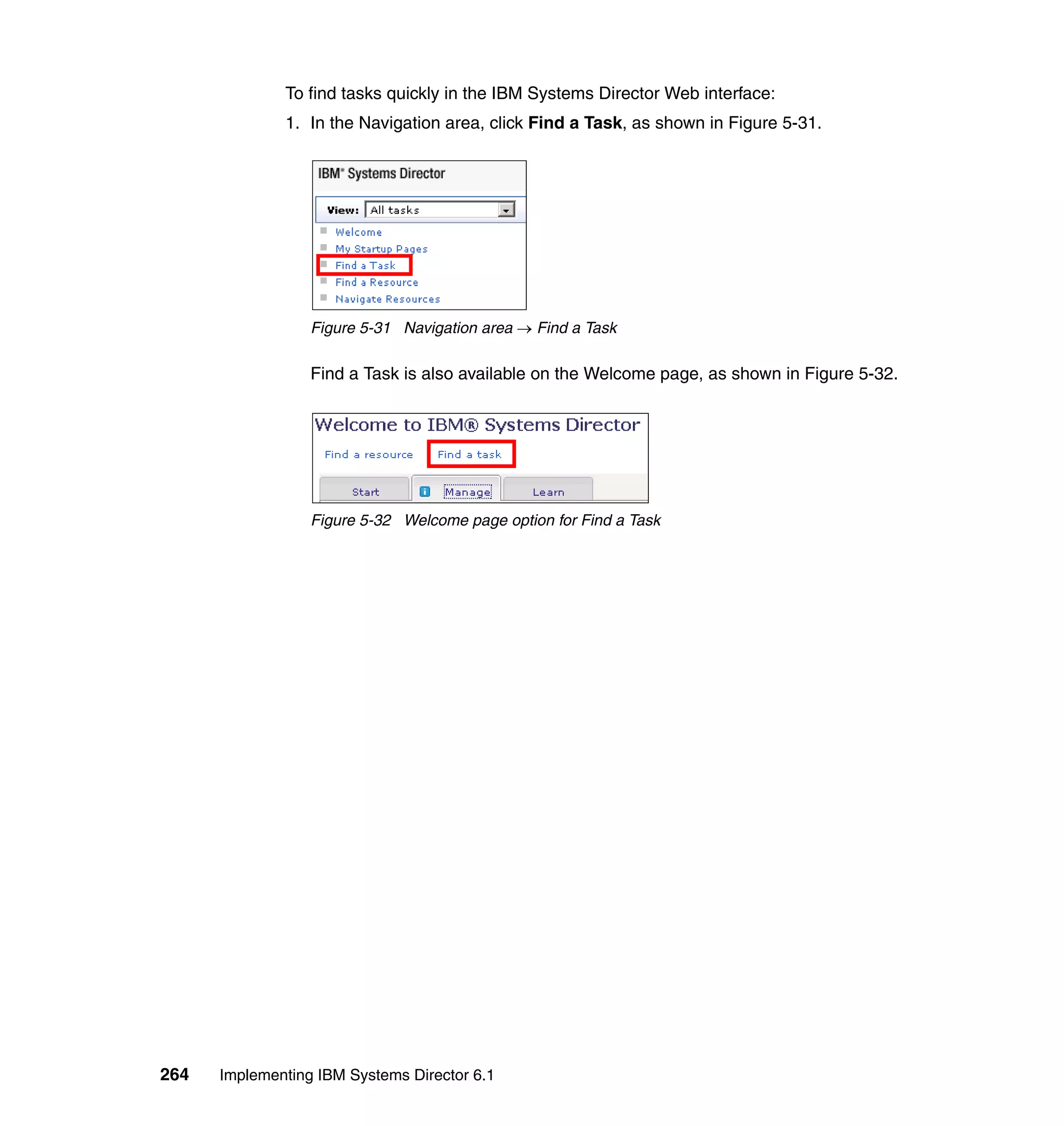
  • 430.
    406 Implementing IBMSystems Director 6.1 9.1 Event Automation Plan wizard To assist the system administrator, IBM Systems Director provides the Event Automation Plan wizard as a quick and simple way to create Event Automation Plans that meet most systems’ management needs. Using the Event Automation Plan wizard, you can create plans that monitor for the most typical situations in systems management environments, including, but not limited to, the following examples: Critical hardware events from all systems in your environment Processor (CPU) utilization in a specific group of systems, such as all servers running Linux All Common Agent managed systems to determine whether Common Agent goes offline The status of updates that are underway Disk space use in systems, such as those that store database data You can then configure actions to be performed based on the situation. For example, actions could send a page or e-mail message, or could start a program on a system. For more information about creating Event Automation Plans and using the Event Automation Plan wizard, see 9.3, “Creating Event Automation Plans” on page 426. The Event Automation Plan wizard also provides advanced event actions and event filter options that you can use to create Event Automation Plans that can meet very specific needs in your systems management environment. Successful implementation of Event Automation Plans requires planning and consideration of how you will implement them. Providing thoughtful descriptions for your Event Automation Plans can be particularly helpful. For more information see “Planning for Event Automation Plans” on page 80. By default, IBM Systems Director creates one Event Automation Plan. This default plan is called log all events. This Event Automation Plan logs every event received from every managed system/resource to the IBM Systems Director event log. This Event Automation Plan is activated on all systems/resources. Note: The Log All Events Event Automation Plan does not log Windows-specific or IBM i-specific events. For more information about how to monitor these operating-system-specific events, see “Monitoring operating-system-specific events” on page 415.
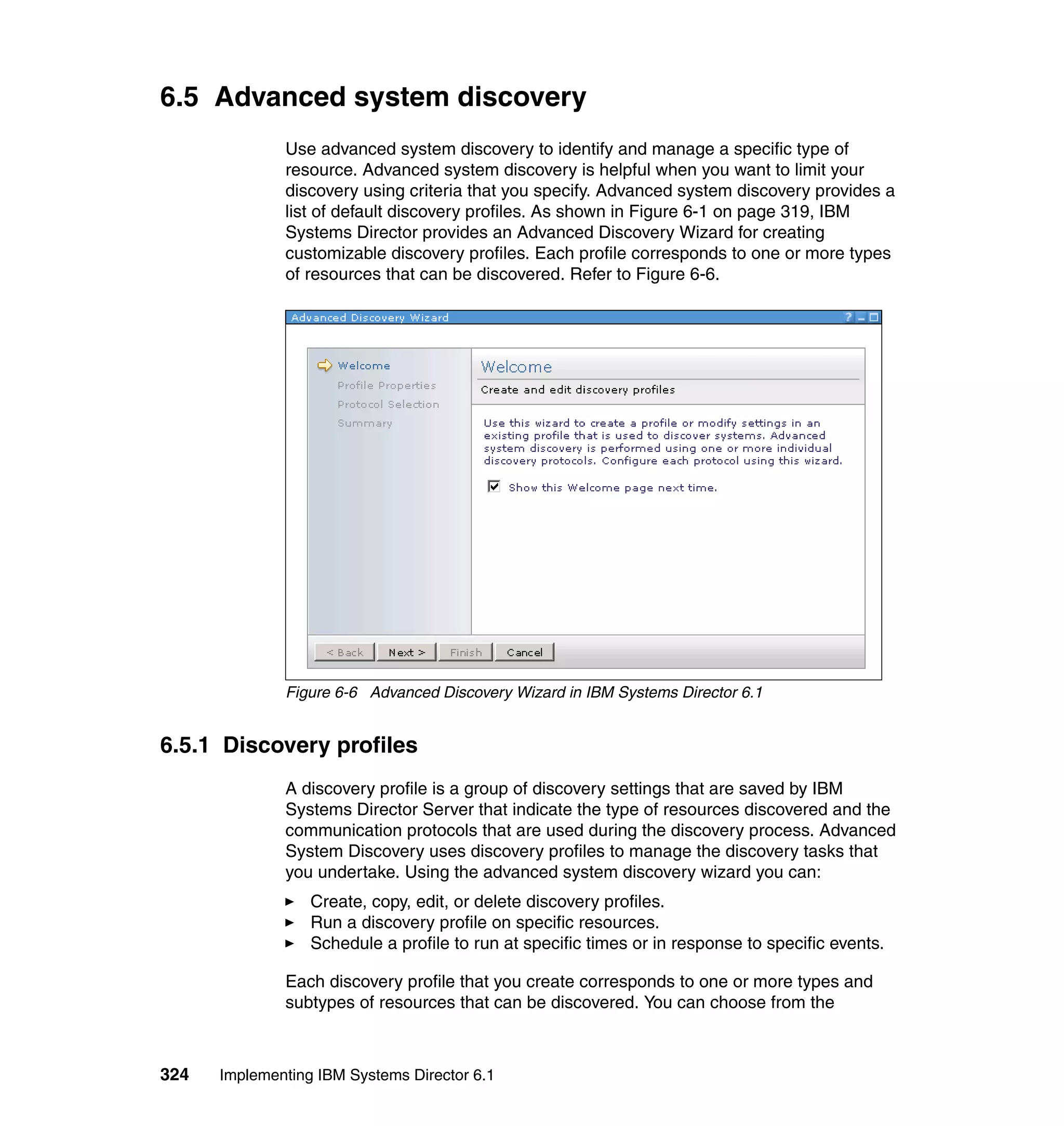
  • 431.
    Chapter 9. AutomationManager 407 To view the default plan, click Automation → Automation Plans in the navigation area. The Automation Plans page opens in the contents view, as seen in Figure 9-1. Figure 9-1 Default Automation Plans page You will see listed in the table shown in Figure 9-1 the default automation plan Log All Events, with the Targets setting set to All Systems, status Active, and time range All the time (24x7). 9.2 Events, filters, and actions To create an Event Automation Plan there are a few aspects to consider (see also 2.5.9, “Event automation” on page 80): You must decide which events will generate a notification. You must decide which actions to perform when event notification is received. You must decide which Event Automation Plan should be applied to which systems or groups of systems. Note: This default Event Automation Plan can be deleted. However, we do not recommend deleting it until you have created other Event Automation Plans for your specific environment.
  • 432.
    408 Implementing IBMSystems Director 6.1 9.2.1 Events An event is an occurrence of significance to a task or system, such as the completion or failure of an operation. IBM Systems Director Server receives events from many sources. These sources include, but are not limited to, the following programs and protocols: IBM Systems Director native events generated by Common Agent (such as a fan failure or a power supply failure) Common Information Model (CIM) indications from the Common Information Model Object Manager (CIMOM) that is installed as part of Common Agent and Platform Agent Microsoft Windows event log events Windows Management Instrumentation (WMI) events SNMP traps through out-of-band communication (communication that is not through Common Agent or Platform Agent) Platform Event Traps (PET) through out-of-band communication with systems that support Alert Standard Format (ASF) and Intelligent Platform Management Interface (IPMI) such as the Baseboard Management Controller on IBM System x and BladeCenter Servers IBM service processor notifications through out-of-band communication, such as from the Remote Supervisor Adapter (RSA) on IBM System x servers When IBM Systems Director Server receives these events or notifications, it converts them into IBM Systems Director events. For example, when the Systems Director Server receives a CIM indication, it converts the CIM indication into an IBM Systems Director event of the type CIM. IBM Systems Director can convert CIM indications into other event types, including event types that are used by enterprise-level systems management programs, such as SNMP events. Using these event types, Systems Director can provide system data to the enterprise-level systems management programs Note: If you want to create sophisticated Event Automation Plans, it is important to understand the events that are generated in a systems management environment, the event filters that specify the triggering events, and the event actions that can automate a response to the triggering event. For examples see “Event Automation Plan examples” on page 81.
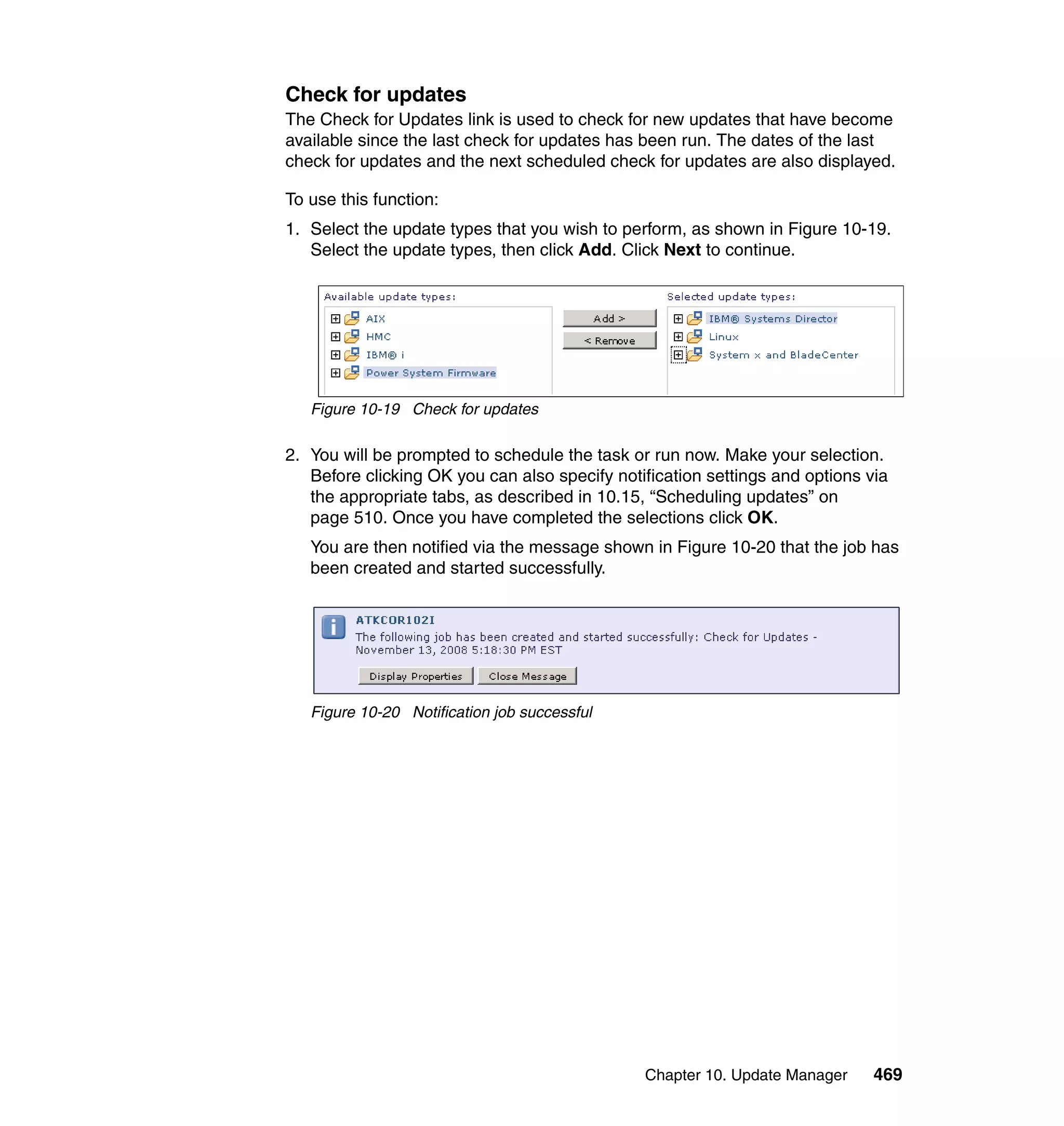
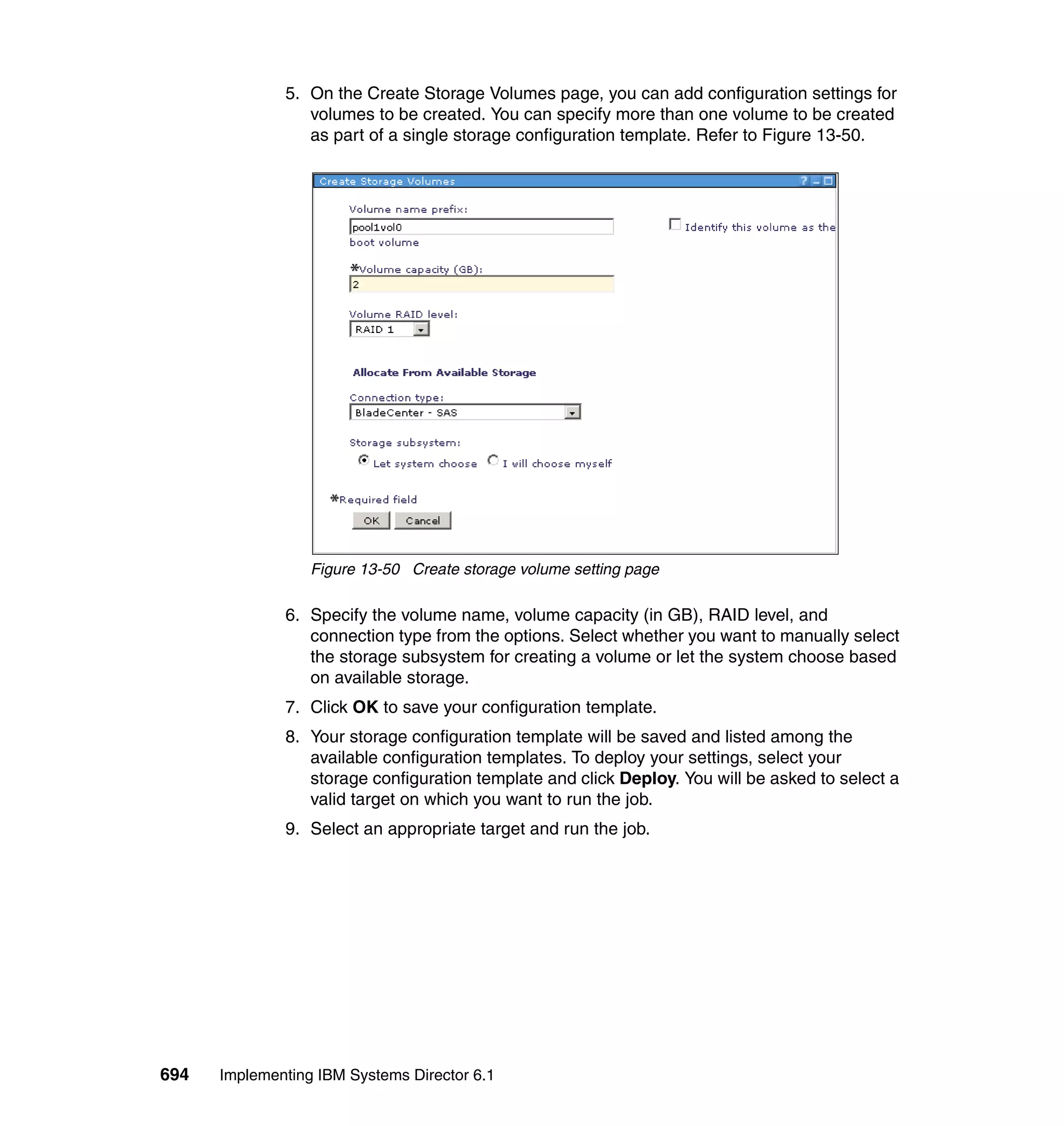
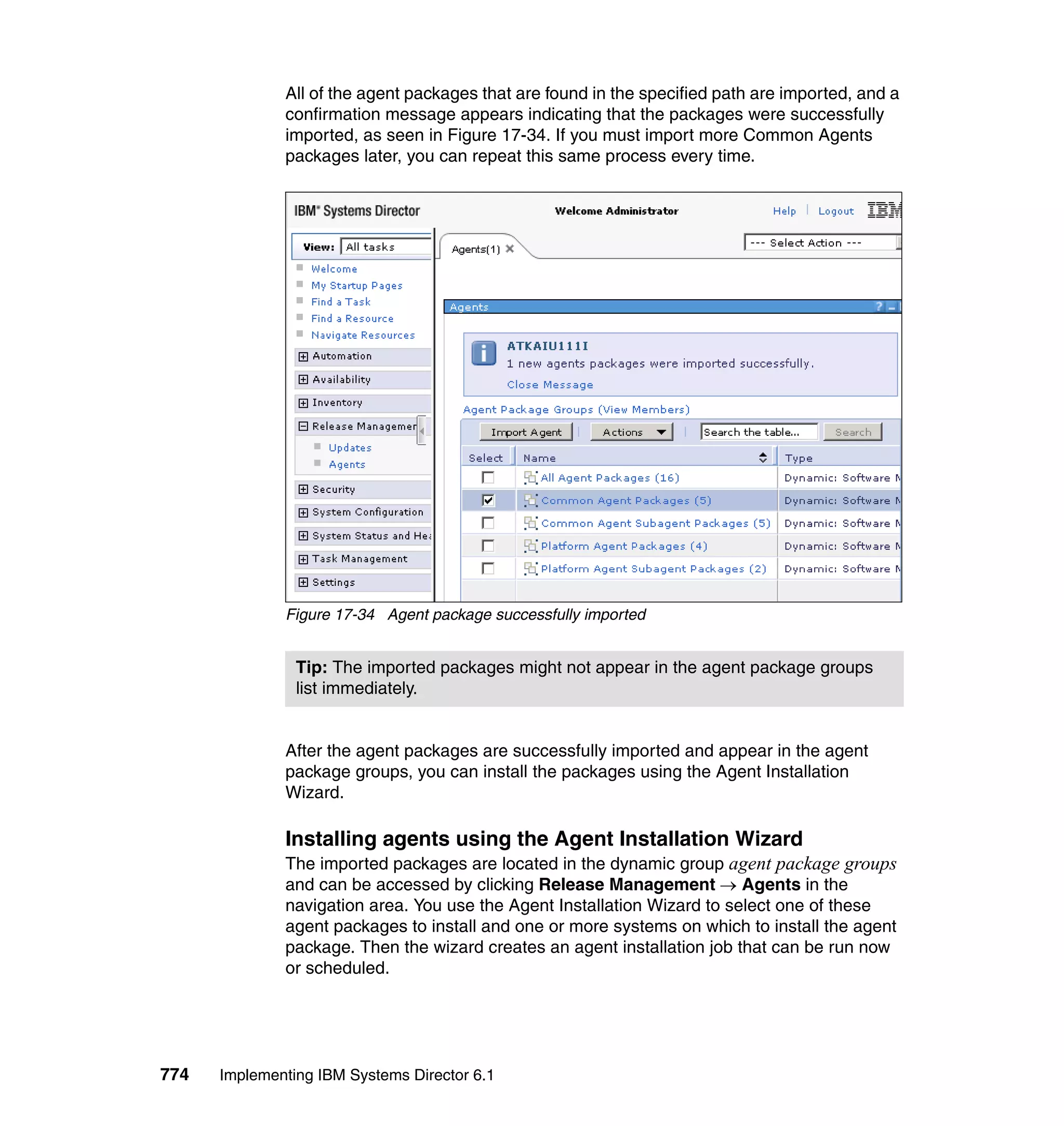

  • 433.
    Chapter 9. AutomationManager 409 through the IBM Systems Director Upward Integration Modules. Systems Director converts CIM indications for use by the following consumers: IBM Systems Director events Microsoft System Center Operations Manager 2007 (alerts) Microsoft Operations Manager 2005 (alerts) Microsoft Systems Management Server (SMS) (native events) Microsoft Windows (event log event ID) Simple Network Management Protocol (SNMP) Tivoli Enterprise Console® (native events) Tivoli Enterprise Console (SNMP events) For a full list of CIM indications refer to the IBM Systems Director Information Center at: http://publib.boulder.ibm.com/infocenter/systems/topic/director.events_ 6.1/fqm0_r_events_cim_indicators.html Alerts and resolutions In IBM Systems Director an event can be classified in one of the following categories: Alert: Typically, an alert is the occurrence of a problem relating to a system (for example, a power supply failure). Resolution: A resolution is the occurrence of a correction or solution to a problem. For example, the power supply has been replaced. 9.2.2 Event filters A filter specifies one or more events that you want your Event Automation Plan to process. The Event Automation Plan ignores any event instances that do not meet the specifications of the filter. Note: The CA Unicenter, HP OpenView, and Tivoli NetView Upward Integration Modules (UIMs) use SNMP traps. However, these SNMP events are not the same as SNMP traps that IBM Systems Director Server receives out-of-band (that is, not through Common Agent or Platform Agent). Out-of-band SNMP traps are generated by hardware products and other software programs. They are displayed under the SNMP node in the event filter builder tree, but beneath a different subnode.
  • 434.
    410 Implementing IBMSystems Director 6.1 In IBM Systems Director Server there are a number of default filters already created. These default filters are shown in Figure 9-2. Figure 9-2 Default event filters Occasionally, there are situations in which you will want to create a sophisticated event filter. Using these filters, you can specify details for an event such that it covers very specific problems or occurrences. To create filters quickly, default values are provided. However, you can customize the settings.
  • 435.
    Chapter 9. AutomationManager 411 You can use a filter to capture a single event or multiple events. When designing an event filter, first determine whether the following criteria are met: Can all the target systems generate all the events that you want to filter? If a system cannot generate the event that you want to filter, the filter will not be effective on that system. In such instances, you can apply the Event Automation Plan to those systems, but it will have no effect. For example, If an event filter is based on an event for IBM BladeCenter products and that Event Automation Plan is applied to systems that do not include BladeCenter products, the event filter has no events to filter, and therefore, no actions are performed. If you understand this concept you can create more complex Event Automation Plans and you can reduce the number of Event Automation Plans that you must build and maintain. Can you use the same event actions for all targeted systems to respond to the event? Are the other filter options besides the event type common for all targeted systems? These settings include the number of times that the filter is active, the severity of the event, and other attributes. In addition to selecting the event types to filter, you also can select from four types of event filters. Each filter type offers different options for processing selected events: Simple event filter: Simple event filters are general-purpose filters. Most Event Automation Plans use simple event filters. Duplication event filter: Duplication event filters ignore duplicate events. Exclusion event filter: Exclusion event filters exclude certain event types. Threshold event filter: Threshold event filters process an event after it has occurred a specified number of times within a specified time period. We now look at each event filter type in more detail.
  • 436.
    412 Implementing IBMSystems Director 6.1 Simple event filter In addition to any simple event filters that you create, IBM Systems Director provides the following predefined, read-only simple event filters in the Event Filters page. All events: Processes any events that occur on a system, except for Windows-specific and IBM i-specific events Common Agent offline: Processes only those events that are generated by the Common Agent when it goes offline Critical events: Processes only those events that have a critical severity Disk use: Processes only those events that are generated when the currently available hard disk space in a system changes with respect to availability Environmental sensor events: Processes only those events that are associated with the condition of a system environment, such as voltage and temperature Fatal events: Processes only those events that have a fatal severity Hardware Predictive Failure Alert (PFA) events: Processes only those events that are generated when a PFA is detected for a hardware component Informational events: Processes only those events that have an informational severity Memory use: Processes only those events that are generated when the currently available memory in a system changes with respect to availability Minor events: Processes only those events that have a minor severity Processor use: Processes only those events that are generated when the state of a processor (CPU) has changed Security events: Processes only those events that are generated by specific security protocols, for example, logon failed due to an undefined user ID or incorrect or expired password Storage events: Processes only those events that are generated by storage components, such as Redundant Array of Independent Disks (RAID) configurations (for example, when creating, modifying, or destroying a storage volume or storage pool) Unknown events: Processes only those events that have an unknown severity Warning events: Processes only those events that have a warning severity Note: You cannot change predefined event filters. They are read only. However, you can copy a predefined filter and change the copy.
  • 437.
    Chapter 9. AutomationManager 413 Some of these predefined filters use the severity of events to determine which events can pass through. Other filters target a specific type of event. Using one of these predefined event filters ensures that the correct event type or event severity is selected. Duplication event filter Duplication event filters ignore duplicate events. You can use this type of filter two ways. First, you can specify a simple time range threshold. Second, you can specify the number of times to ignore an event (count). Interval only To specify only a time range (interval), the count setting must be set to zero (count = 0). The first occurrence of an event that meets the filter criteria triggers associated actions and starts a countdown of the interval. For example, if you specify a 10-second interval, a 10-second timer starts when an event meets the filtering criteria. Because the count is set to 0, all other instances of an event that meet the criteria do not trigger associated actions during the interval. Event count If you also specify a number of times to ignore an event (count), it applies within the specified time range (interval). After the first occurrence of an event that meets the filtering criteria, the count setting specifies the number of times that an event must meet the criteria again, within the specified interval, before associated actions are triggered. For example, if you set the count to 9, an event meeting the criteria is allowed to occur nine times within the interval. When an event meets the criteria for a tenth time within the interval, the associated actions are triggered, the count is reset, and the interval is reset. For the duplication filter to trigger the associated event actions a second time, the count must be exceeded within the reset interval. If count = 3 and interval = 5 minutes, the event action is invoked for the fourth occurrence of the event that occurs within 5 minutes. Then the count and interval are reset. Four more occurrences of the event must occur within another 5-minute interval before actions are triggered again. Frequently generated events Duplication event filters are particularly useful in managing the processing of frequently generated events. For example, you can define a duplication event filter-to-filter on the occurrence of an offline event and define a corresponding event action to send an e-mail notification to a particular server administrator. Depending on the criteria that you define, only the first event announcing that the system is offline is processed, and all other instances in which an event meets
  • 438.
    414 Implementing IBMSystems Director 6.1 the filtering criteria are discarded until the count value is exceeded during the specified interval. Exclusion event filter Exclusion event filters exclude certain event types. Using this type of filter, you can define the criteria of the events to exclude. You can use this filter type to activate a group of events and then exclude some of the events in that group. This filter type is useful when you want to create a filter based on a severity or a category of events, but you want to exclude specific event types. Instead of creating event filters for each event that you want to include, you can specify the event types that you want to exclude. By using exclusion event filters, it is easier to remove events that you do not want to monitor. For example, using this filter type you can monitor the Windows Security event log events, but exclude security alerts 528, 551, and 552. Threshold event filter The threshold event filter processes an event after it has occurred a specified number of times within a specified interval. An event triggers associated actions if, within the specified interval, the event occurs the number of times specified in the Count field. For example, you can define a threshold filter to monitor failed login attempt events and execute an event action only when the event is received for the fifth time during a specified interval. If the count is set to 5 and interval is set to 3 minutes, the specified event will be received up to four times in a 3-minute period and no action will be taken. However, if a user fails to lo gin for a fifth time within any 3-minute window, the event actions are invoked and the count and interval are reset. To invoke the event actions a second time, the specified event must be received five times within an interval of 3 minutes again. If only four events are received within the 3 minutes, the count and interval are reset.
  • 439.
    Chapter 9. AutomationManager 415 Monitoring operating-system-specific events If you want to monitor Windows-specific or IBM i-specific events in the IBM Systems Director environment, you must create an Event Automation Plan in order for IBM Systems Director to process these events. The predefined active Event Automation Plan in IBM Systems Director, log all events, does not monitor these operating-system-specific events. Systems running Windows or IBM i can generate operating-specific events, as detailed in Table 9-1. Table 9-1 Windows or IBM i operating-system-specific event types Even though these events are generated by their respective operating systems (or an optional layer that is installed on the operating system), IBM Systems Director does not process these events unless you create an Event Automation Plan to do so. You must create an Event Automation Plan with a simple event filter that contains the event types for one or more of these events. Then you must apply this Event Automation Plan to systems running Windows or IBM i. Operating system Specific event type Windows Windows event log Windows services Windows registry IBM i Msgq Note: When Common Agent starts on a system running Windows, the twgescli.exe program starts, too. This program listens for IBM Systems Director Server to send a message to Common Agent that says that an Event Automation Plan has been applied to that system. If the Event Automation Plan includes a simple event filter that contains the event types for any of the Windows-specific events, IBM Systems Director appropriates these events for its own use. This is called event subscription. The twgescli.exe program subscribes to the event types that are specified in the Event Automation Plan and translates the Windows-specific events into an IBM Systems Director event type. Then the program forwards the events to the management server from which the Event Automation Plan was applied. When IBM Systems Director starts on a system running IBM i, the process is the same with comparable code to twgescli.exe that is included in IBM Systems Director for IBM i.
  • 440.
    416 Implementing IBMSystems Director 6.1 9.2.3 Event actions Event actions specify the action that IBM Systems Director takes in response to specific events. For example, using the Event Automation Plan wizard, you can easily create an Event Automation Plan that will send an e-mail or pager notification in response to an event. Additionally, the Event Automation Plan wizard provides other advanced event actions that you can use in response to an event. Predefined event actions IBM Systems Director has several predefined types of event actions. With the exception of Add to the event log, you must customize each action that you want to use. Note: In IBM Systems Director 6.1 and later, the following Director 5 event actions are no longer be supported: Add a message to the console ticker tape. Send a message to a management console user. At the time of writing, the migration tool to enable migration from IBM Director 5.20.x Server to IBM Systems Director 6.1 was not available. However, note that if you are using the migration tool to migrate IBM Director 5.20 Server to IBM Systems Director 6.1 Server, these actions will be removed from the Event Automation Plan. If the resulting Event Automation Plan has no event actions remaining, the plan will be in a deactivated state, and you must create another action before you can activate these plans. At the time of writing the migration tool was not available for testing.
  • 441.
    Chapter 9. AutomationManager 417 The default predefined customizable actions available are shown in Figure 9-3. Figure 9-3 Default predefined customizable actions The available actions are: Start a program on a system: Starts a program on a specified system. Programs can include command-line commands that can start or stop programs on the system. Start a program on the system that generated the event: Starts a program on the system that generated the event that triggered the Event Automation Plan. Programs can include command-line commands that can start or stop programs on the system. Send an e-mail to a mobile phone: Sends an e-mail message to a mobile phone. The e-mail message is shortened to accommodate the limited display window of a mobile phone. Using this action, you can send less text than when using Send an e-mail (Internet SMTP). Start a program on the management server: In response to an event, starts a program on the management server that received the event. Programs can
  • 442.
    418 Implementing IBMSystems Director 6.1 include command-line commands that can start or stop programs on the system. Send an e-mail (Internet SMTP): Sends a Simple Mail Transfer Protocol (SMTP) e-mail message. You also can send a message to an e-mail enabled phone. Using this action, you can send more text than when using Send an e-mail to a mobile phone. Send an alphanumeric page (using TAP): (Windows only) Sends a message to a pager using the Telocator Alphanumeric Protocol (TAP). Static group: Add or remove group members: Adds a defined set of systems to a specified static group or removes a defined set of systems from the specified static group. Use this event action to initialize a set of systems to process. Then the processing is triggered by an event that you specify in your event filter. Post to a newsgroup (NNTP): Posts a message to a newsgroup used by your organization. The newsgroup must use Network News Transfer Protocol (NNTP) to send and receive information. Send an SNMP trap reliably to a NetView host: Generates an SNMP trap and sends it to a specified NetView host using a TCP/IP connection to the host. If delivery of the SNMP trap fails, a message is posted in the history log of the system. Send a Tivoli Enterprise Console event: If IBM Systems Director Server receives an event, you can forward that event to a specified Tivoli Enterprise Console event server. Static group: Add or remove the event-generating system: Adds the system that generated the event to a specified static group or removes the system that generated the event from a specified static group, as applicable. Send an SNMP INFORM request to an IP host: Sends an SNMP INFORM request to a specified IP address or host name. SNMP INFORM is a special version of an SNMP trap with a response from a destination. Send an SNMP trap to an IP host: Generates an SNMPv1 or SNMPv2c trap and sends it to a specified IP address or host name. Modify an event and send it: Resends the event that originally triggered the Event Automation Plan. Before resending the event, the action modifies the event data, such as its text and severity, to your specification. Timed alarm that starts a program: Starts a specified program only if IBM Systems Director does not receive a specified event within a specified time range. This event action is useful for monitoring for a loss of function, much like a heartbeat monitor. Set an event system variable: Sets a user-defined system variable to a new value or resets the value of an existing system variable. IBM Systems
  • 443.
    Chapter 9. AutomationManager 419 Director provides user-defined system variables to help you test and track the status of network resources according to the needs of your organization. System variable names and values can be referenced wherever event data substitution is allowed. Start a task on a specified system: Starts a noninteractive IBM Systems Director task on a specified system. Noninteractive tasks are tasks that do not require user input. Timed alarm that generates an event: Generates a defined alarm event only if IBM Systems Director does not receive a specified event within a specified time range. This event action is useful for monitoring for a loss of function, much like a heartbeat monitor. Start a task on the system that generated the event: Starts a noninteractive IBM Systems Director task on the system that generated the event. Noninteractive tasks are tasks that do not require user input. Log to a log file: Logs information about the triggering event to a specified text file. Send a numeric page: (Windows only) Sends a numeric-only message to the specified pager. For more detailed information about each of the default actions refer to the IBM Systems Director Information Center: http://publib.boulder.ibm.com/infocenter/systems/topic/director.automate _6.1/fqm0_c_ea_actions.html 9.2.4 Command Automation Use the Command Definitions page to create a command definition that is saved to the Command Automation page in the IBM Systems Director Web interface. When you create and save a command definition, you can then apply it to a system and run the command. This page is also used to edit an existing command definition. Note: This task requires the IBM Systems Director Launched Tasks program. This program is installed automatically the first time that you use a task that requires it. For information about the IBM Systems Director Launched Tasks program see 5.7, “Launched tasks” on page 290.
  • 444.
    420 Implementing IBMSystems Director 6.1 To create a Command Automation definition: 1. Expand Automation from the navigation area and click Command Automation. 2. Click Create from the Command Automation page. 3. The Launch task program begins and opens the Command Definition window, as shown in Figure 9-4. Figure 9-4 Command Definition window Enter the command that you want to run and specify the login credentials for the system on which the command will be run. In Figure 9-4 we entered the command to start the Windows Media® Player application using the login credentials of administrator and password for one of our Windows Common Agents. 4. Once you are satisfied with the command definition click File → Save As, enter an appropriate name for the command definition, and click OK. 5. You can then create more command definitions by changing the information and selecting to Save as a different name. Once you are finished creating command definitions click File → Close to close the Command Definition window.
  • 445.
    Chapter 9. AutomationManager 421 Your created command definition will now appear in the Command Definitions table, as shown in Figure 9-5. Figure 9-5 Command definition created Figure 9-6 Customized Action: Start a task on the system that generated the event 9.2.5 Automation Manager summary page You can view a summary of activity within the past 30 days that is associated with automation in the Automation Manager summary page. Activities listed here include Event Automation Plans, scheduled and run jobs, event management and event log, a list of systems with the most critical and warning events, and a list of the most frequently received critical and warning events. Note that information about this page is refreshed automatically when there are any changes. To view the Automation Manager summary page: 1. In the IBM Systems Director navigation area, click Welcome. 2. From the available tabs in the Welcome page, click the Manage tab. Note: This new command definition will also appear as a task when customizing event actions, as shown in Figure 9-6, and as detailed further in 9.2.3, “Event actions” on page 416.
  • 446.
    422 Implementing IBMSystems Director 6.1 3. On the Manage page, click the Automation Manager section heading. The Automation Manager summary page opens, showing a summary for the past 30 days, as shown in Figure 9-7. Figure 9-7 Automation Manager Summary page The sections shown on the summary page in Figure 9-7 are as described in the following subsections.
  • 447.
    Chapter 9. AutomationManager 423 Scheduled jobs This section, shown in Figure 9-7 on page 422 by the number , provides the following information: The number of active scheduled jobs. The number of job activations that have completed successfully. The number of job activations that have failed. Up to three upcoming jobs that will run next. If more than one job will run at the same time, all affected jobs are displayed. Up to three of the most recently run jobs. If more than one job ran at the same time, all affected jobs are displayed. In the Job management area, a link to the Scheduler task page. Using scheduler you can create or edit jobs, view job information, view job instance information, suspend and resume jobs, and more. From the Job Management box you have the option to click Active and Scheduled Jobs. Clicking this opens the Active and Scheduled Jobs page, as shown in Figure 9-8. Here you can see which jobs are scheduled and when the jobs are due to run next. You also see the progress of active jobs. Figure 9-8 Active and Scheduled Jobs page Systems with the most frequent critical or warning events The section with the number 2 in Figure 9-7 on page 422 lists the five systems with the most events of type fatal, critical, or warning. If there are more than five systems that have generated the same number of events, an ellipsis (...) indicates that there are more systems.
  • 448.
    424 Implementing IBMSystems Director 6.1 In the Event management box, you have an option to click Event log. This opens the Event Log page, as shown in Figure 9-9. Figure 9-9 IBM Systems Director event log
  • 449.
    Chapter 9. AutomationManager 425 On this page you can view events that IBM Systems Director Server has received along with event information that can help you troubleshoot problems in your systems management environment. You can filter this view further to show only specific events within the event log. This is achieved by clicking the Event filter drop-down menu, as shown in Figure 9-10. Figure 9-10 Event log filter options View the most frequent critical or warning events This section, shown in Figure 9-7 on page 422 with the number , lists the five event types that have been generated the most with the event severity of fatal, critical, and warning. If there are more than five event types that have been generated in the same number of severities, an ellipsis (...) indicates that there are more event types. View the automation plans This section, shown in Figure 9-7 on page 422 with the number , provides the following information: The number of active Event Automation Plans The number of inactive Event Automation Plans
  • 450.
    426 Implementing IBMSystems Director 6.1 In the Plan management box, the following links are provided: Automation plans: Takes you to the Event Automation Plans page, as described in 9.3, “Creating Event Automation Plans” on page 426. Use the Automation Plans page to create and work with Event Automation Plans. Event actions: Takes you to the Event Actions page, as described in 9.2.3, “Event actions” on page 416. Use the Event Actions page to create and work with event actions that specify the action to automate when an Event Automation Plan is triggered. Event filters: Takes you to the Event Filters page, as described in 9.2.2, “Event filters” on page 409. Use the Event Filters page to create and work with event filters that determine which events trigger an Event Automation Plan. 9.3 Creating Event Automation Plans In order to create an Event Automation Plan there are various stages involved. In this section we look at the following: Building an automation plan Selecting and creating filters Selecting and creating actions 9.3.1 Building an automation plan To begin creating your Event Automation Plan you must start the Automation Plan Wizard. To start the wizard: 1. Expand Automation in the Navigation area, as shown in Figure 9-11. Figure 9-11 Automation menu in navigation section
  • 451.
    Chapter 9. AutomationManager 427 2. Click Automation plans. The Automation Plans view opens, as shown in Figure 9-12. Figure 9-12 Automation Plans view 3. Click Create to open the Event Automation Plan wizard. The wizard is used to create Event Automation Plans. Use these plans to designate events within your systems management environment for which one or more actions are executed. 4. If presented with the Welcome page, click Next to continue. To avoid showing the welcome page next time you enter the Event Automation Plan wizard deselect the option Show this Welcome page next time. 5. Begin the Event Automation Plan by giving it a name and, optionally, a description. Click Next to continue. 6. Identify the systems that you want the plan to monitor for specific events. 7. In the Available pane, select one or more systems or groups of systems. Then click Add to move your selections to the Selected pane. If you want to select specific systems from a group, click the group to view the group members. Make your selections and then click Add. Click Next to continue. 8. Select or create a filter for the automation plan. See 9.3.2, “Selecting and creating filters” on page 429. 9. Now you must select the events that trigger an event action. Specify one or more events from the list of common events. The selected events trigger this Event Automation Plan. Alternatively, select Advanced Event Filters in the Events list to use one advanced event filter. Use advanced event filters to monitor for specific events that are not included in the common event filters or to monitor for only one event.
  • 452.
    428 Implementing IBMSystems Director 6.1 For more information about which filters to use see 9.3.2, “Selecting and creating filters” on page 429. For example, instead of monitoring for all fan event types, you can monitor for only the Fan Predictive Failure Alert (PFA) event. Also, you can create more sophisticated event filters that are triggered when duplicates of an event are received, when a specific number of instances of an event is received within an interval of time, or when a specific event is received but you want to exclude another event. Once you are satisfied with your selection, click Next to continue. 10.The Actions view appears next, enabling you to pick the action that you want to invoke on receiving the event. You can either pick one of the event actions listed or create your own action. For more information about creating actions see 9.3.3, “Selecting and creating actions” on page 437. Once you have selected an action, click Next to continue. 11.Specify the time range for Event Automation Plan activation. When creating an Event Automation Plan, you can specify the time range for the plan to be active. You will want many plans to be active all the time, in which case select All the time (24x7). However, you might need other plans to be active at only certain times, such as weekends or overnight, and in this case you should click Custom and specify the time that you want to monitor the event. Click Next to continue.
  • 453.
    Chapter 9. AutomationManager 429 12.You are then presented with a summary of the proposed Event Automation Plan, as shown in Figure 9-13. If you are satisfied with the plan, click Finish. Figure 9-13 Event Automation Plan summary The plan now shows up in the Automation Plans view, Figure 9-14. Note that the Log All Events automation plan is created by default. Figure 9-14 Automation plans view with created automation plan 9.3.2 Selecting and creating filters The Event Automation Plan uses event filters to monitor for the occurrence of one or more specified events. When these events occur, your Event Automation Plan responds with one or more customized event actions. Tip: Within the summary view, as shown in Figure 9-13, there is a check box selected by default to Apply this Event Automation Plan when I click Finish. If you do not want to apply the Event Automation Plan at this time, deselect this option.
  • 454.
    430 Implementing IBMSystems Director 6.1 The types of events from which you can select and the ways that you can filter the events are broadly divided between the following categories: Common event filters These are predefined simple filters that monitor for events of common interest. For example, the disks event filter is triggered by any hard disk event and the fans event filter is triggered by any fan event. The Event Automation Plan wizard provides several common event filters so you can create typically required Event Automation Plans quickly and easily. Common filters available are: – General • Event severity • Updates • Common Agent • User login security – Thresholds • CPU utilization • Memory usage • Disk % space used – Hardware • Processors (CPU) • Disks • Fans • Memory • Network and switches • Power • Servers • RAID or storage arrays • Blade servers Advanced event filters If you want to monitor specific events that are not included in the common event filters you must select advanced event filters. Not only can you specify additional events, but you also can create more sophisticated event filters that are triggered: – When duplicates of an event are received – When a specific number of instances of an event is received within and interval of time – When a specific event is received but you want to exclude another event
  • 455.
    Chapter 9. AutomationManager 431 For more information about Advanced Event filters see 9.2.2, “Event filters” on page 409. Selecting default advanced event filters When you select Advanced Event Filters within an Event Automation Plan you are provided with a list of default event filters, as shown in Figure 9-15. Figure 9-15 Default advanced event filters
  • 456.
    432 Implementing IBMSystems Director 6.1 To see more information about any of the event filters listed, you can either click the filter name (for example, click Common Agent offline) or select a filter and click Actions → Properties. This opens the properties page for the specific filter, as shown in Figure 9-16. Figure 9-16 Event filter Common Agent offline properties page If you decide not to use any of the filters listed you can create your own specific filters, as described in the next section.
  • 457.
    Chapter 9. AutomationManager 433 Creating customized advanced event filters You can open the event filter builder in two ways: From within the Event Automation Plan wizard you can choose to Create a new event filter. Expand the Automation task in the navigation area and click Event Filters, then click Create. Once the Create Filter page is open, select the filter type from the available options (simple event filter, threshold filter, duplication filter, exclusion filter). For more information about each filter type see 9.2.2, “Event filters” on page 409. This starts the Launch Task program and opens the appropriate event filter builder, where you can create a customized filter. Each filter type that you select displays a different window: Selecting Simple event filter launches the window shown in Figure 9-17. Figure 9-17 Simple Event Filter Builder
  • 458.
    434 Implementing IBMSystems Director 6.1 Make your filter selection, then save this filter with an appropriate name. This saved filter will be added to the list of available advanced filters, as shown in Figure 9-21 on page 437. Selecting Threshold event filter launches a window similar to the one shown in Figure 9-17 on page 433. However, you will have a Frequency tab available to configure, as shown in Figure 9-18. Figure 9-18 Threshold event filter builder tab option Configure your specific threshold event and specify the frequency information. Then save this filter with an appropriate name. This saved filter will be added to the list of available advanced filters, as shown in Figure 9-21 on page 437.
  • 459.
    Chapter 9. AutomationManager 435 Selecting Duplication filter launches a window similar to the one shown in Figure 9-17 on page 433. However, you will have a Frequency tab available to configure, as shown in Figure 9-19. Figure 9-19 Duplicate event filter builder Configure your specific duplicate event and specify the frequency information. Then save this filter with an appropriate name. This saved filter will be added to the list of available advanced filters, as shown in Figure 9-21 on page 437.
  • 460.
    436 Implementing IBMSystems Director 6.1 Selecting Exclusion filter launches a window similar to the one shown in Figure 9-17 on page 433. However, you will have a Frequency tab available to configure, as shown in Figure 9-19 on page 435. Figure 9-20 Exclusion event filter
  • 461.
    Chapter 9. AutomationManager 437 Configure your specific exclusion event. Then save this filter with an appropriate name. This saved filter will be added to the list of available advanced filters, as shown in Figure 9-21. 13.Once the event filters are created and saved the new event filters are listed in the available filters list, as seen in Figure 9-21. Figure 9-21 New event filters added 9.3.3 Selecting and creating actions When it comes time to choose an action for an Event Automation Plan, you can either select the default action or customize one of the available predefined actions. In this section we describe both options.
  • 462.
    438 Implementing IBMSystems Director 6.1 Selecting the default action The only default action available is the Add to the event log action, which logs the event received and adds it to the IBM Systems Director event log. To view the event log, expand the System Status and Health task in the navigation area and select Event Log. Creating customized actions You can customize any of the predefined actions, as detailed in “Predefined event actions” on page 416. To customize an action: 1. From the Select Actions page within the Event Automation Plan, click Create. 2. Select the action that you want to customize, then click OK. In our example, we select Start a program on the Management Server. 3. Enter the settings required to customize the action, as shown in Figure 9-22. Figure 9-22 Create Action: Customized start program on management server
  • 463.
    Chapter 9. AutomationManager 439 4. If you have the option to test your action, click Test. In our example, we want to start the Firefox browser and open the default home page, which connects to an RSA II card installed in an IBM xSeries® 236 server. If the action is configured correctly, the program will start and you will receive a message stating that the action was successful, as shown in Figure 9-23. Figure 9-23 Testing action to open Firefox browser against RSA II adapter 5. Click OK to save the action and add it to the actions table, as shown in Figure 9-24. Figure 9-24 New action created 9.4 Example of an Event Automation Plan In this section we show how to create a process-management-initiated Event Automation Plan and include a link to the scenario in 17.1, “Hardware alerting” on page 742. 9.4.1 Monitoring application failure You can create an Event Automation Plan that monitors a process or application and restarts the process or application if it fails. In our example we monitor the Windows Media Player application. On failure, the Event Automation Plan automatically restarts this application using a customized action. This example can be applied to virtually any process or application. There are two prerequisites for this Event Automation Plan. First, we must create a process monitor that will generate an event when the application fails. This will become the event on which we trigger the plan. Second, we must create a command definition to restart the failed application. This will become the action that is triggered by the plan.
  • 464.
    440 Implementing IBMSystems Director 6.1 Finally, we test the new Event Automation Plan to make sure that it does exactly what we intend. Create the process monitor To create the process monitor: 1. Ensure that the application (Windows Media Player) is running on the system that you want to manage. 2. In the IBM Systems Director Web interface, click Find a Resource. 3. Enter the name of the system that you want to manage in the search criteria box and click Find. In our example we search for ws2k3cav04, as shown in Figure 9-25. Figure 9-25 Find a Resource page 4. Click Details to show the resources that match the criteria, as shown in Figure 9-26. Figure 9-26 Find resource results 5. Right-click the resource of type Operating System and click System Status and Health → Manage Processes. This starts the Launched tasks program.
  • 465.
    Chapter 9. AutomationManager 441 6. Once the Process Management window opens, locate the process wmplayer.exe, right-click, and select Add to Monitors, as shown in Figure 9-27. Figure 9-27 Add wmplayer.exe to monitors 7. Click File → Close to close the Process Management window. 8. Return to the resource results page and right-click the resource of type Operating System and click System Status and Health → Process Monitors.
  • 466.
    442 Implementing IBMSystems Director 6.1 9. This also starts the Launched tasks program. Once the Process Monitors window opens, select the check mark in the Stop column, as shown in Figure 9-28. Figure 9-28 Process Monitors window 10.Click File → Create task. 11.Enter Monitor Wmplayer.exe stopping for the task name and click OK. 12.Click File → Close to close the Process Monitors view. 13.This prerequisite is now complete. You can close the Find a resources tab in the IBM Systems Director Web interface. Create the command definition To create the command definition task to restart the wmplayer.exe application: 1. Expand Automation from the navigation area and click Command Automation. 2. Click Create from the Command Automation page.
  • 467.
    Chapter 9. AutomationManager 443 3. The Launch task program begins and opens the Command Definition window, as shown in Figure 9-4 on page 420. Figure 9-29 Command Definition window Enter the following data in the fields: – Command: C:Program FilesWindows Media Playerwmplayer.exe – Timeout (Seconds): 60 (This is optional for our example.) – User ID: An appropriate user ID – Password: A password to match the user ID entered above 4. Click File → Save As, enter an appropriate name for the command definition (Start WMPlayer.exe) and click OK. The new command definition appears in the Command Definitions table, as shown in Figure 9-30. Figure 9-30 Command definition created
  • 468.
    444 Implementing IBMSystems Director 6.1 Build the Event Automation Plan We are now ready to create the Event Automation Plan to monitor wmplayer.exe and restart it when it stops. 1. Expand Automation in the navigation area and click Automation Plans. The automation plan wizard opens. 2. Click Next if the welcome page appears. 3. Enter the name for the Event Automation Plan. In this case type Monitor wmplayer.exe stopping and restart application. 4. Enter a description for the Event Automation Plan (in this case, Monitor wmplayer.exe stopping and restart application). Click Next. 5. Choose the systems that you want to monitor. Select a target system and click Add. In our example, we monitor Windows Media Player on system ws2k3cav04. 6. Once the system is added to the Selected list, click Next. 7. Select Advanced Event Filters from the events option and click Create to create an event filter. 8. Select Simple Event Filter and click OK. This starts the Launched tasks program.
  • 469.
    Chapter 9. AutomationManager 445 9. The Simple Event Filter Builder window opens. Deselect Any in the Event Type view and select the event type Director → Systems Director Agent → Process Monitors → Process Terminated → WMPLAYER.EXE, as shown in Figure 9-31. Figure 9-31 Select Process Terminated → wmplayer.exe 10.You can optionally make further selections. However, for this example we save this filter now. Click File → Save As, type monitor wmplayer termination for the name of the filter, and click OK. Click File → Close to close the Simple Event Filter Builder window.
  • 470.
    446 Implementing IBMSystems Director 6.1 11.Return to the automation plan currently being built within the IBM Systems Director Web interface. The Event filter should now be visible in the table, as shown in Figure 9-32. Figure 9-32 Monitor wmplayer termination filter available in table 12.Select filter monitor wmplayer termination and click Next. 13.Select Start wmplayer.exe on event system and click Next. 14.Click Next to accept the time range as All the time (24 x 7). 15.Check the summary, as shown in Figure 9-33. If correct, click Finish to create and activate the Event Automation Plan. Figure 9-33 Event Automation Plan summary
  • 471.
    Chapter 9. AutomationManager 447 The Event Automation Plan is now shown in the Event Automation Plans page, as shown in Figure 9-34. Figure 9-34 Monitor wmplayer stopping Event Automation Plan added to plans view To see what happens on system ws2k3cav04 when Windows Media Player is stopped, see the next section. Test the Event Automation Plan We now stop Windows Media Player on system ws2k3cav04 to see what happens in the IBM Systems Director Web interface and on system ws2k3cav04. 1. In the Systems Director Web interface click Navigate Resources and locate system ws2k3cav04. 2. Right-click ws2k3cav04 and click Add to → Favorites. Close the confirmation message displayed once the system has been added to favorites. 3. Click View Favorites or expand System Status and Health in the tasks list in the navigation area and click Health summary. System ws2k3cav04 is shown in the favorites table. 4. On system ws2k3cav04, stop the Windows Media Player application (which should still be running from setting up the process monitor). After a few seconds system ws2k3cav04 appears in the Systems with Problems table, as shown in Figure 9-35. Figure 9-35 Systems with problems table On system ws2k3cav04 you will see that Windows Media Player has restarted.
  • 472.
    448 Implementing IBMSystems Director 6.1 5. To remove this event, click Warning in the Problems column. This opens the Problems page, as shown in Figure 9-36. Figure 9-36 Problems page showing wmplayer warning event 6. Select the event and click Delete. 7. Close the Problems page and return to the Health Summary page. System ws2k3cav04 now returns to normal. 9.4.2 Monitor PFA events To create an Event Automation Plan to monitor PFA events, refer to the example scenario in 17.1, “Hardware alerting” on page 742.
  • 473.
    © Copyright IBMCorp. 2009. All rights reserved. 449 Chapter 10. Update Manager The IBM Systems Director Update Manager plug-in is installed by default during the installation and is used to acquire, install, and manage updates. It is also used to monitor your systems to ensure that they remain current. This chapter includes the following topics: 10.1, “Introduction to Update Manager” on page 450 10.2, “Update Manager summary page” on page 451 10.3, “Updates supported” on page 477 10.4, “Downloads” on page 478 10.5, “Removing update files” on page 488 10.6, “Performing updates” on page 489 10.7, “How to determine whether a system requires updating” on page 493 10.8, “Updating earlier versions of IBM Director” on page 494 10.9, “Updating IBM Systems Director” on page 494 10.10, “Updating IBM System x and BladeCenter systems” on page 495 10.11, “Updating Linux operating systems” on page 505 10.12, “Updating Power Systems firmware” on page 506 10.13, “Updating HMC systems” on page 507 10.14, “Updating AIX systems” on page 508 10.15, “Scheduling updates” on page 510 10.15.1, “Status notifications” on page 512 10.16, “Troubleshooting” on page 513 10
  • 474.
    450 Implementing IBMSystems Director 6.1 10.1 Introduction to Update Manager Update Manager provides tools for maintaining current versions of operating systems, device drivers, firmware and BIOS, and IBM Systems Director Agent and server code on managed systems without an upgrade or migration of the installed product. For an introduction to Update Manager view the tutorial included in the Information Center at: http://publib.boulder.ibm.com/infocenter/systems/topic/director_6.1/fqm 0_c_elearning_updating_firmware_and_software.html 10.1.1 Prerequisites To monitor and update systems, you must set up the environment correctly, including choosing the systems that you want to be monitored. You must also ensure that a check for updates is run periodically and that an administrator is periodically checking systems that have compliance issues raised. Lastly, you must take action by installing required updates. For systems that are to be monitored for update management and compliance status, it is required that you: Make sure that the systems are discovered and not locked. If a system is locked, the update menu actions will not be displayed for it. You cannot select a locked system in any of the system selection actions. Collect inventory on these systems. Inventory collection must be run on any unlocked systems that are to be monitored for update management and compliance status. Applicability of updates to a system cannot be determined unless inventory has been collected on the system. 10.1.2 Tasks that Update Manager can perform The tasks that Update Manager can perform include: Manages and installs updates to existing software products and firmware, external network and storage switches, and external storage servers. Installs updates to IBM Systems Director agents that have already been installed. For an individual update or update collection, performs this sequence of tasks to acquire and install it: a. Download, which copies the installable files for an update to the management server.
  • 475.
    Chapter 10. UpdateManager 451 b. Installation staging, which copies the installable files for an update to an appropriate location for eventual installation. c. Installation, which installs an update. d. Uninstall, which removes an update. Not all updates support the uninstall task. Manages compliance policies, which provide notification of when systems are in need of updates and which updates are needed. Schedules a check for updates, which is a search for new updates of which update manager is currently not aware. If any new updates are found, update manager obtains necessary information to include these updates. Provide details about a specific update, such as its documentation and prerequisite requirements. Displays information about updates that were installed by IBM Systems Director. Updates installed by other means are not displayed. 10.1.3 Tasks that Update Manager cannot perform The tasks that Update Manager cannot perform include the following: Install new software products. Install IBM Systems Director agents on systems that currently do not have an agent. IBM Systems Director agents can be installed using the Agent Installation wizard, which is included with IBM Systems Director. For more information about the Agent Installation wizard refer to 4.6.1, “Pushing agents from the management server” on page 211. Migrate to IBM Systems Director 6.1 from any other release of IBM Director. Migrate to IBM Director 5.2 from IBM Director 5.1. Perform actions on systems that are locked. Update actions can be performed only on systems that are unlocked. Update a different instance of the IBM Systems Director Server. 10.2 Update Manager summary page The Update Manager summary page reports status and lists tasks for the management of updates. This page summarizes current system compliance and provides navigational links to common update-related tasks.
  • 476.
    452 Implementing IBMSystems Director 6.1 Topics in this section are: 10.2.1, “Configuring Update Manager” on page 453 10.2.2, “Getting started” on page 459 10.2.3, “System compliance” on page 464 10.2.4, “Manage” on page 468 10.2.5, “Search” on page 477 The Update Manager summary page consists of three main sections: System Compliance, Manage, and Search. There is also an additional section that looks at settings and helps you to get started, as seen in Figure 10-1 with the number . Figure 10-1 Update Manager summary page
  • 477.
    Chapter 10. UpdateManager 453 10.2.1 Configuring Update Manager Before you use Update Manager you should review the plug-in settings. The Settings link is marked in Figure 10-1 on page 452 with the number . The Settings dialog shown in Figure 10-2 is used to specify settings for the various tasks performed with updates. The four tabs in this dialog are described in the following subsections. Connection tab As shown in Figure 10-2, here you configure how the internet should be accessed. You also have the option to test whether the connection is working correctly by clicking Test Connection. Figure 10-2 Update Manager Settings
  • 478.
    454 Implementing IBMSystems Director 6.1 Location tab This page is used to set a maximum size on the update storage location for the management server. See Figure 10-3. Figure 10-3 Update Manager settings: Location tab The storage location itself cannot be changed, but it is displayed for reference. The storage location is <isd_install_path>IBMDirectordataupdateslib. In the Maximum disk space to use field enter the maximum amount of disk space on the management server for updates. The default is 10,000 MB. The minimum is 1 MB and the maximum is 128,000 MB.
  • 479.
    Chapter 10. UpdateManager 455 AIX tab AIX updates must be installed from a NIM Master. This tab is used to specify the system that is to be the IBM AIX NIM master. We discuss this further in 10.14, “Updating AIX systems” on page 508. See Figure 10-4. Figure 10-4 Update Manager settings: AIX tab
  • 480.
    456 Implementing IBMSystems Director 6.1 BladeCenter tab This tab is used to specify the TFTP and FTP servers and options. IBM BladeCenter updates must be installed from a TFTP or FTP server. Figure 10-5 shows the settings required. Figure 10-5 Update Manager: BladeCenter Settings
  • 481.
    Chapter 10. UpdateManager 457 To specify IBM BladeCenter settings: 1. From the Settings task, click the BladeCenter tab. The BladeCenter Settings page is displayed as shown in Figure 10-5 on page 456. 2. In the top half of the dialog you are required to specify the system to use as the TFTP server. The choices are: – Do not use a TFTP server. If the TFTP server included with the management server has been enabled, choosing this option disables it. You will not be able to install updates on management modules and certain I/O modules that require a TFTP server if no TFTP server is specified. – Use the management server as a TFTP server. This starts and uses the TFTP server included with the management server. – Use system. Use a TFTP server on an external system. If the TFTP server included with the management server has been enabled, choosing this option disables it. Select a system. Click Browse to see details of a given system. If you select Use system, then there are three other fields: • Select a Network interface (IP address). This option is to choose an alternate network interface for the server specified in the Use system selection. • In the TFTP root directory field, type the full path to the root directory of the TFTP server (for example, /tftpboot or C:Program FilesTFTPServertftpboot). This path is used to automatically distribute files to the TFTP server. • Optionally, in the Relative path to updates field, if the update files are located in a subdirectory of the TFTP server root directory, specify the Note: If you acquire the BladeCenter updates from the IBM repositories, the updates will be filed in directory <install_root>directordataupdateslibfixid. Whenever install of the update is initiated an out of band distribution extension gets called first. It looks at the BladeCenter Configuration panel settings and distributes the update to whatever TFTP/FTP is selected.
  • 482.
    458 Implementing IBMSystems Director 6.1 relative path of that subdirectory (for example, update_manager/updates). If no path is provided, the TFTP server root directory is assumed to be where the update files are stored. 3. In the bottom half of the dialog specify the system to use as the FTP server. The choices are: – Do not use an FTP server. An FTP server will not be used for the installation staging and install tasks. You will not be able to install updates on certain I/O modules that require an FTP server if no FTP server is specified. If you select this option, then you can skip the remaining fields and click OK to save the changes. – Use system. Use an FTP server on an external system. Select a system. Click Browse to see details about a given system. 4. Select a network interface (IP address). This option is to choose an alternate network interface for the server specified in the Use system selection. Note about the Relative Path To Updates field: There is a 64-character limit on the length of the relative path and the file names for updates installed from TFTP servers with SNMP. This includes updates to the IBM BladeCenter Management Modules and IBM BladeCenter pass-through modules. The 64-character limit is the sum of the lengths of: The Relative Path To Updates field The build identifier of the update The file name of the update Therefore, the Relative Path To Updates field must be kept as short as possible if the IBM BladeCenter Management Modules and IBM BladeCenter pass-through modules are to be updated. No such limit applies to switch module updates installed from TFTP or FTP servers. Some IBM BladeCenter updates only support using FTP, and some only support using TFTP. If an update supports both TFTP and FTP then TFTP will be used.
  • 483.
    Chapter 10. UpdateManager 459 5. In the FTP user home directory field, type the full path of the FTP user's home directory on the FTP server (for example, /home/ftpuser). This path is used to automatically distribute files to the FTP server. 6. Optionally: In the Relative path to updates field, if the update files are located in a subdirectory of the FTP user's home directory, specify the relative path of that subdirectory (for example, update_manager/updates). If no path is provided, the FTP user's home directory is assumed as the path where the update files are stored. 7. Type the FTP server credentials for user name and password. 8. Click OK to have these choices take effect. 10.2.2 Getting started The number marks this link in Figure 10-1 on page 452. This wizard helps you to start managing firmware and software updates by selecting the systems that you want to monitor and then checking for new updates. It helps you perform the following operations: Selecting the systems to keep in compliance with the latest updates Creating an update group to contain the updates for your selected systems Configuring a connection to the internet Running or scheduling a check for updates To run the Getting Started wizard: 1. From the Welcome page, click Manage → Update Manager, or from the task menu expand Release Management and click Updates. The Update manager summary page is displayed as shown in Figure 10-1 on page 452. Click Getting Started, shown in Figure 10-1 on page 452 in section . 2. The Getting Started wizard opens. If the welcome page is shown you can deselect the option to show this the next time that you log on. Click Next to continue. Using this wizard, choose those systems that you want monitored for update compliance and create an update group for updates appropriate to these systems. This update group gets added to the default update groups already available. 3. Type in an appropriate name for the group and (optionally) a description, and click Next. Note: Anonymous FTP (user name of anonymous) is supported. However, for Anonymous FTP, the need for a password (or the form of the password) is a requirement of the FTP server itself.
  • 484.
    460 Implementing IBMSystems Director 6.1 4. Select the systems that should be monitored for the latest updates. The selected systems will be monitored using the new update group. Select the system and click Add → Next to continue. 5. Figure 10-6 appears. An internet connection is required to use this function. Specify how the internet should be accessed. If you are not sure whether your Director server is attached to the internet you can click Test connection. Figure 10-6 Test Connection option 6. Once you test the connection, if successful you will be presented with the message box seen in Figure 10-7. Figure 10-7 Test connection successful 7. Click Close Message and then within the wizard click Next to continue.
  • 485.
    Chapter 10. UpdateManager 461 You will then be shown a summary of the choices made, as shown in Figure 10-8. Figure 10-8 Getting Started Summary If you are satisfied with the selections made click Finish or click Back and correct any incorrect or missing options. 8. You will now be prompted to execute the task now or schedule the get updates task for a later time. In our example we selected Run Now. Before clicking OK you can also specify notification settings and options via the appropriate tabs, as described in 10.15, “Scheduling updates” on page 510. Once you have completed your selections click OK. 9. To check the progress click Display properties from the information message that appears.
  • 486.
    462 Implementing IBMSystems Director 6.1 10.You will be presented with a progress summary window. The task is complete once the progress bar reaches 100%, as shown in Figure 10-9. To close this view click the X on the Getting started tab. Figure 10-9 Download updates at 100% 11.To view the updates, return to the Check for updates tab, as shown in Figure 10-10, then click the Show Updates option. Figure 10-10 Show updates link
  • 487.
    Chapter 10. UpdateManager 463 Next you are shown all the updates that were found, as seen in Figure 10-11. Figure 10-11 Show updates: Results 12.Review the System Compliance section of the Update Manager summary page ( in Figure 10-1 on page 452). The compliance status will not change on the monitored systems until the check for updates is complete and compliance has completed. This can take up to 10 minutes after checking for updates completes. 13.If some systems are in need of updates, review the exact compliance issues by clicking View all issues in the compliance area, and make plans to address them by installing needed updates. 14.Periodically perform steps 12 and 13 or create an Event Automation Plan to perform this task and notify you of any systems that are in need of updates.
  • 488.
    464 Implementing IBMSystems Director 6.1 10.2.3 System compliance Located in Figure 10-1 on page 452 by the number and duplicated in Figure 10-12, this section provides a quick summary of the update health of your systems and provides access to several system-related tasks. A pie chart and a list indicate how many of your systems fall into each compliance category. Figure 10-12 Update Manager summary page: System Compliance portion The system-compliance status indicator represents the highest severity among all of the compliance policy updates that are not installed on the system. There are four compliance categories, represented by icons: Error icon: Indicates a missing update severity of critical or high Warning icon: Indicates a missing update severity of medium or low Information icon: Indicates a missing update severity that is not known or not applicable Ready icon: Indicates systems that are in compliance and have no missing updates
  • 489.
    Chapter 10. UpdateManager 465 You can also select View All Issues, which shows all system compliance issues and recommendations, as shown in Figure 10-13. Figure 10-13 View all compliance issues System tasks The compliance categories in the Systems Task options are as shown in Figure 10-14. Figure 10-14 System tasks
  • 490.
    466 Implementing IBMSystems Director 6.1 Change Compliance Policies page The Change Compliance Policies page displays compliance policies used to indicate when systems are out of compliance and make changes to compliance policies. This task is done, for example, when a new system is added and existing compliance policies must be changed to accommodate that system, as shown in Figure 10-15. Figure 10-15 Change compliance policy The fields shown in the table in Figure 10-15 are: Name: The name of the update or update group that will be used to monitor the system. A compliance status is raised on the system when it is found to need the updates from the group. Type: Indicates whether the selected entry is an update or an update group. Version: If the resource is an update, this is its version. Compliant: Indicates whether the system was found to be compliant during the last compliance evaluation. Valid values are: – Yes: All tested systems passed all compliance policies. – No: The compliance policy indicates that one or more monitored systems require one or more updates. – Unknown: The compliance policy has not yet been run. Inherited: Indicates whether the compliance policy is defined for this system or for a parent system group. Clicking the link displays a new page containing the compliance policy setup panel for the parent system group. You cannot
  • 491.
    Chapter 10. UpdateManager 467 remove inherited checks. This can be done only from the system group's compliance policy panel. Show Needed Updates page The Show Needed Updates page displays updates that are needed on a system or system group. First you must select the system or system group and then click Show Needed Updates. The needed updates are then displayed, as shown in Figure 10-16. Figure 10-16 Show Needed Updates
  • 492.
    468 Implementing IBMSystems Director 6.1 Show Installed Updates page The Show Installed Updates page displays updates that have been installed on a system or system group. First you must select the system or system group and then click Show Installed Updates. The installed updates are then displayed, as shown in Figure 10-17. Figure 10-17 Show installed updates 10.2.4 Manage Located in Figure 10-1 on page 452 with the number and duplicated in Figure 10-18, this section displays information about individual updates and groups of updates. Figure 10-18 Update Manager summary page: Manage portion
  • 493.
    Chapter 10. UpdateManager 469 Check for updates The Check for Updates link is used to check for new updates that have become available since the last check for updates has been run. The dates of the last check for updates and the next scheduled check for updates are also displayed. To use this function: 1. Select the update types that you wish to perform, as shown in Figure 10-19. Select the update types, then click Add. Click Next to continue. Figure 10-19 Check for updates 2. You will be prompted to schedule the task or run now. Make your selection. Before clicking OK you can also specify notification settings and options via the appropriate tabs, as described in 10.15, “Scheduling updates” on page 510. Once you have completed the selections click OK. You are then notified via the message shown in Figure 10-20 that the job has been created and started successfully. Figure 10-20 Notification job successful
  • 494.
    470 Implementing IBMSystems Director 6.1 3. You can display the progress of the job by selecting Display properties, which displays the window shown in Figure 10-21. Wait until the job is 100% complete before closing this view, as shown in Figure 10-21. Figure 10-21 Check for updates job 100% complete 4. You are then prompted to View Updates or Close, as shown in Figure 10-22. Click Show Updates. Figure 10-22 Option to select View Updates or Close Note: You can perform other tasks on other tabs while you wait for the job to complete.
  • 495.
    Chapter 10. UpdateManager 471 You will then see the updates available, as shown in Figure 10-23. Figure 10-23 Updates available
  • 496.
    472 Implementing IBMSystems Director 6.1 5. The following actions can then be performed from this view: – Download the selected updates: i. Click Actions → Download and you will be notified of the download size and location to which the file will be downloaded, as shown in Figure 10-24. Figure 10-24 Download details including size and location Click OK to begin the download. ii. You are then prompted to schedule this job or run it now. Make your selection. Before clicking OK you can also specify notification settings and options via the appropriate tabs, as described in 10.15, “Scheduling updates” on page 510. Once you have completed your selections click OK. Once the download is complete you can view the updates via the show updates task. – Perform installation staging for the selected updates. Once you select updates, click Actions → Installation Staging. This starts the Installation staging wizard, which stages updates for installation to one or more systems by copying them to an appropriate location for future installations.
  • 497.
    Chapter 10. UpdateManager 473 Once you make all the required staging selections the summary view opens, as shown in Figure 10-25. Click Finish to begin the staging process. Figure 10-25 Staging Summary view – Install updates: Described further in “Common tasks” on page 474. – Uninstall updates: Described further in “Common tasks” on page 474. Show updates This is used to show the new updates that have been found since the last check for updates has been run. You can examine the list of updates to see whether any of these updates apply to your systems or require immediate attention. You can show updates using day ranges or use the all option to see all of them. See the example Show updates view in Figure 10-23 on page 471.
  • 498.
    474 Implementing IBMSystems Director 6.1 Show update groups This is used to display update groups, which are sets of updates created to facilitate update maintenance and compliance. See Figure 10-26. Figure 10-26 Update groups available Common tasks The common tasks shown in the box in Figure 10-27 can be performed on the various updates. We describe each in turn. Figure 10-27 Common tasks
  • 499.
    Chapter 10. UpdateManager 475 The common tasks are: Install updates. Once you select the updates, click Action → Install. This then starts the install wizard, where you select the updates and the system on which you want to install the updates. Within the wizard there is also an option available to automatically install missing update requirements. (Some updates might include installation options or require that additional updates be installed.) Note that this is selected by default. The installation of an update might require restarting of resources, so make sure that you take note of the requirements here and deselect the option to automatically restart as needed. For more information about install updates refer to 10.6, “Performing updates” on page 489. Uninstall updates. Reverse the installation process by removing updates. It may be necessary to remove an update from a system or group of systems. Use the uninstall updates task to do this. Not all updates support the uninstall task. For updates that cannot be uninstalled, it might be possible to roll them back to an earlier version by installing an older version on top of the current one. Import updates. Use the import update function to copy one or more updates from a directory on the management server to the update library.
  • 500.
    476 Implementing IBMSystems Director 6.1 To import updates: a. Click Import updates. b. In the Path field, type the directory of the update files on the management server, as shown in Figure 10-28. Figure 10-28 Import updates from temporary location on t he Management Server c. Click OK. The scheduler is displayed. You can then choose to run the task now or to schedule it to run in the future. Make your selection. Before clicking OK you can also specify notification settings and options via the appropriate tabs, as described in 10.15, “Scheduling updates” on page 510. Once you have completed your selections click OK. Any updates that can be generated in the specified directory will attempt to be generated and imported also. More information about update generation can be found by viewing the importupd command and the -g option in the Information Center at: http://publib.boulder.ibm.com/infocenter/systems/topic/director.cli _6.1/fqm0_r_cli_importupd.html Export updates. Use the export function to copy updates from the update library to a target directory on the management server. To export updates: a. Click Export Updates from the Common Tasks list. Or select View Updates and click Actions → Export updates. b. If updates not already selected, from the list of updates select those that you want to export. c. Specify a location for the update files by typing the path name on the management server in the Path field. Note: All updates found within the specified directory will be copied to the update library. You cannot select specific updates from this directory.
  • 501.
    Chapter 10. UpdateManager 477 d. Click OK. The scheduler is displayed. You can then choose to run the task now or schedule it to run in the future. Make your selection. Before clicking OK you can also specify notification settings and options via the appropriate tabs, as described in 10.15, “Scheduling updates” on page 510. Once you have completed your selections click OK. 10.2.5 Search Located in Figure 10-1 on page 452 by the number and duplicated in Figure 10-29, this section is used to search update documentation in order to find updates that are of specific interest, such as those for a particular operating system or level. Use the Search local updates field to enter search parameters. This field is used to initiate a search of the user-readable portion of update files. Figure 10-29 Update Manager summary page: Search portion 10.3 Updates supported The following are supported update types and the systems to which they apply. Unless otherwise noted, the systems can be Common Agent-managed systems, Platform Agent-managed systems, or Agentless-managed systems. IBM Systems Director 6.1: – IBM Systems Director Web interface – IBM Systems Director Server – Common Agent Level 1 and Level 2 agents of IBM Director V5.20. Technology levels and service packs for IBM AIX 5.3 TL6 SP5 and later. Technology levels and service packs for IBM AIX 6.1. Linux (Red Hat, SUSE, VMware ESX) on all supported platforms. Note: The target directory must be accessible to the management server, and it is important to make sure that the export directory location exists, as the export manager does not create the location directory for you. It gives you an error ( )
  • 502.
    478 Implementing IBMSystems Director 6.1 Cumulative PTF package and PTF Groups for IBM i systems running Platform Agent-managed systems. Hardware Management Console (HMC) systems with Hardware Management Console V7.3.3 SP2 and later. All updates will be Hardware Management Console V7.3.3 and later, as well. Power Systems Firmware for all IBM Power Systems p5 and later systems that meet one of the criteria in Table 10-1. Table 10-1 Power Systems firmware criteria IBM BladeCenter I/O Module Firmware. Inventory for these devices is provided by SNMP. IBM BladeCenter Management Modules, Advanced Management Modules, and Passthru Modules. For these devices, inventory is provided by SNMP. IBM System x servers running Linux or Windows, device driver, and firmware updates. Support is provided for servers running all agent levels, including IBM Director V5.2 agents and Agentless-managed system. External Storage firmware (including IBM BladeCenter external storage firmware for IBM BladeCenter S SAS RAID Controller Module and IBM BladeCenter SAS Connectivity Module). 10.4 Downloads There are multiple ways to download the updates for update manager. You can use update manager to download the updates or you can download the updates manually. We describe each method in this section. 10.4.1, “Manual download and import updates” on page 479 10.4.2, “Automatic download via Update Manager” on page 483 Criteria Target In-band standalone (not managed by Hardware Management Console) IBM Power Systems target systems running AIX or Linux. These systems must have the Common Agent installed. Out-of-band (managed by Hardware Management Console) Target systems running IBM i. No Common Agent is required because Secure Shell (SSH) performs the update. IBM Power Systems Target systems managed by Integrated Virtualization Manager and running VIOS Version 1.5.0.0 or later. No Common Agent is required because SSH performs the update.
  • 503.
    Chapter 10. UpdateManager 479 10.4.1 Manual download and import updates Download the updates from the IBM Support Web site: http://www.ibm.com/support/ Three are two types of downloads that you can retrieve from the IBM Support Web site: UpdateXpress System update packs Single updates UpdateXpress System update packs UpdateXpress System packs simplify the downloading and installation of all online driver and firmware updates for a given system, ensuring that you are always working with a complete set of updates that have been tested together and bundled by IBM. A single click downloads the entire update bundle, along with a readme file and a complete change history, if available. UpdateXpress System packs are available for the following System x and BladeCenter OS types: Microsoft Windows 2000, Server 2003, Server 2008 Red Hat Enterprise Linux 3 Red Hat Enterprise Linux 4 Red Hat Enterprise Linux 5 SUSE Linux Enterprise Server 9 SUSE Linux Enterprise Server 10 VMware ESX UpdateXpress System Packs are created for a machine type and operating system combination. Separate UpdateXpress System packs are provided for Windows and each of the Linux distributions. Therefore, there could be several UpdateXpress System packs for one particular machine type. To download System Update Packs without the use of Update Manager: 1. Go to the following page: http://www.ibm.com/support/docview.wss?uid=psg1SERV-XPRESS
  • 504.
    480 Implementing IBMSystems Director 6.1 2. Select the appropriate operating system, as shown in Figure 10-30. Figure 10-30 Update System Pack Libraries per OS type 3. Select the model type that you require (updates are specific to system type and operating system). See the example in Figure 10-31 for VMware Update System Packs. Figure 10-31 System Update Packs library specific to OS VMware
  • 505.
    Chapter 10. UpdateManager 481 4. Select the link for the system model that you require and you will be presented with the download page and instructions about how to run the updates, as shown in Figure 10-32. Figure 10-32 UXSP Download page: In this example x3850M2/x3950M2, VMware Note that if you plan to use the System update pack on the Server/Blade locally you must download the UpdateXpress System Update pack installer, which also can be downloaded from same link: http://www.ibm.com/support/docview.wss?uid=psg1SERV-XPRESS
  • 506.
    482 Implementing IBMSystems Director 6.1 The Update System Pack Installer is also specific to the installed OS, as shown in Figure 10-33. Figure 10-33 Update Xpress System Pack Installer packages Single updates You can also download individual updates based on system type and operating system installed. Three operating systems are typically supported: Windows These are updates that can be applied while the server is running. They are known as online updates. Some updates may require a reboot to be activated. However, this can be scheduled for a maintenance period. These updates can be imported into IBM Systems Director to be used with Update Manager. The file formats are: – <ibm_update_name>.exe – <ibm_update_name>.xml Linux These are similar to the Windows updates but for Linux. The file formats are: – <ibm_update_name>.sh – <ibm_update_name>.xml
  • 507.
    Chapter 10. UpdateManager 483 DOS These are typically for hardware updates and the running server must be rebooted to run this update. The file formats are: – <ibm_update_name>.img – <ibm_update_name>.iso If you decide to download your updates using the manual download methods and want to use Update Manager to push the updates to your servers, ensure that you have assessed the size of this repository when planning your Director server install. See Chapter 2, “Planning” on page 55, for more details about planning your Director server environment. You must download the updates to a temp directory on the Director server. This cannot be a network share. It must be a local to the Director server. Once all the updates have been downloaded and placed on the local drive of the Director server you must import these updates using the method described in “Common tasks” on page 474. The import task imports all updates within the temp directory specified. You will not be able to pick out specific updates to import. 10.4.2 Automatic download via Update Manager Update Manager can be used to download the updates from the IBM repositories automatically. However, this can only be achieved if the IBM Systems Director server has access to the internet, either directly or via a proxy server, as described in 10.2.1, “Configuring Update Manager” on page 453. The update repositories are held in the USA. The repository information is detailed in Table 10-2. Table 10-2 Update Manager download repository information. Host name IP address Port eccgw01.boulder.ibm.com 207.25.252.197 443 eccgw02.rochester.ibm.com 129.42.160.51 443 Tip: When you check for updates, Update Manager downloads the meta data, which includes readme and update information files. It does not download the actual update file until you run the install update or download the update.
  • 508.
    484 Implementing IBMSystems Director 6.1 To download the updates: 1. Ensure that your environment meets the prerequisites for using update manager, as detailed in 10.10.3, “Prerequisites for performing updates” on page 496. 2. Expand Release Management in the Navigation tasks area and click Updates. The Update Manager summary page opens. 3. Click Getting Started (located in Figure 10-1 on page 452 by number ). 4. The Getting Started with updates wizard opens. Click Next from the welcome window if this is visible. 5. Enter a name for the update group and an optional description. Click Next to continue. 6. Select the systems or groups that match the criteria for this update. Click Next to continue. 7. Enter the internet settings if not already configured. You have the option here to test the connection. Click Next to confine. 8. Examine the summary page (Figure 10-34), and if correct click Finish. Figure 10-34 Check for the updates summary
  • 509.
    Chapter 10. UpdateManager 485 9. Click Finish to complete and start task. When prompted to either run the task now or schedule it for a future time, make your selection. Before clicking OK you can also specify notification settings and options via the appropriate tabs, as described in 10.15, “Scheduling updates” on page 510. Once you have completed your selections click OK. 10.Once the job has started click Display Properties from the notification message or open Active and Scheduled tasks. Once tasks are completed 100% close this window. You may be provided with another view, as shown in Figure 10-35. Figure 10-35 Show Updates or Close 11.Click Show Updates, which opens the Show Updates page. If no updates are shown in the table then there may not have been any newer updates available. However, if you previously checked for updates click the time period option and select the number of days in the past that you want to check. Once you have selected an appropriate time period the updates for this group appear. 12.To download the updates, select the updates individually or click Actions → Select All. 13.Once the updates are selected click Actions → Downloads. You will be shown the download location for the updates, as shown in Figure 10-36. Click OK to continue to download the updates. Figure 10-36 Download location Tip: At this time the updates have not yet been downloaded.
  • 510.
    486 Implementing IBMSystems Director 6.1 14.When prompted to run the task now or to schedule the download for later, make your selection and then click OK. You can also specify notification settings and options via the appropriate tabs, as described in 10.15, “Scheduling updates” on page 510. Once you have completed the selections click OK. How to tell whether an update has been downloaded To determine whether a particular update has been downloaded, view the download status of the updates: 1. Open the Update Manager page by expanding Release Management and clicking Updates. 1. Click Show Updates from the Manage section on the Update Manager page. 2. Select the appropriate time period in order to view the updates list found on the IBM update sites (detailed in 10.4.2, “Automatic download via Update Manager” on page 483).
  • 511.
    Chapter 10. UpdateManager 487 3. Using the horizontal scroll bar at the bottom of the table to scroll along until the Downloaded column is visible, as shown in Figure 10-37. Figure 10-37 Download state The Downloaded column shows yes when the update has been downloaded and no when you still need to download the update.
  • 512.
    488 Implementing IBMSystems Director 6.1 10.5 Removing update files When an update is no longer needed, you can remove its associated installable files in order to save space. This task removes the installable files for an update, but the solution deployment descriptor and any human-readable files such as readme files are not removed. When this task completes, the update remains known to the update manager and is treated like any other update. To remove the installable files from an update: 1. From any page where a list of updates is present, select the updates whose files you want to delete. 2. Click Actions → Delete files, as shown in Figure 10-38. Figure 10-38 Deleting update files Note: If an update has not been downloaded, this task is not available.
  • 513.
    Chapter 10. UpdateManager 489 3. Click Yes in the verification window to confirm the removal of the files. Once the files have been deleted you will receive a message like that shown in Figure 10-39. Figure 10-39 Confirmation of deletion of update files 4. Click Close Message. 10.6 Performing updates This section describes the ways to perform updates: 10.6.1, “Updating one system” on page 489 10.6.2, “Updating groups of systems” on page 491 10.6.1 Updating one system To apply an update to one server: 1. Open the Update Manager page by expanding Release Management and clicking Updates. 1. Click Install Updates from the Common tasks list in the Manage section, as shown Figure 10-1 on page 452 (see the number ). 2. This opens the install wizard. Click Next on the Welcome window. 3. Select the updates that you want to apply to the system and then click Add to the selected list. Click Next to continue. 4. Select the systems to which you want to apply the updates and click Add to the selected list.
  • 514.
    490 Implementing IBMSystems Director 6.1 5. Configure the options as shown in Figure 10-40. You can deselect Automatically install missing update requirements or you can leave this selected. This is selected by default. Figure 10-40 Options In our example there are no missing update requirements. Click Next. 6. To configure the restart settings for the updates to avoid the server shutting down, deselect the option to Automatically restart as needed during installation. In our example you will notice that the Restarts Required column value is Deferred. Figure 10-41 Restart options 7. Click Deferred and you will see which updates require that the resources be restarted. 8. Click Close, and then click Next to continue. 9. At the summary view check whether this is correct and then click Finish.
  • 515.
    Chapter 10. UpdateManager 491 10.At the scheduler page make the selection of when you want the update process to run. Before clicking OK you can also specify notification settings and options via the appropriate tabs, as described in 10.15, “Scheduling updates” on page 510. Once you have completed the selections click OK. 11.If you select Run Now, the update runs on the system and you can view the progress via active and scheduled jobs or display properties from the confirmation message. 10.6.2 Updating groups of systems To apply an update to a group of systems or blades: 1. Open the Update Manager page by expanding Release Management and clicking Updates. 1. Click Install Updates from the Common tasks list in the Manage section, as shown Figure 10-1 on page 452, located via the number . This opens the install wizard. Click Next on Welcome window. 2. Select the updates that you want to apply to the group of systems and click Add to the selected list. Click Next to continue. 3. Select the group to which you want to apply the updates and click Add to add these groups to the selected list. 4. The Options page opens, as shown in Figure 10-42. You can deselect Automatically install missing update requirements or you can leave this selected. This is selected by default. Figure 10-42 Options when installing updates to a group of systems Tip: Do not forget to update your inventory for this system after the update has completed.
  • 516.
    492 Implementing IBMSystems Director 6.1 When installing updates to groups the message shown in Figure 10-42 on page 491 appears. Click Next to configure the restart settings for the updates. 5. To avoid the server shutting down, deselect the option Automatically restart as needed during installation. When installing to groups the restart is not displayed, and you will the messages shown in Figure 10-43. Figure 10-43 Restart options for groups Click Next to continue.
  • 517.
    Chapter 10. UpdateManager 493 6. At the summary view shown in Figure 10-44 check that this is correct and then click Finish. Figure 10-44 Groups installation summary 7. At the scheduler page make the selection of when you want the update process to run. Before clicking OK you can also specify notification settings and options via the appropriate tabs, as described in 10.15, “Scheduling updates” on page 510. Once you have completed your selections click OK. 8. If you selected Run Now the update runs on the system and you can view the progress via active and scheduled jobs or display properties from the confirmation message. 9. Do not forget to update your inventory for these systems after the updates have completed. 10.7 How to determine whether a system requires updating In order to determine whether a system requires an update, you should use compliance policies that enable you to be informed of systems that are missing specific updates, as described in 10.2.3, “System compliance” on page 464.
  • 518.
    494 Implementing IBMSystems Director 6.1 Alternatively, you can manually check via the Check for Updates and Show Needed Updates option, described in 10.2.4, “Manage” on page 468. 10.8 Updating earlier versions of IBM Director Consider these points when applying updates to systems that are at a level earlier than the current level of IBM Systems Director: Migration to IBM Director 5.20 from IBM Director 5.10 cannot be performed by Update Manager. Migration to IBM Systems Director 6.1 from any version of IBM Director 5.10 or 5.20 cannot be performed by Update Manager. However, you can upgrade an IBM Director Agent 5.20 to a IBM Systems Director 6.1 Common-Agent-managed system using Agent Manager. See 10.10, “Updating IBM System x and BladeCenter systems” on page 495. IBM Systems Director supports the updating of systems that are at earlier versions of IBM Director, provided that the updates do not change the version or release level. 10.9 Updating IBM Systems Director Update manager can be used to obtain and install updates for IBM Systems Director. However, consider these points when updating IBM Systems Director: Ensure that software inventory has been recently collected for the management server before using Update Manager. IBM Systems Director updates require that IBM Systems Director be restarted before the updates will be active. This restart is required before additional updates can be installed. If you are also installing firmware or operating system updates, these updates might require that the IBM Systems Director Server be restarted as well. If the update requires a restart but you choose to not permit these automatic restarts, you must manually restart IBM Systems Director.
  • 519.
    Chapter 10. UpdateManager 495 10.9.1 Performing updates to IBM Systems Director Server To update IBM Systems Director: 1. Ensure that you have collected the latest inventory for the IBM Systems Director Server. 2. Click the View updates link on the Welcome page in the upper-right corner. 3. Click Check for updates to run or schedule a check for new updates. When the check for updates completes, the updates needed by the IBM Systems Director Server are displayed in the table. 4. Optional: If your management server does not have a connection to the internet: a. Download IBM Systems Director updates from this IBM Web site: http://www.ibm.com/eserver/support/fixes/fixcentral Fix Central provides fixes and updates for your system's software, hardware, and operating system. For additional information see: http://www.ibm.com/systems/support/fixes/en/fixcentral/help/get started.html b. Copy the updates to the management server. c. Use the update manager Import updates task. For more information about importing updates see “Common tasks” on page 474. 5. From the View updates panel, select the updates to install and select the Install button to start the Install wizard (for more information about the Install wizard refer to “Common tasks” on page 474). 10.9.2 Upgrading IBM Director Agents to Common Agents For information about how to perform this upgrade procedure, refer to the scenario in 17.2, “Update management” on page 748. 10.10 Updating IBM System x and BladeCenter systems Updates to IBM System x and IBM BladeCenter can be installed using the Update Manager, but you cannot uninstall or roll back System x and IBM BladeCenter updates.
  • 520.
    496 Implementing IBMSystems Director 6.1 10.10.1 Update considerations for I/O and management modules Consider these factors when updating IBM BladeCenter I/O Modules and Management Modules: Before you can update the IBM BladeCenter S SAS RAID Controller Module, you must discover the Storage Management Initiative Specification (SMI-S) provider used to communicate with the module. Before you can update out-of-band switches and IBM BladeCenter Management Modules, you must create a configuration template for them. Updates to I/O modules, management modules, advanced management modules, and pass-thru modules must be installed from a Trivial File Transfer Protocol (TFTP) or File Transfer Protocol (FTP) server. Use the settings function to specify TFTP or FTP server properties. For information about the configuration settings for the TFTP and FTP servers refer to “Configuring Update Manager” on page 453. 10.10.2 Update considerations for IBM System x systems When updating IBM System x systems, review these considerations for device driver and firmware updates involving IBM Director systems: Applying IBM System x and IBM BladeCenter device driver and firmware updates to IBM Director 5.20 systems is supported. This includes IBM Director 5.20 Common-Agent-managed systems, Platform-Agent-managed systems, and Agentless-managed systems. Applying IBM System x and IBM BladeCenter device driver and firmware updates to IBM Director 5.10 systems is not supported. For more information about installing updates to System x servers see 10.6, “Performing updates” on page 489, or the scenario in 17.2, “Update management” on page 748. 10.10.3 Prerequisites for performing updates This section describes the prerequisites need for System x servers and BladeCenter chassis.
  • 521.
    Chapter 10. UpdateManager 497 The main prerequisites, as detailed in 10.1, “Introduction to Update Manager” on page 450, are: Make sure that the systems are discovered and not locked. If a system is locked, the update menu actions will not be displayed for it. You cannot select a locked system in any of the system selection actions. Once unlocked, collect inventory on these systems. Inventory collection must be run on any unlocked systems that are to be monitored for update management and compliance status. Applicability of updates to a system cannot be determined unless inventory has been collected on the system. 10.10.4 Updating BladeCenter chassis To update BladeCenter chassis components ensure that inventory collection has been performed and check configuration settings for BladeCenter chassis updates: 1. Expand Release Management in the navigation area and click Updates. 2. Click Settings on Update Manager summary page. 3. Click the BladeCenter tab and see “BladeCenter tab” on page 456 for the settings required for TFTP and FTP servers. Enter the settings required and click OK to close the Settings page. Downloading BladeCenter chassis updates To download updates for any switches and the management modules in a BladeCenter chassis: 1. Return to the Update Manager summary page, 2. Click Check for updates from the Manage section.
  • 522.
    498 Implementing IBMSystems Director 6.1 3. Select and expand from the list of system types available, expand Category, select the management module and switches in turn, and click Add to add this into the selected list, as shown in Figure 10-45. Figure 10-45 BladeCenter Chassis devices selected 4. Once both are selected click OK. 5. When prompted to run the job now or schedule for a later time or date make your selection. Before clicking OK you can also specify notification settings and options via the appropriate tabs, as described in 10.15, “Scheduling updates” on page 510. Once you have completed your selections click OK. 6. If you selected Run Now, Update Manager now checks the IBM repository for available updates. 7. You can monitor progress of the job by clicking Display Properties after the job starts. 8. Once the job is 100% complete, from the Updates Summary page you can click Show Updates in the Manage section or via the Check for Updates tab, which may still be open.
  • 523.
    Chapter 10. UpdateManager 499 The available updates are displayed on the Show Updates page, as shown in Figure 10-46. Figure 10-46 BladeCenter updates
  • 524.
    500 Implementing IBMSystems Director 6.1 9. Some of the updates listed must be downloaded manually. To determine which updates these are, scroll along to the column titled Downloaded, as shown in Figure 10-47. Figure 10-47 Example of BladeCenter updates requiring manual download 10.To perform the download for these updates select the update and click Actions → Download.
  • 525.
    Chapter 10. UpdateManager 501 11.You are then presented with the Download Updates view, which explains that this update must be downloaded manually and then imported. This view also includes the link for the download site, as shown in Figure 10-48. Figure 10-48 Manual download notification 12.Updates that can be downloaded via Update Manager can be selected one-by-one and downloaded. However, multiple updates can also be downloaded together. Once you have selected all the updates that you want to download click Actions → Download. 13.The Download updates view appears confirming the number of updates to be downloaded and a location where these updates will be downloaded to, as shown in Figure 10-49. Figure 10-49 Updates downloaded via Update Manager 14.To continue with this download click OK and follow options for scheduling as appropriate. Required updates for a specific BladeCenter chassis The updates shown in Figure 10-47 on page 500 are all the currently available updates for any BladeCenter chassis. These updates are not specific to what has
  • 526.
    502 Implementing IBMSystems Director 6.1 been discovered within your environment. The check for updates shows what updates are available for download on the IBM Repository matching your specified criteria. To determine updates required for a specific BladeCenter chassis: 1. Click Navigate Resources, then click Groups by System Type → BladeCenter Systems → BladeCenter Chassis and Members (View Members). 2. Select the BladeCenter chassis object that you are enquiring about and click Actions → Release Management → Show needed updates, as shown in Figure 10-50. Figure 10-50 Show needed updates for BladeCenter chassis
  • 527.
    Chapter 10. UpdateManager 503 You will then be presented with the updates available as per the chassis requirements, as shown in Figure 10-51. Figure 10-51 Updates needed specific to once chassis 3. To install this update on the BladeCenter chassis, select the update via the Select check box and click Actions → Install. The Install Wizard opens. Click Next if the Welcome window opens. 4. Select the BladeCenter chassis and click Add, then click Next to continue. 5. The Automatically install missing update requirements option is selected by default. Accept the default settings and click Next to continue. 6. Restart information is provided. Ensure that this meets your requirements, then click Next to continue.
  • 528.
    504 Implementing IBMSystems Director 6.1 You are then presented with the summary for this install task, as shown in Figure 10-52. Figure 10-52 BladeCenter chassis updates summary 7. Click Finish to continue or click Back to modify any aspect of this task. 8. You are now prompted to run the task now or schedule this task to run at another time. Make your selection and click OK. You can also specify notification settings and options via the appropriate tabs, as described in 10.15, “Scheduling updates” on page 510. Once you have completed the selections click OK. You will also be able to see the status of the task by clicking Display Properties, when prompted. 10.10.5 Using the platform configuration file An IBM System x and IBM BladeCenter platform configuration file can be used to specify systems that you have not discovered or collected inventory for with IBM Systems Director. This file is then used to perform update tasks on the systems listed in the file. This capability applies to IBM System x and IBM BladeCenter systems. A blank IBM System x and IBM BladeCenter platform configuration file is created
  • 529.
    Chapter 10. UpdateManager 505 automatically on the management server the first time that any IBM System x or IBM BladeCenter update criterion is displayed. You can customize this file for systems that have not been discovered by IBM Systems Director so that their updates can be downloaded. The IBM System x and IBM BladeCenter platform configuration file has the name director install/data/xbc_platforms.cfg, where director install is the directory in which IBM Systems Director has been installed. Use this procedure only in situations where the normal update tasks cannot be performed. Customize the IBM System x and IBM BladeCenter platform configuration file so that you can check for updates and download updates for systems that you have not discovered or for which you have not collected inventory using IBM Systems Director. To modify the IBM System x and IBM BladeCenter platform configuration file for a particular IBM System x or IBM BladeCenter system, see the following link: http://publib.boulder.ibm.com/infocenter/systems/index.jsp?topic=/director .updates_6.1/fqm0_c_um_platform_criteria_extension_file.html 10.11 Updating Linux operating systems Each Linux distribution partner provides updates for its specific Linux distribution. To download updates and install them, you must have an internet connection and be registered with the Linux distribution partner. Consider these factors when updating Linux systems: IBM Systems Director supports the application of updates only to Enterprise Linux, Red Hat Enterprise Linux Version 5, and Enterprise Linux SUSE Linux SLES Version 10. In order to apply Linux updates, each system must be registered with the appropriate Linux distribution's update service. See these Web sites for more information: – For Red Hat Enterprise Linux distributions https://rhn.redhat.com – For SUSE Linux SLES distributions http://www.novell.com/customercenter All Common Agents must be running at root level, which means that you should be logged in as root when performing the Common Agent installation, which is the default.
  • 530.
    506 Implementing IBMSystems Director 6.1 You must have network connectivity between the management server, the target system, and the internet. The internet connection is needed to obtain the updates from the Linux Distribution Partner. The commands yum and rug must be installed on each system that is to receive an update. If they are missing, no interactive messages are displayed, but the error logs indicate this error. Uninstalling updates and rolling back updates are not supported. For the Linux operating system to receive updates, it must have the Common Agent installed. 10.12 Updating Power Systems firmware Consider these factors when updating Power Systems firmware: You must perform extended discovery or inventory collection for the target system before working with Power Systems firmware updates. If the target system is managed by Hardware Management Console (HMC) or Integrated Virtualization Manager (IVM), extended discovery or inventory collection must be performed for the managing IVM or HMC of the target system before using any Power Systems firmware functions in Update Manager. For stand-alone Power Systems, the installation staging and installation tasks require that the installed operating system (Linux or AIX) is available. The fix service provider will have only the firmware level 01SF240_338.201 for IBM System p5® Power System firmware. All IBM System p6 firmware will be available from the fix service provider. Some IBM System p5 and IBM System p6 Power systems have Bulk Power Control (BPC) firmware to control each bulk power unit in the central processor complex (CPC) and towers. This bulk power is attached to the frame. These systems must be managed by an HMC. When the power systems firmware is updated for these systems, the bulk power firmware might require updating as well. Update Manager for Power Systems firmware will automatically update this bulk power firmware in this situation. An example is if you upgrade your IBM System p5 or IBM System p6 Power systems firmware to a new level and that level requires an update to the bulk power firmware. Update Manager will automatically download and install this bulk power firmware as part of the Power Systems firmware download and installation tasks.
  • 531.
    Chapter 10. UpdateManager 507 Power systems firmware updates can be obtained from: http://www14.software.ibm.com/Webapp/set2/firmware/gjsn You can find a description of firmware at: http://www-941.ibm.com/collaboration/wiki/display/LinuxP/P5+System+ Firmware+Upgrade Some levels of Power Systems firmware being installed on a system managed by HMC have a requirement that the HMC managing the system be at a minimum HMC level. Consult the readme file for the Power Systems firmware. If you attempt to update the Power Systems firmware when the HMC is not at the required level, the task fails and logs an appropriate message. Uninstalling and rolling back Power Systems firmware updates or upgrades is not supported. Supported configurations The configurations supported for updating Power System firmware are: Standalone IBM System p5 and later systems running Linux or AIX with the Common Agent installed IBM Power Systems p5 and later systems managed by HMC (see 10.13, “Updating HMC systems” on page 507) and running Linux, AIX, or IBM i IBM Power Systems p5 and later systems (IBM Power Systems p6 and so forth) managed by IVM, with VIOS 1.5.2.1 and later fix packs 10.13 Updating HMC systems Hardware Management Console systems can have updates, upgrades, and interim fixes installed. Note these restrictions and hints for working with HMC updates: Only HMC Version 7 Release V7.3.3 SP2 and later versions and releases are supported. Only Virtual I/O Server (VIOS) Version 1.5.2.1 and later fix packs are supported. HMC upgrades are not supported for the installation staging task. If installation staging is attempted, a message is displayed with instructions for creating and using a CD to manually perform this task. A download is automatically performed for an ISO disc image, and the files that are downloaded can be used for installation on the management server.
  • 532.
    508 Implementing IBMSystems Director 6.1 You must manually create a CD with this ISO image and then install the update from the CD. HMC upgrades are not supported for the installation task. If you attempt an installation task, after having successfully performed a manual installation staging task, a message is displayed with instructions for installing the upgrades on each HMC system. If you attempt an installation task and installation staging has not been performed manually, a message is displayed with the installation staging instructions using the CDs mentioned above. Uninstalling and rolling back HMC updates, upgrades, or interim fixes is not supported. Extended discovery or inventory discovery must be performed for the target HMC before using any HMC update manager functions. Sometimes upgrades require that you install the media manually by storing the obtained ISO image on a CD, for example, when there is no HMC update path to a new release. When a manual CD installation is required, the upgrade ISO image must be downloaded using update manager and stored in the <director install>dataupdateslibHMCUpdate_ID directory, where <director install> is the location of the IBM Systems Director installation. Subsequently, if the install task is chosen, installation instructions are displayed to upgrade the HMC manually using the CD installation. 10.14 Updating AIX systems Updating AIX systems with IBM Systems Director requires the use of Network Installation Management (NIM) software and a Common Agent. IBM Systems Director supports updating AIX 5.3 TL6 SP4 and later releases, as well as updating AIX 6.1 and later releases. 10.14.1 Terms used for updating AIX These are terms that you will encounter when you are working with AIX updates: Network Installation Manager master: An AIX system that has been designated as a focal point to receive updates and install them on other AIX systems, known as NIM clients. Network Installation Manager client: An AIX system that is installed from a NIM master. Technology level (TL): The twice yearly AIX releases, which contain new hardware and software features and service updates. The first of the twice yearly TLs is restricted to hardware features and enablement, as well as
  • 533.
    Chapter 10. UpdateManager 509 software service. The second of the twice yearly TLs includes hardware features and enablement, software service, and new software features. Make sure that you install all parts of a TL. Back up your system before installing a TL. Service pack (SP): A collection of service-only updates (also known as PTFs) that are released between technology levels to be grouped together for easier identification. These fixes address highly pervasive, critical, or security-related issues. Maintenance level: The service updates (fixes and enhancements) that are necessary to upgrade the base operating system (BOS) or an optional software product to the current release level. Recommended level: The level of an SP that is recommended for a given AIX TL. Not all TLs have a recommended SP level. Latest level: The most recent level of SP or TL. 10.14.2 Tips for updating AIX Consider these tips and restrictions when you are working with AIX updates: Back up your system before installing a TL. Updates can be installed only within a release of AIX. You cannot perform a migration to a new version of AIX with update manager. You cannot perform a new overwrite installation of AIX with update manager. AIX 5.3 TL6 SP4 and later releases are supported, as well as AIX 6.1 and later releases. In order to perform an installation or installation staging for AIX updates, your system must meet these requirements: – An AIX NIM master is required to stage and install the updates. – A NIM environment is required. – The AIX NIM master and the AIX managed systems (NIM clients) require a Common Agent. – The AIX NIM master cannot be the same system as the management server.
  • 534.
    510 Implementing IBMSystems Director 6.1 The updates will always be staged to a NIM master, and they will be put into a directory named /export. When creating the NIM environment, create a separate file system and mount it in /export to avoid using the root file system to store updates. Installation of an update that requires a license acceptance must be done manually on the AIX target system. There are cases in which an update contained in a TL or an SP can require license acceptance. The ability to accept a license is not supported from the user interface and must be performed by installing the file set through the System Management Interface Tool (SMIT) interface and responding yes to the query to accept new license agreements. 10.15 Scheduling updates Whenever you create a task within IBM Systems Director including checking for updates and installing updates, after you create the task you are asked whether you want to run the update now or whether you want to schedule the task to run at another time (Figure 10-53). Figure 10-53 Schedule tasks view
  • 535.
    Chapter 10. UpdateManager 511 When you select Schedule and click OK you will be required to enter the details shown in Figure 10-54. Figure 10-54 Schedule update manager job You must enter the time that you want the update to run, the date when you want the update to run, and whether you must repeat this job. select from the following options: Once Hourly Daily Weekly Monthly Yearly Custom As this is a code update you would select Once here, as the update only must be run once.
  • 536.
    512 Implementing IBMSystems Director 6.1 10.15.1 Status notifications To be notified if there are any problems during the task execution there is an option within the window, as shown in Figure 10-55. Figure 10-55 Notification tab After selecting your task run options (Run now or Schedule) click the Notification tab and you will see the notification options shown in Figure 10-56. Figure 10-56 Notification options
  • 537.
    Chapter 10. UpdateManager 513 10.15.2 Options when running or scheduling tasks You can also select the options shown in Figure 10-57 from the Options tab. Figure 10-57 Options tab 10.16 Troubleshooting For information about troubleshooting Update Manager go to the IBM Information Center at: http://publib.boulder.ibm.com/infocenter/systems/topic/director.tbs_6.1 /fqm0_r_tbs_um_general.html
  • 538.
    514 Implementing IBMSystems Director 6.1
  • 539.
    © Copyright IBMCorp. 2009. All rights reserved. 515 Chapter 11. Remote Access In IBM Systems Director 6.1 the term remote access refers to a number of capabilities. Using the Remote Access plug-in you can perform a file transfer between two systems, as well as gain access to managed systems using both full-window and command-line modes. You can also launch a browser against any managed system that is running a Web server. This chapter contains the following topics: 11.1, “File transfer” on page 516 11.2, “Hardware command line” on page 518 11.3, “Remote command line” on page 521 11.4, “Launch Web browser” on page 528 11.5, “Remote control” on page 532 11
  • 540.
    516 Implementing IBMSystems Director 6.1 11.1 File transfer File transfer is used to send files from one system to another and to synchronize files, directories, or drives. The file transfer task is a secure alternative to File Transfer Protocol (FTP) and works much as it did in Director 5. You can transfer individual files and directories between the following systems: The browser system and the management server The browser system and a managed system The management server and a managed system You cannot transfer files between two systems if neither is the management server nor the browser system. However, you can transfer a file from one system to the management server or browser system, and then transfer that file to another system (that is, a two-step transfer). Particular care should be taken when synchronizing directories to ensure that files are not deleted accidentally. The synchronization process deletes the entire contents of the target directory, replacing those contents with files from the source directory. As a result, any files in the target directory that have different names from those in the source directory will be gone after synchronization.
  • 541.
    Chapter 11. RemoteAccess 517 In Figure 11-1 we see both source and target directories set up and ready for synchronization. Notice that the directory names themselves do not need to match, although you will get a warning message if this is the case. Figure 11-1 File transfer function ready to perform a directory synchronization
  • 542.
    518 Implementing IBMSystems Director 6.1 By right-clicking the Synchronization Target directory (Figure 11-1 on page 517) and selecting Synchronize from Source you can replace the existing content of the target directory (in this case empty) with the current content of the source directory (in this case, four text files). The result is shown in Figure 11-2. Note that the name of the directory itself is unchanged. Figure 11-2 After directory synchronization, contents are identical Before synchronization takes place you may see a warning message stating that this action could delete some files and directories on the target system. Verify that this is what you intend before clicking Yes since these changes cannot be undone. 11.2 Hardware command line The hardware command line function, also know as IBM Management Processor Command-Line Interface (MPCLI), is run from an established remote session. MPCLI provides system management functions from a command-line interface (CLI) that connects to a service processor, such as a Remote Supervisor
  • 543.
    Chapter 11. RemoteAccess 519 Adapter (RSA). Using MPCLI, you can access and set a wide range of information about the health, configuration, communication, and state of your system. These functions are immediately available after you make a connection to a service processor. Using the hardware command-line function in IBM Systems Director is very similar to using the remote command line function, as described in 11.3, “Remote command line” on page 521. When you click Hardware Command Line in the Remote Access page of the Systems Director Web console you are presented with a list of legal targets for this function. Legal targets are service processors on IBM Netfinity, xSeries, and System x servers, including Baseboard Management Controller (BMC), Advanced System Management Adapter (ASMA), and RSA family service processors (but not BladeCenter AMMs). Figure 11-3 Target selection for hardware command line with RSA II system selected
  • 544.
    520 Implementing IBMSystems Director 6.1 Once you choose a target from the Available list and add it to the Selected list, as shown in Figure 11-3 on page 519, click OK to finish launching the hardware command-line session. Figure 11-4 Remote Command Line window with MPCLI invoked against an RSA In addition to opening a command line window targeting the appropriate service processor, you will see the hardware command line function automatically log into the service processor and initiate an MPCLI session, as shown in Figure 11-4. Important: As you can see in Figure 11-4, this function opens a command-line window that makes the service processor login credentials visible to the user. Therefore, careful consideration should be given when deciding which users or roles are allowed to use the Hardware Command Line function.
  • 545.
    Chapter 11. RemoteAccess 521 11.3 Remote command line You can use the Remote Command Line window to establish a fully active command session with a system. The remote command line task initiates a command-line session with a target system and opens a window to display the session in the management console browser window. Figure 11-5 shows a remote command line session open against a managed VMware ESX host. Any commands that can be entered at the local console will work from this remote session. Figure 11-5 Remote command line session with a VMware ESX host Tip: This function is similar to the Remote Session task in Director 5.
  • 546.
    522 Implementing IBMSystems Director 6.1 The first time that you attempt a remote command line session with a managed system from a given Web console machine you might see the error message shown in Figure 11-6. Figure 11-6 Error message displayed if Java Web Start is not already installed If you see this message, click the Download Now button to have the Java Web Start installer automatically downloaded. Figure 11-7 shows the dialog box displayed when you click the Download Now button. Note that there is no choice for download destination. This is a 58.5 MB file and is downloaded to the system running the Systems Director Web interface (the exact location depends on your browser configuration). Figure 11-7 Dialog box allows download of Java Web Start
  • 547.
    Chapter 11. RemoteAccess 523 Locate the file and run the installer. After choosing the setup language and accepting the license agreement, leave the installation directory at the default location. You will see the window shown in Figure 11-8. Figure 11-8 Dialog box for Java Web Start installer Click Yes, then Next to install the IBM Runtime Environment for Java 2. Choose the Web browsers that you want to associate with the plug-in, as shown in Figure 11-9, then click Finish. You can now run the remote command line task or any other task that requires Java Web Start from the system on which the current Web console is running. Figure 11-9 Dialog box offering choice of Java plug-in association
  • 548.
    524 Implementing IBMSystems Director 6.1 Once you complete the process above, you must restart the remote command line session. This time, the task launches and you will see the window shown in Figure 11-10. To prevent this window from appearing each time Java Web Start is needed for a task, check the box labeled Do this automatically for files like this from now on, as shown in Figure 11-10. Figure 11-10 Dialog box to launch Java Web Start The next step deals with security certificates, as shown in Figure 11-11. If desired, check the Always allow content from this publisher box in order to suppress this window on future attempts. Figure 11-11 Digital certificate warning
  • 549.
    Chapter 11. RemoteAccess 525 Now that the certificate issue has been addressed, we see another security warning window, this one complaining about the application’s digital signature, as shown in Figure 11-12. You can click the More Information link to see that the signature does indeed belong to IBM and that it has not expired. Select Always trust content from this publisher if you want to suppress future warnings of this type and click Run. Figure 11-12 Digital signature warning Before you are connected to the target system via remote command line access, you will likely see a number of inconsequential windows, including those shown in Figure 11-13, Figure 11-14 on page 526, and Figure 11-15 on page 526. Figure 11-13 Momentary window shown when launching external tasks
  • 550.
    526 Implementing IBMSystems Director 6.1 Figure 11-14 Java Web Start launch window Although the first two windows are displayed only for a moment, the last one, shown in Figure 11-15, remains on your window and displays all the launched tasks that are currently open. Figure 11-15 IBM Launched Tasks window from IBM Systems Director
  • 551.
    Chapter 11. RemoteAccess 527 Now that Java Web Start has been downloaded and installed, and both digital certificate and signature have been accepted, the remote command line session finally opens, as seen in Figure 11-16. Figure 11-16 Remote command line session showing login with root level privilege If a Windows system is the target of the remote command line operation, you would see a similar window, as shown in Figure 11-17. Figure 11-17 Remote command line session showing login with system level privilege
  • 552.
    528 Implementing IBMSystems Director 6.1 You can have multiple remote command line sessions active at the same time. However, you can have only one active remote command line session through a management server to a single system at a time. When you connect to a system that is running Windows, the remote command line uses IPC (native agent protocol) to ensure privacy of the data being exchanged between the management server and the managed endpoint. You cannot use the remote command line operation on an agentless managed Windows system unless it is configured to use Secure Shell (SSH), in which case, SSH is used. For a system running UNIX or Linux, remote command line uses the SSH protocol. If the SSH server on the system does not respond, the remote command line attempts to connect using the Telnet protocol. For a system running IBM i, the remote command line uses only the Telnet protocol. By default, the remote command line uses TCP. If you disable support for TCP sessions, the remote command line uses UDP. 11.4 Launch Web browser Use the Launch Web browser facility to access a system on which a Web server is running. The IP address that Systems Director has for the system is used to launch the Web browser using the HTTP protocol. This can be particularly convenient for opening the service processor Web interface to an IBM BladeCenter AMM or System x RSA card. To initiate this Important: Remote command line sessions initiated by IBM Systems Director automatically log in using whatever credentials were used to request access from the managed system. In many cases, this will be a privileged account (that is, root on UNIX or Linux systems). This is shown in Figure 11-16 for a Linux system (root level access) and Figure 11-17 for a Windows system (system level access). Although this may be convenient, many organizations would consider this a serious security risk. Furthermore, the remote command line operation can be applied to any managed system, including agentless-managed systems, as long as access has been granted. Therefore, careful consideration should be given when deciding which users or roles are allowed to use the remote command line function.
  • 553.
    Chapter 11. RemoteAccess 529 capability, select the Launch Web Browser option from the Remote Access Summary page. This opens a page in which you can choose your intended target, exactly like the other remote control functions. The list of legal targets will include all systems that are running a Web server. As you can see in Figure 11-18, this includes IBM BladeCenter chassis, certain switch modules, RSA cards, and any Windows or Linux system running a Web service, such as an IBM Systems Director Server. In order to open the Web interface to an IBM BladeCenter management module, simply add a BladeCenter chassis managed object to the Selected side of the window, as shown in Figure 11-18, and click OK. Figure 11-18 Target selection for launching Web browser with BladeCenter chassis selected Note: Although the system is displayed as a legal target, attempting to open a Web browser against the management server on which you are currently running the Web console will fail and you may need to restart your Web console session.
  • 554.
    530 Implementing IBMSystems Director 6.1 A new tab opens in your Web browser, containing the Web session to the logon window for the BladeCenter management module, as shown in Figure 11-19. Figure 11-19 BladeCenter Advanced Management Module login page
  • 555.
    Chapter 11. RemoteAccess 531 Enter appropriate credentials and click Log In to begin a Web session with the management module, as shown in Figure 11-20. Figure 11-20 BladeCenter H Advanced Management Module Web interface You can open a Web browser interface to an IBM System x RSA card using exactly the same process, or you can use the remote control operation discussed in the next section.
  • 556.
    532 Implementing IBMSystems Director 6.1 11.5 Remote control Remote control establishes a full-window session to the remote system using a remote control application. The following types of remote control are supported: BladeCenter and RSA Remote Control (via browser interface) Microsoft Windows Remote Desktop Connection (RDC) Virtual Network Computing (VNC) In order to use RDC or VNC, these applications must be installed and enabled on both ends of the connection (that is, on the target-managed system and on the system running the Systems Director Web console). More details about specific requirements are noted below for each method of remote control. 11.5.1 BladeCenter and RSA Remote Control If the target of the remote control operation is an IBM Blade Server hardware platform or System x RSA card, then the service processor Web interface is invoked. You can perform all normal functions through this interface, including full keyboard video mouse (KVM) remote control. To initiate this capability, select the Remote Control option from the Remote Access Summary page. This opens a page in which you can choose your intended target, exactly like the other remote control functions. The list of legal targets will include all Windows, AIX, and Linux OS systems, as well as service processors. Note: Although it might make logical sense to target a BladeCenter chassis for this function, you will find that there is no chassis listed in the target selection window for this operation. This is because this function is a subset of the remote control operation and, strictly speaking, you cannot remote control a BladeCenter chassis. You can, however, remote control any of the blade servers installed in a chassis. Therefore, the individual blade server systems will be listed as legal targets for this function. Tip: This has exactly the same effect as selecting the Launch Web Browser operation from the Remote Access Summary page and targeting an RSA card or BladeCenter chassis. See 11.4, “Launch Web browser” on page 528, for more about this.
  • 557.
    Chapter 11. RemoteAccess 533 In order to open the Web interface to an IBM service processor, simply add a service processor managed object to the Selected side of the window, as shown in Figure 11-21, and click OK. Figure 11-21 Target selection for remote control function with service processor selected The first time that you connect to a given service processor in this manner you may see a dialog box asking for credentials, as shown in Figure 11-22. Figure 11-22 Request for credentials to access an IBM service processor
  • 558.
    534 Implementing IBMSystems Director 6.1 Once you supply the proper credentials, a new tab opens containing the Web session to the service processor. Figure 11-23 shows an example of using this function to connect to an RSA II service processor. Figure 11-23 Web interface of an IBM RSA II service processor 11.5.2 Microsoft Windows Remote Desktop (RDP) connection If the target of the remote control operation is a Windows operating system, then an RDP session is invoked. For this to work, Remote Desktop must be enabled on the target system (known as the host for this operation). To do this: 1. Right-click My Computer and select Properties. 2. Choose the Remote tab.
  • 559.
    Chapter 11. RemoteAccess 535 3. On this page make sure that the Allow users to connect remotely to this computer check box is selected, as shown in Figure 11-24. Figure 11-24 System Properties window showing Remote Desktop enabled 4. Click OK to save this setting and enable remote access. If the system on which the management console is running (known as the client for this operation) is a Linux system, you must install the rdesktop and tsclient applications. The rdesktop package is the Linux implementation of RDP. The tsclient package is a wrapper for rdesktop that understands the RDP file format, sent by the management server to initiate the session. These are packages included with most distributions of Linux. Finally, firewalls between the host and the client must allow RDP traffic on the default port of 5901. This includes Windows Firewall running on Windows XP and later versions of Microsoft operating systems. Once all the enabling and configuring is complete, initiate this capability by selecting the Remote Control option from the Remote Access Summary page.
  • 560.
    536 Implementing IBMSystems Director 6.1 This opens a page in which you can choose your intended target, exactly like the other remote control functions. The list of legal targets will include all Windows, AIX, and Linux OS systems, as well as service processors. To initiate an RDP session, add a Windows operating system to the Selected side of the window, as shown in Figure 11-25, and click OK. Figure 11-25 Target selection window for remote control function with Windows operating system selected A dialog box opens asking how to treat the RDP file that has been received from the management server. The name of the file is in the format ipaddress.rdp, where ipaddress is the IP address of the target system. If using Internet Explorer, just click Open to proceed. A Remote Desktop session is started.
  • 561.
    Chapter 11. RemoteAccess 537 If running Firefox, you must specify the application that should be used to open the RDP file. Select Open with and check the Do this automatically for files like this from now on box to avoid having to take this step for subsequent sessions. Figure 11-26 shows this window. Figure 11-26 Firefox dialog box requesting application to open file Since Firefox does not know which application to use to open an RDP file, you must specify the path and application to use.
  • 562.
    538 Implementing IBMSystems Director 6.1 For a Windows client, make sure that the Open with radio button is selected. Browse to C:WINDOWSsystem32mtsc.exe and click Open. The dialog box updates and should look like Figure 11-27. Figure 11-27 Firefox dialog box ready to launch RDC against a Windows target
  • 563.
    Chapter 11. RemoteAccess 539 Click OK to initiate a Windows Remote Desktop Connection session, as shown in Figure 11-28. Figure 11-28 Windows Remote Desktop Connection
  • 564.
    540 Implementing IBMSystems Director 6.1 For a Linux client, you will see a very similar window. Make sure that the Open with radio button is selected. Browse to the location where tsclient is installed, usually /usr/bin/tsclient, and click Open. The dialog box updates and should look like Figure 11-29. Figure 11-29 Firefox dialog box ready to launch VNC against a Windows target Tip: To see where tsclient is installed, use whereis tsclient from the command line.
  • 565.
    Chapter 11. RemoteAccess 541 Click OK to open the Terminal Server Client window, as shown in Figure 11-30. Figure 11-30 Terminal Server Client window
  • 566.
    542 Implementing IBMSystems Director 6.1 Although the IP address may be entered, you must specify a valid Windows user name and password (and domain if the user account is a domain account). Once these fields are complete, click Connect to initiate a remote control session with the target system, as shown in Figure 11-31. Figure 11-31 Remote control window of a Windows host from a Linux client What happens in the background is that an RDP file is downloaded from the management server to the system on which the Web console is running. This file is opened by the client-side application (RDC for Windows and tsclient for AIX or Linux). If the client is a Windows system, a pure Windows Remote Desktop Connection is established using the RDP protocol. If the client system is an AIX or Linux system, tsclient reads the RDP file and opens an appropriate connection using rdesktop, thereby establishing the remote control session against the target using the RDP protocol.
  • 567.
    Chapter 11. RemoteAccess 543 11.5.3 Virtual Network Computing If the target of the remote control operation is an AIX or Linux operating system, then a VNC session is initiated. Whereas the RDP protocol is part of Windows and is enabled with a simple check box, the VNC protocol must be enabled on the target system (known as the host for this operation) by configuring vncserver. Since IBM Systems Director uses only port 5901 for remote control, and since this corresponds to VNC display 1, vncserver must be configured to allow a remote connection to display 1. Also, we recommend using vncpassword or some other authentication method for login when the VNC session initiates. If the system on which the management console is running (known as the client for this operation) is a Linux system, you must install the rdesktop and tsclient applications. The rdesktop package is the Linux implementation of RDP. The tsclient package is a wrapper for rdesktop that understands the RDP file format, sent by the management server to initiate the session. These are packages included with most distributions of Linux. If the client is a Windows system, you must install and configure the VNC Viewer application. To install VNC Viewer on the Web console system, go to the Remote Access Summary page and click Set up remote control in the Common Tasks pane. This opens another browser tab to the RealVNC home page: http://www.realvnc.com/ Various editions of VNC are available here, including free editions for Windows and Linux, as well as a free VNC Viewer for Windows. Finally, firewalls between the host and the client must allow RDP traffic on the default port of 5901. This includes Windows Firewall running on Windows XP and later versions of Microsoft operating systems if the client is a Windows system. Once all the enabling and configuring is complete, initiate the remote control operation by selecting the Remote Control option from the Remote Access Summary page. Note: The use of remote control against a Linux or AIX target assumes that a graphical user interface (GUI) is installed and running on the target. Although this might be fairly common for desktop systems running Linux, many corporate users choose not to enable a GUI on their AIX or Linux servers.
  • 568.
    544 Implementing IBMSystems Director 6.1 This opens a page in which you can choose your intended target, exactly like the other remote control functions. The list of legal targets will include all Windows, AIX, and Linux OS systems, as well as service processors. To initiate a VNC session, add an AIX or Linux operating system to the Selected side of the window, as shown in Figure 11-32 and click OK. Figure 11-32 Target selection window for remote control function with Linux operating system selected A dialog box opens asking how to treat the VNC file that has been received from the management server. The name of the file is in the format ipaddress.vnc, where ipaddress is the IP address of the target system.
  • 569.
    Chapter 11. RemoteAccess 545 If running Firefox on the client, you might need to specify the application that should be used to open the VNC file. Select Open with and check the Do this automatically for files like this from now on box to avoid having to take this step for subsequent sessions. Figure 11-33 shows this window. Figure 11-33 Firefox dialog box ready to launch VNC Viewer against a Linux target Click OK to launch the VNC Viewer application and begin a remote control session with the target system. If running Internet Explorer, the window will look a bit different, as shown in Figure 11-34. Figure 11-34 Internet Explorer dialog box ready to launch VNC Viewer against a Linux target
  • 570.
    546 Implementing IBMSystems Director 6.1 Click Open to launch the VNC Viewer application and begin a remote control session with the target system. If you have specified the use of vncpassword per our recommendation above, a small window opens asking for the VNC password, as shown in Figure 11-35. Figure 11-35 VNC Viewer password request window If this window opens, enter the password specified by vncpassword and click OK to open a remote control session against the target using the VNC protocol, as shown in Figure 11-36. Figure 11-36 Remote control session with Linux managed system from Windows client
  • 571.
    Chapter 11. RemoteAccess 547 What happens in the background in this case is that a VNC file is downloaded from the management server to the system on which the Web console is running. This file is opened by the client-side application (VNC Viewer for Windows and tsclient for AIX or Linux), establishing the remote control session against the target using the VNC protocol.
  • 572.
    548 Implementing IBMSystems Director 6.1
  • 573.
    © Copyright IBMCorp. 2009. All rights reserved. 549 Chapter 12. Virtualization Manager IBM Systems Director 6.1 has a solution to virtualized infrastructures with Virtualization Manager. The underlying technical differences across different hardware and software virtual solutions are hidden, allowing administrators to manage the overall virtualized infrastructure as a unified whole. You can use Virtualization Manager to provide various views of your environment and monitor the status and performance of virtual and physical machines. In this chapter we discuss our experience using Virtualization Manager with our VMware, Xen, and Power Platform manager environment. We managed physical and virtual machines running Windows and Linux operating systems. This chapter contains the following topics: 12.1, “Overview” on page 550 12.2, “Components required for supported environments” on page 552 12.3, “Installing Virtualization Manager subagents” on page 569 12.4, “Virtual systems” on page 575 12.5, “Virtual resources views” on page 581 12.6, “Managing host systems” on page 594 12.7, “Managing virtual servers” on page 597 12.8, “Virtualization smcli commands” on page 634 12
  • 574.
    550 Implementing IBMSystems Director 6.1 12.1 Overview Virtualization Manager is part of the base suite of tools, as seen in Figure 12-1, to support discovery, health, and life-cycle tasks. This plug-in allows you to visualize and manage physical and virtual systems from a single console. Figure 12-1 Launching Virtualization Manager from the Web console Virtualization Manager includes support for several virtualized environments: Hardware Management Console (HMC) Integrated Virtualization Manager (IVM) Microsoft Virtual Server Virtual I/O Server VMware ESX Server VMware ESXi VMware VirtualCenter Xen virtualization z/VM virtualization For specific details concerning the configuration, operation system support, and requirements refer to the Information Center: http://publib.boulder.ibm.com/infocenter/systems/index.jsp?topic=/director .plan_6.1/fqm0_r_operating_system_and_software_requirements.html
  • 575.
    Chapter 12. VirtualizationManager 551 Figure 12-2 shows the main Virtualization Manager interface. Figure 12-2 The new Virtualization Manager interface Note: The terminology applied to the resources of different virtualization environments varies by vendor. Virtualization Manager uses the term farm to refer to a container of hosts and their associated virtual servers within which you can perform migration tasks. The VMware term cluster now encompasses the Virtualization Manager notion of a farm.
  • 576.
    552 Implementing IBMSystems Director 6.1 Features Features and benefits of Virtualization Manager include: Consolidated management for different virtualized environments and tools, including HMC, IVM, Microsoft Virtual Server, VMware, and Xen virtualization. A topology viewer to relate the connection between physical and virtual resources, which can change dynamically across time. Two examples include: – A BladeCenter chassis with two ESX blades that are hosting virtual servers with Systems Director’s Common Agent. – A Platform manager environment with the Power Server hosting virtual servers with Systems Director’s Common Agent. You can see how this is shown in the topology in Figure 12-18. Tracking of alerts and system status for virtual resources to help isolate problems that affect them. Creation of automation plans based on events and actions from virtual and physical resources, such as relocating a virtual server based on critical hardware alerts. Life-cycle management tasks, such as creating additional virtual servers, editing virtual server resources, or relocating virtual servers to alternate physical hosts. 12.2 Components required for supported environments This section describes other Virtualization Manager components and vendor software that must be installed for each supported virtualization environment. Prerequisites include the typical IBM Systems Director components Common Agent or Platform Agent. These are described in 1.3.2, “IBM Systems Director components” on page 11. In this section we discuss the following topics: 12.2.1, “VMware VirtualCenter” on page 553 12.2.2, “VMware ESX” on page 555 12.2.3, “Microsoft Virtual Server” on page 557 12.2.4, “Xen virtualization” on page 557 12.2.5, “IBM Power Systems virtualization” on page 559
  • 577.
    Chapter 12. VirtualizationManager 553 12.2.1 VMware VirtualCenter If you want to use Virtualization Manager to manage a VMware VirtualCenter environment, you must install the following on each VMware VirtualCenter system. Common Agent Virtualization Manager subagent for VMware VirtualCenter Server The VMware VirtualCenter client should also be installed on any management console from which an administrator will remotely access the management server and perform Virtualization Manager tasks. This allows IBM Systems Director to open the VirtualCenter management interface to perform tasks that cannot be performed from within IBM Systems Director Console. Figure 12-3 shows how a Virtual Center environment is represented in the topology view. Figure 12-3 VirtualCenter, ESX, and guest OS represented in IBM Systems Director Note: Microsoft Hyper-V is not supported in IBM Systems Director 6.1. The list of virtualization products supported by Virtualization Manager in the Information Center: http://publib.boulder.ibm.com/infocenter/systems/index.jsp?topic=/ director.plan_6.1/fqm0_r_supported_virt_software_versions.html
  • 578.
    554 Implementing IBMSystems Director 6.1 For each VMware ESX server managed by VirtualCenter, install IBM Systems Director Common Agent. Figure 12-4 shows what components must be installed and where. Figure 12-4 ESX and VirtualCenter configurations and the IBM products installed on each machine VMware ESXi VMware ESXi is only managed by VirtualCenter, since ESXi does not have an interactive console. You therefore cannot install any Common Agent or Note: For any VirtualCenter Server Version 2.x instances in your environment, you must install VMware VirtualCenter Web Services prior to installing the Virtualization Manager Agent. Note: For VMware ESX environments, we recommend that you do not install the Virtualization Manager Agent on the ESX servers. Management is performed through VirtualCenter and not directly against the hosts. Virtualization Manager Server to Agent Agent Manager Management Server IBM Systems Director 6.1 Guest OS Virtual Server Guest OS Virtual Server Service Console Common Agent x86 Hardware Platform VMware ESX Kernel x86 Hardware Platform Common Agent VM Sub Agent VMware Virtual Center Windows Platform Guest OS Virtual Server Guest OS Virtual Server x86 Hardware Platform Service Console Common Agent Browser System (Web & CLI) VMware ESX Kernel
  • 579.
    Chapter 12. VirtualizationManager 555 Virtualization Manager component on these systems. Figure 12-5 shows what components must be installed when managing VMware ESXi hosts. Figure 12-5 VMware ESXi with VirtualCenter managed by IBM Systems Director 12.2.2 VMware ESX If you want to use Virtualization Manager to manage a stand alone VMware ESX server environment (which means that you will not try to manage the ESX from a VirtualCenter), you must install the following on each VMware ESX Server system to be managed: Common Agent Virtualization Manager subagent for VMware ESX Server Service Console Virtualization Manager Server to Agent Agent Manager Management Server IBM Systems Director 6.1 Guest OS Virtual Server Guest OS Virtual Server Service Console x86 Hardware Platform VMware ESXi Kernel x86 Hardware Platform Common Agent VM Sub Agent VMware Virtual Center Windows Platform Guest OS Virtual Server Guest OS Virtual Server x86 Hardware Platform VMware ESXi Kernel Browser System (Web & CLI) Note: ESXi is only managed via VirtualCenter. IBM Systems Director does not install any Director Agent code in there. But hardware alerting can be reported from service processors devices to extend the high-availability process.
  • 580.
    556 Implementing IBMSystems Director 6.1 No additional components must be installed. Figure 12-6 gives an example of how a VMware ESX server looks in the Virtual Servers and Hosts view. Figure 12-6 ESX stand alone with guest operating systems Figure 12-7 shows what components must be installed and where they must be installed. Figure 12-7 VMware ESX stand alone configuration Note: Only the ESX servers not managed by VirtualCenter need the Virtualization Manager subagent. If you want to have the ESX server managed by VMware VirtualCenter only install the Common Agent in the ESX Service Console. Virtualization Manager Server to Agent Agent Manager Management Server IBM Systems Director 6.1 Guest OS Virtual Server Guest OS Virtual Server Service Console x86 Hardware Platform VMware ESX Kernel Browser System (Web & CLI) Common Agent VM Sub Agent
  • 581.
    Chapter 12. VirtualizationManager 557 12.2.3 Microsoft Virtual Server If you want to use Virtualization Manager to manage a Microsoft Virtual Server environment, you must install the following on each Microsoft Virtual Server system to be managed: Common Agent Virtualization Manager subagent for Microsoft Virtual Server No additional components must be installed. Figure 12-8 shows what components must be installed on the different systems. Figure 12-8 Common Agent and subagent installed in a Microsoft Virtual Server environment 12.2.4 Xen virtualization If you want to use Virtualization Manager to manage a Xen virtualization environment, you must install Platform Agent on each managed system running Xen virtualization. (The full Common Agent is not required.) The Platform Agent installer (dir5.20.31_coreservices_linux.sh) includes the Xen Common Information Model (CIM) provider code. There is no need to install two Virtualization Manager Server to Agent Agent Manager Management Server IBM Systems Director 6.1 Guest OS Virtual Server Guest OS Virtual Server Common Agent Microsoft Virtual Server Browser System (Web & CLI) VM Sub Agent x86 Hardware Platform Windows Server 2003
  • 582.
    558 Implementing IBMSystems Director 6.1 products. However, if you uninstall the software, you must use two uninstall scripts: Virtualization Manager and then the IBM Systems Director Platform Agent uninstallers. If you install a Platform Agent in a system without Xen installed, Platform Agent determines that the Xen CIM providers are not required and so does not install them. If you later install Xen, then we recommend that you uninstall Platform Agent and reinstall it to let the installer detect the Xen services and correctly install the Xen CIM providers. No additional components must be installed. Figure 12-9 shows what components must be installed on the different systems. Figure 12-9 Platform Agent installed over Xen systems The Xen resource feature in IBM Systems Director 6.1 provides an implementation of the new IBM Systems Director 6.1 inventory functions—farm and relocation extensions provided by the common infrastructure model for the Xen supported platforms. Other Xen features are mostly a port from Director 5.x functionality. Virtualization Manager Server to Xen IBM Director Server 6.1 Web Console Guest OS Virtual Server Guest OS Virtual Server Platform Manager x86 Hardware Platform SLES10/RHEL5 Xen Kernel Core Services Xen Cim Provider SSH CIM Client
  • 583.
    Chapter 12. VirtualizationManager 559 Figure 12-10 shows an example of an Xen SLES 10 system with its virtual servers, as seen in IBM Systems Director 6.1. Figure 12-10 A Xen host with its virtual servers, managed by IBM Systems Director 12.2.5 IBM Power Systems virtualization The IBM Power Systems resource feature provides the implementation for life-cycle tasks on virtual servers on a given host for HMC and IVM environments. The IBM Power Systems resource feature uses a combination of CIM interfaces and proprietary command-line interfaces (HMC, IVM, and Virtual I/O Server (VIOS)) over a Secure Shell (SSH) access point to perform the systems management functions. The IBM Power Systems resource feature uses the Common CIM agent embedded (neither Common Agent nor Platform Agent) in the Director 6.1 time frame to orchestrate relocation for the relocation services only. You can use the plug-in to: Manage the following Power Systems environments that might include IBM Power System5 and IBM Power System6 processor-based servers running AIX, IBM i, or Linux: – Power Systems managed by the Hardware Management Console – Power Systems managed by the Integrated Virtualization Manager – A Power Systems server with a single image – A Power Architecture BladeCenter server under the control of a BladeCenter management module Perform management tasks on systems that are under the control of the IBM Power Systems Platform managers, including managing power, creating virtual servers, editing virtual server resources, and relocating virtual servers between host systems.
  • 584.
    560 Implementing IBMSystems Director 6.1 Perform operating system-specific management tasks that are available from the Systems Director Console for AIX and IBM i. Collect inventory of virtual storage and associated storage pools hosted by IBM i and used by client Power LPARs and iSCSI-attached BladeCenter blade and System x servers, providing intuitive viewing and management of those hosted servers. The HMC configuration with Systems Director is represented in Figure 12-11 Figure 12-11 IBM Systems Director managing a HMC platform manager In addition, each resource feature includes some form of extended discovery to discover additional physical and virtual resources. VIOS VIOS Guest OS LPAR Virtualization Manager Server to HMC IBM Director Server 6.1 Web Console Guest OS LPAR IBM Power System SSH CIM Client HMC Platform Manager SSH CIM Client
  • 585.
    Chapter 12. VirtualizationManager 561 IBM Systems Director 6.1 basic discovery will discover HMC, IVM, hosts (central electronic complexes (CECs)), and virtual servers (logical partitions (LPARs), including VIOS LPARs). The VSM IBM Power Systems resource feature extended discovery function interrogates the endpoint to discover additional physical and virtual resources managed by HMC or IVM, as shown in Figure 12-12. Figure 12-12 Automatic logical partitions discoveries The IVM configuration with Systems Director is represented in Figure 12-13. Figure 12-13 IBM Systems Director managing an IVM platform Manager Virtualization Manager Server to IVM IBM Director Server 6.1 Web Console Guest OS LPAR Guest OS LPAR SSH CIM Client IVM Platform Manager VIOS SSH CIMOM IBM Power System
  • 586.
    562 Implementing IBMSystems Director 6.1 Additional functions provided by the Power resource feature include: A query function that is designed to keep the IBM Systems Director and Virtualization Manager inventory for the managed endpoints current by automatically discovering changes to the endpoints. The collection and graphic rendering of metrics via IBM Systems Director's resource monitoring live data metrics framework. Metrics retrieved from the Power hypervisor are displayed on the virtual servers and hosts view and are available in the Virtualization Metrics category of the resource monitor. Collection of virtualization properties from Power endpoints. Collection and correlation of virtual status on the virtual servers and hosts view. Support for display of the virtualization problems category on the virtual servers and hosts view. Configuring the Hardware Management Console If you want to use the Virtualization Manager to manage System i or System p servers under the control of a Hardware Management Console, perform the configuration steps detailed below. Set up user access to the HMC Create users on the Hardware Management Console with the required authorities, listed below, to ensure that users can request access to an HMC from IBM Systems Director and perform tasks for managing the HMC. There are three HMC user roles that you can create: hmcsuperadmin hmcoperator hmcviewer To request access to an HMC from IBM Systems Director, you must have a user account on the HMC. When you request access using an HMC user ID and password, the role associated with the HMC user determines the tasks that are available in IBM Systems Director for all IBM Systems Director users. Refer to the following link to find additional information about how to create this and what properties have a role: http://publib.boulder.ibm.com/infocenter/systems/topic/director.virtual _6.1/eica7_t_setting_up_user_access_hmc.html
  • 587.
    Chapter 12. VirtualizationManager 563 Enabling the HMC for remote command execution Before IBM Systems Director can communicate with the HMC and issue remote commands, the connectivity must first be enabled. Only users in the following categories can enable this connectivity: Super administrator Service representative To enable the HMC for remote command execution: 1. Open the HMC Web interface. 2. Click HMC Management in the left-hand navigation area. 3. Click Remote Command Execution, as highlighted in Figure 12-14. Figure 12-14 Hardware Management Console Web interface
  • 588.
    564 Implementing IBMSystems Director 6.1 4. From the Remote Command Execution window, select Enable remote command execution using the ssh facility, as seen in Figure 12-15 and click OK. Figure 12-15 Enabling the remote command execution through SSH Setting the HMC to collect resource utilization data Use this procedure to set the Hardware Management Console to collect resource utilization data for any of the managed systems that it manages. To set the HMC to collect resource utilization data, you must be either of the following user classes: Super administrator Operator When you set the HMC to collect resource utilization data for a managed system, the HMC collects utilization data for memory and processor resources. The HMC collects utilization data into records called events. Events are created at the following times: At periodic intervals that you set When you make system-level and partition-level state and configuration changes that affect resource utilization When you start up, shut down, and change the local time on the HMC To set the HMC to collect resource utilization data: 1. In the navigation area of the HMC Web interface, expand Systems Management and click Servers. 2. In the corresponding systems table, select the servers that you want to enable for collecting utilization data.
  • 589.
    Chapter 12. VirtualizationManager 565 3. In the task area underneath the table, expand Operations → Utilization Data and click Change Sampling Rate, as seen in Figure 12-16. Figure 12-16 Change the sample frequency of the utilization data
  • 590.
    566 Implementing IBMSystems Director 6.1 4. In the Change Sampling Rate window that appears, select the sampling rate that you want to use for the systems that you selected, as shown in Figure 12-17. Click OK and the HMC is now ready to work with IBM Systems Director 6.1. Figure 12-17 Select the sample rate for the specific IBM Power Systems Figure 12-18 shows an example of HMC 7.3.3 managing an IBM Power Systems server with several logical partitions. Figure 12-18 HMC managing a IBM Power Systems and its LPARs
  • 591.
    Chapter 12. VirtualizationManager 567 Configuring Integrated Virtualization Manager (IVM) To manage System p servers running on blades under the control of a Integrated Virtualization Manager, perform the configuration steps detailed below on the Integrated Virtualization Manager. Set up user access to the IVM Create users on the Integrated Virtualization Manager with the required authorities to ensure that users can request access to an IVM from Systems Director and perform tasks for managing the IVM. There are three IVM user roles that you can create: padmin View/modify View only To request access to an IVM from IBM Systems Director, you must have a user account on the IVM. When you request access using an IVM user ID and password, the role associated with the IVM user determines the tasks that are available in IBM Systems Director for all IBM Systems Director users. Additional information can be found in the IBM Systems Information Center: http://publib.boulder.ibm.com/infocenter/systems/topic/director.virtual _6.1/eica7_t_setting_up_user_access_ivm.html Enabling IVM for remote command execution Enable Integrated Virtualization Manager for remote command execution by setting the secure shell to start. The SSH service is subsequently started whenever you reboot the IVM. To enable the IVM for remote command execution: 1. Connect to the IVM using Telnet or another application. 2. Use the default user ID padmin to log into the IVM. 3. Determine whether the IVM is enabled for remote command execution by default by entering the following command on the Virtual I/O Server command line: lsnetsvc ssh
  • 592.
    568 Implementing IBMSystems Director 6.1 If remote command (sshd) execution is active, as shown in the Example 12-1, then the task is complete. Example 12-1 Remote execution enabled in the IVM $ lsnetsvc ssh Subsystem Group PID Status sshd ssh 94310 active If remote command execution is not enabled, continue with the next step. 4. Type the following command: ioscli startnetsvc ssh After you start the SSH service it will continue running until you issue a command to stop it. Example 12-2 SSH running in IVM $ ioscli startnetsvc ssh 0513-029 The sshd Subsystem is already active. Multiple instances are not supported. Figure 12-19 is an example of an IVM 1.5.2.1 managing an IBM Power Systems server with several logical partitions. Figure 12-19 shows the IVM platform manager operating system and virtual server representation from left to right, the server in the middle, and the logical partitions on the right. Figure 12-19 IVM managing an IBM Power host
  • 593.
    Chapter 12. VirtualizationManager 569 Starting Common Information Model server on the IVM Start the cimserver service one time. The cimserver service is subsequently started whenever you reboot the Integrated Virtualization Manager managed object. To start the cimserver service on the IVM: 1. Connect to the IVM using Telnet or SSH. 2. Use the default user ID padmin to log into the IVM. 3. On the Virtual I/O Server command line, type the following command: ioscli startnetsvc cimserver After you start the cimserver service, it will continue running until you issue a command to stop it. CIM is very important to IBM Systems Director Server in order to have all the system-managed data updated. Configuring credentials for the FSP CIM Proxy To enable power-on and power-off tasks for an IVM-managed Power Systems server or a standalone Power Systems server, you must configure credentials for the Flexible Service Processor (FSP) Common Information Model Proxy. Ensure that you have installed the FSP Proxy extension and the IBM Cluster Systems Management utilities. To configure the FSP CIM Proxy and enable power-on and power-off tasks for the Power Systems server, refer to the following link: http://publib.boulder.ibm.com/infocenter/systems/topic/director.virtual _6.1/fqm0_t_vm_configuring_credentials_fsp_cim_proxy.html 12.3 Installing Virtualization Manager subagents Virtualization Manager subagents are installed using the IBM Systems Director installation wizard. A Common Agent must be installed on the system where you plan to install the IBM Systems Director Virtualization Manager subagent. Note: Xen hosts do not require a Virtualization Manager subagent to be installed. All Xen virtual server management capabilities are provided through the Xen CIM Provider.
  • 594.
    570 Implementing IBMSystems Director 6.1 To install the IBM Systems Director Virtualization Manager subagent on the host system using the installation wizard: 1. In the IBM Systems Director navigation pane, expand Release management, as shown in Figure 12-20. You can launch the context menu over the host to be installed. Figure 12-20 Release management function from the main panel 2. Click Agents. 3. On the Agents page, click Common Agent Subagent Packages, as seen in Figure 12-21. Figure 12-21 Selecting an ESX3x Common Agent package to be installed
  • 595.
    Chapter 12. VirtualizationManager 571 4. From the Common Agent Subagent Packages view, select the subagent that you want to install. You can choose from the list of subagent packages provided in Table 12-1. Table 12-1 Common Agent Subagent Packages 5. When you have selected the subagent that you want to install, click Actions from the menu bar and select Release Management → Install Agent. 6. Complete the instructions in the installation wizard to install the appropriate Virtualization Manager subagent on your host system, as shown in Figure 12-22. Verify that the installation summary is correct and click Next. Figure 12-22 Install subagent summary after selecting package and target system Subagent Package to install Subagent for VMware ESX Server 3.x and 3.5.x CommonAgentSubagent_VSM_ESX3x-6.1.0 Subagent for Microsoft Virtual Server CommonAgentSubagent_VSM_MSVS-6.1.0 Subagent for VMware VirtualCenter 1.4.x CommonAgentSubagent_VSM_VC14x-6.1.0 Subagent for VMware VirtualCenter 2.x and 2.5.x CommonAgentSubagent_VSM_VC2x-6.1.0
  • 596.
    572 Implementing IBMSystems Director 6.1 7. Verify that the installation has been completed in the Active and Scheduled Jobs view, as shown in the Figure 12-23. Figure 12-23 Agent installation jobs are completed without errors 8. When the installation is complete, right-click the host system in Navigate Resources and select Security → Verify Connection, as seen in Figure 12-24. When this task is complete, you can access Virtualization Manager tasks. Figure 12-24 ‘The agent connection is verified
  • 597.
    Chapter 12. VirtualizationManager 573 9. Virtualization is now enabled. Verify that properties in the VirtualCenter Server (not in the operation system object) and check that your system already has additional properties, as shown in Figure 12-25. Figure 12-25 VirtualCenter Server endpoint properties now have virtualization properties 10.Click Virtualization Properties to see more information, as shown in Figure 12-26. Figure 12-26 VirtualCenter Virtualization Properties
  • 598.
    574 Implementing IBMSystems Director 6.1 11.For VirtualCenter, once you have the ESX hosts added to VirtualCenter you must connect to the Web service from IBM Systems Director. Right-click VirtualCenter and click Security → Connect, as shown in Figure 12-27. Figure 12-27 Connecting the Virtual Center to the ESX hosts 12.Enter the appropriate user ID and password, as shown in Figure 12-28. This then allows the server to manage the ESX hosts through the subagent in the VirtualCenter. Figure 12-28 Connecting to the VMware Web service
  • 599.
    Chapter 12. VirtualizationManager 575 Even though the ESX hosts do not have a Virtualization Manager subagent, after connecting they will have Virtualization Properties, as shown in Figure 12-29. Figure 12-29 ESX Virtualization Properties in the server endpoint 12.4 Virtual systems This topic provides an overview of the different types of systems that you can manage using IBM Systems Director Virtualization Manager. 12.4.1 Platform managers Platform managers manage one or more host systems and their associated virtual servers and operating systems.
  • 600.
    576 Implementing IBMSystems Director 6.1 Examples of platform managers are: IBM Hardware Management Console IBM Integrated Virtualization Manager VMware VirtualCenter IBM Systems Director does not recognize a managed system as a platform manager until the server has access to the managed system. To request access to the managed system, right-click the it and click Request Access. By providing a valid user name that has local administrative rights to that managed system and its password, you can access the system. 12.4.2 Virtual farms A virtual farm logically groups like hosts and facilitates the relocation task, moving a virtual server from one host to another host within the virtual farm. A virtual farm can contain multiple hosts and their associated virtual servers. A VMware VirtualCenter virtual farm can contain only hosts that are being managed with the same type of Virtualization Manager subagent. For example, a virtual farm that contains a host running a Virtualization Manager subagent for the VMware ESX Server can contain only other hosts that are also running a Virtualization Manager subagent for the VMware ESX Server. When a virtual farm is configured, you can relocate virtual servers between hosts in the farm. You use the Create Virtual Farm wizard to group hosts together and enable specialized capabilities for the virtual servers running on the hosts. You can enable capabilities such as high availability, workload management, live relocation, and static relocation. Not all capabilities are supported on all platforms. Note: Before you can manage a VMware VirtualCenter platform manager, you must enter credentials to log in to VMware VirtualCenter server. You can do this by using the connect task, as seen in Figure 12-27.
  • 601.
    Chapter 12. VirtualizationManager 577 Farms in a VMware VirtualCenter environment During discovery, IBM Systems Director identifies a system that is running VMware VirtualCenter server as a platform manager. The Virtualization Manager subagent continues the discovery process to identify farms that are in a VMware VirtualCenter environment. If necessary, you can manually request the discovery of IBM Systems Director farms after the server has discovered a platform manager, as seen in Figure 12-30. Alternatively, you can create IBM Systems Director farms for a platform manager. Figure 12-30 Platform managers and the auto discovered farms in a VirtualCenter environment IBM Systems Director farms are not identical to farms in VMware VirtualCenter because IBM Systems Director does not use the hierarchical model that VMware VirtualCenter uses. VMware VirtualCenter supports collections of farms, which are referred to as farm groups. This concept enables VMware VirtualCenter to present farms in hierarchical groups within the VMware VirtualCenter client. However, IBM Systems Director does not have a farm group concept and does not support displaying the farm groups in the same type of farm hierarchy. When the Virtualization Manager subagent creates an IBM Systems Director farm for a VMware VirtualCenter farm that is a member of one or more farm groups, the name of the IBM Systems Director farm is displayed, but the hierarchy is not. You can find the full path that VMware VirtualCenter uses in the Virtualization Properties (Vendor identifier field). Note: If a farm that is contained within a farm group is discovered and later that farm group is renamed in VMware VirtualCenter, unexpected behavior can occur with the IBM Systems Director farm. This unexpected behavior for the IBM Systems Director farm occurs for all instances of IBM Systems Director Server that are tracking activity on that IBM Systems Director farm. After a farm group is renamed, you should disconnect from the platform manager that contains the IBM Systems Director farm and then connect again.
  • 602.
    578 Implementing IBMSystems Director 6.1 Farms in other virtualization environments You can create IBM Systems Director farms for use with other supported virtualization environments. These IBM Systems Director farms are not defined in any virtualization application, but exist only in IBM Systems Director. The farm type of a IBM Systems Director farm is undefined until you add a host to it. Then the farm type becomes one of the following values: HMC IVM Microsoft Virtual Server VMware ESX VMware ESX 3.0 or later Xen 12.4.3 Hosts In an IBM Systems Director environment, a host is a system that contains resources from which virtual servers are constructed. Hosts can be any of the following systems that are configured for the IBM Systems Director environment: A Microsoft Virtual Server. IBM Power Systems that are under the control of an IBM Hardware Management Console An IBM Power Systems server that is under the control of IBM Integrated Virtualization Manager A VMware ESX server A VMware ESX server that is under the control of VMware VirtualCenter A Xen virtualization server on a supported Linux operating system A host can manage multiple virtual servers and their guest operating systems. Hosts that are in a VMware VirtualCenter environment After you connect to a VMware VirtualCenter platform manager, IBM Systems Director creates a virtual farm to represent any farm that exists in the VMware VirtualCenter environment. IBM Systems Director attempts to match each host that is managed by a VMware VirtualCenter farm to systems that are currently being managed by IBM Systems Director. If the host is not already being managed by IBM Systems Director, it will not be added to the managed inventory, and will not be displayed as a member of the virtual farm in IBM Systems Director.
  • 603.
    Chapter 12. VirtualizationManager 579 When a host is running VMware ESX Server in a VMware VirtualCenter environment, you can perform IBM Systems Director operations on that host whether it is locked or unlocked. IBM Systems Director communicates through the Virtual Center with this system. Figure 12-31 shows two ESX hosts able to be operated and reporting status to IBM Systems Director. Figure 12-31 Two ESX hosts with two virtual servers If the hosts are added through VirtualCenter, IBM Systems Director supports only those hosts that are connected to a system that is running VMware VirtualCenter server. If a VMware VirtualCenter host is disconnected, IBM Systems Director removes the host and generates two events: A Virtualization Manager farm removed event A host removed event IBM Systems Director does not discover hosts that are disconnected from a system that is running VMware VirtualCenter server. To launch in context the VMware VirtualCenter from IBM Systems Director, you must have this VMware client installed on the system on which the IBM Systems Director Web console is being executed. Hosts that are in other virtualization environments A managed system that is running the VMware ESX Server stand alone, Microsoft Virtual Server, HMC, IVM, or Xen is not recognized as a host when it is locked. To request access to the host, right-click the managed system and click Request Access. By providing a valid user name that has local administrative rights to that managed system and its password, you can access the system. Note: (VMware ESX Server 3.0 only) The VMware Virtual Infrastructure Client 2.0 must be installed on the system where IBM Systems Director is installed.
  • 604.
    580 Implementing IBMSystems Director 6.1 12.4.4 Virtual servers A virtual server is associated with a host system. The host must be part of a virtualization environment that is supported in IBM Systems Director. A virtual server is the logical equivalent of a physical platform. After IBM Systems Director discovers a host, it continues the discovery process for all the virtual servers that are associated with the host. When virtual servers are discovered, they can be powered on and turned off through IBM Systems Director. In addition, you can edit resources that are assigned to virtual servers and relocate a virtual server from one host to another. You can also create additional virtual servers to meet your needs. You can use IBM Systems Director Virtualization Manager to manage virtual servers that are configured with one or more virtual disks. IBM Systems Director provides support for several types of virtual disks, including undoable disks. For more information about this topic refer to the following link: http://publib.boulder.ibm.com/infocenter/systems/topic/eica7/eica7_concept _undoable_disks.html An undoable disk is a type of virtual disk that saves changes to a temporary file instead of to the virtual disk itself. Changes can be committed when the virtual machine is turned off. Notes: (VMware VirtualCenter only) IBM Systems Director does not support or display virtual server groups, which are collections of virtual servers supported by VMware VirtualCenter. When the Virtualization Manager subagent creates a virtual server that is a member of one or more virtual server groups, the name of the virtual server group is ignored and not included in the name of the virtual server. Microsoft Virtual Server has a virtual server status called save state. IBM Systems Director refers to this feature as suspending a virtual server. For information about the save state, see the documentation included with Microsoft Virtual Server.
  • 605.
    Chapter 12. VirtualizationManager 581 12.4.5 Guest operating systems A guest operating system object in IBM Systems Director represents an operating system that is running on a virtual server on which a Common Agent is installed. It appears in the view as shown in Figure 12-32. Figure 12-32 Guest Operating Systems view listing Common Agent running in virtual servers The standard IBM Systems Director discovery process for managed systems can discover guest operating systems. However, if a guest operating system is not running Common Agent, it is not recognized as a guest operating system object in IBM Systems Director, so make sure that you have installed Common Agent in the virtual servers to be able to discover them as guest operating systems. 12.5 Virtual resources views There are several views in IBM Systems Director that you can use to have different perspectives of your environment. You can perform the same supported tasks defined in IBM Systems Director 6.1: create, delete, edit, and relocate virtual servers, as well as resume and suspend virtual servers from this view. 12.5.1 Resources in the Platform Managers and Members view You can use the Platform Managers and Members view to see a variety of information about your platform managers and the hosts or farms that are controlled by the platform managers. You can view details such as status, IP address, and descriptions.
  • 606.
    582 Implementing IBMSystems Director 6.1 Open the Platform Managers and Members view in one of the following ways: In the IBM Systems Director navigation area, click Inventory → Views → Platform Managers and Members, as shown in Figure 12-33. In the IBM Systems Director navigation area, click Navigate Resources → Virtualization Groups → Platform Managers and Members. Figure 12-33 Inventory views to access the Virtualization Manager navigation area 12.5.2 Viewing resources in the Virtual Servers and Hosts view You can use the Virtual Servers and Hosts view to see a variety of information about your virtual servers and hosts, such as status, IP address, and a description. You can also view CPU utilization for the host or virtual server, as well as the number of processors and amount of memory that is allocated to your virtual servers or hosts. Open the Virtual Servers and Hosts view in one of the following ways: In the IBM Systems Director navigation area, click Inventory → Views → Virtual Servers and Hosts. In the IBM Systems Director navigation area, click Navigate Resources → Virtualization Groups → Virtual Servers and Hosts, as shown in Figure 12-34. Figure 12-34 Virtualization Groups view members from the Navigate Resources view
  • 607.
    Chapter 12. VirtualizationManager 583 In addition to the columns that are displayed by default in the Virtual Servers and Hosts view or in the Navigate Resources view, you might be able to select additional columns depending on your virtualization environment, as shown in Figure 12-35. You can see the Virtualization Manager State and Virtualization Status column added to the All system View members view. Figure 12-35 Additional columns can be added to identify virtual resource properties Tip: If you want to focus on the virtualization environment to have a better understanding of the machine’s states at a glance in the Navigate Resources Groups → All Systems (View Members) view you may want to add these columns: State Problems Virtualization Status Tip: A good recommendation when working with virtual resources and hosts is to add the Virtualization Status column to any of the most used groups in IBM Systems Director. This column is helpful for realizing new host states and any other important virtualization alerts.
  • 608.
    584 Implementing IBMSystems Director 6.1 12.5.3 Viewing virtualization properties In addition to viewing the properties listed in the main properties view for a selected resource, you can see additional properties that are specific to virtual resources. To see virtualization properties: 1. Navigate to a resource whose properties you want to see and select it. 2. Click Actions → Properties. 3. On the General page, click Virtualization Properties (under Additional Properties) in the upper-right corner of the page, as seen in Figure 12-36. Figure 12-36 Resource with virtual properties
  • 609.
    Chapter 12. VirtualizationManager 585 The virtualization properties displayed vary, depending on the resource that you selected. The Virtualization Properties page lists properties for virtual resources in the categories shown in Figure 12-37. Figure 12-37 Virtualization properties 12.5.4 Viewing resources in topology virtualization perspectives You can use basic topology perspectives to view virtual resources. However, you can use the Virtualization Basic, Virtualization Common, and Virtualization Details perspectives to isolate virtual resources and drill down further to view additional details about relationships between virtual resources. In the Virtualization Basic topology perspective You can use the Virtualization Basic perspective to view the same resources found in the Virtualization Systems group, along with the operating systems running on the systems and the relationships between the resources. This is the most useful cases with which to represent the Virtualization Manager simple topology. Note: Virtualization properties are displayed only for resources that provide virtualization services.
  • 610.
    586 Implementing IBMSystems Director 6.1 To view resources in the Virtualization Basic perspective: 1. Navigate to a resource whose relationships you want to see in a topology map view and select it. 2. Click Actions → Topology Perspectives → Virtualization Basic, as seen in Figure 12-38. Figure 12-38 Launching Virtualization Basic perspective from a VMware Virtual Center
  • 611.
    Chapter 12. VirtualizationManager 587 Figure 12-39 Switching from radial layout to tree layout in Virtualization perspectives Tip: Once you have launched the topology perspective desired, Click Actions → Layout Tree to change the default radial layout if it does not suit your purposes, as shown in Figure 12-39.
  • 612.
    588 Implementing IBMSystems Director 6.1 An example of the output for a VMware environment detailed in the Virtualization Basic perspective is shown in Figure 12-40. Figure 12-40 Virtualization basic map view: Tree layout for a ESX with VirtualCenter environment
  • 613.
    Chapter 12. VirtualizationManager 589 You can switch to the relationship view shown in Figure 12-41 by clicking Actions → Relationship View. Figure 12-41 virtualization basic: Relationship view To switch to the Resources view shown in Figure 12-42 click Actions → Resource View. Figure 12-42 Virtualization basic: Resource view
  • 614.
    590 Implementing IBMSystems Director 6.1 Virtualization Common perspective You can use the Virtualization Common perspective to view a common subset of resources, such as storage pools and network endpoints, along with the basic resources. To view resources in the Virtualization Common perspective: 1. Navigate to a resource whose relationships you want to see in a topology map view and select it. 2. Click Actions → Topology Perspectives → Virtualization Common. The output is shown in Figure 12-43. Figure 12-43 Virtualization Common perspective, tree layout, depth 6
  • 615.
    Chapter 12. VirtualizationManager 591 You can switch to the Relationship View shown in Figure 12-44 by clicking Actions → Relationship View. Figure 12-44 Virtualization Common perspective: Relationship View
  • 616.
    592 Implementing IBMSystems Director 6.1 To switch to the Resource View shown in Figure 12-45 click Actions → Resource View. Figure 12-45 Virtualization Common perspective: Resource View Virtualization Detail perspective You can use the Virtualization Detail perspective to view details such as settings, allocations, and other resources, along with the basic and common resources. To view resources in the Virtualization Detail perspective: 1. Navigate to a resource whose relationships you want to see in a topology map view and select it. 2. Click Actions → Topology Perspectives → Virtualization Detail. An example of this view is shown in Figure 12-46. Now you can see many details, such as virtual server, storage, and the available connections. Figure 12-46 Virtualization details showing many specific details for each host
  • 617.
    Chapter 12. VirtualizationManager 593 You can switch to the relationship view shown in Figure 12-47 by clicking Actions → Relationship View. Figure 12-47 One of several pages displayed in the Virtualization Detail perspective In the Relationship View, processors, memory, disks, and local area network (LAN) connections are detailed.
  • 618.
    594 Implementing IBMSystems Director 6.1 To switch to the resources view shown in Figure 12-48 click Actions → Resource View. Figure 12-48 Virtualization Detail perspective showing one of the resource view pages 12.6 Managing host systems You can use IBM Systems Director to run the Enter Maintenance Mode and Exit Maintenance Mode tasks on your VMware ESX host systems. You can also start and stop the virtualization service on a host in a Microsoft Virtual Server virtual farm. 12.6.1 Entering maintenance mode You can specify that certain hosts be in maintenance mode so that you can perform service tasks on the host. Note: For VMware ESX hosts managed by VMware VirtualCenter 2.x, all virtual servers on the host must be powered off to access the maintenance mode task.
  • 619.
    Chapter 12. VirtualizationManager 595 VMware ESX hosts that are in maintenance mode cannot be targeted with tasks such as Create Virtual Server, Power On, or Relocate Virtual Server. To change a host to maintenance mode: 1. In the IBM Systems Director navigation pane, click Navigate Resources to locate the host. 2. Select the host, click Actions from the menu bar, and select Availability → Enter Maintenance Mode, as seen in Figure 12-49. Figure 12-49 Entering maintenance mode from All Systems view in Navigate Resources 3. In the scheduler window, click OK to run the task immediately. You also can schedule to run this task at a later time. 4. As result you will see that a new event is logged in the Problems column and Virtualization Status column, as shown in Figure 12-50. There is no change in the ESX host icon, only the information event. Figure 12-50 Virtualization Status and Problems column are reporting new information in the ESX host targeted
  • 620.
    596 Implementing IBMSystems Director 6.1 5. You can verify the information event in the problem column by clicking the Information link under the Problem column, as shown in Figure 12-51. Figure 12-51 The ESX host state is notified in the Problems Active Status report 12.6.2 Exiting from maintenance mode You can use the Exit Maintenance Mode task to enable VMware ESX Server hosts that are managed by VMware VirtualCenter 2.x to once again be targeted by tasks such as Create Virtual Server, Power On, or Relocate Virtual Server. When the service tasks are complete, you can return the host to a fully functional state. To exit from maintenance mode: 1. In the IBM Systems Director navigation pane, click Navigate Resources to locate the host. 2. Select the host. Click Actions from the menu bar or click over the selected host and select Availability → Exit Maintenance Mode, as shown in Figure 12-52. Figure 12-52 Exiting maintenance mode from the Virtual Servers and Host view
  • 621.
    Chapter 12. VirtualizationManager 597 3. In the scheduler window, click OK to run the task immediately. You also can schedule to run this task at a later time. A job created message appears, as shown in Figure 12-53. Figure 12-53 The job is sent and the host is changing its state The host has exited maintenance mode. 12.7 Managing virtual servers You can use IBM Systems Director to create, delete, edit, and relocate virtual servers, as well as resume and suspend virtual servers. In addition, you can perform power operations tasks such as powering on and off virtual servers. For more information about how to manage virtual servers go to the Information Center at: http://publib.boulder.ibm.com/infocenter/systems/index.jsp?topic=/director .virtual_6.1/fqm0_t_vm_managing_virtual_servers.html The topics in this section are: 12.7.1, “Connecting to a platform manager” on page 598 12.7.2, “Disconnecting from a platform manager” on page 598 12.7.3, “Creating virtual servers” on page 599 12.7.4, “Creating an ESX virtual server” on page 600 12.7.5, “Editing host resources” on page 606 12.7.6, “Editing virtual servers” on page 608 12.7.7, “Accessing the Xen remote console” on page 618 12.7.8, “Managing power operations on virtual servers” on page 620 12.7.9, “Relocating virtual servers” on page 623 12.7.10, “Launch External Manager user interface” on page 632
  • 622.
    598 Implementing IBMSystems Director 6.1 12.7.1 Connecting to a platform manager Before you can use IBM Systems Director to perform management operations on systems that are under the control of VMware VirtualCenter or VMware ESX Server 3.x, you must be connected to the platform manager. The Connect operation is shown in Figure 12-54. Figure 12-54 Connecting to the Virtual Center Connect to the VMware Web services to be able to perform management operation in the ESX or ESXi servers. To connect to a platform manager: 1. In the IBM Systems Director navigation pane, click Navigate Resources to locate the platform manager to which you want to connect. 2. Select the platform manager, click Actions from the menu bar, and select Security → Connect. 3. In the scheduler window, click OK to run the task immediately. You also can schedule to run this task at a later time. 12.7.2 Disconnecting from a platform manager When you are connected to a VMware VirtualCenter platform manager or a VMware ESX Server 3.x platform manager, you can use IBM Systems Director to perform management operations on systems that are under the control of that platform manager. If you want to ensure that IBM Systems Director users cannot access VMware VirtualCenter tasks or VMware ESX Server 3.x tasks, you must disconnect from the respective platform manager. When you disconnect from the platform manager, IBM Systems Director deletes the saved credentials for the platform manager from IBM Systems Director Server.
  • 623.
    Chapter 12. VirtualizationManager 599 To disconnect a platform manager from the VMware management interface for the system: 1. In the IBM Systems Director navigation pane, click Navigate Resources to locate the platform manager that you want to disconnect. 2. Select the platform manager, click Actions from the menu bar, and select Security → Disconnect. 3. In the scheduler window, click OK to run the task immediately. You also can schedule to run this task at a later time. The task status appears in the Active and Scheduled Jobs panel, as shown in the Figure 12-55. Figure 12-55 The disconnect job status 12.7.3 Creating virtual servers Virtualization Manager includes the ability to create virtual servers on your host systems by using the Create Virtual Server wizard. The Create Virtual Server task is available on systems running in the following virtualization environments: Hardware Management Console Integrated Virtualization Manager Microsoft Virtual Server VMware ESX Server VMware ESX Server hosts that are under the control of VMware VirtualCenter Xen virtualization We provide information about creating an ESX virtual server in the next section. Typically, the Create Virtual Server task does not install an operating system. You install the appropriate operating system after the virtual server is created. In the Xen virtualization environment, a prerequisite to using the Create Virtual Server wizard is to create an image to be used when the virtual server is created. Then when the Xen virtual server creation is completed, the new virtual server is ready to use.
  • 624.
    600 Implementing IBMSystems Director 6.1 For more information about how to create specific virtual servers go to the Information Center: http://publib.boulder.ibm.com/infocenter/systems/index.jsp?topic=/director .virtual_6.1/fqm0_c_vm_virtual_server_creation.html 12.7.4 Creating an ESX virtual server When you create a virtual server on an ESX server, the wizard prompts you to provide information such as the name, processing units, memory, and storage to allocate to the virtual server. The information that it requests is specific to the virtualization environment in which the virtual server is being created, as shown in the Figure 12-56. Figure 12-56 Welcome panel show the Wizard stages that the customer will set up To create a virtual server: 1. In the IBM Systems Director navigation pane, click Navigate Resources to locate the host. 2. Select the host, click Actions from the menu bar, and click System Configuration → Create Virtual Server. 3. In the Scheduler window, click OK to run the task immediately. You also can schedule to run this task at a later time. The Create Virtual Server wizard now starts. Click Next to proceed past the welcome window. Some steps in the wizard will be greyed out because virtual server manipulation is virtualization software dependent. This means that if you are creating a virtual server in a System x environment using VMware
  • 625.
    Chapter 12. VirtualizationManager 601 you will not need to assign physical slots or IBM i settings as you would if you were creating an IBM i partition or virtual server in a Power System environment. For additional information about the physical slots see: http://publib.boulder.ibm.com/infocenter/systems/topic/director.virtual _6.1/com/ibm/director/vsm/console/auiml/SetVSResources/PanelPhysical SlotsHMC.html For additional information about IBM i settings see: http://publib.boulder.ibm.com/infocenter/systems/topic/director.virtual _6.1/com/ibm/director/vsm/console/auiml/SetVSResources/Paneli5OS SpecificPower.html 4. Enter the name of the virtual server that you want to create (Figure 12-57). Figure 12-57 Name of the new virtual server to be created
  • 626.
    602 Implementing IBMSystems Director 6.1 5. Select the image that will be used as the basis of the new virtual server or, if none, specify the planned operating system to be used (Figure 12-58). Figure 12-58 Select None or an image to be used and the planned operating system 6. Select the number of processors to be allocated to this virtual server (Figure 12-59). Figure 12-59 Number of processors to assign to the virtual server
  • 627.
    Chapter 12. VirtualizationManager 603 7. Specify the amount of memory to be assigned to this virtual server (Figure 12-60). Figure 12-60 Amount of memory to be assigned to this virtual server 8. Specify the amount of disk space to be assigned to this virtual server (Figure 12-61). Figure 12-61 Amount of disk space to assign to the virtual server When you create a virtual server in a Microsoft Virtual Server environment, the disk is created in the default location, C:Documents and SettingsAll UsersShared DocumentsShared Virtual Machines. To create a virtual server in a location other than the default location, in the Virtual Server Name field, as shown in Figure 12-57, type the fully qualified path of the location where you want to create the virtual server. If the directory does not exist, it will be created.
  • 628.
    604 Implementing IBMSystems Director 6.1 This concept also applies to a shared storage location such as a storage area network (SAN). In this scenario the host system must have a shared drive associated with the storage location. 9. Select the network connection for use by this virtual server. Figure 12-62 Network label for the virtual server
  • 629.
    Chapter 12. VirtualizationManager 605 10.A summary page now appears. If the settings are correct, click Finish to create the virtual server. Figure 12-63 Summary, the virtual server is ready to be created 11.Choose whether to create the virtual server now or schedule it as a task to run later.
  • 630.
    606 Implementing IBMSystems Director 6.1 As you can see in Figure 12-64, the new virtual server is created and is ready to be loaded with the planned operating system. Figure 12-64 Topology showing the updated tree layout 12.7.5 Editing host resources You can edit the virtual resources allocated to a virtual server. Depending on the platform, you can edit resources such as memory, processors, and virtual disks. You can edit the resources for an ESX host that is under VMware VirtualCenter control to enable relocation for VMware VirtualCenter VMotion® (Figure 12-66). You can also edit host resources for an IBM Power System. For Power Systems that are under the control of the Hardware Management Console or the Integrated Virtualization Manager you can edit disk resources for the host, as well as processor and memory allocations for the virtual servers that are running on the host. Tips: The Edit Host Resources task might take several minutes to complete for Power Systems that are managed by the HMC or IVM. Results can be found in the job log associated with the request. You can also automate this task using the systems management command-line interface (SMCLI). For more information, see 12.8, “Virtualization smcli commands” on page 634.
  • 631.
    Chapter 12. VirtualizationManager 607 To edit host resources: 1. In the IBM Systems Director navigation area, click Navigate Resources to locate the host that you want to edit. Right-click over the target host as shown in Figure 12-65 and click System Configuration → Edit Host. Figure 12-65 Editing a targeted host The Edit Host Resources window opens (Figure 12-66). 2. Complete the changes that you want to make and click OK. A VMotion network example is shown in Figure 12-66. Figure 12-66 Editing ESX host relocation properties in VMware VirtualCenter environment
  • 632.
    608 Implementing IBMSystems Director 6.1 3. In the scheduler window, click OK to run the task immediately. You also can schedule to run this task at a later time. 12.7.6 Editing virtual servers You can edit the virtual resources that are allocated to a virtual server. Depending on the platform, you can edit resources such as memory, processors, and virtual disks. To edit the virtual resources of a virtual server: 1. In the IBM Systems Director navigation area, click Navigate Resources to locate the virtual server that you want to edit. 2. Select the virtual server, click Actions from the menu bar, and select System Configuration → Edit Virtual Server, as shown in Figure 12-67. Figure 12-67 Editing a powered-off ESX virtual server 3. In the scheduler window, click OK to run the task immediately. You also can schedule to run this task at a later time. You must power off a virtual server before you can change the values of most attributes. The following exceptions apply: For a VMware VirtualCenter or VMware ESX Server environment and Microsoft Virtual Server environment, the virtual server can be running when you change the value of the undoable disk attributes. In a Power Systems environment in which systems are managed by the Hardware Management Console or the Integrated Virtualization Manager, the
  • 633.
    Chapter 12. VirtualizationManager 609 virtual server can be running when you edit memory and processor allocations. The resources that you are able to edit vary by the type of virtual server to which the resources are allocated. These are outlined in the following subsections. VMware VirtualCenter and VMware ESX Server In a VMware VirtualCenter or VMware ESX Server environment, you can set the memory size, the number of virtual CPUs, the virtual disk type as shown in Figure 12-68, and the PowerON and PowerOFF action for undoable disks. Figure 12-68 ESX virtual server Type of virtual disk If VMware VirtualCenter is using VMware Distributed Resource Scheduler (DRS) you can choose whether a virtual server can move from its current host. If VMware VirtualCenter is using VMware High Availability (HA) you can edit the restart priority. Note: The PowerOn and PowerOFF actions for undoable disks cannot be set for VMware ESX Server 3.0.
  • 634.
    610 Implementing IBMSystems Director 6.1 Power Systems In a Power Systems environment, you can edit the minimum, maximum, and assigned processors for virtual servers in both shared processor mode and dedicated processor mode, as shown in Figure 12-69, whether they are running or not. Figure 12-69 Editing processor mode and units
  • 635.
    Chapter 12. VirtualizationManager 611 You can also edit the virtual or physical disks that are assigned, the minimum and maximum memory that are assigned, virtual Ethernet adapters, and the optical devices that are assigned to a virtual server, as seen in Figure 12-70 to Figure 12-76. Figure 12-70 Specify memory size for the targeted LPAR In the Processor and Memory panels there is a Extended Management additional properties link. If you click over the link, the message in Figure 12-71 is shown. Figure 12-71 Launch confirmation to see additional properties
  • 636.
    612 Implementing IBMSystems Director 6.1 Clicking Yes launches in context to the original IVM of HMC management console, as shown in Figure 12-71. Figure 12-72 Network configuration panel In a Power Systems environment that is managed by the HMC or the IVM, you can edit the physical I/O slots that are assigned to a virtual server so that you can assign non-virtualized I/O devices such as physical storage or Ethernet adapters. See Figure 12-73. Figure 12-73 Configuring the Power physical slots
  • 637.
    Chapter 12. VirtualizationManager 613 You can select the virtual disks and physical volumes that you want assigned to a specific virtual server, as shown in Figure 12-74. Figure 12-74 Available virtual disks and physical volumes Note: The edit virtual resources task might take several minutes to complete for Power Systems that are managed by the HMC or the IVM. Check the job instance log for status. Note: For a Virtual I/O Server partition in HMC as in IVM, you can edit only memory and processor resources.
  • 638.
    614 Implementing IBMSystems Director 6.1 You can select the available devices that you want assigned to a specific virtual server. In this case we have a SATA DVD drive able to be selected, as shown in Figure 12-75. Figure 12-75 Editing physical devices, a DVD You can Launch the Advanced Platform Manager in the last tab of the Edit virtual resources wizard if you must access any other function not supported for IBM Systems Director, as shown in Figure 12-76. Figure 12-76 Launch Advanced Platform Manager
  • 639.
    Chapter 12. VirtualizationManager 615 The options listed above to edit virtual resources apply for HMC and IVM in the same way for all the logical partitions. For virtual servers that are powered on and managed by the HMC, you can choose to change virtual server settings temporarily or permanently. Temporary changes remain in effect only until you power off the virtual server. Figure 12-77 Editing the permanent changes properties (HMC)
  • 640.
    616 Implementing IBMSystems Director 6.1 IBM i For virtual servers running the IBM i operating system, you can select a load source and an alternate restart device (Figure 12-78). Figure 12-78 IBM i specific properties: Load source device and alternate restart device Microsoft Virtual Server In a Microsoft Virtual Server environment, you can set the memory size, the virtual disk mode, and the PowerOFF action for undoable disks.
  • 641.
    Chapter 12. VirtualizationManager 617 Xen In a Xen environment, you can edit the processors assigned to the virtual server, the minimum and maximum memory available, and the virtual disk assigned, as shown in Figure 12-79. Figure 12-79 Editing virtual resources for a Xen Virtual server: Processor, memory, and virtual disk To create a new virtual disk on the Xen host system when you want to assign additional virtual disks to your Xen virtual servers refer to the Information Center: http://publib.boulder.ibm.com/infocenter/systems/topic/director.virtual _6.1/fqm0_t_vm_creating_a_virtual_disk_xen.html After you have that done, you will be able to see the virtual disks listed in the Edit virtual resources for the Xen host field. This feature is only available for the Xen hypervisor.
  • 642.
    618 Implementing IBMSystems Director 6.1 12.7.7 Accessing the Xen remote console Access the Xen console remotely for your Xen virtual servers and hosts by right-clicking the host, then clicking System Configuration → Remote Access → Remote Xen Console, as shown in Figure 12-80. Figure 12-80 Launching the remote console from the Xen host Platform Agent The remote console opens a terminal to the Platform Agent system, which in this case is the Xen host.
  • 643.
    Chapter 12. VirtualizationManager 619 To access a Xen console remotely in a virtual server, in the IBM Systems Director navigation pane, click Navigate Resources from your topology view to locate the Xen virtual server that you want to access remotely. Select the virtual server, click Actions from the menu bar, and select System Configuration → Remote Access → Launch Remote Console, as shown in Figure 12-81. Figure 12-81 Virtual Server Remote Xen console The Virtual Server console appears, as seen in Figure 12-82. Figure 12-82 The Xen virtual server console comes up
  • 644.
    620 Implementing IBMSystems Director 6.1 12.7.8 Managing power operations on virtual servers IBM Systems Director supports power operations that you can perform on virtual servers. You can complete the following tasks on individual virtual servers: Power On The virtual server is turned on. Restart Now The virtual server is restarted immediately, which means that it is restarted without an orderly shutdown of its guest operating system. This immediately stops all applications that are in use on that guest operating system. Power Off Now The virtual server is turned off without an orderly shutdown of its guest operating system. This immediately stops all applications that are in use on that guest operating system. Shutdown and Power Off – VMware VirtualCenter and VMware ESX Server If VMware Tools is installed on the guest operating system, this menu option performs an orderly shutdown of the guest operating system and then turns off the virtual server. However, if VMware Tools is not installed on the guest operating system, this menu option fails with the message: The operation Graceful power off virtual server task cannot be performed for system NewVirtualServer. The command to the Common Agent running on the system failed with a returned error message of Unable to perform this command without VMware tools installed. – Microsoft Virtual Server If the guest operating system is a Windows operating system and if Microsoft Virtual Machine Additions is installed on the guest operating system, this menu option performs an orderly shutdown of the guest operating system and then turns off the virtual server. Suspend The virtual server remains turned on but is suspended from use. Resume The virtual server resumes operation and is no longer suspended.
  • 645.
    Chapter 12. VirtualizationManager 621 To perform a power management operation for a virtual server: 1. In the IBM Systems Director navigation pane, click Navigate Resources to locate the virtual server. 2. Select the virtual server, click Actions from the menu bar, and select Power On/Off and the power action that you want to perform. An example is shown in Figure 12-83. Only those operations that are applicable to the selected virtual server are available to perform. For example, if a virtual server is suspended, the only available power action is Resume. Figure 12-83 Power options in a powered on virtual server 3. In the scheduler window, click OK to run the task immediately. You also can schedule to run this task at a later time. Restriction: Systems that are controlled by a Hardware Management Console do not have the following power options available: Shutdown and power off Suspend Resume
  • 646.
    622 Implementing IBMSystems Director 6.1 4. Verify the information on the Active and Scheduled Jobs panel each time that you perform a power task operation, as shown in Figure 12-84. Figure 12-84 Active and Scheduled Jobs Undoable disks An undoable disk is a type of virtual disk that saves changes to a temporary file instead of to the virtual disk itself. Changes can be committed when the virtual machine is turned off. IBM Systems Director creates virtual servers that contain undoable disks. You can create and view these virtual servers in IBM Systems Director, which supports power operations and relocation for virtual servers that contain undoable disks. Note: (Virtualization Manager subagent for VMware VirtualCenter only) Without Virtualization Manager, a power operation for a virtual server is initiated through VMware VirtualCenter. VMware prompts the administrator with a question about whether you want to commit the changes in the ESX server with undoable disks. With Virtualization Manager, IBM Systems Director responds to these questions instead. This can be confusing because VMware VirtualCenter still reports that there are questions to answer, even though IBM Systems Director has already answered them. You can disregard the questions that might appear in VMware VirtualCenter. This situation does not occur when using the Virtualization Manager Agents for VMware ESX Server.
  • 647.
    Chapter 12. VirtualizationManager 623 In IBM Systems Director, each virtual server that has undoable disks can have PowerON and PowerOFF actions that are used to answer questions from the associated virtualization application when that virtual server is turned on or turned off. The available actions vary, depending on which Virtualization Manager subagent is controlling the virtual server: Virtualization Manager subagent for VMware VirtualCenter and VMware ESX Server only By default, when a virtual server is turned off, changes are written immediately to disk, which is the PowerOFF Commit action. If you configure a PowerOFF action but do not configure a PowerON action, then by default changes saved in the redo log are applied to disk when the virtual server is turned on, which is the PowerON Commit action. Virtualization Manager subagent for Microsoft Virtual Server only IBM Systems Director provides PowerOFF actions only for virtual servers with undoable disks in Microsoft Virtual Server. To configure PowerON actions, you must use the Web interface to Microsoft Virtual Server. By default, when a virtual server is turned off, changes to the virtual disk are saved in a redo log, which is the PowerOFF Keep action. For detailed information about the undoable disk implementation for a virtualization application, see its included documentation. 12.7.9 Relocating virtual servers You can use Virtualization Manager to relocate a single virtual server or all of the virtual servers on a host. Virtual server relocation is the act of moving a virtual server from one host to another host. Two types of relocation exist: Live relocation Static relocation The types of relocation that are available for a system are dependent on the virtualization environment. Live relocation does not modify the power state of the virtual server throughout the relocation. For example, if a virtual server is powered on when the relocation begins, it remains powered on with guest operating systems available for use Note: PowerON and PowerOFF actions are not supported on VMware ESX Server 3.0.
  • 648.
    624 Implementing IBMSystems Director 6.1 throughout the relocation process. Live relocation is an option in the following virtualization environments: IBM Power Systems that are under the control of the HMC or the IVM VMware VirtualCenter with VMware ESX Server hosts Xen If a virtual server is powered on during static relocation, the relocation operation powers off the virtual server at the beginning of the relocation process and powers on the virtual server again when the relocation is complete. Only static relocation can be used when you are running in one of the following virtualization environments: Microsoft Virtual Server VMware ESX Server (without VirtualCenter) Relocation requirements Before you start a virtual server relocation, ensure that the systems meet the relocation requirements: Relocation of virtual servers is possible only between hosts within the same virtual farm. Both the source and target host must have access to a shared storage area network (SAN). For Xen relocation, the virtual server image must be available on a shared storage volume, with that volume mounted by both the source and the target host. Both the source and target host must have access to a shared communications network. The target host must have enough memory to support the virtual server. Additionally, for Xen, the source host must have memory available that is equal to or greater than the virtual server or virtual servers that you want to relocate. The target host must support the configuration version of the virtual server. Relocation of clustered virtual servers is not supported. Relocation of virtual servers that are suspended or in a transition state is not supported. Additionally for Xen, the virtual server cannot be in an offline or paused state. Source and target hosts must have a virtual network device with the same label. For Xen, the bridge must have the same name on both the source and target hosts.
  • 649.
    Chapter 12. VirtualizationManager 625 Virtual servers to be relocated cannot be connected to a removable device such as a CD drive or diskette drive. The version of a configuration file for a virtual server must be supported by the virtualization application with which the Virtualization Manager subagent communicates. For IBM Power Systems, to relocate a virtual server ensure that you meet the minimum virtualization software requirements for the HMC and the IVM. IBM Power Systems relocation leverages Live Partition Mobility functionality, a component of the PowerVM™ Enterprise Edition hardware feature. To use the relocation functionality in IBM Systems Director, you must meet the requirements described in the preparation sections in the “Moving the mobile partition using the HMC” or “Moving the mobile partition using the Integrated Virtualization Manager” topics in the IBM Information Center: http://publib.boulder.ibm.com/infocenter/systems/topic/director.virtual _6.1/fqm0_c_relocation_requirements.html Live relocation You can perform live relocation of virtual servers when using the Virtualization Manager subagent for VMware VirtualCenter and for Xen. You can also relocate a virtual server that is running on an IBM Power Systems that is under the control of the Hardware Management Console or the Integrated Virtualization Manager. Live relocation in a VMware ESX environment Live relocation for VMware VirtualCenter is supported only for hosts that are running VMware ESX Server in a VMware VirtualCenter environment. The guest operating systems on relocated virtual servers remain available for use. They are not shut down. VMware VirtualCenter VMotion must be enabled on both the source host and target host, between which you want to perform a live relocation of virtual servers. You can use the VMware VirtualCenter client to enable VMotion for the applicable hosts. For information about VMware VirtualCenter VMotion requirements, see the documentation included with VMware VirtualCenter: http://pubs.vmware.com/vi301/admin/wwhelp/wwhimpl/common/html/wwhelp.ht m?context=admin&file=BSA_Migration.18.5.html
  • 650.
    626 Implementing IBMSystems Director 6.1 Relocate Virtual Server wizard You can relocate a single virtual server or all virtual servers on any kind of host by running the relocation wizard. You can also create a relocation plan to facilitate relocation. You can run the relocation plan immediately or save the plan to run later. The Relocate Virtual Server wizard gives you the following options: Relocate and save plan. Save plan only. Relocate only. Note: Remember the following relocation concepts used with VMware: When using VMware VirtualCenter, you can use Virtualization Manager to set a host attribute that enables relocation. Live relocation is not supported for virtual servers that contain undoable disks with the PowerOFF action to keep (that is, save the changes in a redo log). During a live relocation, VMware VirtualCenter is sometimes unable to relocate a virtual server in an active state, as requested. In the VMware VirtualCenter documentation, live relocation is referred to as migration with VMotion. Note: With the relocate only option, the relocation job is run directly.
  • 651.
    Chapter 12. VirtualizationManager 627 To relocate one or more virtual servers using the Relocate Virtual Server wizard: 1. From the navigation area, expand Availability, as shown in Figure 12-85, and click Relocate. The relocation wizard starts. Figure 12-85 Availability panel to start relocate or relocation plans 2. Select a host to relocate its virtual servers. This could be all the virtual servers in a specific host or only one virtual server, as shown in Figure 12-86. Click Next to continue. Figure 12-86 Select the virtual server that you want to relocate
  • 652.
    628 Implementing IBMSystems Director 6.1 3. Select the target host to which the virtual server will be relocated, as shown in Figure 12-87. Figure 12-87 Selecting the target host to which the virtual server will be relocated 4. Select whether you want to save this as a relocation plan and whether you want to relocate now. You will have the option to schedule the relocation when you click finish, as shown in Figure 12-88. Figure 12-88 Save the relocation plan or relocate now
  • 653.
    Chapter 12. VirtualizationManager 629 5. The last step in the Relocation wizard shows a summary of all the details selected and is ready to finish the process, as seen in Figure 12-89. Figure 12-89 Verifying that all the information is accurate in the summary 6. As soon as the job is finished the virtual server will be relocated and will appear under the new host, as shown in Figure 12-90. Figure 12-90 The powered on virtual server is relocated to the targeted host 7. The relocation job issued by the relocation wizard can be verified in the Active and Scheduled Jobs window, as seen in Figure 12-91. Figure 12-91 In the Active and Scheduled Jobs window you can verify that task is complete
  • 654.
    630 Implementing IBMSystems Director 6.1 Create Relocation Plan wizard The Relocation Plans page displays the relocation plans that have been created and saved. You can use the plans to schedule a relocation task or to incorporate them into an automation plan. For additional information about this topic refer to: http://publib.boulder.ibm.com/infocenter/systems/topic/director.virtual _6.1/fqm0_r_panel_vm_relocation_plans.html To create a relocation plan using the Create Relocation Plan wizard: 1. From the navigation area, expand Availability. 2. Click Relocation Plans. The window in Figure 12-92 appears. Figure 12-92 An already created relocation plan: Create new relocation plan button 3. Click Create. The wizard begins as shown in Figure 12-93. Figure 12-93 The relocation wizard appears
  • 655.
    Chapter 12. VirtualizationManager 631 4. Follow the instructions in the wizard to create a relocation plan, which is almost the same as in the relocation wizard, with the only addition shown in Figure 12-94. The Save plan only option is now enabled. Figure 12-94 Save plan only option is available only in the create relocation plan wizard 5. Select your save plan option and verify that the summary information is correct. Click Finish. As soon as you finish the Create Relocation Plan wizard the new plan is shown, as in Figure 12-95. Figure 12-95 Relocation plans ready to be executed at any time
  • 656.
    632 Implementing IBMSystems Director 6.1 12.7.10 Launch External Manager user interface Use the External Application Launch to integrate third-party management software and other programs into the IBM Systems Director Web interface user interface. Launch VMware Infrastructure Client You can launch the VMware Infrastructure Client to manage your VMware ESX and VMware VirtualCenter hosts. To launch the VMware Infrastructure Client: 1. In the navigation pane, click Navigate Resources or go to topology map to locate the host from which you want to start the VMware Infrastructure Client. 2. Select the host, click Actions from the menu bar, and select System Configuration → Launch VMware Infrastructure Client, as shown in Figure 12-96. Figure 12-96 Launching VMware Infrastructure Client Note: Make sure that you have installed the VMware Infrastructure Client wherever you are running the IBM Systems Director management console, otherwise IBM Systems Director is unable to launch it.
  • 657.
    Chapter 12. VirtualizationManager 633 The VMware Infrastructure Client is started in a new window, as shown in Figure 12-97. Figure 12-97 VMware Infrastructure Client is launched Launch VMware ESX Manager user interface You can launch the VMware ESX Manager user interface to manage your VMware ESX hosts. To launch the VMware ESX Manager user interface: 1. In the IBM Systems Director navigation pane, click Navigate Resources to locate the host from which you want to start the VMware ESX Manager user interface. 2. Select the host, click Actions from the menu bar, and select System Configuration → Launch VMware ESX Manager User Interface. The VMware ESX Manager User Interface is started in a new window. Launch VMware VirtualCenter Console You can launch the VMware VirtualCenter Console to manage your VMware VirtualCenter hosts, as we saw in the example in “Launch VMware Infrastructure Client” on page 632.
  • 658.
    634 Implementing IBMSystems Director 6.1 Launch Microsoft Virtual Server Console You can launch the Microsoft Virtual Server Console to manage your Microsoft Virtual Server hosts. To launch the Microsoft Virtual Server Console: 1. In the navigation pane, click Navigate Resources to locate the host from which you want to start the Microsoft Virtual Server Console. 2. Select the host, click Actions from the menu bar, and select System Configuration → Launch Microsoft Virtual Server Console. The Microsoft Virtual Server Console is started in a new window. 12.8 Virtualization smcli commands You can use the systems management command-line interface (smcli) virtualization commands to perform administrative operations on virtual systems, hosts, and farms. The smcli is an important administrative interface into IBM Systems Director and can be used either as an efficient way to accomplish simple tasks directly or as a scriptable framework for automating functions that are not easily accomplished from a graphical user interface. For security reasons, the CLI runs only on the management server. You can run the CLI remotely using a remote-access utility, such as secure shell or Telnet. The CLI follows the GNU/POSIX conventions, which means that it fits in the standards to define the API, along with shell and utilities interfaces for software compatible with variants of any operating system. The smcli commands for virtualization are provided in the vsm bundle. The syntax and usage for each of these commands is available from dircli (supported in the Director 5 versions). For information about the dircli commands, see the commands reference in the IBM Virtualization Manager V1.2 information center at: http://www.publib.boulder.ibm.com/infocenter/eserver/v1r2/topic/eica7/e ica7_reference_command_info_commands.htm Tip: The IBM Systems Director smcli supports most commands that were available in previous releases through the discontinued dircli utility.
  • 659.
    Chapter 12. VirtualizationManager 635 These are the commands available: chvrtauth Use the chvrtauth command to authorize one or more platform managers or host systems by setting or revoking authorization credentials. chvrthost Use the chvrthost command to change the attributes of one or more virtual-server host. chfarm Use the chfarm command to add a host to or remove a host from a virtual farm or change a virtual farm's attributes. chvs Use the chvs command to change the attributes of one or more virtual servers. lsvrtsys Use the lsvrtsys command to list the name and ID of virtual systems. lsvrtcap Use the lsvrtcap command to list virtualization capabilities of a virtual server or host system. mkfarm Use the mkfarm command to create a virtual farm. mkrelocatetask Use the mkrelocatetask command to create a task to relocate (or migrate) virtual servers. mkvs Use the mkvs command to create a virtual server. For detailed information about all these commands, see the commands reference in the Information Center: http://publib.boulder.ibm.com/infocenter/systems/topic/eica7/eica7_ reference_command_info_commands.html?tocNode=int_4405
  • 660.
    636 Implementing IBMSystems Director 6.1
  • 661.
    © Copyright IBMCorp. 2009. All rights reserved. 637 Chapter 13. Storage Management The ability to manage storage subsystems and devices is becoming an increasingly critical function for most IT organizations. With the increased number of storage systems that have adopted the Storage Management Initiative Specification (SMI-S), there exists an industry-standard way to manage these systems. IBM Systems Director employs SMI-S to manage a number of IBM storage devices from the same Web console used to manage more traditional systems. This chapter describes the capabilities that can be found in the Storage Management plug-in, in the following topics: 13.1, “Supported storage devices” on page 638 13.2, “SMI-S providers” on page 639 13.3, “Discovering storage devices” on page 664 13.4, “Viewing storage devices” on page 677 13.5, “Configuration templates” on page 691 13.6, “External storage applications” on page 695 13
  • 662.
    638 Implementing IBMSystems Director 6.1 13.1 Supported storage devices IBM Systems Director provides life-cycle management of your physical and virtual storage systems, including discovery, health and status monitoring, configuration, updates, and virtualization. IBM Systems Director provides facilities to manage and configure storage devices such as disks, switches, internal RAID controllers, and RAID subsystems. This includes the use of IBM Systems Director features, SMI-S providers, and external storage applications. IBM Systems Director supports a wide variety of storage devices, including local storage, BladeCenter integrated storage, network storage, and storage switches. Here we describe specifics on each type of device that is supported: Local storage Dedicated local storage, accessed with an integrated RAID controller. BladeCenter integrated storage IBM BladeCenter integrated storage, accessed with either IBM BladeCenter S SAS RAID Controller Modules or the IBM SAS Connectivity Module. Network storage Network storage, such as storage area network (SAN) or network-attached storage (NAS), is accessed with storage switches, adapters, and protocols such as Fibre Channel, serial-attached SCSI (SAS), or internet Small Computer System Interface (iSCSI). The following devices are supported: – IBM TotalStorage DS3000 series storage system (Engenio SAS/FC/iSCSI) – IBM TotalStorage DS4000 series storage system (Engenio FC) – IBM TotalStorage DS6000 series storage system (IBM FC) – IBM DS300/400 (Adaptec iSCSI/FC) Storage switches Storage switches connect servers to storage devices. IBM Systems Director supports following storage switches: – Brocade 2 Gbps and 4 Gbps Fibre Channel (chassis and external switch) – QLogic 2 Gbps and 4 Gbps Fibre Channel (chassis and external switch) – IBM BladeCenter 2-Port Fibre Channel Switch Module – IBM BladeCenter SAS Connectivity Module – IBM BladeCenter S SAS RAID Controller Module
  • 663.
    Chapter 13. StorageManagement 639 IBM Systems Director currently does not support management of the following storage devices: IBM System Storage DS8000® IBM System Storage DS5000 IBM System Storage SAN Volume Controller Internal memory, caches, or registers Tape devices Bridges/gateways InfiniBand devices 13.2 SMI-S providers The Storage Management Initiative Specification defines an interface for heterogeneous, functionally rich, reliable, and secure monitoring and control of critical global resources in complex and potentially broadly distributed, multivendor storage topologies. An SMI-S provider is the vendor-specific module that must be installed and properly configured for IBM Systems Director to manage certain storage devices. IBM Systems Director communicates with a storage device through its respective SMI-S provider. IBM Systems Director requires an SMI-S provider to be installed for the following storage devices and switches: IBM BladeCenter SAS RAID Controller Module IBM TotalStorage DS3000 series storage system IBM TotalStorage DS4000 series storage system IBM TotalStorage DS6000 series storage system Brocade 2 Gbps and 4 Gbps Fibre Channel switches Installing SMI-S providers This section provides details about installing the required SMI-S providers for various storage devices that can be managed by IBM Systems Director. We cover providers for the products discussed in the following sections: IBM BladeCenter S SAS RAID Controller Module IBM TotalStorage DS3000 and DS4000 series storage systems IBM TotalStorage DS6000 series storage systems Brocade switch Installing and configuring ServeRAID manager Installing the LSI MegaRAID provider for Windows or Linux
  • 664.
    640 Implementing IBMSystems Director 6.1 IBM BladeCenter S SAS RAID Controller Module When you install IBM Systems Director Server, the SMI-S provider for IBM BladeCenter SAS RAID Controller module gets installed by default. However, you must discover the IBM Systems Director Server and request access to it to get the SMI-S provider to function properly. The SMI-S provider installed on one system can manage only up to four BladeCenter chassis. For managing additional chassis install additional SMI-S providers. To install SMI-S providers on a separate managed system: 1. Make sure that the system on which you want to install the SMI-S provider already has Platform Agent installed. 2. Discover and unlock the system where you want to install SMI-S provider. 3. Collect inventory on the system. 4. From the IBM Systems Director Web navigation panel select Navigate Resources → All Systems. Select the system on which you want to install the SMI-S provider. Note: Do not install SMI-S provider and an IBM Systems Director agent on the same machine, as there would be a port conflict between the two. Consider installing the SMI-S provider on a server that contains a Baseboard Management Controller (BMC) or Remote Supervisor Adapter (RSA) II that is set up for out-of-band use. Important: Before installing SMI-S provider separately for IBM BladeCenter SAS RAID Controller Module, it is mandatory to have Platform Agent already installed.
  • 665.
    Chapter 13. StorageManagement 641 5. Once the system is selected click Actions → Release Management → Install Agent. This opens the Agent Installation Wizard, as shown in Figure 13-1. Click Next. Figure 13-1 Install SMI-S Agent Wizard
  • 666.
    642 Implementing IBMSystems Director 6.1 6. On the Agents page, select Platform Agent Subagent Packages, as shown in Figure 13-2, and click Add. The SMI-S provider for IBM BladeCenter SAS RAID Controller Module comes in two packages, one for Windows and one for Linux: – PlatformAgentSubagent IBM BladeCenter SAS RAID Controller Module for Linux – PlatformAgentSubagent IBM BladeCenter SAS RAID Controller Module for Windows Figure 13-2 Select agent to be installed
  • 667.
    Chapter 13. StorageManagement 643 7. Select the appropriate PlatformAgentSubagent package, as shown in Figure 13-3. Click Next. Figure 13-3 PlatformAgentSubagent selection page
  • 668.
    644 Implementing IBMSystems Director 6.1 8. Select the systems on which you want to install the SMI-S provider, as shown in Figure 13-4. Click Next. Figure 13-4 Select/Verify correct target system page 9. Verify your selections in the Summary page, click Finish to complete the wizard, and select to run or schedule the task to install the agent. 10.After the subagent installation completes, configure the subagent so that it can manage the storage systems. See the next section for details on how to do this.
  • 669.
    Chapter 13. StorageManagement 645 SMI-S provider configuration Once the SMI-S provider is installed properly, it must be configured so that it can manage the BladeCenter SAS RAID Controller Module. To configure the provider on IBM Systems Director: 1. From the IBM Systems Director Web navigation panel, select Navigate Resources → Groups → Groups by Storage Type → Storage Systems → SMI-S Providers. 2. From the list select the system on which you have IBM Systems Director Server installed or the system on which you have installed additional SMI-S Platform subagents. Important: Make sure that the system on which the SMI-S provider is installed has been discovered and access has been granted. In addition, the BladeCenter chassis should also be discovered and accessible.
  • 670.
    646 Implementing IBMSystems Director 6.1 3. Click Actions → System Configuration → SMI-S Provider Configuration. This opens the SMI-S Provider Configuration Wizard, which displays a list of storage systems that are already being managed (if any). Refer to Figure 13-5. Figure 13-5 Managed storage systems for provider
  • 671.
    Chapter 13. StorageManagement 647 4. Click Add Storage System to open the Add Storage System window shown in Figure 13-6. Figure 13-6 SMI-S provider Add Storage System page 5. Click Browse to navigate through the discovered BladeCenter chassis and select the chassis on which the storage system that you want to manage is hosted. 6. If the BladeCenter chassis has not been discovered by the management server, you can still add the storage system by specifying the primary controller IP address and optionally the secondary controller IP address. 7. Provide the proper credentials (user ID and password) for the controller. 8. Click OK to save the SMI-S provider configuration and close the page. IBM TotalStorage DS3000 and DS4000 series storage systems You can obtain the appropriate SMI-S Version 1.1 provider for IBM Systems Director to manage IBM TotalStorage DS3000 and DS4000 series storage systems from this Web site: http://www.lsi.com/storage_home/products_home/external_raid/management_ software/smis_provider/index.html?remote=1&locale=EN
  • 672.
    648 Implementing IBMSystems Director 6.1 The SMI-S provider can be installed on a system running Windows 2000, Windows Server 2003, Linux, AIX, or Solaris™ SPARC. Make sure that you download SMI-S Provider Version 10.35.30.00 for Windows and 10.35.G0.00 for Linux/AIX/Solaris SPARC. Installing an SMI-S provider on Windows To install an SMI-S provider on Windows: 1. Unzip the downloaded executable on the system on which you want to install the provider and start the installation process. The default installation directory is C:Program FilesEngenioProvider. 2. During installation you will be asked to provide IP addresses. Specify the IP addresses of the DS4000 or DS3000 series controller. Refer to Figure 13-7. Figure 13-7 DS4000/DS3000 series controller IP addresses If you do not specify IP addresses during installation, or if you want to specify any additional controller IP addresses after installation, you can manually accomplish this later. To do this, edit the file C:Program FilesEngenioProviderSMI_SProviderbinarrayhosts.txt using a text editor such as Notepad. Figure 13-8 Edit arrayhost.txt file Tip: Do not install this SMI-S provider on the same system on which IBM Systems Director’s Common Agent or Platform Agent is installed, as it will cause a port conflict.
  • 673.
    Chapter 13. StorageManagement 649 3. Authentication for the SMI-S provider is turned off by default when installed on a system. If you want to turn on authentication: a. Stop the provider service. To stop the service, open the Computer Management Console from Control Panel → Administrative Tools → Computer Management. Then open Services and Applications → Services. From the list of all registered services select Engenio SMI-S Provider Server and stop that service. b. Open the cimom.properties file from C:Program FilesEngenioProviderwbemservicescimombin. c. From the list of available authentication providers, as shown in Figure 13-9, choose the one you want by removing the number sign (#) at the beginning of the line. Figure 13-9 Edit provider authentication properties Note: Only one authentication provider can be enabled at any time. All others must have # at the beginning of the line.
  • 674.
    650 Implementing IBMSystems Director 6.1 The following authentication providers may be enabled as specified in the cimom.properties file: – UnsecureUserPasswordProvider This indicates that you request access to the provider by specifying anything for the user ID and password. Authentication is not checked. – BasicUserPasswordProvider Domain and local users are allowed to authenticate on Windows machines. If operating over a VPN, domain authentication does not function. Only local users are allowed to authenticate on UNIX machines. – CredentialsBasedPasswordProvider This indicates that initially all users can authenticate. If you want to secure the system you must create an instance of <OEM>_CIMOMSharedSecret in the '/interop'/ namespace. The following keys must be populated with the following values: SystemCreatonClassName = "<OEM>_StorageManagementSystem" CreationClassName = "<OEM>_CIMOMSharedSecretService" ServiceName = "CIMOMSharedSecretService" SystemName = "CIMOM_IP RemoteId = USER_CHOICE If you want a password, you must also populate the secret property with a password of your choice. With this authentication enabled, only user ID and password combinations created as <OEM>_CIMOMSharedSecret instances can access the CIMOM. 4. Register the DS4000 CIM Agent so that IBM Systems Director Server can receive intelligent alerts. Open a command prompt and go to the directory where the slptool is installed. For example: cd c:Program FilesEngenioProviderSMI_SProviderwin32 Use the slptool command as follows: – To register the DS40000 CIM Agent in a non-SSL environment, issue the command: slptool register service:wbem:http://{IP Address}:5988 Where {IP Address} is the IP address of the DS4000. Note: The prefix <OEM> is the vendor/device-specific prefix attached to every CIM class. For example, in case of a DS4000 device, each CIM class has the prefix LSISSI attached to it (for example, LSISSI_CIMOMSharedSecret).
  • 675.
    Chapter 13. StorageManagement 651 – To register the DS4000 CIM Agent in an SSL environment, issue the command: slptool register service:wbem:https://{IP Address}:5989 Where {IP Address} is the IP address of the DS4000. – To verify that the DS4000 CIM Agent was registered properly, issue the command: slptool findsrvs service:wbem The IP addresses of the DS4000 controller, as well as the SMI Provider IP address, will be displayed. 5. To verify that the provider has been configured correctly, you can use the CIM view. To do this: a. Open the command prompt. b. Change the directory to: c:program filesEngenioProviderwbemservicesbin c. Run cimworkshop. You will see the Login Wizard, as shown in Figure 13-10. Figure 13-10 Cimworkshop login d. Authentication is not enabled by default, so you can enter anything for user name and password unless you have enabled an authentication provider. e. Once you log in, you can see the CIM class tree for the interop namespace. Change the namespace from /interop to /root/lsissi11. Now
  • 676.
    652 Implementing IBMSystems Director 6.1 search for class CIM_ComputerSystem. Right-click the class and select Show Instances. If you see a list of instances then the SMI-S provider is installed and configured correctly. Installing an SMI-S provider on Linux or AIX Installing an SMI-S provider on Linux or AIX is similar to the process described in “Installing an SMI-S provider on Windows” on page 648. Differences are illustrated below: 1. To start the installation, download the SMI-S provider distribution for Linux, uncompress the tarball, and start the installation using the install script, as shown in Figure 13-11. Figure 13-11 Uncompress Linux distribution of SMI-S provider on Linux machine Note: If you have installed an earlier SMI-S provider version (9.16.G0.19 or earlier), then to start the cimworkshop utility make sure that you: Set the Java Runtime Environment on the machine Created a system environmental variable name JAVA_HOME to point to the JDK™ install directory sledlinux:/home/sagar/EngenioProvider # ls Linux_Installer_09_16_GO_34.tar sledlinux:/home/sagar/EngenioProvider # tar –xvf Linux_Installer_09_16_GO_34.tar EngenioProvider-09.16.GO.34-0.i386.rpm install deinstall sledlinux:/home/sagar/EngenioProvider # ./install
  • 677.
    Chapter 13. StorageManagement 653 The successful completion of provider installation will be prompted, as shown in Figure 13-12. Figure 13-12 Provider installation logs sledlinux:/home/sagar/EngenioProvider # ./install Preparing packages for installation... EngenioProvider-09.16.GO.34-0 EngenioProvider has been successfully installed on this computer. The install location is /usr/engenio. To start/stop EngenioProvider, issue the commands '/etc/init.d/cimomd {start|stop|status|restart}' It is recommended that EngenioProvider is only started/stopped through the above command. Note that starting EngenioProvider will also register and advertise its services using SLP. EngenioProvider is now starting for the first time. cimomd 0:off 1:off 2:0ff 3:on 4:0ff 5:on 6:off Starting the SMI-S Provider sledlinux:/home/sagar/EngenioProvider #
  • 678.
    654 Implementing IBMSystems Director 6.1 2. During the installation of the SMI provider, you will not be prompted to add the DS4000 controllers. This must be done manually though the command line. To add the DS4000 controllers, issue the command (Figure 13-13): /usr/engenio/SMI_SProvider/bin/ProviderUtil When prompted, enter the following information: – CIMOM username: Any user name of your choosing – CIMOM password: Any password of your choosing – Input CIMOM port: 5988 for non-SSL or 5989 for SSL Figure 13-13 Adding Storage Controller to provider 3. You are then prompted to select an input operation: – add for Adddevice – rem for RemoveDevice 4. Enter add to add a new device. 5. You will be prompted to enter an IP or host name for the array. Enter the IP address for the DS4000 or DS3000 series controller. 6. When prompted with the input array password, you can leave this blank. Note: By default, the SMI-S provider does not require any authentication, but once installed can be configured for specific authentication. sledlinux:/usr/engenio/SMI_SProvider/bin # ./ProviderUtil CIMOM username: c cimuser CIMOM Password: c Input CIMOM Port [5988]: c Input operation: 'add' for AddDevice, 'rem' for RemoveDevice: c add Input IP or hostname for array: c 9.182.193.134 Input Array password: c Attempting extrinsic method call. The extrinsic call succeeded. sledlinux:/usr/engenio/SMI_SProvider/bin #
  • 679.
    Chapter 13. StorageManagement 655 7. Follow steps 5 and 6 discussed in “Installing an SMI-S provider on Windows” on page 648 to configure the CIM agent to communicate with IBM Systems Director Server and verify correct SMI-S provider installation. 8. The same ProviderUtility can be used to remove Storage controller from the provider, as shown in Figure 13-14. Figure 13-14 Removing storage controller from provider IBM TotalStorage DS6000 series storage systems You can obtain the appropriate SMI-S Version 1.1 provider for IBM Systems Director to manage IBM TotalStorage DS6000 series storage systems from this Web page: http://www-304.ibm.com/systems/support/supportsite.wss/supportresources ?taskind=2&brandind=5000033&familyind=5329497 sledlinux:/usr/engenio/SMI_SProvider/bin # ./ProviderUtil CIMOM username: c cimuser CIMOM Password: c Input CIMOM Port [5988]: c Input operation: 'add' for AddDevice, 'rem' for RemoveDevice: c rem Input IP or hostname for array: c 9.182.193.134 Attempting extrinsic method call. The extrinsic call succeeded. sledlinux:/usr/engenio/SMI_SProvider/bin #
  • 680.
    656 Implementing IBMSystems Director 6.1 To install the SMI-S provider: 1. Unzip the downloaded executable and start the installation. Select the default directory location for installation. Refer to Figure 13-15. Figure 13-15 DS Open API installation
  • 681.
    Chapter 13. StorageManagement 657 2. In the Server Communication Configuration window, accept the default communication protocol and ports as shown in Figure 13-16. If the default ports are already in use, select the unused ports. Figure 13-16 Port Selection for DS Open API installation
  • 682.
    658 Implementing IBMSystems Director 6.1 3. On the Configuration Parameter window, optionally enter a user name and password for the Common Information Model (CIM) server. These credentials will be used to authenticate while communicating to the SMI-S provider. Click Add to specify the information about the device that you would like the provider to manage. Refer to Figure 13-17. Figure 13-17 Configure managed device 4. Enter the following parameters about the Storage Manager: – Device Type: DS/ESS/ESSCS based on storage device family. – IP Address: The IP address of the Storage Manager Console of the DS6000 series storage system. – (Optional) Alternate IP: An alternate IP address for the Storage Manager Console. – User Name: The user ID to log into the Storage Manager Console. – Password: The password to log into the Storage Manager Console.
  • 683.
    Chapter 13. StorageManagement 659 5. You can use this provider to manage to more than one storage, by repeating step 3, for each storage device, as shown in Figure 13-18. Figure 13-18 Managed devices for provider 6. Complete the installation. 7. To verify the installation of the CIM agent on a Windows system select My Computer → Manage Services and Applications → Services and verify that the following two services are installed and started: – Service location protocol – IBM System Storage CIM Agent for DS Open API 5.x Pegasus Server Configuring DS CIM Agent for Windows To configure the CIM Agent: 1. From the system on which you installed the CIM agent, verify that the DS controller system is accessible. 2. Type the following command to configure the CIM agent for each Enterprise Storage Server® (ESS) or DS server that the CIM agent can access: dscimcli mkdev <ip> -type ds -user <user> -password <password> Where <ip> is the IP address of the primary hardware or software master console (HMC/SMC), <user> is the storage manager graphical user interface
  • 684.
    660 Implementing IBMSystems Director 6.1 (GUI) or DS command-line interface (DSCLI) user name, and <password> is the storage manager GUI or DSCLI password. 3. To verify that the device was added properly, run the command: dscimcli lsdev -i This lists the storage system that you added. 4. Configure the Common Information Model Object Manager (CIMOM) for each user that you want to have authority to use the CIMOM by running the CIMOM configuration program. During the CIM agent installation, the default user name to access the CIM agent CIMOM is created. The default user name is superuser, with a default password of passw0rd (with a zero). You must use the default user name and password when you use the mkuser command for the first time after installation. After you have added other users, you can initiate the mkuser command using a user name that you defined instead of using the default. 5. Start the CIM agent if not already started by issuing this command: # startagent 6. To add a user, type this command: # dscimcli mkuser -user cimuser -password cimpass Where cimuser is the user name and cimpass is the password for the new user. Brocade switch You can obtain the appropriate SMI-S Version 1.1 provider for IBM Systems Director to manage supported Brocade switches from this Web site: http://www.brocade.com/support/SMIAGENT.jsp To install the SMI-S provider for a supported Brocade switch: 1. Unzip the downloaded executable and start the installation. 2. Accept the license agreement and select the default install directory.
  • 685.
    Chapter 13. StorageManagement 661 3. On the Proxy Connection Configuration page (Figure 13-19) click Add to add Brocade devices for the SMI-S agent to manage. Figure 13-19 Proxy connection configuration 4. The Proxy Configuration pop-up is displayed, as shown in Figure 13-20. Figure 13-20 Proxy configuration setting
  • 686.
    662 Implementing IBMSystems Director 6.1 Specify the following parameters for proxy configuration settings: – Proxy IP: The IP address of the Brocade switch – User name: The user ID used to access the Brocade switch – Password: The password used to access the Brocade switch – Login scheme: Standard – Number of RPC handles: 5 5. On The Configuring and Starting as a Service page, for the question “Do you want to start SMI Agent as a Service,” click Yes. 6. Complete the installation. Once the Brocade SMI-S provider is installed you must install the SLP service, since this provider uses Service Location Protocol (SLP) for running discovery. To install SLP: 1. Stop the Brocade SMI agent service from My Computer → Manage Services and Applications → Services. 2. Change the working directory to the location where the Brocade SMI agent is installed with the cd agentbin command. 3. Enter the command slp-install. On successful installation of SLP the message Service Location Protocol installed is displayed. 4. Enter the command slp-start to start the SLP service. 5. Start the Brocade SMI-S agent from My Computer → Manage Services and Applications → Services. Installing and configuring ServeRAID manager For the ServeRAID controllers listed below, you must install ServeRAID Manager 9.00 for use with IBM Systems Director 6.1. ServeRAID Manager 9.00 is available from: http://www.ibm.com/support/docview.wss?uid=psg1SERV-RAID Out of all the available ServeRAID software features, IBM Systems Director needs only two: ServeRAID Manager Console ServeRAID Manager Agent ServeRAID Manager is needed only for the following listed ServeRAID controllers. Before installing ServeRAID manager, make sure that your ServeRAID controller is one of these: IBM ServeRAID-8i serial-attached SCSI (SAS) controller IBM ServeRAID-8k and 8k-l IBM ServeRAID-8s
  • 687.
    Chapter 13. StorageManagement 663 IBM ServeRAID-7t SATA controller IBM ServeRAID-7k Ultra320 SCSI controller IBM ServeRAID-7e/8e (Adaptec HostRAID) controllers IBM ServeRAID-6i/6i+ Ultra320 SCSI controller IBM ServeRAID-6M Ultra320 SCSI controller IBM ServeRAID-4H/4M/4L/4Mx/4Lx Ultra160 SCSI controllers LSI-1030 integrated RAID controller To install and configure ServeRAID Manager: 1. Install IBM Systems Director 6.1 Common Agent on the system that hosts the RAID adapter, if not already done. 2. Browse to the folder that contains ServeRAID Manager extension packages and run the ServeRAID Manager Level-1 Agent setup. 3. Navigate to the folder of the ServeRAID Manager 9.00 Application CD and install ServeRAID Manager Agent (Standalone Edition). 4. Ensure that following features are installed on the system that hosts the Redundant Array of Independent Disks (RAID) adapter: – Director Agent (shown as IBM Director Agent) and IBM Director Core Services, which is the Platform Agent – ServeRAID Manager for Director Core Services, which is the ServeRAID Manager Level 1 Agent – ServeRAID Manger, the ServeRAID Manager Agent (Standalone Edition) 5. Once the ServeRAID Manager Agent is installed, you must install the ServeRAID Manager Console on the system that is hosting the IBM Systems Director Web interface. Install the ServeRAID Manager Console (Standalone Edition) from the application CD. Installing the LSI MegaRAID provider for Windows or Linux If you have a managed system that has an LSI 1078 MegaRAID controller installed, you must install the LSI MegaRAID provider on the managed system after installing Common Agent, Platform Agent, IBM Director Agent 5.20, or IBM Director Core Services 5.20. To install the LSI MegaRAID provider: 1. Download the installation package from the IBM Systems Director Downloads Web Site at: http://www.ibm.com/systems/management/director/downloads/ 2. Change to the directory to which you saved the installation package on the Platform-Agent-managed system.
  • 688.
    664 Implementing IBMSystems Director 6.1 3. For installation on Linux only run the following command: rpm -ivh pk_name pk_name is the installation package name. 4. For installation on Windows for agent Version 5.20.3 or later, simply download the installable package and run the installation. 5. For installation on Windows for agent Version 5.20.2, run the downloaded installable package. Then run the IndicationSubscription.bat batch file. This file is located in one of the following directories: – C:Program FilesCommon FilesIBMICCcimombin – C:Program Files (x86)Common FilesIBMICCcimombin Then restart the Windows system. 13.3 Discovering storage devices IBM Systems Director can help you manage and provision various kinds of storage (see 13.1, “Supported storage devices” on page 638, for all supported storage devices). Before you can manage your storage systems, they must be discovered and accessible in the IBM Systems Director Web interface. The topics that we discuss in this section are: 13.3.1, “General discovery” on page 664 13.3.2, “Direct connection discovery” on page 666 13.3.3, “Advanced discovery” on page 672 13.3.1 General discovery General discovery works following the IBM Systems Director default system discovery procedure. To discover storage systems: 1. From the IBM Systems Director Web navigation panel select Inventory → System Discovery. 2. Specify a single system by IP address (or system name) of the system that is hosting the SMI-S provider. 3. Click Discover to run basic discovery.
  • 689.
    Chapter 13. StorageManagement 665 4. Once the system is discovered, check the access property of the discovered system. If it shows No Access, establish access to the system using the Request Access function, enter the appropriate credentials, then access should be granted. Refer to Figure 13-21. Figure 13-21 Establish access to discovered system 5. Collect inventory for the discovered system.
  • 690.
    666 Implementing IBMSystems Director 6.1 6. To verify successful completion of discovery, click Navigate Resources → All Systems and make sure that the discovered system is listed, along with the storage device, as shown in Figure 13-22. Figure 13-22 List of discovered systems, including provider host and storage device 13.3.2 Direct connection discovery Direct connection discovery works to discover a storage device by searching for systems that have an installed SMI-S provider for managing storage devices. Platform Component Library (PCL) is an IBM API used for SMI-S direct connection discovery. It allows clients to locate a specified system in the network. To run direct connection discovery for a storage device: 1. From the IBM Systems Director Web navigation panel select Inventory → Advanced System Discovery. For the first time user you must create a new customized discovery profile. Click Actions → Create.
  • 691.
    Chapter 13. StorageManagement 667 2. In the Profile Properties page (Figure 13-23) specify the profile name and optionally the profile description. From the System Type drop-down menu select Operating System and system subtype All. Click Next. Figure 13-23 Advanced discovery profile properties
  • 692.
    668 Implementing IBMSystems Director 6.1 3. From the Protocol Selection page (Figure 13-24), select Storage Management Initiative Specification (SMI-S). Click Next. Figure 13-24 Protocol Selection page
  • 693.
    Chapter 13. StorageManagement 669 4. On the SMI-S Configuration page (Figure 13-25) you must configure settings for SMI-S. Select Direct connection as a type of discovery. IBM Systems Director supports SMI-S direct connection discovery only for following types of hardware: – IBM System Storage DS3000 and DS4000 series storage systems – IBM System Storage DS6000 series storage system – Brocade Fibre Channel switches – IBM BladeCenter S SAS RAID Controller Module Figure 13-25 SMI-S Configuration page
  • 694.
    670 Implementing IBMSystems Director 6.1 Select the correct hardware type. Select from the protocols: – http – https If you selected the hardware type IBM BladeCenter S SAS RAID Controller Module, you cannot select a protocol. The http protocol will always be used. Specify the IP address of the system on which you have installed the SMI-S provider. The port number field will be automatically updated for every selected protocol. You can edit this field if required. Refer to Figure 13-25 on page 669. 5. On the Access Request page, activate the automatic access request and specify correct access credentials for the user ID and password, as shown in Figure 13-26. Figure 13-26 Access Request page
  • 695.
    Chapter 13. StorageManagement 671 6. On the Inventory Discovery page activate the automatic inventory discovery option and select default inventory profile, as shown in Figure 13-27. Figure 13-27 Inventory Discovery selection page Once completed, IBM Systems Director saves your created discovery profile and list your profile among the available discovery profiles. 7. From the listed available discovery profiles, select your created profile and run the discovery for that profile by clicking Run, as highlighted in Figure 13-28. Figure 13-28 Discovery profiles
  • 696.
    672 Implementing IBMSystems Director 6.1 When the task completes, verify that the discovery and inventory collection was successful by selecting Navigate Resources → All Systems and make sure that the discovered system is listed along with the storage device. 13.3.3 Advanced discovery The direct connection discovery described in the previous section is a part of advanced discovery. Using a direct connection you can discover and manage only one SMI-S provider at a time. However, if you want to discover multiple SMI-S providers you can use multicast and broadcast modes of advanced system discovery. You can also discover multiple SMI-S providers using Directory Agent discovery. Both these methods of discovering multiple SMI-S providers are described in this section. Using multicast and broadcast Service Location Protocol (SLP) is the protocol used for SMI-S multicast and broadcast discovery. SLP is used for clients to locate servers and other services in the network. IBM Systems Director finds all SMI-S providers by: Sending a SLP request to the default multicast group Sending a SLP request to the broadcast group To configure a discovery profile for using multicast or broadcast: 1. As detailed in 13.3.2, “Direct connection discovery” on page 666, start the Advanced System Discovery wizard and choose to Create a new discovery profile. Tip: Instead of creating a new discovery profile you can edit and make changes to an existing discovery profile.
  • 697.
    Chapter 13. StorageManagement 673 2. On the SMI-S Configuration page, for the type of discovery select Multicast and broadcast, as shown in Figure 13-29. Figure 13-29 SMI-S configuration page 3. Check the Enable Multicast or Enable general Broadcast option based on which discovery type you want. The time-out period is 15 seconds by default. You can change that if required.
  • 698.
    674 Implementing IBMSystems Director 6.1 4. On the Access Request page make sure the Activate - use the following user login information field is not selected, since multiple SMI-S providers will be discovered and the discovered providers can have different access credentials. Once discovered you can perform an access request for each individual SMI-S provider. Refer to Figure 13-30. Figure 13-30 Deactivate automatic request access
  • 699.
    Chapter 13. StorageManagement 675 5. On the Inventory Discovery page uncheck Automatic inventory discovery for same reason as for the access request. You can collect inventory for each individual SMI-S device later. Refer to Figure 13-31. Figure 13-31 Deselect automcatic inventory discovery 6. Save the discovery profile and click Run to run the discovery profile. Once completed, verify the successful discovery of SMI-S providers by traversing from the IBM Systems Director Web navigation panel to Navigate Resources → All Systems and verifying that your newly discovered systems are listed. Using directory agent discovery Service Location Protocol is the protocol used for SMI-S directory agent discovery. SLP is used for clients to locate servers and other services in the network. This discovery method is particularly useful to find SMI-S providers that are on a different subnet from the management server. To configure a discovery profile for using directory agents to discover multiple SMI-S providers at once: 1. As detailed in 13.3.2, “Direct connection discovery” on page 666, start the Advanced System Discovery wizard and choose to Create a new discovery profile.
  • 700.
    676 Implementing IBMSystems Director 6.1 2. On the SMI-S Configuration page (Figure 13-32), for the type of discovery option select Proxy - using directory agents. Figure 13-32 SMI-S configuration page 3. Enter the IP address of the Director Agent and click Add. Repeat this step until all the directory agents are added and make sure that the IP addresses from the Specified IP addresses list box are valid (do this manually by cross-checking). 4. Optionally, specify values in the scope field. The scope limits the discovery task to only those providers listed in the scope area of the directory agent. A scope is used to categorize SMI-S providers. A scope is a list of SMI-S providers defined in the directory agent. If a scope is used in this procedure, a particular SMI-S provider will not be discovered unless it is listed in the scope. Refer to Figure 13-32. 5. Uncheck Automatic Access Request and Automatic Inventory Discovery (Figure 13-30 on page 674 and Figure 13-31 on page 675).
  • 701.
    Chapter 13. StorageManagement 677 6. Click Finish to save the discovery profile and close the wizard. 7. Click Run to run the discovery profile. Wait for the discovery process to finish. Once completed verify the successful discovery of SMI-S providers by traversing from IBM Systems Director Web navigation panel to Navigate Resources → All Systems and verify that your newly discovered systems are listed. 13.4 Viewing storage devices Once a storage device is discovered and inventory is collected for the device, IBM Systems Director provides you with various perspectives to view and provision storage devices. In this section we describe the different perspectives that you can use to view storage device. The topics that we discuss in this section are: 13.4.1, “Storage Management summary” on page 678 13.4.2, “Displaying storage systems and volumes” on page 681 13.4.3, “Storage topology perspective” on page 686 13.4.4, “Health and status of storage devices” on page 688
  • 702.
    678 Implementing IBMSystems Director 6.1 13.4.1 Storage Management summary The Storage Management page (Figure 13-33) is the central location where all the discovered storage devices are listed, categorized, and summarized. The Storage Management summary page provides an introduction to your storage systems. You can launch the Storage Management summary page from the Manage tab on the Welcome page by clicking the Storage Management link. Figure 13-33 Storage Management summary page Note: Discovery and inventory collection must be run before you can view your storage device details on the Storage Management summary page.
  • 703.
    Chapter 13. StorageManagement 679 This page shows a comprehensive summary of all the supported storage devices in your environment. The Storage Management summary page is broadly divided into two sections, the capacity summary and the storage tasks. Capacity summary This area summarizes various storage capacity configurations for the storage system. It describes three parameters: Total available capacity This specifies the total disk space (in GB) available for creating volumes and attaching them to a system. Total usable capacity This specifies the number of GB of disk space after RAID formatting is performed. Usable capacity represents the total storage array or storage pool space that could be used to create volumes. Initially, when a storage array or pool is created, the usable and available capacity are the same. As volumes are created from the total usable capacity, the amount of available capacity decreases. The usable capacity is a measurement of the current quantity of usable storage. Total raw capacity Raw capacity represents total physical disk space in GB. Storage tasks This tasks box on the right side of the capacity summary lets you perform the following storage tasks: View and manage storage volumes. Using this option you can work with your currently defined storage volumes to make changes, or add or delete them. It displays the current available configurations for the system. By selecting an appropriate configuration plan you can create a new volume from network storage to be assigned to a selected host system, or delete a volume that is currently assigned to a selected host system. The create volumes function simplifies the allocation process by determining the best fit storage system, and creating any necessary RAID arrays automatically. Refer to 13.5, “Configuration templates” on page 691, for more details on creating and using configuration templates.
  • 704.
    680 Implementing IBMSystems Director 6.1 View and apply storage templates. This option opens the Configuration Templates wizard and list all the default storage templates. You can select from the available templates and deploy settings to one or more systems. Refer to Figure 13-34. Figure 13-34 Storage configuration templates Storage configuration templates can be used to perform the following operations: – Cloning the storage configuration of a system: Save a storage volume template from an existing server, and then later apply a saved template to another system. This can be used for duplication (clustering, or virtual server hosts) or for saving the storage configuration for backup or disaster recovery purposes. – As a starting point for creating additional volumes: Start with a base template and make changes as needed. Capacity details The lower half of Figure 13-33 on page 678 displays a table that summarizes the available, usable, raw disk space, number of disk drives, and number of systems for three different storage groups (based on location of the storage device): Local storage This location is the local dedicated storage attached to a given system. For local storage only the Raw GB column is populated. The Available GB and Usable GB columns are always displayed with values of 0. BladeCenter storage This location represents storage accessible to your IBM BladeCenter systems. Specifically, this is IBM BladeCenter S storage being managed by an IBM SAS Controller Module.
  • 705.
    Chapter 13. StorageManagement 681 Network storage This location shows storage accessed via switches, adapters, and protocols, such as Fibre Channel, SAS, and iSCSI. Network storage comes under this group. Total This location provides a summary of all the storage groups by summing each of the columns in this view. 13.4.2 Displaying storage systems and volumes To view storage systems using storage groups: 1. From the IBM Systems Director Web navigation panel select Navigate Resources → Groups → Groups by System type → Storage Systems. A list of predefined storage groups is displayed, as shown in Figure 13-35. Figure 13-35 Storage groups 2. Select an appropriate storage group and then select Actions → View Members.
  • 706.
    682 Implementing IBMSystems Director 6.1 The table of systems from the selected groups and their associated volumes will be displayed in the default Resource View, as shown in Figure 13-36. Figure 13-36 Resource view for displaying storage 3. You can optionally change the view for better perspective. IBM Systems Director primarily provides three views for displaying storage: – Resource View (default view) – Map View – Relationship View
  • 707.
    Chapter 13. StorageManagement 683 To change the view select the Actions menu and then select the view that you would like to see. The Map view displays a visual representation of the storage and its volume allocations, as shown in Figure 13-37. Figure 13-37 Map view for displaying storage The Relationship View details the From → Relationship Type → To information between the storage system and allocated fragments (storage pools, volumes, and so on), as shown in Figure 13-38. Figure 13-38 Relationship view for storage systems
  • 708.
    684 Implementing IBMSystems Director 6.1 4. If you want to view any specific relationship in a map view, select the relationship and select Actions → Show Relationship in Map. This opens the storage topology in a map view and highlights your selected relationship, as shown in Figure 13-39. Figure 13-39 Relationship in a Map view
  • 709.
    Chapter 13. StorageManagement 685 5. Further, IBM Systems Director also allows you to view the topology perspective for each individual storage volume. To see the topology view of a volume, select the storage volume from Resource view and then select Actions → Topology Perspectives → Storage. You can view the topology, as shown in Figure 13-40. Figure 13-40 Topology view for the storage volume
  • 710.
    686 Implementing IBMSystems Director 6.1 Systems Director also allows you to see an overview and details of the selected device, as shown in Figure 13-41. Figure 13-41 Overview and Detail view of storage device You can move the blue-colored box in the Overview section to get the corresponding magnified view of topology. From the topology view you can select any storage element (storage system, volume, storage pool) to view detail properties in the Detail window, as shown in Figure 13-41. 13.4.3 Storage topology perspective The storage topology perspective displays a topology view tailored to the storage-related resources for a system or device. By default, a topology
  • 711.
    Chapter 13. StorageManagement 687 perspective contains all resources related to the device. The storage perspective limits the resource types to storage-related resources. IBM Systems Director provides the following topology views: Basic Network Storage Storage area network Updates To change the topology view, select the storage system, select Actions → Topology Perspectives, and select the desired topology view. For example, Network topology shows the storage device and its connection configuration with other storage elements and systems, as shown in Figure 13-42. Figure 13-42 Network topology view for storage device Similarly, the Storage view provides a topology map that shows logical relationships between resources that are related to the selected resource,
  • 712.
    688 Implementing IBMSystems Director 6.1 including hosts, host volumes, storage systems, storage volumes, storage pools, and disk drives, as shown in Figure 13-40 on page 685. 13.4.4 Health and status of storage devices You can view the health and status of a storage device once the storage device is discovered in IBM Systems Director and inventory has been collected for the device. To view the status and health summary for the storage device: 1. From the IBM Systems Director Web console select Welcome → Status Manager. The Status Manager summary page is displayed for the systems in your environment, as shown Figure 13-43. Figure 13-43 Status summary for discovered systems
  • 713.
    Chapter 13. StorageManagement 689 2. To view the health of the system, from the Status tasks pane click Health summary. The summarized health status display opens for all systems, as shown in Figure 13-44. Figure 13-44 Health Summary page
  • 714.
    690 Implementing IBMSystems Director 6.1 3. For more details click the Systems with Problems (View Members) link, which shows a list of all systems with their configuration parameters, as shown in Figure 13-45. Figure 13-45 Systems with Problems page 4. To view the status of a system, navigate to Welcome → Status Manager, then in the Status tasks pane click View active and ignored status. This lists all discovered systems and their status and severity, as shown in Figure 13-46. You can select a storage system and check its status. Figure 13-46 Status page for systems Note: The status for storage devices must be cleared manually if the cause of the status change is resolved outside of IBM Systems Director. In this case, either ignore, deactivate, or delete the status set to reset the status of a storage system.
  • 715.
    Chapter 13. StorageManagement 691 5. To view the event logs for your system, from the Status Manager summary page in the Management section, view Common tasks and click Event log. To view logs for a storage system, search for the system in the Source column of the event log table and view its corresponding events. Refer to Figure 13-47. Figure 13-47 Event log display 13.5 Configuration templates Storage configuration templates are used to specify storage definitions, such as storage volume definitions and SAS zoning. These configuration templates are stored by IBM Systems Director and can then be deployed to the associated
  • 716.
    692 Implementing IBMSystems Director 6.1 storage devices. The configuration manager is used to create and manage these configuration templates. To create configuration templates for storage provisioning: 1. To view the existing storage configuration templates from the IBM Systems Director Web console select Welcome → Configuration Manager. Then from the Configuration tasks pane click View Configuration templates. Refer to Figure 13-48. Figure 13-48 Configuration templates page 2. To edit an existing profile, select the profile that you want to edit and click Actions → Edit. You can change the configuration templates parameters and save the changes.
  • 717.
    Chapter 13. StorageManagement 693 3. To create new configuration template, click Actions → Create from the Configuration Templates page. Refer to Figure 13-48 on page 692. This opens the Create wizard, as shown in Figure 13-49. Figure 13-49 Create new storage configuration template page 4. Select the correct target type. From the Configuration to create a template drop-down menu list select Storage Provisioning Configuration. Specify an appropriate Configuration Template name and optionally a configuration template description. Check or uncheck the Automatic deploy feature as per requirements. Once completed, click Continue.
  • 718.
    694 Implementing IBMSystems Director 6.1 5. On the Create Storage Volumes page, you can add configuration settings for volumes to be created. You can specify more than one volume to be created as part of a single storage configuration template. Refer to Figure 13-50. Figure 13-50 Create storage volume setting page 6. Specify the volume name, volume capacity (in GB), RAID level, and connection type from the options. Select whether you want to manually select the storage subsystem for creating a volume or let the system choose based on available storage. 7. Click OK to save your configuration template. 8. Your storage configuration template will be saved and listed among the available configuration templates. To deploy your settings, select your storage configuration template and click Deploy. You will be asked to select a valid target on which you want to run the job. 9. Select an appropriate target and run the job.
  • 719.
    Chapter 13. StorageManagement 695 13.6 External storage applications External storage applications refers to all storage management and provisioning applications that can be used separately for a storage device. The following list describes the applications available for each storage device: IBM TotalStorage Productivity Center (SAN-attached devices) IBM DS4000 Storage Manager (DS3000/DS4000 series storage devices) IBM DS Storage Manager (DS6000 series storage devices) ServeRAID Manager (Internal RAID controllers) IBM Systems Director can be used to launch an external storage management application to configure, control, and maintain certain storage devices and their connectivity to the network. Launching external storage application To launch the external storage application: 1. From IBM Systems Director tasks navigation panel, go to System Configuration → External Storage Applications, as shown in Figure 13-51. Figure 13-51 Launching external storage application Note: Before launching external storage applications from IBM Systems Director, make sure that the respective storage application is installed and configured correctly. External Storage Manager must be installed on the same system that is running the client browser session (that is, the browser used to connect to IBM Systems Director).
  • 720.
    696 Implementing IBMSystems Director 6.1 2. The External Storage Application wizard starts, as shown in Figure 13-52. Figure 13-52 External application Wizard You can click Learn more to know more details about each storage application. 3. Click the links to launch the respective external application from IBM Systems Director. All these external applications will be started as Launched in Context for IBM Systems Director. If you do not have the IBM JRE 1.5 or later version installed you are prompted to install it.
  • 721.
    Chapter 13. StorageManagement 697 4. Before launching the DS Storage Manager for DS3000 and DS4000, make sure that you have discovered the system that hosts the SMI-S provider, requested access, and collected inventory. Once these steps have been successfully completed, you can also launch the DS Storage Manager from the Actions menu of the storage system, as shown in Figure 13-53. Figure 13-53 Launch DS4000 Storage Manager 5. Similarly, before you can launch the ServeRAID Manager, discover the system that hosts the RAID adapter, request access, and collect inventory. The ServeRAID Manager Level 1 Agent provides inventory and events support. ServeRAID Manager can now be launched as an external storage application or from the Actions menu of a server of the system that hosts the RAID adapter. When the ServeRAID Manager Console (Standalone Edition) is launched for the first time, you must add the managed system manually.
  • 722.
    698 Implementing IBMSystems Director 6.1
  • 723.
    © Copyright IBMCorp. 2009. All rights reserved. 699 Chapter 14. Task management Much of what you do in IBM Systems Director involves creating schedule jobs and other tasks. In this chapter we look at how to create and manage these jobs and how to create your own tasks. This chapter covers the following: 14.1, “Tasks and jobs overview” on page 700 14.2, “Command Automation” on page 700 14.3, “Active and scheduled jobs” on page 705 14.4, “External application launch” on page 708 14
  • 724.
    700 Implementing IBMSystems Director 6.1 14.1 Tasks and jobs overview Within IBM Systems Director many of the things that you do are referred to as tasks. Simply put, a task is something that the management server must do. When you schedule a task, whether to run immediately or to be scheduled to run in the future, you create a job that is one or more tasks targeted at zero or more resources that the management server executes on your behalf. While you can create jobs when you perform tasks, such as running a discovery profile or collecting inventory, you may want to create other tasks that run commands on managed systems. For this we use Command Automation, as we describe in the next section. 14.2 Command Automation Command Automation allows you to create tasks within IBM Systems Director that can be run against a Common Agent managed system. In addition to running a command, you can specify the user ID and password to use when running the command. This allows you to run a task as a specific user without having to include a password in the script file. When you create a Command Automation task, the Command Definition window opens, as shown in Figure 14-1. Enter the command that you want to run in this window. Figure 14-1 Command Definition window
  • 725.
    Chapter 14. Taskmanagement 701 By default, IBM Systems Director starts the command, then returns, reporting the status of its ability to start the task. If you check the Log check box, IBM Systems Director waits for the job to complete, capturing the standard output and including it in the task log. To keep a hung command from permanently holding onto IBM Systems Director, the command definition includes a Time-out field, which limits how long IBM Systems Director will wait for the command to finish. In addition to defining the command, you can optionally specify which user will run the command. By default, IBM Systems Director commands are run as either the LOCAL SYSTEM account in Windows or root in other operating systems. We recommend that you specify a user ID and password that have the minimum privileges necessary to run the command. Once you have defined the command you can save it, making it available on the Command Automation page. Figure 14-2 Command Definition Save As window Tip: The command must be one that you can run from a command prompt in any working directory. Make sure that the command is in the system path or specify the full path to the script or executable. If the command that you want to run is built into your command interpreter, you can specify the interpreter in the command field.
  • 726.
    702 Implementing IBMSystems Director 6.1 Figure 14-2 on page 701 shows the Command Definition: Save As window. Since each command must have a name unique to the IBM Systems Director Server, the existing tasks are shown to help you avoid duplication. Figure 14-3 Command Automaton page Once you have defined a command, you can run it as a scheduled job. Select the command and click Run and you will see the Run window shown in Figure 14-4. Figure 14-4 Target job window
  • 727.
    Chapter 14. Taskmanagement 703 Here you can specify which Common Agent managed systems to target the job against. Using the tabs at the top of the window you can further modify how the job will run. Next we discuss the parameters found on each tab. On the Schedule tab in Figure 14-5 you can give the job a name and determine when it will run. This includes the ability to schedule the job to run at a repeating interval on a regular basis. Figure 14-5 Job schedule window
  • 728.
    704 Implementing IBMSystems Director 6.1 The Notification tab in Figure 14-6 allows you to specify e-mail notifications about the status of the job and where these notifications will be sent. You can request notification to be sent when the job starts, when it completes, or when it fails. You can also specify an error threshold that will cause a notification to be sent. Figure 14-6 Job notification window
  • 729.
    Chapter 14. Taskmanagement 705 The Options tab shown in Figure 14-7 allows you to select which system’s time will be used as the basis for starting the job and what to do if the system is not available when the job is scheduled to run. Figure 14-7 Options tab in job window Once you have set up the job to run, you can check its status and logs in the Active and Schedule Jobs task, which we cover in the next section. 14.3 Active and scheduled jobs The Active and Scheduled Jobs page shows all jobs that are active or scheduled. Active jobs include those that are currently running and those that have completed and have logs on the IBM Systems Director Server.
  • 730.
    706 Implementing IBMSystems Director 6.1 From the page shown in Figure 14-8, you have an overview of the jobs that have been created on your management server. In addition to the status and progress of a job, you can see when the job was run, when it will next run, and who created the job. You can also delete a job, create another job like the one selected, or run a job now. From the Actions menu you can suspend a running job or resume a suspended one. Figure 14-8 Active and Scheduled Jobs page
  • 731.
    Chapter 14. Taskmanagement 707 Clicking the job name brings up the job status page shown in Figure 14-9. This page shows the detailed status for the last time that the job was run. Figure 14-9 Job status page Clicking the History tab shows you the history for each time the job has been run on each target (Figure 14-10). Figure 14-10 Job history page
  • 732.
    708 Implementing IBMSystems Director 6.1 Clicking the Logs tab shows you the logs for the job, as shown in Figure 14-11. Figure 14-11 Job Logs tab Each time that the job runs, the information for each target is written to the job log, an example of which is shown in Figure 14-12. Figure 14-12 Partial job log 14.4 External application launch External Application tasks are user-defined tasks that allow you to launch third-party applications from within the IBM Systems Director Web console.
  • 733.
    Chapter 14. Taskmanagement 709 Each external application task is defined in a command-task file (with the .CMDExt extension) in the <install_root>/classes/extensions directory. In the command-task file you specify what command will be run, what will be the default directory, and how IBM Systems Director will determine whether the command is valid for a specific target. For detailed information about External Application Launch command-task files, see the External Application Launch topic on the IBM Systems Director 6.1 Information Center at: http://publib.boulder.ibm.com/infocenter/systems/topic/director_6.1/fqm 0_main.html Each command-task file includes comment lines, which start with a pound sign (#), and parameter lines. Only one parameter is allowed per line and must be in the format: parameter = value; Both parameters and values are case sensitive. For this reason, you must exercise some care when building a command-task file. 14.4.1 The command-task file The command-task file defines which resources are valid targets, which commands to run on different systems, and which resource properties to pass to the target environment. Validating targets The first thing that we must determine is which resources to target, if any. You can create untargeted tasks by specifying Targeted = none. This is useful if you want to run tasks on the Web console system without pointing toward any resource. Note: For external application tasks to work properly the application and any required resources must be installed with the same path on both the management server and the system on which the Web browser is running. Note: During our testing we found several errors in the Information Center External Application Launch topic. Although these errors may be fixed by prior to publication of this book, we have decided to provide some tools to help you through these issues.
  • 734.
    710 Implementing IBMSystems Director 6.1 If you are creating a targeted task, you must specify the client resources type. The Client.x.Resource parameters (where x is a sequential number starting at 0) list the valid resource types: The Client.0.Resource line in Example 14-1 means that all operating system resources are valid targets. The Client.1.Resource line means that server resources (the systems management hardware) are also a valid target. Example 14-1 Client.x.Resource example Client.0.Resource=OperatingSystem Client.1.Resource=Server In addition to the resource type you can require that a specific file exists on the target for it to be valid. For example, if the task requires specific software in order to function properly, you can have the command-task file verify that an identifying file exists on the target before the task will be available for that system. Commands The basic parameters to define which commands are run and how they are run are the CommandString and CommandString.Server parameters. Each of these parameters has operating system variations such as CommandString.Linux and CommandString.Server.Windows. CommandString runs the command on the target system, while CommandString.Server runs the command on the IBM Systems Director Server. For example, if you want to run the notepad.exe command on your Windows system running the Web console you would specify: CommandString.Windows = notepad.exe If, on the other hand, you want to run notepad.exe on the management server, you would specify: CommandString.Server.Windows = notepad.exe The other item that you may need to specify is the working directory to use when running the task. To specify this, use the Cwd and Cwd.Server parameters. Tip: A resource only needs to meet one of the Client.x.Resource parameters to be a valid target. Note: When specifying directories in Windows, you must double the back slashes. For example, to set the working directory to C:Windows you would specify: Cwd.Windows = C:Windows
  • 735.
    Chapter 14. Taskmanagement 711 The last item that you may need to specify is whether a shell is required to run the command. The ShellRequired and ShellRequired.Server parameters can be either true or false. Specifying ShellRequired = true causes Windows systems to prepend start cmd.exe /k and Linux or UNIX systems to prepend bash -c. Passing properties The command that you want to run may require information about the targeted system in order to work properly. For example, if you want to create a task to start a Telnet session on a target system, you must know the system’s IP address. This information is passed in environment variables. The environment variables set by the External Application Launch start with CMDTASK. Two variables for the target, the computer name and IP address, are set by default. Additional properties can be passed by setting System.Property.x properties (where x is a sequential number starting from 0). For a list of resource properties you can pass, see the Environment variables for external-application tasks topic of the IBM Systems Director Information Center, found at: http://publib.boulder.ibm.com/infocenter/systems/topic/director_6.1/fqm 0_main.html 14.4.2 Example Since knowing which variables are set can be quite helpful, we include an example that you can use. The command-task file in Example 14-2 shows you the command-task-related environment variables that your script or program can use. You can modify this file to test other parameters. Example 14-2 Show CMDTASK variables command-task file # Show CMDTASK Variables (CMDTASK.CMDExt) # Parameters for all operating systems: Targeted = one ShellRequired = true Client.0.Resource = OperatingSystem # Parameters for Windows: CommandString.Windows = set CMDTASK # Parameters for Unix or Linux: CommandStraing.Unix = env | grep CMDTASK
  • 736.
    712 Implementing IBMSystems Director 6.1 Here is an explanation of the parameters in the example: Targeted = one: Only one resource can be targeted at a time. ShellRequired = true: A shell is required to run this command. Client.0.Resource = OperatingSystem: The target must be an operating system. CommandString.Windows = set CMDTASK: The command that will be run on a Windows system. CommandStraing.Unix = env | grep CMDTASK: The command that will be run on a UNIX/Linux system. Running the task from a Web console on a Windows system yields the output shown in Figure 14-13. Figure 14-13 External Application Launch example output As you can see, this task returns the environment variables for the computer name and IP address, which are the two default environment variables passed by the External Application Launch task. Note: Although piping commands in UNIX/Linux works as expected, our testing produced unpredictable results when this was attempted on Windows targets. Therefore, we recommend that you avoid piping Windows commands.
  • 737.
    © Copyright IBMCorp. 2009. All rights reserved. 713 Chapter 15. Additional plug-in managers This chapter provides introductory information related to the some of the plug-in managers that can be added to IBM Systems Director 6.1 after initial installation. These plug-in managers extend the value of IBM Systems Director with key additional functions from a single point of management. The specific plug-ins discussed in this chapter include: 15.1, “IBM Systems Director Migration Tool v6.1” on page 714 15.2, “Active Energy Manager” on page 714 15.3, “BladeCenter Open Fabric Manager” on page 720 15.4, “Service and Support Manager” on page 721 15.5, “Tivoli Provisioning Manager for OS Deployment: IBM Systems Director Edition” on page 725 15 Note: At the time writing, none of the plug-ins discussed in this chapter had been released. Therefore, the plug-ins that you install might be slightly different from those discussed here.
  • 738.
    714 Implementing IBMSystems Director 6.1 15.1 IBM Systems Director Migration Tool v6.1 IBM Systems Director Migration Tool Version 6.1 is a free offering that enables you to migrate from a previous version of IBM Director to IBM Systems Director Version 6.1. The IBM Systems Director Migration tool can be downloaded from the following link: https://www.ibm.com/services/forms/preLogin.do?source=dmp&lang=en_US&S_ PKG=SysDir6_1_mtk&S_TACT=sms For more information about the IBM Systems Director Migration tool see the white paper IBM Systems Director 6.1 Migration from IBM Director 5.20 Tips and Information available from: http://www.ibm.com/common/ssi/fcgi-bin/ssialias?infotype=SA&subtype=WH& appname=STGE_XB_XB_USEN_&htmlfid=XBW03009USEN 15.2 Active Energy Manager IBM Systems Director Active Energy Manager Version 4.1 measures, monitors, and manages the energy components built into IBM Systems, enabling a cross-platform management solution. Active Energy Manager extends the scope of energy management to include facility providers to enable a more complete view of energy consumption within the datacenter. 15.2.1 Overview Active Energy Manager is an IBM Systems Director extension that supports the following endpoints: IBM BladeCenter Power Systems System x System z IBM storage systems and non-IBM platforms1 In addition, Active Energy Manager can collect information from select facility providers including Liebert SiteScan from Emerson Network Power and SynapSense. (The preceding linked content resides outside of ibm.com.) 1 IBM storage systems and non-IBM platforms can be monitored through IBM or non-IBM (Raritan and Eaton) Power Distribution Unit (PDU) support.
  • 739.
    Chapter 15. Additionalplug-in managers 715 The Active Energy Manager server can run on the following platforms: Windows on System x AIX and Linux on System x Linux on Power Linux on System z Active Energy Manager uses agent-less technology, and therefore, no agents are required to be installed on the endpoints. Monitoring and management functions apply to all IBM systems that are enabled for IBM Systems Director Active Energy Manager. Monitoring functions include power trending, thermal trending, IBM and non-IBM PDU support, support for facility providers, energy thresholding, and altitude input. Management functions include power capping and power savings mode. Active Energy Manager also provides a source of energy management data that can be exploited by Tivoli enterprise solutions such as IBM Tivoli Monitoring. For more information about IBM Tivoli Monitoring see the following link: http://www.ibm.com/software/tivoli/products/monitor/ 15.2.2 What is new in Active Energy Manager 4.1 This release of Active Energy Manager provides a number of new features and enhancements since the previous release, such as: New Web interface: Active Energy Manager has been integrated into the Web-based interface of IBM Systems Director. The result is tighter integration of Active Energy Manager and IBM Systems Director, eliminating the separately installable Active Energy Manager console interface of previous Active Energy Manager releases. Power policies: A system power policy is either a power cap or power savings setting that can be defined and applied to any number of individual systems or groups of systems. A group power capping policy specifies an overall power cap that the systems in the group collectively may not exceed, and can be applied to any number of groups. These policies are continually enforced by Active Energy Manager on the systems or groups to which the policies are applied. Full support for Active Energy Manager, systems management command-line interface (smcli) commands have been added. Altitude setting: On the latest IBM Power systems, specifying the altitude for an Active Energy Manager resource allows Active Energy Manager to adjust
  • 740.
    716 Implementing IBMSystems Director 6.1 power usage and cooling needs accordingly. Active Energy Manager can make this adjustment for altitude on the latest IBM Power systems only. Support for: – IBM PDU+ PDUs – SynapSense sensor nodes – Non-IBM PDUs – Uninterruptible power supplies – Computer room air conditioning (CRAC) units For more detailed information about any of the above new features and a list of new supported devices see the following link: http://publib.boulder.ibm.com/infocenter/systems/topic/aem_410/frb0_r_ whats_new.html 15.2.3 Licensing Active Energy Manager has both a no-charge (free) monitoring function and an optional chargeable (fee-based) management function: Monitoring functions include power usage trending, environmental trending including temperature and humidity, setting power-related thresholds, and event viewing support. Management functions provide the ability to set power-capping and power-savings modes. When you download, install, and begin using Active Energy Manager, you are granted a 60-day evaluation license. The evaluation license enables use of the optional (fee-based) management function. Once the evaluation license expires, you must purchase a license in order to continue using the optional management function. Active Energy Manager can be downloaded from the following location: https://www.ibm.com/services/forms/preLogin.do?source=dmp&lang=en_US&S_ PKG=SysDir6_1_AEM&S_TACT=sms The 60-day evaluation period begins the first time that you begin using Active Energy Manager. The number of days left on the evaluation license appear in the License section at the bottom of the Active Energy Manager summary page. The day that the evaluation license expires is also displayed, as well as information about obtaining a license. The Active Energy Manager license is packaged on a CD-ROM with an authorization key and install program. Once you install the license, the optional
  • 741.
    Chapter 15. Additionalplug-in managers 717 management functions are enabled and function just as they did during the evaluation period, with your configurations and settings remaining intact. the license section will also be updated and detail that you have installed the full licensed product, as shown in Figure 15-1. Figure 15-1 Full license information Licensing consists of the part numbers given in Table 15-1. Table 15-1 Part numbers for Active Energy Manager 15.2.4 Installing Active Energy Manager Before installing Active Energy Manager, review the planning requirements as detailed at the following Information Center link: http://publib.boulder.ibm.com/infocenter/systems/topic/aem_410/frb0_r_ requirements.html You can install the Active Energy Manager plug-in on IBM Systems Director management servers running AIX, Linux, and Windows. For instructions on how to install on each of these platforms see Information Center link: http://publib.boulder.ibm.com/infocenter/systems/topic/aem_410/frb0_r_ installing_overview.html Part number Description 46D0968 IBM Systems Director Active Energy Manager for x86 4.1 media pack CD 46D1008 BM Systems Director Active Energy Manager 4.1 single server license + 1-year software subscription Software subscription 46D0969 IBM Systems Director Active Energy Manager 4.1 + 1-year software subscription renewal 46D0970 IBM Systems Director Active Energy Manager 4.1 + 1-year software subscription after license
  • 742.
    718 Implementing IBMSystems Director 6.1 You can migrate data and settings from Active Energy Manager 3.1 or later to Active Energy Manager 4.1 using the IBM Systems Director Migration Tool. The IBM Systems Director Migration Tool is a command-line utility. For more information about the IBM Systems Director Migration tool see the paper IBM Systems Director 6.1 Migration from IBM Director 5.20 Tips and Information available from: http://www.ibm.com/common/ssi/fcgi-bin/ssialias?infotype=SA&subtype=WH& appname=STGE_XB_XB_USEN_&htmlfid=XBW03009USEN The IBM Systems Director Migration tool can be downloaded from: https://www.ibm.com/services/forms/preLogin.do?source=dmp&lang=en_US&S_ PKG=SysDir6_1_mtk&S_TACT=sms There are two main parts in the utility: smexport smimport Both smexport and smimport are invoked from the command line. Exporting data from Active Energy Manager 3.1.x is accomplished by running smexport, while importing data into Active Energy Manager 4.1 is done by running smimport. Some considerations to take note of are detailed on the following Web site: http://publib.boulder.ibm.com/infocenter/systems/topic/aem_410/frb0_t_ migrating.html 15.2.5 Starting Active Energy Manager within IBM Systems Director Once installed, Active Energy Manager appears as a new manager in the Welcome, view as shown in Figure 15-2. Figure 15-2 New Active Energy Manager entry on the Welcome page There will also be a new task present on the tasks list, as shown in Figure 15-3. Figure 15-3 New Active Energy Manager task
  • 743.
    Chapter 15. Additionalplug-in managers 719 You can open the Active Energy Manager via either of the options described. Once you select Active Energy Manager the Active Energy Manager page opens, as shown in Figure 15-4. Figure 15-4 Active Energy Manager page This view lets you do the following: Work with power-managed resources. View recent power and temperature status. Monitor power and environmental values. Configure power settings and automate tasks in response to power and environmental events.
  • 744.
    720 Implementing IBMSystems Director 6.1 15.2.6 Using Active Energy Manager For information about using Active Energy Manager refer to the following links: Active Energy Manager Information Center http://publib.boulder.ibm.com/infocenter/systems/topic/aem_410/frb0_ main.html Active Energy Manager Publications and related information http://publib.boulder.ibm.com/infocenter/systems/topic/aem_410/frb0_ r_pubs_and_related_info.html 15.3 BladeCenter Open Fabric Manager IBM BladeCenter Open Fabric Manager (BOFM) Release 3.0 offers an enhanced feature set that will be available as a (fee-based) plug-in to IBM Systems Director in 2Q/2009. 15.3.1 Overview BOFM is a solution that enables users to quickly replace and recover blades in their environment. It does this by assigning Ethernet MAC and Fibre Channel WWN addresses to the BladeCenter slots in such a way that any blades plugged into those slots will take on the assigned addresses. The BladeCenter Open Fabric Manager-Advanced upgrade adds capabilities to monitor blades for failure events and to take automatic action to fail over from a faulty blade to a cold standby blade. 15.3.2 What is new in BOFM BOFM Release 3.0 will be available in two installation package formats for all Windows and Linux platforms that IBM Systems Director supports: Director extension Stand Alone application The BOFM Director Extension installer will only install BOFM plug-ins for Director after first checking that Director has already been installed on the target system. It will not customize the Director Server. The BOFM Stand Alone installer will first install IBM Systems Director in express mode and only install those Director components that are required by BOFM.
  • 745.
    Chapter 15. Additionalplug-in managers 721 Then the installer will install the BOFM plug-ins for Director and make the standalone customizations for Director. 15.3.3 Installation and licensing All installation packages will be delivered in Web package format. The BOFM offering will be in BOFM Release 3. Users will be able to download BOFM R3 from one of these URLs: http://www.ibm.com/systems/management/director/ http://ibm.com/systems/bladecenter/hardware/openfabric The downloaded file is a zip or tar file that contains the installer. You can unpack the archive and launch the executable, which will begin the installation process in graphical mode by default. You can modify the response file in order to perform the install in silent mode. Silent install uses a response file in order to specify any user input. A default response file is provided as part of the archive file. As downloaded, the BOFM offering will operate under a 60-day trial period offering, but you can install the permanent key to get a full offering. 15.4 Service and Support Manager Service and Support Manager is an IBM Systems Director plug-in that allows you to control several aspects of IBM Electronic Service Agent from the Systems Director Web console. 15.4.1 Overview IBM has transformed its delivery of hardware and software support services to help you achieve higher system availability. Electronic Services is a Web-enabled solution that offers an exclusive, no-additional-charge enhancement to the service and support available for IBM servers. These services are designed to provide the opportunity for greater system availability with faster problem resolution and preemptive monitoring.
  • 746.
    722 Implementing IBMSystems Director 6.1 15.4.2 What is new in Service and Support Manager Electronic Services comprises two separate, but complementary, elements: IBM Electronic Services Web site IBM Electronic Service Agent IBM Electronic Service Web site The Electronic Services news page is a single internet entry point that replaces the multiple entry points traditionally used to access IBM internet services and support. The news page enables you to gain easier access to IBM resources for assistance in resolving technical problems. The features of Electronic Service Web site that we highlight here are: A single entry point for hardware and software support 24-hour access to customized IT information Access to Web-delivered premium services The ability to submit a hardware or software problem electronically The ability to research technical problems The ability to view Electronic Service Agent information More efficient IT operations The Electronic Services Web site evolved from a single-platform, single-country, single-language Web site in 1999 to a Web site that reaches as many as 65 countries (regions) in 23 languages, with more countries added each year, and serves many platforms. Today you are able to: View Electronic Service Agent (ESA) inventory reports. Use My Search to get results from IBM databases filtered by your machines. Open service requests. Customize the site to your preference Receive support messages by platform or individual. The Electronic Services Web site is located at: http://www.ibm.com/support/electronic Several of the categories use the IBM registration ID (IBM ID) for authentication and privacy to determine the relationship to systems (using machine serial numbers) and the ESA information.Your IBM Registration ID is your single sign-on or single point of access to IBM Web applications that use IBM Registration. You need just one IBM ID and one password to access any IBM Registration-based application. Furthermore, your information is centralized so you can update it in a convenient and secure location. The benefits of having an IBM Registration ID increase over time as more and more IBM applications migrate to IBM Registration. Because IBM Electronic Services is a
  • 747.
    Chapter 15. Additionalplug-in managers 723 registration-based application, you need an IBM ID for IBM Electronic Service Agent. Several activities ensure that only authorized users can view and use the Service Agent information: Service Agent code must be activated on a machine so that it can transmit inventory information. A representative from your company must register her IBM ID during the activation process. The first person to register is the administrator who has the ability to add, remove, or approve additional IBM IDs. Additional IBM IDs can be added using the ESA client fields after activation. The ESA chapters show examples of the field. A new IBM ID user who requests access to a machine’s information completes a request on the Electronic Services Web site under the Services Administration category. This request goes to the administrator of the machine serial number. The administrator must approve the request before any access is given. For more information about the IBM ID or to create or update your IBM ID, go to this Web page: https://www.ibm.com/account/myibm/profile.do IBM Electronic Service Agent The Electronic Service Agent is no-additional-charge software that resides on your server. It monitors events and transmits system inventory information to IBM on a periodic, client-defined timetable. The Electronic Service Agent automatically reports hardware problems to IBM. Early knowledge of potential problems enables IBM to deliver proactive service that may result in higher system availability and performance. In addition, information collected through the Service Agent is made available to IBM service support representatives when they help answer your questions or diagnose problems. Installation and use of IBM Electronic Service Agent for problem reporting enables IBM to provide better support and service for your IBM server. No-additional-charge software that resides on your IBM eServer™ 24 x 7 system monitoring Reports hardware error logs and performance information Automatic hardware problem submission Tracks system inventory
  • 748.
    724 Implementing IBMSystems Director 6.1 Automated Microcode PTF downloads IBM Customer Service Representative (CSR) access to data while diagnosing problems The following list outlines the current Electronic Service Agents. Because there are periodic updates on each platform, refer to the Service Agent User Guide for the latest listing of machine types and operating system coverage: Electronic Service Agent for System i Electronic Service Agent for System p Electronic Service Agent for Linux on System p Electronic Service Agent for System x Electronic Service Agent for Linux on System x Electronic Service Agent for System z Service Agent is available on each IBM system product line for stand-alone and network environments. The secure communication options range from modems to the internet. IBM Electronic Service Agent can run on a variety of operating systems and system platforms: i5/OS AIX Linux on System p, System i, or System x Windows on System x Hardware Management Console (HMC) z/OS Moreover, the inventory collected as a part of electronic service ensures privacy and security.The ESA inventory information includes: Your support contact information, including names, phone numbers, and e-mail addresses System utilization, performance, system failure logs, part feature codes, part number, part serial number, part locations, software inventory, operating system applications, program temporary fixes (PTFs), the maintenance level, and configuration values Inventory information does not include: Collection or transmission of any of your company’s financial, statistical, or personnel data Client information Your business plans
  • 749.
    Chapter 15. Additionalplug-in managers 725 For more information about using Service and Support Manager refer to the following links: Service and Support Manager infocenter main page: http://publib.boulder.ibm.com/infocenter/systems/topic/esa_6.1/esa_ kickoff.html Service and Support Manager related information: http://publib.boulder.ibm.com/infocenter/systems/topic/esa_6.1/esa_ related_info.html 15.5 Tivoli Provisioning Manager for OS Deployment: IBM Systems Director Edition IBM Tivoli Provisioning Manager for OS Deployment (TPMfOSD) is a database-driven, Preboot Execution Environment (PXE) based deployment solution. Through a easy-to-use interface, Tivoli Provisioning Manager for OS Deployment provides the following from Windows, Linux, and IBM AIX servers: Windows cloning and unattended setup Linux cloning and unattended setup Solaris cloning and unattended setup AIX unattended setup VMWare ESX unattended setup TPMfOSD uses industry standards including: Wake on LAN vPro PXE OpenBOOT ODBC Java Database Connectivity (JDBC) Desktop Management Interface (DMI) Microsoft Sysprep Kickstart Autoyast Jumpstart Network Installation Management (NIM) TPMfOSD provides ready-to-use installation of operating systems and selected software on tens, or even hundreds, of computers simultaneously.
  • 750.
    726 Implementing IBMSystems Director 6.1 There are two versions of TPMfOSD: Standalone TPMfOSD (current version is 7.1) This version is a software offering from IBM Tivoli. This version does not provide any integration into IBM Systems Director. For more information about this option see: http://www.ibm.com/software/tivoli/products/prov-mgr-os-deploy/ IBM Systems Director 6.1 Edition (TPMfOSD-ISDE v7.1) Basically, this is the same as the standalone version above. However, this version will be the replacement for the current deployment solution Remote Deployment Manager 4.40.1. This version of TPMfOSD will provide integration into IBM Systems Director 6.1 via its own manager, as shown in Figure 15-5. Figure 15-5 TPMfOSD-ISDE Manager visible on Welcome view Once TPMfOSD IBM Systems Director 6.1 Edition (ISDE) is released all information will be available from the following link: http://publib.boulder.ibm.com/infocenter/tivihelp/v3r1/topic/com.ibm. tivoli.osdisde.doc/welcome/osdisdehome.htm 15.5.1 Licensing At the time of writing, the TPMfOSD-ISDE licensing information was not available. However, it will be posted on the IBM Redbooks Wiki site at the following location once released: http://www-01.ibm.com/redbooks/community/display/director/IBM+Systems+ Director+Plugins 15.5.2 Remote Deployment Manager migration Because of the differences between IBM Director Version 5.20.x and IBM Systems Director 6.1, it was not possible to adapt Remote Deployment Manager (RDM). Therefore, IBM will release a migration tool to assist you with moving from RDM 4.40.1 to TPMfOSD-ISDE v7.1. Note: It is also possible to migrate from RDM to the Standalone TPMfOSD 7.1. However, this version does not integrate with IBM Systems Director 6.1.
  • 751.
    Chapter 15. Additionalplug-in managers 727 The IBM Technote Migrating RDM 4.40.1 to TPM for OSD - IBM Systems Director Edition 7.1 includes a migration document explaining how to perform the migration. It is available at: http://www.ibm.com/support/docview.wss?uid=swg21326651 Earlier RDM versions For users of RDM 4.30 and earlier it is not possible to move directly to TPMfOSD-ISDE v7.1 and we do not recommend moving to RDM 4.40. We recommend installing TPMfOSD-ISDE V7.1, recreating your images, and recreating the required deployment tasks.
  • 752.
    728 Implementing IBMSystems Director 6.1
  • 753.
    © Copyright IBMCorp. 2009. All rights reserved. 729 Chapter 16. Command-line interface (CLI) Although the new Web interface to IBM Systems Director is quite powerful and can be used virtually anywhere to open a systems management console, it is often very desirable to perform certain functions against the management server using the command line. This chapter contains useful information for anyone who prefers to get the job done using the command line. We cover the following topics: 16.1, “Overview” on page 730 16.2, “Single-purpose commands” on page 730 16.3, “smcli: Server-based command-line interface” on page 736 16.4, “mpcli: Hardware command line” on page 738 16
  • 754.
    730 Implementing IBMSystems Director 6.1 16.1 Overview Whether scripting something to be used on a large number of systems or to automate a process, a command-line interface can be very useful in a management environment like IBM Systems Director. In the next section we cover some of the single-purpose commands, then focus on the two command-line interfaces used in conjunction with Systems Director. In 16.3, “smcli: Server-based command-line interface” on page 736, we cover IBM Systems Director systems management command-line interface (smcli), and in 16.4, “mpcli: Hardware command line” on page 738, we discuss the IBM management processor command-line interface (mpcli). See the management server and agent commands section of the Information Center at: http://publib.boulder.ibm.com/infocenter/systems/topic/director_6.1/fqm 0_main.html 16.2 Single-purpose commands The commands in this section are generally single-purpose commands, meaning that the command performs one function, as opposed to a command-line interface that can perform many functions. 16.2.1 cfgdbcmd The cfgdbcmd command allows you to configure and initialize the database connection for IBM Systems Director Server. We discuss its use in 4.2, “Selecting an external database” on page 184. 16.2.2 changePassword With the changePassword command you can change the password for either the tioadmin account (the service account that you specified when you installed IBM Note: If you change the database configuration of IBM Systems Director Server you must reset the server. See 16.2.7, “smreset” on page 734, for information about the smreset command.
  • 755.
    Chapter 16. Command-lineinterface (CLI) 731 Systems Director Server) or the tiodb account (the account used to access remote databases). 16.2.3 cimsubscribe The cimsubscribe command allows you to see which Common Information Model (CIM) events will be sent where. It also allows you to modify which CIM events are generated and where they are sent. While the detailed uses of cimsubscribe are beyond the scope of this book, there are a couple of commands that you might find particularly useful, as discussed in the following subsections. cimsubscribe -lh: List handlers If you run cimsubscribe -lh on a Systems Director agent it generates several multi-line entries showing you which handlers (also called consumers) are currently defined on the agent. Example 16-1 shows a sample handler definition. Example 16-1 Sample cimsubscribe handler definition (the emphasis is ours) CIM_ListenerDestinationCIMXML.CreationClassName="CIM_ListenerDestinationCIMXML",Name="Health",S ystemCreationClassName="CIM_ComputerSystem",SystemName="ws2k3isdv02.hatteras.lab" Caption = CreationClassName = CIM_ListenerDestinationCIMXML Description = Destination = http://localhost:6988/CIMListener/HealthConsumer ElementName = Name = Health OtherPersistenceType = PersistenceType = SystemCreationClassName = CIM_ComputerSystem SystemName = ws2k3isdv02.hatteras.lab The items that we tend to focus on are the name and the destination: Name: The name of the handler Destination: Shows where the handler will send the event Notice that the destination is an http URL and that the event goes to the local host on port 6988. In order for this handler to work, nothing can block communication on this port. Also, something (usually the CIM Listener service or Note: The cimsubscribe command only effects CIM events, not thresholds or process monitors.
  • 756.
    732 Implementing IBMSystems Director 6.1 daemon) must be listening on this port. You can check this with the netstat -an command, shown in Example 16-2. Example 16-2 Check for listening port using netstat -an C:Documents and SettingsAdministrator>netstat -an | find "6988" TCP 0.0.0.0:6988 0.0.0.0:0 LISTENING cimsubscribe -ls: List subscriptions The other cimsubscribe command that we tend to use is to get a list of subscriptions, or links between filters and handlers. Example 16-3 Sample CIM subscription CIM_IndicationSubscription.Filter="CIM_IndicationFilter.CreationClassName="CIM_IndicationFilte r",Name="Power Supply Criticals",SystemCreationClassName="CIM_ComputerSystem",SystemName="ws2k3isdv02.hatteras.la b"",Handler="CIM_ListenerDestinationCIMXML.CreationClassName="CIM_ListenerDestinationCIMXML" ,Name="Health",SystemCreationClassName="CIM_ComputerSystem",SystemName="ws2k3isdv02.hatter as.lab"" FailureTriggerTimeInterval = Filter = CIM_IndicationFilter.CreationClassName="CIM_IndicationFilter",Name="Power Supply Criticals",SystemCreationClassName="CIM_ComputerSystem",SystemName="ws2k3isdv02.hatteras.lab" Handler = CIM_ListenerDestinationCIMXML.CreationClassName="CIM_ListenerDestinationCIMXML",Name="Health",S ystemCreationClassName="CIM_ComputerSystem",SystemName="ws2k3isdv02.hatteras.lab" OnFatalErrorPolicy = OtherOnFatalErrorPolicy = OtherRepeatNotificationPolicy = OtherSubscriptionState = RepeatNotificationCount = RepeatNotificationGap = RepeatNotificationInterval = RepeatNotificationPolicy = SubscriptionDuration = SubscriptionStartTime = SubscriptionState = SubscriptionTimeRemaining = TimeOfLastStateChange = While the example in Example 16-3 seems quite complicated, there are most likely only two things that must look at: Filter: What filter or type of event this subscription will use. Handler: Where the event is going to be sent. From this example we can see that power supply critical events1 will be sent to the health handler2 .
  • 757.
    Chapter 16. Command-lineinterface (CLI) 733 16.2.4 configAgtMgr This command is for AIX and Linux only. The configAgtMgr command is run after installing IBM Systems Director on an AIX or Linux server to configure the Agent Manager. We discuss the use of this command in 4.1.4, “Configure the use of the Agent Manager” on page 182. 16.2.5 genevent The genevent command is used on Common Agents to send events to the IBM Systems Director Server and is most often used for testing (either connectivity or Event Automation Plans, or by scripts and programs to send events to IBM Systems Director. For example, if you run the following command on a Common Agent managed system, the management server would receive an event like the one shown in Figure 16-1: genevent /compcat:"Operating System" /comptype:"Operating System" /text:"Agent Registration Event" /sev:4 Figure 16-1 Sample generated event 1 Defined as: Filter = CIM_Indi cationFilter.CreationClassName="CIM_IndicationFilter", Name="Power Supply Criticals",SystemCreationClassName="CIM_ComputerSystem", SystemName="ws2k3isdv02.hatteras.lab" 2 Defined as: Handler = CIM_ListenerDestinationCIMXML.CreationClassName= "CIM_ListenerDestinationCIMXML",Name="Health",SystemCreationClassName="CIM_Computer System",SystemName="ws2k3isdv02.hatteras.lab"
  • 758.
    734 Implementing IBMSystems Director 6.1 16.2.6 getfru The getfru command is run from Platform Agents and Common Agents to retrieve part number information categorized as the Field Replaceable Unit (FRU) data for the system. 16.2.7 smreset Use smreset to reset the IBM Systems Director Server to the installation defaults. After running the smreset command all changes that you made to the management server will be reset, including discovered systems, inventory, Event Automation Plans, monitors, and so on, so use this command with care. 16.2.8 smrestore The smrestore command restores a backup created by smsave: smrestore [-dbUserName user_name] [-dbUserPwd password] {-sourceDir directory} {-dbsourceDir directory} {-timestamp timestamp} [-noPrompt {true|false}] Where: -dbUserName and -dbUserPwd are used to specify access to the database. This user must have privileges to back up the database. -sourceDir and -dbSourceDir point to the data previously backed up with smsave. If you have more than one backup in the source directory you must specify the -timestamp option. The timestamp is in the format of yyyymmddhhss where yyyy is the year, mm is the month, dd is the day, hh is the hour, and ss is the seconds. You can find the timestamp in the <install_root>tpmconfiglogsbackup.log file. Note: The system that you run getfru from must have File Transfer Protocol (FTP) access to the IBM FTP site.
  • 759.
    Chapter 16. Command-lineinterface (CLI) 735 16.2.9 smsave The smsave command backs up all data associated with IBM Systems Director Server, including any file-systems data (called the master data) and database data: smsave [-dbUserName user_name] [-dbUserPwd password] [-targetDir directory] [-dbTargetDir directory] [-noPrompt {true|false}] Where -dbUserName and -dbUserPwd are used to specify access to the database. This user must have privileges to back up the database. The -targetDir and -dbTargetDir options determine where the data will be stored. The data is saved to <install_root>backupstime_stamp and the database data set is stored with the master set unless otherwise specified. Notes: If the database is remote you must specify the -dbSourceDir option. The -dbUserName and -dbUserPwd options do not apply to the Apache Derby database. You must stop the IBM Systems Director Server before using the smrestore command to restore data. Notes: The -dbUserName and -dbUserPwd options do not apply to the Apache Derby database. If your management server is running on AIX ensure that the Bash shell is installed. The database data is stored in a format specific to the type. You cannot restore data from one database type to another (that is, from an Apache Derby database to a DB/2 database). If you have a remote database, the smsave command produces two data sets, one on the remote database server and another on the IBM Systems Director Server. These data sets are mated sets. You must maintain and restore these two data sets together. The IP address of the management server and the database server can change from the original installation without any adverse effects.
  • 760.
    736 Implementing IBMSystems Director 6.1 16.2.10 smstart The smstart command is used to start the IBM Systems Director Server processes on AIX and Linux management servers. 16.2.11 smstatus Use the smstatus command to check the status of the IBM Systems Director Server running on an AIX or Linux system. If you run smstatus -r the command will continue to run, showing any changes in status. 16.2.12 smstop The smstop command is used to stop the IBM Systems Director Server processes on AIX and Linux management servers. 16.2.13 winevent (Windows only) The winevent command is used to simulate a hardware alert on a Platform Agent. When you run winevent you will select from a list of possible events to generate and the severity of the event you want to send. This is a simple way to test how an IBM Systems Director system would react to a hardware alert. 16.3 smcli: Server-based command-line interface The smcli tool allows you to interact with an IBM Systems Director Server from a command line rather than through the Web console. The smcli tool is installed by default on the IBM Systems Director Server and must be run from there. Also, smcli must be run as a smadmin user. If you are not logged on as smadmin or if your IBM Systems Director Server uses Lightweight Directory Access Protocol (LDAP) authentication rather than operating system authentication, you must specify the user name and password of an smadmin user. Notes: If your IBM Systems Director Server uses LDAP authentication, it cannot validate the group membership of the currently logged on user. This is why you must specify credentials when you run smcli. If you specify a user name (with the -user option) but not a password when running smcli you will be prompted for a password.
  • 761.
    Chapter 16. Command-lineinterface (CLI) 737 If you are running the management server on Windows 2000 or Windows Server 2003 (pre-R2), you must have the msvcr80.dll installed. The easiest way to get this file is to install the Microsoft Visual C++® 2005 SP1 Redistributable Package (x86), available from: http://www.microsoft.com/downloads/details.aspx?FamilyID=200b2fd9-ae1a- 4a14-984d-389c36f85647 If this link is not available, search the following Microsoft site for msvcr80 for information about downloading and installing this file: https://www.microsoft.com/downloads 16.3.1 Command bundles Commands in the smcli tool are grouped together into bundles. If you run the command smcli lsbundle you will see a list of bundles and commands. If you check this list you will find that the list command is included in the snmp, event, scheduler, and template bundles. This is important since if you use the list command smcli will have no way of knowing which bundle’s commands you want to list. 16.3.2 Example One of the reasons why you may need to use smcli is to authorize additional user groups to the IBM Systems Director Server. If you are logged in as smadmin you could authorize a new group by issuing the smcli command seen in Example 16-4. Example 16-4 Sample authorize group C:>smcli authusergp MySMUsers DNZCLI1033I : The group MySMUsers was successfully authorized.
  • 762.
    738 Implementing IBMSystems Director 6.1 Figure 16-2 shows that the MySMUsers group has been successfully creating using the above smcli command. Figure 16-2 New user group authorized 16.4 mpcli: Hardware command line You can interact with IBM management hardware either by running mpcli, which is installed on the IBM Systems Director Server, or by using the Hardware Command Line link on the Remote Access page of IBM Systems Director. Either way, you will find yourself at the mp> prompt. Once at the mp> prompt, you can get help using the command-line interface by entering help-cli. If you want to use mpcli in a script, you can specify an input file using the syntax mpcli -input <filename> and it will read and execute the commands in the file. Alternately, you can pipe a command to mpcli (echo help-cli | mpcli). You can get a list of available commands by typing help-cmd within this command-line interface. If you want more detailed information for a specific command, try help-cmd <command> (referred to as the help-cmd family in the help-cli command). Tip: If you start mpcli using the Hardware Command Line link, you will be automatically logged into the management processor of the system that you targeted.
  • 763.
    Chapter 16. Command-lineinterface (CLI) 739 Example 16-5 shows how to change the password for a management processor using mpcli. Example 16-5 Changing password with mpcli mp>changepw -h 192.168.70.101 -u USERID -op PASSW0RD -np mynewpass SUCCESS: changepw -h 192.168.70.101 -u USERID -op PASSW0RD -np mynewpass Here is a handy way to change the password on multiple IBM management processors: 1. Create a text file called ipaddr.txt with a list of IP addresses for management processors, as shown in Example 16-6. Example 16-6 List of Management processor IP addresses in file ipaddr.txt 192.168.70.101 192.168.70.125 2. Run one of the following commands in the same directory as the text file: – On Windows: for /f %i in (ipaddr.txt) do echo changepw -h %i -u USERID -op PASSW0RD -np mynewpass | mpcli >> changepw.log – On Linux: for IP in ‘cat ipaddr.txt‘; do echo changepw -h $IP -u USERID -op PASSW0RD -np mynewpass | MPCLI >> changepw.log This command loops through the addresses, changes the password from PASSW0RD to mynewpass, and records the output to the changepw.log file, as shown in Example 16-7. Example 16-7 Output of the for command described above mp>mp>SUCCESS: changepw -h 192.168.70.101 -u USERID -op PASSW0RD -np mynewpass mp>mp>SUCCESS: changepw -h 192.168.70.125 -u USERID -op PASSW0RD -np mynewpass Note: With the Linux command you will see errors stating that there is an invalid argument. These are because the bash shell is confused about the pipe (|) in the command. However, the command does work properly.
  • 764.
    740 Implementing IBMSystems Director 6.1 The examples included here are intended to help make your systems management chores a bit easier and inspire you to explore the capabilities of the command line as an adjunct to the IBM Systems Director Web interface.
  • 765.
    © Copyright IBMCorp. 2009. All rights reserved. 741 Chapter 17. Scenarios This chapter examines a number of real-world scenarios, providing a framework within which we explore the application of various functions of IBM Systems Director in a logical manner. Here we describe the best practices that we have learned to apply from our own experience, as well as those of the many clients with whom we have worked. We provide these example scenarios in order to describe how multiple IBM Systems Director tools can be used together in the real world to provide a solid systems management environment. The scenarios covered include: 17.1, “Hardware alerting” on page 742 17.2, “Update management” on page 748 17.3, “Basic monitoring” on page 756 17.4, “Process management” on page 763 17.5, “Unattended installation” on page 769 17.6, “Virtualization management” on page 793 17
  • 766.
    742 Implementing IBMSystems Director 6.1 17.1 Hardware alerting One of the most basic requirements of any systems management solution is to notify IT administrators when hardware problems occur in the environment. IBM Systems Director includes many features that have been designed with this capability in mind. In fact, Systems Director can alert you to hardware problems before they actually occur, monitoring systems for industry standard Predictive Failure Alert (PFA) and Self-Monitoring, Analysis, and Reporting Technology (SMART) events. This scenario describes how to use IBM Systems Director to monitor IBM System x and BladeCenter servers for potential hardware problems and receive notification of imminent hardware failure before a failure occurs. 17.1.1 The problem Our company owns many IBM System x and BladeCenter servers, which are located all over the world. Although many of these systems are housed in remote locations, our IT skills are focused in our headquarters data center. We do not employ the technical resources necessary to support all our remote locations on a full-time basis. It is critical for us to know if any of our remote servers are experiencing potential hardware issues. This would allow us to send well-prepared IT personnel out to remote locations to fix issues as they arise. 17.1.2 The solution Since IBM Systems Director offers the ability to monitor hardware and also can be configured to send automated notifications when certain events occur, we decide to use these capabilities to monitor for hardware PFA events coming from our IBM System x servers. To create an Event Automation Plan to monitor PFA events: 1. Expand Automation in the Navigate tasks area of the IBM Systems Director Web interface and click Automation Plans. The Automation Plan windows opens. 2. Click Create to start the Automation Plans wizard. 3. Click Next if the welcome page appears. 4. Enter a name for the Event Automation Plan. In our example, we type Monitor PFA events on System x and Blade servers. 5. Enter a description for the Event Automation Plan. In our example, we type Monitor PFA events on System x and Blade servers. Click Next.
  • 767.
    Chapter 17. Scenarios743 6. We now choose the systems that we want to monitor. Select Groups by System Type, which expands this group. 7. Select System x and select BladeCenter Systems, as shown in Figure 17-1, then click Add. Figure 17-1 Select System x and BladeCenter Systems 8. Once the groups have been added to the Selected list, click Next.
  • 768.
    744 Implementing IBMSystems Director 6.1 9. From the Events drop-down menu, select Advanced Event Filters, and then select Hardware Predictive Failure Alert events, as shown in Figure 17-2. Click Next. Figure 17-2 Selecting Hardware Predictive Failure Alert events from the list of Event Filters 10.Click Create to customize a new event action.
  • 769.
    Chapter 17. Scenarios745 11.Select Send an e-mail to a mobile phone, as shown in Figure 17-3. Figure 17-3 Selecting the action to perform
  • 770.
    746 Implementing IBMSystems Director 6.1 12.Complete the required fields. You can see our entries in Figure 17-4. When finished, click OK. Figure 17-4 Creating the custom action
  • 771.
    Chapter 17. Scenarios747 13.From the actions available, select Add to the event log and the new event action just created (in our example, Send Email to Lesley’s Phone), then click Next. Figure 17-5 Selecting event actions 14.Click Next to accept the default time range of All the time and continue. 15.Check that the summary information is correct, as shown in Figure 17-6, and click Finish to create and activate the Event Automation Plan. Figure 17-6 PFA Event Automation Plan summary
  • 772.
    748 Implementing IBMSystems Director 6.1 The Event Automation Plan now shows up in the list of Event Automation Plans, as shown in Figure 17-7. Figure 17-7 Monitor PFA Event Automation Plan Once created and activated, this Event Automation Plan sends an e-mail notification to the mobile phone of a staff member whenever a predictive failure alert event is detected on any of our IBM System x or BladeCenter servers. We can then look into the details of the problem and plan a trip to a remote site if necessary, with the proper replacement parts in hand. 17.1.3 Extending this scenario We can monitor for many more conditions in addition to PFA events being generated by our IBM servers. We can monitor for failed hard drives, or monitor hardware environments (fan speed, temperature, and so on) to ensure that everything is running optimally. We can add hardware resource monitors and thresholds, as well. Items like CPU utilization, memory usage, and others provide excellent indicators of system effectiveness and may let us know when we must add or replace particular servers. Finally, operating system and software monitors can be added to make our monitoring complete. 17.2 Update management Keeping the firmware, Basic Input/Output System (BIOS), and drivers up to date on systems can be a very challenging and time-consuming chore. In addition to these types of updates, it can be important to update systems management software, such as agents, running in the environment, especially when major new versions become available. IBM Systems Director includes features that make the task of keeping systems current much easier and more straightforward to accomplish.
  • 773.
    Chapter 17. Scenarios749 This scenario describes how you can use Update Manager to perform remote updates to your servers. Specifically, we show how you can use this plug-in to upgrade existing IBM Director 5.20.x agents to IBM Systems Director Common Agent. 17.2.1 The problem We have been using IBM Director to manage our systems for a few years. Our systems currently are running IBM Director 5.20.3 agents. Now that we have downloaded IBM Systems Director and have tested it for a reasonable period of time, we must upgrade the older agents to the new IBM Systems Director Common Agent. We are responsible for multiple sites, but have insufficient staff to allow us to travel to each site to perform this update locally on each server. 17.2.2 The solution We use IBM Systems Director Update Manager to perform the upgrade of Director 5 agents to IBM Systems Director Common Agent remotely. We now have the IBM Systems Director 6.1 management server in production. We have also discovered all our Director 5 agents and have gained access to these systems by using the request access function. To upgrade an IBM Director Agent 5.20.x to IBM Systems Director 6.1 Common Agent: 1. Click Navigate resources in the Navigate tasks area of the IBM Systems Director Web console. 2. Locate the system (in our example, system ws2k3cav04) or group of systems that will be upgraded to IBM Systems Director Common Agent.
  • 774.
    750 Implementing IBMSystems Director 6.1 3. Either right-click the system (ws2k3cav04) and click Release Management → Install Agent (shown in Figure 17-8), or highlight the system and select Actions → Release Management → Install Agent. Figure 17-8 Right-click to select Release Management → Install Agent 4. The Agent Installation Wizard opens. Click Next at the welcome page. 5. From the list of packages available select Common Agent Packages.
  • 775.
    Chapter 17. Scenarios751 6. Select the Link to the appropriate Common Agent package specific to the operating system installed. In our example, we install the Windows Common Agent package, as shown in Figure 17-9. Click Add to add this package to the Selected packages list. Click Next. Figure 17-9 Select Common Agent package specific to OS installed on systems
  • 776.
    752 Implementing IBMSystems Director 6.1 7. Confirm that the correct target is selected and add additional targets if required, as shown in Figure 17-10. Click Next. Figure 17-10 Targets available for the agent install: Single target selected 8. We are presented with a summary view, as shown in Figure 17-11. Verify that the configuration is as desired and click Finish. Figure 17-11 Agent install wizard summary
  • 777.
    Chapter 17. Scenarios753 9. Select whether the tasks will be run now or scheduled to run in the future. In our example, shown in Figure 17-12, we select Run Now. Click OK to confirm the current time selection and start the task. Figure 17-12 Agent install run option 10.A message is displayed, as in Figure 17-13, to indicate that the job has been started successfully. To view the progress of the job, click Display Properties. Figure 17-13 Job created and started message 11.Once the job has started successfully we want to check the status of the job process. (The initial indicator means that the job has started successfully, but does not tell us how it is progressing.) To check the current status, close the job view page, expand Task Management in the Navigate tasks view, and click Active and Scheduled jobs. The Active and Scheduled Jobs page opens, as shown in Figure 17-14. Figure 17-14 Active and Scheduled Jobs page showing progress of tasks
  • 778.
    754 Implementing IBMSystems Director 6.1 12.Once the job (in our example, “Agent Installation@Wed Nov 19 12:20:11 EST 2008,” shown in Figure 17-14 on page 753) is 100% complete, close this view and return to the Navigate Resources page. 13.Locate the system or group of systems that were updated. IBM Systems Director Server no longer has access to these systems, as shown in Figure 17-15. Figure 17-15 Agent access has changed to No access 14.To request access to the systems, click the No access link, which opens the Request Access page, as shown in Figure 17-16. Figure 17-16 Request Access page 15.Insert the appropriate credentials and click Request Access. 16.The state displayed in the Access column changes to OK as the Common Agents register with the Agent Manager used by the management server and access certificates are exchanged. Click Close.
  • 779.
    Chapter 17. Scenarios755 17.The systems are now running IBM Systems Director Common Agent and are ready to be managed. On the Navigate Resources page, select the system (in our example, ws2k3cav04) to see the changes in the general information about this system, as shown in Figure 17-17. Figure 17-17 Changes seen once Common Agent has been installed 17.2.3 Extending this scenario By upgrading the management agent on multiple systems at the same time, a single administrator could perform these updates for the entire company, saving time and money, since there is no need for travel to remote sites. We could even schedule the upgrades to run overnight, so there is no downtime or disruption in
  • 780.
    756 Implementing IBMSystems Director 6.1 service. Our servers would remain up and running the next day when we arrive at the office, with new IBM Systems Director Common Agents installed. 17.3 Basic monitoring IBM Systems Director provides a large and robust set of tools to monitor systems and notify IT administrators when problems occur. This scenario describes how you might go about performing basic system monitoring in a typical IT environment. 17.3.1 The situation Our company has just purchased a new Windows file and print server after problems with its last server’s availability. Our IT manager was able to convince senior management to pay for the new hardware based, at least partly, on the commitment that the previous poor availability issues would be resolved. We have been given the task of keeping an eye on the new server so that the executives are kept happy. 17.3.2 The solution In addition to getting alerts about hardware problems (see 17.1, “Hardware alerting” on page 742, for a hardware alerting scenario), we decide to monitor the overall load of the server and any critical processes and services. This will allow us to deal with any performance or availability issues quickly, preferably before they happen. First, we must decide what we want to watch on the server. We are looking for signs that the server is either running out of resources or that some critical process is not available.
  • 781.
    Chapter 17. Scenarios757 Configuring IBM Systems Director The first thing that we want to do is make sure that we get a good overview of the system when we log into Systems Director. To do this we navigate to the Health Summary page and add it to My Startup Pages (Figure 17-18). Figure 17-18 Add page to My Startup Pages Next we add the file server to the favorites group so that it appears in the Health Summary page even if there are no problems. We add a couple of monitors to the Dashboard to keep an eye on them as well (Figure 17-19). We also modify the favorites group so that Access, Problems and Compliance are the first three columns. This will make it very easy to identify issues with a glance at the Web console. Figure 17-19 Add server to favorites
  • 782.
    758 Implementing IBMSystems Director 6.1 And lastly, we set the verify connection interval down to 5 minutes so we are notified more quickly if this critical system goes offline (Figure 17-20). Figure 17-20 Setting the verify connection interval
  • 783.
    Chapter 17. Scenarios759 Overall system load One of the things that we want to watch is the overall load on the server. We decide to start with CPU, memory, disk, and network. To do this, we create a monitor view and set up thresholds to monitor these areas, like the one shown in Figure 17-21. Figure 17-21 Monitor view with thresholds set
  • 784.
    760 Implementing IBMSystems Director 6.1 Critical processes and services In Figure 17-21 on page 759 you see that we have created and activated thresholds on the system load counters. We have also enabled thresholds on two critical Windows services: Print spooler and server. Figure 17-22 shows how we configured the print spooler service threshold. We used the same values for the server service. Figure 17-22 Print spooler service threshold
  • 785.
    Chapter 17. Scenarios761 Now when we log into the IBM Systems Director Web interface we see the Health Summary page (Figure 17-23), which gives us an immediate overview of the status of this server. Figure 17-23 Health Summary page
  • 786.
    762 Implementing IBMSystems Director 6.1 After getting the IBM Systems Director Web interface configured to our satisfaction, we turn our attention to setting up alerts when events occur. Figure 17-24 shows the summary of the Event Automation Plan that we create to generate these alerts. Figure 17-24 Event Automation Plan For this Event Automation Plan we create a filter call favorites filter, which filters events based on severity. Then we apply the plan to our favorites group and add a customized action to send SMS e-mail to our cell phone when problems occur. As always, we add the default action to add all events to the IBM Systems Director event log. This gives us the ability to look back through the history of performance and problems on this system. 17.3.3 Extending this scenario Other things we would consider doing to keep this server running at peak performance include: Monitoring critical processes Adding other actions to our Event Automation Plan Putting a compliance policy in place Scheduling regular download/installation of updates in Update Manager Limiting the number of users who can access this system
  • 787.
    Chapter 17. Scenarios763 17.4 Process management The process management capabilities of IBM Systems Director provide an excellent way to monitor processes and their behaviors in your environment. This scenario makes use of those capabilities to monitor the status of regularly scheduled backup jobs that run on a Linux file server. 17.4.1 The situation Our company uses a backup program that starts as a scheduled job every evening. We have been given the task of monitoring the backup job that runs on a file server every evening. We must be sure that the backup job runs successfully each night, and also that it starts and stops on time. 17.4.2 The solution IBM Systems Director provides functionality well-suited to addressing this challenge. In particular, the process management capabilities seem perfect for this task. We configure a process monitor on the file server for the backup program. This will tell us when the backup process starts and stops each night. We also establish a process monitor for the Crash_Dump program, which is run if the Backup program crashes. You can see the process monitors that we have set up in Figure 17-25. As configured, these process monitors will generate events when the backup program starts or stops and when the Crash_Dump program starts. Using these monitors, we can configure IBM Systems Director to add an event log entry each time that one of these events occurs. Figure 17-25 Process Monitors
  • 788.
    764 Implementing IBMSystems Director 6.1 Watching the backup processes The first part of our task is to make sure that the backup job runs during the correct hours. Our corporate policy requires that backups be run between the hours of 10:00 p.m. and 4:00 a.m. the next day. If the backup job starts outside of this window, we want to be notified. To establish this type of notification we create an Event Automation Plan that will use the process monitors that we have already created. Our Event Automation Plan, shown in Figure 17-26, will send an alert if the backup program starts or stops outside the time range specified by the corporate policy. Figure 17-26 Backup start time Event Automation Plan
  • 789.
    Chapter 17. Scenarios765 Notice that the event filter in this Event Automation Plan has a day/time range. This means that the plan will be triggered only if the process monitors for the backup program generate an event between the hours of 4:00 a.m. and 10:00 p.m., which would violate our corporate policy. In addition to the alert we receive if a backup process starts or stops outside of our intended window, we want to receive notification if the backup takes more than 4 hours to complete. One way to accomplish this is to configure a pair of Event Automation Plans that work together. The first plan, shown in Figure 17-27, starts a 4-hour timer when it receives the event from the process monitor for Backup START. Figure 17-27 How long backup runs Event Automation Plan When the timer expires, an alarm is triggered. This alarm is itself an event that can be used in other Event Automation Plans, as we will see.
  • 790.
    766 Implementing IBMSystems Director 6.1 Figure 17-28 shows the Event Automation Plan responsible for resetting the timer in the previous plan. When it receives the event from the process monitor for Backup STOP, it resets the countdown timer, preventing the alarm from being triggered. Since there is no alarm event, there is no trigger for the next plan that we discuss. Figure 17-28 Backup complete
  • 791.
    Chapter 17. Scenarios767 In Figure 17-29 we show the Event Automation Plan that is responsible for sending an e-mail notification to alert us if a backup job takes longer than 4 hours. This plan uses the alarm event generated by the how long backup runs plan shown in Figure 17-27 on page 765 to trigger the e-mail notification. However, if the backup job finishes in less than 4 hours, the backup completed plan shown in Figure 17-28 on page 766 resets the countdown timer so that no alarm event is generated and no e-mail message is sent. Figure 17-29 Backup took too long Event Automation Plan Watching for system crash Having handled the cases in which our backup job completes successfully (regardless of the time that it takes or the hours that it runs), we turn our attention to the possibility of a system crash during the backup process. One of the
  • 792.
    768 Implementing IBMSystems Director 6.1 features of backup is that it starts Crash_Dump automatically if there is a program error in order to gather logs to analyze the problem. This means that we can use the process monitor on Crash_Dump that we created earlier in this exercise. Using the Event Automation Plan shown in Figure 17-30 we know that we will receive an immediate e-mail notification if the backup terminates abnormally and the Crash_Dump program starts. Figure 17-30 Monitor backup Crash_Dump Event Automation Plan
  • 793.
    Chapter 17. Scenarios769 17.4.3 Extending this scenario To address the challenges of this scenario, we start a timer when the backup job starts. This assumes that the job starts on time or shortly thereafter. We could write a script that calculates the maximum time that the backup job could run. Similarly, we could use a script to lower the priority of the backup program when the timer expires, thereby reducing the effects seen by users accessing our file server. 17.5 Unattended installation This scenario describes how to use the IBM Systems Director Agent Installation Wizard to push the IBM Systems Director Agent and subagents to a VMware ESX Server and VirtualCenter-managed systems in a common virtualized VMware environment, thereby automating one of the most time-consuming processes in implementing an IBM Systems Director environment. Focused on reducing this challenge, IBM Systems Director 6.1 supports the installation of Platform Agent, Common Agent, and the Virtualization Manager subagents to managed systems with a new installation wizard. This installation can be achieved in a completely automated manner from the IBM Systems Director Web interface, using the Agent Installation Wizard to install agent and subagent packages on target-managed systems. 17.5.1 The problem One of the most challenging aspects of implementing IBM Systems Director in an IT environment of any size has always been getting the Systems Director products installed on all managed systems. Traditionally, this has involved either manual installation of the agents on each system or a semi-automated approach. In this scenario we work in an IT organization that has implemented a VMware virtual infrastructure that is critical to our environment. A VirtualCenter Server manages several ESX hosts and their many virtual servers. These virtual servers run different operating systems. We want to manage all our physical hosts using Common Agent and leverage the capabilities of Virtualization Manager, a plug-in that comes preinstalled in IBM Systems Director 6.1. In previous versions of IBM Director the most common method of initial installation was to either manually install the IBM Director Agent on each system that was to be managed or to use Update Manager to push the agent. Other methods were used as well, but each had its own set of issues. For example,
  • 794.
    770 Implementing IBMSystems Director 6.1 rolling out system images that already include the agent code can be tricky because of how IBM Systems Director Server keeps track of managed systems internally. Similarly, implementing script-based silent installation methods can be complicated and confusing. An ideal approach might be for the IBM Systems Director Server itself to discover all potentially manageable systems and to install appropriately managed system code on target systems selected by the administrator. Or identify the already supported hosts managed by Director 5 and Virtualization Manager, discover them in the new IBM Systems Director 6.1, run some uninstall commands on them, and then install them easily trough the Agent Installation Wizard. This scenario addresses our need to install and see the VMs in our Virtual Center 2.5 and ESX 3.5.1 environment. 17.5.2 The solution The solution is to push the agents from the management server. IBM Systems Director is installed with a number of agent packages that can be deployed to managed systems using the Agent Installation Wizard. Before installing Common Agent on a managed system, ensure that the requirements applicable to your system have been met. Verify the following link to make sure that the hosts and the platform manager are ready to be installed for the very first time: http://infocenterdev2.raleigh.ibm.com:8090/help/topic/director.install_ 6.1/fqm0_t_preparing_level2_managed_system.html Importing agent packages You can use the Agent Installation Wizard to install agent packages on managed systems, but first you must import them to your IBM Systems Director Server to be able to distribute the packages. IBM Systems Director 6.1 can import agent packages that have been downloaded from the Web or obtained on physical media. These agent packages then can be distributed to managed systems using the Agent Installation Wizard. The agent packages that IBM Systems Director uses are Tivoli Provisioning Manager automation packages with a file extension of tcdriver.
  • 795.
    Chapter 17. Scenarios771 Use the following procedure to import one or more agent packages for distribution using the Agent Installation Wizard: 1. Copy the tcdriver package files to a directory on the management server, as seen in Figure 17-31. In this case we must import the Linux Common Agent for the ESX and the Windows Common Agent for the VMware Virtual Center. Figure 17-31 Copy the tcdriver file on a known management server directory
  • 796.
    772 Implementing IBMSystems Director 6.1 2. In the IBM Systems Director navigation area, click Release Management → Agents. The available agent package groups are listed, as shown in Figure 17-32. Figure 17-32 Available agent packages
  • 797.
    Chapter 17. Scenarios773 3. Click Import Agent. The Import Agent window opens, as seen in Figure 17-33. Figure 17-33 Specify the directory path that contains the agent tcdriver package 4. Type the path on the management server where you copied the package files in step 1, and then click OK.
  • 798.
    774 Implementing IBMSystems Director 6.1 All of the agent packages that are found in the specified path are imported, and a confirmation message appears indicating that the packages were successfully imported, as seen in Figure 17-34. If you must import more Common Agents packages later, you can repeat this same process every time. Figure 17-34 Agent package successfully imported After the agent packages are successfully imported and appear in the agent package groups, you can install the packages using the Agent Installation Wizard. Installing agents using the Agent Installation Wizard The imported packages are located in the dynamic group agent package groups and can be accessed by clicking Release Management → Agents in the navigation area. You use the Agent Installation Wizard to select one of these agent packages to install and one or more systems on which to install the agent package. Then the wizard creates an agent installation job that can be run now or scheduled. Tip: The imported packages might not appear in the agent package groups list immediately.
  • 799.
    Chapter 17. Scenarios775 1. Start the Agent Installation Wizard. You can start the wizard in multiple ways: – From the Welcome page, as seen in the Figure 17-35, click Next. – Right-click an agent package or a managed system and select Release Management → Install Agent. Figure 17-35 Install agents on systems from the welcome page 2. If the Agent Installation Wizard Welcome page appears, click Next. Note: You might need to configure certain VMware systems before you can install agents on them using the Agent Installation Wizard. Managed systems running VMware ESX require the following configuration to ensure that agents can be installed using the Agent Installation Wizard: 1. On the VMware managed system, open the /etc/ssh/sshd_config file in a text editor. 2. Locate the following line: Ciphers aes256-cbc,aes128-cbc 3. Change the line to: Ciphers aes256-cbc,aes128-cbc,3des-cbc 4. Save and close the /etc/ssh/sshd_config file. 5. Stop and restart the ssh daemon. Type the following command: service sshd restart
  • 800.
    776 Implementing IBMSystems Director 6.1 3. In the Agent Installation Wizard Agents page, complete the following steps: a. Select the agent package that you want to install in the Available list. For this case we start working with a Windows 2003 EE with VMware Virtual Center. The same process would apply for the ESX hosts, but instead of Common Agent for Windows, will require Common Agent for Linux. b. Click Add. The selected agent package is displayed in the Selected list, as shown in the Figure 17-36. Click Next. Figure 17-36 Agent package to be installed Notes: Depending on how you started the Agent Installation Wizard, one or more agent packages might already be displayed in the Selected list. The Agent Installation Wizard can install only one agent package at a time. If more than one agent package is displayed in the Selected list, you will not be able to advance to the Systems page.
  • 801.
    Chapter 17. Scenarios777 4. In the Agent Installation Wizard Systems page, complete the following steps: a. Select the managed systems on which you want to install the agent package in the Available list. The system selected represents the Windows server with VMware Virtual Center and any other targets that may apply. b. Click Add. The selected systems are displayed in the Selected list (Figure 17-37). Click Next. Figure 17-37 System to be installed 5. Depending on the agent package being installed, some selected systems might not be valid targets for installation. The wizard checks the selected systems for the following criteria to ensure that the systems are valid targets for installing the selected agent package before allowing you to continue: – Operating system family – Operating system version – Operating system distribution – Operating system name – Server architecture
  • 802.
    778 Implementing IBMSystems Director 6.1 6. In the Agent Installation Wizard Summary page, shown in Figure 17-38, review the Selected Agents and Selected Systems lists to ensure that they are correct. – If the selections are not correct, click Back and make the necessary changes. – If the selections are correct, click Finish. Figure 17-38 Summary of the install agent task, package, and system selected After you click Finish, the Run - Install Agent window opens. 7. In the Run - Install Agent window, click the Schedule tab. On this page you can choose to run the job immediately or schedule the job to run at a later time, as you can see in Figure 17-39. Figure 17-39 Install Agent IBM Systems Director job 8. Click OK to save the job.
  • 803.
    Chapter 17. Scenarios779 If the job is created successfully, a message is displayed on the page from which you started the Scheduler. If the job creation fails, a message is displayed in the Run window so that you can correct the job, as seen in Figure 17-40. Figure 17-40 Install agent job is created The job created by the Agent Installation Wizard will transfer the agent self-extracting script and the agent response file into the /tmp directory on the target system. After the files are copied, the installation file sets are extracted into the /tmp/extract_XXXXXX directory and installed. The files are then removed after a successful installation. You must ensure that there is sufficient space on the target system to copy the self-extracting script and extract the file sets. Refer to the space requirements as specified in “Hardware requirements for systems running Common Agent or Platform Agent” at the following IBM Systems Information Center link: http://infocenterdev2.raleigh.ibm.com:8090/help/topic/director.plan_6.1 /fqm0_r_supported_hardware_and_software_requirements.html You can view the status of the agent installation job by clicking Task Management → Active and Scheduled Jobs, as you can see in Figure 17-41. Figure 17-41 Agent successfully installed from the Installation Wizard
  • 804.
    780 Implementing IBMSystems Director 6.1 As you can see in Figure 17-42, now the Common Agent is installed in the system selected. In this case the Windows 2003 EE with VMware VirtualCenter was an agentless system. Figure 17-42 Common Agent installed in a Virtual Center 2.5: DCOM, CAS, and CIM are the protocols managing the machine Pushing the Virtualization Manager subagents You can access and install Virtualization Manager subagents from the Release Management section of the IBM Systems Director Web interface. In the case of this scenario the Common Agent in the VMware Virtual Center is already installed on the system and we plan to install the IBM Systems Director Virtualization Manager subagent to be able to manage the ESX hosts.
  • 805.
    Chapter 17. Scenarios781 To install the IBM Systems Director Virtualization Manager subagent on the Virtual Center or any other host system using the installation wizard: 1. In the IBM Systems Director navigation pane, expand Release Management, as shown in Figure 17-43. Figure 17-43 Release Management function from the main panel 2. Click Agents. 3. On the Agents page, click Common Agent Subagent Packages. Figure 17-44 appears. Figure 17-44 Selecting an ESX3x Common Agent package to be installed 4. From the Common Agent Subagent Packages view, select the subagent that you want to install. You can choose from the following list of subagent packages: – Subagent for VMware ESX Server 3.x and 3.5.x CommonAgentSubagent_VSM_ESX3x-6.1.0 – Subagent for Microsoft Virtual Server CommonAgentSubagent_VSM_MSVS-6.1.0
  • 806.
    782 Implementing IBMSystems Director 6.1 – Subagent for VMware VirtualCenter 1.4.x CommonAgentSubagent_VSM_VC14x-6.1.0 – Subagent for VMware VirtualCenter 2.x and 2.5.x CommonAgentSubagent_VSM_VC2x-6.1.0 5. When you have selected the subagent that you want to install, click Actions from the menu bar and select Release Management → Install Agent. 6. Complete the instructions in the installation wizard to install the appropriate Virtualization Manager subagent on your host system, as shown in Figure 17-45. Figure 17-45 Install Sub Agent summary after selecting the package and the target system Note: Xen hosts do not require a Virtualization Manager subagent to be installed. All Xen virtual server management capabilities are provided through the Platform Agent (which includes the Xen CIM Provider, and it is installed automatically only when a Xen kernel is detected in a Platform Agent target).
  • 807.
    Chapter 17. Scenarios783 7. Verify that the installation has completed in the Active and Scheduled Jobs window, as shown in Figure 17-46. Figure 17-46 Agent installation jobs are completed without errors 8. When the installation is complete, right-click the host system in Navigate Resources window and select Security → Verify Connection, as seen in Figure 17-47. When this task is complete, you can access Virtualization Manager tasks. Figure 17-47 Once the agent has its connection verified the Sub Agent must be able to be used
  • 808.
    784 Implementing IBMSystems Director 6.1 9. Virtualization is now enabled. Verify the properties in the Virtual Center Server (not in the operation system object) and check that your system already has additional properties, as shown in Figure 17-48. Figure 17-48 Virtual Center Server endpoint properties now have Virtualization Properties Clicking Virtualization Properties shows a window similar to Figure 17-49. Figure 17-49 Virtual Center Virtual Properties For Virtual Center, once you have the ESX hosts added to the Virtual Center and discovered from the IBM Systems Director 6.1 server, you must execute the connect task in the Virtual Center endpoint to let IBM Systems Director manage
  • 809.
    Chapter 17. Scenarios785 the ESX hosts through the sub agent in the Virtual Center, as shown in Figure 17-50 Figure 17-50 Connect to VMware Web service to perform management operation in managed resources
  • 810.
    786 Implementing IBMSystems Director 6.1 You can also see that, although the ESX Server does not have Virtualization Manager installed, after doing the connect it will have virtualization properties, as shown in Figure 17-51. Figure 17-51 ESX Virtualization Properties in the server endpoint once it is connected to the Virtual Center
  • 811.
    Chapter 17. Scenarios787 Figure 17-52 shows the map view of the virtualized environment. Figure 17-52 Virtual and physical VMware environment managed by IBM Systems Director 6.1 and Virtualization Manager Now that the simplified Agent Installation Wizard has helped us to install the environment with the required IBM Systems Director products, the customer can start thinking about the particular hardware events that he would like to monitor from IBM Systems Director, such as the Predictive Failure Alert (PFA) events. A VMware ESX host can indicate that a hardware failure is imminent and, as a result, execute an Event Automation Plan (EAP) driven by Virtualization Manager that would migrate all virtual servers from the effected host to other legal hosts, thereby providing a highly available environment. Other events would also be useful in creating EAPs for virtualized environments, but the ability to receive PFAs would be critically important, since the event is generated before the hardware actually fails. For more information about this refer to the scenario in 17.6, “Virtualization management” on page 793.
  • 812.
    788 Implementing IBMSystems Director 6.1 17.5.3 Extending this scenario If you want to uninstall several ESXs managed by a Virtual Center or any IBM Director 5 Agent in your environment you can discover them into the new IBM Systems Director 6.1, request access, and use the Command Automation IBM Systems Director function to define the uninstall commands needed to clean all the Director 5 Agents easily and install them with the new Common Agent trough the Agent Installation Wizard. In this particular case you can use the diruninstall script to uninstall Director 5 on a ESX Linux for System x managed by a VMware Virtual Center. The diruninstall script is located in the install_root/bin directory, where install_root represents the root directory of your IBM Director installation. In this example we have the path <install_root> as /opt/ibm/director, given that this is the default install path. By default, this script removes all IBM Director components. You can modify the script to remove specific components. The following command is used to stop the Director 5 Agent: install_root/bin/twgstop The following command is used to uninstall Director 5 Agent and all its components: install_root/bin/diruninstall And a last recommendation to automate this process would be the use of the following command to erase the IBM Director 5 Agent folders and have a clean system: rm -rf /opt/ibm/ Running a command definition You can run a command definition using the Command Automation task on the IBM Systems Director 6.1Web interface. Note: In the case that the Director 5 Agents have installed Virtualization Manager, make sure that you add the required uninstall command for this product extension after stopping the services. Note: To uninstall any Director 5 product, you must stop the services first.
  • 813.
    Chapter 17. Scenarios789 As an alternative to using the Process Management task on the IBM Systems Director Web interface, you can also specify the process task as an action in an event action plan. To run a process task: 1. In the IBM Systems Director Web interface navigation area, click Navigate Resources. 2. Navigate to the resource for which you want to create a Command Automation task, as shown in Figure 17-53. Figure 17-53 Command Automation launched from one of the ESX hosts 3. From the Navigate Resources table, right-click the resource and select System Status and Health → Automation → Command Automation. The Command Automation task is displayed.
  • 814.
    790 Implementing IBMSystems Director 6.1 4. Select the command definition already created or create a new one (Figure 17-54). Figure 17-54 Selecting the command definition to run or creating a new one 5. Click Create. 6. Specify information about the command-line operation, as shown in Figure 17-55: a. In the Command field, type the fully qualified file name and command syntax. In this case we want to stop the Director 5 Agent. Once stopped, we launch the diruninstall command, and as soon as it finishes the IBM folders stored in the Linux host are deleted. b. Select the Log check box. This is because the command produces text-based output. c. Optional: If you want to run the process using an alternate user account and override the default user ID, you can specify a user ID and password in the Login group box. Figure 17-55 Defining a new command definition 7. Click File → Save As to save the process task.
  • 815.
    Chapter 17. Scenarios791 8. In the Save As window, type a name, as shown in Figure 17-56. Figure 17-56 Typing the new command definition name 9. Click OK. The new command definition is displayed under Command Automation in the IBM Systems Director Web interface, as shown in Figure 17-57. Figure 17-57 The command definition is ready 10.Select the entry and click Run. Note: The name for a process task includes the following information: Type of the process task that is to be run Name of the process task that is to be run Types of managed systems with which the process task will work correctly
  • 816.
    792 Implementing IBMSystems Director 6.1 11.Select the targets on which the job will run, as shown in Figure 17-58. Figure 17-58 ESX targeted to be uninstalled via Uninstalling Director 5 Agent command 12.Click OK. Uninstalling Director 5 Agent is executed, as seen in Figure 17-59. Figure 17-59 Job created from Command Automation is executed in all targeted systems
  • 817.
    Chapter 17. Scenarios793 13.Once the job with the commands defined has been executed and completed, as shown in Figure 17-60, the ESX hosts will be ready to be installed via the Agent Installation Wizard or any other desired installation way. Figure 17-60 Command automaton job completed 17.6 Virtualization management A VMware ESX host configured in an IBM Systems Director 6.1 environment can indicate that a hardware failure is imminent and, as a result, execute an Event Automation Plan (EAP) driven by Virtualization Manager. The EAP would relocate all virtual servers from the affected host to other legal hosts, thereby providing a highly available virtualized environment. Other events would also be useful in creating EAPs for virtualized environments, but the ability to receive PFAs is critically important, since the event is generated before the hardware actually fails. Objectives: This scenario describes the Event Action Plan creation process sensitive to Predictive Failure Alerts in a specific ESX host belonging to a VMotion farm. The customer will use an action plan to trigger a preventive action in the hosts doing relocation on the affected virtual load to a safer host among their farm. 17.6.1 The problem VMware tools offer resource management support for DRS and high availability, but they cannot realize any Predictive Failure Alert until the failure occurs and the virtual servers in the alerting hardware host are affected. The customer might be running light database applications, Web services, SMTP mail servers, software repositories, or printing services, or a testing bad environment on the virtual servers hosted in the ESX machines, with no way to afford a slowdown in production for IT management reasons.
  • 818.
    794 Implementing IBMSystems Director 6.1 In this scenario we have two VMware ESX hosts, each with one virtual server. One of these ESX hosts reports failure alerts, and the other ESX host is the safer host (able to receive virtual servers from other hosts in trouble and keep them running without trouble). This could work in both directions with the appropriate EAP referring to the other target systems. 17.6.2 The solution Based on the objectives listed above, we configure EAPs to alert us in the event of problems in our managed environment. This ensures that actions necessary to recover systems are taken immediately, thereby maintaining high availability. Only one of the two EAPs required a fully automated PFA action plan, which is detailed in this section and will be applied to the ESXca03 sever. The second EAP has a different targeted ESX host to sense the PFA event and a different safer host in the relocation plan. We proceed with through the following steps: 1. Prerequisites 2. Creating the EAP 3. FPA event arrivals and verification of the EAP results Note: The following example was done with two ESX 3.5.2 hosts and a Virtual Center 2.5, and the IBM Systems Director 6.1 products have been installed as described in Chapter 4, “Installation and configuration” on page 163, and 17.5, “Unattended installation” on page 769.
  • 819.
    Chapter 17. Scenarios795 Prerequisites We assume that you have set up the following: The ESX host and virtual servers are installed and discovered in IBM Systems Director 6.1, as highlighted in Figure 17-61. Figure 17-61 VMware environment is discovered in IBM Systems Director server Virtualization Manager metrics are working for the ESX host and virtual servers. You can verify this in the Virtual Server and Host view, as in Figure 17-62. Figure 17-62 Virtualization Manager metrics available in the managed resources
  • 820.
    796 Implementing IBMSystems Director 6.1 Create the automation plan using the EAP wizard To create the Event Automation Plan: 1. From the navigation tree click Automation Plans, as shown in Figure 17-63. Figure 17-63 Launch EAP wizard from the navigation tree 2. Click Create to launch EAP wizard, as shown in Figure 17-64. Figure 17-64 Create a new EAP or create it like another already created EAP
  • 821.
    Chapter 17. Scenarios797 3. Click Next on the Welcome panel, as shown in Figure 17-65. Figure 17-65 EAP Welcome panel 4. Enter an EAP name and description, as shown in Figure 17-66. Figure 17-66 Specify a name and description
  • 822.
    798 Implementing IBMSystems Director 6.1 5. Select the target system that will generate the FPA alert. We select the ESXca03 Host Server Managed End Point (MEP). Make sure to select this and not the operating system MEP, as shown in Figure 17-67. Figure 17-67 Select the target system to be monitored (we will catch its FPA alerts) Note: You must make sure that the correct target is selected. It must be a valid Server MEP that is showing Virtualization Manager metrics in the virtual server and host view.
  • 823.
    Chapter 17. Scenarios799 6. Now we select the event filter. Select Advanced Event Filters from the Events drop-down, as shown in Figure 17-68. Click Next. Figure 17-68 Select advanced event filter
  • 824.
    800 Implementing IBMSystems Director 6.1 7. On the Advanced Events Filter panel, select Hardware Predictive Failure Alert events, as shown in Figure 17-69. Click Next. Figure 17-69 Selecting the hardware PFA event filter
  • 825.
    Chapter 17. Scenarios801 8. Now we create the event action. Click the Create button to create a new Event Action, as shown in Figure 17-70. Figure 17-70 Pick an already created Event Action or create a new one 9. Select the Start a task on a specified system that generated the event action and click OK, as seen in Figure 17-71. Figure 17-71 Select type of action that you want to create
  • 826.
    802 Implementing IBMSystems Director 6.1 As discussed in 12.7.9, “Relocating virtual servers” on page 623, we can create relocation plans and store them for use them in the future. In this example we assume that there is an relocation plan already created that will relocate (migrate) all the virtual servers in the ESX host target. If you want to send virtual servers to two or more safer target hosts, there should exist a customized relocation plan for each one of those targets to be triggered by the same event action plan. The relocation plan is that ESXca03 will migrate all the virtual servers to ESXca04, as you can see in Figure 17-72. Figure 17-72 We have an already created Relocation Plan stored 10.The Customize Action panel is shown. Select the relocation plan predefined listed in the drop-down Customize Action menu, as shown in Figure 17-73. Figure 17-73 Selecting the relocation task defined in the relocation plan
  • 827.
    Chapter 17. Scenarios803 11.Save the event action with a descriptive name and click OK, as shown in Figure 17-74. Figure 17-74 Event action plan name 12.Select the newly created event action on the Event Action panel, as shown in Figure 17-75, and click Next to keep walking through the wizard. Figure 17-75 Selecting the event action in the EAP wizard
  • 828.
    804 Implementing IBMSystems Director 6.1 13.Since the PFA time range cannot be modified, as shown in Figure 17-76, click Next. Figure 17-76 The time range panel is shown in the wizard 14.Verify the summary. Check the box Enable this Event Automation Plan when I click Finish, as shown in Figure 17-77. Figure 17-77 Event Automation Plan summary settings 15.Click Finish.
  • 829.
    Chapter 17. Scenarios805 Now we have EAP created, activated, and ready to catch a PFA event from the ESXca03, as seen in Figure 17-78. When a PFA occurs, an event will be created that will match the event filter and thus trigger the event action specified in the EAP that we just created. Figure 17-78 The new EAP is stored in the Automation Plans list The EAP has properties that must match with the settings shown in the summary panel, as seen in Figure 17-79. Figure 17-79 EAP properties
  • 830.
    806 Implementing IBMSystems Director 6.1 When the PFA event arrives In the following example, the PFA event is Memory PF Event, as shown in Figure 17-80. Figure 17-80 PFA event arrived to the IBM Systems Director server event log
  • 831.
    Chapter 17. Scenarios807 The details of the event are shown in Figure 17-81. Figure 17-81 PFA event properties
  • 832.
    808 Implementing IBMSystems Director 6.1 As soon as this event arrived, the status manager display a critical icon in the severity column, alerting us and starting the EAP activities. The blue information icon displayed in the Virtualization Status column (Figure 17-82) reminds us that as soon as the relocation is finished, the ESX host affected will enter maintenance mode. This is shown in Figure 17-83. Figure 17-82 Hosts reflecting current status and virtual servers being migrated In the Virtualization Status column select the information icon to display the name and the details of the problem exported for the target system. You then see Figure 17-83. Figure 17-83 The affected host entered maintenance mode Note: If you ignore or delete the host is in maintenance mode event from the host problem list, you will not be able to determine that the host is in maintenance mode. This is the only way to determine this status.
  • 833.
    Chapter 17. Scenarios809 The IT staff might not be aware of this situation, but the common services that they used to have are running without any problem because IBM Systems Director with an Event Automation Plan has already taken care of the imminent failure in the monitored host by relocating all the virtual servers to the safer host, as shown in Figure 17-84. Figure 17-84 Virtualization load migrated to safer host: ESXca03 in maintenance mode 17.6.3 Extending this scenario This scenario could be extended to any number of host machines. (Each one must have its own Event Automation Plan properly set and pointing the relocation targets to another host_.
  • 834.
    810 Implementing IBMSystems Director 6.1
  • 835.
    © Copyright IBMCorp. 2009. All rights reserved. 811 AEM Active Energy Manager AES Advanced Encryption Standard AMM Advanced Management Module ANSI American National Standards Institute API Application programming interface ASCII American Standard Code for Information Interchange™ ASF Alert Standard Format ASIC Application-specificintegrated circuit ASMA Advanced System Management Adapter BC BladeCenter BIOS Basic input output system BMC Baseboard Management Controller BOFM BladeCenter Open Fabric Manager BOS Base Operating System BPC Bulk Power Control CA Certification Authority CAS Column address strobe CD Compact disk CHAP Challenge-Handshake Authentication Protocol CIM Common Information Model CIMOM Common Information Model Object Manager CLI Command-line interface CLP Command Line Protocol CPC Central processor complex Abbreviations and acronyms CPU Central processing unit CSR Certificate Signing Request CTS Clear to send DB Database DBMS Data base management system DCOM Distributed Component Object Model DEA Data Encryption Algorithm DES Data Encryption Standard DHCP Dynamic Host Configuration Protocol DIP Development-Integration-Pro duction DMI Desktop Management Interface DMTF Distributed Management Task Force DOS Disk operating system DRS Distributed Resource Scheduler DSA Digital Signature Algorithm EAP Event Action Plan EFI Extensible Firmware Interface ESA Electronic Service Agent ESS Enterprise Storage Server EST Eastern standard time FC Fibre Channel FIPS Federal Information Processing Standard FRU Field replaceable unit FTP File Transfer Protocol GA General availability GB Gigabyte
  • 836.
    812 Implementing IBMSystems Director 6.1 GUI Graphical user interface HA High availability HD High definition HMC Hardware Management Console HTML Hypertext Markup Language HTTP Hypertext Transfer Protocol I/O Input/output IBM International Business Machines ID Identifier IEEE Institute of Electrical and Electronics Engineers IETF Internet Engineering Task Force IMAPI Image Mastering Application Programming Interface IP Internet Protocol IPC Interprocess communication IPMI Intelligent Platform Management Interface IRC Integrated RAID Controllers ISD IBM Systems Director ISO International Organization for Standards IT Information technology ITESO Instituto Tecnológico y de Estudios Superiores de Occidente ITSO International Technical Support Organization IVM Integrated Virtualization Manager JAAS Java Authentication and Authorization Service JCE Java Cryptography Extension JDBC Java Database Connectivity JRE Java Runtime Environment JWS Java Web start KVM Keyboard video mouse LAN Local area network LDAP Lightweight Directory Access Protocol LED Light emitting diode LPAR Logical partitions MAC Media access control MB Megabyte MEP M MIB Management information base MPCLI Management processor command line interface MS Microsoft MSI Microsoft Installer MSN Microsoft Network MSVS Microsoft Virtual Server NIC Network interface card NIM Network Installation Management NIST National Institute of Standards and Technology NNTP NetNews transfer protocol NSA National Security Agency OS Operating system OSD On window display PAM Pluggable authentication module PC Personal computer PCL Platform Component Library PDF Portable Document Format PE Preinstallation Environment PET Platform Event Trap PFA Predictive Failure Analysis PIN Personal identification number PTF Program temporary fix
  • 837.
    Abbreviations and acronyms813 PXE Preboot eXecution Environment RAID Redundant array of independent disks RBAC Role Based Access Control RDC Remote Desktop Connection RDM Remote Deployment Manager RDP Remote Desktop Protocol RHEL Red Hat Enterprise Linux RPC Remote procedure call RPM Red Hat Package Manager RSA Remote Supervisor Adapter RSS Receive-side scaling SAN Storage area network SAP Service access point SAS Serial-attached SCSI SCM Supply Chain Management SDK Software Developers' Kit SIM Systems Insight Manager SLES SUSE Linux Enterprise Server SLP Service Location Protocol SM Subnet Manager SMASH Systems Management Architecture for Server Hardware SMBIOS System management BIOS SMI Structure of Management Information SMI-S Storage Management Initiative - Specification SMIT System Management Interface Tool SMS System Management Services SMTP Simple mail transfer protocol SNIA Storage Networking Industry Association SNMP Simple Network Management Protocol SP Service processor SQL Structured Query Language SSH Secure Shell SSL Secure Sockets Layer SSO Single sign-on TAP Telocator Alphanumeric Protocol TCP Transmission Control Protocol TCP/IP Transmission Control Protocol/Internet Protocol TFTP Trivial File Transfer Protocol TME Tivoli Management Environment TPC Transaction Processing Performance Council TPM Trusted Platform Module TTL Time to live UDP User datagram protocol UEFI Unified Extensible Firmware Interface UI User interface UIM Upward integration module URL Uniform Resource Locator VC VirtualCenter VIOS Virtual I/O Server VM Virtual machine VNC Virtual Network Computing VPN Virtual private network VSM Virtual Systems Management WBEM Web-Based Enterprise Management WMI Windows Management Instrumentation WWN World Wide Name XML Extensible Markup Language
  • 838.
    814 Implementing IBMSystems Director 6.1
  • 839.
    © Copyright IBMCorp. 2009. All rights reserved. 815 Related publications The publications listed in this section are considered particularly suitable for a more detailed discussion of the topics covered in this book. IBM Redbooks publications For information about ordering these publications, see “How to get Redbooks” on page 816. Note that some of the documents referenced here may be available in softcopy only. Tuning IBM System x Servers for Performance, SG24-5287 Integrating IBM Director with Enterprise Management Solutions, SG24-5388 IBM eServer xSeries and BladeCenter Server Management, SG24-6495 Virtualization on the IBM System x3950 Server, SG24-7190 Product publications Documentation on the use of IBM Systems Director is available through the IBM Systems Director Information Center: http://publib.boulder.ibm.com/infocenter/systems/topic/director_6.1/fqm 0_main.html The following product publications are also available for IBM Systems Director: Release Notes Hardware and Software Support Guide Planning, Installation, and Configuration Guide for AIX Planning, Installation, and Configuration Guide for IBM i Planning, Installation, and Configuration Guide for Linux on Power Systems Planning, Installation, and Configuration Guide for Linux on x86 Planning, Installation, and Configuration Guide for Linux on System z Planning, Installation, and Configuration Guide for Windows Systems Management Guide
  • 840.
    816 Implementing IBMSystems Director 6.1 Troubleshooting Guide Events Reference Commands Reference Hardware Command Line User's Guide These are available online from the IBM Systems Director Information Center: http://publib.boulder.ibm.com/infocenter/systems/topic/director_6.1/fqm 0_r_pubs_and_related_info.html Online resources These Web sites are also relevant as further information sources: IBM Systems Director home page http://www.ibm.com/systems/management/director/ IBM Systems Director downloads http://www.ibm.com/systems/management/director/downloads/ IBM Systems Director Information Center http://publib.boulder.ibm.com/infocenter/systems/topic/director_6.1/ fqm0_main.html Supported operating systems http://publib.boulder.ibm.com/infocenter/systems/index.jsp?topic=/ director.plan_6.1/fqm0_r_os_supported_by_ibm_director_61.html IBM Redbooks Wiki on IBM Director 6.1 http://www-01.ibm.com/redbooks/community/display/director/IBM+Systems +Director+6.1 How to get Redbooks You can search for, view, or download Redbooks, Redpapers, Technotes, draft publications and Additional materials, as well as order hardcopy Redbooks, at this Web site: ibm.com/redbooks
  • 841.
    Related publications 817 Helpfrom IBM IBM Support and downloads ibm.com/support IBM Global Services ibm.com/services
  • 842.
    818 Implementing IBMSystems Director 6.1
  • 843.
    © Copyright IBMCorp. 2009. All rights reserved. 819 Index A access 149 accessibility in tables 273 accounts 73 actions 416, 437 Active and Scheduled Jobs 705 Active Director users 101 Active Directory 62 Active Energy Manager 714–720 installing 717 launching 718 what’s new 715 Active Status 372 Add or Remove Programs 178 AddKnownServerAddress 45, 221 Advanced Discovery wizard 666 advanced event filters 431 Advanced Management Module 69 Configuration Manager 389 remote control 532 template 395 advanced management modules Update Manager 478 AES 88 agent installation 67 AIX 224 Common Agent 210, 213 Linux 224 Platform Agent 233 Virtualization Manager 569 Agent Installation Wizard 214–220 example of use 770 Agent Manager 37, 77 adding a new Agent Manager 156 agent recovery service 38 certificates 38 configure with configAgtMgr.sh 182 credentials 150 deleting 160 encrypt password 154 EncryptPW command 156 ikeyman command 155 multiple 37 password encrypt 154 registration 44 registry 38 service 38 switching to another 197 agent recovery service 38 agent-initiated discovery 70 agentless-managed system 57 agents Common Agent 15 IBM i 232 Platform Agent 14 Virtualization Manager 569 AIX 72 Common Agent install 224 database 190 database selection 184 DS3000/DS4000 SMI-S support 652 filesets 227 installation 178 installp 227 NIM 227 NIM Master 455 planning 72 unattended installation 225 uninstall 235 Update Manager 455, 508 alert 409 alerting 742 Apache Derby 76, 184 application launch, external 708 AuthchangePasswd command 153 authentication 42, 98 concept 86 authentication registry 145 authorization 96 authorizing users 119 authusergp command 101 automated commands 700 automatic updates 483 Automation Manager 405–448 actions 416, 437 advanced event filters 431 alerts 409
  • 844.
    820 Implementing IBMSystems Director 6.1 command 419 creating an EAP 426 customized event filters 433 duplication event filter 413, 435 Event Automation Plan wizard 406 event filters 409 event log filter 378 events 408 exclusion event filter 414, 436 filters 409 groups 418 jobs 423 newsgroup post 418 overview 405 paging a user 418 predefined event actions 416 program launch 419 resolution 409 scheduled jobs 423 send an e-mail 417 simple event filters 412, 433 start a program 417 summary page 421 system variable 418 threshold event filters 414, 434 variable 418 B backups 77, 735 basic server installation 167 BladeCenter AMM template 395 Configuration Manager 389 management module 69 SAS RAID Controller Module 640 Update Manager 456, 495 BladeCenter Open Fabric Manager 720 block diagram 12 BMC driver 65 breadcrumb train 261 broadcast discovery 71 Brocade switches 660 browser certificate 241 browser interface See Web interface C Capacity Manager 28 CAS 35, 40 certificate 241 certificates 91 cfgdbcmd command 187, 195, 730 cfgserver command 187 changePassword command 730 changes in monitor values 363 check for updates 462, 469 CIM 3, 317 events 408 cimsubscribe 731 client keystore 106 close all pages 253 CMDExt files 709 collect inventory 330 column order 279 columns in tables 276 Command Automation 419, 700 command line 521 commands 729–740 AuthchangePasswd 153 authusergp 101 cfgdbcmd 187, 195, 730 cfgserver 187 changePassword 730 cimsubscribe 731 configAgtMgr 182, 733 dir6.1_commonagent_linux.sh 226 dirinstall 181 EncryptAMProps 154 EncryptPW 156 genevent 733 getfru 734 IBMSystemsDirectorAgentSetup 228 ikeyman 155 lwiencoder 113 mpcli 518, 738–740 net start DirServer 189 pam_tally 98 smcli 98, 736–738 smreset 189, 734 smrestore 734 smsave 735 smstart 184, 736 smstatus 184, 736 smstop 736 virtualization smcli 634 winevent 736 Common Agent 15, 39, 56
  • 845.
    Index 821 AIX install224 automation 700 defined 15 function 15 installation 210, 213 licensing 17 Linux install 224 new management server 200 unattended install 225 VIOS installation 231 Common Agent Services 35, 317 installation 164 Common Information Model 3 compiling MIBs 384 compliance 464 components 11 Agent Manager 37 Common Agent 15, 39 console 18 management server 16 message flow 42 Platform Agent 14 Resource Manager 36 configAgtMgr 733 configAgtMgr.sh 182 configuration 163–237 Agent Manager selection 182 Configuration Manager 387–403 configuration plans 399 Configuration Templates 392 creating a template 394 Current Configuration 389 deploying plans 402 deployment template 398 overview 388 templates 392 connecting to the web 453 console See Web interface Console Ticker Tape 28 console ticker tape 416 copying a role 127 Core Services 14, 56 CPU requirements 63 crash monitor 767 Credential Transformation Service 132 credentials 132 Current Configuration task 389 custom server installation 168 customize the UI 244 D Dashboard 757 dashboard 297, 341 database 64, 184–197 Apache Derby 184 by operating system 75 cfgdbcmd command 187, 195 cfgserver command 187 custom Windows install 174 DB2 190–197 default 184 encrypting the password 187 JDBC driver 177 JDBC drivers 185 password 187 planning 75 preparation 186 prerequisites 185 reset 189 selecting during install (Windows) 174 smreset command 189 SQL Server 2005 174 user account 175 when to select 184 DB2 AIX installation 190–197 planning 76 prerequisites 185 using 184 debug logging 180 default database 184 default view 273 delete columns 280 deleting an Agent Manager 160 deployment 19 deployment size 58 deployment template 398 Derby 76 DES 87 ding 273 dir6.1_commonagent_linux.sh command 226 dircmd 29 Director Agent See Common Agent Director Console See Web interface
  • 846.
    822 Implementing IBMSystems Director 6.1 Director Server See management server dirserv.rsp response file 180 discontinued functions 27 discovery 31, 70, 315–334 advanced discovery 324, 672 agent-initiated 70 authentication 320 auto rename 327 BladeCenter SAS RAID Controller Module 640 broadcast 325, 672 collect inventory 330 direct connection discovery 666 directed broadcast 326 Discovery Manager 318 enhancements over 5.20 20 hostname 321 inventory 327, 329 multicast 325, 672 overview 316 Partial access systems 321 profiles 324 protocol 317 range of IP Addresses 321 renaming systems 327 Request Access 323 request access 326 scope 326 server-initiated 71 single IP Address 321 SNMP 327 storage devices 664 types of systems 316 Discovery Manager 315–334 extended discovery 506, 560 discussion forums 47, 51 disk requirements 63 DMTF 3 domain users 101 downloads 46 drivers 65 DS storage devices 69 DS Storage Manager 697 DS3000/DS4000 support 647 DS6000 support 655 duplication event filter 413, 435 dynamic groups 287 E Electronic Service Agent 28, 721 electronic support 51 e-mail notification 417 embedded Agent Manager 37 encoding 86 encrypt password 113 EncryptAMProps command 154 encryption 86 requirements 64 Triple-DES 88 EncryptPW command 156 Engenio SMI-S Provider 649 enhancements 17 event action plan See even automation plan event automation plans 405–448 actions 416, 437 advanced event filters 431 alert defined 409 command 419 creating 406, 426 custom event filters 433 default plan 406 duplication event filter 413, 435 event filters 409 events 408 example of use 81, 439, 742, 764 exclusion event filters 414, 436 filters 409 groups 418 newsgroup post 418 paging a user 418 planning 80 predefined event actions 416 program launch 419 resolution defined 409 send an e-mail 417 simple event filters 412, 433 start a program 417 system variable 418 threshold event filters 414, 434 variable 418 wizard 406 event filters 409 creating 429 customized 433 event log 376 action 419
  • 847.
    Index 823 event logevents 415 Event Manager enhancements 20 events 408 examples 741–809 hardware alerting 742 monitoring 756 process management 763 unattended installation 769 Update Manager 748 exclusion event filters 414, 436 export updates 476 extended discovery 506, 560 Extensible Firmware Interface 8 extensions See plug-ins external Agent Manager 37 External Application Launch 34, 708 external database 184 F farms 576 favorites view 309 features 10 file transfer 516 filter 263 filters 409 creating 429 find a resource 266 Find a Task 34, 263 Firefox support 240 Flexible Service Processor 569 forums 47, 51 FTP 456, 516 G genevent 733 genevent command 71 getfru 734 group add to group automatically 418 GroupRead role 121 groups 32, 58, 281 about 79 assigning roles 123 default 281 dynamic 287 LDAP 114 planning 79 static 286 Update Manager 474, 491 user groups 99 guest operating systems 581 guides 48 H hardware alerting 742 hardware CLI 518 hardware requirements 62 health status 20 Health Summary 296, 340, 342 help 19, 244 heterogeneous environments 2 hide the navigation area 252 HMC 562–566 data collection 564 edit virtual servers 612 remote commands 563 support for 550 Update Manager 507 user access 562 Virtualization Manager 559 HTTP 93 I i5/OS 232 IBM AIX See AIX IBM DB2 See DB2 IBM Director 5.20 Update Manager 494 IBM Director 5.20 help 35 IBM i 72 agents 232 edit virtual servers 616 event log events 415 msgq events 415 remote command line 528 user accounts 74 IBM i5/OS 72 IBM Key Management utility 155 IBM Systems Director Migration Tool 714 IBMSystemsDirectorAgentSetup command 228 icons 258, 303 Update Manager 464
  • 848.
    824 Implementing IBMSystems Director 6.1 ikeyman command 155 import updates 475 industry standards 3 Information Center 49 infrastructure requirements 62 installation 163–237 Active Energy Manager 717 agent 67 Agent Installation Wizard 214–220 Agent Manager selection 170 AIX agent 224 AIX filesets 227 AIX server 178 basic server installation 167 command-line install 180 Common Agent 210 Common Agent Services 164 configAgtMgr.sh 182 custom server installation 168 database (Windows) 174 dirserv.rsp response file 180 installp 227 Linux agent 224 Linux server 178 management server 164 manual 221 NIM 227 passwords for server 171 Platform Agent 233 Resource Manager details 171 server 164 Storage Configuration Manager 164 unattended 213, 225 uninstallation 235 user credentials 169 VIOS Common Agent 231 Virtualization Manager subagent 569 VMware ESX 215 installed updates 468 installp 227 Integrated Virtualization Manager See IVM Internet connection 453 Internet Explorer support 240 introduction 1 inventory 33, 329 inventory monitors 28 IPC 317 IPMI 4 IPv6 222 iSCSI 89 IVM CIM server 569 edit virtual servers 612 FSP CIM proxy 569 remote command execution 567 support for 550 user access 567 J Java Cryptography Extension 88 Java Web Start 291, 522 JDBC driver 177 JDBC drivers 185 jobs 423, 705 K key exchange 91 Key Management utility 155 keystore 106 L Lab Services 52 Launch Web browser 528 launched tasks 290 LDAP 62, 74, 99 authenticating users 105 groups 114 ports 106 Learn tab 259 Level-0 managed object 57 Level-1 managed object 57 Level-2 managed object 56 License Administrator 27 licensing 16–17 Linux Common Agent install 224 database selection 184 DS3000/DS4000 SMI-S support 652 Platform Agent install 234 RDP 540 tsclient 540 unattended installation 225 uninstall 235 Update Manager 505 Linux installation 178
  • 849.
    Index 825 load monitoring759 loading MIBs 386 logging in 97, 240 logs command automation 701 event log 376 scheduled jobs 708 LPARs 561 LSI MegaRAID 663 lwiencoder command 113 M maintenance mode 594 Manage tab 256 managed system 13 management module 69 management server 13, 16 Agent Manager selection 170 AIX 178 basic installation 166–167 command-line install 180 custom installation 166, 168 database (Windows) 174 dirserv.rsp response file 180 existing Agent Manager 171 installation 164 installation on Linux and AIX 178 installation on Windows 165 licensing 17 Linux 178 migrating to a new one 200 passwords 171 patches 201 registration 44 reset 734 Resource Manager 171 start or stop 736 status 736 stop 736 updates 201 user credentials 169 managing systems 30 manual installation 221 mappings 146 maximum queued events 363 MegaRAID 663 memory requirements 63 message flow 42 MIB files 384 Microsoft Cluster Management 28 Microsoft Operations Manager 409 Microsoft SQL Server 76, 184 Microsoft System Center Operations Manager 409 Microsoft Virtual Server 550, 557 Microsoft Windows Installer 165 migration from Director 5.20 78 Migration Tool 714 new Agent Manager 197 new management server 200 minimum duration 364 monitors 297, 343 creating a view 348 examples of use 756–762 monitor targets 344 types 352 views 345 mpcli 518, 738–740 MS-CHAP 89 multicast discovery 71 My Startup Pages 34, 247, 757 My Tasks 244 N navigation area 244–245 needed updates 467 nested groups 58 NetView, send event to 418 network 69 network traffic 63 new in IBM Systems Director 6.1 17 newsgroup post 418 NIM 227 NNTP 418 nonstop service 181 notification command automation 704 event automation plan 762 sounds in Web console 273 notifications event actions 416, 437 Update Manager 512 numeric thresholds 361 O OpenSSH 211
  • 850.
    826 Implementing IBMSystems Director 6.1 operating systems supported 72 withdrawn from support 26 Oracle database prerequisites 185 support 76 use 184 order of columns 279 overview 2 P package repository 64 packages 211 paging a user 418 pam_tally command 98 Partial access systems 321 password 98 password command 730 passwords management server 171 patching the server 201 performance 84 permissions 122 PET 4 events 408 PFA 4, 742 pie chart 338 planning 55–84 agents 65 backups 77 database 75 discovery 70 event automation plans 80 groups 79 hardware requirements 62 infrastructure 62 LDAP 74 migration 78 operating system support 72 performance 84 security 94 Update Manager 80 upward integration 82 user accounts 73 plans, configuration 399 Platform Agent 14, 56 defined 14 functions 14 installation 213, 233 Platform Event Trap 4 platform managers 575 pluggable authentication module 93 plug-ins 22 Active Energy Manager 714–720 Automation Manager 405–448 BladeCenter Open Fabric Manager 720 Configuration Manager 387–403 Discovery Manager 315–334 IBM Systems Director Migration Tool 714 Remote Access 515–547 Service and Support Manager 721 Status Manager 335–386 Storage Management 637–697 Update Manager 449–513, 748 Virtualization Manager 549–635 policies, Update Manager 466 ports LDAP 106 Update Manager 483 power control 620 Power Systems Update Manager 506 predefined event actions 416 Predictive Failure Analysis 4 problems 375 process management 354 process monitors creating 365 example of use 760, 763 program launch 419 protocols 72 discovery 317 security 89 publications 48 pushing agents 211 R Rack Manager 27 RDP 534 receiving files 516 recordings 365 export 368 new 366 Red Hat Linux 72 Redbooks Web site 816 Contact us xxi
  • 851.
    Index 827 registration 44 registerCAS Agent with Common Agent 45 release schedule 83 Remote Access 515–547 file transfer 516 hardware command line 518 IBM i 528 Java Web Start 522 Launch Web browser 528 Linux 527 MPCLI 518 RDP 534 remote command line 521 remote control 532 Remote Desktop Connection 534 SSH 528 transferring files 516 VMware ESX 521 VNC 543 Windows 527 remote command line 521 remote control 532 Remote Deployment Manager 28, 726 Remote Desktop Connection 534 remove columns 280 removed functions 27 renaming systems 327 repository 64 resend delay 364 reset the server 734 resolution 409 Resource Manager 36 registration 44 server installation 171 Resource Manager credentials 153 Resource Monitor Recordings 365 response files AIX agent 226 cfgdbcmd.rsp 187 Linux agent 226 management server 180 Windows agent 230 restore a backup 734 role copy 127 role-based access control 96 roles 120 rollback 209 rows per table 274 RSA command line 518 driver 65 events 408 remote control 532 S save data 735 scenarios 741–809 hardware alerting 742 monitoring 756 process management 763 unattended installation 769 Update Manager 748 schedule jobs 423 schedule of releases 83 scheduled jobs 705 scheduled tasks 703 scoreboard 340 Scoreboard view 302 SDK 47 search 263 security 85–161 access 149 Active Director users 101 AES 88 Agent Manager credentials 150 assigning roles 123 AuthchangePasswd command 153 authentication 86, 98 authentication registry 145 authorization 96 authorizing users 119 authusergp command 101 basics 86 certificates 91 copying a role 127 creating a role 127 Credential Transformation Service 132 credentials 132 DES 87 domain users 101 encoding 86 encrypt password 113 EncryptAMProps 154 encryption 86 EncryptPW command 156 enhancements 21 groups of users 100
  • 852.
    828 Implementing IBMSystems Director 6.1 HTTP 93 ikeyman 155 introduction 86 Java Cryptography Extension 88 key exchange 91 keystore 106 LDAP 99, 105 logging in 97 lwiencoder command 113 mappings 146 password 98 permissions 122 planning 94 pluggable authentication module 93 protocols 89 Resource Manager credentials 153 role copy 127 role-based access control 96 roles 120 securityLDAP.properties file 107 service access point credentials 142 shared credentials 132 signatures 90 Single Sign-on authentication 132 smcli command 98 SSH 94 SSL 95 targeted credentials 140 telnet 94 truststore 106 user authentication 96, 98 user authorization 119 user properties 117 securityLDAP.properties file 107 send a message 416 send an e-mail 417 sending files 516 Server Storage Provisioning Tool 28 ServeRAID Manager 697 ServeRAID support 662 server-initiated discovery 71 ServerProven 47 service access point credentials 142 Service and Support Manager 721 Service Location Protocol 5, 72 service processor CLI 518 driver 67 ServicePac 51 shared credentials 132 show the navigation area 252 signatures 90 simple event filters 412, 433 Single Sign-on authentication 132 size of deployment 58 SLP 5, 317 smadmin group 100 SMAdministrator role 121 SMART 742 SMASH 8 SMBIOS 8 SMBus 7 smcli 736–738 smcli command 98 SMI-S 6, 69, 637 Brocade switches 660 DS3000/DS4000 647 DS6000 655 installing providers 639 MegaRAID 663 ServeRAID 662 SMManager role 121 smmgr group 100 smmon group 100 SMMonitor role 121 smreset 734 smreset command 189 smrestore 734 smsave 735 smstart 736 smstart command 184 smstatus 736 smstatus command 184 smstop 736 smuser group 100 SMUser role 121 SNMP 5, 318 event action 418 events 408 management of devices 380 MIB files 384 SNMP browser 381 Software Distribution Premium Edition 29 sound 273 SQL Server configuring 174 prerequisites 185 support 76, 184
  • 853.
    Index 829 SSH 94,317, 528 SSL configuring 95 standards 3 start a program 417 start the server 736 starting a task 33 static groups 286 status 20 Status Manager 335–386 Active Status 372 Applications tab 355 changes in values 363 create monitor view 348 dashboard 341 Device Services tab 358 event log 376 Health Summary 342 health summary 338, 340 log 376 maximum queued events 363 minimum duration 364 monitor targets 344 monitor views 345 monitors 343 numeric thresholds 361 overview 336 pie chart 338 problems 375 process monitors 365 processes 354 Processes tab 355 recordings 365 resend delay 364 Resource Monitor Recordings 365 scoreboard 340 Services tab 356 SNMP 380 storage devices 688 system status 372 targets 344 textual thresholds 362 threshold monitor 357 thresholds 360–365 welcome page 336 status of the server 736 STG Lab Services 52 storage 69 Storage Configuration Manager 164 Storage Management 637–697 advanced discovery 672 Advanced Discovery wizard 666 BladeCenter SAS RAID Controller Module 640 broadcast discovery 672 Brocade switches 660 capacity summary 679 configuration templates 691 devices supported 638 direct connection discovery 666 discovery 664 DS Storage Manager 697 DS6000 support 655 external applications 695 health 688 launch applications 695 LSI MegaRAID 663 map view 682 MegaRAID 663 multicast discovery 672 relationship view 684 resource view 682 ServeRAID Manager 697 ServeRAID support 662 SMI-S 637 SMI-S providers 639 status 688 supported devices 638 table views 682 tasks 679 templates 680, 691 topology view 685–686 viewing devices 677 Support Line 51 support, electronic support 51 SUSE Linux 72 System Availability 29 System Compliance 464 system load monitoring 759 system status 372 system variable 418 Systems Management Server 409 T table search 263 targeted credentials 140 targets, monitor 344 task find 263
  • 854.
    830 Implementing IBMSystems Director 6.1 tasks 33, 699–712 Command Automation 700 External Application Launch 708 notification 704 resume 706 scheduled 703 suspend 706 time-out 701 userid used 701 tcdriver files 211 Telnet 528 telnet 94 templates, configuration 392 Terminal Server Client 541 terminology 24, 56 textual thresholds 362 TFTP 456 threshold event filters 414, 434 threshold monitor 357 thresholds 360–365 Ticker Tape 28 ticker tape 416 timetable 83 Tivoli Enterprise Console 409 Tivoli Provisioning Manager 36 Tivoli Provisioning Manager for OS Deployment 725 tools 729–740 AuthchangePasswd 153 authusergp 101 cfgdbcmd 187, 195, 730 cfgserver 187 changePassword 730 cimsubscribe 731 configAgtMgr 182, 733 dir6.1_commonagent_linux.sh 226 dirinstall 181 EncryptAMProps 154 EncryptPW 156 genevent 733 getfru 734 IBMSystemsDirectorAgentSetup 228 ikeyman 155 lwiencoder 113 mpcli 518, 738–740 pam_tally 98 smcli 98, 736–738 smreset 189, 734 smrestore 734 smsave 735 smstart 184, 736 smstatus 184, 736 smstop 736 virtualization smcli 634 winevent 736 topology map defaults 273 TotalStorage DS3000/DS4000 647 TotalStorage DS6000 655 transferring files 516 truststore 106 tsclient 540 U UEFI 8 unattended installation Common Agent 225 example of use 769 undoable disks 622 unicast discovery 71 Unified Extensible Firmware Interface 8 uninstall removing updates 209 uninstallation IBM Systems Director 235 Update Manager 449–513 AIX 455, 508 automatic updates 483 BladeCenter 456 check for updates 462, 469 cleanup 488 common tasks 474 configuing 453 delete updates 488 downloads 479 enhancements 20 example of use 748 export updates 476 FTP 456 functions 450 group updates 491 groups 474 HMC 507 icons 464 import updates 475 individual updates 482 installed updates 468 Internet connection 453
  • 855.
    Index 831 introduction 450 Linux505 needed updates 467 notifications 512 planning 80 policies 466 Power Systems 506 prerequisites 450 restarting the system 490 scenario 748 scheduling 510 search 477 settings 453 single updates 482 space required 454 status 486 summary page 451 supported updates 477 System Compliance 464 TFTP 456 uninstall 475 UpdateXpress 479 updating a system 489 updating groups 491 updates to the server 201 UpdateXpress 479 upward integration 47, 82 user accounts 64, 73 user authentication 96, 98 user authorization 119 user groups 99 user guides 48 user interface See Web interface user properties 117 user roles 120 V variable 418 view, default 273 VIOS Common Agent installation 231 virtual farms 576 Virtual I/O Server support 550 Virtualization Manager 549–635 agent installation 569 Create Relocation Plan wizard 630 creating a virtual server 600 Edit Host Resources 606 editing virtual servers 608 external managers 632 features 552 guest operating systems 581 HMC 559 hosts 578 IBM i 616 installing subagents 569 Integrated Virtualization Manager 559 interface 551 live relocation 625 maintenance mode 594 managing host systems 594 map views 590 Microsoft Virtual Server 557 migrating servers 623 overview 550 platform managers 575 power control 620 prerequisites 552 properties 584 relocating servers 606, 623 resource views 581 servers 580 subagent installation 569 supported platforms 550 topology views 585 undoable disks 622 vendor software 552 views 581 VIOS 559 virtual farms 576 virtual servers 580, 597 VMware ESX 555 VMware ESXi 554 VMware VirtualCenter 553 Xen 557, 617 VMware ESX 72 Agent Installation Wizard 215, 769 creating a virtual server 600 Infrastructure Client 632 maintenance mode 595 relocation 625 remote command line 521 unattended install 769 Virtualization Manager 550, 555 VMware ESXi 554 VMware VirtualCenter
  • 856.
    832 Implementing IBMSystems Director 6.1 support 550 use with Virtualization Manager 553 virtual farm 576 VNC 543 W Web interface 239–313 accessibility in tables 273 action list pulldown 244 breadcrumb trail 261 browsers supported 240 certificate 241 close all pages 253 column order 279 connecting 240 customize 244 customize table columns 276 dashboard 297 default groups 281 default view 273 delete columns 280 ding 273 dynamic groups 287 favorites view 309 filter 263 find a resource 266 find a task 263 groups 281 Health Summary Group Editor wizard 306 Health Summary page 296 help 244, 260 hide navigation area 252 icons 258, 303 launched tasks 290 layout 243 Learn tab 259 logging in 240 logging out 243 manage open pages 253 Manage tab 256 monitors 297 My Startup Pages 247 My Tasks 244 navigation area 244–245 navigation area hide/show 252 Navigation Preferences 270 notification sound 273 order of columns 279 overview 18, 243 palette state 272 palettes 271 preferences, navigation 270 remember palette state 272 remove columns 280 resource find 266 rows per table 274 Scoreboard view 302 search 263 Select Action pulldown 244 sound 273 SSL 241 starting 240 startup page 247 static groups 286 supported browsers 240 table rows 274 table search 263 task find 263 topology map defaults 273 topology map palettes 271 view, default 273 welcome page 241, 254 web sites 46 welcome page 241, 254 what’s new 17 Windows 72 Active Directory users 101 database selection 174, 184 DS3000/DS4000 SMI-S provider 648 event log events 408, 415 management server installation 165 manual agent install 221 Platform Agent install 233 remote command line 527 Remote Desktop Connection 534 uninstall 235 winevent 736 X Xen remote console 618 support 550 Virtualization Manager 557 Z z/VM Center 29
  • 857.
    Index 833 z/VM supportin Virtualization Manager 550
  • 858.
    834 Implementing IBMSystems Director 6.1
  • 859.
  • 862.
    ® SG24-7694-00 ISBN 0738432679 INTERNATIONAL TECHNICAL SUPPORT ORGANIZATION BUILDINGTECHNICAL INFORMATION BASED ON PRACTICAL EXPERIENCE IBM Redbooks are developed by the IBM International Technical Support Organization. Experts from IBM, Customers and Partners from around the world create timely technical information based on realistic scenarios. Specific recommendations are provided to help you implement IT solutions more effectively in your environment. For more information: ibm.com/redbooks ® Implementing IBM Systems Director 6.1 Practical guide to getting the most out of the next generation of IBM Director Detailed rationale for the use of each management operation Useful real-world scenarios put it all together IBM Systems Director is a platform management foundation that streamlines the way that physical and virtual systems are managed across a multi-system environment. Leveraging industry standards, IBM Systems Director supports multiple operating systems and virtualization technologies across IBM and non-IBM platforms. IBM Systems Director provides multi-system support for IBM Power Systems, Systems x, BladeCenter, System z, and Storage Systems, enabling integration of IBM systems with the total infrastructure. IBM Systems Director also manages non-IBM x86-based systems through a dedicated agent. This IBM Redbooks publication describes how to implement systems management with IBM Systems Director 6.1, discussing IBM Systems Director architecture, its adherence to industry standards, and the planning required for a successful implementation. This book helps you tailor and configure IBM Systems Director while showing how to maximize your investment in IBM technology. This book is a companion to the IBM Systems Director online publications and the product DVDs. Back cover