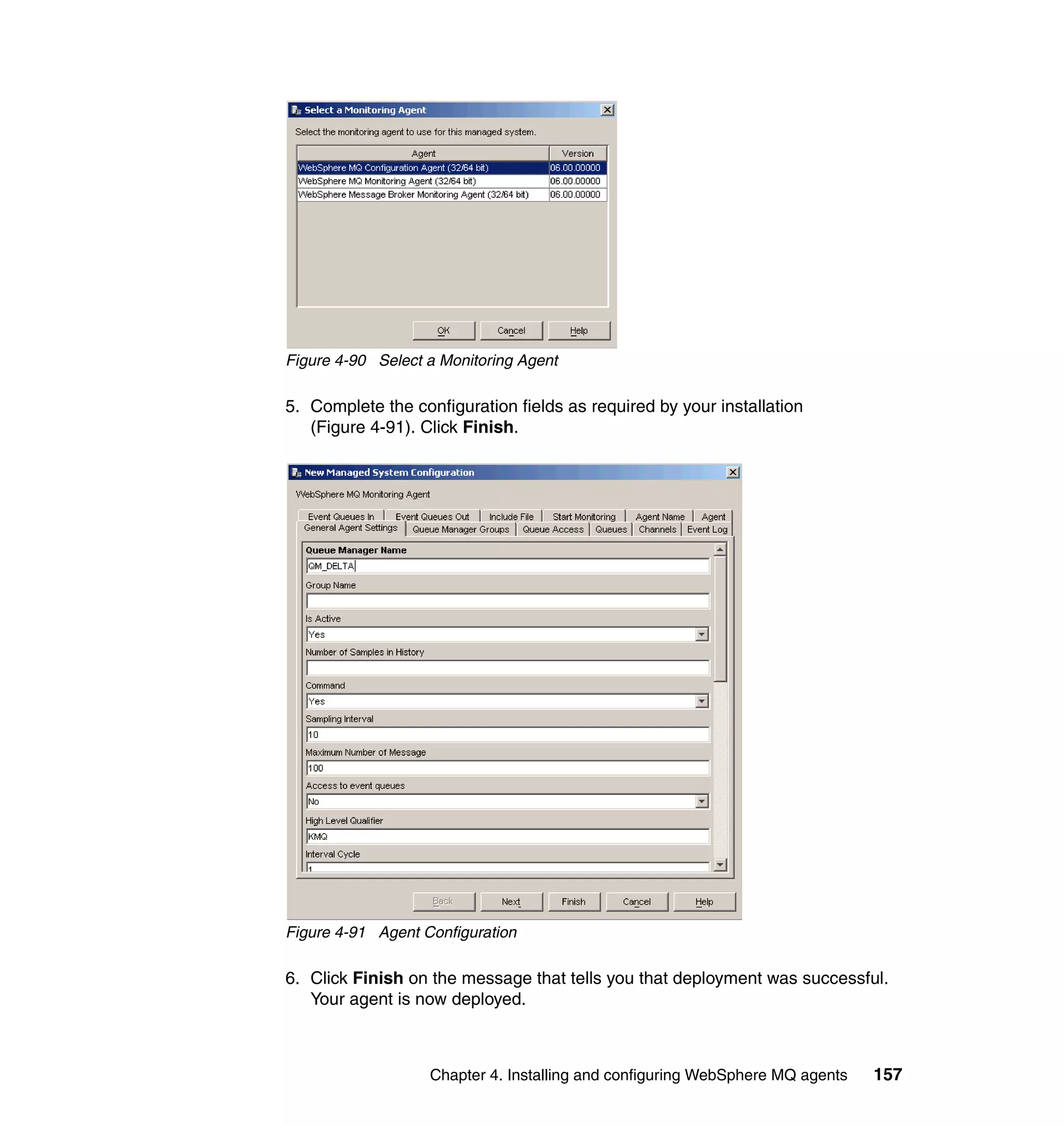
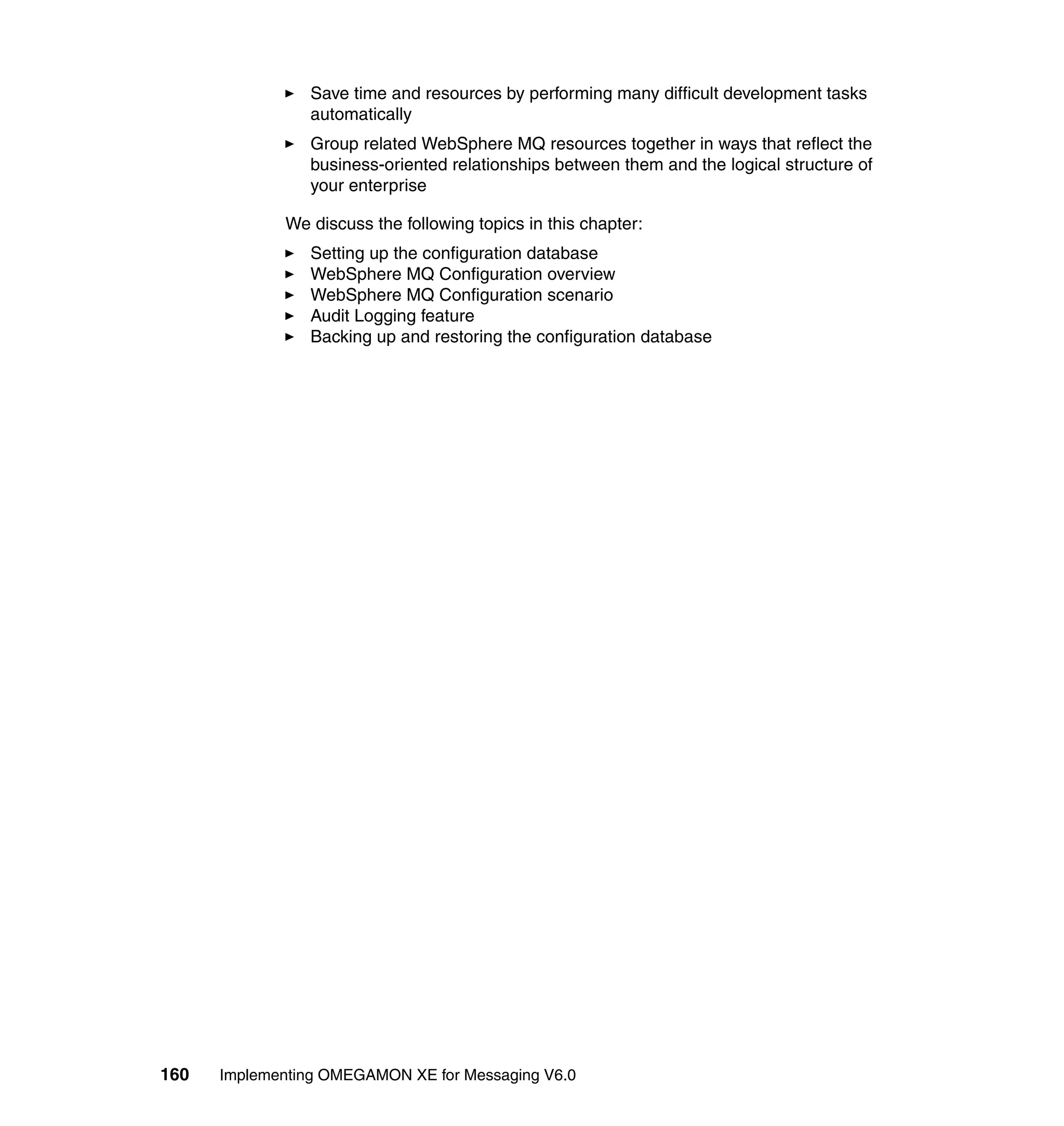
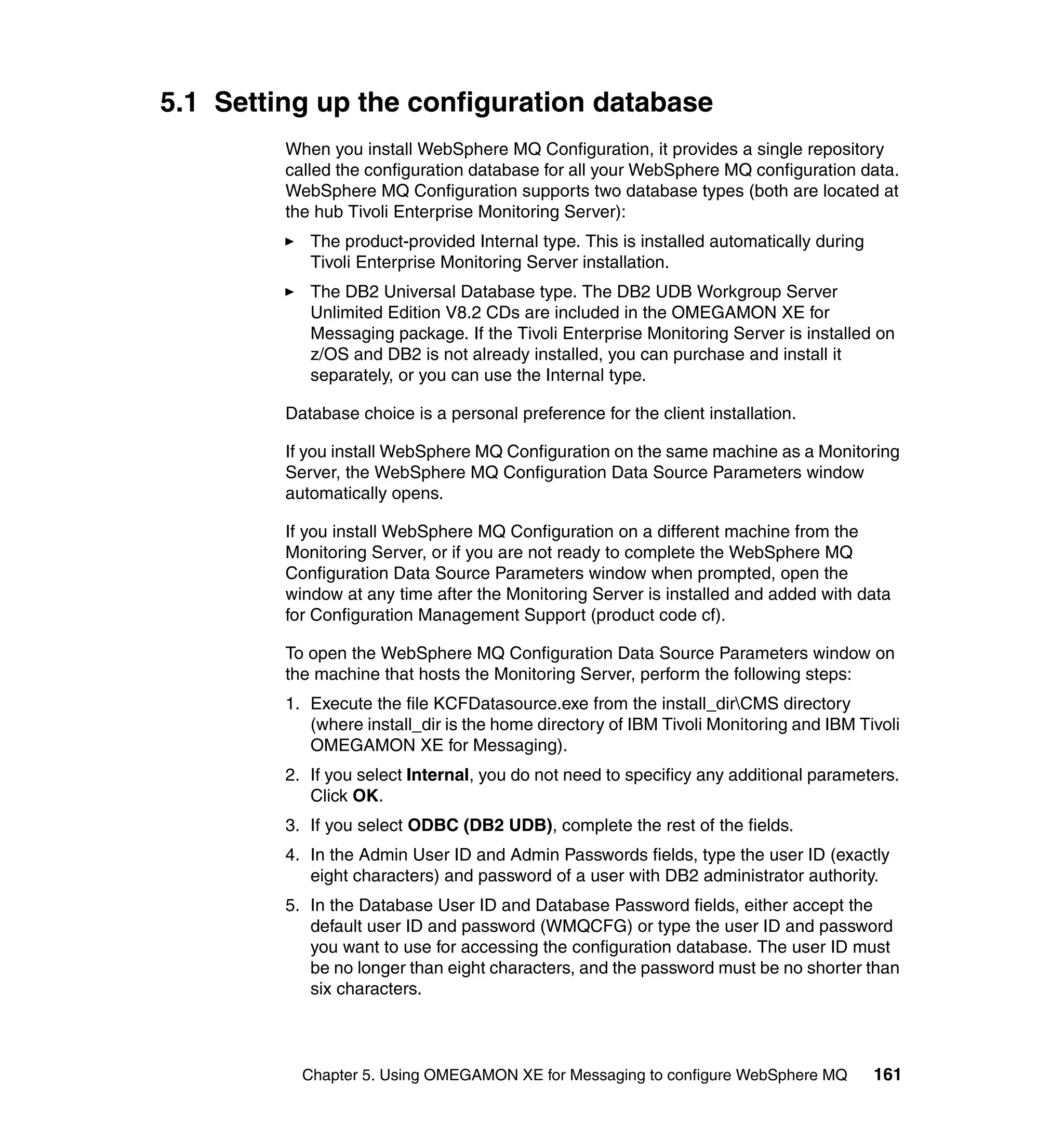
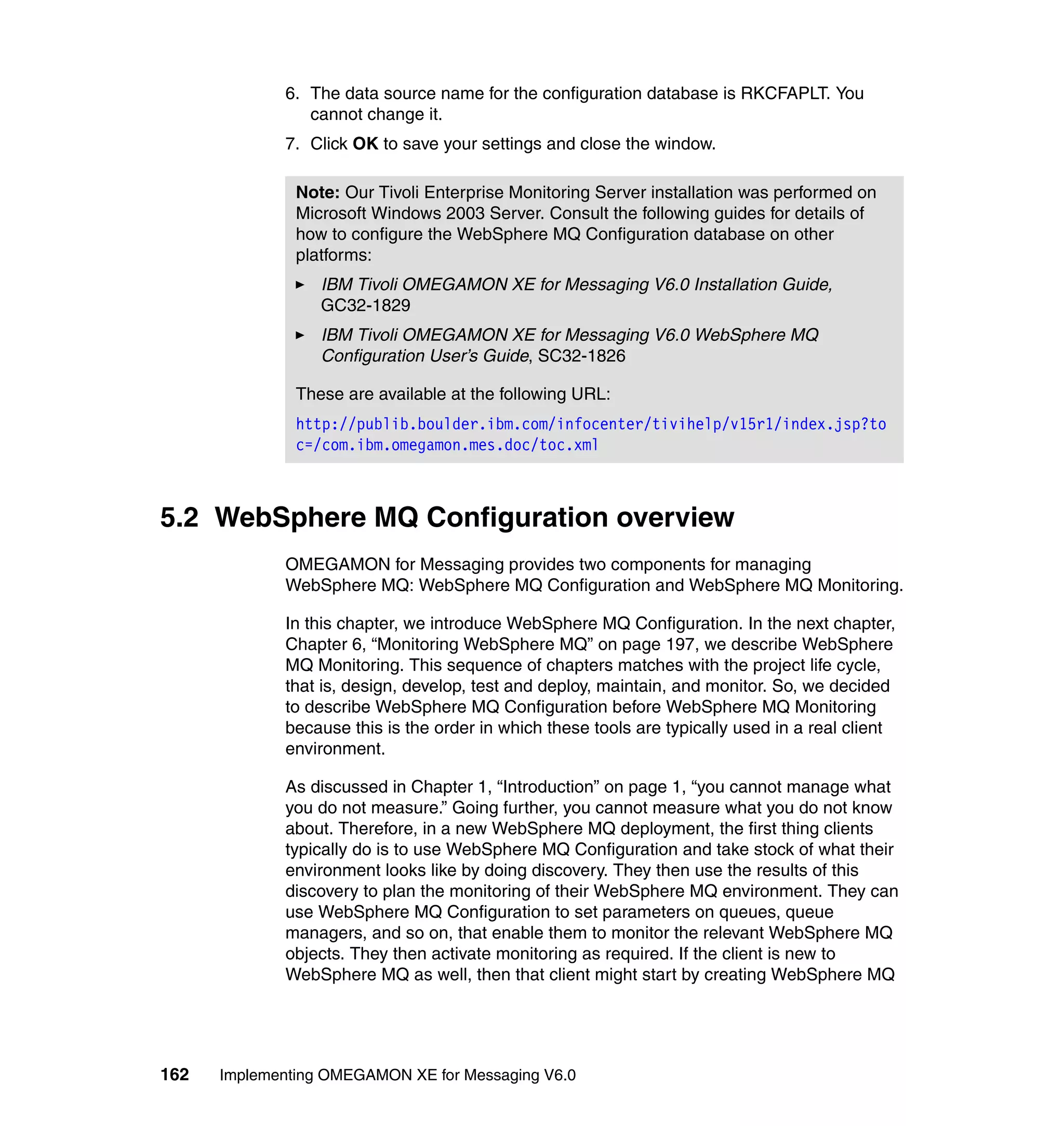
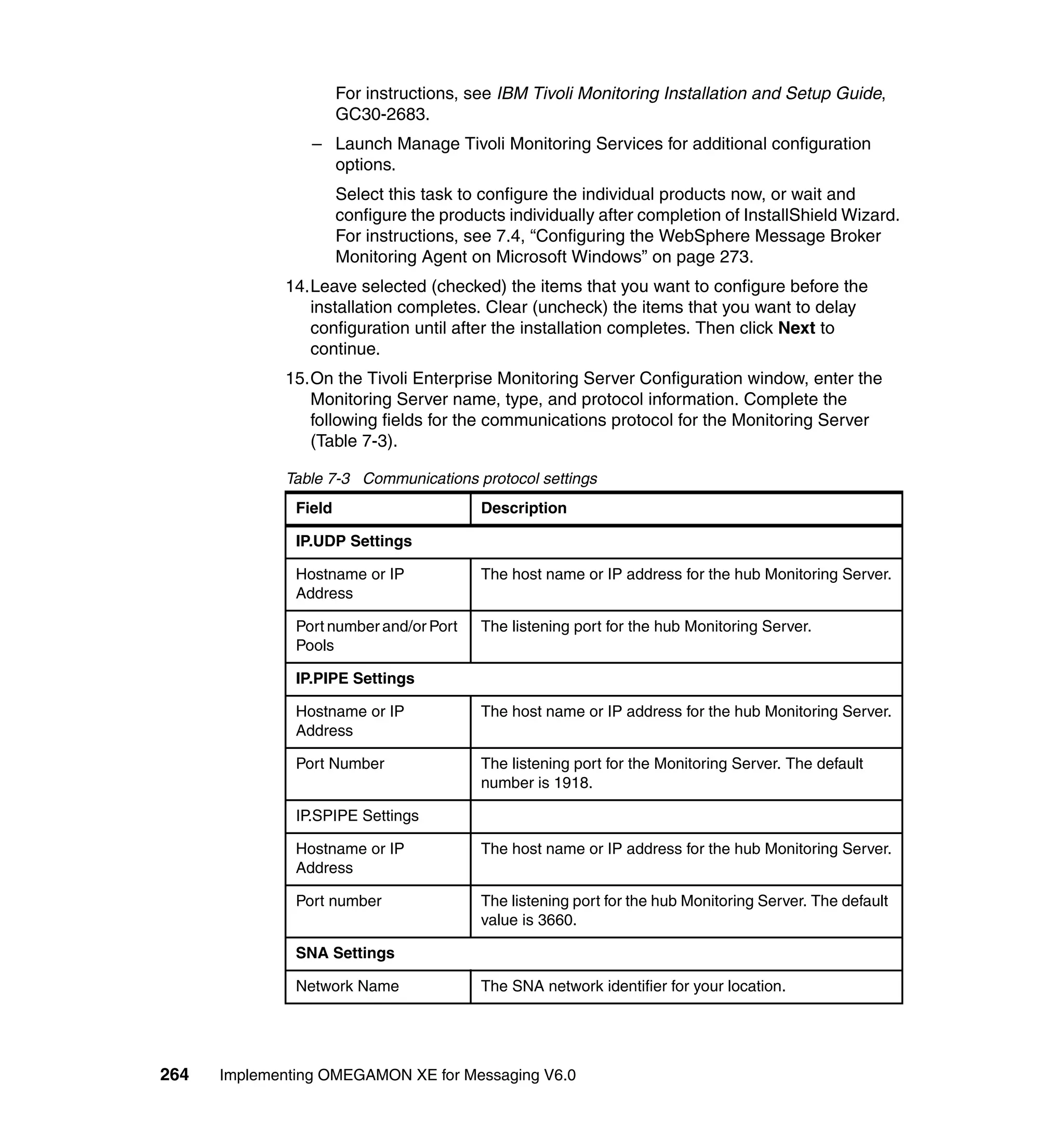
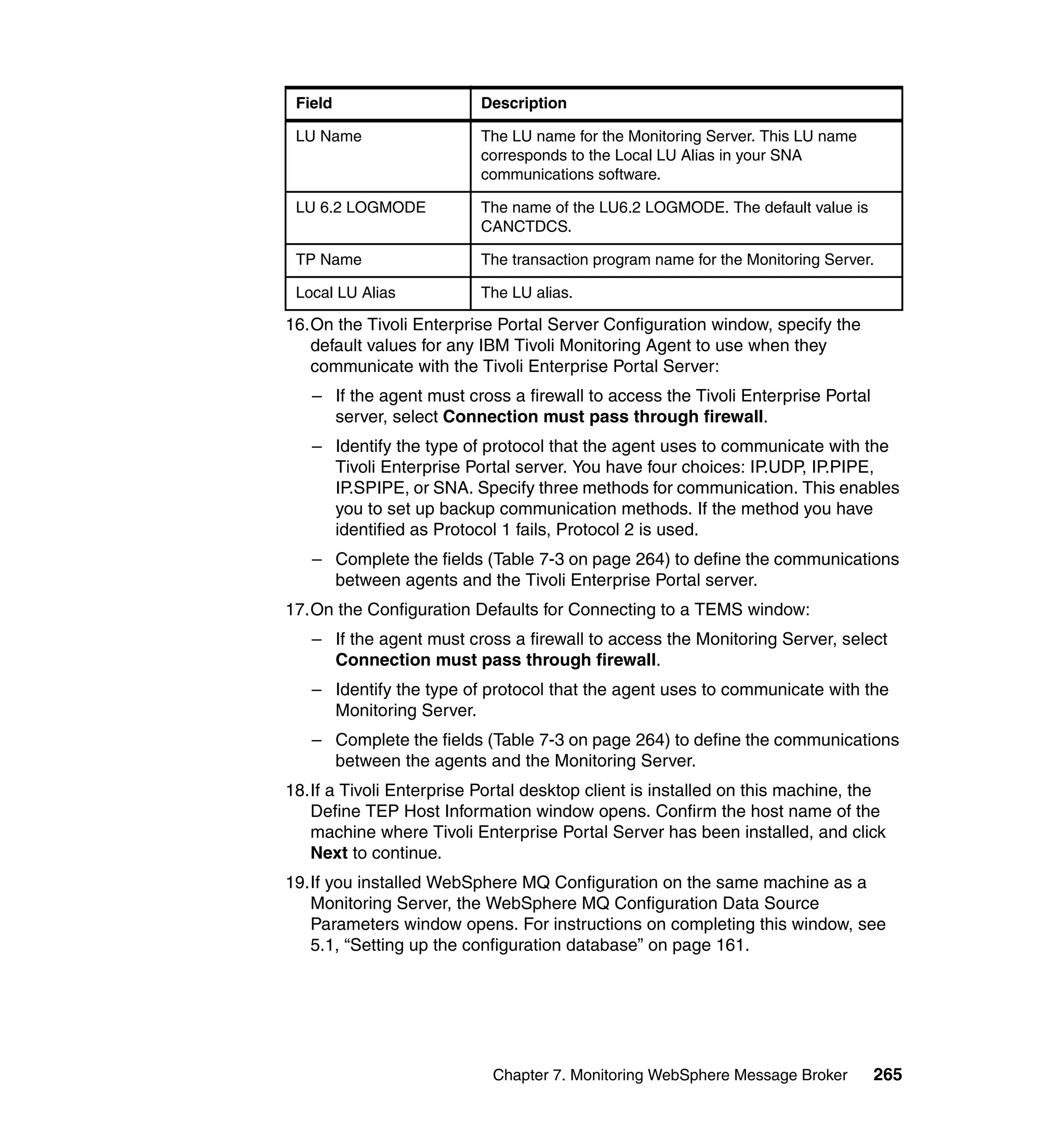
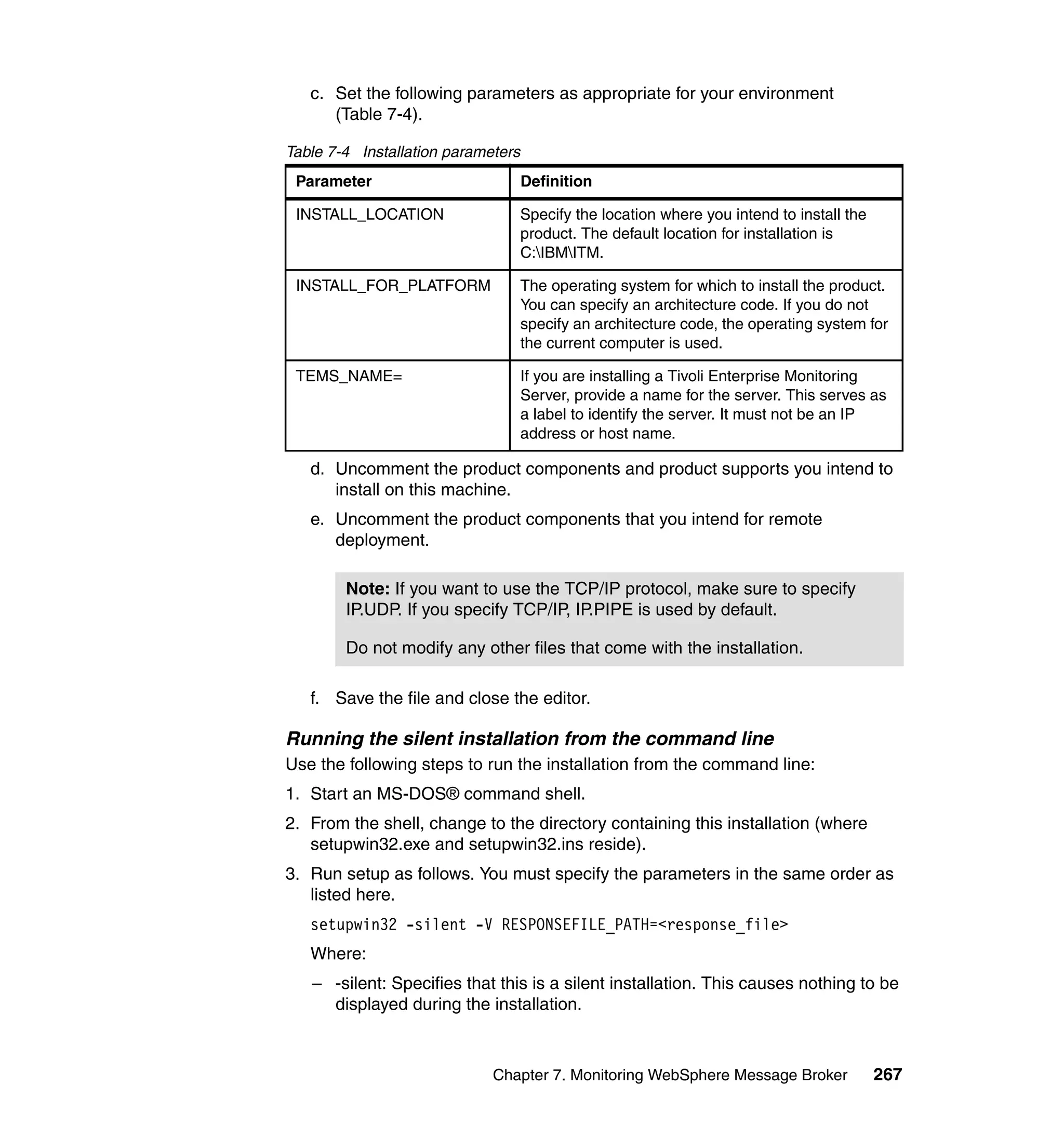
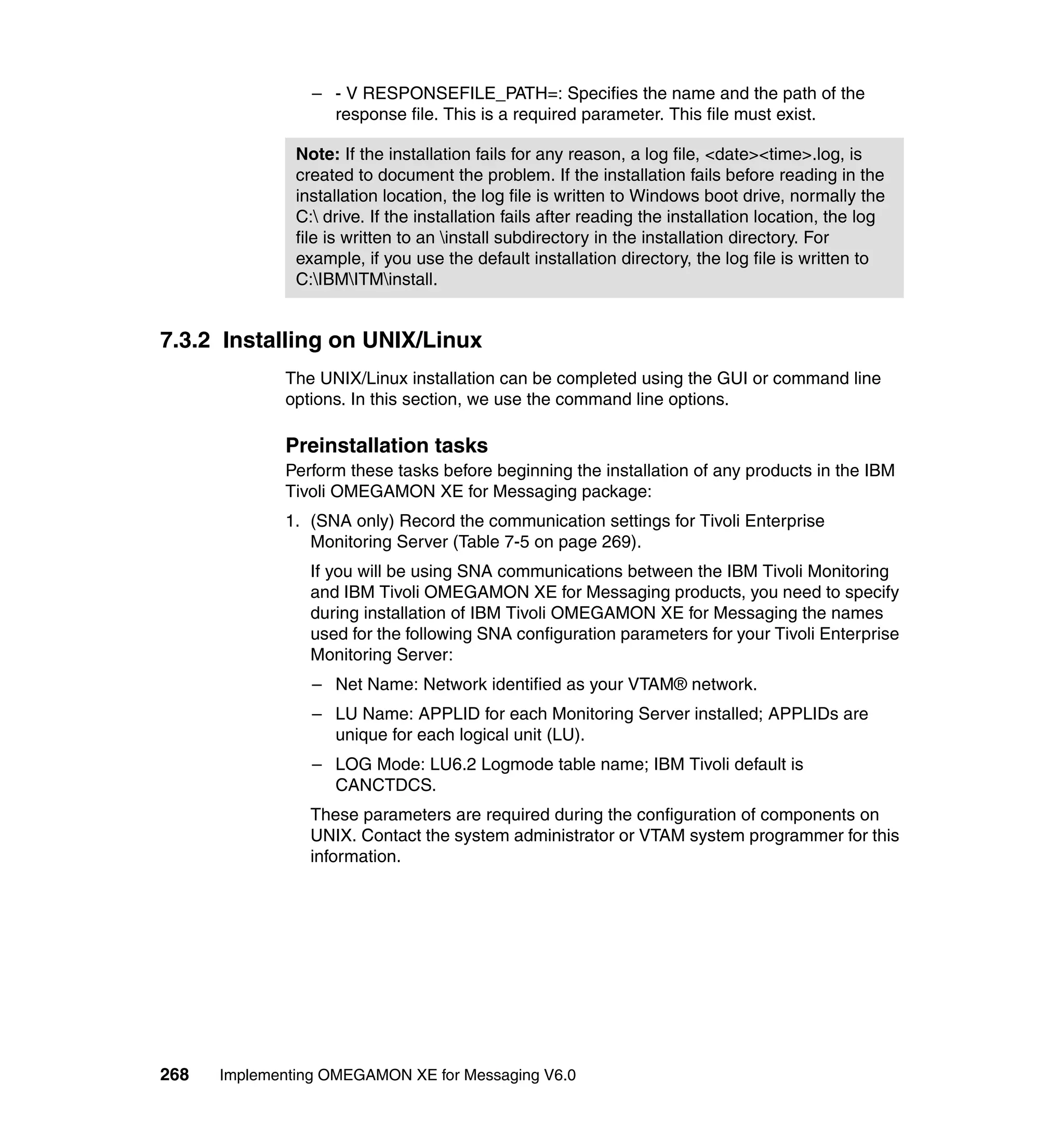
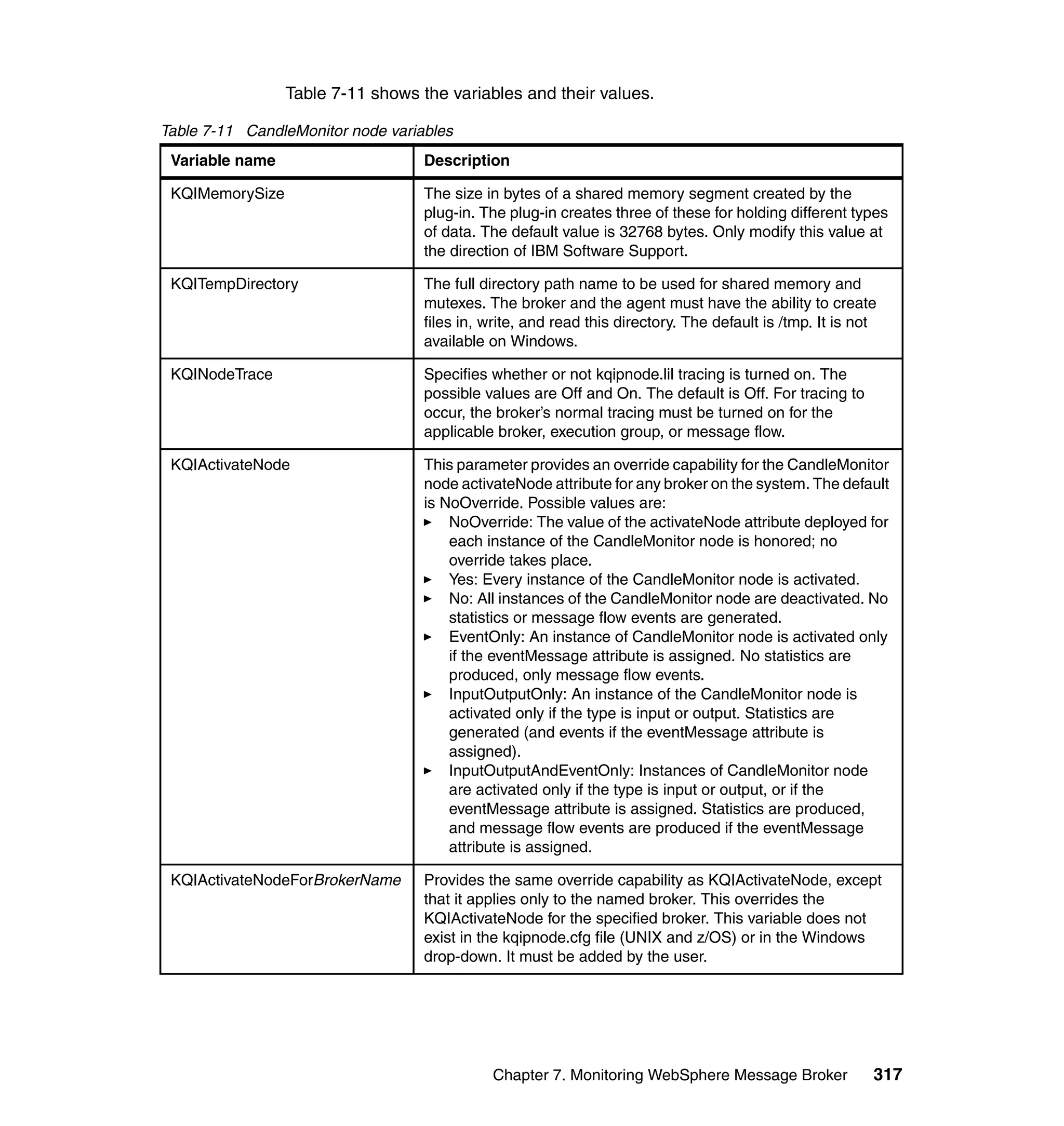
Front cover


Implementing
OMEGAMON XE
for Messaging V6.0
Implement an end-to-end Messaging
monitoring solution

Experiment with real-life
scenarios

Learn troubleshooting
tips and best practices


                                                     Dave Cannon
                                                  Michael Greaves
                                                    John Vasquez
                                                  Mark Verplaetse
                                                       Bart Jacob


ibm.com/redbooks
International Technical Support Organization

Implementing OMEGAMON XE for Messaging V6.0

February 2007


                                               SG24-7357-00
Note: Before using this information and the product it supports, read the information in
 “Notices” on page xv.


First Edition (February 2007)

This edition applies to Version 6, Release 0, of IBM Tivoli OMEGAMON XE for Messaging.
© Copyright International Business Machines Corporation 2007. All rights reserved.
Note to U.S. Government Users Restricted Rights -- Use, duplication or disclosure restricted by GSA ADP
Schedule Contract with IBM Corp.
Contents

                 Figures . . . . . . . . . . . . . . . . . . . . . . . . . . . . . . . . . . . . . . . . . . . . . . . . . . . . . . . ix

                 Notices . . . . . . . . . . . . . . . . . . . . . . . . . . . . . . . . . . . . . . . . . . . . . . . . . . . . . . xv
                 Trademarks . . . . . . . . . . . . . . . . . . . . . . . . . . . . . . . . . . . . . . . . . . . . . . . . . . . xvi

                 Preface . . . . . . . . . . . . . . . . . . . . . . . . . . . . . . . . . . . . . . . . . . . . . . . . . . . . . xvii
                 The team that wrote this redbook. . . . . . . . . . . . . . . . . . . . . . . . . . . . . . . . . . xvii
                 Become a published author . . . . . . . . . . . . . . . . . . . . . . . . . . . . . . . . . . . . . . xviii
                 Comments welcome. . . . . . . . . . . . . . . . . . . . . . . . . . . . . . . . . . . . . . . . . . . . . xix

                 Chapter 1. Introduction . . . . . . . . . . . . . . . . . . . . . . . . . . . . . . . . . . . . . . . . . . 1
                 1.1 WebSphere MQ overview . . . . . . . . . . . . . . . . . . . . . . . . . . . . . . . . . . . . . . 2
                    1.1.1 Queue managers and queues. . . . . . . . . . . . . . . . . . . . . . . . . . . . . . . 2
                    1.1.2 Channels . . . . . . . . . . . . . . . . . . . . . . . . . . . . . . . . . . . . . . . . . . . . . . . 4
                    1.1.3 Dead-letter queue . . . . . . . . . . . . . . . . . . . . . . . . . . . . . . . . . . . . . . . . 5
                    1.1.4 Triggering . . . . . . . . . . . . . . . . . . . . . . . . . . . . . . . . . . . . . . . . . . . . . . 6
                 1.2 WebSphere Message Broker overview . . . . . . . . . . . . . . . . . . . . . . . . . . . . 7
                 1.3 WebSphere InterChange Server overview . . . . . . . . . . . . . . . . . . . . . . . . 10
                 1.4 Managing messaging middleware . . . . . . . . . . . . . . . . . . . . . . . . . . . . . . . 12
                 1.5 OMEGAMON XE for Messaging overview . . . . . . . . . . . . . . . . . . . . . . . . 14
                 1.6 OMEGAMON XE for Messaging and ITIL . . . . . . . . . . . . . . . . . . . . . . . . . 15
                    1.6.1 Service Support. . . . . . . . . . . . . . . . . . . . . . . . . . . . . . . . . . . . . . . . . 18
                    1.6.2 Service Delivery . . . . . . . . . . . . . . . . . . . . . . . . . . . . . . . . . . . . . . . . 18
                 1.7 Our lab environment for the redbook. . . . . . . . . . . . . . . . . . . . . . . . . . . . . 19

                 Chapter 2. OMEGAMON XE architecture. . . . . . . . . . . . . . . . . . . . . . . . . . . 21
                 2.1 Overview . . . . . . . . . . . . . . . . . . . . . . . . . . . . . . . . . . . . . . . . . . . . . . . . . . 22
                 2.2 Terminology. . . . . . . . . . . . . . . . . . . . . . . . . . . . . . . . . . . . . . . . . . . . . . . . 23
                 2.3 Tivoli Enterprise Portal . . . . . . . . . . . . . . . . . . . . . . . . . . . . . . . . . . . . . . . 24
                 2.4 Communications . . . . . . . . . . . . . . . . . . . . . . . . . . . . . . . . . . . . . . . . . . . . 25
                 2.5 Deployment scenarios. . . . . . . . . . . . . . . . . . . . . . . . . . . . . . . . . . . . . . . . 25
                    2.5.1 Simple deployment with no firewall . . . . . . . . . . . . . . . . . . . . . . . . . . 26
                    2.5.2 Simple deployment with a firewall . . . . . . . . . . . . . . . . . . . . . . . . . . . 27
                    2.5.3 Complex deployment: Monitoring Server, remote Monitoring Server, and
                           a firewall . . . . . . . . . . . . . . . . . . . . . . . . . . . . . . . . . . . . . . . . . . . . . . 30
                 2.6 Scalability . . . . . . . . . . . . . . . . . . . . . . . . . . . . . . . . . . . . . . . . . . . . . . . . . 31

                 Chapter 3. Installing the OMEGAMON infrastructure . . . . . . . . . . . . . . . . 33
                 3.1 Planning for the installation . . . . . . . . . . . . . . . . . . . . . . . . . . . . . . . . . . . . 34


© Copyright IBM Corp. 2007. All rights reserved.                                                                                      iii
3.1.1 Business requirements . . . . . . . . . . . . . . . . . . . . . . . . . . . . . . . . . . . 34
                 3.1.2 System requirements . . . . . . . . . . . . . . . . . . . . . . . . . . . . . . . . . . . . 35
                 3.1.3 Installation requirements for each product by platform . . . . . . . . . . . 38
              3.2 Tivoli Enterprise Monitoring and Portal Servers . . . . . . . . . . . . . . . . . . . . 42
              3.3 Verifying the installation . . . . . . . . . . . . . . . . . . . . . . . . . . . . . . . . . . . . . . 46

              Chapter 4. Installing and configuring WebSphere MQ agents . . . . . . . . . 47
              4.1 Installing IBM Tivoli OMEGAMON XE for Messaging agents on z/OS . . . 48
                 4.1.1 Prerequisites for configuring the component product . . . . . . . . . . . . 49
                 4.1.2 Setting up the configuration environment . . . . . . . . . . . . . . . . . . . . . 50
                 4.1.3 Setting up the ICAT configuration environment . . . . . . . . . . . . . . . . 54
                 4.1.4 Selecting a product to configure . . . . . . . . . . . . . . . . . . . . . . . . . . . . 56
                 4.1.5 Creating a new runtime environment . . . . . . . . . . . . . . . . . . . . . . . . 58
              4.2 Installing the WebSphere MQ agents on UNIX/Linux . . . . . . . . . . . . . . . 127
                 4.2.1 Installing Tivoli Enterprise Monitoring Agent Framework . . . . . . . . 127
                 4.2.2 Installing the WebSphere MQ agents . . . . . . . . . . . . . . . . . . . . . . . 130
                 4.2.3 Configuring the WebSphere MQ agents . . . . . . . . . . . . . . . . . . . . . 135
                 4.2.4 Starting and stopping the WebSphere MQ agents . . . . . . . . . . . . . 137
              4.3 Installing the WebSphere MQ agents on Windows . . . . . . . . . . . . . . . . . 139
                 4.3.1 Installing the Tivoli Enterprise Monitoring Agent Framework . . . . . 139
                 4.3.2 Installing the WebSphere MQ agents . . . . . . . . . . . . . . . . . . . . . . . 144
                 4.3.3 Configuring the WebSphere MQ agents . . . . . . . . . . . . . . . . . . . . . 150
                 4.3.4 Starting and stopping the WebSphere MQ agents . . . . . . . . . . . . . 153
              4.4 Remote deployment from Tivoli Enterprise Portal. . . . . . . . . . . . . . . . . . 156

              Chapter 5. Using OMEGAMON XE for Messaging to configure WebSphere
                          MQ . . . . . . . . . . . . . . . . . . . . . . . . . . . . . . . . . . . . . . . . . . . . . . . 159
              5.1 Setting up the configuration database. . . . . . . . . . . . . . . . . . . . . . . . . . . 161
              5.2 WebSphere MQ Configuration overview . . . . . . . . . . . . . . . . . . . . . . . . . 162
                 5.2.1 Centralized configuration information . . . . . . . . . . . . . . . . . . . . . . . 163
                 5.2.2 A graphical representation of your configuration. . . . . . . . . . . . . . . 163
                 5.2.3 Common prototype models for creating WebSphere MQ objects . . 164
                 5.2.4 Variables . . . . . . . . . . . . . . . . . . . . . . . . . . . . . . . . . . . . . . . . . . . . . 165
                 5.2.5 Managing resources from a business perspective . . . . . . . . . . . . . 165
                 5.2.6 Keeping your actual and defined configurations in sync . . . . . . . . . 165
                 5.2.7 Scheduling actions . . . . . . . . . . . . . . . . . . . . . . . . . . . . . . . . . . . . . 166
                 5.2.8 Entering WebSphere MQ commands from the Defined View . . . . . 166
              5.3 WebSphere MQ Configuration scenario . . . . . . . . . . . . . . . . . . . . . . . . . 166
                 5.3.1 Scheduling an action. . . . . . . . . . . . . . . . . . . . . . . . . . . . . . . . . . . . 182
                 5.3.2 Connecting queue managers . . . . . . . . . . . . . . . . . . . . . . . . . . . . . 185
                 5.3.3 Creating resources . . . . . . . . . . . . . . . . . . . . . . . . . . . . . . . . . . . . . 187
              5.4 Audit Logging feature . . . . . . . . . . . . . . . . . . . . . . . . . . . . . . . . . . . . . . . 190
                 5.4.1 Audit Log reports. . . . . . . . . . . . . . . . . . . . . . . . . . . . . . . . . . . . . . . 190


iv   Implementing OMEGAMON XE for Messaging V6.0
5.4.2 Accessing additional details reports . . . . . . . . . . . . . . . . . . . . . . . . 192
5.5 Backing up and restoring the configuration database . . . . . . . . . . . . . . . 193
5.6 Summary . . . . . . . . . . . . . . . . . . . . . . . . . . . . . . . . . . . . . . . . . . . . . . . . . 196

Chapter 6. Monitoring WebSphere MQ . . . . . . . . . . . . . . . . . . . . . . . . . . . 197
6.1 WepSphere MQ Monitoring overview . . . . . . . . . . . . . . . . . . . . . . . . . . . 198
6.2 WebSphere MQ Monitoring options . . . . . . . . . . . . . . . . . . . . . . . . . . . . 203
6.3 Workspaces. . . . . . . . . . . . . . . . . . . . . . . . . . . . . . . . . . . . . . . . . . . . . . . 210
6.4 Monitoring scenarios . . . . . . . . . . . . . . . . . . . . . . . . . . . . . . . . . . . . . . . . 214
   6.4.1 Situations . . . . . . . . . . . . . . . . . . . . . . . . . . . . . . . . . . . . . . . . . . . . 218
   6.4.2 WebSphere MQ queue manager monitoring . . . . . . . . . . . . . . . . . 221
   6.4.3 WebSphere MQ queue monitoring . . . . . . . . . . . . . . . . . . . . . . . . . 226
   6.4.4 Listener monitoring . . . . . . . . . . . . . . . . . . . . . . . . . . . . . . . . . . . . . 239
   6.4.5 Channel monitoring . . . . . . . . . . . . . . . . . . . . . . . . . . . . . . . . . . . . . 242
   6.4.6 Application Accounting and MQI Statistics . . . . . . . . . . . . . . . . . . . 245
6.5 Summary . . . . . . . . . . . . . . . . . . . . . . . . . . . . . . . . . . . . . . . . . . . . . . . . . 252

Chapter 7. Monitoring WebSphere Message Broker . . . . . . . . . . . . . . . . 253
7.1 IBM Tivoli WebSphere Message Broker Monitoring Agent . . . . . . . . . . . 254
   7.1.1 WebSphere Message Broker Monitoring overview . . . . . . . . . . . . . 254
   7.1.2 How WebSphere Message Broker Monitoring works . . . . . . . . . . . 255
   7.1.3 New features . . . . . . . . . . . . . . . . . . . . . . . . . . . . . . . . . . . . . . . . . . 255
7.2 Planning for the installation of the WebSphere Message Broker Monitoring
     Agent . . . . . . . . . . . . . . . . . . . . . . . . . . . . . . . . . . . . . . . . . . . . . . . . . . . 259
7.3 Installing the WebSphere Message Broker Monitoring Agent . . . . . . . . . 261
   7.3.1 Installing on Windows . . . . . . . . . . . . . . . . . . . . . . . . . . . . . . . . . . . 261
   7.3.2 Installing on UNIX/Linux . . . . . . . . . . . . . . . . . . . . . . . . . . . . . . . . . 268
7.4 Configuring the WebSphere Message Broker Monitoring Agent on Microsoft
     Windows . . . . . . . . . . . . . . . . . . . . . . . . . . . . . . . . . . . . . . . . . . . . . . . . . 273
   7.4.1 Post-migration tasks . . . . . . . . . . . . . . . . . . . . . . . . . . . . . . . . . . . . 274
   7.4.2 Authorizing the agent . . . . . . . . . . . . . . . . . . . . . . . . . . . . . . . . . . . 274
   7.4.3 Configuring the agent . . . . . . . . . . . . . . . . . . . . . . . . . . . . . . . . . . . 275
   7.4.4 Customizing parameters . . . . . . . . . . . . . . . . . . . . . . . . . . . . . . . . . 276
   7.4.5 Installing the CandleMonitor node in broker environments . . . . . . . 276
   7.4.6 Installing the CandleMonitor node. . . . . . . . . . . . . . . . . . . . . . . . . . 277
   7.4.7 Next steps for setting up the CandleMonitor node . . . . . . . . . . . . . 278
7.5 Configuring the WebSphere Message Broker Monitoring Agent on
     UNIX/Linux . . . . . . . . . . . . . . . . . . . . . . . . . . . . . . . . . . . . . . . . . . . . . . . 278
   7.5.1 Post-migration tasks . . . . . . . . . . . . . . . . . . . . . . . . . . . . . . . . . . . . 278
   7.5.2 Installing GNU Compiler 2.95.3 (Linux zSeries only) . . . . . . . . . . . 278
   7.5.3 Creating library links to start the agent (Linux Intel only) . . . . . . . . 279
   7.5.4 Creating a library link to DB2 (Linux Intel only) . . . . . . . . . . . . . . . . 280
   7.5.5 Setting the EXTSHM environment variable ON (WebSphere MQ V6 on


                                                                                                  Contents        v
AIX 5L only) . . . . . . . . . . . . . . . . . . . . . . . . . . . . . . . . . . . . . . . . . . 281
                 7.5.6 Authorizing the agent . . . . . . . . . . . . . . . . . . . . . . . . . . . . . . . . . . . 281
                 7.5.7 Configuring the agent . . . . . . . . . . . . . . . . . . . . . . . . . . . . . . . . . . . 282
                 7.5.8 Removing broker entries . . . . . . . . . . . . . . . . . . . . . . . . . . . . . . . . . 282
                 7.5.9 Configuring the agent from the command line . . . . . . . . . . . . . . . . 283

                 7.5.10 Starting or stopping multiple agents using itmcmd agent . . . . . . . 283
                 7.5.11 Customizing parameters . . . . . . . . . . . . . . . . . . . . . . . . . . . . . . . . 283
                 7.5.12 Installing the CandleMonitor node in broker environments . . . . . . 284
                 7.5.13 Installing the CandleMonitor node. . . . . . . . . . . . . . . . . . . . . . . . . 284
                 7.5.14 Defining the required environment variable for Linux zSeries. . . . 286
                 7.5.15 Next steps for setting up the CandleMonitor node . . . . . . . . . . . . 287
              7.6 Agent configuration file . . . . . . . . . . . . . . . . . . . . . . . . . . . . . . . . . . . . . . 287
              7.7 Using situations . . . . . . . . . . . . . . . . . . . . . . . . . . . . . . . . . . . . . . . . . . . . 296
              7.8 Using Take Action commands. . . . . . . . . . . . . . . . . . . . . . . . . . . . . . . . . 299
              7.9 Automating responses. . . . . . . . . . . . . . . . . . . . . . . . . . . . . . . . . . . . . . . 303
              7.10 Workspaces. . . . . . . . . . . . . . . . . . . . . . . . . . . . . . . . . . . . . . . . . . . . . . 304
              7.11 Monitoring scenarios . . . . . . . . . . . . . . . . . . . . . . . . . . . . . . . . . . . . . . . 311
              7.12 Other considerations . . . . . . . . . . . . . . . . . . . . . . . . . . . . . . . . . . . . . . . 315
                 7.12.1 Performance considerations . . . . . . . . . . . . . . . . . . . . . . . . . . . . . 315
                 7.12.2 Working with the CandleMonitor node . . . . . . . . . . . . . . . . . . . . . 316

              Chapter 8. Monitoring WebSphere Interchange Server . . . . . . . . . . . . . . 319
              8.1 OMEGAMON XE for Messaging: WebSphere InterChange Server Monitoring
                   overview . . . . . . . . . . . . . . . . . . . . . . . . . . . . . . . . . . . . . . . . . . . . . . . . . 320
                 8.1.1 What does WebSphere InterChange Server Monitoring do? . . . . . 320
                 8.1.2 How does WebSphere InterChange Server Monitoring help you? . 320
                 8.1.3 How does WebSphere InterChange Server Monitoring work? . . . . 321
                 8.1.4 WebSphere InterChange Server Monitoring key features . . . . . . . 322
              8.2 Configuring WebSphere InterChange Server for monitoring. . . . . . . . . . 324
                 8.2.1 Configuring the SNMP agent . . . . . . . . . . . . . . . . . . . . . . . . . . . . . 325
                 8.2.2 Configuring the SNMP Agent Configuration Manager . . . . . . . . . . 327
                 8.2.3 Configuring WebSphere InterChange Server Monitoring Agent . . . 330
              8.3 Monitoring your integration systems . . . . . . . . . . . . . . . . . . . . . . . . . . . . 333
                 8.3.1 Workspaces . . . . . . . . . . . . . . . . . . . . . . . . . . . . . . . . . . . . . . . . . . 334
                 8.3.2 Customizing the monitoring. . . . . . . . . . . . . . . . . . . . . . . . . . . . . . . 337
                 8.3.3 Monitoring scenarios . . . . . . . . . . . . . . . . . . . . . . . . . . . . . . . . . . . . 340

              Chapter 9. Troubleshooting . . . . . . . . . . . . . . . . . . . . . . . . . . . . . . . . . . . . 347
              9.1 Introduction to problem determination. . . . . . . . . . . . . . . . . . . . . . . . . . . 348
              9.2 Tracing . . . . . . . . . . . . . . . . . . . . . . . . . . . . . . . . . . . . . . . . . . . . . . . . . . 348
              9.3 Logs. . . . . . . . . . . . . . . . . . . . . . . . . . . . . . . . . . . . . . . . . . . . . . . . . . . . . 350
                 9.3.1 Tivoli Enterprise Portal Server and Tivoli Enterprise Portal . . . . . . 350
                 9.3.2 Tivoli Enterprise Monitoring Server . . . . . . . . . . . . . . . . . . . . . . . . . 351


vi   Implementing OMEGAMON XE for Messaging V6.0
9.4 Documentation collection . . . . . . . . . . . . . . . . . . . . . . . . . . . . . . . . . . . . 352
9.5 Common issues. . . . . . . . . . . . . . . . . . . . . . . . . . . . . . . . . . . . . . . . . . . . 352
   9.5.1 Installation . . . . . . . . . . . . . . . . . . . . . . . . . . . . . . . . . . . . . . . . . . . . 352
   9.5.2 Configuration . . . . . . . . . . . . . . . . . . . . . . . . . . . . . . . . . . . . . . . . . . 353
   9.5.3 Maintenance . . . . . . . . . . . . . . . . . . . . . . . . . . . . . . . . . . . . . . . . . . 355
9.6 Miscellaneous tips and tools . . . . . . . . . . . . . . . . . . . . . . . . . . . . . . . . . . 356
   9.6.1 Mutex and shared memory cleanup . . . . . . . . . . . . . . . . . . . . . . . . 356
   9.6.2 WebSphere MQ Configuration problem determination . . . . . . . . . . 357

Appendix A. Tivoli Enterprise Monitoring Server and Portal Server
                 installation walkthrough. . . . . . . . . . . . . . . . . . . . . . . . . . . . 359
Installation . . . . . . . . . . . . . . . . . . . . . . . . . . . . . . . . . . . . . . . . . . . . . . . . . . . 360
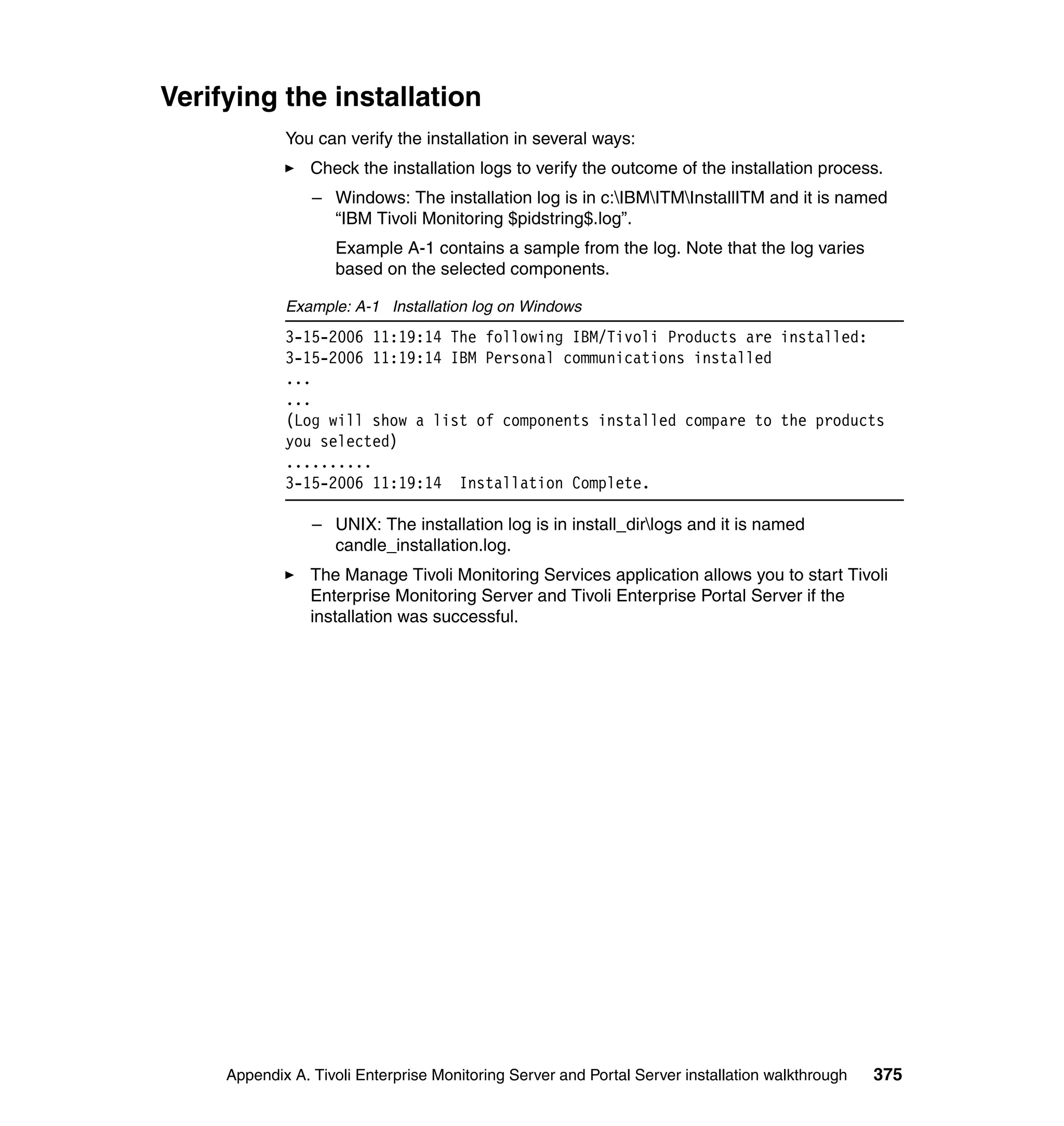
Verifying the installation . . . . . . . . . . . . . . . . . . . . . . . . . . . . . . . . . . . . . . . . . 375

Related publications . . . . . . . . . . . . . . . . . . . . . . . . . . . . . . . . . . . . . . . . . . 377
IBM Redbooks . . . . . . . . . . . . . . . . . . . . . . . . . . . . . . . . . . . . . . . . . . . . . . . . 377
Other publications . . . . . . . . . . . . . . . . . . . . . . . . . . . . . . . . . . . . . . . . . . . . . 377
Online resources . . . . . . . . . . . . . . . . . . . . . . . . . . . . . . . . . . . . . . . . . . . . . . 378

How to get IBM Redbooks . . . . . . . . . . . . . . . . . . . . . . . . . . . . . . . . . . . . . . . 379
Help from IBM . . . . . . . . . . . . . . . . . . . . . . . . . . . . . . . . . . . . . . . . . . . . . . . . 379

Index . . . . . . . . . . . . . . . . . . . . . . . . . . . . . . . . . . . . . . . . . . . . . . . . . . . . . . . 381


                                                                                                  Contents          vii
viii   Implementing OMEGAMON XE for Messaging V6.0
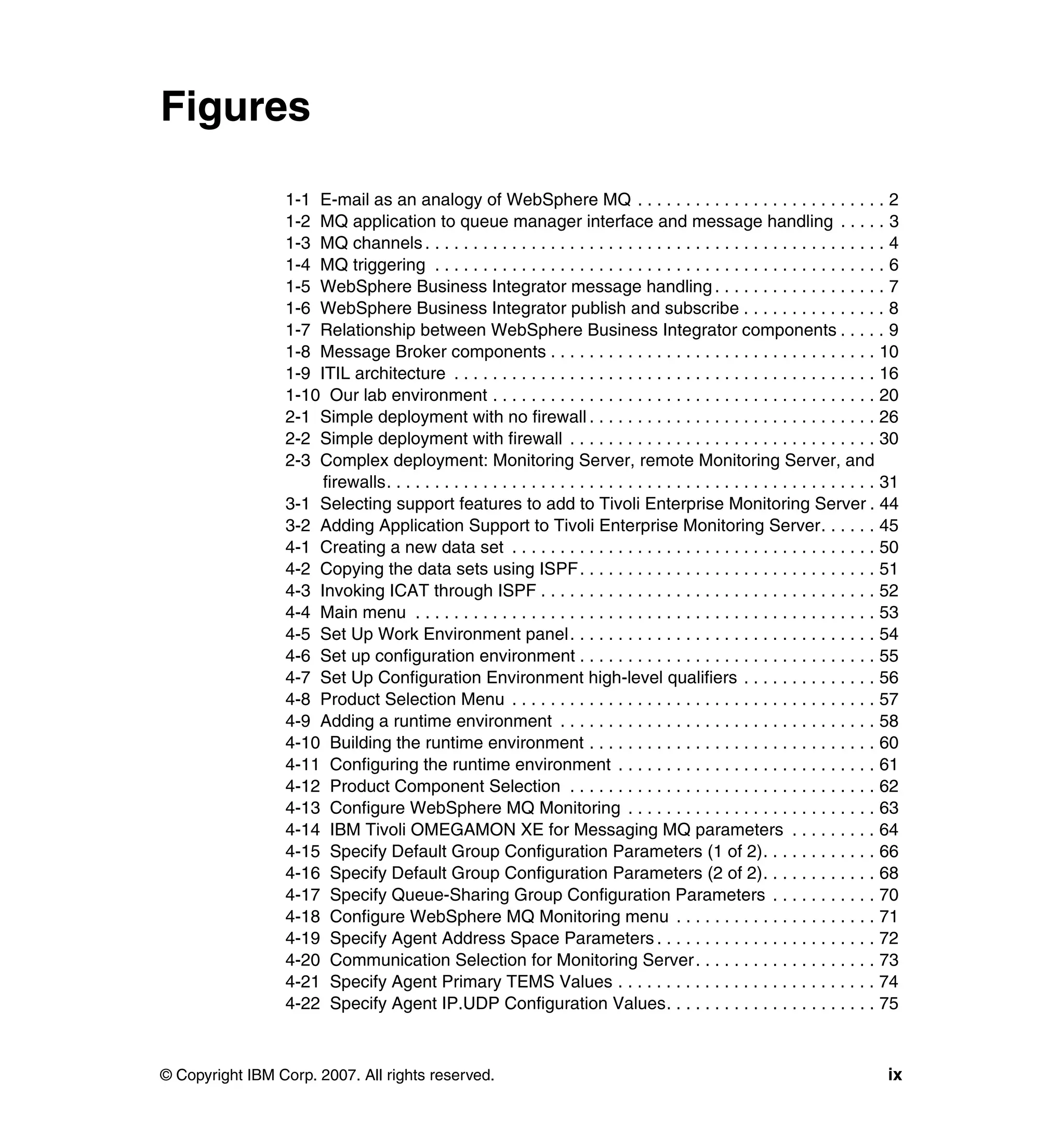
Figures

                 1-1 E-mail as an analogy of WebSphere MQ . . . . . . . . . . . . . . . . . . . . . . . . . . 2
                 1-2 MQ application to queue manager interface and message handling . . . . . 3
                 1-3 MQ channels . . . . . . . . . . . . . . . . . . . . . . . . . . . . . . . . . . . . . . . . . . . . . . . . 4
                 1-4 MQ triggering . . . . . . . . . . . . . . . . . . . . . . . . . . . . . . . . . . . . . . . . . . . . . . . 6
                 1-5 WebSphere Business Integrator message handling . . . . . . . . . . . . . . . . . . 7
                 1-6 WebSphere Business Integrator publish and subscribe . . . . . . . . . . . . . . . 8
                 1-7 Relationship between WebSphere Business Integrator components . . . . . 9
                 1-8 Message Broker components . . . . . . . . . . . . . . . . . . . . . . . . . . . . . . . . . . 10
                 1-9 ITIL architecture . . . . . . . . . . . . . . . . . . . . . . . . . . . . . . . . . . . . . . . . . . . . 16
                 1-10 Our lab environment . . . . . . . . . . . . . . . . . . . . . . . . . . . . . . . . . . . . . . . . 20
                 2-1 Simple deployment with no firewall . . . . . . . . . . . . . . . . . . . . . . . . . . . . . . 26
                 2-2 Simple deployment with firewall . . . . . . . . . . . . . . . . . . . . . . . . . . . . . . . . 30
                 2-3 Complex deployment: Monitoring Server, remote Monitoring Server, and
                      firewalls. . . . . . . . . . . . . . . . . . . . . . . . . . . . . . . . . . . . . . . . . . . . . . . . . . . 31
                 3-1 Selecting support features to add to Tivoli Enterprise Monitoring Server . 44
                 3-2 Adding Application Support to Tivoli Enterprise Monitoring Server. . . . . . 45
                 4-1 Creating a new data set . . . . . . . . . . . . . . . . . . . . . . . . . . . . . . . . . . . . . . 50
                 4-2 Copying the data sets using ISPF. . . . . . . . . . . . . . . . . . . . . . . . . . . . . . . 51
                 4-3 Invoking ICAT through ISPF . . . . . . . . . . . . . . . . . . . . . . . . . . . . . . . . . . . 52
                 4-4 Main menu . . . . . . . . . . . . . . . . . . . . . . . . . . . . . . . . . . . . . . . . . . . . . . . . 53
                 4-5 Set Up Work Environment panel. . . . . . . . . . . . . . . . . . . . . . . . . . . . . . . . 54
                 4-6 Set up configuration environment . . . . . . . . . . . . . . . . . . . . . . . . . . . . . . . 55
                 4-7 Set Up Configuration Environment high-level qualifiers . . . . . . . . . . . . . . 56
                 4-8 Product Selection Menu . . . . . . . . . . . . . . . . . . . . . . . . . . . . . . . . . . . . . . 57
                 4-9 Adding a runtime environment . . . . . . . . . . . . . . . . . . . . . . . . . . . . . . . . . 58
                 4-10 Building the runtime environment . . . . . . . . . . . . . . . . . . . . . . . . . . . . . . 60
                 4-11 Configuring the runtime environment . . . . . . . . . . . . . . . . . . . . . . . . . . . 61
                 4-12 Product Component Selection . . . . . . . . . . . . . . . . . . . . . . . . . . . . . . . . 62
                 4-13 Configure WebSphere MQ Monitoring . . . . . . . . . . . . . . . . . . . . . . . . . . 63
                 4-14 IBM Tivoli OMEGAMON XE for Messaging MQ parameters . . . . . . . . . 64
                 4-15 Specify Default Group Configuration Parameters (1 of 2). . . . . . . . . . . . 66
                 4-16 Specify Default Group Configuration Parameters (2 of 2). . . . . . . . . . . . 68
                 4-17 Specify Queue-Sharing Group Configuration Parameters . . . . . . . . . . . 70
                 4-18 Configure WebSphere MQ Monitoring menu . . . . . . . . . . . . . . . . . . . . . 71
                 4-19 Specify Agent Address Space Parameters . . . . . . . . . . . . . . . . . . . . . . . 72
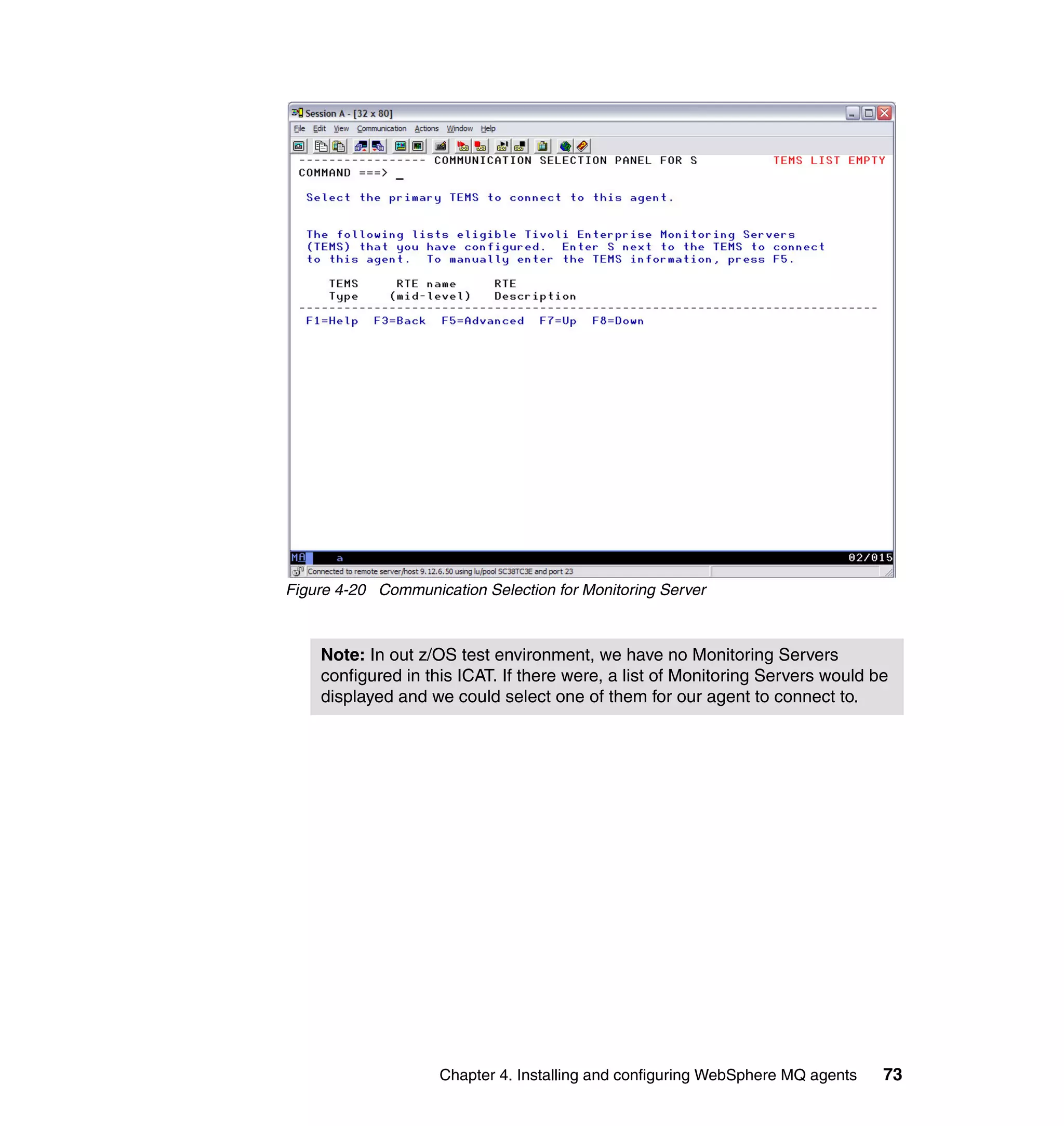
                 4-20 Communication Selection for Monitoring Server . . . . . . . . . . . . . . . . . . . 73
                 4-21 Specify Agent Primary TEMS Values . . . . . . . . . . . . . . . . . . . . . . . . . . . 74
                 4-22 Specify Agent IP.UDP Configuration Values. . . . . . . . . . . . . . . . . . . . . . 75


© Copyright IBM Corp. 2007. All rights reserved.                                                                                    ix
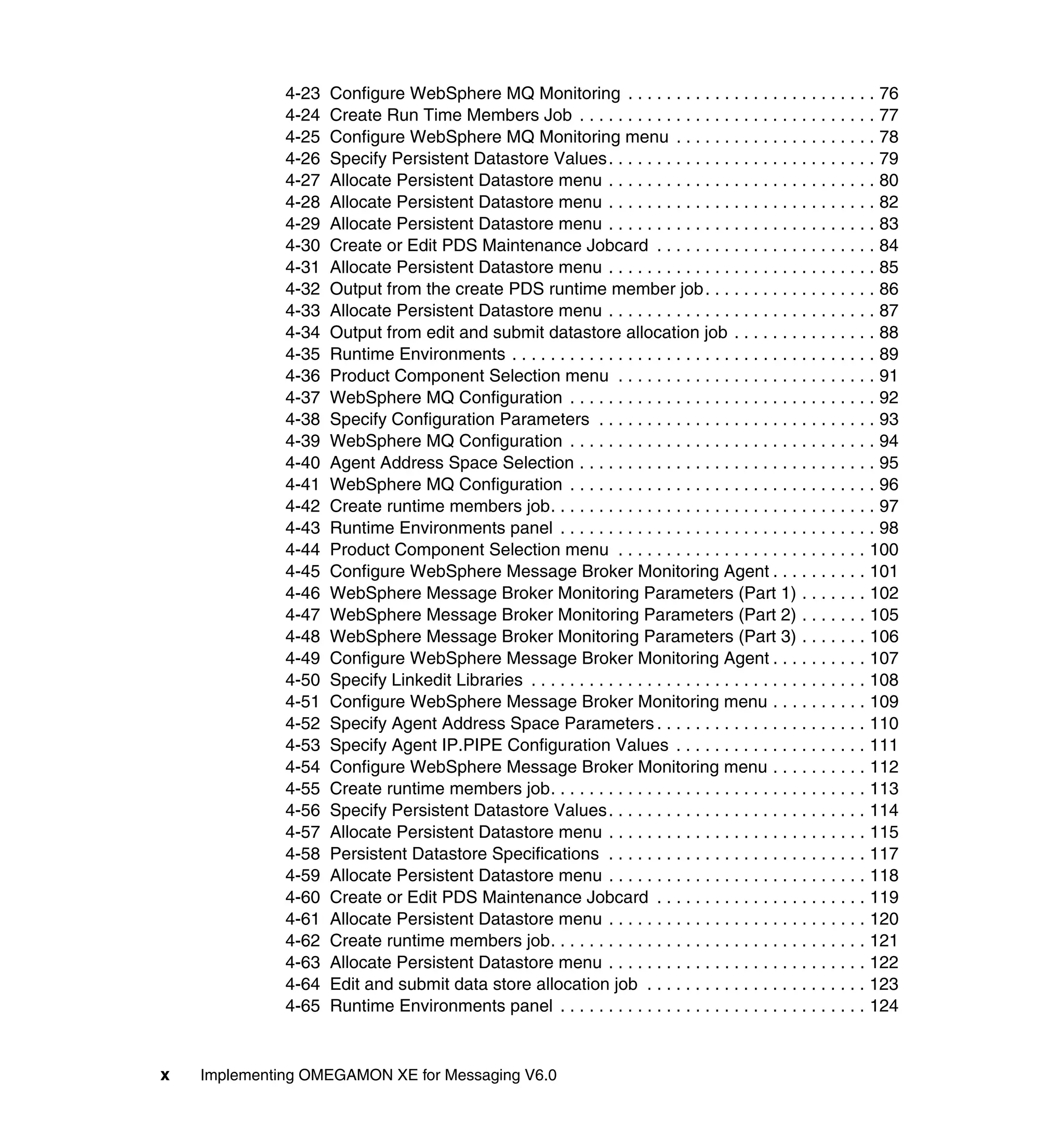
4-23   Configure WebSphere MQ Monitoring . . . . . . . . . . . . . . . . . . . . . . . . . . 76
              4-24   Create Run Time Members Job . . . . . . . . . . . . . . . . . . . . . . . . . . . . . . . 77
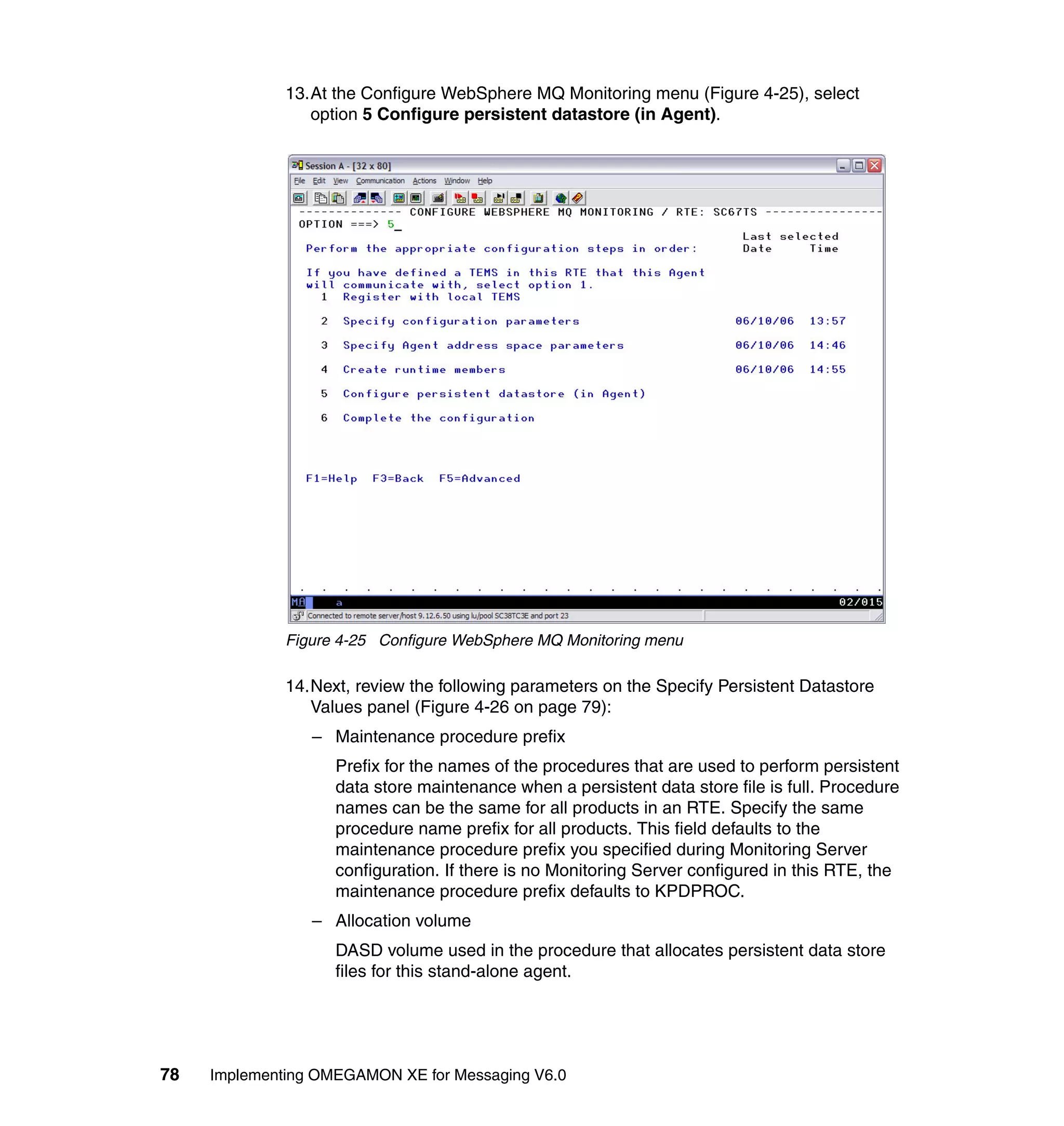
              4-25   Configure WebSphere MQ Monitoring menu . . . . . . . . . . . . . . . . . . . . . 78
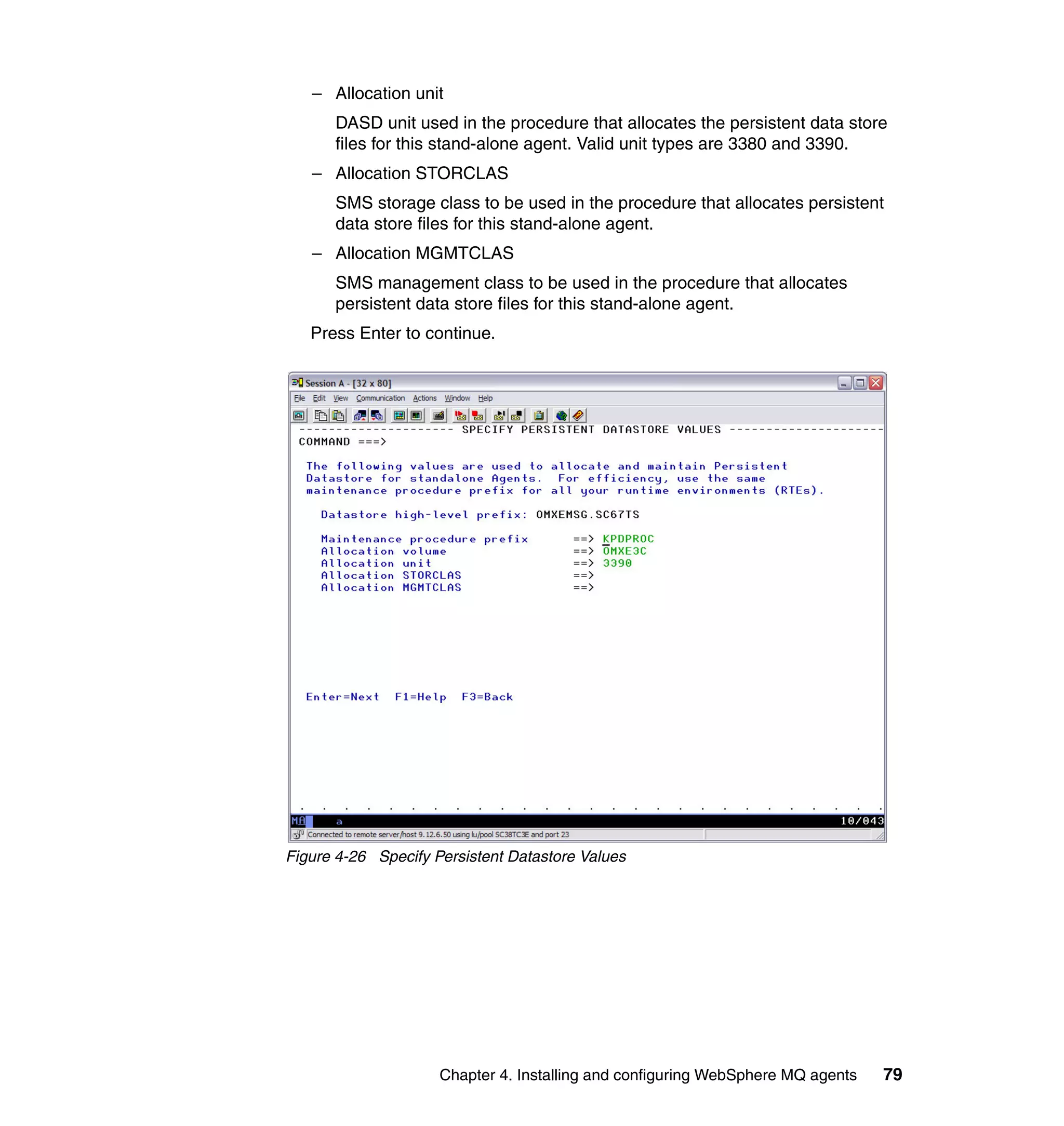
              4-26   Specify Persistent Datastore Values. . . . . . . . . . . . . . . . . . . . . . . . . . . . 79
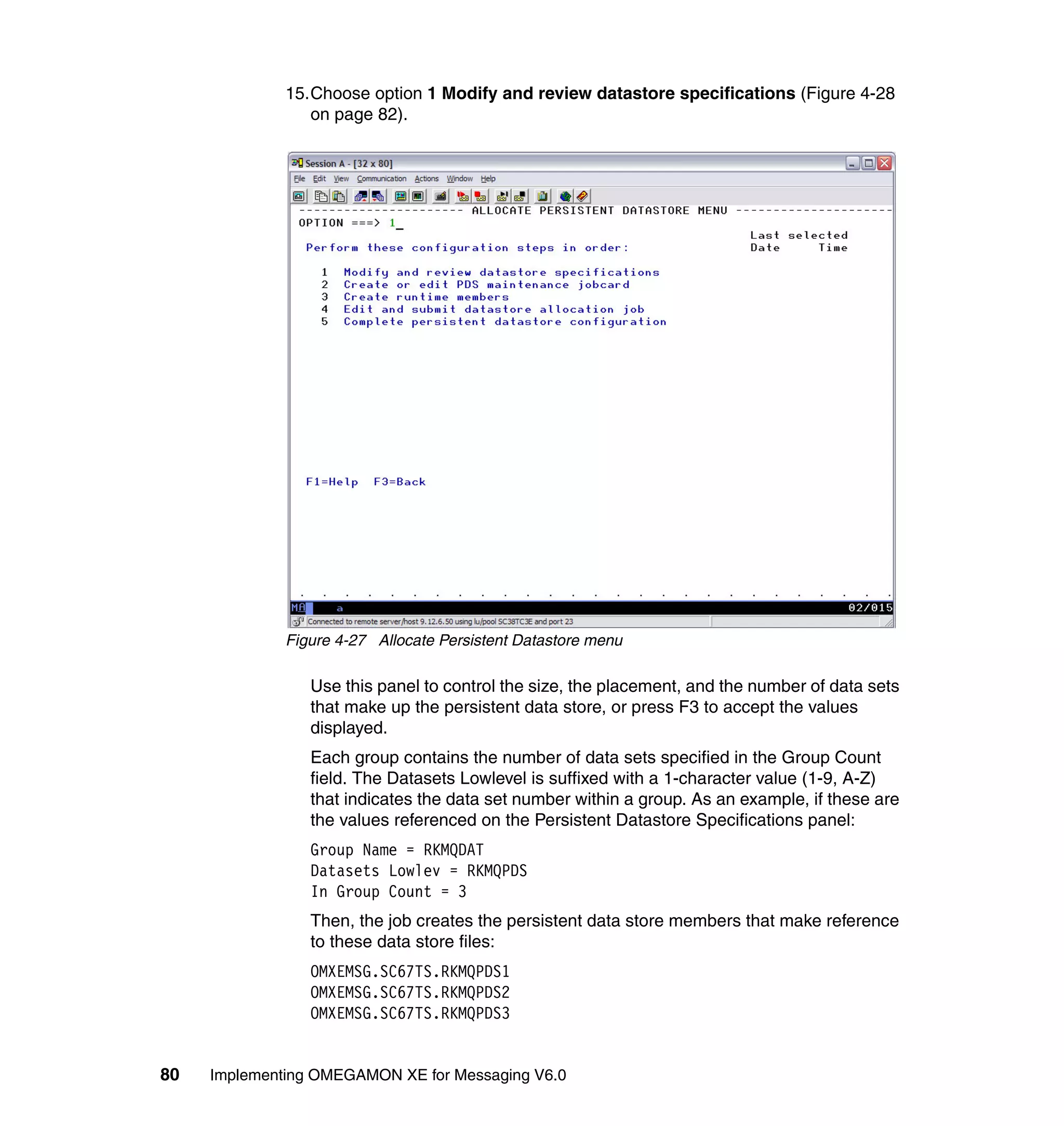
              4-27   Allocate Persistent Datastore menu . . . . . . . . . . . . . . . . . . . . . . . . . . . . 80
              4-28   Allocate Persistent Datastore menu . . . . . . . . . . . . . . . . . . . . . . . . . . . . 82
              4-29   Allocate Persistent Datastore menu . . . . . . . . . . . . . . . . . . . . . . . . . . . . 83
              4-30   Create or Edit PDS Maintenance Jobcard . . . . . . . . . . . . . . . . . . . . . . . 84
              4-31   Allocate Persistent Datastore menu . . . . . . . . . . . . . . . . . . . . . . . . . . . . 85
              4-32   Output from the create PDS runtime member job . . . . . . . . . . . . . . . . . . 86
              4-33   Allocate Persistent Datastore menu . . . . . . . . . . . . . . . . . . . . . . . . . . . . 87
              4-34   Output from edit and submit datastore allocation job . . . . . . . . . . . . . . . 88
              4-35   Runtime Environments . . . . . . . . . . . . . . . . . . . . . . . . . . . . . . . . . . . . . . 89
              4-36   Product Component Selection menu . . . . . . . . . . . . . . . . . . . . . . . . . . . 91
              4-37   WebSphere MQ Configuration . . . . . . . . . . . . . . . . . . . . . . . . . . . . . . . . 92
              4-38   Specify Configuration Parameters . . . . . . . . . . . . . . . . . . . . . . . . . . . . . 93
              4-39   WebSphere MQ Configuration . . . . . . . . . . . . . . . . . . . . . . . . . . . . . . . . 94
              4-40   Agent Address Space Selection . . . . . . . . . . . . . . . . . . . . . . . . . . . . . . . 95
              4-41   WebSphere MQ Configuration . . . . . . . . . . . . . . . . . . . . . . . . . . . . . . . . 96
              4-42   Create runtime members job. . . . . . . . . . . . . . . . . . . . . . . . . . . . . . . . . . 97
              4-43   Runtime Environments panel . . . . . . . . . . . . . . . . . . . . . . . . . . . . . . . . . 98
              4-44   Product Component Selection menu . . . . . . . . . . . . . . . . . . . . . . . . . . 100
              4-45   Configure WebSphere Message Broker Monitoring Agent . . . . . . . . . . 101
              4-46   WebSphere Message Broker Monitoring Parameters (Part 1) . . . . . . . 102
              4-47   WebSphere Message Broker Monitoring Parameters (Part 2) . . . . . . . 105
              4-48   WebSphere Message Broker Monitoring Parameters (Part 3) . . . . . . . 106
              4-49   Configure WebSphere Message Broker Monitoring Agent . . . . . . . . . . 107
              4-50   Specify Linkedit Libraries . . . . . . . . . . . . . . . . . . . . . . . . . . . . . . . . . . . 108
              4-51   Configure WebSphere Message Broker Monitoring menu . . . . . . . . . . 109
              4-52   Specify Agent Address Space Parameters . . . . . . . . . . . . . . . . . . . . . . 110
              4-53   Specify Agent IP.PIPE Configuration Values . . . . . . . . . . . . . . . . . . . . 111
              4-54   Configure WebSphere Message Broker Monitoring menu . . . . . . . . . . 112
              4-55   Create runtime members job. . . . . . . . . . . . . . . . . . . . . . . . . . . . . . . . . 113
              4-56   Specify Persistent Datastore Values. . . . . . . . . . . . . . . . . . . . . . . . . . . 114
              4-57   Allocate Persistent Datastore menu . . . . . . . . . . . . . . . . . . . . . . . . . . . 115
              4-58   Persistent Datastore Specifications . . . . . . . . . . . . . . . . . . . . . . . . . . . 117
              4-59   Allocate Persistent Datastore menu . . . . . . . . . . . . . . . . . . . . . . . . . . . 118
              4-60   Create or Edit PDS Maintenance Jobcard . . . . . . . . . . . . . . . . . . . . . . 119
              4-61   Allocate Persistent Datastore menu . . . . . . . . . . . . . . . . . . . . . . . . . . . 120
              4-62   Create runtime members job. . . . . . . . . . . . . . . . . . . . . . . . . . . . . . . . . 121
              4-63   Allocate Persistent Datastore menu . . . . . . . . . . . . . . . . . . . . . . . . . . . 122
              4-64   Edit and submit data store allocation job . . . . . . . . . . . . . . . . . . . . . . . 123
              4-65   Runtime Environments panel . . . . . . . . . . . . . . . . . . . . . . . . . . . . . . . . 124


x   Implementing OMEGAMON XE for Messaging V6.0
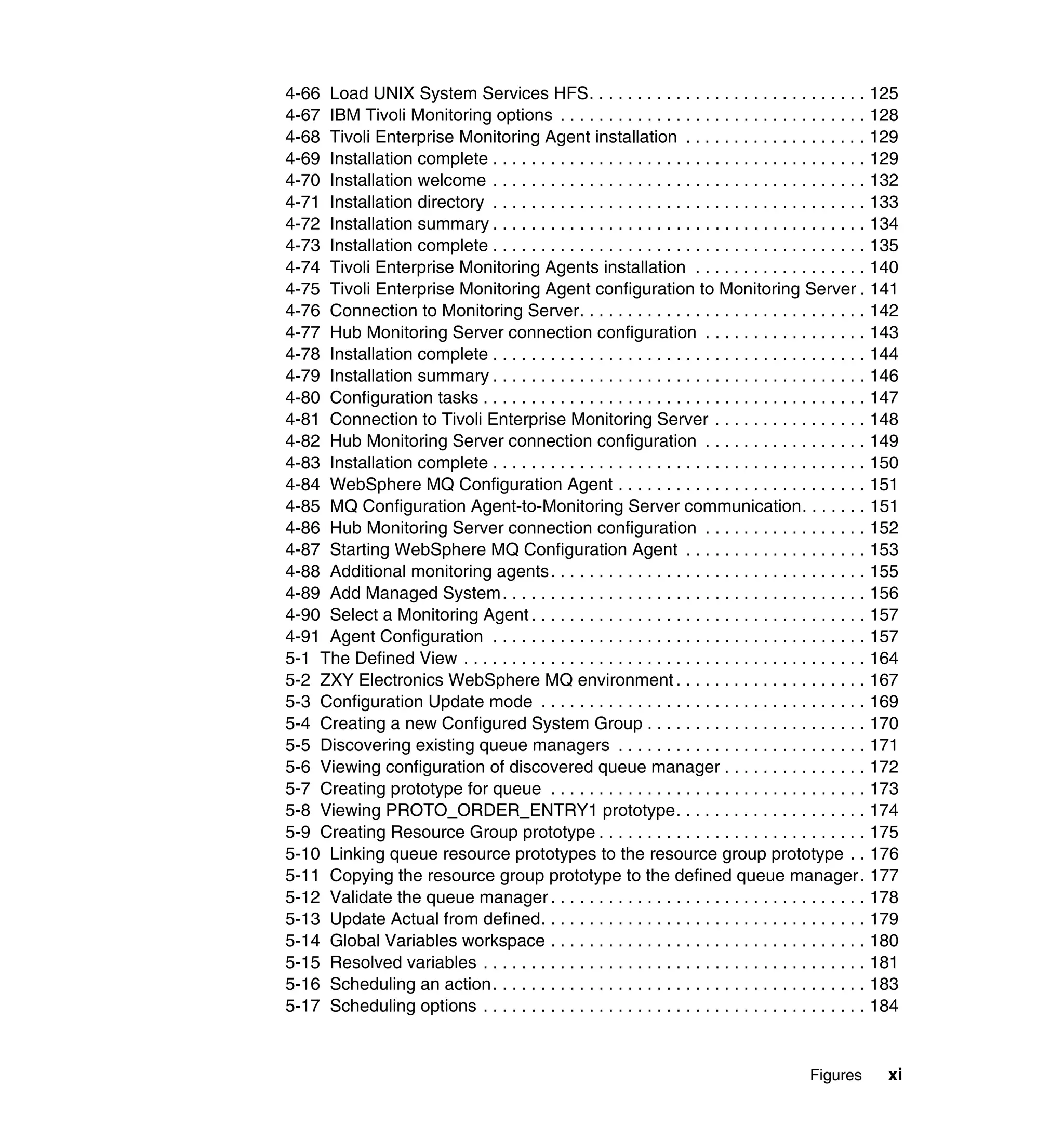
4-66 Load UNIX System Services HFS. . . . . . . . . . . . . . . . . . . . . . . . . . . . . 125
4-67 IBM Tivoli Monitoring options . . . . . . . . . . . . . . . . . . . . . . . . . . . . . . . . 128
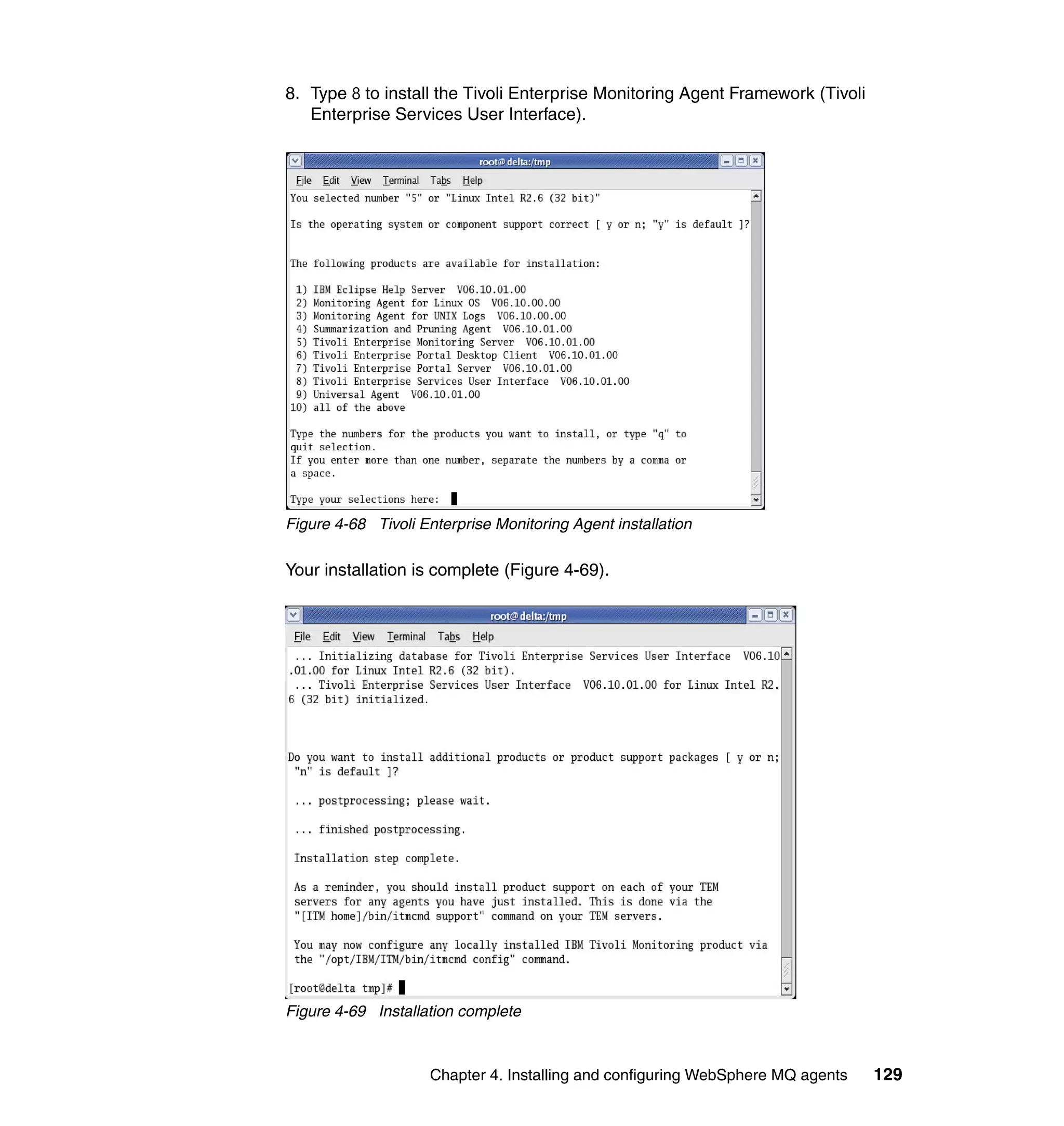
4-68 Tivoli Enterprise Monitoring Agent installation . . . . . . . . . . . . . . . . . . . 129
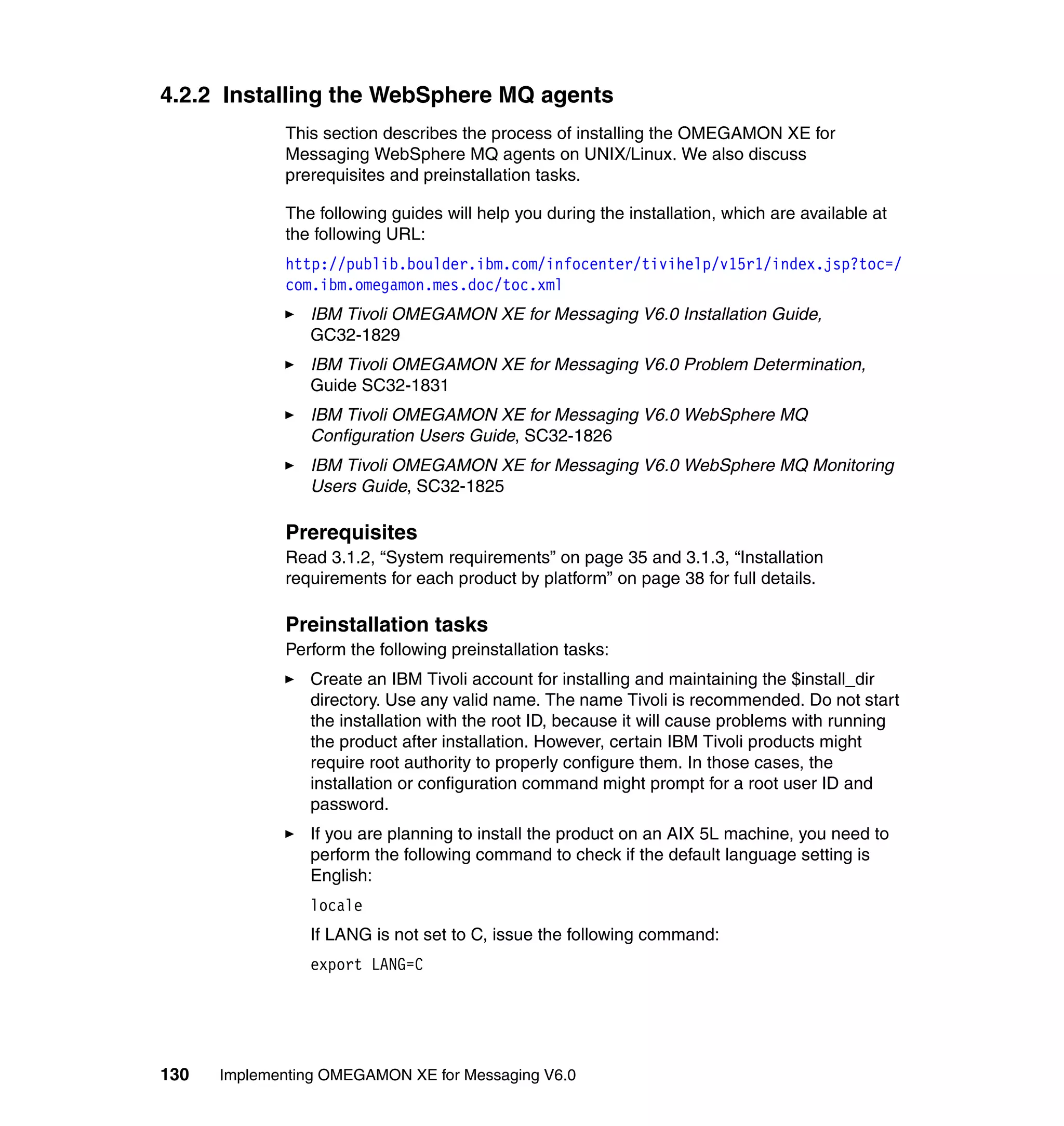
4-69 Installation complete . . . . . . . . . . . . . . . . . . . . . . . . . . . . . . . . . . . . . . . 129
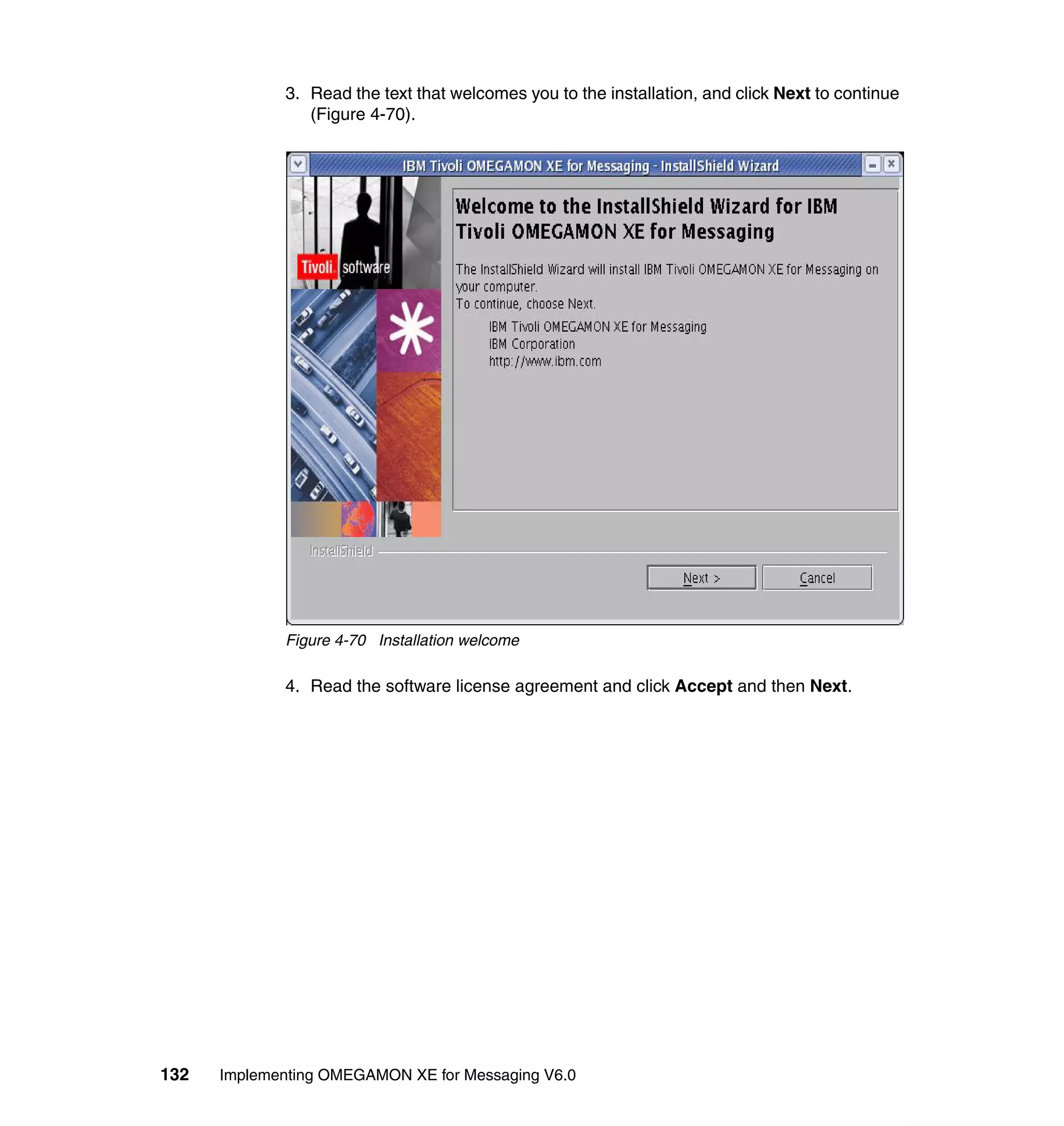
4-70 Installation welcome . . . . . . . . . . . . . . . . . . . . . . . . . . . . . . . . . . . . . . . 132
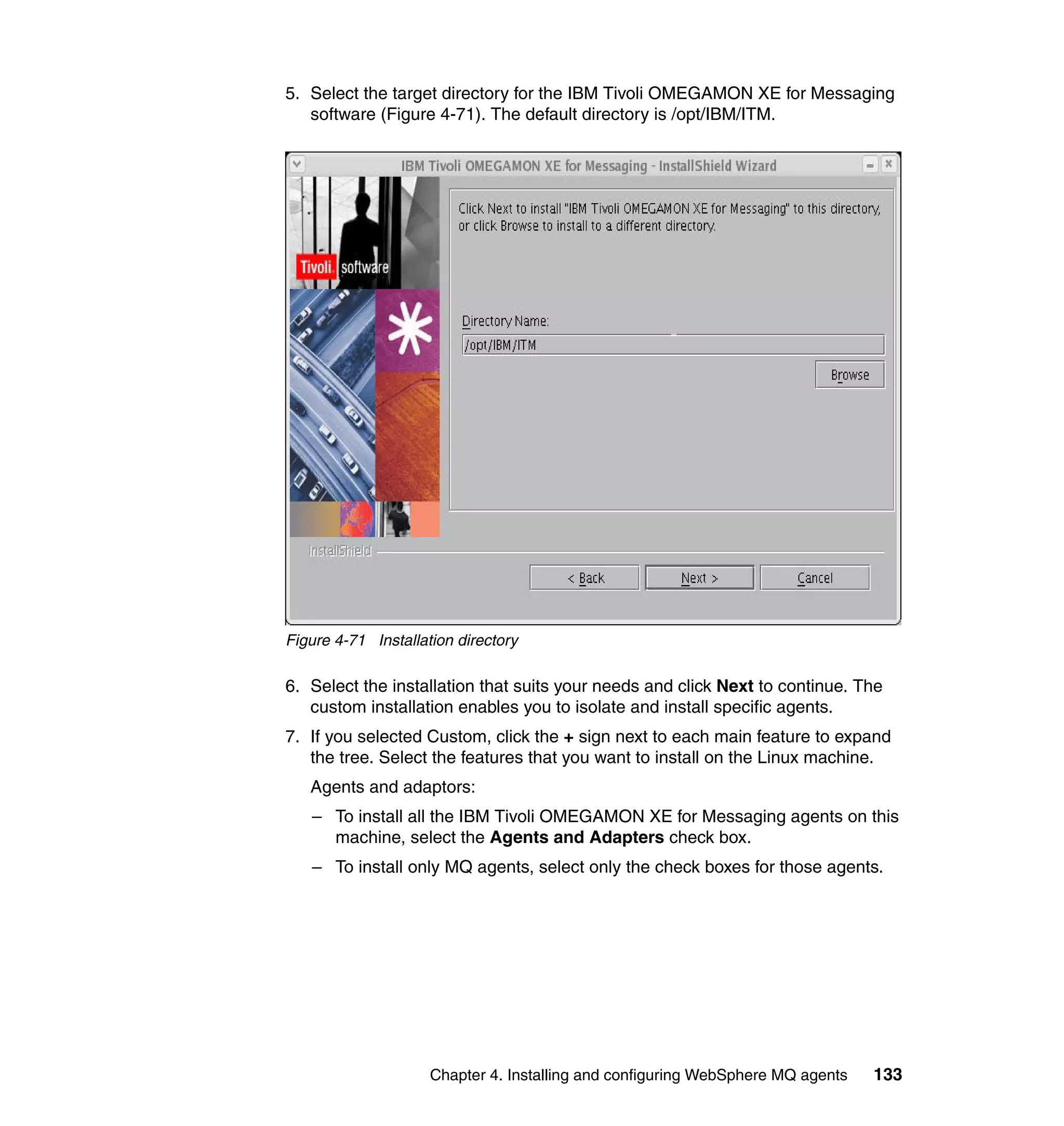
4-71 Installation directory . . . . . . . . . . . . . . . . . . . . . . . . . . . . . . . . . . . . . . . 133
4-72 Installation summary . . . . . . . . . . . . . . . . . . . . . . . . . . . . . . . . . . . . . . . 134
4-73 Installation complete . . . . . . . . . . . . . . . . . . . . . . . . . . . . . . . . . . . . . . . 135
4-74 Tivoli Enterprise Monitoring Agents installation . . . . . . . . . . . . . . . . . . 140
4-75 Tivoli Enterprise Monitoring Agent configuration to Monitoring Server . 141
4-76 Connection to Monitoring Server. . . . . . . . . . . . . . . . . . . . . . . . . . . . . . 142
4-77 Hub Monitoring Server connection configuration . . . . . . . . . . . . . . . . . 143
4-78 Installation complete . . . . . . . . . . . . . . . . . . . . . . . . . . . . . . . . . . . . . . . 144
4-79 Installation summary . . . . . . . . . . . . . . . . . . . . . . . . . . . . . . . . . . . . . . . 146
4-80 Configuration tasks . . . . . . . . . . . . . . . . . . . . . . . . . . . . . . . . . . . . . . . . 147
4-81 Connection to Tivoli Enterprise Monitoring Server . . . . . . . . . . . . . . . . 148
4-82 Hub Monitoring Server connection configuration . . . . . . . . . . . . . . . . . 149
4-83 Installation complete . . . . . . . . . . . . . . . . . . . . . . . . . . . . . . . . . . . . . . . 150
4-84 WebSphere MQ Configuration Agent . . . . . . . . . . . . . . . . . . . . . . . . . . 151
4-85 MQ Configuration Agent-to-Monitoring Server communication. . . . . . . 151
4-86 Hub Monitoring Server connection configuration . . . . . . . . . . . . . . . . . 152
4-87 Starting WebSphere MQ Configuration Agent . . . . . . . . . . . . . . . . . . . 153
4-88 Additional monitoring agents. . . . . . . . . . . . . . . . . . . . . . . . . . . . . . . . . 155
4-89 Add Managed System. . . . . . . . . . . . . . . . . . . . . . . . . . . . . . . . . . . . . . 156
4-90 Select a Monitoring Agent . . . . . . . . . . . . . . . . . . . . . . . . . . . . . . . . . . . 157
4-91 Agent Configuration . . . . . . . . . . . . . . . . . . . . . . . . . . . . . . . . . . . . . . . 157
5-1 The Defined View . . . . . . . . . . . . . . . . . . . . . . . . . . . . . . . . . . . . . . . . . . 164
5-2 ZXY Electronics WebSphere MQ environment . . . . . . . . . . . . . . . . . . . . 167
5-3 Configuration Update mode . . . . . . . . . . . . . . . . . . . . . . . . . . . . . . . . . . 169
5-4 Creating a new Configured System Group . . . . . . . . . . . . . . . . . . . . . . . 170
5-5 Discovering existing queue managers . . . . . . . . . . . . . . . . . . . . . . . . . . 171
5-6 Viewing configuration of discovered queue manager . . . . . . . . . . . . . . . 172
5-7 Creating prototype for queue . . . . . . . . . . . . . . . . . . . . . . . . . . . . . . . . . 173
5-8 Viewing PROTO_ORDER_ENTRY1 prototype. . . . . . . . . . . . . . . . . . . . 174
5-9 Creating Resource Group prototype . . . . . . . . . . . . . . . . . . . . . . . . . . . . 175
5-10 Linking queue resource prototypes to the resource group prototype . . 176
5-11 Copying the resource group prototype to the defined queue manager . 177
5-12 Validate the queue manager . . . . . . . . . . . . . . . . . . . . . . . . . . . . . . . . . 178
5-13 Update Actual from defined. . . . . . . . . . . . . . . . . . . . . . . . . . . . . . . . . . 179
5-14 Global Variables workspace . . . . . . . . . . . . . . . . . . . . . . . . . . . . . . . . . 180
5-15 Resolved variables . . . . . . . . . . . . . . . . . . . . . . . . . . . . . . . . . . . . . . . . 181
5-16 Scheduling an action. . . . . . . . . . . . . . . . . . . . . . . . . . . . . . . . . . . . . . . 183
5-17 Scheduling options . . . . . . . . . . . . . . . . . . . . . . . . . . . . . . . . . . . . . . . . 184


                                                                                             Figures       xi
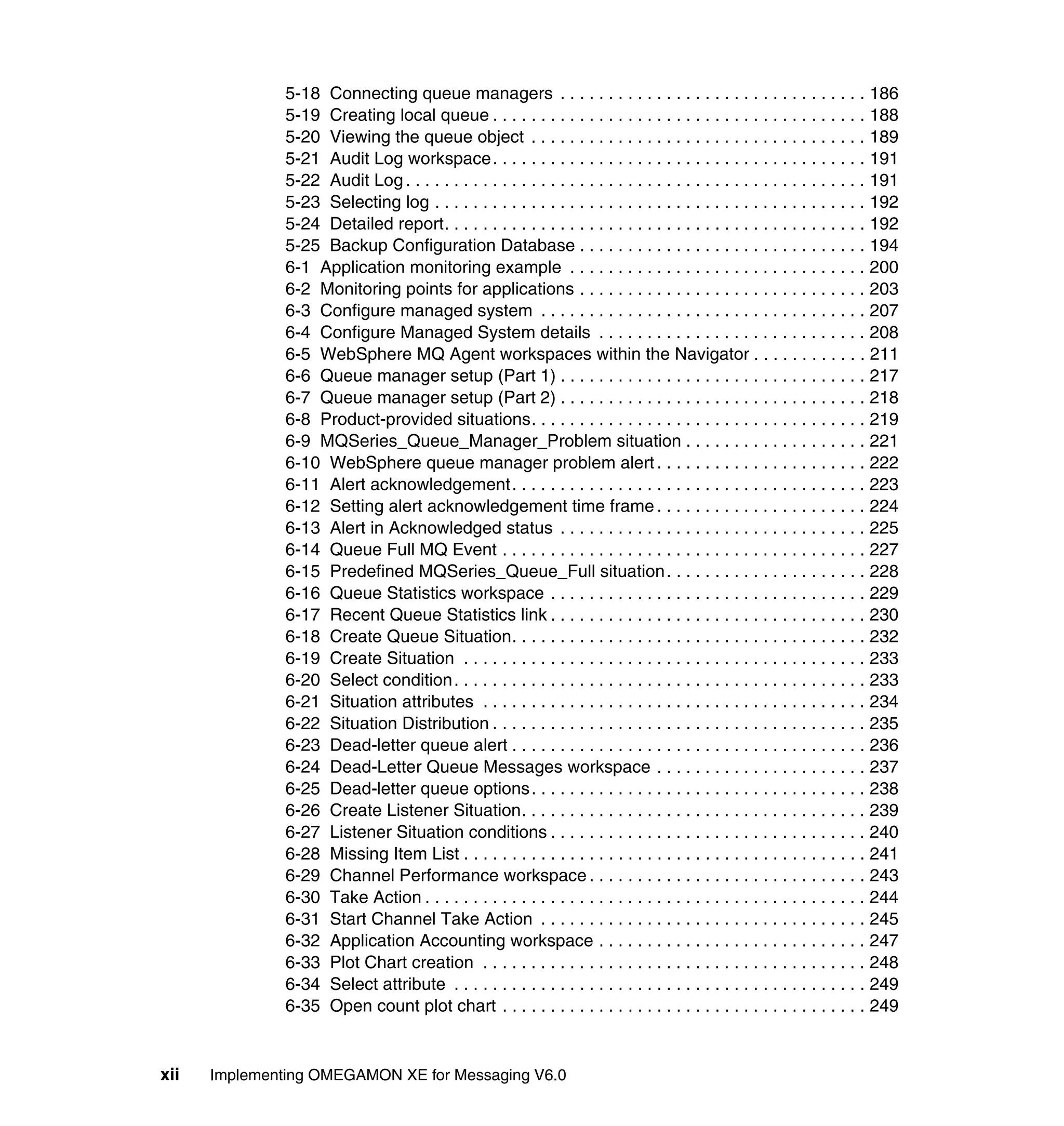
5-18 Connecting queue managers . . . . . . . . . . . . . . . . . . . . . . . . . . . . . . . . 186
               5-19 Creating local queue . . . . . . . . . . . . . . . . . . . . . . . . . . . . . . . . . . . . . . . 188
               5-20 Viewing the queue object . . . . . . . . . . . . . . . . . . . . . . . . . . . . . . . . . . . 189
               5-21 Audit Log workspace. . . . . . . . . . . . . . . . . . . . . . . . . . . . . . . . . . . . . . . 191
               5-22 Audit Log . . . . . . . . . . . . . . . . . . . . . . . . . . . . . . . . . . . . . . . . . . . . . . . . 191
               5-23 Selecting log . . . . . . . . . . . . . . . . . . . . . . . . . . . . . . . . . . . . . . . . . . . . . 192
               5-24 Detailed report. . . . . . . . . . . . . . . . . . . . . . . . . . . . . . . . . . . . . . . . . . . . 192
               5-25 Backup Configuration Database . . . . . . . . . . . . . . . . . . . . . . . . . . . . . . 194
               6-1 Application monitoring example . . . . . . . . . . . . . . . . . . . . . . . . . . . . . . . 200
               6-2 Monitoring points for applications . . . . . . . . . . . . . . . . . . . . . . . . . . . . . . 203
               6-3 Configure managed system . . . . . . . . . . . . . . . . . . . . . . . . . . . . . . . . . . 207
               6-4 Configure Managed System details . . . . . . . . . . . . . . . . . . . . . . . . . . . . 208
               6-5 WebSphere MQ Agent workspaces within the Navigator . . . . . . . . . . . . 211
               6-6 Queue manager setup (Part 1) . . . . . . . . . . . . . . . . . . . . . . . . . . . . . . . . 217
               6-7 Queue manager setup (Part 2) . . . . . . . . . . . . . . . . . . . . . . . . . . . . . . . . 218
               6-8 Product-provided situations. . . . . . . . . . . . . . . . . . . . . . . . . . . . . . . . . . . 219
               6-9 MQSeries_Queue_Manager_Problem situation . . . . . . . . . . . . . . . . . . . 221
               6-10 WebSphere queue manager problem alert . . . . . . . . . . . . . . . . . . . . . . 222
               6-11 Alert acknowledgement. . . . . . . . . . . . . . . . . . . . . . . . . . . . . . . . . . . . . 223
               6-12 Setting alert acknowledgement time frame . . . . . . . . . . . . . . . . . . . . . . 224
               6-13 Alert in Acknowledged status . . . . . . . . . . . . . . . . . . . . . . . . . . . . . . . . 225
               6-14 Queue Full MQ Event . . . . . . . . . . . . . . . . . . . . . . . . . . . . . . . . . . . . . . 227
               6-15 Predefined MQSeries_Queue_Full situation . . . . . . . . . . . . . . . . . . . . . 228
               6-16 Queue Statistics workspace . . . . . . . . . . . . . . . . . . . . . . . . . . . . . . . . . 229
               6-17 Recent Queue Statistics link . . . . . . . . . . . . . . . . . . . . . . . . . . . . . . . . . 230
               6-18 Create Queue Situation. . . . . . . . . . . . . . . . . . . . . . . . . . . . . . . . . . . . . 232
               6-19 Create Situation . . . . . . . . . . . . . . . . . . . . . . . . . . . . . . . . . . . . . . . . . . 233
               6-20 Select condition. . . . . . . . . . . . . . . . . . . . . . . . . . . . . . . . . . . . . . . . . . . 233
               6-21 Situation attributes . . . . . . . . . . . . . . . . . . . . . . . . . . . . . . . . . . . . . . . . 234
               6-22 Situation Distribution . . . . . . . . . . . . . . . . . . . . . . . . . . . . . . . . . . . . . . . 235
               6-23 Dead-letter queue alert . . . . . . . . . . . . . . . . . . . . . . . . . . . . . . . . . . . . . 236
               6-24 Dead-Letter Queue Messages workspace . . . . . . . . . . . . . . . . . . . . . . 237
               6-25 Dead-letter queue options. . . . . . . . . . . . . . . . . . . . . . . . . . . . . . . . . . . 238
               6-26 Create Listener Situation. . . . . . . . . . . . . . . . . . . . . . . . . . . . . . . . . . . . 239
               6-27 Listener Situation conditions . . . . . . . . . . . . . . . . . . . . . . . . . . . . . . . . . 240
               6-28 Missing Item List . . . . . . . . . . . . . . . . . . . . . . . . . . . . . . . . . . . . . . . . . . 241
               6-29 Channel Performance workspace . . . . . . . . . . . . . . . . . . . . . . . . . . . . . 243
               6-30 Take Action . . . . . . . . . . . . . . . . . . . . . . . . . . . . . . . . . . . . . . . . . . . . . . 244
               6-31 Start Channel Take Action . . . . . . . . . . . . . . . . . . . . . . . . . . . . . . . . . . 245
               6-32 Application Accounting workspace . . . . . . . . . . . . . . . . . . . . . . . . . . . . 247
               6-33 Plot Chart creation . . . . . . . . . . . . . . . . . . . . . . . . . . . . . . . . . . . . . . . . 248
               6-34 Select attribute . . . . . . . . . . . . . . . . . . . . . . . . . . . . . . . . . . . . . . . . . . . 249
               6-35 Open count plot chart . . . . . . . . . . . . . . . . . . . . . . . . . . . . . . . . . . . . . . 249


xii   Implementing OMEGAMON XE for Messaging V6.0
6-36 MQI Channel Statistics . . . . . . . . . . . . . . . . . . . . . . . . . . . . . . . . . . . . . 251
7-1 CandleMonitor node . . . . . . . . . . . . . . . . . . . . . . . . . . . . . . . . . . . . . . . . 255
7-2 Default kqi.xml file on Windows and UNIX . . . . . . . . . . . . . . . . . . . . . . . 289
7-3 Situation Editor with QI_Broker_Not_Started . . . . . . . . . . . . . . . . . . . . . 298
7-4 Take Action by right-clicking the QI Broker . . . . . . . . . . . . . . . . . . . . . . . 301
7-5 Take Action command from right-clicking an execution group . . . . . . . . 302
7-6 Reflex automation for QI_Broker_Not_Started situation . . . . . . . . . . . . . 304
7-7 Agent workspaces in the Navigator. . . . . . . . . . . . . . . . . . . . . . . . . . . . . 305
7-8 Message Flow Statistics workspace . . . . . . . . . . . . . . . . . . . . . . . . . . . . 311
7-9 Situation Persistence . . . . . . . . . . . . . . . . . . . . . . . . . . . . . . . . . . . . . . . 312
8-1 WebSphere InterChange Server Monitoring architecture . . . . . . . . . . . . 321
8-2 SNMP Configuration wizard . . . . . . . . . . . . . . . . . . . . . . . . . . . . . . . . . . 325
8-3 SNMP Agent Configuration Manager . . . . . . . . . . . . . . . . . . . . . . . . . . . 327
8-4 Server Access in SNMP Agent Configuration Manager . . . . . . . . . . . . . 329
8-5 Manage Tivoli Enterprise Monitoring Services . . . . . . . . . . . . . . . . . . . . 330
8-6 Agent Advanced Configuration . . . . . . . . . . . . . . . . . . . . . . . . . . . . . . . . 330
8-7 Agent Advanced Configuration . . . . . . . . . . . . . . . . . . . . . . . . . . . . . . . . 331
8-8 Monitoring Agent Add . . . . . . . . . . . . . . . . . . . . . . . . . . . . . . . . . . . . . . . 331
8-9 WebSphere InterChange Server Host . . . . . . . . . . . . . . . . . . . . . . . . . . 332
8-10 WebSphere InterChange Server status in CandleNet Portal (display the
    same in Tivoli Enterprise Portal). . . . . . . . . . . . . . . . . . . . . . . . . . . . . . . 333
8-11 Tivoli Enterprise Portal workspaces . . . . . . . . . . . . . . . . . . . . . . . . . . . 334
8-12 WebSphere InterChange Server workspaces in Tivoli Enterprise Portal335
8-13 WebSphere InterChange Servers in CandleNet Portal (display same in
    Tivoli Enterprise Portal) . . . . . . . . . . . . . . . . . . . . . . . . . . . . . . . . . . . . . 336
8-14 CandleNet Portal workspace for WebSphere InterChange Server (display
    same in Tivoli Enterprise Portal). . . . . . . . . . . . . . . . . . . . . . . . . . . . . . . 337
8-15 CandleNet Portal showing alterations in the Enterprise view (display same
    in Tivoli Enterprise Portal) . . . . . . . . . . . . . . . . . . . . . . . . . . . . . . . . . . . 340
8-16 WebSphere InterChange Server alert for MQ Connector . . . . . . . . . . . 341
8-17 WebSphere InterChange Server taking action on alert. . . . . . . . . . . . . 342
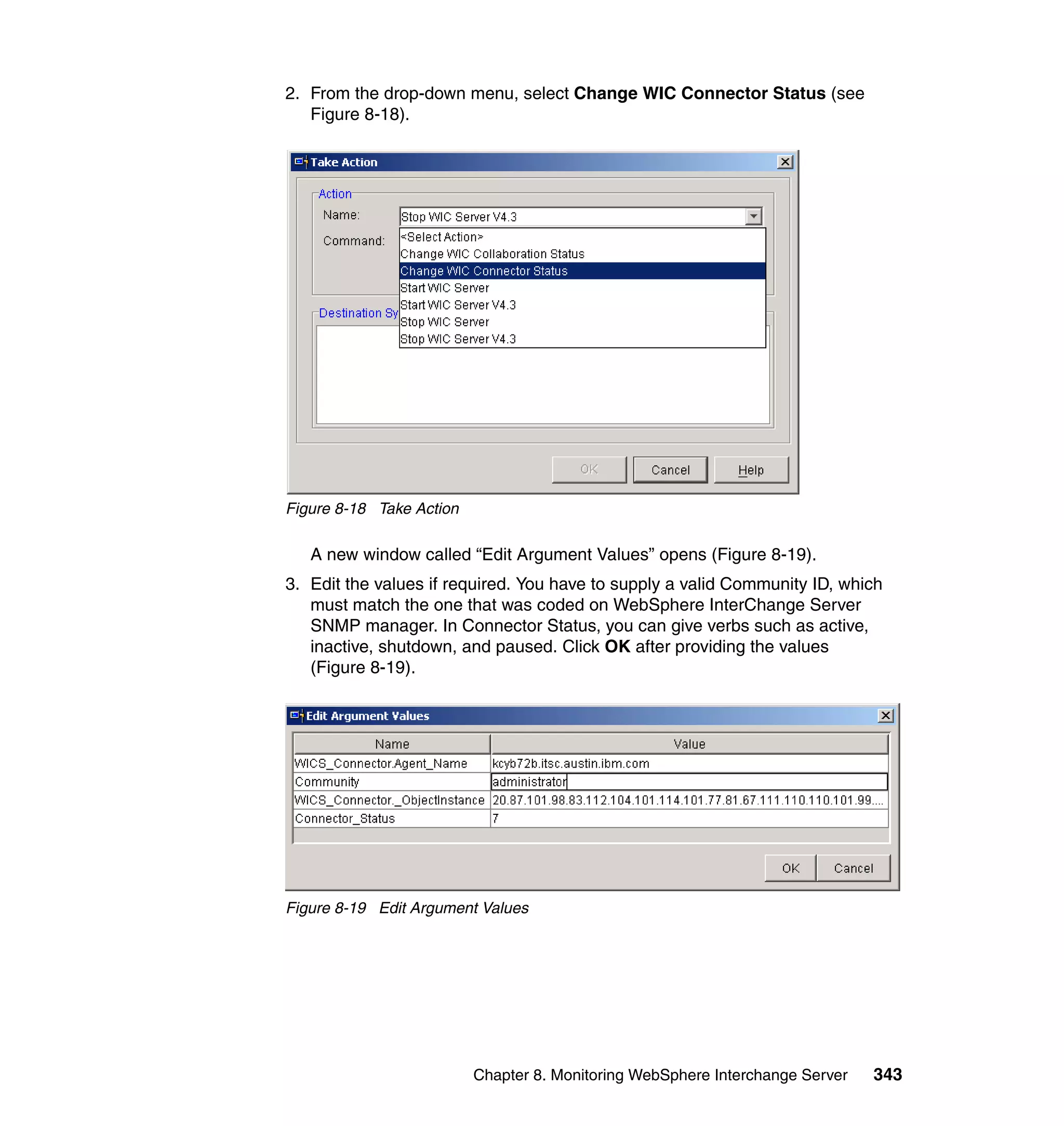
8-18 Take Action . . . . . . . . . . . . . . . . . . . . . . . . . . . . . . . . . . . . . . . . . . . . . . 343
8-19 Edit Argument Values . . . . . . . . . . . . . . . . . . . . . . . . . . . . . . . . . . . . . . 343
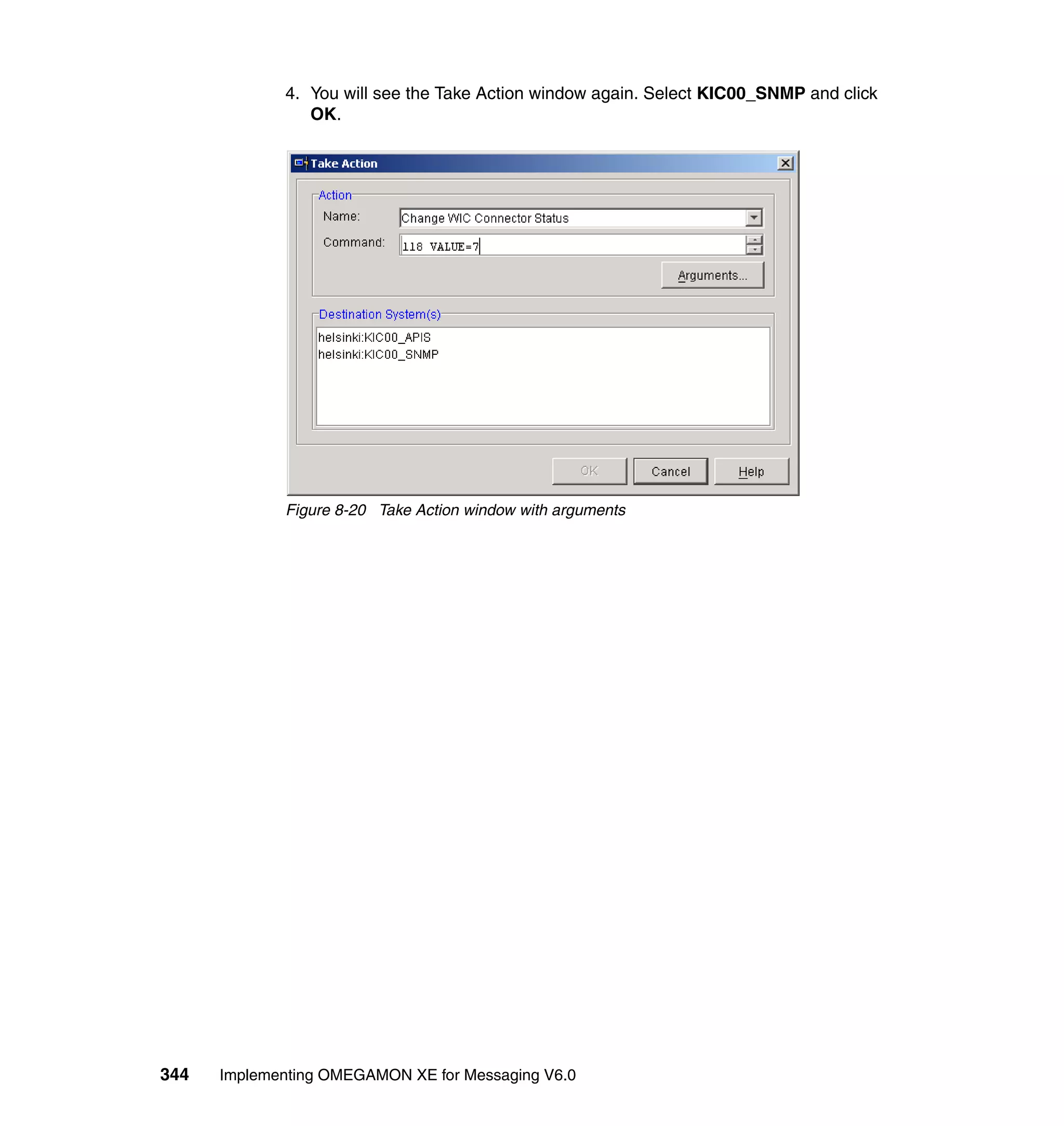
8-20 Take Action window with arguments. . . . . . . . . . . . . . . . . . . . . . . . . . . 344
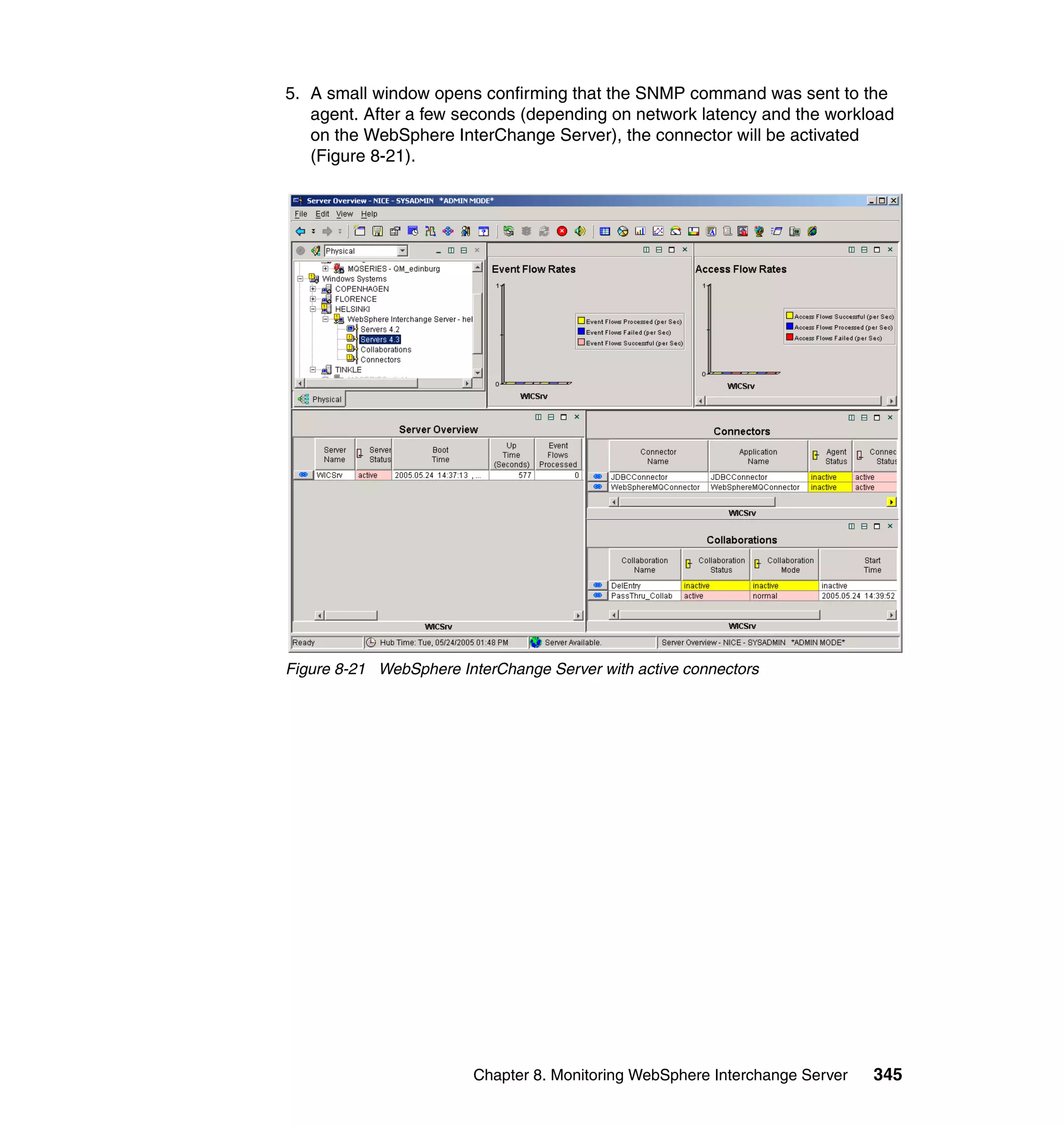
8-21 WebSphere InterChange Server with active connectors . . . . . . . . . . . 345
9-1 Accessing Edit Trace Parms from managed systems window . . . . . . . . 349
9-2 Setting trace parameters. . . . . . . . . . . . . . . . . . . . . . . . . . . . . . . . . . . . . 350
A-1 Tivoli Enterprise Monitoring Server Welcome. . . . . . . . . . . . . . . . . . . . . 360
A-2 Destination . . . . . . . . . . . . . . . . . . . . . . . . . . . . . . . . . . . . . . . . . . . . . . . 361
A-3 Encryption Key . . . . . . . . . . . . . . . . . . . . . . . . . . . . . . . . . . . . . . . . . . . . 361
A-4 Select Features. . . . . . . . . . . . . . . . . . . . . . . . . . . . . . . . . . . . . . . . . . . . 362
A-5 Agent Deployment . . . . . . . . . . . . . . . . . . . . . . . . . . . . . . . . . . . . . . . . . 363
A-6 Program Folder. . . . . . . . . . . . . . . . . . . . . . . . . . . . . . . . . . . . . . . . . . . . 363


                                                                                              Figures       xiii
A-7 TEPS Desktop and Browser Signon ID and Password . . . . . . . . . . . . . 364
              A-8 Start Copying Files . . . . . . . . . . . . . . . . . . . . . . . . . . . . . . . . . . . . . . . . . 364
              A-9 Setup Type . . . . . . . . . . . . . . . . . . . . . . . . . . . . . . . . . . . . . . . . . . . . . . . 365
              A-10 TEP Host Information . . . . . . . . . . . . . . . . . . . . . . . . . . . . . . . . . . . . . . 366
              A-11 TEPS Data Source Config Parameters . . . . . . . . . . . . . . . . . . . . . . . . 367
              A-12 Success message. . . . . . . . . . . . . . . . . . . . . . . . . . . . . . . . . . . . . . . . . 367
              A-13 Warehouse . . . . . . . . . . . . . . . . . . . . . . . . . . . . . . . . . . . . . . . . . . . . . . 368
              A-14 TEP Server Configuration. . . . . . . . . . . . . . . . . . . . . . . . . . . . . . . . . . . 369
              A-15 Warehouse configuration . . . . . . . . . . . . . . . . . . . . . . . . . . . . . . . . . . . 370
              A-16 Successfully completed . . . . . . . . . . . . . . . . . . . . . . . . . . . . . . . . . . . . 370
              A-17 Tivoli Enterprise Monitoring Server Configuration . . . . . . . . . . . . . . . . 371
              A-18 Application support . . . . . . . . . . . . . . . . . . . . . . . . . . . . . . . . . . . . . . . . 372
              A-19 Tivoli Enterprise Monitoring Server not running . . . . . . . . . . . . . . . . . . 372
              A-20 Support package. . . . . . . . . . . . . . . . . . . . . . . . . . . . . . . . . . . . . . . . . . 372
              A-21 Application support addition complete . . . . . . . . . . . . . . . . . . . . . . . . . 373
              A-22 Default configuration. . . . . . . . . . . . . . . . . . . . . . . . . . . . . . . . . . . . . . . 374


xiv   Implementing OMEGAMON XE for Messaging V6.0
Notices

This information was developed for products and services offered in the U.S.A.

IBM may not offer the products, services, or features discussed in this document in other countries. Consult
your local IBM representative for information on the products and services currently available in your area.
Any reference to an IBM product, program, or service is not intended to state or imply that only that IBM
product, program, or service may be used. Any functionally equivalent product, program, or service that
does not infringe any IBM intellectual property right may be used instead. However, it is the user's
responsibility to evaluate and verify the operation of any non-IBM product, program, or service.

IBM may have patents or pending patent applications covering subject matter described in this document.
The furnishing of this document does not give you any license to these patents. You can send license
inquiries, in writing, to:
IBM Director of Licensing, IBM Corporation, North Castle Drive, Armonk, NY 10504-1785 U.S.A.

The following paragraph does not apply to the United Kingdom or any other country where such
provisions are inconsistent with local law: INTERNATIONAL BUSINESS MACHINES CORPORATION
PROVIDES THIS PUBLICATION "AS IS" WITHOUT WARRANTY OF ANY KIND, EITHER EXPRESS OR
IMPLIED, INCLUDING, BUT NOT LIMITED TO, THE IMPLIED WARRANTIES OF NON-INFRINGEMENT,
MERCHANTABILITY OR FITNESS FOR A PARTICULAR PURPOSE. Some states do not allow disclaimer
of express or implied warranties in certain transactions, therefore, this statement may not apply to you.

This information could include technical inaccuracies or typographical errors. Changes are periodically made
to the information herein; these changes will be incorporated in new editions of the publication. IBM may
make improvements and/or changes in the product(s) and/or the program(s) described in this publication at
any time without notice.

Any references in this information to non-IBM Web sites are provided for convenience only and do not in any
manner serve as an endorsement of those Web sites. The materials at those Web sites are not part of the
materials for this IBM product and use of those Web sites is at your own risk.

IBM may use or distribute any of the information you supply in any way it believes appropriate without
incurring any obligation to you.

Information concerning non-IBM products was obtained from the suppliers of those products, their published
announcements or other publicly available sources. IBM has not tested those products and cannot confirm
the accuracy of performance, compatibility or any other claims related to non-IBM products. Questions on
the capabilities of non-IBM products should be addressed to the suppliers of those products.

This information contains examples of data and reports used in daily business operations. To illustrate them
as completely as possible, the examples include the names of individuals, companies, brands, and products.
All of these names are fictitious and any similarity to the names and addresses used by an actual business
enterprise is entirely coincidental.

COPYRIGHT LICENSE:

This information contains sample application programs in source language, which illustrate programming
techniques on various operating platforms. You may copy, modify, and distribute these sample programs in
any form without payment to IBM, for the purposes of developing, using, marketing or distributing application
programs conforming to the application programming interface for the operating platform for which the
sample programs are written. These examples have not been thoroughly tested under all conditions. IBM,
therefore, cannot guarantee or imply reliability, serviceability, or function of these programs.


© Copyright IBM Corp. 2007. All rights reserved.                                                          xv
Trademarks
The following terms are trademarks of the International Business Machines Corporation in the United States,
other countries, or both:

  AIX 5L™                               MQSeries®                             Tivoli Management
  AIX®                                  MVS/ESA™                              Environment®
  Candle®                               OMEGAMON®                             Tivoli®
  CICS®                                 OS/400®                               VTAM®
  DB2 Universal Database™               RACF®                                 WebSphere®
  DB2®                                  Redbooks (logo)       ™               z/OS®
  IBM®                                  Redbooks™                             zSeries®
  IMS™                                  S/390®
  Language Environment®                 Tivoli Enterprise™

The following terms are trademarks of other companies:

Oracle, JD Edwards, PeopleSoft, and Siebel are registered trademarks of Oracle Corporation and/or its
affiliates.

ITIL is a registered trademark, and a registered community trademark of the Office of Government
Commerce, and is registered in the U.S. Patent and Trademark Office.

Java, JRE, J2EE, Solaris, Sun, and all Java-based trademarks are trademarks of Sun Microsystems, Inc. in
the United States, other countries, or both.

Microsoft, MS-DOS, Windows, and the Windows logo are trademarks of Microsoft Corporation in the United
States, other countries, or both.

Intel, Intel logo, Intel Inside logo, and Intel Centrino logo are trademarks or registered trademarks of Intel
Corporation or its subsidiaries in the United States, other countries, or both.

UNIX is a registered trademark of The Open Group in the United States and other countries.

Linux is a trademark of Linus Torvalds in the United States, other countries, or both.

Other company, product, or service names may be trademarks or service marks of others.


xvi     Implementing OMEGAMON XE for Messaging V6.0
Preface

                 IBM® Tivoli® OMEGAMON® XE for Messaging Version 6.0 is a follow-on
                 product to IBM Tivoli for OMEGAMON XE for WebSphere® Business Integration.
                 It provides the capability to manage IBM WebSphere MQ, WebSphere Message
                 Broker, and WebSphere InterChange Server environments from a single
                 console. It supports distributed and mainframe systems and provides an
                 end-to-end view across all systems. It analyzes application performance and
                 identifies slowdowns and monitors message rates, brokers, message flows, and
                 subflows.

                 This IBM Redbook describes the installation, configuration, and troubleshooting
                 of IBM Tivoli OMEGAMON XE for Messaging on Microsoft® Windows®, IBM
                 AIX® 5L™, Linux®, and IBM z/OS® platforms. We also describe the
                 OMEGAMON framework architecture with typical deployment scenarios, best
                 practices, and scalability considerations.

                 This book is an update to Implementing IBM Tivoli OMEGAMON XE for
                 WebSphere Business Integration V1.1, SG24-6768.

                 This book is essential reading for IT specialists who will implement IBM Tivoli
                 OMEGAMON XE for Messaging.


The team that wrote this redbook
                 This redbook was produced by a team of specialists from around the world
                 working at the International Technical Support Organization, Austin Center.

                 Dave Cannon is a Senior Consulting IT Specialist at IBM Corp - Tivoli
                 Performance Automation Group, McLean, VA. He has been involved in and
                 instrumental in the success of many IBM messaging middleware
                 implementations worldwide. He has more than 20 years of experience in
                 architecting and building complex distributed systems on a variety of platforms,
                 predominately z/OS, Windows, and UNIX® based. He has extensive experience
                 in the OMEGAMON monitoring software, specifically for WebSphere MQ and
                 WebSphere Broker. He hold several IBM WebSphere MQ certifications at both
                 the administration and application development levels.


© Copyright IBM Corp. 2007. All rights reserved.                                               xvii
Michael Greaves is a Senior Technical Infrastructure Developer at HBOS plc in
               the U.K. He has three years of experience in WebSphere MQ design,
               development, implementation, and administration and is a certified IBM
               WebSphere MQ Administrator. He holds an Economics degree from Leeds
               University.

               John Vasquez is a Senior Software Engineer working in IBM Tivoli Customer
               Support in Los Angeles, CA. He joined IBM in 2003 and previously worked with
               Candle® Corporation for seven years in the development and support of the
               OMEGAMON monitoring products. He has more than 10 years experience in
               systems management and distributed platform software. John is an IBM Tivoli
               Certified Professional and is certified in Information Technology Infrastructure
               Library (ITIL®).

               Mark Verplaetse has been working in WebSphere MQ and Message Broker
               management for more than 10 years. He has worked as Product Manager and
               Market Manager for OMEGAMON for Messaging, responsible for many of the
               requirements in this product. Mark has advised many IBM customers in the
               proper use of monitoring messaging infrastructures and applications. He is a
               regular speaker at IBM and Tivoli conferences.

               Bart Jacob is a Senior Consulting IT Specialist at IBM Corporation -
               International Technical Support Organization, Austin Center. He has more than
               25 years of experience providing technical support across a variety of IBM
               products and technologies, including communications, object-oriented software
               development, and systems management. He has more than 14 years of
               experience at the ITSO, where he has been writing IBM Redbooks™ and
               creating and teaching workshops around the world on a variety of topics. He
               holds a master’s degree in Numerical Analysis from Syracuse University.

               Thanks to the following person for his contributions to this project:

               Budi Darmawan
               International Technical Support Organization, Austin Center


Become a published author
               Join us for a two- to six-week residency program! Help write an IBM Redbook
               dealing with specific products or solutions, while getting hands-on experience
               with leading-edge technologies. You will have the opportunity to team with IBM
               technical professionals, Business Partners, and Clients.


xviii   Implementing OMEGAMON XE for Messaging V6.0
Your efforts will help increase product acceptance and customer satisfaction. As
       a bonus, you'll develop a network of contacts in IBM development labs, and
       increase your productivity and marketability.

       Find out more about the residency program, browse the residency index, and
       apply online at:
       ibm.com/redbooks/residencies.html


Comments welcome

       Your comments are important to us!

       We want our Redbooks to be as helpful as possible. Send us your comments
       about this or other Redbooks in one of the following ways:
          Use the online Contact us review redbook form found at:
          ibm.com/redbooks
          Send your comments in an e-mail to:
          redbooks@us.ibm.com
          Mail your comments to:
          IBM Corporation, International Technical Support Organization
          Dept. HYTD Mail Station P099
          2455 South Road
          Poughkeepsie, NY 12601-5400


                                                                          Preface   xix
xx   Implementing OMEGAMON XE for Messaging V6.0
1


    Chapter 1.   Introduction
                 In this chapter, we first provide a high-level technical overview of the IBM
                 WebSphere MQ, WebSphere Message Broker, WebSphere InterChange Server,
                 and IBM Tivoli OMEGAMON XE for Messaging products. Next, we discuss the
                 benefits of managing your WebSphere MQ environment. Finally, we describe the
                 IBM Tivoli OMEGAMON XE for Messaging relationship to Information
                 Technology Infrastructure Library (ITIL).

                 In this chapter, we discuss the following topics:
                     WebSphere MQ overview
                     WebSphere Message Broker overview
                     WebSphere InterChange Server overview
                     Managing messaging middleware
                     OMEGAMON XE for Messaging overview
                     OMEGAMON XE for Messaging and ITIL
                     Our lab environment for the redbook


© Copyright IBM Corp. 2007. All rights reserved.                                            1
1.1 WebSphere MQ overview
              WebSphere MQ (MQ) is essentially a transport mechanism. It is a courier service
              for interapplication messages that does not require the communicating
              applications to be running at the same time, does not require them to be aware of
              each other's operating environment, and is communication protocol neutral.1

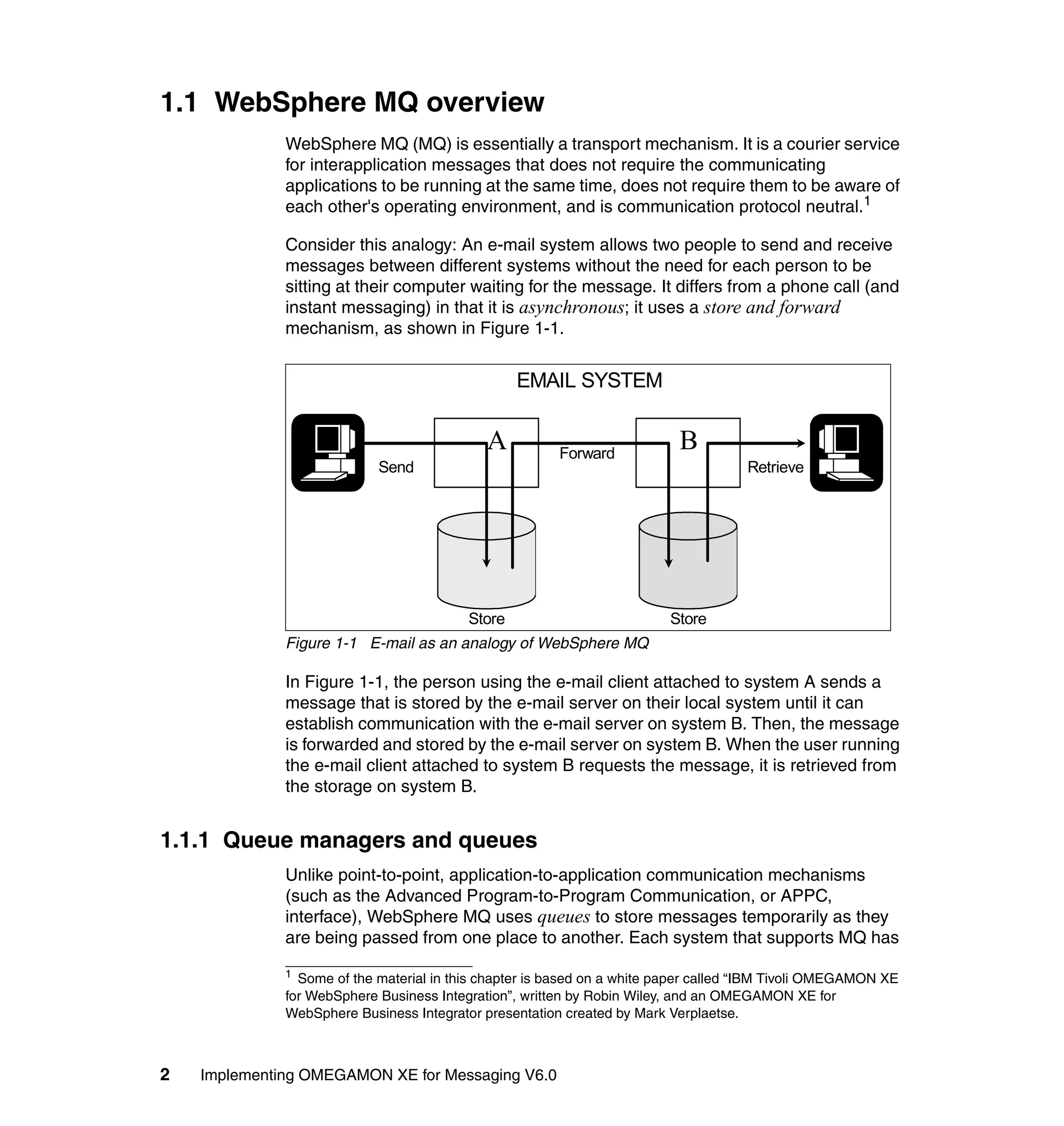
              Consider this analogy: An e-mail system allows two people to send and receive
              messages between different systems without the need for each person to be
              sitting at their computer waiting for the message. It differs from a phone call (and
              instant messaging) in that it is asynchronous; it uses a store and forward
              mechanism, as shown in Figure 1-1.


                                                  EMAIL SYSTEM

                                             A          Forward
                                                                           B
                            Send                                                     Retrieve


                                          Store                          Store
              Figure 1-1 E-mail as an analogy of WebSphere MQ

              In Figure 1-1, the person using the e-mail client attached to system A sends a
              message that is stored by the e-mail server on their local system until it can
              establish communication with the e-mail server on system B. Then, the message
              is forwarded and stored by the e-mail server on system B. When the user running
              the e-mail client attached to system B requests the message, it is retrieved from
              the storage on system B.


1.1.1 Queue managers and queues
              Unlike point-to-point, application-to-application communication mechanisms
              (such as the Advanced Program-to-Program Communication, or APPC,
              interface), WebSphere MQ uses queues to store messages temporarily as they
              are being passed from one place to another. Each system that supports MQ has
              1
                Some of the material in this chapter is based on a white paper called “IBM Tivoli OMEGAMON XE
              for WebSphere Business Integration”, written by Robin Wiley, and an OMEGAMON XE for
              WebSphere Business Integrator presentation created by Mark Verplaetse.


2   Implementing OMEGAMON XE for Messaging V6.0
a queue manager running that handles the interface to the application program
and the interface with other queue managers in order to propagate messages
successfully. It is possible to have a network of several queue managers all
communicating with each other and passing messages, from one to another, that
are destined for delivery to applications attached to other queue managers
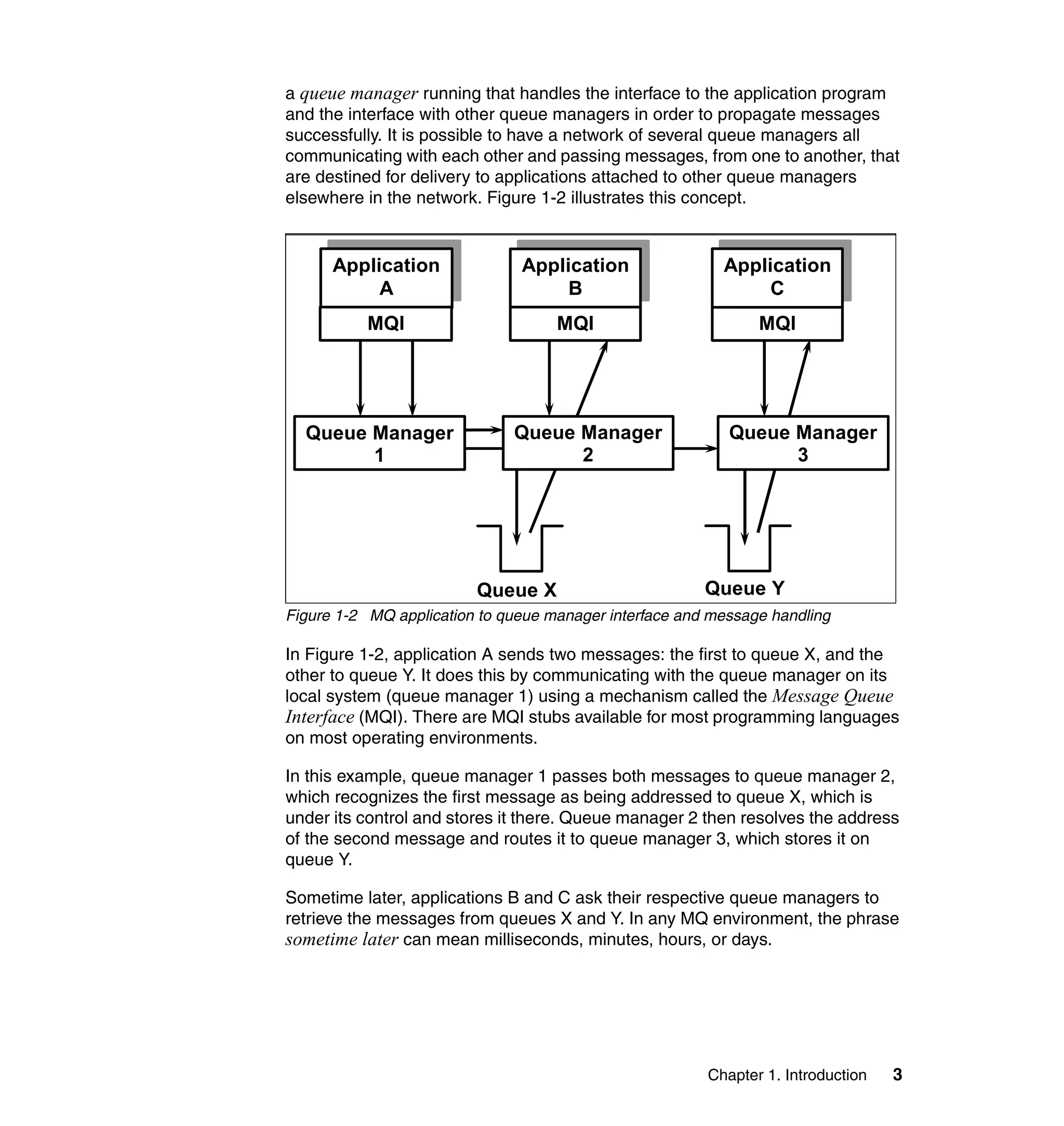
elsewhere in the network. Figure 1-2 illustrates this concept.


      Application              Application                Application
           A                        B                          C
          MQI                       MQI                        MQI


  Queue Manager               Queue Manager                Queue Manager
        1                           2                            3


                         Queue X                        Queue Y
Figure 1-2 MQ application to queue manager interface and message handling

In Figure 1-2, application A sends two messages: the first to queue X, and the
other to queue Y. It does this by communicating with the queue manager on its
local system (queue manager 1) using a mechanism called the Message Queue
Interface (MQI). There are MQI stubs available for most programming languages
on most operating environments.

In this example, queue manager 1 passes both messages to queue manager 2,
which recognizes the first message as being addressed to queue X, which is
under its control and stores it there. Queue manager 2 then resolves the address
of the second message and routes it to queue manager 3, which stores it on
queue Y.

Sometime later, applications B and C ask their respective queue managers to
retrieve the messages from queues X and Y. In any MQ environment, the phrase
sometime later can mean milliseconds, minutes, hours, or days.


                                                        Chapter 1. Introduction   3
Note: MQ delivers messages to destination queues promptly, but the
               application picks up the message whenever it is ready to do so.

              Clearly in this example, the health of the two queue managers is a key
              monitoring requirement. The number of messages on the respective application
              queues is also be a key metric to measure, as is the application’s interaction with
              the WebSphere MQ infrastructure. Chapter 6, “Monitoring WebSphere MQ” on
              page 197 provides a detailed analysis of the key components in a WebSphere
              MQ infrastructure and how best to monitor them. However, even this very simple
              example illustrates the fact that understanding an application’s requirements of,
              and interaction with, WebSphere MQ is key to tailoring a monitoring solution.


1.1.2 Channels
              The way the queue managers communicate with each other is through channels,
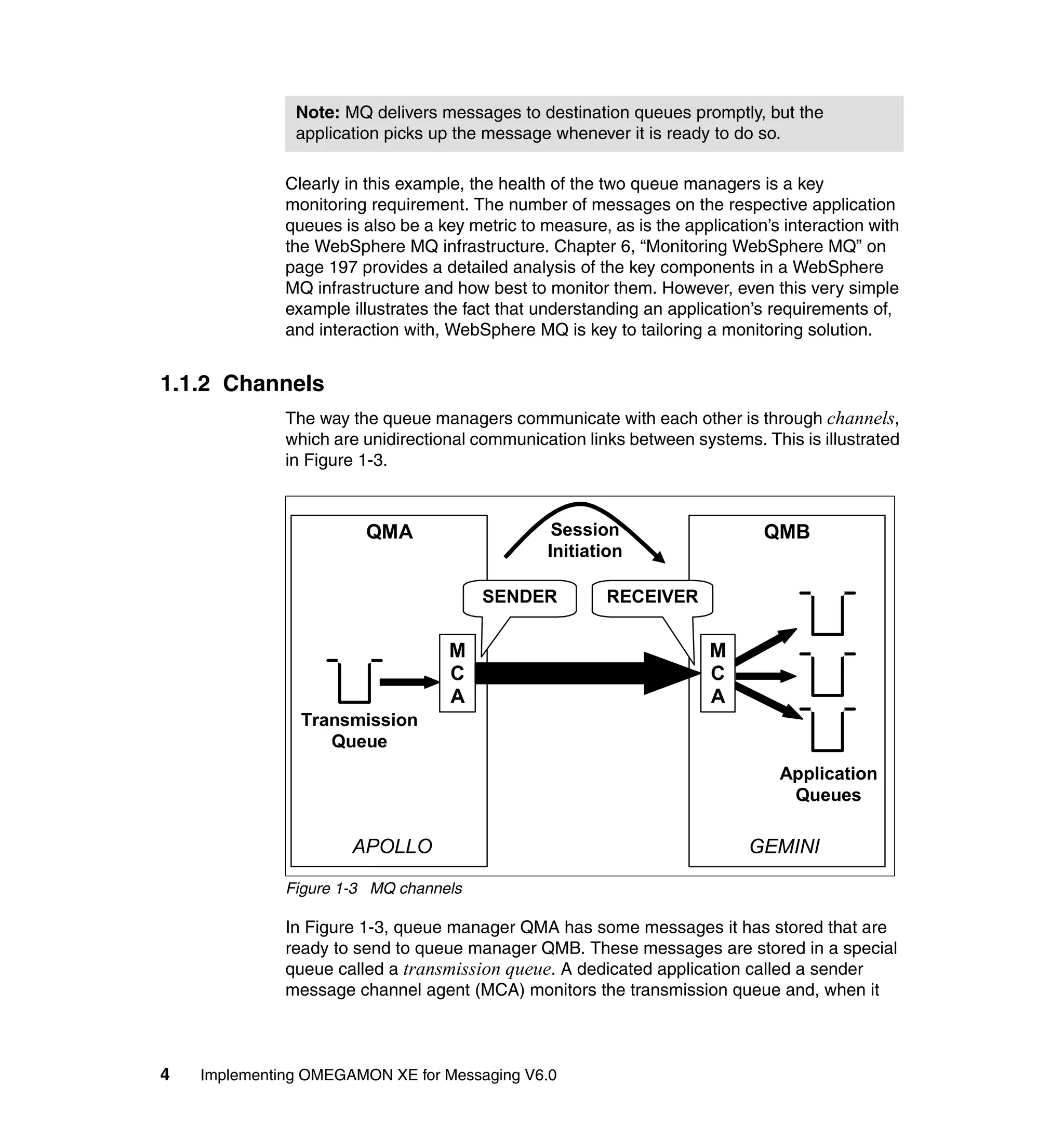
              which are unidirectional communication links between systems. This is illustrated
              in Figure 1-3.


                        QMA                       Session                     QMB
                                                 Initiation

                                        SENDER           RECEIVER


                                    M                                  M
                                    C                                  C
                                    A                                  A
                Transmission
                   Queue
                                                                                Application
                                                                                 Queues

                       APOLLO                                               GEMINI

              Figure 1-3 MQ channels

              In Figure 1-3, queue manager QMA has some messages it has stored that are
              ready to send to queue manager QMB. These messages are stored in a special
              queue called a transmission queue. A dedicated application called a sender
              message channel agent (MCA) monitors the transmission queue and, when it


4   Implementing OMEGAMON XE for Messaging V6.0
finds messages ready to be sent, initiates a communication session with a
           partner receiver MCA on the destination system.

           After the communication link is established, the sender MCA reads the
           messages from the transmission queue and sends them through the
           communication link to the receiver MCA, which stores the messages on the
           appropriate application queues and is ready for the receiving applications to get
           and process them.

           Monitoring the health of WebSphere MQ channels is a common requirement in
           any WebSphere MQ infrastructure. If channels are not communicating,
           messages might not reach target applications within the required time frame and
           this might translate to lost business.


1.1.3 Dead-letter queue
           In the previous illustration, if the receiver MCA was unable to successfully deliver
           the message to the nominated application queue, it places the message instead
           into a dead-letter queue (DLQ). A DLQ is a special local queue set aside to
           receive undeliverable messages. The reasons why a message might not be
           delivered include: The queue name is spelled incorrectly, the queue is full, the
           message is too big for queue, and so on.

           Unlike the application queues mentioned earlier, the DLQ is an example of an
           infrastructure queue. Monitoring the depth of the DLQ or whether it is open for
           input can prove to be a key tool in early problem detection.


                                                                    Chapter 1. Introduction   5
1.1.4 Triggering
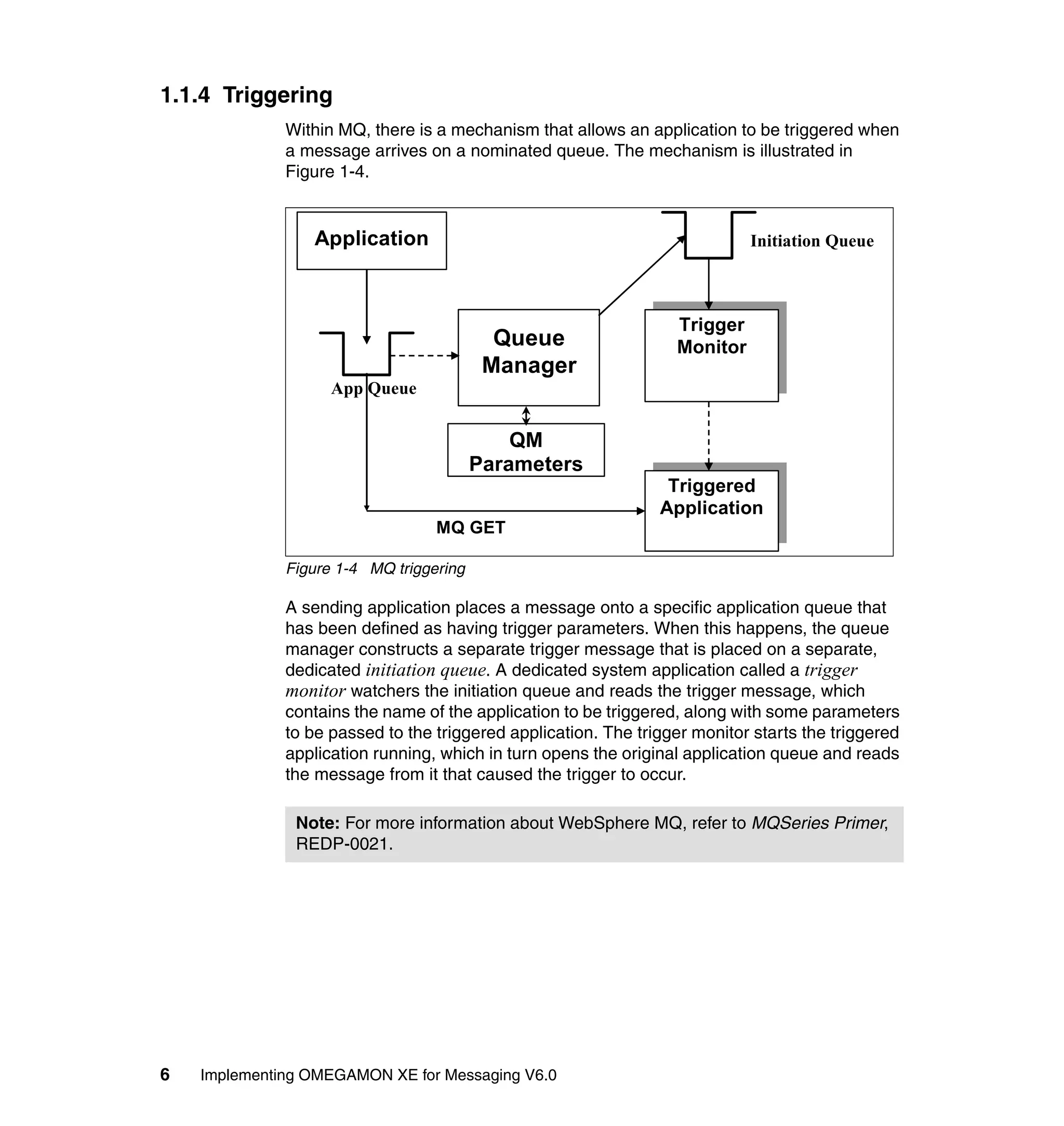
              Within MQ, there is a mechanism that allows an application to be triggered when
              a message arrives on a nominated queue. The mechanism is illustrated in
              Figure 1-4.


                 Application                                                Initiation Queue


                                                                  Trigger
                                           Queue                  Monitor
                                          Manager
                    App Queue


                                             QM
                                         Parameters
                                                                 Triggered
                                                                Application
                                  MQ GET

              Figure 1-4 MQ triggering

              A sending application places a message onto a specific application queue that
              has been defined as having trigger parameters. When this happens, the queue
              manager constructs a separate trigger message that is placed on a separate,
              dedicated initiation queue. A dedicated system application called a trigger
              monitor watchers the initiation queue and reads the trigger message, which
              contains the name of the application to be triggered, along with some parameters
              to be passed to the triggered application. The trigger monitor starts the triggered
              application running, which in turn opens the original application queue and reads
              the message from it that caused the trigger to occur.

               Note: For more information about WebSphere MQ, refer to MQSeries Primer,
               REDP-0021.


6   Implementing OMEGAMON XE for Messaging V6.0
1.2 WebSphere Message Broker overview
        At its simplest level, WebSphere Message Broker processes messages on MQ
        queues and provides the following functions:
           Message transformation: This is the main purpose for which most people use
           WebSphere Message Broker. It can restructure a message from practically
           any format to any other. For example, you can have a COBOL application that
           sends messages with fixed-length fields and have WebSphere Message
           Broker reformat it into XML that will be processed by a Java™ application.
           Content-based message routing: This feature allows WebSphere Message
           Broker to examine the contents of messages and make decisions such as to
           which queues to send them.
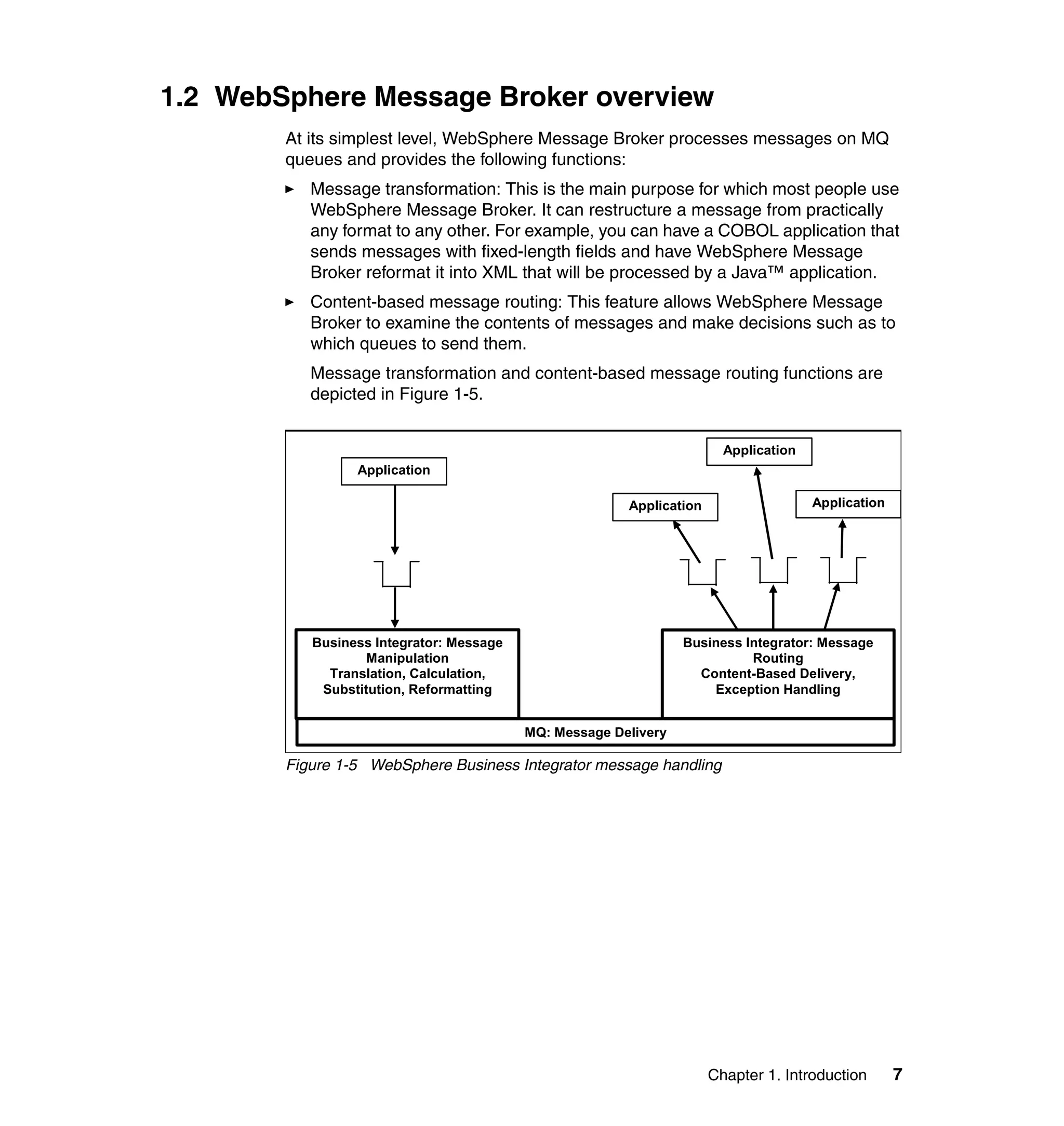
           Message transformation and content-based message routing functions are
           depicted in Figure 1-5.


                                                                        Application
                 Application

                                                        Application                   Application


           Business Integrator: Message                          Business Integrator: Message
                   Manipulation                                            Routing
             Translation, Calculation,                             Content-Based Delivery,
            Substitution, Reformatting                               Exception Handling


                                          MQ: Message Delivery

        Figure 1-5 WebSphere Business Integrator message handling


                                                                      Chapter 1. Introduction       7
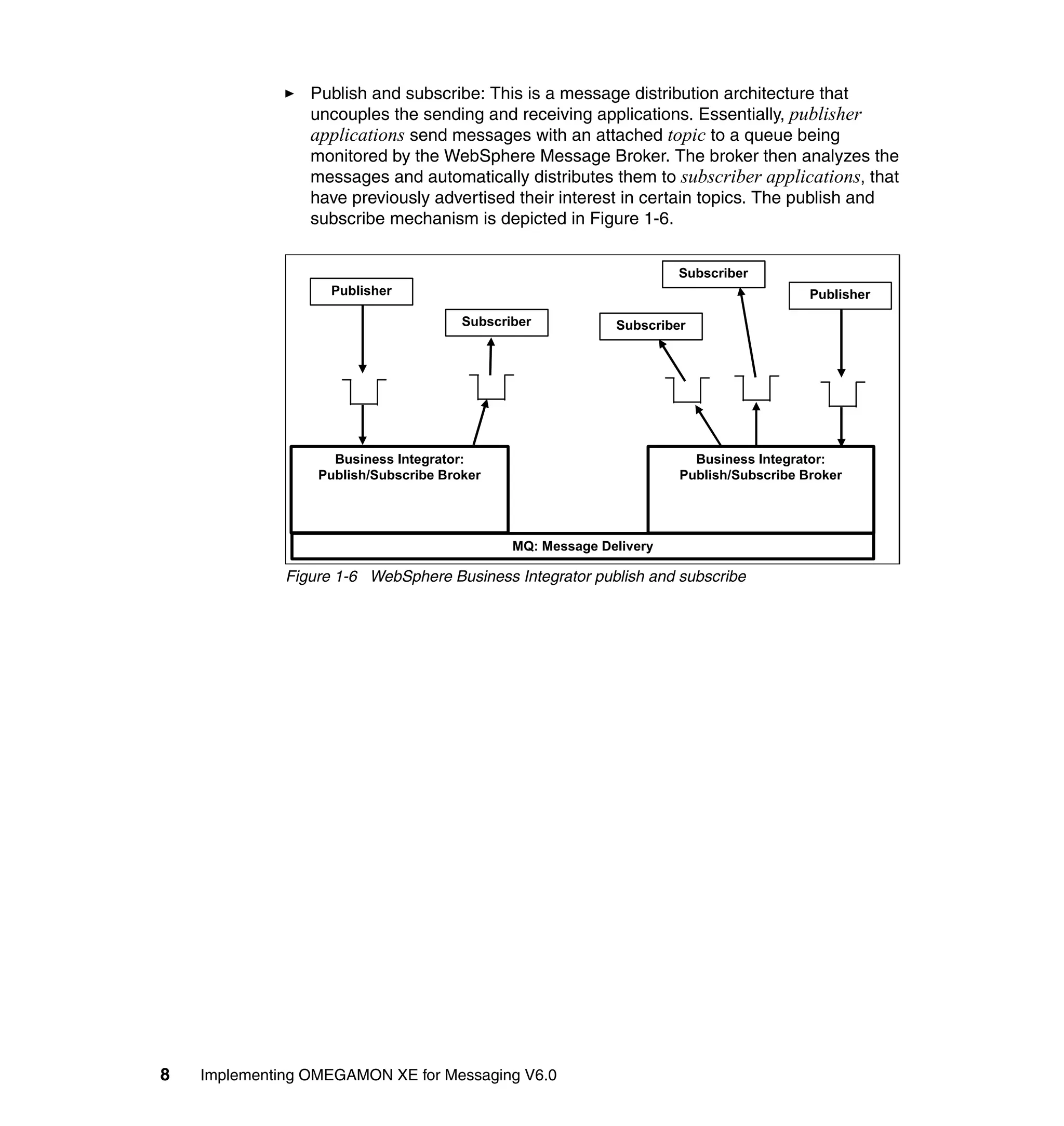
Publish and subscribe: This is a message distribution architecture that
                 uncouples the sending and receiving applications. Essentially, publisher
                 applications send messages with an attached topic to a queue being
                 monitored by the WebSphere Message Broker. The broker then analyzes the
                 messages and automatically distributes them to subscriber applications, that
                 have previously advertised their interest in certain topics. The publish and
                 subscribe mechanism is depicted in Figure 1-6.


                                                                     Subscriber
                    Publisher                                                           Publisher

                                       Subscriber           Subscriber


                    Business Integrator:                               Business Integrator:
                  Publish/Subscribe Broker                           Publish/Subscribe Broker


                                              MQ: Message Delivery

              Figure 1-6 WebSphere Business Integrator publish and subscribe


8   Implementing OMEGAMON XE for Messaging V6.0
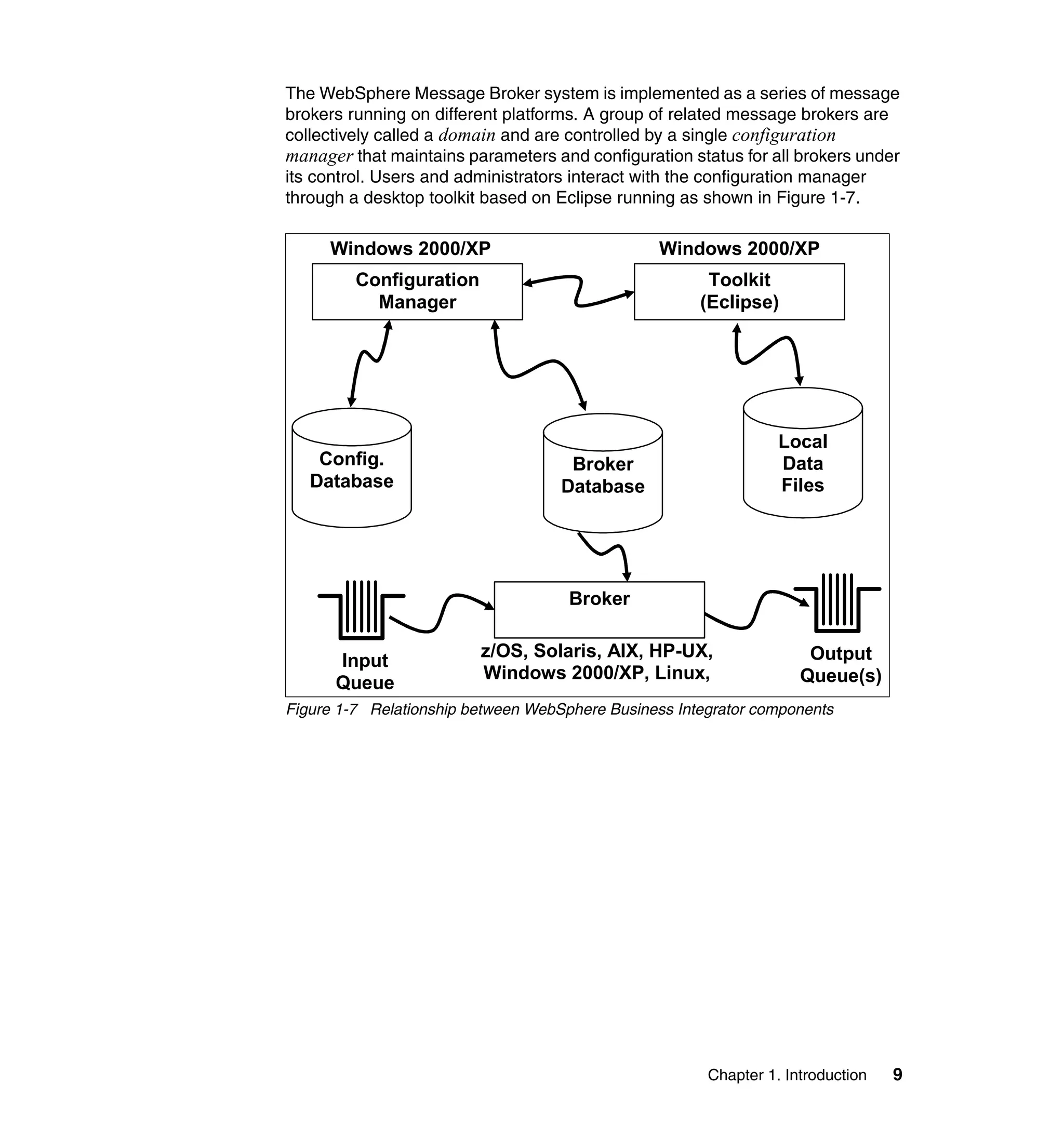
The WebSphere Message Broker system is implemented as a series of message
brokers running on different platforms. A group of related message brokers are
collectively called a domain and are controlled by a single configuration
manager that maintains parameters and configuration status for all brokers under
its control. Users and administrators interact with the configuration manager
through a desktop toolkit based on Eclipse running as shown in Figure 1-7.

     Windows 2000/XP                             Windows 2000/XP
         Configuration                                 Toolkit
           Manager                                    (Eclipse)


                                                                 Local
    Config.                          Broker                      Data
   Database                         Database                     Files


                                     Broker

                         z/OS, Solaris, AIX, HP-UX,                  Output
      Input
                         Windows 2000/XP, Linux,                    Queue(s)
      Queue
Figure 1-7 Relationship between WebSphere Business Integrator components


                                                       Chapter 1. Introduction   9
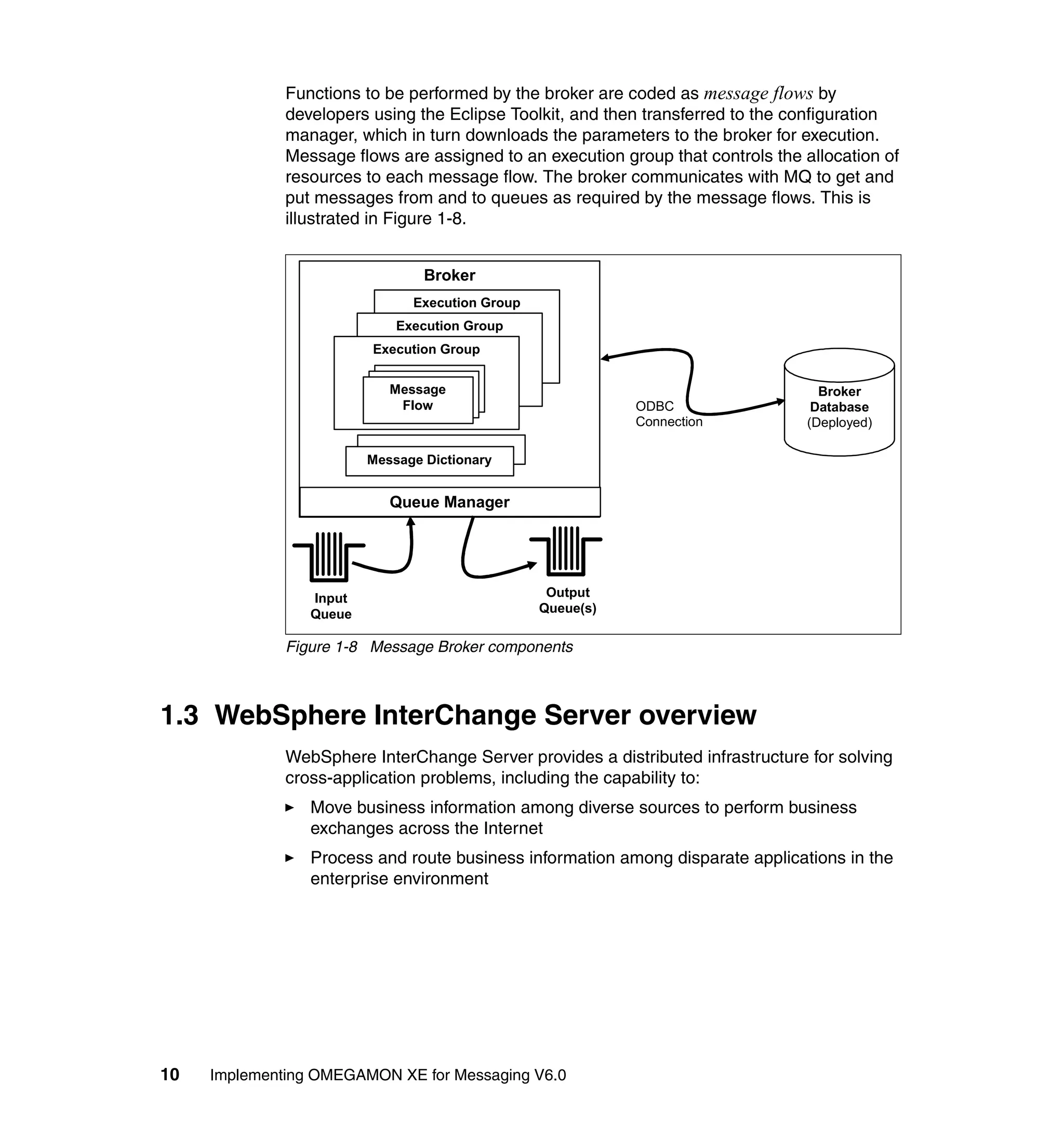
Functions to be performed by the broker are coded as message flows by
              developers using the Eclipse Toolkit, and then transferred to the configuration
              manager, which in turn downloads the parameters to the broker for execution.
              Message flows are assigned to an execution group that controls the allocation of
              resources to each message flow. The broker communicates with MQ to get and
              put messages from and to queues as required by the message flows. This is
              illustrated in Figure 1-8.


                                 Broker
                               Execution Group
                             Execution Group
                         Execution Group


                            Message                                                Broker
                             Flow                           ODBC                  Database
                                                            Connection           (Deployed)

                         Message Dictionary


                            Queue Manager


                 Input                            Output
                 Queue                           Queue(s)

              Figure 1-8 Message Broker components


1.3 WebSphere InterChange Server overview
              WebSphere InterChange Server provides a distributed infrastructure for solving
              cross-application problems, including the capability to:
                 Move business information among diverse sources to perform business
                 exchanges across the Internet
                 Process and route business information among disparate applications in the
                 enterprise environment


10   Implementing OMEGAMON XE for Messaging V6.0
The IBM WebSphere InterChange Server system uses a central infrastructure
(InterChange Server) and modular components in a hub-and-spoke design, as
follows:
   Business-process logic resides in InterChange Server collaborations at the
   hub. InterChange Server collaborations are software modules that contain
   logic that describes a distributed business process. There are different
   collaborations for different fundamental business processes, for example, a
   ContactManager collaboration or an InventoryMovement collaboration.
   Collaborations coordinate the functionality of business processes for
   disparate applications and enable data exchange between them.
   Collaborations are the hub; through them, data is exchanged in the form of
   business objects.
   Data is exchanged between the hub and the spokes in the form of business
   objects. Business objects are the messages used by the IBM WebSphere
   InterChange Server system for exchanging data. Data handlers are used to
   transform serial application data into business objects, and maps are used
   between a business object that is structured for the data model of a specific
   application and a business object that is generically structured for use by
   collaborations at the hub.
   Application and technology connectors supply connectivity to applications (or
   to Web servers or other programmatic entities) at the spokes. Connectors can
   be configured to interact either within a network, or across the Internet and
   beyond firewalls. Each connector consists of two parts: the connector
   controller and the connector agent. The connector controller interacts directly
   with WebSphere InterChange Server collaboration objects and resides on a
   server that has implemented the IBM WebSphere InterChange Server system
   (the hub in a hub-and-spoke relationship). The connector agent interacts
   directly with an application, and can reside with that application on any server.
   Remote agent technology can be used to implement communication between
   a connector controller at a hub site and an agent that resides at another site
   across the Internet. Some connectors are designed to interact with specific
   applications. Other connectors (such as the XML connector) are designed for
   interactions that conform to specific technology standards.
   The Server Access Interface makes it possible for remote spoke sites that do
   not implement WebSphere InterChange Server to use access clients, which
   make calls over the Internet to a hub site that does have InterChange Server.
   The Server Access Interface is a CORBA-compliant API that accepts
   synchronous data transfers from either internally networked or external
   sources. The data is then transformed into business objects that can be
   manipulated by a collaboration. The Server Access Interface makes it
   possible to receive calls from external entities, for example, from Web
   browsers at remote customer sites, that do not come through connector


                                                        Chapter 1. Introduction   11
agents, but instead come through Web servlets into the Server Access
                 Interface.

              This book does not cover managing the WebSphere InterChange Server in great
              detail. However, we provide a short chapter (see Chapter 8, “Monitoring
              WebSphere Interchange Server” on page 319) that describes some capabilities
              in this area.


1.4 Managing messaging middleware
              Given the increased complexity of e-business infrastructures, intelligent
              performance and availability management tools are essential for proactive
              identification and resolution of IT problems before they impact business
              performance. These tools enable companies to cost effectively monitor individual
              resource performance while simultaneously ensuring availability across
              heterogeneous operating environments. Ensuring peak performance and
              availability helps companies meet and exceed both internal and external service
              level agreements and reduce total cost of ownership.

              Business processes are increasingly dependent on multi-tier composite
              applications that use business logic and data from multiple resources: Web
              servers, Java 2 Platform, Enterprise Edition (J2EE™) application servers,
              integration middleware, and existing systems. As we build new applications and
              connect to existing applications, transport and mediation across multiple systems
              must be monitored, configured, and managed to ensure the best possible
              performing applications. These must be actively managed to support the
              business. Using traditional tools, these problems are often not even identified
              until a client complains.

              As transactions move from the synchronous nature of the customer-facing
              application to the asynchronous world of messaging and workflow, tracking
              business transactions across these composite applications and managing them
              become even more difficult.

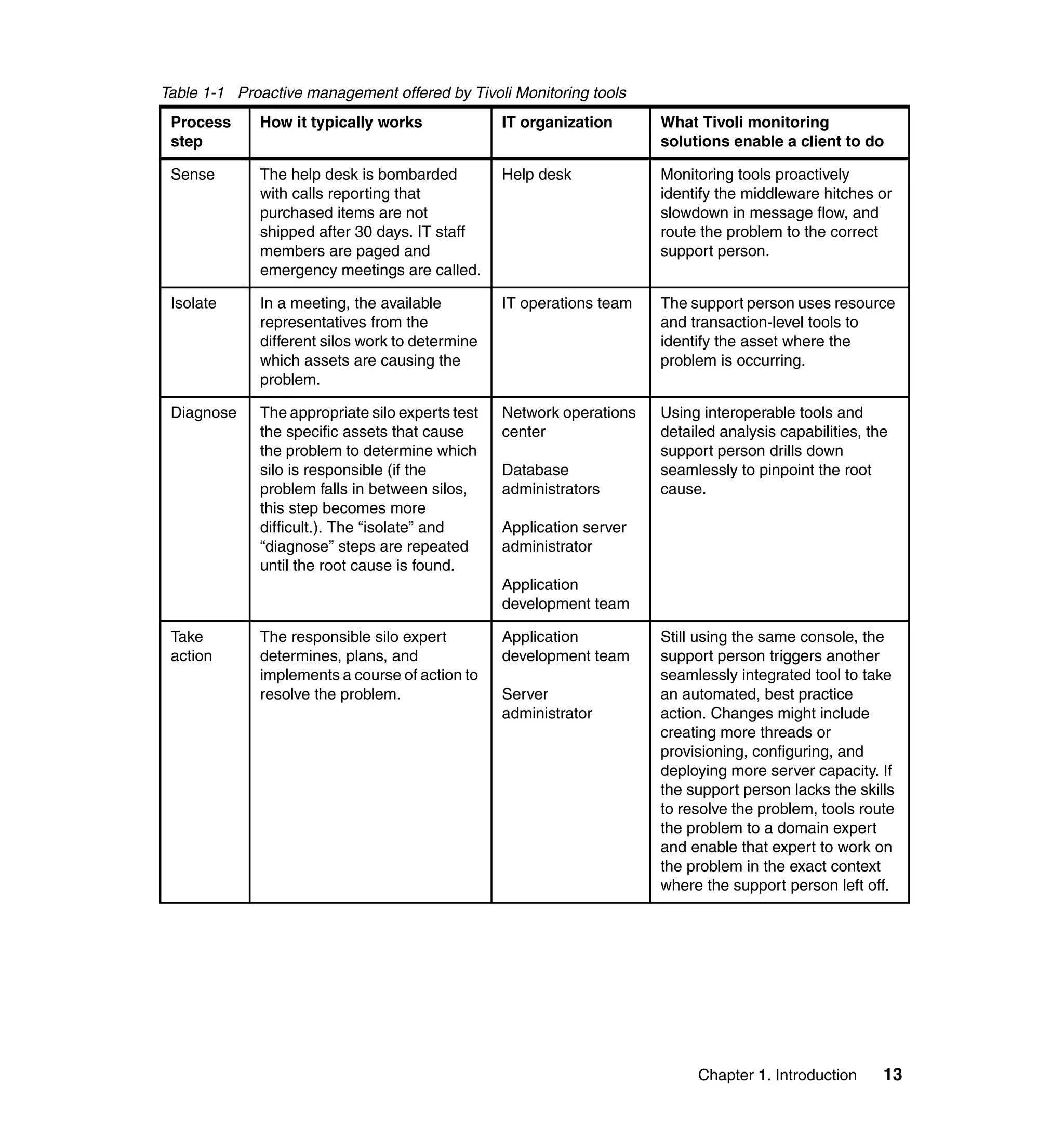
              We examine a simple scenario about how Tivoli Monitoring tools help in
              managing your middleware. Consider Table 1-1 on page 13 a business
              infrastructure you are managing and problem management with and without
              Tivoli Monitoring tools.


12   Implementing OMEGAMON XE for Messaging V6.0
Table 1-1 Proactive management offered by Tivoli Monitoring tools
 Process     How it typically works              IT organization      What Tivoli monitoring
 step                                                                 solutions enable a client to do

 Sense       The help desk is bombarded          Help desk            Monitoring tools proactively
             with calls reporting that                                identify the middleware hitches or
             purchased items are not                                  slowdown in message flow, and
             shipped after 30 days. IT staff                          route the problem to the correct
             members are paged and                                    support person.
             emergency meetings are called.

 Isolate     In a meeting, the available         IT operations team   The support person uses resource
             representatives from the                                 and transaction-level tools to
             different silos work to determine                        identify the asset where the
             which assets are causing the                             problem is occurring.
             problem.

 Diagnose    The appropriate silo experts test   Network operations   Using interoperable tools and
             the specific assets that cause      center               detailed analysis capabilities, the
             the problem to determine which                           support person drills down
             silo is responsible (if the         Database             seamlessly to pinpoint the root
             problem falls in between silos,     administrators       cause.
             this step becomes more
             difficult.). The “isolate” and      Application server
             “diagnose” steps are repeated       administrator
             until the root cause is found.
                                                 Application
                                                 development team

 Take        The responsible silo expert         Application          Still using the same console, the
 action      determines, plans, and              development team     support person triggers another
             implements a course of action to                         seamlessly integrated tool to take
             resolve the problem.                Server               an automated, best practice
                                                 administrator        action. Changes might include
                                                                      creating more threads or
                                                                      provisioning, configuring, and
                                                                      deploying more server capacity. If
                                                                      the support person lacks the skills
                                                                      to resolve the problem, tools route
                                                                      the problem to a domain expert
                                                                      and enable that expert to work on
                                                                      the problem in the exact context
                                                                      where the support person left off.


                                                                           Chapter 1. Introduction      13
Process    How it typically works            IT organization      What Tivoli monitoring
 step                                                              solutions enable a client to do

 Evaluate   If the problem does not go away   IT operations team   Integrated monitoring tools allow
            or if a new problem arises, the                        the domain expert to instantly see
            whole process must be                                  how well the results of the change
            repeated.                                              support the company’s business
                                                                   priorities. The expert can also
                                                                   immediately drill down into and
                                                                   resolve other problems that arise.

               The proactive management of your business infrastructure helps in:
                   Minimizing downtime of your business services
                   Efficient utilization of resources
                   Capacity planning for On Demand Business environments and the inventory
                   of your business infrastructure
                   Problem determination and isolation in a short amount of time
                   Ability to develop, test, and deploy your middleware infrastructure
                   Monitoring and alerting options that can be customized to suite your needs

               Do not forget that you cannot manage what you do not measure.


1.5 OMEGAMON XE for Messaging overview
               IBM Tivoli OMEGAMON XE for Messaging Version 6.0 is the new name for, and
               follow-on version to, IBM Tivoli OMEGAMON XE for WebSphere Business
               Integration V1.1.0. OMEGAMON XE for Messaging incorporates a number of
               new product features that we discuss throughout this book. OMEGAMON XE for
               Messaging takes advantage of the features offered by IBM Tivoli
               Monitoring V6.1.

               IBM Tivoli OMEGAMON XE for Messaging helps to manage and configure your
               WebSphere MQ, Message Broker, and InterChange Server environments.
               These solutions provide the most comprehensive suite of tools to manage the
               performance, connectivity, and configuration of your environment. This enables
               you to gain an understanding of your environment and determine when your
               applications are not performing properly. You will then be able to take corrective
               action to alleviate these problems.

               IBM Tivoli Performance and Availability Management products provide the
               central nervous system for complicated business landscapes: They constantly
               gather information about hardware, software, and network devices, and, in many
               cases, cure problems before they actually occur. IBM Tivoli availability products
               monitor business at the component, business system, and enterprise levels. This


14    Implementing OMEGAMON XE for Messaging V6.0
technology identifies critical problems, as well as misleading symptoms, and then
        either notifies support staff with the appropriate response, or automatically cures
        the problems, which decreases operating costs and improves staff efficiency.

        The out-of-the box capabilities of IBM Tivoli OMEGAMON XE for Messaging
        provide auto-discovery and monitoring of these complex environments, providing
        rapid time to value, ease of use, and improved product quality. Additionally, it
        identifies common problems and automates corrective actions by monitoring key
        WebSphere MQ, WebSphere Message Broker, and WebSphere InterChange
        Server metrics. It sends event notification and provides data collection for
        real-time and historical data analysis, thus reducing administration costs and
        maximizing return on investment with increased efficiency of the IT staff.

        Before implementing monitoring in a messaging infrastructure, it is vitally
        important to gain an understanding of what the infrastructure means to the
        business that it supports. To ensure that the maximum benefit is derived from
        OMEGAMON XE for Messaging, a requirements gathering exercise needs to be
        performed with business area application developers and other interested
        parties. The output of the requirements exercise should be an understanding of
        how the different components of the applications rely on and interact with the
        WebSphere MQ, WebSphere Message Broker and WebSphere
        InterChangeServer infrastructure. After this has been established, monitoring
        can be configured and tuned accordingly to maximize its ability to support critical
        business systems. This also means resource utilization is targeted at the right
        areas.


1.6 OMEGAMON XE for Messaging and ITIL
        Information Technology Infrastructure Library (ITIL) is the only comprehensive,
        non-proprietary source of service management best practices that is publicly
        available. It was originally created by Office of Government Commerce in United
        Kingdom, but has rapidly been adopted across the world as the guidelines for
        best practices in the provision of IT service.

        The main focus of IT Service Management is divided into two main areas,
        Service Support and Service Delivery, and contains an integrated set of
        well-documented processes including, among others:
           Service Support
           –   Service Desk
           –   Incident Management
           –   Problem Management
           –   Change Management
           –   Release Management


                                                               Chapter 1. Introduction   15
– Configuration Management
                 Service Delivery
                 –   Service Level Management
                 –   Availability Management
                 –   Capacity Management
                 –   Financial Management for IT Services
                 –   IT Service Continuity Management

               Note: Service Desk is considered a function, not a process, in ITIL.

              Figure 1-9 represents the ITIL architecture.


              Figure 1-9 ITIL architecture

              In recent years, it has become increasingly recognized that information is the
              most important strategic resource that any organization has to manage. Key to
              the collection, analysis, production, and distribution of information within an
              organization is the quality of the Information Communication Technology (ICT)
              systems and IT services provided to the business. It is essential that we
              recognize that ICT systems are crucial, strategic, and organizational assets, and


16   Implementing OMEGAMON XE for Messaging V6.0
therefore, organizations must invest appropriate levels of resources into the
support, delivery, and management of these critical IT services and the ICT
systems that underpin them. However, these aspects of IT are often overlooked
or only superficially addressed within many organizations. The key issues facing
many of today's senior business managers and IT managers are:
   IT and business strategic planning
   Integrating and aligning IT and business goals
   Acquiring and retaining the right resources and skill sets
   Implementing continuous improvement
   Measuring IT organization effectiveness and efficiency
   Reducing costs and the total cost of ownership (TCO)
   Achieving and demonstrating value for money (VFM) and return on
   investment (ROI)
   Demonstrating the business value of IT
   Developing business and IT partnerships and relationships
   Improving project delivery success
   Outsourcing, in-sourcing, and smart sourcing
   Using IT to gain competitive advantage
   Delivering the required, business justified IT services (that is, delivering what
   is required, when required, and at an agreed cost)
   Managing constant business and IT change
   Following the sun and offshore operations
   Demonstrating appropriate IT governance

The challenges for IT managers are to coordinate and work in partnership with
the business to deliver high quality IT services. This has to be achieved while
reducing the overall TCO and often increasing the frequency, complexity, and
volume of change. The main method of realizing this goal is the operation of
effective processes and the provision of appropriate, value for money services.
To achieve this, the correct processes need to be developed and implemented
with built-in assessment and improvement mechanisms.

OMEGAMON XE for Messaging addresses ITIL Services Management areas to
help align IT with the requirements of the business, as described in the following
sections.


                                                        Chapter 1. Introduction   17
1.6.1 Service Support
              Tivoli OMEGAMON XE for Messaging can be used in the following ITIL Service
              Support processes:
                 Problem Management: OMEGAMON XE for Messaging provides for problem
                 isolation in order to turn incidents into known errors. OMEGAMON XE for
                 Messaging provides the capabilities of high level monitoring and alerting, the
                 ability to deep dive into specific OMEGAMON XE for Messaging resources in
                 order to understand where WebSphere MQ and the Message Broker have
                 problems, and the ability to automate responses to fix issues before they
                 become problems lead to effective resolution of problems.
                 Release Management: The WebSphere MQ Configuration tool that is part of
                 OMEGAMON XE for Messaging helps define and deploy WebSphere MQ
                 configurations. The WebSphere MQ Configuration database will be able to
                 make changes to queue manager’s configuration, verify them, and then stage
                 them for deployment. The database will be backed up in case a restoration is
                 necessary.
                 Configuration Management: While not necessarily a component of
                 Configuration Management, OMEGAMON XE for Messaging can provide
                 input to the configuration management database (CMDB) to inventory the
                 queue managers and the objects associated with the queue managers,
                 should this level of detail be required. This information will help feed
                 information change management.


1.6.2 Service Delivery
              Tivoli OMEGAMON XE for Messaging addresses or can be used in the following
              ITIL Services Delivery processes:
                 Service Level Management: It is important to retrieve information from
                 OMEGAMON XE for Messaging as input into the service level agreement
                 (SLA). Information here will determine a baseline for response times and
                 message throughput to help draw up the SLA.
                 Availability Management: It is important to understand the availability of
                 messaging components and message brokers. OMEGAMON XE for
                 Messaging constantly monitors the availability of these components that will
                 feed into the Availability Management function.


18   Implementing OMEGAMON XE for Messaging V6.0
Capacity Management: When monitoring messaging components, it is
            important to understand the throughput of individual messaging components.
            This will help us to draw baselines for normal operations and then help plan
            for peak periods. Trending these results and planning growth based on this
            input will help determine capacity for the future, and plan for this capacity to
            be available.
            IT Service Continuity Management: OMEGAMON XE for Messaging provides
            input into the disaster planning process by creating a centrally located backup
            of the WebSphere MQ configuration of any queue manager in the enterprise.
            This will facilitate in restoring service for applications affected by service
            outages.


1.7 Our lab environment for the redbook
         For the purposes of this redbook and the examples we provide in later chapters,
         we installed the following products to manage through OMEGAMON XE for
         Messaging:
            On Microsoft Windows:
            – WebSphere MQ
            – WebSphere Message Broker
            – WebSphere InterChange Server
            On IBM AIX 5L:
            – WebSphere MQ
            On Linux:
            – WebSphere MQ
            On IBM z/OS:
            – WebSphere MQ

         Our OMEGAMON XE for Messaging environment consists of a Tivoli
         Enterprise™ Monitoring Server on a Windows 2003 system, a Tivoli Enterprise
         Portal Server on a Windows 2000 system, and several agents on Windows, AIX
         5L, Linux, and z/OS platforms. Figure 1-10 on page 20 represents our
         environment.


                                                                Chapter 1. Introduction   19
Tivoli Enterprise Monitoring Server
                                                                  Tivoli Enterprise Portal Server
                                                                  Windows 2003
                          Windows 2000 Professional
                          (beta.itsc.austin.ibm.com)              (alpha.itsc.austin.ibm.com)

                                                                                       DB2

                                                                   IBM Tivoli Monitoring 6.1
                                                                   OMEGAMON XE for Messaging 6.0
                               WebSphere MQ 6.0.1.1                DB2 8.1
                            OMEGAMON MQ Monitoring Agent
                           OMEGAMON MQ Configuration Agent
                           OMEGAMON Message Broker Agent
                                                                                                              Linux Red Hat EL V4
                                                                                                              (delta.itsc.austin.oibm.com)
                       z/OS
                       Server
                       (SC58)
                                                             ETHERNET
     MQ 5.3 for z/OS                                                                                          WebSphere MQ 6.0.1.1
     OMEGAMON MQ Monitoring Agent                                                                             OMEGAMON MQ Monitoring Agent
                                                                                                              OMEGAMON MQ Configuration Agent
     OMEGAMON MQ Configuration Agent                                                                          OMEGAMON Message Broker Agent

                                    AIX 5L V5.2                             Linux Red Hat EL V4
                                    (epsilon.itsc.austin.ibm.com)           (gamma.itsc.austin.oibm.com)


                                                                            WebSphere MQ 6.0.1.1
                                                                            OMEGAMON MQ Monitoring Agent
                                                                            OMEGAMON MQ Configuration Agent
                                    WebSphere MQ 6.0.1.1                    OMEGAMON Message Broker Agent
                                 OMEGAMON MQ Monitoring Agent
                                OMEGAMON MQ Configuration Agent
                                OMEGAMON Message Broker Agent


Figure 1-10 Our lab environment

                            In this book, we do not describe the installation of WebSphere MQ, WebSphere
                            Message Broker, and WebSphere InterChange Server products, because we
                            assume that readers are familiar with these products.


20         Implementing OMEGAMON XE for Messaging V6.0
2


    Chapter 2.   OMEGAMON XE architecture
                 This chapter discusses the deployment of an OMEGAMON XE/DE architecture
                 in a distributed computing environment. It is important to know the best practices
                 for deploying an OMEGAMON XE/DE architecture to successfully implement an
                 IBM Tivoli OMEGAMON XE for Messaging solution in your environment.


© Copyright IBM Corp. 2007. All rights reserved.                                                21
2.1 Overview
              Although this redbook focuses on OMEGAMON XE for Messaging, it helpful to
              first understand the OMEGAMON XE architecture.

              We discuss the installation and placement of the Tivoli Enterprise Monitoring
              Server, Tivoli Enterprise Portal, database integration, and Tivoli's built-in Web
              server, and how to manage devices in DMZs through corporate firewalls.

              Let us clarify one thing at this time: The OMEGAMON designations of XE and DE
              are simple. The OMEGAMON XE product is the base product that everyone
              starts with when they install a Tivoli Enterprise Monitoring Server. OMEGAMON
              DE allows the defining of business views rather than just physical views as given
              in XE. It also allows more combining and linking of data provided by totally
              different components monitored by different types of agents.

              More specifically, OMEGAMON DE extends the capabilities of OMEGAMON XE
              to include:
                 Enterprise-specific navigator views
                 The navigator physical view shows the hierarchy of your managed enterprise
                 by operating platform and type of IBM Tivoli OMEGAMON XE agents. The
                 navigator business view offered by OMEGAMON DE shows the hierarchy of
                 any managed objects. You can also define navigator views for any logical
                 grouping, such as a business process or a departmental hierarchy.
                 Views of data from different types of monitoring agents in one workspace
                 In a single workspace, you can build a table or chart with data from one type
                 of monitoring agent, and another table or chart with data from a different type
                 of agent. Within that workspace, you can show views from as many different
                 agent types as are included on that branch of the navigator.
                 Linking application workspaces
                 You can define a link from a workspace associated with one type of
                 monitoring agent to a workspace associated with another type of agent. You
                 will understand these additional capabilities better as you follow the example
                 scenarios given throughout this book.


22   Implementing OMEGAMON XE for Messaging V6.0
2.2 Terminology

         Note: This product was originally acquired from Candle Corporation and many
         components had Candle as part of their names. During the integration with
         IBM, most of these have been removed. However, there might still be a few
         artifacts remaining where the term Candle is still visible.

        Note the following OMEGAMON terminology:
          Tivoli Enterprise Monitoring Server
          Tivoli Enterprise Monitoring Server gathers data from the OMEGAMON XE
          agents and acts as a collection and control point for alerts received from the
          agents. The Tivoli Enterprise Monitoring Server sends the data it receives
          from the agents to Tivoli Enterprise Portal clients, where it is displayed in
          tabular or graphic views in a set of predefined or customized workspaces.
          The Monitoring Server also accepts requests for information or action from
          Tivoli Enterprise Portal clients and distributes them to the agents for
          execution.
          Hub Tivoli Enterprise Monitoring Server (hub Monitoring Server)
          In scalability solutions, the hub Tivoli Enterprise Monitoring Server
          communicates with agents and the remote Tivoli Enterprise Monitoring
          Server, Tivoli Enterprise Portal Server, and warehouse agent.
          Remote Tivoli Enterprise Monitoring Server (remote Monitoring Server)
          In large environments, to improve scalability it might be necessary to balance
          the network loads and configure some agents to connect to remote Tivoli
          Enterprise Monitoring Servers rather than directly to a primary Tivoli
          Enterprise Monitoring Server. Too many agents directly connecting to the
          primary Monitoring Server might cause network traffic congestion.
          Tivoli Enterprise Portal
          Tivoli Enterprise Portal is the Java-based interface to the data monitoring and
          management resources of the OMEGAMON platform. Depending on how it is
          installed, Tivoli Enterprise Portal can be used as either a desktop or
          browser-based client.
          Tivoli Enterprise Portal Server
          The Tivoli Enterprise Portal Server performs common Tivoli Enterprise Portal
          functions and serves to lighten the Tivoli Enterprise Portal client.
          Agent
          Agents are the processes that collect data on a managed device and return it
          to the Tivoli Enterprise Monitoring Server or remote Monitoring Server for
          processing.


                                             Chapter 2. OMEGAMON XE architecture      23
Situation
                 A situation is a logical expression involving one or more system conditions
                 used to monitor the condition of systems in your enterprise network. You can
                 manage situations from Tivoli Enterprise Portal by using the Situation Editor.
                 Event
                 Also called an alert. An event is a notification to a console for either manual or
                 automatic actions. Note that in the case of situation firing, you also get an
                 event, but this is for detection only, not for any action.
                 Warehouse agent
                 The warehouse agent or warehouse agent proxy takes data from the Tivoli
                 Enterprise Monitoring Server and inserts it into a data warehouse. Supported
                 databases for the warehouse are Microsoft SQL Server, Oracle®, and IBM
                 DB2®. Specific versions of each database vary by version of the
                 OMEGAMON warehouse agent proxy.


2.3 Tivoli Enterprise Portal
              The user interface for OMEGAMON XE for Messaging is provided through Tivoli
              Enterprise Portal. This section provides a high-level overview of this component.

              Tivoli Enterprise Portal is the interface for your OMEGAMON XE products. You
              use Tivoli Enterprise Portal to get a high level overview of your network
              environment. One section of the window displays the Navigator, a tree-like view
              of your monitored network, from the top level (ENTERPRISE) down to individual
              groupings of information collected by Tivoli Enterprise Monitoring Agents. The
              rest of the window is filled with views pertinent to the chosen item in the
              Navigator tree. From the top level or from your home workspace, you can
              navigate to specific locations to check activity and investigate problems.

              In summary, the characteristics of Tivoli Enterprise Portal include:
                 A Navigator view of your enterprise. When a condition you are monitoring
                 exceeds thresholds you define, an alert appears in the physical navigator
                 view to let you know.
                 Workspaces that contain various types of information whose format and
                 content you can customize.
                 Attributes you can use to create situations that monitor areas of particular
                 interest and issue alerts when specified conditions are met.
                 Predefined situations you can either use as-is to begin monitoring
                 immediately, or you can copy and then modify them to suit your specific
                 environment and needs.


24   Implementing OMEGAMON XE for Messaging V6.0
There are two modes of operation for Tivoli Enterprise Portal:
           Desktop mode, in which the Tivoli Enterprise Portal client is installed on your
           machine and runs as a desktop application.
           Browser mode, in which the thin client software is downloaded from the Tivoli
           Enterprise Portal Server to your machine the first time you log on to Tivoli
           Enterprise Portal from your browser, and thereafter when there are software
           updates. When using Tivoli Enterprise Portal in browser mode, you can start it
           from any machine by entering the URL for the Web server where the Tivoli
           Enterprise Portal Server is installed.

        Tivoli Enterprise Portal requires TCP/IP. IBM Tivoli products do not require a
        Domain Name System (DNS). If your Windows systems are running without
        DNS, make sure the etchosts file of the local machine is up to date.


2.4 Communications
        Communications between components in the OMEGAMON infrastructure can
        use several different methods. The terminology is a little nonstandard as
        described here.

        TCP communications uses the User Datagram Protocol (UDP). When UDP is
        used, Remote Procedure Call (RPC) requests and responses flow as payload in
        user datagrams. UDP is generally favored for LANs because it is lighter weight.

        IP Pipe communications uses full-blown TCP/IP. Using TCP, RPC requests and
        responses stream between a point-to-point session. All concurrent RPC requests
        and responses for that instance of the product are multiplexed across this single
        link.

        IP.Spipe uses TCP/IP, RPC requests and responses. The default listening port is
        3660.

        Systems Network Architecture (SNA) communications, as its name implies, uses
        standard SNA facilities.


2.5 Deployment scenarios
        In this section, we investigate three different deployment scenarios:
           Simple deployment with no firewall
           Simple deployment with a firewall


                                               Chapter 2. OMEGAMON XE architecture       25
Complex deployment: Tivoli Enterprise Monitoring Server, remote Monitoring
                 Server, and a firewall


2.5.1 Simple deployment with no firewall
              In a simple deployment of OMEGAMON, there is only one Tivoli Monitoring
              Server and agents are installed on monitored servers. This scenario assumes all
              systems have name lookup capability with no port restrictions or firewalls. A
              typical deployment looks similar to Figure 2-1.

               Note: Agent communication ports are configurable; by default, Tivoli
               Enterprise Monitoring Server listens to agent communication on port 1918.
               The Tivoli Enterprise Portal Server by default listens on port 1920.


              Figure 2-1 Simple deployment with no firewall

              As we can see in Figure 2-1, the agents communicate directly with the Tivoli
              Enterprise Monitoring Server. The Tivoli Enterprise Monitoring Server in this


26   Implementing OMEGAMON XE for Messaging V6.0
scenario communicates with the warehouse agent proxy to store historical data
           in a SQL database. This is a very simple deployment that can support
           approximately 400 agents, which supports small businesses well.

           A typical Tivoli Enterprise Portal will support approximately 50 users before
           performance begins to degrade. Keep this in mind when you distribute login IDs
           to Tivoli Enterprise Portal.


2.5.2 Simple deployment with a firewall
           This section describes a few ways that OMEGAMON XE can be deployed in an
           environment that includes a simple firewall configuration (see Figure 2-2 on
           page 30).

           Basic implementation
           At this release, IBM Tivoli OMEGAMON XE for Messaging supports most
           common firewall configurations, including those that use address translation
           (application proxy firewall is a notable exception). To enable this support, IBM
           uses the IP.PIPE socket address family, a TCP-based protocol that opens a
           single port on the firewall for communication by IBM Tivoli OMEGAMON XE for
           Messaging components. If your target IBM Tivoli OMEGAMON XE for
           Messaging environment includes a firewall between any components, you must
           specify IP.PIPE as your communication protocol during configuration. No other
           special configuration is needed unless your firewall also uses address
           translation.

           Implementation with address translation
           Address translation is an enhanced security feature of some firewall
           configurations. With this feature, components that must be reached across the
           firewall have two unique, but corresponding addresses: the external address
           (valid for components outside the firewall) and the internal address (valid for
           components inside the firewall).

           With IBM Tivoli Monitoring, the component that typically must be reached for
           connection is the Tivoli Enterprise Monitoring Server. However, the warehouse
           proxy, which runs on Windows as a server-type application, must also be
           accessible to clients and also requires an external and internal address. A
           component on either side of the firewall only knows about the address that is
           valid for its side (its “partition”).


                                                 Chapter 2. OMEGAMON XE architecture     27
To accommodate sites with address translation, IBM uses a partition-naming
              strategy. This strategy requires two steps:
                 Creating a text file called a partition file as part of the configuration of a hub or
                 remote Tivoli Enterprise Monitoring Server (or warehouse proxy). The
                 partition file contains an entry that defines that component's address in the
                 other partition.
                 Specifying a partition name (any alphanumeric string up to 32 characters), as
                 part of the configuration of any agent, a hub or remote Tivoli Enterprise
                 Monitoring Server, or warehouse proxy. A partition name must be specified
                 for each component regardless of which side of the firewall it resides in.

              Sample scenarios
              Assuming that your site has one firewall, there will be two partitions: one outside
              the firewall, one inside the firewall. In the sample scenarios that follow, we
              specify the names OUTSIDE and INSIDE, respectively, for these partitions. (If
              your site's configuration includes more than one firewall, IBM recommends that
              you contact IBM Software Support for assistance in configuring IBM Tivoli
              OMEGAMON XE for Messaging.)

               Note: Whatever the platform, the command-line examples in the following
               scenarios adhere to the UNIX and Windows text formatting conventions for
               literals and variables.

              Scenario 1: Hub Tivoli Enterprise Monitoring Server INSIDE, agents
              OUTSIDE
              As part of the configuration of the hub Tivoli Enterprise Monitoring Server, we
              specify the name of the partition that it resides in INSIDE. We also create a
              partition file, parthub.txt, containing the following entry:
              OUTSIDE ip.pipe:hub's_external_address

              OUTSIDE is the partition name outside the firewall and hub's_external_address
              is the address of the hub Tivoli Enterprise Monitoring Server that is valid for the
              agents.

              As part of the configuration of each agent, we specify the name of the partition
              that each resides in OUTSIDE.

              When an agent starts, the parthub.txt file is searched for an entry that matches
              the partition name OUTSIDE and sees the Tivoli Enterprise Monitoring Server
              address that is valid for the agents (the external address).


28   Implementing OMEGAMON XE for Messaging V6.0
Scenario 2: Hub and remote Tivoli Enterprise Monitoring Server
INSIDE, agents OUTSIDE

 Note: In scenarios 2 and 3, we assume that all agents report to the remote
 Monitoring Server.

As part of the configuration of the hub Monitoring Server, we specify the name of
the partition that it resides in INSIDE. No partition file is needed because the only
component that reports to it (the remote Monitoring Server) is also inside the
firewall.

As part of the configuration of the remote Monitoring Server, we specify the
name of the partition that it resides in INSIDE. A partition file, partremote.txt,
must also be created at the remote Monitoring Server. It contains the following
entry:
OUTSIDE ip.pipe:remote's_external_address

When configuring the agents (all of which are outside the firewall, reporting to the
remote Monitoring Server), we specify the name of the partition that they reside
in OUTSIDE. When the agents start, the partremote.txt file is searched for an
entry that matches the partition name OUTSIDE and sees the remote Monitoring
Server address that is valid for them (the external address).

Scenario 3: Hub Monitoring Server INSIDE, remote Monitoring
Server and agents OUTSIDE
As part of the configuration of the hub Monitoring Server, we specify the name of
the partition that it resides in INSIDE. We also create a partition file, parthub.txt,
containing the following entry:
OUTSIDE ip.pipe:hub's_external_address

OUTSIDE is the partition name outside the firewall and hub's_external_address
is the address of the hub Monitoring Server that is valid for the remote Monitoring
Server.

As part of the configuration of both the agents and the remote Monitoring Server,
we specify the name of the partition they reside in OUTSIDE.

A partition file, partremote.txt, also must be created at the remote Monitoring
Server. It contains the following entry:
INSIDE ip.pipe:remote's_internal_address

If the hub Monitoring Server needs to communicate with the remote Monitoring
Server (for example, to issue a report request from an agent that is connected to


                                        Chapter 2. OMEGAMON XE architecture        29
the remote Monitoring Server), the partremote.txt file is searched for an entry that
              matches the partition name INSIDE and sees the remote Monitoring Server
              address that is valid for it (the internal address).


              Figure 2-2 Simple deployment with firewall


2.5.3 Complex deployment: Monitoring Server, remote Monitoring
Server, and a firewall
              In order to truly scale OMEGAMON, we must use several remote Monitoring
              Servers. Each remote Monitoring Server has agents communicating with it, and
              then the remote Monitoring Server inputs data to the Monitoring Server. Only the
              Monitoring Server can communicate with the warehouse agent proxy, so
              presentation needs to occur from the Monitoring Server so that all remote
              Monitoring Servers can be represented. Figure 2-3 on page 31 illustrates this
              setup.


30   Implementing OMEGAMON XE for Messaging V6.0
Figure 2-3 Complex deployment: Monitoring Server, remote Monitoring Server, and
         firewalls


2.6 Scalability
         Current architectures support monitoring of approximately 5000 agents. To
         support 5000 agents, the environment includes several remote Monitoring
         Servers connecting to the Monitoring Server and frequent aggregating of data in
         the data warehouse. These limits were not tested during the writing of this book,
         but were conveyed to us by the OMEGAMON support and development staff.

         In testing, we found no designed break points. Like any systems management
         product, the true scale depends on the frequency at which data collection,
         automated responses, notifications, and cross situation correlation occurs.

         Collecting data every minute and performing an action such as running a script is
         more intensive than doing it every five minutes. However, in certain
         circumstances, you are required to monitor at such frequent intervals. Put some


                                                Chapter 2. OMEGAMON XE architecture        31
thought into your monitors, situations, and automated action routines. Here are
              some key elements for consideration:
                 Always make certain that your monitor is necessary: Many monitors have
                 been deployed for the sake of having a monitor, not because it is needed or
                 makes sense. What are you going to do with the data? If you cannot
                 determine what you will use the data from a monitor for, ask yourself, “Do I
                 need this monitor?”
                 Do not monitor too often. If you are monitoring a resource every five minutes,
                 but that resource has 48 hours to be fixed if it is broken, you can reduce your
                 monitoring by hours.
                 Finally, do not keep data just to keep it. Just because you can warehouse all
                 of the data you collect does not mean that you should. Every stored data
                 element needs to be managed for presentation and retention; make sure that
                 you have the ability to manage data before storing large amounts.

              The warehouse agent proxy is generally not the bottleneck when it comes to data
              insertion to the warehouse. The agent itself is capable of writing 200 records per
              second; make certain that your database is tuned accordingly for maximum
              insert performance.

              Average record sizes for data captured during testing ranged from 128 bytes to
              500 bytes per record. Use these figures to estimate database sizes. These
              record sizes are only representative of the OMEGAMON XE for Messaging data.
              Each agent can produce data for warehousing and needs to be tested for size
              separately.


32   Implementing OMEGAMON XE for Messaging V6.0
3


    Chapter 3.   Installing the OMEGAMON
                 infrastructure
                 The IBM Tivoli OMEGAMON infrastructure provides a robust set of tools for
                 monitoring and managing an IT infrastructure and business systems. This
                 chapter provides details about the installation and configuration of the
                 OMEGAMON platform components.

                 We discuss the following topics:
                     Planning for the installation
                     Tivoli Enterprise Monitoring and Portal Servers
                     Verifying the installation


© Copyright IBM Corp. 2007. All rights reserved.                                             33
3.1 Planning for the installation
              The successful installation of an enterprise monitoring system takes careful
              planning. This section provides the steps necessary to plan this installation.
              There are multiple factors that need to be considered before you begin the
              installation of the OMEGAMON XE for Messaging infrastructure.

              These steps include:
                 Business requirements
                 Hardware requirements
                 Software requirements
                 Network requirements

              Before you can begin any of the procedures that follow, these IBM Tivoli
              Monitoring Services Version 6.1.0 components must be installed:
                 Agent support:
                 – Tivoli Enterprise Monitoring Agent Framework
                 – Warehouse proxy (if you intend to use historical reporting or save
                   historical data to a database for reference)
                 Tivoli Enterprise Monitoring Server framework
                 Tivoli Enterprise Portal Server framework:
                 – Tivoli Enterprise Portal desktop client

              For instructions, see IBM Tivoli Monitoring installation and configuration guides
              available at the following Web address:
              http://www.ibm.com/software/tivoli/library/

              In addition, review the following Redbooks:
                 Certification Guide Series: IBM Tivoli Monitoring V 6.1, SG24-7187
                 Deployment Guide Series: IBM Tivoli Monitoring 6.1, SG24-7188


3.1.1 Business requirements
              The requirements of the business are of major importance, because these are
              the components that drive the decision-making process. By business
              requirements, we mean the demands placed on the system management
              infrastructure to ensure that the target applications are managed to the
              satisfaction of the client. Business requirements need to be balanced with other
              areas, such as system impact.


34   Implementing OMEGAMON XE for Messaging V6.0
Some of the topics to consider are:
             Cycle time
             Number of resources being monitored
             Amount of time the data is needed (life of the data)
             Where the systems or applications run

          In general, you install and configure an IBM Tivoli OMEGAMON XE for
          Messaging agent on every machine where the system or application you want to
          monitor is running. This enables you to define the association between each
          instance of the monitoring agent and the IBM Tivoli Monitoring components, as
          well as between instances of the monitoring agent.


3.1.2 System requirements

           Note: As part of the installation planning process, consider how the major
           components of the IBM Tivoli Monitoring products will be distributed across
           systems. Specifically, the Tivoli Enterprise Monitoring Server, the Tivoli
           Enterprise Portal Server, and the data warehouse component. Refer to the
           Tivoli Monitoring documentation and the IBM Redbook Getting Started with
           IBM Tivoli Monitoring 6.1 on Distributed Environments, SG24-7143 for
           information about capacity planning based on the size of your environment.

          The hardware requirements vary based on the component being installed. Each
          section provides details about the hardware requirements for the individual
          components. Some items to consider when planning the hardware for the
          infrastructure server components are the number of managed systems, number
          of users accessing the system, amount of available storage, longevity of the
          data, number of processors, and frequency of monitoring activity.

          Microsoft Windows prerequisites
          Note the following Windows prerequisites:
             Service packs
             – Microsoft Windows 2000 Professional: Service Pack 3 or later
             – Microsoft Windows XP Professional: Service Pack 1 or later
             Communications among components
             – TCP/IP communications
                •   One of these:
                    Microsoft Winsock (Version 1.1 or later)
                    Microsoft TCP/IP protocol stack


                                      Chapter 3. Installing the OMEGAMON infrastructure   35
•   TCP/IP network services (such as NIS, DNS, and the HOSTS file)
                        configured to return the fully qualified host name, for example:
                        HostName.ibm.com
                 – SNA communications
                    A 32-bit version of one of the following SNA Server or Client products:
                    •   IBM Personal Communications (Version 4.11 or later). Fix IC19970 is
                        required on Windows 2000 Server or Workstation.
                    •   IBM Communications Server (Version 5.0 or later). Fixes JR10466 and
                        JR10368 are required for SNA Server (Version 5.0).
                    •   Microsoft SNA Server (Version 3 or later). Service Pack 1 is required
                        for SNA Server (Version 4.0).
                    •   Attachmate EXTRA! (Version 6.2, 6.3, or 6.4). Fix for case number
                        1221139 is required for Versions 6.2 and 6.3. Fix for case number
                        1274151 is required for Version 6.4.
                    •   Walldata RUMBA (Version 5.1 or later). Walldata PTF OPK52002 is
                        required for RUMBA versions earlier than 5.2A.
                 Disk space
                 – Tivoli Enterprise Monitoring Server/Tivoli Enterprise Portal Server
                    •   450 MB disk space on default installation directory
                    •   10 MB disk space on system user directory
                    •   150 MB temporary free space for installation files
                    •   Additional space for log file growth
                 – Agent
                    •   5 MB temporary free space for installation files, in addition to the other
                        requirements listed in this chapter
                    •   Additional space for log file growth
                 Memory
                 – Tivoli Enterprise Monitoring Server
                    Minimum 512 MB, recommended 1 GB
                 – Tivoli Enterprise Portal Server
                    Minimum 1GB, recommended 2 GB
                 – Agent
                    •   32 MB RAM


36   Implementing OMEGAMON XE for Messaging V6.0
•   150 MB virtual memory, plus 5 MB for each IBM Tivoli OMEGAMON
          XE for Messaging monitoring agent installed

UNIX prerequisites
Note the following UNIX prerequisites:
   Communications
   – Communications (TCP/IP, SNA, or IP.PIPE) among components. Any
     TCP/IP network services to be used (such as NIS, DNS, and the /etc/hosts
     file) must be configured to return the fully qualified host name, for
     example:
      HostName.ibm.com
   – Ethernet or token-ring LAN capability.
   Hardware for running the installation program
   – CD-ROM drive
   – Native X-Term monitor for UNIX or Hummingbird Exceed X Window
     System emulators for PCs only
   – Korn shell command interpreter
   Disk space
   – Tivoli Enterprise Monitoring Server/Tivoli Enterprise Portal Server
      •   450 MB disk space on default installation directory
      •   10 MB disk space on system user directory
      •   150 MB temporary free space for installation files
      •   Additional space for log file growth
   – Agent
      •   5 MB temporary free space for installation files, in addition to the other
          requirements listed in this chapter
      •   Additional space for log file growth

Solaris requirement
Under Sun™ Solaris™, X Window System Version 11 (X11) support is required.
If X11 support has not been installed, you need to add these two modules to your
configuration:
   LIBX11.SO.4
   LIBXEXT.SO.4


                            Chapter 3. Installing the OMEGAMON infrastructure    37
3.1.3 Installation requirements for each product by platform
                  Table 3-1 provides the requirements for Windows.

Table 3-1 Windows
 Product name          Operating system    Hardware             Other requirements

 WebSphere             One of these:          18 MB disk        One of the following IBM broker
 Message Broker          Windows 2003         space             products:
 monitoring              Server               Additional disk       WebSphere MQ Integrator
                         Windows XP           space for             V2.1
                         Professional         historical data       WebSphere MQ Integrator
                         Windows 2000                               Broker V2.1
                         Professional                               WebSphere MQ Event Broker
                                                                    V2.1
                                                                    IBM WebSphere Business
                                                                    Integration Event Broker V5
                                                                    IBM WebSphere Business
                                                                    Integration Message Broker V5
                                                                    IBM WebSphere Business
                                                                    Integration Message Broker
                                                                    with Rules and Formatter
                                                                    Extension V5
                                                                    WebSphere Message Broker
                                                                    V6.0
                                                                The monitoring agent must be
                                                                installed on the same machine as
                                                                the IBM broker product.

 WebSphere MQ          One of these:          4 MB disk space      IBM WebSphere MQ V5.3 or
 monitoring              Windows 2003         Additional disk      V6.0.
                         Server               space for         The WebSphere MQ Monitoring
                         Windows XP           historical data   Agent must be installed on the
                         Professional                           same machine as the application to
                         Windows 2000                           be monitored.
                         Professional


38    Implementing OMEGAMON XE for Messaging V6.0
Product name    Operating system   Hardware            Other requirements

WebSphere MQ    One of these:        4 MB disk space   The WebSphere MQ Configuration
Configuration     Windows 2003       Additional disk   agent requires a configuration
                  Server             space for         database, which can be either of
                  Windows XP         historical data   these:
                  Professional                            The product-provided Internal
                  Windows 2000                            configuration database, which
                  Professional                            is installed automatically as
                                                          part of Tivoli Enterprise
                                                          Monitoring Server.
                                                          DB2 Universal Database™
                                                          Workgroup Server Edition V8.2
                                                          installed on the same machine
                                                          as the hub Tivoli Enterprise
                                                          Monitoring Server. DB2 UDB
                                                          can be installed from a
                                                          Workgroup Server Edition V8.2
                                                          CD included in the product
                                                          package. If the Monitoring
                                                          Server is installed on z/OS and
                                                          if you want to use the DB2 type
                                                          of configuration database, DB2
                                                          V7.1 or later is required. If DB2
                                                          is not already installed on the
                                                          z/OS machine that hosts the
                                                          Monitoring Server, purchase
                                                          and install it separately, or use
                                                          the Internal type of database.


                                   Chapter 3. Installing the OMEGAMON infrastructure      39
Table 3-2 provides the requirements for UNIX/Linux.

Table 3-2 UNIX and Linux
 Product name    Operating system          Hardware             Other requirements

 WebSphere       One of these:               10 MB disk         One of the following IBM broker
 Message           AIX 5L V5.2 or later      space              products:
 Broker            (32/64 bit)               Additional disk        WebSphere MQ Integrator
 monitoring        Solaris V9 or later       space for              V2.1
                   (32/64 bit)               historical data,       WebSphere MQ Integrator
                   HP-UX V11.x (32/64        depending on           Broker V2.1
                   bit); POSIX threads       configuration          WebSphere MQ Event Broker
                   only                                             V2.1
                   Linux zSeries®                                   IBM WebSphere Business
                   SUSE Linux                                       Integration Event Broker V5
                   Enterprise Server                                IBM WebSphere Business
                   V8, 2.4x kernel level                            Integration Message Broker V5
                   (31-bit),                                        IBM WebSphere Business
                   SUSE Linux                                       Integration Message Broker
                   Enterprise Server                                with Rules and Formatter
                   V9, 2.6x kernel level                            Extension V5
                   (31-bit) RHEL 4                                  WebSphere Message Broker
                   SUSE Linux                                       V6.0
                   Enterprise Server                            The monitoring agent must be
                   V8, 2.4x kernel level                        installed on the same machine as
                   (32-bit), SUSE Linux                         the IBM broker product.
                   Enterprise Server
                   V9, 2.6x kernel level                        On Linux Intel®, the level of IBM
                   (32-bit)                                     WebSphere MQ must be Version
                   Red Hat Enterprise                           5.3, CSD05 or later.
                   Linux AS V3.0, 2.4x
                   kernel level, Red Hat
                   Enterprise Linux AS
                   V4.0, 2.6x kernel
                   level


40    Implementing OMEGAMON XE for Messaging V6.0
Product name    Operating system          Hardware             Other requirements

WebSphere       One of these:               35 MB disk         On all UNIX systems except Linux
MQ Monitoring     AIX 5L V5.2 or later      space              zSeries:
                  (32/64 bit)               Additional disk       IBM WebSphere MQ V5.3 or
                  HP-UX V11.x (32/64        space for             V6.0
                  bit); POSIX threads       historical data,
                  only                      depending on       On Linux zSeries:
                  Solaris V2.7 or later     configuration         IBM WebSphere MQ V5.3 or
                  (32/64 bit)                                     V6.0
                  Linux zSeries:
                   – SUSE Linux                                The WebSphere MQ Monitoring
                       Enterprise                              Agent must be installed on the
                       Server V8, 2.4                          same machine as the application to
                       kernel level (32                        be monitored.
                       bit)
                   – Red Hat for
                       S/390®, 2.4
                       kernel level
                       (32 bit)
                  Linux Intel:
                   – SUSE, 2.4x
                       kernel level
                       (32-bit)
                   – Red Hat, 2.4x
                       kernel level
                       (32-bit)


                                          Chapter 3. Installing the OMEGAMON infrastructure       41
Product name     Operating system           Hardware              Other requirements

 WebSphere        One of these:                 35 MB disk         This requires a configuration
 MQ                 AIX 5L V5.2 or later        space              database, which can be either of
 Configuration      (32/64 bit)                 Additional disk    these:
                    HP-UX V11.x (32/64          space for             The product-provided Internal
                    bit); POSIX threads         historical data,      configuration database, which
                    only                        depending on          is installed automatically as
                    Solaris V2.7 or later       configuration         part of Monitoring Server.
                    (32/64 bit)                                       DB2 Universal Database
                    Linux zSeries:                                    Workgroup Server Edition V8.2
                     – SUSE Linux                                     installed on the same machine
                         Enterprise                                   as the hub Monitoring Server.
                         Server V8, 2.4                               DB2 UDB can be installed from
                         kernel level (32                             a Workgroup Server Edition
                         bit)                                         V8.2 CD included in the
                     – Red Hat for                                    product package. If the
                         S/390, 2.4 kernel                            Monitoring Server is installed
                         level (32 bit)                               on z/OS and if you want to use
                    Linux Intel:                                      the DB2 type of configuration
                     – SUSE, 2.4x                                     database, DB2 V 7.1 or later is
                         kernel level (32                             required. If DB2 is not already
                         bit)                                         installed on the z/OS machine
                     – Red Hat, 2.4x                                  that hosts the Monitoring
                         kernel level (32                             Server, purchase and install it
                         bit)                                         separately, or use the Internal
                                                                      type of database.


3.2 Tivoli Enterprise Monitoring and Portal Servers
                 Tivoli Enterprise Monitoring Server is the focal point for the reception of alerts,
                 collection of performance and availability data, and as a repository for historical
                 data generated by Tivoli Enterprise Monitoring Agents.

                 Tivoli Enterprise Portal Server is a repository for all graphical presentation of
                 monitoring data. Tivoli Enterprise Portal Server is responsible for the
                 management of user IDs and user access controls for the monitoring
                 workspaces, situations, and policies. Portal Server provides the core
                 presentation layer that allows for retrieval, manipulation, analysis, and
                 preformatting of data.

                 The following books describe the installation procedure for Tivoli Enterprise
                 Monitoring Server and Portal Server at length: Certification Guide Series: IBM
                 Tivoli Monitoring V 6.1, SG24-7187 and Deployment Guide Series: IBM Tivoli
                 Monitoring 6.1, SG24-7188. The focus of this book is OMEGAMON XE for


42    Implementing OMEGAMON XE for Messaging V6.0
Messaging, and therefore, we assume that the IBM Tivoli Monitoring V6.1
environment is already installed. The procedure that we followed to install the
Tivoli Monitoring environment is documented for convenience in Appendix A,
“Tivoli Enterprise Monitoring Server and Portal Server installation walkthrough”
on page 359.

Before you can use a monitoring agent, the Monitoring Server to which it reports
must be added with application support, that is, initialized with application data.
Application support adds product-provided situations, templates, and other
sample data to the Tivoli Enterprise Monitoring Server’s Enterprise Information
Base (EIB tables).

The Portal Server also requires the addition of application support. This provides
the views necessary to administer the messaging products.

Installing OMEGAMON XE for Messaging application support
In our environment, we installed both Tivoli Enterprise Monitoring Server and
Portal Server on the same Windows 2003 server. This section describes the
installation procedure to add application support for OMEGAMON XE for
Messaging on Windows. For a full description of the installation procedures on
other platforms, consult IBM Tivoli OMEGAMON XE for Messaging V6.0
Installation Guide, GC32-1829. Note the following steps:
1. Log on to Windows using an ID with Administrator authority and close any
   running applications.
2. Insert the IBM Tivoli OMEGAMON XE for Messaging platform product CD
   into your CD-ROM drive. The installation begins automatically.

    Note: If the installer does not start, go to the CD-ROM directory
    WINDOWS and run setupwin32.exe. If setupwin32.exe initialization fails,
    you do not have enough disk space to decompress the setup files.

3. Read the text that welcomes you to the installation and click Next to continue.
4. For the Software License Agreement window, read the software license
   agreement and click Accept and then Next.
5. In the Choose Destination Location window, specify the target drive and
   directory where you want to install the OMEGAMON XE for Messaging
   software. The recommended default is C:IBMITM. Click Next to continue.
6. Select the installation that suits your needs and click Next to continue. The
   typical installation installs all available components. The custom installation
   enables you to isolate and install specific components.


                            Chapter 3. Installing the OMEGAMON infrastructure    43
7. If you selected Custom, click the + sign next to each main feature to expand
                 the tree. Select the features that you want to install on this Windows machine.
                 In our environment, we selected Tivoli Enterprise Monitoring Server
                 Application Support and Tivoli Enterprise Portal Server Application
                 Support.
              8. In the Remote Deployment window, select the agents that you want to deploy
                 remotely. If you intend to use the Remote Configuration feature for an agent,
                 you must also select the remote deployment feature for this agent.

                   Note: For a full description of the IBM Tivoli Monitoring Remote
                   Deployment feature, consult IBM Tivoli Monitoring 6.1, GI11-4071. For an
                   example of the Remote Deployment feature, see 4.4, “Remote deployment
                   from Tivoli Enterprise Portal” on page 156.

              9. Review your selections and click Install (Figure 3-1).


              Figure 3-1 Selecting support features to add to Tivoli Enterprise Monitoring Server


44   Implementing OMEGAMON XE for Messaging V6.0
10.The Configuration window enables you to select initial configuration tasks.
   The specific tasks available for selection depend on the IBM Tivoli Monitoring
   components installed on the machine. Leave selected the items that you want
   to configure before completion of the installation. Here, we set up the
   application support for the Tivoli Enterprise Monitoring Server. Clear the items
   for which you want to delay until after completion of the installation. Click
   Next to continue (Figure 3-2).


Figure 3-2 Adding Application Support to Tivoli Enterprise Monitoring Server

11.In the Add application support to the Tivoli Enterprise Monitoring Server
   window, select the box that confirms the Monitoring Server location is on this
   computer and click OK.
12.In the new window opens that allows specific application support to be added,
   click Select All and then OK.
   A window opens that reports the status of the install. Each component should
   have a return code of 0.
13.Click Finish.


                              Chapter 3. Installing the OMEGAMON infrastructure   45
3.3 Verifying the installation
              You can verify the installation in several ways including:
                 Checking the installation logs to verify the outcome of the installation process.
                 On Windows, the installation log is located in c:IBMITMInstallITM and it is
                 named “IBM Tivoli Monitoring $pidstring$.log”.
                 Example 3-1 contains a sample from the log. Note that the log varies based
                 on selected components.

              Example 3-1 Installation log on Windows
              3-15-2006 11:19:14 The following IBM/Tivoli Products are installed:
              3-15-2006 11:19:14 IBM Personal communications installed
              ...
              ...
              (Log will show a list of components installed compare to the products
              you selected)
              ..........
              3-15-2006 11:19:14 Installation Complete.

                 On UNIX, the installation log is located in install_dirlogs and it is named
                 candle_installation.log.
                 The Manage Tivoli Monitoring Services application allows you to start the
                 Tivoli Enterprise Monitoring Server and Portal Server if the installation was
                 successful.


46   Implementing OMEGAMON XE for Messaging V6.0
4


    Chapter 4.   Installing and configuring
                 WebSphere MQ agents
                 After installing the IBM Tivoli Monitoring Framework, the next step is to install
                 and configure the OMEGAMON XE for Messaging agents. In this chapter, we
                 discuss the installation and configuration steps for IBM Tivoli OMEGAMON XE
                 for Messaging: WebSphere MQ Configuration Agents (configuration agents) and
                 IBM Tivoli OMEGAMON XE for Messaging: WebSphere MQ Monitoring Agents
                 (monitoring agents). In Chapter 7, “Monitoring WebSphere Message Broker” on
                 page 253, we talk about the installation and configuration of the WebSphere
                 Message Broker Monitoring Agent. In addition, for the WebSphere Interchange
                 Server Monitoring Agent, see Chapter 8, “Monitoring WebSphere Interchange
                 Server” on page 319.

                 We discuss the following topics in this chapter:
                     Installing IBM Tivoli OMEGAMON XE for Messaging agents on z/OS
                     Installing the WebSphere MQ agents on UNIX/Linux
                     Installing the WebSphere MQ agents on Windows
                     Remote deployment from Tivoli Enterprise Portal


© Copyright IBM Corp. 2007. All rights reserved.                                               47
4.1 Installing IBM Tivoli OMEGAMON XE for Messaging
agents on z/OS
              In this section, we discuss the installation and configuration of the three agents
              that are packaged with IBM Tivoli OMEGAMON XE for Messaging on z/OS.
              There are a couple of differences in the installation of Tivoli OMEGAMON XE for
              Messaging agents on z/OS and the distributed platforms.

              First, the installation on z/OS does not use the installation wizard that is used for
              the distributed platforms. Instead, two separate tools are used. The first step is to
              install the IBM Tivoli OMEGAMON XE for Messaging code base and
              maintenance, which is performed using the System Modification
              Program/Extended (SMP/E) tool. The second step is to configure Tivoli
              OMEGAMON XE for Messaging, which is done using the IBM Tivoli
              OMEGAMON Installation and Configuration Assistant Tool (ICAT).

              SMP/E is a tool designed to manage the installation of software products on
              z/OS systems and to track the modifications made to those products. SMP/E
              enables you to test new versions of the software or apply maintenance to an
              existing version on a production system while the old version is being used by the
              production applications simultaneously. Note that SMP/E is not specific to the
              IBM Tivoli OMEGAMON products; most of the products on the z/OS platform use
              SMP/E services.

              The ICAT tool, however, is a customization tool shipped with IBM Tivoli
              OMEGAMON products on z/OS to facilitate customization of the IBM Tivoli
              OMEGAMON products on the z/OS platform.

              Another difference between the installation and configuration of agents on z/OS
              and distributed platforms is that on the distributed platforms, installation and
              configuration is usually done by the same person. On z/OS, the SMP/E process
              can be performed by the z/OS systems programmer and ICAT can be done by
              the IBM Tivoli OMEGAMON XE for Messaging product specialist.

              Finally, as mentioned previously, you can install the following IBM Tivoli
              OMEGAMON XE for Messaging agents on z/OS separately:
                 IBM Tivoli OMEGAMON XE for Messaging WebSphere MQ Configuration
                 Agent
                 IBM Tivoli OMEGAMON XE for Messaging WebSphere MQ Monitoring Agent
                 IBM Tivoli OMEGAMON XE for Messaging WebSphere Broker Integration
                 Agent

               Note: It is not necessary to install all three agents on the z/OS system. Only
               install the agent or agents that you require and for which you are licensed.


48   Implementing OMEGAMON XE for Messaging V6.0
4.1.1 Prerequisites for configuring the component product
           Here we provide the prerequisites for configuring IBM Tivoli OMEGAMON XE for
           Messaging agents on z/OS.

           If you have not already done so, verify the following information for the
           component product you want to configure:
              You must have installed the components product using the System
              Modification Program/Extended (SMP/E) tool.
              You have the required DASD space.
              You have sufficient RACF®, ACF2, Top Secret authority to create and access
              the new data sets that will be created during the installation.
              You completed the configuration for a Tivoli Enterprise Monitoring Server.

           In addition, the following guides will help you during the installation, available in
           the IBM Tivoli OMEGAMON XE for Messaging information center:
           http://publib.boulder.ibm.com/infocenter/tivihelp/v15r1/index.jsp?toc=/
           com.ibm.omegamon.mes.doc/toc.xml
              IBM Tivoli OMEGAMON XE for Messaging V6.0 Installation Guide,
              GC32-1829
              IBM Tivoli OMEGAMON XE for Messaging V6.0 Problem Determination,
              Guide SC32-1831
              IBM Tivoli OMEGAMON XE for Messaging V6.0 WebSphere Message Broker
              Monitoring Users Guide, SC32-1827
              IBM Tivoli OMEGAMON XE for Messaging V6.0 WebSphere MQ
              Configuration Users Guide, SC32-1826
              IBM Tivoli OMEGAMON XE for Messaging V6.0 WebSphere MQ Monitoring
              Users Guide, SC32-1825
              IBM Tivoli OMEGAMON XE for Messaging on z/OS V 6.0 Configuration
              Guide, SC32-1830
              IBM Tivoli OMEGAMON XE for Messaging V6.0 Program Directory Guide,
              GI11-4123


                                Chapter 4. Installing and configuring WebSphere MQ agents     49
4.1.2 Setting up the configuration environment
              Perform the following steps to set up the ICAT environment:
              1. Use IBM Tivoli OMEGAMON XE for Messaging V 6.0 Program Directory,
                 GI11-4123, to assist in loading the following function modification identifiers
                 (FMIDs) into either an existing consolidated software inventory (CSI) or into a
                 new CSI:
                 –   HKQI600
                 –   HKMQ600
                 –   HKMC600
                 –   HKCF600
                 –   HCKI310
                 –   HKDS610
                 –   HKLV610
              2. In our test environment, we install IBM Tivoli OMEGAMON XE for Messaging
                 V6.0 into a new CSI and ICAT environment, as shown in Figure 4-1. The
                 figure shows the attributes for the new INSTLIB data set.

                  Note: Because this was the first OMEGAMON product installed on our test
                  system, we created the INSTLIB library.


              Figure 4-1 Creating a new data set


50   Implementing OMEGAMON XE for Messaging V6.0
3. Copy the contents of the SMP/E HLQ.TKCIINST library into the newly created
   INSTLIB library. You can use the JCL in Example 4-1 for this purpose.

Example 4-1 JCL used for the copy operation
//CANNOND1 JOB (ACCOUNT),'ALLOCATE NEW INSTLIB', CLASS=A
//COPY EXEC PGM=IEBCOPY
//SYSPRINT DD SYSOUT=*
//IN DD DSN=OMEGAXE3.TKCIINST,DISP=SHR
//OUT DD DSN=OMXEMSG.INSTLIB,DISP=SHR
//SYSIN DD *
C O=OUT,I=((IN,R))


    Note: We used the following high-level qualifiers for our installation:
        OMEGAXE3: For the target library for SMP/E
        OMXEMSG: For the runtime library

   Alternatively, you can perform the copy operation through ISPF panels, as
   shown in Figure 4-2.


Figure 4-2 Copying the data sets using ISPF


                     Chapter 4. Installing and configuring WebSphere MQ agents   51
4. Start the Configuration tool using the following steps:
                 a. Log on to a TSO session.
                 b. Invoke ISPF.
                 c. Go to a TSO command line. (In most cases, this is done by entering 6 on
                    the ISPF Primary Option Menu.)
                 d. Enter the following command (as shown in Figure 4-3):
                    ex 'omxemsg.instlib'
                    Where in our environment omxemsg is the data set high-level qualifier.


              Figure 4-3 Invoking ICAT through ISPF


52   Implementing OMEGAMON XE for Messaging V6.0
5. From the main menu, select Set up work environment option 1 (Figure 4-4).


Figure 4-4 Main menu


                   Chapter 4. Installing and configuring WebSphere MQ agents   53
6. From the Set Up Work Environment panel (Figure 4-5), perform the following
                 steps:
                 a. Select Specify options to specify allocation and processing values that
                    will be used to create the work data sets that are needed by the
                    Configuration tool.
                 b. Select Allocate work libraries to allocate the Configuration tool work
                    libraries.
                 c. Review the JCL and submit it. Ensure that it completes successfully.


              Figure 4-5 Set Up Work Environment panel


               Important: After creating and submitting the Allocate work libraries job, you
               must exit the Configuration tool and allow the job to run before starting the
               Configuration tool again.


4.1.3 Setting up the ICAT configuration environment
              If this is a new ICAT environment (if not skip this step and go to 4.1.4, “Selecting
              a product to configure” on page 56), you need to set up the ICAT configuration
              environment by completing the following steps:
              1. Start ICAT again.


54   Implementing OMEGAMON XE for Messaging V6.0
2. Select option 3 from the Configure Products main ICAT menu.
3. Select option 1 Set up configuration environment (Figure 4-6).


Figure 4-6 Set up configuration environment


                     Chapter 4. Installing and configuring WebSphere MQ agents   55
4. Complete the requested information, as shown in Figure 4-7.


              Figure 4-7 Set Up Configuration Environment high-level qualifiers


4.1.4 Selecting a product to configure
              You are now ready to configure the runtime environment for the IBM Tivoli
              OMEGAMON XE for Messaging agents. Perform the following steps:
              1. Start ICAT again.
              2. Choose option 3 from the Configure Products main ICAT menu.


56   Implementing OMEGAMON XE for Messaging V6.0
3. Choose option 2 Select product to configure (Figure 4-8).

    Note: You probably will see a different product selection list in your ICAT
    environment. Select IBM Tivoli OMEGAMON XE for Messaging V600.


Figure 4-8 Product Selection Menu


 Note: In out test environment, because this is the first product configured in
 the ICAT environment, we needed to create a new RTE. If your ICAT already
 has existing RTEs, go to “Building RTE for Tivoli OMEGAMON XE for
 Messaging V600” on page 60.


                    Chapter 4. Installing and configuring WebSphere MQ agents     57
4.1.5 Creating a new runtime environment
              Creating a runtime environment includes adding (if creating a new RTE),
              building, configuring, and loading. Follow the steps in the following subsections to
              create a new runtime environment.

              Adding a new runtime environment
              Perform the following steps:
              1. On the Runtime Environments panel, enter A (Add RTE) in the Action field of
                 the first (blank) row in the list (Figure 4-9).


              Figure 4-9 Adding a runtime environment

                 The runtime environment types are as follows:
                 – FULL: Allocates both private and base libraries. Use this if only one
                   runtime environment will be defined for the environment, or if you add an
                   runtime environment for a unique set of component products.


58   Implementing OMEGAMON XE for Messaging V6.0
– BASE: Allocates base libraries only, and does not execute alone. Use this
     only in conjunction with SHARING runtime environments populated with
     the same component products.
   – SHARING: Allocates private libraries only. This type can share base
     libraries with a BASE or FULL runtime environment populated with the
     same component products, or use SMP/E target libraries for its base
     libraries.

    Note: In our test environment, we added an RTE called SC67TS as a
    FULL RTE. For further information about creating RTEs, refer to IBM Tivoli
    OMEGAMON XE for Messaging - z/OS Configuration Guide, SC32-1830.

2. After specifying all required values on the Runtime Environments panel, press
   Enter.


                    Chapter 4. Installing and configuring WebSphere MQ agents   59
Building RTE for Tivoli OMEGAMON XE for Messaging V600
              To build the runtime environment, perform the following steps:
              1. On the Runtime Environments panel, enter B (Build libraries) in the Action
                 field of the runtime environment you are going to configure (Figure 4-10).
              2. Review or edit the JCL and submit the job.
              3. Verify that the job completes successfully. All return codes should be 0.


              Figure 4-10 Building the runtime environment


60   Implementing OMEGAMON XE for Messaging V6.0
Configuring a new runtime environment
To configure the runtime environment, perform the following steps:
1. On the Runtime Environments panel, enter C (Configure) in the Action field of
   the runtime environment you are going to configure (Figure 4-11).


Figure 4-11 Configuring the runtime environment


    Note: As previously mentioned, the following steps are to install the IBM
    Tivoli OMEGAMON XE for Messaging V600 agents only on the z/OS
    LPAR. The assumption in our test environment is that the Tivoli Enterprise
    Monitoring Server has been previously installed and configured for
    OMEGAMON XE for Messaging V600.


                    Chapter 4. Installing and configuring WebSphere MQ agents   61
2. From the Component Title list, select one of the options to configure
                 (Figure 4-12).


              Figure 4-12 Product Component Selection

              In this section, we describe options 2, 3, and 4. They can be done in any
              sequence. However, IBM recommends that you complete these in the order
              listed in this section.

              Configuring WebSphere MQ Monitoring Agent
              To configure the monitoring agent, perform the following steps:
              1. At the Product Component Selection menu (Figure 4-12), select option 3
                 WebSphere MQ Monitoring.
              2. At the Configure WebSphere MQ Monitoring menu (Figure 4-13 on page 63),
                 we skip option 1 because Tivoli Enterprise Monitoring Server has already
                 been configured for IBM Tivoli OMEGAMON XE for Messaging. If, however,
                 you have a Monitoring Server in this RTE and you want the Messaging
                 agents to report in to this Monitoring Server, select option 1, review the JCL,
                 and submit the job.


62   Implementing OMEGAMON XE for Messaging V6.0
3. Select option 2 from the Configure WebSphere MQ Monitoring menu
   (Figure 4-13).

    Note: You might need to consult with your z/OS WebSphere MQ systems
    administrator to be able to configure the IBM Tivoli OMEGAMON XE for
    Messaging agents.


Figure 4-13 Configure WebSphere MQ Monitoring

4. Supply the following information (Figure 4-14 on page 64):
   – IBM-supplied WebSphere MQ authorized load library.
   – IBM-supplied WebSphere MQ language library.
   – Review the agent Sampling interval.
      This is the WebSphere MQ Monitoring data collection interval in seconds.
      The default is 60 seconds.


                   Chapter 4. Installing and configuring WebSphere MQ agents   63
– Review the limit for msgs.
                    This is the maximum number of messages that can be displayed in the
                    message report. A value of 0 means there is no maximum. The default is
                    0.
                 Press Enter to continue.


              Figure 4-14 IBM Tivoli OMEGAMON XE for Messaging MQ parameters

              5. Supply the following information (Figure 4-15 on page 66):
                 – Review the Historical aggregation number of samples.
                    Gives the number of history samples to retain in “Recent History” Tivoli
                    Enterprise Portal workspaces for all queue managers. Default is 15
                    samples.
                 – Review the Historical display retention.
                    Gives the number of minutes that historical information is retained for
                    queue manager objects (such as channels and queues) that are no longer
                    defined (that is, deleted). The default is 1440 (24 hours).


64   Implementing OMEGAMON XE for Messaging V6.0
– Add the authorized Take action users.
   Defines which Tivoli Enterprise Portal user IDs are authorized to issue
   Take Action commands for the agent. Note that there can be multiple
   entries associated with this attribute. Each entry is separated by a comma,
   and each entry can be a mask, which can include the “*” and “?” wildcard
   characters. A Tivoli Enterprise Portal user whose ID matches any mask in
   this list is authorized to issue a Take Action command. The default is no
   one can issue Take Action commands in Tivoli Enterprise Portal.
– Add the Take action account.
   Defines what user IDs that the agent uses to interact with WebSphere MQ
   for Take Action commands. It specifies whether WebSphere MQ
   authorization uses the Tivoli Enterprise Portal user ID, the agent account,
   or a predefined account. Values can be:
   •   UIUSER: Use the Tivoli Enterprise Portal user ID as the account for
       Take Action.
   •   MQAGENT: Use the agent account for Take Action.
   •   USER=user-id: Use the given predefined account (“user-id”) for
       Take Action.
– Review the Event queue access.
   Controls the WebSphere MQ Monitoring Agent access to WebSphere MQ
   event queue messages.
   •   REMOVE: Allows WebSphere MQ Monitoring to remove messages
       from the event queues as it processes them. (This is recommended
       and the default.)
   •   BROWSE: Allows WebSphere MQ Monitoring to view the event
       messages, but leaves them in the event queue.
   •   NO: Tells WebSphere MQ Monitoring to ignore event message
       processing.
– Review the Command submission.
   Determines if commands can be submitted to the queue manager through
   the Tivoli Enterprise Portal The default is “Y”.
– Candle queue hilev qualifier.
   Specifies the high-level qualifier of queue names created and used by
   WebSphere MQ Monitoring (usually “Temporary Dynamic” queues). The
   default is “KMQ”.
– Review the Model queue for reply queues.
   Specifies the name of the model queue that will be used for reply queues.
   The default is “SYSTEM.COMMAND.REPLY.MODEL”.


                 Chapter 4. Installing and configuring WebSphere MQ agents   65
Press Enter to continue.


              Figure 4-15 Specify Default Group Configuration Parameters (1 of 2)

              6. Supply the following information (Figure 4-16 on page 68):
                 – Review the Message access level:
                    Gives what kind of access to allow users to messages in queues as
                    follows:
                     •   NONE: No access.
                     •   DESC: Allows user to browse the message descriptors (default).
                     •   RETRY: Allows DESC plus retry messages from dead-letter queue.
                     •   DATA: Allows DESC and RETRY plus lets user browse data portion of
                         messages in queues.
                     •   DELETE: Allows DESC, RETRY, and DATA plus lets user delete
                         messages from queues.

                          Note: This is recommended unless there are security requirements.


66   Implementing OMEGAMON XE for Messaging V6.0
•   USEQACCESS: SET QACCESS commands will be used to
      determine the kind of access based on queue name and user ID, with a
      default of no access.
  If you use Message access level of USEQACCESS, you need to specify
  additional parameters on this panel. If you are not using USEQACCESS,
  ignore the rest of the settings on this panel and press Enter to continue.
– Review the queue access name.
  Defines the 1-48 character specific or generic queue name for which to
  specify access authorization. To specify a generic name, enter a string of
  characters followed by an asterisk (*). This parameter is required.
– Review the MSGAUTHUSERS parameter.
  Defines which Tivoli Enterprise Portal user IDs are authorized to
  manipulate messages according to associated MSGACCESS parameter.
  Note that there can be multiple entries associated with this attribute, each
  entry is separated by a comma, and each entry can be a mask, which can
  include the “*” and “?” wildcard characters. A Tivoli Enterprise Portal user
  whose ID matches any mask in this list is authorized at the MSGACCESS
  level for messages on the queue. Tivoli Enterprise Portal users IDs are
  defined within the Monitoring Server and do not necessarily exist on the
  node on which the agent is running. There is no default for this parameter.
– Review MSGACCOUNT parameter.
  Defines the user ID that the agent uses to interact with WebSphere MQ for
  NAME queues. It specifies whether WebSphere MQ authorization uses
  the Tivoli Enterprise Portal user ID, the agent account, or a predefined
  account. Values can be:
  •   UIUSER: Use the Tivoli Enterprise Portal user ID as the account for
      message manipulation.
  •   MQAGENT: Use the agent account for message manipulation.
  •   USER=user-id: Use the given predefined account (“user-id”) for
      message manipulation.
– Review the MSGACCESS parameter.
  Provides what kind of access to allow MSGAUTHUSERS user IDs to
  NAME queues as follows:
  •   NONE: No access.
  •   DESC: Allows user to browse the message descriptors (default).
  •   RETRY: Allows DESC plus retry messages from dead-letter queue.
  •   DATA: Allows DESC and RETRY plus lets user browse data portion of
      messages in queues.


                Chapter 4. Installing and configuring WebSphere MQ agents   67
•   DELETE: Allows DESC, RETRY, and DATA plus lets user delete
                         messages from queues.
                 Press Enter to continue.


              Figure 4-16 Specify Default Group Configuration Parameters (2 of 2)

              7. A feature of WebSphere MQ running on z/OS is for the facility to have
                 queue-sharing groups (QSGs). If your site uses them, you need to configure
                 IBM Tivoli OMEGAMON XE for Messaging to monitor the QSGs. The next
                 panel (Figure 4-17 on page 70) is where you specify the QSG parameters.
                 Supply the following information (Figure 4-17 on page 70):
                 – Specify the Queue-Sharing Group name.
                    This field can specify the name of a particular queue-sharing group, or the
                    default “*” to cover all QSGs connected to monitored queue managers.


68   Implementing OMEGAMON XE for Messaging V6.0
– Review the QSG monitor parameter.
   This field specifies whether the agent monitors the given queue-sharing
   group. The options are the following:
   •   YES: The agent monitors the given queue-sharing group. This is the
       default.
   •   NO: The agent does not monitor the given queue-sharing group.
   •   TAKEOVER: The agent takes over monitoring of the given
       queue-sharing group even if another agent is already monitoring it.
– Review the QSG manager name.
   This field limits the queue managers that are eligible to monitor the QSG.
   The default “*” means any queue manager that is being monitored by the
   agent can be chosen as the QSG monitoring queue manager. You
   generally take the default unless you needed to force the monitoring of
   QSG to a particular queue manager.
– Review the QSG check interval parameter.
   This field specifies the periodic interval at which KMQ_QSGAgent does
   QSG subnode initiation/failover processing. The time is in seconds, and
   the default is 300, a 5 minute interval. This parameter is not allowed to be
   set to less than 60 seconds, with the exception that it can be set to zero to
   turn off the KMQ_QSGAgent thread completely.
– Review the QSG group name.
   This field specifies the alternative Sys-Plex XCF group name for the
   coexistence of multiple collection agents. The default is KMQQSG. This
   parameter is primarily intended for testing purposes to allow multiple
   agents to coexist while being tested. Specifying an XCF group name that
   is in use by other system components can have unexpected
   consequences and must not be done under any circumstances.
Press Enter to continue.


                 Chapter 4. Installing and configuring WebSphere MQ agents   69
Figure 4-17 Specify Queue-Sharing Group Configuration Parameters

              8. At the Configure WebSphere MQ Monitoring menu (Figure 4-18 on page 71),
                 select option 3.


70   Implementing OMEGAMON XE for Messaging V6.0
Figure 4-18 Configure WebSphere MQ Monitoring menu

9. Supply the following information (Figure 4-19 on page 72):
   – Review the Agent started task name (STC name for agent).
      Specifies the started task name for the agent. You must copy this started
      task to your system procedure library.
   – If you are connecting the agent to a Monitoring Server in this RTE, set the
     value for Connect to TEMS in this RTE to “Y”.

       Note: The Monitoring Server in this test environment is running on a
       distributed server and we will need to specify its location later. The
       Monitoring Server we connect to is configured for UDP only and is
       listening on TCP port 1918 (the default port).

   – Specify the transports that the Monitoring Server is configured for and the
     order that you want the agent to try to connect to the Monitoring Server
     (1-7).
   Press Enter to continue.


                   Chapter 4. Installing and configuring WebSphere MQ agents    71
Figure 4-19 Specify Agent Address Space Parameters


72   Implementing OMEGAMON XE for Messaging V6.0
Figure 4-20 Communication Selection for Monitoring Server


    Note: In out z/OS test environment, we have no Monitoring Servers
    configured in this ICAT. If there were, a list of Monitoring Servers would be
    displayed and we could select one of them for our agent to connect to.


                    Chapter 4. Installing and configuring WebSphere MQ agents   73
10.Because we want to manually add the connection information to the
                 distributed Monitoring Server, we now press the PF5 key to configure this
                 agent.
                 a. In Figure 4-21, we specify our test environment's IP configuration
                    parameters and press Enter twice.


              Figure 4-21 Specify Agent Primary TEMS Values


74   Implementing OMEGAMON XE for Messaging V6.0
b. At the Specify Agent IP.UDP Configuration Values, we enter the
      Hostname and IP Address of this agent's z/OS LPAR.

        Note: We obtained these values by issuing a “TSO HOMETEST”
        command on the LPAR on which this agent will run.


Figure 4-22 Specify Agent IP.UDP Configuration Values


                    Chapter 4. Installing and configuring WebSphere MQ agents   75
11.At the Configure WebSphere MQ Monitoring menu (Figure 4-23), select
                 option 4 Create runtime members.


              Figure 4-23 Configure WebSphere MQ Monitoring


76   Implementing OMEGAMON XE for Messaging V6.0
12.Review the JCL and submit the job. Ensure that the job completes
   successfully (Figure 4-24).


Figure 4-24 Create Run Time Members Job


                   Chapter 4. Installing and configuring WebSphere MQ agents   77
13.At the Configure WebSphere MQ Monitoring menu (Figure 4-25), select
                 option 5 Configure persistent datastore (in Agent).


              Figure 4-25 Configure WebSphere MQ Monitoring menu

              14.Next, review the following parameters on the Specify Persistent Datastore
                 Values panel (Figure 4-26 on page 79):
                 – Maintenance procedure prefix
                    Prefix for the names of the procedures that are used to perform persistent
                    data store maintenance when a persistent data store file is full. Procedure
                    names can be the same for all products in an RTE. Specify the same
                    procedure name prefix for all products. This field defaults to the
                    maintenance procedure prefix you specified during Monitoring Server
                    configuration. If there is no Monitoring Server configured in this RTE, the
                    maintenance procedure prefix defaults to KPDPROC.
                 – Allocation volume
                    DASD volume used in the procedure that allocates persistent data store
                    files for this stand-alone agent.


78   Implementing OMEGAMON XE for Messaging V6.0
– Allocation unit
      DASD unit used in the procedure that allocates the persistent data store
      files for this stand-alone agent. Valid unit types are 3380 and 3390.
   – Allocation STORCLAS
      SMS storage class to be used in the procedure that allocates persistent
      data store files for this stand-alone agent.
   – Allocation MGMTCLAS
      SMS management class to be used in the procedure that allocates
      persistent data store files for this stand-alone agent.
   Press Enter to continue.


Figure 4-26 Specify Persistent Datastore Values


                     Chapter 4. Installing and configuring WebSphere MQ agents   79
15.Choose option 1 Modify and review datastore specifications (Figure 4-28
                 on page 82).


              Figure 4-27 Allocate Persistent Datastore menu

                 Use this panel to control the size, the placement, and the number of data sets
                 that make up the persistent data store, or press F3 to accept the values
                 displayed.
                 Each group contains the number of data sets specified in the Group Count
                 field. The Datasets Lowlevel is suffixed with a 1-character value (1-9, A-Z)
                 that indicates the data set number within a group. As an example, if these are
                 the values referenced on the Persistent Datastore Specifications panel:
                 Group Name = RKMQDAT
                 Datasets Lowlev = RKMQPDS
                 In Group Count = 3
                 Then, the job creates the persistent data store members that make reference
                 to these data store files:
                 OMXEMSG.SC67TS.RKMQPDS1
                 OMXEMSG.SC67TS.RKMQPDS2
                 OMXEMSG.SC67TS.RKMQPDS3


80   Implementing OMEGAMON XE for Messaging V6.0
You can use the default values displayed or change them to meet your site's
requirements.

 Note:
     Three is the recommended minimum setting.
     If you specify one, additional I/O is required to delete records when
     space is reused.
     If you specify two, data becomes unavailable when a data store file fills
     up.

The -Est Cyl- Space field allocates the number of data store files you
specified for the group. The CT/PDS processing computes how much space
is needed to allocate the group data store files, and how much additional
required space is needed to hold overhead information. Overhead information
includes the product dictionary, table records, index records, and spare room
for buffers that need to be reserved for when the data store file fills up.
Review the default values. The fields Backup, Export, and Extract are used
for data store maintenance functions. Specify Y to turn on one of these
maintenance functions for a group.
The Backup facility is used by users who want to keep old history data. This
facility does a z/OS IEBGENER request to make an exact copy of the data set
being maintained. It is a simple copy of the data set, either tape or DASD. A
backed-up file also has the advantage that nothing has to be done to the file
to dynamically make the data available to the persistent data store again.
The Export option converts the PDS file to flat files, which makes it easier to
process by third-party applications. This facility writes the data to a flat file in
an internal format. This is also used for recovery purposes when the
persistent data store program detects potential problems with the data. When
the data is exported, all of the indexing information is removed from the
resulting file, making it a little smaller. The primary use of the Export facility is
to perform recovery operations on the data set. The option to export in the
configuration tool is not needed to perform the recovery operation. To make
the exported file available to the persistent data store program again requires
the restore program (KPDREST) to be run against the exported data.
The Extract option goes much further than the Export option when flattening
out the data set. This facility writes the data to a flat file in readable form that
is suitable for loading into other database management systems (DBMSs). It
creates separate files for each table and converts the internal binary data to
EBCDIC. This is a convenient format to load into almost any product. There is
no method available to convert the extracted data back to a format that can
be used by the persistent data store.


                  Chapter 4. Installing and configuring WebSphere MQ agents       81
If none of the maintenance options is specified, the data within the data set
                 being maintained is erased.


              Figure 4-28 Allocate Persistent Datastore menu


82   Implementing OMEGAMON XE for Messaging V6.0
16.Next, set up the persistent data store's maintenance job card. Select option 2
   Create or edit PDS maintenance jobcard. See Figure 4-29.


Figure 4-29 Allocate Persistent Datastore menu


                     Chapter 4. Installing and configuring WebSphere MQ agents   83
Review the job card and press Enter to continue.


              Figure 4-30 Create or Edit PDS Maintenance Jobcard


84   Implementing OMEGAMON XE for Messaging V6.0
17.Select option 3 Create runtime members (Figure 4-31).


Figure 4-31 Allocate Persistent Datastore menu


                     Chapter 4. Installing and configuring WebSphere MQ agents   85
18.Review the JCL and submit the job. Ensure that the job completes
                 successfully (Figure 4-32).


              Figure 4-32 Output from the create PDS runtime member job


86   Implementing OMEGAMON XE for Messaging V6.0
19.Next, select option 4 Edit and submit datastore allocation job
   (Figure 4-33).


Figure 4-33 Allocate Persistent Datastore menu


                     Chapter 4. Installing and configuring WebSphere MQ agents   87
20.Review the JCL and submit the job. Ensure that the job completes
                 successfully (Figure 4-34).


              Figure 4-34 Output from edit and submit datastore allocation job


88   Implementing OMEGAMON XE for Messaging V6.0
21.After pressing PF3 three times, you return to the Runtime Environments
   (RTEs) panel (Figure 4-35).


Figure 4-35 Runtime Environments


Loading the RTE for IBM Tivoli OMEGAMON XE for Messaging
To load the runtime environment, perform the following steps:
1. On the Runtime Environments panel, enter L (Build libraries) in the Action
   field of the runtime environment you are going to configure (Figure 4-35).
2. Review the JCL and submit the job. Check that the job completes.

After loading the RTE, you must perform the following procedure outside of the
ICAT configuration tool:
1. Copy the following members from the following to your system procedure
   library (for example, SYS1.PROCLIB):
   HLQ.RTE-Name.RKANSAMU
   Where HLQ = ICAT non-VSAM high-level qualifier (Figure 4-7 on page 56)
   and RTE-Name = Name of the RTE (Figure 4-9 on page 58).
   – KPDPROC1: Sample PDS maintenance procedure


                    Chapter 4. Installing and configuring WebSphere MQ agents   89
– KPDPROC2: Batch job procedure to back-up, export, and initialize a PDS
                 – OMXEMQ: Name of started task (Figure 4-19 on page 72)

                  Note: In our lab environment, the RKANSAMU data set name was
                  OMXEMSG.SC67TS.RKANSAMU.

              2. Provide access to the data store files.
                 These KPDPROC1 and KPDPROC2 procedures maintain the physical files
                 that constitute the PDS. Data store files are archived, exported, or recycled
                 according to the maintenance strategy that you specified for PDS file groups
                 for this product. The PDS subsystem automatically submits maintenance jobs
                 whenever a data store file becomes full. The maintenance procedures must
                 be available in a system procedure library for this to operate. The procedures
                 are generic, so they can be used by all RTEs using this version of the PDS.
                 Ensure that these KPDPROC1 and KPDPROC2 procedures have the
                 necessary authority to access the data store files.
              3. APF-authorize libraries (if applicable).
                 Add the following runtime load libraries to your list of APF-authorized libraries.
                 Load library name:
                 HLQ.RTE-Name.RKANMOD
                 HLQ.RTE-Name.RKANMODL
                 HLQ.RTE-Name.RKANMODU
                 Where HLQ = ICAT Non VSAM High Level Qualifier (Figure 4-7 on page 56)
                 and RTE-Name = Name of the RTE (Figure 4-9 on page 58).

                  Note: In our lab environment, the data set names were:
                  OMXEMSG.SC67TS.RKANMOD
                  OMXEMSG.SC67TS.RKANMODL
                  OMXEMSG.SC67TS.RKANMODU

              Configuring the IBM Tivoli OMEGAMON XE for Messaging MQ
              Configuration Agent
              The RTE that we will use for the configuration agent is the same (SC67TS) as we
              used for the IBM Tivoli OMEGAMON XE for Messaging V600 Monitoring Agent.
              IBM recommends that you configure both the IBM Tivoli OMEGAMON XE for
              Messaging V600 Monitoring Agent and the IBM Tivoli OMEGAMON XE for
              Messaging V600 Configuration Agent into the same RTE. This means that at this
              point we do not need to “allocate” or “build” the RTE for the configuration agent,
              and can now just start at the configuration of the RTE for this agent.


90   Implementing OMEGAMON XE for Messaging V6.0
Perform the following steps:
1. Start ICAT.
2. Select option 3 from the main ICAT Configure Products menu.
3. Select option 2 Select product to configure (Figure 4-8 on page 57).

    Note: You probably will see a different product selection list in your ICAT
    environment. Select IBM Tivoli OMEGAMON XE for Messaging V600.

4. On the Runtime Environments panel, enter C (Configure) in the Action field of
   the runtime environment you are going to configure (Figure 4-11 on page 61).
5. Select option 2 WebSphere MQ Configuration (Figure 4-36).


Figure 4-36 Product Component Selection menu


                    Chapter 4. Installing and configuring WebSphere MQ agents     91
At the WebSphere MQ Configuration menu (Figure 4-37), we skip options 1
                 and 2 because the Monitoring Server has already been configured for IBM
                 Tivoli OMEGAMON XE for Messaging. If, however, you have a Monitoring
                 Server in this RTE and you want the messaging agents to report to this
                 Monitoring Server, select options 1 and 2, review the JCL, and submit the job.
              6. Select option 3 from the WebSphere MQ Configuration menu (Figure 4-36 on
                 page 91).


              Figure 4-37 WebSphere MQ Configuration

              7. Supply and review the following information (Figure 4-38 on page 93):
                 – IBM-supplied WebSphere MQ authorized load library
                 – IBM-supplied WebSphere MQ language library
                 – Configuration Auditing = Y

                     Note: When set to Y, configuration auditing will log all configuration
                     changes. Every change will be recorded by saving the before and after
                     state.


92   Implementing OMEGAMON XE for Messaging V6.0
– MC agent nodename = KMC_DEFAULT

        Note: This field specifies the node name the agent uses to connect to
        the Monitoring Server. The value of this field can be:
           KMC_HOSTNAME: The name of the computer on which the agent
           is running is used to determine the node name. Based on the
           running platform, the resulting node name is the current system
           SMFID.
           KMC_DEFAULT: The node name is determined from the Monitoring
           Server to which this agent connects. This is the default value.

   Press Enter to continue.


Figure 4-38 Specify Configuration Parameters


                    Chapter 4. Installing and configuring WebSphere MQ agents   93
8. Next, select option 4 Specify Agent address space parameters
                 (Figure 4-39).


              Figure 4-39 WebSphere MQ Configuration


94   Implementing OMEGAMON XE for Messaging V6.0
9. On the next screen (Figure 4-40), you have the option to configure the IBM
   Tivoli OMEGAMON XE for Messaging V600 Configuration Agent to run in the
   same STC as the Monitoring Agent or to define a new one for it to run in.
   Select the WebSphere MQ Monitoring address space and press Enter to
   continue.

    Note: In our lab environment, we chose to run it in the Monitoring Agent
    address space because this means that we only have the single STC for
    the monitoring and configuration agents.


Figure 4-40 Agent Address Space Selection


                    Chapter 4. Installing and configuring WebSphere MQ agents   95
10.Select option 5 Create runtime members (Figure 4-41).


              Figure 4-41 WebSphere MQ Configuration


96   Implementing OMEGAMON XE for Messaging V6.0
11.Review the JCL and submit the job. Ensure that the job completes
   successfully (Figure 4-42).


Figure 4-42 Create runtime members job


                    Chapter 4. Installing and configuring WebSphere MQ agents   97
12.After pressing PF3 three times, you return to the Runtime Environments
                 (RTEs) panel (Figure 4-43).


              Figure 4-43 Runtime Environments panel


              Loading the RTE for IBM Tivoli OMEGAMON XE for Messaging
              To load the runtime environment, perform the following steps:
              1. On the Runtime Environments panel, enter L (Build libraries) in the Action
                 field of the runtime environment you are going to configure (Figure 4-43).
              2. Review the JCL and submit the job. Ensure that the job completes
                 successfully.

              After loading the RTE, you must perform the following procedure outside of the
              ICAT configuration tool:
              1. Copy the following member from the following to your system procedure
                 library (for example, SYS1.PROCLIB):
                 HLQ.RTE-Name.RKANSAMU


98   Implementing OMEGAMON XE for Messaging V6.0
Where HLQ = ICAT non-VSAM high-level qualifier (Figure 4-7 on page 56)
   and RTE-Name = name of the RTE (Figure 4-9 on page 58).
   – OMXEMQ: Name of started task (Figure 4-19 on page 72)

    Note: In our lab environment, the RKANSAMU data set name was:
    OMXEMSG.SC67TS.RKANSAMU

2. APF-authorize libraries (if applicable).
   Add the following runtime load libraries to your list of APF-authorized libraries.
   Load library name:
   HLQ.RTE-Name.RKANMOD
   HLQ.RTE-Name.RKANMODL
   HLQ.RTE-Name.RKANMODU
   Where HLQ = ICAT non- VSAM high-level qualifier (Figure 4-7 on page 56)
   and RTE-Name = name of the RTE (Figure 4-9 on page 58).

 Note: In our lab environment, the data set names were:
 OMXEMSG.SC67TS.RKANMOD
 OMXEMSG.SC67TS.RKANMODL
 OMXEMSG.SC67TS.RKANMODU

Configuring the IBM Tivoli OMEGAMON XE for Messaging V600
Message Broker Monitoring Agent
The RTE that we use for the configuration agent is the same (SC67TS) as we
used for IBM Tivoli OMEGAMON XE for Messaging V600 Monitoring and
Configuration Agent. IBM recommends that you configure the IBM Tivoli
OMEGAMON XE for Messaging V600 MQ Monitoring Agent, IBM Tivoli
OMEGAMON XE for Messaging V600 MQ Configuration Agent, and IBM Tivoli
OMEGAMON XE for Messaging V600 Message Broker Monitoring Agent into the
same RTE. This means that at this point we do not need to “allocate” or “build”
the RTE for the Message Broker Monitoring Agent, and can now just start at the
configuration of the RTE for this agent.

Perform the following steps:
1. Start ICAT.
2. Select option 3 from the main ICAT Configure Products menu.
3. Select option 2 Select product to configure (Figure 4-8 on page 57).


                     Chapter 4. Installing and configuring WebSphere MQ agents    99
Note: You probably will see a different product selection list in your ICAT
                  environment. Select IBM Tivoli OMEGAMON XE for Messaging V600.

             4. On the Runtime Environments panel, enter C (Configure) in the Action field of
                the runtime environment you are going to configure (Figure 4-11 on page 61).
             5. Select option 4 WebSphere Message Broker Monitoring (Figure 4-44).


             Figure 4-44 Product Component Selection menu

                At the Configure WebSphere Message Broker Monitor menu (Figure 4-45 on
                page 101), we skip option 1 because the Monitoring Server has already been
                configured for IBM Tivoli OMEGAMON XE for Messaging. If, however, you
                have a Monitoring Server in this RTE and you want the Messaging agents to
                report to this Monitoring Server, select option 1, review the JCL, and submit
                the job.


100   Implementing OMEGAMON XE for Messaging V6.0
6. Select option 2 Specify configuration parameters from the Configure
   WebSphere Message Broker Monitoring menu (Figure 4-45).


Figure 4-45 Configure WebSphere Message Broker Monitoring Agent


                  Chapter 4. Installing and configuring WebSphere MQ agents   101
7. Next, specify the HFS directory that the IBM Tivoli OMEGAMON XE for
                Messaging V600 Message Broker Monitoring Agent will be configured to use
                (Figure 4-46).

                  Note: In our test lab, we use /OMEGAMONHome.


             Figure 4-46 WebSphere Message Broker Monitoring Parameters (Part 1)

             8. Press Enter to continue to specify the Broker Agent parameters (Figure 4-47
                on page 105).
                This menu presents the steps needed to configure OMEGAMON XE for
                WebSphere Integration Brokers. This panel is required to construct the
                KQIXML parameter member in RKANDATV.

                  Note: The default values mentioned here are considered best practice
                  values and in most cases do not need to be changed.

                 – Agent Id: This agent ID attribute provides a optional short identifier
                   (maximum of four characters) for the WebSphere Message Broker
                   Monitoring Agent. The default is no agent ID assigned, represented by
                   NONE on this panel.


102   Implementing OMEGAMON XE for Messaging V6.0
– Number of broker events to retain: This attribute determines how many
  broker events to retain per broker for viewing in reports. These events are
  always reported as pure events for situations, and if historical situations
  are active, they can be viewed historically. The default is 10 events.
– Number of flow events to retain: This attribute determines how many
  message flow events to retain per broker for viewing in reports. These
  events are always reported as pure events for situations, and if historical
  situations are active, they can be viewed historically. The default is 10
  events.
– Number of product events to retain: This attribute determines the total
  number of product events to retain for viewing in reports. These events are
  always reported as pure events for situations, and if historical situations
  are active, they can be viewed historically. The default is 10 events.
– Number of snapshot samples to retain: This attribute applies to monitoring
  brokers at Version 5.0 or later. It gives the minimum number of snapshot
  message flow accounting and statistics samples that will be retained by
  the agent for viewing in reports (this is a minimum; more are retained as
  needed to satisfy requirements for historical data collection, and so on).
  The default is 15 samples.
– Number of archive samples to retain: This attribute applies to monitoring
  brokers at Version 5.0 or later. It gives the minimum number of archive
  message flow accounting and statistics samples that will be retained by
  the agent for viewing in reports (this is a minimum; more are retained as
  needed to satisfy requirements for historical data collection, and so on).
  The default is five samples.
– Number of pub/sub samples to retain: This attribute gives the minimum
  number of publish/subscribe statistics samples that will be retained by the
  agent for viewing in reports (this is a minimum; more are retained as
  needed to satisfy requirements for historical data collection, and so on).
  The default is 15 samples.
– Discovery interval: This attribute determines the period of time in seconds
  between the agent's rediscovery of brokers created on the system. This
  parameter can be set to a high value when you are no longer creating new
  brokers, unless you have a dynamic environment on which new brokers
  are created frequently. The default is 300 seconds.
– Statistics interval: This attribute determines the minimum period of time in
  seconds between the collection of broker statistics, such as message flow
  statistics. The default is 60 seconds.
– Flow event interval: This attribute determines the period of time in seconds
  for the message flow event sampling interval. This interval does not apply
  to broker events or product events. The default is 15 seconds.


               Chapter 4. Installing and configuring WebSphere MQ agents   103
– Hold time for query: This attribute gives the number of seconds that the
                   agent will retain data samples for more detailed report viewing after a user
                   has selected a report showing data from the samples. This parameter only
                   applies to reports available in archive message flow accounting and
                   snapshot message flow accounting navigator items, which are available
                   for brokers at Version 5.0 or later. The default is 180 seconds.
                 – Default take action users: This attribute specifies which Tivoli Enterprise
                   Portal users are authorized to issue Take Action commands associated
                   with this agent. Note that there can be multiple entries associated with this
                   parameter, and that each entry can be a “mask” that can include “*” and
                   “?” wildcard characters. A Tivoli Enterprise Portal user whose ID matches
                   any mask in this list is authorized (by the Monitoring Server) to issue the
                   Take Action commands that are handled by the KQIAgent. The default is
                   “*”, which allows all Tivoli Enterprise Portal users to issue Take Action
                   commands associated with this agent.
                 – Historical accounting type: This attribute applies to monitoring brokers at
                   Version 5.0 or later. It gives the type of message flow accounting and
                   statistics data samples that will be logged historically by the agent if
                   historical data collection is active for this data. Tivoli Enterprise Portal
                   Historical Configuration can be used to activate and deactivate historical
                   data collection. Valid values are Archive, Snapshot, All, or None:
                    •   Archive: Only archive message flow accounting and statistics data
                        samples will be logged historically. This is the default.
                    •   Snapshot: Only snapshot message flow accounting and statistics data
                        samples will be logged historically.
                    •   All: All types of message flow accounting and statistics data samples
                        will be logged historically (both archive and snapshot).
                    •   None: No message flow accounting and statistics data samples will be
                        logged historically even if historical data collection is active.
                 – Reply queue name: This attribute specifies the name of the queue that will
                   be used for the agent's receipt of replies and publications for any queue
                   manager to which the agent connects. Note that the queue will be created
                   as a temporary dynamic queue if it does not already exist. If the given
                   name is less than 33 characters long, the actual name of the temporary
                   queue created will be made unique by the queue manager. This value will
                   be used unless a replyQueueName parameter is specifically name for that
                   queue manager. The default is KQI.AGENT.REPLY.QUEUE.


104   Implementing OMEGAMON XE for Messaging V6.0
– Reply queue model: This attribute specifies the name of the queue that will
     be used as a model for creation of the agent reply queue for any queue
     manager to which the agent connects. This value will be used unless a
     replyQueueModel parameter is specifically named for that queue
     manager. The default is SYSTEM.BROKER.MODEL.QUEUE.
   After you have reviewed the parameters, press Enter to continue.


Figure 4-47 WebSphere Message Broker Monitoring Parameters (Part 2)

9. This menu (Figure 4-48 on page 106) presents the steps needed to configure
   the WebSphere Message Broker Monitoring. This panel is required to
   construct the KQIXML parameter member in RKANDATV:
   – Monitor broker name: This parameter applies to a single broker to be
     monitored by the agent. You can specify one or more of these tags. If no
     brokers are specified, no brokers will be monitored. All associated
     attributes are optional except for the name attribute and the
     componentDirectory attribute.


                  Chapter 4. Installing and configuring WebSphere MQ agents   105
– Broker alias: Optionally specify an alias name for the monitored broker for
                   use in creating the managed system name for the broker. The name given
                   must not be longer than 22 characters, or it will be truncated in the
                   managed system name.
                 – Component directory: Specify the directory path created when the broker
                   to be monitored was customized. This is the same as the component
                   directory name required as input to the mqsicreatebroker command with
                   the -c parameter.

                  Note: To add an additional broker name and component directory, edit
                  member KQIXML in the RKANDATV data set.


             Figure 4-48 WebSphere Message Broker Monitoring Parameters (Part 3)


106   Implementing OMEGAMON XE for Messaging V6.0
10.After you specifying the configuration parameters, you now need to specify
   the link-edit libraries by choosing option 3 from the Configure WebSphere
   Message Broker Monitoring menu (Figure 4-49).


Figure 4-49 Configure WebSphere Message Broker Monitoring Agent

   Link-edit jobs must be run in the customer environment for the WebSphere
   Message Broker Monitoring components to run properly. In order to run the
   link-edit jobs, the Configuration tool must know the names of the appropriate
   libraries within your system:
   – WebSphere MQ Authorized load: The library described by the
     SCSQAUTH low-level qualifier in the IBM WebSphere MQ for MVS/ESA™
     documentation. This field is required.
   – WebSphere MQ Load library: The library described by the SCSQLOAD
     low-level qualifier in the IBM WebSphere MQ for MVS/ESA
     documentation. This field is required.
   – LE/370 C Dynamic Routines: The library described by the SCEERUN
     low-level qualifier in the IBM Language Environment® documentation.
     This field is required.


                  Chapter 4. Installing and configuring WebSphere MQ agents   107
– LE/370 C Static Routines: The library described by the SCEELKED
                   low-level qualifier in the IBM Language Environment documentation. This
                   field is required.
                 – USS CLIST library: The library described by the SBPXEXEC low-level
                   qualifier in the IBM z/OS UNIX System Service documentation. This field
                   is required.
                After you verify the library names, press Enter to continue.


             Figure 4-50 Specify Linkedit Libraries

             11.From the Configure WebSphere Message Broker Monitoring menu
                (Figure 4-51 on page 109), select option 4 Create configuration
                parameters. Review the JCL and submit the job. Ensure that the job
                completes successfully.


108   Implementing OMEGAMON XE for Messaging V6.0
12.From the Configure WebSphere Message Broker Monitoring menu
   (Figure 4-51), you now need to select option 5 Specify Agent address
   space parameters.


Figure 4-51 Configure WebSphere Message Broker Monitoring menu


                  Chapter 4. Installing and configuring WebSphere MQ agents   109
13.After selecting option 5, configure the broker agent (Figure 4-52).
                Supply the following information:
                 – Review the Agent started task name (STC name for agent). You will copy
                   this started task to your system procedure library.
                 – If you are connecting the agent to a Monitoring Server in this RTE, set the
                   “Connect to TEMS in this RTE” option to “Y”.

                     Note: The Monitoring Server in this test environment is running on a
                     distributed server and we set up the location for the Monitoring Server
                     previously when we configured the other IBM Tivoli OMEGAMON XE
                     for Messaging V600 agents.

                 – Specify the transports for which the Monitoring Server is configured and
                   the order that you want the agent to try to connect to the Monitoring Server
                   (1-7).
                Press Enter to continue.


             Figure 4-52 Specify Agent Address Space Parameters


110   Implementing OMEGAMON XE for Messaging V6.0
14.Specify the Hostname and IP Address of the z/OS system on which the agent
   will run (Figure 4-53).


Figure 4-53 Specify Agent IP.PIPE Configuration Values


                   Chapter 4. Installing and configuring WebSphere MQ agents   111
15.You return to the Configure WebSphere Message Broker Monitoring menu
                (Figure 4-54). Select option 6 Create runtime members.


             Figure 4-54 Configure WebSphere Message Broker Monitoring menu


112   Implementing OMEGAMON XE for Messaging V6.0
16.Review the JCL and submit the JCL. Ensure that the job completes with
   return codes of 0 (Figure 4-55).


Figure 4-55 Create runtime members job

17.At the Configure WebSphere Message Broker Monitoring menu, select option
   7 Configure persistent datastore (in Agent).
18.Next, review the following parameters on the Specify Persistent Datastore
   Values panel (Figure 4-56 on page 114):
   – Maintenance procedure prefix: Prefix for the names of the procedures that
     perform persistent data store maintenance when a persistent data store
     file is full. Procedure names can be the same for all products in an RTE.
     Specify the same procedure name prefix for all products. This field
     defaults to the maintenance procedure prefix you specified during the
     Monitoring Server configuration. If there is no Monitoring Server
     configured in this RTE, the maintenance procedure prefix defaults to
     KPDPROC.


                  Chapter 4. Installing and configuring WebSphere MQ agents   113
– Allocation volume: DASD volume used in the procedure that allocates
                   persistent data store files for this stand-alone agent.
                 – Allocation unit: DASD unit used in the procedure that allocates the
                   persistent data store files for this stand-alone agent. Valid unit types are
                   3380 and 3390.
                 – Allocation STORCLAS: SMS storage class to be used in the procedure
                   that allocates persistent data store files for this stand-alone agent.
                 – Allocation MGMTCLAS: SMS management class to be used in the
                   procedure that allocates persistent data store files for this stand-alone
                   agent.
                Press Enter to continue.


             Figure 4-56 Specify Persistent Datastore Values


114   Implementing OMEGAMON XE for Messaging V6.0
19.Select option 1 Modify and review datastore specifications (Figure 4-57).


Figure 4-57 Allocate Persistent Datastore menu

20.Use this panel (Figure 4-58 on page 117) to control the size, the placement,
   and the number of data sets that make up the persistent data store, or press
   F3 to accept the values displayed.
   Each group contains the number of data sets specified in the Group Count
   field. The Datasets Lowlevel is suffixed with a 1-character value (1-9, A-Z)
   that indicates the data set number within a group. As an example, if these are
   the values referenced on the Persistent Datastore Specifications panel:
   Group Name = KQI
   Datasets Lowlev = RKQIPDS
   In Group Count = 3


                   Chapter 4. Installing and configuring WebSphere MQ agents   115
Then, the job creates the persistent data store members that make reference
                to these data store files:
                OMXEMSG.SC67TS.RKQIPDS1
                OMXEMSG.SC67TS.RKQIPDS2
                OMXEMSG.SC67TS.RKQIPDS3
                You can use the default values displayed or change them to meet your site's
                requirements.

                  Notes:
                     Three is the recommended minimum setting for in Group Count.
                     If you specify one, additional I/O is required to delete records when
                     space is reused.
                     If you specify two, data becomes unavailable when a data store file fills
                     up.
                     The -Est Cyl- space field allocates the number of data store files you
                     specified for the group. The CT/PDS processing computes how much
                     space is needed to allocate the group data store files, and how much
                     additional required space is needed to hold overhead information.
                     Overhead information includes the product dictionary, table records,
                     index records, and spare room for buffers that need to be reserved for
                     when the data store file fills up.

                Review the default values. The fields Backup, Export, and Extract are for data
                store maintenance functions. Specify Y to turn on one of these maintenance
                functions for a group.
                The Backup facility is used by clients who want to keep old history data. This
                facility does a z/OS IEBGENER request to make an exact copy of the data set
                being maintained. It is a simple copy of the data set, either tape or DASD. A
                backed-up file also has the advantage that nothing has to be done to the file
                to dynamically make the data available to the persistent data store again.
                The Export option converts the PDS file to flat files, which makes it easier to
                process by third-party applications. This facility writes the data to a flat file in
                an internal format. This is also used for recovery purposes when the
                persistent data store program detects potential problems with the data. When
                the data is exported, all of the indexing information is removed from the
                resulting file, making it a little smaller. The primary use of the Export facility is
                to perform recovery operations on the data set. The option to export in the
                configuration tool is not needed to perform the recovery operation. To make
                the exported file available to the persistent data store program again requires
                the restore program (KPDREST) to be run against the exported data.


116   Implementing OMEGAMON XE for Messaging V6.0
The Extract option goes much further than the Export option when flattening
   out the data set. This facility writes the data to a flat file in readable form that
   is suitable for loading into other database management systems (DBMSs). It
   creates separate files for each table and converts the internal binary data to
   EBCDIC. This is a convenient format to load into almost any product. There is
   no method available to convert the extracted data back to a format that can
   be used by the persistent data store.
   If none of the maintenance options is specified, the data within the data set
   being maintained will be erased.


Figure 4-58 Persistent Datastore Specifications


                    Chapter 4. Installing and configuring WebSphere MQ agents      117
21.Next, you need to set up the persistent data store's maintenance job card.
                Select option 2 Create or edit PDS maintenance jobcard. See Figure 4-59.


             Figure 4-59 Allocate Persistent Datastore menu


118   Implementing OMEGAMON XE for Messaging V6.0
22.Review the job card and press Enter to continue.


Figure 4-60 Create or Edit PDS Maintenance Jobcard


                   Chapter 4. Installing and configuring WebSphere MQ agents   119
23.Next, select option 3 Create runtime members (Figure 4-61).


             Figure 4-61 Allocate Persistent Datastore menu


120   Implementing OMEGAMON XE for Messaging V6.0
24.Review the JCL and submit the job. Ensure that the job completes
   successfully (Figure 4-62).


Figure 4-62 Create runtime members job


                  Chapter 4. Installing and configuring WebSphere MQ agents   121
25.Select option 4 Edit and submit datastore allocation job (Figure 4-63).


             Figure 4-63 Allocate Persistent Datastore menu


122   Implementing OMEGAMON XE for Messaging V6.0
26.Review the JCL and submit the job. Ensure that the job completes
   successfully (Chapter 4-64, “Edit and submit data store allocation job” on
   page 123).


Figure 4-64 Edit and submit data store allocation job


                    Chapter 4. Installing and configuring WebSphere MQ agents   123
27.After pressing PF3 three times, you return to the Runtime Environments
                (RTEs) panel (Figure 4-65).


             Figure 4-65 Runtime Environments panel


124   Implementing OMEGAMON XE for Messaging V6.0
28.After selecting L (Load all), and pressing the Enter key, the screen shown in
   Figure 4-65 on page 124 opens.


Figure 4-66 Load UNIX System Services HFS


Loading RTE for Tivoli OMEGAMON XE for Messaging V600
To load the runtime environment, perform the following steps:
1. On the Runtime Environments panel, enter L (Build libraries) in the Action
   field of the runtime environment you are going to configure (Figure 4-65 on
   page 124).
2. Specify Y in the “Do you want to include the USS steps in the load job” option
   (Figure 4-66).
3. Review the JCL and submit the job. Ensure that the job completes
   successfully.


                   Chapter 4. Installing and configuring WebSphere MQ agents   125
After loading the RTE, you must perform the following procedure outside of the
             ICAT configuration tool:
             1. Copy the following members from the following to your system procedure
                library (for example, SYS1.PROCLIB):
                HLQ.RTE-Name.RKANSAMU
                Where HLQ = ICAT non-VSAM high-level qualifier (Figure 4-7 on page 56)
                and RTE-Name = name of the RTE (Figure 4-9 on page 58).
                 – KPDPROC1: Sample PDS maintenance procedure
                 – KPDPROC2: Batch job procedure to back-up, export, and initialize a PDS
                 – OMXEQI: Name of started task (Figure 4-52 on page 110)

                  Note: In our lab environment, the RKANSAMU data set name was:
                  OMXEMSG.SC67TS.RKANSAMU

             2. Provide access to the data store files.
                These KPDPROC1 and KPDPROC2 procedures are used to maintain the
                physical files that constitute the PDS. Data Store files are archived, exported
                or recycled according to the maintenance strategy that you specified for PDS
                file groups for this product. The PDS subsystem automatically submits
                maintenance jobs whenever a Data Store file becomes full. The maintenance
                procedures must be available in a system procedure library for this to operate.
                The procedures are generic so they may be used by all RTEs using this
                version of the PDS.
                Ensure that these KPDPROC1 and KPDPROC2 procedures have the
                necessary authority to access the Data Store files.
             3. APF-authorize libraries (if applicable).
                Add the following runtime load libraries to your list of APF-authorized libraries.
                Load library name:
                HLQ.RTE-Name.RKANMOD
                HLQ.RTE-Name.RKANMODL
                HLQ.RTE-Name.RKANMODU
                Where HLQ = ICAT non-VSAM high-level qualifier (Figure 4-7 on page 56)
                and RTE-Name = name of the RTE (Figure 4-9 on page 58).


126   Implementing OMEGAMON XE for Messaging V6.0
Note: In our lab environment, the data set names were:
               OMXEMSG.SC67TS.RKANMOD
               OMXEMSG.SC67TS.RKANMODL
               OMXEMSG.SC67TS.RKANMODU


4.2 Installing the WebSphere MQ agents on UNIX/Linux
           The Tivoli Enterprise Monitoring Agent Framework must be installed and working
           properly prior to installing the OMEGAMON XE for Messaging agents. Because
           of the dependency of the IBM Tivoli OMEGAMON XE for Messaging agents on
           the 32-bit IBM Tivoli Monitoring V6.1 SDK, you must first install the 32-bit Tivoli
           Enterprise Monitoring Agent Framework. In addition, you need:
              Ethernet or token-ring LAN capability
              CD-ROM drive
              Native X-Term monitor for UNIX or Hummingbird Exceed X-Windows
              emulators for PCs only
              On Solaris, X11
              8 MB of disk space


4.2.1 Installing Tivoli Enterprise Monitoring Agent Framework
           In our environment, we installed the Tivoli Enterprise Monitoring Agent on a
           Linux platform, but the installation mechanism is the same for any UNIX or Linux
           platform supported by the OMEGAMON XE for Messaging product. Perform the
           following steps:
           1. In the directory where you extracted the installation files, run the following
              command:
              ./install.sh
           2. When prompted for the IBM Tivoli Monitoring home directory, press Enter to
              accept the default (/opt/IBM/ITM) or type the full path to a different directory.
           3. Press Enter to create the /opt/IBM/ITM directory. Type 1 to start the
              installation and press Enter.
           4. Type the number that corresponds to the language in which you want to
              display the software license agreement and press Enter.
           5. Read the software license agreement and type 1 to accept.


                               Chapter 4. Installing and configuring WebSphere MQ agents       127
6. Press Enter to accept the default 32-character encryption key. This key must
                be the same as the key that was used during the installation of the monitoring
                server to which the monitoring agent connects.
             7. Type the number of the operating system on which you are installing
                (Figure 4-67). The default value is your current operating system. Press
                Enter. Type y to confirm the operating system and press Enter.


             Figure 4-67 IBM Tivoli Monitoring options


128   Implementing OMEGAMON XE for Messaging V6.0
8. Type 8 to install the Tivoli Enterprise Monitoring Agent Framework (Tivoli
   Enterprise Services User Interface).


Figure 4-68 Tivoli Enterprise Monitoring Agent installation

Your installation is complete (Figure 4-69).


Figure 4-69 Installation complete


                     Chapter 4. Installing and configuring WebSphere MQ agents   129
4.2.2 Installing the WebSphere MQ agents
             This section describes the process of installing the OMEGAMON XE for
             Messaging WebSphere MQ agents on UNIX/Linux. We also discuss
             prerequisites and preinstallation tasks.

             The following guides will help you during the installation, which are available at
             the following URL:
             http://publib.boulder.ibm.com/infocenter/tivihelp/v15r1/index.jsp?toc=/
             com.ibm.omegamon.mes.doc/toc.xml
                IBM Tivoli OMEGAMON XE for Messaging V6.0 Installation Guide,
                GC32-1829
                IBM Tivoli OMEGAMON XE for Messaging V6.0 Problem Determination,
                Guide SC32-1831
                IBM Tivoli OMEGAMON XE for Messaging V6.0 WebSphere MQ
                Configuration Users Guide, SC32-1826
                IBM Tivoli OMEGAMON XE for Messaging V6.0 WebSphere MQ Monitoring
                Users Guide, SC32-1825

             Prerequisites
             Read 3.1.2, “System requirements” on page 35 and 3.1.3, “Installation
             requirements for each product by platform” on page 38 for full details.

             Preinstallation tasks
             Perform the following preinstallation tasks:
                Create an IBM Tivoli account for installing and maintaining the $install_dir
                directory. Use any valid name. The name Tivoli is recommended. Do not start
                the installation with the root ID, because it will cause problems with running
                the product after installation. However, certain IBM Tivoli products might
                require root authority to properly configure them. In those cases, the
                installation or configuration command might prompt for a root user ID and
                password.
                If you are planning to install the product on an AIX 5L machine, you need to
                perform the following command to check if the default language setting is
                English:
                locale
                If LANG is not set to C, issue the following command:
                export LANG=C


130   Implementing OMEGAMON XE for Messaging V6.0
Running the installation program
In this step, you run the setup<platform>.bin installation program through a shell
script to install the WebSphere MQ agents. In our environment, we installed it on
a Linux platform, but the installation mechanism is the same for any UNIX or
Linux platform supported by the OMEGAMON XE for Messaging product.

Follow these steps:
1. Mount the OMEGAMON XE for Messaging product CD at the location you
   have chosen on the host. Enter the following:
   a. mount device mount_point
   b. cd mount_point
   Where the following are the variables:
   –   device: The device driver for the CD-ROM
   –   mount_point: The directory where the device will be mounted
2. From the bin directory under the root directory of the CD-ROM,
   execute./setup<platform>.bin by entering the following:
   ./setup<platform>.bin
   Where <platform> is the platform name on which you are installing the
   product. For example, if you are installing on a Linux machine, the executable
   is:
   ./setupLinux.bin


                   Chapter 4. Installing and configuring WebSphere MQ agents   131
3. Read the text that welcomes you to the installation, and click Next to continue
                (Figure 4-70).


             Figure 4-70 Installation welcome

             4. Read the software license agreement and click Accept and then Next.


132   Implementing OMEGAMON XE for Messaging V6.0
5. Select the target directory for the IBM Tivoli OMEGAMON XE for Messaging
   software (Figure 4-71). The default directory is /opt/IBM/ITM.


Figure 4-71 Installation directory

6. Select the installation that suits your needs and click Next to continue. The
   custom installation enables you to isolate and install specific agents.
7. If you selected Custom, click the + sign next to each main feature to expand
   the tree. Select the features that you want to install on the Linux machine.
   Agents and adaptors:
   – To install all the IBM Tivoli OMEGAMON XE for Messaging agents on this
     machine, select the Agents and Adapters check box.
   – To install only MQ agents, select only the check boxes for those agents.


                     Chapter 4. Installing and configuring WebSphere MQ agents   133
8. Read the summary and click Install (Figure 4-72).


             Figure 4-72 Installation summary


134   Implementing OMEGAMON XE for Messaging V6.0
9. Your installation is complete. Click Finish (Figure 4-73).


          Figure 4-73 Installation complete


4.2.3 Configuring the WebSphere MQ agents
          Both the WebSphere MQ Configuration and WebSphere MQ Monitoring Agents
          are now installed but both still require configuration in order to communicate with
          the Monitoring Server. To configure either of the WebSphere MQ agents, start by
          changing to the $install_dir/bin directory. Agents can be configured either from
          the command line or through the Manage Tivoli Enterprise Monitoring Services
          window.

          Using Manage Tivoli Enterprise Monitoring Services
          Perform the following steps:
          1. Enter the following command:
             ./itmcmd manage
          2. In the Manage Tivoli Enterprise Monitoring Services window, highlight the
             product that you want to configure and select Configure from the Actions
             menu.
          3. Enter the Monitoring Server connection information in the fields.
          4. Click Save to save your settings.


                              Chapter 4. Installing and configuring WebSphere MQ agents   135
Using the command line
             Execute the following command:
             ./itmcmd config –A [-h install_dir] [-a arch] [-t agent_host_name] pc

             Table 4-1 explains the functions of the parameters in the previous command.

             Table 4-1 ./itmcmd parameters
               Variable           Description

               -A                 Used to configure an agent.

               -a                 (Optional) Specifies the architecture. This parameter enables
                                  you to configure an agent and a Monitoring Server for an
                                  architecture other than the one that you are on. For example, if
                                  you are on AIX 5L and want to configure for a Solaris computer,
                                  this option is required. Otherwise, the default is the computer
                                  you are on.

               arch               One of the abbreviations used by IBM Tivoli for the architecture.

               -h                 (Optional) Identifies the installation directory if it is not the one in
                                  which the script is located. Also use this option to take action on
                                  an IBM Tivoli Monitoring installation directory other than the one
                                  in the current system.

               -t (when used      (Optional) Used for specific agent-to-Monitoring Server
               for agents)        connectivity. Entering this flag creates a configuration file that is
                                  specific for running on the specified host. This option overrides
                                  the generic OS configuration file. Only use this option in those
                                  instances where an agent configuration requires different
                                  parameters for the host OS on which it will run.

                                  Note: When reconfiguring an agent that has been configured
                                  using this option, you must use this option again to update the
                                  existing configuration.

               agent_host_name    Host name for the agent.

               pc                 Indicates the product code of the agent you are configuring. The
                                  WebSphere MQ Configuration product code is mc; the
                                  WebSphere MQ Monitoring product code is mq.


136   Implementing OMEGAMON XE for Messaging V6.0
When configuring agents, some or all of the prompts in Table 4-2 might appear
          after executing itmcmd without optional parameters.

          Table 4-2 Prompts in response to itmcmd execution
           Parameters when configuring the agent on UNIX                            Our selections

           Will this agent connect to a TEMS? [YES or NO] (The default is           YES
           YES.)

           TEMS Host Name                                                           ALPHA

           Network Protocol 1 [ip, sna, ip.pipe or ip.spipe] (The default is ip.)   ip.pipe

           Network Protocol 2 (The default is none.)                                ip

           Network Protocol 3 (The default is none.)

           IP Port Number (The default is 1918.)                                    1918

           IP.PIPE Port Number (The default is 1918.)                               1918

           Enter name of KDC_PARTITION (The default is null.)

           Configure connection for a secondary TEMS? [YES or NO] (The              NO
           default is NO.)

           Enter Optional Primary Network Name or “none” (The default is
           none.)

          After answering all the questions, a config file is generated for the agent in the
          $install_dir/config directory with the format pc.config, where the variable pc is the
          product code of the agent you are configuring.

           Note: The WebSphere MQ Monitoring Agent has an additional configuration
           file called mq.cfg. This file stores a default set of monitoring options that are
           read at agent startup, including the name of the queue manager to be
           monitored. If the queue manager name is not explicitly entered, an attempt is
           made to monitor the default queue manager. See 6.2, “WebSphere MQ
           Monitoring options” on page 203 for a full description.


4.2.4 Starting and stopping the WebSphere MQ agents
          Before an agent is started, ensure that it is authorized. The account to be used
          for starting the agent must have mqm as the primary group.


                               Chapter 4. Installing and configuring WebSphere MQ agents        137
Using Tivoli Enterprise Monitoring Services
             Perform the following steps:
             1. Change the directory to install_dir/bin.
             2. Enter the following command:
                ./itmcmd manage
             3. In The Manage Tivoli Enterprise Monitoring Services window, highlight the
                product that you want to start or stop.
             4. Right-click and select start or stop.

             Using the command line
             Use the itmcmd command to start and stop WebSphere MQ agents. It must be
             executed on the architecture for which the agent is installed. Execute the
             following command:
             ./itmcmd agent [-l] [-h install_dir] [-c] [-s] start|stop {pc|all}

             Table 4-3 explains the functions of the parameters of this command.

             Table 4-3 itmcmd agent command parameters
               Variable        Description

               -c              (Optional) Indicates that the configuration file used on agent startup
                               must not be updated. By default, this file is updated each time the
                               agent is started.

               -h              (Optional) Identifies the installation directory if it is not the one in
                               which the script is located. Also use this option to take action on an
                               IBM Tivoli Monitoring installation directory other than the one in the
                               current system.

               -s              (Optional) Option to specify safe mode operation. Safe mode invokes
                               the JRE™ with the -nojit option.

               start|stop      Specifies whether you want to start or stop the designated agent.

               -l              (Optional) Used to delete the log file associated with the agent that is
                               being stopped. By default, the log file is saved when the monitoring
                               agent is stopped.

               pc              The product code of the agent. You can specify one or more products
                               to start or stop. If multiple products, you must separate the product
                               codes with either a space or comma as illustrated earlier. To start or
                               stop all agents on the computer, use the all option.


138   Implementing OMEGAMON XE for Messaging V6.0
Multiple WebSphere MQ Monitoring Agents
           The WebSphere MQ Monitoring Agent monitors a single WebSphere MQ queue
           manager. If you want to monitor multiple queue managers, create one instance of
           the monitoring agent for each queue manager.

           The -o option of the itmcmd agent command monitors more than one queue
           manager, for example:
           ./itmcmd agent -o qmgr1,qmgr2 start | stop mq


4.3 Installing the WebSphere MQ agents on Windows
           The Tivoli Enterprise Monitoring Agent Framework must be installed and working
           properly prior to installing the OMEGAMON XE for Messaging agents. Because
           of the dependency of the IBM Tivoli OMEGAMON XE for Messaging agents on
           the 32-bit IBM Tivoli Monitoring V6.1 SDK, you must first install the 32-bit Tivoli
           Enterprise Monitoring Agent Framework.


4.3.1 Installing the Tivoli Enterprise Monitoring Agent Framework
           To install the framework, perform the following steps:
           1. Launch the installation wizard by double-clicking the setup.exe file in the
              WINDOWS subdirectory of the installation media.
           2. Click Next on the welcome window.
           3. Click Accept to accept the license agreement and then click Next.
           4. Choose the directory where you want to install the product. Click Next.
           5. Click Next and OK to accept the default 32-character encryption key. This key
              must be the same as the key that was used during the installation of the
              monitoring server to which the monitoring agent connects.


                              Chapter 4. Installing and configuring WebSphere MQ agents     139
6. Expand Tivoli Enterprise Monitoring Agents (Figure 4-74). Select the
                Tivoli Enterprise Monitoring Agent Framework and click Next.


             Figure 4-74 Tivoli Enterprise Monitoring Agents installation

             7. Click Next to accept the default Program Folder of IBM Tivoli Monitoring.
             8. Review your selections and click Next to install.


140   Implementing OMEGAMON XE for Messaging V6.0
9. Leave selected (checked) the items that you want to configure before
   completing the installation (Figure 4-75). Clear (uncheck) the items that you
   want to delay until after completing the installation. Click Next to continue.


Figure 4-75 Tivoli Enterprise Monitoring Agent configuration to Monitoring Server


                    Chapter 4. Installing and configuring WebSphere MQ agents       141
10.On the next window, the Tivoli Enterprise Monitoring Agent connection to the
                hub Monitoring Server configuration, select IP.PIPE for Protocol1
                (Figure 4-76). Click OK to continue.


             Figure 4-76 Connection to Monitoring Server


142   Implementing OMEGAMON XE for Messaging V6.0
11.Enter the host name or IP address of the machine where the primary hub
   Monitoring Server resides (Figure 4-77). Enter the listening port of the agent.
   IBM recommends that you use port number 1918; however, if you must
   change it, enter the new port number (IBM recommends port numbers
   1025-65535).


Figure 4-77 Hub Monitoring Server connection configuration


                   Chapter 4. Installing and configuring WebSphere MQ agents   143
12.On the completion window, click Finish to complete the Tivoli Enterprise
                Monitoring Agent Framework installation (Figure 4-78).


             Figure 4-78 Installation complete

             After installing the Tivoli Enterprise Monitoring Agent Framework, next install the
             WebSphere MQ agent.


4.3.2 Installing the WebSphere MQ agents
             This section describes the process of installing the OMEGAMON XE for
             Messaging WebSphere MQ agents on Windows.

             The following guides will help you during the installation, which are available at
             the following URL:
             http://publib.boulder.ibm.com/infocenter/tivihelp/v15r1/index.jsp?toc=/
             com.ibm.omegamon.mes.doc/toc.xml
                IBM Tivoli OMEGAMON XE for Messaging V6.0 Installation Guide, GC32-182
                IBM Tivoli OMEGAMON XE for Messaging V6.0 Problem Determination,
                Guide SC32-1831
                IBM Tivoli OMEGAMON XE for Messaging V6.0 WebSphere MQ
                Configuration Users Guide, SC32-1826
                IBM Tivoli OMEGAMON XE for Messaging V6.0 WebSphere MQ Monitoring
                Users Guide, SC32-1825


144   Implementing OMEGAMON XE for Messaging V6.0
Prerequisites
Read 3.1.2, “System requirements” on page 35 and 3.1.3, “Installation
requirements for each product by platform” on page 38 for full details.

Running the installation program
In this step, you start the InstallShield Wizard and specify the target directory for
the IBM Tivoli OMEGAMON XE for Messaging software. Perform the following
steps:
1. Log on to Windows using an ID with Administrator authority and close any
   running applications.
2. Insert the IBM Tivoli OMEGAMON XE for Messaging platform product CD into
   your CD-ROM drive. The installation begins automatically.

    Note: If the installer does not start, go to CD-ROM directory WINDOWS
    and run setupwin32.exe. If the setupwin32.exe initialization fails, you do
    not have enough disk space to decompress the setup files.

3. Read the text that welcomes you to the installation and click Next to continue.
4. On Software License Agreement window, read the software license
   agreement and click Accept and then Next.
5. On the Choose Destination Location window, specify the target drive and
   directory where you want to install the OMEGAMON XE for Messaging
   software. The recommended default is C:IBMITM. Click Next to continue.
6. Select the installation that suits your needs and click Next to continue. The
   custom installation enables you to isolate and install specific agents.
7. If you selected Custom, click the + sign next to each main feature to expand
   the tree. Select the features that you want to install on the Windows machine.


                    Chapter 4. Installing and configuring WebSphere MQ agents    145
8. Read the summary and click Install (Figure 4-79).


             Figure 4-79 Installation summary


146   Implementing OMEGAMON XE for Messaging V6.0
9. In the Configuration window, you select initial configuration tasks
   (Figure 4-80). The specific tasks available for selection depend on the IBM
   Tivoli Monitoring components installed on the machine. Leave selected the
   items that you want to configure before completing the installation. Here we
   set up the agents’ default connections to the Tivoli Enterprise Monitoring
   Server. Clear the items that you want to delay until after completing the
   installation. Click Next to continue.


Figure 4-80 Configuration tasks


    Important: By selecting the Configure Agent default connection to
    Tivoli Enterprise Monitoring Server option, you are asking the wizard to
    prompt you to configure the agent’s connection to the Monitoring Server
    (see Figure 4-81 on page 148). But in this window, this configuration is
    done only for the MQ Monitoring Agent, not for the MQ Configuration
    Agent. The configuration for the Configuration Agent must be done as a
    separate step (see 4.3.3, “Configuring the WebSphere MQ agents” on
    page 150).

    If you do not select the Configure Agent default connection to Tivoli
    Enterprise Monitoring Server option, you need to configure the
    connection of the MQ Monitoring Agent to Monitoring Server as a separate
    step after the installation, just as the MQ Configuration Agent.


                   Chapter 4. Installing and configuring WebSphere MQ agents   147
10.On the next window, the agent connection to the hub Monitoring Server
                configuration (Figure 4-81), select IP.PIPE for Protocol1 (Figure 4-81). Click
                OK to continue.


             Figure 4-81 Connection to Tivoli Enterprise Monitoring Server


148   Implementing OMEGAMON XE for Messaging V6.0
11.Enter the host name or IP address of the machine where the primary hub
   Monitoring Server resides (Figure 4-82). Enter the Monitoring Server listening
   port for the agent. IBM recommends that you use port number 1918; however,
   if you must change it, enter the new port number (IBM recommends numbers
   1025-65535).


Figure 4-82 Hub Monitoring Server connection configuration


                   Chapter 4. Installing and configuring WebSphere MQ agents   149
12.Click Finish to complete the WebSphere MQ Agent installation (Figure 4-83).


             Figure 4-83 Installation complete


4.3.3 Configuring the WebSphere MQ agents
             The WebSphere MQ Monitoring Agent has already been configured as part of
             the installation. This section describes the configuration of the WebSphere MQ
             Configuration Agent communication to the Monitoring Server. Perform the
             following steps:
             1. From Tivoli Enterprise Monitoring Services, right-click WebSphere MQ
                Configuration Agent and select Configure Using Defaults (or
                Reconfigure if the agent has already been configured (Figure 4-84 on
                page 151).


150   Implementing OMEGAMON XE for Messaging V6.0
Figure 4-84 WebSphere MQ Configuration Agent

2. Select IP.PIPE for Protocol1. Click OK to continue (Figure 4-85).

    Note: The agent we used will not communicate with the Monitoring Server
    across a firewall.


Figure 4-85 MQ Configuration Agent-to-Monitoring Server communication


                   Chapter 4. Installing and configuring WebSphere MQ agents   151
3. Enter the host name or IP address of the machine where the primary hub
                Monitoring Server resides. Enter the Monitoring Server listening port for the
                agent. IBM recommends that you use port number 1918; however, if you
                must change it, enter the new port number (IBM recommends numbers
                1025-65535). Click OK (Figure 4-86).


             Figure 4-86 Hub Monitoring Server connection configuration


152   Implementing OMEGAMON XE for Messaging V6.0
4. From Manage Tivoli Enterprise Monitoring Services, right-click WebSphere
             MQ Configuration Agent and select Start (Figure 4-87).


          Figure 4-87 Starting WebSphere MQ Configuration Agent

          The WebSphere MQ Monitoring Agent can be reconfigured if necessary, using
          exactly the same procedure as the one described for the WebSphere MQ
          Configuration agent.

           Note: The WebSphere MQ Monitoring Agent has an additional configuration
           file called mq.cfg. This file stores a default set of monitoring options that are
           read at agent startup, including the name of the queue manager to be
           monitored. If the queue manager name is not explicitly entered, an attempt will
           be made to monitor the default queue manager. See 6.2, “WebSphere MQ
           Monitoring options” on page 203 for a full description.


4.3.4 Starting and stopping the WebSphere MQ agents
          By default, the account of each monitoring agent is set to LocalSystem in
          Manage Tivoli Enterprise Services. If you want to run the monitoring agent under
          a user account rather than under the system account, you must first authorize the
          user account. Only user IDs that are members of group mqm are authorized to
          start and stop the monitoring agent.


                             Chapter 4. Installing and configuring WebSphere MQ agents   153
Perform the following steps:
             1. Open the Manage Tivoli Enterprise Monitoring Services window by selecting
                Start → Programs → IBM Tivoli Monitoring → Manage Tivoli Monitoring
                Services.
             2. To start or stop each agent, right-click the agent name and select Start or
                Stop.

             Multiple WebSphere MQ Monitoring Agents
             The WebSphere MQ Monitoring Agent monitors a single WebSphere MQ queue
             manager. If you want to monitor multiple queue managers, create one instance of
             the monitoring agent for each queue manager.

             To create an additional instance of the WebSphere MQ Monitoring Agent:
             1. From Manage Tivoli Enterprise Monitoring Services, right-click WebSphere
                MQ Monitoring Agent (Figure 4-82 on page 149) and select Create
                Instance.
             2. When prompted, supply a name for the new instance (no blanks are allowed),
                and then click OK.
             3. The name you supply appears in the Task/Subsystem column of the Manage
                Tivoli Enterprise Monitoring Services window.


154   Implementing OMEGAMON XE for Messaging V6.0
4. Next, you need to configure the agent. From Tivoli Enterprise Monitoring
   Services, right-click WebSphere MQ Monitoring Agent and select
   Configure Using Defaults (or Reconfigure if the agent has previously been
   configured). See Figure 4-88.


Figure 4-88 Additional monitoring agents

5. You are prompted to edit the agent’s .cfg file. (The primary agent’s file is
   named mq.cfg.)
   If your site does not have a default queue manager specified, or if you are
   configuring this agent to monitor a queue manager other than the default,
   click Yes. A Notepad session opens. Supply the WebSphere MQ queue
   manager name in the MANAGER NAME() and MGRNAME() parameters of
   the .cfg file, and then save and close the Notepad session. Click Yes at the
   next prompt to continue.

You are returned to the Tivoli Enterprise Monitoring Services window. This
completes the initial configuration, and the agent is ready to start.


                   Chapter 4. Installing and configuring WebSphere MQ agents      155
4.4 Remote deployment from Tivoli Enterprise Portal
             A powerful feature of IBM Tivoli Monitoring V6.1 is the ability to deploy a
             monitoring agent through the Tivoli Enterprise Portal. To deploy the
             OMEGAMON XE for Messaging agents, the Tivoli Enterprise Monitoring Server
             must first have the relevant application bundles in its depot. The OS monitoring
             agent must also be deployed on the target system. See Deployment Guide
             Series: IBM Tivoli Monitoring 6.1, SG24-7188, for full details of the remote
             deployment process.

             Perform the following steps to deploy an agent through the portal GUI:
             1. Open Tivoli Enterprise Portal.
             2. In the Navigation tree, navigate to the computer where you want to deploy the
                agent.
             3. Right-click the computer and click Add Managed System (Figure 4-89).


             Figure 4-89 Add Managed System

             4. Select the agent that you want to deploy and click OK (Figure 4-90 on
                page 157).


156   Implementing OMEGAMON XE for Messaging V6.0
Figure 4-90 Select a Monitoring Agent

5. Complete the configuration fields as required by your installation
   (Figure 4-91). Click Finish.


Figure 4-91 Agent Configuration

6. Click Finish on the message that tells you that deployment was successful.
   Your agent is now deployed.


                   Chapter 4. Installing and configuring WebSphere MQ agents   157
158   Implementing OMEGAMON XE for Messaging V6.0
5


    Chapter 5.   Using OMEGAMON XE for
                 Messaging to configure
                 WebSphere MQ
                 Building a network for your WebSphere MQ messaging middleware can be a
                 slow and difficult task. As your network grows and queue managers span dozens
                 of systems running on a variety of operating systems, it becomes even more
                 difficult to determine where and how to configure new queue managers and their
                 resources. IBM Tivoli OMEGAMON XE for Messaging: WebSphere MQ
                 Configuration (WebSphere MQ Configuration) simplifies the time-consuming and
                 resource-intensive tasks of defining your configuration. WebSphere MQ
                 Configuration can be an incredibly powerful tool when all of its features are
                 exploited. You can use WebSphere MQ Configuration to:
                     Manage your WebSphere MQ network, including local or remote nodes, from
                     a single point of control
                     See how your WebSphere MQ queue managers and resources are related by
                     viewing a graphical representation of your entire network
                     Manipulate WebSphere MQ objects across one or more networks of queue
                     managers from a single workstation
                     Base configurations on prototype models so that you can implement global
                     updates with the click of a button


© Copyright IBM Corp. 2007. All rights reserved.                                           159
Save time and resources by performing many difficult development tasks
                automatically
                Group related WebSphere MQ resources together in ways that reflect the
                business-oriented relationships between them and the logical structure of
                your enterprise

             We discuss the following topics in this chapter:
                Setting up the configuration database
                WebSphere MQ Configuration overview
                WebSphere MQ Configuration scenario
                Audit Logging feature
                Backing up and restoring the configuration database


160   Implementing OMEGAMON XE for Messaging V6.0
5.1 Setting up the configuration database
         When you install WebSphere MQ Configuration, it provides a single repository
         called the configuration database for all your WebSphere MQ configuration data.
         WebSphere MQ Configuration supports two database types (both are located at
         the hub Tivoli Enterprise Monitoring Server):
            The product-provided Internal type. This is installed automatically during
            Tivoli Enterprise Monitoring Server installation.
            The DB2 Universal Database type. The DB2 UDB Workgroup Server
            Unlimited Edition V8.2 CDs are included in the OMEGAMON XE for
            Messaging package. If the Tivoli Enterprise Monitoring Server is installed on
            z/OS and DB2 is not already installed, you can purchase and install it
            separately, or you can use the Internal type.

         Database choice is a personal preference for the client installation.

         If you install WebSphere MQ Configuration on the same machine as a Monitoring
         Server, the WebSphere MQ Configuration Data Source Parameters window
         automatically opens.

         If you install WebSphere MQ Configuration on a different machine from the
         Monitoring Server, or if you are not ready to complete the WebSphere MQ
         Configuration Data Source Parameters window when prompted, open the
         window at any time after the Monitoring Server is installed and added with data
         for Configuration Management Support (product code cf).

         To open the WebSphere MQ Configuration Data Source Parameters window on
         the machine that hosts the Monitoring Server, perform the following steps:
         1. Execute the file KCFDatasource.exe from the install_dirCMS directory
            (where install_dir is the home directory of IBM Tivoli Monitoring and IBM Tivoli
            OMEGAMON XE for Messaging).
         2. If you select Internal, you do not need to specificy any additional parameters.
            Click OK.
         3. If you select ODBC (DB2 UDB), complete the rest of the fields.
         4. In the Admin User ID and Admin Passwords fields, type the user ID (exactly
            eight characters) and password of a user with DB2 administrator authority.
         5. In the Database User ID and Database Password fields, either accept the
            default user ID and password (WMQCFG) or type the user ID and password
            you want to use for accessing the configuration database. The user ID must
            be no longer than eight characters, and the password must be no shorter than
            six characters.


           Chapter 5. Using OMEGAMON XE for Messaging to configure WebSphere MQ          161
6. The data source name for the configuration database is RKCFAPLT. You
                cannot change it.
             7. Click OK to save your settings and close the window.

               Note: Our Tivoli Enterprise Monitoring Server installation was performed on
               Microsoft Windows 2003 Server. Consult the following guides for details of
               how to configure the WebSphere MQ Configuration database on other
               platforms:
                  IBM Tivoli OMEGAMON XE for Messaging V6.0 Installation Guide,
                  GC32-1829
                  IBM Tivoli OMEGAMON XE for Messaging V6.0 WebSphere MQ
                  Configuration User’s Guide, SC32-1826

               These are available at the following URL:
               http://publib.boulder.ibm.com/infocenter/tivihelp/v15r1/index.jsp?to
               c=/com.ibm.omegamon.mes.doc/toc.xml


5.2 WebSphere MQ Configuration overview
             OMEGAMON for Messaging provides two components for managing
             WebSphere MQ: WebSphere MQ Configuration and WebSphere MQ Monitoring.

             In this chapter, we introduce WebSphere MQ Configuration. In the next chapter,
             Chapter 6, “Monitoring WebSphere MQ” on page 197, we describe WebSphere
             MQ Monitoring. This sequence of chapters matches with the project life cycle,
             that is, design, develop, test and deploy, maintain, and monitor. So, we decided
             to describe WebSphere MQ Configuration before WebSphere MQ Monitoring
             because this is the order in which these tools are typically used in a real client
             environment.

             As discussed in Chapter 1, “Introduction” on page 1, “you cannot manage what
             you do not measure.” Going further, you cannot measure what you do not know
             about. Therefore, in a new WebSphere MQ deployment, the first thing clients
             typically do is to use WebSphere MQ Configuration and take stock of what their
             environment looks like by doing discovery. They then use the results of this
             discovery to plan the monitoring of their WebSphere MQ environment. They can
             use WebSphere MQ Configuration to set parameters on queues, queue
             managers, and so on, that enable them to monitor the relevant WebSphere MQ
             objects. They then activate monitoring as required. If the client is new to
             WebSphere MQ as well, then that client might start by creating WebSphere MQ


162   Implementing OMEGAMON XE for Messaging V6.0
prototypes and objects first, and then push the configuration to their
           environment.

           In the following sections, we provide a description of the features and tools that
           WebSphere MQ Configuration offers to help you manage your WebSphere MQ
           configuration.


5.2.1 Centralized configuration information
           In a highly distributed network, WebSphere MQ can run on a wide variety of
           platforms, which compounds the complexity of configuring and maintaining
           hundreds or even thousands of nodes. No matter where your resources lie,
           WebSphere MQ Configuration provides simplification by offering a single
           repository for all your WebSphere MQ configuration data, called the configuration
           database.

           The configuration database is stored at the hub Monitoring Server and includes a
           default set of objects to help you start using WebSphere MQ Configuration.


5.2.2 A graphical representation of your configuration
           It is difficult to get a sense of your configuration structure when your view of it
           consists only of configuration definitions. To help you understand the structure of
           your configuration, WebSphere MQ Configuration provides a representation of
           your WebSphere MQ configuration called the Defined View. Defined objects in
           this view represent current or potential WebSphere MQ resources (queue
           managers, channels, queues, processes, namelists, and so on), all under the
           management of WebSphere MQ Configuration. Figure 5-1 on page 164 shows
           an example of the Defined View.


             Chapter 5. Using OMEGAMON XE for Messaging to configure WebSphere MQ         163
Figure 5-1 The Defined View

             You can use the Discover feature to quickly and easily build defined objects that
             represent your actual WebSphere MQ configuration. You can also use the
             Defined View to safely validate changes to your configuration before applying
             them to your actual WebSphere MQ configuration.


5.2.3 Common prototype models for creating WebSphere MQ objects
             The prototype feature enables you to create blueprints for queue managers,
             resource groups, and resources that you can use as templates for defining
             configurations. After you create a prototype object, you can drag and drop it from
             the Prototype View into the Defined View as needed to build or update your
             configuration.

             Any object created from a prototype inherits the characteristics of the prototype
             unless you specifically override them. If you update a prototype, WebSphere MQ
             Configuration updates all objects based on that prototype automatically. Using
             prototypes makes maintaining your WebSphere MQ configuration much easier,
             because instead of having to update many defined objects, you can update just
             the prototype on which they are based.


164   Implementing OMEGAMON XE for Messaging V6.0
5.2.4 Variables
           When used with prototypes, variables ensure consistency throughout your
           configuration and can help you quickly identify objects that might be based on
           the same prototype. Variables help to maintain a consistent naming standard
           policy throughout your WebSphere MQ environments.

           WebSphere MQ Configuration provides two types of variables:
              Global variables are available for use by any individual object on the
              configuration. A Global Variables workspace is provided to enable you to
              make use of product-provided global variables as well create your own.
              Symbolic variables are local to a particular defined or prototype object, and all
              of its subordinate objects can inherit the symbolic variables.


5.2.5 Managing resources from a business perspective
           Instead of locking you into a systems perspective of your WebSphere MQ
           configuration, WebSphere MQ Configuration frees you to organize WebSphere
           MQ resources into groups according to their business purpose. Configured
           system groups let you organize queue managers into groups of your own
           choosing. For example, you can group and manage all resources related to a
           particular application. This enables you to create a configuration that closely
           matches the logical structure of your enterprise. At a lower level, resource groups
           make it easy to organize queue manager resources (such as channels, queues,
           processes, namelists, and so on) by the business purpose they serve.


5.2.6 Keeping your actual and defined configurations in sync
           After you develop and test the Defined View, you will want to implement your
           changes in your actual WebSphere MQ configuration. Or you might want to
           change your actual configuration manually and update the Defined View
           accordingly. WebSphere MQ Configuration provides update features that enable
           you to keep your actual configuration and defined configuration in sync.

           It is a good practice to reconcile differences between the Defined View and your
           actual WebSphere MQ configuration before attempting any type of update
           operation. The View discrepancies action lets you resolve specific differences
           either in favor of the configuration database or in favor of the actual
           configuration.

           When you choose “Update actual from defined,” WebSphere MQ Configuration
           first validates your Defined View to prevent errors from being implemented in
           your actual configuration, and then updates your actual configuration to match
           the configuration database.


             Chapter 5. Using OMEGAMON XE for Messaging to configure WebSphere MQ          165
Another way to keep your actual configuration and defined configuration in sync
             is to choose “Update defined from actual,” which changes the configuration
             database to match your actual WebSphere MQ configuration.


5.2.7 Scheduling actions
             You can either perform the “Update actual from defined,” “Update defined from
             actual,” or “View discrepancies” actions as you update your configurations, or
             you can schedule these actions to run at specific intervals.

             You have options available for how you perform long-running tasks. Based on
             how you have the product option set, you can select whether to always run in the
             foreground, always run in the background, or be prompted each time. Actions
             that you can perform in the background include:
                Update defined from actual
                Update actual from defined
                View discrepancies
                Delete (defined, actual, or both actual and defined)
                Validate
                Discover new resources
                Backup configuration database

             For example, if you have the product option set to prompt each time when you
             select “Update actual from defined,” you are prompted as to whether the update
             should run in the background. If you reply yes, the product creates an internal
             scheduled action to perform the update.


5.2.8 Entering WebSphere MQ commands from the Defined View
             When you select the Submit MQ Command option, a window opens that enables
             you to enter a free-form WebSphere MQ operator command (for example, in the
             Defined View, select a queue manager, right-click, and from the pop-up menu,
             select Action → Submit MQ command).


5.3 WebSphere MQ Configuration scenario
             This section presents a scenario to help you understand how the features of
             WebSphere MQ Configuration work together to help you build your WebSphere
             MQ network. WebSphere MQ Configuration minimizes the effort involved in the
             rollout and maintenance of a new application to many sites.

             The (fictitious) ZXY Electronics company has only recently begun to use
             WebSphere MQ for application-to-application integration. The company expects


166   Implementing OMEGAMON XE for Messaging V6.0
their WebSphere MQ configuration to grow rapidly in size and complexity. They
                will be using the WebSphere MQ Configuration to help them manage an
                increasingly challenging environment. Two Windows systems are used for this
                scenario. One of their first uses of WebSphere MQ is to integrate two
                applications:
                       An order processing application
                       An order entry application

                The order processing system is ZETA and the order entry system is BETA. They
                created a queue manager and supporting queues for the order processing
                application. They had also created queue managers for the order entry
                application rollout. The order entry queue manager requires four queues.

                The ZXY Electronics WebSphere MQ environment is shown in Figure 5-2.

                              Sender Channel                                    MQGET on
           Transmission queue QM_BETA.MQSD                                      ORDER_ENTRY
           MQSD
 MQPUT on                                             Receiver Channel
 ORDER_ENTRY                                          QM_BETA.MQSD
                                                                                    INF.DEAD.LETTER

        BETA                                              ZETA
                          QM_BETA                            MQSD
                                                                                  Order
                                                                                Processing
           Order                                                                Application
            entry
         application


                  MQGET on                     Sender Channel
                  ORDER_REPLY                  MQSD.QM_BETA                MQPUT on
                                                                           ORDER_REPLY
                            Receiver Channel
                            MQSD.QM_BETA                   Transmission queue
                                                           QM_BETA

Figure 5-2 ZXY Electronics WebSphere MQ environment


                   Chapter 5. Using OMEGAMON XE for Messaging to configure WebSphere MQ          167
Now that ZXY Electronics installed WebSphere MQ Configuration, the company
             wants to use its features to minimize the cost of:
                Designing and testing the planned configuration of the four queues supporting
                the order entry application
                Deploying the planned configuration
                Maintaining the configuration of the queues over the life of the application

             After reviewing the goals and the tools provided by WebSphere MQ
             Configuration, the following strategy for designing, testing, and deploying the
             planned configuration was planned:
                The planned configuration consists of four ORDER_IN queues for load
                balancing purposes. Creating a prototype strategy simplifies the work
                required to build the initial configuration on a new store environment when a
                new order entry system need to be created.
                Using prototypes also greatly minimizes the effort required to maintain the
                queues supporting the order entry application. If changes to the application
                require additional queues or changes to the existing queues, you can change
                the prototypes directly instead of manually changing each copy.
                After copying the resource group prototype to a queue manager in the defined
                view, you use WebSphere MQ Configuration to test the defined configuration.
                Once you are satisfied with the results, use WebSphere MQ Configuration to
                update the actual WebSphere MQ configuration with a few clicks of the
                mouse.

             To implement this strategy, perform the following steps:
             1. Enter update mode so that you can make changes to the configuration
                database. To enter update mode:
                a. Ensure that you are viewing WebSphere MQ Configuration. In the Tivoli
                   Enterprise Portal List of available Navigator Views, the Configuration view
                   is selected.
                b. In the configuration navigator tree, select Configuration (the root-level
                   item).
                c. The “Update mode” check box appears in the Configuration workspace.
                d. Select the Update mode check box and click Save.


168   Implementing OMEGAMON XE for Messaging V6.0
Figure 5-3 shows the configuration update mode.


Figure 5-3 Configuration Update mode

2. A configured system group is a unit of organization within WebSphere MQ
   Configuration that enables you to organize queue managers into groups of
   your own choosing. A configured system group has no corresponding
   component in an actual WebSphere MQ configuration; it is simply a collection
   of queue managers, which in turn contain resource groups. Resource groups
   contain individual resources (queues, channels, and so on). Configured
   system groups are the highest unit of organization within WebSphere MQ
   Configuration. To create a new configured system group:
   a. Open the Defined View.
   b. The Defined View tree displays on the left side of the Defined View
      workspace.


  Chapter 5. Using OMEGAMON XE for Messaging to configure WebSphere MQ      169
c. Right-click Defined View (the root-level item) and, from the pop-up menu,
                   select Create Configured System Group, as shown in Figure 5-4.


             Figure 5-4 Creating a new Configured System Group

                You will be prompted to supply a name for the new object. Enter an
                alphanumeric name for the new configured system group. Click OK. The new
                configured system group object is added to the Defined View tree.
             3. The Discover process populates your Defined View with data from existing
                queue managers. When you run the Discover process, WebSphere MQ
                Configuration searches your entire WebSphere MQ network for queue
                managers not already defined in the configuration database and adds them to
                the selected configured system group. This feature is only available at the
                configured system group level.


170   Implementing OMEGAMON XE for Messaging V6.0
Right-click the configured system group to which you want to add the
   discovered queue managers and, from the pop-up menu, select Discover
   (Figure 5-5).

    Note: Depending on your WebSphere MQ configuration, this can be a
    lengthy procedure and it is not interruptible once begun.


Figure 5-5 Discovering existing queue managers

   WebSphere MQ Configuration searches your site’s entire WebSphere MQ
   environment for unknown queue managers and adds them and all their
   associated resources (queues, channels, and so on) to the configured system
   group you selected. For each queue manager discovered, this product
   creates a resource group named $Default_Group, and the queue manager’s
   resources are added to that resource group.


  Chapter 5. Using OMEGAMON XE for Messaging to configure WebSphere MQ    171
Figure 5-6 Viewing configuration of discovered queue manager

                After you use the Discover feature to populate a configured system group,
                you can see your existing WebSphere MQ configuration in the Defined View.
                Your configuration is shown graphically in a tree view. In this view, different
                icons represent each type of object in your configuration (queue managers,
                queues, channels, processes, namelists, and so on). The left side of the
                display shows a hierarchical representation of configured system groups,
                configured systems (queue managers), resource groups, and resources.
                Click the + or - signs to expand or contract the display. The right side of the
                display shows the settings list of the currently selected object.


172   Implementing OMEGAMON XE for Messaging V6.0
4. Next, you create a prototype of each of the four queues that support the order
   entry application. These prototypes serve as the models for queue objects
   you will add later to the Defined View. After the queues are added to Windows
   systems in the Defined View, you can change the queues by simply changing
   the original four prototypes on which they are based. When creating the four
   queue prototypes, you specify a name for the prototype,
   PROTO_ORDER_ENTRYn, and another name for defined objects based on
   the prototype, ORDER_ENTRYn on order entry system, where n is a number
   from 1-4. By using similar names for defined objects and for the prototypes on
   which they are based, you can easily keep track of related objects. In the
   Prototype View tree, right-click Resource Prototypes and, from the pop-up
   menu, select Create, and then select Queue:Remote, as shown in
   Figure 5-7.


Figure 5-7 Creating prototype for queue


  Chapter 5. Using OMEGAMON XE for Messaging to configure WebSphere MQ       173
5. Enter a name for the new object and click OK. The new prototype object is
                added to the Prototype View tree. In the Prototype View tree, select the new
                prototype. The settings list for the object displays on right side of the
                Prototype View (Figure 5-8).


             Figure 5-8 Viewing PROTO_ORDER_ENTRY1 prototype


174   Implementing OMEGAMON XE for Messaging V6.0
6. You create a resource group prototype to contain the four resources
   supporting the order entry application. Creating a resource group prototype
   makes it easy to configure each Windows system for the order entry
   application as it is rolled out. To create a resource group, right-click
   Resource Group Prototype and select Create Resource Group, as shown
   in Figure 5-9.


Figure 5-9 Creating Resource Group prototype

7. You will be prompted to supply a name prototype,
   PROTO_ORDER_ENTRY_GROUP, and another name for defined objects
   that will be based on the prototype, ORDER_ENTRY_GROUP. Again, using
   similar names for defined objects and for the prototypes on which they are
   based makes it easier to keep track of related objects. Enter an alphanumeric
   name for the new configured system group. Click OK. The new resource
   group prototype is added to the Prototype View tree.


  Chapter 5. Using OMEGAMON XE for Messaging to configure WebSphere MQ      175
8. You can drag an instance of the four queue prototypes into the resource
                group prototype. This creates references to each of the four queue
                prototypes. These references act as pointers that link the queue prototypes to
                the resource group prototype. If you make changes to a queue prototype, the
                change is automatically reflected in the resource group prototype and in each
                defined object based on these prototypes (see Figure 5-10).


             Figure 5-10 Linking queue resource prototypes to the resource group prototype


176   Implementing OMEGAMON XE for Messaging V6.0
9. Next, you open the Defined and Prototype view and copy the resource group
   prototype to the defined queue manager for the first system to support its
   order entry application (Figure 5-11). Dragging an instance of a prototype to
   the Defined View does not affect your actual WebSphere MQ configuration.


Figure 5-11 Copying the resource group prototype to the defined queue manager


  Chapter 5. Using OMEGAMON XE for Messaging to configure WebSphere MQ          177
10.To ensure that there are no errors in the queue manager definition or in any of
                its new, underlying resource definitions, use WebSphere MQ Configuration to
                validate the queue manager with the new resource group. Right-click the
                queue manager and select Validate (Figure 5-12).


             Figure 5-12 Validate the queue manager

                If you find any errors in the four new queues, edit the associated prototypes,
                not the object in the Defined View, and then validate the queue manager
                again.


178   Implementing OMEGAMON XE for Messaging V6.0
11.Now that you are confident that the Defined View you created in support of
   the order entry application is valid, use WebSphere MQ Configuration to
   update the actual WebSphere MQ configuration automatically. Instead of
   implementing the changes command by command, right-click the queue
   manager you want to update and, from the pop-up menu, select Update
   actual from defined.

    Note: Both the “Update actual from defined” and “Update defined from
    actual” operations can delete objects from the configuration that is being
    updated. Therefore, it is important to perform the “View discrepancies”
    action before you perform either “Update action” to ensure that you know
    what changes will be implemented.


Figure 5-13 Update Actual from defined

   By default, this configuration product validates the defined configuration
   automatically before adding the four new queues to the queue manager on
   the actual Windows system.


  Chapter 5. Using OMEGAMON XE for Messaging to configure WebSphere MQ       179
Suppose one year later, an upgrade to the order entry application requires the
             addition of a fifth queue. Because you used prototypes to build the resource
             group and original four queues for the application, it is easy and fast to add
             another queue. In order to maintain a consistent WebSphere MQ naming
             standard, you create a global variable for the application name and use this in
             the new definition. Perform the following steps:
             1. Open the Global Variables configuration view and click Add User Variable.
             2. You add a variable called APP and assign a value of ORDER_ENTRY.


             Figure 5-14 Global Variables workspace

             3. You then create a fifth prototype in the same manner as you created each of
                the original four queue prototypes. This time, you specify the name for the
                prototype using the variable, PROTO&APP.5. The name for defined objects
                based on the prototype, also uses the variable, &APP.5.
             4. You add PROTO&APP.5 to the resource group prototype
                PROTO_ORDER_ENTRY_GROUP. WebSphere MQ Configuration adds a
                reference to the fifth queue prototype to the prototype. Now that the resource
                group prototype has been changed, all the defined resource groups based on
                PROTO_ORDER_ENTRY_GROUP get a fifth defined queue as well.


180   Implementing OMEGAMON XE for Messaging V6.0
5. Because this configuration product validates updates to an actual
   configuration before implementing them, you can run the “Update actual from
   defined” operation on the entire configured system group without first
   validating the change you just made to the system, or you can also schedule
   an action for the “Update actual from defined” operation.


Figure 5-15 Resolved variables

The next section describes how you schedule an action.


  Chapter 5. Using OMEGAMON XE for Messaging to configure WebSphere MQ    181
5.3.1 Scheduling an action
             When you make changes to your defined or actual WebSphere MQ
             environments, you want to update or compare these configurations to keep them
             in sync. However, performing these actions as configuration changes are made,
             or during regular business hours, might mean slower response times and a delay
             in your configuration activities. Equally, change needs to be managed and it is
             not always possible to implement during business hours simply to ensure
             protection of service. In most cases, MQ objects are also open for use during the
             day by business applications, and it is not best practice to force administrative
             changes to the infrastructure when this is the case.

             Additionally, you might be working with configurations in different time zones and
             want to schedule actions based on the time of day in a particular time zone.
             Using the action scheduling feature, you can schedule an action to run weekly,
             daily, hourly, or even on hours in specified time zones. You can also schedule an
             action to run on demand using an activity program in a policy.

             To schedule actions for a target object, use the Scheduled Action settings list.
             You can create a scheduled action for one object or for a group of objects. To
             schedule an action:
             1. Ensure that you are in update mode.


182   Implementing OMEGAMON XE for Messaging V6.0
2. In the Defined View, right-click the object for which you want to schedule an
   action and, from the pop-up menu, select Schedules → Create, as shown in
   Figure 5-16.


Figure 5-16 Scheduling an action


  Chapter 5. Using OMEGAMON XE for Messaging to configure WebSphere MQ      183
3. Enter the name of your new scheduled action and click OK (Figure 5-17).


             Figure 5-17 Scheduling options

             4. Use the Name section to specify:
                 – The name and description of the schedule.
                 – Whether the scheduled action continues running after a failure on one of
                   the target objects when more than one target object was originally
                   selected.
                 – Whether the schedule is enabled or disabled (to run the scheduled action,
                   the Enabled check box must be selected).


184   Implementing OMEGAMON XE for Messaging V6.0
– Whether to preserve the integrity of target objects and their descendants
               or ancestors (this prevents another user from making any updates to
               target objects or their descendants or ancestors when the scheduled
               action is Enabled).
             – The type of action to perform.
          5. Use the Time section to specify:
             – When the scheduled action runs.
             – Whether the times specified are relative to the Tivoli Enterprise Portal
               client or the configured system containing the target object or objects.
             – How often the scheduled action repeats.
             – When the schedule needs to be purged from the configuration database.
             – Whether the defined action is performed on a specified schedule or
               executed by a policy.
          6. Use the Detail section to view the target object or objects as part of its
             configured systems and configured system group.
          7. Use the Save section to specify:
             – Whether to make the scheduled action report data eligible for saving. (To
               Save the scheduled action report output, the Save output check box must
               be selected. This is not an automatic process; manual steps are required
               later, from the Scheduled Action Summary Report, if you decide to save
               the output to a file after the scheduled action runs.)
             – Whether this is a one-time-only scheduled action that needs to be deleted
               after the report data is saved.
             – The format of the saved report data.
             – The level of detail of the saved report data.
             – Whether this is a one-time-only save request.
             – The file name and location of the saved report data.
          8. Click Save to save your changes.


5.3.2 Connecting queue managers
          You can use WebSphere MQ Configuration to quickly and easily create
          bidirectional links between two queue managers. When you drag and drop
          queue manager objects within the graphical interface, WebSphere MQ
          Configuration automatically creates the necessary channels and transmission


            Chapter 5. Using OMEGAMON XE for Messaging to configure WebSphere MQ          185
queues. To automatically create bidirectional links between two queue
             managers:
             1. Ensure that you are in update mode.
             2. Open the Defined View and expand the Defined View tree as necessary.
             3. Locate the first queue manager you want to connect.
             4. Locate the second queue manager.
             5. Click the first queue manager you want to connect. Drag its icon to the queue
                manager you want to connect to and then release the button.
                Figure 5-18 shows the connecting queue managers operation.


             Figure 5-18 Connecting queue managers

             A resource group is automatically added to each queue manager. The resource
             group added is based on the value specified in the Autoconnect prototype
             resource group field (in the Auto Start section of the Queue Manager settings
             list). Default “autoconnect” prototype resource groups are shipped with
             WebSphere MQ Configuration.

             WebSphere MQ Configuration creates the necessary transmission queues and
             channels to link the two queue managers. They are added to the first resource
             group for each queue manager. If a queue manager has no resource groups,
             one named $Default_Group is created.


186   Implementing OMEGAMON XE for Messaging V6.0
5.3.3 Creating resources
           You can use the Defined View’s menu options to create and define new
           resources within an existing resource group. The types of resources you can
           define are:
              Alias queue
              Authentication Information object
              Client connection channel
              Cluster receiver channel
              Cluster sender channel
              Coupling facility (z/OS only)
              Listener
              Local queue
              Model queue
              Namelist
              Process
              Receiver channel
              Remote queue
              Requester channel
              Sender channel
              Server channel
              Server connection channel
              Storage class (z/OS only)

            Note: New resources created with the method described in this section are
            not based on a prototype, so you need to either specify all required
            parameters or accept the default settings.

           Let us say, for example, you need to create a local test queue for some testing
           purposes temporarily. You can create a new queue resource for a resource
           group:
           1. Ensure that you are in update mode.
           2. Open the Defined View.


             Chapter 5. Using OMEGAMON XE for Messaging to configure WebSphere MQ        187
3. Right-click the icon of the resource group to which you want to add the new
                resource and, from the pop-up menu, select Create → Queue:Local, as
                shown in Figure 5-19.


             Figure 5-19 Creating local queue

             4. Enter an alphanumeric name for the new resource TEST.LOCAL.QUEUE
                and click OK. The new resource object is added to the Defined View tree.
                a. If the default settings for the object are acceptable, you are finished
                   creating the new resource.
                b. If you want to change or view the default settings for the object, continue
                   with the next step in the procedure.


188   Implementing OMEGAMON XE for Messaging V6.0
5. In the defined view tree, select the new created resource
   TEST.LOCAL.QUEUE. The settings list for the object displays on the right
   side of the Defined View (Figure 5-20).


Figure 5-20 Viewing the queue object

6. Complete the settings list as necessary.
7. Click Save to save your changes.
8. Before you add defined configuration objects to your actual WebSphere MQ
   configuration, make sure that you validate the definitions to ensure that they
   are defined properly. After you are completely satisfied, use Update actual
   from defined to add defined objects to the actual WebSphere MQ.


  Chapter 5. Using OMEGAMON XE for Messaging to configure WebSphere MQ        189
5.4 Audit Logging feature
             The Audit Logging feature enables you to view historical records of the changes
             you make to your defined and actual configurations using WebSphere MQ
             Configuration. Auditors, WebSphere MQ system administrators, or anyone else
             interested in determining configuration changes can view this information in
             easy-to-read report format. The changes reported include:
                Creating new objects or action schedules
                Deleting of objects or action schedules
                Changes to settings
                Updates to defined or actual objects
                Actual object discoveries
                Prototype disinheritance
                Security violations
                Changes to product-managed configuration objects made as a result of a
                change to a managed cluster


5.4.1 Audit Log reports
             This report contains information about each change to your defined and actual
             configurations, including the name of the user who made the changes.
             Depending on the type of configuration change, you can access additional
             details reports. Perform the following steps:
             1. Use the Audit Log workspace (Figure 5-21 on page 191) to access the Audit
                Log report.


190   Implementing OMEGAMON XE for Messaging V6.0
Figure 5-21 Audit Log workspace

2. Specify a custom time period for which you want to view records (using the
   Start time and End time controls), and then click Show Audit Log, or you can
   also click one of the predefined time periods for which you want to view
   records. The choices are Last week log, Yesterday log, Last hour log, and
   Last 15 minutes log (see Figure 5-22).


Figure 5-22 Audit Log


  Chapter 5. Using OMEGAMON XE for Messaging to configure WebSphere MQ     191
5.4.2 Accessing additional details reports
             An additional details report is available for entries in the Audit Log report that
             represent update and drag/drop actions. The contents of the report vary
             according to the type of action.

             For update actions, a detailed report contains one row for every property that
             was altered. Every row contains the name of the property and its before and after
             values.

             For drag/drop actions, a detailed report contains the name of the original
             configured system, the name of the original parent, and the name of the new
             parent. To get additional information for a particular entry in the Audit Log report:
             1. Highlight an entry that contains one of the following actions: DragDrop Copy,
                Settings Change, and Update Defined, as shown in Figure 5-23.


             Figure 5-23 Selecting log

             2. Click Open as Details. The Details report opens (Figure 5-24).


             Figure 5-24 Detailed report


192   Implementing OMEGAMON XE for Messaging V6.0
5.5 Backing up and restoring the configuration
database
         It is a good practice to regularly back up the configuration database. The backup
         process is performed using a Tivoli Enterprise Portal client. The backup process
         does not interfere with the functioning of the configuration manager, nor does the
         Tivoli Enterprise Monitoring Server need to be disabled in order to execute the
         backup process.

         The backup begins only if there are no outstanding deferred database updates
         pending; the backup also waits until all database commits have completed. While
         the backup is running, it is possible to fetch records from the database as
         required by other transactions; however, any deferred database updates that are
         created while the backup is running will remain queued until the backup
         completes. This will not prevent other update transactions from running.

         The format of the backup file is platform-independent. Therefore, the backup
         process can be used to migrate the configuration data from one platform to
         another. If you use FTP to accomplish this, you must specify the ASCII format.
         Also, if you transfer a backup file to z/OS, define the LRECL of the receiving data
         as follows:
         RECFM=FB,LRECL=440,BLKSIZE=<some multiple of 440>

         There is only one procedure to back up the configuration database file regardless
         of the type of database (the product-provided Internal type or the DB2 Universal
         Database type) that your site uses for the configuration database. To back up the
         configuration database to a file:
         1. Ensure that you are in update mode. The Configuration view opens.


           Chapter 5. Using OMEGAMON XE for Messaging to configure WebSphere MQ         193
2. In the Configuration view, click Backup Configuration Database. The
                backup configuration database opens, as in Figure 5-25. You will be prompted
                to supply a file name.


             Figure 5-25 Backup Configuration Database

             3. Enter the name of the file, on the hub Monitoring Server machine, where you
                want the configuration database backed up. The format of the file name is
                depends on the operating system on which the Monitoring Server runs:
                 – If the Monitoring Server is on UNIX/Linux, this name identifies a file in the
                   $install_dir/tables/TEMS_Name directory, where install_dir is the directory
                   into which you installed this Tivoli Monitoring product package and
                   TEMS_Name is the name of your Tivoli Enterprise Monitoring Server. If
                   the file does not exist, it is created; if it does exist, its current contents are
                   overwritten.
                 – If the Monitoring Server is on Windows, this name identifies a file in the
                   current Monitoring Server working directory (for example,
                   c:IBMITMTEMS). If the file does not exist, it is created; if it does exist, its
                   current contents are overwritten.


194   Implementing OMEGAMON XE for Messaging V6.0
– If the Monitoring Server is on z/OS, this name references a predefined
     sequential data set. Do not enclose the name in quotation marks. The
     DCB information required for this data set is:
      RECFM=FB,LRECL=440,BLKSIZE=<some multiple of 440>
   After you enter the name of the file, click OK.
4. Wait for the message that the configuration database was successfully
   backed up and click OK.

 Note: In order to restore the configuration database, a previous back up of the
 configuration database must have been performed.

The restoration process is performed at the hub Tivoli Enterprise Monitoring
Server. The backup file that is needed for restoration must have been previously
created. In the event that it is necessary for you to restore the contents of the
configuration database from the backup file, use one of the restore utilities listed
in this section. Use the restore utility that is appropriate for the type of
configuration database used by your hub Monitoring Server:
   Product-provided Internal type configuration database restoration options:
   – If the Monitoring Server is on UNIX/Linux, use the RestoreMQConfigDB
     utility located in the $install_dir/bin directory where install_dir is the
     directory into which you installed this Tivoli Monitoring product package.
   – If the Monitoring Server is on Windows, use the KCFCRSTR utility located
     in the current Monitoring Server working directory (for example,
     c:IBMITMCMS). At the command prompt, you can enter KCFCRST2
     with no operands to display usage information for this utility.
   – If the Monitoring Server is on z/OS, use the KCFARSM utility. For a
     sample JCL to run the KCFARSM utility, see the sample member named
     KCFRCDBJ in the &RHILEV..TKANSAM library.
   DB2 Universal Database type configuration database restoration options:
   – If the Monitoring Server is on UNIX/Linux, use the RestoreMQConfigDB2
     utility located in the $install_dir/bin directory, where $install_dir is the
     directory into which you installed this Tivoli Monitoring product package.
   – If the Monitoring Server is on Windows, use the KCFCRST2 utility located
     in the current Monitoring Server working directory (for example,
     c:IBMITMCMS).
   – If the Monitoring Server is on z/OS, use the KCFCRST2 utility. For a
     sample JCL to run the KCFCRST2 utility, see the sample member named
     KCFRSDB2 in the &RHILEV..TKANSAM library.


  Chapter 5. Using OMEGAMON XE for Messaging to configure WebSphere MQ          195
Note: The current contents of the configuration database are completely
               replaced by the contents of the backup file.


5.6 Summary
             WebSphere MQ Configuration simplifies the time-consuming and
             resource-intensive tasks of defining your configuration. You can use IBM Tivoli
             WebSphere MQ Configuration to manage your WebSphere MQ network,
             including local or remote nodes, from a single point of control. You can see how
             your WebSphere MQ queue managers and resources are related by viewing a
             graphical representation of your entire network. You can base configurations on
             prototype models so you can implement global updates with the click of a mouse,
             saving time and resources by performing many difficult development tasks
             automatically. You can group related WebSphere MQ resources together in ways
             that reflect the business-oriented relationships between them and the logical
             structure of your enterprise.


196   Implementing OMEGAMON XE for Messaging V6.0
6


    Chapter 6.   Monitoring WebSphere MQ
                 In Chapter 5, “Using OMEGAMON XE for Messaging to configure WebSphere
                 MQ” on page 159, we talked about OMEGAMON XE for WebSphere MQ
                 Configuration. In this chapter, we introduce OMEGAMON XE for WebSphere MQ
                 Monitoring. It is important to remember that although these components are not
                 prerequisites for each other and can be used a stand-alone components, you will
                 get the most benefit by using them together. This will provide you with a
                 complete end-to-end WebSphere MQ management tool.

                 We discuss the following topics in this chapter:
                     WepSphere MQ Monitoring overview
                     WebSphere MQ Monitoring options
                     Workspaces
                     Monitoring scenarios


© Copyright IBM Corp. 2007. All rights reserved.                                            197
6.1 WepSphere MQ Monitoring overview
             IBM Tivoli OMEGAMON XE for Messaging: WebSphere MQ Monitoring
             (WebSphere MQ Monitoring) lets you easily collect and analyze
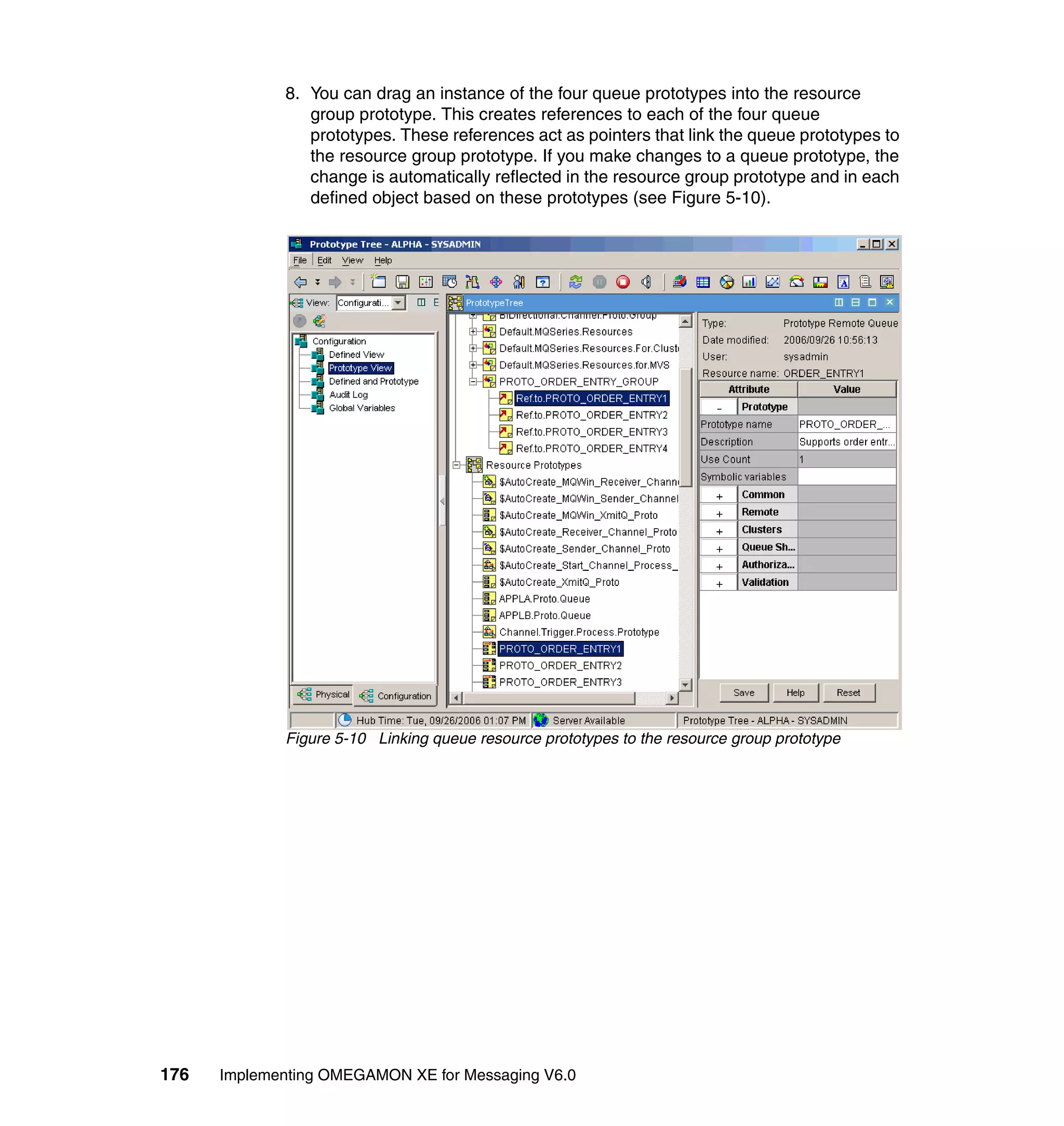
             WebSphere MQ-specific data for all queue managers from a single vantage
             point. It provides many useful workspaces you can use to track trends and
             understand and troubleshoot system problems. It provides you with the ability to
             view information about each WebSphere MQ object you are monitoring. You can
             use this information to identify system bottlenecks and evaluate tuning decisions,
             select the most effective threshold values for situations you create, and review
             status information when a change in the state of a given resource occurs, such
             as from Informational to Warning or from Warning to Critical.

             WebSphere MQ Monitoring provides these benefits:
                Increases knowledge with extensive reporting capabilities that provide
                real-time access to reliable, up-to-the-minute data. Therefore, you can make
                faster, better-informed operating decisions.
                Enhances system performance by letting you integrate, monitor, and manage
                your system, environment, console, and mission-critical applications. For
                example, WebSphere MQ Monitoring can alert you when conditions in your
                environment meet or exceed the thresholds you set. These alerts notify your
                system administrator to limit and control system traffic.
                Simplifies application and system management by managing applications,
                platforms, and resources across your system.

             As mentioned in 1.5, “OMEGAMON XE for Messaging overview” on page 14, the
             importance of understanding what the messaging infrastructure means to the
             business that it supports cannot be underestimated. To ensure that the
             WebSphere MQ Monitoring configuration meets business expectations and
             SLAs, a requirements gathering exercise needs to be performed with business
             area application developers. The output of the requirements exercise is an
             understanding of how the different components of the application rely on and
             interact with, the WebSphere MQ infrastructure. After this has been established,
             WebSphere MQ Monitoring can be configured and tuned accordingly to
             maximize its ability to support critical business systems. This also means
             resource utilization is targeted at the right areas and helps to ensure that
             WebSphere MQ applications are using the infrastructure in an efficient manner.
             Relevant questions might include:
                What service level agreement is in place with the business?
                This will determine how quickly problems need to alerted and resolved. It will
                also determine the interval at which monitoring information is recorded.


198   Implementing OMEGAMON XE for Messaging V6.0
What are the typical message volumes throughout the business day?
   An understanding of the traffic passing through a WebSphere MQ
   infrastructure means that unusually high (or low) volumes can be identified.
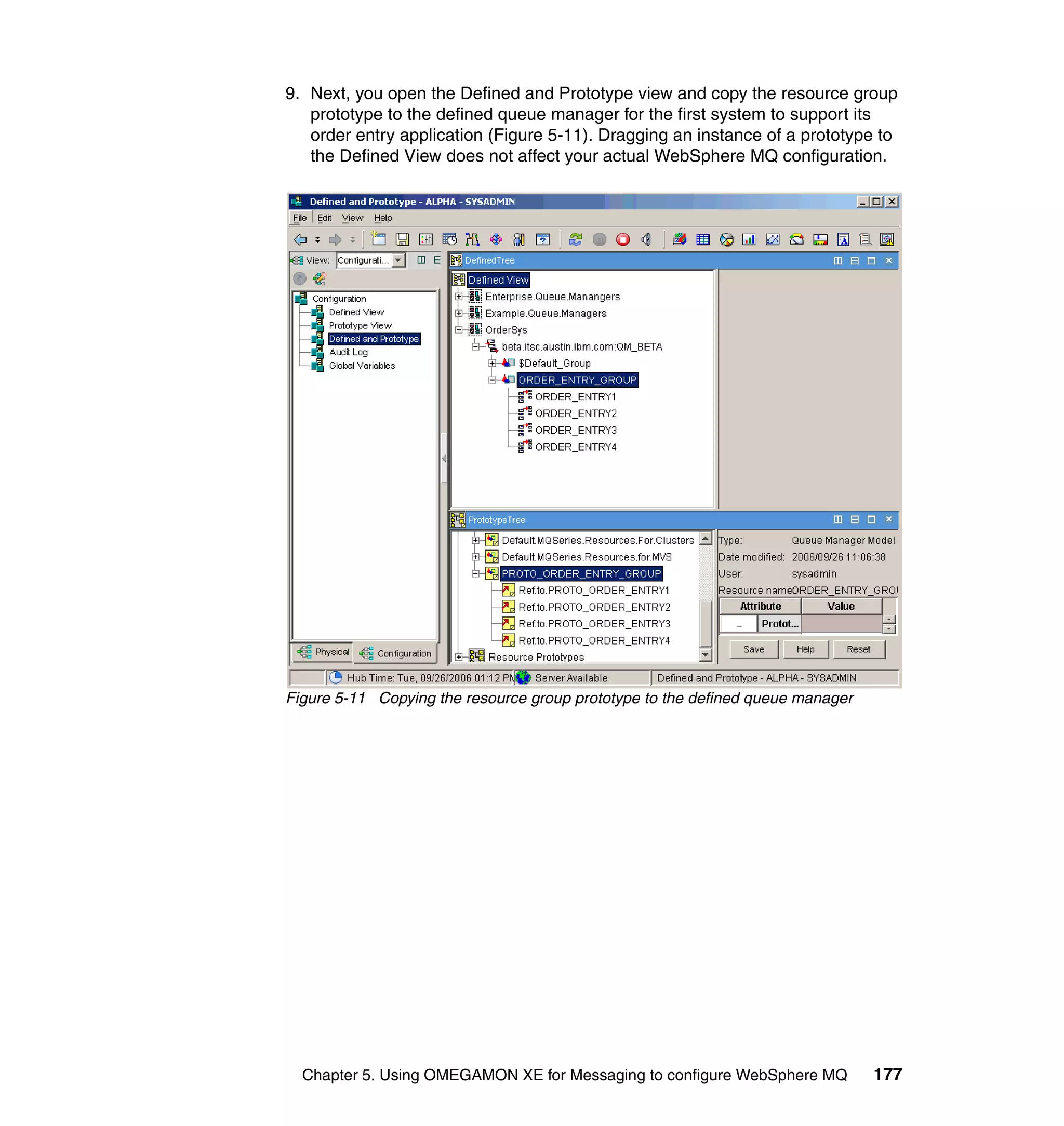
   Do any of the applications in the WebSphere MQ infrastructure have
   scheduled downtime?
   If so, it might be quite normal activity to have a build up of messages on
   particular application queues at certain times. We do not want to issue alerts
   for what is an expected situation.
   Which services do each of the application queues access?
   Some application queues might provide a link to an absolutely vital
   application service, others might be less important. Again, this helps to
   determine monitoring intervals and sampling intervals for situations.
   What are the expected response times for each application?
   Understanding how quickly applications expect a response message will help
   identify any bottlenecks in the infrastructure.
   What is the nature of the various application messages? Are they persistent
   or non-persistent?
   Understanding the importance of messages will help in any Take Action
   scenario as well as determining how to handle messages on the dead-letter
   queue.

WebSphere MQ application monitoring example
This very simple monitoring example shows important aspects of monitoring a
critical application. There are two applications, one that produces messages that
are consumed by another application. These applications reside on different
queue managers. For the purposes of this discussion, the queue managers can
reside on different machines, or within the same machine. See Figure 6-1 on
page 200.


                                       Chapter 6. Monitoring WebSphere MQ      199
Channel                                      B
                                       Performance

                                                                               Message
                                                                               Consuming
                                                                               Application(s)

                                                                    Message
                                                                    Rate
                                                          Queue
                         A                                Depth


                  Message
                  Producing
                  Application(s)

             Figure 6-1 Application monitoring example

             When monitoring critical applications, there are several aspects to keep in mind.
             First, are the necessary resources available in order for this application to
             operate? In this case, is the channel available and running between the two
             queue managers? Not shown in this example is another channel that is required
             to send responses to queues on the originating queue manager. It has been
             omitted for simplicity. The channel connects the two queue managers. If the
             channel fails or stops, it must be restarted immediately and automatically. Failure
             to keep this channel running causes the applications not to perform according to
             expectations. If the channel does not restart for any reason, an alert needs to be
             sent to operations personnel in order to investigate.

             Second, another indication of the connectivity between the two queue managers
             is the transmission queue. In this example, it is the queue on which application A
             is putting messages. If this queue starts to build up messages, it might be an
             indication of network throughput not meeting expectations, even though the
             channel is operating normally.

             The queue from which application B is getting messages also needs to be
             monitored. It must be monitored for queue depth. An increasing queue depth will
             indicate how fast application B is consuming messages. If the queue increases in
             the message depth over time, it might be an indication that application B is not
             performing up to expectations. It is also important to monitor the depth of this
             queue over time, where you can get an indication of what the demand is at
             certain times during the day, week, or month. If the queue depth increases only


200   Implementing OMEGAMON XE for Messaging V6.0
during the hours 3:00 p.m. to 4:00 p.m., and then quickly returns to only a few
messages, this indicates that between these hours there is peak load that might
not be able to be handled by application B. However, queue depth alone might
not be able to give an indication of application performance.

First, we must be able to define application performance. In this case, it might
also be an indication of service level agreement. You expect that if 10 messages
were put into the queue, that 10 messages would be consumed from this queue
in the same period of time. So, if 10 messages per second were put onto this
queue, and 10 messages per second were taken off of this queue during the
same time, this is a good indication that we are meeting performance goals,
because the specification is to have at least 10 messages per second
throughput. Input rate, however, is not always constant. Messages will arrive
depending on the demand at the time. Let us say that 100 messages per second
arrived on the queue, and the application still ran at 10 messages per second
(the specification). Then it would take 10 seconds to get to the last message on
this queue. This does not meet the service level that was agreed upon, where we
stated that all messages receive less than two seconds response time.

Now we have a dilemma. We have written our application to specification, but
cannot meet our service levels.

This example is all too common in many enterprises. It usually originates
because of insufficient testing. The testing specifications, unfortunately, also
specified that this application process at least 10 messages per second.
Overlooked was a system test where all applications are tested together, at
production loads. In this case, in a production environment, we would have
known that during certain peak times 100 messages per second arrive for
processing. A good system test would have revealed that this combination of
application usage is not sufficient to meet our needs.

Why test? Testing and monitoring under production loads enable us to set
expectations. We know what we expect to see in terms of arrival rate and
throughput. This translates directly into the production environment where we
now set expectations on how application will perform. Given that we know this
information, it is easy to understand when our applications are not behaving up
to our expectations. We can set thresholds on queues or message rates and be
alerted when these applications perform “out of bounds,” and now we have
narrowed down what it takes to research the problem. Without testing, and
setting expectations, we unfortunately need to rely on the phone ringing to tell us
when we have a problem, and then it takes some time to figure out what the
problem is.

So, how do we fix this problem? The first thing we think about is fixing the
program, re-engineering it to meet the desired throughput. However, this might


                                        Chapter 6. Monitoring WebSphere MQ         201
take some time, and we need this application now. Fixing this application also
             involves testing, testing that we might or might not have done previously.

             There is, however, something we can do that will only involve infrastructure and
             monitoring to keep this application running at the desired SLA levels. Actually,
             there are two things.

             First, monitor queue B for message arrival rate and message departure rate. If
             the arrival rate is greater than the departure rate (messages are starting to build
             up in the queue) and the queue depth is greater than 10 messages, we can start
             another instance of application B. This is called vertical scalability. We now have
             multiple applications reading from the same queue, thus doubling the throughput
             of application B. If the machine resources are available, you can continue to
             apply this technique and run as many consuming applications as you want.
             When the queue depth is zero for several observations, shut down the redundant
             applications. Although it takes some planning, this can be done automatically
             through monitoring tools.

             The second technique is called horizontal scalability. This technique involves
             distributing the workload over several machines, which will result in achieving the
             needed throughput and service levels. It requires no changes to the application.
             You are required to make a change to the WebSphere MQ configuration where
             queue B is now a clustered object, and when we send a message to queue B, it
             goes to each queue manager assigned to the cluster in order. So, we need to
             define application B in several other queue managers and make them members
             of the cluster. This has several advantages where the workload is distributed
             across several other queue managers. Next, it allows for a backup in case one
             application is not responding. It does, however, require you to monitor more
             channels and queues. You are not required to wait until the extensive application
             modifications are complete. You can change this with infrastructure.

             Monitoring during testing tells us what to expect in production. We can set
             monitoring points in production to tell us when our applications do not meet our
             expectations. We can effect change in the infrastructure that allows us to meet
             our expectations while we fix or re-engineer our applications. The key here is to
             obtain these expectations during testing.

             Knowing what we know from the previous figure, let’s say that this is a
             transaction that will require several applications to complete this transaction. This
             might be the case in an application in an SOA architecture.


202   Implementing OMEGAMON XE for Messaging V6.0
Given what we need to do in a simple application to understand how it behaves,
        you can see all the parts that need to be monitored in order to fully understand
        the behavior of this transaction or service. This is illustrated in Figure 6-2.

              Monitoring Points used to track
              transaction flow
                                                       QB                    B
                                                                                         QC
                                 TQ           Ch
                                                an                  TQ                  C
                                                     ne
                                            QA         ls
                    A                                                      Queue Manager QM2

                                 Queue Manager QM1

           Application A, B and C are components of a business transaction
           There are many objects that make up the underlying transactions
           There are as many as 8 monitoring points for objects associated to this transaction
           You should Monitor all the objects as it relates to the transaction (queues, channels)
           You should Monitor the flow of messages belonging to specific message queues (get/put rate)
           You need the ability to detect slowdown or stoppage in flow in specific queues (put rate exceeds get rate,
           channel down)
           You will need to identify problems and automatically react to them.

        Figure 6-2 Monitoring points for applications


6.2 WebSphere MQ Monitoring options
        WebSphere MQ Monitoring enables you to set a wide range of monitoring
        options that can be changed to suit the needs of your environment. For example,
        you can define which queue managers, queues, and channels you want
        monitored, specify the time interval for collecting WebSphere MQ data, manage
        the disposal of event messages from an event queue, or specify whether or not
        you want to collect historical monitoring data and how long you want to have that
        data available. Monitoring options are set by defining certain commands and
        parameters in a special command file that we refer to as the monitoring file (the
        actual name of the file varies slightly by operating system platform). When you
        start the WebSphere MQ agent, the commands and parameter values in the
        monitoring file are read and executed. You do not create the monitoring file; it is
        supplied with your product and is preconfigured with a set of default commands
        and parameter values. As supplied, the WebSphere MQ Monitoring Agent for
        WebSphere MQ on z/OS monitors all queues and channels for all queue
        managers and all WebSphere MQ applications. As supplied, the WebSphere MQ
        Monitoring Agent for WebSphere MQ on HP NonStop Kernel (formerly known as


                                                              Chapter 6. Monitoring WebSphere MQ                        203
Tandem), UNIX/Linux, Microsoft Windows, and IBM OS/400® monitors all
             queues and channels on a single default queue manager. You can change these
             default options as well as any others. The list of monitoring options available are
             as follows:
                The SET GROUP command defines a group of queue managers that have
                common monitoring characteristics. Within the group, you can override
                like-named parameters for specific queue managers using the SET
                MANAGER command. At least one SET GROUP command is required.
                The SET MANAGER command specifies queue managers to be monitored.
                The SET QACCESS command specifies a set of queues that have specified
                message manipulation rights in group level or manager level.
                The SET QUEUE command specifies the queues to be monitored.
                WebSphere MQ Monitoring always monitors the dead-letter queue. To
                monitor other system or application queues, specify them with the SET
                QUEUE command.
                The SET CHANNEL command specifies the channels to be monitored.
                The SET EVENTLOG command specifies the size, location, and other
                attributes of the event log. This command applies to all platforms excepts
                z/OS.
                The SET EVENTQIN command identifies the queue manager event queue,
                channel event queue, performance event queue, configuration event queue,
                command event queue, and logger event queue for a queue manager or
                group of queue managers. If no SET EVENTQIN command applies to a
                queue manager, the following default WebSphere MQ names are used:
                 – SYSTEM.ADMIN.QMGR.EVENTS
                 – SYSTEM.ADMIN.CHANNEL.EVENTS
                 – SYSTEM.ADMIN.PERFM.EVENTS
                 – SYSTEM.ADMIN.CONFIG.EVENT (Configuration events are present on
                   WebSphere MQ for z/OS Version 5.3 and later only.)
                 – SYSTEM.ADMIN.COMMAND.EVENT (Command events are present on
                   WebSphere MQ for z/OS Version 6.0 and later only.)
                 – SYSTEM.ADMIN.LOGGER.EVENT (Logger events are present on
                   WebSphere for Distributed Platforms Version 6.0 and later only.)


204   Implementing OMEGAMON XE for Messaging V6.0
The SET EVENTQOUT command identifies the output queues where queue
manager event information, channel event information, performance event
information, configuration event, command event information, and logger
event information will be copied. After WebSphere MQ Monitoring has read
an event message from an event queue, it deletes the message to ensure
that it is processed only once. If another application running at your site
requires access to event messages, you can define an output queue where
these messages are copied and point the other application to that queue. If
no SET EVENTQOUT command applies to a queue manager, the event
information is discarded after being processed.
The PERFORM INCLUDE command points to an external file containing
customization commands. To execute the commands in this file, specify
PERFORM INCLUDE in your startup file.
The PERFORM STARTMON command initiates monitoring of WebSphere
MQ objects, specifies the sampling interval for collecting WebSphere MQ
data, and specifies whether or not historical data will be collected. The
PERORM STARTMON command is required.
The SET AGENT command enables you to specify the middle qualifier used
in the managed system name. On distributed platforms, if this value is not
specified, no value is used. On z/OS, if this value is not specified, the host
name is used. If you specify this value, it is used only in the managed system
names of subnodes. For example, to avoid confusion and to allow multiple
WebSphere MQ Monitoring Agents, instead of issuing the default agent
startup command IRAMAN KMQAGENT START (to start a node named
hostname:MQIRA), you can issue the modified agent startup command
IRAMAN KMQAGENT START agentid (to start a node named
agentid:MQIRA). Here are some reasons to use the SET AGENT command:
– On distributed platforms, if your site has multiple queue managers with the
  same name, running on different nodes, you need to specify the node
  name for each queue manager to uniquely identify them.
– To group and identify queue manager names by something other than the
  host name and queue manager name.
– To allow multiple agents connected to the same CMS to monitor the same
  queue manager.
The SET APPL (z/OS only) command identifies the WebSphere MQ-based
z/OS applications, CICS® transactions, and IMS™ programs that must be
monitored for application debugging information and application statistics.


                                   Chapter 6. Monitoring WebSphere MQ     205
The SET MQIMONITOR (z/OS only) command is supported on z/OS only.
                The SET MQIMONITOR command activates monitoring for the applications
                you specified using the SET APPL command. You must specify the SET
                MQIMONITOR command to turn on monitoring. Use the SET MQIMONITOR
                command together with the SET APPL command to activate the application
                debugging and application statistics features.
                The SET QSG (z/OS only) command specifies which queue-sharing groups
                the WebSphere MQ Monitoring Agent on z/OS monitors and which queue
                managers the agent uses to collect queue-sharing group data. At any given
                time, for a particular queue-sharing group, this monitoring product uses only
                one queue manager to gather data. If that queue manager becomes
                unavailable, data gathering “fails over” to another queue manager. The SET
                QSG command is optional. If not specified, the default behavior of the agent
                is to monitor all queue-sharing groups that are associated with monitored
                queue managers. You might use a SET QSG command to specify such
                things as:
                 – That no queue-sharing groups will be monitored
                 – That a particular queue-sharing group will not be monitored
                 – That a particular queue manager must not be used to collect
                   queue-sharing group data

             Editing WebSphere MQ Monitoring options
             WebSphere MQ Monitoring options can be configured in one of two ways,
             remotely or locally on the managed system.

             Remote agent configuration
             WebSphere MQ Monitoring allows for configuration of remote agents through
             Tivoli Enterprise Portal. This is a very powerful feature of the product because it
             means that all agents can be configured, and reconfigured as necessary, from a
             central location.


206   Implementing OMEGAMON XE for Messaging V6.0
To configure a WebSphere MQ Monitoring Agent from Tivoli Enterprise Portal:
1. Right-click the managed system and click Configure (Figure 6-3).


Figure 6-3 Configure managed system


                                      Chapter 6. Monitoring WebSphere MQ   207
2. Edit the managed system as required (Figure 6-4) based on the options
                detailed in 6.2, “WebSphere MQ Monitoring options” on page 203.


             Figure 6-4 Configure Managed System details

             Individual agents can also be configured and reconfigured on the host where
             they reside. The following is an example of editing the WebSphere MQ
             Monitoring Agent option on Windows.

             Local agent configuration
             On Windows, you can change the WebSphere MQ Monitoring options by editing
             the mq.cfg monitoring file. If your site has multiple queue managers, you might
             created multiple instances of the monitoring agent, each with its own uniquely
             named monitoring file pointing to a single queue manager. You can customize
             monitoring options in any or all of these monitoring files. Perform the following
             steps:
             1. From the Manage Tivoli Enterprise Monitoring Services panel, under
                Service/Application, select WebSphere MQ Monitoring Agent -- instance,
                where instance is the name of the agent instance for which you want to
                change monitoring options.
             2. Right-click the WebSphere MQ Agent and select Reconfigure.


208   Implementing OMEGAMON XE for Messaging V6.0
3. Verify settings or change as needed and click OK.
4. Click Yes when you are prompted to update the mq_instance.file.
5. Click OK. A Notepad session opens.
6. Add, delete, or modify monitoring option commands as required for your site.
   Adhere to the following editing rules:
   – To continue a command onto the next line, end the current line with a
     hyphen (-).
   – Parameters you set when grouping objects are effective for all the objects
     in the group.
   – You can override parameters for an object in a group by explicitly defining
     parameters for that object.
7. Select File → Save and exit Notepad.
8. Click Yes at the next prompt to continue.
9. Verify that your queue manager and its command server are running.
10.Restart the agent for the changes to take effect.

For more information about this and also details about editing the monitoring
options on other platforms, refer to WebSphere MQ Monitoring User’s Guide,
SC32-1825.


                                       Chapter 6. Monitoring WebSphere MQ    209
Note: Ensure that your Tivoli Enterprise Portal account has permission to
               administer WebSphere MQ. Our agent configuration was defined to allow an
               individual Tivoli Enterprise Portal user account to access MQ queues and
               messages. These Tivoli Enterprise Portal accounts do not have to exist on
               each managed system. The following parameters were set in the SET
               MANAGER command to allow for administration rights:
               ACTIONAUTHUSERS(GREAVESM) -
               ACTIONACCOUNT(USER=mqadmin) -
               MSGACCESS(USEQACCESS) -

               The SET QACCESS command was then used as follows to allow message
               access:
               SET QACCESS NAME(*) -
               MSGAUTHUSERS(GREAVESM) -
               MSGACCOUNT(USER=mqadmin) -
               MSGACCESS(DELETE) -
               MGRNAME(QM_BETA) -
               STATUS(ADD)

               Where mqadmin is an account created on the managed systems that belongs
               to the mqm group.


6.3 Workspaces
             WebSphere MQ Monitoring is installed with default views that are displayed in
             workspaces. Where applicable, links have been provided within the workspace to
             link from a parent view to a more detailed view about a selected row, or to a
             related workspace (for example, a workspace containing historical information).
             The workspaces can be accessed from the Navigator in Tivoli Enterprise Portal.


210   Implementing OMEGAMON XE for Messaging V6.0
Figure 6-5 WebSphere MQ Agent workspaces within the Navigator


 Note: You can use OMEGAMON XE to gather data for real-time monitoring
 and for historical reporting and analysis. We do not provide examples of
 historical data analysis, but a general discussion is provided in Getting Started
 with IBM Tivoli Monitoring 6.1 on Distributed Environments, SG24-7143. Refer
 to that IBM Redbook for information about collecting and analyzing historical
 data.

Table 6-1 on page 212 gives a brief description of the workspaces.

Refer to IBM Tivoli OMEGAMON XE for Messaging V6.0 WebSphere MQ
Monitoring Users Guide, SC32-1825, for more information about workspaces.

 Important: For some of the workspaces described here, options within
 WebSphere MQ need to be enabled to ensure that the related data is
 collected. Refer to the product documentation for more information.


                                       Chapter 6. Monitoring WebSphere MQ      211
Table 6-1 WebSphere MQ workspaces
               Workspace                  Description

               Application Accounting     These workspaces can help you to monitor accounting
                                          messages that are generated intermittently by distributed
                                          (non z/OS) queue managers to record information about
                                          the Message Queue Interface (MQI) operations
                                          performed by WebSphere MQ applications, or to record
                                          information about the activities occurring in a
                                          WebSphere MQ system. The workspaces only apply to
                                          WebSphere MQ V6 or later applications.

               Application Debugging      These workspaces apply only to the WebSphere MQ
                                          applications that are running on z/OS. These
                                          workspaces can help you debug your WebSphere MQ
                                          applications by enabling you to view and sort debugging
                                          trace data.

               Application Statistics     These workspaces provide statistics about WebSphere
                                          MQ applications that are running on z/OS only. Data for
                                          these workspaces is only available if Application
                                          Statistics are being collected on z/OS.

               Buffer Pool Statistics     The Buffer Pool Statistics workspaces can help you
                                          ensure that your buffer managers are performing
                                          efficiently. These workspaces show current buffer
                                          manager performance for all monitored z/OS queue
                                          managers. You can also drill down to display information
                                          about a specific buffer pool to isolate recent or historical
                                          performance trends.

               Channel Definitions        The Channel Definitions workspaces provide you with
                                          information about the channels your site has defined and
                                          is monitoring for each monitored queue manager.
                                          Included is the channel type (sender, receiver, server, or
                                          requestor).

               Channel Initiator Status   These workspaces pertain only to z/OS queue
                                          managers. The Channel Initiator Status workspaces
                                          provide information about:
                                             Channel connection states (the number of current,
                                             maximum, active, starting, stopping, and retrying).
                                             Whether the channel initiator, TCP/IP listener, and
                                             LU62 listener are active.
                                             The success of adapter subtask and dispatcher
                                             activity.


212   Implementing OMEGAMON XE for Messaging V6.0
Workspace                 Description

Channel Performance       The Channel Performance workspaces provide
                          performance information about the monitored channels
                          on each monitored queue manager. Included is whether
                          or not each channel is in-doubt, current, or inactive, as
                          well as the channel type. The client connection channel
                          definitions do not produce statistics, so they are not listed
                          in any of the Channel Performance workspaces.

Cluster Queue Manager     These workspaces provide information about explicitly
                          and automatically defined cluster channels and the
                          cluster queue manager associated with them.

Dead Letter Queue         These workspaces allow you to list and examine the
Messages                  messages that a queue manager queued to its
                          dead-letter queue (DLQ) because they could not be
                          delivered.

Error Log                 This workspace enables you to view and monitor
                          WebSphere MQ error log data retrieved from a
                          monitored queue manager (non-z/OS only).

Log Manager Performance   These workspaces give information about the logging
                          activity (such as I/O levels and the number of times a
                          WebSphere MQ application was delayed because no
                          logging buffers were available) for each monitored z/OS
                          queue manager.

Message Manager           The Message Manager Performance workspaces
Performance               provide information about how frequently calls to the
                          WebSphere MQ application programming interface (API)
                          are being made against your monitored z/OS queue
                          managers. These rates can help you determine how
                          frequently messages are being passed to and pulled
                          from a particular queue manager.

MQI Statistics            These workspaces monitor the statistics messages that
                          are used to record information about the activities in a
                          distributed (non z/OS) WebSphere MQ system. These
                          workspaces apply to WebSphere MQ 6 and later.

MQSeries® Events          These workspaces provide information about the
                          following six events for each monitored queue manager:
                               Channel Stopped
                               Queue Full
                               Queue Depth High
                               Queue Service Interval High
                               Bridge Stopped
                               Channel Not Activated


                                     Chapter 6. Monitoring WebSphere MQ             213
Workspace                  Description

               Page Set Statistics        These workspaces give information about the usage and
                                          allocation of page sets for each monitored z/OS queue
                                          manager.

               Queue Definitions          The Queue Definitions workspaces provide information
                                          about your monitored queues.

               Queue Manager Status       These workspaces show the status of the monitored
                                          queue managers in your network and give basic
                                          descriptive information about each monitored queue
                                          manager.

               Queue Statistics           The Queue Statistics workspaces provide usage
                                          information about the current queue manager queues
                                          (such as the number of open queues, how full they are,
                                          whether they are get- or put-inhibited, and the number of
                                          messages currently on each queue manager’s
                                          dead-letter queue).

               Queue-Sharing Group        These workspaces show the status of each (z/OS) queue
                                          manager in the queue-sharing group and the Coupling
                                          Facility. They also show the status of shared queues and
                                          channels used by the queue-sharing group.

               Queue Messages             The Queue Messages workspaces can help you to
                                          manage queues by enabling you to display queue status
                                          and contents, list queued messages, display message
                                          descriptor information, display message application
                                          data, and finally, delete messages. Access these
                                          workspaces from the Queue Definitions item for the
                                          selected queue manager.

               Message Statistics         These workspaces enable you to closely monitor the
                                          messages on a particular queue. Access these
                                          workspaces from the Queue Definitions item for the
                                          selected queue manager.


6.4 Monitoring scenarios
             This section describes which WebSphere MQ objects and attributes must be
             monitored, the related alerts to be generated, and the appropriate actions, if any,
             that need to be taken to assist in identifying and resolving the problem. In this
             section, we also discuss some of the WebSphere MQ Monitoring related
             workspaces and how you can gather critical information about your monitored
             WebSphere MQ network using these workspaces.


214   Implementing OMEGAMON XE for Messaging V6.0
In the scenarios that follow, commentary is provided to highlight the most
appropriate monitoring choices according to business requirements. In some
cases, it might be adequate to use MQ events to report potential problems with a
WebSphere MQ infrastructure. In others, it is necessary to create situations
within WebSphere MQ Monitoring to report and respond to very specific
scenarios.

WebSphere MQ queue manager configuration
To ensure that all of the monitoring and reporting features of WebSphere MQ
Monitoring can be accessed, it is important to review your queue manager
configuration for event monitoring. Event monitoring is the process of detecting
occurrences of instrumentation events in a queue manager network. An
instrumentation event is a logical combination of events that is detected by a
queue manager or channel instance. Such an event causes the queue manager
or channel instance to put a special message, called an event message, on an
event queue.

The following MQ events must all be enabled as required:
   Queue manager events
   –   Authority
   –   Inhibit
   –   Local
   –   Remote
   –   Start and stop (z/OS supports only start)
   Channel and bridge events
   – IMS bridge (z/OS only)
   – SSL
   Performance events
   – Queue depth events
   – Queue service intervals
   Configuration events
   –   Create object events
   –   Change object events
   –   Delete object events
   –   Refresh object events
   Command events
   Logger events


                                       Chapter 6. Monitoring WebSphere MQ   215
Additionally, to exploit the WebSphere MQ Monitoring Application Accounting
             and MQI Statistics workspaces, the following queue manager parameters also
             need to be reviewed. Refer to the WebSphere MQ product documentation for
             details about these parameters/options.
                Statistics monitoring
                 –   MQI statistics
                 –   Queue statistics
                 –   Channel statistics
                 –   Auto CLUSSDR statistics
                 –   Statistics interval
                Accounting monitoring
                 – MQI accounting
                 – Queue accounting
                 – Accounting interval

             WebSphere MQ Monitoring can also be used to display real-time monitoring
             statistics that are available with WebSphere MQ V6.0. Review the following
             queue manager parameters:
                Channel monitoring
                Queue monitoring
                Auto CLUSSDR monitoring

               Note: Many of the previously listed parameters can be set at the queue or
               channel level as well as the queue manager level. Consider the scope of your
               monitoring requirements before setting these values.


216   Implementing OMEGAMON XE for Messaging V6.0
All of the parameters described here can be changed either locally on the queue
manager or through Tivoli Enterprise Portal by right-clicking the object in the
WebSphere MQ Monitoring view, or through the WebSphere MQ Configuration
view (Figure 6-6 and Figure 6-7 on page 218).


Figure 6-6 Queue manager setup (Part 1)


                                      Chapter 6. Monitoring WebSphere MQ   217
Figure 6-7 Queue manager setup (Part 2)


6.4.1 Situations
             OMEGAMON XE for Messaging extends the flexibility and power of alerting
             through WebSphere MQ events by providing a number of specific WebSphere
             MQ alerting and automation rules called situations. Situations allow for a much
             finer degree of monitoring rules to be deployed and can be tailored for specific
             business requirements.

             OMEGAMON XE for Messaging provides an extensive number of predefined
             situations that are applicable to most WebSphere MQ infrastructures. Any
             number of individually defined situations can also be created that meet specific
             business monitoring requirements. To view the product provided situations from
             Tivoli Enterprise Portal, select Edit → Situation Editor. Navigate to the
             MQSERIES folder and maximize it. Figure 6-8 on page 219 shows some of the
             options provided WebSphere MQ situations.


218   Implementing OMEGAMON XE for Messaging V6.0
Figure 6-8 Product-provided situations

The following situations are turned on by default:
   MQSeries_Alias_Queue_Problem
   MQSeries_Bufpll._Buffer_Shrt_Crt
   MQSeries_Channel_Autodef_Error
   MQSeries_Channel_Initiator_Prob
   MQSeries_Channel_SSL_Error
   MQSeries_Channels_Indoubt
   MQSeries_CICS_Channel_Stopped
   MQSeries_Conversion_Error
   MQSeries_Dead_Letter
   MQSeries_Inhibit_Problem
   MQSeries_Listener_Not_Started
   MQSeries_Local_Object_Unknown
   MQSeries_MQ_Channel_Stopped
   MQSeries_Old_Message_On_Queue
   MQSeries_Queue_Full
   MQSeries_Queue_Manager_Problem


                                         Chapter 6. Monitoring WebSphere MQ   219
By selecting any of the product-provided situations from the available list, you
             can view and edit the situation’s definition. When you click a situation name or
             create a new situation, the right frame opens with the following tabs:
                Formula
                This is the condition that is being tested. It consists of the following:
                 – Description: A description of the situation.
                 – Formula: Determines which conditions will be checked in order for this
                   situation to activate.
                 – Sampling interval: Determines the interval for checking whether this
                   situation is true or false.
                Distribution
                A list of managed systems to which the situation can be distributed. Moving a
                managed system into the Assigned frame activates the situation on that
                system.
                Expert advice
                Comments and instructions to be read in the event workspace.
                Action
                A command to be sent to the system. This frame also contains options that
                determine how often actions are taken and whether they are performed on
                the Tivoli Enterprise Monitoring Server or at the managed system (agent). It is
                best practice to perform all actions on the agent managed system. This
                prevents performance problems at the Monitoring Server when large
                numbers of agents are deployed throughout the infrastructure.
                Until
                Defines the conditions when the situation event will be closed.


220   Implementing OMEGAMON XE for Messaging V6.0
Figure 6-9 illustrates the details of the predefined
               MQSeries_Queue_Manager_Problem situation. We use this situation in an
               example in 6.4.2, “WebSphere MQ queue manager monitoring” on page 221.


Figure 6-9 MQSeries_Queue_Manager_Problem situation


6.4.2 WebSphere MQ queue manager monitoring
               The OMEGAMON MQ Monitoring Agent will not function if the queue manager's
               command server is inactive. WebSphere MQ configuration changes also cannot
               be carried out if this process is inactive.

               It is critical to monitor the queue manager status. The Queue Manager Status
               workspace shows the status of the monitored queue managers in your network
               and gives basic descriptive information about each monitored queue manager.
               Use the information in the Queue Manager Status workspaces to compare the
               status and activity of your queue managers and to look for patterns in resource


                                                      Chapter 6. Monitoring WebSphere MQ   221
usage, status, or time of day. Each queue manager’s status can be one of the
             following:
                Active Queue Manager Not Available
                Command Server Not Responding
                Dynamic Queue Allocation Error
                Cluster Repository Not Available

             Let’s look at an example:
             1. If the monitored queue manager goes down, a critical alert appears in the
                Enterprise Situation Event Console, as shown in Figure 6-10. This is an
                example of the MQSeries_Queue_Manager_Problem situation in action.


             Figure 6-10 WebSphere queue manager problem alert


222   Implementing OMEGAMON XE for Messaging V6.0
2. When you see an event indicator in the Navigator, you can create an
   acknowledgment. An acknowledgment notifies other users that you have
   taken ownership of the problem related to the event and are working on it.
   When you acknowledge an event, a green check mark appears next to the
   situation in the event flyover list and, if you opened the event workspace, over
   the situation item in the Navigator. If the situation is still true when the
   acknowledgment expires, the indicator changes accordingly. You can also
   cancel the acknowledgment before it has expired. This changes the indicator
   so that users can see that the acknowledgment has been removed even
   though the situation remains true. Select the event and right click it. Select
   Acknowledge from the drop-down menu, as shown in Figure 6-11.


Figure 6-11 Alert acknowledgement


                                       Chapter 6. Monitoring WebSphere MQ      223
3. In the next panel (Figure 6-12), select the Expiration time frame for which the
                alert needs to be in the acknowledged status. It is a good practice to add a
                note in the Notes area so that the other people will know that you have
                acknowledged the problem and are working on it. Click OK.


             Figure 6-12 Setting alert acknowledgement time frame


224   Implementing OMEGAMON XE for Messaging V6.0
You will notice that the alert has been changed to the Acknowledged status in
   the Enterprise Event View, as shown in Figure 6-13.


Figure 6-13 Alert in Acknowledged status

   The example in Figure 6-13 was for a Windows node. You can also
   acknowledge the WebSphere MQ queue manager alerts on any other
   platform using the same steps shown previously for Windows. Notice that,
   regardless of the operating system, the same principals and same type of
   management is used. This cuts down the training time for your operators that
   manage WebSphere MQ running on different operating systems.
4. You can click the Queue Manager Status workspace to view the basic
   descriptive information about each monitored queue manager. You can use
   the information in the Queue Manager Status workspaces to compare the
   status and activity of your queue manager and to look for patterns in resource
   usage, status, or time of day.


                                           Chapter 6. Monitoring WebSphere MQ   225
6.4.3 WebSphere MQ queue monitoring
             This section describes WebSphere MQ queue monitoring. The Queue Statistics
             workspace provides usage information about all monitored queues. Key
             monitoring attributes include queue depth, whether or not the queues are open
             for input or output, whether they are get- or put-inhibited, and the number of
             messages currently on each queue manager’s dead-letter queue. These are
             common queue monitoring requirements in a WebSphere MQ infrastructure.
             Again, for specific business requirements and monitoring of application queues,
             consult the application developers and those in the business IT teams.

             In addition to the MQ events that were enabled at the queue manager level in
             “WebSphere MQ queue manager configuration” on page 215, also review the
             following on each queue manager queue that is eligible for monitoring:
                The QDEPTHHI queue attribute defines the percentage value (of
                MAXDEPTH) that indicates a high queue status. The QDPHIEV queue
                attribute and the queue manager's PERFMEV attributes must be both
                enabled for a queue depth high event to be generated. The reason for
                monitoring a queue reaching its maximum depth is to alert the administrator
                that there might be a potential problem. Also review the QDEPTHLO and
                QDPLOEV queue values.
                The queue's MAXDEPTH attribute indicates the maximum number of
                messages that can be held on a queue. If this number of messages is
                reached, no additional messages can be placed on the queue, and a
                QUEUEFULL event is generated by the queue manager. The QDPMAXEV
                queue attribute must be enabled in order to generate this alert.
                The QSVCINT defines a service interval in which MQPUT or MQGET
                operations must occur. If no application activity of this nature is detected on
                the queue during this interval, and QSVCIEV is enabled, an event is issued.

             Note that there are two methods of monitoring queue issues such as these. One
             is to handle events such as queue full events being generated by the queue
             manager and the other is to actively monitor the depth of the queue. We refer to
             both of these options in the following pages, including the next section
             “Dead-letter queue alert” on page 236.


226   Implementing OMEGAMON XE for Messaging V6.0
Again, let us explain this topic with an example:
1. If the monitored queue is full, a critical alert will appear in the Enterprise Event
   Console (Figure 6-14).


Figure 6-14 Queue Full MQ Event


                                         Chapter 6. Monitoring WebSphere MQ        227
2. If the monitored queue is full and a situation has been assigned to report this,
                a situation alert is also issued (Figure 6-15). WebSphere MQ Monitoring
                provides a situation called MQSeries_Queue_Full to report this problem.


             Figure 6-15 Predefined MQSeries_Queue_Full situation

             3. You can then acknowledge the alert and take any appropriate action.


228   Implementing OMEGAMON XE for Messaging V6.0
4. You can view the Queue Statistics workspace (Figure 6-16), which provides
   usage information about all monitored queues for the monitored queue
   manager (such as the number of open queues, how full they are, whether
   they are get- or put-inhibited, and the number of messages currently on each
   queue manager’s dead-letter queue).


Figure 6-16 Queue Statistics workspace


                                         Chapter 6. Monitoring WebSphere MQ   229
5. From the Queue Statistics workspace, you can click the link to get detailed
                information about the monitored queue (Figure 6-17).


             Figure 6-17 Recent Queue Statistics link

             In this example, the situation is based on an MQ Queue Full Event being
             received. Many situations are based on MQ events, but it is possible to base
             situations on many other conditions.

             The distinction between situations based on MQ events and situations based on
             other criteria is significant; if an MQ event can adequately report the problem that
             you are trying to capture, it is good practice to let it. However, MQ events are
             limited in terms of the criteria that they report on and it is here that WebSphere
             MQ Monitoring can provide a great deal more flexibility and monitoring power.

             Let us consider another example that has a specific business requirement.

             Application X uses WebSphere MQ to process financial loans from a Web site. It
             has one remote queue called REQUEST that goes to a decision engine
             application Y, which has a local queue called REQUEST. The MAXDEPTH of the


230   Implementing OMEGAMON XE for Messaging V6.0
REQUEST queue at application Y is 5000. This is required because application
Y shuts down for five hours overnight but new loan applications can be submitted
24x7.

The MQ messages are new loan applications and are very important to the
business. Therefore, an appropriate monitoring solution needs to be
implemented to protect service.

Using MQ events to monitor queue depth limits the monitoring solution to a
percentage of the queue’s MAXDEPTH. Currently, QDEPTHHI is set to 4% and
QDEPTHLO is set to 2%. As a result, a QDPHIEV is only issued when the
queue’s depth reaches 200.

The business wants to be alerted when the queue has more than 20 messages
on it, not 200. A WebSphere MQ Monitoring situation can provide the solution.


                                      Chapter 6. Monitoring WebSphere MQ    231
For this solution, perform the following steps:
             1. From the Queue Statistics workspace, right-click and select Situations
                (Figure 6-18).


             Figure 6-18 Create Queue Situation

             2. The Situations Editor opens. Right-click MQSERIES and click Create New.


232   Implementing OMEGAMON XE for Messaging V6.0
3. Provide a name and description for the new situation (Figure 6-19).


Figure 6-19 Create Situation

4. Select the condition to monitor. Press and hold Ctrl and click Current Depth
   and Queue Name (Figure 6-20).


Figure 6-20 Select condition


                                      Chapter 6. Monitoring WebSphere MQ    233
5. Enter a description for the situation. On the Formula tab under Current Depth,
                click the Greater than condition and enter 20 for the queue depth. Under
                Queue Name, enter REQUEST for the queue name. This is a critical situation for
                the business, so the severity of the alert is set to Critical. Finally, decide on
                an appropriate sampling interval. This determines how often MQ Monitoring
                checks the conditions of the situation.


             Figure 6-21 Situation attributes


234   Implementing OMEGAMON XE for Messaging V6.0
6. From the Distribution tab, check that the situation has been distributed to the
   correct queue managers (Figure 6-22).


Figure 6-22 Situation Distribution

7. In the Expert Advice tab, enter any corrective actions or advice to be included
   with the alert.
8. The Action tab allows for an automation command to be created in response
   to situations. In this case we are simply going to alert so nothing is required.
   Select the radio button Execute the Action at the Managed System
   (Agent). Although we are not taking any action, this is good practice in case
   the situation is later edited.
9. Click OK to finish. The situation is now defined and has been deployed.

This example reinforces the need to gather business requirements before
implementing a monitoring solution. Specific requirements and SLAs determine
what is and what is not a suitable level of infrastructure monitoring.


                                        Chapter 6. Monitoring WebSphere MQ     235
Dead-letter queue alert
             No discussion of queue monitoring can pass without mention of the queue
             manager’s dead-letter queue (DLQ). WebSphere MQ might put a message on
             the DLQ when it cannot deliver the message to the requested queue. This can
             occur for various reasons, such as the message is too long, the queue name is
             invalid, or the queue is full.

             For example, if there are messages in the monitored DLQ, a critical alert will be
             generated through the predefined MQSeries_Dead_Letter situation. After
             receiving the SYSTEM.DEAD.LETTER.QUEUE alert:
             1. It is good practice to acknowledge the alert, so others will know that you are
                working on the problem (Figure 6-23).


             Figure 6-23 Dead-letter queue alert


236   Implementing OMEGAMON XE for Messaging V6.0
2. Click the Dead-Letter Queue Messages workspace, which enables you to
   list and examine the messages that a queue manager queued to its
   dead-letter queue because they could not be delivered (Figure 6-24). This
   workspace can help you manage your dead-letter queues and ensure that
   you maintain the efficiency and integrity of your business application data.
   Using this workspace, you can recover important messages or re-send them
   to their original destinations, delete obsolete messages, and identify problem
   applications. From the Dead-Letter Queue Messages workspace, you can
   select a message to view its header or application data, delete it, or retry its
   delivery.


Figure 6-24 Dead-Letter Queue Messages workspace

   The reason code in the Dead-Letter Queue Messages workspace indicated
   that the application was trying to send messages from a remote queue to the
   RESPONSE queue but that the queue was full.


                                        Chapter 6. Monitoring WebSphere MQ     237
Important: Regardless of the reason for messages being on the
                  dead-letter queue, the fault needs to be addressed. It could either be an
                  application error or a configuration issue. If the fault is not fixed these alerts
                  will continue to be issued.

             3. After addressing the problem, the message can either be deleted from the
                dead-letter queue, or, if required, forwarded onto the target queue again.
                Right-click the message and select MQ Commands to select the desired
                option (Figure 6-25).


             Figure 6-25 Dead-letter queue options


238   Implementing OMEGAMON XE for Messaging V6.0
6.4.4 Listener monitoring
           WebSphere MQ V6.0 allows listeners to be defined as managed objects in
           distributed MQ systems. As a result, it is possible to monitor listener status with
           WebSphere MQ Monitoring. In this example, we define a new situation to monitor
           for a queue manager’s listener status and to start it, if it is not running:
           1. Click the Situation Editor button on the Tivoli Enterprise Portal toolbar. Enter
              a name and description for the situation (Figure 6-26).


           Figure 6-26 Create Listener Situation


                                                   Chapter 6. Monitoring WebSphere MQ     239
2. Click Listener_Status and Listener_Name, as shown in Figure 6-27.


             Figure 6-27 Listener Situation conditions

             3. In the Formula frame, use the Missing predicate to detect when the listener is
                not running.


240   Implementing OMEGAMON XE for Messaging V6.0
4. From the Distribution tab, ensure that the queue manager is in the assigned
   list (Figure 6-28).


Figure 6-28 Missing Item List

5. From the Action tab, enter the following in the System Command box:
   MQ:start listener(
   Then, click the Attribute Substitution button and select Listener Name.
   Close the open parentheses.

    Note: MQ: instructs the situation that the command is a WebSphere MQ
    runmqsc subcommand.

6. Ensure that the command is executed at the agent level. Click OK to
   complete the definition.


                                      Chapter 6. Monitoring WebSphere MQ     241
If the listener for the assigned queue manager is not running for any reason, this
             situation will activate and attempt to run the MQ command to start the listener.


6.4.5 Channel monitoring
             Some highlights of WebSphere MQ channel monitoring include:
                The channel status attribute specifies the current status of a channel. If the
                channel is retrying, a previous attempt to establish a connection has failed.
                The message channel agent (MCA) will re-attempt a connection after the
                specified time interval. If the MCA reaches its limit of retry attempts, the
                channel will stop and need to be restarted manually.
                If the channel is indoubt status, the sending MCA is waiting for an
                acknowledgement that a batch of messages, which it has sent, has been
                successfully received and committed. The detection of an indoubt channel
                status might indicate network-related problems.
                If the channel is stopped, it is not necessarily a problem with the network,
                because it might have been manually stopped for a specific reason.
                Therefore, in addition to checking whether the channel is stopped or not, what
                also needs to be checked is if the channel stopped because of an error. If this
                is the case, and the channel is stopped due to an error, some action needs to
                be taken to remedy the situation.

             Again, let’s walk through an example:
             1. If the monitored channel is down, a critical alert appears in the Enterprise
                Event Console.
             2. Again, it is good practice to acknowledge the alert.


242   Implementing OMEGAMON XE for Messaging V6.0
3. Select the Channel Performance workspace, which provides performance
   information about the monitored channels on each monitored queue
   manager, as shown in Figure 6-29. Included is whether or not each channel is
   in-doubt, current, or inactive, as well as the channel type. Use the information
   in the Channel Performance workspace to examine and compare channel
   performance among the selected channels. Look for patterns in resource
   activity, traffic, or time of day.


Figure 6-29 Channel Performance workspace

4. Use the information in the Recent Channel Performance workspace to
   investigate recent trends in the performance of the selected channels. Look
   for patterns in time of day, channel type, or transmission rate.


                                       Chapter 6. Monitoring WebSphere MQ      243
5. You can take advantage of the Take Action feature. From the Channel
                Performance workspace, select the channel you want to start and right-click
                it. Select Take Action (Figure 6-30).


             Figure 6-30 Take Action


244   Implementing OMEGAMON XE for Messaging V6.0
6. In the next panel, select MQ Start Channel from the drop-down Name list,
              select the Destination System, and click OK (Figure 6-31).


           Figure 6-31 Start Channel Take Action

           7. The channel starts. After the channel starts, the alert automatically closes
              from the Enterprise Event Console.


6.4.6 Application Accounting and MQI Statistics
           OMEGAMON XE for Messaging: WebSphere MQ Monitoring provides an
           Application Accounting workspace and an MQI Statistics workspace. Accounting
           and statistics messages are generated intermittently by queue managers to
           record information about the MQI operations performed by WebSphere MQ
           applications, or to record information about the activities occurring in a
           WebSphere MQ system. These statistics are a feature of WebSphere MQ V6.0.
           Therefore, the queue manager needs to be running at this level in order to
           capture the metrics. As mentioned in “WebSphere MQ queue manager
           configuration” on page 215, the queue manager also needs to have the relevant
           attributes enabled. Additionally, accounting and statistics messages are not
           available on WebSphere MQ for z/OS; however, equivalent functionality is
           available through the System Management Facility (SMF).

           The information contained in accounting and statistics messages can be used
           for:
              Accounting for application resource use
              Recording application activity
              Capacity planning
              Detecting problems in your queue manager network
              Assisting in determining causes of problems in your queue manager network


                                                   Chapter 6. Monitoring WebSphere MQ    245
Improving the efficiency of your queue manager network
                Familiarizing yourself with the running of your queue manager network
                Confirming that your queue manager network is running correctly

             Application Accounting
             WebSphere MQ Monitoring displays accounting message statistics in the
             Application Accounting workspace.

             There are two categories of accounting messages:
                MQI accounting messages contain information relating to the number of MQI
                requests executed using a connection to a queue manager.
                Queue accounting messages contain information relating to the number of
                MQI requests executed using connections to a queue manager. Each queue
                accounting message can contain up to 100 records, with every record relating
                to an activity performed by the application with respect to a specific queue.


246   Implementing OMEGAMON XE for Messaging V6.0
Right-click the Application Accounting workspace to view metrics on either
                Application Accounting or Queue Accounting. Figure 6-32 shows the default
                display with an MQ client application connected.


Figure 6-32 Application Accounting workspace

                There are a multitude of metrics that can be displayed in this workspace. To
                exploit this functionality to achieve maximum benefit to your installation, it is
                important to consider what information you want to capture. Based on the
                answers to these sort of questions, it is then useful to create your own tables or
                graphs to illustrate the results.

                In our simple example, we have an MQ client application that connects to a
                queue manager and sends x messages at a rate of 1 message per second. We
                wanted to ensure that the client’s connections to the queue manager were being
                pooled and reused.


                                                       Chapter 6. Monitoring WebSphere MQ      247
Perform the following steps:
             1. With the Application Accounting workspace open, click the Plot Chart icon in
                Tivoli Enterprise Portal (Figure 6-33).


             Figure 6-33 Plot Chart creation


248   Implementing OMEGAMON XE for Messaging V6.0
2. Click the area where you want the graphic to appear. The Select attribute
                   window opens, as shown in Figure 6-34. Click Open Count and then OK.


                Figure 6-34 Select attribute

                This displays the new graphic (Figure 6-35).


Figure 6-35 Open count plot chart


                                                      Chapter 6. Monitoring WebSphere MQ   249
This simple example demonstrates a very important capability of WebSphere
             MQ Monitoring. The graphic confirms that our application opens three
             connections to the WebSphere MQ infrastructure, processes a number of
             messages, and then gracefully disconnects. This type of information is extremely
             valuable to determine that MQ applications are both designed and implemented
             in line with best practices. A common mistake when coding MQ applications is to
             open a new connection to the infrastructure every time a message needs to be
             handled and then disconnect. This uses infrastructure resources unnecessarily
             through poor design. These type of metrics allow administrators to ensure that
             MQ resources are being correctly used.

             MQI Statistics
             WebSphere MQ Monitoring displays accounting message statistics in the MQI
             Statistics workspace.

             The various types of statistics messages are:
                MQI statistics messages contain information relating to the number of MQI
                requests executed during a configured interval.
                Queue statistics messages contain information relating to the activity of a
                queue during a configured interval. The information includes the number of
                messages put on and retrieved from the queue and the total number of bytes
                processed by the queue.
                Channel statistics messages contain information relating to the activity of a
                channel during a configured interval. For example, the information might be
                the number of messages transferred by the channel, or the number of bytes
                transferred by the channel.


250   Implementing OMEGAMON XE for Messaging V6.0
Right-click the MQI Statistics workspace to view metrics on either MQI
                Statistics, MQ Channel Statistics, or MQ Queue Statistics. Figure 6-36
                demonstrates a plot chart that tracks message transmission rates across
                channels.


Figure 6-36 MQI Channel Statistics

                As with the Application Accounting workspace, it is important to consider what
                sort of metrics you want to capture and display.


                                                      Chapter 6. Monitoring WebSphere MQ    251
6.5 Summary
             IBM Tivoli OMEGAMON XE for Messaging: WebSphere MQ Monitoring enables
             you to set a wide range of monitoring options that can be changed to suit the
             needs of your environment. For example, you can define which queue managers,
             queues, and channels you want monitored, specify the time interval for collecting
             WebSphere MQ data, manage the disposal of event messages from an event
             queue, or specify whether or not you want to collect historical monitoring data
             and how long you want to have that data available. You can use the Error Log
             monitoring feature to view and monitor WebSphere MQ error log data retrieved
             from a monitored queue manager (non-z/OS only). You can manage your
             WebSphere MQ environment effectively by taking advantage of various
             WebSphere MQ workspaces. The Take Action feature of Tivoli Enterprise Portal
             lets you issue a command to any system in your network where OMEGAMON
             MQ Monitoring Agents are installed. You can implement commands from the
             Take Action view, from a situation (when it becomes true), from the Navigator, or
             from a row in a table view.

             Note, that as mentioned earlier in the chapter, historical reporting and analysis is
             also possible. Refer to Getting Started with IBM Tivoli Monitoring 6.1 on
             Distributed Environments, SG24-7143, for a discussion about historical data
             handling with IBM Tivoli Monitoring.


252   Implementing OMEGAMON XE for Messaging V6.0
7


    Chapter 7.   Monitoring WebSphere
                 Message Broker
                 This chapter outlines the steps involved to install, configure, and deploy the IBM
                 Tivoli OMEGAMON XE for Messaging: WebSphere Message Broker Monitoring
                 (WebSphere Message Broker Monitoring) agent. We describe the information
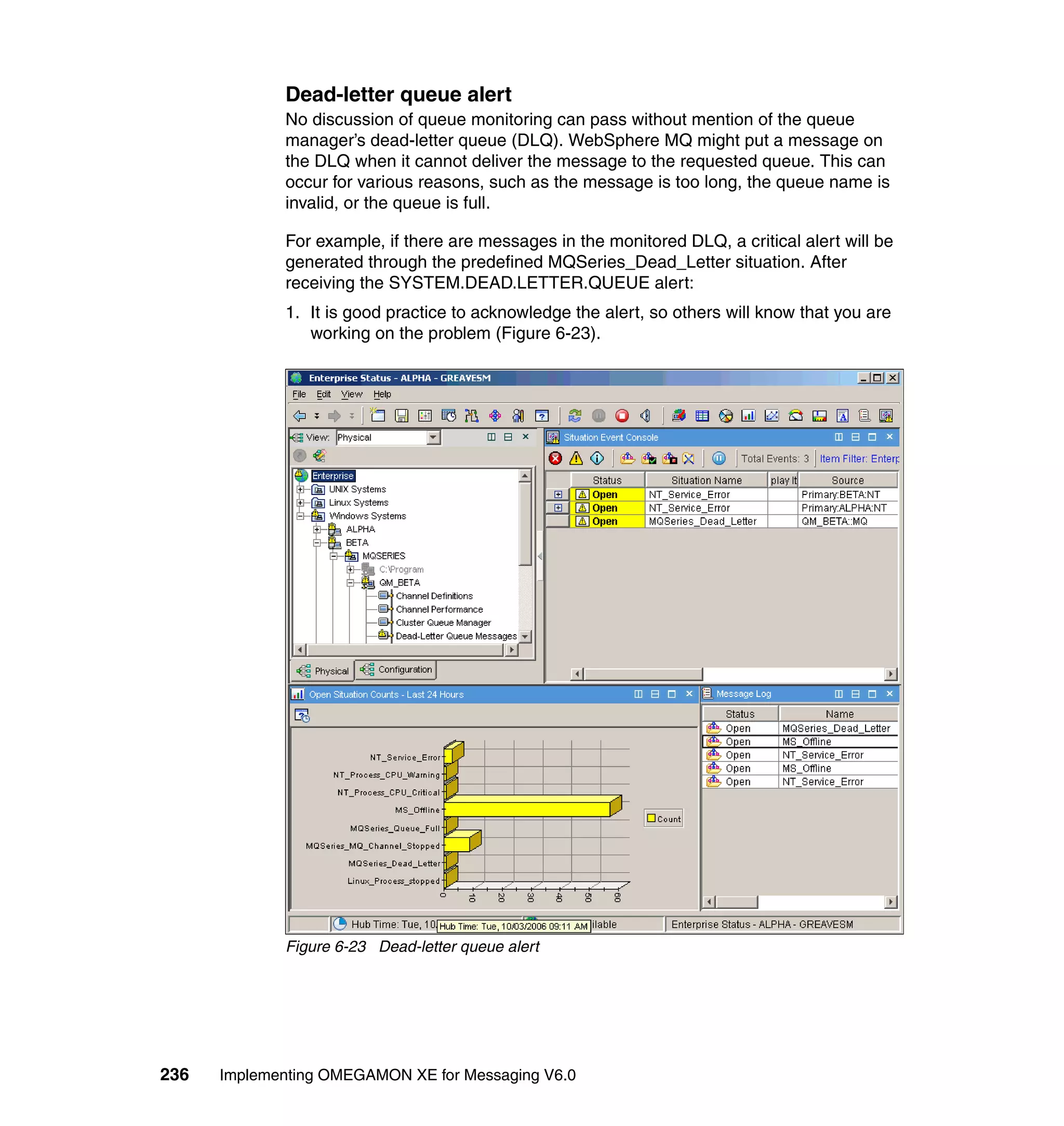
                 required to successfully deploy the WebSphere Message Broker Monitoring
                 Agent and additionally provide the details about the product, such as data
                 collection, situations, Take Actions, events, and reporting.

                 This chapter provides information about the following topics:
                     IBM Tivoli WebSphere Message Broker Monitoring Agent
                     Planning for the installation of the WebSphere Message Broker Monitoring
                     Agent
                     Installing the WebSphere Message Broker Monitoring Agent
                     Configuring the WebSphere Message Broker Monitoring Agent on Microsoft
                     Windows
                     Configuring the WebSphere Message Broker Monitoring Agent on
                     UNIX/Linux
                     Agent configuration file
                     Using situations


© Copyright IBM Corp. 2007. All rights reserved.                                               253
Using Take Action commands
                Automating responses
                Workspaces
                Monitoring scenarios
                Other considerations


7.1 IBM Tivoli WebSphere Message Broker Monitoring
Agent
             IBM WebSphere Message Broker Monitoring is a monitoring and management
             tool that provides you with the means to verify, analyze, and tune Message
             Broker topologies associated with:
                WebSphere MQ Integrator V2.1
                WebSphere MQ Integrator Broker V2.1
                WebSphere MQ Event Broker V2.1
                IBM WebSphere Business Integration Event Broker V5
                IBM WebSphere Business Integration Message Broker V5
                IBM WebSphere Business Integration Message Broker with Rules and
                Formatter Extension V5
                IBM WebSphere Event Broker V6
                IBM WebSphere Message Broker V6
                IBM WebSphere Message Broker with Rules and Formatter Extension V6


7.1.1 WebSphere Message Broker Monitoring overview
             WebSphere Message Broker Monitoring helps ensure the reliability and
             performance of your broker environment by detecting and correcting broker and
             message flow problems before they have an impact on availability and service
             levels. WebSphere Message Broker Monitoring also reduces the amount of time
             involved in the deployment of broker applications by helping you debug message
             flows and providing statistics you can use to tune your environment.

             Using WebSphere Message Broker Monitoring, you can:
                Monitor the status of your IBM broker product and its components
                View information and performance statistics for broker topologies at broker,
                execution group, message flow, node, terminal, and thread level in tabular and
                chart views


254   Implementing OMEGAMON XE for Messaging V6.0
Issue IBM broker product commands from the WebSphere Message Broker
              Monitoring interface to directly manage your environment, or use the
              commands to create automatic responses to events
              Receive alerts when performance thresholds are exceeded or when message
              flow events occur
              Retain data samples in history files and roll them off to a historical database
              for reporting and analysis


7.1.2 How WebSphere Message Broker Monitoring works
           WebSphere Message Broker Monitoring Agents collect data from WebSphere
           Message Brokers. The data is presented in charts and tables that you can
           examine to monitor the performance of your WebSphere Business Integration
           systems. The agents also evaluate the data to detect when specified values meet
           criteria you have defined and trigger alerts or programmed actions in response.

           In addition, WebSphere Message Broker Monitoring provides a CandleMonitor
           node. Inserted into message flows, the CandleMonitor node collects statistics on
           message flow and subflow performance. It also provides a mechanism for
           generating user-defined events within a message flow (Figure 7-1).


           Figure 7-1 CandleMonitor node


7.1.3 New features
           This section provides an overview some of the key and new features related to
           monitoring the Message Broker.


                                      Chapter 7. Monitoring WebSphere Message Broker      255
Remote agent deployment and configuration
             This new version supports two newly added features of IBM Tivoli Monitoring
             V6.1: remote agent deployment and remote configuration. Now on distributed
             platforms such as Microsoft Windows and UNIX/Linux, you can remotely deploy
             and maintain the WebSphere Message Broker Monitoring Agent on the
             monitored systems through Tivoli Enterprise Portal. You can also use the remote
             agent configuration feature to configure the parameter file through the Tivoli
             Enterprise Portal GUI, instead of editing it directly.

             Revised CandleAgent command
             To support IBM Tivoli Monitoring V6.1 agent deployment feature, the
             CandleAgent command for splitting the brokers among several agents on
             UNIX/Linux has been renamed to itmcmd agent. The -o and -p options are also
             swapped for their specifications:
                The -o option specifies the monitoring agent ID (maximum of four characters).
                The -p option specifies the broker name. This parameter is optional.

             Fro example:
             itmcmd agent -o AGT1 -p WBIBRK1 start qi

             WebSphere Message Broker V6 support
             This version supports WebSphere Message Broker V6. It also supports the
             coexistence of WebSphere Message Broker V6 with WebSphere Message
             Queueing Integrator V2.1, or WebSphere Message Broker V6 with WebSphere
             Business Integrator Message Broker V5.0/5.1 on the same workstation.

             Native language support
             Native language support has been added to this new version. You can now work
             with user interface windows, workspaces, message broker data, parameter files,
             or Take Action commands in your native language if it is in the following language
             list: Chinese (simplified), Chinese (traditional), English, French, German, Italian,
             Japanese, Korean, Portuguese (Brazilian), Spanish.

             New parameters added to the parameter file
             Three new parameters have been added in the parameter file. They are:
                alias
                This parameter provides an alternative to an existing broker name for use in
                the managed system name for the broker.


256   Implementing OMEGAMON XE for Messaging V6.0
defaultRetainRecentPubSubSamples
   This parameter gives the default value used by the agent for the number of
   recent records to keep for any of the publish/subscribe statistics data.
   retainRecentPubSubSamples
   This parameter gives the value used by the agent for a given broker for the
   number of recent records to keep for any of the publish/subscribe statistics
   data.

See 7.6, “Agent configuration file” on page 287 for a detailed description of the
these new parameters.

New statistics available
This version provides new statistics from the monitored Message Broker about
publish/subscribe activity in the broker. The following new workspaces are now
available:
   Publish-Subscribe Statistics
   Multicast Summary Statistics
   Multicast Group Statistics
   Multicast Topic Statistics
   Recent Publish-Subscribe Statistics
   Recent Multicast Summary Statistics
   Recent Multicast Group Statistics
   Recent Multicast Topic Statistics
   Historical Publish-Subscribe Statistics
   Historical Multicast Summary Statistics
   Historical Multicast Group Statistics
   Historical Multicast Topic Statistics

The new Take Action command QI Change Properties allows you to enable
statistics for the previous workspaces. See the WebSphere Message Broker
Monitoring section of the Tivoli Enterprise Portal online help for detailed
information about the new workspaces and the Take Action command.

The command examples are what the Take Action mqsichangeflowstats
command uses and passes when the take action is issued:
mqsichangeflowstats broker_name -s -g -j -c active -t basic -n advanced
-o xml
mqsichangeflowstats broker_name -a -g -j -c active -t basic -n advanced
-o xml

The broker_name gives the name of the broker that is being targeted. The
parameters give the rest of the desired parameters (minus the broker name) that
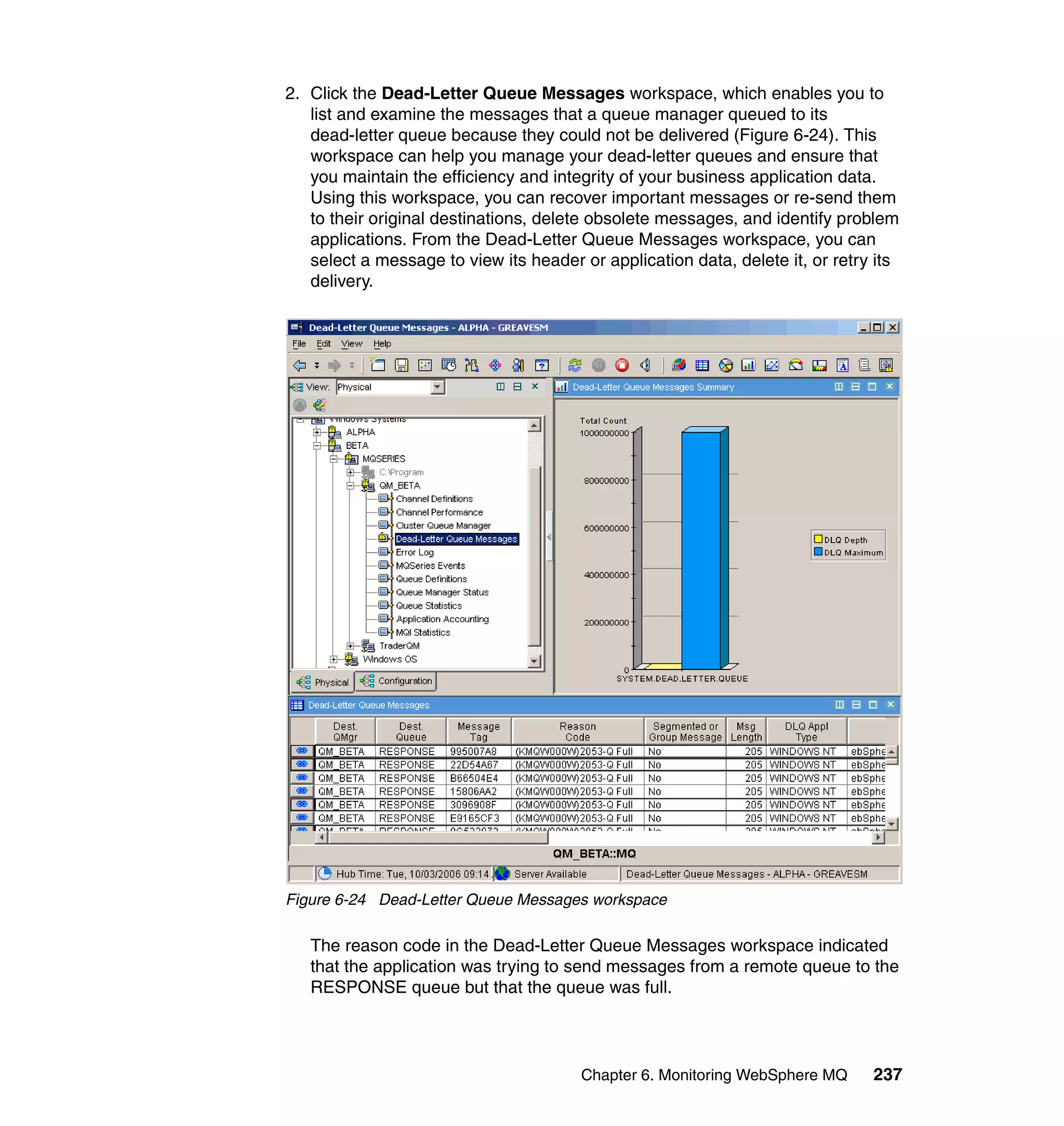
are required or optional for the mqsichangeflowstats (changeflowstats on z/OS)


                           Chapter 7. Monitoring WebSphere Message Broker      257
command as documented by IBM. Note that Tivoli Enterprise Portal does not
             parse or verify the parameters. If you want data in the accounting workspaces,
             you must specify “xml” as the output (-o xml).

             MQI Distributed Monitoring migration support
             With the installation of IBM Tivoli Monitoring V6.1.0 upgrade toolkit in Tivoli
             Management Environment®, you can now copy the newly implemented MQI
             Distributed Monitoring mapping file kqi_upgrade_map.xml from the product
             installation location $install_dir/tmaitm6 to the Tivoli Management Environment
             location $BINDIR/TME/ITMUpgrade/ITMUpgradeManager, and then follow the
             steps provided in the IBM Tivoli Monitoring V6.1.0 upgrade toolkit for migration of
             Distributed Monitoring monitors to the related Tivoli Monitoring V6.1.0 situations.

             Table 7-1 shows the Distributed Monitoring monitors supported for upgrade to
             IBM Tivoli Monitoring V6.1 situations.

             Table 7-1 Distributed Monitoring monitors for upgrade to Tivoli Monitoring V6.1 situations
               Monitor (the Distributed     Attribute Group (IBM Tivoli   Attributes (IBM Tivoli
               Monitoring CLI name of a     Monitoring V6.1.0 attribute   Monitoring V6.1.0
               supported monitor)           group that contains the       attributes, in a
                                            attributes derived from the   comma-separated list,
                                            monitor)                      which make up the
                                                                          situation condition. The
                                                                          first attribute listed
                                                                          corresponds to the monitor
                                                                          source. Subsequent
                                                                          attributes, if any,
                                                                          correspond to monitor
                                                                          arguments.) Attributes in
                                                                          italic style are not in
                                                                          arguments but are added
                                                                          into situation definitions for
                                                                          clearance.

               Brokerup                     Components                    Status

               Msgflowup                    Message Flow Information      Status,
                                                                          Execution_Group_U,
                                                                          Message_Flow_U

               Nummsgflowdn                 Broker Information            Stopped_Message_Flows


258   Implementing OMEGAMON XE for Messaging V6.0
Table 7-2 shows the Distributed Monitoring collections not supported for upgrade
         to IBM Tivoli Monitoring V6.1 situations.

         Table 7-2 Distributed Monitoring collections not supported for upgrade V6.1 situations
          Distributed Monitoring collection            Unsupported monitors

          MQSI                                         perfmon

          MQSI                                         timedelta


         IBM Tivoli License Manager support
         IBM Tivoli License Manager is a real-time control on software assets. It can
         detect where software products are installed and where they are running. This
         version supports Tivoli License Manager to inter-cooperate with WebSphere
         Message Broker Monitoring.


7.2 Planning for the installation of the WebSphere
Message Broker Monitoring Agent
         This section contains questions that must be answered before you install IBM
         Tivoli OMEGAMON XE for Messaging. It also introduces some product features
         that are new to WebSphere Message Broker Monitoring to consider prior to
         installation.

         General guidelines
         Note the following general planning questions:
            Has IBM Tivoli Monitoring Services Version 6.1.0 been installed with support
            for IBM Tivoli OMEGAMON XE for Messaging?
            Before you can begin any of the procedures that follow, these IBM Tivoli
            Monitoring Services Version 6.1.0 components must be installed:
            – Agent support:
                 •   Tivoli Enterprise Monitoring Agent Framework
                 •   Warehouse Proxy (if you intend to use historical reporting or save
                     historical data to a database for reference)
            – Tivoli Enterprise Monitoring Server framework
            – Tivoli Enterprise Portal Server framework
            – Tivoli Enterprise Portal desktop client


                                      Chapter 7. Monitoring WebSphere Message Broker         259
For instructions, see online IBM Tivoli Monitoring installation and
                configuration books available at:
                http://www.ibm.com/software/tivoli/library/
                Where are the systems or applications running?
                In general, you must install and configure an IBM Tivoli OMEGAMON XE for
                Messaging agent on every machine where the system or application you want
                to monitor is running. This allows you to define the association between each
                instance of the monitoring agent and the IBM Tivoli Monitoring components,
                as well as between instances of the monitoring agent.
                In some cases, an agent can query a remote system or application; and in the
                case of WebSphere InterChange Server Monitoring, you install only one
                monitoring agent, which collects data from IBM SNMP agents and its own
                data sources on the host of each monitored WebSphere InterChange Server
                instance.
                What communications protocols are available?
                Use TCP/IP, IP.PIPE, or SNA for communication between the monitoring
                agent and the IBM Tivoli Monitoring components.
                On what operating systems will you install each IBM Tivoli OMEGAMON XE
                for Messaging product?
                You need to determine from the relevant chapters in this book which operating
                systems are supported by each IBM Tivoli OMEGAMON XE for Messaging
                product in this package.
                If you are planning to install any IBM Tivoli OMEGAMON XE for Messaging
                Monitoring Agents on systems other than Windows or Linux/UNIX platforms,
                see “Related publications” on page 377 for the titles and form numbers of the
                installation and configuration books to consult.
                Are you installing in a firewall environment?
                If so, make sure that you read the special instructions about this subject in
                IBM Tivoli Monitoring Installation and Setup Guide, GC30-2683.
                Is the Tivoli Enterprise Monitoring Server to which the monitoring agents
                report on a different machine from the agents?
                Before you can use a monitoring agent, the Tivoli Enterprise Monitoring
                Server to which it reports must be added with application support, that is,
                initialized with application data. Application support adds product-provided
                situations, templates, and other sample data to the Monitoring Server
                Enterprise Information Base (EIB) tables.
                If the Monitoring Server is installed on a different machine from the monitoring
                agents that report to it, you might find it most convenient to install the agents'
                add application support data on the Monitoring Server machine before you


260   Implementing OMEGAMON XE for Messaging V6.0
begin installing the agents. The application support data are found on the IBM
              Tivoli OMEGAMON XE for Messaging CD.

           You might also find it most convenient to set up the configuration database on the
           Monitoring Server machine before installing the agents.


7.3 Installing the WebSphere Message Broker
Monitoring Agent
           In this section, we describe the installation process for Microsoft Windows and
           UNIX agents.

           After you set up the environment, the next step is to run the install program.
           Which version of this program you use depends on the operating system where it
           is being installed (Windows or UNIX).


7.3.1 Installing on Windows

            Note: Much of the content of this section is from the product installation guide.
            However, we reproduced it here with additional information that helps clarify
            some of the steps.

           There are two installation options for installing the product on Windows:
              Installing the product with the InstallShield Wizard
              Installing the product with the silent installation

           Installing the product with the InstallShield Wizard
           Perform the following steps to install and initialize the IBM Tivoli OMEGAMON
           XE for Messaging product with the InstallShield Wizard:
           1. Log on to Windows under a user ID with Administrator authority.
           2. Close any running applications.
           3. Insert the IBM Tivoli OMEGAMON XE for Messaging CD-ROM into your
              CD-ROM drive.
              The installation begins automatically. If InstallShield Wizard does not start, go
              to CD directory WINDOWS and run setupwin32.exe. If setupwin32.exe
              initialization fails, you do not have enough disk space to decompress the
              setup files.


                                       Chapter 7. Monitoring WebSphere Message Broker      261
Note: If you are running Windows 2003 or Windows XP and have security
                  set to check the software publisher of applications, you might receive an
                  error stating that the setupwin32.exe file is from an unknown publisher.
                  Click Run to disregard this error message.

             4. Read the text that welcomes you to the installation, and click Next to continue.
             5. Read the software license agreement and click Accept.
             6. If a Prerequisites window opens, read it and click Next.
             7. If a Choose Destination Location window opens, select the target drive and
                directory for the IBM Tivoli OMEGAMON XE for Messaging software. The
                default is C:IBMITM. Click Next to continue.
             8. Select the installation type that suits your needs and click Next to continue.
             9. If you selected Custom, on the Select Features window, click the + sign next
                to each main feature to expand the tree. Select the features that you want to
                install on this Windows machine.
                 – Agents and adapters
                    •    To install all the IBM Tivoli OMEGAMON XE for Messaging agents on
                         this machine, select the Agents and Adapters check box.
                    •    To install particular agents on this machine, select only the boxes for
                         those agents.
                 – Tivoli Enterprise Monitoring Server Application Support
                    If Tivoli Enterprise Monitoring Server is installed on the machine, select
                    this feature to install Tivoli Enterprise Monitoring Server support for IBM
                    Tivoli OMEGAMON XE for Messaging.

                        Note: Tivoli Enterprise Monitoring Server application support must be
                        installed locally from the IBM Tivoli OMEGAMON XE for Messaging CD
                        onto the Monitoring Server to which the agents report before you can
                        add application support data to the Monitoring Server for those agents.

                 – Tivoli Enterprise Portal Server Application Support
                    If Tivoli Enterprise Portal Server is installed on the machine, select this
                    feature to install Tivoli Enterprise Portal Server support for IBM Tivoli
                    OMEGAMON XE for Messaging.


262   Implementing OMEGAMON XE for Messaging V6.0
– Tivoli Enterprise Portal Desktop Client Application Support
      If Tivoli Enterprise Portal desktop client is installed on the machine, select
      this feature to install Tivoli Enterprise Portal client support for IBM Tivoli
      OMEGAMON XE for Messaging.
10.On the Remote Deployment window, select the agents you want to configure
   for remote deployment and then click Next.
11.Review your settings on the Summary Information window and click Back if
   you want to go back and change them. When you are ready to start copying
   files with the settings shown, click Install.
12.InstallShield Wizard copies the files needed to complete the installation, and
   then displays the initial configuration window.
13.The initial configuration window enables you to select initial configuration
   tasks. The specific tasks available depend on the IBM Tivoli Monitoring
   components installed on the machine.
   – Configure IBM Tivoli Enterprise Monitoring Server.
      If Tivoli Enterprise Monitoring Server is installed on the machine, select
      this feature.
   – Configure Tivoli Enterprise Portal Server.
      If Tivoli Enterprise Portal is installed on the machine, this task is required
      and cannot be cleared.
   – Add a local/remote Tivoli Enterprise Monitoring Server with application
     data.
      Before using the monitoring agents you have installed, the Monitoring
      Server must be added with application support, that is, initialized with
      application data.
      If the Monitoring Server to which the agents report is on the same
      machine as the agents and if you have installed Monitoring Server
      application support from the IBM Tivoli OMEGAMON XE for Messaging
      CD, select this task now and add the Monitoring Server with data from all
      agents installed on the machine. Otherwise, after the InstallShield Wizard
      completes, add application support to the Monitoring Server from the
      machine that hosts the Monitoring Server.
   – Configure agents' default connection to Tivoli Enterprise Monitoring
     Server.
      The agents' default connection to the Monitoring Server might already
      have been set during IBM Tivoli Monitoring installation. Otherwise, either
      select this task now, or wait and configure the agents-to-Monitoring Server
      connection from Manage Tivoli Monitoring Services after the InstallShield
      Wizard completes.


                            Chapter 7. Monitoring WebSphere Message Broker        263
For instructions, see IBM Tivoli Monitoring Installation and Setup Guide,
                       GC30-2683.
                 – Launch Manage Tivoli Monitoring Services for additional configuration
                   options.
                       Select this task to configure the individual products now, or wait and
                       configure the products individually after completion of InstallShield Wizard.
                       For instructions, see 7.4, “Configuring the WebSphere Message Broker
                       Monitoring Agent on Microsoft Windows” on page 273.
             14.Leave selected (checked) the items that you want to configure before the
                installation completes. Clear (uncheck) the items that you want to delay
                configuration until after the installation completes. Then click Next to
                continue.
             15.On the Tivoli Enterprise Monitoring Server Configuration window, enter the
                Monitoring Server name, type, and protocol information. Complete the
                following fields for the communications protocol for the Monitoring Server
                (Table 7-3).

             Table 7-3 Communications protocol settings
               Field                      Description

               IP.UDP Settings

               Hostname or IP             The host name or IP address for the hub Monitoring Server.
               Address

               Port number and/or Port    The listening port for the hub Monitoring Server.
               Pools

               IP.PIPE Settings

               Hostname or IP             The host name or IP address for the hub Monitoring Server.
               Address

               Port Number                The listening port for the Monitoring Server. The default
                                          number is 1918.

               IP.SPIPE Settings

               Hostname or IP             The host name or IP address for the hub Monitoring Server.
               Address

               Port number                The listening port for the hub Monitoring Server. The default
                                          value is 3660.

               SNA Settings

               Network Name               The SNA network identifier for your location.


264   Implementing OMEGAMON XE for Messaging V6.0
Field                    Description

 LU Name                  The LU name for the Monitoring Server. This LU name
                          corresponds to the Local LU Alias in your SNA
                          communications software.

 LU 6.2 LOGMODE           The name of the LU6.2 LOGMODE. The default value is
                          CANCTDCS.

 TP Name                  The transaction program name for the Monitoring Server.

 Local LU Alias           The LU alias.

16.On the Tivoli Enterprise Portal Server Configuration window, specify the
   default values for any IBM Tivoli Monitoring Agent to use when they
   communicate with the Tivoli Enterprise Portal Server:
   – If the agent must cross a firewall to access the Tivoli Enterprise Portal
     server, select Connection must pass through firewall.
   – Identify the type of protocol that the agent uses to communicate with the
     Tivoli Enterprise Portal server. You have four choices: IP.UDP, IP.PIPE,
     IP.SPIPE, or SNA. Specify three methods for communication. This enables
     you to set up backup communication methods. If the method you have
     identified as Protocol 1 fails, Protocol 2 is used.
   – Complete the fields (Table 7-3 on page 264) to define the communications
     between agents and the Tivoli Enterprise Portal server.
17.On the Configuration Defaults for Connecting to a TEMS window:
   – If the agent must cross a firewall to access the Monitoring Server, select
     Connection must pass through firewall.
   – Identify the type of protocol that the agent uses to communicate with the
     Monitoring Server.
   – Complete the fields (Table 7-3 on page 264) to define the communications
     between the agents and the Monitoring Server.
18.If a Tivoli Enterprise Portal desktop client is installed on this machine, the
   Define TEP Host Information window opens. Confirm the host name of the
   machine where Tivoli Enterprise Portal Server has been installed, and click
   Next to continue.
19.If you installed WebSphere MQ Configuration on the same machine as a
   Monitoring Server, the WebSphere MQ Configuration Data Source
   Parameters window opens. For instructions on completing this window, see
   5.1, “Setting up the configuration database” on page 161.


                           Chapter 7. Monitoring WebSphere Message Broker        265
20.On the InstallShield Wizard Complete window, select Display the README
                file if you want to read this file immediately. Click Finish to complete the
                installation.

               Note: Do not attempt to start any of the monitoring agents at this point. Before
               you start a monitoring agent, you must complete the configuration tasks.


             Installing the product with the silent installation
             The silent installation is useful for advanced users who prefer to input installation
             information once through a response file instead of repeatedly through an
             installation program. You might run through the InstallShield Wizard program one
             time to determine the values that you need to set for your monitoring needs and
             then use silent installation to install the rest of your environment.

             Creating a response file
             A sample silent installation response file is provided on the product CD. Use the
             following steps to edit that response file as appropriate for your environment:
             1. Locate the silent_install.txt file on the product installation CD. Copy this file to
                a temporary directory on your system.
             2. Edit the silent_install.txt file:
                a. Open your copy of the silent_install.txt file in a text editor.
                b. Before editing the response file, note the following syntax rules:
                    •   Comment lines begin with a pound sign (#).
                    •   Blank lines are ignored.
                    •   Parameter lines are PARAMETER=value. Do not use a space before
                        the parameter; you can use a space before or after an equal sign (=).
                    •   Do not use any of the following characters in any parameter value:
                        Dollar sign ($)
                        Equal sign (=)
                        Pipe sign (|)


266   Implementing OMEGAMON XE for Messaging V6.0
c. Set the following parameters as appropriate for your environment
      (Table 7-4).

Table 7-4 Installation parameters
 Parameter                          Definition

 INSTALL_LOCATION                   Specify the location where you intend to install the
                                    product. The default location for installation is
                                    C:IBMITM.

 INSTALL_FOR_PLATFORM               The operating system for which to install the product.
                                    You can specify an architecture code. If you do not
                                    specify an architecture code, the operating system for
                                    the current computer is used.

 TEMS_NAME=                         If you are installing a Tivoli Enterprise Monitoring
                                    Server, provide a name for the server. This serves as
                                    a label to identify the server. It must not be an IP
                                    address or host name.

   d. Uncomment the product components and product supports you intend to
      install on this machine.
   e. Uncomment the product components that you intend for remote
      deployment.

        Note: If you want to use the TCP/IP protocol, make sure to specify
        IP.UDP. If you specify TCP/IP, IP.PIPE is used by default.

        Do not modify any other files that come with the installation.

   f. Save the file and close the editor.

Running the silent installation from the command line
Use the following steps to run the installation from the command line:
1. Start an MS-DOS® command shell.
2. From the shell, change to the directory containing this installation (where
   setupwin32.exe and setupwin32.ins reside).
3. Run setup as follows. You must specify the parameters in the same order as
   listed here.
   setupwin32 -silent -V RESPONSEFILE_PATH=<response_file>
   Where:
   – -silent: Specifies that this is a silent installation. This causes nothing to be
     displayed during the installation.


                             Chapter 7. Monitoring WebSphere Message Broker                267
– - V RESPONSEFILE_PATH=: Specifies the name and the path of the
                   response file. This is a required parameter. This file must exist.

               Note: If the installation fails for any reason, a log file, <date><time>.log, is
               created to document the problem. If the installation fails before reading in the
               installation location, the log file is written to Windows boot drive, normally the
               C: drive. If the installation fails after reading the installation location, the log
               file is written to an install subdirectory in the installation directory. For
               example, if you use the default installation directory, the log file is written to
               C:IBMITMinstall.


7.3.2 Installing on UNIX/Linux
             The UNIX/Linux installation can be completed using the GUI or command line
             options. In this section, we use the command line options.

             Preinstallation tasks
             Perform these tasks before beginning the installation of any products in the IBM
             Tivoli OMEGAMON XE for Messaging package:
             1. (SNA only) Record the communication settings for Tivoli Enterprise
                Monitoring Server (Table 7-5 on page 269).
                 If you will be using SNA communications between the IBM Tivoli Monitoring
                 and IBM Tivoli OMEGAMON XE for Messaging products, you need to specify
                 during installation of IBM Tivoli OMEGAMON XE for Messaging the names
                 used for the following SNA configuration parameters for your Tivoli Enterprise
                 Monitoring Server:
                 – Net Name: Network identified as your VTAM® network.
                 – LU Name: APPLID for each Monitoring Server installed; APPLIDs are
                   unique for each logical unit (LU).
                 – LOG Mode: LU6.2 Logmode table name; IBM Tivoli default is
                   CANCTDCS.
                 These parameters are required during the configuration of components on
                 UNIX. Contact the system administrator or VTAM system programmer for this
                 information.


268   Implementing OMEGAMON XE for Messaging V6.0
Table 7-5 SNA communication settings for Tivoli Enterprise Monitoring Servers
 Parameter         Hub              Remote           Remote           Remote
                   Monitoring       Monitoring       Monitoring       Monitoring
                   Server           Server 2         Server 3         Server 4

 Net Name

 LU Name

 LOG Mode

2. Create an IBM Tivoli account for installing and maintaining the $install_dir
   directory:
   a. (GUI installation only) Before starting the GUI installation, set up your
      DISPLAY environment variable.
      For KSH, use the following command:
      export DISPLAY=[Network_Interface_Name]:0.0
      Where Network_Interface_Name is the name of the interface card or IP
      address.
   b. Create an IBM Tivoli account for installing and maintaining the $install_dir
      directory. For best performance, follow these guidelines:
       •   Use any valid name. The name Tivoli is recommended.
       •   Do not start the installation with the root ID, because it causes
           problems with running the product after the installation. However,
           certain IBM Tivoli products might require root authority to properly
           configure them. In those cases, the installation or configuration
           command might prompt for a root user ID and password.
       •   If you are using NFS or a local file system, establish your $install_dir
           directory according to the guidelines used in your environment.
       •   The Korn shell is recommended; however, use any shell that is shipped
           with the UNIX operating system. IBM Tivoli products do not support
           third-party vendor shells such as Bash and tcsh.
3. If you are planning to install the product on an AIX 5L machine, you need to
   issue the following command to check if the default language setting of the
   system is English:
   locale
   If LANG is not set to C, issue the following command:
   export LANG=C


                             Chapter 7. Monitoring WebSphere Message Broker        269
4. (If necessary) Use FTP to transfer files to your UNIX system.
                If your UNIX system does not have a CD-ROM drive from which it can directly
                access the files from the installation CD, or if your UNIX system cannot
                access the NFS to which the installation CD's contents were copied, you must
                transfer files from a machine with a CD-ROM drive to your UNIX system.
                a. Log on to the machine on which you have loaded the IBM Tivoli
                   OMEGAMON XE for Messaging installation CD.
                b. Go to the root directory of the CD-ROM drive:
                   E:
                   cd
                   Or:
                   mount device mount_point
                   cd mount_point
                   Where device is the device driver for the CD-ROM and mount_point is the
                   directory where the device will be mounted.
                   The installation CD conforms to ISO 9660 standards. The mount
                   command might require additional options based on the operating system
                   you are running. IBM Tivoli does not document basic operating systems
                   commands that are the responsibility of your system administrator to
                   oversee. Consult the man pages or your operating system documentation
                   if necessary.
                c. FTP from that window to your UNIX machine:
                   ftp [unix_machine_name]
                d. Enter your user ID and password. FTP places you in your home directory
                   on the receiving machine.
                e. Create a receiving directory in your home directory:
                   mkdir itmimage
                f. Change to the receiving directory:
                   cd itmimage
                g. Print the full path name of the current directory:
                   pwd
                h. Note the location displayed; you need this information when logging onto
                   the UNIX machine.
                i. Make a unix directory under the current directory:
                   mkdir unix


270   Implementing OMEGAMON XE for Messaging V6.0
Enter the following commands to copy the files, and retain the lowercase
         requirement:
         ascii
         put install.sh install.sh
         put license.txt license.txt
         cd unix
         lcd unix
         put readme.txt readme.txt
         binary
         put cienv.tar cienv.tar
         put cienv1.tar cienv1.tar
         prompt
         mput ??architecture*
         ls
         Where architecture is one of these:
         aix (AIX)
         hp (HP-UX)
         sol (Solaris)
         li6 (Linux for Intel)
         ls3 (Linux for zSeries)

          Tip: The text string ??architecture* used in the mput command
          matches all two-character product codes and all versions of the
          specified operating system.

   j. Verify that the list of files displayed matches the list in Table 7-6. Files must
      be in lowercase following the transfer.

Table 7-6 FTP file types and names to copy
 File type           Location/name

 ascii               /cdrom_drive/install.sh

 ascii               /cdrom_drive/unix/license.txt

 bin                 /cdrom_drive/unix/cienv.tar

 bin                 /cdrom_drive/unix/cienv1.tar

 bin                 /cdrom_drive/unix/architecture
                     where architecture is one of the
                     abbreviations listed in the previous step

   k. Enter this command:
         quit


                             Chapter 7. Monitoring WebSphere Message Broker        271
l. Log on to the UNIX machine to which you copied the files.
                m. Change to the directory noted in step 4h on page 270.
                n. Enable the execution bit on the install.sh script by entering the following
                   command:
                   chmod +x install.sh
             5. Set the time zone.
                Set the time zone environment variable ($TZ) to collect historical data
                properly through the agent. This variable information is in the time zone file
                located in /usr/share/zoneinfo. Ask the system administrator if you are not
                familiar with setting environment variables.
             6. Complete any pre-migration tasks.
                If you are migrating one or more products from previously installed versions,
                see the product documentation for any prerequisite migration tasks.
             7. Check and ensure that all IBM Tivoli Monitoring components, including Tivoli
                Enterprise Portal, Tivoli Enterprise Portal Server, and Tivoli Enterprise
                Monitoring Server, have been installed and are working properly.
             8. (Optional) Add application support to Tivoli Enterprise Monitoring Server.
                Before you can use a monitoring agent, the Monitoring Server to which it
                reports must be added with application support, that is, initialized with
                application data. Application support adds product-provided situations,
                templates, and other sample data to the Monitoring Server Enterprise
                Information Base (EIB) tables.
                If the Monitoring Server is installed on a different machine from the monitoring
                agents that report to it, you might find it most convenient to install the agents'
                add application support data on the Monitoring Server machine before you
                begin installing the agents. The application support data are on the IBM Tivoli
                OMEGAMON XE for Messaging CD.

             Installing and initializing the product
             In this step, you run the setup<platform>.bin installation program through a shell
             script to install the WebSphere MQ Agents. The installation mechanism is the
             same for any UNIX or Linux platforms supported by the OMEGAMON XE for
             Messaging product.

             Perform these steps:
             1. Mount the OMEGAMON XE for Messaging product CD at the location you
                have chosen on the host. Enter the following:
                a. mount device mount_point
                b. cd mount_point


272   Implementing OMEGAMON XE for Messaging V6.0
Where the following are the variables:
           –   device: The device driver for the CD-ROM
           –   mount_point: The directory where the device will be mounted
        2. From the bin directory under the root directory of the CD-ROM, execute
           ./setup<platform>.bin by entering the following:
           ./setup<platform>.bin
           Where <platform> is the platform name on which you are installing the
           product. For example, if you are installing on a Linux machine, the executable
           is:
           ./setupLinux.bin
        3. Read the text that welcomes you to the installation, and click Next to continue.
        4. Read the software license agreement, and click Accept and then Next.
        5. Select the target drive and directory for the IBM Tivoli OMEGAMON XE for
           Messaging software. The default drive is /opt/IBM/ITM.
        6. Select the installation that suits your needs and click Next to continue. The
           custom installation enables you to isolate and install specific agents.
        7. If you selected Custom, click the + sign next to each main feature to expand
           the tree. Select the features that you want to install on the Linux machine.
           – Agents and Adaptors:
               •   To install all the IBM Tivoli OMEGAMON XE for Messaging agents on
                   this machine, select the Agents and Adapters check box.
               •   To install only the WebSphere Message Broker agent, select only the
                   check box for that agent.
        8. Read the summary and click Install.
        9. Your installation is complete. Click Finish.


7.4 Configuring the WebSphere Message Broker
Monitoring Agent on Microsoft Windows
        This section contains instructions for setting up WebSphere Message Broker
        Monitoring before you start the product.


                                    Chapter 7. Monitoring WebSphere Message Broker    273
7.4.1 Post-migration tasks
             WebSphere Message Broker Monitoring must be reconfigured to set new
             environment parameters after migration. If this is not done, the agent will not be
             able to find the file used for logging messages and will terminate abnormally.

             After installing WebSphere Message Broker Monitoring and before starting the
             agent, perform the following steps:
             1. From a Windows machine where the Tivoli Enterprise Portal client is installed,
                select Start → Programs → IBM Tivoli Monitoring → Manage Tivoli
                Monitoring Services.
             2. Right-click WebSphere Message Broker Monitoring and select
                Reconfigure.
                No values need be changed, but the agent must be reconfigured.
             3. To accept existing communications settings, click OK on the two configuration
                windows that open; or make any desired changes on these windows, and
                then click OK.
             4. If you want to change any settings in the configuration file kqi.xml, click Yes at
                the prompt, and then edit and save the file in UTF-8 coding. Otherwise, click
                No.
                For complete information about the parameters in the kqi.xml file, see IBM
                Tivoli OMEGAMON XE for Messaging: WebSphere Message Broker
                Monitoring User's Guide, which is on the IBM Tivoli OMEGAMON XE for
                Messaging publications CD.
             5. To complete the reconfiguration, click Yes at the prompt.


7.4.2 Authorizing the agent
             By default, the account of each monitoring agent is set to LocalSystem in
             Manage Tivoli Monitoring Services. Before you start WebSphere Message
             Broker Monitoring, its account must be changed as explained here. The agent's
             user ID can be the same one that is used for starting the broker, or create a new
             one.

             To start and stop the WebSphere Message Broker Monitoring and to receive
             broker data, the user ID used for running the monitoring agent must be a
             member of groups mqm, mqbrkrs, and Administrators.

             Perform these steps to authorize the agent's user ID:
             1. Log on to Windows as a system administrator.


274   Implementing OMEGAMON XE for Messaging V6.0
2. Create a user ID for the agent, if necessary. The agent's user ID must:
              – Have authority to subscribe to broker event publications.
              – Belong to groups mqm (this must be the primary group), mqbrkrs, and
                Administrators. The exact procedure for adding the user ID to a group
                depends on the version of Windows.
           3. In Manage Tivoli Monitoring Services, right-click the agent and select Change
              Startup.
           4. In the Log on as section, change from the system account to the user ID and
              password for the account you created previously.
              Depending on your site's ACL entries, you might be required to authorize the
              agent to receive broker event publications in the Control Center or Message
              Brokers Toolkit. You do not need to perform this step if your site uses the IBM
              defaults. However, if ACL entries in the Topics tab of the Control Center or
              Message Brokers Toolkit have been modified such that Subscribe access to
              topics beginning with $SYS/Broker has been restricted, this step is required.
              An ACL entry for topics beginning with $SYS/Broker must be added to set
              Subscribe access to Allow for the user ID of the agent. The principal for the
              ACL entry gives the user ID of the agent, or it can give a group to which the
              agent's user ID belongs, such as mqbrkrs. The ACL entry must be deployed
              to all brokers to be monitored by WebSphere Message Broker Monitoring.
              This change allows the agent to receive the broker event publications. If the
              agent is restricted from receiving these publications, much data in
              WebSphere Message Broker Monitoring reports will be missing or inaccurate.
              (Specifically, the Broker Events workspace will display no data.)

            Note: The simplest way to make sure that the agent's user ID is fully
            authorized for all product features is to use the broker's service user ID (the
            one that is used to start the broker) for starting the agent.


7.4.3 Configuring the agent
           If you just reconfigured the agent as a post-migration task, you do not need to
           reconfigure it for a second time. Otherwise, you must configure the agent now.
           Perform the following steps:
           1. From Manage Tivoli Monitoring Services, right-click WebSphere Message
              Broker Monitoring and select Configure using defaults (or Reconfigure if
              the agent has already been configured).
           2. (Reconfiguration only) To accept existing communications settings, click OK
              on the two configuration windows that open; or make any desired changes on
              these windows, and then click OK.


                                      Chapter 7. Monitoring WebSphere Message Broker      275
3. You are prompted to edit the kqi.xml parameter file:
                 – If you want to accept the default parameters and monitor all brokers on
                   your system, you do not need to edit the kqi.xml file. Click No.
                 – If you want to change the parameters or monitor only certain brokers:
                    i. Click Yes.
                       The kqi.xml file opens in Notepad.
                    ii. Edit the parameters as desired, and then save the file in UTF-8 coding
                        and close the file.
                       For information about the parameters, see IBM Tivoli OMEGAMON XE
                       for Messaging: WebSphere Message Broker Monitoring User's Guide
                       on the IBM Tivoli OMEGAMON XE for Messaging publications CD.
                    iii. Click Yes to configure the agent.
                       You are returned to the Manage Tivoli Monitoring Services window.
                       This completes the initial configuration of the agent.


7.4.4 Customizing parameters
             Customize the parameters that determine the operational and monitoring
             characteristics of WebSphere Message Broker Monitoring by editing the
             kqi.xmlat file any time. For information and instructions, see IBM Tivoli
             OMEGAMON XE for Messaging: WebSphere Message Broker Monitoring User's
             Guide.


7.4.5 Installing the CandleMonitor node in broker environments
             The CandleMonitor node is an optional component that collects statistics on
             message-flow performance in a broker and provides a mechanism for generating
             user-defined events within a message flow.

             Before the CandleMonitor node can be used to monitor message flows, it must
             be installed into your broker environments, as described here for Windows
             environments. For broker environments on UNIX, see 7.5, “Configuring the
             WebSphere Message Broker Monitoring Agent on UNIX/Linux” on page 278. For
             broker environments on z/OS, see IBM Tivoli OMEGAMON XE for Messaging on
             z/OS: Configuration Guide on the IBM Tivoli OMEGAMON XE for Messaging
             publications CD.


276   Implementing OMEGAMON XE for Messaging V6.0
Note: With V5 brokers, IBM provides message flow accounting and statistics
            that partially overlap with the statistics provided by the CandleMonitor node
            and can be monitored in Tivoli Enterprise Portal without including the
            CandleMonitor node in message flows. However, the CandleMonitor node
            provides additional statistics, as well as the ability to monitor subflows and
            define message flow events. Message flows without a CandleMonitor node
            are not represented in Statistics workspaces. The CandleMonitor node does
            not function with WebSphere MQ Event Broker V2.1.

           After the CandleMonitor node is installed, it must be made available in the
           Control Center (V2.1) or Message Brokers Toolkit (V5 or V5.1). For instructions,
           see IBM Tivoli OMEGAMON XE for Messaging: WebSphere Message Broker
           Monitoring User's Guide on the IBM Tivoli OMEGAMON XE for Messaging
           publications CD.


7.4.6 Installing the CandleMonitor node
           To install the CandleMonitor node into a broker environment on Windows,
           perform the following steps:
           1. Verify that the kqipnode.lil file was copied into the appropriate directory during
              the installation of IBM Tivoli OMEGAMON XE for Messaging.
              The file must be in the IBM broker product's bin directory. This is an example
              of a typical bin location:
              C:Program FilesIBMWebSphere MQ Integrator 2.1bin
              If for any reason the file was not installed into the broker's bin directory, install
              it now by doing this:
              a. Shut down the broker.
              b. Copy kqipnode.lil from the directory <install_dir>TEMA to the broker's bin
                 directory.
           2. Verify that the kqipnode.lil file in the broker bin directory exactly matches (in
              size and in date and time last modified) the one that resides in the
              <install_dir>TEMA directory. A mismatch of the release-level of these files
              will cause a failure of the product's statistics and message flow events
              reporting.
           3. Restart the broker.
           4. Repeat steps 1-3 for each Windows system with a broker to be monitored.


                                        Chapter 7. Monitoring WebSphere Message Broker         277
7.4.7 Next steps for setting up the CandleMonitor node
             You have now installed the CandleMonitor node in your broker environments.
             Before it can be used to monitor message flows, it must also be made available in
             the Control Center (V2.1) or Message Brokers Toolkit (V5 or V5.1). For
             instructions, see IBM Tivoli OMEGAMON XE for Messaging: WebSphere
             Message Broker Monitoring User's Guide on the IBM Tivoli OMEGAMON XE for
             Messaging publications CD.


7.5 Configuring the WebSphere Message Broker
Monitoring Agent on UNIX/Linux
             In this section, we describe how to configure monitoring agents on UNIX and
             Linux before you start the product.

             To customize the agent configuration data for your site, see IBM Tivoli
             OMEGAMON XE for Messaging: WebSphere Message Broker Monitoring User's
             Guide on the IBM Tivoli OMEGAMON XE for Messaging publications CD.


7.5.1 Post-migration tasks
             Perform the following post-migration tasks:
                (Migration from V1.1.0 only) Empty the library directories.
                If you have upgraded WebSphere Message Broker Monitoring from V1.1.0 to
                V 1.3.0, make sure that the following directories are empty before you start
                the monitoring agent:
                 – AIX 5L: $install_dir/<architecture>/qi/lib, where architecture is the
                   architecture code of the operating system on which you installed the agent
                 – Solaris: $install_dir/sol273/qi/lib
                 – HP-UX: $install_dir/hp11/qi/lib
                (Solaris only) Respecify the Monitoring Server host name and port number.
                After an upgrade installation of WebSphere Message Broker Monitoring on
                Solaris, you might be required to respecify the Monitoring Server host name
                and port number for communications with the monitoring agent.


7.5.2 Installing GNU Compiler 2.95.3 (Linux zSeries only)
             WebSphere MQ for Linux zSeries is built using the GNU C and C++ compilers,
             Version 2.95.3. Therefore, IBM Tivoli OMEGAMON XE for Messaging uses and


278   Implementing OMEGAMON XE for Messaging V6.0
requires this level of compiler, which is available from SUSE support as a Service
            Pack, in order to run the monitoring agent. You need to install the required
            compiler, either by downloading it from the SUSE Web site or by obtaining the
            appropriate Service Pack CD from SUSE. We provide instructions for both
            methods here.

            To install the GNU Compiler 2.95.3 from the SUSE Web site:
            1. Go to the SUSE Linux portal:
               http://portal.suse.com
            2. Follow the directions in the portal to access the Maintenance Web to
               download and install the required files. The compiler will be installed into the
               directory /opt/gcc295/.
               Install the Service Pack that contains the required version of GCC (2.95.3) in
               the package gcc_old. The Service Pack applies to the products that are
               based on SUSE Linux Enterprise Server 8.
            3. To use the compiler, you must change the PATH variable as follows:
               export PATH=/opt/gcc295/bin/:$PATH

            To install the compiler from a Service Pack CD, perform the following steps:
            1. Mount (by NFS if possible) the Service Pack CD that you obtained from
               SUSE.
            2. Change to this directory on the CD:
               s390/update/SuSE-SLES/8/rpm/s390/
            3. Install the package:
               rpm -Uhv gcc_old-2.95.3-4.s390.rpm
            4. To use the compiler, you must change the PATH variable as follows:
               export PATH=/opt/gcc295/bin/:$PATH


7.5.3 Creating library links to start the agent (Linux Intel only)
            Before starting the WebSphere Message Broker Monitoring on Linux Intel, some
            links have to be created so that the library names are resolved correctly.

            If these links are not created, the agent will fail to start, and the following
            message is displayed in the agent's log:
            .../kqiagent : error while loading shared libraries: <library name>:
            cannot open shared object file: No such file or directory


                                         Chapter 7. Monitoring WebSphere Message Broker       279
Perform the following steps:
             1. The following links in /opt/mqm/lib must point to the 2.95.2 GNU-compiler-built
                version of libraries provided by IBM.
                If these are pointing to a 3.0.3 GNU version of libraries, you need to redefine
                the links as follows:
                ln -sf /opt/mqm/lib/2.95.2/libimqb23gl_r.so
                opt/mqm/lib/libimqb23gl_r.so
                ln -sf /opt/mqm/lib/2.95.2/libimqs23gl_r.so
                /opt/mqm/lib/libimqs23gl_r.so
                You need root authority to be able to define these links.
             2. Check whether the file named libstdc++-libc6.1-2.so.3 exists in /usr/lib. If not,
                define the following link:
                ln -s /usr/lib/libstdc++-3-libc6.2-2-2.10.0.so
                /usr/lib/libstdc++-libc6.1-2.so.3

                  Note: You might have to substitute for libstdc++-3-libc6.2-2-2.10.0.so
                  another (equivalent) library name available in your /usr/lib directory.


7.5.4 Creating a library link to DB2 (Linux Intel only)
             Before executing Take Action commands (such as QI StartBroker) on Linux
             Intel, a link to the DB2 library must be created. If this link is not created, the
             command will fail with this error:
             loading shared libraries: libdb2.so.1: cannot open shared object file:
             No such file or directory

             To create the link, take either of these actions:
                Define a DB2 library soft link in /var/mqsi/lib by issuing this command from a
                user ID with root authority:
                ln -sf /opt/IBM/db2/V8.1/lib/libdb2.so.1            /var/mqsi/lib/libdb2.so.1
                If your DB2 installation directory differs from that shown in the example,
                substitute the correct directory in the command.
                Edit the $install_dir/config/qi.ini file by adding the string :/opt/IBM/db2/V8.1/lib
                to the end of the current specifications for the $LD_LIBRARY_PATH
                parameter, and save the file.


280   Implementing OMEGAMON XE for Messaging V6.0
7.5.5 Setting the EXTSHM environment variable ON (WebSphere MQ
V6 on AIX 5L only)
           When WebSphere MQ Version 6 is running on AIX 5L, the EXTSHM environment
           variable must be set ON both for the user ID that starts the broker and its queue
           manager and for the user ID that starts the agent. We recommend that you use
           the same user ID for both; however, you can use separate user IDs that have the
           same profile definition.

           Do not start the monitoring agent or deploy the CandleMonitor node to the broker
           without taking this step for any user ID used for starting the agent, the broker, or
           its queue manager. Perform the following steps:
           1. Edit file <user ID home directory>.profile, using vi or your favorite editor.
           2. Add this statement:
              export EXTSHM=ON
           3. Save the file and exit the editor.
           4. Log off, and log on again, so that the user ID can pick up the new environment
              variable setting.
           5. Restart the broker and its queue manager.
           6. Restart the agent if it is already started.


7.5.6 Authorizing the agent
           Start the agent with either the same user ID as the broker or with a user ID that
           belongs to groups similar to those of the broker's user ID. Never start the agent
           with a user ID that has a higher authority than the broker's authority or that has
           root authority (unless the broker also runs with root authority).

           To authorize the agent to receive the correct broker data, perform the following
           the steps:
           1. Create a user ID account for the agent if you decided not to use the broker's
              user ID to start the agent. The agent's user ID account must belong to groups
              mqm (this must be the primary group) and mqbrkrs.
              – The user ID that is used to start the agent must be running with the profile
                supplied in the broker samples directory (in /opt/mqsi/sample/profiles or,
                on AIX 5L, in /usr/opt/mqsi/sample/profiles). This is the same profile that
                the service user ID for the broker must be running. Note that if you use the
                switch user command to change user IDs, you must make sure that the
                profile is invoked by using the su - <user ID> form of the command. If the
                agent's user ID is not running with the proper environment settings from
                the profile, several Take Action commands will fail.


                                        Chapter 7. Monitoring WebSphere Message Broker        281
– If you are starting the agent with a different user ID from the one you used
                   for the installation, or if you have performed a GUI installation, you will
                   need to make sure that permissions to the following directories allow
                   creating and writing files:
                    •   $install_dir/logs
                    •   $install_dir/config
                    •   $install_dir/$arch/qi/hist
                    Where $install_dir is the directory in which you installed WebSphere
                    Message Broker Monitoring and arch is the IBM Tivoli architecture code.
             2. Depending on your site's ACL entries, you might be required to authorize the
                agent to receive broker event publications in the Control Center or Message
                Brokers Toolkit. You do not need to perform this step if your site uses the IBM
                defaults. However, if ACL entries in the Topics tab of the Control Center or
                Message Brokers Toolkit have been modified such that Subscribe access to
                topics beginning with $SYS/Broker has been restricted, this step is required.
                An ACL entry for topics beginning with $SYS/Broker must be added to set
                Subscribe access to Allow for the user ID of the agent. The principal for the
                ACL entry gives the user ID of the agent, or it can give a group to which the
                agent's user ID belongs, such as mqbrkrs. The ACL entry must be deployed
                to all brokers to be monitored by WebSphere Message Broker Monitoring.
                This change allows the agent to receive the broker event publications. If the
                agent is restricted from receiving these publications, much data in
                WebSphere Message Broker Monitoring reports will be missing or inaccurate.
                (Specifically, the Broker Events workspace will display no data.)

               Note: The simplest way to make sure that the agent's user ID is fully
               authorized for all product features is to use the broker's service user ID (the
               one that is used to start the broker) for starting the agent.


7.5.7 Configuring the agent
             Configure the connection between the Monitoring Server and the WebSphere
             Message Broker Monitoring from the Manage Tivoli Monitoring Services window.


7.5.8 Removing broker entries
             To remove a broker entry from the Specify Brokers pop-up in the Manage Tivoli
             Monitoring Services window, go to $install_dir/config and delete the .xml
             parameter file for the entry. The file is named
             hostname_qi_brokername_##_agentID.xml, where:
                hostname is the local host name.


282   Implementing OMEGAMON XE for Messaging V6.0
brokername is the name of the broker entry you want to remove.
              agentID is the entry you want to remove.


7.5.9 Configuring the agent from the command line
           To configure the agent from a command line, use the itmcmd config script. The
           itmcmd config script is in $install_dir/bin. Execute itmcmd config as follows:
           cd /$install_dir/bin
           ./itmcmd config -A [-h $install_dir] [-a $arch] qi

           Where arch is the IBM Tivoli architecture code for the operating system on which
           you installed the agent.

           For more information about the itmcmd config script, see the IBM Tivoli
           Monitoring Installing and Setup Guide.


7.5.10 Starting or stopping multiple agents using itmcmd agent
           When using the itmcmd agent command from the command line, optionally
           specify the broker name. Use the -o option to give a broker name and the -p
           option to specify an agent ID (four or fewer characters) so that you can use
           multiple WebSphere Message Broker Monitoring Agents on the same system to
           monitor different brokers.

           For example:
           ./itmcmd agent    -o brokername -p agentID start | stop qi

           The [Hostname]_qi_[brokername]_##_[agentID].xml file is created automatically
           when using this option.

           To run a single monitoring agent on the system, using the default monitoring
           parameters in kqi.xml, run itmcmd agent as follows:
           ./itmcmd agent    start | stop qi


7.5.11 Customizing parameters
           The parameters that determine the operational and monitoring characteristics of
           WebSphere Message Broker Monitoring reside in an XML file created during
           product installation. If desired, customize these parameters. For information and
           instructions, see IBM Tivoli OMEGAMON XE for Messaging: WebSphere
           Message Broker Monitoring User's Guide.


                                      Chapter 7. Monitoring WebSphere Message Broker      283
7.5.12 Installing the CandleMonitor node in broker environments
             The CandleMonitor node is an optional component that collects statistics on
             message-flow performance in a broker and provides a mechanism for generating
             user-defined events within a message flow.

             Before the CandleMonitor node can be used to monitor message flows, it must
             be installed into your broker environments, as described here for UNIX
             environments. For broker environments on Windows, see 7.4.5, “Installing the
             CandleMonitor node in broker environments” on page 276. For broker
             environments on z/OS, see Configuring IBM Tivoli OMEGAMON XE for
             Messaging on z/OS on the IBM Tivoli OMEGAMON XE for Messaging
             publications CD.

               Note: With V5 brokers, IBM provides message flow accounting and statistics
               that partially overlap with the statistics provided by the CandleMonitor node
               and can be monitored in Tivoli Enterprise Portal without including the
               CandleMonitor node in message flows. However, the CandleMonitor node
               provides additional statistics, as well as the ability to monitor subflows and
               define message flow events. Message flows without a CandleMonitor node
               are not represented in Statistics workspaces. The CandleMonitor node does
               not function with WebSphere MQ Event Broker V2.1.

             After the CandleMonitor node is installed, it must be made available in the
             Control Center (V2.1) or Message Brokers Toolkit (V5 or V5.1). For instructions,
             see IBM Tivoli OMEGAMON XE for Messaging: WebSphere Message Broker
             Monitoring User's Guide on the IBM Tivoli OMEGAMON XE for Messaging
             publications CD.


7.5.13 Installing the CandleMonitor node
             Installing the CandleMonitor node into a broker environment on UNIX involves
             creating soft links to the CandleMonitor node files. Creating these links requires a
             user ID with “root” authority.

               Note: This step is required only if the soft links could not be defined during
               product installation. The soft links must be in place before deploying the
               CandleMonitor node.

             To install the CandleMonitor node into a broker environment on UNIX:
             1. From the UNIX command line, create the soft links by executing the
                appropriate ln commands. (The ln command resides in /usr/bin.) In these
                commands, <install_dir> is the full path to your $install_dir directory.


284   Implementing OMEGAMON XE for Messaging V6.0
Example 7-1 AIX 5L
ln -sf install_dir/aix433/qi/bin/kqipnode.lil
         /usr/opt/mqsi/lil/kqipnode.lil
ln -sf install_dir/aix433/qi/bin/kqipnode.cfg
         /usr/opt/mqsi/lil/kqipnode.cfg
ln -sf install_dir/aix433/qi/bin/CandleMonitorNode.cat
         /usr/opt/mqsi/messages/En_US/CandleMonitorNode.cat
ln -sf install_dir/aix433/qi/bin/CandleMonitorNode.cat
         /usr/opt/mqsi/messages/Zh_CN/CandleMonitorNode.cat
ln -sf install_dir/aix433/qi/bin/CandleMonitorNode.cat
         /usr/opt/mqsi/messages/Ja_JP/CandleMonitorNode.cat
ln -sf install_dir/aix433/qi/bin/CandleMonitorNode.cat
         /usr/lib/nls/msg/En_US/CandleMonitorNode.cat

Example 7-2 Solaris
ln -sf install_dir/sol273/qi/bin/kqipnode.lil
         /opt/mqsi/lil/kqipnode.lil
ln -sf install_dir/sol273/qi/bin/kqipnode.cfg
         /opt/mqsi/lil/kqipnode.cfg
ln -sf install_dir/sol273/qi/bin/CandleMonitorNode.cat
         /opt/mqsi/messages/En_US/CandleMonitorNode.cat
ln -sf install_dir/sol273/qi/bin/CandleMonitorNode.cat
         /opt/mqsi/messages/Zh_CN/CandleMonitorNode.cat
ln -sf install_dir/sol273/qi/bin/CandleMonitorNode.cat
         /opt/mqsi/messages/Ja_JP/CandleMonitorNode.cat
ln -sf install_dir/sol273/qi/bin/CandleMonitorNode.cat
         /usr/lib/locale/C/LC_MESSAGES/CandleMonitorNode.cat

Example 7-3 HP-11
ln -sf install_dir/hp11/qi/bin/kqipnode.lil
         /opt/mqsi/lil/kqipnode.lil
ln -sf install_dir/hp11/qi/bin/kqipnode.cfg
         /opt/mqsi/lil/kqipnode.cfg
ln -sf install_dir/hp11/qi/bin/CandleMonitorNode.cat
         /opt/mqsi/messages/En_US/CandleMonitorNode.cat
ln -sf install_dir/hp11/qi/bin/CandleMonitorNode.cat
         /opt/mqsi/messages/Zh_CN/CandleMonitorNode.cat
ln -sf install_dir/hp11/qi/bin/CandleMonitorNode.cat
         /opt/mqsi/messages/Ja_JP/CandleMonitorNode.cat
ln -sf install_dir/hp11/qi/bin/CandleMonitorNode.cat
         /usr/lib/nls/msg/C/CandleMonitorNode.cat


                       Chapter 7. Monitoring WebSphere Message Broker   285
Example 7-4 Linux Intel
             ln -sf <install_dir>/li6243/qi/bin/kqipnode.lil
                      /opt/mqsi/lil/kqipnode.lil
             ln -sf <install_dir>/li6243/qi/bin/kqipnode.cfg
                      /opt/mqsi/lil/kqipnode.cfg
             ln -sf <install_dir>/li6243/qi/bin/CandleMonitorNode.cat
                      /opt/mqsi/messages/En_US/CandleMonitorNode.cat
             ln -sf <install_dir>/li6243/qi/bin/CandleMonitorNode.cat
                      /opt/mqsi/messages/Zh_CN/CandleMonitorNode.cat
             ln -sf <install_dir>/li6243/qi/bin/CandleMonitorNode.cat
                      /opt/mqsi/messages/Ja_JP/CandleMonitorNode.cat
             ln -sf <install_dir>/li6243/qi/bin/CandleMonitorNode.cat
                      /usr/share/locale/C/LC_MESSAGES/CandleMonitorNode.cat

             Example 7-5 Linux zSeries
             ln -sf <install_dir>/ls3243/qi/bin/kqipnode.lil
                      /opt/mqsi/lil/kqipnode.lil
             ln -sf <install_dir>/ls3243/qi/bin/kqipnode.cfg
                      /opt/mqsi/lil/kqipnode.cfg
             ln -sf <install_dir>/ls3243/qi/bin/CandleMonitorNode.cat
                      /opt/mqsi/messages/En_US/CandleMonitorNode.cat
             ln -sf <install_dir>/ls3243/qi/bin/CandleMonitorNode.cat
                      /opt/mqsi/messages/Zh_CN/CandleMonitorNode.cat
             ln -sf <install_dir>/ls3243/qi/bin/CandleMonitorNode.cat
                      /opt/mqsi/messages/Ja_JP/CandleMonitorNode.cat
             ln -sf <install_dir>/ls3243/qi/bin/CandleMonitorNode.cat
                      /usr/share/locale/C/LC_MESSAGES/CandleMonitorNode.cat

             2. (Linux zSeries only) Define the required environment variable, as described
                immediately in the following section.
             3. Restart the broker to make your changes take effect and allow monitoring by
                the agent.


7.5.14 Defining the required environment variable for Linux zSeries
             After you have defined soft links and before you restart the broker on Linux
             zSeries, you must define a required environment variable. Otherwise, the broker
             will be unable to load the kqipnode.lil file and will produce this error message:
             undefined symbol: read__7istreamPcl


286   Implementing OMEGAMON XE for Messaging V6.0
Perform the following steps:
           1. Edit the profile used by your service user ID that starts your broker. This is
              shipped by IBM as the following file, but if you have changed to use a different
              profile for your service user ID, edit that one:
              /opt/mqsi/sample/profiles/profile.lnx
           2. Include the following lines in the file:
              3. MQSI_PRELOAD=/opt/gcc295/lib/libstdc++-libc6.2-2.so.3
              export MQSI_PRELOAD
           3. Save the file.
           4. Run the profile for the service user ID before restarting the broker. If you are
              already logged on to the user ID, enter this command to enact the new
              settings:
              . /opt/mqsi/sample/profiles/profile.lnx
           5. Restart the broker to make your changes take effect and allow monitoring by
              the agent.


7.5.15 Next steps for setting up the CandleMonitor node
           You have now installed the CandleMonitor node in your broker environment.
           Before the CandleMonitor node can be used to monitor message flows, it must
           also be made available in the Control Center (V2.1) or Message Brokers Toolkit
           (V5 or V5.1). For instructions, see IBM Tivoli OMEGAMON XE for Messaging:
           WebSphere Message Broker Monitoring User's Guide.


7.6 Agent configuration file
           The parameters that determine the operational and monitoring characteristics of
           an agent reside in a file in XML format that is created during the installation of
           WebSphere Message Broker Monitoring and downloaded along with the
           WebSphere Message Broker Monitoring product.

           On distributed platforms such as Windows and UNIX, this parameter file is in
           UTF-8 coding for containing non-English characters. Users can use the remote
           agent configuration feature instead of editing this file directly. On the z/OS
           platform, however, the file is in EBCDIC coding and users have to edit this file
           manually on z/OS.

           At the end of the installation procedure, you are given an opportunity to view and
           edit the file that contains the parameter settings for the agent. You can also edit
           this file whenever you need to change an agent's configuration parameters. If you


                                        Chapter 7. Monitoring WebSphere Message Broker     287
choose, you can add optional configuration parameters to the file for your
             installation.

             Names and locations of agent parameter files
             Here we describe the parameter files on the following platforms:
                On z/OS
                The agent parameter file member name is KQIXML.
                If you used the installation location defaults, the KQIXML member resides in
                the partitioned data set &rhilev.RKANDATV.
                On UNIX
                The agent parameter file is named kqi.xml.
                Note that if you specify broker and agentId parameters at agent startup, the
                name of the agent parameter file is customized. The agent parameter file
                name for an agent started with optional parameters is of the form:
                <hostName>_qi_<brokerName>_##_<agentId>.xml
                If you only specify agentId parameter at agent startup, the agent parameter
                file name for an agent is of the form:
                <hostName>_qi_<agentId>.xml
                If you use the installation location defaults, the agent parameter file resides in
                $install_dir/config.
                On Windows
                The agent parameter file is named kqi.xml.
                Note that if you use the Create Instance option of Manage Tivoli Monitoring
                Services to replicate the agent, the name of the agent parameter file is
                customized. The agent parameter file name for a created instance is of the
                form:
                kqi_<taskname>.xml
                If you use the installation location defaults, the agent parameter file resides in
                C:IBMITMTMAITM6.

             The default agent parameter file
             The agent parameter file, as shipped with WebSphere Message Broker
             Monitoring, contains a base set of parameters that employ the product defaults.
             However, the values of these parameters can be changed to suit the needs of
             your site and additional parameters can be set.


288   Implementing OMEGAMON XE for Messaging V6.0
On UNIX and Windows
Your initial kqi.xml file resembles the file shown in Figure 7-2.

Note that this default file represents the core parameters that will be used in
reporting and monitoring for the agent on UNIX and Windows systems. Because
no individual brokers or queue managers are specified in the file, running with the
parameters shown here results in all brokers being monitored by the agent.


 <KqiAgent version="130"
                   defaultRetainBrokerEvents="10"
                   defaultRetainFlowEvents="10"
                   retainProductEvents="10"
                   discoveryInterval="300"
                   defaultStatisticInterval="60"
                   defaultFlowEventInterval="15"
                   defaultHistoricalAccountingType="Archive"
                   defaultRetainRecentSnapshotSamples="15"
                   defaultRetainRecentArchiveSamples="5"
                   defaultRetainRecentPubSubSamples="15"
                   holdTimeForQuery="180"
                   defaultReplyQueueName="KQI.AGENT.REPLY.QUEUE"
                   defaultReplyQueueModel="SYSTEM.BROKER.MODEL.QUEUE"
                   defaultTakeActionAuthUsers="*"
 </KqiAgent>
Figure 7-2 Default kqi.xml file on Windows and UNIX


Setting agent parameters
You can change the configuration of the agent by changing a default parameter
or adding new parameters to the file.

Making changes to an existing parameter
To make changes to a parameter that already appears in the file, substitute the
original parameter value with your new value, enclosed within a set of double
quotation marks (“”).

For example:
defaultStatisticInterval="original value"

This becomes:
defaultStatisticInterval="new value"


                            Chapter 7. Monitoring WebSphere Message Broker     289
Adding new parameters to the file
             To add new parameters to the agent parameter file, you must first determine if an
             appropriate XML tag already exists for the parameter:
                If the appropriate XML tag already exists, insert the new parameter string into
                the tag block.
                For example, to add the agentId parameter to the default kqi.xml file, the tag
                block in Example 7-6 becomes that shown in Example 7-7.
             Example 7-6 Example of original kqi.xml file
             <KqiAgent version="130"
                       defaultRetainBrokerEvents="10"
                       defaultRetainFlowEvents="10"
                       retainProductEvents="10"
                       discoveryInterval="300"
                       defaultStatisticInterval="60"
                       defaultFlowEventInterval="15"
                       defaultHistoricalAccountingType="Archive"
                       defaultRetainRecentSnapshotSamples="15"
                       defaultRetainRecentArchiveSamples="5"
                       defaultRetainRecentPubSubSamples="15"
                       holdTimeForQuery="180"
                       defaultReplyQueueName="KQI.AGENT.REPLY.QUEUE"
                       defaultReplyQueueModel="SYSTEM.BROKER.MODEL.QUEUE"
                       defaultTakeActionAuthUsers="*">
             </KqiAgent>

             Example 7-7 Modified kqi.xml file with agentId parameter
                <KqiAgent version="130"
                          agentId="new_value"
                          defaultRetainBrokerEvents="10"
                          defaultRetainFlowEvents="10"
                          retainProductEvents="10"
                          discoveryInterval="300"
                          defaultStatisticInterval="60"
                          defaultFlowEventInterval="15"
                          defaultHistoricalAccountingType="Archive"
                          defaultRetainRecentSnapshotSamples="15"
                          defaultRetainRecentArchiveSamples="5"
                          defaultRetainRecentPubSubSamples="15"
                          holdTimeForQuery="180"
                          defaultReplyQueueName="KQI.AGENT.REPLY.QUEUE"
                          defaultReplyQueueModel="SYSTEM.BROKER.MODEL.QUEUE"
                          defaultTakeActionAuthUsers="*">
                </KqiAgent>


290   Implementing OMEGAMON XE for Messaging V6.0
If the appropriate XML tag does not exist, insert the correct opening and
   closing XML tags before including the parameter string.
   For example, to set MonitorBroker parameters, insert the
   <MonitorBroker></MonitorBroker> tags and then add the parameters.
   Example 7-8 shows an example.

Example 7-8 Example of adding new block for MonitorBroker parameters
<KqiAgent version="130"
          agentId="A1"
          defaultRetainBrokerEvents="10"
          defaultRetainFlowEvents="10"
          retainProductEvents="10"
          discoveryInterval="300"
          defaultStatisticInterval="120"
          defaultFlowEventInterval="30"
          defaultHistoricalAccountingType="Archive"
          defaultRetainRecentSnapshotSamples="15"
          defaultRetainRecentArchiveSamples="5"
               defaultRetainRecentPubSubSamples="15"
          holdTimeForQuery="180"
          defaultReplyQueueName="SOME.NAME"
          defaultReplyQueueModel="SYSTEM.BROKER.MODEL.QUEUE"
          defaultTakeActionAuthUsers="*" >
     <MonitorBroker name="MySpecialBrokerName"
          statisticInterval="60"
          flowEventInterval="20"
          retainBrokerEvents="5"
          retainFlowEvents="5"
          takeActionAuthUsers="A?B,C*">
     </MonitorBroker>
     <MonitorBroker name="AnotherBrokerName">
     </MonitorBroker>
     <ConnectQueueManager name="MY.BROKER.QMGR"
          replyQueueName="SOME.OTHER.NAME"
          replyQueueModel="MY.SPECIAL.MODEL.QUEUE">
     </ConnectQueueManager>
</KqiAgent>

   Note that each tag block encapsulates the parameters specific to that
   component. This sample file is included in installations on UNIX and
   Windows. The file is named kqismpl.xml and can be used as a template for
   making changes to your kqi.xml file.


                           Chapter 7. Monitoring WebSphere Message Broker      291
On UNIX, the kqismpl.xml file is in the $install_dir/<Platform>/qi/files directory,
                where <Platform> is the abbreviation for the operating system architecture as
                shown in the installation guide (for example, aix433 or sol273).
                On Windows, the kqismpl.xml file is in the C:IBMITMTMAITM6 directory.

             Agent parameter descriptions
             We describe the array of parameters that can be used in the kqi.xml file (or
             KQIXML member), along with their associated XML tags. The parameters are
             associated with one of three tags, KqiAgent, MonitorBroker, or
             ConnectQueueManager:
                KqiAgent
                The KqiAgent tag encapsulates all parameters for the agent. Any attributes
                following this tag apply to the agent as a whole and provide monitoring and
                connection defaults that can be overridden at the individual broker or queue
                manager level. All associated attributes are optional.
                MonitorBroker
                The MonitorBroker tag encapsulates parameters that apply to a single broker
                to be monitored by the agent. One or more MonitorBroker tags can be
                specified.
                 – On UNIX/Linux and Windows: If no brokers are specified, all brokers
                   running on the same host system as the agent will be monitored, as
                   determined by self-discovery. If any brokers are specified, any other
                   brokers that you want to monitor must also be explicitly specified using
                   MonitorBroker tags and attributes. All associated attributes are optional
                   except for the name attribute.
                 – On z/OS: WebSphere Message Broker Monitoring does not currently
                   support self-discovery of brokers on z/OS systems. Each broker to be
                   monitored must be explicitly specified using MonitorBroker tags and
                   attributes. All associated attributes are optional except for the name and
                   the componentDirectory attributes.
                ConnectQueueManager
                The ConnectQueueManager tag encapsulates parameters that apply to a
                queue manager to which the agent will connect. One or more
                ConnectQueueManager tags can be specified. The name attribute is
                required. However, there is no need to specify this tag if only the name
                attribute will be given. In this case, agent level defaults will be used for the
                remaining attributes, and the agent will automatically connect to the
                monitored broker's associated queue manager. However, if the default reply
                and model queue names are not sufficient for a broker queue manager,
                specify the additional parameters in Table 7-7 on page 293.


292   Implementing OMEGAMON XE for Messaging V6.0
Note: The default values shown in the following table are based on actual user
                     experiences and should be kept in most environments. However, based on
                     you environment, review these values as appropriate.


Table 7-7 Attributes of kqi.xml
 Attribute                                 Description

 Tag: KqiAgent

 version                                   This is the version of the agent.

 agentID                                   This is the short identifier of the agent. The maximum length is
                                           four characters. The default is “”.

 defaultRetainBrokerEvents                 Determines how many broker events to retain per broker for
                                           viewing in reports. The default is 10.

 defaultRetainFlowEvents                   Determines how many message flow events to retain per
                                           broker for viewing in reports. The default is 10.

 retainProductEvents                       Determines the total number of product events to retain for
                                           viewing in reports. The default is 10.

 discoveryInterval                         Determines the period of time in seconds between the agent’s
                                           attempts to rediscover brokers created on the system. The
                                           default is 300.

 defaultStatisticInterval                  Determines the minimum period of time in seconds between
                                           collections of broker statistics. The default is 60.

 defaultFlowEventInterval                  Determines the period of time in seconds for the message flow
                                           event sampling interval. The default is 15.

 defaultReplyQueueName                     Specifies the name of the queue that will be used for the
                                           agent’s receipt of replies and publications for any queue
                                           manager to which the agent connects. The default is
                                           KQI.AGENT.REPLY.QUEUE.

 defaultReplyQueueModel                    Specifies the name of the queue that will be used as a model
                                           for creating the agent reply queue for any queue manager to
                                           which the agent connects. The default is
                                           SYSTEM.BROKER.MODEL.QUEUE.

 defaultTakeActionAuthUsers                Specifies which Tivoli Enterprise Portal users are authorized to
                                           issue Take Action commands associated with this agent. The
                                           default is “*”, which allows all Tivoli Enterprise Portal users to
                                           issue Take Action commands associated with this agent.


                                               Chapter 7. Monitoring WebSphere Message Broker             293
Attribute                            Description

 commandTimeoutInterval               Specifies the period of time in seconds before the agent issues
                                      a message indicating the broker is not responding. The default
                                      is 60.

 maximumCommandRetryCount             Specifies the number of times that the agent will attempt to
                                      reissue a command before stopping. The default is 4.

 maximumAgentCollectionThreads        Used to increase or decrease the number of brokers that the
                                      agent can monitor. The default is 42, which is enough to
                                      monitor 10 brokers.

 holdTimeForQuery                     The amount of time, in seconds, that the agent must retain data
                                      for the ability to go down into a more detailed level in
                                      Accounting workspaces and still see the same sample of data
                                      that was selected in the higher level workspace. The default is
                                      180.

 defaultHistoricalAccoutningType      Tells the agent which two types of accounting data are to be
                                      logged historically. The value can be All, Snapshot, Archive, or
                                      None. The default is Archive.

 defaultRetainRecentSnapshotSamples   Gives the default value used by the agent for the number of
                                      recent snapshot records it keeps for any given message flow.
                                      The default is 15, which results in about five minutes of
                                      snapshot data.

 defaultRetainRecentPubSubSamples     Determines the default value used by the agent for the number
                                      of recent records to keep for any of the publish/subscribe data.
                                      The default is 15.

 defaultRetainRecentArchiveSamples    Gives the default value used by the agent for the number of
                                      recent archive records kept for any give message flow. The
                                      default is 5, which results in about five hours of archive data.

 Tag: MonitorBroker

 name                                 Specifies the name of the broker to be monitored and required.

 alias                                The alias attribute provides an alternative for an existing broker
                                      name. This alternative name is used in forming the managed
                                      system name (node name) for the broker that shows in Portal.

 statisticInterval                    Determines the minimum period of time in seconds between
                                      collections of broker statistics. It overrides the
                                      defaultStatisticInterval attribute; however, if it is not specified,
                                      the default attribute is used.


294      Implementing OMEGAMON XE for Messaging V6.0
Attribute                     Description

flowEventInterval             Determines the period of time in seconds for the message flow
                              event sampling interval. It overrides the
                              defaultFlowEventInterval attribute; however, if it is not
                              specified, the default attribute is used.

retainBrokerEvents            Determines how many broker events to retain per broker for
                              viewing in reports. It overrides the defaultRetainBrokerEvents
                              attribute; however, if it is not specified, the default attribute is
                              used.

retainFlowEvents              Determines how many message flow events to retain per
                              broker for viewing in reports. It overrides the
                              defaultRetainFlowEvents attribute; however, if it is not
                              specified, the default attribute is used.

retainRecentPubSubSamples     The retainRecentPubSubSamples attribute determines the
                              value used by the agent for the given broker for the number of
                              recent records to keep for any of the publish/subscribe data. It
                              has the same basic meaning of, and overrides any value given
                              for, defaultRetainRecentPubSubSamples.
                              This parameter is not provided in the shipped kqi.xml, and the
                              agent level default value given by
                              defaultRetainRecentPubSubSamples is used unless the user
                              specifically provides this.

componentDirectory            Specifies the directory path created when the broker to be
                              monitored was customized. This is required on z/OS, and it
                              ignored on UNIX and Windows.

takeActionAuthUsers           Specifies which CandleNet Portal users are authorized to
                              issue Take Action commands associated with this agent on this
                              broker. It overrides the defaultTakeActionAuthUsers attribute;
                              however, if it is not specified, the default attribute is used.

historicalAccountingType      Gives the value used by the agent for the given broker for
                              which of the types of accounting data is to be logged
                              historically. It overrides the defaultHistoricalAccounting. If the
                              Type attribute is not specified, the default attribute is used.

retainRecentSnapshotSamples   Gives the value used by the agent for the given broker for the
                              number of recent snapshot records to keep for any give
                              message flow. It overrides the
                              defaultRetainRecentSnapshotSamples attribute; however, if it
                              is not specified, the default attribute is used.


                                  Chapter 7. Monitoring WebSphere Message Broker               295
Attribute                            Description

 retainRecentArchiveSamples           Gives the value used by the agent for the given broker for the
                                      number of recent archive records to keep for any given
                                      message flow. It overrides the
                                      defaultRetainRecentArchiveSamples attribute, however, if it is
                                      not specified, the default attribute is used.

 Tag: ConnectQueueManager

 name                                 Specifies the name of the queue manager to which the agent
                                      will connect.

 replyQueueName                       Specifies the name of the queue that will be used for the
                                      agent’s receipt of replies and publications for this queue
                                      manager. If it is not specified, the defaultReplyQueueName is
                                      used.

 replyQueueModel                      Specifies the name of the queue that will used as a model for
                                      creating the agent reply queue on this queue manager. If it is
                                      not specified, the defaultReplyQueueModel is used.


7.7 Using situations
               WebSphere Message Broker Monitoring provides predefined situations to
               monitor critical activity and serve as a template for creating customized
               situations.

               The predefined situations are grouped into two categories: alerts and historical.
               The alert-based situations are prefaced with the letters QI and are activated
               when they are distributed to the node to be monitored.


296     Implementing OMEGAMON XE for Messaging V6.0
Table 7-8 shows the predefined alert-based events and lists their description.

Table 7-8 Predefined alert-based situations
 Situation                           Component       Subcomponent         Description

 QI_Broker_Not_Started               QI Broker       Broker Information   The Broker Status value is
                                                                          found to be not started.

 QI_Broker_QMgr_Not_Connected        QI Broker       Broker Information   The Queue Manager Status
                                                                          value is found to be not
                                                                          connected.

 QI_Status_Stop_Event                QI Broker       Broker Events        The Broker Events row occurs
                                                                          for a Status Stop event.

 QI_Message_Flow_Events              QI Broker       Message Flow         The Message Flow Events
                                                     Events               row occurs.

 QI_Product_Events                   QI Agent        Product Events       The Product Events row
                                                                          occurs.

 QI_Publication_Expiry_Event         QI Broker       Broker Events        The Broker Events row occurs
                                                                          for a Publication Expiration
                                                                          event type.

 QI_Subscription_Expiry_Event        QI Broker       Broker Events        The Broker Events row occurs
                                                                          for a Subscription Expiration
                                                                          event type.

 QI_Average_Flow_Time_High           QI Broker       Message Flow         The Average Flow Seconds
                                                     Statistics           value is found to exceed a
                                                                          threshold. The default
                                                                          threshold is 10.

 QI_Automation_Start_Component       QI Agent        Components           The Component Status value
                                                                          is found to be not started. This
                                                                          situation demonstrates reflex
                                                                          automation: If the situation
                                                                          becomes true, the proper
                                                                          command is issued to start
                                                                          the component.

                 You can create situations using the Situation Editor in the Tivoli Enterprise Portal.
                 We recommend that you copy an existing situation and modify the copy instead
                 of making changes to the original predefined situation. This has three
                 advantages:
                     It preserves the original.
                     When maintenance is installed, updates to the product provided situations are
                     implemented.


                                                Chapter 7. Monitoring WebSphere Message Broker         297
If the Monitoring Server is re-seeded, the updates are not lost.

             Figure 7-3 shows the Situation Editor opened against the
             QI_Broker_Not_Started situation with the Condition tab being viewed.


             Figure 7-3 Situation Editor with QI_Broker_Not_Started

             When creating or modifying a situation, there are several things to consider:
                Condition tab items
                 – Condition: This is the test or tests that cause the situation to be activated.
                 – Sampling interval: Sets the interval of the situation. This must not be set to
                   a smaller time frame than the statisticInterval of the agent configuration.
                 – State: This is the severity of the situation.
                 – Advanced: Sets situation persistence and the display item.
                Distribution tab items
                 – Assigned.
                 – Available Managed Systems.
                 – Available Managed Systems Lists.


298   Implementing OMEGAMON XE for Messaging V6.0
Take Action tab items
                      – Action Selection.
                      – System Command.
                      – Where should the action be executed.
                      Until tab items
                      – Close this event when either occurs.
                      General considerations
                      – Do you want the situation’s actions to automatically perform an operation
                        on the managed system or do you want the situation to notify the correct
                        people to perform some action?


7.8 Using Take Action commands
                Take Action commands enable you to submit commands to the WebSphere
                Message Brokers from Tivoli Enterprise Portal using the agent. They can be
                submitted from situations, from the Navigator, or from a row in a table view. The
                Take Action commands for this product are prefaced with the letters QI.

                Which users can initiate Take Action commands is controlled by the agent
                parameter file at two levels:
                      Agent level: Using the defaultTakeActionAuthUsers parameter
                      Broker level: Using the takeActionAuthUsers parameter

                The default setting is for the agent level with defaultTakeActionAuthUsers=”*”.
                This means that any Tivoli Enterprise Portal user can issue Take Action
                commands for the agent. The commands are executed within the context of the
                agent’s authority.

                Table 7-9 shows the Take Action commands provided with the product.

Table 7-9 Take Action commands provided by the product
 Take Action command           Managed system      Description

 QI Start Component            QI Agent            Starts one of the following components:
                                                   UserNameServer, ConfigMgr, or broker. Uses the
                                                   mqsistart command.

 QI Stop Component             QI Agent            Stops one of the following components:
                                                   UserNameServer, ConfigMgr, or broker. Uses the
                                                   mqsistop command.


                                               Chapter 7. Monitoring WebSphere Message Broker       299
Take Action command         Managed system   Description

 QI Stop Component and its   QI Agent         Stops one of the following components and its
 Queue Manager                                associated queue manager: UserNameServer,
                                              ConfigMgr, or broker. Uses the mqsistop command.

 QI Change Trace             QI Agent         Changes the trace level of the IBM broker
 Component                                    component. Uses the mqsichangetrace command.

 QI Start Broker             QI Broker        Starts the selected broker. Uses the mqsistart
                                              command.

 QI Stop Broker              QI Broker        Stops the selected broker. Uses the mqsistop
                                              command.

 QI Stop Broker and its      QI Broker        Stops the selected broker and its associated queue
 Queue Manager                                manager. Uses the mqsistop command.

 QI Change Trace Broker      QI Broker        Changes the broker’s trace level. Uses the
                                              mqsichangetrace command.

 QI Change Broker            QI Broker        Allows the broker to be modified. Uses the
                                              mqsichangebroker command.

 QI Change Flow Stats        QI Broker        Allows the activation/deactivation of message flow
                                              accounting and statistics. Uses the
                                              mqsichangeflowstats command.

 QI Change Properties        QI Broker        Enables statistics for the Publish-Subscribe
                                              Statistics, Multicast Summary Statistics, Multicast
                                              Group Statistics, and Multicast Topic Statistics
                                              workspaces. This command is only available for the
                                              broker subnode affinity.

 QI Start Message Flow(s)    QI Broker        Starts one or all message flows associated with an
                                              execution group. Leaving the Message_Flow
                                              argument blank causes all flows to be started in the
                                              give execution group.

 QI Stop Message Flow(s)     QI Broker        Stops one or all message flows associated with an
                                              execution group. Leaving the Message_Flow
                                              argument blank causes all flows to be stopped in the
                                              give execution group.

 QI Delete Retained          QI Broker        Deletes a retained publication for the given topic and
 Publication                                  subscription point.

 QI Create User Statistics   QI Broker        Creates user statistics associated with the
                                              CandleNet Portal logon ID that issues the command.
                                              The MaxInactivityTime is in minutes.


300     Implementing OMEGAMON XE for Messaging V6.0
Take Action command          Managed system        Description

QI Sample User Statistics    QI Broker             Causes the agent to take a sample of CandleMonitor
                                                   statistics for the CandelNet Portal logon ID that
                                                   issues the command.

QI Destroy User Statistics   QI Broker             Cleans up all user statistics associated with the
                                                   CandleNet Portal logon ID that issues the command.
                                                   It also releases the storage held by these statistics.

QI Reset Statistics          QI Broker             Resets the statistics collected by the Candle Monitor
                                                   node to zero.

                The destination of the Take Action command is either at the agent or broker level,
                as indicated in Table 7-9 on page 299. The amount of detail pre-filled for you
                depends on from where you open the Take Action menu. In the following two
                images, you can see that, depending on where we launched, the menu controlled
                the amount of detailed that we were provided.

                The image in Figure 7-4 shows the level of detail when the Take Action is
                accessed by right-clicking the QI Broker object in the Navigator. Notice that the
                “Execution_Group” and “Message_Flow” are not filled in and are highlighted in
                yellow.


                                                      Right-click broker


                Figure 7-4 Take Action by right-clicking the QI Broker


                                              Chapter 7. Monitoring WebSphere Message Broker           301
The image in Figure 7-5 shows more detail and has all the fields pre-filled,
             because the Take Action command was accessed by right-clicking the execution
             group within the Message Flow Statistics section. In both instances, a destination
             must be selected from the “Destination System(s)” field in the menu. In our case,
             there is only one QI Broker managed system; however, if there are multiple
             systems, more options will appear in the menu.


                                Right-click execution group


             Figure 7-5 Take Action command from right-clicking an execution group

             After the Take Action command runs, the status of the execution is returned to
             Tivoli Enterprise Portal. Note that this is not the status of the Take Action
             command; it is the status of the running of the Take Action command. For
             example, the status of the QI Start Message Flows returns a return code of 2056
             with the message 2056-Successfully-Processed-XML; it does not tell you the
             status of the start command. In order to see if the start command was
             successful, you have to check the “Status” column in the “Message Flow
             Information” section of Portal. You can also check the “Message Flow Statistics”
             instead of “Message Flow Information”, but remember that for the “Message Flow
             Statistics” to show a message flow, you have to be monitoring it with the
             CandleMonitor node. The “Message Flow Information” workspace shows all
             message flows defined to the broker.


302   Implementing OMEGAMON XE for Messaging V6.0
7.9 Automating responses
        Now that we have discussed the use of situations and Take Action commands, it
        is time to combine them to have the product automate this process. This is one of
        the strengths of this product: the ability to automatically initiate an action based
        on an event. The term reflex automation refers to a situation that executes an
        action or command.

        We decide to automate the restart of the broker when the situation
        (QI_Broker_Not_Started) detects that the broker is down. In this case, the
        situation posts an event to the Event Console and it will run the Take Action
        command. As long as the command executed by the Take Action command is
        successful, the next sampling interval will detect that the broker is started and
        send a clearing event.

        We use the following steps to set up this reflex automation (Figure 7-6 on
        page 304):
        1. Right-click Broker Information in the Navigator under the QI Broker
           managed system.
        2. Select Situations from the pop-up menu.
        3. Select QI_Broker_Not_Started from the available situations.
        4. Set the Sampling Interval (the default is five minutes).
        5. Click the Action tab.
        6. In Action Selection, click System Command.
        7. In System Command input field, enter QI:mqsistart ‘ (that is one single
           quotation mark).
        8. Click Attribute Selection.
        9. Select Broker_Information from the Group.
        10.Select Broker from the list under Item.
        11.Enter another single quotation mark so that the &Broker_Information.Broker
           is enclosed in a single quotation mark. The input field will now look like this:
           QI:mqsistart ‘&Broker_Information.Broker’
        12.Click the Distribution tab.
        13.Make sure that the Assigned list shows the broker managed system for which
           you want this situation to be executed.
        14.Right-click the QI_Broker_Not_Started situation label on the left side of the
           menu and select Start Situation.
        15.Click OK at the bottom of the menu.


                                    Chapter 7. Monitoring WebSphere Message Broker      303
Figure 7-6 Reflex automation for QI_Broker_Not_Started situation

             This is the basic setup of the situation and takes the defaults for other settings.
             You can test this situation by stopping the broker using a Take Action command.
             Allow the situation sample time to be exceeded and you will receive an event in
             the Event Console informing you of the critical situation that the broker is down.
             The situation executes the action and, on the next sample, the broker should be
             running, assuming that the action was successful.

             Other actions can be automated using the same steps that we just outlined. You
             can create your own actions or use those provided with the product. You can also
             create your own situations and automate actions for those situations in a similar
             fashion.


7.10 Workspaces
             The WebSphere Message Broker Monitoring product is installed with default
             views that are displayed in workspaces. Links are often provided to take the user


304   Implementing OMEGAMON XE for Messaging V6.0
to a more detailed view of the selected information. This section describes using
the workspaces to view data provided by the agent.

You can access the workspaces from the Navigator in the Tivoli Enterprise
Portal. Figure 7-7 shows the Navigator view of the workspaces. To access the
workspaces detailed in the table, click the associated icon to display the default
workspace. You can also right-click an icon and select Workspace to reveal
other available Workspace links. Table 7-10 on page 306 provides details of
these workspaces.

See “New statistics available” on page 257 for commands that will ensure that
statistics are gathered for these workspaces.


Figure 7-7 Agent workspaces in the Navigator

Table 7-10 on page 306 shows the workspaces provided with the product. Most
of the workspaces have a corresponding history workspace. The default history
workspaces is not shown in this table, because they show the historical view of
the same information. Access the historical workspaces by right-clicking the
Workspace icon in the Navigator and selecting Workspace →
Workspace_name History. For more details about workspaces, see IBM Tivoli


                            Chapter 7. Monitoring WebSphere Message Broker     305
OMEGAMON XE for Messaging V6.0 WebSphere Message Broker Monitoring
                User’s Guide, SC32-1827.

                    Important: For some of these workspaces, specific parameters or options
                    need to be enabled within WebSphere MQ. These options can be turned on
                    using Take Action commands to enable the collection of data required for
                    these workspaces. See the product documentation for more details.


Table 7-10 Agent workspace information
 Workspace                    Default views             Description

 ACL Entries                     Enterprise Event Log   Displays access control list (ACL) entries per
                                 ACL Entries            topic. To access the workspace, click the ACL
                                                        Entries icon.

 Agent Status                    Product Events         Summarizes event and component
                                 Components             information at the agent level. To access the
                                                        workspace, click the QI Agent icon.

 Archive Message Flow            Message Flow           Provides statistics pertaining to entire
 Accounting                      Elapsed Time           message flows for the current archive
                                 Message Flow CPU       collection. To access the workspace, click the
                                 Time                   Archive Message Flow Accounting icon.
                                 Archive Message Flow
                                 Accounting

 Archive Node Accounting         Archive Node           Displays statistics for nodes used by
                                 Accounting             message flows for the current archive
                                 Node Elapsed Time      interval. To access the workspace, right-click
                                 Node CPU Time          the Archive Message Flow Accounting icon
                                                        and select Workspace → Archive Node
                                                        Accounting.

 Archive Terminal                Archive Terminal       Displays statistics for terminals on nodes
 Accounting                      Accounting             used by message flows for the current
                                 Terminal Invocation    archive interval. To access the workspace,
                                 Rate                   right-click the Archive Message Flow
                                                        Accounting icon and select Workspace →
                                                        Archive Terminal Accounting.

 Archive Thread Accounting       Archive Thread         Displays statistics pertaining to the threads
                                 Accounting             used by message flows for the current
                                 Thread Elapsed Time    archive interval. To access on, right-click the
                                 Thread CPU TIme        Archive Message Flow Accounting icon and
                                                        select Workspace → Archive Thread
                                                        Accounting.


306    Implementing OMEGAMON XE for Messaging V6.0
Workspace            Default views              Description

Broker Events           Enterprise Event Log    Lists events generated by the broker as they
                        Broker Events           occur. To access the workspace, click the
                                                Broker Events icon.

Broker Information      Enterprise Event Log    Displays information about the broker,
                        Broker Information      including status. To access the workspace,
                                                click the Broker Information icon.

Broker Statistics       Current Message         Displays message flow statistics at the broker
                        Rates                   level. To access the workspace, click the
                        Current Average         Broker Statistics icon.
                        Message Time
                        Broker Statistics

Broker Status           Broker Events           Displays summary information of events,
                        Message Flow Events     status, and definition information for the
                        Broker Information      broker. To access the workspace, click the
                                                Broker icon. If multiple agents are running on
                                                a system, you will see multiple icons under QI
                                                Broker.

Broker Summary          Enterprise Event Log    This is displayed when there are multiple
                        Broker Information      brokers monitored by one agent on a system.
                                                It lists information about each broker. To
                                                access the workspace, click the QI Broker
                                                folder icon.

CandleMonitor Node      Current Message Rate    Provides message flow statistics at the
Statistics              Current Average         individual node level as collected by the
                        Message Time            CandleMonitor node. At least one
                        CandleMonitor Node      CandleMonitor node must be deployed in the
                        Statistics              broker. To access the workspace, click the
                                                CandleMonitor Node Statistics icon.

Components              Enterprise Event Log    Displays a list of broker product components
                        Components              and their state at the agent level. To access
                                                the workspace, click the Components icon.

Execution Group         Enterprise Event Log    Displays execution groups defined for the
Information             Execution Group         broker and definition information for each
                        Information             execution group. To access the workspace,
                                                click the Execution Group Information icon.


                                     Chapter 7. Monitoring WebSphere Message Broker        307
Workspace                    Default views             Description

 Execution Group Statistics      Current Message        Displays message flow statistics summarized
                                 Rates                  at the execution group level. The broker must
                                 Current Average        have at least one deployed CandleMonitor
                                 Message Time           node. To access the workspace, click the
                                 Execution Group        Execution Group Statistics icon.
                                 Statistics

 Message Flow Events             Enterprise Event Log   Displays events generated by the
                                 Message Flow Events    CandleMonitor node as they occur. The
                                                        number of events shown depends on the
                                                        number retained by the agent, and controlled
                                                        by the agent parameter file. To access the
                                                        workspace, click the Message Flow Events
                                                        icon.

 Message Flow Information        Enterprise Event Log   Displays defined message flows by execution
                                 Message Flow           group and definition information for each. To
                                 Information            access the workspace, click the Message
                                                        Flow Information icon.

 Message Flow Statistics         Current Message        Displays message flow statistics summarized
                                 Rates                  at the message flow level. The broker must
                                 Current Average        have at least one deployed CandleMonitor
                                 Message Time           node. To access the workspace, click the
                                 Message Flow           Message Flow Statistics icon.
                                 Statistics

 Message Processing Node         Enterprise Event Log   Displays all attribute values for the selected
 Attributes                      Message Processing     message processing node within a message
                                 Node Attributes        flow. To access the workspace, right-click the
                                                        Message Processing Node Information icon
                                                        and select Workspace → Message
                                                        Processing Node Attributes.

 Message Processing Node         Enterprise Event Log   Displays defined message processing nodes
 Information                     Message Processing     by their execution group and message flow.
                                 Node Information       To access the workspace, click the Message
                                                        Processing Node Information icon.

 Message Processing              Enterprise Event Log   Lists all message processing nodes in the
 Nodes                           Message Processing     enterprise with the same queue name. To
                                 Nodes with queue       access the workspace, click Message
                                 name                   Processing Node Information, select a row
                                                        in the Message Processing Node Information
                                                        table view that has the value of QueueName
                                                        in the Attribute 1 column, and then right-click
                                                        the row and select Link To → Message
                                                        Processing Nodes with Queue.


308    Implementing OMEGAMON XE for Messaging V6.0
Workspace                    Default views              Description

Multicast Group Statistics      Message Sent Rates      Displays the current data from the Multicast
                                Bytes Sent Rates        Group Statistics.

Multicast Summary               Message Sent Rate       Displays the current data from the Multicast
Statistics                      Bytes Sent Rate         Summary Statistics.

Multicast Topic Statistics      Message Sent Rates      Displays the current data from the Multicast
                                Bytes Sent Rate         Topic Statistics.

Neighbors                       Enterprise Event Log    Displays a list of neighbors to the broker in
                                Neighbors               the publish/subscribe topology. To access the
                                                        workspace, click the Neighbors icon.

Product Events                  Enterprise Event Log    Displays product events generated by the
                                Product Events          agent when a problem occurs that affects the
                                                        agent’s ability to collect broker data. To
                                                        access the workspace, click the Products
                                                        Events icon.

Publish-Subscribe               Client Message Rates    Displays the current data from
Statistics                      Client Byte Rates       Publish-Subscribe Statistics.
                                Neighbor Message
                                Rates
                                Neighbor Byte Rates

Retained Publications           Enterprise Event Log    Displays a list of topic and subscription points
                                Retained Publications   that have a retained publication. Note that the
                                                        update of this workspace is controlled by the
                                                        defaultStatisticInterval. To access the
                                                        workspace, click the Retained Publications
                                                        icon.

Snapshot Message Flow           Message Flow            Displays snapshot statistics pertaining to
Accounting                      Elapsed Time            entire message flows for the current snapshot
                                Message Flow CPU        collection interval. The broker must be
                                Time                    enabled to collect snapshot data for
                                Snapshot Message        information to be displayed. To access the
                                Flow Accounting         workspace, click the Snapshot Message
                                                        Flow Accounting icon.

Snapshot Node                   Node Elapsed Time       Displays statistics for nodes used by
Accounting                      Node CPU Time           message flows for the current snapshot
                                Snapshot Node           interval. To access the workspace, right-click
                                Accounting              the Snapshot Message Flow Accounting icon
                                                        and select Workspace → Snapshot Node
                                                        Accounting.


                                             Chapter 7. Monitoring WebSphere Message Broker          309
Workspace                Default views               Description

 Snapshot Terminal           Terminal Invocation      Displays statistics for terminals on nodes
 Accounting                  Rate                     used by message flows for the current
                             Snapshot Terminal        snapshot interval. To access the workspace,
                             Accounting               right-click the Snapshot Message Flow
                                                      Accounting icon and select Workspace →
                                                      Snapshot Terminal Accounting.

 Snapshot Thread             Thread Elapsed Time      Displays statistics for threads used by
 Accounting                  Thread CPU Time          message flows for the current snapshot
                             Snapshot Thread          interval. To access the workspace, right-click
                             Accounting               the Snapshot Message Flow Accounting icon
                                                      and select Workspace → Snapshot Thread
                                                      Accounting.

 Sub-Flow Statistics         Current Message          Displays statistics for any defined su-flows.
                             Rates                    To access the workspace, click the Sub-Flow
                             Current Average          Statistics icon.
                             Message Time
                             Sub-Flow Statistics

 Subscriptions               Enterprise Event Log     Displays a list of subscriptions to topics. To
                             Subscriptions            access the workspace, click the
                                                      Subscriptions icon.


310     Implementing OMEGAMON XE for Messaging V6.0
Figure 7-8 shows the Message Flow Statistics workspace in Tivoli Enterprise
                Portal.


Figure 7-8 Message Flow Statistics workspace


7.11 Monitoring scenarios
                Now that we have discussed the product and installing and configuring it, it is
                time to look at some monitoring scenarios. There are essentially two types of
                situations to monitor in the WebSphere Message Broker product: failures and
                performance degradation. See 7.1.2, “How WebSphere Message Broker
                Monitoring works” on page 255 for the overview of the agent. We provide some
                monitoring scenarios; however, the needs of your business will dictate that other
                items be monitored.

                The following is a list of some things that can be monitored. Several things need
                to be considered when setting up the monitoring: frequency of the situation,
                statisticInterval setting, severity of the event generated, and any automated
                actions.
                   Broker stopped:
                    – Use the QI_Broker_Not_Started situation.


                                               Chapter 7. Monitoring WebSphere Message Broker   311
– Consider using the Action to restart the broker. Take into account that this
                   will attempt to restart the broker even if this is an administrator initiated
                   shutdown of the broker.
                 – The severity of the event is critical.
                Broker started, queue manager not connected:
                 – Use the QI_Broker_QMgr_Not_Connected situation.
                 – The severity of the event is critical.
                Broker started, execution group count is 0:
                Create a situation with the following condition: Broker Status EQ Started and
                Execution Groups EQ 0. Both of these attributes are part of Broker
                Information.
                Execution Group stopped:
                Create a situation under Execution Group Statistics and set the condition to
                check Status NE Started. Use of situation persistence is advisable (see 7.7,
                “Using situations” on page 296). You can change the persistence through
                Advanced button on the Condition tab of the Situation Editor (see Figure 7-9)
                from the default of one occurrence to multiple based on your needs.


             Figure 7-9 Situation Persistence

                Message flow stopped:
                Create a situation in the Message Flow Statistics workspace and set the
                condition to check Status EQ Stopped. Use situation persistence to ensure
                this is not a temporal problem.
                Insufficient instances of a message flow:
                Check the Threads in Pool attribute in the “Archive Message Flow
                Accounting” group. This indicates the number of configured instances for the
                specified message flow.


312   Implementing OMEGAMON XE for Messaging V6.0
Number of times MaxThreads reached for a message flow:
Check the “Times MaxThreads Reached” attribute of the “Archive Message
Flow Accounting” group.
Excessive execution time for a message flow:
– Can indicate a performance issue in the overall execution of the indicated
  message flow.
– If you are using Version 5.0 (or later) brokers, check the “Avg Elapsed
  Microseconds” or “Max Elapsed Microseconds” attributes against a
  specified threshold. These attributes are part of the Archive Message Flow
  Accounting group. Make sure to enable accounting statistics in the broker.
– You can also check “Overall Avg Flow Time” or “Overall Max Flow Time”
  attributes against a specified threshold. These attributes are in the
  Message Flow Statistics group and require that the CandleMonitor node
  be used in the message flows. This can be used with versions of the
  broker prior to V5.0.
– You can use and modify the QI_Average_Flow_Time_High situation to
  meet the needs of this monitoring.
Excessive CPU time for a message flow:
– Can indicate that the message flow is not coded in an optimized fashion or
  that the ESQL coding within one or more nodes is not optimized.
– Check the “Avg CPU Microseconds” or “Max CPU Microseconds”
  attributes in the Archive Message Flow Accounting group. Create a
  situation to check these values against a threshold.
Excessive CPU or Execution time in a message flow node:
– Can help isolate which node or nodes are causing the overall message
  flow to perform poorly.
– Check the “Avg CPU Microseconds,” “Max CPOU Microseconds,” “Avg
  Elapsed Microseconds,” or “Max Elapsed Microseconds” attributes against
  a specified threshold. These attributes are in the Archive Node Accounting
  group.
Excessive time spent in a message flow input queue:
– Indicates that the message flow is encountering excessive overall
  execution times, that there are insufficient instances of the message flow,
  or both.
– Check the “Current Avg Queue Time” or “Overall Avg Queue Time”
  attributes against a specified threshold. These attributes are part of the
  Message Flow Statistics group.


                        Chapter 7. Monitoring WebSphere Message Broker     313
Transition backouts in a message flow:
                 – Can be indicative of several issues:
                    •   Bad data in the message
                    •   Database error
                    •   Temporal error
                 – Check this using the “Total Backouts” attribute of the Archive Message
                   Flow Accounting group. If this number is greater than 0, transactions are
                   being dropped.
                Messages traversing a specified path in a message flow:
                 – Can be useful to business application support teams to show when
                   messages traverse an error handling path.
                 – Requires at least one CandleMonitor node with “other” personalities
                   configured into the relevant section of the message flows. Set the
                   eventMessage property to the required text string.
                 – Check the “Event Message” attribute in the Message Flow Events group
                   for the specified text.
                Inadequate Input Message Rate for the message flow:
                 – Might be of interest to applications checking for volumes flowing through
                   message flows. The rate below a certain value might be cause for alarm
                   for certain business groups.
                 – Requires at least one CandleMonitor node with an “input” personality
                   configured in the message flow.
                 – Check the “Current Msg Input Rate” attribute of the Message Flow
                   Statistics group against a specified threshold. Other relevant attributes
                   include “Current Msg Input Count,” “Overall Msg Input Rate,” and “Overall
                   Msg Input Count.”
                Inadequate Output Message Rate for the message flow:
                 – Might indicate that the message flow is encountering excessive errors
                   during message processing.
                 – Requires at least one CandleMonitor node with an “output” personality
                   configured in the message flow.
                 – Check the “Current Msg Output Rate” attribute of the Message Flow
                   Statistics group against a specified threshold. Other relevant attributes
                   include “Current Msg Output Count,” “Overall Msg Output Rate,” and
                   “Overall Msg Output Count.”

             There are several additional components that can be monitored to give an overall
             view of the broker; however, these require additional agents outside of the broker
             agent. These include the broker processes, the database, and the WebSphere


314   Implementing OMEGAMON XE for Messaging V6.0
MQ queue manager. The MQ queue manager agents are included in the IBM
          Tivoli OMEGAMON XE for Messaging package and are described in this book.
          The broker processes can include bipservice, bipbroker, biphttplistener,
          bipconfigmgr, and bipuns. In order to monitor these processes, a Tivoli operating
          system agent needs to be deployed. The database can be monitored using an
          operating system agent or a database-specific agent. These are outside of the
          scope of this chapter; however, we mention them to make you aware of other
          components that might need to be monitored.


7.12 Other considerations
          This section provides details about other considerations when using the agent.
          These include performance considerations, working with the CandleMonitor
          node, and using the sample programs provided with this book.


7.12.1 Performance considerations
          We recommend running one agent per system. However, if you are monitoring a
          large number of brokers, the performance of the agent is negatively impacted.
          The best rule is if the agent has high CPU usage and response times are high,
          as seen in the Tivoli Enterprise Portal workspaces or the situation responses,
          experiment with using multiple agents. On AIX 5L, the shared memory limitations
          make it a best practice to monitor only up to 10 brokers with a single agent.

          Here are the steps to split the agents so that multiple agents can run on one host
          system:
             Windows
             a. Log on to the agent system.
             b. Start the Manage Candle Services application by selecting Start →
                Programs → IBM Tivoli Monitoring → Manage Tivoli Monitoring
                Services.
             c. Right-click the agent and select Create Instance. This requests that the
                agent configuration file be updated.
             d. Update the MonitorBroker and agentId keywords to define the brokers to
                this new agent.
             e. Start the new agent after the configuration is complete.
             UNIX/Linux
             a. Nominate one broker as the lead broker to be named in the CandleAgent
                command.


                                     Chapter 7. Monitoring WebSphere Message Broker     315
b. Log in to the agent system.
                c. Start the agent using the itmcmd command ./itmcmd agent -o
                   WBRK_BROKER1 -p BRK1 start qi, where:
                    •   The -o flag specifies the broker name.
                    •   The -p flag specifies the agent ID (maximum of four characters).
                    This automatically creates a new configuration file named
                    host_qi_brokername_##_agentID.xml.
                d. Edit this newly created configuration file and specify additional brokers to
                   monitor using the MonitorBroker keyword.
                e. Stop and start the agent using the itmcmd commands in Example 7-9.

             Example 7-9 Stop and start the agent
             ./itmcmd agent -o WBRK_BROKER1 -p BRK1 stop qi
             ./itmcmd agent -o WBRK_BROKER1 -p BRK1 start qi


7.12.2 Working with the CandleMonitor node
             You can customize the CandleMonitor node to control how it functions using the
             following information:
                This allows the behavior of the CandleMonitor node to be controlled.
                Changes to these variables require a restart of the broker to take effect.
                All variable names and values are case-sensitive.
                On Windows, the variables are stored in the registry. Modify the variables
                using Manage Candle Services:
                a. Right-click the primary agent and select Advanced → Edit Variables.
                b. Select Edit or Add, depending on the current settings.
                On UNIX and z/OS, these variables are stored in a configuration file named
                kqipnode.cfg.
                 – UNIX location: <install_dir>/platform-version/qi/bin.
                 – z/OS location: HFS directory <install_dir>/kqi/lil.


316   Implementing OMEGAMON XE for Messaging V6.0
Table 7-11 shows the variables and their values.

Table 7-11 CandleMonitor node variables
 Variable name                     Description

 KQIMemorySize                     The size in bytes of a shared memory segment created by the
                                   plug-in. The plug-in creates three of these for holding different types
                                   of data. The default value is 32768 bytes. Only modify this value at
                                   the direction of IBM Software Support.

 KQITempDirectory                  The full directory path name to be used for shared memory and
                                   mutexes. The broker and the agent must have the ability to create
                                   files in, write, and read this directory. The default is /tmp. It is not
                                   available on Windows.

 KQINodeTrace                      Specifies whether or not kqipnode.lil tracing is turned on. The
                                   possible values are Off and On. The default is Off. For tracing to
                                   occur, the broker’s normal tracing must be turned on for the
                                   applicable broker, execution group, or message flow.

 KQIActivateNode                   This parameter provides an override capability for the CandleMonitor
                                   node activateNode attribute for any broker on the system. The default
                                   is NoOverride. Possible values are:
                                       NoOverride: The value of the activateNode attribute deployed for
                                       each instance of the CandleMonitor node is honored; no
                                       override takes place.
                                       Yes: Every instance of the CandleMonitor node is activated.
                                       No: All instances of the CandleMonitor node are deactivated. No
                                       statistics or message flow events are generated.
                                       EventOnly: An instance of CandleMonitor node is activated only
                                       if the eventMessage attribute is assigned. No statistics are
                                       produced, only message flow events.
                                       InputOutputOnly: An instance of the CandleMonitor node is
                                       activated only if the type is input or output. Statistics are
                                       generated (and events if the eventMessage attribute is
                                       assigned).
                                       InputOutputAndEventOnly: Instances of CandleMonitor node
                                       are activated only if the type is input or output, or if the
                                       eventMessage attribute is assigned. Statistics are produced,
                                       and message flow events are produced if the eventMessage
                                       attribute is assigned.

 KQIActivateNodeForBrokerName      Provides the same override capability as KQIActivateNode, except
                                   that it applies only to the named broker. This overrides the
                                   KQIActivateNode for the specified broker. This variable does not
                                   exist in the kqipnode.cfg file (UNIX and z/OS) or in the Windows
                                   drop-down. It must be added by the user.


                                             Chapter 7. Monitoring WebSphere Message Broker               317
318   Implementing OMEGAMON XE for Messaging V6.0
8


    Chapter 8.   Monitoring WebSphere
                 Interchange Server
                 This chapter provides a high-level introduction to WebSphere InterChange
                 Server Monitoring provided by IBM Tivoli OMEGAMON XE for Messaging.

                   Note: There has been no significant change to this function in the latest
                   version of the IBM Tivoli OMEGAMON XE for Messaging product. Therefore,
                   this section of the book has not been fundamentally changed from the
                   predecessor IBM Redbook, Implementing IBM Tivoli OMEGAMON XE for
                   WebSphere Business Integration V1.1, SG24-6768. Product names have
                   been updated to reflect the latest packaging of this function.

                   Therefore, information and examples shown in this chapter might vary from
                   the lab environment used throughout the rest of this book.

                 We discuss the following in this chapter:
                     OMEGAMON XE for Messaging: WebSphere InterChange Server Monitoring
                     overview
                     Configuring WebSphere InterChange Server for monitoring
                     Monitoring your integration systems


© Copyright IBM Corp. 2007. All rights reserved.                                               319
8.1 OMEGAMON XE for Messaging: WebSphere
InterChange Server Monitoring overview
             IBM Tivoli OMEGAMON XE for Messaging: WebSphere InterChange Server
             Monitoring (WebSphere InterChange Server Monitoring) is a component product
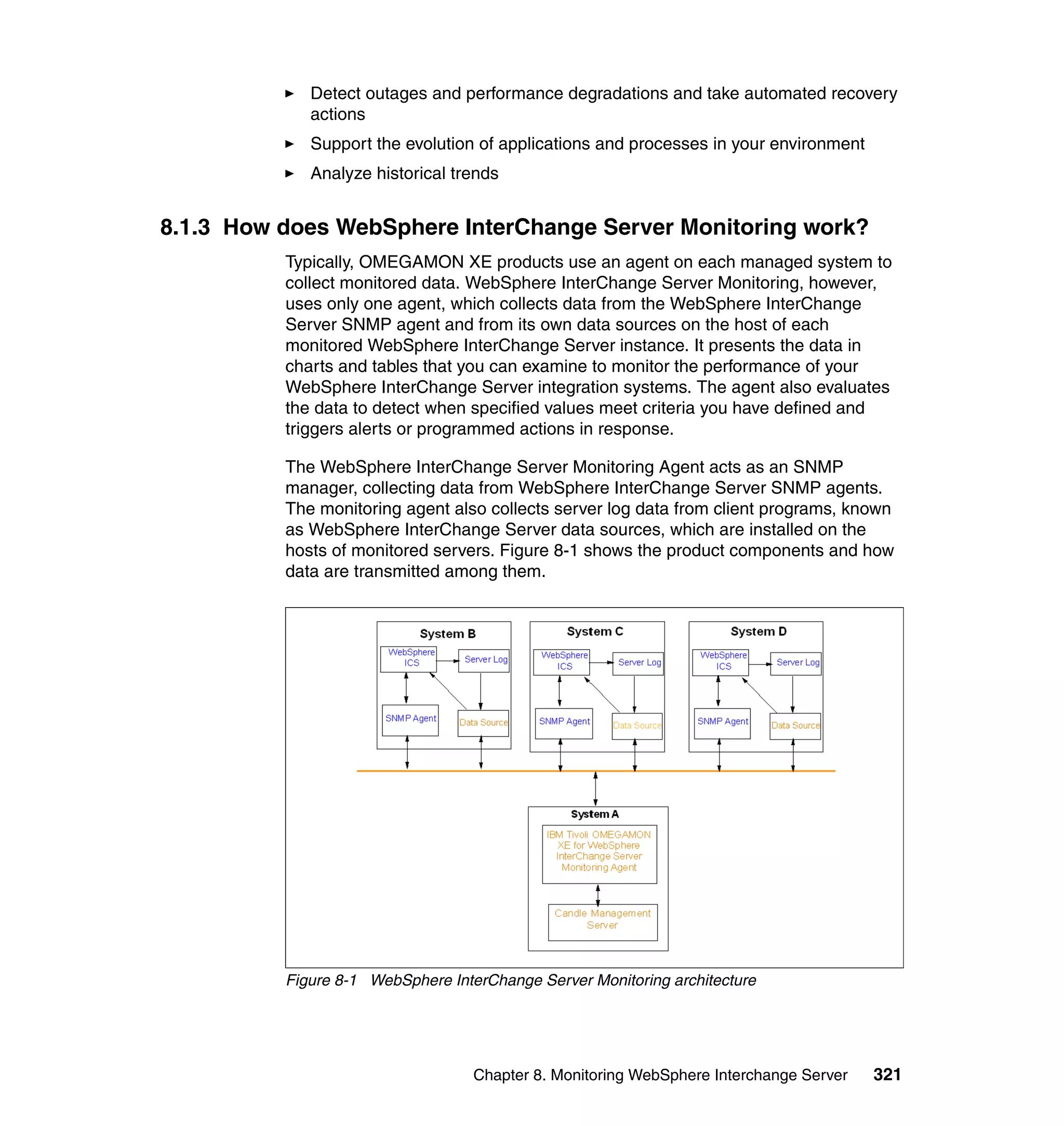
             of the IBM Tivoli OMEGAMON XE for Messaging package. The WebSphere
             InterChange Server Monitoring software can help you monitor, analyze, and
             manage your IBM WebSphere InterChange Server implementations and your
             entire business integration system.


8.1.1 What does WebSphere InterChange Server Monitoring do?
             WebSphere InterChange Server Monitoring helps ensure the reliability and
             performance of your integration environment by detecting and correcting
             problems before they have an impact on availability and service levels.
             WebSphere InterChange Server Monitoring also reduces the amount of time
             involved in the deployment of distributed applications by helping you debug data
             flows and providing statistics you can use to tune your environment.

             You can use WebSphere InterChange Server Monitoring to:
                Track and report the status of the WebSphere InterChange Servers in your
                enterprise
                Start and stop servers, collaborations, and connectors
                Monitor and report on the processing of data flows in each WebSphere
                InterChange Server
                Monitor activity levels and processing statistics for each collaboration and
                connector
                Report error and exception conditions for servers, collaborations, and
                connectors, as recorded in the each server’s log file
                Trigger alerts or actions for the connector controller when specified conditions
                arise


8.1.2 How does WebSphere InterChange Server Monitoring help
you?
             WebSphere InterChange Server Monitoring enables you to:
                Pinpoint issues before they become disruptive or crippling
                Identify trouble areas, determine the cause of the problem, and decide what
                corrective action to take


320   Implementing OMEGAMON XE for Messaging V6.0
Detect outages and performance degradations and take automated recovery
             actions
             Support the evolution of applications and processes in your environment
             Analyze historical trends


8.1.3 How does WebSphere InterChange Server Monitoring work?
          Typically, OMEGAMON XE products use an agent on each managed system to
          collect monitored data. WebSphere InterChange Server Monitoring, however,
          uses only one agent, which collects data from the WebSphere InterChange
          Server SNMP agent and from its own data sources on the host of each
          monitored WebSphere InterChange Server instance. It presents the data in
          charts and tables that you can examine to monitor the performance of your
          WebSphere InterChange Server integration systems. The agent also evaluates
          the data to detect when specified values meet criteria you have defined and
          triggers alerts or programmed actions in response.

          The WebSphere InterChange Server Monitoring Agent acts as an SNMP
          manager, collecting data from WebSphere InterChange Server SNMP agents.
          The monitoring agent also collects server log data from client programs, known
          as WebSphere InterChange Server data sources, which are installed on the
          hosts of monitored servers. Figure 8-1 shows the product components and how
          data are transmitted among them.


          Figure 8-1 WebSphere InterChange Server Monitoring architecture


                                   Chapter 8. Monitoring WebSphere Interchange Server   321
8.1.4 WebSphere InterChange Server Monitoring key features
             This section discusses the key features of WebSphere InterChange Server
             Monitoring.

             Predefined workspaces and views
             Workspaces are the heart of WebSphere InterChange Server Monitoring. They
             present you with status, configuration, and statistical information in tabular and
             graphical views. You can use the information provided by these workspaces to
             monitor the performance and availability of servers and their components, to
             identify potential problems, to trace the causes leading to alerts or exceptions,
             and to define specific conditions to monitor.

             WebSphere InterChange Server Monitoring includes a set of predefined
             workspaces. The views in these workspaces display:
                Server status and performance statistics
                WebSphere InterChange Server Monitoring provides status and summary
                and detailed statistics for each server discovered or configured in the
                network, including boot time, uptime, memory use, number of flows
                processed since boot, number of failed and successful flows processed, and
                rate of processing. You can view summary and overview statistics for all
                servers, and overview and detailed information for individual servers.
                Collaboration status and performance statistics
                WebSphere InterChange Server Monitoring provides current status and
                performance statistics for all collaborations running in the network. You can
                view summary data for all collaborations, for the collaborations associated
                with a particular server instance, or for an individual collaboration.
                Connector status and performance statistics
                WebSphere InterChange Server Monitoring provides current status and
                performance statistics for all connectors running in the network. You can view
                summary data for all connectors, or detailed information about an individual
                connector.

                  Note: For purposes of data display and aggregation, the connector
                  controller is considered to be part of the server, not of the connector agent
                  that it controls. The Server Access Interface is also considered part of the
                  server.

                Log messages
                View messages from all servers, or from an individual server, collaboration, or
                connector.


322   Implementing OMEGAMON XE for Messaging V6.0
You can customize the predefined workspaces and views, or create your own.

For detailed information about individual predefined workspaces, see the
WebSphere InterChange Server Monitoring section of the Tivoli Enterprise Portal
online help. For information about creating and customizing views and
workspaces, see the Tivoli Enterprise Portal online help.

Predefined monitoring situations
Situations are descriptions of conditions to which you want to be alerted. When
situations are distributed to monitored systems they can, for example, alert you
to a connector that has stopped, or to a failed flow. Situations can also be used to
automate responses to problems, such as pausing a component or stopping a
message flow that is consuming too many resources.

WebSphere InterChange Server Monitoring provides a set of predefined
situations designed to enable you to monitor critical activity and to serve as
templates for creating customized situations of your own.

For details about the predefined situations that come with this product, see the
WebSphere InterChange Server Monitoring section of the Tivoli Enterprise Portal
online help. For information about creating, editing, and distributing situations,
see the Tivoli Enterprise Portal online help.

Attributes
Attributes are characteristics or properties of objects monitored by WebSphere
InterChange Server Monitoring, for example, the status of servers or the number
of failed flows. Attributes are used in the definition of the queries used to collect
the information presented in workspace views and to specify the conditions, or
situations, that trigger alerts and automated actions.

WebSphere InterChange Server Monitoring monitors these groups of attributes:
   WICS_Server (for WebSphere InterChange Server V4.2)
   WICS_Server43 (for WebSphere InterChange Server V4.3)
   WICS_Collaboration
   WICS_Connector
   WICSLog

You can use these attributes to customize the predefined views or to create your
own views and workspaces. You can use them to define situations that target
specific thresholds, events, or performance problems you want to monitor.

For more information about these attributes, see the WebSphere InterChange
Server Monitoring section of the Tivoli Enterprise Portal online help.


                          Chapter 8. Monitoring WebSphere Interchange Server     323
Take Action commands
             WebSphere InterChange Server Monitoring lets you interact directly with
             InterChange Server components, systems, and applications through the Tivoli
             Enterprise Portal Take Action feature. You can add a Take Action command to a
             monitoring situation to execute when the situation becomes true. If you have IBM
             Tivoli OMEGAMON DE, you can create automation policies using Take Action
             commands.

             The Take Action commands provided with WebSphere InterChange Server
             Monitoring enable you to:
                Start and stop a server instance
                Activate, deactivate, pause, and shut down a collaboration
                Activate, deactivate, pause, and shut down a connector controller

             See the WebSphere InterChange Server Monitoring section of the Tivoli
             Enterprise Portal online help for information about these commands. For
             information about defining and sending your own Take Action commands, see
             the Tivoli Enterprise Portal online help.

             Historical data collection
             You can use the facilities of the Tivoli Enterprise Portal historical data collection
             function to store and save the data being collected by WebSphere InterChange
             Server Monitoring. The historical data collection function permits you to specify:
                The interval at which data is to be collected
                The interval at which data is to be warehoused (if you choose to do so)
                The location (either at the agent or at the Tivoli Enterprise Monitoring Server)
                at which the collected data is to be stored

             Information about using the historical data collection function is in the Tivoli
             Enterprise Portal online help and in the Historical Data Collection Guide for IBM
             Tivoli OMEGAMON XE products.


8.2 Configuring WebSphere InterChange Server for
monitoring
             In this section, we describe how to configure WebSphere InterChange Server for
             monitoring.

             WebSphere InterChange Server Monitoring uses the WebSphere InterChange
             Server SNMP agent as the interface to access the information of WebSphere
             InterChange Server and its resources. You must configure WebSphere


324   Implementing OMEGAMON XE for Messaging V6.0
InterChange Server Monitoring and WebSphere InterChange Server in order to
          get the information of WebSphere InterChange Server.

          Configuring WebSphere InterChange Server for monitoring has three steps on
          Windows systems:
             SNMP agent configuration
             SNMP Configuration Manager configuration
             WebSphere InterChange Server Monitoring Agent configuration on Tivoli
             Enterprise Monitoring Server (hub) configuration


8.2.1 Configuring the SNMP agent
          To start the SNMP Configuration wizard, select Start → Programs → IBM
          WebSphere InterChange Server → SNMP Configuration Wizard. You will see
          the SNMP Configuration window shown in Figure 8-2.


          Figure 8-2 SNMP Configuration wizard

          The following list explains the parameters in this window:
          Trace Level            The level of the trace information. The options are 0
                                 through 5. The higher trace levels produce more verbose
                                 output, while 0 (the default) produces no output.


                                   Chapter 8. Monitoring WebSphere Interchange Server   325
Polling Interval       The polling interval, in seconds, that SNMP uses to
                                    periodically poll InterChange Server for information. A
                                    polling interval of 0 denotes no polling. The default value
                                    is 30.

               Note: The SNMP polling interval (set in the SNMP Configuration wizard) must
               not exceed five minutes.

             Port Number            The port on which the SNMP agent listens for requests
                                    from the SNMP manager. The default value is 161.
             Agent State File       The path of the file that contains the agent's state.
             Agent Log File         The path of the log file.
             Server log to STDOUT
                                The output location for the server log. Setting it to “true”
                                displays the tracing information in the SNMP agent's
                                command window as well as the .log file. Setting it to
                                “false” puts the tracing information in the .log file only. The
                                information is not displayed in the SNMP agent's
                                command window.

             The SNMP agent gets information from the InterChange Server by polling the
             InterChange Server at defined intervals. The information reported to the Tivoli
             environment about the InterChange Server is only as current as the information
             reported by the SNMP agent. The polling delay tells the SNMP how often to get
             InterChange Server information. It is important to have reasonably current
             information from the SNMP agent in order for the InterChange Server Status
             resource model to report meaningful information.

             Making the poling delay too short increases processing time in the SNMP agent
             and the InterChange Server to handle additional status requests. Making the
             polling delay too long affects the ability of IBM Tivoli Monitoring for Business
             Integration: WebSphere InterChange Server to report current information about
             the InterChange Server. The default polling delay is 30 seconds. This is a
             reasonable value to use until you gain more experience with the SNMP agent.

             On Windows, port 161 is the default; on UNIX, it is 1161. Increase the trace level
             if you require more verbose output from the SNMP agent.


326   Implementing OMEGAMON XE for Messaging V6.0
8.2.2 Configuring the SNMP Agent Configuration Manager
          The SNMP Agent Configuration Manager enables you to configure the MIB
          tables associated with the SNMP agent. These tables include the Community
          table, the Trap Forwarding table, and the Server Access table. Perform the
          following steps to customize the SNMP Configuration Manager:
          1. To start the SNMP Agent Configuration Manager select, Start →
             Programs → IBM WebSphere InterChange Server → SNMP
             Configuration Manager.

              Note: The SNMP Agent Configuration Manager must run on the same
              machine as the SNMP agent.

             The SNMP Agent Configuration Manager window opens, as shown in
             Figure 8-3.


          Figure 8-3 SNMP Agent Configuration Manager

          2. Perform the following steps to connect the SNMP Agent Configuration
             Manager to a running SNMP agent:
             – Agent Host: Enter the host name or IP address of the machine where the
               SNMP agent is running.


                                 Chapter 8. Monitoring WebSphere Interchange Server   327
– Port: Enter the port number that the SNMP agent will use to listen for
                   SNMP commands. If you do not know your SNMP agent port number, you
                   can find it in wbi_snmpagent.cfg, located in the <WebSphere Business
                   Integration Install Dir>snmpconfig directory, where <WebSphere
                   Business Integration Install Dir> is the directory where you installed the
                   WebSphere InterChange Server product. The default port number is 1161
                   for UNIX and 161 for Windows.
                 – Community: Enter the read-write community name of the SNMP agent. By
                   default, the read-write community name is “administrator” and the
                   read-only community name is “public.” The difference between the two
                   types of community names is as follows:
                    •   Read-write: Read-write access permits the user to edit MIB table
                        components, query values, start and stop components, and register for
                        traps.
                    •   Read-only: Read-only access permits the user to perform “Get”
                        operations only. This user can view but not edit the MIB table
                        components and cannot change the status of any component.


328   Implementing OMEGAMON XE for Messaging V6.0
3. Click Connect. When the SNMP Agent Configuration Manager connects to
   the SNMP agent, the Agent Host, Port, and Community fields become
   disabled, and the Connect button changes to a Disconnect button.
   In order to manage the WebSphere InterChange Server through Tivoli
   OMEGAMON XE for Messaging, we have to configure the Server Access tab
   in the Configuration Manager.
   The server access entries enable you to link specific SNMP managers with
   the specific InterChange Servers to be managed. The table has three entries,
   as shown in Figure 8-4.


Figure 8-4 Server Access in SNMP Agent Configuration Manager

4. Click Add to add server access entries. You need to enter the following:
   – Manager Host: The host name of the SNMP manager.
   – WebSphere InterChange Server: The host name of the machine where
     InterChange Server is installed.
   – Row Status: The link status (active or not in service).

This is the minimum configuration you require to monitor the WebSphere
InterChange Server. For advanced configuration settings, refer to the
WebSphere InterChange Server Administration documentation, available at:
http://publib.boulder.ibm.com/infocenter/wbihelp/index.jsp?topic=/com.ib
m.wics_user_administrator.doc/doc/administration/administration19.htming


                        Chapter 8. Monitoring WebSphere Interchange Server    329
8.2.3 Configuring WebSphere InterChange Server Monitoring Agent
             Now we configure WebSphere InterChange Server Monitoring Agent in Tivoli
             Enterprise Monitoring Server. Perform the following steps:
             1. To configure the server monitoring agent, start the Tivoli Enterprise
                Monitoring Services Manager by selecting Start → Programs → IBM Tivoli
                Monitoring → Manage Tivoli Monitoring Services. You will see the window
                shown in Figure 8-5.


             Figure 8-5 Manage Tivoli Enterprise Monitoring Services

             2. Select WebSphere InterChange Server Monitoring Agent. Right-click and
                select Configure Using Defaults.
                The WebSphere InterChange Server Monitoring Agent: Agent Advance
                Configuration window opens, as shown in Figure 8-6.


             Figure 8-6 Agent Advanced Configuration


330   Implementing OMEGAMON XE for Messaging V6.0
3. Click OK. You will see the window shown in Figure 8-7. Check that the values
   are correctly entered and then click OK.


Figure 8-7 Agent Advanced Configuration

4. In the next window (Figure 8-8), click Add to add a new server to monitor.


Figure 8-8 Monitoring Agent Add


                        Chapter 8. Monitoring WebSphere Interchange Server   331
5. In the Data for WebSphere InterChange Server Host window, enter the
                WebSphere InterChange Server host name or IP address and port number
                where SNMP agent is running and click OK (see Figure 8-9).


             Figure 8-9 WebSphere InterChange Server Host


332   Implementing OMEGAMON XE for Messaging V6.0
6. Start the WebSphere InterChange Server Monitoring Agent by
            double-clicking the agent. After you start the WebSphere InterChange Server,
            SNMP agent, and Monitoring Agent in Tivoli Enterprise Monitoring Server,
            you can see your server monitoring status in Tivoli Enterprise Portal, as
            shown in Figure 8-10.


         Figure 8-10 WebSphere InterChange Server status in CandleNet Portal (display the
         same in Tivoli Enterprise Portal)


8.3 Monitoring your integration systems
         In previous sections, we configured the SNMP agent, SNMP manager, and Tivoli
         Enterprise Monitoring Server. In this section, we explore WebSphere
         InterChange Server workspaces in Tivoli Enterprise Portal.

          Note: The following examples are from the predecessor redbook,
          Implementing IBM Tivoli OMEGAMON XE for WebSphere Business
          Integration V1.1, SG24-6768. Therefore, the screen captures are from
          CandleNet Portal and not Tivoli Enterprise Portal. The functionality and
          content of the examples are accurate and still relevant.


                                  Chapter 8. Monitoring WebSphere Interchange Server        333
8.3.1 Workspaces
             Typically, OMEGAMON XE products use multiple monitoring agents, one on
             each managed system. In the Tivoli Enterprise Portal Navigator tree, each agent
             is represented with a subnode under its host system. Its associated workspaces
             are listed below, identified by attribute group. The following figure shows the
             Tivoli Enterprise Portal workspaces (Figure 8-11).


             Figure 8-11 Tivoli Enterprise Portal workspaces

             WebSphere InterChange Server Monitoring uses only one agent, which collects
             data from WebSphere InterChange Server SNMP agents and its own data
             sources on the hosts of the WebSphere InterChange Servers it monitors, so it
             appears in the Navigator only once. (The node takes the form WebSphere
             InterChange Server - hostname:KIC00_SNMP.)

             Underneath the node, representing the agent, there are, by default, four
             subnodes, one for each type of monitored component: Version 4.2 servers,
             Version 4.3 servers, collaborations, and connectors.


334   Implementing OMEGAMON XE for Messaging V6.0
Figure 8-12 shows the WebSphere InterChange Server workspaces in Tivoli
Enterprise Portal.


Figure 8-12 WebSphere InterChange Server workspaces in Tivoli Enterprise Portal

Each of these subnodes is associated with one or more workspaces that present
data for all monitored WebSphere InterChange Server instances, collaborations,
or connectors. From these workspaces, you can link to workspaces showing
more detailed data for individual components.

For example, when you select the Servers 4.3 node, the Server Summary
workspace opens. By clicking the table row in this workspace, you can link to an
overview workspace for a specific server, and from there to a workspace
containing more detailed server information, or to a workspace associated with a
collaboration or connector running on the server

Although they are not represented in the Navigator, the systems hosting
WebSphere InterChange Server data sources appear in the Take Action and
Situation Editor Destination System(s) list. They take the form
hostname:KIC00_APIS.


                         Chapter 8. Monitoring WebSphere Interchange Server       335
Figure 8-13 shows the WebSphere InterChange Servers in CandleNet Portal
             (this display is the same in Tivoli Enterprise Portal). To get further details of a
             particular server, click the server, which will take you the server specific
             workspace.


             Figure 8-13 WebSphere InterChange Servers in CandleNet Portal (display same in Tivoli
             Enterprise Portal)


336   Implementing OMEGAMON XE for Messaging V6.0
Clicking a specific server will give you more details about the connectors and the
           collaborations running in that specific server with statistics, as shown in
           Figure 8-14.


           Figure 8-14 CandleNet Portal workspace for WebSphere InterChange Server (display
           same in Tivoli Enterprise Portal)

           Clicking a specific server gives you more details about the connectors and the
           collaborations running in that specific server with statistics.


8.3.2 Customizing the monitoring
           WebSphere InterChange Server Monitoring gathers data on the server instances
           on your network and stores the data as system elements called attributes.

           You can use these attributes to:
              Create queries and build custom views of the performance of your
              WebSphere business integration systems or individual components
              Create situations to monitor and respond to conditions of interest or concern
              in a particular environment or set of circumstances.


                                    Chapter 8. Monitoring WebSphere Interchange Server   337
Attributes and attribute groups
             Related attributes are grouped into attribute groups, or attribute tables. A given
             view contains information provided by a single attribute group.

             WebSphere InterChange Server Monitoring uses five attribute groups:
                WICS_Server (for WebSphere InterChange Server V4.2).
                WICS_Server43 (for WebSphere InterChange Server V4.3).
                WICS_Collaboration.
                WICS_Connector attributes are based on SNMP data.
                WICSLog attributes get data from WebSphere InterChange Server data
                sources, which monitor server logs.

             Creating and monitoring situations
             Identifying the correct monitoring requirements is very important to minimize the
             downtime of an enterprise system. Understanding the components of a
             WebSphere InterChange Server and the impact of a component failure on
             enterprise system can help a business in formulating monitoring requirements.

             A top down approach is more suitable in identifying the monitoring requirements.
             For example, at the business level, you want to get the answers for the following
             questions:
                How are orders flowing?
                Are deliveries stuck?

             Normally, answers to these questions on the WebSphere InterChange Server are
             provided by a subprocess (also called a source connector) that sends events into
             the InterChange Server. InterChange Server sends these events to one or more
             systems after performing the necessary transformation steps.

             IT users need finer-grained monitoring at each step or subprocess level. Having
             such information, they can easily pinpoint the problematic subprocess or a
             collaboration, connector, or other system that InterChange Server needs to
             complete a business process. Often, IT users also need statistics on physical
             resources such as CPU, memory, disk, and network usage for future and
             capacity planning.

             The WebSphere InterChange Server Monitoring attributes enable you to create
             situations that monitor the status or performance of WebSphere InterChange
             Servers and their components.

             A situation describes a condition you want to test. When you start a situation,
             Tivoli Enterprise Portal compares the values you have assigned for the situation’s


338   Implementing OMEGAMON XE for Messaging V6.0
attributes with the values collected by WebSphere InterChange Server
Monitoring and registers an event if the condition is met. You are alerted to
events by indicator icons that appear in the Navigator.

WebSphere InterChange Server Monitoring comes with predefined situations.
For information about the predefined situations included with this product, refer to
the WebSphere InterChange Server Monitoring section of the Tivoli Enterprise
Portal online help (installed with the product). For detailed information about
creating situations and about using the Situation Editor, see the Tivoli Enterprise
Portal online help.

Investigating an event
When the conditions of a situation have been met, the situation evaluates to True,
causing an event indicator to appear in the Navigator. You can investigate the
cause of an event by opening its workspace.

The event workspace shows two table views: one with the values of the attributes
when the situation evaluated True, and the other with the current values of the
attributes.

The event workspace also contains a display view that can contain expert advice
for responding to the situation and a Take Action view from which commands can
be sent to affected systems.


                         Chapter 8. Monitoring WebSphere Interchange Server     339
8.3.3 Monitoring scenarios
             WebSphere InterChange Server Monitoring comes with a predefined situation
             named IC_Connector_Not_Active. This situation raises a warning (yellow) alert,
             as shown in Figure 8-15.


             Figure 8-15 CandleNet Portal showing alterations in the Enterprise view (display same in
             Tivoli Enterprise Portal)

             As you notice, Tivoli Enterprise Portal can alert you about situations in the
             enterprise system. Now, we show you how to acknowledge the WebSphere
             InterChange Server alerts.


340   Implementing OMEGAMON XE for Messaging V6.0
To get more details on specific server status, browse the OS systems. In our
case, the WebSphere InterChange Server was installed on a Windows system
called HELSINKI, so first click Windows Systems and then HELSINKI. Click
WebSphere Interchange Server and expand the Servers 4.3 tab to get list of
servers running on the Windows environment, as shown in Figure 8-16.


Figure 8-16 WebSphere InterChange Server alert for MQ Connector


                        Chapter 8. Monitoring WebSphere Interchange Server   341
Now you can see that WebSphereMQ Connector is inactive (Figure 8-17). To
             make MQ Connector active, perform the following steps:
             1. Select WebSphere MQ Connection, right-click, and select Take Action
                (Figure 8-17).


             Figure 8-17 WebSphere InterChange Server taking action on alert

                A new Take Action window opens, as shown in Figure 8-18 on page 343.


342   Implementing OMEGAMON XE for Messaging V6.0
2. From the drop-down menu, select Change WIC Connector Status (see
   Figure 8-18).


Figure 8-18 Take Action

   A new window called “Edit Argument Values” opens (Figure 8-19).
3. Edit the values if required. You have to supply a valid Community ID, which
   must match the one that was coded on WebSphere InterChange Server
   SNMP manager. In Connector Status, you can give verbs such as active,
   inactive, shutdown, and paused. Click OK after providing the values
   (Figure 8-19).


Figure 8-19 Edit Argument Values


                          Chapter 8. Monitoring WebSphere Interchange Server   343
4. You will see the Take Action window again. Select KIC00_SNMP and click
                OK.


             Figure 8-20 Take Action window with arguments


344   Implementing OMEGAMON XE for Messaging V6.0
5. A small window opens confirming that the SNMP command was sent to the
   agent. After a few seconds (depending on network latency and the workload
   on the WebSphere InterChange Server), the connector will be activated
   (Figure 8-21).


Figure 8-21 WebSphere InterChange Server with active connectors


                         Chapter 8. Monitoring WebSphere Interchange Server   345
346   Implementing OMEGAMON XE for Messaging V6.0
9


    Chapter 9.   Troubleshooting
                 This chapter provides tips for troubleshooting the IBM Tivoli OMEGAMON
                 agents. We describe the top issues and how to isolate and correct problems.

                 We discuss the following topics:
                     Introduction to problem determination
                     Tracing
                     Logs
                     Documentation collection
                     Common issues
                     Miscellaneous tips and tools


© Copyright IBM Corp. 2007. All rights reserved.                                               347
9.1 Introduction to problem determination
             Troubleshooting is an important skill when using any highly configurable and
             powerful tool such as the IBM Tivoli Messaging V6 Agents. Usually, you start with
             a symptom, or set of symptoms, and trace them back to their cause. This process
             is called problem determination. Problem determination is not the same as
             problem solving, although during the process of problem determination, you can
             obtain enough information to solve a problem. Examples of situations where this
             can happen include:
                User errors
                Application programming errors
                System programming errors, such as in resource definitions

             However, you might not always be able to solve a problem yourself after
             determining its cause. For example, a performance problem might be caused by
             a limitation of your hardware. If you are unable to solve a problem on your own,
             contact IBM Software Support for a solution.

             The primary troubleshooting feature is logging. Logging refers to the text
             messages and trace data generated by the software. Messages and trace data
             are sent to an output destination, such as a console screen or a file.

             Typically, text messages relay information about the state and performance of a
             system or application. Messages also alert the system administrator to
             exceptional conditions when they occur. Consult the explanation and operator
             response associated with the displayed messages to determine the cause of the
             failure.


9.2 Tracing
             Each component of the IBM Tivoli OMEGAMON for Messaging V6 has a trace
             facility. These include Tivoli Enterprise Portal Server, Tivoli Enterprise Monitoring
             Server, Tivoli Enterprise Portal, Tivoli Enterprise Monitoring Agent, and
             installation.

             Set the trace parameters for Tivoli Enterprise Portal Server using Tivoli
             Enterprise Monitoring Server. The following steps provide details about changing
             the trace parameters:
             1. Open Manage Tivoli Enterprise Monitoring Services.


348   Implementing OMEGAMON XE for Messaging V6.0
2. Right-click the managed system, as shown in Figure 9-1, and select
   Advanced → Edit Trace Parms.


Figure 9-1 Accessing Edit Trace Parms from managed systems window

3. This opens the Trace Parameter selection menu, as shown in Figure 9-2 on
   page 350. From this menu, you can choose from several parameters.
   Here you can set the level of tracing per component as specified by customer
   support. You can also set the log size, number of log files per session and
   total. You can also set the communications trace in KDC_DEBUG. Setting this
   is good for tracing communications between a Tivoli Enterprise Monitoring
   Agent and the Monitoring Server.


                                                Chapter 9. Troubleshooting   349
Figure 9-2 Setting trace parameters


9.3 Logs
             Each component has its own log or logs that provide insight into the activity of the
             component. The level of detail of the information in the log is controlled by the
             debug and RAS1 level set for the component.


9.3.1 Tivoli Enterprise Portal Server and Tivoli Enterprise Portal
             There are logs for both the Tivoli Enterprise Portal Server and the Tivoli
             Enterprise Portal client:
                The Tivoli Enterprise Portal Server logs are in IBMITM logs and the default
                name is ibm-hostname_cq_PIDPLACEHOLDER, for example,
                c:IBMITMlogsibm-alpha_cq_4533de33-01.log
                The Tivoli Enterprise Portal logs are in IBMITMlogs. These logs are on the
                system running the Tivoli Enterprise Portal desktop. The default log file name
                is KCJRAS1.log, for example, c: IBMITMlogs kcjras1.log.


350   Implementing OMEGAMON XE for Messaging V6.0
9.3.2 Tivoli Enterprise Monitoring Server
           The Tivoli Enterprise Monitoring Server logs differ depending on the operating
           system where the Monitoring Server is running.

           Windows
           For Windows:
               The Tivoli Enterprise Monitoring Server logs are in the IBMITMlogs
               directory.
               The error trace log is called KMSRAS1.log by default, for example,
               c:TEMSlogsKMSRAS1.log.
               The seed function creates a log, depending on activity. These logs start with
               the name seed and end with a log. The rest of the name might contain the
               product component name and an action, for example:
                – c:candleTEMSlogsseedkmq.log: Installation of WebSphere MQ agent
                  seed file
                – c:candleTEMSlogsseedkic42_del.log: Removal of WebSphere
                  InterChange Server seed file

           UNIX
           For UNIX:
               The Tivoli Enterprise Monitoring Server logs are in CANDLEHOME/logs. The
               naming of this file is host_ms_timestamp.log. The ms is the product code for
               the Monitoring Server. This time stamp is an encoded time stamp generated
               on the Monitoring Server system, for example,
               /candle/logs/milan_ms_1115822514.log.
               There is also a process ID file that matches the Monitoring Server log file.
               This file is empty and has the naming structure of host_ms_timestamp.pid.
               The pid from the file name is the process ID for the Monitoring Server process
               on UNIX (see Example 9-1 for an example).

           Example 9-1 Process ID file
           #   /candle/logs/milan_ms_1115822514.pid40424
           #   ps -ef | grep 40424
           #   root 40424 1   0 15:41:22 - 0:00 /candle/aix433/ms/bin/TEMS start
           #   root 56840 40424 0 15:41:22 - 0:15 /candle/aix433/ms/bin/kdsmain

               Additionally, on UNIX, the candle_installation.log contains useful information
               about activities on the Monitoring Server. It records the stop/start of the
               Monitoring Server in addition to logging installation information and other
               pertinent data.


                                                             Chapter 9. Troubleshooting   351
9.4 Documentation collection
             We included a new documentation gathering tool that captures all the logs and
             environment into a archive ready to send to support. This is good for an initial
             review of your problem because we will be able to determine the level of the
             product installed and get a good idea of your environment.

             On the Windows platform, enter the command wbigathr.cmd at the command
             prompt to compress all files useful for problem determination into one file. The
             compressed file name is gather.jar, which is in the %INSTALL_DIR%TMAITM6
             directory. %INSTALL_DIR%TMAITM6 is the directory path where you installed
             the monitoring agent.

             On the UNIX platform, run wbi_collector.sh to compress all files useful for
             problem determination into one file. The compressed file name is DigDir.tar.gz,
             which is in the $INSTALL_DIR/TMAITM6 directory. $INSTALL_DIR is the
             directory path where you installed the monitoring agent.

             On z/OS platform, take the following steps to get the compressed file:
             1. In Spool Search and Display Facility (SDSF), save RKLVLOG into a data set,
                and give the data set a name (For example, &HILEV..&MIDLEV..RKLVLOG).
             2. Issue the command:
                OPUT &HILEV..&MIDLEV..RKLVLOG %INSTALL_DIR%/rklvlog
                Where %INSTALL_DIR% is the directory path where you installed the
                monitoring agent.
             3. Under UNIX System Services, run collector.z.sh to get the compressed file
                gather.tar.gz, which is in the %INSTALL_DIR% directory.


9.5 Common issues
             In this section, we introduce some of the common issues that are found when
             troubleshooting IBM Tivoli OMEGAMON agents.


9.5.1 Installation
             Most of the issues surrounding installation of the product are related to failure to
             ensure that the prerequisite installation information is met before continuing with
             the installation. Some areas to check include:
                On the Tivoli Enterprise Portal Server system, make sure that the correct level
                of DB2 is installed.


352   Implementing OMEGAMON XE for Messaging V6.0
On the Tivoli Enterprise Portal Server system, make sure that a supported
              version of Java runtime environment (JRE) is installed. To obtain the version
              of Java, go to a command prompt and type the following command:
              Java -version
              This returns the version of Java on the system.
              Make sure that the target file system or directory has sufficient space.
              Make sure that the user ID used to perform the installation has the
              appropriate levels of authority, depending on the operating system.


9.5.2 Configuration
           Each agent has different configuration challenges. We describe some of these
           challenges here.

           WebSphere Business Integration Broker Agent
           This section contains some problem determination tips associated with
           WebSphere Business Integration Broker Agent.

           Broker not responding
           Broker not responding occurs when the agent makes a request to the broker for
           data but does not get a reply. It is a broker problem, but because the monitoring
           agent usually detects it before anything else, it can look like a WebSphere
           Message Broker Monitoring problem. Eventually, other broker applications will
           fail. For example, a subscription for data might not be properly registered with the
           broker, or a broker might not respond to a deploy request from the Control Center
           or Message Brokers Toolkit.

           A broker might not respond to agent requests for several reasons, such as:
              It cannot communicate with its User Name Server.
              It cannot communicate with its Configuration Manager.
              There is a subtle problem with its database.

           Symptoms of this problem are:
              The Broker_Not_Responding product event occurs in the Product Events
              workspace.
              The agent logs messages KQIA107W and KQIA041W repeatedly over
              several collection cycles.
              Data is missing from Tivoli Enterprise Portal Information workspaces.
              Broker system log messages occur, such as BIP2080E and BIP2066E.


                                                              Chapter 9. Troubleshooting   353
What to try first for this problem:
                Stop all WebSphere Business Integration Broker components and the
                monitoring agent.
                Restart all components in the proper order and then start the agent and see if
                the broker responds.

             Signal violation together with KxmErrorFull from KQI Agent
             The problem is reported as:
             kxmerrut.cpp,62,"kxmThrow(KxmErrorFull&)") Error - KXMRC_EMPTY_FIELD
             Pos(0) ErrorType(ERROR), Field is empty KQIA005E (kqiaexhd.008) Signal
             Memory Access Violation received. KQIAgent terminating.

             When running KQI agent, the signal violation problem occurs together with
             issuance of KxmErrorFull errors:
             42BB1B27.0F152908-1:kxmerrut.cpp,62,"kxmThrow(KxmErrorFull&)") |||
             Error - KXMRC_EMPTY_FIELD Pos(0) ErrorType(ERROR), Field is empty.
             KQIA005E (kqiaexhd.008) Signal Memory Access Violation received.
             KQIAgent terminating.

             To solve this problem, perform the following steps:
             1. Edit %CANDLE_HOME%CMAkqicma.ini and add the following entry in
                section Local Settings:
                NLS1_LOCALEDIR=@BinPath@LOCALE
             2. Then, from Manage Tivoli Enterprise Monitoring Services, right-click the QI
                agent and select Reconfigure.

             WebSphere MQ Monitoring Agent
             The following are some problem determination tips associated with the
             WebSphere MQ Monitoring Agent:
                By default, the account of each WebSphere MQ Agent is set to LocalSystem.
                If you want to run the monitoring agent under a user account rather than
                under the system account, you must first authorize the user account. Only
                user IDs that are members of group mqm are authorized to start and stop the
                monitoring agent.
                If your site does not have a default queue manager specified, or if you are
                configuring the agent to monitor a queue manager other than the default,
                input the WebSphere MQ queue manager name in the MANAGER NAME()
                and MGRNAME() parameters of the .cfg file, and then save and close the
                Notepad session.


354   Implementing OMEGAMON XE for Messaging V6.0
The WebSphere MQ Agent monitors a single WebSphere MQ queue
             manager. If you want to monitor multiple queue managers, create one
             instance of the monitoring agent for each queue manager.
             Before starting the WebSphere MQ Agent, WebSphere MQ default objects
             such as SYSTEM.DEFAULT.MODEL.QUEUE must exist. If they do not exist in
             your environment, create them before starting the agent.

          WebSphere MQ Configuration Agent
          The following are some problem determination tips associated with the
          WebSphere MQ Configuration Agent:
             Make sure to provide the correct Tivoli Enterprise Monitoring Server host/IP.
             If you have multiple queue managers running on a monitored system, you
             only need one WebSphere MQ Configuration Agent.
             The Discover feature processes only new queue managers on systems
             running WebSphere MQ Configuration (the configuration agent, hereafter)
             connected to the Monitoring Server. If the configuration manager discovers a
             queue manager that is already defined within the database, that queue
             manager is ignored.
             – Depending on the size and complexity of your existing WebSphere MQ
               configuration, the Discover process might take a while, and it is not
               interruptible once begun. If it is not practical to wait for the entire Discover
               process to complete, you can activate the Discover Lite product option (in
               the Product Options area of the Configuration workspace). By default,
               Discover Lite is disabled. For more details, see the online help in the
               Configuration workspace.
             – Queue managers can be discovered if they have been created using the
               WebSphere MQ CRTMQM command.


9.5.3 Maintenance
          When maintenance is performed on systems, there are several things that can
          cause product failure. These are a few common situations that occur.

          IP address change
          If the agent connects to the Tivoli Enterprise Monitoring Server using an IP
          address instead of a host name and the IP address changes, the agent will need
          to be re-configured to update the IP address information.

          Firewall has been implemented
          With recent security changes in many new environments, more and more
          customers are implementing firewalls. If this is the case, the new IP.SPIPE or


                                                             Chapter 9. Troubleshooting    355
IP.PIPE protocol will be used to traverse the firewall through the default port
             specified during configuration. The default is 1918 but this can be changed. This
             port needs to be opened up through the firewall with bidirectional traffic capability
             in order for our agent to communicate.


9.6 Miscellaneous tips and tools
             This section provides some additional tips to configure the product. Note that
             some of these tips are unsupported and if problems arise, you need to back out
             the change.


9.6.1 Mutex and shared memory cleanup
             On UNIX, Linux, and z/OS platforms, improper stopping of the broker or agent
             coupled with an element of unfortunate timing might lead to a need to manually
             clean up mutexes and shared memory used in the communication of data
             between the monitor node and agent.

             Symptoms of this problem are:
                When restarted, the agent does not fully initialize.
                Subsequent attempts to shut down the agent hang.
                Data is missing, that is, information data is missing without a
                Broker_Not_Responding event. Statistics data are missing with at least one
                CandleMonitor node deployed.

             Follow these steps to clean up mutexes and shared memory:
             1. Stop the agent and broker or brokers monitored by agent.
             2. On UNIX, Linux, or UNIX System Services (on z/OS):
                a. Issue the ipcs -a command.
                b. In the generated output, find all message queues with the “brokers?” user
                   IDs and “agents?” user ID, and note the IDs and KEY field for each.
                c. Find all semaphores with a matching KEY field to those noted for message
                   queues, and note the ID field for each.
                d. Find all shared memory with the “brokers?” user IDs and “agents?” user ID
                   and an NATTCH field of 0, and note the ID field for each.
                e. Switch to a user ID that can issue the ipcrm command, whether it is the
                   owner user ID (in the ipcs -a output), a user ID in the same group as the
                   owner, or a root user ID.


356   Implementing OMEGAMON XE for Messaging V6.0
f. For each message queue noted, issue the ipcrm -q <ID> command.
             g. For each semaphore noted, issue the ipcrm -s <ID> command.
             h. For each shared memory noted, issue the ipcrm -m <ID> command.
          3. Restart the brokers and agent.


9.6.2 WebSphere MQ Configuration problem determination
          This section contains some problem determination tips associated with IBM
          Tivoli OMEGAMON XE for WebSphere MQ Configuration. This information is a
          quick reference designed to address the most common problems.
             You cannot see the Configuration view:
             – Make sure that your Tivoli Enterprise Portal user ID has the Navigator
               Configuration view as an Assigned View.
             – It is possible that this product is not properly installed.
             You cannot enable update mode:
             – Make sure that your Tivoli Enterprise Portal user ID has modify
               WebSphere MQ Configuration permission.
             You are unable to create new objects or add information to settings lists:
             – Make sure that you are in Update mode.
             – Make sure that you have the appropriate WebSphere MQ permissions on
               the object.
             – Make sure that the WebSphere MQ command server is running for the
               queue manager you are attempting to configure.
             After running the Discover feature, there are no new queue managers visible
             in the defined view tree:
             – Refresh the Defined View.
             – Make sure that the configuration agent is online.
             The “Update defined from actual” operation does not update the defined view
             tree:
             – Refresh the Defined View.
             – Make sure that you have the appropriate Tivoli Enterprise Portal user
               authority.
             – Make sure that the configuration agent is online.
             – Make sure that the queue manager and the command server are both
               running.


                                                             Chapter 9. Troubleshooting   357
The “Update actual from defined” operation does not update WebSphere MQ:
                 – Make sure that the defined objects are valid.
                 – You must start the queue manager and the command server before you
                   run the “Update actual from defined” operation.
                 – Right-click the object you want to validate and select Validate. The
                   Discrepancy Display lists the corrections you need to make. Run the
                   Update actual from defined operation again.
                Updates or changes made to prototypes are not reflected in the “based on”
                sections of objects in the Defined View:
                 –   Refresh the Defined View.

             Refer to IBM Tivoli OMEGAMON XE for Messaging V6.0 Problem Determination
             Guide, SC32-1831, for more information about debugging problems with the IBM
             Tivoli OMEGAMON for Messaging product.


358   Implementing OMEGAMON XE for Messaging V6.0
A


  Appendix A.    Tivoli Enterprise Monitoring
                 Server and Portal Server
                 installation walkthrough
                 This appendix provides a walkthrough of the installation of Tivoli Enterprise
                 Monitoring Server and Tivoli Enterprise Portal Server. In our environment, we
                 installed Tivoli Enterprise Monitoring Server and Tivoli Enterprise Portal Server
                 on the same Microsoft Windows 2003 machine. The installation of Tivoli
                 Enterprise Monitoring Server and Portal Server is very similar whether on
                 UNIX/Linux or Windows. In this appendix, we provide information specific to the
                 Windows environment.

                 In most production environments, the Monitoring Server and Portal Server are
                 installed on separate systems for performance and other reasons. Refer to
                 Getting Started with IBM Tivoli Monitoring 6.1 on Distributed Environments,
                 SG24-7143, for more information about planning the installation of an IBM Tivoli
                 Monitoring environment.


© Copyright IBM Corp. 2007. All rights reserved.                                               359
Installation
             Run the InstallShield on Windows to install the IBM Tivoli Monitoring
             components:
             1. Log on to the system with a user ID that has Administrator rights.
             2. Load the installation image (choose one of the following methods):
                 – Insert the IBM Tivoli Monitoring 6.x Platform CD into the system's CD
                   drive.
                 – Access the installation image on a network share.
                 – Copy the installation image to a local disk drive.
             3. Change directories to the WINDOWS directory on the image and run
                setup.exe.
             4. In the Welcome window, click Next to continue (Figure A-1).


             Figure A-1 Tivoli Enterprise Monitoring Server Welcome

             5. Read the software license agreement and click Accept.
             6. If the prerequisite window opens, read the information and click Next.


360   Implementing OMEGAMON XE for Messaging V6.0
7. If the location window opens (Figure A-2), select the target drive and directory
           for the software (the default is C:IBMITM).


        Figure A-2 Destination

        8. Choose the user data encryption key. Encryption is used for all Secure
           Sockets Layer (SSL) connections with Tivoli Enterprise Monitoring Server.


        Figure A-3 Encryption Key


Appendix A. Tivoli Enterprise Monitoring Server and Portal Server installation walkthrough   361
9. On the Select Features window (Figure A-4), choose the components to
                install. In this case, we selected Tivoli Enterprise Monitoring Agents, Tivoli
                Enterprise Monitoring Server, Tivoli Enterprise Portal Server, and Tivoli
                Enterprise Portal Desktop Client. Click the + sign to expand the section and
                see all the available options. Clicking the box next to the main feature selects
                all of the subfeatures. After you selecting the components to install, click Next
                to continue.


             Figure A-4 Select Features


362   Implementing OMEGAMON XE for Messaging V6.0
10.On the Agent Deployment window, select the agents you want to remote
           deploy to other systems (Figure A-5).


        Figure A-5 Agent Deployment

        11.On the Select Program Folder window, either take the defaults or make
           changes and click Next.


        Figure A-6 Program Folder


Appendix A. Tivoli Enterprise Monitoring Server and Portal Server installation walkthrough   363
12.The TEPS Desktop and Browser Signon ID and Password window opens
                (Figure A-7). The ID at this stage cannot be changed and has to stay
                sysadmin. Other user IDs can be added after the initial signon process. Click
                Next.


             Figure A-7 TEPS Desktop and Browser Signon ID and Password

             13.Review the settings in the confirmation installation window (Figure A-8). If
                these appear correct, click Next. To make changes, click Back and make
                changes.


             Figure A-8 Start Copying Files


364   Implementing OMEGAMON XE for Messaging V6.0
The InstallShield Wizard copies the files and makes updates to complete the
            installation of the Tivoli Enterprise Monitoring Server. After this finishes, the
            Setup Type window opens (Figure A-9).
        14.On the Setup Type window, select the components to configure (Figure A-9).
           The options on this window are controlled by what components were
           installed. Configure Tivoli Enterprise Monitoring Server is not optional, and we
           have also taken the default setting, which is all options selected. After you
           making the selections, click Next to continue.


        Figure A-9 Setup Type


Appendix A. Tivoli Enterprise Monitoring Server and Portal Server installation walkthrough   365
15.On the Define TEP Host Information window, define the machine where the
                Tivoli Enterprise Portal Server will reside (Figure A-10).


             Figure A-10 TEP Host Information


366   Implementing OMEGAMON XE for Messaging V6.0
16.One the TEPS Data Source Config Parameters window, supply the
           passwords for the DB2 data source and Tivoli Enterprise Portal Server
           (Figure A-11).


        Figure A-11 TEPS Data Source Config Parameters

        17.After the passwords are supplied, the installer configures the data sources
           and you are presented with a confirmation window that notes the successful
           completion of the data source and the location of the log file if there is an
           issue (Figure A-12).


        Figure A-12 Success message


Appendix A. Tivoli Enterprise Monitoring Server and Portal Server installation walkthrough   367
18.On the Warehouse ID and Password for TEP Server window, supply the
                password (the user ID is supplied).


             Figure A-13 Warehouse


368   Implementing OMEGAMON XE for Messaging V6.0
19.On the TEP Server Configuration windows, select the communication
           protocol, the host name, and the port to which the Tivoli Enterprise Portal
           Server will communicate with the Monitoring Server.


        Figure A-14 TEP Server Configuration


Appendix A. Tivoli Enterprise Monitoring Server and Portal Server installation walkthrough   369
20.The Warehouse proxy Database configuration windows open if you chose to
                use data warehousing to collect historical statistics (Figure A-15). Select the
                database type and supply the password for your database program so that
                the data sources can be created.


             Figure A-15 Warehouse configuration

             21.At the end of the configuration, confirm that you receive the following success
                message (Figure A-16).


             Figure A-16 Successfully completed


370   Implementing OMEGAMON XE for Messaging V6.0
22.On the Monitoring Server Configuration windows, define the Transportation
           protocol, the host name, and the port for Tivoli Enterprise Monitoring Server
           (Figure A-17).


        Figure A-17 Tivoli Enterprise Monitoring Server Configuration


Appendix A. Tivoli Enterprise Monitoring Server and Portal Server installation walkthrough   371
23.You are asked if you want to add application support to Tivoli Enterprise
                Monitoring Server on this computer or a remote system. We choose this
                computer because we are installing the Monitoring Server locally. A remote
                system seed applies if you installed the Monitoring Server on the mainframe
                and want to add application support.


             Figure A-18 Application support

                The InstallShield then verifies if the Monitoring Server is running, because it
                must be running to add application support. If it is not running, the
                InstallShield starts the Monitoring Server.


             Figure A-19 Tivoli Enterprise Monitoring Server not running

             24.Select the appropriate packages from the support packages that are available
                to install (Figure A-20).


             Figure A-20 Support package


372   Implementing OMEGAMON XE for Messaging V6.0
25.When application support is complete, the Application support addition
           complete window opens (Figure A-21). Confirm that all packages were
           installed and returned a rc:0.


        Figure A-21 Application support addition complete


Appendix A. Tivoli Enterprise Monitoring Server and Portal Server installation walkthrough   373
26.In the following two windows, set up the default configurations for your Tivoli
                Enterprise Monitoring Agent (Figure A-22). Configure the protocol, host
                name, and port to connect to the Tivoli Enterprise Monitoring Server.


             Figure A-22 Default configuration


374   Implementing OMEGAMON XE for Messaging V6.0
Verifying the installation
             You can verify the installation in several ways:
                 Check the installation logs to verify the outcome of the installation process.
                 – Windows: The installation log is in c:IBMITMInstallITM and it is named
                   “IBM Tivoli Monitoring $pidstring$.log”.
                    Example A-1 contains a sample from the log. Note that the log varies
                    based on the selected components.

             Example: A-1 Installation log on Windows
             3-15-2006 11:19:14 The following IBM/Tivoli Products are installed:
             3-15-2006 11:19:14 IBM Personal communications installed
             ...
             ...
             (Log will show a list of components installed compare to the products
             you selected)
             ..........
             3-15-2006 11:19:14 Installation Complete.

                 – UNIX: The installation log is in install_dirlogs and it is named
                   candle_installation.log.
                 The Manage Tivoli Monitoring Services application allows you to start Tivoli
                 Enterprise Monitoring Server and Tivoli Enterprise Portal Server if the
                 installation was successful.


     Appendix A. Tivoli Enterprise Monitoring Server and Portal Server installation walkthrough   375
376   Implementing OMEGAMON XE for Messaging V6.0
Related publications

                 The publications listed in this section are considered particularly suitable for a
                 more detailed discussion of the topics covered in this redbook.


IBM Redbooks
                 For information about ordering these publications, see “How to get IBM
                 Redbooks” on page 379. Note that some of the documents referenced here may
                 be available in softcopy only.
                     Certification Guide Series: IBM Tivoli Monitoring V 6.1, SG24-7187
                     Deployment Guide Series: IBM Tivoli Monitoring 6.1, SG24-7188
                     Getting Started with IBM Tivoli Monitoring 6.1 on Distributed Environments,
                     SG24-7143
                     IBM Tivoli Monitoring Version 5.1: Advanced Resource Monitoring,
                     SG24-5519
                     MQSeries Primer, REDP-0021


Other publications
                 These publications are also relevant as further information sources:
                     IBM Tivoli OMEGAMON XE for Messaging on z/OS V 6.0 Configuration
                     Guide, SC32-1830
                     IBM Tivoli OMEGAMON XE for Messaging V6.0 Installation Guide,
                     GC32-1829
                     IBM Tivoli OMEGAMON XE for Messaging V6.0 Problem Determination
                     Guide, SC32-1831
                     IBM Tivoli OMEGAMON XE for Messaging V6.0 Program Directory Guide,
                     GI11-4123
                     IBM Tivoli OMEGAMON XE for Messaging V6.0 WebSphere Message Broker
                     Monitoring Users Guide, SC32-1827
                     IBM Tivoli OMEGAMON XE for Messaging V6.0 WebSphere MQ
                     Configuration Users Guide, SC32-1826


© Copyright IBM Corp. 2007. All rights reserved.                                                  377
IBM Tivoli OMEGAMON XE for Messaging V6.0 WebSphere MQ Monitoring
                User’s Guide, SC32-1825
                IBM Tivoli OMEGAMON XE for WebSphere Application Server Business
                Integration Release Notes, GI11-4058
                IBM Tivoli OMEGAMON XE for WebSphere MQ Monitoring on OS/390 and
                z/OS Configuration and Customization Guide, GC32-9329
                IBM Tivoli OMEGAMON XE for WebSphere MQ Monitoring on z/OS V4.0
                Program Directory, GI11-4061
                IBM Tivoli Monitoring Installation and Setup Guide, GC30-2683
                Installation and Configuration of Candle Products on OS/390 and z/OS,
                GC32-9214
                Installing and Setting up IBM Tivoli OMEGAMON XE for WebSphere
                Business Integration on Windows and UNIX, SC31-6885
                Using IBM Tivoli OMEGAMON XE for WebSphere Integration Brokers,
                V1.3.0, SC31-6890
                Using IBM Tivoli OMEGAMON XE for WebSphere MQ Monitoring,
                SC31-6888


Online resources
             These Web sites are also relevant as further information sources:
                IBM Tivoli Library
                http://www.ibm.com/software/tivoli/library/
                OMEGAMON XE for WebSphere MQ on z/OS Program Directory link
                http://www.ibm.com/software/sysmgmt/products/support/
                OMEGAMON XE for WebSphere MQ on z/OS product information center
                http://publib.boulder.ibm.com/tividd/td/tdprodlist.html
                OMEGAMON XE for Messaging Version 6.0 information center
                http://publib.boulder.ibm.com/infocenter/tivihelp/v15r1/index.jsp?to
                c=/com.ibm.omegamon.mes.doc/toc.xml


378   Implementing OMEGAMON XE for Messaging V6.0
How to get IBM Redbooks
        You can search for, view, or download Redbooks, Redpapers, Hints and Tips,
        draft publications and Additional materials, as well as order hardcopy Redbooks
        or CD-ROMs, at this Web site:
        ibm.com/redbooks


Help from IBM
        IBM Support and downloads
        ibm.com/support

        IBM Global Services
        ibm.com/services


                                                              Related publications   379
380   Implementing OMEGAMON XE for Messaging V6.0
Index
                                                   architecture 21
Symbols                                            Archive Message Flow Accounting
$Default_Group 186
                                                        group 313
                                                        icon 306
A                                                  archive samples 103
accounting monitoring 216                          asynchronous 2
ACF2 49                                            Attachmate EXTRA! 36
acknowledged status 225                            attribute groups 338
acknowledgment 223                                 attributes 323
action 220                                         Audit Log reports 190
    scheduling 166, 182                            audit logging feature 190
adding new parameters 290                          authorized load library 63, 92, 107
additional details report 192                      authorized take action users 65
address translation 27                             auto CLUSSDR monitoring 216
agent                                              automating responses 303
    address space selection 95
    authorization 274, 281
    configuration file 287
                                                   B
                                                   backup configuration database 166, 194
    configure 275, 282
                                                   backup facility 81, 116
    ID 102
                                                   backup file 195
    log file 326
                                                   benefits
    node name 93
                                                       monitoring 198
    parameter descriptions 292
                                                   broker agent parameters 102
    parameter files 288
                                                   broker alias 106
    sampling interval 63
                                                   broker events 103
    started task 71
                                                   broker interface 10
    state file 326
                                                   browser mode 25
    support 34, 259
                                                   buffer pool statistics 212
AIX 5L 19, 269, 278
                                                   build RTE 60
Allocate Persistent Data Store menu 83
                                                   business requirements 34
allocate work libraries 54
allocation MGMTCLAS 114
allocation STORCLAS 114                            C
allocation unit 79, 114                            CandleAgent command 256
allocation volume 78, 114                          CandleMonitor 255
APF-authorize libraries 90, 99, 126                CandleMonitor node 284, 315–316
Application Accounting 212, 245–246                   installation 276–277
application debugging 212                             statistic 307
application monitoring example 199                    working 315
application programming errors 348                 capacity planning 245
application programming interface (API) 213        centralized configuration information 163
application queues 199                             channel and bridge events 215
application statistics 212                         channel definitions 212
application support 43                             channel initiator status 212


© Copyright IBM Corp. 2007. All rights reserved.                                               381
channel monitoring 216, 242                    D
channel performance 213                        data handlers 11
channel performance workspace 243              data warehouse 31
channel statistics 250                         database management systems 81, 117
channels 172                                   DE versus XE 22
check interval parameter 69                    dead-letter queue (DLQ) 5
CICS 205                                       dead-letter queue alert 236
cluster queue manager 213                      dead-letter queue messages 213
CMA connection 148                             default attribute 294
CMDB 18                                        default take action users 104
COBOL application 7                            defaultTakeActionAuthUsers 299
collaboration status 322                       Defined View 164, 166
command events 215                             deployment scenarios 25
command submission 65                          desktop mode 25
common issues 352                              discover feature 164
communications 25, 37                          discover new resources 166
communications requirements 35                 discover process 170
community ID 343                               discovery interval 103
complex deployment 30                          discrepancies 166
component directory 106                        disk space 36–37
composite applications 12                      distribution 220
config file 137                                DNS 36–37
configuration                                  documentation collection 352
    graphical representation 163               domain 9
Configuration Agent 99                         DragDrop Copy 192
    configure 90
configuration database 163
    backing up 193                             E
                                               EBCDIC 81, 117, 287
    current contents 196
                                               Eclipse 9
    restoring 195
                                               Eclipse toolkit 10
configuration environment 50
                                               enterprise event view 225
configuration events 215
                                               enterprise information base 260
configuration manager 9
                                               error log 213
configuration window 45
                                               event 24
configure
                                               event flyover list 223
    MQ Monitoring Agent 62
                                               event queue access 65
    runtime environment 56
                                               execution group 10, 312
connecting queue managers 185
                                                   definition information 307
connector agent 11
                                                   message flows 308
connector controller 11
                                               expert advice 220, 235
connector status 322
                                               expiration time frame 224
connectors 11
                                               export option 81, 116
ConnectQueueManager 292
                                               extract option 117
consolidated software inventory (CSI) 50
                                               EXTSHM 281
content-based message routing 7
creating resources 187
cycle time 35                                  F
                                               firewall 25, 27, 151, 260, 265, 355
                                               flow event interval 103


382     Implementing OMEGAMON XE for Messaging V6.0
flow events 103                                   Installation and Configuration Assistant Tool (ICAT)
formula 220                                       48
                                                  installation program 131
                                                  installation walkthrough
G                                                     Tivoli Enterprise Monitoring Server/Tivoli Enter-
global variables 165
                                                      prise Portal Server 359
GNU compiler 278
                                                  INSTLIB library 51
group count field 80
                                                  InterChange Server 1, 326
                                                      component 324
H                                                     current information 326
HFS directory 102                                     information 326
hierarchical representation 172                       monitoring agent configuration 330
historical accounting 104                             SNMP agent 325
historical aggregation 64                             SNMP Configuration Manager 327
historical data 34                                    specific SNMP managers 329
historical data collection 324                        status resource model 326
historical display retention 64                       Tivoli environment 326
historical information 210                        InterChange Server monitoring 319
hold time for query 104                               agent configuration 325
HOSTS file 36                                         key features 322
HP-UX 278                                         IP address 327
hub CMS 152                                       IP address change 355
    configuration 148                             IP.PIPE 27, 37, 142, 151, 260
    connection configuration 152                      settings 264
    machine 194                                   IP.Spipe 25
hub Tivoli Enterprise Monitoring Server 23, 142   IP.UDP Settings 264
Hummingbird Exceed 127                            itmcmd 135, 138, 256, 283

I                                                 J
IBM Communications Server 36                      JCL 51
IBM PCOMM 36                                      job card 83, 118
IBM Tivoli 319
     Monitoring 326
     OMEGAMON DE 324                              K
                                                  KCFARSM utility 195
     OMEGAMON XE 320
                                                  KCFRCDBJ member 195
ICAT 54
                                                  KMC_DEFAULT 93
IMS 205
                                                  KMC_HOSTNAME 93
indoubt status 242
                                                  Korn shell 37
Information Communication Technology (ICT) 16
                                                  KPDPROC 89, 126
initiation queue 6
                                                  KPDREST 81
install directory 133
                                                  KqiAgent 292
INSTALL_LOCATION 267
installation
     Message Broker Monitoring Agent 261          L
     MQ agents 47                                 language library 63, 92
     planning 34                                  LE/370 C Dynamic Routines 107
     silent 266                                   LE/370 C Static Routines 108
     verification 46                              License Manager support 259


                                                                                         Index     383
Linux 19, 40, 127, 131, 194, 268               mode
Linux zSeries 286                                 browser 25
listener monitoring 239                           desktop 25
load library 107                               monitor broker name 105
load RTE 89                                    MonitorBroker tag 292
local agent configuration 208                  monitored queue 214
locale 130, 269                                monitoring 197
log files 350                                     benefits 198
log manager performance 213                       example 199
log mode 268                                      Message Broker 253
logger events 215                                 overview 198
LU Name 268                                       queue 226
                                                  queue manager 221
                                                  scenario 214
M                                                 scenarios 311
maintenance 355
                                               monitoring agent 99
maintenance procedure prefix 78, 113
                                               monitoring file 203
managed system
                                               monitoring options 203
   name 205
                                               monitoring scenarios 340
managing resources 165
                                               monitoring situations 338
MAXDEPTH 226, 231
                                               MQ agent
memory 36
                                                  installation 47
message access level 66
                                               MQ configuration
message broker 1, 9
                                                  overview 162
Message Broker Monitoring 253
                                               MQ events 231
   how it works 255
                                               MQ Monitoring Agent
   new features 255
                                                  configure 62
   overview 254
                                               MQ objects 214
Message Broker Monitoring Agent 99
                                               MQ queue manager configuration 215
   configure 99
                                               mq.cfg 155, 208
   installation 261
                                               mq_instance.file 209
   installation planning 259
                                               MQI Statistics 213, 245, 250
message channel agent (MCA) 4, 242
                                               MQI stubs 3
message flow 10, 312, 323
                                               MQSeries events 213
   insufficient instances 313
                                               mqsichangeflowstats 257
   specified path 314
                                               MSGACCESS parameter 67
message flow information 302
                                               MSGACCOUNT parameter 67
message flow problems 254
                                               MSGAUTHUSERS parameter 67
message flow statistics 302
                                               mutex 356
message limit 64
message manager performance 213
message processing node 308                    N
message queue interface 3                      namelists 163, 165, 172
message statistics 214                         naming standard 180
message transformation 7                       native language support 256
message volumes 199                            Native X-Term monitor for UNIX 127
MGMTCLAS 79                                    navigator 210, 223
Microsoft SNA Server 36                        net name 268
migration support 258                          NIS 36–37


384     Implementing OMEGAMON XE for Messaging V6.0
number of samples 64                          persistent messages 199
                                              port numbers 143, 152, 326
                                              post-migration tasks 274, 278
O                                             pre-installation tasks 268
OMEGAMON XE 1, 319
                                              problem determination 347
OMEGAMON XE for WebSphere Integration Bro-
                                              problem determination information 348
kers
                                              product component selection 62
   automating responses 303
                                              product component selection menu 100
   performance considerations 315
                                              product events 103
   scenarios 311
                                              product-managed configuration objects 190
   using situations 296
                                              prototype disinheritance 190
   using Take Actions 299
                                              prototype models 164
   working with the CandleMonitor node 316
                                              prototype view 164
   workspaces 304
                                                  creating prototypes 173
OMEGAMON XE for WebSphere InterChange Serv-
                                              publish and subscribe 8
er
                                              publisher 8
   architecture 321
                                              publisher applications 8
   configuration 324
   monitoring agent configuration 330
   predefined monitoring situations 323       Q
   SNMP agent configuration 325               QDEPTHHI queue attribute 226
   SNMP Configuration Manager configuration   QI Broker 297
   327                                           folder icon 307
OMEGAMON XE for WebSphere MQ Configuration       multiple icons 307
163                                              object 301
   configuration 138                          QSVCINT 226
   defined view 166                           queue 2
   install MQ Agent on UNIX 127               queue access name 67
   install MQ Agent on Windows 139            queue definitions 214
   scenario 166                               queue hilev qualifier 65
   scheduling actions 166                     queue manager 2–3, 159, 164, 203–204
OMEGAMON XE for WebSphere MQ Monitoring          agent reply queue 293
   description of the workspaces 211             bidirectional links 185
operating system 194                             configuration event queue 204
OS/400 monitors 204                              first resource group 186
                                                 like-named parameters 204
                                                 node name 205
P                                             queue manager monitoring 221
page set statistics 214
                                              queue manager status 214
parameter
                                              queue manager status workspace 221, 225
    cusomization 283
                                              queue managers
parameter file 256
                                                 connecting 185
pc.config 137
                                              queue messages 214
PERFMEV attributes 226
                                              queue monitoring 216, 226
PERFORM INCLUDE 205
                                              queue statistics 214, 250
PERFORM STARTMON 205
                                              queue statistics workspace 226, 229
performance 243, 315
                                              queue-sharing group 68, 206, 214
performance events 215
performance statistics 322
persistent data store 80, 115


                                                                                Index     385
R                                               SET QACCESS 204, 210
RACF 49                                         SET QACCESS commands 67
Redbooks Web site 379                           SET QSG 206
    Contact us xix                              SET QSG command 206
remote agent configuration 206                  SET QUEUE 204
remote agent deployment 256                     setting agent parameters 289
remote Monitoring Server 23                     settings change 192
remote Tivoli Enterprise Monitoring Server 23   shared memory cleanup 356
removing broker entries 282                     silent installation 266
reply queue 104                                 situations 24, 218, 230, 232, 258, 296, 323
resource group 164–165                              editor 24, 232, 239, 297
resource group prototype 175                    SNA 37, 260
resource prototypes 173                         SNA communications 25, 36
response file 266                               SNA settings 264
response times 199                              snapshot samples 103
RestoreMQConfig utility 195                     SNMP agent 324, 326
return on investment (ROI) 17                       read-write community name 328
RMS 30                                              reasonably current information 326
RPC 25                                              tracing information 326
RTE                                                 verbose output 326
    build 60                                    SNMP agent configuration 325
    load 89                                     SNMP agents 260
runtime environment                             SNMP manager 321
    adding 58                                   Solaris 127, 278
    configuration 56, 61                        Solaris requirement 37
runtime environment types 58                    specify agent IP.UDP configuration values 75
                                                specify options 54
                                                statistics available 257
S                                               statistics interval 103
sample scenarios 28
                                                statistics monitoring 216
SC67TS 99
                                                STORCLAS 79
scalability 31
                                                store and forward 2
scenario
                                                subscriber applications 8
   monitoring 214
                                                symbolic variables 165
scenarios 28
                                                synchronizing configurations 165
scheduled downtime 199
                                                system groups 165
scheduling actions 166, 182
                                                System Management Facility (SMF) 245
scheduling options 184
                                                System Modification Program/Extended (SMP/E)
server status 322
                                                48
service level agreement 198
                                                system programming errors 348
SET AGENT 205
                                                system requirements 35
SET APPL 205
SET CHANNEL 204
SET EVENTLOG 204                                T
SET EVENTQIN 204                                Take Action 293, 299, 324
SET EVENTQOUT 205                               TAKEOVER 69
SET GROUP 204                                   TCP 25
SET MANAGER 204, 210                            TCP/IP 35–37, 260
SET MQIMONITOR 206                              terminology 23


386     Implementing OMEGAMON XE for Messaging V6.0
time zone 272                                            V
Tivoli Enterprise Monitoring Agent 34                    variables 165
Tivoli Enterprise Monitoring Agent Framework 127,        verifying installation 46
139
Tivoli Enterprise Monitoring Server 19, 22–23, 34,
163, 194                                                 W
                                                         Walldata RUMBA 36
    installation 42, 359
                                                         warehouse agent 24
Tivoli Enterprise Monitoring Server Application Sup-
                                                         warehouse proxy 27, 34
port 262
                                                         WebSphere Business Integration 1
Tivoli Enterprise Monitoring Server Framework 259
                                                            Message Broker 7
Tivoli Enterprise Portal 23–24, 34, 302, 323, 333
                                                            OMEGAMON XE 14
    logon ID 300
                                                            product 311
    Navigator tree 334
                                                         WebSphere Business Integrator 1
    online help 323
                                                         WebSphere Message Broker Monitoring Agent
    Take Action feature 252
                                                            configuration for UNIX/Linux 278
    user 293
                                                            configuration on Windows 273
    WebSphere Business Integration Brokers 299
                                                         WebSphere Message Queuing 1
Tivoli Enterprise Portal desktop client 259
                                                         WebSphere MQ 159
Tivoli Enterprise Portal Server 19, 22–23, 34
                                                            agent installation 150
    installation 42, 359
                                                            application 203
Tivoli Enterprise Portal Server Application Support
                                                            application programming interface 213
262
                                                            channel monitoring 242
Tivoli Enterprise Portal Server Framework 259
                                                            configuration 18, 159, 165, 169, 196
Tivoli monitoring tools 12
                                                            configuration agent-to-Monitoring Server com-
Top Secret 49
                                                            munication 151
topic 8
                                                            configuration change 221
total cost of ownership (TCO) 17
                                                            configuration data 163
trace settings for the Tivoli Enterprise Portal Server
                                                            configuration tool 18
348
                                                            configuration update 164
tracing 348
                                                            connection 342
transmission queue 4
                                                            data 203
trigger message 6
                                                            environment 171, 252
trigger monitor 6
                                                            error log data 213
trigger parameters 6
                                                            messaging middleware 159
triggers 6
                                                            monitoring 197–198
troubleshooting 347
                                                            monitoring agent 206
TSO HOMETEST 75
                                                            network 159
                                                            object 159, 205
U                                                           OMEGAMON Monitoring Agent 203
UDP protocol 25                                             overview 2
UNIX 40, 131, 194, 204, 261, 268, 276, 351                  queue manager 159
UNIX prerequisites 37                                       queue manager alert 225
UNIX System Services CLIST library 108, 125                 queue monitoring 226
update defined 192                                          resource 160, 165
update mode 168                                             system administrator 190
UTF-8 287                                                   workspace 252
                                                         WebSphere MQ Agent
                                                            on UNIX 127


                                                                                             Index    387
on Windows 139
WebSphere MQ Agents
   configure 135, 150
   installation 130, 144
   start/stop 137, 153
WebSphere MQ configuration 163
WebSphere MQ-based z/OS applications 205
Windows 38, 261, 351
Windows 2000 19
Windows 2003 19
Windows prerequisites 35
Windows system 325
Workspaces
   WebSphere InterChange Server 335
workspaces 210, 304, 322


X
X11 127
XE versus DE 22
X-Term 37


Z
z/OS 19, 48, 245, 276, 356
z/OS monitors 203


388    Implementing OMEGAMON XE for Messaging V6.0
Implementing OMEGAMON XE for Messaging V6.0
                                                 (0.5” spine)
                                               0.475”<->0.875”
                                              250 <-> 459 pages
Back cover                                         ®


Implementing
OMEGAMON XE
for Messaging V6.0
Implement an           IBM Tivoli OMEGAMON XE for Messaging Version 6.0 is a
end-to-end             follow-on product to IBM Tivoli for OMEGAMON XE for             INTERNATIONAL
Messaging              WebSphere Business Integration. It provides the capability to   TECHNICAL
monitoring solution    manage IBM WebSphere MQ, WebSphere Message Broker,              SUPPORT
                       and WebSphere InterChange Server environments from a            ORGANIZATION
                       single console. It supports distributed and mainframe
Experiment with
                       systems and provides an end-to-end view across all
real-life scenarios
                       systems. It analyzes application performance and identifies
                       slowdowns and monitors message rates, brokers, message          BUILDING TECHNICAL
Learn                  flows, and subflows.                                            INFORMATION BASED ON
troubleshooting tips                                                                   PRACTICAL EXPERIENCE
and best practices     This IBM Redbook describes the installation, configuration,
                       and troubleshooting of IBM Tivoli OMEGAMON XE for               IBM Redbooks are developed by
                       Messaging on Microsoft Windows, IBM AIX 5L, Linux, and          the IBM International Technical
                       IBM z/OS platforms. We also describe the OMEGAMON               Support Organization. Experts
                       framework architecture with typical deployment scenarios,       from IBM, Customers and
                                                                                       Partners from around the world
                       best practices, and scalability considerations.                 create timely technical
                                                                                       information based on realistic
                       This book is an update to Implementing IBM Tivoli               scenarios. Specific
                       OMEGAMON XE for WebSphere Business Integration V1.1,            recommendations are provided
                       SG24-6768.                                                      to help you implement IT
                                                                                       solutions more effectively in
                                                                                       your environment.
                       This book is essential reading for IT specialists who will
                       implement IBM Tivoli OMEGAMON XE for Messaging.

                                                                                       For more information:
                                                                                       ibm.com/redbooks

                         SG24-7357-00                    ISBN 0738489603

Implementing omegamon xe for messaging v6.0 sg247357

  • 1.
    Front cover Implementing OMEGAMON XE forMessaging V6.0 Implement an end-to-end Messaging monitoring solution Experiment with real-life scenarios Learn troubleshooting tips and best practices Dave Cannon Michael Greaves John Vasquez Mark Verplaetse Bart Jacob ibm.com/redbooks
  • 3.
    International Technical SupportOrganization Implementing OMEGAMON XE for Messaging V6.0 February 2007 SG24-7357-00
  • 4.
    Note: Before usingthis information and the product it supports, read the information in “Notices” on page xv. First Edition (February 2007) This edition applies to Version 6, Release 0, of IBM Tivoli OMEGAMON XE for Messaging. © Copyright International Business Machines Corporation 2007. All rights reserved. Note to U.S. Government Users Restricted Rights -- Use, duplication or disclosure restricted by GSA ADP Schedule Contract with IBM Corp.
  • 5.
    Contents Figures . . . . . . . . . . . . . . . . . . . . . . . . . . . . . . . . . . . . . . . . . . . . . . . . . . . . . . . ix Notices . . . . . . . . . . . . . . . . . . . . . . . . . . . . . . . . . . . . . . . . . . . . . . . . . . . . . . xv Trademarks . . . . . . . . . . . . . . . . . . . . . . . . . . . . . . . . . . . . . . . . . . . . . . . . . . . xvi Preface . . . . . . . . . . . . . . . . . . . . . . . . . . . . . . . . . . . . . . . . . . . . . . . . . . . . . xvii The team that wrote this redbook. . . . . . . . . . . . . . . . . . . . . . . . . . . . . . . . . . xvii Become a published author . . . . . . . . . . . . . . . . . . . . . . . . . . . . . . . . . . . . . . xviii Comments welcome. . . . . . . . . . . . . . . . . . . . . . . . . . . . . . . . . . . . . . . . . . . . . xix Chapter 1. Introduction . . . . . . . . . . . . . . . . . . . . . . . . . . . . . . . . . . . . . . . . . . 1 1.1 WebSphere MQ overview . . . . . . . . . . . . . . . . . . . . . . . . . . . . . . . . . . . . . . 2 1.1.1 Queue managers and queues. . . . . . . . . . . . . . . . . . . . . . . . . . . . . . . 2 1.1.2 Channels . . . . . . . . . . . . . . . . . . . . . . . . . . . . . . . . . . . . . . . . . . . . . . . 4 1.1.3 Dead-letter queue . . . . . . . . . . . . . . . . . . . . . . . . . . . . . . . . . . . . . . . . 5 1.1.4 Triggering . . . . . . . . . . . . . . . . . . . . . . . . . . . . . . . . . . . . . . . . . . . . . . 6 1.2 WebSphere Message Broker overview . . . . . . . . . . . . . . . . . . . . . . . . . . . . 7 1.3 WebSphere InterChange Server overview . . . . . . . . . . . . . . . . . . . . . . . . 10 1.4 Managing messaging middleware . . . . . . . . . . . . . . . . . . . . . . . . . . . . . . . 12 1.5 OMEGAMON XE for Messaging overview . . . . . . . . . . . . . . . . . . . . . . . . 14 1.6 OMEGAMON XE for Messaging and ITIL . . . . . . . . . . . . . . . . . . . . . . . . . 15 1.6.1 Service Support. . . . . . . . . . . . . . . . . . . . . . . . . . . . . . . . . . . . . . . . . 18 1.6.2 Service Delivery . . . . . . . . . . . . . . . . . . . . . . . . . . . . . . . . . . . . . . . . 18 1.7 Our lab environment for the redbook. . . . . . . . . . . . . . . . . . . . . . . . . . . . . 19 Chapter 2. OMEGAMON XE architecture. . . . . . . . . . . . . . . . . . . . . . . . . . . 21 2.1 Overview . . . . . . . . . . . . . . . . . . . . . . . . . . . . . . . . . . . . . . . . . . . . . . . . . . 22 2.2 Terminology. . . . . . . . . . . . . . . . . . . . . . . . . . . . . . . . . . . . . . . . . . . . . . . . 23 2.3 Tivoli Enterprise Portal . . . . . . . . . . . . . . . . . . . . . . . . . . . . . . . . . . . . . . . 24 2.4 Communications . . . . . . . . . . . . . . . . . . . . . . . . . . . . . . . . . . . . . . . . . . . . 25 2.5 Deployment scenarios. . . . . . . . . . . . . . . . . . . . . . . . . . . . . . . . . . . . . . . . 25 2.5.1 Simple deployment with no firewall . . . . . . . . . . . . . . . . . . . . . . . . . . 26 2.5.2 Simple deployment with a firewall . . . . . . . . . . . . . . . . . . . . . . . . . . . 27 2.5.3 Complex deployment: Monitoring Server, remote Monitoring Server, and a firewall . . . . . . . . . . . . . . . . . . . . . . . . . . . . . . . . . . . . . . . . . . . . . . 30 2.6 Scalability . . . . . . . . . . . . . . . . . . . . . . . . . . . . . . . . . . . . . . . . . . . . . . . . . 31 Chapter 3. Installing the OMEGAMON infrastructure . . . . . . . . . . . . . . . . 33 3.1 Planning for the installation . . . . . . . . . . . . . . . . . . . . . . . . . . . . . . . . . . . . 34 © Copyright IBM Corp. 2007. All rights reserved. iii
  • 6.
    3.1.1 Business requirements. . . . . . . . . . . . . . . . . . . . . . . . . . . . . . . . . . . 34 3.1.2 System requirements . . . . . . . . . . . . . . . . . . . . . . . . . . . . . . . . . . . . 35 3.1.3 Installation requirements for each product by platform . . . . . . . . . . . 38 3.2 Tivoli Enterprise Monitoring and Portal Servers . . . . . . . . . . . . . . . . . . . . 42 3.3 Verifying the installation . . . . . . . . . . . . . . . . . . . . . . . . . . . . . . . . . . . . . . 46 Chapter 4. Installing and configuring WebSphere MQ agents . . . . . . . . . 47 4.1 Installing IBM Tivoli OMEGAMON XE for Messaging agents on z/OS . . . 48 4.1.1 Prerequisites for configuring the component product . . . . . . . . . . . . 49 4.1.2 Setting up the configuration environment . . . . . . . . . . . . . . . . . . . . . 50 4.1.3 Setting up the ICAT configuration environment . . . . . . . . . . . . . . . . 54 4.1.4 Selecting a product to configure . . . . . . . . . . . . . . . . . . . . . . . . . . . . 56 4.1.5 Creating a new runtime environment . . . . . . . . . . . . . . . . . . . . . . . . 58 4.2 Installing the WebSphere MQ agents on UNIX/Linux . . . . . . . . . . . . . . . 127 4.2.1 Installing Tivoli Enterprise Monitoring Agent Framework . . . . . . . . 127 4.2.2 Installing the WebSphere MQ agents . . . . . . . . . . . . . . . . . . . . . . . 130 4.2.3 Configuring the WebSphere MQ agents . . . . . . . . . . . . . . . . . . . . . 135 4.2.4 Starting and stopping the WebSphere MQ agents . . . . . . . . . . . . . 137 4.3 Installing the WebSphere MQ agents on Windows . . . . . . . . . . . . . . . . . 139 4.3.1 Installing the Tivoli Enterprise Monitoring Agent Framework . . . . . 139 4.3.2 Installing the WebSphere MQ agents . . . . . . . . . . . . . . . . . . . . . . . 144 4.3.3 Configuring the WebSphere MQ agents . . . . . . . . . . . . . . . . . . . . . 150 4.3.4 Starting and stopping the WebSphere MQ agents . . . . . . . . . . . . . 153 4.4 Remote deployment from Tivoli Enterprise Portal. . . . . . . . . . . . . . . . . . 156 Chapter 5. Using OMEGAMON XE for Messaging to configure WebSphere MQ . . . . . . . . . . . . . . . . . . . . . . . . . . . . . . . . . . . . . . . . . . . . . . . 159 5.1 Setting up the configuration database. . . . . . . . . . . . . . . . . . . . . . . . . . . 161 5.2 WebSphere MQ Configuration overview . . . . . . . . . . . . . . . . . . . . . . . . . 162 5.2.1 Centralized configuration information . . . . . . . . . . . . . . . . . . . . . . . 163 5.2.2 A graphical representation of your configuration. . . . . . . . . . . . . . . 163 5.2.3 Common prototype models for creating WebSphere MQ objects . . 164 5.2.4 Variables . . . . . . . . . . . . . . . . . . . . . . . . . . . . . . . . . . . . . . . . . . . . . 165 5.2.5 Managing resources from a business perspective . . . . . . . . . . . . . 165 5.2.6 Keeping your actual and defined configurations in sync . . . . . . . . . 165 5.2.7 Scheduling actions . . . . . . . . . . . . . . . . . . . . . . . . . . . . . . . . . . . . . 166 5.2.8 Entering WebSphere MQ commands from the Defined View . . . . . 166 5.3 WebSphere MQ Configuration scenario . . . . . . . . . . . . . . . . . . . . . . . . . 166 5.3.1 Scheduling an action. . . . . . . . . . . . . . . . . . . . . . . . . . . . . . . . . . . . 182 5.3.2 Connecting queue managers . . . . . . . . . . . . . . . . . . . . . . . . . . . . . 185 5.3.3 Creating resources . . . . . . . . . . . . . . . . . . . . . . . . . . . . . . . . . . . . . 187 5.4 Audit Logging feature . . . . . . . . . . . . . . . . . . . . . . . . . . . . . . . . . . . . . . . 190 5.4.1 Audit Log reports. . . . . . . . . . . . . . . . . . . . . . . . . . . . . . . . . . . . . . . 190 iv Implementing OMEGAMON XE for Messaging V6.0
  • 7.
    5.4.2 Accessing additionaldetails reports . . . . . . . . . . . . . . . . . . . . . . . . 192 5.5 Backing up and restoring the configuration database . . . . . . . . . . . . . . . 193 5.6 Summary . . . . . . . . . . . . . . . . . . . . . . . . . . . . . . . . . . . . . . . . . . . . . . . . . 196 Chapter 6. Monitoring WebSphere MQ . . . . . . . . . . . . . . . . . . . . . . . . . . . 197 6.1 WepSphere MQ Monitoring overview . . . . . . . . . . . . . . . . . . . . . . . . . . . 198 6.2 WebSphere MQ Monitoring options . . . . . . . . . . . . . . . . . . . . . . . . . . . . 203 6.3 Workspaces. . . . . . . . . . . . . . . . . . . . . . . . . . . . . . . . . . . . . . . . . . . . . . . 210 6.4 Monitoring scenarios . . . . . . . . . . . . . . . . . . . . . . . . . . . . . . . . . . . . . . . . 214 6.4.1 Situations . . . . . . . . . . . . . . . . . . . . . . . . . . . . . . . . . . . . . . . . . . . . 218 6.4.2 WebSphere MQ queue manager monitoring . . . . . . . . . . . . . . . . . 221 6.4.3 WebSphere MQ queue monitoring . . . . . . . . . . . . . . . . . . . . . . . . . 226 6.4.4 Listener monitoring . . . . . . . . . . . . . . . . . . . . . . . . . . . . . . . . . . . . . 239 6.4.5 Channel monitoring . . . . . . . . . . . . . . . . . . . . . . . . . . . . . . . . . . . . . 242 6.4.6 Application Accounting and MQI Statistics . . . . . . . . . . . . . . . . . . . 245 6.5 Summary . . . . . . . . . . . . . . . . . . . . . . . . . . . . . . . . . . . . . . . . . . . . . . . . . 252 Chapter 7. Monitoring WebSphere Message Broker . . . . . . . . . . . . . . . . 253 7.1 IBM Tivoli WebSphere Message Broker Monitoring Agent . . . . . . . . . . . 254 7.1.1 WebSphere Message Broker Monitoring overview . . . . . . . . . . . . . 254 7.1.2 How WebSphere Message Broker Monitoring works . . . . . . . . . . . 255 7.1.3 New features . . . . . . . . . . . . . . . . . . . . . . . . . . . . . . . . . . . . . . . . . . 255 7.2 Planning for the installation of the WebSphere Message Broker Monitoring Agent . . . . . . . . . . . . . . . . . . . . . . . . . . . . . . . . . . . . . . . . . . . . . . . . . . . 259 7.3 Installing the WebSphere Message Broker Monitoring Agent . . . . . . . . . 261 7.3.1 Installing on Windows . . . . . . . . . . . . . . . . . . . . . . . . . . . . . . . . . . . 261 7.3.2 Installing on UNIX/Linux . . . . . . . . . . . . . . . . . . . . . . . . . . . . . . . . . 268 7.4 Configuring the WebSphere Message Broker Monitoring Agent on Microsoft Windows . . . . . . . . . . . . . . . . . . . . . . . . . . . . . . . . . . . . . . . . . . . . . . . . . 273 7.4.1 Post-migration tasks . . . . . . . . . . . . . . . . . . . . . . . . . . . . . . . . . . . . 274 7.4.2 Authorizing the agent . . . . . . . . . . . . . . . . . . . . . . . . . . . . . . . . . . . 274 7.4.3 Configuring the agent . . . . . . . . . . . . . . . . . . . . . . . . . . . . . . . . . . . 275 7.4.4 Customizing parameters . . . . . . . . . . . . . . . . . . . . . . . . . . . . . . . . . 276 7.4.5 Installing the CandleMonitor node in broker environments . . . . . . . 276 7.4.6 Installing the CandleMonitor node. . . . . . . . . . . . . . . . . . . . . . . . . . 277 7.4.7 Next steps for setting up the CandleMonitor node . . . . . . . . . . . . . 278 7.5 Configuring the WebSphere Message Broker Monitoring Agent on UNIX/Linux . . . . . . . . . . . . . . . . . . . . . . . . . . . . . . . . . . . . . . . . . . . . . . . 278 7.5.1 Post-migration tasks . . . . . . . . . . . . . . . . . . . . . . . . . . . . . . . . . . . . 278 7.5.2 Installing GNU Compiler 2.95.3 (Linux zSeries only) . . . . . . . . . . . 278 7.5.3 Creating library links to start the agent (Linux Intel only) . . . . . . . . 279 7.5.4 Creating a library link to DB2 (Linux Intel only) . . . . . . . . . . . . . . . . 280 7.5.5 Setting the EXTSHM environment variable ON (WebSphere MQ V6 on Contents v
  • 8.
    AIX 5L only). . . . . . . . . . . . . . . . . . . . . . . . . . . . . . . . . . . . . . . . . . 281 7.5.6 Authorizing the agent . . . . . . . . . . . . . . . . . . . . . . . . . . . . . . . . . . . 281 7.5.7 Configuring the agent . . . . . . . . . . . . . . . . . . . . . . . . . . . . . . . . . . . 282 7.5.8 Removing broker entries . . . . . . . . . . . . . . . . . . . . . . . . . . . . . . . . . 282 7.5.9 Configuring the agent from the command line . . . . . . . . . . . . . . . . 283 7.5.10 Starting or stopping multiple agents using itmcmd agent . . . . . . . 283 7.5.11 Customizing parameters . . . . . . . . . . . . . . . . . . . . . . . . . . . . . . . . 283 7.5.12 Installing the CandleMonitor node in broker environments . . . . . . 284 7.5.13 Installing the CandleMonitor node. . . . . . . . . . . . . . . . . . . . . . . . . 284 7.5.14 Defining the required environment variable for Linux zSeries. . . . 286 7.5.15 Next steps for setting up the CandleMonitor node . . . . . . . . . . . . 287 7.6 Agent configuration file . . . . . . . . . . . . . . . . . . . . . . . . . . . . . . . . . . . . . . 287 7.7 Using situations . . . . . . . . . . . . . . . . . . . . . . . . . . . . . . . . . . . . . . . . . . . . 296 7.8 Using Take Action commands. . . . . . . . . . . . . . . . . . . . . . . . . . . . . . . . . 299 7.9 Automating responses. . . . . . . . . . . . . . . . . . . . . . . . . . . . . . . . . . . . . . . 303 7.10 Workspaces. . . . . . . . . . . . . . . . . . . . . . . . . . . . . . . . . . . . . . . . . . . . . . 304 7.11 Monitoring scenarios . . . . . . . . . . . . . . . . . . . . . . . . . . . . . . . . . . . . . . . 311 7.12 Other considerations . . . . . . . . . . . . . . . . . . . . . . . . . . . . . . . . . . . . . . . 315 7.12.1 Performance considerations . . . . . . . . . . . . . . . . . . . . . . . . . . . . . 315 7.12.2 Working with the CandleMonitor node . . . . . . . . . . . . . . . . . . . . . 316 Chapter 8. Monitoring WebSphere Interchange Server . . . . . . . . . . . . . . 319 8.1 OMEGAMON XE for Messaging: WebSphere InterChange Server Monitoring overview . . . . . . . . . . . . . . . . . . . . . . . . . . . . . . . . . . . . . . . . . . . . . . . . . 320 8.1.1 What does WebSphere InterChange Server Monitoring do? . . . . . 320 8.1.2 How does WebSphere InterChange Server Monitoring help you? . 320 8.1.3 How does WebSphere InterChange Server Monitoring work? . . . . 321 8.1.4 WebSphere InterChange Server Monitoring key features . . . . . . . 322 8.2 Configuring WebSphere InterChange Server for monitoring. . . . . . . . . . 324 8.2.1 Configuring the SNMP agent . . . . . . . . . . . . . . . . . . . . . . . . . . . . . 325 8.2.2 Configuring the SNMP Agent Configuration Manager . . . . . . . . . . 327 8.2.3 Configuring WebSphere InterChange Server Monitoring Agent . . . 330 8.3 Monitoring your integration systems . . . . . . . . . . . . . . . . . . . . . . . . . . . . 333 8.3.1 Workspaces . . . . . . . . . . . . . . . . . . . . . . . . . . . . . . . . . . . . . . . . . . 334 8.3.2 Customizing the monitoring. . . . . . . . . . . . . . . . . . . . . . . . . . . . . . . 337 8.3.3 Monitoring scenarios . . . . . . . . . . . . . . . . . . . . . . . . . . . . . . . . . . . . 340 Chapter 9. Troubleshooting . . . . . . . . . . . . . . . . . . . . . . . . . . . . . . . . . . . . 347 9.1 Introduction to problem determination. . . . . . . . . . . . . . . . . . . . . . . . . . . 348 9.2 Tracing . . . . . . . . . . . . . . . . . . . . . . . . . . . . . . . . . . . . . . . . . . . . . . . . . . 348 9.3 Logs. . . . . . . . . . . . . . . . . . . . . . . . . . . . . . . . . . . . . . . . . . . . . . . . . . . . . 350 9.3.1 Tivoli Enterprise Portal Server and Tivoli Enterprise Portal . . . . . . 350 9.3.2 Tivoli Enterprise Monitoring Server . . . . . . . . . . . . . . . . . . . . . . . . . 351 vi Implementing OMEGAMON XE for Messaging V6.0
  • 9.
    9.4 Documentation collection. . . . . . . . . . . . . . . . . . . . . . . . . . . . . . . . . . . . 352 9.5 Common issues. . . . . . . . . . . . . . . . . . . . . . . . . . . . . . . . . . . . . . . . . . . . 352 9.5.1 Installation . . . . . . . . . . . . . . . . . . . . . . . . . . . . . . . . . . . . . . . . . . . . 352 9.5.2 Configuration . . . . . . . . . . . . . . . . . . . . . . . . . . . . . . . . . . . . . . . . . . 353 9.5.3 Maintenance . . . . . . . . . . . . . . . . . . . . . . . . . . . . . . . . . . . . . . . . . . 355 9.6 Miscellaneous tips and tools . . . . . . . . . . . . . . . . . . . . . . . . . . . . . . . . . . 356 9.6.1 Mutex and shared memory cleanup . . . . . . . . . . . . . . . . . . . . . . . . 356 9.6.2 WebSphere MQ Configuration problem determination . . . . . . . . . . 357 Appendix A. Tivoli Enterprise Monitoring Server and Portal Server installation walkthrough. . . . . . . . . . . . . . . . . . . . . . . . . . . . 359 Installation . . . . . . . . . . . . . . . . . . . . . . . . . . . . . . . . . . . . . . . . . . . . . . . . . . . 360 Verifying the installation . . . . . . . . . . . . . . . . . . . . . . . . . . . . . . . . . . . . . . . . . 375 Related publications . . . . . . . . . . . . . . . . . . . . . . . . . . . . . . . . . . . . . . . . . . 377 IBM Redbooks . . . . . . . . . . . . . . . . . . . . . . . . . . . . . . . . . . . . . . . . . . . . . . . . 377 Other publications . . . . . . . . . . . . . . . . . . . . . . . . . . . . . . . . . . . . . . . . . . . . . 377 Online resources . . . . . . . . . . . . . . . . . . . . . . . . . . . . . . . . . . . . . . . . . . . . . . 378 How to get IBM Redbooks . . . . . . . . . . . . . . . . . . . . . . . . . . . . . . . . . . . . . . . 379 Help from IBM . . . . . . . . . . . . . . . . . . . . . . . . . . . . . . . . . . . . . . . . . . . . . . . . 379 Index . . . . . . . . . . . . . . . . . . . . . . . . . . . . . . . . . . . . . . . . . . . . . . . . . . . . . . . 381 Contents vii
  • 10.
    viii Implementing OMEGAMON XE for Messaging V6.0
  • 11.
    Figures 1-1 E-mail as an analogy of WebSphere MQ . . . . . . . . . . . . . . . . . . . . . . . . . . 2 1-2 MQ application to queue manager interface and message handling . . . . . 3 1-3 MQ channels . . . . . . . . . . . . . . . . . . . . . . . . . . . . . . . . . . . . . . . . . . . . . . . . 4 1-4 MQ triggering . . . . . . . . . . . . . . . . . . . . . . . . . . . . . . . . . . . . . . . . . . . . . . . 6 1-5 WebSphere Business Integrator message handling . . . . . . . . . . . . . . . . . . 7 1-6 WebSphere Business Integrator publish and subscribe . . . . . . . . . . . . . . . 8 1-7 Relationship between WebSphere Business Integrator components . . . . . 9 1-8 Message Broker components . . . . . . . . . . . . . . . . . . . . . . . . . . . . . . . . . . 10 1-9 ITIL architecture . . . . . . . . . . . . . . . . . . . . . . . . . . . . . . . . . . . . . . . . . . . . 16 1-10 Our lab environment . . . . . . . . . . . . . . . . . . . . . . . . . . . . . . . . . . . . . . . . 20 2-1 Simple deployment with no firewall . . . . . . . . . . . . . . . . . . . . . . . . . . . . . . 26 2-2 Simple deployment with firewall . . . . . . . . . . . . . . . . . . . . . . . . . . . . . . . . 30 2-3 Complex deployment: Monitoring Server, remote Monitoring Server, and firewalls. . . . . . . . . . . . . . . . . . . . . . . . . . . . . . . . . . . . . . . . . . . . . . . . . . . 31 3-1 Selecting support features to add to Tivoli Enterprise Monitoring Server . 44 3-2 Adding Application Support to Tivoli Enterprise Monitoring Server. . . . . . 45 4-1 Creating a new data set . . . . . . . . . . . . . . . . . . . . . . . . . . . . . . . . . . . . . . 50 4-2 Copying the data sets using ISPF. . . . . . . . . . . . . . . . . . . . . . . . . . . . . . . 51 4-3 Invoking ICAT through ISPF . . . . . . . . . . . . . . . . . . . . . . . . . . . . . . . . . . . 52 4-4 Main menu . . . . . . . . . . . . . . . . . . . . . . . . . . . . . . . . . . . . . . . . . . . . . . . . 53 4-5 Set Up Work Environment panel. . . . . . . . . . . . . . . . . . . . . . . . . . . . . . . . 54 4-6 Set up configuration environment . . . . . . . . . . . . . . . . . . . . . . . . . . . . . . . 55 4-7 Set Up Configuration Environment high-level qualifiers . . . . . . . . . . . . . . 56 4-8 Product Selection Menu . . . . . . . . . . . . . . . . . . . . . . . . . . . . . . . . . . . . . . 57 4-9 Adding a runtime environment . . . . . . . . . . . . . . . . . . . . . . . . . . . . . . . . . 58 4-10 Building the runtime environment . . . . . . . . . . . . . . . . . . . . . . . . . . . . . . 60 4-11 Configuring the runtime environment . . . . . . . . . . . . . . . . . . . . . . . . . . . 61 4-12 Product Component Selection . . . . . . . . . . . . . . . . . . . . . . . . . . . . . . . . 62 4-13 Configure WebSphere MQ Monitoring . . . . . . . . . . . . . . . . . . . . . . . . . . 63 4-14 IBM Tivoli OMEGAMON XE for Messaging MQ parameters . . . . . . . . . 64 4-15 Specify Default Group Configuration Parameters (1 of 2). . . . . . . . . . . . 66 4-16 Specify Default Group Configuration Parameters (2 of 2). . . . . . . . . . . . 68 4-17 Specify Queue-Sharing Group Configuration Parameters . . . . . . . . . . . 70 4-18 Configure WebSphere MQ Monitoring menu . . . . . . . . . . . . . . . . . . . . . 71 4-19 Specify Agent Address Space Parameters . . . . . . . . . . . . . . . . . . . . . . . 72 4-20 Communication Selection for Monitoring Server . . . . . . . . . . . . . . . . . . . 73 4-21 Specify Agent Primary TEMS Values . . . . . . . . . . . . . . . . . . . . . . . . . . . 74 4-22 Specify Agent IP.UDP Configuration Values. . . . . . . . . . . . . . . . . . . . . . 75 © Copyright IBM Corp. 2007. All rights reserved. ix
  • 12.
    4-23 Configure WebSphere MQ Monitoring . . . . . . . . . . . . . . . . . . . . . . . . . . 76 4-24 Create Run Time Members Job . . . . . . . . . . . . . . . . . . . . . . . . . . . . . . . 77 4-25 Configure WebSphere MQ Monitoring menu . . . . . . . . . . . . . . . . . . . . . 78 4-26 Specify Persistent Datastore Values. . . . . . . . . . . . . . . . . . . . . . . . . . . . 79 4-27 Allocate Persistent Datastore menu . . . . . . . . . . . . . . . . . . . . . . . . . . . . 80 4-28 Allocate Persistent Datastore menu . . . . . . . . . . . . . . . . . . . . . . . . . . . . 82 4-29 Allocate Persistent Datastore menu . . . . . . . . . . . . . . . . . . . . . . . . . . . . 83 4-30 Create or Edit PDS Maintenance Jobcard . . . . . . . . . . . . . . . . . . . . . . . 84 4-31 Allocate Persistent Datastore menu . . . . . . . . . . . . . . . . . . . . . . . . . . . . 85 4-32 Output from the create PDS runtime member job . . . . . . . . . . . . . . . . . . 86 4-33 Allocate Persistent Datastore menu . . . . . . . . . . . . . . . . . . . . . . . . . . . . 87 4-34 Output from edit and submit datastore allocation job . . . . . . . . . . . . . . . 88 4-35 Runtime Environments . . . . . . . . . . . . . . . . . . . . . . . . . . . . . . . . . . . . . . 89 4-36 Product Component Selection menu . . . . . . . . . . . . . . . . . . . . . . . . . . . 91 4-37 WebSphere MQ Configuration . . . . . . . . . . . . . . . . . . . . . . . . . . . . . . . . 92 4-38 Specify Configuration Parameters . . . . . . . . . . . . . . . . . . . . . . . . . . . . . 93 4-39 WebSphere MQ Configuration . . . . . . . . . . . . . . . . . . . . . . . . . . . . . . . . 94 4-40 Agent Address Space Selection . . . . . . . . . . . . . . . . . . . . . . . . . . . . . . . 95 4-41 WebSphere MQ Configuration . . . . . . . . . . . . . . . . . . . . . . . . . . . . . . . . 96 4-42 Create runtime members job. . . . . . . . . . . . . . . . . . . . . . . . . . . . . . . . . . 97 4-43 Runtime Environments panel . . . . . . . . . . . . . . . . . . . . . . . . . . . . . . . . . 98 4-44 Product Component Selection menu . . . . . . . . . . . . . . . . . . . . . . . . . . 100 4-45 Configure WebSphere Message Broker Monitoring Agent . . . . . . . . . . 101 4-46 WebSphere Message Broker Monitoring Parameters (Part 1) . . . . . . . 102 4-47 WebSphere Message Broker Monitoring Parameters (Part 2) . . . . . . . 105 4-48 WebSphere Message Broker Monitoring Parameters (Part 3) . . . . . . . 106 4-49 Configure WebSphere Message Broker Monitoring Agent . . . . . . . . . . 107 4-50 Specify Linkedit Libraries . . . . . . . . . . . . . . . . . . . . . . . . . . . . . . . . . . . 108 4-51 Configure WebSphere Message Broker Monitoring menu . . . . . . . . . . 109 4-52 Specify Agent Address Space Parameters . . . . . . . . . . . . . . . . . . . . . . 110 4-53 Specify Agent IP.PIPE Configuration Values . . . . . . . . . . . . . . . . . . . . 111 4-54 Configure WebSphere Message Broker Monitoring menu . . . . . . . . . . 112 4-55 Create runtime members job. . . . . . . . . . . . . . . . . . . . . . . . . . . . . . . . . 113 4-56 Specify Persistent Datastore Values. . . . . . . . . . . . . . . . . . . . . . . . . . . 114 4-57 Allocate Persistent Datastore menu . . . . . . . . . . . . . . . . . . . . . . . . . . . 115 4-58 Persistent Datastore Specifications . . . . . . . . . . . . . . . . . . . . . . . . . . . 117 4-59 Allocate Persistent Datastore menu . . . . . . . . . . . . . . . . . . . . . . . . . . . 118 4-60 Create or Edit PDS Maintenance Jobcard . . . . . . . . . . . . . . . . . . . . . . 119 4-61 Allocate Persistent Datastore menu . . . . . . . . . . . . . . . . . . . . . . . . . . . 120 4-62 Create runtime members job. . . . . . . . . . . . . . . . . . . . . . . . . . . . . . . . . 121 4-63 Allocate Persistent Datastore menu . . . . . . . . . . . . . . . . . . . . . . . . . . . 122 4-64 Edit and submit data store allocation job . . . . . . . . . . . . . . . . . . . . . . . 123 4-65 Runtime Environments panel . . . . . . . . . . . . . . . . . . . . . . . . . . . . . . . . 124 x Implementing OMEGAMON XE for Messaging V6.0
  • 13.
    4-66 Load UNIXSystem Services HFS. . . . . . . . . . . . . . . . . . . . . . . . . . . . . 125 4-67 IBM Tivoli Monitoring options . . . . . . . . . . . . . . . . . . . . . . . . . . . . . . . . 128 4-68 Tivoli Enterprise Monitoring Agent installation . . . . . . . . . . . . . . . . . . . 129 4-69 Installation complete . . . . . . . . . . . . . . . . . . . . . . . . . . . . . . . . . . . . . . . 129 4-70 Installation welcome . . . . . . . . . . . . . . . . . . . . . . . . . . . . . . . . . . . . . . . 132 4-71 Installation directory . . . . . . . . . . . . . . . . . . . . . . . . . . . . . . . . . . . . . . . 133 4-72 Installation summary . . . . . . . . . . . . . . . . . . . . . . . . . . . . . . . . . . . . . . . 134 4-73 Installation complete . . . . . . . . . . . . . . . . . . . . . . . . . . . . . . . . . . . . . . . 135 4-74 Tivoli Enterprise Monitoring Agents installation . . . . . . . . . . . . . . . . . . 140 4-75 Tivoli Enterprise Monitoring Agent configuration to Monitoring Server . 141 4-76 Connection to Monitoring Server. . . . . . . . . . . . . . . . . . . . . . . . . . . . . . 142 4-77 Hub Monitoring Server connection configuration . . . . . . . . . . . . . . . . . 143 4-78 Installation complete . . . . . . . . . . . . . . . . . . . . . . . . . . . . . . . . . . . . . . . 144 4-79 Installation summary . . . . . . . . . . . . . . . . . . . . . . . . . . . . . . . . . . . . . . . 146 4-80 Configuration tasks . . . . . . . . . . . . . . . . . . . . . . . . . . . . . . . . . . . . . . . . 147 4-81 Connection to Tivoli Enterprise Monitoring Server . . . . . . . . . . . . . . . . 148 4-82 Hub Monitoring Server connection configuration . . . . . . . . . . . . . . . . . 149 4-83 Installation complete . . . . . . . . . . . . . . . . . . . . . . . . . . . . . . . . . . . . . . . 150 4-84 WebSphere MQ Configuration Agent . . . . . . . . . . . . . . . . . . . . . . . . . . 151 4-85 MQ Configuration Agent-to-Monitoring Server communication. . . . . . . 151 4-86 Hub Monitoring Server connection configuration . . . . . . . . . . . . . . . . . 152 4-87 Starting WebSphere MQ Configuration Agent . . . . . . . . . . . . . . . . . . . 153 4-88 Additional monitoring agents. . . . . . . . . . . . . . . . . . . . . . . . . . . . . . . . . 155 4-89 Add Managed System. . . . . . . . . . . . . . . . . . . . . . . . . . . . . . . . . . . . . . 156 4-90 Select a Monitoring Agent . . . . . . . . . . . . . . . . . . . . . . . . . . . . . . . . . . . 157 4-91 Agent Configuration . . . . . . . . . . . . . . . . . . . . . . . . . . . . . . . . . . . . . . . 157 5-1 The Defined View . . . . . . . . . . . . . . . . . . . . . . . . . . . . . . . . . . . . . . . . . . 164 5-2 ZXY Electronics WebSphere MQ environment . . . . . . . . . . . . . . . . . . . . 167 5-3 Configuration Update mode . . . . . . . . . . . . . . . . . . . . . . . . . . . . . . . . . . 169 5-4 Creating a new Configured System Group . . . . . . . . . . . . . . . . . . . . . . . 170 5-5 Discovering existing queue managers . . . . . . . . . . . . . . . . . . . . . . . . . . 171 5-6 Viewing configuration of discovered queue manager . . . . . . . . . . . . . . . 172 5-7 Creating prototype for queue . . . . . . . . . . . . . . . . . . . . . . . . . . . . . . . . . 173 5-8 Viewing PROTO_ORDER_ENTRY1 prototype. . . . . . . . . . . . . . . . . . . . 174 5-9 Creating Resource Group prototype . . . . . . . . . . . . . . . . . . . . . . . . . . . . 175 5-10 Linking queue resource prototypes to the resource group prototype . . 176 5-11 Copying the resource group prototype to the defined queue manager . 177 5-12 Validate the queue manager . . . . . . . . . . . . . . . . . . . . . . . . . . . . . . . . . 178 5-13 Update Actual from defined. . . . . . . . . . . . . . . . . . . . . . . . . . . . . . . . . . 179 5-14 Global Variables workspace . . . . . . . . . . . . . . . . . . . . . . . . . . . . . . . . . 180 5-15 Resolved variables . . . . . . . . . . . . . . . . . . . . . . . . . . . . . . . . . . . . . . . . 181 5-16 Scheduling an action. . . . . . . . . . . . . . . . . . . . . . . . . . . . . . . . . . . . . . . 183 5-17 Scheduling options . . . . . . . . . . . . . . . . . . . . . . . . . . . . . . . . . . . . . . . . 184 Figures xi
  • 14.
    5-18 Connecting queuemanagers . . . . . . . . . . . . . . . . . . . . . . . . . . . . . . . . 186 5-19 Creating local queue . . . . . . . . . . . . . . . . . . . . . . . . . . . . . . . . . . . . . . . 188 5-20 Viewing the queue object . . . . . . . . . . . . . . . . . . . . . . . . . . . . . . . . . . . 189 5-21 Audit Log workspace. . . . . . . . . . . . . . . . . . . . . . . . . . . . . . . . . . . . . . . 191 5-22 Audit Log . . . . . . . . . . . . . . . . . . . . . . . . . . . . . . . . . . . . . . . . . . . . . . . . 191 5-23 Selecting log . . . . . . . . . . . . . . . . . . . . . . . . . . . . . . . . . . . . . . . . . . . . . 192 5-24 Detailed report. . . . . . . . . . . . . . . . . . . . . . . . . . . . . . . . . . . . . . . . . . . . 192 5-25 Backup Configuration Database . . . . . . . . . . . . . . . . . . . . . . . . . . . . . . 194 6-1 Application monitoring example . . . . . . . . . . . . . . . . . . . . . . . . . . . . . . . 200 6-2 Monitoring points for applications . . . . . . . . . . . . . . . . . . . . . . . . . . . . . . 203 6-3 Configure managed system . . . . . . . . . . . . . . . . . . . . . . . . . . . . . . . . . . 207 6-4 Configure Managed System details . . . . . . . . . . . . . . . . . . . . . . . . . . . . 208 6-5 WebSphere MQ Agent workspaces within the Navigator . . . . . . . . . . . . 211 6-6 Queue manager setup (Part 1) . . . . . . . . . . . . . . . . . . . . . . . . . . . . . . . . 217 6-7 Queue manager setup (Part 2) . . . . . . . . . . . . . . . . . . . . . . . . . . . . . . . . 218 6-8 Product-provided situations. . . . . . . . . . . . . . . . . . . . . . . . . . . . . . . . . . . 219 6-9 MQSeries_Queue_Manager_Problem situation . . . . . . . . . . . . . . . . . . . 221 6-10 WebSphere queue manager problem alert . . . . . . . . . . . . . . . . . . . . . . 222 6-11 Alert acknowledgement. . . . . . . . . . . . . . . . . . . . . . . . . . . . . . . . . . . . . 223 6-12 Setting alert acknowledgement time frame . . . . . . . . . . . . . . . . . . . . . . 224 6-13 Alert in Acknowledged status . . . . . . . . . . . . . . . . . . . . . . . . . . . . . . . . 225 6-14 Queue Full MQ Event . . . . . . . . . . . . . . . . . . . . . . . . . . . . . . . . . . . . . . 227 6-15 Predefined MQSeries_Queue_Full situation . . . . . . . . . . . . . . . . . . . . . 228 6-16 Queue Statistics workspace . . . . . . . . . . . . . . . . . . . . . . . . . . . . . . . . . 229 6-17 Recent Queue Statistics link . . . . . . . . . . . . . . . . . . . . . . . . . . . . . . . . . 230 6-18 Create Queue Situation. . . . . . . . . . . . . . . . . . . . . . . . . . . . . . . . . . . . . 232 6-19 Create Situation . . . . . . . . . . . . . . . . . . . . . . . . . . . . . . . . . . . . . . . . . . 233 6-20 Select condition. . . . . . . . . . . . . . . . . . . . . . . . . . . . . . . . . . . . . . . . . . . 233 6-21 Situation attributes . . . . . . . . . . . . . . . . . . . . . . . . . . . . . . . . . . . . . . . . 234 6-22 Situation Distribution . . . . . . . . . . . . . . . . . . . . . . . . . . . . . . . . . . . . . . . 235 6-23 Dead-letter queue alert . . . . . . . . . . . . . . . . . . . . . . . . . . . . . . . . . . . . . 236 6-24 Dead-Letter Queue Messages workspace . . . . . . . . . . . . . . . . . . . . . . 237 6-25 Dead-letter queue options. . . . . . . . . . . . . . . . . . . . . . . . . . . . . . . . . . . 238 6-26 Create Listener Situation. . . . . . . . . . . . . . . . . . . . . . . . . . . . . . . . . . . . 239 6-27 Listener Situation conditions . . . . . . . . . . . . . . . . . . . . . . . . . . . . . . . . . 240 6-28 Missing Item List . . . . . . . . . . . . . . . . . . . . . . . . . . . . . . . . . . . . . . . . . . 241 6-29 Channel Performance workspace . . . . . . . . . . . . . . . . . . . . . . . . . . . . . 243 6-30 Take Action . . . . . . . . . . . . . . . . . . . . . . . . . . . . . . . . . . . . . . . . . . . . . . 244 6-31 Start Channel Take Action . . . . . . . . . . . . . . . . . . . . . . . . . . . . . . . . . . 245 6-32 Application Accounting workspace . . . . . . . . . . . . . . . . . . . . . . . . . . . . 247 6-33 Plot Chart creation . . . . . . . . . . . . . . . . . . . . . . . . . . . . . . . . . . . . . . . . 248 6-34 Select attribute . . . . . . . . . . . . . . . . . . . . . . . . . . . . . . . . . . . . . . . . . . . 249 6-35 Open count plot chart . . . . . . . . . . . . . . . . . . . . . . . . . . . . . . . . . . . . . . 249 xii Implementing OMEGAMON XE for Messaging V6.0
  • 15.
    6-36 MQI ChannelStatistics . . . . . . . . . . . . . . . . . . . . . . . . . . . . . . . . . . . . . 251 7-1 CandleMonitor node . . . . . . . . . . . . . . . . . . . . . . . . . . . . . . . . . . . . . . . . 255 7-2 Default kqi.xml file on Windows and UNIX . . . . . . . . . . . . . . . . . . . . . . . 289 7-3 Situation Editor with QI_Broker_Not_Started . . . . . . . . . . . . . . . . . . . . . 298 7-4 Take Action by right-clicking the QI Broker . . . . . . . . . . . . . . . . . . . . . . . 301 7-5 Take Action command from right-clicking an execution group . . . . . . . . 302 7-6 Reflex automation for QI_Broker_Not_Started situation . . . . . . . . . . . . . 304 7-7 Agent workspaces in the Navigator. . . . . . . . . . . . . . . . . . . . . . . . . . . . . 305 7-8 Message Flow Statistics workspace . . . . . . . . . . . . . . . . . . . . . . . . . . . . 311 7-9 Situation Persistence . . . . . . . . . . . . . . . . . . . . . . . . . . . . . . . . . . . . . . . 312 8-1 WebSphere InterChange Server Monitoring architecture . . . . . . . . . . . . 321 8-2 SNMP Configuration wizard . . . . . . . . . . . . . . . . . . . . . . . . . . . . . . . . . . 325 8-3 SNMP Agent Configuration Manager . . . . . . . . . . . . . . . . . . . . . . . . . . . 327 8-4 Server Access in SNMP Agent Configuration Manager . . . . . . . . . . . . . 329 8-5 Manage Tivoli Enterprise Monitoring Services . . . . . . . . . . . . . . . . . . . . 330 8-6 Agent Advanced Configuration . . . . . . . . . . . . . . . . . . . . . . . . . . . . . . . . 330 8-7 Agent Advanced Configuration . . . . . . . . . . . . . . . . . . . . . . . . . . . . . . . . 331 8-8 Monitoring Agent Add . . . . . . . . . . . . . . . . . . . . . . . . . . . . . . . . . . . . . . . 331 8-9 WebSphere InterChange Server Host . . . . . . . . . . . . . . . . . . . . . . . . . . 332 8-10 WebSphere InterChange Server status in CandleNet Portal (display the same in Tivoli Enterprise Portal). . . . . . . . . . . . . . . . . . . . . . . . . . . . . . . 333 8-11 Tivoli Enterprise Portal workspaces . . . . . . . . . . . . . . . . . . . . . . . . . . . 334 8-12 WebSphere InterChange Server workspaces in Tivoli Enterprise Portal335 8-13 WebSphere InterChange Servers in CandleNet Portal (display same in Tivoli Enterprise Portal) . . . . . . . . . . . . . . . . . . . . . . . . . . . . . . . . . . . . . 336 8-14 CandleNet Portal workspace for WebSphere InterChange Server (display same in Tivoli Enterprise Portal). . . . . . . . . . . . . . . . . . . . . . . . . . . . . . . 337 8-15 CandleNet Portal showing alterations in the Enterprise view (display same in Tivoli Enterprise Portal) . . . . . . . . . . . . . . . . . . . . . . . . . . . . . . . . . . . 340 8-16 WebSphere InterChange Server alert for MQ Connector . . . . . . . . . . . 341 8-17 WebSphere InterChange Server taking action on alert. . . . . . . . . . . . . 342 8-18 Take Action . . . . . . . . . . . . . . . . . . . . . . . . . . . . . . . . . . . . . . . . . . . . . . 343 8-19 Edit Argument Values . . . . . . . . . . . . . . . . . . . . . . . . . . . . . . . . . . . . . . 343 8-20 Take Action window with arguments. . . . . . . . . . . . . . . . . . . . . . . . . . . 344 8-21 WebSphere InterChange Server with active connectors . . . . . . . . . . . 345 9-1 Accessing Edit Trace Parms from managed systems window . . . . . . . . 349 9-2 Setting trace parameters. . . . . . . . . . . . . . . . . . . . . . . . . . . . . . . . . . . . . 350 A-1 Tivoli Enterprise Monitoring Server Welcome. . . . . . . . . . . . . . . . . . . . . 360 A-2 Destination . . . . . . . . . . . . . . . . . . . . . . . . . . . . . . . . . . . . . . . . . . . . . . . 361 A-3 Encryption Key . . . . . . . . . . . . . . . . . . . . . . . . . . . . . . . . . . . . . . . . . . . . 361 A-4 Select Features. . . . . . . . . . . . . . . . . . . . . . . . . . . . . . . . . . . . . . . . . . . . 362 A-5 Agent Deployment . . . . . . . . . . . . . . . . . . . . . . . . . . . . . . . . . . . . . . . . . 363 A-6 Program Folder. . . . . . . . . . . . . . . . . . . . . . . . . . . . . . . . . . . . . . . . . . . . 363 Figures xiii
  • 16.
    A-7 TEPS Desktopand Browser Signon ID and Password . . . . . . . . . . . . . 364 A-8 Start Copying Files . . . . . . . . . . . . . . . . . . . . . . . . . . . . . . . . . . . . . . . . . 364 A-9 Setup Type . . . . . . . . . . . . . . . . . . . . . . . . . . . . . . . . . . . . . . . . . . . . . . . 365 A-10 TEP Host Information . . . . . . . . . . . . . . . . . . . . . . . . . . . . . . . . . . . . . . 366 A-11 TEPS Data Source Config Parameters . . . . . . . . . . . . . . . . . . . . . . . . 367 A-12 Success message. . . . . . . . . . . . . . . . . . . . . . . . . . . . . . . . . . . . . . . . . 367 A-13 Warehouse . . . . . . . . . . . . . . . . . . . . . . . . . . . . . . . . . . . . . . . . . . . . . . 368 A-14 TEP Server Configuration. . . . . . . . . . . . . . . . . . . . . . . . . . . . . . . . . . . 369 A-15 Warehouse configuration . . . . . . . . . . . . . . . . . . . . . . . . . . . . . . . . . . . 370 A-16 Successfully completed . . . . . . . . . . . . . . . . . . . . . . . . . . . . . . . . . . . . 370 A-17 Tivoli Enterprise Monitoring Server Configuration . . . . . . . . . . . . . . . . 371 A-18 Application support . . . . . . . . . . . . . . . . . . . . . . . . . . . . . . . . . . . . . . . . 372 A-19 Tivoli Enterprise Monitoring Server not running . . . . . . . . . . . . . . . . . . 372 A-20 Support package. . . . . . . . . . . . . . . . . . . . . . . . . . . . . . . . . . . . . . . . . . 372 A-21 Application support addition complete . . . . . . . . . . . . . . . . . . . . . . . . . 373 A-22 Default configuration. . . . . . . . . . . . . . . . . . . . . . . . . . . . . . . . . . . . . . . 374 xiv Implementing OMEGAMON XE for Messaging V6.0
  • 17.
    Notices This information wasdeveloped for products and services offered in the U.S.A. IBM may not offer the products, services, or features discussed in this document in other countries. Consult your local IBM representative for information on the products and services currently available in your area. Any reference to an IBM product, program, or service is not intended to state or imply that only that IBM product, program, or service may be used. Any functionally equivalent product, program, or service that does not infringe any IBM intellectual property right may be used instead. However, it is the user's responsibility to evaluate and verify the operation of any non-IBM product, program, or service. IBM may have patents or pending patent applications covering subject matter described in this document. The furnishing of this document does not give you any license to these patents. You can send license inquiries, in writing, to: IBM Director of Licensing, IBM Corporation, North Castle Drive, Armonk, NY 10504-1785 U.S.A. The following paragraph does not apply to the United Kingdom or any other country where such provisions are inconsistent with local law: INTERNATIONAL BUSINESS MACHINES CORPORATION PROVIDES THIS PUBLICATION "AS IS" WITHOUT WARRANTY OF ANY KIND, EITHER EXPRESS OR IMPLIED, INCLUDING, BUT NOT LIMITED TO, THE IMPLIED WARRANTIES OF NON-INFRINGEMENT, MERCHANTABILITY OR FITNESS FOR A PARTICULAR PURPOSE. Some states do not allow disclaimer of express or implied warranties in certain transactions, therefore, this statement may not apply to you. This information could include technical inaccuracies or typographical errors. Changes are periodically made to the information herein; these changes will be incorporated in new editions of the publication. IBM may make improvements and/or changes in the product(s) and/or the program(s) described in this publication at any time without notice. Any references in this information to non-IBM Web sites are provided for convenience only and do not in any manner serve as an endorsement of those Web sites. The materials at those Web sites are not part of the materials for this IBM product and use of those Web sites is at your own risk. IBM may use or distribute any of the information you supply in any way it believes appropriate without incurring any obligation to you. Information concerning non-IBM products was obtained from the suppliers of those products, their published announcements or other publicly available sources. IBM has not tested those products and cannot confirm the accuracy of performance, compatibility or any other claims related to non-IBM products. Questions on the capabilities of non-IBM products should be addressed to the suppliers of those products. This information contains examples of data and reports used in daily business operations. To illustrate them as completely as possible, the examples include the names of individuals, companies, brands, and products. All of these names are fictitious and any similarity to the names and addresses used by an actual business enterprise is entirely coincidental. COPYRIGHT LICENSE: This information contains sample application programs in source language, which illustrate programming techniques on various operating platforms. You may copy, modify, and distribute these sample programs in any form without payment to IBM, for the purposes of developing, using, marketing or distributing application programs conforming to the application programming interface for the operating platform for which the sample programs are written. These examples have not been thoroughly tested under all conditions. IBM, therefore, cannot guarantee or imply reliability, serviceability, or function of these programs. © Copyright IBM Corp. 2007. All rights reserved. xv
  • 18.
    Trademarks The following termsare trademarks of the International Business Machines Corporation in the United States, other countries, or both: AIX 5L™ MQSeries® Tivoli Management AIX® MVS/ESA™ Environment® Candle® OMEGAMON® Tivoli® CICS® OS/400® VTAM® DB2 Universal Database™ RACF® WebSphere® DB2® Redbooks (logo) ™ z/OS® IBM® Redbooks™ zSeries® IMS™ S/390® Language Environment® Tivoli Enterprise™ The following terms are trademarks of other companies: Oracle, JD Edwards, PeopleSoft, and Siebel are registered trademarks of Oracle Corporation and/or its affiliates. ITIL is a registered trademark, and a registered community trademark of the Office of Government Commerce, and is registered in the U.S. Patent and Trademark Office. Java, JRE, J2EE, Solaris, Sun, and all Java-based trademarks are trademarks of Sun Microsystems, Inc. in the United States, other countries, or both. Microsoft, MS-DOS, Windows, and the Windows logo are trademarks of Microsoft Corporation in the United States, other countries, or both. Intel, Intel logo, Intel Inside logo, and Intel Centrino logo are trademarks or registered trademarks of Intel Corporation or its subsidiaries in the United States, other countries, or both. UNIX is a registered trademark of The Open Group in the United States and other countries. Linux is a trademark of Linus Torvalds in the United States, other countries, or both. Other company, product, or service names may be trademarks or service marks of others. xvi Implementing OMEGAMON XE for Messaging V6.0
  • 19.
    Preface IBM® Tivoli® OMEGAMON® XE for Messaging Version 6.0 is a follow-on product to IBM Tivoli for OMEGAMON XE for WebSphere® Business Integration. It provides the capability to manage IBM WebSphere MQ, WebSphere Message Broker, and WebSphere InterChange Server environments from a single console. It supports distributed and mainframe systems and provides an end-to-end view across all systems. It analyzes application performance and identifies slowdowns and monitors message rates, brokers, message flows, and subflows. This IBM Redbook describes the installation, configuration, and troubleshooting of IBM Tivoli OMEGAMON XE for Messaging on Microsoft® Windows®, IBM AIX® 5L™, Linux®, and IBM z/OS® platforms. We also describe the OMEGAMON framework architecture with typical deployment scenarios, best practices, and scalability considerations. This book is an update to Implementing IBM Tivoli OMEGAMON XE for WebSphere Business Integration V1.1, SG24-6768. This book is essential reading for IT specialists who will implement IBM Tivoli OMEGAMON XE for Messaging. The team that wrote this redbook This redbook was produced by a team of specialists from around the world working at the International Technical Support Organization, Austin Center. Dave Cannon is a Senior Consulting IT Specialist at IBM Corp - Tivoli Performance Automation Group, McLean, VA. He has been involved in and instrumental in the success of many IBM messaging middleware implementations worldwide. He has more than 20 years of experience in architecting and building complex distributed systems on a variety of platforms, predominately z/OS, Windows, and UNIX® based. He has extensive experience in the OMEGAMON monitoring software, specifically for WebSphere MQ and WebSphere Broker. He hold several IBM WebSphere MQ certifications at both the administration and application development levels. © Copyright IBM Corp. 2007. All rights reserved. xvii
  • 20.
    Michael Greaves isa Senior Technical Infrastructure Developer at HBOS plc in the U.K. He has three years of experience in WebSphere MQ design, development, implementation, and administration and is a certified IBM WebSphere MQ Administrator. He holds an Economics degree from Leeds University. John Vasquez is a Senior Software Engineer working in IBM Tivoli Customer Support in Los Angeles, CA. He joined IBM in 2003 and previously worked with Candle® Corporation for seven years in the development and support of the OMEGAMON monitoring products. He has more than 10 years experience in systems management and distributed platform software. John is an IBM Tivoli Certified Professional and is certified in Information Technology Infrastructure Library (ITIL®). Mark Verplaetse has been working in WebSphere MQ and Message Broker management for more than 10 years. He has worked as Product Manager and Market Manager for OMEGAMON for Messaging, responsible for many of the requirements in this product. Mark has advised many IBM customers in the proper use of monitoring messaging infrastructures and applications. He is a regular speaker at IBM and Tivoli conferences. Bart Jacob is a Senior Consulting IT Specialist at IBM Corporation - International Technical Support Organization, Austin Center. He has more than 25 years of experience providing technical support across a variety of IBM products and technologies, including communications, object-oriented software development, and systems management. He has more than 14 years of experience at the ITSO, where he has been writing IBM Redbooks™ and creating and teaching workshops around the world on a variety of topics. He holds a master’s degree in Numerical Analysis from Syracuse University. Thanks to the following person for his contributions to this project: Budi Darmawan International Technical Support Organization, Austin Center Become a published author Join us for a two- to six-week residency program! Help write an IBM Redbook dealing with specific products or solutions, while getting hands-on experience with leading-edge technologies. You will have the opportunity to team with IBM technical professionals, Business Partners, and Clients. xviii Implementing OMEGAMON XE for Messaging V6.0
  • 21.
    Your efforts willhelp increase product acceptance and customer satisfaction. As a bonus, you'll develop a network of contacts in IBM development labs, and increase your productivity and marketability. Find out more about the residency program, browse the residency index, and apply online at: ibm.com/redbooks/residencies.html Comments welcome Your comments are important to us! We want our Redbooks to be as helpful as possible. Send us your comments about this or other Redbooks in one of the following ways: Use the online Contact us review redbook form found at: ibm.com/redbooks Send your comments in an e-mail to: redbooks@us.ibm.com Mail your comments to: IBM Corporation, International Technical Support Organization Dept. HYTD Mail Station P099 2455 South Road Poughkeepsie, NY 12601-5400 Preface xix
  • 22.
    xx Implementing OMEGAMON XE for Messaging V6.0
  • 23.
    1 Chapter 1. Introduction In this chapter, we first provide a high-level technical overview of the IBM WebSphere MQ, WebSphere Message Broker, WebSphere InterChange Server, and IBM Tivoli OMEGAMON XE for Messaging products. Next, we discuss the benefits of managing your WebSphere MQ environment. Finally, we describe the IBM Tivoli OMEGAMON XE for Messaging relationship to Information Technology Infrastructure Library (ITIL). In this chapter, we discuss the following topics: WebSphere MQ overview WebSphere Message Broker overview WebSphere InterChange Server overview Managing messaging middleware OMEGAMON XE for Messaging overview OMEGAMON XE for Messaging and ITIL Our lab environment for the redbook © Copyright IBM Corp. 2007. All rights reserved. 1
  • 24.
    1.1 WebSphere MQoverview WebSphere MQ (MQ) is essentially a transport mechanism. It is a courier service for interapplication messages that does not require the communicating applications to be running at the same time, does not require them to be aware of each other's operating environment, and is communication protocol neutral.1 Consider this analogy: An e-mail system allows two people to send and receive messages between different systems without the need for each person to be sitting at their computer waiting for the message. It differs from a phone call (and instant messaging) in that it is asynchronous; it uses a store and forward mechanism, as shown in Figure 1-1. EMAIL SYSTEM A Forward B Send Retrieve Store Store Figure 1-1 E-mail as an analogy of WebSphere MQ In Figure 1-1, the person using the e-mail client attached to system A sends a message that is stored by the e-mail server on their local system until it can establish communication with the e-mail server on system B. Then, the message is forwarded and stored by the e-mail server on system B. When the user running the e-mail client attached to system B requests the message, it is retrieved from the storage on system B. 1.1.1 Queue managers and queues Unlike point-to-point, application-to-application communication mechanisms (such as the Advanced Program-to-Program Communication, or APPC, interface), WebSphere MQ uses queues to store messages temporarily as they are being passed from one place to another. Each system that supports MQ has 1 Some of the material in this chapter is based on a white paper called “IBM Tivoli OMEGAMON XE for WebSphere Business Integration”, written by Robin Wiley, and an OMEGAMON XE for WebSphere Business Integrator presentation created by Mark Verplaetse. 2 Implementing OMEGAMON XE for Messaging V6.0

  • 25.
    a queue managerrunning that handles the interface to the application program and the interface with other queue managers in order to propagate messages successfully. It is possible to have a network of several queue managers all communicating with each other and passing messages, from one to another, that are destined for delivery to applications attached to other queue managers elsewhere in the network. Figure 1-2 illustrates this concept. Application Application Application A B C MQI MQI MQI Queue Manager Queue Manager Queue Manager 1 2 3 Queue X Queue Y Figure 1-2 MQ application to queue manager interface and message handling In Figure 1-2, application A sends two messages: the first to queue X, and the other to queue Y. It does this by communicating with the queue manager on its local system (queue manager 1) using a mechanism called the Message Queue Interface (MQI). There are MQI stubs available for most programming languages on most operating environments. In this example, queue manager 1 passes both messages to queue manager 2, which recognizes the first message as being addressed to queue X, which is under its control and stores it there. Queue manager 2 then resolves the address of the second message and routes it to queue manager 3, which stores it on queue Y. Sometime later, applications B and C ask their respective queue managers to retrieve the messages from queues X and Y. In any MQ environment, the phrase sometime later can mean milliseconds, minutes, hours, or days. Chapter 1. Introduction 3
  • 26.
    Note: MQ deliversmessages to destination queues promptly, but the application picks up the message whenever it is ready to do so. Clearly in this example, the health of the two queue managers is a key monitoring requirement. The number of messages on the respective application queues is also be a key metric to measure, as is the application’s interaction with the WebSphere MQ infrastructure. Chapter 6, “Monitoring WebSphere MQ” on page 197 provides a detailed analysis of the key components in a WebSphere MQ infrastructure and how best to monitor them. However, even this very simple example illustrates the fact that understanding an application’s requirements of, and interaction with, WebSphere MQ is key to tailoring a monitoring solution. 1.1.2 Channels The way the queue managers communicate with each other is through channels, which are unidirectional communication links between systems. This is illustrated in Figure 1-3. QMA Session QMB Initiation SENDER RECEIVER M M C C A A Transmission Queue Application Queues APOLLO GEMINI Figure 1-3 MQ channels In Figure 1-3, queue manager QMA has some messages it has stored that are ready to send to queue manager QMB. These messages are stored in a special queue called a transmission queue. A dedicated application called a sender message channel agent (MCA) monitors the transmission queue and, when it 4 Implementing OMEGAMON XE for Messaging V6.0
  • 27.
    finds messages readyto be sent, initiates a communication session with a partner receiver MCA on the destination system. After the communication link is established, the sender MCA reads the messages from the transmission queue and sends them through the communication link to the receiver MCA, which stores the messages on the appropriate application queues and is ready for the receiving applications to get and process them. Monitoring the health of WebSphere MQ channels is a common requirement in any WebSphere MQ infrastructure. If channels are not communicating, messages might not reach target applications within the required time frame and this might translate to lost business. 1.1.3 Dead-letter queue In the previous illustration, if the receiver MCA was unable to successfully deliver the message to the nominated application queue, it places the message instead into a dead-letter queue (DLQ). A DLQ is a special local queue set aside to receive undeliverable messages. The reasons why a message might not be delivered include: The queue name is spelled incorrectly, the queue is full, the message is too big for queue, and so on. Unlike the application queues mentioned earlier, the DLQ is an example of an infrastructure queue. Monitoring the depth of the DLQ or whether it is open for input can prove to be a key tool in early problem detection. Chapter 1. Introduction 5
  • 28.
    1.1.4 Triggering Within MQ, there is a mechanism that allows an application to be triggered when a message arrives on a nominated queue. The mechanism is illustrated in Figure 1-4. Application Initiation Queue Trigger Queue Monitor Manager App Queue QM Parameters Triggered Application MQ GET Figure 1-4 MQ triggering A sending application places a message onto a specific application queue that has been defined as having trigger parameters. When this happens, the queue manager constructs a separate trigger message that is placed on a separate, dedicated initiation queue. A dedicated system application called a trigger monitor watchers the initiation queue and reads the trigger message, which contains the name of the application to be triggered, along with some parameters to be passed to the triggered application. The trigger monitor starts the triggered application running, which in turn opens the original application queue and reads the message from it that caused the trigger to occur. Note: For more information about WebSphere MQ, refer to MQSeries Primer, REDP-0021. 6 Implementing OMEGAMON XE for Messaging V6.0
  • 29.
    1.2 WebSphere MessageBroker overview At its simplest level, WebSphere Message Broker processes messages on MQ queues and provides the following functions: Message transformation: This is the main purpose for which most people use WebSphere Message Broker. It can restructure a message from practically any format to any other. For example, you can have a COBOL application that sends messages with fixed-length fields and have WebSphere Message Broker reformat it into XML that will be processed by a Java™ application. Content-based message routing: This feature allows WebSphere Message Broker to examine the contents of messages and make decisions such as to which queues to send them. Message transformation and content-based message routing functions are depicted in Figure 1-5. Application Application Application Application Business Integrator: Message Business Integrator: Message Manipulation Routing Translation, Calculation, Content-Based Delivery, Substitution, Reformatting Exception Handling MQ: Message Delivery Figure 1-5 WebSphere Business Integrator message handling Chapter 1. Introduction 7
  • 30.
    Publish and subscribe:This is a message distribution architecture that uncouples the sending and receiving applications. Essentially, publisher applications send messages with an attached topic to a queue being monitored by the WebSphere Message Broker. The broker then analyzes the messages and automatically distributes them to subscriber applications, that have previously advertised their interest in certain topics. The publish and subscribe mechanism is depicted in Figure 1-6. Subscriber Publisher Publisher Subscriber Subscriber Business Integrator: Business Integrator: Publish/Subscribe Broker Publish/Subscribe Broker MQ: Message Delivery Figure 1-6 WebSphere Business Integrator publish and subscribe 8 Implementing OMEGAMON XE for Messaging V6.0
  • 31.
    The WebSphere MessageBroker system is implemented as a series of message brokers running on different platforms. A group of related message brokers are collectively called a domain and are controlled by a single configuration manager that maintains parameters and configuration status for all brokers under its control. Users and administrators interact with the configuration manager through a desktop toolkit based on Eclipse running as shown in Figure 1-7. Windows 2000/XP Windows 2000/XP Configuration Toolkit Manager (Eclipse) Local Config. Broker Data Database Database Files Broker z/OS, Solaris, AIX, HP-UX, Output Input Windows 2000/XP, Linux, Queue(s) Queue Figure 1-7 Relationship between WebSphere Business Integrator components Chapter 1. Introduction 9
  • 32.
    Functions to beperformed by the broker are coded as message flows by developers using the Eclipse Toolkit, and then transferred to the configuration manager, which in turn downloads the parameters to the broker for execution. Message flows are assigned to an execution group that controls the allocation of resources to each message flow. The broker communicates with MQ to get and put messages from and to queues as required by the message flows. This is illustrated in Figure 1-8. Broker Execution Group Execution Group Execution Group Message Broker Flow ODBC Database Connection (Deployed) Message Dictionary Queue Manager Input Output Queue Queue(s) Figure 1-8 Message Broker components 1.3 WebSphere InterChange Server overview WebSphere InterChange Server provides a distributed infrastructure for solving cross-application problems, including the capability to: Move business information among diverse sources to perform business exchanges across the Internet Process and route business information among disparate applications in the enterprise environment 10 Implementing OMEGAMON XE for Messaging V6.0
  • 33.
    The IBM WebSphereInterChange Server system uses a central infrastructure (InterChange Server) and modular components in a hub-and-spoke design, as follows: Business-process logic resides in InterChange Server collaborations at the hub. InterChange Server collaborations are software modules that contain logic that describes a distributed business process. There are different collaborations for different fundamental business processes, for example, a ContactManager collaboration or an InventoryMovement collaboration. Collaborations coordinate the functionality of business processes for disparate applications and enable data exchange between them. Collaborations are the hub; through them, data is exchanged in the form of business objects. Data is exchanged between the hub and the spokes in the form of business objects. Business objects are the messages used by the IBM WebSphere InterChange Server system for exchanging data. Data handlers are used to transform serial application data into business objects, and maps are used between a business object that is structured for the data model of a specific application and a business object that is generically structured for use by collaborations at the hub. Application and technology connectors supply connectivity to applications (or to Web servers or other programmatic entities) at the spokes. Connectors can be configured to interact either within a network, or across the Internet and beyond firewalls. Each connector consists of two parts: the connector controller and the connector agent. The connector controller interacts directly with WebSphere InterChange Server collaboration objects and resides on a server that has implemented the IBM WebSphere InterChange Server system (the hub in a hub-and-spoke relationship). The connector agent interacts directly with an application, and can reside with that application on any server. Remote agent technology can be used to implement communication between a connector controller at a hub site and an agent that resides at another site across the Internet. Some connectors are designed to interact with specific applications. Other connectors (such as the XML connector) are designed for interactions that conform to specific technology standards. The Server Access Interface makes it possible for remote spoke sites that do not implement WebSphere InterChange Server to use access clients, which make calls over the Internet to a hub site that does have InterChange Server. The Server Access Interface is a CORBA-compliant API that accepts synchronous data transfers from either internally networked or external sources. The data is then transformed into business objects that can be manipulated by a collaboration. The Server Access Interface makes it possible to receive calls from external entities, for example, from Web browsers at remote customer sites, that do not come through connector Chapter 1. Introduction 11
  • 34.
    agents, but insteadcome through Web servlets into the Server Access Interface. This book does not cover managing the WebSphere InterChange Server in great detail. However, we provide a short chapter (see Chapter 8, “Monitoring WebSphere Interchange Server” on page 319) that describes some capabilities in this area. 1.4 Managing messaging middleware Given the increased complexity of e-business infrastructures, intelligent performance and availability management tools are essential for proactive identification and resolution of IT problems before they impact business performance. These tools enable companies to cost effectively monitor individual resource performance while simultaneously ensuring availability across heterogeneous operating environments. Ensuring peak performance and availability helps companies meet and exceed both internal and external service level agreements and reduce total cost of ownership. Business processes are increasingly dependent on multi-tier composite applications that use business logic and data from multiple resources: Web servers, Java 2 Platform, Enterprise Edition (J2EE™) application servers, integration middleware, and existing systems. As we build new applications and connect to existing applications, transport and mediation across multiple systems must be monitored, configured, and managed to ensure the best possible performing applications. These must be actively managed to support the business. Using traditional tools, these problems are often not even identified until a client complains. As transactions move from the synchronous nature of the customer-facing application to the asynchronous world of messaging and workflow, tracking business transactions across these composite applications and managing them become even more difficult. We examine a simple scenario about how Tivoli Monitoring tools help in managing your middleware. Consider Table 1-1 on page 13 a business infrastructure you are managing and problem management with and without Tivoli Monitoring tools. 12 Implementing OMEGAMON XE for Messaging V6.0
  • 35.
    Table 1-1 Proactivemanagement offered by Tivoli Monitoring tools Process How it typically works IT organization What Tivoli monitoring step solutions enable a client to do Sense The help desk is bombarded Help desk Monitoring tools proactively with calls reporting that identify the middleware hitches or purchased items are not slowdown in message flow, and shipped after 30 days. IT staff route the problem to the correct members are paged and support person. emergency meetings are called. Isolate In a meeting, the available IT operations team The support person uses resource representatives from the and transaction-level tools to different silos work to determine identify the asset where the which assets are causing the problem is occurring. problem. Diagnose The appropriate silo experts test Network operations Using interoperable tools and the specific assets that cause center detailed analysis capabilities, the the problem to determine which support person drills down silo is responsible (if the Database seamlessly to pinpoint the root problem falls in between silos, administrators cause. this step becomes more difficult.). The “isolate” and Application server “diagnose” steps are repeated administrator until the root cause is found. Application development team Take The responsible silo expert Application Still using the same console, the action determines, plans, and development team support person triggers another implements a course of action to seamlessly integrated tool to take resolve the problem. Server an automated, best practice administrator action. Changes might include creating more threads or provisioning, configuring, and deploying more server capacity. If the support person lacks the skills to resolve the problem, tools route the problem to a domain expert and enable that expert to work on the problem in the exact context where the support person left off. Chapter 1. Introduction 13
  • 36.
    Process How it typically works IT organization What Tivoli monitoring step solutions enable a client to do Evaluate If the problem does not go away IT operations team Integrated monitoring tools allow or if a new problem arises, the the domain expert to instantly see whole process must be how well the results of the change repeated. support the company’s business priorities. The expert can also immediately drill down into and resolve other problems that arise. The proactive management of your business infrastructure helps in: Minimizing downtime of your business services Efficient utilization of resources Capacity planning for On Demand Business environments and the inventory of your business infrastructure Problem determination and isolation in a short amount of time Ability to develop, test, and deploy your middleware infrastructure Monitoring and alerting options that can be customized to suite your needs Do not forget that you cannot manage what you do not measure. 1.5 OMEGAMON XE for Messaging overview IBM Tivoli OMEGAMON XE for Messaging Version 6.0 is the new name for, and follow-on version to, IBM Tivoli OMEGAMON XE for WebSphere Business Integration V1.1.0. OMEGAMON XE for Messaging incorporates a number of new product features that we discuss throughout this book. OMEGAMON XE for Messaging takes advantage of the features offered by IBM Tivoli Monitoring V6.1. IBM Tivoli OMEGAMON XE for Messaging helps to manage and configure your WebSphere MQ, Message Broker, and InterChange Server environments. These solutions provide the most comprehensive suite of tools to manage the performance, connectivity, and configuration of your environment. This enables you to gain an understanding of your environment and determine when your applications are not performing properly. You will then be able to take corrective action to alleviate these problems. IBM Tivoli Performance and Availability Management products provide the central nervous system for complicated business landscapes: They constantly gather information about hardware, software, and network devices, and, in many cases, cure problems before they actually occur. IBM Tivoli availability products monitor business at the component, business system, and enterprise levels. This 14 Implementing OMEGAMON XE for Messaging V6.0
  • 37.
    technology identifies criticalproblems, as well as misleading symptoms, and then either notifies support staff with the appropriate response, or automatically cures the problems, which decreases operating costs and improves staff efficiency. The out-of-the box capabilities of IBM Tivoli OMEGAMON XE for Messaging provide auto-discovery and monitoring of these complex environments, providing rapid time to value, ease of use, and improved product quality. Additionally, it identifies common problems and automates corrective actions by monitoring key WebSphere MQ, WebSphere Message Broker, and WebSphere InterChange Server metrics. It sends event notification and provides data collection for real-time and historical data analysis, thus reducing administration costs and maximizing return on investment with increased efficiency of the IT staff. Before implementing monitoring in a messaging infrastructure, it is vitally important to gain an understanding of what the infrastructure means to the business that it supports. To ensure that the maximum benefit is derived from OMEGAMON XE for Messaging, a requirements gathering exercise needs to be performed with business area application developers and other interested parties. The output of the requirements exercise should be an understanding of how the different components of the applications rely on and interact with the WebSphere MQ, WebSphere Message Broker and WebSphere InterChangeServer infrastructure. After this has been established, monitoring can be configured and tuned accordingly to maximize its ability to support critical business systems. This also means resource utilization is targeted at the right areas. 1.6 OMEGAMON XE for Messaging and ITIL Information Technology Infrastructure Library (ITIL) is the only comprehensive, non-proprietary source of service management best practices that is publicly available. It was originally created by Office of Government Commerce in United Kingdom, but has rapidly been adopted across the world as the guidelines for best practices in the provision of IT service. The main focus of IT Service Management is divided into two main areas, Service Support and Service Delivery, and contains an integrated set of well-documented processes including, among others: Service Support – Service Desk – Incident Management – Problem Management – Change Management – Release Management Chapter 1. Introduction 15
  • 38.
    – Configuration Management Service Delivery – Service Level Management – Availability Management – Capacity Management – Financial Management for IT Services – IT Service Continuity Management Note: Service Desk is considered a function, not a process, in ITIL. Figure 1-9 represents the ITIL architecture. Figure 1-9 ITIL architecture In recent years, it has become increasingly recognized that information is the most important strategic resource that any organization has to manage. Key to the collection, analysis, production, and distribution of information within an organization is the quality of the Information Communication Technology (ICT) systems and IT services provided to the business. It is essential that we recognize that ICT systems are crucial, strategic, and organizational assets, and 16 Implementing OMEGAMON XE for Messaging V6.0
  • 39.
    therefore, organizations mustinvest appropriate levels of resources into the support, delivery, and management of these critical IT services and the ICT systems that underpin them. However, these aspects of IT are often overlooked or only superficially addressed within many organizations. The key issues facing many of today's senior business managers and IT managers are: IT and business strategic planning Integrating and aligning IT and business goals Acquiring and retaining the right resources and skill sets Implementing continuous improvement Measuring IT organization effectiveness and efficiency Reducing costs and the total cost of ownership (TCO) Achieving and demonstrating value for money (VFM) and return on investment (ROI) Demonstrating the business value of IT Developing business and IT partnerships and relationships Improving project delivery success Outsourcing, in-sourcing, and smart sourcing Using IT to gain competitive advantage Delivering the required, business justified IT services (that is, delivering what is required, when required, and at an agreed cost) Managing constant business and IT change Following the sun and offshore operations Demonstrating appropriate IT governance The challenges for IT managers are to coordinate and work in partnership with the business to deliver high quality IT services. This has to be achieved while reducing the overall TCO and often increasing the frequency, complexity, and volume of change. The main method of realizing this goal is the operation of effective processes and the provision of appropriate, value for money services. To achieve this, the correct processes need to be developed and implemented with built-in assessment and improvement mechanisms. OMEGAMON XE for Messaging addresses ITIL Services Management areas to help align IT with the requirements of the business, as described in the following sections. Chapter 1. Introduction 17
  • 40.
    1.6.1 Service Support Tivoli OMEGAMON XE for Messaging can be used in the following ITIL Service Support processes: Problem Management: OMEGAMON XE for Messaging provides for problem isolation in order to turn incidents into known errors. OMEGAMON XE for Messaging provides the capabilities of high level monitoring and alerting, the ability to deep dive into specific OMEGAMON XE for Messaging resources in order to understand where WebSphere MQ and the Message Broker have problems, and the ability to automate responses to fix issues before they become problems lead to effective resolution of problems. Release Management: The WebSphere MQ Configuration tool that is part of OMEGAMON XE for Messaging helps define and deploy WebSphere MQ configurations. The WebSphere MQ Configuration database will be able to make changes to queue manager’s configuration, verify them, and then stage them for deployment. The database will be backed up in case a restoration is necessary. Configuration Management: While not necessarily a component of Configuration Management, OMEGAMON XE for Messaging can provide input to the configuration management database (CMDB) to inventory the queue managers and the objects associated with the queue managers, should this level of detail be required. This information will help feed information change management. 1.6.2 Service Delivery Tivoli OMEGAMON XE for Messaging addresses or can be used in the following ITIL Services Delivery processes: Service Level Management: It is important to retrieve information from OMEGAMON XE for Messaging as input into the service level agreement (SLA). Information here will determine a baseline for response times and message throughput to help draw up the SLA. Availability Management: It is important to understand the availability of messaging components and message brokers. OMEGAMON XE for Messaging constantly monitors the availability of these components that will feed into the Availability Management function. 18 Implementing OMEGAMON XE for Messaging V6.0
  • 41.
    Capacity Management: Whenmonitoring messaging components, it is important to understand the throughput of individual messaging components. This will help us to draw baselines for normal operations and then help plan for peak periods. Trending these results and planning growth based on this input will help determine capacity for the future, and plan for this capacity to be available. IT Service Continuity Management: OMEGAMON XE for Messaging provides input into the disaster planning process by creating a centrally located backup of the WebSphere MQ configuration of any queue manager in the enterprise. This will facilitate in restoring service for applications affected by service outages. 1.7 Our lab environment for the redbook For the purposes of this redbook and the examples we provide in later chapters, we installed the following products to manage through OMEGAMON XE for Messaging: On Microsoft Windows: – WebSphere MQ – WebSphere Message Broker – WebSphere InterChange Server On IBM AIX 5L: – WebSphere MQ On Linux: – WebSphere MQ On IBM z/OS: – WebSphere MQ Our OMEGAMON XE for Messaging environment consists of a Tivoli Enterprise™ Monitoring Server on a Windows 2003 system, a Tivoli Enterprise Portal Server on a Windows 2000 system, and several agents on Windows, AIX 5L, Linux, and z/OS platforms. Figure 1-10 on page 20 represents our environment. Chapter 1. Introduction 19
  • 42.
    Tivoli Enterprise MonitoringServer Tivoli Enterprise Portal Server Windows 2003 Windows 2000 Professional (beta.itsc.austin.ibm.com) (alpha.itsc.austin.ibm.com) DB2 IBM Tivoli Monitoring 6.1 OMEGAMON XE for Messaging 6.0 WebSphere MQ 6.0.1.1 DB2 8.1 OMEGAMON MQ Monitoring Agent OMEGAMON MQ Configuration Agent OMEGAMON Message Broker Agent Linux Red Hat EL V4 (delta.itsc.austin.oibm.com) z/OS Server (SC58) ETHERNET MQ 5.3 for z/OS WebSphere MQ 6.0.1.1 OMEGAMON MQ Monitoring Agent OMEGAMON MQ Monitoring Agent OMEGAMON MQ Configuration Agent OMEGAMON MQ Configuration Agent OMEGAMON Message Broker Agent AIX 5L V5.2 Linux Red Hat EL V4 (epsilon.itsc.austin.ibm.com) (gamma.itsc.austin.oibm.com) WebSphere MQ 6.0.1.1 OMEGAMON MQ Monitoring Agent OMEGAMON MQ Configuration Agent WebSphere MQ 6.0.1.1 OMEGAMON Message Broker Agent OMEGAMON MQ Monitoring Agent OMEGAMON MQ Configuration Agent OMEGAMON Message Broker Agent Figure 1-10 Our lab environment In this book, we do not describe the installation of WebSphere MQ, WebSphere Message Broker, and WebSphere InterChange Server products, because we assume that readers are familiar with these products. 20 Implementing OMEGAMON XE for Messaging V6.0
  • 43.
    2 Chapter 2. OMEGAMON XE architecture This chapter discusses the deployment of an OMEGAMON XE/DE architecture in a distributed computing environment. It is important to know the best practices for deploying an OMEGAMON XE/DE architecture to successfully implement an IBM Tivoli OMEGAMON XE for Messaging solution in your environment. © Copyright IBM Corp. 2007. All rights reserved. 21
  • 44.
    2.1 Overview Although this redbook focuses on OMEGAMON XE for Messaging, it helpful to first understand the OMEGAMON XE architecture. We discuss the installation and placement of the Tivoli Enterprise Monitoring Server, Tivoli Enterprise Portal, database integration, and Tivoli's built-in Web server, and how to manage devices in DMZs through corporate firewalls. Let us clarify one thing at this time: The OMEGAMON designations of XE and DE are simple. The OMEGAMON XE product is the base product that everyone starts with when they install a Tivoli Enterprise Monitoring Server. OMEGAMON DE allows the defining of business views rather than just physical views as given in XE. It also allows more combining and linking of data provided by totally different components monitored by different types of agents. More specifically, OMEGAMON DE extends the capabilities of OMEGAMON XE to include: Enterprise-specific navigator views The navigator physical view shows the hierarchy of your managed enterprise by operating platform and type of IBM Tivoli OMEGAMON XE agents. The navigator business view offered by OMEGAMON DE shows the hierarchy of any managed objects. You can also define navigator views for any logical grouping, such as a business process or a departmental hierarchy. Views of data from different types of monitoring agents in one workspace In a single workspace, you can build a table or chart with data from one type of monitoring agent, and another table or chart with data from a different type of agent. Within that workspace, you can show views from as many different agent types as are included on that branch of the navigator. Linking application workspaces You can define a link from a workspace associated with one type of monitoring agent to a workspace associated with another type of agent. You will understand these additional capabilities better as you follow the example scenarios given throughout this book. 22 Implementing OMEGAMON XE for Messaging V6.0
  • 45.
    2.2 Terminology Note: This product was originally acquired from Candle Corporation and many components had Candle as part of their names. During the integration with IBM, most of these have been removed. However, there might still be a few artifacts remaining where the term Candle is still visible. Note the following OMEGAMON terminology: Tivoli Enterprise Monitoring Server Tivoli Enterprise Monitoring Server gathers data from the OMEGAMON XE agents and acts as a collection and control point for alerts received from the agents. The Tivoli Enterprise Monitoring Server sends the data it receives from the agents to Tivoli Enterprise Portal clients, where it is displayed in tabular or graphic views in a set of predefined or customized workspaces. The Monitoring Server also accepts requests for information or action from Tivoli Enterprise Portal clients and distributes them to the agents for execution. Hub Tivoli Enterprise Monitoring Server (hub Monitoring Server) In scalability solutions, the hub Tivoli Enterprise Monitoring Server communicates with agents and the remote Tivoli Enterprise Monitoring Server, Tivoli Enterprise Portal Server, and warehouse agent. Remote Tivoli Enterprise Monitoring Server (remote Monitoring Server) In large environments, to improve scalability it might be necessary to balance the network loads and configure some agents to connect to remote Tivoli Enterprise Monitoring Servers rather than directly to a primary Tivoli Enterprise Monitoring Server. Too many agents directly connecting to the primary Monitoring Server might cause network traffic congestion. Tivoli Enterprise Portal Tivoli Enterprise Portal is the Java-based interface to the data monitoring and management resources of the OMEGAMON platform. Depending on how it is installed, Tivoli Enterprise Portal can be used as either a desktop or browser-based client. Tivoli Enterprise Portal Server The Tivoli Enterprise Portal Server performs common Tivoli Enterprise Portal functions and serves to lighten the Tivoli Enterprise Portal client. Agent Agents are the processes that collect data on a managed device and return it to the Tivoli Enterprise Monitoring Server or remote Monitoring Server for processing. Chapter 2. OMEGAMON XE architecture 23
  • 46.
    Situation A situation is a logical expression involving one or more system conditions used to monitor the condition of systems in your enterprise network. You can manage situations from Tivoli Enterprise Portal by using the Situation Editor. Event Also called an alert. An event is a notification to a console for either manual or automatic actions. Note that in the case of situation firing, you also get an event, but this is for detection only, not for any action. Warehouse agent The warehouse agent or warehouse agent proxy takes data from the Tivoli Enterprise Monitoring Server and inserts it into a data warehouse. Supported databases for the warehouse are Microsoft SQL Server, Oracle®, and IBM DB2®. Specific versions of each database vary by version of the OMEGAMON warehouse agent proxy. 2.3 Tivoli Enterprise Portal The user interface for OMEGAMON XE for Messaging is provided through Tivoli Enterprise Portal. This section provides a high-level overview of this component. Tivoli Enterprise Portal is the interface for your OMEGAMON XE products. You use Tivoli Enterprise Portal to get a high level overview of your network environment. One section of the window displays the Navigator, a tree-like view of your monitored network, from the top level (ENTERPRISE) down to individual groupings of information collected by Tivoli Enterprise Monitoring Agents. The rest of the window is filled with views pertinent to the chosen item in the Navigator tree. From the top level or from your home workspace, you can navigate to specific locations to check activity and investigate problems. In summary, the characteristics of Tivoli Enterprise Portal include: A Navigator view of your enterprise. When a condition you are monitoring exceeds thresholds you define, an alert appears in the physical navigator view to let you know. Workspaces that contain various types of information whose format and content you can customize. Attributes you can use to create situations that monitor areas of particular interest and issue alerts when specified conditions are met. Predefined situations you can either use as-is to begin monitoring immediately, or you can copy and then modify them to suit your specific environment and needs. 24 Implementing OMEGAMON XE for Messaging V6.0
  • 47.
    There are twomodes of operation for Tivoli Enterprise Portal: Desktop mode, in which the Tivoli Enterprise Portal client is installed on your machine and runs as a desktop application. Browser mode, in which the thin client software is downloaded from the Tivoli Enterprise Portal Server to your machine the first time you log on to Tivoli Enterprise Portal from your browser, and thereafter when there are software updates. When using Tivoli Enterprise Portal in browser mode, you can start it from any machine by entering the URL for the Web server where the Tivoli Enterprise Portal Server is installed. Tivoli Enterprise Portal requires TCP/IP. IBM Tivoli products do not require a Domain Name System (DNS). If your Windows systems are running without DNS, make sure the etchosts file of the local machine is up to date. 2.4 Communications Communications between components in the OMEGAMON infrastructure can use several different methods. The terminology is a little nonstandard as described here. TCP communications uses the User Datagram Protocol (UDP). When UDP is used, Remote Procedure Call (RPC) requests and responses flow as payload in user datagrams. UDP is generally favored for LANs because it is lighter weight. IP Pipe communications uses full-blown TCP/IP. Using TCP, RPC requests and responses stream between a point-to-point session. All concurrent RPC requests and responses for that instance of the product are multiplexed across this single link. IP.Spipe uses TCP/IP, RPC requests and responses. The default listening port is 3660. Systems Network Architecture (SNA) communications, as its name implies, uses standard SNA facilities. 2.5 Deployment scenarios In this section, we investigate three different deployment scenarios: Simple deployment with no firewall Simple deployment with a firewall Chapter 2. OMEGAMON XE architecture 25
  • 48.
    Complex deployment: TivoliEnterprise Monitoring Server, remote Monitoring Server, and a firewall 2.5.1 Simple deployment with no firewall In a simple deployment of OMEGAMON, there is only one Tivoli Monitoring Server and agents are installed on monitored servers. This scenario assumes all systems have name lookup capability with no port restrictions or firewalls. A typical deployment looks similar to Figure 2-1. Note: Agent communication ports are configurable; by default, Tivoli Enterprise Monitoring Server listens to agent communication on port 1918. The Tivoli Enterprise Portal Server by default listens on port 1920. Figure 2-1 Simple deployment with no firewall As we can see in Figure 2-1, the agents communicate directly with the Tivoli Enterprise Monitoring Server. The Tivoli Enterprise Monitoring Server in this 26 Implementing OMEGAMON XE for Messaging V6.0
  • 49.
    scenario communicates withthe warehouse agent proxy to store historical data in a SQL database. This is a very simple deployment that can support approximately 400 agents, which supports small businesses well. A typical Tivoli Enterprise Portal will support approximately 50 users before performance begins to degrade. Keep this in mind when you distribute login IDs to Tivoli Enterprise Portal. 2.5.2 Simple deployment with a firewall This section describes a few ways that OMEGAMON XE can be deployed in an environment that includes a simple firewall configuration (see Figure 2-2 on page 30). Basic implementation At this release, IBM Tivoli OMEGAMON XE for Messaging supports most common firewall configurations, including those that use address translation (application proxy firewall is a notable exception). To enable this support, IBM uses the IP.PIPE socket address family, a TCP-based protocol that opens a single port on the firewall for communication by IBM Tivoli OMEGAMON XE for Messaging components. If your target IBM Tivoli OMEGAMON XE for Messaging environment includes a firewall between any components, you must specify IP.PIPE as your communication protocol during configuration. No other special configuration is needed unless your firewall also uses address translation. Implementation with address translation Address translation is an enhanced security feature of some firewall configurations. With this feature, components that must be reached across the firewall have two unique, but corresponding addresses: the external address (valid for components outside the firewall) and the internal address (valid for components inside the firewall). With IBM Tivoli Monitoring, the component that typically must be reached for connection is the Tivoli Enterprise Monitoring Server. However, the warehouse proxy, which runs on Windows as a server-type application, must also be accessible to clients and also requires an external and internal address. A component on either side of the firewall only knows about the address that is valid for its side (its “partition”). Chapter 2. OMEGAMON XE architecture 27
  • 50.
    To accommodate siteswith address translation, IBM uses a partition-naming strategy. This strategy requires two steps: Creating a text file called a partition file as part of the configuration of a hub or remote Tivoli Enterprise Monitoring Server (or warehouse proxy). The partition file contains an entry that defines that component's address in the other partition. Specifying a partition name (any alphanumeric string up to 32 characters), as part of the configuration of any agent, a hub or remote Tivoli Enterprise Monitoring Server, or warehouse proxy. A partition name must be specified for each component regardless of which side of the firewall it resides in. Sample scenarios Assuming that your site has one firewall, there will be two partitions: one outside the firewall, one inside the firewall. In the sample scenarios that follow, we specify the names OUTSIDE and INSIDE, respectively, for these partitions. (If your site's configuration includes more than one firewall, IBM recommends that you contact IBM Software Support for assistance in configuring IBM Tivoli OMEGAMON XE for Messaging.) Note: Whatever the platform, the command-line examples in the following scenarios adhere to the UNIX and Windows text formatting conventions for literals and variables. Scenario 1: Hub Tivoli Enterprise Monitoring Server INSIDE, agents OUTSIDE As part of the configuration of the hub Tivoli Enterprise Monitoring Server, we specify the name of the partition that it resides in INSIDE. We also create a partition file, parthub.txt, containing the following entry: OUTSIDE ip.pipe:hub's_external_address OUTSIDE is the partition name outside the firewall and hub's_external_address is the address of the hub Tivoli Enterprise Monitoring Server that is valid for the agents. As part of the configuration of each agent, we specify the name of the partition that each resides in OUTSIDE. When an agent starts, the parthub.txt file is searched for an entry that matches the partition name OUTSIDE and sees the Tivoli Enterprise Monitoring Server address that is valid for the agents (the external address). 28 Implementing OMEGAMON XE for Messaging V6.0
  • 51.
    Scenario 2: Huband remote Tivoli Enterprise Monitoring Server INSIDE, agents OUTSIDE Note: In scenarios 2 and 3, we assume that all agents report to the remote Monitoring Server. As part of the configuration of the hub Monitoring Server, we specify the name of the partition that it resides in INSIDE. No partition file is needed because the only component that reports to it (the remote Monitoring Server) is also inside the firewall. As part of the configuration of the remote Monitoring Server, we specify the name of the partition that it resides in INSIDE. A partition file, partremote.txt, must also be created at the remote Monitoring Server. It contains the following entry: OUTSIDE ip.pipe:remote's_external_address When configuring the agents (all of which are outside the firewall, reporting to the remote Monitoring Server), we specify the name of the partition that they reside in OUTSIDE. When the agents start, the partremote.txt file is searched for an entry that matches the partition name OUTSIDE and sees the remote Monitoring Server address that is valid for them (the external address). Scenario 3: Hub Monitoring Server INSIDE, remote Monitoring Server and agents OUTSIDE As part of the configuration of the hub Monitoring Server, we specify the name of the partition that it resides in INSIDE. We also create a partition file, parthub.txt, containing the following entry: OUTSIDE ip.pipe:hub's_external_address OUTSIDE is the partition name outside the firewall and hub's_external_address is the address of the hub Monitoring Server that is valid for the remote Monitoring Server. As part of the configuration of both the agents and the remote Monitoring Server, we specify the name of the partition they reside in OUTSIDE. A partition file, partremote.txt, also must be created at the remote Monitoring Server. It contains the following entry: INSIDE ip.pipe:remote's_internal_address If the hub Monitoring Server needs to communicate with the remote Monitoring Server (for example, to issue a report request from an agent that is connected to Chapter 2. OMEGAMON XE architecture 29
  • 52.
    the remote MonitoringServer), the partremote.txt file is searched for an entry that matches the partition name INSIDE and sees the remote Monitoring Server address that is valid for it (the internal address). Figure 2-2 Simple deployment with firewall 2.5.3 Complex deployment: Monitoring Server, remote Monitoring Server, and a firewall In order to truly scale OMEGAMON, we must use several remote Monitoring Servers. Each remote Monitoring Server has agents communicating with it, and then the remote Monitoring Server inputs data to the Monitoring Server. Only the Monitoring Server can communicate with the warehouse agent proxy, so presentation needs to occur from the Monitoring Server so that all remote Monitoring Servers can be represented. Figure 2-3 on page 31 illustrates this setup. 30 Implementing OMEGAMON XE for Messaging V6.0
  • 53.
    Figure 2-3 Complexdeployment: Monitoring Server, remote Monitoring Server, and firewalls 2.6 Scalability Current architectures support monitoring of approximately 5000 agents. To support 5000 agents, the environment includes several remote Monitoring Servers connecting to the Monitoring Server and frequent aggregating of data in the data warehouse. These limits were not tested during the writing of this book, but were conveyed to us by the OMEGAMON support and development staff. In testing, we found no designed break points. Like any systems management product, the true scale depends on the frequency at which data collection, automated responses, notifications, and cross situation correlation occurs. Collecting data every minute and performing an action such as running a script is more intensive than doing it every five minutes. However, in certain circumstances, you are required to monitor at such frequent intervals. Put some Chapter 2. OMEGAMON XE architecture 31
  • 54.
    thought into yourmonitors, situations, and automated action routines. Here are some key elements for consideration: Always make certain that your monitor is necessary: Many monitors have been deployed for the sake of having a monitor, not because it is needed or makes sense. What are you going to do with the data? If you cannot determine what you will use the data from a monitor for, ask yourself, “Do I need this monitor?” Do not monitor too often. If you are monitoring a resource every five minutes, but that resource has 48 hours to be fixed if it is broken, you can reduce your monitoring by hours. Finally, do not keep data just to keep it. Just because you can warehouse all of the data you collect does not mean that you should. Every stored data element needs to be managed for presentation and retention; make sure that you have the ability to manage data before storing large amounts. The warehouse agent proxy is generally not the bottleneck when it comes to data insertion to the warehouse. The agent itself is capable of writing 200 records per second; make certain that your database is tuned accordingly for maximum insert performance. Average record sizes for data captured during testing ranged from 128 bytes to 500 bytes per record. Use these figures to estimate database sizes. These record sizes are only representative of the OMEGAMON XE for Messaging data. Each agent can produce data for warehousing and needs to be tested for size separately. 32 Implementing OMEGAMON XE for Messaging V6.0
  • 55.
    3 Chapter 3. Installing the OMEGAMON infrastructure The IBM Tivoli OMEGAMON infrastructure provides a robust set of tools for monitoring and managing an IT infrastructure and business systems. This chapter provides details about the installation and configuration of the OMEGAMON platform components. We discuss the following topics: Planning for the installation Tivoli Enterprise Monitoring and Portal Servers Verifying the installation © Copyright IBM Corp. 2007. All rights reserved. 33
  • 56.
    3.1 Planning forthe installation The successful installation of an enterprise monitoring system takes careful planning. This section provides the steps necessary to plan this installation. There are multiple factors that need to be considered before you begin the installation of the OMEGAMON XE for Messaging infrastructure. These steps include: Business requirements Hardware requirements Software requirements Network requirements Before you can begin any of the procedures that follow, these IBM Tivoli Monitoring Services Version 6.1.0 components must be installed: Agent support: – Tivoli Enterprise Monitoring Agent Framework – Warehouse proxy (if you intend to use historical reporting or save historical data to a database for reference) Tivoli Enterprise Monitoring Server framework Tivoli Enterprise Portal Server framework: – Tivoli Enterprise Portal desktop client For instructions, see IBM Tivoli Monitoring installation and configuration guides available at the following Web address: http://www.ibm.com/software/tivoli/library/ In addition, review the following Redbooks: Certification Guide Series: IBM Tivoli Monitoring V 6.1, SG24-7187 Deployment Guide Series: IBM Tivoli Monitoring 6.1, SG24-7188 3.1.1 Business requirements The requirements of the business are of major importance, because these are the components that drive the decision-making process. By business requirements, we mean the demands placed on the system management infrastructure to ensure that the target applications are managed to the satisfaction of the client. Business requirements need to be balanced with other areas, such as system impact. 34 Implementing OMEGAMON XE for Messaging V6.0
  • 57.
    Some of thetopics to consider are: Cycle time Number of resources being monitored Amount of time the data is needed (life of the data) Where the systems or applications run In general, you install and configure an IBM Tivoli OMEGAMON XE for Messaging agent on every machine where the system or application you want to monitor is running. This enables you to define the association between each instance of the monitoring agent and the IBM Tivoli Monitoring components, as well as between instances of the monitoring agent. 3.1.2 System requirements Note: As part of the installation planning process, consider how the major components of the IBM Tivoli Monitoring products will be distributed across systems. Specifically, the Tivoli Enterprise Monitoring Server, the Tivoli Enterprise Portal Server, and the data warehouse component. Refer to the Tivoli Monitoring documentation and the IBM Redbook Getting Started with IBM Tivoli Monitoring 6.1 on Distributed Environments, SG24-7143 for information about capacity planning based on the size of your environment. The hardware requirements vary based on the component being installed. Each section provides details about the hardware requirements for the individual components. Some items to consider when planning the hardware for the infrastructure server components are the number of managed systems, number of users accessing the system, amount of available storage, longevity of the data, number of processors, and frequency of monitoring activity. Microsoft Windows prerequisites Note the following Windows prerequisites: Service packs – Microsoft Windows 2000 Professional: Service Pack 3 or later – Microsoft Windows XP Professional: Service Pack 1 or later Communications among components – TCP/IP communications • One of these: Microsoft Winsock (Version 1.1 or later) Microsoft TCP/IP protocol stack Chapter 3. Installing the OMEGAMON infrastructure 35
  • 58.
    TCP/IP network services (such as NIS, DNS, and the HOSTS file) configured to return the fully qualified host name, for example: HostName.ibm.com – SNA communications A 32-bit version of one of the following SNA Server or Client products: • IBM Personal Communications (Version 4.11 or later). Fix IC19970 is required on Windows 2000 Server or Workstation. • IBM Communications Server (Version 5.0 or later). Fixes JR10466 and JR10368 are required for SNA Server (Version 5.0). • Microsoft SNA Server (Version 3 or later). Service Pack 1 is required for SNA Server (Version 4.0). • Attachmate EXTRA! (Version 6.2, 6.3, or 6.4). Fix for case number 1221139 is required for Versions 6.2 and 6.3. Fix for case number 1274151 is required for Version 6.4. • Walldata RUMBA (Version 5.1 or later). Walldata PTF OPK52002 is required for RUMBA versions earlier than 5.2A. Disk space – Tivoli Enterprise Monitoring Server/Tivoli Enterprise Portal Server • 450 MB disk space on default installation directory • 10 MB disk space on system user directory • 150 MB temporary free space for installation files • Additional space for log file growth – Agent • 5 MB temporary free space for installation files, in addition to the other requirements listed in this chapter • Additional space for log file growth Memory – Tivoli Enterprise Monitoring Server Minimum 512 MB, recommended 1 GB – Tivoli Enterprise Portal Server Minimum 1GB, recommended 2 GB – Agent • 32 MB RAM 36 Implementing OMEGAMON XE for Messaging V6.0
  • 59.
    150 MB virtual memory, plus 5 MB for each IBM Tivoli OMEGAMON XE for Messaging monitoring agent installed UNIX prerequisites Note the following UNIX prerequisites: Communications – Communications (TCP/IP, SNA, or IP.PIPE) among components. Any TCP/IP network services to be used (such as NIS, DNS, and the /etc/hosts file) must be configured to return the fully qualified host name, for example: HostName.ibm.com – Ethernet or token-ring LAN capability. Hardware for running the installation program – CD-ROM drive – Native X-Term monitor for UNIX or Hummingbird Exceed X Window System emulators for PCs only – Korn shell command interpreter Disk space – Tivoli Enterprise Monitoring Server/Tivoli Enterprise Portal Server • 450 MB disk space on default installation directory • 10 MB disk space on system user directory • 150 MB temporary free space for installation files • Additional space for log file growth – Agent • 5 MB temporary free space for installation files, in addition to the other requirements listed in this chapter • Additional space for log file growth Solaris requirement Under Sun™ Solaris™, X Window System Version 11 (X11) support is required. If X11 support has not been installed, you need to add these two modules to your configuration: LIBX11.SO.4 LIBXEXT.SO.4 Chapter 3. Installing the OMEGAMON infrastructure 37
  • 60.
    3.1.3 Installation requirementsfor each product by platform Table 3-1 provides the requirements for Windows. Table 3-1 Windows Product name Operating system Hardware Other requirements WebSphere One of these: 18 MB disk One of the following IBM broker Message Broker Windows 2003 space products: monitoring Server Additional disk WebSphere MQ Integrator Windows XP space for V2.1 Professional historical data WebSphere MQ Integrator Windows 2000 Broker V2.1 Professional WebSphere MQ Event Broker V2.1 IBM WebSphere Business Integration Event Broker V5 IBM WebSphere Business Integration Message Broker V5 IBM WebSphere Business Integration Message Broker with Rules and Formatter Extension V5 WebSphere Message Broker V6.0 The monitoring agent must be installed on the same machine as the IBM broker product. WebSphere MQ One of these: 4 MB disk space IBM WebSphere MQ V5.3 or monitoring Windows 2003 Additional disk V6.0. Server space for The WebSphere MQ Monitoring Windows XP historical data Agent must be installed on the Professional same machine as the application to Windows 2000 be monitored. Professional 38 Implementing OMEGAMON XE for Messaging V6.0
  • 61.
    Product name Operating system Hardware Other requirements WebSphere MQ One of these: 4 MB disk space The WebSphere MQ Configuration Configuration Windows 2003 Additional disk agent requires a configuration Server space for database, which can be either of Windows XP historical data these: Professional The product-provided Internal Windows 2000 configuration database, which Professional is installed automatically as part of Tivoli Enterprise Monitoring Server. DB2 Universal Database™ Workgroup Server Edition V8.2 installed on the same machine as the hub Tivoli Enterprise Monitoring Server. DB2 UDB can be installed from a Workgroup Server Edition V8.2 CD included in the product package. If the Monitoring Server is installed on z/OS and if you want to use the DB2 type of configuration database, DB2 V7.1 or later is required. If DB2 is not already installed on the z/OS machine that hosts the Monitoring Server, purchase and install it separately, or use the Internal type of database. Chapter 3. Installing the OMEGAMON infrastructure 39
  • 62.
    Table 3-2 providesthe requirements for UNIX/Linux. Table 3-2 UNIX and Linux Product name Operating system Hardware Other requirements WebSphere One of these: 10 MB disk One of the following IBM broker Message AIX 5L V5.2 or later space products: Broker (32/64 bit) Additional disk WebSphere MQ Integrator monitoring Solaris V9 or later space for V2.1 (32/64 bit) historical data, WebSphere MQ Integrator HP-UX V11.x (32/64 depending on Broker V2.1 bit); POSIX threads configuration WebSphere MQ Event Broker only V2.1 Linux zSeries® IBM WebSphere Business SUSE Linux Integration Event Broker V5 Enterprise Server IBM WebSphere Business V8, 2.4x kernel level Integration Message Broker V5 (31-bit), IBM WebSphere Business SUSE Linux Integration Message Broker Enterprise Server with Rules and Formatter V9, 2.6x kernel level Extension V5 (31-bit) RHEL 4 WebSphere Message Broker SUSE Linux V6.0 Enterprise Server The monitoring agent must be V8, 2.4x kernel level installed on the same machine as (32-bit), SUSE Linux the IBM broker product. Enterprise Server V9, 2.6x kernel level On Linux Intel®, the level of IBM (32-bit) WebSphere MQ must be Version Red Hat Enterprise 5.3, CSD05 or later. Linux AS V3.0, 2.4x kernel level, Red Hat Enterprise Linux AS V4.0, 2.6x kernel level 40 Implementing OMEGAMON XE for Messaging V6.0
  • 63.
    Product name Operating system Hardware Other requirements WebSphere One of these: 35 MB disk On all UNIX systems except Linux MQ Monitoring AIX 5L V5.2 or later space zSeries: (32/64 bit) Additional disk IBM WebSphere MQ V5.3 or HP-UX V11.x (32/64 space for V6.0 bit); POSIX threads historical data, only depending on On Linux zSeries: Solaris V2.7 or later configuration IBM WebSphere MQ V5.3 or (32/64 bit) V6.0 Linux zSeries: – SUSE Linux The WebSphere MQ Monitoring Enterprise Agent must be installed on the Server V8, 2.4 same machine as the application to kernel level (32 be monitored. bit) – Red Hat for S/390®, 2.4 kernel level (32 bit) Linux Intel: – SUSE, 2.4x kernel level (32-bit) – Red Hat, 2.4x kernel level (32-bit) Chapter 3. Installing the OMEGAMON infrastructure 41
  • 64.
    Product name Operating system Hardware Other requirements WebSphere One of these: 35 MB disk This requires a configuration MQ AIX 5L V5.2 or later space database, which can be either of Configuration (32/64 bit) Additional disk these: HP-UX V11.x (32/64 space for The product-provided Internal bit); POSIX threads historical data, configuration database, which only depending on is installed automatically as Solaris V2.7 or later configuration part of Monitoring Server. (32/64 bit) DB2 Universal Database Linux zSeries: Workgroup Server Edition V8.2 – SUSE Linux installed on the same machine Enterprise as the hub Monitoring Server. Server V8, 2.4 DB2 UDB can be installed from kernel level (32 a Workgroup Server Edition bit) V8.2 CD included in the – Red Hat for product package. If the S/390, 2.4 kernel Monitoring Server is installed level (32 bit) on z/OS and if you want to use Linux Intel: the DB2 type of configuration – SUSE, 2.4x database, DB2 V 7.1 or later is kernel level (32 required. If DB2 is not already bit) installed on the z/OS machine – Red Hat, 2.4x that hosts the Monitoring kernel level (32 Server, purchase and install it bit) separately, or use the Internal type of database. 3.2 Tivoli Enterprise Monitoring and Portal Servers Tivoli Enterprise Monitoring Server is the focal point for the reception of alerts, collection of performance and availability data, and as a repository for historical data generated by Tivoli Enterprise Monitoring Agents. Tivoli Enterprise Portal Server is a repository for all graphical presentation of monitoring data. Tivoli Enterprise Portal Server is responsible for the management of user IDs and user access controls for the monitoring workspaces, situations, and policies. Portal Server provides the core presentation layer that allows for retrieval, manipulation, analysis, and preformatting of data. The following books describe the installation procedure for Tivoli Enterprise Monitoring Server and Portal Server at length: Certification Guide Series: IBM Tivoli Monitoring V 6.1, SG24-7187 and Deployment Guide Series: IBM Tivoli Monitoring 6.1, SG24-7188. The focus of this book is OMEGAMON XE for 42 Implementing OMEGAMON XE for Messaging V6.0
  • 65.
    Messaging, and therefore,we assume that the IBM Tivoli Monitoring V6.1 environment is already installed. The procedure that we followed to install the Tivoli Monitoring environment is documented for convenience in Appendix A, “Tivoli Enterprise Monitoring Server and Portal Server installation walkthrough” on page 359. Before you can use a monitoring agent, the Monitoring Server to which it reports must be added with application support, that is, initialized with application data. Application support adds product-provided situations, templates, and other sample data to the Tivoli Enterprise Monitoring Server’s Enterprise Information Base (EIB tables). The Portal Server also requires the addition of application support. This provides the views necessary to administer the messaging products. Installing OMEGAMON XE for Messaging application support In our environment, we installed both Tivoli Enterprise Monitoring Server and Portal Server on the same Windows 2003 server. This section describes the installation procedure to add application support for OMEGAMON XE for Messaging on Windows. For a full description of the installation procedures on other platforms, consult IBM Tivoli OMEGAMON XE for Messaging V6.0 Installation Guide, GC32-1829. Note the following steps: 1. Log on to Windows using an ID with Administrator authority and close any running applications. 2. Insert the IBM Tivoli OMEGAMON XE for Messaging platform product CD into your CD-ROM drive. The installation begins automatically. Note: If the installer does not start, go to the CD-ROM directory WINDOWS and run setupwin32.exe. If setupwin32.exe initialization fails, you do not have enough disk space to decompress the setup files. 3. Read the text that welcomes you to the installation and click Next to continue. 4. For the Software License Agreement window, read the software license agreement and click Accept and then Next. 5. In the Choose Destination Location window, specify the target drive and directory where you want to install the OMEGAMON XE for Messaging software. The recommended default is C:IBMITM. Click Next to continue. 6. Select the installation that suits your needs and click Next to continue. The typical installation installs all available components. The custom installation enables you to isolate and install specific components. Chapter 3. Installing the OMEGAMON infrastructure 43
  • 66.
    7. If youselected Custom, click the + sign next to each main feature to expand the tree. Select the features that you want to install on this Windows machine. In our environment, we selected Tivoli Enterprise Monitoring Server Application Support and Tivoli Enterprise Portal Server Application Support. 8. In the Remote Deployment window, select the agents that you want to deploy remotely. If you intend to use the Remote Configuration feature for an agent, you must also select the remote deployment feature for this agent. Note: For a full description of the IBM Tivoli Monitoring Remote Deployment feature, consult IBM Tivoli Monitoring 6.1, GI11-4071. For an example of the Remote Deployment feature, see 4.4, “Remote deployment from Tivoli Enterprise Portal” on page 156. 9. Review your selections and click Install (Figure 3-1). Figure 3-1 Selecting support features to add to Tivoli Enterprise Monitoring Server 44 Implementing OMEGAMON XE for Messaging V6.0
  • 67.
    10.The Configuration windowenables you to select initial configuration tasks. The specific tasks available for selection depend on the IBM Tivoli Monitoring components installed on the machine. Leave selected the items that you want to configure before completion of the installation. Here, we set up the application support for the Tivoli Enterprise Monitoring Server. Clear the items for which you want to delay until after completion of the installation. Click Next to continue (Figure 3-2). Figure 3-2 Adding Application Support to Tivoli Enterprise Monitoring Server 11.In the Add application support to the Tivoli Enterprise Monitoring Server window, select the box that confirms the Monitoring Server location is on this computer and click OK. 12.In the new window opens that allows specific application support to be added, click Select All and then OK. A window opens that reports the status of the install. Each component should have a return code of 0. 13.Click Finish. Chapter 3. Installing the OMEGAMON infrastructure 45
  • 68.
    3.3 Verifying theinstallation You can verify the installation in several ways including: Checking the installation logs to verify the outcome of the installation process. On Windows, the installation log is located in c:IBMITMInstallITM and it is named “IBM Tivoli Monitoring $pidstring$.log”. Example 3-1 contains a sample from the log. Note that the log varies based on selected components. Example 3-1 Installation log on Windows 3-15-2006 11:19:14 The following IBM/Tivoli Products are installed: 3-15-2006 11:19:14 IBM Personal communications installed ... ... (Log will show a list of components installed compare to the products you selected) .......... 3-15-2006 11:19:14 Installation Complete. On UNIX, the installation log is located in install_dirlogs and it is named candle_installation.log. The Manage Tivoli Monitoring Services application allows you to start the Tivoli Enterprise Monitoring Server and Portal Server if the installation was successful. 46 Implementing OMEGAMON XE for Messaging V6.0
  • 69.
    4 Chapter 4. Installing and configuring WebSphere MQ agents After installing the IBM Tivoli Monitoring Framework, the next step is to install and configure the OMEGAMON XE for Messaging agents. In this chapter, we discuss the installation and configuration steps for IBM Tivoli OMEGAMON XE for Messaging: WebSphere MQ Configuration Agents (configuration agents) and IBM Tivoli OMEGAMON XE for Messaging: WebSphere MQ Monitoring Agents (monitoring agents). In Chapter 7, “Monitoring WebSphere Message Broker” on page 253, we talk about the installation and configuration of the WebSphere Message Broker Monitoring Agent. In addition, for the WebSphere Interchange Server Monitoring Agent, see Chapter 8, “Monitoring WebSphere Interchange Server” on page 319. We discuss the following topics in this chapter: Installing IBM Tivoli OMEGAMON XE for Messaging agents on z/OS Installing the WebSphere MQ agents on UNIX/Linux Installing the WebSphere MQ agents on Windows Remote deployment from Tivoli Enterprise Portal © Copyright IBM Corp. 2007. All rights reserved. 47
  • 70.
    4.1 Installing IBMTivoli OMEGAMON XE for Messaging agents on z/OS In this section, we discuss the installation and configuration of the three agents that are packaged with IBM Tivoli OMEGAMON XE for Messaging on z/OS. There are a couple of differences in the installation of Tivoli OMEGAMON XE for Messaging agents on z/OS and the distributed platforms. First, the installation on z/OS does not use the installation wizard that is used for the distributed platforms. Instead, two separate tools are used. The first step is to install the IBM Tivoli OMEGAMON XE for Messaging code base and maintenance, which is performed using the System Modification Program/Extended (SMP/E) tool. The second step is to configure Tivoli OMEGAMON XE for Messaging, which is done using the IBM Tivoli OMEGAMON Installation and Configuration Assistant Tool (ICAT). SMP/E is a tool designed to manage the installation of software products on z/OS systems and to track the modifications made to those products. SMP/E enables you to test new versions of the software or apply maintenance to an existing version on a production system while the old version is being used by the production applications simultaneously. Note that SMP/E is not specific to the IBM Tivoli OMEGAMON products; most of the products on the z/OS platform use SMP/E services. The ICAT tool, however, is a customization tool shipped with IBM Tivoli OMEGAMON products on z/OS to facilitate customization of the IBM Tivoli OMEGAMON products on the z/OS platform. Another difference between the installation and configuration of agents on z/OS and distributed platforms is that on the distributed platforms, installation and configuration is usually done by the same person. On z/OS, the SMP/E process can be performed by the z/OS systems programmer and ICAT can be done by the IBM Tivoli OMEGAMON XE for Messaging product specialist. Finally, as mentioned previously, you can install the following IBM Tivoli OMEGAMON XE for Messaging agents on z/OS separately: IBM Tivoli OMEGAMON XE for Messaging WebSphere MQ Configuration Agent IBM Tivoli OMEGAMON XE for Messaging WebSphere MQ Monitoring Agent IBM Tivoli OMEGAMON XE for Messaging WebSphere Broker Integration Agent Note: It is not necessary to install all three agents on the z/OS system. Only install the agent or agents that you require and for which you are licensed. 48 Implementing OMEGAMON XE for Messaging V6.0
  • 71.
    4.1.1 Prerequisites forconfiguring the component product Here we provide the prerequisites for configuring IBM Tivoli OMEGAMON XE for Messaging agents on z/OS. If you have not already done so, verify the following information for the component product you want to configure: You must have installed the components product using the System Modification Program/Extended (SMP/E) tool. You have the required DASD space. You have sufficient RACF®, ACF2, Top Secret authority to create and access the new data sets that will be created during the installation. You completed the configuration for a Tivoli Enterprise Monitoring Server. In addition, the following guides will help you during the installation, available in the IBM Tivoli OMEGAMON XE for Messaging information center: http://publib.boulder.ibm.com/infocenter/tivihelp/v15r1/index.jsp?toc=/ com.ibm.omegamon.mes.doc/toc.xml IBM Tivoli OMEGAMON XE for Messaging V6.0 Installation Guide, GC32-1829 IBM Tivoli OMEGAMON XE for Messaging V6.0 Problem Determination, Guide SC32-1831 IBM Tivoli OMEGAMON XE for Messaging V6.0 WebSphere Message Broker Monitoring Users Guide, SC32-1827 IBM Tivoli OMEGAMON XE for Messaging V6.0 WebSphere MQ Configuration Users Guide, SC32-1826 IBM Tivoli OMEGAMON XE for Messaging V6.0 WebSphere MQ Monitoring Users Guide, SC32-1825 IBM Tivoli OMEGAMON XE for Messaging on z/OS V 6.0 Configuration Guide, SC32-1830 IBM Tivoli OMEGAMON XE for Messaging V6.0 Program Directory Guide, GI11-4123 Chapter 4. Installing and configuring WebSphere MQ agents 49
  • 72.
    4.1.2 Setting upthe configuration environment Perform the following steps to set up the ICAT environment: 1. Use IBM Tivoli OMEGAMON XE for Messaging V 6.0 Program Directory, GI11-4123, to assist in loading the following function modification identifiers (FMIDs) into either an existing consolidated software inventory (CSI) or into a new CSI: – HKQI600 – HKMQ600 – HKMC600 – HKCF600 – HCKI310 – HKDS610 – HKLV610 2. In our test environment, we install IBM Tivoli OMEGAMON XE for Messaging V6.0 into a new CSI and ICAT environment, as shown in Figure 4-1. The figure shows the attributes for the new INSTLIB data set. Note: Because this was the first OMEGAMON product installed on our test system, we created the INSTLIB library. Figure 4-1 Creating a new data set 50 Implementing OMEGAMON XE for Messaging V6.0
  • 73.
    3. Copy thecontents of the SMP/E HLQ.TKCIINST library into the newly created INSTLIB library. You can use the JCL in Example 4-1 for this purpose. Example 4-1 JCL used for the copy operation //CANNOND1 JOB (ACCOUNT),'ALLOCATE NEW INSTLIB', CLASS=A //COPY EXEC PGM=IEBCOPY //SYSPRINT DD SYSOUT=* //IN DD DSN=OMEGAXE3.TKCIINST,DISP=SHR //OUT DD DSN=OMXEMSG.INSTLIB,DISP=SHR //SYSIN DD * C O=OUT,I=((IN,R)) Note: We used the following high-level qualifiers for our installation: OMEGAXE3: For the target library for SMP/E OMXEMSG: For the runtime library Alternatively, you can perform the copy operation through ISPF panels, as shown in Figure 4-2. Figure 4-2 Copying the data sets using ISPF Chapter 4. Installing and configuring WebSphere MQ agents 51
  • 74.
    4. Start theConfiguration tool using the following steps: a. Log on to a TSO session. b. Invoke ISPF. c. Go to a TSO command line. (In most cases, this is done by entering 6 on the ISPF Primary Option Menu.) d. Enter the following command (as shown in Figure 4-3): ex 'omxemsg.instlib' Where in our environment omxemsg is the data set high-level qualifier. Figure 4-3 Invoking ICAT through ISPF 52 Implementing OMEGAMON XE for Messaging V6.0
  • 75.
    5. From themain menu, select Set up work environment option 1 (Figure 4-4). Figure 4-4 Main menu Chapter 4. Installing and configuring WebSphere MQ agents 53
  • 76.
    6. From theSet Up Work Environment panel (Figure 4-5), perform the following steps: a. Select Specify options to specify allocation and processing values that will be used to create the work data sets that are needed by the Configuration tool. b. Select Allocate work libraries to allocate the Configuration tool work libraries. c. Review the JCL and submit it. Ensure that it completes successfully. Figure 4-5 Set Up Work Environment panel Important: After creating and submitting the Allocate work libraries job, you must exit the Configuration tool and allow the job to run before starting the Configuration tool again. 4.1.3 Setting up the ICAT configuration environment If this is a new ICAT environment (if not skip this step and go to 4.1.4, “Selecting a product to configure” on page 56), you need to set up the ICAT configuration environment by completing the following steps: 1. Start ICAT again. 54 Implementing OMEGAMON XE for Messaging V6.0
  • 77.
    2. Select option3 from the Configure Products main ICAT menu. 3. Select option 1 Set up configuration environment (Figure 4-6). Figure 4-6 Set up configuration environment Chapter 4. Installing and configuring WebSphere MQ agents 55
  • 78.
    4. Complete therequested information, as shown in Figure 4-7. Figure 4-7 Set Up Configuration Environment high-level qualifiers 4.1.4 Selecting a product to configure You are now ready to configure the runtime environment for the IBM Tivoli OMEGAMON XE for Messaging agents. Perform the following steps: 1. Start ICAT again. 2. Choose option 3 from the Configure Products main ICAT menu. 56 Implementing OMEGAMON XE for Messaging V6.0
  • 79.
    3. Choose option2 Select product to configure (Figure 4-8). Note: You probably will see a different product selection list in your ICAT environment. Select IBM Tivoli OMEGAMON XE for Messaging V600. Figure 4-8 Product Selection Menu Note: In out test environment, because this is the first product configured in the ICAT environment, we needed to create a new RTE. If your ICAT already has existing RTEs, go to “Building RTE for Tivoli OMEGAMON XE for Messaging V600” on page 60. Chapter 4. Installing and configuring WebSphere MQ agents 57
  • 80.
    4.1.5 Creating anew runtime environment Creating a runtime environment includes adding (if creating a new RTE), building, configuring, and loading. Follow the steps in the following subsections to create a new runtime environment. Adding a new runtime environment Perform the following steps: 1. On the Runtime Environments panel, enter A (Add RTE) in the Action field of the first (blank) row in the list (Figure 4-9). Figure 4-9 Adding a runtime environment The runtime environment types are as follows: – FULL: Allocates both private and base libraries. Use this if only one runtime environment will be defined for the environment, or if you add an runtime environment for a unique set of component products. 58 Implementing OMEGAMON XE for Messaging V6.0
  • 81.
    – BASE: Allocatesbase libraries only, and does not execute alone. Use this only in conjunction with SHARING runtime environments populated with the same component products. – SHARING: Allocates private libraries only. This type can share base libraries with a BASE or FULL runtime environment populated with the same component products, or use SMP/E target libraries for its base libraries. Note: In our test environment, we added an RTE called SC67TS as a FULL RTE. For further information about creating RTEs, refer to IBM Tivoli OMEGAMON XE for Messaging - z/OS Configuration Guide, SC32-1830. 2. After specifying all required values on the Runtime Environments panel, press Enter. Chapter 4. Installing and configuring WebSphere MQ agents 59
  • 82.
    Building RTE forTivoli OMEGAMON XE for Messaging V600 To build the runtime environment, perform the following steps: 1. On the Runtime Environments panel, enter B (Build libraries) in the Action field of the runtime environment you are going to configure (Figure 4-10). 2. Review or edit the JCL and submit the job. 3. Verify that the job completes successfully. All return codes should be 0. Figure 4-10 Building the runtime environment 60 Implementing OMEGAMON XE for Messaging V6.0
  • 83.
    Configuring a newruntime environment To configure the runtime environment, perform the following steps: 1. On the Runtime Environments panel, enter C (Configure) in the Action field of the runtime environment you are going to configure (Figure 4-11). Figure 4-11 Configuring the runtime environment Note: As previously mentioned, the following steps are to install the IBM Tivoli OMEGAMON XE for Messaging V600 agents only on the z/OS LPAR. The assumption in our test environment is that the Tivoli Enterprise Monitoring Server has been previously installed and configured for OMEGAMON XE for Messaging V600. Chapter 4. Installing and configuring WebSphere MQ agents 61
  • 84.
    2. From theComponent Title list, select one of the options to configure (Figure 4-12). Figure 4-12 Product Component Selection In this section, we describe options 2, 3, and 4. They can be done in any sequence. However, IBM recommends that you complete these in the order listed in this section. Configuring WebSphere MQ Monitoring Agent To configure the monitoring agent, perform the following steps: 1. At the Product Component Selection menu (Figure 4-12), select option 3 WebSphere MQ Monitoring. 2. At the Configure WebSphere MQ Monitoring menu (Figure 4-13 on page 63), we skip option 1 because Tivoli Enterprise Monitoring Server has already been configured for IBM Tivoli OMEGAMON XE for Messaging. If, however, you have a Monitoring Server in this RTE and you want the Messaging agents to report in to this Monitoring Server, select option 1, review the JCL, and submit the job. 62 Implementing OMEGAMON XE for Messaging V6.0
  • 85.
    3. Select option2 from the Configure WebSphere MQ Monitoring menu (Figure 4-13). Note: You might need to consult with your z/OS WebSphere MQ systems administrator to be able to configure the IBM Tivoli OMEGAMON XE for Messaging agents. Figure 4-13 Configure WebSphere MQ Monitoring 4. Supply the following information (Figure 4-14 on page 64): – IBM-supplied WebSphere MQ authorized load library. – IBM-supplied WebSphere MQ language library. – Review the agent Sampling interval. This is the WebSphere MQ Monitoring data collection interval in seconds. The default is 60 seconds. Chapter 4. Installing and configuring WebSphere MQ agents 63
  • 86.
    – Review thelimit for msgs. This is the maximum number of messages that can be displayed in the message report. A value of 0 means there is no maximum. The default is 0. Press Enter to continue. Figure 4-14 IBM Tivoli OMEGAMON XE for Messaging MQ parameters 5. Supply the following information (Figure 4-15 on page 66): – Review the Historical aggregation number of samples. Gives the number of history samples to retain in “Recent History” Tivoli Enterprise Portal workspaces for all queue managers. Default is 15 samples. – Review the Historical display retention. Gives the number of minutes that historical information is retained for queue manager objects (such as channels and queues) that are no longer defined (that is, deleted). The default is 1440 (24 hours). 64 Implementing OMEGAMON XE for Messaging V6.0
  • 87.
    – Add theauthorized Take action users. Defines which Tivoli Enterprise Portal user IDs are authorized to issue Take Action commands for the agent. Note that there can be multiple entries associated with this attribute. Each entry is separated by a comma, and each entry can be a mask, which can include the “*” and “?” wildcard characters. A Tivoli Enterprise Portal user whose ID matches any mask in this list is authorized to issue a Take Action command. The default is no one can issue Take Action commands in Tivoli Enterprise Portal. – Add the Take action account. Defines what user IDs that the agent uses to interact with WebSphere MQ for Take Action commands. It specifies whether WebSphere MQ authorization uses the Tivoli Enterprise Portal user ID, the agent account, or a predefined account. Values can be: • UIUSER: Use the Tivoli Enterprise Portal user ID as the account for Take Action. • MQAGENT: Use the agent account for Take Action. • USER=user-id: Use the given predefined account (“user-id”) for Take Action. – Review the Event queue access. Controls the WebSphere MQ Monitoring Agent access to WebSphere MQ event queue messages. • REMOVE: Allows WebSphere MQ Monitoring to remove messages from the event queues as it processes them. (This is recommended and the default.) • BROWSE: Allows WebSphere MQ Monitoring to view the event messages, but leaves them in the event queue. • NO: Tells WebSphere MQ Monitoring to ignore event message processing. – Review the Command submission. Determines if commands can be submitted to the queue manager through the Tivoli Enterprise Portal The default is “Y”. – Candle queue hilev qualifier. Specifies the high-level qualifier of queue names created and used by WebSphere MQ Monitoring (usually “Temporary Dynamic” queues). The default is “KMQ”. – Review the Model queue for reply queues. Specifies the name of the model queue that will be used for reply queues. The default is “SYSTEM.COMMAND.REPLY.MODEL”. Chapter 4. Installing and configuring WebSphere MQ agents 65
  • 88.
    Press Enter tocontinue. Figure 4-15 Specify Default Group Configuration Parameters (1 of 2) 6. Supply the following information (Figure 4-16 on page 68): – Review the Message access level: Gives what kind of access to allow users to messages in queues as follows: • NONE: No access. • DESC: Allows user to browse the message descriptors (default). • RETRY: Allows DESC plus retry messages from dead-letter queue. • DATA: Allows DESC and RETRY plus lets user browse data portion of messages in queues. • DELETE: Allows DESC, RETRY, and DATA plus lets user delete messages from queues. Note: This is recommended unless there are security requirements. 66 Implementing OMEGAMON XE for Messaging V6.0
  • 89.
    USEQACCESS: SET QACCESS commands will be used to determine the kind of access based on queue name and user ID, with a default of no access. If you use Message access level of USEQACCESS, you need to specify additional parameters on this panel. If you are not using USEQACCESS, ignore the rest of the settings on this panel and press Enter to continue. – Review the queue access name. Defines the 1-48 character specific or generic queue name for which to specify access authorization. To specify a generic name, enter a string of characters followed by an asterisk (*). This parameter is required. – Review the MSGAUTHUSERS parameter. Defines which Tivoli Enterprise Portal user IDs are authorized to manipulate messages according to associated MSGACCESS parameter. Note that there can be multiple entries associated with this attribute, each entry is separated by a comma, and each entry can be a mask, which can include the “*” and “?” wildcard characters. A Tivoli Enterprise Portal user whose ID matches any mask in this list is authorized at the MSGACCESS level for messages on the queue. Tivoli Enterprise Portal users IDs are defined within the Monitoring Server and do not necessarily exist on the node on which the agent is running. There is no default for this parameter. – Review MSGACCOUNT parameter. Defines the user ID that the agent uses to interact with WebSphere MQ for NAME queues. It specifies whether WebSphere MQ authorization uses the Tivoli Enterprise Portal user ID, the agent account, or a predefined account. Values can be: • UIUSER: Use the Tivoli Enterprise Portal user ID as the account for message manipulation. • MQAGENT: Use the agent account for message manipulation. • USER=user-id: Use the given predefined account (“user-id”) for message manipulation. – Review the MSGACCESS parameter. Provides what kind of access to allow MSGAUTHUSERS user IDs to NAME queues as follows: • NONE: No access. • DESC: Allows user to browse the message descriptors (default). • RETRY: Allows DESC plus retry messages from dead-letter queue. • DATA: Allows DESC and RETRY plus lets user browse data portion of messages in queues. Chapter 4. Installing and configuring WebSphere MQ agents 67
  • 90.
    DELETE: Allows DESC, RETRY, and DATA plus lets user delete messages from queues. Press Enter to continue. Figure 4-16 Specify Default Group Configuration Parameters (2 of 2) 7. A feature of WebSphere MQ running on z/OS is for the facility to have queue-sharing groups (QSGs). If your site uses them, you need to configure IBM Tivoli OMEGAMON XE for Messaging to monitor the QSGs. The next panel (Figure 4-17 on page 70) is where you specify the QSG parameters. Supply the following information (Figure 4-17 on page 70): – Specify the Queue-Sharing Group name. This field can specify the name of a particular queue-sharing group, or the default “*” to cover all QSGs connected to monitored queue managers. 68 Implementing OMEGAMON XE for Messaging V6.0
  • 91.
    – Review theQSG monitor parameter. This field specifies whether the agent monitors the given queue-sharing group. The options are the following: • YES: The agent monitors the given queue-sharing group. This is the default. • NO: The agent does not monitor the given queue-sharing group. • TAKEOVER: The agent takes over monitoring of the given queue-sharing group even if another agent is already monitoring it. – Review the QSG manager name. This field limits the queue managers that are eligible to monitor the QSG. The default “*” means any queue manager that is being monitored by the agent can be chosen as the QSG monitoring queue manager. You generally take the default unless you needed to force the monitoring of QSG to a particular queue manager. – Review the QSG check interval parameter. This field specifies the periodic interval at which KMQ_QSGAgent does QSG subnode initiation/failover processing. The time is in seconds, and the default is 300, a 5 minute interval. This parameter is not allowed to be set to less than 60 seconds, with the exception that it can be set to zero to turn off the KMQ_QSGAgent thread completely. – Review the QSG group name. This field specifies the alternative Sys-Plex XCF group name for the coexistence of multiple collection agents. The default is KMQQSG. This parameter is primarily intended for testing purposes to allow multiple agents to coexist while being tested. Specifying an XCF group name that is in use by other system components can have unexpected consequences and must not be done under any circumstances. Press Enter to continue. Chapter 4. Installing and configuring WebSphere MQ agents 69
  • 92.
    Figure 4-17 SpecifyQueue-Sharing Group Configuration Parameters 8. At the Configure WebSphere MQ Monitoring menu (Figure 4-18 on page 71), select option 3. 70 Implementing OMEGAMON XE for Messaging V6.0
  • 93.
    Figure 4-18 ConfigureWebSphere MQ Monitoring menu 9. Supply the following information (Figure 4-19 on page 72): – Review the Agent started task name (STC name for agent). Specifies the started task name for the agent. You must copy this started task to your system procedure library. – If you are connecting the agent to a Monitoring Server in this RTE, set the value for Connect to TEMS in this RTE to “Y”. Note: The Monitoring Server in this test environment is running on a distributed server and we will need to specify its location later. The Monitoring Server we connect to is configured for UDP only and is listening on TCP port 1918 (the default port). – Specify the transports that the Monitoring Server is configured for and the order that you want the agent to try to connect to the Monitoring Server (1-7). Press Enter to continue. Chapter 4. Installing and configuring WebSphere MQ agents 71
  • 94.
    Figure 4-19 SpecifyAgent Address Space Parameters 72 Implementing OMEGAMON XE for Messaging V6.0
  • 95.
    Figure 4-20 CommunicationSelection for Monitoring Server Note: In out z/OS test environment, we have no Monitoring Servers configured in this ICAT. If there were, a list of Monitoring Servers would be displayed and we could select one of them for our agent to connect to. Chapter 4. Installing and configuring WebSphere MQ agents 73
  • 96.
    10.Because we wantto manually add the connection information to the distributed Monitoring Server, we now press the PF5 key to configure this agent. a. In Figure 4-21, we specify our test environment's IP configuration parameters and press Enter twice. Figure 4-21 Specify Agent Primary TEMS Values 74 Implementing OMEGAMON XE for Messaging V6.0
  • 97.
    b. At theSpecify Agent IP.UDP Configuration Values, we enter the Hostname and IP Address of this agent's z/OS LPAR. Note: We obtained these values by issuing a “TSO HOMETEST” command on the LPAR on which this agent will run. Figure 4-22 Specify Agent IP.UDP Configuration Values Chapter 4. Installing and configuring WebSphere MQ agents 75
  • 98.
    11.At the ConfigureWebSphere MQ Monitoring menu (Figure 4-23), select option 4 Create runtime members. Figure 4-23 Configure WebSphere MQ Monitoring 76 Implementing OMEGAMON XE for Messaging V6.0
  • 99.
    12.Review the JCLand submit the job. Ensure that the job completes successfully (Figure 4-24). Figure 4-24 Create Run Time Members Job Chapter 4. Installing and configuring WebSphere MQ agents 77
  • 100.
    13.At the ConfigureWebSphere MQ Monitoring menu (Figure 4-25), select option 5 Configure persistent datastore (in Agent). Figure 4-25 Configure WebSphere MQ Monitoring menu 14.Next, review the following parameters on the Specify Persistent Datastore Values panel (Figure 4-26 on page 79): – Maintenance procedure prefix Prefix for the names of the procedures that are used to perform persistent data store maintenance when a persistent data store file is full. Procedure names can be the same for all products in an RTE. Specify the same procedure name prefix for all products. This field defaults to the maintenance procedure prefix you specified during Monitoring Server configuration. If there is no Monitoring Server configured in this RTE, the maintenance procedure prefix defaults to KPDPROC. – Allocation volume DASD volume used in the procedure that allocates persistent data store files for this stand-alone agent. 78 Implementing OMEGAMON XE for Messaging V6.0
  • 101.
    – Allocation unit DASD unit used in the procedure that allocates the persistent data store files for this stand-alone agent. Valid unit types are 3380 and 3390. – Allocation STORCLAS SMS storage class to be used in the procedure that allocates persistent data store files for this stand-alone agent. – Allocation MGMTCLAS SMS management class to be used in the procedure that allocates persistent data store files for this stand-alone agent. Press Enter to continue. Figure 4-26 Specify Persistent Datastore Values Chapter 4. Installing and configuring WebSphere MQ agents 79
  • 102.
    15.Choose option 1Modify and review datastore specifications (Figure 4-28 on page 82). Figure 4-27 Allocate Persistent Datastore menu Use this panel to control the size, the placement, and the number of data sets that make up the persistent data store, or press F3 to accept the values displayed. Each group contains the number of data sets specified in the Group Count field. The Datasets Lowlevel is suffixed with a 1-character value (1-9, A-Z) that indicates the data set number within a group. As an example, if these are the values referenced on the Persistent Datastore Specifications panel: Group Name = RKMQDAT Datasets Lowlev = RKMQPDS In Group Count = 3 Then, the job creates the persistent data store members that make reference to these data store files: OMXEMSG.SC67TS.RKMQPDS1 OMXEMSG.SC67TS.RKMQPDS2 OMXEMSG.SC67TS.RKMQPDS3 80 Implementing OMEGAMON XE for Messaging V6.0
  • 103.
    You can usethe default values displayed or change them to meet your site's requirements. Note: Three is the recommended minimum setting. If you specify one, additional I/O is required to delete records when space is reused. If you specify two, data becomes unavailable when a data store file fills up. The -Est Cyl- Space field allocates the number of data store files you specified for the group. The CT/PDS processing computes how much space is needed to allocate the group data store files, and how much additional required space is needed to hold overhead information. Overhead information includes the product dictionary, table records, index records, and spare room for buffers that need to be reserved for when the data store file fills up. Review the default values. The fields Backup, Export, and Extract are used for data store maintenance functions. Specify Y to turn on one of these maintenance functions for a group. The Backup facility is used by users who want to keep old history data. This facility does a z/OS IEBGENER request to make an exact copy of the data set being maintained. It is a simple copy of the data set, either tape or DASD. A backed-up file also has the advantage that nothing has to be done to the file to dynamically make the data available to the persistent data store again. The Export option converts the PDS file to flat files, which makes it easier to process by third-party applications. This facility writes the data to a flat file in an internal format. This is also used for recovery purposes when the persistent data store program detects potential problems with the data. When the data is exported, all of the indexing information is removed from the resulting file, making it a little smaller. The primary use of the Export facility is to perform recovery operations on the data set. The option to export in the configuration tool is not needed to perform the recovery operation. To make the exported file available to the persistent data store program again requires the restore program (KPDREST) to be run against the exported data. The Extract option goes much further than the Export option when flattening out the data set. This facility writes the data to a flat file in readable form that is suitable for loading into other database management systems (DBMSs). It creates separate files for each table and converts the internal binary data to EBCDIC. This is a convenient format to load into almost any product. There is no method available to convert the extracted data back to a format that can be used by the persistent data store. Chapter 4. Installing and configuring WebSphere MQ agents 81
  • 104.
    If none ofthe maintenance options is specified, the data within the data set being maintained is erased. Figure 4-28 Allocate Persistent Datastore menu 82 Implementing OMEGAMON XE for Messaging V6.0
  • 105.
    16.Next, set upthe persistent data store's maintenance job card. Select option 2 Create or edit PDS maintenance jobcard. See Figure 4-29. Figure 4-29 Allocate Persistent Datastore menu Chapter 4. Installing and configuring WebSphere MQ agents 83
  • 106.
    Review the jobcard and press Enter to continue. Figure 4-30 Create or Edit PDS Maintenance Jobcard 84 Implementing OMEGAMON XE for Messaging V6.0
  • 107.
    17.Select option 3Create runtime members (Figure 4-31). Figure 4-31 Allocate Persistent Datastore menu Chapter 4. Installing and configuring WebSphere MQ agents 85
  • 108.
    18.Review the JCLand submit the job. Ensure that the job completes successfully (Figure 4-32). Figure 4-32 Output from the create PDS runtime member job 86 Implementing OMEGAMON XE for Messaging V6.0
  • 109.
    19.Next, select option4 Edit and submit datastore allocation job (Figure 4-33). Figure 4-33 Allocate Persistent Datastore menu Chapter 4. Installing and configuring WebSphere MQ agents 87
  • 110.
    20.Review the JCLand submit the job. Ensure that the job completes successfully (Figure 4-34). Figure 4-34 Output from edit and submit datastore allocation job 88 Implementing OMEGAMON XE for Messaging V6.0
  • 111.
    21.After pressing PF3three times, you return to the Runtime Environments (RTEs) panel (Figure 4-35). Figure 4-35 Runtime Environments Loading the RTE for IBM Tivoli OMEGAMON XE for Messaging To load the runtime environment, perform the following steps: 1. On the Runtime Environments panel, enter L (Build libraries) in the Action field of the runtime environment you are going to configure (Figure 4-35). 2. Review the JCL and submit the job. Check that the job completes. After loading the RTE, you must perform the following procedure outside of the ICAT configuration tool: 1. Copy the following members from the following to your system procedure library (for example, SYS1.PROCLIB): HLQ.RTE-Name.RKANSAMU Where HLQ = ICAT non-VSAM high-level qualifier (Figure 4-7 on page 56) and RTE-Name = Name of the RTE (Figure 4-9 on page 58). – KPDPROC1: Sample PDS maintenance procedure Chapter 4. Installing and configuring WebSphere MQ agents 89
  • 112.
    – KPDPROC2: Batchjob procedure to back-up, export, and initialize a PDS – OMXEMQ: Name of started task (Figure 4-19 on page 72) Note: In our lab environment, the RKANSAMU data set name was OMXEMSG.SC67TS.RKANSAMU. 2. Provide access to the data store files. These KPDPROC1 and KPDPROC2 procedures maintain the physical files that constitute the PDS. Data store files are archived, exported, or recycled according to the maintenance strategy that you specified for PDS file groups for this product. The PDS subsystem automatically submits maintenance jobs whenever a data store file becomes full. The maintenance procedures must be available in a system procedure library for this to operate. The procedures are generic, so they can be used by all RTEs using this version of the PDS. Ensure that these KPDPROC1 and KPDPROC2 procedures have the necessary authority to access the data store files. 3. APF-authorize libraries (if applicable). Add the following runtime load libraries to your list of APF-authorized libraries. Load library name: HLQ.RTE-Name.RKANMOD HLQ.RTE-Name.RKANMODL HLQ.RTE-Name.RKANMODU Where HLQ = ICAT Non VSAM High Level Qualifier (Figure 4-7 on page 56) and RTE-Name = Name of the RTE (Figure 4-9 on page 58). Note: In our lab environment, the data set names were: OMXEMSG.SC67TS.RKANMOD OMXEMSG.SC67TS.RKANMODL OMXEMSG.SC67TS.RKANMODU Configuring the IBM Tivoli OMEGAMON XE for Messaging MQ Configuration Agent The RTE that we will use for the configuration agent is the same (SC67TS) as we used for the IBM Tivoli OMEGAMON XE for Messaging V600 Monitoring Agent. IBM recommends that you configure both the IBM Tivoli OMEGAMON XE for Messaging V600 Monitoring Agent and the IBM Tivoli OMEGAMON XE for Messaging V600 Configuration Agent into the same RTE. This means that at this point we do not need to “allocate” or “build” the RTE for the configuration agent, and can now just start at the configuration of the RTE for this agent. 90 Implementing OMEGAMON XE for Messaging V6.0
  • 113.
    Perform the followingsteps: 1. Start ICAT. 2. Select option 3 from the main ICAT Configure Products menu. 3. Select option 2 Select product to configure (Figure 4-8 on page 57). Note: You probably will see a different product selection list in your ICAT environment. Select IBM Tivoli OMEGAMON XE for Messaging V600. 4. On the Runtime Environments panel, enter C (Configure) in the Action field of the runtime environment you are going to configure (Figure 4-11 on page 61). 5. Select option 2 WebSphere MQ Configuration (Figure 4-36). Figure 4-36 Product Component Selection menu Chapter 4. Installing and configuring WebSphere MQ agents 91
  • 114.
    At the WebSphereMQ Configuration menu (Figure 4-37), we skip options 1 and 2 because the Monitoring Server has already been configured for IBM Tivoli OMEGAMON XE for Messaging. If, however, you have a Monitoring Server in this RTE and you want the messaging agents to report to this Monitoring Server, select options 1 and 2, review the JCL, and submit the job. 6. Select option 3 from the WebSphere MQ Configuration menu (Figure 4-36 on page 91). Figure 4-37 WebSphere MQ Configuration 7. Supply and review the following information (Figure 4-38 on page 93): – IBM-supplied WebSphere MQ authorized load library – IBM-supplied WebSphere MQ language library – Configuration Auditing = Y Note: When set to Y, configuration auditing will log all configuration changes. Every change will be recorded by saving the before and after state. 92 Implementing OMEGAMON XE for Messaging V6.0
  • 115.
    – MC agentnodename = KMC_DEFAULT Note: This field specifies the node name the agent uses to connect to the Monitoring Server. The value of this field can be: KMC_HOSTNAME: The name of the computer on which the agent is running is used to determine the node name. Based on the running platform, the resulting node name is the current system SMFID. KMC_DEFAULT: The node name is determined from the Monitoring Server to which this agent connects. This is the default value. Press Enter to continue. Figure 4-38 Specify Configuration Parameters Chapter 4. Installing and configuring WebSphere MQ agents 93
  • 116.
    8. Next, selectoption 4 Specify Agent address space parameters (Figure 4-39). Figure 4-39 WebSphere MQ Configuration 94 Implementing OMEGAMON XE for Messaging V6.0
  • 117.
    9. On thenext screen (Figure 4-40), you have the option to configure the IBM Tivoli OMEGAMON XE for Messaging V600 Configuration Agent to run in the same STC as the Monitoring Agent or to define a new one for it to run in. Select the WebSphere MQ Monitoring address space and press Enter to continue. Note: In our lab environment, we chose to run it in the Monitoring Agent address space because this means that we only have the single STC for the monitoring and configuration agents. Figure 4-40 Agent Address Space Selection Chapter 4. Installing and configuring WebSphere MQ agents 95
  • 118.
    10.Select option 5Create runtime members (Figure 4-41). Figure 4-41 WebSphere MQ Configuration 96 Implementing OMEGAMON XE for Messaging V6.0
  • 119.
    11.Review the JCLand submit the job. Ensure that the job completes successfully (Figure 4-42). Figure 4-42 Create runtime members job Chapter 4. Installing and configuring WebSphere MQ agents 97
  • 120.
    12.After pressing PF3three times, you return to the Runtime Environments (RTEs) panel (Figure 4-43). Figure 4-43 Runtime Environments panel Loading the RTE for IBM Tivoli OMEGAMON XE for Messaging To load the runtime environment, perform the following steps: 1. On the Runtime Environments panel, enter L (Build libraries) in the Action field of the runtime environment you are going to configure (Figure 4-43). 2. Review the JCL and submit the job. Ensure that the job completes successfully. After loading the RTE, you must perform the following procedure outside of the ICAT configuration tool: 1. Copy the following member from the following to your system procedure library (for example, SYS1.PROCLIB): HLQ.RTE-Name.RKANSAMU 98 Implementing OMEGAMON XE for Messaging V6.0
  • 121.
    Where HLQ =ICAT non-VSAM high-level qualifier (Figure 4-7 on page 56) and RTE-Name = name of the RTE (Figure 4-9 on page 58). – OMXEMQ: Name of started task (Figure 4-19 on page 72) Note: In our lab environment, the RKANSAMU data set name was: OMXEMSG.SC67TS.RKANSAMU 2. APF-authorize libraries (if applicable). Add the following runtime load libraries to your list of APF-authorized libraries. Load library name: HLQ.RTE-Name.RKANMOD HLQ.RTE-Name.RKANMODL HLQ.RTE-Name.RKANMODU Where HLQ = ICAT non- VSAM high-level qualifier (Figure 4-7 on page 56) and RTE-Name = name of the RTE (Figure 4-9 on page 58). Note: In our lab environment, the data set names were: OMXEMSG.SC67TS.RKANMOD OMXEMSG.SC67TS.RKANMODL OMXEMSG.SC67TS.RKANMODU Configuring the IBM Tivoli OMEGAMON XE for Messaging V600 Message Broker Monitoring Agent The RTE that we use for the configuration agent is the same (SC67TS) as we used for IBM Tivoli OMEGAMON XE for Messaging V600 Monitoring and Configuration Agent. IBM recommends that you configure the IBM Tivoli OMEGAMON XE for Messaging V600 MQ Monitoring Agent, IBM Tivoli OMEGAMON XE for Messaging V600 MQ Configuration Agent, and IBM Tivoli OMEGAMON XE for Messaging V600 Message Broker Monitoring Agent into the same RTE. This means that at this point we do not need to “allocate” or “build” the RTE for the Message Broker Monitoring Agent, and can now just start at the configuration of the RTE for this agent. Perform the following steps: 1. Start ICAT. 2. Select option 3 from the main ICAT Configure Products menu. 3. Select option 2 Select product to configure (Figure 4-8 on page 57). Chapter 4. Installing and configuring WebSphere MQ agents 99
  • 122.
    Note: You probablywill see a different product selection list in your ICAT environment. Select IBM Tivoli OMEGAMON XE for Messaging V600. 4. On the Runtime Environments panel, enter C (Configure) in the Action field of the runtime environment you are going to configure (Figure 4-11 on page 61). 5. Select option 4 WebSphere Message Broker Monitoring (Figure 4-44). Figure 4-44 Product Component Selection menu At the Configure WebSphere Message Broker Monitor menu (Figure 4-45 on page 101), we skip option 1 because the Monitoring Server has already been configured for IBM Tivoli OMEGAMON XE for Messaging. If, however, you have a Monitoring Server in this RTE and you want the Messaging agents to report to this Monitoring Server, select option 1, review the JCL, and submit the job. 100 Implementing OMEGAMON XE for Messaging V6.0
  • 123.
    6. Select option2 Specify configuration parameters from the Configure WebSphere Message Broker Monitoring menu (Figure 4-45). Figure 4-45 Configure WebSphere Message Broker Monitoring Agent Chapter 4. Installing and configuring WebSphere MQ agents 101
  • 124.
    7. Next, specifythe HFS directory that the IBM Tivoli OMEGAMON XE for Messaging V600 Message Broker Monitoring Agent will be configured to use (Figure 4-46). Note: In our test lab, we use /OMEGAMONHome. Figure 4-46 WebSphere Message Broker Monitoring Parameters (Part 1) 8. Press Enter to continue to specify the Broker Agent parameters (Figure 4-47 on page 105). This menu presents the steps needed to configure OMEGAMON XE for WebSphere Integration Brokers. This panel is required to construct the KQIXML parameter member in RKANDATV. Note: The default values mentioned here are considered best practice values and in most cases do not need to be changed. – Agent Id: This agent ID attribute provides a optional short identifier (maximum of four characters) for the WebSphere Message Broker Monitoring Agent. The default is no agent ID assigned, represented by NONE on this panel. 102 Implementing OMEGAMON XE for Messaging V6.0
  • 125.
    – Number ofbroker events to retain: This attribute determines how many broker events to retain per broker for viewing in reports. These events are always reported as pure events for situations, and if historical situations are active, they can be viewed historically. The default is 10 events. – Number of flow events to retain: This attribute determines how many message flow events to retain per broker for viewing in reports. These events are always reported as pure events for situations, and if historical situations are active, they can be viewed historically. The default is 10 events. – Number of product events to retain: This attribute determines the total number of product events to retain for viewing in reports. These events are always reported as pure events for situations, and if historical situations are active, they can be viewed historically. The default is 10 events. – Number of snapshot samples to retain: This attribute applies to monitoring brokers at Version 5.0 or later. It gives the minimum number of snapshot message flow accounting and statistics samples that will be retained by the agent for viewing in reports (this is a minimum; more are retained as needed to satisfy requirements for historical data collection, and so on). The default is 15 samples. – Number of archive samples to retain: This attribute applies to monitoring brokers at Version 5.0 or later. It gives the minimum number of archive message flow accounting and statistics samples that will be retained by the agent for viewing in reports (this is a minimum; more are retained as needed to satisfy requirements for historical data collection, and so on). The default is five samples. – Number of pub/sub samples to retain: This attribute gives the minimum number of publish/subscribe statistics samples that will be retained by the agent for viewing in reports (this is a minimum; more are retained as needed to satisfy requirements for historical data collection, and so on). The default is 15 samples. – Discovery interval: This attribute determines the period of time in seconds between the agent's rediscovery of brokers created on the system. This parameter can be set to a high value when you are no longer creating new brokers, unless you have a dynamic environment on which new brokers are created frequently. The default is 300 seconds. – Statistics interval: This attribute determines the minimum period of time in seconds between the collection of broker statistics, such as message flow statistics. The default is 60 seconds. – Flow event interval: This attribute determines the period of time in seconds for the message flow event sampling interval. This interval does not apply to broker events or product events. The default is 15 seconds. Chapter 4. Installing and configuring WebSphere MQ agents 103
  • 126.
    – Hold timefor query: This attribute gives the number of seconds that the agent will retain data samples for more detailed report viewing after a user has selected a report showing data from the samples. This parameter only applies to reports available in archive message flow accounting and snapshot message flow accounting navigator items, which are available for brokers at Version 5.0 or later. The default is 180 seconds. – Default take action users: This attribute specifies which Tivoli Enterprise Portal users are authorized to issue Take Action commands associated with this agent. Note that there can be multiple entries associated with this parameter, and that each entry can be a “mask” that can include “*” and “?” wildcard characters. A Tivoli Enterprise Portal user whose ID matches any mask in this list is authorized (by the Monitoring Server) to issue the Take Action commands that are handled by the KQIAgent. The default is “*”, which allows all Tivoli Enterprise Portal users to issue Take Action commands associated with this agent. – Historical accounting type: This attribute applies to monitoring brokers at Version 5.0 or later. It gives the type of message flow accounting and statistics data samples that will be logged historically by the agent if historical data collection is active for this data. Tivoli Enterprise Portal Historical Configuration can be used to activate and deactivate historical data collection. Valid values are Archive, Snapshot, All, or None: • Archive: Only archive message flow accounting and statistics data samples will be logged historically. This is the default. • Snapshot: Only snapshot message flow accounting and statistics data samples will be logged historically. • All: All types of message flow accounting and statistics data samples will be logged historically (both archive and snapshot). • None: No message flow accounting and statistics data samples will be logged historically even if historical data collection is active. – Reply queue name: This attribute specifies the name of the queue that will be used for the agent's receipt of replies and publications for any queue manager to which the agent connects. Note that the queue will be created as a temporary dynamic queue if it does not already exist. If the given name is less than 33 characters long, the actual name of the temporary queue created will be made unique by the queue manager. This value will be used unless a replyQueueName parameter is specifically name for that queue manager. The default is KQI.AGENT.REPLY.QUEUE. 104 Implementing OMEGAMON XE for Messaging V6.0
  • 127.
    – Reply queuemodel: This attribute specifies the name of the queue that will be used as a model for creation of the agent reply queue for any queue manager to which the agent connects. This value will be used unless a replyQueueModel parameter is specifically named for that queue manager. The default is SYSTEM.BROKER.MODEL.QUEUE. After you have reviewed the parameters, press Enter to continue. Figure 4-47 WebSphere Message Broker Monitoring Parameters (Part 2) 9. This menu (Figure 4-48 on page 106) presents the steps needed to configure the WebSphere Message Broker Monitoring. This panel is required to construct the KQIXML parameter member in RKANDATV: – Monitor broker name: This parameter applies to a single broker to be monitored by the agent. You can specify one or more of these tags. If no brokers are specified, no brokers will be monitored. All associated attributes are optional except for the name attribute and the componentDirectory attribute. Chapter 4. Installing and configuring WebSphere MQ agents 105
  • 128.
    – Broker alias:Optionally specify an alias name for the monitored broker for use in creating the managed system name for the broker. The name given must not be longer than 22 characters, or it will be truncated in the managed system name. – Component directory: Specify the directory path created when the broker to be monitored was customized. This is the same as the component directory name required as input to the mqsicreatebroker command with the -c parameter. Note: To add an additional broker name and component directory, edit member KQIXML in the RKANDATV data set. Figure 4-48 WebSphere Message Broker Monitoring Parameters (Part 3) 106 Implementing OMEGAMON XE for Messaging V6.0
  • 129.
    10.After you specifyingthe configuration parameters, you now need to specify the link-edit libraries by choosing option 3 from the Configure WebSphere Message Broker Monitoring menu (Figure 4-49). Figure 4-49 Configure WebSphere Message Broker Monitoring Agent Link-edit jobs must be run in the customer environment for the WebSphere Message Broker Monitoring components to run properly. In order to run the link-edit jobs, the Configuration tool must know the names of the appropriate libraries within your system: – WebSphere MQ Authorized load: The library described by the SCSQAUTH low-level qualifier in the IBM WebSphere MQ for MVS/ESA™ documentation. This field is required. – WebSphere MQ Load library: The library described by the SCSQLOAD low-level qualifier in the IBM WebSphere MQ for MVS/ESA documentation. This field is required. – LE/370 C Dynamic Routines: The library described by the SCEERUN low-level qualifier in the IBM Language Environment® documentation. This field is required. Chapter 4. Installing and configuring WebSphere MQ agents 107
  • 130.
    – LE/370 CStatic Routines: The library described by the SCEELKED low-level qualifier in the IBM Language Environment documentation. This field is required. – USS CLIST library: The library described by the SBPXEXEC low-level qualifier in the IBM z/OS UNIX System Service documentation. This field is required. After you verify the library names, press Enter to continue. Figure 4-50 Specify Linkedit Libraries 11.From the Configure WebSphere Message Broker Monitoring menu (Figure 4-51 on page 109), select option 4 Create configuration parameters. Review the JCL and submit the job. Ensure that the job completes successfully. 108 Implementing OMEGAMON XE for Messaging V6.0
  • 131.
    12.From the ConfigureWebSphere Message Broker Monitoring menu (Figure 4-51), you now need to select option 5 Specify Agent address space parameters. Figure 4-51 Configure WebSphere Message Broker Monitoring menu Chapter 4. Installing and configuring WebSphere MQ agents 109
  • 132.
    13.After selecting option5, configure the broker agent (Figure 4-52). Supply the following information: – Review the Agent started task name (STC name for agent). You will copy this started task to your system procedure library. – If you are connecting the agent to a Monitoring Server in this RTE, set the “Connect to TEMS in this RTE” option to “Y”. Note: The Monitoring Server in this test environment is running on a distributed server and we set up the location for the Monitoring Server previously when we configured the other IBM Tivoli OMEGAMON XE for Messaging V600 agents. – Specify the transports for which the Monitoring Server is configured and the order that you want the agent to try to connect to the Monitoring Server (1-7). Press Enter to continue. Figure 4-52 Specify Agent Address Space Parameters 110 Implementing OMEGAMON XE for Messaging V6.0
  • 133.
    14.Specify the Hostnameand IP Address of the z/OS system on which the agent will run (Figure 4-53). Figure 4-53 Specify Agent IP.PIPE Configuration Values Chapter 4. Installing and configuring WebSphere MQ agents 111
  • 134.
    15.You return tothe Configure WebSphere Message Broker Monitoring menu (Figure 4-54). Select option 6 Create runtime members. Figure 4-54 Configure WebSphere Message Broker Monitoring menu 112 Implementing OMEGAMON XE for Messaging V6.0
  • 135.
    16.Review the JCLand submit the JCL. Ensure that the job completes with return codes of 0 (Figure 4-55). Figure 4-55 Create runtime members job 17.At the Configure WebSphere Message Broker Monitoring menu, select option 7 Configure persistent datastore (in Agent). 18.Next, review the following parameters on the Specify Persistent Datastore Values panel (Figure 4-56 on page 114): – Maintenance procedure prefix: Prefix for the names of the procedures that perform persistent data store maintenance when a persistent data store file is full. Procedure names can be the same for all products in an RTE. Specify the same procedure name prefix for all products. This field defaults to the maintenance procedure prefix you specified during the Monitoring Server configuration. If there is no Monitoring Server configured in this RTE, the maintenance procedure prefix defaults to KPDPROC. Chapter 4. Installing and configuring WebSphere MQ agents 113
  • 136.
    – Allocation volume:DASD volume used in the procedure that allocates persistent data store files for this stand-alone agent. – Allocation unit: DASD unit used in the procedure that allocates the persistent data store files for this stand-alone agent. Valid unit types are 3380 and 3390. – Allocation STORCLAS: SMS storage class to be used in the procedure that allocates persistent data store files for this stand-alone agent. – Allocation MGMTCLAS: SMS management class to be used in the procedure that allocates persistent data store files for this stand-alone agent. Press Enter to continue. Figure 4-56 Specify Persistent Datastore Values 114 Implementing OMEGAMON XE for Messaging V6.0
  • 137.
    19.Select option 1Modify and review datastore specifications (Figure 4-57). Figure 4-57 Allocate Persistent Datastore menu 20.Use this panel (Figure 4-58 on page 117) to control the size, the placement, and the number of data sets that make up the persistent data store, or press F3 to accept the values displayed. Each group contains the number of data sets specified in the Group Count field. The Datasets Lowlevel is suffixed with a 1-character value (1-9, A-Z) that indicates the data set number within a group. As an example, if these are the values referenced on the Persistent Datastore Specifications panel: Group Name = KQI Datasets Lowlev = RKQIPDS In Group Count = 3 Chapter 4. Installing and configuring WebSphere MQ agents 115
  • 138.
    Then, the jobcreates the persistent data store members that make reference to these data store files: OMXEMSG.SC67TS.RKQIPDS1 OMXEMSG.SC67TS.RKQIPDS2 OMXEMSG.SC67TS.RKQIPDS3 You can use the default values displayed or change them to meet your site's requirements. Notes: Three is the recommended minimum setting for in Group Count. If you specify one, additional I/O is required to delete records when space is reused. If you specify two, data becomes unavailable when a data store file fills up. The -Est Cyl- space field allocates the number of data store files you specified for the group. The CT/PDS processing computes how much space is needed to allocate the group data store files, and how much additional required space is needed to hold overhead information. Overhead information includes the product dictionary, table records, index records, and spare room for buffers that need to be reserved for when the data store file fills up. Review the default values. The fields Backup, Export, and Extract are for data store maintenance functions. Specify Y to turn on one of these maintenance functions for a group. The Backup facility is used by clients who want to keep old history data. This facility does a z/OS IEBGENER request to make an exact copy of the data set being maintained. It is a simple copy of the data set, either tape or DASD. A backed-up file also has the advantage that nothing has to be done to the file to dynamically make the data available to the persistent data store again. The Export option converts the PDS file to flat files, which makes it easier to process by third-party applications. This facility writes the data to a flat file in an internal format. This is also used for recovery purposes when the persistent data store program detects potential problems with the data. When the data is exported, all of the indexing information is removed from the resulting file, making it a little smaller. The primary use of the Export facility is to perform recovery operations on the data set. The option to export in the configuration tool is not needed to perform the recovery operation. To make the exported file available to the persistent data store program again requires the restore program (KPDREST) to be run against the exported data. 116 Implementing OMEGAMON XE for Messaging V6.0
  • 139.
    The Extract optiongoes much further than the Export option when flattening out the data set. This facility writes the data to a flat file in readable form that is suitable for loading into other database management systems (DBMSs). It creates separate files for each table and converts the internal binary data to EBCDIC. This is a convenient format to load into almost any product. There is no method available to convert the extracted data back to a format that can be used by the persistent data store. If none of the maintenance options is specified, the data within the data set being maintained will be erased. Figure 4-58 Persistent Datastore Specifications Chapter 4. Installing and configuring WebSphere MQ agents 117
  • 140.
    21.Next, you needto set up the persistent data store's maintenance job card. Select option 2 Create or edit PDS maintenance jobcard. See Figure 4-59. Figure 4-59 Allocate Persistent Datastore menu 118 Implementing OMEGAMON XE for Messaging V6.0
  • 141.
    22.Review the jobcard and press Enter to continue. Figure 4-60 Create or Edit PDS Maintenance Jobcard Chapter 4. Installing and configuring WebSphere MQ agents 119
  • 142.
    23.Next, select option3 Create runtime members (Figure 4-61). Figure 4-61 Allocate Persistent Datastore menu 120 Implementing OMEGAMON XE for Messaging V6.0
  • 143.
    24.Review the JCLand submit the job. Ensure that the job completes successfully (Figure 4-62). Figure 4-62 Create runtime members job Chapter 4. Installing and configuring WebSphere MQ agents 121
  • 144.
    25.Select option 4Edit and submit datastore allocation job (Figure 4-63). Figure 4-63 Allocate Persistent Datastore menu 122 Implementing OMEGAMON XE for Messaging V6.0
  • 145.
    26.Review the JCLand submit the job. Ensure that the job completes successfully (Chapter 4-64, “Edit and submit data store allocation job” on page 123). Figure 4-64 Edit and submit data store allocation job Chapter 4. Installing and configuring WebSphere MQ agents 123
  • 146.
    27.After pressing PF3three times, you return to the Runtime Environments (RTEs) panel (Figure 4-65). Figure 4-65 Runtime Environments panel 124 Implementing OMEGAMON XE for Messaging V6.0
  • 147.
    28.After selecting L(Load all), and pressing the Enter key, the screen shown in Figure 4-65 on page 124 opens. Figure 4-66 Load UNIX System Services HFS Loading RTE for Tivoli OMEGAMON XE for Messaging V600 To load the runtime environment, perform the following steps: 1. On the Runtime Environments panel, enter L (Build libraries) in the Action field of the runtime environment you are going to configure (Figure 4-65 on page 124). 2. Specify Y in the “Do you want to include the USS steps in the load job” option (Figure 4-66). 3. Review the JCL and submit the job. Ensure that the job completes successfully. Chapter 4. Installing and configuring WebSphere MQ agents 125
  • 148.
    After loading theRTE, you must perform the following procedure outside of the ICAT configuration tool: 1. Copy the following members from the following to your system procedure library (for example, SYS1.PROCLIB): HLQ.RTE-Name.RKANSAMU Where HLQ = ICAT non-VSAM high-level qualifier (Figure 4-7 on page 56) and RTE-Name = name of the RTE (Figure 4-9 on page 58). – KPDPROC1: Sample PDS maintenance procedure – KPDPROC2: Batch job procedure to back-up, export, and initialize a PDS – OMXEQI: Name of started task (Figure 4-52 on page 110) Note: In our lab environment, the RKANSAMU data set name was: OMXEMSG.SC67TS.RKANSAMU 2. Provide access to the data store files. These KPDPROC1 and KPDPROC2 procedures are used to maintain the physical files that constitute the PDS. Data Store files are archived, exported or recycled according to the maintenance strategy that you specified for PDS file groups for this product. The PDS subsystem automatically submits maintenance jobs whenever a Data Store file becomes full. The maintenance procedures must be available in a system procedure library for this to operate. The procedures are generic so they may be used by all RTEs using this version of the PDS. Ensure that these KPDPROC1 and KPDPROC2 procedures have the necessary authority to access the Data Store files. 3. APF-authorize libraries (if applicable). Add the following runtime load libraries to your list of APF-authorized libraries. Load library name: HLQ.RTE-Name.RKANMOD HLQ.RTE-Name.RKANMODL HLQ.RTE-Name.RKANMODU Where HLQ = ICAT non-VSAM high-level qualifier (Figure 4-7 on page 56) and RTE-Name = name of the RTE (Figure 4-9 on page 58). 126 Implementing OMEGAMON XE for Messaging V6.0
  • 149.
    Note: In ourlab environment, the data set names were: OMXEMSG.SC67TS.RKANMOD OMXEMSG.SC67TS.RKANMODL OMXEMSG.SC67TS.RKANMODU 4.2 Installing the WebSphere MQ agents on UNIX/Linux The Tivoli Enterprise Monitoring Agent Framework must be installed and working properly prior to installing the OMEGAMON XE for Messaging agents. Because of the dependency of the IBM Tivoli OMEGAMON XE for Messaging agents on the 32-bit IBM Tivoli Monitoring V6.1 SDK, you must first install the 32-bit Tivoli Enterprise Monitoring Agent Framework. In addition, you need: Ethernet or token-ring LAN capability CD-ROM drive Native X-Term monitor for UNIX or Hummingbird Exceed X-Windows emulators for PCs only On Solaris, X11 8 MB of disk space 4.2.1 Installing Tivoli Enterprise Monitoring Agent Framework In our environment, we installed the Tivoli Enterprise Monitoring Agent on a Linux platform, but the installation mechanism is the same for any UNIX or Linux platform supported by the OMEGAMON XE for Messaging product. Perform the following steps: 1. In the directory where you extracted the installation files, run the following command: ./install.sh 2. When prompted for the IBM Tivoli Monitoring home directory, press Enter to accept the default (/opt/IBM/ITM) or type the full path to a different directory. 3. Press Enter to create the /opt/IBM/ITM directory. Type 1 to start the installation and press Enter. 4. Type the number that corresponds to the language in which you want to display the software license agreement and press Enter. 5. Read the software license agreement and type 1 to accept. Chapter 4. Installing and configuring WebSphere MQ agents 127
  • 150.
    6. Press Enterto accept the default 32-character encryption key. This key must be the same as the key that was used during the installation of the monitoring server to which the monitoring agent connects. 7. Type the number of the operating system on which you are installing (Figure 4-67). The default value is your current operating system. Press Enter. Type y to confirm the operating system and press Enter. Figure 4-67 IBM Tivoli Monitoring options 128 Implementing OMEGAMON XE for Messaging V6.0
  • 151.
    8. Type 8to install the Tivoli Enterprise Monitoring Agent Framework (Tivoli Enterprise Services User Interface). Figure 4-68 Tivoli Enterprise Monitoring Agent installation Your installation is complete (Figure 4-69). Figure 4-69 Installation complete Chapter 4. Installing and configuring WebSphere MQ agents 129
  • 152.
    4.2.2 Installing theWebSphere MQ agents This section describes the process of installing the OMEGAMON XE for Messaging WebSphere MQ agents on UNIX/Linux. We also discuss prerequisites and preinstallation tasks. The following guides will help you during the installation, which are available at the following URL: http://publib.boulder.ibm.com/infocenter/tivihelp/v15r1/index.jsp?toc=/ com.ibm.omegamon.mes.doc/toc.xml IBM Tivoli OMEGAMON XE for Messaging V6.0 Installation Guide, GC32-1829 IBM Tivoli OMEGAMON XE for Messaging V6.0 Problem Determination, Guide SC32-1831 IBM Tivoli OMEGAMON XE for Messaging V6.0 WebSphere MQ Configuration Users Guide, SC32-1826 IBM Tivoli OMEGAMON XE for Messaging V6.0 WebSphere MQ Monitoring Users Guide, SC32-1825 Prerequisites Read 3.1.2, “System requirements” on page 35 and 3.1.3, “Installation requirements for each product by platform” on page 38 for full details. Preinstallation tasks Perform the following preinstallation tasks: Create an IBM Tivoli account for installing and maintaining the $install_dir directory. Use any valid name. The name Tivoli is recommended. Do not start the installation with the root ID, because it will cause problems with running the product after installation. However, certain IBM Tivoli products might require root authority to properly configure them. In those cases, the installation or configuration command might prompt for a root user ID and password. If you are planning to install the product on an AIX 5L machine, you need to perform the following command to check if the default language setting is English: locale If LANG is not set to C, issue the following command: export LANG=C 130 Implementing OMEGAMON XE for Messaging V6.0
  • 153.
    Running the installationprogram In this step, you run the setup<platform>.bin installation program through a shell script to install the WebSphere MQ agents. In our environment, we installed it on a Linux platform, but the installation mechanism is the same for any UNIX or Linux platform supported by the OMEGAMON XE for Messaging product. Follow these steps: 1. Mount the OMEGAMON XE for Messaging product CD at the location you have chosen on the host. Enter the following: a. mount device mount_point b. cd mount_point Where the following are the variables: – device: The device driver for the CD-ROM – mount_point: The directory where the device will be mounted 2. From the bin directory under the root directory of the CD-ROM, execute./setup<platform>.bin by entering the following: ./setup<platform>.bin Where <platform> is the platform name on which you are installing the product. For example, if you are installing on a Linux machine, the executable is: ./setupLinux.bin Chapter 4. Installing and configuring WebSphere MQ agents 131
  • 154.
    3. Read thetext that welcomes you to the installation, and click Next to continue (Figure 4-70). Figure 4-70 Installation welcome 4. Read the software license agreement and click Accept and then Next. 132 Implementing OMEGAMON XE for Messaging V6.0
  • 155.
    5. Select thetarget directory for the IBM Tivoli OMEGAMON XE for Messaging software (Figure 4-71). The default directory is /opt/IBM/ITM. Figure 4-71 Installation directory 6. Select the installation that suits your needs and click Next to continue. The custom installation enables you to isolate and install specific agents. 7. If you selected Custom, click the + sign next to each main feature to expand the tree. Select the features that you want to install on the Linux machine. Agents and adaptors: – To install all the IBM Tivoli OMEGAMON XE for Messaging agents on this machine, select the Agents and Adapters check box. – To install only MQ agents, select only the check boxes for those agents. Chapter 4. Installing and configuring WebSphere MQ agents 133
  • 156.
    8. Read thesummary and click Install (Figure 4-72). Figure 4-72 Installation summary 134 Implementing OMEGAMON XE for Messaging V6.0
  • 157.
    9. Your installationis complete. Click Finish (Figure 4-73). Figure 4-73 Installation complete 4.2.3 Configuring the WebSphere MQ agents Both the WebSphere MQ Configuration and WebSphere MQ Monitoring Agents are now installed but both still require configuration in order to communicate with the Monitoring Server. To configure either of the WebSphere MQ agents, start by changing to the $install_dir/bin directory. Agents can be configured either from the command line or through the Manage Tivoli Enterprise Monitoring Services window. Using Manage Tivoli Enterprise Monitoring Services Perform the following steps: 1. Enter the following command: ./itmcmd manage 2. In the Manage Tivoli Enterprise Monitoring Services window, highlight the product that you want to configure and select Configure from the Actions menu. 3. Enter the Monitoring Server connection information in the fields. 4. Click Save to save your settings. Chapter 4. Installing and configuring WebSphere MQ agents 135
  • 158.
    Using the commandline Execute the following command: ./itmcmd config –A [-h install_dir] [-a arch] [-t agent_host_name] pc Table 4-1 explains the functions of the parameters in the previous command. Table 4-1 ./itmcmd parameters Variable Description -A Used to configure an agent. -a (Optional) Specifies the architecture. This parameter enables you to configure an agent and a Monitoring Server for an architecture other than the one that you are on. For example, if you are on AIX 5L and want to configure for a Solaris computer, this option is required. Otherwise, the default is the computer you are on. arch One of the abbreviations used by IBM Tivoli for the architecture. -h (Optional) Identifies the installation directory if it is not the one in which the script is located. Also use this option to take action on an IBM Tivoli Monitoring installation directory other than the one in the current system. -t (when used (Optional) Used for specific agent-to-Monitoring Server for agents) connectivity. Entering this flag creates a configuration file that is specific for running on the specified host. This option overrides the generic OS configuration file. Only use this option in those instances where an agent configuration requires different parameters for the host OS on which it will run. Note: When reconfiguring an agent that has been configured using this option, you must use this option again to update the existing configuration. agent_host_name Host name for the agent. pc Indicates the product code of the agent you are configuring. The WebSphere MQ Configuration product code is mc; the WebSphere MQ Monitoring product code is mq. 136 Implementing OMEGAMON XE for Messaging V6.0
  • 159.
    When configuring agents,some or all of the prompts in Table 4-2 might appear after executing itmcmd without optional parameters. Table 4-2 Prompts in response to itmcmd execution Parameters when configuring the agent on UNIX Our selections Will this agent connect to a TEMS? [YES or NO] (The default is YES YES.) TEMS Host Name ALPHA Network Protocol 1 [ip, sna, ip.pipe or ip.spipe] (The default is ip.) ip.pipe Network Protocol 2 (The default is none.) ip Network Protocol 3 (The default is none.) IP Port Number (The default is 1918.) 1918 IP.PIPE Port Number (The default is 1918.) 1918 Enter name of KDC_PARTITION (The default is null.) Configure connection for a secondary TEMS? [YES or NO] (The NO default is NO.) Enter Optional Primary Network Name or “none” (The default is none.) After answering all the questions, a config file is generated for the agent in the $install_dir/config directory with the format pc.config, where the variable pc is the product code of the agent you are configuring. Note: The WebSphere MQ Monitoring Agent has an additional configuration file called mq.cfg. This file stores a default set of monitoring options that are read at agent startup, including the name of the queue manager to be monitored. If the queue manager name is not explicitly entered, an attempt is made to monitor the default queue manager. See 6.2, “WebSphere MQ Monitoring options” on page 203 for a full description. 4.2.4 Starting and stopping the WebSphere MQ agents Before an agent is started, ensure that it is authorized. The account to be used for starting the agent must have mqm as the primary group. Chapter 4. Installing and configuring WebSphere MQ agents 137
  • 160.
    Using Tivoli EnterpriseMonitoring Services Perform the following steps: 1. Change the directory to install_dir/bin. 2. Enter the following command: ./itmcmd manage 3. In The Manage Tivoli Enterprise Monitoring Services window, highlight the product that you want to start or stop. 4. Right-click and select start or stop. Using the command line Use the itmcmd command to start and stop WebSphere MQ agents. It must be executed on the architecture for which the agent is installed. Execute the following command: ./itmcmd agent [-l] [-h install_dir] [-c] [-s] start|stop {pc|all} Table 4-3 explains the functions of the parameters of this command. Table 4-3 itmcmd agent command parameters Variable Description -c (Optional) Indicates that the configuration file used on agent startup must not be updated. By default, this file is updated each time the agent is started. -h (Optional) Identifies the installation directory if it is not the one in which the script is located. Also use this option to take action on an IBM Tivoli Monitoring installation directory other than the one in the current system. -s (Optional) Option to specify safe mode operation. Safe mode invokes the JRE™ with the -nojit option. start|stop Specifies whether you want to start or stop the designated agent. -l (Optional) Used to delete the log file associated with the agent that is being stopped. By default, the log file is saved when the monitoring agent is stopped. pc The product code of the agent. You can specify one or more products to start or stop. If multiple products, you must separate the product codes with either a space or comma as illustrated earlier. To start or stop all agents on the computer, use the all option. 138 Implementing OMEGAMON XE for Messaging V6.0
  • 161.
    Multiple WebSphere MQMonitoring Agents The WebSphere MQ Monitoring Agent monitors a single WebSphere MQ queue manager. If you want to monitor multiple queue managers, create one instance of the monitoring agent for each queue manager. The -o option of the itmcmd agent command monitors more than one queue manager, for example: ./itmcmd agent -o qmgr1,qmgr2 start | stop mq 4.3 Installing the WebSphere MQ agents on Windows The Tivoli Enterprise Monitoring Agent Framework must be installed and working properly prior to installing the OMEGAMON XE for Messaging agents. Because of the dependency of the IBM Tivoli OMEGAMON XE for Messaging agents on the 32-bit IBM Tivoli Monitoring V6.1 SDK, you must first install the 32-bit Tivoli Enterprise Monitoring Agent Framework. 4.3.1 Installing the Tivoli Enterprise Monitoring Agent Framework To install the framework, perform the following steps: 1. Launch the installation wizard by double-clicking the setup.exe file in the WINDOWS subdirectory of the installation media. 2. Click Next on the welcome window. 3. Click Accept to accept the license agreement and then click Next. 4. Choose the directory where you want to install the product. Click Next. 5. Click Next and OK to accept the default 32-character encryption key. This key must be the same as the key that was used during the installation of the monitoring server to which the monitoring agent connects. Chapter 4. Installing and configuring WebSphere MQ agents 139
  • 162.
    6. Expand TivoliEnterprise Monitoring Agents (Figure 4-74). Select the Tivoli Enterprise Monitoring Agent Framework and click Next. Figure 4-74 Tivoli Enterprise Monitoring Agents installation 7. Click Next to accept the default Program Folder of IBM Tivoli Monitoring. 8. Review your selections and click Next to install. 140 Implementing OMEGAMON XE for Messaging V6.0
  • 163.
    9. Leave selected(checked) the items that you want to configure before completing the installation (Figure 4-75). Clear (uncheck) the items that you want to delay until after completing the installation. Click Next to continue. Figure 4-75 Tivoli Enterprise Monitoring Agent configuration to Monitoring Server Chapter 4. Installing and configuring WebSphere MQ agents 141
  • 164.
    10.On the nextwindow, the Tivoli Enterprise Monitoring Agent connection to the hub Monitoring Server configuration, select IP.PIPE for Protocol1 (Figure 4-76). Click OK to continue. Figure 4-76 Connection to Monitoring Server 142 Implementing OMEGAMON XE for Messaging V6.0
  • 165.
    11.Enter the hostname or IP address of the machine where the primary hub Monitoring Server resides (Figure 4-77). Enter the listening port of the agent. IBM recommends that you use port number 1918; however, if you must change it, enter the new port number (IBM recommends port numbers 1025-65535). Figure 4-77 Hub Monitoring Server connection configuration Chapter 4. Installing and configuring WebSphere MQ agents 143
  • 166.
    12.On the completionwindow, click Finish to complete the Tivoli Enterprise Monitoring Agent Framework installation (Figure 4-78). Figure 4-78 Installation complete After installing the Tivoli Enterprise Monitoring Agent Framework, next install the WebSphere MQ agent. 4.3.2 Installing the WebSphere MQ agents This section describes the process of installing the OMEGAMON XE for Messaging WebSphere MQ agents on Windows. The following guides will help you during the installation, which are available at the following URL: http://publib.boulder.ibm.com/infocenter/tivihelp/v15r1/index.jsp?toc=/ com.ibm.omegamon.mes.doc/toc.xml IBM Tivoli OMEGAMON XE for Messaging V6.0 Installation Guide, GC32-182 IBM Tivoli OMEGAMON XE for Messaging V6.0 Problem Determination, Guide SC32-1831 IBM Tivoli OMEGAMON XE for Messaging V6.0 WebSphere MQ Configuration Users Guide, SC32-1826 IBM Tivoli OMEGAMON XE for Messaging V6.0 WebSphere MQ Monitoring Users Guide, SC32-1825 144 Implementing OMEGAMON XE for Messaging V6.0
  • 167.
    Prerequisites Read 3.1.2, “Systemrequirements” on page 35 and 3.1.3, “Installation requirements for each product by platform” on page 38 for full details. Running the installation program In this step, you start the InstallShield Wizard and specify the target directory for the IBM Tivoli OMEGAMON XE for Messaging software. Perform the following steps: 1. Log on to Windows using an ID with Administrator authority and close any running applications. 2. Insert the IBM Tivoli OMEGAMON XE for Messaging platform product CD into your CD-ROM drive. The installation begins automatically. Note: If the installer does not start, go to CD-ROM directory WINDOWS and run setupwin32.exe. If the setupwin32.exe initialization fails, you do not have enough disk space to decompress the setup files. 3. Read the text that welcomes you to the installation and click Next to continue. 4. On Software License Agreement window, read the software license agreement and click Accept and then Next. 5. On the Choose Destination Location window, specify the target drive and directory where you want to install the OMEGAMON XE for Messaging software. The recommended default is C:IBMITM. Click Next to continue. 6. Select the installation that suits your needs and click Next to continue. The custom installation enables you to isolate and install specific agents. 7. If you selected Custom, click the + sign next to each main feature to expand the tree. Select the features that you want to install on the Windows machine. Chapter 4. Installing and configuring WebSphere MQ agents 145
  • 168.
    8. Read thesummary and click Install (Figure 4-79). Figure 4-79 Installation summary 146 Implementing OMEGAMON XE for Messaging V6.0
  • 169.
    9. In theConfiguration window, you select initial configuration tasks (Figure 4-80). The specific tasks available for selection depend on the IBM Tivoli Monitoring components installed on the machine. Leave selected the items that you want to configure before completing the installation. Here we set up the agents’ default connections to the Tivoli Enterprise Monitoring Server. Clear the items that you want to delay until after completing the installation. Click Next to continue. Figure 4-80 Configuration tasks Important: By selecting the Configure Agent default connection to Tivoli Enterprise Monitoring Server option, you are asking the wizard to prompt you to configure the agent’s connection to the Monitoring Server (see Figure 4-81 on page 148). But in this window, this configuration is done only for the MQ Monitoring Agent, not for the MQ Configuration Agent. The configuration for the Configuration Agent must be done as a separate step (see 4.3.3, “Configuring the WebSphere MQ agents” on page 150). If you do not select the Configure Agent default connection to Tivoli Enterprise Monitoring Server option, you need to configure the connection of the MQ Monitoring Agent to Monitoring Server as a separate step after the installation, just as the MQ Configuration Agent. Chapter 4. Installing and configuring WebSphere MQ agents 147
  • 170.
    10.On the nextwindow, the agent connection to the hub Monitoring Server configuration (Figure 4-81), select IP.PIPE for Protocol1 (Figure 4-81). Click OK to continue. Figure 4-81 Connection to Tivoli Enterprise Monitoring Server 148 Implementing OMEGAMON XE for Messaging V6.0
  • 171.
    11.Enter the hostname or IP address of the machine where the primary hub Monitoring Server resides (Figure 4-82). Enter the Monitoring Server listening port for the agent. IBM recommends that you use port number 1918; however, if you must change it, enter the new port number (IBM recommends numbers 1025-65535). Figure 4-82 Hub Monitoring Server connection configuration Chapter 4. Installing and configuring WebSphere MQ agents 149
  • 172.
    12.Click Finish tocomplete the WebSphere MQ Agent installation (Figure 4-83). Figure 4-83 Installation complete 4.3.3 Configuring the WebSphere MQ agents The WebSphere MQ Monitoring Agent has already been configured as part of the installation. This section describes the configuration of the WebSphere MQ Configuration Agent communication to the Monitoring Server. Perform the following steps: 1. From Tivoli Enterprise Monitoring Services, right-click WebSphere MQ Configuration Agent and select Configure Using Defaults (or Reconfigure if the agent has already been configured (Figure 4-84 on page 151). 150 Implementing OMEGAMON XE for Messaging V6.0
  • 173.
    Figure 4-84 WebSphereMQ Configuration Agent 2. Select IP.PIPE for Protocol1. Click OK to continue (Figure 4-85). Note: The agent we used will not communicate with the Monitoring Server across a firewall. Figure 4-85 MQ Configuration Agent-to-Monitoring Server communication Chapter 4. Installing and configuring WebSphere MQ agents 151
  • 174.
    3. Enter thehost name or IP address of the machine where the primary hub Monitoring Server resides. Enter the Monitoring Server listening port for the agent. IBM recommends that you use port number 1918; however, if you must change it, enter the new port number (IBM recommends numbers 1025-65535). Click OK (Figure 4-86). Figure 4-86 Hub Monitoring Server connection configuration 152 Implementing OMEGAMON XE for Messaging V6.0
  • 175.
    4. From ManageTivoli Enterprise Monitoring Services, right-click WebSphere MQ Configuration Agent and select Start (Figure 4-87). Figure 4-87 Starting WebSphere MQ Configuration Agent The WebSphere MQ Monitoring Agent can be reconfigured if necessary, using exactly the same procedure as the one described for the WebSphere MQ Configuration agent. Note: The WebSphere MQ Monitoring Agent has an additional configuration file called mq.cfg. This file stores a default set of monitoring options that are read at agent startup, including the name of the queue manager to be monitored. If the queue manager name is not explicitly entered, an attempt will be made to monitor the default queue manager. See 6.2, “WebSphere MQ Monitoring options” on page 203 for a full description. 4.3.4 Starting and stopping the WebSphere MQ agents By default, the account of each monitoring agent is set to LocalSystem in Manage Tivoli Enterprise Services. If you want to run the monitoring agent under a user account rather than under the system account, you must first authorize the user account. Only user IDs that are members of group mqm are authorized to start and stop the monitoring agent. Chapter 4. Installing and configuring WebSphere MQ agents 153
  • 176.
    Perform the followingsteps: 1. Open the Manage Tivoli Enterprise Monitoring Services window by selecting Start → Programs → IBM Tivoli Monitoring → Manage Tivoli Monitoring Services. 2. To start or stop each agent, right-click the agent name and select Start or Stop. Multiple WebSphere MQ Monitoring Agents The WebSphere MQ Monitoring Agent monitors a single WebSphere MQ queue manager. If you want to monitor multiple queue managers, create one instance of the monitoring agent for each queue manager. To create an additional instance of the WebSphere MQ Monitoring Agent: 1. From Manage Tivoli Enterprise Monitoring Services, right-click WebSphere MQ Monitoring Agent (Figure 4-82 on page 149) and select Create Instance. 2. When prompted, supply a name for the new instance (no blanks are allowed), and then click OK. 3. The name you supply appears in the Task/Subsystem column of the Manage Tivoli Enterprise Monitoring Services window. 154 Implementing OMEGAMON XE for Messaging V6.0
  • 177.
    4. Next, youneed to configure the agent. From Tivoli Enterprise Monitoring Services, right-click WebSphere MQ Monitoring Agent and select Configure Using Defaults (or Reconfigure if the agent has previously been configured). See Figure 4-88. Figure 4-88 Additional monitoring agents 5. You are prompted to edit the agent’s .cfg file. (The primary agent’s file is named mq.cfg.) If your site does not have a default queue manager specified, or if you are configuring this agent to monitor a queue manager other than the default, click Yes. A Notepad session opens. Supply the WebSphere MQ queue manager name in the MANAGER NAME() and MGRNAME() parameters of the .cfg file, and then save and close the Notepad session. Click Yes at the next prompt to continue. You are returned to the Tivoli Enterprise Monitoring Services window. This completes the initial configuration, and the agent is ready to start. Chapter 4. Installing and configuring WebSphere MQ agents 155
  • 178.
    4.4 Remote deploymentfrom Tivoli Enterprise Portal A powerful feature of IBM Tivoli Monitoring V6.1 is the ability to deploy a monitoring agent through the Tivoli Enterprise Portal. To deploy the OMEGAMON XE for Messaging agents, the Tivoli Enterprise Monitoring Server must first have the relevant application bundles in its depot. The OS monitoring agent must also be deployed on the target system. See Deployment Guide Series: IBM Tivoli Monitoring 6.1, SG24-7188, for full details of the remote deployment process. Perform the following steps to deploy an agent through the portal GUI: 1. Open Tivoli Enterprise Portal. 2. In the Navigation tree, navigate to the computer where you want to deploy the agent. 3. Right-click the computer and click Add Managed System (Figure 4-89). Figure 4-89 Add Managed System 4. Select the agent that you want to deploy and click OK (Figure 4-90 on page 157). 156 Implementing OMEGAMON XE for Messaging V6.0
  • 179.
    Figure 4-90 Selecta Monitoring Agent 5. Complete the configuration fields as required by your installation (Figure 4-91). Click Finish. Figure 4-91 Agent Configuration 6. Click Finish on the message that tells you that deployment was successful. Your agent is now deployed. Chapter 4. Installing and configuring WebSphere MQ agents 157
  • 180.
    158 Implementing OMEGAMON XE for Messaging V6.0
  • 181.
    5 Chapter 5. Using OMEGAMON XE for Messaging to configure WebSphere MQ Building a network for your WebSphere MQ messaging middleware can be a slow and difficult task. As your network grows and queue managers span dozens of systems running on a variety of operating systems, it becomes even more difficult to determine where and how to configure new queue managers and their resources. IBM Tivoli OMEGAMON XE for Messaging: WebSphere MQ Configuration (WebSphere MQ Configuration) simplifies the time-consuming and resource-intensive tasks of defining your configuration. WebSphere MQ Configuration can be an incredibly powerful tool when all of its features are exploited. You can use WebSphere MQ Configuration to: Manage your WebSphere MQ network, including local or remote nodes, from a single point of control See how your WebSphere MQ queue managers and resources are related by viewing a graphical representation of your entire network Manipulate WebSphere MQ objects across one or more networks of queue managers from a single workstation Base configurations on prototype models so that you can implement global updates with the click of a button © Copyright IBM Corp. 2007. All rights reserved. 159
  • 182.
    Save time andresources by performing many difficult development tasks automatically Group related WebSphere MQ resources together in ways that reflect the business-oriented relationships between them and the logical structure of your enterprise We discuss the following topics in this chapter: Setting up the configuration database WebSphere MQ Configuration overview WebSphere MQ Configuration scenario Audit Logging feature Backing up and restoring the configuration database 160 Implementing OMEGAMON XE for Messaging V6.0
  • 183.
    5.1 Setting upthe configuration database When you install WebSphere MQ Configuration, it provides a single repository called the configuration database for all your WebSphere MQ configuration data. WebSphere MQ Configuration supports two database types (both are located at the hub Tivoli Enterprise Monitoring Server): The product-provided Internal type. This is installed automatically during Tivoli Enterprise Monitoring Server installation. The DB2 Universal Database type. The DB2 UDB Workgroup Server Unlimited Edition V8.2 CDs are included in the OMEGAMON XE for Messaging package. If the Tivoli Enterprise Monitoring Server is installed on z/OS and DB2 is not already installed, you can purchase and install it separately, or you can use the Internal type. Database choice is a personal preference for the client installation. If you install WebSphere MQ Configuration on the same machine as a Monitoring Server, the WebSphere MQ Configuration Data Source Parameters window automatically opens. If you install WebSphere MQ Configuration on a different machine from the Monitoring Server, or if you are not ready to complete the WebSphere MQ Configuration Data Source Parameters window when prompted, open the window at any time after the Monitoring Server is installed and added with data for Configuration Management Support (product code cf). To open the WebSphere MQ Configuration Data Source Parameters window on the machine that hosts the Monitoring Server, perform the following steps: 1. Execute the file KCFDatasource.exe from the install_dirCMS directory (where install_dir is the home directory of IBM Tivoli Monitoring and IBM Tivoli OMEGAMON XE for Messaging). 2. If you select Internal, you do not need to specificy any additional parameters. Click OK. 3. If you select ODBC (DB2 UDB), complete the rest of the fields. 4. In the Admin User ID and Admin Passwords fields, type the user ID (exactly eight characters) and password of a user with DB2 administrator authority. 5. In the Database User ID and Database Password fields, either accept the default user ID and password (WMQCFG) or type the user ID and password you want to use for accessing the configuration database. The user ID must be no longer than eight characters, and the password must be no shorter than six characters. Chapter 5. Using OMEGAMON XE for Messaging to configure WebSphere MQ 161
  • 184.
    6. The datasource name for the configuration database is RKCFAPLT. You cannot change it. 7. Click OK to save your settings and close the window. Note: Our Tivoli Enterprise Monitoring Server installation was performed on Microsoft Windows 2003 Server. Consult the following guides for details of how to configure the WebSphere MQ Configuration database on other platforms: IBM Tivoli OMEGAMON XE for Messaging V6.0 Installation Guide, GC32-1829 IBM Tivoli OMEGAMON XE for Messaging V6.0 WebSphere MQ Configuration User’s Guide, SC32-1826 These are available at the following URL: http://publib.boulder.ibm.com/infocenter/tivihelp/v15r1/index.jsp?to c=/com.ibm.omegamon.mes.doc/toc.xml 5.2 WebSphere MQ Configuration overview OMEGAMON for Messaging provides two components for managing WebSphere MQ: WebSphere MQ Configuration and WebSphere MQ Monitoring. In this chapter, we introduce WebSphere MQ Configuration. In the next chapter, Chapter 6, “Monitoring WebSphere MQ” on page 197, we describe WebSphere MQ Monitoring. This sequence of chapters matches with the project life cycle, that is, design, develop, test and deploy, maintain, and monitor. So, we decided to describe WebSphere MQ Configuration before WebSphere MQ Monitoring because this is the order in which these tools are typically used in a real client environment. As discussed in Chapter 1, “Introduction” on page 1, “you cannot manage what you do not measure.” Going further, you cannot measure what you do not know about. Therefore, in a new WebSphere MQ deployment, the first thing clients typically do is to use WebSphere MQ Configuration and take stock of what their environment looks like by doing discovery. They then use the results of this discovery to plan the monitoring of their WebSphere MQ environment. They can use WebSphere MQ Configuration to set parameters on queues, queue managers, and so on, that enable them to monitor the relevant WebSphere MQ objects. They then activate monitoring as required. If the client is new to WebSphere MQ as well, then that client might start by creating WebSphere MQ 162 Implementing OMEGAMON XE for Messaging V6.0
  • 185.
    prototypes and objectsfirst, and then push the configuration to their environment. In the following sections, we provide a description of the features and tools that WebSphere MQ Configuration offers to help you manage your WebSphere MQ configuration. 5.2.1 Centralized configuration information In a highly distributed network, WebSphere MQ can run on a wide variety of platforms, which compounds the complexity of configuring and maintaining hundreds or even thousands of nodes. No matter where your resources lie, WebSphere MQ Configuration provides simplification by offering a single repository for all your WebSphere MQ configuration data, called the configuration database. The configuration database is stored at the hub Monitoring Server and includes a default set of objects to help you start using WebSphere MQ Configuration. 5.2.2 A graphical representation of your configuration It is difficult to get a sense of your configuration structure when your view of it consists only of configuration definitions. To help you understand the structure of your configuration, WebSphere MQ Configuration provides a representation of your WebSphere MQ configuration called the Defined View. Defined objects in this view represent current or potential WebSphere MQ resources (queue managers, channels, queues, processes, namelists, and so on), all under the management of WebSphere MQ Configuration. Figure 5-1 on page 164 shows an example of the Defined View. Chapter 5. Using OMEGAMON XE for Messaging to configure WebSphere MQ 163
  • 186.
    Figure 5-1 TheDefined View You can use the Discover feature to quickly and easily build defined objects that represent your actual WebSphere MQ configuration. You can also use the Defined View to safely validate changes to your configuration before applying them to your actual WebSphere MQ configuration. 5.2.3 Common prototype models for creating WebSphere MQ objects The prototype feature enables you to create blueprints for queue managers, resource groups, and resources that you can use as templates for defining configurations. After you create a prototype object, you can drag and drop it from the Prototype View into the Defined View as needed to build or update your configuration. Any object created from a prototype inherits the characteristics of the prototype unless you specifically override them. If you update a prototype, WebSphere MQ Configuration updates all objects based on that prototype automatically. Using prototypes makes maintaining your WebSphere MQ configuration much easier, because instead of having to update many defined objects, you can update just the prototype on which they are based. 164 Implementing OMEGAMON XE for Messaging V6.0
  • 187.
    5.2.4 Variables When used with prototypes, variables ensure consistency throughout your configuration and can help you quickly identify objects that might be based on the same prototype. Variables help to maintain a consistent naming standard policy throughout your WebSphere MQ environments. WebSphere MQ Configuration provides two types of variables: Global variables are available for use by any individual object on the configuration. A Global Variables workspace is provided to enable you to make use of product-provided global variables as well create your own. Symbolic variables are local to a particular defined or prototype object, and all of its subordinate objects can inherit the symbolic variables. 5.2.5 Managing resources from a business perspective Instead of locking you into a systems perspective of your WebSphere MQ configuration, WebSphere MQ Configuration frees you to organize WebSphere MQ resources into groups according to their business purpose. Configured system groups let you organize queue managers into groups of your own choosing. For example, you can group and manage all resources related to a particular application. This enables you to create a configuration that closely matches the logical structure of your enterprise. At a lower level, resource groups make it easy to organize queue manager resources (such as channels, queues, processes, namelists, and so on) by the business purpose they serve. 5.2.6 Keeping your actual and defined configurations in sync After you develop and test the Defined View, you will want to implement your changes in your actual WebSphere MQ configuration. Or you might want to change your actual configuration manually and update the Defined View accordingly. WebSphere MQ Configuration provides update features that enable you to keep your actual configuration and defined configuration in sync. It is a good practice to reconcile differences between the Defined View and your actual WebSphere MQ configuration before attempting any type of update operation. The View discrepancies action lets you resolve specific differences either in favor of the configuration database or in favor of the actual configuration. When you choose “Update actual from defined,” WebSphere MQ Configuration first validates your Defined View to prevent errors from being implemented in your actual configuration, and then updates your actual configuration to match the configuration database. Chapter 5. Using OMEGAMON XE for Messaging to configure WebSphere MQ 165
  • 188.
    Another way tokeep your actual configuration and defined configuration in sync is to choose “Update defined from actual,” which changes the configuration database to match your actual WebSphere MQ configuration. 5.2.7 Scheduling actions You can either perform the “Update actual from defined,” “Update defined from actual,” or “View discrepancies” actions as you update your configurations, or you can schedule these actions to run at specific intervals. You have options available for how you perform long-running tasks. Based on how you have the product option set, you can select whether to always run in the foreground, always run in the background, or be prompted each time. Actions that you can perform in the background include: Update defined from actual Update actual from defined View discrepancies Delete (defined, actual, or both actual and defined) Validate Discover new resources Backup configuration database For example, if you have the product option set to prompt each time when you select “Update actual from defined,” you are prompted as to whether the update should run in the background. If you reply yes, the product creates an internal scheduled action to perform the update. 5.2.8 Entering WebSphere MQ commands from the Defined View When you select the Submit MQ Command option, a window opens that enables you to enter a free-form WebSphere MQ operator command (for example, in the Defined View, select a queue manager, right-click, and from the pop-up menu, select Action → Submit MQ command). 5.3 WebSphere MQ Configuration scenario This section presents a scenario to help you understand how the features of WebSphere MQ Configuration work together to help you build your WebSphere MQ network. WebSphere MQ Configuration minimizes the effort involved in the rollout and maintenance of a new application to many sites. The (fictitious) ZXY Electronics company has only recently begun to use WebSphere MQ for application-to-application integration. The company expects 166 Implementing OMEGAMON XE for Messaging V6.0
  • 189.
    their WebSphere MQconfiguration to grow rapidly in size and complexity. They will be using the WebSphere MQ Configuration to help them manage an increasingly challenging environment. Two Windows systems are used for this scenario. One of their first uses of WebSphere MQ is to integrate two applications: An order processing application An order entry application The order processing system is ZETA and the order entry system is BETA. They created a queue manager and supporting queues for the order processing application. They had also created queue managers for the order entry application rollout. The order entry queue manager requires four queues. The ZXY Electronics WebSphere MQ environment is shown in Figure 5-2. Sender Channel MQGET on Transmission queue QM_BETA.MQSD ORDER_ENTRY MQSD MQPUT on Receiver Channel ORDER_ENTRY QM_BETA.MQSD INF.DEAD.LETTER BETA ZETA QM_BETA MQSD Order Processing Order Application entry application MQGET on Sender Channel ORDER_REPLY MQSD.QM_BETA MQPUT on ORDER_REPLY Receiver Channel MQSD.QM_BETA Transmission queue QM_BETA Figure 5-2 ZXY Electronics WebSphere MQ environment Chapter 5. Using OMEGAMON XE for Messaging to configure WebSphere MQ 167
  • 190.
    Now that ZXYElectronics installed WebSphere MQ Configuration, the company wants to use its features to minimize the cost of: Designing and testing the planned configuration of the four queues supporting the order entry application Deploying the planned configuration Maintaining the configuration of the queues over the life of the application After reviewing the goals and the tools provided by WebSphere MQ Configuration, the following strategy for designing, testing, and deploying the planned configuration was planned: The planned configuration consists of four ORDER_IN queues for load balancing purposes. Creating a prototype strategy simplifies the work required to build the initial configuration on a new store environment when a new order entry system need to be created. Using prototypes also greatly minimizes the effort required to maintain the queues supporting the order entry application. If changes to the application require additional queues or changes to the existing queues, you can change the prototypes directly instead of manually changing each copy. After copying the resource group prototype to a queue manager in the defined view, you use WebSphere MQ Configuration to test the defined configuration. Once you are satisfied with the results, use WebSphere MQ Configuration to update the actual WebSphere MQ configuration with a few clicks of the mouse. To implement this strategy, perform the following steps: 1. Enter update mode so that you can make changes to the configuration database. To enter update mode: a. Ensure that you are viewing WebSphere MQ Configuration. In the Tivoli Enterprise Portal List of available Navigator Views, the Configuration view is selected. b. In the configuration navigator tree, select Configuration (the root-level item). c. The “Update mode” check box appears in the Configuration workspace. d. Select the Update mode check box and click Save. 168 Implementing OMEGAMON XE for Messaging V6.0
  • 191.
    Figure 5-3 showsthe configuration update mode. Figure 5-3 Configuration Update mode 2. A configured system group is a unit of organization within WebSphere MQ Configuration that enables you to organize queue managers into groups of your own choosing. A configured system group has no corresponding component in an actual WebSphere MQ configuration; it is simply a collection of queue managers, which in turn contain resource groups. Resource groups contain individual resources (queues, channels, and so on). Configured system groups are the highest unit of organization within WebSphere MQ Configuration. To create a new configured system group: a. Open the Defined View. b. The Defined View tree displays on the left side of the Defined View workspace. Chapter 5. Using OMEGAMON XE for Messaging to configure WebSphere MQ 169
  • 192.
    c. Right-click DefinedView (the root-level item) and, from the pop-up menu, select Create Configured System Group, as shown in Figure 5-4. Figure 5-4 Creating a new Configured System Group You will be prompted to supply a name for the new object. Enter an alphanumeric name for the new configured system group. Click OK. The new configured system group object is added to the Defined View tree. 3. The Discover process populates your Defined View with data from existing queue managers. When you run the Discover process, WebSphere MQ Configuration searches your entire WebSphere MQ network for queue managers not already defined in the configuration database and adds them to the selected configured system group. This feature is only available at the configured system group level. 170 Implementing OMEGAMON XE for Messaging V6.0
  • 193.
    Right-click the configuredsystem group to which you want to add the discovered queue managers and, from the pop-up menu, select Discover (Figure 5-5). Note: Depending on your WebSphere MQ configuration, this can be a lengthy procedure and it is not interruptible once begun. Figure 5-5 Discovering existing queue managers WebSphere MQ Configuration searches your site’s entire WebSphere MQ environment for unknown queue managers and adds them and all their associated resources (queues, channels, and so on) to the configured system group you selected. For each queue manager discovered, this product creates a resource group named $Default_Group, and the queue manager’s resources are added to that resource group. Chapter 5. Using OMEGAMON XE for Messaging to configure WebSphere MQ 171
  • 194.
    Figure 5-6 Viewingconfiguration of discovered queue manager After you use the Discover feature to populate a configured system group, you can see your existing WebSphere MQ configuration in the Defined View. Your configuration is shown graphically in a tree view. In this view, different icons represent each type of object in your configuration (queue managers, queues, channels, processes, namelists, and so on). The left side of the display shows a hierarchical representation of configured system groups, configured systems (queue managers), resource groups, and resources. Click the + or - signs to expand or contract the display. The right side of the display shows the settings list of the currently selected object. 172 Implementing OMEGAMON XE for Messaging V6.0
  • 195.
    4. Next, youcreate a prototype of each of the four queues that support the order entry application. These prototypes serve as the models for queue objects you will add later to the Defined View. After the queues are added to Windows systems in the Defined View, you can change the queues by simply changing the original four prototypes on which they are based. When creating the four queue prototypes, you specify a name for the prototype, PROTO_ORDER_ENTRYn, and another name for defined objects based on the prototype, ORDER_ENTRYn on order entry system, where n is a number from 1-4. By using similar names for defined objects and for the prototypes on which they are based, you can easily keep track of related objects. In the Prototype View tree, right-click Resource Prototypes and, from the pop-up menu, select Create, and then select Queue:Remote, as shown in Figure 5-7. Figure 5-7 Creating prototype for queue Chapter 5. Using OMEGAMON XE for Messaging to configure WebSphere MQ 173
  • 196.
    5. Enter aname for the new object and click OK. The new prototype object is added to the Prototype View tree. In the Prototype View tree, select the new prototype. The settings list for the object displays on right side of the Prototype View (Figure 5-8). Figure 5-8 Viewing PROTO_ORDER_ENTRY1 prototype 174 Implementing OMEGAMON XE for Messaging V6.0
  • 197.
    6. You createa resource group prototype to contain the four resources supporting the order entry application. Creating a resource group prototype makes it easy to configure each Windows system for the order entry application as it is rolled out. To create a resource group, right-click Resource Group Prototype and select Create Resource Group, as shown in Figure 5-9. Figure 5-9 Creating Resource Group prototype 7. You will be prompted to supply a name prototype, PROTO_ORDER_ENTRY_GROUP, and another name for defined objects that will be based on the prototype, ORDER_ENTRY_GROUP. Again, using similar names for defined objects and for the prototypes on which they are based makes it easier to keep track of related objects. Enter an alphanumeric name for the new configured system group. Click OK. The new resource group prototype is added to the Prototype View tree. Chapter 5. Using OMEGAMON XE for Messaging to configure WebSphere MQ 175
  • 198.
    8. You candrag an instance of the four queue prototypes into the resource group prototype. This creates references to each of the four queue prototypes. These references act as pointers that link the queue prototypes to the resource group prototype. If you make changes to a queue prototype, the change is automatically reflected in the resource group prototype and in each defined object based on these prototypes (see Figure 5-10). Figure 5-10 Linking queue resource prototypes to the resource group prototype 176 Implementing OMEGAMON XE for Messaging V6.0
  • 199.
    9. Next, youopen the Defined and Prototype view and copy the resource group prototype to the defined queue manager for the first system to support its order entry application (Figure 5-11). Dragging an instance of a prototype to the Defined View does not affect your actual WebSphere MQ configuration. Figure 5-11 Copying the resource group prototype to the defined queue manager Chapter 5. Using OMEGAMON XE for Messaging to configure WebSphere MQ 177
  • 200.
    10.To ensure thatthere are no errors in the queue manager definition or in any of its new, underlying resource definitions, use WebSphere MQ Configuration to validate the queue manager with the new resource group. Right-click the queue manager and select Validate (Figure 5-12). Figure 5-12 Validate the queue manager If you find any errors in the four new queues, edit the associated prototypes, not the object in the Defined View, and then validate the queue manager again. 178 Implementing OMEGAMON XE for Messaging V6.0
  • 201.
    11.Now that youare confident that the Defined View you created in support of the order entry application is valid, use WebSphere MQ Configuration to update the actual WebSphere MQ configuration automatically. Instead of implementing the changes command by command, right-click the queue manager you want to update and, from the pop-up menu, select Update actual from defined. Note: Both the “Update actual from defined” and “Update defined from actual” operations can delete objects from the configuration that is being updated. Therefore, it is important to perform the “View discrepancies” action before you perform either “Update action” to ensure that you know what changes will be implemented. Figure 5-13 Update Actual from defined By default, this configuration product validates the defined configuration automatically before adding the four new queues to the queue manager on the actual Windows system. Chapter 5. Using OMEGAMON XE for Messaging to configure WebSphere MQ 179
  • 202.
    Suppose one yearlater, an upgrade to the order entry application requires the addition of a fifth queue. Because you used prototypes to build the resource group and original four queues for the application, it is easy and fast to add another queue. In order to maintain a consistent WebSphere MQ naming standard, you create a global variable for the application name and use this in the new definition. Perform the following steps: 1. Open the Global Variables configuration view and click Add User Variable. 2. You add a variable called APP and assign a value of ORDER_ENTRY. Figure 5-14 Global Variables workspace 3. You then create a fifth prototype in the same manner as you created each of the original four queue prototypes. This time, you specify the name for the prototype using the variable, PROTO&APP.5. The name for defined objects based on the prototype, also uses the variable, &APP.5. 4. You add PROTO&APP.5 to the resource group prototype PROTO_ORDER_ENTRY_GROUP. WebSphere MQ Configuration adds a reference to the fifth queue prototype to the prototype. Now that the resource group prototype has been changed, all the defined resource groups based on PROTO_ORDER_ENTRY_GROUP get a fifth defined queue as well. 180 Implementing OMEGAMON XE for Messaging V6.0
  • 203.
    5. Because thisconfiguration product validates updates to an actual configuration before implementing them, you can run the “Update actual from defined” operation on the entire configured system group without first validating the change you just made to the system, or you can also schedule an action for the “Update actual from defined” operation. Figure 5-15 Resolved variables The next section describes how you schedule an action. Chapter 5. Using OMEGAMON XE for Messaging to configure WebSphere MQ 181
  • 204.
    5.3.1 Scheduling anaction When you make changes to your defined or actual WebSphere MQ environments, you want to update or compare these configurations to keep them in sync. However, performing these actions as configuration changes are made, or during regular business hours, might mean slower response times and a delay in your configuration activities. Equally, change needs to be managed and it is not always possible to implement during business hours simply to ensure protection of service. In most cases, MQ objects are also open for use during the day by business applications, and it is not best practice to force administrative changes to the infrastructure when this is the case. Additionally, you might be working with configurations in different time zones and want to schedule actions based on the time of day in a particular time zone. Using the action scheduling feature, you can schedule an action to run weekly, daily, hourly, or even on hours in specified time zones. You can also schedule an action to run on demand using an activity program in a policy. To schedule actions for a target object, use the Scheduled Action settings list. You can create a scheduled action for one object or for a group of objects. To schedule an action: 1. Ensure that you are in update mode. 182 Implementing OMEGAMON XE for Messaging V6.0
  • 205.
    2. In theDefined View, right-click the object for which you want to schedule an action and, from the pop-up menu, select Schedules → Create, as shown in Figure 5-16. Figure 5-16 Scheduling an action Chapter 5. Using OMEGAMON XE for Messaging to configure WebSphere MQ 183
  • 206.
    3. Enter thename of your new scheduled action and click OK (Figure 5-17). Figure 5-17 Scheduling options 4. Use the Name section to specify: – The name and description of the schedule. – Whether the scheduled action continues running after a failure on one of the target objects when more than one target object was originally selected. – Whether the schedule is enabled or disabled (to run the scheduled action, the Enabled check box must be selected). 184 Implementing OMEGAMON XE for Messaging V6.0
  • 207.
    – Whether topreserve the integrity of target objects and their descendants or ancestors (this prevents another user from making any updates to target objects or their descendants or ancestors when the scheduled action is Enabled). – The type of action to perform. 5. Use the Time section to specify: – When the scheduled action runs. – Whether the times specified are relative to the Tivoli Enterprise Portal client or the configured system containing the target object or objects. – How often the scheduled action repeats. – When the schedule needs to be purged from the configuration database. – Whether the defined action is performed on a specified schedule or executed by a policy. 6. Use the Detail section to view the target object or objects as part of its configured systems and configured system group. 7. Use the Save section to specify: – Whether to make the scheduled action report data eligible for saving. (To Save the scheduled action report output, the Save output check box must be selected. This is not an automatic process; manual steps are required later, from the Scheduled Action Summary Report, if you decide to save the output to a file after the scheduled action runs.) – Whether this is a one-time-only scheduled action that needs to be deleted after the report data is saved. – The format of the saved report data. – The level of detail of the saved report data. – Whether this is a one-time-only save request. – The file name and location of the saved report data. 8. Click Save to save your changes. 5.3.2 Connecting queue managers You can use WebSphere MQ Configuration to quickly and easily create bidirectional links between two queue managers. When you drag and drop queue manager objects within the graphical interface, WebSphere MQ Configuration automatically creates the necessary channels and transmission Chapter 5. Using OMEGAMON XE for Messaging to configure WebSphere MQ 185
  • 208.
    queues. To automaticallycreate bidirectional links between two queue managers: 1. Ensure that you are in update mode. 2. Open the Defined View and expand the Defined View tree as necessary. 3. Locate the first queue manager you want to connect. 4. Locate the second queue manager. 5. Click the first queue manager you want to connect. Drag its icon to the queue manager you want to connect to and then release the button. Figure 5-18 shows the connecting queue managers operation. Figure 5-18 Connecting queue managers A resource group is automatically added to each queue manager. The resource group added is based on the value specified in the Autoconnect prototype resource group field (in the Auto Start section of the Queue Manager settings list). Default “autoconnect” prototype resource groups are shipped with WebSphere MQ Configuration. WebSphere MQ Configuration creates the necessary transmission queues and channels to link the two queue managers. They are added to the first resource group for each queue manager. If a queue manager has no resource groups, one named $Default_Group is created. 186 Implementing OMEGAMON XE for Messaging V6.0
  • 209.
    5.3.3 Creating resources You can use the Defined View’s menu options to create and define new resources within an existing resource group. The types of resources you can define are: Alias queue Authentication Information object Client connection channel Cluster receiver channel Cluster sender channel Coupling facility (z/OS only) Listener Local queue Model queue Namelist Process Receiver channel Remote queue Requester channel Sender channel Server channel Server connection channel Storage class (z/OS only) Note: New resources created with the method described in this section are not based on a prototype, so you need to either specify all required parameters or accept the default settings. Let us say, for example, you need to create a local test queue for some testing purposes temporarily. You can create a new queue resource for a resource group: 1. Ensure that you are in update mode. 2. Open the Defined View. Chapter 5. Using OMEGAMON XE for Messaging to configure WebSphere MQ 187
  • 210.
    3. Right-click theicon of the resource group to which you want to add the new resource and, from the pop-up menu, select Create → Queue:Local, as shown in Figure 5-19. Figure 5-19 Creating local queue 4. Enter an alphanumeric name for the new resource TEST.LOCAL.QUEUE and click OK. The new resource object is added to the Defined View tree. a. If the default settings for the object are acceptable, you are finished creating the new resource. b. If you want to change or view the default settings for the object, continue with the next step in the procedure. 188 Implementing OMEGAMON XE for Messaging V6.0
  • 211.
    5. In thedefined view tree, select the new created resource TEST.LOCAL.QUEUE. The settings list for the object displays on the right side of the Defined View (Figure 5-20). Figure 5-20 Viewing the queue object 6. Complete the settings list as necessary. 7. Click Save to save your changes. 8. Before you add defined configuration objects to your actual WebSphere MQ configuration, make sure that you validate the definitions to ensure that they are defined properly. After you are completely satisfied, use Update actual from defined to add defined objects to the actual WebSphere MQ. Chapter 5. Using OMEGAMON XE for Messaging to configure WebSphere MQ 189
  • 212.
    5.4 Audit Loggingfeature The Audit Logging feature enables you to view historical records of the changes you make to your defined and actual configurations using WebSphere MQ Configuration. Auditors, WebSphere MQ system administrators, or anyone else interested in determining configuration changes can view this information in easy-to-read report format. The changes reported include: Creating new objects or action schedules Deleting of objects or action schedules Changes to settings Updates to defined or actual objects Actual object discoveries Prototype disinheritance Security violations Changes to product-managed configuration objects made as a result of a change to a managed cluster 5.4.1 Audit Log reports This report contains information about each change to your defined and actual configurations, including the name of the user who made the changes. Depending on the type of configuration change, you can access additional details reports. Perform the following steps: 1. Use the Audit Log workspace (Figure 5-21 on page 191) to access the Audit Log report. 190 Implementing OMEGAMON XE for Messaging V6.0
  • 213.
    Figure 5-21 AuditLog workspace 2. Specify a custom time period for which you want to view records (using the Start time and End time controls), and then click Show Audit Log, or you can also click one of the predefined time periods for which you want to view records. The choices are Last week log, Yesterday log, Last hour log, and Last 15 minutes log (see Figure 5-22). Figure 5-22 Audit Log Chapter 5. Using OMEGAMON XE for Messaging to configure WebSphere MQ 191
  • 214.
    5.4.2 Accessing additionaldetails reports An additional details report is available for entries in the Audit Log report that represent update and drag/drop actions. The contents of the report vary according to the type of action. For update actions, a detailed report contains one row for every property that was altered. Every row contains the name of the property and its before and after values. For drag/drop actions, a detailed report contains the name of the original configured system, the name of the original parent, and the name of the new parent. To get additional information for a particular entry in the Audit Log report: 1. Highlight an entry that contains one of the following actions: DragDrop Copy, Settings Change, and Update Defined, as shown in Figure 5-23. Figure 5-23 Selecting log 2. Click Open as Details. The Details report opens (Figure 5-24). Figure 5-24 Detailed report 192 Implementing OMEGAMON XE for Messaging V6.0
  • 215.
    5.5 Backing upand restoring the configuration database It is a good practice to regularly back up the configuration database. The backup process is performed using a Tivoli Enterprise Portal client. The backup process does not interfere with the functioning of the configuration manager, nor does the Tivoli Enterprise Monitoring Server need to be disabled in order to execute the backup process. The backup begins only if there are no outstanding deferred database updates pending; the backup also waits until all database commits have completed. While the backup is running, it is possible to fetch records from the database as required by other transactions; however, any deferred database updates that are created while the backup is running will remain queued until the backup completes. This will not prevent other update transactions from running. The format of the backup file is platform-independent. Therefore, the backup process can be used to migrate the configuration data from one platform to another. If you use FTP to accomplish this, you must specify the ASCII format. Also, if you transfer a backup file to z/OS, define the LRECL of the receiving data as follows: RECFM=FB,LRECL=440,BLKSIZE=<some multiple of 440> There is only one procedure to back up the configuration database file regardless of the type of database (the product-provided Internal type or the DB2 Universal Database type) that your site uses for the configuration database. To back up the configuration database to a file: 1. Ensure that you are in update mode. The Configuration view opens. Chapter 5. Using OMEGAMON XE for Messaging to configure WebSphere MQ 193
  • 216.
    2. In theConfiguration view, click Backup Configuration Database. The backup configuration database opens, as in Figure 5-25. You will be prompted to supply a file name. Figure 5-25 Backup Configuration Database 3. Enter the name of the file, on the hub Monitoring Server machine, where you want the configuration database backed up. The format of the file name is depends on the operating system on which the Monitoring Server runs: – If the Monitoring Server is on UNIX/Linux, this name identifies a file in the $install_dir/tables/TEMS_Name directory, where install_dir is the directory into which you installed this Tivoli Monitoring product package and TEMS_Name is the name of your Tivoli Enterprise Monitoring Server. If the file does not exist, it is created; if it does exist, its current contents are overwritten. – If the Monitoring Server is on Windows, this name identifies a file in the current Monitoring Server working directory (for example, c:IBMITMTEMS). If the file does not exist, it is created; if it does exist, its current contents are overwritten. 194 Implementing OMEGAMON XE for Messaging V6.0
  • 217.
    – If theMonitoring Server is on z/OS, this name references a predefined sequential data set. Do not enclose the name in quotation marks. The DCB information required for this data set is: RECFM=FB,LRECL=440,BLKSIZE=<some multiple of 440> After you enter the name of the file, click OK. 4. Wait for the message that the configuration database was successfully backed up and click OK. Note: In order to restore the configuration database, a previous back up of the configuration database must have been performed. The restoration process is performed at the hub Tivoli Enterprise Monitoring Server. The backup file that is needed for restoration must have been previously created. In the event that it is necessary for you to restore the contents of the configuration database from the backup file, use one of the restore utilities listed in this section. Use the restore utility that is appropriate for the type of configuration database used by your hub Monitoring Server: Product-provided Internal type configuration database restoration options: – If the Monitoring Server is on UNIX/Linux, use the RestoreMQConfigDB utility located in the $install_dir/bin directory where install_dir is the directory into which you installed this Tivoli Monitoring product package. – If the Monitoring Server is on Windows, use the KCFCRSTR utility located in the current Monitoring Server working directory (for example, c:IBMITMCMS). At the command prompt, you can enter KCFCRST2 with no operands to display usage information for this utility. – If the Monitoring Server is on z/OS, use the KCFARSM utility. For a sample JCL to run the KCFARSM utility, see the sample member named KCFRCDBJ in the &RHILEV..TKANSAM library. DB2 Universal Database type configuration database restoration options: – If the Monitoring Server is on UNIX/Linux, use the RestoreMQConfigDB2 utility located in the $install_dir/bin directory, where $install_dir is the directory into which you installed this Tivoli Monitoring product package. – If the Monitoring Server is on Windows, use the KCFCRST2 utility located in the current Monitoring Server working directory (for example, c:IBMITMCMS). – If the Monitoring Server is on z/OS, use the KCFCRST2 utility. For a sample JCL to run the KCFCRST2 utility, see the sample member named KCFRSDB2 in the &RHILEV..TKANSAM library. Chapter 5. Using OMEGAMON XE for Messaging to configure WebSphere MQ 195
  • 218.
    Note: The currentcontents of the configuration database are completely replaced by the contents of the backup file. 5.6 Summary WebSphere MQ Configuration simplifies the time-consuming and resource-intensive tasks of defining your configuration. You can use IBM Tivoli WebSphere MQ Configuration to manage your WebSphere MQ network, including local or remote nodes, from a single point of control. You can see how your WebSphere MQ queue managers and resources are related by viewing a graphical representation of your entire network. You can base configurations on prototype models so you can implement global updates with the click of a mouse, saving time and resources by performing many difficult development tasks automatically. You can group related WebSphere MQ resources together in ways that reflect the business-oriented relationships between them and the logical structure of your enterprise. 196 Implementing OMEGAMON XE for Messaging V6.0
  • 219.
    6 Chapter 6. Monitoring WebSphere MQ In Chapter 5, “Using OMEGAMON XE for Messaging to configure WebSphere MQ” on page 159, we talked about OMEGAMON XE for WebSphere MQ Configuration. In this chapter, we introduce OMEGAMON XE for WebSphere MQ Monitoring. It is important to remember that although these components are not prerequisites for each other and can be used a stand-alone components, you will get the most benefit by using them together. This will provide you with a complete end-to-end WebSphere MQ management tool. We discuss the following topics in this chapter: WepSphere MQ Monitoring overview WebSphere MQ Monitoring options Workspaces Monitoring scenarios © Copyright IBM Corp. 2007. All rights reserved. 197
  • 220.
    6.1 WepSphere MQMonitoring overview IBM Tivoli OMEGAMON XE for Messaging: WebSphere MQ Monitoring (WebSphere MQ Monitoring) lets you easily collect and analyze WebSphere MQ-specific data for all queue managers from a single vantage point. It provides many useful workspaces you can use to track trends and understand and troubleshoot system problems. It provides you with the ability to view information about each WebSphere MQ object you are monitoring. You can use this information to identify system bottlenecks and evaluate tuning decisions, select the most effective threshold values for situations you create, and review status information when a change in the state of a given resource occurs, such as from Informational to Warning or from Warning to Critical. WebSphere MQ Monitoring provides these benefits: Increases knowledge with extensive reporting capabilities that provide real-time access to reliable, up-to-the-minute data. Therefore, you can make faster, better-informed operating decisions. Enhances system performance by letting you integrate, monitor, and manage your system, environment, console, and mission-critical applications. For example, WebSphere MQ Monitoring can alert you when conditions in your environment meet or exceed the thresholds you set. These alerts notify your system administrator to limit and control system traffic. Simplifies application and system management by managing applications, platforms, and resources across your system. As mentioned in 1.5, “OMEGAMON XE for Messaging overview” on page 14, the importance of understanding what the messaging infrastructure means to the business that it supports cannot be underestimated. To ensure that the WebSphere MQ Monitoring configuration meets business expectations and SLAs, a requirements gathering exercise needs to be performed with business area application developers. The output of the requirements exercise is an understanding of how the different components of the application rely on and interact with, the WebSphere MQ infrastructure. After this has been established, WebSphere MQ Monitoring can be configured and tuned accordingly to maximize its ability to support critical business systems. This also means resource utilization is targeted at the right areas and helps to ensure that WebSphere MQ applications are using the infrastructure in an efficient manner. Relevant questions might include: What service level agreement is in place with the business? This will determine how quickly problems need to alerted and resolved. It will also determine the interval at which monitoring information is recorded. 198 Implementing OMEGAMON XE for Messaging V6.0
  • 221.
    What are thetypical message volumes throughout the business day? An understanding of the traffic passing through a WebSphere MQ infrastructure means that unusually high (or low) volumes can be identified. Do any of the applications in the WebSphere MQ infrastructure have scheduled downtime? If so, it might be quite normal activity to have a build up of messages on particular application queues at certain times. We do not want to issue alerts for what is an expected situation. Which services do each of the application queues access? Some application queues might provide a link to an absolutely vital application service, others might be less important. Again, this helps to determine monitoring intervals and sampling intervals for situations. What are the expected response times for each application? Understanding how quickly applications expect a response message will help identify any bottlenecks in the infrastructure. What is the nature of the various application messages? Are they persistent or non-persistent? Understanding the importance of messages will help in any Take Action scenario as well as determining how to handle messages on the dead-letter queue. WebSphere MQ application monitoring example This very simple monitoring example shows important aspects of monitoring a critical application. There are two applications, one that produces messages that are consumed by another application. These applications reside on different queue managers. For the purposes of this discussion, the queue managers can reside on different machines, or within the same machine. See Figure 6-1 on page 200. Chapter 6. Monitoring WebSphere MQ 199
  • 222.
    Channel B Performance Message Consuming Application(s) Message Rate Queue A Depth Message Producing Application(s) Figure 6-1 Application monitoring example When monitoring critical applications, there are several aspects to keep in mind. First, are the necessary resources available in order for this application to operate? In this case, is the channel available and running between the two queue managers? Not shown in this example is another channel that is required to send responses to queues on the originating queue manager. It has been omitted for simplicity. The channel connects the two queue managers. If the channel fails or stops, it must be restarted immediately and automatically. Failure to keep this channel running causes the applications not to perform according to expectations. If the channel does not restart for any reason, an alert needs to be sent to operations personnel in order to investigate. Second, another indication of the connectivity between the two queue managers is the transmission queue. In this example, it is the queue on which application A is putting messages. If this queue starts to build up messages, it might be an indication of network throughput not meeting expectations, even though the channel is operating normally. The queue from which application B is getting messages also needs to be monitored. It must be monitored for queue depth. An increasing queue depth will indicate how fast application B is consuming messages. If the queue increases in the message depth over time, it might be an indication that application B is not performing up to expectations. It is also important to monitor the depth of this queue over time, where you can get an indication of what the demand is at certain times during the day, week, or month. If the queue depth increases only 200 Implementing OMEGAMON XE for Messaging V6.0
  • 223.
    during the hours3:00 p.m. to 4:00 p.m., and then quickly returns to only a few messages, this indicates that between these hours there is peak load that might not be able to be handled by application B. However, queue depth alone might not be able to give an indication of application performance. First, we must be able to define application performance. In this case, it might also be an indication of service level agreement. You expect that if 10 messages were put into the queue, that 10 messages would be consumed from this queue in the same period of time. So, if 10 messages per second were put onto this queue, and 10 messages per second were taken off of this queue during the same time, this is a good indication that we are meeting performance goals, because the specification is to have at least 10 messages per second throughput. Input rate, however, is not always constant. Messages will arrive depending on the demand at the time. Let us say that 100 messages per second arrived on the queue, and the application still ran at 10 messages per second (the specification). Then it would take 10 seconds to get to the last message on this queue. This does not meet the service level that was agreed upon, where we stated that all messages receive less than two seconds response time. Now we have a dilemma. We have written our application to specification, but cannot meet our service levels. This example is all too common in many enterprises. It usually originates because of insufficient testing. The testing specifications, unfortunately, also specified that this application process at least 10 messages per second. Overlooked was a system test where all applications are tested together, at production loads. In this case, in a production environment, we would have known that during certain peak times 100 messages per second arrive for processing. A good system test would have revealed that this combination of application usage is not sufficient to meet our needs. Why test? Testing and monitoring under production loads enable us to set expectations. We know what we expect to see in terms of arrival rate and throughput. This translates directly into the production environment where we now set expectations on how application will perform. Given that we know this information, it is easy to understand when our applications are not behaving up to our expectations. We can set thresholds on queues or message rates and be alerted when these applications perform “out of bounds,” and now we have narrowed down what it takes to research the problem. Without testing, and setting expectations, we unfortunately need to rely on the phone ringing to tell us when we have a problem, and then it takes some time to figure out what the problem is. So, how do we fix this problem? The first thing we think about is fixing the program, re-engineering it to meet the desired throughput. However, this might Chapter 6. Monitoring WebSphere MQ 201
  • 224.
    take some time,and we need this application now. Fixing this application also involves testing, testing that we might or might not have done previously. There is, however, something we can do that will only involve infrastructure and monitoring to keep this application running at the desired SLA levels. Actually, there are two things. First, monitor queue B for message arrival rate and message departure rate. If the arrival rate is greater than the departure rate (messages are starting to build up in the queue) and the queue depth is greater than 10 messages, we can start another instance of application B. This is called vertical scalability. We now have multiple applications reading from the same queue, thus doubling the throughput of application B. If the machine resources are available, you can continue to apply this technique and run as many consuming applications as you want. When the queue depth is zero for several observations, shut down the redundant applications. Although it takes some planning, this can be done automatically through monitoring tools. The second technique is called horizontal scalability. This technique involves distributing the workload over several machines, which will result in achieving the needed throughput and service levels. It requires no changes to the application. You are required to make a change to the WebSphere MQ configuration where queue B is now a clustered object, and when we send a message to queue B, it goes to each queue manager assigned to the cluster in order. So, we need to define application B in several other queue managers and make them members of the cluster. This has several advantages where the workload is distributed across several other queue managers. Next, it allows for a backup in case one application is not responding. It does, however, require you to monitor more channels and queues. You are not required to wait until the extensive application modifications are complete. You can change this with infrastructure. Monitoring during testing tells us what to expect in production. We can set monitoring points in production to tell us when our applications do not meet our expectations. We can effect change in the infrastructure that allows us to meet our expectations while we fix or re-engineer our applications. The key here is to obtain these expectations during testing. Knowing what we know from the previous figure, let’s say that this is a transaction that will require several applications to complete this transaction. This might be the case in an application in an SOA architecture. 202 Implementing OMEGAMON XE for Messaging V6.0
  • 225.
    Given what weneed to do in a simple application to understand how it behaves, you can see all the parts that need to be monitored in order to fully understand the behavior of this transaction or service. This is illustrated in Figure 6-2. Monitoring Points used to track transaction flow QB B QC TQ Ch an TQ C ne QA ls A Queue Manager QM2 Queue Manager QM1 Application A, B and C are components of a business transaction There are many objects that make up the underlying transactions There are as many as 8 monitoring points for objects associated to this transaction You should Monitor all the objects as it relates to the transaction (queues, channels) You should Monitor the flow of messages belonging to specific message queues (get/put rate) You need the ability to detect slowdown or stoppage in flow in specific queues (put rate exceeds get rate, channel down) You will need to identify problems and automatically react to them. Figure 6-2 Monitoring points for applications 6.2 WebSphere MQ Monitoring options WebSphere MQ Monitoring enables you to set a wide range of monitoring options that can be changed to suit the needs of your environment. For example, you can define which queue managers, queues, and channels you want monitored, specify the time interval for collecting WebSphere MQ data, manage the disposal of event messages from an event queue, or specify whether or not you want to collect historical monitoring data and how long you want to have that data available. Monitoring options are set by defining certain commands and parameters in a special command file that we refer to as the monitoring file (the actual name of the file varies slightly by operating system platform). When you start the WebSphere MQ agent, the commands and parameter values in the monitoring file are read and executed. You do not create the monitoring file; it is supplied with your product and is preconfigured with a set of default commands and parameter values. As supplied, the WebSphere MQ Monitoring Agent for WebSphere MQ on z/OS monitors all queues and channels for all queue managers and all WebSphere MQ applications. As supplied, the WebSphere MQ Monitoring Agent for WebSphere MQ on HP NonStop Kernel (formerly known as Chapter 6. Monitoring WebSphere MQ 203
  • 226.
    Tandem), UNIX/Linux, MicrosoftWindows, and IBM OS/400® monitors all queues and channels on a single default queue manager. You can change these default options as well as any others. The list of monitoring options available are as follows: The SET GROUP command defines a group of queue managers that have common monitoring characteristics. Within the group, you can override like-named parameters for specific queue managers using the SET MANAGER command. At least one SET GROUP command is required. The SET MANAGER command specifies queue managers to be monitored. The SET QACCESS command specifies a set of queues that have specified message manipulation rights in group level or manager level. The SET QUEUE command specifies the queues to be monitored. WebSphere MQ Monitoring always monitors the dead-letter queue. To monitor other system or application queues, specify them with the SET QUEUE command. The SET CHANNEL command specifies the channels to be monitored. The SET EVENTLOG command specifies the size, location, and other attributes of the event log. This command applies to all platforms excepts z/OS. The SET EVENTQIN command identifies the queue manager event queue, channel event queue, performance event queue, configuration event queue, command event queue, and logger event queue for a queue manager or group of queue managers. If no SET EVENTQIN command applies to a queue manager, the following default WebSphere MQ names are used: – SYSTEM.ADMIN.QMGR.EVENTS – SYSTEM.ADMIN.CHANNEL.EVENTS – SYSTEM.ADMIN.PERFM.EVENTS – SYSTEM.ADMIN.CONFIG.EVENT (Configuration events are present on WebSphere MQ for z/OS Version 5.3 and later only.) – SYSTEM.ADMIN.COMMAND.EVENT (Command events are present on WebSphere MQ for z/OS Version 6.0 and later only.) – SYSTEM.ADMIN.LOGGER.EVENT (Logger events are present on WebSphere for Distributed Platforms Version 6.0 and later only.) 204 Implementing OMEGAMON XE for Messaging V6.0
  • 227.
    The SET EVENTQOUTcommand identifies the output queues where queue manager event information, channel event information, performance event information, configuration event, command event information, and logger event information will be copied. After WebSphere MQ Monitoring has read an event message from an event queue, it deletes the message to ensure that it is processed only once. If another application running at your site requires access to event messages, you can define an output queue where these messages are copied and point the other application to that queue. If no SET EVENTQOUT command applies to a queue manager, the event information is discarded after being processed. The PERFORM INCLUDE command points to an external file containing customization commands. To execute the commands in this file, specify PERFORM INCLUDE in your startup file. The PERFORM STARTMON command initiates monitoring of WebSphere MQ objects, specifies the sampling interval for collecting WebSphere MQ data, and specifies whether or not historical data will be collected. The PERORM STARTMON command is required. The SET AGENT command enables you to specify the middle qualifier used in the managed system name. On distributed platforms, if this value is not specified, no value is used. On z/OS, if this value is not specified, the host name is used. If you specify this value, it is used only in the managed system names of subnodes. For example, to avoid confusion and to allow multiple WebSphere MQ Monitoring Agents, instead of issuing the default agent startup command IRAMAN KMQAGENT START (to start a node named hostname:MQIRA), you can issue the modified agent startup command IRAMAN KMQAGENT START agentid (to start a node named agentid:MQIRA). Here are some reasons to use the SET AGENT command: – On distributed platforms, if your site has multiple queue managers with the same name, running on different nodes, you need to specify the node name for each queue manager to uniquely identify them. – To group and identify queue manager names by something other than the host name and queue manager name. – To allow multiple agents connected to the same CMS to monitor the same queue manager. The SET APPL (z/OS only) command identifies the WebSphere MQ-based z/OS applications, CICS® transactions, and IMS™ programs that must be monitored for application debugging information and application statistics. Chapter 6. Monitoring WebSphere MQ 205
  • 228.
    The SET MQIMONITOR(z/OS only) command is supported on z/OS only. The SET MQIMONITOR command activates monitoring for the applications you specified using the SET APPL command. You must specify the SET MQIMONITOR command to turn on monitoring. Use the SET MQIMONITOR command together with the SET APPL command to activate the application debugging and application statistics features. The SET QSG (z/OS only) command specifies which queue-sharing groups the WebSphere MQ Monitoring Agent on z/OS monitors and which queue managers the agent uses to collect queue-sharing group data. At any given time, for a particular queue-sharing group, this monitoring product uses only one queue manager to gather data. If that queue manager becomes unavailable, data gathering “fails over” to another queue manager. The SET QSG command is optional. If not specified, the default behavior of the agent is to monitor all queue-sharing groups that are associated with monitored queue managers. You might use a SET QSG command to specify such things as: – That no queue-sharing groups will be monitored – That a particular queue-sharing group will not be monitored – That a particular queue manager must not be used to collect queue-sharing group data Editing WebSphere MQ Monitoring options WebSphere MQ Monitoring options can be configured in one of two ways, remotely or locally on the managed system. Remote agent configuration WebSphere MQ Monitoring allows for configuration of remote agents through Tivoli Enterprise Portal. This is a very powerful feature of the product because it means that all agents can be configured, and reconfigured as necessary, from a central location. 206 Implementing OMEGAMON XE for Messaging V6.0
  • 229.
    To configure aWebSphere MQ Monitoring Agent from Tivoli Enterprise Portal: 1. Right-click the managed system and click Configure (Figure 6-3). Figure 6-3 Configure managed system Chapter 6. Monitoring WebSphere MQ 207
  • 230.
    2. Edit themanaged system as required (Figure 6-4) based on the options detailed in 6.2, “WebSphere MQ Monitoring options” on page 203. Figure 6-4 Configure Managed System details Individual agents can also be configured and reconfigured on the host where they reside. The following is an example of editing the WebSphere MQ Monitoring Agent option on Windows. Local agent configuration On Windows, you can change the WebSphere MQ Monitoring options by editing the mq.cfg monitoring file. If your site has multiple queue managers, you might created multiple instances of the monitoring agent, each with its own uniquely named monitoring file pointing to a single queue manager. You can customize monitoring options in any or all of these monitoring files. Perform the following steps: 1. From the Manage Tivoli Enterprise Monitoring Services panel, under Service/Application, select WebSphere MQ Monitoring Agent -- instance, where instance is the name of the agent instance for which you want to change monitoring options. 2. Right-click the WebSphere MQ Agent and select Reconfigure. 208 Implementing OMEGAMON XE for Messaging V6.0
  • 231.
    3. Verify settingsor change as needed and click OK. 4. Click Yes when you are prompted to update the mq_instance.file. 5. Click OK. A Notepad session opens. 6. Add, delete, or modify monitoring option commands as required for your site. Adhere to the following editing rules: – To continue a command onto the next line, end the current line with a hyphen (-). – Parameters you set when grouping objects are effective for all the objects in the group. – You can override parameters for an object in a group by explicitly defining parameters for that object. 7. Select File → Save and exit Notepad. 8. Click Yes at the next prompt to continue. 9. Verify that your queue manager and its command server are running. 10.Restart the agent for the changes to take effect. For more information about this and also details about editing the monitoring options on other platforms, refer to WebSphere MQ Monitoring User’s Guide, SC32-1825. Chapter 6. Monitoring WebSphere MQ 209
  • 232.
    Note: Ensure thatyour Tivoli Enterprise Portal account has permission to administer WebSphere MQ. Our agent configuration was defined to allow an individual Tivoli Enterprise Portal user account to access MQ queues and messages. These Tivoli Enterprise Portal accounts do not have to exist on each managed system. The following parameters were set in the SET MANAGER command to allow for administration rights: ACTIONAUTHUSERS(GREAVESM) - ACTIONACCOUNT(USER=mqadmin) - MSGACCESS(USEQACCESS) - The SET QACCESS command was then used as follows to allow message access: SET QACCESS NAME(*) - MSGAUTHUSERS(GREAVESM) - MSGACCOUNT(USER=mqadmin) - MSGACCESS(DELETE) - MGRNAME(QM_BETA) - STATUS(ADD) Where mqadmin is an account created on the managed systems that belongs to the mqm group. 6.3 Workspaces WebSphere MQ Monitoring is installed with default views that are displayed in workspaces. Where applicable, links have been provided within the workspace to link from a parent view to a more detailed view about a selected row, or to a related workspace (for example, a workspace containing historical information). The workspaces can be accessed from the Navigator in Tivoli Enterprise Portal. 210 Implementing OMEGAMON XE for Messaging V6.0
  • 233.
    Figure 6-5 WebSphereMQ Agent workspaces within the Navigator Note: You can use OMEGAMON XE to gather data for real-time monitoring and for historical reporting and analysis. We do not provide examples of historical data analysis, but a general discussion is provided in Getting Started with IBM Tivoli Monitoring 6.1 on Distributed Environments, SG24-7143. Refer to that IBM Redbook for information about collecting and analyzing historical data. Table 6-1 on page 212 gives a brief description of the workspaces. Refer to IBM Tivoli OMEGAMON XE for Messaging V6.0 WebSphere MQ Monitoring Users Guide, SC32-1825, for more information about workspaces. Important: For some of the workspaces described here, options within WebSphere MQ need to be enabled to ensure that the related data is collected. Refer to the product documentation for more information. Chapter 6. Monitoring WebSphere MQ 211
  • 234.
    Table 6-1 WebSphereMQ workspaces Workspace Description Application Accounting These workspaces can help you to monitor accounting messages that are generated intermittently by distributed (non z/OS) queue managers to record information about the Message Queue Interface (MQI) operations performed by WebSphere MQ applications, or to record information about the activities occurring in a WebSphere MQ system. The workspaces only apply to WebSphere MQ V6 or later applications. Application Debugging These workspaces apply only to the WebSphere MQ applications that are running on z/OS. These workspaces can help you debug your WebSphere MQ applications by enabling you to view and sort debugging trace data. Application Statistics These workspaces provide statistics about WebSphere MQ applications that are running on z/OS only. Data for these workspaces is only available if Application Statistics are being collected on z/OS. Buffer Pool Statistics The Buffer Pool Statistics workspaces can help you ensure that your buffer managers are performing efficiently. These workspaces show current buffer manager performance for all monitored z/OS queue managers. You can also drill down to display information about a specific buffer pool to isolate recent or historical performance trends. Channel Definitions The Channel Definitions workspaces provide you with information about the channels your site has defined and is monitoring for each monitored queue manager. Included is the channel type (sender, receiver, server, or requestor). Channel Initiator Status These workspaces pertain only to z/OS queue managers. The Channel Initiator Status workspaces provide information about: Channel connection states (the number of current, maximum, active, starting, stopping, and retrying). Whether the channel initiator, TCP/IP listener, and LU62 listener are active. The success of adapter subtask and dispatcher activity. 212 Implementing OMEGAMON XE for Messaging V6.0
  • 235.
    Workspace Description Channel Performance The Channel Performance workspaces provide performance information about the monitored channels on each monitored queue manager. Included is whether or not each channel is in-doubt, current, or inactive, as well as the channel type. The client connection channel definitions do not produce statistics, so they are not listed in any of the Channel Performance workspaces. Cluster Queue Manager These workspaces provide information about explicitly and automatically defined cluster channels and the cluster queue manager associated with them. Dead Letter Queue These workspaces allow you to list and examine the Messages messages that a queue manager queued to its dead-letter queue (DLQ) because they could not be delivered. Error Log This workspace enables you to view and monitor WebSphere MQ error log data retrieved from a monitored queue manager (non-z/OS only). Log Manager Performance These workspaces give information about the logging activity (such as I/O levels and the number of times a WebSphere MQ application was delayed because no logging buffers were available) for each monitored z/OS queue manager. Message Manager The Message Manager Performance workspaces Performance provide information about how frequently calls to the WebSphere MQ application programming interface (API) are being made against your monitored z/OS queue managers. These rates can help you determine how frequently messages are being passed to and pulled from a particular queue manager. MQI Statistics These workspaces monitor the statistics messages that are used to record information about the activities in a distributed (non z/OS) WebSphere MQ system. These workspaces apply to WebSphere MQ 6 and later. MQSeries® Events These workspaces provide information about the following six events for each monitored queue manager: Channel Stopped Queue Full Queue Depth High Queue Service Interval High Bridge Stopped Channel Not Activated Chapter 6. Monitoring WebSphere MQ 213
  • 236.
    Workspace Description Page Set Statistics These workspaces give information about the usage and allocation of page sets for each monitored z/OS queue manager. Queue Definitions The Queue Definitions workspaces provide information about your monitored queues. Queue Manager Status These workspaces show the status of the monitored queue managers in your network and give basic descriptive information about each monitored queue manager. Queue Statistics The Queue Statistics workspaces provide usage information about the current queue manager queues (such as the number of open queues, how full they are, whether they are get- or put-inhibited, and the number of messages currently on each queue manager’s dead-letter queue). Queue-Sharing Group These workspaces show the status of each (z/OS) queue manager in the queue-sharing group and the Coupling Facility. They also show the status of shared queues and channels used by the queue-sharing group. Queue Messages The Queue Messages workspaces can help you to manage queues by enabling you to display queue status and contents, list queued messages, display message descriptor information, display message application data, and finally, delete messages. Access these workspaces from the Queue Definitions item for the selected queue manager. Message Statistics These workspaces enable you to closely monitor the messages on a particular queue. Access these workspaces from the Queue Definitions item for the selected queue manager. 6.4 Monitoring scenarios This section describes which WebSphere MQ objects and attributes must be monitored, the related alerts to be generated, and the appropriate actions, if any, that need to be taken to assist in identifying and resolving the problem. In this section, we also discuss some of the WebSphere MQ Monitoring related workspaces and how you can gather critical information about your monitored WebSphere MQ network using these workspaces. 214 Implementing OMEGAMON XE for Messaging V6.0
  • 237.
    In the scenariosthat follow, commentary is provided to highlight the most appropriate monitoring choices according to business requirements. In some cases, it might be adequate to use MQ events to report potential problems with a WebSphere MQ infrastructure. In others, it is necessary to create situations within WebSphere MQ Monitoring to report and respond to very specific scenarios. WebSphere MQ queue manager configuration To ensure that all of the monitoring and reporting features of WebSphere MQ Monitoring can be accessed, it is important to review your queue manager configuration for event monitoring. Event monitoring is the process of detecting occurrences of instrumentation events in a queue manager network. An instrumentation event is a logical combination of events that is detected by a queue manager or channel instance. Such an event causes the queue manager or channel instance to put a special message, called an event message, on an event queue. The following MQ events must all be enabled as required: Queue manager events – Authority – Inhibit – Local – Remote – Start and stop (z/OS supports only start) Channel and bridge events – IMS bridge (z/OS only) – SSL Performance events – Queue depth events – Queue service intervals Configuration events – Create object events – Change object events – Delete object events – Refresh object events Command events Logger events Chapter 6. Monitoring WebSphere MQ 215
  • 238.
    Additionally, to exploitthe WebSphere MQ Monitoring Application Accounting and MQI Statistics workspaces, the following queue manager parameters also need to be reviewed. Refer to the WebSphere MQ product documentation for details about these parameters/options. Statistics monitoring – MQI statistics – Queue statistics – Channel statistics – Auto CLUSSDR statistics – Statistics interval Accounting monitoring – MQI accounting – Queue accounting – Accounting interval WebSphere MQ Monitoring can also be used to display real-time monitoring statistics that are available with WebSphere MQ V6.0. Review the following queue manager parameters: Channel monitoring Queue monitoring Auto CLUSSDR monitoring Note: Many of the previously listed parameters can be set at the queue or channel level as well as the queue manager level. Consider the scope of your monitoring requirements before setting these values. 216 Implementing OMEGAMON XE for Messaging V6.0
  • 239.
    All of theparameters described here can be changed either locally on the queue manager or through Tivoli Enterprise Portal by right-clicking the object in the WebSphere MQ Monitoring view, or through the WebSphere MQ Configuration view (Figure 6-6 and Figure 6-7 on page 218). Figure 6-6 Queue manager setup (Part 1) Chapter 6. Monitoring WebSphere MQ 217
  • 240.
    Figure 6-7 Queuemanager setup (Part 2) 6.4.1 Situations OMEGAMON XE for Messaging extends the flexibility and power of alerting through WebSphere MQ events by providing a number of specific WebSphere MQ alerting and automation rules called situations. Situations allow for a much finer degree of monitoring rules to be deployed and can be tailored for specific business requirements. OMEGAMON XE for Messaging provides an extensive number of predefined situations that are applicable to most WebSphere MQ infrastructures. Any number of individually defined situations can also be created that meet specific business monitoring requirements. To view the product provided situations from Tivoli Enterprise Portal, select Edit → Situation Editor. Navigate to the MQSERIES folder and maximize it. Figure 6-8 on page 219 shows some of the options provided WebSphere MQ situations. 218 Implementing OMEGAMON XE for Messaging V6.0
  • 241.
    Figure 6-8 Product-providedsituations The following situations are turned on by default: MQSeries_Alias_Queue_Problem MQSeries_Bufpll._Buffer_Shrt_Crt MQSeries_Channel_Autodef_Error MQSeries_Channel_Initiator_Prob MQSeries_Channel_SSL_Error MQSeries_Channels_Indoubt MQSeries_CICS_Channel_Stopped MQSeries_Conversion_Error MQSeries_Dead_Letter MQSeries_Inhibit_Problem MQSeries_Listener_Not_Started MQSeries_Local_Object_Unknown MQSeries_MQ_Channel_Stopped MQSeries_Old_Message_On_Queue MQSeries_Queue_Full MQSeries_Queue_Manager_Problem Chapter 6. Monitoring WebSphere MQ 219
  • 242.
    By selecting anyof the product-provided situations from the available list, you can view and edit the situation’s definition. When you click a situation name or create a new situation, the right frame opens with the following tabs: Formula This is the condition that is being tested. It consists of the following: – Description: A description of the situation. – Formula: Determines which conditions will be checked in order for this situation to activate. – Sampling interval: Determines the interval for checking whether this situation is true or false. Distribution A list of managed systems to which the situation can be distributed. Moving a managed system into the Assigned frame activates the situation on that system. Expert advice Comments and instructions to be read in the event workspace. Action A command to be sent to the system. This frame also contains options that determine how often actions are taken and whether they are performed on the Tivoli Enterprise Monitoring Server or at the managed system (agent). It is best practice to perform all actions on the agent managed system. This prevents performance problems at the Monitoring Server when large numbers of agents are deployed throughout the infrastructure. Until Defines the conditions when the situation event will be closed. 220 Implementing OMEGAMON XE for Messaging V6.0
  • 243.
    Figure 6-9 illustratesthe details of the predefined MQSeries_Queue_Manager_Problem situation. We use this situation in an example in 6.4.2, “WebSphere MQ queue manager monitoring” on page 221. Figure 6-9 MQSeries_Queue_Manager_Problem situation 6.4.2 WebSphere MQ queue manager monitoring The OMEGAMON MQ Monitoring Agent will not function if the queue manager's command server is inactive. WebSphere MQ configuration changes also cannot be carried out if this process is inactive. It is critical to monitor the queue manager status. The Queue Manager Status workspace shows the status of the monitored queue managers in your network and gives basic descriptive information about each monitored queue manager. Use the information in the Queue Manager Status workspaces to compare the status and activity of your queue managers and to look for patterns in resource Chapter 6. Monitoring WebSphere MQ 221
  • 244.
    usage, status, ortime of day. Each queue manager’s status can be one of the following: Active Queue Manager Not Available Command Server Not Responding Dynamic Queue Allocation Error Cluster Repository Not Available Let’s look at an example: 1. If the monitored queue manager goes down, a critical alert appears in the Enterprise Situation Event Console, as shown in Figure 6-10. This is an example of the MQSeries_Queue_Manager_Problem situation in action. Figure 6-10 WebSphere queue manager problem alert 222 Implementing OMEGAMON XE for Messaging V6.0
  • 245.
    2. When yousee an event indicator in the Navigator, you can create an acknowledgment. An acknowledgment notifies other users that you have taken ownership of the problem related to the event and are working on it. When you acknowledge an event, a green check mark appears next to the situation in the event flyover list and, if you opened the event workspace, over the situation item in the Navigator. If the situation is still true when the acknowledgment expires, the indicator changes accordingly. You can also cancel the acknowledgment before it has expired. This changes the indicator so that users can see that the acknowledgment has been removed even though the situation remains true. Select the event and right click it. Select Acknowledge from the drop-down menu, as shown in Figure 6-11. Figure 6-11 Alert acknowledgement Chapter 6. Monitoring WebSphere MQ 223
  • 246.
    3. In thenext panel (Figure 6-12), select the Expiration time frame for which the alert needs to be in the acknowledged status. It is a good practice to add a note in the Notes area so that the other people will know that you have acknowledged the problem and are working on it. Click OK. Figure 6-12 Setting alert acknowledgement time frame 224 Implementing OMEGAMON XE for Messaging V6.0
  • 247.
    You will noticethat the alert has been changed to the Acknowledged status in the Enterprise Event View, as shown in Figure 6-13. Figure 6-13 Alert in Acknowledged status The example in Figure 6-13 was for a Windows node. You can also acknowledge the WebSphere MQ queue manager alerts on any other platform using the same steps shown previously for Windows. Notice that, regardless of the operating system, the same principals and same type of management is used. This cuts down the training time for your operators that manage WebSphere MQ running on different operating systems. 4. You can click the Queue Manager Status workspace to view the basic descriptive information about each monitored queue manager. You can use the information in the Queue Manager Status workspaces to compare the status and activity of your queue manager and to look for patterns in resource usage, status, or time of day. Chapter 6. Monitoring WebSphere MQ 225
  • 248.
    6.4.3 WebSphere MQqueue monitoring This section describes WebSphere MQ queue monitoring. The Queue Statistics workspace provides usage information about all monitored queues. Key monitoring attributes include queue depth, whether or not the queues are open for input or output, whether they are get- or put-inhibited, and the number of messages currently on each queue manager’s dead-letter queue. These are common queue monitoring requirements in a WebSphere MQ infrastructure. Again, for specific business requirements and monitoring of application queues, consult the application developers and those in the business IT teams. In addition to the MQ events that were enabled at the queue manager level in “WebSphere MQ queue manager configuration” on page 215, also review the following on each queue manager queue that is eligible for monitoring: The QDEPTHHI queue attribute defines the percentage value (of MAXDEPTH) that indicates a high queue status. The QDPHIEV queue attribute and the queue manager's PERFMEV attributes must be both enabled for a queue depth high event to be generated. The reason for monitoring a queue reaching its maximum depth is to alert the administrator that there might be a potential problem. Also review the QDEPTHLO and QDPLOEV queue values. The queue's MAXDEPTH attribute indicates the maximum number of messages that can be held on a queue. If this number of messages is reached, no additional messages can be placed on the queue, and a QUEUEFULL event is generated by the queue manager. The QDPMAXEV queue attribute must be enabled in order to generate this alert. The QSVCINT defines a service interval in which MQPUT or MQGET operations must occur. If no application activity of this nature is detected on the queue during this interval, and QSVCIEV is enabled, an event is issued. Note that there are two methods of monitoring queue issues such as these. One is to handle events such as queue full events being generated by the queue manager and the other is to actively monitor the depth of the queue. We refer to both of these options in the following pages, including the next section “Dead-letter queue alert” on page 236. 226 Implementing OMEGAMON XE for Messaging V6.0
  • 249.
    Again, let usexplain this topic with an example: 1. If the monitored queue is full, a critical alert will appear in the Enterprise Event Console (Figure 6-14). Figure 6-14 Queue Full MQ Event Chapter 6. Monitoring WebSphere MQ 227
  • 250.
    2. If themonitored queue is full and a situation has been assigned to report this, a situation alert is also issued (Figure 6-15). WebSphere MQ Monitoring provides a situation called MQSeries_Queue_Full to report this problem. Figure 6-15 Predefined MQSeries_Queue_Full situation 3. You can then acknowledge the alert and take any appropriate action. 228 Implementing OMEGAMON XE for Messaging V6.0
  • 251.
    4. You canview the Queue Statistics workspace (Figure 6-16), which provides usage information about all monitored queues for the monitored queue manager (such as the number of open queues, how full they are, whether they are get- or put-inhibited, and the number of messages currently on each queue manager’s dead-letter queue). Figure 6-16 Queue Statistics workspace Chapter 6. Monitoring WebSphere MQ 229
  • 252.
    5. From theQueue Statistics workspace, you can click the link to get detailed information about the monitored queue (Figure 6-17). Figure 6-17 Recent Queue Statistics link In this example, the situation is based on an MQ Queue Full Event being received. Many situations are based on MQ events, but it is possible to base situations on many other conditions. The distinction between situations based on MQ events and situations based on other criteria is significant; if an MQ event can adequately report the problem that you are trying to capture, it is good practice to let it. However, MQ events are limited in terms of the criteria that they report on and it is here that WebSphere MQ Monitoring can provide a great deal more flexibility and monitoring power. Let us consider another example that has a specific business requirement. Application X uses WebSphere MQ to process financial loans from a Web site. It has one remote queue called REQUEST that goes to a decision engine application Y, which has a local queue called REQUEST. The MAXDEPTH of the 230 Implementing OMEGAMON XE for Messaging V6.0
  • 253.
    REQUEST queue atapplication Y is 5000. This is required because application Y shuts down for five hours overnight but new loan applications can be submitted 24x7. The MQ messages are new loan applications and are very important to the business. Therefore, an appropriate monitoring solution needs to be implemented to protect service. Using MQ events to monitor queue depth limits the monitoring solution to a percentage of the queue’s MAXDEPTH. Currently, QDEPTHHI is set to 4% and QDEPTHLO is set to 2%. As a result, a QDPHIEV is only issued when the queue’s depth reaches 200. The business wants to be alerted when the queue has more than 20 messages on it, not 200. A WebSphere MQ Monitoring situation can provide the solution. Chapter 6. Monitoring WebSphere MQ 231
  • 254.
    For this solution,perform the following steps: 1. From the Queue Statistics workspace, right-click and select Situations (Figure 6-18). Figure 6-18 Create Queue Situation 2. The Situations Editor opens. Right-click MQSERIES and click Create New. 232 Implementing OMEGAMON XE for Messaging V6.0
  • 255.
    3. Provide aname and description for the new situation (Figure 6-19). Figure 6-19 Create Situation 4. Select the condition to monitor. Press and hold Ctrl and click Current Depth and Queue Name (Figure 6-20). Figure 6-20 Select condition Chapter 6. Monitoring WebSphere MQ 233
  • 256.
    5. Enter adescription for the situation. On the Formula tab under Current Depth, click the Greater than condition and enter 20 for the queue depth. Under Queue Name, enter REQUEST for the queue name. This is a critical situation for the business, so the severity of the alert is set to Critical. Finally, decide on an appropriate sampling interval. This determines how often MQ Monitoring checks the conditions of the situation. Figure 6-21 Situation attributes 234 Implementing OMEGAMON XE for Messaging V6.0
  • 257.
    6. From theDistribution tab, check that the situation has been distributed to the correct queue managers (Figure 6-22). Figure 6-22 Situation Distribution 7. In the Expert Advice tab, enter any corrective actions or advice to be included with the alert. 8. The Action tab allows for an automation command to be created in response to situations. In this case we are simply going to alert so nothing is required. Select the radio button Execute the Action at the Managed System (Agent). Although we are not taking any action, this is good practice in case the situation is later edited. 9. Click OK to finish. The situation is now defined and has been deployed. This example reinforces the need to gather business requirements before implementing a monitoring solution. Specific requirements and SLAs determine what is and what is not a suitable level of infrastructure monitoring. Chapter 6. Monitoring WebSphere MQ 235
  • 258.
    Dead-letter queue alert No discussion of queue monitoring can pass without mention of the queue manager’s dead-letter queue (DLQ). WebSphere MQ might put a message on the DLQ when it cannot deliver the message to the requested queue. This can occur for various reasons, such as the message is too long, the queue name is invalid, or the queue is full. For example, if there are messages in the monitored DLQ, a critical alert will be generated through the predefined MQSeries_Dead_Letter situation. After receiving the SYSTEM.DEAD.LETTER.QUEUE alert: 1. It is good practice to acknowledge the alert, so others will know that you are working on the problem (Figure 6-23). Figure 6-23 Dead-letter queue alert 236 Implementing OMEGAMON XE for Messaging V6.0
  • 259.
    2. Click theDead-Letter Queue Messages workspace, which enables you to list and examine the messages that a queue manager queued to its dead-letter queue because they could not be delivered (Figure 6-24). This workspace can help you manage your dead-letter queues and ensure that you maintain the efficiency and integrity of your business application data. Using this workspace, you can recover important messages or re-send them to their original destinations, delete obsolete messages, and identify problem applications. From the Dead-Letter Queue Messages workspace, you can select a message to view its header or application data, delete it, or retry its delivery. Figure 6-24 Dead-Letter Queue Messages workspace The reason code in the Dead-Letter Queue Messages workspace indicated that the application was trying to send messages from a remote queue to the RESPONSE queue but that the queue was full. Chapter 6. Monitoring WebSphere MQ 237
  • 260.
    Important: Regardless ofthe reason for messages being on the dead-letter queue, the fault needs to be addressed. It could either be an application error or a configuration issue. If the fault is not fixed these alerts will continue to be issued. 3. After addressing the problem, the message can either be deleted from the dead-letter queue, or, if required, forwarded onto the target queue again. Right-click the message and select MQ Commands to select the desired option (Figure 6-25). Figure 6-25 Dead-letter queue options 238 Implementing OMEGAMON XE for Messaging V6.0
  • 261.
    6.4.4 Listener monitoring WebSphere MQ V6.0 allows listeners to be defined as managed objects in distributed MQ systems. As a result, it is possible to monitor listener status with WebSphere MQ Monitoring. In this example, we define a new situation to monitor for a queue manager’s listener status and to start it, if it is not running: 1. Click the Situation Editor button on the Tivoli Enterprise Portal toolbar. Enter a name and description for the situation (Figure 6-26). Figure 6-26 Create Listener Situation Chapter 6. Monitoring WebSphere MQ 239
  • 262.
    2. Click Listener_Statusand Listener_Name, as shown in Figure 6-27. Figure 6-27 Listener Situation conditions 3. In the Formula frame, use the Missing predicate to detect when the listener is not running. 240 Implementing OMEGAMON XE for Messaging V6.0
  • 263.
    4. From theDistribution tab, ensure that the queue manager is in the assigned list (Figure 6-28). Figure 6-28 Missing Item List 5. From the Action tab, enter the following in the System Command box: MQ:start listener( Then, click the Attribute Substitution button and select Listener Name. Close the open parentheses. Note: MQ: instructs the situation that the command is a WebSphere MQ runmqsc subcommand. 6. Ensure that the command is executed at the agent level. Click OK to complete the definition. Chapter 6. Monitoring WebSphere MQ 241
  • 264.
    If the listenerfor the assigned queue manager is not running for any reason, this situation will activate and attempt to run the MQ command to start the listener. 6.4.5 Channel monitoring Some highlights of WebSphere MQ channel monitoring include: The channel status attribute specifies the current status of a channel. If the channel is retrying, a previous attempt to establish a connection has failed. The message channel agent (MCA) will re-attempt a connection after the specified time interval. If the MCA reaches its limit of retry attempts, the channel will stop and need to be restarted manually. If the channel is indoubt status, the sending MCA is waiting for an acknowledgement that a batch of messages, which it has sent, has been successfully received and committed. The detection of an indoubt channel status might indicate network-related problems. If the channel is stopped, it is not necessarily a problem with the network, because it might have been manually stopped for a specific reason. Therefore, in addition to checking whether the channel is stopped or not, what also needs to be checked is if the channel stopped because of an error. If this is the case, and the channel is stopped due to an error, some action needs to be taken to remedy the situation. Again, let’s walk through an example: 1. If the monitored channel is down, a critical alert appears in the Enterprise Event Console. 2. Again, it is good practice to acknowledge the alert. 242 Implementing OMEGAMON XE for Messaging V6.0
  • 265.
    3. Select theChannel Performance workspace, which provides performance information about the monitored channels on each monitored queue manager, as shown in Figure 6-29. Included is whether or not each channel is in-doubt, current, or inactive, as well as the channel type. Use the information in the Channel Performance workspace to examine and compare channel performance among the selected channels. Look for patterns in resource activity, traffic, or time of day. Figure 6-29 Channel Performance workspace 4. Use the information in the Recent Channel Performance workspace to investigate recent trends in the performance of the selected channels. Look for patterns in time of day, channel type, or transmission rate. Chapter 6. Monitoring WebSphere MQ 243
  • 266.
    5. You cantake advantage of the Take Action feature. From the Channel Performance workspace, select the channel you want to start and right-click it. Select Take Action (Figure 6-30). Figure 6-30 Take Action 244 Implementing OMEGAMON XE for Messaging V6.0
  • 267.
    6. In thenext panel, select MQ Start Channel from the drop-down Name list, select the Destination System, and click OK (Figure 6-31). Figure 6-31 Start Channel Take Action 7. The channel starts. After the channel starts, the alert automatically closes from the Enterprise Event Console. 6.4.6 Application Accounting and MQI Statistics OMEGAMON XE for Messaging: WebSphere MQ Monitoring provides an Application Accounting workspace and an MQI Statistics workspace. Accounting and statistics messages are generated intermittently by queue managers to record information about the MQI operations performed by WebSphere MQ applications, or to record information about the activities occurring in a WebSphere MQ system. These statistics are a feature of WebSphere MQ V6.0. Therefore, the queue manager needs to be running at this level in order to capture the metrics. As mentioned in “WebSphere MQ queue manager configuration” on page 215, the queue manager also needs to have the relevant attributes enabled. Additionally, accounting and statistics messages are not available on WebSphere MQ for z/OS; however, equivalent functionality is available through the System Management Facility (SMF). The information contained in accounting and statistics messages can be used for: Accounting for application resource use Recording application activity Capacity planning Detecting problems in your queue manager network Assisting in determining causes of problems in your queue manager network Chapter 6. Monitoring WebSphere MQ 245
  • 268.
    Improving the efficiencyof your queue manager network Familiarizing yourself with the running of your queue manager network Confirming that your queue manager network is running correctly Application Accounting WebSphere MQ Monitoring displays accounting message statistics in the Application Accounting workspace. There are two categories of accounting messages: MQI accounting messages contain information relating to the number of MQI requests executed using a connection to a queue manager. Queue accounting messages contain information relating to the number of MQI requests executed using connections to a queue manager. Each queue accounting message can contain up to 100 records, with every record relating to an activity performed by the application with respect to a specific queue. 246 Implementing OMEGAMON XE for Messaging V6.0
  • 269.
    Right-click the ApplicationAccounting workspace to view metrics on either Application Accounting or Queue Accounting. Figure 6-32 shows the default display with an MQ client application connected. Figure 6-32 Application Accounting workspace There are a multitude of metrics that can be displayed in this workspace. To exploit this functionality to achieve maximum benefit to your installation, it is important to consider what information you want to capture. Based on the answers to these sort of questions, it is then useful to create your own tables or graphs to illustrate the results. In our simple example, we have an MQ client application that connects to a queue manager and sends x messages at a rate of 1 message per second. We wanted to ensure that the client’s connections to the queue manager were being pooled and reused. Chapter 6. Monitoring WebSphere MQ 247
  • 270.
    Perform the followingsteps: 1. With the Application Accounting workspace open, click the Plot Chart icon in Tivoli Enterprise Portal (Figure 6-33). Figure 6-33 Plot Chart creation 248 Implementing OMEGAMON XE for Messaging V6.0
  • 271.
    2. Click thearea where you want the graphic to appear. The Select attribute window opens, as shown in Figure 6-34. Click Open Count and then OK. Figure 6-34 Select attribute This displays the new graphic (Figure 6-35). Figure 6-35 Open count plot chart Chapter 6. Monitoring WebSphere MQ 249
  • 272.
    This simple exampledemonstrates a very important capability of WebSphere MQ Monitoring. The graphic confirms that our application opens three connections to the WebSphere MQ infrastructure, processes a number of messages, and then gracefully disconnects. This type of information is extremely valuable to determine that MQ applications are both designed and implemented in line with best practices. A common mistake when coding MQ applications is to open a new connection to the infrastructure every time a message needs to be handled and then disconnect. This uses infrastructure resources unnecessarily through poor design. These type of metrics allow administrators to ensure that MQ resources are being correctly used. MQI Statistics WebSphere MQ Monitoring displays accounting message statistics in the MQI Statistics workspace. The various types of statistics messages are: MQI statistics messages contain information relating to the number of MQI requests executed during a configured interval. Queue statistics messages contain information relating to the activity of a queue during a configured interval. The information includes the number of messages put on and retrieved from the queue and the total number of bytes processed by the queue. Channel statistics messages contain information relating to the activity of a channel during a configured interval. For example, the information might be the number of messages transferred by the channel, or the number of bytes transferred by the channel. 250 Implementing OMEGAMON XE for Messaging V6.0
  • 273.
    Right-click the MQIStatistics workspace to view metrics on either MQI Statistics, MQ Channel Statistics, or MQ Queue Statistics. Figure 6-36 demonstrates a plot chart that tracks message transmission rates across channels. Figure 6-36 MQI Channel Statistics As with the Application Accounting workspace, it is important to consider what sort of metrics you want to capture and display. Chapter 6. Monitoring WebSphere MQ 251
  • 274.
    6.5 Summary IBM Tivoli OMEGAMON XE for Messaging: WebSphere MQ Monitoring enables you to set a wide range of monitoring options that can be changed to suit the needs of your environment. For example, you can define which queue managers, queues, and channels you want monitored, specify the time interval for collecting WebSphere MQ data, manage the disposal of event messages from an event queue, or specify whether or not you want to collect historical monitoring data and how long you want to have that data available. You can use the Error Log monitoring feature to view and monitor WebSphere MQ error log data retrieved from a monitored queue manager (non-z/OS only). You can manage your WebSphere MQ environment effectively by taking advantage of various WebSphere MQ workspaces. The Take Action feature of Tivoli Enterprise Portal lets you issue a command to any system in your network where OMEGAMON MQ Monitoring Agents are installed. You can implement commands from the Take Action view, from a situation (when it becomes true), from the Navigator, or from a row in a table view. Note, that as mentioned earlier in the chapter, historical reporting and analysis is also possible. Refer to Getting Started with IBM Tivoli Monitoring 6.1 on Distributed Environments, SG24-7143, for a discussion about historical data handling with IBM Tivoli Monitoring. 252 Implementing OMEGAMON XE for Messaging V6.0
  • 275.
    7 Chapter 7. Monitoring WebSphere Message Broker This chapter outlines the steps involved to install, configure, and deploy the IBM Tivoli OMEGAMON XE for Messaging: WebSphere Message Broker Monitoring (WebSphere Message Broker Monitoring) agent. We describe the information required to successfully deploy the WebSphere Message Broker Monitoring Agent and additionally provide the details about the product, such as data collection, situations, Take Actions, events, and reporting. This chapter provides information about the following topics: IBM Tivoli WebSphere Message Broker Monitoring Agent Planning for the installation of the WebSphere Message Broker Monitoring Agent Installing the WebSphere Message Broker Monitoring Agent Configuring the WebSphere Message Broker Monitoring Agent on Microsoft Windows Configuring the WebSphere Message Broker Monitoring Agent on UNIX/Linux Agent configuration file Using situations © Copyright IBM Corp. 2007. All rights reserved. 253
  • 276.
    Using Take Actioncommands Automating responses Workspaces Monitoring scenarios Other considerations 7.1 IBM Tivoli WebSphere Message Broker Monitoring Agent IBM WebSphere Message Broker Monitoring is a monitoring and management tool that provides you with the means to verify, analyze, and tune Message Broker topologies associated with: WebSphere MQ Integrator V2.1 WebSphere MQ Integrator Broker V2.1 WebSphere MQ Event Broker V2.1 IBM WebSphere Business Integration Event Broker V5 IBM WebSphere Business Integration Message Broker V5 IBM WebSphere Business Integration Message Broker with Rules and Formatter Extension V5 IBM WebSphere Event Broker V6 IBM WebSphere Message Broker V6 IBM WebSphere Message Broker with Rules and Formatter Extension V6 7.1.1 WebSphere Message Broker Monitoring overview WebSphere Message Broker Monitoring helps ensure the reliability and performance of your broker environment by detecting and correcting broker and message flow problems before they have an impact on availability and service levels. WebSphere Message Broker Monitoring also reduces the amount of time involved in the deployment of broker applications by helping you debug message flows and providing statistics you can use to tune your environment. Using WebSphere Message Broker Monitoring, you can: Monitor the status of your IBM broker product and its components View information and performance statistics for broker topologies at broker, execution group, message flow, node, terminal, and thread level in tabular and chart views 254 Implementing OMEGAMON XE for Messaging V6.0
  • 277.
    Issue IBM brokerproduct commands from the WebSphere Message Broker Monitoring interface to directly manage your environment, or use the commands to create automatic responses to events Receive alerts when performance thresholds are exceeded or when message flow events occur Retain data samples in history files and roll them off to a historical database for reporting and analysis 7.1.2 How WebSphere Message Broker Monitoring works WebSphere Message Broker Monitoring Agents collect data from WebSphere Message Brokers. The data is presented in charts and tables that you can examine to monitor the performance of your WebSphere Business Integration systems. The agents also evaluate the data to detect when specified values meet criteria you have defined and trigger alerts or programmed actions in response. In addition, WebSphere Message Broker Monitoring provides a CandleMonitor node. Inserted into message flows, the CandleMonitor node collects statistics on message flow and subflow performance. It also provides a mechanism for generating user-defined events within a message flow (Figure 7-1). Figure 7-1 CandleMonitor node 7.1.3 New features This section provides an overview some of the key and new features related to monitoring the Message Broker. Chapter 7. Monitoring WebSphere Message Broker 255
  • 278.
    Remote agent deploymentand configuration This new version supports two newly added features of IBM Tivoli Monitoring V6.1: remote agent deployment and remote configuration. Now on distributed platforms such as Microsoft Windows and UNIX/Linux, you can remotely deploy and maintain the WebSphere Message Broker Monitoring Agent on the monitored systems through Tivoli Enterprise Portal. You can also use the remote agent configuration feature to configure the parameter file through the Tivoli Enterprise Portal GUI, instead of editing it directly. Revised CandleAgent command To support IBM Tivoli Monitoring V6.1 agent deployment feature, the CandleAgent command for splitting the brokers among several agents on UNIX/Linux has been renamed to itmcmd agent. The -o and -p options are also swapped for their specifications: The -o option specifies the monitoring agent ID (maximum of four characters). The -p option specifies the broker name. This parameter is optional. Fro example: itmcmd agent -o AGT1 -p WBIBRK1 start qi WebSphere Message Broker V6 support This version supports WebSphere Message Broker V6. It also supports the coexistence of WebSphere Message Broker V6 with WebSphere Message Queueing Integrator V2.1, or WebSphere Message Broker V6 with WebSphere Business Integrator Message Broker V5.0/5.1 on the same workstation. Native language support Native language support has been added to this new version. You can now work with user interface windows, workspaces, message broker data, parameter files, or Take Action commands in your native language if it is in the following language list: Chinese (simplified), Chinese (traditional), English, French, German, Italian, Japanese, Korean, Portuguese (Brazilian), Spanish. New parameters added to the parameter file Three new parameters have been added in the parameter file. They are: alias This parameter provides an alternative to an existing broker name for use in the managed system name for the broker. 256 Implementing OMEGAMON XE for Messaging V6.0
  • 279.
    defaultRetainRecentPubSubSamples This parameter gives the default value used by the agent for the number of recent records to keep for any of the publish/subscribe statistics data. retainRecentPubSubSamples This parameter gives the value used by the agent for a given broker for the number of recent records to keep for any of the publish/subscribe statistics data. See 7.6, “Agent configuration file” on page 287 for a detailed description of the these new parameters. New statistics available This version provides new statistics from the monitored Message Broker about publish/subscribe activity in the broker. The following new workspaces are now available: Publish-Subscribe Statistics Multicast Summary Statistics Multicast Group Statistics Multicast Topic Statistics Recent Publish-Subscribe Statistics Recent Multicast Summary Statistics Recent Multicast Group Statistics Recent Multicast Topic Statistics Historical Publish-Subscribe Statistics Historical Multicast Summary Statistics Historical Multicast Group Statistics Historical Multicast Topic Statistics The new Take Action command QI Change Properties allows you to enable statistics for the previous workspaces. See the WebSphere Message Broker Monitoring section of the Tivoli Enterprise Portal online help for detailed information about the new workspaces and the Take Action command. The command examples are what the Take Action mqsichangeflowstats command uses and passes when the take action is issued: mqsichangeflowstats broker_name -s -g -j -c active -t basic -n advanced -o xml mqsichangeflowstats broker_name -a -g -j -c active -t basic -n advanced -o xml The broker_name gives the name of the broker that is being targeted. The parameters give the rest of the desired parameters (minus the broker name) that are required or optional for the mqsichangeflowstats (changeflowstats on z/OS) Chapter 7. Monitoring WebSphere Message Broker 257
  • 280.
    command as documentedby IBM. Note that Tivoli Enterprise Portal does not parse or verify the parameters. If you want data in the accounting workspaces, you must specify “xml” as the output (-o xml). MQI Distributed Monitoring migration support With the installation of IBM Tivoli Monitoring V6.1.0 upgrade toolkit in Tivoli Management Environment®, you can now copy the newly implemented MQI Distributed Monitoring mapping file kqi_upgrade_map.xml from the product installation location $install_dir/tmaitm6 to the Tivoli Management Environment location $BINDIR/TME/ITMUpgrade/ITMUpgradeManager, and then follow the steps provided in the IBM Tivoli Monitoring V6.1.0 upgrade toolkit for migration of Distributed Monitoring monitors to the related Tivoli Monitoring V6.1.0 situations. Table 7-1 shows the Distributed Monitoring monitors supported for upgrade to IBM Tivoli Monitoring V6.1 situations. Table 7-1 Distributed Monitoring monitors for upgrade to Tivoli Monitoring V6.1 situations Monitor (the Distributed Attribute Group (IBM Tivoli Attributes (IBM Tivoli Monitoring CLI name of a Monitoring V6.1.0 attribute Monitoring V6.1.0 supported monitor) group that contains the attributes, in a attributes derived from the comma-separated list, monitor) which make up the situation condition. The first attribute listed corresponds to the monitor source. Subsequent attributes, if any, correspond to monitor arguments.) Attributes in italic style are not in arguments but are added into situation definitions for clearance. Brokerup Components Status Msgflowup Message Flow Information Status, Execution_Group_U, Message_Flow_U Nummsgflowdn Broker Information Stopped_Message_Flows 258 Implementing OMEGAMON XE for Messaging V6.0
  • 281.
    Table 7-2 showsthe Distributed Monitoring collections not supported for upgrade to IBM Tivoli Monitoring V6.1 situations. Table 7-2 Distributed Monitoring collections not supported for upgrade V6.1 situations Distributed Monitoring collection Unsupported monitors MQSI perfmon MQSI timedelta IBM Tivoli License Manager support IBM Tivoli License Manager is a real-time control on software assets. It can detect where software products are installed and where they are running. This version supports Tivoli License Manager to inter-cooperate with WebSphere Message Broker Monitoring. 7.2 Planning for the installation of the WebSphere Message Broker Monitoring Agent This section contains questions that must be answered before you install IBM Tivoli OMEGAMON XE for Messaging. It also introduces some product features that are new to WebSphere Message Broker Monitoring to consider prior to installation. General guidelines Note the following general planning questions: Has IBM Tivoli Monitoring Services Version 6.1.0 been installed with support for IBM Tivoli OMEGAMON XE for Messaging? Before you can begin any of the procedures that follow, these IBM Tivoli Monitoring Services Version 6.1.0 components must be installed: – Agent support: • Tivoli Enterprise Monitoring Agent Framework • Warehouse Proxy (if you intend to use historical reporting or save historical data to a database for reference) – Tivoli Enterprise Monitoring Server framework – Tivoli Enterprise Portal Server framework – Tivoli Enterprise Portal desktop client Chapter 7. Monitoring WebSphere Message Broker 259
  • 282.
    For instructions, seeonline IBM Tivoli Monitoring installation and configuration books available at: http://www.ibm.com/software/tivoli/library/ Where are the systems or applications running? In general, you must install and configure an IBM Tivoli OMEGAMON XE for Messaging agent on every machine where the system or application you want to monitor is running. This allows you to define the association between each instance of the monitoring agent and the IBM Tivoli Monitoring components, as well as between instances of the monitoring agent. In some cases, an agent can query a remote system or application; and in the case of WebSphere InterChange Server Monitoring, you install only one monitoring agent, which collects data from IBM SNMP agents and its own data sources on the host of each monitored WebSphere InterChange Server instance. What communications protocols are available? Use TCP/IP, IP.PIPE, or SNA for communication between the monitoring agent and the IBM Tivoli Monitoring components. On what operating systems will you install each IBM Tivoli OMEGAMON XE for Messaging product? You need to determine from the relevant chapters in this book which operating systems are supported by each IBM Tivoli OMEGAMON XE for Messaging product in this package. If you are planning to install any IBM Tivoli OMEGAMON XE for Messaging Monitoring Agents on systems other than Windows or Linux/UNIX platforms, see “Related publications” on page 377 for the titles and form numbers of the installation and configuration books to consult. Are you installing in a firewall environment? If so, make sure that you read the special instructions about this subject in IBM Tivoli Monitoring Installation and Setup Guide, GC30-2683. Is the Tivoli Enterprise Monitoring Server to which the monitoring agents report on a different machine from the agents? Before you can use a monitoring agent, the Tivoli Enterprise Monitoring Server to which it reports must be added with application support, that is, initialized with application data. Application support adds product-provided situations, templates, and other sample data to the Monitoring Server Enterprise Information Base (EIB) tables. If the Monitoring Server is installed on a different machine from the monitoring agents that report to it, you might find it most convenient to install the agents' add application support data on the Monitoring Server machine before you 260 Implementing OMEGAMON XE for Messaging V6.0
  • 283.
    begin installing theagents. The application support data are found on the IBM Tivoli OMEGAMON XE for Messaging CD. You might also find it most convenient to set up the configuration database on the Monitoring Server machine before installing the agents. 7.3 Installing the WebSphere Message Broker Monitoring Agent In this section, we describe the installation process for Microsoft Windows and UNIX agents. After you set up the environment, the next step is to run the install program. Which version of this program you use depends on the operating system where it is being installed (Windows or UNIX). 7.3.1 Installing on Windows Note: Much of the content of this section is from the product installation guide. However, we reproduced it here with additional information that helps clarify some of the steps. There are two installation options for installing the product on Windows: Installing the product with the InstallShield Wizard Installing the product with the silent installation Installing the product with the InstallShield Wizard Perform the following steps to install and initialize the IBM Tivoli OMEGAMON XE for Messaging product with the InstallShield Wizard: 1. Log on to Windows under a user ID with Administrator authority. 2. Close any running applications. 3. Insert the IBM Tivoli OMEGAMON XE for Messaging CD-ROM into your CD-ROM drive. The installation begins automatically. If InstallShield Wizard does not start, go to CD directory WINDOWS and run setupwin32.exe. If setupwin32.exe initialization fails, you do not have enough disk space to decompress the setup files. Chapter 7. Monitoring WebSphere Message Broker 261
  • 284.
    Note: If youare running Windows 2003 or Windows XP and have security set to check the software publisher of applications, you might receive an error stating that the setupwin32.exe file is from an unknown publisher. Click Run to disregard this error message. 4. Read the text that welcomes you to the installation, and click Next to continue. 5. Read the software license agreement and click Accept. 6. If a Prerequisites window opens, read it and click Next. 7. If a Choose Destination Location window opens, select the target drive and directory for the IBM Tivoli OMEGAMON XE for Messaging software. The default is C:IBMITM. Click Next to continue. 8. Select the installation type that suits your needs and click Next to continue. 9. If you selected Custom, on the Select Features window, click the + sign next to each main feature to expand the tree. Select the features that you want to install on this Windows machine. – Agents and adapters • To install all the IBM Tivoli OMEGAMON XE for Messaging agents on this machine, select the Agents and Adapters check box. • To install particular agents on this machine, select only the boxes for those agents. – Tivoli Enterprise Monitoring Server Application Support If Tivoli Enterprise Monitoring Server is installed on the machine, select this feature to install Tivoli Enterprise Monitoring Server support for IBM Tivoli OMEGAMON XE for Messaging. Note: Tivoli Enterprise Monitoring Server application support must be installed locally from the IBM Tivoli OMEGAMON XE for Messaging CD onto the Monitoring Server to which the agents report before you can add application support data to the Monitoring Server for those agents. – Tivoli Enterprise Portal Server Application Support If Tivoli Enterprise Portal Server is installed on the machine, select this feature to install Tivoli Enterprise Portal Server support for IBM Tivoli OMEGAMON XE for Messaging. 262 Implementing OMEGAMON XE for Messaging V6.0
  • 285.
    – Tivoli EnterprisePortal Desktop Client Application Support If Tivoli Enterprise Portal desktop client is installed on the machine, select this feature to install Tivoli Enterprise Portal client support for IBM Tivoli OMEGAMON XE for Messaging. 10.On the Remote Deployment window, select the agents you want to configure for remote deployment and then click Next. 11.Review your settings on the Summary Information window and click Back if you want to go back and change them. When you are ready to start copying files with the settings shown, click Install. 12.InstallShield Wizard copies the files needed to complete the installation, and then displays the initial configuration window. 13.The initial configuration window enables you to select initial configuration tasks. The specific tasks available depend on the IBM Tivoli Monitoring components installed on the machine. – Configure IBM Tivoli Enterprise Monitoring Server. If Tivoli Enterprise Monitoring Server is installed on the machine, select this feature. – Configure Tivoli Enterprise Portal Server. If Tivoli Enterprise Portal is installed on the machine, this task is required and cannot be cleared. – Add a local/remote Tivoli Enterprise Monitoring Server with application data. Before using the monitoring agents you have installed, the Monitoring Server must be added with application support, that is, initialized with application data. If the Monitoring Server to which the agents report is on the same machine as the agents and if you have installed Monitoring Server application support from the IBM Tivoli OMEGAMON XE for Messaging CD, select this task now and add the Monitoring Server with data from all agents installed on the machine. Otherwise, after the InstallShield Wizard completes, add application support to the Monitoring Server from the machine that hosts the Monitoring Server. – Configure agents' default connection to Tivoli Enterprise Monitoring Server. The agents' default connection to the Monitoring Server might already have been set during IBM Tivoli Monitoring installation. Otherwise, either select this task now, or wait and configure the agents-to-Monitoring Server connection from Manage Tivoli Monitoring Services after the InstallShield Wizard completes. Chapter 7. Monitoring WebSphere Message Broker 263
  • 286.
    For instructions, seeIBM Tivoli Monitoring Installation and Setup Guide, GC30-2683. – Launch Manage Tivoli Monitoring Services for additional configuration options. Select this task to configure the individual products now, or wait and configure the products individually after completion of InstallShield Wizard. For instructions, see 7.4, “Configuring the WebSphere Message Broker Monitoring Agent on Microsoft Windows” on page 273. 14.Leave selected (checked) the items that you want to configure before the installation completes. Clear (uncheck) the items that you want to delay configuration until after the installation completes. Then click Next to continue. 15.On the Tivoli Enterprise Monitoring Server Configuration window, enter the Monitoring Server name, type, and protocol information. Complete the following fields for the communications protocol for the Monitoring Server (Table 7-3). Table 7-3 Communications protocol settings Field Description IP.UDP Settings Hostname or IP The host name or IP address for the hub Monitoring Server. Address Port number and/or Port The listening port for the hub Monitoring Server. Pools IP.PIPE Settings Hostname or IP The host name or IP address for the hub Monitoring Server. Address Port Number The listening port for the Monitoring Server. The default number is 1918. IP.SPIPE Settings Hostname or IP The host name or IP address for the hub Monitoring Server. Address Port number The listening port for the hub Monitoring Server. The default value is 3660. SNA Settings Network Name The SNA network identifier for your location. 264 Implementing OMEGAMON XE for Messaging V6.0
  • 287.
    Field Description LU Name The LU name for the Monitoring Server. This LU name corresponds to the Local LU Alias in your SNA communications software. LU 6.2 LOGMODE The name of the LU6.2 LOGMODE. The default value is CANCTDCS. TP Name The transaction program name for the Monitoring Server. Local LU Alias The LU alias. 16.On the Tivoli Enterprise Portal Server Configuration window, specify the default values for any IBM Tivoli Monitoring Agent to use when they communicate with the Tivoli Enterprise Portal Server: – If the agent must cross a firewall to access the Tivoli Enterprise Portal server, select Connection must pass through firewall. – Identify the type of protocol that the agent uses to communicate with the Tivoli Enterprise Portal server. You have four choices: IP.UDP, IP.PIPE, IP.SPIPE, or SNA. Specify three methods for communication. This enables you to set up backup communication methods. If the method you have identified as Protocol 1 fails, Protocol 2 is used. – Complete the fields (Table 7-3 on page 264) to define the communications between agents and the Tivoli Enterprise Portal server. 17.On the Configuration Defaults for Connecting to a TEMS window: – If the agent must cross a firewall to access the Monitoring Server, select Connection must pass through firewall. – Identify the type of protocol that the agent uses to communicate with the Monitoring Server. – Complete the fields (Table 7-3 on page 264) to define the communications between the agents and the Monitoring Server. 18.If a Tivoli Enterprise Portal desktop client is installed on this machine, the Define TEP Host Information window opens. Confirm the host name of the machine where Tivoli Enterprise Portal Server has been installed, and click Next to continue. 19.If you installed WebSphere MQ Configuration on the same machine as a Monitoring Server, the WebSphere MQ Configuration Data Source Parameters window opens. For instructions on completing this window, see 5.1, “Setting up the configuration database” on page 161. Chapter 7. Monitoring WebSphere Message Broker 265
  • 288.
    20.On the InstallShieldWizard Complete window, select Display the README file if you want to read this file immediately. Click Finish to complete the installation. Note: Do not attempt to start any of the monitoring agents at this point. Before you start a monitoring agent, you must complete the configuration tasks. Installing the product with the silent installation The silent installation is useful for advanced users who prefer to input installation information once through a response file instead of repeatedly through an installation program. You might run through the InstallShield Wizard program one time to determine the values that you need to set for your monitoring needs and then use silent installation to install the rest of your environment. Creating a response file A sample silent installation response file is provided on the product CD. Use the following steps to edit that response file as appropriate for your environment: 1. Locate the silent_install.txt file on the product installation CD. Copy this file to a temporary directory on your system. 2. Edit the silent_install.txt file: a. Open your copy of the silent_install.txt file in a text editor. b. Before editing the response file, note the following syntax rules: • Comment lines begin with a pound sign (#). • Blank lines are ignored. • Parameter lines are PARAMETER=value. Do not use a space before the parameter; you can use a space before or after an equal sign (=). • Do not use any of the following characters in any parameter value: Dollar sign ($) Equal sign (=) Pipe sign (|) 266 Implementing OMEGAMON XE for Messaging V6.0
  • 289.
    c. Set thefollowing parameters as appropriate for your environment (Table 7-4). Table 7-4 Installation parameters Parameter Definition INSTALL_LOCATION Specify the location where you intend to install the product. The default location for installation is C:IBMITM. INSTALL_FOR_PLATFORM The operating system for which to install the product. You can specify an architecture code. If you do not specify an architecture code, the operating system for the current computer is used. TEMS_NAME= If you are installing a Tivoli Enterprise Monitoring Server, provide a name for the server. This serves as a label to identify the server. It must not be an IP address or host name. d. Uncomment the product components and product supports you intend to install on this machine. e. Uncomment the product components that you intend for remote deployment. Note: If you want to use the TCP/IP protocol, make sure to specify IP.UDP. If you specify TCP/IP, IP.PIPE is used by default. Do not modify any other files that come with the installation. f. Save the file and close the editor. Running the silent installation from the command line Use the following steps to run the installation from the command line: 1. Start an MS-DOS® command shell. 2. From the shell, change to the directory containing this installation (where setupwin32.exe and setupwin32.ins reside). 3. Run setup as follows. You must specify the parameters in the same order as listed here. setupwin32 -silent -V RESPONSEFILE_PATH=<response_file> Where: – -silent: Specifies that this is a silent installation. This causes nothing to be displayed during the installation. Chapter 7. Monitoring WebSphere Message Broker 267
  • 290.
    – - VRESPONSEFILE_PATH=: Specifies the name and the path of the response file. This is a required parameter. This file must exist. Note: If the installation fails for any reason, a log file, <date><time>.log, is created to document the problem. If the installation fails before reading in the installation location, the log file is written to Windows boot drive, normally the C: drive. If the installation fails after reading the installation location, the log file is written to an install subdirectory in the installation directory. For example, if you use the default installation directory, the log file is written to C:IBMITMinstall. 7.3.2 Installing on UNIX/Linux The UNIX/Linux installation can be completed using the GUI or command line options. In this section, we use the command line options. Preinstallation tasks Perform these tasks before beginning the installation of any products in the IBM Tivoli OMEGAMON XE for Messaging package: 1. (SNA only) Record the communication settings for Tivoli Enterprise Monitoring Server (Table 7-5 on page 269). If you will be using SNA communications between the IBM Tivoli Monitoring and IBM Tivoli OMEGAMON XE for Messaging products, you need to specify during installation of IBM Tivoli OMEGAMON XE for Messaging the names used for the following SNA configuration parameters for your Tivoli Enterprise Monitoring Server: – Net Name: Network identified as your VTAM® network. – LU Name: APPLID for each Monitoring Server installed; APPLIDs are unique for each logical unit (LU). – LOG Mode: LU6.2 Logmode table name; IBM Tivoli default is CANCTDCS. These parameters are required during the configuration of components on UNIX. Contact the system administrator or VTAM system programmer for this information. 268 Implementing OMEGAMON XE for Messaging V6.0
  • 291.
    Table 7-5 SNAcommunication settings for Tivoli Enterprise Monitoring Servers Parameter Hub Remote Remote Remote Monitoring Monitoring Monitoring Monitoring Server Server 2 Server 3 Server 4 Net Name LU Name LOG Mode 2. Create an IBM Tivoli account for installing and maintaining the $install_dir directory: a. (GUI installation only) Before starting the GUI installation, set up your DISPLAY environment variable. For KSH, use the following command: export DISPLAY=[Network_Interface_Name]:0.0 Where Network_Interface_Name is the name of the interface card or IP address. b. Create an IBM Tivoli account for installing and maintaining the $install_dir directory. For best performance, follow these guidelines: • Use any valid name. The name Tivoli is recommended. • Do not start the installation with the root ID, because it causes problems with running the product after the installation. However, certain IBM Tivoli products might require root authority to properly configure them. In those cases, the installation or configuration command might prompt for a root user ID and password. • If you are using NFS or a local file system, establish your $install_dir directory according to the guidelines used in your environment. • The Korn shell is recommended; however, use any shell that is shipped with the UNIX operating system. IBM Tivoli products do not support third-party vendor shells such as Bash and tcsh. 3. If you are planning to install the product on an AIX 5L machine, you need to issue the following command to check if the default language setting of the system is English: locale If LANG is not set to C, issue the following command: export LANG=C Chapter 7. Monitoring WebSphere Message Broker 269
  • 292.
    4. (If necessary)Use FTP to transfer files to your UNIX system. If your UNIX system does not have a CD-ROM drive from which it can directly access the files from the installation CD, or if your UNIX system cannot access the NFS to which the installation CD's contents were copied, you must transfer files from a machine with a CD-ROM drive to your UNIX system. a. Log on to the machine on which you have loaded the IBM Tivoli OMEGAMON XE for Messaging installation CD. b. Go to the root directory of the CD-ROM drive: E: cd Or: mount device mount_point cd mount_point Where device is the device driver for the CD-ROM and mount_point is the directory where the device will be mounted. The installation CD conforms to ISO 9660 standards. The mount command might require additional options based on the operating system you are running. IBM Tivoli does not document basic operating systems commands that are the responsibility of your system administrator to oversee. Consult the man pages or your operating system documentation if necessary. c. FTP from that window to your UNIX machine: ftp [unix_machine_name] d. Enter your user ID and password. FTP places you in your home directory on the receiving machine. e. Create a receiving directory in your home directory: mkdir itmimage f. Change to the receiving directory: cd itmimage g. Print the full path name of the current directory: pwd h. Note the location displayed; you need this information when logging onto the UNIX machine. i. Make a unix directory under the current directory: mkdir unix 270 Implementing OMEGAMON XE for Messaging V6.0
  • 293.
    Enter the followingcommands to copy the files, and retain the lowercase requirement: ascii put install.sh install.sh put license.txt license.txt cd unix lcd unix put readme.txt readme.txt binary put cienv.tar cienv.tar put cienv1.tar cienv1.tar prompt mput ??architecture* ls Where architecture is one of these: aix (AIX) hp (HP-UX) sol (Solaris) li6 (Linux for Intel) ls3 (Linux for zSeries) Tip: The text string ??architecture* used in the mput command matches all two-character product codes and all versions of the specified operating system. j. Verify that the list of files displayed matches the list in Table 7-6. Files must be in lowercase following the transfer. Table 7-6 FTP file types and names to copy File type Location/name ascii /cdrom_drive/install.sh ascii /cdrom_drive/unix/license.txt bin /cdrom_drive/unix/cienv.tar bin /cdrom_drive/unix/cienv1.tar bin /cdrom_drive/unix/architecture where architecture is one of the abbreviations listed in the previous step k. Enter this command: quit Chapter 7. Monitoring WebSphere Message Broker 271
  • 294.
    l. Log onto the UNIX machine to which you copied the files. m. Change to the directory noted in step 4h on page 270. n. Enable the execution bit on the install.sh script by entering the following command: chmod +x install.sh 5. Set the time zone. Set the time zone environment variable ($TZ) to collect historical data properly through the agent. This variable information is in the time zone file located in /usr/share/zoneinfo. Ask the system administrator if you are not familiar with setting environment variables. 6. Complete any pre-migration tasks. If you are migrating one or more products from previously installed versions, see the product documentation for any prerequisite migration tasks. 7. Check and ensure that all IBM Tivoli Monitoring components, including Tivoli Enterprise Portal, Tivoli Enterprise Portal Server, and Tivoli Enterprise Monitoring Server, have been installed and are working properly. 8. (Optional) Add application support to Tivoli Enterprise Monitoring Server. Before you can use a monitoring agent, the Monitoring Server to which it reports must be added with application support, that is, initialized with application data. Application support adds product-provided situations, templates, and other sample data to the Monitoring Server Enterprise Information Base (EIB) tables. If the Monitoring Server is installed on a different machine from the monitoring agents that report to it, you might find it most convenient to install the agents' add application support data on the Monitoring Server machine before you begin installing the agents. The application support data are on the IBM Tivoli OMEGAMON XE for Messaging CD. Installing and initializing the product In this step, you run the setup<platform>.bin installation program through a shell script to install the WebSphere MQ Agents. The installation mechanism is the same for any UNIX or Linux platforms supported by the OMEGAMON XE for Messaging product. Perform these steps: 1. Mount the OMEGAMON XE for Messaging product CD at the location you have chosen on the host. Enter the following: a. mount device mount_point b. cd mount_point 272 Implementing OMEGAMON XE for Messaging V6.0
  • 295.
    Where the followingare the variables: – device: The device driver for the CD-ROM – mount_point: The directory where the device will be mounted 2. From the bin directory under the root directory of the CD-ROM, execute ./setup<platform>.bin by entering the following: ./setup<platform>.bin Where <platform> is the platform name on which you are installing the product. For example, if you are installing on a Linux machine, the executable is: ./setupLinux.bin 3. Read the text that welcomes you to the installation, and click Next to continue. 4. Read the software license agreement, and click Accept and then Next. 5. Select the target drive and directory for the IBM Tivoli OMEGAMON XE for Messaging software. The default drive is /opt/IBM/ITM. 6. Select the installation that suits your needs and click Next to continue. The custom installation enables you to isolate and install specific agents. 7. If you selected Custom, click the + sign next to each main feature to expand the tree. Select the features that you want to install on the Linux machine. – Agents and Adaptors: • To install all the IBM Tivoli OMEGAMON XE for Messaging agents on this machine, select the Agents and Adapters check box. • To install only the WebSphere Message Broker agent, select only the check box for that agent. 8. Read the summary and click Install. 9. Your installation is complete. Click Finish. 7.4 Configuring the WebSphere Message Broker Monitoring Agent on Microsoft Windows This section contains instructions for setting up WebSphere Message Broker Monitoring before you start the product. Chapter 7. Monitoring WebSphere Message Broker 273
  • 296.
    7.4.1 Post-migration tasks WebSphere Message Broker Monitoring must be reconfigured to set new environment parameters after migration. If this is not done, the agent will not be able to find the file used for logging messages and will terminate abnormally. After installing WebSphere Message Broker Monitoring and before starting the agent, perform the following steps: 1. From a Windows machine where the Tivoli Enterprise Portal client is installed, select Start → Programs → IBM Tivoli Monitoring → Manage Tivoli Monitoring Services. 2. Right-click WebSphere Message Broker Monitoring and select Reconfigure. No values need be changed, but the agent must be reconfigured. 3. To accept existing communications settings, click OK on the two configuration windows that open; or make any desired changes on these windows, and then click OK. 4. If you want to change any settings in the configuration file kqi.xml, click Yes at the prompt, and then edit and save the file in UTF-8 coding. Otherwise, click No. For complete information about the parameters in the kqi.xml file, see IBM Tivoli OMEGAMON XE for Messaging: WebSphere Message Broker Monitoring User's Guide, which is on the IBM Tivoli OMEGAMON XE for Messaging publications CD. 5. To complete the reconfiguration, click Yes at the prompt. 7.4.2 Authorizing the agent By default, the account of each monitoring agent is set to LocalSystem in Manage Tivoli Monitoring Services. Before you start WebSphere Message Broker Monitoring, its account must be changed as explained here. The agent's user ID can be the same one that is used for starting the broker, or create a new one. To start and stop the WebSphere Message Broker Monitoring and to receive broker data, the user ID used for running the monitoring agent must be a member of groups mqm, mqbrkrs, and Administrators. Perform these steps to authorize the agent's user ID: 1. Log on to Windows as a system administrator. 274 Implementing OMEGAMON XE for Messaging V6.0
  • 297.
    2. Create auser ID for the agent, if necessary. The agent's user ID must: – Have authority to subscribe to broker event publications. – Belong to groups mqm (this must be the primary group), mqbrkrs, and Administrators. The exact procedure for adding the user ID to a group depends on the version of Windows. 3. In Manage Tivoli Monitoring Services, right-click the agent and select Change Startup. 4. In the Log on as section, change from the system account to the user ID and password for the account you created previously. Depending on your site's ACL entries, you might be required to authorize the agent to receive broker event publications in the Control Center or Message Brokers Toolkit. You do not need to perform this step if your site uses the IBM defaults. However, if ACL entries in the Topics tab of the Control Center or Message Brokers Toolkit have been modified such that Subscribe access to topics beginning with $SYS/Broker has been restricted, this step is required. An ACL entry for topics beginning with $SYS/Broker must be added to set Subscribe access to Allow for the user ID of the agent. The principal for the ACL entry gives the user ID of the agent, or it can give a group to which the agent's user ID belongs, such as mqbrkrs. The ACL entry must be deployed to all brokers to be monitored by WebSphere Message Broker Monitoring. This change allows the agent to receive the broker event publications. If the agent is restricted from receiving these publications, much data in WebSphere Message Broker Monitoring reports will be missing or inaccurate. (Specifically, the Broker Events workspace will display no data.) Note: The simplest way to make sure that the agent's user ID is fully authorized for all product features is to use the broker's service user ID (the one that is used to start the broker) for starting the agent. 7.4.3 Configuring the agent If you just reconfigured the agent as a post-migration task, you do not need to reconfigure it for a second time. Otherwise, you must configure the agent now. Perform the following steps: 1. From Manage Tivoli Monitoring Services, right-click WebSphere Message Broker Monitoring and select Configure using defaults (or Reconfigure if the agent has already been configured). 2. (Reconfiguration only) To accept existing communications settings, click OK on the two configuration windows that open; or make any desired changes on these windows, and then click OK. Chapter 7. Monitoring WebSphere Message Broker 275
  • 298.
    3. You areprompted to edit the kqi.xml parameter file: – If you want to accept the default parameters and monitor all brokers on your system, you do not need to edit the kqi.xml file. Click No. – If you want to change the parameters or monitor only certain brokers: i. Click Yes. The kqi.xml file opens in Notepad. ii. Edit the parameters as desired, and then save the file in UTF-8 coding and close the file. For information about the parameters, see IBM Tivoli OMEGAMON XE for Messaging: WebSphere Message Broker Monitoring User's Guide on the IBM Tivoli OMEGAMON XE for Messaging publications CD. iii. Click Yes to configure the agent. You are returned to the Manage Tivoli Monitoring Services window. This completes the initial configuration of the agent. 7.4.4 Customizing parameters Customize the parameters that determine the operational and monitoring characteristics of WebSphere Message Broker Monitoring by editing the kqi.xmlat file any time. For information and instructions, see IBM Tivoli OMEGAMON XE for Messaging: WebSphere Message Broker Monitoring User's Guide. 7.4.5 Installing the CandleMonitor node in broker environments The CandleMonitor node is an optional component that collects statistics on message-flow performance in a broker and provides a mechanism for generating user-defined events within a message flow. Before the CandleMonitor node can be used to monitor message flows, it must be installed into your broker environments, as described here for Windows environments. For broker environments on UNIX, see 7.5, “Configuring the WebSphere Message Broker Monitoring Agent on UNIX/Linux” on page 278. For broker environments on z/OS, see IBM Tivoli OMEGAMON XE for Messaging on z/OS: Configuration Guide on the IBM Tivoli OMEGAMON XE for Messaging publications CD. 276 Implementing OMEGAMON XE for Messaging V6.0
  • 299.
    Note: With V5brokers, IBM provides message flow accounting and statistics that partially overlap with the statistics provided by the CandleMonitor node and can be monitored in Tivoli Enterprise Portal without including the CandleMonitor node in message flows. However, the CandleMonitor node provides additional statistics, as well as the ability to monitor subflows and define message flow events. Message flows without a CandleMonitor node are not represented in Statistics workspaces. The CandleMonitor node does not function with WebSphere MQ Event Broker V2.1. After the CandleMonitor node is installed, it must be made available in the Control Center (V2.1) or Message Brokers Toolkit (V5 or V5.1). For instructions, see IBM Tivoli OMEGAMON XE for Messaging: WebSphere Message Broker Monitoring User's Guide on the IBM Tivoli OMEGAMON XE for Messaging publications CD. 7.4.6 Installing the CandleMonitor node To install the CandleMonitor node into a broker environment on Windows, perform the following steps: 1. Verify that the kqipnode.lil file was copied into the appropriate directory during the installation of IBM Tivoli OMEGAMON XE for Messaging. The file must be in the IBM broker product's bin directory. This is an example of a typical bin location: C:Program FilesIBMWebSphere MQ Integrator 2.1bin If for any reason the file was not installed into the broker's bin directory, install it now by doing this: a. Shut down the broker. b. Copy kqipnode.lil from the directory <install_dir>TEMA to the broker's bin directory. 2. Verify that the kqipnode.lil file in the broker bin directory exactly matches (in size and in date and time last modified) the one that resides in the <install_dir>TEMA directory. A mismatch of the release-level of these files will cause a failure of the product's statistics and message flow events reporting. 3. Restart the broker. 4. Repeat steps 1-3 for each Windows system with a broker to be monitored. Chapter 7. Monitoring WebSphere Message Broker 277
  • 300.
    7.4.7 Next stepsfor setting up the CandleMonitor node You have now installed the CandleMonitor node in your broker environments. Before it can be used to monitor message flows, it must also be made available in the Control Center (V2.1) or Message Brokers Toolkit (V5 or V5.1). For instructions, see IBM Tivoli OMEGAMON XE for Messaging: WebSphere Message Broker Monitoring User's Guide on the IBM Tivoli OMEGAMON XE for Messaging publications CD. 7.5 Configuring the WebSphere Message Broker Monitoring Agent on UNIX/Linux In this section, we describe how to configure monitoring agents on UNIX and Linux before you start the product. To customize the agent configuration data for your site, see IBM Tivoli OMEGAMON XE for Messaging: WebSphere Message Broker Monitoring User's Guide on the IBM Tivoli OMEGAMON XE for Messaging publications CD. 7.5.1 Post-migration tasks Perform the following post-migration tasks: (Migration from V1.1.0 only) Empty the library directories. If you have upgraded WebSphere Message Broker Monitoring from V1.1.0 to V 1.3.0, make sure that the following directories are empty before you start the monitoring agent: – AIX 5L: $install_dir/<architecture>/qi/lib, where architecture is the architecture code of the operating system on which you installed the agent – Solaris: $install_dir/sol273/qi/lib – HP-UX: $install_dir/hp11/qi/lib (Solaris only) Respecify the Monitoring Server host name and port number. After an upgrade installation of WebSphere Message Broker Monitoring on Solaris, you might be required to respecify the Monitoring Server host name and port number for communications with the monitoring agent. 7.5.2 Installing GNU Compiler 2.95.3 (Linux zSeries only) WebSphere MQ for Linux zSeries is built using the GNU C and C++ compilers, Version 2.95.3. Therefore, IBM Tivoli OMEGAMON XE for Messaging uses and 278 Implementing OMEGAMON XE for Messaging V6.0
  • 301.
    requires this levelof compiler, which is available from SUSE support as a Service Pack, in order to run the monitoring agent. You need to install the required compiler, either by downloading it from the SUSE Web site or by obtaining the appropriate Service Pack CD from SUSE. We provide instructions for both methods here. To install the GNU Compiler 2.95.3 from the SUSE Web site: 1. Go to the SUSE Linux portal: http://portal.suse.com 2. Follow the directions in the portal to access the Maintenance Web to download and install the required files. The compiler will be installed into the directory /opt/gcc295/. Install the Service Pack that contains the required version of GCC (2.95.3) in the package gcc_old. The Service Pack applies to the products that are based on SUSE Linux Enterprise Server 8. 3. To use the compiler, you must change the PATH variable as follows: export PATH=/opt/gcc295/bin/:$PATH To install the compiler from a Service Pack CD, perform the following steps: 1. Mount (by NFS if possible) the Service Pack CD that you obtained from SUSE. 2. Change to this directory on the CD: s390/update/SuSE-SLES/8/rpm/s390/ 3. Install the package: rpm -Uhv gcc_old-2.95.3-4.s390.rpm 4. To use the compiler, you must change the PATH variable as follows: export PATH=/opt/gcc295/bin/:$PATH 7.5.3 Creating library links to start the agent (Linux Intel only) Before starting the WebSphere Message Broker Monitoring on Linux Intel, some links have to be created so that the library names are resolved correctly. If these links are not created, the agent will fail to start, and the following message is displayed in the agent's log: .../kqiagent : error while loading shared libraries: <library name>: cannot open shared object file: No such file or directory Chapter 7. Monitoring WebSphere Message Broker 279
  • 302.
    Perform the followingsteps: 1. The following links in /opt/mqm/lib must point to the 2.95.2 GNU-compiler-built version of libraries provided by IBM. If these are pointing to a 3.0.3 GNU version of libraries, you need to redefine the links as follows: ln -sf /opt/mqm/lib/2.95.2/libimqb23gl_r.so opt/mqm/lib/libimqb23gl_r.so ln -sf /opt/mqm/lib/2.95.2/libimqs23gl_r.so /opt/mqm/lib/libimqs23gl_r.so You need root authority to be able to define these links. 2. Check whether the file named libstdc++-libc6.1-2.so.3 exists in /usr/lib. If not, define the following link: ln -s /usr/lib/libstdc++-3-libc6.2-2-2.10.0.so /usr/lib/libstdc++-libc6.1-2.so.3 Note: You might have to substitute for libstdc++-3-libc6.2-2-2.10.0.so another (equivalent) library name available in your /usr/lib directory. 7.5.4 Creating a library link to DB2 (Linux Intel only) Before executing Take Action commands (such as QI StartBroker) on Linux Intel, a link to the DB2 library must be created. If this link is not created, the command will fail with this error: loading shared libraries: libdb2.so.1: cannot open shared object file: No such file or directory To create the link, take either of these actions: Define a DB2 library soft link in /var/mqsi/lib by issuing this command from a user ID with root authority: ln -sf /opt/IBM/db2/V8.1/lib/libdb2.so.1 /var/mqsi/lib/libdb2.so.1 If your DB2 installation directory differs from that shown in the example, substitute the correct directory in the command. Edit the $install_dir/config/qi.ini file by adding the string :/opt/IBM/db2/V8.1/lib to the end of the current specifications for the $LD_LIBRARY_PATH parameter, and save the file. 280 Implementing OMEGAMON XE for Messaging V6.0
  • 303.
    7.5.5 Setting theEXTSHM environment variable ON (WebSphere MQ V6 on AIX 5L only) When WebSphere MQ Version 6 is running on AIX 5L, the EXTSHM environment variable must be set ON both for the user ID that starts the broker and its queue manager and for the user ID that starts the agent. We recommend that you use the same user ID for both; however, you can use separate user IDs that have the same profile definition. Do not start the monitoring agent or deploy the CandleMonitor node to the broker without taking this step for any user ID used for starting the agent, the broker, or its queue manager. Perform the following steps: 1. Edit file <user ID home directory>.profile, using vi or your favorite editor. 2. Add this statement: export EXTSHM=ON 3. Save the file and exit the editor. 4. Log off, and log on again, so that the user ID can pick up the new environment variable setting. 5. Restart the broker and its queue manager. 6. Restart the agent if it is already started. 7.5.6 Authorizing the agent Start the agent with either the same user ID as the broker or with a user ID that belongs to groups similar to those of the broker's user ID. Never start the agent with a user ID that has a higher authority than the broker's authority or that has root authority (unless the broker also runs with root authority). To authorize the agent to receive the correct broker data, perform the following the steps: 1. Create a user ID account for the agent if you decided not to use the broker's user ID to start the agent. The agent's user ID account must belong to groups mqm (this must be the primary group) and mqbrkrs. – The user ID that is used to start the agent must be running with the profile supplied in the broker samples directory (in /opt/mqsi/sample/profiles or, on AIX 5L, in /usr/opt/mqsi/sample/profiles). This is the same profile that the service user ID for the broker must be running. Note that if you use the switch user command to change user IDs, you must make sure that the profile is invoked by using the su - <user ID> form of the command. If the agent's user ID is not running with the proper environment settings from the profile, several Take Action commands will fail. Chapter 7. Monitoring WebSphere Message Broker 281
  • 304.
    – If youare starting the agent with a different user ID from the one you used for the installation, or if you have performed a GUI installation, you will need to make sure that permissions to the following directories allow creating and writing files: • $install_dir/logs • $install_dir/config • $install_dir/$arch/qi/hist Where $install_dir is the directory in which you installed WebSphere Message Broker Monitoring and arch is the IBM Tivoli architecture code. 2. Depending on your site's ACL entries, you might be required to authorize the agent to receive broker event publications in the Control Center or Message Brokers Toolkit. You do not need to perform this step if your site uses the IBM defaults. However, if ACL entries in the Topics tab of the Control Center or Message Brokers Toolkit have been modified such that Subscribe access to topics beginning with $SYS/Broker has been restricted, this step is required. An ACL entry for topics beginning with $SYS/Broker must be added to set Subscribe access to Allow for the user ID of the agent. The principal for the ACL entry gives the user ID of the agent, or it can give a group to which the agent's user ID belongs, such as mqbrkrs. The ACL entry must be deployed to all brokers to be monitored by WebSphere Message Broker Monitoring. This change allows the agent to receive the broker event publications. If the agent is restricted from receiving these publications, much data in WebSphere Message Broker Monitoring reports will be missing or inaccurate. (Specifically, the Broker Events workspace will display no data.) Note: The simplest way to make sure that the agent's user ID is fully authorized for all product features is to use the broker's service user ID (the one that is used to start the broker) for starting the agent. 7.5.7 Configuring the agent Configure the connection between the Monitoring Server and the WebSphere Message Broker Monitoring from the Manage Tivoli Monitoring Services window. 7.5.8 Removing broker entries To remove a broker entry from the Specify Brokers pop-up in the Manage Tivoli Monitoring Services window, go to $install_dir/config and delete the .xml parameter file for the entry. The file is named hostname_qi_brokername_##_agentID.xml, where: hostname is the local host name. 282 Implementing OMEGAMON XE for Messaging V6.0
  • 305.
    brokername is thename of the broker entry you want to remove. agentID is the entry you want to remove. 7.5.9 Configuring the agent from the command line To configure the agent from a command line, use the itmcmd config script. The itmcmd config script is in $install_dir/bin. Execute itmcmd config as follows: cd /$install_dir/bin ./itmcmd config -A [-h $install_dir] [-a $arch] qi Where arch is the IBM Tivoli architecture code for the operating system on which you installed the agent. For more information about the itmcmd config script, see the IBM Tivoli Monitoring Installing and Setup Guide. 7.5.10 Starting or stopping multiple agents using itmcmd agent When using the itmcmd agent command from the command line, optionally specify the broker name. Use the -o option to give a broker name and the -p option to specify an agent ID (four or fewer characters) so that you can use multiple WebSphere Message Broker Monitoring Agents on the same system to monitor different brokers. For example: ./itmcmd agent -o brokername -p agentID start | stop qi The [Hostname]_qi_[brokername]_##_[agentID].xml file is created automatically when using this option. To run a single monitoring agent on the system, using the default monitoring parameters in kqi.xml, run itmcmd agent as follows: ./itmcmd agent start | stop qi 7.5.11 Customizing parameters The parameters that determine the operational and monitoring characteristics of WebSphere Message Broker Monitoring reside in an XML file created during product installation. If desired, customize these parameters. For information and instructions, see IBM Tivoli OMEGAMON XE for Messaging: WebSphere Message Broker Monitoring User's Guide. Chapter 7. Monitoring WebSphere Message Broker 283
  • 306.
    7.5.12 Installing theCandleMonitor node in broker environments The CandleMonitor node is an optional component that collects statistics on message-flow performance in a broker and provides a mechanism for generating user-defined events within a message flow. Before the CandleMonitor node can be used to monitor message flows, it must be installed into your broker environments, as described here for UNIX environments. For broker environments on Windows, see 7.4.5, “Installing the CandleMonitor node in broker environments” on page 276. For broker environments on z/OS, see Configuring IBM Tivoli OMEGAMON XE for Messaging on z/OS on the IBM Tivoli OMEGAMON XE for Messaging publications CD. Note: With V5 brokers, IBM provides message flow accounting and statistics that partially overlap with the statistics provided by the CandleMonitor node and can be monitored in Tivoli Enterprise Portal without including the CandleMonitor node in message flows. However, the CandleMonitor node provides additional statistics, as well as the ability to monitor subflows and define message flow events. Message flows without a CandleMonitor node are not represented in Statistics workspaces. The CandleMonitor node does not function with WebSphere MQ Event Broker V2.1. After the CandleMonitor node is installed, it must be made available in the Control Center (V2.1) or Message Brokers Toolkit (V5 or V5.1). For instructions, see IBM Tivoli OMEGAMON XE for Messaging: WebSphere Message Broker Monitoring User's Guide on the IBM Tivoli OMEGAMON XE for Messaging publications CD. 7.5.13 Installing the CandleMonitor node Installing the CandleMonitor node into a broker environment on UNIX involves creating soft links to the CandleMonitor node files. Creating these links requires a user ID with “root” authority. Note: This step is required only if the soft links could not be defined during product installation. The soft links must be in place before deploying the CandleMonitor node. To install the CandleMonitor node into a broker environment on UNIX: 1. From the UNIX command line, create the soft links by executing the appropriate ln commands. (The ln command resides in /usr/bin.) In these commands, <install_dir> is the full path to your $install_dir directory. 284 Implementing OMEGAMON XE for Messaging V6.0
  • 307.
    Example 7-1 AIX5L ln -sf install_dir/aix433/qi/bin/kqipnode.lil /usr/opt/mqsi/lil/kqipnode.lil ln -sf install_dir/aix433/qi/bin/kqipnode.cfg /usr/opt/mqsi/lil/kqipnode.cfg ln -sf install_dir/aix433/qi/bin/CandleMonitorNode.cat /usr/opt/mqsi/messages/En_US/CandleMonitorNode.cat ln -sf install_dir/aix433/qi/bin/CandleMonitorNode.cat /usr/opt/mqsi/messages/Zh_CN/CandleMonitorNode.cat ln -sf install_dir/aix433/qi/bin/CandleMonitorNode.cat /usr/opt/mqsi/messages/Ja_JP/CandleMonitorNode.cat ln -sf install_dir/aix433/qi/bin/CandleMonitorNode.cat /usr/lib/nls/msg/En_US/CandleMonitorNode.cat Example 7-2 Solaris ln -sf install_dir/sol273/qi/bin/kqipnode.lil /opt/mqsi/lil/kqipnode.lil ln -sf install_dir/sol273/qi/bin/kqipnode.cfg /opt/mqsi/lil/kqipnode.cfg ln -sf install_dir/sol273/qi/bin/CandleMonitorNode.cat /opt/mqsi/messages/En_US/CandleMonitorNode.cat ln -sf install_dir/sol273/qi/bin/CandleMonitorNode.cat /opt/mqsi/messages/Zh_CN/CandleMonitorNode.cat ln -sf install_dir/sol273/qi/bin/CandleMonitorNode.cat /opt/mqsi/messages/Ja_JP/CandleMonitorNode.cat ln -sf install_dir/sol273/qi/bin/CandleMonitorNode.cat /usr/lib/locale/C/LC_MESSAGES/CandleMonitorNode.cat Example 7-3 HP-11 ln -sf install_dir/hp11/qi/bin/kqipnode.lil /opt/mqsi/lil/kqipnode.lil ln -sf install_dir/hp11/qi/bin/kqipnode.cfg /opt/mqsi/lil/kqipnode.cfg ln -sf install_dir/hp11/qi/bin/CandleMonitorNode.cat /opt/mqsi/messages/En_US/CandleMonitorNode.cat ln -sf install_dir/hp11/qi/bin/CandleMonitorNode.cat /opt/mqsi/messages/Zh_CN/CandleMonitorNode.cat ln -sf install_dir/hp11/qi/bin/CandleMonitorNode.cat /opt/mqsi/messages/Ja_JP/CandleMonitorNode.cat ln -sf install_dir/hp11/qi/bin/CandleMonitorNode.cat /usr/lib/nls/msg/C/CandleMonitorNode.cat Chapter 7. Monitoring WebSphere Message Broker 285
  • 308.
    Example 7-4 LinuxIntel ln -sf <install_dir>/li6243/qi/bin/kqipnode.lil /opt/mqsi/lil/kqipnode.lil ln -sf <install_dir>/li6243/qi/bin/kqipnode.cfg /opt/mqsi/lil/kqipnode.cfg ln -sf <install_dir>/li6243/qi/bin/CandleMonitorNode.cat /opt/mqsi/messages/En_US/CandleMonitorNode.cat ln -sf <install_dir>/li6243/qi/bin/CandleMonitorNode.cat /opt/mqsi/messages/Zh_CN/CandleMonitorNode.cat ln -sf <install_dir>/li6243/qi/bin/CandleMonitorNode.cat /opt/mqsi/messages/Ja_JP/CandleMonitorNode.cat ln -sf <install_dir>/li6243/qi/bin/CandleMonitorNode.cat /usr/share/locale/C/LC_MESSAGES/CandleMonitorNode.cat Example 7-5 Linux zSeries ln -sf <install_dir>/ls3243/qi/bin/kqipnode.lil /opt/mqsi/lil/kqipnode.lil ln -sf <install_dir>/ls3243/qi/bin/kqipnode.cfg /opt/mqsi/lil/kqipnode.cfg ln -sf <install_dir>/ls3243/qi/bin/CandleMonitorNode.cat /opt/mqsi/messages/En_US/CandleMonitorNode.cat ln -sf <install_dir>/ls3243/qi/bin/CandleMonitorNode.cat /opt/mqsi/messages/Zh_CN/CandleMonitorNode.cat ln -sf <install_dir>/ls3243/qi/bin/CandleMonitorNode.cat /opt/mqsi/messages/Ja_JP/CandleMonitorNode.cat ln -sf <install_dir>/ls3243/qi/bin/CandleMonitorNode.cat /usr/share/locale/C/LC_MESSAGES/CandleMonitorNode.cat 2. (Linux zSeries only) Define the required environment variable, as described immediately in the following section. 3. Restart the broker to make your changes take effect and allow monitoring by the agent. 7.5.14 Defining the required environment variable for Linux zSeries After you have defined soft links and before you restart the broker on Linux zSeries, you must define a required environment variable. Otherwise, the broker will be unable to load the kqipnode.lil file and will produce this error message: undefined symbol: read__7istreamPcl 286 Implementing OMEGAMON XE for Messaging V6.0
  • 309.
    Perform the followingsteps: 1. Edit the profile used by your service user ID that starts your broker. This is shipped by IBM as the following file, but if you have changed to use a different profile for your service user ID, edit that one: /opt/mqsi/sample/profiles/profile.lnx 2. Include the following lines in the file: 3. MQSI_PRELOAD=/opt/gcc295/lib/libstdc++-libc6.2-2.so.3 export MQSI_PRELOAD 3. Save the file. 4. Run the profile for the service user ID before restarting the broker. If you are already logged on to the user ID, enter this command to enact the new settings: . /opt/mqsi/sample/profiles/profile.lnx 5. Restart the broker to make your changes take effect and allow monitoring by the agent. 7.5.15 Next steps for setting up the CandleMonitor node You have now installed the CandleMonitor node in your broker environment. Before the CandleMonitor node can be used to monitor message flows, it must also be made available in the Control Center (V2.1) or Message Brokers Toolkit (V5 or V5.1). For instructions, see IBM Tivoli OMEGAMON XE for Messaging: WebSphere Message Broker Monitoring User's Guide. 7.6 Agent configuration file The parameters that determine the operational and monitoring characteristics of an agent reside in a file in XML format that is created during the installation of WebSphere Message Broker Monitoring and downloaded along with the WebSphere Message Broker Monitoring product. On distributed platforms such as Windows and UNIX, this parameter file is in UTF-8 coding for containing non-English characters. Users can use the remote agent configuration feature instead of editing this file directly. On the z/OS platform, however, the file is in EBCDIC coding and users have to edit this file manually on z/OS. At the end of the installation procedure, you are given an opportunity to view and edit the file that contains the parameter settings for the agent. You can also edit this file whenever you need to change an agent's configuration parameters. If you Chapter 7. Monitoring WebSphere Message Broker 287
  • 310.
    choose, you canadd optional configuration parameters to the file for your installation. Names and locations of agent parameter files Here we describe the parameter files on the following platforms: On z/OS The agent parameter file member name is KQIXML. If you used the installation location defaults, the KQIXML member resides in the partitioned data set &rhilev.RKANDATV. On UNIX The agent parameter file is named kqi.xml. Note that if you specify broker and agentId parameters at agent startup, the name of the agent parameter file is customized. The agent parameter file name for an agent started with optional parameters is of the form: <hostName>_qi_<brokerName>_##_<agentId>.xml If you only specify agentId parameter at agent startup, the agent parameter file name for an agent is of the form: <hostName>_qi_<agentId>.xml If you use the installation location defaults, the agent parameter file resides in $install_dir/config. On Windows The agent parameter file is named kqi.xml. Note that if you use the Create Instance option of Manage Tivoli Monitoring Services to replicate the agent, the name of the agent parameter file is customized. The agent parameter file name for a created instance is of the form: kqi_<taskname>.xml If you use the installation location defaults, the agent parameter file resides in C:IBMITMTMAITM6. The default agent parameter file The agent parameter file, as shipped with WebSphere Message Broker Monitoring, contains a base set of parameters that employ the product defaults. However, the values of these parameters can be changed to suit the needs of your site and additional parameters can be set. 288 Implementing OMEGAMON XE for Messaging V6.0
  • 311.
    On UNIX andWindows Your initial kqi.xml file resembles the file shown in Figure 7-2. Note that this default file represents the core parameters that will be used in reporting and monitoring for the agent on UNIX and Windows systems. Because no individual brokers or queue managers are specified in the file, running with the parameters shown here results in all brokers being monitored by the agent. <KqiAgent version="130" defaultRetainBrokerEvents="10" defaultRetainFlowEvents="10" retainProductEvents="10" discoveryInterval="300" defaultStatisticInterval="60" defaultFlowEventInterval="15" defaultHistoricalAccountingType="Archive" defaultRetainRecentSnapshotSamples="15" defaultRetainRecentArchiveSamples="5" defaultRetainRecentPubSubSamples="15" holdTimeForQuery="180" defaultReplyQueueName="KQI.AGENT.REPLY.QUEUE" defaultReplyQueueModel="SYSTEM.BROKER.MODEL.QUEUE" defaultTakeActionAuthUsers="*" </KqiAgent> Figure 7-2 Default kqi.xml file on Windows and UNIX Setting agent parameters You can change the configuration of the agent by changing a default parameter or adding new parameters to the file. Making changes to an existing parameter To make changes to a parameter that already appears in the file, substitute the original parameter value with your new value, enclosed within a set of double quotation marks (“”). For example: defaultStatisticInterval="original value" This becomes: defaultStatisticInterval="new value" Chapter 7. Monitoring WebSphere Message Broker 289
  • 312.
    Adding new parametersto the file To add new parameters to the agent parameter file, you must first determine if an appropriate XML tag already exists for the parameter: If the appropriate XML tag already exists, insert the new parameter string into the tag block. For example, to add the agentId parameter to the default kqi.xml file, the tag block in Example 7-6 becomes that shown in Example 7-7. Example 7-6 Example of original kqi.xml file <KqiAgent version="130" defaultRetainBrokerEvents="10" defaultRetainFlowEvents="10" retainProductEvents="10" discoveryInterval="300" defaultStatisticInterval="60" defaultFlowEventInterval="15" defaultHistoricalAccountingType="Archive" defaultRetainRecentSnapshotSamples="15" defaultRetainRecentArchiveSamples="5" defaultRetainRecentPubSubSamples="15" holdTimeForQuery="180" defaultReplyQueueName="KQI.AGENT.REPLY.QUEUE" defaultReplyQueueModel="SYSTEM.BROKER.MODEL.QUEUE" defaultTakeActionAuthUsers="*"> </KqiAgent> Example 7-7 Modified kqi.xml file with agentId parameter <KqiAgent version="130" agentId="new_value" defaultRetainBrokerEvents="10" defaultRetainFlowEvents="10" retainProductEvents="10" discoveryInterval="300" defaultStatisticInterval="60" defaultFlowEventInterval="15" defaultHistoricalAccountingType="Archive" defaultRetainRecentSnapshotSamples="15" defaultRetainRecentArchiveSamples="5" defaultRetainRecentPubSubSamples="15" holdTimeForQuery="180" defaultReplyQueueName="KQI.AGENT.REPLY.QUEUE" defaultReplyQueueModel="SYSTEM.BROKER.MODEL.QUEUE" defaultTakeActionAuthUsers="*"> </KqiAgent> 290 Implementing OMEGAMON XE for Messaging V6.0
  • 313.
    If the appropriateXML tag does not exist, insert the correct opening and closing XML tags before including the parameter string. For example, to set MonitorBroker parameters, insert the <MonitorBroker></MonitorBroker> tags and then add the parameters. Example 7-8 shows an example. Example 7-8 Example of adding new block for MonitorBroker parameters <KqiAgent version="130" agentId="A1" defaultRetainBrokerEvents="10" defaultRetainFlowEvents="10" retainProductEvents="10" discoveryInterval="300" defaultStatisticInterval="120" defaultFlowEventInterval="30" defaultHistoricalAccountingType="Archive" defaultRetainRecentSnapshotSamples="15" defaultRetainRecentArchiveSamples="5" defaultRetainRecentPubSubSamples="15" holdTimeForQuery="180" defaultReplyQueueName="SOME.NAME" defaultReplyQueueModel="SYSTEM.BROKER.MODEL.QUEUE" defaultTakeActionAuthUsers="*" > <MonitorBroker name="MySpecialBrokerName" statisticInterval="60" flowEventInterval="20" retainBrokerEvents="5" retainFlowEvents="5" takeActionAuthUsers="A?B,C*"> </MonitorBroker> <MonitorBroker name="AnotherBrokerName"> </MonitorBroker> <ConnectQueueManager name="MY.BROKER.QMGR" replyQueueName="SOME.OTHER.NAME" replyQueueModel="MY.SPECIAL.MODEL.QUEUE"> </ConnectQueueManager> </KqiAgent> Note that each tag block encapsulates the parameters specific to that component. This sample file is included in installations on UNIX and Windows. The file is named kqismpl.xml and can be used as a template for making changes to your kqi.xml file. Chapter 7. Monitoring WebSphere Message Broker 291
  • 314.
    On UNIX, thekqismpl.xml file is in the $install_dir/<Platform>/qi/files directory, where <Platform> is the abbreviation for the operating system architecture as shown in the installation guide (for example, aix433 or sol273). On Windows, the kqismpl.xml file is in the C:IBMITMTMAITM6 directory. Agent parameter descriptions We describe the array of parameters that can be used in the kqi.xml file (or KQIXML member), along with their associated XML tags. The parameters are associated with one of three tags, KqiAgent, MonitorBroker, or ConnectQueueManager: KqiAgent The KqiAgent tag encapsulates all parameters for the agent. Any attributes following this tag apply to the agent as a whole and provide monitoring and connection defaults that can be overridden at the individual broker or queue manager level. All associated attributes are optional. MonitorBroker The MonitorBroker tag encapsulates parameters that apply to a single broker to be monitored by the agent. One or more MonitorBroker tags can be specified. – On UNIX/Linux and Windows: If no brokers are specified, all brokers running on the same host system as the agent will be monitored, as determined by self-discovery. If any brokers are specified, any other brokers that you want to monitor must also be explicitly specified using MonitorBroker tags and attributes. All associated attributes are optional except for the name attribute. – On z/OS: WebSphere Message Broker Monitoring does not currently support self-discovery of brokers on z/OS systems. Each broker to be monitored must be explicitly specified using MonitorBroker tags and attributes. All associated attributes are optional except for the name and the componentDirectory attributes. ConnectQueueManager The ConnectQueueManager tag encapsulates parameters that apply to a queue manager to which the agent will connect. One or more ConnectQueueManager tags can be specified. The name attribute is required. However, there is no need to specify this tag if only the name attribute will be given. In this case, agent level defaults will be used for the remaining attributes, and the agent will automatically connect to the monitored broker's associated queue manager. However, if the default reply and model queue names are not sufficient for a broker queue manager, specify the additional parameters in Table 7-7 on page 293. 292 Implementing OMEGAMON XE for Messaging V6.0
  • 315.
    Note: The defaultvalues shown in the following table are based on actual user experiences and should be kept in most environments. However, based on you environment, review these values as appropriate. Table 7-7 Attributes of kqi.xml Attribute Description Tag: KqiAgent version This is the version of the agent. agentID This is the short identifier of the agent. The maximum length is four characters. The default is “”. defaultRetainBrokerEvents Determines how many broker events to retain per broker for viewing in reports. The default is 10. defaultRetainFlowEvents Determines how many message flow events to retain per broker for viewing in reports. The default is 10. retainProductEvents Determines the total number of product events to retain for viewing in reports. The default is 10. discoveryInterval Determines the period of time in seconds between the agent’s attempts to rediscover brokers created on the system. The default is 300. defaultStatisticInterval Determines the minimum period of time in seconds between collections of broker statistics. The default is 60. defaultFlowEventInterval Determines the period of time in seconds for the message flow event sampling interval. The default is 15. defaultReplyQueueName Specifies the name of the queue that will be used for the agent’s receipt of replies and publications for any queue manager to which the agent connects. The default is KQI.AGENT.REPLY.QUEUE. defaultReplyQueueModel Specifies the name of the queue that will be used as a model for creating the agent reply queue for any queue manager to which the agent connects. The default is SYSTEM.BROKER.MODEL.QUEUE. defaultTakeActionAuthUsers Specifies which Tivoli Enterprise Portal users are authorized to issue Take Action commands associated with this agent. The default is “*”, which allows all Tivoli Enterprise Portal users to issue Take Action commands associated with this agent. Chapter 7. Monitoring WebSphere Message Broker 293
  • 316.
    Attribute Description commandTimeoutInterval Specifies the period of time in seconds before the agent issues a message indicating the broker is not responding. The default is 60. maximumCommandRetryCount Specifies the number of times that the agent will attempt to reissue a command before stopping. The default is 4. maximumAgentCollectionThreads Used to increase or decrease the number of brokers that the agent can monitor. The default is 42, which is enough to monitor 10 brokers. holdTimeForQuery The amount of time, in seconds, that the agent must retain data for the ability to go down into a more detailed level in Accounting workspaces and still see the same sample of data that was selected in the higher level workspace. The default is 180. defaultHistoricalAccoutningType Tells the agent which two types of accounting data are to be logged historically. The value can be All, Snapshot, Archive, or None. The default is Archive. defaultRetainRecentSnapshotSamples Gives the default value used by the agent for the number of recent snapshot records it keeps for any given message flow. The default is 15, which results in about five minutes of snapshot data. defaultRetainRecentPubSubSamples Determines the default value used by the agent for the number of recent records to keep for any of the publish/subscribe data. The default is 15. defaultRetainRecentArchiveSamples Gives the default value used by the agent for the number of recent archive records kept for any give message flow. The default is 5, which results in about five hours of archive data. Tag: MonitorBroker name Specifies the name of the broker to be monitored and required. alias The alias attribute provides an alternative for an existing broker name. This alternative name is used in forming the managed system name (node name) for the broker that shows in Portal. statisticInterval Determines the minimum period of time in seconds between collections of broker statistics. It overrides the defaultStatisticInterval attribute; however, if it is not specified, the default attribute is used. 294 Implementing OMEGAMON XE for Messaging V6.0
  • 317.
    Attribute Description flowEventInterval Determines the period of time in seconds for the message flow event sampling interval. It overrides the defaultFlowEventInterval attribute; however, if it is not specified, the default attribute is used. retainBrokerEvents Determines how many broker events to retain per broker for viewing in reports. It overrides the defaultRetainBrokerEvents attribute; however, if it is not specified, the default attribute is used. retainFlowEvents Determines how many message flow events to retain per broker for viewing in reports. It overrides the defaultRetainFlowEvents attribute; however, if it is not specified, the default attribute is used. retainRecentPubSubSamples The retainRecentPubSubSamples attribute determines the value used by the agent for the given broker for the number of recent records to keep for any of the publish/subscribe data. It has the same basic meaning of, and overrides any value given for, defaultRetainRecentPubSubSamples. This parameter is not provided in the shipped kqi.xml, and the agent level default value given by defaultRetainRecentPubSubSamples is used unless the user specifically provides this. componentDirectory Specifies the directory path created when the broker to be monitored was customized. This is required on z/OS, and it ignored on UNIX and Windows. takeActionAuthUsers Specifies which CandleNet Portal users are authorized to issue Take Action commands associated with this agent on this broker. It overrides the defaultTakeActionAuthUsers attribute; however, if it is not specified, the default attribute is used. historicalAccountingType Gives the value used by the agent for the given broker for which of the types of accounting data is to be logged historically. It overrides the defaultHistoricalAccounting. If the Type attribute is not specified, the default attribute is used. retainRecentSnapshotSamples Gives the value used by the agent for the given broker for the number of recent snapshot records to keep for any give message flow. It overrides the defaultRetainRecentSnapshotSamples attribute; however, if it is not specified, the default attribute is used. Chapter 7. Monitoring WebSphere Message Broker 295
  • 318.
    Attribute Description retainRecentArchiveSamples Gives the value used by the agent for the given broker for the number of recent archive records to keep for any given message flow. It overrides the defaultRetainRecentArchiveSamples attribute, however, if it is not specified, the default attribute is used. Tag: ConnectQueueManager name Specifies the name of the queue manager to which the agent will connect. replyQueueName Specifies the name of the queue that will be used for the agent’s receipt of replies and publications for this queue manager. If it is not specified, the defaultReplyQueueName is used. replyQueueModel Specifies the name of the queue that will used as a model for creating the agent reply queue on this queue manager. If it is not specified, the defaultReplyQueueModel is used. 7.7 Using situations WebSphere Message Broker Monitoring provides predefined situations to monitor critical activity and serve as a template for creating customized situations. The predefined situations are grouped into two categories: alerts and historical. The alert-based situations are prefaced with the letters QI and are activated when they are distributed to the node to be monitored. 296 Implementing OMEGAMON XE for Messaging V6.0
  • 319.
    Table 7-8 showsthe predefined alert-based events and lists their description. Table 7-8 Predefined alert-based situations Situation Component Subcomponent Description QI_Broker_Not_Started QI Broker Broker Information The Broker Status value is found to be not started. QI_Broker_QMgr_Not_Connected QI Broker Broker Information The Queue Manager Status value is found to be not connected. QI_Status_Stop_Event QI Broker Broker Events The Broker Events row occurs for a Status Stop event. QI_Message_Flow_Events QI Broker Message Flow The Message Flow Events Events row occurs. QI_Product_Events QI Agent Product Events The Product Events row occurs. QI_Publication_Expiry_Event QI Broker Broker Events The Broker Events row occurs for a Publication Expiration event type. QI_Subscription_Expiry_Event QI Broker Broker Events The Broker Events row occurs for a Subscription Expiration event type. QI_Average_Flow_Time_High QI Broker Message Flow The Average Flow Seconds Statistics value is found to exceed a threshold. The default threshold is 10. QI_Automation_Start_Component QI Agent Components The Component Status value is found to be not started. This situation demonstrates reflex automation: If the situation becomes true, the proper command is issued to start the component. You can create situations using the Situation Editor in the Tivoli Enterprise Portal. We recommend that you copy an existing situation and modify the copy instead of making changes to the original predefined situation. This has three advantages: It preserves the original. When maintenance is installed, updates to the product provided situations are implemented. Chapter 7. Monitoring WebSphere Message Broker 297
  • 320.
    If the MonitoringServer is re-seeded, the updates are not lost. Figure 7-3 shows the Situation Editor opened against the QI_Broker_Not_Started situation with the Condition tab being viewed. Figure 7-3 Situation Editor with QI_Broker_Not_Started When creating or modifying a situation, there are several things to consider: Condition tab items – Condition: This is the test or tests that cause the situation to be activated. – Sampling interval: Sets the interval of the situation. This must not be set to a smaller time frame than the statisticInterval of the agent configuration. – State: This is the severity of the situation. – Advanced: Sets situation persistence and the display item. Distribution tab items – Assigned. – Available Managed Systems. – Available Managed Systems Lists. 298 Implementing OMEGAMON XE for Messaging V6.0
  • 321.
    Take Action tabitems – Action Selection. – System Command. – Where should the action be executed. Until tab items – Close this event when either occurs. General considerations – Do you want the situation’s actions to automatically perform an operation on the managed system or do you want the situation to notify the correct people to perform some action? 7.8 Using Take Action commands Take Action commands enable you to submit commands to the WebSphere Message Brokers from Tivoli Enterprise Portal using the agent. They can be submitted from situations, from the Navigator, or from a row in a table view. The Take Action commands for this product are prefaced with the letters QI. Which users can initiate Take Action commands is controlled by the agent parameter file at two levels: Agent level: Using the defaultTakeActionAuthUsers parameter Broker level: Using the takeActionAuthUsers parameter The default setting is for the agent level with defaultTakeActionAuthUsers=”*”. This means that any Tivoli Enterprise Portal user can issue Take Action commands for the agent. The commands are executed within the context of the agent’s authority. Table 7-9 shows the Take Action commands provided with the product. Table 7-9 Take Action commands provided by the product Take Action command Managed system Description QI Start Component QI Agent Starts one of the following components: UserNameServer, ConfigMgr, or broker. Uses the mqsistart command. QI Stop Component QI Agent Stops one of the following components: UserNameServer, ConfigMgr, or broker. Uses the mqsistop command. Chapter 7. Monitoring WebSphere Message Broker 299
  • 322.
    Take Action command Managed system Description QI Stop Component and its QI Agent Stops one of the following components and its Queue Manager associated queue manager: UserNameServer, ConfigMgr, or broker. Uses the mqsistop command. QI Change Trace QI Agent Changes the trace level of the IBM broker Component component. Uses the mqsichangetrace command. QI Start Broker QI Broker Starts the selected broker. Uses the mqsistart command. QI Stop Broker QI Broker Stops the selected broker. Uses the mqsistop command. QI Stop Broker and its QI Broker Stops the selected broker and its associated queue Queue Manager manager. Uses the mqsistop command. QI Change Trace Broker QI Broker Changes the broker’s trace level. Uses the mqsichangetrace command. QI Change Broker QI Broker Allows the broker to be modified. Uses the mqsichangebroker command. QI Change Flow Stats QI Broker Allows the activation/deactivation of message flow accounting and statistics. Uses the mqsichangeflowstats command. QI Change Properties QI Broker Enables statistics for the Publish-Subscribe Statistics, Multicast Summary Statistics, Multicast Group Statistics, and Multicast Topic Statistics workspaces. This command is only available for the broker subnode affinity. QI Start Message Flow(s) QI Broker Starts one or all message flows associated with an execution group. Leaving the Message_Flow argument blank causes all flows to be started in the give execution group. QI Stop Message Flow(s) QI Broker Stops one or all message flows associated with an execution group. Leaving the Message_Flow argument blank causes all flows to be stopped in the give execution group. QI Delete Retained QI Broker Deletes a retained publication for the given topic and Publication subscription point. QI Create User Statistics QI Broker Creates user statistics associated with the CandleNet Portal logon ID that issues the command. The MaxInactivityTime is in minutes. 300 Implementing OMEGAMON XE for Messaging V6.0
  • 323.
    Take Action command Managed system Description QI Sample User Statistics QI Broker Causes the agent to take a sample of CandleMonitor statistics for the CandelNet Portal logon ID that issues the command. QI Destroy User Statistics QI Broker Cleans up all user statistics associated with the CandleNet Portal logon ID that issues the command. It also releases the storage held by these statistics. QI Reset Statistics QI Broker Resets the statistics collected by the Candle Monitor node to zero. The destination of the Take Action command is either at the agent or broker level, as indicated in Table 7-9 on page 299. The amount of detail pre-filled for you depends on from where you open the Take Action menu. In the following two images, you can see that, depending on where we launched, the menu controlled the amount of detailed that we were provided. The image in Figure 7-4 shows the level of detail when the Take Action is accessed by right-clicking the QI Broker object in the Navigator. Notice that the “Execution_Group” and “Message_Flow” are not filled in and are highlighted in yellow. Right-click broker Figure 7-4 Take Action by right-clicking the QI Broker Chapter 7. Monitoring WebSphere Message Broker 301
  • 324.
    The image inFigure 7-5 shows more detail and has all the fields pre-filled, because the Take Action command was accessed by right-clicking the execution group within the Message Flow Statistics section. In both instances, a destination must be selected from the “Destination System(s)” field in the menu. In our case, there is only one QI Broker managed system; however, if there are multiple systems, more options will appear in the menu. Right-click execution group Figure 7-5 Take Action command from right-clicking an execution group After the Take Action command runs, the status of the execution is returned to Tivoli Enterprise Portal. Note that this is not the status of the Take Action command; it is the status of the running of the Take Action command. For example, the status of the QI Start Message Flows returns a return code of 2056 with the message 2056-Successfully-Processed-XML; it does not tell you the status of the start command. In order to see if the start command was successful, you have to check the “Status” column in the “Message Flow Information” section of Portal. You can also check the “Message Flow Statistics” instead of “Message Flow Information”, but remember that for the “Message Flow Statistics” to show a message flow, you have to be monitoring it with the CandleMonitor node. The “Message Flow Information” workspace shows all message flows defined to the broker. 302 Implementing OMEGAMON XE for Messaging V6.0
  • 325.
    7.9 Automating responses Now that we have discussed the use of situations and Take Action commands, it is time to combine them to have the product automate this process. This is one of the strengths of this product: the ability to automatically initiate an action based on an event. The term reflex automation refers to a situation that executes an action or command. We decide to automate the restart of the broker when the situation (QI_Broker_Not_Started) detects that the broker is down. In this case, the situation posts an event to the Event Console and it will run the Take Action command. As long as the command executed by the Take Action command is successful, the next sampling interval will detect that the broker is started and send a clearing event. We use the following steps to set up this reflex automation (Figure 7-6 on page 304): 1. Right-click Broker Information in the Navigator under the QI Broker managed system. 2. Select Situations from the pop-up menu. 3. Select QI_Broker_Not_Started from the available situations. 4. Set the Sampling Interval (the default is five minutes). 5. Click the Action tab. 6. In Action Selection, click System Command. 7. In System Command input field, enter QI:mqsistart ‘ (that is one single quotation mark). 8. Click Attribute Selection. 9. Select Broker_Information from the Group. 10.Select Broker from the list under Item. 11.Enter another single quotation mark so that the &Broker_Information.Broker is enclosed in a single quotation mark. The input field will now look like this: QI:mqsistart ‘&Broker_Information.Broker’ 12.Click the Distribution tab. 13.Make sure that the Assigned list shows the broker managed system for which you want this situation to be executed. 14.Right-click the QI_Broker_Not_Started situation label on the left side of the menu and select Start Situation. 15.Click OK at the bottom of the menu. Chapter 7. Monitoring WebSphere Message Broker 303
  • 326.
    Figure 7-6 Reflexautomation for QI_Broker_Not_Started situation This is the basic setup of the situation and takes the defaults for other settings. You can test this situation by stopping the broker using a Take Action command. Allow the situation sample time to be exceeded and you will receive an event in the Event Console informing you of the critical situation that the broker is down. The situation executes the action and, on the next sample, the broker should be running, assuming that the action was successful. Other actions can be automated using the same steps that we just outlined. You can create your own actions or use those provided with the product. You can also create your own situations and automate actions for those situations in a similar fashion. 7.10 Workspaces The WebSphere Message Broker Monitoring product is installed with default views that are displayed in workspaces. Links are often provided to take the user 304 Implementing OMEGAMON XE for Messaging V6.0
  • 327.
    to a moredetailed view of the selected information. This section describes using the workspaces to view data provided by the agent. You can access the workspaces from the Navigator in the Tivoli Enterprise Portal. Figure 7-7 shows the Navigator view of the workspaces. To access the workspaces detailed in the table, click the associated icon to display the default workspace. You can also right-click an icon and select Workspace to reveal other available Workspace links. Table 7-10 on page 306 provides details of these workspaces. See “New statistics available” on page 257 for commands that will ensure that statistics are gathered for these workspaces. Figure 7-7 Agent workspaces in the Navigator Table 7-10 on page 306 shows the workspaces provided with the product. Most of the workspaces have a corresponding history workspace. The default history workspaces is not shown in this table, because they show the historical view of the same information. Access the historical workspaces by right-clicking the Workspace icon in the Navigator and selecting Workspace → Workspace_name History. For more details about workspaces, see IBM Tivoli Chapter 7. Monitoring WebSphere Message Broker 305
  • 328.
    OMEGAMON XE forMessaging V6.0 WebSphere Message Broker Monitoring User’s Guide, SC32-1827. Important: For some of these workspaces, specific parameters or options need to be enabled within WebSphere MQ. These options can be turned on using Take Action commands to enable the collection of data required for these workspaces. See the product documentation for more details. Table 7-10 Agent workspace information Workspace Default views Description ACL Entries Enterprise Event Log Displays access control list (ACL) entries per ACL Entries topic. To access the workspace, click the ACL Entries icon. Agent Status Product Events Summarizes event and component Components information at the agent level. To access the workspace, click the QI Agent icon. Archive Message Flow Message Flow Provides statistics pertaining to entire Accounting Elapsed Time message flows for the current archive Message Flow CPU collection. To access the workspace, click the Time Archive Message Flow Accounting icon. Archive Message Flow Accounting Archive Node Accounting Archive Node Displays statistics for nodes used by Accounting message flows for the current archive Node Elapsed Time interval. To access the workspace, right-click Node CPU Time the Archive Message Flow Accounting icon and select Workspace → Archive Node Accounting. Archive Terminal Archive Terminal Displays statistics for terminals on nodes Accounting Accounting used by message flows for the current Terminal Invocation archive interval. To access the workspace, Rate right-click the Archive Message Flow Accounting icon and select Workspace → Archive Terminal Accounting. Archive Thread Accounting Archive Thread Displays statistics pertaining to the threads Accounting used by message flows for the current Thread Elapsed Time archive interval. To access on, right-click the Thread CPU TIme Archive Message Flow Accounting icon and select Workspace → Archive Thread Accounting. 306 Implementing OMEGAMON XE for Messaging V6.0
  • 329.
    Workspace Default views Description Broker Events Enterprise Event Log Lists events generated by the broker as they Broker Events occur. To access the workspace, click the Broker Events icon. Broker Information Enterprise Event Log Displays information about the broker, Broker Information including status. To access the workspace, click the Broker Information icon. Broker Statistics Current Message Displays message flow statistics at the broker Rates level. To access the workspace, click the Current Average Broker Statistics icon. Message Time Broker Statistics Broker Status Broker Events Displays summary information of events, Message Flow Events status, and definition information for the Broker Information broker. To access the workspace, click the Broker icon. If multiple agents are running on a system, you will see multiple icons under QI Broker. Broker Summary Enterprise Event Log This is displayed when there are multiple Broker Information brokers monitored by one agent on a system. It lists information about each broker. To access the workspace, click the QI Broker folder icon. CandleMonitor Node Current Message Rate Provides message flow statistics at the Statistics Current Average individual node level as collected by the Message Time CandleMonitor node. At least one CandleMonitor Node CandleMonitor node must be deployed in the Statistics broker. To access the workspace, click the CandleMonitor Node Statistics icon. Components Enterprise Event Log Displays a list of broker product components Components and their state at the agent level. To access the workspace, click the Components icon. Execution Group Enterprise Event Log Displays execution groups defined for the Information Execution Group broker and definition information for each Information execution group. To access the workspace, click the Execution Group Information icon. Chapter 7. Monitoring WebSphere Message Broker 307
  • 330.
    Workspace Default views Description Execution Group Statistics Current Message Displays message flow statistics summarized Rates at the execution group level. The broker must Current Average have at least one deployed CandleMonitor Message Time node. To access the workspace, click the Execution Group Execution Group Statistics icon. Statistics Message Flow Events Enterprise Event Log Displays events generated by the Message Flow Events CandleMonitor node as they occur. The number of events shown depends on the number retained by the agent, and controlled by the agent parameter file. To access the workspace, click the Message Flow Events icon. Message Flow Information Enterprise Event Log Displays defined message flows by execution Message Flow group and definition information for each. To Information access the workspace, click the Message Flow Information icon. Message Flow Statistics Current Message Displays message flow statistics summarized Rates at the message flow level. The broker must Current Average have at least one deployed CandleMonitor Message Time node. To access the workspace, click the Message Flow Message Flow Statistics icon. Statistics Message Processing Node Enterprise Event Log Displays all attribute values for the selected Attributes Message Processing message processing node within a message Node Attributes flow. To access the workspace, right-click the Message Processing Node Information icon and select Workspace → Message Processing Node Attributes. Message Processing Node Enterprise Event Log Displays defined message processing nodes Information Message Processing by their execution group and message flow. Node Information To access the workspace, click the Message Processing Node Information icon. Message Processing Enterprise Event Log Lists all message processing nodes in the Nodes Message Processing enterprise with the same queue name. To Nodes with queue access the workspace, click Message name Processing Node Information, select a row in the Message Processing Node Information table view that has the value of QueueName in the Attribute 1 column, and then right-click the row and select Link To → Message Processing Nodes with Queue. 308 Implementing OMEGAMON XE for Messaging V6.0
  • 331.
    Workspace Default views Description Multicast Group Statistics Message Sent Rates Displays the current data from the Multicast Bytes Sent Rates Group Statistics. Multicast Summary Message Sent Rate Displays the current data from the Multicast Statistics Bytes Sent Rate Summary Statistics. Multicast Topic Statistics Message Sent Rates Displays the current data from the Multicast Bytes Sent Rate Topic Statistics. Neighbors Enterprise Event Log Displays a list of neighbors to the broker in Neighbors the publish/subscribe topology. To access the workspace, click the Neighbors icon. Product Events Enterprise Event Log Displays product events generated by the Product Events agent when a problem occurs that affects the agent’s ability to collect broker data. To access the workspace, click the Products Events icon. Publish-Subscribe Client Message Rates Displays the current data from Statistics Client Byte Rates Publish-Subscribe Statistics. Neighbor Message Rates Neighbor Byte Rates Retained Publications Enterprise Event Log Displays a list of topic and subscription points Retained Publications that have a retained publication. Note that the update of this workspace is controlled by the defaultStatisticInterval. To access the workspace, click the Retained Publications icon. Snapshot Message Flow Message Flow Displays snapshot statistics pertaining to Accounting Elapsed Time entire message flows for the current snapshot Message Flow CPU collection interval. The broker must be Time enabled to collect snapshot data for Snapshot Message information to be displayed. To access the Flow Accounting workspace, click the Snapshot Message Flow Accounting icon. Snapshot Node Node Elapsed Time Displays statistics for nodes used by Accounting Node CPU Time message flows for the current snapshot Snapshot Node interval. To access the workspace, right-click Accounting the Snapshot Message Flow Accounting icon and select Workspace → Snapshot Node Accounting. Chapter 7. Monitoring WebSphere Message Broker 309
  • 332.
    Workspace Default views Description Snapshot Terminal Terminal Invocation Displays statistics for terminals on nodes Accounting Rate used by message flows for the current Snapshot Terminal snapshot interval. To access the workspace, Accounting right-click the Snapshot Message Flow Accounting icon and select Workspace → Snapshot Terminal Accounting. Snapshot Thread Thread Elapsed Time Displays statistics for threads used by Accounting Thread CPU Time message flows for the current snapshot Snapshot Thread interval. To access the workspace, right-click Accounting the Snapshot Message Flow Accounting icon and select Workspace → Snapshot Thread Accounting. Sub-Flow Statistics Current Message Displays statistics for any defined su-flows. Rates To access the workspace, click the Sub-Flow Current Average Statistics icon. Message Time Sub-Flow Statistics Subscriptions Enterprise Event Log Displays a list of subscriptions to topics. To Subscriptions access the workspace, click the Subscriptions icon. 310 Implementing OMEGAMON XE for Messaging V6.0
  • 333.
    Figure 7-8 showsthe Message Flow Statistics workspace in Tivoli Enterprise Portal. Figure 7-8 Message Flow Statistics workspace 7.11 Monitoring scenarios Now that we have discussed the product and installing and configuring it, it is time to look at some monitoring scenarios. There are essentially two types of situations to monitor in the WebSphere Message Broker product: failures and performance degradation. See 7.1.2, “How WebSphere Message Broker Monitoring works” on page 255 for the overview of the agent. We provide some monitoring scenarios; however, the needs of your business will dictate that other items be monitored. The following is a list of some things that can be monitored. Several things need to be considered when setting up the monitoring: frequency of the situation, statisticInterval setting, severity of the event generated, and any automated actions. Broker stopped: – Use the QI_Broker_Not_Started situation. Chapter 7. Monitoring WebSphere Message Broker 311
  • 334.
    – Consider usingthe Action to restart the broker. Take into account that this will attempt to restart the broker even if this is an administrator initiated shutdown of the broker. – The severity of the event is critical. Broker started, queue manager not connected: – Use the QI_Broker_QMgr_Not_Connected situation. – The severity of the event is critical. Broker started, execution group count is 0: Create a situation with the following condition: Broker Status EQ Started and Execution Groups EQ 0. Both of these attributes are part of Broker Information. Execution Group stopped: Create a situation under Execution Group Statistics and set the condition to check Status NE Started. Use of situation persistence is advisable (see 7.7, “Using situations” on page 296). You can change the persistence through Advanced button on the Condition tab of the Situation Editor (see Figure 7-9) from the default of one occurrence to multiple based on your needs. Figure 7-9 Situation Persistence Message flow stopped: Create a situation in the Message Flow Statistics workspace and set the condition to check Status EQ Stopped. Use situation persistence to ensure this is not a temporal problem. Insufficient instances of a message flow: Check the Threads in Pool attribute in the “Archive Message Flow Accounting” group. This indicates the number of configured instances for the specified message flow. 312 Implementing OMEGAMON XE for Messaging V6.0
  • 335.
    Number of timesMaxThreads reached for a message flow: Check the “Times MaxThreads Reached” attribute of the “Archive Message Flow Accounting” group. Excessive execution time for a message flow: – Can indicate a performance issue in the overall execution of the indicated message flow. – If you are using Version 5.0 (or later) brokers, check the “Avg Elapsed Microseconds” or “Max Elapsed Microseconds” attributes against a specified threshold. These attributes are part of the Archive Message Flow Accounting group. Make sure to enable accounting statistics in the broker. – You can also check “Overall Avg Flow Time” or “Overall Max Flow Time” attributes against a specified threshold. These attributes are in the Message Flow Statistics group and require that the CandleMonitor node be used in the message flows. This can be used with versions of the broker prior to V5.0. – You can use and modify the QI_Average_Flow_Time_High situation to meet the needs of this monitoring. Excessive CPU time for a message flow: – Can indicate that the message flow is not coded in an optimized fashion or that the ESQL coding within one or more nodes is not optimized. – Check the “Avg CPU Microseconds” or “Max CPU Microseconds” attributes in the Archive Message Flow Accounting group. Create a situation to check these values against a threshold. Excessive CPU or Execution time in a message flow node: – Can help isolate which node or nodes are causing the overall message flow to perform poorly. – Check the “Avg CPU Microseconds,” “Max CPOU Microseconds,” “Avg Elapsed Microseconds,” or “Max Elapsed Microseconds” attributes against a specified threshold. These attributes are in the Archive Node Accounting group. Excessive time spent in a message flow input queue: – Indicates that the message flow is encountering excessive overall execution times, that there are insufficient instances of the message flow, or both. – Check the “Current Avg Queue Time” or “Overall Avg Queue Time” attributes against a specified threshold. These attributes are part of the Message Flow Statistics group. Chapter 7. Monitoring WebSphere Message Broker 313
  • 336.
    Transition backouts ina message flow: – Can be indicative of several issues: • Bad data in the message • Database error • Temporal error – Check this using the “Total Backouts” attribute of the Archive Message Flow Accounting group. If this number is greater than 0, transactions are being dropped. Messages traversing a specified path in a message flow: – Can be useful to business application support teams to show when messages traverse an error handling path. – Requires at least one CandleMonitor node with “other” personalities configured into the relevant section of the message flows. Set the eventMessage property to the required text string. – Check the “Event Message” attribute in the Message Flow Events group for the specified text. Inadequate Input Message Rate for the message flow: – Might be of interest to applications checking for volumes flowing through message flows. The rate below a certain value might be cause for alarm for certain business groups. – Requires at least one CandleMonitor node with an “input” personality configured in the message flow. – Check the “Current Msg Input Rate” attribute of the Message Flow Statistics group against a specified threshold. Other relevant attributes include “Current Msg Input Count,” “Overall Msg Input Rate,” and “Overall Msg Input Count.” Inadequate Output Message Rate for the message flow: – Might indicate that the message flow is encountering excessive errors during message processing. – Requires at least one CandleMonitor node with an “output” personality configured in the message flow. – Check the “Current Msg Output Rate” attribute of the Message Flow Statistics group against a specified threshold. Other relevant attributes include “Current Msg Output Count,” “Overall Msg Output Rate,” and “Overall Msg Output Count.” There are several additional components that can be monitored to give an overall view of the broker; however, these require additional agents outside of the broker agent. These include the broker processes, the database, and the WebSphere 314 Implementing OMEGAMON XE for Messaging V6.0
  • 337.
    MQ queue manager.The MQ queue manager agents are included in the IBM Tivoli OMEGAMON XE for Messaging package and are described in this book. The broker processes can include bipservice, bipbroker, biphttplistener, bipconfigmgr, and bipuns. In order to monitor these processes, a Tivoli operating system agent needs to be deployed. The database can be monitored using an operating system agent or a database-specific agent. These are outside of the scope of this chapter; however, we mention them to make you aware of other components that might need to be monitored. 7.12 Other considerations This section provides details about other considerations when using the agent. These include performance considerations, working with the CandleMonitor node, and using the sample programs provided with this book. 7.12.1 Performance considerations We recommend running one agent per system. However, if you are monitoring a large number of brokers, the performance of the agent is negatively impacted. The best rule is if the agent has high CPU usage and response times are high, as seen in the Tivoli Enterprise Portal workspaces or the situation responses, experiment with using multiple agents. On AIX 5L, the shared memory limitations make it a best practice to monitor only up to 10 brokers with a single agent. Here are the steps to split the agents so that multiple agents can run on one host system: Windows a. Log on to the agent system. b. Start the Manage Candle Services application by selecting Start → Programs → IBM Tivoli Monitoring → Manage Tivoli Monitoring Services. c. Right-click the agent and select Create Instance. This requests that the agent configuration file be updated. d. Update the MonitorBroker and agentId keywords to define the brokers to this new agent. e. Start the new agent after the configuration is complete. UNIX/Linux a. Nominate one broker as the lead broker to be named in the CandleAgent command. Chapter 7. Monitoring WebSphere Message Broker 315
  • 338.
    b. Log into the agent system. c. Start the agent using the itmcmd command ./itmcmd agent -o WBRK_BROKER1 -p BRK1 start qi, where: • The -o flag specifies the broker name. • The -p flag specifies the agent ID (maximum of four characters). This automatically creates a new configuration file named host_qi_brokername_##_agentID.xml. d. Edit this newly created configuration file and specify additional brokers to monitor using the MonitorBroker keyword. e. Stop and start the agent using the itmcmd commands in Example 7-9. Example 7-9 Stop and start the agent ./itmcmd agent -o WBRK_BROKER1 -p BRK1 stop qi ./itmcmd agent -o WBRK_BROKER1 -p BRK1 start qi 7.12.2 Working with the CandleMonitor node You can customize the CandleMonitor node to control how it functions using the following information: This allows the behavior of the CandleMonitor node to be controlled. Changes to these variables require a restart of the broker to take effect. All variable names and values are case-sensitive. On Windows, the variables are stored in the registry. Modify the variables using Manage Candle Services: a. Right-click the primary agent and select Advanced → Edit Variables. b. Select Edit or Add, depending on the current settings. On UNIX and z/OS, these variables are stored in a configuration file named kqipnode.cfg. – UNIX location: <install_dir>/platform-version/qi/bin. – z/OS location: HFS directory <install_dir>/kqi/lil. 316 Implementing OMEGAMON XE for Messaging V6.0
  • 339.
    Table 7-11 showsthe variables and their values. Table 7-11 CandleMonitor node variables Variable name Description KQIMemorySize The size in bytes of a shared memory segment created by the plug-in. The plug-in creates three of these for holding different types of data. The default value is 32768 bytes. Only modify this value at the direction of IBM Software Support. KQITempDirectory The full directory path name to be used for shared memory and mutexes. The broker and the agent must have the ability to create files in, write, and read this directory. The default is /tmp. It is not available on Windows. KQINodeTrace Specifies whether or not kqipnode.lil tracing is turned on. The possible values are Off and On. The default is Off. For tracing to occur, the broker’s normal tracing must be turned on for the applicable broker, execution group, or message flow. KQIActivateNode This parameter provides an override capability for the CandleMonitor node activateNode attribute for any broker on the system. The default is NoOverride. Possible values are: NoOverride: The value of the activateNode attribute deployed for each instance of the CandleMonitor node is honored; no override takes place. Yes: Every instance of the CandleMonitor node is activated. No: All instances of the CandleMonitor node are deactivated. No statistics or message flow events are generated. EventOnly: An instance of CandleMonitor node is activated only if the eventMessage attribute is assigned. No statistics are produced, only message flow events. InputOutputOnly: An instance of the CandleMonitor node is activated only if the type is input or output. Statistics are generated (and events if the eventMessage attribute is assigned). InputOutputAndEventOnly: Instances of CandleMonitor node are activated only if the type is input or output, or if the eventMessage attribute is assigned. Statistics are produced, and message flow events are produced if the eventMessage attribute is assigned. KQIActivateNodeForBrokerName Provides the same override capability as KQIActivateNode, except that it applies only to the named broker. This overrides the KQIActivateNode for the specified broker. This variable does not exist in the kqipnode.cfg file (UNIX and z/OS) or in the Windows drop-down. It must be added by the user. Chapter 7. Monitoring WebSphere Message Broker 317
  • 340.
    318 Implementing OMEGAMON XE for Messaging V6.0
  • 341.
    8 Chapter 8. Monitoring WebSphere Interchange Server This chapter provides a high-level introduction to WebSphere InterChange Server Monitoring provided by IBM Tivoli OMEGAMON XE for Messaging. Note: There has been no significant change to this function in the latest version of the IBM Tivoli OMEGAMON XE for Messaging product. Therefore, this section of the book has not been fundamentally changed from the predecessor IBM Redbook, Implementing IBM Tivoli OMEGAMON XE for WebSphere Business Integration V1.1, SG24-6768. Product names have been updated to reflect the latest packaging of this function. Therefore, information and examples shown in this chapter might vary from the lab environment used throughout the rest of this book. We discuss the following in this chapter: OMEGAMON XE for Messaging: WebSphere InterChange Server Monitoring overview Configuring WebSphere InterChange Server for monitoring Monitoring your integration systems © Copyright IBM Corp. 2007. All rights reserved. 319
  • 342.
    8.1 OMEGAMON XEfor Messaging: WebSphere InterChange Server Monitoring overview IBM Tivoli OMEGAMON XE for Messaging: WebSphere InterChange Server Monitoring (WebSphere InterChange Server Monitoring) is a component product of the IBM Tivoli OMEGAMON XE for Messaging package. The WebSphere InterChange Server Monitoring software can help you monitor, analyze, and manage your IBM WebSphere InterChange Server implementations and your entire business integration system. 8.1.1 What does WebSphere InterChange Server Monitoring do? WebSphere InterChange Server Monitoring helps ensure the reliability and performance of your integration environment by detecting and correcting problems before they have an impact on availability and service levels. WebSphere InterChange Server Monitoring also reduces the amount of time involved in the deployment of distributed applications by helping you debug data flows and providing statistics you can use to tune your environment. You can use WebSphere InterChange Server Monitoring to: Track and report the status of the WebSphere InterChange Servers in your enterprise Start and stop servers, collaborations, and connectors Monitor and report on the processing of data flows in each WebSphere InterChange Server Monitor activity levels and processing statistics for each collaboration and connector Report error and exception conditions for servers, collaborations, and connectors, as recorded in the each server’s log file Trigger alerts or actions for the connector controller when specified conditions arise 8.1.2 How does WebSphere InterChange Server Monitoring help you? WebSphere InterChange Server Monitoring enables you to: Pinpoint issues before they become disruptive or crippling Identify trouble areas, determine the cause of the problem, and decide what corrective action to take 320 Implementing OMEGAMON XE for Messaging V6.0
  • 343.
    Detect outages andperformance degradations and take automated recovery actions Support the evolution of applications and processes in your environment Analyze historical trends 8.1.3 How does WebSphere InterChange Server Monitoring work? Typically, OMEGAMON XE products use an agent on each managed system to collect monitored data. WebSphere InterChange Server Monitoring, however, uses only one agent, which collects data from the WebSphere InterChange Server SNMP agent and from its own data sources on the host of each monitored WebSphere InterChange Server instance. It presents the data in charts and tables that you can examine to monitor the performance of your WebSphere InterChange Server integration systems. The agent also evaluates the data to detect when specified values meet criteria you have defined and triggers alerts or programmed actions in response. The WebSphere InterChange Server Monitoring Agent acts as an SNMP manager, collecting data from WebSphere InterChange Server SNMP agents. The monitoring agent also collects server log data from client programs, known as WebSphere InterChange Server data sources, which are installed on the hosts of monitored servers. Figure 8-1 shows the product components and how data are transmitted among them. Figure 8-1 WebSphere InterChange Server Monitoring architecture Chapter 8. Monitoring WebSphere Interchange Server 321
  • 344.
    8.1.4 WebSphere InterChangeServer Monitoring key features This section discusses the key features of WebSphere InterChange Server Monitoring. Predefined workspaces and views Workspaces are the heart of WebSphere InterChange Server Monitoring. They present you with status, configuration, and statistical information in tabular and graphical views. You can use the information provided by these workspaces to monitor the performance and availability of servers and their components, to identify potential problems, to trace the causes leading to alerts or exceptions, and to define specific conditions to monitor. WebSphere InterChange Server Monitoring includes a set of predefined workspaces. The views in these workspaces display: Server status and performance statistics WebSphere InterChange Server Monitoring provides status and summary and detailed statistics for each server discovered or configured in the network, including boot time, uptime, memory use, number of flows processed since boot, number of failed and successful flows processed, and rate of processing. You can view summary and overview statistics for all servers, and overview and detailed information for individual servers. Collaboration status and performance statistics WebSphere InterChange Server Monitoring provides current status and performance statistics for all collaborations running in the network. You can view summary data for all collaborations, for the collaborations associated with a particular server instance, or for an individual collaboration. Connector status and performance statistics WebSphere InterChange Server Monitoring provides current status and performance statistics for all connectors running in the network. You can view summary data for all connectors, or detailed information about an individual connector. Note: For purposes of data display and aggregation, the connector controller is considered to be part of the server, not of the connector agent that it controls. The Server Access Interface is also considered part of the server. Log messages View messages from all servers, or from an individual server, collaboration, or connector. 322 Implementing OMEGAMON XE for Messaging V6.0
  • 345.
    You can customizethe predefined workspaces and views, or create your own. For detailed information about individual predefined workspaces, see the WebSphere InterChange Server Monitoring section of the Tivoli Enterprise Portal online help. For information about creating and customizing views and workspaces, see the Tivoli Enterprise Portal online help. Predefined monitoring situations Situations are descriptions of conditions to which you want to be alerted. When situations are distributed to monitored systems they can, for example, alert you to a connector that has stopped, or to a failed flow. Situations can also be used to automate responses to problems, such as pausing a component or stopping a message flow that is consuming too many resources. WebSphere InterChange Server Monitoring provides a set of predefined situations designed to enable you to monitor critical activity and to serve as templates for creating customized situations of your own. For details about the predefined situations that come with this product, see the WebSphere InterChange Server Monitoring section of the Tivoli Enterprise Portal online help. For information about creating, editing, and distributing situations, see the Tivoli Enterprise Portal online help. Attributes Attributes are characteristics or properties of objects monitored by WebSphere InterChange Server Monitoring, for example, the status of servers or the number of failed flows. Attributes are used in the definition of the queries used to collect the information presented in workspace views and to specify the conditions, or situations, that trigger alerts and automated actions. WebSphere InterChange Server Monitoring monitors these groups of attributes: WICS_Server (for WebSphere InterChange Server V4.2) WICS_Server43 (for WebSphere InterChange Server V4.3) WICS_Collaboration WICS_Connector WICSLog You can use these attributes to customize the predefined views or to create your own views and workspaces. You can use them to define situations that target specific thresholds, events, or performance problems you want to monitor. For more information about these attributes, see the WebSphere InterChange Server Monitoring section of the Tivoli Enterprise Portal online help. Chapter 8. Monitoring WebSphere Interchange Server 323
  • 346.
    Take Action commands WebSphere InterChange Server Monitoring lets you interact directly with InterChange Server components, systems, and applications through the Tivoli Enterprise Portal Take Action feature. You can add a Take Action command to a monitoring situation to execute when the situation becomes true. If you have IBM Tivoli OMEGAMON DE, you can create automation policies using Take Action commands. The Take Action commands provided with WebSphere InterChange Server Monitoring enable you to: Start and stop a server instance Activate, deactivate, pause, and shut down a collaboration Activate, deactivate, pause, and shut down a connector controller See the WebSphere InterChange Server Monitoring section of the Tivoli Enterprise Portal online help for information about these commands. For information about defining and sending your own Take Action commands, see the Tivoli Enterprise Portal online help. Historical data collection You can use the facilities of the Tivoli Enterprise Portal historical data collection function to store and save the data being collected by WebSphere InterChange Server Monitoring. The historical data collection function permits you to specify: The interval at which data is to be collected The interval at which data is to be warehoused (if you choose to do so) The location (either at the agent or at the Tivoli Enterprise Monitoring Server) at which the collected data is to be stored Information about using the historical data collection function is in the Tivoli Enterprise Portal online help and in the Historical Data Collection Guide for IBM Tivoli OMEGAMON XE products. 8.2 Configuring WebSphere InterChange Server for monitoring In this section, we describe how to configure WebSphere InterChange Server for monitoring. WebSphere InterChange Server Monitoring uses the WebSphere InterChange Server SNMP agent as the interface to access the information of WebSphere InterChange Server and its resources. You must configure WebSphere 324 Implementing OMEGAMON XE for Messaging V6.0
  • 347.
    InterChange Server Monitoringand WebSphere InterChange Server in order to get the information of WebSphere InterChange Server. Configuring WebSphere InterChange Server for monitoring has three steps on Windows systems: SNMP agent configuration SNMP Configuration Manager configuration WebSphere InterChange Server Monitoring Agent configuration on Tivoli Enterprise Monitoring Server (hub) configuration 8.2.1 Configuring the SNMP agent To start the SNMP Configuration wizard, select Start → Programs → IBM WebSphere InterChange Server → SNMP Configuration Wizard. You will see the SNMP Configuration window shown in Figure 8-2. Figure 8-2 SNMP Configuration wizard The following list explains the parameters in this window: Trace Level The level of the trace information. The options are 0 through 5. The higher trace levels produce more verbose output, while 0 (the default) produces no output. Chapter 8. Monitoring WebSphere Interchange Server 325
  • 348.
    Polling Interval The polling interval, in seconds, that SNMP uses to periodically poll InterChange Server for information. A polling interval of 0 denotes no polling. The default value is 30. Note: The SNMP polling interval (set in the SNMP Configuration wizard) must not exceed five minutes. Port Number The port on which the SNMP agent listens for requests from the SNMP manager. The default value is 161. Agent State File The path of the file that contains the agent's state. Agent Log File The path of the log file. Server log to STDOUT The output location for the server log. Setting it to “true” displays the tracing information in the SNMP agent's command window as well as the .log file. Setting it to “false” puts the tracing information in the .log file only. The information is not displayed in the SNMP agent's command window. The SNMP agent gets information from the InterChange Server by polling the InterChange Server at defined intervals. The information reported to the Tivoli environment about the InterChange Server is only as current as the information reported by the SNMP agent. The polling delay tells the SNMP how often to get InterChange Server information. It is important to have reasonably current information from the SNMP agent in order for the InterChange Server Status resource model to report meaningful information. Making the poling delay too short increases processing time in the SNMP agent and the InterChange Server to handle additional status requests. Making the polling delay too long affects the ability of IBM Tivoli Monitoring for Business Integration: WebSphere InterChange Server to report current information about the InterChange Server. The default polling delay is 30 seconds. This is a reasonable value to use until you gain more experience with the SNMP agent. On Windows, port 161 is the default; on UNIX, it is 1161. Increase the trace level if you require more verbose output from the SNMP agent. 326 Implementing OMEGAMON XE for Messaging V6.0
  • 349.
    8.2.2 Configuring theSNMP Agent Configuration Manager The SNMP Agent Configuration Manager enables you to configure the MIB tables associated with the SNMP agent. These tables include the Community table, the Trap Forwarding table, and the Server Access table. Perform the following steps to customize the SNMP Configuration Manager: 1. To start the SNMP Agent Configuration Manager select, Start → Programs → IBM WebSphere InterChange Server → SNMP Configuration Manager. Note: The SNMP Agent Configuration Manager must run on the same machine as the SNMP agent. The SNMP Agent Configuration Manager window opens, as shown in Figure 8-3. Figure 8-3 SNMP Agent Configuration Manager 2. Perform the following steps to connect the SNMP Agent Configuration Manager to a running SNMP agent: – Agent Host: Enter the host name or IP address of the machine where the SNMP agent is running. Chapter 8. Monitoring WebSphere Interchange Server 327
  • 350.
    – Port: Enterthe port number that the SNMP agent will use to listen for SNMP commands. If you do not know your SNMP agent port number, you can find it in wbi_snmpagent.cfg, located in the <WebSphere Business Integration Install Dir>snmpconfig directory, where <WebSphere Business Integration Install Dir> is the directory where you installed the WebSphere InterChange Server product. The default port number is 1161 for UNIX and 161 for Windows. – Community: Enter the read-write community name of the SNMP agent. By default, the read-write community name is “administrator” and the read-only community name is “public.” The difference between the two types of community names is as follows: • Read-write: Read-write access permits the user to edit MIB table components, query values, start and stop components, and register for traps. • Read-only: Read-only access permits the user to perform “Get” operations only. This user can view but not edit the MIB table components and cannot change the status of any component. 328 Implementing OMEGAMON XE for Messaging V6.0
  • 351.
    3. Click Connect.When the SNMP Agent Configuration Manager connects to the SNMP agent, the Agent Host, Port, and Community fields become disabled, and the Connect button changes to a Disconnect button. In order to manage the WebSphere InterChange Server through Tivoli OMEGAMON XE for Messaging, we have to configure the Server Access tab in the Configuration Manager. The server access entries enable you to link specific SNMP managers with the specific InterChange Servers to be managed. The table has three entries, as shown in Figure 8-4. Figure 8-4 Server Access in SNMP Agent Configuration Manager 4. Click Add to add server access entries. You need to enter the following: – Manager Host: The host name of the SNMP manager. – WebSphere InterChange Server: The host name of the machine where InterChange Server is installed. – Row Status: The link status (active or not in service). This is the minimum configuration you require to monitor the WebSphere InterChange Server. For advanced configuration settings, refer to the WebSphere InterChange Server Administration documentation, available at: http://publib.boulder.ibm.com/infocenter/wbihelp/index.jsp?topic=/com.ib m.wics_user_administrator.doc/doc/administration/administration19.htming Chapter 8. Monitoring WebSphere Interchange Server 329
  • 352.
    8.2.3 Configuring WebSphereInterChange Server Monitoring Agent Now we configure WebSphere InterChange Server Monitoring Agent in Tivoli Enterprise Monitoring Server. Perform the following steps: 1. To configure the server monitoring agent, start the Tivoli Enterprise Monitoring Services Manager by selecting Start → Programs → IBM Tivoli Monitoring → Manage Tivoli Monitoring Services. You will see the window shown in Figure 8-5. Figure 8-5 Manage Tivoli Enterprise Monitoring Services 2. Select WebSphere InterChange Server Monitoring Agent. Right-click and select Configure Using Defaults. The WebSphere InterChange Server Monitoring Agent: Agent Advance Configuration window opens, as shown in Figure 8-6. Figure 8-6 Agent Advanced Configuration 330 Implementing OMEGAMON XE for Messaging V6.0
  • 353.
    3. Click OK.You will see the window shown in Figure 8-7. Check that the values are correctly entered and then click OK. Figure 8-7 Agent Advanced Configuration 4. In the next window (Figure 8-8), click Add to add a new server to monitor. Figure 8-8 Monitoring Agent Add Chapter 8. Monitoring WebSphere Interchange Server 331
  • 354.
    5. In theData for WebSphere InterChange Server Host window, enter the WebSphere InterChange Server host name or IP address and port number where SNMP agent is running and click OK (see Figure 8-9). Figure 8-9 WebSphere InterChange Server Host 332 Implementing OMEGAMON XE for Messaging V6.0
  • 355.
    6. Start theWebSphere InterChange Server Monitoring Agent by double-clicking the agent. After you start the WebSphere InterChange Server, SNMP agent, and Monitoring Agent in Tivoli Enterprise Monitoring Server, you can see your server monitoring status in Tivoli Enterprise Portal, as shown in Figure 8-10. Figure 8-10 WebSphere InterChange Server status in CandleNet Portal (display the same in Tivoli Enterprise Portal) 8.3 Monitoring your integration systems In previous sections, we configured the SNMP agent, SNMP manager, and Tivoli Enterprise Monitoring Server. In this section, we explore WebSphere InterChange Server workspaces in Tivoli Enterprise Portal. Note: The following examples are from the predecessor redbook, Implementing IBM Tivoli OMEGAMON XE for WebSphere Business Integration V1.1, SG24-6768. Therefore, the screen captures are from CandleNet Portal and not Tivoli Enterprise Portal. The functionality and content of the examples are accurate and still relevant. Chapter 8. Monitoring WebSphere Interchange Server 333
  • 356.
    8.3.1 Workspaces Typically, OMEGAMON XE products use multiple monitoring agents, one on each managed system. In the Tivoli Enterprise Portal Navigator tree, each agent is represented with a subnode under its host system. Its associated workspaces are listed below, identified by attribute group. The following figure shows the Tivoli Enterprise Portal workspaces (Figure 8-11). Figure 8-11 Tivoli Enterprise Portal workspaces WebSphere InterChange Server Monitoring uses only one agent, which collects data from WebSphere InterChange Server SNMP agents and its own data sources on the hosts of the WebSphere InterChange Servers it monitors, so it appears in the Navigator only once. (The node takes the form WebSphere InterChange Server - hostname:KIC00_SNMP.) Underneath the node, representing the agent, there are, by default, four subnodes, one for each type of monitored component: Version 4.2 servers, Version 4.3 servers, collaborations, and connectors. 334 Implementing OMEGAMON XE for Messaging V6.0
  • 357.
    Figure 8-12 showsthe WebSphere InterChange Server workspaces in Tivoli Enterprise Portal. Figure 8-12 WebSphere InterChange Server workspaces in Tivoli Enterprise Portal Each of these subnodes is associated with one or more workspaces that present data for all monitored WebSphere InterChange Server instances, collaborations, or connectors. From these workspaces, you can link to workspaces showing more detailed data for individual components. For example, when you select the Servers 4.3 node, the Server Summary workspace opens. By clicking the table row in this workspace, you can link to an overview workspace for a specific server, and from there to a workspace containing more detailed server information, or to a workspace associated with a collaboration or connector running on the server Although they are not represented in the Navigator, the systems hosting WebSphere InterChange Server data sources appear in the Take Action and Situation Editor Destination System(s) list. They take the form hostname:KIC00_APIS. Chapter 8. Monitoring WebSphere Interchange Server 335
  • 358.
    Figure 8-13 showsthe WebSphere InterChange Servers in CandleNet Portal (this display is the same in Tivoli Enterprise Portal). To get further details of a particular server, click the server, which will take you the server specific workspace. Figure 8-13 WebSphere InterChange Servers in CandleNet Portal (display same in Tivoli Enterprise Portal) 336 Implementing OMEGAMON XE for Messaging V6.0
  • 359.
    Clicking a specificserver will give you more details about the connectors and the collaborations running in that specific server with statistics, as shown in Figure 8-14. Figure 8-14 CandleNet Portal workspace for WebSphere InterChange Server (display same in Tivoli Enterprise Portal) Clicking a specific server gives you more details about the connectors and the collaborations running in that specific server with statistics. 8.3.2 Customizing the monitoring WebSphere InterChange Server Monitoring gathers data on the server instances on your network and stores the data as system elements called attributes. You can use these attributes to: Create queries and build custom views of the performance of your WebSphere business integration systems or individual components Create situations to monitor and respond to conditions of interest or concern in a particular environment or set of circumstances. Chapter 8. Monitoring WebSphere Interchange Server 337
  • 360.
    Attributes and attributegroups Related attributes are grouped into attribute groups, or attribute tables. A given view contains information provided by a single attribute group. WebSphere InterChange Server Monitoring uses five attribute groups: WICS_Server (for WebSphere InterChange Server V4.2). WICS_Server43 (for WebSphere InterChange Server V4.3). WICS_Collaboration. WICS_Connector attributes are based on SNMP data. WICSLog attributes get data from WebSphere InterChange Server data sources, which monitor server logs. Creating and monitoring situations Identifying the correct monitoring requirements is very important to minimize the downtime of an enterprise system. Understanding the components of a WebSphere InterChange Server and the impact of a component failure on enterprise system can help a business in formulating monitoring requirements. A top down approach is more suitable in identifying the monitoring requirements. For example, at the business level, you want to get the answers for the following questions: How are orders flowing? Are deliveries stuck? Normally, answers to these questions on the WebSphere InterChange Server are provided by a subprocess (also called a source connector) that sends events into the InterChange Server. InterChange Server sends these events to one or more systems after performing the necessary transformation steps. IT users need finer-grained monitoring at each step or subprocess level. Having such information, they can easily pinpoint the problematic subprocess or a collaboration, connector, or other system that InterChange Server needs to complete a business process. Often, IT users also need statistics on physical resources such as CPU, memory, disk, and network usage for future and capacity planning. The WebSphere InterChange Server Monitoring attributes enable you to create situations that monitor the status or performance of WebSphere InterChange Servers and their components. A situation describes a condition you want to test. When you start a situation, Tivoli Enterprise Portal compares the values you have assigned for the situation’s 338 Implementing OMEGAMON XE for Messaging V6.0
  • 361.
    attributes with thevalues collected by WebSphere InterChange Server Monitoring and registers an event if the condition is met. You are alerted to events by indicator icons that appear in the Navigator. WebSphere InterChange Server Monitoring comes with predefined situations. For information about the predefined situations included with this product, refer to the WebSphere InterChange Server Monitoring section of the Tivoli Enterprise Portal online help (installed with the product). For detailed information about creating situations and about using the Situation Editor, see the Tivoli Enterprise Portal online help. Investigating an event When the conditions of a situation have been met, the situation evaluates to True, causing an event indicator to appear in the Navigator. You can investigate the cause of an event by opening its workspace. The event workspace shows two table views: one with the values of the attributes when the situation evaluated True, and the other with the current values of the attributes. The event workspace also contains a display view that can contain expert advice for responding to the situation and a Take Action view from which commands can be sent to affected systems. Chapter 8. Monitoring WebSphere Interchange Server 339
  • 362.
    8.3.3 Monitoring scenarios WebSphere InterChange Server Monitoring comes with a predefined situation named IC_Connector_Not_Active. This situation raises a warning (yellow) alert, as shown in Figure 8-15. Figure 8-15 CandleNet Portal showing alterations in the Enterprise view (display same in Tivoli Enterprise Portal) As you notice, Tivoli Enterprise Portal can alert you about situations in the enterprise system. Now, we show you how to acknowledge the WebSphere InterChange Server alerts. 340 Implementing OMEGAMON XE for Messaging V6.0
  • 363.
    To get moredetails on specific server status, browse the OS systems. In our case, the WebSphere InterChange Server was installed on a Windows system called HELSINKI, so first click Windows Systems and then HELSINKI. Click WebSphere Interchange Server and expand the Servers 4.3 tab to get list of servers running on the Windows environment, as shown in Figure 8-16. Figure 8-16 WebSphere InterChange Server alert for MQ Connector Chapter 8. Monitoring WebSphere Interchange Server 341
  • 364.
    Now you cansee that WebSphereMQ Connector is inactive (Figure 8-17). To make MQ Connector active, perform the following steps: 1. Select WebSphere MQ Connection, right-click, and select Take Action (Figure 8-17). Figure 8-17 WebSphere InterChange Server taking action on alert A new Take Action window opens, as shown in Figure 8-18 on page 343. 342 Implementing OMEGAMON XE for Messaging V6.0
  • 365.
    2. From thedrop-down menu, select Change WIC Connector Status (see Figure 8-18). Figure 8-18 Take Action A new window called “Edit Argument Values” opens (Figure 8-19). 3. Edit the values if required. You have to supply a valid Community ID, which must match the one that was coded on WebSphere InterChange Server SNMP manager. In Connector Status, you can give verbs such as active, inactive, shutdown, and paused. Click OK after providing the values (Figure 8-19). Figure 8-19 Edit Argument Values Chapter 8. Monitoring WebSphere Interchange Server 343
  • 366.
    4. You willsee the Take Action window again. Select KIC00_SNMP and click OK. Figure 8-20 Take Action window with arguments 344 Implementing OMEGAMON XE for Messaging V6.0
  • 367.
    5. A smallwindow opens confirming that the SNMP command was sent to the agent. After a few seconds (depending on network latency and the workload on the WebSphere InterChange Server), the connector will be activated (Figure 8-21). Figure 8-21 WebSphere InterChange Server with active connectors Chapter 8. Monitoring WebSphere Interchange Server 345
  • 368.
    346 Implementing OMEGAMON XE for Messaging V6.0
  • 369.
    9 Chapter 9. Troubleshooting This chapter provides tips for troubleshooting the IBM Tivoli OMEGAMON agents. We describe the top issues and how to isolate and correct problems. We discuss the following topics: Introduction to problem determination Tracing Logs Documentation collection Common issues Miscellaneous tips and tools © Copyright IBM Corp. 2007. All rights reserved. 347
  • 370.
    9.1 Introduction toproblem determination Troubleshooting is an important skill when using any highly configurable and powerful tool such as the IBM Tivoli Messaging V6 Agents. Usually, you start with a symptom, or set of symptoms, and trace them back to their cause. This process is called problem determination. Problem determination is not the same as problem solving, although during the process of problem determination, you can obtain enough information to solve a problem. Examples of situations where this can happen include: User errors Application programming errors System programming errors, such as in resource definitions However, you might not always be able to solve a problem yourself after determining its cause. For example, a performance problem might be caused by a limitation of your hardware. If you are unable to solve a problem on your own, contact IBM Software Support for a solution. The primary troubleshooting feature is logging. Logging refers to the text messages and trace data generated by the software. Messages and trace data are sent to an output destination, such as a console screen or a file. Typically, text messages relay information about the state and performance of a system or application. Messages also alert the system administrator to exceptional conditions when they occur. Consult the explanation and operator response associated with the displayed messages to determine the cause of the failure. 9.2 Tracing Each component of the IBM Tivoli OMEGAMON for Messaging V6 has a trace facility. These include Tivoli Enterprise Portal Server, Tivoli Enterprise Monitoring Server, Tivoli Enterprise Portal, Tivoli Enterprise Monitoring Agent, and installation. Set the trace parameters for Tivoli Enterprise Portal Server using Tivoli Enterprise Monitoring Server. The following steps provide details about changing the trace parameters: 1. Open Manage Tivoli Enterprise Monitoring Services. 348 Implementing OMEGAMON XE for Messaging V6.0
  • 371.
    2. Right-click themanaged system, as shown in Figure 9-1, and select Advanced → Edit Trace Parms. Figure 9-1 Accessing Edit Trace Parms from managed systems window 3. This opens the Trace Parameter selection menu, as shown in Figure 9-2 on page 350. From this menu, you can choose from several parameters. Here you can set the level of tracing per component as specified by customer support. You can also set the log size, number of log files per session and total. You can also set the communications trace in KDC_DEBUG. Setting this is good for tracing communications between a Tivoli Enterprise Monitoring Agent and the Monitoring Server. Chapter 9. Troubleshooting 349
  • 372.
    Figure 9-2 Settingtrace parameters 9.3 Logs Each component has its own log or logs that provide insight into the activity of the component. The level of detail of the information in the log is controlled by the debug and RAS1 level set for the component. 9.3.1 Tivoli Enterprise Portal Server and Tivoli Enterprise Portal There are logs for both the Tivoli Enterprise Portal Server and the Tivoli Enterprise Portal client: The Tivoli Enterprise Portal Server logs are in IBMITM logs and the default name is ibm-hostname_cq_PIDPLACEHOLDER, for example, c:IBMITMlogsibm-alpha_cq_4533de33-01.log The Tivoli Enterprise Portal logs are in IBMITMlogs. These logs are on the system running the Tivoli Enterprise Portal desktop. The default log file name is KCJRAS1.log, for example, c: IBMITMlogs kcjras1.log. 350 Implementing OMEGAMON XE for Messaging V6.0
  • 373.
    9.3.2 Tivoli EnterpriseMonitoring Server The Tivoli Enterprise Monitoring Server logs differ depending on the operating system where the Monitoring Server is running. Windows For Windows: The Tivoli Enterprise Monitoring Server logs are in the IBMITMlogs directory. The error trace log is called KMSRAS1.log by default, for example, c:TEMSlogsKMSRAS1.log. The seed function creates a log, depending on activity. These logs start with the name seed and end with a log. The rest of the name might contain the product component name and an action, for example: – c:candleTEMSlogsseedkmq.log: Installation of WebSphere MQ agent seed file – c:candleTEMSlogsseedkic42_del.log: Removal of WebSphere InterChange Server seed file UNIX For UNIX: The Tivoli Enterprise Monitoring Server logs are in CANDLEHOME/logs. The naming of this file is host_ms_timestamp.log. The ms is the product code for the Monitoring Server. This time stamp is an encoded time stamp generated on the Monitoring Server system, for example, /candle/logs/milan_ms_1115822514.log. There is also a process ID file that matches the Monitoring Server log file. This file is empty and has the naming structure of host_ms_timestamp.pid. The pid from the file name is the process ID for the Monitoring Server process on UNIX (see Example 9-1 for an example). Example 9-1 Process ID file # /candle/logs/milan_ms_1115822514.pid40424 # ps -ef | grep 40424 # root 40424 1 0 15:41:22 - 0:00 /candle/aix433/ms/bin/TEMS start # root 56840 40424 0 15:41:22 - 0:15 /candle/aix433/ms/bin/kdsmain Additionally, on UNIX, the candle_installation.log contains useful information about activities on the Monitoring Server. It records the stop/start of the Monitoring Server in addition to logging installation information and other pertinent data. Chapter 9. Troubleshooting 351
  • 374.
    9.4 Documentation collection We included a new documentation gathering tool that captures all the logs and environment into a archive ready to send to support. This is good for an initial review of your problem because we will be able to determine the level of the product installed and get a good idea of your environment. On the Windows platform, enter the command wbigathr.cmd at the command prompt to compress all files useful for problem determination into one file. The compressed file name is gather.jar, which is in the %INSTALL_DIR%TMAITM6 directory. %INSTALL_DIR%TMAITM6 is the directory path where you installed the monitoring agent. On the UNIX platform, run wbi_collector.sh to compress all files useful for problem determination into one file. The compressed file name is DigDir.tar.gz, which is in the $INSTALL_DIR/TMAITM6 directory. $INSTALL_DIR is the directory path where you installed the monitoring agent. On z/OS platform, take the following steps to get the compressed file: 1. In Spool Search and Display Facility (SDSF), save RKLVLOG into a data set, and give the data set a name (For example, &HILEV..&MIDLEV..RKLVLOG). 2. Issue the command: OPUT &HILEV..&MIDLEV..RKLVLOG %INSTALL_DIR%/rklvlog Where %INSTALL_DIR% is the directory path where you installed the monitoring agent. 3. Under UNIX System Services, run collector.z.sh to get the compressed file gather.tar.gz, which is in the %INSTALL_DIR% directory. 9.5 Common issues In this section, we introduce some of the common issues that are found when troubleshooting IBM Tivoli OMEGAMON agents. 9.5.1 Installation Most of the issues surrounding installation of the product are related to failure to ensure that the prerequisite installation information is met before continuing with the installation. Some areas to check include: On the Tivoli Enterprise Portal Server system, make sure that the correct level of DB2 is installed. 352 Implementing OMEGAMON XE for Messaging V6.0
  • 375.
    On the TivoliEnterprise Portal Server system, make sure that a supported version of Java runtime environment (JRE) is installed. To obtain the version of Java, go to a command prompt and type the following command: Java -version This returns the version of Java on the system. Make sure that the target file system or directory has sufficient space. Make sure that the user ID used to perform the installation has the appropriate levels of authority, depending on the operating system. 9.5.2 Configuration Each agent has different configuration challenges. We describe some of these challenges here. WebSphere Business Integration Broker Agent This section contains some problem determination tips associated with WebSphere Business Integration Broker Agent. Broker not responding Broker not responding occurs when the agent makes a request to the broker for data but does not get a reply. It is a broker problem, but because the monitoring agent usually detects it before anything else, it can look like a WebSphere Message Broker Monitoring problem. Eventually, other broker applications will fail. For example, a subscription for data might not be properly registered with the broker, or a broker might not respond to a deploy request from the Control Center or Message Brokers Toolkit. A broker might not respond to agent requests for several reasons, such as: It cannot communicate with its User Name Server. It cannot communicate with its Configuration Manager. There is a subtle problem with its database. Symptoms of this problem are: The Broker_Not_Responding product event occurs in the Product Events workspace. The agent logs messages KQIA107W and KQIA041W repeatedly over several collection cycles. Data is missing from Tivoli Enterprise Portal Information workspaces. Broker system log messages occur, such as BIP2080E and BIP2066E. Chapter 9. Troubleshooting 353
  • 376.
    What to tryfirst for this problem: Stop all WebSphere Business Integration Broker components and the monitoring agent. Restart all components in the proper order and then start the agent and see if the broker responds. Signal violation together with KxmErrorFull from KQI Agent The problem is reported as: kxmerrut.cpp,62,"kxmThrow(KxmErrorFull&)") Error - KXMRC_EMPTY_FIELD Pos(0) ErrorType(ERROR), Field is empty KQIA005E (kqiaexhd.008) Signal Memory Access Violation received. KQIAgent terminating. When running KQI agent, the signal violation problem occurs together with issuance of KxmErrorFull errors: 42BB1B27.0F152908-1:kxmerrut.cpp,62,"kxmThrow(KxmErrorFull&)") ||| Error - KXMRC_EMPTY_FIELD Pos(0) ErrorType(ERROR), Field is empty. KQIA005E (kqiaexhd.008) Signal Memory Access Violation received. KQIAgent terminating. To solve this problem, perform the following steps: 1. Edit %CANDLE_HOME%CMAkqicma.ini and add the following entry in section Local Settings: NLS1_LOCALEDIR=@BinPath@LOCALE 2. Then, from Manage Tivoli Enterprise Monitoring Services, right-click the QI agent and select Reconfigure. WebSphere MQ Monitoring Agent The following are some problem determination tips associated with the WebSphere MQ Monitoring Agent: By default, the account of each WebSphere MQ Agent is set to LocalSystem. If you want to run the monitoring agent under a user account rather than under the system account, you must first authorize the user account. Only user IDs that are members of group mqm are authorized to start and stop the monitoring agent. If your site does not have a default queue manager specified, or if you are configuring the agent to monitor a queue manager other than the default, input the WebSphere MQ queue manager name in the MANAGER NAME() and MGRNAME() parameters of the .cfg file, and then save and close the Notepad session. 354 Implementing OMEGAMON XE for Messaging V6.0
  • 377.
    The WebSphere MQAgent monitors a single WebSphere MQ queue manager. If you want to monitor multiple queue managers, create one instance of the monitoring agent for each queue manager. Before starting the WebSphere MQ Agent, WebSphere MQ default objects such as SYSTEM.DEFAULT.MODEL.QUEUE must exist. If they do not exist in your environment, create them before starting the agent. WebSphere MQ Configuration Agent The following are some problem determination tips associated with the WebSphere MQ Configuration Agent: Make sure to provide the correct Tivoli Enterprise Monitoring Server host/IP. If you have multiple queue managers running on a monitored system, you only need one WebSphere MQ Configuration Agent. The Discover feature processes only new queue managers on systems running WebSphere MQ Configuration (the configuration agent, hereafter) connected to the Monitoring Server. If the configuration manager discovers a queue manager that is already defined within the database, that queue manager is ignored. – Depending on the size and complexity of your existing WebSphere MQ configuration, the Discover process might take a while, and it is not interruptible once begun. If it is not practical to wait for the entire Discover process to complete, you can activate the Discover Lite product option (in the Product Options area of the Configuration workspace). By default, Discover Lite is disabled. For more details, see the online help in the Configuration workspace. – Queue managers can be discovered if they have been created using the WebSphere MQ CRTMQM command. 9.5.3 Maintenance When maintenance is performed on systems, there are several things that can cause product failure. These are a few common situations that occur. IP address change If the agent connects to the Tivoli Enterprise Monitoring Server using an IP address instead of a host name and the IP address changes, the agent will need to be re-configured to update the IP address information. Firewall has been implemented With recent security changes in many new environments, more and more customers are implementing firewalls. If this is the case, the new IP.SPIPE or Chapter 9. Troubleshooting 355
  • 378.
    IP.PIPE protocol willbe used to traverse the firewall through the default port specified during configuration. The default is 1918 but this can be changed. This port needs to be opened up through the firewall with bidirectional traffic capability in order for our agent to communicate. 9.6 Miscellaneous tips and tools This section provides some additional tips to configure the product. Note that some of these tips are unsupported and if problems arise, you need to back out the change. 9.6.1 Mutex and shared memory cleanup On UNIX, Linux, and z/OS platforms, improper stopping of the broker or agent coupled with an element of unfortunate timing might lead to a need to manually clean up mutexes and shared memory used in the communication of data between the monitor node and agent. Symptoms of this problem are: When restarted, the agent does not fully initialize. Subsequent attempts to shut down the agent hang. Data is missing, that is, information data is missing without a Broker_Not_Responding event. Statistics data are missing with at least one CandleMonitor node deployed. Follow these steps to clean up mutexes and shared memory: 1. Stop the agent and broker or brokers monitored by agent. 2. On UNIX, Linux, or UNIX System Services (on z/OS): a. Issue the ipcs -a command. b. In the generated output, find all message queues with the “brokers?” user IDs and “agents?” user ID, and note the IDs and KEY field for each. c. Find all semaphores with a matching KEY field to those noted for message queues, and note the ID field for each. d. Find all shared memory with the “brokers?” user IDs and “agents?” user ID and an NATTCH field of 0, and note the ID field for each. e. Switch to a user ID that can issue the ipcrm command, whether it is the owner user ID (in the ipcs -a output), a user ID in the same group as the owner, or a root user ID. 356 Implementing OMEGAMON XE for Messaging V6.0
  • 379.
    f. For eachmessage queue noted, issue the ipcrm -q <ID> command. g. For each semaphore noted, issue the ipcrm -s <ID> command. h. For each shared memory noted, issue the ipcrm -m <ID> command. 3. Restart the brokers and agent. 9.6.2 WebSphere MQ Configuration problem determination This section contains some problem determination tips associated with IBM Tivoli OMEGAMON XE for WebSphere MQ Configuration. This information is a quick reference designed to address the most common problems. You cannot see the Configuration view: – Make sure that your Tivoli Enterprise Portal user ID has the Navigator Configuration view as an Assigned View. – It is possible that this product is not properly installed. You cannot enable update mode: – Make sure that your Tivoli Enterprise Portal user ID has modify WebSphere MQ Configuration permission. You are unable to create new objects or add information to settings lists: – Make sure that you are in Update mode. – Make sure that you have the appropriate WebSphere MQ permissions on the object. – Make sure that the WebSphere MQ command server is running for the queue manager you are attempting to configure. After running the Discover feature, there are no new queue managers visible in the defined view tree: – Refresh the Defined View. – Make sure that the configuration agent is online. The “Update defined from actual” operation does not update the defined view tree: – Refresh the Defined View. – Make sure that you have the appropriate Tivoli Enterprise Portal user authority. – Make sure that the configuration agent is online. – Make sure that the queue manager and the command server are both running. Chapter 9. Troubleshooting 357
  • 380.
    The “Update actualfrom defined” operation does not update WebSphere MQ: – Make sure that the defined objects are valid. – You must start the queue manager and the command server before you run the “Update actual from defined” operation. – Right-click the object you want to validate and select Validate. The Discrepancy Display lists the corrections you need to make. Run the Update actual from defined operation again. Updates or changes made to prototypes are not reflected in the “based on” sections of objects in the Defined View: – Refresh the Defined View. Refer to IBM Tivoli OMEGAMON XE for Messaging V6.0 Problem Determination Guide, SC32-1831, for more information about debugging problems with the IBM Tivoli OMEGAMON for Messaging product. 358 Implementing OMEGAMON XE for Messaging V6.0
  • 381.
    A AppendixA. Tivoli Enterprise Monitoring Server and Portal Server installation walkthrough This appendix provides a walkthrough of the installation of Tivoli Enterprise Monitoring Server and Tivoli Enterprise Portal Server. In our environment, we installed Tivoli Enterprise Monitoring Server and Tivoli Enterprise Portal Server on the same Microsoft Windows 2003 machine. The installation of Tivoli Enterprise Monitoring Server and Portal Server is very similar whether on UNIX/Linux or Windows. In this appendix, we provide information specific to the Windows environment. In most production environments, the Monitoring Server and Portal Server are installed on separate systems for performance and other reasons. Refer to Getting Started with IBM Tivoli Monitoring 6.1 on Distributed Environments, SG24-7143, for more information about planning the installation of an IBM Tivoli Monitoring environment. © Copyright IBM Corp. 2007. All rights reserved. 359
  • 382.
    Installation Run the InstallShield on Windows to install the IBM Tivoli Monitoring components: 1. Log on to the system with a user ID that has Administrator rights. 2. Load the installation image (choose one of the following methods): – Insert the IBM Tivoli Monitoring 6.x Platform CD into the system's CD drive. – Access the installation image on a network share. – Copy the installation image to a local disk drive. 3. Change directories to the WINDOWS directory on the image and run setup.exe. 4. In the Welcome window, click Next to continue (Figure A-1). Figure A-1 Tivoli Enterprise Monitoring Server Welcome 5. Read the software license agreement and click Accept. 6. If the prerequisite window opens, read the information and click Next. 360 Implementing OMEGAMON XE for Messaging V6.0
  • 383.
    7. If thelocation window opens (Figure A-2), select the target drive and directory for the software (the default is C:IBMITM). Figure A-2 Destination 8. Choose the user data encryption key. Encryption is used for all Secure Sockets Layer (SSL) connections with Tivoli Enterprise Monitoring Server. Figure A-3 Encryption Key Appendix A. Tivoli Enterprise Monitoring Server and Portal Server installation walkthrough 361
  • 384.
    9. On theSelect Features window (Figure A-4), choose the components to install. In this case, we selected Tivoli Enterprise Monitoring Agents, Tivoli Enterprise Monitoring Server, Tivoli Enterprise Portal Server, and Tivoli Enterprise Portal Desktop Client. Click the + sign to expand the section and see all the available options. Clicking the box next to the main feature selects all of the subfeatures. After you selecting the components to install, click Next to continue. Figure A-4 Select Features 362 Implementing OMEGAMON XE for Messaging V6.0
  • 385.
    10.On the AgentDeployment window, select the agents you want to remote deploy to other systems (Figure A-5). Figure A-5 Agent Deployment 11.On the Select Program Folder window, either take the defaults or make changes and click Next. Figure A-6 Program Folder Appendix A. Tivoli Enterprise Monitoring Server and Portal Server installation walkthrough 363
  • 386.
    12.The TEPS Desktopand Browser Signon ID and Password window opens (Figure A-7). The ID at this stage cannot be changed and has to stay sysadmin. Other user IDs can be added after the initial signon process. Click Next. Figure A-7 TEPS Desktop and Browser Signon ID and Password 13.Review the settings in the confirmation installation window (Figure A-8). If these appear correct, click Next. To make changes, click Back and make changes. Figure A-8 Start Copying Files 364 Implementing OMEGAMON XE for Messaging V6.0
  • 387.
    The InstallShield Wizardcopies the files and makes updates to complete the installation of the Tivoli Enterprise Monitoring Server. After this finishes, the Setup Type window opens (Figure A-9). 14.On the Setup Type window, select the components to configure (Figure A-9). The options on this window are controlled by what components were installed. Configure Tivoli Enterprise Monitoring Server is not optional, and we have also taken the default setting, which is all options selected. After you making the selections, click Next to continue. Figure A-9 Setup Type Appendix A. Tivoli Enterprise Monitoring Server and Portal Server installation walkthrough 365
  • 388.
    15.On the DefineTEP Host Information window, define the machine where the Tivoli Enterprise Portal Server will reside (Figure A-10). Figure A-10 TEP Host Information 366 Implementing OMEGAMON XE for Messaging V6.0
  • 389.
    16.One the TEPSData Source Config Parameters window, supply the passwords for the DB2 data source and Tivoli Enterprise Portal Server (Figure A-11). Figure A-11 TEPS Data Source Config Parameters 17.After the passwords are supplied, the installer configures the data sources and you are presented with a confirmation window that notes the successful completion of the data source and the location of the log file if there is an issue (Figure A-12). Figure A-12 Success message Appendix A. Tivoli Enterprise Monitoring Server and Portal Server installation walkthrough 367
  • 390.
    18.On the WarehouseID and Password for TEP Server window, supply the password (the user ID is supplied). Figure A-13 Warehouse 368 Implementing OMEGAMON XE for Messaging V6.0
  • 391.
    19.On the TEPServer Configuration windows, select the communication protocol, the host name, and the port to which the Tivoli Enterprise Portal Server will communicate with the Monitoring Server. Figure A-14 TEP Server Configuration Appendix A. Tivoli Enterprise Monitoring Server and Portal Server installation walkthrough 369
  • 392.
    20.The Warehouse proxyDatabase configuration windows open if you chose to use data warehousing to collect historical statistics (Figure A-15). Select the database type and supply the password for your database program so that the data sources can be created. Figure A-15 Warehouse configuration 21.At the end of the configuration, confirm that you receive the following success message (Figure A-16). Figure A-16 Successfully completed 370 Implementing OMEGAMON XE for Messaging V6.0
  • 393.
    22.On the MonitoringServer Configuration windows, define the Transportation protocol, the host name, and the port for Tivoli Enterprise Monitoring Server (Figure A-17). Figure A-17 Tivoli Enterprise Monitoring Server Configuration Appendix A. Tivoli Enterprise Monitoring Server and Portal Server installation walkthrough 371
  • 394.
    23.You are askedif you want to add application support to Tivoli Enterprise Monitoring Server on this computer or a remote system. We choose this computer because we are installing the Monitoring Server locally. A remote system seed applies if you installed the Monitoring Server on the mainframe and want to add application support. Figure A-18 Application support The InstallShield then verifies if the Monitoring Server is running, because it must be running to add application support. If it is not running, the InstallShield starts the Monitoring Server. Figure A-19 Tivoli Enterprise Monitoring Server not running 24.Select the appropriate packages from the support packages that are available to install (Figure A-20). Figure A-20 Support package 372 Implementing OMEGAMON XE for Messaging V6.0
  • 395.
    25.When application supportis complete, the Application support addition complete window opens (Figure A-21). Confirm that all packages were installed and returned a rc:0. Figure A-21 Application support addition complete Appendix A. Tivoli Enterprise Monitoring Server and Portal Server installation walkthrough 373
  • 396.
    26.In the followingtwo windows, set up the default configurations for your Tivoli Enterprise Monitoring Agent (Figure A-22). Configure the protocol, host name, and port to connect to the Tivoli Enterprise Monitoring Server. Figure A-22 Default configuration 374 Implementing OMEGAMON XE for Messaging V6.0
  • 397.
    Verifying the installation You can verify the installation in several ways: Check the installation logs to verify the outcome of the installation process. – Windows: The installation log is in c:IBMITMInstallITM and it is named “IBM Tivoli Monitoring $pidstring$.log”. Example A-1 contains a sample from the log. Note that the log varies based on the selected components. Example: A-1 Installation log on Windows 3-15-2006 11:19:14 The following IBM/Tivoli Products are installed: 3-15-2006 11:19:14 IBM Personal communications installed ... ... (Log will show a list of components installed compare to the products you selected) .......... 3-15-2006 11:19:14 Installation Complete. – UNIX: The installation log is in install_dirlogs and it is named candle_installation.log. The Manage Tivoli Monitoring Services application allows you to start Tivoli Enterprise Monitoring Server and Tivoli Enterprise Portal Server if the installation was successful. Appendix A. Tivoli Enterprise Monitoring Server and Portal Server installation walkthrough 375
  • 398.
    376 Implementing OMEGAMON XE for Messaging V6.0
  • 399.
    Related publications The publications listed in this section are considered particularly suitable for a more detailed discussion of the topics covered in this redbook. IBM Redbooks For information about ordering these publications, see “How to get IBM Redbooks” on page 379. Note that some of the documents referenced here may be available in softcopy only. Certification Guide Series: IBM Tivoli Monitoring V 6.1, SG24-7187 Deployment Guide Series: IBM Tivoli Monitoring 6.1, SG24-7188 Getting Started with IBM Tivoli Monitoring 6.1 on Distributed Environments, SG24-7143 IBM Tivoli Monitoring Version 5.1: Advanced Resource Monitoring, SG24-5519 MQSeries Primer, REDP-0021 Other publications These publications are also relevant as further information sources: IBM Tivoli OMEGAMON XE for Messaging on z/OS V 6.0 Configuration Guide, SC32-1830 IBM Tivoli OMEGAMON XE for Messaging V6.0 Installation Guide, GC32-1829 IBM Tivoli OMEGAMON XE for Messaging V6.0 Problem Determination Guide, SC32-1831 IBM Tivoli OMEGAMON XE for Messaging V6.0 Program Directory Guide, GI11-4123 IBM Tivoli OMEGAMON XE for Messaging V6.0 WebSphere Message Broker Monitoring Users Guide, SC32-1827 IBM Tivoli OMEGAMON XE for Messaging V6.0 WebSphere MQ Configuration Users Guide, SC32-1826 © Copyright IBM Corp. 2007. All rights reserved. 377
  • 400.
    IBM Tivoli OMEGAMONXE for Messaging V6.0 WebSphere MQ Monitoring User’s Guide, SC32-1825 IBM Tivoli OMEGAMON XE for WebSphere Application Server Business Integration Release Notes, GI11-4058 IBM Tivoli OMEGAMON XE for WebSphere MQ Monitoring on OS/390 and z/OS Configuration and Customization Guide, GC32-9329 IBM Tivoli OMEGAMON XE for WebSphere MQ Monitoring on z/OS V4.0 Program Directory, GI11-4061 IBM Tivoli Monitoring Installation and Setup Guide, GC30-2683 Installation and Configuration of Candle Products on OS/390 and z/OS, GC32-9214 Installing and Setting up IBM Tivoli OMEGAMON XE for WebSphere Business Integration on Windows and UNIX, SC31-6885 Using IBM Tivoli OMEGAMON XE for WebSphere Integration Brokers, V1.3.0, SC31-6890 Using IBM Tivoli OMEGAMON XE for WebSphere MQ Monitoring, SC31-6888 Online resources These Web sites are also relevant as further information sources: IBM Tivoli Library http://www.ibm.com/software/tivoli/library/ OMEGAMON XE for WebSphere MQ on z/OS Program Directory link http://www.ibm.com/software/sysmgmt/products/support/ OMEGAMON XE for WebSphere MQ on z/OS product information center http://publib.boulder.ibm.com/tividd/td/tdprodlist.html OMEGAMON XE for Messaging Version 6.0 information center http://publib.boulder.ibm.com/infocenter/tivihelp/v15r1/index.jsp?to c=/com.ibm.omegamon.mes.doc/toc.xml 378 Implementing OMEGAMON XE for Messaging V6.0
  • 401.
    How to getIBM Redbooks You can search for, view, or download Redbooks, Redpapers, Hints and Tips, draft publications and Additional materials, as well as order hardcopy Redbooks or CD-ROMs, at this Web site: ibm.com/redbooks Help from IBM IBM Support and downloads ibm.com/support IBM Global Services ibm.com/services Related publications 379
  • 402.
    380 Implementing OMEGAMON XE for Messaging V6.0
  • 403.
    Index architecture 21 Symbols Archive Message Flow Accounting $Default_Group 186 group 313 icon 306 A archive samples 103 accounting monitoring 216 asynchronous 2 ACF2 49 Attachmate EXTRA! 36 acknowledged status 225 attribute groups 338 acknowledgment 223 attributes 323 action 220 Audit Log reports 190 scheduling 166, 182 audit logging feature 190 adding new parameters 290 authorized load library 63, 92, 107 additional details report 192 authorized take action users 65 address translation 27 auto CLUSSDR monitoring 216 agent automating responses 303 address space selection 95 authorization 274, 281 configuration file 287 B backup configuration database 166, 194 configure 275, 282 backup facility 81, 116 ID 102 backup file 195 log file 326 benefits node name 93 monitoring 198 parameter descriptions 292 broker agent parameters 102 parameter files 288 broker alias 106 sampling interval 63 broker events 103 started task 71 broker interface 10 state file 326 browser mode 25 support 34, 259 buffer pool statistics 212 AIX 5L 19, 269, 278 build RTE 60 Allocate Persistent Data Store menu 83 business requirements 34 allocate work libraries 54 allocation MGMTCLAS 114 allocation STORCLAS 114 C allocation unit 79, 114 CandleAgent command 256 allocation volume 78, 114 CandleMonitor 255 APF-authorize libraries 90, 99, 126 CandleMonitor node 284, 315–316 Application Accounting 212, 245–246 installation 276–277 application debugging 212 statistic 307 application monitoring example 199 working 315 application programming errors 348 capacity planning 245 application programming interface (API) 213 centralized configuration information 163 application queues 199 channel and bridge events 215 application statistics 212 channel definitions 212 application support 43 channel initiator status 212 © Copyright IBM Corp. 2007. All rights reserved. 381
  • 404.
    channel monitoring 216,242 D channel performance 213 data handlers 11 channel performance workspace 243 data warehouse 31 channel statistics 250 database management systems 81, 117 channels 172 DE versus XE 22 check interval parameter 69 dead-letter queue (DLQ) 5 CICS 205 dead-letter queue alert 236 cluster queue manager 213 dead-letter queue messages 213 CMA connection 148 default attribute 294 CMDB 18 default take action users 104 COBOL application 7 defaultTakeActionAuthUsers 299 collaboration status 322 Defined View 164, 166 command events 215 deployment scenarios 25 command submission 65 desktop mode 25 common issues 352 discover feature 164 communications 25, 37 discover new resources 166 communications requirements 35 discover process 170 community ID 343 discovery interval 103 complex deployment 30 discrepancies 166 component directory 106 disk space 36–37 composite applications 12 distribution 220 config file 137 DNS 36–37 configuration documentation collection 352 graphical representation 163 domain 9 Configuration Agent 99 DragDrop Copy 192 configure 90 configuration database 163 backing up 193 E EBCDIC 81, 117, 287 current contents 196 Eclipse 9 restoring 195 Eclipse toolkit 10 configuration environment 50 enterprise event view 225 configuration events 215 enterprise information base 260 configuration manager 9 error log 213 configuration window 45 event 24 configure event flyover list 223 MQ Monitoring Agent 62 event queue access 65 runtime environment 56 execution group 10, 312 connecting queue managers 185 definition information 307 connector agent 11 message flows 308 connector controller 11 expert advice 220, 235 connector status 322 expiration time frame 224 connectors 11 export option 81, 116 ConnectQueueManager 292 extract option 117 consolidated software inventory (CSI) 50 EXTSHM 281 content-based message routing 7 creating resources 187 cycle time 35 F firewall 25, 27, 151, 260, 265, 355 flow event interval 103 382 Implementing OMEGAMON XE for Messaging V6.0
  • 405.
    flow events 103 Installation and Configuration Assistant Tool (ICAT) formula 220 48 installation program 131 installation walkthrough G Tivoli Enterprise Monitoring Server/Tivoli Enter- global variables 165 prise Portal Server 359 GNU compiler 278 INSTLIB library 51 group count field 80 InterChange Server 1, 326 component 324 H current information 326 HFS directory 102 information 326 hierarchical representation 172 monitoring agent configuration 330 historical accounting 104 SNMP agent 325 historical aggregation 64 SNMP Configuration Manager 327 historical data 34 specific SNMP managers 329 historical data collection 324 status resource model 326 historical display retention 64 Tivoli environment 326 historical information 210 InterChange Server monitoring 319 hold time for query 104 agent configuration 325 HOSTS file 36 key features 322 HP-UX 278 IP address 327 hub CMS 152 IP address change 355 configuration 148 IP.PIPE 27, 37, 142, 151, 260 connection configuration 152 settings 264 machine 194 IP.Spipe 25 hub Tivoli Enterprise Monitoring Server 23, 142 IP.UDP Settings 264 Hummingbird Exceed 127 itmcmd 135, 138, 256, 283 I J IBM Communications Server 36 JCL 51 IBM PCOMM 36 job card 83, 118 IBM Tivoli 319 Monitoring 326 OMEGAMON DE 324 K KCFARSM utility 195 OMEGAMON XE 320 KCFRCDBJ member 195 ICAT 54 KMC_DEFAULT 93 IMS 205 KMC_HOSTNAME 93 indoubt status 242 Korn shell 37 Information Communication Technology (ICT) 16 KPDPROC 89, 126 initiation queue 6 KPDREST 81 install directory 133 KqiAgent 292 INSTALL_LOCATION 267 installation Message Broker Monitoring Agent 261 L MQ agents 47 language library 63, 92 planning 34 LE/370 C Dynamic Routines 107 silent 266 LE/370 C Static Routines 108 verification 46 License Manager support 259 Index 383
  • 406.
    Linux 19, 40,127, 131, 194, 268 mode Linux zSeries 286 browser 25 listener monitoring 239 desktop 25 load library 107 monitor broker name 105 load RTE 89 MonitorBroker tag 292 local agent configuration 208 monitored queue 214 locale 130, 269 monitoring 197 log files 350 benefits 198 log manager performance 213 example 199 log mode 268 Message Broker 253 logger events 215 overview 198 LU Name 268 queue 226 queue manager 221 scenario 214 M scenarios 311 maintenance 355 monitoring agent 99 maintenance procedure prefix 78, 113 monitoring file 203 managed system monitoring options 203 name 205 monitoring scenarios 340 managing resources 165 monitoring situations 338 MAXDEPTH 226, 231 MQ agent memory 36 installation 47 message access level 66 MQ configuration message broker 1, 9 overview 162 Message Broker Monitoring 253 MQ events 231 how it works 255 MQ Monitoring Agent new features 255 configure 62 overview 254 MQ objects 214 Message Broker Monitoring Agent 99 MQ queue manager configuration 215 configure 99 mq.cfg 155, 208 installation 261 mq_instance.file 209 installation planning 259 MQI Statistics 213, 245, 250 message channel agent (MCA) 4, 242 MQI stubs 3 message flow 10, 312, 323 MQSeries events 213 insufficient instances 313 mqsichangeflowstats 257 specified path 314 MSGACCESS parameter 67 message flow information 302 MSGACCOUNT parameter 67 message flow problems 254 MSGAUTHUSERS parameter 67 message flow statistics 302 mutex 356 message limit 64 message manager performance 213 message processing node 308 N message queue interface 3 namelists 163, 165, 172 message statistics 214 naming standard 180 message transformation 7 native language support 256 message volumes 199 Native X-Term monitor for UNIX 127 MGMTCLAS 79 navigator 210, 223 Microsoft SNA Server 36 net name 268 migration support 258 NIS 36–37 384 Implementing OMEGAMON XE for Messaging V6.0
  • 407.
    number of samples64 persistent messages 199 port numbers 143, 152, 326 post-migration tasks 274, 278 O pre-installation tasks 268 OMEGAMON XE 1, 319 problem determination 347 OMEGAMON XE for WebSphere Integration Bro- problem determination information 348 kers product component selection 62 automating responses 303 product component selection menu 100 performance considerations 315 product events 103 scenarios 311 product-managed configuration objects 190 using situations 296 prototype disinheritance 190 using Take Actions 299 prototype models 164 working with the CandleMonitor node 316 prototype view 164 workspaces 304 creating prototypes 173 OMEGAMON XE for WebSphere InterChange Serv- publish and subscribe 8 er publisher 8 architecture 321 publisher applications 8 configuration 324 monitoring agent configuration 330 predefined monitoring situations 323 Q SNMP agent configuration 325 QDEPTHHI queue attribute 226 SNMP Configuration Manager configuration QI Broker 297 327 folder icon 307 OMEGAMON XE for WebSphere MQ Configuration multiple icons 307 163 object 301 configuration 138 QSVCINT 226 defined view 166 queue 2 install MQ Agent on UNIX 127 queue access name 67 install MQ Agent on Windows 139 queue definitions 214 scenario 166 queue hilev qualifier 65 scheduling actions 166 queue manager 2–3, 159, 164, 203–204 OMEGAMON XE for WebSphere MQ Monitoring agent reply queue 293 description of the workspaces 211 bidirectional links 185 operating system 194 configuration event queue 204 OS/400 monitors 204 first resource group 186 like-named parameters 204 node name 205 P queue manager monitoring 221 page set statistics 214 queue manager status 214 parameter queue manager status workspace 221, 225 cusomization 283 queue managers parameter file 256 connecting 185 pc.config 137 queue messages 214 PERFMEV attributes 226 queue monitoring 216, 226 PERFORM INCLUDE 205 queue statistics 214, 250 PERFORM STARTMON 205 queue statistics workspace 226, 229 performance 243, 315 queue-sharing group 68, 206, 214 performance events 215 performance statistics 322 persistent data store 80, 115 Index 385
  • 408.
    R SET QACCESS 204, 210 RACF 49 SET QACCESS commands 67 Redbooks Web site 379 SET QSG 206 Contact us xix SET QSG command 206 remote agent configuration 206 SET QUEUE 204 remote agent deployment 256 setting agent parameters 289 remote Monitoring Server 23 settings change 192 remote Tivoli Enterprise Monitoring Server 23 shared memory cleanup 356 removing broker entries 282 silent installation 266 reply queue 104 situations 24, 218, 230, 232, 258, 296, 323 resource group 164–165 editor 24, 232, 239, 297 resource group prototype 175 SNA 37, 260 resource prototypes 173 SNA communications 25, 36 response file 266 SNA settings 264 response times 199 snapshot samples 103 RestoreMQConfig utility 195 SNMP agent 324, 326 return on investment (ROI) 17 read-write community name 328 RMS 30 reasonably current information 326 RPC 25 tracing information 326 RTE verbose output 326 build 60 SNMP agent configuration 325 load 89 SNMP agents 260 runtime environment SNMP manager 321 adding 58 Solaris 127, 278 configuration 56, 61 Solaris requirement 37 runtime environment types 58 specify agent IP.UDP configuration values 75 specify options 54 statistics available 257 S statistics interval 103 sample scenarios 28 statistics monitoring 216 SC67TS 99 STORCLAS 79 scalability 31 store and forward 2 scenario subscriber applications 8 monitoring 214 symbolic variables 165 scenarios 28 synchronizing configurations 165 scheduled downtime 199 system groups 165 scheduling actions 166, 182 System Management Facility (SMF) 245 scheduling options 184 System Modification Program/Extended (SMP/E) server status 322 48 service level agreement 198 system programming errors 348 SET AGENT 205 system requirements 35 SET APPL 205 SET CHANNEL 204 SET EVENTLOG 204 T SET EVENTQIN 204 Take Action 293, 299, 324 SET EVENTQOUT 205 TAKEOVER 69 SET GROUP 204 TCP 25 SET MANAGER 204, 210 TCP/IP 35–37, 260 SET MQIMONITOR 206 terminology 23 386 Implementing OMEGAMON XE for Messaging V6.0
  • 409.
    time zone 272 V Tivoli Enterprise Monitoring Agent 34 variables 165 Tivoli Enterprise Monitoring Agent Framework 127, verifying installation 46 139 Tivoli Enterprise Monitoring Server 19, 22–23, 34, 163, 194 W Walldata RUMBA 36 installation 42, 359 warehouse agent 24 Tivoli Enterprise Monitoring Server Application Sup- warehouse proxy 27, 34 port 262 WebSphere Business Integration 1 Tivoli Enterprise Monitoring Server Framework 259 Message Broker 7 Tivoli Enterprise Portal 23–24, 34, 302, 323, 333 OMEGAMON XE 14 logon ID 300 product 311 Navigator tree 334 WebSphere Business Integrator 1 online help 323 WebSphere Message Broker Monitoring Agent Take Action feature 252 configuration for UNIX/Linux 278 user 293 configuration on Windows 273 WebSphere Business Integration Brokers 299 WebSphere Message Queuing 1 Tivoli Enterprise Portal desktop client 259 WebSphere MQ 159 Tivoli Enterprise Portal Server 19, 22–23, 34 agent installation 150 installation 42, 359 application 203 Tivoli Enterprise Portal Server Application Support application programming interface 213 262 channel monitoring 242 Tivoli Enterprise Portal Server Framework 259 configuration 18, 159, 165, 169, 196 Tivoli monitoring tools 12 configuration agent-to-Monitoring Server com- Top Secret 49 munication 151 topic 8 configuration change 221 total cost of ownership (TCO) 17 configuration data 163 trace settings for the Tivoli Enterprise Portal Server configuration tool 18 348 configuration update 164 tracing 348 connection 342 transmission queue 4 data 203 trigger message 6 environment 171, 252 trigger monitor 6 error log data 213 trigger parameters 6 messaging middleware 159 triggers 6 monitoring 197–198 troubleshooting 347 monitoring agent 206 TSO HOMETEST 75 network 159 object 159, 205 U OMEGAMON Monitoring Agent 203 UDP protocol 25 overview 2 UNIX 40, 131, 194, 204, 261, 268, 276, 351 queue manager 159 UNIX prerequisites 37 queue manager alert 225 UNIX System Services CLIST library 108, 125 queue monitoring 226 update defined 192 resource 160, 165 update mode 168 system administrator 190 UTF-8 287 workspace 252 WebSphere MQ Agent on UNIX 127 Index 387
  • 410.
    on Windows 139 WebSphereMQ Agents configure 135, 150 installation 130, 144 start/stop 137, 153 WebSphere MQ configuration 163 WebSphere MQ-based z/OS applications 205 Windows 38, 261, 351 Windows 2000 19 Windows 2003 19 Windows prerequisites 35 Windows system 325 Workspaces WebSphere InterChange Server 335 workspaces 210, 304, 322 X X11 127 XE versus DE 22 X-Term 37 Z z/OS 19, 48, 245, 276, 356 z/OS monitors 203 388 Implementing OMEGAMON XE for Messaging V6.0
  • 411.
    Implementing OMEGAMON XEfor Messaging V6.0 (0.5” spine) 0.475”<->0.875” 250 <-> 459 pages
  • 414.
    Back cover ® Implementing OMEGAMON XE for Messaging V6.0 Implement an IBM Tivoli OMEGAMON XE for Messaging Version 6.0 is a end-to-end follow-on product to IBM Tivoli for OMEGAMON XE for INTERNATIONAL Messaging WebSphere Business Integration. It provides the capability to TECHNICAL monitoring solution manage IBM WebSphere MQ, WebSphere Message Broker, SUPPORT and WebSphere InterChange Server environments from a ORGANIZATION single console. It supports distributed and mainframe Experiment with systems and provides an end-to-end view across all real-life scenarios systems. It analyzes application performance and identifies slowdowns and monitors message rates, brokers, message BUILDING TECHNICAL Learn flows, and subflows. INFORMATION BASED ON troubleshooting tips PRACTICAL EXPERIENCE and best practices This IBM Redbook describes the installation, configuration, and troubleshooting of IBM Tivoli OMEGAMON XE for IBM Redbooks are developed by Messaging on Microsoft Windows, IBM AIX 5L, Linux, and the IBM International Technical IBM z/OS platforms. We also describe the OMEGAMON Support Organization. Experts framework architecture with typical deployment scenarios, from IBM, Customers and Partners from around the world best practices, and scalability considerations. create timely technical information based on realistic This book is an update to Implementing IBM Tivoli scenarios. Specific OMEGAMON XE for WebSphere Business Integration V1.1, recommendations are provided SG24-6768. to help you implement IT solutions more effectively in your environment. This book is essential reading for IT specialists who will implement IBM Tivoli OMEGAMON XE for Messaging. For more information: ibm.com/redbooks SG24-7357-00 ISBN 0738489603