
iOS Application Development
Working with Table Views and Search
Bar
These are confidential sessions - please refrain from streaming, blogging, or taking pictures
Session 14
Vu Tran Lam
IAD-2013
• Introduction to table views
• Customizng the table view appearance
• Navigating a data hierarchy with table views
• Table view manipulation
• Introduction to search bar
• Customizing search bar appearance
• Working with search bar in table view
Today’s Topics
Table Views
• A table view presents data in a scrollable list of multiple rows that
may be divided into sections.
• It presents data in a single-column list of multiple rows and is a
means for displaying and editing hierarchical lists of information.
• In normal mode, selecting a message allows the user to read it.
• In editing mode, selecting a message allows the user to delete it
from the inbox.
• Table views provide a simple yet versatile interface for managing
and interacting with collections of data.
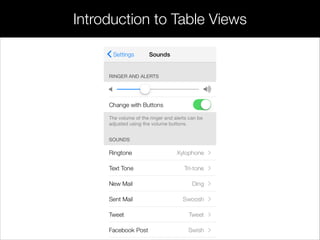
Introduction to Table Views
• Navigate through hierarchically structured data
• View an indexed list of items
• See detail information and controls in visually distinct groupings
• Interact with a selectable list of options
Purpose
• Table views are implemented in the UITableView class
• Individual table cell are implemented in the UITableViewCell class
• Table headers and footers are implemented in the
UITableViewHeaderFooterView class
Implementation
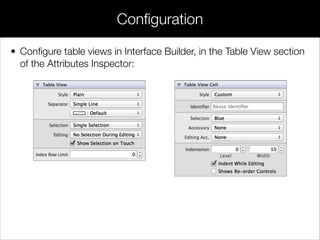
• Configure table views in Interface Builder, in the Table View section
of the Attributes Inspector:
Configuration
• Content of table views
• Behavior of table views
• Appearance of table views
• Table view styles
Customizing Table Views
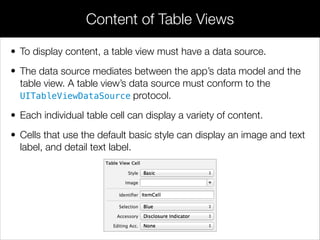
• To display content, a table view must have a data source.
• The data source mediates between the app’s data model and the
table view. A table view’s data source must conform to the
UITableViewDataSource protocol.
• Each individual table cell can display a variety of content.
• Cells that use the default basic style can display an image and text
label, and detail text label.
Content of Table Views
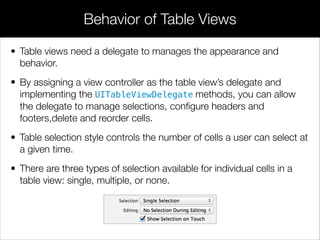
• Table views need a delegate to manages the appearance and
behavior.
• By assigning a view controller as the table view’s delegate and
implementing the UITableViewDelegate methods, you can allow
the delegate to manage selections, configure headers and
footers,delete and reorder cells.
• Table selection style controls the number of cells a user can select at
a given time.
• There are three types of selection available for individual cells in a
table view: single, multiple, or none.
Behavior of Table Views
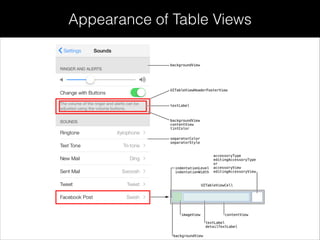
Appearance of Table Views
• Plain table views
• Grouped table views
• Standard styles for table view cells
Table View Styles
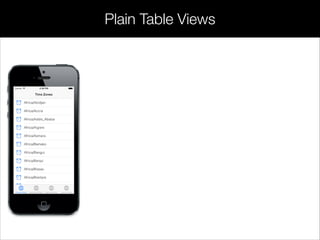
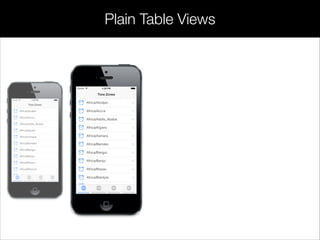
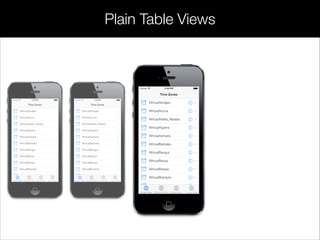
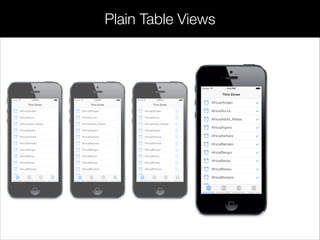
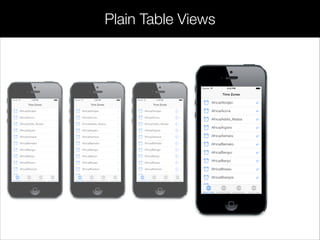
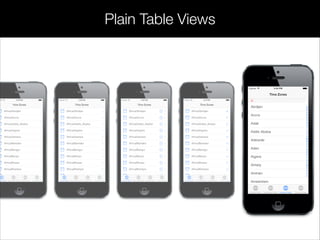
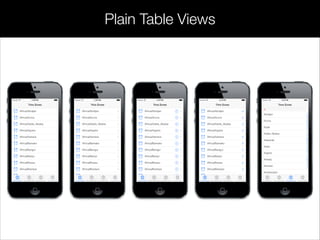
• A table view in the plain (or regular) style displays rows that stretch
across the screen and have a creamy white background.
• A plain table view can have one or more sections, sections can
have one or more rows, and each section can have its own header
or footer title.
Plain View Styles
Plain Table Views
Plain Table Views
Plain Table Views
Plain Table Views
Plain Table Views
Plain Table Views
Plain Table Views
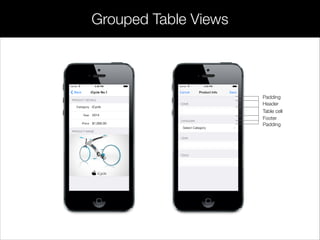
• A grouped table view also displays a list of information, but it
groups related rows in visually distinct sections.
• Each section has rounded corners and by default appears against a
bluish-gray background.
• Each section may have text or an image for its header or footer to
provide some context or summary for the section.
Grouped View Styles
Grouped Table Views
Padding
Header
Table cell
Footer
Padding
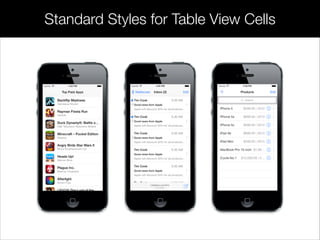
Standard Styles for Table View Cells
Navigating a Data Hierarchy with Table Views
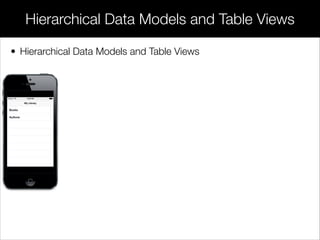
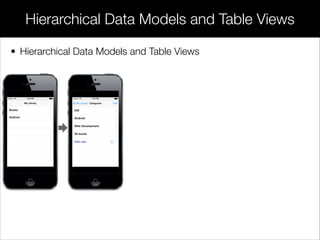
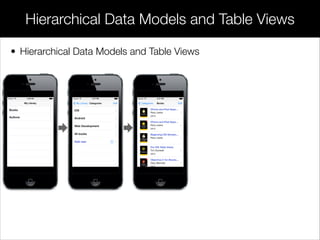
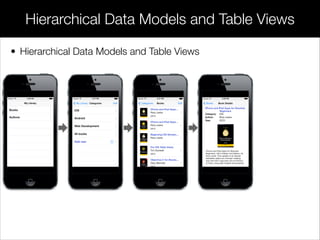
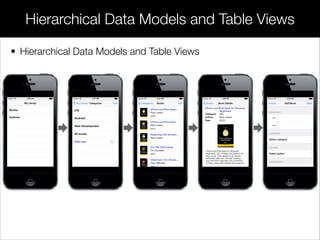
• Hierarchical Data Models and Table Views
• View Controllers and Navigation-Based Apps
Hierarchical Data Models and Table Views
• Hierarchical Data Models and Table Views
Hierarchical Data Models and Table Views
• Hierarchical Data Models and Table Views
Hierarchical Data Models and Table Views
• Hierarchical Data Models and Table Views
Hierarchical Data Models and Table Views
• Hierarchical Data Models and Table Views
Hierarchical Data Models and Table Views
• Hierarchical Data Models and Table Views
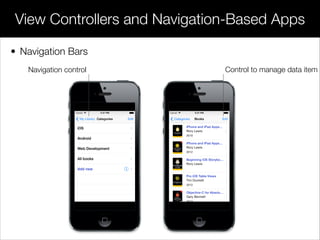
View Controllers and Navigation-Based Apps
• Navigation Bars
Control to manage data itemNavigation control
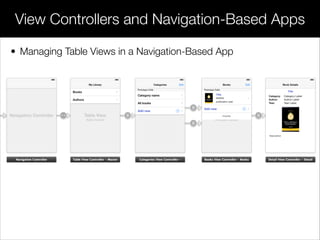
View Controllers and Navigation-Based Apps
• Managing Table Views in a Navigation-Based App
• Creating Table View
• Inserting and Deleting Rows and Sections
Table View Manipulation
• Creating table views using storyboard
• Creating table views programmatically
Creating Table View
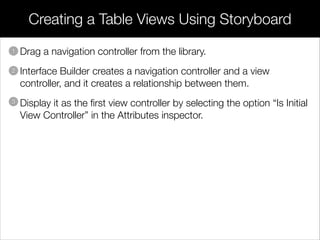
• Drag a navigation controller from the library.
• Interface Builder creates a navigation controller and a view
controller, and it creates a relationship between them.
• Display it as the first view controller by selecting the option “Is Initial
View Controller” in the Attributes inspector.
Creating a Table Views Using Storyboard
1
2
3
• Create root view controller for the navigation object.
Creating Table Views Programmatically
1
UIViewController *myViewController = [[MyViewController alloc] init];
• Create root view controller for navigation object.
• Initializing initWithRootViewController: method (navigation
controller).
Creating Table Views Programmatically
1
2
UINavigationController *navigationController = [[UINavigationController alloc]
initWithRootViewController:myViewController];
• Create root view controller for navigation object.
• Initializing initWithRootViewController: method (navigation
controller).
• Set navigation controller as root view controller of your window.
Creating Table Views Programmatically
1
2
3
window = [[UIWindow alloc] initWithFrame:[[UIScreen mainScreen] bounds]];
window.rootViewController = navigationController;
[window makeKeyAndVisible];
Creating Table Views Programmatically
- (void)applicationDidFinishLaunching:(UIApplication *)application
{
// Create the root view controller for the navigation object
UIViewController *myViewController = [[MyViewController alloc] init];
// Initializing navigation controller using initWithRootViewController: method
navigationController = [[UINavigationController alloc]
initWithRootViewController:myViewController];
!
// Set navigation controller as root view controller of your window
window = [[UIWindow alloc] initWithFrame:[[UIScreen mainScreen] bounds]];
window.rootViewController = navigationController;
[window makeKeyAndVisible];
}
• Change table view to editing mode
• Deleting a table view row
• Adding a table view row
Inserting and Deleting Rows and Sections
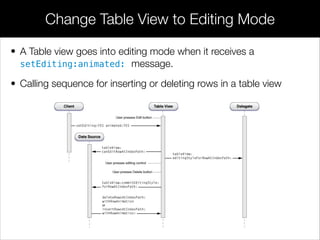
• A Table view goes into editing mode when it receives a
setEditing:animated: message.
• Calling sequence for inserting or deleting rows in a table view
Change Table View to Editing Mode
Deleting a Table View Row
• Set the right item of the navigation bar to be standard Edit button
• View controller responding to setEditing:animated:
• Customizing the editing style of rows
• Updating the data-model array and deleting the row
1
2
3
4
Deleting a Table View Row
• Set the right item of the navigation bar to be standard Edit button1
self.navigationItem.rightBarButtonItem = self.editButton;
Deleting a Table View Row
• Set the right item of the navigation bar to be standard Edit button
• View controller responding to setEditing:animated:
1
2
- (void)setEditing:(BOOL)editing animated:(BOOL)animated
{
[super setEditing:editing animated:animated];
[self.tableView setEditing:editing animated:YES];
if (editing)
{
addButton.enabled = NO;
}
else
{
addButton.enabled = YES;
}
}
Deleting a Table View Row
• Set the right item of the navigation bar to be standard Edit button
• View controller responding to setEditing:animated:
• Customizing the editing style of rows
1
2
3
- (UITableViewCellEditingStyle)tableView:(UITableView *)tableView
editingStyleForRowAtIndexPath:(NSIndexPath *)indexPath
{
SimpleEditableListViewController *controller =
(SimpleEditableListViewController *)[[UIApplication
sharedApplication] delegate];
if (indexPath.row == [controller countOfList]-1)
{
return UITableViewCellEditingStyleInsert;
}
else
{
return UITableViewCellEditingStyleDelete;
}
}
Deleting a Table View Row
• Set the right item of the navigation bar to be standard Edit button
• View controller responding to setEditing:animated:
• Customizing the editing style of rows
• Updating the data-model array and deleting the row
1
2
3
4
- (void)tableView:(UITableView *)tableView commitEditingStyle:
(UITableViewCellEditingStyle)editingStyle
forRowAtIndexPath:(NSIndexPath *)indexPath
{
// If row is deleted, remove it from the list.
if (editingStyle == UITableViewCellEditingStyleDelete)
{
SimpleEditableListViewController *controller =
(SimpleEditableListViewController *)[[UIApplication
sharedApplication] delegate];
[controller removeObjectFromListAtIndex:indexPath.row];
[tableView deleteRowsAtIndexPaths:[NSArray arrayWithObject:indexPath]
withRowAnimation:UITableViewRowAnimationFade];
}
}
• Adding an Add button to the navigation bar
• Responding to a tap on the Add button
• Adding the new item to the data-model array
Adding a Table View Row
1
2
3
Adding a Table View Row
• Adding an Add button to the navigation bar1
UIBarButtonItem addButton = [[UIBarButtonItem alloc]
initWithBarButtonSystemItem:UIBarButtonSystemItemAdd target:self
action:@selector(addItemAction:)];
self.navigationItem.rightBarButtonItem = addButton;
Adding a Table View Row
• Adding an Add button to the navigation bar
• Responding to a tap on the Add button
1
2
- (void)addItemAction:sender
{
if (itemInputController == nil)
{
itemInputViewController = [[ItemInputViewController alloc] init];
}
UINavigationController *navigationController = [[UINavigationController
alloc] initWithRootViewController:itemInputViewController];
[[self navigationController] presentModalViewController:navigationController
animated:YES];
}
Adding a Table View Row
• Adding an Add button to the navigation bar
• Responding to a tap on the Add button
• Adding the new item to the data-model array
1
2
3
- (void)save:sender
{
UITextField *textField = [(EditableTableViewTextField *)[self.tableView
cellForRowAtIndexPath:[NSIndexPath indexPathForRow:0
inSection:0]] textField];
SimpleEditableListViewController *controller =
(SimpleEditableListViewController *)[[UIApplication
sharedApplication] delegate];
NSString *newItem = textField.text;
if (newItem != nil)
{
[controller insertObject:newItem inListAtIndex:[controller countOfList]];
}
[self dismissModalViewControllerAnimated:YES];
}
Demo
Table Manipulation Demo
Search Bar
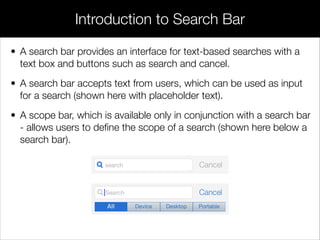
• A search bar provides an interface for text-based searches with a
text box and buttons such as search and cancel.
• A search bar accepts text from users, which can be used as input
for a search (shown here with placeholder text).
• A scope bar, which is available only in conjunction with a search bar
- allows users to define the scope of a search (shown here below a
search bar).
Introduction to Search Bar
• Quickly find a value in a large collection
• Create a scope filter
Purpose
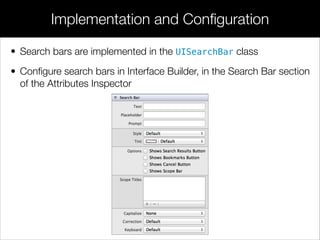
• Search bars are implemented in the UISearchBar class
• Configure search bars in Interface Builder, in the Search Bar section
of the Attributes Inspector
Implementation and Configuration
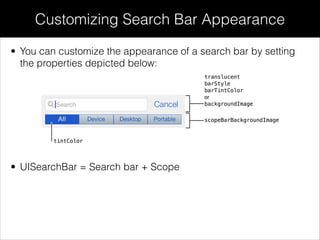
• You can customize the appearance of a search bar by setting
the properties depicted below:
Customizing Search Bar Appearance
• UISearchBar = Search bar + Scope
• Creating a search bar in table view
• Creating a search bar scope
• Displaying the result in table view
Working with Search Bar in Table View
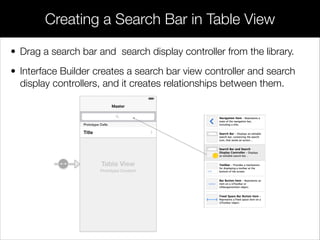
• Drag a search bar and search display controller from the library.
• Interface Builder creates a search bar view controller and search
display controllers, and it creates relationships between them.
Creating a Search Bar in Table View
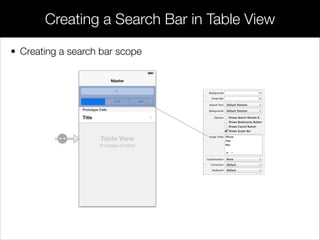
• Creating a search bar scope
Creating a Search Bar in Table View
• Displaying the result in table view
Creating a Search Bar in Table View
#pragma mark - UISearchDisplayController Delegate Methods
!
- (BOOL)searchDisplayController:(UISearchDisplayController *)controller
shouldReloadTableForSearchScope:(NSInteger)searchOption
{
NSString *searchString = [self.searchDisplayController.searchBar text];
NSString *scope;
if (searchOption > 0)
{
scope = [[Product deviceTypeNames] objectAtIndex:(searchOption - 1)];
}
[self updateFilteredContentForProductName:searchString type:scope];
// Return YES to cause the search result table view to be reloaded
return YES;
}
Demo
Products Searching
UITableView
https://developer.apple.com/library/ios/documentation/UserExperience/Conceptual/UIKitUICatalog/
UITableView.html
Table View Programming Guide for iOS
https://developer.apple.com/library/ios/documentation/userexperience/conceptual/TableView_iPhone/
AboutTableViewsiPhone/AboutTableViewsiPhone.html
UISearchBar
https://developer.apple.com/library/ios/documentation/UserExperience/Conceptual/UIKitUICatalog/
UISearchBar.html
Documentation
many thanks
to
lamvt@fpt.com.vn
please
say
Stanford University
https://developer.apple.com
Developer Center
http://www.stanford.edu/class/cs193p
xin
chào
Next: Working with Image, Scroll, Collection,
Picker, Web View and Page Control

Session 14 - Working with table view and search bar

  • 1.
  • 2.
    Working with TableViews and Search Bar These are confidential sessions - please refrain from streaming, blogging, or taking pictures Session 14 Vu Tran Lam IAD-2013
  • 3.
    • Introduction totable views • Customizng the table view appearance • Navigating a data hierarchy with table views • Table view manipulation • Introduction to search bar • Customizing search bar appearance • Working with search bar in table view Today’s Topics
  • 4.
  • 5.
    • A tableview presents data in a scrollable list of multiple rows that may be divided into sections. • It presents data in a single-column list of multiple rows and is a means for displaying and editing hierarchical lists of information. • In normal mode, selecting a message allows the user to read it. • In editing mode, selecting a message allows the user to delete it from the inbox. • Table views provide a simple yet versatile interface for managing and interacting with collections of data. Introduction to Table Views
  • 6.
  • 7.
    • Navigate throughhierarchically structured data • View an indexed list of items • See detail information and controls in visually distinct groupings • Interact with a selectable list of options Purpose
  • 8.
    • Table viewsare implemented in the UITableView class • Individual table cell are implemented in the UITableViewCell class • Table headers and footers are implemented in the UITableViewHeaderFooterView class Implementation
  • 9.
    • Configure tableviews in Interface Builder, in the Table View section of the Attributes Inspector: Configuration
  • 10.
    • Content oftable views • Behavior of table views • Appearance of table views • Table view styles Customizing Table Views
  • 11.
    • To displaycontent, a table view must have a data source. • The data source mediates between the app’s data model and the table view. A table view’s data source must conform to the UITableViewDataSource protocol. • Each individual table cell can display a variety of content. • Cells that use the default basic style can display an image and text label, and detail text label. Content of Table Views
  • 12.
    • Table viewsneed a delegate to manages the appearance and behavior. • By assigning a view controller as the table view’s delegate and implementing the UITableViewDelegate methods, you can allow the delegate to manage selections, configure headers and footers,delete and reorder cells. • Table selection style controls the number of cells a user can select at a given time. • There are three types of selection available for individual cells in a table view: single, multiple, or none. Behavior of Table Views
  • 13.
  • 14.
    • Plain tableviews • Grouped table views • Standard styles for table view cells Table View Styles
  • 15.
    • A tableview in the plain (or regular) style displays rows that stretch across the screen and have a creamy white background. • A plain table view can have one or more sections, sections can have one or more rows, and each section can have its own header or footer title. Plain View Styles
  • 16.
  • 17.
  • 18.
  • 19.
  • 20.
  • 21.
  • 22.
  • 23.
    • A groupedtable view also displays a list of information, but it groups related rows in visually distinct sections. • Each section has rounded corners and by default appears against a bluish-gray background. • Each section may have text or an image for its header or footer to provide some context or summary for the section. Grouped View Styles
  • 24.
  • 25.
    Standard Styles forTable View Cells
  • 26.
    Navigating a DataHierarchy with Table Views • Hierarchical Data Models and Table Views • View Controllers and Navigation-Based Apps
  • 27.
    Hierarchical Data Modelsand Table Views • Hierarchical Data Models and Table Views
  • 28.
    Hierarchical Data Modelsand Table Views • Hierarchical Data Models and Table Views
  • 29.
    Hierarchical Data Modelsand Table Views • Hierarchical Data Models and Table Views
  • 30.
    Hierarchical Data Modelsand Table Views • Hierarchical Data Models and Table Views
  • 31.
    Hierarchical Data Modelsand Table Views • Hierarchical Data Models and Table Views
  • 32.
    View Controllers andNavigation-Based Apps • Navigation Bars Control to manage data itemNavigation control
  • 33.
    View Controllers andNavigation-Based Apps • Managing Table Views in a Navigation-Based App
  • 34.
    • Creating TableView • Inserting and Deleting Rows and Sections Table View Manipulation
  • 35.
    • Creating tableviews using storyboard • Creating table views programmatically Creating Table View
  • 36.
    • Drag anavigation controller from the library. • Interface Builder creates a navigation controller and a view controller, and it creates a relationship between them. • Display it as the first view controller by selecting the option “Is Initial View Controller” in the Attributes inspector. Creating a Table Views Using Storyboard 1 2 3
  • 37.
    • Create rootview controller for the navigation object. Creating Table Views Programmatically 1 UIViewController *myViewController = [[MyViewController alloc] init];
  • 38.
    • Create rootview controller for navigation object. • Initializing initWithRootViewController: method (navigation controller). Creating Table Views Programmatically 1 2 UINavigationController *navigationController = [[UINavigationController alloc] initWithRootViewController:myViewController];
  • 39.
    • Create rootview controller for navigation object. • Initializing initWithRootViewController: method (navigation controller). • Set navigation controller as root view controller of your window. Creating Table Views Programmatically 1 2 3 window = [[UIWindow alloc] initWithFrame:[[UIScreen mainScreen] bounds]]; window.rootViewController = navigationController; [window makeKeyAndVisible];
  • 40.
    Creating Table ViewsProgrammatically - (void)applicationDidFinishLaunching:(UIApplication *)application { // Create the root view controller for the navigation object UIViewController *myViewController = [[MyViewController alloc] init]; // Initializing navigation controller using initWithRootViewController: method navigationController = [[UINavigationController alloc] initWithRootViewController:myViewController]; ! // Set navigation controller as root view controller of your window window = [[UIWindow alloc] initWithFrame:[[UIScreen mainScreen] bounds]]; window.rootViewController = navigationController; [window makeKeyAndVisible]; }
  • 41.
    • Change tableview to editing mode • Deleting a table view row • Adding a table view row Inserting and Deleting Rows and Sections
  • 42.
    • A Tableview goes into editing mode when it receives a setEditing:animated: message. • Calling sequence for inserting or deleting rows in a table view Change Table View to Editing Mode
  • 43.
    Deleting a TableView Row • Set the right item of the navigation bar to be standard Edit button • View controller responding to setEditing:animated: • Customizing the editing style of rows • Updating the data-model array and deleting the row 1 2 3 4
  • 44.
    Deleting a TableView Row • Set the right item of the navigation bar to be standard Edit button1 self.navigationItem.rightBarButtonItem = self.editButton;
  • 45.
    Deleting a TableView Row • Set the right item of the navigation bar to be standard Edit button • View controller responding to setEditing:animated: 1 2 - (void)setEditing:(BOOL)editing animated:(BOOL)animated { [super setEditing:editing animated:animated]; [self.tableView setEditing:editing animated:YES]; if (editing) { addButton.enabled = NO; } else { addButton.enabled = YES; } }
  • 46.
    Deleting a TableView Row • Set the right item of the navigation bar to be standard Edit button • View controller responding to setEditing:animated: • Customizing the editing style of rows 1 2 3 - (UITableViewCellEditingStyle)tableView:(UITableView *)tableView editingStyleForRowAtIndexPath:(NSIndexPath *)indexPath { SimpleEditableListViewController *controller = (SimpleEditableListViewController *)[[UIApplication sharedApplication] delegate]; if (indexPath.row == [controller countOfList]-1) { return UITableViewCellEditingStyleInsert; } else { return UITableViewCellEditingStyleDelete; } }
  • 47.
    Deleting a TableView Row • Set the right item of the navigation bar to be standard Edit button • View controller responding to setEditing:animated: • Customizing the editing style of rows • Updating the data-model array and deleting the row 1 2 3 4 - (void)tableView:(UITableView *)tableView commitEditingStyle: (UITableViewCellEditingStyle)editingStyle forRowAtIndexPath:(NSIndexPath *)indexPath { // If row is deleted, remove it from the list. if (editingStyle == UITableViewCellEditingStyleDelete) { SimpleEditableListViewController *controller = (SimpleEditableListViewController *)[[UIApplication sharedApplication] delegate]; [controller removeObjectFromListAtIndex:indexPath.row]; [tableView deleteRowsAtIndexPaths:[NSArray arrayWithObject:indexPath] withRowAnimation:UITableViewRowAnimationFade]; } }
  • 48.
    • Adding anAdd button to the navigation bar • Responding to a tap on the Add button • Adding the new item to the data-model array Adding a Table View Row 1 2 3
  • 49.
    Adding a TableView Row • Adding an Add button to the navigation bar1 UIBarButtonItem addButton = [[UIBarButtonItem alloc] initWithBarButtonSystemItem:UIBarButtonSystemItemAdd target:self action:@selector(addItemAction:)]; self.navigationItem.rightBarButtonItem = addButton;
  • 50.
    Adding a TableView Row • Adding an Add button to the navigation bar • Responding to a tap on the Add button 1 2 - (void)addItemAction:sender { if (itemInputController == nil) { itemInputViewController = [[ItemInputViewController alloc] init]; } UINavigationController *navigationController = [[UINavigationController alloc] initWithRootViewController:itemInputViewController]; [[self navigationController] presentModalViewController:navigationController animated:YES]; }
  • 51.
    Adding a TableView Row • Adding an Add button to the navigation bar • Responding to a tap on the Add button • Adding the new item to the data-model array 1 2 3 - (void)save:sender { UITextField *textField = [(EditableTableViewTextField *)[self.tableView cellForRowAtIndexPath:[NSIndexPath indexPathForRow:0 inSection:0]] textField]; SimpleEditableListViewController *controller = (SimpleEditableListViewController *)[[UIApplication sharedApplication] delegate]; NSString *newItem = textField.text; if (newItem != nil) { [controller insertObject:newItem inListAtIndex:[controller countOfList]]; } [self dismissModalViewControllerAnimated:YES]; }
  • 52.
  • 53.
  • 54.
    • A searchbar provides an interface for text-based searches with a text box and buttons such as search and cancel. • A search bar accepts text from users, which can be used as input for a search (shown here with placeholder text). • A scope bar, which is available only in conjunction with a search bar - allows users to define the scope of a search (shown here below a search bar). Introduction to Search Bar
  • 55.
    • Quickly finda value in a large collection • Create a scope filter Purpose
  • 56.
    • Search barsare implemented in the UISearchBar class • Configure search bars in Interface Builder, in the Search Bar section of the Attributes Inspector Implementation and Configuration
  • 57.
    • You cancustomize the appearance of a search bar by setting the properties depicted below: Customizing Search Bar Appearance • UISearchBar = Search bar + Scope
  • 58.
    • Creating asearch bar in table view • Creating a search bar scope • Displaying the result in table view Working with Search Bar in Table View
  • 59.
    • Drag asearch bar and search display controller from the library. • Interface Builder creates a search bar view controller and search display controllers, and it creates relationships between them. Creating a Search Bar in Table View
  • 60.
    • Creating asearch bar scope Creating a Search Bar in Table View
  • 61.
    • Displaying theresult in table view Creating a Search Bar in Table View #pragma mark - UISearchDisplayController Delegate Methods ! - (BOOL)searchDisplayController:(UISearchDisplayController *)controller shouldReloadTableForSearchScope:(NSInteger)searchOption { NSString *searchString = [self.searchDisplayController.searchBar text]; NSString *scope; if (searchOption > 0) { scope = [[Product deviceTypeNames] objectAtIndex:(searchOption - 1)]; } [self updateFilteredContentForProductName:searchString type:scope]; // Return YES to cause the search result table view to be reloaded return YES; }
  • 62.
  • 63.
    UITableView https://developer.apple.com/library/ios/documentation/UserExperience/Conceptual/UIKitUICatalog/ UITableView.html Table View ProgrammingGuide for iOS https://developer.apple.com/library/ios/documentation/userexperience/conceptual/TableView_iPhone/ AboutTableViewsiPhone/AboutTableViewsiPhone.html UISearchBar https://developer.apple.com/library/ios/documentation/UserExperience/Conceptual/UIKitUICatalog/ UISearchBar.html Documentation
  • 64.
  • 65.
    Next: Working withImage, Scroll, Collection, Picker, Web View and Page Control