Beginning iOS 7 Development: Exploring the iOS SDK
by Jack Nutting, Fredrik Olsson, David Mark and Jeff LaMarche
Apress. (c) 2014. Copying Prohibited.
Reprinted for Personal Account, American Public University
System
[email protected]
Reprinted with permission as a subscription benefit of Skillport,
All rights reserved. Reproduction and/or distribution in whole
or in part in electronic,paper or other forms without written
permission is prohibited.
Chapter 8: Introduction to Table Views
Overview
In this chapter, we're going to build a hierarchical navigation-
based application similar to the Mail application that ships on
iOS devices. Our application will allow the user to drill
down into nested lists of data and edit that data. But before we
can build that application, you need to master the concept of
table views. And that's the goal of this chapter.
Table views are the most common mechanism used to display
lists of data to the user. They are highly configurable objects
that can be made to look practically any way you
want them to look. Mail uses table views to show lists of
accounts, folders, and messages; however, table views are not
limited to just the display of textual data. Table views are
also used in the Settings, Music, and Clock applications, even
though those applications have very different appearances (see
Figure 8-1).
Figure 8-1: Though they all look different, the Settings, Music,
and Clock applications use table views to display their data
Table View Basics
Tables display lists of data. Each item in a table's list is a row.
iOS tables can have an unlimited number of rows, constrained
only by the amount of available memory. iOS tables
can be only one column wide.
Table Views and Table View Cells
A table view is the view object that displays a table's data and
is an instance of the class UITableView. Each visible row of the
table is implemented by the class
UITableViewCell. So, a table view is the object that displays
the visible part of a table, and a table view cell is responsible
for displaying a single row of the table (see Figure 8-
2).
Beginning iOS 7 Development: Exploring the iOS SDK
Reprinted for ZU7S5/5738005, American Public University
System Apress, Jack Nutting, Fredrik Olsson, David Mark, and
Jeff LaMarche (c) 2014, Copying Prohibited
Page 2 of 26
Figure 8-2: Each table view is an instance of UITableView, and
each visible row is an instance of UITableViewCell
Table views are not responsible for storing your table's data.
They store only enough data to draw the rows that are currently
visible. Table views get their configuration data
from an object that conforms to the UITableViewDelegate
protocol and their row data from an object that conforms to the
UITableViewDataSource protocol. You'll see how all this
works when we get into our sample programs later in the
chapter.
As mentioned, all tables are implemented as a single column.
The Clock application, shown on the right side of Figure 8-1,
does give the appearance of having at least two
columns, perhaps even three if you count the clock faces. But
no, each row in the table is represented by a single
UITableViewCell. By default, each UITableViewCell object
can be configured with an image, some text, and an optional
accessory icon, which is a small icon on the right side (we'll
cover accessory icons in detail in the next chapter).
You can put even more data in a cell if you need to by adding
subviews to UITableViewCell. You do this using one of two
basic techniques: by adding subviews
programmatically when creating the cell or by loading them
from a storyboard or nib file. You can lay out the table view
cell out in any way you like and include any subviews you
desire. So, the single-column limitation is far less limiting than
it probably sounds at first. If this is confusing, don't worry—
we'll show you how to use both of these techniques in
this chapter.
Grouped and Plain Tables
Table views come in two basic styles:
Grouped: A grouped table view contains one or more sections of
rows. Within each section, all rows sit tightly together in a nice
little group; but between sections, there
are clearly visible gaps, as shown in the leftmost picture in
Figure 8-3. Note that a grouped table can consist of a single
group.
Figure 8-3: The same table view displayed as a grouped table
(left); a plain table without an index (middle); and a plain table
with an index, which is also called an indexed table
(right)
Plain: Plain is the default style. In this style, the sections are
slightly closer together, and each section's header can
optionally be styled in a custom manner. When an index
Beginning iOS 7 Development: Exploring the iOS SDK
Reprinted for ZU7S5/5738005, American Public University
System Apress, Jack Nutting, Fredrik Olsson, David Mark, and
Jeff LaMarche (c) 2014, Copying Prohibited
Page 3 of 26
is used, this style is also referred to as indexed (Figure 8-3,
right).
If your data source provides the necessary information, the table
view will let the user navigate your list using an index that is
displayed down the right side.
Each division of your table is known to your data source as a
section. In a grouped table, each group is a section. In an
indexed table, each indexed grouping of data is a
section. For example, in the indexed table shown in Figure 8-3,
all the names beginning with A would be one section, those
beginning with B would be another, and so on.
Sections have two primary purposes. In a grouped table, each
section represents one group. In an indexed table, each section
corresponds to one index entry. For example, if
you wanted to display a list indexed alphabetically with an
index entry for every letter, you would have 26 sections, each
containing all the values that begin with a particular
letter.
Caution Even though it is technically possible to create a
grouped table with an index, you should not do so. The iPhone
Human Interface Guidelines specifically state that grouped
tables should not
provide indexes.
Implementing a Simple Table
Let's look at the simplest possible example of a table view to
get a feel for how it works. In this example, we're just going to
display a list of text values.
Create a new project in Xcode. For this chapter, we're going
back to the Single View Application template, so select that
one. Call your project Simple Table, enter BID as the
Class Prefix, and set the Device Family to iPhone.
Designing the View
In the project navigator, expand the top-level Simple Table
project and the Simple Table folder. This is such a simple
application that we're not going to need any outlets or
actions. Go ahead and select Main.storyboard to edit the GUI. If
the View window isn't visible in the layout area, single-click its
icon in the document outline to open it. Next, look
in the object library for a Table View (see Figure 8-4) and drag
that over to the View window.
Figure 8-4: Dragging a table view from the library onto our
main view. Notice that the table view automatically resizes to
the full size of the view
The table view should automatically size itself to the height and
width of the view. This is exactly what we want. Table views
are designed to fill the entire width of the screen and
most of the height as well—whatever isn't taken up by your
application's navigation bars, toolbars, and tab bars. Drop the
table view onto the View window and line it up to be
centered in its parent view.
Before we go on, there's one problem that we should fix. Right
now, this view has a fixed size, matching that of its parent
view. But, what happens if the parent view changes its
Beginning iOS 7 Development: Exploring the iOS SDK
Reprinted for ZU7S5/5738005, American Public University
System Apress, Jack Nutting, Fredrik Olsson, David Mark, and
Jeff LaMarche (c) 2014, Copying Prohibited
Page 4 of 26
size? This happens when launching the app on a device with a
different screen size than what is configured in the storyboard.
For example, let's say you've configured this view
as a Retina 4-inch sized screen in Interface Builder. If you run
the app on an iPhone 4 or with the simulator in Retina 3.5-inch
mode, then the table view will keep its original size,
which means it will be too large for the screen and will stick
part way off the bottom.
Fortunately, we can fix this easily by using constraints. In
earlier chapters, we've added constraints using various items
from the Editor menu, but now we're going to show you
another way. As you may have seen, at the bottom of Interface
Builder's editing area there's a row of floating buttons. One
section of these is all about constraints. With the new
table view still selected, move your mouse over each of the
buttons at the bottom and see what comes up. We want to pin
the edges of our table view to its parent's edges, so
look for the button that shows Pin in a hovering tooltip and
click it. Figure 8-5 shows what comes up.
Figure 8-5: The Add New Constraints panel, before and after
setting up some constraints
This panel lets you set up new constraints for the chosen view.
In our case, we want to make new constraints pinning all the
edges of our view to its parent. This is as simple as
clicking each of the dotted-line connector symbols surrounding
the little square in the upper part of the panel. Each one
becomes solid as you click it, and the button at the
bottom updates its number to tell you how many constraints
you're about to add. When all four are enabled, click the Add 4
Constraints button to put them in place.
With the table view still selected, press to bring up the
Connections Inspector. You'll notice that the first two available
connections for the table view are the same as the first
two for the picker view: dataSource and delegate. Drag from the
circle next to each of those connections over to the View
Controller icon. By doing this, we are making our
controller class both the data source and delegate for this table.
With the table view still selected, open the Attributes Inspector
( ), and then enter 1 for the Tag value in the View section. If we
give unique tag values to views, then these
values can later be used to retrieve them in code. We will need
to do this later for the table view.
After setting the connections, save your storyboard and get
ready to dig into some UITableView code.
Writing the Controller
The next stop is our controller class's header file. Single-click
BIDViewController.h and add the following code:
#import <UIKit/UIKit.h>
@interface BIDViewController : UIViewController
<UITableViewDataSource, UITableViewDelegate>
@end
All we're doing here is conforming our class to the two
protocols that are needed for it to act as the delegate and data
source for the table view.
Save your changes. Next, switch over to BIDViewController.m
and add the following code at the beginning of the file:
#import "BIDViewController.h"
@interface BIDViewController ()
@property (copy, nonatomic) NSArray *dwarves;
@end
@implementation BIDViewController
- (void)viewDidLoad
{
[super viewDidLoad];
// Do any additional setup after loading the view, typically
from a nib.
self.dwarves = @[@"Sleepy", @"Sneezy", @"Bashful",
@"Happy",
@"Doc", @"Grumpy", @"Dopey",
@"Thorin", @"Dorin", @"Nori", @"Ori",
@"Balin", @"Dwalin", @"Fili", @"Kili",
@"Oin", @"Gloin", @"Bifur", @"Bofur",
@"Bombur"];
UITableView *tableView = (id)[self.view viewWithTag:1];
UIEdgeInsets contentInset = tableView.contentInset;
contentInset.top = 20;
[tableView setContentInset:contentInset];
}
Finally, add the following code at the end of the file:
- (NSInteger)tableView:(UITableView *)tableView
numberOfRowsInSection:(NSInteger)section
{
return [self.dwarves count];
Beginning iOS 7 Development: Exploring the iOS SDK
Reprinted for ZU7S5/5738005, American Public University
System Apress, Jack Nutting, Fredrik Olsson, David Mark, and
Jeff LaMarche (c) 2014, Copying Prohibited
Page 5 of 26
}
- (UITableViewCell *)tableView:(UITableView *)tableView
cellForRowAtIndexPath:(NSIndexPath *)indexPath
{
static NSString *SimpleTableIdentifier =
@"SimpleTableIdentifier";
UITableViewCell *cell = [tableView
dequeueReusableCellWithIdentifier:
SimpleTableIdentifier];
if (cell == nil) {
cell = [[UITableViewCell alloc]
initWithStyle:UITableViewCellStyleDefault
reuseIdentifier:SimpleTableIdentifier];
}
cell.textLabel.text = self.dwarves[indexPath.row];
return cell;
}
@end
First, we declared an array that will hold the data to be
displayed. And finally, we added three methods to the
controller. You should be comfortable with the first one,
viewDidLoad, since we've done similar things in the past. We're
simply creating an array of data to display in the table. In a real
application, this array would likely come from
another source, such as a text file, property list, or a web
service. Here we're doing one new thing, however: we're
adjusting the top edge inset value for the table view, so that
the initial display won't interfere with the transparent status bar.
Here's where we make use of the tag value we set in the
storyboard to access the table view.
If you scroll down to the end, you can see we added two data
source methods. The first one,
tableView:numberOfRowsInSection:, is used by the table to ask
how many rows
are in a particular section. As you might expect, the default
number of sections is one, and this method will be called to get
the number of rows in the one section that makes up
the list. We just return the number of items in our array.
The next method probably requires a little explanation, so let's
look at it more closely:
- (UITableViewCell *)tableView:(UITableView *)tableView
cellForRowAtIndexPath:(NSIndexPath *)indexPath
This method is called by the table view when it needs to draw
one of its rows. Notice that the second argument to this method
is an NSIndexPath instance. This is the mechanism
that table views use to wrap the section and row indexes into a
single object. To get the row index or the section index out of
an NSIndexPath, you just access its row property or
its section property, both of which return an integer value.
The first parameter, tableView, is a reference to the table doing
the asking. This allows us to create classes that act as a data
source for multiple tables.
Next, we declare a static string instance:
static NSString *SimpleTableIdentifier =
@"SimpleTableIdentifier";
This string will be used as a key to represent the type of our
table cell. Our table will use only a single type of cell.
A table view can display only a few rows at a time on the
iPhone's small screen, but the table itself can conceivably hold
considerably more. Remember that each row in the table
is represented by an instance of UITableViewCell, a subclass of
UIView, which means each row can contain subviews. With a
large table, this could represent a huge amount of
overhead if the table were to try to keep one table view cell
instance for every row in the table, regardless of whether that
row was currently being displayed. Fortunately, tables
don't work that way.
Instead, as table view cells scroll off the screen, they are placed
into a queue of cells available to be reused. If the system runs
low on memory, the table view will get rid of the
cells in the queue. But as long as the system has some memory
available for those cells, it will hold on to them in case you
want to use them again.
Every time a table view cell rolls off the screen, there's a pretty
good chance that another one just rolled onto the screen on the
other side. If that new row can just reuse one of
the cells that has already rolled off the screen, the system can
avoid the overhead associated with constantly creating and
releasing those views. To take advantage of this
mechanism, we'll ask the table view to give us a previously used
cell of the specified type. Note that we're using the NSString
identifier we declared earlier. In effect, we're asking
for a reusable cell of type SimpleTableIdentifier:
UITableViewCell *cell = [tableView
dequeueReusableCellWithIdentifier:
SimpleTableIdentifier];
Now, it's completely possible that the table view won't have any
spare cells (e.g., when it's being initially populated), so we
check the cell after the call to see whether it's nil. If
it is, we manually create a new table view cell using that
identifier string. At some point, we'll inevitably reuse one of the
cells we create here, so we need to make sure that we
create it using SimpleTableIdentifier:
if (cell == nil) {
cell = [[UITableViewCell alloc]
initWithStyle:UITableViewCellStyleDefault
reuseIdentifier:SimpleTableIdentifier];
}
Curious about UITableViewCellStyleDefault? Hold that
thought. We'll get to it when we look at the table view cell
styles.
We now have a table view cell that we can return for the table
view to use. So, all we need to do is place whatever information
we want displayed in this cell. Displaying text in a
row of a table is a very common task, so the table view cell
provides a UILabel property called textLabel that we can set to
display strings. That just requires getting the correct
string from our listData array and using it to set the cell's
textLabel.
To get the correct value, however, we need to know which row
the table view is asking for. We get that information from the
indexPath's row property. We use the row number
of the table to get the corresponding string from the array,
assign it to the cell's textLabel.text property, and then return the
cell:
cell.textLabel.text = self.dwarves[indexPath.row];
return cell;
That wasn't so bad, was it?
Compile and run your application, and you should see the array
values displayed in a table view (see Figure 8-6).
Beginning iOS 7 Development: Exploring the iOS SDK
Reprinted for ZU7S5/5738005, American Public University
System Apress, Jack Nutting, Fredrik Olsson, David Mark, and
Jeff LaMarche (c) 2014, Copying Prohibited
Page 6 of 26
Figure 8-6: The Simple Table application, in all its dwarven
glory
Adding an Image
It would be nice if we could add an image to each row. Guess
we would need to create a subclass of UITableViewCell or add
subviews to do that, huh? Actually, no, not if you
can live with the image being on the left side of each row. The
default table view cell can handle that situation just fine. Let's
check it out.
In the project archive, in the 08 - Simple Table folder, grab the
file called star.png and add it to your project's Images.assets.
star.png is a small icon that was prepared just for
this project.
Next, let's get to the code. In the file BIDViewController.m, add
the following code to the tableView:cellForRowAtIndexPath:
method:
- (UITableViewCell *)tableView:(UITableView *)tableView
cellForRowAtIndexPath:(NSIndexPath *)indexPath
{
static NSString *SimpleTableIdentifier =
@"SimpleTableIdentifier";
UITableViewCell *cell = [tableView
dequeueReusableCellWithIdentifier:
SimpleTableIdentifier];
if (cell == nil) {
cell = [[UITableViewCell alloc]
initWithStyle:UITableViewCellStyleDefault
reuseIdentifier:SimpleTableIdentifier];
}
UIImage *image = [UIImage imageNamed:@"star"];
cell.imageView.image = image;
cell.textLabel.text = self.dwarves[indexPath.row];
return cell;
}
Yep, that's it. Each cell has an imageView property. Each
imageView has an image property, as well as a
highlightedImage property. The image appears to the left of the
cell's text
and is replaced by the highlightedImage, if one is provided,
when the cell is selected. You just set the cell's
imageView.image property to whatever image you want to
display.
If you compile and run your application now, you should get a
list with a bunch of nice little star icons to the left of each row
(see Figure 8-7). Of course, we could have included
a different image for each row in the table. Or, with very little
effort, we could have used one icon for all of Mr. Disney's
dwarves and a different one for Mr. Tolkien's.
Beginning iOS 7 Development: Exploring the iOS SDK
Reprinted for ZU7S5/5738005, American Public University
System Apress, Jack Nutting, Fredrik Olsson, David Mark, and
Jeff LaMarche (c) 2014, Copying Prohibited
Page 7 of 26
Figure 8-7: We used the cell's image property to add an image
to each of the table view's cells
If you like, make a copy of star.png and use your favorite
graphics application to colorize it a bit. Next, add it to the
project, load it with imageNamed:, and use it to set
imageView.highlightedImage. Now if you click a cell, your new
image will be drawn. If you don't feel like coloring, use the
star2.png icon we provided in the project archive.
Note UIImage uses a caching mechanism based on the file
name, so it won't load a new image property each time
imageNamed: is called. Instead, it will use the already cached
version.
Using Table View Cell Styles
The work you've done with the table view so far has used the
default cell style shown in Figure 8-7, represented by the
constant UITableViewCellStyleDefault. But the
UITableViewCell class includes several other predefined cell
styles that let you easily add a bit more variety to your table
views. These cell styles use three different cell
elements:
Image: If an image is part of the specified style, the image is
displayed to the left of the cell's text.
Text label: This is the cell's primary text. In the
UITableViewCellStyleDefault style we used earlier, the text
label is the only text shown in the cell.
Detail text label: This is the cell's secondary text, usually used
as an explanatory note or label.
To see what these new style additions look like, add the
following code to tableView:cellForRowAtIndexPath: in
BIDViewController.m:
- (UITableViewCell *)tableView:(UITableView *)tableView
cellForRowAtIndexPath:(NSIndexPath *)indexPath
{
static NSString *SimpleTableIdentifier =
@"SimpleTableIdentifier";
UITableViewCell *cell = [tableView
dequeueReusableCellWithIdentifier:
SimpleTableIdentifier];
if (cell == nil) {
cell = [[UITableViewCell alloc]
initWithStyle:UITableViewCellStyleDefault
reuseIdentifier:SimpleTableIdentifier];
}
UIImage *image = [UIImage imageNamed:@"star.png"];
cell.imageView.image = image;
cell.textLabel.text = self.dwarves[indexPath.row];
if (indexPath.row < 7) {
cell.detailTextLabel.text = @"Mr. Disney";
} else {
cell.detailTextLabel.text = @"Mr. Tolkien";
}
return cell;
}
All we've done here is set the cell's detail text. We use the
string @"Mr. Disney" for the first seven rows and the string
@"Mr. Tolkien" for the rest. When you run this code, each
cell will look just as it did before (see Figure 8-8). That's
because we are using the style UITableViewCellStyleDefault,
which does not use the detail text.
Figure 8-8: The default cell style shows the image and text label
in a straight row
Now change UITableViewCellStyleDefault to
UITableViewCellStyleSubtitle and run the app again. With the
subtitle style, both text elements are shown, one below the other
Beginning iOS 7 Development: Exploring the iOS SDK
Reprinted for ZU7S5/5738005, American Public University
System Apress, Jack Nutting, Fredrik Olsson, David Mark, and
Jeff LaMarche (c) 2014, Copying Prohibited
Page 8 of 26
(see Figure 8-9).
Figure 8-9: The subtitle style shows the detail text in smaller
gray letters below the text label
Change UITableViewCellStyleSubtitle to
UITableViewCellStyleValue1, and then build and run. This
style places the text label and detail text label on the same line,
but on
opposite sides of the cell (see Figure 8-10).
Figure 8-10: The style value 1 will place the text label on the
left side in black letters and the detail text right-justified on the
right side in blue letters
Finally, change UITableViewCellStyleValue1 to
UITableViewCellStyleValue2. This format is often used to
display information along with a descriptive label. It doesn't
show the
cell's icon, but places the detail text label to the left of the text
label (see Figure 8-11). In this layout, the detail text label acts
as a label describing the type of data held in the text
label.
Figure 8-11: The style value 2 does not display the image and
places the detail text label in blue letters to the left of the text
label
Now that you've seen the cell styles that are available, go ahead
and change back to the UITableViewCellStyleDefault style
before continuing. Later in this chapter, you'll see
how to customize the appearance of your table. But before you
decide to do that, make sure you consider the available styles to
see whether one of them will suit your needs.
You may have noticed that we made our controller both the data
source and delegate for this table view; but up to now, we
haven't actually implemented any of the methods from
UITableViewDelegate. Unlike picker views, simpler table views
don't require the use of a delegate to do their thing. The data
source provides all the data needed to draw the
table. The purpose of the delegate is to configure the
appearance of the table view and to handle certain user
interactions. Let's take a look at a few of the configuration
options
now. We'll discuss a few more in the next chapter.
Setting the Indent Level
The delegate can be used to specify that some rows should be
indented. In the file BIDViewController.m, add the following
method to your code, just above the @end declaration:
- (NSInteger)tableView:(UITableView *)tableView
indentationLevelForRowAtIndexPath:(NSIndexPath *)indexPath
{
return indexPath.rou;
}
This method sets the indent level for each row to its row
number, so row 0 will have an indent level of 0, row 1 will have
an indent level of 1, and so on. An indent level is simply
an integer that tells the table view to move that row a little to
the right. The higher the number, the further to the right the row
will be indented. You might use this technique, for
example, to indicate that one row is subordinate to another row,
as Mail does when representing subfolders.
When you run the application again, you can see that each row
is now drawn a little further to the right than the last one (see
Figure 8-12).
Figure 8-12: Each row of the table is drawn with an indent level
higher than the row before it
Handling Row Selection
Beginning iOS 7 Development: Exploring the iOS SDK
Reprinted for ZU7S5/5738005, American Public University
System Apress, Jack Nutting, Fredrik Olsson, David Mark, and
Jeff LaMarche (c) 2014, Copying Prohibited
Page 9 of 26
The table's delegate can use two methods to determine if the
user has selected a particular row. One method is called before
the row is selected, and it can be used to prevent
the row from being selected or even to change which row gets
selected. Let's implement that method and specify that the first
row is not selectable. Add the following method to
the end of BIDViewController.m, just before the @end
declaration:
- (NSIndexPath *)tableView:(UITableView *)tableView
willSelectRowAtIndexPath:(NSIndexPath *)indexPath
{
if (indexPath.row == 0) {
return nil;
} else {
return indexPath;
}
}
This method is passed indexPath, which represents the item
that's about to be selected. Our code looks at which row is about
to be selected. If the row is the first row, which is
always index zero, then it returns nil, which indicates that no
row should actually be selected. Otherwise, it returns indexPath,
which is how we indicate that it's OK for the
selection to proceed.
Before you compile and run, you should also implement the
delegate method that is called after a row has been selected,
which is typically where you'll actually handle the
selection. This is where you take whatever action is appropriate
when the user selects a row. In the next chapter, we'll use this
method to handle the drill-downs; but in this
chapter, we'll just put up an alert to show that the row was
selected. Add the following method to the bottom of
BIDViewController.m, just before the @end declaration again:
- (void)tableView:(UITableView *)tableView
didSelectRowAtIndexPath:(NSIndexPath *)indexPath
{
NSString *rowValue = self.dwarves[indexPath.row];
NSString *message = [[NSString alloc] initWithFormat:
@"You selected %@", rowValue];
UIAlertView *alert = [[UIAlertView alloc]
initWithTitle:@"Row Selected!"
message:message
delegate:nil
cancelButtonTitle:@"Yes I Did"
otherButtonTitles:nil];
[alert show];
[tableView deselectRowAtIndexPath:indexPath
animated:YES];
}
Once you've added this method, compile and run the app, and
then take it for a spin. For example, see whether you can select
the first row (you shouldn't be able to), and then
select one of the other rows. The selected row should be
highlighted and your alert should pop up, telling you which row
you selected while the selected row fades in the
background (see Figure 8-13).
Figure 8-13: In this example, the first row is not selectable, and
an alert is displayed when any other row is selected. This was
done using the delegate methods
Note that you can also modify the index path before you pass it
back, which would cause a different row and/or section to be
selected. You won't do that very often, as you
should have a very good reason for changing the user's
selection. In the vast majority of cases where you use this
method, you will either return indexPath unmodified to allow
the selection or return nil to disallow it.
Changing the Font Size and Row Height
Let's say that we want to change the size of the font being used
in the table view. In most situations, you shouldn't override the
default font; it's what users expect to see. But
sometimes there are valid reasons to change the font. Add the
following line of code to your
tableView:cellForRowAtIndexPath: method:
Beginning iOS 7 Development: Exploring the iOS SDK
Reprinted for ZU7S5/5738005, American Public University
System Apress, Jack Nutting, Fredrik Olsson, David Mark, and
Jeff LaMarche (c) 2014, Copying Prohibited
Page 10 of 26
- (UITableViewCell *)tableView:(UITableView *)tableView
cellForRowAtIndexPath:(NSIndexPath *)indexPath
{
static NSString *SimpleTableIdentifier =
@"SimpleTableIdentifier";
UITableViewCell *cell = [tableView
dequeueReusableCellWithIdentifier:
SimpleTableIdentifier];
if (cell == nil) {
cell = [[UITableViewCell alloc]
initWithStyle:UITableViewCellStyleDefault
reuseIdentifier:SimpleTableIdentifier];
}
UIImage *image = [UIImage imageNamed:@"star.png"];
cell.imageView.image = image;
cell.textLabel.text = self.dwarves[indexPath.row];
cell.textLabel.font = [UIFont boldSystemFontOfSize:50];
if (indexPath.row < 7) {
cell.detailTextLabel.text = @"Mr. Disney";
} else {
cell.detailTextLabel.text = @"Mr. Tolkien";
}
return cell;
}
When you run the application now, the values in your list are
drawn in a really large font size, but they don't exactly fit in the
row (see Figure 8-14).
Figure 8-14: Look how nice and big! But, um, it would be even
nicer if we could see everything
Well, here comes the table view delegate to the rescue! The
table view delegate can specify the height of the table view's
rows. In fact, it can specify unique values for each row
if you find that necessary. Go ahead and add this method to
your controller class, just before @end:
- (CGFloat)tableView:(UITableView *)tableView
heightForRowAtIndexPath:(NSIndexPath *)indexPath
{
return 70;
}
We've just told the table view to set the row height for all rows
to 70 pixels tall. Compile and run, and your table's rows should
be much taller now (see Figure 8-15).
Beginning iOS 7 Development: Exploring the iOS SDK
Reprinted for ZU7S5/5738005, American Public University
System Apress, Jack Nutting, Fredrik Olsson, David Mark, and
Jeff LaMarche (c) 2014, Copying Prohibited
Page 11 of 26
Figure 8-15: Changing the row size using the delegate
There are more tasks that the delegate handles, but most of the
remaining ones come into play when you start working with
hierarchical data, which we'll do in the next chapter.
To learn more, use the documentation browser to explore the
UITableViewDelegate protocol and see what other methods are
available.
Customizing Table View Cells
You can do a lot with table views right out of the box; but
often, you will want to format the data for each row in ways
that simply aren't supported by UITableViewCell directly. In
those cases, there are two basic approaches: one that involves
adding subviews to UITableViewCell programmatically when
creating the cell, and a second that involves
loading a set of subviews from a nib file. Let's look at both
techniques.
Adding Subviews to the Table View Cell
To show how to use custom cells, we're going to create a new
application with another table view. In each row, we'll display
two lines of information along with two labels (see
Figure 8-16). Our application will display the name and color of
a series of potentially familiar computer models, and we'll show
both of those pieces of information in the same
table cell by adding subviews to the table view cell.
Beginning iOS 7 Development: Exploring the iOS SDK
Reprinted for ZU7S5/5738005, American Public University
System Apress, Jack Nutting, Fredrik Olsson, David Mark, and
Jeff LaMarche (c) 2014, Copying Prohibited
Page 12 of 26
Figure 8-16: Adding subviews to the table view cell can give
you multiline rows
Create a new Xcode project using the Single View Application
template. Name the project Cells and use the same settings as
your last project. Click Main.storyboard to edit the
GUI in Interface Builder.
Add a Table View to the main view, and then use the
Connections Inspector to set its delegate and data source to
File's Owner, as we did for the Simple Table application.
Select the table view and show the Attributes Inspector ( , then
enter 1 for the Tag value in the View section. This lets us
access the table view from our code without
needing to add a specific property for it, just as we did last
time. Also, use the Pin button at the bottom of the window to
create constraints between the table view's edges and
those of its parent view, just like last time. Finally, save the
storyboard.
Creating a UITableViewCell Subclass
Until this point, the standard table view cells we've been using
have taken care of all the details of cell layout for us. Our
controller code has been kept clear of the messy details
about where to place labels and images, and it has been able to
just pass off the display values to the cell. This keeps
presentation logic out of the controller, and that's a really
good design to stick to. For this project, we're going to make a
new cell subclass of our own that takes care of the details for
the new layout, which will keep our controller as
simple as possible.
Adding New Cells
Select the Cells folder in the Project Navigator, and press to
create a new file. In the assistant that pops up, choose
Objective-C class from the Cocoa Touch section and click
Next. On the following screen, enter BIDNameAndColorCell as
the name of the new class, select UITableViewCell in the
Subclass of popup list, and click Next again. On the
final screen, select the Cells folder that already contains your
other source code, make sure Cells is chosen both in the Group
and Target controls at the bottom, and click
Create.
Now select BIDNameAndColorCell.h and add the following
code:
#import <UIKit/UIKit.h>
@interface BIDNameAndColorCell : UITableViewCell
@property (copy, nonatomic) NSString *name;
@property (copy, nonatomic) NSString *color;
@end
Here, we've added two properties to our cell's interface that our
controller will use to pass values to each cell. Note that instead
of declaring the NSString properties with strong
semantics, we're using copy. Doing so with NSString values is
always a good idea because there's a risk that the string value
passed into a property setter may actually be an
NSMutableString, which the sender can modify later on, leading
to problems. Copying each string that's passed in to a property
gives us a stable, unchangeable snapshot of
what the string contains at the moment the setter is called.
Now switch over to BIDNameAndColorCell.m and add the
following code:
#import "BIDNameAndColorCell.h"
@interface BIDNameAndColorCell ()
@property (strong, nonatomic) UILabel *nameLabel;
@property (strong, nonatomic) UILabel *colorLabel;
@end
Here, we've added a class extension defining two properties that
we'll use to access some of the subviews we'll be adding to our
cell. Our cell will contain four subviews, two of
which are labels where the content will be changed for every
row, so we created a pair of properties to attach to those labels.
Those are all the properties we need to add, so let's move onto
the @implementation section. We're going to add some code to
the initWithStyle:reuseIdentifier: method to
Beginning iOS 7 Development: Exploring the iOS SDK
Reprinted for ZU7S5/5738005, American Public University
System Apress, Jack Nutting, Fredrik Olsson, David Mark, and
Jeff LaMarche (c) 2014, Copying Prohibited
Page 13 of 26
create the views that we'll need to display:
- (id)initWithStyle:(UITableViewCellStyle)style
reuseIdentifier:(NSString *)reuseIdentifier
{
self = [super initWithStyle:style
reuseIdentifier:reuseIdentifier];
if (self) {
// Initialization code
CGRect nameLabelRect = CGRectMake(0, 5, 70, 15);
UILabel *nameMarker = [[UILabel alloc]
initWithFrame:nameLabelRect];
nameMarker.textAlignment = NSTextAlignmentRight;
nameMarker.text = @"Name:";
nameMarker.font = [UIFont boldSystemFontOfSize:12];
[self.contentView addSubview:nameMarker];
CGRect colorLabelRect = CGRectMake(0, 26, 70, 15);
UILabel *colorMarker = [[UILabel alloc]
initWithFrame:colorLabelRect];
colorMarker.textAlignment = NSTextAlignmentRight;
colorMarker.text = @"Color:";
colorMarker.font = [UIFont boldSystemFontOfSize:12];
[self.contentView addSubview:colorMarker];
CGRect nameValueRect = CGRectMake(80, 5, 200, 15);
_nameLabel = [[UILabel alloc] initWithFrame:
nameValueRect];
[self.contentView addSubview:_nameLabel];
CGRect colorValueRect = CGRectMake(80, 25, 200, 15);
_colorLabel = [[UILabel alloc] initWithFrame:
colorValueRect];
[self.contentView addSubview:_colorLabel];
}
return self;
}
That should be pretty straightforward. We create four UILabels
and add them to the table view cell. The table view cell already
has a UIView subview called contentView, which
it uses to group all of its subviews, much as we grouped those
two switches inside a UIView back in Chapter 4. As a result, we
don't add the labels as subviews directly to the
table view cell, but rather to its contentView.
Two of these labels contain static text. The label nameMarker
contains the text Name:, and the label colorMarker contains the
text Color:. Those are just labels that we won't
change. Both these labels have right-aligned text using
NSTextAlignmentRight.
We'll use the other two labels to display our row-specific data.
Remember that we need some way of retrieving these fields
later, so we keep references to both of them in the
properties that we declared earlier.
Now let's put the finishing touches on the
BIDNameAndColorCell class by adding these two setter
methods just before the @end:
- (void)setName:(NSString *)n
{
if (![n isEqualToString:_name]) {
_name = [n copy];
self.nameLabel.text = _name;
}
}
- (void)setColor:(NSString *)c
{
if (![c isEqualToString:_color]) {
_color = [c copy];
self.colorLabel.text = _color;
}
}
You already know that using @property, as we did in the header
file, implicitly creates getter and setter methods for each
property. Yet, here we're defining our own setters for
both name and color! As it turns out, this is just fine. Any time
a class defines its own getters or setters, those will be used
instead of the default methods. In this class, we're
using the default, synthesized getters, but defining our own
setters. Whenever we are passed new values for the name or
color properties, we update the labels we created
earlier.
Implementing the Controller's Code
Now, let's set up the simple controller to display values in our
nice new cells. Start off by selecting BIDViewController.h,
where you need to add the following code:
#import <UIKit/UIKit.h>
@interface BIDViewController : UIViewController
<UITableViewDataSource, UITableViewDelegate>
@end
In our controller, we need to set up some data to use, and then
implement the table data source methods to feed that data to the
table. Switch to BIDViewController.m and add
the following code at the beginning of the file:
#import "BIDViewController.h"
#import "BIDNameAndColorCell.h"
static NSString *CellTableIdentifier = @"CellTableIdentifier";
@interface BIDViewController ()
@property (copy, nonatomic) NSArray *computers;
@end
@implementation BIDViewController
- (void)viewDidLoad
{
[super viewDidLoad];
// Do any additional setup after loading the view, typically
from a nib.
self.computers = @[@{@"Name" : @"MacBook Air",
@"Color" : @"Silver"},
@{@"Name" : @"MacBook Pro", @"Color" :
@"Silver"},
Beginning iOS 7 Development: Exploring the iOS SDK
Reprinted for ZU7S5/5738005, American Public University
System Apress, Jack Nutting, Fredrik Olsson, David Mark, and
Jeff LaMarche (c) 2014, Copying Prohibited
Page 14 of 26
@{@"Name" : @"iMac", @"Color" :
@"Silver"},
@{@"Name" : @"Mac Mini", @"Color" :
@"Silver"},
@{@"Name" : @"Mac Pro", @"Color" :
@"Black"}];
UITableView *tableView = (id)[self.view viewWithTag:1];
[tableView registerClass:[BIDNameAndColorCell class]
forCellReuseIdentifier:CellTableIdentifier];
UIEdgeInsets contentInset = tableView.contentInset;
contentInset.top = 20;
[tableView setContentInset:contentInset];
}
This version of viewDidLoad assigns an array of dictionaries to
the computers property. Each dictionary contains the name and
color information for one row in the table. The
name for that row is held in the dictionary under the key Name,
and the color is held under the key Color. At the end, it also
uses a tag number to find the tableView, and then
registers our cell class for future reuse. More on that, soon!
Note Remember when Macs came in different colors, like beige,
platinum, black, and white? And that's not to mention the
original iMac and iBook series, with their beautiful assortment
of rainbow hues.
Now, except for the newest Mac Pro, there's just one color:
silver. Harrumph. Well, at least we can now comfort ourselves
with colorful iPhones.
Now add this code at the end of the file, above the @end
declaration:
- (NSInteger)tableView:(UITableView *)tableView
numberOfRowsInSection:(NSInteger)section
{
return [self.computers count];
}
- (UITableViewCell *)tableView:(UITableView *)tableView
cellForRowAtIndexPath:(NSIndexPath *)indexPath
{
BIDNameAndColorCell *cell = [tableView
dequeueReusableCellWithIdentifier:
CellTableIdentifier
forIndexPath:indexPath];
NSDictionary *rowData = self.computers[indexPath.row];
cell.name = rowData[@"Name"];
cell.color = rowData[@"Color"];
return cell;
}
@end
Let's focus on tableView:cellForRowWithIndexPath: since that's
where we're really getting into some new stuff. Here we're using
an interesting feature: a table view can use a
sort of registry to create a new cell when needed. That means
that as long as we've registered all the reuse identifiers we're
going to use for a table view, we can always get
access to an available cell. In our previous example, we did
something similar using the
dequeueReusableCellWithIdentifier: method, which also uses
the registry but returns
nil if the identifier isn't already in the registry. Now, with the
dequeueReusableCellWithIdentifier:forIndexPath: method,
things are a little bit different because this method
never returns nil. If we happen to pass it an identifier that isn't
registered, the method crashes instead of returning nil. Crashing
sounds bad; but in this case, it's the result of a
small bug that you'll discover right away during development.
Therefore, we can remove the lines that check for a nil cell
value since that will never happen.
Once we've got our new cell, we use the indexPath argument
that was passed in to determine which row the table is
requesting a cell for, and then use that row value to grab
the correct dictionary for the requested row. Remember that the
dictionary has two key/value pairs: one with name and another
with color:
NSDictionary *rowData = self.computers[indexPath.row];
Now, all that's left to do is populate the cell with data from the
chosen row, using the properties we defined in our subclass:
cell.name = rowData[@"Name"];
cell.color = rowData[@"Color"];
Compile and run your application. You should see a table of
rows, each with two lines of data, as shown earlier in Figure 8-
16.
Being able to add views to a table view cell provides a lot more
flexibility than using the standard table view cell alone, but it
can get a little tedious creating, positioning, and
adding all the subviews programmatically. Gosh, it sure would
be nice if we could design the table view cell graphically, using
Xcode's GUI editing tools. Well, we're in luck. As we
mentioned earlier, you can use Interface Builder to design your
table view cells, and then simply load the views from a nib file
when you create a new cell.
Loading a UITableViewCell from a Nib
We're going to re-create that same two-line interface we just
built in code using the visual layout capabilities that Xcode
provides in Interface Builder. To do this, we'll create a
new nib file that will contain the table view cell and lay out its
views using Interface Builder. Then, when we need a table view
cell to represent a row, instead of creating a
standard table view cell, we'll just load the nib file and use the
properties we already defined in our cell class to set the name
and color. In addition to using Interface Builder's
visual layout, we'll also simplify our code in a few other places.
First, we'll make a few changes to the BIDNameAndColorCell
class, inside BIDNameAndColorCell.m. The first step is to mark
up our properties as outlets, so we can use them in
Interface Builder. Make these changes in the class extension
near the top:
@interface BIDNameAndColorCell ()
@property (strong, nonatomic) IBOutlet UILabel *nameLabel;
@property (strong, nonatomic) IBOutlet UILabel *colorLabel;
@end
Now, remember that setup we did in
initWithStyle:reuseIdentifier:, where we created our labels? All
that can go. In fact, you should just delete the entire method
since all
that setup will now be done in Interface Builder!
After all that, you're left with a cell class that's even smaller
and cleaner than before. Its only real function now is to shuffle
data to the labels. Now we need to re-create the labels
in Interface Builder.
Right-click the Cells folder in Xcode and select New File…
from the contextual menu. In the left pane of the new file
assistant, click User Interface (making sure to pick it in the
iOS section, rather than the Mac OS X section). From the upper-
right pane, select Empty, and then click Next. On the following
screen, leave the Device Family pop-up set to
iPhone and click Next once again. When prompted for a name,
type BIDNameAndColorCell.xib. Make sure that the main
project directory is selected in the file browser and that
the Cells group is selected in the Group pop-up.
Beginning iOS 7 Development: Exploring the iOS SDK
Reprinted for ZU7S5/5738005, American Public University
System Apress, Jack Nutting, Fredrik Olsson, David Mark, and
Jeff LaMarche (c) 2014, Copying Prohibited
Page 15 of 26
Designing the Table View Cell in Interface Builder
Next, select BIDNameAndColorCell.xib in the Project
Navigator to open the file for editing. Until now, we've been
doing all our GUI editing inside of storyboards, but now we're
using a nib file instead. Most things are similar and will look
very familiar to you, but there are a few differences. One of the
main differences is that, while a storyboard file is
centered around scenes that pair up a view controller and a
view, inside a nib file there's no such forced pairing. In fact, a
nib file often doesn't contain a real controller object at
all, just a proxy that is called File's Owner. If you open up the
document outline you'll see it there, right above First
Responder.
Before we do anything else, the first thing we're going to do is
turn off autolayout for this nib file. Autolayout, as you recall, is
the system of constraints that determine at runtime
just how a view's position and size should change as a result of
other geometry changes in its parent or sibling views. Since
we're going to define a fixed layout for this view, we
can do without it. Just bring up the File Inspector ( ) and turn
off the Use Autolayout checkbox in the Interface Builder
Document section.
Look in the library for a Table View Cell (see Figure 8-17) and
drag one of those over to the GUI layout area.
Figure 8-17: We dragged a table view cell from the library into
the nib editor's GUI layout area
Make sure the table view cell is selected; press to bring up the
Size Inspector; and, in the View section, change the cell's
height from 44 to 65. That will give us a little more
room to play with.
Next, press to go to the Attributes Inspector (see Figure 8-18).
One of the first fields you'll see there is Identifier. That's the
reuse identifier that we've been using in our
code. If this does not ring a bell, scan back through the chapter
and look for CellTableIdentifier. Set the Identifier value to
CellTableIdentifier.
Beginning iOS 7 Development: Exploring the iOS SDK
Reprinted for ZU7S5/5738005, American Public University
System Apress, Jack Nutting, Fredrik Olsson, David Mark, and
Jeff LaMarche (c) 2014, Copying Prohibited
Page 16 of 26
Figure 8-18: The Attributes Inspector for a table view cell
The idea here is that, when we retrieve a cell for reuse, perhaps
because of scrolling a new cell into view, we want to make sure
we get the correct cell type. When this
particular cell is instantiated from the nib file, its reuse
identifier instance variable will be prepopulated with the
NSString you entered in the Identifier field of the Attributes
Inspector—CellTableIdentifier, in this case.
Imagine a scenario where you created a table with a header and
then a series of "middle" cells. If you scroll a middle cell into
view, it's important that you retrieve a middle cell to
reuse and not a header cell. The Identifier field lets you tag the
cells appropriately.
Our next step is to edit our table cell's content view. Go to the
library, drag out four Label controls, and place them in the
content view, using Figure 8-19 as a guide. The labels
will be too close to the top and bottom for those guidelines to
be of much help, but the left guideline and the alignment
guidelines should serve their purpose. Note that you can
drag out one label, and then option-drag to create copies, if that
approach makes things easier for you.
Figure 8-19: The table view cell's content view, with four labels
dragged in
Next, double-click the upper-left label and change it to Name:,
and then change the lower-left label to Color:.
Now, select both the Name: and Color: labels and press the
small T button in the Attribute Inspector's Font field. This will
open a small panel containing a Font pop-up button.
Click that and choose System Bold as the typeface. If needed,
select the two unchanged label fields on the right and drag them
a little more to the right to give the design a bit of
breathing room.
Finally, resize the two right-side labels so they stretch all the
way to the right guideline. Figure 8-20 should give you a sense
of our final cell content view.
Figure 8-20: The table view cell's content view with the left
label names changed and set to bold, and with the right labels
slightly moved and resized
Now, we need to let Interface Builder know that this table view
cell isn't just a normal cell, but our special subclass. Otherwise,
we wouldn't be able to connect our outlets to the
relevant labels. Select the table view cell, bring up the Identity
Inspector by pressing , and choose BIDNameAndColorCell from
the Class control.
Next, switch to the Connections Inspector ( ), where you'll see
the colorLabel and nameLabel outlets. Drag each of them to its
corresponding label in the GUI.
Using the New Table View Cell
Beginning iOS 7 Development: Exploring the iOS SDK
Reprinted for ZU7S5/5738005, American Public University
System Apress, Jack Nutting, Fredrik Olsson, David Mark, and
Jeff LaMarche (c) 2014, Copying Prohibited
Page 17 of 26
To use the cell we designed, we just need to make a few pretty
simple changes to the viewDidLoad: method in
BIDViewController.m:
- (void)viewDidLoad
{
[super viewDidLoad];
// Do any additional setup after loading the view, typically
from a nib.
self.computers = @[@{@"Name" : @"MacBook Air",
@"Color" : @"Silver"},
@{@"Name" : @"MacBook Pro", @"Color" :
@"Silver"},
@{@"Name" : @"iMac", @"Color" :
@"Silver"},
@{@"Name" : @"Mac Mini", @"Color" :
@"Silver"},
@{@"Name" : @"Mac Pro", @"Color" :
@"Black"}];
UITableView *tableView = (id)[self.view viewWithTag:1];
[tableView registerClass:[BIDNameAndColorCell class]
forCellReuseIdentifier:CellTableIdentifier];
tableView.rowHeight = 65;
UINib *nib = [UINib
nibWithNibName:@"BIDNameAndColorCell" bundle:nil];
[tableView registerNib:nib
forCellReuseIdentifier:CellTableIdentifier];
UIEdgeInsets contentInset = tableView.contentInset;
contentInset.top = 20;
[tableView setContentInset:contentInset];
}
The first change you see is that we tell the table view to use a
row height of 65. We already changed the height of our table
view cell from the default value in CustomCell.xib,
but that's not quite enough. We also need to inform the table
view of that fact; otherwise, it won't leave enough space for the
cell to display properly. The value of the rowHeight
property is used for all rows unless you implement the
tableView:heightForRowAtIndexPath: delegate method. The
delegate method allows individual heights for each row, but
that's not what we're interested in right now, so we use the
rowHeight property to quickly change all row heights.
Just as it can associate a class with a reuse identifier, a table
view can keep track of which nib files are meant to be
associated with particular reuse identifiers. This allows you
to register cells for each row type you have using classes or nib
files once, and
dequeueReusableCellWithIdentifier:forIndexPath: will always
provide a cell ready for use.
That's it. Build and run. Now your two-line table cells are based
on your mad Interface Builder design skillz.
So, now that you've seen a couple of approaches, what do you
think? Many people who delve into iOS development are
somewhat confused at first by the focus on Interface
Builder; but as you've seen, it has a lot going for it. Besides
having the obvious appeal of letting you visually design your
GUI, this approach promotes the proper use of nib files,
which helps you stick to the MVC architecture pattern. Also,
you can make your application code simpler, more modular, and
just plain easier to write. As our good buddy Mark
Dalrymple says, "No code is the best code!"
Grouped and Indexed Sections
Our next project will explore another fundamental aspect of
tables. We're still going to use a single table view—no
hierarchies yet—but we'll divide data into sections. Create a
new Xcode project using the Single View Application template
again, this time calling it Sections.
Building the View
Open the Sections folders, and click Main.storyboard to edit the
file. Drop a table view onto the View window, as we did before.
Then press and connect the dataSource
and delegate connections to the File's Owner icon.
Next, make sure the table view is selected and press to bring up
the Attributes Inspector. Change the table view's Style from
Plain to Grouped (see Figure 8-21). Also, set
the table view's Tag property to the unique value 1 so we can
retrieve it later. Finally, use the Pin button to once again set up
the constraints for this new table view, just like the
previous two. Save the storyboard and move along. (We
discussed the difference between indexed and grouped styles at
the beginning of the chapter.)
Figure 8-21: The Attributes Inspector for the table view,
showing the Style popup with Grouped selected
Importing the Data
This project needs a fair amount of data to do its thing. To save
you a few hours of typing, we've provided another property list
for your tabling pleasure. Grab the file named
sortednames.plist from the 08 Sections/Sections subfolder in
this book's project archive and add it to your project's Sections
folder.
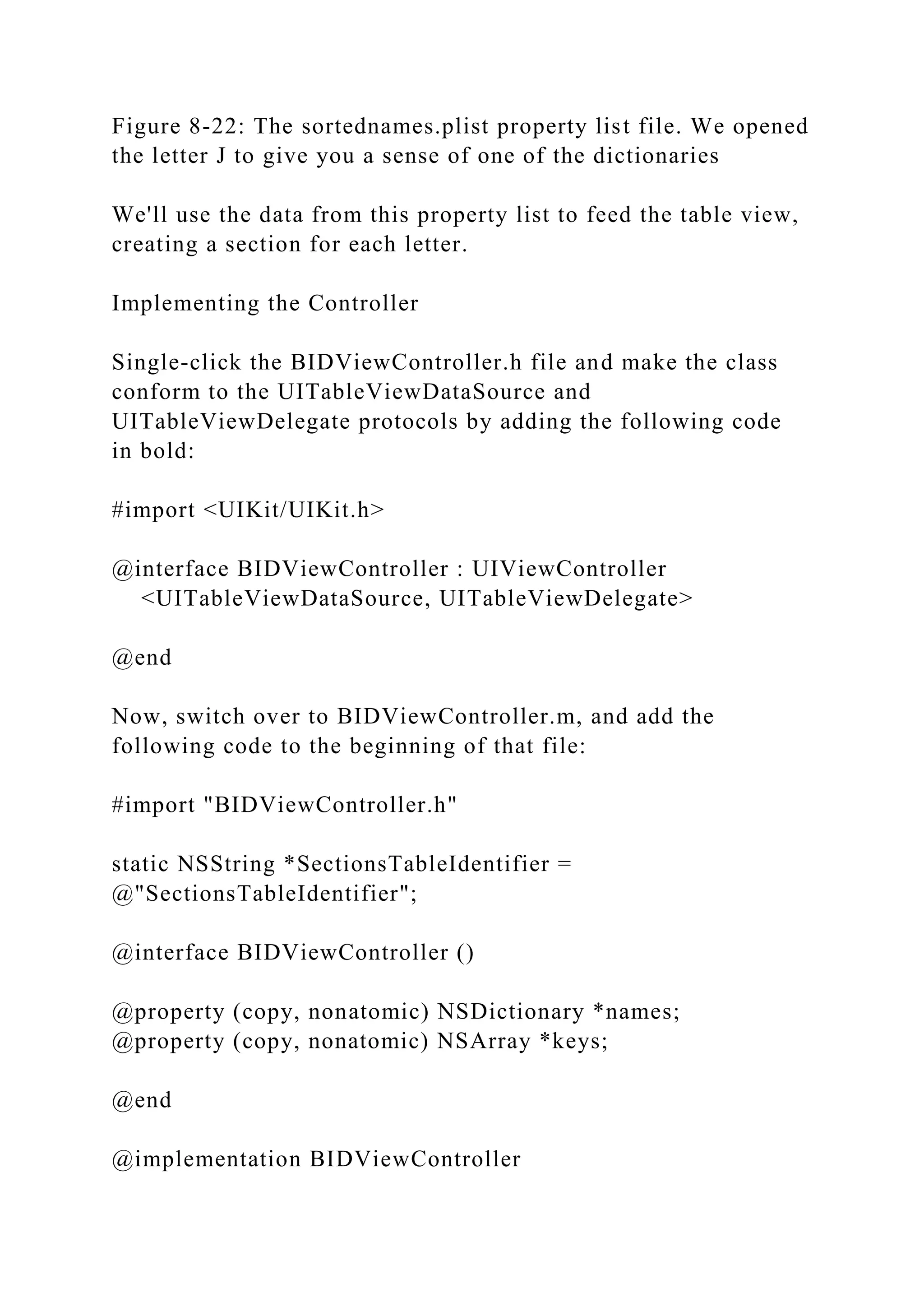
Once sortednames.plist is added to your project, single-click it
just to get a sense of what it looks like (see Figure 8-22). It's a
property list that contains a dictionary, with one
entry for each letter of the alphabet. Underneath each letter is a
list of names that start with that letter.
Beginning iOS 7 Development: Exploring the iOS SDK
Reprinted for ZU7S5/5738005, American Public University
System Apress, Jack Nutting, Fredrik Olsson, David Mark, and
Jeff LaMarche (c) 2014, Copying Prohibited
Page 18 of 26
Figure 8-22: The sortednames.plist property list file. We opened
the letter J to give you a sense of one of the dictionaries
We'll use the data from this property list to feed the table view,
creating a section for each letter.
Implementing the Controller
Single-click the BIDViewController.h file and make the class
conform to the UITableViewDataSource and
UITableViewDelegate protocols by adding the following code
in bold:
#import <UIKit/UIKit.h>
@interface BIDViewController : UIViewController
<UITableViewDataSource, UITableViewDelegate>
@end
Now, switch over to BIDViewController.m, and add the
following code to the beginning of that file:
#import "BIDViewController.h"
static NSString *SectionsTableIdentifier =
@"SectionsTableIdentifier";
@interface BIDViewController ()
@property (copy, nonatomic) NSDictionary *names;
@property (copy, nonatomic) NSArray *keys;
@end
@implementation BIDViewController
- (void)viewDidLoad
{
[super viewDidLoad];
// Do any additional setup after loading the view, typically
from a nib.
UITableView *tableView = (id)[self.view viewWithTag:1];
[tableView registerClass:[UITableViewCell class]
forCellReuseIdentifier:SectionsTableIdentifier];
NSString *path = [[NSBundle mainBundle]
pathForResource:@"sortednames"
ofType:@"plist"];
self.names = [NSDictionary
dictionaryWithContentsOfFile:path];
self.keys = [[self.names allKeys] sortedArrayUsingSelector:
@selector(compare:)];
}
Now add the following code at the end of the file, just above the
@end declaration:
#pragma mark -
#pragma mark Table View Data Source Methods
- (NSInteger)numberOfSectionsInTableView:(UITableView
*)tableView
{
return [self.keys count];
}
- (NSInteger)tableView:(UITableView *)tableView
numberOfRowsInSection:(NSInteger)section
{
NSString *key = self.keys[section];
NSArray *nameSection = self.names[key];
return [nameSection count];
}
- (NSString *)tableView:(UITableView *)tableView
titleForHeaderInSection:(NSInteger)section
{
return self.keys[section];
}
- (UITableViewCell *)tableView:(UITableView *)tableView
cellForRowAtIndexPath:(NSIndexPath *)indexPath
{
Beginning iOS 7 Development: Exploring the iOS SDK
Reprinted for ZU7S5/5738005, American Public University
System Apress, Jack Nutting, Fredrik Olsson, David Mark, and
Jeff LaMarche (c) 2014, Copying Prohibited
Page 19 of 26
UITableViewCell *cell =
[tableView
dequeueReusableCellWithIdentifier:SectionsTableIdentifier
forIndexPath:indexPath];
NSString *key = self.keys[indexPath.section];
NSArray *nameSection = self.names[key];
cell.textLabel.text = nameSection[indexPath.row];
return cell;
}
@end
Most of this isn't too different from what you've seen before. In
the class extension at the top, we added property declarations
for both an NSDictionary and an NSArray. The
dictionary will hold all of our data, while the array will hold the
sections sorted in alphabetical order. In the viewDidLoad
method, we registered the default table view cell class
that should be displayed for each row, using our declared
identifier. After that, we created an NSDictionary instance from
the property list we added to our project and assigned
it to the names property. Next we grabbed all the keys from that
dictionary and sorted them to give us an ordered NSArray with
all the key values in the dictionary in alphabetical
order. Remember that the NSDictionary uses the letters of the
alphabet as its keys, so this array will have 26 letters sorted
from A to Z, and we'll use the array to help us keep
track of the sections.
You might notice one thing we didn't do this time that we did
for the previous table view examples: we didn't set a special
offset for the top edge of the table. That's because,
when you're using a grouped table view (as we are), Apple
automatically shifts everything down a little bit, so you don't
need to worry about the initial table view contents
interfering with the status bar.
Scroll down to the data source methods. The first one we added
to our class specifies the number of sections. We didn't
implement this method in the earlier examples because
we were happy with the default setting of 1. This time, we're
telling the table view that we have one section for each key in
our dictionary:
- (NSInteger)numberOfSectionsInTableView:(UITableView
*)tableView
{
return [self.keys count];
}
The next method calculates the number of rows in a specific
section. In the previous example, we had only one section, so
we just returned the number of rows in our array. This
time, we need to break it down by section. We can do this by
retrieving the array that corresponds to the section in question
and returning the count from that array:
- (NSInteger)tableView:(UITableView *)tableView
numberOfRowsInSection:(NSInteger)section
{
NSString *key = self.keys[section];
NSArray *nameSection = self.names[key];
return [nameSection count];
}
The method tableView:titleForHeaderInSection allows you to
specify an optional header value for each section, and we
simply return the letter for this group:
- (NSString *)tableView:(UITableView *)tableView
titleForHeaderInSection:(NSInteger)section
{
return self.keys[section];
}
In our tableView:cellForRowAtIndexPath: method, we need to
extract both the section key and the names array using the
section and row properties from the index path, andIn our
tableView:cellForRowAtIndexPath: method, we need to extract
both the section key and the names array using the section and
row properties from the index path, and
then use those to determine which value to use. The section will
tell us which array to pull out of the names dictionary, and then
we can use the row to figure out which value from
that array to use. Everything else in that method is basically the
same as the version in the Cells application we built earlier in
the chapter.
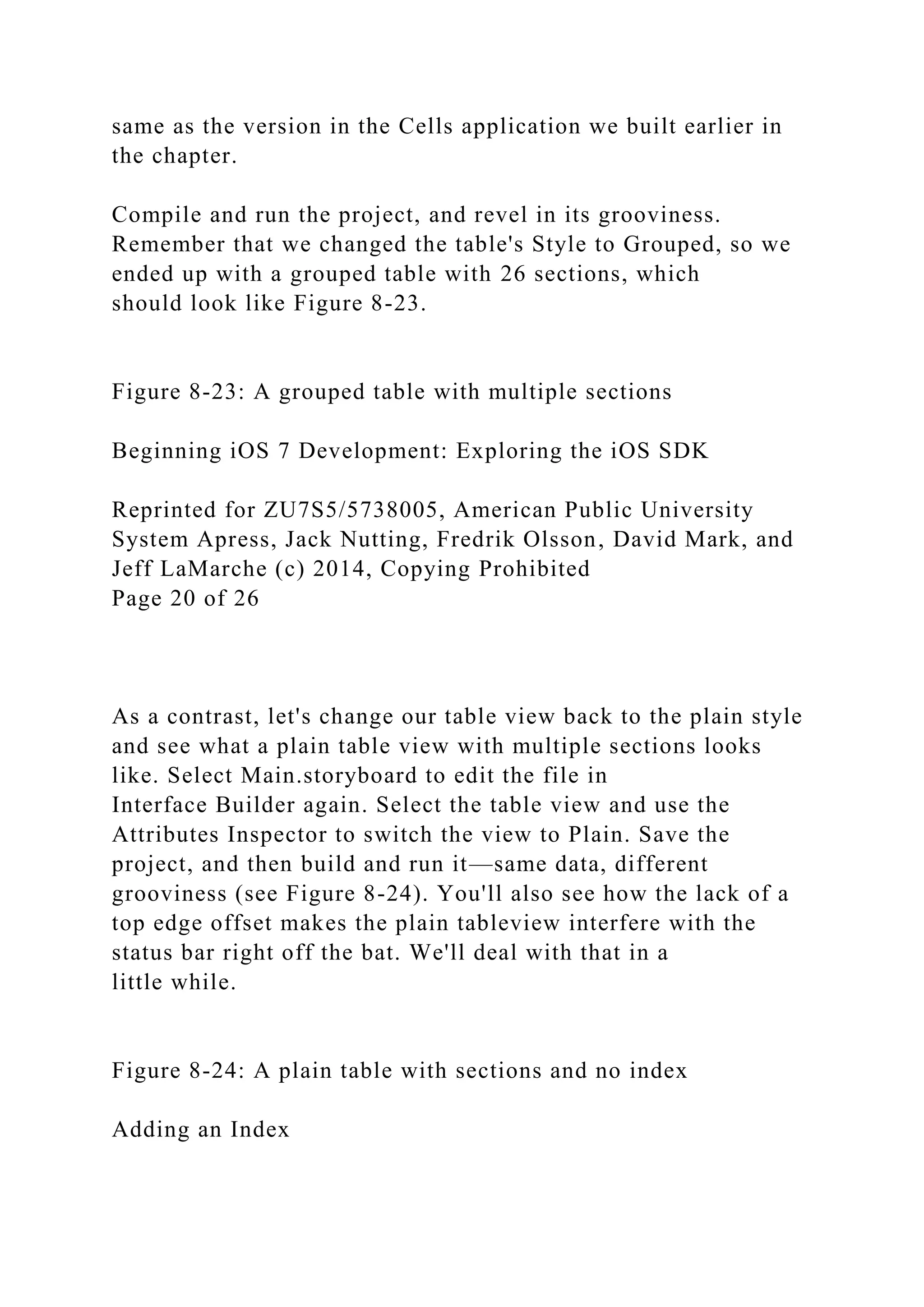
Compile and run the project, and revel in its grooviness.
Remember that we changed the table's Style to Grouped, so we
ended up with a grouped table with 26 sections, which
should look like Figure 8-23.
Figure 8-23: A grouped table with multiple sections
Beginning iOS 7 Development: Exploring the iOS SDK
Reprinted for ZU7S5/5738005, American Public University
System Apress, Jack Nutting, Fredrik Olsson, David Mark, and
Jeff LaMarche (c) 2014, Copying Prohibited
Page 20 of 26
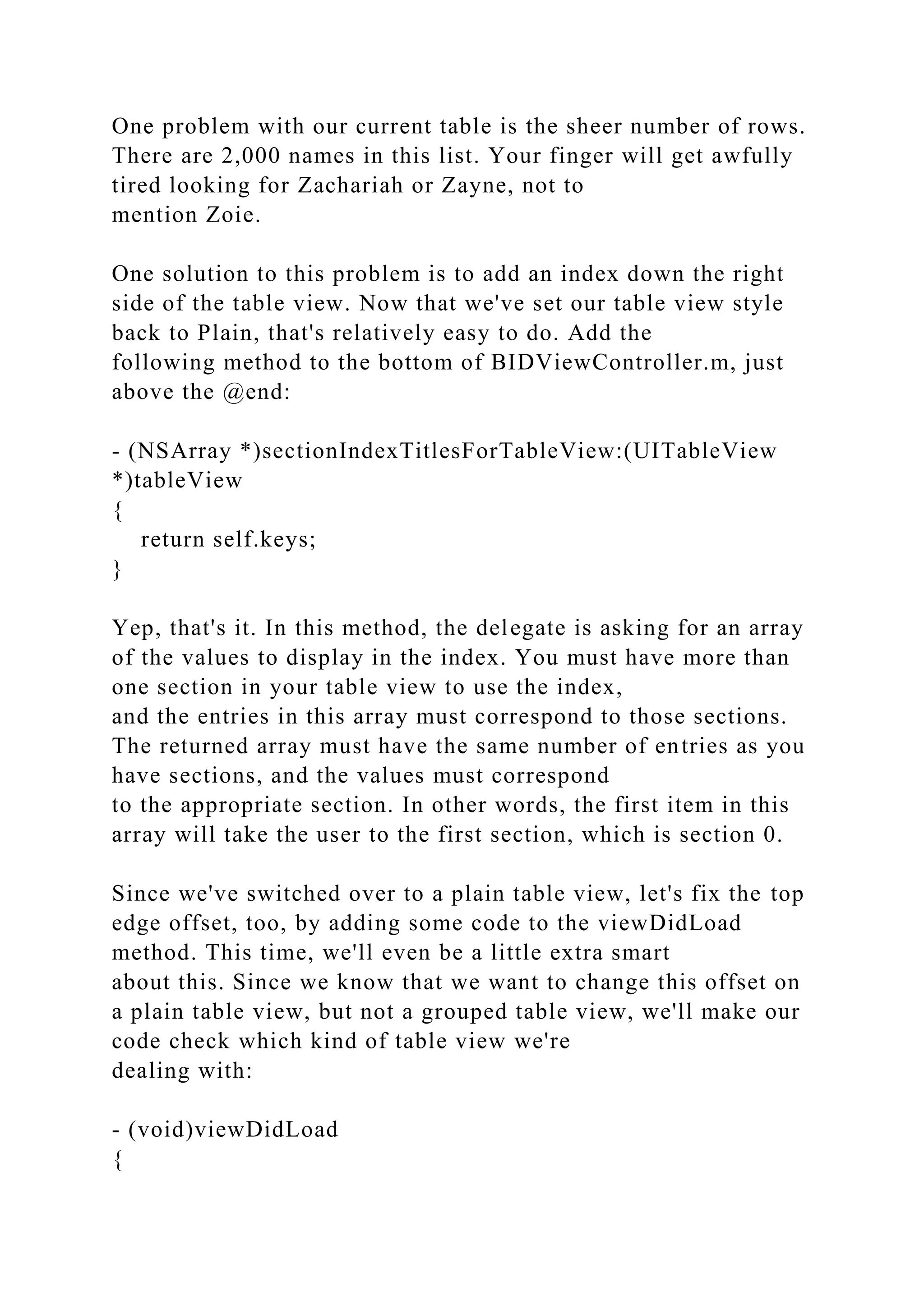
As a contrast, let's change our table view back to the plain style
and see what a plain table view with multiple sections looks
like. Select Main.storyboard to edit the file in
Interface Builder again. Select the table view and use the
Attributes Inspector to switch the view to Plain. Save the
project, and then build and run it—same data, different
grooviness (see Figure 8-24). You'll also see how the lack of a
top edge offset makes the plain tableview interfere with the
status bar right off the bat. We'll deal with that in a
little while.
Figure 8-24: A plain table with sections and no index
Adding an Index
One problem with our current table is the sheer number of rows.
There are 2,000 names in this list. Your finger will get awfully
tired looking for Zachariah or Zayne, not to
mention Zoie.
One solution to this problem is to add an index down the right
side of the table view. Now that we've set our table view style
back to Plain, that's relatively easy to do. Add the
following method to the bottom of BIDViewController.m, just
above the @end:
- (NSArray *)sectionIndexTitlesForTableView:(UITableView
*)tableView
{
return self.keys;
}
Yep, that's it. In this method, the delegate is asking for an array
of the values to display in the index. You must have more than
one section in your table view to use the index,
and the entries in this array must correspond to those sections.
The returned array must have the same number of entries as you
have sections, and the values must correspond
to the appropriate section. In other words, the first item in this
array will take the user to the first section, which is section 0.
Since we've switched over to a plain table view, let's fix the top
edge offset, too, by adding some code to the viewDidLoad
method. This time, we'll even be a little extra smart
about this. Since we know that we want to change this offset on
a plain table view, but not a grouped table view, we'll make our
code check which kind of table view we're
dealing with:
- (void)viewDidLoad
{
[super viewDidLoad];
// Do any additional setup after loading the view, typically
from a nib.
UITableView *tableView = (id)[self.view viewWithTag:1];
[tableView registerClass:[UITableViewCell class]
forCellReuseIdentifier:SectionsTableIdentifier];
NSString *path = [[NSBundle mainBundle]
pathForResource:@"sortednames"
ofType:@"plist"];
self.names = [NSDictionary
dictionaryWithContentsOfFile:path];
self.keys = [[self.names allKeys] sortedArrayUsingSelector:
@selector(compare:)];
if (tableView.style == UITableViewStylePlain) {
UIEdgeInsets contentInset = tableView.contentInset;
contentInset.top = 20;
[tableView setContentInset:contentInset];
}
}
Compile and run the app again, and you'll have yourself a nice
index (see Figure 8-25).
Beginning iOS 7 Development: Exploring the iOS SDK
Reprinted for ZU7S5/5738005, American Public University
System Apress, Jack Nutting, Fredrik Olsson, David Mark, and
Jeff LaMarche (c) 2014, Copying Prohibited
Page 21 of 26
Figure 8-25: The table view with an index
Reducing Status Bar Interference
When trying this out, you're bound to notice one glaring
problem: even though the table view's top edge is offset, as
soon as you start scrolling, the contents of the table view
start interfering with the status bar. This has actually been a
problem with all the table view apps we've built so far. But now
that there's an opaque section header always stuck
to the top of the display, it's even more jarring. As soon as you
start scrolling, text starts rolling past the section header and
sliding up behind the status bar. This is really ugly!
In the next chapter, you'll see how Apple deals with this
situation in a nice, automatic way using something called a
Navigation Controller; but for the moment we're doing
without, so we're going to look at a simple way to make this a
little easier on the eyes. The following addition to viewDidLoad
will create a simple UIView instance the same size
as the status bar, make it white but mostly transparent, and add
it to our view. Since we only want to do this for a non-grouped
table view, we put it inside the if section we
added recently:
if (tableView.style == UITableViewStylePlain) {
UIEdgeInsets contentInset = tableView.contentInset;
contentInset.top = 20;
[tableView setContentInset:contentInset];
UIView *barBackground = [[UIView alloc]
initWithFrame:CGRectMake(0, 0, 320, 20)];
barBackground.backgroundColor = [UIColor
colorWithWhite:1.0 alpha:0.9];
[self.view addSubview:barBackground];
}
If you run the app now, you'll see that the text is nearly, but not
quite, invisible after it slides up past the table view's section
header. If you want to try different opacity values,
change the alpha level and see what happens. If you set it to
1.0, the view you added will be completely opaque, and you
won't see the scrolling text. A value of 0.0 will make it
completely transparent.
Implementing a Search Bar
The index is helpful, but even so, we still have a whole lot of
names here. If we want to see whether the name Arabella is in
the list, for example, we'll need to scroll for a while
even after using the index. It would be nice if we could let the
user pare down the list by specifying a search term, wouldn't it?
That would be darn user-friendly. Well, it's a bit of
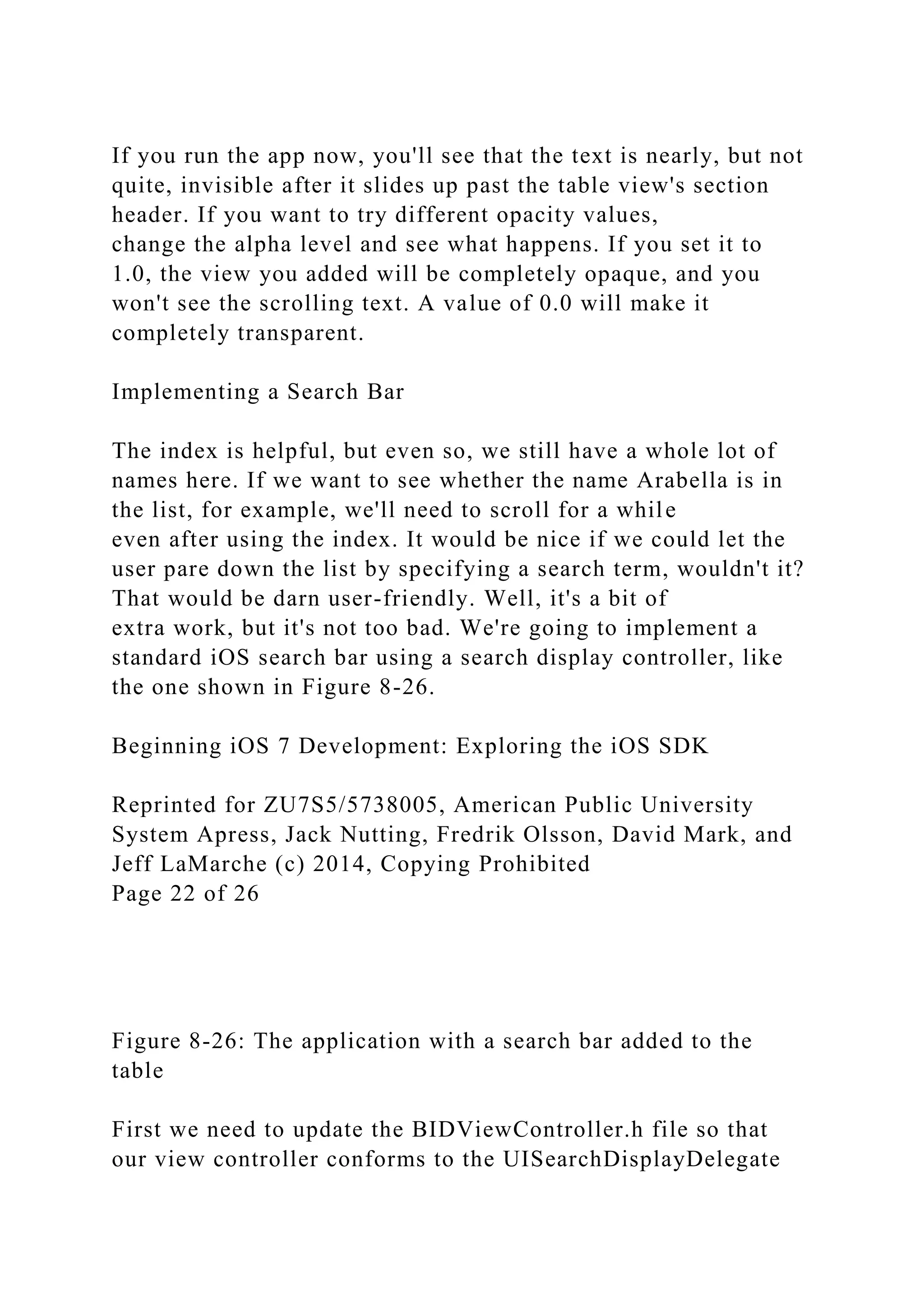
extra work, but it's not too bad. We're going to implement a
standard iOS search bar using a search display controller, like
the one shown in Figure 8-26.
Beginning iOS 7 Development: Exploring the iOS SDK
Reprinted for ZU7S5/5738005, American Public University
System Apress, Jack Nutting, Fredrik Olsson, David Mark, and
Jeff LaMarche (c) 2014, Copying Prohibited
Page 22 of 26
Figure 8-26: The application with a search bar added to the
table
First we need to update the BIDViewController.h file so that
our view controller conforms to the UISearchDisplayDelegate
protocol:
#import <UIKit/UIKit.h>
@interface BIDViewController : UIViewController
<UITableViewDataSource, UITableViewDelegate,
UISearchDisplayDelegate>
@end
Next, we need to add two instance variables to our view
controller, one to hold a list of only the names matching our
filtered search and one for the UISearchDisplayController.
Add this code to BIDViewController.m:
@implementation BIDViewController {
NSMutableArray *filteredNames;
UISearchDisplayController *searchController;
}
Next, we need to make another set of changes at the end of
viewDidLoad, as shown here:
- (void)viewDidLoad
{
[super viewDidLoad];
// Do any additional setup after loading the view, typically
from a nib.
UITableView *tableView = (id)[self.view viewWithTag:1];
[tableView registerClass:[UITableViewCell class]
forCellReuseIdentifier:SectionsTableIdentifier];
NSString *path = [[NSBundle mainBundle]
pathForResource:@"sortednames"
ofType:@"plist"];
self.names = [NSDictionary
dictionaryWithContentsOfFile:path];
self.keys = [[self.names allKeys] sortedArrayUsingSelector:
@selector(compare:)];
if (tableView.style == UITableViewStylePlain) {
UIEdgeInsets contentInset = tableView.contentInset;
contentInset.top = 20;
[tableView setContentInset:contentInset];
UIView *barBackground = [[UIView alloc]
initWithFrame:CGRectMake(0, 0, 320, 20)];
barBackground.backgroundColor = [UIColor
colorWithWhite:1.0 alpha:0.9];
[self.view addSubview:barBackground];
}
filteredNames = [NSMutableArray array];
UISearchBar *searchBar = [[UISearchBar alloc]
initWithFrame:CGRectMake(0, 0, 320,
44)];
tableView.tableHeaderView = searchBar;
searchController = [[UISearchDisplayController alloc]
initWithSearchBar:searchBar
contentsController:self];
searchController.delegate = self;
searchController.searchResultsDataSource = self;
}
First, we initialize our filteredNames to an empty array. Later,
that variable will be used to contain the filtered results based on
the user's search criteria. After that, we create a
UISearchBar and add it as a header view to the table. The
header view acts as a special row that is always displayed at the
top of the table. Next we create a search display
controller for showing the contents of a search. We initialize it
using the search bar for input and the view controller itself as
owner. We also set our view controller as the
delegate for the search display controller to act on changes to
the search criteria. Finally, we display the search results by
setting our view controller as the data source for the
search results.
Beginning iOS 7 Development: Exploring the iOS SDK
Reprinted for ZU7S5/5738005, American Public University
System Apress, Jack Nutting, Fredrik Olsson, David Mark, and
Jeff LaMarche (c) 2014, Copying Prohibited
Page 23 of 26
The search display controller will provide its own table, but we
are responsible for providing it with table view cells to display.
We need to register a table view cell class to create
in the
searchDisplayController:didLoadSearchResultsTableView:
delegate method. Add this code just above the @end
declaration:
- (void)searchDisplayController:(UISearchDisplayController
*)controller
didLoadSearchResultsTableView:(UITableView *)tableView
{
[tableView registerClass:[UITableViewCell class]
forCellReuseIdentifier:SectionsTableIdentifier];
}
Both the search display controller and our own table will use
our view controller as the data source to populate a table view,
calling on the same data source methods. If the
caller is our own table we should act just as we do now; and if
the caller is the table for the search display controllers, we
should instead display the filtered names. We need to
use the table's tag property to determine which table is calling
us, and then do the right thing. Update all data source methods
like this:
- (NSInteger)numberOfSectionsInTableView:(UITableView
*)tableView
{
if (tableView.tag == 1) {
return [self.keys count];
} else {
return 1;
}
}
- (NSInteger)tableView:(UITableView *)tableView
numberOfRowsInSection:(NSInteger)section
{
if (tableView.tag == 1) {
NSString *key = self.keys[section];
NSArray *nameSection = self.names[key];
return [nameSection count];
} else {
return [filteredNames count];
}
}
- (NSString *)tableView:(UITableView *)tableView
titleForHeaderInSection:(NSInteger)section
{
if (tableView.tag == 1) {
return self.keys[section];
} else {
return nil;
}
}
- (UITableViewCell *)tableView:(UITableView *)tableView
cellForRowAtIndexPath:(NSIndexPath *)indexPath
{
UITableViewCell *cell = [tableView
dequeueReusableCellWithIdentifier:
SectionsTableIdentifier
forIndexPath:indexPath];
if (tableView.tag == 1) {
NSString *key = self.keys[indexPath.section];
NSArray *nameSection = self.names[key];
cell.textLabel.text = nameSection[indexPath.row];
} else {
cell.textLabel.text = filteredNames[indexPath.row];
}
return cell;
}
- (NSArray *)sectionIndexTitlesForTableView:(UITableView
*)tableView
{
if (tableView.tag == 1) {
return self.keys;
} else {
return nil;
}
}
As the last piece of the puzzle, we must respond to changes to
the search criteria made by the user by implementing the
searchDisplayController:shouldReloadTableForSearchString:
delegate method. Add this code just before the @end
declaration:
- (BOOL)searchDisplayController:(UISearchDisplayController
*)controller
shouldReloadTableForSearchString:(NSString *)searchString
{
[filteredNames removeAllObjects];
if (searchString.length > 0) {
NSPredicate *predicate =
[NSPredicate
predicateWithBlock:^BOOL(NSString *name,
NSDictionary *b) {
NSRange range = [name rangeOfString:searchString
options:NSCaseInsensitiveSearch];
return range.location != NSNotFound;
}];
for (NSString *key in self.keys) {
NSArray *matches = [self.names[key]
filteredArrayUsingPredicate: predicate];
[filteredNames addObjectsFromArray:matches];
}
}
return YES;
}
This delegate method is called whenever the user edits the
search criteria in the search bar to ask if the display of matching
results should be reloaded. We always return "yes"
to reload for now, but we could add more logic to reload the
result table only if the new search criteria results in an actual
change.
First, we clear any previous search result:
[filteredNames removeAllObjects];
Next, we check that the search criteria string is not empty. Do
not display any matching results for an empty search string:
Beginning iOS 7 Development: Exploring the iOS SDK
Reprinted for ZU7S5/5738005, American Public University
System Apress, Jack Nutting, Fredrik Olsson, David Mark, and
Jeff LaMarche (c) 2014, Copying Prohibited
Page 24 of 26
if (searchString.length > 0) {
Now we define a predicate for matching names against the
search string. A predicate is an object that tests an input value,
returning "yes" if the value matches and "no" if there's
no match. Our test is to search for the range of the search string
in a name. If the start of the search string is found, we have a
match:
NSPredicate *predicate =
[NSPredicate
predicateWithBlock:^BOOL(NSString *name,
NSDictionary *b) {
NSRange range = [name rangeOfString:searchString
options:NSCaseInsensitiveSearch];
return range.location != NSNotFound;
}];
Finally, we iterate over all the keys. For each key, we use the
predicate to get a filtered array of matching names that we add
to the filtered names array:
for (NSString *key in self.keys) {
NSArray *matches = [self.names[key]
filteredArrayUsingPredicate:predicate];
[filteredNames addObjectsFromArray:matches];
}
You can now run the app and try to filter the names with a
result like the one shown in Figure 8-27.
Figure 8-27: The application with a search bar added to the
table. Note that before tapping the search bar, it appears
truncated on the right side of the screen
As you can see, there is on visual "glitch" here: the search bar
seems to be mysteriously chopped off near the right edge. In
fact, what you're seeing is the upper end of the
vertical section index bar on the right. Our search bar is a part
of the table view (since we set it up to be the header view).
When a table view shows a section index, it
automatically squashes all its other views in from the right.
Since the default section index background color is white, it
pretty much blends in with the rows of the table view,
which makes its appearance next to the search bar stick out like
a sore thumb!
To remedy this, let's set some colors on the section index. We'll
use a contrasting color to make it stick out like a sore thumb the
whole way up and down the table, so that users
can see what's going on more clearly. Just add these lines to the
bottom of the viewDidLoad method:
tableView.sectionIndexBackgroundColor = [UIColor
blackColor];
tableView.sectionIndexTrackingBackgroundColor = [UIColor
darkGrayColor];
tableView.sectionIndexColor = [UIColor whiteColor];
First, we set the main background color for the section index,
which is what the user sees when they're not touching it. Then
we set the tracking background color, to let the
entire column light up a bit when the user touches it and drags
up and down the edge. Finally, we set the text color for the
index items themselves. Figure 8-28 shows the final
result.
Beginning iOS 7 Development: Exploring the iOS SDK
Reprinted for ZU7S5/5738005, American Public University
System Apress, Jack Nutting, Fredrik Olsson, David Mark, and
Jeff LaMarche (c) 2014, Copying Prohibited
Page 25 of 26
Figure 8-28: With a more visually pronounced section index, it's
more clear to the user that this is actually a control surface
Putting It All on the Table
Well, how are you doing? This was a pretty hefty chapter, and
you've learned a ton! You should have a very solid
understanding of the way that flat tables work. You should
know how to customize tables and table view cells, as well as
how to configure table views. You also saw how to implement a
search bar, which is a vital tool in any iOS
application that presents large volumes of data. Make sure you
understand everything we did in this chapter because we're
going to build on it.
We're going to continue working with table views in the next
chapter. For example, you'll learn how to use them to present
hierarchical data. And you'll see how to create content
views that allow the user to edit data selected in a table view, as
well as how to present checklists in tables, embed controls in
table rows, and delete rows.
Beginning iOS 7 Development: Exploring the iOS SDK
Reprinted for ZU7S5/5738005, American Public University
System Apress, Jack Nutting, Fredrik Olsson, David Mark, and
Jeff LaMarche (c) 2014, Copying Prohibited
Page 26 of 26
Chapter 8: Introduction to Table ViewsOverviewTable View
BasicsImplementing a Simple TableCustomizing Table View
CellsGrouped and Indexed SectionsReducing Status Bar
InterferenceImplementing a Search BarPutting It All on the
Table
1 Apr-18
PRACTICAL EXERCISE PE 2-02-2
TITLE: Problem Essay
INTRODUCTION:
This assignment was adapted from the CNO Point
Paper/Position Paper. Problem essays offer a
means to advance recommendations in a direct and objective
manner. Problem essays provide a
concise summary of an important issue, include background
information to clarify the problem, a
discussion of the issues surrounding the problem, and conclude
with a recommended course of
action. Problem essays bring recommended solutions to the
attention of an entire organization
and bring concerns to a higher level.
INFORMATION:
This assignment provides the student the opportunity to develop
and present a fact-based
argument to address an issue currently facing military members.
In addition, this problem essays
provides the basis for an oral presentation to the Chiefs Mess on
the topic selected.
ASSIGNMENT:
1. Utilizing the Three-Part Communications Model, prepare an
essay on an issue relevant to the
military community. Everything in this assignment, including
the essay, must be
unclassified.
2. Students will choose a topic of Navy or military interest and
present it to the Faculty Advisor
(FA) for approval. Once approved, prepare a problem essay
identifying the problem, a
discussion of the size, scope, and impact of the problem, and a
recommendation to correct or
change the issue.
3. Develop an outline using the format provided in Handout HO
2-02-1. Submit the outline in
accordance with FA guidance.
4. Use material provided in Modules 2.01a Three-Part
Communications and 2.02 Effective
Writing for assistance and guidance.
5. The length of the essay shall be two to three double-spaced
pages, excluding the title and
reference pages. The limited length of this essay allows the
student to focus on research
organization, prioritization of analysis, and arguments.
6. Format: For writing style and guidance, refer to the American
Psychological Association
Publication Manual (APA), 6th Ed.
7. Employ a persuasive writing style, explaining thoughts and
ideas on the topic addressed.
2 Apr-18
8. Provide a reference page citing all sources used in this
assignment. Include a minimum of
three credible references. Students will base research on facts
from credible sources. (Examples
of non-credible sources include the dictionary, Wikipedia, and
about.com.) Per the APA, “each
reference cited in text must appear in the reference list, and
each entry in the reference list must
be cited in text [emphasis added]” (p.174).
9. Similarity index provided from Turnitin cannot exceed 25%,
excluding references.
10. Write the essay in the third person (i.e., use he, she, they,
them, his, her . . . instead of I, me,
my, we, our, us, let’s, you, your…).
11. The essay must follow the model described in required
reading 2.01a Three-Part
Communications. Recall that there are three parts to an essay:
introduction, body, and
conclusion. For the body, use main points: Problem, Discussion,
and Recommendation.
Remember to include a transition sentence between main points.
The essay MUST use the main
points as described and in the order presented below.
A. Main point (1): Problem. States the problem the student
identified. The problem lays
the foundation to explain the impact and recommendation.
Include background information if
needed to clarify the main topic.
B. Main point (2): Discussion. Here, the student will look at
the cause-and-effect of the
problem. State the issues as they currently affect the military
community. What are the positive
and negative effects of this issue (pros and cons)? This main
point will help the reader
understand the significance of the problem. Aim to persuade the
reader with facts.
C. Main point (3): Recommendation. Based on the research and
facts presented, propose
a solution to the problem. In this main point, the student will
take a definitive position and state a
recommendation to correct or change the issue. (Reminder:
Even though the student is making a
personal recommendation, consistent with the entire essay,
write the recommendation in the third
person. See paragraph 10 above.)
GRADING CRITERIA: Refer to PE EVAL: 2-02-1
NOTE: Mechanics, structure, punctuation, and grammar are
important in the
writing/composition process. Originality, substance, content,
and clarity are equally vital.
PE EVAL 2-02-1 Sep-19
Lesson:
Written Practical Exercise Evaluation Form
Rate/Name: Group: Date:
Content (40%)
Subject Matter 5 4 3 2 1 0 Comments
Key elements of assignment covered
per P.E.
Content is comprehensive/
accurate/persuasive
Displays an understanding of relevant
subject matter
Main points supported by specific
details/examples
Research is adequate/credible
Devoid of allegations and
unsubstantiated facts or opinions
Content sufficiently develops main
points
Independent thinking and originality
are evident
Organization (25%)
Structure 5 4 3 2 1 0 Comments
Attention: establishes interest
Motivation: establishes relevance,
determines WIIFM
Overview: previews main points
Central theme/purpose is immediately
clear
Transitions effectively between
main points
Subsequent sections develop/support
the central theme
Summary: summarized the main
points
Remotivation: remotivated the reader
Close: provided a thought- provoking
close
PE EVAL 2-02-1 Sep-19
Style/Mechanics (35%)
Format 5 4 3 2 1 0 Comments
Paper is written effectively using the
SEA/APA format--uses heading and other
reader-friendly tools, neat/shows attention to
detail
Citations: Properly cited ideas/cited from
references on reference page
Reference page: follows guidelines
(SEA/APA)/ references cited in the text
Grammar 5 4 3 2 1 0
Rules of grammar, word usage, punctuation,
and spelling are followed. Minimize passive
voice. Avoid 1st/2nd person.
Acronyms, Word Choice, Diction
Readability/Style 5 4 3 2 1 0
Sentences are complete, clear, concise, well
constructed with consistently strong,
varied structure.
Sentences & paragraphs maintain the
flow of thought and communicate
facts and ideas clearly.
The tone is appropriate to the
audience, content, and assignment.
Note: Points
5. Strong/Exceeds Standards: Shows control and skills in this
trait; considerable strengths present.
4. Competent: On balance, the strengths outweigh the
weaknesses; a small amount of revision is needed.
3. Developing: Strengths and need for revision are about equal
2. Emerging/requires development: Need for revision outweighs
strengths
1. Poor: Writing does not show control of required Practical
Exercise (PE) elements.
0. Missing: Required Practical Exercise (PE) elements not
present.
Similarity Index exceeds authorized limit, minus
31 points.
Similarity Index Limit:
Similarity Index
Results:
Total points deducted
SCORE
Content 40%
Organization 25%
Style/Mechanics 35%
Similarity Index Points Lost
Final Score 100%
FA: Student:
RateName: CommentsRow1: CommentsRow1_2:
CommentsRow1_3: Lesson: [30]Combo Box2: [Blue]Date: Key
elements 5: OffKey elements 4: OffKey elements 3: OffKey
elements 2: OffContent 5: OffContent 4: OffContent 3:
OffContent 2: OffUnderstanding 5: OffUnderstanding 4:
OffUnderstanding 3: OffUnderstanding 2: OffDetails 5:
OffDetails 4: OffDetails 3: OffDetails 2: OffResearch 5:
OffResearch 4: OffResearch 3: OffResearch 2: OffOpinions 5:
OffOpinions 4: OffOpinions 3: OffOpinions 2: OffDevelop MP
5: OffDevelop MP 4: OffDevelop MP 3: OffDevelop MP 2:
OffInd: Thinking 5: Off Thinking 4: Off Thinking 3: Off
Thinking 2: Off Thinking 1: OffAMO 5: OffAMO 4: OffAMO
3: OffAMO 2: OffTheme 5: OffTheme 4: OffTheme 3:
OffTheme 2: OffStructure 5: OffStructure 4: OffStructure 3:
OffStructure 2: OffSubs sect 5: OffSubs sect 4: OffSubs sect
3: OffSubs sect 2: OffSRC 5: OffSRC 4: OffSRC 3: OffSRC 2:
OffAMO 1: OffTheme 1: OffStructure 1: OffSubs sect 1:
OffSRC 1: OffKey elements 1: OffContent 1: OffUnderstanding
1: OffDetails 1: OffResearch 1: OffOpinions 1: OffDevelop MP
1: OffCommentsRow3: CommentsRow5: SEA/APA 5:
OffSEA/APA 4: OffSEA/APA 3: OffSEA/APA 2:
OffCitations/Refs 5: OffCitations/Refs 4: OffCitations/Refs 3:
OffCitations/Refs 2: OffSEA/APA 1: OffCitations/Refs 1:
OffGrammar 5: OffGrammar 4: OffGrammar 3: OffGrammar 2:
OffAcronyms 5: OffAcronyms 4: OffAcronyms 3: OffAcronyms
2: OffGrammar 1: OffAcronyms 1: OffSentences 5:
OffSentences 4: OffSentences 3: OffSentences 2: OffTS 5:
OffTS 4: OffTS 3: OffTS 2: OffTone 5: OffTone 4: OffTone 3:
OffTone 2: OffSentences 1: OffTS 1: OffTone 1: OffSimilarity
Index Limit: 30Results: 0Total points deducted: 0Content:
0Organization: 0Style/Mechanics: 0Points Lost: 0Final Score: 0
Running head: SHORT TITLE HERE IN UPPER CASE
1
SHORT TITLE HERE IN UPPER CASE
2
Place Full Title Here in Title Case
Firstname N. Lastname Jr.
Navy Senior Enlisted Academy
Class # Color Group
Place Full Title Here in Title Case
Start with a one-or-two sentence attention-getter. Add a
motivational statement (who, what, why). Finish with an
overview of the main points (e.g., This paper will examine the
problem with XYZ, provide a discussion of the associated
cause-and-effect, and make a recommendation to remedy this
issue).
Problem
Clearly identify the problem or issue. Include background if
needed. Set the foundation for the Discussion and
Recommendation that follows. Finish with a transition sentence
that bridges to the Discussion.
Discussion
Examine the significance of the issue. Look at the size, scope,
and impact of the problem. Finish with a transition sentence
that bridges to the Recommendation.
Recommendation
Tell the reader what action to take to remedy the problem
identified. Based on the facts presented, the Navy should take
the following action. A, B, and C. Remember to write it in the
third person perspective.
In summary, this paper highlighted the problem with XYZ,
provided a discussion of the associated cause-and-effect, and
made a recommendation to resolve this issue. Add a re-
motivational sentence (who, what, why). Finish with a quote or
thought-provoking close using one or two sentences.
References
Example, J.C. (2005). Accrued leave in excess of 60 days.
(OPNAVINST 1050.3). Washington, DC: Chief of Naval
Operations. Retrieved from
http://doni.daps.dla.mil/Directives/01000%20Military%20Perso
nnel%20Support/01-
01%20General%20Military%20Personnel%20Records/1050.3.pd
f
Running head: GAPPED BILLETS 1
SHORT TITLE HERE IN UPPER CASE
2
Gapped Billets at Sea
Joseph A. Dragger
Navy Senior Enlisted Academy
Class 233 Color Green
Place Full Title Here in Title Case
Start with a one-or-two sentence attention-getter. Add a
motivational statement (who, what, why). Finish with an
overview of the main points (e.g., This paper will examine the
problem with XYZ, provide a discussion of the associated
cause-and-effect, and make a recommendation to remedy this
issue).
Problem
Clearly identify the problem or issue. Include background if
needed. Set the foundation for the Discussion and
Recommendation that follows. Finish with a transition sentence
that bridges to the Discussion.
Discussion
Examine the significance of the issue. Look at the size, scope,
and impact of the problem. Finish with a transition sentence
that bridges to the Recommendation.
Recommendation
Tell the reader what action to take to remedy the problem
identified. Based on the facts presented, the Navy should take
the following action. A, B, and C. Remember to write it in the
third person perspective.
In summary, this paper highlighted the problem with XYZ,
provided a discussion of the associated cause-and-effect, and
made a recommendation to resolve this issue. Add a re-
motivational sentence (who, what, why). Finish with a quote or
thought-provoking close using one or two sentences.
References
Example, J.C. (2005). Accrued leave in excess of 60 days.
(OPNAVINST 1050.3). Washington, DC: Chief of Naval
Operations. Retrieved from
http://doni.daps.dla.mil/Directives/01000%20Military%20Perso
nnel%20Support/01-
01%20General%20Military%20Personnel%20Records/1050.3.pd
f
AA’s Problem Essay Outline: DEPARTURE OF STANDARDS
DURING EMERGENCIES Good.
I. Intro
A. Attention Getter: How does a meritorious active duty
service member with an impeccable record, choose to commit a
misdemeanor by disobeying a state governor’s executive order?
Comment by Christopher: Good AG!
B. Motivation: Service members must comply with military
standards, regulations, and local city and state laws in order to
be successful leaders and set the example of professional
excellence in order to earn promotion.Comment by Christopher:
No good. Who should be “Senior Enlisted Leaders must ensure
compliance...” Otherwise good.
C. Overview: This essay will discuss the background of
military standards and the negative impact that can arise from
service members obeying those standards but inadvertently
disobeying local laws.Comment by Christopher: No good. Not
Background, Problem. Review PE 2-02-2. Comment by
Christopher: No good. Not Impact, Discussion of the Problem
and a Recommended
Solution
. Review PE 2-02-2
II. Body
A. Main point 1: Background Not Background, Problem.
1. Commanders have the authority to deviate from standards
during emergencies in various examples, such as procurement or
wearing of uniforms, physical fitness tests, and grooming
standards.
2. During the COVID-19 pandemic and to abide by social
distancing restrictions, the Commandant of the Marine Corps
canceled the physical fitness test and suspended the
circumference measurements as part of the body composition
program.
3. The congressional representative from Maryland, Jamie
Raskin sent a letter to the Marine Corps Commandant asking
him to ease grooming standards so that Marines are not
unnecessarily exposed to the COVID-19 virus while getting
haircuts.Comment by Christopher: ½ good. I see a Background,
but see very little articulation/no Problem identified out front.
Per PE 2-02-2, State the problem the student identified. The
problem lays the foundation to explain the impact and
recommendation. Include background information if needed to
clarify the main topic.
Transition sentence from MP1 to MP2: Understanding the
background of military standards and the negative impact that
can arise from both departing and upholding those standards on
service members can have a negative impact on their careers,
particularly if they commit a misdemeanor.Comment by
Christopher: No good. Problem, not Background.
“Understanding the problem of not departing from standards,
leads to a discussion of the cause and effect. .
B. Main point 2: Impact Discussion, not Impact. Comment by
Christopher: No good. Per PE 2-02-2, the cause-and-effect of
the problem. You do this in the outline but mentioning it so that
you do not become enamored in Impact. This is where you
discuss.
1. Perceived pressure to maintain standards can cause an
otherwise law-abiding service member to break a state
governor’s executive order.
2. Although given the authority by the Commandant of the
Marine Corps to temporarily deviate from grooming standards,
most commanders chose to continue enforcing the already most
strict grooming standards in the U.S. Armed Forces.
3. Local, state, and federal law differ but when adding
individual service published orders, this can lead to the negative
impact of disobeying a state executive order.Comment by
Christopher: Missing MP3, Recommendation altogether. Please
review PE 2-02-2. This is not the Ethics essay where you point
out failure, describe impact and give your thoughts. This is an
essay when you need to give a Recommendation to fix the
Problem, (MP3).
III. Conclusion
A. Summary: This essay discussed the background of military
standards and the negative impact that can arise from service
members obeying those standards but inadvertently disobeying
local laws.Comment by Christopher: Problem, not Background.
Comment by Christopher: No good. “Discussed the cause and
effect and provided a recommendation for a solution”…Tailored
to your Problem, you should craft this summary based on your
topic.
B. Remotivation: Service members must comply with military
standards, regulations, and local city and state laws in order to
be successful leaders and set the example of professional
excellence in order to earn promotion.Comment by Christopher:
See my feedback in you Motivation. The Remotivation is the
same as the Motivation; one sentence. You can be creative and
write a new one, but It must include the Who, What, and Why.
Or you can copy and paste it from the intro with no
modification, AS LONG AS its right.
C. Closing: During an emergency, would it be wise for
Commanders to consider a temporary deviation from appearance
standards in order to preserve the well-being of their
subordinates? Good!
MAC Angela L. Young Class 225 Brown Group01 August 2019
Navy Leadership Training Outline
I. Introduction
A. Attention: When thinking about leadership training in the
military, the Navy does not stand out as leading the way with
developing frontline leaders ready for leadership challenges.
B. Motivation: Senior enlisted leaders (who) must understand
why Sailors would benefit from joint service in residence
leadership and blended learning training (what) because it will
enhance their future success in diverse leadership positions
(why).
C. Overview: This brief will identify the problem, provide a
discussion, and make a recommendation for a solution to the
deficiency with current Navy Leadership training.
II. Body
A. (MP-1) Problem
1. The United States Navy’s current leadership training for E6
and below is mostly computer based training paired with face to
face facilitated training.
2. Chief Petty Officers receive six week CPO selectee initiation.
The Master Chief Petty Officer of the Navy said in Laying the
Keel: Developing the Backbone of Our Navy that “During
initiation training, CPOs will educate and develop CPO
Selectees to the individual and institutional ideals embedded in
the Creed using a provided curriculum.”
3. The first formal joint service, blended learning leadership
training in the Navy is for Chief Petty Officers and above at the
Senior Enlisted Academy. It is a blend of seven week online
distance learning and a three week in residency leadership
course. Sailors reaching Chief Petty Officer and above, have a
tendency to have no prior formal in residence leadership
training.
** Transition sentence: With the problem stated, the discussion
is now the focus. **
B. (MP-2) Discussion
1. Sister Services such as the United States Army, United States
Marines, and the United States Air Force have led the way with
blending Computer Based Trainings (CBT’s), Professional
Military Education and joint service in residence leadership
development courses.
2. Each course offered is specific to each paygrade and allows
for leadership training to assist the service member in each new
level of increased responsibility and accountability.
3. Some sister service leadership schools are mandatory for
promotion or retention in the services. (Select, Train, Educate,
Promote).
**Transition sentence: The discussion was the focus, now it is
time to go over recommended solutions. **
C. (MP-3) Recommended

Beginning iOS 7 Development Exploring the iOS SDKby Jack .docx

  • 1.
    Beginning iOS 7Development: Exploring the iOS SDK by Jack Nutting, Fredrik Olsson, David Mark and Jeff LaMarche Apress. (c) 2014. Copying Prohibited. Reprinted for Personal Account, American Public University System [email protected] Reprinted with permission as a subscription benefit of Skillport, All rights reserved. Reproduction and/or distribution in whole or in part in electronic,paper or other forms without written permission is prohibited. Chapter 8: Introduction to Table Views Overview In this chapter, we're going to build a hierarchical navigation- based application similar to the Mail application that ships on iOS devices. Our application will allow the user to drill down into nested lists of data and edit that data. But before we can build that application, you need to master the concept of table views. And that's the goal of this chapter. Table views are the most common mechanism used to display lists of data to the user. They are highly configurable objects
  • 2.
    that can bemade to look practically any way you want them to look. Mail uses table views to show lists of accounts, folders, and messages; however, table views are not limited to just the display of textual data. Table views are also used in the Settings, Music, and Clock applications, even though those applications have very different appearances (see Figure 8-1). Figure 8-1: Though they all look different, the Settings, Music, and Clock applications use table views to display their data Table View Basics Tables display lists of data. Each item in a table's list is a row. iOS tables can have an unlimited number of rows, constrained only by the amount of available memory. iOS tables can be only one column wide. Table Views and Table View Cells A table view is the view object that displays a table's data and is an instance of the class UITableView. Each visible row of the table is implemented by the class UITableViewCell. So, a table view is the object that displays the visible part of a table, and a table view cell is responsible for displaying a single row of the table (see Figure 8- 2). Beginning iOS 7 Development: Exploring the iOS SDK Reprinted for ZU7S5/5738005, American Public University System Apress, Jack Nutting, Fredrik Olsson, David Mark, and Jeff LaMarche (c) 2014, Copying Prohibited Page 2 of 26
  • 3.
    Figure 8-2: Eachtable view is an instance of UITableView, and each visible row is an instance of UITableViewCell Table views are not responsible for storing your table's data. They store only enough data to draw the rows that are currently visible. Table views get their configuration data from an object that conforms to the UITableViewDelegate protocol and their row data from an object that conforms to the UITableViewDataSource protocol. You'll see how all this works when we get into our sample programs later in the chapter. As mentioned, all tables are implemented as a single column. The Clock application, shown on the right side of Figure 8-1, does give the appearance of having at least two columns, perhaps even three if you count the clock faces. But no, each row in the table is represented by a single UITableViewCell. By default, each UITableViewCell object can be configured with an image, some text, and an optional accessory icon, which is a small icon on the right side (we'll cover accessory icons in detail in the next chapter). You can put even more data in a cell if you need to by adding subviews to UITableViewCell. You do this using one of two basic techniques: by adding subviews programmatically when creating the cell or by loading them from a storyboard or nib file. You can lay out the table view cell out in any way you like and include any subviews you desire. So, the single-column limitation is far less limiting than it probably sounds at first. If this is confusing, don't worry— we'll show you how to use both of these techniques in this chapter.
  • 4.
    Grouped and PlainTables Table views come in two basic styles: Grouped: A grouped table view contains one or more sections of rows. Within each section, all rows sit tightly together in a nice little group; but between sections, there are clearly visible gaps, as shown in the leftmost picture in Figure 8-3. Note that a grouped table can consist of a single group. Figure 8-3: The same table view displayed as a grouped table (left); a plain table without an index (middle); and a plain table with an index, which is also called an indexed table (right) Plain: Plain is the default style. In this style, the sections are slightly closer together, and each section's header can optionally be styled in a custom manner. When an index Beginning iOS 7 Development: Exploring the iOS SDK Reprinted for ZU7S5/5738005, American Public University System Apress, Jack Nutting, Fredrik Olsson, David Mark, and Jeff LaMarche (c) 2014, Copying Prohibited Page 3 of 26 is used, this style is also referred to as indexed (Figure 8-3, right). If your data source provides the necessary information, the table view will let the user navigate your list using an index that is displayed down the right side.
  • 5.
    Each division ofyour table is known to your data source as a section. In a grouped table, each group is a section. In an indexed table, each indexed grouping of data is a section. For example, in the indexed table shown in Figure 8-3, all the names beginning with A would be one section, those beginning with B would be another, and so on. Sections have two primary purposes. In a grouped table, each section represents one group. In an indexed table, each section corresponds to one index entry. For example, if you wanted to display a list indexed alphabetically with an index entry for every letter, you would have 26 sections, each containing all the values that begin with a particular letter. Caution Even though it is technically possible to create a grouped table with an index, you should not do so. The iPhone Human Interface Guidelines specifically state that grouped tables should not provide indexes. Implementing a Simple Table Let's look at the simplest possible example of a table view to get a feel for how it works. In this example, we're just going to display a list of text values. Create a new project in Xcode. For this chapter, we're going back to the Single View Application template, so select that one. Call your project Simple Table, enter BID as the Class Prefix, and set the Device Family to iPhone. Designing the View In the project navigator, expand the top-level Simple Table
  • 6.
    project and theSimple Table folder. This is such a simple application that we're not going to need any outlets or actions. Go ahead and select Main.storyboard to edit the GUI. If the View window isn't visible in the layout area, single-click its icon in the document outline to open it. Next, look in the object library for a Table View (see Figure 8-4) and drag that over to the View window. Figure 8-4: Dragging a table view from the library onto our main view. Notice that the table view automatically resizes to the full size of the view The table view should automatically size itself to the height and width of the view. This is exactly what we want. Table views are designed to fill the entire width of the screen and most of the height as well—whatever isn't taken up by your application's navigation bars, toolbars, and tab bars. Drop the table view onto the View window and line it up to be centered in its parent view. Before we go on, there's one problem that we should fix. Right now, this view has a fixed size, matching that of its parent view. But, what happens if the parent view changes its Beginning iOS 7 Development: Exploring the iOS SDK Reprinted for ZU7S5/5738005, American Public University System Apress, Jack Nutting, Fredrik Olsson, David Mark, and Jeff LaMarche (c) 2014, Copying Prohibited Page 4 of 26 size? This happens when launching the app on a device with a different screen size than what is configured in the storyboard.
  • 7.
    For example, let'ssay you've configured this view as a Retina 4-inch sized screen in Interface Builder. If you run the app on an iPhone 4 or with the simulator in Retina 3.5-inch mode, then the table view will keep its original size, which means it will be too large for the screen and will stick part way off the bottom. Fortunately, we can fix this easily by using constraints. In earlier chapters, we've added constraints using various items from the Editor menu, but now we're going to show you another way. As you may have seen, at the bottom of Interface Builder's editing area there's a row of floating buttons. One section of these is all about constraints. With the new table view still selected, move your mouse over each of the buttons at the bottom and see what comes up. We want to pin the edges of our table view to its parent's edges, so look for the button that shows Pin in a hovering tooltip and click it. Figure 8-5 shows what comes up. Figure 8-5: The Add New Constraints panel, before and after setting up some constraints This panel lets you set up new constraints for the chosen view. In our case, we want to make new constraints pinning all the edges of our view to its parent. This is as simple as clicking each of the dotted-line connector symbols surrounding the little square in the upper part of the panel. Each one becomes solid as you click it, and the button at the bottom updates its number to tell you how many constraints you're about to add. When all four are enabled, click the Add 4 Constraints button to put them in place. With the table view still selected, press to bring up the Connections Inspector. You'll notice that the first two available connections for the table view are the same as the first
  • 8.
    two for thepicker view: dataSource and delegate. Drag from the circle next to each of those connections over to the View Controller icon. By doing this, we are making our controller class both the data source and delegate for this table. With the table view still selected, open the Attributes Inspector ( ), and then enter 1 for the Tag value in the View section. If we give unique tag values to views, then these values can later be used to retrieve them in code. We will need to do this later for the table view. After setting the connections, save your storyboard and get ready to dig into some UITableView code. Writing the Controller The next stop is our controller class's header file. Single-click BIDViewController.h and add the following code: #import <UIKit/UIKit.h> @interface BIDViewController : UIViewController <UITableViewDataSource, UITableViewDelegate> @end All we're doing here is conforming our class to the two protocols that are needed for it to act as the delegate and data source for the table view. Save your changes. Next, switch over to BIDViewController.m and add the following code at the beginning of the file: #import "BIDViewController.h" @interface BIDViewController ()
  • 9.
    @property (copy, nonatomic)NSArray *dwarves; @end @implementation BIDViewController - (void)viewDidLoad { [super viewDidLoad]; // Do any additional setup after loading the view, typically from a nib. self.dwarves = @[@"Sleepy", @"Sneezy", @"Bashful", @"Happy", @"Doc", @"Grumpy", @"Dopey", @"Thorin", @"Dorin", @"Nori", @"Ori", @"Balin", @"Dwalin", @"Fili", @"Kili", @"Oin", @"Gloin", @"Bifur", @"Bofur", @"Bombur"]; UITableView *tableView = (id)[self.view viewWithTag:1]; UIEdgeInsets contentInset = tableView.contentInset; contentInset.top = 20; [tableView setContentInset:contentInset]; } Finally, add the following code at the end of the file: - (NSInteger)tableView:(UITableView *)tableView numberOfRowsInSection:(NSInteger)section { return [self.dwarves count]; Beginning iOS 7 Development: Exploring the iOS SDK Reprinted for ZU7S5/5738005, American Public University
  • 10.
    System Apress, JackNutting, Fredrik Olsson, David Mark, and Jeff LaMarche (c) 2014, Copying Prohibited Page 5 of 26 } - (UITableViewCell *)tableView:(UITableView *)tableView cellForRowAtIndexPath:(NSIndexPath *)indexPath { static NSString *SimpleTableIdentifier = @"SimpleTableIdentifier"; UITableViewCell *cell = [tableView dequeueReusableCellWithIdentifier: SimpleTableIdentifier]; if (cell == nil) { cell = [[UITableViewCell alloc] initWithStyle:UITableViewCellStyleDefault reuseIdentifier:SimpleTableIdentifier]; } cell.textLabel.text = self.dwarves[indexPath.row]; return cell; } @end First, we declared an array that will hold the data to be displayed. And finally, we added three methods to the controller. You should be comfortable with the first one, viewDidLoad, since we've done similar things in the past. We're simply creating an array of data to display in the table. In a real application, this array would likely come from another source, such as a text file, property list, or a web
  • 11.
    service. Here we'redoing one new thing, however: we're adjusting the top edge inset value for the table view, so that the initial display won't interfere with the transparent status bar. Here's where we make use of the tag value we set in the storyboard to access the table view. If you scroll down to the end, you can see we added two data source methods. The first one, tableView:numberOfRowsInSection:, is used by the table to ask how many rows are in a particular section. As you might expect, the default number of sections is one, and this method will be called to get the number of rows in the one section that makes up the list. We just return the number of items in our array. The next method probably requires a little explanation, so let's look at it more closely: - (UITableViewCell *)tableView:(UITableView *)tableView cellForRowAtIndexPath:(NSIndexPath *)indexPath This method is called by the table view when it needs to draw one of its rows. Notice that the second argument to this method is an NSIndexPath instance. This is the mechanism that table views use to wrap the section and row indexes into a single object. To get the row index or the section index out of an NSIndexPath, you just access its row property or its section property, both of which return an integer value. The first parameter, tableView, is a reference to the table doing the asking. This allows us to create classes that act as a data source for multiple tables. Next, we declare a static string instance: static NSString *SimpleTableIdentifier =
  • 12.
    @"SimpleTableIdentifier"; This string willbe used as a key to represent the type of our table cell. Our table will use only a single type of cell. A table view can display only a few rows at a time on the iPhone's small screen, but the table itself can conceivably hold considerably more. Remember that each row in the table is represented by an instance of UITableViewCell, a subclass of UIView, which means each row can contain subviews. With a large table, this could represent a huge amount of overhead if the table were to try to keep one table view cell instance for every row in the table, regardless of whether that row was currently being displayed. Fortunately, tables don't work that way. Instead, as table view cells scroll off the screen, they are placed into a queue of cells available to be reused. If the system runs low on memory, the table view will get rid of the cells in the queue. But as long as the system has some memory available for those cells, it will hold on to them in case you want to use them again. Every time a table view cell rolls off the screen, there's a pretty good chance that another one just rolled onto the screen on the other side. If that new row can just reuse one of the cells that has already rolled off the screen, the system can avoid the overhead associated with constantly creating and releasing those views. To take advantage of this mechanism, we'll ask the table view to give us a previously used cell of the specified type. Note that we're using the NSString identifier we declared earlier. In effect, we're asking for a reusable cell of type SimpleTableIdentifier: UITableViewCell *cell = [tableView dequeueReusableCellWithIdentifier:
  • 13.
    SimpleTableIdentifier]; Now, it's completelypossible that the table view won't have any spare cells (e.g., when it's being initially populated), so we check the cell after the call to see whether it's nil. If it is, we manually create a new table view cell using that identifier string. At some point, we'll inevitably reuse one of the cells we create here, so we need to make sure that we create it using SimpleTableIdentifier: if (cell == nil) { cell = [[UITableViewCell alloc] initWithStyle:UITableViewCellStyleDefault reuseIdentifier:SimpleTableIdentifier]; } Curious about UITableViewCellStyleDefault? Hold that thought. We'll get to it when we look at the table view cell styles. We now have a table view cell that we can return for the table view to use. So, all we need to do is place whatever information we want displayed in this cell. Displaying text in a row of a table is a very common task, so the table view cell provides a UILabel property called textLabel that we can set to display strings. That just requires getting the correct string from our listData array and using it to set the cell's textLabel. To get the correct value, however, we need to know which row the table view is asking for. We get that information from the indexPath's row property. We use the row number of the table to get the corresponding string from the array, assign it to the cell's textLabel.text property, and then return the cell:
  • 14.
    cell.textLabel.text = self.dwarves[indexPath.row]; returncell; That wasn't so bad, was it? Compile and run your application, and you should see the array values displayed in a table view (see Figure 8-6). Beginning iOS 7 Development: Exploring the iOS SDK Reprinted for ZU7S5/5738005, American Public University System Apress, Jack Nutting, Fredrik Olsson, David Mark, and Jeff LaMarche (c) 2014, Copying Prohibited Page 6 of 26 Figure 8-6: The Simple Table application, in all its dwarven glory Adding an Image It would be nice if we could add an image to each row. Guess we would need to create a subclass of UITableViewCell or add subviews to do that, huh? Actually, no, not if you can live with the image being on the left side of each row. The default table view cell can handle that situation just fine. Let's check it out. In the project archive, in the 08 - Simple Table folder, grab the file called star.png and add it to your project's Images.assets. star.png is a small icon that was prepared just for this project. Next, let's get to the code. In the file BIDViewController.m, add
  • 15.
    the following codeto the tableView:cellForRowAtIndexPath: method: - (UITableViewCell *)tableView:(UITableView *)tableView cellForRowAtIndexPath:(NSIndexPath *)indexPath { static NSString *SimpleTableIdentifier = @"SimpleTableIdentifier"; UITableViewCell *cell = [tableView dequeueReusableCellWithIdentifier: SimpleTableIdentifier]; if (cell == nil) { cell = [[UITableViewCell alloc] initWithStyle:UITableViewCellStyleDefault reuseIdentifier:SimpleTableIdentifier]; } UIImage *image = [UIImage imageNamed:@"star"]; cell.imageView.image = image; cell.textLabel.text = self.dwarves[indexPath.row]; return cell; } Yep, that's it. Each cell has an imageView property. Each imageView has an image property, as well as a highlightedImage property. The image appears to the left of the cell's text and is replaced by the highlightedImage, if one is provided, when the cell is selected. You just set the cell's imageView.image property to whatever image you want to display. If you compile and run your application now, you should get a list with a bunch of nice little star icons to the left of each row
  • 16.
    (see Figure 8-7).Of course, we could have included a different image for each row in the table. Or, with very little effort, we could have used one icon for all of Mr. Disney's dwarves and a different one for Mr. Tolkien's. Beginning iOS 7 Development: Exploring the iOS SDK Reprinted for ZU7S5/5738005, American Public University System Apress, Jack Nutting, Fredrik Olsson, David Mark, and Jeff LaMarche (c) 2014, Copying Prohibited Page 7 of 26 Figure 8-7: We used the cell's image property to add an image to each of the table view's cells If you like, make a copy of star.png and use your favorite graphics application to colorize it a bit. Next, add it to the project, load it with imageNamed:, and use it to set imageView.highlightedImage. Now if you click a cell, your new image will be drawn. If you don't feel like coloring, use the star2.png icon we provided in the project archive. Note UIImage uses a caching mechanism based on the file name, so it won't load a new image property each time imageNamed: is called. Instead, it will use the already cached version. Using Table View Cell Styles The work you've done with the table view so far has used the default cell style shown in Figure 8-7, represented by the constant UITableViewCellStyleDefault. But the UITableViewCell class includes several other predefined cell
  • 17.
    styles that letyou easily add a bit more variety to your table views. These cell styles use three different cell elements: Image: If an image is part of the specified style, the image is displayed to the left of the cell's text. Text label: This is the cell's primary text. In the UITableViewCellStyleDefault style we used earlier, the text label is the only text shown in the cell. Detail text label: This is the cell's secondary text, usually used as an explanatory note or label. To see what these new style additions look like, add the following code to tableView:cellForRowAtIndexPath: in BIDViewController.m: - (UITableViewCell *)tableView:(UITableView *)tableView cellForRowAtIndexPath:(NSIndexPath *)indexPath { static NSString *SimpleTableIdentifier = @"SimpleTableIdentifier"; UITableViewCell *cell = [tableView dequeueReusableCellWithIdentifier: SimpleTableIdentifier]; if (cell == nil) { cell = [[UITableViewCell alloc] initWithStyle:UITableViewCellStyleDefault reuseIdentifier:SimpleTableIdentifier]; } UIImage *image = [UIImage imageNamed:@"star.png"]; cell.imageView.image = image;
  • 18.
    cell.textLabel.text = self.dwarves[indexPath.row]; if(indexPath.row < 7) { cell.detailTextLabel.text = @"Mr. Disney"; } else { cell.detailTextLabel.text = @"Mr. Tolkien"; } return cell; } All we've done here is set the cell's detail text. We use the string @"Mr. Disney" for the first seven rows and the string @"Mr. Tolkien" for the rest. When you run this code, each cell will look just as it did before (see Figure 8-8). That's because we are using the style UITableViewCellStyleDefault, which does not use the detail text. Figure 8-8: The default cell style shows the image and text label in a straight row Now change UITableViewCellStyleDefault to UITableViewCellStyleSubtitle and run the app again. With the subtitle style, both text elements are shown, one below the other Beginning iOS 7 Development: Exploring the iOS SDK Reprinted for ZU7S5/5738005, American Public University System Apress, Jack Nutting, Fredrik Olsson, David Mark, and Jeff LaMarche (c) 2014, Copying Prohibited Page 8 of 26 (see Figure 8-9).
  • 19.
    Figure 8-9: Thesubtitle style shows the detail text in smaller gray letters below the text label Change UITableViewCellStyleSubtitle to UITableViewCellStyleValue1, and then build and run. This style places the text label and detail text label on the same line, but on opposite sides of the cell (see Figure 8-10). Figure 8-10: The style value 1 will place the text label on the left side in black letters and the detail text right-justified on the right side in blue letters Finally, change UITableViewCellStyleValue1 to UITableViewCellStyleValue2. This format is often used to display information along with a descriptive label. It doesn't show the cell's icon, but places the detail text label to the left of the text label (see Figure 8-11). In this layout, the detail text label acts as a label describing the type of data held in the text label. Figure 8-11: The style value 2 does not display the image and places the detail text label in blue letters to the left of the text label Now that you've seen the cell styles that are available, go ahead and change back to the UITableViewCellStyleDefault style before continuing. Later in this chapter, you'll see how to customize the appearance of your table. But before you decide to do that, make sure you consider the available styles to see whether one of them will suit your needs. You may have noticed that we made our controller both the data
  • 20.
    source and delegatefor this table view; but up to now, we haven't actually implemented any of the methods from UITableViewDelegate. Unlike picker views, simpler table views don't require the use of a delegate to do their thing. The data source provides all the data needed to draw the table. The purpose of the delegate is to configure the appearance of the table view and to handle certain user interactions. Let's take a look at a few of the configuration options now. We'll discuss a few more in the next chapter. Setting the Indent Level The delegate can be used to specify that some rows should be indented. In the file BIDViewController.m, add the following method to your code, just above the @end declaration: - (NSInteger)tableView:(UITableView *)tableView indentationLevelForRowAtIndexPath:(NSIndexPath *)indexPath { return indexPath.rou; } This method sets the indent level for each row to its row number, so row 0 will have an indent level of 0, row 1 will have an indent level of 1, and so on. An indent level is simply an integer that tells the table view to move that row a little to the right. The higher the number, the further to the right the row will be indented. You might use this technique, for example, to indicate that one row is subordinate to another row, as Mail does when representing subfolders. When you run the application again, you can see that each row is now drawn a little further to the right than the last one (see Figure 8-12).
  • 21.
    Figure 8-12: Eachrow of the table is drawn with an indent level higher than the row before it Handling Row Selection Beginning iOS 7 Development: Exploring the iOS SDK Reprinted for ZU7S5/5738005, American Public University System Apress, Jack Nutting, Fredrik Olsson, David Mark, and Jeff LaMarche (c) 2014, Copying Prohibited Page 9 of 26 The table's delegate can use two methods to determine if the user has selected a particular row. One method is called before the row is selected, and it can be used to prevent the row from being selected or even to change which row gets selected. Let's implement that method and specify that the first row is not selectable. Add the following method to the end of BIDViewController.m, just before the @end declaration: - (NSIndexPath *)tableView:(UITableView *)tableView willSelectRowAtIndexPath:(NSIndexPath *)indexPath { if (indexPath.row == 0) { return nil; } else { return indexPath; } } This method is passed indexPath, which represents the item that's about to be selected. Our code looks at which row is about
  • 22.
    to be selected.If the row is the first row, which is always index zero, then it returns nil, which indicates that no row should actually be selected. Otherwise, it returns indexPath, which is how we indicate that it's OK for the selection to proceed. Before you compile and run, you should also implement the delegate method that is called after a row has been selected, which is typically where you'll actually handle the selection. This is where you take whatever action is appropriate when the user selects a row. In the next chapter, we'll use this method to handle the drill-downs; but in this chapter, we'll just put up an alert to show that the row was selected. Add the following method to the bottom of BIDViewController.m, just before the @end declaration again: - (void)tableView:(UITableView *)tableView didSelectRowAtIndexPath:(NSIndexPath *)indexPath { NSString *rowValue = self.dwarves[indexPath.row]; NSString *message = [[NSString alloc] initWithFormat: @"You selected %@", rowValue]; UIAlertView *alert = [[UIAlertView alloc] initWithTitle:@"Row Selected!" message:message delegate:nil cancelButtonTitle:@"Yes I Did" otherButtonTitles:nil]; [alert show]; [tableView deselectRowAtIndexPath:indexPath animated:YES]; } Once you've added this method, compile and run the app, and then take it for a spin. For example, see whether you can select
  • 23.
    the first row(you shouldn't be able to), and then select one of the other rows. The selected row should be highlighted and your alert should pop up, telling you which row you selected while the selected row fades in the background (see Figure 8-13). Figure 8-13: In this example, the first row is not selectable, and an alert is displayed when any other row is selected. This was done using the delegate methods Note that you can also modify the index path before you pass it back, which would cause a different row and/or section to be selected. You won't do that very often, as you should have a very good reason for changing the user's selection. In the vast majority of cases where you use this method, you will either return indexPath unmodified to allow the selection or return nil to disallow it. Changing the Font Size and Row Height Let's say that we want to change the size of the font being used in the table view. In most situations, you shouldn't override the default font; it's what users expect to see. But sometimes there are valid reasons to change the font. Add the following line of code to your tableView:cellForRowAtIndexPath: method: Beginning iOS 7 Development: Exploring the iOS SDK Reprinted for ZU7S5/5738005, American Public University System Apress, Jack Nutting, Fredrik Olsson, David Mark, and Jeff LaMarche (c) 2014, Copying Prohibited Page 10 of 26
  • 24.
    - (UITableViewCell *)tableView:(UITableView*)tableView cellForRowAtIndexPath:(NSIndexPath *)indexPath { static NSString *SimpleTableIdentifier = @"SimpleTableIdentifier"; UITableViewCell *cell = [tableView dequeueReusableCellWithIdentifier: SimpleTableIdentifier]; if (cell == nil) { cell = [[UITableViewCell alloc] initWithStyle:UITableViewCellStyleDefault reuseIdentifier:SimpleTableIdentifier]; } UIImage *image = [UIImage imageNamed:@"star.png"]; cell.imageView.image = image; cell.textLabel.text = self.dwarves[indexPath.row]; cell.textLabel.font = [UIFont boldSystemFontOfSize:50]; if (indexPath.row < 7) { cell.detailTextLabel.text = @"Mr. Disney"; } else { cell.detailTextLabel.text = @"Mr. Tolkien"; } return cell; } When you run the application now, the values in your list are drawn in a really large font size, but they don't exactly fit in the row (see Figure 8-14). Figure 8-14: Look how nice and big! But, um, it would be even
  • 25.
    nicer if wecould see everything Well, here comes the table view delegate to the rescue! The table view delegate can specify the height of the table view's rows. In fact, it can specify unique values for each row if you find that necessary. Go ahead and add this method to your controller class, just before @end: - (CGFloat)tableView:(UITableView *)tableView heightForRowAtIndexPath:(NSIndexPath *)indexPath { return 70; } We've just told the table view to set the row height for all rows to 70 pixels tall. Compile and run, and your table's rows should be much taller now (see Figure 8-15). Beginning iOS 7 Development: Exploring the iOS SDK Reprinted for ZU7S5/5738005, American Public University System Apress, Jack Nutting, Fredrik Olsson, David Mark, and Jeff LaMarche (c) 2014, Copying Prohibited Page 11 of 26 Figure 8-15: Changing the row size using the delegate There are more tasks that the delegate handles, but most of the remaining ones come into play when you start working with hierarchical data, which we'll do in the next chapter. To learn more, use the documentation browser to explore the UITableViewDelegate protocol and see what other methods are available.
  • 26.
    Customizing Table ViewCells You can do a lot with table views right out of the box; but often, you will want to format the data for each row in ways that simply aren't supported by UITableViewCell directly. In those cases, there are two basic approaches: one that involves adding subviews to UITableViewCell programmatically when creating the cell, and a second that involves loading a set of subviews from a nib file. Let's look at both techniques. Adding Subviews to the Table View Cell To show how to use custom cells, we're going to create a new application with another table view. In each row, we'll display two lines of information along with two labels (see Figure 8-16). Our application will display the name and color of a series of potentially familiar computer models, and we'll show both of those pieces of information in the same table cell by adding subviews to the table view cell. Beginning iOS 7 Development: Exploring the iOS SDK Reprinted for ZU7S5/5738005, American Public University System Apress, Jack Nutting, Fredrik Olsson, David Mark, and Jeff LaMarche (c) 2014, Copying Prohibited Page 12 of 26 Figure 8-16: Adding subviews to the table view cell can give you multiline rows Create a new Xcode project using the Single View Application
  • 27.
    template. Name theproject Cells and use the same settings as your last project. Click Main.storyboard to edit the GUI in Interface Builder. Add a Table View to the main view, and then use the Connections Inspector to set its delegate and data source to File's Owner, as we did for the Simple Table application. Select the table view and show the Attributes Inspector ( , then enter 1 for the Tag value in the View section. This lets us access the table view from our code without needing to add a specific property for it, just as we did last time. Also, use the Pin button at the bottom of the window to create constraints between the table view's edges and those of its parent view, just like last time. Finally, save the storyboard. Creating a UITableViewCell Subclass Until this point, the standard table view cells we've been using have taken care of all the details of cell layout for us. Our controller code has been kept clear of the messy details about where to place labels and images, and it has been able to just pass off the display values to the cell. This keeps presentation logic out of the controller, and that's a really good design to stick to. For this project, we're going to make a new cell subclass of our own that takes care of the details for the new layout, which will keep our controller as simple as possible. Adding New Cells Select the Cells folder in the Project Navigator, and press to create a new file. In the assistant that pops up, choose Objective-C class from the Cocoa Touch section and click Next. On the following screen, enter BIDNameAndColorCell as the name of the new class, select UITableViewCell in the
  • 28.
    Subclass of popuplist, and click Next again. On the final screen, select the Cells folder that already contains your other source code, make sure Cells is chosen both in the Group and Target controls at the bottom, and click Create. Now select BIDNameAndColorCell.h and add the following code: #import <UIKit/UIKit.h> @interface BIDNameAndColorCell : UITableViewCell @property (copy, nonatomic) NSString *name; @property (copy, nonatomic) NSString *color; @end Here, we've added two properties to our cell's interface that our controller will use to pass values to each cell. Note that instead of declaring the NSString properties with strong semantics, we're using copy. Doing so with NSString values is always a good idea because there's a risk that the string value passed into a property setter may actually be an NSMutableString, which the sender can modify later on, leading to problems. Copying each string that's passed in to a property gives us a stable, unchangeable snapshot of what the string contains at the moment the setter is called. Now switch over to BIDNameAndColorCell.m and add the following code: #import "BIDNameAndColorCell.h" @interface BIDNameAndColorCell ()
  • 29.
    @property (strong, nonatomic)UILabel *nameLabel; @property (strong, nonatomic) UILabel *colorLabel; @end Here, we've added a class extension defining two properties that we'll use to access some of the subviews we'll be adding to our cell. Our cell will contain four subviews, two of which are labels where the content will be changed for every row, so we created a pair of properties to attach to those labels. Those are all the properties we need to add, so let's move onto the @implementation section. We're going to add some code to the initWithStyle:reuseIdentifier: method to Beginning iOS 7 Development: Exploring the iOS SDK Reprinted for ZU7S5/5738005, American Public University System Apress, Jack Nutting, Fredrik Olsson, David Mark, and Jeff LaMarche (c) 2014, Copying Prohibited Page 13 of 26 create the views that we'll need to display: - (id)initWithStyle:(UITableViewCellStyle)style reuseIdentifier:(NSString *)reuseIdentifier { self = [super initWithStyle:style reuseIdentifier:reuseIdentifier]; if (self) { // Initialization code CGRect nameLabelRect = CGRectMake(0, 5, 70, 15); UILabel *nameMarker = [[UILabel alloc] initWithFrame:nameLabelRect];
  • 30.
    nameMarker.textAlignment = NSTextAlignmentRight; nameMarker.text= @"Name:"; nameMarker.font = [UIFont boldSystemFontOfSize:12]; [self.contentView addSubview:nameMarker]; CGRect colorLabelRect = CGRectMake(0, 26, 70, 15); UILabel *colorMarker = [[UILabel alloc] initWithFrame:colorLabelRect]; colorMarker.textAlignment = NSTextAlignmentRight; colorMarker.text = @"Color:"; colorMarker.font = [UIFont boldSystemFontOfSize:12]; [self.contentView addSubview:colorMarker]; CGRect nameValueRect = CGRectMake(80, 5, 200, 15); _nameLabel = [[UILabel alloc] initWithFrame: nameValueRect]; [self.contentView addSubview:_nameLabel]; CGRect colorValueRect = CGRectMake(80, 25, 200, 15); _colorLabel = [[UILabel alloc] initWithFrame: colorValueRect]; [self.contentView addSubview:_colorLabel]; } return self; } That should be pretty straightforward. We create four UILabels and add them to the table view cell. The table view cell already has a UIView subview called contentView, which it uses to group all of its subviews, much as we grouped those two switches inside a UIView back in Chapter 4. As a result, we don't add the labels as subviews directly to the table view cell, but rather to its contentView. Two of these labels contain static text. The label nameMarker contains the text Name:, and the label colorMarker contains the
  • 31.
    text Color:. Thoseare just labels that we won't change. Both these labels have right-aligned text using NSTextAlignmentRight. We'll use the other two labels to display our row-specific data. Remember that we need some way of retrieving these fields later, so we keep references to both of them in the properties that we declared earlier. Now let's put the finishing touches on the BIDNameAndColorCell class by adding these two setter methods just before the @end: - (void)setName:(NSString *)n { if (![n isEqualToString:_name]) { _name = [n copy]; self.nameLabel.text = _name; } } - (void)setColor:(NSString *)c { if (![c isEqualToString:_color]) { _color = [c copy]; self.colorLabel.text = _color; } } You already know that using @property, as we did in the header file, implicitly creates getter and setter methods for each property. Yet, here we're defining our own setters for both name and color! As it turns out, this is just fine. Any time a class defines its own getters or setters, those will be used instead of the default methods. In this class, we're using the default, synthesized getters, but defining our own
  • 32.
    setters. Whenever weare passed new values for the name or color properties, we update the labels we created earlier. Implementing the Controller's Code Now, let's set up the simple controller to display values in our nice new cells. Start off by selecting BIDViewController.h, where you need to add the following code: #import <UIKit/UIKit.h> @interface BIDViewController : UIViewController <UITableViewDataSource, UITableViewDelegate> @end In our controller, we need to set up some data to use, and then implement the table data source methods to feed that data to the table. Switch to BIDViewController.m and add the following code at the beginning of the file: #import "BIDViewController.h" #import "BIDNameAndColorCell.h" static NSString *CellTableIdentifier = @"CellTableIdentifier"; @interface BIDViewController () @property (copy, nonatomic) NSArray *computers; @end @implementation BIDViewController - (void)viewDidLoad
  • 33.
    { [super viewDidLoad]; // Doany additional setup after loading the view, typically from a nib. self.computers = @[@{@"Name" : @"MacBook Air", @"Color" : @"Silver"}, @{@"Name" : @"MacBook Pro", @"Color" : @"Silver"}, Beginning iOS 7 Development: Exploring the iOS SDK Reprinted for ZU7S5/5738005, American Public University System Apress, Jack Nutting, Fredrik Olsson, David Mark, and Jeff LaMarche (c) 2014, Copying Prohibited Page 14 of 26 @{@"Name" : @"iMac", @"Color" : @"Silver"}, @{@"Name" : @"Mac Mini", @"Color" : @"Silver"}, @{@"Name" : @"Mac Pro", @"Color" : @"Black"}]; UITableView *tableView = (id)[self.view viewWithTag:1]; [tableView registerClass:[BIDNameAndColorCell class] forCellReuseIdentifier:CellTableIdentifier]; UIEdgeInsets contentInset = tableView.contentInset; contentInset.top = 20; [tableView setContentInset:contentInset]; }
  • 34.
    This version ofviewDidLoad assigns an array of dictionaries to the computers property. Each dictionary contains the name and color information for one row in the table. The name for that row is held in the dictionary under the key Name, and the color is held under the key Color. At the end, it also uses a tag number to find the tableView, and then registers our cell class for future reuse. More on that, soon! Note Remember when Macs came in different colors, like beige, platinum, black, and white? And that's not to mention the original iMac and iBook series, with their beautiful assortment of rainbow hues. Now, except for the newest Mac Pro, there's just one color: silver. Harrumph. Well, at least we can now comfort ourselves with colorful iPhones. Now add this code at the end of the file, above the @end declaration: - (NSInteger)tableView:(UITableView *)tableView numberOfRowsInSection:(NSInteger)section { return [self.computers count]; } - (UITableViewCell *)tableView:(UITableView *)tableView cellForRowAtIndexPath:(NSIndexPath *)indexPath { BIDNameAndColorCell *cell = [tableView dequeueReusableCellWithIdentifier: CellTableIdentifier forIndexPath:indexPath]; NSDictionary *rowData = self.computers[indexPath.row]; cell.name = rowData[@"Name"];
  • 35.
    cell.color = rowData[@"Color"]; returncell; } @end Let's focus on tableView:cellForRowWithIndexPath: since that's where we're really getting into some new stuff. Here we're using an interesting feature: a table view can use a sort of registry to create a new cell when needed. That means that as long as we've registered all the reuse identifiers we're going to use for a table view, we can always get access to an available cell. In our previous example, we did something similar using the dequeueReusableCellWithIdentifier: method, which also uses the registry but returns nil if the identifier isn't already in the registry. Now, with the dequeueReusableCellWithIdentifier:forIndexPath: method, things are a little bit different because this method never returns nil. If we happen to pass it an identifier that isn't registered, the method crashes instead of returning nil. Crashing sounds bad; but in this case, it's the result of a small bug that you'll discover right away during development. Therefore, we can remove the lines that check for a nil cell value since that will never happen. Once we've got our new cell, we use the indexPath argument that was passed in to determine which row the table is requesting a cell for, and then use that row value to grab the correct dictionary for the requested row. Remember that the dictionary has two key/value pairs: one with name and another with color: NSDictionary *rowData = self.computers[indexPath.row];
  • 36.
    Now, all that'sleft to do is populate the cell with data from the chosen row, using the properties we defined in our subclass: cell.name = rowData[@"Name"]; cell.color = rowData[@"Color"]; Compile and run your application. You should see a table of rows, each with two lines of data, as shown earlier in Figure 8- 16. Being able to add views to a table view cell provides a lot more flexibility than using the standard table view cell alone, but it can get a little tedious creating, positioning, and adding all the subviews programmatically. Gosh, it sure would be nice if we could design the table view cell graphically, using Xcode's GUI editing tools. Well, we're in luck. As we mentioned earlier, you can use Interface Builder to design your table view cells, and then simply load the views from a nib file when you create a new cell. Loading a UITableViewCell from a Nib We're going to re-create that same two-line interface we just built in code using the visual layout capabilities that Xcode provides in Interface Builder. To do this, we'll create a new nib file that will contain the table view cell and lay out its views using Interface Builder. Then, when we need a table view cell to represent a row, instead of creating a standard table view cell, we'll just load the nib file and use the properties we already defined in our cell class to set the name and color. In addition to using Interface Builder's visual layout, we'll also simplify our code in a few other places. First, we'll make a few changes to the BIDNameAndColorCell class, inside BIDNameAndColorCell.m. The first step is to mark up our properties as outlets, so we can use them in
  • 37.
    Interface Builder. Makethese changes in the class extension near the top: @interface BIDNameAndColorCell () @property (strong, nonatomic) IBOutlet UILabel *nameLabel; @property (strong, nonatomic) IBOutlet UILabel *colorLabel; @end Now, remember that setup we did in initWithStyle:reuseIdentifier:, where we created our labels? All that can go. In fact, you should just delete the entire method since all that setup will now be done in Interface Builder! After all that, you're left with a cell class that's even smaller and cleaner than before. Its only real function now is to shuffle data to the labels. Now we need to re-create the labels in Interface Builder. Right-click the Cells folder in Xcode and select New File… from the contextual menu. In the left pane of the new file assistant, click User Interface (making sure to pick it in the iOS section, rather than the Mac OS X section). From the upper- right pane, select Empty, and then click Next. On the following screen, leave the Device Family pop-up set to iPhone and click Next once again. When prompted for a name, type BIDNameAndColorCell.xib. Make sure that the main project directory is selected in the file browser and that the Cells group is selected in the Group pop-up. Beginning iOS 7 Development: Exploring the iOS SDK Reprinted for ZU7S5/5738005, American Public University System Apress, Jack Nutting, Fredrik Olsson, David Mark, and
  • 38.
    Jeff LaMarche (c)2014, Copying Prohibited Page 15 of 26 Designing the Table View Cell in Interface Builder Next, select BIDNameAndColorCell.xib in the Project Navigator to open the file for editing. Until now, we've been doing all our GUI editing inside of storyboards, but now we're using a nib file instead. Most things are similar and will look very familiar to you, but there are a few differences. One of the main differences is that, while a storyboard file is centered around scenes that pair up a view controller and a view, inside a nib file there's no such forced pairing. In fact, a nib file often doesn't contain a real controller object at all, just a proxy that is called File's Owner. If you open up the document outline you'll see it there, right above First Responder. Before we do anything else, the first thing we're going to do is turn off autolayout for this nib file. Autolayout, as you recall, is the system of constraints that determine at runtime just how a view's position and size should change as a result of other geometry changes in its parent or sibling views. Since we're going to define a fixed layout for this view, we can do without it. Just bring up the File Inspector ( ) and turn off the Use Autolayout checkbox in the Interface Builder Document section. Look in the library for a Table View Cell (see Figure 8-17) and drag one of those over to the GUI layout area. Figure 8-17: We dragged a table view cell from the library into the nib editor's GUI layout area
  • 39.
    Make sure thetable view cell is selected; press to bring up the Size Inspector; and, in the View section, change the cell's height from 44 to 65. That will give us a little more room to play with. Next, press to go to the Attributes Inspector (see Figure 8-18). One of the first fields you'll see there is Identifier. That's the reuse identifier that we've been using in our code. If this does not ring a bell, scan back through the chapter and look for CellTableIdentifier. Set the Identifier value to CellTableIdentifier. Beginning iOS 7 Development: Exploring the iOS SDK Reprinted for ZU7S5/5738005, American Public University System Apress, Jack Nutting, Fredrik Olsson, David Mark, and Jeff LaMarche (c) 2014, Copying Prohibited Page 16 of 26 Figure 8-18: The Attributes Inspector for a table view cell The idea here is that, when we retrieve a cell for reuse, perhaps because of scrolling a new cell into view, we want to make sure we get the correct cell type. When this particular cell is instantiated from the nib file, its reuse identifier instance variable will be prepopulated with the NSString you entered in the Identifier field of the Attributes Inspector—CellTableIdentifier, in this case. Imagine a scenario where you created a table with a header and then a series of "middle" cells. If you scroll a middle cell into view, it's important that you retrieve a middle cell to reuse and not a header cell. The Identifier field lets you tag the
  • 40.
    cells appropriately. Our nextstep is to edit our table cell's content view. Go to the library, drag out four Label controls, and place them in the content view, using Figure 8-19 as a guide. The labels will be too close to the top and bottom for those guidelines to be of much help, but the left guideline and the alignment guidelines should serve their purpose. Note that you can drag out one label, and then option-drag to create copies, if that approach makes things easier for you. Figure 8-19: The table view cell's content view, with four labels dragged in Next, double-click the upper-left label and change it to Name:, and then change the lower-left label to Color:. Now, select both the Name: and Color: labels and press the small T button in the Attribute Inspector's Font field. This will open a small panel containing a Font pop-up button. Click that and choose System Bold as the typeface. If needed, select the two unchanged label fields on the right and drag them a little more to the right to give the design a bit of breathing room. Finally, resize the two right-side labels so they stretch all the way to the right guideline. Figure 8-20 should give you a sense of our final cell content view. Figure 8-20: The table view cell's content view with the left label names changed and set to bold, and with the right labels slightly moved and resized Now, we need to let Interface Builder know that this table view
  • 41.
    cell isn't justa normal cell, but our special subclass. Otherwise, we wouldn't be able to connect our outlets to the relevant labels. Select the table view cell, bring up the Identity Inspector by pressing , and choose BIDNameAndColorCell from the Class control. Next, switch to the Connections Inspector ( ), where you'll see the colorLabel and nameLabel outlets. Drag each of them to its corresponding label in the GUI. Using the New Table View Cell Beginning iOS 7 Development: Exploring the iOS SDK Reprinted for ZU7S5/5738005, American Public University System Apress, Jack Nutting, Fredrik Olsson, David Mark, and Jeff LaMarche (c) 2014, Copying Prohibited Page 17 of 26 To use the cell we designed, we just need to make a few pretty simple changes to the viewDidLoad: method in BIDViewController.m: - (void)viewDidLoad { [super viewDidLoad]; // Do any additional setup after loading the view, typically from a nib. self.computers = @[@{@"Name" : @"MacBook Air", @"Color" : @"Silver"}, @{@"Name" : @"MacBook Pro", @"Color" : @"Silver"}, @{@"Name" : @"iMac", @"Color" :
  • 42.
    @"Silver"}, @{@"Name" : @"MacMini", @"Color" : @"Silver"}, @{@"Name" : @"Mac Pro", @"Color" : @"Black"}]; UITableView *tableView = (id)[self.view viewWithTag:1]; [tableView registerClass:[BIDNameAndColorCell class] forCellReuseIdentifier:CellTableIdentifier]; tableView.rowHeight = 65; UINib *nib = [UINib nibWithNibName:@"BIDNameAndColorCell" bundle:nil]; [tableView registerNib:nib forCellReuseIdentifier:CellTableIdentifier]; UIEdgeInsets contentInset = tableView.contentInset; contentInset.top = 20; [tableView setContentInset:contentInset]; } The first change you see is that we tell the table view to use a row height of 65. We already changed the height of our table view cell from the default value in CustomCell.xib, but that's not quite enough. We also need to inform the table view of that fact; otherwise, it won't leave enough space for the cell to display properly. The value of the rowHeight property is used for all rows unless you implement the tableView:heightForRowAtIndexPath: delegate method. The delegate method allows individual heights for each row, but that's not what we're interested in right now, so we use the rowHeight property to quickly change all row heights. Just as it can associate a class with a reuse identifier, a table view can keep track of which nib files are meant to be associated with particular reuse identifiers. This allows you to register cells for each row type you have using classes or nib
  • 43.
    files once, and dequeueReusableCellWithIdentifier:forIndexPath:will always provide a cell ready for use. That's it. Build and run. Now your two-line table cells are based on your mad Interface Builder design skillz. So, now that you've seen a couple of approaches, what do you think? Many people who delve into iOS development are somewhat confused at first by the focus on Interface Builder; but as you've seen, it has a lot going for it. Besides having the obvious appeal of letting you visually design your GUI, this approach promotes the proper use of nib files, which helps you stick to the MVC architecture pattern. Also, you can make your application code simpler, more modular, and just plain easier to write. As our good buddy Mark Dalrymple says, "No code is the best code!" Grouped and Indexed Sections Our next project will explore another fundamental aspect of tables. We're still going to use a single table view—no hierarchies yet—but we'll divide data into sections. Create a new Xcode project using the Single View Application template again, this time calling it Sections. Building the View Open the Sections folders, and click Main.storyboard to edit the file. Drop a table view onto the View window, as we did before. Then press and connect the dataSource and delegate connections to the File's Owner icon. Next, make sure the table view is selected and press to bring up the Attributes Inspector. Change the table view's Style from Plain to Grouped (see Figure 8-21). Also, set
  • 44.
    the table view'sTag property to the unique value 1 so we can retrieve it later. Finally, use the Pin button to once again set up the constraints for this new table view, just like the previous two. Save the storyboard and move along. (We discussed the difference between indexed and grouped styles at the beginning of the chapter.) Figure 8-21: The Attributes Inspector for the table view, showing the Style popup with Grouped selected Importing the Data This project needs a fair amount of data to do its thing. To save you a few hours of typing, we've provided another property list for your tabling pleasure. Grab the file named sortednames.plist from the 08 Sections/Sections subfolder in this book's project archive and add it to your project's Sections folder. Once sortednames.plist is added to your project, single-click it just to get a sense of what it looks like (see Figure 8-22). It's a property list that contains a dictionary, with one entry for each letter of the alphabet. Underneath each letter is a list of names that start with that letter. Beginning iOS 7 Development: Exploring the iOS SDK Reprinted for ZU7S5/5738005, American Public University System Apress, Jack Nutting, Fredrik Olsson, David Mark, and Jeff LaMarche (c) 2014, Copying Prohibited Page 18 of 26
  • 45.
    Figure 8-22: Thesortednames.plist property list file. We opened the letter J to give you a sense of one of the dictionaries We'll use the data from this property list to feed the table view, creating a section for each letter. Implementing the Controller Single-click the BIDViewController.h file and make the class conform to the UITableViewDataSource and UITableViewDelegate protocols by adding the following code in bold: #import <UIKit/UIKit.h> @interface BIDViewController : UIViewController <UITableViewDataSource, UITableViewDelegate> @end Now, switch over to BIDViewController.m, and add the following code to the beginning of that file: #import "BIDViewController.h" static NSString *SectionsTableIdentifier = @"SectionsTableIdentifier"; @interface BIDViewController () @property (copy, nonatomic) NSDictionary *names; @property (copy, nonatomic) NSArray *keys; @end @implementation BIDViewController
  • 46.
    - (void)viewDidLoad { [super viewDidLoad]; //Do any additional setup after loading the view, typically from a nib. UITableView *tableView = (id)[self.view viewWithTag:1]; [tableView registerClass:[UITableViewCell class] forCellReuseIdentifier:SectionsTableIdentifier]; NSString *path = [[NSBundle mainBundle] pathForResource:@"sortednames" ofType:@"plist"]; self.names = [NSDictionary dictionaryWithContentsOfFile:path]; self.keys = [[self.names allKeys] sortedArrayUsingSelector: @selector(compare:)]; } Now add the following code at the end of the file, just above the @end declaration: #pragma mark - #pragma mark Table View Data Source Methods - (NSInteger)numberOfSectionsInTableView:(UITableView *)tableView { return [self.keys count]; } - (NSInteger)tableView:(UITableView *)tableView numberOfRowsInSection:(NSInteger)section { NSString *key = self.keys[section]; NSArray *nameSection = self.names[key];
  • 47.
    return [nameSection count]; } -(NSString *)tableView:(UITableView *)tableView titleForHeaderInSection:(NSInteger)section { return self.keys[section]; } - (UITableViewCell *)tableView:(UITableView *)tableView cellForRowAtIndexPath:(NSIndexPath *)indexPath { Beginning iOS 7 Development: Exploring the iOS SDK Reprinted for ZU7S5/5738005, American Public University System Apress, Jack Nutting, Fredrik Olsson, David Mark, and Jeff LaMarche (c) 2014, Copying Prohibited Page 19 of 26 UITableViewCell *cell = [tableView dequeueReusableCellWithIdentifier:SectionsTableIdentifier forIndexPath:indexPath]; NSString *key = self.keys[indexPath.section]; NSArray *nameSection = self.names[key]; cell.textLabel.text = nameSection[indexPath.row]; return cell; } @end Most of this isn't too different from what you've seen before. In
  • 48.
    the class extensionat the top, we added property declarations for both an NSDictionary and an NSArray. The dictionary will hold all of our data, while the array will hold the sections sorted in alphabetical order. In the viewDidLoad method, we registered the default table view cell class that should be displayed for each row, using our declared identifier. After that, we created an NSDictionary instance from the property list we added to our project and assigned it to the names property. Next we grabbed all the keys from that dictionary and sorted them to give us an ordered NSArray with all the key values in the dictionary in alphabetical order. Remember that the NSDictionary uses the letters of the alphabet as its keys, so this array will have 26 letters sorted from A to Z, and we'll use the array to help us keep track of the sections. You might notice one thing we didn't do this time that we did for the previous table view examples: we didn't set a special offset for the top edge of the table. That's because, when you're using a grouped table view (as we are), Apple automatically shifts everything down a little bit, so you don't need to worry about the initial table view contents interfering with the status bar. Scroll down to the data source methods. The first one we added to our class specifies the number of sections. We didn't implement this method in the earlier examples because we were happy with the default setting of 1. This time, we're telling the table view that we have one section for each key in our dictionary: - (NSInteger)numberOfSectionsInTableView:(UITableView *)tableView { return [self.keys count]; }
  • 49.
    The next methodcalculates the number of rows in a specific section. In the previous example, we had only one section, so we just returned the number of rows in our array. This time, we need to break it down by section. We can do this by retrieving the array that corresponds to the section in question and returning the count from that array: - (NSInteger)tableView:(UITableView *)tableView numberOfRowsInSection:(NSInteger)section { NSString *key = self.keys[section]; NSArray *nameSection = self.names[key]; return [nameSection count]; } The method tableView:titleForHeaderInSection allows you to specify an optional header value for each section, and we simply return the letter for this group: - (NSString *)tableView:(UITableView *)tableView titleForHeaderInSection:(NSInteger)section { return self.keys[section]; } In our tableView:cellForRowAtIndexPath: method, we need to extract both the section key and the names array using the section and row properties from the index path, andIn our tableView:cellForRowAtIndexPath: method, we need to extract both the section key and the names array using the section and row properties from the index path, and then use those to determine which value to use. The section will tell us which array to pull out of the names dictionary, and then we can use the row to figure out which value from that array to use. Everything else in that method is basically the
  • 50.
    same as theversion in the Cells application we built earlier in the chapter. Compile and run the project, and revel in its grooviness. Remember that we changed the table's Style to Grouped, so we ended up with a grouped table with 26 sections, which should look like Figure 8-23. Figure 8-23: A grouped table with multiple sections Beginning iOS 7 Development: Exploring the iOS SDK Reprinted for ZU7S5/5738005, American Public University System Apress, Jack Nutting, Fredrik Olsson, David Mark, and Jeff LaMarche (c) 2014, Copying Prohibited Page 20 of 26 As a contrast, let's change our table view back to the plain style and see what a plain table view with multiple sections looks like. Select Main.storyboard to edit the file in Interface Builder again. Select the table view and use the Attributes Inspector to switch the view to Plain. Save the project, and then build and run it—same data, different grooviness (see Figure 8-24). You'll also see how the lack of a top edge offset makes the plain tableview interfere with the status bar right off the bat. We'll deal with that in a little while. Figure 8-24: A plain table with sections and no index Adding an Index
  • 51.
    One problem withour current table is the sheer number of rows. There are 2,000 names in this list. Your finger will get awfully tired looking for Zachariah or Zayne, not to mention Zoie. One solution to this problem is to add an index down the right side of the table view. Now that we've set our table view style back to Plain, that's relatively easy to do. Add the following method to the bottom of BIDViewController.m, just above the @end: - (NSArray *)sectionIndexTitlesForTableView:(UITableView *)tableView { return self.keys; } Yep, that's it. In this method, the delegate is asking for an array of the values to display in the index. You must have more than one section in your table view to use the index, and the entries in this array must correspond to those sections. The returned array must have the same number of entries as you have sections, and the values must correspond to the appropriate section. In other words, the first item in this array will take the user to the first section, which is section 0. Since we've switched over to a plain table view, let's fix the top edge offset, too, by adding some code to the viewDidLoad method. This time, we'll even be a little extra smart about this. Since we know that we want to change this offset on a plain table view, but not a grouped table view, we'll make our code check which kind of table view we're dealing with: - (void)viewDidLoad {
  • 52.
    [super viewDidLoad]; // Doany additional setup after loading the view, typically from a nib. UITableView *tableView = (id)[self.view viewWithTag:1]; [tableView registerClass:[UITableViewCell class] forCellReuseIdentifier:SectionsTableIdentifier]; NSString *path = [[NSBundle mainBundle] pathForResource:@"sortednames" ofType:@"plist"]; self.names = [NSDictionary dictionaryWithContentsOfFile:path]; self.keys = [[self.names allKeys] sortedArrayUsingSelector: @selector(compare:)]; if (tableView.style == UITableViewStylePlain) { UIEdgeInsets contentInset = tableView.contentInset; contentInset.top = 20; [tableView setContentInset:contentInset]; } } Compile and run the app again, and you'll have yourself a nice index (see Figure 8-25). Beginning iOS 7 Development: Exploring the iOS SDK Reprinted for ZU7S5/5738005, American Public University System Apress, Jack Nutting, Fredrik Olsson, David Mark, and Jeff LaMarche (c) 2014, Copying Prohibited Page 21 of 26
  • 53.
    Figure 8-25: Thetable view with an index Reducing Status Bar Interference When trying this out, you're bound to notice one glaring problem: even though the table view's top edge is offset, as soon as you start scrolling, the contents of the table view start interfering with the status bar. This has actually been a problem with all the table view apps we've built so far. But now that there's an opaque section header always stuck to the top of the display, it's even more jarring. As soon as you start scrolling, text starts rolling past the section header and sliding up behind the status bar. This is really ugly! In the next chapter, you'll see how Apple deals with this situation in a nice, automatic way using something called a Navigation Controller; but for the moment we're doing without, so we're going to look at a simple way to make this a little easier on the eyes. The following addition to viewDidLoad will create a simple UIView instance the same size as the status bar, make it white but mostly transparent, and add it to our view. Since we only want to do this for a non-grouped table view, we put it inside the if section we added recently: if (tableView.style == UITableViewStylePlain) { UIEdgeInsets contentInset = tableView.contentInset; contentInset.top = 20; [tableView setContentInset:contentInset]; UIView *barBackground = [[UIView alloc] initWithFrame:CGRectMake(0, 0, 320, 20)]; barBackground.backgroundColor = [UIColor colorWithWhite:1.0 alpha:0.9]; [self.view addSubview:barBackground]; }
  • 54.
    If you runthe app now, you'll see that the text is nearly, but not quite, invisible after it slides up past the table view's section header. If you want to try different opacity values, change the alpha level and see what happens. If you set it to 1.0, the view you added will be completely opaque, and you won't see the scrolling text. A value of 0.0 will make it completely transparent. Implementing a Search Bar The index is helpful, but even so, we still have a whole lot of names here. If we want to see whether the name Arabella is in the list, for example, we'll need to scroll for a while even after using the index. It would be nice if we could let the user pare down the list by specifying a search term, wouldn't it? That would be darn user-friendly. Well, it's a bit of extra work, but it's not too bad. We're going to implement a standard iOS search bar using a search display controller, like the one shown in Figure 8-26. Beginning iOS 7 Development: Exploring the iOS SDK Reprinted for ZU7S5/5738005, American Public University System Apress, Jack Nutting, Fredrik Olsson, David Mark, and Jeff LaMarche (c) 2014, Copying Prohibited Page 22 of 26 Figure 8-26: The application with a search bar added to the table First we need to update the BIDViewController.h file so that our view controller conforms to the UISearchDisplayDelegate
  • 55.
    protocol: #import <UIKit/UIKit.h> @interface BIDViewController: UIViewController <UITableViewDataSource, UITableViewDelegate, UISearchDisplayDelegate> @end Next, we need to add two instance variables to our view controller, one to hold a list of only the names matching our filtered search and one for the UISearchDisplayController. Add this code to BIDViewController.m: @implementation BIDViewController { NSMutableArray *filteredNames; UISearchDisplayController *searchController; } Next, we need to make another set of changes at the end of viewDidLoad, as shown here: - (void)viewDidLoad { [super viewDidLoad]; // Do any additional setup after loading the view, typically from a nib. UITableView *tableView = (id)[self.view viewWithTag:1]; [tableView registerClass:[UITableViewCell class] forCellReuseIdentifier:SectionsTableIdentifier]; NSString *path = [[NSBundle mainBundle] pathForResource:@"sortednames" ofType:@"plist"]; self.names = [NSDictionary
  • 56.
    dictionaryWithContentsOfFile:path]; self.keys = [[self.namesallKeys] sortedArrayUsingSelector: @selector(compare:)]; if (tableView.style == UITableViewStylePlain) { UIEdgeInsets contentInset = tableView.contentInset; contentInset.top = 20; [tableView setContentInset:contentInset]; UIView *barBackground = [[UIView alloc] initWithFrame:CGRectMake(0, 0, 320, 20)]; barBackground.backgroundColor = [UIColor colorWithWhite:1.0 alpha:0.9]; [self.view addSubview:barBackground]; } filteredNames = [NSMutableArray array]; UISearchBar *searchBar = [[UISearchBar alloc] initWithFrame:CGRectMake(0, 0, 320, 44)]; tableView.tableHeaderView = searchBar; searchController = [[UISearchDisplayController alloc] initWithSearchBar:searchBar contentsController:self]; searchController.delegate = self; searchController.searchResultsDataSource = self; } First, we initialize our filteredNames to an empty array. Later, that variable will be used to contain the filtered results based on the user's search criteria. After that, we create a UISearchBar and add it as a header view to the table. The header view acts as a special row that is always displayed at the top of the table. Next we create a search display controller for showing the contents of a search. We initialize it
  • 57.
    using the searchbar for input and the view controller itself as owner. We also set our view controller as the delegate for the search display controller to act on changes to the search criteria. Finally, we display the search results by setting our view controller as the data source for the search results. Beginning iOS 7 Development: Exploring the iOS SDK Reprinted for ZU7S5/5738005, American Public University System Apress, Jack Nutting, Fredrik Olsson, David Mark, and Jeff LaMarche (c) 2014, Copying Prohibited Page 23 of 26 The search display controller will provide its own table, but we are responsible for providing it with table view cells to display. We need to register a table view cell class to create in the searchDisplayController:didLoadSearchResultsTableView: delegate method. Add this code just above the @end declaration: - (void)searchDisplayController:(UISearchDisplayController *)controller didLoadSearchResultsTableView:(UITableView *)tableView { [tableView registerClass:[UITableViewCell class] forCellReuseIdentifier:SectionsTableIdentifier]; } Both the search display controller and our own table will use our view controller as the data source to populate a table view, calling on the same data source methods. If the caller is our own table we should act just as we do now; and if
  • 58.
    the caller isthe table for the search display controllers, we should instead display the filtered names. We need to use the table's tag property to determine which table is calling us, and then do the right thing. Update all data source methods like this: - (NSInteger)numberOfSectionsInTableView:(UITableView *)tableView { if (tableView.tag == 1) { return [self.keys count]; } else { return 1; } } - (NSInteger)tableView:(UITableView *)tableView numberOfRowsInSection:(NSInteger)section { if (tableView.tag == 1) { NSString *key = self.keys[section]; NSArray *nameSection = self.names[key]; return [nameSection count]; } else { return [filteredNames count]; } } - (NSString *)tableView:(UITableView *)tableView titleForHeaderInSection:(NSInteger)section { if (tableView.tag == 1) { return self.keys[section]; } else { return nil; }
  • 59.
    } - (UITableViewCell *)tableView:(UITableView*)tableView cellForRowAtIndexPath:(NSIndexPath *)indexPath { UITableViewCell *cell = [tableView dequeueReusableCellWithIdentifier: SectionsTableIdentifier forIndexPath:indexPath]; if (tableView.tag == 1) { NSString *key = self.keys[indexPath.section]; NSArray *nameSection = self.names[key]; cell.textLabel.text = nameSection[indexPath.row]; } else { cell.textLabel.text = filteredNames[indexPath.row]; } return cell; } - (NSArray *)sectionIndexTitlesForTableView:(UITableView *)tableView { if (tableView.tag == 1) { return self.keys; } else { return nil; } } As the last piece of the puzzle, we must respond to changes to the search criteria made by the user by implementing the searchDisplayController:shouldReloadTableForSearchString: delegate method. Add this code just before the @end declaration:
  • 60.
    - (BOOL)searchDisplayController:(UISearchDisplayController *)controller shouldReloadTableForSearchString:(NSString *)searchString { [filteredNamesremoveAllObjects]; if (searchString.length > 0) { NSPredicate *predicate = [NSPredicate predicateWithBlock:^BOOL(NSString *name, NSDictionary *b) { NSRange range = [name rangeOfString:searchString options:NSCaseInsensitiveSearch]; return range.location != NSNotFound; }]; for (NSString *key in self.keys) { NSArray *matches = [self.names[key] filteredArrayUsingPredicate: predicate]; [filteredNames addObjectsFromArray:matches]; } } return YES; } This delegate method is called whenever the user edits the search criteria in the search bar to ask if the display of matching results should be reloaded. We always return "yes" to reload for now, but we could add more logic to reload the result table only if the new search criteria results in an actual change. First, we clear any previous search result: [filteredNames removeAllObjects]; Next, we check that the search criteria string is not empty. Do
  • 61.
    not display anymatching results for an empty search string: Beginning iOS 7 Development: Exploring the iOS SDK Reprinted for ZU7S5/5738005, American Public University System Apress, Jack Nutting, Fredrik Olsson, David Mark, and Jeff LaMarche (c) 2014, Copying Prohibited Page 24 of 26 if (searchString.length > 0) { Now we define a predicate for matching names against the search string. A predicate is an object that tests an input value, returning "yes" if the value matches and "no" if there's no match. Our test is to search for the range of the search string in a name. If the start of the search string is found, we have a match: NSPredicate *predicate = [NSPredicate predicateWithBlock:^BOOL(NSString *name, NSDictionary *b) { NSRange range = [name rangeOfString:searchString options:NSCaseInsensitiveSearch]; return range.location != NSNotFound; }]; Finally, we iterate over all the keys. For each key, we use the predicate to get a filtered array of matching names that we add to the filtered names array: for (NSString *key in self.keys) { NSArray *matches = [self.names[key] filteredArrayUsingPredicate:predicate];
  • 62.
    [filteredNames addObjectsFromArray:matches]; } You cannow run the app and try to filter the names with a result like the one shown in Figure 8-27. Figure 8-27: The application with a search bar added to the table. Note that before tapping the search bar, it appears truncated on the right side of the screen As you can see, there is on visual "glitch" here: the search bar seems to be mysteriously chopped off near the right edge. In fact, what you're seeing is the upper end of the vertical section index bar on the right. Our search bar is a part of the table view (since we set it up to be the header view). When a table view shows a section index, it automatically squashes all its other views in from the right. Since the default section index background color is white, it pretty much blends in with the rows of the table view, which makes its appearance next to the search bar stick out like a sore thumb! To remedy this, let's set some colors on the section index. We'll use a contrasting color to make it stick out like a sore thumb the whole way up and down the table, so that users can see what's going on more clearly. Just add these lines to the bottom of the viewDidLoad method: tableView.sectionIndexBackgroundColor = [UIColor blackColor]; tableView.sectionIndexTrackingBackgroundColor = [UIColor darkGrayColor]; tableView.sectionIndexColor = [UIColor whiteColor]; First, we set the main background color for the section index,
  • 63.
    which is whatthe user sees when they're not touching it. Then we set the tracking background color, to let the entire column light up a bit when the user touches it and drags up and down the edge. Finally, we set the text color for the index items themselves. Figure 8-28 shows the final result. Beginning iOS 7 Development: Exploring the iOS SDK Reprinted for ZU7S5/5738005, American Public University System Apress, Jack Nutting, Fredrik Olsson, David Mark, and Jeff LaMarche (c) 2014, Copying Prohibited Page 25 of 26 Figure 8-28: With a more visually pronounced section index, it's more clear to the user that this is actually a control surface Putting It All on the Table Well, how are you doing? This was a pretty hefty chapter, and you've learned a ton! You should have a very solid understanding of the way that flat tables work. You should know how to customize tables and table view cells, as well as how to configure table views. You also saw how to implement a search bar, which is a vital tool in any iOS application that presents large volumes of data. Make sure you understand everything we did in this chapter because we're going to build on it. We're going to continue working with table views in the next chapter. For example, you'll learn how to use them to present hierarchical data. And you'll see how to create content views that allow the user to edit data selected in a table view, as
  • 64.
    well as howto present checklists in tables, embed controls in table rows, and delete rows. Beginning iOS 7 Development: Exploring the iOS SDK Reprinted for ZU7S5/5738005, American Public University System Apress, Jack Nutting, Fredrik Olsson, David Mark, and Jeff LaMarche (c) 2014, Copying Prohibited Page 26 of 26 Chapter 8: Introduction to Table ViewsOverviewTable View BasicsImplementing a Simple TableCustomizing Table View CellsGrouped and Indexed SectionsReducing Status Bar InterferenceImplementing a Search BarPutting It All on the Table 1 Apr-18 PRACTICAL EXERCISE PE 2-02-2 TITLE: Problem Essay INTRODUCTION: This assignment was adapted from the CNO Point Paper/Position Paper. Problem essays offer a means to advance recommendations in a direct and objective manner. Problem essays provide a concise summary of an important issue, include background information to clarify the problem, a discussion of the issues surrounding the problem, and conclude
  • 65.
    with a recommendedcourse of action. Problem essays bring recommended solutions to the attention of an entire organization and bring concerns to a higher level. INFORMATION: This assignment provides the student the opportunity to develop and present a fact-based argument to address an issue currently facing military members. In addition, this problem essays provides the basis for an oral presentation to the Chiefs Mess on the topic selected. ASSIGNMENT: 1. Utilizing the Three-Part Communications Model, prepare an essay on an issue relevant to the military community. Everything in this assignment, including the essay, must be unclassified. 2. Students will choose a topic of Navy or military interest and present it to the Faculty Advisor (FA) for approval. Once approved, prepare a problem essay identifying the problem, a discussion of the size, scope, and impact of the problem, and a recommendation to correct or
  • 66.
    change the issue. 3.Develop an outline using the format provided in Handout HO 2-02-1. Submit the outline in accordance with FA guidance. 4. Use material provided in Modules 2.01a Three-Part Communications and 2.02 Effective Writing for assistance and guidance. 5. The length of the essay shall be two to three double-spaced pages, excluding the title and reference pages. The limited length of this essay allows the student to focus on research organization, prioritization of analysis, and arguments. 6. Format: For writing style and guidance, refer to the American Psychological Association Publication Manual (APA), 6th Ed. 7. Employ a persuasive writing style, explaining thoughts and ideas on the topic addressed. 2 Apr-18 8. Provide a reference page citing all sources used in this assignment. Include a minimum of
  • 67.
    three credible references.Students will base research on facts from credible sources. (Examples of non-credible sources include the dictionary, Wikipedia, and about.com.) Per the APA, “each reference cited in text must appear in the reference list, and each entry in the reference list must be cited in text [emphasis added]” (p.174). 9. Similarity index provided from Turnitin cannot exceed 25%, excluding references. 10. Write the essay in the third person (i.e., use he, she, they, them, his, her . . . instead of I, me, my, we, our, us, let’s, you, your…). 11. The essay must follow the model described in required reading 2.01a Three-Part Communications. Recall that there are three parts to an essay: introduction, body, and conclusion. For the body, use main points: Problem, Discussion, and Recommendation. Remember to include a transition sentence between main points. The essay MUST use the main points as described and in the order presented below. A. Main point (1): Problem. States the problem the student identified. The problem lays
  • 68.
    the foundation toexplain the impact and recommendation. Include background information if needed to clarify the main topic. B. Main point (2): Discussion. Here, the student will look at the cause-and-effect of the problem. State the issues as they currently affect the military community. What are the positive and negative effects of this issue (pros and cons)? This main point will help the reader understand the significance of the problem. Aim to persuade the reader with facts. C. Main point (3): Recommendation. Based on the research and facts presented, propose a solution to the problem. In this main point, the student will take a definitive position and state a recommendation to correct or change the issue. (Reminder: Even though the student is making a personal recommendation, consistent with the entire essay, write the recommendation in the third person. See paragraph 10 above.) GRADING CRITERIA: Refer to PE EVAL: 2-02-1 NOTE: Mechanics, structure, punctuation, and grammar are
  • 69.
    important in the writing/compositionprocess. Originality, substance, content, and clarity are equally vital. PE EVAL 2-02-1 Sep-19 Lesson: Written Practical Exercise Evaluation Form Rate/Name: Group: Date: Content (40%) Subject Matter 5 4 3 2 1 0 Comments Key elements of assignment covered per P.E. Content is comprehensive/ accurate/persuasive Displays an understanding of relevant subject matter Main points supported by specific details/examples Research is adequate/credible
  • 70.
    Devoid of allegationsand unsubstantiated facts or opinions Content sufficiently develops main points Independent thinking and originality are evident Organization (25%) Structure 5 4 3 2 1 0 Comments Attention: establishes interest Motivation: establishes relevance, determines WIIFM Overview: previews main points Central theme/purpose is immediately clear Transitions effectively between main points Subsequent sections develop/support the central theme
  • 71.
    Summary: summarized themain points Remotivation: remotivated the reader Close: provided a thought- provoking close PE EVAL 2-02-1 Sep-19 Style/Mechanics (35%) Format 5 4 3 2 1 0 Comments Paper is written effectively using the SEA/APA format--uses heading and other reader-friendly tools, neat/shows attention to detail Citations: Properly cited ideas/cited from references on reference page Reference page: follows guidelines (SEA/APA)/ references cited in the text Grammar 5 4 3 2 1 0
  • 72.
    Rules of grammar,word usage, punctuation, and spelling are followed. Minimize passive voice. Avoid 1st/2nd person. Acronyms, Word Choice, Diction Readability/Style 5 4 3 2 1 0 Sentences are complete, clear, concise, well constructed with consistently strong, varied structure. Sentences & paragraphs maintain the flow of thought and communicate facts and ideas clearly. The tone is appropriate to the audience, content, and assignment. Note: Points 5. Strong/Exceeds Standards: Shows control and skills in this trait; considerable strengths present. 4. Competent: On balance, the strengths outweigh the weaknesses; a small amount of revision is needed. 3. Developing: Strengths and need for revision are about equal 2. Emerging/requires development: Need for revision outweighs strengths 1. Poor: Writing does not show control of required Practical Exercise (PE) elements. 0. Missing: Required Practical Exercise (PE) elements not
  • 73.
    present. Similarity Index exceedsauthorized limit, minus 31 points. Similarity Index Limit: Similarity Index Results: Total points deducted SCORE Content 40% Organization 25% Style/Mechanics 35% Similarity Index Points Lost Final Score 100% FA: Student: RateName: CommentsRow1: CommentsRow1_2: CommentsRow1_3: Lesson: [30]Combo Box2: [Blue]Date: Key elements 5: OffKey elements 4: OffKey elements 3: OffKey elements 2: OffContent 5: OffContent 4: OffContent 3: OffContent 2: OffUnderstanding 5: OffUnderstanding 4: OffUnderstanding 3: OffUnderstanding 2: OffDetails 5: OffDetails 4: OffDetails 3: OffDetails 2: OffResearch 5: OffResearch 4: OffResearch 3: OffResearch 2: OffOpinions 5:
  • 74.
    OffOpinions 4: OffOpinions3: OffOpinions 2: OffDevelop MP 5: OffDevelop MP 4: OffDevelop MP 3: OffDevelop MP 2: OffInd: Thinking 5: Off Thinking 4: Off Thinking 3: Off Thinking 2: Off Thinking 1: OffAMO 5: OffAMO 4: OffAMO 3: OffAMO 2: OffTheme 5: OffTheme 4: OffTheme 3: OffTheme 2: OffStructure 5: OffStructure 4: OffStructure 3: OffStructure 2: OffSubs sect 5: OffSubs sect 4: OffSubs sect 3: OffSubs sect 2: OffSRC 5: OffSRC 4: OffSRC 3: OffSRC 2: OffAMO 1: OffTheme 1: OffStructure 1: OffSubs sect 1: OffSRC 1: OffKey elements 1: OffContent 1: OffUnderstanding 1: OffDetails 1: OffResearch 1: OffOpinions 1: OffDevelop MP 1: OffCommentsRow3: CommentsRow5: SEA/APA 5: OffSEA/APA 4: OffSEA/APA 3: OffSEA/APA 2: OffCitations/Refs 5: OffCitations/Refs 4: OffCitations/Refs 3: OffCitations/Refs 2: OffSEA/APA 1: OffCitations/Refs 1: OffGrammar 5: OffGrammar 4: OffGrammar 3: OffGrammar 2: OffAcronyms 5: OffAcronyms 4: OffAcronyms 3: OffAcronyms 2: OffGrammar 1: OffAcronyms 1: OffSentences 5: OffSentences 4: OffSentences 3: OffSentences 2: OffTS 5: OffTS 4: OffTS 3: OffTS 2: OffTone 5: OffTone 4: OffTone 3: OffTone 2: OffSentences 1: OffTS 1: OffTone 1: OffSimilarity Index Limit: 30Results: 0Total points deducted: 0Content: 0Organization: 0Style/Mechanics: 0Points Lost: 0Final Score: 0 Running head: SHORT TITLE HERE IN UPPER CASE 1 SHORT TITLE HERE IN UPPER CASE 2 Place Full Title Here in Title Case
  • 75.
    Firstname N. LastnameJr. Navy Senior Enlisted Academy Class # Color Group Place Full Title Here in Title Case Start with a one-or-two sentence attention-getter. Add a motivational statement (who, what, why). Finish with an overview of the main points (e.g., This paper will examine the problem with XYZ, provide a discussion of the associated cause-and-effect, and make a recommendation to remedy this issue). Problem Clearly identify the problem or issue. Include background if needed. Set the foundation for the Discussion and Recommendation that follows. Finish with a transition sentence that bridges to the Discussion. Discussion Examine the significance of the issue. Look at the size, scope, and impact of the problem. Finish with a transition sentence that bridges to the Recommendation. Recommendation Tell the reader what action to take to remedy the problem identified. Based on the facts presented, the Navy should take the following action. A, B, and C. Remember to write it in the third person perspective. In summary, this paper highlighted the problem with XYZ, provided a discussion of the associated cause-and-effect, and made a recommendation to resolve this issue. Add a re- motivational sentence (who, what, why). Finish with a quote or thought-provoking close using one or two sentences. References Example, J.C. (2005). Accrued leave in excess of 60 days. (OPNAVINST 1050.3). Washington, DC: Chief of Naval Operations. Retrieved from
  • 76.
    http://doni.daps.dla.mil/Directives/01000%20Military%20Perso nnel%20Support/01- 01%20General%20Military%20Personnel%20Records/1050.3.pd f Running head: GAPPEDBILLETS 1 SHORT TITLE HERE IN UPPER CASE 2 Gapped Billets at Sea Joseph A. Dragger Navy Senior Enlisted Academy Class 233 Color Green Place Full Title Here in Title Case Start with a one-or-two sentence attention-getter. Add a motivational statement (who, what, why). Finish with an overview of the main points (e.g., This paper will examine the problem with XYZ, provide a discussion of the associated cause-and-effect, and make a recommendation to remedy this issue). Problem Clearly identify the problem or issue. Include background if needed. Set the foundation for the Discussion and Recommendation that follows. Finish with a transition sentence that bridges to the Discussion. Discussion Examine the significance of the issue. Look at the size, scope,
  • 77.
    and impact ofthe problem. Finish with a transition sentence that bridges to the Recommendation. Recommendation Tell the reader what action to take to remedy the problem identified. Based on the facts presented, the Navy should take the following action. A, B, and C. Remember to write it in the third person perspective. In summary, this paper highlighted the problem with XYZ, provided a discussion of the associated cause-and-effect, and made a recommendation to resolve this issue. Add a re- motivational sentence (who, what, why). Finish with a quote or thought-provoking close using one or two sentences. References Example, J.C. (2005). Accrued leave in excess of 60 days. (OPNAVINST 1050.3). Washington, DC: Chief of Naval Operations. Retrieved from http://doni.daps.dla.mil/Directives/01000%20Military%20Perso nnel%20Support/01- 01%20General%20Military%20Personnel%20Records/1050.3.pd f AA’s Problem Essay Outline: DEPARTURE OF STANDARDS DURING EMERGENCIES Good. I. Intro A. Attention Getter: How does a meritorious active duty service member with an impeccable record, choose to commit a misdemeanor by disobeying a state governor’s executive order? Comment by Christopher: Good AG! B. Motivation: Service members must comply with military standards, regulations, and local city and state laws in order to be successful leaders and set the example of professional
  • 78.
    excellence in orderto earn promotion.Comment by Christopher: No good. Who should be “Senior Enlisted Leaders must ensure compliance...” Otherwise good. C. Overview: This essay will discuss the background of military standards and the negative impact that can arise from service members obeying those standards but inadvertently disobeying local laws.Comment by Christopher: No good. Not Background, Problem. Review PE 2-02-2. Comment by Christopher: No good. Not Impact, Discussion of the Problem and a Recommended Solution . Review PE 2-02-2 II. Body A. Main point 1: Background Not Background, Problem. 1. Commanders have the authority to deviate from standards during emergencies in various examples, such as procurement or wearing of uniforms, physical fitness tests, and grooming standards. 2. During the COVID-19 pandemic and to abide by social distancing restrictions, the Commandant of the Marine Corps canceled the physical fitness test and suspended the circumference measurements as part of the body composition program. 3. The congressional representative from Maryland, Jamie
  • 79.
    Raskin sent aletter to the Marine Corps Commandant asking him to ease grooming standards so that Marines are not unnecessarily exposed to the COVID-19 virus while getting haircuts.Comment by Christopher: ½ good. I see a Background, but see very little articulation/no Problem identified out front. Per PE 2-02-2, State the problem the student identified. The problem lays the foundation to explain the impact and recommendation. Include background information if needed to clarify the main topic. Transition sentence from MP1 to MP2: Understanding the background of military standards and the negative impact that can arise from both departing and upholding those standards on service members can have a negative impact on their careers, particularly if they commit a misdemeanor.Comment by Christopher: No good. Problem, not Background. “Understanding the problem of not departing from standards, leads to a discussion of the cause and effect. . B. Main point 2: Impact Discussion, not Impact. Comment by Christopher: No good. Per PE 2-02-2, the cause-and-effect of the problem. You do this in the outline but mentioning it so that you do not become enamored in Impact. This is where you discuss. 1. Perceived pressure to maintain standards can cause an
  • 80.
    otherwise law-abiding servicemember to break a state governor’s executive order. 2. Although given the authority by the Commandant of the Marine Corps to temporarily deviate from grooming standards, most commanders chose to continue enforcing the already most strict grooming standards in the U.S. Armed Forces. 3. Local, state, and federal law differ but when adding individual service published orders, this can lead to the negative impact of disobeying a state executive order.Comment by Christopher: Missing MP3, Recommendation altogether. Please review PE 2-02-2. This is not the Ethics essay where you point out failure, describe impact and give your thoughts. This is an essay when you need to give a Recommendation to fix the Problem, (MP3). III. Conclusion A. Summary: This essay discussed the background of military standards and the negative impact that can arise from service members obeying those standards but inadvertently disobeying local laws.Comment by Christopher: Problem, not Background. Comment by Christopher: No good. “Discussed the cause and effect and provided a recommendation for a solution”…Tailored to your Problem, you should craft this summary based on your topic. B. Remotivation: Service members must comply with military
  • 81.
    standards, regulations, andlocal city and state laws in order to be successful leaders and set the example of professional excellence in order to earn promotion.Comment by Christopher: See my feedback in you Motivation. The Remotivation is the same as the Motivation; one sentence. You can be creative and write a new one, but It must include the Who, What, and Why. Or you can copy and paste it from the intro with no modification, AS LONG AS its right. C. Closing: During an emergency, would it be wise for Commanders to consider a temporary deviation from appearance standards in order to preserve the well-being of their subordinates? Good! MAC Angela L. Young Class 225 Brown Group01 August 2019 Navy Leadership Training Outline I. Introduction A. Attention: When thinking about leadership training in the military, the Navy does not stand out as leading the way with developing frontline leaders ready for leadership challenges. B. Motivation: Senior enlisted leaders (who) must understand why Sailors would benefit from joint service in residence leadership and blended learning training (what) because it will enhance their future success in diverse leadership positions
  • 82.
    (why). C. Overview: Thisbrief will identify the problem, provide a discussion, and make a recommendation for a solution to the deficiency with current Navy Leadership training. II. Body A. (MP-1) Problem 1. The United States Navy’s current leadership training for E6 and below is mostly computer based training paired with face to face facilitated training. 2. Chief Petty Officers receive six week CPO selectee initiation. The Master Chief Petty Officer of the Navy said in Laying the Keel: Developing the Backbone of Our Navy that “During initiation training, CPOs will educate and develop CPO Selectees to the individual and institutional ideals embedded in the Creed using a provided curriculum.” 3. The first formal joint service, blended learning leadership training in the Navy is for Chief Petty Officers and above at the Senior Enlisted Academy. It is a blend of seven week online distance learning and a three week in residency leadership course. Sailors reaching Chief Petty Officer and above, have a
  • 83.
    tendency to haveno prior formal in residence leadership training. ** Transition sentence: With the problem stated, the discussion is now the focus. ** B. (MP-2) Discussion 1. Sister Services such as the United States Army, United States Marines, and the United States Air Force have led the way with blending Computer Based Trainings (CBT’s), Professional Military Education and joint service in residence leadership development courses. 2. Each course offered is specific to each paygrade and allows for leadership training to assist the service member in each new level of increased responsibility and accountability. 3. Some sister service leadership schools are mandatory for promotion or retention in the services. (Select, Train, Educate, Promote). **Transition sentence: The discussion was the focus, now it is time to go over recommended solutions. **
  • 84.