raywenderlich.com
iOS Programming 101
raywenderlich.com
Goals
• One day introduction to iOS development
• For beginners / intermediate devs
• Making applications with UIKit
• Lots of demos
• Hands-on focus
raywenderlich.com
By the end of today...
• You will have written your own iOS app (from scratch!) that:
• Has a list view and a detail view
• Uses many of the most common UI controls
• Saves data to disk
• Works on both the iPhone and the iPad!
raywenderlich.com
Non-Goals
• Objective-C Programming
• Game programming
• Learning everything there is to know about iOS
programming :]
raywenderlich.com
Hands-On Challenges
• Challenges are broken into difficulty levels:
• Script kiddie. Prize: avoid embarassment!
• Junior hacker. Prize: fame and titles!
• Hacker. Prize: hacker bumper sticker!
• Uber haxx0r. Prize: geek toy!
raywenderlich.com
About me...
• Ray Wenderlich
• iOS development tutorials: raywenderlich.com
• Twitter: @rwenderlich
raywenderlich.com
About you...
• Programming language experience
• iOS dev experience
• “What I hope to get out of this session...”
raywenderlich.com
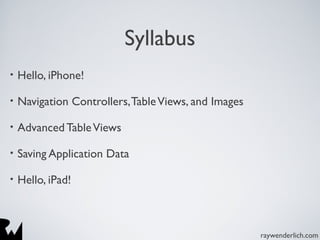
Syllabus
• Hello, iPhone!
• Navigation Controllers,TableViews, and Images
• Advanced TableViews
• Saving Application Data
• Hello, iPad!
raywenderlich.com
Hello, iPhone!
raywenderlich.com
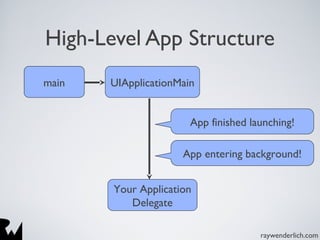
High-Level App Structure
Your Application
Delegate
main UIApplicationMain
App finished launching!
App entering background!
raywenderlich.com
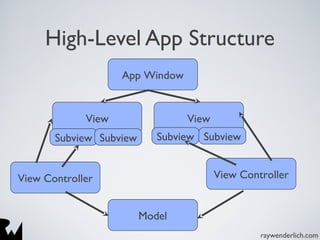
High-Level App Structure
App Window
View View
View Controller View Controller
Model
Subview Subview Subview Subview
raywenderlich.com
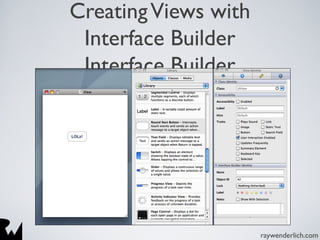
CreatingViews with
Interface Builder
Interface Builder
raywenderlich.com
CreatingViews Programatically
UIButton *lolButton = [UIButton
buttonWithType:UIButtonTypeRoundedRect];
[lolButton setTitle:@"Lolz!" forState:UIControlStateNormal];
[lolButton setFrame:CGRectMake(20, 400, 100, 40)];
[lolButton addTarget:self action:@selector(lolButtonTapped:)
forControlEvents:UIControlEventTouchUpInside];
[self.view addSubview:lolButton];
raywenderlich.com
Interface Builder, Views, and
View Controllers
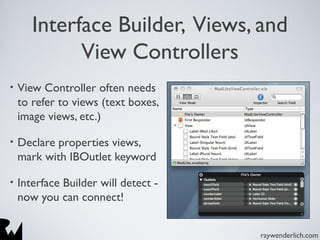
• View Controller often needs
to refer to views (text boxes,
image views, etc.)
• Declare properties views,
mark with IBOutlet keyword
• Interface Builder will detect -
now you can connect!
raywenderlich.com
Interface Builder, Views, and
View Controllers
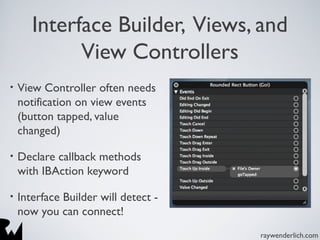
• View Controller often needs
notification on view events
(button tapped, value
changed)
• Declare callback methods
with IBAction keyword
• Interface Builder will detect -
now you can connect!
raywenderlich.com
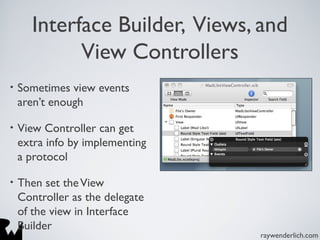
Interface Builder, Views, and
View Controllers
• Sometimes view events
aren’t enough
• View Controller can get
extra info by implementing
a protocol
• Then set theView
Controller as the delegate
of the view in Interface
Builder
raywenderlich.com
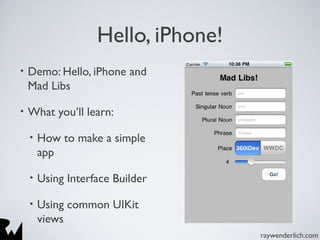
Hello, iPhone!
• Demo: Hello, iPhone and
Mad Libs
• What you’ll learn:
• How to make a simple
app
• Using Interface Builder
• Using common UIKit
views
raywenderlich.com
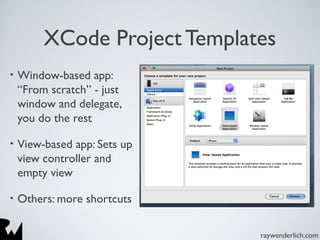
XCode Project Templates
• Window-based app:
“From scratch” - just
window and delegate,
you do the rest
• View-based app: Sets up
view controller and
empty view
• Others: more shortcuts
raywenderlich.com
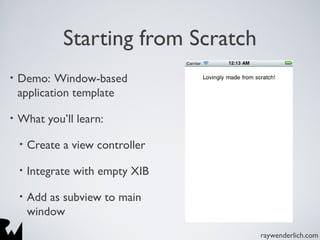
Starting from Scratch
• Demo: Window-based
application template
• What you’ll learn:
• Create a view controller
• Integrate with empty XIB
• Add as subview to main
window
raywenderlich.com
Orientation
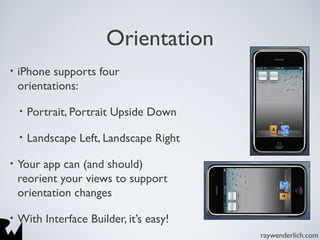
• iPhone supports four
orientations:
• Portrait, Portrait Upside Down
• Landscape Left, Landscape Right
• Your app can (and should)
reorient your views to support
orientation changes
• With Interface Builder, it’s easy!
raywenderlich.com
Orientation Pwns!
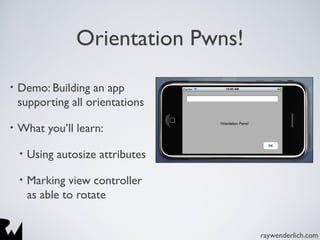
• Demo: Building an app
supporting all orientations
• What you’ll learn:
• Using autosize attributes
• Marking view controller
as able to rotate
raywenderlich.com
XCode’s Debugger and Docs
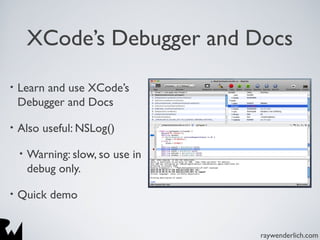
• Learn and use XCode’s
Debugger and Docs
• Also useful: NSLog()
• Warning: slow, so use in
debug only.
• Quick demo
raywenderlich.com
Challenge Time!
• Make your own tip calculator!
• Script kiddie: Poor Tipper
• Junior hacker: Fair Tipper
• Hacker: Generous Tipper
• Uber haxx0r: Daddy Starbucks
credit:: http://www.sxc.hu/profile/svilen001
raywenderlich.com
Navigation Controllers, Table
Views, and Images
raywenderlich.com
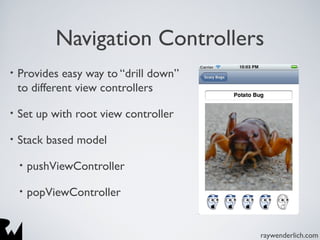
Navigation Controllers
• Provides easy way to “drill down”
to different view controllers
• Set up with root view controller
• Stack based model
• pushViewController
• popViewController
raywenderlich.com
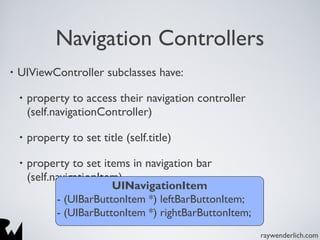
• UIViewController subclasses have:
• property to access their navigation controller
(self.navigationController)
• property to set title (self.title)
• property to set items in navigation bar
(self.navigationItem)
Navigation Controllers
UINavigationItem
- (UIBarButtonItem *) leftBarButtonItem;
- (UIBarButtonItem *) rightBarButtonItem;
raywenderlich.com
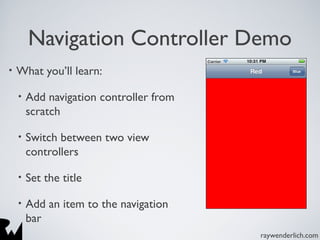
Navigation Controller Demo
• What you’ll learn:
• Add navigation controller from
scratch
• Switch between two view
controllers
• Set the title
• Add an item to the navigation
bar
raywenderlich.com
TableViews
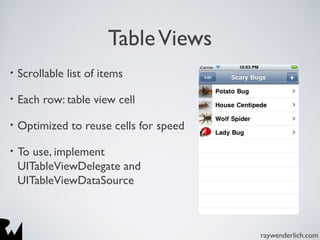
• Scrollable list of items
• Each row: table view cell
• Optimized to reuse cells for speed
• To use, implement
UITableViewDelegate and
UITableViewDataSource
raywenderlich.com
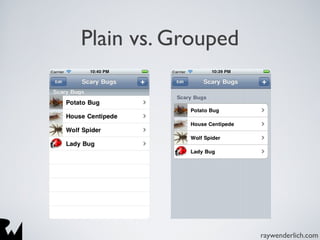
Plain vs. Grouped
raywenderlich.com
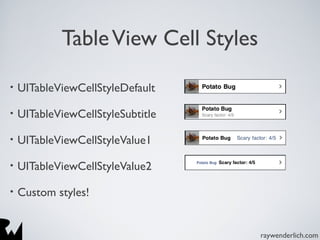
TableView Cell Styles
• UITableViewCellStyleDefault
• UITableViewCellStyleSubtitle
• UITableViewCellStyleValue1
• UITableViewCellStyleValue2
• Custom styles!
raywenderlich.com
Most common methods to
implement
• tableView:numberOfSectionsInTableView
• tableView:titleForHeaderInSection
• tableView:numberOfRowsInSection
• tableView:cellForRowAtIndexPath
• tableView:didSelectRowAtIndexPath
raywenderlich.com
Integrating with data model
• Table views work very nicely with arrays
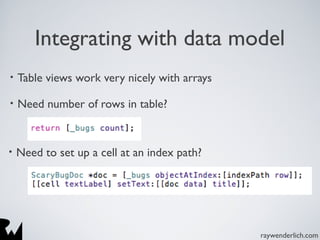
• Need number of rows in table?
• Need to set up a cell at an index path?
raywenderlich.com
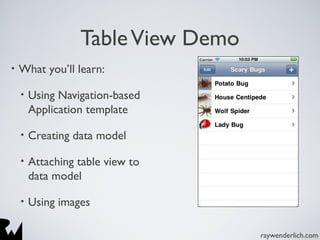
TableView Demo
• What you’ll learn:
• Using Navigation-based
Application template
• Creating data model
• Attaching table view to
data model
• Using images
raywenderlich.com
DetailViews
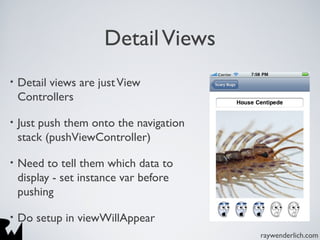
• Detail views are justView
Controllers
• Just push them onto the navigation
stack (pushViewController)
• Need to tell them which data to
display - set instance var before
pushing
• Do setup in viewWillAppear
raywenderlich.com
UIImagePicker
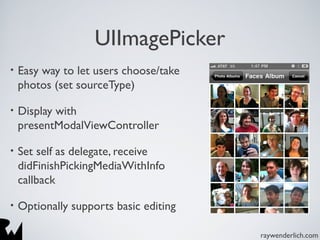
• Easy way to let users choose/take
photos (set sourceType)
• Display with
presentModalViewController
• Set self as delegate, receive
didFinishPickingMediaWithInfo
callback
• Optionally supports basic editing
raywenderlich.com
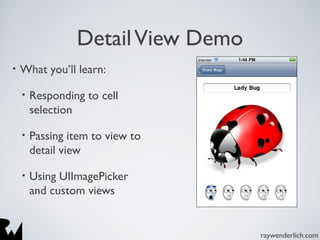
DetailView Demo
• What you’ll learn:
• Responding to cell
selection
• Passing item to view to
detail view
• Using UIImagePicker
and custom views
raywenderlich.com
Challenge Time!
• Make an app about your favorite
things!
• Script kiddie: Stamp Collector
• Junior hacker: Baseball Card Collector
• Hacker: Coin Collector
• Uber haxx0r: Mad Skillz Collector
credit:: http://www.sxc.hu/profile/intruso4
raywenderlich.com
Advanced TableViews
raywenderlich.com
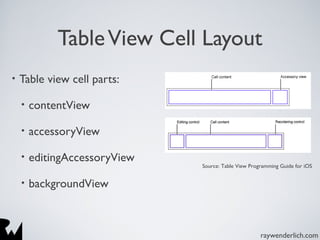
TableView Cell Layout
• Table view cell parts:
• contentView
• accessoryView
• editingAccessoryView
• backgroundView
Source: Table View Programming Guide for iOS
raywenderlich.com
Custom TableView Cells:
Programmatic
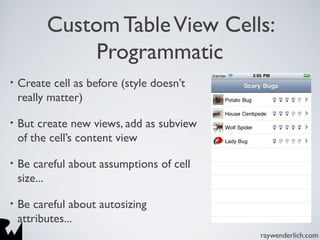
• Create cell as before (style doesn’t
really matter)
• But create new views, add as subview
of the cell’s content view
• Be careful about assumptions of cell
size...
• Be careful about autosizing
attributes...
raywenderlich.com
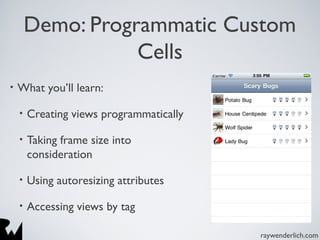
Demo: Programmatic Custom
Cells
• What you’ll learn:
• Creating views programmatically
• Taking frame size into
consideration
• Using autoresizing attributes
• Accessing views by tag
raywenderlich.com
Custom TableView Cells:
Programmatic
• Another option: subclass UITableViewCell
• Can encapsulate logic
• Can also override layoutSubviews and reposition existing
controls
• Performance: Keep opaque if possible, and don’t have too
many subviews
raywenderlich.com
Custom TableView Cells:
Interface Builder
Interface Builder
• Programmatic method is a bit painstaking - IB to the rescue!
• Options:
• create in same XIB, or different XIB?
• load views by tag, or associate with outlet?
• outlet on table view controller, or table view cell subclass?
• if load XIB - connect cell to outlet, or load by index?
raywenderlich.com
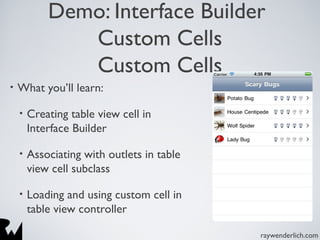
Demo: Interface Builder
Custom Cells
Custom Cells
• What you’ll learn:
• Creating table view cell in
Interface Builder
• Associating with outlets in table
view cell subclass
• Loading and using custom cell in
table view controller
raywenderlich.com
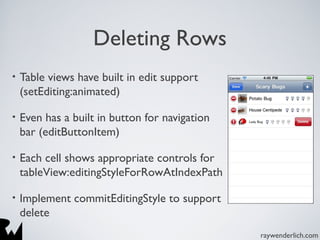
Deleting Rows
• Table views have built in edit support
(setEditing:animated)
• Even has a built in button for navigation
bar (editButtonItem)
• Each cell shows appropriate controls for
tableView:editingStyleForRowAtIndexPath
• Implement commitEditingStyle to support
delete
raywenderlich.com
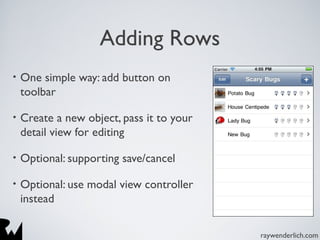
Adding Rows
• One simple way: add button on
toolbar
• Create a new object, pass it to your
detail view for editing
• Optional: supporting save/cancel
• Optional: use modal view controller
instead
raywenderlich.com
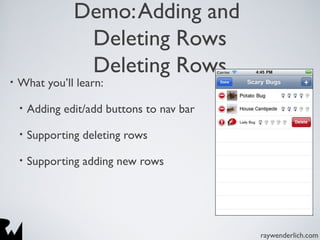
Demo:Adding and
Deleting Rows
Deleting Rows
• What you’ll learn:
• Adding edit/add buttons to nav bar
• Supporting deleting rows
• Supporting adding new rows
raywenderlich.com
Other Cool TableView Stuff
• Indexing (like Contacts app)
• Reordering rows
• Built-in accessories or custom accessory views
• Breaking data into sections
• Updating your table view with animations
• More info:TableView Programming Guide for iOS
raywenderlich.com
TableView Styling
• Several options
• Easiest: set backgroundView, use images for top, mid, bot,
single
• Can also use gradient layers to nice effect
• Or can custom draw with Core Graphics!
raywenderlich.com
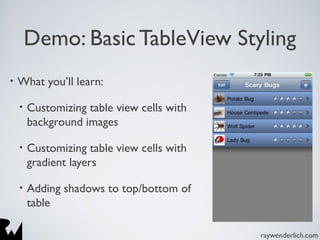
Demo: Basic TableView Styling
• What you’ll learn:
• Customizing table view cells with
background images
• Customizing table view cells with
gradient layers
• Adding shadows to top/bottom of
table
raywenderlich.com
Challenge Time!
• Add adding, deleting, and
custom cells to your Favorite
Things app
• Script Kiddie: Table Boy
• Junior Hacker: Table Mechanic
• Hacker: Table Architect
• Uber Haxx0r: Table Arch
Master
credit:: http://www.sxc.hu/profile/winjohn
raywenderlich.com
Saving Application Data
raywenderlich.com
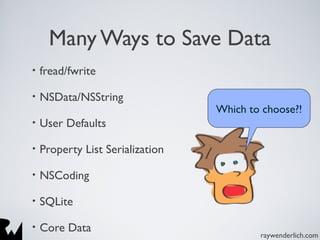
Many Ways to Save Data
• fread/fwrite
• NSData/NSString
• User Defaults
• Property List Serialization
• NSCoding
• SQLite
• Core Data
Which to choose?!
raywenderlich.com
Directories for an iOS App
• App HomeApp Name.app (read only)
• App HomeDocuments (file sharing enabled!)
• App HomeLibrary (app-specific contents don’t want
shared)
• App HomeCaches (not backed up)
• App Hometmp (not backed up, + OS can purge)
• Get with NSSearchPathForDirectoriesInDomains API
raywenderlich.com
Reading Raw Bytes
• fread/fwrite
• [NSString stringWithContentsOfURL:...]
• [NSData dataWithContentsOfURL...]
• Generally better ways to go, but can be useful when parsing
certain data files, etc.
raywenderlich.com
Easy saving of user
preferences/small values
• [NSUserDefaults standardUserDefaults] singleton
• setInteger:forKey
• setObject:forKey
• integerForKey:
• objectForKey:
• Should not be using this that much, but can be useful
raywenderlich.com
Property List Serialization
• Extremely easy to read/write property lists
• NSDictionary/NSArray writeToFile:atomically
• NSDictionary/NSArray initWithContentsOfFile
• Must contain basic type like strings, numbers, dates, etc.
• Fast, easy, and human readable, but limited
raywenderlich.com
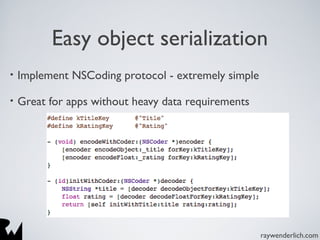
Easy object serialization
• Implement NSCoding protocol - extremely simple
• Great for apps without heavy data requirements
raywenderlich.com
SQLite
• SQLite is a library that reads a SQL database as a flat file
• You can perform SQL queries on it
• Command line tool to work with SQLite dbs: sqlite3
• Advantages: can easily retrieve subset of data, leverage
power of DB engine, small learning curve if familiar with
SQL dbs
• Disadvantages: Core Data usually better
raywenderlich.com
Core Data
• “Object graph management and persistence framework”
• Use a visual editor to design your object structure
• Store your objects in a SQLite db
• Cache objects as you read them out
• Automatically pull related objects
• Overall: usually best way, but learning curve and time to
implement
raywenderlich.com
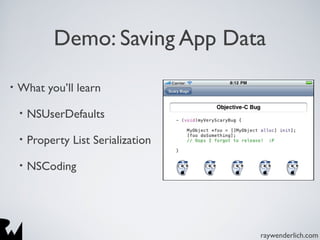
Demo: Saving App Data
• What you’ll learn
• NSUserDefaults
• Property List Serialization
• NSCoding
raywenderlich.com
Synchronizing and Sharing Data
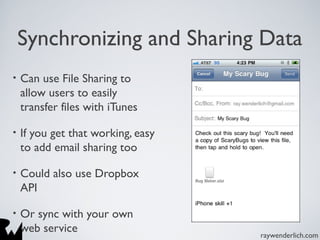
• Can use File Sharing to
allow users to easily
transfer files with iTunes
• If you get that working, easy
to add email sharing too
• Could also use Dropbox
API
• Or sync with your own
web service
raywenderlich.com
Challenge Time!
• Extend your app to save its data!
• Script kiddie: Data Entry
• Junior hacker: Data Bot
• Hacker: Data Pirate
• Uber haxx0r: Data Ninja credit: http://www.sxc.hu/profile/rodrigovr
raywenderlich.com
Hello, iPad!
raywenderlich.com
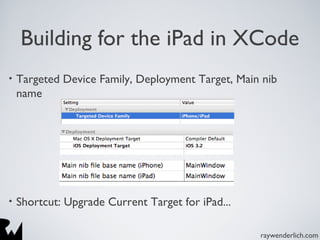
Building for the iPad in XCode
• Targeted Device Family, Deployment Target, Main nib
name
• Shortcut: Upgrade Current Target for iPad...
raywenderlich.com
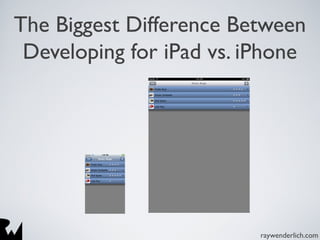
The Biggest Difference Between
Developing for iPad vs. iPhone
raywenderlich.com
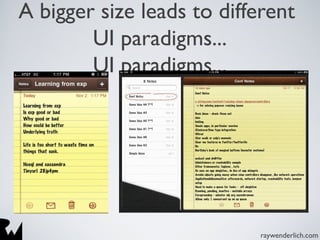
A bigger size leads to different
UI paradigms...
UI paradigms...
raywenderlich.com
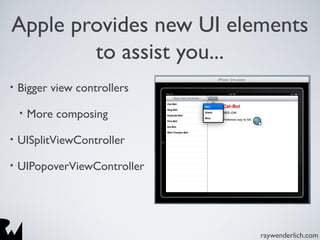
Apple provides new UI elements
to assist you...
• Bigger view controllers
• More composing
• UISplitViewController
• UIPopoverViewController
raywenderlich.com
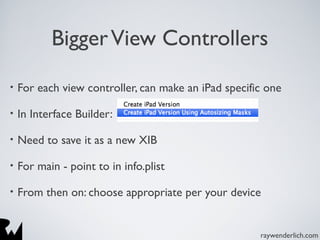
BiggerView Controllers
• For each view controller, can make an iPad specific one
• In Interface Builder:
• Need to save it as a new XIB
• For main - point to in info.plist
• From then on: choose appropriate per your device
raywenderlich.com
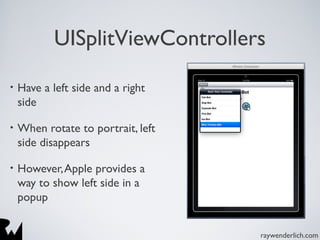
UISplitViewControllers
• Have a left side and a right
side
• When rotate to portrait, left
side disappears
• However,Apple provides a
way to show left side in a
popup
raywenderlich.com
Conditional Code
• Test if iPad: UI_USER_INTERFACE_IDIOM()
• Test if selector exists: respondsToSelector
• Test if class exists: NSClassFromString()
• Test if function exists: FunctionName == NULL
• Do NOT check OS version, if possible
raywenderlich.com
Demo: Porting Scary Bugs, Part
1
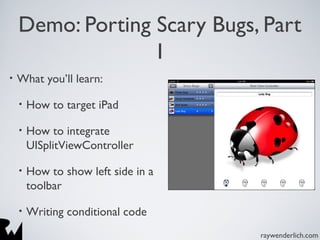
• What you’ll learn:
• How to target iPad
• How to integrate
UISplitViewController
• How to show left side in a
toolbar
• Writing conditional code
raywenderlich.com
UIPopoverControllers
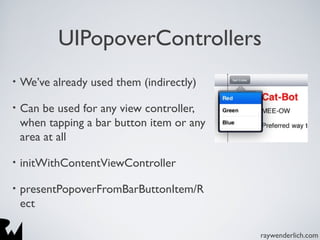
• We’ve already used them (indirectly)
• Can be used for any view controller,
when tapping a bar button item or any
area at all
• initWithContentViewController
• presentPopoverFromBarButtonItem/R
ect
raywenderlich.com
Demo: Porting Scary Bugs, Part
2
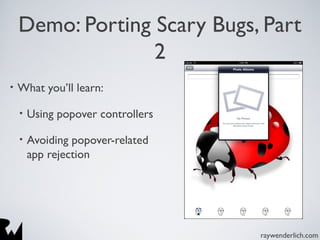
• What you’ll learn:
• Using popover controllers
• Avoiding popover-related
app rejection
raywenderlich.com
The Final Challenge!
• Port your app, and show it off!
• Script kiddie:App Student
• Junior hacker:App Intern
• Hacker:App Developer
• Uber haxx0r:App Indie
raywenderlich.com
Where To Go From Here?
• Make apps, gain money and skillz!
• More iOS development tutorials: raywenderlich.com
• Find me on Twitter! @rwenderlich
• Drop me a note anytime! :]

iOS Programming 101

Editor's Notes

  • #2 9:00am-5pm
  • #3 If you don’t have your own laptop, pls. team up!
  • #11 Can either specify the name of the delegate as a parameter to UIApplicationMain, or you can load it indirectly by specifying a Nib file to load in the info.plist (NSMainNibFile), and inside the nib set add the delegate class and set it as the delegate of the File’s Owner (UIApplication). See reference for UIApplicationMain for more details.
  • #21 Landscape left: turn the device left (so home key is on the right), right vice versa
  • #24 TODO: Slide about running on your iPhone, rather than just simulator.
  • #43 existing controls: textLabel, detailTextLabel, imageView
  • #46 default editing style: delete