EMAIL
Getting to know Seesaw!
What you will learn in this
presentation:
❏ Creating your Teacher Account
❏ Creating your first class
❏ Adding an item
❏ Signing in as a Student
❏ Adding an item as a Student
❏ Inviting Parents
Interactive Learning Session
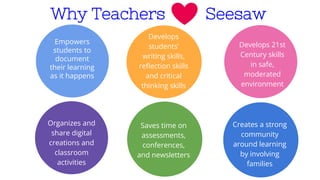
Empowers
students to
document
their learning
as it happens
Develops
students’
writing skills,
reflection skills
and critical
thinking skills
Why Teachers Seesaw
Develops 21st
Century skills
in safe,
moderated
environment
Creates a strong
community
around learning
by involving
families
Organizes and
share digital
creations and
classroom
activities
Saves time on
assessments,
conferences,
and newsletters
Getting to know Seesaw!
What you will learn in this
presentation:
❏ Creating your Teacher Account
❏ Creating your first class
❏ Adding an item
❏ Signing in as a Student
❏ Adding an item as a Student
❏ Inviting Parents
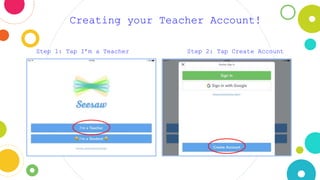
Creating your Teacher Account!
Step 1: Tap I’m a Teacher Step 2: Tap Create Account
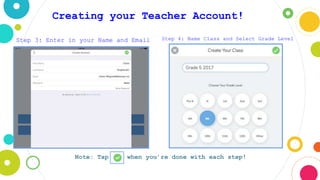
Step 3: Enter in your Name and Email Step 4: Name Class and Select Grade Level
Creating your Teacher Account!
Note: Tap the when you’re done with each step!
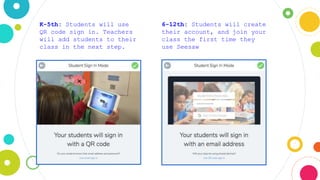
K-5th: Students will use
QR code sign in. Teachers
will add students to their
class in the next step.
6-12th: Students will create
their account, and join your
class the first time they
use Seesaw
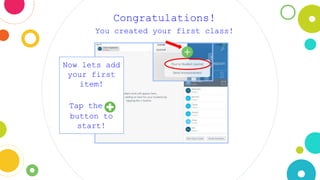
Congratulations!
You created your first class!
Now lets add
your first
item!
Tap the +
button to
start!
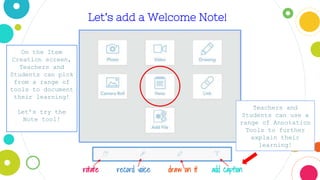
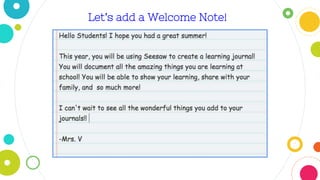
Let’s add a Welcome Note!
rotate record voice draw on it add caption
On the Item
Creation screen,
Teachers and
Students can pick
from a range of
tools to document
their learning!
Let’s try the
Note tool!
Teachers and
Students can use a
range of Annotation
Tools to further
explain their
learning!
Let’s add a Welcome Note!
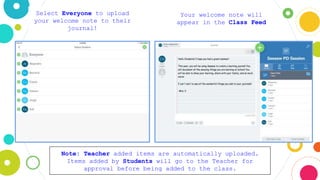
Select Everyone to upload
your welcome note to their
journal!
Note: Teacher added items are automatically uploaded.
Items added by Students will go to the Teacher for
approval before being added to the class.
Your welcome note will
appear in the Class Feed
Experience
as a Student
Signing In As a Student
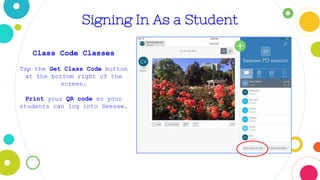
Class Code Classes
Tap the Get Class Code button
at the bottom right of the
screen.
Print your QR code so your
students can log into Seesaw.
Signing In As a Student
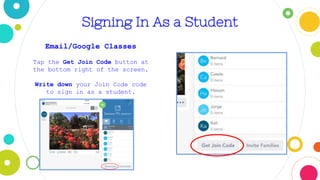
Email/Google Classes
Tap the Get Join Code button at
the bottom right of the screen.
Write down your Join Code code
to sign in as a student.
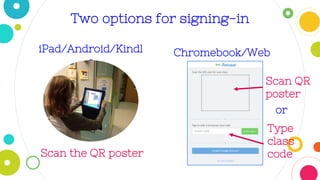
Signing In
iPad/Android/Kindle Chromebook/Web
Two options for signing-in
iPad/Android/Kindl
e
Chromebook/Web
Scan the QR poster
Scan QR
poster
or
Type
class
code
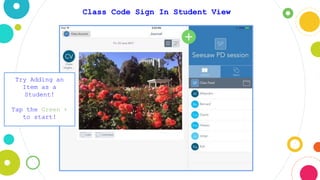
Class Code Sign In Student View
Try Adding an
Item as a
Student!
Tap the Green +
to start!
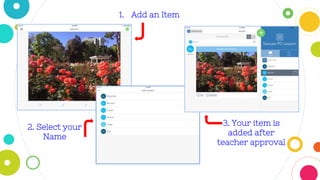
3. Your item is
added after
teacher approval
1. Add an Item
2. Select your
Name
Awesome job!
Now you’ve seen first hand how students will
add items to their Seesaw Journals!
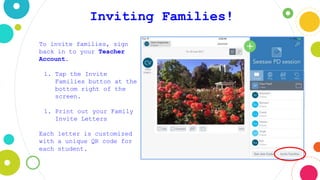
Inviting Families!
To invite families, sign
back in to your Teacher
Account.
1. Tap the Invite
Families button at the
bottom right of the
screen.
1. Print out your Family
Invite Letters
Each letter is customized
with a unique QR code for
each student.
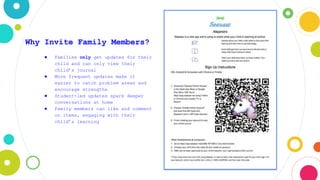
Why Invite Family Members?
● Families only get updates for their
child and can only view their
child’s journal
● More frequent updates make it
easier to catch problem areas and
encourage strengths
● Student-led updates spark deeper
conversations at home
● Family members can like and comment
on items, engaging with their
child’s learning
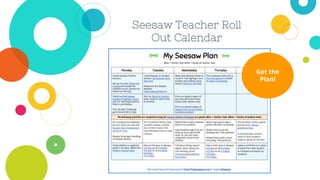
Seesaw Teacher Roll
Out Calendar
Get the
Plan!
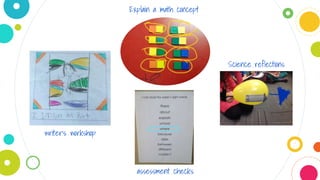
Classroom Examples
writer’s workshop
Explain a math concept
Science reflections
assessment checks
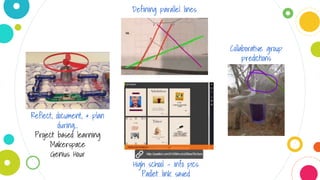
Defining parallel lines
Collaborative group
predictions
High school - info pics
Padlet link saved
Reflect, document, & plan
during...
Project based learning
Makerspace
Genius Hour
Historical characters project
ELA: synonyms
Journal writing
with peer
feedback
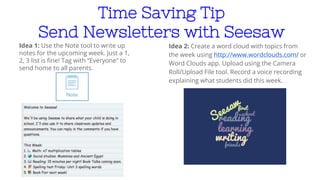
Time Saving Tip
Send Newsletters with Seesaw
Idea 1: Use the Note tool to write up
notes for the upcoming week. Just a 1,
2, 3 list is fine! Tag with “Everyone” to
send home to all parents.
Idea 2: Create a word cloud with topics from
the week using http://www.wordclouds.com/ or
Word Clouds app. Upload using the Camera
Roll/Upload File tool. Record a voice recording
explaining what students did this week.
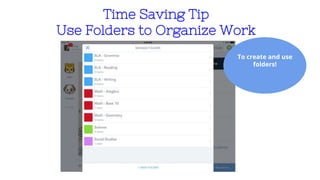
Time Saving Tip
Use Folders to Organize Work
To create and use
folders!
THANK YOU

Seesaw Interactive Teacher Training!.pptx

  • 1.
  • 2.
    Getting to knowSeesaw! What you will learn in this presentation: ❏ Creating your Teacher Account ❏ Creating your first class ❏ Adding an item ❏ Signing in as a Student ❏ Adding an item as a Student ❏ Inviting Parents
  • 3.
  • 4.
    Empowers students to document their learning asit happens Develops students’ writing skills, reflection skills and critical thinking skills Why Teachers Seesaw Develops 21st Century skills in safe, moderated environment Creates a strong community around learning by involving families Organizes and share digital creations and classroom activities Saves time on assessments, conferences, and newsletters
  • 5.
    Getting to knowSeesaw! What you will learn in this presentation: ❏ Creating your Teacher Account ❏ Creating your first class ❏ Adding an item ❏ Signing in as a Student ❏ Adding an item as a Student ❏ Inviting Parents
  • 6.
    Creating your TeacherAccount! Step 1: Tap I’m a Teacher Step 2: Tap Create Account
  • 7.
    Step 3: Enterin your Name and Email Step 4: Name Class and Select Grade Level Creating your Teacher Account! Note: Tap the when you’re done with each step!
  • 8.
    K-5th: Students willuse QR code sign in. Teachers will add students to their class in the next step. 6-12th: Students will create their account, and join your class the first time they use Seesaw
  • 9.
    Congratulations! You created yourfirst class! Now lets add your first item! Tap the + button to start!
  • 10.
    Let’s add aWelcome Note! rotate record voice draw on it add caption On the Item Creation screen, Teachers and Students can pick from a range of tools to document their learning! Let’s try the Note tool! Teachers and Students can use a range of Annotation Tools to further explain their learning!
  • 11.
    Let’s add aWelcome Note!
  • 12.
    Select Everyone toupload your welcome note to their journal! Note: Teacher added items are automatically uploaded. Items added by Students will go to the Teacher for approval before being added to the class. Your welcome note will appear in the Class Feed
  • 13.
  • 14.
    Signing In Asa Student Class Code Classes Tap the Get Class Code button at the bottom right of the screen. Print your QR code so your students can log into Seesaw.
  • 15.
    Signing In Asa Student Email/Google Classes Tap the Get Join Code button at the bottom right of the screen. Write down your Join Code code to sign in as a student.
  • 16.
  • 17.
    Two options forsigning-in iPad/Android/Kindl e Chromebook/Web Scan the QR poster Scan QR poster or Type class code
  • 18.
    Class Code SignIn Student View Try Adding an Item as a Student! Tap the Green + to start!
  • 19.
    3. Your itemis added after teacher approval 1. Add an Item 2. Select your Name
  • 20.
    Awesome job! Now you’veseen first hand how students will add items to their Seesaw Journals!
  • 21.
    Inviting Families! To invitefamilies, sign back in to your Teacher Account. 1. Tap the Invite Families button at the bottom right of the screen. 1. Print out your Family Invite Letters Each letter is customized with a unique QR code for each student.
  • 22.
    Why Invite FamilyMembers? ● Families only get updates for their child and can only view their child’s journal ● More frequent updates make it easier to catch problem areas and encourage strengths ● Student-led updates spark deeper conversations at home ● Family members can like and comment on items, engaging with their child’s learning
  • 23.
    Seesaw Teacher Roll OutCalendar Get the Plan!
  • 24.
  • 25.
    writer’s workshop Explain amath concept Science reflections assessment checks
  • 26.
    Defining parallel lines Collaborativegroup predictions High school - info pics Padlet link saved Reflect, document, & plan during... Project based learning Makerspace Genius Hour
  • 27.
    Historical characters project ELA:synonyms Journal writing with peer feedback
  • 28.
    Time Saving Tip SendNewsletters with Seesaw Idea 1: Use the Note tool to write up notes for the upcoming week. Just a 1, 2, 3 list is fine! Tag with “Everyone” to send home to all parents. Idea 2: Create a word cloud with topics from the week using http://www.wordclouds.com/ or Word Clouds app. Upload using the Camera Roll/Upload File tool. Record a voice recording explaining what students did this week.
  • 29.
    Time Saving Tip UseFolders to Organize Work To create and use folders!
  • 30.

Editor's Notes

  • #2 PD Presentation begins here.
  • #4 PD Presentation begins here.