

FOR THE ELEMENTARY CLASSROOM
November 6, 2018
TODAY’S OBJECTIVES
 To log in and find your classes in Schoology
 To understand the navigation in Schoology
 To understand the difference between Courses and Groups
 To customize your course settings
 To make a file and an assignment in a class
Please log into your Schoology account
http://cvs.schoology.com
WHY SCHOOLOGY?
/skoo-luh-jee/—a learning management system (LMS) that has all the tools your institution needs to create
engaging content, design lessons, and assess student understanding.
● Blackboard replacement
● Ease of use
● High adoption rate
● Integration with Power School
● Collaboration features:
○ Groups
○ Courses
○ Resources
THE POSSIBILITIES OF SCHOOLOGY
SCHOOLOGY IN ELEMENTARY
LMS for upper el
Student Portfolios
Parent site
Secure online discussions
ExtracurricularGroups
(GreenTeam, Broadcast Club, Safeties)
OFFICE 365 INTEGRATION
One Drive Resource App
 add files directly from your One Drive
One Drive Assignment App
 hands out a copy of a file from your One
Drive to every student
Classroom Notebook App
 create classroom notebooks right from
inside Schoology to share with students
MORE INTEGRATION OPTIONS
Tour of the
Home
Page/Feed
Tour of the
Home
Page/Feed
Courses vs. Groups
Courses are set up
automatically through
PowerSchool and
students added
automatically.
Courses and Codes
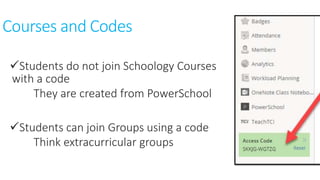
Students do not join Schoology Courses
with a code
They are created from PowerSchool
Students can join Groups using a code
Think extracurricular groups
Courses and Codes
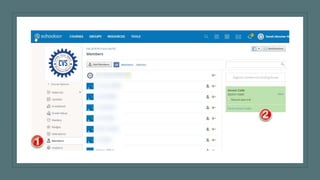
Teachers can join Courses with a code
Think co-teaching and PD
Parents can join Courses with a code
Parent access codes
Parents Access Codes
The Good:
Parents can create a Schoology
Account and you can provide them
with an access code to join your course
Great way to share materials with
parents
Parent codes allow them to only see
teacher materials and their own child’s
work – nice security!
Parents Access Codes
The Bad:
Each student has a unique code for
their parents – this could get hard
to manage
BUT –
Mail merge could be your friend!
Groups
Schoology Groups
• Create groups
• Join groups (with a code)
• Search for groups
• See all groups you are in
• Reorder your groups
Resources
Allows you to:
-Save your content to use in
other courses / terms
-Share resources for groups
across grades, subjects,
building, or schools in your
district
-Connect your apps to
resources (Office 365
Quizlet and more)
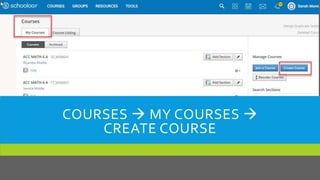
LET’S CREATE A COURSE!
REVIEW
TEACHERS DO NOT USUALLY CREATE
COURSES!
COURSES  MY COURSES 
CREATE COURSE
Tour of the Course Landing Page
Course Options
• Change course profile picture
• Review your privacy settings
• Moderate posts
• Send messages
Add to
Course Feed
Add to
Course Feed
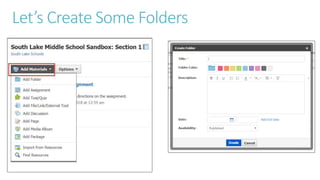
• Use the Add Materials option to add
information and activities for your students.
• Use folders to organize your materials into
units or topics of study.
• Add interactive elements to get your students
engaged.
Let’s Create Some Folders
Pages
• Pages are the main instructional
content tool in Schoology.
• A page allows you to create or
upload content
• Includes text, video/audio,
embedded websites, Office
365 documents, files, links,
tables, etc.
Think of a page as your canvas for your
lesson materials.
Pages
Let’s Create a
Page
Create an Assignment
Elementary
Course
Examples
Check These Out!
Take a look at these examples for ideas to use and organize Schoology with your
elementary students.
Find an Example
You Like?
No need to re-create!
Send the set of folders
you like to your
Resources, then copy it
into your course.
Now In Your Resources
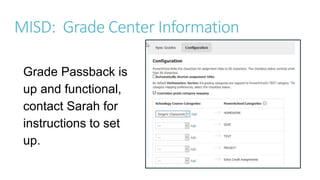
MISD: Grade Center Information
Grade Passback is
up and functional,
contact Sarah for
instructions to set
up.
NEW - Assessment Feature Now Available
NEW –
Assessment Feature
Hint:
Choose Assessment
rather than Test / Quiz
to have all of the
newest options
available.
Schoology Support Page – A Great Resource!
https://support.schoology.com
MISD Schoology Webpage
http://www.misd.net/schoology

Schoology for elementary

Editor's Notes

  • #33 Create three folders; change color on two; show rich text editor and features of folder, add pics under folders
  • #34 Hack for webpage embedding (if you get a blank page)--works well sometimes: 1. Use "Materials" to create a "Page." 2. Switch to HTML on the far right top. 3. Paste the following code: <iframe src="INSERT YOUR URL HERE" height='800px' width='750px'></iframe> Then, insert the page address where it says "insert your url here" above. You can adjust the height and width of the frame by changing the values of the "px" above.
  • #35 Hack for webpage embedding (if you get a blank page)--works well sometimes: 1. Use "Materials" to create a "Page." 2. Switch to HTML on the far right top. 3. Paste the following code: <iframe src="INSERT YOUR URL HERE" height='800px' width='750px'></iframe> Then, insert the page address where it says "insert your url here" above. You can adjust the height and width of the frame by changing the values of the "px" above.
  • #36 Create three folders; change color on two; show rich text editor and features of folder, add pics under folders
  • #37 Open a folder to create an assignment and start adding various content
  • #38 Open a folder to create an assignment and start adding various content