© 2013 Dana Sobczak
Dana Sobczak
ET5063
American College of Education
© 2013 Dana Sobczak
(St. Mary’s Academy, 2013)
Figure 1: Schoology is a LMS that incorporates
learning collaboratively
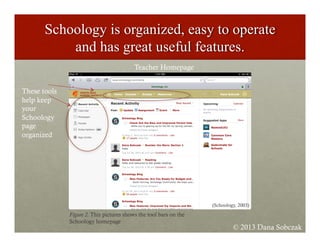
Teacher Homepage
These tools
help keep
your
Schoology
page
organized
© 2013 Dana Sobczak
(Schoology, 2003)
Figure 2. This pictures shows the tool bars on the
Schoology homepage
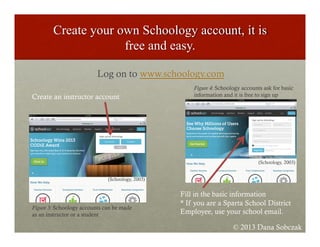
Create an instructor account
Fill in the basic information
* If you are a Sparta School District
Employee, use your school email.
© 2013 Dana Sobczak
(Schoology, 2003)
(Schoology, 2003)
Figure 3: Schoology accounts can be made
as an instructor or a student
Figure 4: Schoology accounts ask for basic
information and it is free to sign up
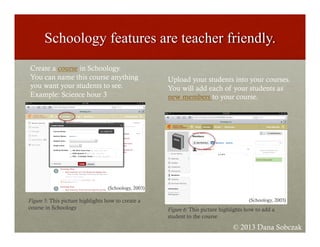
Create a course in Schoology.
You can name this course anything
you want your students to see.
Example: Science hour 3
Upload your students into your courses.
You will add each of your students as
new members to your course.
© 2013 Dana Sobczak
(Schoology, 2003)
(Schoology, 2003)
Figure 5: This picture highlights how to create a
course in Schoology Figure 6: This picture highlights how to add a
student to the course
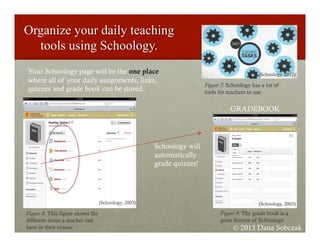
Your Schoology page will be the one place
where all of your daily assignments, links,
quizzes and grade book can be stored.
GRADEBOOK
Schoology will
automatically
grade quizzes!
© 2013 Dana Sobczak
(Schoology, 2003)(Schoology, 2003)
(Schoology, 2012)
Figure 7: Schoology has a lot of
tools for teachers to use
Figure 8: This figure shows the
different items a teacher can
have in their course
Figure 9: The grade book is a
great feature of Schoology
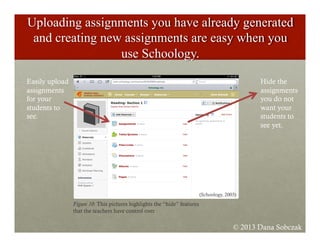
Easily upload
assignments
for your
students to
see.
Hide the
assignments
you do not
want your
students to
see yet.
© 2013 Dana Sobczak
(Schoology, 2003)
Figure 10: This pictures highlights the “hide” features
that the teachers have control over
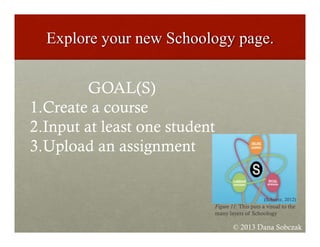
GOAL(S)
1. Create a course
2. Input at least one student
3. Upload an assignment
© 2013 Dana Sobczak
(Schuetz, 2012)
Figure 11: This puts a visual to the
many layers of Schoology
How to create a discussion
on Schoology video
Add one comment to the discussion before break
BREAK
Return at 10:45
(Evenbrite, 2013)
Figure 12: Schoology can be used as a digital
classroom
© 2013 Dana Sobczak
Schoology Workshop Presentation

Schoology Workshop Presentation

  • 1.
    © 2013 DanaSobczak Dana Sobczak ET5063 American College of Education
  • 2.
    © 2013 DanaSobczak (St. Mary’s Academy, 2013) Figure 1: Schoology is a LMS that incorporates learning collaboratively
  • 3.
    Teacher Homepage These tools helpkeep your Schoology page organized © 2013 Dana Sobczak (Schoology, 2003) Figure 2. This pictures shows the tool bars on the Schoology homepage
  • 4.
    Create an instructoraccount Fill in the basic information * If you are a Sparta School District Employee, use your school email. © 2013 Dana Sobczak (Schoology, 2003) (Schoology, 2003) Figure 3: Schoology accounts can be made as an instructor or a student Figure 4: Schoology accounts ask for basic information and it is free to sign up
  • 5.
    Create a coursein Schoology. You can name this course anything you want your students to see. Example: Science hour 3 Upload your students into your courses. You will add each of your students as new members to your course. © 2013 Dana Sobczak (Schoology, 2003) (Schoology, 2003) Figure 5: This picture highlights how to create a course in Schoology Figure 6: This picture highlights how to add a student to the course
  • 6.
    Your Schoology pagewill be the one place where all of your daily assignments, links, quizzes and grade book can be stored. GRADEBOOK Schoology will automatically grade quizzes! © 2013 Dana Sobczak (Schoology, 2003)(Schoology, 2003) (Schoology, 2012) Figure 7: Schoology has a lot of tools for teachers to use Figure 8: This figure shows the different items a teacher can have in their course Figure 9: The grade book is a great feature of Schoology
  • 7.
    Easily upload assignments for your studentsto see. Hide the assignments you do not want your students to see yet. © 2013 Dana Sobczak (Schoology, 2003) Figure 10: This pictures highlights the “hide” features that the teachers have control over
  • 8.
    GOAL(S) 1. Create a course 2. Inputat least one student 3. Upload an assignment © 2013 Dana Sobczak (Schuetz, 2012) Figure 11: This puts a visual to the many layers of Schoology
  • 9.
    How to createa discussion on Schoology video Add one comment to the discussion before break BREAK Return at 10:45 (Evenbrite, 2013) Figure 12: Schoology can be used as a digital classroom © 2013 Dana Sobczak