Scheduled Waste
Management
Environmental Quality (Scheduled Wastes)
Regulation, 2005
BY
PARABAKARAN BALASUBRAMANIAM
2
Instructor Introduction
2
Professional Summary: With over 15 years of comprehensive experience in
Environmental Safety and Health (HSE), Parabakaran Balasubramaniam is a
seasoned professional with specialized expertise in delivering impactful training
programs. He holds a Master's Degree in Environmental Safety and Health from
the University Malaysia Pahang and has dedicated 5 years specifically to the
field of HSE training and consultancy.
Key Skills and Competencies:
Extensive knowledge in environmental safety regulations and compliance
standards.
Proven track record in designing and delivering engaging and effective HSE
training modules.
Strong understanding of risk assessment methodologies and hazard control
strategies.
Skilled in conducting safety audits and implementing corrective measures.
Excellent communication and interpersonal skills for effective training delivery
1. Roles and Responsibilities
2. Notification of Production and waste data by department.
3. Inventory updates
4. Packaging methods
5. Labelling
6. Storage
7. Disposal Method
Agenda
Scheduled Waste – DEFINITION
 Authorized Contractors
• DOE Registered Contractors appointed by the company to collect the Scheduled wastes.
 Scheduled Waste
• List of waste which can adverse environment impacts and the fall within the categories of waste,
listed in the First Schedule as per the Environmental Quality (Scheduled Wastes)
Regulation,2005.
 Waste
• Include all discarded material prescribed to be Scheduled or non-Scheduled waste or any
matter whether in solid, semi-solid, liquid form or containerized gases (gas or vapour) which is
emitted, discharged or deposited in the environment in such volume, composite in the manner
as to cause pollution or which leave our premises. Polluted soil shall not be included.
 Waste Generator
• Any person who generates Scheduled Waste in their department.
Scheduled Waste – ROLES & RESPONSIBILITIES
 Waste Management Manager
• Shall ensure that the waste generated from the company has been identified clearly and
categorised as per describe in the First Schedule EQ (Schedule Wastes) Regulation 2005.
• Shall encourage the waste generator to minimize the generation of waste by promote re-cycle or
re-use of any waste generated.
• Shall responsible to ensure that all the Scheduled Waste has been managed properly by the
relevant waste generator and disposed according to the regulation.
 Waste Generator
• Shall notify the Waste Management Manager on the estimated production data and waste data per
month.
• Shall keep an accurate and up-to-date inventory of Scheduled Waste being generated, treated and
disposed.
• Inventory Report shall be maintained for a period up to three years from the date the Scheduled
wastes was generated.
• Shall ensure that any waste generated in the department is being properly identified, labelled and
stored in the correct manner.
• Shall encourage re-cycle or reuse any waste generated if possible to reduce the waste generation.
• Shall ensure all waste generated are disposed according to the legal and local authority
requirements.
• Assist the waste management manager on the implementation, maintain and monitor their
activities to comply with legal requirement.
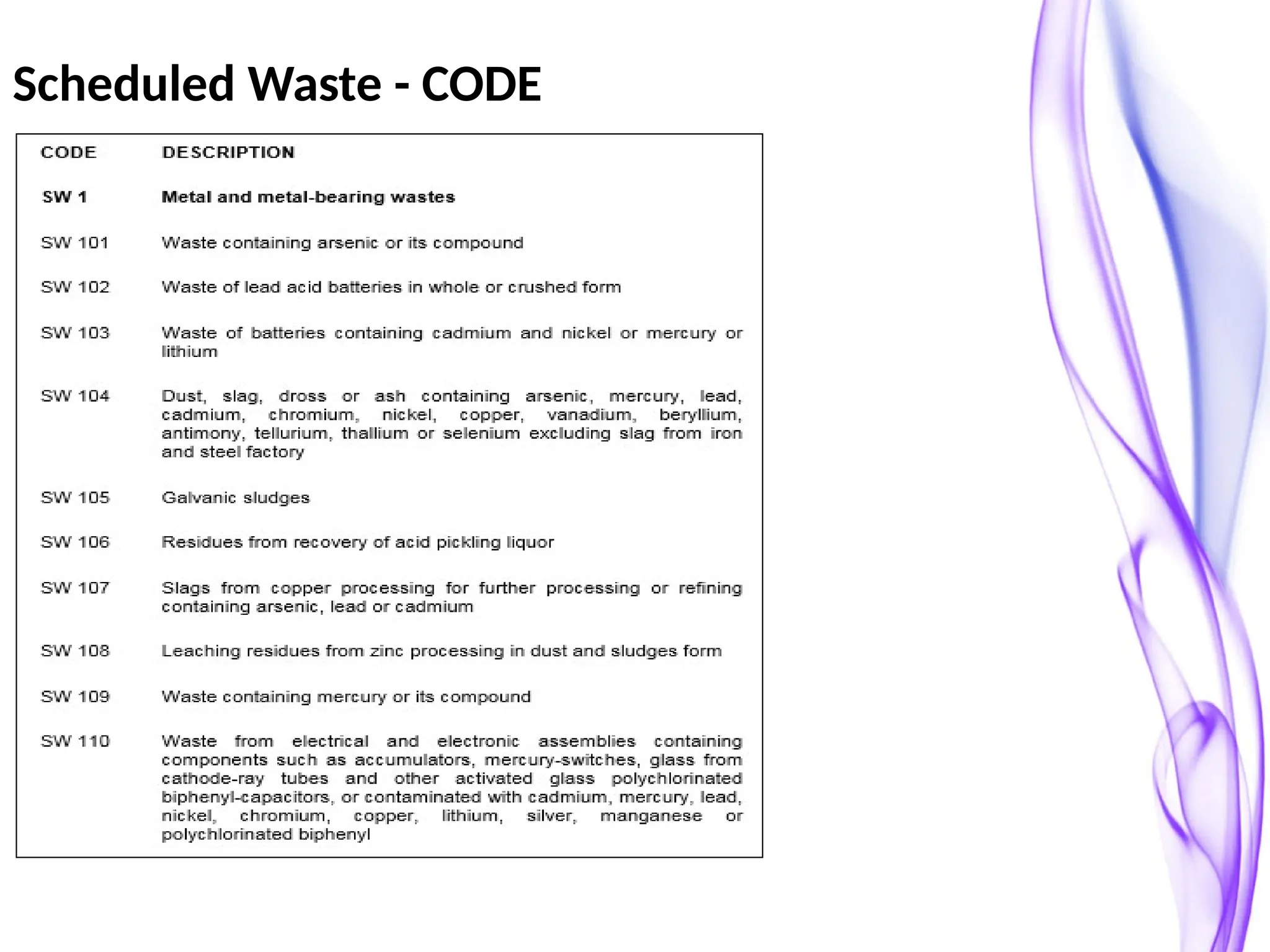
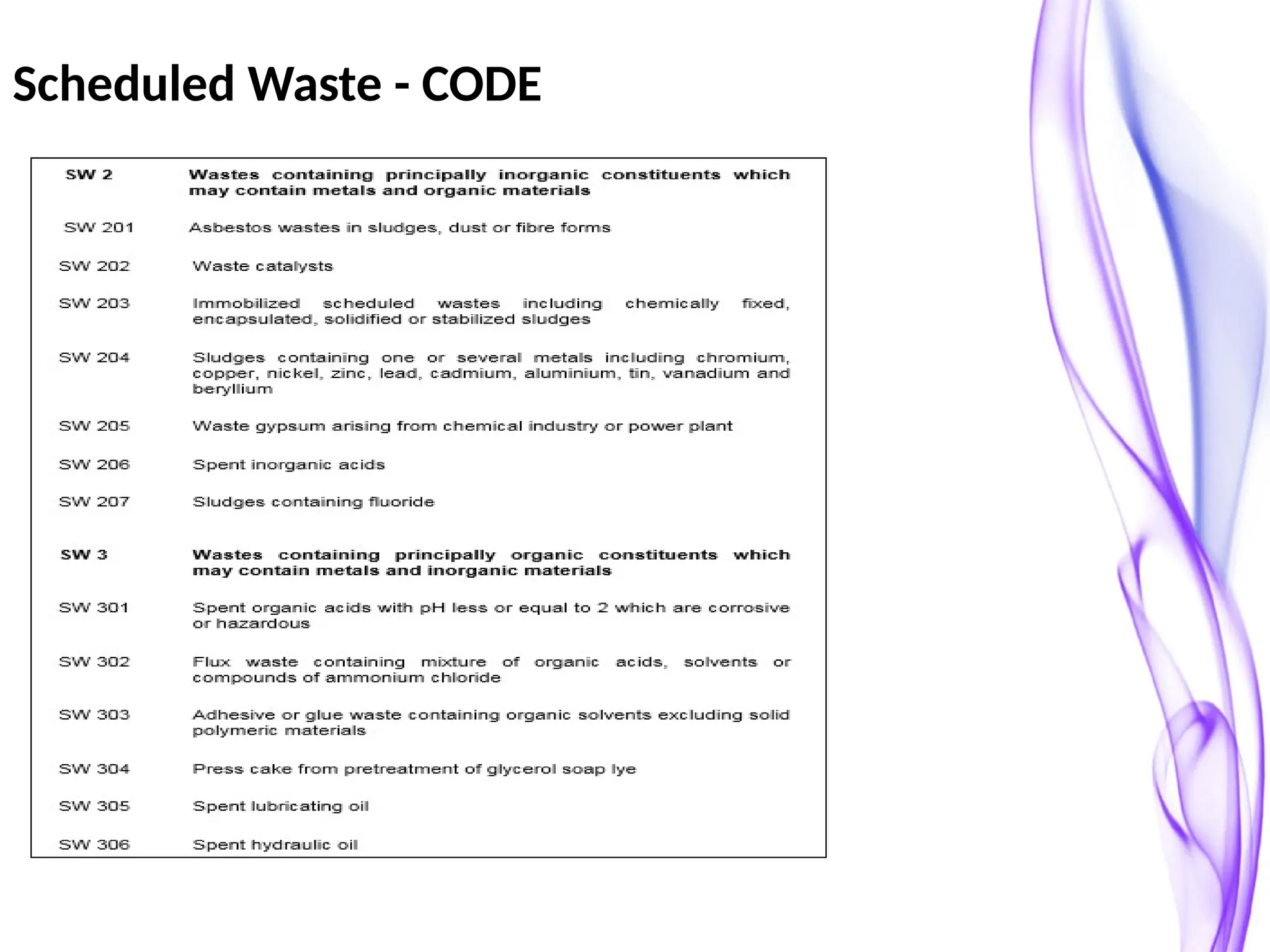
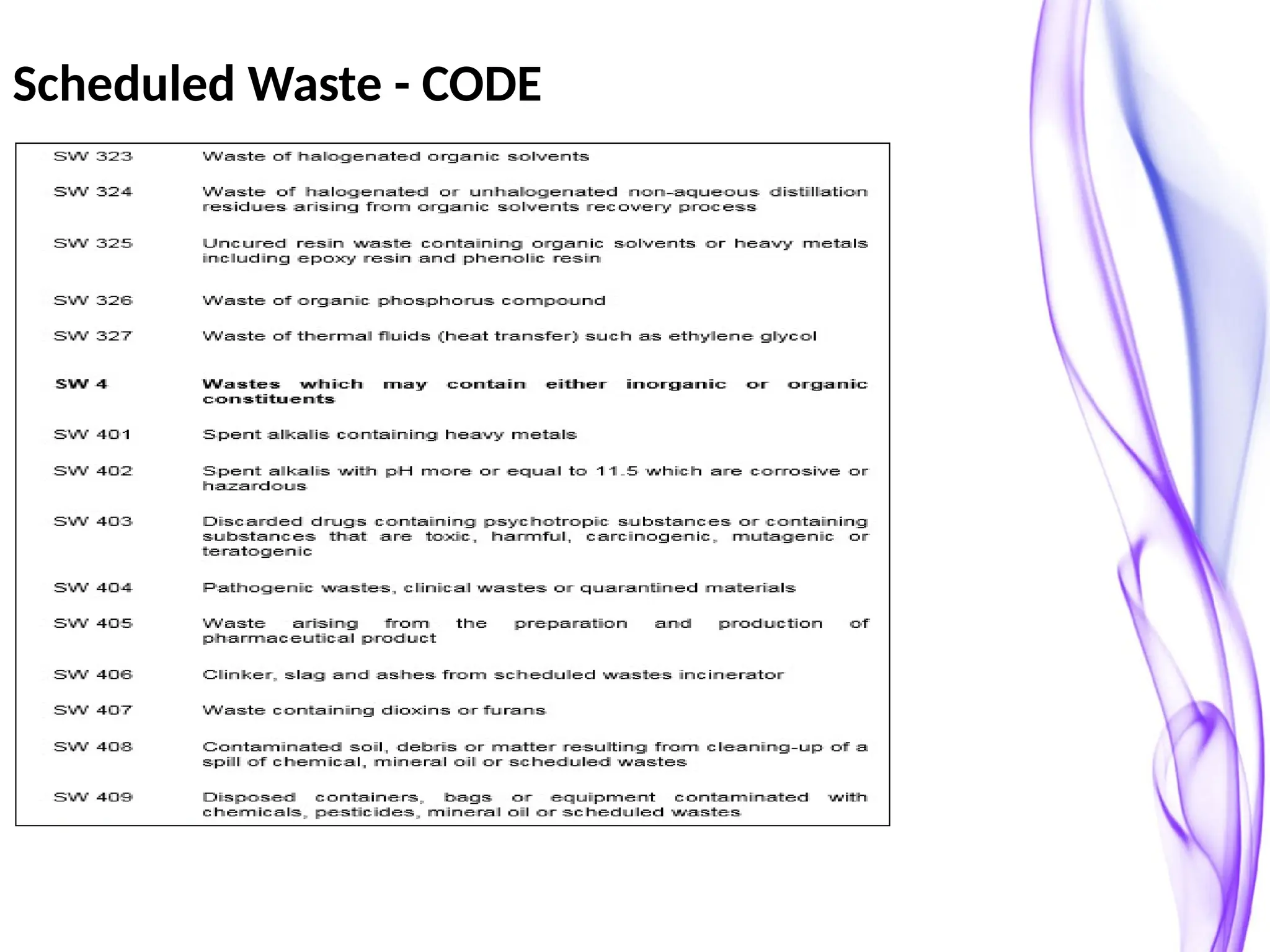
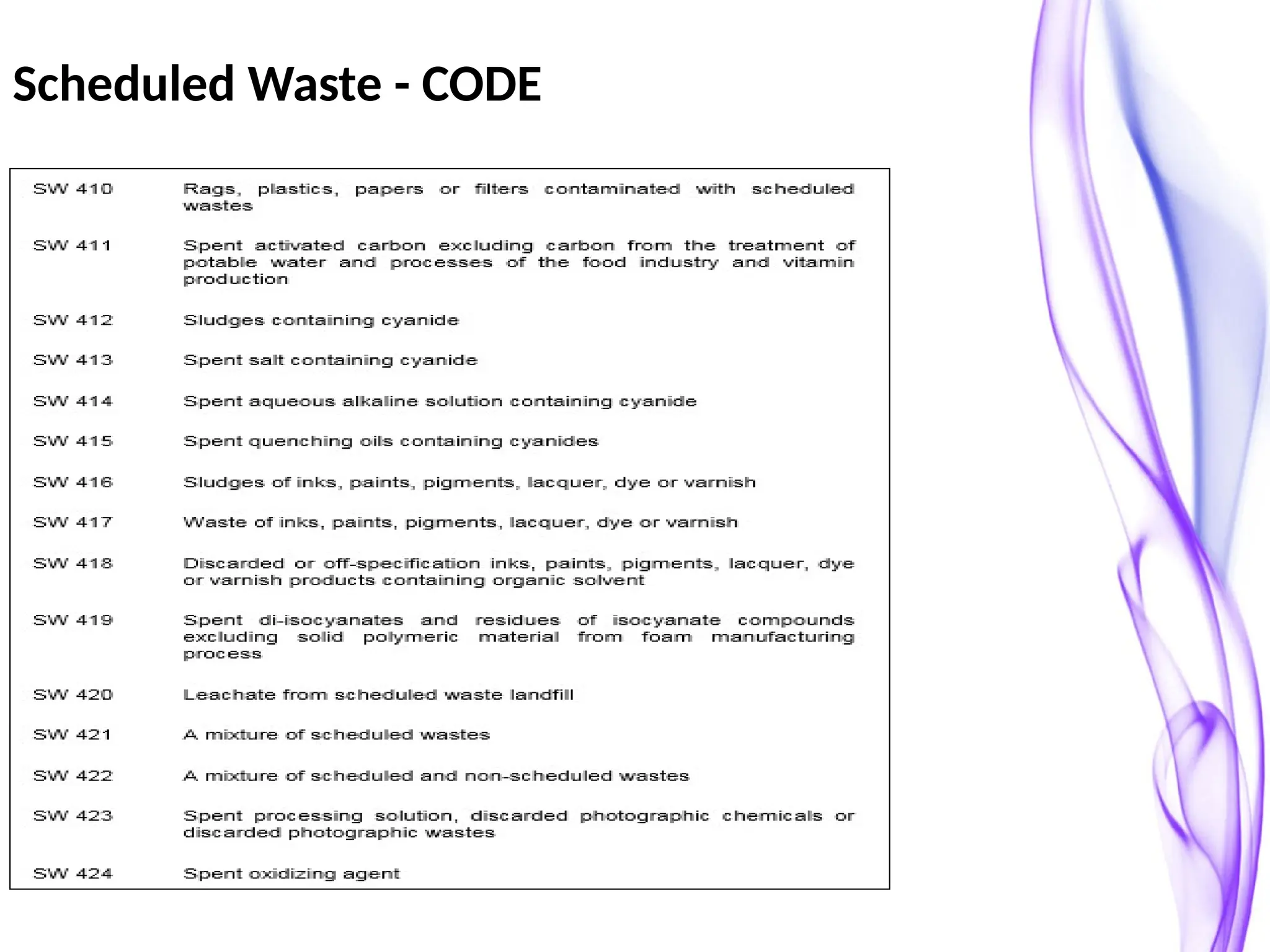
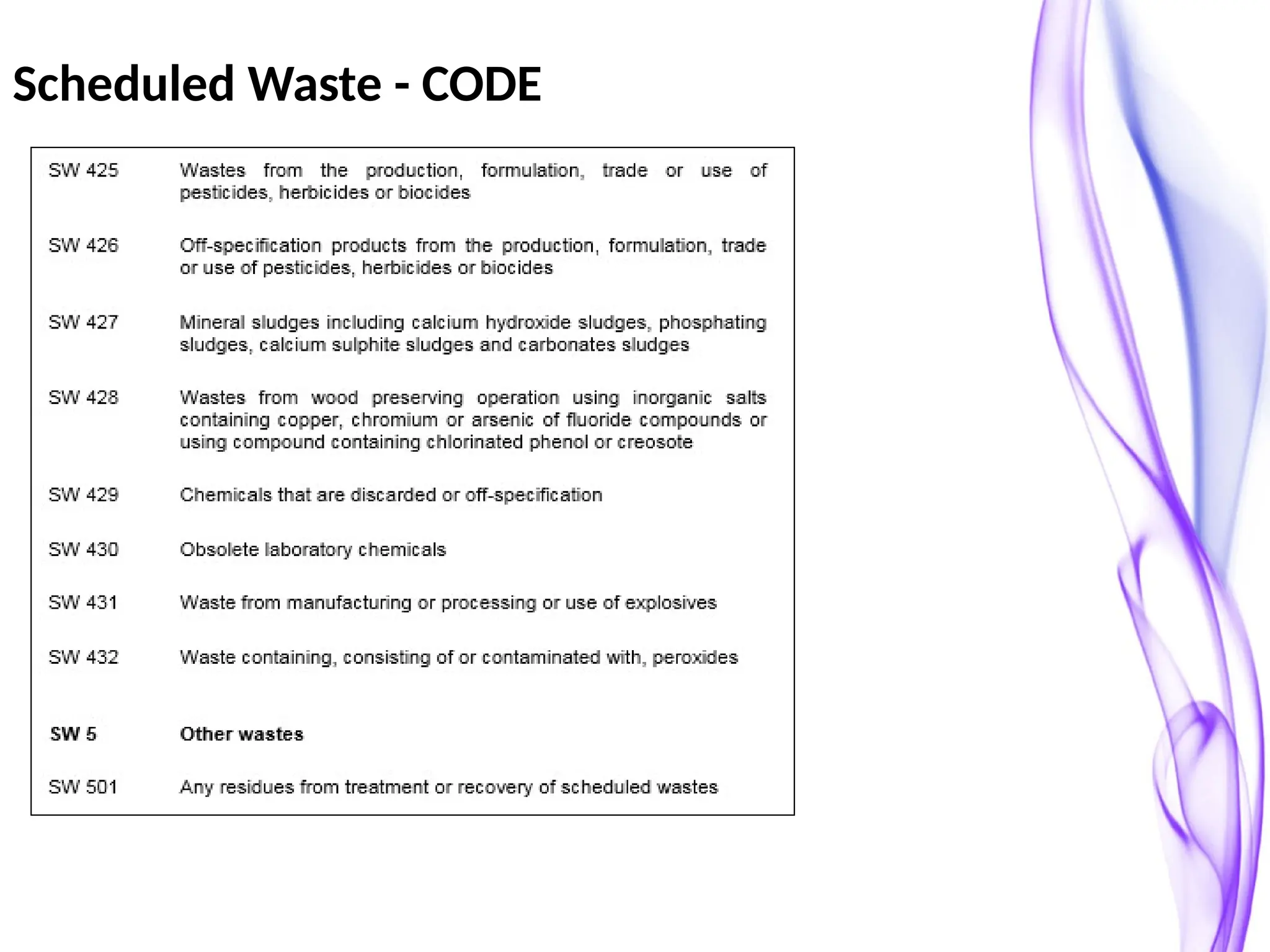
Scheduled Waste - CODE
Scheduled Waste Management - Internal
Notification of Scheduled Waste
1. Waste generator shall update the Production and waste data in the below mentioned as
provided in the Second Schedule of Environmental Quality (Schedule Wastes) Regulations
2005.
Scheduled Waste Management - INVENTORY
Scheduled Waste Inventory
1. Waste Generator shall keep an accurate and up-to-date inventory in
accordance of Scheduled Waste being generated, treated and disposed.
2. Inventory Report shall be maintained for a period up to three years from the
date the Scheduled wastes was generated.
Scheduled Waste Management - PACKAGING
Biowaste
1. Waste generator shall ensure that the waste is been autoclaved (kill cell process) before disposal.
2. Waste generator shall keep an accurate and up-to-date inventory on daily generation of biowaste.
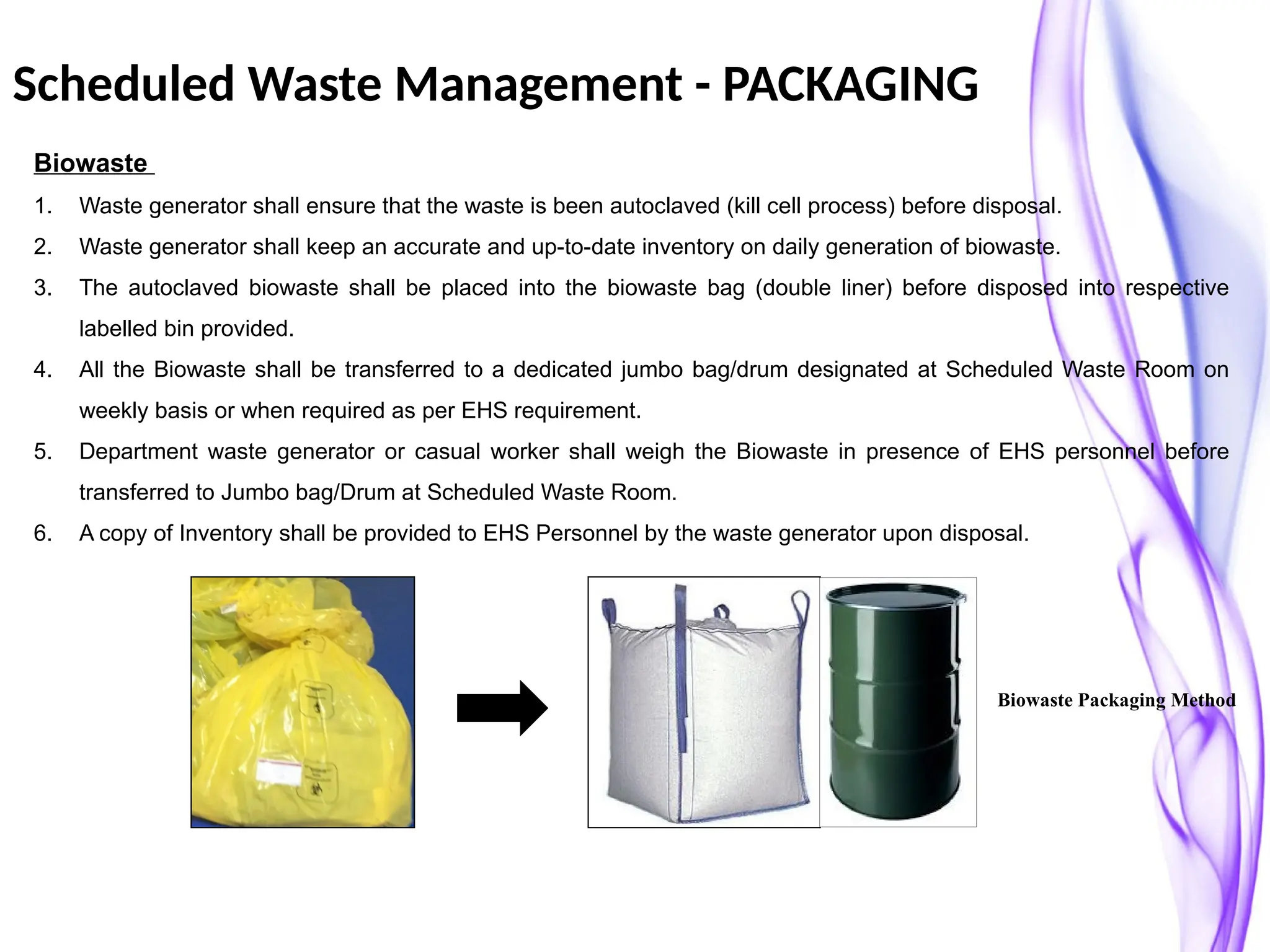
3. The autoclaved biowaste shall be placed into the biowaste bag (double liner) before disposed into respective
labelled bin provided.
4. All the Biowaste shall be transferred to a dedicated jumbo bag/drum designated at Scheduled Waste Room on
weekly basis or when required as per EHS requirement.
5. Department waste generator or casual worker shall weigh the Biowaste in presence of EHS personnel before
transferred to Jumbo bag/Drum at Scheduled Waste Room.
6. A copy of Inventory shall be provided to EHS Personnel by the waste generator upon disposal.
Biowaste Packaging Method
Scheduled Waste Management - PACKAGING
Contaminated Empty Drum or Container less than 25L (<25L)
1. Waste generator shall keep an accurate and up-to-date inventory on daily generation of empty Drums or
containers.
2. Empty bottles or container less than 25L (<25L)
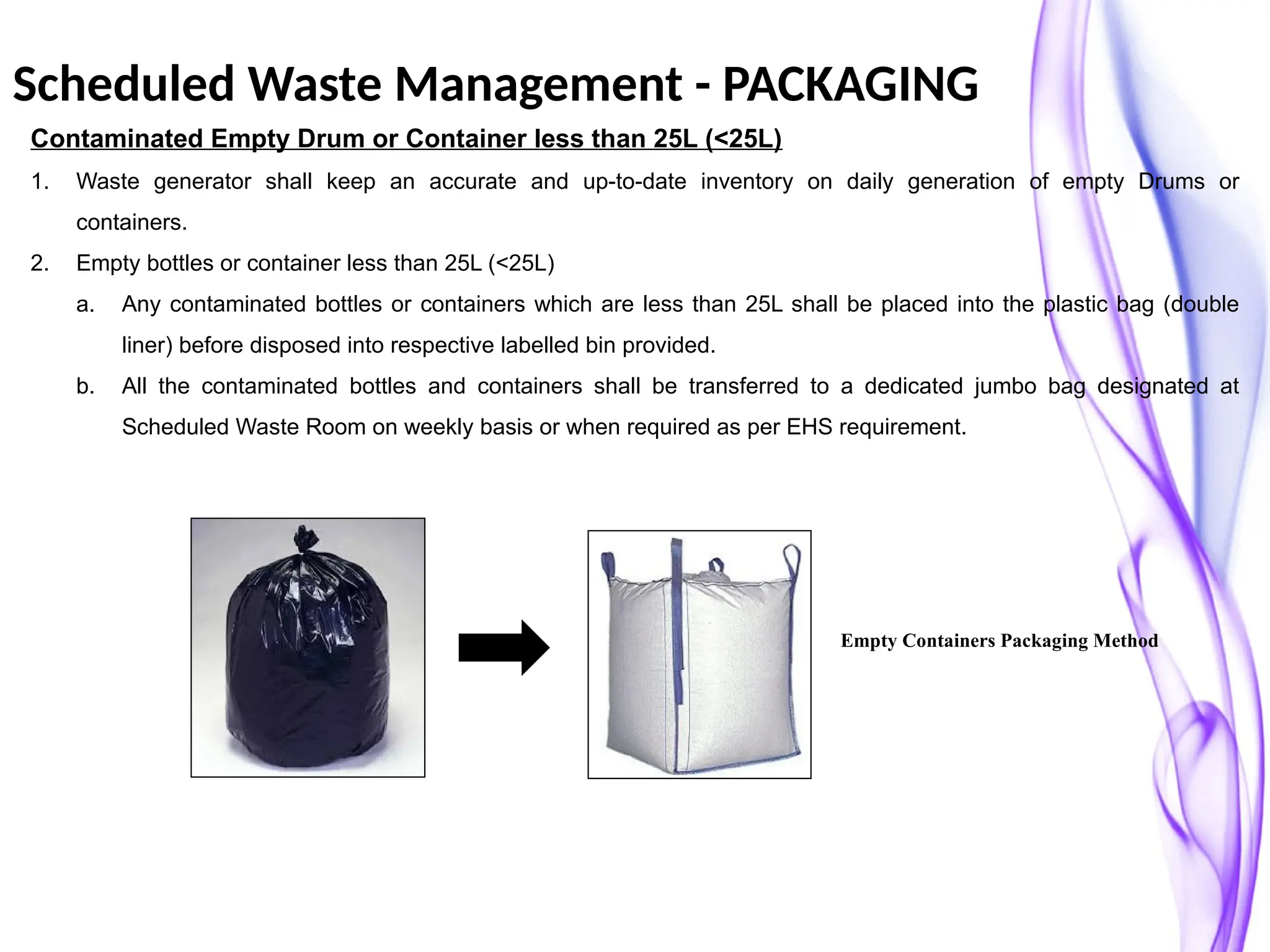
a. Any contaminated bottles or containers which are less than 25L shall be placed into the plastic bag (double
liner) before disposed into respective labelled bin provided.
b. All the contaminated bottles and containers shall be transferred to a dedicated jumbo bag designated at
Scheduled Waste Room on weekly basis or when required as per EHS requirement.
Empty Containers Packaging Method
Scheduled Waste Management - PACKAGING
Empty bottles or container equal or more than 25L (≥25L)
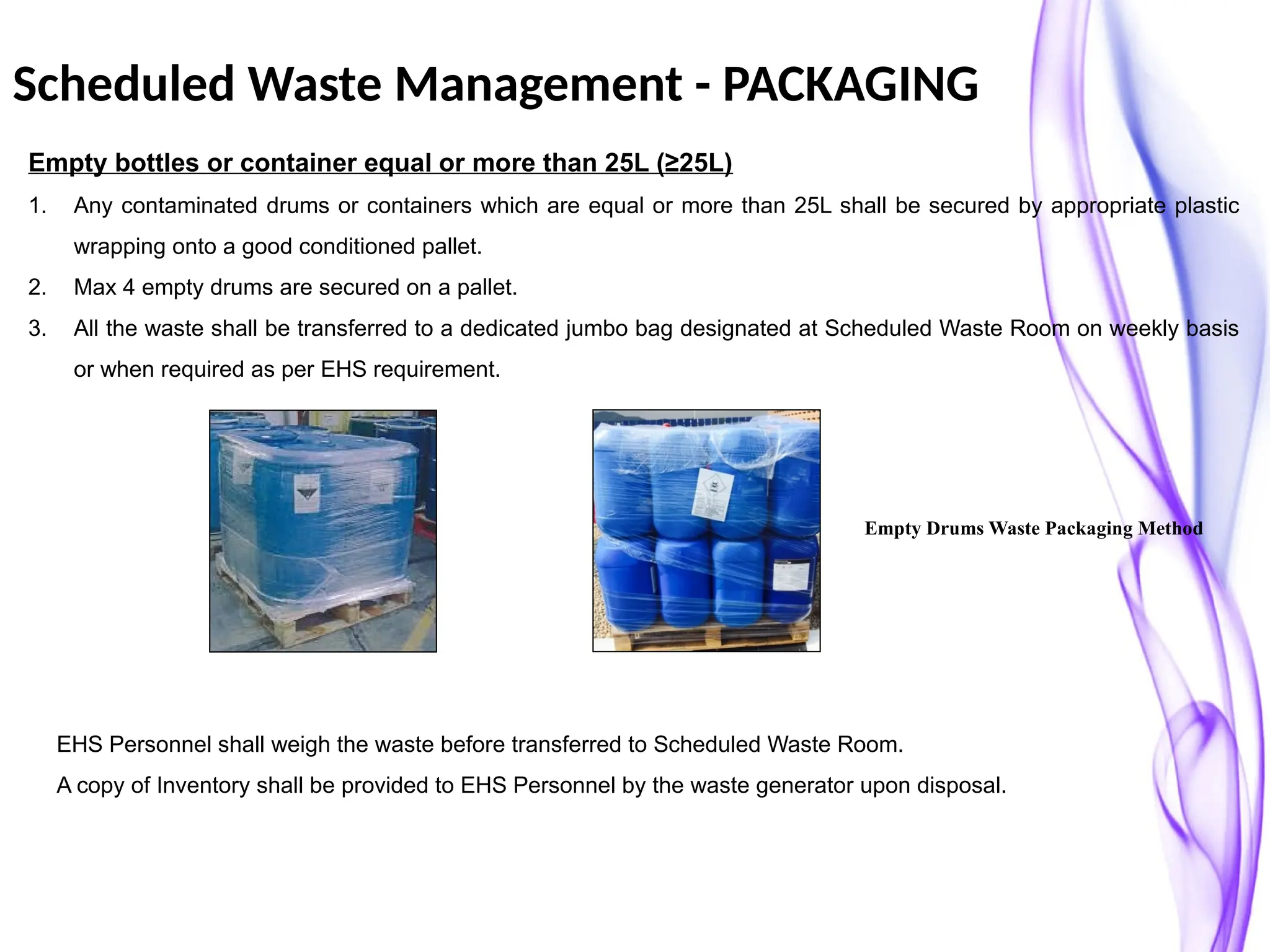
1. Any contaminated drums or containers which are equal or more than 25L shall be secured by appropriate plastic
wrapping onto a good conditioned pallet.
2. Max 4 empty drums are secured on a pallet.
3. All the waste shall be transferred to a dedicated jumbo bag designated at Scheduled Waste Room on weekly basis
or when required as per EHS requirement.
Empty Drums Waste Packaging Method
EHS Personnel shall weigh the waste before transferred to Scheduled Waste Room.
A copy of Inventory shall be provided to EHS Personnel by the waste generator upon disposal.
Scheduled Waste Management - PACKAGING
Bunghole
IBC Tank
Liquid Waste
1. Waste generator shall keep an accurate and up-to-date inventory on daily generation of liquid waste.
2. The liquid waste shall be placed into the Bunghole Steel/Plastic drum or IBC Tank before disposed to Scheduled
Waste Room.
3. Drums not to be filled more than 90%. The maximum weight of a filled drum should not be more than 200kg.
4. All the liquid waste shall be transferred to the Scheduled Waste Room on weekly basis or when required as per
EHS requirement.
Liquid Type of Waste Packaging Method
EHS Personnel shall weigh the waste before transferred to Scheduled Waste Room.
A copy of Inventory shall be provided to EHS Personnel by the waste generator upon disposal.
Scheduled Waste Management - PACKAGING
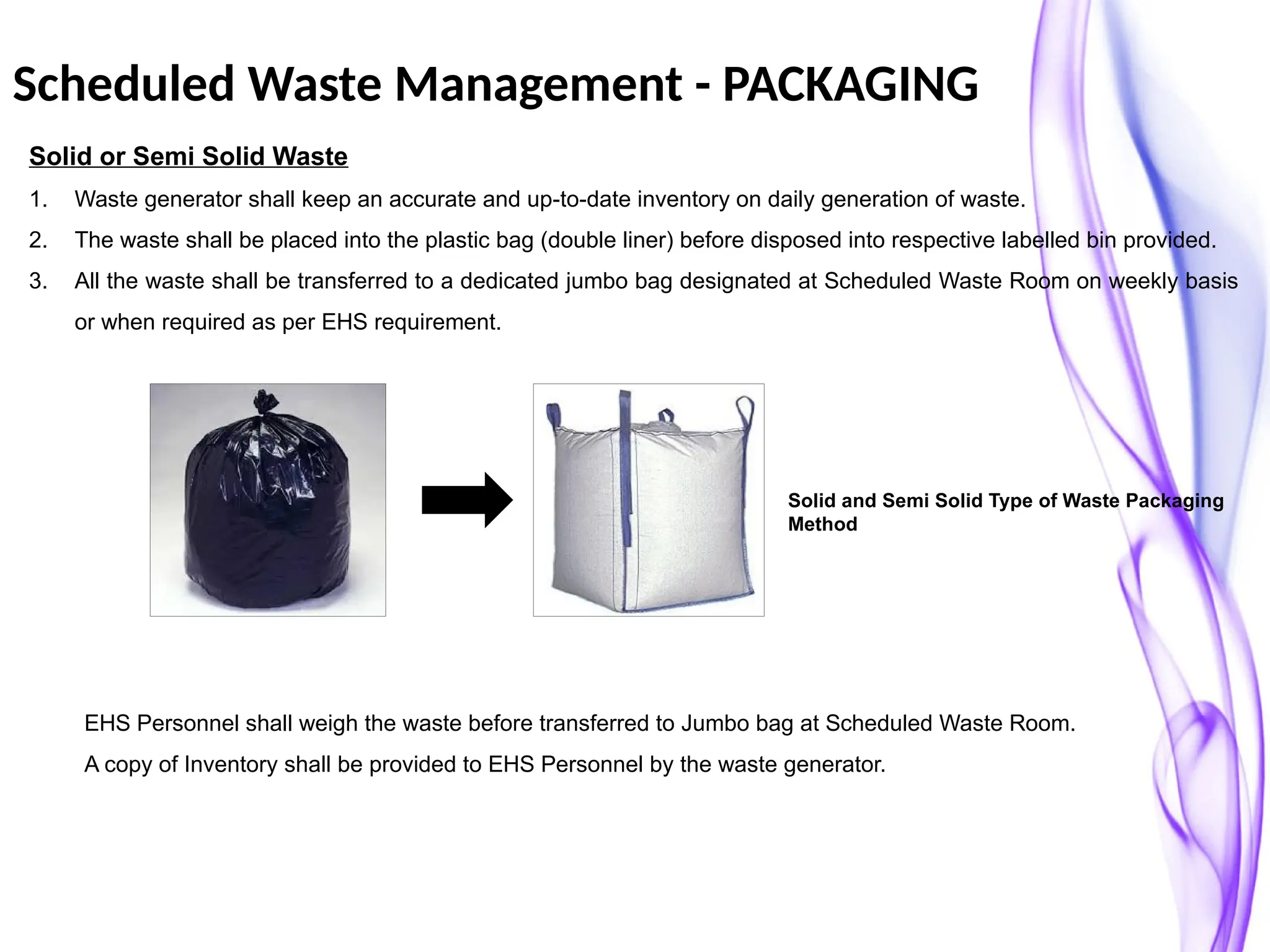
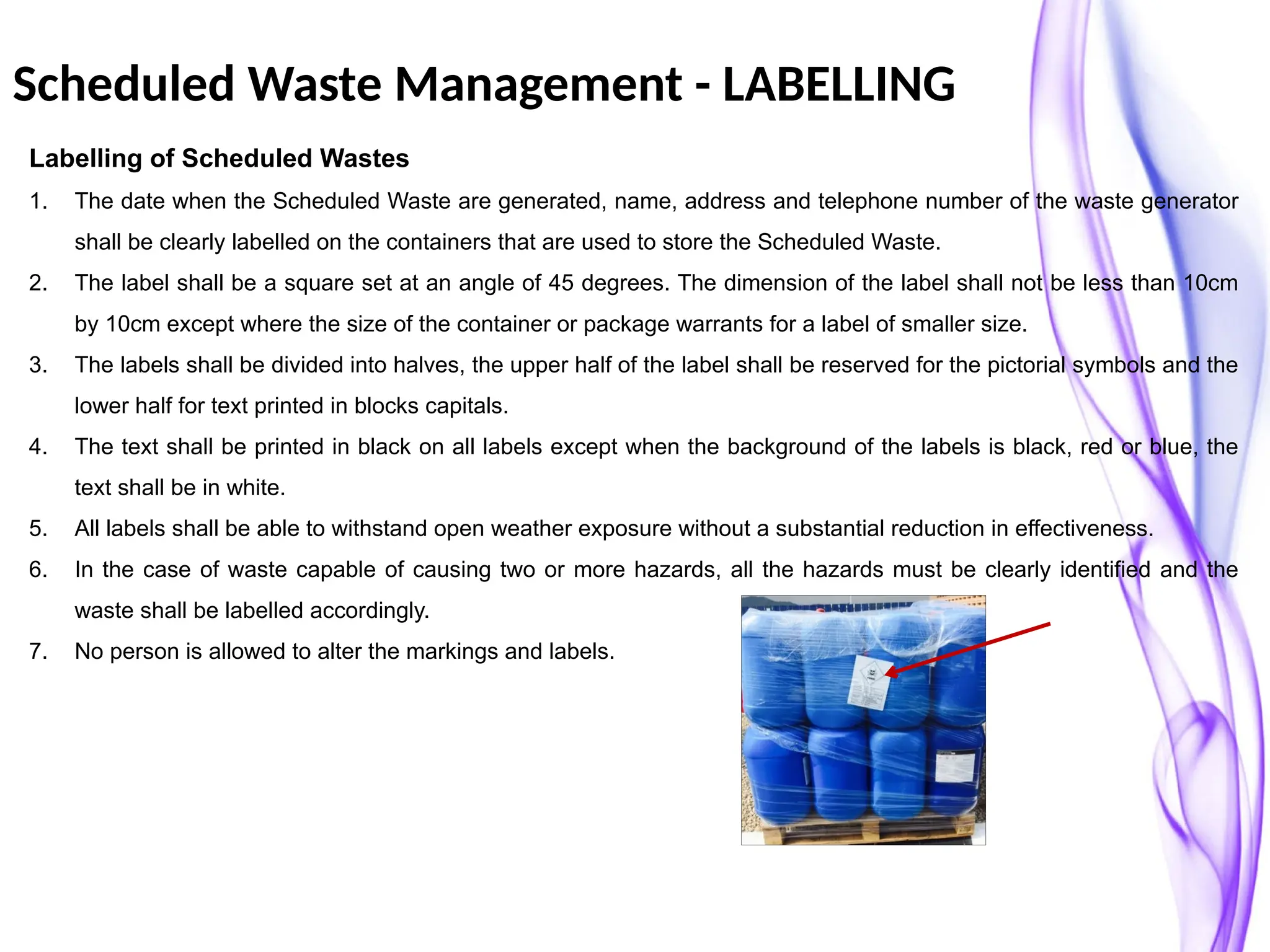
Solid or Semi Solid Waste
1. Waste generator shall keep an accurate and up-to-date inventory on daily generation of waste.
2. The waste shall be placed into the plastic bag (double liner) before disposed into respective labelled bin provided.
3. All the waste shall be transferred to a dedicated jumbo bag designated at Scheduled Waste Room on weekly basis
or when required as per EHS requirement.
Solid and Semi Solid Type of Waste Packaging
Method
EHS Personnel shall weigh the waste before transferred to Jumbo bag at Scheduled Waste Room.
A copy of Inventory shall be provided to EHS Personnel by the waste generator.
Scheduled Waste Management - LABELLING
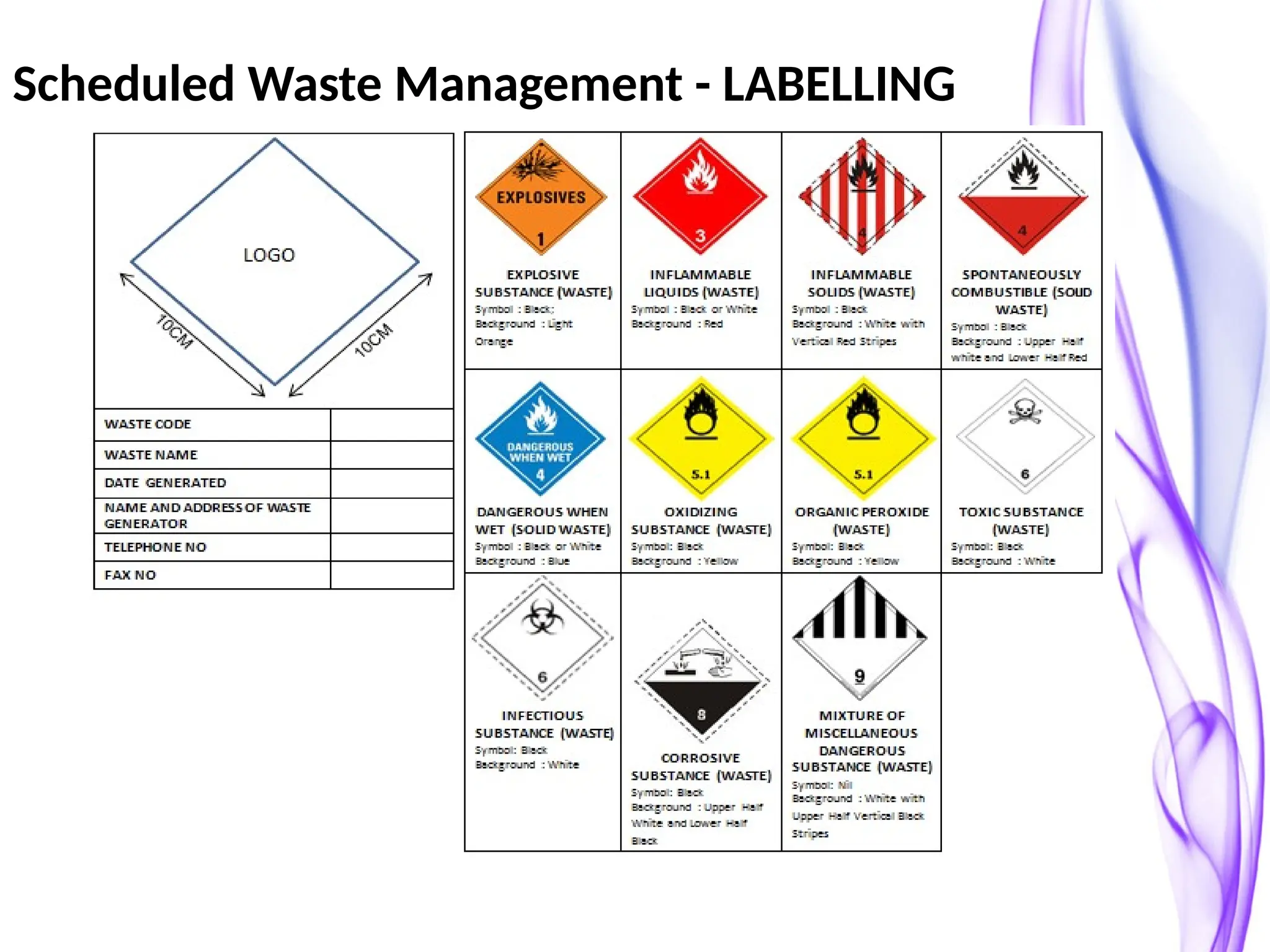
Labelling of Scheduled Wastes
1. The date when the Scheduled Waste are generated, name, address and telephone number of the waste generator
shall be clearly labelled on the containers that are used to store the Scheduled Waste.
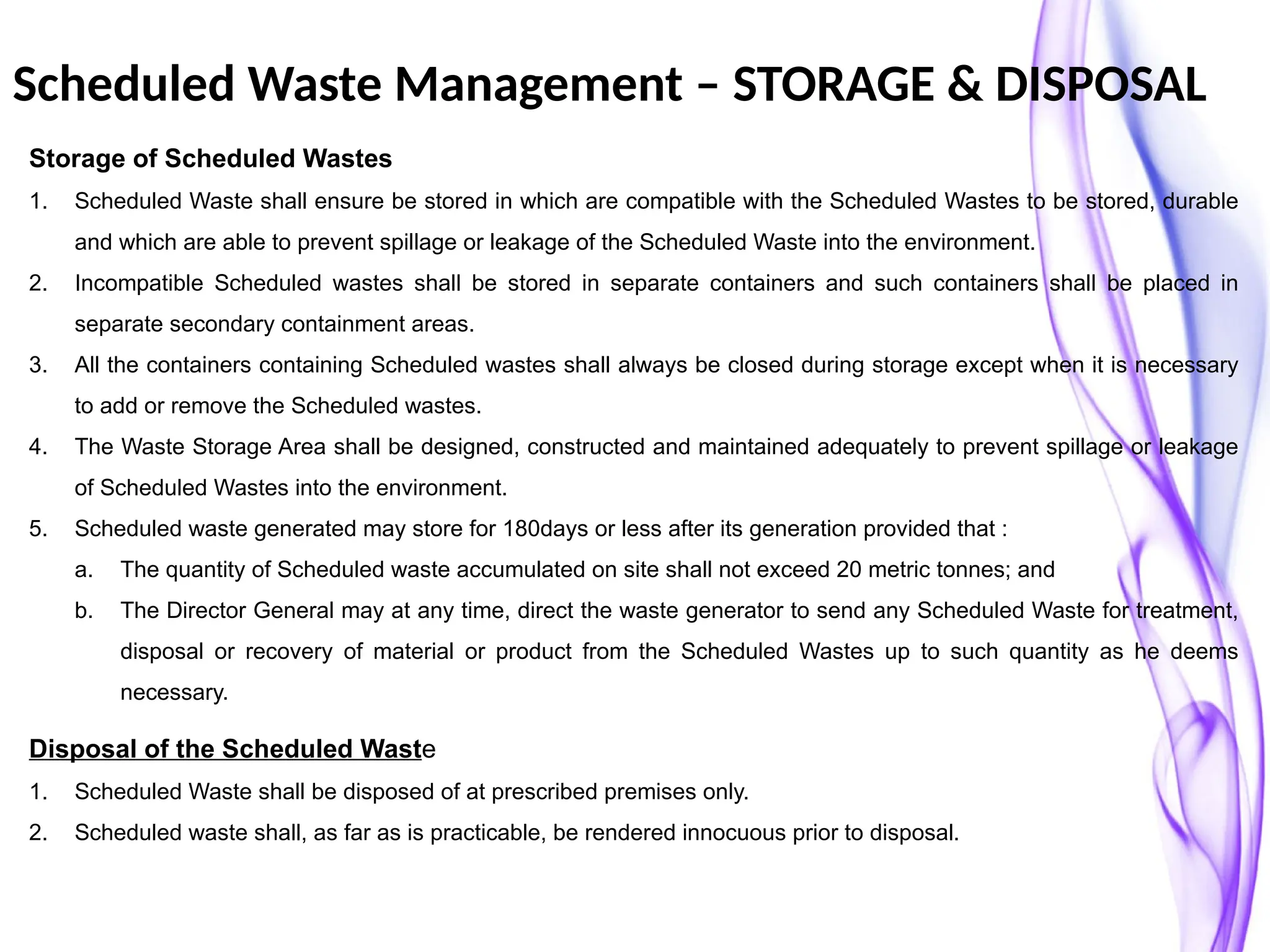
2. The label shall be a square set at an angle of 45 degrees. The dimension of the label shall not be less than 10cm
by 10cm except where the size of the container or package warrants for a label of smaller size.
3. The labels shall be divided into halves, the upper half of the label shall be reserved for the pictorial symbols and the
lower half for text printed in blocks capitals.
4. The text shall be printed in black on all labels except when the background of the labels is black, red or blue, the
text shall be in white.
5. All labels shall be able to withstand open weather exposure without a substantial reduction in effectiveness.
6. In the case of waste capable of causing two or more hazards, all the hazards must be clearly identified and the
waste shall be labelled accordingly.
7. No person is allowed to alter the markings and labels.
Scheduled Waste Management - LABELLING
Scheduled Waste Management – STORAGE & DISPOSAL
Storage of Scheduled Wastes
1. Scheduled Waste shall ensure be stored in which are compatible with the Scheduled Wastes to be stored, durable
and which are able to prevent spillage or leakage of the Scheduled Waste into the environment.
2. Incompatible Scheduled wastes shall be stored in separate containers and such containers shall be placed in
separate secondary containment areas.
3. All the containers containing Scheduled wastes shall always be closed during storage except when it is necessary
to add or remove the Scheduled wastes.
4. The Waste Storage Area shall be designed, constructed and maintained adequately to prevent spillage or leakage
of Scheduled Wastes into the environment.
5. Scheduled waste generated may store for 180days or less after its generation provided that :
a. The quantity of Scheduled waste accumulated on site shall not exceed 20 metric tonnes; and
b. The Director General may at any time, direct the waste generator to send any Scheduled Waste for treatment,
disposal or recovery of material or product from the Scheduled Wastes up to such quantity as he deems
necessary.
Disposal of the Scheduled Waste
1. Scheduled Waste shall be disposed of at prescribed premises only.
2. Scheduled waste shall, as far as is practicable, be rendered innocuous prior to disposal.
Electronic Scheduled Waste Information
Systems (eSWIS)
2
rials on these page are copyrighted by The Department Of
Environment.
Copyright © 2015.
All rights reserved. Unless otherwise indicated, all
mate
Accessing to e-
SWIS
URL
Fill in existing
Username
and
Password
Of eCN to access
the
3
EsWI S for Generator
4
rials on these page are copyrighted by The Department Of
Environment.
Copyright © 2015.
All rights reserved. Unless otherwise indicated, all
mate
Landing page – Opening Balance
Fill-in current Inventory of each Waste code. Tick at the check box
and click OK.
Landing page : System
Overview
2
6
Menu &
Options
Content Area
Dashboard
Inventory and Due date
Submission
Monitor 20 MT limit & 180 days Inventory in
storage
2
7
Notification
Step 1: Clicked on
Menu
Notificatio
n
2
8
Notification
listing
Step 2: Clicked on
button
Waste Generator is allows to create new
notification
,
view drafted notification ,
and view submitted notification .
2
9
9
partment Of
Environment.
Copyright © 2015.
All rights reserved. Unless otherwise indicated, all materials on these page are copyrighted by
The De
New
Notification
Step 3: Fill in the required
field.
Please note that the red asterisk * indicates that this
field
MUST BE KEYED-IN.
10
New Notification – Required
field
Steps of create notification:
a) Fill in File Ref No (Optional).
b) Fill in Product Information (Raw Material / Chemicals)
(Optional).
c) Fill in quantity of product in MT (Optional).
d) Click to add product information. (continue….)
a)
b)
c)
d)
11
e Department Of
Environment.
Copyright © 2015.
All rights reserved. Unless otherwise indicated, all materials on these page are copyrighted
by Th
New Notification – Required
field(…..continue) Steps of create notification:
e) Select waste code by typing in the waste code or clicking the listed
code.
f) Fill in Source of Waste (Optional).
g) Fill in quantity of waste material in MT.
h) Fill in Waste Name.
i) Fill in Waste Component (Optional).
j) Select Waste Type by clicking down arrow.
k) Select Package Type by clicking down arrow.
l) Click to add waste information.
Please note that the red asterisk * indicates that this
field
MUST BE KEYED-IN.
e) f
) g)
h)
i)
l)
j)
k)
New Notification – Save and
Submit
Step : 4
Click
Click
Click
to save new entry as draft
or
to submit new
entry.
to cancel the entry and return to main
listing.
Add waste Save or Cancel the Delete the Saving draft Return to
material modify on modification selected of the new Main List
product / product / entry and cancel
waste waste entry
material material
from the list
Cancel Submitted Notification -
Notification listing
Step 1: Clicked on the selected notification
record.
Cancel Submitted
Notification
Step 2 :
Click
Click OK
to cancel the
Notification to confirm the
cancellation
.
Add waste Save or Cancel the Delete the Saving draft Return to
material modify on modification selected of the new Main List
product / product / entry and cancel
waste waste entry
material material
from the list
Copyright © 2015.
15
All rights reserved. Unless otherwise indicated, all materials on these page are copyrighted by The Department Of Environment.
Inventory -
Listing
Step 1: Clicked on
Menu
Inventory
Addition
,
Waste Generator is allows to add
inventory view drafted inventory ,
and view submitted inventory .
Step 2: Inventory Addition listing will be
displayed
Copyright © 2015.
16
All rights reserved. Unless otherwise indicated, all materials on these page are copyrighted by The Department Of Environment.
Inventory –
addition
Step 3: To add inventory, click button.
Step 4: Fill in Qty Generated in (MT) or in (KG) of each item
code.
to save new entry as draft
or
to submit new
entry.
Click
Click to cancel the entry and return to
main
listing
Step 4:
Copyright © 2015.
17
All rights reserved. Unless otherwise indicated, all materials on these page are copyrighted by The Department Of Environment.
Inventory –
Adjustment
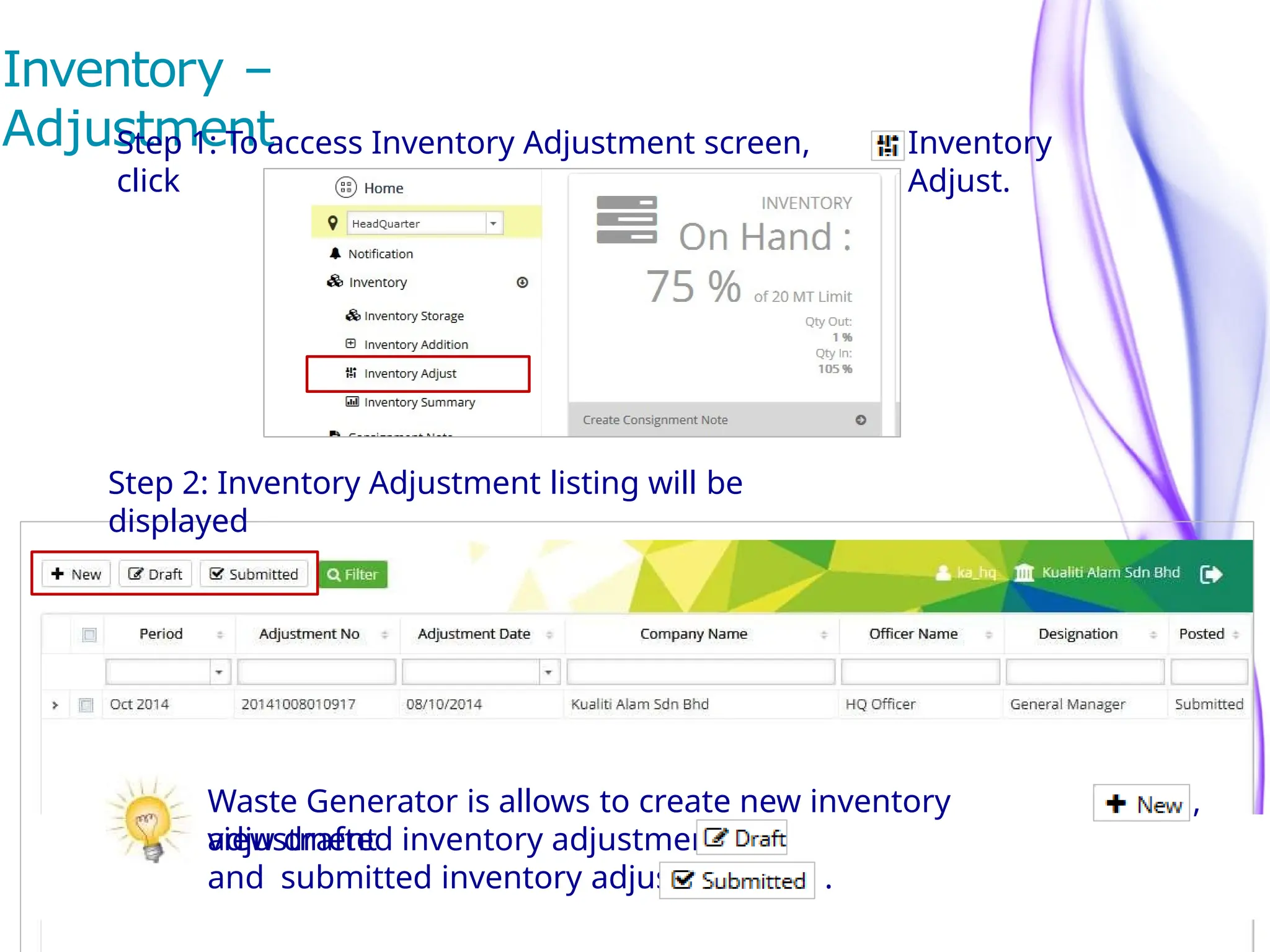
Step 1: To access Inventory Adjustment screen,
click
Inventory
Adjust.
Step 2: Inventory Adjustment listing will be
displayed
Waste Generator is allows to create new inventory
adjustment
,
view drafted inventory adjustment
and submitted inventory adjustment .
Copyright © 2015.
18
All rights reserved. Unless otherwise indicated, all materials on these page are copyrighted by The Department Of Environment.
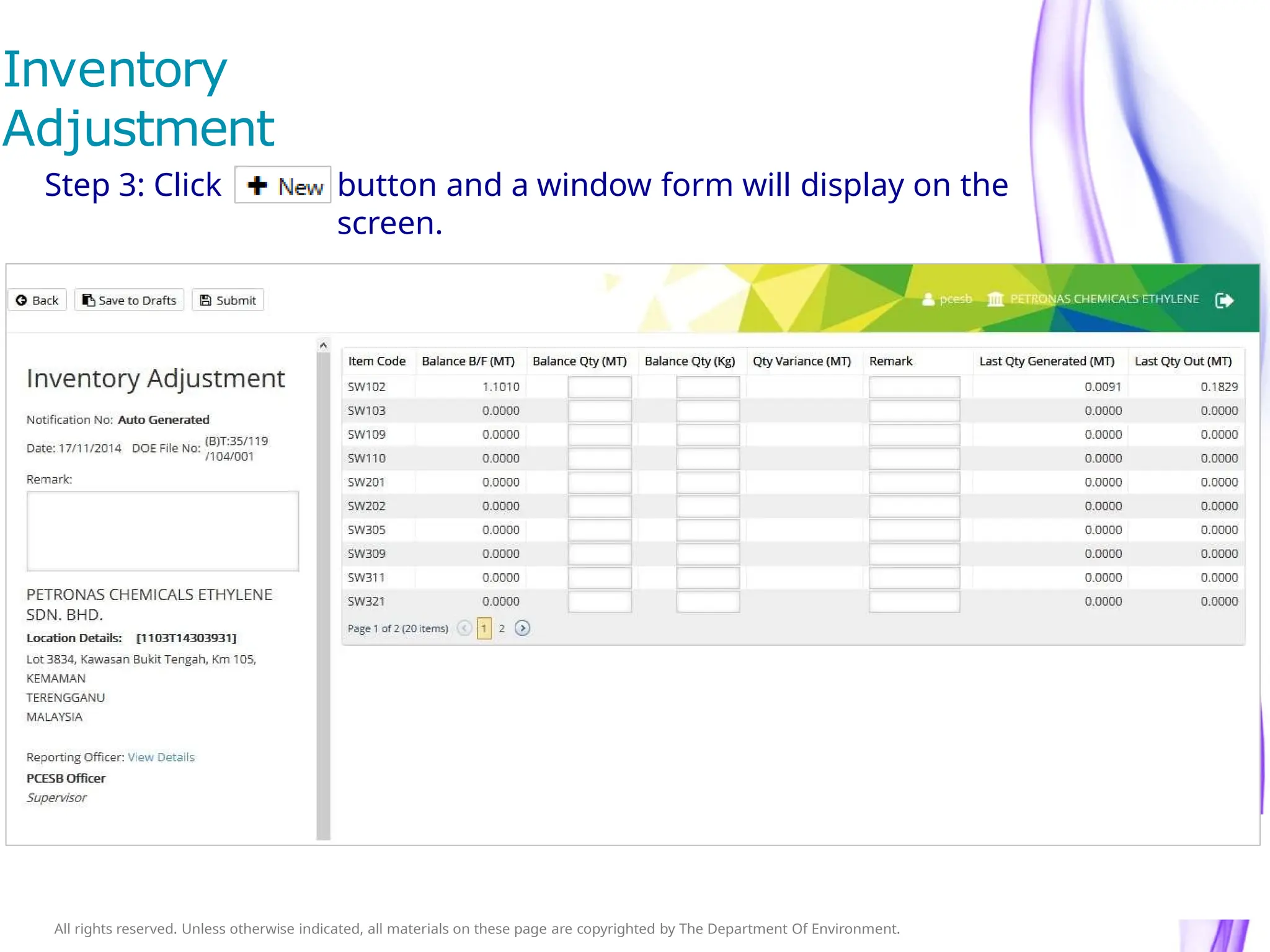
Inventory
Adjustment
Step 3: Click button and a window form will display on the
screen.
Copyright © 2015.
19
All rights reserved. Unless otherwise indicated, all materials on these page are copyrighted by The Department Of Environment.
Inventory
Adjustment
Step 4: Fill in Balance Qty in either MT or KG in respective item
code. Fill in Remark if any.
Step 5:
to save new entry as draft
or
to submit new
entry.
Click
Click to cancel the entry and return to main
20
ess otherwise indicated, all materials on these page are copyrighted by The Department Of Environment.
Copyright © 2015.
All rights reserved.
Unl
Inventory
Reused
21
ess otherwise indicated, all materials on these page are copyrighted by The Department Of Environment.
Copyright © 2015.
All rights reserved.
Unl
Inventory
Reused
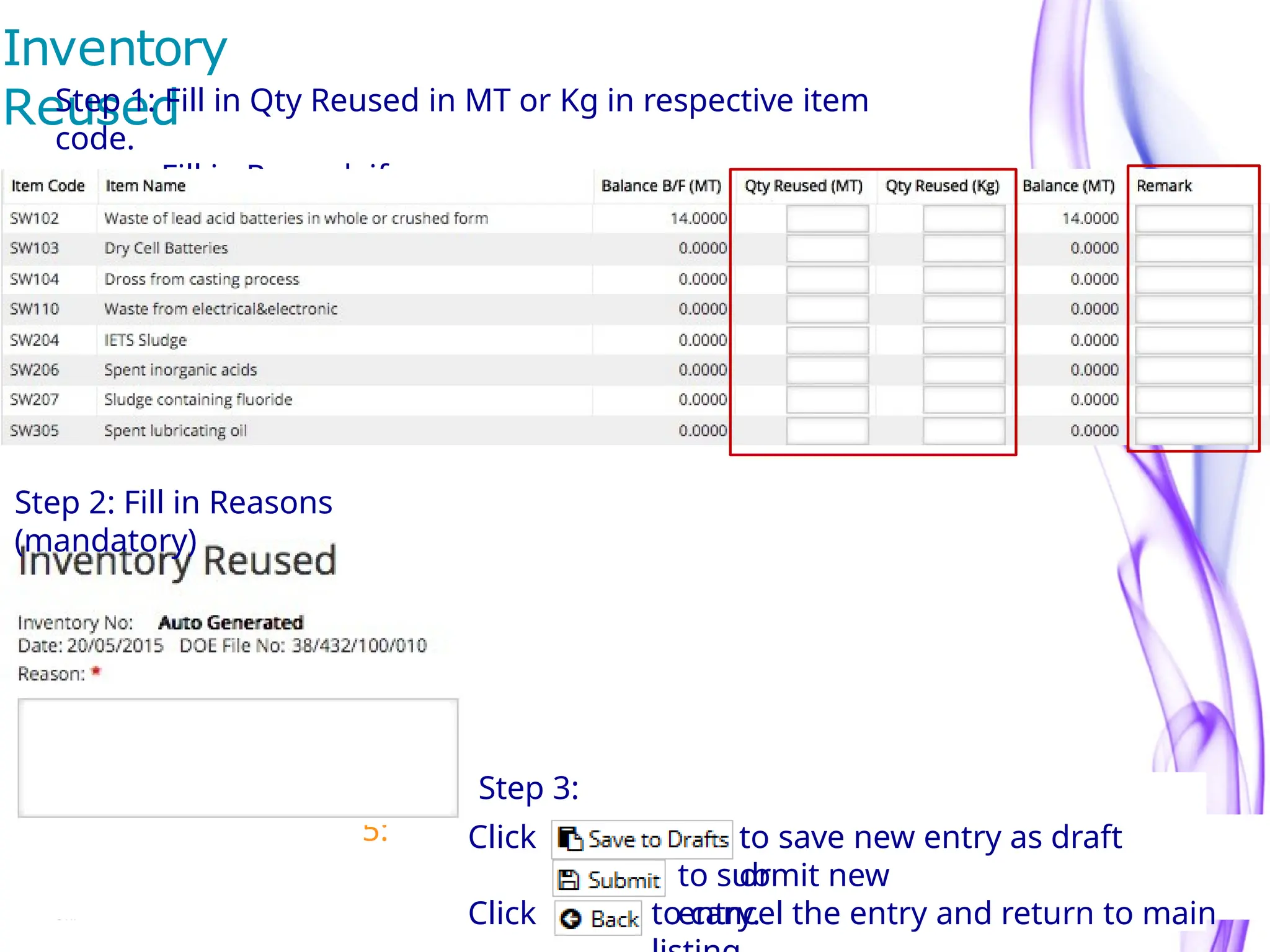
Step 1: Fill in Qty Reused in MT or Kg in respective item
code.
Fill in Remark if any.
Step
5: to save new entry as draft
or
to submit new
entry.
Click
Click to cancel the entry and return to main
Step 2: Fill in Reasons
(mandatory)
Step 3:
22
Copyright © 2015.
All rights reserved. Unless otherwise indicated, all materials on these page are copyrighted by The Department Of
Environment.
Inventory –
Summary
Step 1: To access Inventory Summary screen,
click
Inventory
Summary
Step 2: Inventory Summary listing will be
displayed
User can print the monthly summary listing of
inventory
by clicking button
and
Click to forward the monthly summary by
email.
23
Copyright © 2015.
All rights reserved. Unless otherwise indicated, all materials on these page are copyrighted by The Department Of
Environment.
Consignment
Note Step 1: To access Consignment Note screen,
click
Consignment
Note
Step 2: Consignment Note listing will be
displayed
Waste Generator is allows to create new consignment
note
,
view drafted consignment note ,
Submitted consignment note
and
View Received/Rejected consignment
note
.
Copyright © 2015.
All rights reserved. Unless otherwise indicated, all materials on these page are copyrighted by The Department Of
Environment.
Consignment
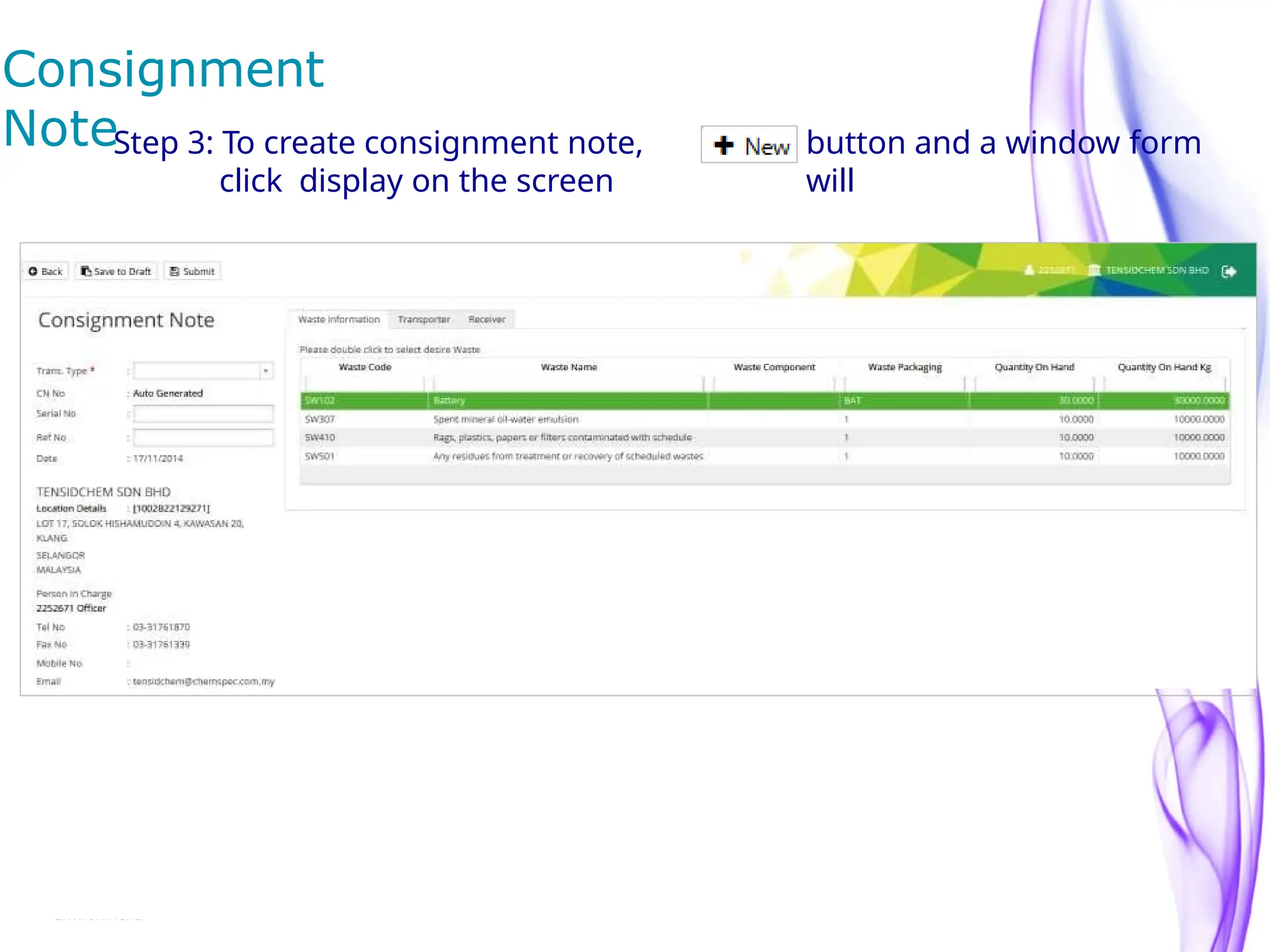
NoteStep 3: To create consignment note,
click display on the screen
button and a window form
will
Copyright © 2015.
All rights reserved. Unless otherwise indicated, all materials on these page are copyrighted by The Department Of
Environment.
Consignment
Note
Steps of create consignment note:
1. Select Trans. Type by clicking down
arrow.
2. Fill in Serial No (Optional).
3.Fill in Ref No (Optional).
(continue….)
26
Copyright © 2015.
All rights reserved. Unless otherwise indicated, all materials on these page are copyrighted by The Department Of
Environment.
Consignment Note - Waste
Information
(…..Continue) Steps of create consignment note:
4. Navigate to Waste Information Tab and click to select Waste
Code.
a) Waste Name is auto fill by default.
b) Fill in Waste Origin Code (Optional).
c) Fill in Origin & Source Description (Optional).
d) Fill in Waste Component (Optional).
(continue….)
a)
b)
c)
d)
27
Copyright © 2015.
All rights reserved. Unless otherwise indicated, all materials on these page are copyrighted by The Department Of
Environment.
Consignment Note – Waste
Information
(…..Continue) Steps of create consignment note – Waste Information:
e) Click if user want to re-make the selection of waste code.
f) Fill in Type of Waste
g) Fill in Qty in either MT or KG.
h) Fill in If Possible in m3 (Optional).
i) Fill in Cost in RM (Ringgit Malaysia)
(Optional).
j) Select Packaging by clicking down arrow.
k)Fill in Package Qty (Optional).
l)
Click Next
(continue….)
e)
f)
g)
h)
i)
j)
k)
l)
28
Copyright © 2015.
All rights reserved. Unless otherwise indicated, all materials on these page are copyrighted by The Department Of
Environment.
Consignment Note -
Transporter
(…..Continue) Steps of create consignment note – Waste Transporter:
Navigate to Transporter tab and double click to select desire Waste
Transporter.
Consignment Note -
Transporter
b)
c)
d)
(…..Continue) Steps of create consignment note – Waste Transporter:
a) Click if user want to re-make the selection of transporter
b) Fill in Special Instruction/Notes if any.
c) Select Driver NRIC No by clicking down arrow or fill in specify new
Driver NRIC No and Driver Name.
d) Select Vehicle No by clicking down arrow or fill in specify new Vehicle No.
(continue…)
a)
Consignment Note -
Transporter
(…..Continue) Steps of create consignment note – Waste
Transporter:
e) Specify Transport Date.
f) Fill in Temporary Storage.
e)
f)
Consignment Note -
Receiver
Steps of create consignment note – Waste Receiver
Navigate to Receiver tab and click to select
Receiver.
32
Environmen
t.
Copyright © 2015.
All rights reserved. Unless otherwise indicated, all materials on these page are copyrighted by The
Department Of
Consignment Note -
Receiver
Steps of create consignment note – Waste Receiver
a) Click to re-make the selection of receiver.
b) Fill in Special Instruction/Notes if any.
c) Click to save new entry as draft or
click
to
submit
new entry. Click to cancel the entry and return to main
listing.
e)
f)
b)
a)
c)
33
Copyright © 2015.
All rights reserved. Unless otherwise indicated, all materials on these page are copyrighted by The Department Of
Environment.
Repor
t Step 1: To access Report List screen,
click
Report
List
Step 2: Report list will be
displayed
34
Copyright © 2015.
All rights reserved. Unless otherwise indicated, all materials on these page are copyrighted by The Department Of
Environment.
Repor
t
(Figure 41).
Procedure to view Report No. 1:
1. Click the “List of Notification of Scheduled Waste” to activate the screen
2. User can filter the report by select few criteria (e.g. Trans Date, Waste
Code, Month, etc). Go to each of the individual boxes to select respective
criteria.
3. Click button to add filter or button to remove
selected filter. Else click button to clear all added filters from the list.
4. Click button to run report.
5. User can drag any desired field box to create a unique and handful report.
6. Click the button if user wish to have the report exported to an
Excel file. Else, click the button to export to pdf
file.
7. Click the button to close the report.
Sample of Summary Report – Scheduled
Waste
Export
to
PDF
Export
to Excel
Sample of Summary Report –
Inventory
Export
to
PDF
Export
to Excel
Log
outOnce user have completed the visit of eSWIS, it is advised to log out from
the system to avoid access of unauthorized person.
To logout from the system, click button on the top right of the screen
and user will be redirect to Log-in Page.
e
S
W
IS for Company Admin
aterials on these page are copyrighted by The Department Of
Environment.
Copyright © 2015.
All rights reserved. Unless otherwise indicated, all
m
Waste Receiver is allowed to manage profile, manage
branch, manage employee and view report
39
Landing Page Company
Admin
40
aterials on these page are copyrighted by The Department Of
Environment.
Copyright © 2015.
All rights reserved. Unless otherwise indicated, all
m
Manage Company
profile
3. Click button to save any new changed
data.
Step:
1. Click Manage
Profile,
2. Update the company
details.
aterials on these page are copyrighted by The Department Of
Environment.
Copyright © 2015.
All rights reserved. Unless otherwise indicated, all
m
Manage Company branch
Each branch will having its own approved DOE File Number.
For information about DOE File Number, contact officer of respective JAS
State. Step:
1. Click Manage Branch and a list of registered branch will be
displayed
2. Click button and a window form will display
aterials on these page are copyrighted by The Department Of
Environment.
Copyright © 2015.
All rights reserved. Unless otherwise indicated, all
m
Manage Company branch
aterials on these page are copyrighted by The Department Of
Environment.
Copyright © 2015.
All rights reserved. Unless otherwise indicated, all
m
Manage Company branch
3. Steps of add branch:
1. Fill in DOE File No.
2. Fill in Branch Name
3. Specify Industry
4. Specify Sub Group
5. Fill in Address.
6. Fill in Postal Code.
7. Select Country
8. Select State
9. Select PBT
10. Select District
11. Select Area
(Continue…)
44
Manage Company branch
3. (….Continue) Steps of add branch:
12. Fill in DOE File No.
13. Fill in Telephone Number.
14. Fill in Fax Number.
15. Fill in Branch Email.
16. Fill in Name of Contact Person
who responsible in the branch.
17. Select Designation of the contact person
18. Fill in Contact Number of Contact Person.
19. Fill in Email address of Contact Person.
3.20 Click
or
click
button to save the new
entry
to cancel the entry.
aterials on these page are copyrighted by The Department Of
Environment.
Copyright © 2015.
All rights reserved. Unless otherwise indicated, all
m
Manage Company
Employee
3. Click button to save any new changed
data.
Step:
1. Click
2. Click
Manage
Profile
butto
n
Manage Company
Employee
3. Steps of add Employee:
1. Fill in Employee ID of reporting entity.
2. Select Branch In-Charged
(Branch required to be register before it can display)
3. Select Salutation
4. Fill in Full Name.
5. Fill in IC. No.
6. Select Designation of the employee
7. Fill in Email
8. Select Gender.
9. Fill in Contact Number of the employee
10. Fill in User ID and Password
11. Click button to save
Copyright © 2015.
52
All rights reserved. Unless otherwise indicated, all materials on these page are copyrighted by The Department Of Environment.
Thank you. Q & A

Scheduled Waste Management Training ( 1day).pptx

  • 1.
    Scheduled Waste Management Environmental Quality(Scheduled Wastes) Regulation, 2005 BY PARABAKARAN BALASUBRAMANIAM
  • 2.
    2 Instructor Introduction 2 Professional Summary:With over 15 years of comprehensive experience in Environmental Safety and Health (HSE), Parabakaran Balasubramaniam is a seasoned professional with specialized expertise in delivering impactful training programs. He holds a Master's Degree in Environmental Safety and Health from the University Malaysia Pahang and has dedicated 5 years specifically to the field of HSE training and consultancy. Key Skills and Competencies: Extensive knowledge in environmental safety regulations and compliance standards. Proven track record in designing and delivering engaging and effective HSE training modules. Strong understanding of risk assessment methodologies and hazard control strategies. Skilled in conducting safety audits and implementing corrective measures. Excellent communication and interpersonal skills for effective training delivery
  • 3.
    1. Roles andResponsibilities 2. Notification of Production and waste data by department. 3. Inventory updates 4. Packaging methods 5. Labelling 6. Storage 7. Disposal Method Agenda
  • 4.
    Scheduled Waste –DEFINITION  Authorized Contractors • DOE Registered Contractors appointed by the company to collect the Scheduled wastes.  Scheduled Waste • List of waste which can adverse environment impacts and the fall within the categories of waste, listed in the First Schedule as per the Environmental Quality (Scheduled Wastes) Regulation,2005.  Waste • Include all discarded material prescribed to be Scheduled or non-Scheduled waste or any matter whether in solid, semi-solid, liquid form or containerized gases (gas or vapour) which is emitted, discharged or deposited in the environment in such volume, composite in the manner as to cause pollution or which leave our premises. Polluted soil shall not be included.  Waste Generator • Any person who generates Scheduled Waste in their department.
  • 5.
    Scheduled Waste –ROLES & RESPONSIBILITIES  Waste Management Manager • Shall ensure that the waste generated from the company has been identified clearly and categorised as per describe in the First Schedule EQ (Schedule Wastes) Regulation 2005. • Shall encourage the waste generator to minimize the generation of waste by promote re-cycle or re-use of any waste generated. • Shall responsible to ensure that all the Scheduled Waste has been managed properly by the relevant waste generator and disposed according to the regulation.  Waste Generator • Shall notify the Waste Management Manager on the estimated production data and waste data per month. • Shall keep an accurate and up-to-date inventory of Scheduled Waste being generated, treated and disposed. • Inventory Report shall be maintained for a period up to three years from the date the Scheduled wastes was generated. • Shall ensure that any waste generated in the department is being properly identified, labelled and stored in the correct manner. • Shall encourage re-cycle or reuse any waste generated if possible to reduce the waste generation. • Shall ensure all waste generated are disposed according to the legal and local authority requirements. • Assist the waste management manager on the implementation, maintain and monitor their activities to comply with legal requirement.
  • 6.
  • 7.
  • 8.
  • 9.
  • 10.
  • 11.
  • 12.
    Scheduled Waste Management- Internal Notification of Scheduled Waste 1. Waste generator shall update the Production and waste data in the below mentioned as provided in the Second Schedule of Environmental Quality (Schedule Wastes) Regulations 2005.
  • 13.
    Scheduled Waste Management- INVENTORY Scheduled Waste Inventory 1. Waste Generator shall keep an accurate and up-to-date inventory in accordance of Scheduled Waste being generated, treated and disposed. 2. Inventory Report shall be maintained for a period up to three years from the date the Scheduled wastes was generated.
  • 14.
    Scheduled Waste Management- PACKAGING Biowaste 1. Waste generator shall ensure that the waste is been autoclaved (kill cell process) before disposal. 2. Waste generator shall keep an accurate and up-to-date inventory on daily generation of biowaste. 3. The autoclaved biowaste shall be placed into the biowaste bag (double liner) before disposed into respective labelled bin provided. 4. All the Biowaste shall be transferred to a dedicated jumbo bag/drum designated at Scheduled Waste Room on weekly basis or when required as per EHS requirement. 5. Department waste generator or casual worker shall weigh the Biowaste in presence of EHS personnel before transferred to Jumbo bag/Drum at Scheduled Waste Room. 6. A copy of Inventory shall be provided to EHS Personnel by the waste generator upon disposal. Biowaste Packaging Method
  • 15.
    Scheduled Waste Management- PACKAGING Contaminated Empty Drum or Container less than 25L (<25L) 1. Waste generator shall keep an accurate and up-to-date inventory on daily generation of empty Drums or containers. 2. Empty bottles or container less than 25L (<25L) a. Any contaminated bottles or containers which are less than 25L shall be placed into the plastic bag (double liner) before disposed into respective labelled bin provided. b. All the contaminated bottles and containers shall be transferred to a dedicated jumbo bag designated at Scheduled Waste Room on weekly basis or when required as per EHS requirement. Empty Containers Packaging Method
  • 16.
    Scheduled Waste Management- PACKAGING Empty bottles or container equal or more than 25L (≥25L) 1. Any contaminated drums or containers which are equal or more than 25L shall be secured by appropriate plastic wrapping onto a good conditioned pallet. 2. Max 4 empty drums are secured on a pallet. 3. All the waste shall be transferred to a dedicated jumbo bag designated at Scheduled Waste Room on weekly basis or when required as per EHS requirement. Empty Drums Waste Packaging Method EHS Personnel shall weigh the waste before transferred to Scheduled Waste Room. A copy of Inventory shall be provided to EHS Personnel by the waste generator upon disposal.
  • 17.
    Scheduled Waste Management- PACKAGING Bunghole IBC Tank Liquid Waste 1. Waste generator shall keep an accurate and up-to-date inventory on daily generation of liquid waste. 2. The liquid waste shall be placed into the Bunghole Steel/Plastic drum or IBC Tank before disposed to Scheduled Waste Room. 3. Drums not to be filled more than 90%. The maximum weight of a filled drum should not be more than 200kg. 4. All the liquid waste shall be transferred to the Scheduled Waste Room on weekly basis or when required as per EHS requirement. Liquid Type of Waste Packaging Method EHS Personnel shall weigh the waste before transferred to Scheduled Waste Room. A copy of Inventory shall be provided to EHS Personnel by the waste generator upon disposal.
  • 18.
    Scheduled Waste Management- PACKAGING Solid or Semi Solid Waste 1. Waste generator shall keep an accurate and up-to-date inventory on daily generation of waste. 2. The waste shall be placed into the plastic bag (double liner) before disposed into respective labelled bin provided. 3. All the waste shall be transferred to a dedicated jumbo bag designated at Scheduled Waste Room on weekly basis or when required as per EHS requirement. Solid and Semi Solid Type of Waste Packaging Method EHS Personnel shall weigh the waste before transferred to Jumbo bag at Scheduled Waste Room. A copy of Inventory shall be provided to EHS Personnel by the waste generator.
  • 19.
    Scheduled Waste Management- LABELLING Labelling of Scheduled Wastes 1. The date when the Scheduled Waste are generated, name, address and telephone number of the waste generator shall be clearly labelled on the containers that are used to store the Scheduled Waste. 2. The label shall be a square set at an angle of 45 degrees. The dimension of the label shall not be less than 10cm by 10cm except where the size of the container or package warrants for a label of smaller size. 3. The labels shall be divided into halves, the upper half of the label shall be reserved for the pictorial symbols and the lower half for text printed in blocks capitals. 4. The text shall be printed in black on all labels except when the background of the labels is black, red or blue, the text shall be in white. 5. All labels shall be able to withstand open weather exposure without a substantial reduction in effectiveness. 6. In the case of waste capable of causing two or more hazards, all the hazards must be clearly identified and the waste shall be labelled accordingly. 7. No person is allowed to alter the markings and labels.
  • 20.
  • 21.
    Scheduled Waste Management– STORAGE & DISPOSAL Storage of Scheduled Wastes 1. Scheduled Waste shall ensure be stored in which are compatible with the Scheduled Wastes to be stored, durable and which are able to prevent spillage or leakage of the Scheduled Waste into the environment. 2. Incompatible Scheduled wastes shall be stored in separate containers and such containers shall be placed in separate secondary containment areas. 3. All the containers containing Scheduled wastes shall always be closed during storage except when it is necessary to add or remove the Scheduled wastes. 4. The Waste Storage Area shall be designed, constructed and maintained adequately to prevent spillage or leakage of Scheduled Wastes into the environment. 5. Scheduled waste generated may store for 180days or less after its generation provided that : a. The quantity of Scheduled waste accumulated on site shall not exceed 20 metric tonnes; and b. The Director General may at any time, direct the waste generator to send any Scheduled Waste for treatment, disposal or recovery of material or product from the Scheduled Wastes up to such quantity as he deems necessary. Disposal of the Scheduled Waste 1. Scheduled Waste shall be disposed of at prescribed premises only. 2. Scheduled waste shall, as far as is practicable, be rendered innocuous prior to disposal.
  • 22.
    Electronic Scheduled WasteInformation Systems (eSWIS)
  • 23.
    2 rials on thesepage are copyrighted by The Department Of Environment. Copyright © 2015. All rights reserved. Unless otherwise indicated, all mate Accessing to e- SWIS URL Fill in existing Username and Password Of eCN to access the
  • 24.
    3 EsWI S forGenerator
  • 25.
    4 rials on thesepage are copyrighted by The Department Of Environment. Copyright © 2015. All rights reserved. Unless otherwise indicated, all mate Landing page – Opening Balance Fill-in current Inventory of each Waste code. Tick at the check box and click OK.
  • 26.
    Landing page :System Overview 2 6 Menu & Options Content Area
  • 27.
    Dashboard Inventory and Duedate Submission Monitor 20 MT limit & 180 days Inventory in storage 2 7
  • 28.
    Notification Step 1: Clickedon Menu Notificatio n 2 8
  • 29.
    Notification listing Step 2: Clickedon button Waste Generator is allows to create new notification , view drafted notification , and view submitted notification . 2 9
  • 30.
    9 partment Of Environment. Copyright ©2015. All rights reserved. Unless otherwise indicated, all materials on these page are copyrighted by The De New Notification Step 3: Fill in the required field. Please note that the red asterisk * indicates that this field MUST BE KEYED-IN.
  • 31.
    10 New Notification –Required field Steps of create notification: a) Fill in File Ref No (Optional). b) Fill in Product Information (Raw Material / Chemicals) (Optional). c) Fill in quantity of product in MT (Optional). d) Click to add product information. (continue….) a) b) c) d)
  • 32.
    11 e Department Of Environment. Copyright© 2015. All rights reserved. Unless otherwise indicated, all materials on these page are copyrighted by Th New Notification – Required field(…..continue) Steps of create notification: e) Select waste code by typing in the waste code or clicking the listed code. f) Fill in Source of Waste (Optional). g) Fill in quantity of waste material in MT. h) Fill in Waste Name. i) Fill in Waste Component (Optional). j) Select Waste Type by clicking down arrow. k) Select Package Type by clicking down arrow. l) Click to add waste information. Please note that the red asterisk * indicates that this field MUST BE KEYED-IN. e) f ) g) h) i) l) j) k)
  • 33.
    New Notification –Save and Submit Step : 4 Click Click Click to save new entry as draft or to submit new entry. to cancel the entry and return to main listing. Add waste Save or Cancel the Delete the Saving draft Return to material modify on modification selected of the new Main List product / product / entry and cancel waste waste entry material material from the list
  • 34.
    Cancel Submitted Notification- Notification listing Step 1: Clicked on the selected notification record.
  • 35.
    Cancel Submitted Notification Step 2: Click Click OK to cancel the Notification to confirm the cancellation . Add waste Save or Cancel the Delete the Saving draft Return to material modify on modification selected of the new Main List product / product / entry and cancel waste waste entry material material from the list
  • 36.
    Copyright © 2015. 15 Allrights reserved. Unless otherwise indicated, all materials on these page are copyrighted by The Department Of Environment. Inventory - Listing Step 1: Clicked on Menu Inventory Addition , Waste Generator is allows to add inventory view drafted inventory , and view submitted inventory . Step 2: Inventory Addition listing will be displayed
  • 37.
    Copyright © 2015. 16 Allrights reserved. Unless otherwise indicated, all materials on these page are copyrighted by The Department Of Environment. Inventory – addition Step 3: To add inventory, click button. Step 4: Fill in Qty Generated in (MT) or in (KG) of each item code. to save new entry as draft or to submit new entry. Click Click to cancel the entry and return to main listing Step 4:
  • 38.
    Copyright © 2015. 17 Allrights reserved. Unless otherwise indicated, all materials on these page are copyrighted by The Department Of Environment. Inventory – Adjustment Step 1: To access Inventory Adjustment screen, click Inventory Adjust. Step 2: Inventory Adjustment listing will be displayed Waste Generator is allows to create new inventory adjustment , view drafted inventory adjustment and submitted inventory adjustment .
  • 39.
    Copyright © 2015. 18 Allrights reserved. Unless otherwise indicated, all materials on these page are copyrighted by The Department Of Environment. Inventory Adjustment Step 3: Click button and a window form will display on the screen.
  • 40.
    Copyright © 2015. 19 Allrights reserved. Unless otherwise indicated, all materials on these page are copyrighted by The Department Of Environment. Inventory Adjustment Step 4: Fill in Balance Qty in either MT or KG in respective item code. Fill in Remark if any. Step 5: to save new entry as draft or to submit new entry. Click Click to cancel the entry and return to main
  • 41.
    20 ess otherwise indicated,all materials on these page are copyrighted by The Department Of Environment. Copyright © 2015. All rights reserved. Unl Inventory Reused
  • 42.
    21 ess otherwise indicated,all materials on these page are copyrighted by The Department Of Environment. Copyright © 2015. All rights reserved. Unl Inventory Reused Step 1: Fill in Qty Reused in MT or Kg in respective item code. Fill in Remark if any. Step 5: to save new entry as draft or to submit new entry. Click Click to cancel the entry and return to main Step 2: Fill in Reasons (mandatory) Step 3:
  • 43.
    22 Copyright © 2015. Allrights reserved. Unless otherwise indicated, all materials on these page are copyrighted by The Department Of Environment. Inventory – Summary Step 1: To access Inventory Summary screen, click Inventory Summary Step 2: Inventory Summary listing will be displayed User can print the monthly summary listing of inventory by clicking button and Click to forward the monthly summary by email.
  • 44.
    23 Copyright © 2015. Allrights reserved. Unless otherwise indicated, all materials on these page are copyrighted by The Department Of Environment. Consignment Note Step 1: To access Consignment Note screen, click Consignment Note Step 2: Consignment Note listing will be displayed Waste Generator is allows to create new consignment note , view drafted consignment note , Submitted consignment note and View Received/Rejected consignment note .
  • 45.
    Copyright © 2015. Allrights reserved. Unless otherwise indicated, all materials on these page are copyrighted by The Department Of Environment. Consignment NoteStep 3: To create consignment note, click display on the screen button and a window form will
  • 46.
    Copyright © 2015. Allrights reserved. Unless otherwise indicated, all materials on these page are copyrighted by The Department Of Environment. Consignment Note Steps of create consignment note: 1. Select Trans. Type by clicking down arrow. 2. Fill in Serial No (Optional). 3.Fill in Ref No (Optional). (continue….)
  • 47.
    26 Copyright © 2015. Allrights reserved. Unless otherwise indicated, all materials on these page are copyrighted by The Department Of Environment. Consignment Note - Waste Information (…..Continue) Steps of create consignment note: 4. Navigate to Waste Information Tab and click to select Waste Code. a) Waste Name is auto fill by default. b) Fill in Waste Origin Code (Optional). c) Fill in Origin & Source Description (Optional). d) Fill in Waste Component (Optional). (continue….) a) b) c) d)
  • 48.
    27 Copyright © 2015. Allrights reserved. Unless otherwise indicated, all materials on these page are copyrighted by The Department Of Environment. Consignment Note – Waste Information (…..Continue) Steps of create consignment note – Waste Information: e) Click if user want to re-make the selection of waste code. f) Fill in Type of Waste g) Fill in Qty in either MT or KG. h) Fill in If Possible in m3 (Optional). i) Fill in Cost in RM (Ringgit Malaysia) (Optional). j) Select Packaging by clicking down arrow. k)Fill in Package Qty (Optional). l) Click Next (continue….) e) f) g) h) i) j) k) l)
  • 49.
    28 Copyright © 2015. Allrights reserved. Unless otherwise indicated, all materials on these page are copyrighted by The Department Of Environment. Consignment Note - Transporter (…..Continue) Steps of create consignment note – Waste Transporter: Navigate to Transporter tab and double click to select desire Waste Transporter.
  • 50.
    Consignment Note - Transporter b) c) d) (…..Continue)Steps of create consignment note – Waste Transporter: a) Click if user want to re-make the selection of transporter b) Fill in Special Instruction/Notes if any. c) Select Driver NRIC No by clicking down arrow or fill in specify new Driver NRIC No and Driver Name. d) Select Vehicle No by clicking down arrow or fill in specify new Vehicle No. (continue…) a)
  • 51.
    Consignment Note - Transporter (…..Continue)Steps of create consignment note – Waste Transporter: e) Specify Transport Date. f) Fill in Temporary Storage. e) f)
  • 52.
    Consignment Note - Receiver Stepsof create consignment note – Waste Receiver Navigate to Receiver tab and click to select Receiver.
  • 53.
    32 Environmen t. Copyright © 2015. Allrights reserved. Unless otherwise indicated, all materials on these page are copyrighted by The Department Of Consignment Note - Receiver Steps of create consignment note – Waste Receiver a) Click to re-make the selection of receiver. b) Fill in Special Instruction/Notes if any. c) Click to save new entry as draft or click to submit new entry. Click to cancel the entry and return to main listing. e) f) b) a) c)
  • 54.
    33 Copyright © 2015. Allrights reserved. Unless otherwise indicated, all materials on these page are copyrighted by The Department Of Environment. Repor t Step 1: To access Report List screen, click Report List Step 2: Report list will be displayed
  • 55.
    34 Copyright © 2015. Allrights reserved. Unless otherwise indicated, all materials on these page are copyrighted by The Department Of Environment. Repor t (Figure 41). Procedure to view Report No. 1: 1. Click the “List of Notification of Scheduled Waste” to activate the screen 2. User can filter the report by select few criteria (e.g. Trans Date, Waste Code, Month, etc). Go to each of the individual boxes to select respective criteria. 3. Click button to add filter or button to remove selected filter. Else click button to clear all added filters from the list. 4. Click button to run report. 5. User can drag any desired field box to create a unique and handful report. 6. Click the button if user wish to have the report exported to an Excel file. Else, click the button to export to pdf file. 7. Click the button to close the report.
  • 56.
    Sample of SummaryReport – Scheduled Waste Export to PDF Export to Excel
  • 57.
    Sample of SummaryReport – Inventory Export to PDF Export to Excel
  • 58.
    Log outOnce user havecompleted the visit of eSWIS, it is advised to log out from the system to avoid access of unauthorized person. To logout from the system, click button on the top right of the screen and user will be redirect to Log-in Page.
  • 59.
  • 60.
    aterials on thesepage are copyrighted by The Department Of Environment. Copyright © 2015. All rights reserved. Unless otherwise indicated, all m Waste Receiver is allowed to manage profile, manage branch, manage employee and view report 39 Landing Page Company Admin
  • 61.
    40 aterials on thesepage are copyrighted by The Department Of Environment. Copyright © 2015. All rights reserved. Unless otherwise indicated, all m Manage Company profile 3. Click button to save any new changed data. Step: 1. Click Manage Profile, 2. Update the company details.
  • 62.
    aterials on thesepage are copyrighted by The Department Of Environment. Copyright © 2015. All rights reserved. Unless otherwise indicated, all m Manage Company branch Each branch will having its own approved DOE File Number. For information about DOE File Number, contact officer of respective JAS State. Step: 1. Click Manage Branch and a list of registered branch will be displayed 2. Click button and a window form will display
  • 63.
    aterials on thesepage are copyrighted by The Department Of Environment. Copyright © 2015. All rights reserved. Unless otherwise indicated, all m Manage Company branch
  • 64.
    aterials on thesepage are copyrighted by The Department Of Environment. Copyright © 2015. All rights reserved. Unless otherwise indicated, all m Manage Company branch 3. Steps of add branch: 1. Fill in DOE File No. 2. Fill in Branch Name 3. Specify Industry 4. Specify Sub Group 5. Fill in Address. 6. Fill in Postal Code. 7. Select Country 8. Select State 9. Select PBT 10. Select District 11. Select Area (Continue…)
  • 65.
    44 Manage Company branch 3.(….Continue) Steps of add branch: 12. Fill in DOE File No. 13. Fill in Telephone Number. 14. Fill in Fax Number. 15. Fill in Branch Email. 16. Fill in Name of Contact Person who responsible in the branch. 17. Select Designation of the contact person 18. Fill in Contact Number of Contact Person. 19. Fill in Email address of Contact Person. 3.20 Click or click button to save the new entry to cancel the entry.
  • 66.
    aterials on thesepage are copyrighted by The Department Of Environment. Copyright © 2015. All rights reserved. Unless otherwise indicated, all m Manage Company Employee 3. Click button to save any new changed data. Step: 1. Click 2. Click Manage Profile butto n
  • 67.
    Manage Company Employee 3. Stepsof add Employee: 1. Fill in Employee ID of reporting entity. 2. Select Branch In-Charged (Branch required to be register before it can display) 3. Select Salutation 4. Fill in Full Name. 5. Fill in IC. No. 6. Select Designation of the employee 7. Fill in Email 8. Select Gender. 9. Fill in Contact Number of the employee 10. Fill in User ID and Password 11. Click button to save
  • 68.
    Copyright © 2015. 52 Allrights reserved. Unless otherwise indicated, all materials on these page are copyrighted by The Department Of Environment. Thank you. Q & A