RMI, CORBA and Java Beans
The Internet and the Web are examples of distributed systems that have been developed using
the Client/Server approach.
CORBA is a distributed computing technology where the participating objects need not only be
written in Java.
JavaBeans is the software component architecture for Java.
Java Bean is a software component that has been designed to be reusable in a variety of
different environments. There is no restriction on the capability of a Bean
RMI
Distributed applications are applications that execute across multiple host system. Objects
executing on one host system can invoke the methods of objects on remote hosts. The remotely
invoked methods can return values to the local objects.
RMI Terminology
RMI is built upon the specification of how local and remote objects interoperate. Local objects
are objects that execute on the local machine. Remote objects are objects that execute on all
the other machines. Objects on remote hosts are exported so that they can be invoked remotely.
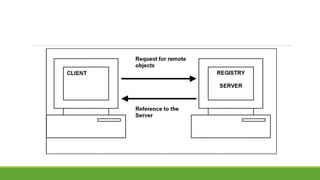
An object exports itself by registering itself with a Remote Registry Server. A Remote Registry
Server is a service that runs on a server and helps the objects on other hosts to remotely access
its registered objects. The registry service maintains a database of all the named remote objects.
A Distributed Application Created Using
RMI
Objects that are exported for remote access must implement the interface RemoteInterface.
This interface identifies the object to be accessed remotely. All the methods that are to be
invoked remotely must throw a RemoteException. The exception is used to handle the errors
that may occur during the invocation of a remote method.
Java’s RMI approach is organized into a client/server framework. A local object that invokes a
method of a remote object is referred to as a client object, and the remote object whose
methods are invoked is referred to as a server object.
Java’s RMI approach makes use of stubs and skeletons. A stubs is a local object on the client’s
machine that acts as a proxy for a remote object. The stub provides the methods of the remote
object. Local objects invoke the methods of the stubs as if they were methods of the remote
objects. The stub communicates this method invocation to the remote object through a skeleton
that is implemented on a remote host. The skeleton is the proxy of the client machine’s object
that is located on the remote host.
Usage of Stubs and Skeletons to support Client/Server Communication The stub and the
skeleton communicate through a remote reference layer. This layer provides stubs the capability
to communicate with skeletons through a transport protocol. RMI uses the TCP protocol for
transporting information.
CORBA
CORBA stands for Common Object Request Broker Architecture. RMI, discussed in previous
section with RMI is that, it needs the 2 objects participating in communication be written in Java
CORBA is a distributed computing technology where the participating objects need not only be
written in Java.
Java IDL is a technology for distributed objects-that is, objects interacting on different platforms across a
network.
Java IDL is similar to RMI (Remote Method Invocation), which supports distributed objects written entirely in the
Java programming language.
Java IDL is based on the Common Object Request Brokerage Architecture (CORBA), an industry-
standard distributed object model
A key feature of CORBA is IDL, a language-neutral Interface Definition Language
Saving and restoring beans:
Once you have set up some beans in the BeanBox, you can use the “File” menu’s “Save…” sub-
menu to save away the current state of the BeanBox. This uses Java Object Serialization to
automatically store away all the state of the beans into a named file. You can then use the “File”
menu’s “Clear” item to discard the current set of beans and use the “Load…” item to read in and
recreate all the serialized beans.
Getting an introspection report on a beans :
If you want to see all the properties, methods, and events that the Beans introspector has found
on a selected bean, you can use the BeanBox’s “report” menu item under “edit” menu. This
generates a summary report to the standard output of the introspection information for the
selected bean.
Adding your bean to the BeanBox :
When the BeanBox starts it loads all the JAR files that it finds in the “jars” directory. The
BeanBox uses the manifest file in each JAR file to identify any bean classes in the JAR file, and
adds those beans to the ToolBox palatte in the BeanBox. To add your bean to the BeanBox, you
must wrap it up in a JAR file which contains a suitable manifest file describing the bean. Once
you have a suitable JAR file, simply add it to the “jars” directory and restart the BeanBox, or load
the JAR directly using the “LoadJar….”item in the “File” menu.
Example Beans:
As part of the BDK we include a number of example beans that demonstrate various aspect of
the JavaBeans architecture. The following beans are all
Create and Configure an Instance of the
Molecule Bean
Follow these steps to create and configure an instance of the Molecule Bean:
Position the cursor on the ToolBox entry labeled Molecule and click the left mouse button. You
should see the cursor change to a cross.
Move the cursor to the BeanBox display area and click the left mouse button in approximately
the area where you wish the Bean to be displayed. You should see a rectangular region appear
that contains a 3-D display of a molecule. This area is surrounded by a hatched border, indicating
that it is currently selected.
You can reposition the Molecule Bean by positioning the cursor over one of the hatched borders
and dragging the Bean.
You can change the molecule that is displayed by changing the selection in the Properties
window. Notice that the Bean display changes immediately when you change the selected
molecule.
Create and Configure an Instance of the
OurButton Bean
Follow these steps to create and configure an instance of the OurButton Bean and connect it to
the Molecule Bean:
Position the cursor on the ToolBox entry labeled OurButton and click the left mouse button. You
should see the cursor change to a cross.
Move the cursor to the BeanBox display area and click the left mouse button in approximately
the area where you wish the Bean to be displayed

Rmi, corba and java beans

  • 1.
    RMI, CORBA andJava Beans
  • 2.
    The Internet andthe Web are examples of distributed systems that have been developed using the Client/Server approach. CORBA is a distributed computing technology where the participating objects need not only be written in Java. JavaBeans is the software component architecture for Java.
  • 3.
    Java Bean isa software component that has been designed to be reusable in a variety of different environments. There is no restriction on the capability of a Bean RMI Distributed applications are applications that execute across multiple host system. Objects executing on one host system can invoke the methods of objects on remote hosts. The remotely invoked methods can return values to the local objects.
  • 4.
    RMI Terminology RMI isbuilt upon the specification of how local and remote objects interoperate. Local objects are objects that execute on the local machine. Remote objects are objects that execute on all the other machines. Objects on remote hosts are exported so that they can be invoked remotely. An object exports itself by registering itself with a Remote Registry Server. A Remote Registry Server is a service that runs on a server and helps the objects on other hosts to remotely access its registered objects. The registry service maintains a database of all the named remote objects.
  • 6.
    A Distributed ApplicationCreated Using RMI Objects that are exported for remote access must implement the interface RemoteInterface. This interface identifies the object to be accessed remotely. All the methods that are to be invoked remotely must throw a RemoteException. The exception is used to handle the errors that may occur during the invocation of a remote method.
  • 7.
    Java’s RMI approachis organized into a client/server framework. A local object that invokes a method of a remote object is referred to as a client object, and the remote object whose methods are invoked is referred to as a server object. Java’s RMI approach makes use of stubs and skeletons. A stubs is a local object on the client’s machine that acts as a proxy for a remote object. The stub provides the methods of the remote object. Local objects invoke the methods of the stubs as if they were methods of the remote objects. The stub communicates this method invocation to the remote object through a skeleton that is implemented on a remote host. The skeleton is the proxy of the client machine’s object that is located on the remote host.
  • 8.
    Usage of Stubsand Skeletons to support Client/Server Communication The stub and the skeleton communicate through a remote reference layer. This layer provides stubs the capability to communicate with skeletons through a transport protocol. RMI uses the TCP protocol for transporting information.
  • 9.
    CORBA CORBA stands forCommon Object Request Broker Architecture. RMI, discussed in previous section with RMI is that, it needs the 2 objects participating in communication be written in Java CORBA is a distributed computing technology where the participating objects need not only be written in Java.
  • 10.
    Java IDL isa technology for distributed objects-that is, objects interacting on different platforms across a network. Java IDL is similar to RMI (Remote Method Invocation), which supports distributed objects written entirely in the Java programming language. Java IDL is based on the Common Object Request Brokerage Architecture (CORBA), an industry- standard distributed object model A key feature of CORBA is IDL, a language-neutral Interface Definition Language
  • 11.
    Saving and restoringbeans: Once you have set up some beans in the BeanBox, you can use the “File” menu’s “Save…” sub- menu to save away the current state of the BeanBox. This uses Java Object Serialization to automatically store away all the state of the beans into a named file. You can then use the “File” menu’s “Clear” item to discard the current set of beans and use the “Load…” item to read in and recreate all the serialized beans.
  • 12.
    Getting an introspectionreport on a beans : If you want to see all the properties, methods, and events that the Beans introspector has found on a selected bean, you can use the BeanBox’s “report” menu item under “edit” menu. This generates a summary report to the standard output of the introspection information for the selected bean.
  • 13.
    Adding your beanto the BeanBox : When the BeanBox starts it loads all the JAR files that it finds in the “jars” directory. The BeanBox uses the manifest file in each JAR file to identify any bean classes in the JAR file, and adds those beans to the ToolBox palatte in the BeanBox. To add your bean to the BeanBox, you must wrap it up in a JAR file which contains a suitable manifest file describing the bean. Once you have a suitable JAR file, simply add it to the “jars” directory and restart the BeanBox, or load the JAR directly using the “LoadJar….”item in the “File” menu.
  • 14.
    Example Beans: As partof the BDK we include a number of example beans that demonstrate various aspect of the JavaBeans architecture. The following beans are all
  • 15.
    Create and Configurean Instance of the Molecule Bean Follow these steps to create and configure an instance of the Molecule Bean: Position the cursor on the ToolBox entry labeled Molecule and click the left mouse button. You should see the cursor change to a cross. Move the cursor to the BeanBox display area and click the left mouse button in approximately the area where you wish the Bean to be displayed. You should see a rectangular region appear that contains a 3-D display of a molecule. This area is surrounded by a hatched border, indicating that it is currently selected.
  • 16.
    You can repositionthe Molecule Bean by positioning the cursor over one of the hatched borders and dragging the Bean. You can change the molecule that is displayed by changing the selection in the Properties window. Notice that the Bean display changes immediately when you change the selected molecule.
  • 17.
    Create and Configurean Instance of the OurButton Bean Follow these steps to create and configure an instance of the OurButton Bean and connect it to the Molecule Bean: Position the cursor on the ToolBox entry labeled OurButton and click the left mouse button. You should see the cursor change to a cross. Move the cursor to the BeanBox display area and click the left mouse button in approximately the area where you wish the Bean to be displayed