VSPHERE 4.1 PERFORMANCE
          & SECURITY TIPS
      Mike Armstrong, VCP vSphere 4
Agenda
•   New features in vSphere 4.1
•   Security in a virtual environment
•   Secure virtual networking
•   Protecting the management environment
•   Protecting ESX/ESXi hosts
•   Protecting virtual machines
vSphere 4.1 New Features
– Network – Network I/O Control, Load Based Teaming, IPv6,
  Performance
– Storage – Storage I/O Control, vStorage APIs for Array Integration
  (VAAI), Performance Reporting, iSCSI Offload enhancements
– Memory Compression – A New Level of Hierarchy for Overcommit
– ESXi – New Deployment Methods, Tech Support Mode Enhancements
– Performance improvements in Availability and Resource Management -
  High Availability (HA), Fault Tolerance (FT), vMotion, Distributed
  Resource Scheduler (DRS), and Distributed Power Management
  Enhancements
– Management – vCenter Server & Platform Enhancements
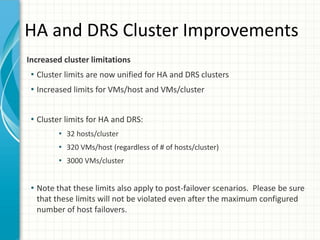
HA and DRS Cluster Improvements
Increased cluster limitations
 • Cluster limits are now unified for HA and DRS clusters
 • Increased limits for VMs/host and VMs/cluster


 • Cluster limits for HA and DRS:
        • 32 hosts/cluster
        • 320 VMs/host (regardless of # of hosts/cluster)
        • 3000 VMs/cluster


 • Note that these limits also apply to post-failover scenarios. Please be sure
  that these limits will not be violated even after the maximum configured
  number of host failovers.
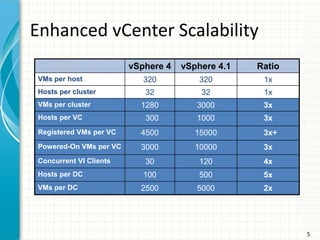
Enhanced vCenter Scalability
                        vSphere 4   vSphere 4.1   Ratio
VMs per host               320          320        1x
Hosts per cluster          32           32         1x
VMs per cluster           1280         3000        3x
Hosts per VC               300         1000        3x
Registered VMs per VC     4500         15000       3x+
Powered-On VMs per VC     3000         10000       3x
Concurrent VI Clients      30           120        4x
Hosts per DC               100          500        5x
VMs per DC                2500         5000        2x


                                                          5
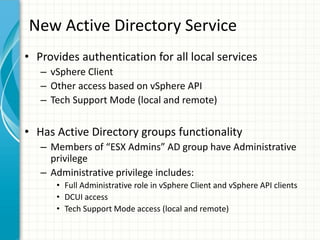
New Active Directory Service
• Provides authentication for all local services
   – vSphere Client
   – Other access based on vSphere API
   – Tech Support Mode (local and remote)


• Has Active Directory groups functionality
   – Members of “ESX Admins” AD group have Administrative
     privilege
   – Administrative privilege includes:
      • Full Administrative role in vSphere Client and vSphere API clients
      • DCUI access
      • Tech Support Mode access (local and remote)
Security in a virtual environment
What makes it different from a physical environment?


– Ease and speed of server deployments
– Collapse of switches and servers into one device
– Virtual machine encapsulation into files
– Consolidation of server hardware
Security in a virtual environment
What makes it easier from a physical environment?

– Virtual switches do not learn from the network, makes them invulnerable to
  attacks like MAC spoofing, random frame, and other types of attacks.
– Virtual switches are also not vulnerable to spanning tree attacks because they
  do not need to support spanning tree protocol since they can’t be connected
  together and can’t create loops
– Virtual machines do not have direct access to hardware, not susceptible to
  buffer overflow type attacks
– Virtual machines are by design isolated from one another
– Restoring a compromised virtual machine is faster since you can quickly revert
  to a previous state of the virtual machine, use templates or restore from a full
  VM backup
– Availability of virtual security appliances
– API’s and products specifically designed to secure a virtual environment,
  vShield
Secure virtual networking
Physical network configurations
– Create separate VLANs for all management traffic, vMotion, IP Storage,
  and host management
– Limit VLAN’s allowed on the trunk ports to host servers
– Configure physical ports connected to host servers using VMware best
  practices, no STP, Auto Negotiate, PortFast enabled ,multiple ports for
  teaming and failover
Virtual network configurations
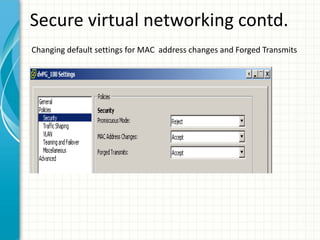
– Change virtual switch and port group default settings for MAC address
  changes and Forged Transmits to Reject
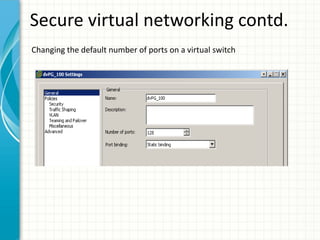
– Change the default number of ports on a virtual switch
– Implement Private VLAN’s to further isolate virtual machines, (need to
  be supported and configured on the physical switches as well)
Secure virtual networking contd.
Changing default settings for MAC address changes and Forged Transmits
Secure virtual networking contd.
Changing the default number of ports on a virtual switch
Secure virtual networking contd.
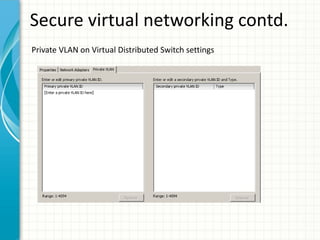
Private VLAN on Virtual Distributed Switch settings
Secure virtual networking contd.
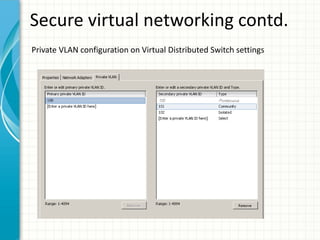
Private VLAN configuration on Virtual Distributed Switch settings
Secure virtual networking contd.
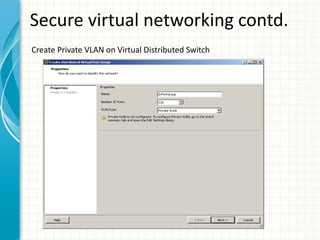
Create Private VLAN on Virtual Distributed Switch
Secure virtual networking contd.
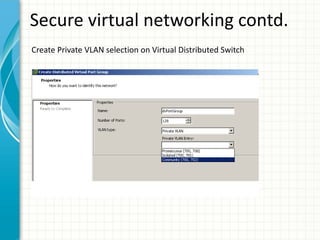
Create Private VLAN selection on Virtual Distributed Switch
Protecting the management
environment
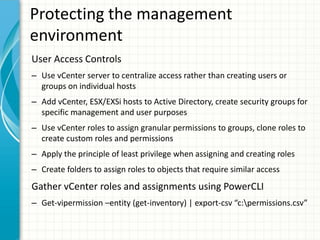
User Access Controls
– Use vCenter server to centralize access rather than creating users or
  groups on individual hosts
– Add vCenter, ESX/EXSi hosts to Active Directory, create security groups for
  specific management and user purposes
– Use vCenter roles to assign granular permissions to groups, clone roles to
  create custom roles and permissions
– Apply the principle of least privilege when assigning and creating roles
– Create folders to assign roles to objects that require similar access
Gather vCenter roles and assignments using PowerCLI
– Get-vipermission –entity (get-inventory) | export-csv “c:permissions.csv”
Protecting the management
environment contd.
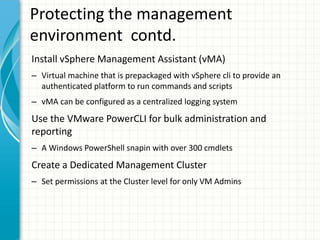
Install vSphere Management Assistant (vMA)
– Virtual machine that is prepackaged with vSphere cli to provide an
  authenticated platform to run commands and scripts
– vMA can be configured as a centralized logging system
Use the VMware PowerCLI for bulk administration and
reporting
– A Windows PowerShell snapin with over 300 cmdlets
Create a Dedicated Management Cluster
– Set permissions at the Cluster level for only VM Admins
Protecting the management
environment contd.
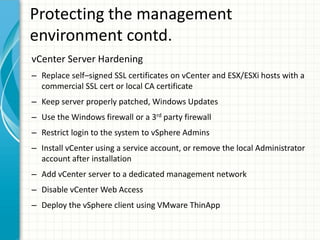
vCenter Server Hardening
– Replace self–signed SSL certificates on vCenter and ESX/ESXi hosts with a
  commercial SSL cert or local CA certificate
– Keep server properly patched, Windows Updates
– Use the Windows firewall or a 3rd party firewall
– Restrict login to the system to vSphere Admins
– Install vCenter using a service account, or remove the local Administrator
  account after installation
– Add vCenter server to a dedicated management network
– Disable vCenter Web Access
– Deploy the vSphere client using VMware ThinApp
Protecting ESXi/ESX hosts
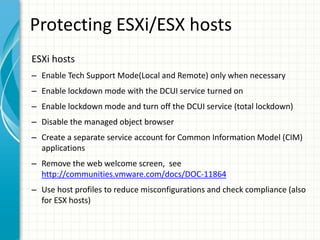
ESXi hosts
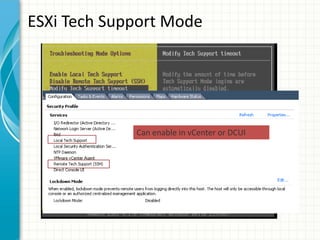
– Enable Tech Support Mode(Local and Remote) only when necessary
– Enable lockdown mode with the DCUI service turned on
– Enable lockdown mode and turn off the DCUI service (total lockdown)
– Disable the managed object browser
– Create a separate service account for Common Information Model (CIM)
  applications
– Remove the web welcome screen, see
  http://communities.vmware.com/docs/DOC-11864
– Use host profiles to reduce misconfigurations and check compliance (also
  for ESX hosts)
ESXi Tech Support Mode


             Can enable in vCenter or DCUI
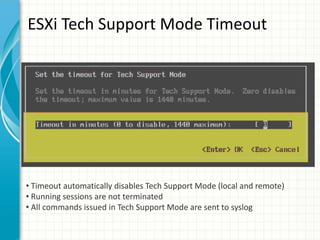
ESXi Tech Support Mode Timeout


• Timeout automatically disables Tech Support Mode (local and remote)
• Running sessions are not terminated
• All commands issued in Tech Support Mode are sent to syslog
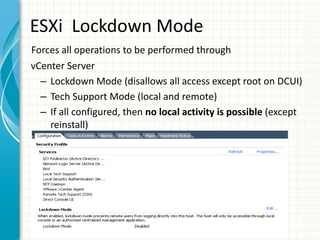
ESXi Lockdown Mode
Forces all operations to be performed through
vCenter Server
  – Lockdown Mode (disallows all access except root on DCUI)
  – Tech Support Mode (local and remote)
  – If all configured, then no local activity is possible (except
    reinstall)
Protecting ESXi/ESX hosts contd.
ESX hosts
– Upgrade to ESXi, ESX 4.1 will be the last supported version of ESX!
– Configure firewall rules based on security needs and requirements, allow only
  default ports (902,4 43, 80, 22)
– Modify password policies on the host for history, aging and complexity. Can
  modify the pam_cracklib.so plugin to modify password policies, see KB
  1012033 for info
– Limit access to su commands to users in the wheel group, edit /etc/pam.d/su
  and remove # from line auth required /lib/security/$ISA/pam_wheel.so
  use_uid
– Restrict access to commands with SUDO utility
– Disallow root account login at the console, create a nonprivileged user then
  run cat /dev/null > /etc/securetty to modify
– Disable vSphere web access service, see KB1007617
Protecting Virtual Machines
Secure the virtual machine operating system
– Enable antivirus, antispyware, firewall and IDS appliances, consider using
  vShield for antivirus, firewall and IDS appliances
– Keep current on updates and patches, including templates and powered
  off VM’s
– Disable unused services and applications in the operating systems
– Disconnect unused devices, CD, floppy, serial and parallel ports and USB
  controller
– Use shares and reservations to ensure critical virtual machines have the
  resources they need
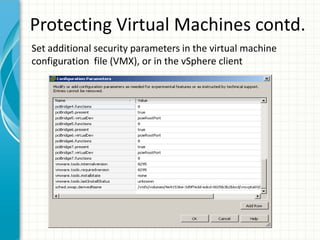
Protecting Virtual Machines contd.
Set additional security parameters in the virtual machine
configuration file (VMX), or in the vSphere client
Protecting Virtual Machines contd.
List of common security configuration parameters
– Prevent virtual disk shrink:
  “isolation.tools.diskWiper.disable = True”
– Prevent connection of devices:
  “isolation.deviceconnectable.disable = True” and
  “isolation.device.edit.disable = True”
– Limit the number of console connections:
  “RemoteDisplay.maxConnections = Value 1”
– Limit virtual machine log file size and number:
  “log.rotatesize = Value 1000” and “log.keepOld = Value 10”
– Limit messages from the VM to the VMX file:
  “tools.setInfo.sizeLimit = 104856”
– Disable remote operations within the guest(VIX API):
  “guest.command.enable = False”
– Disable sending host performance information to the guest:
  “tools.guestlib.enable HostInfo = False”
Resources
• vSphere 4.1 Hardening Guide
  http://www.vmware.com/files/pdf/techpaper/VMW-TWP-vSPHR-
  SECRTY-HRDNG-USLET-101-WEB-1.pdf

• VMware Manage & Design for Security Class
  http://mylearn.vmware.com/mgrreg/courses.cfm?ui=www_edu&
  a=one&id_subject=19217

• List of VMsafe third-party solutions
  http://www.vmware.com/technical-
  resources/security/vmsafe/security_technology.html

• ThinApp and security
   http://vmjunkie.wordpress.com/2009/01/05/why-thinapp-is-
   revolutionary-from-a-security-perspective/
QUESTIONS?

RHT Design for Security

  • 1.
    VSPHERE 4.1 PERFORMANCE & SECURITY TIPS Mike Armstrong, VCP vSphere 4
  • 2.
    Agenda • New features in vSphere 4.1 • Security in a virtual environment • Secure virtual networking • Protecting the management environment • Protecting ESX/ESXi hosts • Protecting virtual machines
  • 3.
    vSphere 4.1 NewFeatures – Network – Network I/O Control, Load Based Teaming, IPv6, Performance – Storage – Storage I/O Control, vStorage APIs for Array Integration (VAAI), Performance Reporting, iSCSI Offload enhancements – Memory Compression – A New Level of Hierarchy for Overcommit – ESXi – New Deployment Methods, Tech Support Mode Enhancements – Performance improvements in Availability and Resource Management - High Availability (HA), Fault Tolerance (FT), vMotion, Distributed Resource Scheduler (DRS), and Distributed Power Management Enhancements – Management – vCenter Server & Platform Enhancements
  • 4.
    HA and DRSCluster Improvements Increased cluster limitations • Cluster limits are now unified for HA and DRS clusters • Increased limits for VMs/host and VMs/cluster • Cluster limits for HA and DRS: • 32 hosts/cluster • 320 VMs/host (regardless of # of hosts/cluster) • 3000 VMs/cluster • Note that these limits also apply to post-failover scenarios. Please be sure that these limits will not be violated even after the maximum configured number of host failovers.
  • 5.
    Enhanced vCenter Scalability vSphere 4 vSphere 4.1 Ratio VMs per host 320 320 1x Hosts per cluster 32 32 1x VMs per cluster 1280 3000 3x Hosts per VC 300 1000 3x Registered VMs per VC 4500 15000 3x+ Powered-On VMs per VC 3000 10000 3x Concurrent VI Clients 30 120 4x Hosts per DC 100 500 5x VMs per DC 2500 5000 2x 5
  • 6.
    New Active DirectoryService • Provides authentication for all local services – vSphere Client – Other access based on vSphere API – Tech Support Mode (local and remote) • Has Active Directory groups functionality – Members of “ESX Admins” AD group have Administrative privilege – Administrative privilege includes: • Full Administrative role in vSphere Client and vSphere API clients • DCUI access • Tech Support Mode access (local and remote)
  • 7.
    Security in avirtual environment What makes it different from a physical environment? – Ease and speed of server deployments – Collapse of switches and servers into one device – Virtual machine encapsulation into files – Consolidation of server hardware
  • 8.
    Security in avirtual environment What makes it easier from a physical environment? – Virtual switches do not learn from the network, makes them invulnerable to attacks like MAC spoofing, random frame, and other types of attacks. – Virtual switches are also not vulnerable to spanning tree attacks because they do not need to support spanning tree protocol since they can’t be connected together and can’t create loops – Virtual machines do not have direct access to hardware, not susceptible to buffer overflow type attacks – Virtual machines are by design isolated from one another – Restoring a compromised virtual machine is faster since you can quickly revert to a previous state of the virtual machine, use templates or restore from a full VM backup – Availability of virtual security appliances – API’s and products specifically designed to secure a virtual environment, vShield
  • 9.
    Secure virtual networking Physicalnetwork configurations – Create separate VLANs for all management traffic, vMotion, IP Storage, and host management – Limit VLAN’s allowed on the trunk ports to host servers – Configure physical ports connected to host servers using VMware best practices, no STP, Auto Negotiate, PortFast enabled ,multiple ports for teaming and failover Virtual network configurations – Change virtual switch and port group default settings for MAC address changes and Forged Transmits to Reject – Change the default number of ports on a virtual switch – Implement Private VLAN’s to further isolate virtual machines, (need to be supported and configured on the physical switches as well)
  • 10.
    Secure virtual networkingcontd. Changing default settings for MAC address changes and Forged Transmits
  • 11.
    Secure virtual networkingcontd. Changing the default number of ports on a virtual switch
  • 12.
    Secure virtual networkingcontd. Private VLAN on Virtual Distributed Switch settings
  • 13.
    Secure virtual networkingcontd. Private VLAN configuration on Virtual Distributed Switch settings
  • 14.
    Secure virtual networkingcontd. Create Private VLAN on Virtual Distributed Switch
  • 15.
    Secure virtual networkingcontd. Create Private VLAN selection on Virtual Distributed Switch
  • 16.
    Protecting the management environment UserAccess Controls – Use vCenter server to centralize access rather than creating users or groups on individual hosts – Add vCenter, ESX/EXSi hosts to Active Directory, create security groups for specific management and user purposes – Use vCenter roles to assign granular permissions to groups, clone roles to create custom roles and permissions – Apply the principle of least privilege when assigning and creating roles – Create folders to assign roles to objects that require similar access Gather vCenter roles and assignments using PowerCLI – Get-vipermission –entity (get-inventory) | export-csv “c:permissions.csv”
  • 17.
    Protecting the management environmentcontd. Install vSphere Management Assistant (vMA) – Virtual machine that is prepackaged with vSphere cli to provide an authenticated platform to run commands and scripts – vMA can be configured as a centralized logging system Use the VMware PowerCLI for bulk administration and reporting – A Windows PowerShell snapin with over 300 cmdlets Create a Dedicated Management Cluster – Set permissions at the Cluster level for only VM Admins
  • 18.
    Protecting the management environmentcontd. vCenter Server Hardening – Replace self–signed SSL certificates on vCenter and ESX/ESXi hosts with a commercial SSL cert or local CA certificate – Keep server properly patched, Windows Updates – Use the Windows firewall or a 3rd party firewall – Restrict login to the system to vSphere Admins – Install vCenter using a service account, or remove the local Administrator account after installation – Add vCenter server to a dedicated management network – Disable vCenter Web Access – Deploy the vSphere client using VMware ThinApp
  • 19.
    Protecting ESXi/ESX hosts ESXihosts – Enable Tech Support Mode(Local and Remote) only when necessary – Enable lockdown mode with the DCUI service turned on – Enable lockdown mode and turn off the DCUI service (total lockdown) – Disable the managed object browser – Create a separate service account for Common Information Model (CIM) applications – Remove the web welcome screen, see http://communities.vmware.com/docs/DOC-11864 – Use host profiles to reduce misconfigurations and check compliance (also for ESX hosts)
  • 20.
    ESXi Tech SupportMode Can enable in vCenter or DCUI
  • 21.
    ESXi Tech SupportMode Timeout • Timeout automatically disables Tech Support Mode (local and remote) • Running sessions are not terminated • All commands issued in Tech Support Mode are sent to syslog
  • 22.
    ESXi Lockdown Mode Forcesall operations to be performed through vCenter Server – Lockdown Mode (disallows all access except root on DCUI) – Tech Support Mode (local and remote) – If all configured, then no local activity is possible (except reinstall)
  • 23.
    Protecting ESXi/ESX hostscontd. ESX hosts – Upgrade to ESXi, ESX 4.1 will be the last supported version of ESX! – Configure firewall rules based on security needs and requirements, allow only default ports (902,4 43, 80, 22) – Modify password policies on the host for history, aging and complexity. Can modify the pam_cracklib.so plugin to modify password policies, see KB 1012033 for info – Limit access to su commands to users in the wheel group, edit /etc/pam.d/su and remove # from line auth required /lib/security/$ISA/pam_wheel.so use_uid – Restrict access to commands with SUDO utility – Disallow root account login at the console, create a nonprivileged user then run cat /dev/null > /etc/securetty to modify – Disable vSphere web access service, see KB1007617
  • 24.
    Protecting Virtual Machines Securethe virtual machine operating system – Enable antivirus, antispyware, firewall and IDS appliances, consider using vShield for antivirus, firewall and IDS appliances – Keep current on updates and patches, including templates and powered off VM’s – Disable unused services and applications in the operating systems – Disconnect unused devices, CD, floppy, serial and parallel ports and USB controller – Use shares and reservations to ensure critical virtual machines have the resources they need
  • 25.
    Protecting Virtual Machinescontd. Set additional security parameters in the virtual machine configuration file (VMX), or in the vSphere client
  • 26.
    Protecting Virtual Machinescontd. List of common security configuration parameters – Prevent virtual disk shrink: “isolation.tools.diskWiper.disable = True” – Prevent connection of devices: “isolation.deviceconnectable.disable = True” and “isolation.device.edit.disable = True” – Limit the number of console connections: “RemoteDisplay.maxConnections = Value 1” – Limit virtual machine log file size and number: “log.rotatesize = Value 1000” and “log.keepOld = Value 10” – Limit messages from the VM to the VMX file: “tools.setInfo.sizeLimit = 104856” – Disable remote operations within the guest(VIX API): “guest.command.enable = False” – Disable sending host performance information to the guest: “tools.guestlib.enable HostInfo = False”
  • 27.
    Resources • vSphere 4.1Hardening Guide http://www.vmware.com/files/pdf/techpaper/VMW-TWP-vSPHR- SECRTY-HRDNG-USLET-101-WEB-1.pdf • VMware Manage & Design for Security Class http://mylearn.vmware.com/mgrreg/courses.cfm?ui=www_edu& a=one&id_subject=19217 • List of VMsafe third-party solutions http://www.vmware.com/technical- resources/security/vmsafe/security_technology.html • ThinApp and security http://vmjunkie.wordpress.com/2009/01/05/why-thinapp-is- revolutionary-from-a-security-perspective/
  • 28.