Configuring vSphere 5 Profile-Driven Storage-


VM Storage Profiles- Getting started
Depending on the size of your VMware environment, you may have detailed steps to deploy virtual
machines. These steps should include gathering requirements for the virtual machines disks, and
selecting the right datastore to meet the requirements.
Profile-Driven Storage, accessed from VM Storage Profiles on the Home page in vCenter, can help
decrease the administration to deploy a virtual machine and ensure it is deployed to the correct
datastore.
A bit more detail on VM Storage Profiles -
Storage Profiles allow you to assign information about your storage array, or characteristics, such as
the RAID type and performance level. You can create profiles with any information that is meaningful to
you and your environment.
There are two kinds of Storage Profiles, User Defined and Array Aware (VASA). If your storage vendor
supports the latest vStorage API’s, it can provide the characteristics of the back end storage, such as
RAID level and if the storage is replicated. If your array does not support these API’s you can create the
User-Defined Storage Profiles with information about your array, or create tier levels such as gold, silver
and bronze.

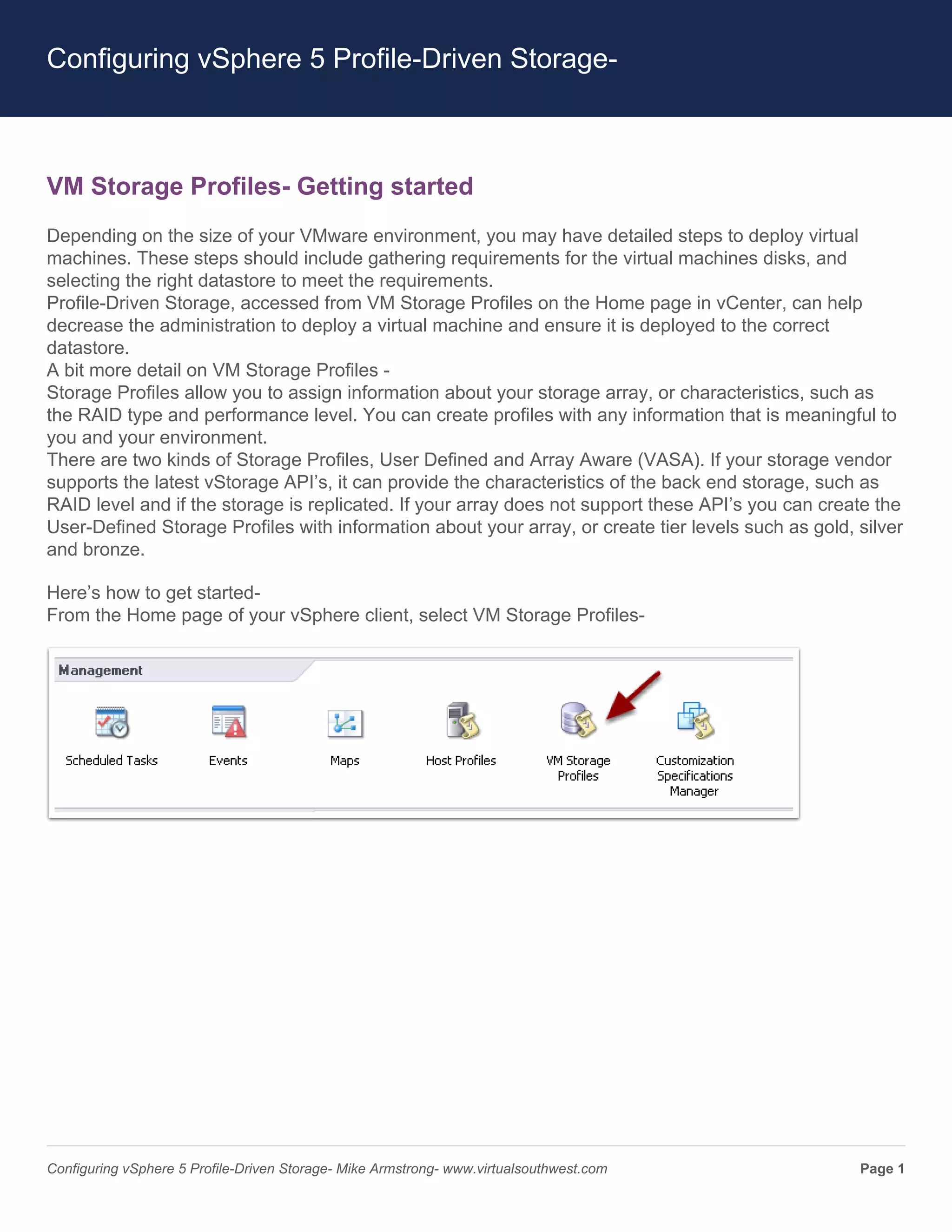
Here’s how to get started-
From the Home page of your vSphere client, select VM Storage Profiles-


Configuring vSphere 5 Profile-Driven Storage- Mike Armstrong- www.virtualsouthwest.com               Page 1
Configuring vSphere 5 Profile-Driven Storage-


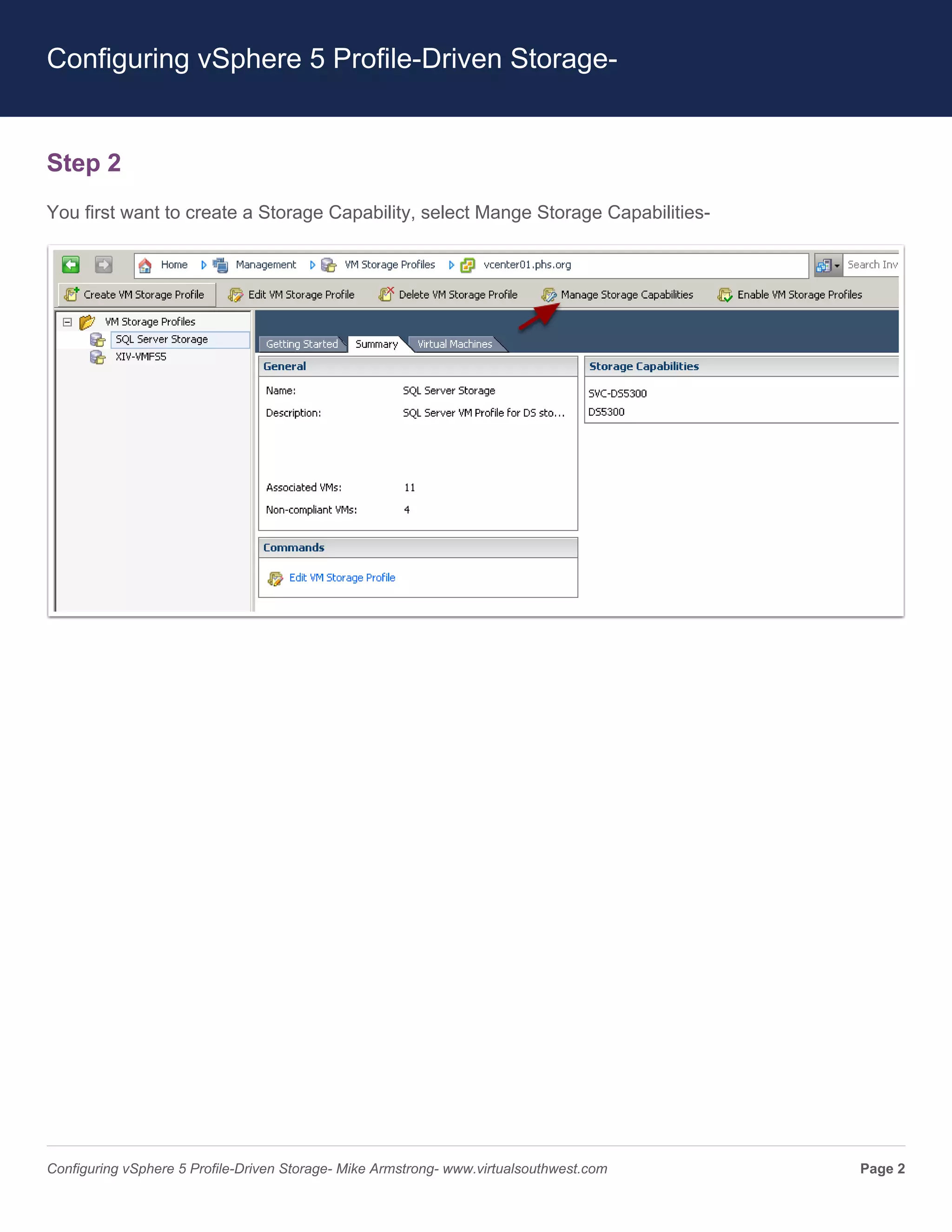
Step 2
You first want to create a Storage Capability, select Mange Storage Capabilities-


Configuring vSphere 5 Profile-Driven Storage- Mike Armstrong- www.virtualsouthwest.com   Page 2
Configuring vSphere 5 Profile-Driven Storage-


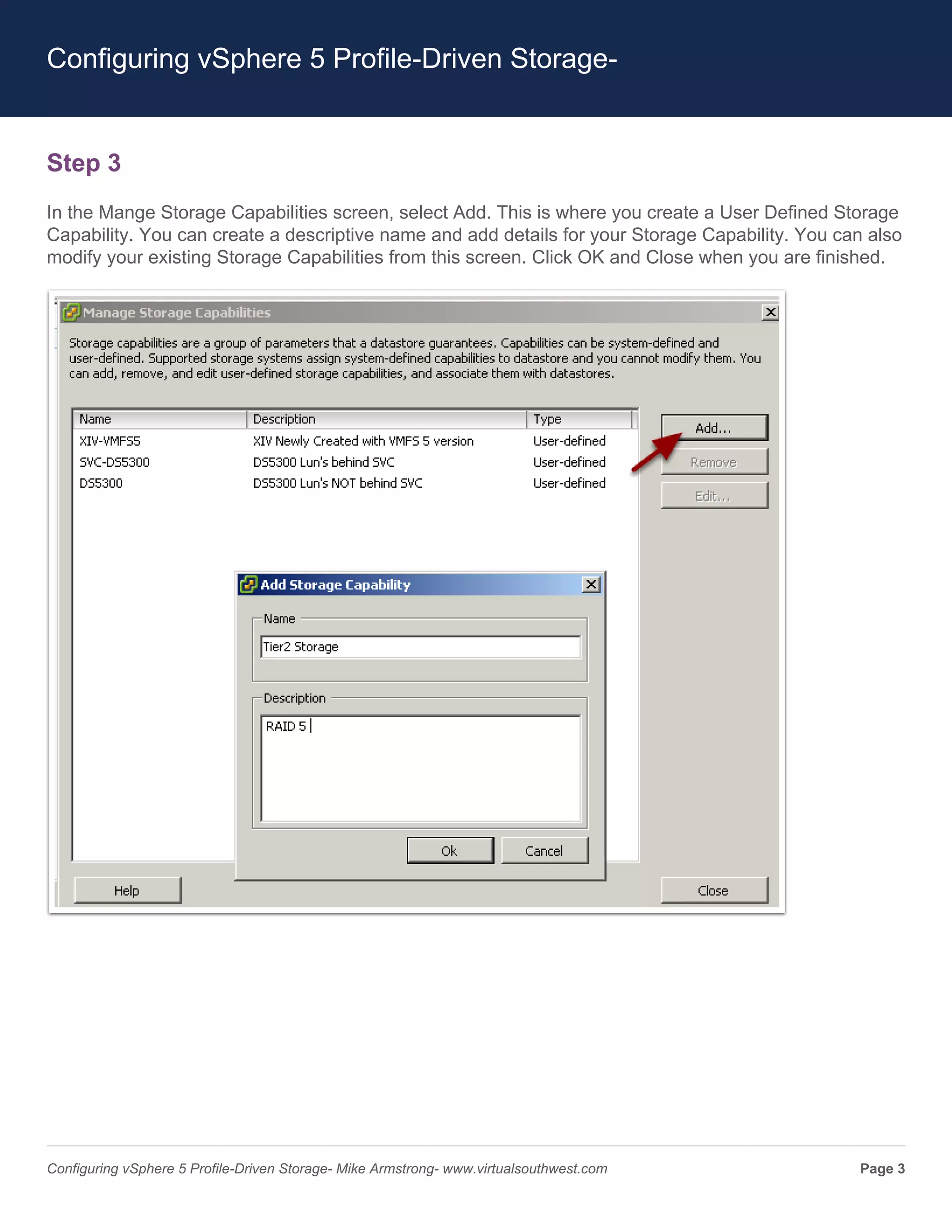
Step 3
In the Mange Storage Capabilities screen, select Add. This is where you create a User Defined Storage
Capability. You can create a descriptive name and add details for your Storage Capability. You can also
modify your existing Storage Capabilities from this screen. Click OK and Close when you are finished.


Configuring vSphere 5 Profile-Driven Storage- Mike Armstrong- www.virtualsouthwest.com           Page 3
Configuring vSphere 5 Profile-Driven Storage-


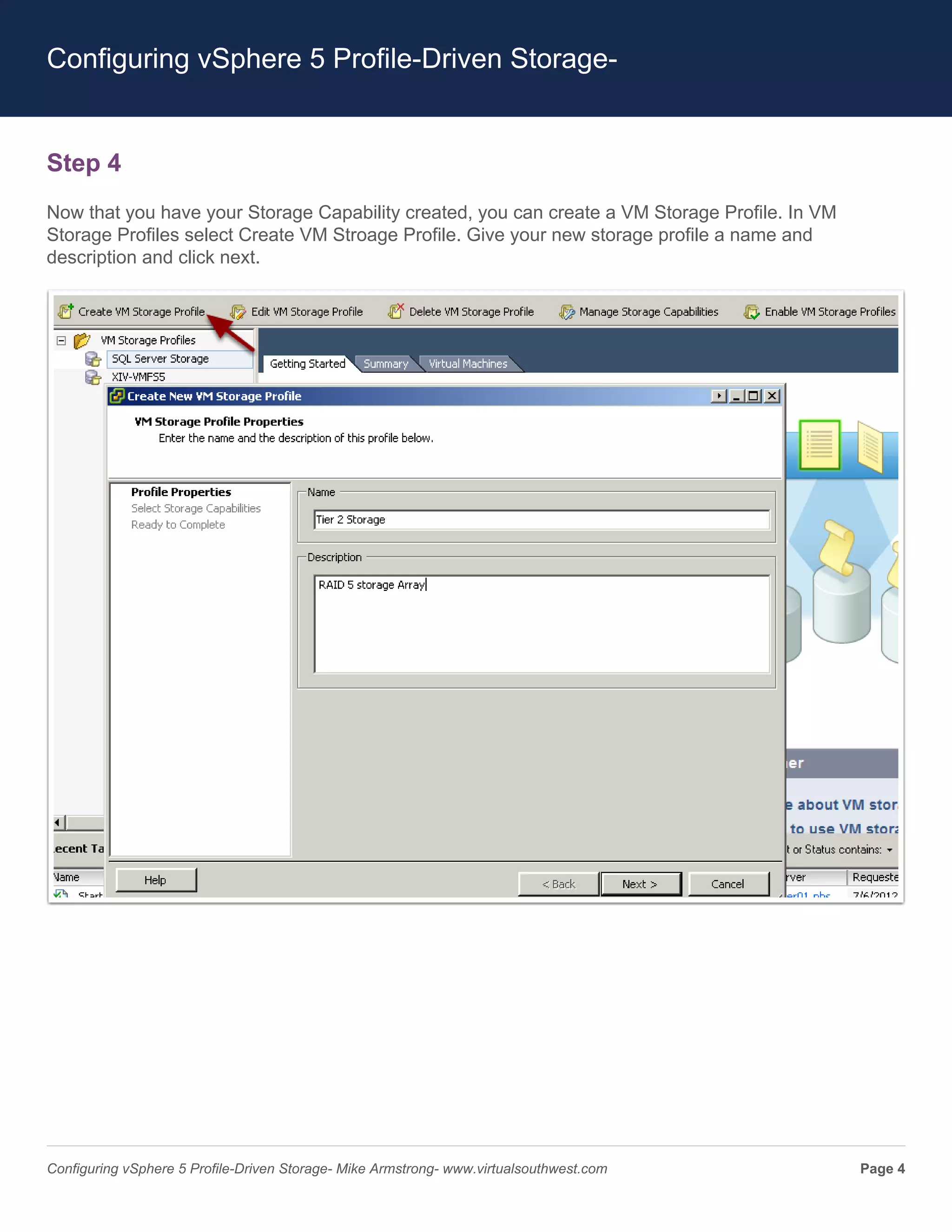
Step 4
Now that you have your Storage Capability created, you can create a VM Storage Profile. In VM
Storage Profiles select Create VM Stroage Profile. Give your new storage profile a name and
description and click next.


Configuring vSphere 5 Profile-Driven Storage- Mike Armstrong- www.virtualsouthwest.com          Page 4
Configuring vSphere 5 Profile-Driven Storage-


Step 5
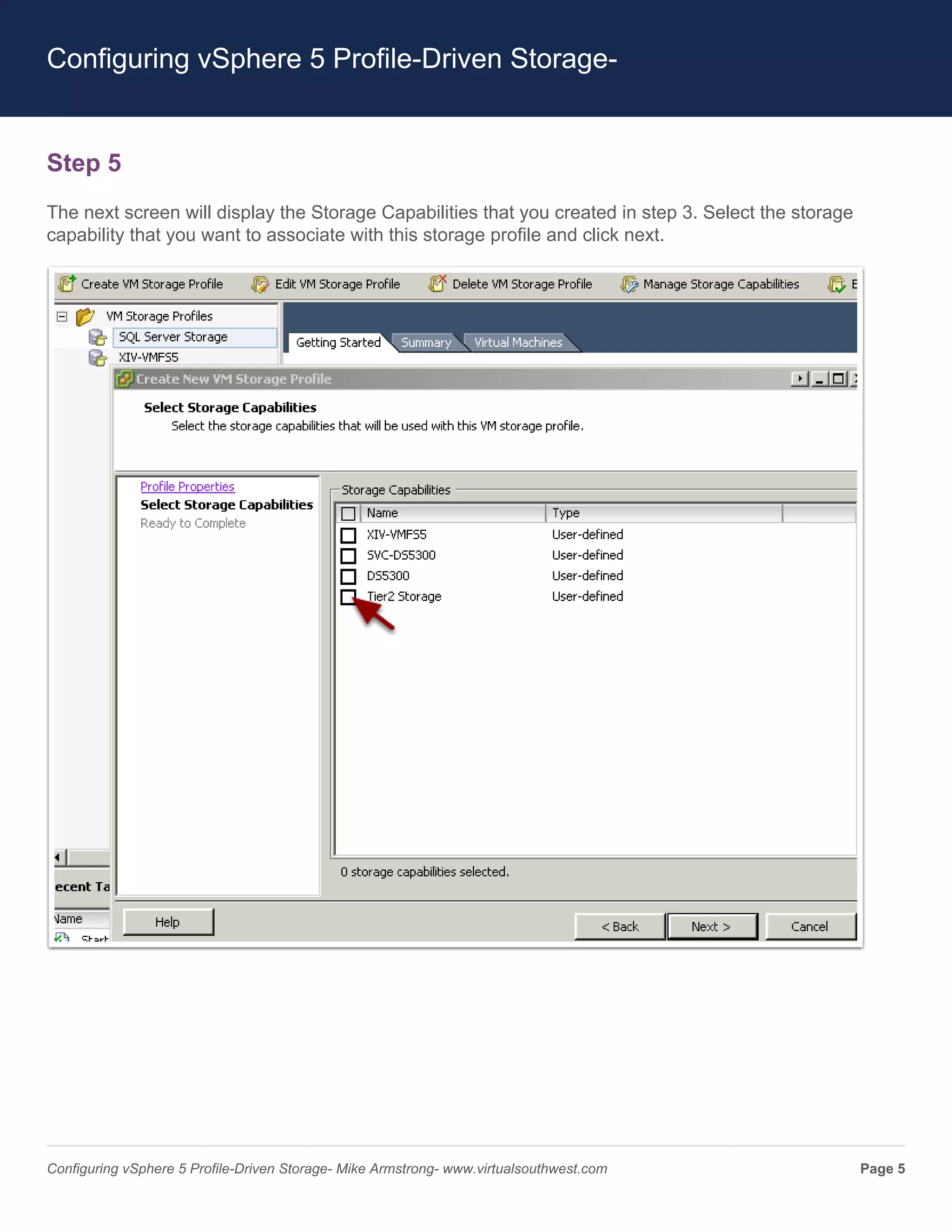
The next screen will display the Storage Capabilities that you created in step 3. Select the storage
capability that you want to associate with this storage profile and click next.


Configuring vSphere 5 Profile-Driven Storage- Mike Armstrong- www.virtualsouthwest.com                 Page 5
Configuring vSphere 5 Profile-Driven Storage-


Step 6
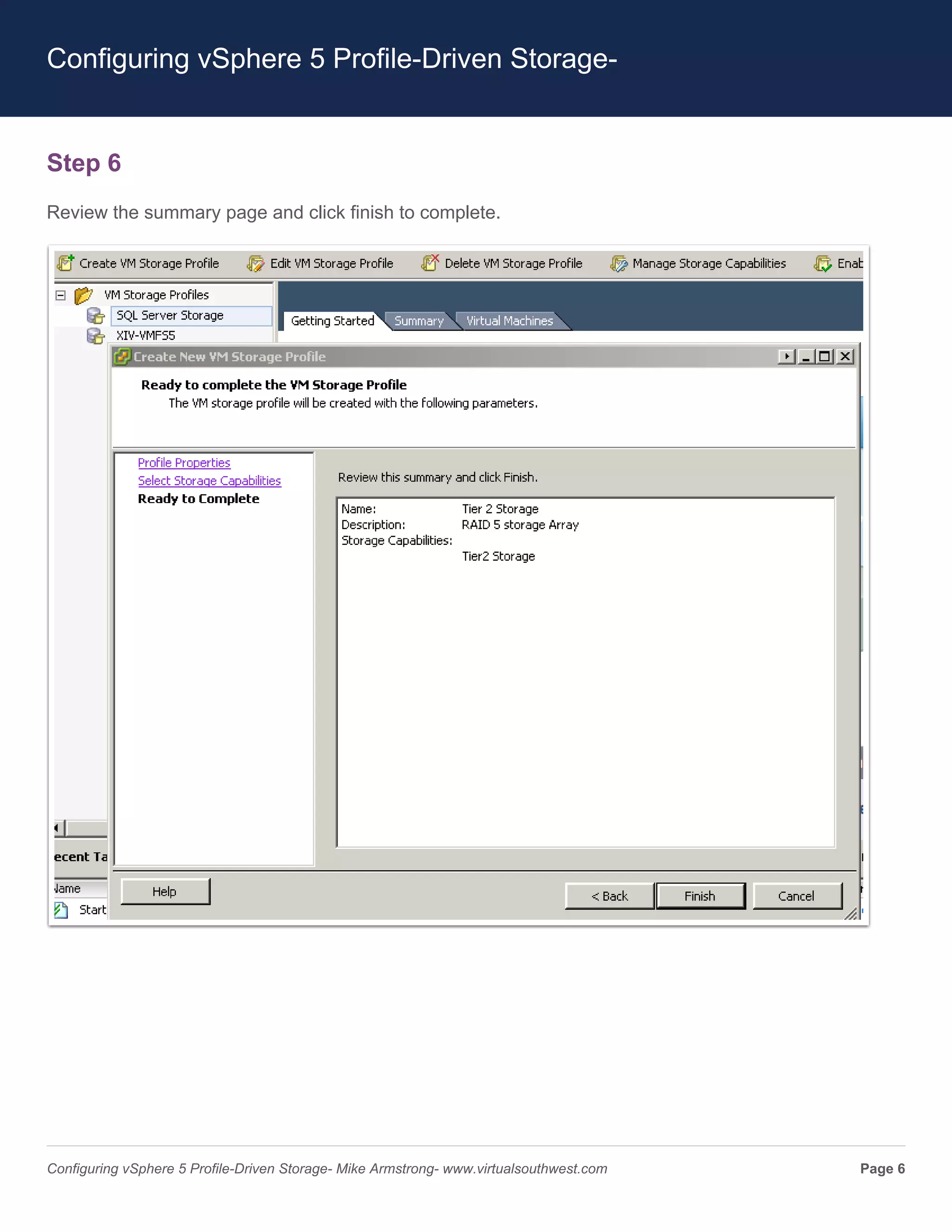
Review the summary page and click finish to complete.


Configuring vSphere 5 Profile-Driven Storage- Mike Armstrong- www.virtualsouthwest.com   Page 6
Configuring vSphere 5 Profile-Driven Storage-


Step 7
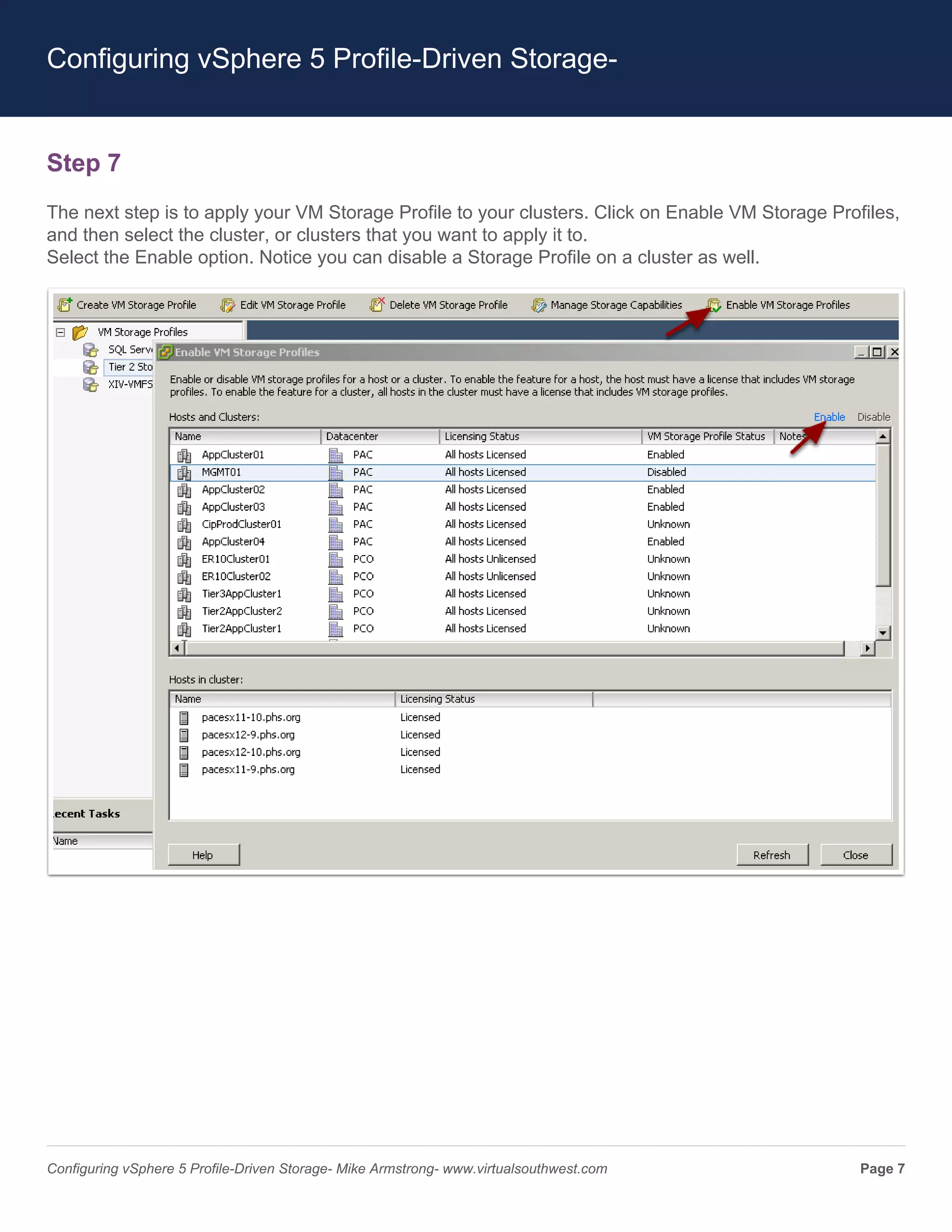
The next step is to apply your VM Storage Profile to your clusters. Click on Enable VM Storage Profiles,
and then select the cluster, or clusters that you want to apply it to.
Select the Enable option. Notice you can disable a Storage Profile on a cluster as well.


Configuring vSphere 5 Profile-Driven Storage- Mike Armstrong- www.virtualsouthwest.com             Page 7
Configuring vSphere 5 Profile-Driven Storage-


Step 8
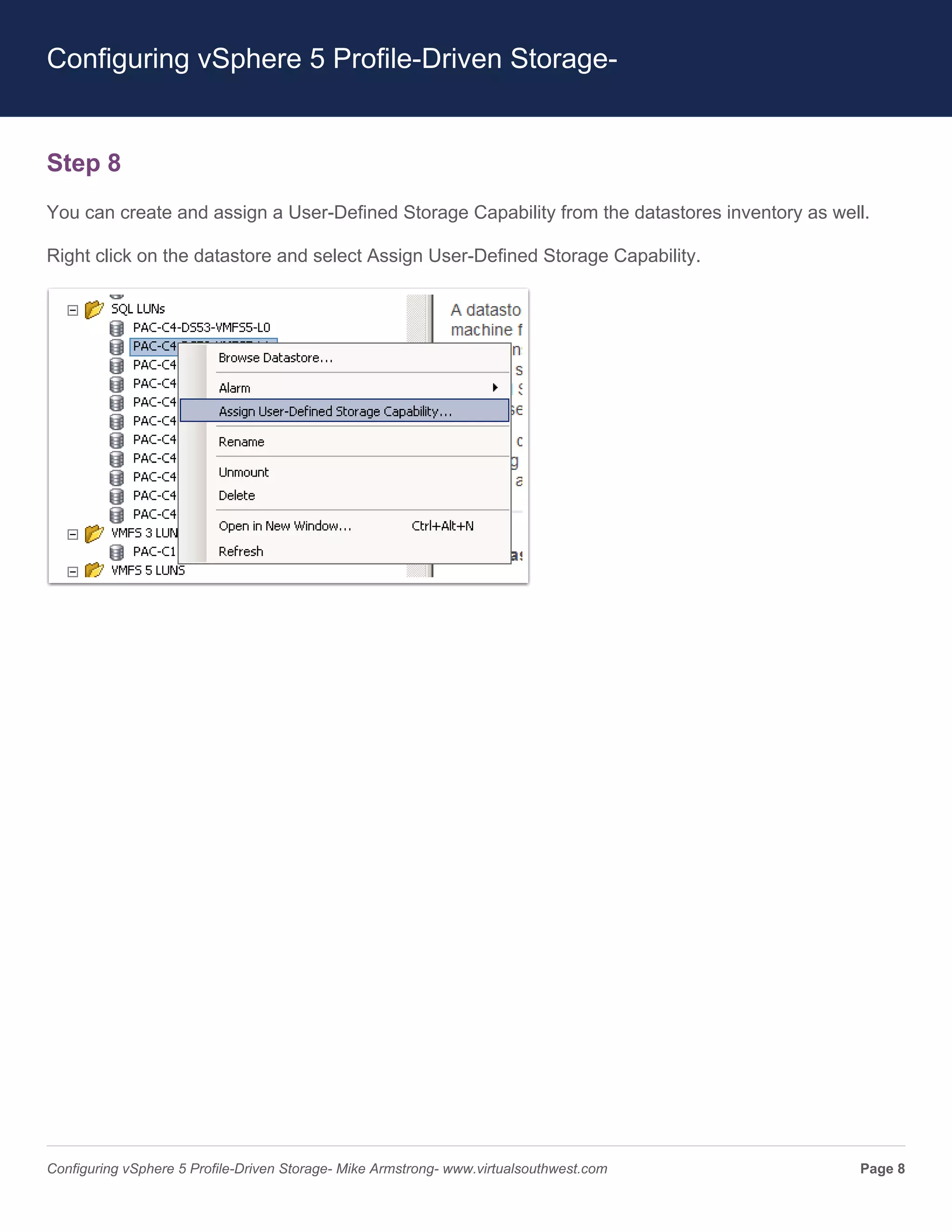
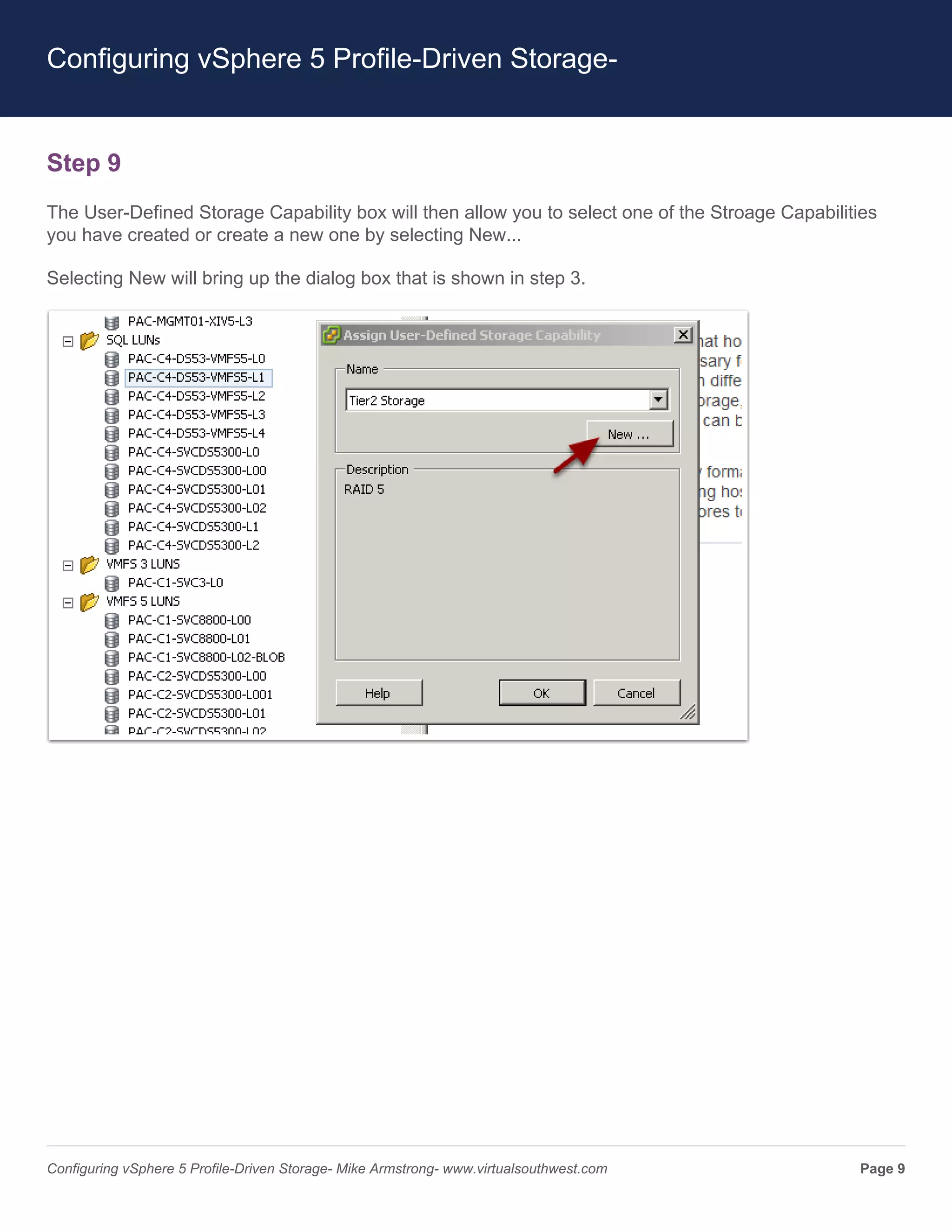
You can create and assign a User-Defined Storage Capability from the datastores inventory as well.

Right click on the datastore and select Assign User-Defined Storage Capability.


Configuring vSphere 5 Profile-Driven Storage- Mike Armstrong- www.virtualsouthwest.com          Page 8
Configuring vSphere 5 Profile-Driven Storage-


Step 9
The User-Defined Storage Capability box will then allow you to select one of the Stroage Capabilities
you have created or create a new one by selecting New...

Selecting New will bring up the dialog box that is shown in step 3.


Configuring vSphere 5 Profile-Driven Storage- Mike Armstrong- www.virtualsouthwest.com            Page 9
Configuring vSphere 5 Profile-Driven Storage-


Step 10
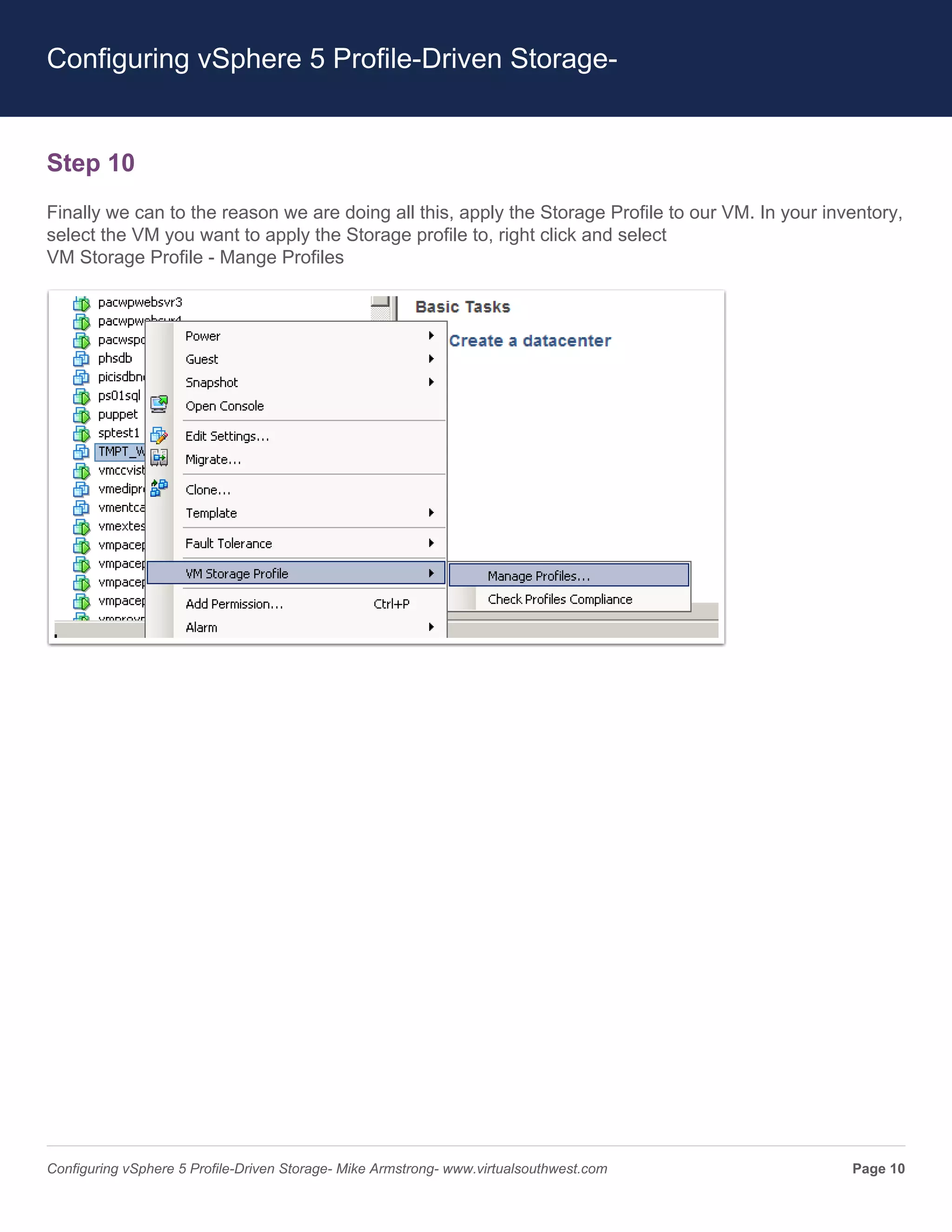
Finally we can to the reason we are doing all this, apply the Storage Profile to our VM. In your inventory,
select the VM you want to apply the Storage profile to, right click and select
VM Storage Profile - Mange Profiles


Configuring vSphere 5 Profile-Driven Storage- Mike Armstrong- www.virtualsouthwest.com              Page 10
Configuring vSphere 5 Profile-Driven Storage-


Step 10
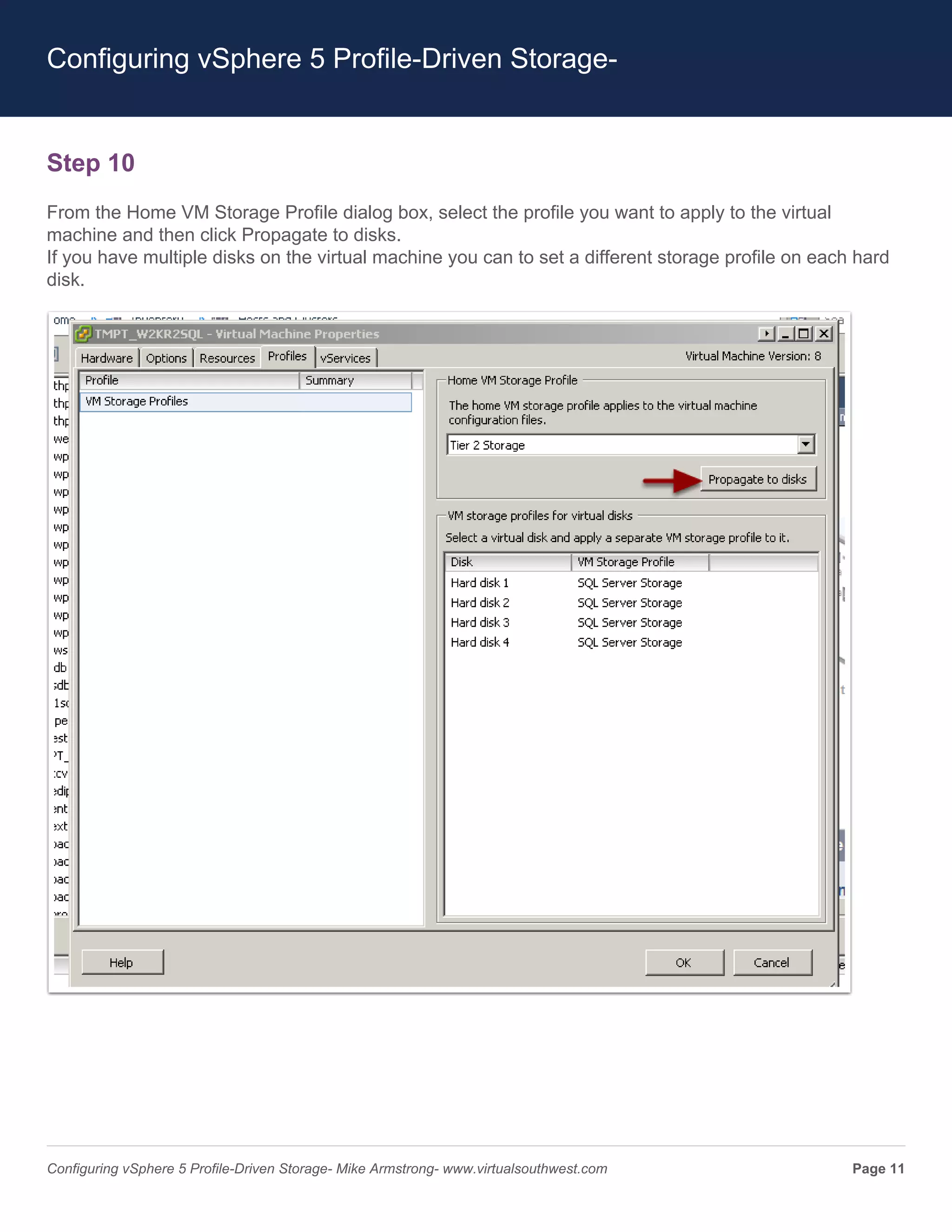
From the Home VM Storage Profile dialog box, select the profile you want to apply to the virtual
machine and then click Propagate to disks.
If you have multiple disks on the virtual machine you can to set a different storage profile on each hard
disk.


Configuring vSphere 5 Profile-Driven Storage- Mike Armstrong- www.virtualsouthwest.com              Page 11
Configuring vSphere 5 Profile-Driven Storage-


Step 11
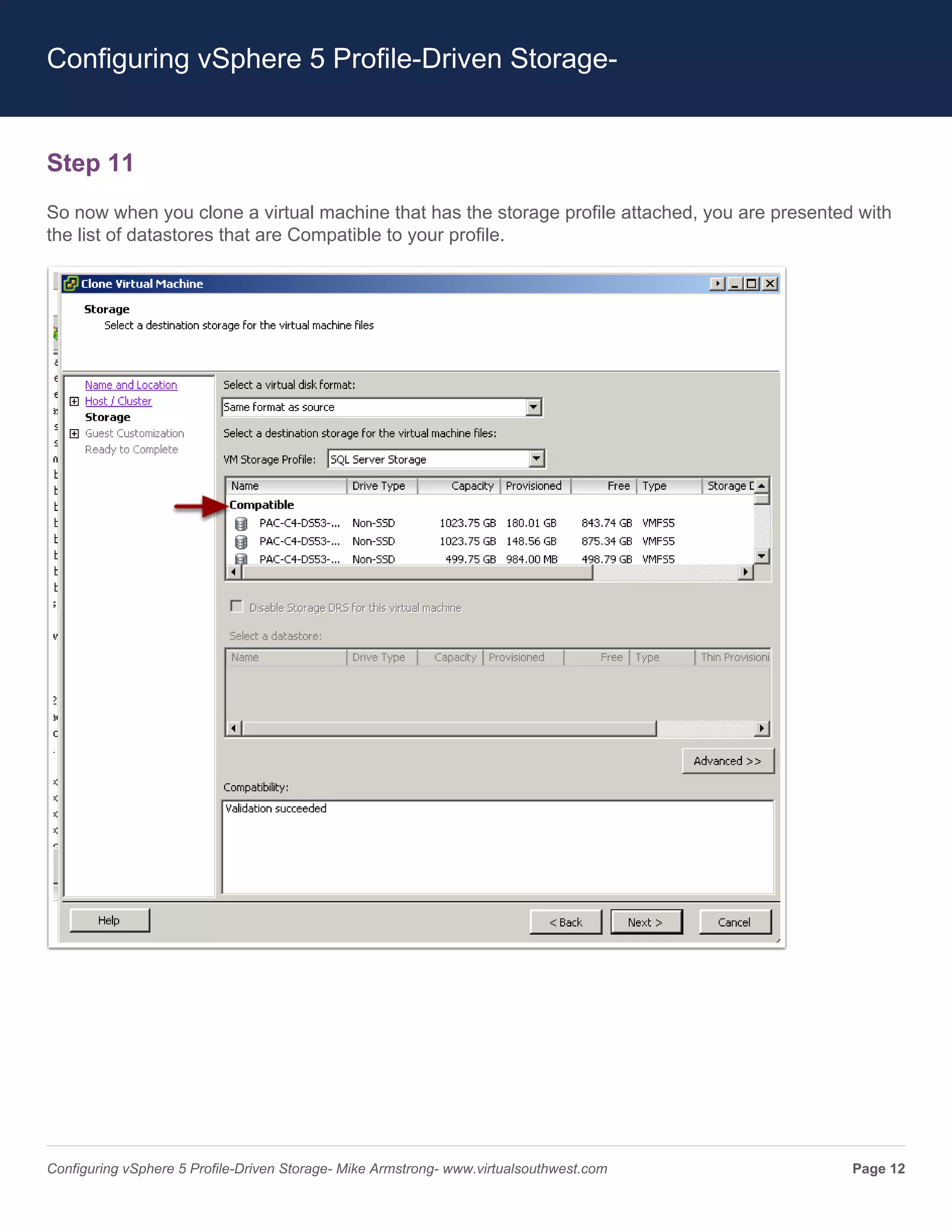
So now when you clone a virtual machine that has the storage profile attached, you are presented with
the list of datastores that are Compatible to your profile.


Configuring vSphere 5 Profile-Driven Storage- Mike Armstrong- www.virtualsouthwest.com          Page 12
Configuring vSphere 5 Profile-Driven Storage-


Step 12
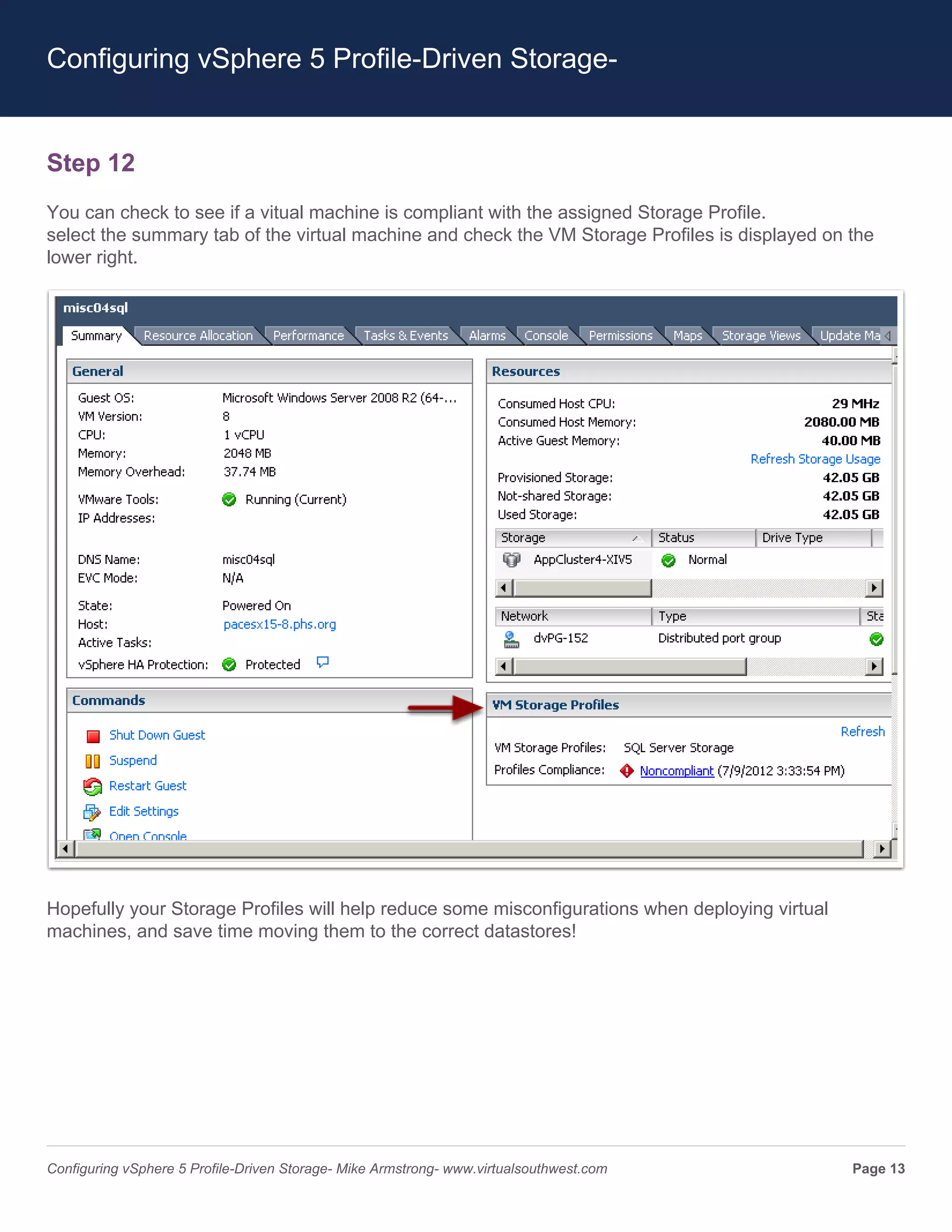
You can check to see if a vitual machine is compliant with the assigned Storage Profile.
select the summary tab of the virtual machine and check the VM Storage Profiles is displayed on the
lower right.


Hopefully your Storage Profiles will help reduce some misconfigurations when deploying virtual
machines, and save time moving them to the correct datastores!


Configuring vSphere 5 Profile-Driven Storage- Mike Armstrong- www.virtualsouthwest.com           Page 13

Configuring v sphere 5 profile driven storage

  • 1.
    Configuring vSphere 5Profile-Driven Storage- VM Storage Profiles- Getting started Depending on the size of your VMware environment, you may have detailed steps to deploy virtual machines. These steps should include gathering requirements for the virtual machines disks, and selecting the right datastore to meet the requirements. Profile-Driven Storage, accessed from VM Storage Profiles on the Home page in vCenter, can help decrease the administration to deploy a virtual machine and ensure it is deployed to the correct datastore. A bit more detail on VM Storage Profiles - Storage Profiles allow you to assign information about your storage array, or characteristics, such as the RAID type and performance level. You can create profiles with any information that is meaningful to you and your environment. There are two kinds of Storage Profiles, User Defined and Array Aware (VASA). If your storage vendor supports the latest vStorage API’s, it can provide the characteristics of the back end storage, such as RAID level and if the storage is replicated. If your array does not support these API’s you can create the User-Defined Storage Profiles with information about your array, or create tier levels such as gold, silver and bronze. Here’s how to get started- From the Home page of your vSphere client, select VM Storage Profiles- Configuring vSphere 5 Profile-Driven Storage- Mike Armstrong- www.virtualsouthwest.com Page 1
  • 2.
    Configuring vSphere 5Profile-Driven Storage- Step 2 You first want to create a Storage Capability, select Mange Storage Capabilities- Configuring vSphere 5 Profile-Driven Storage- Mike Armstrong- www.virtualsouthwest.com Page 2
  • 3.
    Configuring vSphere 5Profile-Driven Storage- Step 3 In the Mange Storage Capabilities screen, select Add. This is where you create a User Defined Storage Capability. You can create a descriptive name and add details for your Storage Capability. You can also modify your existing Storage Capabilities from this screen. Click OK and Close when you are finished. Configuring vSphere 5 Profile-Driven Storage- Mike Armstrong- www.virtualsouthwest.com Page 3
  • 4.
    Configuring vSphere 5Profile-Driven Storage- Step 4 Now that you have your Storage Capability created, you can create a VM Storage Profile. In VM Storage Profiles select Create VM Stroage Profile. Give your new storage profile a name and description and click next. Configuring vSphere 5 Profile-Driven Storage- Mike Armstrong- www.virtualsouthwest.com Page 4
  • 5.
    Configuring vSphere 5Profile-Driven Storage- Step 5 The next screen will display the Storage Capabilities that you created in step 3. Select the storage capability that you want to associate with this storage profile and click next. Configuring vSphere 5 Profile-Driven Storage- Mike Armstrong- www.virtualsouthwest.com Page 5
  • 6.
    Configuring vSphere 5Profile-Driven Storage- Step 6 Review the summary page and click finish to complete. Configuring vSphere 5 Profile-Driven Storage- Mike Armstrong- www.virtualsouthwest.com Page 6
  • 7.
    Configuring vSphere 5Profile-Driven Storage- Step 7 The next step is to apply your VM Storage Profile to your clusters. Click on Enable VM Storage Profiles, and then select the cluster, or clusters that you want to apply it to. Select the Enable option. Notice you can disable a Storage Profile on a cluster as well. Configuring vSphere 5 Profile-Driven Storage- Mike Armstrong- www.virtualsouthwest.com Page 7
  • 8.
    Configuring vSphere 5Profile-Driven Storage- Step 8 You can create and assign a User-Defined Storage Capability from the datastores inventory as well. Right click on the datastore and select Assign User-Defined Storage Capability. Configuring vSphere 5 Profile-Driven Storage- Mike Armstrong- www.virtualsouthwest.com Page 8
  • 9.
    Configuring vSphere 5Profile-Driven Storage- Step 9 The User-Defined Storage Capability box will then allow you to select one of the Stroage Capabilities you have created or create a new one by selecting New... Selecting New will bring up the dialog box that is shown in step 3. Configuring vSphere 5 Profile-Driven Storage- Mike Armstrong- www.virtualsouthwest.com Page 9
  • 10.
    Configuring vSphere 5Profile-Driven Storage- Step 10 Finally we can to the reason we are doing all this, apply the Storage Profile to our VM. In your inventory, select the VM you want to apply the Storage profile to, right click and select VM Storage Profile - Mange Profiles Configuring vSphere 5 Profile-Driven Storage- Mike Armstrong- www.virtualsouthwest.com Page 10
  • 11.
    Configuring vSphere 5Profile-Driven Storage- Step 10 From the Home VM Storage Profile dialog box, select the profile you want to apply to the virtual machine and then click Propagate to disks. If you have multiple disks on the virtual machine you can to set a different storage profile on each hard disk. Configuring vSphere 5 Profile-Driven Storage- Mike Armstrong- www.virtualsouthwest.com Page 11
  • 12.
    Configuring vSphere 5Profile-Driven Storage- Step 11 So now when you clone a virtual machine that has the storage profile attached, you are presented with the list of datastores that are Compatible to your profile. Configuring vSphere 5 Profile-Driven Storage- Mike Armstrong- www.virtualsouthwest.com Page 12
  • 13.
    Configuring vSphere 5Profile-Driven Storage- Step 12 You can check to see if a vitual machine is compliant with the assigned Storage Profile. select the summary tab of the virtual machine and check the VM Storage Profiles is displayed on the lower right. Hopefully your Storage Profiles will help reduce some misconfigurations when deploying virtual machines, and save time moving them to the correct datastores! Configuring vSphere 5 Profile-Driven Storage- Mike Armstrong- www.virtualsouthwest.com Page 13