(RHSA 124)
Prepared by: Ahmed Hamza
S P R I N G 2 0 2 0
Chapter 8:
CONTROLLING SERVICES
AND DAEMONS
Outline:
o Goal:
o To control and monitor network services and system daemons using systemd
o Objectives:
o List system daemons and networks services started by the systemd service and socket units
o Control system daemons and network services using systemctl
o Sections:
o Identifying automatically started system processes
oControlling system services
o Lab:
o Controlling services and daemons
CONTROLLINGSERVICESANDDAEMONS
IDENTIFYING AUTOMATICALLY STARTED SYSTEM PROCESSES
Identifying Automatically Started System
Processes
o Objectives:
o After completing this section, you should be able to list system daemons and
network services started by the systemd service and socket units.
oIntroduction to systemd:
o System startup and server processes are managed by the systemd System
and Service Manger
o Systemd provides a method for activating system resources, server daemons,
and other processes, both at boot time and on a running system
Identifying Automatically Started System
Processes
o Daemons
oThey are processes that wait or run in the background performing various tasks
oGenerally, daemons start automatically at boot time and continue to run until shutdown or
until they are manually stopped
o Daemon refers to services that run
o By convention, the names of many daemon programs end with letter “d”
o To listen for connections, a daemon uses a socket, this is the primary communication channel
with local or remote clients
o Sockets may be created by daemons or may be separated from the daemon and be created by
another process, such as systemd
oThe socket is passed to daemon when a connection is established by the client
Identifying Automatically Started System
Processes
o A service often refers to one or more daemons, but starting or stopping a service may instead
make a one-time change to the state of the system, which does not involve leaving a daemon
process running afterward ( this is called oneshot)
o A bit of history:
oFor many years, process ID 1 of Linux and Unix systems has been the init process
o This process was responsible for activating other services on the system and is the origin of
the term “init system”
oStarting from Red Hat Enterprise Linux 7, process ID 1 is systemd, which is the new init
system
Identifying Automatically Started System
Processes (Cont’d)
oA few of the new features provided by systemd include:
o Parallelization capabilities, which increase the boot speed of a system
o On-demand starting of daemons without requiring a separate service (daemons here can
run automatically)
o Automatic service dependency management, which can prevent timeouts (such as by not
starting a network service when the network is not available)
o A method of tracking related processes together by using Linux control groups
Identifying Automatically Started System
Processes (Cont’d)
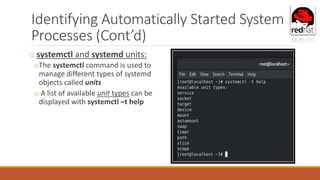
o systemctl and systemd units:
oThe systemctl command is used to
manage different types of systemd
objects called units
o A list of available unit types can be
displayed with systemctl –t help
Identifying Automatically Started System
Processes (Cont’d)
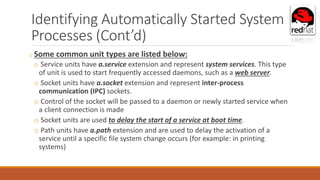
o Some common unit types are listed below:
o Service units have a.service extension and represent system services. This type
of unit is used to start frequently accessed daemons, such as a web server.
o Socket units have a.socket extension and represent inter-process
communication (IPC) sockets.
o Control of the socket will be passed to a daemon or newly started service when
a client connection is made
o Socket units are used to delay the start of a service at boot time.
o Path units have a.path extension and are used to delay the activation of a
service until a specific file system change occurs (for example: in printing
systems)
Identifying Automatically Started System
Processes (Cont’d)
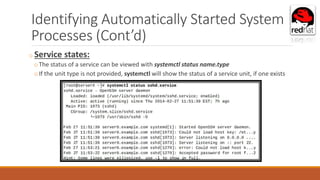
o Service states:
oThe status of a service can be viewed with systemctl status name.type
oIf the unit type is not provided, systemctl will show the status of a service unit, if one exists
Identifying Automatically Started System
Processes (Cont’d)
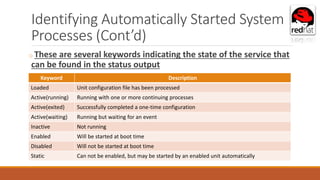
Keyword Description
Loaded Unit configuration file has been processed
Active(running) Running with one or more continuing processes
Active(exited) Successfully completed a one-time configuration
Active(waiting) Running but waiting for an event
Inactive Not running
Enabled Will be started at boot time
Disabled Will not be started at boot time
Static Can not be enabled, but may be started by an enabled unit automatically
o These are several keywords indicating the state of the service that
can be found in the status output
Identifying Automatically Started System
Processes (Cont’d)
o Listing unit files with
systemctl:
1. To query the state of all units to verify a
system startup
[root@ServerX ~]# systemctl
Identifying Automatically Started System
Processes (Cont’d)
o Listing unit files with
systemctl:
2. To query the state of only the
service units
[root@ServerX ~]# systemctl --
type=service
Identifying Automatically Started System
Processes (Cont’d)
o Listing unit files with systemctl:
3. To investigate any units which are in a failed or maintenance state. Optionally, add the –l
option to show the full output
[root@ServerX ~]# systemctl status rngd.service –l
Identifying Automatically Started System
Processes (Cont’d)
o Listing unit files with systemctl:
4. The status argument may also be used to determine if a particular unit is active and show if
the unit is enabled to start at boot time. Alternate commands can also easily show the
active and enabled states:
[root@ServerX ~]# systemctl status sshd
OR
[root@ServerX ~]# systemctl is-active
sshd
[root@ServerX ~]# systemctl is enabled
sshd
Identifying Automatically Started System
Processes (Cont’d)
5. (a) List the active state of all
loaded units. Optionally, limit the
type of unit.
[root@ServerX ~]# systemctl list-
units --type=service
Identifying Automatically Started System
Processes (Cont’d)
5. (b) List the active state of all loaded
units. Optionally, limit the type of
unit. (The --all option will add
inactive units)
[root@ServerX ~]# systemctl
list-units --type=service --all
Identifying Automatically Started System
Processes (Cont’d)
6. View the enabled and disabled settings for all
units. Optionally, limit the type of unit
[root@ServerX ~]# systemctl list-unit-files --
type=service
Identifying Automatically Started System
Processes (Cont’d)
7. View only failed services
[root@ServerX ~]# systemctl --failed --type=service
CONTROLLINGSERVICESANDDAEMONS
CONTROLLING SYSTEM SERVICES
Controlling System Services
oObjectives:
oAfter completing this section, you should be able to control system daemons
and network services using systemctl.
o Starting and stopping system daemons on a running system:
o Changes to a configuration file or other updates to a service may require that
the service be restarted
o A service that is no longer used may be stopped before removing the
software
o A service that is not frequently used may be manually started by an
administrator only when it is needed
Controlling System Services (Cont’d)
oIn this example, please follow along with the next steps on managing services
on a running system
1. View the status of a service
[root@ServerX ~]# systemctl status sshd.service
Service is active
as shown
Process ID (PID)
Controlling System Services (Cont’d)
oIn this example, please follow along with the next steps on managing services
on a running system
2. Verify that the process is running (you will find PID from the previous output)From the
previous slide, it is shown obviously that the PID is 1009
[root@ServerX ~]# ps –up PID
Options: -p PID  show details about a specific process using its PID
-u  show all processes to a specific user (if there is no user exists so by
default it is a root user)
Controlling System Services (Cont’d)
oIn this example, please follow along with the next steps on managing services
on a running system
3. Stop the service and verify the status
[root@ServerX ~]# systemctl stop sshd.service
[root@ServerX ~]# systemctl status sshd.service
Service is inactive
as shown
Controlling System Services (Cont’d)
4. Start the service and view the status. The process ID has changed
[root@ServerX ~]# systemctl start sshd.service
[root@ServerX ~]# systemctl status sshd.service
Service is active
as shown
Old PID: 1009
New PID: 11909 Process ID is changed after Stopping and
Starting again the service
Controlling System Services (Cont’d)
5. (a)Stop, then start, the service in a single command
[root@ServerX ~]# systemctl stop sshd.service
[root@ServerX ~]# systemctl status sshd.service --state=STATE
Service is inactive
as shown
Stopping the service
by the administrator
(root)
Current PID: 12060
Controlling System Services (Cont’d)
5. (b)Stop, then start, the service in a single command
[root@ServerX ~]# systemctl restart sshd.service
[root@ServerX ~]# systemctl status sshd.service --state=STATE
Service is active
as shown
Restarting the
service by the
administrator (root)
Old PID: 12060
New PID: 12530
Process ID is changed after Stopping
and Restarting again the service
Controlling System Services (Cont’d)
6. Issue instructions for a service to read and reload its configuration file without a
complete top and start. The process ID will not change.
[root@ServerX ~]# systemctl reload sshd.service
[root@ServerX ~]# systemctl status sshd.service
Service is active
as shown
Reloading the
service by the
administrator (root)
Old PID: 12530
New PID: 12530
Process ID is changed after reloading the service
Controlling System Services (Cont’d)
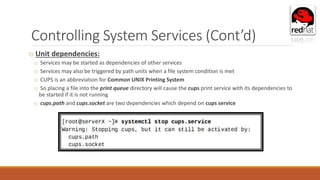
o Unit dependencies:
o Services may be started as dependencies of other services
o Services may also be triggered by path units when a file system condition is met
o CUPS is an abbreviation for Common UNIX Printing System
o So placing a file into the print queue directory will cause the cups print service with its dependencies to
be started if it is not running
o cups.path and cups.socket are two dependencies which depend on cups service
Controlling System Services (Cont’d)
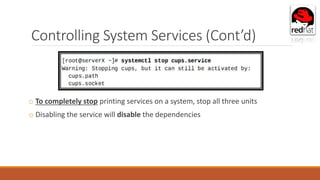
o To completely stop printing services on a system, stop all three units
o Disabling the service will disable the dependencies
Controlling System Services (Cont’d)
o There is a command that is used to print
out a tree of what other units must be
started if the specified unit is started.
o [root@localhost ~]# systemctl list-
dependencies UNIT
o Example for UNITs  sshd.service,
cups.service
o cups.path, cups.socket, system slice and
sysinit.target depends on cups.service
Controlling System Services (Cont’d)
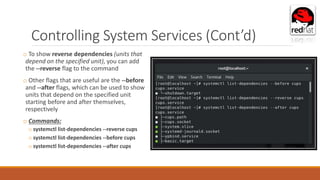
o To show reverse dependencies (units that
depend on the specified unit), you can add
the --reverse flag to the command
o Other flags that are useful are the --before
and --after flags, which can be used to show
units that depend on the specified unit
starting before and after themselves,
respectively
o Commands:
o systemctl list-dependencies --reverse cups
o systemctl list-dependencies --before cups
o systemctl list-dependencies --after cups
Controlling System Services (Cont’d)
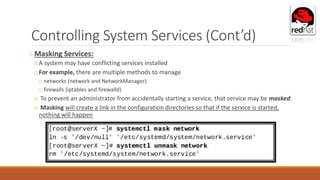
o Masking Services:
oA system may have conflicting services installed
oFor example, there are multiple methods to manage
o networks (network and NetworkManager)
o firewalls (iptables and firewalld)
o To prevent an administrator from accidentally starting a service, that service may be masked.
o Masking will create a link in the configuration directories so that if the service is started,
nothing will happen
Controlling System Services (Cont’d)
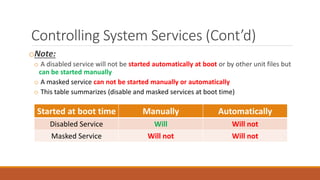
oNote:
o A disabled service will not be started automatically at boot or by other unit files but
can be started manually
o A masked service can not be started manually or automatically
o This table summarizes (disable and masked services at boot time)
Started at boot time Manually Automatically
Disabled Service Will Will not
Masked Service Will not Will not
Controlling System Services (Cont’d)
o Enabling system daemons to start or stop at boot:
o Starting a service on a running system does not guarantee that the service will be
started when the system reboots
o Similarly, stopping a service on a running system will not keep it from starting again
when the system reboots
o Services are started at boot time when links are created in the appropriate systemd
configuration directories
o These links are created and removed with systemctl commands
Controlling System Services (Cont’d)
oIn this example, please follow along with these steps to be able to enable and
disable services
1. View the status if a service
[root@ServerX ~]# systemctl status sshd.service
Service is active
as shown
PID: 12530
Service is enabled
Controlling System Services (Cont’d)
2. Disable the service and verify the status. Note that disabling a service does not stop the
service
[root@ServerX ~]# systemctl disable sshd.service
[root@ServerX ~]# systemctl status sshd.service Service is disabled
Service is active
as shown
PID: 12530
Controlling System Services (Cont’d)
3. Enable the service and verify the status
[root@ServerX ~]# systemctl is-enabled sshd.service
[root@ServerX ~]# systemctl enable sshd.service
[root@ServerX ~]# systemctl is-enabled sshd.service
Service is disabled
Enable the service by
the administrator
(root)
Service is enabled
Controlling System Services (Cont’d)
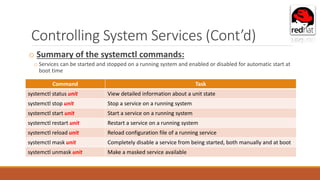
o Summary of the systemctl commands:
o Services can be started and stopped on a running system and enabled or disabled for automatic start at
boot time
Command Task
systemctl status unit View detailed information about a unit state
systemctl stop unit Stop a service on a running system
systemctl start unit Start a service on a running system
systemctl restart unit Restart a service on a running system
systemctl reload unit Reload configuration file of a running service
systemctl mask unit Completely disable a service from being started, both manually and at boot
systemctl unmask unit Make a masked service available
Controlling System Services (Cont’d)
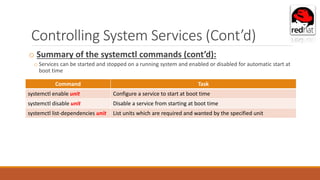
o Summary of the systemctl commands (cont’d):
o Services can be started and stopped on a running system and enabled or disabled for automatic start at
boot time
Command Task
systemctl enable unit Configure a service to start at boot time
systemctl disable unit Disable a service from starting at boot time
systemctl list-dependencies unit List units which are required and wanted by the specified unit
Thank you
Good luck 

RHSA_1_Chapter_Resume_CONTRILE_SERVCIES.pptx

  • 1.
    (RHSA 124) Prepared by:Ahmed Hamza S P R I N G 2 0 2 0 Chapter 8: CONTROLLING SERVICES AND DAEMONS
  • 2.
    Outline: o Goal: o Tocontrol and monitor network services and system daemons using systemd o Objectives: o List system daemons and networks services started by the systemd service and socket units o Control system daemons and network services using systemctl o Sections: o Identifying automatically started system processes oControlling system services o Lab: o Controlling services and daemons
  • 3.
  • 4.
    Identifying Automatically StartedSystem Processes o Objectives: o After completing this section, you should be able to list system daemons and network services started by the systemd service and socket units. oIntroduction to systemd: o System startup and server processes are managed by the systemd System and Service Manger o Systemd provides a method for activating system resources, server daemons, and other processes, both at boot time and on a running system
  • 5.
    Identifying Automatically StartedSystem Processes o Daemons oThey are processes that wait or run in the background performing various tasks oGenerally, daemons start automatically at boot time and continue to run until shutdown or until they are manually stopped o Daemon refers to services that run o By convention, the names of many daemon programs end with letter “d” o To listen for connections, a daemon uses a socket, this is the primary communication channel with local or remote clients o Sockets may be created by daemons or may be separated from the daemon and be created by another process, such as systemd oThe socket is passed to daemon when a connection is established by the client
  • 6.
    Identifying Automatically StartedSystem Processes o A service often refers to one or more daemons, but starting or stopping a service may instead make a one-time change to the state of the system, which does not involve leaving a daemon process running afterward ( this is called oneshot) o A bit of history: oFor many years, process ID 1 of Linux and Unix systems has been the init process o This process was responsible for activating other services on the system and is the origin of the term “init system” oStarting from Red Hat Enterprise Linux 7, process ID 1 is systemd, which is the new init system
  • 7.
    Identifying Automatically StartedSystem Processes (Cont’d) oA few of the new features provided by systemd include: o Parallelization capabilities, which increase the boot speed of a system o On-demand starting of daemons without requiring a separate service (daemons here can run automatically) o Automatic service dependency management, which can prevent timeouts (such as by not starting a network service when the network is not available) o A method of tracking related processes together by using Linux control groups
  • 8.
    Identifying Automatically StartedSystem Processes (Cont’d) o systemctl and systemd units: oThe systemctl command is used to manage different types of systemd objects called units o A list of available unit types can be displayed with systemctl –t help
  • 9.
    Identifying Automatically StartedSystem Processes (Cont’d) o Some common unit types are listed below: o Service units have a.service extension and represent system services. This type of unit is used to start frequently accessed daemons, such as a web server. o Socket units have a.socket extension and represent inter-process communication (IPC) sockets. o Control of the socket will be passed to a daemon or newly started service when a client connection is made o Socket units are used to delay the start of a service at boot time. o Path units have a.path extension and are used to delay the activation of a service until a specific file system change occurs (for example: in printing systems)
  • 10.
    Identifying Automatically StartedSystem Processes (Cont’d) o Service states: oThe status of a service can be viewed with systemctl status name.type oIf the unit type is not provided, systemctl will show the status of a service unit, if one exists
  • 11.
    Identifying Automatically StartedSystem Processes (Cont’d) Keyword Description Loaded Unit configuration file has been processed Active(running) Running with one or more continuing processes Active(exited) Successfully completed a one-time configuration Active(waiting) Running but waiting for an event Inactive Not running Enabled Will be started at boot time Disabled Will not be started at boot time Static Can not be enabled, but may be started by an enabled unit automatically o These are several keywords indicating the state of the service that can be found in the status output
  • 12.
    Identifying Automatically StartedSystem Processes (Cont’d) o Listing unit files with systemctl: 1. To query the state of all units to verify a system startup [root@ServerX ~]# systemctl
  • 13.
    Identifying Automatically StartedSystem Processes (Cont’d) o Listing unit files with systemctl: 2. To query the state of only the service units [root@ServerX ~]# systemctl -- type=service
  • 14.
    Identifying Automatically StartedSystem Processes (Cont’d) o Listing unit files with systemctl: 3. To investigate any units which are in a failed or maintenance state. Optionally, add the –l option to show the full output [root@ServerX ~]# systemctl status rngd.service –l
  • 15.
    Identifying Automatically StartedSystem Processes (Cont’d) o Listing unit files with systemctl: 4. The status argument may also be used to determine if a particular unit is active and show if the unit is enabled to start at boot time. Alternate commands can also easily show the active and enabled states: [root@ServerX ~]# systemctl status sshd OR [root@ServerX ~]# systemctl is-active sshd [root@ServerX ~]# systemctl is enabled sshd
  • 16.
    Identifying Automatically StartedSystem Processes (Cont’d) 5. (a) List the active state of all loaded units. Optionally, limit the type of unit. [root@ServerX ~]# systemctl list- units --type=service
  • 17.
    Identifying Automatically StartedSystem Processes (Cont’d) 5. (b) List the active state of all loaded units. Optionally, limit the type of unit. (The --all option will add inactive units) [root@ServerX ~]# systemctl list-units --type=service --all
  • 18.
    Identifying Automatically StartedSystem Processes (Cont’d) 6. View the enabled and disabled settings for all units. Optionally, limit the type of unit [root@ServerX ~]# systemctl list-unit-files -- type=service
  • 19.
    Identifying Automatically StartedSystem Processes (Cont’d) 7. View only failed services [root@ServerX ~]# systemctl --failed --type=service
  • 20.
  • 21.
    Controlling System Services oObjectives: oAftercompleting this section, you should be able to control system daemons and network services using systemctl. o Starting and stopping system daemons on a running system: o Changes to a configuration file or other updates to a service may require that the service be restarted o A service that is no longer used may be stopped before removing the software o A service that is not frequently used may be manually started by an administrator only when it is needed
  • 22.
    Controlling System Services(Cont’d) oIn this example, please follow along with the next steps on managing services on a running system 1. View the status of a service [root@ServerX ~]# systemctl status sshd.service Service is active as shown Process ID (PID)
  • 23.
    Controlling System Services(Cont’d) oIn this example, please follow along with the next steps on managing services on a running system 2. Verify that the process is running (you will find PID from the previous output)From the previous slide, it is shown obviously that the PID is 1009 [root@ServerX ~]# ps –up PID Options: -p PID  show details about a specific process using its PID -u  show all processes to a specific user (if there is no user exists so by default it is a root user)
  • 24.
    Controlling System Services(Cont’d) oIn this example, please follow along with the next steps on managing services on a running system 3. Stop the service and verify the status [root@ServerX ~]# systemctl stop sshd.service [root@ServerX ~]# systemctl status sshd.service Service is inactive as shown
  • 25.
    Controlling System Services(Cont’d) 4. Start the service and view the status. The process ID has changed [root@ServerX ~]# systemctl start sshd.service [root@ServerX ~]# systemctl status sshd.service Service is active as shown Old PID: 1009 New PID: 11909 Process ID is changed after Stopping and Starting again the service
  • 26.
    Controlling System Services(Cont’d) 5. (a)Stop, then start, the service in a single command [root@ServerX ~]# systemctl stop sshd.service [root@ServerX ~]# systemctl status sshd.service --state=STATE Service is inactive as shown Stopping the service by the administrator (root) Current PID: 12060
  • 27.
    Controlling System Services(Cont’d) 5. (b)Stop, then start, the service in a single command [root@ServerX ~]# systemctl restart sshd.service [root@ServerX ~]# systemctl status sshd.service --state=STATE Service is active as shown Restarting the service by the administrator (root) Old PID: 12060 New PID: 12530 Process ID is changed after Stopping and Restarting again the service
  • 28.
    Controlling System Services(Cont’d) 6. Issue instructions for a service to read and reload its configuration file without a complete top and start. The process ID will not change. [root@ServerX ~]# systemctl reload sshd.service [root@ServerX ~]# systemctl status sshd.service Service is active as shown Reloading the service by the administrator (root) Old PID: 12530 New PID: 12530 Process ID is changed after reloading the service
  • 29.
    Controlling System Services(Cont’d) o Unit dependencies: o Services may be started as dependencies of other services o Services may also be triggered by path units when a file system condition is met o CUPS is an abbreviation for Common UNIX Printing System o So placing a file into the print queue directory will cause the cups print service with its dependencies to be started if it is not running o cups.path and cups.socket are two dependencies which depend on cups service
  • 30.
    Controlling System Services(Cont’d) o To completely stop printing services on a system, stop all three units o Disabling the service will disable the dependencies
  • 31.
    Controlling System Services(Cont’d) o There is a command that is used to print out a tree of what other units must be started if the specified unit is started. o [root@localhost ~]# systemctl list- dependencies UNIT o Example for UNITs  sshd.service, cups.service o cups.path, cups.socket, system slice and sysinit.target depends on cups.service
  • 32.
    Controlling System Services(Cont’d) o To show reverse dependencies (units that depend on the specified unit), you can add the --reverse flag to the command o Other flags that are useful are the --before and --after flags, which can be used to show units that depend on the specified unit starting before and after themselves, respectively o Commands: o systemctl list-dependencies --reverse cups o systemctl list-dependencies --before cups o systemctl list-dependencies --after cups
  • 33.
    Controlling System Services(Cont’d) o Masking Services: oA system may have conflicting services installed oFor example, there are multiple methods to manage o networks (network and NetworkManager) o firewalls (iptables and firewalld) o To prevent an administrator from accidentally starting a service, that service may be masked. o Masking will create a link in the configuration directories so that if the service is started, nothing will happen
  • 34.
    Controlling System Services(Cont’d) oNote: o A disabled service will not be started automatically at boot or by other unit files but can be started manually o A masked service can not be started manually or automatically o This table summarizes (disable and masked services at boot time) Started at boot time Manually Automatically Disabled Service Will Will not Masked Service Will not Will not
  • 35.
    Controlling System Services(Cont’d) o Enabling system daemons to start or stop at boot: o Starting a service on a running system does not guarantee that the service will be started when the system reboots o Similarly, stopping a service on a running system will not keep it from starting again when the system reboots o Services are started at boot time when links are created in the appropriate systemd configuration directories o These links are created and removed with systemctl commands
  • 36.
    Controlling System Services(Cont’d) oIn this example, please follow along with these steps to be able to enable and disable services 1. View the status if a service [root@ServerX ~]# systemctl status sshd.service Service is active as shown PID: 12530 Service is enabled
  • 37.
    Controlling System Services(Cont’d) 2. Disable the service and verify the status. Note that disabling a service does not stop the service [root@ServerX ~]# systemctl disable sshd.service [root@ServerX ~]# systemctl status sshd.service Service is disabled Service is active as shown PID: 12530
  • 38.
    Controlling System Services(Cont’d) 3. Enable the service and verify the status [root@ServerX ~]# systemctl is-enabled sshd.service [root@ServerX ~]# systemctl enable sshd.service [root@ServerX ~]# systemctl is-enabled sshd.service Service is disabled Enable the service by the administrator (root) Service is enabled
  • 39.
    Controlling System Services(Cont’d) o Summary of the systemctl commands: o Services can be started and stopped on a running system and enabled or disabled for automatic start at boot time Command Task systemctl status unit View detailed information about a unit state systemctl stop unit Stop a service on a running system systemctl start unit Start a service on a running system systemctl restart unit Restart a service on a running system systemctl reload unit Reload configuration file of a running service systemctl mask unit Completely disable a service from being started, both manually and at boot systemctl unmask unit Make a masked service available
  • 40.
    Controlling System Services(Cont’d) o Summary of the systemctl commands (cont’d): o Services can be started and stopped on a running system and enabled or disabled for automatic start at boot time Command Task systemctl enable unit Configure a service to start at boot time systemctl disable unit Disable a service from starting at boot time systemctl list-dependencies unit List units which are required and wanted by the specified unit
  • 41.