REACT NATIVE ON
WINDOWS
Abdul Karim
TOOLS TO SET UP MY
DEVELOPMENT ENVIRONMENT
Windows
Visual Studio Code
Android Studio
Built-in emulator in Android Studio
Node Package Manager (NPM)
Node.js (Version 8 or newer)
React Native command line interface (React Native CLI)
1. INSTALL VISUAL STUDIO CODE
Download and install the latest version of Visual Studio Code for
Windows from https://code.visualstudio.com/
2. INSTALL ANDROID STUDIO
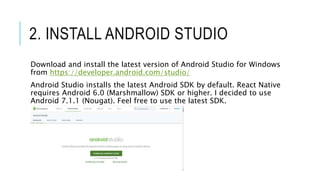
Download and install the latest version of Android Studio for Windows
from https://developer.android.com/studio/
Android Studio installs the latest Android SDK by default. React Native
requires Android 6.0 (Marshmallow) SDK or higher. I decided to use
Android 7.1.1 (Nougat). Feel free to use the latest SDK.
2. INSTALL ANDROID STUDIO
(CONTD)
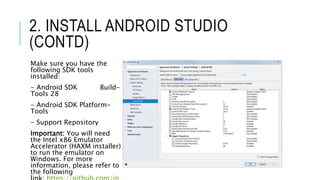
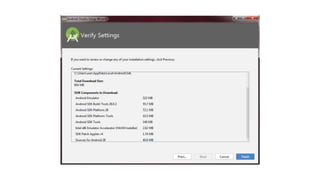
Make sure you have the
following SDK tools
installed:
- Android SDK Build-
Tools 28
- Android SDK Platform-
Tools
- Support Repository
Important: You will need
the Intel x86 Emulator
Accelerator (HAXM installer)
to run the emulator on
Windows. For more
information, please refer to
the following
2. INSTALL ANDROID STUDIO
(CONTD)
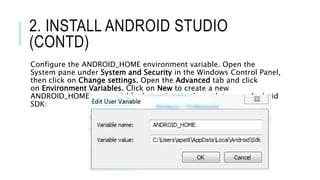
Configure the ANDROID_HOME environment variable. Open the
System pane under System and Security in the Windows Control Panel,
then click on Change settings. Open the Advanced tab and click
on Environment Variables. Click on New to create a new
ANDROID_HOME user variable that points to the path to your Android
SDK:
2. INSTALL ANDROID
STUDIO (CONTD)
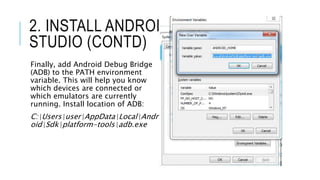
Finally, add Android Debug Bridge
(ADB) to the PATH environment
variable. This will help you know
which devices are connected or
which emulators are currently
running. Install location of ADB:
C:UsersuserAppDataLocalAndr
oidSdkplatform-toolsadb.exe
3. INSTALL NODE
Download and install the
latest version of Node.js
from https://nodejs.org/e
n/. Note: Npm is installed
with Node.js.
Note: Make sure you add
NPM to the PATH
environment variable.
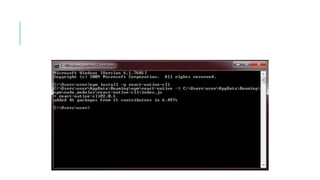
Once npm is installed,
install React Native CLI by
running the following
command from the
Windows prompt command
line or Integrated Terminal
in Visual Studio
Code. Note: Integrated
Terminal can be found
under View →Integrated
Terminal
Cmd Prompt :
npm install -g react-
4. USING EMBEDDED JDK
Android Studio comes with
an embedded JDK which is
recommended. Make sure
you check the following
option under Welcome Page
→ Configure → Project
Default → Project Structure in
Android Studio:
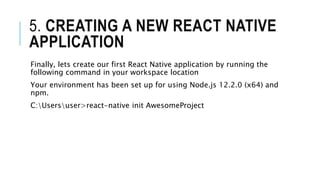
5. CREATING A NEW REACT NATIVE
APPLICATION
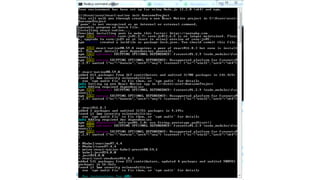
Finally, lets create our first React Native application by running the
following command in your workspace location
Your environment has been set up for using Node.js 12.2.0 (x64) and
npm.
C:Usersuser>react-native init AwesomeProject
5. CREATING A NEW REACT NATIVE
APPLICATION (CONTD)
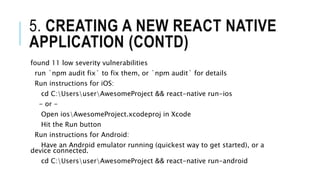
found 11 low severity vulnerabilities
run `npm audit fix` to fix them, or `npm audit` for details
Run instructions for iOS:
cd C:UsersuserAwesomeProject && react-native run-ios
- or -
Open iosAwesomeProject.xcodeproj in Xcode
Hit the Run button
Run instructions for Android:
Have an Android emulator running (quickest way to get started), or a
device connected.
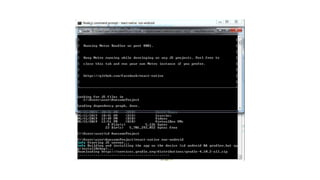
cd C:UsersuserAwesomeProject && react-native run-android
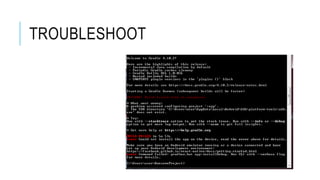
TROUBLESHOOT
6. REFERENCE
https://facebook.github.io/react-native/docs/getting-started.html
https://nodejs.org/en/
https://developer.android.com/studio/install
https://code.visualstudio.com/docs/?dv=win
https://code.visualstudio.com/docs?start=true

React native on windows

  • 1.
  • 2.
    TOOLS TO SETUP MY DEVELOPMENT ENVIRONMENT Windows Visual Studio Code Android Studio Built-in emulator in Android Studio Node Package Manager (NPM) Node.js (Version 8 or newer) React Native command line interface (React Native CLI)
  • 3.
    1. INSTALL VISUALSTUDIO CODE Download and install the latest version of Visual Studio Code for Windows from https://code.visualstudio.com/
  • 4.
    2. INSTALL ANDROIDSTUDIO Download and install the latest version of Android Studio for Windows from https://developer.android.com/studio/ Android Studio installs the latest Android SDK by default. React Native requires Android 6.0 (Marshmallow) SDK or higher. I decided to use Android 7.1.1 (Nougat). Feel free to use the latest SDK.
  • 5.
    2. INSTALL ANDROIDSTUDIO (CONTD) Make sure you have the following SDK tools installed: - Android SDK Build- Tools 28 - Android SDK Platform- Tools - Support Repository Important: You will need the Intel x86 Emulator Accelerator (HAXM installer) to run the emulator on Windows. For more information, please refer to the following
  • 7.
    2. INSTALL ANDROIDSTUDIO (CONTD) Configure the ANDROID_HOME environment variable. Open the System pane under System and Security in the Windows Control Panel, then click on Change settings. Open the Advanced tab and click on Environment Variables. Click on New to create a new ANDROID_HOME user variable that points to the path to your Android SDK:
  • 8.
    2. INSTALL ANDROID STUDIO(CONTD) Finally, add Android Debug Bridge (ADB) to the PATH environment variable. This will help you know which devices are connected or which emulators are currently running. Install location of ADB: C:UsersuserAppDataLocalAndr oidSdkplatform-toolsadb.exe
  • 9.
    3. INSTALL NODE Downloadand install the latest version of Node.js from https://nodejs.org/e n/. Note: Npm is installed with Node.js. Note: Make sure you add NPM to the PATH environment variable. Once npm is installed, install React Native CLI by running the following command from the Windows prompt command line or Integrated Terminal in Visual Studio Code. Note: Integrated Terminal can be found under View →Integrated Terminal Cmd Prompt : npm install -g react-
  • 11.
    4. USING EMBEDDEDJDK Android Studio comes with an embedded JDK which is recommended. Make sure you check the following option under Welcome Page → Configure → Project Default → Project Structure in Android Studio:
  • 12.
    5. CREATING ANEW REACT NATIVE APPLICATION Finally, lets create our first React Native application by running the following command in your workspace location Your environment has been set up for using Node.js 12.2.0 (x64) and npm. C:Usersuser>react-native init AwesomeProject
  • 14.
    5. CREATING ANEW REACT NATIVE APPLICATION (CONTD) found 11 low severity vulnerabilities run `npm audit fix` to fix them, or `npm audit` for details Run instructions for iOS: cd C:UsersuserAwesomeProject && react-native run-ios - or - Open iosAwesomeProject.xcodeproj in Xcode Hit the Run button Run instructions for Android: Have an Android emulator running (quickest way to get started), or a device connected. cd C:UsersuserAwesomeProject && react-native run-android
  • 16.
  • 17.