Name : Rup Chowdhury
ID : 201120010
Batch : CSE-13
Course Code: CSE 2203
Editors
1.Visual Studio Code
2.Sublime
3.Atom
Languages
1. C
2. C++
3. Java
4. C#
5. JavaScript
6. Python
7. Golang
8. php
Visual Studio Code
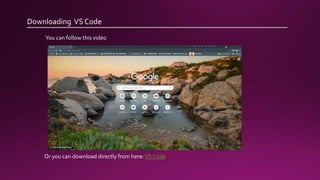
Downloading VS Code
Or you can download directly from here:VS Code
You can follow this video
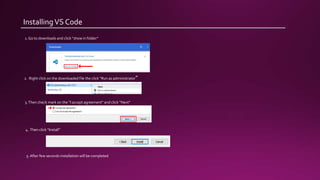
InstallingVS Code
1. Go to downloads and click “show in folder”
2. Right click on the downloaded file the click “Run as administrator”
3.Then check mark on the “I accept agreement” and click “Next”
4. Then click “Install”
5.After few seconds installation will be completed
C and C++ onVS Code
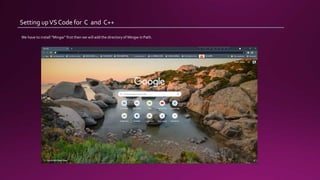
Setting upVS Code for C and C++
We have to install “Mingw” first then we will add the directory of Mingw in Path.
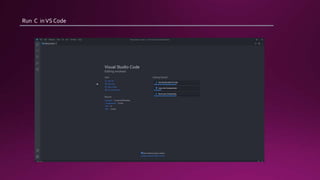
Run C inVS Code
Debug C inVS Code
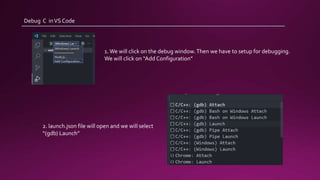
1.We will click on the debug window.Then we have to setup for debugging.
We will click on “Add Configuration”
2. launch.json file will open and we will select
“(gdb) Launch”
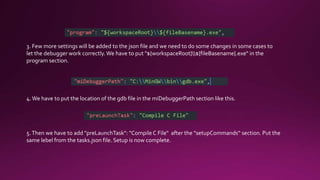
3. Few more settings will be added to the json file and we need to do some changes in some cases to
let the debugger work correctly.We have to put "${workspaceRoot}${fileBasename}.exe“ in the
program section.
4.We have to put the location of the gdb file in the miDebuggerPath section like this.
5.Then we have to add "preLaunchTask": "Compile C File“ after the "setupCommands“ section. Put the
same lebel from the tasks.json file. Setup is now complete.
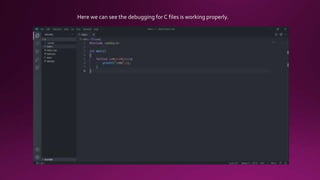
Here we can see the debugging for C files is working properly.
Run C++ inVS Code
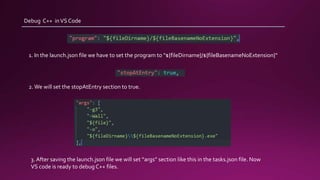
Debug C++ inVS Code
1. In the launch.json file we have to set the program to "${fileDirname}/${fileBasenameNoExtension}"
2. We will set the stopAtEntry section to true.
3. After saving the launch.json file we will set “args” section like this in the tasks.json file. Now
VS code is ready to debug C++ files.
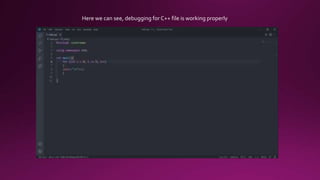
Here we can see, debugging for C++ file is working properly
Reference:
1. https://www.youtube.com/watch?v=77v-Poud_io
2. https://www.youtube.com/watch?v=GCry6PqxMTY
3. https://www.youtube.com/watch?v=rgCJbsCSARM
Java onVS Code
Java set up inVS Code
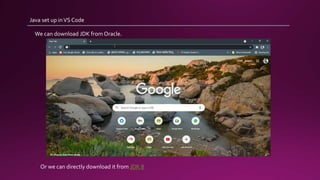
We can download JDK from Oracle.
Or we can directly download it from JDK 8
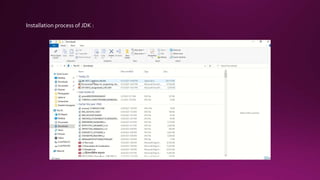
Installation process of JDK :
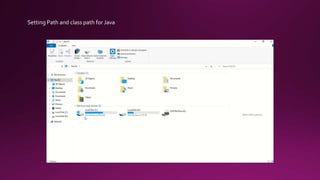
Setting Path and class path for Java
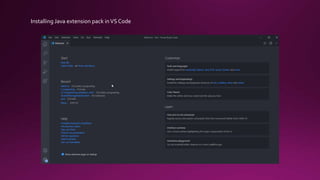
Installing Java extension pack inVS Code
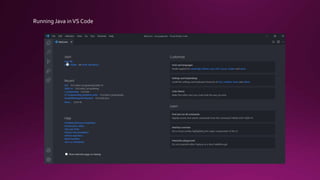
Running Java inVS Code
Reference :
1. https://www.baeldung.com/java-visual-studio-code
2. https://www.youtube.com/watch?v=IJ-PJbvJBGs
3. https://www.youtube.com/watch?v=ClU9N4ub_Ko
JavaScript onVS Code
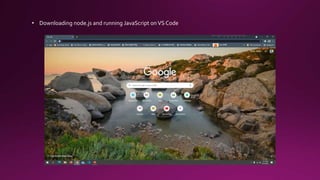
• Downloading node.js and running JavaScript onVS Code
Reference :
1. https://www.youtube.com/watch?v=kjPUn5tB81s
2. https://stackoverflow.com/questions/13593902/node-command-not-found
C# onVS Code
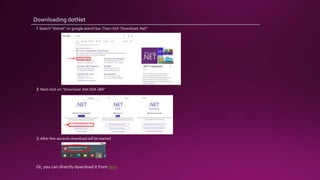
Downloading dotNet
1. Search “dotnet” on google search bar.Then click “Download .Net”
2. Next click on “Download .Net SDK x64”
3.After few seconds download will be started
Or, you can directly download it from here
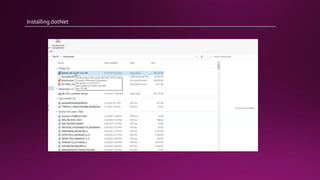
Installing dotNet
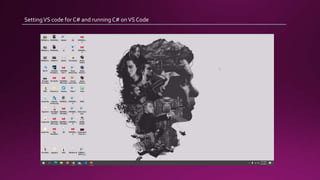
SettingVS code for C# and running C# onVS Code
Reference:
1. https://www.youtube.com/watch?v=CO4BGZOuUkM
php onVS Code
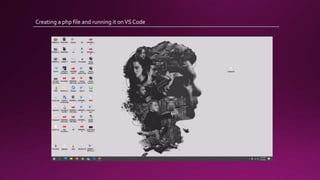
Creating a php file and running it onVS Code
Reference:
1. https://blog.theodo.com/2019/07/vscode-php-development/
2. https://www.youtube.com/watch?v=begPcGfAwzY
on VS Code
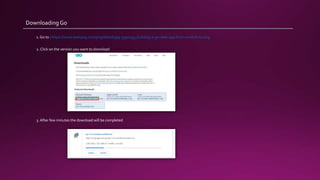
Downloading Go
1. Go to : https://www.seekpng.com/png/detail/399-3990193_building-a-go-web-app-from-scratch-to.png
2. Click on the version you want to download
3. After few minutes the download will be completed
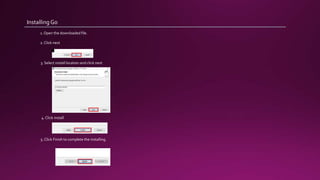
InstallingGo
1. Open the downloaded file.
2. Click next
3. Select install location and click next
4. Click install
5. Click Finish to complete the installing.
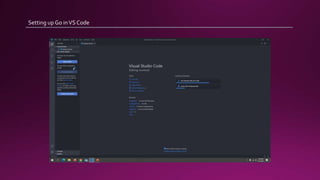
Setting up Go inVS Code
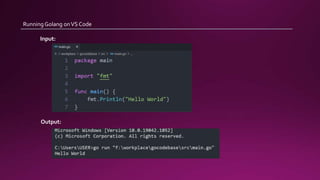
Running Golang onVS Code
Input:
Output:
Reference:
1. https://www.youtube.com/watch?v=Jd6WzwwlBKM
Python on VS Code
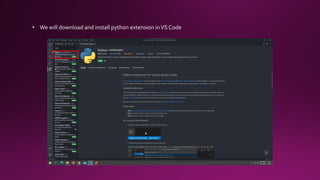
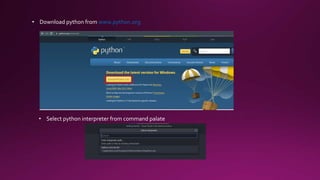
• We will download and install python extension inVS Code
• Download python from www.python.org
• Select python interpreter from command palate
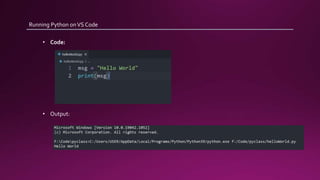
Running Python onVS Code
• Code:
• Output:
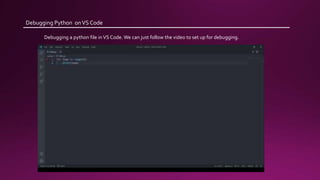
Debugging Python onVS Code
Debugging a python file inVS Code. We can just follow the video to set up for debugging.
Reference:
1. https://www.youtube.com/watch?v=dGeUH_bqNpA
SublimeText
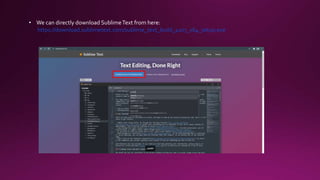
• We can directly download SublimeText from here:
https://download.sublimetext.com/sublime_text_build_4107_x64_setup.exe
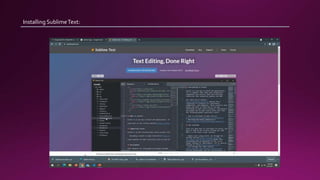
Installing SublimeText:
C on SublimeText
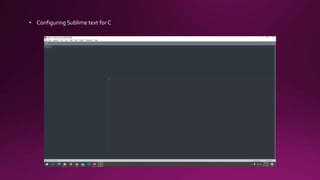
• Configuring Sublime text for C
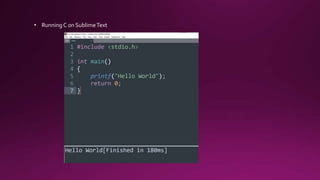
• Running C on SublimeText
Reference:
1. https://www.thecrazyprogrammer.com/2017/04/how-to-run-c-and-c-
program-in-sublime-text.html
C++ on SublimeText
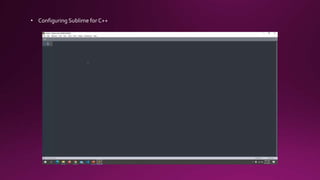
• Configuring Sublime for C++
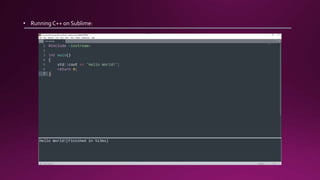
• Running C++ on Sublime:
Reference:
1. https://www.thecrazyprogrammer.com/2017/04/how-to-run-c-and-c-program-in-sublime-text.html
Java on Subline
1. As we have installed JDK before . So we don’t have to install it again on this device.
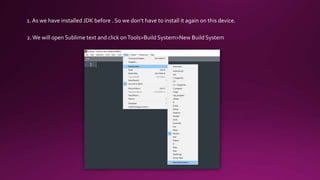
2.We will open Sublime text and click onTools>Build System>New Build System
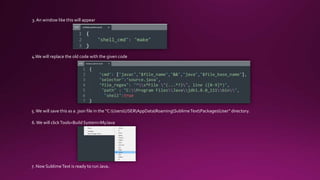
3. An window like this will appear
4.We will replace the old code with the given code
5.We will save this as a .json file in the “C:UsersUSERAppDataRoamingSublimeTextPackagesUser” directory.
6.We will clickTools>Build System>MyJava
7. Now SublimeText is ready to run Java.
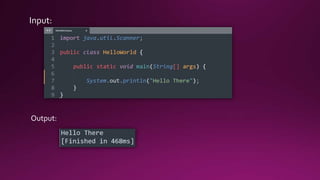
Input:
Output:
Reference:
1. https://www.codejava.net/java-core/how-to-set-environment-variables-for-java-using-
command-line
2. https://www.codejava.net/coding/how-to-compile-and-run-a-java-program-with-
sublime-text-3
3. https://www.youtube.com/watch?v=dyOHuVoB25A
JavaScript on Sublime
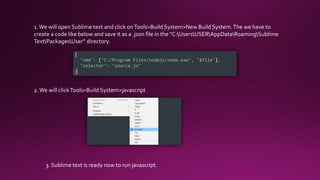
1.We will open Sublime text and click onTools>Build System>New Build System.The we have to
create a code like below and save it as a .json file in the “C:UsersUSERAppDataRoamingSublime
TextPackagesUser” directory.
2.We will clickTools>Build System>javascript
3. Sublime text is ready now to run javascript.
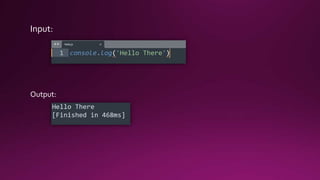
Input:
Output:
Reference:
1. https://pawelgrzybek.com/javascript-console-in-sublime-text/
Python in Sublime text
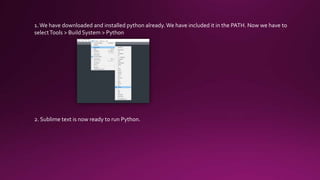
1.We have downloaded and installed python already. We have included it in the PATH. Now we have to
selectTools > Build System > Python
2. Sublime text is now ready to run Python.
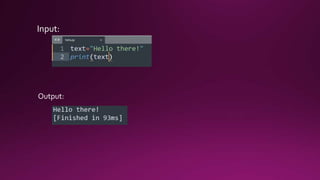
Input:
Output:
Reference:
1. https://www.youtube.com/watch?v=VC13MkENVoY
Atom Editor
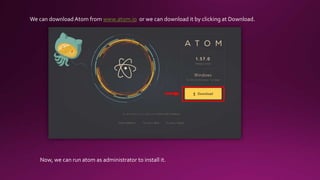
We can download Atom from www.atom.io or we can download it by clicking at Download.
Now, we can run atom as administrator to install it.
C in Atom
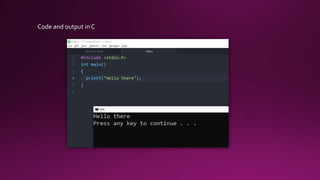
Code and output in C
Reference:
1. https://atom.io/packages/gpp-
compiler#:~:text=This%20Atom%20package%20allows%20you,and%20click%20Compile%20
and%20Debug%20.
C++ in sublime
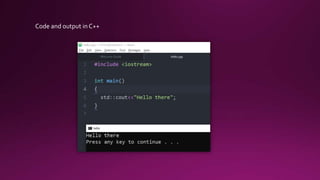
Code and output in C++
Reference:
1. https://www.youtube.com/watch?v=6V-zv9qsejo

Environment Setup for Programming Languages