Working with Rayyan
https://rayyan.qcri.org/
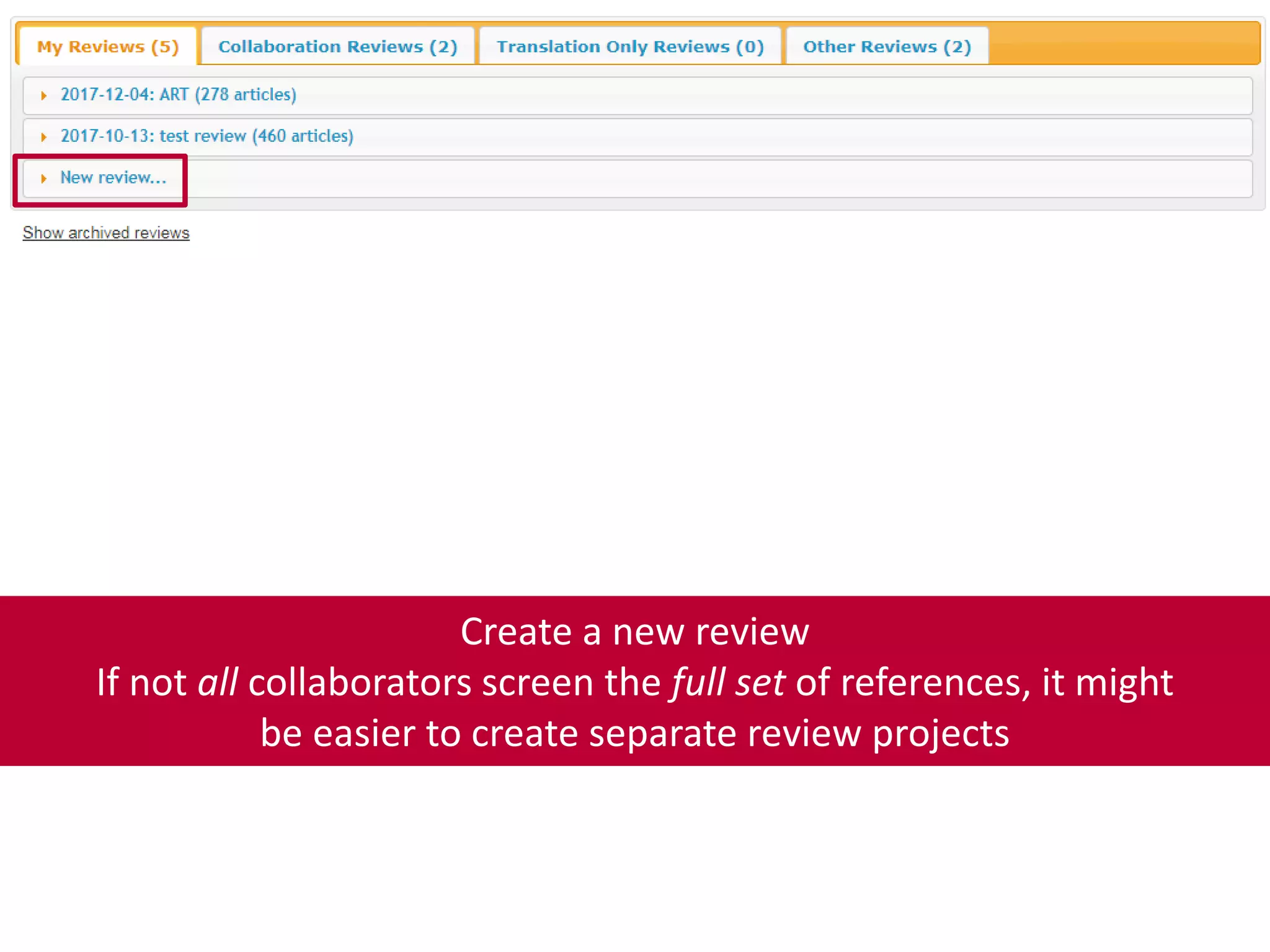
Create a new review
If not all collaborators screen the full set of references, it might
be easier to create separate review projects
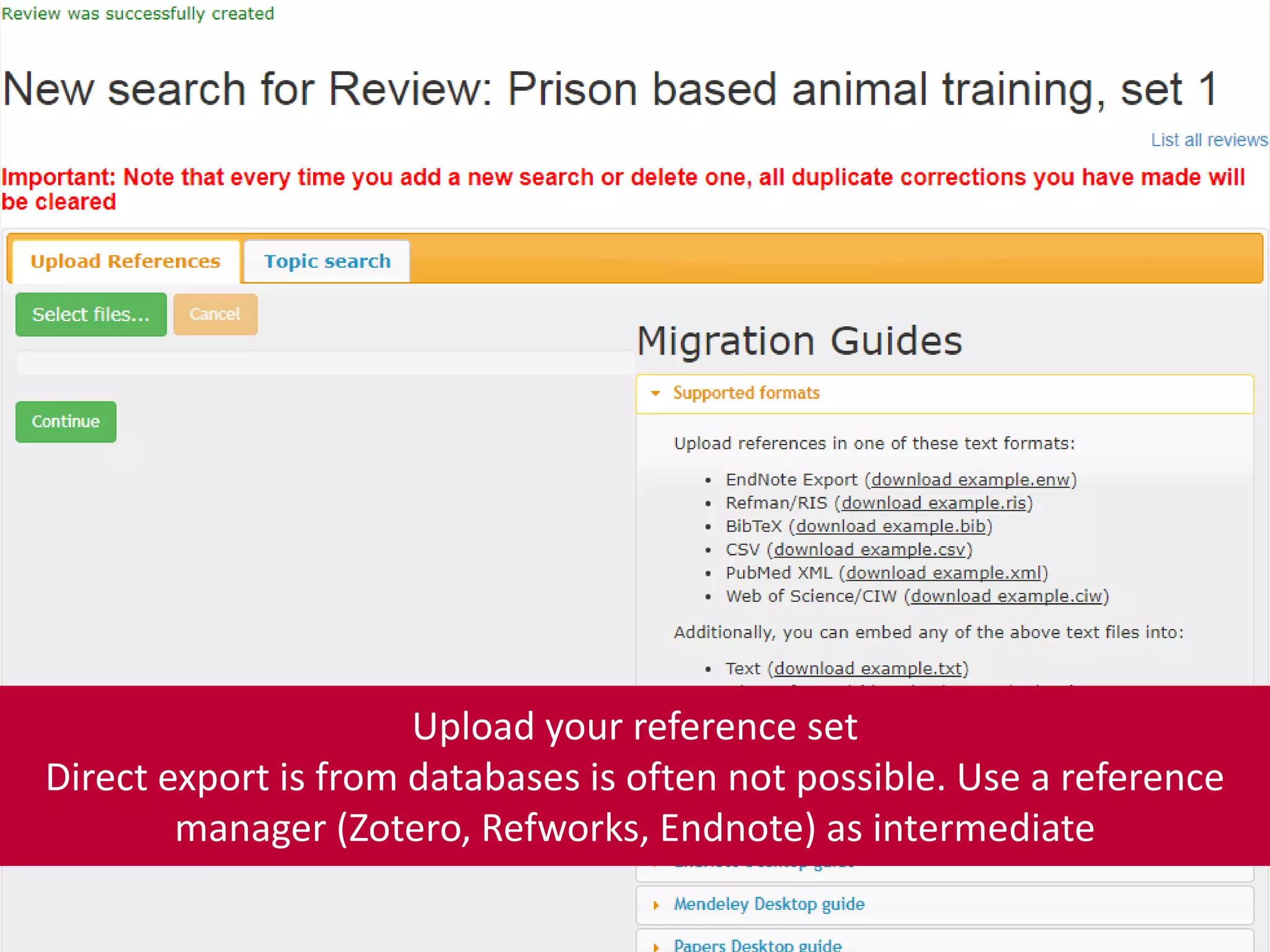
Upload your reference set
Direct export is from databases is often not possible. Use a reference
manager (Zotero, Refworks, Endnote) as intermediate
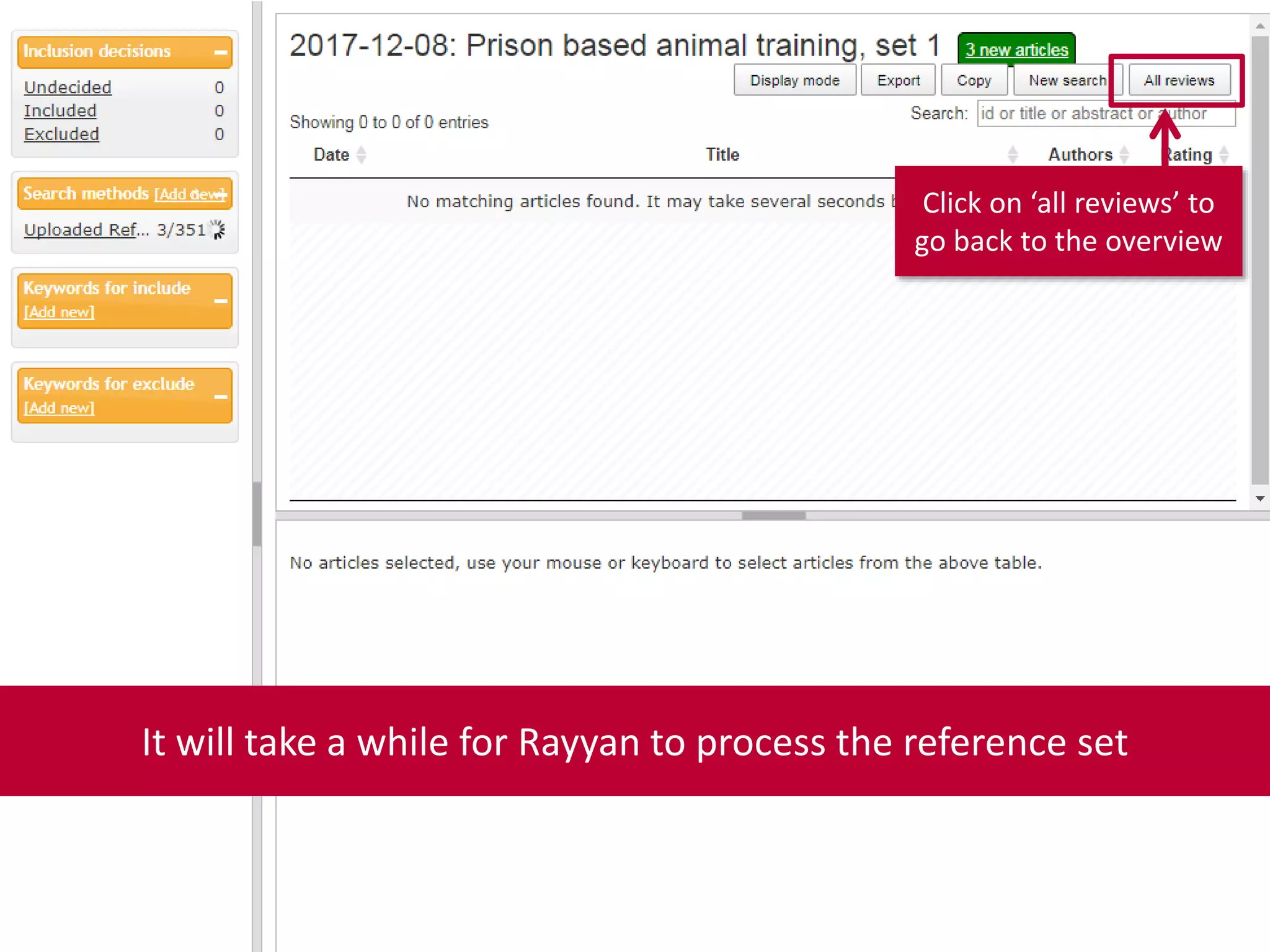
It will take a while for Rayyan to process the reference set
Click on ‘all reviews’ to
go back to the overview
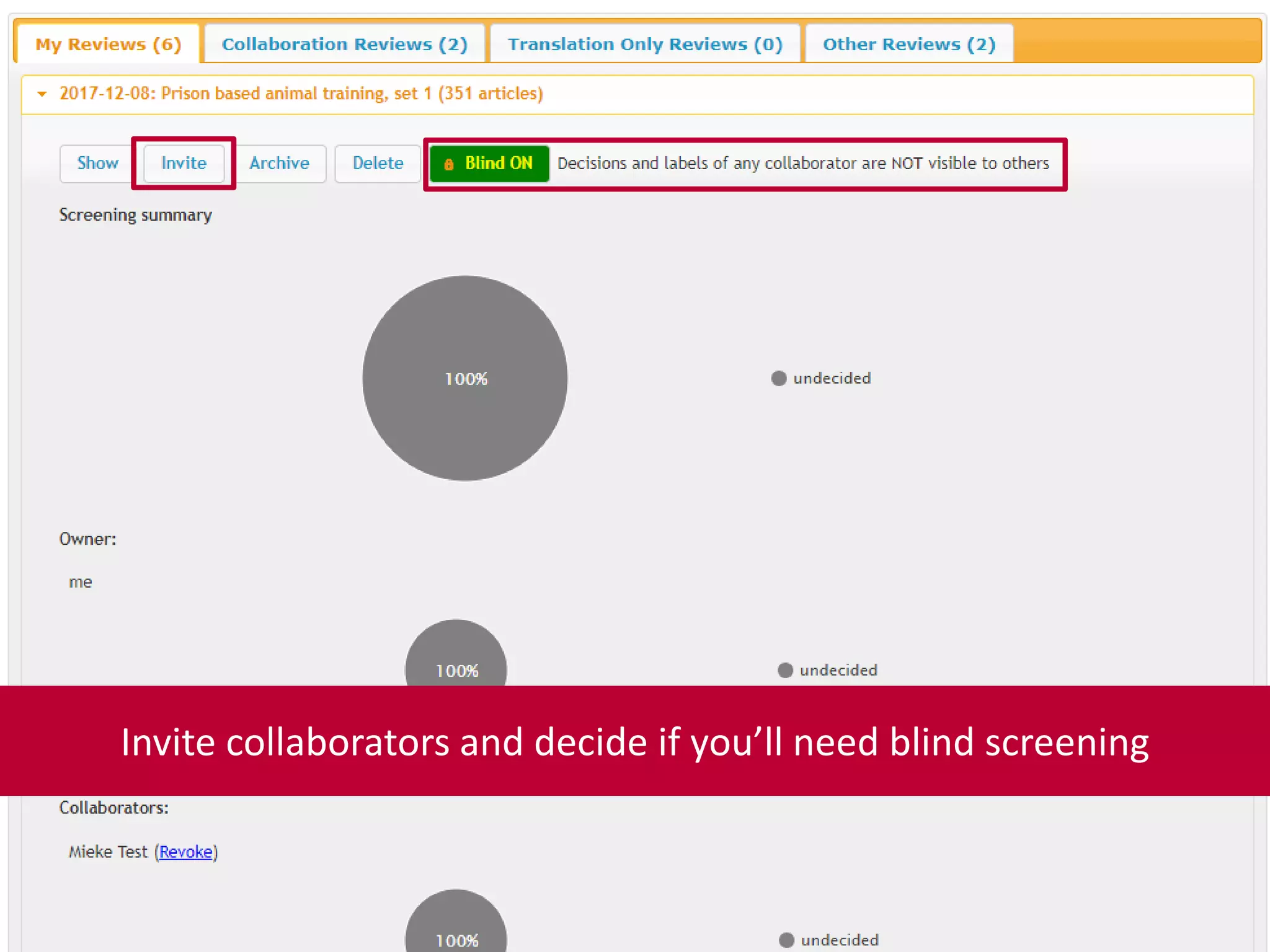
Invite collaborators and decide if you’ll need blind screening
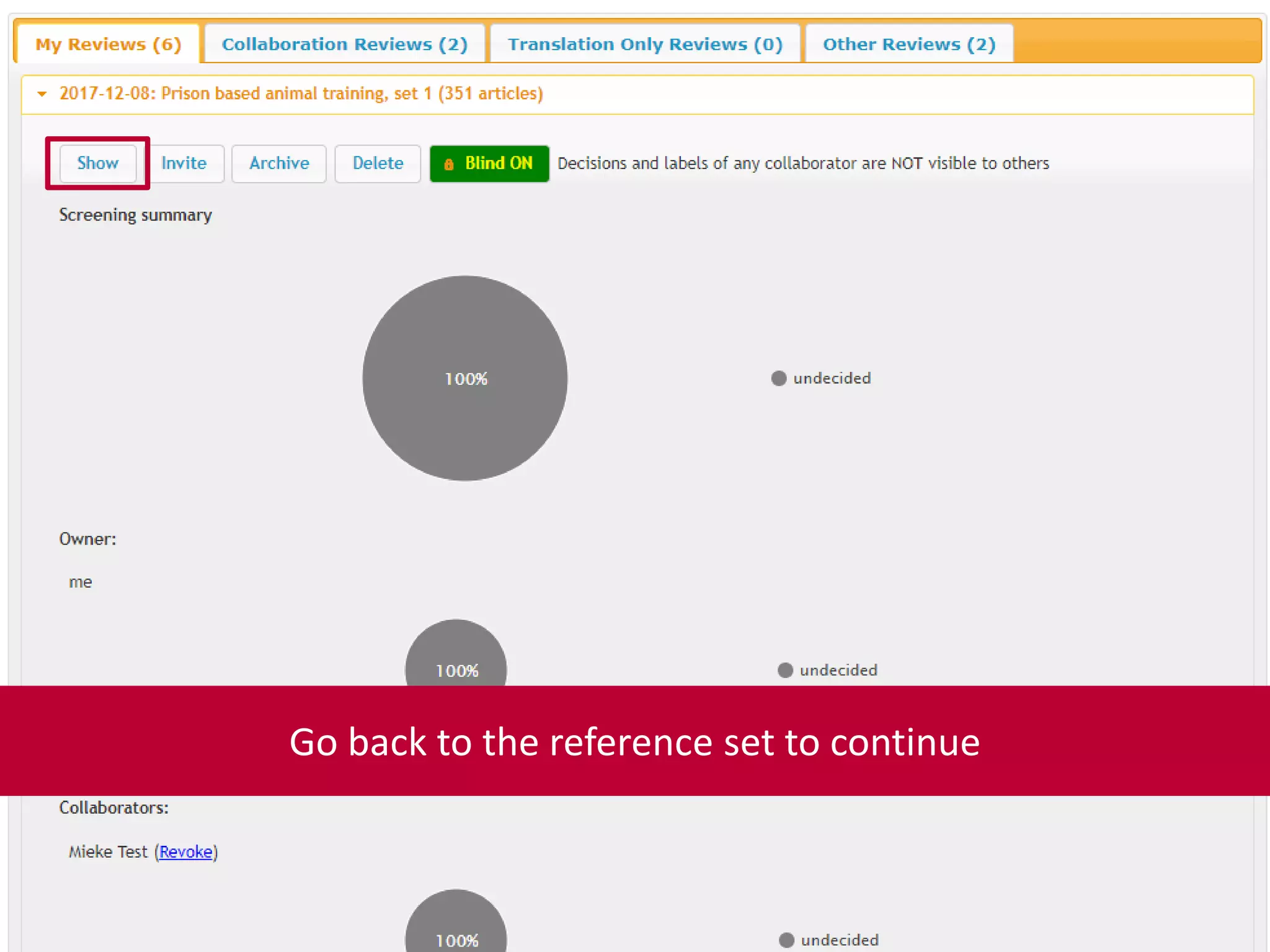
Go back to the reference set to continue
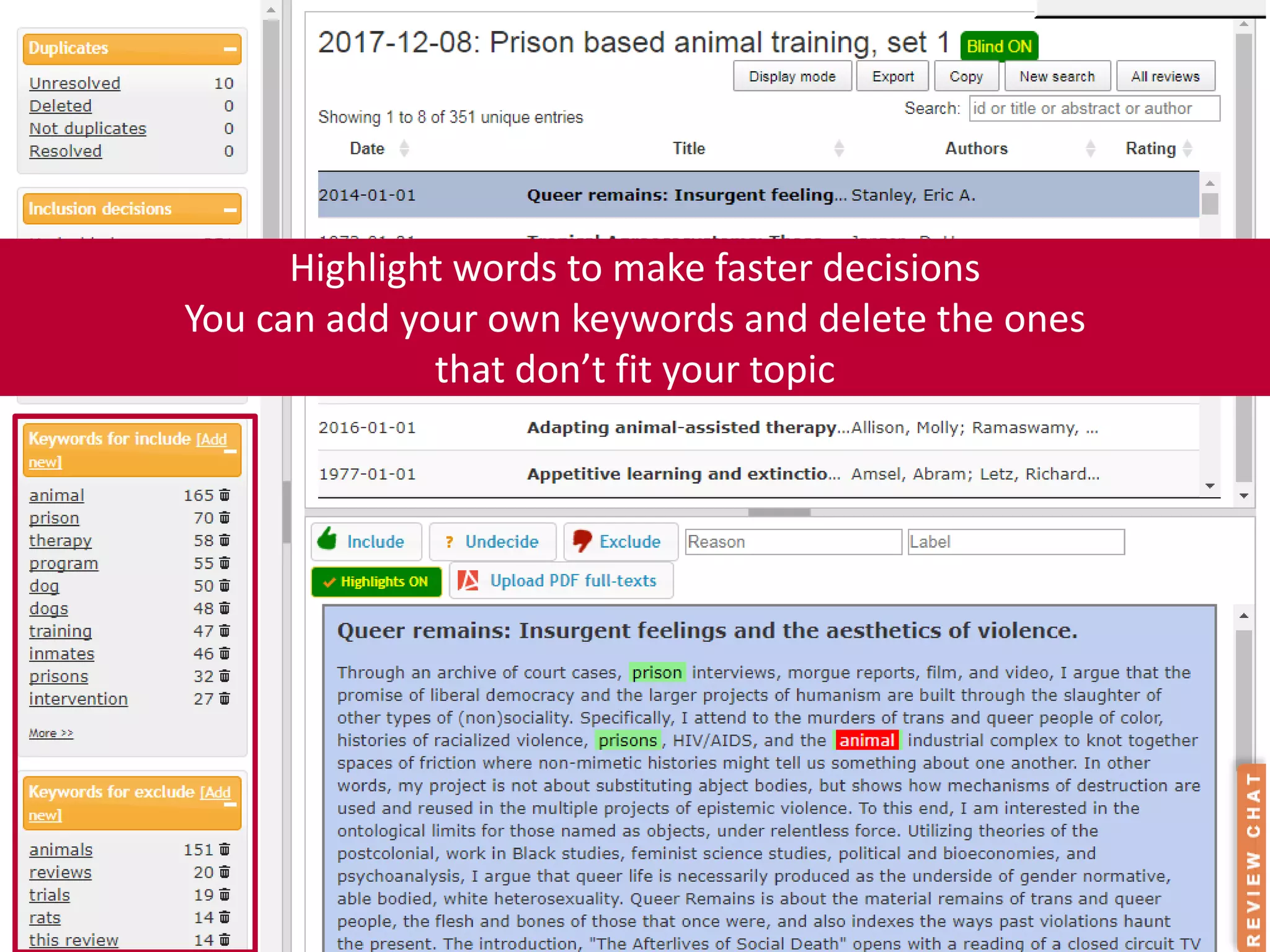
Highlight words to make faster decisions
You can add your own keywords and delete the ones
that don’t fit your topic
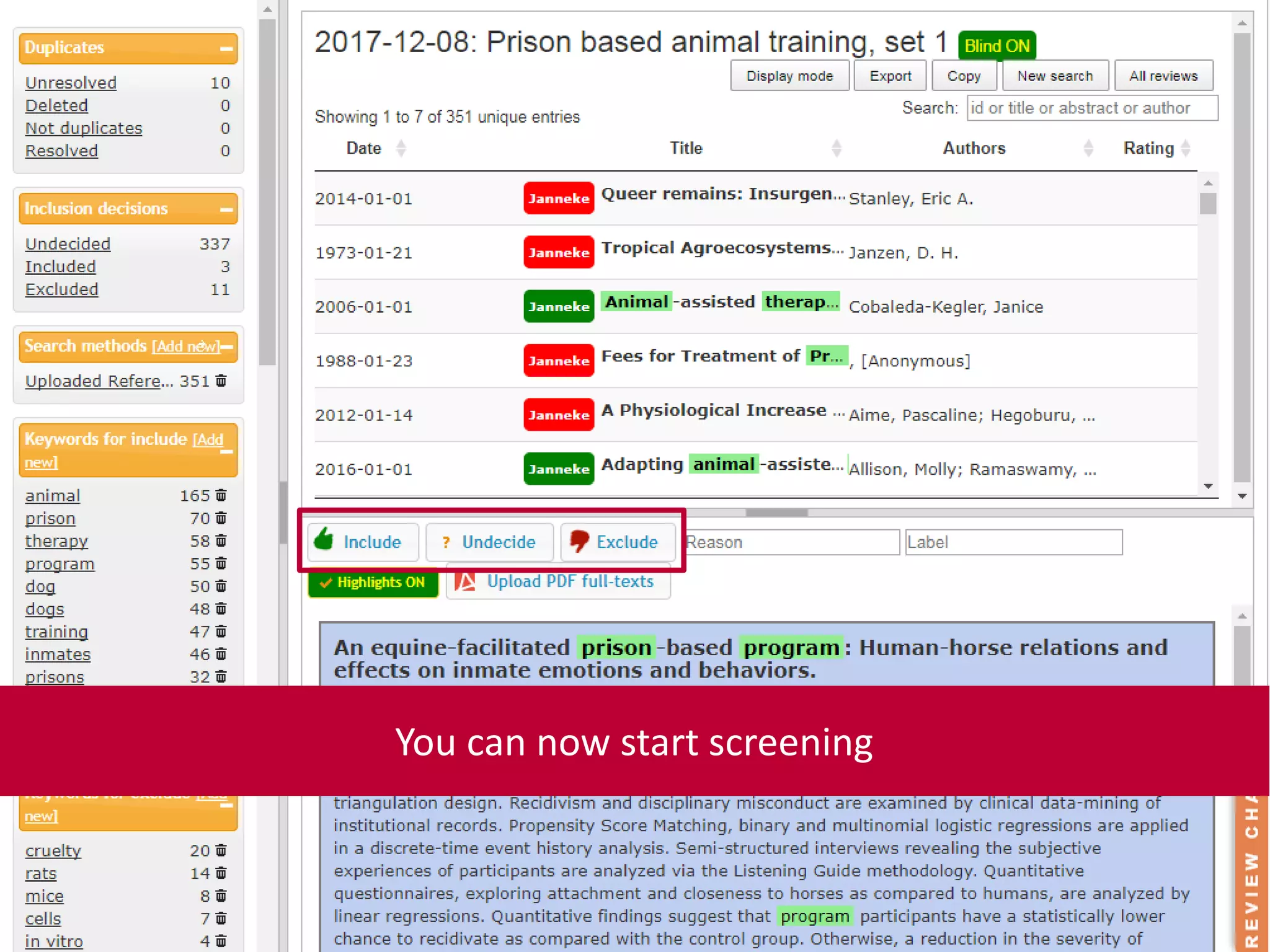
You can now start screening
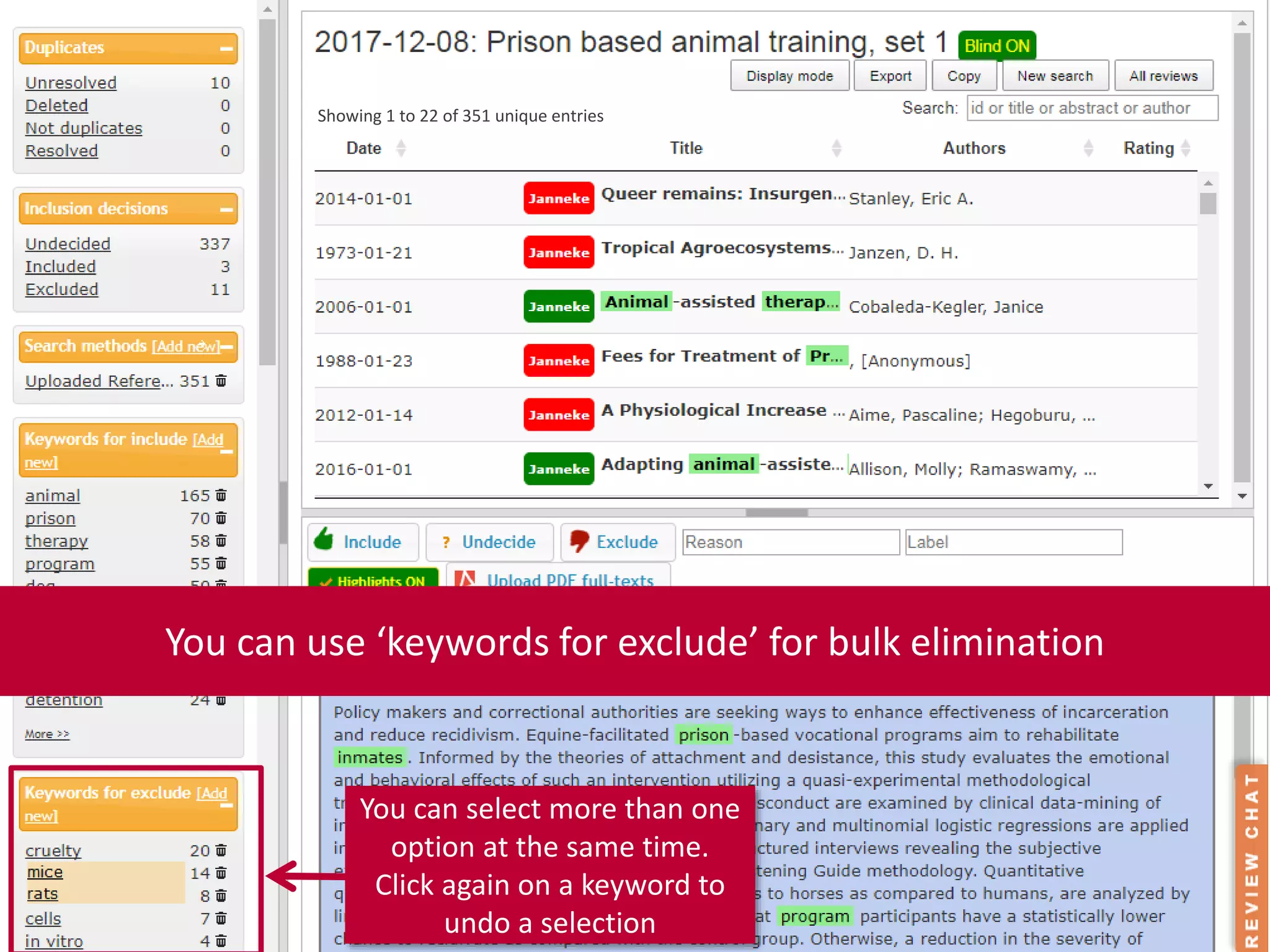
You can use ‘keywords for exclude’ for bulk elimination
You can select more than one
option at the same time.
Click again on a keyword to
undo a selection
Showing 1 to 22 of 351 unique entries
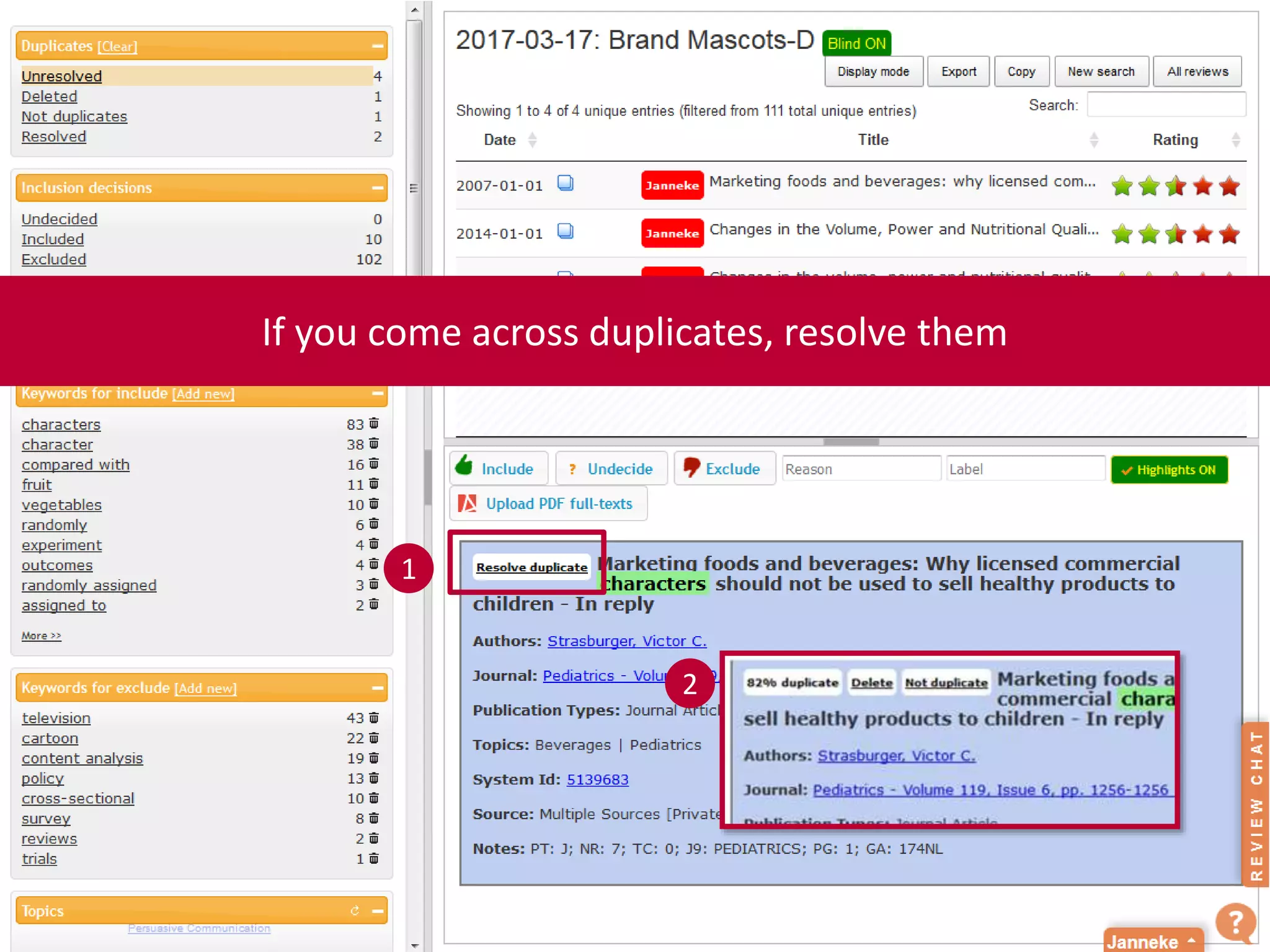
If you come across duplicates, resolve them
1
2
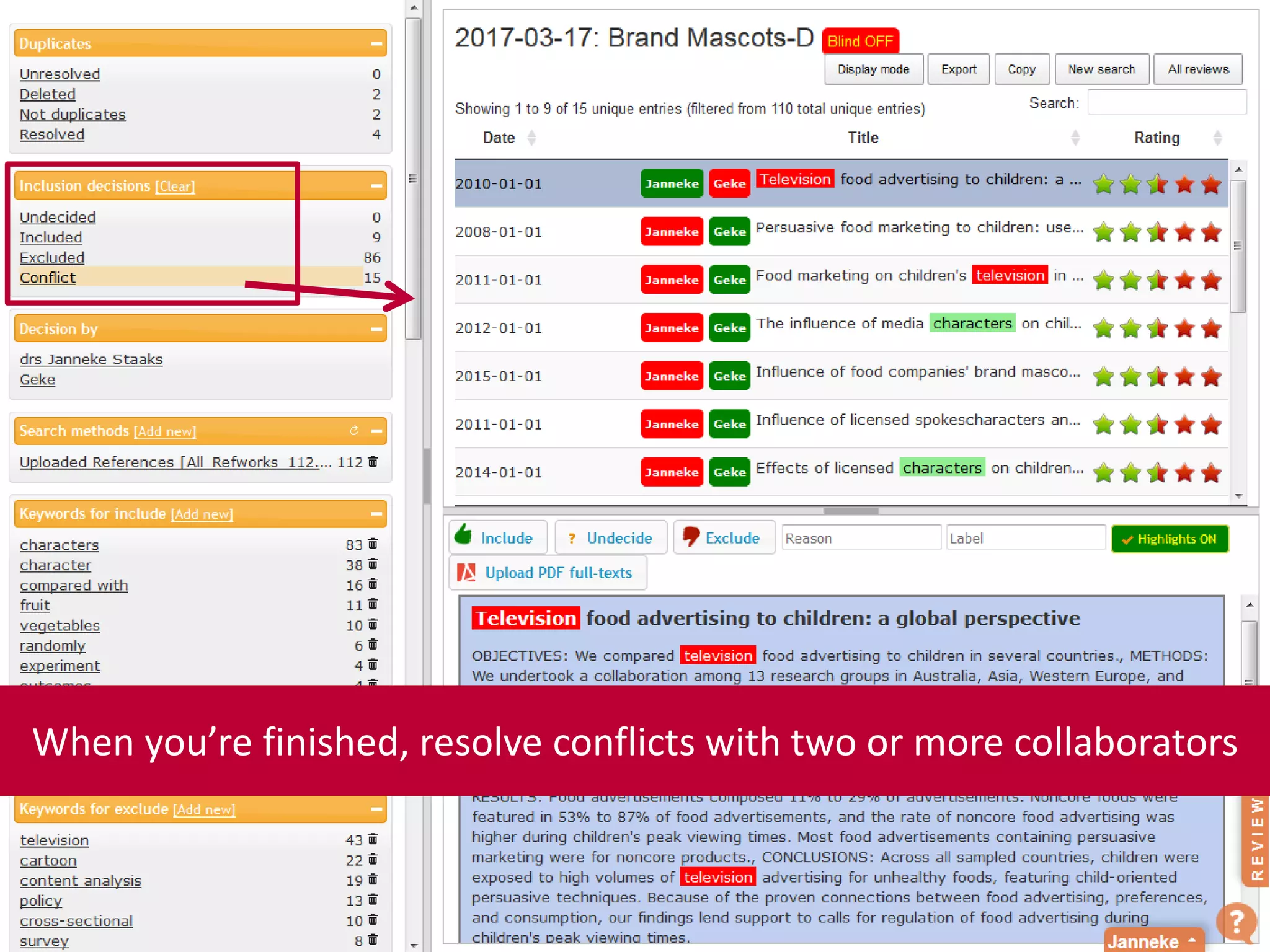
When you’re finished, resolve conflicts with two or more collaborators
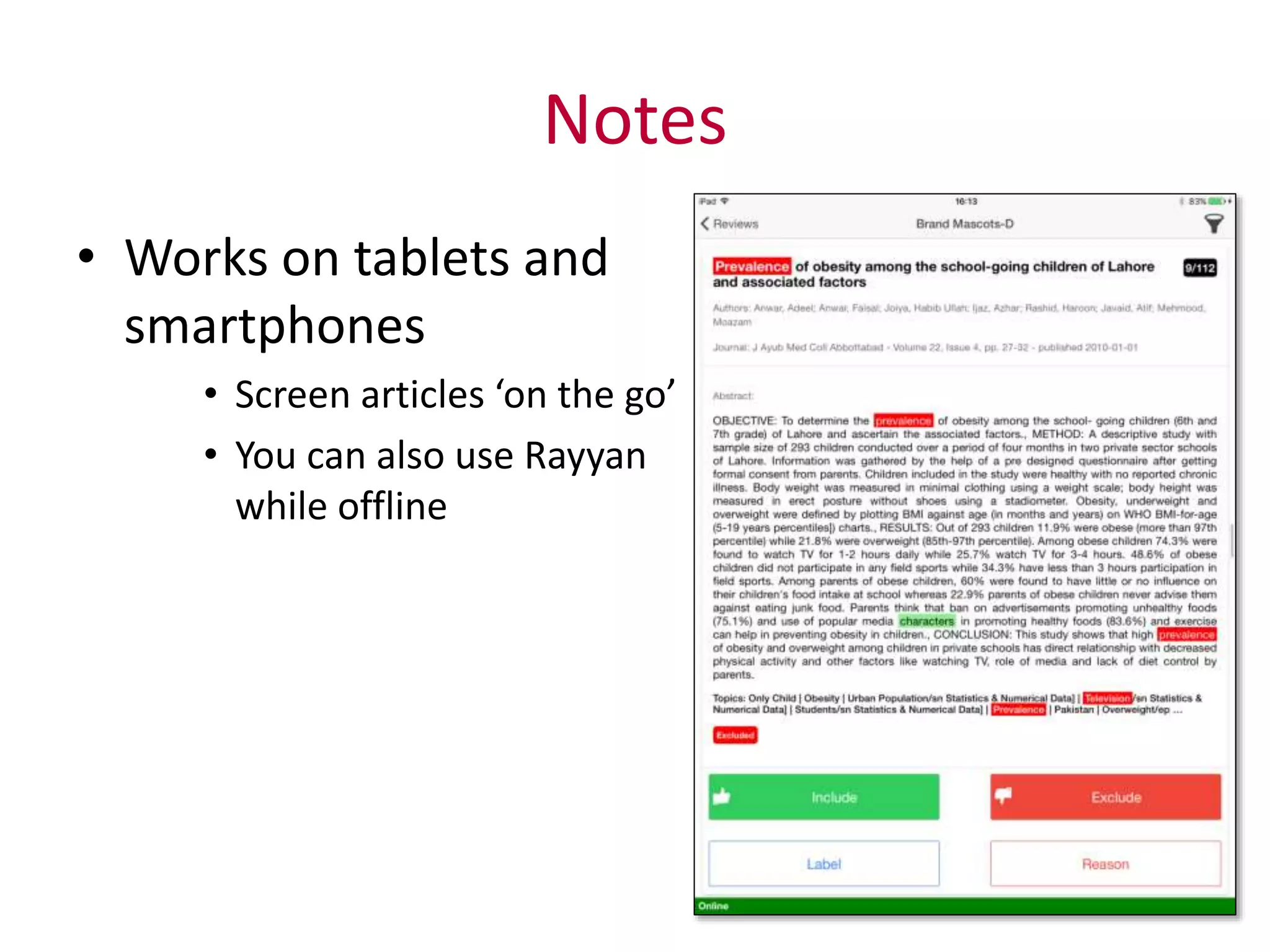
Notes
• Works on tablets and
smartphones
• Screen articles ‘on the go’
• You can also use Rayyan
while offline
Screening
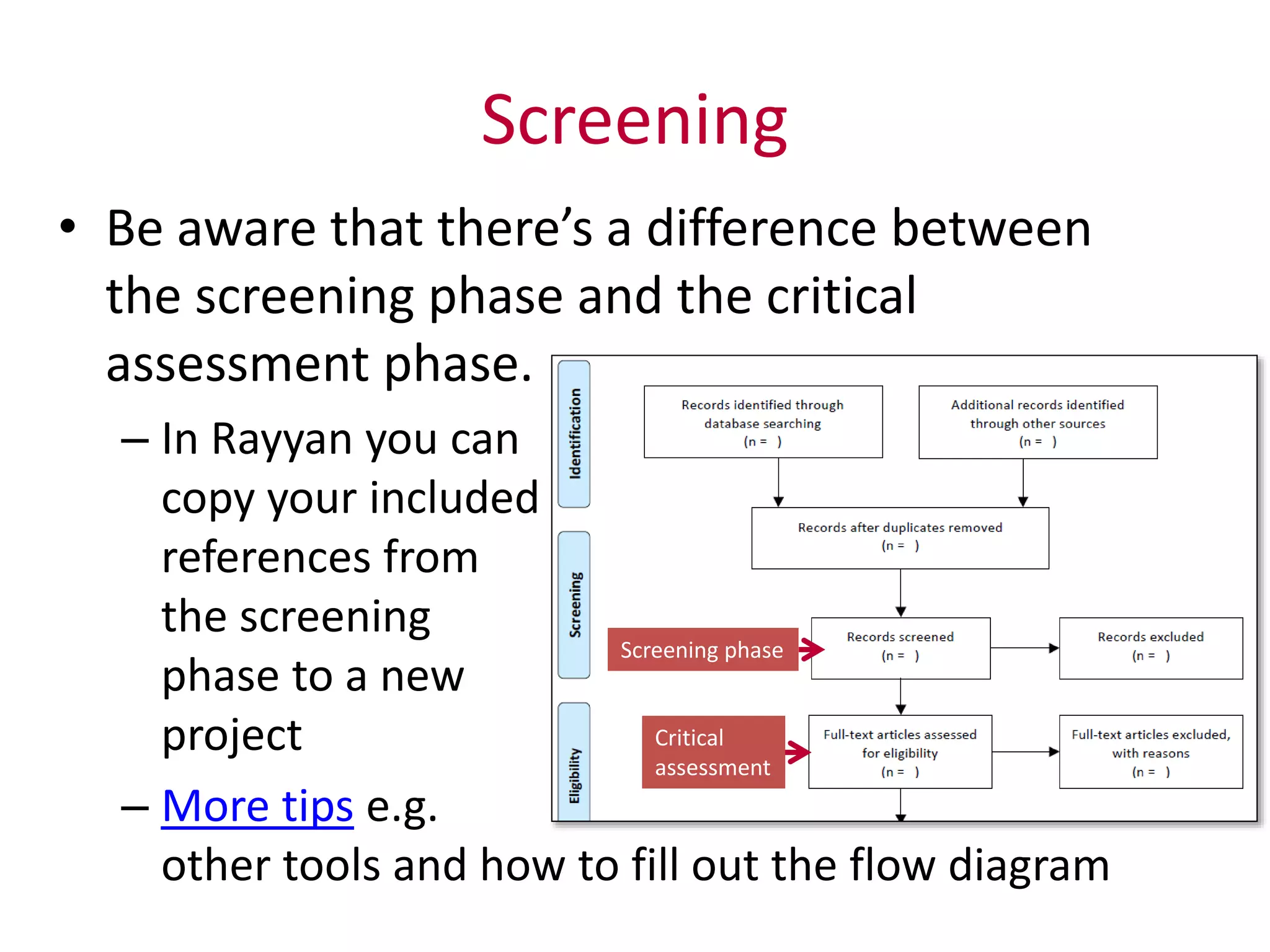
• Be aware that there’s a difference between
the screening phase and the critical
assessment phase.
– In Rayyan you can
copy your included
references from
the screening
phase to a new
project
– More tips e.g.
other tools and how to fill out the flow diagram
Screening phase
Critical
assessment
Inclusion and exclusion
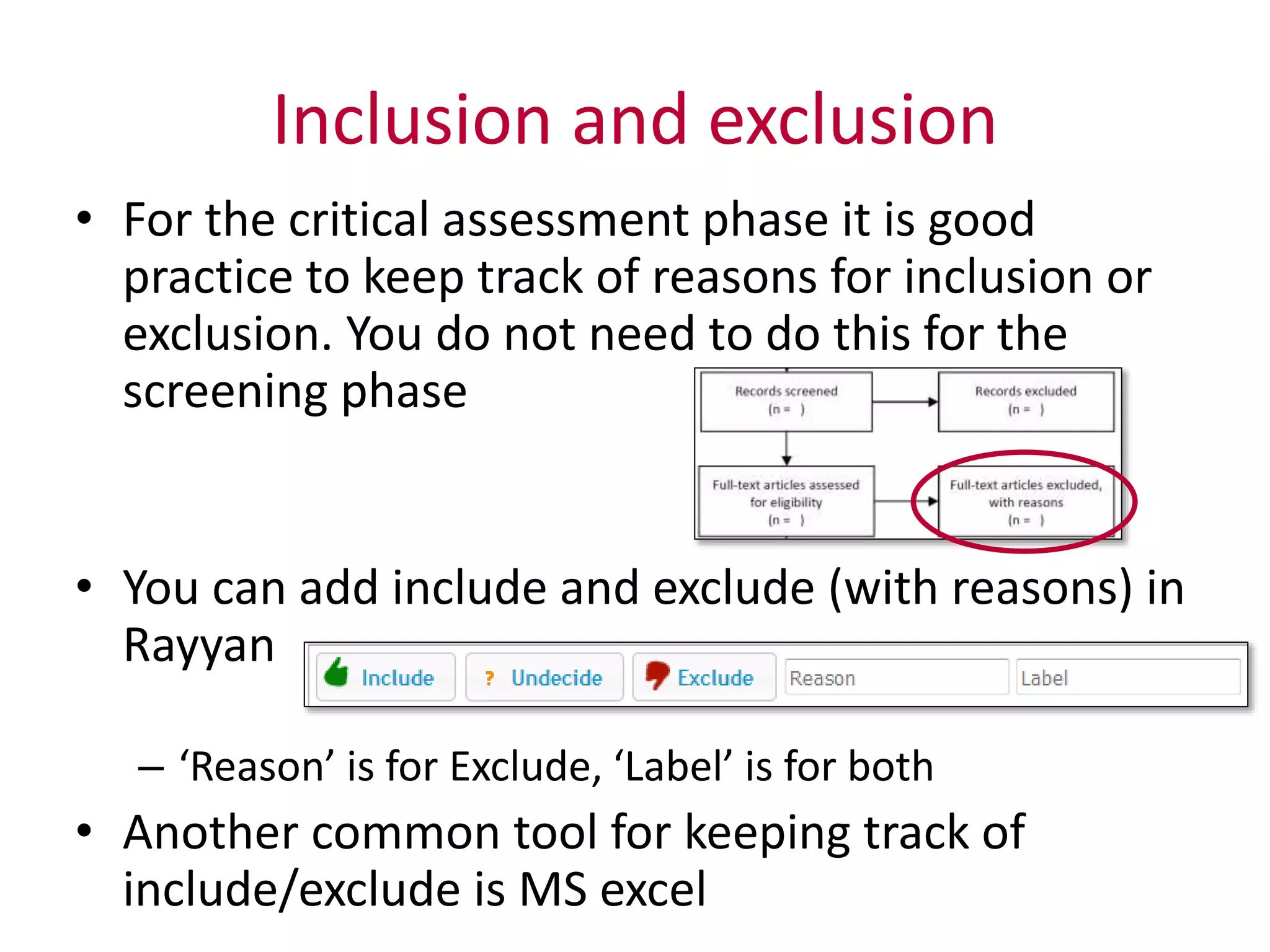
• For the critical assessment phase it is good
practice to keep track of reasons for inclusion or
exclusion. You do not need to do this for the
screening phase
• You can add include and exclude (with reasons) in
Rayyan
– ‘Reason’ is for Exclude, ‘Label’ is for both
• Another common tool for keeping track of
include/exclude is MS excel
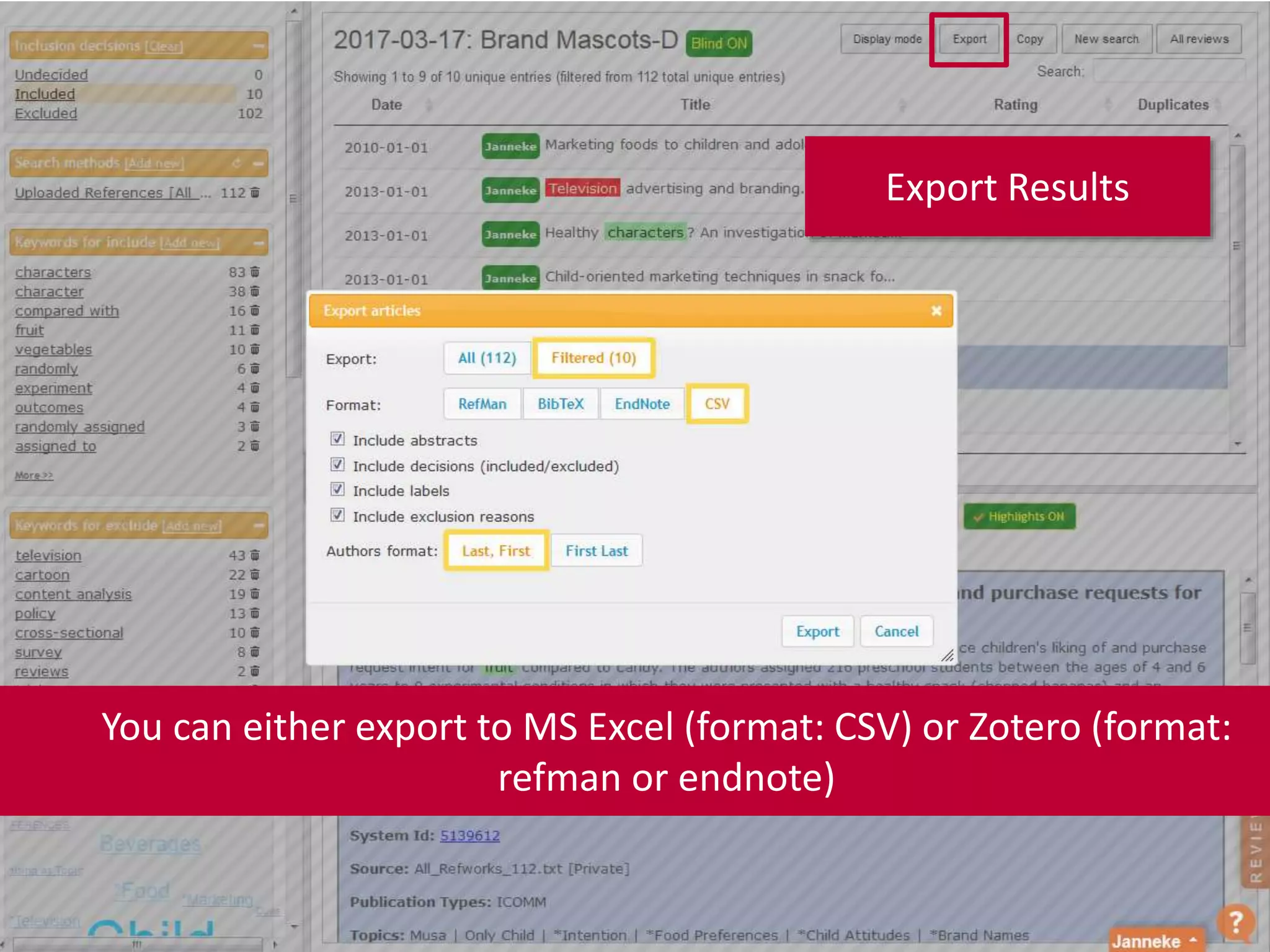
Export Results
You can either export to MS Excel (format: CSV) or Zotero (format:
refman or endnote)

Rayyan Getting Started

  • 1.
  • 2.
    Create a newreview If not all collaborators screen the full set of references, it might be easier to create separate review projects
  • 3.
    Upload your referenceset Direct export is from databases is often not possible. Use a reference manager (Zotero, Refworks, Endnote) as intermediate
  • 4.
    It will takea while for Rayyan to process the reference set Click on ‘all reviews’ to go back to the overview
  • 5.
    Invite collaborators anddecide if you’ll need blind screening
  • 6.
    Go back tothe reference set to continue
  • 7.
    Highlight words tomake faster decisions You can add your own keywords and delete the ones that don’t fit your topic
  • 8.
    You can nowstart screening
  • 9.
    You can use‘keywords for exclude’ for bulk elimination You can select more than one option at the same time. Click again on a keyword to undo a selection Showing 1 to 22 of 351 unique entries
  • 10.
    If you comeacross duplicates, resolve them 1 2
  • 11.
    When you’re finished,resolve conflicts with two or more collaborators
  • 12.
    Notes • Works ontablets and smartphones • Screen articles ‘on the go’ • You can also use Rayyan while offline
  • 13.
    Screening • Be awarethat there’s a difference between the screening phase and the critical assessment phase. – In Rayyan you can copy your included references from the screening phase to a new project – More tips e.g. other tools and how to fill out the flow diagram Screening phase Critical assessment
  • 14.
    Inclusion and exclusion •For the critical assessment phase it is good practice to keep track of reasons for inclusion or exclusion. You do not need to do this for the screening phase • You can add include and exclude (with reasons) in Rayyan – ‘Reason’ is for Exclude, ‘Label’ is for both • Another common tool for keeping track of include/exclude is MS excel
  • 15.
    Export Results You caneither export to MS Excel (format: CSV) or Zotero (format: refman or endnote)