










































QuickBooks Online
Full Service Payroll
With Alicia Katz Pollock
Royalwise.com
Getting Started
Download Handouts
•Find class at learn.royalwise.com
• On Enrolled tab (or Completed tab)
•Download Slides
About today’s speaker
Member of:
• Top 100 ProAdvisor
• IntuitTrainer/Writer Network national speaker
Trainer:
• The Mentorship Membership™ program at
learn.Royalwise.com
• Weekly live classes and on-demand video courses
Author of Books on Amazon:
• Master QuickBooks Online: From Setup toTaxTime
• Specialty Retail: QuickBooks for Gas Stations and Convenience
Stores
• QuickBooks Desktop Complete
Alicia Katz Pollock
CEO of Royalwise.com
Agenda
• About Payroll
• Benefits of QuickBooks
Online Payroll
• Levels of Service
• Understanding Payroll
• DocumentsYou’ll Need
• Viewing Employee Info
• Setting Up PayrollTax E-file
• Setting Up Benefits
• Adding Employees
• ManagingTime
• Running Payroll
• PayingTaxes
• Getting Help
Q&A
Getting to Know
QuickBooks Online Payroll
Benefits of QBO Payroll
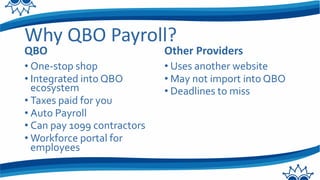
Why QBO Payroll?
QBO
• One-stop shop
• Integrated into QBO
ecosystem
• Taxes paid for you
• Auto Payroll
• Can pay 1099 contractors
• Workforce portal for
employees
Other Providers
• Uses another website
• May not import into QBO
• Deadlines to miss
Choosing the Right Version
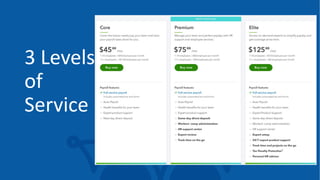
3 Levels
of
Service
Core Subscription
• Unlimited payroll runs
• 24-hour direct deposit
• Tax payment calculations
• Automated tax payments
and form filing for federal
and state (not local) taxes
• Availability of self-service
processing
• New hire reporting
• Self-service employee
portal (Workforce)
• Free year-end forms
• Available in all 50 states
• Manage garnishments and
deductions
• Payroll reports
• Auto Payroll
• Health benefits
Premium Subscription
QuickBooks Online Payroll Premium includes all Core
benefits plus additional features:
• User permissions
• Onboarding setup review
• Same-day direct deposit
• HR support center
• Automated tax payments and form filing for local taxes
• QuickBooksTime (wasT-Sheets)
Elite Subscription
QuickBooks Online Payroll Elite includes all the benefits of Core and Premium,
plus these additional offerings:
• Expert onboarding setup can be completed by a payroll specialist, including
conversion from other payroll companies
• Guaranteed: Because all fees are calculated and managed on your behalf,
they pay any penalties incurred
• QuickBooksTime tracking includes real-time tracking of project hours and
labor expenses. Geofencing alerts workers to clock in or out when entering or
leaving the job site, and an activity feed lets team members add and view
notes, photos, and project updates from anywhere
• Personal HR advisor
• Multi-state filing with no additional fee
Q&A
Understanding Payroll
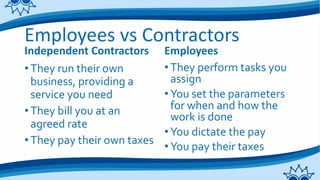
Employees vs Contractors
Independent Contractors
•They run their own
business, providing a
service you need
•They bill you at an
agreed rate
•They pay their own taxes
Employees
•They perform tasks you
assign
•You set the parameters
for when and how the
work is done
•You dictate the pay
•You pay their taxes
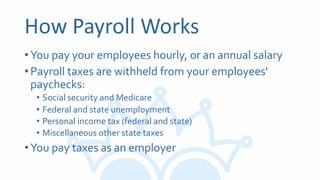
How Payroll Works
•You pay your employees hourly, or an annual salary
•Payroll taxes are withheld from your employees'
paychecks:
• Social security and Medicare
• Federal and state unemployment
• Personal income tax (federal and state)
• Miscellaneous other state taxes
•You pay taxes as an employer
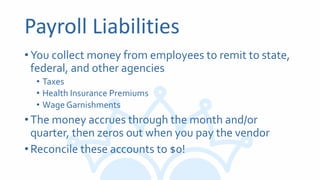
Payroll Liabilities
•You collect money from employees to remit to state,
federal, and other agencies
• Taxes
• Health Insurance Premiums
• Wage Garnishments
•The money accrues through the month and/or
quarter, then zeros out when you pay the vendor
•Reconcile these accounts to $0!
Payroll Expenses
•The money your company pays as a cost of doing
business
• Wages
• Payroll taxes
• Payroll fees
If You Aren’t Using QBO Payroll
•If you use third party payroll:
• Some integrate completely, even mapping liabilities
• Some just draw PayrollWages,Taxes, and Fees from your bank
•Your options:
• Just track the three expenses above, since you can always log in
to the payroll company’s website for the details
• Import a Journal Entry mapping the total payroll liability and
expense
• Enter a manual Journal Entry – good for details like Classes
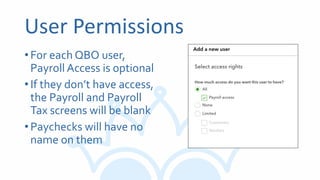
User Permissions
•For each QBO user,
Payroll Access is optional
•If they don’t have access,
the Payroll and Payroll
Tax screens will be blank
•Paychecks will have no
name on them
Best Practices
•Some business owners don’t have good money
management skills, and get caught short when it’s
time to pay taxes
•Keep a separate checking account just for payroll and
taxes
•Move theTotal Payroll Cost into the account
• Net Pay comes out of account for paychecks
• Tax money is already set aside
QuickBooks Cash + Envelopes
•Free checking account from Intuit
•1% APY interest
•Create an Envelope for Payroll andTaxes
•TransferTotal Payroll Cost into the envelope
•Payroll and taxes are drawn from there by default
•Set your QB Payments merchant services to deposit
there as a payroll funding source
Q&A
The Payroll Center
Getting Around
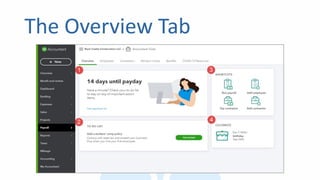
The Overview Tab
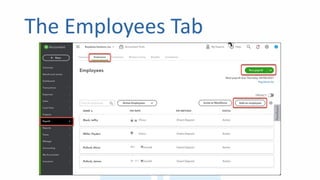
The Employees Tab
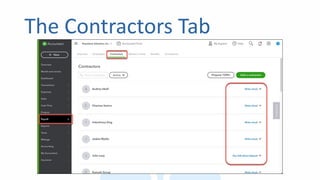
The Contractors Tab
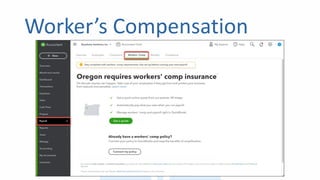
Worker’s Compensation
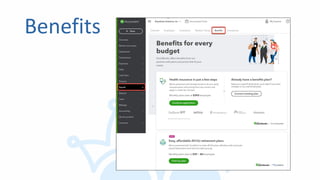
Benefits
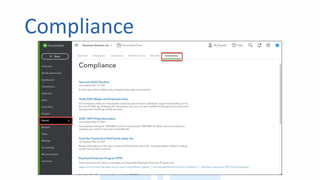
Compliance
Q&A
Viewing Employee Info
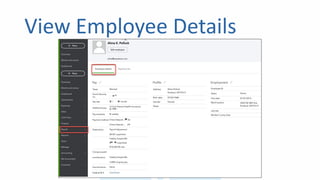
View Employee Details
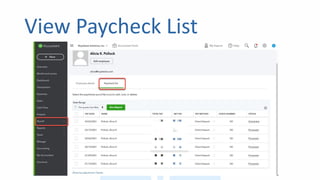
View Paycheck List
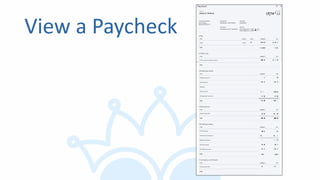
View a Paycheck
Q&A
Setting Up Payroll
What documents will you
need?
Documents You’ll Need
•Company bank account info for direct deposit and
electronic tax payments
•Company’s Compensation and Benefits policies
•Employee info
•Tax info
•Year-to-date Employee Payroll history
•Year-to-dateTax Payment history
Compensation and Benefits
•Types of employee benefits: hourly wages, salaries,
bonuses, commissions, and tips
•Types of employee compensation: health and dental
insurance, 401(k), retirement plans, vacation/sick
leave, or Flexible Spending Account (FSA)
•Other additions and deductions: cash advances,
mileage and travel reimbursements, union dues, and
wage garnishments
Employee Info
• Completed Form W-4 for each employee
• Pay rate: hourly, salary, commission, etc.
• Paycheck deductions: employee contributions to health insurance,
retirement plans, or garnishments (child/spousal support)
• Pay schedule: weekly, bi-weekly, semi-monthly and monthly
• Sick/vacation hours policy and balance
• Hire and termination date
Tax Info
• Federal Employer Identification Number (FEIN) and state agency ID numbers
• Filing requirement and deposit schedule for payroll taxes: Requirements
for when to file and deposit payroll taxes vary. Companies that owe more
payroll tax usually pay and file more frequently.
• Electronic FederalTax Payment System (EFTPS) enrollment: It's
mandatory to submit federal tax deposit payments electronically.
• Other tax information: Such as state unemployment, assessment,
surcharge, administrative or training tax rates, tax deposit schedules, and
local or other taxes, if applicable.
Prior Payroll History
• If you've already paid employees this calendar year, you’ll fill
in theYTD history to accurately calculate new paychecks and
complete your tax forms.
• For the current quarter: payroll details from each paycheck.
• For each prior quarter of this calendar year: summary by
employee and summary for all employees (total company
payroll)
• Year to date totals for each employee: summary by
employee
• Year to date totals for each employee as of the last
paycheck in the previous quarter: summary by employee
Liability Info
•For the current quarter: copies of all payroll liability
checks
•For each prior quarter of this year: summary of
payroll liability payments
Multistate Info
•Do your employees live and work in different states?
•Find out your state’s filing requirements
•Extra charge in QBO Payroll
Q&A
Payroll Settings
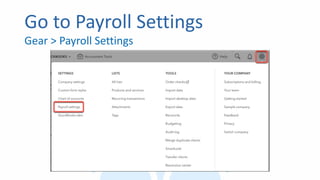
Go to Payroll Settings
Gear > Payroll Settings
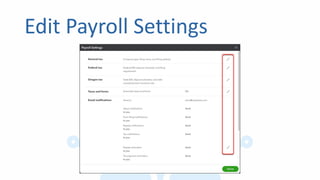
Edit Payroll Settings
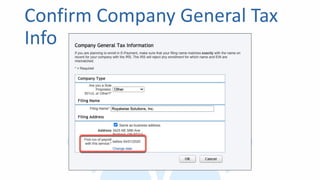
Confirm Company General Tax
Info
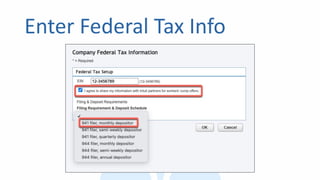
Enter Federal Tax Info
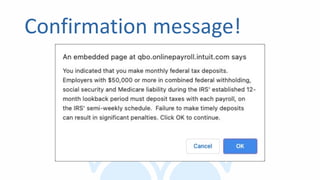
Confirmation message!
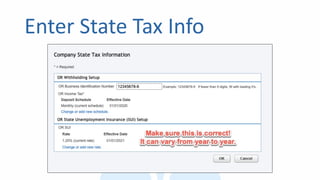
Enter State Tax Info
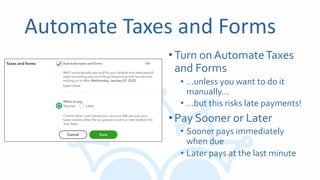
Automate Taxes and Forms
• Turn on AutomateTaxes
and Forms
• …unless you want to do it
manually…
• …but this risks late payments!
• Pay Sooner or Later
• Sooner pays immediately
when due
• Later pays at the last minute
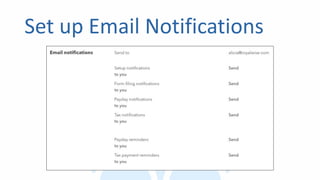
Set up Email Notifications
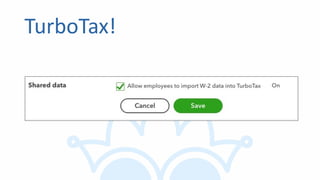
TurboTax!
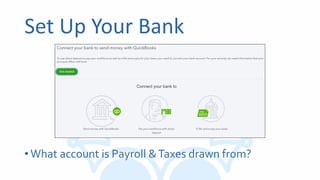
Set Up Your Bank
•What account is Payroll &Taxes drawn from?
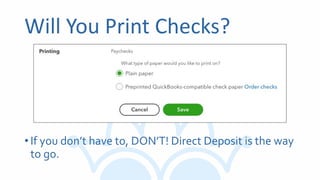
Will You Print Checks?
•If you don’t have to, DON’T! Direct Deposit is the way
to go.
Q&A
Mapping Payroll to Your
Chart of Accounts
Accounting
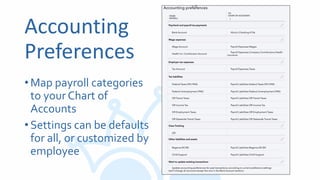
Preferences
•Map payroll categories
to your Chart of
Accounts
•Settings can be defaults
for all, or customized by
employee
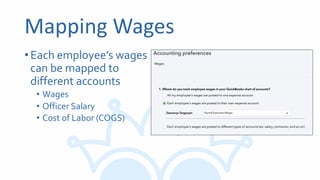
Mapping Wages
•Each employee’s wages
can be mapped to
different accounts
• Wages
• Officer Salary
• Cost of Labor (COGS)
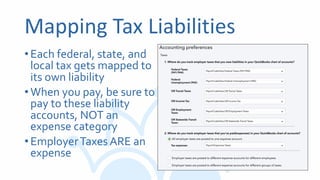
Mapping Tax Liabilities
•Each federal, state, and
local tax gets mapped to
its own liability
•When you pay, be sure to
pay to these liability
accounts, NOT an
expense category
•EmployerTaxes ARE an
expense
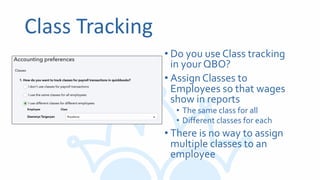
Class Tracking
• Do you use Class tracking
in your QBO?
• Assign Classes to
Employees so that wages
show in reports
• The same class for all
• Different classes for each
• There is no way to assign
multiple classes to an
employee
Q&A
Setting Up Company
Policies and Benefits
Pay Schedules
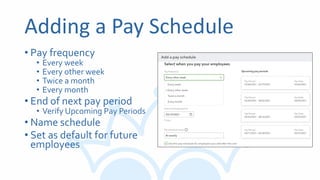
Adding a Pay Schedule
• Pay frequency
• Every week
• Every other week
• Twice a month
• Every month
• End of next pay period
• Verify Upcoming Pay Periods
• Name schedule
• Set as default for future
employees
Q&A
Pay Types
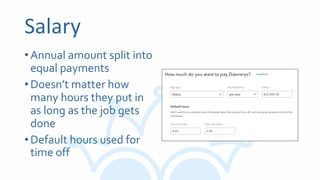
Salary
•Annual amount split into
equal payments
•Doesn’t matter how
many hours they put in
as long as the job gets
done
•Default hours used for
time off
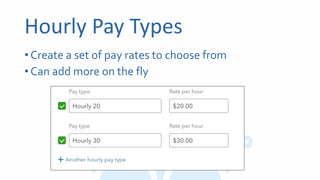
Hourly Pay Types
•Create a set of pay rates to choose from
•Can add more on the fly
Q&A
Calculating Time Off
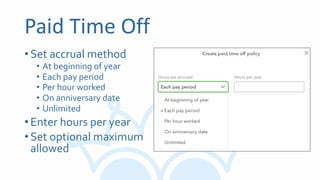
Paid Time Off
•Set accrual method
• At beginning of year
• Each pay period
• Per hour worked
• On anniversary date
• Unlimited
•Enter hours per year
•Set optional maximum
allowed
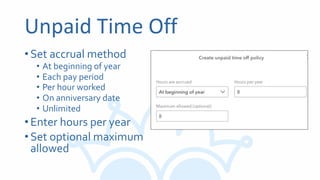
Unpaid Time Off
•Set accrual method
• At beginning of year
• Each pay period
• Per hour worked
• On anniversary date
• Unlimited
•Enter hours per year
•Set optional maximum
allowed
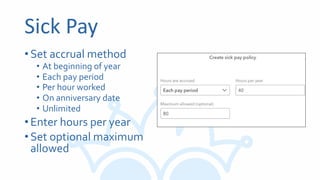
Sick Pay
•Set accrual method
• At beginning of year
• Each pay period
• Per hour worked
• On anniversary date
• Unlimited
•Enter hours per year
•Set optional maximum
allowed
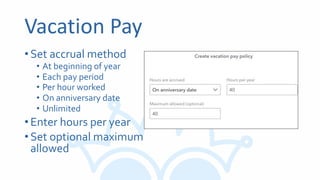
Vacation Pay
•Set accrual method
• At beginning of year
• Each pay period
• Per hour worked
• On anniversary date
• Unlimited
•Enter hours per year
•Set optional maximum
allowed
Use It or Lose It?
• In most cases, accrual caps provide a maximum for each
benefit
• Some companies have an annual use-it-or-lose it policy
• Employees’ time-off balances automatically carry over
into a new calendar year.
• If unused sick time is lost at the end of the year, you need
to manually change the employee’s balance at the
beginning of each year.
Q&A
Deductions and
Contributions
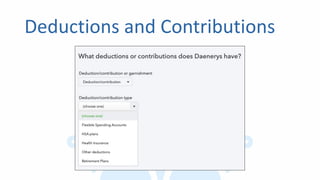
Deductions and Contributions
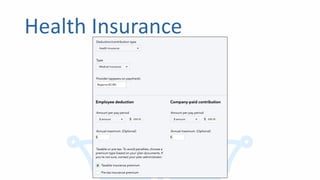
Health Insurance
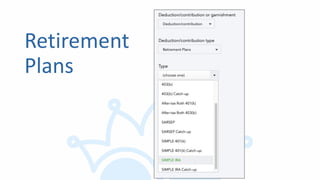
Retirement
Plans
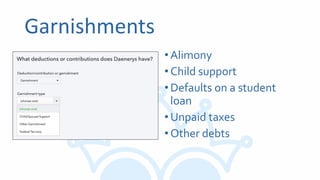
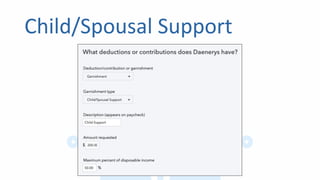
Garnishments
•Alimony
•Child support
•Defaults on a student
loan
•Unpaid taxes
•Other debts
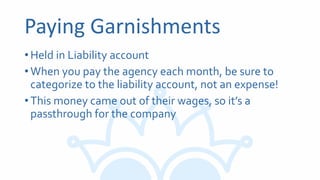
Paying Garnishments
•Held in Liability account
•When you pay the agency each month, be sure to
categorize to the liability account, not an expense!
•This money came out of their wages, so it’s a
passthrough for the company
Child/Spousal Support
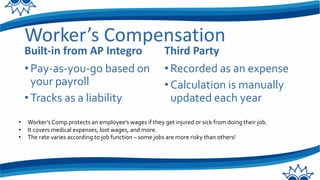
Worker’s Compensation
Built-in from AP Integro
•Pay-as-you-go based on
your payroll
•Tracks as a liability
Third Party
•Recorded as an expense
•Calculation is manually
updated each year
• Worker’s Comp protects an employee’s wages if they get injured or sick from doing their job.
• It covers medical expenses, lost wages, and more.
• The rate varies according to job function – some jobs are more risky than others!
Q&A
Setting Up Employees
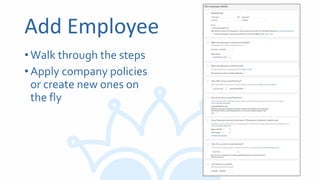
Add Employee
•Walk through the steps
•Apply company policies
or create new ones on
the fly
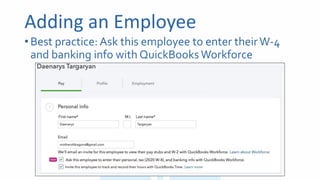
Adding an Employee
•Best practice: Ask this employee to enter theirW-4
and banking info with QuickBooksWorkforce
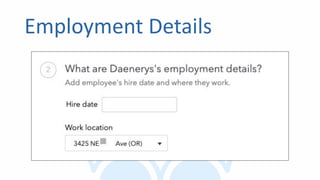
Employment Details
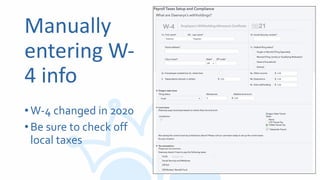
Manually
entering W-
4 info
•W-4 changed in 2020
•Be sure to check off
local taxes
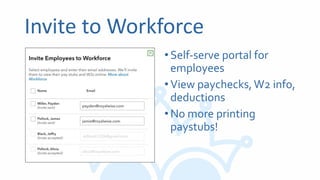
Invite to Workforce
•Self-serve portal for
employees
•View paychecks,W2 info,
deductions
•No more printing
paystubs!
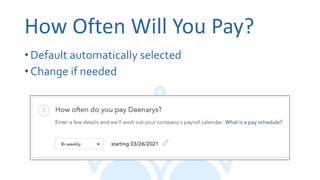
How Often Will You Pay?
•Default automatically selected
•Change if needed
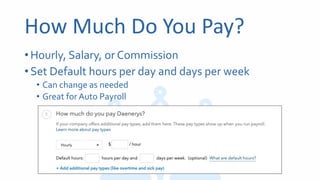
How Much Do You Pay?
•Hourly, Salary, or Commission
•Set Default hours per day and days per week
• Can change as needed
• Great for Auto Payroll
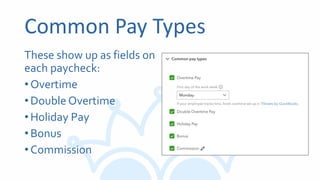
Common Pay Types
These show up as fields on
each paycheck:
•Overtime
•Double Overtime
•Holiday Pay
•Bonus
•Commission
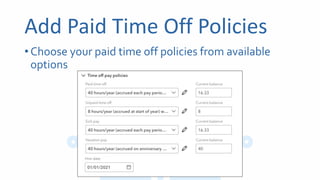
Add Paid Time Off Policies
•Choose your paid time off policies from available
options
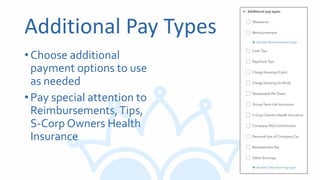
Additional Pay Types
•Choose additional
payment options to use
as needed
•Pay special attention to
Reimbursements,Tips,
S-Corp Owners Health
Insurance
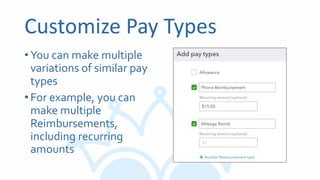
Customize Pay Types
•You can make multiple
variations of similar pay
types
•For example, you can
make multiple
Reimbursements,
including recurring
amounts
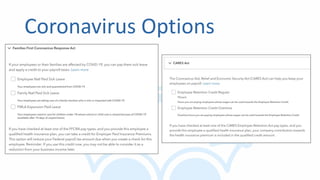
Coronavirus Options
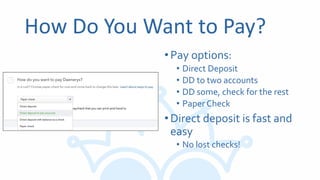
How Do You Want to Pay?
•Pay options:
• Direct Deposit
• DD to two accounts
• DD some, check for the rest
• Paper Check
•Direct deposit is fast and
easy
• No lost checks!
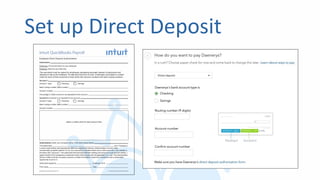
Set up Direct Deposit
Instructions
Employee: Fill out and return to your employer.
Employer: Save for your files only.
This document must be signed by employees requesting automatic deposit of paychecks and
retained on file by the employer. Do not send this form to Intuit. Employees must attach a voided
check for each of their accounts to help verify their account numbers and bank routing numbers.
Account 1
Account 1 type: Checking Savings
Bank routing number (ABA number):
Account number:
Percentage or dollar amount to be deposited to this account:
Account 2 (remainder to be deposited to this account)
Account 2 type: Checking Savings
Bank routing number (ABA number):
Account number:
attach a voided check for each account here
Authorization (enter your company name in the blank space below)
This authorizes (the “Company”)
to send credit entries (and appropriate debit and adjustment entries), electronically or by any other
commercially accepted method, to my (our) account(s) indicated below and to other accounts I (we) identify in
the future (the “Account”). This authorizes the financial institution holding the Account to post all such entries. I
agree that the ACH transactions authorized herein shall comply with all applicable U.S. Law. This authorization
will be in effect until the Company receives a written termination notice from myself and has a reasonable
opportunity to act on it.
Authorized signature: Employee ID #:
Print name: Date:
Employee Direct Deposit Authorization Form Ver. Authorization_for_Direct_Deposit-061812
Employee Direct Deposit Authorization
Intuit QuickBooks Payroll
. . . . . . . . . . . . . . . . . . . . . . . . . . . . . . . . . . . . . . . . . . . . . . . . . . . . . . . . . . . . . . . . . . . . . . . . . . . . . . . . . . . . .
Q&A
Entering Year-to-date Payroll
Mid-year Setup
•If you have already run payroll in this calendar year,
QBO will ask you to enter:
• Year-to-date wages, tax withholding, and deductions for each
employee, including terminated employees
• Total company payrolls for each pay date in the current quarter
• This acts as a cross-reference for the individual entries to make sure your data
entry was correct
• Tax payments made in the current year
Q&A
Setting up Payroll Taxes
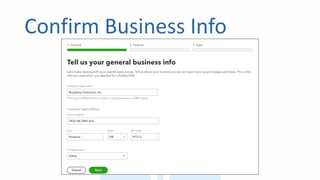
Confirm Business Info
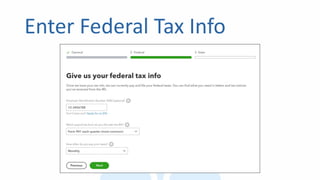
Enter Federal Tax Info
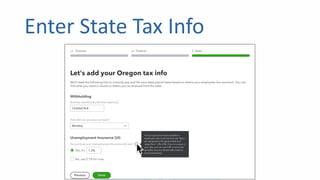
Enter State Tax Info
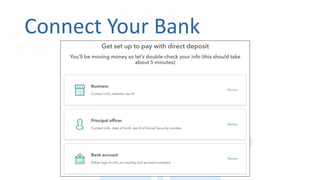
Connect Your Bank
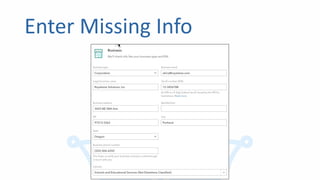
Enter Missing Info
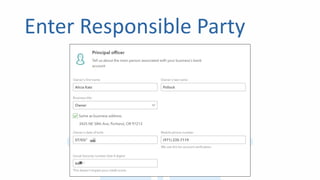
Enter Responsible Party
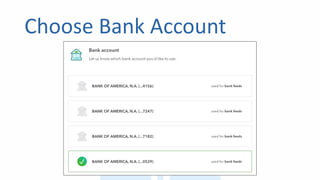
Choose Bank Account
Sign Up to E-File Taxes
1. Verify your identity –
it will ask questions
about places you’ve
lived, companies
you’ve worked for.You
will need the owner
with you!
2. E-sign your
authorization forms
State Forms
•You may have to fax documentation to your state for
authorization
•You may need a state BIN or ID number
Q&A
Keeping Track of
Employee Time
Time Sheets
•Free in QBO
•Make free logins for employees just forTime Cards
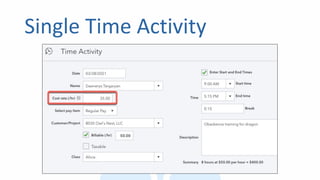
•Enter SingleTime activity
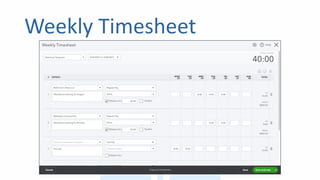
•UseWeeklyTimesheets
•Entries can be assigned to Customers, Services, and
Classes
•Time can be marked Billable to customers
Single Time Activity
Weekly Timesheet
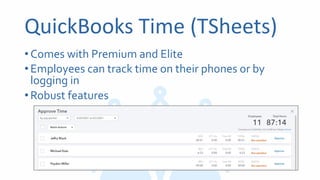
QuickBooks Time (TSheets)
•Comes with Premium and Elite
•Employees can track time on their phones or by
logging in
•Robust features
Q&A
Paying Employees and
Contractors
Running Payroll
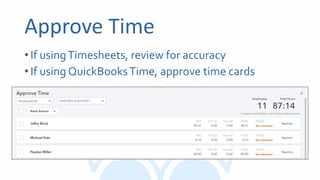
Approve Time
•If usingTimesheets, review for accuracy
•If using QuickBooksTime, approve time cards
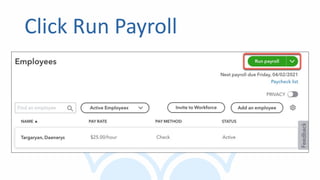
Click Run Payroll
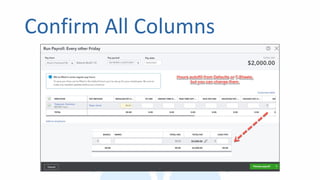
Confirm All Columns
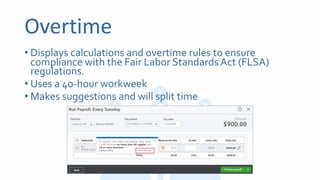
Overtime
• Displays calculations and overtime rules to ensure
compliance with the Fair Labor Standards Act (FLSA)
regulations.
• Uses a 40-hour workweek
• Makes suggestions and will split time
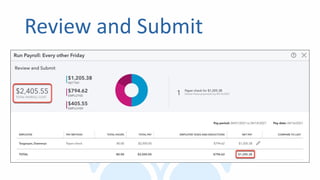
Review and Submit
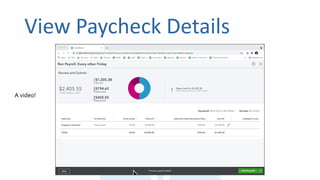
View Paycheck Details
A video!
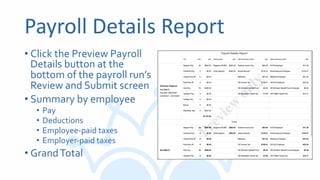
Payroll Details Report
• Click the Preview Payroll
Details button at the
bottom of the payroll run’s
Review and Submit screen
• Summary by employee
• Pay
• Deductions
• Employee-paid taxes
• Employer-paid taxes
• GrandTotal
Auto Payroll
•If the payrun is the same every week, you can turn on
Auto Payroll
•It runs automatically on the schedule you choose
•It repeats the most recent run
•You will receive a preview summary, and have 2
business days to make changes
Q&A
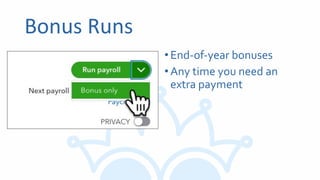
Bonus Runs
Bonus Runs
•End-of-year bonuses
•Any time you need an
extra payment
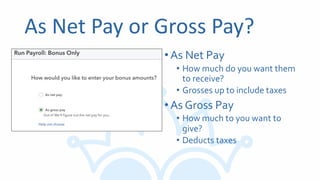
As Net Pay or Gross Pay?
•As Net Pay
• How much do you want them
to receive?
• Grosses up to include taxes
•As Gross Pay
• How much to you want to
give?
• Deducts taxes
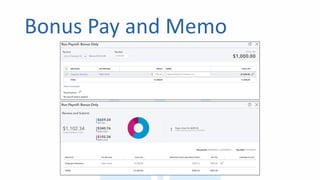
Bonus Pay and Memo
Q&A
Tips and Gratuities
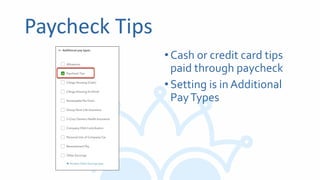
Paycheck Tips
•Cash or credit card tips
paid through paycheck
•Setting is in Additional
PayTypes
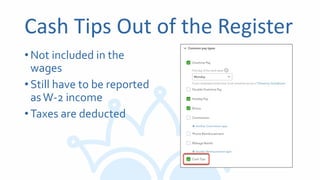
Cash Tips Out of the Register
•Not included in the
wages
•Still have to be reported
asW-2 income
•Taxes are deducted
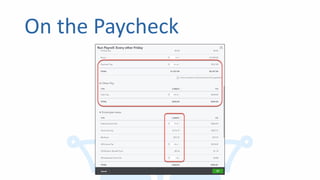
On the Paycheck
Q&A
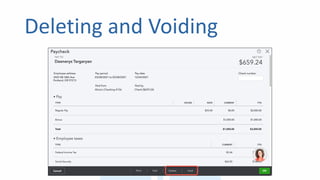
Voiding and Deleting
Paychecks
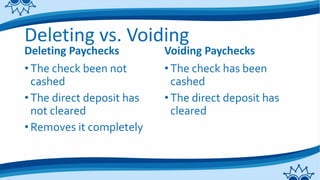
Deleting vs. Voiding
Deleting Paychecks
•The check been not
cashed
•The direct deposit has
not cleared
•Removes it completely
Voiding Paychecks
•The check has been
cashed
•The direct deposit has
cleared
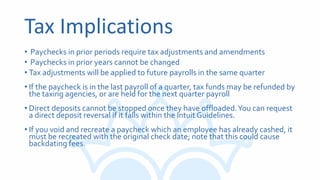
Tax Implications
• Paychecks in prior periods require tax adjustments and amendments
• Paychecks in prior years cannot be changed
• Tax adjustments will be applied to future payrolls in the same quarter
• If the paycheck is in the last payroll of a quarter, tax funds may be refunded by
the taxing agencies, or are held for the next quarter payroll
• Direct deposits cannot be stopped once they have offloaded.You can request
a direct deposit reversal if it falls within the Intuit Guidelines.
• If you void and recreate a paycheck which an employee has already cashed, it
must be recreated with the original check date; note that this could cause
backdating fees.
Deleting and Voiding
Q&A
Paying Subcontractors
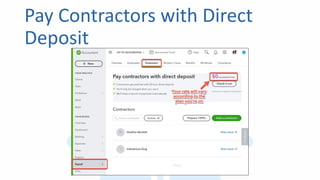
Pay Contractors with Direct
Deposit
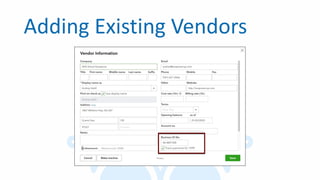
Adding Existing Vendors
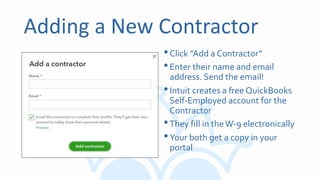
Adding a New Contractor
•Click ”Add a Contractor”
•Enter their name and email
address. Send the email!
•Intuit creates a free QuickBooks
Self-Employed account for the
Contractor
•They fill in theW-9 electronically
•Your both get a copy in your
portal
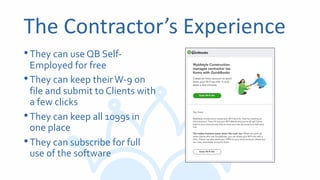
The Contractor’s Experience
•They can use QB Self-
Employed for free
•They can keep theirW-9 on
file and submit to Clients with
a few clicks
•They can keep all 1099s in
one place
•They can subscribe for full
use of the software
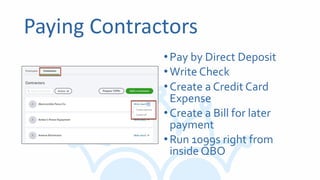
Paying Contractors
•Pay by Direct Deposit
•Write Check
•Create a Credit Card
Expense
•Create a Bill for later
payment
•Run 1099s right from
inside QBO
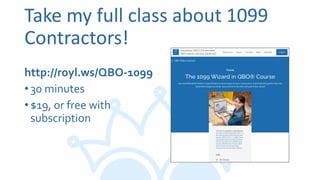
Take my full class about 1099
Contractors!
http://royl.ws/QBO-1099
•30 minutes
•$19, or free with
subscription
Q&A
Viewing Payroll Reports
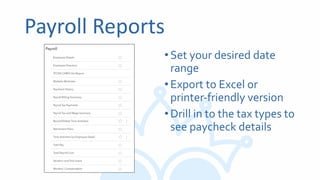
Payroll Reports
•Set your desired date
range
•Export to Excel or
printer-friendly version
•Drill in to the tax types to
see paycheck details
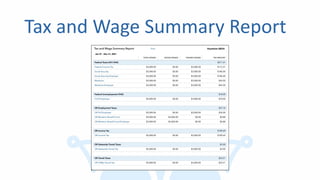
Tax and Wage Summary Report
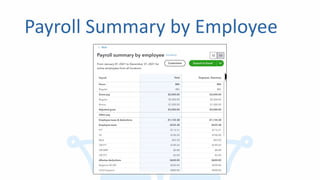
Payroll Summary by Employee
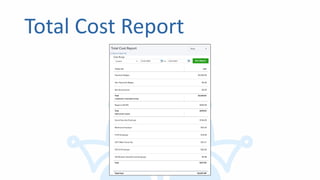
Total Cost Report
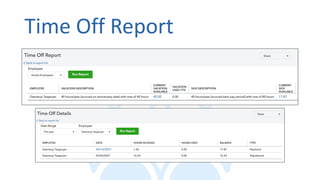
Time Off Report
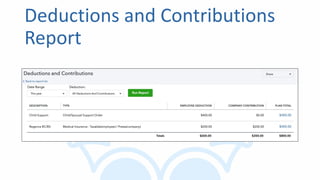
Deductions and Contributions
Report
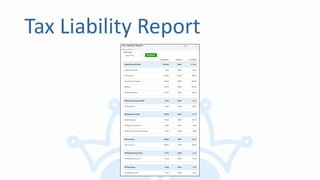
Tax Liability Report
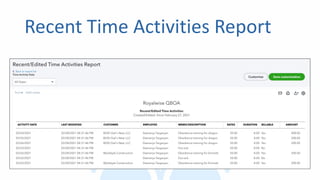
Recent Time Activities Report
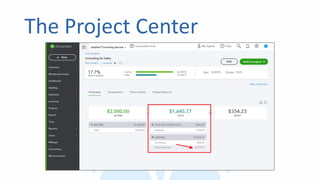
The Project Center
Q&A
Payroll Taxes
Paying Taxes
Automatic vs Manual
•QBO will pay taxes and file forms for you
automatically
• We saw the setting in Payroll Settings earlier
•You can manually initiate e-filing your forms and
submitting payment
•You can also file manually, by logging into state and
federal websites to submit forms and payments
•Some states do not have e-filing
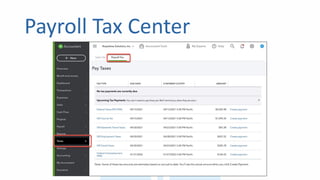
Payroll Tax Center
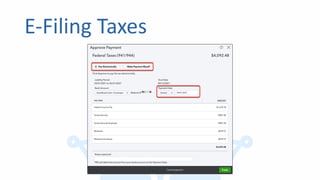
E-Filing Taxes
Made a Mistake?
•Tax payments can be cancelled until the payment
date
•Call Support to have them make the changes in the
system
•You may have to file an amendment on the federal or
state website
Q&A
Sending W-2s
Submit W-2 Forms
To Employees
• Provide forms by Jan 31
• QBO sends Copies B & C to
employees by snail mail
• Employees can log into
Workforce for electronic
copies
• Forms are archived for
future reference
To the IRS
• Submit by Jan 31
• QBO will e-file Copies A &
D
• Forms are archived for
future reference
Q&A
Getting Support
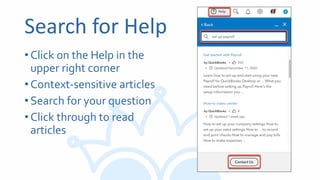
Search for Help
•Click on the Help in the
upper right corner
•Context-sensitive articles
•Search for your question
•Click through to read
articles
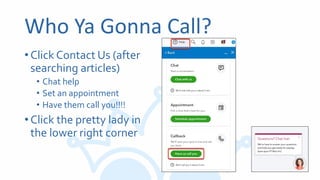
Who Ya Gonna Call?
•Click Contact Us (after
searching articles)
• Chat help
• Set an appointment
• Have them call you!!!!
•Click the pretty lady in
the lower right corner
Q&A
Conclusion
Quizzes
Participation Quiz for CPE
Quizzes about content to reinforce knowledge and
complete the class
Watch Again Later!
•Today’s class was recorded
•Available at learn.Royalwise.com
•Look in your Enrolled or CompletedTab
•Broken up into bite-size pieces for easy reference!
Ask Questions Forum
After class, if you have more questions,
post in the Forum
Leave a Review!
Lower right corner of course
Helps us with word-of-mouth
We’ll give you extraWisdom Quest points!
What’s next?
•Upcoming classes
•Join Mentorship program
Thanks for coming!
See you in the next class!

QuickBooks Full Service Payroll - Royalwise Course Slides

  • 1.
    QuickBooks Online Full ServicePayroll With Alicia Katz Pollock Royalwise.com
  • 2.
  • 3.
    Download Handouts •Find classat learn.royalwise.com • On Enrolled tab (or Completed tab) •Download Slides
  • 4.
    About today’s speaker Memberof: • Top 100 ProAdvisor • IntuitTrainer/Writer Network national speaker Trainer: • The Mentorship Membership™ program at learn.Royalwise.com • Weekly live classes and on-demand video courses Author of Books on Amazon: • Master QuickBooks Online: From Setup toTaxTime • Specialty Retail: QuickBooks for Gas Stations and Convenience Stores • QuickBooks Desktop Complete Alicia Katz Pollock CEO of Royalwise.com
  • 5.
    Agenda • About Payroll •Benefits of QuickBooks Online Payroll • Levels of Service • Understanding Payroll • DocumentsYou’ll Need • Viewing Employee Info • Setting Up PayrollTax E-file • Setting Up Benefits • Adding Employees • ManagingTime • Running Payroll • PayingTaxes • Getting Help
  • 6.
  • 7.
  • 8.
  • 9.
    Why QBO Payroll? QBO •One-stop shop • Integrated into QBO ecosystem • Taxes paid for you • Auto Payroll • Can pay 1099 contractors • Workforce portal for employees Other Providers • Uses another website • May not import into QBO • Deadlines to miss
  • 10.
  • 11.
  • 12.
    Core Subscription • Unlimitedpayroll runs • 24-hour direct deposit • Tax payment calculations • Automated tax payments and form filing for federal and state (not local) taxes • Availability of self-service processing • New hire reporting • Self-service employee portal (Workforce) • Free year-end forms • Available in all 50 states • Manage garnishments and deductions • Payroll reports • Auto Payroll • Health benefits
  • 13.
    Premium Subscription QuickBooks OnlinePayroll Premium includes all Core benefits plus additional features: • User permissions • Onboarding setup review • Same-day direct deposit • HR support center • Automated tax payments and form filing for local taxes • QuickBooksTime (wasT-Sheets)
  • 14.
    Elite Subscription QuickBooks OnlinePayroll Elite includes all the benefits of Core and Premium, plus these additional offerings: • Expert onboarding setup can be completed by a payroll specialist, including conversion from other payroll companies • Guaranteed: Because all fees are calculated and managed on your behalf, they pay any penalties incurred • QuickBooksTime tracking includes real-time tracking of project hours and labor expenses. Geofencing alerts workers to clock in or out when entering or leaving the job site, and an activity feed lets team members add and view notes, photos, and project updates from anywhere • Personal HR advisor • Multi-state filing with no additional fee
  • 15.
  • 16.
  • 17.
    Employees vs Contractors IndependentContractors •They run their own business, providing a service you need •They bill you at an agreed rate •They pay their own taxes Employees •They perform tasks you assign •You set the parameters for when and how the work is done •You dictate the pay •You pay their taxes
  • 18.
    How Payroll Works •Youpay your employees hourly, or an annual salary •Payroll taxes are withheld from your employees' paychecks: • Social security and Medicare • Federal and state unemployment • Personal income tax (federal and state) • Miscellaneous other state taxes •You pay taxes as an employer
  • 19.
    Payroll Liabilities •You collectmoney from employees to remit to state, federal, and other agencies • Taxes • Health Insurance Premiums • Wage Garnishments •The money accrues through the month and/or quarter, then zeros out when you pay the vendor •Reconcile these accounts to $0!
  • 20.
    Payroll Expenses •The moneyyour company pays as a cost of doing business • Wages • Payroll taxes • Payroll fees
  • 21.
    If You Aren’tUsing QBO Payroll •If you use third party payroll: • Some integrate completely, even mapping liabilities • Some just draw PayrollWages,Taxes, and Fees from your bank •Your options: • Just track the three expenses above, since you can always log in to the payroll company’s website for the details • Import a Journal Entry mapping the total payroll liability and expense • Enter a manual Journal Entry – good for details like Classes
  • 22.
    User Permissions •For eachQBO user, Payroll Access is optional •If they don’t have access, the Payroll and Payroll Tax screens will be blank •Paychecks will have no name on them
  • 23.
    Best Practices •Some businessowners don’t have good money management skills, and get caught short when it’s time to pay taxes •Keep a separate checking account just for payroll and taxes •Move theTotal Payroll Cost into the account • Net Pay comes out of account for paychecks • Tax money is already set aside
  • 24.
    QuickBooks Cash +Envelopes •Free checking account from Intuit •1% APY interest •Create an Envelope for Payroll andTaxes •TransferTotal Payroll Cost into the envelope •Payroll and taxes are drawn from there by default •Set your QB Payments merchant services to deposit there as a payroll funding source
  • 25.
  • 26.
  • 27.
  • 28.
  • 29.
  • 30.
  • 31.
  • 32.
  • 33.
  • 34.
  • 35.
  • 36.
  • 37.
  • 38.
  • 39.
  • 40.
  • 41.
  • 42.
    Documents You’ll Need •Companybank account info for direct deposit and electronic tax payments •Company’s Compensation and Benefits policies •Employee info •Tax info •Year-to-date Employee Payroll history •Year-to-dateTax Payment history
  • 43.
    Compensation and Benefits •Typesof employee benefits: hourly wages, salaries, bonuses, commissions, and tips •Types of employee compensation: health and dental insurance, 401(k), retirement plans, vacation/sick leave, or Flexible Spending Account (FSA) •Other additions and deductions: cash advances, mileage and travel reimbursements, union dues, and wage garnishments
  • 44.
    Employee Info • CompletedForm W-4 for each employee • Pay rate: hourly, salary, commission, etc. • Paycheck deductions: employee contributions to health insurance, retirement plans, or garnishments (child/spousal support) • Pay schedule: weekly, bi-weekly, semi-monthly and monthly • Sick/vacation hours policy and balance • Hire and termination date
  • 45.
    Tax Info • FederalEmployer Identification Number (FEIN) and state agency ID numbers • Filing requirement and deposit schedule for payroll taxes: Requirements for when to file and deposit payroll taxes vary. Companies that owe more payroll tax usually pay and file more frequently. • Electronic FederalTax Payment System (EFTPS) enrollment: It's mandatory to submit federal tax deposit payments electronically. • Other tax information: Such as state unemployment, assessment, surcharge, administrative or training tax rates, tax deposit schedules, and local or other taxes, if applicable.
  • 46.
    Prior Payroll History •If you've already paid employees this calendar year, you’ll fill in theYTD history to accurately calculate new paychecks and complete your tax forms. • For the current quarter: payroll details from each paycheck. • For each prior quarter of this calendar year: summary by employee and summary for all employees (total company payroll) • Year to date totals for each employee: summary by employee • Year to date totals for each employee as of the last paycheck in the previous quarter: summary by employee
  • 47.
    Liability Info •For thecurrent quarter: copies of all payroll liability checks •For each prior quarter of this year: summary of payroll liability payments
  • 48.
    Multistate Info •Do youremployees live and work in different states? •Find out your state’s filing requirements •Extra charge in QBO Payroll
  • 49.
  • 50.
  • 51.
    Go to PayrollSettings Gear > Payroll Settings
  • 52.
  • 53.
  • 54.
  • 55.
  • 56.
  • 57.
    Automate Taxes andForms • Turn on AutomateTaxes and Forms • …unless you want to do it manually… • …but this risks late payments! • Pay Sooner or Later • Sooner pays immediately when due • Later pays at the last minute
  • 58.
    Set up EmailNotifications
  • 59.
  • 60.
    Set Up YourBank •What account is Payroll &Taxes drawn from?
  • 61.
    Will You PrintChecks? •If you don’t have to, DON’T! Direct Deposit is the way to go.
  • 62.
  • 63.
    Mapping Payroll toYour Chart of Accounts
  • 64.
    Accounting Preferences •Map payroll categories toyour Chart of Accounts •Settings can be defaults for all, or customized by employee
  • 65.
    Mapping Wages •Each employee’swages can be mapped to different accounts • Wages • Officer Salary • Cost of Labor (COGS)
  • 66.
    Mapping Tax Liabilities •Eachfederal, state, and local tax gets mapped to its own liability •When you pay, be sure to pay to these liability accounts, NOT an expense category •EmployerTaxes ARE an expense
  • 67.
    Class Tracking • Doyou use Class tracking in your QBO? • Assign Classes to Employees so that wages show in reports • The same class for all • Different classes for each • There is no way to assign multiple classes to an employee
  • 68.
  • 69.
  • 70.
  • 71.
    Adding a PaySchedule • Pay frequency • Every week • Every other week • Twice a month • Every month • End of next pay period • Verify Upcoming Pay Periods • Name schedule • Set as default for future employees
  • 72.
  • 73.
  • 74.
    Salary •Annual amount splitinto equal payments •Doesn’t matter how many hours they put in as long as the job gets done •Default hours used for time off
  • 75.
    Hourly Pay Types •Createa set of pay rates to choose from •Can add more on the fly
  • 76.
  • 77.
  • 78.
    Paid Time Off •Setaccrual method • At beginning of year • Each pay period • Per hour worked • On anniversary date • Unlimited •Enter hours per year •Set optional maximum allowed
  • 79.
    Unpaid Time Off •Setaccrual method • At beginning of year • Each pay period • Per hour worked • On anniversary date • Unlimited •Enter hours per year •Set optional maximum allowed
  • 80.
    Sick Pay •Set accrualmethod • At beginning of year • Each pay period • Per hour worked • On anniversary date • Unlimited •Enter hours per year •Set optional maximum allowed
  • 81.
    Vacation Pay •Set accrualmethod • At beginning of year • Each pay period • Per hour worked • On anniversary date • Unlimited •Enter hours per year •Set optional maximum allowed
  • 82.
    Use It orLose It? • In most cases, accrual caps provide a maximum for each benefit • Some companies have an annual use-it-or-lose it policy • Employees’ time-off balances automatically carry over into a new calendar year. • If unused sick time is lost at the end of the year, you need to manually change the employee’s balance at the beginning of each year.
  • 83.
  • 84.
  • 85.
  • 86.
  • 87.
  • 88.
    Garnishments •Alimony •Child support •Defaults ona student loan •Unpaid taxes •Other debts
  • 89.
    Paying Garnishments •Held inLiability account •When you pay the agency each month, be sure to categorize to the liability account, not an expense! •This money came out of their wages, so it’s a passthrough for the company
  • 90.
  • 91.
    Worker’s Compensation Built-in fromAP Integro •Pay-as-you-go based on your payroll •Tracks as a liability Third Party •Recorded as an expense •Calculation is manually updated each year • Worker’s Comp protects an employee’s wages if they get injured or sick from doing their job. • It covers medical expenses, lost wages, and more. • The rate varies according to job function – some jobs are more risky than others!
  • 92.
  • 93.
  • 94.
    Add Employee •Walk throughthe steps •Apply company policies or create new ones on the fly
  • 95.
    Adding an Employee •Bestpractice: Ask this employee to enter theirW-4 and banking info with QuickBooksWorkforce
  • 96.
  • 97.
    Manually entering W- 4 info •W-4changed in 2020 •Be sure to check off local taxes
  • 98.
    Invite to Workforce •Self-serveportal for employees •View paychecks,W2 info, deductions •No more printing paystubs!
  • 99.
    How Often WillYou Pay? •Default automatically selected •Change if needed
  • 100.
    How Much DoYou Pay? •Hourly, Salary, or Commission •Set Default hours per day and days per week • Can change as needed • Great for Auto Payroll
  • 101.
    Common Pay Types Theseshow up as fields on each paycheck: •Overtime •Double Overtime •Holiday Pay •Bonus •Commission
  • 102.
    Add Paid TimeOff Policies •Choose your paid time off policies from available options
  • 103.
    Additional Pay Types •Chooseadditional payment options to use as needed •Pay special attention to Reimbursements,Tips, S-Corp Owners Health Insurance
  • 104.
    Customize Pay Types •Youcan make multiple variations of similar pay types •For example, you can make multiple Reimbursements, including recurring amounts
  • 105.
  • 106.
    How Do YouWant to Pay? •Pay options: • Direct Deposit • DD to two accounts • DD some, check for the rest • Paper Check •Direct deposit is fast and easy • No lost checks!
  • 107.
    Set up DirectDeposit Instructions Employee: Fill out and return to your employer. Employer: Save for your files only. This document must be signed by employees requesting automatic deposit of paychecks and retained on file by the employer. Do not send this form to Intuit. Employees must attach a voided check for each of their accounts to help verify their account numbers and bank routing numbers. Account 1 Account 1 type: Checking Savings Bank routing number (ABA number): Account number: Percentage or dollar amount to be deposited to this account: Account 2 (remainder to be deposited to this account) Account 2 type: Checking Savings Bank routing number (ABA number): Account number: attach a voided check for each account here Authorization (enter your company name in the blank space below) This authorizes (the “Company”) to send credit entries (and appropriate debit and adjustment entries), electronically or by any other commercially accepted method, to my (our) account(s) indicated below and to other accounts I (we) identify in the future (the “Account”). This authorizes the financial institution holding the Account to post all such entries. I agree that the ACH transactions authorized herein shall comply with all applicable U.S. Law. This authorization will be in effect until the Company receives a written termination notice from myself and has a reasonable opportunity to act on it. Authorized signature: Employee ID #: Print name: Date: Employee Direct Deposit Authorization Form Ver. Authorization_for_Direct_Deposit-061812 Employee Direct Deposit Authorization Intuit QuickBooks Payroll . . . . . . . . . . . . . . . . . . . . . . . . . . . . . . . . . . . . . . . . . . . . . . . . . . . . . . . . . . . . . . . . . . . . . . . . . . . . . . . . . . . . .
  • 108.
  • 109.
  • 110.
    Mid-year Setup •If youhave already run payroll in this calendar year, QBO will ask you to enter: • Year-to-date wages, tax withholding, and deductions for each employee, including terminated employees • Total company payrolls for each pay date in the current quarter • This acts as a cross-reference for the individual entries to make sure your data entry was correct • Tax payments made in the current year
  • 111.
  • 112.
  • 113.
  • 114.
  • 115.
  • 116.
  • 117.
  • 118.
  • 119.
  • 120.
    Sign Up toE-File Taxes 1. Verify your identity – it will ask questions about places you’ve lived, companies you’ve worked for.You will need the owner with you! 2. E-sign your authorization forms
  • 121.
    State Forms •You mayhave to fax documentation to your state for authorization •You may need a state BIN or ID number
  • 122.
  • 123.
  • 124.
    Time Sheets •Free inQBO •Make free logins for employees just forTime Cards •Enter SingleTime activity •UseWeeklyTimesheets •Entries can be assigned to Customers, Services, and Classes •Time can be marked Billable to customers
  • 125.
  • 126.
  • 127.
    QuickBooks Time (TSheets) •Comeswith Premium and Elite •Employees can track time on their phones or by logging in •Robust features
  • 128.
  • 129.
  • 130.
  • 131.
    Approve Time •If usingTimesheets,review for accuracy •If using QuickBooksTime, approve time cards
  • 132.
  • 133.
  • 134.
    Overtime • Displays calculationsand overtime rules to ensure compliance with the Fair Labor Standards Act (FLSA) regulations. • Uses a 40-hour workweek • Makes suggestions and will split time
  • 135.
  • 136.
  • 137.
    Payroll Details Report •Click the Preview Payroll Details button at the bottom of the payroll run’s Review and Submit screen • Summary by employee • Pay • Deductions • Employee-paid taxes • Employer-paid taxes • GrandTotal
  • 138.
    Auto Payroll •If thepayrun is the same every week, you can turn on Auto Payroll •It runs automatically on the schedule you choose •It repeats the most recent run •You will receive a preview summary, and have 2 business days to make changes
  • 139.
  • 140.
  • 141.
    Bonus Runs •End-of-year bonuses •Anytime you need an extra payment
  • 142.
    As Net Payor Gross Pay? •As Net Pay • How much do you want them to receive? • Grosses up to include taxes •As Gross Pay • How much to you want to give? • Deducts taxes
  • 143.
  • 144.
  • 145.
  • 146.
    Paycheck Tips •Cash orcredit card tips paid through paycheck •Setting is in Additional PayTypes
  • 147.
    Cash Tips Outof the Register •Not included in the wages •Still have to be reported asW-2 income •Taxes are deducted
  • 148.
  • 149.
  • 150.
  • 151.
    Deleting vs. Voiding DeletingPaychecks •The check been not cashed •The direct deposit has not cleared •Removes it completely Voiding Paychecks •The check has been cashed •The direct deposit has cleared
  • 152.
    Tax Implications • Paychecksin prior periods require tax adjustments and amendments • Paychecks in prior years cannot be changed • Tax adjustments will be applied to future payrolls in the same quarter • If the paycheck is in the last payroll of a quarter, tax funds may be refunded by the taxing agencies, or are held for the next quarter payroll • Direct deposits cannot be stopped once they have offloaded.You can request a direct deposit reversal if it falls within the Intuit Guidelines. • If you void and recreate a paycheck which an employee has already cashed, it must be recreated with the original check date; note that this could cause backdating fees.
  • 153.
  • 154.
  • 155.
  • 156.
    Pay Contractors withDirect Deposit
  • 157.
  • 158.
    Adding a NewContractor •Click ”Add a Contractor” •Enter their name and email address. Send the email! •Intuit creates a free QuickBooks Self-Employed account for the Contractor •They fill in theW-9 electronically •Your both get a copy in your portal
  • 159.
    The Contractor’s Experience •Theycan use QB Self- Employed for free •They can keep theirW-9 on file and submit to Clients with a few clicks •They can keep all 1099s in one place •They can subscribe for full use of the software
  • 160.
    Paying Contractors •Pay byDirect Deposit •Write Check •Create a Credit Card Expense •Create a Bill for later payment •Run 1099s right from inside QBO
  • 161.
    Take my fullclass about 1099 Contractors! http://royl.ws/QBO-1099 •30 minutes •$19, or free with subscription
  • 162.
  • 163.
  • 164.
    Payroll Reports •Set yourdesired date range •Export to Excel or printer-friendly version •Drill in to the tax types to see paycheck details
  • 165.
    Tax and WageSummary Report
  • 166.
  • 167.
  • 168.
  • 169.
  • 170.
  • 171.
  • 172.
  • 173.
  • 174.
  • 175.
  • 176.
    Automatic vs Manual •QBOwill pay taxes and file forms for you automatically • We saw the setting in Payroll Settings earlier •You can manually initiate e-filing your forms and submitting payment •You can also file manually, by logging into state and federal websites to submit forms and payments •Some states do not have e-filing
  • 177.
  • 178.
  • 179.
    Made a Mistake? •Taxpayments can be cancelled until the payment date •Call Support to have them make the changes in the system •You may have to file an amendment on the federal or state website
  • 180.
  • 181.
  • 182.
    Submit W-2 Forms ToEmployees • Provide forms by Jan 31 • QBO sends Copies B & C to employees by snail mail • Employees can log into Workforce for electronic copies • Forms are archived for future reference To the IRS • Submit by Jan 31 • QBO will e-file Copies A & D • Forms are archived for future reference
  • 183.
  • 184.
  • 185.
    Search for Help •Clickon the Help in the upper right corner •Context-sensitive articles •Search for your question •Click through to read articles
  • 186.
    Who Ya GonnaCall? •Click Contact Us (after searching articles) • Chat help • Set an appointment • Have them call you!!!! •Click the pretty lady in the lower right corner
  • 187.
  • 188.
  • 189.
    Quizzes Participation Quiz forCPE Quizzes about content to reinforce knowledge and complete the class
  • 190.
    Watch Again Later! •Today’sclass was recorded •Available at learn.Royalwise.com •Look in your Enrolled or CompletedTab •Broken up into bite-size pieces for easy reference!
  • 191.
    Ask Questions Forum Afterclass, if you have more questions, post in the Forum
  • 192.
    Leave a Review! Lowerright corner of course Helps us with word-of-mouth We’ll give you extraWisdom Quest points!
  • 193.
  • 194.
    Thanks for coming! Seeyou in the next class!