Using QuickBooks for
             Payroll Processing


Objectives
This webinar will discuss:

• The information needed to begin payroll set-up

• Entering Time

• Creating paychecks

• Paying payroll liabilities

• Processing 1099s in QuickBooks


                                                   1
Processing 1099s in QuickBooks
• Go to Edit, Preferences, Tax: 1099, Company Preferences.

• Set-up the appropriate 1099 category for each applicable account.

• Each vendor that may need to receive a 1099 must be checked as
  an eligible vendor under the Additional Info vendor tab.


Using the 1099 Wizard

• May be found in the Vendor drop-down list under Print/e-file 1099s, or

• Under the Tax: 1099 Preference.

• QuickBooks can only create Form 1099-Misc and they must be
  printed on preprinted stock.


                                                                           2
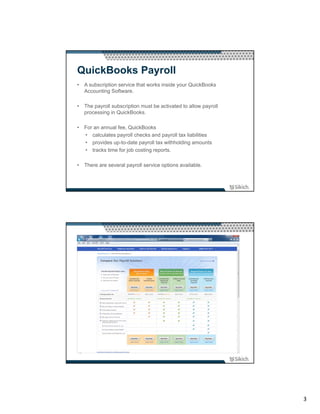
QuickBooks Payroll
• A subscription service that works inside your QuickBooks
  Accounting Software.

• The payroll subscription must be activated to allow payroll
  processing in QuickBooks.

• For an annual fee, QuickBooks
  • calculates payroll checks and payroll tax liabilities
  • provides up-to-date payroll tax withholding amounts
  • tracks time for job costing reports.

• There are several payroll service options available.


                                                                3
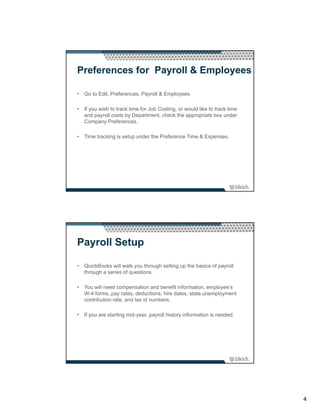
Preferences for Payroll & Employees

• Go to Edit, Preferences, Payroll & Employees.

• If you wish to track time for Job Costing, or would like to track time
  and payroll costs by Department, check the appropriate box under
  Company Preferences.

• Time tracking is setup under the Preference Time & Expenses.


Payroll Setup

• QuickBooks will walk you through setting up the basics of payroll
  through a series of questions.

• You will need compensation and benefit information, employee’s
  W-4 forms, pay rates, deductions, hire dates, state unemployment
  contribution rate, and tax id numbers.

• If you are starting mid-year, payroll history information is needed.


                                                                           4
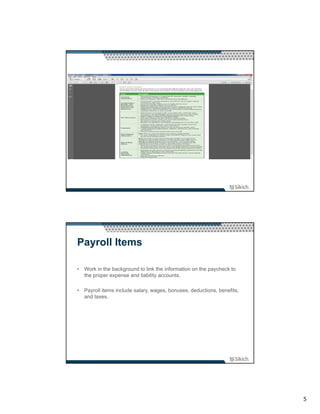
Payroll Items

• Work in the background to link the information on the paycheck to
  the proper expense and liability accounts.

• Payroll items include salary, wages, bonuses, deductions, benefits,
  and taxes.


                                                                        5
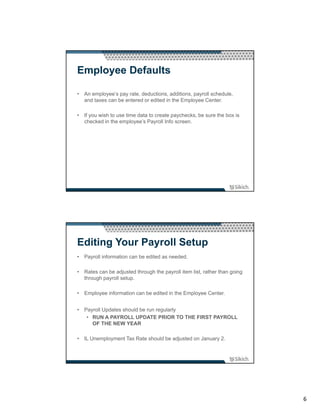
Employee Defaults

• An employee’s pay rate, deductions, additions, payroll schedule,
  and taxes can be entered or edited in the Employee Center.

• If you wish to use time data to create paychecks, be sure the box is
  checked in the employee’s Payroll Info screen.


Editing Your Payroll Setup
• Payroll information can be edited as needed.

• Rates can be adjusted through the payroll item list, rather than going
  through payroll setup.

• Employee information can be edited in the Employee Center.


• Payroll Updates should be run regularly
   • RUN A PAYROLL UPDATE PRIOR TO THE FIRST PAYROLL
     OF THE NEW YEAR

• IL Unemployment Tax Rate should be adjusted on January 2.


                                                                           6
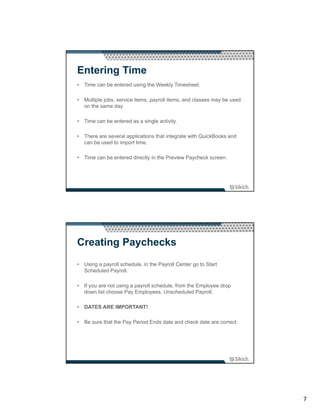
Entering Time
• Time can be entered using the Weekly Timesheet.

• Multiple jobs, service items, payroll items, and classes may be used
  on the same day.

• Time can be entered as a single activity.

• There are several applications that integrate with QuickBooks and
  can be used to import time.

• Time can be entered directly in the Preview Paycheck screen.


Creating Paychecks
• Using a payroll schedule, in the Payroll Center go to Start
  Scheduled Payroll.

• If you are not using a payroll schedule, from the Employee drop
  down list choose Pay Employees, Unscheduled Payroll.

• DATES ARE IMPORTANT!

• Be sure that the Pay Period Ends date and check date are correct.


                                                                         7
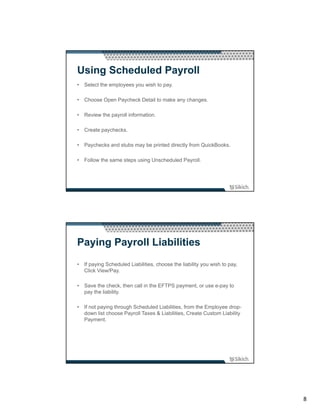
Using Scheduled Payroll
• Select the employees you wish to pay.

• Choose Open Paycheck Detail to make any changes.

• Review the payroll information.

• Create paychecks.

• Paychecks and stubs may be printed directly from QuickBooks.

• Follow the same steps using Unscheduled Payroll.


Paying Payroll Liabilities
• If paying Scheduled Liabilities, choose the liability you wish to pay,
  Click View/Pay.

• Save the check, then call in the EFTPS payment, or use e-pay to
  pay the liability.

• If not paying through Scheduled Liabilities, from the Employee drop-
  down list choose Payroll Taxes & Liabilities, Create Custom Liability
  Payment.


                                                                           8
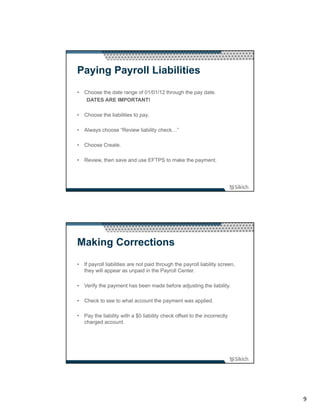
Paying Payroll Liabilities
• Choose the date range of 01/01/12 through the pay date.
   DATES ARE IMPORTANT!

• Choose the liabilities to pay.

• Always choose “Review liability check…”

• Choose Create.

• Review, then save and use EFTPS to make the payment.


Making Corrections
• If payroll liabilities are not paid through the payroll liability screen,
  they will appear as unpaid in the Payroll Center.

• Verify the payment has been made before adjusting the liability.

• Check to see to what account the payment was applied.

• Pay the liability with a $0 liability check offset to the incorrectly
  charged account.


                                                                              9
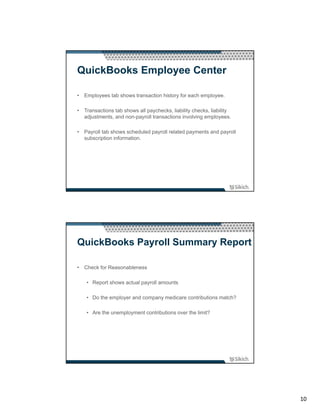
QuickBooks Employee Center

• Employees tab shows transaction history for each employee.

• Transactions tab shows all paychecks, liability checks, liability
  adjustments, and non-payroll transactions involving employees.

• Payroll tab shows scheduled payroll related payments and payroll
  subscription information.


QuickBooks Payroll Summary Report

• Check for Reasonableness

    • Report shows actual payroll amounts

    • Do the employer and company medicare contributions match?

    • Are the unemployment contributions over the limit?


                                                                      10
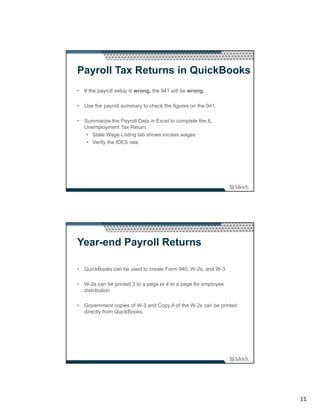
Payroll Tax Returns in QuickBooks
• If the payroll setup is wrong, the 941 will be wrong.

• Use the payroll summary to check the figures on the 941.

• Summarize the Payroll Data in Excel to complete the IL
  Unemployment Tax Return.
   • State Wage Listing tab shows excess wages
   • Verify the IDES rate


Year-end Payroll Returns

• QuickBooks can be used to create Form 940, W-2s, and W-3.

• W-2s can be printed 3 to a page or 4 to a page for employee
  distribution.

• Government copies of W-3 and Copy A of the W-2s can be printed
  directly from QuickBooks.


                                                                   11
Questions?
        Deborah Garrison, CPA
Advanced Certified QuickBooks ProAdvisor
                Sikich LLP
     1415 W. Diehl Road, Suite 400
          Naperville, IL 60563
   T: 630.566.8470 F: 630.375.6996
         dgarrison@sikich.com


                                           12

Using QuickBooks for Payroll Processing

  • 1.
    Using QuickBooks for Payroll Processing Objectives This webinar will discuss: • The information needed to begin payroll set-up • Entering Time • Creating paychecks • Paying payroll liabilities • Processing 1099s in QuickBooks 1
  • 2.
    Processing 1099s inQuickBooks • Go to Edit, Preferences, Tax: 1099, Company Preferences. • Set-up the appropriate 1099 category for each applicable account. • Each vendor that may need to receive a 1099 must be checked as an eligible vendor under the Additional Info vendor tab. Using the 1099 Wizard • May be found in the Vendor drop-down list under Print/e-file 1099s, or • Under the Tax: 1099 Preference. • QuickBooks can only create Form 1099-Misc and they must be printed on preprinted stock. 2
  • 3.
    QuickBooks Payroll • Asubscription service that works inside your QuickBooks Accounting Software. • The payroll subscription must be activated to allow payroll processing in QuickBooks. • For an annual fee, QuickBooks • calculates payroll checks and payroll tax liabilities • provides up-to-date payroll tax withholding amounts • tracks time for job costing reports. • There are several payroll service options available. 3
  • 4.
    Preferences for Payroll& Employees • Go to Edit, Preferences, Payroll & Employees. • If you wish to track time for Job Costing, or would like to track time and payroll costs by Department, check the appropriate box under Company Preferences. • Time tracking is setup under the Preference Time & Expenses. Payroll Setup • QuickBooks will walk you through setting up the basics of payroll through a series of questions. • You will need compensation and benefit information, employee’s W-4 forms, pay rates, deductions, hire dates, state unemployment contribution rate, and tax id numbers. • If you are starting mid-year, payroll history information is needed. 4
  • 5.
    Payroll Items • Workin the background to link the information on the paycheck to the proper expense and liability accounts. • Payroll items include salary, wages, bonuses, deductions, benefits, and taxes. 5
  • 6.
    Employee Defaults • Anemployee’s pay rate, deductions, additions, payroll schedule, and taxes can be entered or edited in the Employee Center. • If you wish to use time data to create paychecks, be sure the box is checked in the employee’s Payroll Info screen. Editing Your Payroll Setup • Payroll information can be edited as needed. • Rates can be adjusted through the payroll item list, rather than going through payroll setup. • Employee information can be edited in the Employee Center. • Payroll Updates should be run regularly • RUN A PAYROLL UPDATE PRIOR TO THE FIRST PAYROLL OF THE NEW YEAR • IL Unemployment Tax Rate should be adjusted on January 2. 6
  • 7.
    Entering Time • Timecan be entered using the Weekly Timesheet. • Multiple jobs, service items, payroll items, and classes may be used on the same day. • Time can be entered as a single activity. • There are several applications that integrate with QuickBooks and can be used to import time. • Time can be entered directly in the Preview Paycheck screen. Creating Paychecks • Using a payroll schedule, in the Payroll Center go to Start Scheduled Payroll. • If you are not using a payroll schedule, from the Employee drop down list choose Pay Employees, Unscheduled Payroll. • DATES ARE IMPORTANT! • Be sure that the Pay Period Ends date and check date are correct. 7
  • 8.
    Using Scheduled Payroll •Select the employees you wish to pay. • Choose Open Paycheck Detail to make any changes. • Review the payroll information. • Create paychecks. • Paychecks and stubs may be printed directly from QuickBooks. • Follow the same steps using Unscheduled Payroll. Paying Payroll Liabilities • If paying Scheduled Liabilities, choose the liability you wish to pay, Click View/Pay. • Save the check, then call in the EFTPS payment, or use e-pay to pay the liability. • If not paying through Scheduled Liabilities, from the Employee drop- down list choose Payroll Taxes & Liabilities, Create Custom Liability Payment. 8
  • 9.
    Paying Payroll Liabilities •Choose the date range of 01/01/12 through the pay date. DATES ARE IMPORTANT! • Choose the liabilities to pay. • Always choose “Review liability check…” • Choose Create. • Review, then save and use EFTPS to make the payment. Making Corrections • If payroll liabilities are not paid through the payroll liability screen, they will appear as unpaid in the Payroll Center. • Verify the payment has been made before adjusting the liability. • Check to see to what account the payment was applied. • Pay the liability with a $0 liability check offset to the incorrectly charged account. 9
  • 10.
    QuickBooks Employee Center •Employees tab shows transaction history for each employee. • Transactions tab shows all paychecks, liability checks, liability adjustments, and non-payroll transactions involving employees. • Payroll tab shows scheduled payroll related payments and payroll subscription information. QuickBooks Payroll Summary Report • Check for Reasonableness • Report shows actual payroll amounts • Do the employer and company medicare contributions match? • Are the unemployment contributions over the limit? 10
  • 11.
    Payroll Tax Returnsin QuickBooks • If the payroll setup is wrong, the 941 will be wrong. • Use the payroll summary to check the figures on the 941. • Summarize the Payroll Data in Excel to complete the IL Unemployment Tax Return. • State Wage Listing tab shows excess wages • Verify the IDES rate Year-end Payroll Returns • QuickBooks can be used to create Form 940, W-2s, and W-3. • W-2s can be printed 3 to a page or 4 to a page for employee distribution. • Government copies of W-3 and Copy A of the W-2s can be printed directly from QuickBooks. 11
  • 12.
    Questions? Deborah Garrison, CPA Advanced Certified QuickBooks ProAdvisor Sikich LLP 1415 W. Diehl Road, Suite 400 Naperville, IL 60563 T: 630.566.8470 F: 630.375.6996 dgarrison@sikich.com 12