1. Numpy
Cập nhật
python -m pip install --upgradepip
Cài đặt:
pip install numpy
pip install --user notebook
pip install --user tensorflow==1.15
conda install numpy
pip list -v
py -0
python –version
conda install matplotlib
xóa
pip uninstall numpy
2. Conda
conda create --name Hung python=3.7
conda env remove --name Hung
conda activate Hung --y
conda deactivate
conda env list
conda info –envs
conda install python=3.5
Cài đặt từng môi trường
conda install --name Hung keras
3. Jupyter
conda create --name firstEnv
conda create -n Hung python=3.7.6
Cai moi truong
conda install -c anaconda ipykernel
python -m ipykernel install --user --name=Hung
cai goi
conda install numpy
conda activate Hung
jupyter kernelspec list
xoa:
jupyter kernelspec uninstall Hung
pip import numpy
pip import open3d
pip install opencv-python
pip install matplotlib
pip install nuscenes-devkit
pip install git+https://github…
4. virtualenvwrapper
conda install virtualenvwrapper-win
5. Google Colab
!python –version
!which python
!echo $PYTHONPATH
%env PYTHONPATH=
!echo $PYTHONPATH
virtualenv NAME
conda for google colab
!pip install -q condacolab
import condacolab
condacolab.install()
import condacolab
condacolab.check()
Open Google Colab
Mount Google Drive
import os, sys
#to be able to interact with Google Drive's operating system
fromgoogle.colab import drive
#drive is a module that allows us use Python to interact with google drive
drive.mount('/content/gdrive')
#mounting google drive allows us to work with its contents
nb_path = '/content/notebooks'
os.symlink('/content/gdrive/My Drive/Colab Notebooks', nb_path)
sys.path.insert(0, nb_path) #or append(nb_path)
#The last three lines are what changes the path of the file.
Install the module in the notebook folder permanently
!pip install --target=$nb_path spacy
Mount your Google drive
fromgoogle.colab import drive
drive.mount('/content/gdrive')
Change the path to the directory where the module is located
import sys
sys.path.append('/content/gdrive/My Drive/Colab Notebooks')
6. Kenenl died with code 1
Go to terminal open it as admin.
conda activate Hung
conda install --name Hung ipykernel -y
refresh the kernel by opening the jupyter note book from vscode terminal
-Choose the kernal you updated with ipykernel in vscode
Change background color
{
"workbench.colorCustomizations": {
"editor.background": "#141414"},
"launch": {
"configurations": [],
"compounds": []
},
"workbench.colorTheme": "One Dark Pro Flat",
"workbench.editorAssociations": {
"*.ipynb": "jupyter-notebook"
},
"security.workspace.trust.untrustedFiles": "open",
"window.zoomLevel": 1,
"terminal.integrated.altClickMovesCursor": false
}
Function definition: python.languageserver
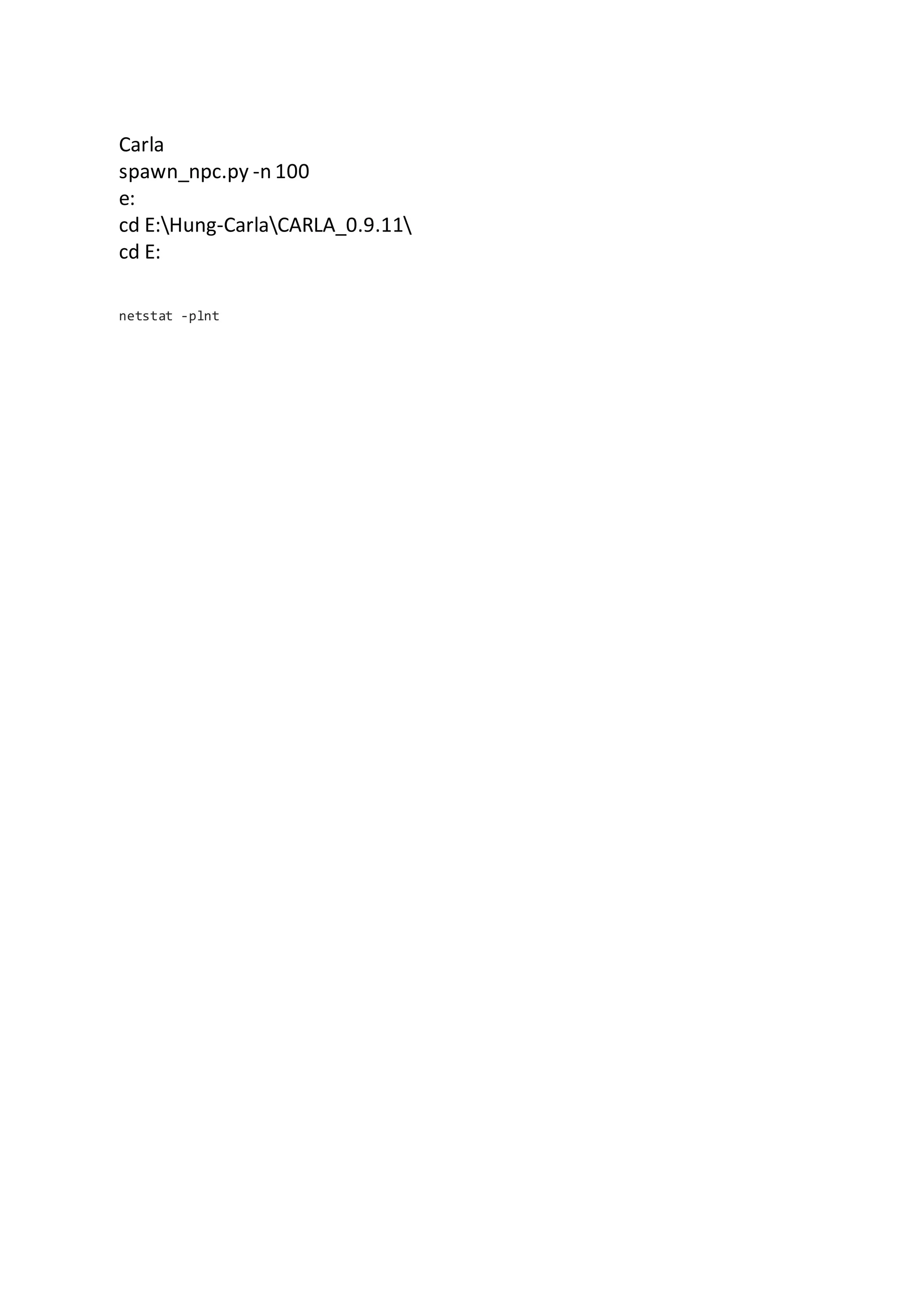
Carla
spawn_npc.py -n 100
e:
cd E:Hung-CarlaCARLA_0.9.11
cd E:
netstat -plnt

Python

  • 1.
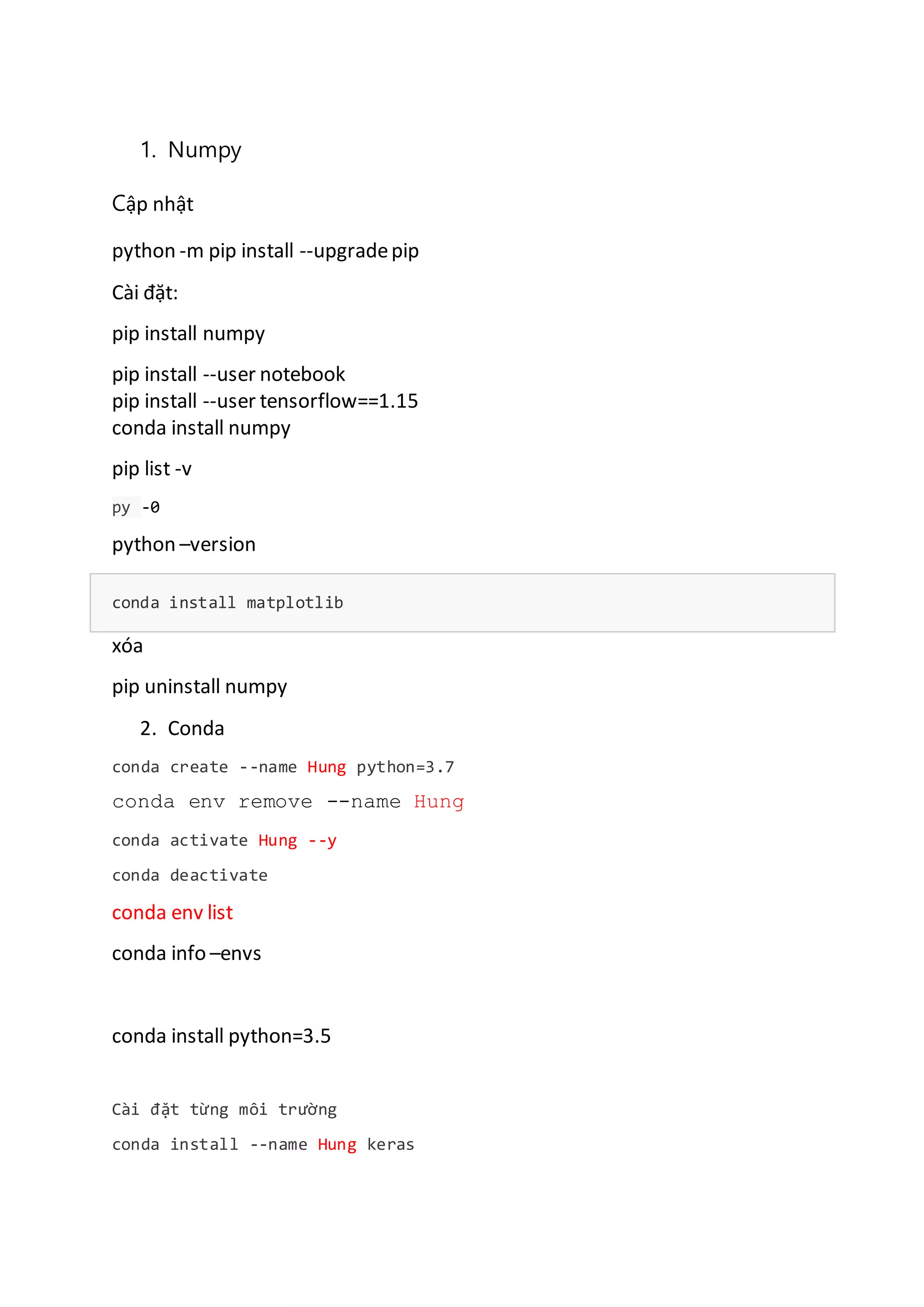
    1. Numpy Cập nhật python-m pip install --upgradepip Cài đặt: pip install numpy pip install --user notebook pip install --user tensorflow==1.15 conda install numpy pip list -v py -0 python –version conda install matplotlib xóa pip uninstall numpy 2. Conda conda create --name Hung python=3.7 conda env remove --name Hung conda activate Hung --y conda deactivate conda env list conda info –envs conda install python=3.5 Cài đặt từng môi trường conda install --name Hung keras
  • 2.
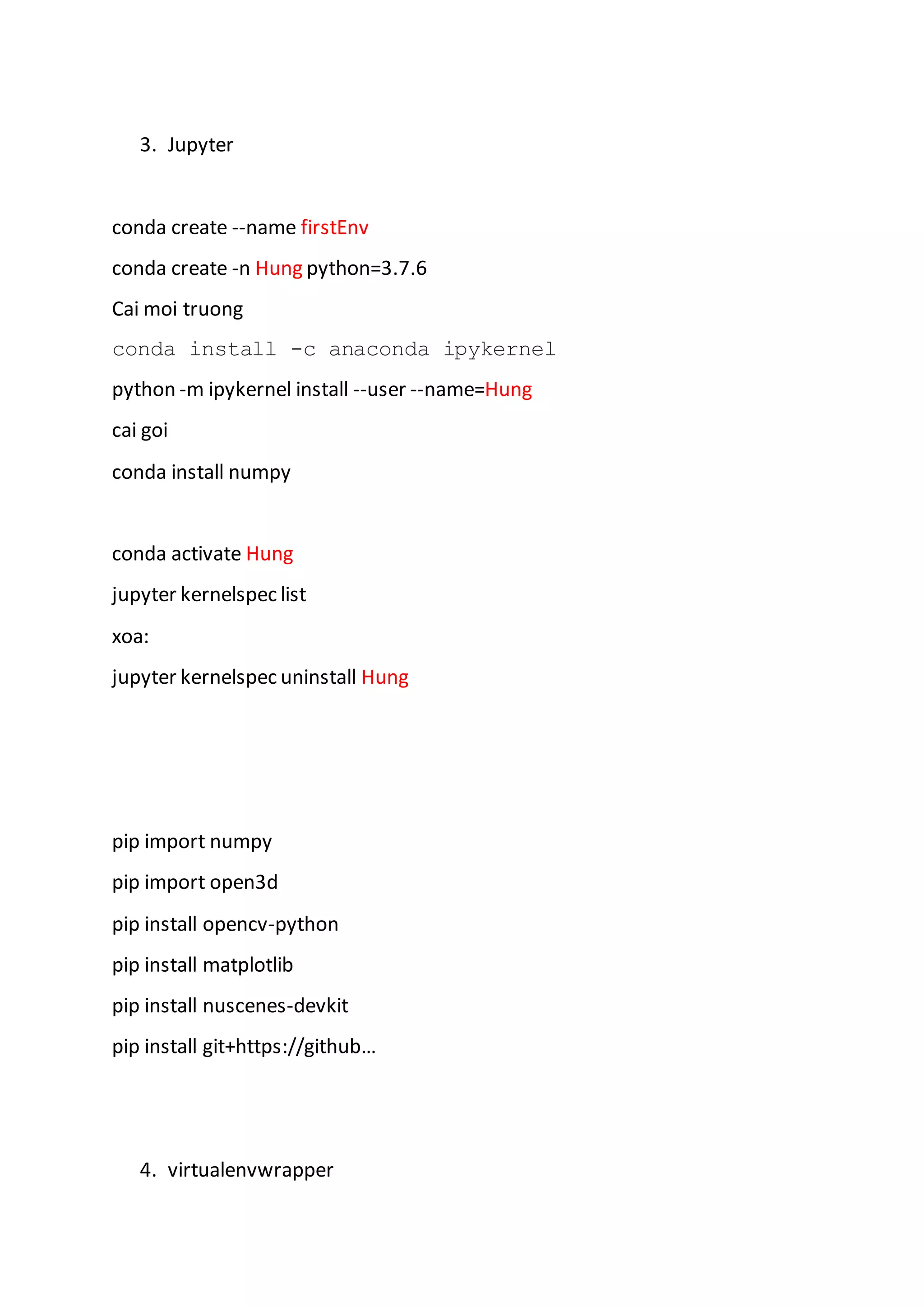
    3. Jupyter conda create--name firstEnv conda create -n Hung python=3.7.6 Cai moi truong conda install -c anaconda ipykernel python -m ipykernel install --user --name=Hung cai goi conda install numpy conda activate Hung jupyter kernelspec list xoa: jupyter kernelspec uninstall Hung pip import numpy pip import open3d pip install opencv-python pip install matplotlib pip install nuscenes-devkit pip install git+https://github… 4. virtualenvwrapper
  • 3.
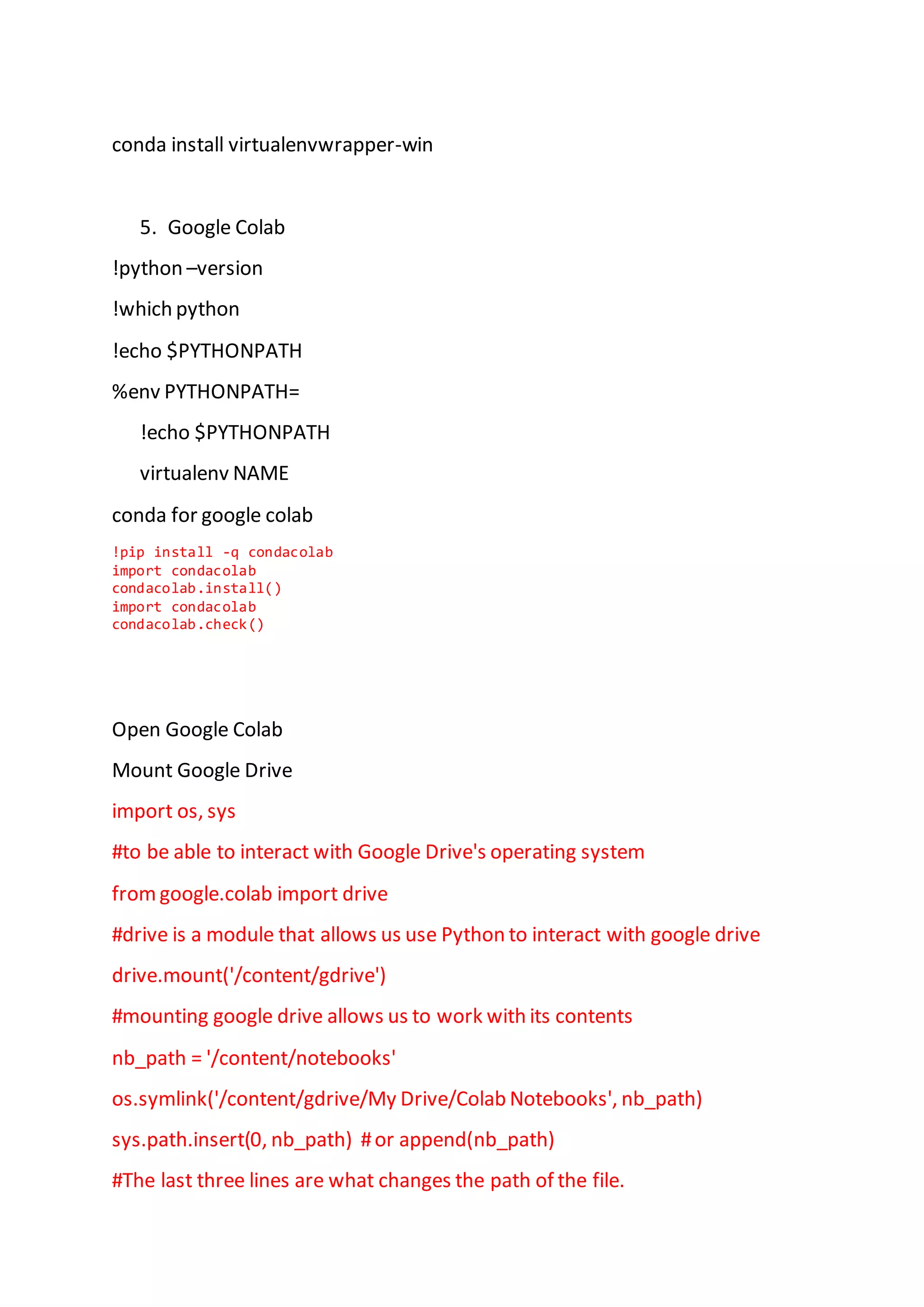
    conda install virtualenvwrapper-win 5.Google Colab !python –version !which python !echo $PYTHONPATH %env PYTHONPATH= !echo $PYTHONPATH virtualenv NAME conda for google colab !pip install -q condacolab import condacolab condacolab.install() import condacolab condacolab.check() Open Google Colab Mount Google Drive import os, sys #to be able to interact with Google Drive's operating system fromgoogle.colab import drive #drive is a module that allows us use Python to interact with google drive drive.mount('/content/gdrive') #mounting google drive allows us to work with its contents nb_path = '/content/notebooks' os.symlink('/content/gdrive/My Drive/Colab Notebooks', nb_path) sys.path.insert(0, nb_path) #or append(nb_path) #The last three lines are what changes the path of the file.
  • 4.
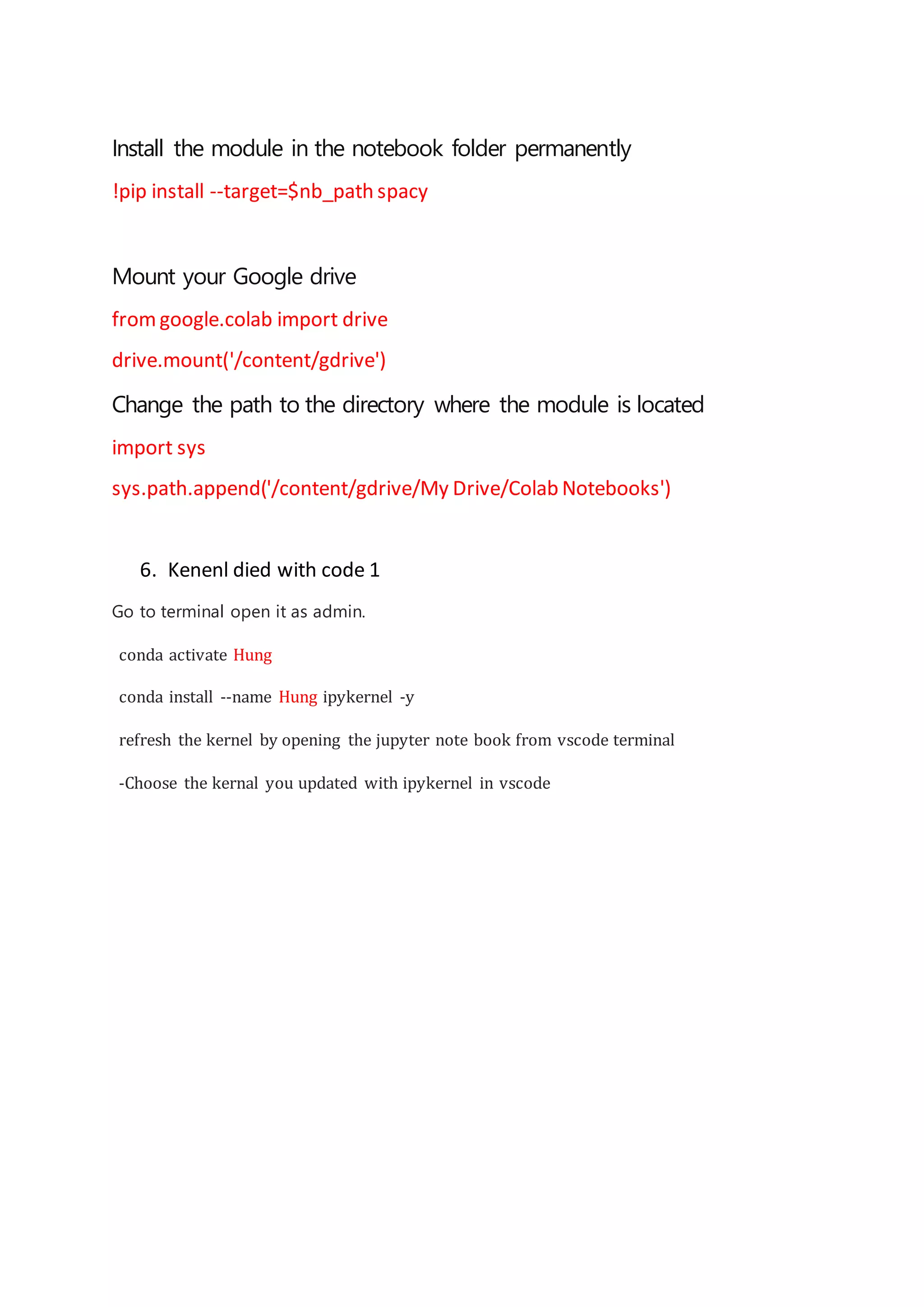
    Install the modulein the notebook folder permanently !pip install --target=$nb_path spacy Mount your Google drive fromgoogle.colab import drive drive.mount('/content/gdrive') Change the path to the directory where the module is located import sys sys.path.append('/content/gdrive/My Drive/Colab Notebooks') 6. Kenenl died with code 1 Go to terminal open it as admin. conda activate Hung conda install --name Hung ipykernel -y refresh the kernel by opening the jupyter note book from vscode terminal -Choose the kernal you updated with ipykernel in vscode
  • 5.
    Change background color { "workbench.colorCustomizations":{ "editor.background": "#141414"}, "launch": { "configurations": [], "compounds": [] }, "workbench.colorTheme": "One Dark Pro Flat", "workbench.editorAssociations": { "*.ipynb": "jupyter-notebook" }, "security.workspace.trust.untrustedFiles": "open", "window.zoomLevel": 1, "terminal.integrated.altClickMovesCursor": false } Function definition: python.languageserver
  • 6.
    Carla spawn_npc.py -n 100 e: cdE:Hung-CarlaCARLA_0.9.11 cd E: netstat -plnt