SAP – IS-Oil – TSW/GTM/TRM Nomination Senarios Prepared by: Murali Venkatesh Version. 1.0 June 15 2009 International Oil Movement : Nomination, Pegging, Reference Document Indicator (RDI), FOB, DES
Agenda Current State Desired State Project Schedule Milestones Organization Chart Resources Deliverables Presentation Wrap up Questions
Module Objectives Learn the purpose and use of nominations Understand the structure of a nomination
Nomination Usage Nominations are used to Schedule Movements (purchase, sale, transfer) Specify origin and destination Control what information is sent to which partners Communicate details to vendors to customers to refinery systems The nomination movement scenario determines which ERP documents are created, for example GI/GR Delivery TD shipment
Nomination Data Sources The nomination document combines information Provided by the ERP source document (sales order, purchase order) Information entered by the scheduler
Nomination Create Options Nominations can be created in four ways Automated Order Interface /FOB Sales/ Schedulers Open Order Report –  YGR_OOLIST “ Create by reference” using Maintain nomination –  O4NM Create nomination –  O4NCN
Create With Reference Schedulers can also use “Create with reference” functionality to create a new nomination Identify an existing nomination or template nomination similar to the current requirements Update copied/defaulted fields with data for the current movement This method can be used for  transfers  which do not use sales/purchase orders as reference documents
Pegging Pegging defines relationships between nomination line items Peg Auto-ticket  – links the O1 - P and O2 - X items for an FOB Purchase so that O1 – P ticketed quantities are automatically copied to the O2 – X line item.  Peg automatically created for scenario 1 items.
Learning Checkpoints You should be able to answer the following questions: What are the four ways to create a nomination? What create method is used for transfers?
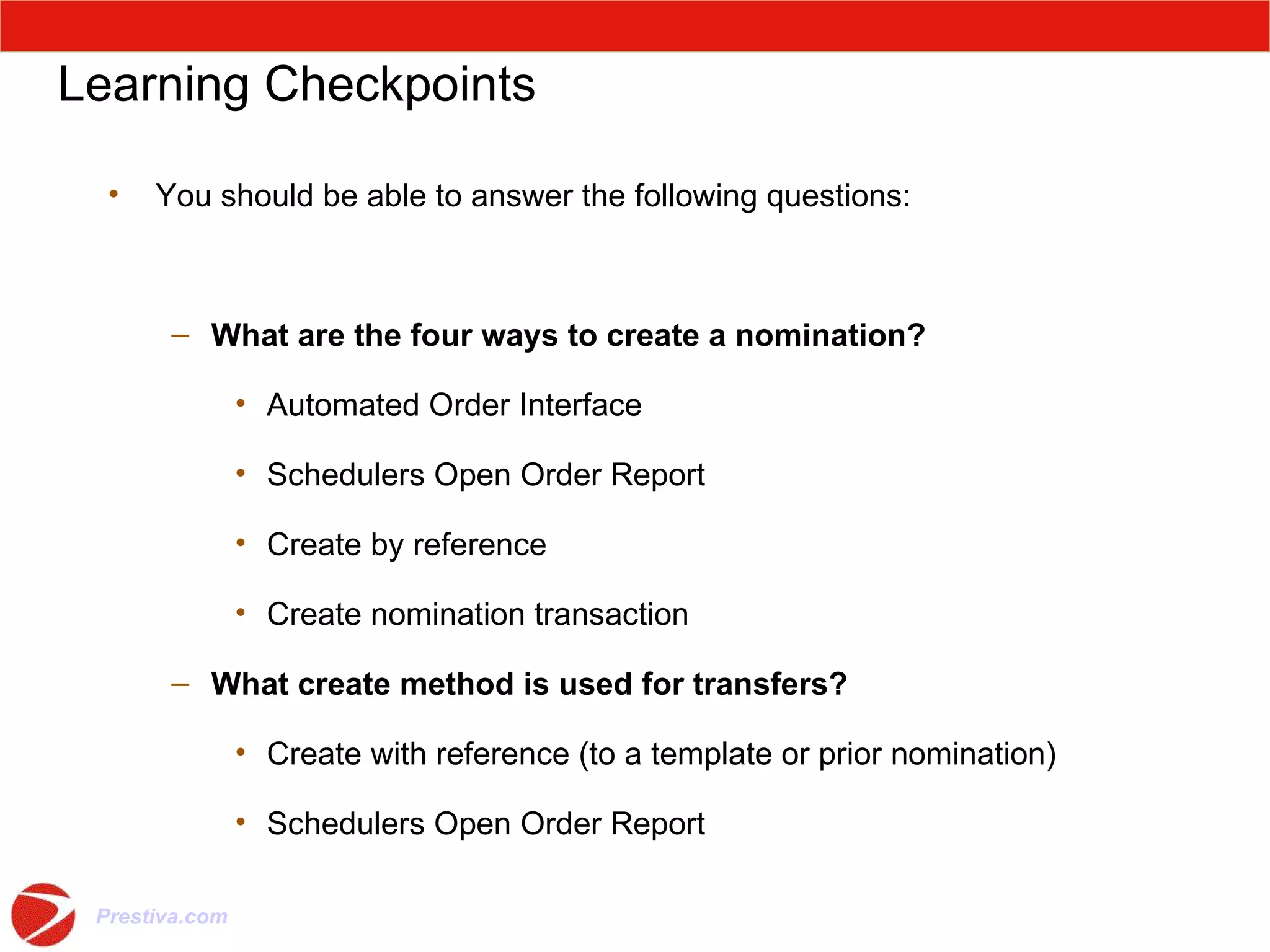
Learning Checkpoints You should be able to answer the following questions: What are the four ways to create a nomination? Automated Order Interface Schedulers Open Order Report Create by reference Create nomination transaction What create method is used for transfers? Create with reference (to a template or prior nomination) Schedulers Open Order Report Questions ?
Module Objectives Learn the power and flexibility of the Nomination Overview selection panel Learn how to use Dynamic selection criteria Learn how to customize screen displays Learn the data displayed on screens
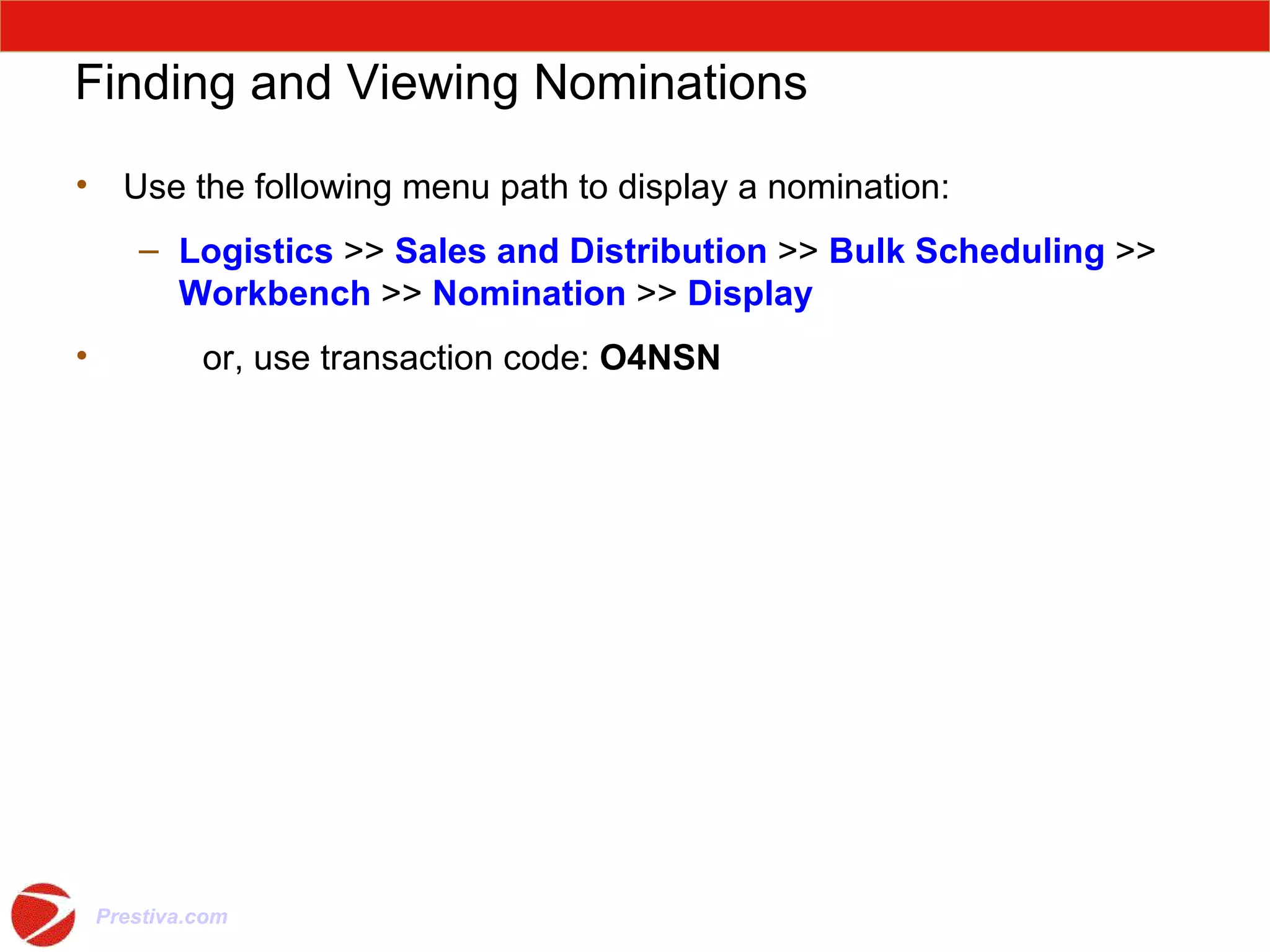
Finding and Viewing Nominations Use the following menu path to display a nomination: Logistics  >>  Sales and Distribution  >>  Bulk Scheduling  >>  Workbench  >>  Nomination  >>  Display or, use transaction code:  O4NSN
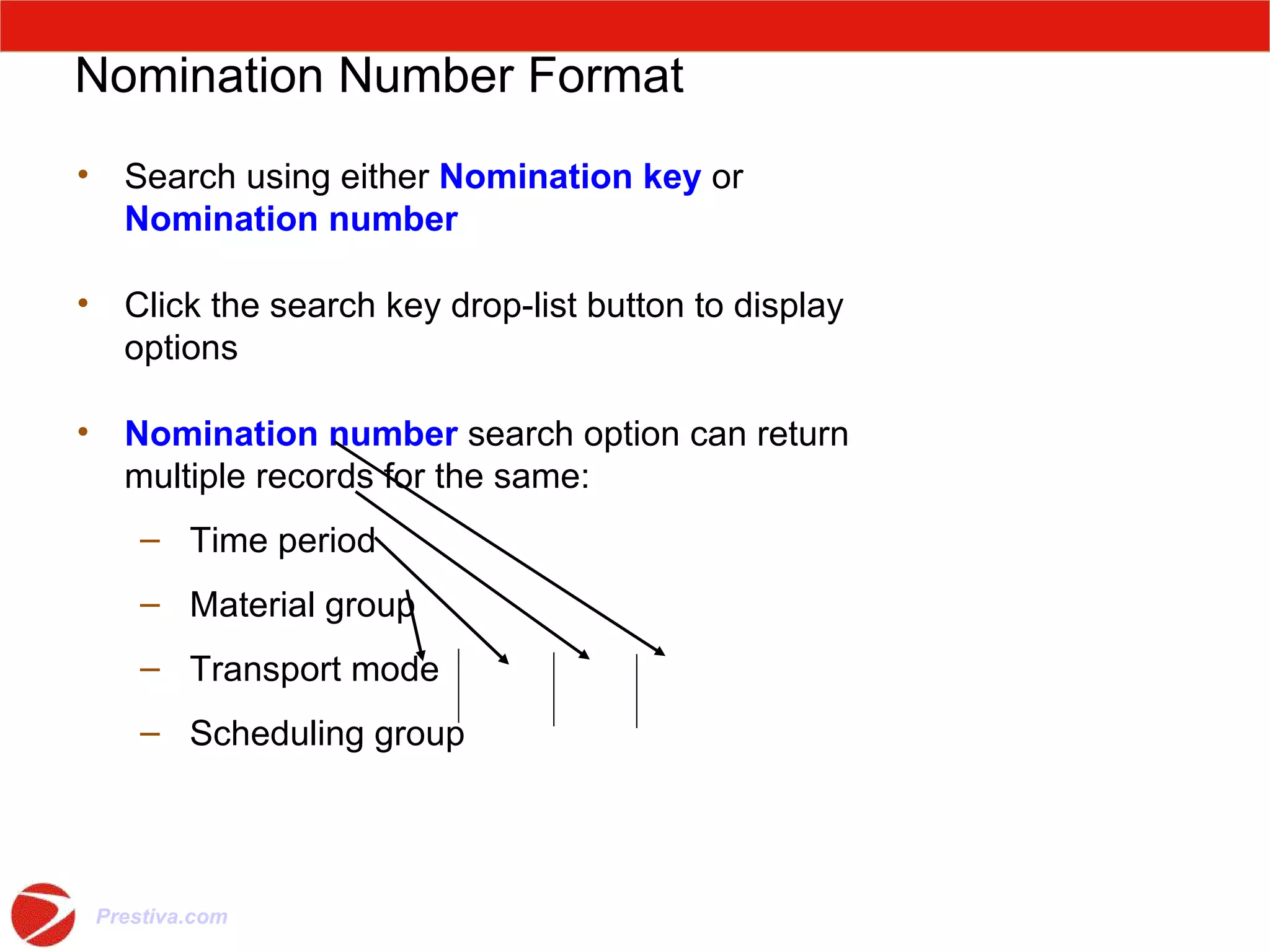
Nomination Number Format Search using either  Nomination key  or  Nomination number Click the search key drop-list button to display options  Nomination number  search option can return multiple records for the same: Time period  Material group  Transport mode  Scheduling group
Nomination Search Press the  Enter  key to execute the search Note 1:  The  Enter  key must be used to execute this search, not the green checkmark  Note 2: Use the wildcard ‘  *  ‘ at the end of the search string if the full nomination number is not used Click the Expand icon to display entries meeting the search criteria Repeat the Expand icon click until nomination keys are displayed
Module Objectives Learn the six basic movement scenarios Learn the factors that complicate the basic scenarios Learn the Schedule Item Type and Reference Document indicator combinations that determine the scenario and documents generated
Intransit Stock Ownership INCOTERM : The purchase order’s or sales order’s INCOTERM sets the location of the title transfer, INCOTERM specifies ownership of the intransit inventory TRANSFERS   no INCOTERM Receiving plant/storage location (RECT) is the intransit stock holding object
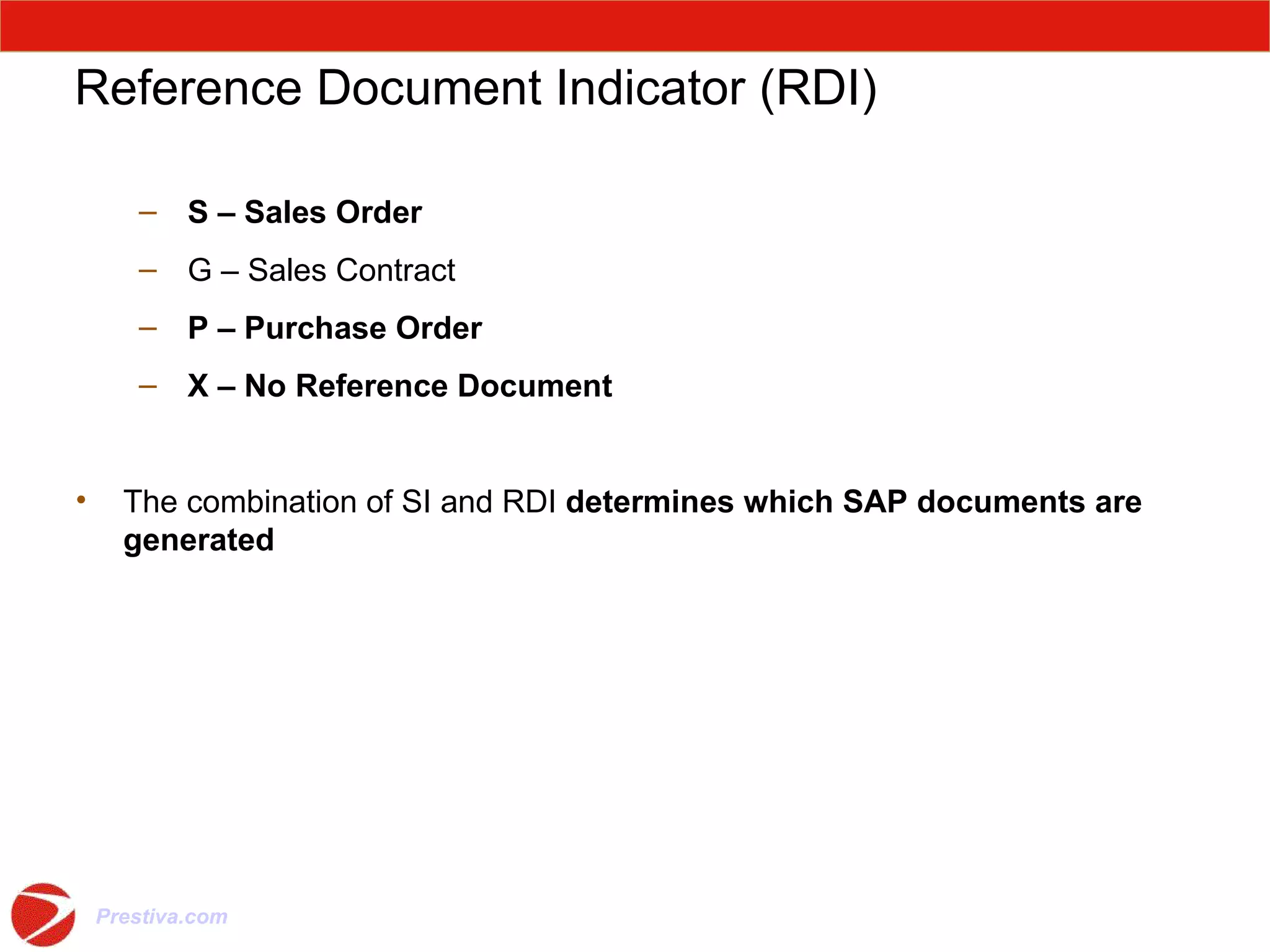
Reference Document Indicator (RDI) S – Sales Order G – Sales Contract P – Purchase Order X – No Reference Document The combination of SI and RDI  determines which SAP documents are generated
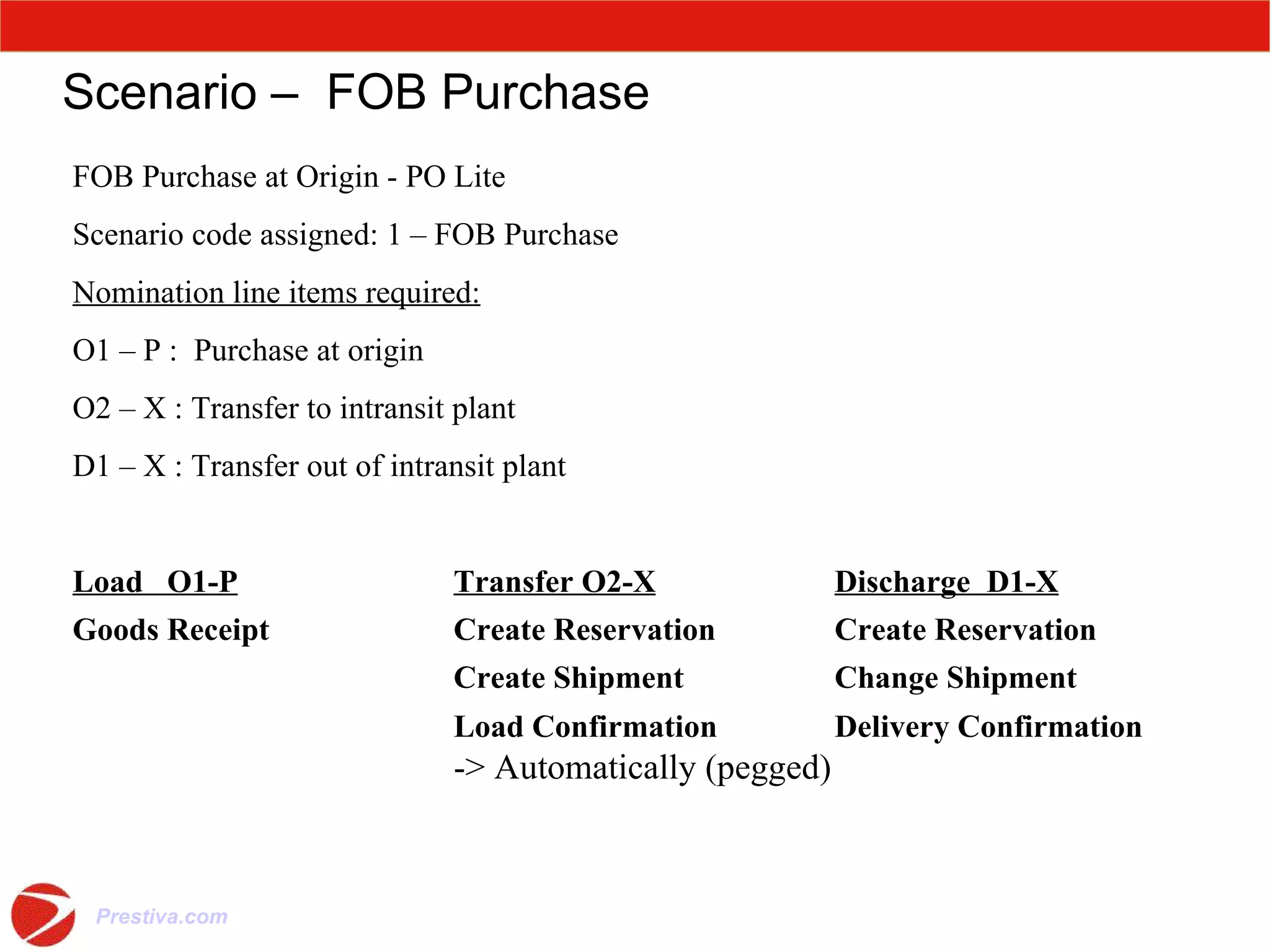
Scenario –  FOB Purchase FOB Purchase at Origin -  PO Lite Scenario code assigned: 1 – FOB Purchase Nomination line items required: O1 – P :  Purchase at origin O2 – X : Transfer to intransit plant D1 – X : Transfer out of intransit plant Load  O1-P Transfer O2-X   Discharge  D1-X Goods Receipt    Create Reservation  Create Reservation     Create Shipment Change Shipment   Load Confirmation  Delivery Confirmation -> Automatically (pegged)
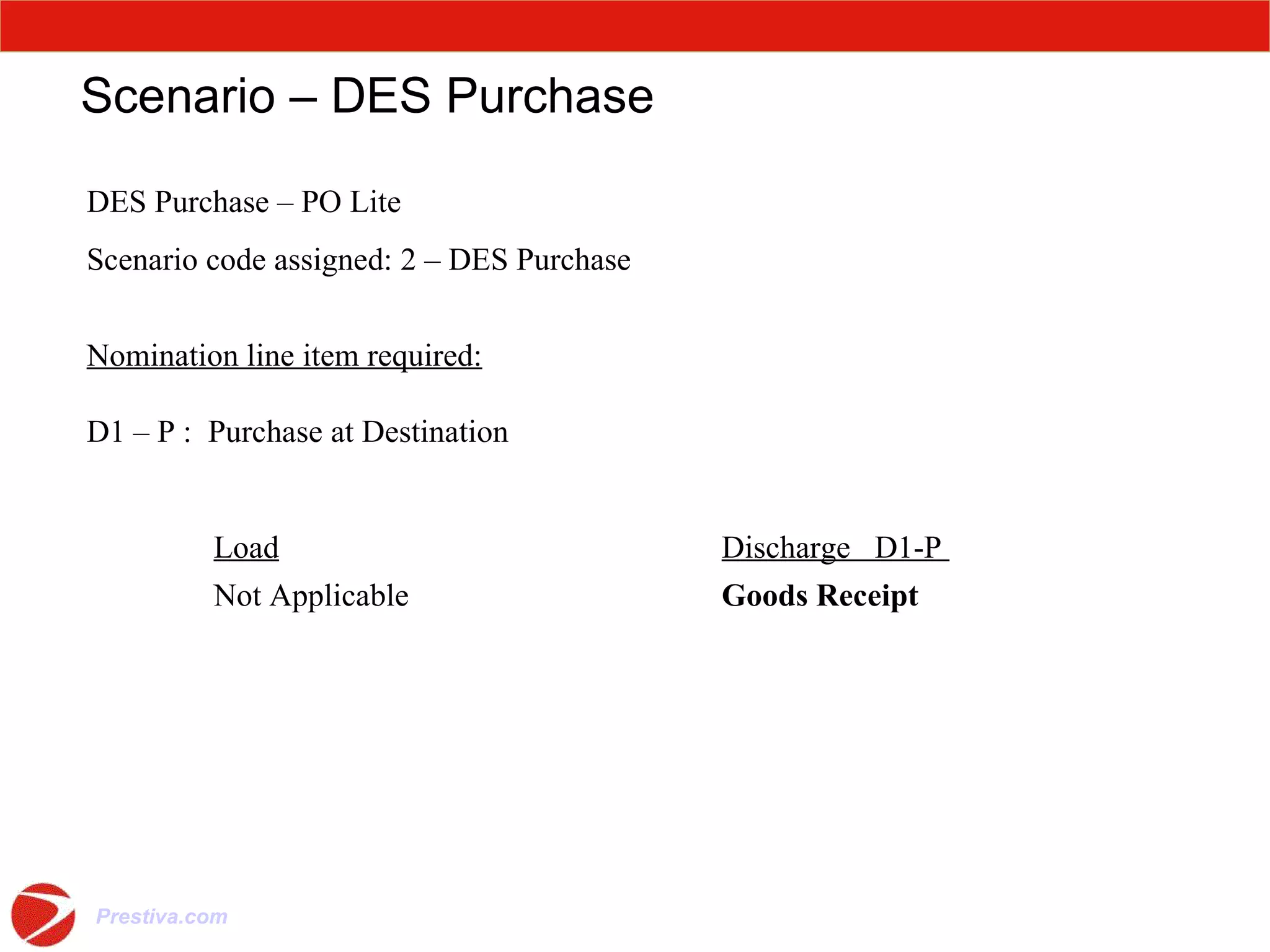
Scenario – DES Purchase DES Purchase – PO Lite Scenario code assigned: 2 – DES Purchase Nomination line item required: D1 – P :  Purchase at Destination Load Discharge  D1-P  Not Applicable Goods Receipt
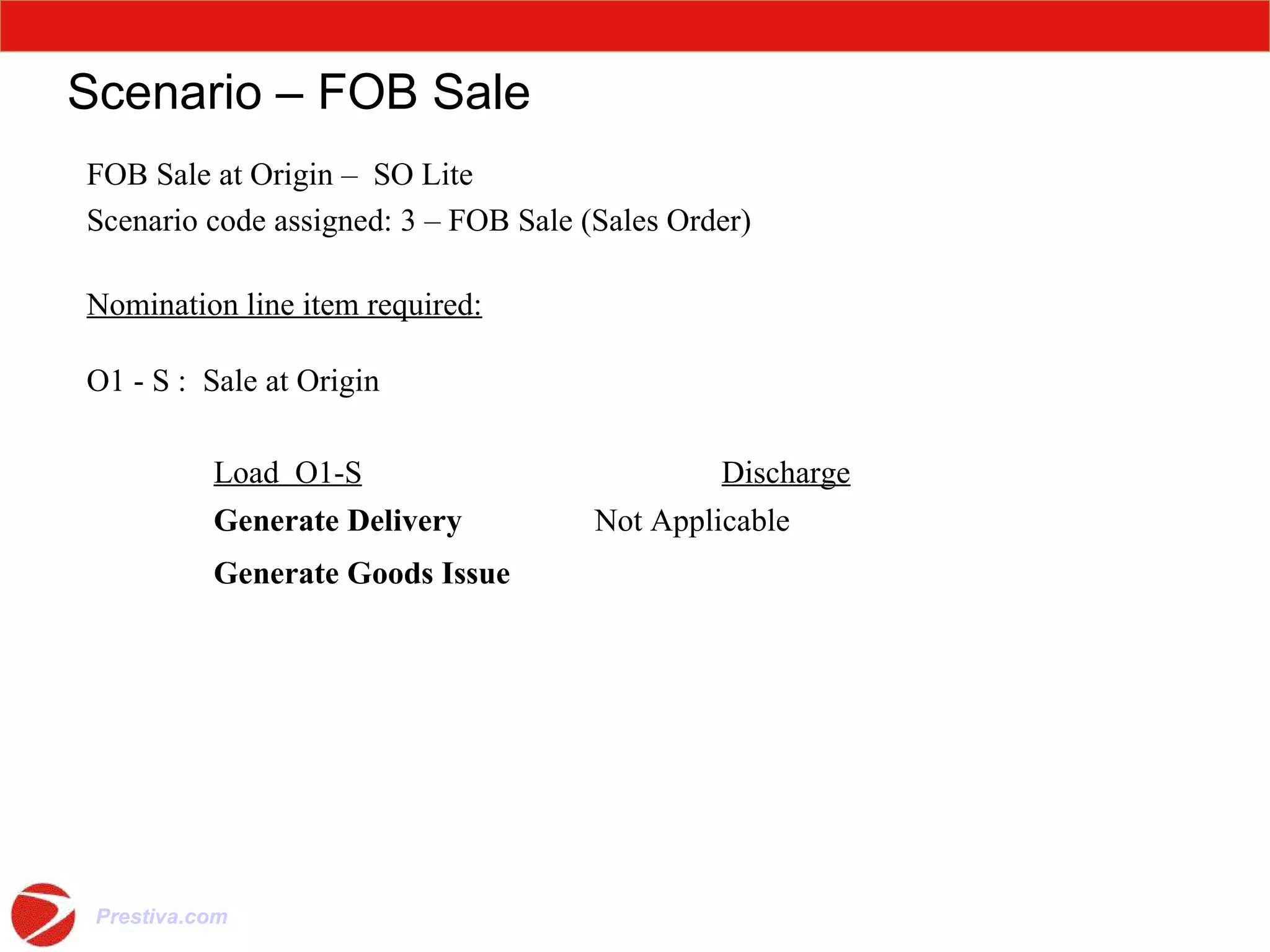
Scenario – FOB Sale FOB Sale at Origin –  SO Lite Scenario code assigned: 3 – FOB Sale (Sales Order) Nomination line item required: O1 - S :  Sale at Origin Load  O1-S Discharge Generate Delivery Not Applicable Generate Goods Issue
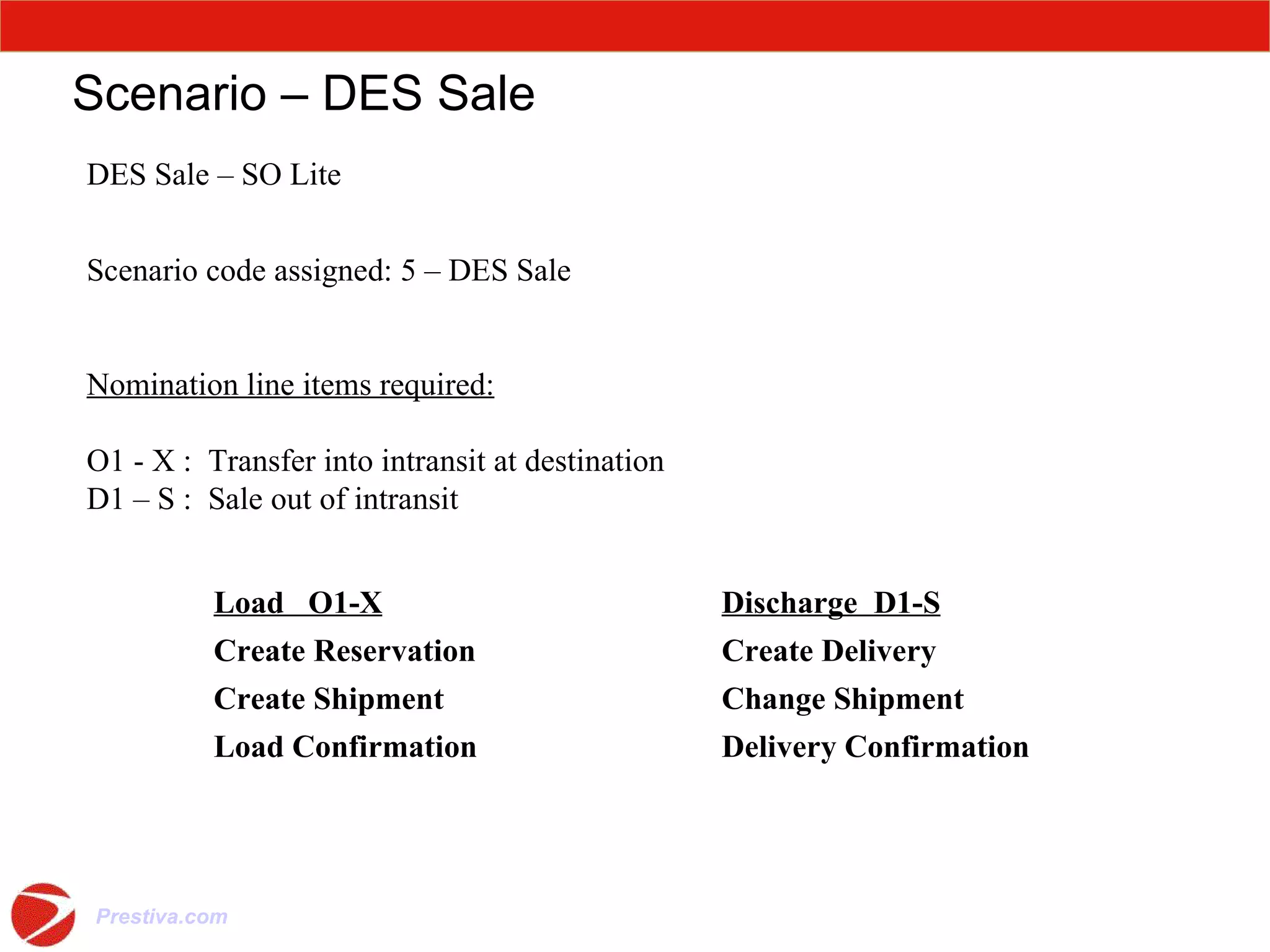
Scenario – DES Sale DES Sale – SO Lite Scenario code assigned: 5 – DES Sale Nomination line items required: O1 - X :  Transfer into intransit at destination D1 – S :  Sale out of intransit Load  O1-X Discharge  D1-S Create Reservation Create Delivery Create Shipment Change Shipment Load Confirmation  Delivery Confirmation
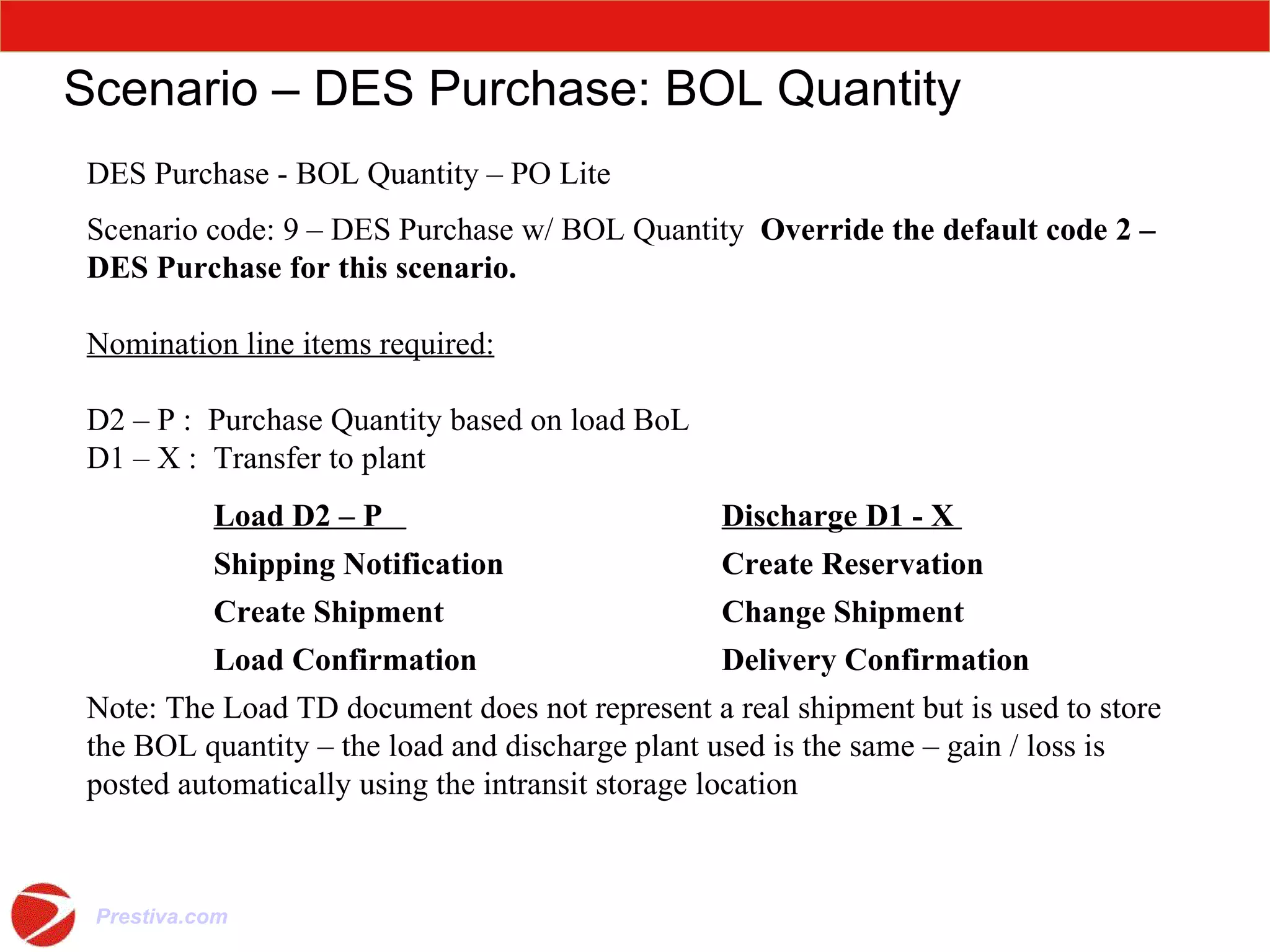
Scenario – DES Purchase: BOL Quantity DES Purchase - BOL Quantity – PO Lite Scenario code: 9 – DES Purchase w/ BOL Quantity  Override the default code 2 – DES Purchase for this scenario. Nomination line items required: D2 – P :  Purchase Quantity based on load BoL D1 – X :  Transfer to plant Load D2 – P  Discharge D1 - X  Shipping Notification Create Reservation Create Shipment Change Shipment Load Confirmation  Delivery Confirmation Note: The Load TD document does not represent a real shipment but is used to store the BOL quantity – the load and discharge plant used is the same – gain / loss is posted automatically using the intransit storage location
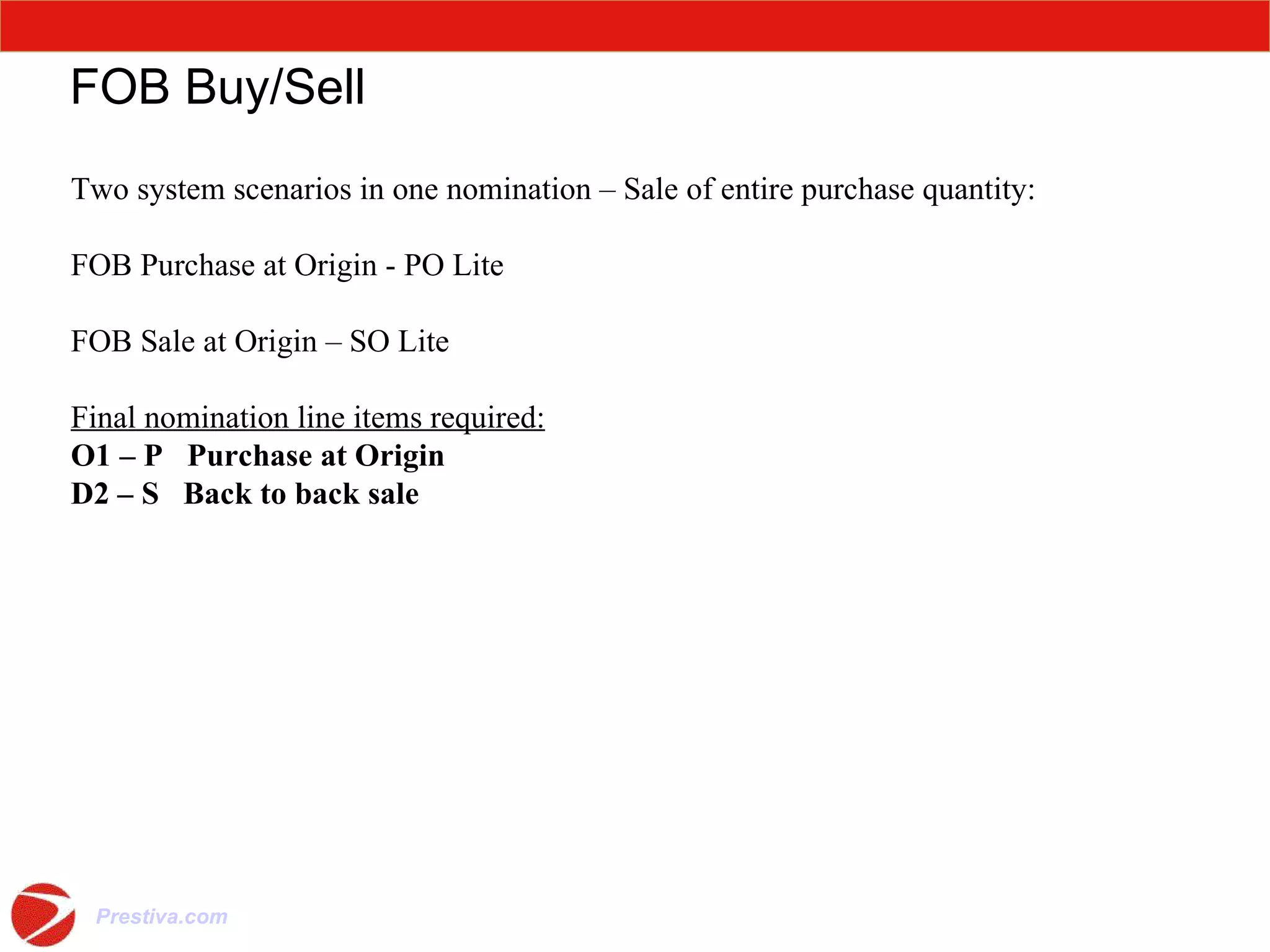
FOB Buy/Sell Two system scenarios in one nomination – Sale of entire purchase quantity: FOB Purchase at Origin - PO Lite FOB Sale at Origin – SO Lite Final nomination line items required: O1 – P  Purchase at Origin   D2 – S  Back to back sale

Prestiva nomination: SAP IS-OIL TSW, SPW, TRM, GTM

  • 1.
    SAP – IS-Oil– TSW/GTM/TRM Nomination Senarios Prepared by: Murali Venkatesh Version. 1.0 June 15 2009 International Oil Movement : Nomination, Pegging, Reference Document Indicator (RDI), FOB, DES
  • 2.
    Agenda Current StateDesired State Project Schedule Milestones Organization Chart Resources Deliverables Presentation Wrap up Questions
  • 3.
    Module Objectives Learnthe purpose and use of nominations Understand the structure of a nomination
  • 4.
    Nomination Usage Nominationsare used to Schedule Movements (purchase, sale, transfer) Specify origin and destination Control what information is sent to which partners Communicate details to vendors to customers to refinery systems The nomination movement scenario determines which ERP documents are created, for example GI/GR Delivery TD shipment
  • 5.
    Nomination Data SourcesThe nomination document combines information Provided by the ERP source document (sales order, purchase order) Information entered by the scheduler
  • 6.
    Nomination Create OptionsNominations can be created in four ways Automated Order Interface /FOB Sales/ Schedulers Open Order Report – YGR_OOLIST “ Create by reference” using Maintain nomination – O4NM Create nomination – O4NCN
  • 7.
    Create With ReferenceSchedulers can also use “Create with reference” functionality to create a new nomination Identify an existing nomination or template nomination similar to the current requirements Update copied/defaulted fields with data for the current movement This method can be used for transfers which do not use sales/purchase orders as reference documents
  • 8.
    Pegging Pegging definesrelationships between nomination line items Peg Auto-ticket – links the O1 - P and O2 - X items for an FOB Purchase so that O1 – P ticketed quantities are automatically copied to the O2 – X line item. Peg automatically created for scenario 1 items.
  • 9.
    Learning Checkpoints Youshould be able to answer the following questions: What are the four ways to create a nomination? What create method is used for transfers?
  • 10.
    Learning Checkpoints Youshould be able to answer the following questions: What are the four ways to create a nomination? Automated Order Interface Schedulers Open Order Report Create by reference Create nomination transaction What create method is used for transfers? Create with reference (to a template or prior nomination) Schedulers Open Order Report Questions ?
  • 11.
    Module Objectives Learnthe power and flexibility of the Nomination Overview selection panel Learn how to use Dynamic selection criteria Learn how to customize screen displays Learn the data displayed on screens
  • 12.
    Finding and ViewingNominations Use the following menu path to display a nomination: Logistics >> Sales and Distribution >> Bulk Scheduling >> Workbench >> Nomination >> Display or, use transaction code: O4NSN
  • 13.
    Nomination Number FormatSearch using either Nomination key or Nomination number Click the search key drop-list button to display options Nomination number search option can return multiple records for the same: Time period Material group Transport mode Scheduling group
  • 14.
    Nomination Search Pressthe Enter key to execute the search Note 1: The Enter key must be used to execute this search, not the green checkmark Note 2: Use the wildcard ‘ * ‘ at the end of the search string if the full nomination number is not used Click the Expand icon to display entries meeting the search criteria Repeat the Expand icon click until nomination keys are displayed
  • 15.
    Module Objectives Learnthe six basic movement scenarios Learn the factors that complicate the basic scenarios Learn the Schedule Item Type and Reference Document indicator combinations that determine the scenario and documents generated
  • 16.
    Intransit Stock OwnershipINCOTERM : The purchase order’s or sales order’s INCOTERM sets the location of the title transfer, INCOTERM specifies ownership of the intransit inventory TRANSFERS no INCOTERM Receiving plant/storage location (RECT) is the intransit stock holding object
  • 17.
    Reference Document Indicator(RDI) S – Sales Order G – Sales Contract P – Purchase Order X – No Reference Document The combination of SI and RDI determines which SAP documents are generated
  • 18.
    Scenario – FOB Purchase FOB Purchase at Origin - PO Lite Scenario code assigned: 1 – FOB Purchase Nomination line items required: O1 – P : Purchase at origin O2 – X : Transfer to intransit plant D1 – X : Transfer out of intransit plant Load O1-P Transfer O2-X Discharge D1-X Goods Receipt Create Reservation Create Reservation Create Shipment Change Shipment Load Confirmation Delivery Confirmation -> Automatically (pegged)
  • 19.
    Scenario – DESPurchase DES Purchase – PO Lite Scenario code assigned: 2 – DES Purchase Nomination line item required: D1 – P : Purchase at Destination Load Discharge D1-P Not Applicable Goods Receipt
  • 20.
    Scenario – FOBSale FOB Sale at Origin – SO Lite Scenario code assigned: 3 – FOB Sale (Sales Order) Nomination line item required: O1 - S : Sale at Origin Load O1-S Discharge Generate Delivery Not Applicable Generate Goods Issue
  • 21.
    Scenario – DESSale DES Sale – SO Lite Scenario code assigned: 5 – DES Sale Nomination line items required: O1 - X : Transfer into intransit at destination D1 – S : Sale out of intransit Load O1-X Discharge D1-S Create Reservation Create Delivery Create Shipment Change Shipment Load Confirmation Delivery Confirmation
  • 22.
    Scenario – DESPurchase: BOL Quantity DES Purchase - BOL Quantity – PO Lite Scenario code: 9 – DES Purchase w/ BOL Quantity Override the default code 2 – DES Purchase for this scenario. Nomination line items required: D2 – P : Purchase Quantity based on load BoL D1 – X : Transfer to plant Load D2 – P Discharge D1 - X Shipping Notification Create Reservation Create Shipment Change Shipment Load Confirmation Delivery Confirmation Note: The Load TD document does not represent a real shipment but is used to store the BOL quantity – the load and discharge plant used is the same – gain / loss is posted automatically using the intransit storage location
  • 23.
    FOB Buy/Sell Twosystem scenarios in one nomination – Sale of entire purchase quantity: FOB Purchase at Origin - PO Lite FOB Sale at Origin – SO Lite Final nomination line items required: O1 – P Purchase at Origin D2 – S Back to back sale

Editor's Notes

  • #5 Nominations are used to: Document movement schedules Navigate to and validate against master data, such as transport system, locations, partners, and vehicles Record and monitor movement status at header and item levels Control what information is sent to which partners
  • #7 Many BNL sales orders will automatically generate nominations when the order is passed. Automation execution is controlled by Sales Organization, MOT, and INCOTERMS. For non-marine shipments, and marine shipments after obtaining a MARQUAS Barge/vessel screening number, schedulers enter a nomination as soon as practical in order to make it visible to refinery personnel. The Schedulers Open Order Report is the preferred method of creating manual nominations – the Open Order Report is reviewed to identify sales/purchase orders that need to be scheduled Schedulers can use “Create with reference” functionality to create a new nomination Scheduler identifies a previous nomination or template nomination similar to the current requirements This method can be used for transfers - which do not use sales/purchase orders. Scheduler updates copied/defaulted fields with data from the current sales/purchase order or transfer: Vehicle number Bulk shipment type
  • #8 If the Open Order report is not used, schedulers can identify an existing nomination or template nomination similar to the current requirements. This method can be used for transfers which do not use sales/purchase orders. Scheduler uses “Create with reference” functionality to create a new nomination Scheduler updates copied/defaulted fields with data from the current movement Scheduler validates nomination
  • #14 Phase 1 Scheduling Groups include: BX1 BNL SUPPLY BX2 BNL CHEMICAL BX3 BNL FUELSMKT BX4 BNL MARINEFUELS BX5 BNL ASPHALT BX6 BNL LUBES DE1 GERMANY SUPPLY JPE JP EM JPK JP KPI
  • #24 Note: If a change of volume is agreed for a back-to-back buy/sell transaction, - the volume should be changed in the Stripes sales and purchase orders -